

Contents
Copyright, trademarks, and disclaimer 5
Supported VMS products and versions 6
Overview 7
XProtect LPR (explained)
7
XProtect LPR system architecture
7
Compatibility
9
Licensing 10
XProtect LPR licenses
10
Requirements and considerations 11
System requirements
11
Preparing cameras for LPR (explained)
11
Positioning the camera
12
Camera angles
13
Plate width recommendations
15
Image resolution
16
Understanding camera exposure
18
Physical surroundings
21
Lens and shutter speed
23
Contrast
24
Unwanted camera features
24
Installation 26
Install XProtect LPR
26
Configuration 28
View LPR server information
28
LPR server information properties
28
Configuring cameras for LPR
29
Requirements for LPR in the Management Client
29
Snapshots (explained)
30
Administrator manual | XProtect® LPR 2023 R1
2 | Contents

Add LPR camera
32
Adjust settings for your LPR camera
32
Info tab
32
Recognition settings tab
33
Match lists tab
37
Country modules tab
38
Extend time span for avoiding partial recognitions
41
Select snapshots
41
Validate configuration
42
Auto-configure
43
Match lists
44
Match lists (explained)
44
Unlisted license plates list (explained)
44
Add new match lists
45
Edit match lists
45
Import and export match lists
46
Match list properties
46
Edit custom fields properties
48
License plate styles and aliases
48
License plate styles (explained)
48
Aliases (explained)
49
Find license plate styles used in your system
49
Add, edit, delete aliases
49
Group license plate styles into aliases
49
Example scenario
50
Create aliases
50
Assign the aliases to license plate styles
51
Events triggered by LPR
53
Alarms triggered by LPR
54
Alarm definitions for LPR
54
Administrator manual | XProtect® LPR 2023 R1
3 | Contents


Copyright, trademarks, and disclaimer
Copyright © 2023 Milestone Systems A/S
Trademarks
XProtect is a registered trademark of Milestone Systems A/S.
Microsoft and Windows are registered trademarks of Microsoft Corporation. App Store is a service mark of
Apple Inc. Android is a trademark of Google Inc.
All other trademarks mentioned in this document are trademarks of their respective owners.
Disclaimer
This text is intended for general information purposes only, and due care has been taken in its preparation.
Any risk arising from the use of this information rests with the recipient, and nothing herein should be construed
as constituting any kind of warranty.
Milestone Systems A/S reserves the right to make adjustments without prior notification.
All names of people and organizations used in the examples in this text are fictitious. Any resemblance to any
actual organization or person, living or dead, is purely coincidental and unintended.
This product may make use of third-party software for which specific terms and conditions may apply. When that
is the case, you can find more information in the file 3rd_party_software_terms_and_conditions.txt located in your
Milestone system installation folder.
Administrator manual | XProtect® LPR 2023 R1
5 | Copyright, trademarks, and disclaimer

Supported VMS products and versions
This manual describes features supported by the following XProtect VMS products:
l XProtect Corporate
l XProtect Expert
l XProtect Professional+
l XProtect Express+
l XProtect Essential+
Milestone tests the features described in this manual with the above-mentioned XProtect VMS products in the
current release version and the two previous release versions.
If new features are only supported by the current release version and not any previous release versions, you can
find information about this in the feature descriptions.
You can find the documentation for XProtect clients and add-ons supported by the retired XProtect VMS products
mentioned below on the Milestone download page (https://www.milestonesys.com/downloads/).
l XProtect Enterprise
l XProtect Professional
l XProtect Express
l XProtect Essential
Administrator manual | XProtect® LPR 2023 R1
6 | Supported VMS products and versions

Overview
XProtect LPR (explained)
Available functionality depends on the system you are using. See the complete feature list, which is available on
the product overview page on the Milestone website (https://www.milestonesys.com/solutions/platform/product-
index/).
XProtect LPR offers video-based content analysis (VCA) and recognition of vehicle license plates that interacts
with your surveillance system and your XProtect Smart Client.
To read the characters on a plate, XProtect LPR uses optical character recognition on images aided by
specialized camera settings.
You can combine LPR (license plate recognition) with other surveillance features such as recording and event-
based activation of outputs.
Examples of events in XProtect LPR:
l Trigger surveillance system recordings in a particular quality
l Activate alarms
l Match against positive and negative match lists
l Open gates
l Switch on lights
l Push video of incidents to computer screens of particular security staff members
l Send mobile phone text messages
With an event, you can activate alarms in XProtect Smart Client.
XProtect LPR system architecture
Basic data flow:
Administrator manual | XProtect® LPR 2023 R1
7 | Overview
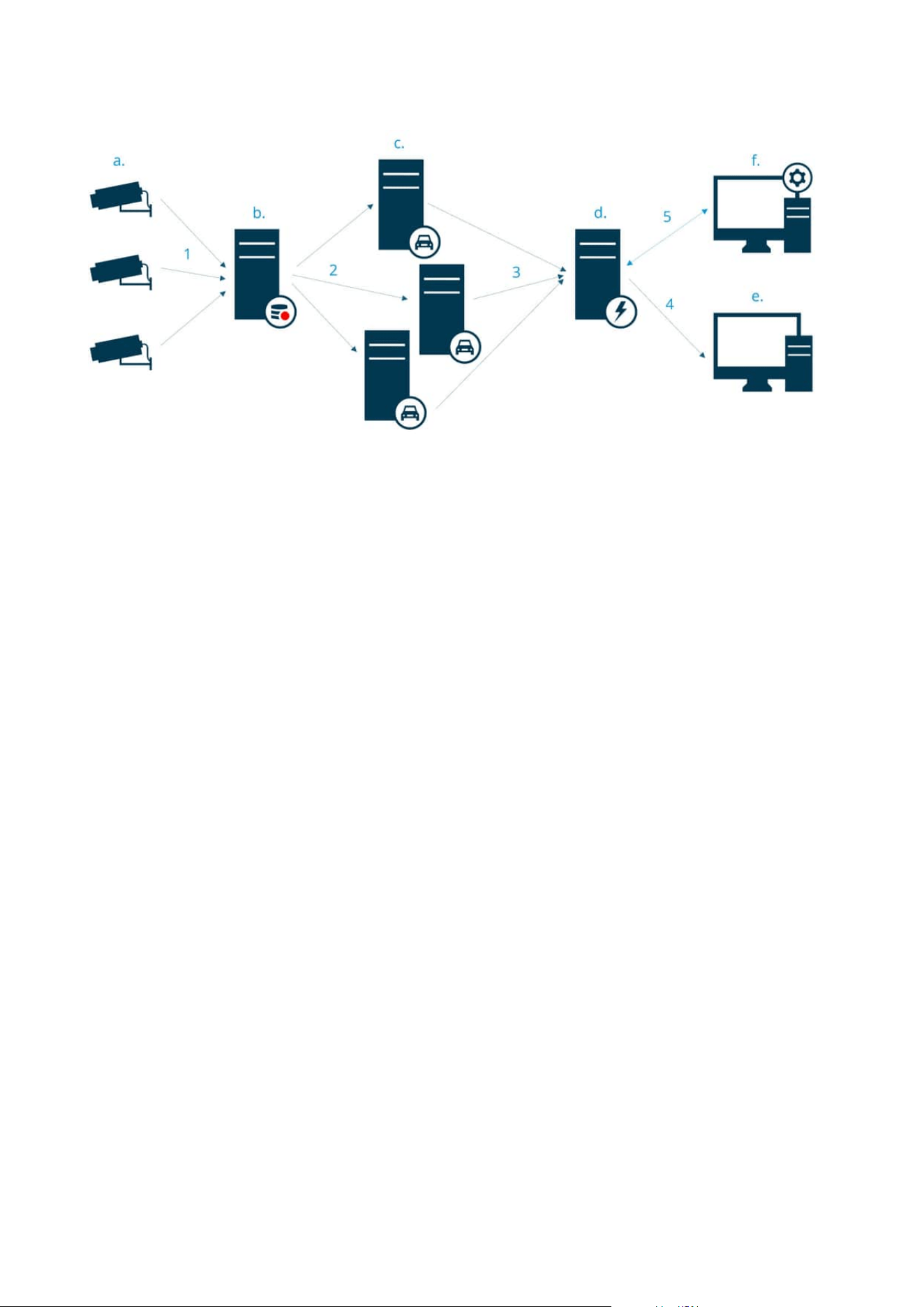
1. LPR cameras (a) send video to the recording server (b).
2. The recording server sends video to the LPR servers (c) to recognize license plates by comparing them
with the license plate styles in the installed country modules.
3. LPR servers send recognitions to the event server (d) to match with the match lists.
4. The event server sends events and alarms to XProtect Smart Client (e) when there is a match.
5. The system administrator manages the entire LPR configuration, for example, setting up events, alarms,
and lists in the Management Client (f).
LPR server
The LPR server handles LPR video recorded by your surveillance system. It analyzes the video and sends
information to the event server.The event server uses the information to trigger the defined events and alarms.
Milestone recommends that you install the LPR server on a computer especially allocated for this purpose.
LPR camera
The LPR camera captures video as any other camera, but some cameras are dedicated for LPR use. The better
suited camera you use, the more successful recognitions you will get.
Country module
A country module is a set of rules that defines which license plates of a certain type and form belong to which
country, state, or region. See how to enable country modules Country modules tab on page 38.
Administrator manual | XProtect® LPR 2023 R1
8 | Overview

License plate styles
Every country module contains license plate styles. When you enable a country module, all the license plate
styles that belong to that country module are also enabled.
A license plate style is a set of characteristics of a license plate, including the:
l Plate size and shape
l Text format and font
l Colors
l Type of vehicle that the license plate is used on
See a list of all license plate styles supported by XProtect LPR.
Match list
A match list is a list that you create. It's a collection of license plate registration numbers and license plate style
aliases that you want your system to treat in a special way. After you create a match list, you can set up events to
recognize license plates on these lists. The events will trigger events and alarms. See Match lists on page 44.
Compatibility
XProtect LPR is compatible with:
l XProtect Corporate
l XProtect Expert
l XProtect Professional+
l XProtect Express+
l Milestone Husky
See also Product comparison chart.
Administrator manual | XProtect® LPR 2023 R1
9 | Overview

Licensing
XProtect LPR licenses
XProtect LPR requires the following licenses:
l 1 base license for XProtect LPR. The base license covers an unrestricted number of LPR servers
l 1 LPR camera license per each LPR camera that you want to use in XProtect LPR
l A LPR country module license for each country, state, or region that you need in your XProtect LPR
solution.
5 LPR country module licenses are included with the XProtect LPR base license.
All country modules are automatically installed when you install your XProtect LPR
product. The installed modules are by default disabled and you must enable the
modules (see Country modules tab on page 38) that you want to use. You can only
enable as many country modules as you have LPR country module licenses for.
Example
You have installed 10 country modules, but you only have 5 LPR country module licenses. After you selected the
first 5 country modules, you cannot select any more. You must clear some of your selections before you can
select other modules.
To find information about the current status of your licenses, see View LPR server information on page 28.
To buy additional licenses or country modules, contact your vendor.
Administrator manual | XProtect® LPR 2023 R1
10 | Licensing
Requirements and considerations
System requirements
For information about the system requirements for the various VMS applications and system components, go to
the Milestone website (https://www.milestonesys.com/systemrequirements/).
Milestone recommends that you install the LPR server on a computer especially allocated
for this purpose.
Preparing cameras for LPR (explained)
LPR differs from other kinds of video surveillance. Normally, you choose cameras based on their ability to
provide the best possible images for viewing by the human eye. When you choose cameras for LPR, only the
area where you expect to detect license plates is important. The clearer and consistent you capture an image in
that small area, the higher recognition rate you will get.
This section helps you prepare cameras for license plate recognition, but it also introduces you to important
theories about cameras and lenses that are crucial to understand in order to get optimal images.
Factors that influence your configuration of LPR:
Administrator manual | XProtect® LPR 2023 R1
11 | Requirements and considerations
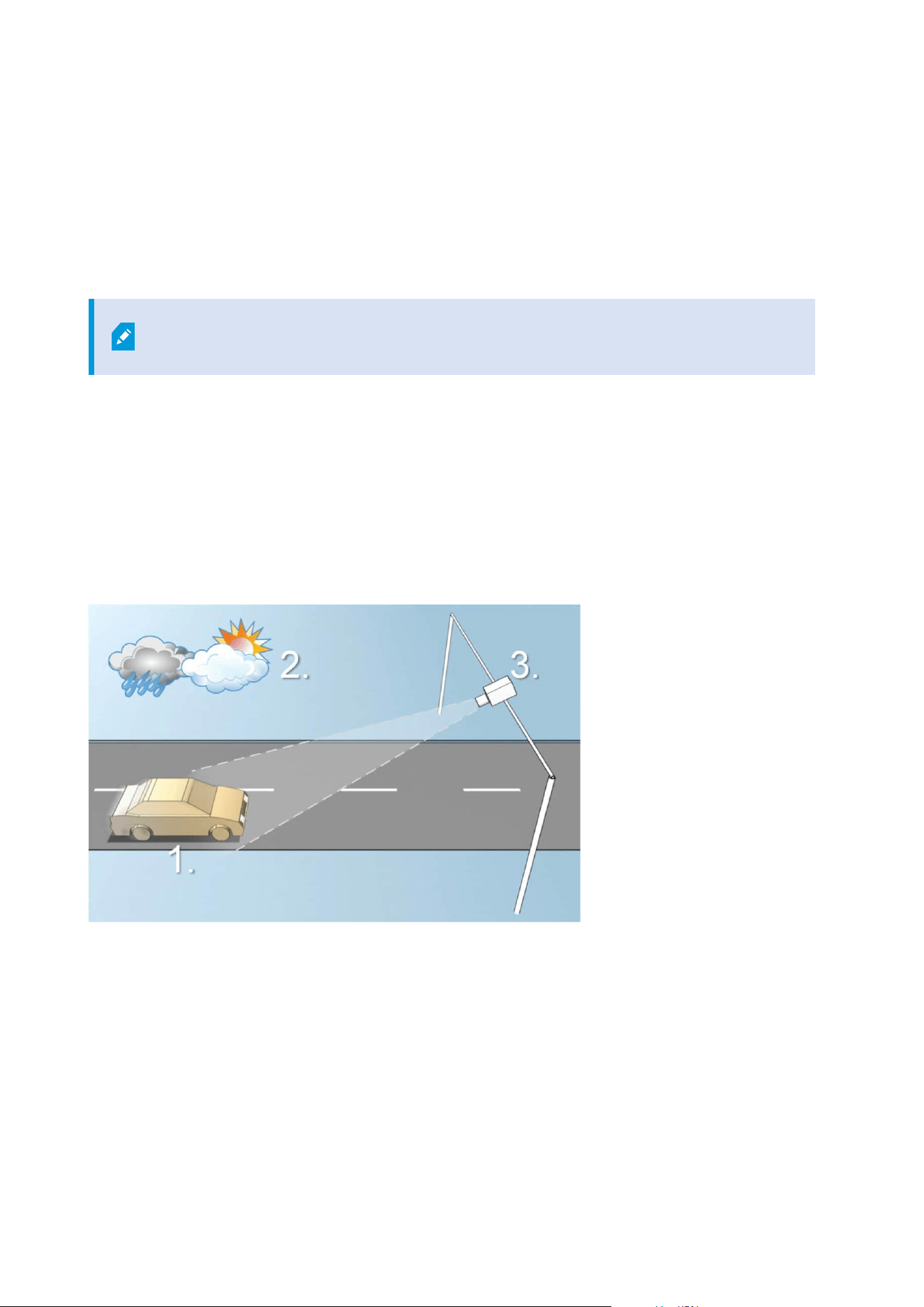
1. Vehicle 2. Physical surroundings 3. Camera
l Speed
l Plate size and
position
l Lighting
conditions
l Weather
l Exposure
l Field of view
l Shutter speed
l Resolution
l Positioning
It is important to take these factors into consideration as they have a critical influence on successful license
plate recognition. You must mount cameras and configure XProtect LPR in a way that matches each specific
environment. You cannot expect the product to run successfully without configuration. A camera used for LPR
has a CPU consumption that is about five times higher than a normal camera. If a camera has not been set up
correctly, it will greatly affect the level of successful recognitions and the CPU performance.
Positioning the camera
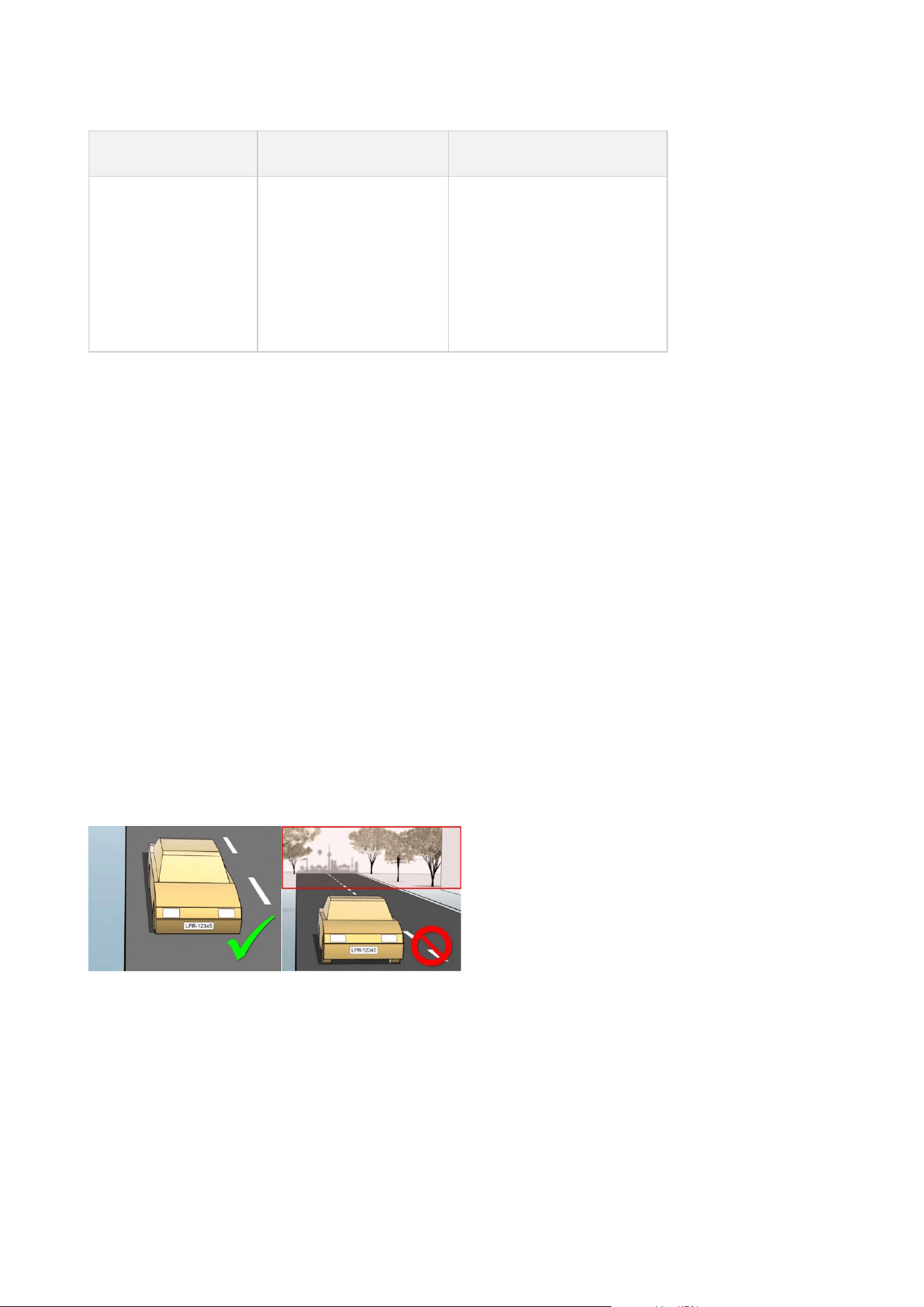
When you mount cameras for LPR use, it is important to get a good, clear view of the area of interest so the plate
can be detected consistently. This ensures the best possible performance and low risk of false detection:
l The area should cover only the part of the image where the license plate is visible as the vehicle moves in
and out of the image
l Avoid to have objects that block the view path of the camera, such as pillars, barriers, fences, gates
l Avoid irrelevant moving objects such as people, trees, or traffic in
If too many irrelevant items are included, they will interfere with the detection, and the LPR server will use CPU
resources on analyzing irrelevant items instead of license plates.
To help you obtain a clear and undisturbed view, you can:
l Mount the camera as close as possible to the area of interest
l Adjust camera angles
l Zoom. If you zoom, always use the camera's optical zoom
Administrator manual | XProtect® LPR 2023 R1
12 | Requirements and considerations
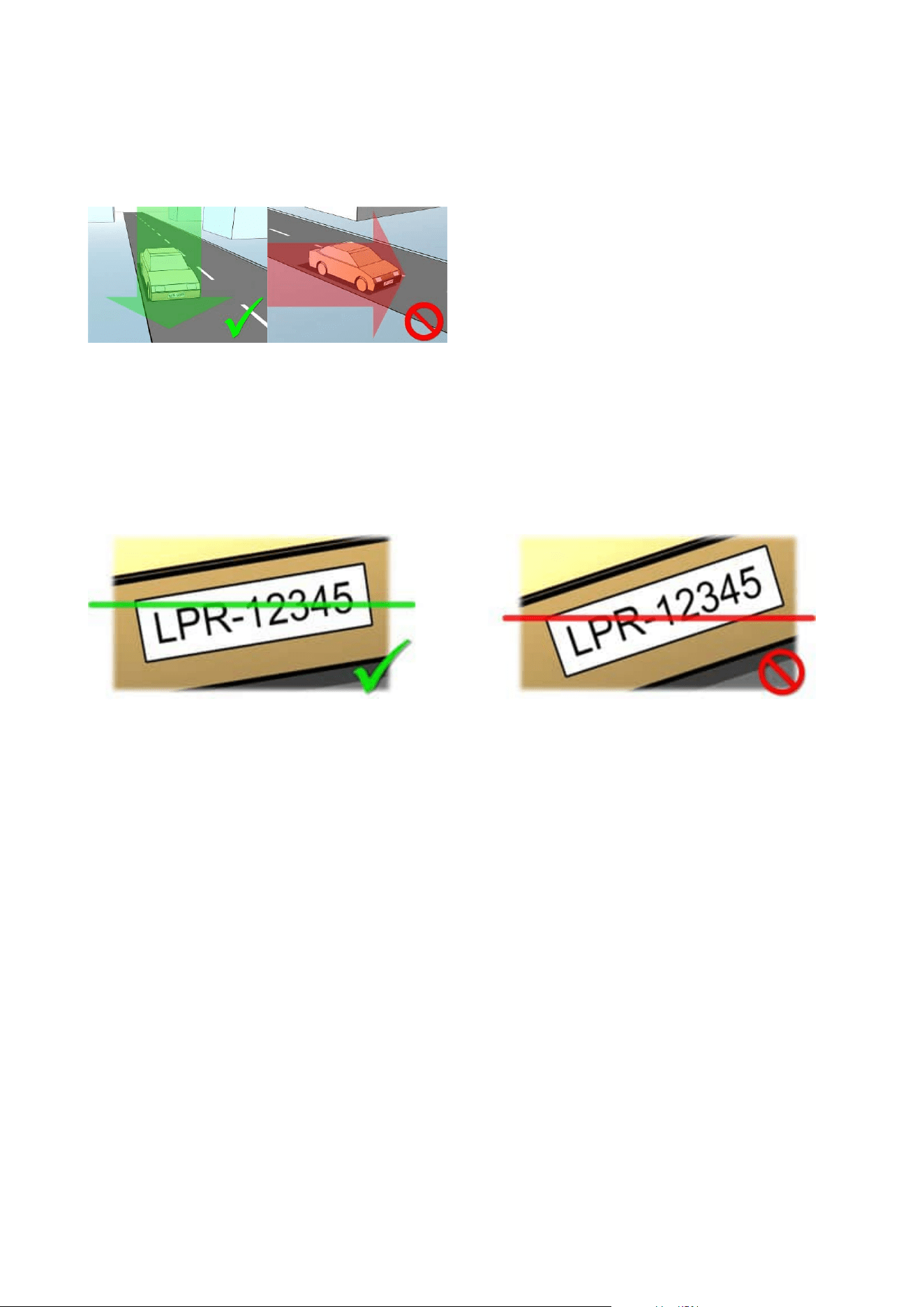
Mount the camera so the license plate appears from the top of the image (or bottom if traffic is driving away
from the camera) instead of from the right or left side. In this way you make sure that the recognition process of
a license plate only starts when the whole plate is in the view:
Camera angles
Single-line rule
Mount the camera so that you can draw a horizontal line that crosses both the left and right edge of the license
plate in the captured images. See the illustrations below for correct and incorrect angles for recognition.
Vertical angle
The recommended vertical view angle of a camera used for LPR is between 15°-30°.
Administrator manual | XProtect® LPR 2023 R1
13 | Requirements and considerations
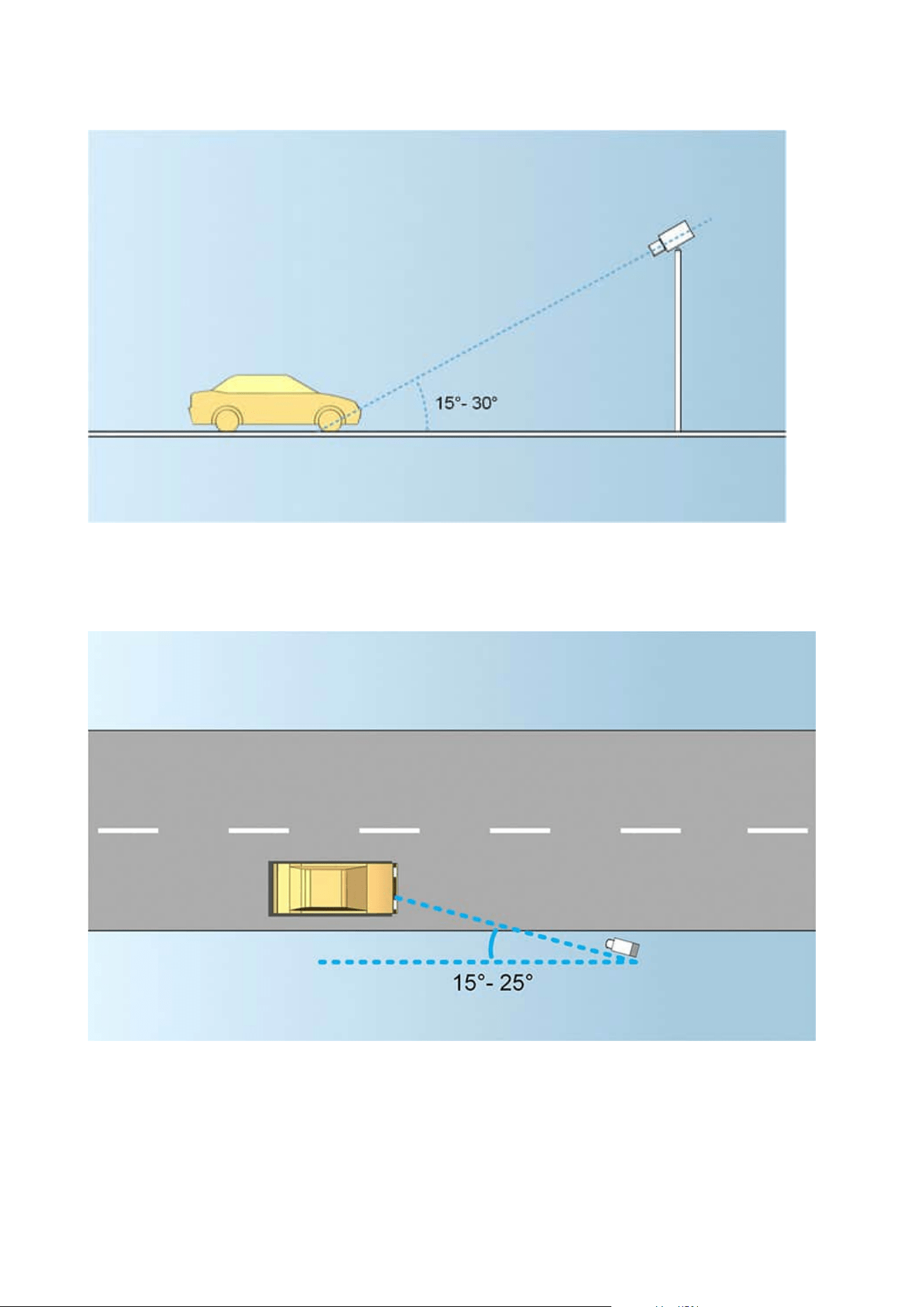
Horizontal angle
The recommended maximum horizontal view angle of a camera used for LPR is between 15°-25°.
Administrator manual | XProtect® LPR 2023 R1
14 | Requirements and considerations
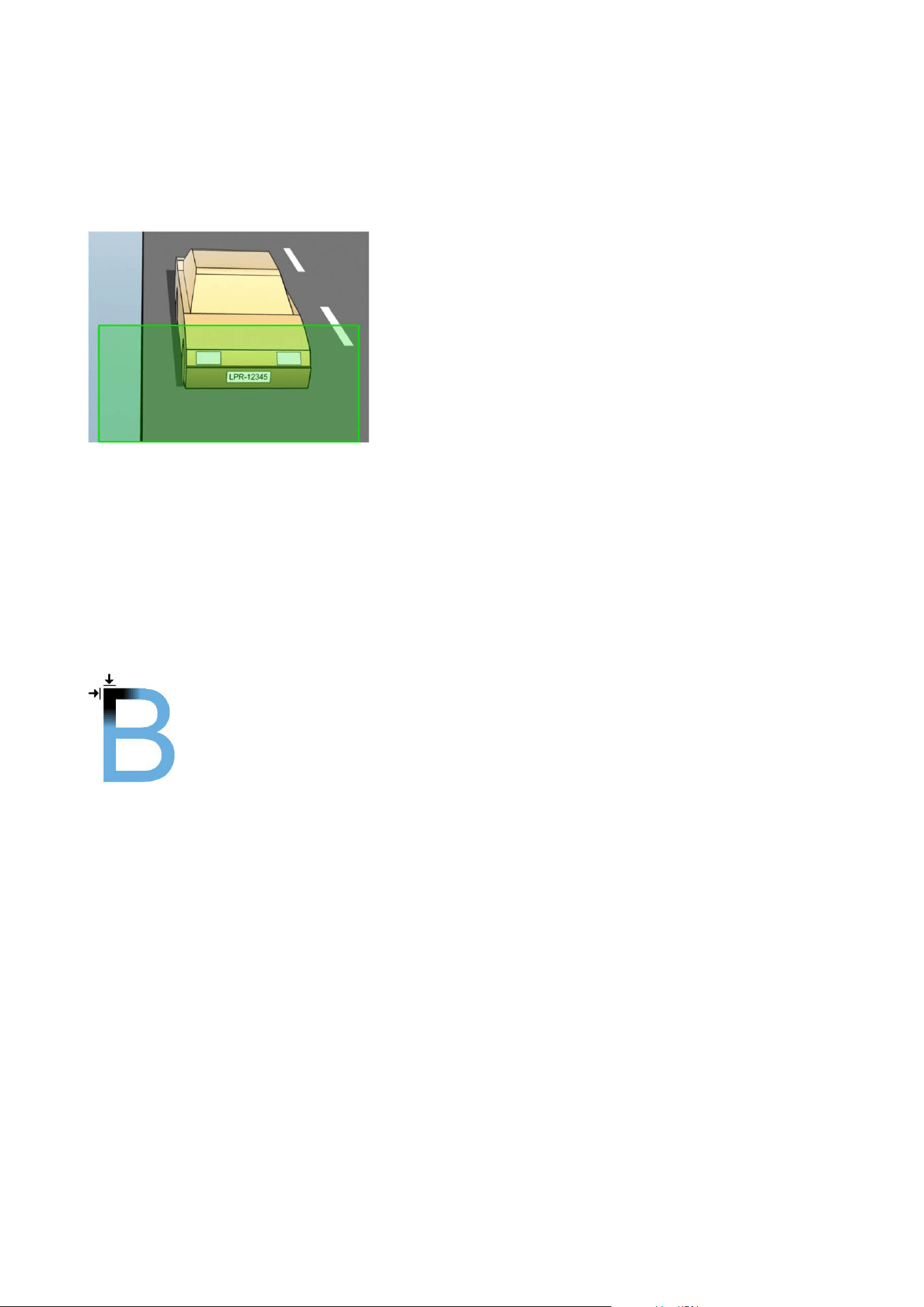
Plate width recommendations
Mount the camera so that the ideal snapshot of the license plate is captured when the license plate is in the
center or lower half of the image:
Take a snapshot and make sure that the requirements to stroke width and plate width as described below are
fulfilled. Use a standard graphics editor to measure the amount of pixels. When you start the process of
reaching the minimum plate width, begin with a low resolution on the camera, and then work your way up in a
higher resolution until you have the required plate width.
Stroke width
The term pixels per stroke is used to define a minimum requirement for fonts that should be recognized. The
following illustration outlines what is meant by stroke:
Because the thickness of strokes depend on the country and on the license plate style, measurements like
pixels/cm or pixels/inch are not used.
The resolution for best LPR performance should be at least 2.7 pixels/stroke.
Administrator manual | XProtect® LPR 2023 R1
15 | Requirements and considerations
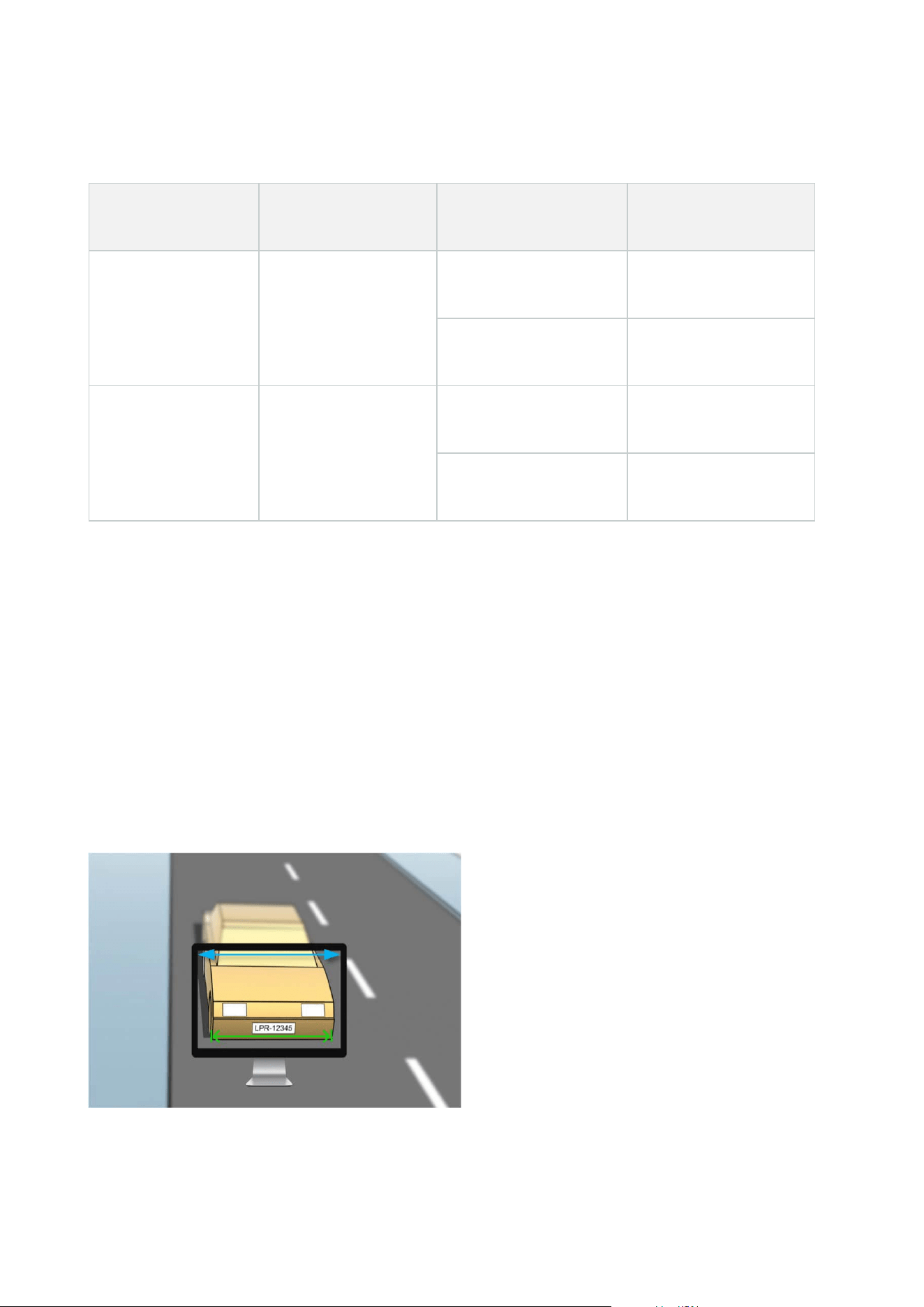
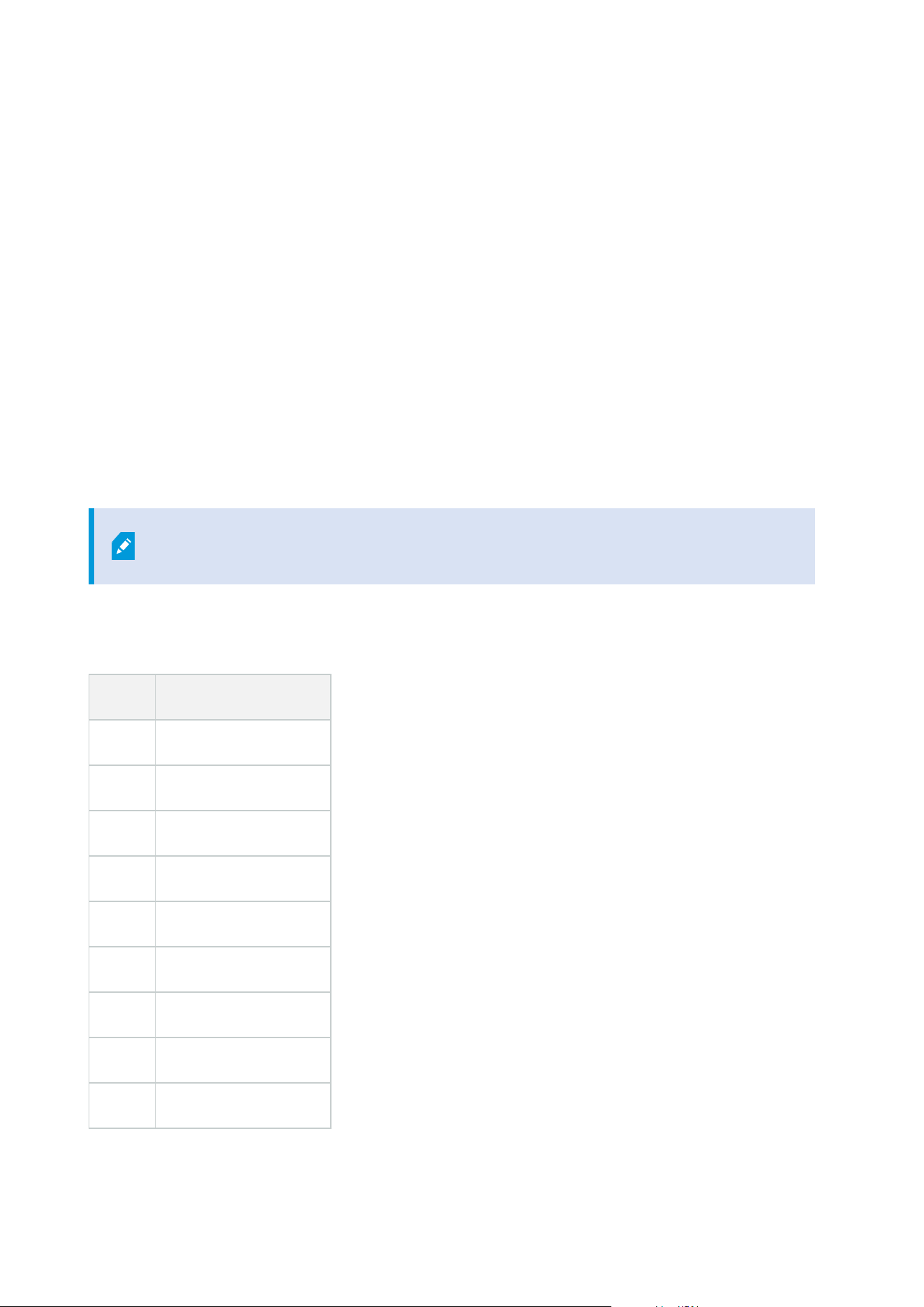
Plate width
Plate type Plate width Setup
Minimum plate width
(pixels)
Single line US plates
l Plate width 12
inches
l Stroke width
around ¼ inches
Vehicles stopped; no
interlacing
130
Vehicles are moving;
interlaced
215
Single line European
plates
l Plate width 52
cm
l Stroke width
around 1 cm
Vehicles stopped; no
interlacing
170
Vehicles are moving;
interlaced
280
If vehicles are moving when recorded, and an interlaced camera is used, only a half of the image can be used
(only the even lines) for recognition compared with a camera configured for stopped vehicles and no interlacing.
This means that the resolution requirements are almost double as high.
Image resolution
Image quality and resolution is important for a successful license plate recognition. On the other hand, if the
video resolution is too high, the CPU might be overloaded with the risk of skipped or faulty detections. The lower
you can set the acceptable resolution, the better CPU-performance and the higher detection rate you get.
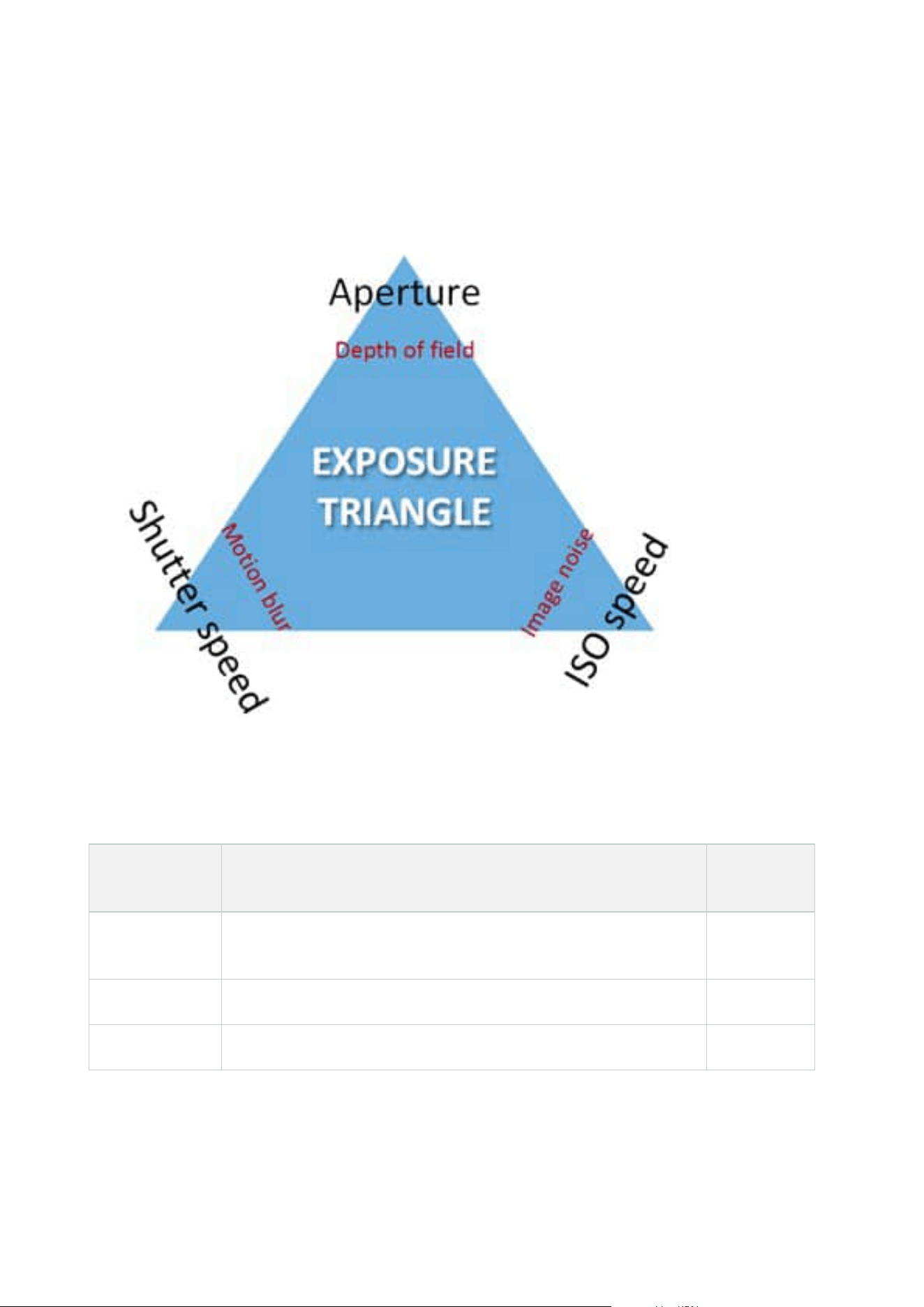
In this example we explain how to do a simple image quality calculation and find a suitable resolution for LPR.
The calculation is based on the width of a car.
Administrator manual | XProtect® LPR 2023 R1
16 | Requirements and considerations
We estimate that the horizontal width is 200 cm/78 inches, as we assume the width of a standard car is 177
cm/70 inches, and besides that we add ~10% for the extra space. You can also do a physical measuring of the
area of interest if you need to know the exact width.
The recommended resolution of the stroke thickness is 2.7 pixels/stroke, and the physical stroke thickness is 1
cm for a European plate and 0.27 inches for a US plate. This gives the following calculation:
Calculation for European plates in cm
200 × 2.7 ÷ 1 = 540 pixels
Recommended resolution = VGA (640×480)
Calculation for US plates in inches
78 × 2.7 ÷ 0.27 = 780 pixels
Recommended resolution = SVGA (800×600)
Because US plates use a font with a narrow stroke, a higher resolution is needed than for
European plates.
Common video resolutions
Name Pixels (width × height)
QCIF 176×120
CIF 352×240
2CIF 704×240
VGA 640×480
4CIF 704×480
D1 720×576
SVGA 800×600
XGA 1024×768
720p 1280×1024
Administrator manual | XProtect® LPR 2023 R1
17 | Requirements and considerations
Understanding camera exposure
Camera exposure determines how light/dark and sharp/blurry an image appears when it has been captured.
This is determined by three camera settings: aperture, shutter speed, and ISO speed. Understanding their use
and interdependency can help you to set up the camera correctly for LPR.
You can use different combinations of the three settings to achieve the same exposure. The key is to know which
trade-offs to make, since each setting also influences the other image settings:
Camera
settings
Controls... Affects...
Aperture
The adjustable opening that limits the amount of light to enter the
camera
Depth of
field
Shutter speed The duration of the exposure Motion blur
ISO speed The sensitivity of the camera's sensor to a given amount of light Image noise
Administrator manual | XProtect® LPR 2023 R1
18 | Requirements and considerations
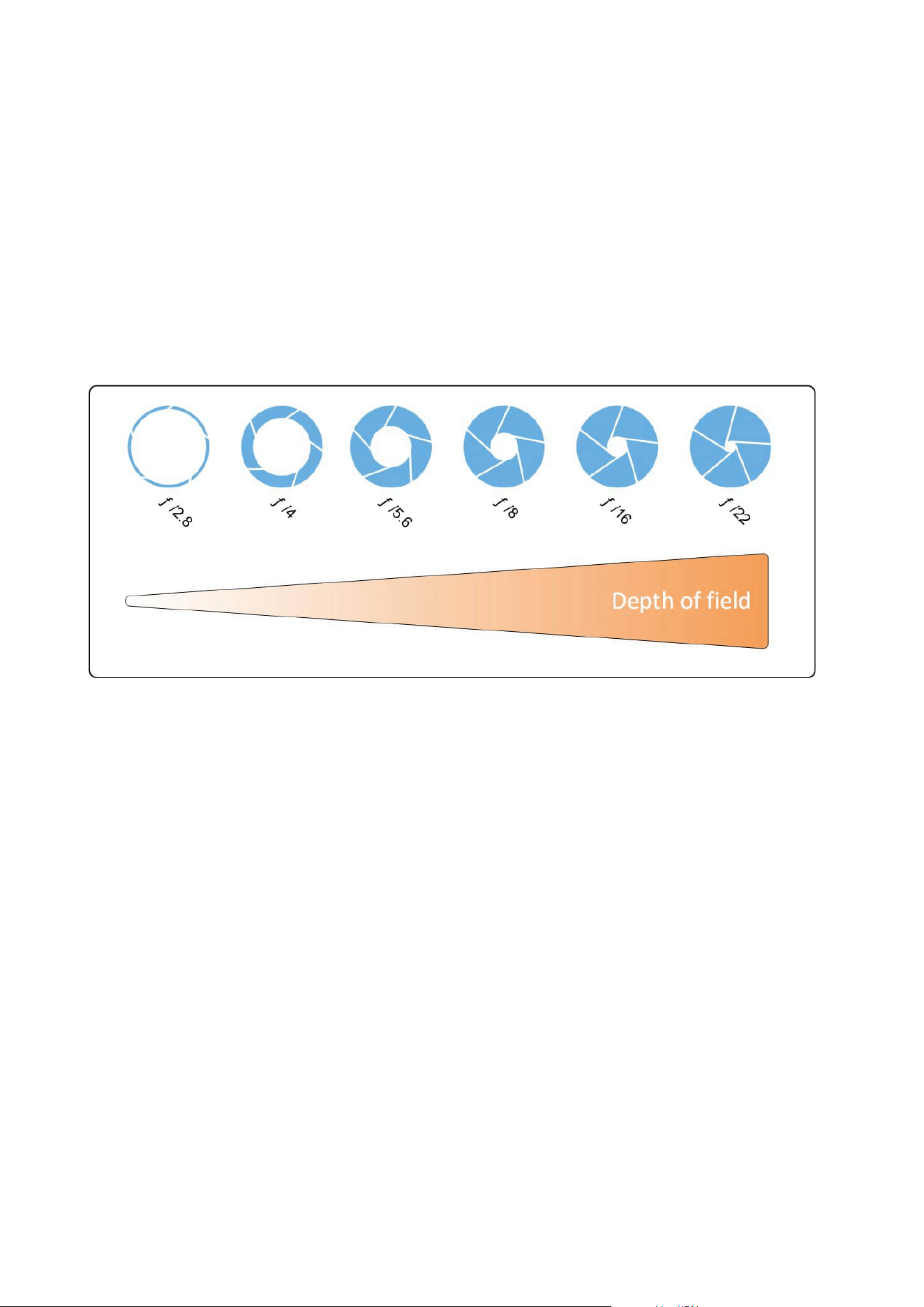
The next sections describe how each setting is specified, what it looks like, and how a given camera exposure
mode affects this combination:
Aperture settings
The aperture setting controls the amount of light that enters your camera from the lens. It is specified in terms
of an f-stop value, which can at times be counterintuitive, because the area of the opening increases as the f-
stop decreases.
Low f-stop value/wide aperture = shallow depth of field
High f-stop value/narrow aperture = large depth of field
Administrator manual | XProtect® LPR 2023 R1
19 | Requirements and considerations
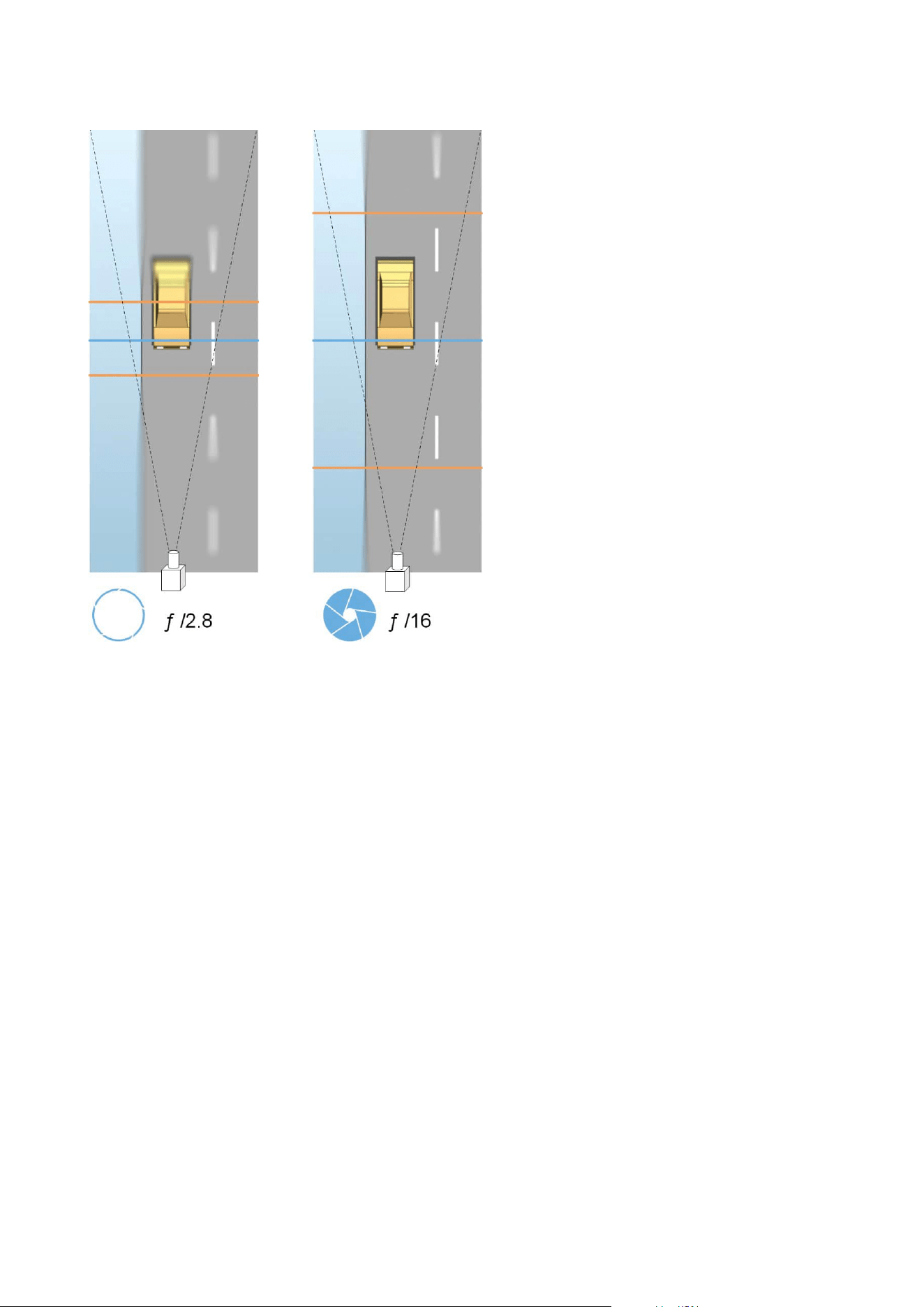
The example illustrates how the depth of field is affected by the f-stop value. The blue line indicates the focus
point.
A high f-stop value makes it possible to have a longer distance where the license plate is in focus. Good light
conditions are important for sufficient exposure. If lighting conditions are insufficient, the exposure time needs
to be longer, which again increases the risk of getting blurry images.
A low f-stop value reduces the focus area and thereby the area used for recognition, but is suitable for
conditions with low light. If it is possible to ensure that vehicles are passing the focus area at a low speed, a low
f-stop value is suitable for a consistent recognition.
Shutter speed
A camera's shutter determines when the camera sensor is open or closed for incoming light from the camera
lens. The shutter speed refers to the duration when the shutter is open and light can enter the camera. Shutter
speed and exposure time refer to the same concept, and a faster shutter speed means a shorter exposure time.
Motion blur is undesired for license plate recognition and surveillance. In many occasions vehicles are in motion
while license plates are detected which makes a correct shutter speed an important factor. The rule of thumb is
to keep the shutter speed high enough to avoid motion blur, but not too high as this may cause under-exposed
images depending on light and aperture.
Administrator manual | XProtect® LPR 2023 R1
20 | Requirements and considerations
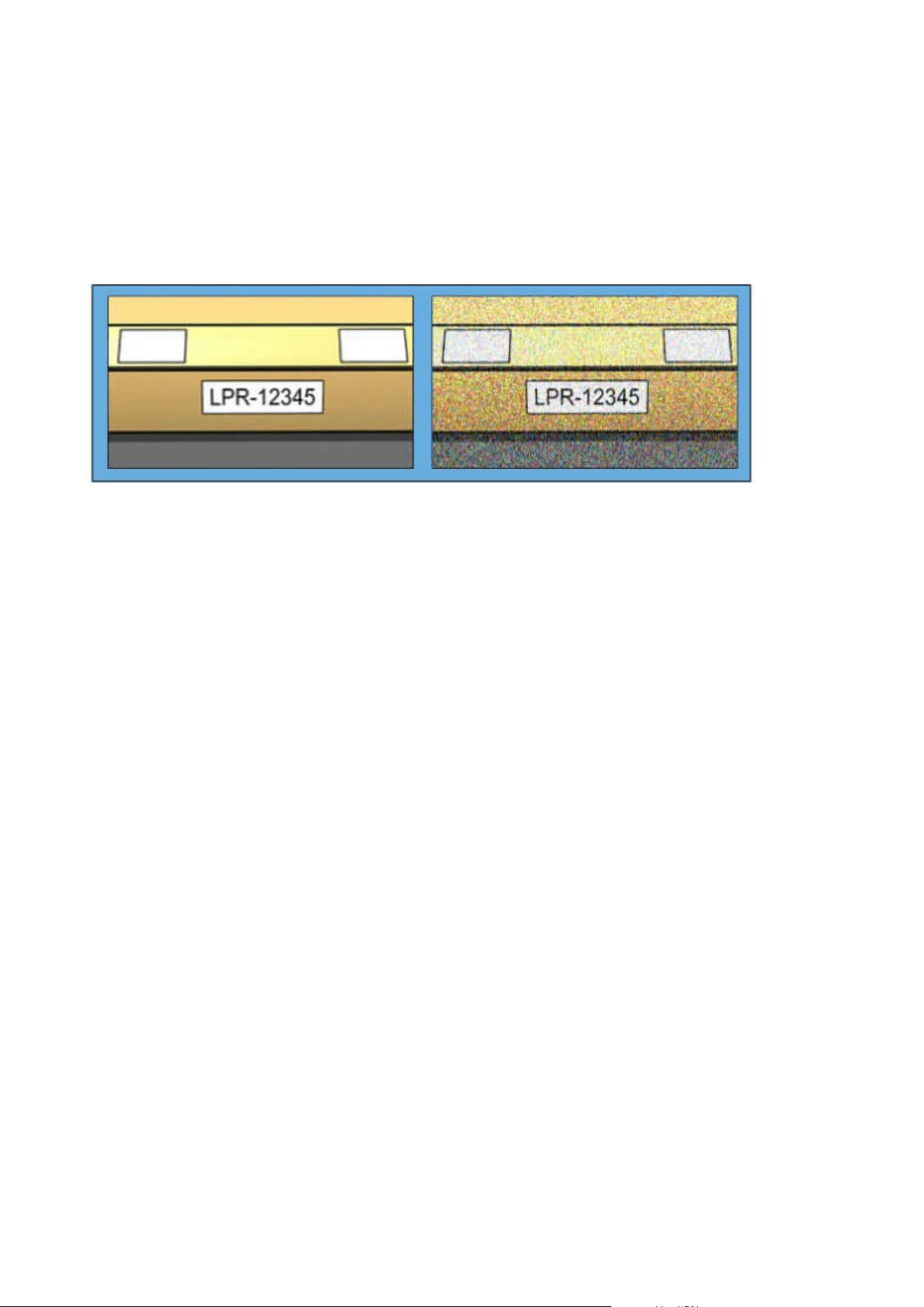
ISO speed
The ISO speed determines how sensitive the camera is to incoming light. Similar to shutter speed, it also
correlates 1:1 with how much the exposure increases or decreases. However, unlike aperture and shutter
speed, a lower ISO speed is in general desirable, since higher ISO speeds dramatically increase image noise. As
a result, ISO speed is usually only increased from its minimum value if the desired image quality is not
obtainable by modifying the aperture and shutter speed settings solely.
Low ISO speed image vs High ISO speed image
Common ISO speeds include 100, 200, 400 and 800, although many cameras also permit lower or higher values.
With digital single-lens reflex (DSLR) cameras, a range of 50-800 (or higher) is often acceptable.
Physical surroundings
When you mount and use cameras for LPR, note the following factors related to the surroundings:
Too much light
Too much light in the surroundings can lead to overexposure or smear:
l Overexposure is when images are exposed to too much light, resulting in a burnt-out and overly white
appearance. To avoid overexposure, Milestone recommends that you use a camera with a high dynamic
range and/or use an auto-iris lens
l Iris is the adjustable aperture. For that reason, iris has a significant effect on the exposure of images
Administrator manual | XProtect® LPR 2023 R1
21 | Requirements and considerations
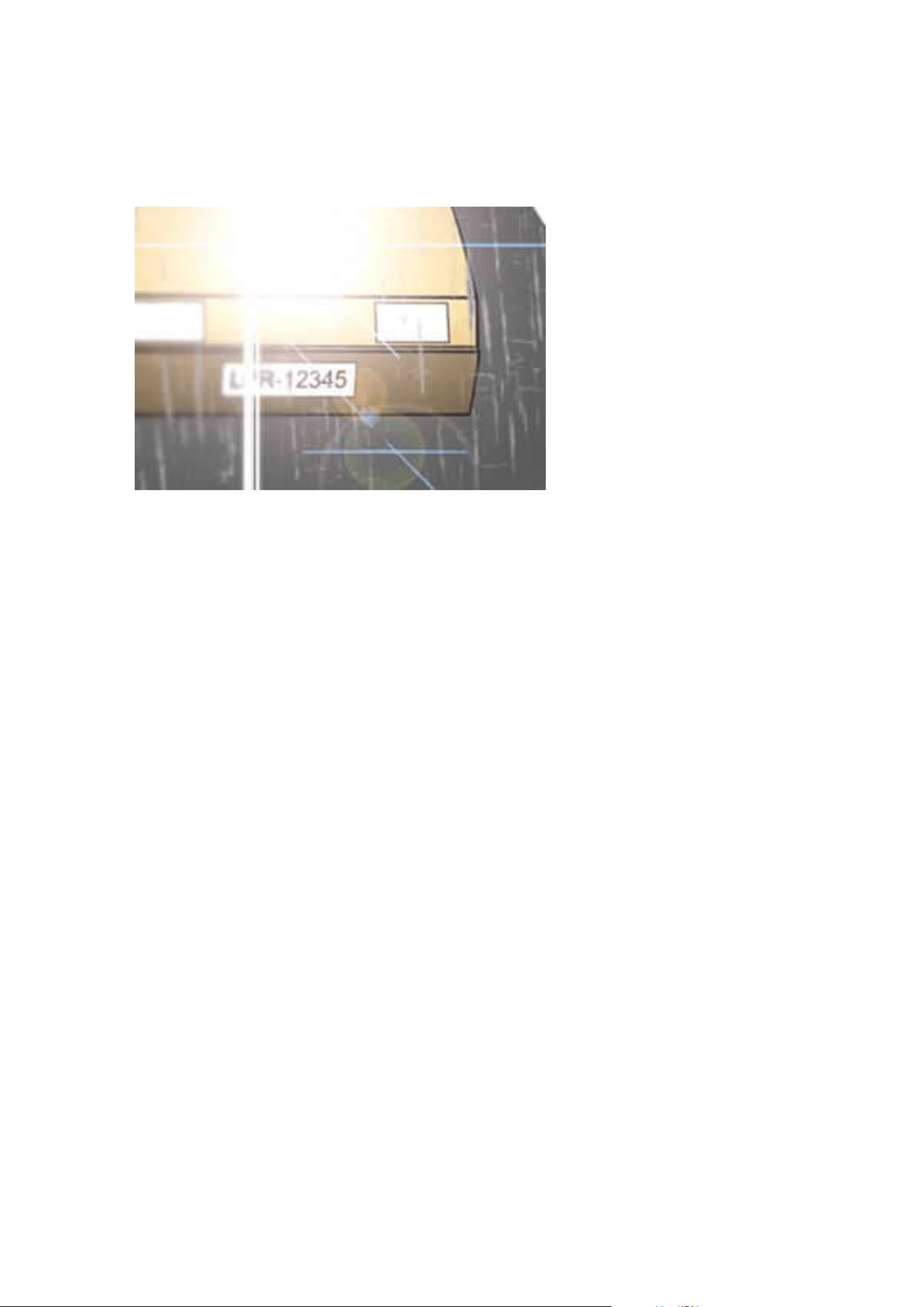
l Smear is an effect from overexposure that leads to unwanted light vertical lines in images. It is often
caused by slight imperfections in the cameras’ charge-coupled device (CCD) imagers. The CCS imagers
are the sensors used to digitally create the images
Too little light
Too little light in the surroundings or too little external lighting can lead to underexposure.
l Underexposure is when images are exposed to too little light, resulting in a dark image with hardly any
contrast (see Contrast on page 24). When auto-gain (see Unwanted camera features on page 24) cannot
be disabled or when you are not able to configure a maximum allowed shutter time (see Lens and shutter
speed on page 23) for capturing moving vehicles, too little light will initially lead to gain noise and motion
blur in the images, and ultimately to underexposure
To avoid underexposure, use sufficient external lighting and/or use a camera that has sufficient
sensitivity in low-light surroundings without using gain
l Infrared is another way to overcome difficult lighting conditions. You can use artificial infrared lighting
combined with an infrared-sensitive camera with an infrared pass filter. Retro-reflective license plates
are particularly suitable for use with infrared lighting:
l Retro-reflectivity is achieved by covering surfaces with a special reflective material which sends a
large portion of the light from a light source straight back along the path it came from. Retro-
reflective objects appear to shine much more brightly than other objects. This means that at night
they can be seen clearly from considerable distances. Retro-reflectivity is frequently used for road
signs, and is also used for different types of license plates
l Weather conditions, such as snow or very bright sunlight may for example require special configuration
of cameras
l License plate condition: Vehicles may have damaged or dirty license plates. Sometimes this is done
deliberately in an attempt to avoid recognition
Administrator manual | XProtect® LPR 2023 R1
22 | Requirements and considerations

Lens and shutter speed
When configuring camera lenses and shutter speeds for LPR, note the following:
l Focus: Always make sure the license plate is in focus
l Auto-iris: If using an auto-iris lens, always set the focus with the aperture as open as possible. In order to
make the aperture open, you can use neutral density (ND) filters or—if the camera supports manual
configuration of the shutter time—the shutter time can be set to a very short time
l Neutral Density (ND) filters or gray filters basically reduce the amount of light coming into a
camera. They work as "sunglasses" for the camera. ND filters affect the exposure of images (see
Understanding camera exposure on page 18)
l Infrared: If using an infrared light source, focus may change when switching between visible light and
infrared light. You can avoid the change in focus by using an infrared compensated lens, or by using an
infrared pass filter. If you use an infrared pass filter, an infrared light source is required—also during
daytime
l Vehicle speed: When vehicles are moving, cameras’ shutter time should be short enough to avoid motion
blur. A formula for calculating the longest suitable shutter time is:
l Vehicle speed in km/h: Shutter time in seconds = 1 second / (11 × max vehicle speed in kilometers
per hour)
l Vehicle speed in mph: Shutter time in seconds = 1 second / (18 × max vehicle speed in miles per
hour)
where / denotes "divided by" and × denotes "multiplied by."
The following table provides guidelines for recommended camera shutter speeds for different vehicle speeds:
Shutter time in
seconds
Maimum vehicle speed in kilometers
per hour
Maximum vehicle speed in miles
per hour
1/50 4 2
1/100 9 5
1/200 18 11
1/250 22 13
1/500 45 27
Administrator manual | XProtect® LPR 2023 R1
23 | Requirements and considerations
Shutter time in
seconds
Maimum vehicle speed in kilometers
per hour
Maximum vehicle speed in miles
per hour
1/750 68 41
1/1000 90 55
1/1500 136 83
1/2000 181 111
1/3000 272 166
1/4000 363 222
Contrast
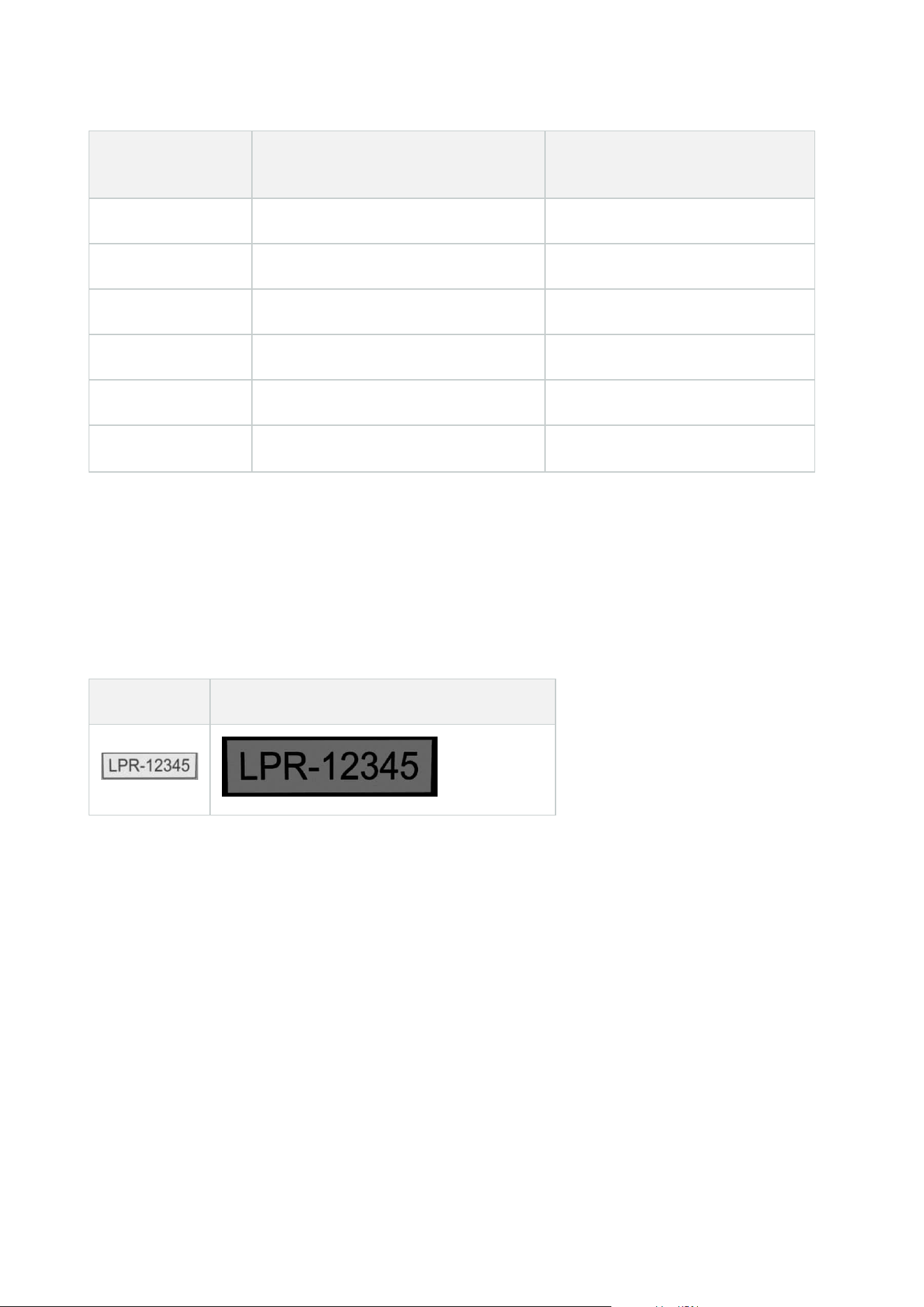
When you determine the right contrast for your LPR camera, consider the difference in gray value (when images
are converted to 8-bit grayscale) between the license plate’s characters and the license plate’s background
color:
Good contrast Acceptable contrast; recognition is still possible
Pixels in an 8-bit grayscale image can have color values ranging from 0 to 255, where grayscale value 0 is
absolute black and 255 is absolute white. When you convert your input image to an 8-bit grayscale image, the
minimum pixel value difference between a pixel in the text and a pixel in the background should be at least 15.
Noise in the image (see Unwanted camera features on page 24), the use of compression (see Unwanted camera
features on page 24), the light conditions, and similar can make it difficult to determine the colors of a license
plate’s characters and background.
Unwanted camera features
When you configure cameras for LPR, note the following:
Administrator manual | XProtect® LPR 2023 R1
24 | Requirements and considerations
Automatic gain adjustment
One of the most common types of image interference caused by cameras is gain noise.
l Gain is the way that a camera captures a picture of a scene and distributes light into it. If light is not
distributed optimally in the image, the result is gain noise.
Controlling gain requires that complex algorithms are applied, and many cameras have features for
automatically adjusting gain. Unfortunately, such features are rarely helpful in connection with LPR.
Milestone recommends that you configure your cameras’ auto-gain functionality to be as low as possible.
Alternatively, disable the cameras’ auto-gain functionality.
In dark surroundings, you can avoid gain noise by installing sufficient external lighting.
Automatic enhancement
Some cameras use contour, edge or contrast enhancement algorithms to make images look better to the
human eye. Such algorithms can interfere with the algorithms used in the LPR process. Milestone recommends
that you disable the cameras’ contour, edge and contrast enhancement algorithms whenever possible.
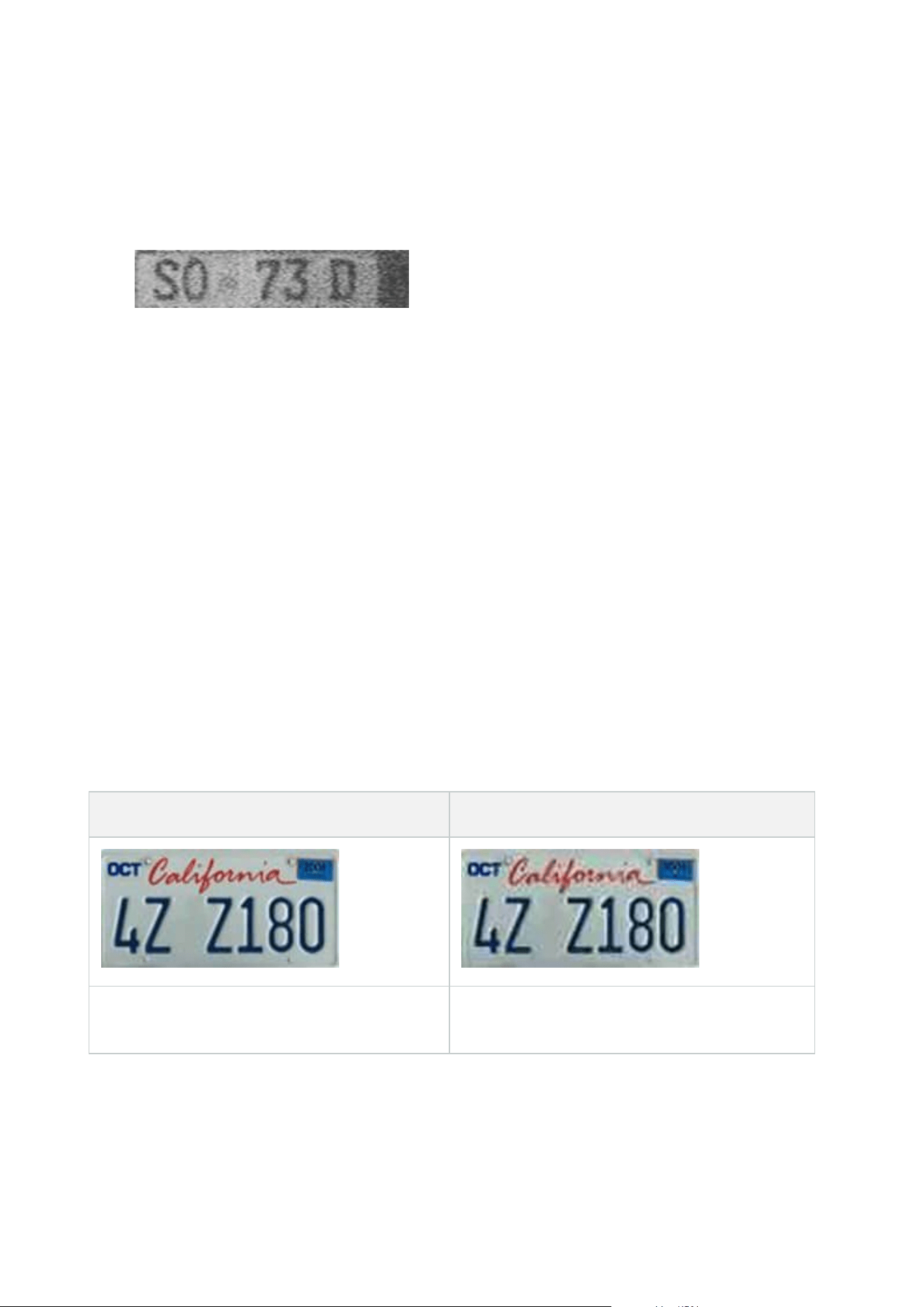
Automatic compression
High compression rates can have a negative influence on the quality of license plate images. When a high
compression rate is used, more resolution (see Plate width recommendations on page 15) is required in order to
achieve optimal LPR performance. If a low JPEG compression is used, the negative impact on LPR is very low, as
long as the images are saved with a JPEG quality level of 80% or above, and images have normal resolution,
contrast and focus as well as a low noise level.
Acceptable Unacceptable
License plate image saved with a JPEG quality level
of 80% (i.e. low compression).
License plate image saved with a JPEG quality level
of 50% (i.e. high compression).
Administrator manual | XProtect® LPR 2023 R1
25 | Requirements and considerations
Installation
Install XProtect LPR
Considerations
To run XProtect LPR, you must install:
l At least one LPR server
l The XProtect LPR plug-in on all computers that run the Management Client, the event server, and
XProtect Smart Client
l Make sure that the user selected for running the LPR Server service can access the Management Client
Milestone recommends that you install the LPR server on a different computer than your
management server or recording servers.
If you install the LPR server on a different computer, you must add the computer to the
Administrators role as a Windows user.
Start installation
1. On the download page of the Milestone website (https://www.milestonesys.com/downloads/), download
the two installers:
l Milestone XProtect LPR Plug-in Installer to all computers that run the Management Client and the
event server
l Milestone XProtect LPR Server Installer to all computers allocated for this purpose. You can also
create virtual servers for LPR on one computer
2. First, run all the Milestone XProtect LPR Plug-in installers.
Administrator manual | XProtect® LPR 2023 R1
26 | Installation

3. Then, run the Milestone XProtect LPR Server installer(s).
During installation:
1. Specify the IP address or host name of the management server or image server including the
domain user name and password of a user account that has administrator rights to the
surveillance system.
2. For secure communication:
l Select the certificate used to connect to the management server
l Select the certificate used to connect to the event server
For more information, see the certificates guide about how to secure your XProtect VMS
installations.
3. Select the service account. If the computer is part of a domain, the service must run as either a
predefined Network Service or a domain user account.
4. Launch the Management Client.
In the Site Navigation pane, your Management Client automatically lists the installed LPR servers in the
LPR Servers list.
5. Make sure that you have the necessary licenses (see XProtect LPR licenses on page 10).
6. All country modules are automatically installed when you install your XProtect LPR product. However, the
installed modules are by default disabled and you must enable the modules (see Country modules tab on
page 38) that you want to use. You can only enable as many country modules as you have LPR country
module licenses for.
You cannot add LPR servers from the Management Client.
If you need to install more LPR servers after the initial installation, run the Milestone XProtect LPR Server Installer
on these computers.
If an antivirus program is installed on a computer running XProtect software, it is
important that you exclude the C:\ProgramData\Milestone\XProtect LPR folder. Without
implementing this exception, virus scanning uses a considerable amount of system
resources and the scanning process can temporarily lock files.
Administrator manual | XProtect® LPR 2023 R1
27 | Installation
Configuration
View LPR server information
To check the state of your LPR servers:
1. In the Site Navigation pane > Servers, select LPR servers.
In the LPR server information window, see an overview of all installed LPR servers and their name, host
name, and status.
2. Select an LPR server.
In the LPR server information window, see details about the server.
LPR server information properties
Field Description
Name Here you can change the name of the LPR server.
Host name
Shows the LPR server host name.
The first part of the name of the LPR server consists of the name of the host computer
for your LPR server installation. Example: MYHOST.domainname.country.
Status
Shows the status of the LPR server.
If the server has just been added, the status is:
l No LPR cameras configured
If the system is running without problems, the status is:
l All LPR cameras are running
Alternatively, the system returns:
l Service not responding
l Not connected to surveillance system
l Service not running
l Event Server not connected
Administrator manual | XProtect® LPR 2023 R1
28 | Configuration

Field Description
l Unknown error
l X of Y LPR cameras running
Service up time
Shows the up time since the LPR server was last down and the LPR Server service
started.
Computer CPU
usage
Shows the current CPU usage on the entire computer with the LPR server(s) installed.
Memory
available
Shows how much memory is available on the LPR server.
Recognized
license plates
Shows the number of license plates that the LPR server has recognized in this session.
LPR cameras Shows a list of enabled LPR cameras that run on the LPR server and their status.
LPR cameras
available
Based on your license, this number shows how many additional LPR cameras you are
allowed to add and use on all your LPR servers in total.
Country
modules
available
Based on your license, this number shows how many additional country modules you
are allowed to use on all your LPR servers in total. It also lists the number of country
modules already in use.
Configuring cameras for LPR
This article describes the steps to go through when you add and configure cameras used with XProtect LPR.
Requirements for LPR in the Management Client
Once cameras have been mounted and added in the Management Client, adjust each camera's settings so that
they match the requirements for LPR. You adjust camera settings on the properties tabs for each camera device.
For the relevant cameras, Milestone recommends to:
Administrator manual | XProtect® LPR 2023 R1
29 | Configuration
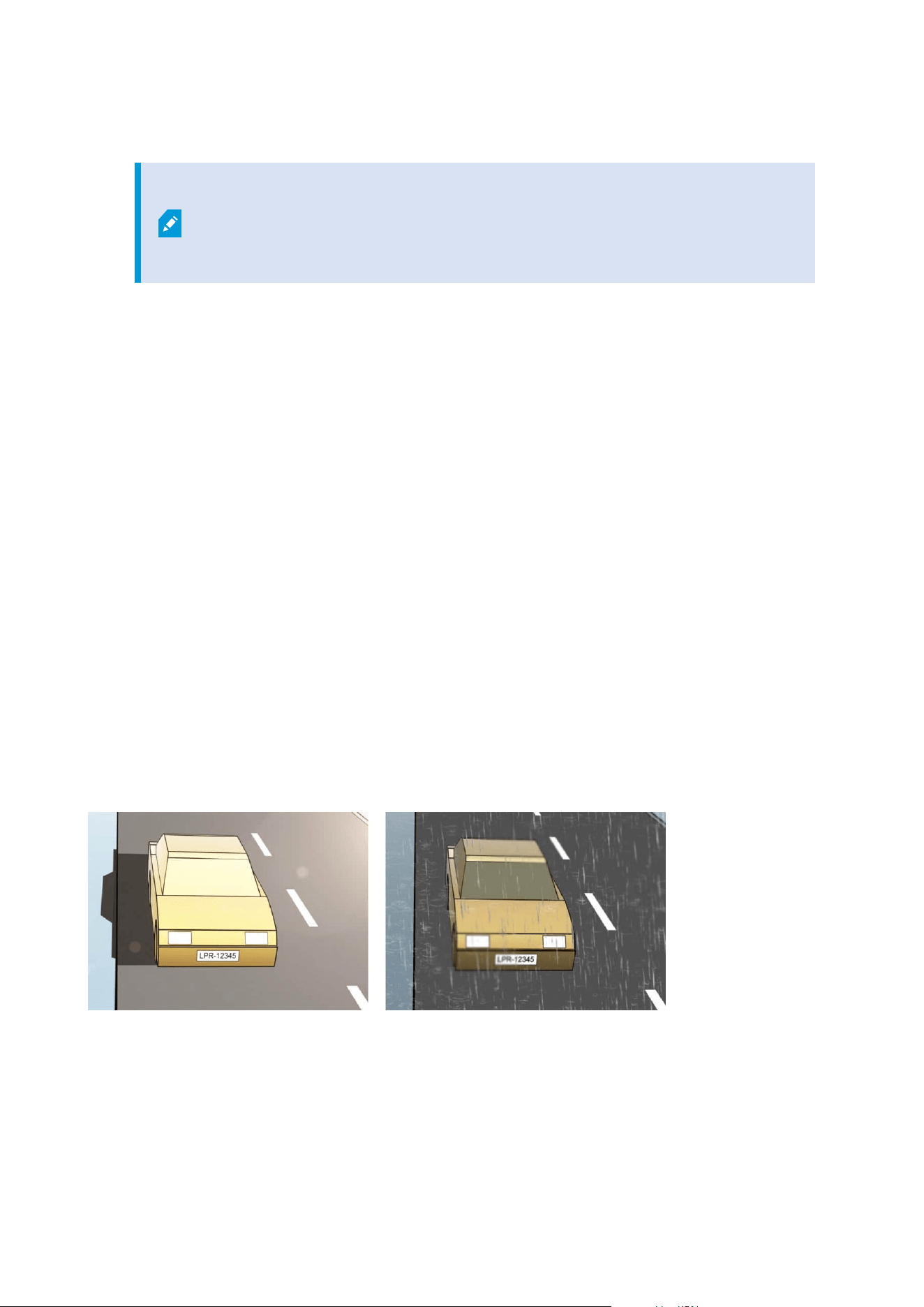
l Set the video codec to JPEG
For LPR use, H.264 codec is not recommended and H.265 is not supported.
Disadvantages using these codecs include delays in the stream processing and
unnecessary extra CPU load on the server. Therefore, Milestone recommends that
you always use JPEG video streams for LPR cameras.
l Specify a frame rate of four frames per second
l Avoid compression, so set a fine quality
l If possible, specify a resolution below one megapixel
l If possible, keep automatic sharpness at a low level
To learn about LPR fundamentals, make yourself familiar with the information in Preparing cameras for LPR
(explained) on page 11.
Snapshots (explained)
The system uses snapshots to optimize the configuration automatically and to visualize the effect of the
recognition settings as they are applied.
You need to provide at least one valid snapshot in order to complete the initial configuration of a camera.
As a guideline, capture snapshots of vehicles in the real physical surroundings and conditions, in which you want
to be able to recognize license plates.
The list below illustrates examples of the situations that you should consider when you capture and select
snapshots. Not all may be applicable to your surroundings.
Milestone recommends that you select minimum 5-10 snapshots that represent typical conditions of:
The weather; for example, sunlight and rain
The light; for example, daylight and nighttime
Administrator manual | XProtect® LPR 2023 R1
30 | Configuration
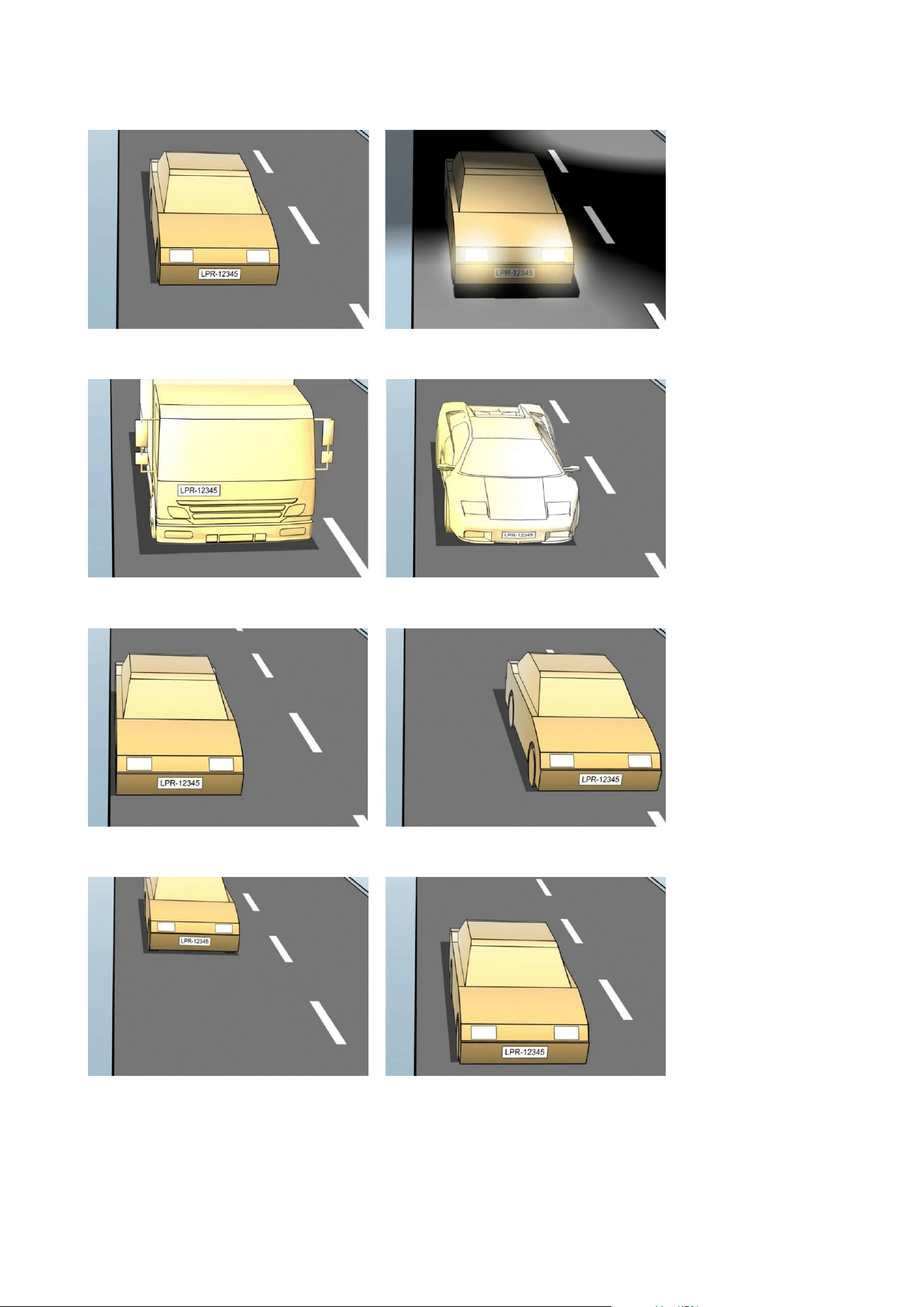
Vehicle types; to define the top and bottom of the recognition area
Position in the lane; to define the left and right of the recognition area
Distance to the car; to define the area where LPR analyzes license plates
Administrator manual | XProtect® LPR 2023 R1
31 | Configuration

Add LPR camera
To configure cameras for LPR, you initially run the Add LPR camera wizard. The wizard takes you through the
main configuration steps and automatically optimizes the configuration.
To run the wizard:
1. In the Site Navigation pane, select Servers > LPR servers > LPR cameras.
2. Right-click the server and select Add LPR camera.
3. Follow the instructions in the wizard:
l Select the camera you want to configure for LPR
l Select which country modules you want to use with your LPR camera (see Country modules tab on
page 38)
l Select snapshots to use for validating the configuration (see Snapshots (explained) on page 30)
l Validate the result of the snapshot analysis (see Validate configuration on page 42)
l Select which match lists to use (see Match lists (explained) on page 44). Choose the default
selection, if you have not yet created any lists
4. On the last page, click Close.
The LPR camera appears in the Management Client and based on your selections, the system has
optimized the recognition settings for the camera (see Add LPR camera on page 32).
5. Select the camera you have added and review its settings. You only need to change the configuration if
the system does not recognize license plates as well as expected.
6. In the Recognition settings tab, click Validate configuration (see Validate configuration on page 42).
Adjust settings for your LPR camera
The system automatically optimized the configuration of your LPR camera, when you added the LPR camera with
the Add LPR camera wizard. If you want to make changes to the initial configuration, you can:
l Change the name of the server or change server (see Info tab on page 32)
l Adjust and validate the recognition settings (see Recognition settings tab on page 33)
l Add more match lists (see Match lists tab on page 37)
l Enable additional country modules (see Country modules tab on page 38)
Info tab
This tab provides information about the selected camera:
Administrator manual | XProtect® LPR 2023 R1
32 | Configuration
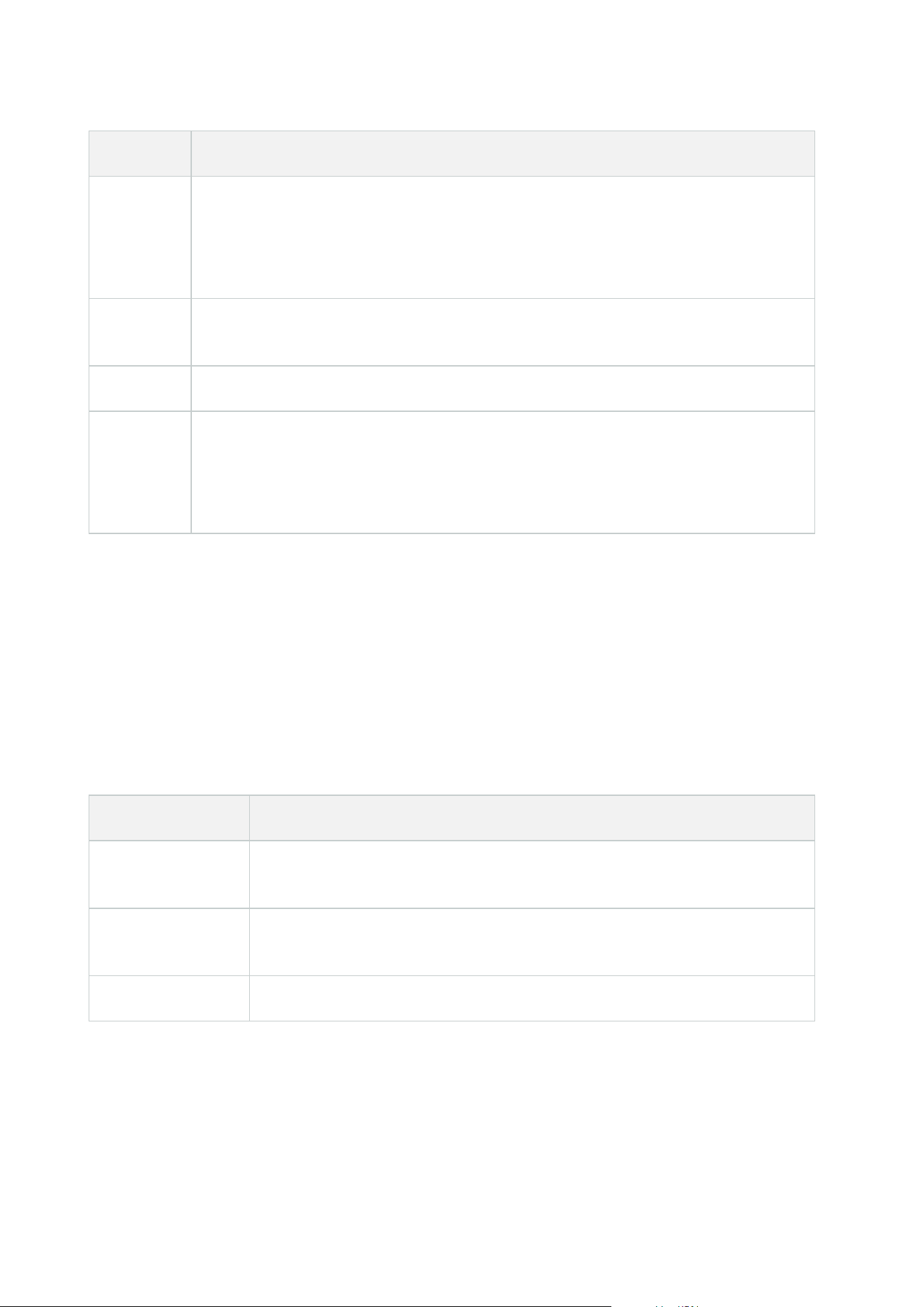
Name Description
Enable
LPR cameras are by default enabled after the initial configuration. Disable any camera that is
not used in connection with LPR.
Disabling an LPR camera does not stop it from performing normal recording in the
surveillance system.
Camera
Shows the name of the selected camera as it appears in the XProtect Management Client
and the clients.
Description Use this field to enter a description (optional).
Change
Server
Click to change LPR server.
Changing the LPR server can be a good idea if you need to load balance. For example, if the
CPU load is too high on an LPR server, Milestone recommends that you move one or more
LPR cameras to another LPR server.
Recognition settings tab
Change recognition settings manually. Based on the snapshots you provided, the system auto-configured the
recognition settings. Changing these settings can greatly affect the recognition success rate.
Action buttons
Change, update, and validate auto-configured settings.
Name Description
Validate
configuration
Test that license plates are recognized as expected (see Validate configuration on
page 42).
Auto-configure
Discard manual changes and auto-configure settings (see Auto-configure on page
43).
Snapshots Add or delete snapshots (see Select snapshots on page 41).
Administrator manual | XProtect® LPR 2023 R1
33 | Configuration
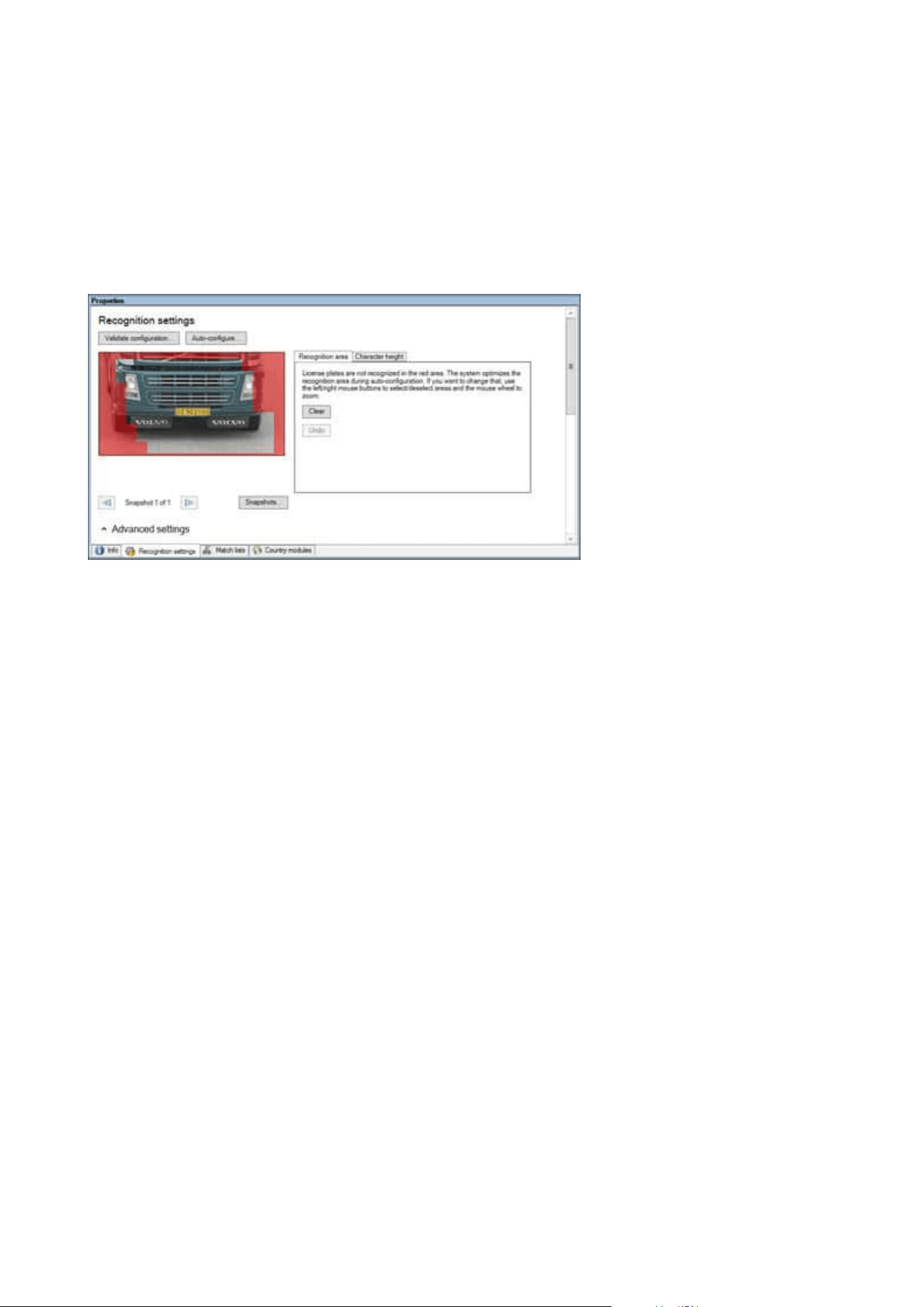
Recognition area
To ensure best performance and avoid false recognitions, Milestone recommends that you select a clearly
defined and "well-trimmed" recognition area. The area should cover only the part of the image where the license
plate is visible and remains visible as the vehicle moves in and out of the image. Avoid irrelevant moving objects
(people, trees, traffic) in the recognition area (see Positioning the camera on page 12).
License plates are not recognized in the red area.
When specifying a recognition area, you can click:
l Clear to remove all selections and select new areas for LPR
l Undo to revert to your last saved recognition area
After changing the settings for your LPR camera, validate your configuration (see Validate configuration on page
42) to check if the system recognizes license plates as well as expected.
Character height
Define the minimum and maximum height of the license plate characters (in percent). Select character heights
as close as possible to the height of the characters in the real license plate.
These character settings affect the recognition time and process. The smaller the difference between the
minimum and the maximum character height:
l The smoother the LPR process
l The lower the CPU load
l The sooner you get the results
Administrator manual | XProtect® LPR 2023 R1
34 | Configuration
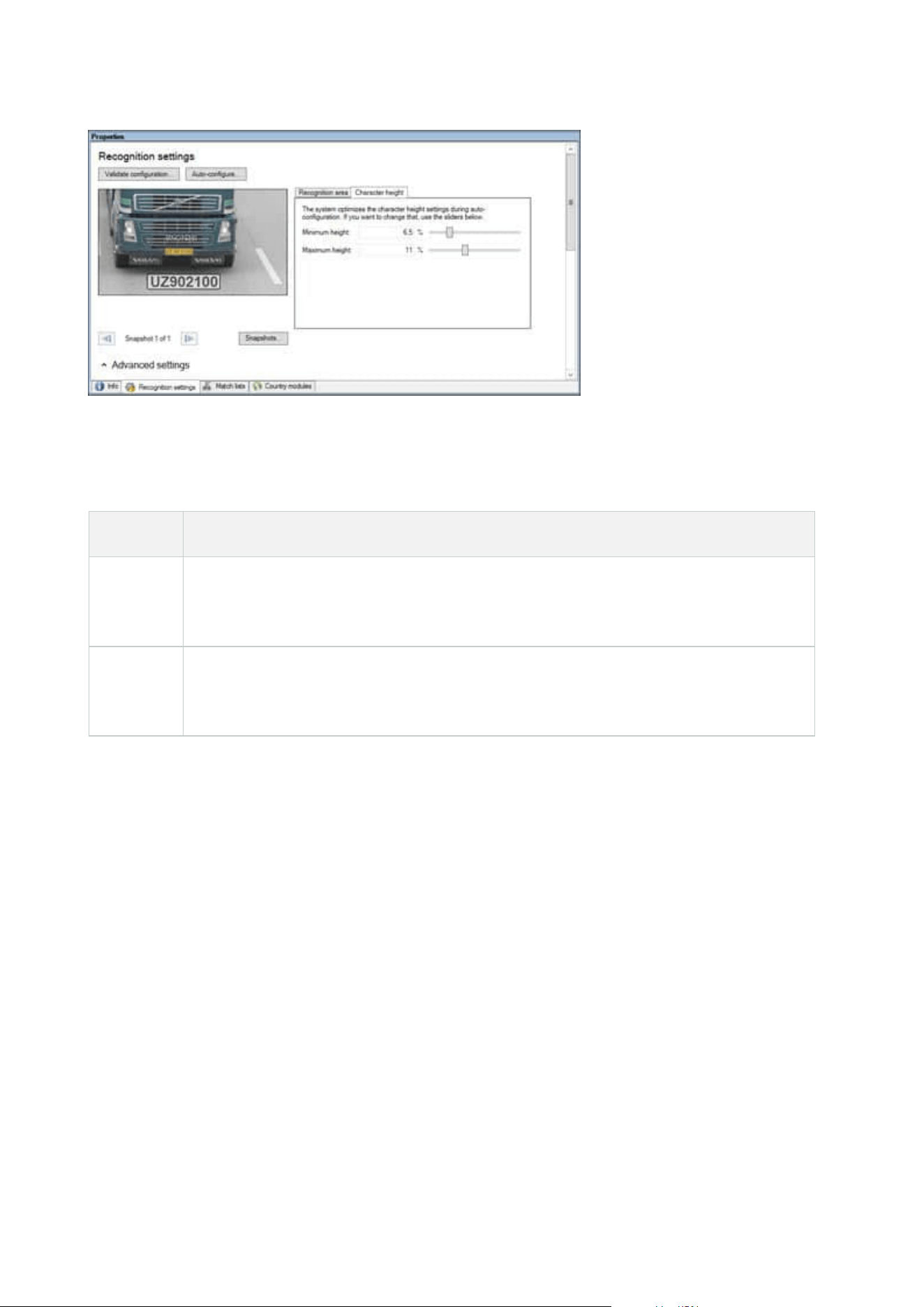
The overlay in the snapshot displays the currently defined character height setting. The overlay grows and
shrinks proportionally to the character height settings to the right. For easy comparison, drag the overlay on top
of the real license plate in the snapshot. Zoom with your mouse wheel for a closer look.
Name Description
Minimum
height
Set the minimum character height for including license plates in the recognition process. If
the real license plate characters are smaller than the value you specify, the system will not
start the recognition process.
Maximum
height
Set the maximum character height for including license plates in the recognition process. If
the real license plate characters are bigger than the value you specify, the system will not
start the recognition process.
After changing the settings for your LPR camera, validate your configuration (see Validate configuration on page
42) to check if the system recognizes license plates as well as expected.
Advanced settings
The recognition process has two steps: 1) finding the plate(s) and 2) recognizing the characters in the plates.
Click Advanced settings to define a trade-off between processing speed and recognition quality.
High recognition quality:
l Needs higher computational effort
l Increases CPU load
l Takes more time to return results
Administrator manual | XProtect® LPR 2023 R1
35 | Configuration
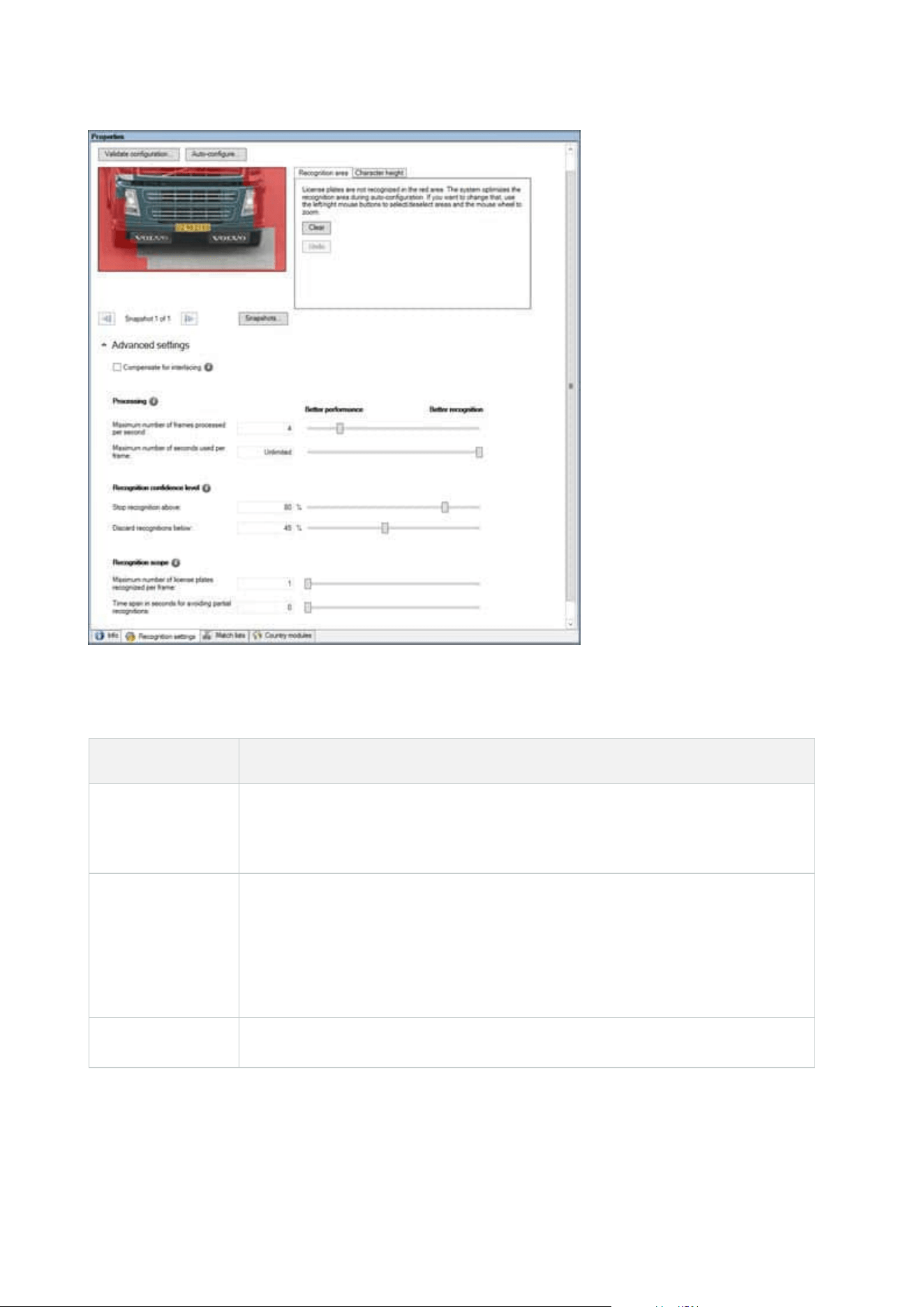
When the optimal results are met, the recognition process stops and returns the license plate it recognized at
that point.
Name Description
Compensate for
interlacing
If your LPR camera records interlaced video, and you see a combing effect in the de-
interlaced image in LPR, select this check box. This may improve image quality and
recognition results.
Maximum
number of frames
processed per
second
Limit the number of frames your system processes every second. If you keep this
setting low, you can increase the frame rate on your camera without adding
unnecessary load to your LPR server.
Unrestricted: Remove the top limit. You will risk increasing the processing time and
the CPU load.
Maximum
Limit the number of seconds your LPR can spend on recognizing one frame. If
Administrator manual | XProtect® LPR 2023 R1
36 | Configuration
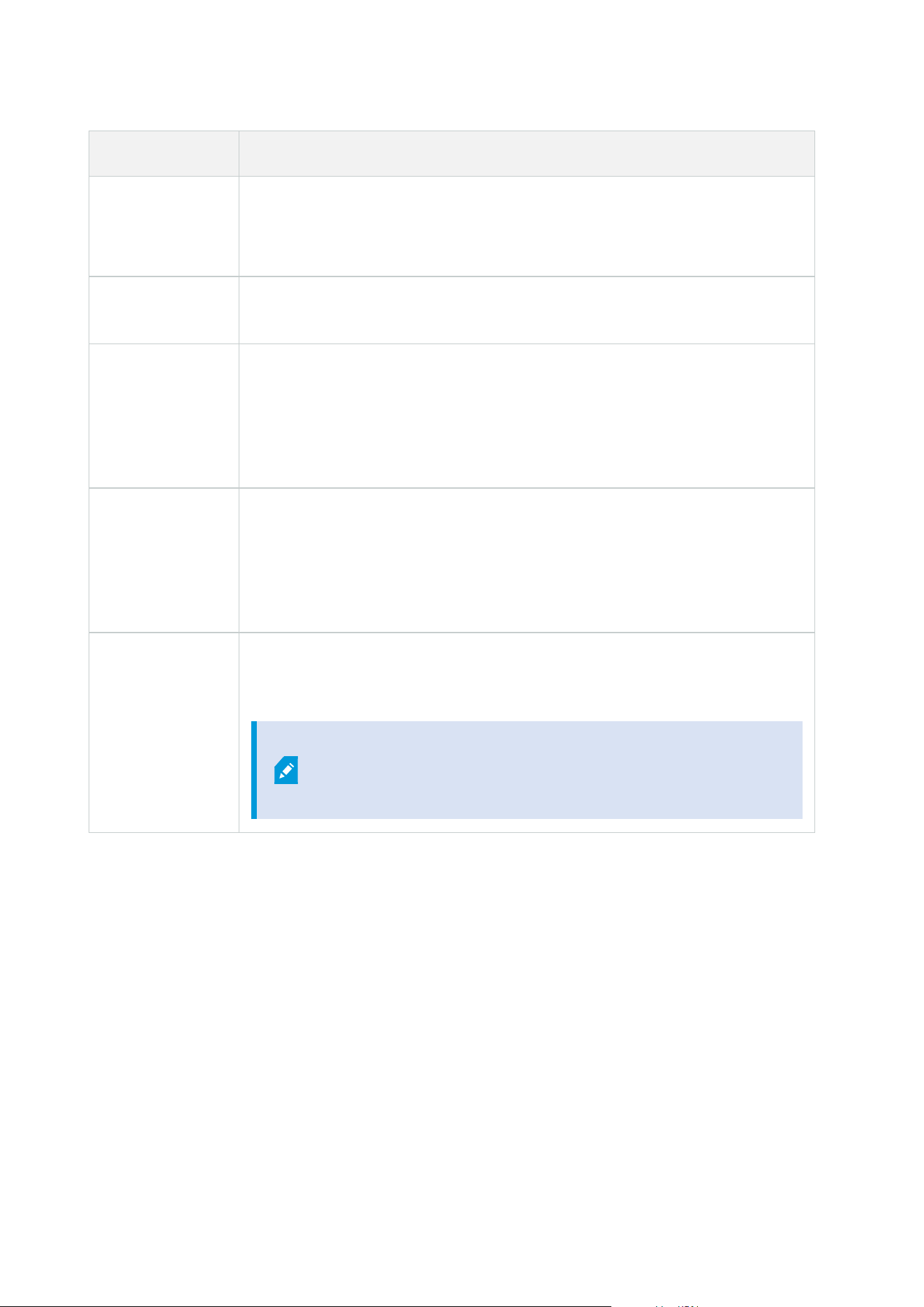
Name Description
number of
seconds used per
frame
adjusted, the recommended value is 0.2 seconds per frame.
Unlimited: Remove the top limit. You will risk increasing the processing time and the
CPU load.
Stop recognition
above
Stop recognition when a license plate is recognized with a confidence level equal to
or above the value you specify.
Discard
recognitions
below
Discard recognitions with a confidence level below the value you specify. Increase
this value to get fewer but possibly more accurate recognitions. Decrease this value
to get more but potentially less accurate recognitions.
The smaller the difference between Stop recognition above and Discard
recognitions below values, the lower the processing time and the CPU load.
Maximum
number of license
plates recognized
per frame
Recognize several license plates simultaneously. For example, relevant for cameras
recording multi-lane roads, where many license plates must be recognized at the
same time.
Unrestricted: Remove the top limit. You will risk increasing the processing time and
the CPU load.
Time span in
seconds for
avoiding partial
recognitions
Delay all recognitions for the time period you specify. This is to avoid that the same
license plate is recognized several times as different license plates. The system will
wait for a better recognition and only accept the most complete recognition.
Before changing this setting, ensure no irrelevant moving
objects (see Camera angles on page 13) block the view of your
LPR camera.
After changing the settings for your LPR camera, validate your configuration (see Validate configuration on page
42) to check if the system recognizes license plates as well as expected.
Match lists tab
On this tab, select which match list(s) you want a specific LPR camera to match license plates against. You can
create as many lists as you need (see Add new match lists on page 45).
Administrator manual | XProtect® LPR 2023 R1
37 | Configuration
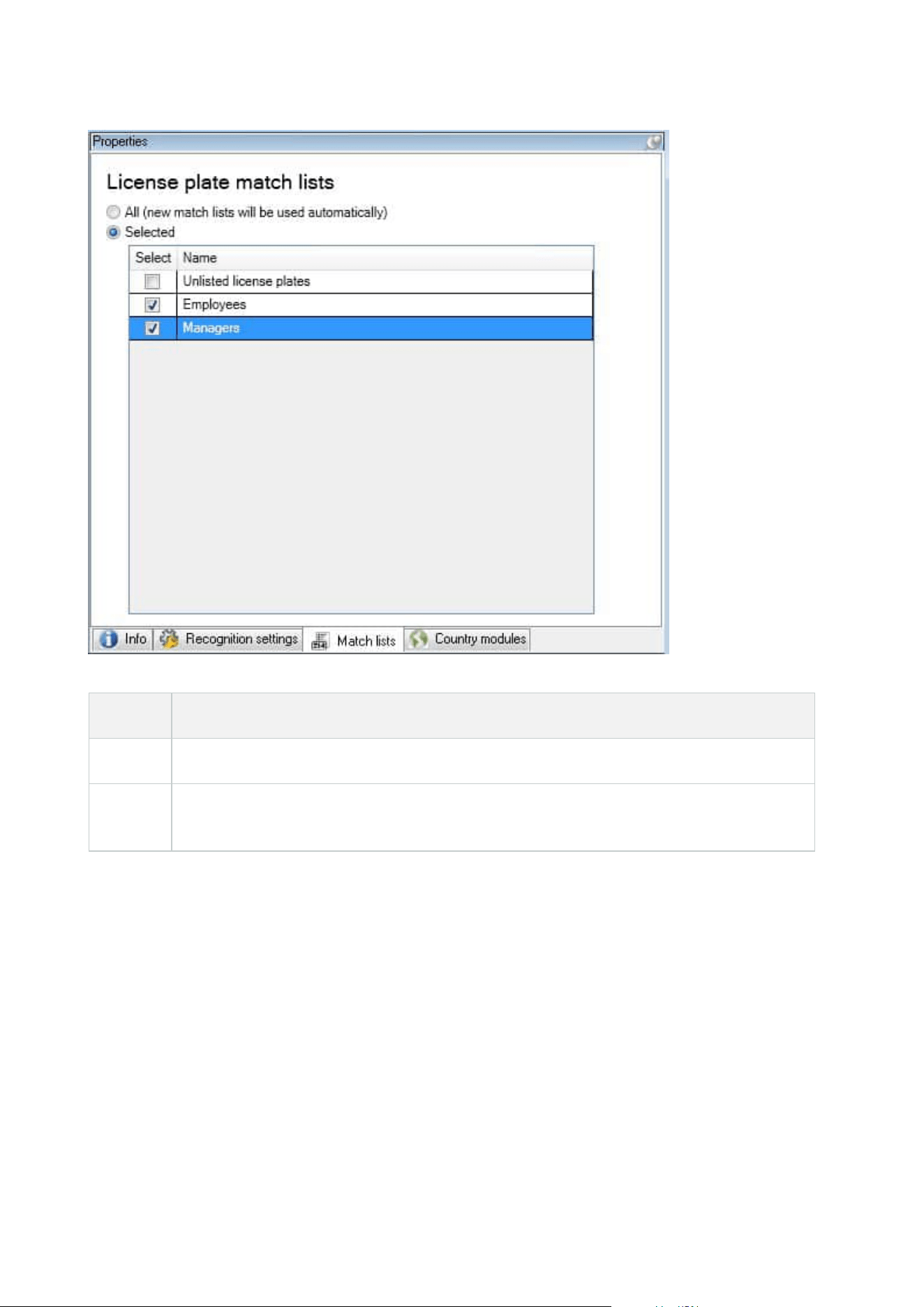
Name Description
All License plates are matched against all available and future lists.
Selected
License plates are matched against the selected lists only. Select one or more from the
available lists.
After changing the settings for your LPR camera, validate your configuration (see Validate configuration on page
42) to check if the system recognizes license plates as well as expected.
Country modules tab
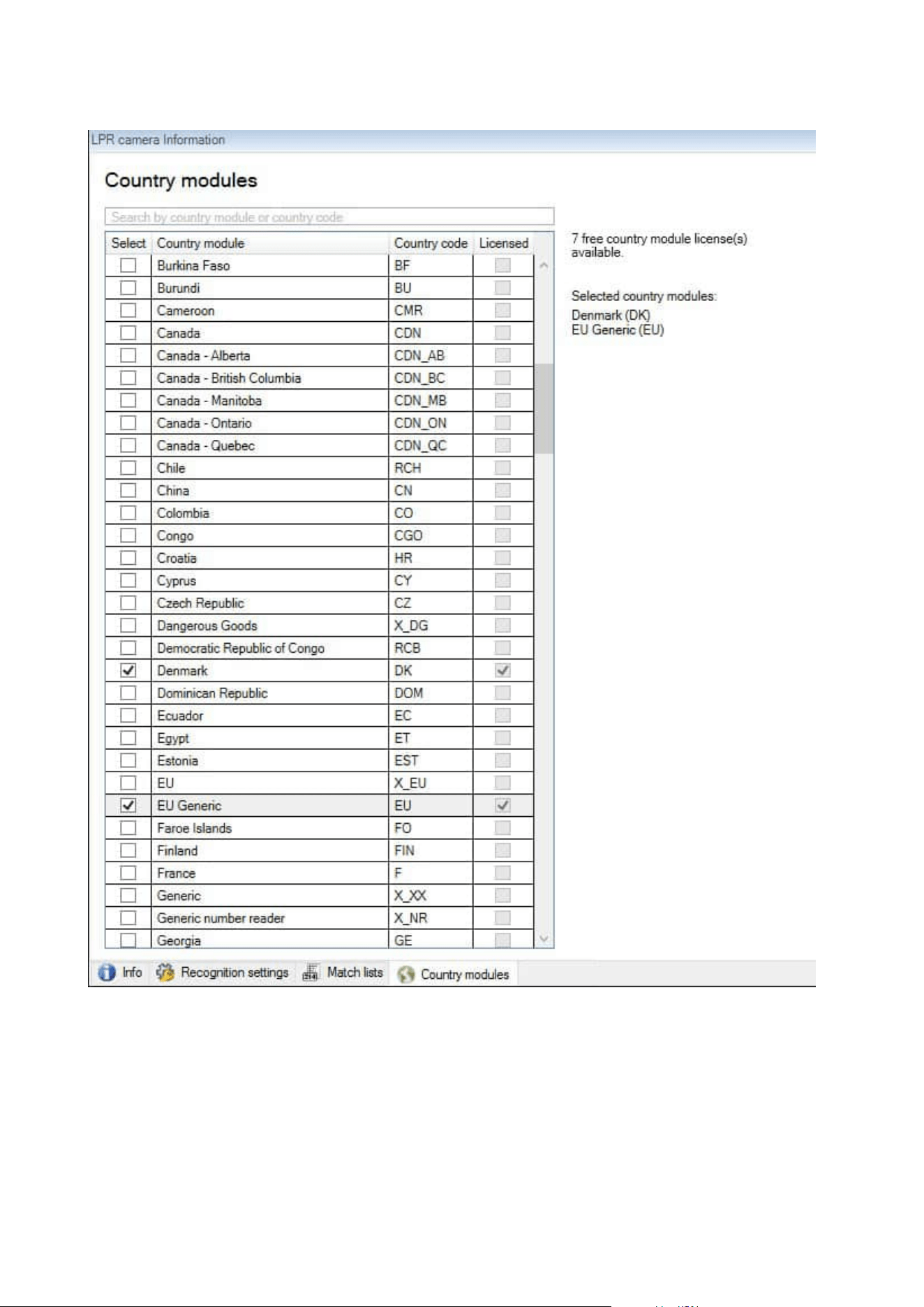
A country module is a set of rules that defines which license plates of a certain type and form belong to which
country, state, or region.
On this tab, select the country modules that you want to use with a specific LPR camera. The list that you can
select from depends on:
Administrator manual | XProtect® LPR 2023 R1
38 | Configuration

l The modules that you have installed (see Install XProtect LPR on page 26)
l Your licenses (see XProtect LPR licenses on page 10)
Milestone recommends that you select maximum 5 country modules per camera.
Already licensed modules appear with a check mark in the Licensed column. If the country module you are
looking for is not on your list, contact your vendor.
Administrator manual | XProtect® LPR 2023 R1
39 | Configuration
Administrator manual | XProtect® LPR 2023 R1
40 | Configuration

Name Description
Select
Click to select or deselect a country module. The list of selected country modules on the
right-hand side updates automatically.
Country
Module
Lists the installed country modules.
Country
Code
Letters that identify a country module.
Licensed
Shows if a country module is already licensed. You can select a licensed country module for
as many cameras as you like.
After changing the settings for your LPR camera, validate your configuration (see Validate configuration on page
42) to check if the system recognizes license plates as well as expected.
Extend time span for avoiding partial recognitions
If parts of the same license plate are recognized as separate and incomplete plate numbers, ensure no
irrelevant moving objects (see Camera angles on page 13) block the view of your LPR camera. If the problem
persists, give the system more time to avoid partial recognitions. Your recognitions will be more accurate, but
they will all show up delayed.
1. In the Site Navigation pane, select Servers > LPR servers > LPR cameras.
2. In the LPR cameras pane, find and click the camera to modify.
3. On the Recognition settings tab, click Advanced settings.
4. In the Time span for avoiding partial recognitions field, drag the slider to the right to give the system a
maximum of five extra seconds to recognize the most complete license plate numbers and discard the
rest.
Select snapshots
When you configured the LPR initially with the Add LPR camera wizard, you also added snapshots (see
Snapshots (explained) on page 30). You can always add additional representative snapshots to improve the
optimization of the configuration.
Administrator manual | XProtect® LPR 2023 R1
41 | Configuration

1. Select the relevant camera.
2. In the Recognition settings tab, click Snapshots.
3. Capture snapshots from live video or import them from an external location. Click Next.
The system analyzes the snapshots you have selected for the camera.
4. On the next page, approve or reject each of the snapshots. If the system could not recognize any license
plates, click Previous to add new snapshots in a better quality. If the system still cannot provide correct
recognitions, you probably need to change your configuration. Check that the camera is mounted and
configured correctly (see Preparing cameras for LPR (explained) on page 11).
5. When you have approved all snapshots, click Next and close the wizard.
6. On the Recognition settings tab, click Validate configuration (see Validate configuration on page 42).
Validate configuration
You can validate your current configuration to see if you need to change any settings or provide more snapshots.
The validation function informs you about how many license plates your system recognizes, and if they are
recognized correctly.
It can help you decide if your confidence level is set correctly and if your system configuration is optimal.
Administrator manual | XProtect® LPR 2023 R1
42 | Configuration
1. Select the relevant camera.
2. From the Recognition settings tab, click Validate configuration.
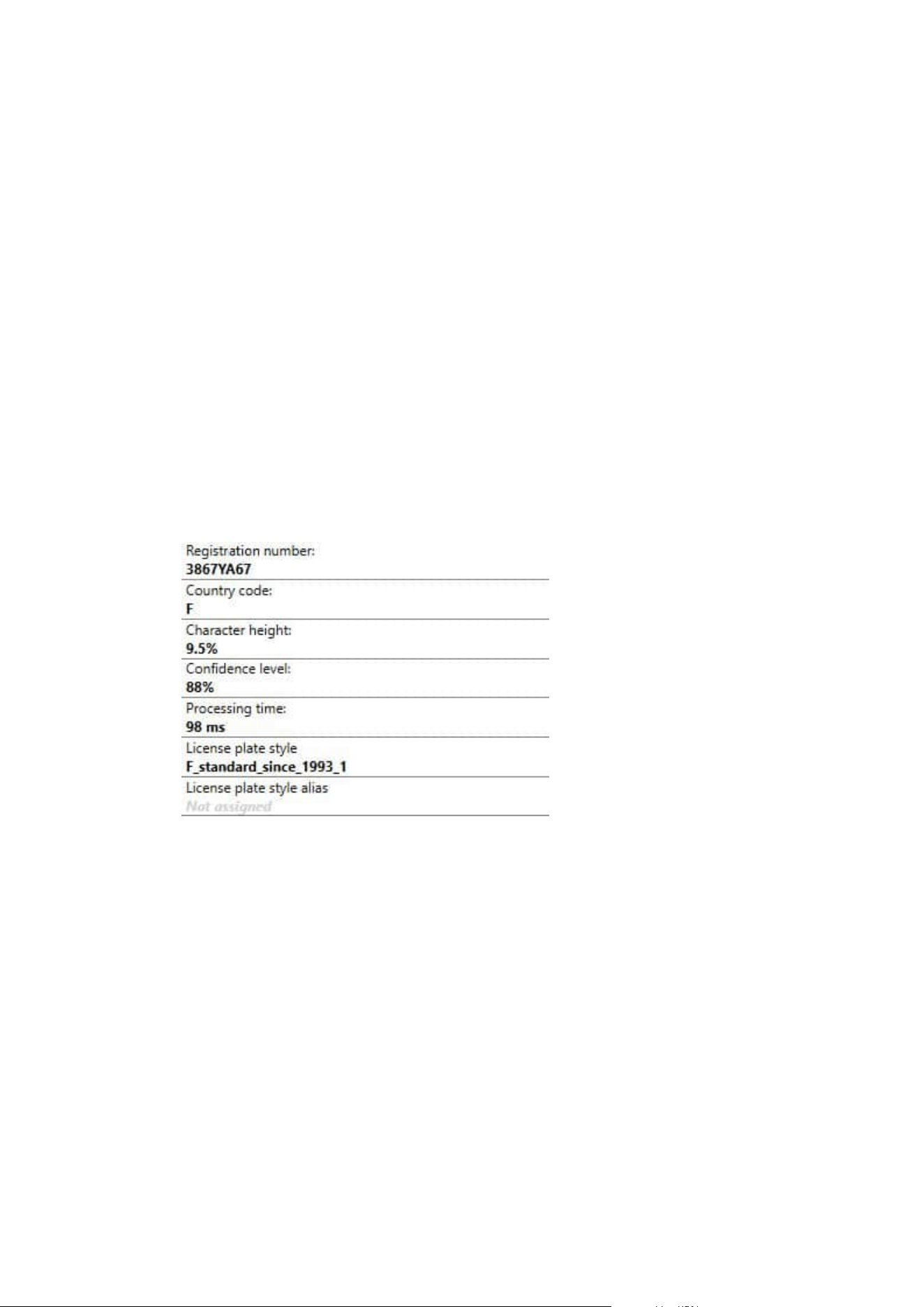
Based on the current settings, the system analyzes the snapshots you have selected for the camera and
provides a result summary:
l Registration number: License plate number
l Country Code: Letters that identify a country module
l Character height: 9.5%
l Confidence level: The percentage of confidence with which the license plates have been
recognized
l Processing time: The time it took to analyze a snapshot and return a reading measured in ms
l License plates style: A set of characteristics of a license plate. See License plate styles and
aliases on page 48
l License plates style alias: A more user friendly name to identify the style. See Aliases (explained)
on page 49
3. If the current configuration meets your requirements, click Close.
4. If you want to investigate the results further, click Next, and you can review the results for each
snapshot. This helps you to identify the situations that cause problems.
You can validate the configuration as many times as you like and on any LPR camera and with different settings.
Auto-configure
Auto-configuration of the LPR camera overwrites any manual changes you have made to the settings. You can
select this option if, for example, you have made manual changes that have not given you good recognition
results.
Administrator manual | XProtect® LPR 2023 R1
43 | Configuration

1. From the Recognition settings tab, click Auto-configure.
A new dialog box appears.
2. Confirm that you want to return to auto-configured settings by clicking Next.
The system optimizes the settings.
3. Click Close.
4. If prompted, confirm to save the configuration.
5. Review and validate (see Validate configuration on page 42) the new settings.
Match lists
Match lists (explained)
A match list is a collection of license plate registration numbers and license plate style aliases (aliases) that you
want your system to treat in a special way. License plate recognitions are compared with these lists and if there
is a match, the system triggers an LPR event. LPR events are stored on the event server. Operators can search
for and view LPR events on the LPR tab in XProtect Smart Client.
By default, LPR events are stored for 24 hours. To change the event retention time:
1. In the Management Client, select Tools > Options > Alarms and events.
2. In Event retention >Retention time (days), change the retention time.
For each match list that you create, you can define events and alarms that will be triggered on a match.
Examples:
l A company headquarter uses a list of executive management's company car license plates to grant
executives access to a separate parking area. When executives' license plates are recognized, the LPR
solution triggers an output signal that opens the gate to the parking area
l A chain of gas stations creates a list of license plates from vehicles that have previously left gas stations
without paying for their gas. When such license plates are recognized, LPR triggers output signals that
activate an alarm and temporarily block the gas supply to certain gas pumps
Triggered events can also be used for making cameras record in high quality or similar. You can even use an
event to trigger combinations of such actions.
Unlisted license plates list (explained)
Often you would trigger an event when a license plate that is included in a match list is recognized, but you can
also trigger an event with a license plate which is not included in a match list.
Example: A private car park uses a list of license plates to grant residents' vehicles access to the car park. If a
vehicle with a license plate that is not in the list approaches the car park, the LPR solution triggers an output
signal which lights a sign telling the driver to obtain a temporary guest pass from the security office.
Administrator manual | XProtect® LPR 2023 R1
44 | Configuration

To trigger a surveillance system event when a license plate that is not on any of your match lists is recognized,
use the Unlisted license plates list. You select it for a camera like any other list (see Match lists tab on page 37)
and set it up like any other list (see Events triggered by LPR on page 53).
Add new match lists
1. In the Site Navigation pane, select Match lists, right-click and select Add New.
2. In the window that appears, give the list a name and click OK.
The newly created match list now appears in the Match lists window and on the Match lists tab of every
LPR camera.
3. If you want to add columns to the match list, click Custom field and specify the columns in the dialog box
that opens (see Edit custom fields properties on page 48). You can add a maximum of 5 columns.
4. To update the match list, use the Add, Edit, Delete buttons (see Edit match lists on page 45).
5. Instead of defining the match list directly in the Management Client, you can import a file (see Import and
export match lists on page 46).
6. If prompted, confirm to save changes.
Edit match lists
Match lists support aliases but not individual license plate styles. If you want to add a
license plate style to a match list, first assign an alias to the license plate style. See Group
license plate styles into aliases on page 49. Next, add the alias to the match list.
1. In the Site Navigation pane > Servers, select Match lists.
2. Go to the Overview pane. Select the relevant match list.
3. The Match list information window opens.
4. To include new rows to your list, click Add and fill out the fields.
l Do not include any spaces
l Always use capital letters
Examples: ABC123 (correct), ABC 123 (incorrect), abc123 (incorrect)
l You can use wildcards in your match lists. Do this by defining plates with a number of ?'s and the
letter(s) and/or number(s) which must appear at specific places
Examples: ?????A, A?????, ???1??, 22??33, A?B?C? or similar
5. If prompted, confirm to save changes.
Administrator manual | XProtect® LPR 2023 R1
45 | Configuration

Import and export match lists
You can only import and export license plate registration numbers. Other vehicle
information supported by match lists, for example aliases, cannot be imported or
exported.
You can import a .csv or a .txt file with a list of license plate registration numbers that you want to use in a match
list. You have the following import options:
l Add license plate registration numbers to the existing match list
l Replace the existing match list
This is useful if, for example, the match lists are managed from a central location. Then all local installations can
be updated by distributing a file.
Similarly, you can export the complete list of license plate registration numbers from a match list to an external
location.
To import:
1. In the Site Navigation pane > Servers > Match lists, select the relevant match list.
2. Select Import.
3. In the dialog box, specify the location of the import file and the import type. Select Next.
4. Await the confirmation and select Close.
To export:
1. In the Site Navigation pane > Servers > Match lists, select the relevant match list.
2. Select Export.
3. In the dialog box, specify the location of the export file and select Next.
4. Select Close.
5. You can open and edit the exported file in, for example, Microsoft Excel.
Match list properties
Name Description
List name Shows the name of the list. If needed, you can change the name.
Administrator manual | XProtect® LPR 2023 R1
46 | Configuration
Name Description
Custom fields
Select to specify which license plate entry columns that you or the client user can add
additional information to. See Edit match lists on page 45.
Search Search the match list for any list item. If needed, you can use ? as a single wildcard
Add
Select to add a license plate registration number or an alias to the match list.
When you're adding license plate registration numbers:
l Do not include any spaces
l Always use capital letters
Examples: ABC123 (correct), ABC 123 (incorrect), abc123 (incorrect)
l You can use wildcards in your license plate lists. Do this by defining plates with a
number of ?'s and the letter(s) and/or number(s) which must appear at specific
places
Examples: ?????A, A?????, ???1??, 22??33, A?B?C? and similar.
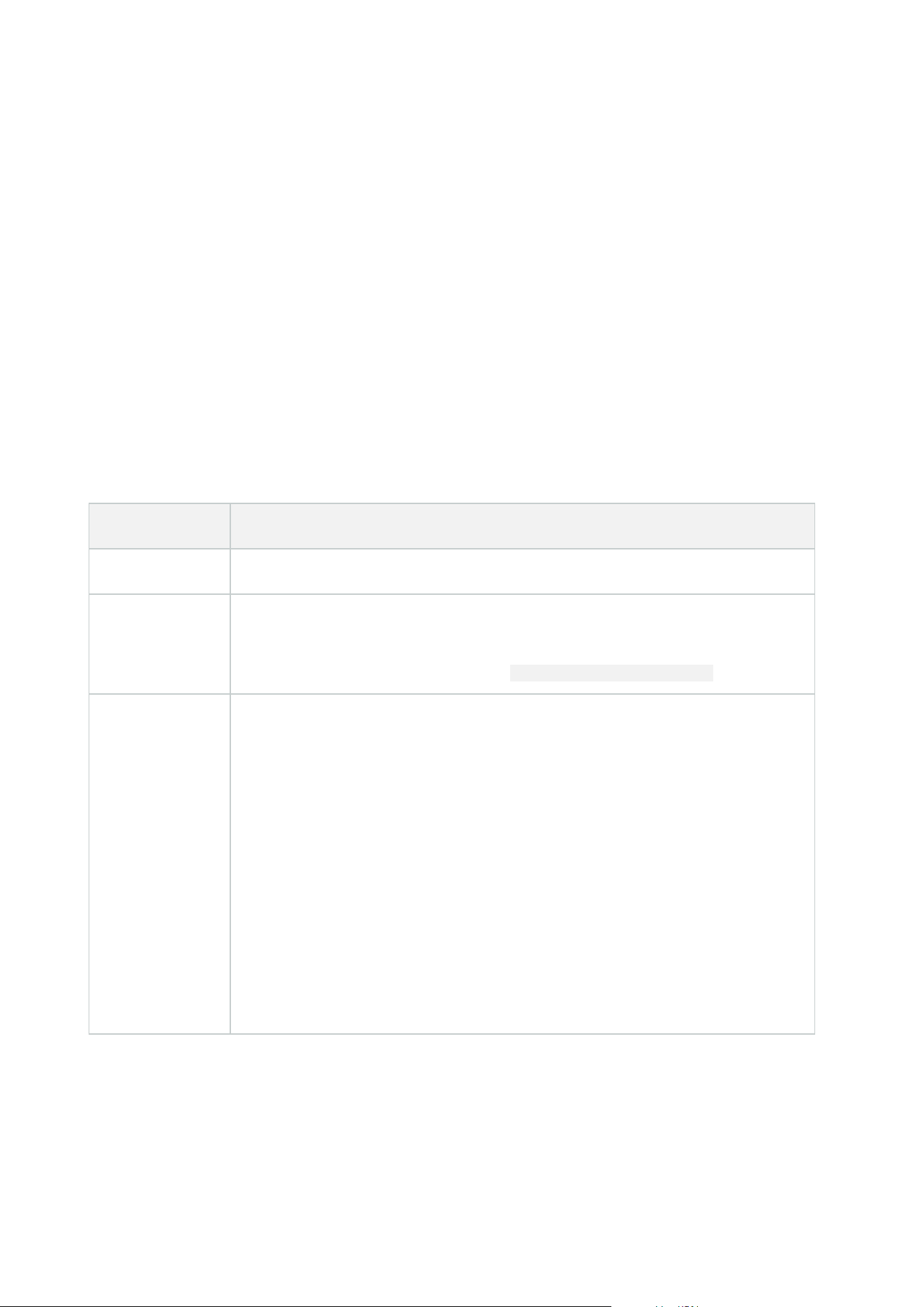
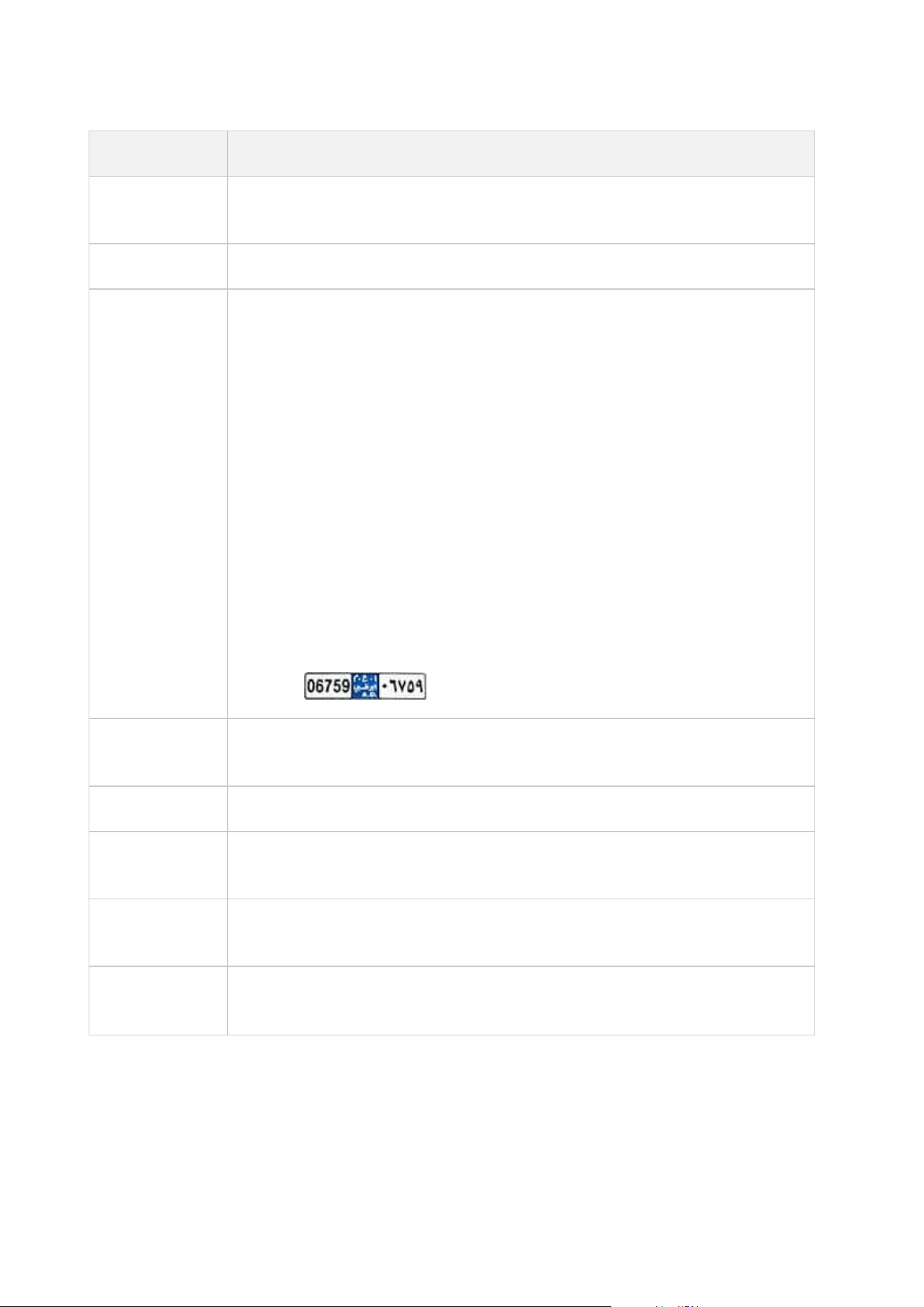
Some regional areas might have exceptions to these rules. For example, personalized
plates with spaces. Plates with two sets of characters which must be recognized
separately by an underscore character ( _ ). Or plates from certain regions with letters
on a different background color on parts of the license plate.
Example:
Edit
Click to edit a license plate registration number. You can select multiple rows for
editing.
Delete Click to delete the selected license plate number.
Import
Click to import license plate registration numbers from any comma-separated file, for
example a .txt-file or .csv-file (see Import and export match lists on page 46).
Export
Click to export the list of license plate registration numbers to a comma-separated file,
for example a .txt-file or .csv-file (see Match list properties on page 46).
Rows per page
Select how many list items to display in one page (one screen). You can choose
between 50 and 1000 rows.
Administrator manual | XProtect® LPR 2023 R1
47 | Configuration

Name Description
Events
triggered by list
match
Select which event(s) should be triggered by a list match (see Match list properties on
page 46). You can choose between all available types of events defined in your system.
Edit custom fields properties
You can add a maximum of 5 columns to your match lists for additional information. You define the name and
number of columns as well as the field content.
The XProtect Smart Client users can update the information in the columns but not the columns themselves.
Name Description
Add Adds a column to the match list. Enter a name for the column.
Edit Click to edit the name of the column.
Delete Deletes a column.
Up Changes the order of the columns.
Down Changes the order of the columns.
License plate styles and aliases
License plate styles (explained)
A license plate style is a set of characteristics of a license plate, including the:
l Plate size and shape
l Text format and font
l Colors
l Type of vehicle that the license plate is used on
See a list of all license plate styles supported by XProtect LPR.
You can group license plate styles into aliases. See Aliases (explained) on page 49.
Administrator manual | XProtect® LPR 2023 R1
48 | Configuration

Aliases (explained)
A license plate style alias (alias) is a group of license plate styles. You can group license plate styles into an alias
by creating the alias and assigning the alias to the license plate styles of your choice.
Aliases are optional. Using them is beneficial because:
l Aliases help you categorize license plate styles according to your license plate recognition needs. See
Example scenario on page 50
l You specify the name of an alias. License plate styles have long and complex names that might be
difficult to work with. Using aliases, you can specify a more descriptive group name
l You can add aliases to match lists. See Edit match lists on page 45
l The XProtect Smart Client operator can add aliases to match lists
Find license plate styles used in your system
Every country module contains license plate styles. When you enable a country module, all the license plate
styles that belong to that country module are also enabled.
To see a list of all license plate styles enabled in your system:
1. Select Site Navigation > Servers > License plate style aliases > Assign aliases.
2. In the License plate style column, see a list of all license plate styles enabled in your system.
Match lists support aliases but not individual license plate styles. If you want to add a
license plate style to a match list, first assign an alias to the license plate style. See Group
license plate styles into aliases on page 49. Next, add the alias to the match list. See Edit
match lists on page 45.
Add, edit, delete aliases
1. Select Site Navigation > Servers > License plate style aliases > Configure aliases.
2. Select:
l Add to create an alias and specify an alias name
l Edit to rename an alias
l Delete to remove an alias
Group license plate styles into aliases
To group multiple license plate styles into an alias, you need to assign an alias to the license plate styles.
Administrator manual | XProtect® LPR 2023 R1
49 | Configuration

1. Select Site Navigation > Servers > License plate style aliases > Assign aliases.
2. For each license plate style that you want to assign an alias to:
1. Select the dropdown in the Alias column.
2. Select the alias of your choice.
Example scenario
In this example, let's create aliases and assign them to license plate styles in the Denmark country module.
To follow along, open your Management Client and have the Denmark country module enabled.
For our license plate recognition needs, we decide to categorize license plate styles in the Denmark country
module into the following groups:
l Commercial
l Motorcycle
l Private
l Standard
With the Denmark country module already enabled, let's first create the aliases, and then assign them to license
plate styles.
Create aliases
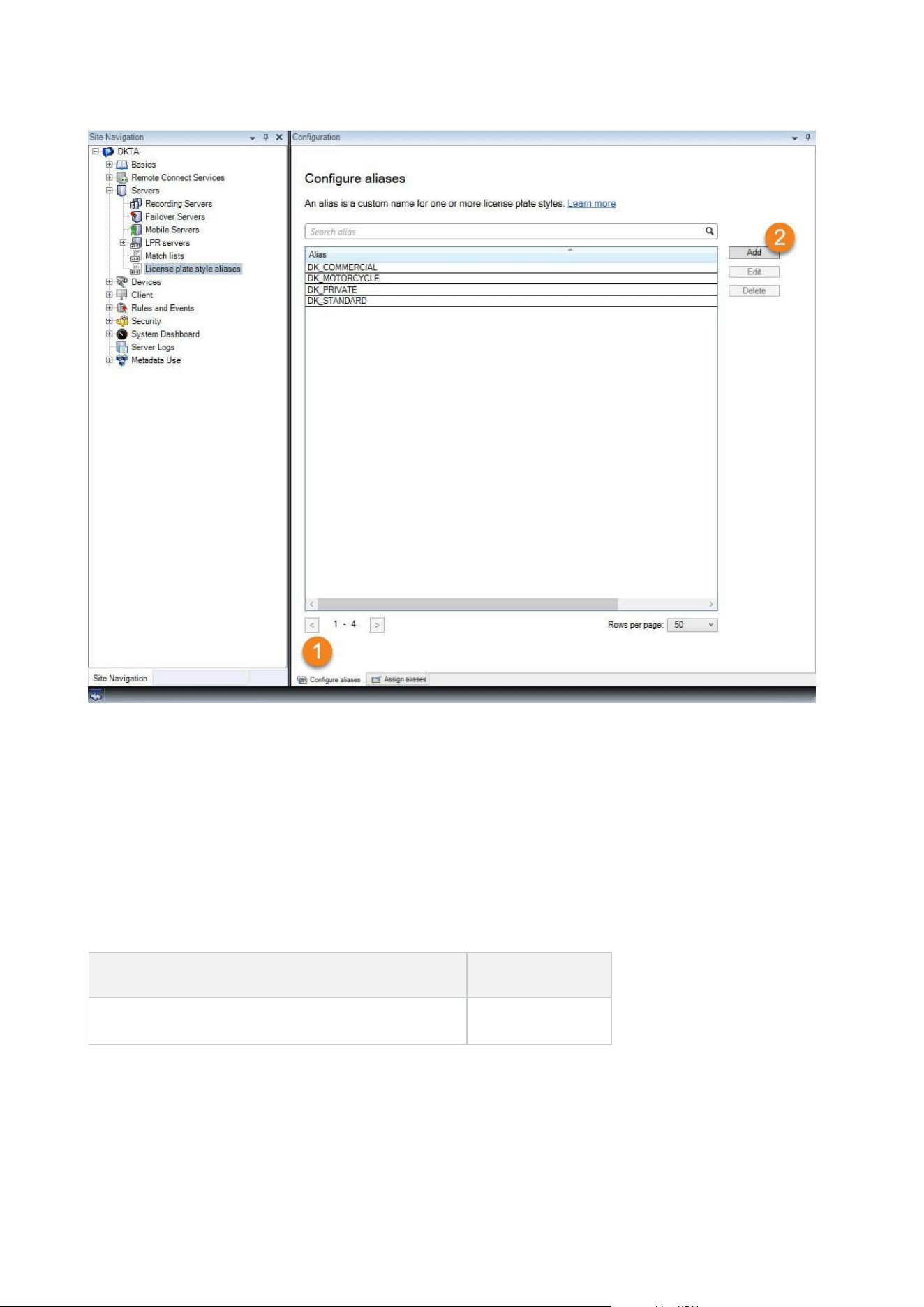
1. Select Site Navigation > Servers > License plate style aliases > Configure aliases.
2. Select Add to create an alias.
Let's create the four aliases:
l DK_COMMERCIAL
l DK_MOTORCYCLE
l DK_PRIVATE
l DK_STANDARD
Administrator manual | XProtect® LPR 2023 R1
50 | Configuration
Next, let's group license plate styles into aliases by assigning the new aliases to the license plate styles.
Assign the aliases to license plate styles
1. Select Site Navigation > Servers > License plate style aliases > Assign aliases.
2. For each license plate style that you want to assign an alias to, select the dropdown in the Alias column
and select the alias of your choice.
We assign aliases to license plate styles in the Denmark country module as follows:
License plate style Alias
l DK_commercial_since_1976 DK_COMMERCIAL
Administrator manual | XProtect® LPR 2023 R1
51 | Configuration

License plate style Alias
l DK_commercial_since_2008
l DK_commercial_since_2009
l DK_commercial_since_2009_twoline
l DK_motorcycle_since_1976 DK_MOTORCYCLE
l DK_private_transport_since_2009
l DK_private_transport_since_2009_euroband
l DK_private_transport_since_2009_twoline
l DK_private_transport_since_2009_twoline_
euroband
DK_PRIVATE
l DK_standard_since_1976
l DK_standard_since_2009
l DK_standard_since_2009_euroband
l DK_standard_since_2009_twoline
l DK_standard_since_2012_holograph
DK_STANDARD
Administrator manual | XProtect® LPR 2023 R1
52 | Configuration
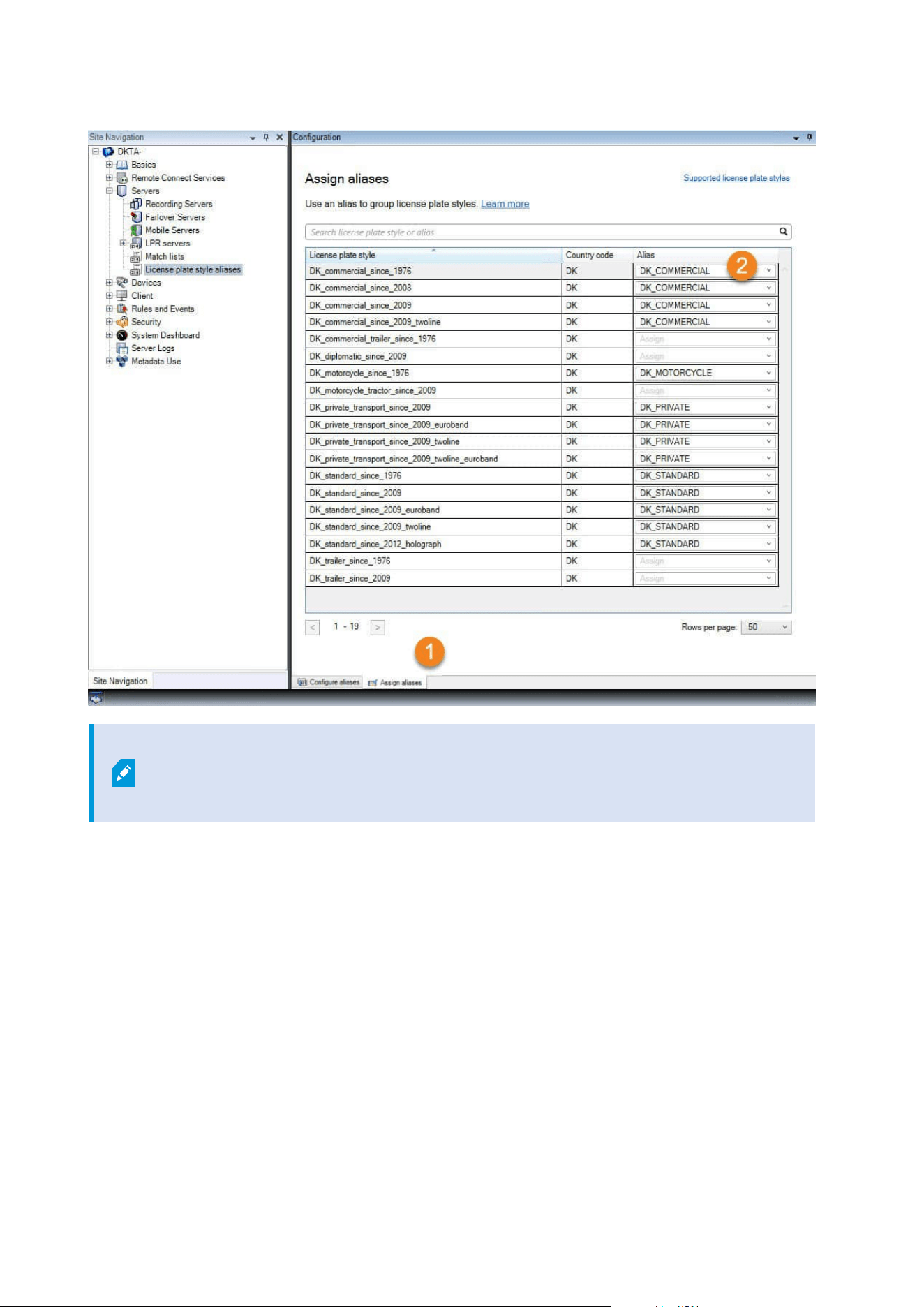
Note that we assigned the DK_MOTORCYCLE alias to only one license plate style. We did
that because we want to use this specific license plate style on a match list, and match
lists support aliases but not individual license plate styles.
In this example, we created aliases and assigned them to license plate styles. A possible next step is to add the
aliases to match lists. That way, we can associate different groups of license plate styles with different LPR
events. For example, we can open a gate to a vehicle only if the license plate style of the vehicle is part of the
DK_COMMERCIAL alias. See Match lists on page 44.
Events triggered by LPR
After you have created match lists (see Add new match lists on page 45), you can associate them with all types
of events defined in your system.
Administrator manual | XProtect® LPR 2023 R1
53 | Configuration

The type of events available depends on the configuration of your system. In connection with LPR, events are
used to trigger output signals for, for example, raising of parking barrier or making cameras record in high
quality. You can also use an event to trigger combinations of such actions. See Match lists (explained) on page
44 for more examples.
Set up system events triggered by list matches
1. In Servers > Match list, select the list to which you want to associate an event.
2. In the Match list information window, next to the Events triggered by list match selection field, click
Select.
3. In the Select triggered events dialog box, select one or more events.
4. If prompted, confirm to save changes.
5. The event is now associated with recognitions on the selected match list.
To trigger a surveillance system event when a license plate that is not on a list is recognized, configure the
Unlisted license plates list.
Alarms triggered by LPR
You can associate some types of alarms with events from XProtect LPR. Do the following:
1. Create the match list (see Add new match lists on page 45) you want to match license plates against.
2. Add and configure your LPR camera(s) (see Add LPR camera on page 32).
3. In the Site Navigation pane > Alarms, right-click Alarm Definitions and select Add new to create a new
alarm.
4. The Alarm definition information window appears. Select the relevant properties (see Alarm definitions
for LPR on page 54).
5. Save your changes.
6. Configure the alarm data settings for LPR (see Alarm data settings for LPR on page 55).
Alarm definitions for LPR
Except for defining Triggering events, the settings for Alarm definitions are the same for LPR as for the
remaining part of the system.
To define triggering events related to LPR, select the event message to use when the alarm is triggered:
Administrator manual | XProtect® LPR 2023 R1
54 | Configuration
1. In the Triggering event field, in the top dropdown list, decide what type of event to use for the alarm. The
list offers Match lists and LPR server events (see Match lists on page 44).
2. In the second dropdown list, select the specific event message to use. If you selected Match lists in the
dropdown above, select a match list. If you selected LPR server, select the relevant LPR server event
message:
l LPR camera connection lost
l LPR camera running
l LPR server not responding
l LPR server responding
Alarm data settings for LPR
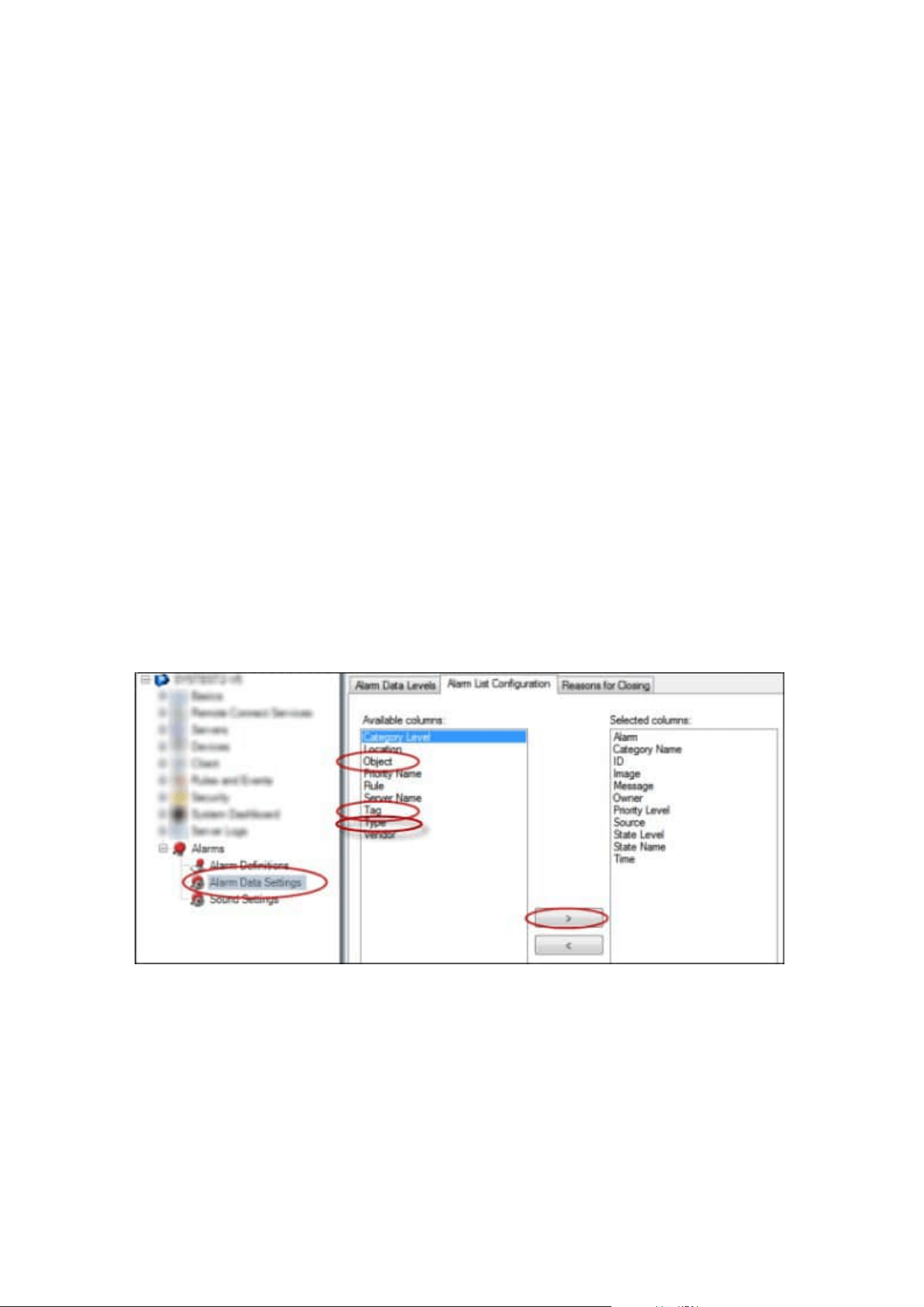
In the Management Client, you must make three specific Alarm List Configuration elements available for
selection in XProtect Smart Client.
These elements are used for configuring alarm lists in the Alarm Manager tab in XProtect Smart Client. The
relevant elements are Object, Tag, and Type, which are essential for recognizing license plate numbers
(Object) and country codes (Tag).
Do the following in the Management Client:
1. In the Site Navigation > Alarms, select Alarm Data Settings.
2. On the Alarm List Configuration tab, select Object, Tag, and Type and click >.
3. Save your changes.
The XProtect Smart Client operator can now enable these LPR-specific elements on the Alarm Manager tab.
Administrator manual | XProtect® LPR 2023 R1
55 | Configuration

Maintenance
LPR Server Manager (explained)
After installing an LPR server, you can check the status of its services with the XProtect LPR Server Manager. You
can, for example, start and stop the LPR Server service, view status messages, and read log files.
l Access LPR server state information via the LPR Server Manager tray icon in the notification area of the
computer running the LPR server
In the Management Client, you can get a full overview of the status of your LPR servers (see View LPR server
information on page 28).
Start and stop LPR Server service
The LPR Server service starts automatically after installation. If you have stopped the service manually, you can
restart it manually.
1. Right-click the LPR Server Manager tray icon in the notification area.
2. From the menu that appears, select Start LPR Server service.
3. If needed, select Stop LPR Server service to stop the service again.
Show LPR server status
1. On your LPR server, right-click the LPR Server Manager tray icon in the notification area.
2. From the menu that appears, select Show LPR server status.
If the system is running without problems, the status is: All LPR cameras running.
Other statuses are:
l Service not responding
l Not connected to surveillance system
l Service not running
l Event Server not connected
l Unknown error
l X of Y LPR cameras running
Administrator manual | XProtect® LPR 2023 R1
56 | Maintenance

Show LPR server log
Log files are a useful tool for monitoring and troubleshooting the status of the LPR Server service. All entries are
time-stamped, with the most recent entries at the bottom.
1. In the notification area, right-click the LPR Server Manager icon.
2. From the menu that appears, select Show LPR server Log File.
A log-viewer lists the server activities with time stamps.
Change LPR server settings
The LPR server must be able to communicate with your management server. To enable this, you specify the IP
address or host name of the management server during the installation of the LPR server.
If you need to change the address of the management server, do the following:
1. Stop (see Start and stop LPR Server service on page 56) the LPR Server service.
2. In the notification area, right-click the LPR Server Manager icon.
3. From the menu that appears, select Change settings. The LPR Server service settings window appears.
4. Specify the new values and click OK.
5. Restart the LPR Server service.
Administrator manual | XProtect® LPR 2023 R1
57 | Maintenance

Upgrade
Upgrade XProtect LPR
When upgrading, Milestone recommends that you first upgrade the LPR server and then the LPR plug-in.
To upgrade XProtect LPR, follow the same steps as for installation (see Install XProtect LPR on page 26).
Uninstall XProtect LPR
If you want to remove XProtect LPR from your system, uninstall the two components separately using the regular
Windows removal procedure:
l On the computers where the XProtect LPR plug-in is installed, uninstall Milestone XProtect LPR [version]
Plug-in
l On the computers where the XProtect LPR server is installed, uninstall Milestone XProtect LPR [version]
Server
Administrator manual | XProtect® LPR 2023 R1
58 | Upgrade

About Milestone
Milestone Systems is a leading provider of open platform video management software; technology that helps
the world see how to ensure safety, protect assets and increase business efficiency. Milestone Systems
enables an open platform community that drives collaboration and innovation in the development and use of
network video technology, with reliable and scalable solutions that are proven in more than 150,000 sites
worldwide. Founded in 1998, Milestone Systems is a stand-alone company in the Canon Group. For more
information, visit https://www.milestonesys.com/.
helpfeedback@milestone.dk