
2
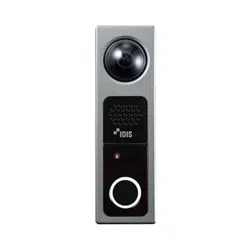
This is a basic installation manual for use of an IDIS network camera. Users who are using this product for the rst time,
as well as users with experience using comparable products, must read this operation manual carefully before use and
heed to the warnings and precautions contained herein while using the product. Safety warnings and precautions
contained in this operation manual are intended to promote proper use of the product and thereby prevent accidents
and property damage and must be followed at all times. Once you have read this operation manual, keep it at an easily
accessible location for future reference.
• The manufacturer will not be held responsible for any product damage resulting from the use of unauthorized parts and
accessories or from the user's failure to comply with the instructions contained in this manual.
• The information in this document is believed to be accurate as of the date of publication even though explanation
about some functions may not be incorporated. The manufacturer is not responsible for any problems resulting from
the use thereof. The information contained herein is subject to change without notice. Revisions or new editions to this
publication may be issued to incorporate such changes.
• It is recommended that rst-time users of this network camera and individuals who are not familiar with its use seek
technical assistance from their retailer regarding product installation and use.
• If you need to disassemble the product for functionality expansion or repair purposes, you must contact your retailer and
seek professional assistance.
• Both retailers and users should be aware that this product has been certied as being electromagnetically compatible for
commercial use. If you have sold or purchased this product unintentionally, please replace with a consumer version.
Safety Symbols
Symbol Publication Description
IEC60417, No.5031 Direct current
In-Text
Symbol Type Description
Caution Important information concerning a specic function.
Note Useful information concerning a specic function.
Before reading this manual
Before reading this manual
3
Safety Precautions
WARNING
RISK OF ELECTRIC SHOCK
DO NOT OPEN
WARNING: TO REDUCE THE RISK OF ELECTRIC SHOCK,
DO NOT REMOVE COVER (OR BACK).
NO USER-SERVICEABLE PARTS INSIDE.
REFER SERVICING TO QUALIFIED SERVICE PERSONNEL.
Important Safeguards
1. Read Instructions
All the safety and operating instructions should be read before the
appliance is operated.
2. Retain Instructions
The safety and operating instructions should be retained for future
reference.
3. Cleaning
Unplug this equipment from the wall outlet before cleaning it. Do not
use liquid aerosol cleaners. Use a damp soft cloth for cleaning.
4. Attachments
Never add any attachments and/or equipment without the approval
of the manufacturer as such additions may result in the risk of re,
electric shock or other personal injury.
5. Water and/or Moisture
Do not use this equipment near water or in contact with water.
6. Placing and Accessories
Do not place this equipment on an wall or ceiling that is not strong
enough to sustain the camera. The equipment may fall, causing
serious injury to a child or adult, and serious damage to the
equipment. Wall or shelf mounting should follow the manufacturer's
instructions, and should use a mounting kit approved by the
manufacturer.
This equipment and cart combination should be moved with care.
Quick stops, excessive force, and uneven surfaces may cause the
equipment and cart combination to overturn.
Do not place this equipment in an enclosed space. Sucient
ventilation is required to prevent an increase in ambient temperature
which can cause malfunction or the risk of re.
7. Power Sources
This equipment should be operated only from the type of power
source indicated on the marking label. If you are not sure of the
type of power, please consult your equipment dealer or local power
company. You may want to install a UPS (Uninterruptible Power
Supply) system for safe operation in order to prevent damage caused
by an unexpected power stoppage. Any questions concerning UPS,
consult your UPS retailer.
This equipment should be remain readily operable.
8. Power Cord
Operator or installer must remove power and TNT connections before
handling the equipment.
9. Lightning
For added protection for this equipment during a lightning storm,
or when it is left unattended and unused for long periods of time,
unplug it from the wall outlet and disconnect the antenna or cable
system. This will prevent damage to the equipment due to lightning
and power-line surges. If thunder or lightning is common where the
equipment is installed, use a surge protection device.
10. Overloading
Do not overload wall outlets and extension cords as this can result in
the risk of re or electric shock.
11. Objects and Liquids
Never push objects of any kind through openings of this equipment
as they may touch dangerous voltage points or short out parts that
could result in a re or electric shock. Never spill liquid of any kind on
the equipment.
12. Servicing
Do not attempt to service this equipment yourself. Refer all servicing
to qualied service personnel.
13. Damage requiring Service
Unplug this equipment from the wall outlet and refer servicing to
qualied service personnel under the following conditions:
A.
When the power-supply cord or the plug has been damaged.
B.
If liquid is spilled, or objects have hit the equipment.
C. If the equipment has been exposed to rain or water.
D. If the equipment does not operate normally by following the
operating instructions, adjust only those controls that are covered
by the operating instructions as an improper adjustment of other
controls may result in damage and will often require extensive work
by a qualied technician to restore the equipment to its normal
operation.
E. If the equipment has been dropped, or the cabinet damaged.
F. When the equipment exhibits a distinct change in performance —
this indicates a need for service.
14. Replacement Parts
When replacement parts are required, be sure the service technician
has used replacement parts specied by the manufacturer or that
have the same characteristics as the original part. Unauthorized
substitutions may result in re, electric shock or other hazards.
15. Safety Check
Upon completion of any service or repairs to this equipment, ask the
service technician to perform safety checks to determine that the
equipment is in proper operating condition.
16. Field Installation
This installation should be made by a qualied service person and
should conform to all local codes.
17. Correct Batteries
Warning: Risk of explosion if battery is replaced by an incorrect type.
Replace only with the same or equivalent type.
Dispose of used batteries according to the instructions.
The battery shall not be exposed to excessive heat such as sunshine,
re or the like.
18. Tmra
A manufacturer’s maximum recommended ambient temperature
(Tmra) for the equipment must be specied so that the customer and
installer may determine a suitable maximum operating environment
for the equipment.
Before reading this manual
4
Warning: This product emits infrared light. Do not look into the IR LED.
FCC Compliance Statement
THIS EQUIPMENT HAS BEEN TESTED AND FOUND TO COMPLY WITH THE LIMITS FOR A CLASS A DIGITAL DEVICE, PURSUANT TO PART
15 OF THE FCC RULES. THESE LIMITS ARE DESIGNED TO PROVIDE REASONABLE PROTECTION AGAINST HARMFUL INTERFERENCE
WHEN THE EQUIPMENT IS OPERATED IN A COMMERCIAL ENVIRONMENT. THIS EQUIPMENT GENERATES, USES, AND CAN RADIATE
RADIO FREQUENCY ENERGY AND IF NOT INSTALLED AND USED IN ACCORDANCE WITH THE INSTRUCTION MANUAL, MAY CAUSE
HARMFUL INTERFERENCE TO RADIO COMMUNICATIONS. OPERATION OF THIS EQUIPMENT IN A RESIDENTIAL AREA IS LIKELY TO
CAUSE HARMFUL INTERFERENCE, IN WHICH CASE USERS WILL BE REQUIRED TO CORRECT THE INTERFERENCE AT THEIR OWN EXPENSE.
WARNING: CHANGES OR MODIFICATIONS NOT EXPRESSLY APPROVED BY THE PARTY RESPONSIBLE FOR COMPLIANCE COULD VOID
THE USER’S AUTHORITY TO OPERATE THE EQUIPMENT. THIS CLASS OF DIGITAL APPARATUS MEETS ALL REQUIREMENTS OF THE
CANADIAN INTERFERENCE CAUSING EQUIPMENT REGULATIONS.
WEEE (Waste Electrical & Electronic Equipment)
Correct Disposal of This Product
(Applicable in the European Union and other European countries with separate collection systems)
This marking shown on the product or its literature, indicates that it should not be disposed with other household
wastes at the end of its working life. To prevent possible harm to the environment or human health from
uncontrolled waste disposal, please separate this from other types of wastes and recycle it responsibly to promote
the sustainable reuse of material resources.
Household users should contact either the retailer where they purchased this product, or their local government
oce, for details of where and how they can take this item for environmentally safe recycling.
Business users should contact their supplier and check the terms and conditions of the purchase contract. This
product should not be mixed with other commercial wastes for disposal.
Copyright
© 2023 IDIS Co., Ltd.
IDIS Co., Ltd. reserves all rights concerning this operation manual.
Use or duplication of this operation manual in part or whole without the prior consent of IDIS Co., Ltd. is strictly prohibited.
Contents of this operation manual are subject to change without prior notice for reasons such as functionality enhancements.
Registered Trademarks
IDIS is a registered trademark of IDIS Co., Ltd.
Other company and product names are registered trademarks of their respective owners.
The software included in this product contains some Open Sources. You may obtain the corresponding source
code which we have to distribute according to the license policy. For more information, refer to System > General
page. This product includes software developed by the University of California, Berkeley and its contributors, and
software developed by the OpenSSL Project for use in the OpenSSL Toolkit (http://www.oepnssl.org/). Also, this
product includes cryptographic software written by Eric Young ([email protected]).

5
Table of Contents
1
2
Part 1 – Introduction .........................................6
Accessories. . . . . . . . . . . . . . . . . . . . . . . . . . . . . . . . . . . . . . . . . . . . . . . . . . . . . . . . . . . . . . . . . . . . . . 6
Overview .......................................................................7
Front .....................................................................................7
Back ......................................................................................7
Bottom ...................................................................................7
Factory Reset ............................................................................10
Installation .....................................................................10
Inserting a SD Memory Card ..............................................................10
Dimension ...............................................................................14
Connection ....................................................................15
Connecting electric door strike ...........................................................15
Electric door strike wiring diagram .......................................................16
Part 2 - Appendix ...........................................19
Troubleshooting ...............................................................19
Specications ..................................................................20
6
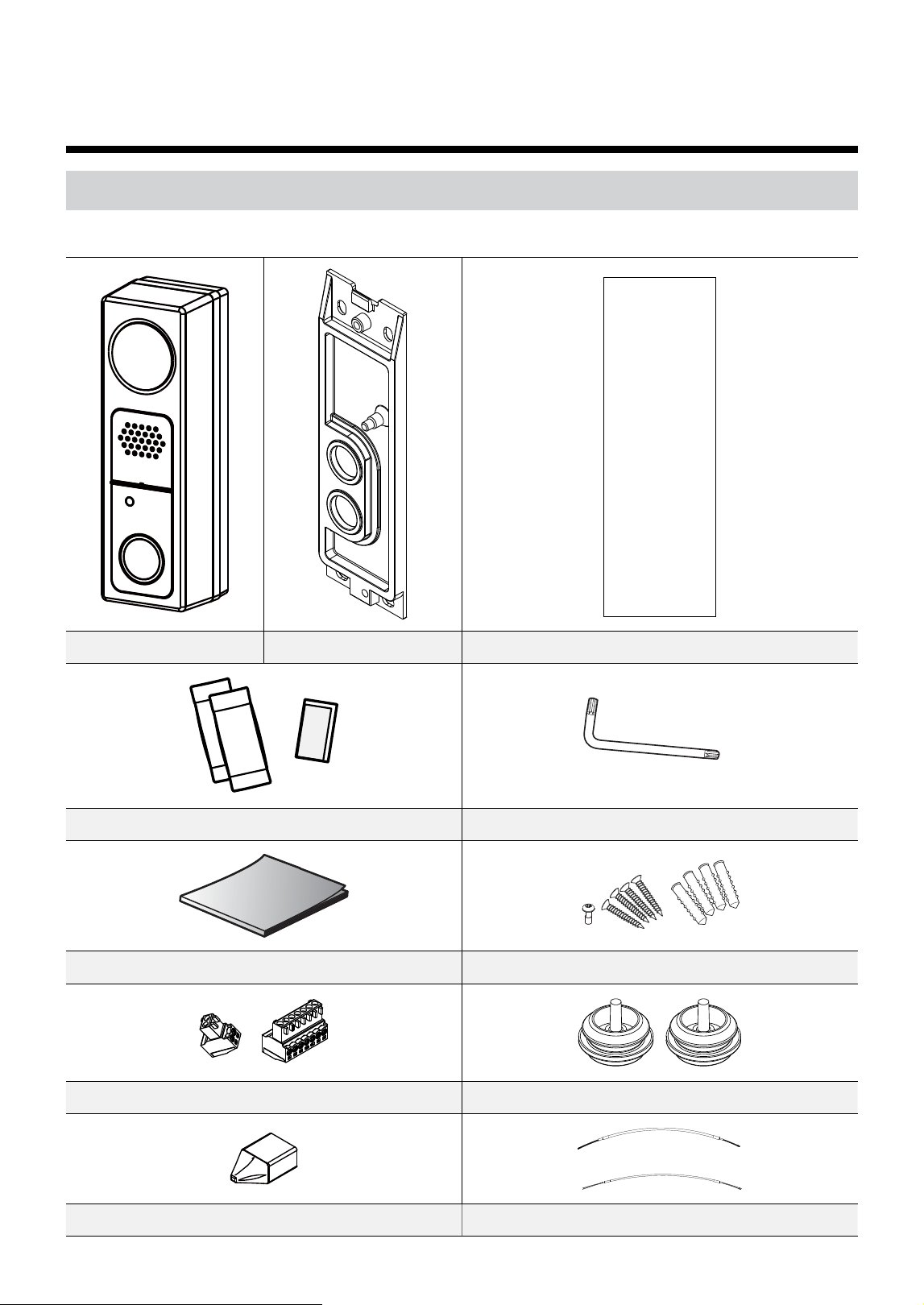
Accessories
Upon purchasing the product, check inside the box to make sure all the following accessories are included.
Intercom Wall Installation Plate Guide Pattern
Desiccant (2ea.), double-sided tape (1ea.) Allen Wrench
Quick Guide Screws(5ea.) and Anchors(4ea.)
Terminal Blocks (2 ea.) Waterproof Bushing (2ea.)
Protect Connector 7pin cable (Alarm cable), 2pin cable (Power cable)
Part 1 – Introduction
Part 1 – Introduction
7
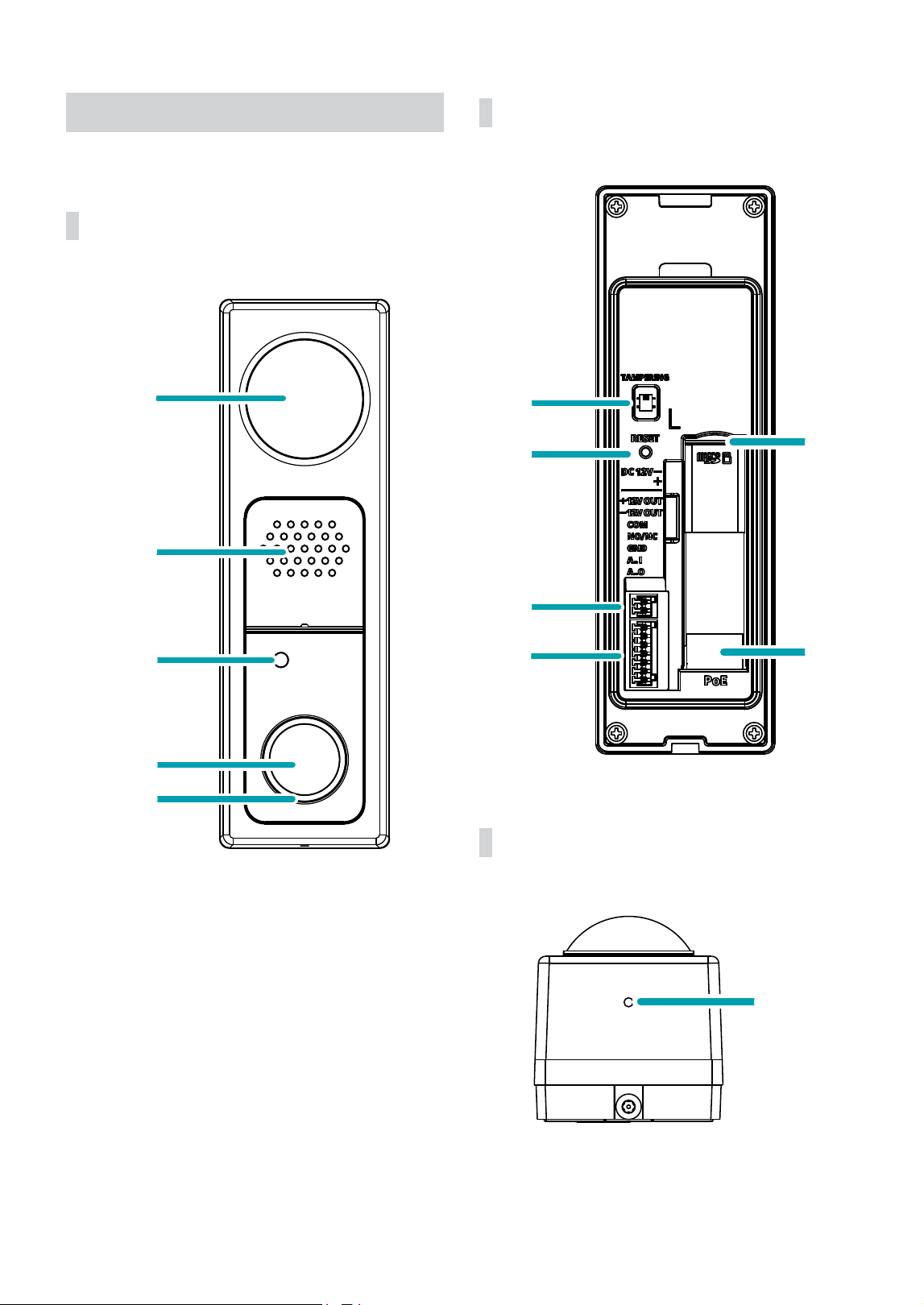
Overview
Front
1
2
3
4
5
Back
6
7
8
9
0
!
Bottom
@
Part 1 – Introduction
8
1
Lens
2
Speaker
3
IR LED, Sensor
4
Call Button
5
LED Status Indicator
6
Tampering Switch
7
Factory Reset Switch
8
Power
9
Alarm I/O
0
SD Memory Card Slot
!
Network Port
@
Built-in Microphone
• Lens
A motorized focus and zoom lens is installed.
• Speaker
Outputs audio transmitted from the connected
device.
• IR LED, Sensor
A sensor monitors lighting levels and activates the IR
LED during low-lighting conditions.
• Call Button
The call button for calling.
• LED Status Indicator
LED indicator shows operational status. For more
information, refer to the LED Status Indications.
• Tampering Switch
Using the tampering switch, you can detect when the
product is somehow separated.
• Factory Reset Switch
Restores the camera's default factory settings. For
more information, refer to the Factory Reset.
• Power (DC12V)
Connect this to the power adapter.
DC 12V adapter power must be connected if using
electric door strike.
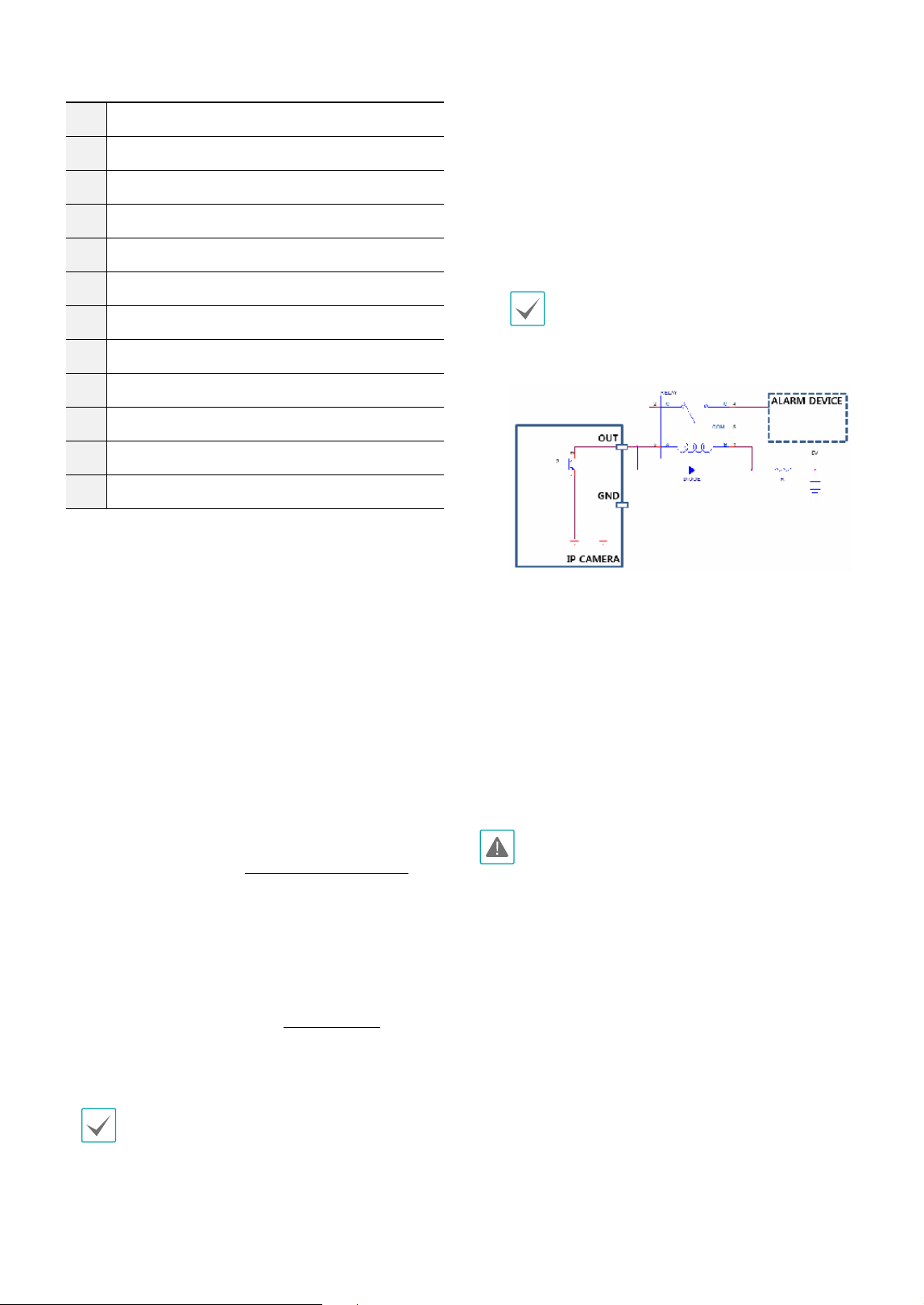
• Alarm
- O (Out): It is the BJT (Bipolar Junction Transistor)
- open collector output. If the voltage and current
exceed the specication limit (Max. Load: 30mA,
Max. Voltage: 5VDC), the product could be
damaged. When connecting the device which
exceeds the specication limit, refer to the picture
(circuit) below.
If used with an external inductive load(e.g. relay),
a diode must be connected in parallel with the
load for protection. Otherwise, the product could
be damaged.
- I (In): Connect an alarm-in device to this port.
(Mechanism: Choose between an NC (Normally
Closed) type or an NO (Normally Open) type) →
Connect a mechanical or electrical switch to the
alarm in port and the GND (ground) connector.
Alarm in range is 0V to 5V. In order to detect alarm
input from an electrical switch, the signal must be
higher than 4.3V from an NC switch or less than
0.3V from an NO switch and must last for longer
than 0.5 seconds.
• Check your local laws and regulations on making
video or audio recordings. The user will be held
liable for any violation of the law.
• When switching over from 12 VDC to PoE as the
power source, the system will be rebooted once the
power adapter is disconnected.
• Organize the power cable so that it will not cause
people to trip over or become damaged from chairs,
cabinets, desks, and other objects in the vicinity. Do
not run the power cable underneath carpet or a rug
or plug the cable into a power outlet shared by a
number of other devices.
• SD Memory Card Slot
Used to insert a micro SD memory card into the
camera. (An SLC (Single Level Cell) or MLC (Multi Level
Cell) card by San Disk or Transcend is recommended)
Part 1 – Introduction
9
• Do not remove the SD memory card while the
system is in operation. Removing the card while
the system is in operation can cause the system
to malfunction and/or corrupt data stored on the
SD memory card.
• An SD memory card is a consumable product
with a nite service life. Prolonged use will
damage the card's memory sectors and result
in data loss or memory card failure. Test the SD
memory card regularly and replace it whenever
necessary.
• Network Port
Connect a network cable with an RJ-45 connector to
this port. If using a PoE switch, you can supply power
to the camera using an Ethernet cable. For more
information on PoE switch use, refer to the switch
manufacturer's operation manual. You can congure,
manage, and upgrade this camera and monitor its
images from a remote computer over the network.
For more information on network connection setup,
refer to the IDIS Discovery operation manual.
The table below shows the network cable
specications.
<The network cable specications>
Item Content Note
Connector RJ-45
Ethernet 10/100 Base
10/100
Mbps
Cable
UTP Category 5e or
higher
Maximum
length
100m
PoE
IEEE 802.3af, Class 3
The recommended wire thickness for the DC power/
input/output connector is Φ1mm or less. If the wire
is thick more than that, power/network problems
may occur due to interference between wires. (It
is recommended to use the provided accessories
when the wire is thick.)
• Built-in Microphone
Receives audio.
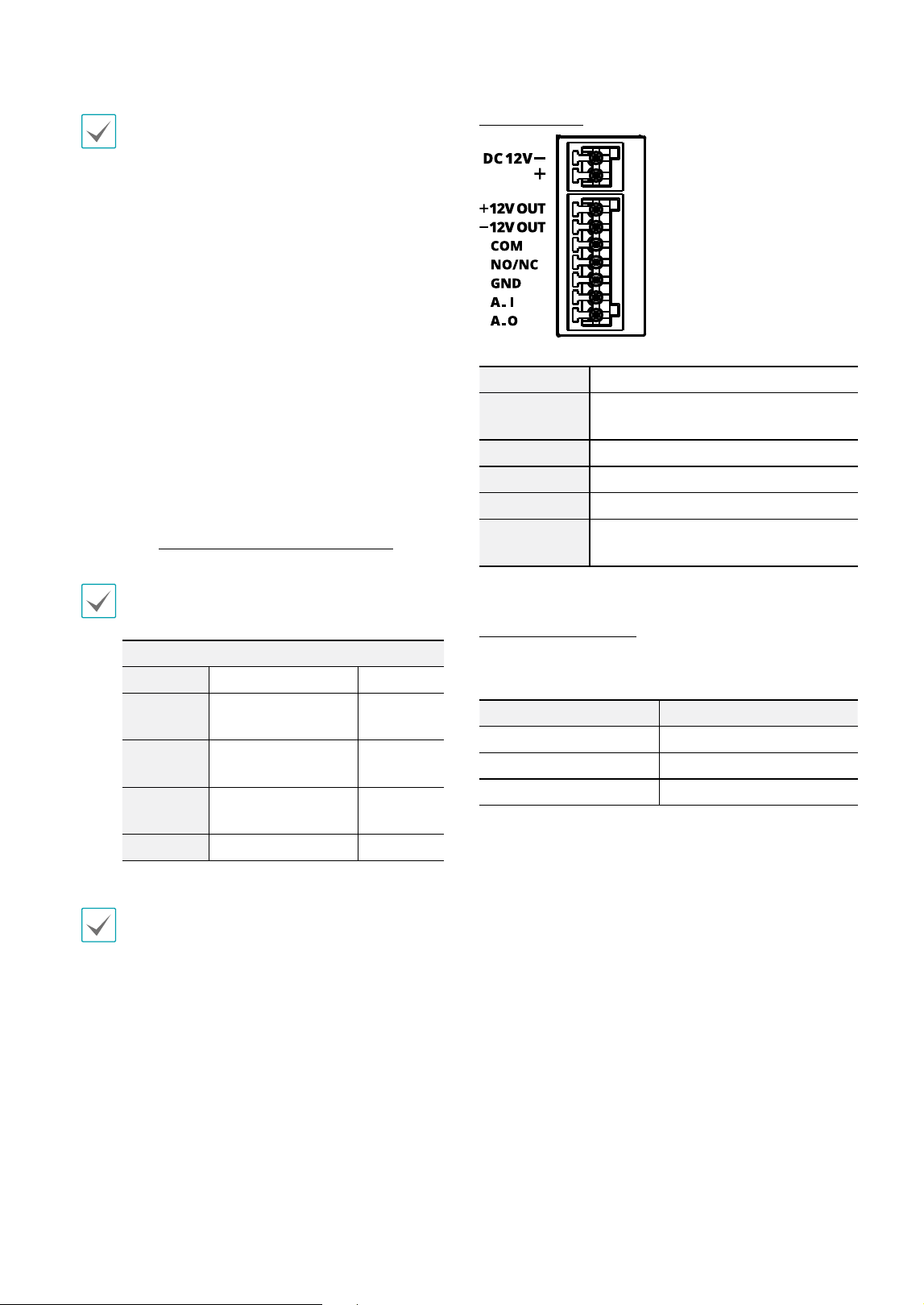
I/O Connector
DC12V-,+ DC12V Power In
+12V OUT,
-12V OUT
12V Out only when DC 12V power In
COM, NO/NC RELAY I/O
GND I/O Grounding
A.I Alarm In
A.O
Alarm Out (Active Low - Open
Collector Output)
LED Status Indications
Call Status LED Type
Waiting On
Call request Fast blink
Calling Slow blink
Part 1 – Introduction
10
Factory Reset
Only use the factory reset switch to restore the camera
to its factory default settings.
A factory reset will clear all camera settings congured
by the user.
1
Shut o the power supply, insert a straight pin into
the switch hole, and press down on the reset switch.
2
Hold the switch down and reconnect the power
adapter.
3
Once the device turns back on and its LEDs start
blinking, wait 5 seconds and then remove the pin.
4
The device will go through the resetting process and
reboot. All device settings will be restored to their
factory defaults after the reboot.
It's also possible to do a factory reset by pressing and
releasing the reset button while the camera is turned
on or using the IDIS Discovery program from a remote
location. A factory reset will reboot the system. For more
information on factory reset, refer to the IDIS Discovery
operation manual.
Installation
Installation of this product does not require the use of
special tools.
For more information on other devices comprising the
overall system, refer to their respective installation
manuals.
Product color and design may vary depending on the
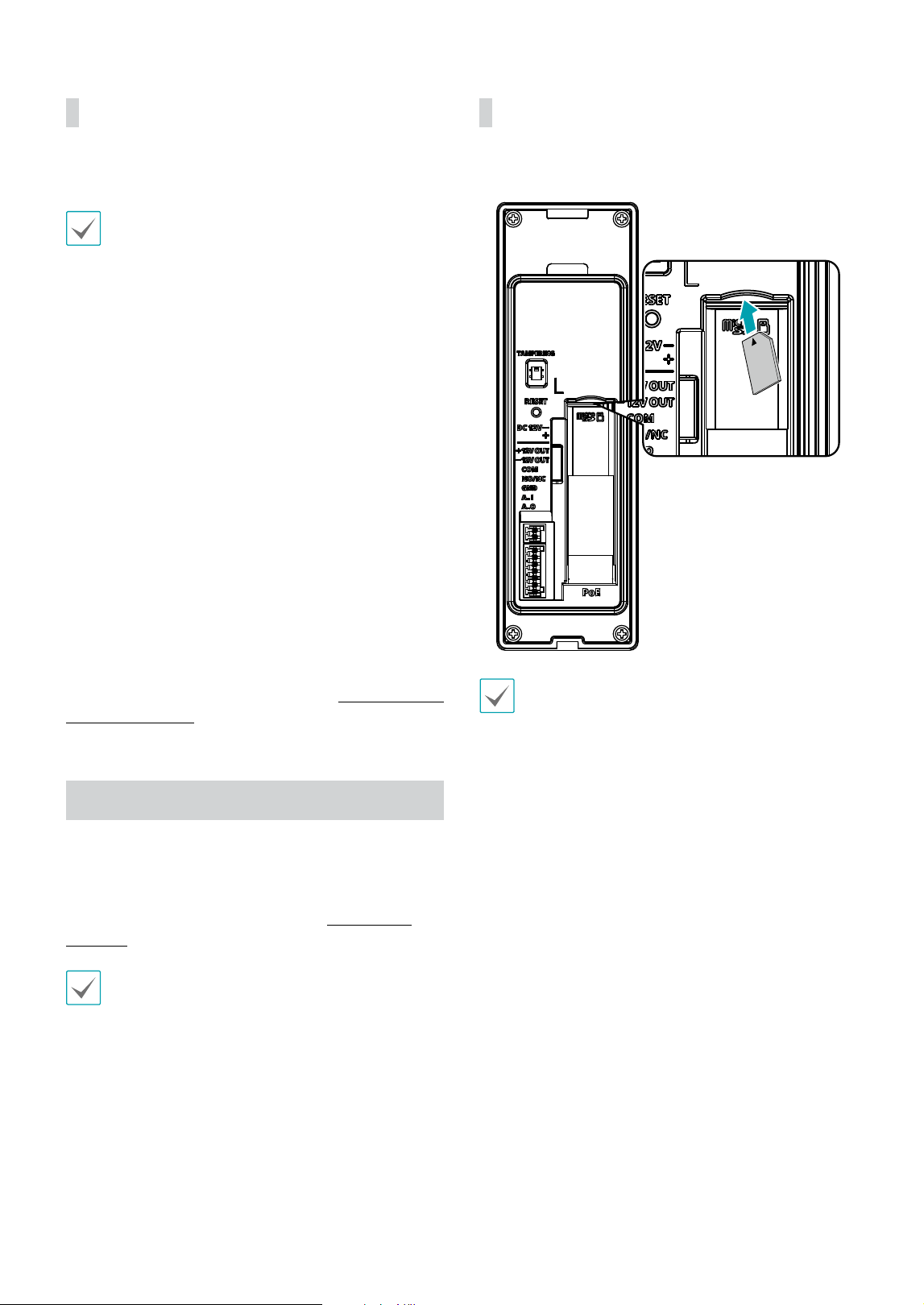
model.
Inserting a SD Memory Card
Insert a SD memory card into the SD memory card slot
with the 'micro SD' print facing upward.
micro
SD
Push the SD memory card until it disengages from the
slot, and then pull it out.
Part 1 – Introduction
11
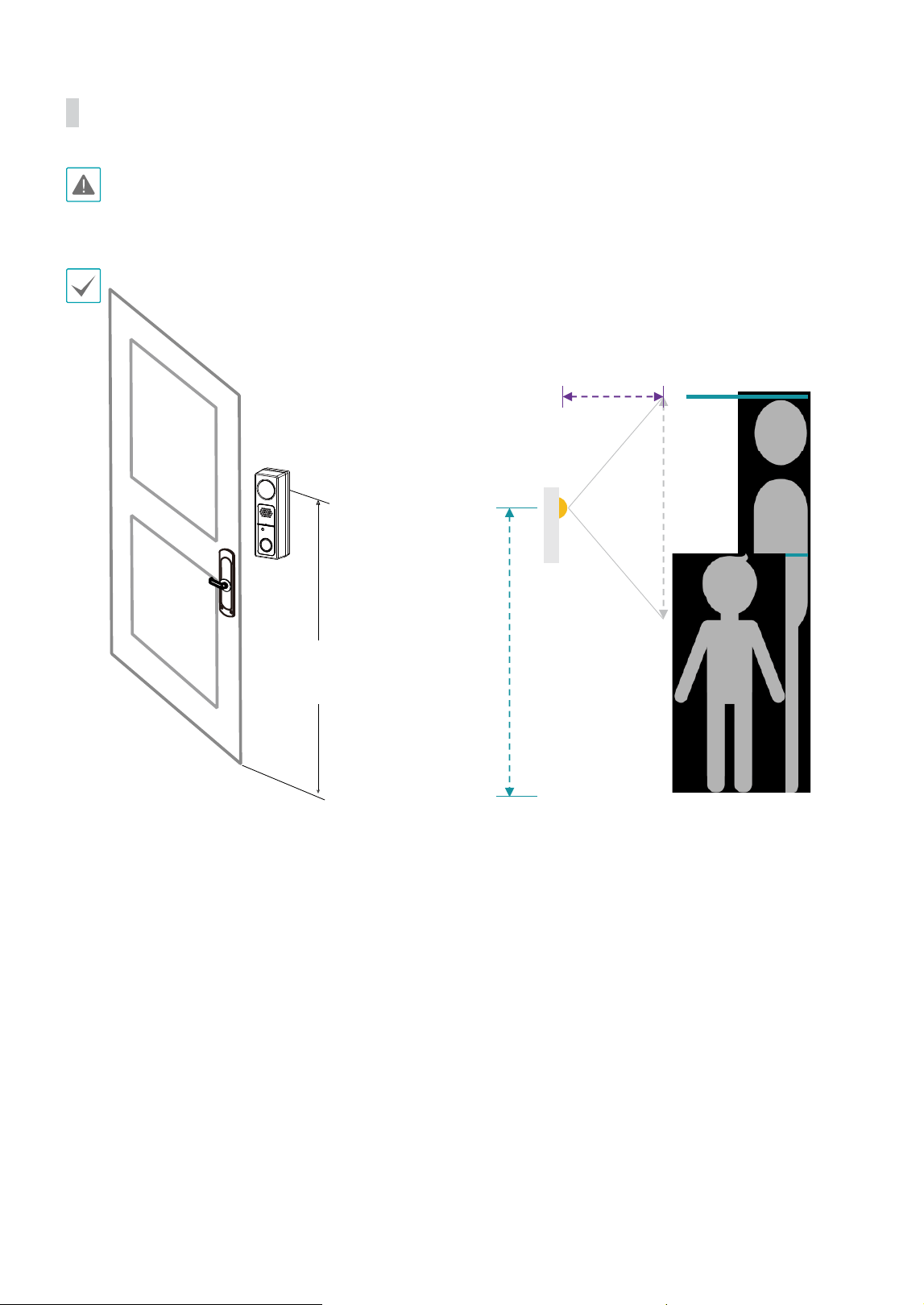
Installation
• Check the wall to see if it needs to be reinforced. The camera may fall o if the wall is not strong enough to support its
weight.
• Install the camera in a shaded area. If the camera is installed in direct sunlight, it may be aected adversely.
The recommended height for product installation is 140.5cm(55.31 in). (Based on lens height)
140.5cm
92˚
83cm
140.5cm
182cm
50cm
123cm
Part 1 – Introduction
12
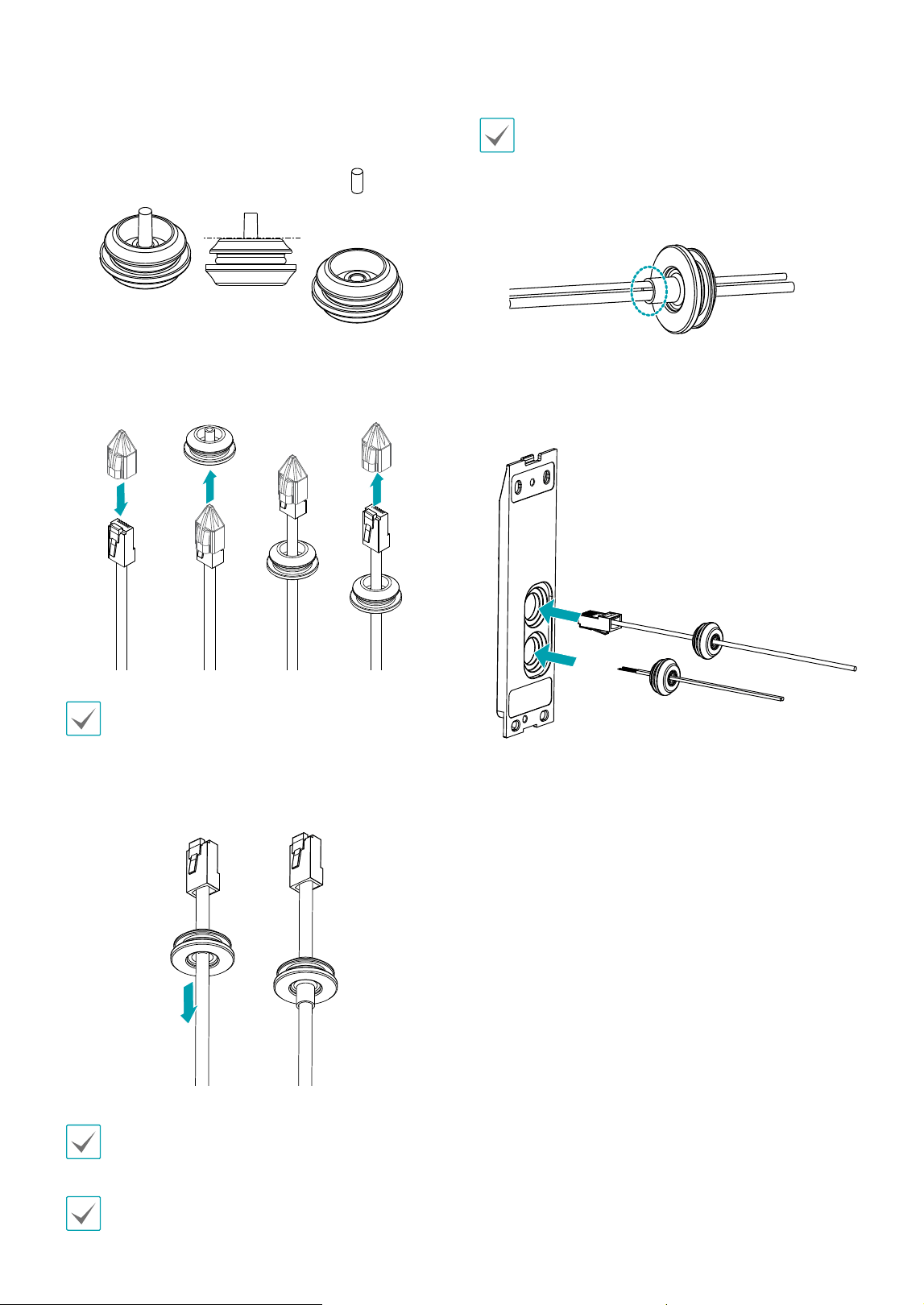
1
Detach the protrusion part from the cable rubber
along the dotted line.
2
Make the LAN cable go through the cable rubber
using the protect connector.
It is recommended to use lubricant to move the LAN
cable smoothly.
3
Pull the cable slightly and arrange the rubber as
shown below.
The recommended distance between the LAN
connector and the bushing is 5~6cm.
The recommended distance between the power, the
audio connector and the bushing is 4~4.5cm.
To pass through a thin cable or more than two cables
like the power and the audio connector provided with
the product, it is advised to nish it using silicon to
make sure waterproofed perfectly. (Silicon nishing
part — refer to the bottom image.)
4
Insert the bushing of the alarm cable in the bottom
hole of the mount plate, and the bushing of the
network cable in the top hole.
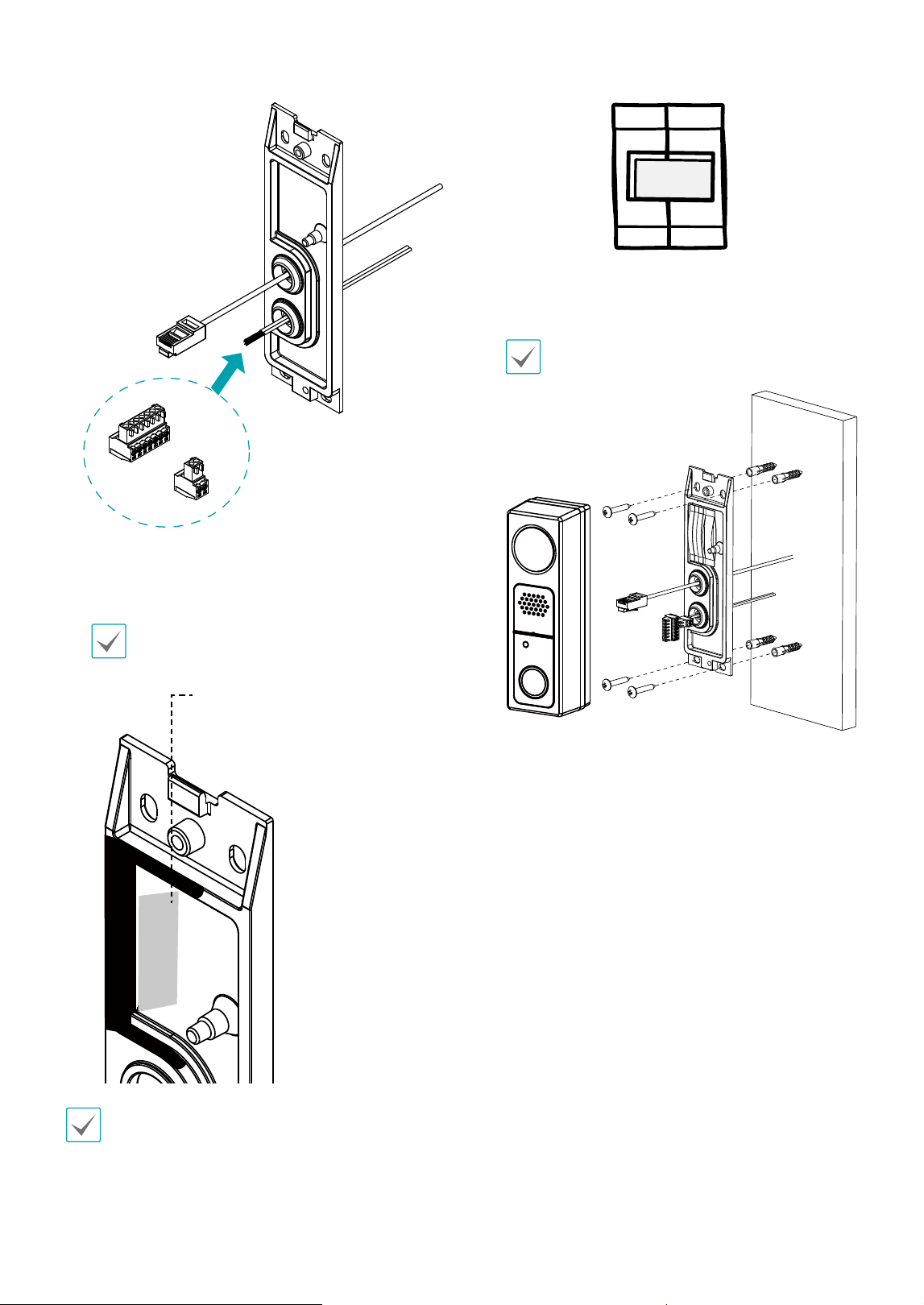
5
Connect the alarm terminal block to the alarm cable,
and power terminal block to the power cable.
Part 1 – Introduction
13
6
Attach the enclosed desiccant to prevent moisture.
For perfect waterproong, be careful not to let the
desiccant come over the wall (black part in the
picture below).
Desiccant
Attach the double-sided tape horizontally and attach
the desiccant side by side. (refer to the bottom image)
7
Use the screws, anchor provided with the product to
secure the install body on a wall.
Use the provided guide pattern to check the
distance between the screws.
8
Connect external devices, the network cable, and
the power adapter.
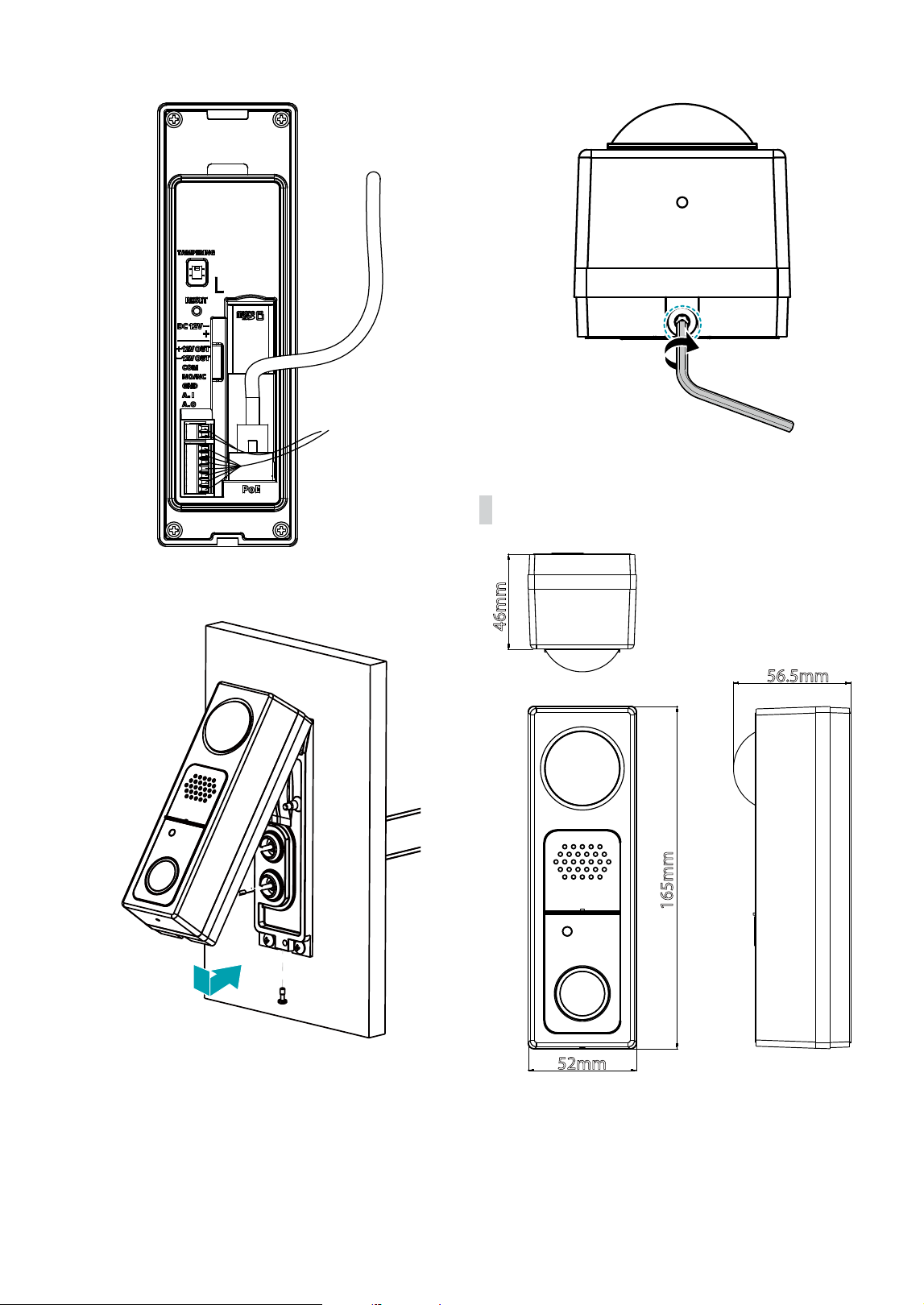
Part 1 – Introduction
14
9
Join the camera body to the mount plate.
10
Tighten the screw while
pushing the bottom part of the camera body.
Dimension
46mm
165mm
52mm
56.5mm
Part 1 – Introduction
15
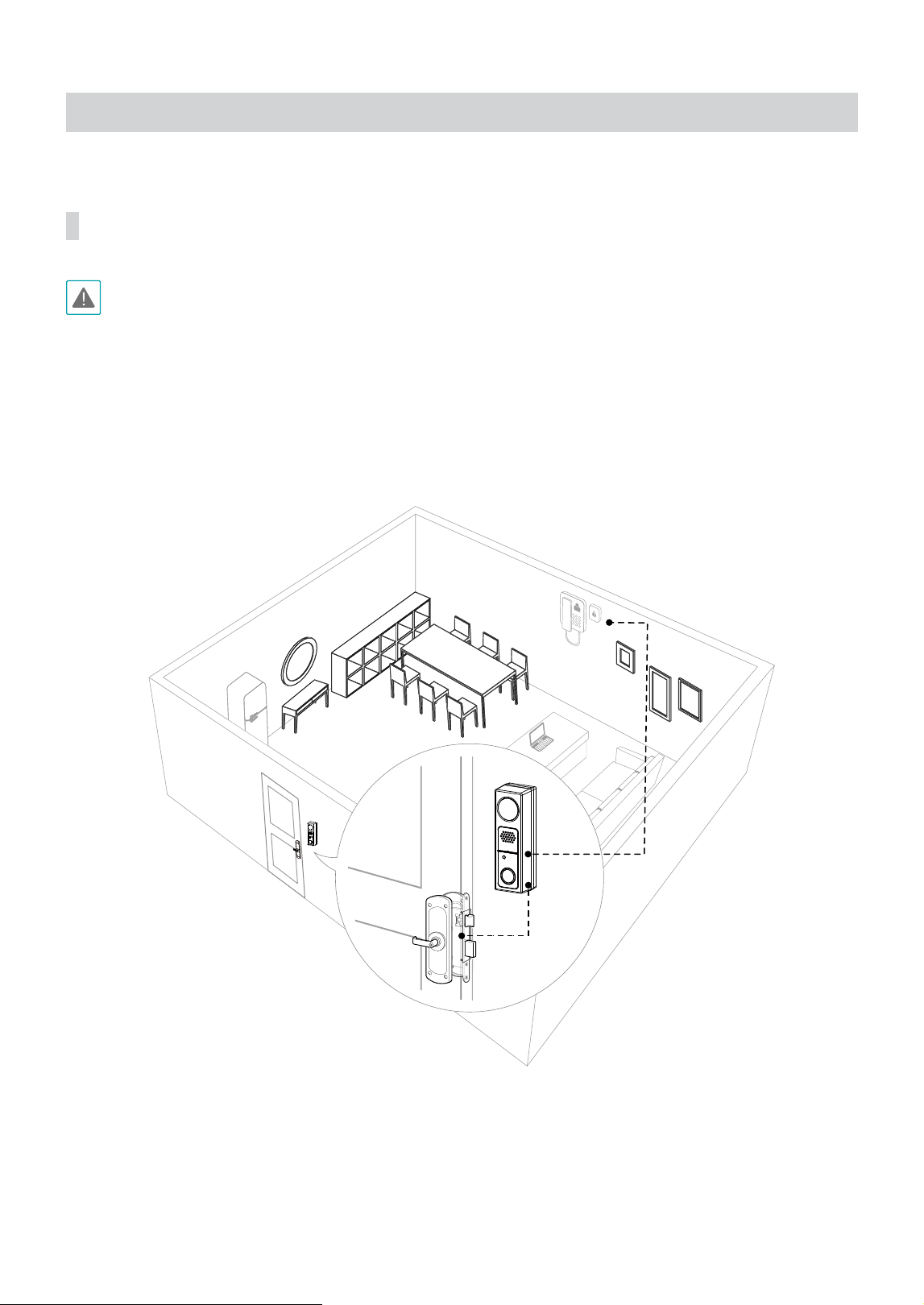
Connection
Connecting electric door strike
• To operate the electric door strike with intercom, connect DC 12V / 2A or higher power.
• The maximum power that can be supplied by Alarm out No.2 (NO/NC port) is DC 12V / 1A. To operate the electric door
strike with a higher power specication, supply power to the electric door strike separately.
• Refer to the specications recommended by the electric door strike manufacturer for the length and thickness of the
cable connecting electric door strike and intercom.
• If only PoE is connected to the intercom, only the intercom works and the electric door strike and 12V output do not.
• If PoE and DC12V power adapter are connected to the intercom: the intercom and the electric door strike are powered by
the DC12V power adapter.
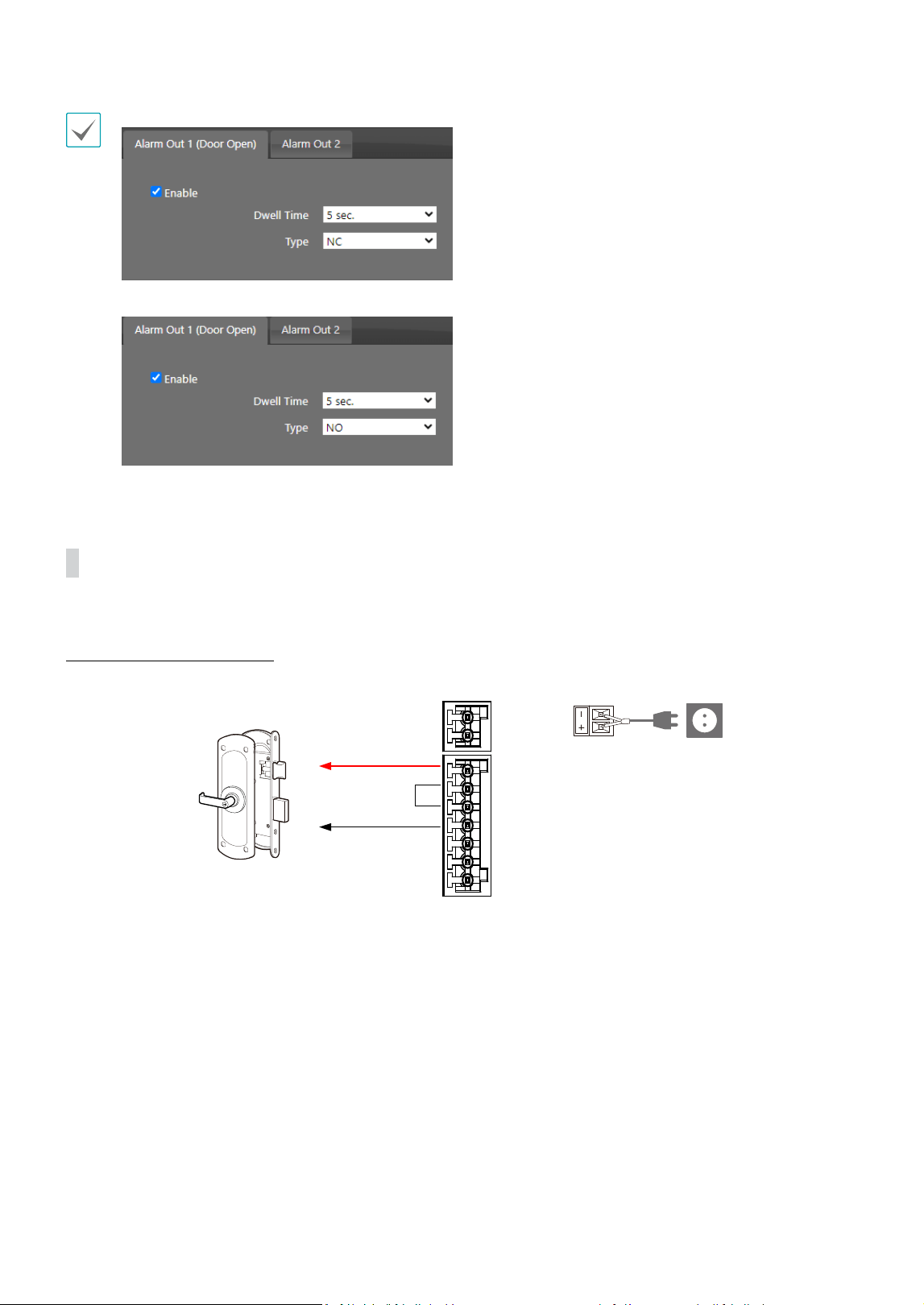
Part 1 – Introduction
16
• Select N.C. (Normal Close) when using the Fail-Safe type door strike.
• Select N.O. (Normal Open) when using the Fail-Secure type door strike.
Electric door strike wiring diagram
Using product internal power
+
-
NO/NC
COM
GND
INTERCOM TERMINAL BLOCK
+
-
NO/NC
COM
DC12V-
DC12V+
+12VOUT
-12VOUT
GND
INTERCOM TERMINAL BLOCK
Alarm IN
Alarm OUT
Alarm IN
Alarm OUT
DC12V-
DC12V+
+12VOUT
-12VOUT
External DC12V adapter
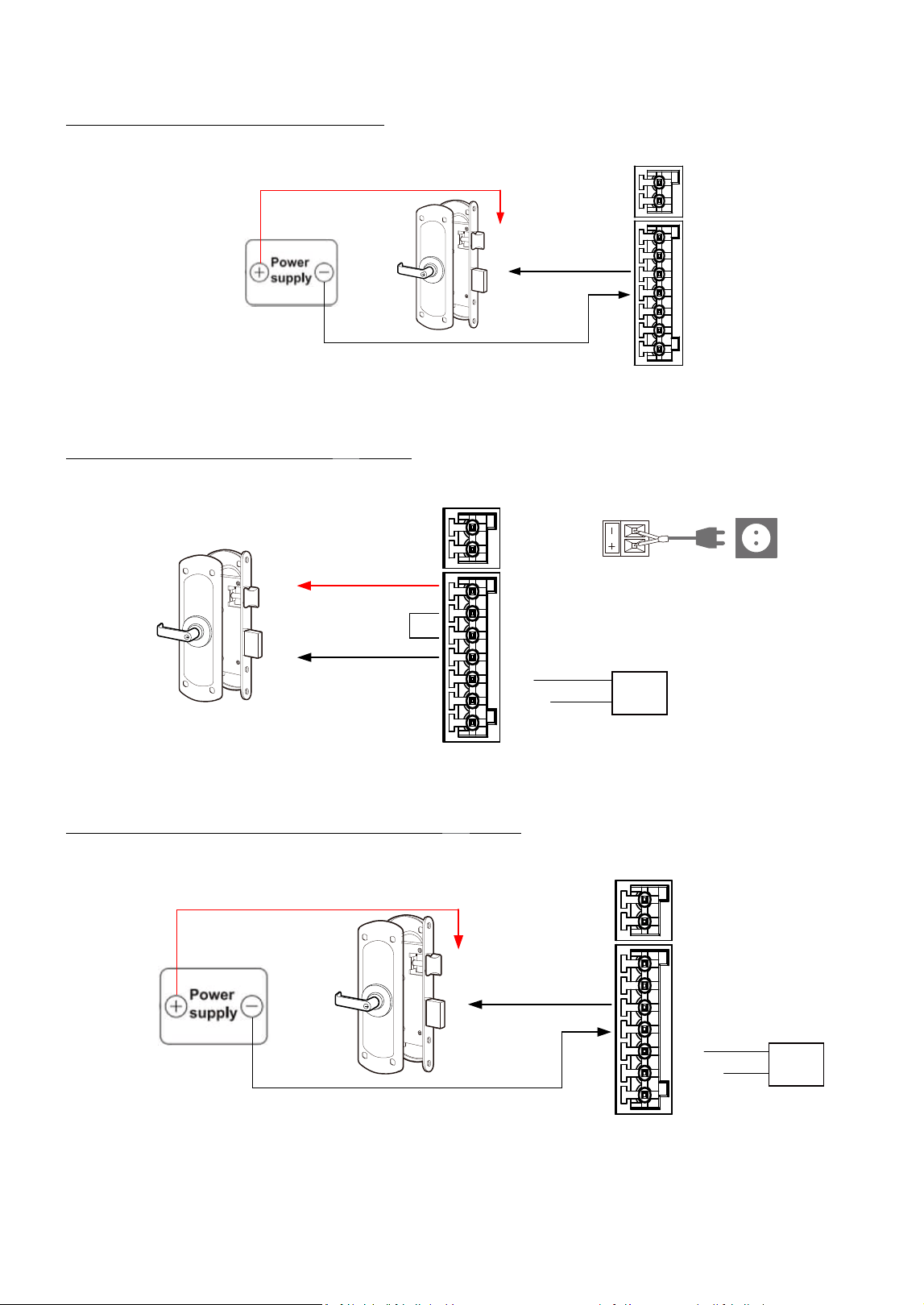
Part 1 – Introduction
17
Using electric door strike external sole power
+
-
NO/NC
COM
GND
INTERCOM TERMINAL BLOCK
+
-
NO/NC
COM
DC12V-
DC12V+
+12VOUT
-12VOUT
GND
INTERCOM TERMINAL BLOCK
Alarm IN
Alarm OUT
Alarm IN
Alarm OUT
DC12V-
DC12V+
+12VOUT
-12VOUT
Exclusive door lock power
Using product internal power + DOOR EXIT Button
-
I
/
O Terminal block
Adaptor
_
12
V
Adaptor
_
GND Pin
+
-
NO/NC
COM
GND
INTERCOM TERMINAL BLOCK
Alarm IN
Alarm OUT
+
-
NO/NC
COM
GND
INTERCOM TERMINAL BLOCK
Alarm IN
Alarm OUT
DC12V-
DC12V+
+12VOUT
-12VOUT
DC12V-
DC12V+
+12VOUT
-12VOUT
DOOR
EXIT
DOOR
EXIT
External DC12V adapter
Using electric door strike external sole power + DOOR EXIT Button
-
I
/
O Terminal block
Adaptor
_
12
V
Adaptor
_
GND Pin
+
-
NO/NC
COM
GND
INTERCOM TERMINAL BLOCK
Alarm IN
Alarm OUT
+
-
NO/NC
COM
GND
INTERCOM TERMINAL BLOCK
Alarm IN
Alarm OUT
DC12V-
DC12V+
+12VOUT
-12VOUT
DC12V-
DC12V+
+12VOUT
-12VOUT
DOOR
EXIT
DOOR
EXIT
Exclusive door lock power
Part 1 – Introduction
18
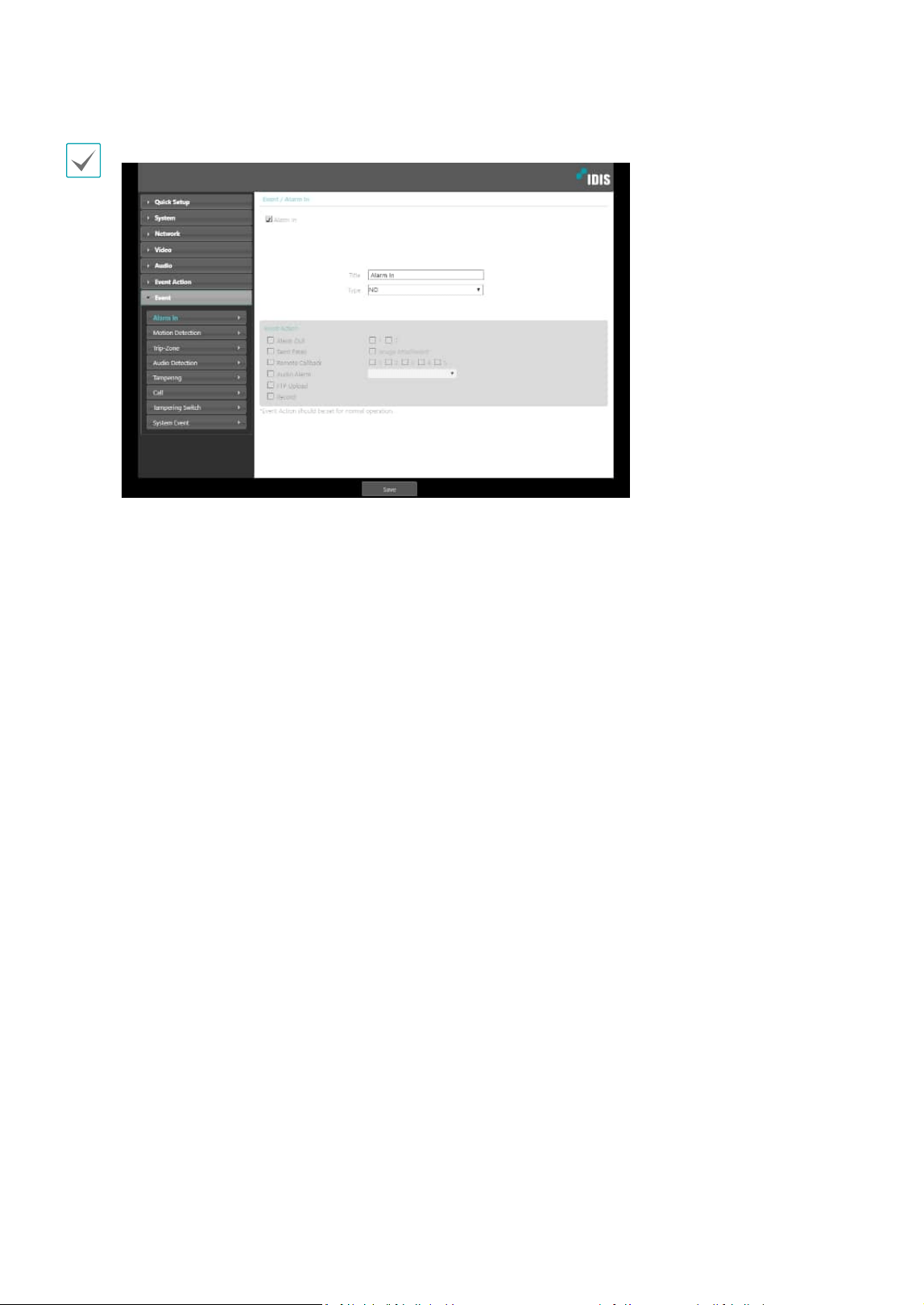
When conguring DOOR EXIT, select the Alarm Out 1 checkbox in Event > Alarm In.
19
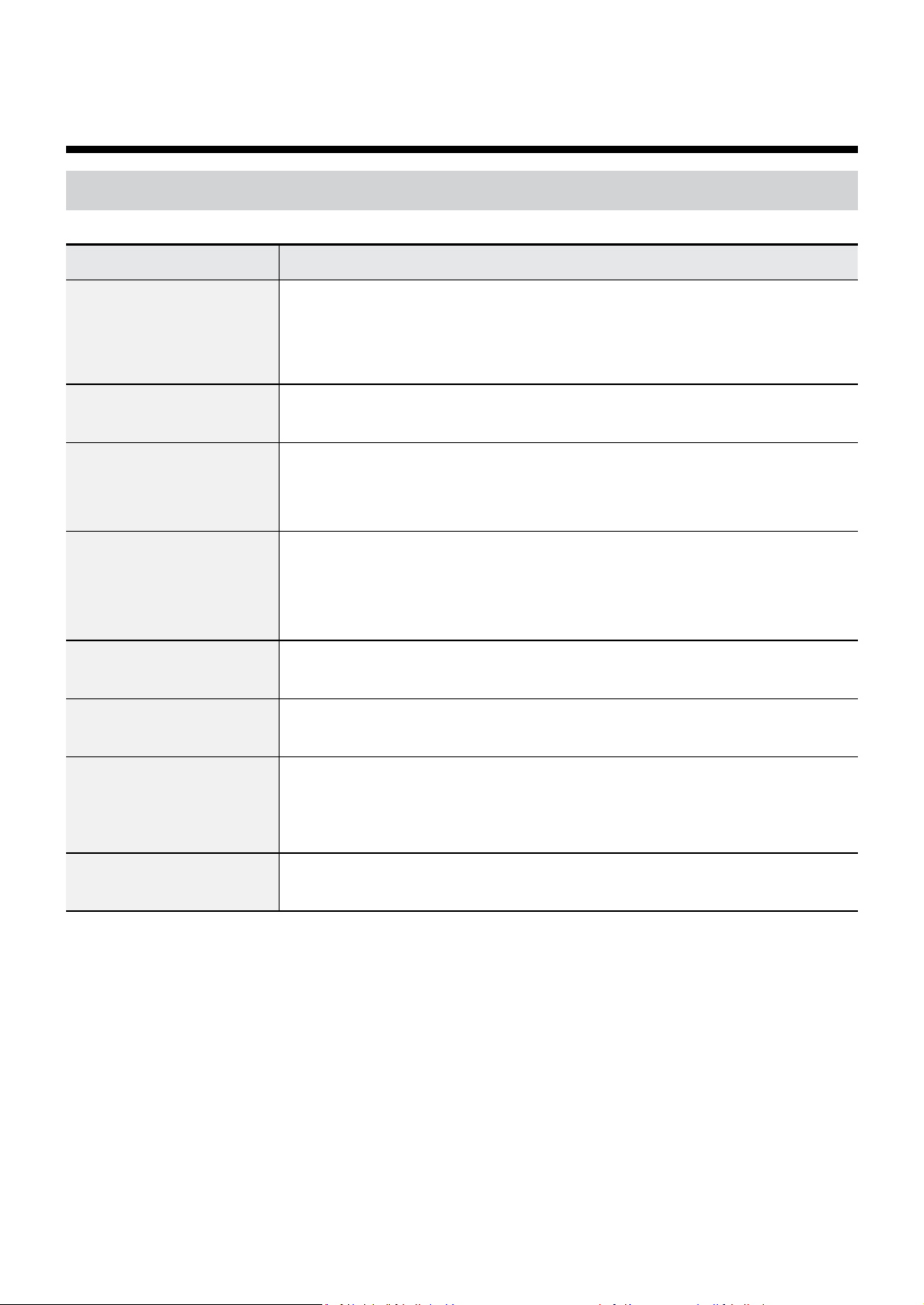
Problem Check
The main unit won't turn
on.
• Check the power cable connection. If using a PoE switch to supply power to the
camera using an Ethernet cable, check the Ethernet cable connection.
• Check the power outlet. If using a PoE switch to supply power to the camera
using an Ethernet cable, check the PSE device's power supply.
PoE switch isn't being
recognized.
Check the grounding status of the I/O device connected to the camera and the PoE
switch. If they are not grounded, ground them and try again.
I can't see Live videos. • Check the camera's power status.
• Ensure that cables are properly connected to the camera and the lens.
• Check the network connection status of the computer and the network camera.
Images are blurry. • Make sure the lens is clean. If not, clean it using a soft piece of cloth or a brush.
• Make sure the lens is in focus. Adjust the focus during daytime.
• If there is too much light coming into the camera or the camera is picking up an
overly bright light source, adjust the camera's position/angle accordingly.
Video color appears
incorrect.
Check the white balance settings. If using the Auto option, it may take some time
for the white balance to be adjusted.
Images are blinking. If the camera is pointed at the sun or a uorescent lamp, adjust the camera's angle
away.
Lost the admin ID and
password and unable
to connect to a network
camera.
You must perform a factory reset. A factory reset will revert all settings, including
network settings, to their factory defaults. After performing a factory reset, make a
memo of the admin ID and password as a safety precaution.
Unable to launch IDIS Web. If the IDIS Web login screen is not loading, check which version of Microsoft Internet
Explorer you are using. IDIS Web may not launch properly on versions 10 or below.
Part 2 - Appendix
Troubleshooting
Part 2 - Appendix
20
Specications
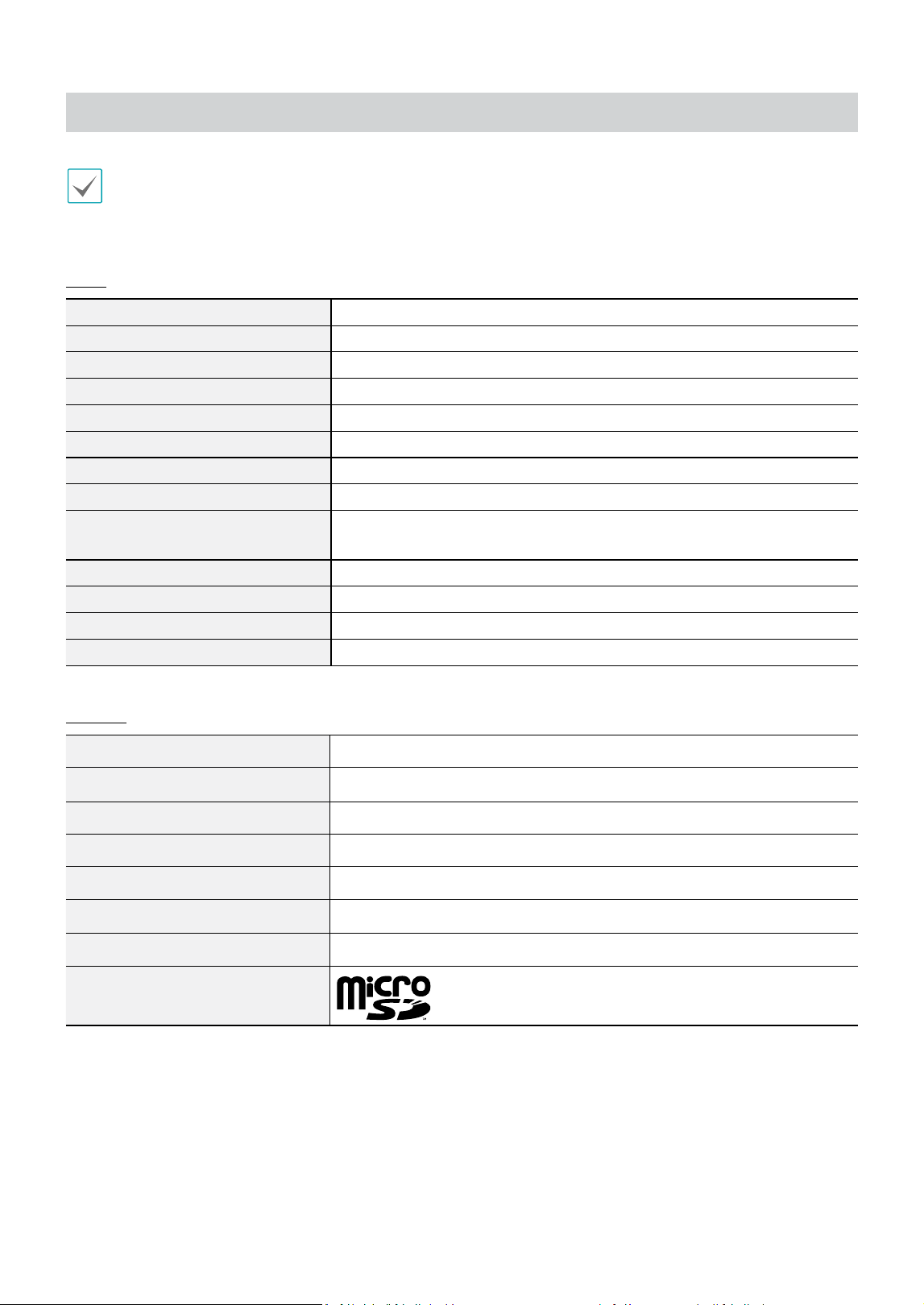
• These product specications may change without prior notice.
• This product is for outdoor use.
Video
Image Sensor
1/2.8" CMOS
Max. Resolution
1920 x 1080
Scanning Mode
Progressive Scan
Lens type
Fixed-focal
Focal Length
f=1.85mm
Aperture
F=2.3
Iris Control
Fixed Iris
Angular Field of View
180°(H), 92°(V)
Min. Illumination
COLOR : 0.1 lux F2.3
B/W : 0 lux (IR LED ON)
Dynamic Range
120dB, True WDR
Electronic Shutter Speed
Auto / Manual (1/30 ~ 1/10,000), Anti-Flicker, Slow Shutter (1/7.5, 1/15)
Day & Night
IR cut lter with auto switch
IR Distance (LEDs)
5m (1ea)
Network
Video Compression
H.265, H.264(MP), M-JPEG
Bit rate Control
CBR / VBR
Max. Frame Rate
30ips : 1920 x 1080 (WDR)
Audio Compression
G.726, G.711 u-Law, G.711 a-Law, G.722
Supported Resolution
1920x1080, 1280x720, 640x360, 352x240
Multi-Video Streaming
Quadruple
Ethernet
RJ45(10/100BASE-T)
Edge Storage* (Optional)
(Micro SD/SDHC/SDXC memory card (class 6 or higher, max.
512GB))
* An SLC (Single Level Cell) or MLC (Multi Level Cell) card by SanDisk or Transcend is recommended to ensure stable recording
performance.
* An SD memory card is a consumable product with a nite service life. Prolonged use will damage the card's memory sectors and
result in data loss or memory card failure. Test the SD memory card regularly and replace it whenever necessary.
* microSD Logo is a trademark of SD-3C, LLC.
Part 2 - Appendix
21
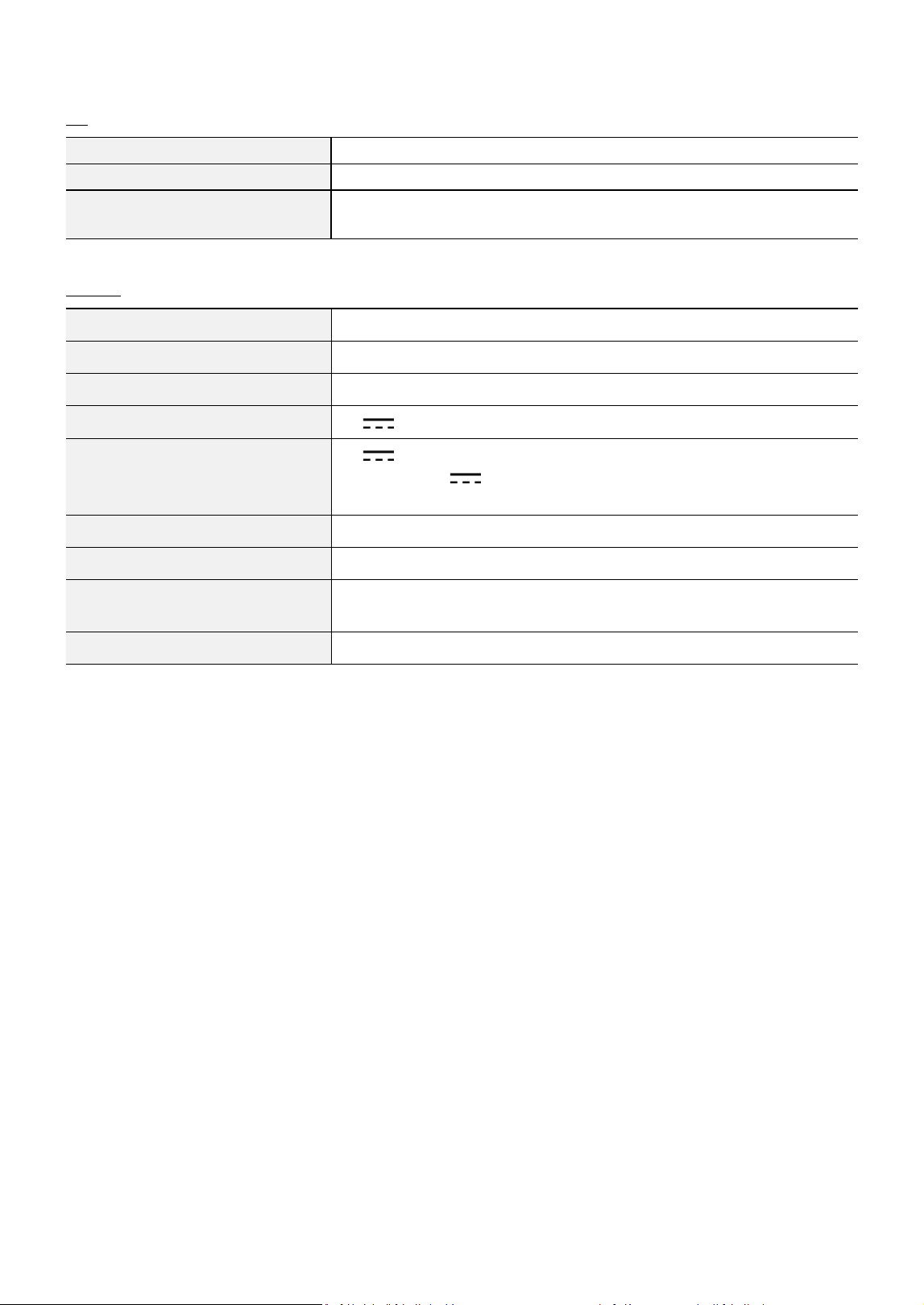
I/O
Audio In/Out
Internal Mic 1ea / Internal Speaker 1ea
Alarm In
1 TTL, NC/NO Programmable, 4.3V(NC) or 0.3V(NO) threshold, 5V DC
Alarm Out
1 TTL open collector, 30mA @ 5 VDC
1 RELAY OUT, 12 VDC Max. 1A with 2A or higher DC 12V Power adapter
General
Operating Temperature
-30°C ~ +55°C (-22°F ~ +131°F)
Boot Up Temperature
0°C ~ +55˚C (32°F ~ +131˚F)
Operating Humidity
0% ~ 90%
Power Source
12V , PoE(IEEE 802.3af, Class 3)
Power Consumption
12V , 1.87A, 22.4W
(DC OUTPUT: 12V
, 1A MAX)
PoE, IEEE 802.3af (Class 3), 9.5W
Approval
FCC, CE, IP66, IK10
External Dimensions (W x D x H)
52mm x 165mm x 46mm (2.04" x 6.49" x 1.81")
External Dimensions with dome
cover (W x D x H)
52mm x 165mm x 56.5mm (2.04" x 6.49"x 2.22")
Weight (Main Unit)
0.52kg (1.14lb)
V1.0

IDIS Co., Ltd.
For more information, please visit at
www.idisglobal.com