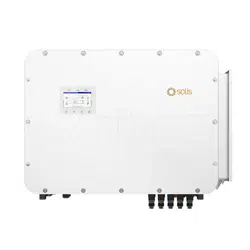
User Manual
for S6 Series Hybrid Inverter
Version 1.0, Release Date: 07,2024
Applicable models
S6-EH3P12K-H
S6-EH3P15K-H
S6-EH3P20K-H
S6-EH3P8K-LV-H
S6-EH3P10K-LV-H
S6-EH3P12K-LV-H
Applicable System
Three phase system

02
05
08
16
16
18
24
25
05
02
03
08
20
33
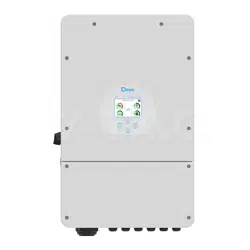
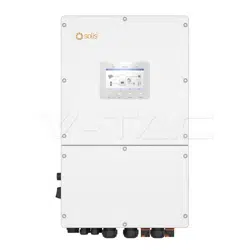
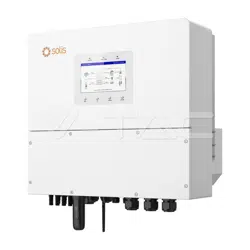
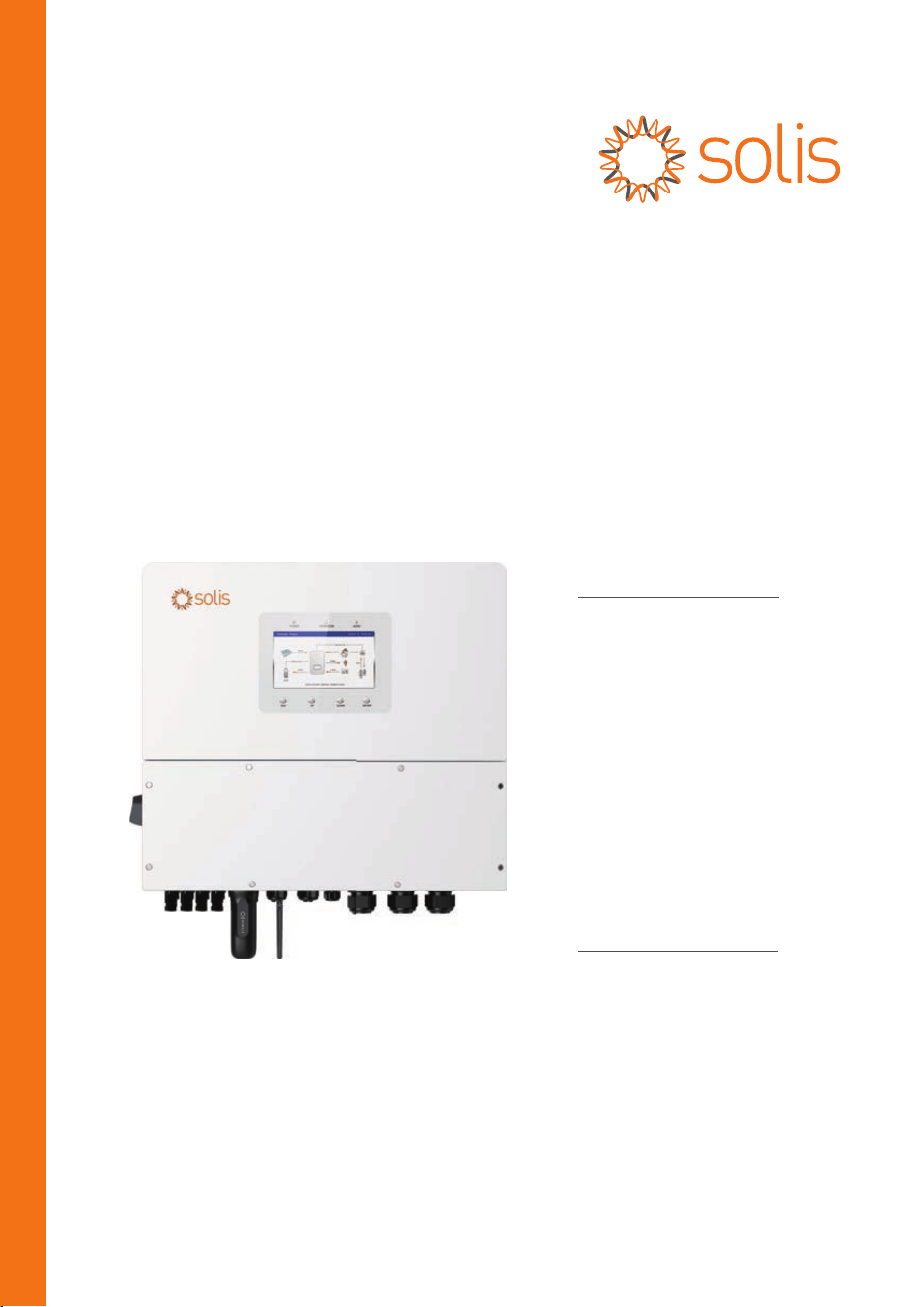
1.1 Product Description
………………………………………………………………………………………………………………………
…………………………………………………………………………………………………………
………………………………………………………………………………………………………………………………………
…………………………………………………………………………………………………………………………………………
………………………………………………………………………………………………
……………………………………………………………………………………
…………………………………………………………………………………………………
………………………………………………………………………………………………………………
………………………………………………………………………………………………………………………………
…………………………………………………………………………………………………………………………………
……………………………………………………………………………………………………………………………………
1. Introduction
1.2 Packaging
2. Safety & Warning
2.1 Safety
2.2 General Safety Instructions
3. Overview
4.9 Inverter Remote Monitoring Connection
4. Installation
4.1 Select a Location for the Inverter
4.2 Mounting the Inverter
4.4 PV Input Cable Installation
4.6 AC Wiring
4.7 CT Connection
………………………………………………………………………………………………………………
…………………………………………………………………………………………………………………………………
05
2.3 Notice For Use
07
…………………………………………………………………………………………………………………………
………………………………………………………………………………………………………………………………
……………………………………………………………………
23
4.5 Battery Cable Installation
…………………………………………………………………………………………………
26
4.8 Inverter Communication
……………………………………………………………………………………………………
34
…………………………………………………………………………………
5. Commissioning & Shutdown
7. Troubleshooting
…………………………………………………………………………………………………………………
56
61
………………………………………………………………………………………………………………………
8. Specifications
55
…………………………………………………………………………………………………………………………
6. Maintenance
19
4.3 PE Cable Installation
…………………………………………………………………………………………………………
34
5.1 Preparation of Commissioning
………………………………………………………………………………………
34
5.2 Commissioning Procedure
………………………………………………………………………………………………
35
5.3 Quick Settings
…………………………………………………………………………………………………………………………
Contents
2.4 Notice for Disposal
07
………………………………………………………………………………………………………………
04
……………………………………………………………………………………………………
1.3 Inverter Circuit Diagram
04
………………………………………………………………………………………
1.4 Tools Required for Installation
09
………………………………………………………………………………………………………………
3.4 System Description
37
5.4 Shutdown procedure
…………………………………………………………………………………………………………
38
5.5 Work Mode and Settings
……………………………………………………………………………………………………
43
5.6 TOU Function Settings
………………………………………………………………………………………………………
44
5.7 Battery Settings
……………………………………………………………………………………………………………………
46
5.8 Battery Healing Switch
………………………………………………………………………………………………………
47
5.9 Battery Reserve Function Settings
………………………………………………………………………………
48
5.10 Feed in power limit function
…………………………………………………………………………………………
50
5.11 Parallel Settings
…………………………………………………………………………………………………………………
51
5.12 Smart port settings
……………………………………………………………………………………………………………
53
5.13 CT Detection function
………………………………………………………………………………………………………
3.1 Screen
3.2 Keypad
3.3 LCD Indicators
08
………………………………………………………………………………………………………………………………………
08
………………………………………………………………………………………………………………………
53
5.14 Only PV power load function
…………………………………………………………………………………………
1. Introduction
2
User Manual
1.1 Product Description
The Solis S6 Series is designed for residential hybrid systems, which can work with
batteries to optimize self-consumption. The unit can operate in both off- and on-grid
modes.
This manual covers the Solis S6 Series inverter model listed below:
S6-EH3P12K-H, S6-EH3P15K-H, S6-EH3P20K-H, S6-EH3P8K-LV-H,
S6-EH3P10K-LV-H, S6-EH3P12K-LV-H
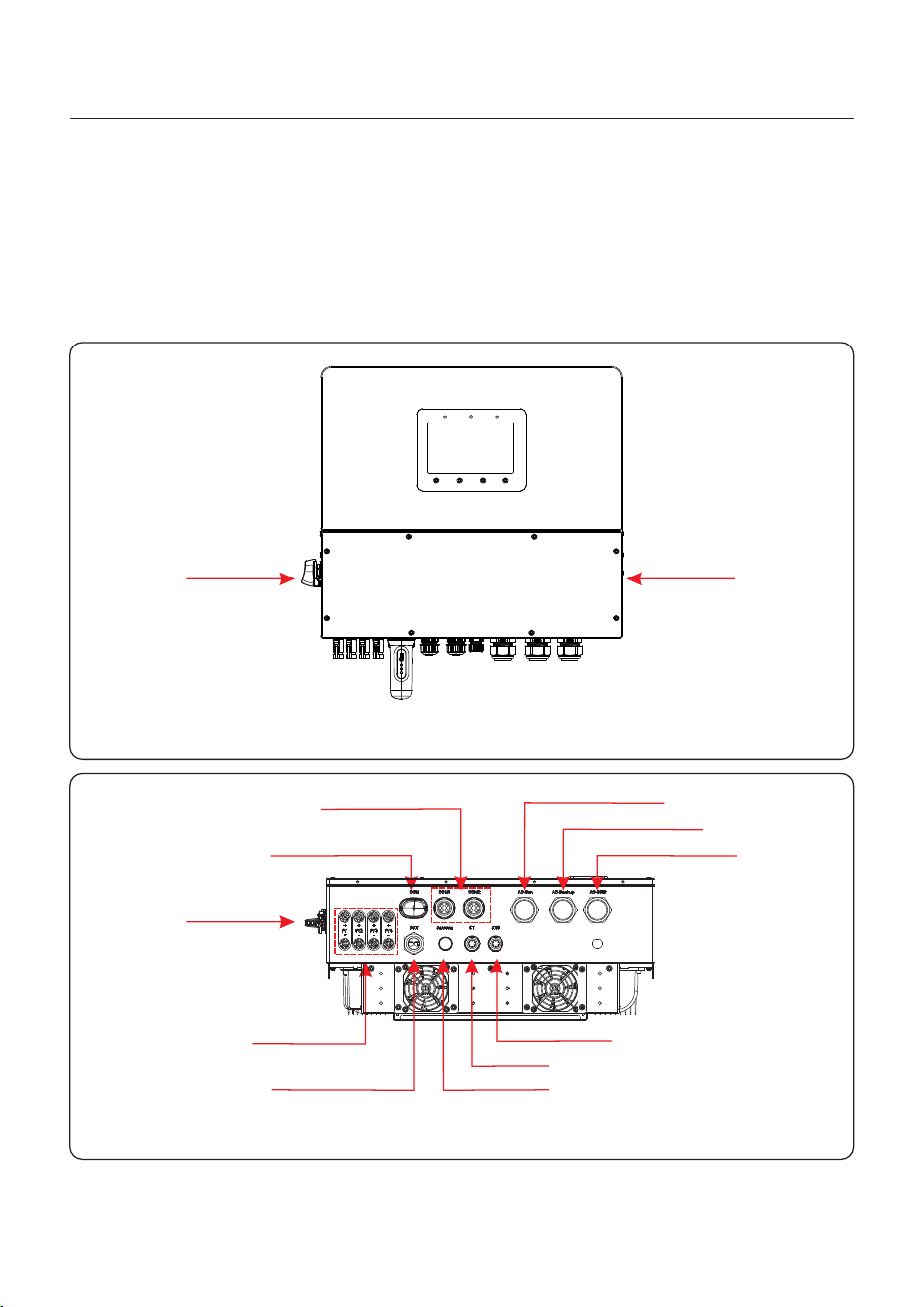
Figure 1.1
Front side view
Figure 1.2
Bottom side view
DC Switch
AC Grid Port
AC Backup Port
Data Logging
Stick (Optional)
Antenna
PV Input
DC Switch
Communication
Battery Input
CT
ATS signal
Generator Port
Wiring box
1. Introduction
User Manual
3
1.2 Packaging
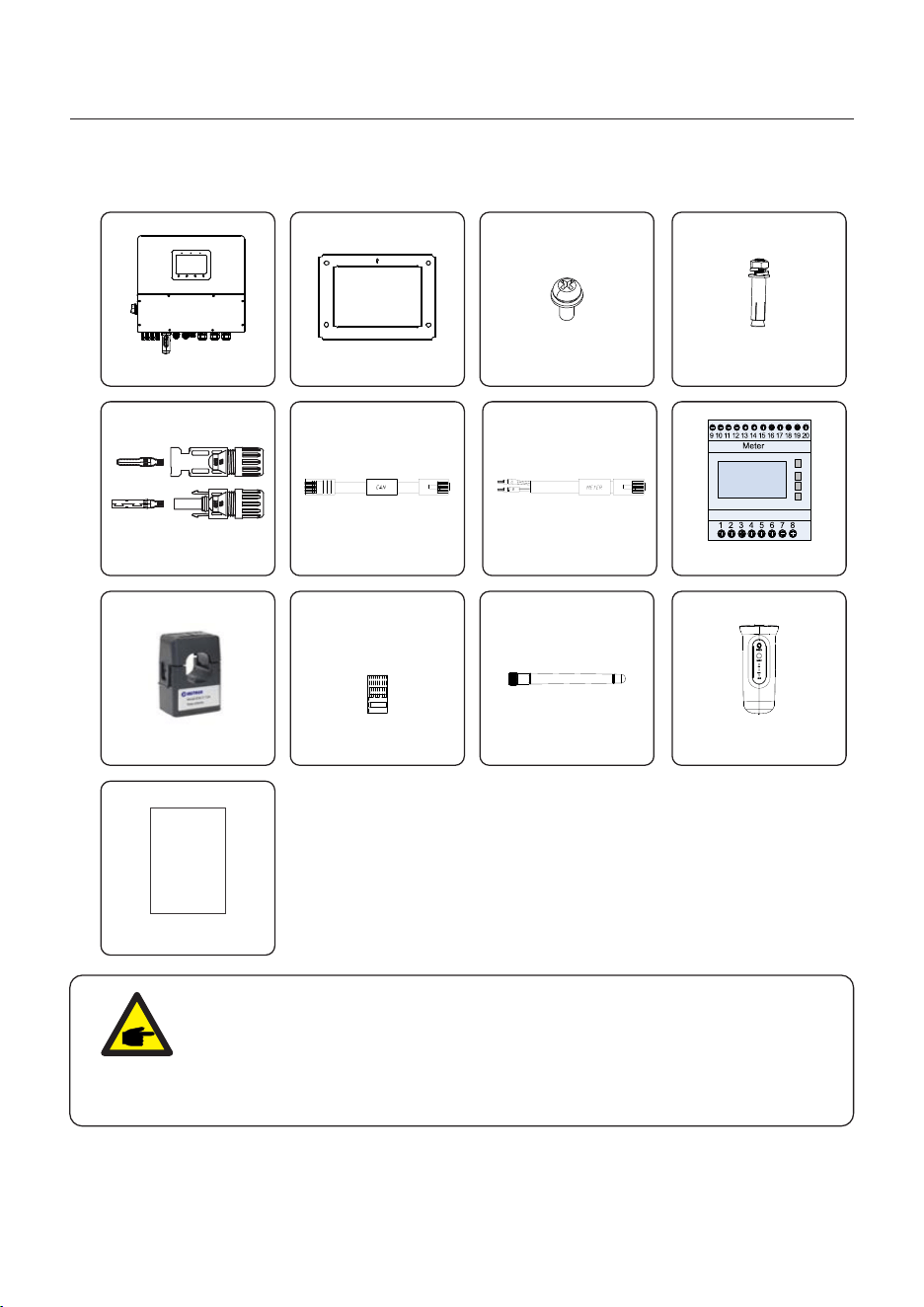
Please ensure that the following items are included in the packaging with your machine:
Inverter x1
Back Plate x1
Fixing Screws(M4*12) x2
If anything is missing, please contact your local Solis distributor.
CAN cable x1
PV Connector x4
CT x3
Bluetooth Antenna x1
RJ45 connector x6
Data Logging Stick (Optional) x1
Expansion bolts(M10*70) x4
NOTE:
If customer purchases the CT configuration scheme, the attachment only contains
CT.
If the meter configuration plan is purchased, the accessories include CT, the meter,
and the meter communication cable.
Eastron Meter x1
Meter cable x1
User Manual x1
Manual
1. Introduction
User Manual
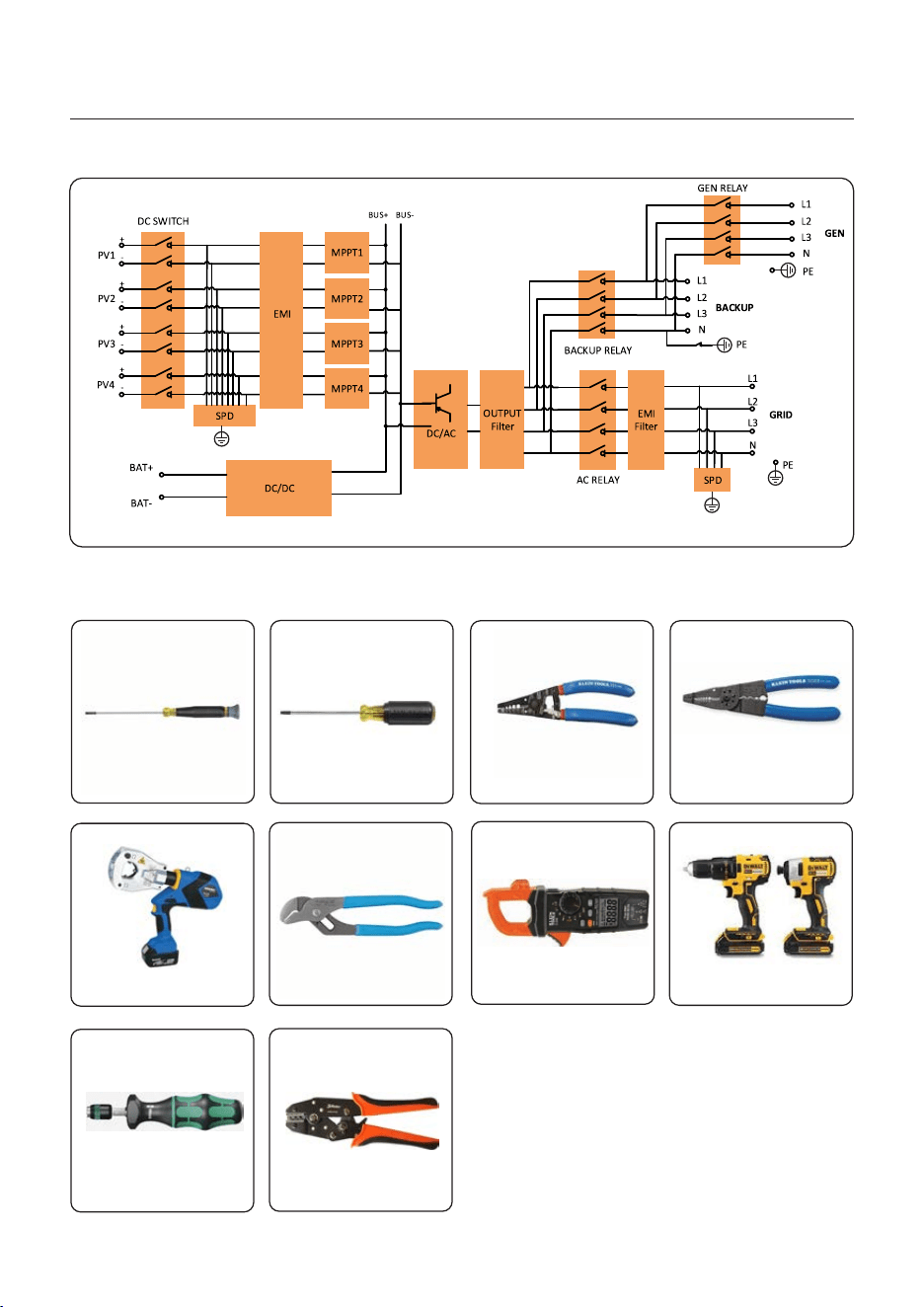
1.4 Tools Required for Installation
Technician Screwdriver
Torqx T20 Screwdriver
Wire Strippers
12AWG to 6AWG
Wire Strippers
20AWG to 10AWG
Drill and Impact DriverMultimeter (AC/DC amps)
Channel Locks
LUG Crimping Tool
Torque Screwdriver MC4 Crimping Tool
4
1.3 Inverter Circuit Diagram
Figure 1.3
2. Safety & Warning
User Manual
5
2.1 Safety
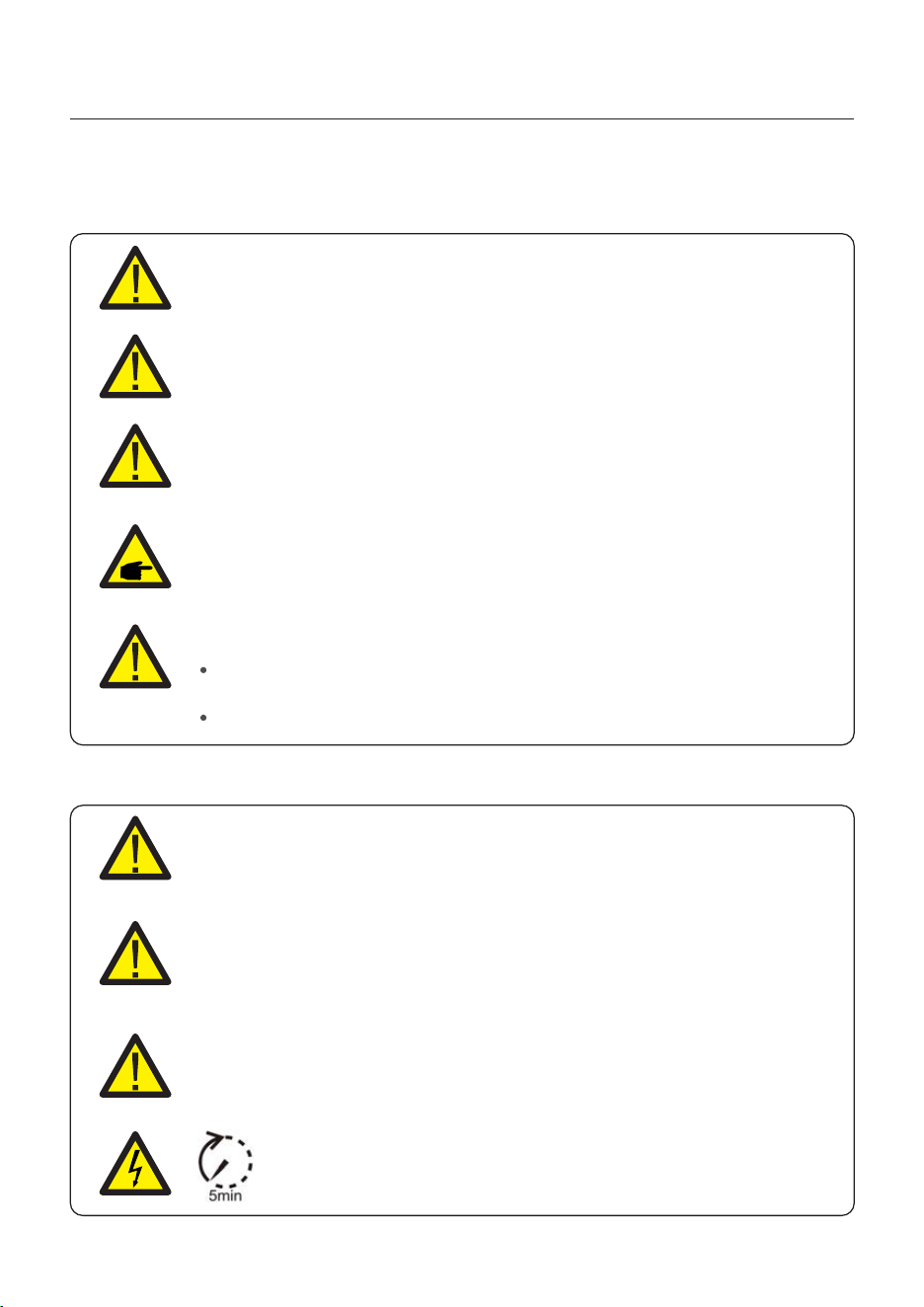
The following types of safety instructions and general information appear in this document as
described below:
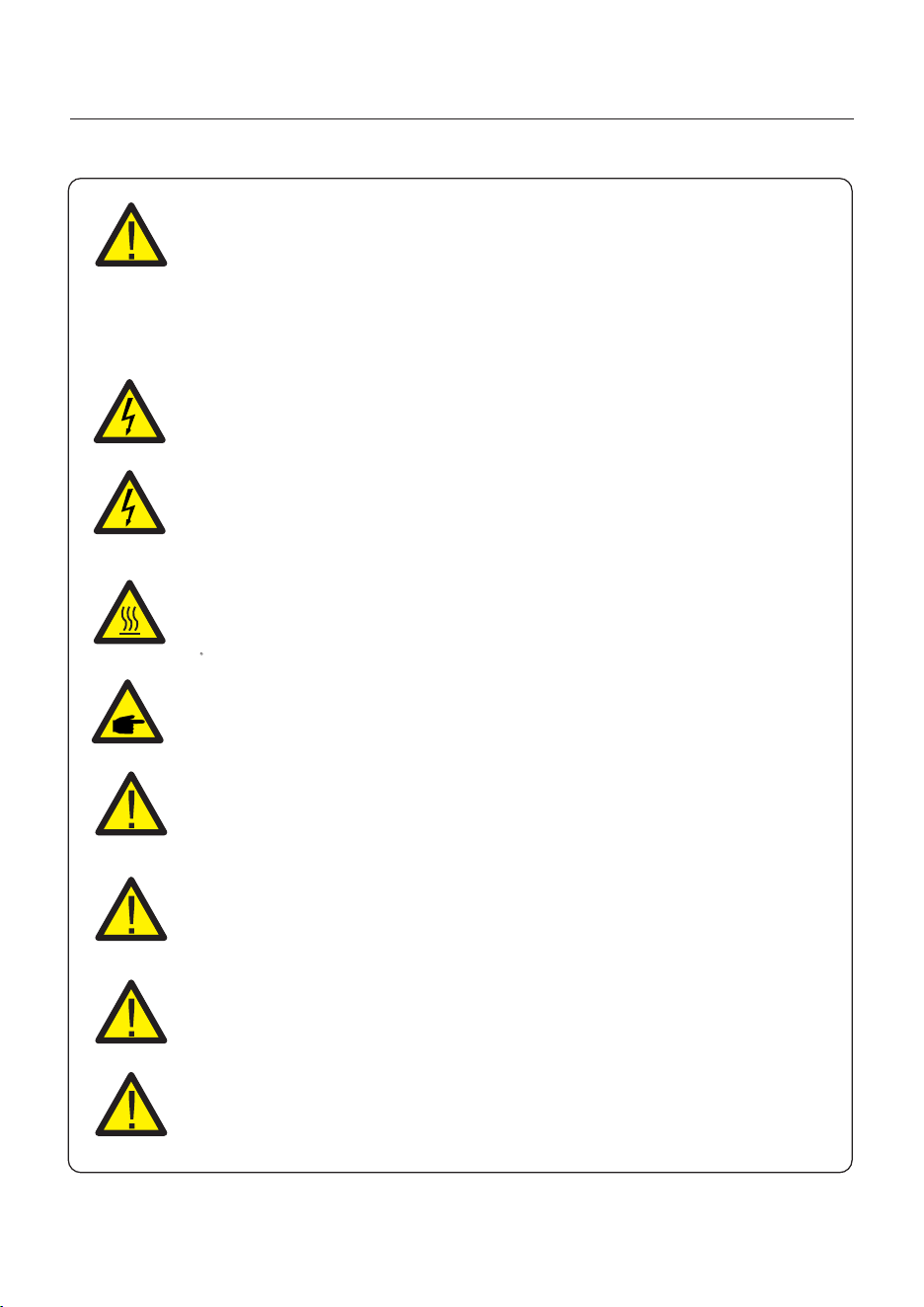
CAUTION:
“Caution” indicates a hazardous situation which if not avoided, could result
in minor or moderate injury.
WARNING:
“Warning” indicates a hazardous situation which if not avoided, could result
in death or serious injury.
DANGER:
“Danger” indicates a hazardous situation which if not avoided, will result in
death or serious injury.
NOTE:
“Note” provides tips that are valuable for the optimal operation of your
product.
2.2 General Safety Instructions
WARNING:
Electrical installations must be done in accordance with the local and national
electrical safety standards.
WARNING:
Please don’t connect PV array positive (+) or negative (-) to ground, it could
cause serious damage to the inverter.
WARNING:
Only devices in compliance with SELV (EN 69050) may be connected to the
RS485 and USB interfaces.
WARNING:
Do not touch any inner live parts until 5 minutes after disconnection
from the utility grid and the PV input.
WARNING: Risk of fire
Despite careful construction, electrical devices can cause fires.
Do not install the inverter in areas containing highly flammable materials
or gases.
Do not install the inverter in potentially explosive atmospheres.
2. Safety & Warning
User Manual
6
CAUTION:
The PV array supplies a DC voltage when they are exposed to sunlight.
CAUTION:
The surface temperature of the inverter can reach up to 75 (167°F).℃
To avoid risk of burns, do not touch the surface of the inverter while it’s
operating. Inverter must be installed out of the reach of children.
WARNING:
To reduce the risk of fire, over-current protective devices (OCPD) are
required for circuits connected to the inverter.
The DC OCPD shall be installed per local requirements. All photovoltaic
source and output circuit conductors shall have that comply with isolators
the NEC Article 690, Part II.
CAUTION:
Risk of electric shock, do not remove cover. There is no user serviceable
parts inside, refer servicing to qualified and accredited service technicians.
NOTE:
PV module used with inverter must have an IEC 61730 Class A rating.
WARNING:
Operations below must be accomplished by licensed technician or
Solis authorized person.
WARNING:
Operator must put on the technicians’ gloves during the whole process
in case of any electrical hazards.
WARNING:
AC BACKUP Port of S6 Series is not allowed to connect to the grid.
WARNING:
Please refer to the specification of the battery before configuration.
2. Safety & Warning
User Manual
7
2.3 Notice for Use
The inverter has been constructed according to the applicable safety and technical
guidelines. Use the inverter in installations that meet the following specifications ONLY:
1. Permanent installation is required.
2. The electrical installation must meet all the applicable regulations and standards.
3. The inverter must be installed according to the instructions stated in this manual.
4. The inverter must be installed according to the correct technical specifications.
2.4 Notice for Disposal
This product shall not be disposed of with household waste.
They should be segregated and brought to an appropriate collection
point to enable recycling and avoid potential impacts on the environment
and human health.
Local rules in waste management shall be respected .
User Manual
3. Overview
8
3.1 Screen
Solis S6 Series adopts 7 inch color screen, it displays the status, operating information and
settings of the inverter.
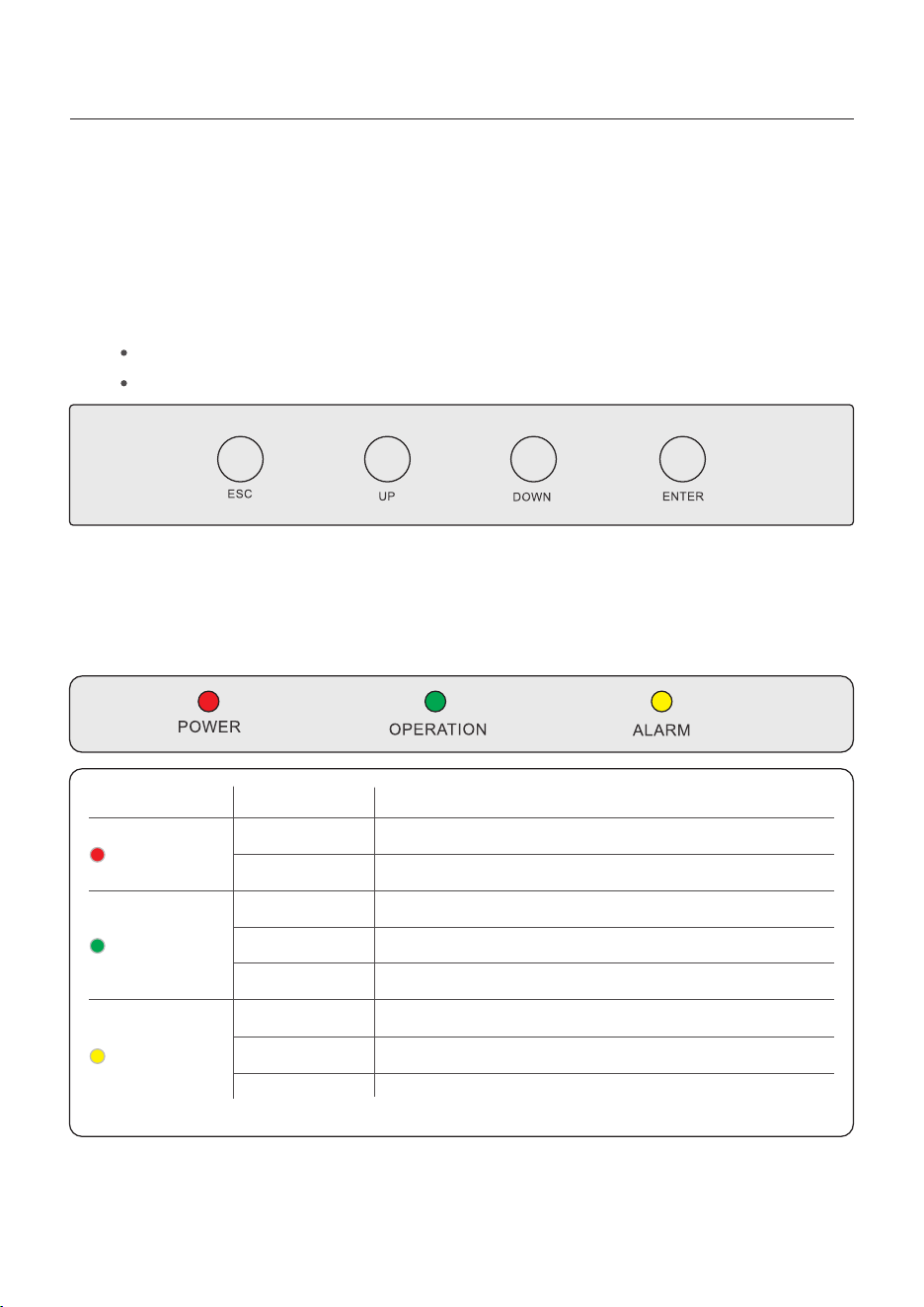
3.2 Keypad
There are four keys in the front panel of the inverter (from left to right):
ESC, UP, DOWN and ENTER keys. The keypad is used for:
Scrolling through the displayed options (the UP and DOWN keys);
Access and modify the settings (the ESC and ENTER keys).
Description
The inverter can detect DC power.
No DC power.
The inverter is fully operational.
The inverter has stopped operating.
The inverter is initializing.
Fault condition is detected.
No fault condition detected.
Status
ON
OFF
ON
OFF
OFF
ON
FLASHING
Light
POWER
OPERATION
ALARM
3.3 LCD Indicators
There are three LCD indicators on the Solis S6 Series inverter (Red, Green, and Orange)
which indicate the working status of the inverter.
Table 3.1 Status Indicator Lights
FLASHING
Either the grid or solar cannot be detected.
User Manual
3. Overview
3.4 System Description
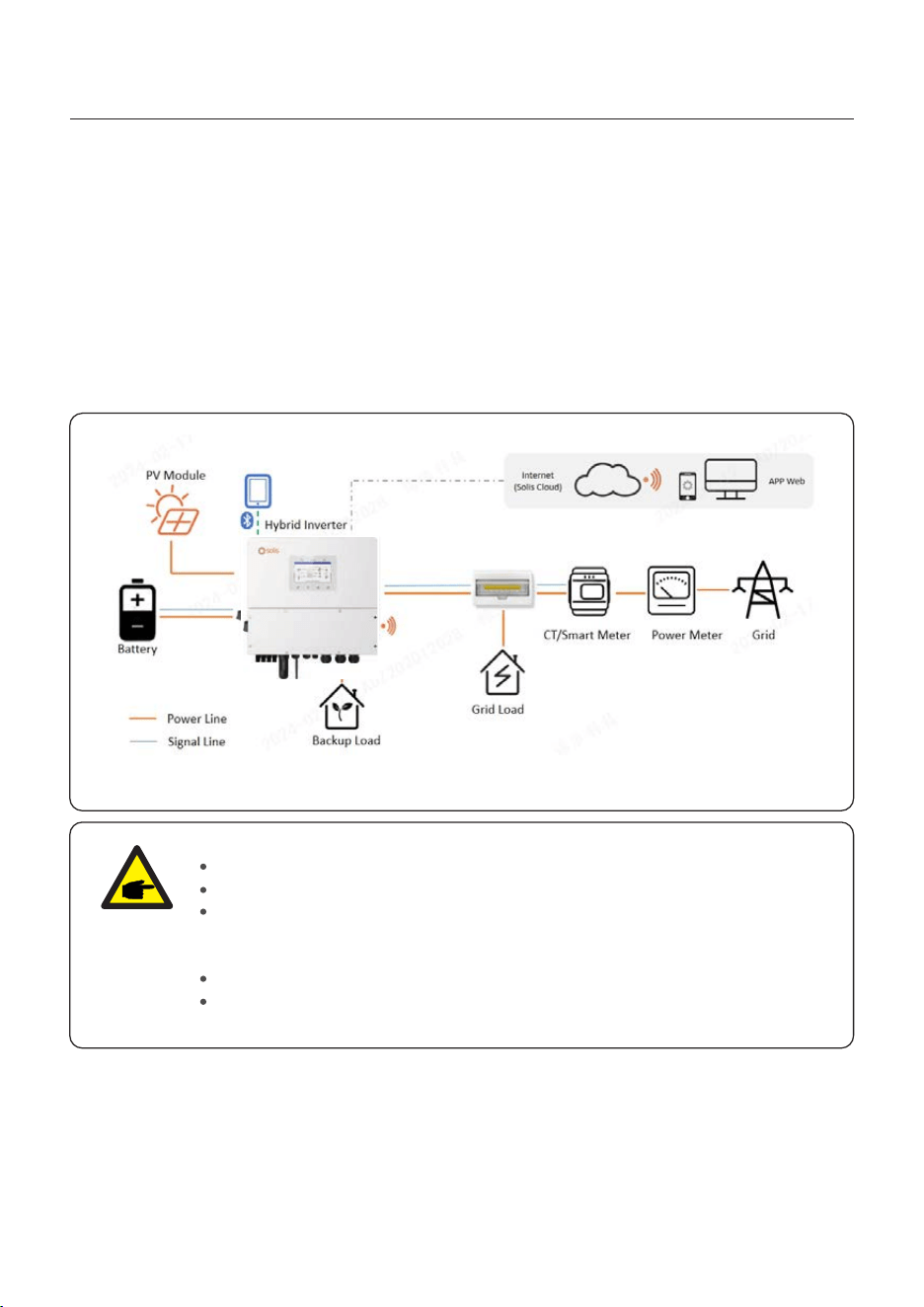
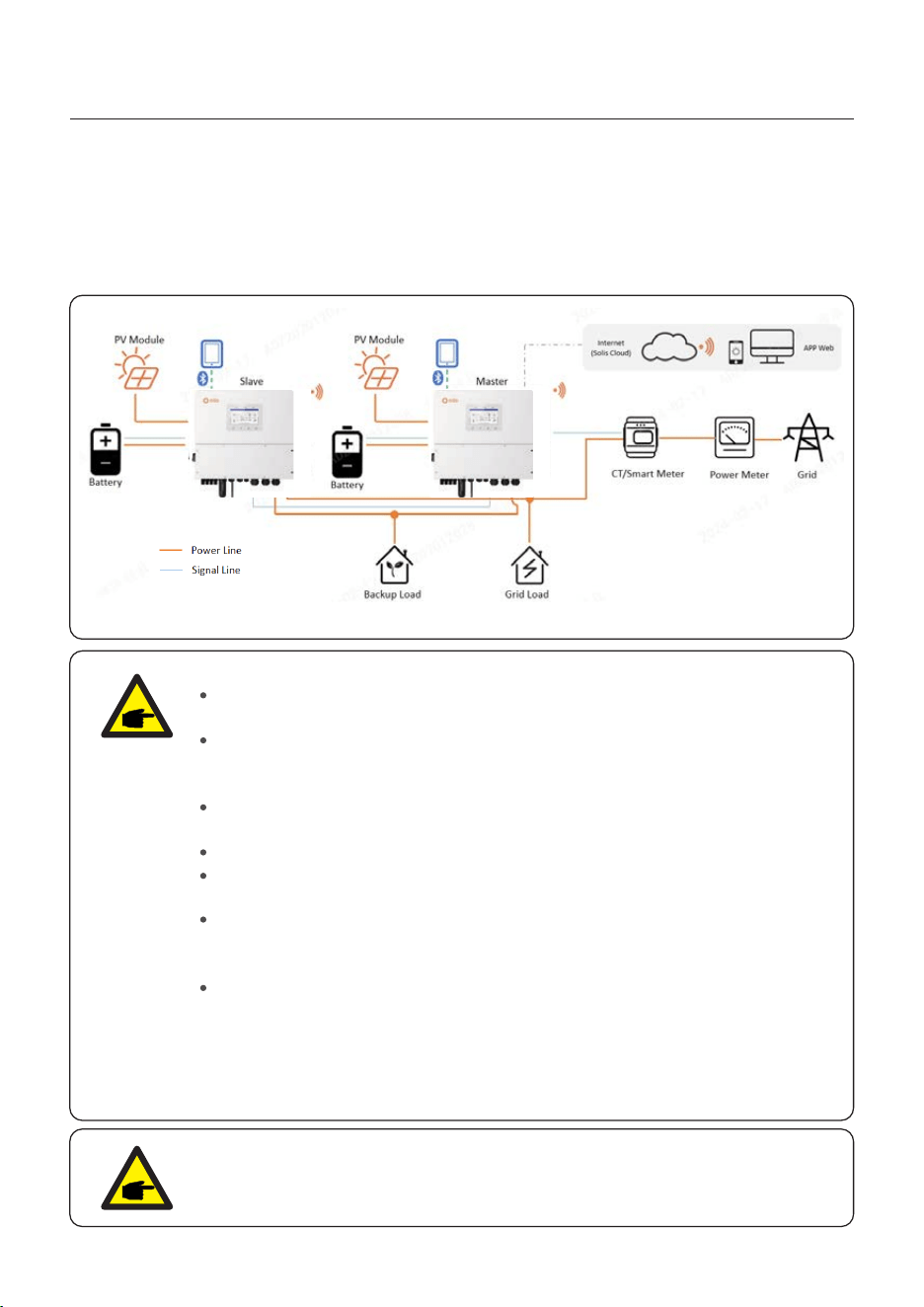
The single system consists of PV module, battery, hybrid inverter, CT or smart meter.
The PV Module converts solar energy into electric energy, which is then converted by the
inverter to charge the battery or power loads or feed into the grid.
User can connect heat pump, existing PV plant, generator and ATS according to the
actual scenario.
The system has four working modes: self-use mode, feed in priority mode, off-grid mode
and peak-shaving mode. (For settings ,see 5.5 work modes and settings)
3.4.1 Single system
NOTE:
If the CTs are connected, the Smart meter is not essential.
you can choose CT scheme or Meter scheme deliver with inverter.
In the event of a power outage on the grid, the system will seamlessly
transition into off-grid mode, providing power exclusively to essential backup
loads.
When the grid recovers, the system switches back to the on-grid operation.
Supports heat pump start-stop and power control, only when it has a SG
Ready label.
Figure 3.1 Single System
9
User Manual
3. Overview
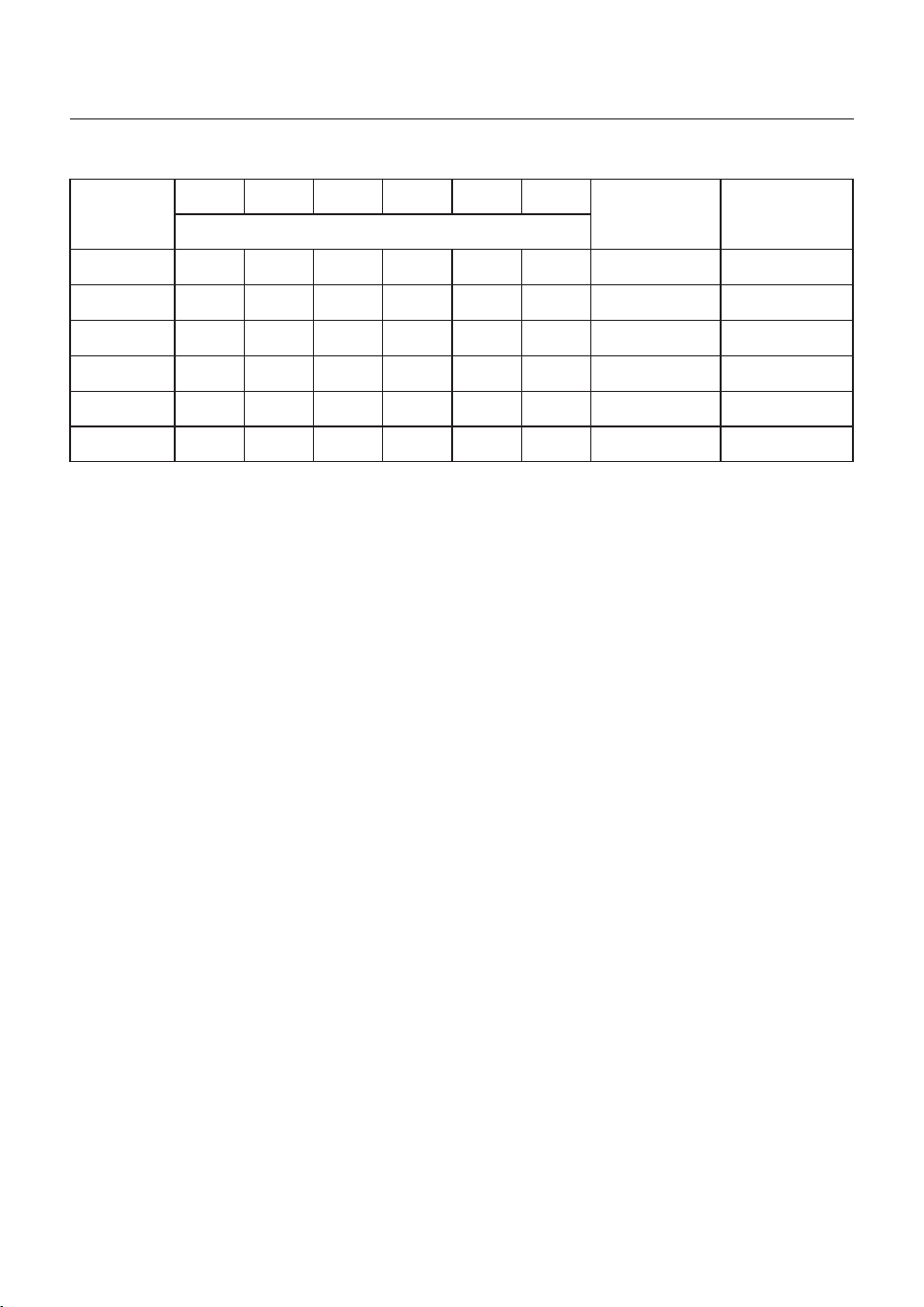
User can add inverters and batteries to increase capacity. The system supports up to 6
inverters in parallel. Each battery connects to the inverter with an independent CAN line
and is managed by the inverter connected to it.
3.4.2 Parallel System
Figure 3.2 Parallel System
NOTE:
CTs or Smart meter, Control signal of Heat Pump, Control signal of Generator
or ATS should be connected to the master inverter.
CTs delivered with the device can only support a system of up to 60 KW. If a
higher power parallel system is required, you need to purchase additional
Cts.
Parallel connection of different models is not supported.(For example 12K
and 15K can’t be connected in parallel)
Parallel connection of battery input port is not supported.
The AC backup port can
be connected in parallel, and the single-phase
output power is 1/2 of the total rated power.
The length and specification of the cable connecting the backup load to each
inverter needs to be the same to ensure that the current is evenly distributed
and prevents one of the inverters from being damaged by excessive current.
In parallel-system scenarios, it is advisable to ensure uniform specifications
and capacities for batteries on both the master and slave inverters.
In ca
ses where there is a disparity, it is recommended to connect the battery
with a larger capacity to the master inverter. Connecting a higher-capacity
battery to a slave inverter may result in incomplete discharge during high-
load scenarios.
10
NOTE:
Single inverter noise is less than 65 dB (A), When using multiple inverters
to combine, pay attention to noise protection.
User Manual
3. Overview
Scenarios
12K
15K 20K
Backup
single-phase
output power
(For example 12K)
Recommended
Battery Capacity
(For example,
12K&Backup 2h)
AC capacity
1 single
2 in parallel
3 in parallel
4 in parallel
5 in parallel
6 in parallel
12K
24K
36K
48K
60K
72K
15K
30K
45K
60K
75K
90K
20K
40K
60K
80K
100K
120K
6K
12K
18K
24K
30K
36K
24KWh
24KWh*2
24KWh*3
24KWh*4
24KWh*5
24KWh*6
For parallel system settings ,see 5.9 parallel settings .
For the details of electrical connections ,see 4 Installtion .
The access of Diesel Generator is in the off-grid scenario.
The system stores PV energy in batteries during daytime, provided that there is energy
surplus and supplies power to loads when the PV energy is insufficient or there is no PV
energy at night.
When the battery power drops to a certain value, and a power outage occurs in the grid,
the system will start the generator to power the load and charge the battery.
Generator’s work logic is as follows:
(i)when the grid is not available and the battery is discharged to GEN_Start_SOC, the
generator starts to power the load and charges the battery to GEN_Exit_SOC, then the
generator stops.
(ii)If the load power>the generator rated power in (i), the battery will be discharged to
power the load until Overdischarge_SOC, then generator may shutdown due to
overload and the load will be powered off.
(iii)If the generator fail to start in (i), the battery will be discharge to Overdischarge_SOC,
then the load power off.
(iv)If the system goes into the end of (iii), the battery will not discharge before it is charged
to Overdischarge_SOC+ Overdischarge_Hysteresis_SOC (set by user).
3.4.3 System with generator
11
8K-LV
8K
16K
24K
32K
40K
48K
10K-LV
10K
20K
30K
40K
50K
60K
12K-LV
12K
24K
36K
48K
60K
72K
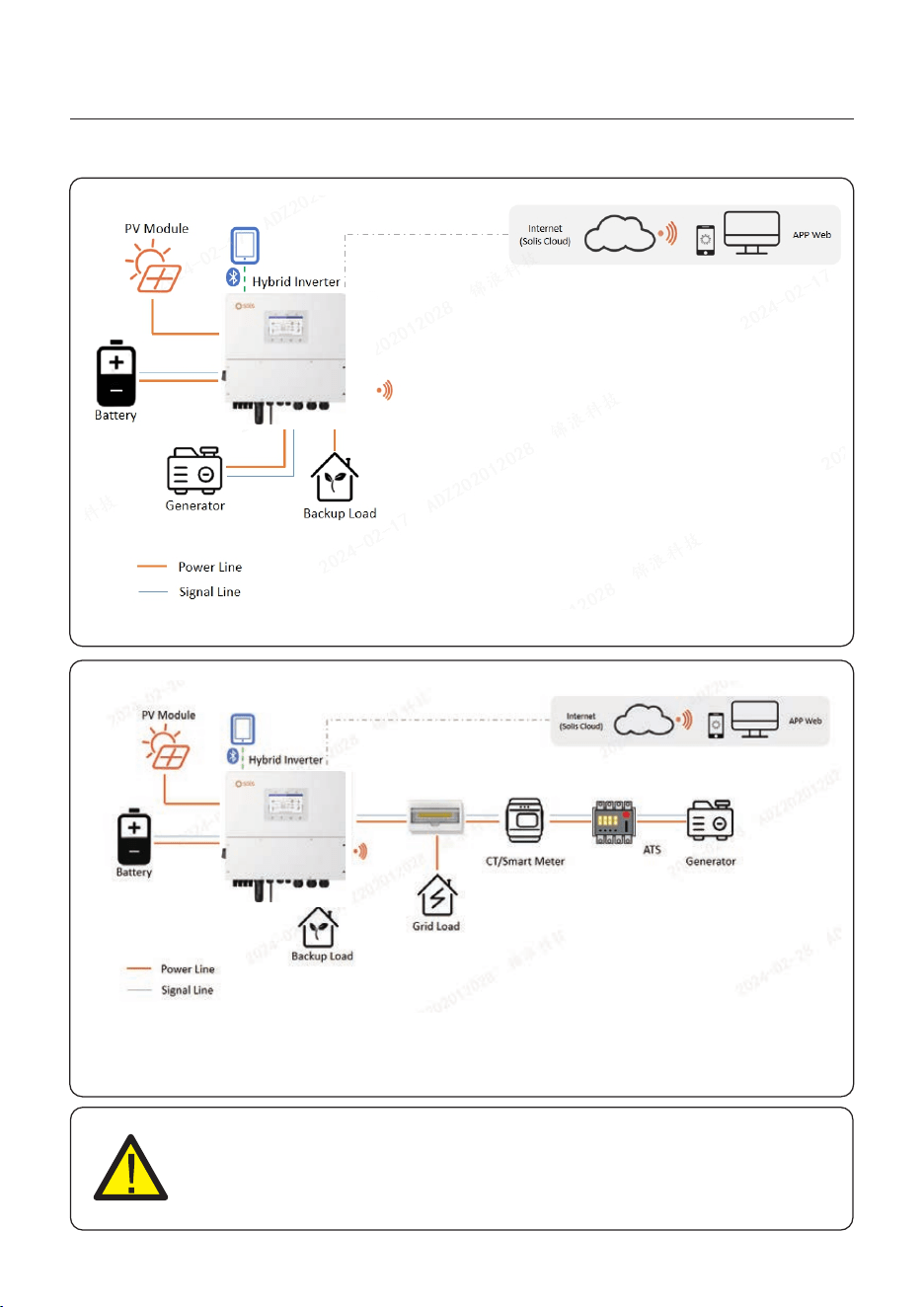
Figure 3.3 Typical off-grid scenario diagram (Generator on Gen port)
User Manual
3. Overview
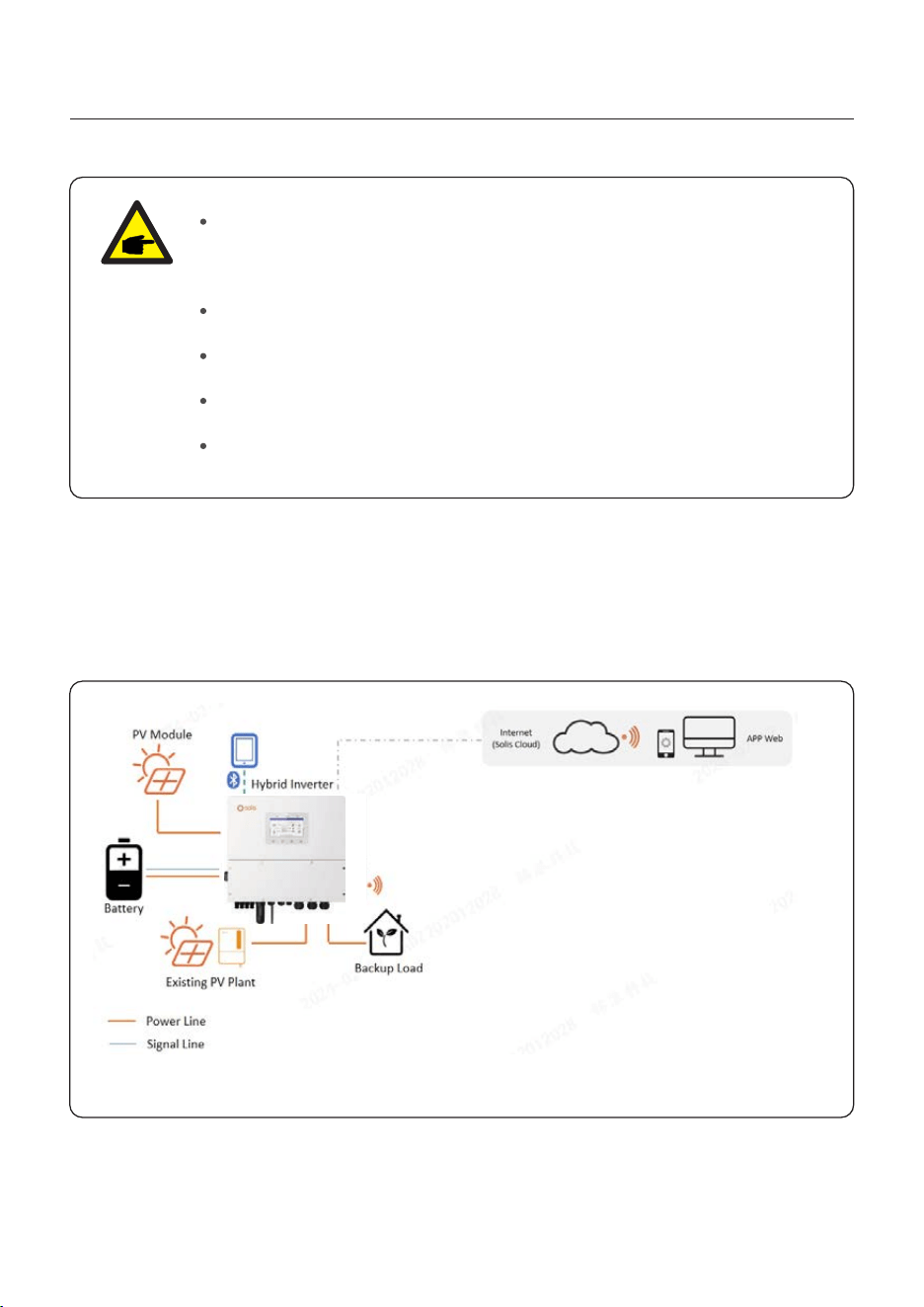
Figure 3.4 Typical off-grid scenario diagram (Generator on ATS)
CAUTION:
When the generator is connected, it is essential to correctly select the
generator position on the APP, otherwise it may cause system failure or
damage to the generator.
12
User Manual
3. Overview
NOTE:
In single system, a diesel generator can be connected via both AC-Gen port
and ATS. If via AC-Gen port, it will only supply power to the backup load ;
if it is necessary to supply power to the grid side, it is recommended that the
generator be connected through ATS.
In parallel-system scenarios, connecting a diesel generator via ATS is
recommended.
When the system is connected to the generator, it cannot be connected to a
grid-tied inverter, because of a risk of damaging the g
enerator.
Whether CT or smart meter is required depends on the access position of the
generator.
If the generator is connected through an ATS on the grid side(Figure 3.4), then
CT or smart meter is required.
Generally, the access of grid-tied inverter is for the retrofit of a existing PV plant.
The S6 hybrid inverter support access of both Solis grid-tied inverter and third-party
grid-tied inverter.
3.4.4 System with grid-tied inverter
3.4.4.1 Access of third-party grid-tied inverter
Figure 3.5 Typical off-grid AC-coupled diagram(off-grid)
13
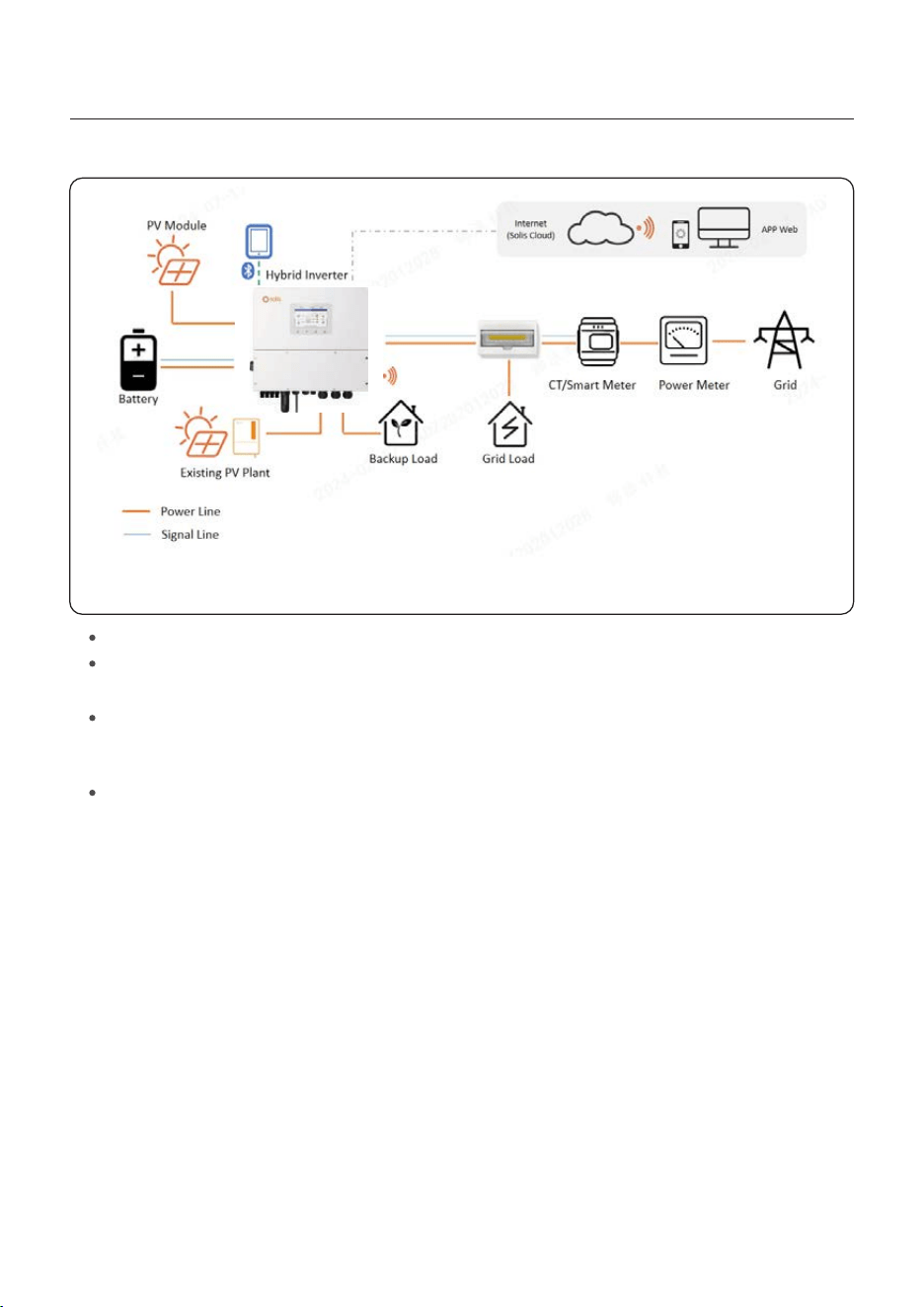
User Manual
3. Overview
Figure 3.6 Typical on-grid AC-coupled diagram(on-grid)
Third-party grid-tied inverter can be connected via AC-Gen port and AC-Backup port.
With third-party grid-tied inverter connected to the system, it is recommended that:
Grid-tied inverter power< rated AC power of S6 inverter.
In on-grid scenario, when the third-party grid-tied inverter is connected, the system
cannot control the output power of the third-party grid-tied inverter, so Feed-in limitation
cannot be realized.
In off-grid scenario, the third-party grid-tied inverter must be configured with the correct grid
code and equipped with ove
r-frequency load shedding and under-frequency load rising
functionalities. These features allow the system to dynamically adjust the frequency,
effectively controlling the output power of the grid-tied inverter.
14
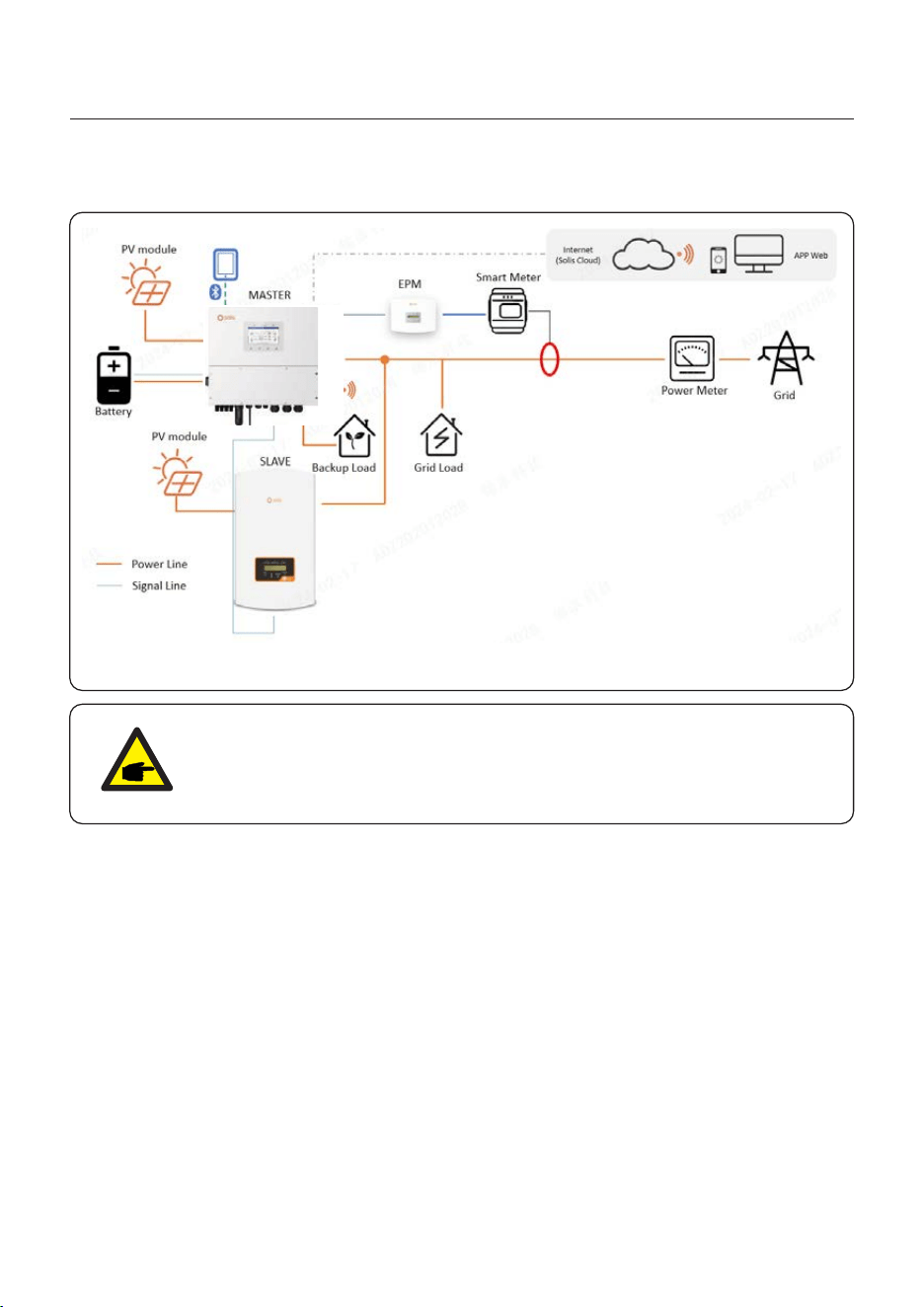
3.4.4.2 Access of Solis grid-tied inverter
User Manual
3. Overview
Figure 3.7 Access of Solis grid-tied inverter
NOTE:
A Solis grid-tied inverter can be connected with the hybrid inverter in
parallel . In order to realize feed-in limitation, it is necessary to add EPM or
S3-Logger devices.
15
User Manual
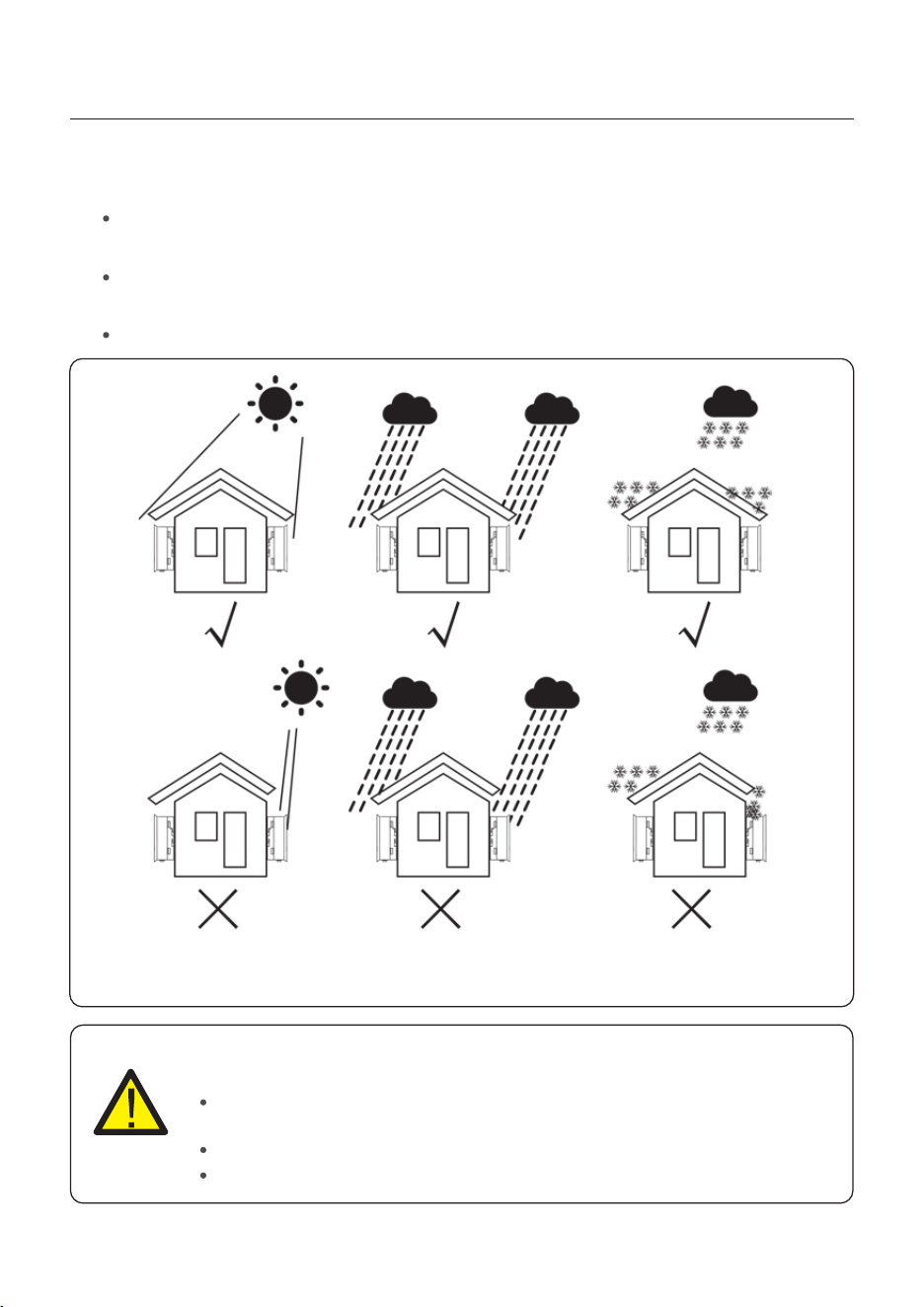
4.1 Select a Location for the Inverter
Figure 4.1 Recommended Installation locations
To select a location for the inverter, the following criteria should be considered:
WARNING: Risk of fire
Despite careful construction, electrical devices can cause fires.
Do not install the inverter in areas containing highly flammable materials
or gases.
Do not install the inverter in potentially explosive atmospheres.
The mounting structure where the inverter is installed must be fireproof.
4. Installation
Exposure to direct sunlight may cause output power derating. It is recommended to
avoid installing the inverter in direct sunlight.
It is recommended that the inverter is installed in a cooler ambient which doesn't
exceed 104℉/40℃.
To select a location for the battery, please follow the battery manual specifications.
16
User Manual
4. Installation
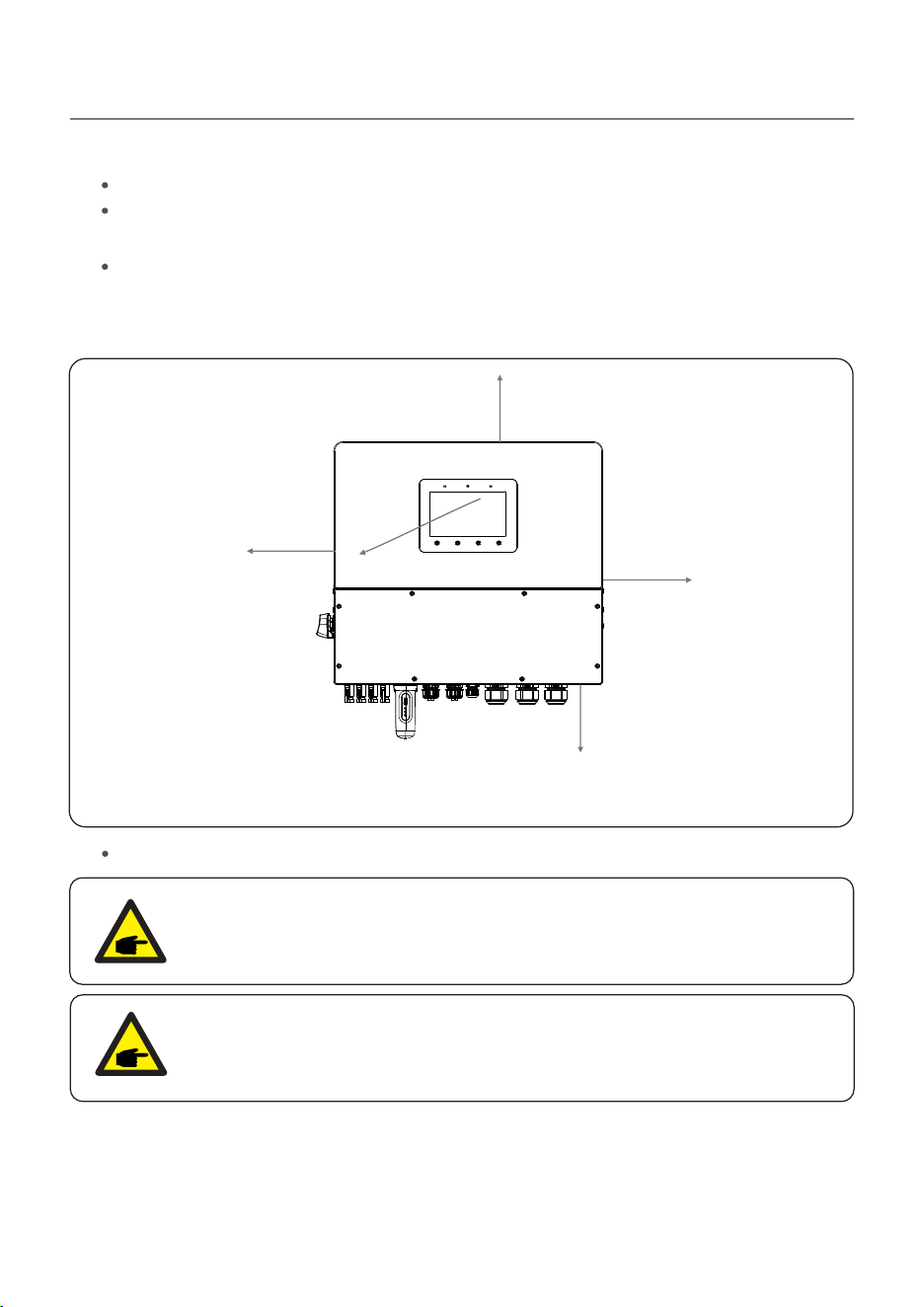
To avoid overheating, always make sure the flow of air around the inverter is not
blocked. A minimum clearance of 500mm should be kept between inverters or
objects and 1000mm clearance between the bottom of the machine and the ground.
Adequate ventilation must be provided.
NOTE:
Nothing should be stored on or placed against the inverter.
Install vertically with a maximum incline of +/- 5 degrees, exceeding this may cause
output power derating.
Figure 4.2 Inverter Mounting clearance
Install on a wall or strong structure capable of bearing the weight of the machine (33.4kg).
≥
1000mm
≥500mm
≥1000mm
≥500mm
≥500mm
17
NOTE
If the inverter is installed in areas with high wind and sand, it is
recommended to install a windproof and sand barrier above the inverter.
User Manual
4. Installation
18
4.2 Mounting the Inverter
The inverter shall be mounted vertically.
The steps to mount the inverter are listed below:
1. Select the mounting height of the bracket and mark the mounting holes.
For brick walls, the position of the holes should be suitable for the expansion bolts.
WARNING:
The inverter must be mounted vertically.
Once a suitable location has been found according to Section 4.1 and using Figure 4.3 as
a guide, firmly attach the wall bracket to the wall.
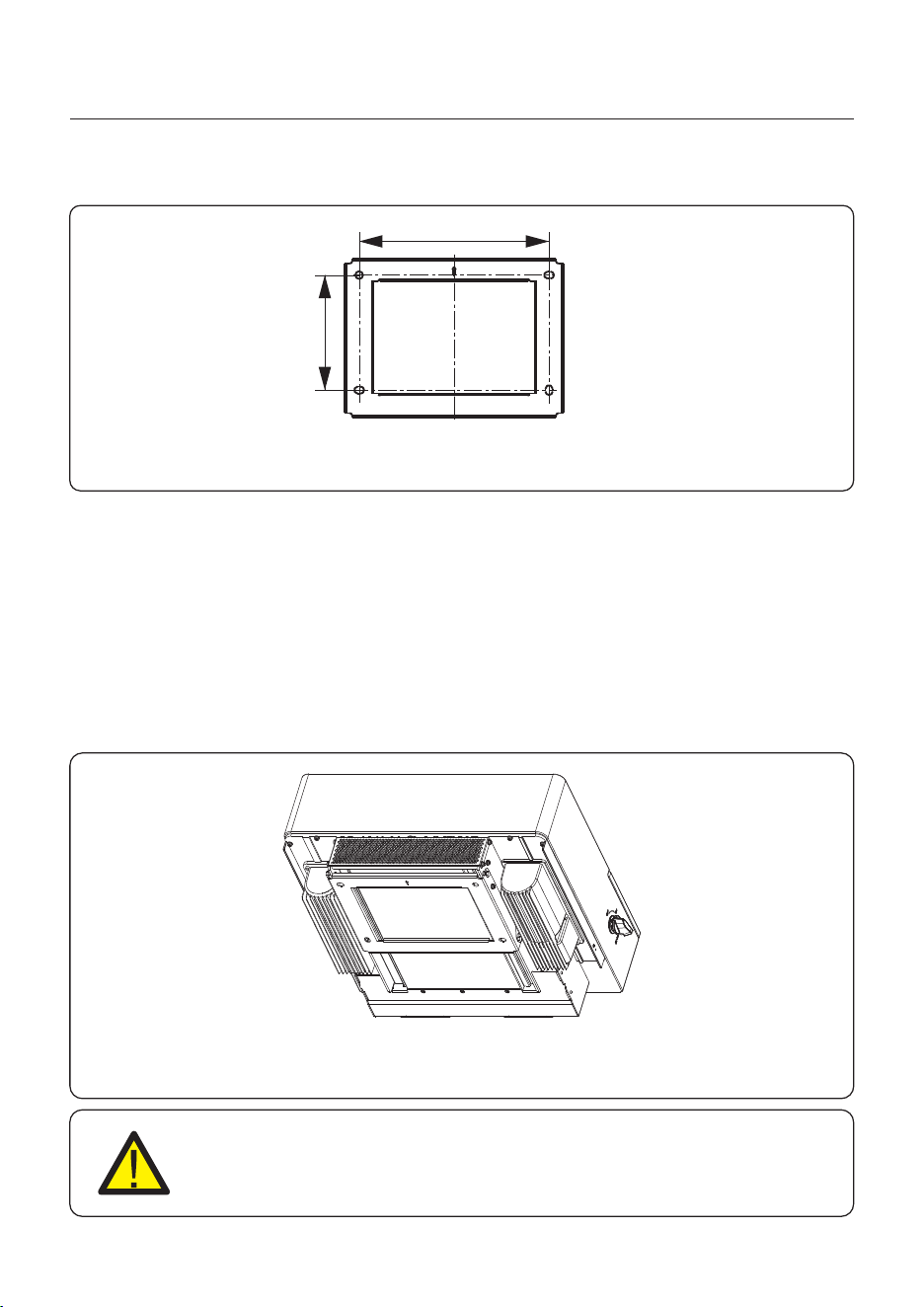
Dimensions of mounting bracket:
Figure 4.3 Inverter wall mounting
Figure 4.4 Wall Mount Bracket
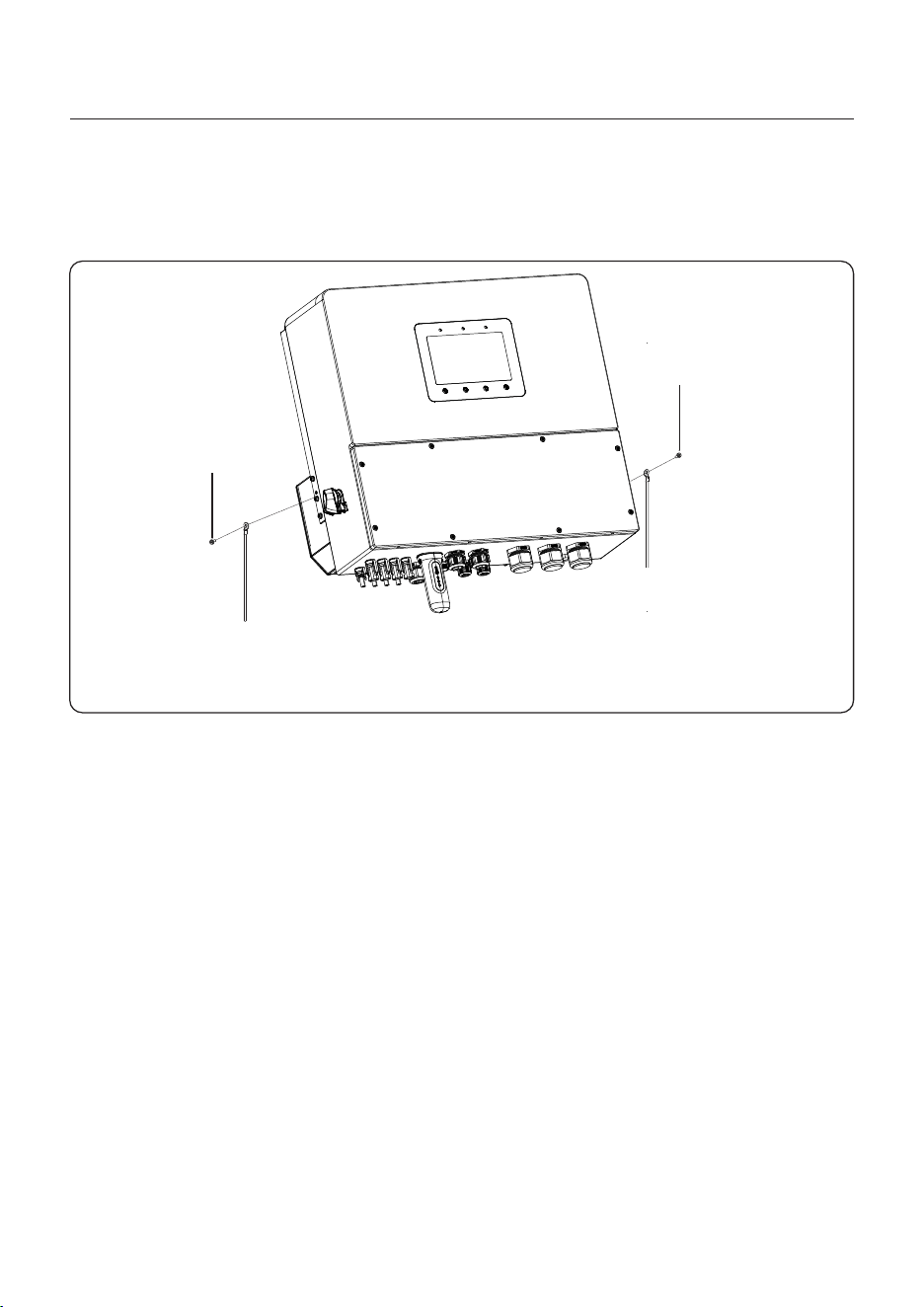
2. Lift up the inverter (be careful to avoid body strain), and align the back bracket on the
inverter with the convex section of the mounting bracket. Hang the inverter on the
mounting bracket and make sure the inverter is secure (see Figure 4.4)
289
175
unit:mm
User Manual
4. Installation
19
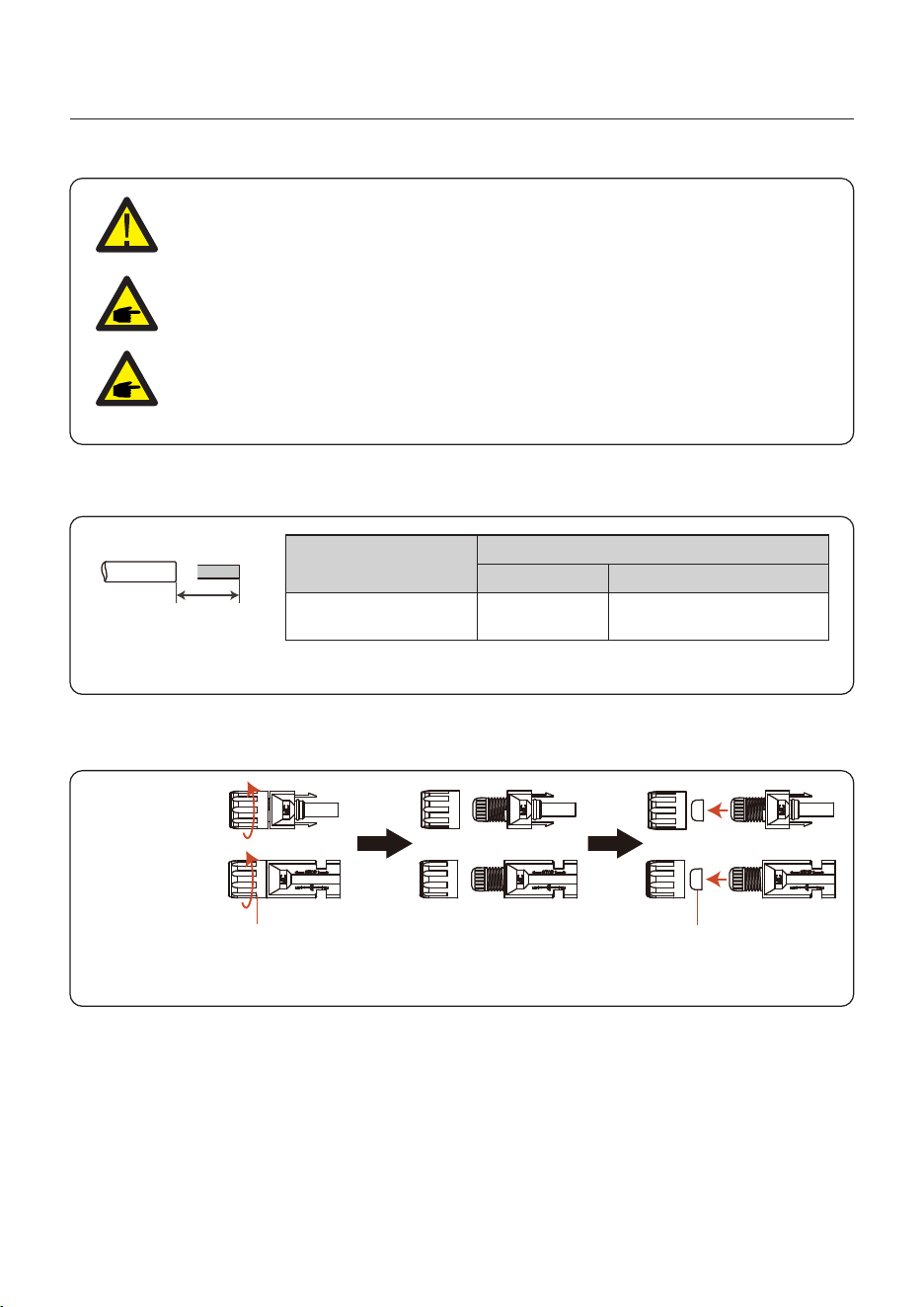
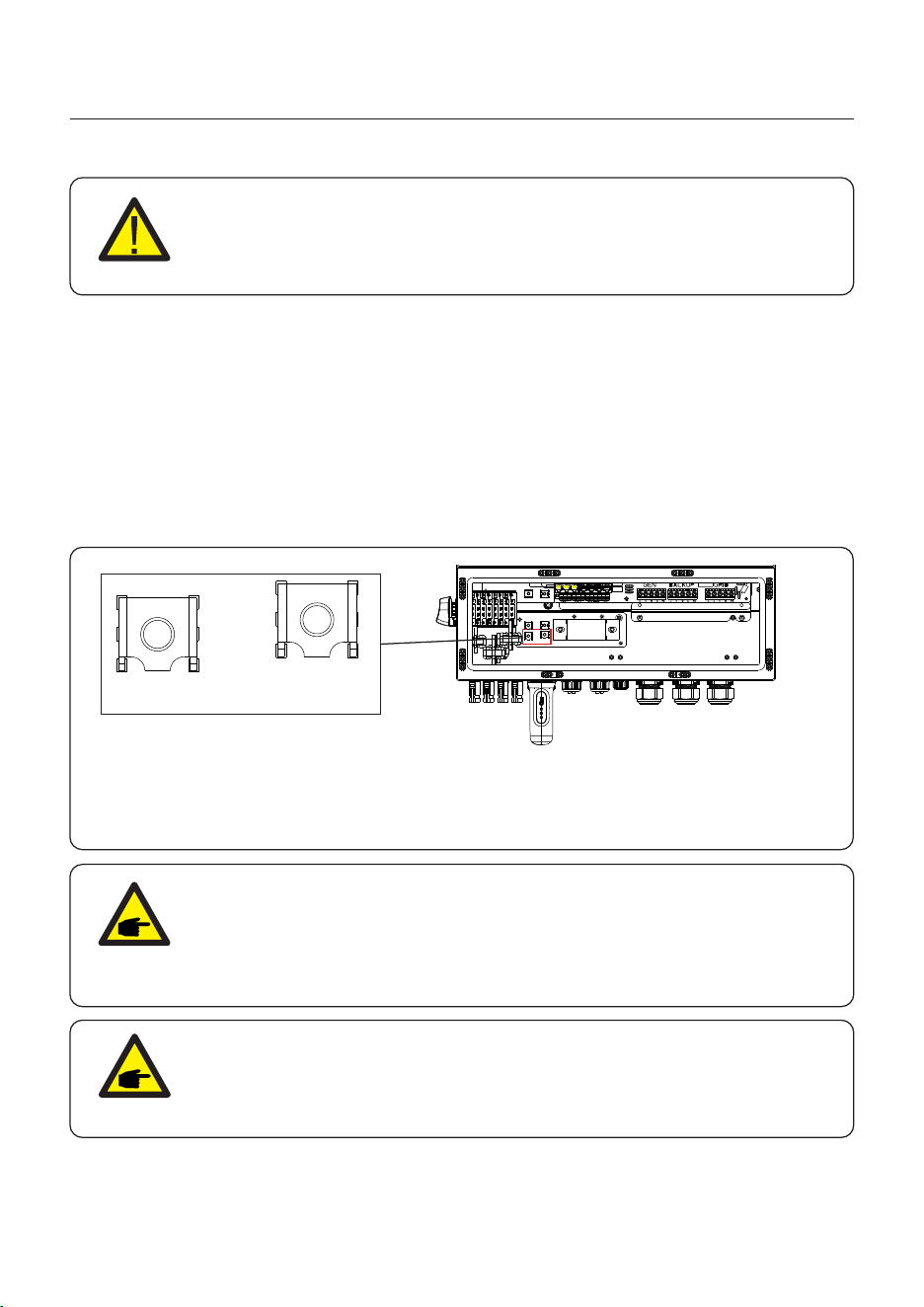
An external ground connection is provided at the right side of inverter.
Prepare OT terminals: M4. Use proper tooling to crimp the lug to the terminal.
Connect the OT terminal with ground cable to the both sides of inveter. The torque is 2N.m.
4.3 PE Cable Installation
Grounding screw
Figure 4.5 Connect the external grounding conductor
Grounding screw
User Manual
4. Installation
20
4.4 PV Input Cable Installation
Negative terminal
Positive terminal
Before connecting inverter, please make sure the PV array open circuit
voltage is within the limit of the inverter.
Please use approved DC cable for PV system.
4.0~6.0
4.0(10AWG)
(10~8AWG)
Cable type
Cross section(mm²)
Range
Industry generic P V cable
Recommended value
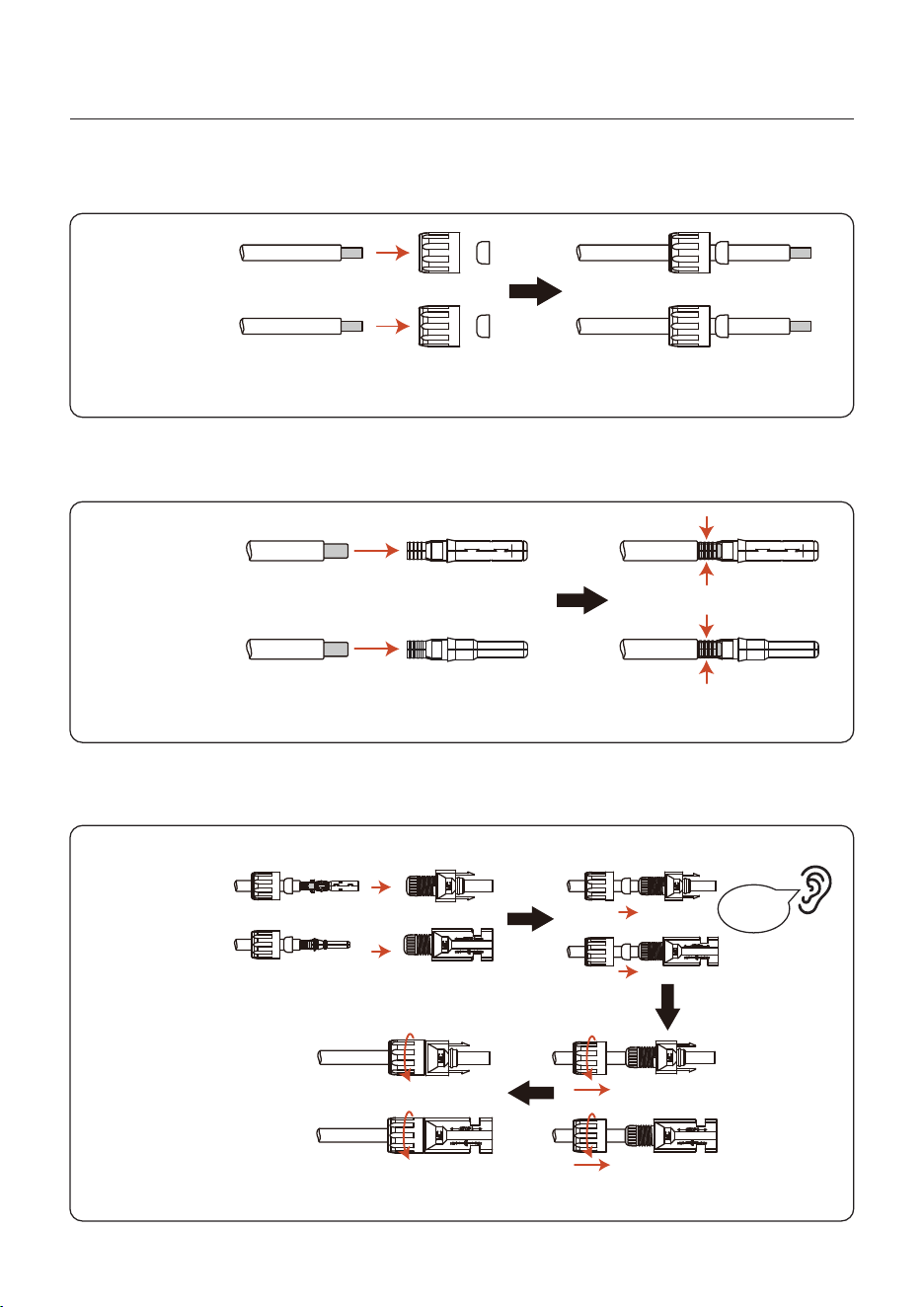
1. Select a suitable DC cable and strip the wires out by 7±0.5mm. Please refer to the table
below for specific specifications.
7±0.5mm
2. Take the DC terminal out of the accessory bag, turn the screw cap to disassemble it,
and take out the waterproof rubber ring.
Nut Waterproof collar
Figure 4.6
Figure 4.7
Before connection, please make sure the polarity of the output voltage of
PV array matches the“DC+”and“DC-”symbols.
User Manual
4. Installation
21
Negative terminal
Positive terminal
3. Pass the stripped DC cable through the nut and waterproof rubber ring.
4. Connect the wire part of the DC cable to the metal DC terminal and crimp it with the MC4
crimping tool.
Negative terminal
Positive terminal
Squeeze
5. Insert the crimped DC cable into the DC terminal firmly, then insert the waterproof rubber
ring into the DC terminal and tighten the nut.
Tighten
After you hear a "click", pull gently to check for a firm engagement.
Click
Negative terminal
Positive terminal
Figure 4.8
Figure 4.9
Figure 4.10
User Manual
4. Installation
22
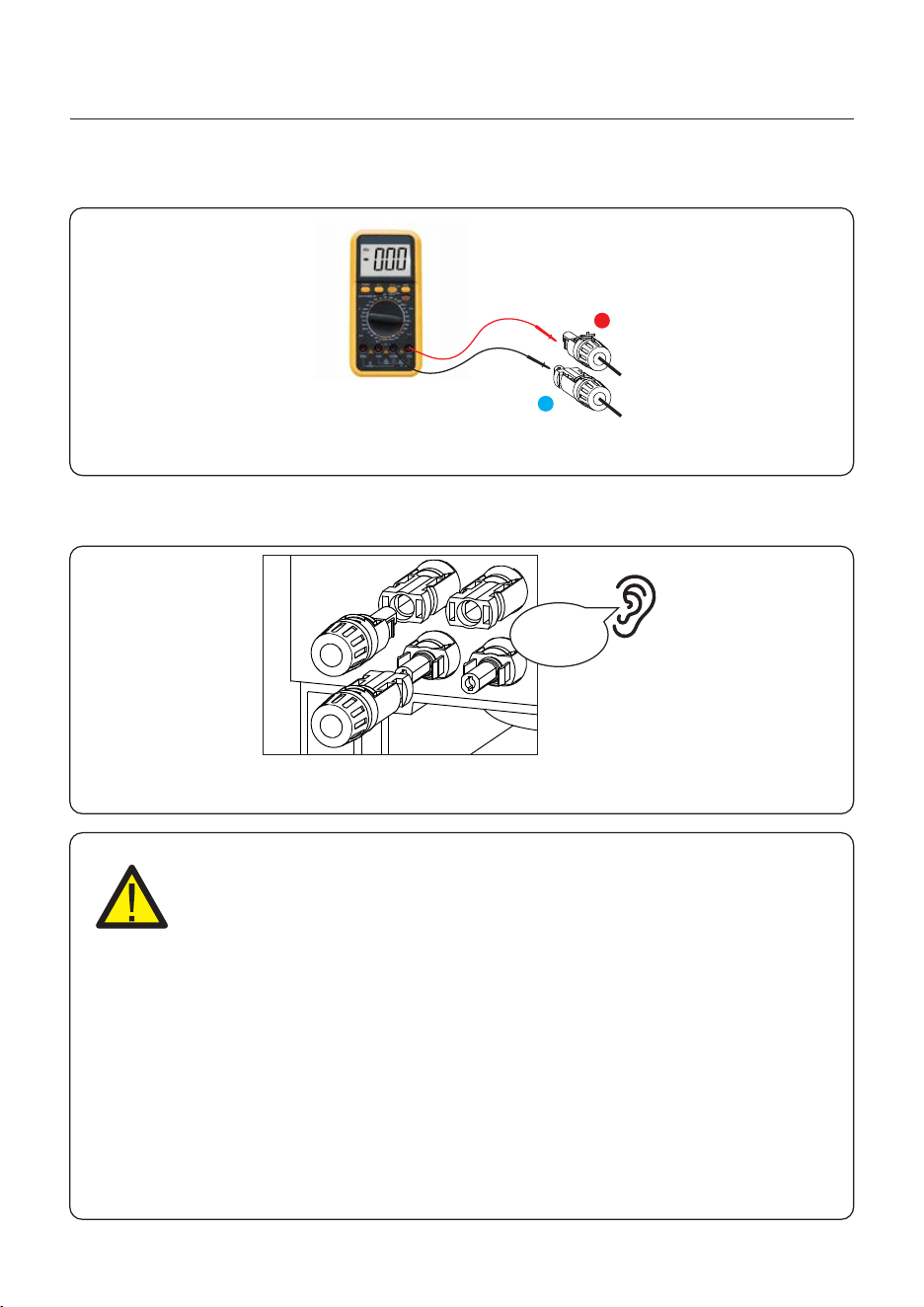
6. Measure PV voltage of DC input with multimeter, verify DC input cable polarity.
7. Connect the wired DC terminal to the inverter as shown in the Figure 4.12, and a slight
"click" is heard to prove the connection is correct.
+
-
CAUTION:
If DC inputs are accidently reversely connected or inverter is faulty or not
working properly, it is NOT allowed to turn off the DC switch. Otherwise it
may cause DC arc and damage the inverter or even lead to a fire disaster.
The correct actions are:
*Use a clip-on ammeter to measure the DC string current.
*If it is above 0.5A, please wait for the solar irradiance to get reduced until
the current decreases to below 0.5A.
*Only after the current is below 0.5A, you are allowed to turn off the DC
switches and disconnect the PV strings.
* In order to completely eliminate the possibility of failure, please disconnect
the PV strings after turning off the DC switch to avoid secondary failures due
to continuous PV energy on the next day.
Please note that any damages due to wrong operations are not covered
in the device warranty.
Figure 4.11
Figure 4.12
Click
User Manual
4. Installation
23
4.5 Battery Cable Installation
1. The battery (+) and (-) cables shall only be connected to the inverter BAT terminals.
2. Run the cables into the wire box. Strip 13mm off the ends of each cable.
3. Crimp the R-type connectors onto the cables. Do not over crimp the connectors.
4. Remove the terminal bolts and then insert them through the connector holes.
5. Put each bolt back into the proper place, be sure to not reverse the polarity.
6. Tighten the bolts with a torque wrench screwdriver following the torque specs.
7. Battery Breaker recommended size: two-pole, 63A, leakage current protector
recommended Type C, Icc≥20KA, Icp, mr≥350A fault current interrupting capacity at
800V/pole.
Figure 4.13 Battery cable connection
DANGER:
Before installing the battery cables, be sure that the battery is turned off.
Use a multimeter to verify that the battery voltage is 0Vdc before proceeding.
Consult the battery product manual for instructions on how to turn it off.
NOTE:
Before connecting the battery, please carefully read the product manual of
the battery and perform the installation exactly as the battery manufacturer
specifies in the manual.
OT Terminal: R60-8, Recommended cable diameter: 8AWG(8.37mm²)
NOTE:
The battery fuse in the inverter wire box is replaceable.
The replacement can only be done by a technician authorized by Solis.
Fuse specification: 1000V/100A.
The Max.temperature for connecting battery terminals is 105 .℃
BAT+ BAT-
User Manual
4. Installation
24
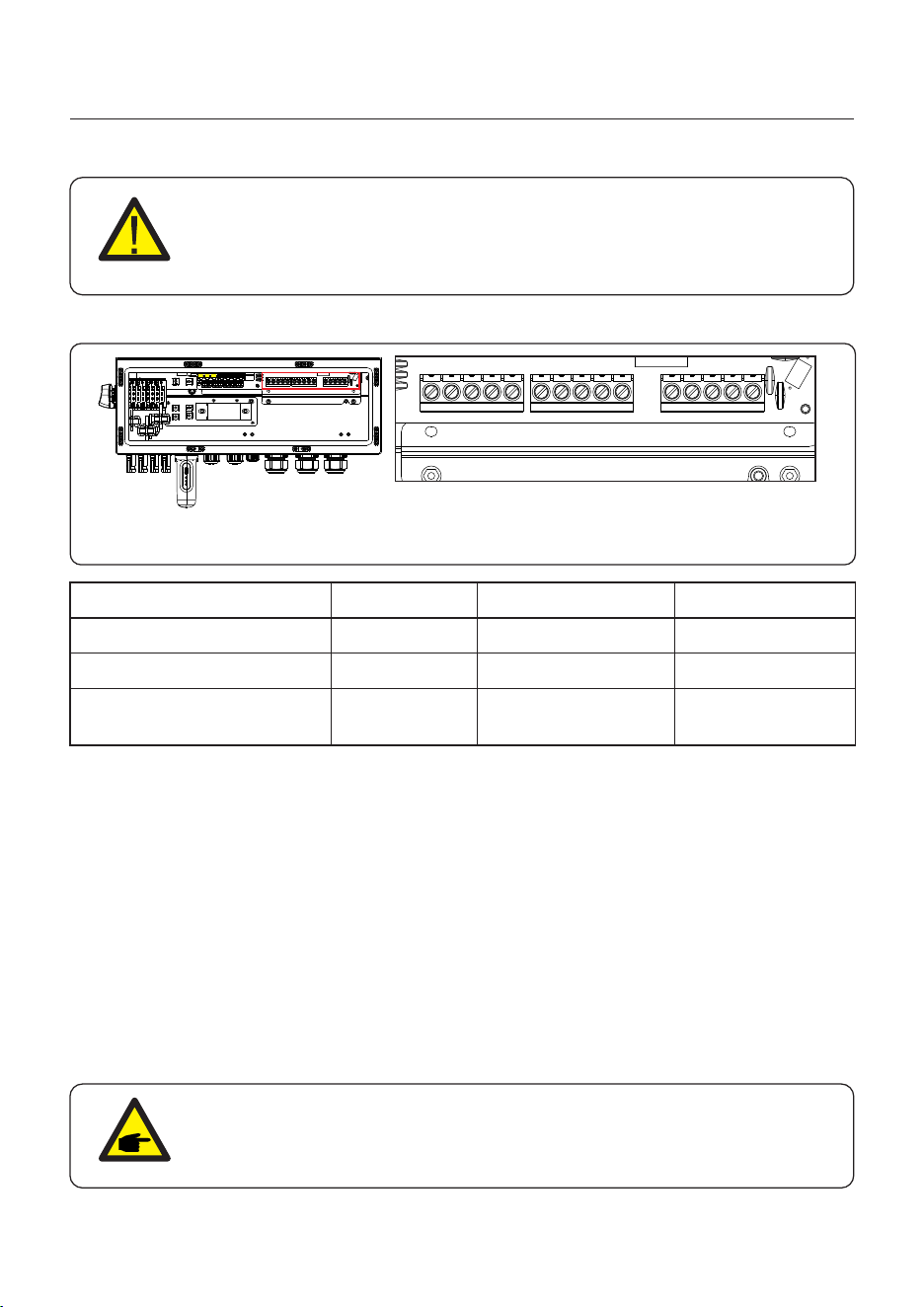
There are three sets of AC output terminals and the installation steps for both are the same.
4.6 AC Wiring
Figure 4.14 AC output terminals
DANGER:
Before installing the AC cables, be sure that the OCPDs (breakers) are
turned off.
Use a multimeter to verify that the AC voltages are 0Vac before proceeding.
GEN
BACKUP
GRID
1. Bring the AC cables for the backup loads panel (backup) and the main service
panel (grid) into the inverter wire box. The backup loads panel should not be
electrically connected to the main service panel.
2. Strip 13mm from the ends of each cable. Crimp the R-type connectors onto the ends.
3. Remove the terminal bolts, insert them into the connectors, then use a torque wrench
to tighten the bolts down.
4. Please refer to the terminal labels to connect the AC wires to the correct terminals.
5. The grid inrush current is 8.5A and the duration is less than 5ms.
6. AC Breaker recommended size: four-pole, 63A, leakage current protector recommended
Type C, Icc≥20KA, Icp, mr≥350A fault current interrupting capacity at 230V/pole.
7. Cable Gland are recommended torque for installation is 4-5Nm. In order to ensure
waterproof effect, the operator regularly checks whether the installation is tight.
Model
AC Grid
Terminal
Torque
Recommend cross section
C10-12
4-5N.m
8-6AWG
(6mm²~10mm²)
4-5N.m
10-6AWG
(4mm²~10mm²)
C6-12
AC Backup/AC Gen
U V W N PE U V W N PE U V WN PE
NOTE:
The Max.temperature for connecting AC terminals is 105 .℃
4-5N.m
6AWG
/
PE
User Manual
4. Installation
25
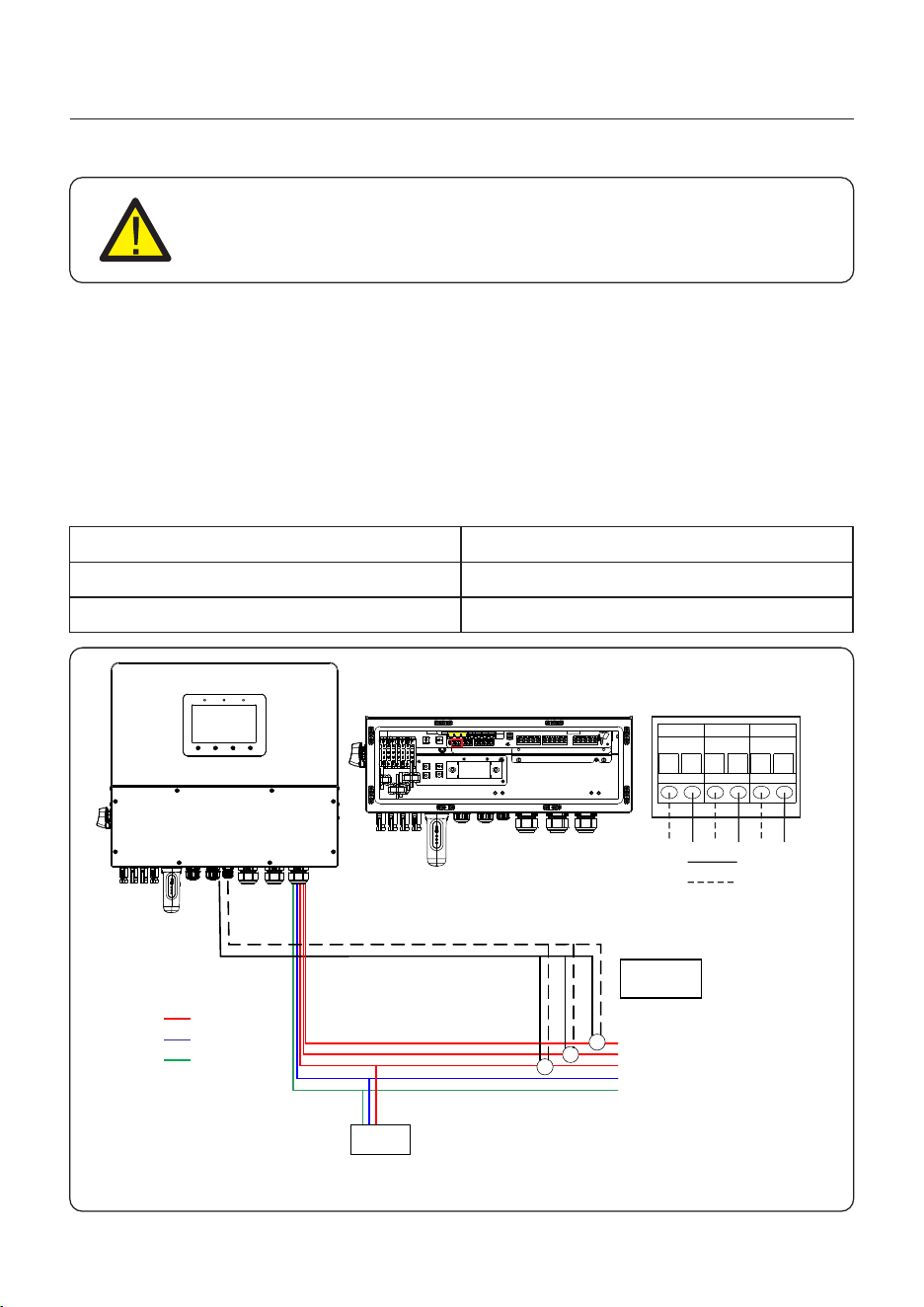
4.7 CT Connection
The CT provided in the product box is compulsory for hybrid system installation. It can be used
to detect the grid current direction and provide the system operating condition to hybrid inverter.
CT Model: 120A/40mA_0.5%, ESCT-TA16 120A/40mA
CT Cable: Size – 2.3mm2, Length - 1m
Please install the CT on the phase lines at the system grid connection point and the arrow on the
CT needs to point to the grid direction.
Lead the CT wires through the CT port at the bottom of the inverter and connect the CT
wires to the 6 pin communication terminal block.
CT Wire
White
Pin 1 (From Left to Right)
Pin 2 (From Left to Right)
Black
6 PIN Communication Terminal Block
CAUTION:
Make sure the AC cable is totally isolated from AC power before
connecting the smart meter or CT.
Figure 4.15
COM
L
Load
CT Arrow
->Grid
L1
N
PE
Grid
White
Black
White
Black
6-Pin Communication
Terminal Block
AC Grid
L2
L3
GRID-CT
1 2
N
PE
User Manual
4. Installation
26
4.8 Inverter Communication
4.8.1 Communication Ports
Port
COM
ANTENNA
COM1
COM2
DescriptionPort Type
USB
Antenna
4 hole watertight cable gland
4 hole watertight cable gland
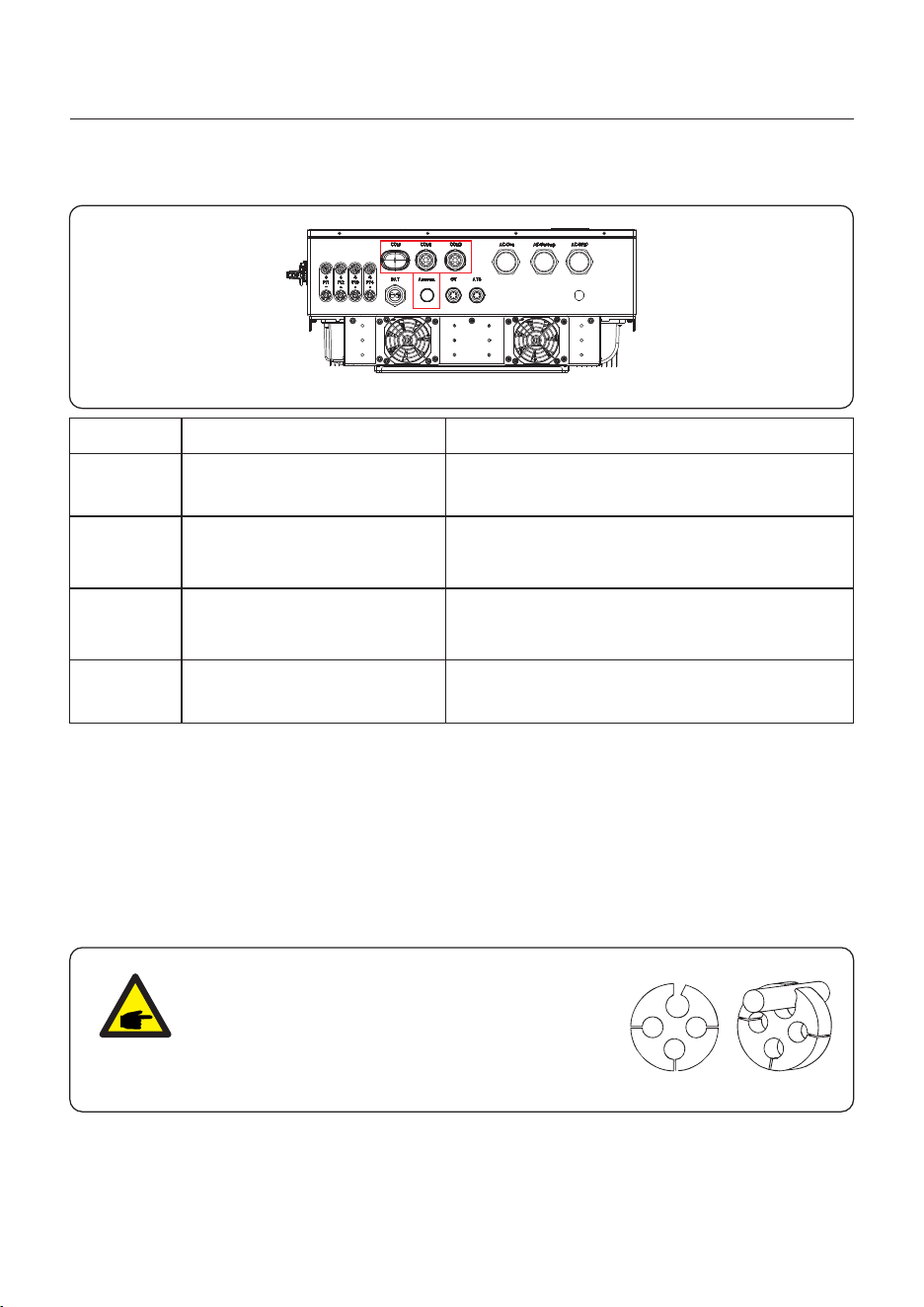
Used for Solis data logger connection
Used for antenna connection for built in
Bluetooth signal
Used for RJ45 connection inside wiring box
Used for RJ45 connection inside wiring box
Wiring steps for COM1-COM2:
Step 1. Loose the cable gland and remove the watertight caps inside the cable gland based
on the number of the cables and keep the unused holes with watertight cap.
Step 2. Lead the cable into the holes in the cable gland.
(COM1-COM2 Hole Diameter: 6mm)
Step 3. Connect the cable to the corresponding terminals inside the wiring box.
Step 4. Reassemble the cable gland and ensure there is no bending or stretching of the cables
inside the wiring box.
NOTE:
The 4-hole fastening rings inside the cable
gland for COM1 and COM2 are with openings
on the side.
Please separate the gap with hand and squeeze
the cables into the holes from the side openings.
User Manual
4. Installation
27
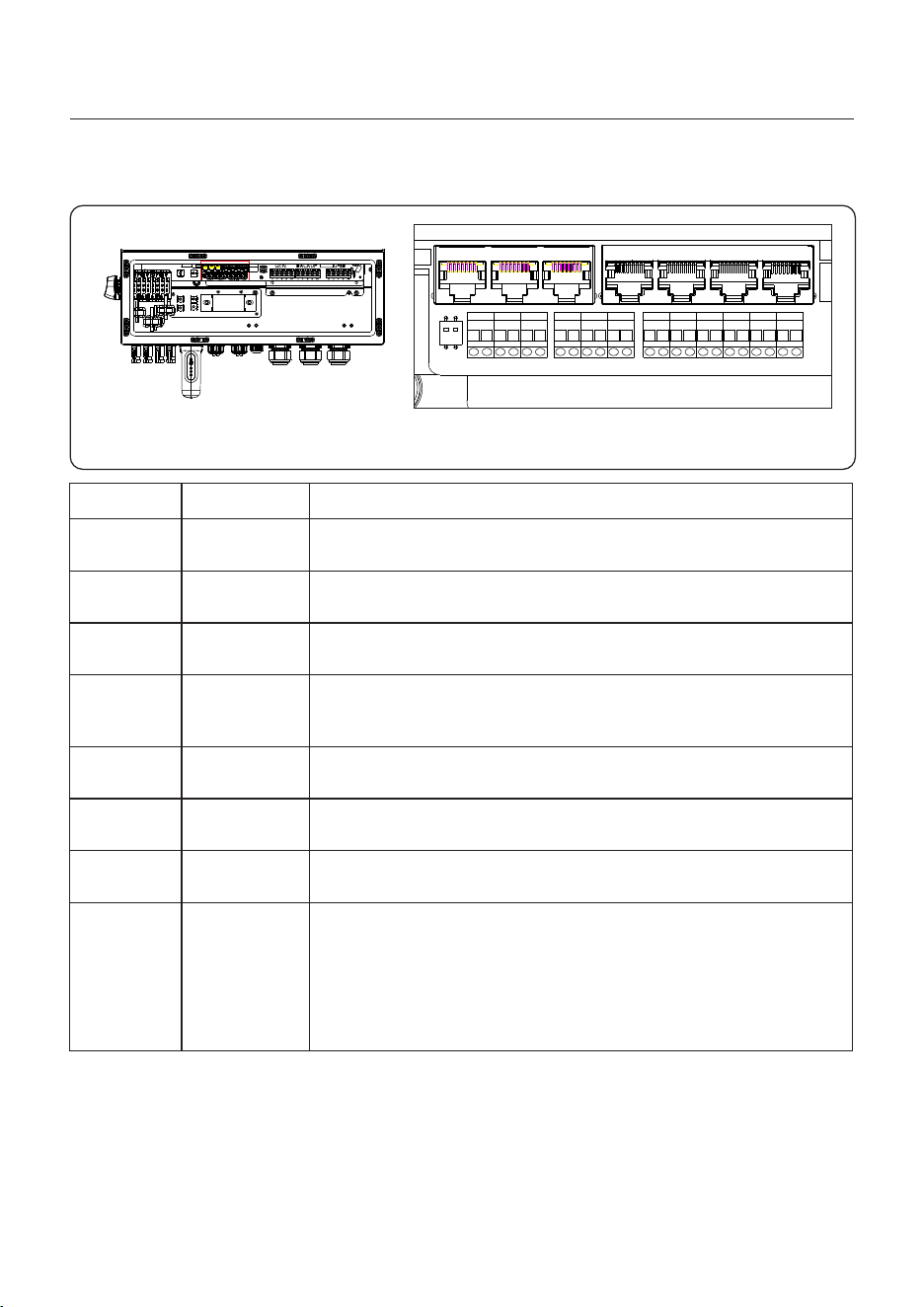
4.8.2 Communication Terminals
Terminal
BMS
Meter
DRM
PAR-A
PAR-B
DIP Switch
(2-1)
Ethernet
Analogic
DescriptionType
RJ45
Used for CAN communication between inverter and Lithium
battery BMS.
(Optional)Used for RS485 communication between inverter
and the smart meter.
(Optional) To realize demand response or logic interface
function, this function may be required in UK and Australia.
(Optional) Parallel operation communication port.
(Optional) Parallel operation communication port.
Used for Ethernet communication.
Used for output analogic signal.
RJ45
RJ45
RJ45
RJ45
-
Figure 4.16 Communication terminals
When a single inverter is running, DIP switch 1 and 2 shall be
both at the bottom position.
When multiple inverters are paralleled, DIP switch:
Option 1: Both the first and last inverter (INV1 & INV3) have
1 of the DIP switch enabled (Either Pin1 or Pin2).
Option 2: One of the first and the last inverter (INV1 or INV3)
has 2 DIP switches enabled (Both Pin1 & Pin2)
PAR-A PAR-B BMS Meter
Analogic
DRMEthernet
GRID-CT GEN-CT GEN-DI/DO ATS
RJ45
RJ45
DIP
User Manual
4. Installation
28
4.8.3 BMS terminal connection
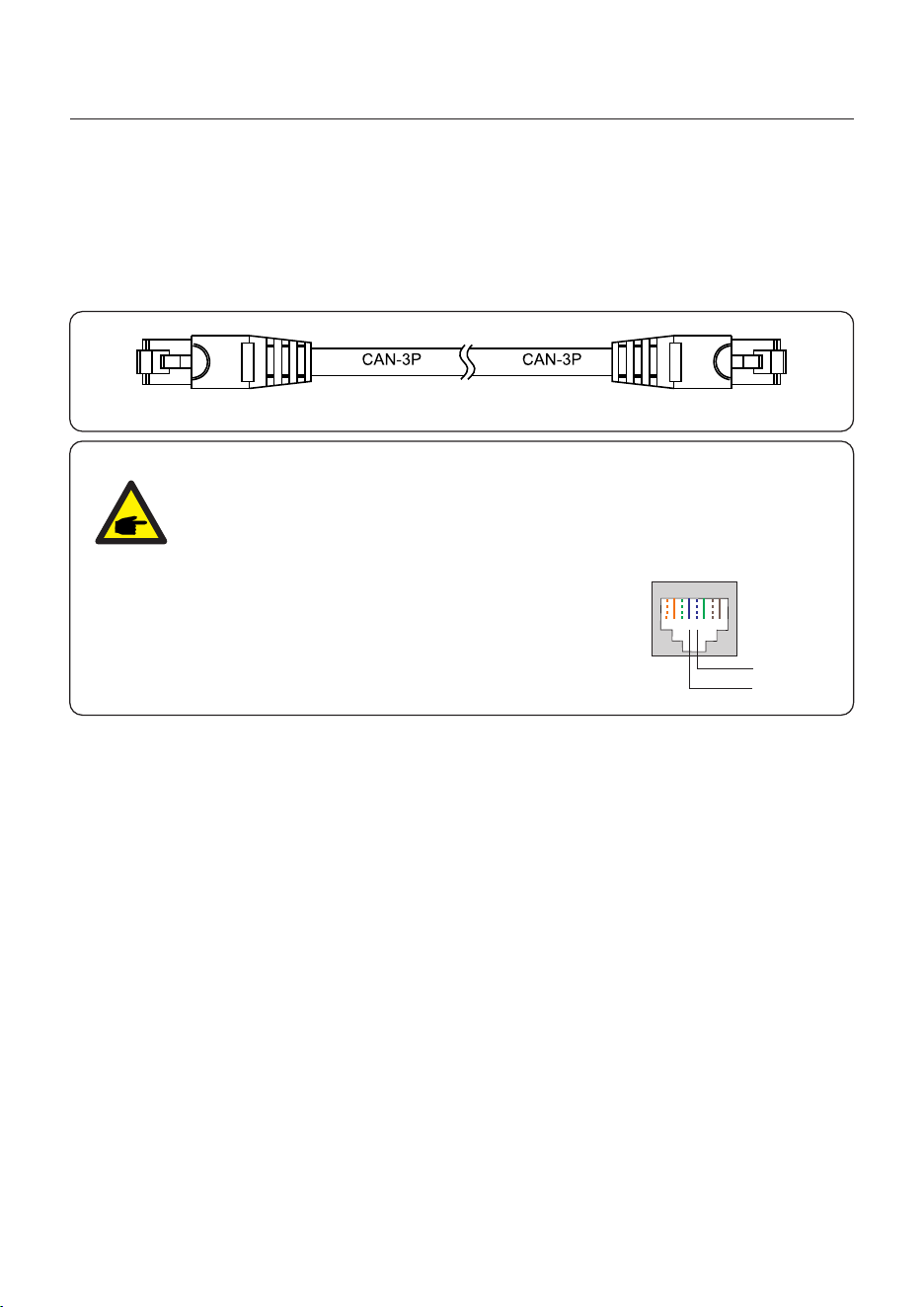
CAN communication is supported between inverter and compatible battery models.
Please lead the CAN cable through the COM1 or COM2 port of the inverter and connect to
the BMS terminal with RJ45 connector.
NOTE:
Before connecting CAN cable with the battery, please check whether the
communication pin sequence of the inverter and the battery match;
If it does not match, you need to cut off the RJ45 connector at one end of the
CAN cable and adjust the pin sequence according to the pin definitions of
both inverter and battery.
Pin definition of the inverter BMS port is following
EIA/TIA 568B.
CAN-H on Pin 4: blue
CAN-L on Pin 5: blue/white
RJ45terminal
1 2 3 4 5 6 7 8
CAN-L
CAN-H
4.8.3.1 With lithium battery
User Manual
4. Installation
29
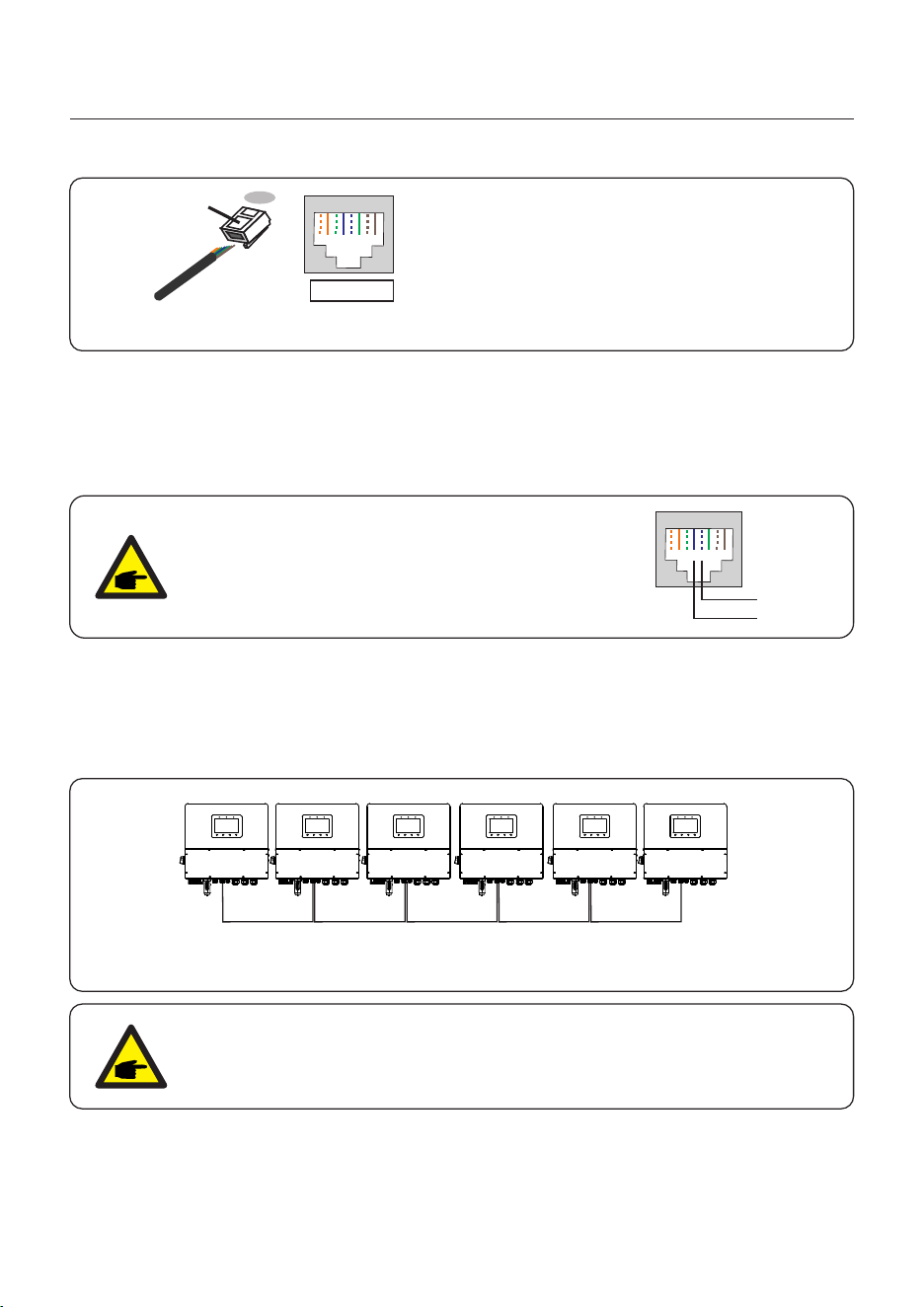
4.8.5.1 For remote shutdown function
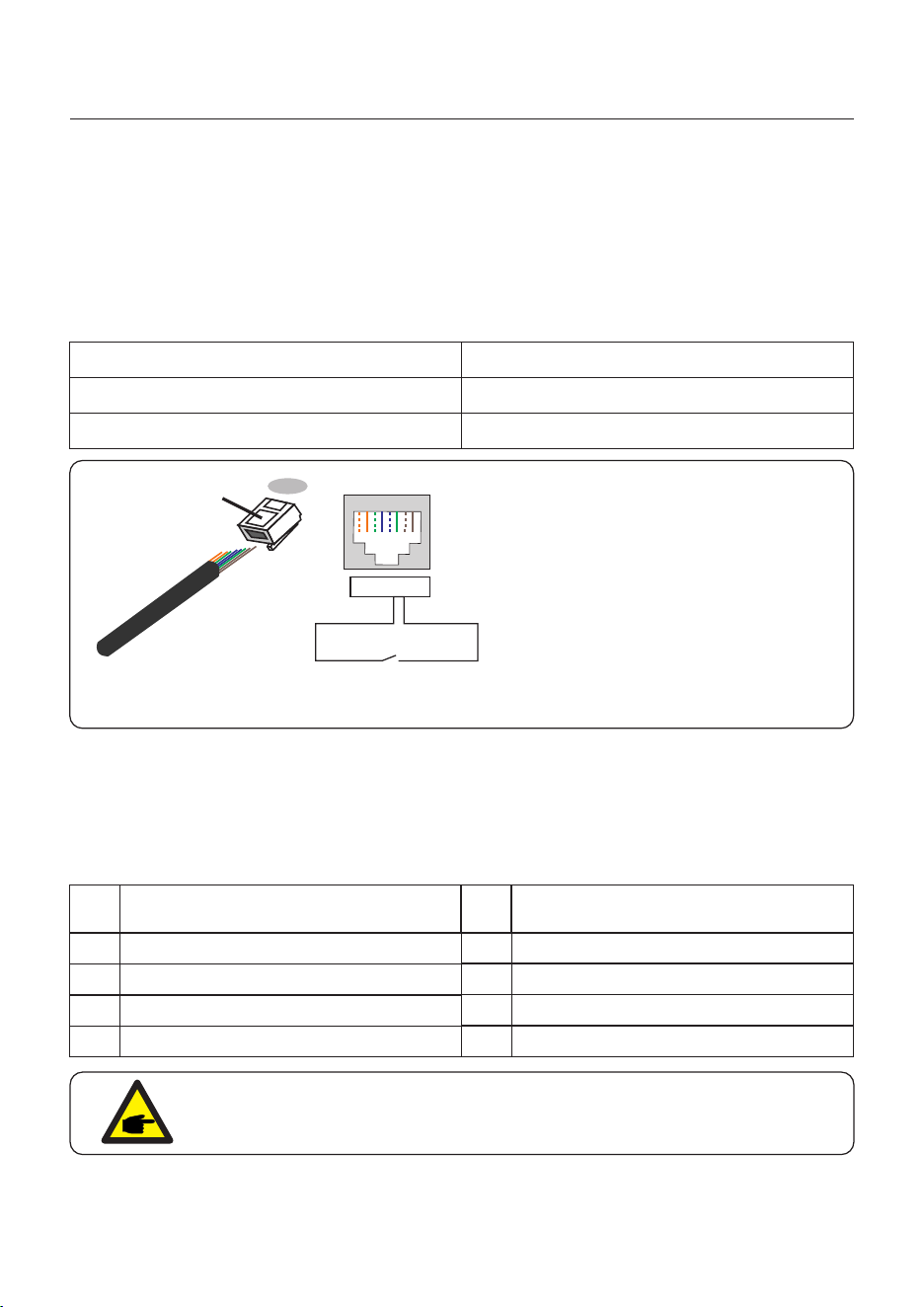
Solis inverters support remote shutdown function to remotely control the inverter to power on
and off through logic signals.
The DRM port is provided with an RJ45 terminal and its Pin5 and Pin6 can be used for remote
shutdown function.
Signal
Short Pin5 and Pin6 Inverter generates
Inverter shutdown in 5s
Open Pin5 and Pin6
Function
Correspondence between the cables
and the stitches of plug, Pin5 and Pin6
of RJ45 terminal is used for the logic
interface, other Pins are reserved.
Pin 1: Reserved; Pin 2: Reserved
Pin 3: Reserved; Pin 4: Reserved
Pin 5: Switch_input1; Pin 6: Switch_input2
Pin 7: Reserved; Pin 8: Reserved
1--8
Rj45 plug
RJ45terminal
1 2 3 4 5 6 7 8
1 2 3 4 5 6 7 8
DRM(logic interface)
Switch_ input1 Switch_ input2
Figure 4.17 Strip the insulation layer and connect to RJ45 plug
Assignment for inverters capable
of both charging and discharging
Pin
1
DRM 1/5
2
DRM 2/6
3
DRM 3/7
4
DRM 4/8
5
RefGen
6
7
8
Com/DRM0
V+
V-
Assignment for inverters capable
of both charging and discharging
Pin
DRED means demand response enable device. The AS/NZS 4777.2:2020 required inverter
need to support demand response mode(DRM).
This function is for inverter that comply with AS/NZS 4777.2:2020 standard.
A RJ45 terminal is used for DRM connection.
4.8.5.2 For DRED Control Function (For AU and NZ Only)
4.8.5 DRM port connection (Optional)
NOTE:
Solis hybrid inverter is designed to provide 12V power for DRED.
User Manual
4. Installation
30
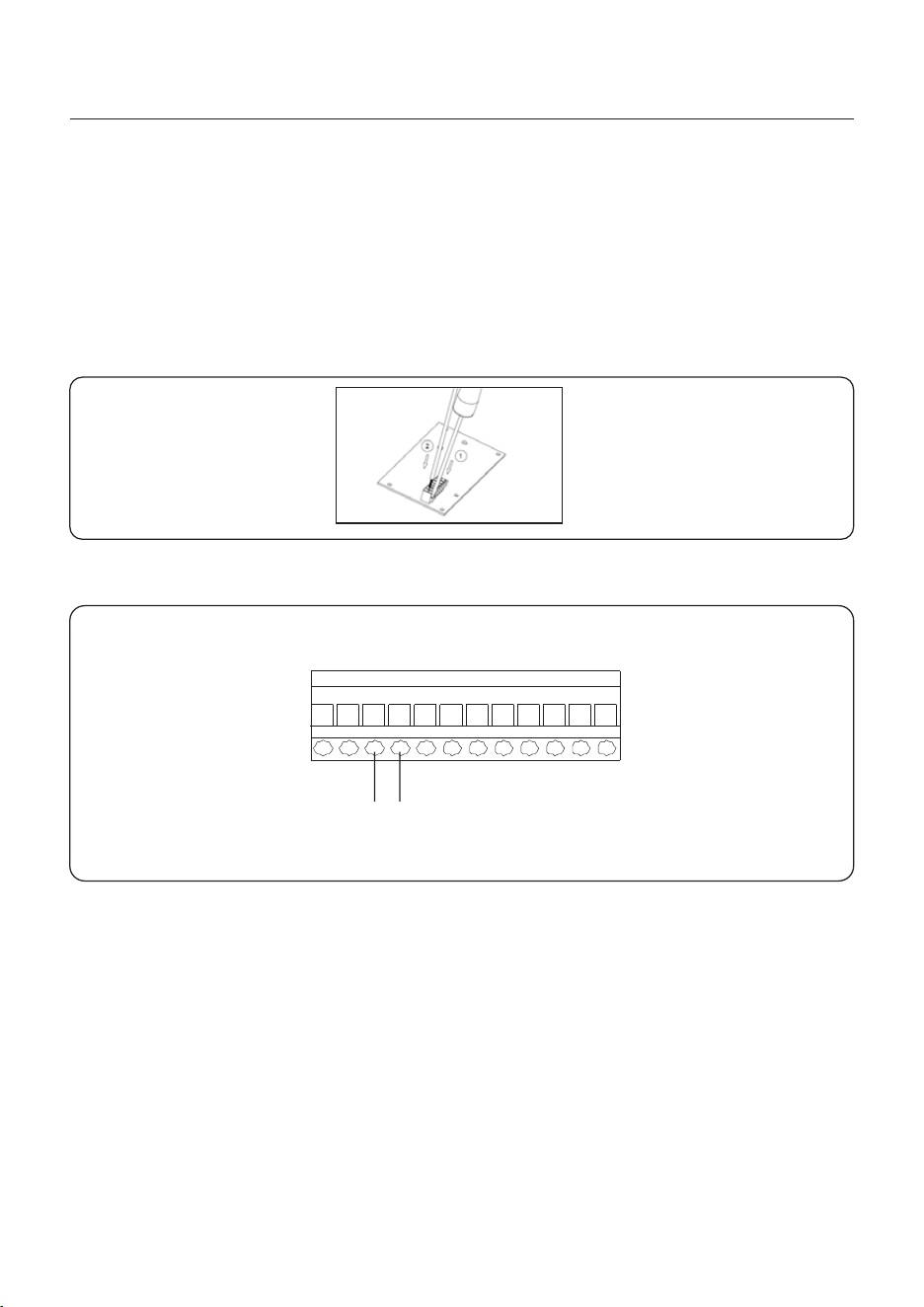
4.8.6 RS485 Port connection (Optional)
Figure 4.18 Strip the insulation layer and connect to RJ45 plug
Correspondence between the
cables and the stitches of plug
Pin 1: white and orange ; Pin 2: orange
Pin 3: white and green; Pin 4: blue
Pin 5: white and blue; Pin 6: green
Pin 7: white and brown; Pin 8: brown
1--8
RJ45 plug
RJ45terminal
1 2 3 4 5 6 7 8
1 2 3 4 5 6 7 8
If a 3rd party external device or controller needs to communicate with the inverter, the RS485
port can be used. Modbus RTU protocol is supported by Solis inverters.
To acquire latest protocol document, please contact Solis local service team or Solis sales.
NOTE:
Pin definition of the RS485 Port is following
EIA/TIA 568B.
RS485A on Pin 5: blue/white
RS485B on Pin 4: blue
RJ45terminal
1 2 3 4 5 6 7 8
RS485A
RS485B
Up to 6 units of the inverter can be connected in parallel.
Please connect the paralleled inverters by using P-A and P-B terminals.
Standard CAT5 with shielding layers internet cable can be used.
4.8.7 Parallel Inverter Connection (Optional)
Figure 4.19 Parallel Terminal Connection
NOTE:
Please upgrade the latest software version before you want use the
inverter in parallel mode.
P_B P_A P_B P_A P_B P_A P_B P_A P_B P_A
User Manual
4. Installation
31
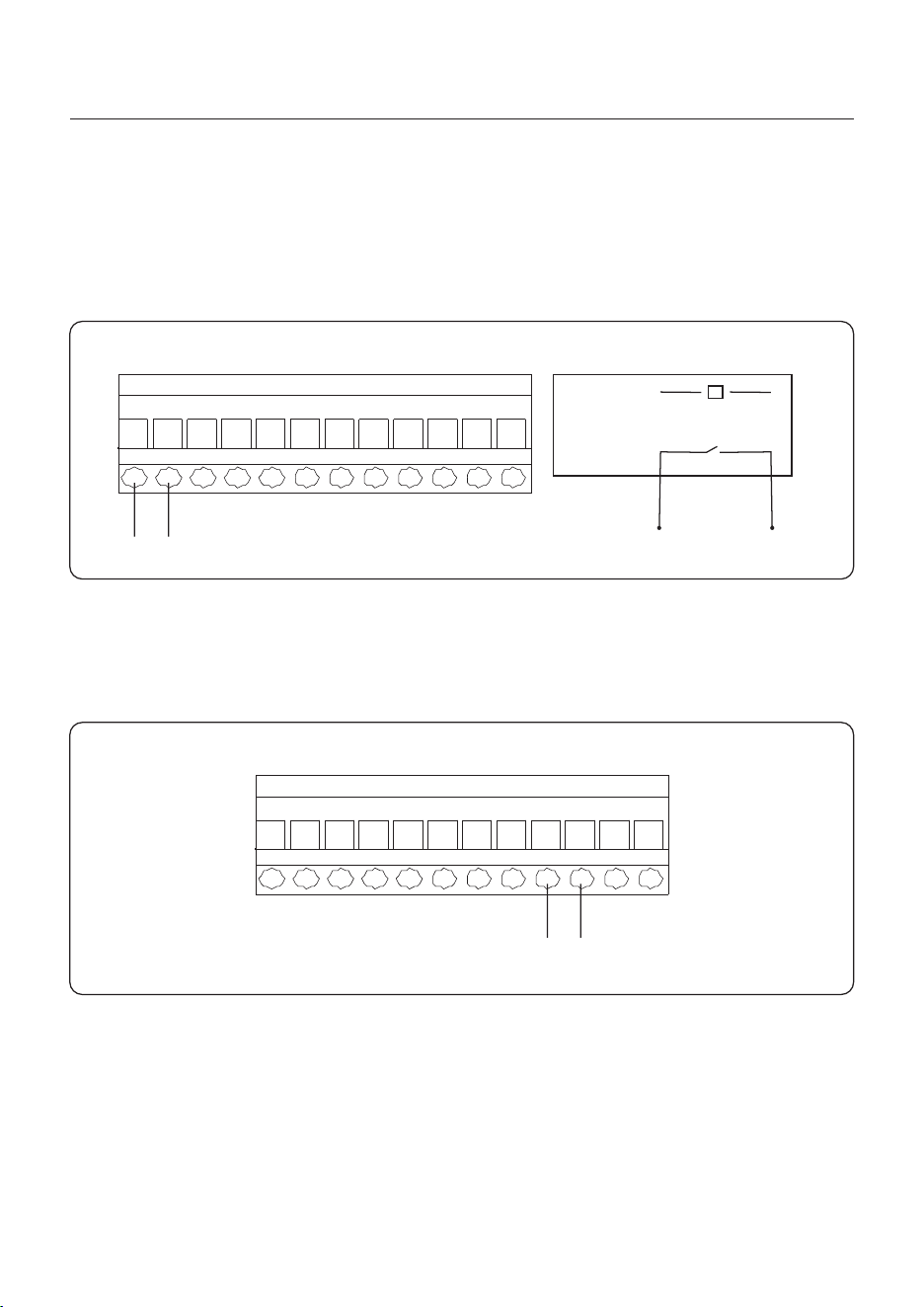
4.8.8.1 Heat Pump Control Signal Connection
Figure 4.20
3 4
12-Pin Communication
Terminal Block
S_A S_B
Terminal Block Connection Steps:
Step 1. Lead the wires through the hole in COM1 or COM2 port (Hole Diameter: 2 mm)
Step 2. Strip the wires for 9mm length
Step 3. Use slot type screwdriver to press the block on the top
Step 4. Insert the exposed copper part of the cable into the terminal.
Step 5. Remove the screwdriver and the terminal will clamp down on the exposed copper part.
Step 6. Give the cable a gentle tug to ensure that it is firmly secured.
4.8.8 12-pin Communication Terminal Block
User Manual
4. Installation
32
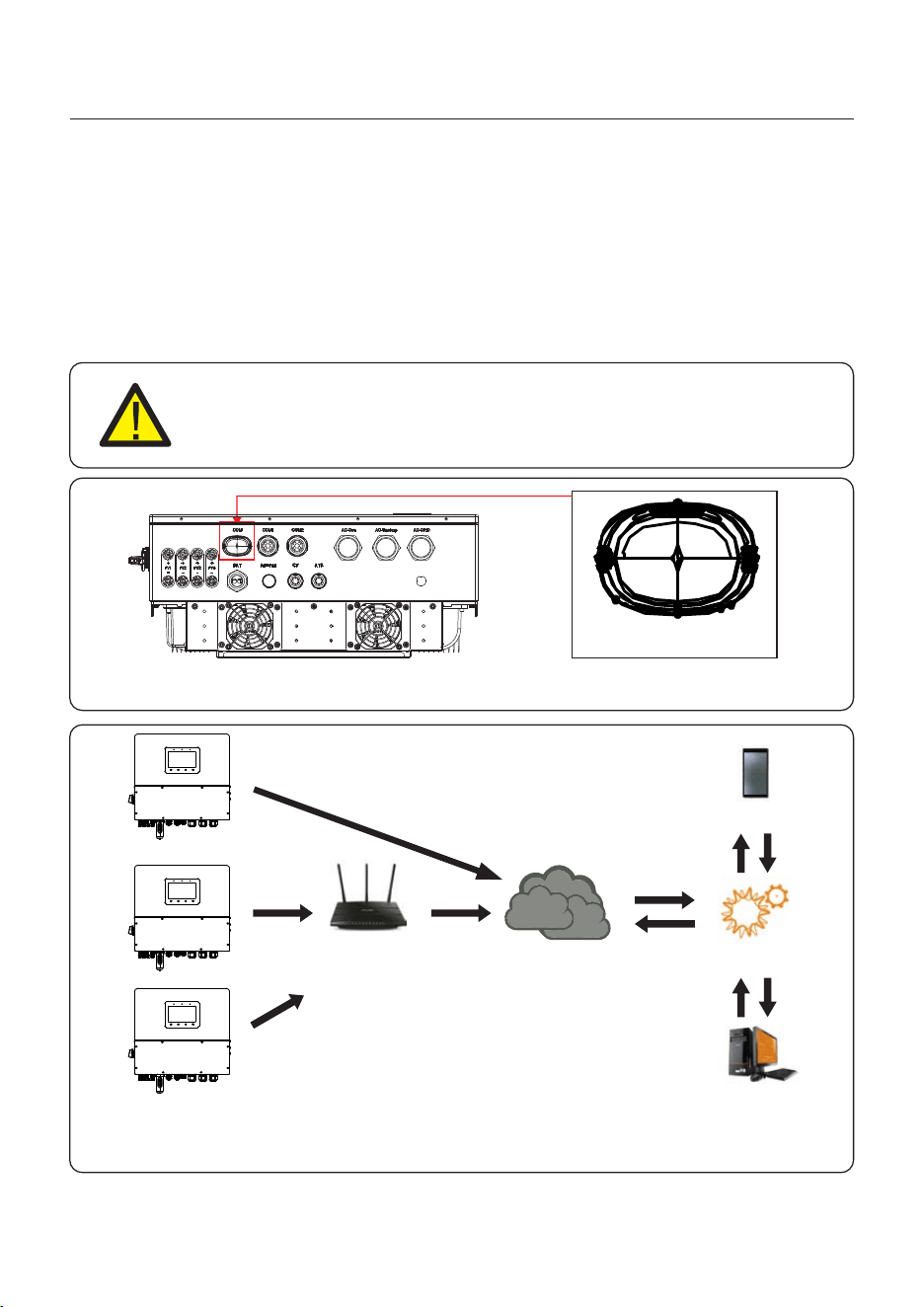
109
12-Pin Communication
Terminal Block
The ATS240V terminal will output 230V AC voltage when inverter is connected to the grid,
when the grid is not available, it will output 0V, then the ATS will transfer to generator.
4.8.8.3 ATS240V Terminal Connection
Figure 4.22
The G-V terminal is a voltage-free dry contact signal for connecting with generator's NO relay
to start up the generator when necessary.
When generator operation is not needed, Pin3 and Pin4 is in open circuit.
When generator operation is needed, Pin3 and Pin4 is in short circuit.
1 2
12-Pin Communication
Terminal Block
4.8.8.2 G-V Terminal Connection
Figure 4.21
coil
open contact
relay
V_A V_B V_A V_B
4.9 Inverter Remote Monitoring Connection
The inverter can be remotely monitored via WiFi, LAN or 4G.
The USB type COM port at the bottom of the inverter can connect to different kinds
of Solis dataloggers, enabling remote monitoring through the SolisCloud platform.
To install Solis data loggers, please refer to the corresponding user manuals of Solis
data loggers.
The Solis data loggers are optional and can be purchased separately.
Dust cover is provided in the inverter package in case the port is not used.
WARNING:
The USB type COM port only supports Solis dataloggers.
It is forbidden to be used for other purposes.
Figure 4.23
COM
Figure 4.24 Wireless communication function
LAN monitoring
4G monitoring
WiFi monitoring
Router
Internet
Web server
SolisCloud
APP
User Manual
4. Installation
33
5. Commissioning & Shutdown
5.1 Preparation of Commissioning
Ensure that all the devices are accessible for operation, maintenance and service.
Check and confirm that the inverter is firmly installed.
Space for ventilation is sufficient for one inverter or multiple inverters.
Nothing is left on the top of the inverter or battery module.
Inverter and accessories are correctly connected.
Cables are routed in safe place or protected against mechanical damage.
Warning signs and labels are suitably affixed and durable.
5.2 Commissioning Procedure
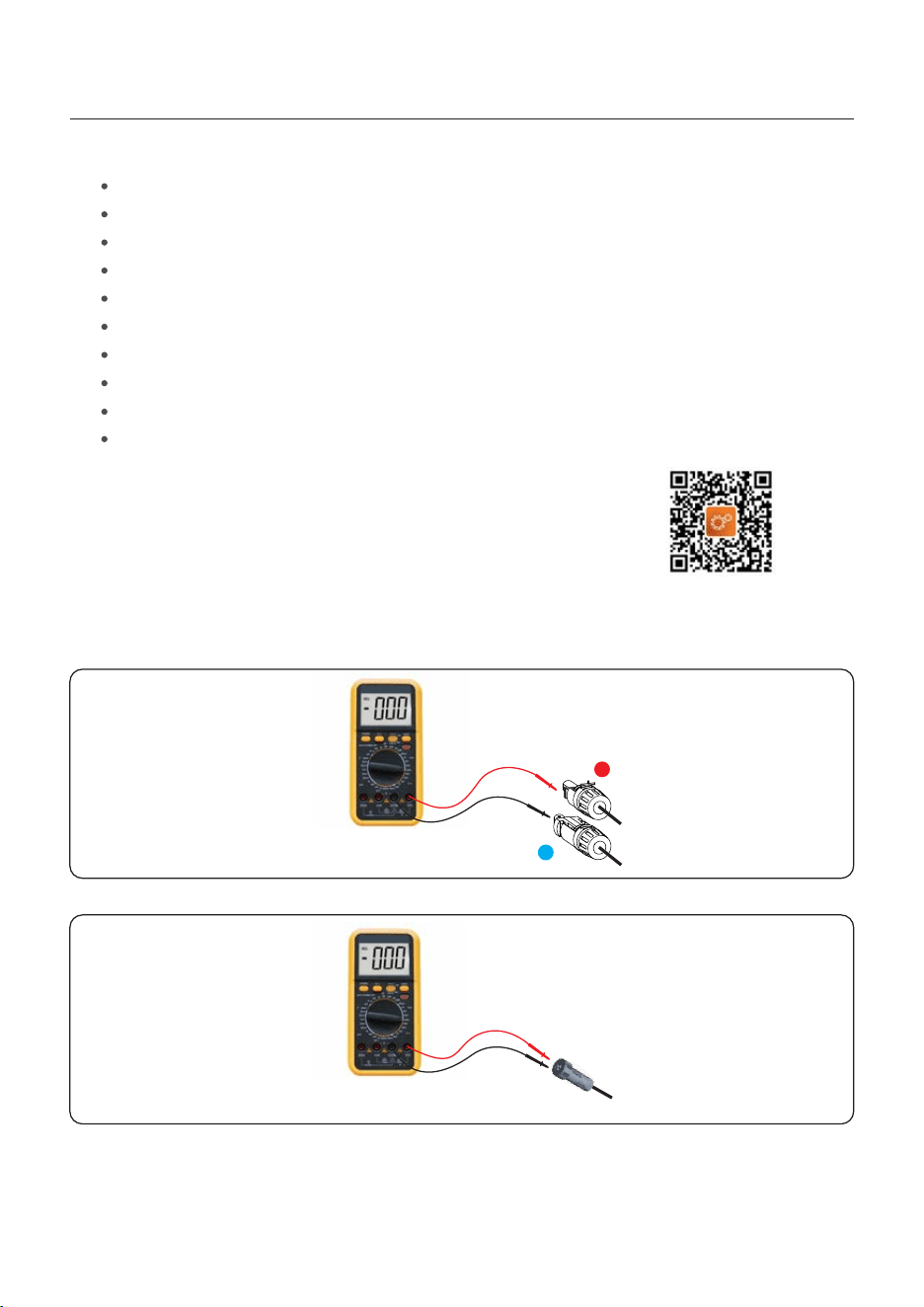
Step 1: Measure DC voltage of PV strings and battery and ensure the polarity is correct.
+
-
Step 2: Measure AC voltage and frequency and ensure they are within local standard.
Step 3: Switch on the external AC breaker to power on the inverter control board.
(Bluetooth signal available)
Bluetooth Antenna has been connected to the Antenna port of the inverter.
An Android or IOS mobile phone with Bluetooth function is available.
SolisCloud APP is installed on the mobile phone.
There are three ways to download and install the latest APP:
1. You can visit to download the latest www.soliscloud.com
version APP.
2. You can search “ ” in Google Play or App Store.SolisCloud
3. You can scan this QR code below to download " ".SolisCloud
User Manual
34
5. Commissioning & Shutdown
User Manual
35
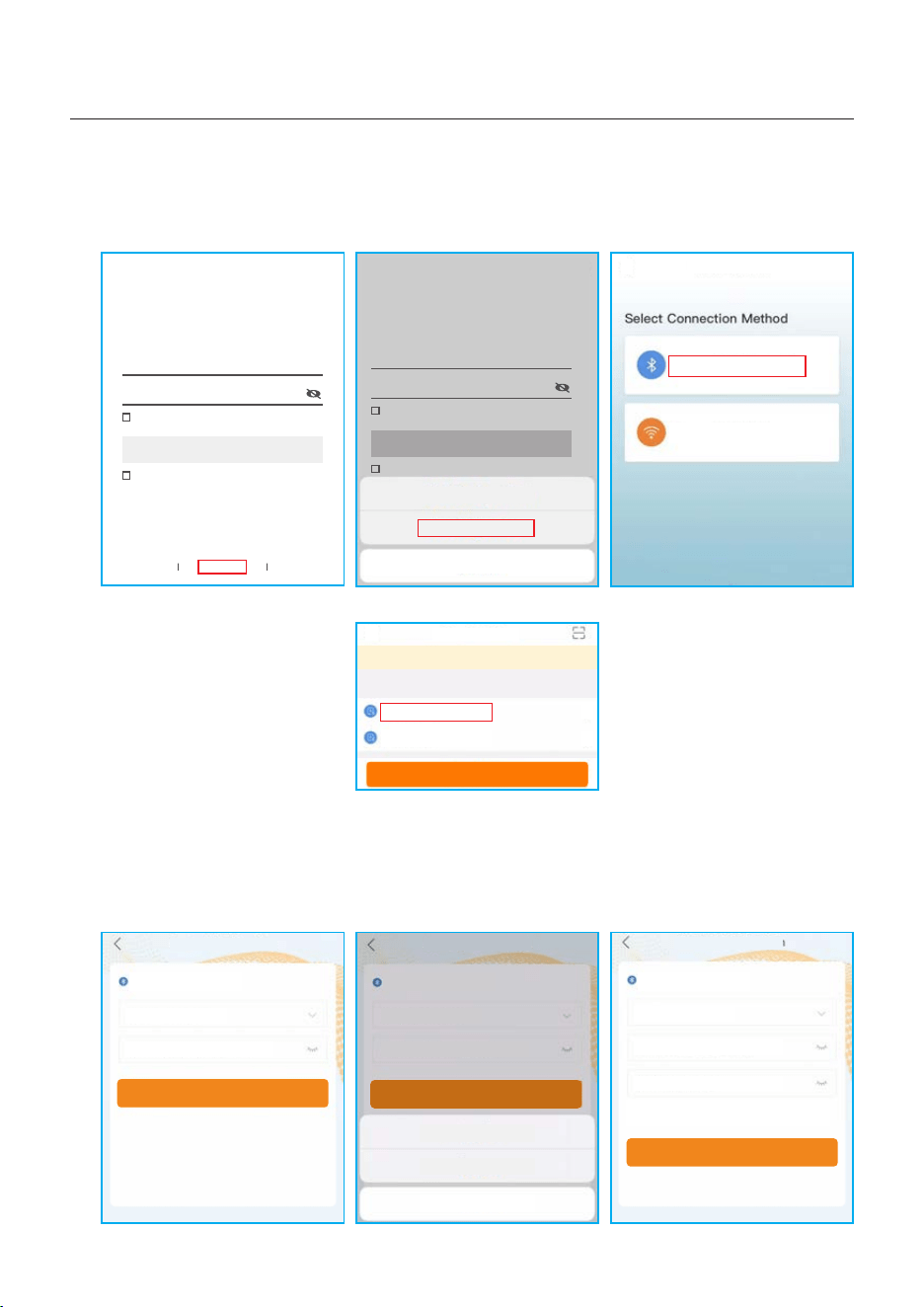
Step 1: Connect with Bluetooth.
Turn on Bluetooth switch on your mobile phone and then open the SolisCloud APP.
Click “More Tools”->”Local Operation”->”Connect with Bluetooth”
Step 2: Select the Bluetooth signal from the inverter. (Bluetooth Name: Inverter SN)
Step 3: Login account.
If you are the installer, please select the account type as Installer. If you are the
plant owner, please select the account type as Owner. Then set your own initial password
for control verification. (The first log-in must be finished by an installer in order to do the
initial set up)
Hello,
Welcome to SolisCloud
Register
Username/Email
Password
I have agreed Privacy Policy
Remember Forgot Password
Language More Tools Data Migration
Log in
Hello,
Welcome to SolisCloud
Register
Username/Email
Password
I have agreed Privacy Policy
Remember Forgot Password
Log in
Local Operation
Connect With Bluetooth
Connect With WiFi
<
xxxxxxxxxxxx
Nearby Device
<
vivo TWS 2
<
<
Search Device
If the dev ice is not in the list, ple as e click the “Search D ev ice”
butt on a t the bottom or drop-do wn t o refresh the page
Other Device
xxxxxxxxxxxx
xxxxxxxxxxxx
Control Verification
Select account type
Enter password (6-characters)
Verify
Control Verification
Installer
Enter password (6-characters)
Enter password again
Please set the password of the installer’s account
before continuing
Set Enable
<
xxxxxxxxxxxx
Control Verification
Select account type
Enter password (6-characters)
Verify
Installer
Owner
Cancel
<
<
WiFi Configuration
Local Operation
Cancel
5.3 Quick Settings
5. Commissioning & Shutdown
User Manual
36
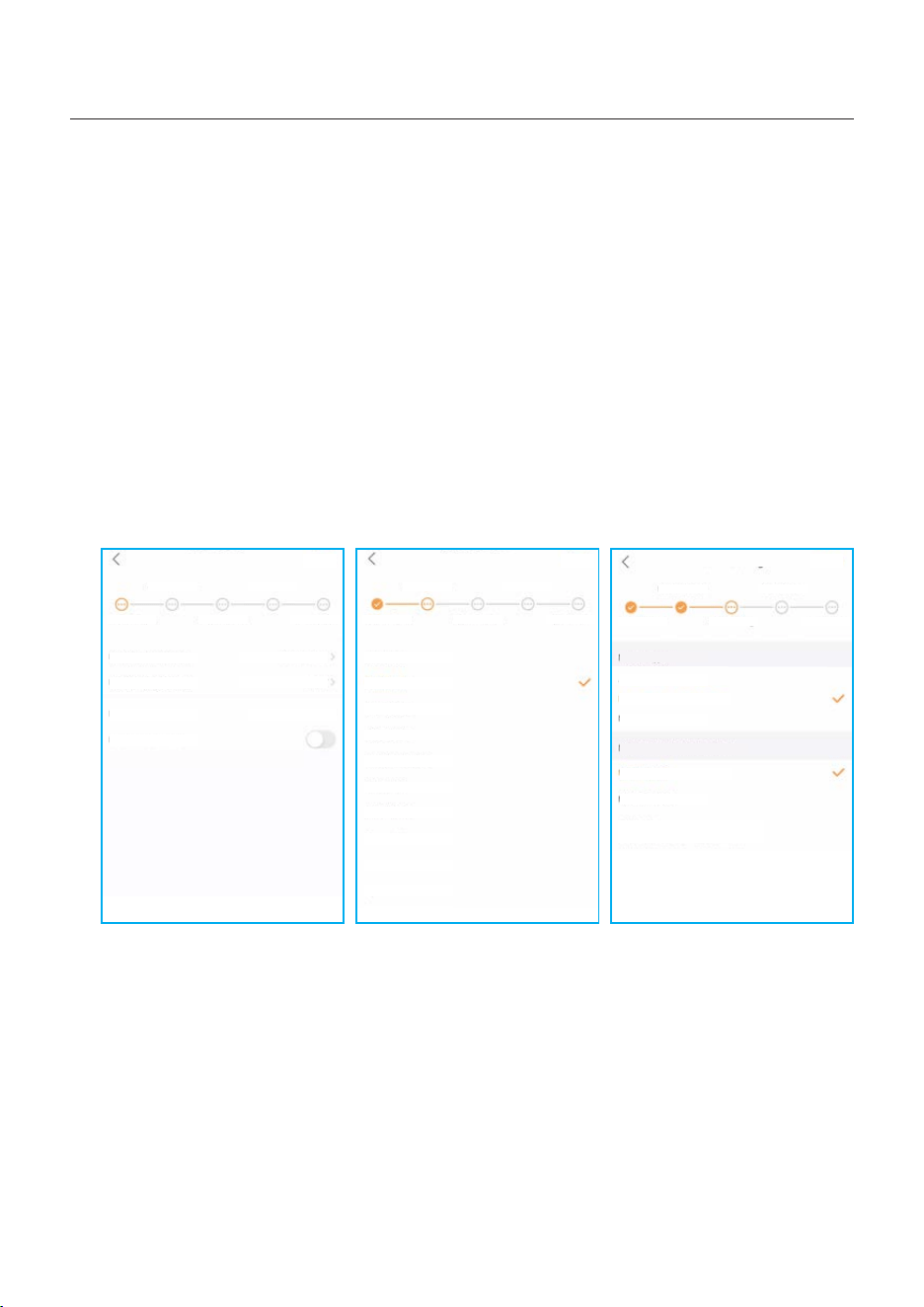
Step 4: After the log in for the first time, initial settings are required.
Step 4.1: Set the inverter date and time.
You can set to follow the time on your mobile phone.
Step 4.2: Set the battery model.
It must be based on the battery model that is actually connected to the inverter.
If there is no battery connected for the moment, please select “No Battery” to avoid
alarms.
The default setting for battery over discharge SOC is 20%, force charge SOC is 10%.
Step 4.3: Set the meter setting.
It must be based on the meter type that is actually connected to the inverter.
If there is no meter connected for the moment, please select “No Meter” to avoid alarms.
It is suggested to install the meter at the system grid connection point and select “Meter in
Grid”.
Step 4.4: Set the grid code setting.
Please select the grid code based on the local grid network requirements.
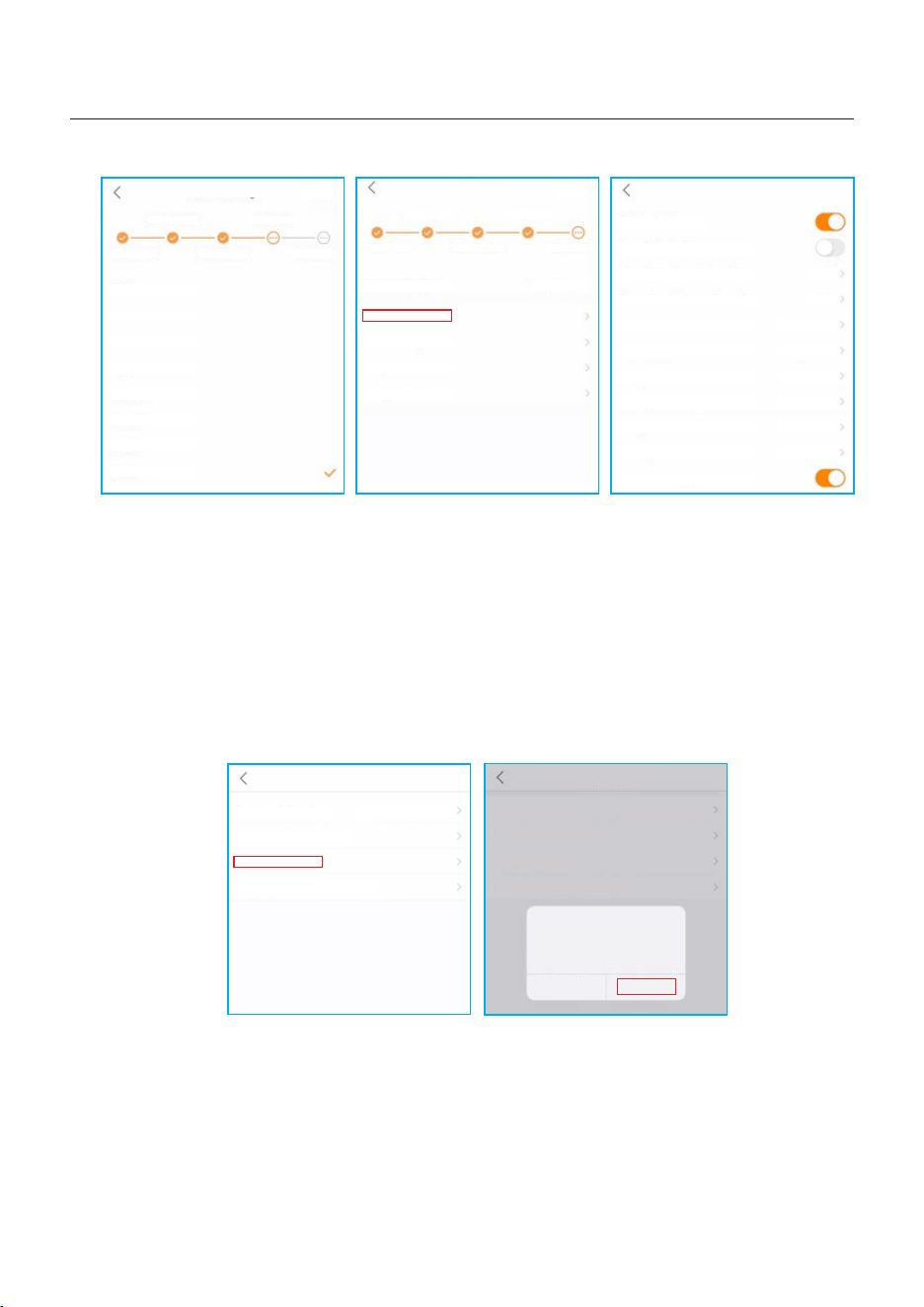
Step 4.5: Set the work mode setting.
Recommended setting is Self-Use Mode. This mode will maximize the use of PV power
generation for household electricity, or store it in batteries and use it for household
electricity. If need manually control the battery charging and discharging with respect to
time, please use the Time of Use switch and the following set points. The “Allow Grid
Charging” is recommended to be turned on (If turned off, the inverter will not force charge
the battery and battery could potentially go to sleep).
Step 4.1 Step 4.2 Step 4.3
Quick Setting
Next
Inverter Time Meter Setting Work Mode
Battery Model Grid Code
Inverter Date Setting
Inverter Time Setting
Phone Time
Follow Phone Time
15:27
2022-08-11
2022-08-11 15:27:25
Quick Setting
Next
Inverter Time Meter Setting Work Mode
Battery Model Grid Code
No Battery
PYLON_HV
B_BOX_HV BYD
LG_HV LG
SOLUNA_HV
Dyness HV
Aoboet HV
Alpha HV
GS Energy
BYD HVL
Jinko
Quick Setting
Next
Inverter Time Meter Setting Work Mode
Battery Model Grid Code
Meter Type
Acrel 3P Meter
NO Meter
Meter Installation Location
Meter in Grid
Meter in Load
Eastron Standard 3P Meter
Grid+PV Inverter
Only applicable for Eastron Meter
5.4 Shutdown procedure
Step 1. Turn off the AC breaker at the grid connection point.
Step 2. Turn off the DC switch of the inverter.
Step 3. Turn off the battery breaker.
Step 4. Wait until the device is powered off, and the system shutdown is complete.
5. Commissioning & Shutdown
User Manual
37
Self-Use Mode
Self-Use Mode
Time of Use Switch
Time of Use Charge Current Set
Time of Use Discharge Current Set
Charge Time Slot 1
Discharge Time Slot 1
Charge Time Slot 2
Discharge Time Slot 2
Charge Time Slot 3
Discharge Time Slot 3
Allow Grid Charging
10.0A
10.0A
22:00 ~ 08:00
08:00 ~ 22:00
00:00 ~ 00:00
00:00 ~ 00:00
00:00 ~ 00:00
00:00 ~ 00:00
Quick Setting
Done
Inverter Time Meter Setting Work Mode
Battery Model Grid Code
Current Work Mode
Self-Use Mode
Feed in Priority Mode
Backup Mode
Off-grid Mode
Self-Use Mode
Quick Setting
Next
Inverter Time Meter Setting Work Mode
Battery Model Grid Code
G59/3
User-define
GREECE230
HK230
RENBLAD
CEI 0-16
NTS631
4777-A
Step 4.4 Step 4.5(1) Step 4.5(2)
Step 5: Setup complete.
Now the initial settings on the inverter have been set and you can switch on the inverter’s
DC switch and switch on battery breaker to start up the system. You can also explore in
the APP to check the operating data, alarm message or other advanced settings.
Step 6: Change password.
If the owner forgot the password, please contact the installer. Installer log in and go to
“Setting”->”More”->”Change Password” to reset the password for owner’s account.
If the installer forgot the password, please contact Solis service team.
More
Data Auto Refresh Rate
Download Offline Data File
Change Password
Reset Owner Account Password
Not refresh automatically
More
Data Auto Refresh Rate
Download Offline Data File
Change Password
Reset Owner Account Password
Not refresh automatically
Are you sure to reset
password of owner’s
account?
Cancel OK
5. Commissioning & Shutdown
User Manual
5.5 Work Mode and Settings
Load priority: load>battery>grid
Power supply priority: PV>battery>grid>DG
This mode applies to the area that has low feed-in tariff and high energy price.
The PV power will prioritize supplying energy to the load and charging the battery, with
any surplus power being fed into the grid. During periods without PV power at night or
when the PV power is insufficient, the battery will discharge to support the load.
• Supports TOU settings in this mode.
• Supports Battery Reserve function in this mode.
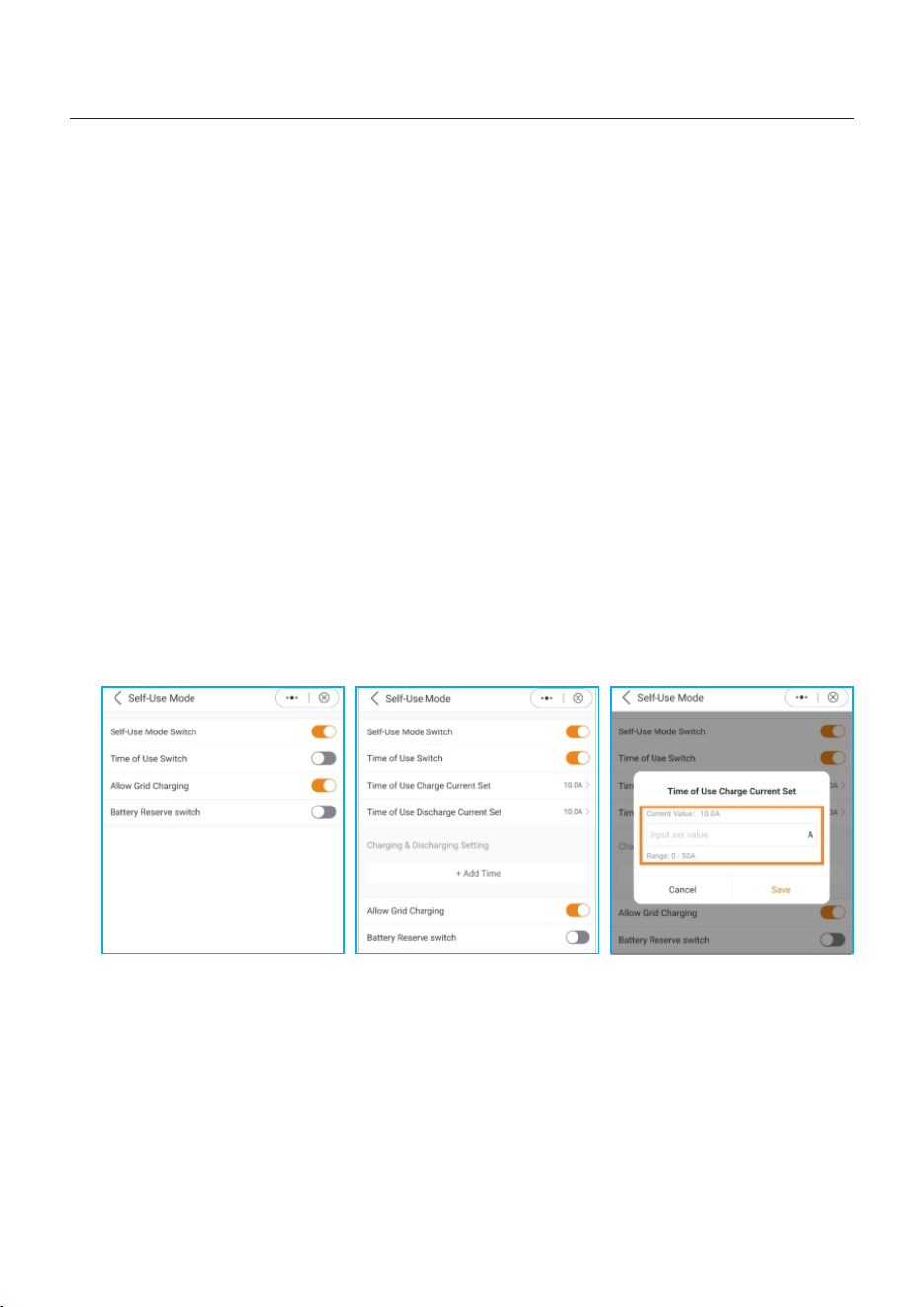
5.5.1 Self-Use mode
How to set Self-Use mode?
A. Self-Use Mode is activated without any specific times set for the battery to be charged/
discharged, and the battery reserve is not switched on.
Note: Solis recommends activating the 'Allow Charging from Grid' option. Once the
battery reaches the Forcecharge SOC, it will use the grid to charge the battery, preventing
it from being deep discharged.
B. Activating the 'Time of Use Switch' will provide customers with several options to set
charging/discharging times and current.
C. Setting the charge or discharge current within the range of 0-50A.
A B C
38
5. Commissioning & Shutdown
User Manual
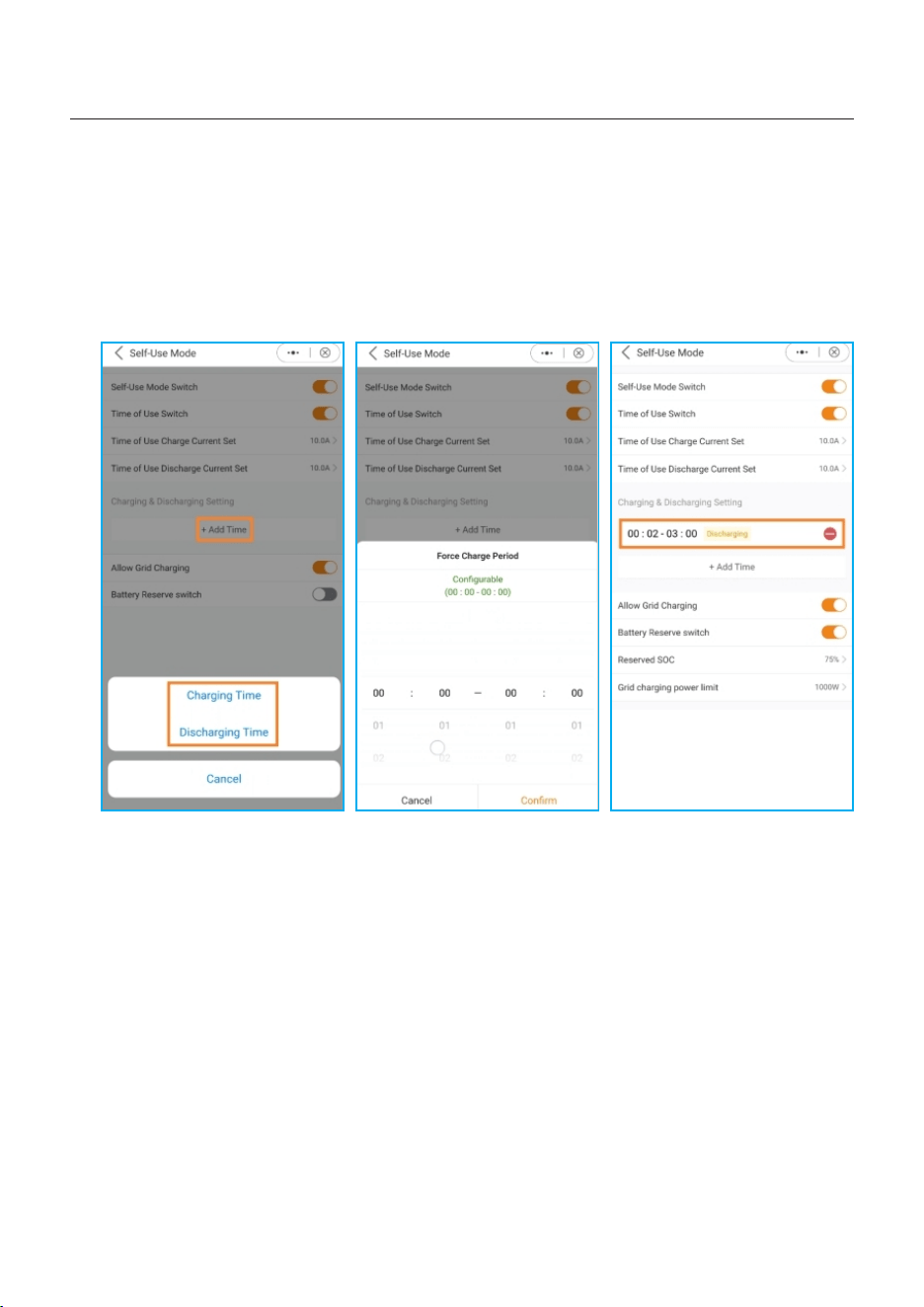
D. If you want to set a specific charging or discharging value on your inverter, please first
press "Add time" and then choose accordingly – Charging or Discharging Times.
E. In the next step, please choose the actual time range for either Force Charge or
Discharge.
F. Once the Charge/Force charge period has been set, you will see the details on the
screen.
D E F
39
5. Commissioning & Shutdown
User Manual
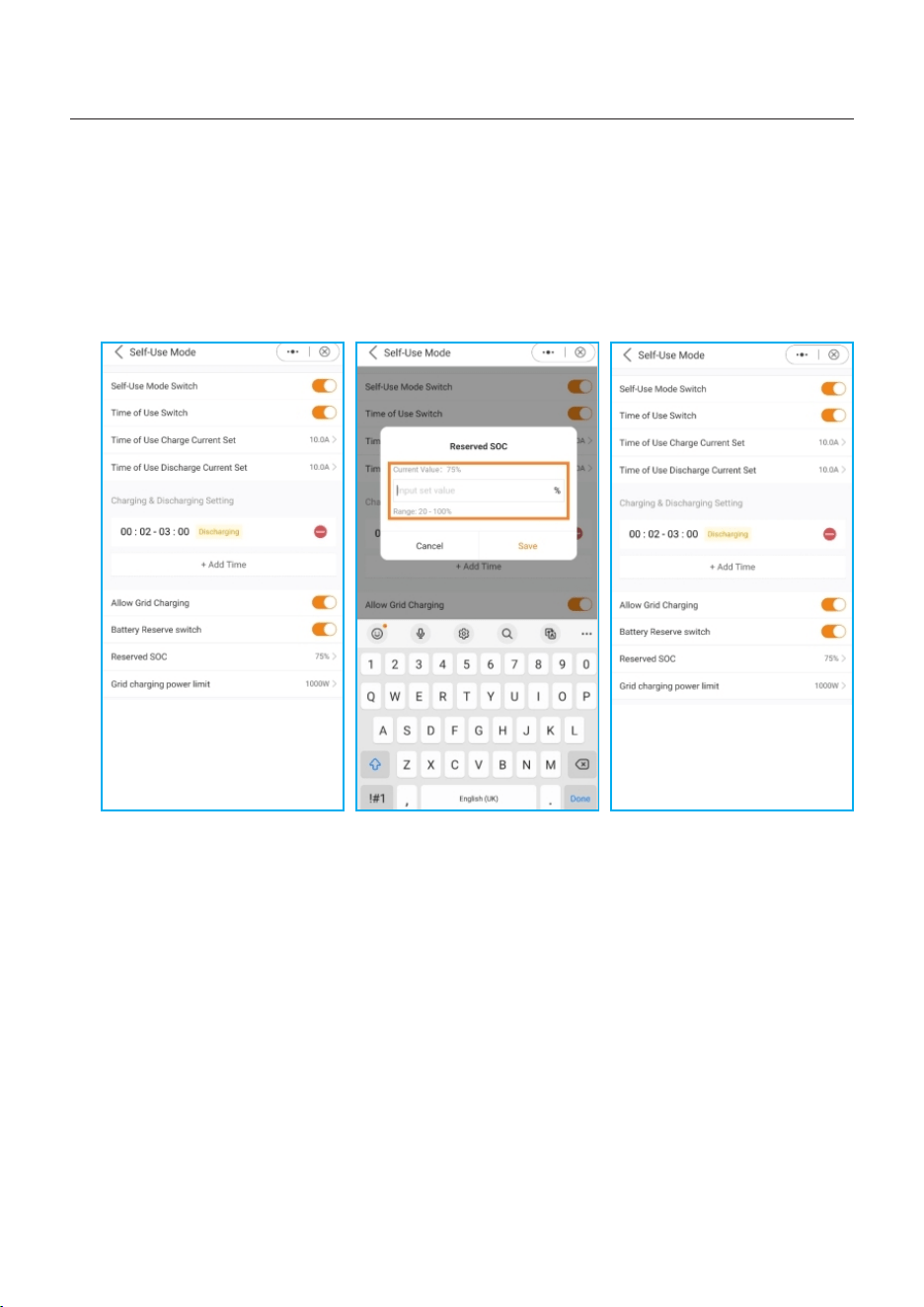
G. The Self-Use Mode provides you with the option to set a Battery reserve value.
Please toggle the switch to activate the battery reserve mode.
H. You can set a range between 20% and 100% of the battery SOC. The inverter will strive
to maintain the battery at the chosen set level.
I. Finally, you have the option to establish a power limit that can be drawn from the grid
side.
G H I
40
5. Commissioning & Shutdown
User Manual
Load priority : load>grid>battery
Power supply priority: PV>battery>grid>DG
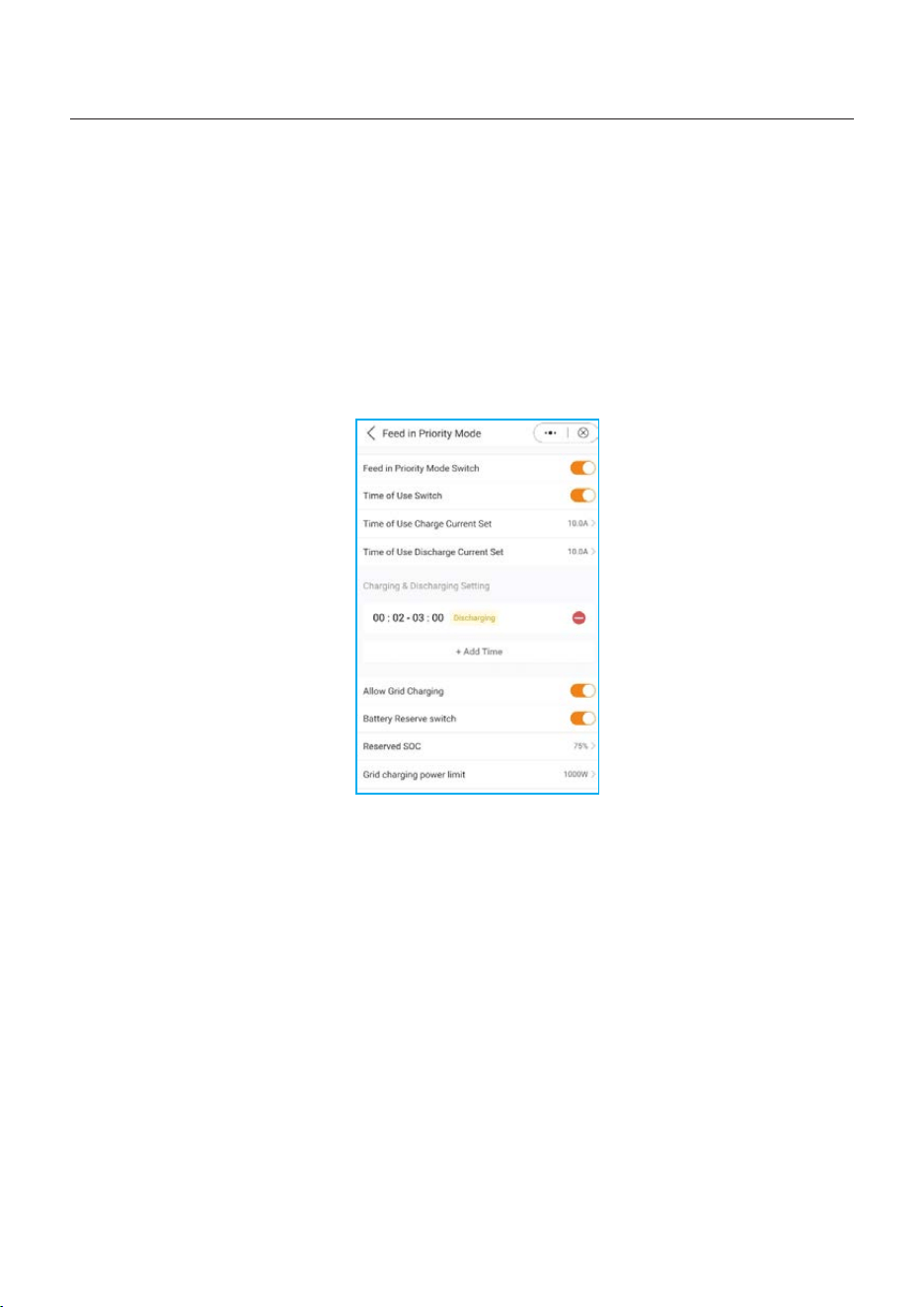
This mode applies to the area that has high feed-in tariff and export control.
The PV power will prioritize supplying energy to the load. Then any surplus is directed into
the grid.
If there is a feed-in limitation, the excess power will charge the battery.
• Supports TOU setting in this mode.
• Supports Battery Reserve function in this mode.
5.5.2 Feed in Priority Mode
41
5. Commissioning & Shutdown
User Manual
Load priority: load>battery>grid
Power supply priority: PV > grid> battery >DG
Supports TOU settings in this mode.
This mode applies to the area where the electricity tariff is calculated according to the
maximum power per unit time.
In this mode, on the premise that the power supplied by the grid does not exceed the set
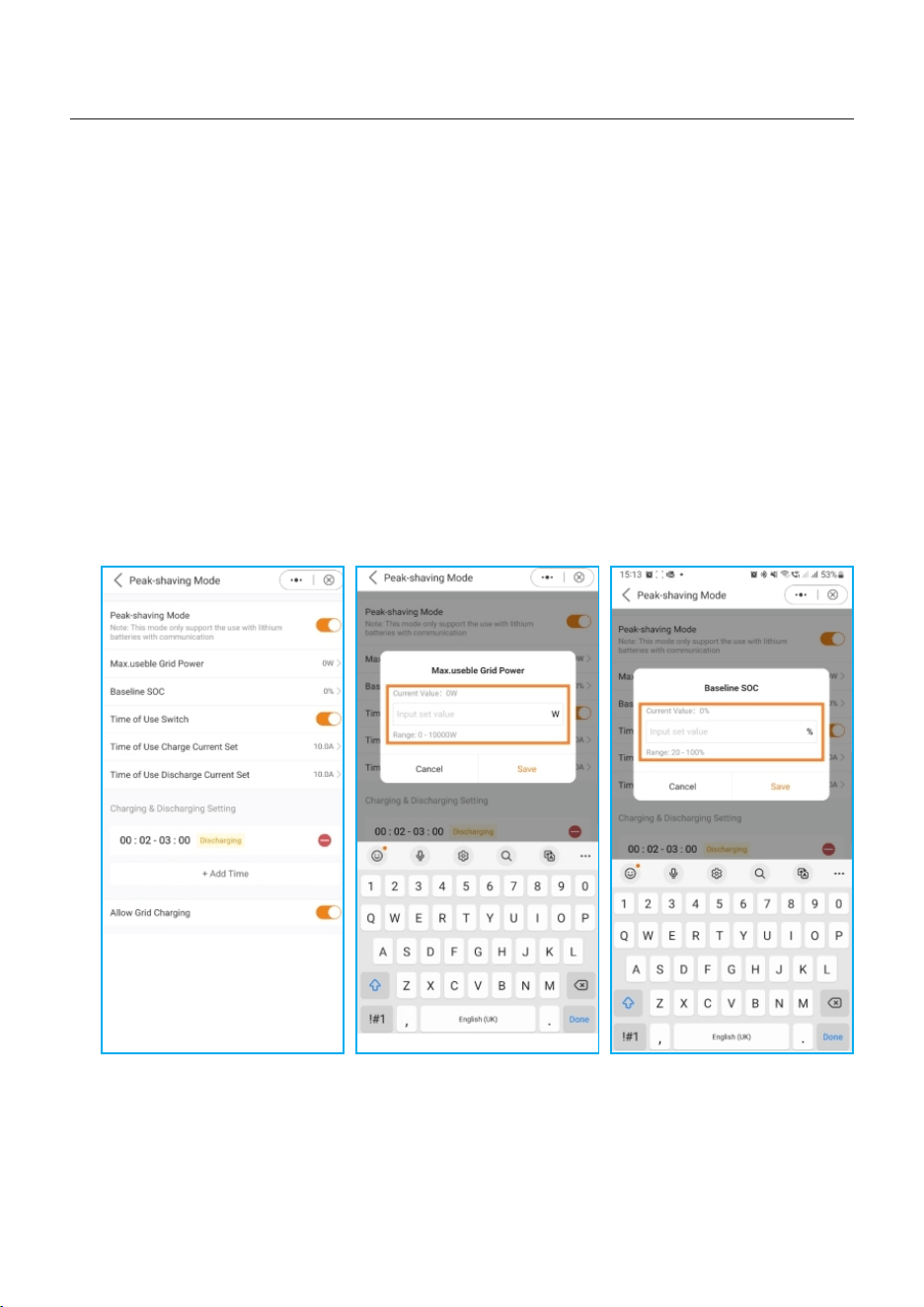
value Max. usable Grid Power, the system will strive to charge the battery to Baseline SOC.
If “ PV + P-discharge + Max. usable Grid Power < P-load ”, it will exceed the set value
(Max. usable Grid Power), by using the stored energy from the battery to power the loads.
5.5.3 Peak-Shaving Mode
How to set Peak-shaving mode?
A. Peak Shaving Mode App View
B. Define the maximum usable power drawn from the grid.
C. Setting a baseline State of Charge (SOC) for the battery.
A B C
As evident in the screenshots, you have the option to configure the charge/discharge
current and set charging times when activating the "Time of Use Switch."
42
5. Commissioning & Shutdown
User Manual
Load priority : load>battery
Power supply priority: PV>battery>DG
• This mode applies to the area not covered by the grid or when the system is not connected
to the grid.
• When a power outage is detected in a grid-tied system, the system will automatically will
automatically enter in the off-grid, supplying only the backup load.
• The user can also manually set this mode, supplying only the backup load.
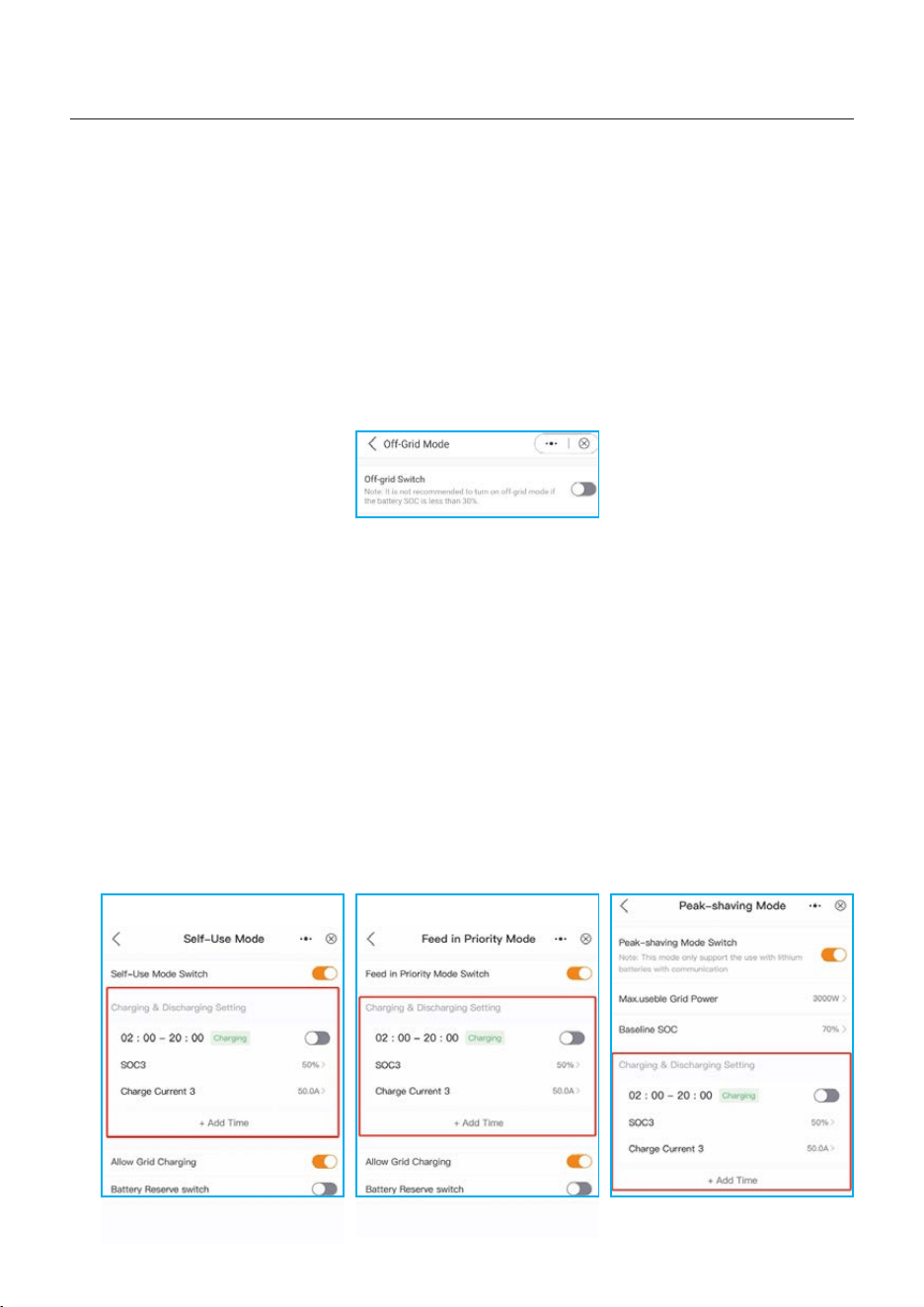
5.5.4 Off-Grid Mode
How to set Off-Grid mode?
5.6 TOU Function Settings
This function applies to the area with peak-valley price. Set the system to charge the battery
in valley price and discharge in peak price to improve benefits.
Supports 6 customizable charge/discharge time settings, while the battery will charge/
discharge at a set current.
43
Supports TOU function settings in self-use mode, feed in priority mode, peak-shaving mode.
There are 6 customizable charging settings and 6 customizable discharging settings.
How to set TOU Function?
A. Set a charging/discharging time period.
B. Set a SOC(1~6) value for the battery. This is the cut-off SOC for charging or discharging.
C. Set a charge/discharge current(1~6) ,this is the maximum charging and discharging current.
D. Press“+Add Time”to add a charging/discharging time period.

5. Commissioning & Shutdown
User Manual
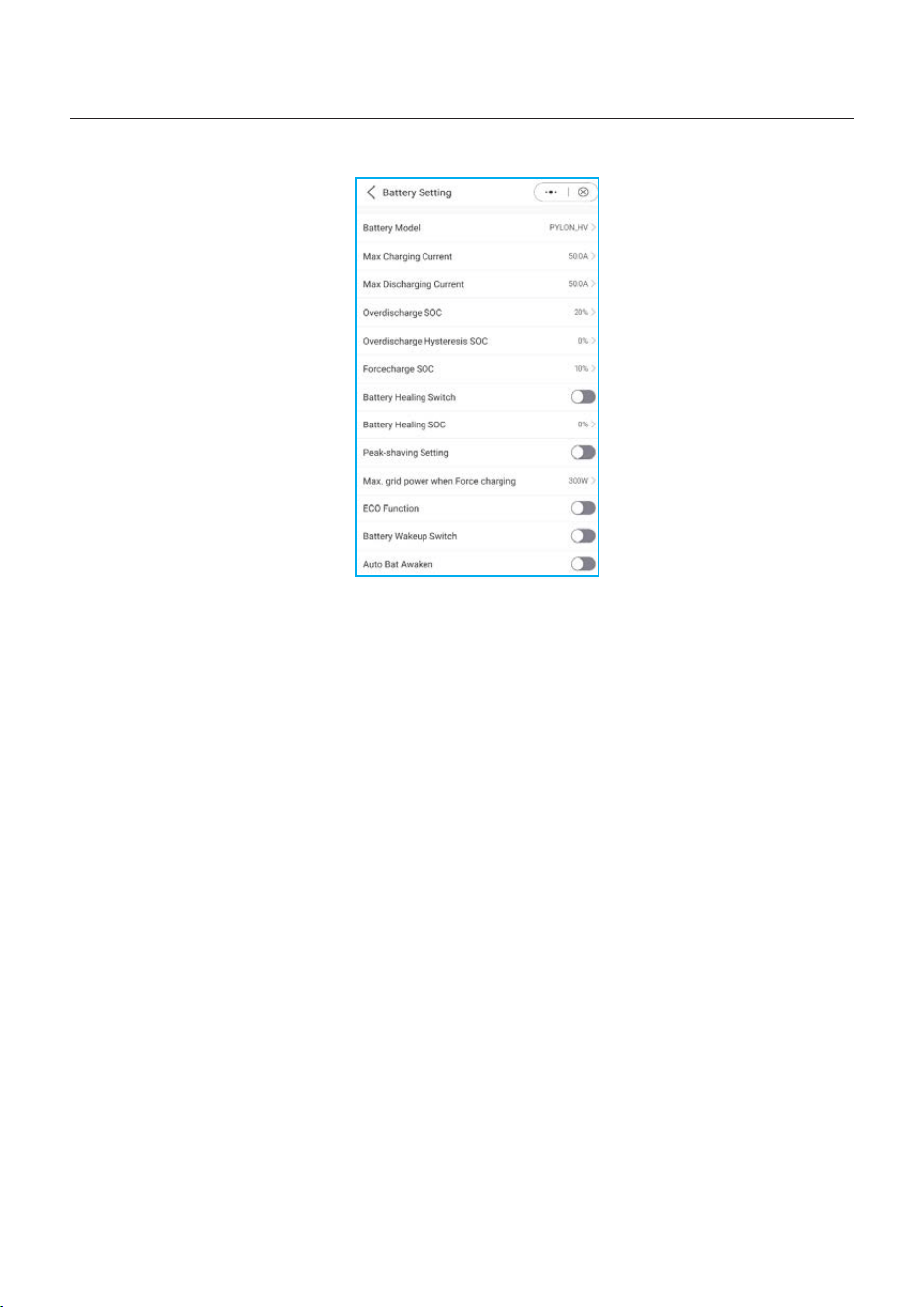
5.7 Battery Settings
The battery section of the app offers numerous options to customize the interaction
between the inverter and the battery. Here, we provide explanations for the functions
and features available in this section, allowing users to tailor the inverter's behavior
to their specific preferences and requirements.
Battery Mode: Please select the correct model of the battery. If you don't have a battery,
choose "No battery" to ensure accurate configuration.
Max Charging/Discharching Current: Choose the maximum charge/discharge current
that you wish to. This selection allows you to customize the charging and discharging
parameters based on your preferences and requirements.
Overdischarge SOC: The Overdischarge SOC (State of Charge) is the minimum battery
charge level to which the inverter will discharge. It acts as a safeguard to prevent the
battery from discharging beyond this specified threshold, ensuring its longevity and health.
Overdischarge Hysteresis SOC: The Overdischarge Hysteresis SOC is a hysteresis
threshold that prevents the battery from frequently switching between charging and
discharging nearby the Overdischarge SOC.
Forcecharge SOC: The Forcecharge SOC for the battery is the minimum state of charge
(SOC) at which the inverter initiates charging the battery from the grid. It specifies the
threshold below which the inverter actively engages in recharging the battery to maintain
optimal performance.
Peak-shaving setting: If the switch is enable, the power of force charging will be dynamically
adjusted. (see below for example)
Max Grid power when Force charging: During Forcecharge activation, users have the
option to set the maximum power utilized by the grid. This feature allows for customization
of the power limit, ensuring control over the amount of energy drawn from the grid during the
charging process. (Peak-shaving needs to be activated)
ECO Function: If PV power is lower than 100W and SOC falls below overdischarge SOC,
the inverter will turn off the grid relays and IGBT switching. If forcecharge SOC is reached,
it will connect back to grid and charge battery back to overdischarge SOC, then turn off again.
Battery Wakeup Switch: After Battery wake up command, the inverter powers the DC
battery port using Battery Wakeup Voltage and low AMP till BMS communication of battery
will be restored and within awaken time.
Auto Bat Awaken: Automatically trigger the battery wake up every time in the morning when
inverter starts up.
44
5. Commissioning & Shutdown
User Manual
Example Peak Shaving setting:
If the switch is enable, the power of force charging will be
dynamically adjusted.
Few samples to be clear: (Forcecharge Limited Power Setting=4kW)
If the load=3kW,PV=0kW,P_forcecharge=P_Grid(4kW)-P_ Load(3kW)=1kW.
If the load=10kW,PV=0kW,P_forcecharge=0kW,P_Grid=P_Load=10kW.
45
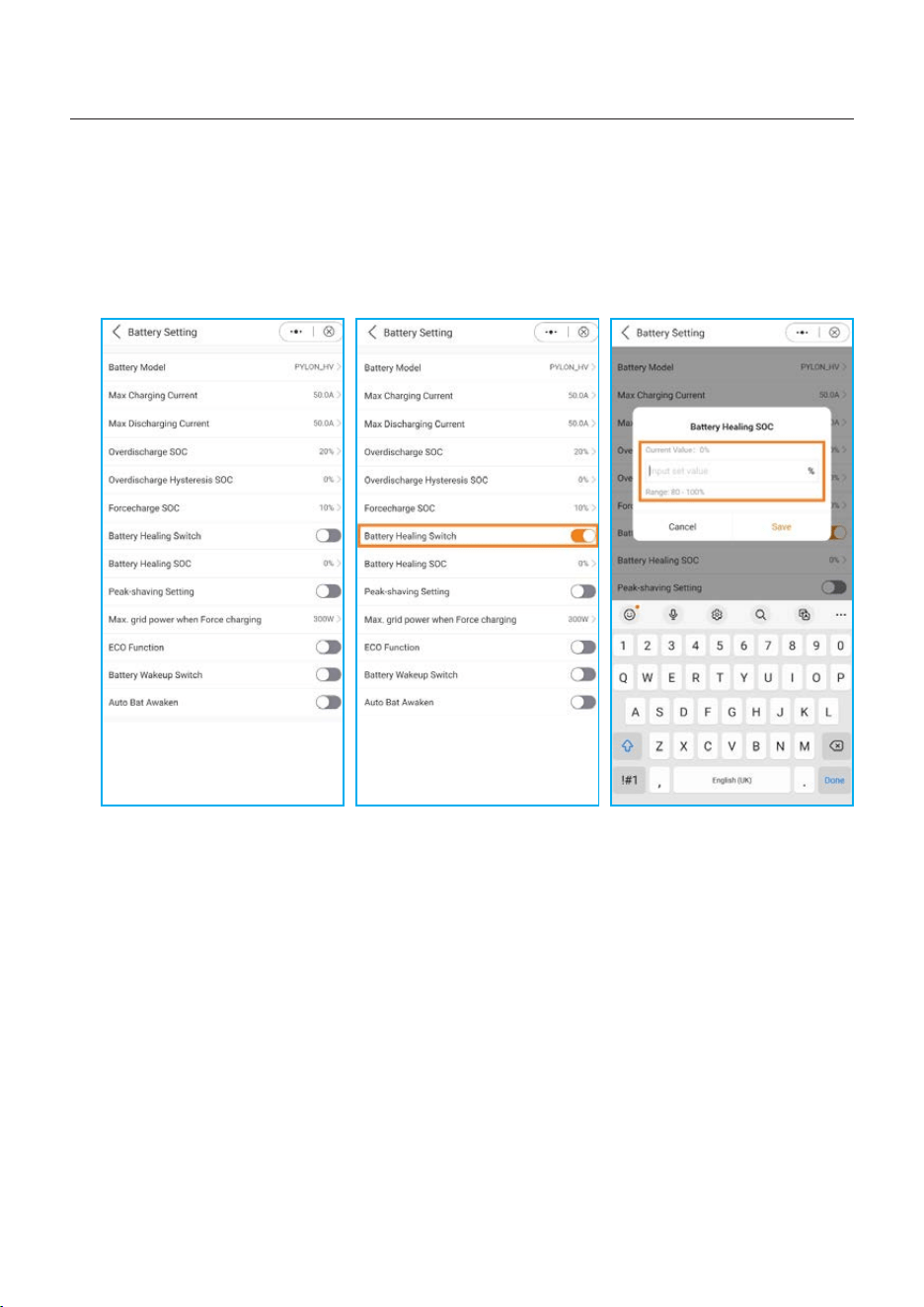
5.8 Battery Healing Switch
When the lithium battery maintains low power for a long time, the battery SOC measurement
is not accurate. Battery healing function will charge the battery from low power level to
battery healing SOC to ensure the healthy and stable operation of the battery.
5. Commissioning & Shutdown
User Manual
A Enable Battery Healing Switch
B Set Battery Healing SOC
46
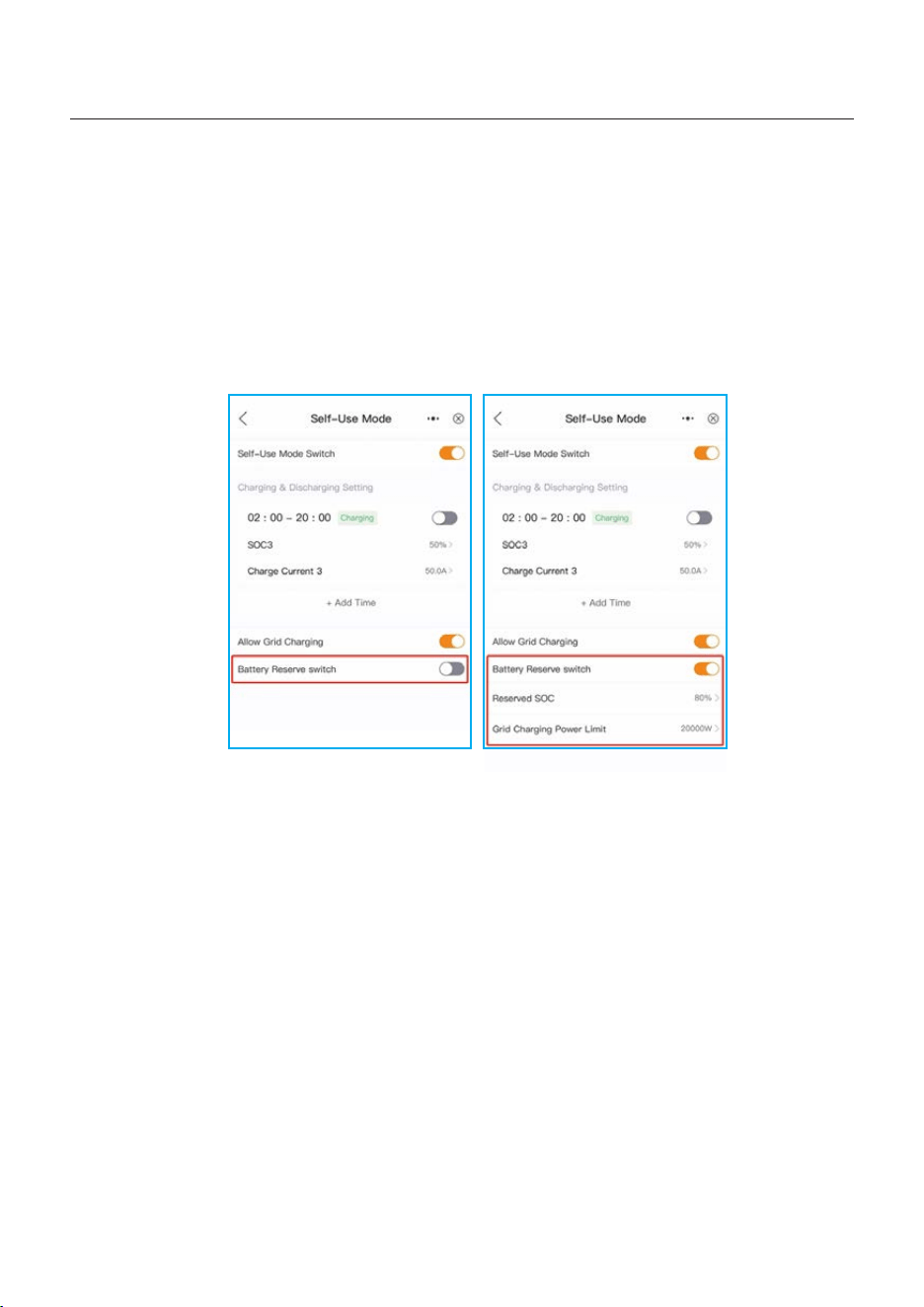
5.9 Battery Reserve Function Settings
This function applies to the area that has frequent power outages, to ensure that the
battery has enough energy to supply the loads when the grid is not available.
How to set Battery Reserve Function?
Supports Battery Reserve Function settings in self-use mode, feed in priority mode.
A Enable”Battery Reserve switch”.
B Set“Reserved SOC” value ,the system will charge the battery to “Reserved SOC”.
C Set “Grid Charging Power Limit” value, the charge power from grid will not exceed this
value.
5. Commissioning & Shutdown
User Manual
47
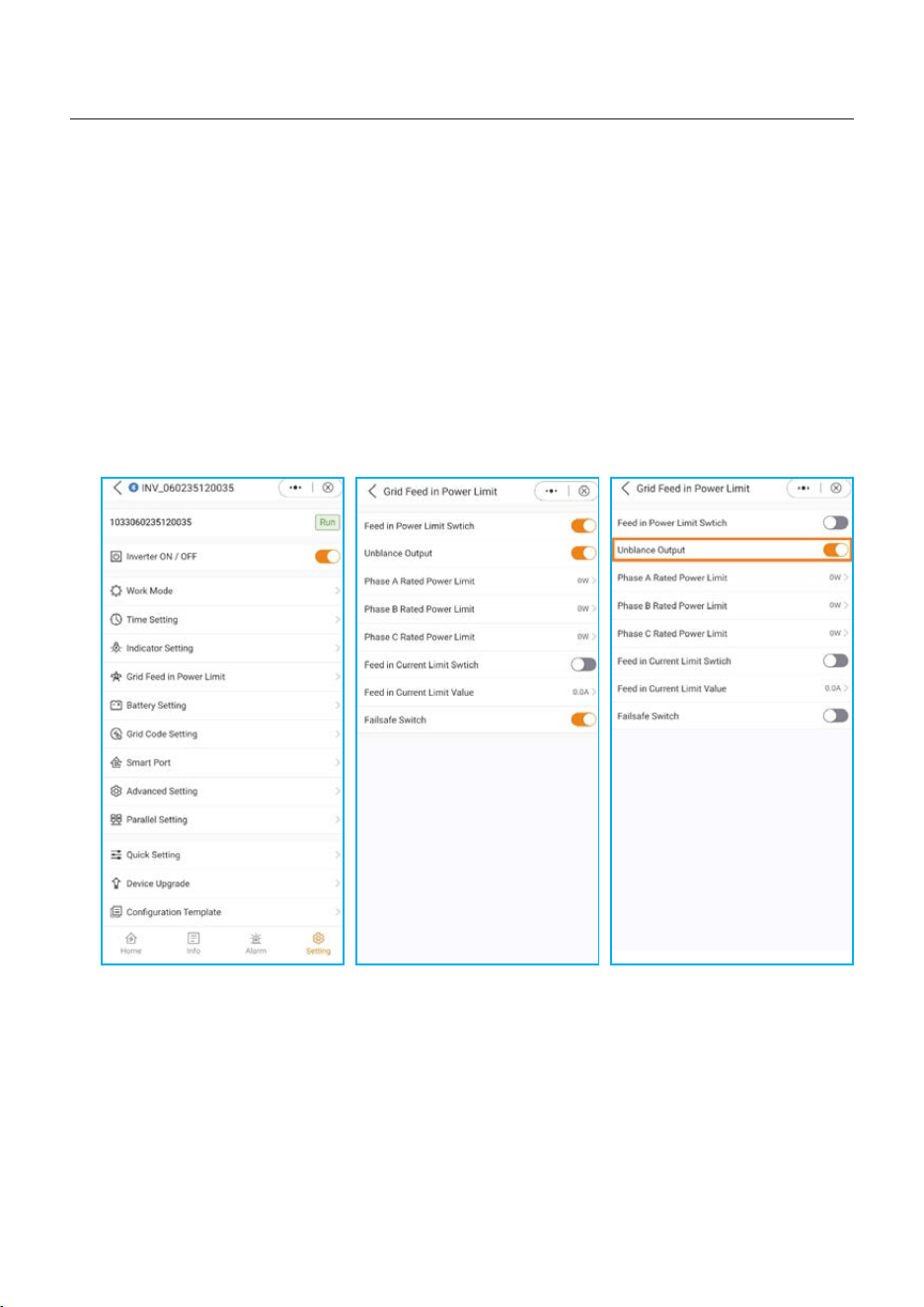
5.10 Feed in power limit function
This mode applies to the area that has export control.
5. Commissioning & Shutdown
User Manual
To restrict the export of power from the inverter, customers can utilize the internal EPM
(Export Power Limit) function. Through the app, users have the flexibility to easily adjust
various settings, enabling them to control the amount of power exported to the grid. This
feature provides a convenient way for users to manage and limit the exported power based
on their preferences and requirements.
General Settings view Grid Feed in Power Limit view Unbalanced Output
Grid Feed in Power Limit view: You have the flexibility to limit the feed-in of either power
or current.
Unbalanced Output: If this is set to "On," it will support different power feed-in power
limitation on each phase line.
If it's set to "Off," it will equalize on all three phases. (Feed in power only).
48
5. Commissioning & Shutdown
User Manual
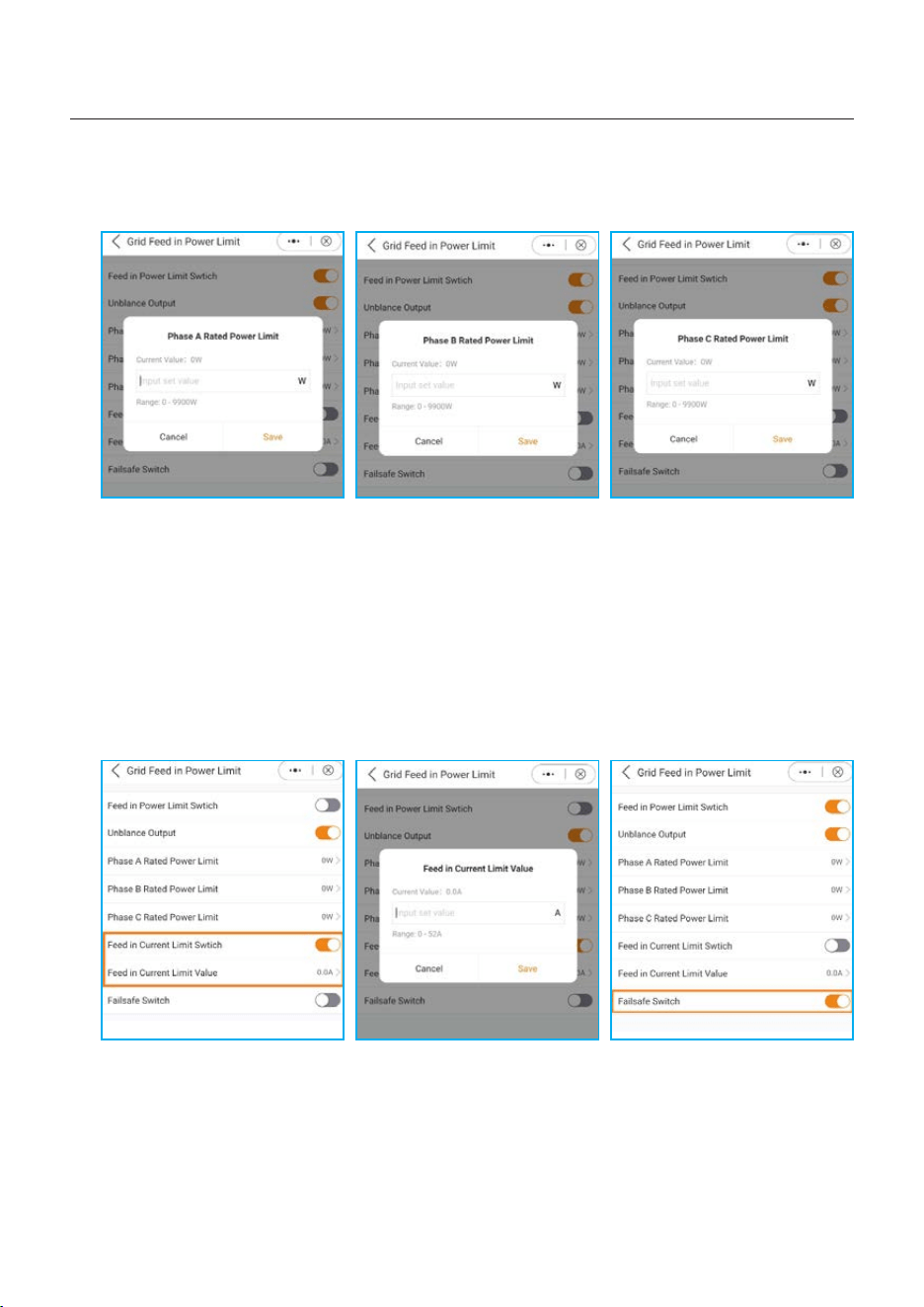
Once you activate the Feed in Power limit switch, you have the possibility to set the power
limit for each phase individually.
Phase A Phase B
Phase C
Feed in Current Limiting:
In addition to limiting the power, you have also the option to limit the current only.
Failsafe Switch:
When this setting is enabled, the inverter will discontinue power generation if it loses
communication with the external meter. In such instances, an alarm code will be displayed
on the screen, and if a logger is installed, the information will be logged on SolisCloud.
Enabling the failsafe ensures that no power is exported to the grid, providing an additional
layer of control and safety in case of communication interruptions.
Feed in Current Limit settings
Feed in Current Limit Value
Failsafe Switch
49
5. Commissioning & Shutdown
User Manual
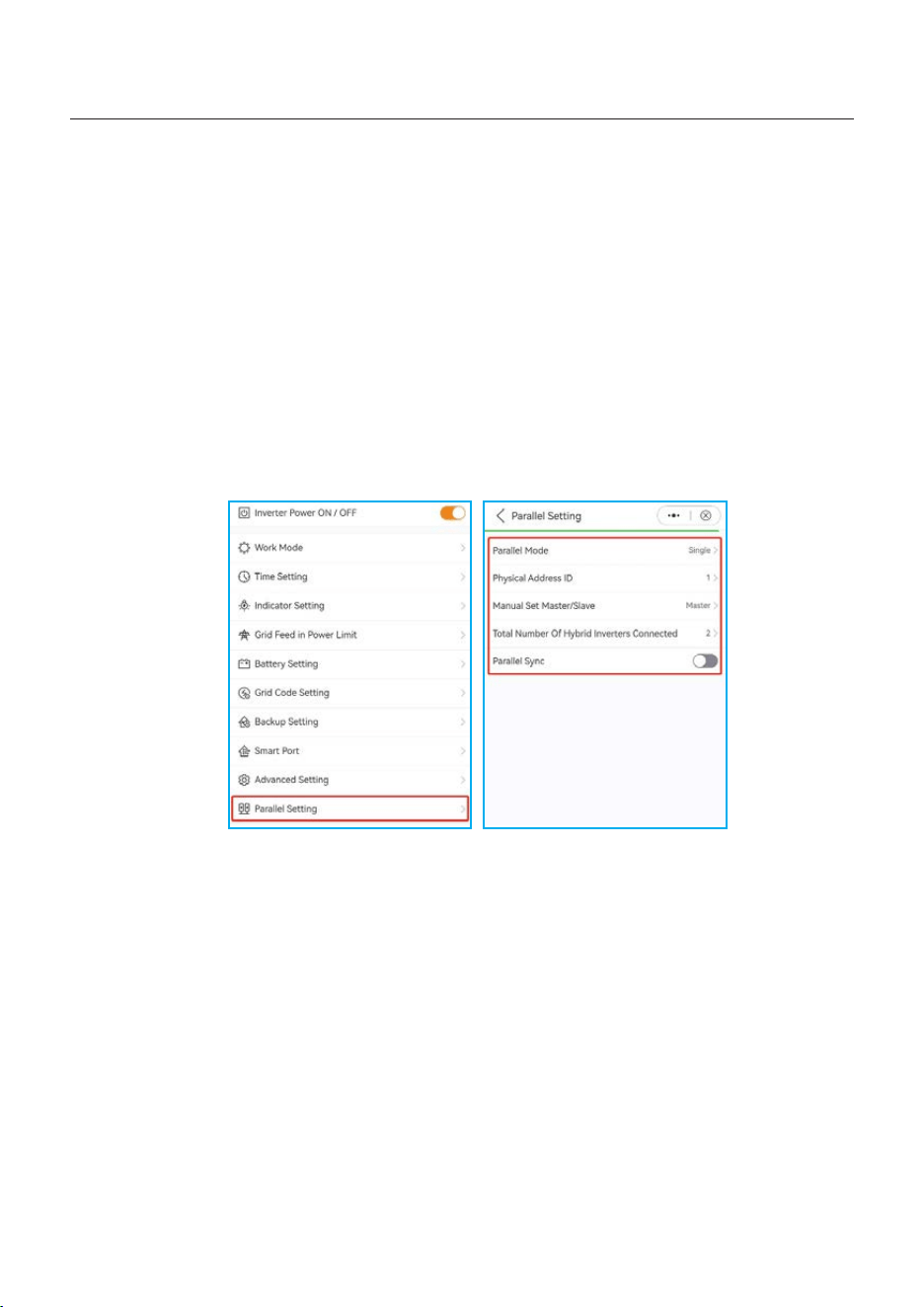
5.11 Parallel Settings
Set up a parallel system according to the following steps:
A. Set the parallel mode as “Parallel”.
B. Set the master inverter address ID to 1, the other slaves to 2~6.
(Note: the address ID cannot be set to 0, and the physical address of the master must be 1 )
C. Choose “master” or “slave” for each inverter.
D. Choose the number of inverters in parallel, the range is 2~6.
E. Enable “Parallel Sync” , parameters of the main inverter will be synchronized to the slaves.
F. DIP Switch:
Option 1: Both the first and the last inverter(INV1 & INV3) have 1 of the DIP switch enabled.
(Either Pin1 & Pin2)
Option 2: One of the first and the last inverter (INV1 or INV3) has 2 DIP switches enabled.
(Both Pin1 or Pin2)
50
5. Commissioning & Shutdown
User Manual
5.12 Smart port settings
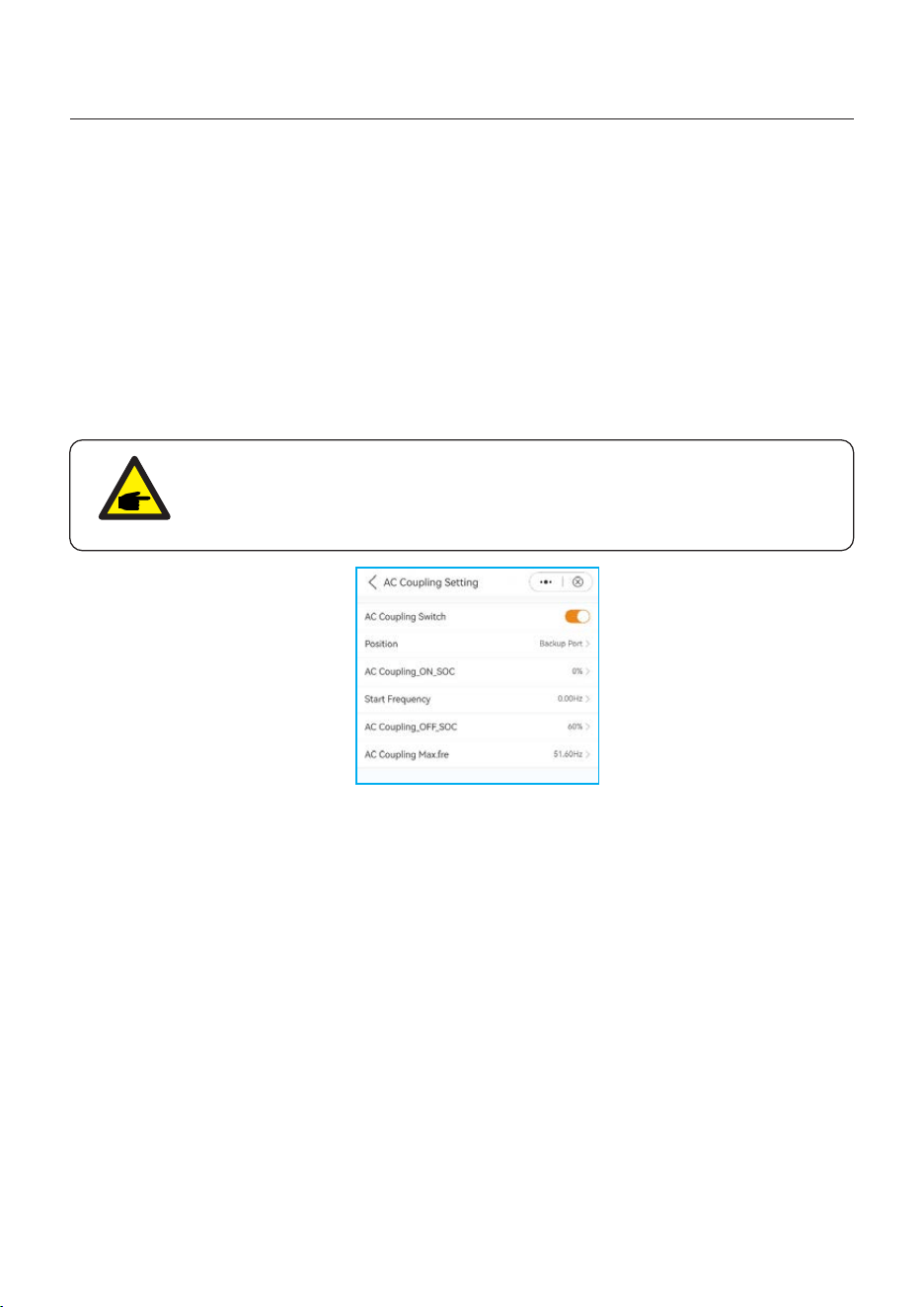
A. Enable the ”AC Coupling Switch”.
B. Choose the actual position of grid-tied inverter , “Backup port”or “Generator port”.
C. Set “AC Coupling_ON_SOC” , the range is “0%~100%”, when the battery SOC drops to
the set value, the grid-tied inverter start output.
D. Set “Start Frequency ”, the default value is local standard frequency.
E. Set “AC Coupling_OFF_SOC” , the range is “0%~100%”, when the battery SOC reaches
the set value, the system will restrict the output power of grid-tied inverter to 0.
F. Set “AC Coupling Max.fre” , the default value is the local standard over_frequency ±0.1HZ,
which does not need to be changed.
5.12.1 AC Coupling setting
NOTE:
Step C ~Step F are only effective in pure off- grid without generator scenario.
51
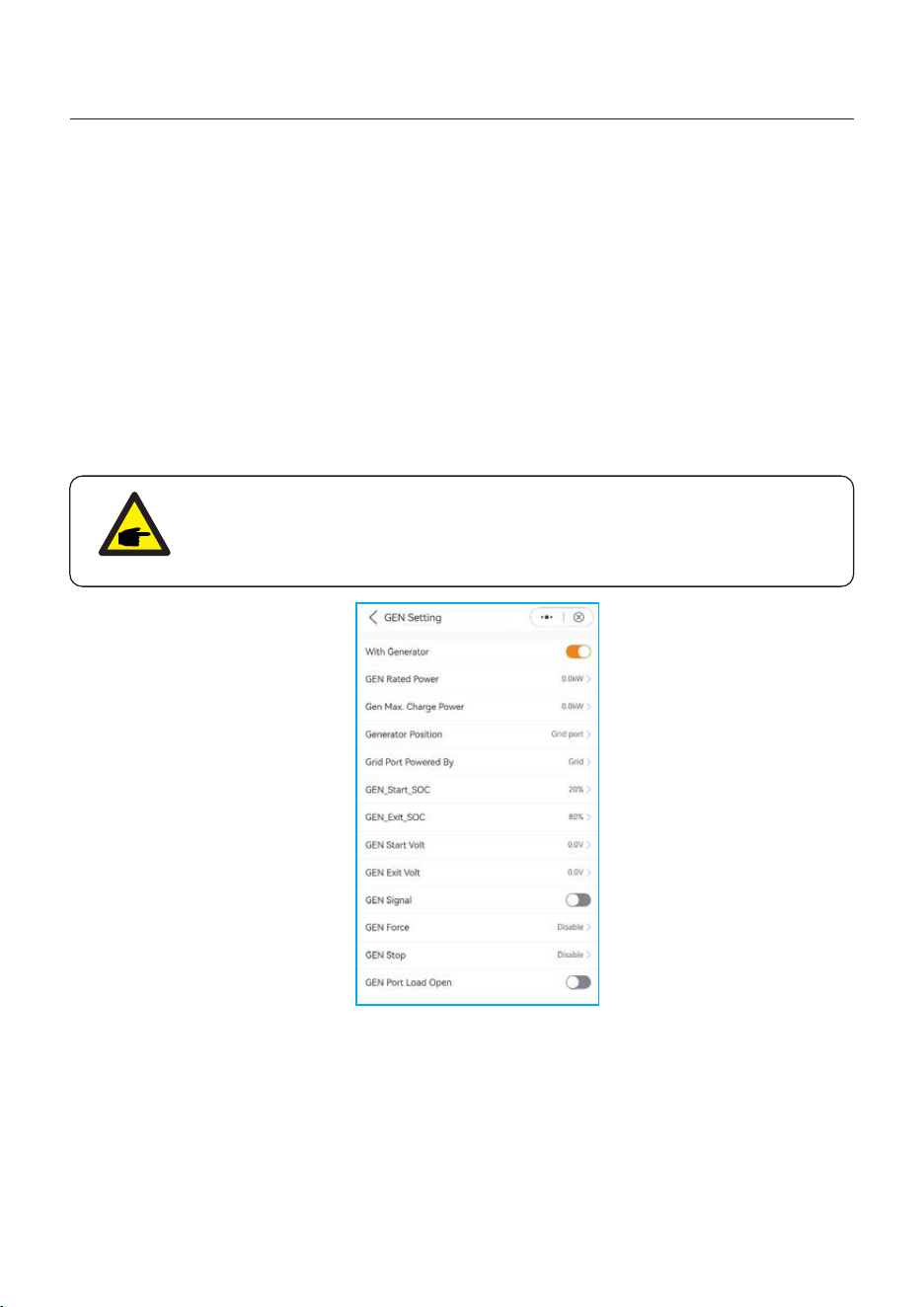
A. Enable ”With Generator”.
B. Set “GEN Rated power”.
C. Set “GEN max charge power ”.
D. Select the actual position of generator, “Grid port”or “Generator port”.
E. Set “GEN_Start_SOC”and “GEN_Exit_SOC”for lithium battery. (“GEN_Start_Volt”and
“GEN_Exit_Volt” for lead-acid battery )
F. Enable“Gen signal”the generator is controlled by the inverter to start and stop, do not
enable this option, the start and stop of generator will require manual operation.
G. Enable“Gen Force”means remote forced start of generator.
H. Enable“Gen Stop”means remote forced stop of generator.
5.12.2 Generator setting
NOTE:
For remote control of the generator, it is necessary to correctly connect the
control signal cable, and the generator needs to support the control logic of
the inverter.
5. Commissioning & Shutdown
User Manual
52
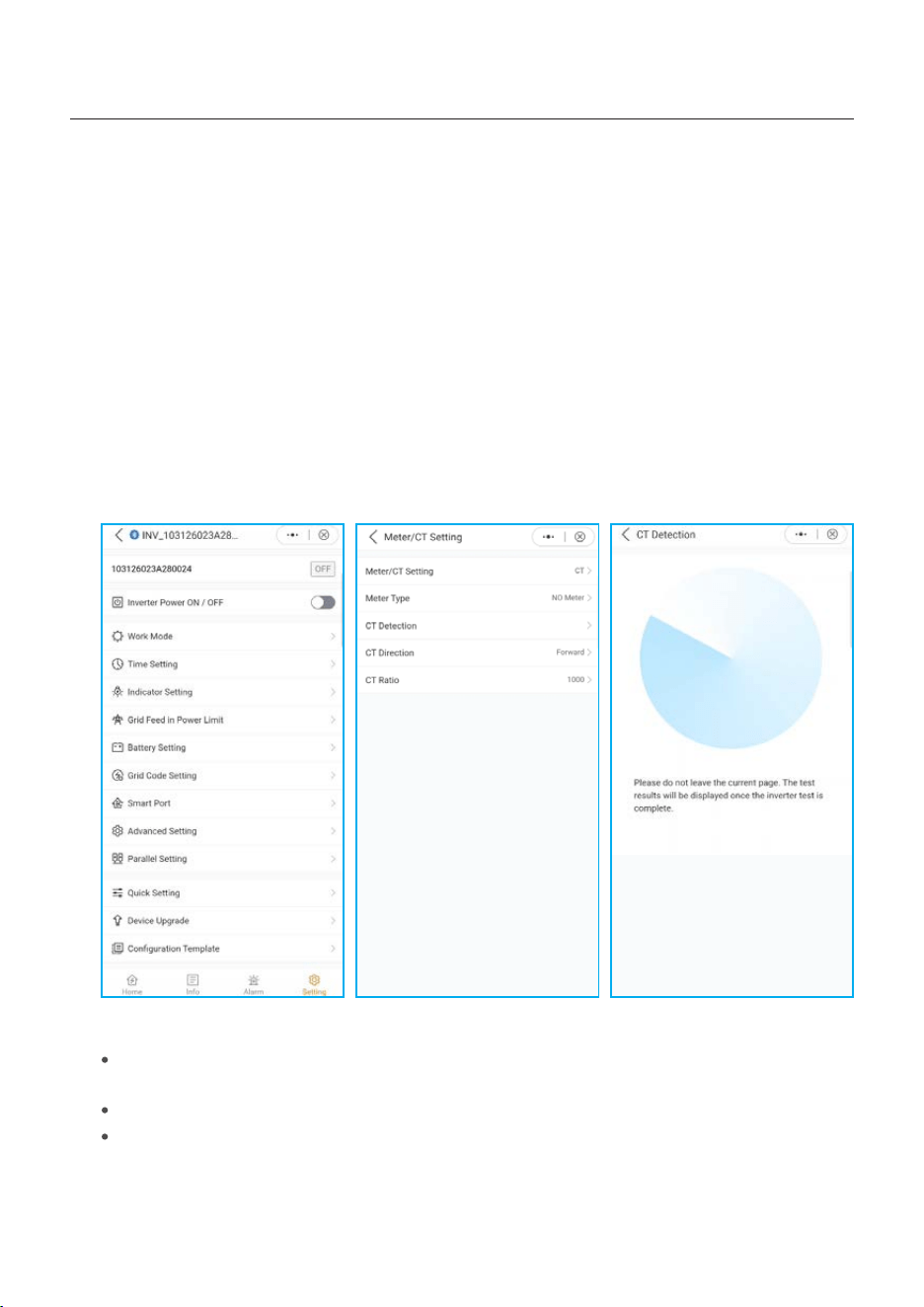
5.13 CT Detection function
5. Commissioning & Shutdown
User Manual
Before the customers operate CT detection function, they should make sure the pre-
condition is ready for the detection
1. No PV connected with inverter, you can choose disconnect all DC wire or turn off the
DC switch of the machine.
2. No load, No load connected with inverter or all load connected with inverter have been
offline.
3. You can connect the battery with inverter, but the power of discharging to grid or charging
by grid MUST less than or equal to 3KW.
4. The inverter is running with grid without any fault.
5. You should install the meter on the grid side.
6. According to the CT installation situation on site, the default direction for it is toward
power grid, if you put it on reversed direction. Just choose the configuration parameter:
backward on the APP interface.
The results of CT Detection function:
Unable Check (The onsite condition does not meet the CT detection conditions, you should
check the above condition)
CT Normal (CT detection is normal)
CT Fault (CT detection is abnormal, you should check CT itself or other things)
53
5.14 Only PV power load function
5. Commissioning & Shutdown
User Manual
1. Function Definition
For PV generation is not stable, the default setting of S6 energy storage machine don’t
support only PV power the load.
But for meeting the some customers’ special requirements, we develop the Only PV Power
Load function, when the PV power > the load power, you can use this function.
Because the PV power is not stable and the load is also not always stable, it is possible to
happen that PV power < load power, when it occurred, the load will shut down and after 3
minutes, the inverter tries to restart the load for the first time, after 5 minutes, the second
time, and after 10 minutes, the third time. If the third attempt to restart the load is still not
successful, the inverter will not try to restart, and it needs to be manually reset and restarted.
NOTE:
1. Only PV Power Load function is closed by default. If you need to use it,
you need to open it by yourself.
2. Software: Ensure that the current DSP and HMI software is the latest
version, ensure that the version is the following version and higher version:
S6-EH3P (5-10)K-H: DSP:V02B70 , ARM: V0E-02
S6-EH3P (12-20)K-H: The official software has not been released yet.
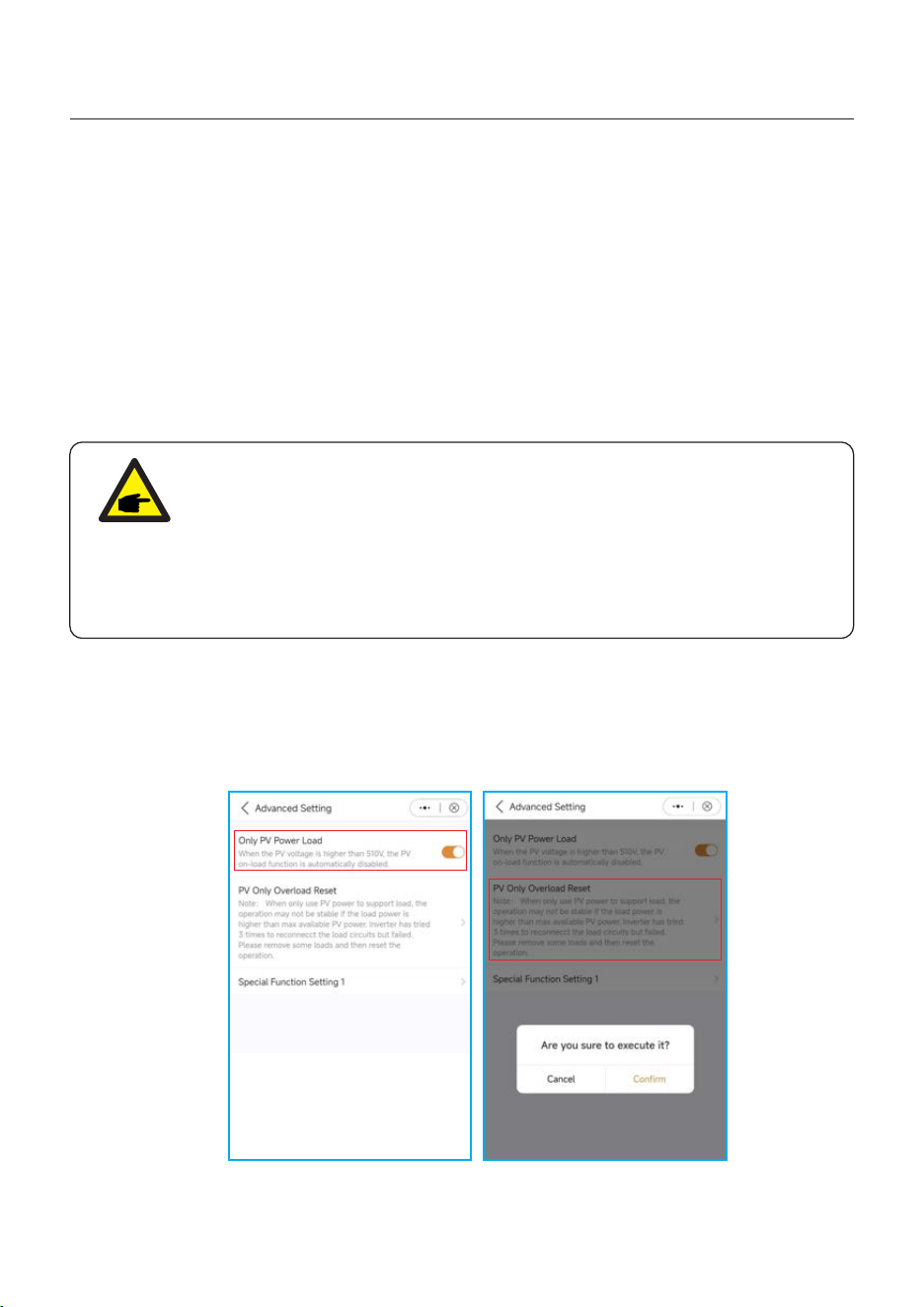
2. Solis APP Setting
1. Open your Solis APP, and go to the Setting->Advanced Setting->Only PV power Load
2. Manually reset the switch after the load is turned off: APP-> Settings -> Advanced Settings
-> PV Only Overload Reset
54
6. Maintenance
User Manual
NOTE:
Never use any solvents, abrasives or corrosive materials to clean the
inverter.
CAUTION:
Do not touch the surface when the inverter is operating. Some parts may be
hot and cause burns. Turn OFF the inverter and let it cool down before you
do any maintenance or cleaning of inverter.
Solis S6 Series inverter does not require any regular maintenance. However, cleaning the
heatsink will help inverter dissipating heat and increase the lifetime of inverter. The dirt on the
inverter can be cleaned with a soft brush.
The Intelligent LCD indicators can be cleaned with cloth if they are too dirty.
55
7. Troubleshooting
User Manual
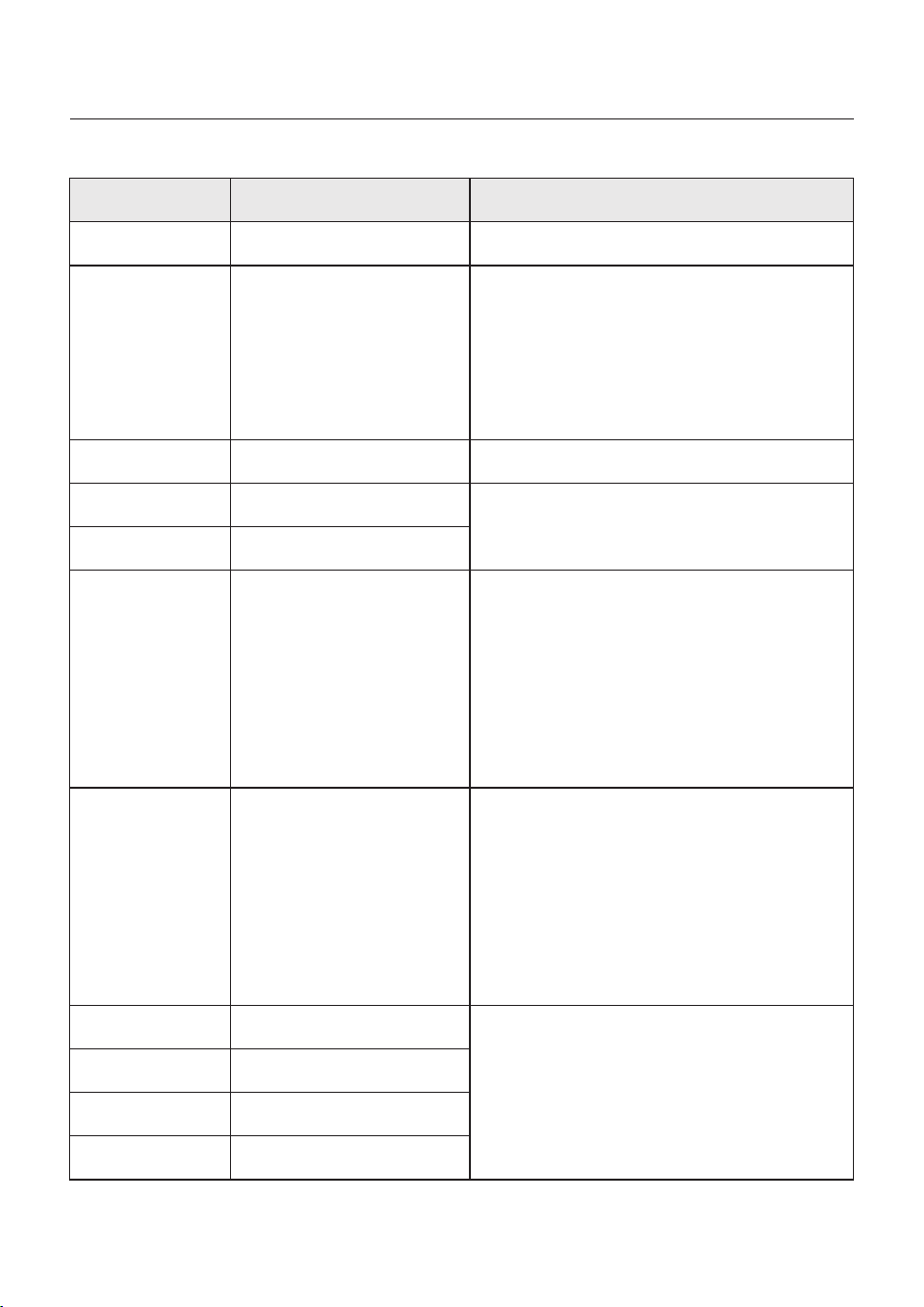
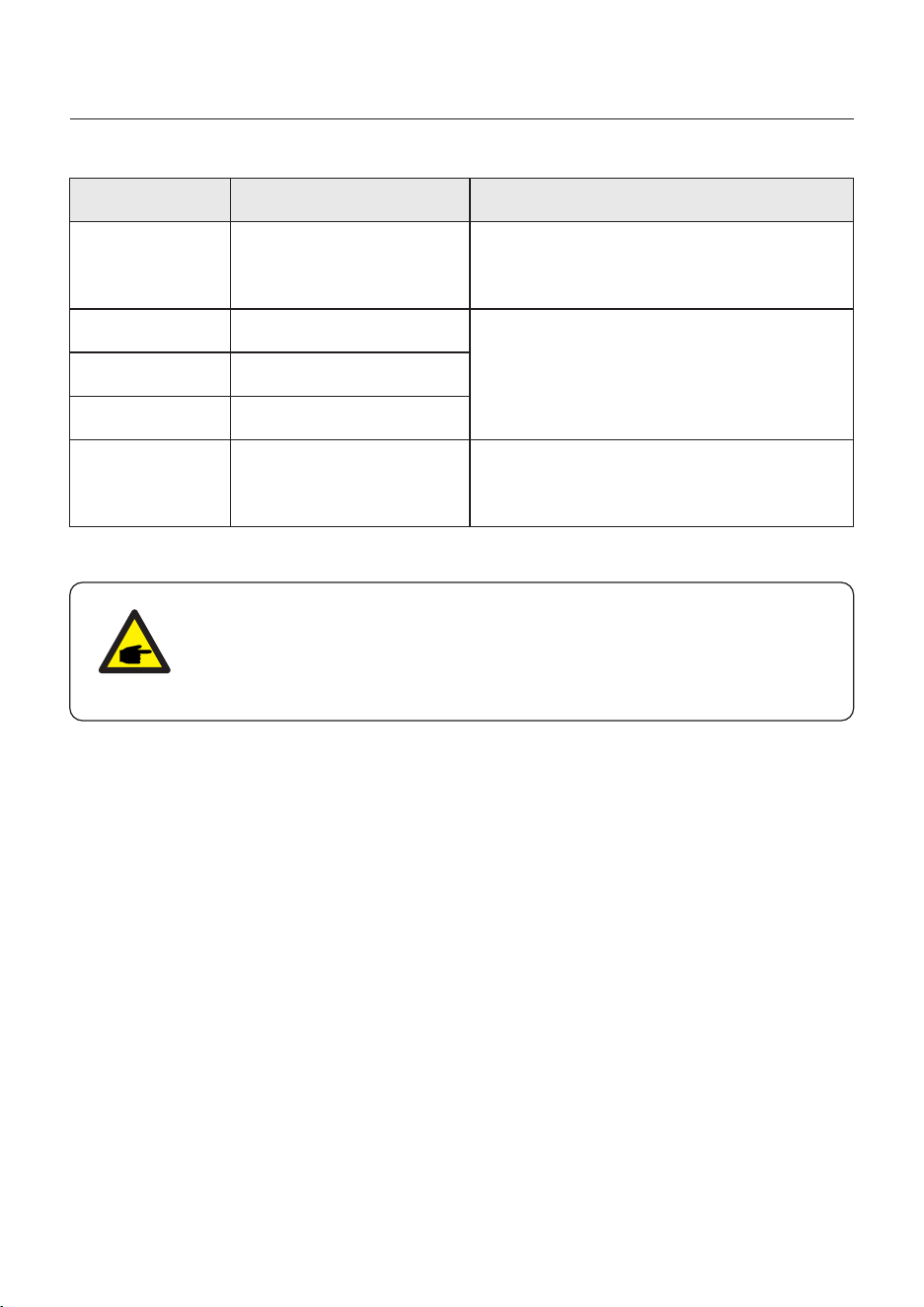
Message Name
Information Description
Troubleshooting Suggestion
1. Confirm whether the inverter is connected
to an external EPM/meter to prevent
reverse current.
2. Confirm whether the inverter is controlled
by an external third-party device.
3. Confirm whether the power setting of the
inverter power control is limited.
4. Verify settings in section 6.6.7 and check
your meter readings.
1. No need to deal with it.
1. No need to deal with it, the device is in
normal operation.
1. Due to the requirements of local safety
regulations, when the grid voltage is high,
the Volt-watt working mode is triggered,
which generally does not need to be dealt with.
2. This mode is enabled by default.
1. Due to the requirements of local safety
regulations, when the grid voltage is high,
the Volt-watt working mode is triggered,
which generally does not need to be dealt with.
2. This mode is enabled by default.
LmtByEPM
LmtByDRM
LmtByTemp
LmtByFreq
LmtByVg
LmtByVar
The device's output is under
controlled
DRM Function ON
Over temperature power
limited
Frequency power limited
The device is in the
Volt-Watt mode
The device is in the Volt-Var
mode of operation
Off Control device to shutdown
1. Turn on the device in the ON/OFF Setting.
LmtByUnFr
Under frequency limit
Standby
Bypass run
StandbySynoch
Off grid status to On grid
status
1. No need to deal with it.
GridToLoad Grid to load
56
7. Troubleshooting
User Manual
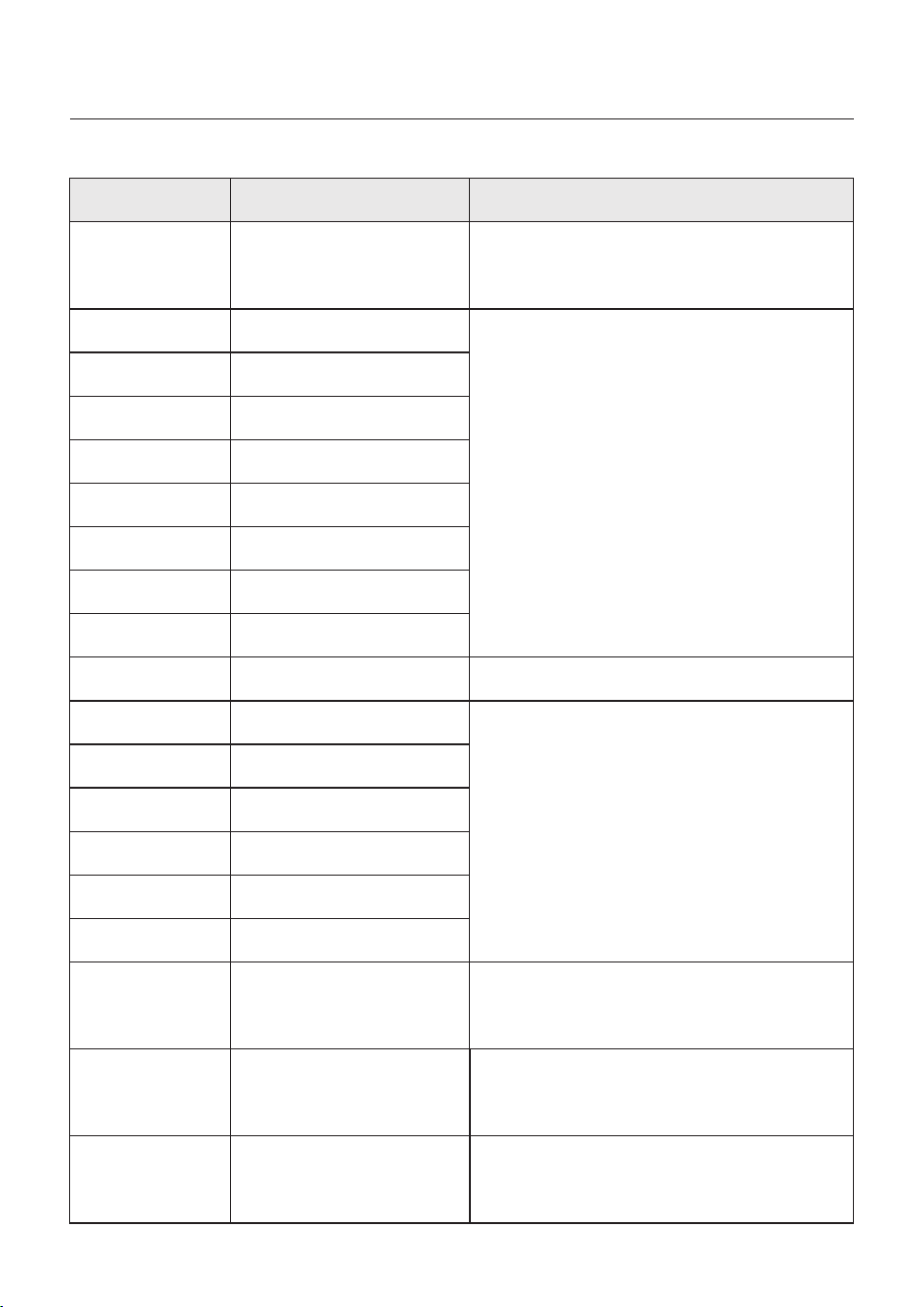
OV-G-F01
UN-G-F01
G-PHASE
G-F-GLU
NO-Grid
OV-G-V02
OV-G-V03
IGFO L-F
OV-G-V05
OV-G-V04
UN-G-V02
OV-G-F02
UN-G-F02
NO-Battery
Grid frequency exceeds the
upper frequency range
Grid frequency exceeds the
lower frequency range
Unbalanced grid voltage
Grid voltage frequency
fluctuation
Grid transient overvoltage
Grid transient overvoltage
Grid current tracking failure
Grid voltage RMS instanta-
neous overvoltage fault
Grid voltage exceeds the
upper voltage range
Grid voltage exceeds the
lower voltage range
Grid frequency exceeds the
upper frequency range
Grid frequency exceeds the
lower frequency range
Battery is not connected
UN-G-V01
Grid voltage exceeds the
lower voltage range
OV-G-V01
Grid voltage exceeds the
upper voltage range
Surge Alarm On-site grid surge
1. Grid side fault, restart the device.
If it is still not eliminated, please contact the
manufacturer's customer service.
1. Confirm whether the power grid is abnormal.
2. Confirm that the AC cable is properly
connected.
3. Restart the system and check if the fault
persists.
1. Restart the system, confirm if that the fault
continues.
1. Check on information page 1 – Verify the
battery voltage is within standards.
2. Measure battery voltage at plug.
No grid
1. Confirm whether the power grid is abnormal.
2. Confirm that the AC cable is properly
connected.
3. Restart the system and check if the fault
persists.
Message Name
Information Description
Troubleshooting Suggestion
OV-Vbackup
Over-Load
Inverting overvoltage
Load overload fault
1. Check whether the backup port wiring is
normal
2. Restart the system, confirm that the fault
continues.
1. Backup load power is too large, or some
inductive load startup power is too large,
need to remove some backup load, or remove
the inductive load on the backup.
57

7. Troubleshooting
User Manual
Message Name
Information Description
Troubleshooting Suggestion
BatName-FAIL
OV-Vbatt
UN-Vbatt
Fan Alarm
OV-DC01
(1020 DATA:0001)
OV-DC02
(1020 DATA:0002)
OV-BU S
(1021 DATA:0000)
UN-BUS01
(1023 DATA:0001)
UNB-BUS
(1022 DATA:0000)
UN-BUS02
(1023 DATA:0002)
DC-INTF.
(1027 DATA:0000)
OV-G-I
(1018 DATA:0000)
OV-DC A-I
(1025 DATA:0000)
OV-DC B-I
(1026 DATA:0000)
GRID-IN T F.
(1030 DATA:0000)
Wrong battery brand selection
Battery undervoltage detected
Fan alarm
DC 1 input overvoltage
DC 2 input overvoltage
DC bus overvoltage
DC bus undervoltage
DC bus unbalanced voltage
Abnormal detection of
DC bus voltage
DC hardware overcurrent
(1, 2, 3, 4)
A phase RMS value
overcurrent
DC 1 average overcurrent
DC 2 average overcurrent
AC hardware overcurrent
(abc phase)
Battery overvoltage detected
1. Confirm whether the battery model selection
is consistent with the actual one.
1. Restart the system and check if the fault
persists. If it is still not eliminated, please
contact the manufacturer's customer service.
1. Check if the internal fan is working correctly
or jammed.
1. Check if the PV voltage is abnormal
2. Restart the system, confirm that the fault
continues
1. Restart the system, confirm that the fault
continues.
1. Check if the DC wires are connected correctly
without loose connection.
1. Confirm that the grid is abnormal.
2. Confirm that the AC cable connection is not
abnormal.
3. Restart the system, confirm that the fault
continues.
1. Restart the system, confirm that the fault
continues.
1. Verify battery voltage is within standards.
Measure battery voltage at inverter connection
point. Contact your battery manufacturer for
further service.
CAN Fail CAN Fail
1. Can failure is a failure of communication
between inverter and battery. Check cable
conditions. Check to ensure you have it
plugged in on the CAN port of the battery and
inverter. Check that you are using the right
cable. Some batteries require a special
battery from the battery manufacturer.
58
Message Name
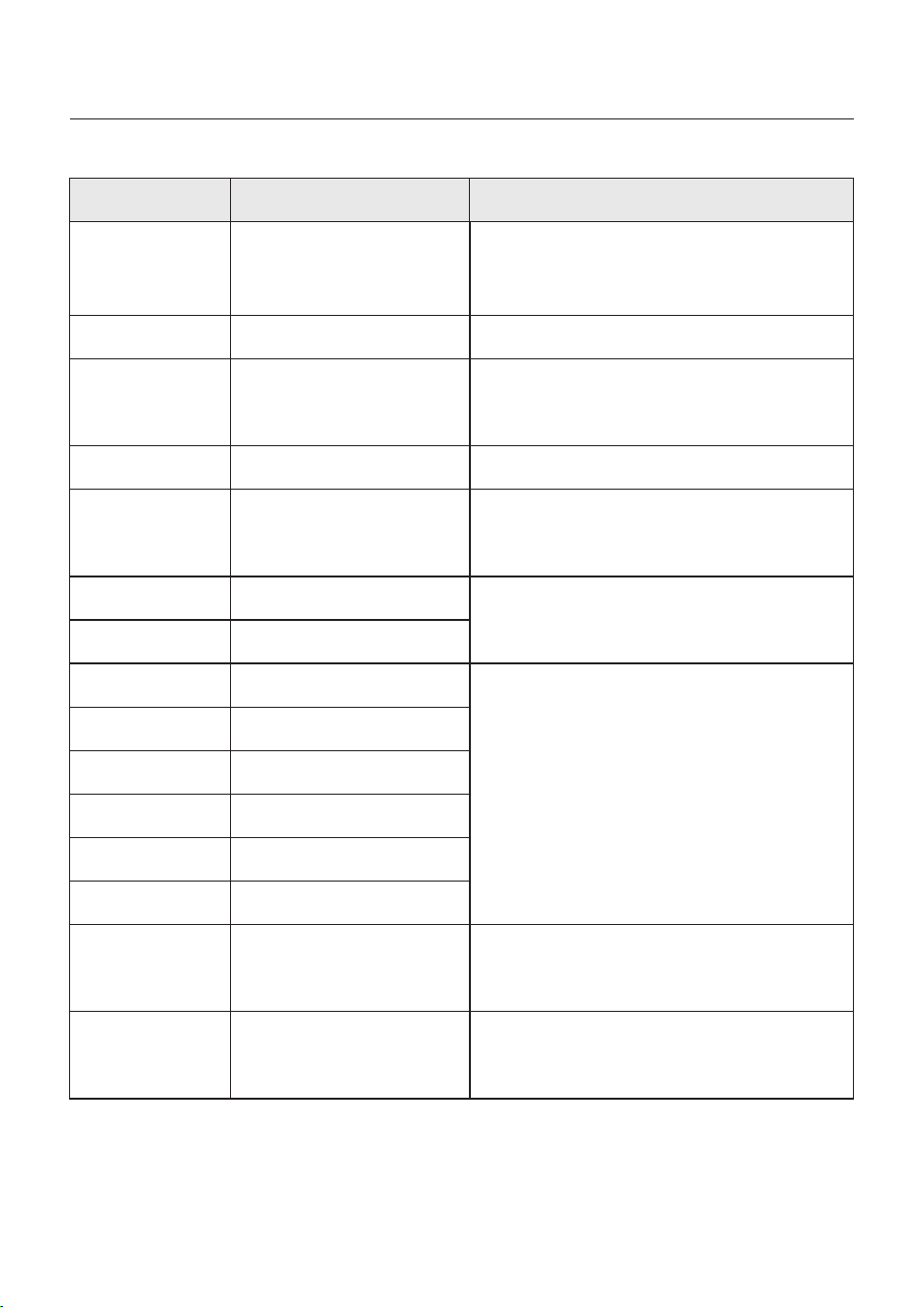
Information Description
Troubleshooting Suggestion
1. Confirm that the grid is abnormal.
2. Confirm that the AC cable connection is not
abnormal.
3. Restart the system, confirm that the fault
continues.
DCInj-FAU LT
(1037 DATA:0000)
The current DC component
exceeds the limit
IGBT-OV-I
(1048 DATA:0000)
OV-TE M
(1032 DATA:0000)
UN-TEM
(103A D ATA:0000)
PV I S O-PRO01
(1033 DATA:0001)
PV I S O-PRO02
(1033 DATA:0002)
12Power-FAULT
(1038 DATA:0000)
ILeak-PRO01
(1034 DATA:0001)
ILeak-PRO02
(1034 DATA:0002)
ILeak-PRO03
(1034 DATA:0003)
ILeak-PRO04
(1034 DATA:0004)
ILeak_Check
(1039 DATA:0000)
GRID-IN T F02
(1046 DATA:0000)
OV-Vbatt-H/
OV-BU S-H
(1051 DATA:0000)
IGBT overcurrent
Module over temperature
Low temperature protection
PV negative ground fault
PV positive ground fault
12V undervoltage failure
Leakage current failure 01
(30mA)
Leakage current failure 02
(60mA)
Leakage current failure 03
(150mA)
Leakage current failure 04
Leakage current sensor
failure
Power grid disturbance 02
Battery overvoltage hardware
failure / VBUS
1. Restart the system, confirm that the fault
continues.
1. Check whether the surrounding environment
of the inverter has poor heat dissipation.
2. Confirm whether the product installation
meets the requirements.
RelayChk-FAIL
(1035 DATA:0000)
Relay failure
1. Restart the system, confirm that the fault
continues.
1. Check the working environment temperature
of the inverter.
2. Restart the system to confirm if the fault
continues.
1. Check whether the PV strings have insulation
problems.
2. Check whether the PV cable is damaged.
1. Check current leakage to ground.
Verify your grounding.
Verify all wires are in good condition and not
leaking current to ground.
1. Confirm whether the grid is seriously distorted.
2. Check whether the AC cable is connected
reliably.
1. Check if the battery circuit breaker is tripping.
2. Check if the battery is damaged.
7. Troubleshooting
User Manual
OV-IL L C
(1052 DATA:0000)
LLC hardware overcurrent
1. Check whether the backup load is overloaded.
2. Restart the system, confirm that the fault
continues.
DSP-B-FAULT
(1036 DATA:0000)
AFCI-Check
(1040 DATA:0000)
ARC- FAULT
(1041 DATA:0000)
The master-slave DSP
communication is abnormal
AFCI self-test failure
AFCI failure
INI-FAULT
(1031 DATA:0000)
AD zero drift overlink
1. Restart the system, confirm that the fault
continues.
1. Verify connections are tight within your PV
system. Arc fault settings can be changed in
advanced settings if further adjustment is
necessary.
Table 7.1 Fault message and description
Message Name
Information Description
Troubleshooting Suggestion
NOTE:
If the inverter displays any alarm message as listed in Table 7.1; please
turn off the inverter and wait for 5 minutes before restarting it .
If the failure persists, please contact your local distributor or the service
center.
1. Serial number of Solis three phase inverter;
2. The distributor/dealer of Solis three phase inverter (if available);
3. Installation date.
4. The description of the problem together with necessary information, pictures,
attachment.
5. The PV array configuration (e.g. number of panels, capacity of panels, number of
strings, etc.);
6. Battery details (brand, model, capacity, data connection, etc.).
7. Your contact details.
Please keep ready with you the following information before contacting us.
7. Troubleshooting
User Manual
60
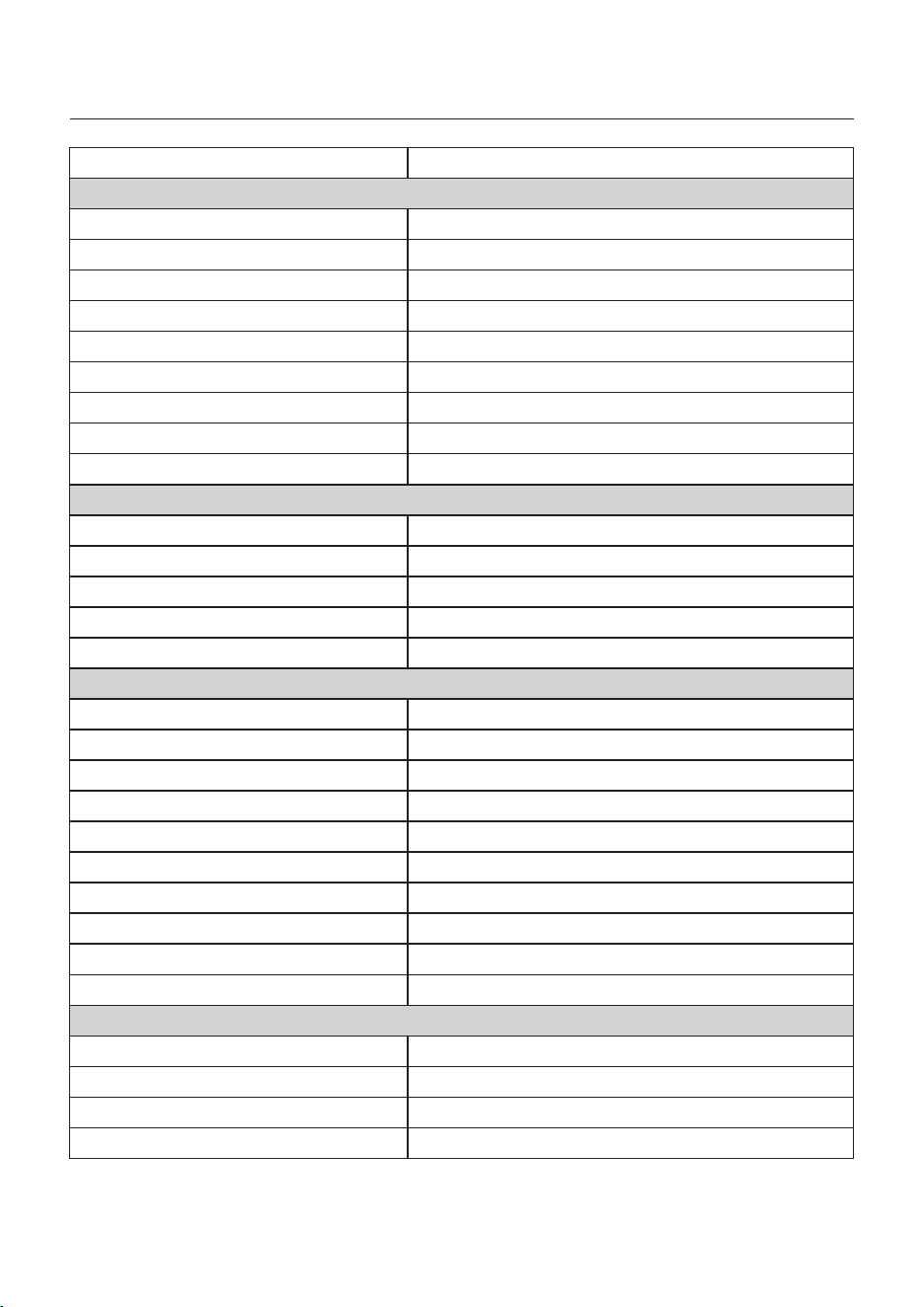
Max. input voltage
Start-up voltage
MPPT voltage range
MPPT number/Max input strings number
Max. input current
Battery Voltage range
Maximum charging Power
Rated output power
Max. apparent output power
Rated grid voltage
The grid voltage range
AC grid frequency range
Rating grid frequency
Power factor
TH Di
Max Usable PV Input Power
Maximum Charge/discharge current
Communication
Technical Data
S6-EH3P12K-H
19200W
160V
200-850V
4/4
4*20A
12kW
50A
CAN/RS485
12kW
3/N/PE, 380V/400V
320-460V
45-55 Hz/ 55-65Hz
50 Hz/60 Hz
>0.99 ( 0.8 leading to 0.8 lagging)
1000V
Battery Type
Li-ion
12kVA
Input DC (PV side)
Rated voltage
600V
Full load MPPT voltage range
Max. short circuit current 4*30A
Battery
Output AC(Grid-side)
Rating grid output current
Max. output current
18.2A/17.3A
<3%
300-850V
120 - 800Vdc
8. Specifications
User Manual
18.2A/17.3A
Max. input power
18kW
Rated input current
27.3A/26.0A
Input AC(Grid-side)
Rated input frequency
Rated input voltage
3/N/PE, 380V/400V
50 Hz/60 Hz
61
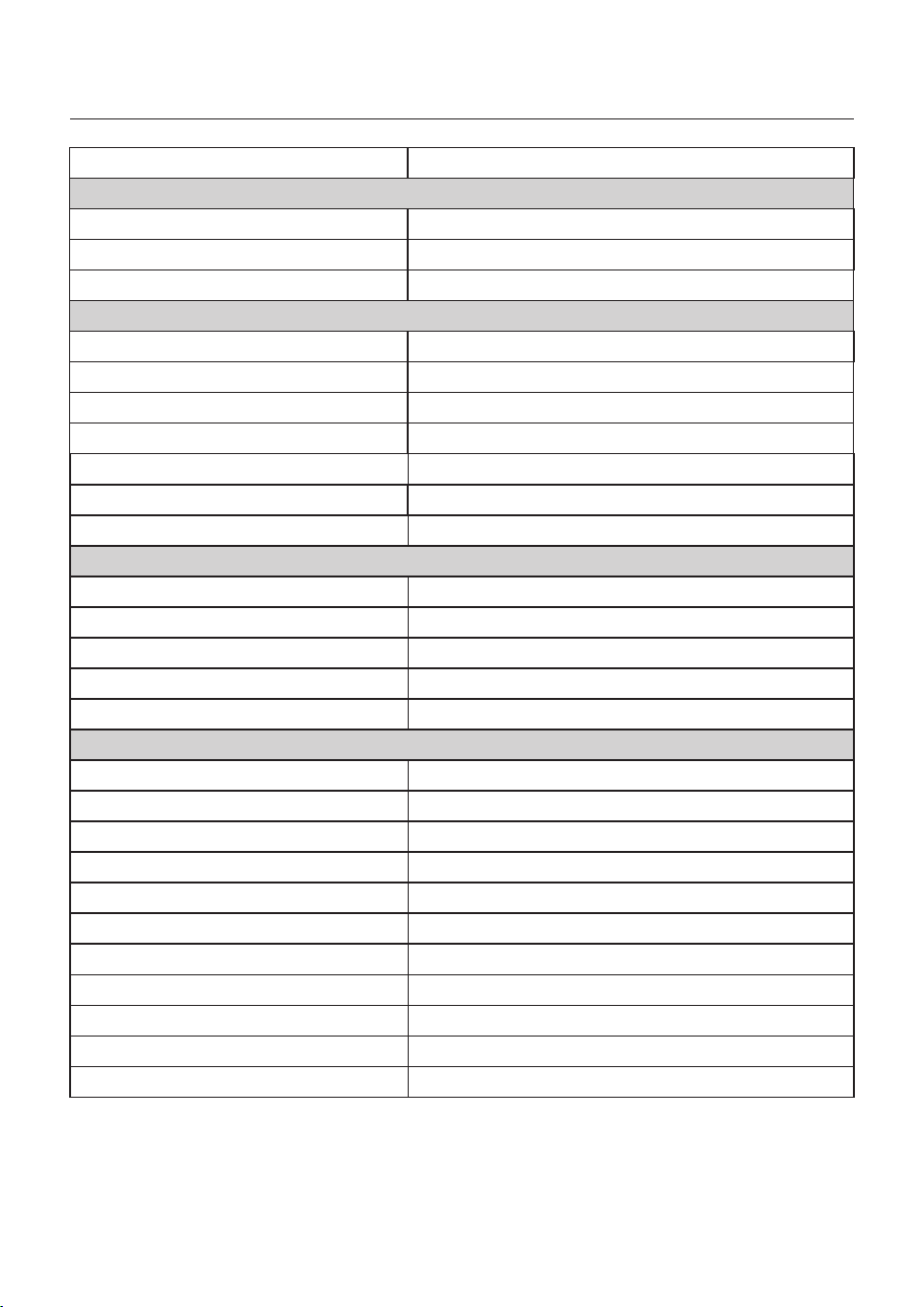
Rated output power
12kW
Peak apparent output power
2 time of rated power, 10 S
Output AC(Back-up)
Max. efficiency
BAT charged by PV Max. efficiency
EU efficiency
BAT charged/discharged to AC Max. efficiency
MPPT efficiency
97.7%
98.5%
97.5%
97.2%
99.9%
THDv(@linear load)
<3%
Efficiency
Protection
Anti-islanding protection
Insulation resistance monitoring
Residual current detection
Output over voltage protection
Short circuit protection
Integrated AFCI 2.0
Integrated DC switch
DC reverse polarity protection
PV overvoltage protection
Battery reverse protection
Yes
Rated output current
Rated frequency
50 Hz/60 Hz
Rated output voltage
Back-up switch time
3/N/PE, 380V/400V
< 10ms
Yes
Yes
Yes
Yes
Yes
Optional
Yes
Yes
Yes
Max. input power
12kW
Rated input current
18.2A/17.3A
Input Generator
Rated input frequency
50 Hz/60 Hz
Technical Data
Yes
8. Specifications
User Manual
S6-EH3P12K-H
18.2A/17.3A
Output over current protection
62
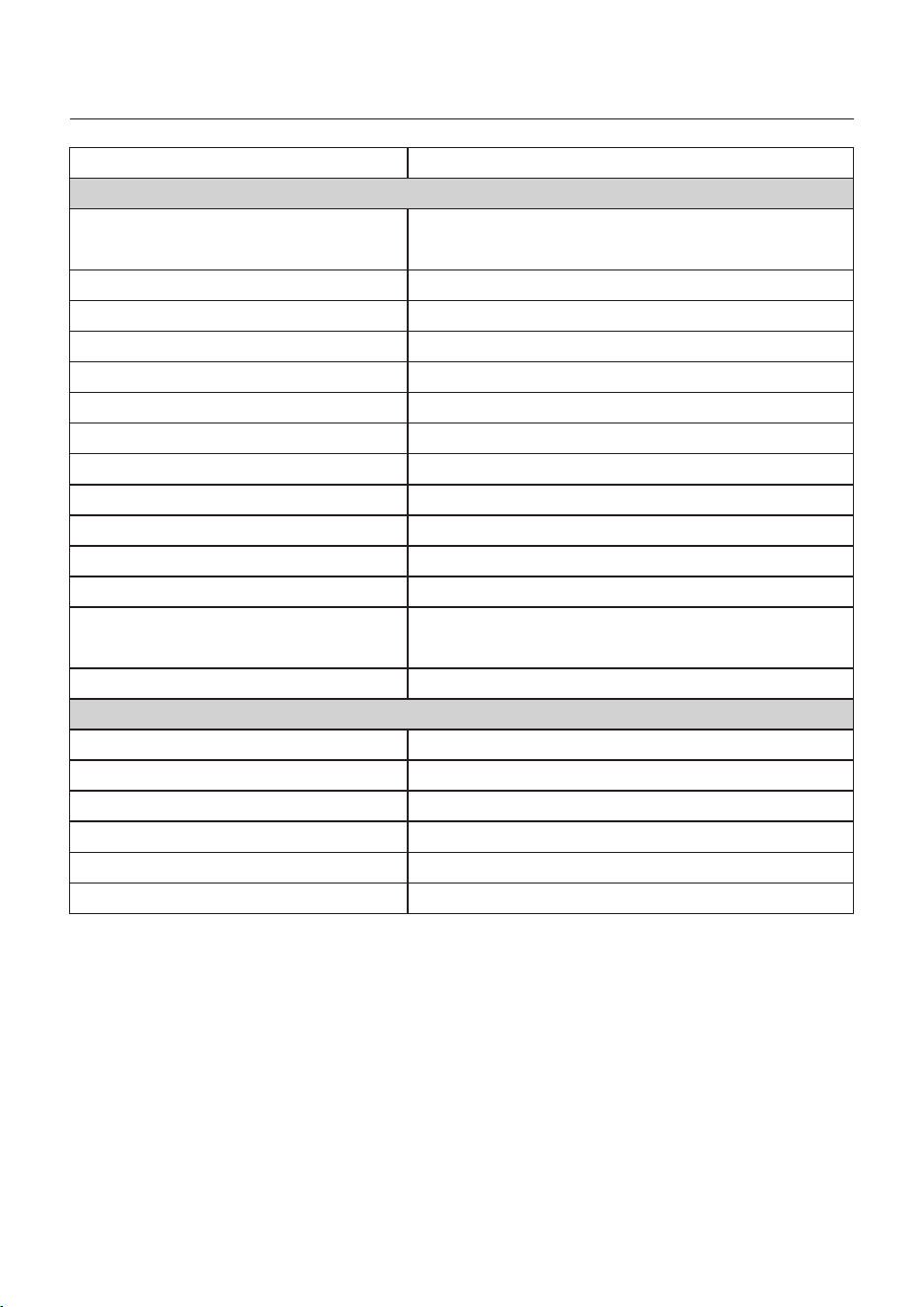
Features
AC connection
Battery connnection
Communication
Warranty
Display
Grid connection standard
EN 50549-1, VDE4105 CE I 0-21, CEI 0-16,
NC-RFG TypeB, NRS 097-2-1 ED 2.1
Safety/EMC standard
IE C/EN 62109-1/-2, IEC/EN 61000-6-1/-3, IEC 61000-2
2000m
100%
50% rated power
Max.operation altitude
Max. allowable phase imbalance
(grid & back up)
Max. power per phase (grid & back up)
PV connection
Dimensions(W/H/D)
-25℃~+60℃
Weight
Operation temperature range
Relative humidity
0-95%
General data
Transformerless
<25 W
Topology
Self consumption (Night)
Smart cooling
Cooling concept
Ingress protection
Technical Data
563*546*250mm
35.2kg
IP66
8. Specifications
User Manual
Noise emission
<65 dB(A)
S6-EH3P12K-H
OT terminal
OT terminal
LC D + Bluetooth + APP
MC4 connector
5 years (extendable to 20 years)
CA N, RS485, Ethernet, optional:Wi-Fi, Cellular, LAN
63
Max. input voltage
Start-up voltage
MPPT voltage range
MPPT number/Max input strings number
Max. input current
Battery Voltage range
Maximum charging Power
Rated output power
Max. apparent output power
Rated grid voltage
The grid voltage range
AC grid frequency range
Rating grid frequency
Power factor
TH Di
Max Usable PV Input Power
Maximum Charge/discharge current
Communication
Technical Data
160V
200-850V
4/4
50A
CAN/RS485
3/N/PE, 380V/400V
320-460V
45-55 Hz/ 55-65Hz
50 Hz/60 Hz
>0.99 ( 0.8 leading to 0.8 lagging)
1000V
Battery Type
Li-ion
S6-EH3P15K-H
24000W
Input DC (PV side)
Rated voltage
600V
Full load MPPT voltage range
Max. short circuit current
Battery
Output AC(Grid-side)
15kW
15kW
15kVA
Rating grid output current
Max. output current
22.8A/21.7A
<3%
120 - 800Vdc
8. Specifications
User Manual
22.8A/21.7A
Max. input power
22.5kW
Rated input current
Input AC(Grid-side)
Rated input frequency
Rated input voltage
3/N/PE, 380V/400V
50 Hz/60 Hz
34.2A/32.5A
4*20A
4*30A
300-850V
64
Rated output power
15kW
Peak apparent output power
2 time of rated power, 10 S
Output AC(Back-up)
Max. efficiency
BAT charged by PV Max. efficiency
EU efficiency
BAT charged/discharged to AC Max. efficiency
MPPT efficiency
97.7%
98.5%
97.5%
97.2%
99.9%
THDv(@linear load)
<3%
Efficiency
Protection
Anti-islanding protection
Insulation resistance monitoring
Residual current detection
Output over voltage protection
Short circuit protection
Yes
Rated output current
Rated frequency
50 Hz/60 Hz
Rated output voltage
Back-up switch time
3/N/PE, 380V/400V
< 10ms
Yes
Yes
Yes
Yes
Yes
Max. input power
15kW
Rated input current
Input Generator
Rated input frequency
50 Hz/60 Hz
Technical Data
8. Specifications
User Manual
S6-EH3P15K-H
22.8A/21.7A
22.8A/21.7A
Output over current protection
Integrated AFCI 2.0
Integrated DC switch
DC reverse polarity protection
PV overvoltage protection
Battery reverse protection
Optional
Yes
Yes
Yes
Yes
65
General data
Technical Data
8. Specifications
User Manual
S6-EH3P15K-H
66
Features
AC connection
Battery connnection
Communication
Warranty
Display
Grid connection standard
EN 50549-1, VDE4105 CE I 0-21, CEI 0-16,
NC-RFG TypeB, NRS 097-2-1 ED 2.1
Safety/EMC standard
IE C/EN 62109-1/-2, IEC/EN 61000-6-1/-3, IEC 61000-2
2000m
100%
50% rated power
Max.operation altitude
Max. allowable phase imbalance
(grid & back up)
Max. power per phase (grid & back up)
PV connection
Dimensions(W/H/D)
-25℃~+60℃
Weight
Operation temperature range
Relative humidity
0-95%
Transformerless
<25 W
Topology
Self consumption (Night)
Smart cooling
Cooling concept
Ingress protection
35.2kg
IP66
Noise emission
<65 dB(A)
OT terminal
OT terminal
LC D + Bluetooth + APP
MC4 connector
5 years (extendable to 20 years)
CA N, RS485, Ethernet, optional:Wi-Fi, Cellular, LAN
563*546*250mm
Max. input voltage
Start-up voltage
MPPT voltage range
MPPT number/Max input strings number
Max. input current
Battery Voltage range
Maximum charging Power
Rated output power
Max. apparent output power
Rated grid voltage
The grid voltage range
AC grid frequency range
Rating grid frequency
Power factor
TH Di
Maximum Charge/discharge current
Communication
Technical Data
S6-EH3P20K-H
32000W
160V
200-850V
4/4
50A
CAN/RS485
3/N/PE, 380V/400V
320-460V
45-55 Hz/ 55-65Hz
50 Hz/60 Hz
>0.99 ( 0.8 leading to 0.8 lagging)
1000V
Battery Type
Li-ion
Input DC (PV side)
Rated voltage
600V
Full load MPPT voltage range
Max. short circuit current
Battery
Output AC(Grid-side)
20kW
20kW
20kVA
Rating grid output current
Max. output current
30.4A/28.9A
<3%
120 - 800Vdc
8. Specifications
User Manual
67
Max. input power
30kW
Rated input current
Input AC(Grid-side)
Rated input frequency
Rated input voltage
3/N/PE, 380V/400V
50 Hz/60 Hz
45.6A/43.3A
30.4A/28.9A
Max Usable PV Input Power
4*20A
4*30A
300-850V
Rated output power
20kW
Peak apparent output power
Output AC(Back-up)
THDv(@linear load)
<3%
Rated output current
Rated frequency
50 Hz/60 Hz
Rated output voltage
Back-up switch time
3/N/PE, 380V/400V
< 10ms
Max. input power
20kW
Rated input current
Input Generator
Rated input frequency
50 Hz/60 Hz
Technical Data
8. Specifications
User Manual
68
30.4A/28.9A
30.4A/28.9A
S6-EH3P20K-H
1.6 time of rated power, 10 S
Max. efficiency
BAT charged by PV Max. efficiency
EU efficiency
BAT charged/discharged to AC Max. efficiency
MPPT efficiency
97.7%
98.5%
97.5%
97.2%
99.9%
Efficiency
Protection
Anti-islanding protection
Insulation resistance monitoring
Residual current detection
Output over voltage protection
Short circuit protection
Yes
Yes
Yes
Yes
Yes
Yes
Output over current protection
Integrated AFCI 2.0
Integrated DC switch
DC reverse polarity protection
PV overvoltage protection
Battery reverse protection
Optional
Yes
Yes
Yes
Yes
General data
Technical Data
8. Specifications
User Manual
S6-EH3P20K-H
69
Features
AC connection
Battery connnection
Communication
Warranty
Display
Grid connection standard
EN 50549-1, VDE4105 CE I 0-21, CEI 0-16,
NC-RFG TypeB, NRS 097-2-1 ED 2.1
Safety/EMC standard
IE C/EN 62109-1/-2, IEC/EN 61000-6-1/-3, IEC 61000-2
2000m
100%
40% rated power
Max.operation altitude
Max. allowable phase imbalance
(grid & back up)
Max. power per phase (grid & back up)
PV connection
Dimensions(W/H/D)
-25℃~+60℃
Weight
Operation temperature range
Relative humidity
0-95%
Transformerless
<25 W
Topology
Self consumption (Night)
Smart cooling
Cooling concept
Ingress protection
35.2kg
IP66
Noise emission
<65 dB(A)
OT terminal
OT terminal
LC D + Bluetooth + APP
MC4 connector
5 years (extendable to 20 years)
CA N, RS485, Ethernet, optional:Wi-Fi, Cellular, LAN
563*546*250mm
Max. input voltage
Start-up voltage
MPPT voltage range
MPPT number/Max input strings number
Max. input current
Battery Voltage range
Maximum charging Power
Rated output power
Max. apparent output power
Rated grid voltage
The grid voltage range
AC grid frequency range
Rating grid frequency
Power factor
TH Di
Max Usable PV Input Power
Maximum Charge/discharge current
Communication
Technical Data
S6-EH3P8K-LV-H
12800W
160V
200-850V
4/4
8kW
50A
CAN/RS485
8kW
3/N/PE, 230V
195-265V
45-55 Hz/ 55-65Hz
50 Hz/60 Hz
>0.99 ( 0.8 leading to 0.8 lagging)
1000V
Battery Type
Li-ion
8kVA
Input DC (PV side)
Rated voltage
600V
Full load MPPT voltage range
Max. short circuit current
Battery
Output AC(Grid-side)
Rating grid output current
Max. output current
20.1A
<3%
120 - 800Vdc
8. Specifications
User Manual
70
20.1A
Max. input power
12kW
Rated input current
30.1A
Input AC(Grid-side)
Rated input frequency
Rated input voltage
3/N/PE, 230V
50 Hz/60 Hz
4*16A
4*24A
300-850V
Rated output power
8kW
Peak apparent output power
2 time of rated power, 10 S
Output AC(Back-up)
Max. efficiency
BAT charged by PV Max. efficiency
EU efficiency
BAT charged/discharged to AC Max. efficiency
MPPT efficiency
97.7%
98.5%
97.5%
97.2%
99.9%
THDv(@linear load)
<2%
Efficiency
Protection
Anti-islanding protection
Insulation resistance monitoring
Residual current detection
Output over voltage protection
Short circuit protection
Yes
Rated output current
Rated frequency
50 Hz/60 Hz
Rated output voltage
Back-up switch time
3/N/PE, 230V
< 10ms
Yes
Yes
Yes
Yes
Yes
Technical Data
8. Specifications
User Manual
71
20.1A
Output over current protection
S6-EH3P8K-LV-H
Integrated AFCI 2.0
Integrated DC switch
DC reverse polarity protection
PV overvoltage protection
Battery reverse protection
Optional
Yes
Yes
Yes
Yes
Max. input power
8kW
Rated input current
Input Generator
Rated input frequency
50 Hz/60 Hz
20.1A
Features
AC connection
Battery connnection
Communication
Warranty
Display
Grid connection standard
VD E4105, REN342, EN5049, C10/11
Safety/EMC standard
IE C/EN 62109-1/-2, IEC/EN 61000-6-1/-3
2000m
Max.operation altitude
PV connection
Dimensions(W/H/D)
-25℃~+60℃
Weight
Operation temperature range
Relative humidity
0-95%
General data
Transformerless
<25 W
Topology
Self consumption (Night)
Smart cooling
Cooling concept
Ingress protection
Technical Data
35.2kg
IP66
8. Specifications
User Manual
72
Noise emission
<65 dB(A)
Latched type plug
Latched type plug
LC D + Bluetooth + APP
MC4 connector
5 years (extendable to 20 years)
CA N, RS485, Ethernet, optional:Wi-Fi, Cellular, LAN
S6-EH3P8K-LV-H
100%
50% rated power
Max. allowable phase imbalance
(grid & back up)
Max. power per phase (grid & back up)
563*546*250mm
Max. input voltage
Start-up voltage
MPPT voltage range
MPPT number/Max input strings number
Max. input current
Battery Voltage range
Maximum charging Power
Rated output power
Max. apparent output power
Rated grid voltage
The grid voltage range
AC grid frequency range
Rating grid frequency
Power factor
TH Di
Max Usable PV Input Power
Maximum Charge/discharge current
Communication
Technical Data
S6-EH3P10K-LV-H
16000W
160V
200-850V
4/4
10kW
50A
CAN/RS485
10kW
3/N/PE, 230V
195-265V
45-55 Hz/ 55-65Hz
50 Hz/60 Hz
>0.99 ( 0.8 leading to 0.8 lagging)
1000V
Battery Type
Li-ion
10kVA
Input DC (PV side)
Rated voltage
600V
Full load MPPT voltage range
Max. short circuit current
Battery
Output AC(Grid-side)
Rating grid output current
Max. output current
25.1A
<3%
120 - 800Vdc
8. Specifications
User Manual
73
25.1A
Max. input power
15kW
Rated input current
37.7A
Input AC(Grid-side)
Rated input frequency
Rated input voltage
3/N/PE, 230V
50 Hz/60 Hz
4*16A
4*24A
300-850V
Rated output power
10kW
Peak apparent output power
2 time of rated power, 10 S
Output AC(Back-up)
Max. efficiency
BAT charged by PV Max. efficiency
EU efficiency
BAT charged/discharged to AC Max. efficiency
MPPT efficiency
THDv(@linear load)
<2%
Efficiency
Protection
Anti-islanding protection
Insulation resistance monitoring
Residual current detection
Output over voltage protection
Short circuit protection
Yes
Rated output current
Rated frequency
50 Hz/60 Hz
Rated output voltage
Back-up switch time
3/N/PE, 230V
< 10ms
Yes
Yes
Yes
Yes
Yes
Technical Data
8. Specifications
User Manual
74
25.1A
Output over current protection
S6-EH3P10K-LV-H
Integrated AFCI 2.0
Integrated DC switch
DC reverse polarity protection
PV overvoltage protection
Battery reverse protection
Optional
Yes
Yes
Yes
Yes
Max. input power
10kW
Rated input current
Input Generator
Rated input frequency
50 Hz/60 Hz
25.1A
97.7%
98.5%
97.5%
97.2%
99.9%
General data
Technical Data
8. Specifications
User Manual
75
S6-EH3P10K-LV-H
Features
AC connection
Battery connnection
Communication
Warranty
Display
Grid connection standard
VD E4105, REN342, EN5049, C10/11
Safety/EMC standard
IE C/EN 62109-1/-2, IEC/EN 61000-6-1/-3
2000m
Max.operation altitude
PV connection
Dimensions(W/H/D)
-25℃~+60℃
Weight
Operation temperature range
Relative humidity
0-95%
Transformerless
<25 W
Topology
Self consumption (Night)
Smart cooling
Cooling concept
Ingress protection
35.2kg
IP66
Noise emission
<65 dB(A)
Latched type plug
Latched type plug
LC D + Bluetooth + APP
MC4 connector
5 years (extendable to 20 years)
CA N, RS485, Ethernet, optional:Wi-Fi, Cellular, LAN
100%
50% rated power
Max. allowable phase imbalance
(grid & back up)
Max. power per phase (grid & back up)
563*546*250mm
Max. input voltage
Start-up voltage
MPPT voltage range
MPPT number/Max input strings number
Max. input current
Battery Voltage range
Maximum charging Power
Rated output power
Max. apparent output power
Rated grid voltage
The grid voltage range
AC grid frequency range
Rating grid frequency
Power factor
TH Di
Max Usable PV Input Power
Maximum Charge/discharge current
Communication
Technical Data
S6-EH3P12K-LV-H
19200W
160V
200-850V
4/4
12kW
50A
CAN/RS485
12kW
3/N/PE, 230V
195-265V
45-55 Hz/ 55-65Hz
50 Hz/60 Hz
>0.99 ( 0.8 leading to 0.8 lagging)
1000V
Battery Type
Li-ion
12kVA
Input DC (PV side)
Rated voltage
600V
Full load MPPT voltage range
Max. short circuit current
Battery
Output AC(Grid-side)
Rating grid output current
Max. output current
30.1A
<3%
300-850V
120 - 800Vdc
8. Specifications
User Manual
76
30.1A
Max. input power
18kW
Rated input current
45.2A
Input AC(Grid-side)
Rated input frequency
Rated input voltage
3/N/PE, 230V
50 Hz/60 Hz
4*20A
4*30A
Rated output power
12kW
Peak apparent output power
1.6 time of rated power, 10 S
Output AC(Back-up)
Max. efficiency
BAT charged by PV Max. efficiency
EU efficiency
BAT charged/discharged to AC Max. efficiency
MPPT efficiency
THDv(@linear load)
<2%
Efficiency
Protection
Anti-islanding protection
Insulation resistance monitoring
Residual current detection
Output over voltage protection
Short circuit protection
Yes
Rated output current
Rated frequency
50 Hz/60 Hz
Rated output voltage
Back-up switch time
3/N/PE, 230V
< 10ms
Yes
Yes
Yes
Yes
Yes
Technical Data
8. Specifications
User Manual
77
30.1A
Output over current protection
S6-EH3P12K-LV-H
Integrated AFCI 2.0
Integrated DC switch
DC reverse polarity protection
PV overvoltage protection
Battery reverse protection
Optional
Yes
Yes
Yes
Yes
97.7%
98.5%
97.5%
97.2%
99.9%
Max. input power
12kW
Rated input current
Input Generator
Rated input frequency
50 Hz/60 Hz
30.1A
General data
Technical Data
8. Specifications
User Manual
78
S6-EH3P12K-LV-H
Features
AC connection
Battery connnection
Communication
Warranty
Display
Grid connection standard
VD E4105, REN342, EN5049, C10/11
Safety/EMC standard
IE C/EN 62109-1/-2, IEC/EN 61000-6-1/-3
2000m
Max.operation altitude
PV connection
Dimensions(W/H/D)
-25℃~+60℃
Weight
Operation temperature range
Relative humidity
0-95%
Transformerless
<25 W
Topology
Self consumption (Night)
Smart cooling
Cooling concept
Ingress protection
35.2kg
IP66
Noise emission
<65 dB(A)
Latched type plug
Latched type plug
LC D + Bluetooth + APP
MC4 connector
5 years (extendable to 20 years)
CA N, RS485, Ethernet, optional:Wi-Fi, Cellular, LAN
100%
40% rated power
Max. allowable phase imbalance
(grid & back up)
Max. power per phase (grid & back up)
563*546*250mm

Ginlong Technologies Co., Ltd.
No. 57 Jintong Road, Binhai Industrial Park, Xiangshan, Ningbo,
Zhejiang, 315712, P.R.China.
Tel: +86 (0)574 6578 1806
Fax: +86 (0)574 6578 1606
If you encounter any problem on the inverter, please find out the inverter S/N
and contact us, we will try to respond to your question ASAP.
Please adhere to the actual products in case of any discrepancies in this user manual.