Before using your new product, please read these instructions to prevent any damage.
ASSEMBLY GUIDE
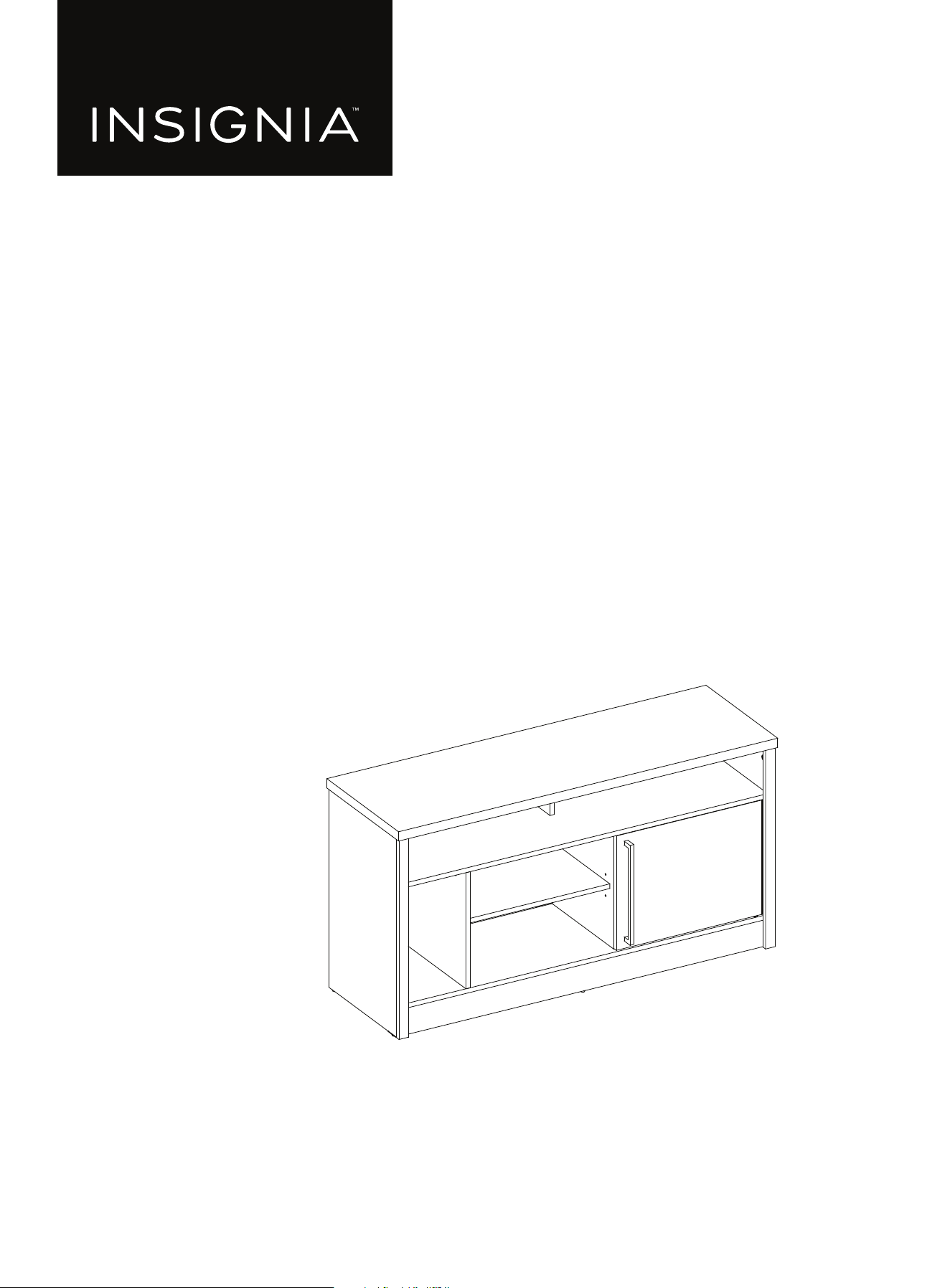
47.5 in. TV Stand with
Gaming Nook
NS-STVGN555

www.insigniaproducts.com
2
Contents
IMPORTANT SAFEGUARDS . . . . . . . . . . . . . . . . . . . . . . . . . . . . . . . . . . . . . . . . . . . . . . . . . . . . . . . . . . . . . . . . . . . . . . . . . . . . 3
Features . . . . . . . . . . . . . . . . . . . . . . . . . . . . . . . . . . . . . . . . . . . . . . . . . . . . . . . . . . . . . . . . . . . . . . . . . . . . . . . . . . . . . . . . . . . . . . 4
Dimensions. . . . . . . . . . . . . . . . . . . . . . . . . . . . . . . . . . . . . . . . . . . . . . . . . . . . . . . . . . . . . . . . . . . . . . . . . . . . . . . . . . . . . . . . . . . . . . . . . . . . . . . 4
Package contents . . . . . . . . . . . . . . . . . . . . . . . . . . . . . . . . . . . . . . . . . . . . . . . . . . . . . . . . . . . . . . . . . . . . . . . . . . . . . . . . . . . . . 5
Parts . . . . . . . . . . . . . . . . . . . . . . . . . . . . . . . . . . . . . . . . . . . . . . . . . . . . . . . . . . . . . . . . . . . . . . . . . . . . . . . . . . . . . . . . . . . . . . . . . . . . . . . . . . . . . 5
Hardware. . . . . . . . . . . . . . . . . . . . . . . . . . . . . . . . . . . . . . . . . . . . . . . . . . . . . . . . . . . . . . . . . . . . . . . . . . . . . . . . . . . . . . . . . . . . . . . . . . . . . . . . . 6
Tools needed (not provided) . . . . . . . . . . . . . . . . . . . . . . . . . . . . . . . . . . . . . . . . . . . . . . . . . . . . . . . . . . . . . . . . . . . . . . . . . . 7
Installation tips . . . . . . . . . . . . . . . . . . . . . . . . . . . . . . . . . . . . . . . . . . . . . . . . . . . . . . . . . . . . . . . . . . . . . . . . . . . . . . . . . . . . . . . 7
Assembling your TV stand. . . . . . . . . . . . . . . . . . . . . . . . . . . . . . . . . . . . . . . . . . . . . . . . . . . . . . . . . . . . . . . . . . . . . . . . . . . . . 8
Maintaining your TV stand . . . . . . . . . . . . . . . . . . . . . . . . . . . . . . . . . . . . . . . . . . . . . . . . . . . . . . . . . . . . . . . . . . . . . . . . . . .32
Specifications. . . . . . . . . . . . . . . . . . . . . . . . . . . . . . . . . . . . . . . . . . . . . . . . . . . . . . . . . . . . . . . . . . . . . . . . . . . . . . . . . . . . . . . .32
ONE-YEAR LIMITED WARRANTY . . . . . . . . . . . . . . . . . . . . . . . . . . . . . . . . . . . . . . . . . . . . . . . . . . . . . . . . . . . . . . . . . . . . . .33
www.insigniaproducts.com
3
47.5 in. TV Stand with Gaming Nook
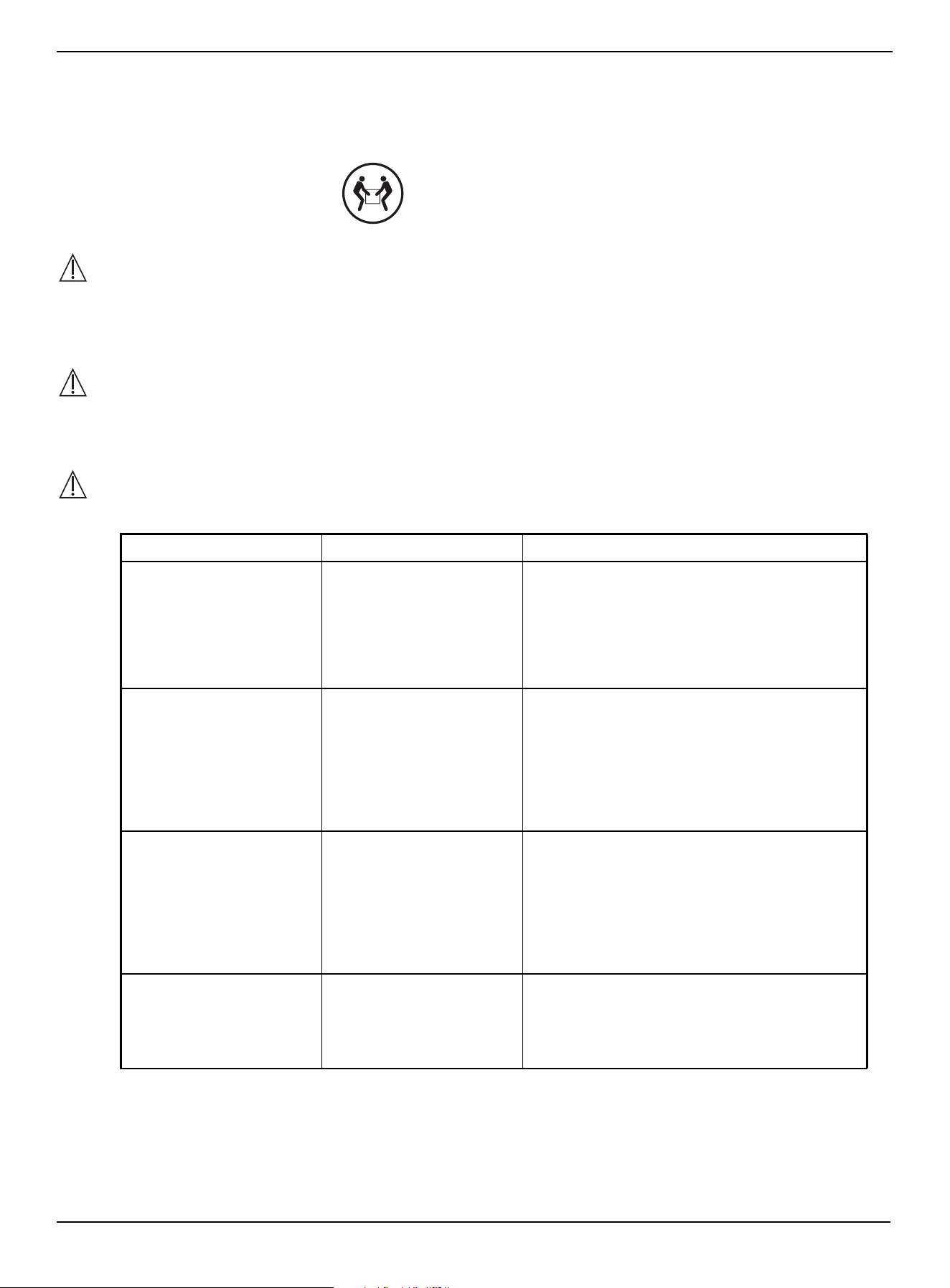
IMPORTANT SAFEGUARDS
WARNING
CAUTION
The top surface of this TV stand is designed for use with a product weighing no more than 70 lbs. (31.75 kg) and having a
width that permits it to sit evenly on the TV stand with no more than a one-inch overhang on each side of the shelf. Use
with products that weigh more than the maximum weight allowed, or with dimensions that extend beyond the
maximum width may result in instability, which may result in injury.
CAUTION
This product contains small items that could be a choking hazard if swallowed. Keep these items away from young
children!
WARNING
Please use your TV stand correctly and safely. Improper use can cause safety hazards or damage to your furniture or
household items. Carefully read the following chart.
SAVE THESE INSTRUCTIONS
LOOK OUT FOR: WHAT CAN HAPPEN: HOW TO AVOID THE PROBLEM:
• Children climbing on the
TV stand.
• A child may try to reach a
toy or other object by
climbing on the TV stand.
• Children will play and be
active near the TV.
• Risk of injury or death.
• A child climbing on the
TV stand can make it
top-heavy and cause it to
tip over.
• A child playing with a TV
can cause it to tip over.
• Never allow children to climb on or play with
the TV stand.
• Do not place toys or food on the top shelves.
Children may try to climb to reach them out of
curiosity.
• Improper use of the TV
stand to support TVs.
• A stand designed for use
with TVs will specify the
maximum weight rating
and recommended size of
the TVs it will safely
support.
• Risk of injury or death.
• TVs can be very heavy.
Note: older CRT TVs tend to be
unbalanced and prone to
tipping forward.
• A TV must only be set on furniture specifically
designed to support a television.
• Never use a TV that exceeds the weight ratings
or size guidelines specified for the TV stand.
• Improperly moving the
TV stand.
• The TV stand can tip over
or break if improperly
moved.
• Risk of injury.
• Unload shelves from the top to the bottom
before moving the TV stand.
• Do not push the TV stand, especially on a
carpeted floor. Have a friend help you lift the
item and set it in place.
• Do not lift the TV stand using the top shelf. Lift
from the frame.
• Remove the TV before moving the TV stand.
• The TV/stand assembly
tipping forward.
• Risk of injury.
• Top-heavy furniture can
tip over.
• The TV and stand could
be damaged.
• Use the tipping restraint hardware provided
and install it properly.
Some steps are more easily
handled with two adults.
www.insigniaproducts.com
4
Features
• 47.5 in. (120.6 cm) tabletop holds most TVs up to 55 in. (139.7 cm) and 70 lbs. (31.75 kg)
• Multiple storage spaces accommodate your DVD player, gaming console, cable box and more
• Cabinet with door keeps spare accessories out of sight
• Cutouts make it easy to route and hide cords
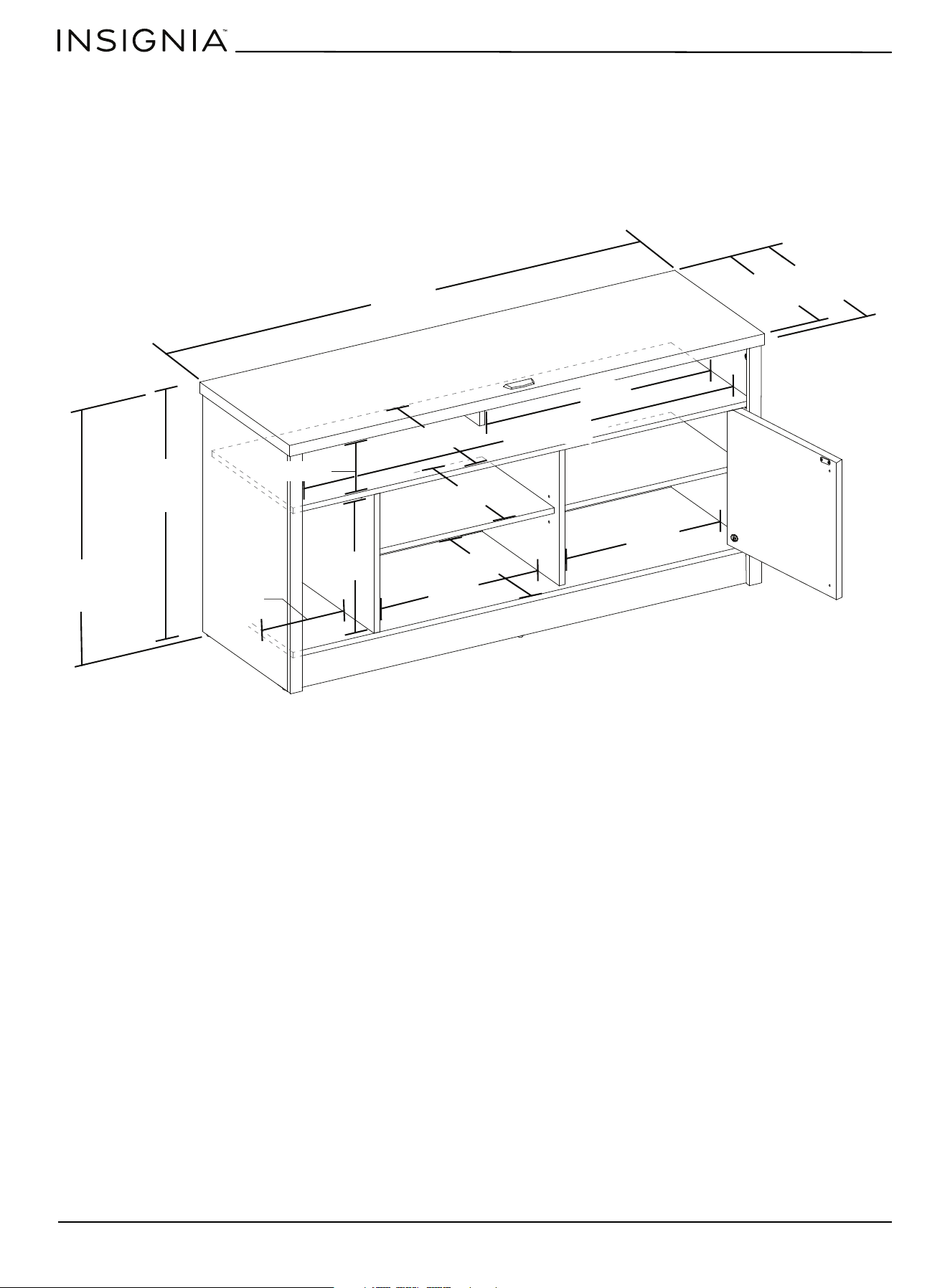
Dimensions
24.75 in.
(62.8 cm)
47.5 in.
(120.6 cm)
25 in. (63.5 cm)
Including floor
leveler
15.5 in.
(39.5 cm)
14 in. (35.7 cm)
8.1 in.
(20.6 cm)
22.6 in.
(57.6 cm)
13.7 in.
(34.9 cm)
12.5 in. (31.8 cm)
15.75 in.
(40.01 cm)
14 in. (35.7 cm)
18.3 in.
(46.6 cm)
18.3 in.
(46.6 cm)
5.6 in. (14.2 cm)
45.9 in. (116.6 cm)
www.insigniaproducts.com
5
47.5 in. TV Stand with Gaming Nook
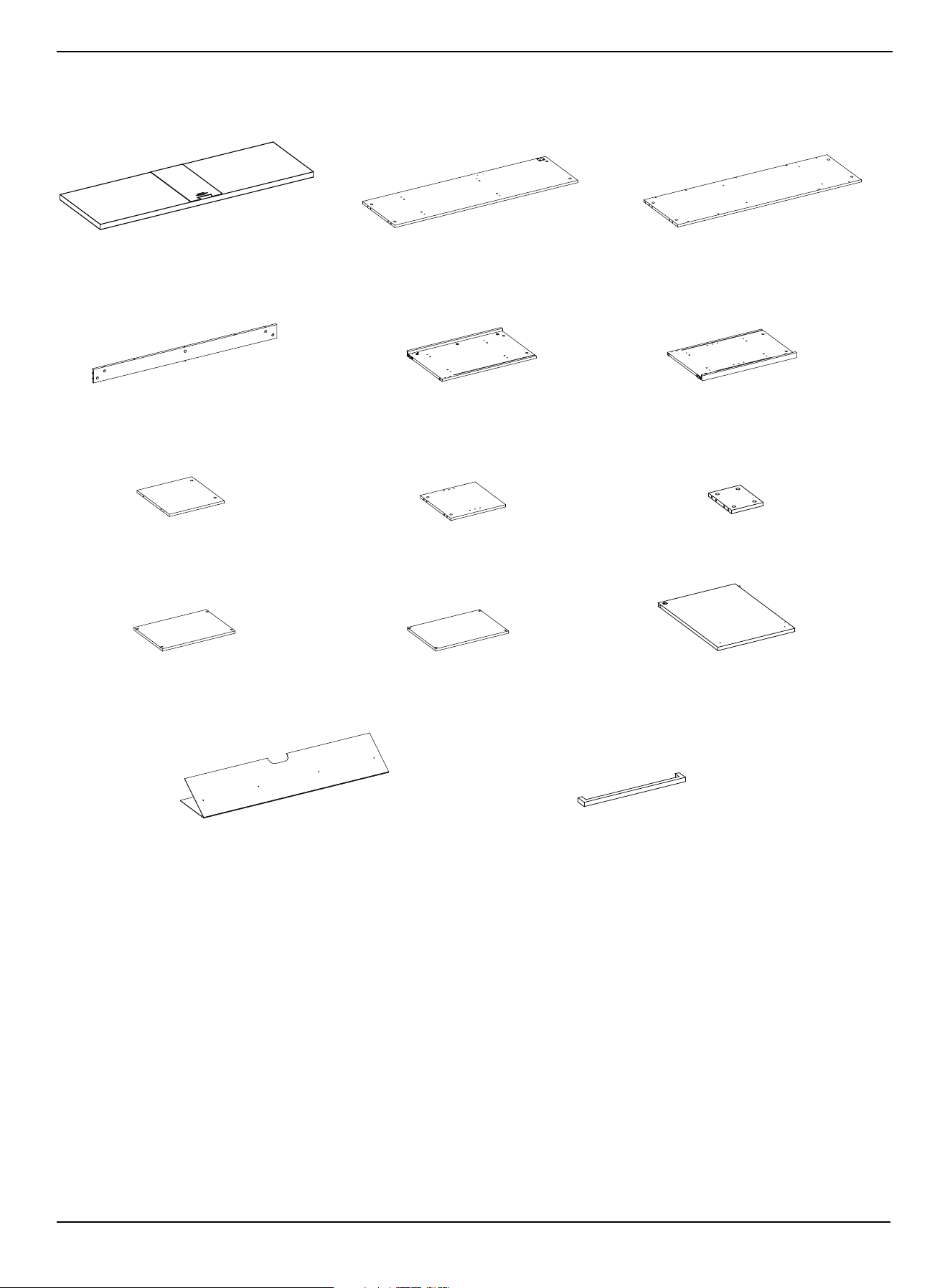
Package contents
Parts
A Top panel (1)
Note: Keep the stopper template attached.
B Media shelf (1) C Bottom panel (1)
D Skirting board (2) E Left side panel (1) F Right side panel (1)
G Left partition (1)
L Door (1)
I Upper partition (1)
J Left adjustable shelf (1)
M Back panel (1)
H Right partition (1)
K Right adjustable shelf (1)
N Handle (1)
www.insigniaproducts.com
6
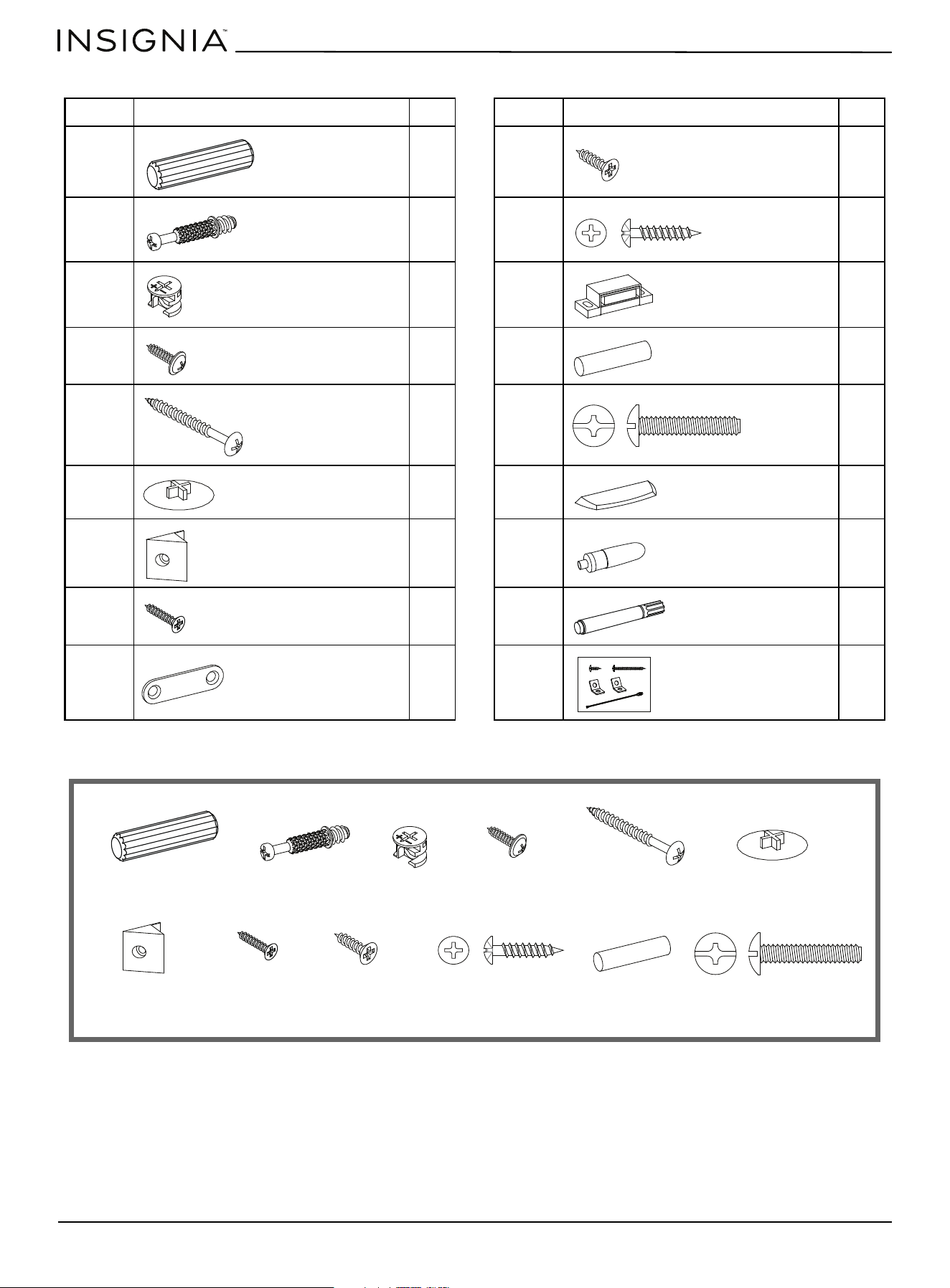
Hardware
Extra Hardware
LABEL TV STAND PART QTY. LABEL TV STAND PART QTY.
P32Y 2
Q30Z 2
R30AA1
S4BB8
T4CC2
U20DD2
V10EE1
W10FF 1
X1GG2
Wood dowel M8 x 30 mm
Flat head screw M3.5 x 12 mm
Cam pin
Pan head screw
M3 x 15 mm
Cam lock
Magnetic catch
Washer head screw M3.5 x 15 mm
Shelf pin
Pan head screw M4 x 50 mm
5/32” x 22 mm
bolt
Cam lock cover
Acrylic stopper
Plastic holder
Glue
Flat head screw M3 x 17 mm
Touch-up pen
Strike plate
Tipping restraint hardware kit
Wood dowel M8 x 30 mm
Cam pin Cam lock Washer head screw
M3.5 x 15 mm
Pan head screw
M4 x 50 mm
Cam lock cover
Plastic holder Flat head screw
M3 x 17 mm
Flat head screw
M3.5 x 12 mm
Pan head screw
M3 x 15 mm
Shelf pin 5/32” x 22 mm
bolt
www.insigniaproducts.com
7
47.5 in. TV Stand with Gaming Nook
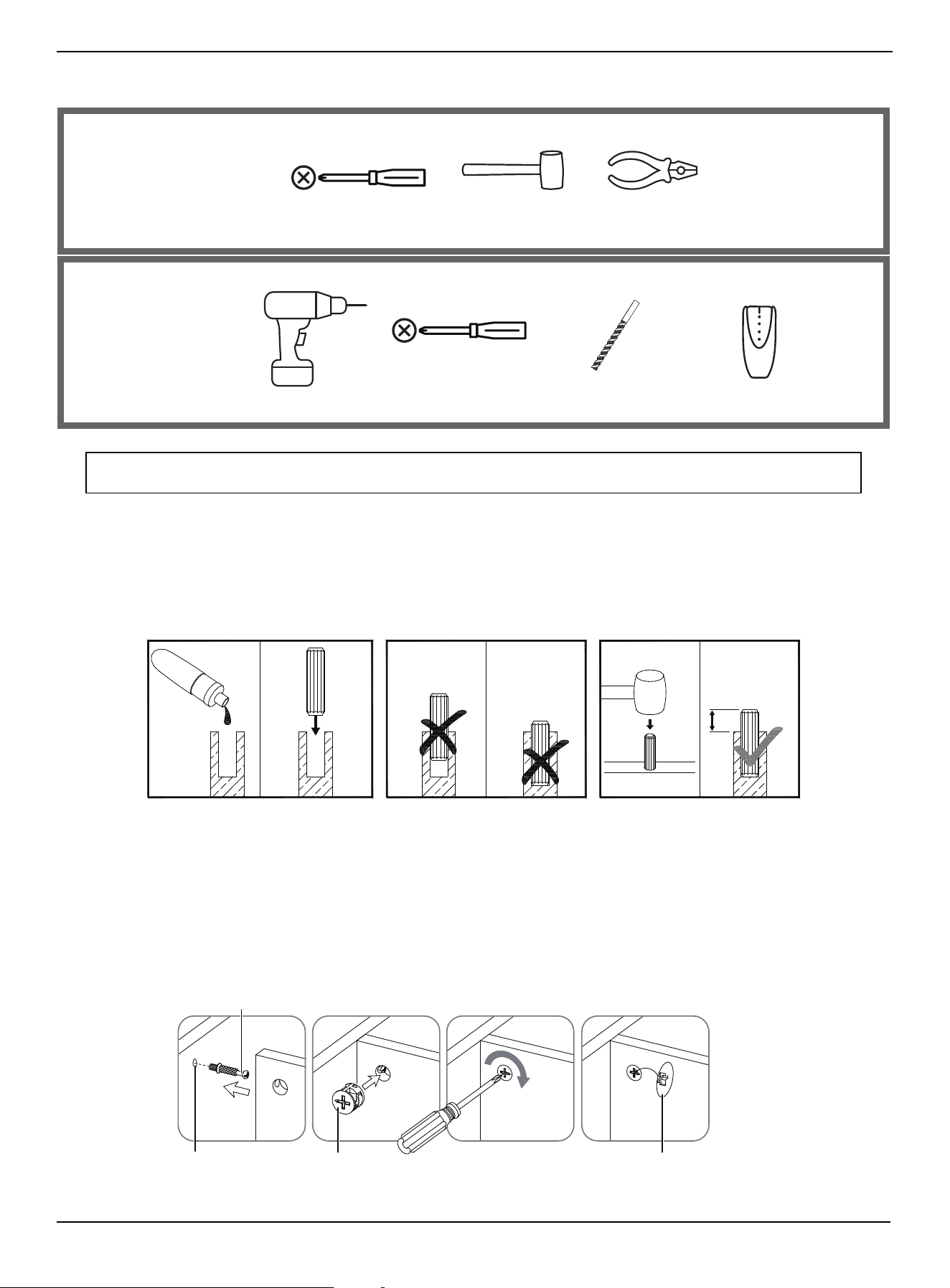
Tools needed (not provided)
Installation tips
Gluing wood dowels (P)
When using a wood dowel (P), put one drop of glue (EE) in the hole before you insert the wood dowel (P). Insert
the wood dowel (P), then gently tap it with a rubber mallet to secure it in place.
Locking cam pins (Q) and cam locks (R)
1 One end of a cam pin (Q) is threaded so that it screws into place. The other end is not threaded. Before you insert the
un-threaded end into a hole, insert a cam lock (R) into the hole and make sure that the hole in the cam lock (R) faces
the outside edge of the part being used.
2 Insert the un-threaded end of the cam pin (Q) through the hole in the part being used and into the cam lock hole,
then rotate the cam lock (R) clockwise with a screwdriver to lock the cam pin (Q) into place.
3 Insert a cam lock cover (U) into the cross slot of the cam lock (R) to conceal.
Note: DO NOT USE power tools unless it is explicitly identified in this manual as required for use during assembly.
Power tools can damage the fasteners, hardware and/or components.
Phillips screwdriver
Rubber mallet Pliers
For assembling
the TV stand:
1/8” drill bit
Power drill
Phillips screwdriver
Edge-to-edge stud finder
For installing the
tipping restraint:
Note: 1/3 of the
dowel should
remain exposed.
G
L
U
E
1/3
Cam pin
Pre-drilled hole Cam lock
Cam lock cover
LOCKED
PANEL
PANEL
www.insigniaproducts.com
8
Assembling your TV stand
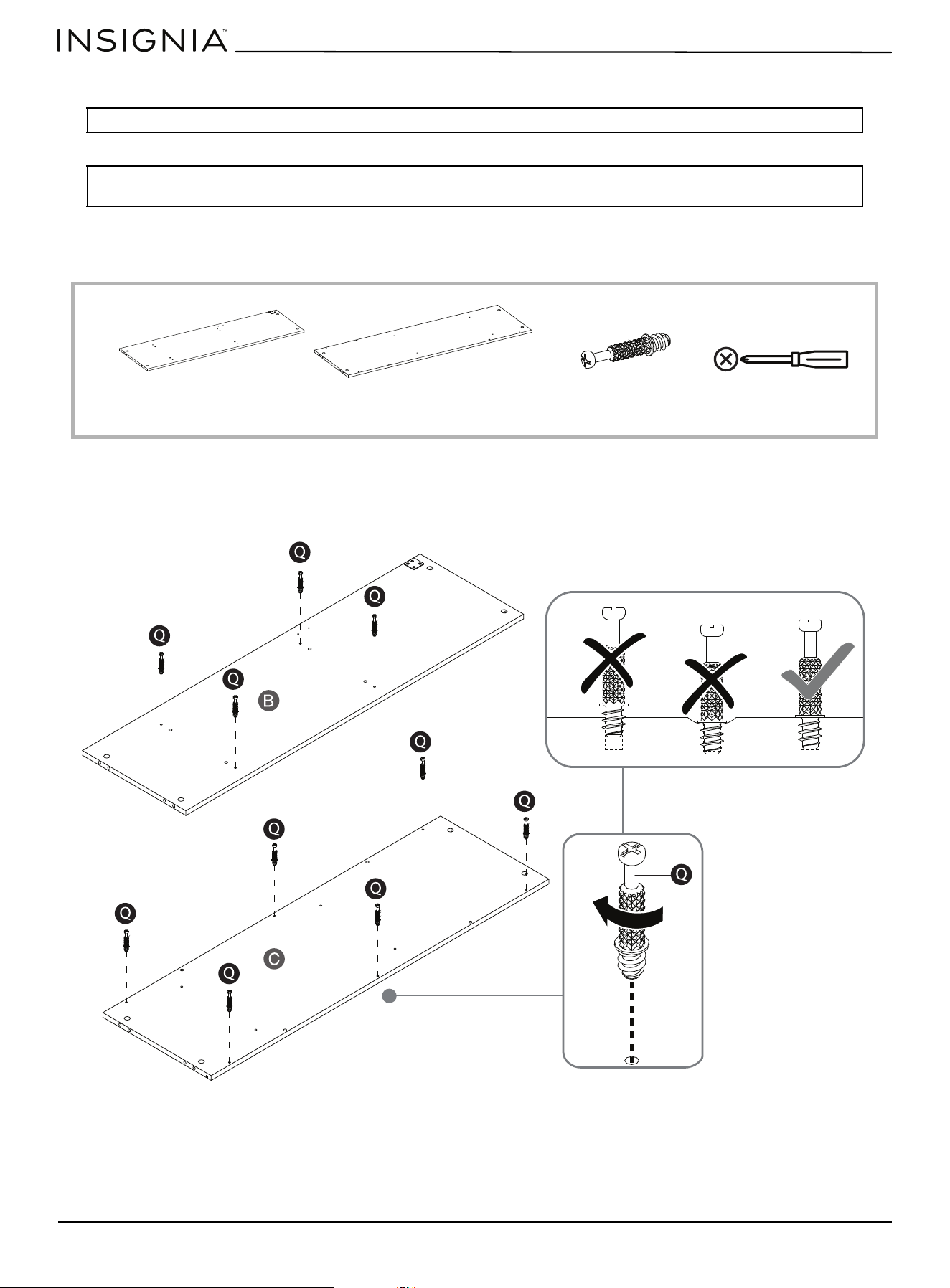
STEP 1: Preparing the media shelf and bottom panel
You need:
• Securely screw the cam pins (Q) into the indicated holes in the panels (B and C), using a Phillips screwdriver.
Tip: Assemble your TV stand on a carpeted floor or the empty TV stand carton to avoid scratching it.
Note: Do not fully tighten all bolts until you finish assembling all of the parts. After assembly, go back and fully
tighten all bolts. This will make the assembly easier.
B Media shelf (1) C Bottom panel (1) Q Cam pin (10) Phillips screwdriver
BOTTOM
BOTTOM
www.insigniaproducts.com
9
47.5 in. TV Stand with Gaming Nook
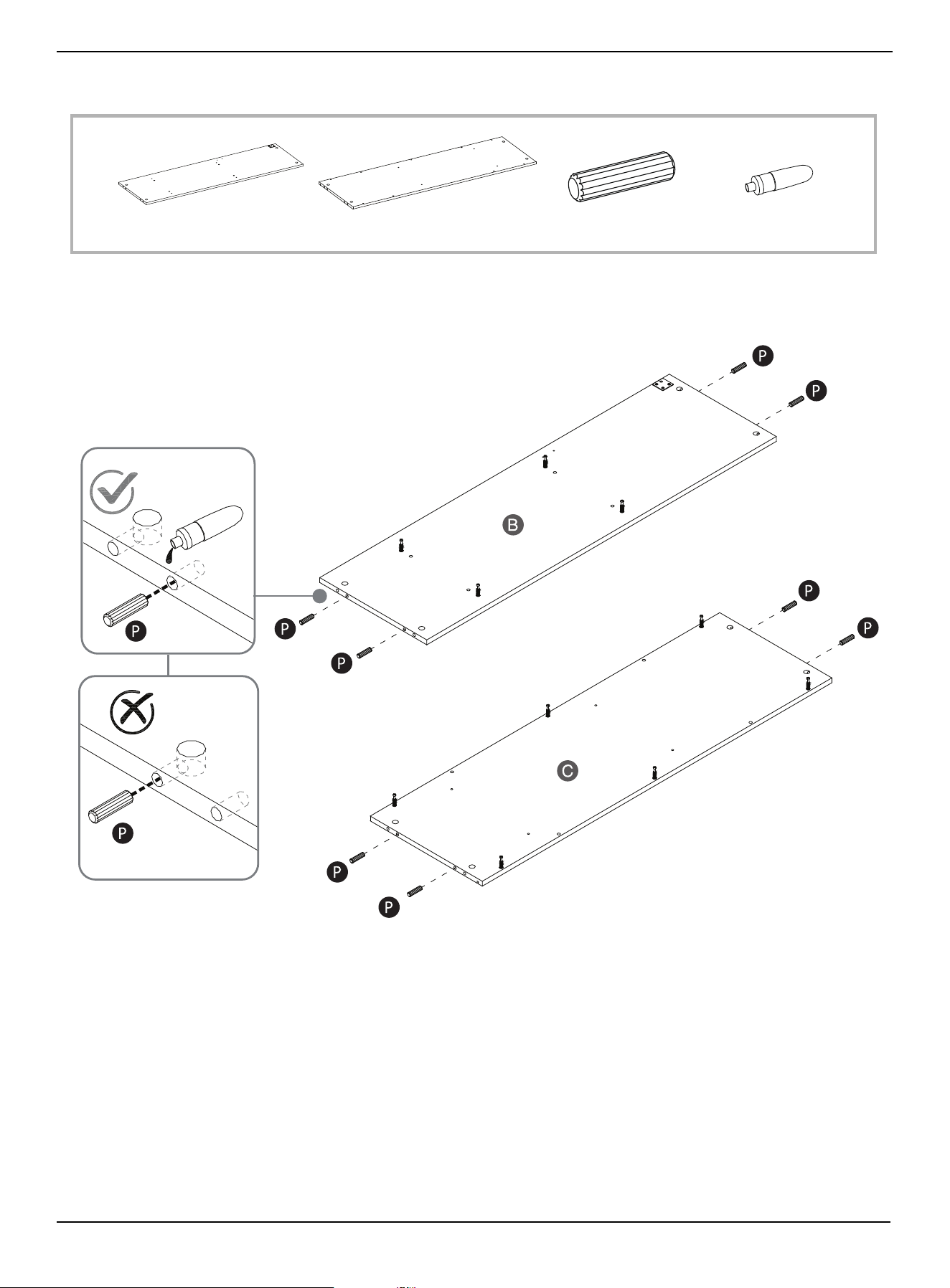
STEP 2: Preparing the media shelf and bottom panel (continued)
You need:
• Glue wood dowels (P) into the drilled inner holes on the ends of the panels (B and C).
B Media shelf (1)
C Bottom panel (1)
EE Glue (1)P Wood dowel (8)
BOTTOM
BOTTOM
CORRECT
INCORRECT
www.insigniaproducts.com
10
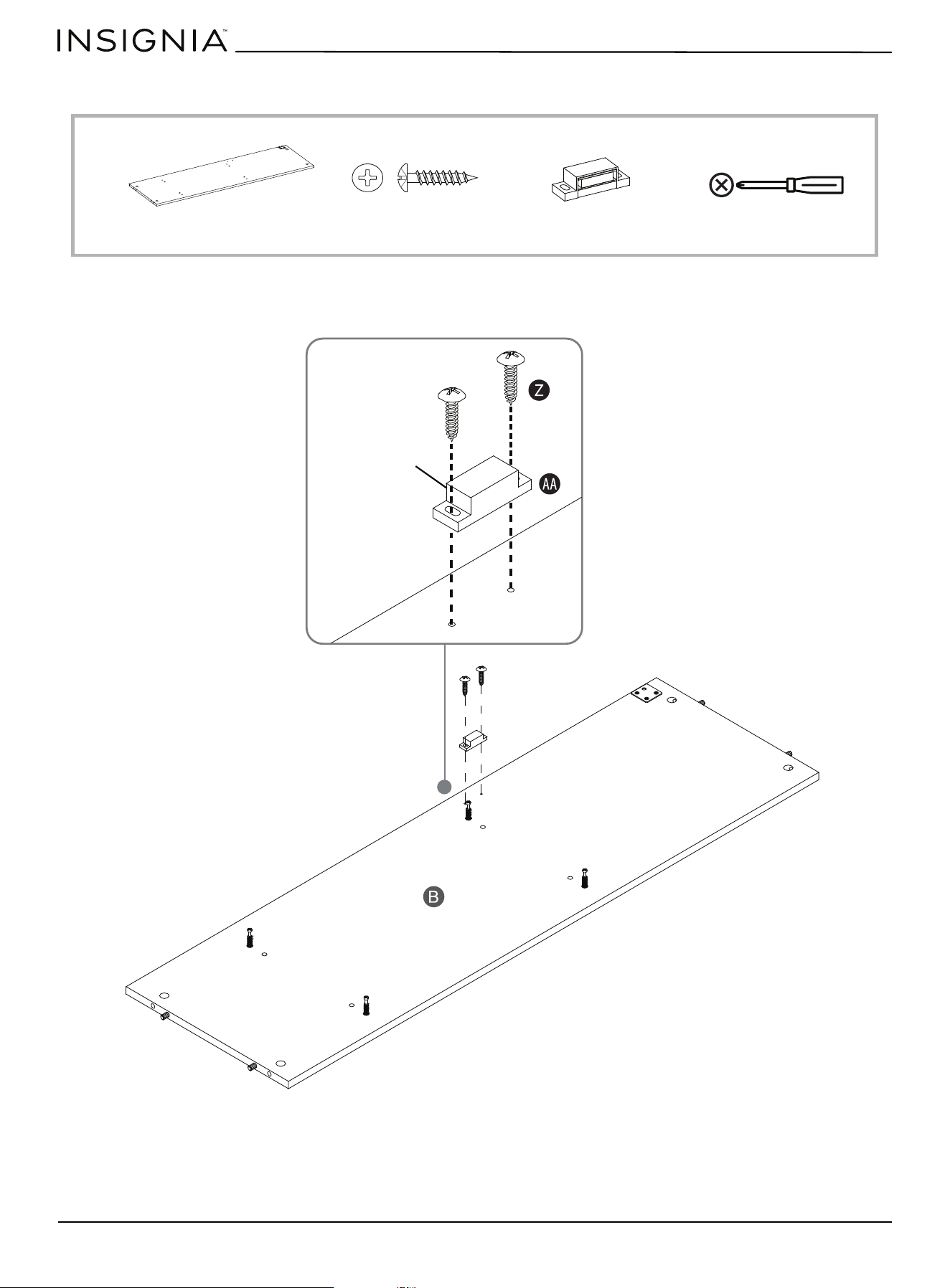
STEP 3: Installing the magnetic catch on the media shelf
You need:
• Align and attach the magnetic catch (AA) to the media shelf (B) using two M3 x 15 mm screws (Z) with the Phillips
screwdriver.
Phillips screwdriver
AA Magnetic catch (1)
Z M3 x 15 mm screw (2)B Media shelf (1)
BOTTOM
Note: The magnet faces
the front of the unit
www.insigniaproducts.com
11
47.5 in. TV Stand with Gaming Nook
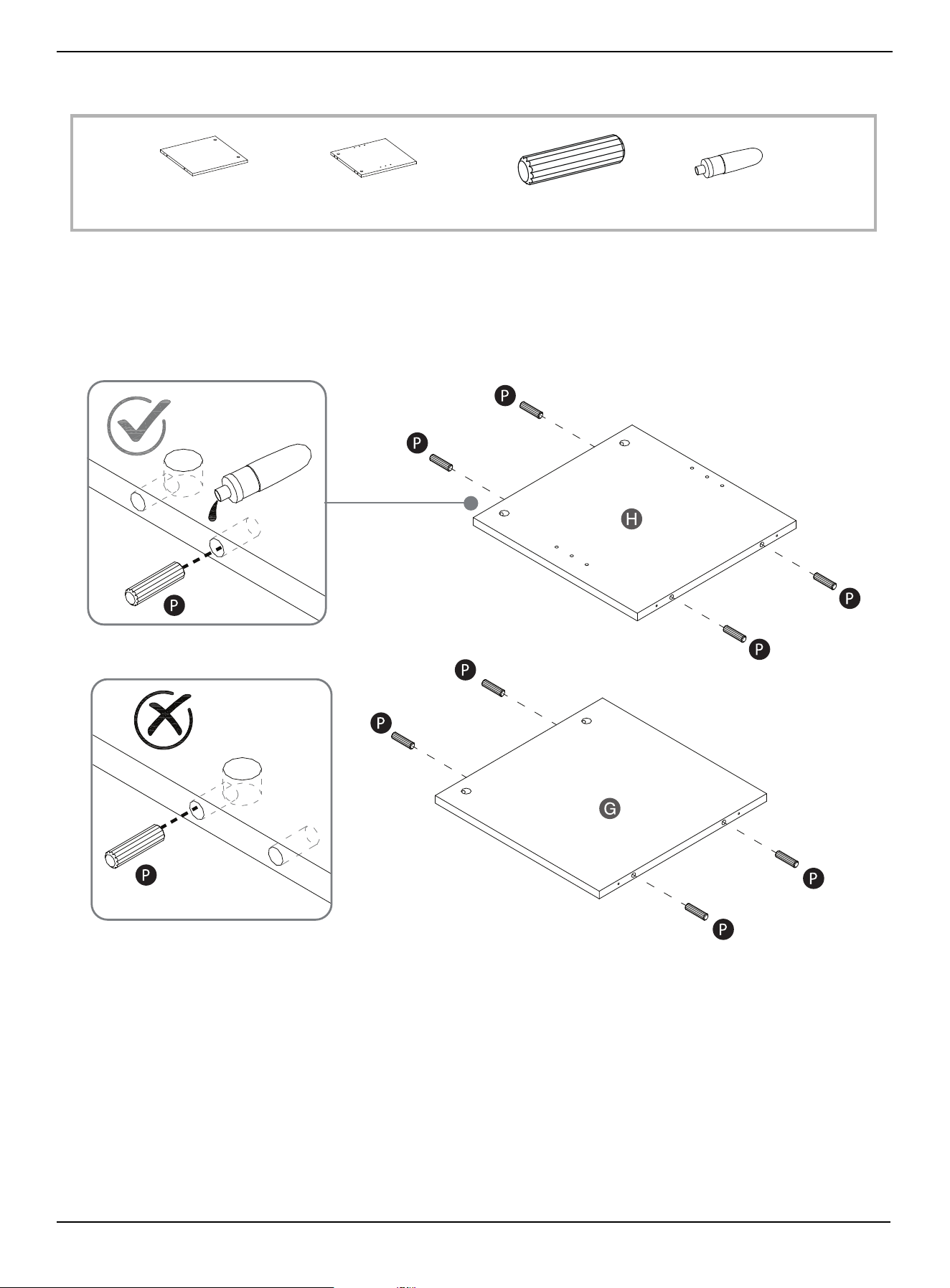
STEP 4: Preparing the partitions
You need:
• Glue the wood dowels (P) into the inner holes pre-drilled on both ends of the partitions (G and H).
G Left partition (1) H Right partition (1) P Wood dowel (8) EE Glue (1)
LEFT
RIGHT
CORRECT
INCORRECT
www.insigniaproducts.com
12
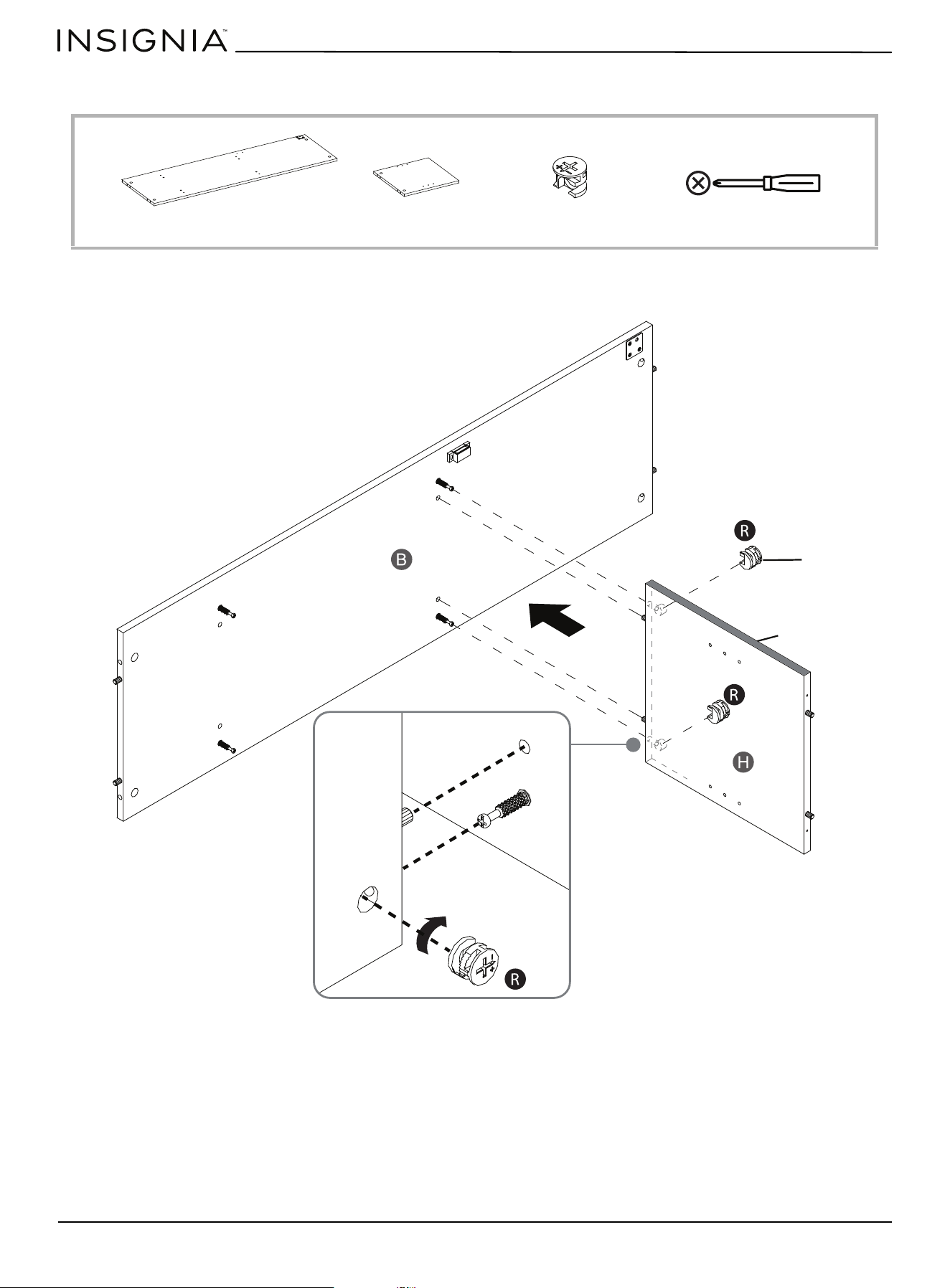
STEP 5: Installing the right partition to the media shelf
You need:
• Align and attach the right partition (H) to the media shelf (B) by engaging and tightening two cam locks (R) with a
Phillips screwdriver.
R Cam lock (2)B Media shelf (1) Phillips screwdriverH Right partition (1)
BOTTOM
RIGHT
Finished edge
Cam locks face
outward
www.insigniaproducts.com
13
47.5 in. TV Stand with Gaming Nook
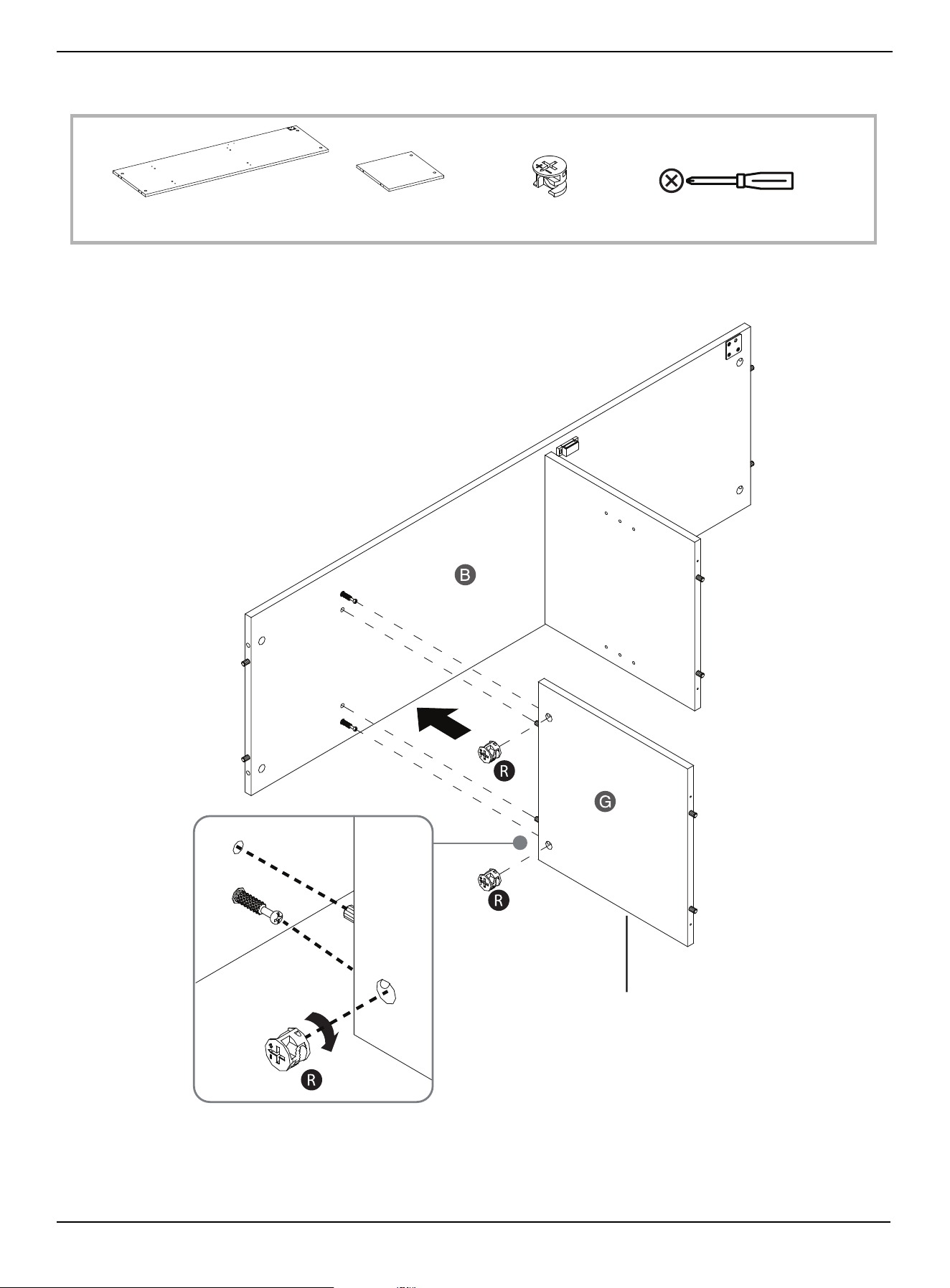
STEP 6: Installing the left partition to the media shelf
You need:
• Align and attach the left partition (G) to the media shelf (B) by engaging and tightening two cam locks (R) with a
Phillips screwdriver.
Phillips screwdriverR Cam lock (2)B Media shelf (1) G Left partition (1)
BOTTOM
RIGHT
LEFT
Shelf pin holes on
the opposite side
www.insigniaproducts.com
14
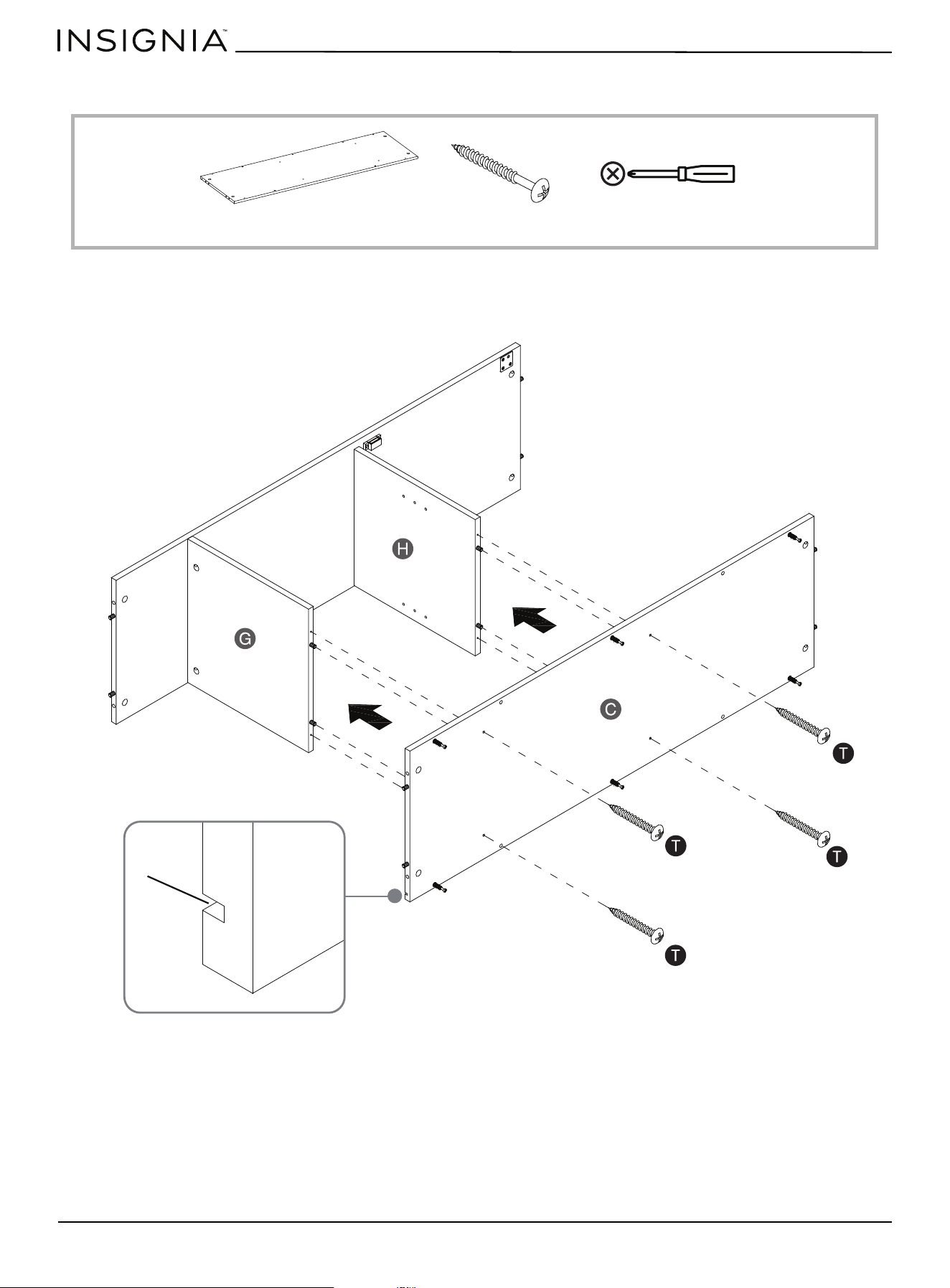
STEP 7: Attaching the bottom panel to the partitions
You need:
• Align and attach the bottom panel (C) to both partitions (G and H) with four M4 x 50 mm screws (T) using a Phillips
screwdriver. Make sure that the groove for the back panel (M) is located at the back of the unit.
C Bottom panel (1)
T M4 x 50 mm screw (4)
Phillips screwdriver
RIGHT
LEFT
BOTTOM
Groove
www.insigniaproducts.com
15
47.5 in. TV Stand with Gaming Nook
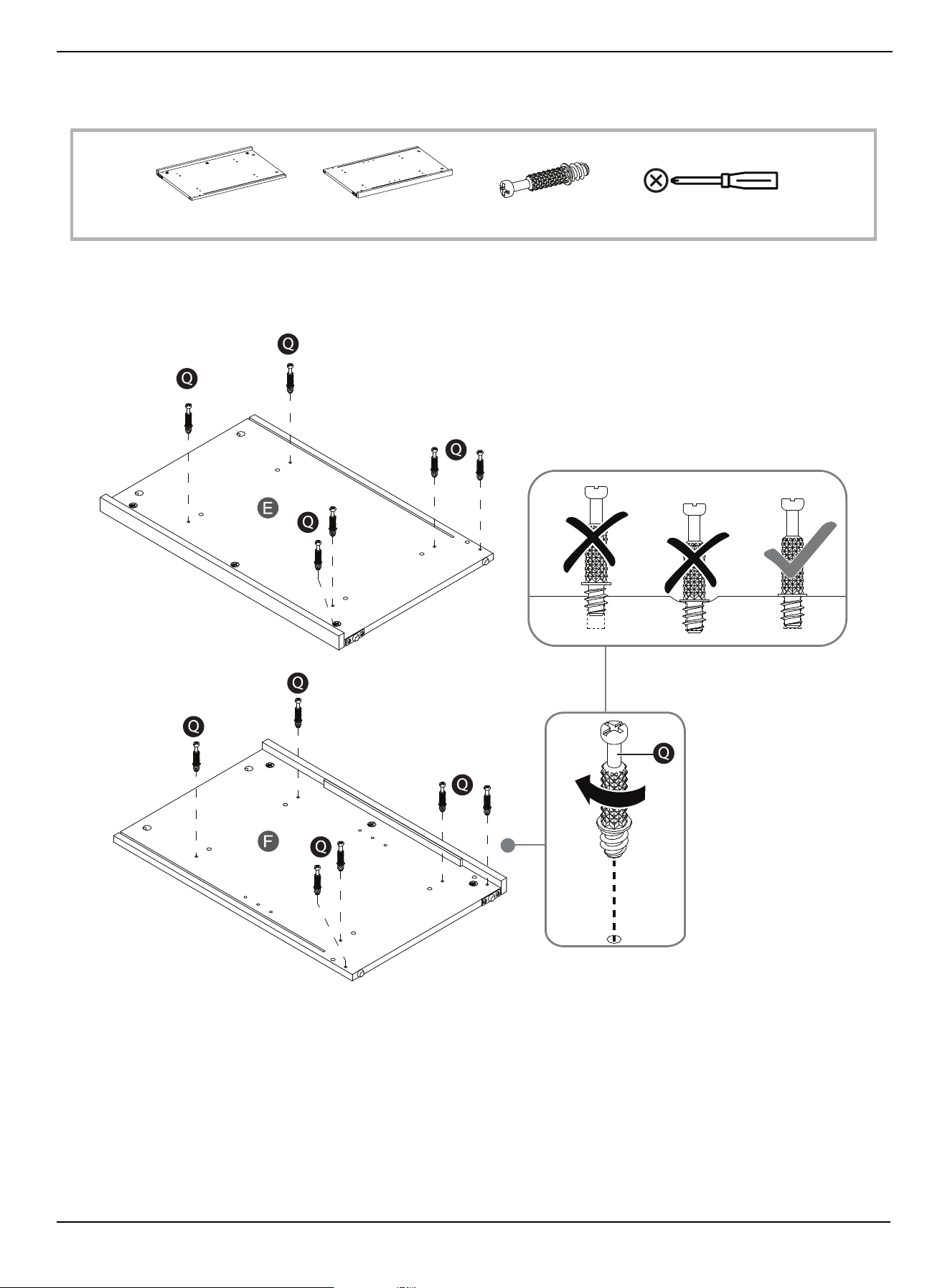
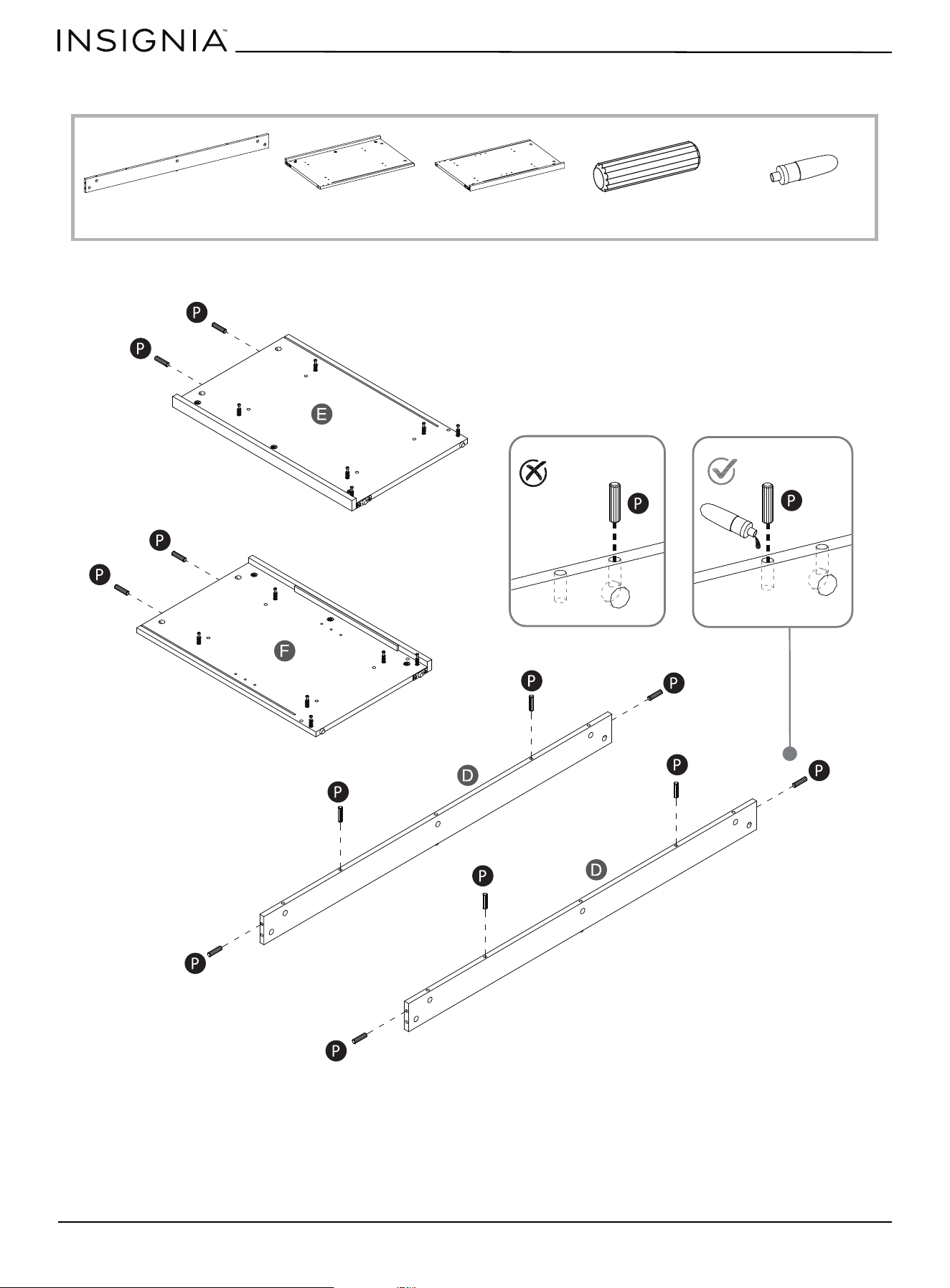
STEP 8: Preparing the side panels
You nee d :
• Securely screw the cam pins (Q) into the indicated holes in the side panels (E and F) using a Phillips screwdriver.
E Left side panel (1) F Right side panel (1) Q Cam pins (12) Phillips screwdriver
www.insigniaproducts.com
16
STEP 9: Preparing the skirting boards and side panels
You need:
• Glue wood dowels (P) into the inner holes drilled in the ends of both skirting boards (D) and side panels (E and F).
D Skirting board (2)
P Wood dowel (12) EE Glue (1)E Left side panel (1) F Right side panel (1)
CORRECT
INCORRECT
www.insigniaproducts.com
17
47.5 in. TV Stand with Gaming Nook
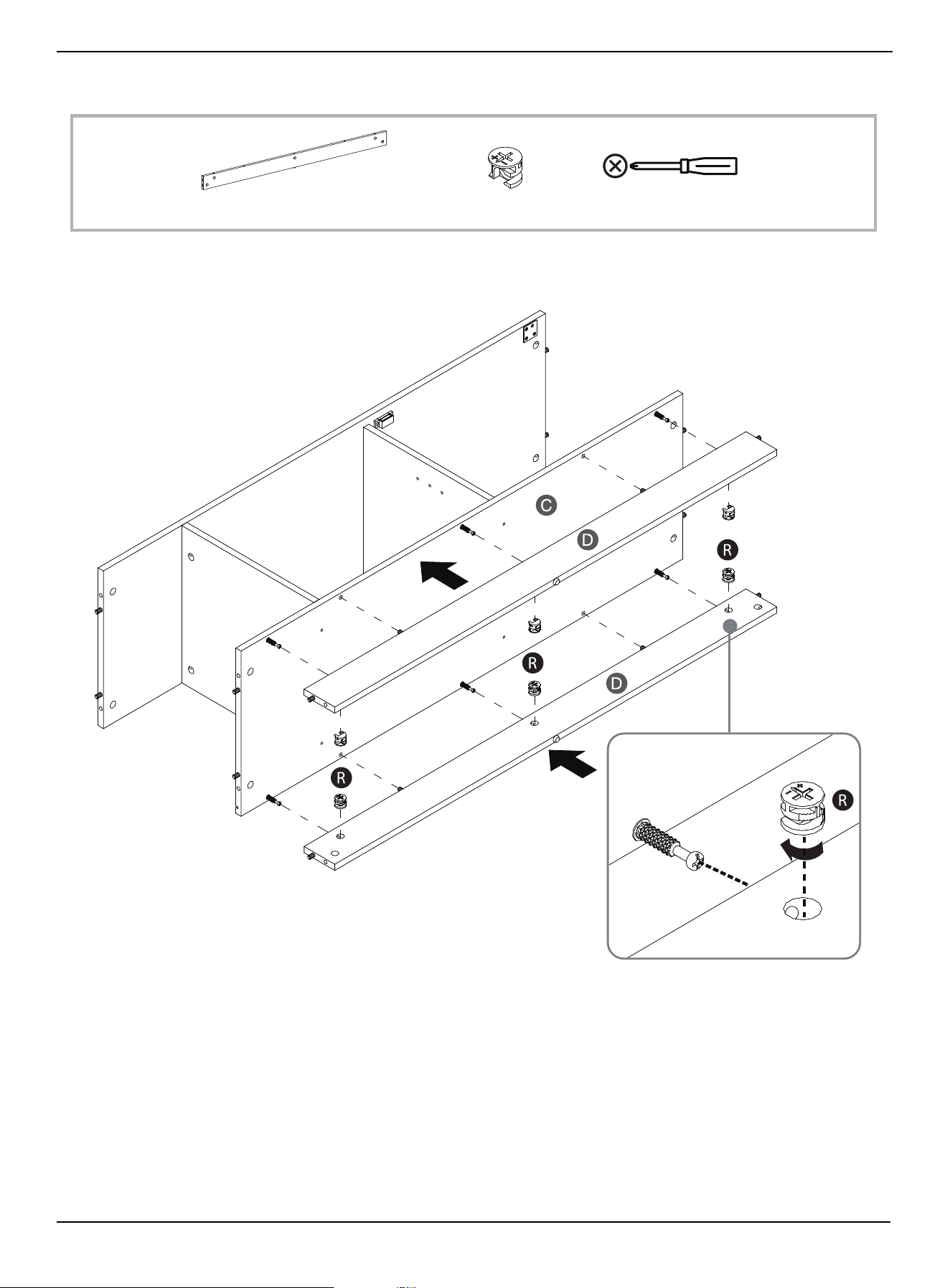
STEP 10: Installing the skirting boards on the bottom panel
You need:
• Align and attach both skirting boards (D) to the bottom panel (C) by engaging six cam locks (R) using a Phillips
screwdriver.
R Cam lock (6)D Skirting board (2) Phillips screwdriver
RIGHT
LEFT
BOTTOM
www.insigniaproducts.com
18
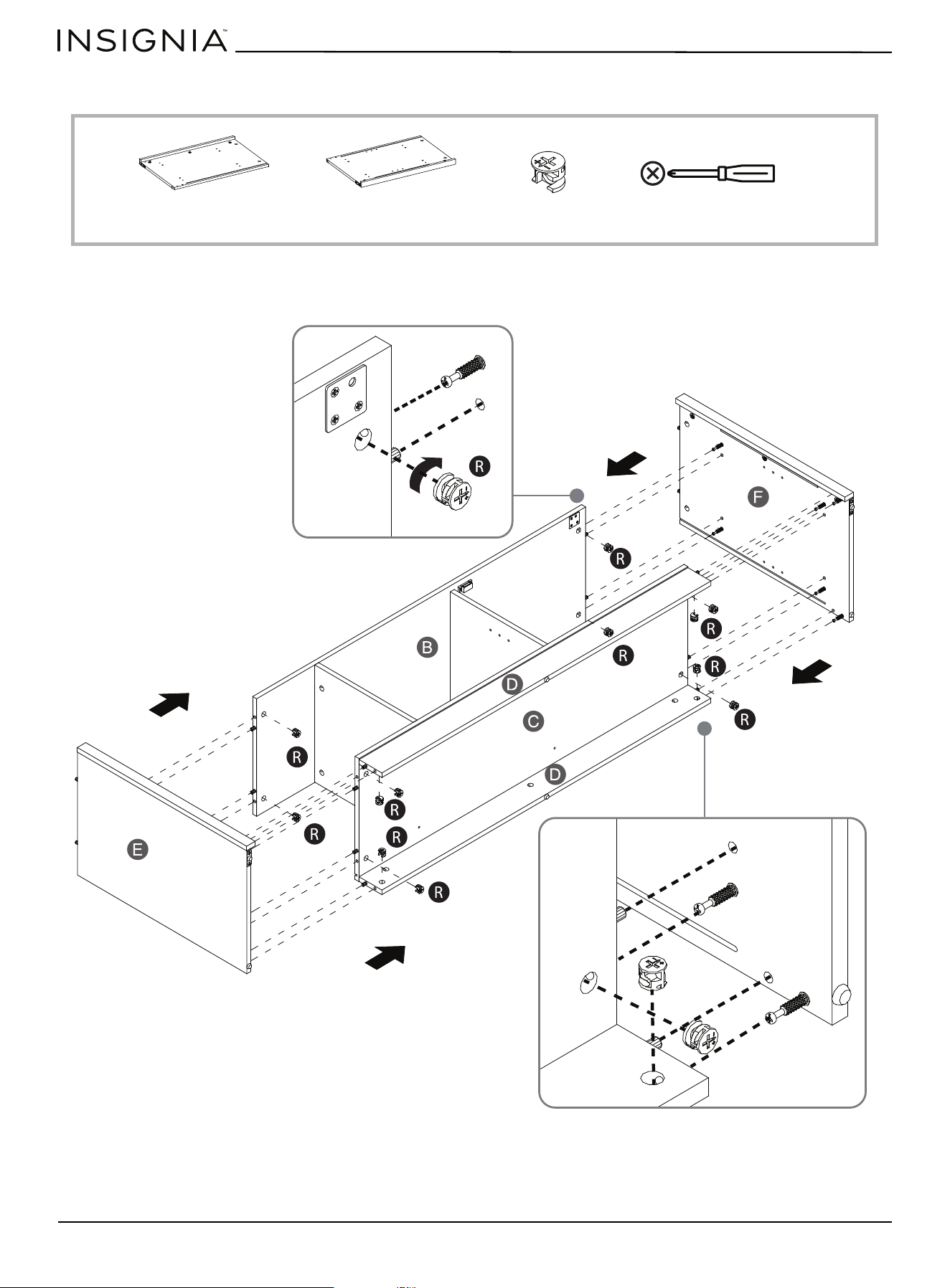
STEP 11: Installing the side panels on the unit
You need:
• Align and attach both side panels (E and F) to the previously assembled unit by engaging twelve cam locks (R) using a
Phillips screwdriver.
F Right side panel (1)E Left side panel (1) R Cam lock (12) Phillips screwdriver
BOTTOM
BOTTOM
www.insigniaproducts.com
19
47.5 in. TV Stand with Gaming Nook
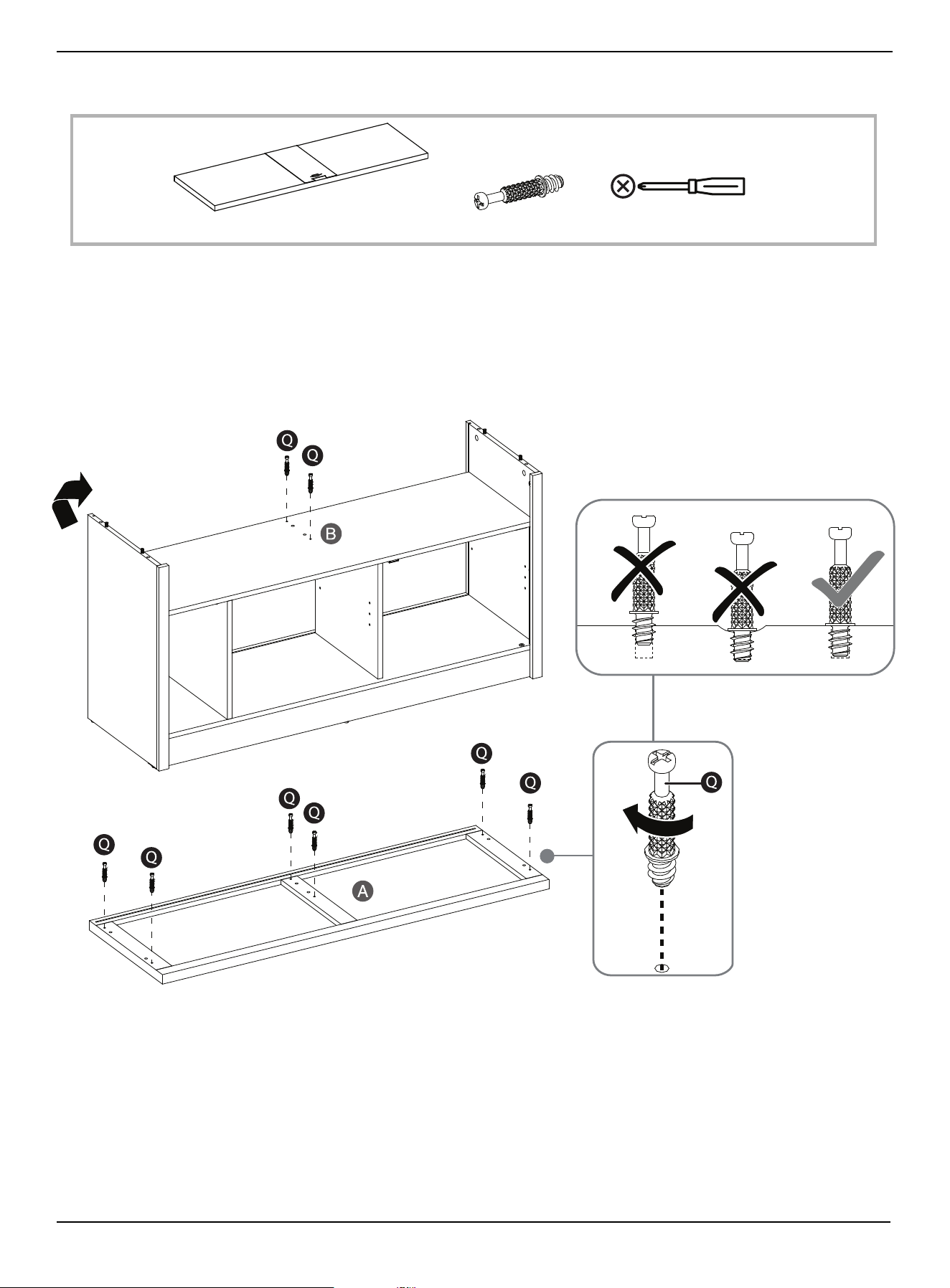
STEP 12: Preparing the top panel and media shelf assembly
You need:
1 With assistance, turn the unit upright and position it near the final desired location.
2 Securely screw cam pins (Q) into the indicated holes in the top panel (A) and media shelf (B), using a Phillips
screwdriver.
Q Cam pin (8) Phillips screwdriver
A Top panel (1)
www.insigniaproducts.com
20
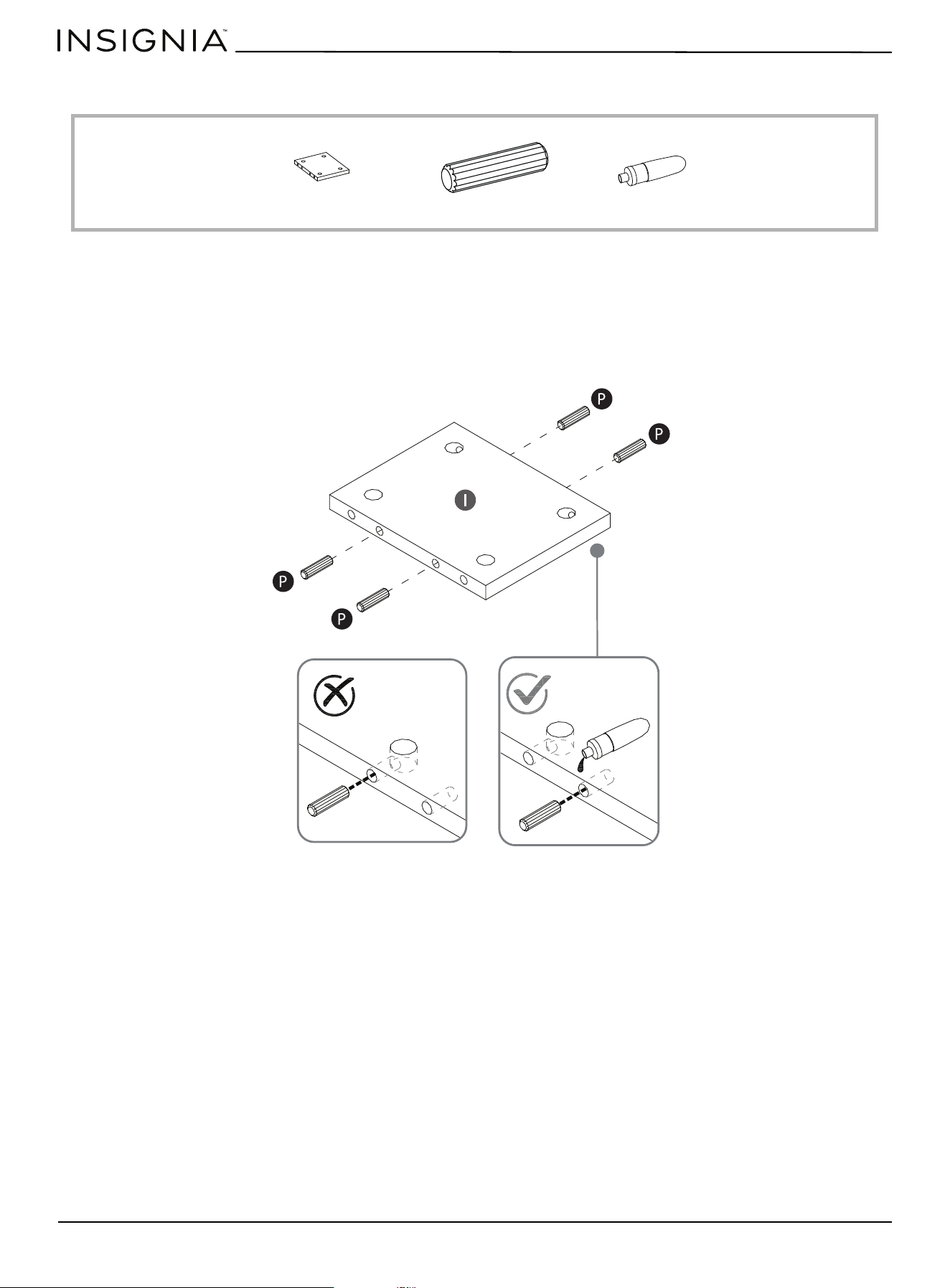
STEP 13: Preparing the upper partition
You need:
• Glue two wood dowels (P) into the pre-drilled inner holes in both ends of the upper partition (I).
EE Glue (1)I Upper partition (1) P Wood dowel (4)
CORRECT
INCORRECT
www.insigniaproducts.com
21
47.5 in. TV Stand with Gaming Nook
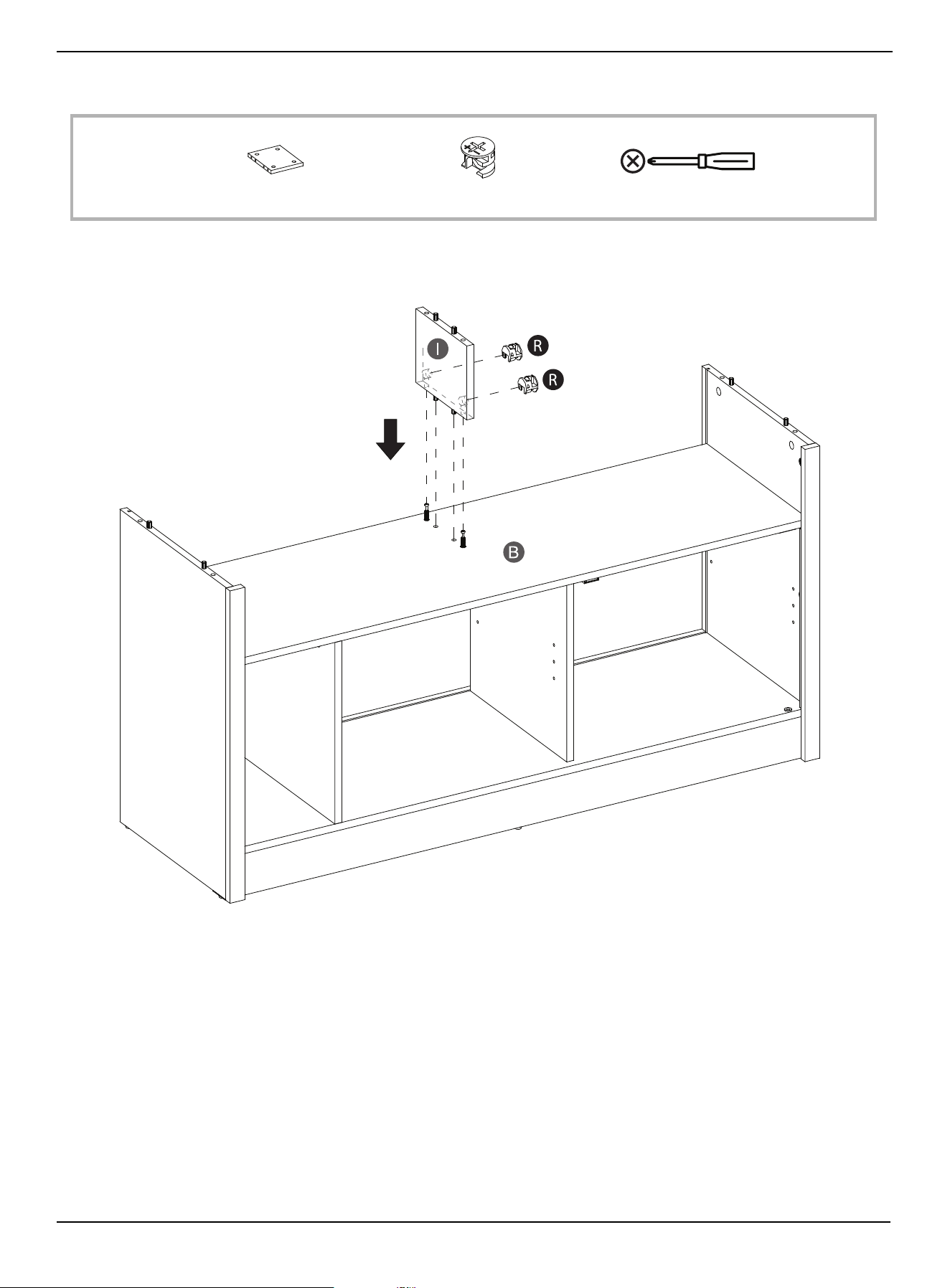
STEP 14: Attaching the upper partition to the media shelf
You need:
• Align and attach the upper partition (I) to the media shelf (B) by engaging two cam locks (R) with a Phillips screwdriver.
Phillips screwdriverR Cam lock (2)I Upper partition (1)
www.insigniaproducts.com
22
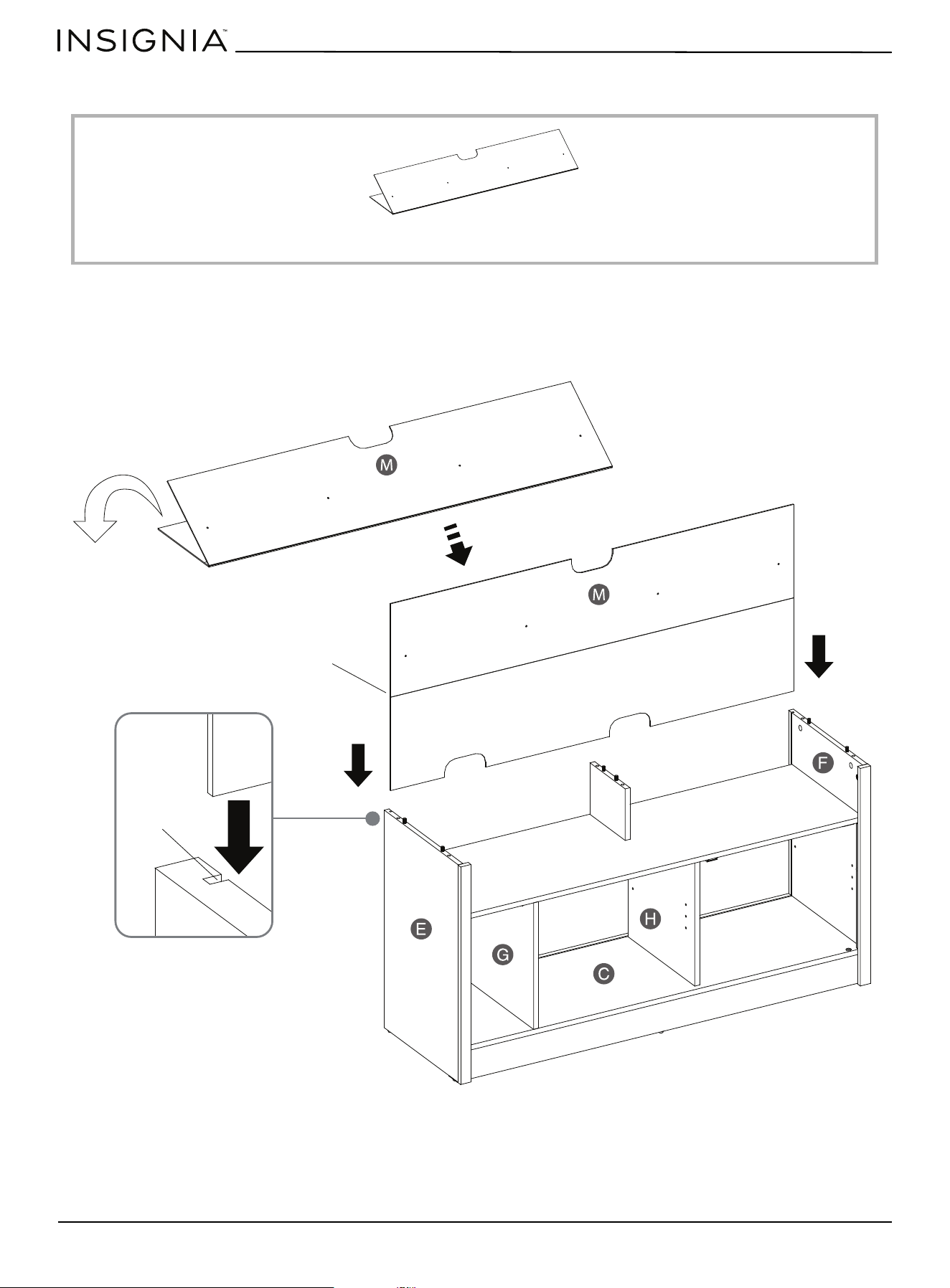
STEP 15: Installing the back panel
You need:
• Unfold the back panel (M) and slide it into the grooves on both side panels (E and F) until the bottom edge is fully
inserted into the bottom panel (C). Make sure that the two cutouts on the back panel align with the partition panels (G
and H) so that the openings are accessible from both sides of the panels.
M Back panel (1)
Adhesive tape on
the back side
Groove
www.insigniaproducts.com
23
47.5 in. TV Stand with Gaming Nook
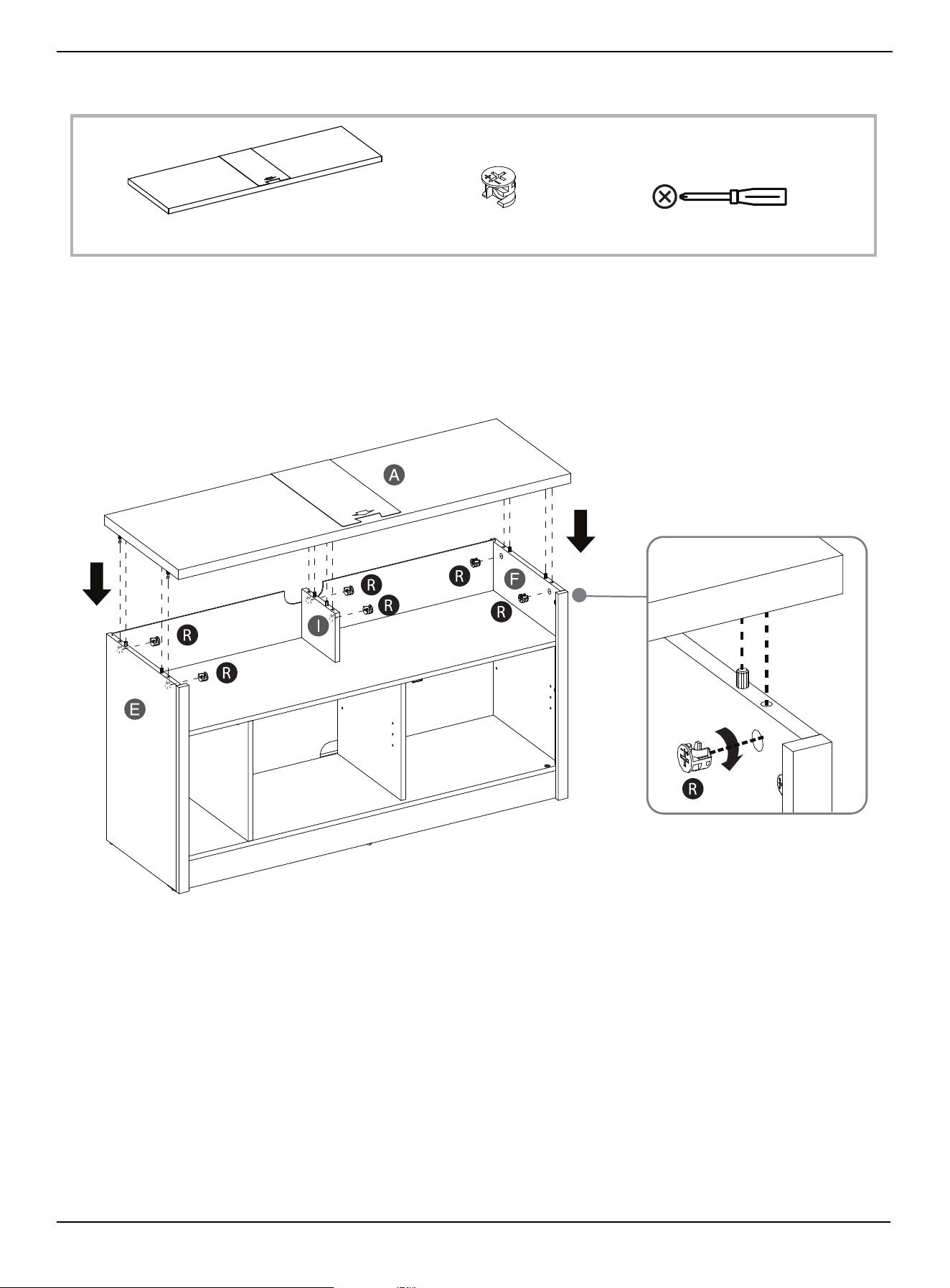
STEP 16: Installing the top panel
You need:
• Align and attach the top panel (A) to both side panels (E and F) and the upper partition (I) with six cam locks (R), using
a Phillips screwdriver.
A Top panel (1) R Cam lock (6) Phillips screwdriver
www.insigniaproducts.com
24
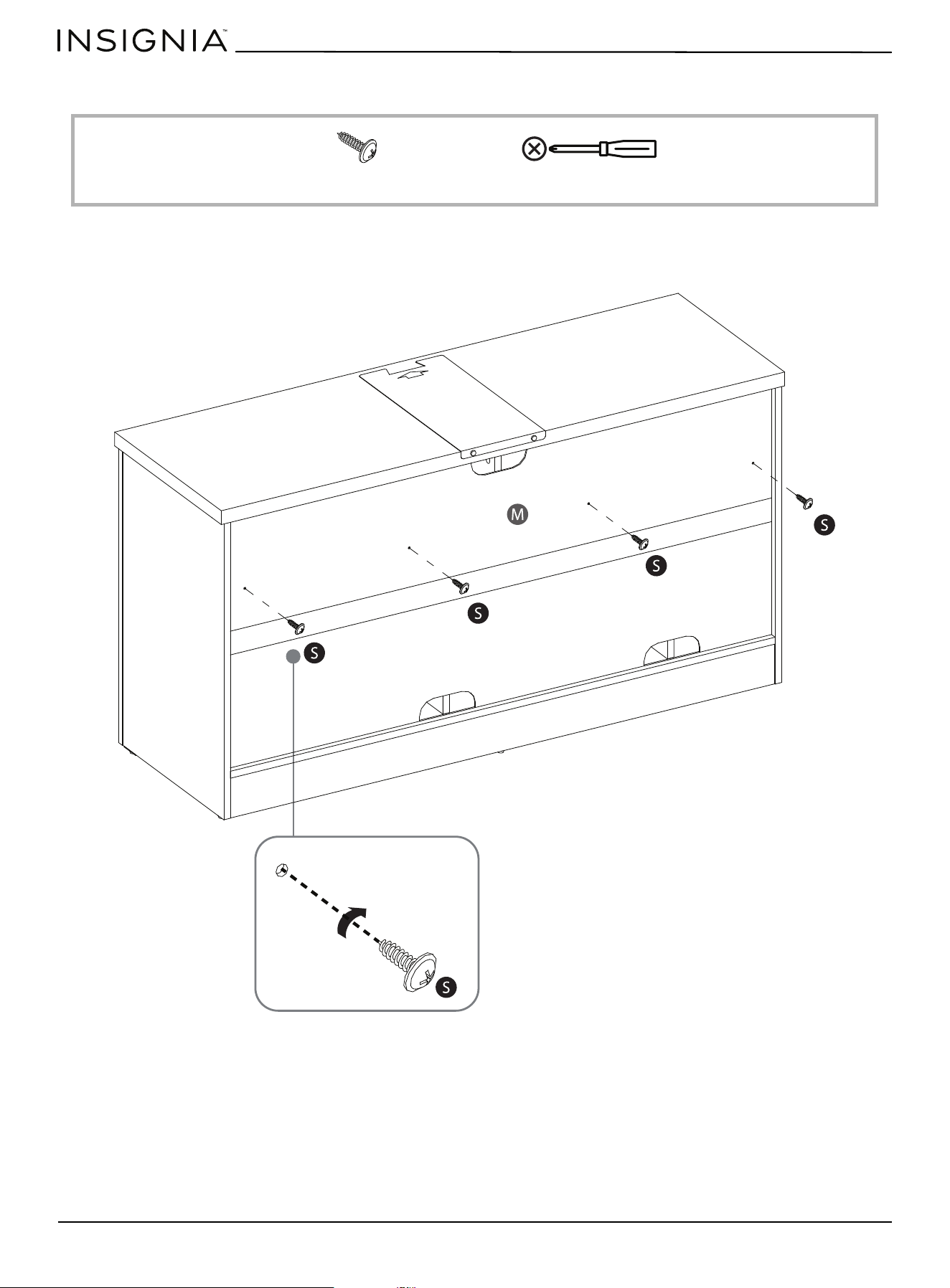
STEP 17: Fastening the back panel to the media shelf
You need:
• Insert four M3.5 x 15 mm screws (S) through the holes in the back panel (M) and secure it to the media shelf (B) with a
Phillips screwdriver.
S M3.5 x 15 mm screw (4)
Phillips screwdriver
www.insigniaproducts.com
25
47.5 in. TV Stand with Gaming Nook
STEP 18: Fastening the back panel to the assembled unit
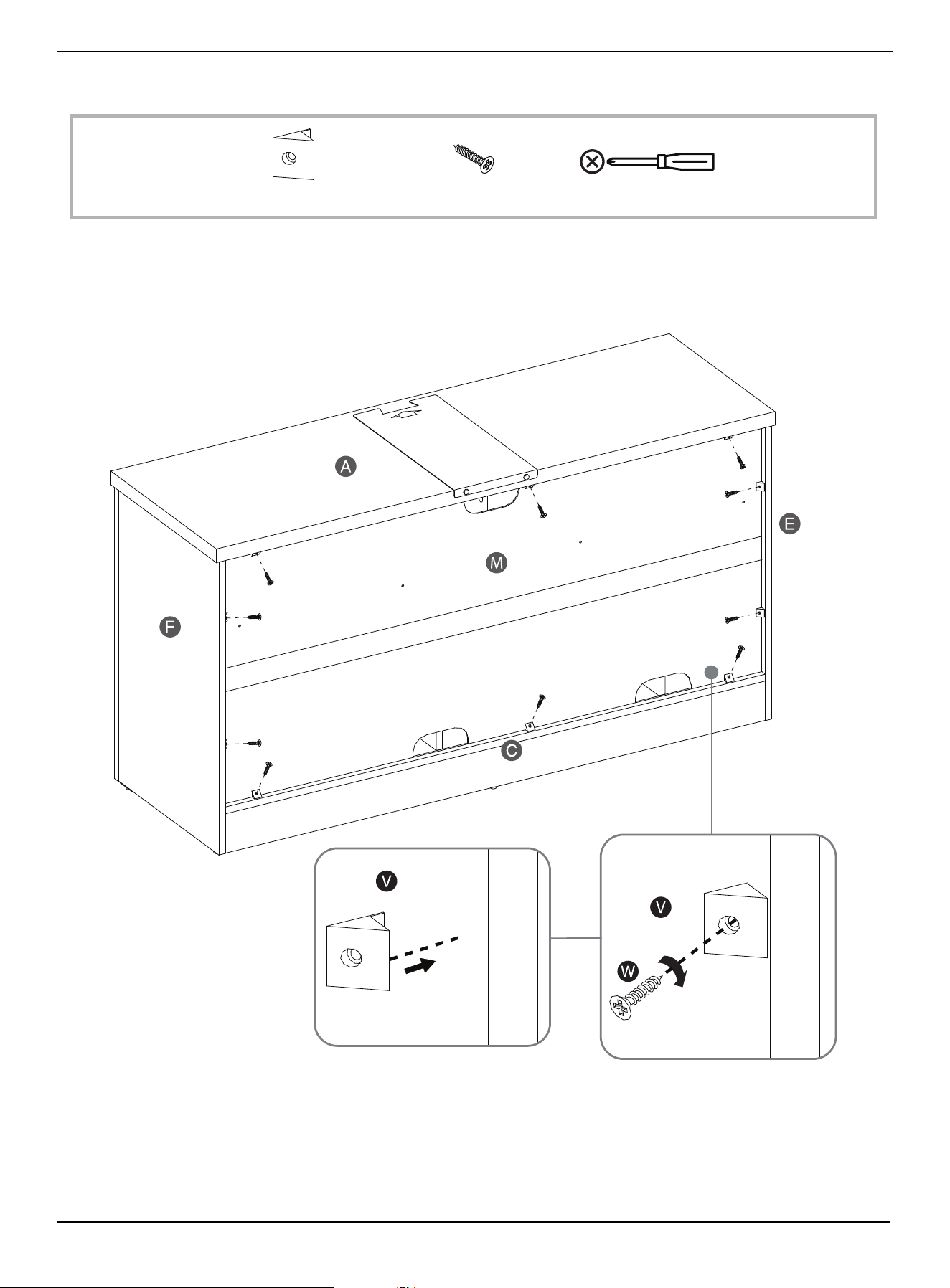
You need:
1 Insert ten plastic holders (V) evenly into the gaps between the back panel (M) and the panels (A, C, E, and F) as
indicated in the illustration.
2 Secure the plastic holders into place with ten M3 x 17 mm screws (W), using a Phillips screwdriver.
V Plastic holders (10)
Phillips screwdriver
W M3 x 17 mm screw (10)
www.insigniaproducts.com
26
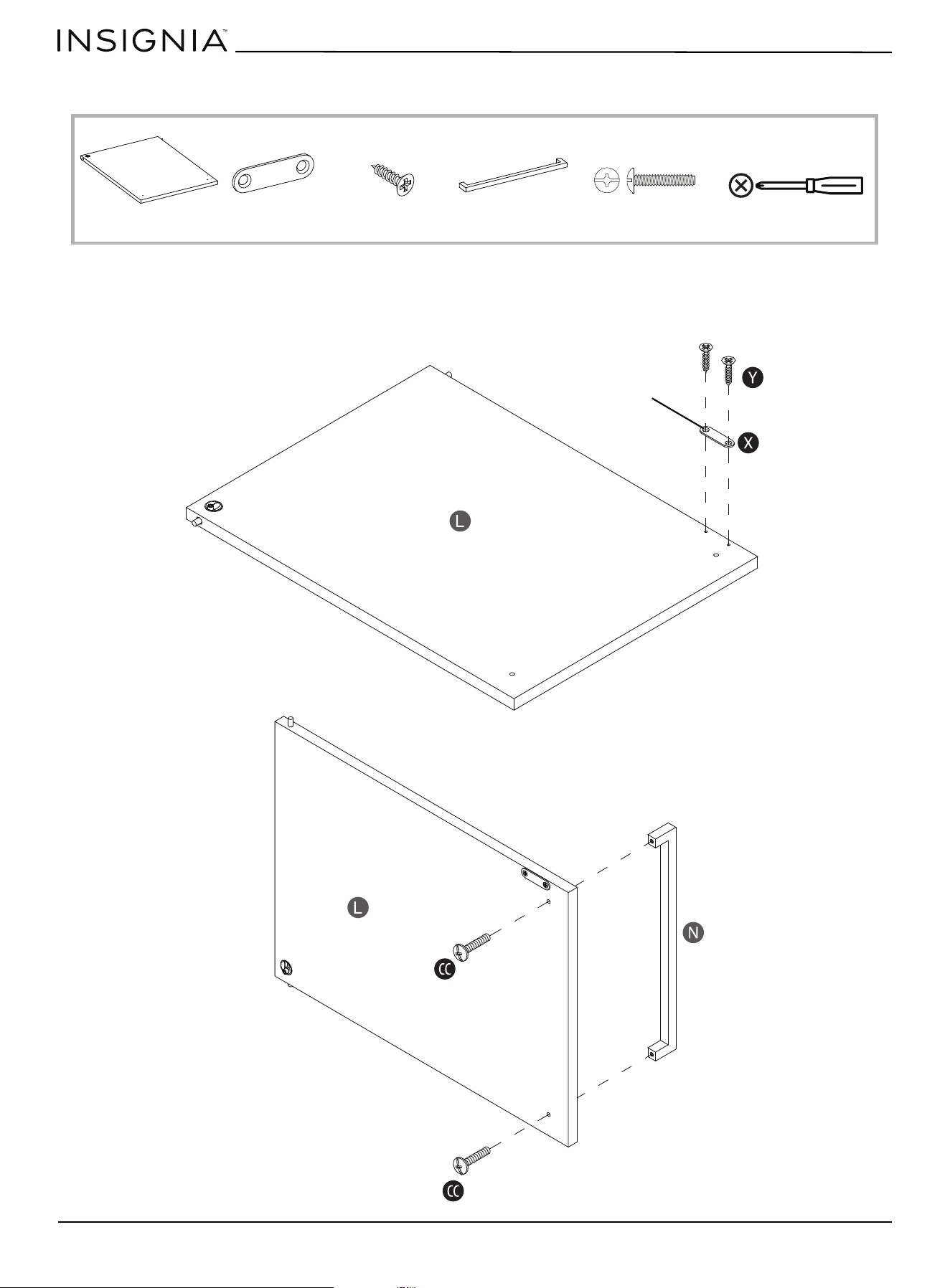
STEP 19: Installing the metal strike plate and handle to the door
You need:
1 Using the pilot holes in the door as a guide, fasten the strike plate (X) to the door (L) with two M3.5 x 12 mm screws (Y),
using a Phillips screwdriver.
2 Install the handle (N) to the front of the door (L) with two 5/32” x 22 mm bolts (CC), using a Phillips screwdriver.
L Door (1) Phillips screwdriverX Strike plate (1) Y M3.5 x 12 mm screw (2) N Handle (1) CC 5/32” x 22mm bolt (2)
Countersunk holes
www.insigniaproducts.com
27
47.5 in. TV Stand with Gaming Nook
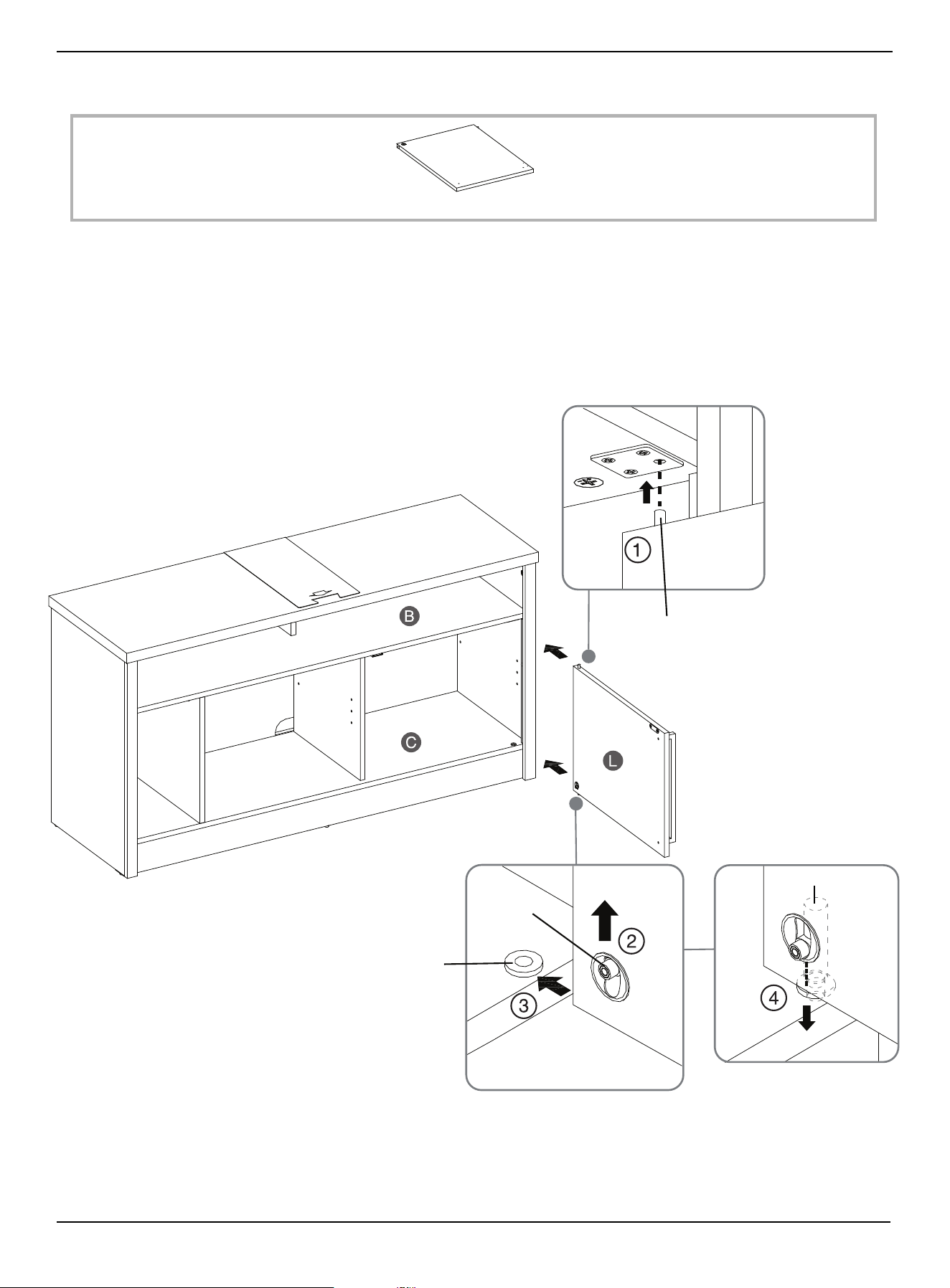
STEP 20: Installing the door
You need:
1 Tilt and slip the non-removable pin on the top of door (L) into the metal bracket on the bottom of the media shelf (B).
2 Push the release lever on the inside bottom of the door all the way up so that the pin is retracted and flush with the
bottom edge of the door (L).
3 Align the bottom pin of the door (L) with the center of the rubber bushing that’s pre-attached on the bottom panel (C).
4 Let go of the release lever so that the bottom pin of door (L) slides into the rubber bushing and allows the door to
swing.
L Door (1)
Non-removable pin
Release lever
Rubber bushing
Bottom pin
www.insigniaproducts.com
28
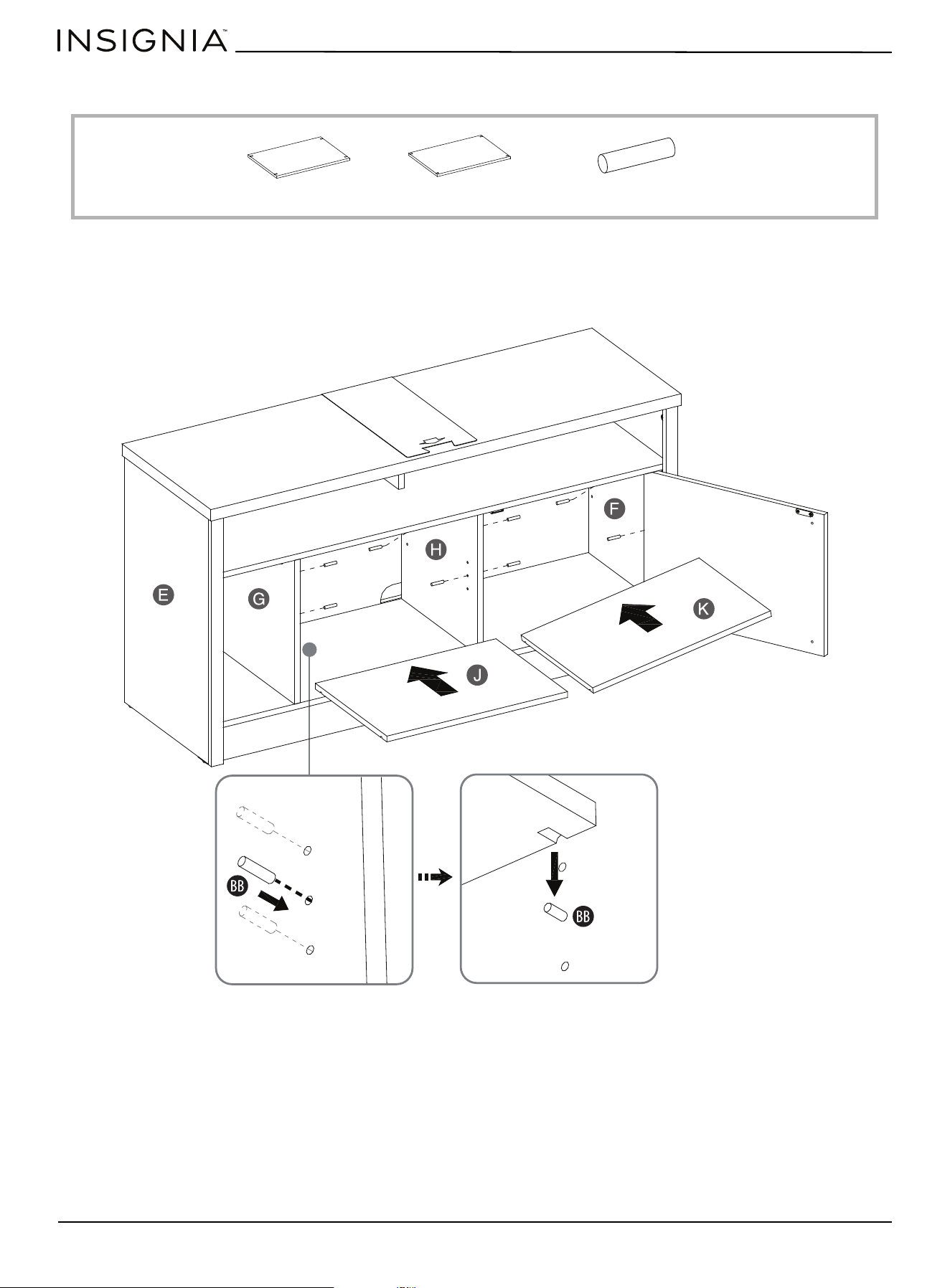
STEP 21: Installing the adjustable shelves
You need:
1 Insert four shelf pins (BB) into the holes in the partitions at the desired height inside the bottom middle and right
compartments. Make sure that you place shelf pins at the same level so that the shelves are level.
2 Insert the adjustable shelves (J and K) onto the shelf pins (BB) in the compartments and adjust if necessary.
J Left adjustable shelf (1)
K Right adjustable shelf (1)
BB Shelf pins (8)
www.insigniaproducts.com
29
47.5 in. TV Stand with Gaming Nook
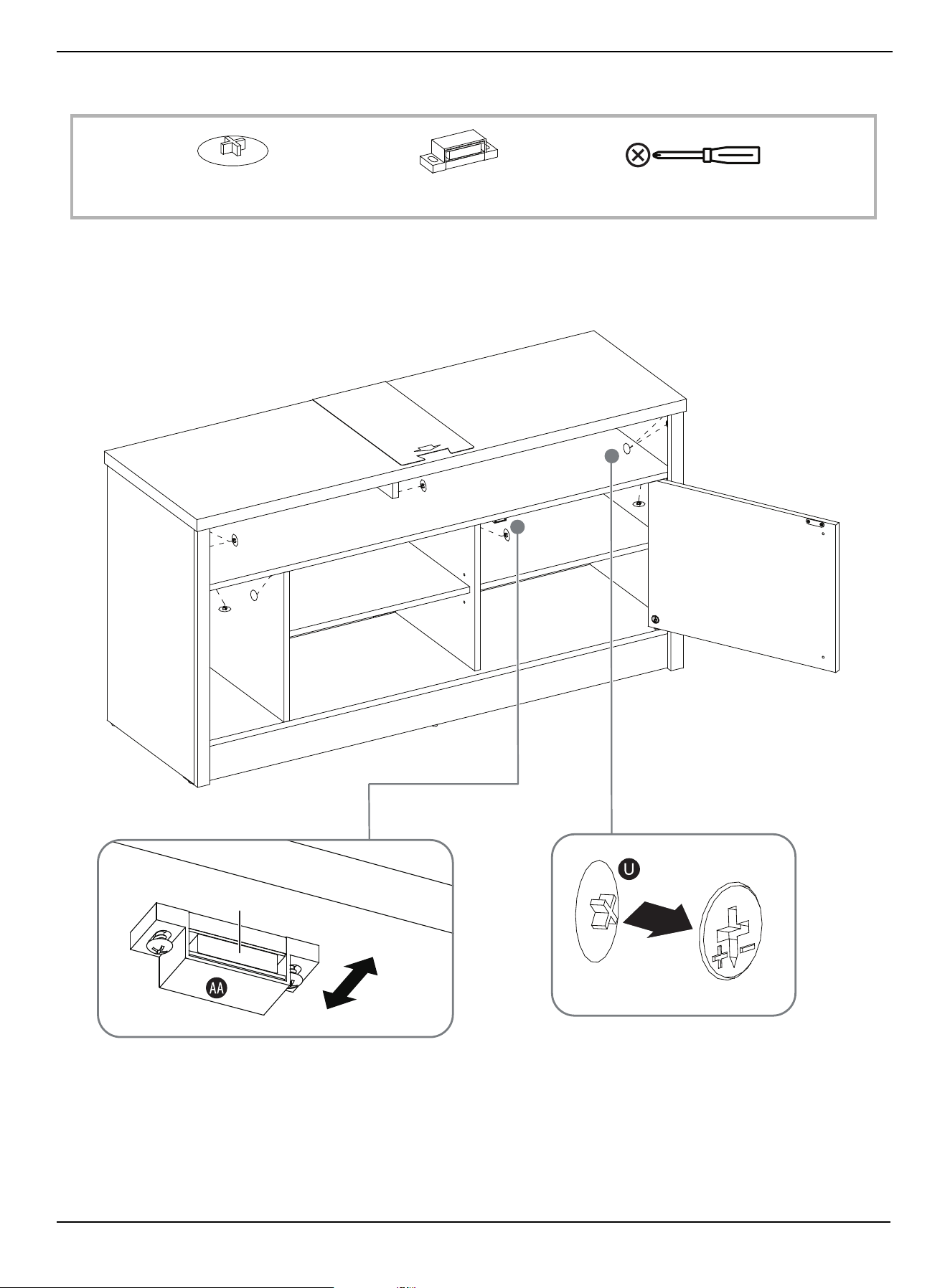
STEP 22: Installing the cam lock covers and adjusting the magnetic catch
You need:
1 Install the cam lock covers (U) by placing them onto the visible cam locks to conceal them.
2 Loosen the screws holding the magnetic catch (AA) and adjust the catch so that it holds the door closed properly, then
tighten the screws.
U Cam lock cover (20)
Phillips screwdriver
AA Magnetic catch (1)
Magnet
www.insigniaproducts.com
30
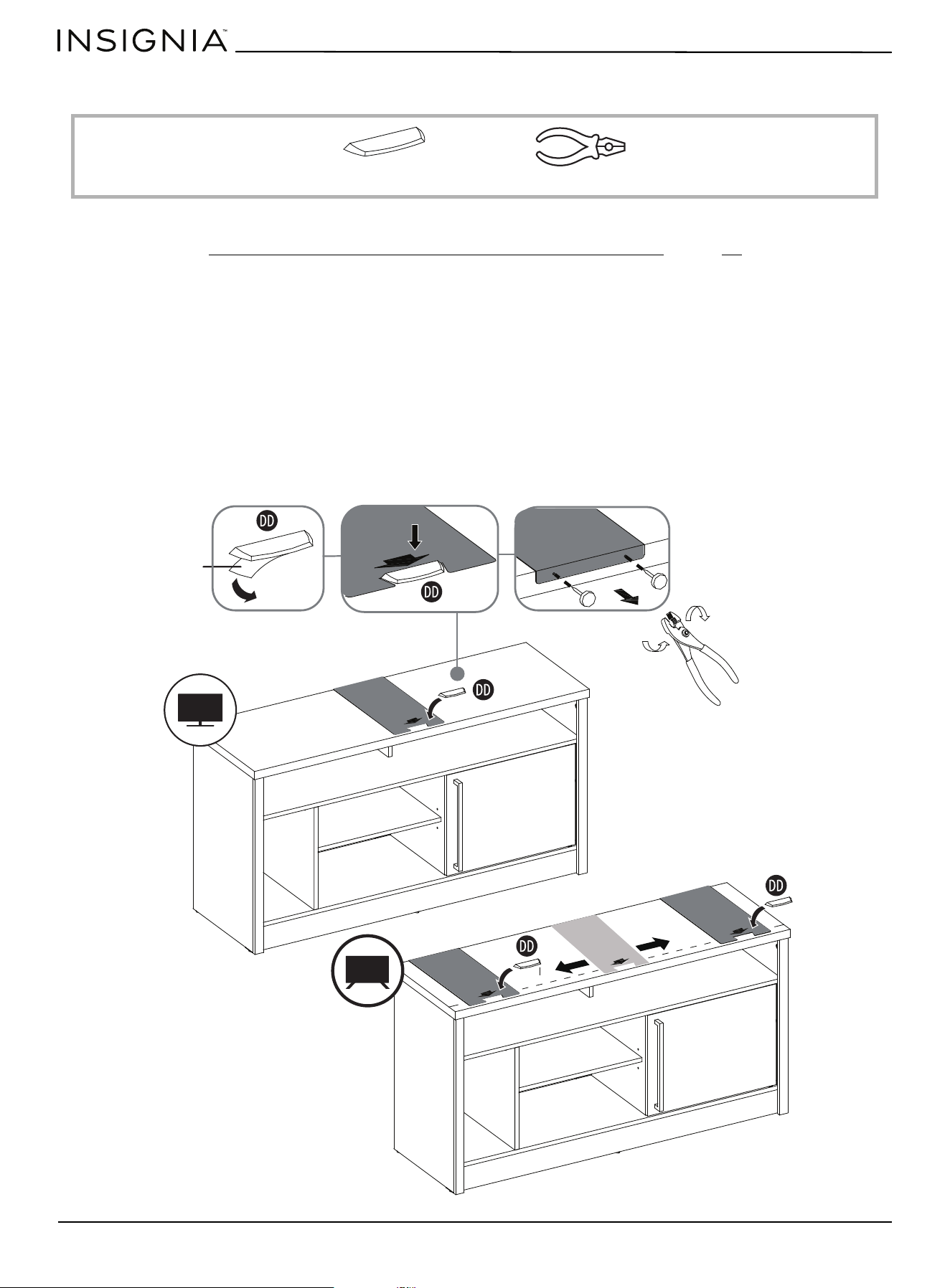
STEP 23: Attaching the stopper to the top panel
You need:
If you place your TV on top of your TV stand, you must follow these instructions to prevent your TV from tipping.
Otherwise, skip to STEP 24: Positioning the TV stand and installing the tipping restraints
on page 31.
If your TV has one leg
1 Remove the paper backing from the bottom of the stopper (DD), then place it in the stopper cut-out of the template on
the top panel (A). Press down on the stopper (DD) to adhere it to the panel.
2 On the back of the top panel (A), carefully pull out the thumb tacks to remove the stopper template.
If your TV has two legs:
1 On the back of the top panel (A), carefully pull out the thumb tacks to remove the stopper template.
2 Align the template at the position where one of your TV’s legs or one of the feet will be located.
3 Remove the paper backing from the stopper (DD), then place it in the stopper cut-out of the template on the top panel
(A). Press down on the stopper (DD) to adhere it to the panel.
4 Repeat this process to attach the second stopper where the other one of the TV’s legs or feet will be located.
DD Acrylic stopper (2) Pliers
Stopper
backing
www.insigniaproducts.com
31
47.5 in. TV Stand with Gaming Nook
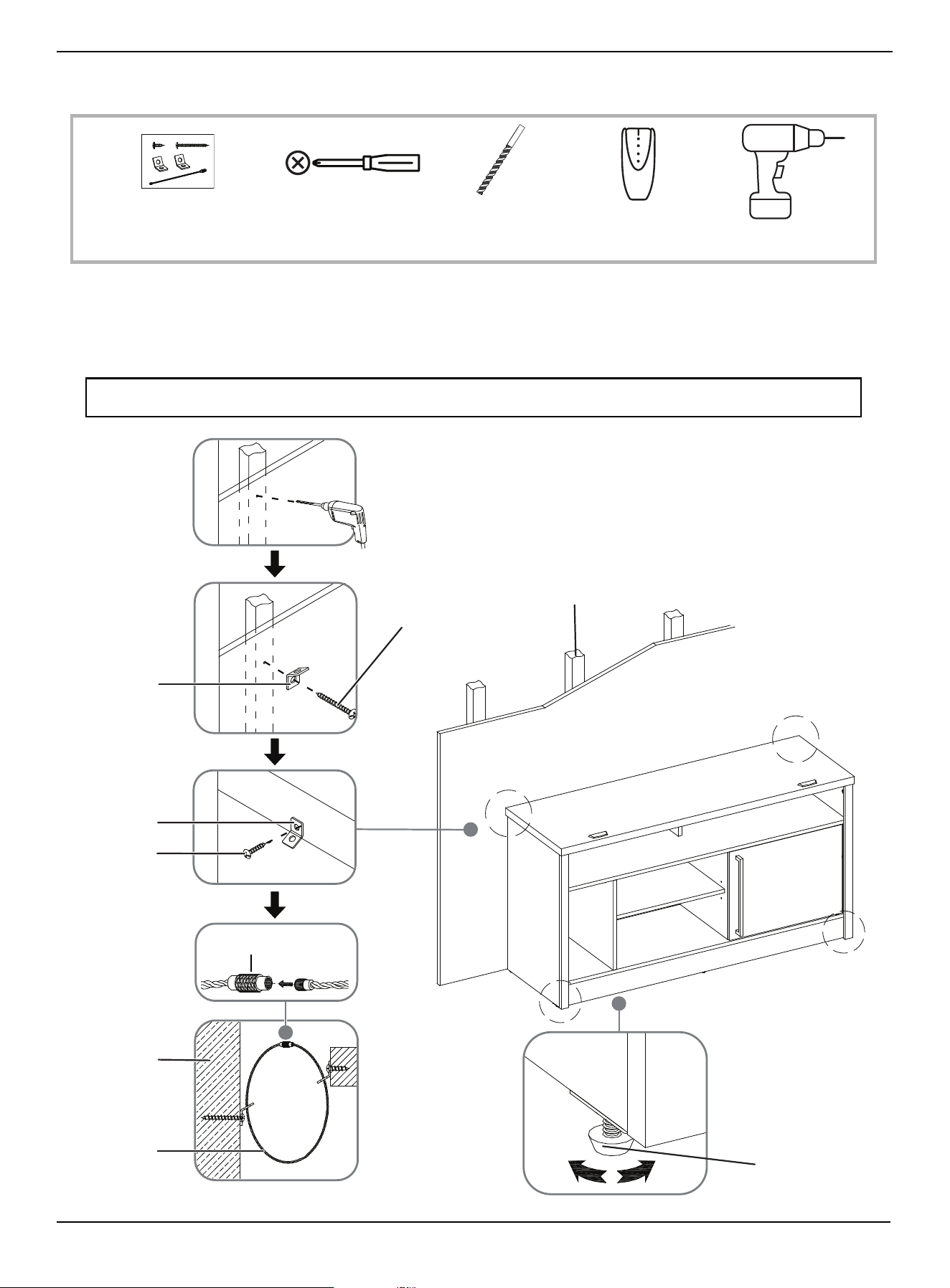
STEP 24: Positioning the TV stand and installing the tipping restraints
You need:
1 Position the assembled TV stand against the wall where you plan to use it.
2 Adjust the leveling feet to level the TV stand.
3 Follow the instructions printed on the bag containing the tipping restraint hardware kit (GG) to attach the restraint
hardware to the wall and to the TV stand.
WARNING: It is very important that the tipping restraint be installed correctly. Failure to do this could result in your TV stand
falling forward, resulting in damage to equipment or personal injury.
Phillips screwdriver 1/8” drill bit
Power drill
GG Tipping restraint (2) Edge-to-edge stud finder
Wooden stud
Leveling feet
Long screw
Metal bracket
Metal bracket
Short screw
Wall
Steel cable
Wall
Wall
Connector
www.insigniaproducts.com
32
Maintaining your TV stand
Wood/Laminate
• Use your favorite type of furniture polish.
• Do not spray polish directly onto the TV stand. Spray onto a soft cloth, then wipe the TV stand.
• Always test any polish in a discrete location first, such as the back of the TV stand, to make sure that there is no adverse
reaction.
• Dust frequently with a soft cloth.
• Never slide objects across surfaces. Lift objects from the top surface rather than dragging them across the finish when
moving them.
• Do not expose your TV stand to direct sunlight, drying heat sources, or dampness.
• Clean spills immediately with a soft, damp cloth.
• Use a protective pad when using your TV stand as a writing surface (especially when using a ballpoint pen).
Specifications
Maximum overall weight 370 lbs. (167.83 kg)
Maximum top panel weight 70 lbs. (31.75 kg)
Maximum shelf weight 50 lbs. (22.68 kg)
Maximum bottom panel weight 50 lbs. (22.68 kg)
Maximum TV weight 70 lbs. (31.75 kg)
Maximum screen size 55 in. (139.7 cm)
Overall dimensions (H × W × D) 25 × 47.5 × 15.9 in. (63.5 × 120.6 × 40.5 cm)
Middle shelf dimensions (W × D) 45.9 × 14 in. (116.6 × 35.7 cm)
Adjustable shelf dimensions (W × D) 18.3 × 12.5 in. (46.6 × 31.8 cm)
TV stand weight Net: 61.18 lbs. (27.75 kg)
Gross: 67.90 lbs. (30.80 kg)

www.insigniaproducts.com
33
47.5 in. TV Stand with Gaming Nook
ONE-YEAR LIMITED WARRANTY
Definitions:
The Distributor* of Insignia branded products warrants to you, the original purchaser of this new Insignia-branded product (“Product”), that the Product shall
be free of defects in the original manufacturer of the material or workmanship for a period of one (1) year from the date of your purchase of the Product
(“Warranty Period”).
For this warranty to apply, your Product must be purchased in the United States or Canada from a Best Buy branded retail store or online at www.bestbuy.com
or www.bestbuy.ca and is packaged with this warranty statement.
How long does the coverage last?
The Warranty Period lasts for 1 year (365 days) from the date you purchased the Product. Your purchase date is printed on the receipt you received with the
Product.
What does this warranty cover?
During the Warranty Period, if the original manufacture of the material or workmanship of the Product is determined to be defective by an authorized Insignia
repair center or store personnel, Insignia will (at its sole option): (1) repair the Product with new or rebuilt parts; or (2) replace the Product at no charge with
new or rebuilt comparable products or parts. Products and parts replaced under this warranty become the property of Insignia and are not returned to you. If
service of Products or parts are required after the Warranty Period expires, you must pay all labor and parts charges. This warranty lasts as long as you own your
Insignia Product during the Warranty Period. Warranty coverage terminates if you sell or otherwise transfer the Product.
How to obtain warranty service?
If you purchased the Product at a Best Buy retail store location or from a Best Buy online website ((www.bestbuy.com or www.bestbuy.ca), please take your
original receipt and the Product to any Best Buy store. Make sure that you place the Product in its original packaging or packaging that provides the same
amount of protection as the original packaging.
To obtain warranty service, in the United States and Canada call 1-877-467-4289. Call agents may diagnose and correct the issue over the phone.
Where is the warranty valid?
This warranty is valid only in the United States and Canada at Best Buy branded retail stores or websites to the original purchaser of the product in the country
where the original purchase was made.
What does the warranty not cover?
This warranty does not cover:
• Food, beverage, and/or medicine loss/spoilage.
• Customer instruction/education
•Installation
•Set up adjustments
• Cosmetic damage
• Damage due to weather, lightning, and other acts of God, such as power surges
• Accidental damage
•Misuse
•Abuse
•Negligence
• Commercial purposes/use, including but not limited to use in a place of business or in communal areas of a multiple dwelling condominium or
apartment complex, or otherwise used in a place of other than a private home.
• Modification of any part of the Product, including the antenna
• Display panel damaged by static (non-moving) images applied for lengthy periods (burn-in).
• Damage due to incorrect operation or maintenance
• Connection to an incorrect voltage or power supply
• Attempted repair by any person not authorized by Insignia to service the Product
• Products sold “as is” or “with all faults”
• Consumables, including but not limited to batteries (i.e. AA, AAA, C etc.)
• Products where the factory applied serial number has been altered or removed
• Loss or Theft of this product or any part of the product
• Display panels containing up to three (3) pixel failures (dots that are dark or incorrectly illuminated) grouped in an area smaller than one tenth (1/10)
of the display size or up to five (5) pixel failures throughout the display. (Pixel based displays may contain a limited number of pixels that may not
function normally.)
• Failures or Damage caused by any contact including but not limited to liquids, gels or pastes.
REPAIR REPLACEMENT AS PROVIDED UNDER THIS WARRANTY IS YOUR EXCLUSIVE REMEDY FOR BREACH OF WARRANTY. INSIGNIA SHALL NOT BE LIABLE
FOR ANY INCIDENTAL OR CONSEQUENTIAL DAMAGES FOR THE BREACH OF ANY EXPRESS OR IMPLIED WARRANTY ON THIS PRODUCT, INCLUDING, BUT
NOT LIMITED TO, LOST DATA, LOSS OF USE OF YOUR PRODUCT, LOST BUSINESS OR LOST PROFITS. INSIGNIA PRODUCTS MAKES NO OTHER EXPRESS
WARRANTIES WITH RESPECT TO THE PRODUCT, ALL EXPRESS AND IMPLIED WARRANTIES FOR THE PRODUCT, INCLUDING BUT NOT LIMITED TO ANY
IMPLIED WARRANTIES OF AND CONDITIONS OF MERCHANTABILITY AND FITNESS FOR A PARTICULAR PURPOSE, ARE LIMITED IN DURATION TO THE
WARRANTY PERIOD SET FORTH ABOVE AND NO WARRANTIES, WHETHER EXPRESS OR IMPLIED, WILL APPLY AFTER THE WARRANTY PERIOD. SOME
STATES, PROVINCES AND JURISDICTIONS DO NOT ALLOW LIMITATIONS ON HOW LONG AN IMPLIED WARRANTY LASTS, SO THE ABOVE LIMITATION MAY
NOT APPLY TO YOU. THIS WARRANTY GIVES YOU SPECIFIC LEGAL RIGHTS, AND YOU MAY ALSO HAVE OTHER RIGHTS, WHICH VARY FROM STATE TO STATE
OR PROVINCE TO PROVINCE.
Contact Insignia:
1-877-467-4289
www.insigniaproducts.com
INSIGNIA is a trademark of Best Buy and its affiliated companies.
*Distributed by Best Buy Purchasing, LLC
7601 Penn Ave South, Richfield, MN 55423 U.S.A.
©2024 Best Buy. All rights reserved.

www.insigniaproducts.com
1-877-467-4289 (U.S. and Canada) or 01-800-926-3000 (Mexico)
INSIGNIA is a trademark of Best Buy and its affiliated companies.
Distributed by Best Buy Purchasing, LLC
7601 Penn Ave South, Richfield, MN 55423 U.S.A.
©2024 Best Buy. All rights reserved.
V2 ENGLISH
24-0443