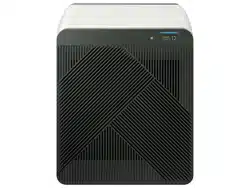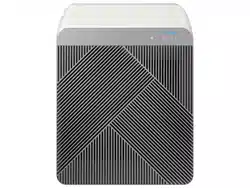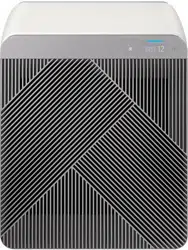
Samsung Air Purier
User Manual
AX350*935**
• Thank you for purchasing this Samsung Air Purier.
• Before operating this unit, please read this manual carefully and retain it for future reference.
2021-07-22 오전 10:58:482021-07-22 오전 10:58:48

2
English
Contents
Safety Information 4
Safety Information 4
Package Contents 8
Accessories 8
Air Purifier Overview 9
Front of main unit / Rear of main unit 9
Button unit / Display 10
Connecting the power adapter / Removing the power adapter 11
Removing the lters 12
Attaching the lters 14
Attaching the pet mesh lter 16
Using the Air Purifier 19
Turning on/off the air purier / Changing the operation mode 19
Lock function / Filter replacement reminder 20
Air outlet setting / Checking air quality 21
Cleaning and Maintenance 23
Cleaning the air purier exterior 23
Cleaning and drying the lters 25
Using the SmartThings App 26
SmartThings app 26
Appendix 29
Before Requesting Service 29
2021-07-22 오전 10:58:492021-07-22 오전 10:58:49
3
English
The energy efciency of this ENERGY STAR certied model is measured based on a
ratio between the model's CADR for smoke and the electrical energy it consumes, or
CADR/Watt.
Qualied model list :
AX350A9350G/AA, AX350A9350N/AA
This product has Wi-Fi capability and requires Internet connectivity and a wireless router to
enable interconnection with an Energy Management System, and/or with other external devices, systems or
applications
FCC Caution: Any changes or modications not expressly approved by the party responsible for compliance
could void the user’s authority to operate this equipment.
This device and its antenna(s) must not be co-located or operation in conjunction with any other antenna or
transmitter.
FCC Radiation Exposure Statement:
This equipment complies with FCC radiation exposure limits set forth for an uncontrolled environment.
This equipment should be installed and operated with minimum distance 20cm between the radiator &
your body.
IC Radiation Exposure Statement
This equipment complies with IC RSS-102 radiation exposure limits set forth for an uncontrolled
environment. This equipment should be installed and operated with minimum distance 20cm between
the radiator & your body.
This device complies with Industry Canada licence-exempt RSS standard(s). Operation is subject to the
following two conditions: (1) this device may not cause harmful interference and (2) this device must
accept any interference received, including interference that may cause undesired operation.
2021-07-22 오전 10:58:492021-07-22 오전 10:58:49
4
English
Safety Information
These safety precautions are for owner's safety and preventions of property damage.
Therefore, please read this manual thoroughly before using your product.
READ AND SAVE THESE INSTRUCTIONS
California Proposition 65 Warning (US)
WARNING:
Cancer and Reproductive Harm - www.P65Warnings.ca.gov.
Safety Information
WARNING
Hazards or unsafe practices that may result in severe personal injury or death.
CAUTION
Hazards or unsafe practices that may result in minor personal injury or property damage.
Follow directions.
Do NOT attempt.
Make sure the machine is grounded to prevent electric shock.
Disconnect from the power source.
Do NOT disassemble.
FOR INSTALLATION
WARNING
Only connect to a socket that can provide the rated power supply. Do not use the socket with other
products. Do not extend the power cord.
• Using a multi-socket with other products or extending the power cord may cause electric shock or fire.
• Using a voltage converter may cause electric shock or fire.
• Failing to meet the exact voltage, frequency and/or rated current may cause electric shock or fire.
Do not install the air purier near a heat source and ammable objects, or in areas that are highly
humid or dusty. Avoid exposure to oil, gas, direct sunlight and water.
• Follow instructions to avoid electric shock or fire.
CAUTION
When installing the product, make sure that the power plug can be easily removed when needed.
• Follow instructions to avoid electric shock or fire due to electrical leakage.
Install the product on a solid at ground.
• Follow instructions to avoid excessive vibration, noise and operational issues thereof.
DB68-11173A-00_IB_ACR AX9500A_Small PET_AA_EN_.indd 4DB68-11173A-00_IB_ACR AX9500A_Small PET_AA_EN_.indd 4 2021-07-22 오전 10:58:492021-07-22 오전 10:58:49
5
English
Safety Information
Keep a safe distance from surrounding objects.
• Clear space from each side: at least 24 inches and the rear: at least 10 inches
• The space is necessary to ensure efficient air intake and proper purification.
• Make sure that the inlet and outlet are not covered.
Make sure that the power cord is not pressed under the product.
• Follow instructions to avoid electric shock or fire.
FOR POWER SUPPLY
WARNING
Use a dry cloth to wipe the power plug and the contact area to keep them free from dust, water and
other undesirable substances.
• Follow instructions to avoid electric shock or fire.
Check the position of the power plug when you connect it to a socket.
• Having the cord hanging from above the plug may damage the wires inside, which can lead to electric
shock or fire.
Please contact your local Samsung Service Center if the power plug or cord is damaged.
If the supply cord is damaged, it must be replaced by the manufacturer, its service agent or similarly
qualied persons in order to avoid a hazard.
Make sure that the power plug is securely tted in the socket. Do not use it when the plug or cord is
damaged.
• Follow instructions to avoid electric shock or fire.
When you disconnect the power cord, pull it by the plug. Do not pull the cord itself.
• Follow instructions to avoid electric shock or fire.
Do not forcibly bend, pull, twist or tie the power cord into a knot. Do not hang it on a metallic object or
put a heavy object on it. Do not put the cord in a small gap between heavy objects, or forcibly push it
behind the air purier.
• Follow instructions to avoid electric shock or fire.
This appliance has a polarized plug (one blade is wider than the other). To reduce the risk of electric
shock, this plug is intended to t a polarized outlet only one way. If the plug does not t fully in outlet,
reverse the plug. If it still does not t, contact a qualied electrician.
• Do not attempt to defeat this safety feature.
CAUTION
Remove the power plug of your air purier when it is not used for a period of time and during a
thunderstorm.
• Follow instructions to avoid electric shock or fire.
Product installation must be handled by ofcial Samsung service personnel or a certied local
technician to avoid power cord or plug damage, which can be dangerous.
Disconnect the air purier from the power source before cleaning or repairing.
2021-07-22 오전 10:58:492021-07-22 오전 10:58:49
6
English
Safety Information
Safety Information
FOR USING
WARNING
If the product is exposed to water, immediately disconnect it from the power source and contact your
local Samsung Service Center.
• Follow instructions to avoid electric shock or fire.
If you notice a noise, burning smell or smoke from the product, immediately stop using it and contact
your local Samsung Service Center.
• Follow instructions to avoid electric shock or fire.
If there is gas leakage (e.g., city gas or propane gas) in the location where the product is used, do NOT
touch the product or power cord. Immediately open the windows to ventilate the location, and then
contact the gas service provider's agent or a qualied technical expert for assistance.
• Do not turn the ventilation fan on.
• A spark can cause an explosion or fire.
Do not pull out the power plug while operating the air purier.
• This may cause a spark when reconnecting the plug, which can lead to an explosion or fire.
Please contact your local Samsung Service Center when you require repair service.
• Follow instructions to avoid malfunction, water leakage, electric shock or fire.
Do not handle the power plug with wet hands.
• Follow instructions to avoid electric shock or fire.
Do not strike the product with excessive force or pull or press the front panel forcefully.
• Failure to do so may result in fire, a product malfunction, injury, noise or deformation.
Store the plastic package away from children or discard it according to the law.
• Follow instructions to protect children from a risk of suffocation.
Do not insert your nger or other objects into the air inlet or outlet.
• Take special care to protect children from injury.
• Take special care not to injure your fingers by putting them between the front panel and the product
when the front panel is closing.
Do not place an object near the air purier as children may use them to climb onto the product.
• Follow instructions to avoid injury from a tip-over or fall.
If the power plug area has contacted water, completely dry it before using the air purier again.
• Follow instructions to avoid electric shock or fire.
Do not insert a metal object and similar items inside the air purier.
• Follow instructions to avoid electric shock or injury.
Do not place a heavy object on the air purier.
• Follow instructions to avoid malfunction or noise.
To reduce the risk of re or electric shock, do not use this fan with any solid-state speed control device.
Not suitable for use with solid-state speed controls.
2021-07-22 오전 10:58:492021-07-22 오전 10:58:49
7
English
Safety Information
If any of the electric components inside the air purier has contacted liquid or water, disconnect the
product from the power source and contact your local Samsung Service Center.
• Follow instructions to avoid electric shock or fire.
Do NOT attempt to repair or modify the product.
• Use only the standard rated fuse.
• Follow instructions to avoid electric shock, fire, malfunction or injury.
CAUTION
Keep your air purier at least 7 feet away from a TV or other audio/visual media.
• They can be affected by video or audio noise.
Operate the air purier with no obstacles in the vicinity.
• At least 24 inches from both sides of the product, at least 10 inches from the product inlet, and at least
39 inches from the product outlet
• The product is designed to intake, purify, and discharge polluted air. If there is any obstacle in the
vicinity, the purification capacity may decrease.
Do not step on the product or place other objects on it (laundry, candles, burning cigarettes, plates,
medicine, metal items, air fresheners, etc.).
• Follow instructions to avoid electric shock, fire, malfunction or injury.
Do not tilt or ip the air purier while the power plug is connected to the socket.
• Follow instructions to avoid malfunction or fire.
Do not use bug repellent or other spray products on the air purier.
• They can be harmful and may cause electric shock, fire or malfunction.
Do not submerge the air purier.
• Follow instructions to avoid malfunction.
Do not handle the product with wet hands.
• Follow instructions to avoid electric shock.
This appliance can be used by children aged from 8 years and above and persons with reduced physical,
sensory or mental capabilities or lack of experience and knowledge if they have been given supervision
or instruction concerning use of the appliance in a safe way and understand the hazards involved.
Children shall not play with the appliance.
Cleaning and user maintenance shall not be made by children without supervision.
FOR CLEANING
WARNING
Do not apply water, benzene, thinner, alcohol, acetone or similar substances directly on the product.
• Follow instructions to avoid product discoloration or deformation, electric shock or fire.
Disconnect the product from the power source when cleaning. Wait for the fan to completely stop before cleaning.
• Follow instructions to avoid electric shock or fire.
CAUTION
Be sure to cut off all power sources before cleaning or any other maintenance work. Before connecting
power after maintenance, be sure to conrm that the product is assembled completely.
2021-07-22 오전 10:58:492021-07-22 오전 10:58:49
8
English
Package Contents
Package Contents
Accessories
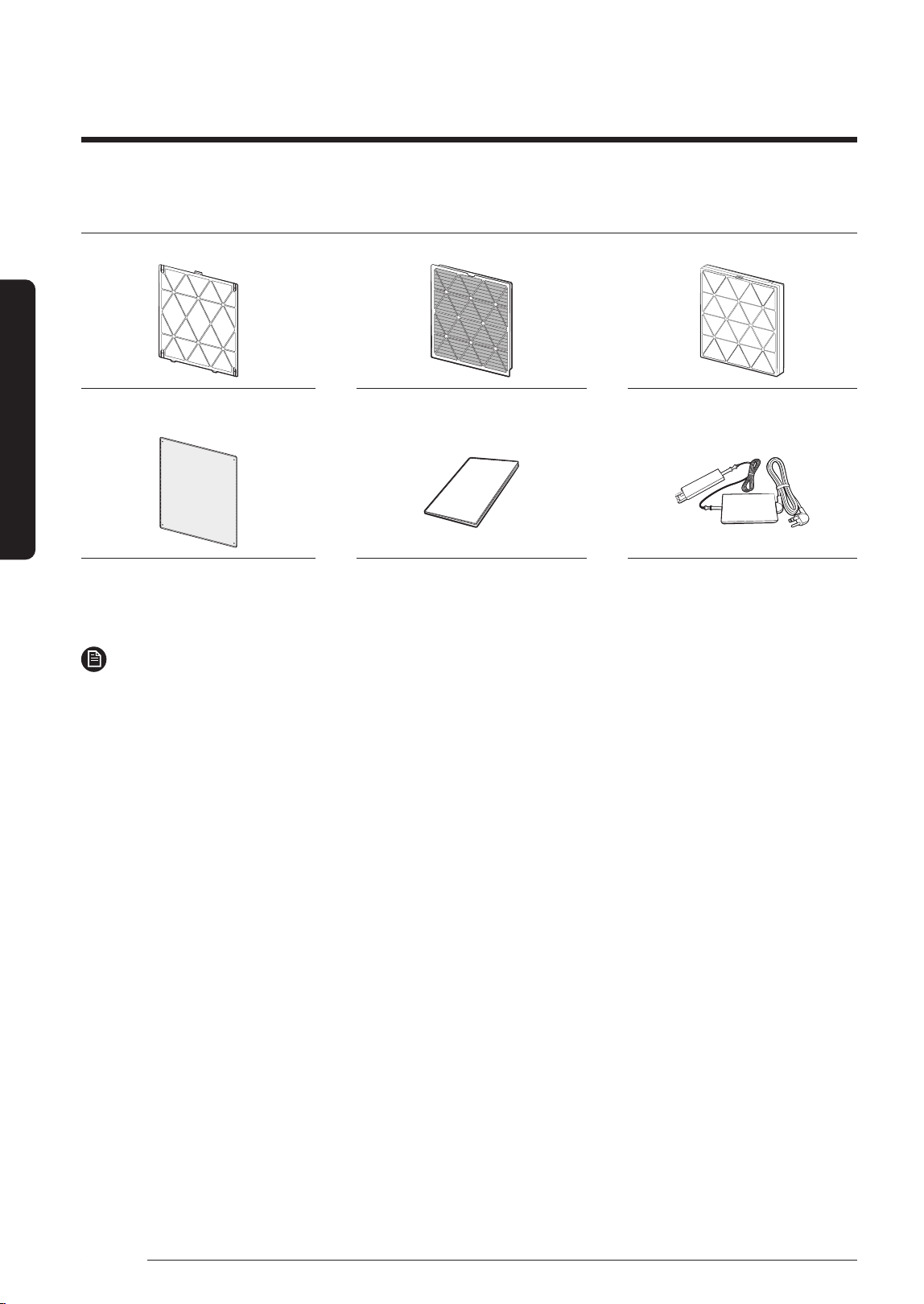
Pre-lter PET Deodorization Filter ¹⁾ Dust Collecting Filter ¹⁾
Pet mesh lter (5 ea) User Manual Power adapter
¹⁾ The pet deodorization filter and dust collecting lter cannot be reused by washing them with water.
NOTE
• Do NOT use types of lters other than those originally supplied with the product.
– When purchasing a lter for replacement, be sure to conrm that it is the same type as the lter
originally supplied with the product.
2021-07-22 오전 10:58:502021-07-22 오전 10:58:50
9
English
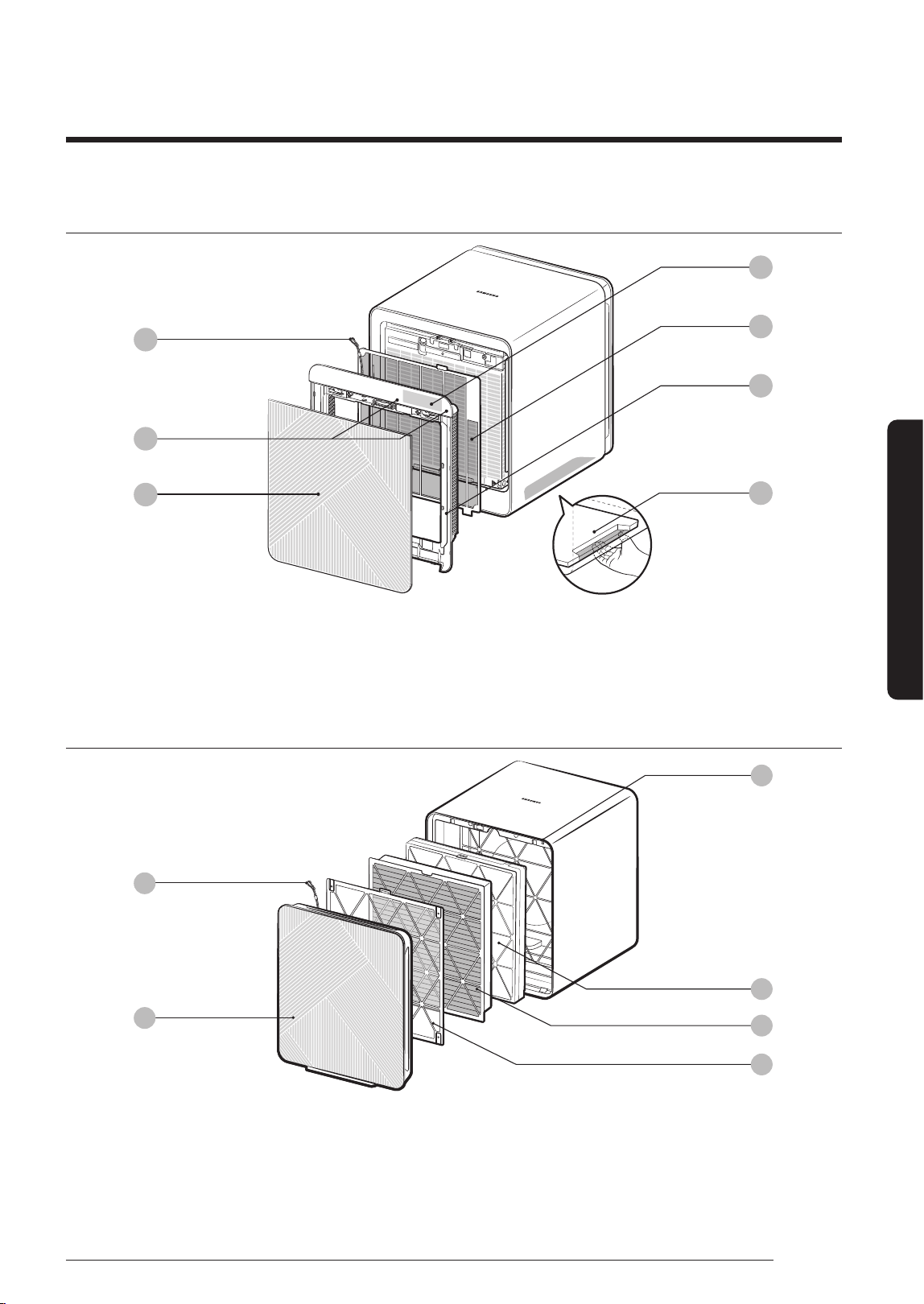
Air Purier Overview
This image is a representative image. The product design and specications are subject to change without
notice for the purpose of improving quality.
01
Clip wire
02
Air inlet / Rear panel
03
Micro air sensor
04
Dust Collecting Filter
05
PET Deodorization Filter
06
Pre-lter
Front of main unit
01
07
03
02
04
05
06
Air Purier Overview
01
Clip wire
02
Button unit
03
Air outlet / Bespoke panel
04
Display
05
Front mesh
06
Frame
07
Pull handle (both bottom sides)
Air Purier Overview
Rear of main unit
04
05
06
02
03
01
2021-07-22 오전 10:58:502021-07-22 오전 10:58:50
10
English
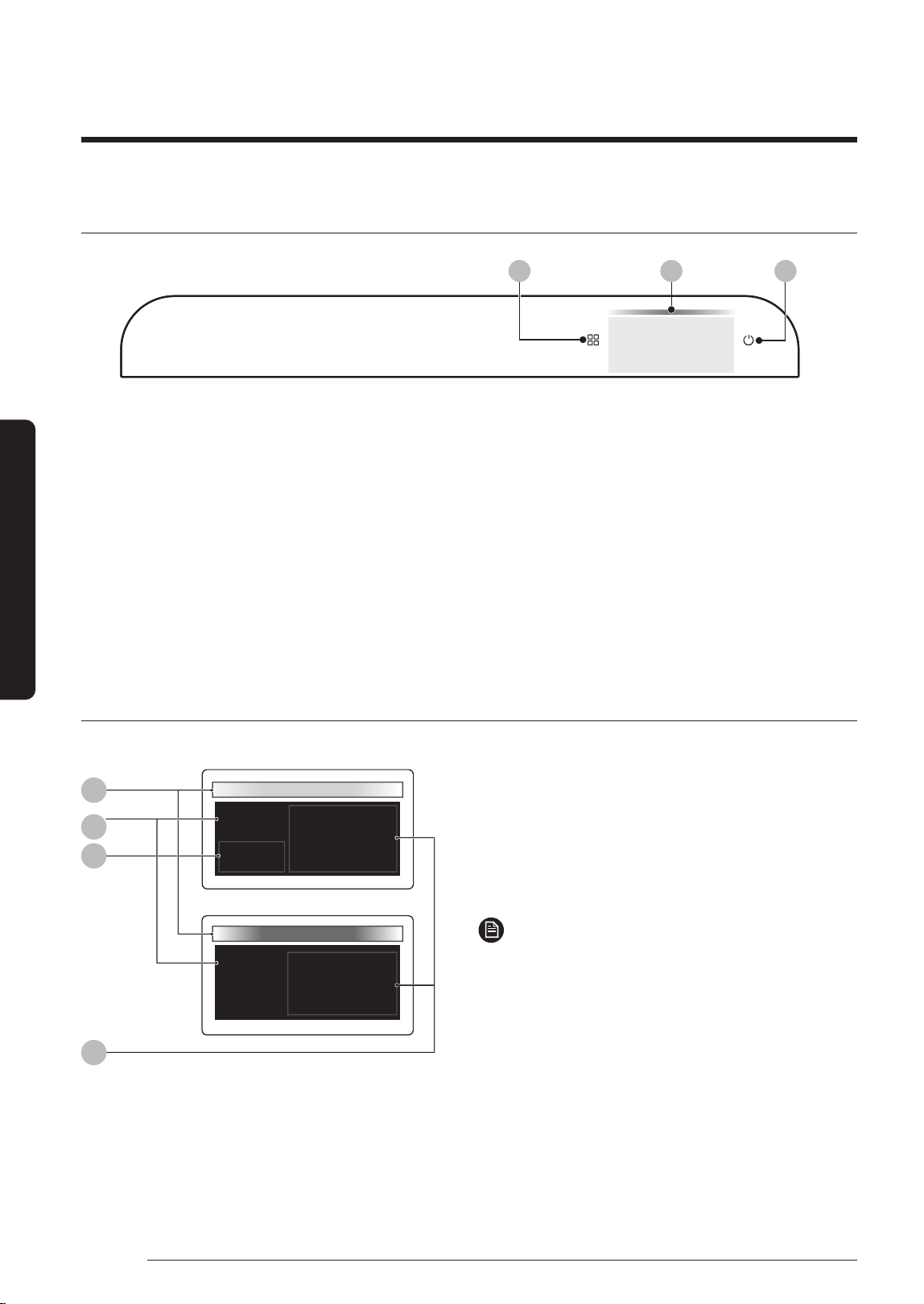
Air Purier Overview
01
Mode button
• Short press: Changes the operation mode
(Smart, High, Wind-Free, Sleep, Pet)
• 3-second press: Resets the lters
• 5-second press: Activates/deactivates the AP
02
Power button
• Short press: Turns on/off the device
• 3-second press: Locks/unlocks the device
(When the device is locked/unlocked, the button
is shown for 5 seconds on the front display.)
* Mode button + Power button
• 5-second press: Toggles between 1 outlet
and 3 outlets (air outlet quantity)
03
Display
Display
03
01
125
Smart
PM10
GAS
Smart
04
02
PM10, PM2.5 and PM1.0 indication
GAS indication
01
Shows the PM10, PM2.5, PM1.0 and GAS levels
with colour indicators
02
Shows the operation mode
03
Shows the PM10, PM2.5 and PM1.0 status
04
Shows the concentrations of PM10, PM2.5 and
PM1.0 and the GAS status
NOTE
• PM10: Dust in the air with a diameter of 10
㎛
or less
– Fine particles about 1/5 of the diameter of a
human hair
• PM2.5: Dust in the air with a diameter of 2.5
㎛
or less
– Fine particles about 1/20 of the diameter of a
human hair
• PM1.0: Dust in the air with a diameter of 1.0
㎛
or less
– Fine particles about 1/50 of the diameter of a
human hair
* Diameter of a human hair: 50–70
㎛
Button unit
01 02
Smart
PM10
5
03
Air Purier Overview
2021-07-22 오전 10:58:502021-07-22 오전 10:58:50
11
English
Air Purier Overview
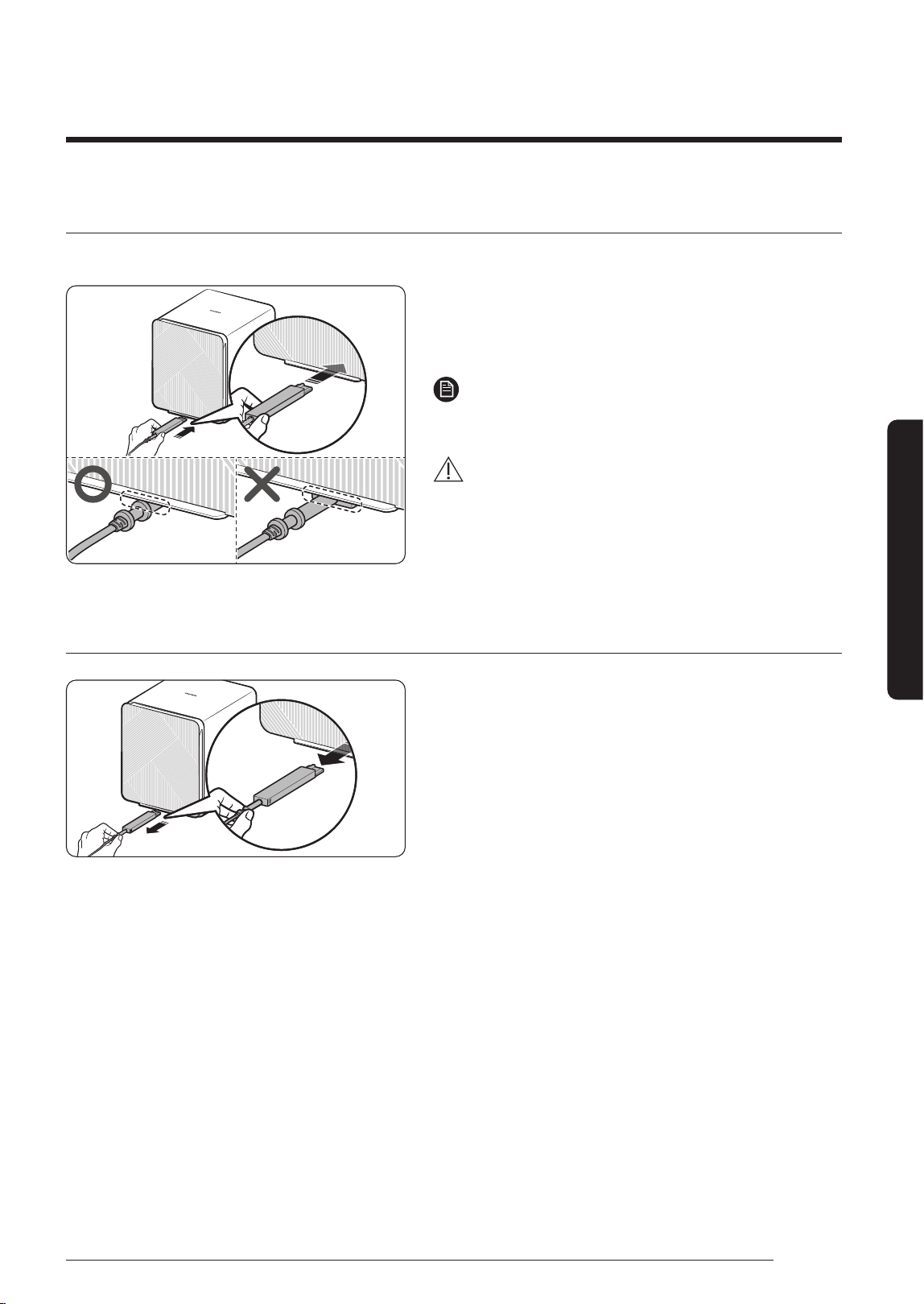
Connecting the power adapter
To use the air purier, rst connect the power adapter to the main unit.
Check the top/bottom of the power adapter, and then
connect it to the port on the rear bottom of the product.
• Push the power adapter all the way in until it clicks into place.
NOTE
• The product will not work if you do not push the power
adapter all the way in.
CAUTION
• Exercise caution to ensure that the adapter is not
damaged.
• Do NOT use a damaged adapter. It can cause electric
shock or fire.
Removing the power adapter
Remove the device power adapter as shown in the gure.
• To combine or separate devices, first be sure to remove
the power adapters.
2021-07-22 오전 10:58:512021-07-22 오전 10:58:51
12
English
Air Purier Overview
Air Purier Overview
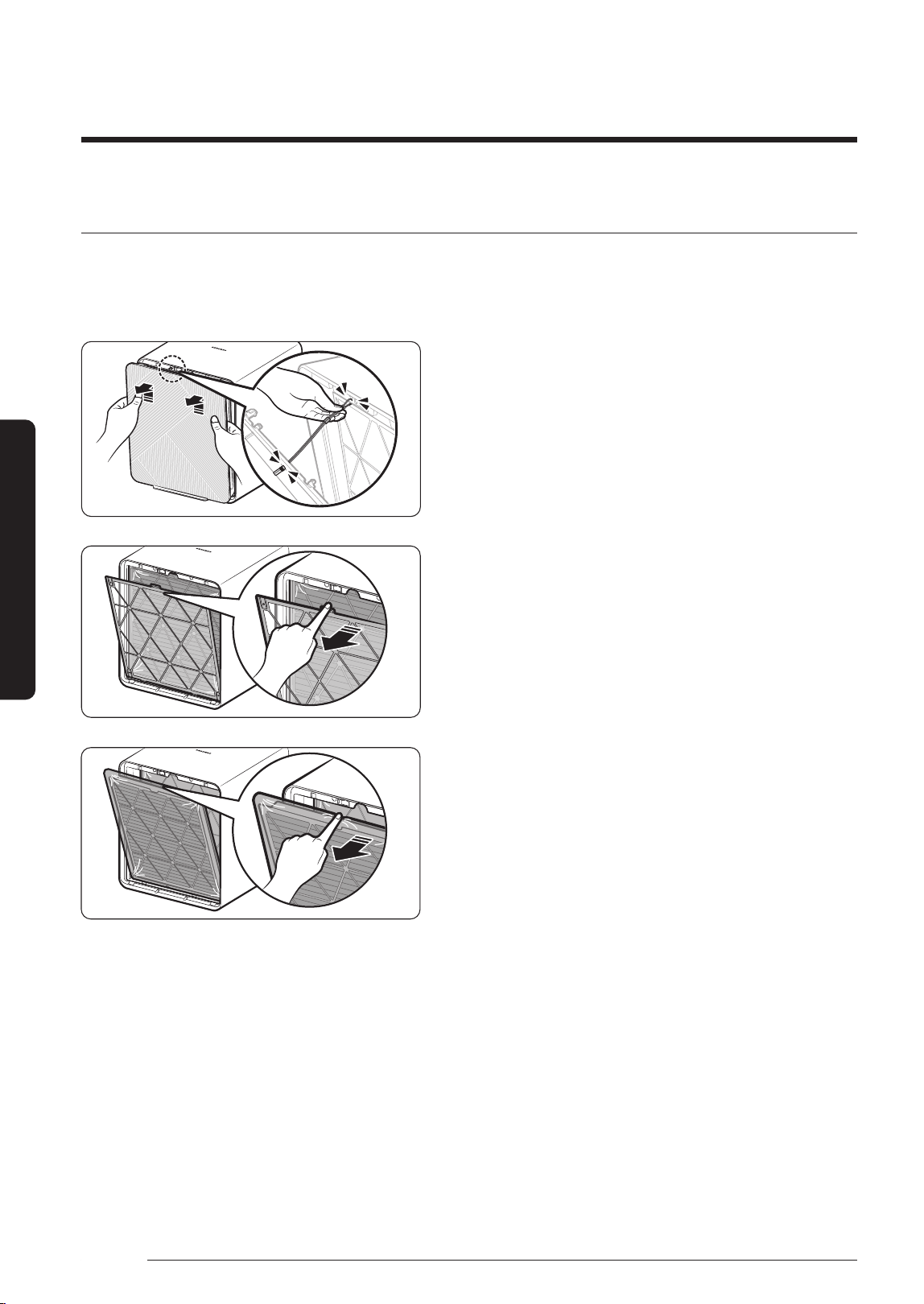
Removing the lters
Before using the consumable lters for the rst time or a new lter for replacement, be sure to remove the
plastic packaging from the lters.
To detach a lter, rst be sure to remove the power plug.
STEP 1
Opening the rear panel
• Hold both upper sides of the rear panel. Gently lift and
pull the panel towards yourself to remove it.
• Remove the clip wire from the rear of the main unit.
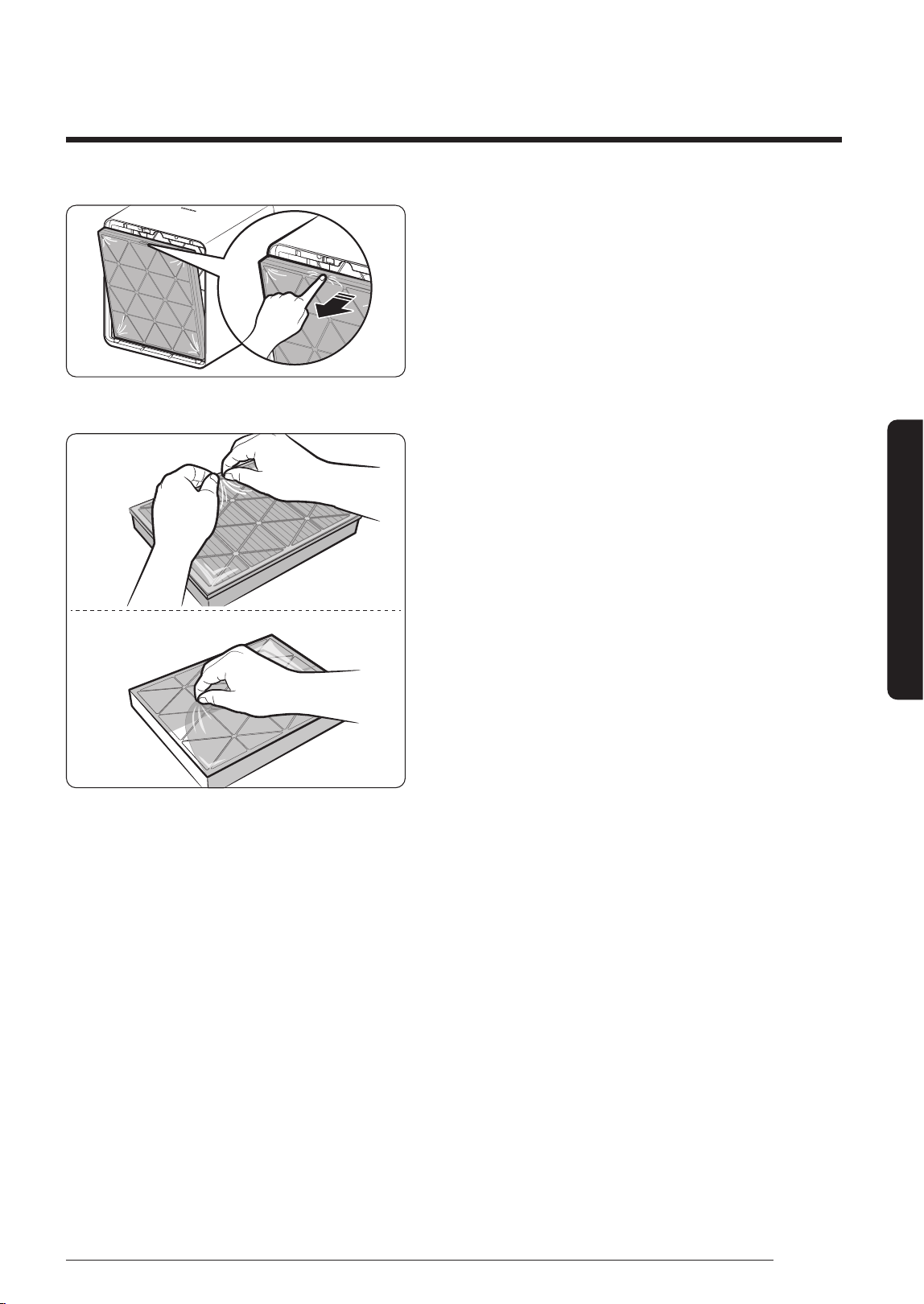
STEP 2
Remove the pre-lter
STEP 3
Removing the pet deodorization lter
2021-07-22 오전 10:58:512021-07-22 오전 10:58:51
13
English
Air Purier Overview
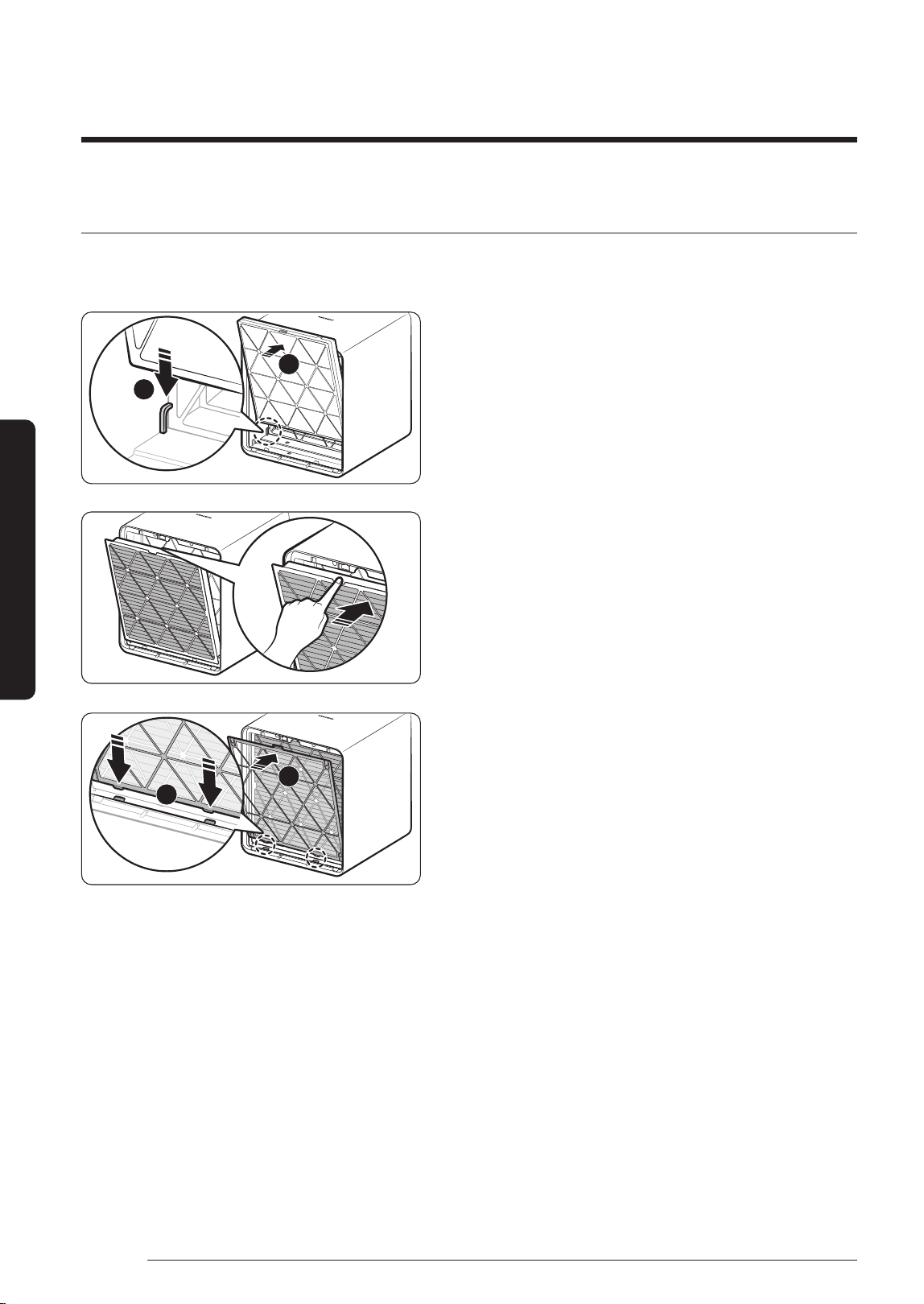
STEP 4
Remove the dust collecting lter.
STEP 5
Remove the plastic packaging from the pet
deodorization lter and dust collecting lter.
PET Deodorization Filter
Dust Collecting Filter
2021-07-22 오전 10:58:522021-07-22 오전 10:58:52
14
English
Air Purier Overview
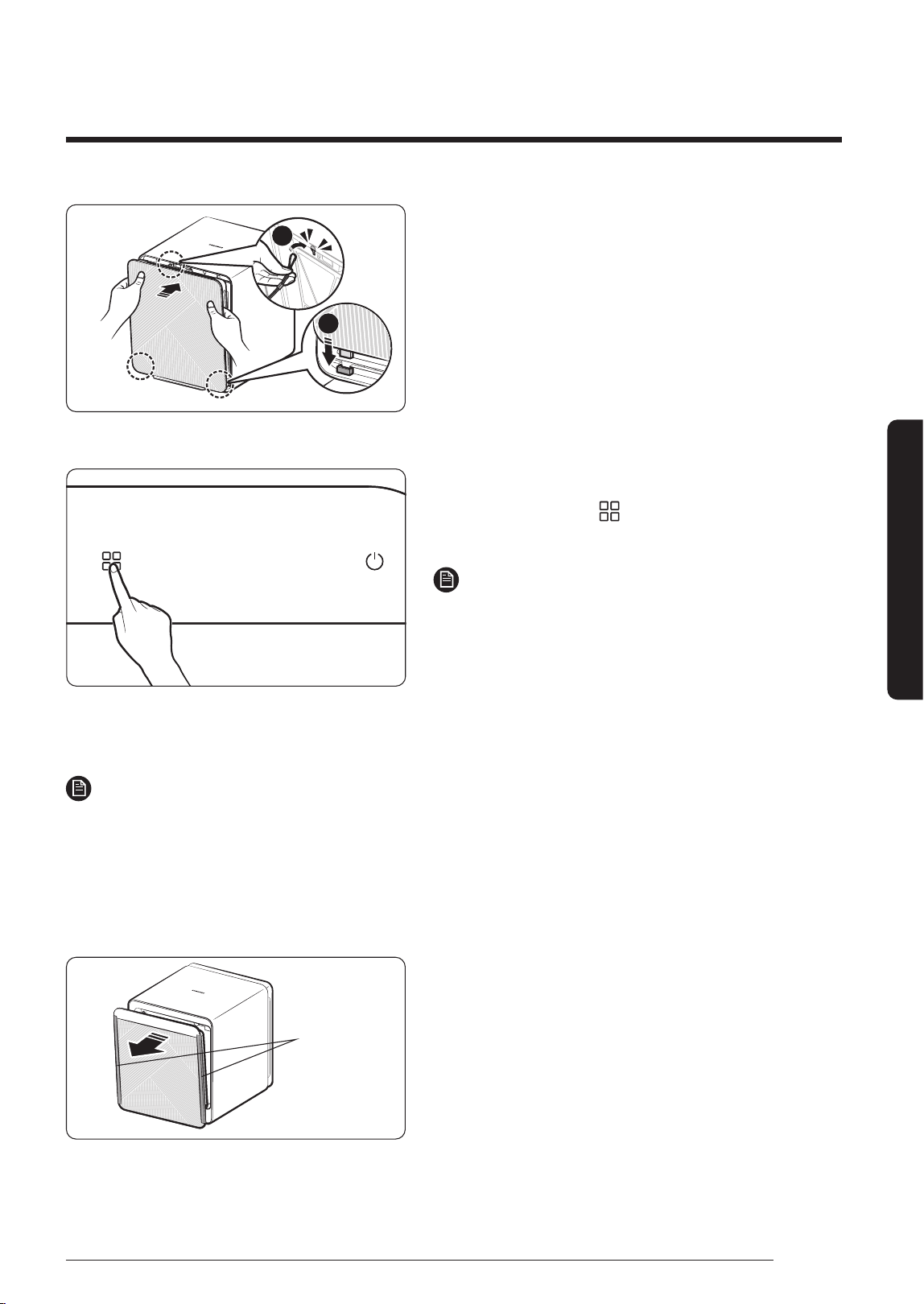
Attaching the lters
When attaching the lters, refer to the order of inserting lters shown in the label attached to the inside of the
lter unit.
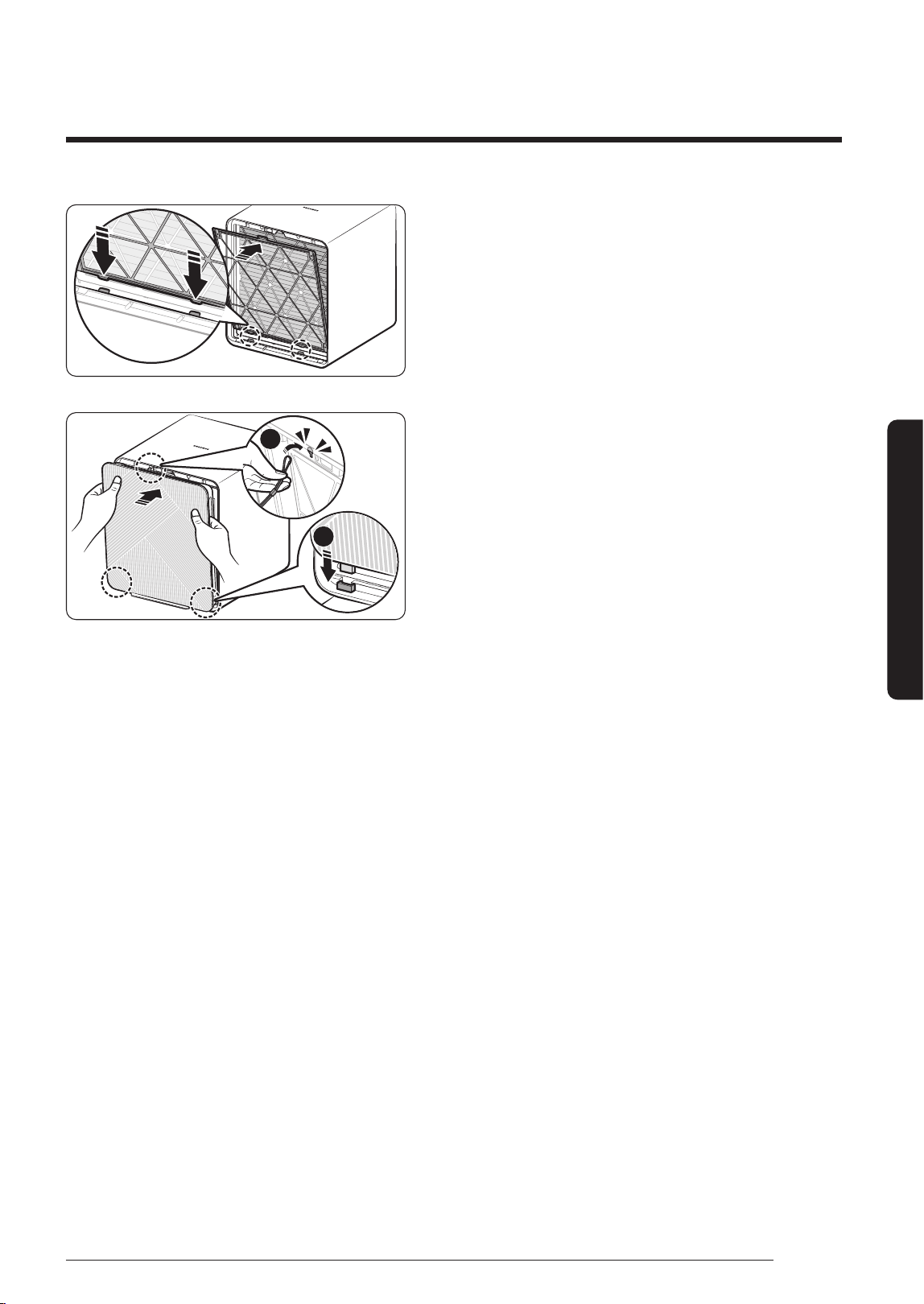
STEP 1
Attaching the dust collecting lter
• Put (
②
) the corner of the lter behind the clip (
①
) at
the bottom of the main unit to fasten the lter.
• Conrm that the lter attachment direction is correct
before attaching it.
STEP 2
Attaching the pet deodorization lter
STEP 3
Attaching the pre-lter
• Insert (
②
) the tabs on the lter into the slots (
①
) at
the bottom of the main unit.
1
2
1
2
Air Purier Overview
DB68-11173A-00_IB_ACR AX9500A_Small PET_AA_EN_.indd 14DB68-11173A-00_IB_ACR AX9500A_Small PET_AA_EN_.indd 14 2021-07-22 오전 10:58:522021-07-22 오전 10:58:52
15
English
Air Purier Overview
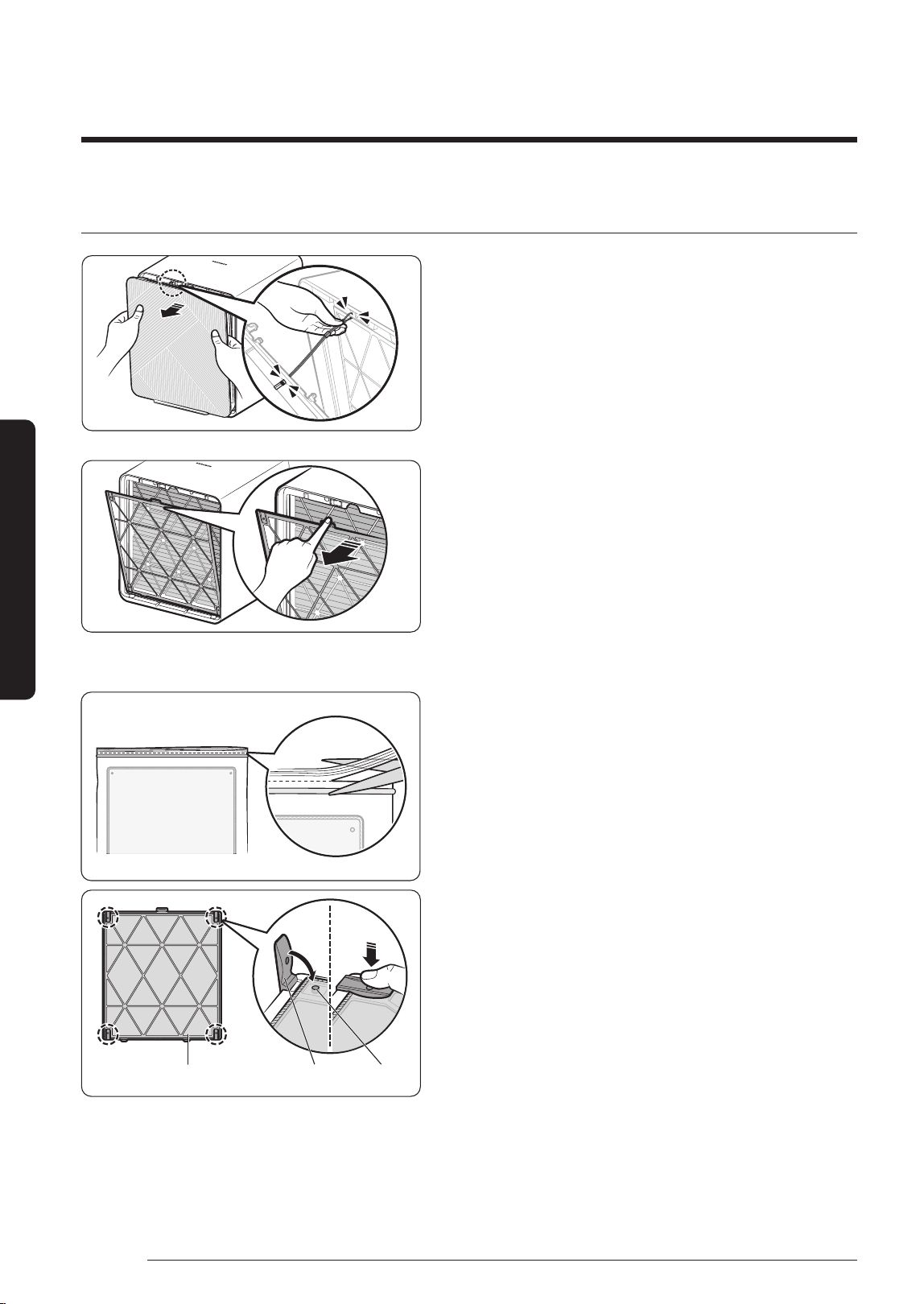
STEP 4
Closing the rear panel
• Attach the clip wire (
①
) to the rear of the main unit.
• Insert the tabs on the panel into the slots (
②
) at the
bottom of the main unit, and then press the top center
of the panel to fasten it.
STEP 5 Turning off the lter replacement reminder after
replacing lters
• Press and hold the [
] button for more than
3 seconds.
NOTE
• The lter replacement reminder displays “Filter Reset
needed” on the front display and plays an audible
alarm. If the lter replacement reminder is activated,
replace with new lters and turn off the reminder.
• If the lters are saturated with surrounding odours
and the room smells bad, replace the lters and turn
off the lter replacement reminder.
NOTE
• Keep the doors and windows closed when the product is operating, if circumstances allow. Note that
concentration of carbon dioxide increases if the product is used with the doors and windows closed for an
extended period of time. Ventilate the room regularly. Some subtle smells present in the lters can also be
reduced by ventilating the room.
• Before removing the protective plastic covers attached to both sides of the front panel, rst turn on the
device and conrm that the front panel is fully opened.
Protective
plastic cover
1
2
2021-07-22 오전 10:58:522021-07-22 오전 10:58:52
16
English
Air Purier Overview
Air Purier Overview
Attaching the pet mesh lter
STEP 1
Opening the rear panel
• Hold both upper sides of the rear panel, and pull the
panel towards yourself.
• Remove the clip wire from the rear of the main unit.
STEP 2
Remove the pre-lter
STEP 3
Taking the new pet mesh lter out of the plastic
packaging
• Use scissors to cut off the top of the zipper bag.
STEP 4
Attaching the pet mesh lter
• Open the xing holder from the pre-lter, and locate
the four fastening spots.
• Locate the slots on the pet mesh lter.
• Insert the tabs on the pre-lter into the slots on the
pet mesh lter, and then press the middle of the tab so
that it clicks into place.
Pre-lter / Pet mesh lter Fixing holder Bump
2021-07-22 오전 10:58:532021-07-22 오전 10:58:53
17
English
Air Purier Overview
STEP 5
Attaching the pre-lter
• Insert the tabs on the lter into the slots at the bottom
of the main unit.
STEP 6
Closing the rear panel
• Attach the clip wire (
①
) to the rear of the main unit.
• Insert the tabs on the panel into the slots (
②
) at the
bottom of the main unit, and then press the top center
of the panel to fasten it.
1
2
2021-07-22 오전 10:58:542021-07-22 오전 10:58:54

18
English
Air Purier Overview
Using the lters
• When using the device for the rst time after purchase, you may experience some subtle odour from the unused lters.
– This will disappear naturally after using the device for a day or two.
• The lter cleaning and replacement cycles may vary depending on the environment in which the device is used.
• The lter replacement reminder lamp illuminates when the maximum lter use duration is reached, based on the
device uptime. Therefore, the lter replacement cycle may vary depending on the environment in which the device is
used.
• If the device is used 24 hours every day, the pet deodorization lter and dust collecting lter can be used for 6 months
to a maximum of 1 year. Filter lifespan depends on the air pollution level. The lifespan can decrease depending on the
environment in which the device is used, the amount of absorbed pollutants and how often the device is used.
• If the lters are contaminated severely, some unpleasant smell comes from the device or the fan speed is considerably
lower than before, replace with new lters, even if the lter replacement reminder lamp does not illuminate.
• If the device has not been used for more than two weeks or some unpleasant smell comes from the device, operate the
device in high fan speed mode in a well-ventilated location for more than 4 hours. Alternatively, dry the lters in the sun
for at least 4 hours This can help reduce odours present in the lters.
• If some unpleasant smell comes from the device during operation, it means that the lters are saturated with
surrounding odours and it is time to replace them. Replace with new lters.
– The pet deodorization lter and dust collecting lter are consumables. You will be charged for replacing these lters
regardless of the remaining warranty term.
• Filters for replacement can be purchased from the nearest Samsung Electronics website.
Pet deodorization lter
The pet deodorization lter is a high-performance lter that effectively removes daily odours including toilet and food
smells.
• If the room has an excessively strong odour, rst ventilate the room and then operate the device to remove residual
odours. This can keep the device performance high.
– If you use the device when cooking food that has a strong odour, the pet deodorization lter may become saturated
with the odour. As a result, the device may emit some unpleasant smell, or the pet deodorization lter lifespan may
decrease and need to be replaced more frequently.
– If you use the device in a location with many pets or heavy odour, the pet deodorization lter lifespan may decrease.
Install the device with an adequate distance from where pets defecate or pet food is stored.
• Carbon monoxide (CO) is a major harmful gas that cannot be removed by the pet deodorization lter. This gas usually
ows in from the outdoors.
• Do NOT wash the pet deodorization lter with water. When using the product, exercise caution to ensure that it does not
come in contact with water.
Dust collecting lter
This high-performance lter removes ne dust and cigarette smoke particles in the air.
• Do NOT wash the dust collecting lter with water. When using the product, exercise caution to ensure that it does not
come in contact with water.
Air Purier Overview
2021-07-22 오전 10:58:542021-07-22 오전 10:58:54
19
English
Using the Air Purier
If you hear a chime sound when you connect the power plug, it means that the power is connected properly.
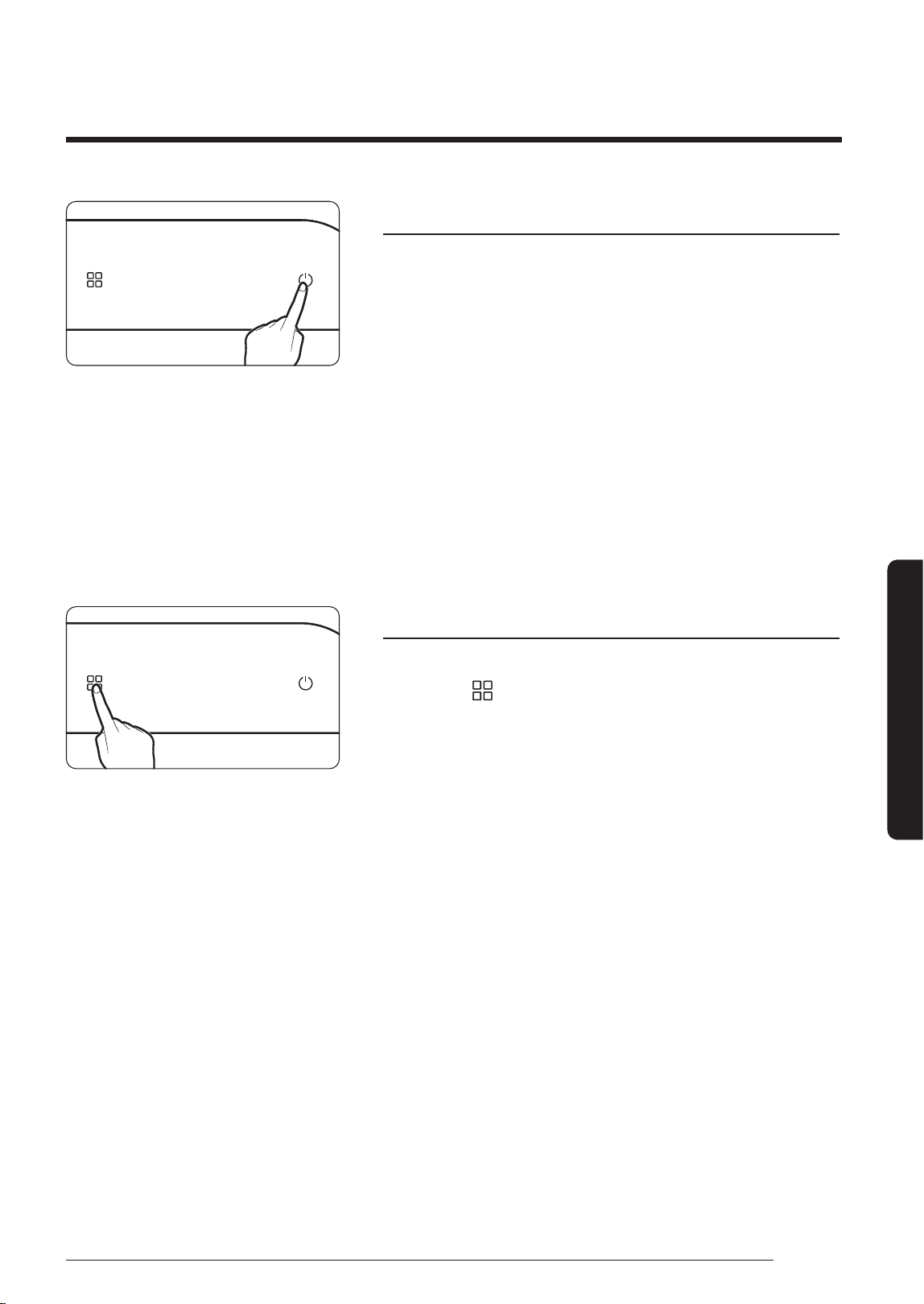
Turning on/off the air purier
• The device turns on with a chime sound, and starts operation
in Smart mode.
– Immediately after the device starts operation, a welcome
message, app linkage reminder and 'sensor ready' indicator are
displayed for 3 seconds each in sequential order. After that, the
air quality colour, PM levels and operation mode are displayed.
– Air quality is shown with colour indicators: PM10, PM2.5,
PM1.0, GAS
Concentrations of PM10, PM2.5 and PM1.0 are shown
• During operation of the device, the front panel is kept open about
10 to 30 mm. Note that the front panel opens about 40 mm and then
closes by 25 mm before the device starts operation for the rst time
after the power plug is connected.
• The front display brightness changes depending on the ambient
light intensity.
Changing the operation mode
Change the device operation mode as necessary.
• Press the [ ] button to select the operation mode to use.
– Each time you press the button, the mode changes in the following
order: Smart → High → Wind-Free → Sleep → Pet → Smart.
• If you switch the device to Sleep mode, the front panel closes, the
device operates at the lowest fan speed and the colour air quality
indicator only illuminates.
– If you change the operation mode after using Sleep mode for
more than 10 seconds, Sleep mode turns off and the 'sensor
ready' indicator appears.
• In Smart mode, the fan speed is automatically adjusted
(High → Medium → Low) depending on the surrounding dust and
odour conditions to keep the room air clean.
– If the room air becomes clean after device operation in Smart
mode for a certain period of time, the front panel closes and the
device automatically switches to 'power saving mode'.
Power saving mode automatically turns off if the room air quality
decreases. The mode can manually be turned off by changing the
fan speed.
– While in Smart mode, use the SmartThings app to activate Sleep
mode. When it becomes very dark around the device, the front
panel will automatically close itself, the front display will turn off
and the device will operate at the lowest fan speed.
• The Pet mode effectively removes pet odours and fur in the air. In
Pet mode, the fan speed is automatically adjusted depending on the
surrounding dust and odour conditions to keep the room air clean.
Using the Air Purier
Using the Air Purier
2021-07-22 오전 10:58:542021-07-22 오전 10:58:54
20
English
Using the Air Purier
Using the Air Purier
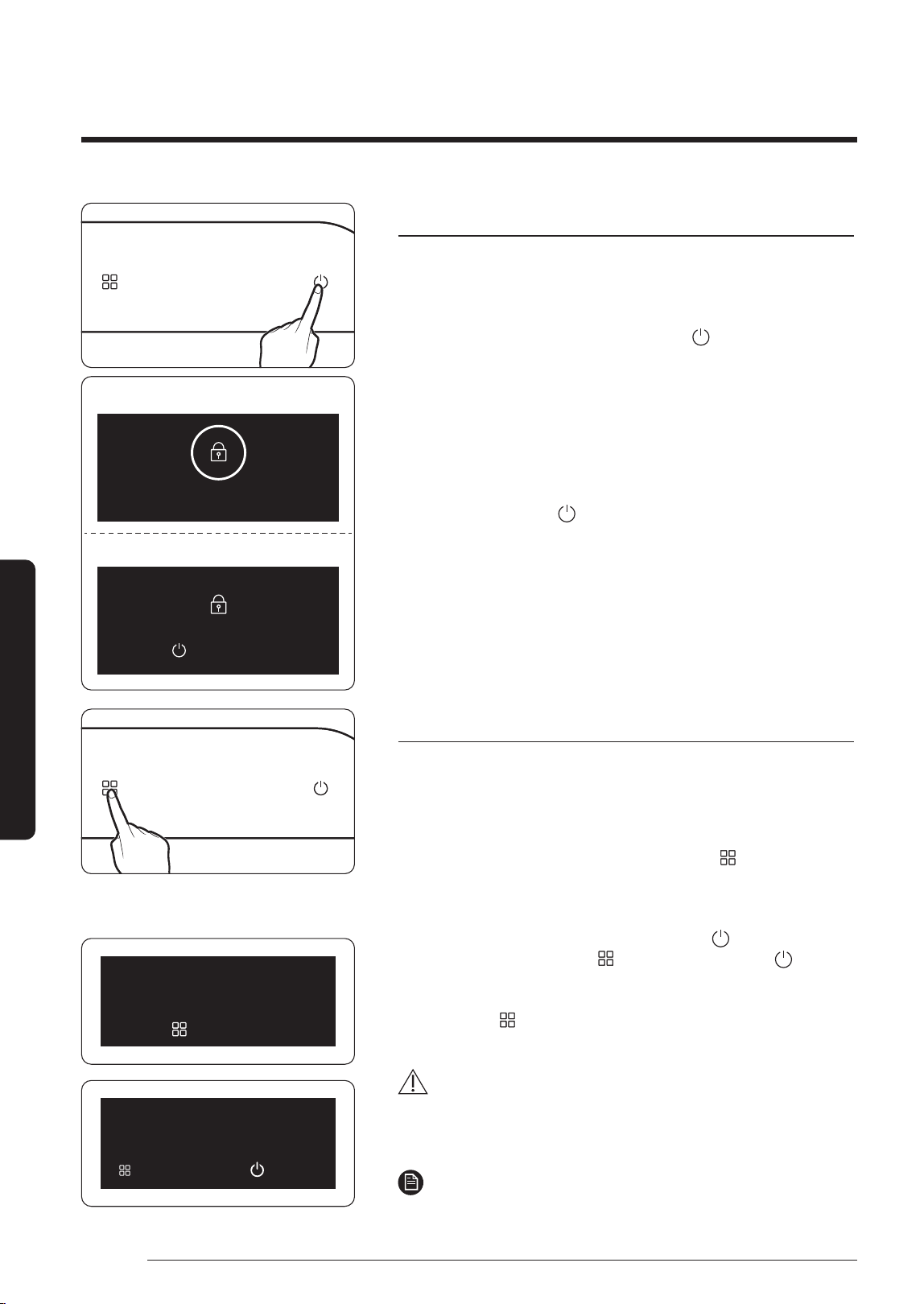
Lock function
Use this function to lock all buttons to prevent the buttons from
being pressed by mistake or by children during operation of the
device.
• To lock all buttons, press and hold the
[ ]
button for more
than 3 seconds. A chime sound is played, the 'lock' icon is
shown on the front display for 5 seconds and then all buttons
are locked.
• When the Lock function is on, all buttons are disabled and
cannot be selected.
Turning off the function
• Press and hold the
[ ]
button for more than 3 seconds.
A 'ding' sound is played, the 'unlock' icon is shown on the front
display for 5 seconds and then the function is turned off.
Filter replacement reminder
This function informs you when you need to replace the pet
deodorization lter and dust collecting lter.
• If an audible alarm is played and 'Filter Reset needed' appears on the
front display when using the device, replace the consumable lters,
turn on the device and then press and hold the [ ] button for more
than 3 seconds to reset the lter replacement time. A chime sound is
played and the front display pops up a message asking you to conrm
to reset the lter replacement time.
To reset the lter replacement time, press the [
] button. If you do
not want to reset, press the [
] button. If you press the [ ] button,
'Filter is reset' appears on the display.
• You should also reset the lter replacement time by pressing and
holding the [
] button for more than 3 seconds when the lters
have been replaced for any reason although the front display did not
display 'Filter Reset needed'.
CAUTION
• If the lters have not been replaced or installed in the device
and you reset the lter replacement time, the lter replacement
reminder may not work properly.
NOTE
• When the filters need to be replaced, 'Filter Reset needed' is shown
on the display for 10 seconds as soon as the device is turned on.
3-second press
Child Lock on
Hold 3 sec to unlock
Lock
Unlock
3-second press
Filter Reset needed
Hold 3 sec to reset
Reset filter?
Reset
Cancel
2021-07-22 오전 10:58:542021-07-22 오전 10:58:54
21
English
Using the Air Purier
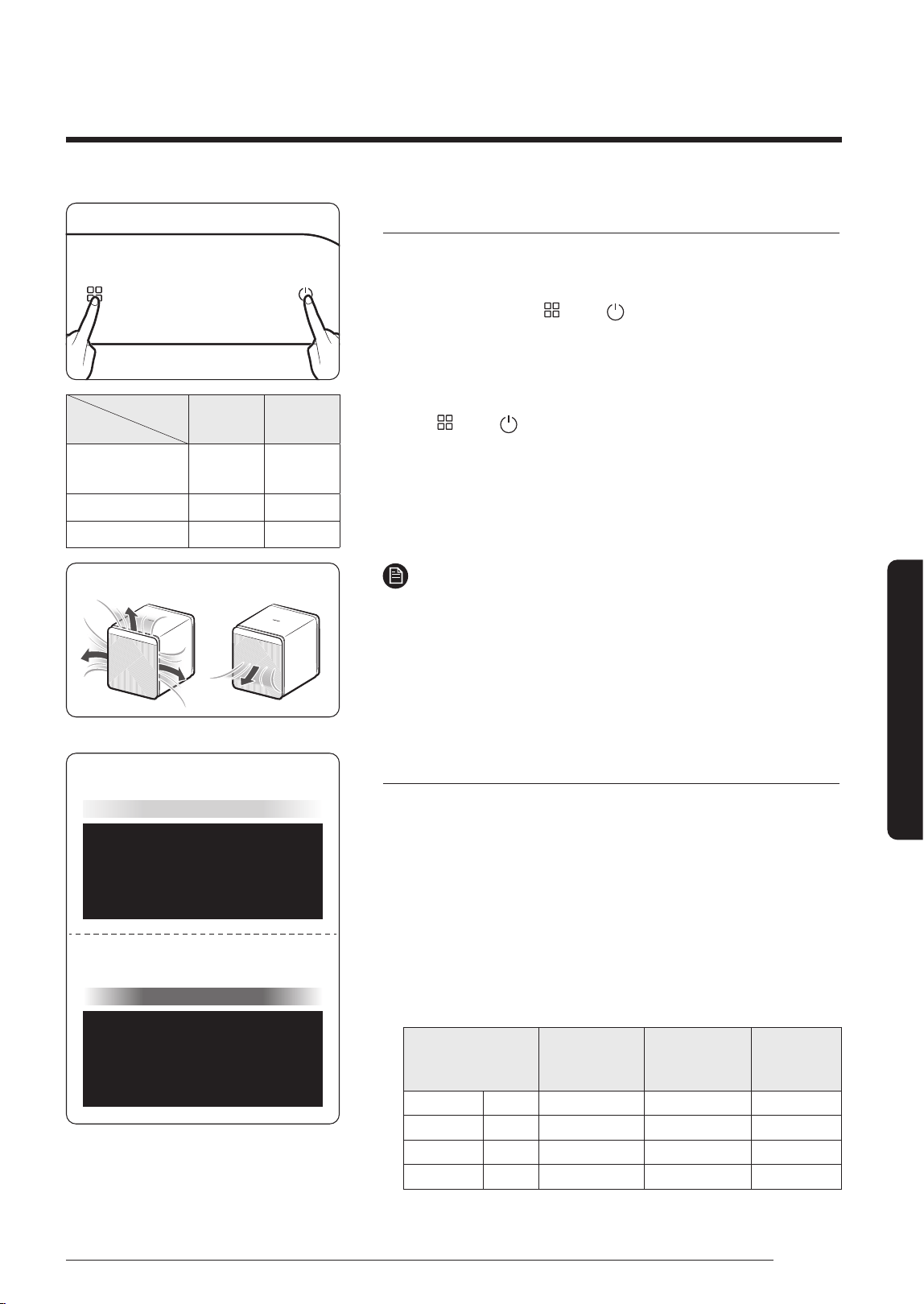
Air outlet setting
While in Smart mode with high fan speed, change the number
of air outlets if necessary.
• Press and hold the [
] and [ ] buttons for more than
5 seconds. 'Blow air from 1 side' appears on the front display.
When you change the fan speed to High while in Smart mode,
the number of air outlets automatically changes from 3 to 1.
• If the number of air outlets is set to 1 and you press and hold
the [
] and [ ] buttons for more than 5 seconds, 'Blow air
from 3 sides' appears on the front display. Subsequently when
you change the fan speed to High while in Smart mode, the
number of air outlets changes from 1 to 3.
• The changed setting is maintained even after the device is
turned off and on again.
NOTE
• When the fan speed is Medium or Low while in Smart mode,
the number of air outlets does not change automatically.
• In modes other than Smart mode, the setting is displayed
and can be changed, but the number of air outlets does not
change automatically.
Checking air quality
The concentrations of PM10, PM2.5 and PM1.0 are shown,
and the air quality and GAS level are shown with colour
indicators, depending on the PM10, PM2.5, PM1.0 and GAS
levels.
• Among PM10, PM2.5, PM1.0 and GAS, the value with the worst
air quality is displayed.
– If all items have low values, the concentrations of PM10,
PM2.5 and PM1.0 are displayed in turn for 10 seconds each.
• Air quality levels
Pollution level
PM10
concentration
(
㎍
/m³)
PM2.5
/
PM1.0
concentration
(
㎍
/m³)
Gas
pollution
level
Very poor Red 151 and over 76 and over 4
Poor Yellow 81 - 150 36 - 75 3
Moderate Green 31 - 80 16 - 35 2
Good Blue 30 and below 15 and below 1
• PM10, PM2.5 and PM1.0 measurement will be displayed in
numbers 05-999.
5-second press
Mode
Fan speed
Smart
High fan
speed
High
1 outlet /
3 outlets
3 outlets
Medium 1 outlet -
Low 1 outlet -
3 outlets 1 outlet
125
Smart
PM10
GAS
Smart
Example of PM10 level indication
Example of GAS level indication
2021-07-22 오전 10:58:552021-07-22 오전 10:58:55
22
English
Using the Air Purier
NOTE
• PM concentrations can be affected by the environmental
conditions in which the device is used (e.g., there is a
construction site or road nearby, the device is used near a
fabric sofa, a vacuum cleaner is used or bedding/clothes are
arranged around the device).
• The PM concentration readings may increase if:
– The device is used in a carpeted room, a veterinary clinic
or clothing store where there is a lot of fur, a highly humid
location or a location with lots of smoke or insects,
– A humidier, electric pressure cooker or spray is used
around the device, or
– Yellow dust occurs and the device is used in an environment
where there is inow of outdoor air (due to the HVAC or
ventilation system or draughty window frames)
• The gas level can be affected by odorous household items
such as air fresheners, deodorants and detergents.
• If different types of air puriers are used in the same room, the
PM concentration readings may not match as air circulates.
The PM concentration readings may vary depending on the
product and PM meter.
• If the intensity of gas (odour) is constant with no change,
the gas level reading may not change even if the odour you
experience is strong.
• The PM concentration readings may not match ofcial
forecasts.
• In an environment that is affected by electromagnetic wave or
electrical noise, the PM concentration readings may increase
temporarily.
Using the Air Purier
2021-07-22 오전 10:58:552021-07-22 오전 10:58:55
23
English
Cleaning and Maintenance
Cleaning the air purier exterior
• Dampen a soft cloth with lukewarm water and wring it out, and then wipe the product exterior with it.
• Use cotton swabs to wipe the grooves on the rear panel.
• If it is hard to remove dust on the front or rear panel, remove the panel and wash it with water.
CAUTION
• Do NOT wipe the product with an alkaline detergent or disinfectant.
• Do NOT wipe the product surface with sulphuric acid, hydrochloric acid or organic solvent (e.g., thinner,
kerosene, acetone). Do NOT attach a sticker to the surface. The product surface may become damaged.
Cleaning the sensor unit
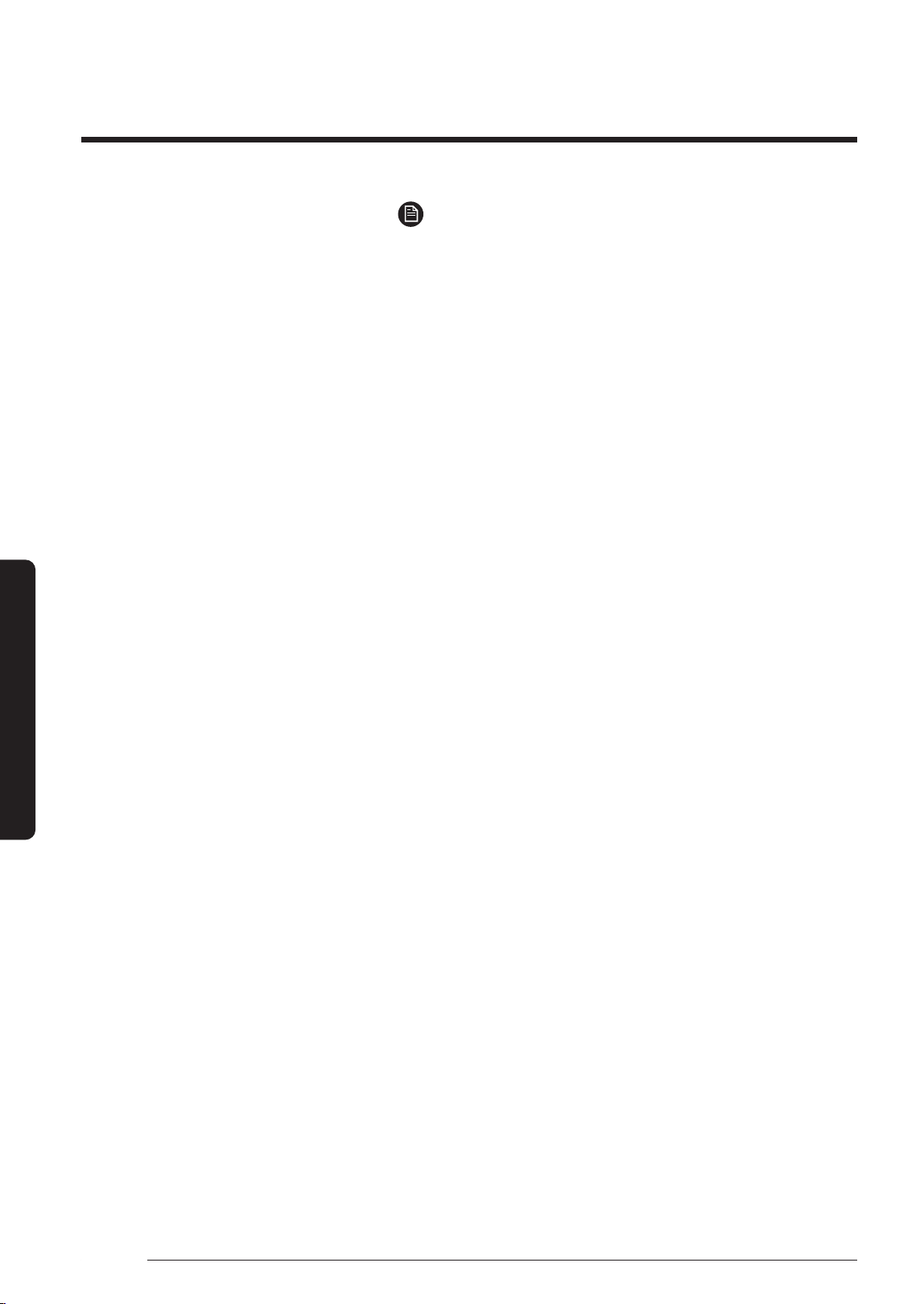
• Use a vacuum cleaner to clean the area around the
sensor. If the sensor is contaminated with dust or other
foreign material, a high PM concentration may be
detected.
CAUTION
• Do NOT put dust into the sensor inlet.
Cleaning and drying the front panel
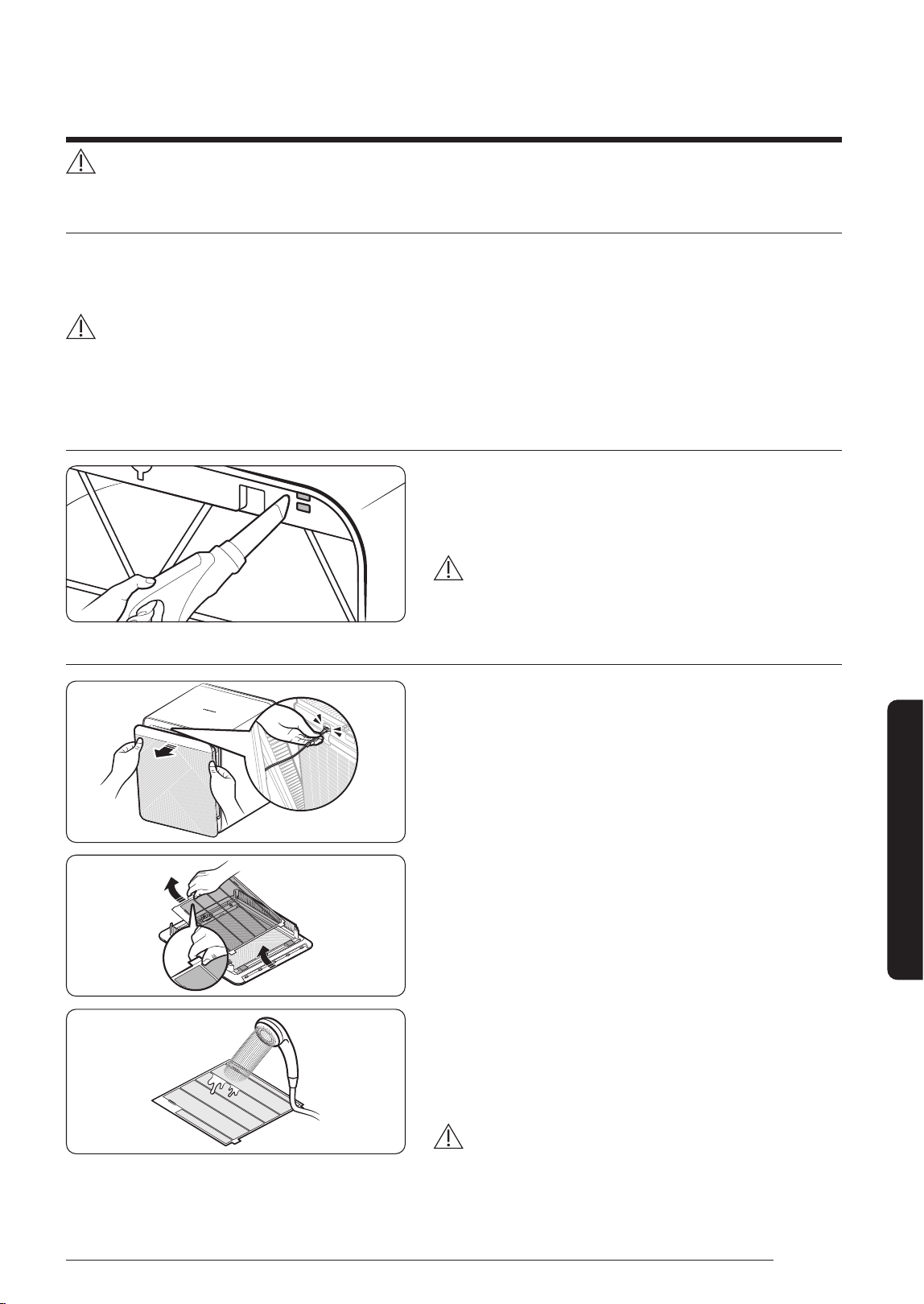
STEP 1
Removing the front panel
• Hold both upper sides of the front panel and pull
towards yourself.
• Remove the clip wire from the front of the main unit.
STEP 2
Removing the front mesh
• Turn the front panel over.
• Hold the pulls in the upper portion and remove the
mesh.
STEP 3
Cleaning and drying the front mesh
• Use water or a soft cloth to remove dust and other foreign
material on the front panel.
• If you cleaned the front mesh with water, dry it thoroughly
before attaching it to the product.
CAUTION
• The frame incorporates the display PBA.
Ensure that the frame does not come in contact with
water. Contact with water causes device failure.
PULL
PULL
Front mesh
Cleaning and Maintenance
Be sure to disconnect the power plug from the socket before cleaning the product.
2021-07-22 오전 10:58:552021-07-22 오전 10:58:55
24
English
Cleaning and Maintenance
STEP 4
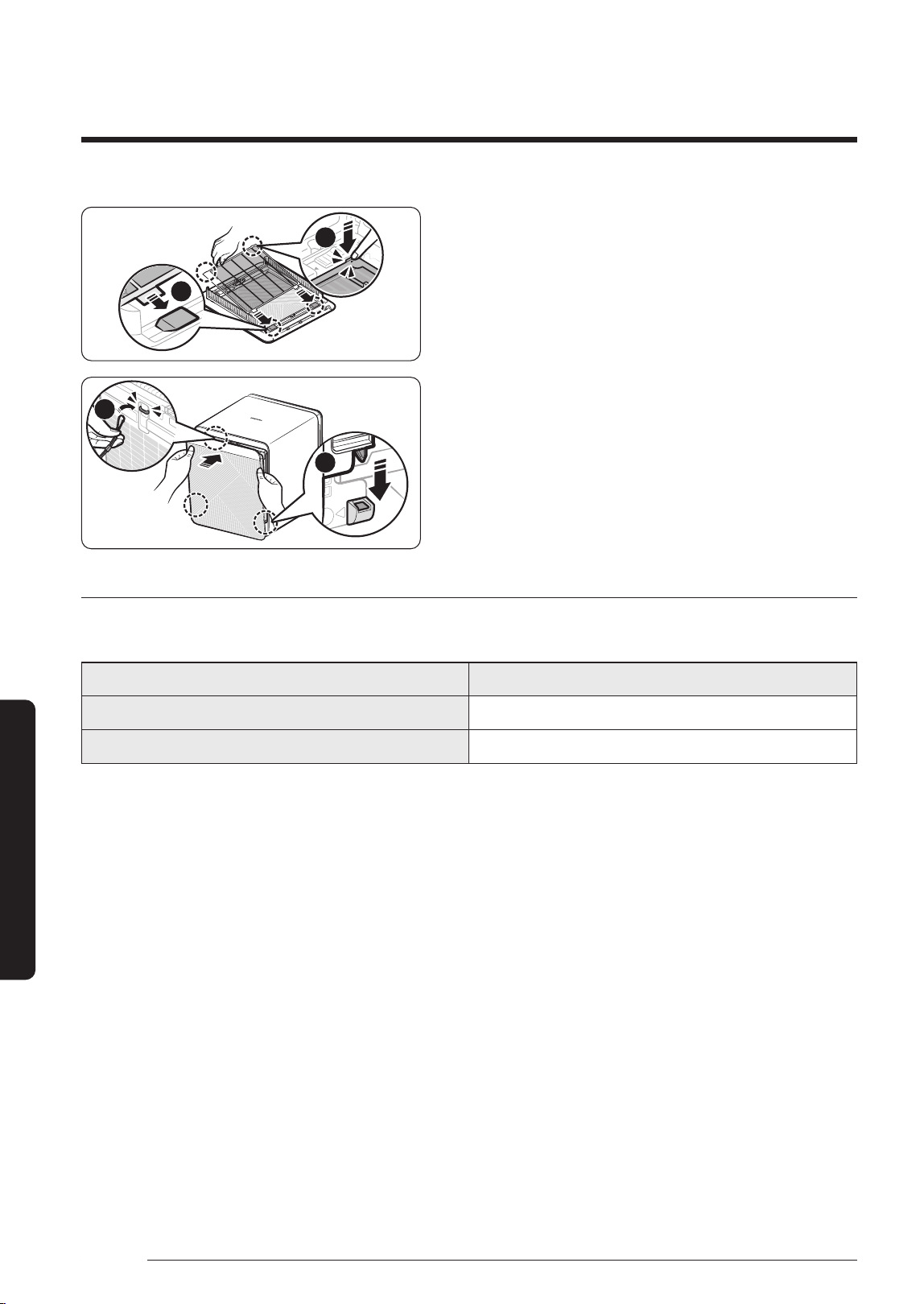
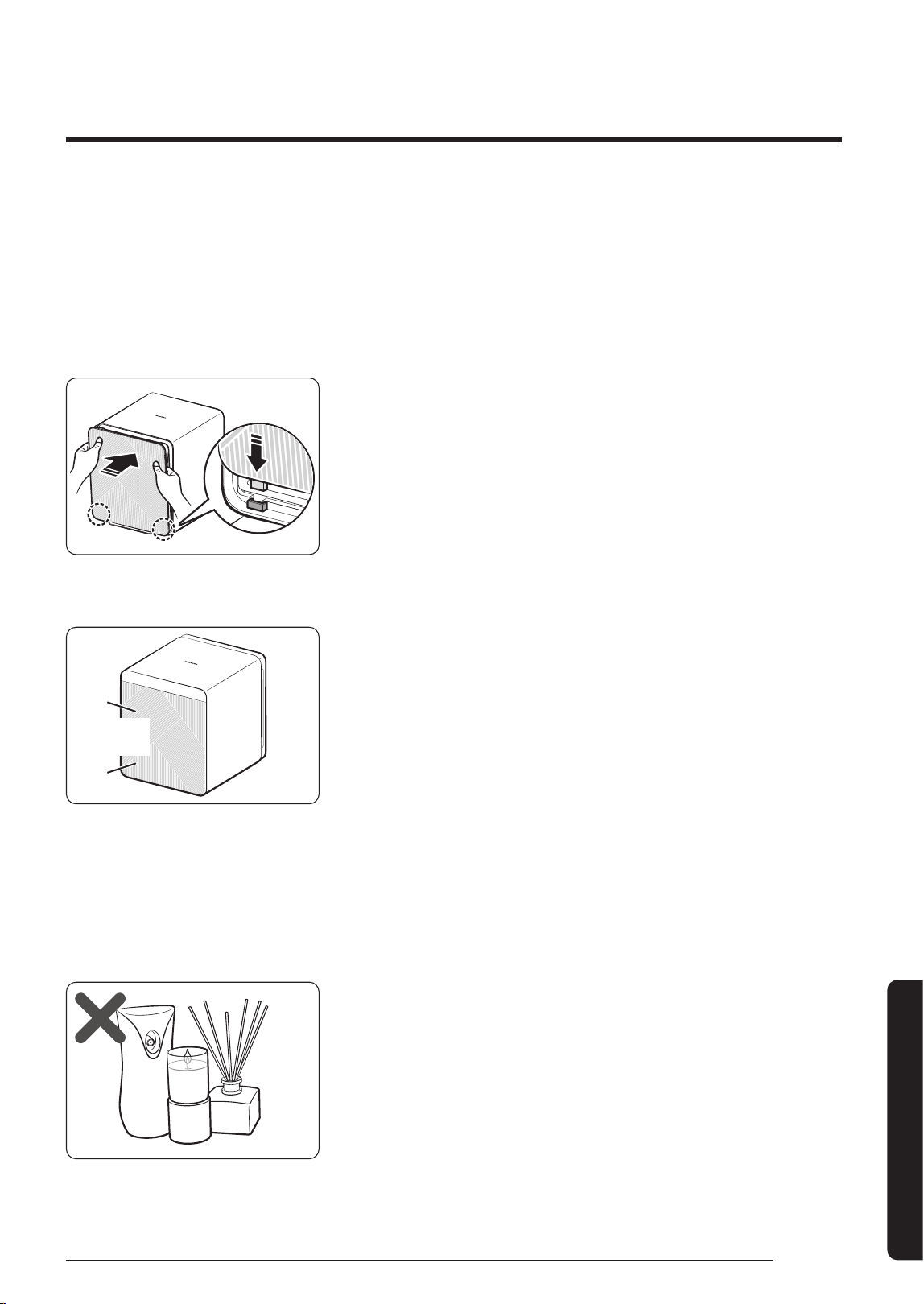
Attaching the front mesh
• Attach the front mesh to the front panel as follows:
– Insert the tabs on the front mesh into the slots (
①
)
at the bottom of the panel, and then push the areas
numbered
②
at the top of the mesh.
STEP 5
Attaching the front panel
• Attach the clip wire (
①
) to the front of the main unit.
• Insert the tabs on the panel into the slots (
②
) at
the bottom of the main unit, and then press the top
center of the panel to fasten it.
Front panel model names by colour
The bespoke panel is replaceable; a replacement panel can be purchased from the Samsung Electronics
website.
Front panel colour Panel model name
Stripe Gray
CFX-H8YA0
Stripe Deep Green
CFX-H8YB0
PULL
2
1
2
1
Cleaning and Maintenance
DB68-11173A-00_IB_ACR AX9500A_Small PET_AA_EN_.indd 24DB68-11173A-00_IB_ACR AX9500A_Small PET_AA_EN_.indd 24 2021-07-22 오전 10:58:562021-07-22 오전 10:58:56
25
English
Cleaning and Maintenance
Cleaning and drying the lters
NOTE
• For details on how to detach/attach the lters, see pages 12 and 16.
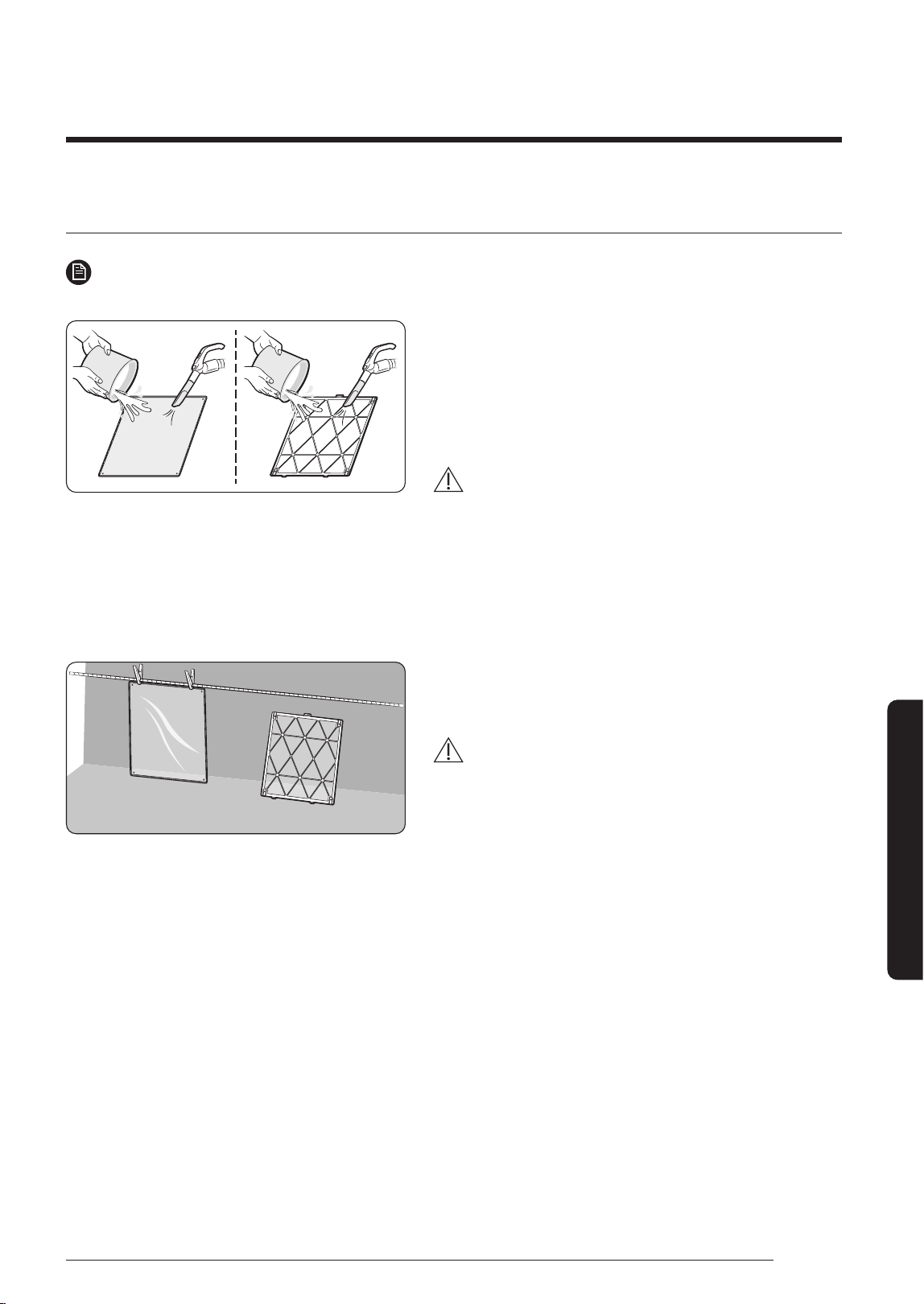
Cleaning the pet mesh lter and pre-lter
• If accumulated dust is visually observed, rst use a
vacuum cleaner to remove the larger dust and then
rinse the lter with lukewarm water.
– Cleaning interval: 2 weeks (when the product is
used 24 hours every day)
CAUTION
• When washing the pre-lters, do not rub with a brush
or any other similar tool. The superne bres may
become damaged.
• When washing the pet mesh lter, use lukewarm water
or water colder than 25℃. If you use water hotter than
40℃, the lter exterior may deform.
Drying the lters
• Keep the lters in the shade until fully dry, avoiding
exposure to direct sunlight.
CAUTION
• The pet mesh lter is a consumable component. If
you wash or clean it for reuse, the lter exterior may
deform or become damaged.
If the exterior of a lter has deformed or become
damaged, use a spare new lter or purchase one to
replace the lter.
2021-07-22 오전 10:58:562021-07-22 오전 10:58:56
26
English
Using the SmartThings App
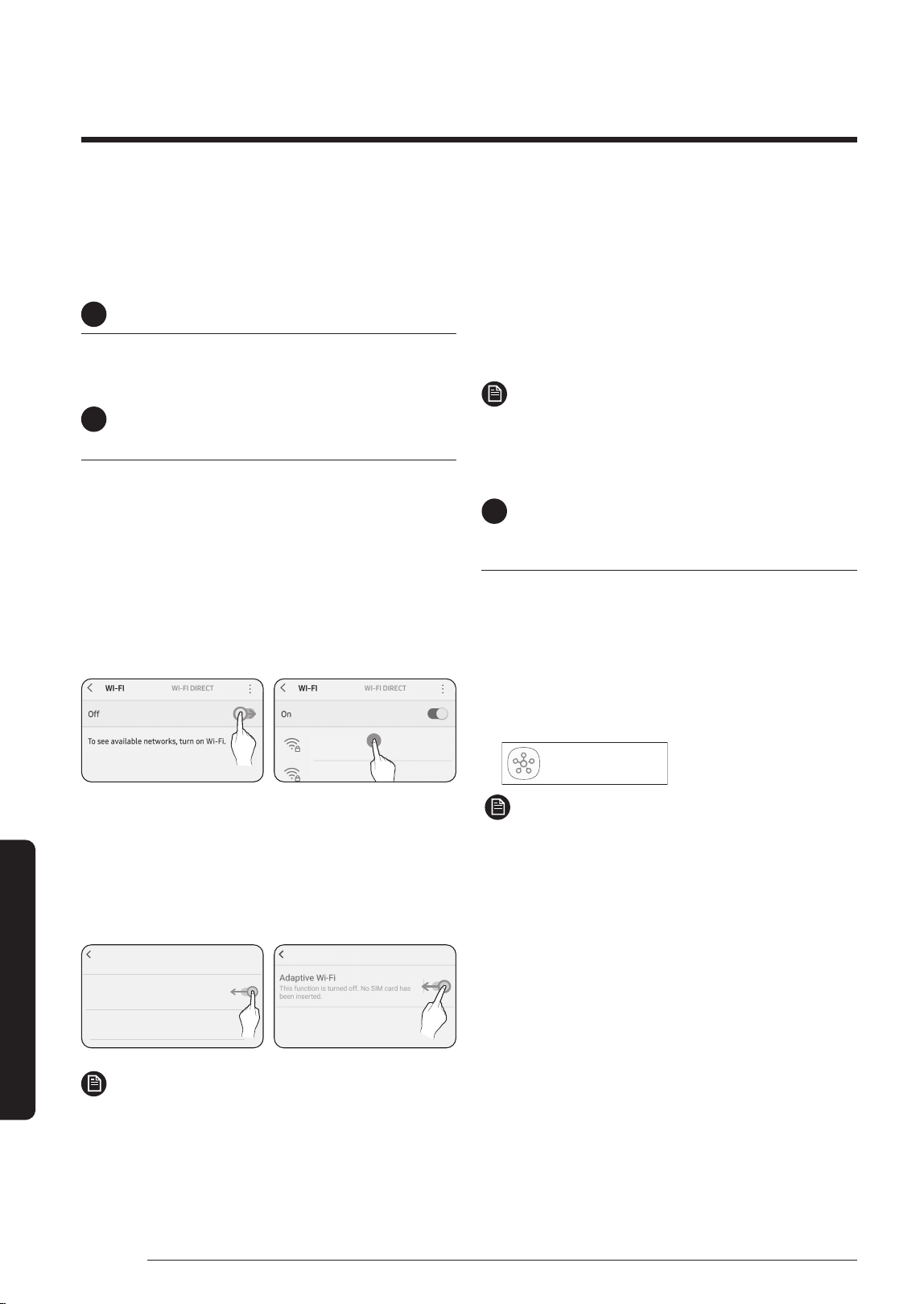
To use the SmartThings app, connect the product to the network in the sequence described below.
The images shown may differ depending on your smartphone model, OS version and manufacturer.
You need to set up the Wi-Fi access point only when connecting the product to a Wi-Fi network. Once the product is connected, you can
use the SmartThings app via Wi-Fi, 3G, LTE, 5G or more wireless networks.
If the WiFi disconnects, please follow the instructions on the Samsung SmartThings app via your mobile device or tablet.
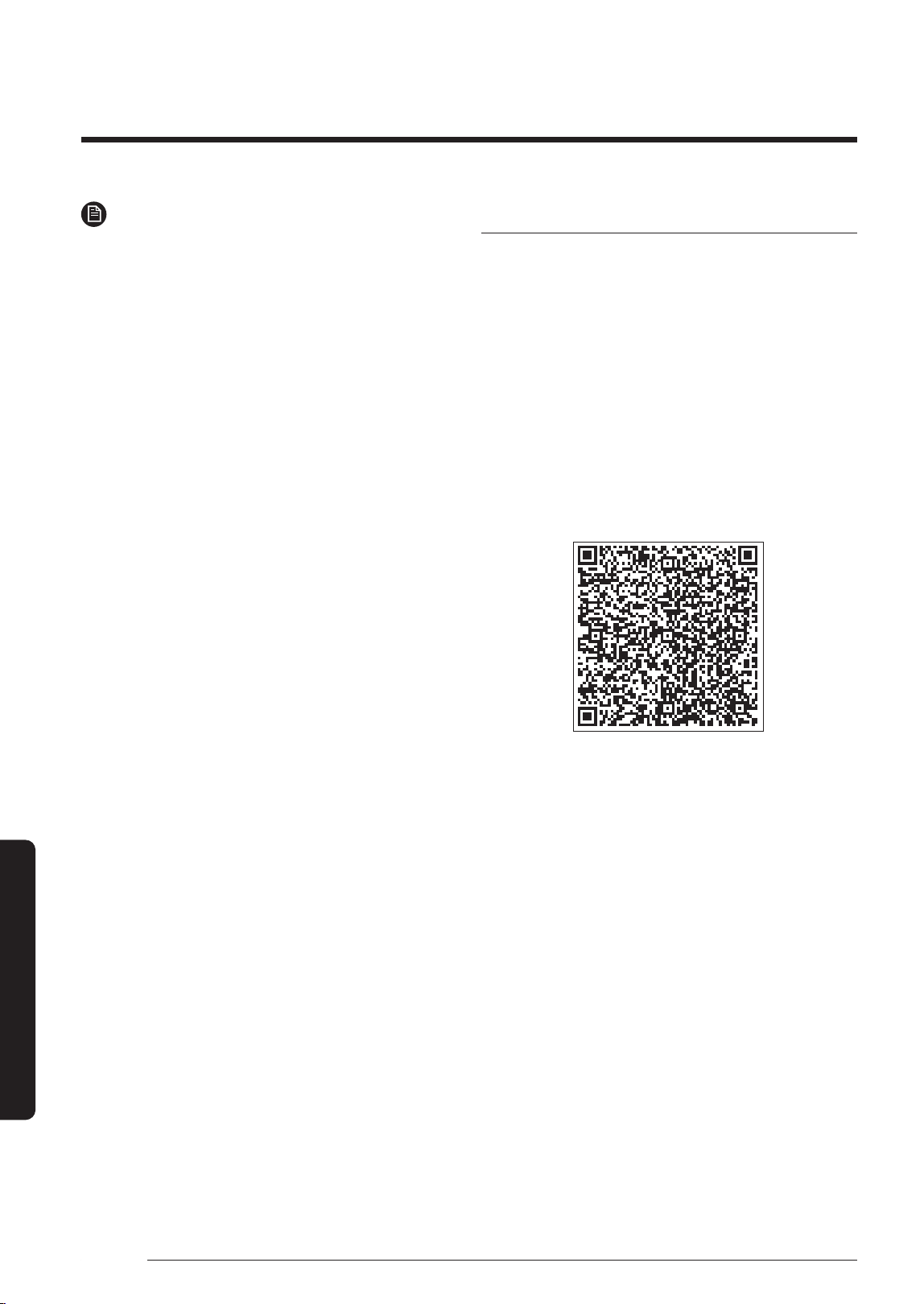
You can easily install the SmartThings app or use the product with your smartphone by scanning the QR code on the attached label.
SmartThings app
1
Checking the power connections
Check if the power is connected to the product and
the access point.
2
Setting up and connecting to a Wi-Fi
access point using your smartphone
1
To connect the product to a Wi-Fi network,
turn on Wi-Fi at "Settings > Wi-Fi", and then
select the access point to connect to
• Only alphanumeric characters are supported for
wireless access point names (SSIDs). If an SSID has
a special character, rename it before connecting to
it.
• This product supports only Wi-Fi 2.4 GHz.
SAMSUNG_2G
SAMSUNG_5G
On
Select
2
Turning off "Switch to mobile data" at
"Settings > Wi-Fi" on your Smartphone
• If "Switch to mobile data" or "Adaptive Wi-Fi" is
turned on, you cannot connect to the network. Be
sure to turn off these functions before connecting
to the network.
Advanced
Switch to mobile data
Insert SIM card to use mobile data.
Advanced
Off
Off
NOTE
• The setup may differ depending on your
smartphone model, OS version and manufacturer.
3
Checking the Internet connectivity
• After connecting to Wi-Fi, check that your
smartphone is connected to the Internet.
NOTE
• A rewall may prevent your smartphone from
connecting to the Internet. Contact your Internet
service provider for troubleshooting.
3
Downloading the SmartThings
app and registering your Samsung
account
1
Downloading the SmartThings app
• Search for "SmartThings" on Play Store or App
Store, and download the SmartThings app to your
smartphone.
• If the SmartThings app is already installed on
your smartphone, update it to the latest version.
SmartThings (Samsung Connet)
Samsung Electronics Co., Ltd.
NOTE
• The SmartThings app supports Android OS 7.0 or
later (with at least 2 GB RAM) and iOS 12.0 or later.
The app is optimized for iPhone 6s or later and
Samsung smartphones (Galaxy S and Note series).
The updates of the SmartThings app or the
functions supported by it may be discontinued for
the previously supported OS versions due to the
reasons such as usability and security.
• The SmartThings app may change without
prior notice to improve product usability and
performance.
2021-07-22 오전 10:58:562021-07-22 오전 10:58:56
27
English
Using the SmartThings App
2
Registering your Samsung account
• A Samsung account is required to use the
SmartThings app. To create your Samsung
account and log in to your account, follow the
instructions displayed on the SmartThings app.
You do not need to install an additional app.
NOTE
• If you already have a Samsung account, log in to
the account. If you have a smartphone that is a
Samsung device and you have a Samsung account,
your smartphone is automatically logged in to your
account.
• If you log in from a smartphone produced for
another country, you need to log in with its country
code when you create your Samsung account, and
the SmartThings app may not be used on some
smartphones.
4
Connecting the SmartThings app to
your product
1
Selecting the product to connect to
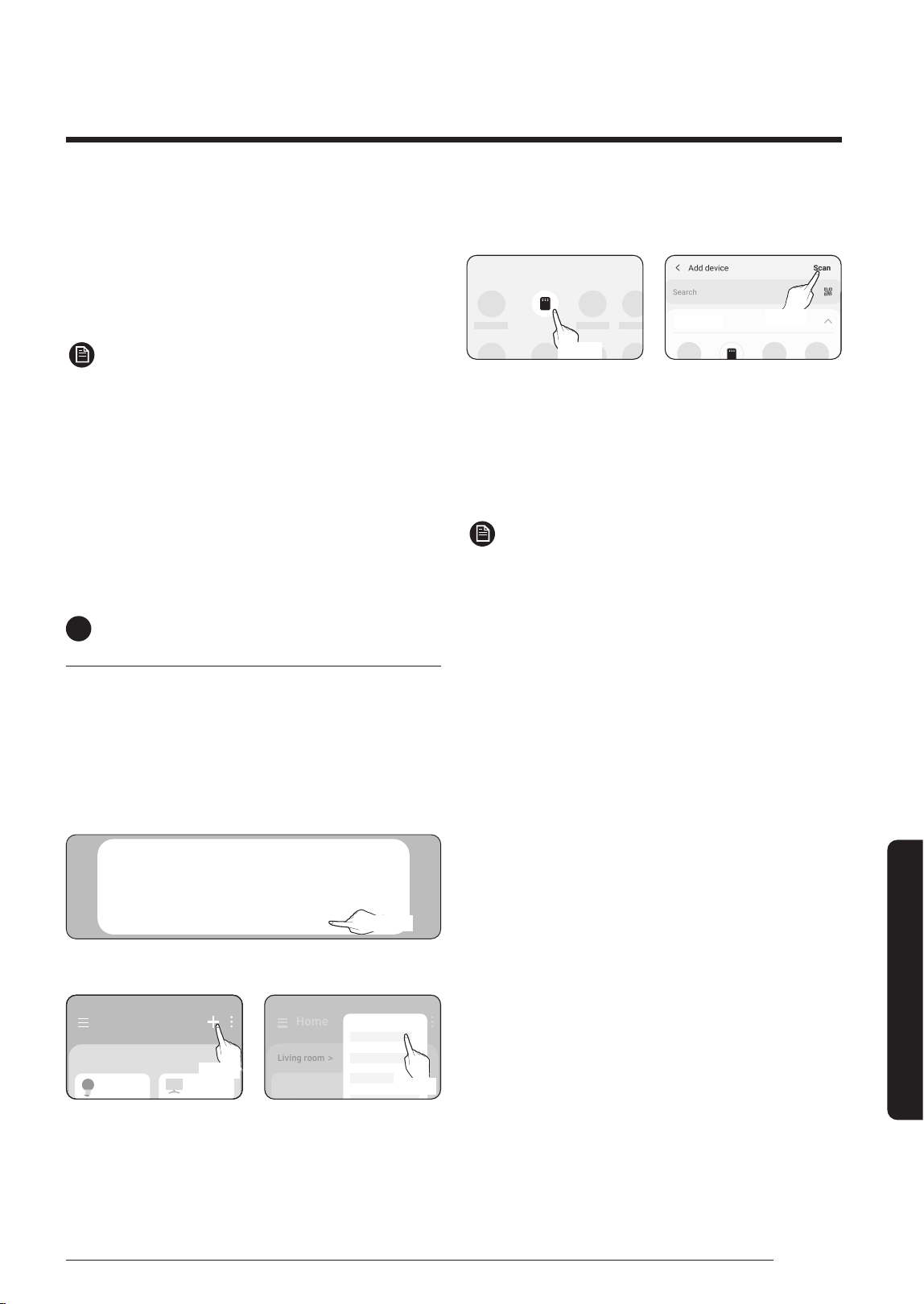
1) Start the SmartThings app about one minute after
turning on the product to connect to.
2) After the SmartThings app is started, select
'ADD NOW' when a pop-up window saying that a
product to connect to is found appears.
A new device has been found.
Add this device to SmartThings?
Don’t add Later
Add now
선택
Select
3) If the pop-up window does not appear, select "+",
and then "Add Device."
Home
Living room >
Add device
Home
Living room >
Select
Select
You can add a product you want to connect to by
selecting it manually or by selecting "Scan".
• Select manually: Air purifier > Samsung
• Scan: [Air purifier] Samsung
Air purifier
By device type
By device type
Select
Select
2
Connecting the SmartThings app to your
product
• Follow the instructions displayed on the
SmartThings app to connect to your product.
• For information on how to use the SmartThings
app, select the How To menu on the app.
NOTE
• If any pop-up-window appears on the top of the
smartphone while connecting to your product, do
not select it.
• If a pop-up window saying that the device is
already registered appears during connecting
to your product, get permission using "REQUEST
PERMISSION" from a user already connected to the
product, or create a new account using "REGISTER
MY ACCOUNT" to independently connect to the
product.
• If a Samsung account-related country error
occurs during connecting to your product, log
out of your current Samsung account, log in
to your previous Samsung account, and then
delete all devices that have been connected
previously. Then, log in to your current Samsung
account again, and then congure the settings.
• If a failure message appears while adding a
device, see "Setting up and connecting to a Wi-
Fi access point using your smartphone" on page
26. The connection may fail temporarily due
to an installation location problem of the access
point or other problems.
• If the word "AP" does not disappear from the
display, unplug the power plug it in again.
2021-07-22 오전 10:58:572021-07-22 오전 10:58:57
28
English
Using the SmartThings App
SmartThings
app
NOTE
• For the security protocols for wireless/wired
access points, WPA-PSK and WPA2-PSK are
recommended. For the authentication methods,
AES is recommended. New Wi-Fi authentication
specications and Wi-Fi non-standard
authentication methods are not supported.
• The product supports the IEEE802.11 b/g/n
(2.4 GHz) communication protocol. (Samsung
recommends IEEE802.11n.)
• If your Internet service provider permanently
have registered the MAC address (a unique
identication number) of your PC or modem, you
may not be able to connect your product to the
Internet. Contact your Internet service provider
and ask how to connect devices other than your PC
(such as an air conditioner and an air purier) to
the Internet.
Open Source Announcement
The software included in this product contains open source
software. You may obtain the complete corresponding
source code for a period of three years after the last
shipment of this product by contacting our support team
via http://opensource.samsung.com (Please use the
“Inquiry” menu.)
It is also possible to obtain the complete corresponding
source code in a physical medium such as a CD-ROM; a
minimal charge will be required.
The following URL http://opensource.samsung.com/
opensource/SMART_AT_051/seq/0 leads to the open
source license information as related to this product. This
offer is valid to anyone in receipt of this information.
2021-07-22 오전 10:58:572021-07-22 오전 10:58:57
29
English
Appendix
Operation issue
The device will not operate
• Check the power supply and turn on the air purier again.
• Conrm that the power plug is plugged in properly, and then turn on
the air purier again.
If it still does not operate, try a different power outlet.
• Conrm that the front panel is closed properly. If the panel is not
closed properly, the product will not operate.
• Conrm that the rear panel is closed properly. If the panel is not
closed properly, 'Close the back panel' will appear on the front
display and the product will not operate.
Noise
I hear a strange noise from the device
• If you move the device when it is operating, noise may occur. Turn off
the device before moving it.
• When the front panel is moved, a crackling or rattle sound can be
heard depending on the environment in which the product is used.
– These sounds are normal motor noises that may occur during zero
point calibration when the front panel is moved.
• When the product is operating, a sensor operation sound, such as a
hissing sound, can be audible.
– When you want to sleep or rest in a quiet environment, select the
Sleep mode.
• When the product stops operation, a hissing sound can be audible as
the fan operation stops.
Odours
Strange smell comes from the device
• Using an air freshener, diffuser, scented candle or cleaning agent,
doing interior work or changing wall paper before operating the air
purier may saturate the lters with odours causing the air purier to
emit some unpleasant smell.
– Ventilate the room to completely remove the odours before using
the air purier.
Crackling-
rattle
If an issue occurs in the product, check the following before you contact the Service Center for assistance.
Before Requesting Service
2021-07-22 오전 10:58:572021-07-22 오전 10:58:57
30
English
Appendix
Odours
• An air purier sucks in and circulates indoor air. If you use it in a
closed space for a prolonged period of time, odours generated in your
home can saturate the lters.
– Remove the pet mesh lter, pet deodorization lter and dust
collecting lter, and smell them at close range to check whether
they are saturated with odours. If saturated, wash or replace them.
You will be charged for replacing the lters regardless of the
remaining warranty term.
– Operate the product for 3 to 4 hours with the doors and windows
open.
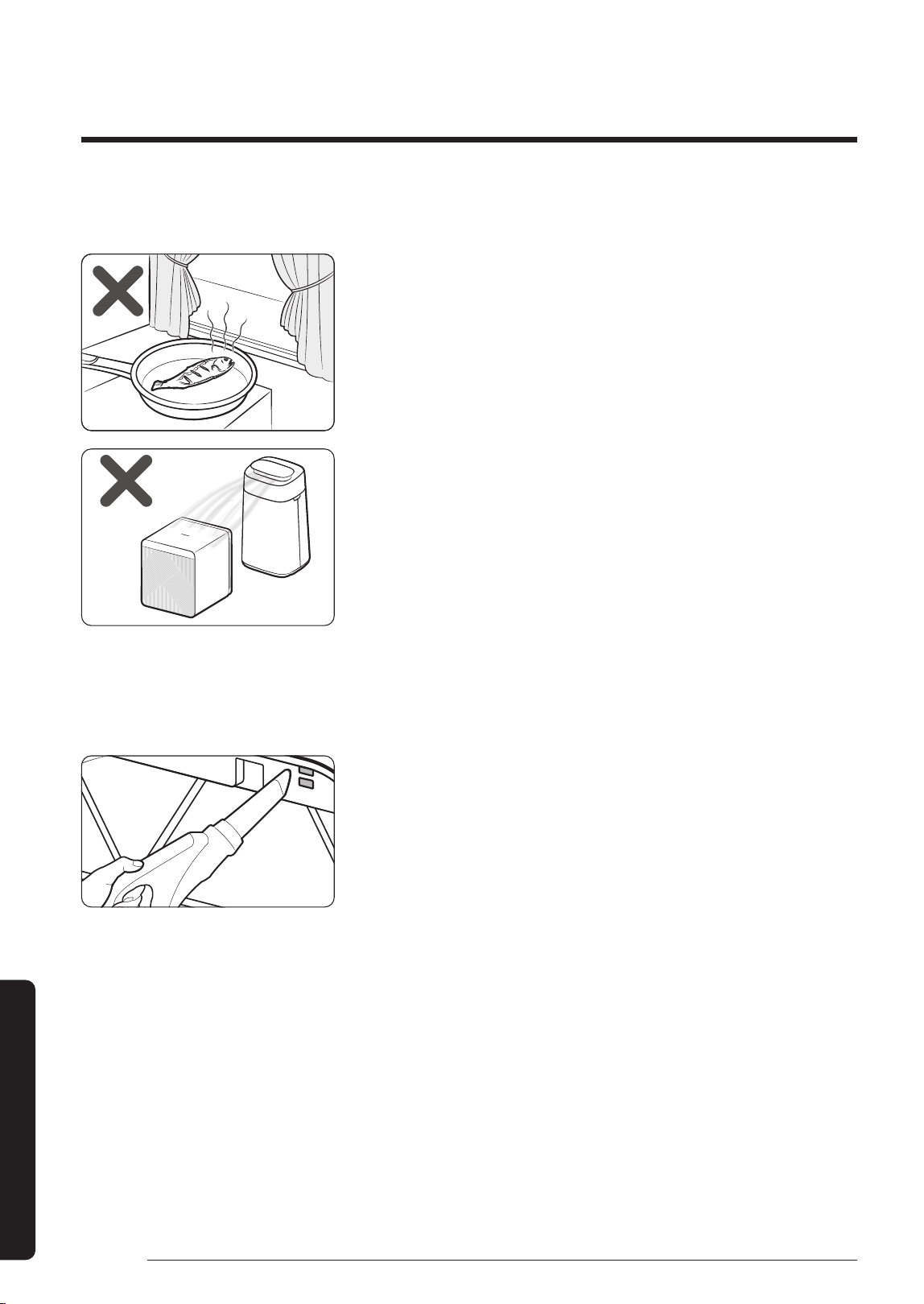
– If you grill sh or meat or cook with oil, it is recommended to
ventilate the room to remove the odours before operating the air
purier.
• The lters may emit odours if you operate the product continuously
in a highly humid environment or an environment in which moisture
from a humidier is sucked in by the lters.
– If the lters emit odours due to moisture, dry them thoroughly in
the sun before use.
Air quality
The air quality indicator stays red.
(The air quality indicator does not seem to work properly.)
• Check the sensor unit for foreign materials, and clean the unit if
necessary.
• In winter season, during initial operation of the product shortly after
delivery, condensation occurs inside the sensors due to temperature
difference between the indoors and outdoors. As a result, the PM
concentration readings may reach 999㎍/m³ and the air quality
indicator may illuminate red. This is a temporary issue
and will disappear after 1 to 2 hours of operation.
• If there is a change to the indoor odour due to cooking or temporary
inow of outdoor air, the gas sensor reacts to the change causing the
indicator to illuminate red. If this occurs, ventilate the room for
1 to 2hours.
• Disconnect the power plug, put it back after 1 minute and then
operate the product. (The sensors are reset.)
• If the air quality indicator illuminates red for a prolonged period of
time although you have used the suggested troubleshooting steps,
it can be a sensor malfunction. In this case, please contact your local
Samsung Service Center for assistance.
• If you use a humidier, electric pressure cooker or spray around the
product, the air quality can be displayed as poor.
Before Requesting Service
2021-07-22 오전 10:58:582021-07-22 오전 10:58:58
31
English
Appendix
Air quality
The fan speed does not change when the air quality level
changes
• Switch the product to Smart mode.
While in High (fan speed), Sleep or Wind-Free mode, the fan speed
does not change automatically.
– The fan speed also does not change automatically when you
switch the product to Smart Sleep mode after turning on Sleep
mode using the SmartThings app while in Smart mode. Turn off
Sleep mode.
The PM10, PM2.5, PM1.0 levels do not change from Good (05).
• This may happen if the room is closed and the air is clean.
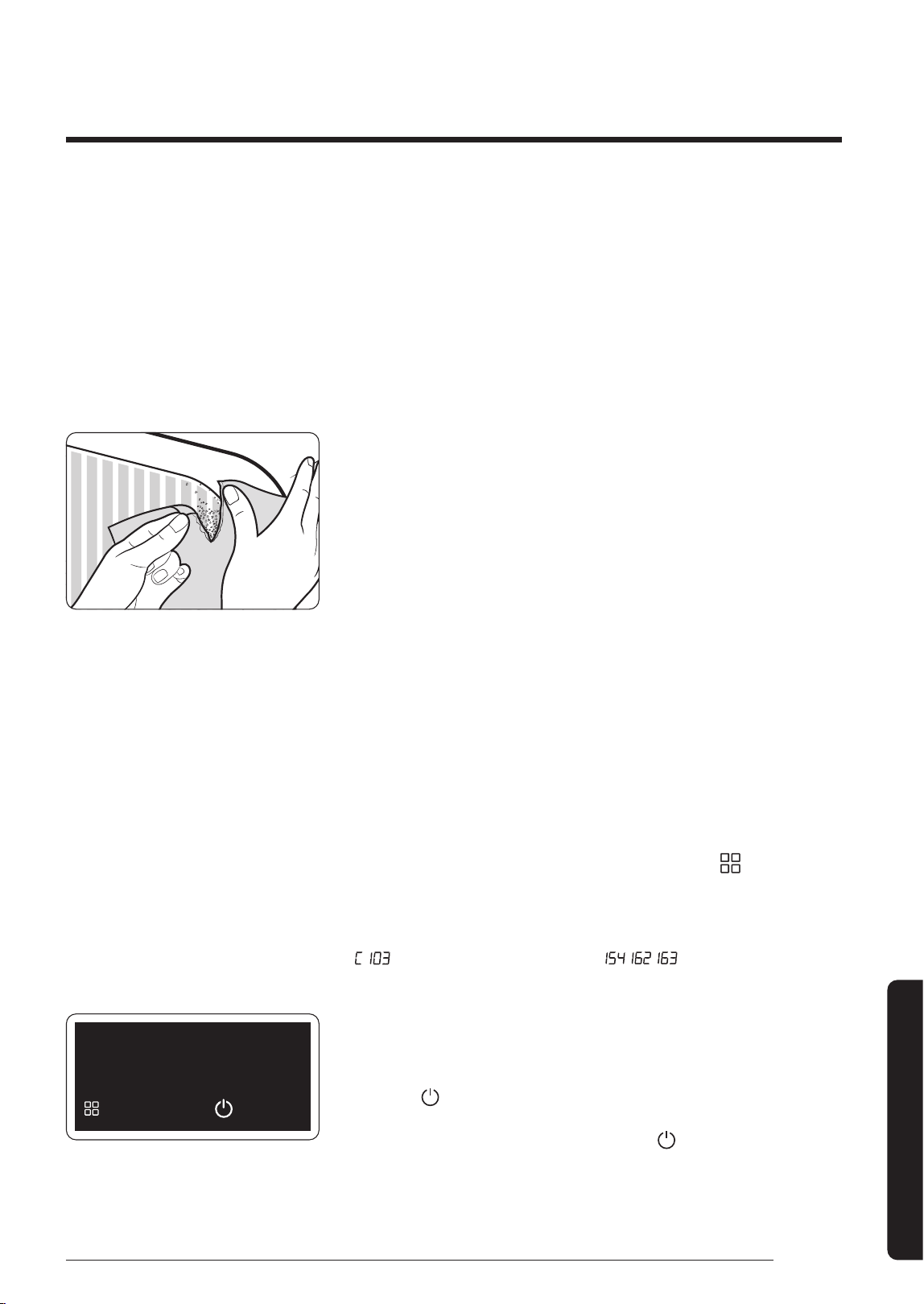
Tear paper near the micro-air sensor several times and/or rub the
torn paper pieces together to create dust. If the PM concentration
changes, the sensor is working properly.
– Dusting off a blanket or cleaning may not necessarily cause sensor
feedback if the dust particles are bigger than PM10, although the
particles are ltered and removed from the air.
The PM10 and PM2.5 levels are different from the values
provided by the Ministry of Environment
• The values provided by the Ministry of Environment are an average of
atmospheric particulate matter readings measured for 1 or 24hours.
The PM10 and PM2.5 levels you see on the product are real-time
measurements and may differ from the ofcial values.
Display
The lter replacement indicator is kept lit up
• After replacing with new lters, press and hold the [
] button for
more than 3 seconds to turn off the lter replacement reminder.
The display output is strange.
•
If an indication that looks like ,' , , ' appears, contact your
local Samsung Service Center.
An 'Update Software?' message appears.
• This message appears when update is required due to new functions
added or improvements made in the product.
Press the button in the controls area on the main unit of the air
purier. Update will automatically take place for a maximum of 30
minutes. If you press a button that is not the button, update will be
postponed and the 'Update Software?' message will appear again later.
• Do NOT remove the power plug while update is in progress.
• The air purier does not operate during update.
Update software?
Later
Update
2021-07-22 오전 10:58:582021-07-22 오전 10:58:58
COUNTRY CALL OR VISIT US ONLINE AT
U.S.A
- Consumer Electronics
- Mobile Phones
1-800-SAMSUNG (726-7864)
1-844-SAM-PAYS (726-7297)
www.samsung.com/us/support
CANADA
1-800-SAMSUNG(726-7864)
1-844-SAM-PAYS (726-7297)
www.samsung.com/ca/support (English)
www.samsung.com/ca_fr/support (French)
QUESTIONS OR COMMENTS?
2021-07-22 오전 10:58:582021-07-22 오전 10:58:58