Installation / User Manual
Ver:1.4
Photovoltaic Grid-connected
Microinverter(Built-in WIFI-G�)

Table of Contents
Safety Instructions
Radio Interference Statement
Microinverters Maximize PV Energy Production
More Reliable than Centralized or String Inverters
Simple to Install
The Meaning of Symbols
Important Safety Instructions
01
Microinverter System Installation
06
Microinverter Introduction
05
Microinverter System Introduction
03
Microinverter System Operating Instructions
11
Status Indications and Error Reporting
Troubleshooting
12
Troubleshooting a Non-operating Microinverter
Replacement
15
Technical Data
15
Required Parts and Tools from You
Parts list
Installation Procedures
Wiring Diagram
18
Monitoring Platform
20
21
How to connect the Microinverter to the router via web
25How to connect in APP
M�� / �� /��� G� Microinverter Datasheet
27
EU Declaration of Conformity
27
27
Maintenance
Troubleshooting
- �� -
Important Safety Instructions
This manual contains important instructions to follow during installation and maintenance
of the Photovoltaic Grid-connected Inverter(Microinverter).To reduce the risk of
electrical shock and ensure the safe installation and operation of the Microinverter the
following symbols appear throughout this document to indicate dangerous conditions
and important safety instructions.
Specifications subject to change without notice - please ensure you are using the latest
manual found at the manufacturer website.
WARNING: This indicates a situation where failure to follow instructions may cause a
serious hardware failure or personnel danger if not applied appropriately. Use extreme
caution when performing this task.
NOTE: This indicates information that is important for optimized Microinverter
operation. Follow these instructions strictly.
Safety Instructions
DO NOT disconnect the PV module from the Micro Inverter without disconnecting
the AC power.
Only qualified professionals should install and/or replace the Microinverters.
Perform all electrical installations in accordance with local electrical codes.
Before installing or using the Microinverter, please read all instructions and cautionary
markings in the technical documents and on the Microinverter system and the
solar-array.
Be aware that the body of the Microinverter is the heat sink and can reach a temperature
of ��℃. To reduce risk of burns,do not touch the body of the Microinverter.
When the Microinverter is working properly, please maintain a distance of at least �� cm
from it.
DO NOT attempt to repair the Microinverter. If it fails, contact technical support
to obtain an RMA number and start the replacement process. Damaging or opening
the Microinverter will void the warranty.
Caution!
The external protective earthing conductor is connected to the inverter protective
earthing terminal through AC connector.
When connecting, connect the AC connector first to ensure the inverter earthing
then do the DC connections.
When disconnecting, disconnect the AC by opening the branch circuit breaker first
CAUTION: IMPORTANT TO READ CAREFULLY AND KEEP
FOR EVENTUAL REQUESTS.
- �� -
The equipment could radiate radio frequency energy and this might cause harmful
interference to radio communications if not following the instructions when installing
and using the equipment. But there is no guarantee that interference will not occur in a
particular installation. If this equipment causes harmful interference to radio or television
reception,the following measures might resolve the issues:
A) Relocate the receiving antenna and keep it well away from the equipment.
B) Consult the dealer or an experienced radio / TV technical for help.
Changes or modifications not expressly approved by the party responsible for compliance
may void the user's authority to operate the equipment.
Radio Interference Statement
Please install isolation switching devices on the AC side of the inverter.
but maintain the protective earthing conductor in the branch circuit breaker connect
to the inverter ,then disconnect the DC inputs.
In any circumstance, do not connect DC input when AC connector is unplugged.
WiFi information
Frequency range:�.���~�.���GHz
WiFi maximum transmitting power:��dBm ± �dBm
Antenna:External Antenna
Antenna Gain:�.��dBi
- �� -
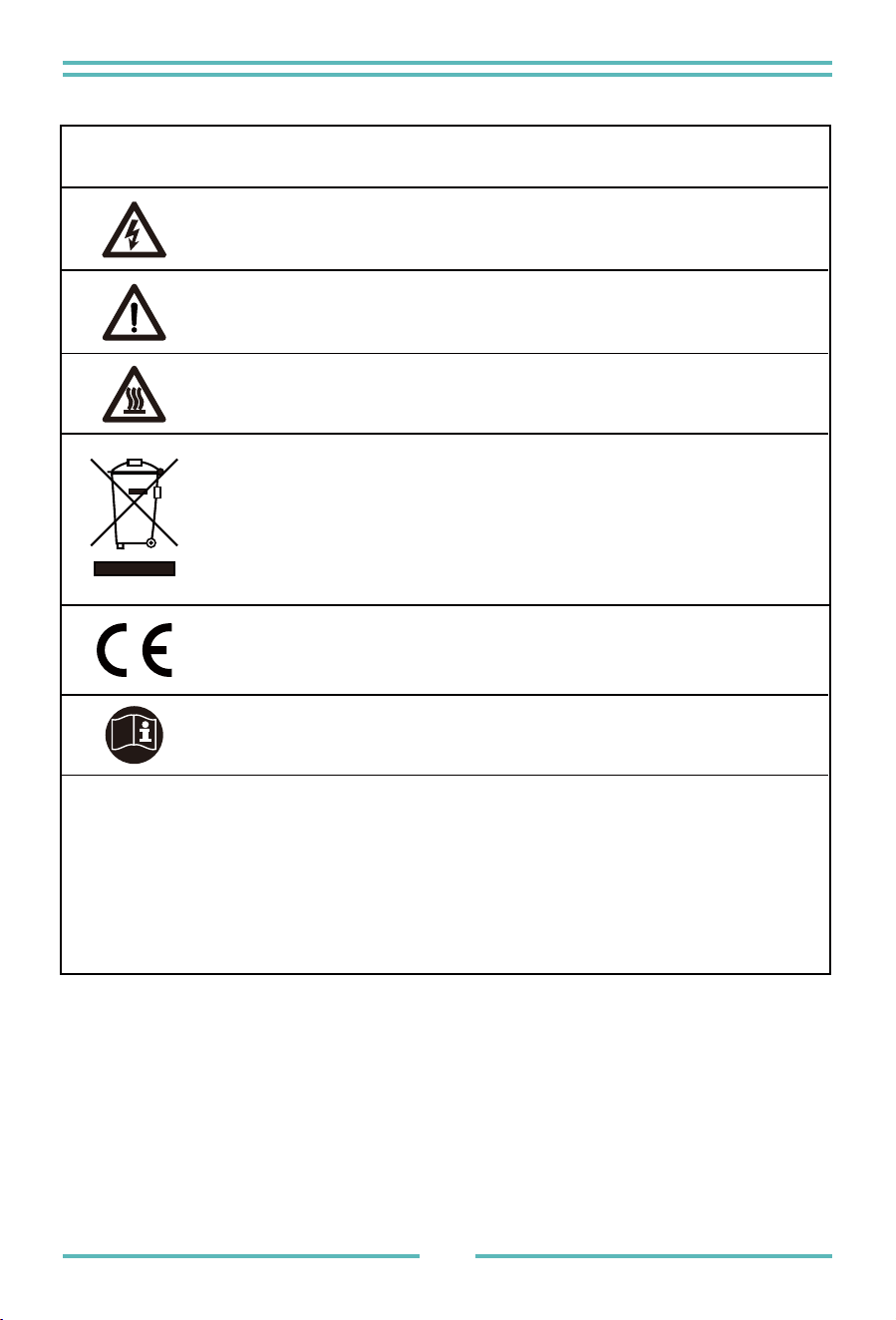
The Meaning of Symbols
Can be OEM Trademark.
Caution, risk of electric shock.
Caution, hot surface.
Symbol for the marking of electrical and electronics devices according to Directive
����/��/EC. Indicates that the device, accessories and the packaging must not be
disposed as unsorted municipal waste and must be collected separately at the end
of the usage. Please follow Local Ordinances or Regulations for disposal or
contact an authorized representative of the manufacturer for information
concerning the decommissioning of equipment.
Caution, risk of burn - Do not touch.
Refer to the operating instructions.
CE mark is attached to the solar inverter to verify that the unit
follows the provisions of the European RED Directives.
Person adequately advised or supervised by an electrically skilled person
to enable him or her to perceive risks and to avoid hazards which
electricity can create. For the purpose of the safety information of this
manual, a "qualified person" is someone who is familiar with
requirements for safety, refrigeration system and EMC and is authorized
to energize,ground, and tag equipment, systems, and circuits in
accordance with established safety procedures. The inverter and endues
system may only be commissioned and operated by qualified personnel.
Qualified
personnel
Microinverter System Introduction
The Microinverter is used in utility-interactive grid-tied applications, comprised of two
key elements:
• Microinverter
• Router
This series Microinverter has built-in WIFI module so it can communicate with router
directly.
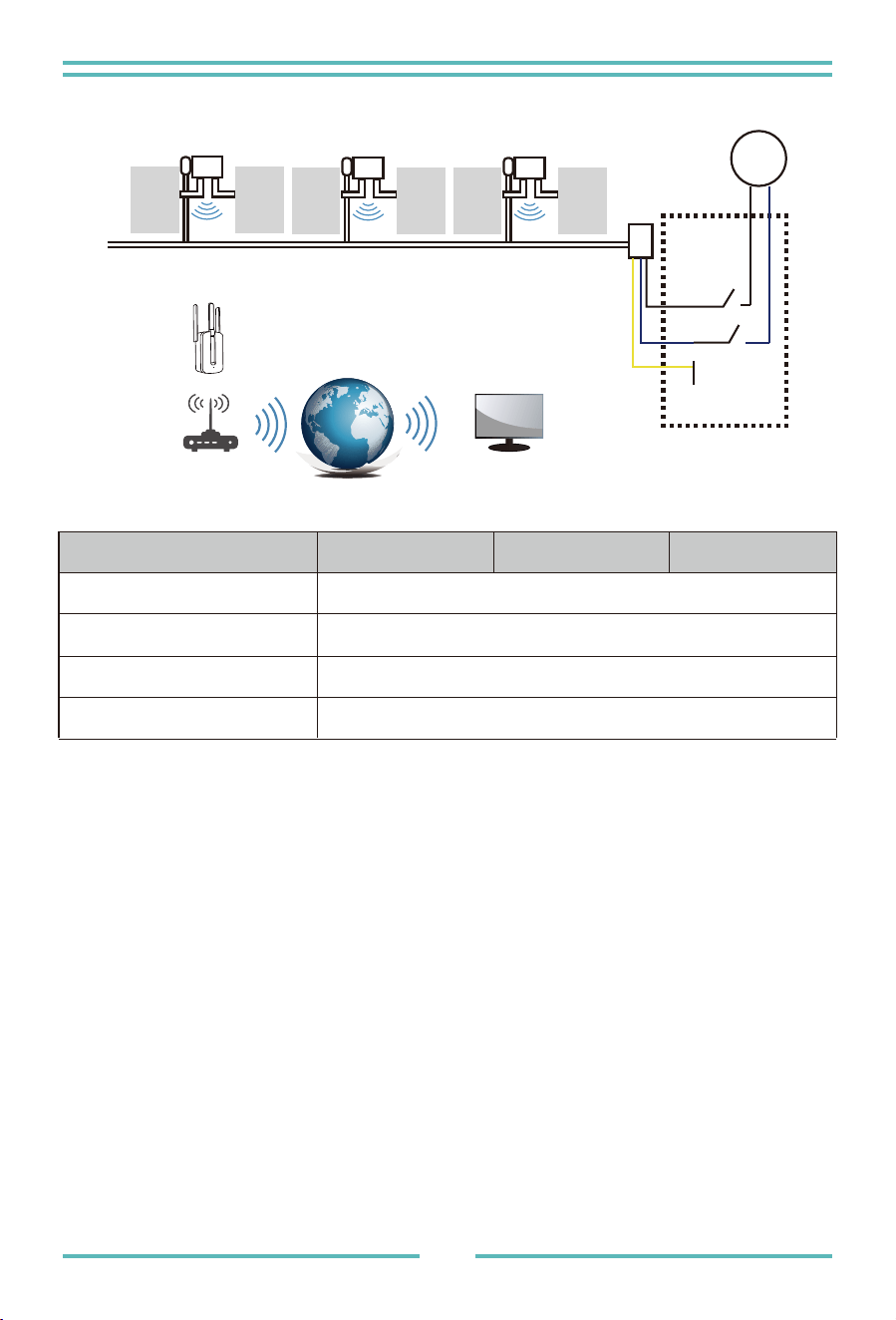
�� / �� / ��� G�
NOTE: If the wireless signal in the area where the Microinverter is installed is weak, it is
necessary to add a wifi signal booster at a suitable place between the router
and the Microinverter.
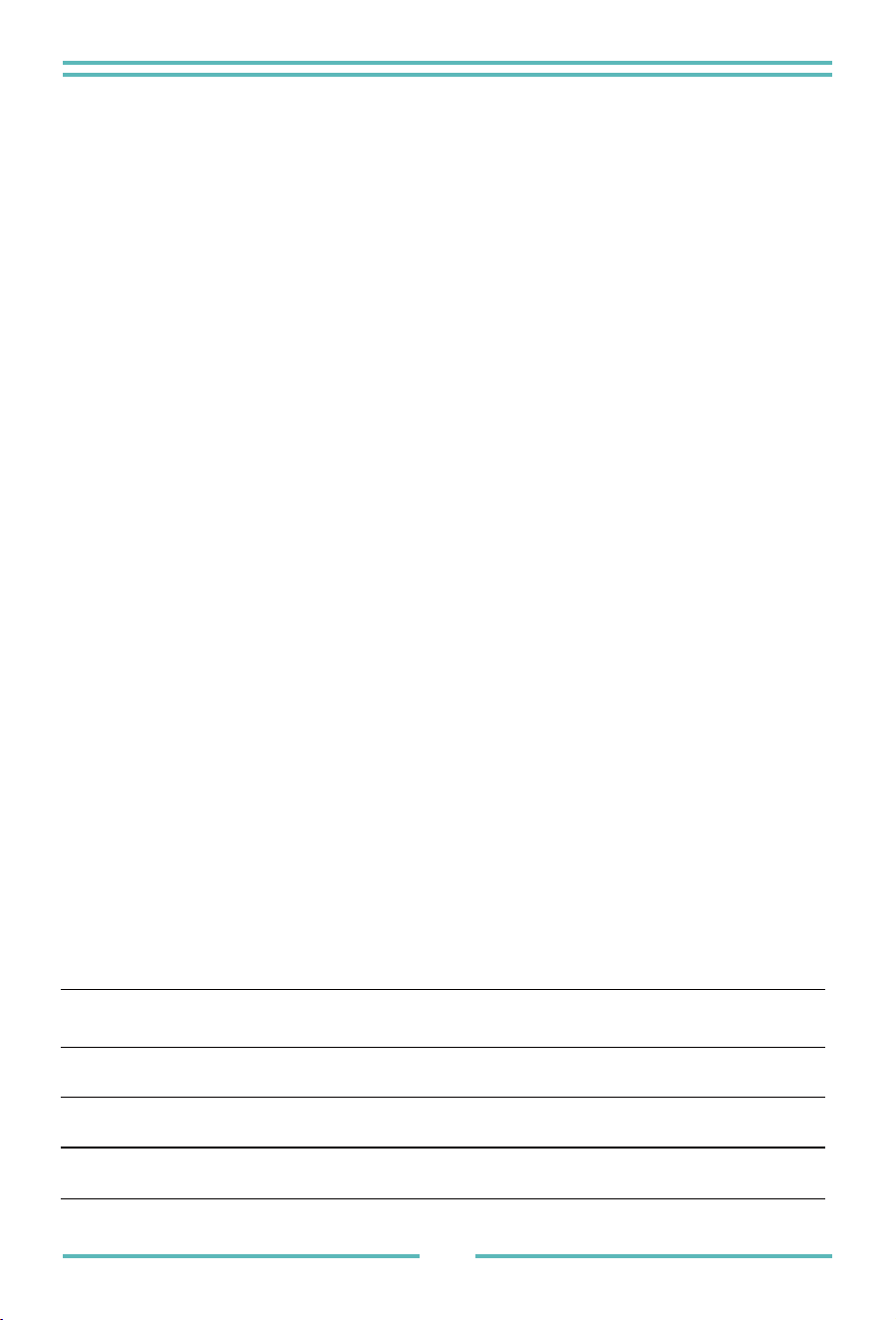
PV Input Voltage
Inverter Model
PV Array MPPT Voltage Range
No. of MPP Trackers
No. of Strings per MPP Tracker
��.�V (��V~��V)
SUN-M��G�-EU-Q� SUN-M��G�-EU-Q� SUN-M���G�-EU-Q�
��V~��V
�
�
- �� -
Meter
Distribution Box
Junction Box
Ground
Neutral
Microinverter
Microinverter
Microinverter
Router
Monitoring system
WIFI Boost
PV-
Module
PV-
Module
PV-
Module
PV-
Module
PV-
Module
PV-
Module
- �� -
This integrated system improves safety; maximizes solar energy harvest;increases system
reliability, and simplifies solar system design, installation,maintenance, and management.
SUN-M��G�-EU-Q� ��/��Hz, ���V � for ��A breaker
SUN-M��G�-EU-Q� ��/��Hz, ���V � for ��A breaker
SUN-M���G�-EU-Q� ��/��Hz, ���V � for ��A breaker
More Reliable than Centralized or String Inverters
The distributed Microinverter system ensures that no single point of system failure exists
across the PV system.Microinverters are designed to operate at full power at ambient
outdoor temperatures of up to ���℉ (��℃). The inverter housing is designed for
outdoor installation and complies with the IP�� environmental enclosure rating.
Microinverters Maximize PV Energy Production
Each PV module has individual Maximum Peak Power Tracking (MPPT) controls,
which ensures that the maximum power is exported to the utility grid regardless of the
performance of the other PV modules in the array.When PV modules in the array are
affected by shade, dust, orientation,or any situation in which one module
underperforms compared with the other units, the Microinverter ensures top
performance from the array by maximizing the performance of each module within the
array.
Simple to Install
You can install individual PV modules in any combination of Module quantity,
orientation, different type and power rate. The Ground wire (PE) of the AC cable is
connected to the chassis inside of the Micro Inverter,potentially eliminating the
installation of grounding wire (check local regulation).
Data collection adopts internal wifi,wireless router is needed near the Microinverter. When
complete the installation of Microinverter,configure wireless router with internal wifi(refer
to the wifi user manual).The data will be uploaded automatically.Users can monitor and
manage the Microinverter through corresponding website or APP.
Micro Inverter Introduction
The Microinverters connect with the single-phase grid, and can also use multiple Micro-
inverters in the form of single-phase grid to achieve three-phase grid.
For more information, please see the Technical Data page (P��-P��) of this manual.
Model
Number
AC grid
Max. #
Per branch

- �� -
Microinverter System Installation
A PV system using Microinverters is simple to install. Each Microinverter easily mounts
on the PV racking, directly beneath the PV module(s). Low voltage DC wires connect
from the PV module directly to the Microinverter, eliminating the risk of high DC
voltage.Installation MUST comply with local regulations and technical rules.
WARNING: Perform all electrical installations in accordance with local electrical codes.
WARNING: Be aware that only qualified professionals should install and/or replace
Microinverters.
WARNING: Before installing or using an Micro Inverter,please read all instructions and
warnings in the technical documents and on the Microinverter system
itself as well as on the PV array.
WARNING: Be aware that installation of this equipment includes the risk of electric
shock.
NOTE: Strongly recommend to install Surge protection Devices in the dedicated meter
box.
Required Parts and Tools from you
In addition to your PV array and its associated hardware, you will need the following
items:
· An or several AC connection junction boxes
· Mounting hardware suitable for module racking
· Sockets and wrenches for mounting hardware
· Continuous grounding conductor and grounding washers
· A Phillips screwdriver
· A torque wrench
NOTE: The product is suitable for residential, commercial and light industrial
environments, not for industrial environments.
- �� -
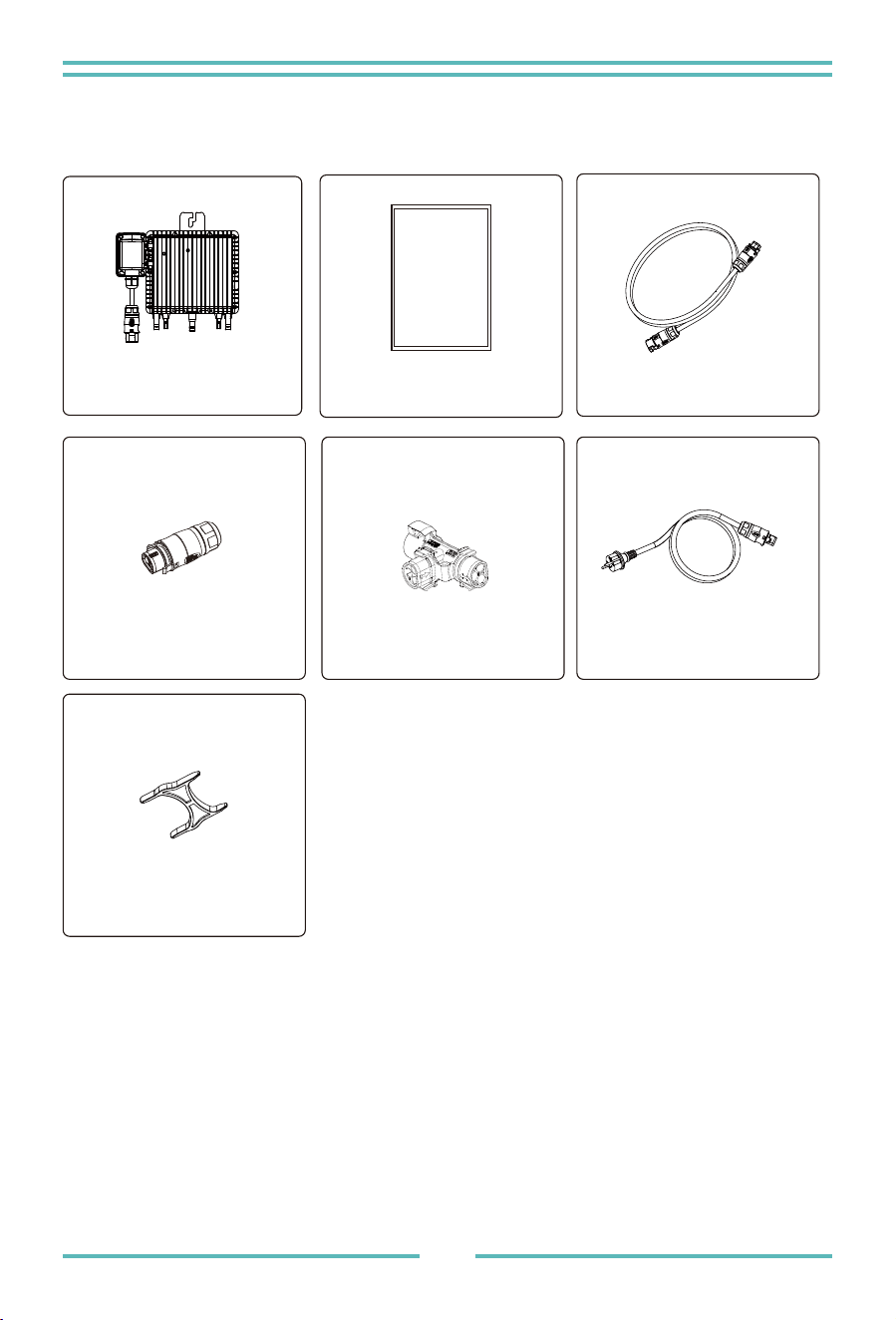
Parts list
Please check the following table, to see whether all the parts are included in the package:
* Choose either Bus AC connector or Extension cable with European standard plug, can't use
them in the same project.
Microinverter x�
User
manual
User manual x�
AC extension cable
(optional) x N-�
Bus AC connector
(optional) x�
T-connector
(optional) x N-�
Extension cable with European
standard plug (optional) x �
Clip x�
- �� -
Installation Procedures
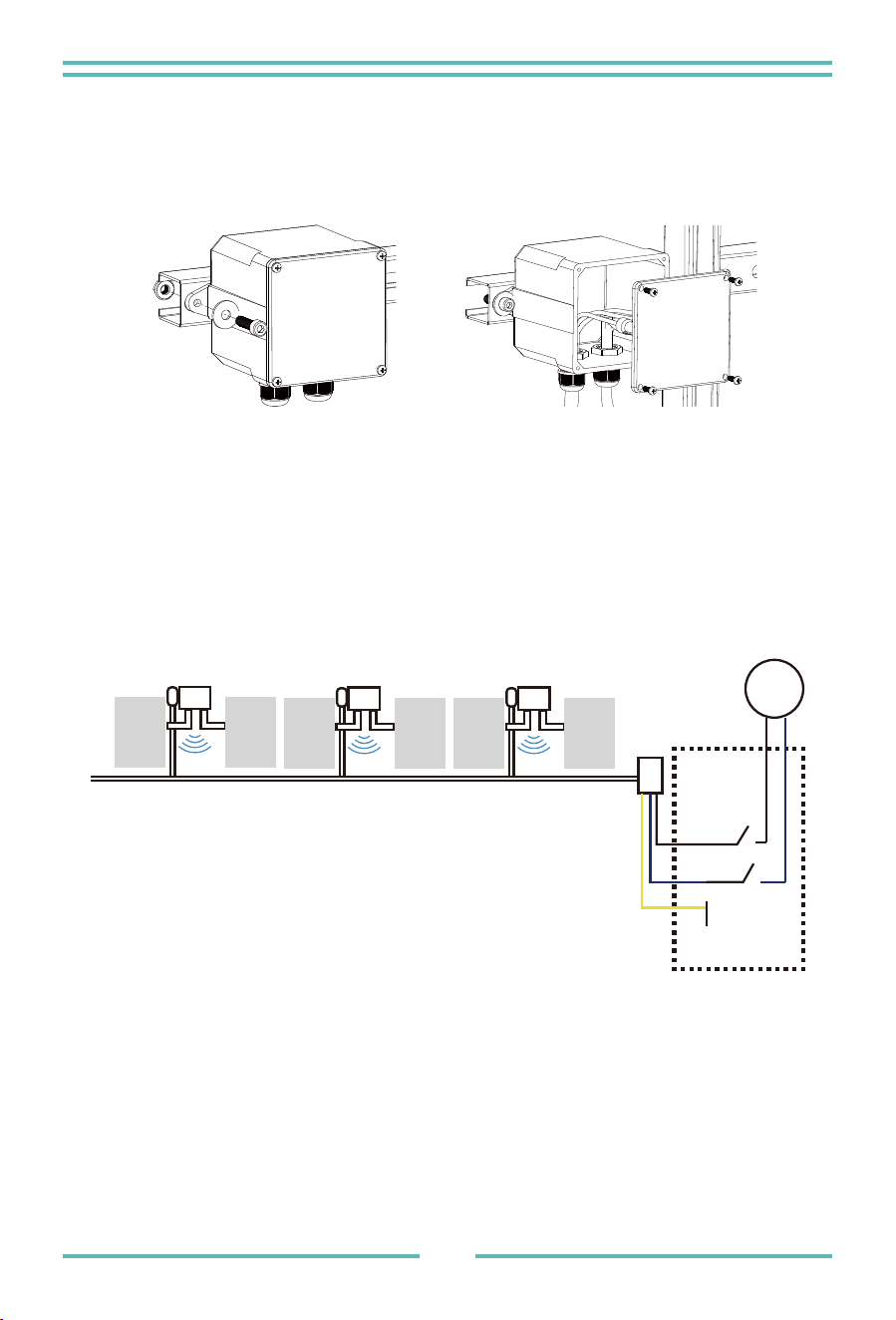
Step � - Install the AC branch circuit junction box
a. Install an appropriate junction box at a suitable location on the PV racking system
(typically at the end of a branch of modules).
b. Connect the open wire end of the AC cable into the junction box using an appropriate
gland or strain relief fitting.
c. Connect the AC branch circuit junction box to the point of utility Grid Interconnection
(Usually it is inside a distribution box).
WARNING: Wiring colour code can be different according local regulation,check all
the wires of the installation before connecting to the AC cable to be sure they match.
Wrong cabling can damage irreparably the Microinverters,such an issue is not covered
by the warranty.
Meter
Distribution Box
Junction Box
Ground
Neutral
Microinverter
Microinverter
Microinverter
PV-
Module
PV-
Module
PV-
Module
PV-
Module
PV-
Module
PV-
Module
- �� -
WARNING: Prior to installing any of the Microinverters, verify that the utility voltage
at the point of common connection matches the voltage rating on Microinverter label.
WARNING: Do not place the inverters (including DC and AC connectors) where
exposed to the sun, rain or snow, even gap between modules.Allow a minimum of �/�
(�.�cm.) between the roof and the bottom of the Microinverter to allow proper air flow.
The AC wire on the Microinverter is a TC-ER wire with a wire cross-section area of
�mm²(��AWG).
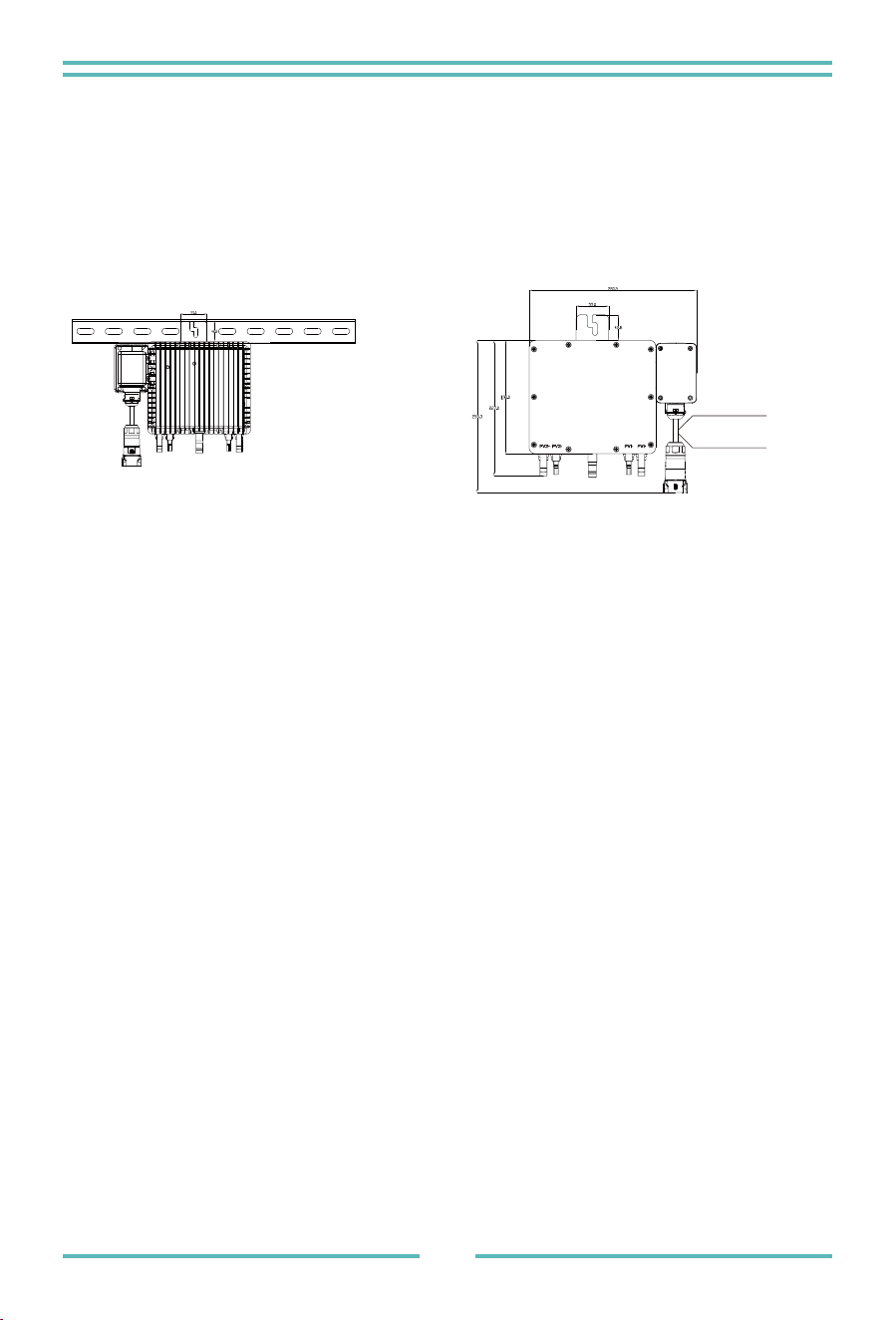
Step � - Attach the Microinverters to the racking or the PV module frame
a. Mark the location of the Microinverter on the rack, with respect to the PV module
and junction box or any other obstructions.
b. Mount one Microinverter at each of these locations using hardware recommended
by your module racking vendor.
M�� / �� /��� G� (�MPPT)
Mounting
AC cable L=30mm
1mm(18AWG)
2
Step 3 - Connect the Microinverters in parallel
a. Check the Microinverter technical data page � for the maximum allowable number of
Microinverters on each AC branch circuit.
b. As to parallel connection, please refer to page (P��-P��), use the T-connector, AC extension
cable, Bus AC connector(If only one branch, just use the Extension cable with European
standard plug) to connect the Microinverter in each branch.
WARNING: DO NOT exceed maximum number of Microinverters in an AC branch circuit,
as displayed on the page � of this manual.
Model Wire Size Torque value(max) Max cable lengthCable(mm)
2
Outside cable
(L+N+PE)20m
SUN-M60G4-EU-Q0
12AWG 2.5 1Nm
SUN-M80G4-EU-Q0
12AWG 2.5 1Nm
SUN-M100G4-EU-Q0
12AWG 2.5 1Nm
- �� -
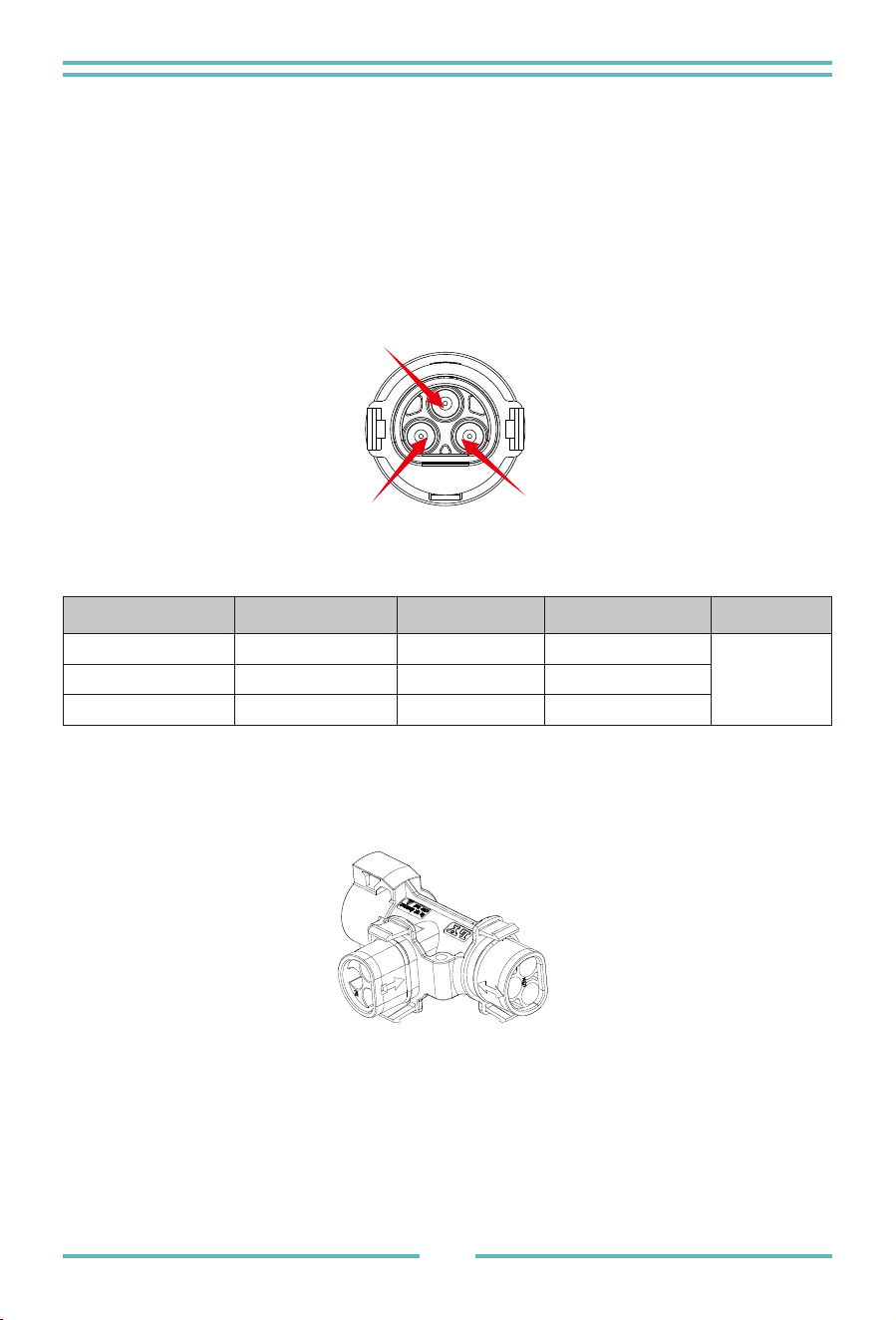
NOTE: Port marked with two-way arrow on T-type plug can only connect with extended
cable and Port marked with one-way arrow on T-type plug can only connect with
Microinverter.
T-connector
L N
PE
Male connector
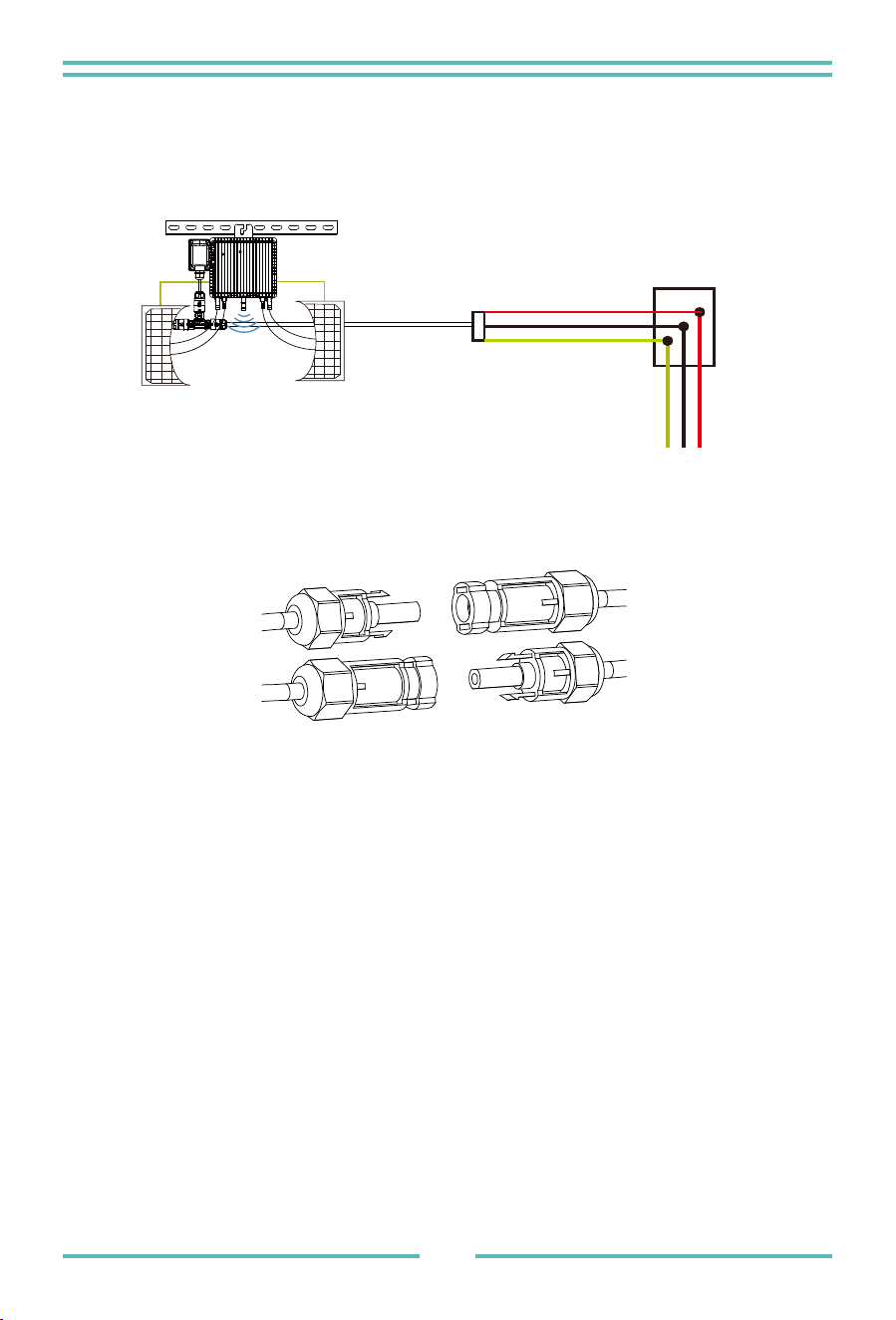
Step 4 - Connect the wire open of branch end to the junction box.
- �� -
Step 5 - Connect Microinverter to the PV Modules
NOTE:When plugging in the DC cables, if AC already available,the Microinverter should
immediately blink red light and will start work within the setting time (default �� seconds).
If AC is not available,the red light will blink � times quickly and repeat after one second
until AC is connected.
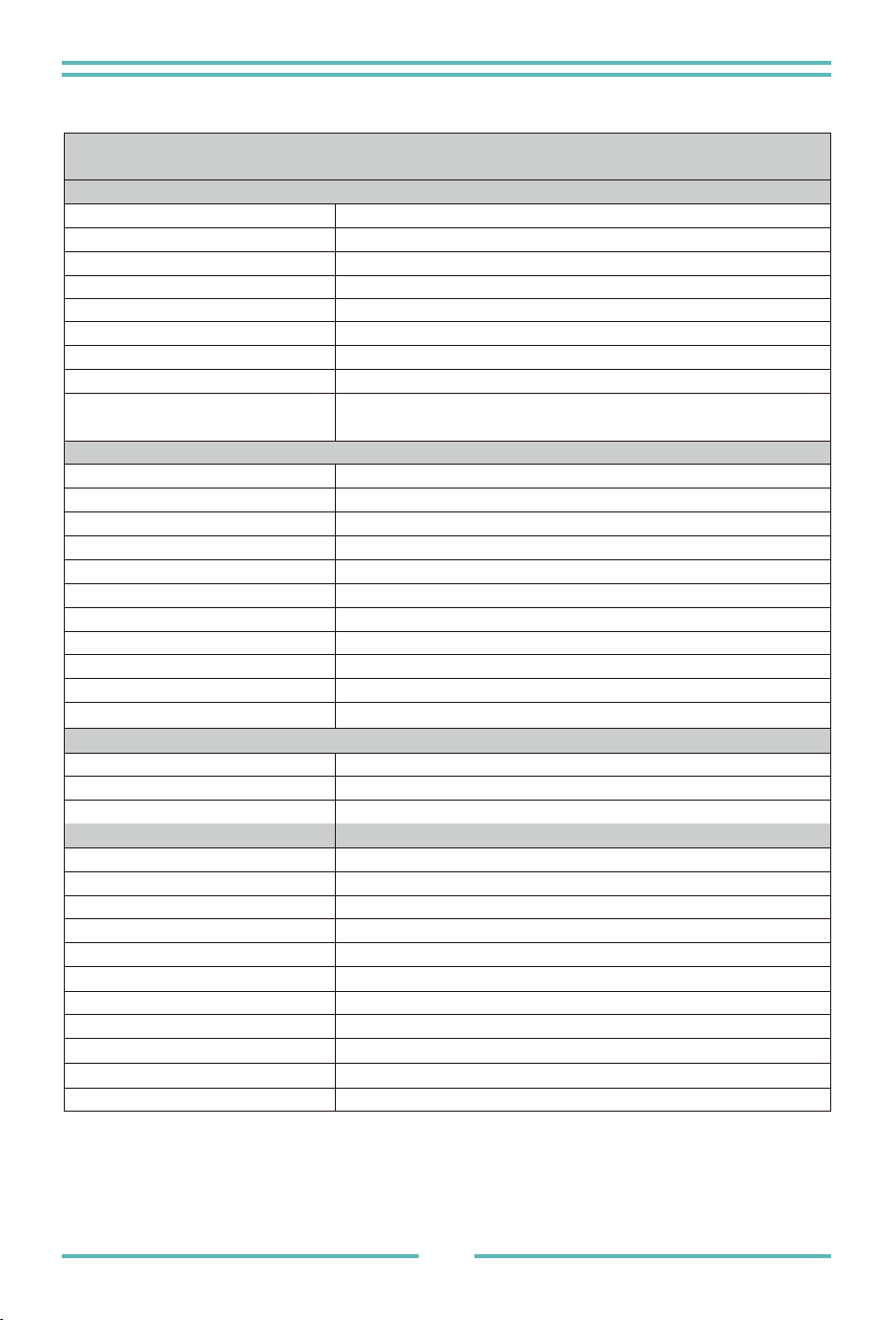
General Guidelines:
a. PV modules should be connected to DC input ports of a
Microinverter.
b. In order to meet the relevant regulatory requirements, the cable length must be <�M.
Please consult the local power operator to make sure that the DC cable complies with local
regulations.
Microinverter System Operating Instructions
�. Turn ON the AC circuit breaker on each Micro Inverter AC branch circuit.
�. Turn ON the main utility-grid AC circuit breaker. Your system will start producing
power after a one-minute waiting time.
To operate the Microinverter PV system:
Junction Box

- �� -
Troubleshooting
�. The units should start blinking red one minutes after turning on the AC circuit breaker.
Then blue led blinking. This means they are producing power normally, the faster
blinking of the blue led means more power generated.
�. Configure the internal wifi module according to its user manual.
�. The Microinverters will start to send performance data over wifi module to the network
every � minutes.It enables customers to monitor performance data of each
Microinverter
through website and APP.
Qualified personnel can use the following troubleshooting steps if the PV system does
not operate correctly:
When AC power is applied but the
Microinverter not started up, about �.�A current
and ��VA power for each Micro Inverter may be measured by a power meter. This
power is reactive power,not consume from utility grid.
Start up LED
Operation LED
One minute after DC power is first applied to the
Microinverter,one
short red blinks indicate a successful Microinverter startup sequence,
be equal or greater than two short red blinks after DC power is first
applied to the Microinverter indicate a failure during Microinverter
setup.
Flashing Slow Blue - Producing small power
Flashing Fast Blue - Producing big power
Flashing Red - Not producing power
Red blinking two times - AC low-voltage or high-voltage
Red blinking three times - Grid failure
Status Indications and Error Reporting

- �� -
GFDI Error
Other Faults
A four time red LED indicates the
Microinverter has detected a
Ground Fault Detector Interrupter (GFDI) error in the PV system.
Unless the GFDI error has been cleared, the LED will remain four
times blinking.
All other faults can be reported to the website and APP.
WARNING: Never disconnect the DC wire connectors under load. Ensure that no
current is flowing in the DC wires prior to disconnecting. An opaque
covering may be used to cover the module prior to disconnecting the
module.
There are two possible overall areas of trouble:
A. The
Microinverter itself may be having problems.
B. The Microinverter itself is working fine but the communication between Microinverter
and network has problem. The items below refer to Microinverter issues, not communicat
-ion issues:
One quick way to tell whether the issue is the
Microinverter or the communication problem:
Troubleshooting a non-operating Microinverter
Diagnosing from the network:
a. No-Data-Display: The website and APP don't display any data.Check the network
configuration.
b. Only display Microinverter is online but no data.This maybe because server is
updating.

- �� -
To troubleshoot a non-operating Microinverter, Follow the steps
below in order:
�. Verify the utility voltage and frequency are within ranges shown in the Technical Data
section of this manual.
�. Check the connection to the utility grid.Disconnect AC firstly,then disconnect DC and
make sure the utility grid voltage can be measured at AC connector. Never disconnect
the DC wires while the Microinverter is producing power. Re-connect the DC module
connectors and watch for three short LED flashes.
�. Check the AC branch circuit interconnection between all the Microinverters. Verify
each inverter is energized by the utility grid as described in the previous step.
�. Make sure that any AC breaker are functioning properly and are closed.
�. Check the DC connections between the Microinverter and the PV module.
�. Verify the PV module DC voltage is within the allowable range shown in the Technical
Data of this manual.
�. If the problem still persists, please contact technical support.
WARNING: Do not attempt to repair the Microinverter.If troubleshooting methods fail,
please call for Technical Support

- �� -
Technical Data
Replacement
A. Disconnect the Microinverter from the PV Module, in the order shown below:
�. Disconnect the AC by turning off the branch circuit breaker.
�. Disconnect the AC connector of the Microinverter.
�. Cover the module with an opaque cover.
�. Disconnect the PV module DC wire connectors from the Microinverter.
�. Remove the Microinverter from the PV array racking.
B. Install a replaced
Microinverter to the bracket then remove the opaque cover.
Remember to observe the flashing LED light as soon as the new Microinverter is
plugged into the DC cables.
C. Connect the AC cable of the replacement Microinverter.
Follow the procedure to replace a failed Micro Inverter
WARNING: Be sure to verify the voltage and current specifications of your PV module
match with those of the Microinverter. Please refer to the datasheet or user manual.
WARNING: You must match the DC operating voltage range of the PV module with
the allowable input voltage range of the Microinverter.
WARNING: The maximum open circuit voltage of the PV module must not exceed
the specified maximum input voltage of the inverter.
- �� -
SUN-M���G�-
EU-Q�
Model
PV String Input Data
Max. PV Input Power(W)
Max. PV Input Voltage(V)
Start-up Voltage(V)
SUN-M��G�-
EU-Q�
MPPT voltage range(V)
SUN-M��G�-
EU-Q�
Full Load MPPT Voltage Range(V)
Rated PV input voltage(V)
Max. Input Short-Circuit Current (A)
Max. Operating PV Input Current(A)
No. of MPP Trackers/
No. of Strings per MPP Tracker
60
20
25-55
30-55
40-5533-55
42.5
210-560(2 Pieces)
210-420(2 Pieces)
210-700(2 Pieces)
19.5×2
13×2
2/1
AC Output Side
Rated AC Output Active Power(W)
Max.AC Output Apparent Power(VA)
Rated AC Output current (A)
Max.AC Output Current(A)
Rated Output voltage/range (V)
Grid Connection Form
Rated Output Grid Frequency/range(Hz)
Max. unit per branch
Power Factor Adjustment Range
Total Current Harmonic Distortion THDi
DC Injection Current
800
600
1000
3.7/3.5
2.8/2.7
4.6/4.4
3.7/3.5
2.8/2.7
4.6/4.4
220/230V 0.85Un-1.1Un
L+N+PE
<3%
0.95 leading-0.95lagging
<0.5%In
6
8
5
50Hz/45Hz-55Hz 60Hz/55Hz-65Hz
Efficiency
Max. Efficiency
Euro Efficiency
MPPT Efficiency
96.5%
96.0%
>99%
800
600
1000
Equipment Protection
DC Polarity Reverse Connection Protection
AC Output Overcurrent Protection
AC Output Overvoltage Protection
AC Output Short Circuit Protection
Thermal Protection
DC Terminal Insulation Impedance Monitoring
yes
yes
yes
yes
yes
yes
Power Network Monitoring
Island protection monitoring
Earth Fault Detection
yes
yes
yes
Overvoltage Load Drop Protection
yes
Surge Protection Level
TYPE II(DC),TYPE II(AC)
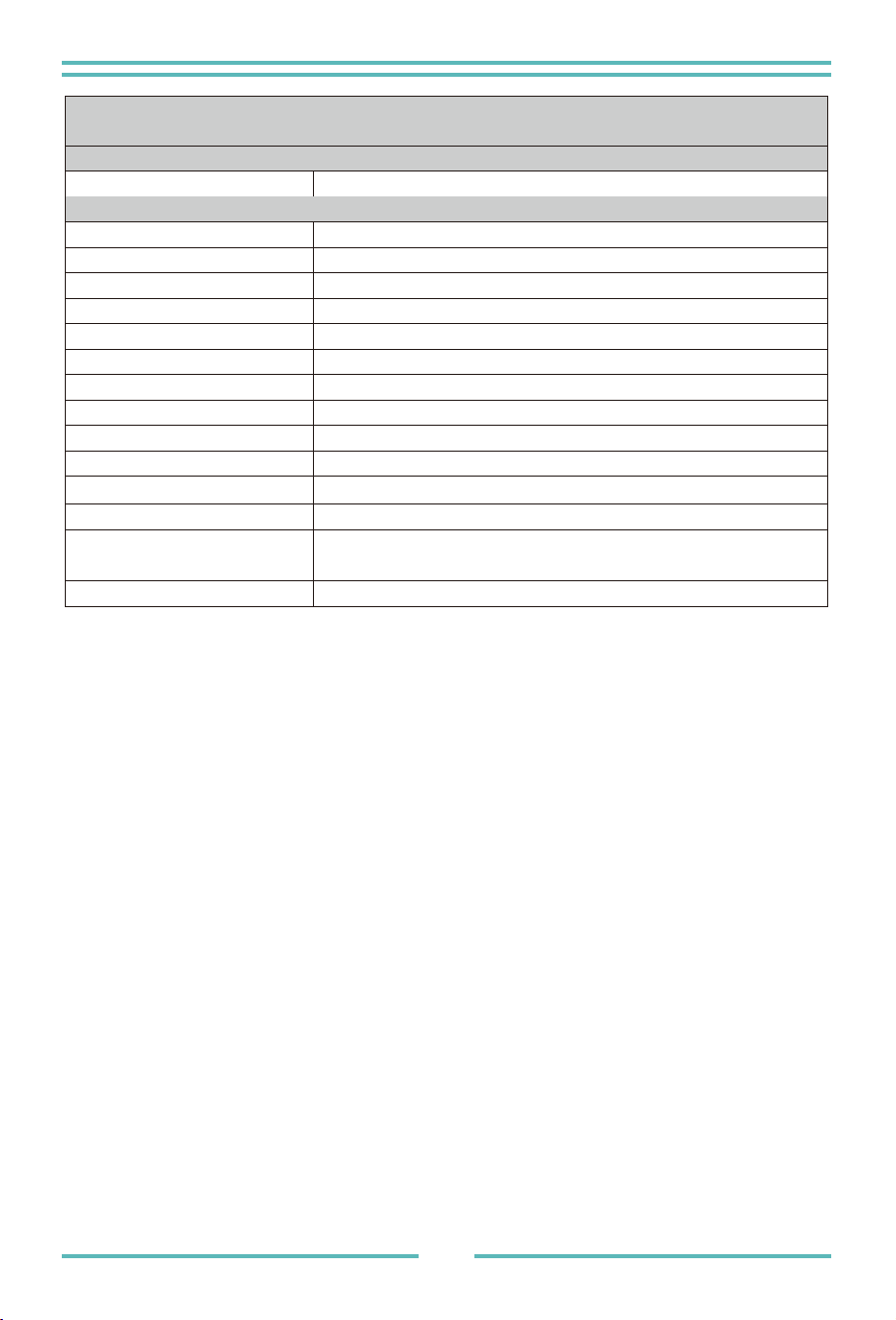
M��/��/���G� Microinverter Datasheet
SUN-M���G�-
EU-Q�
Model
Interface
Communication Interface
SUN-M��G�-
EU-Q�
SUN-M��G�-
EU-Q�
WiFi
General Data
Max. Operating Frequency(Hz)
Operating Temperature Range (°C)
Permissible Ambient Humidity
Permissible Altitude (m)
Noise (dB)
Ingress Protection(IP) Rating
Inverter Topology
Over Voltage Category
Cabinet Size(W*H*D)[mm]
Weight [kg]
Warranty [year]
-40℃~65℃, >45℃ derating
0-100%
2000m
≤ 25 dB
IP 67
3kg
280.5×190×40 (Excluding connectors and brackets)
Standard 15 years, extended warranty
Natural cooling
OVC II(DC),OVC IV(AC)
Isolated
Grid Regulation
Type Of Cooling
Safety EMC/Standard
IEC 61727, IEC 62116, CEI 0-21, EN 50549, NRS 097, RD 140,
UNE 217002, OVE-Richtlinie R25, G98,VDE-AR-N 4105
IEC/EN 61000-6-1/2/3/4, IEC/EN 62109-1, IEC/EN 62109-2
2.412GHz-2.472GHz
- �� -
- �� -
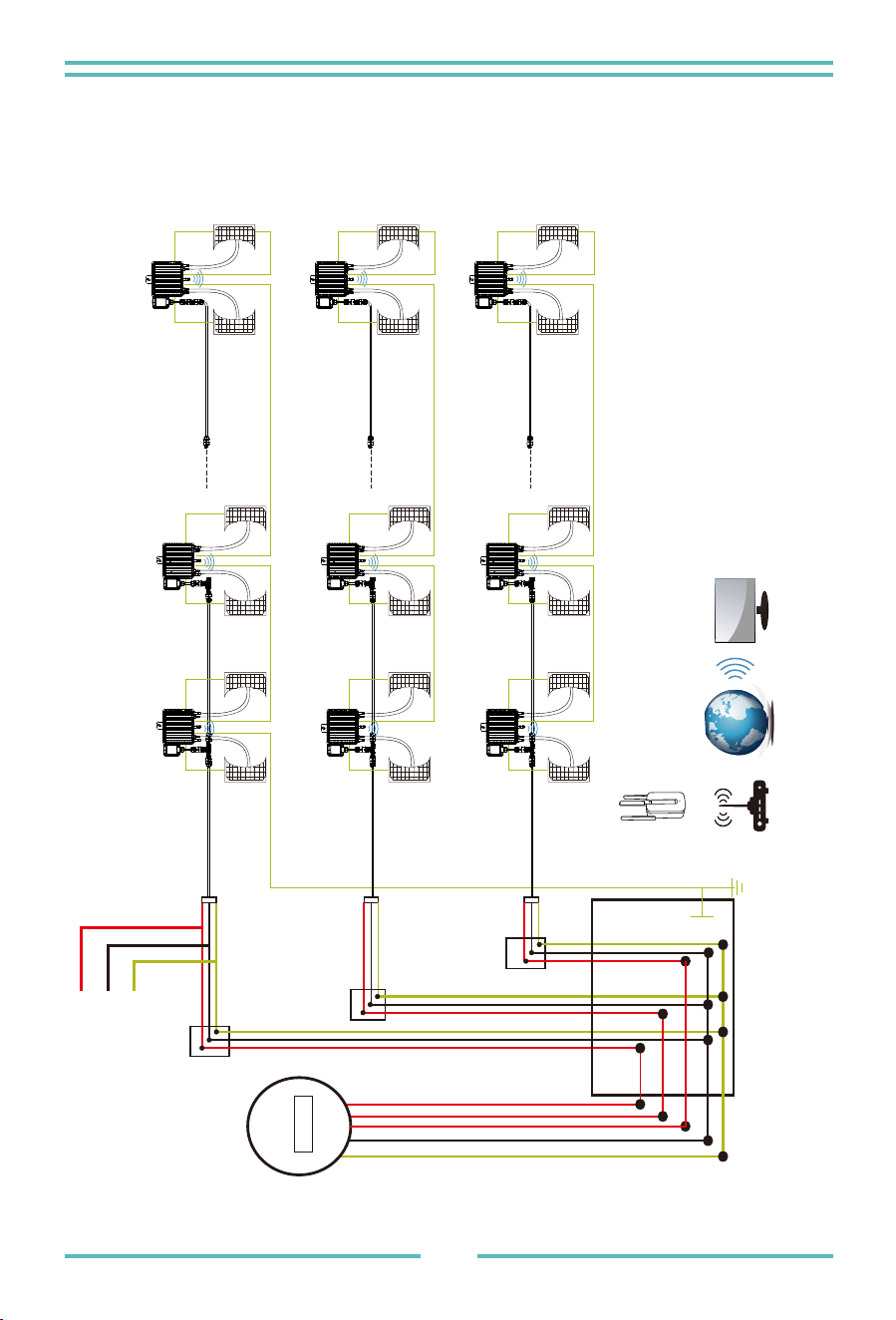
MAX �
SUN-M��G�-EU-Q�
per Branch
MAX �
SUN-M��G�-EU-Q�
per Branch
MAX �
SUN-M���G�-EU-Q�
per Branch
Router
Monitoring system
WIFI Boost
Wiring Diagram
GROUND
M��G�/��G�/���G� (�MPPT)
meter
JUNCTION
BOX
BLACK N
RED L
YELLOW PE
Sample Wiring Diagram Three Phase
- �� -
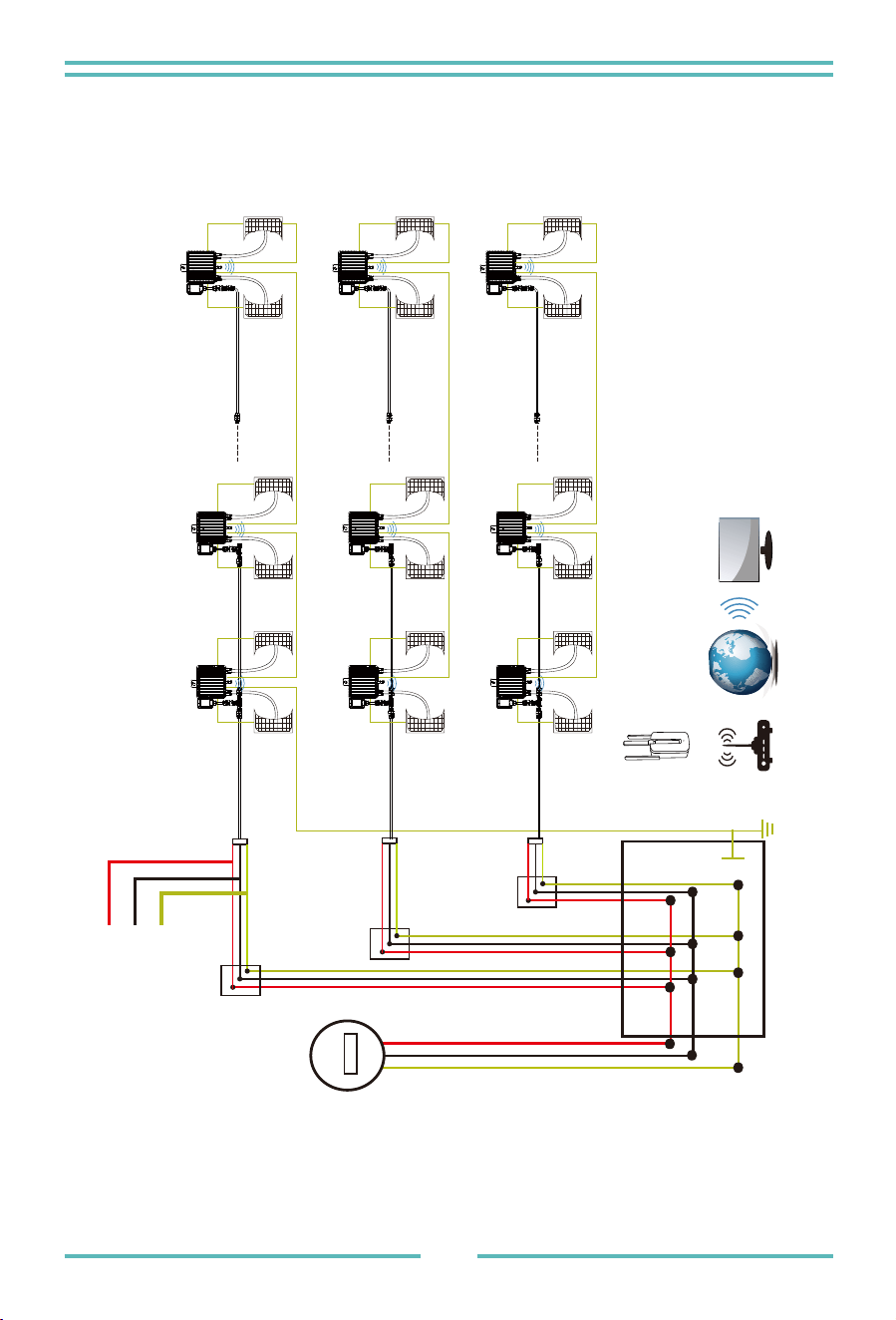
Sample Wiring Diagram Single Phase
meter
Router
Monitoring system
WIFI Boost
GROUND
JUNCTION
BOX
BLACK N
RED L
YELLOW PE
MAX �
SUN-M��G�-EU-Q�
per Branch
MAX �
SUN-M��G�-EU-Q�
per Branch
MAX �
SUN-M���G�-EU-Q�
per Branch
M��G�/��G�/���G� (�MPPT)
- �� -
This series Microinverter has built-in WIFI modular which is able to connect router
directly. For WIFI configuration, please check the manual of“Built-in WIFI modular
Microinverter WIFI configuration Manual”.
Web monitoring address: https://pro.solarmanpv.com; (for Solarman distributor account)
https://home.solarmanpv.com (for Solarman end user account)
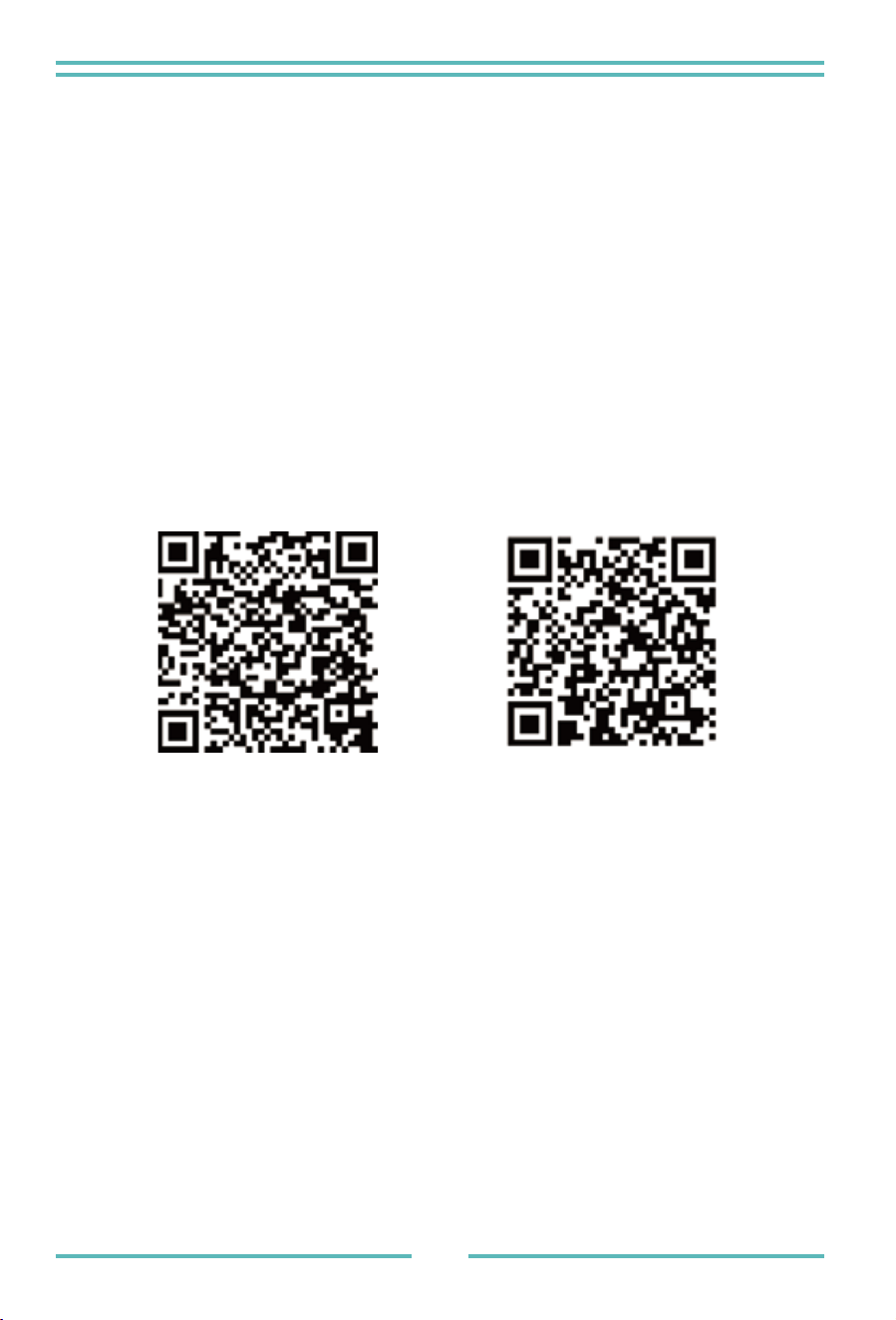
For mobile phone monitoring system, scan the QR code to download the APP.
Also you can find it by searching “solarman business” in App store or Google Play store,
and this App is for distributor/installer.
Find it by searching “solarman smart” in App store or Google Play store and choose
“solarman smart”, this app is for plant owner.
Monitoring Platform
SOLARMAN Smart
for end user
SOLARMAN Business
for distributor/installer
https://pro.solarmanpv.com;
https://home.solarmanpv.com
- �� -
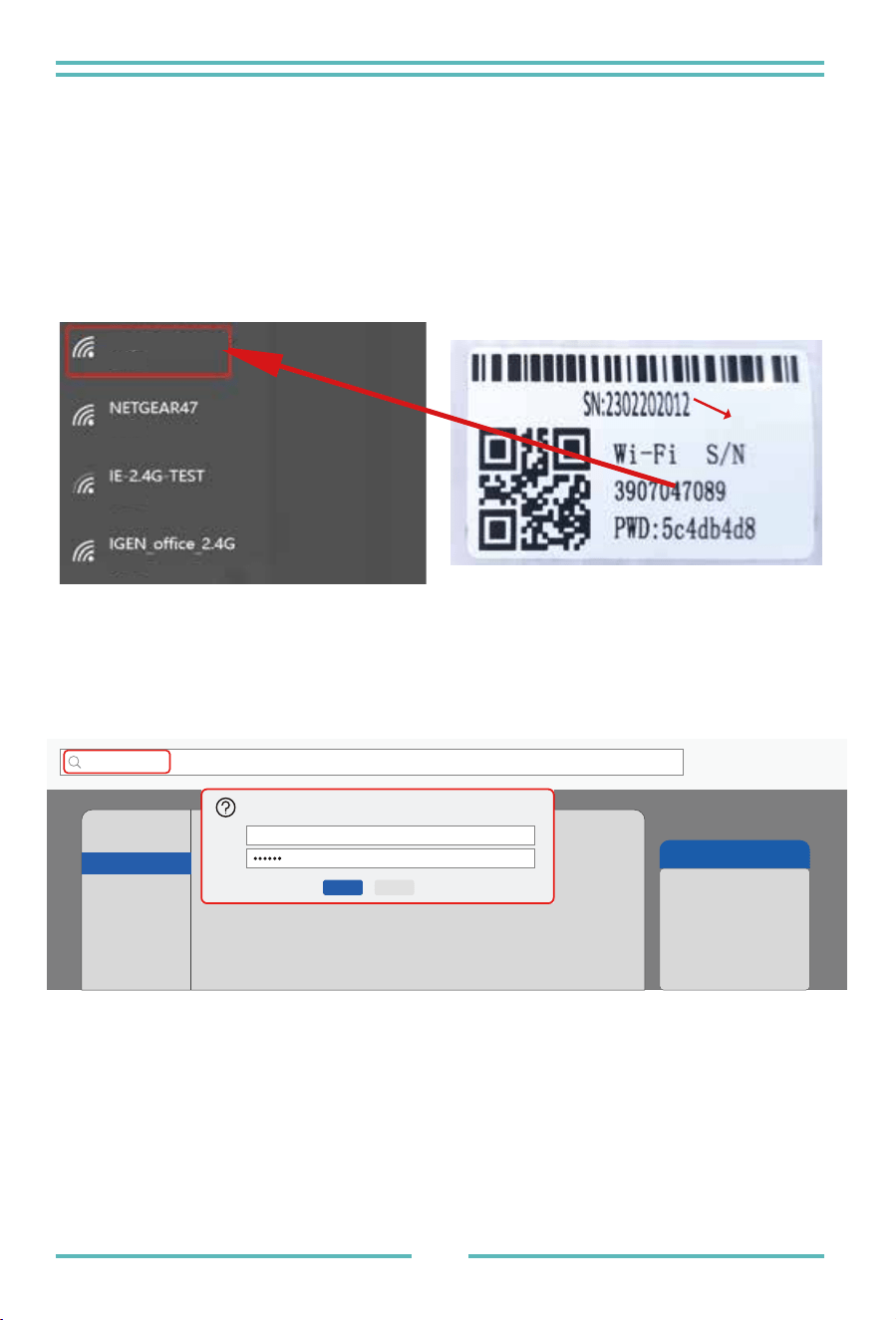
�. Turn on the wireless network of your PC or smartphone.
�. The default password of the AP network is �������� if there’s no nameplate that
includes PWD:XXXXXXXX on the inverter body. If there’s nameplate that includes
PWD:XXXXXXXX on the inverter body then the AP network password is the “XXXXX
XXX”: for example, the default password of AP network is “�c�db�d�” of the inverter
SN:����������.
How to connect the Microinverter to the router via web
�. Open a browser and enter ��.��.���.���. Both username and password are "admin".
(Recommended browser: IE �+, Chrome ��+, Firefox �� + ).
Also, the default password can be changed. If forgetting the modified password, please
contact service@deye.com.cn for help.
�. Browser jumps to “ Status ” page, the basic information is listed there.
��.��.���.���
http://��.��.���.��� Please input username and password.“USER LOGIN”
Username:
Password:
Sure Cancel
admin
Help
The setup wizard will assist
you to complete the device
setting within one minute.
Status
Quick Set
Advanced
Upgrade
Restart
Reset
Wizard
Microinverter SN: ���������� Built-in datalogger :����������
Safe
Safe
Safe
Safe
AP_����������
Microinverter SN
- �� -
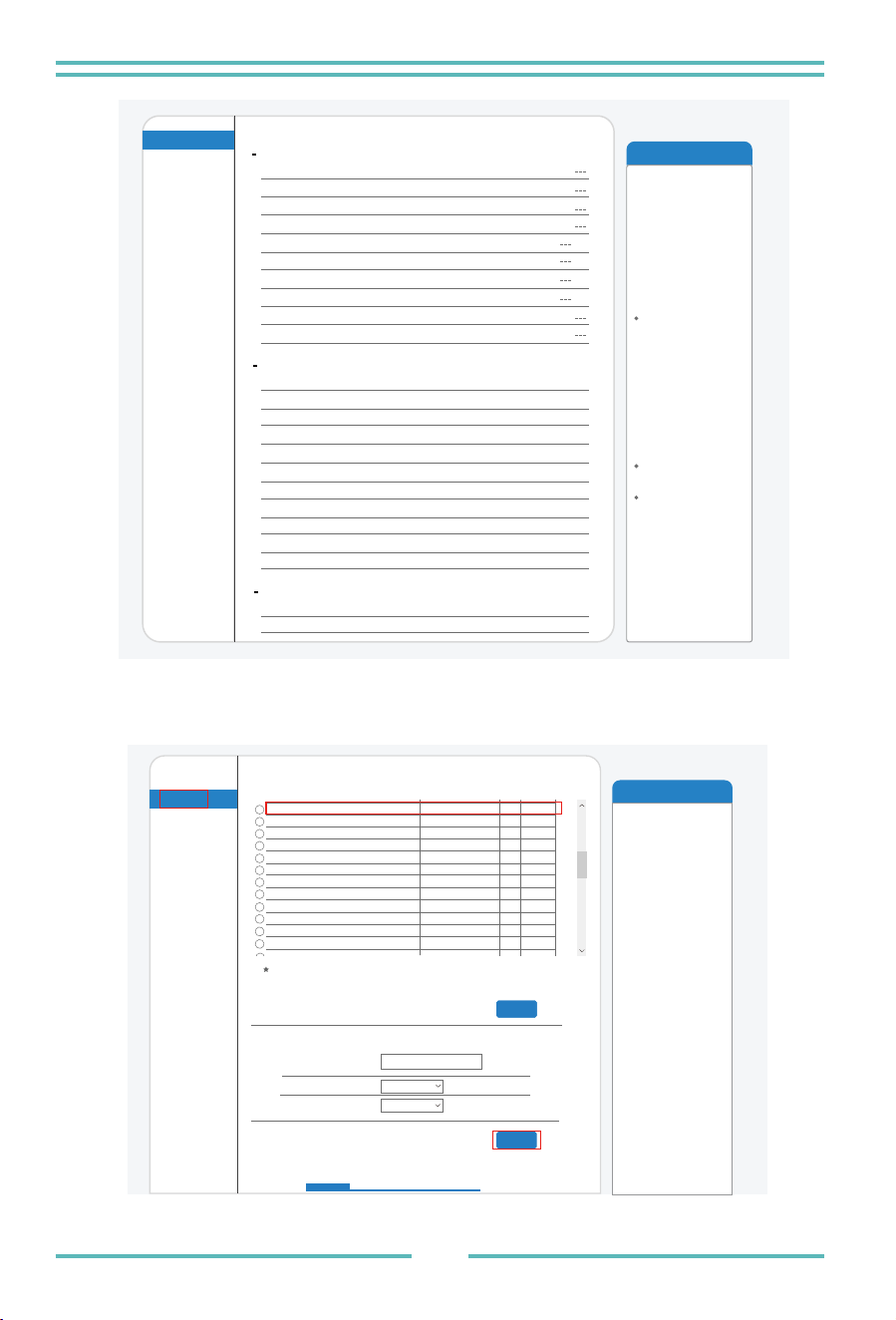
�. Turn to "Wizard" page, click "Refresh" to search the wireless network. Select the target
network and click "Next" .
Help
Quick Set
Advanced
Upgrade
Restart
Reset
Wizard
Status
The setup wizard will assist
you to complete the device
setting within one minute.
Refresh
Please select your current wireless network:
IE-�.�G-TEST ��:A�:�:��:��:��
�:BE:D�:��:B�:�C
�:BE:D�:��:B�:�C
E�:��:D�:F�:��:B�
��:�D:�C:��:��:��
��:�D:�C:��:��:��
��:�D:�C:��:C�:E�
��:�D:�C:��:C�:E�
�A:E:EC:�E:C�:�E
�:BE:D�:��:B�:EE
��:D�:��:��:BA:��
��:EA:E�:��:B:��
��:EA:E�:��:CF:B�
AP_����������
AP_����������
IGEN_office_�.�G
IGEN_office_�.�G
IGEN_office_�.�G
IGEN_office_�.�G
TESR+“”?=,;
IGENTEST
AP_���������
�
�
�
�
�
�
�
�
�
�
�
��
��
��
��
��
��
��
��
��
��
��
��
��
��
��
Refresh
Note: When RSSI of the selected WiFi network is lower than ��%, the
connection may be unstable, please select other available network or
shorten the distance between the device and router.
Add wireless network manually:
Network name (SSID)
Encryption method
IE-�.�G-TEST
WPA�PSK
AES
Encryption algorithm
(Note:case sensitive)
1 2 3 4
Next
Help
Quick Set
Advanced
Upgrade
Restart
Reset
Wizard
Status
The device can be used as
a wireless access point(AP
mode) to facilitata users to
configure the device, or it
can also be used as a
wireless information terminal
(STA mode) to connect the
remote server via wireless
router.
Status of remote server
If under such status, please
check the issues as follows:
(�)check the device
information to see whether
IP address is obtained or
not;
(�)check if the router is
connected to internet or not;
(�)check if a firewall is set
on the router or not;
Not connected: Connection
to server failed last time.
Connected: connection to
server successful last time;
Unknown: No connection
to server.Please check
again in � minutes.
Inverter information
Inverter serial number
Firmware version(main)
Firmware version(slave)
Inverter model
Rated power
Current power
Yield today
Current power
Alerts
Last updated
Device information
Device serial number
Firmware version
Wireless AP mode
SSID
IP address
IP address
MAC address
MAC address
Remote server A
Remote server B
Wireless STA mode
Router SSID
Signal Quality
Remote server information
W
W
kWh
kWh
����������
Enable
Disable
Not connected
Not connected
AP_����������
��.��.���.���
�C:D�:B�:��:�D:B�
LSW�_��_FFFF_�.�.��
- �� -
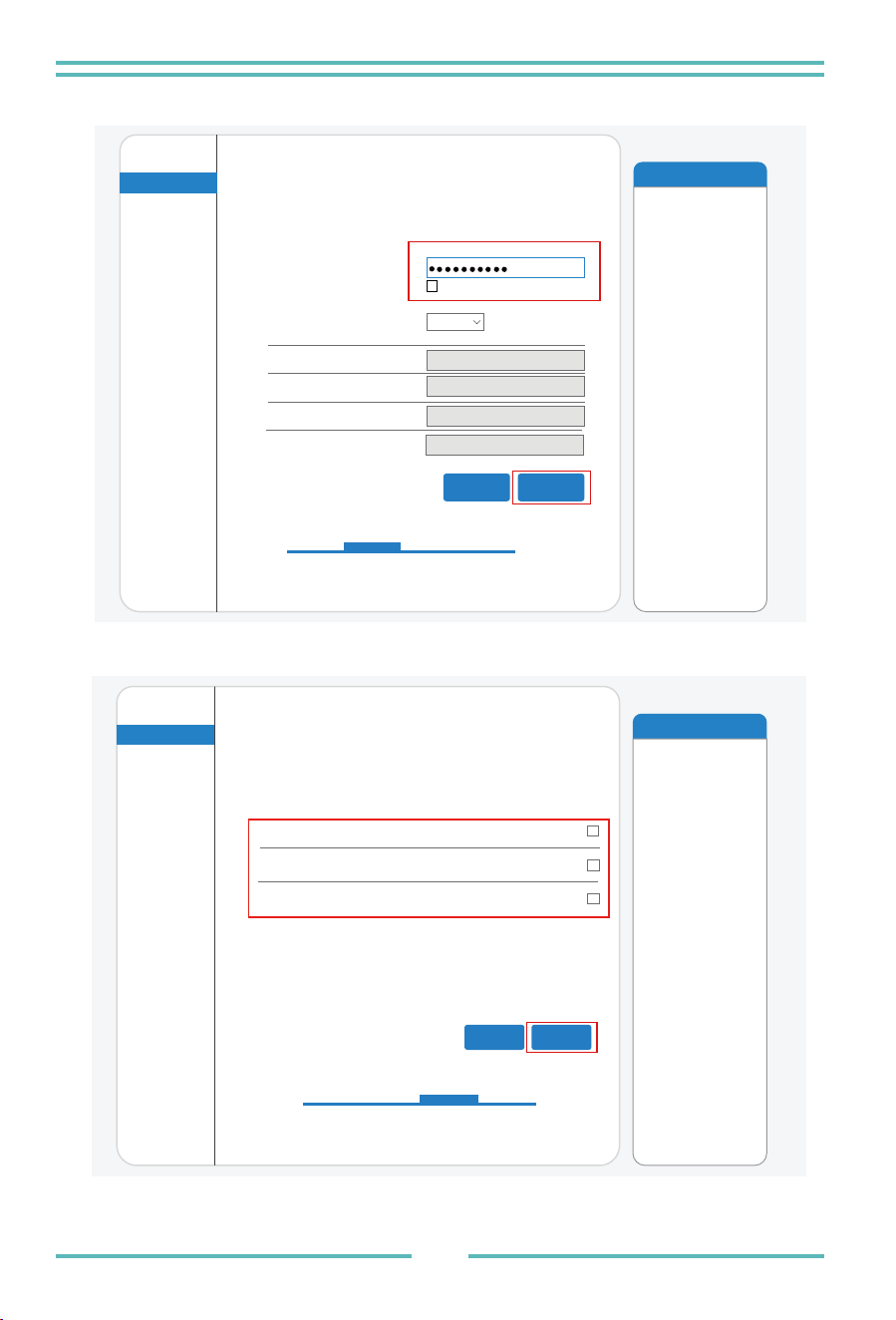
�. Enter the password and click Next.
�. Users can select any options below to enhance the security and click Next.
�. If the setup is successful, the following page will pop up and click OK to reboot the
Microinverter.
Help
Quick Set
Advanced
Upgrade
Restart
Reset
Wizard
Status
Please fill in the following information:
(Note: case sensitive)
Password(�-�� bytes)
Obtain an IP address
automatically
IP address
Subnet mask
Gateway address
DNS server address
Show Password
Enable
Back Next
� � � �
Most systems support the
function of DHCP to obtain
IP address automatically.
Please select disable and
add it manually if your router
does not support such
function.
Help
Quick Set
Advanced
Upgrade
Restart
Reset
Wizard
Status
� � � �
Change the encryption
mode for AP
Change the user name
and password for Web
server
If you change the username
and password for the web
server, you will need to enter
the new username and
password to get access to
the setting page.
If you set password for the
AP network, you will need to
enter the password to
connect to AP.
Back Next
Enhance Security
Hide AP
Change the encryption mode for AP
Change the user name and password for Web server
You can enhance your system security by choosing the
following methods
- �� -
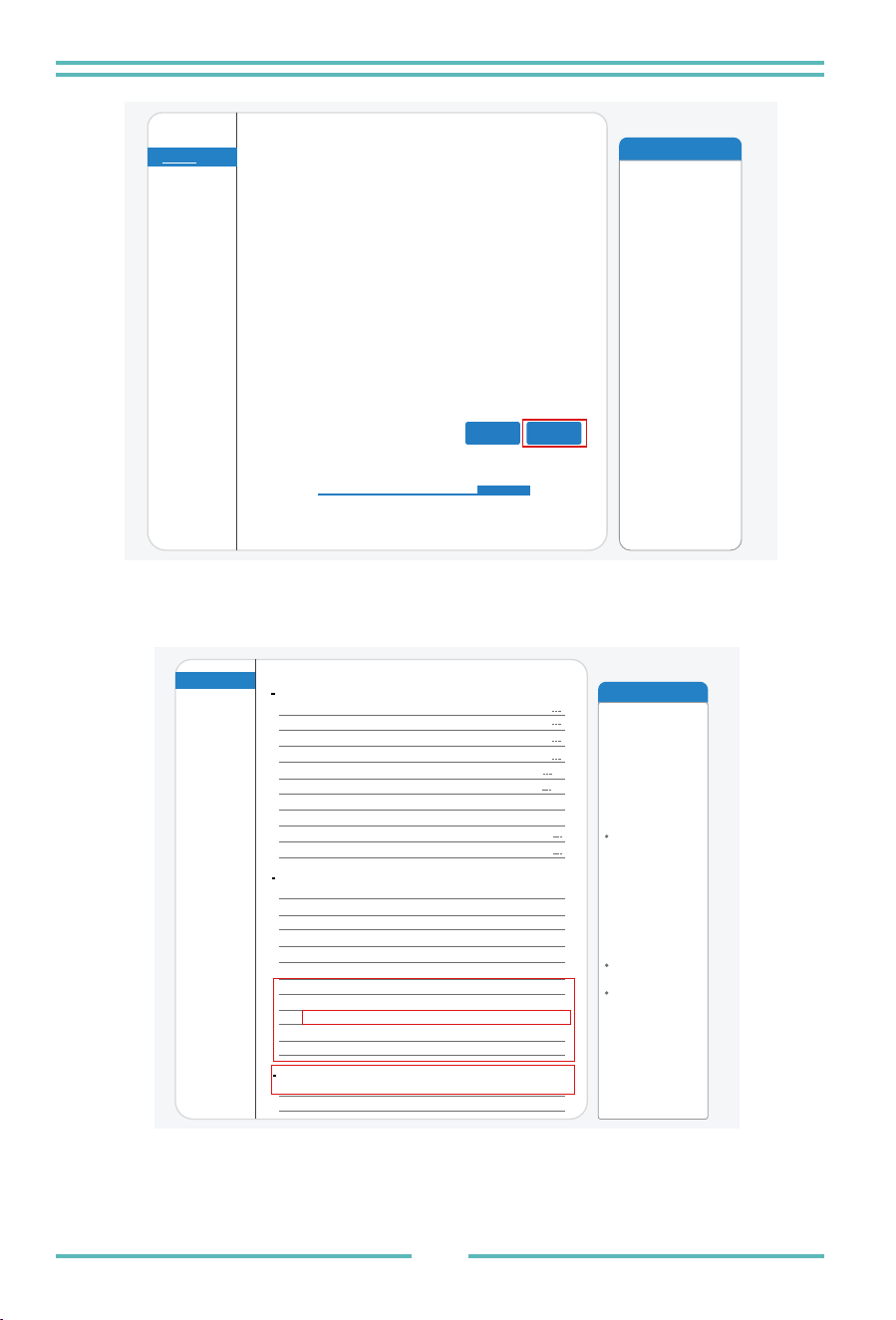
�. Connect to loggeer AP network again, then log in to ��.��.���.��� by Browser,
and check the system info of "Status" page. After the network setting is done, the remote
server A or B should be "connected".
��. When it shows "connected" which means this
Microinverter has connected solarman
platform successfully. Generally speaking, it will be online after ��-��min after
configuration successfully at the first time.
Help
Quick Set
Advanced
Upgrade
Restart
Reset
Wizard
Status
� � � �
After clicking OK,the
system will restart
immediately.
Back OK
Setting complete!
Click OK, the settings will take effect and the system will
restart immediately.
If you leave this interface without clicking OK, the settings will
be ineffective.
Help
Quick Set
Advanced
Upgrade
Restart
Reset
Wizard
Status
The device can be used as
a wireless access point(AP
mode) to facilitata users to
configure the device, or it
can also be used as a
wireless information terminal
(STA mode) to connect the
remote server via wireless
router.
Status of remote server
If under such status, please
check the issues as follows:
(�)check the device
information to see whether
IP address is obtained or
not;
(�)check if the router is
connected to internet or not;
(�)check if a firewall is set
on the router or not;
Not connected: Connection
to server failed last time.
Connected: connection to
server successful last time;
Unknown: No connection
to server. Please check
again in � minutes.
Inverter information
Inverter serial number
Firmware version(main)
Firmware version(slave)
Inverter model
Rated power
Current power
Yield today
Current power
Alerts
Last updated
Device information
Device serial number
Firmware version
Wireless AP mode
SSID
IP address
IP address
MAC address
MAC address
Remote server A
Remote server B
Wireless STA mode
Router SSID
Signal Quality
Remote server information
connected
Not connected
W
W
---kWh
---kWh
����������
Disable
Enable
IE-�.�G-TEST
���%
���.��.��.���
��:D�:��:��:�D:B�
LSW�_��_FFFF_�.�.��
- �� -
MY Plants
YOU have no plants for now.
Add Now
plant Me
Register
Phone Number E-mail
E-mail
Password
Password
Verification Code
Please enter E-mail
Please enter verification code
Password length must be greater than �bits
Retrieve Xs
SOLARMAN Smart
E-mail
Phone Number Username
E-mail
E-mail
password
Password
Log In
Register
Forgot Password?
English
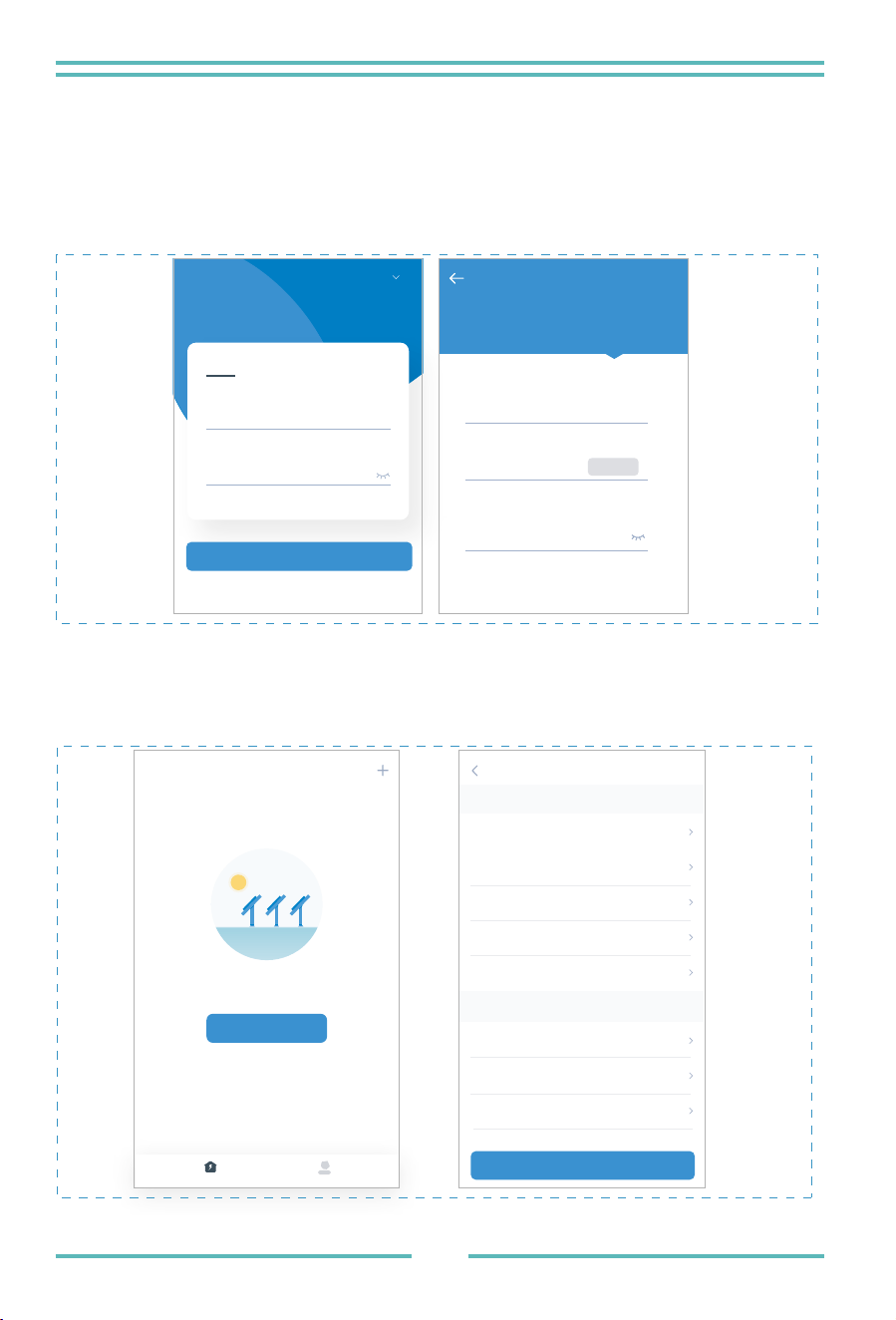
�. Registration
Open the app of SOLARMAN Smart and register an account.
Click "Register" and create your account here.
�. Create a Plant
Click "Add Now" to create your plant.
Please fill in plant basic info and other info here.
How to connect in APP
Plant Details
Basic Info
Plant Name
Plant Loc
Time Zone
Creation Date
Founder
System Info
Plant Type
System Type
Installed Capacity(kWp)
Demo plant -Commercial
Zhwjiang yuyao
((UTC+��:��)Beijing,Chongqing,
HongKong,Urumqi)
����-��-��
Clavin
Residential Rooftop
All on Grid
�����
Finish
System Info
- �� -
Logger hinzufugen
Bitte geben Sie die Logger-SN ein und fugen Sie sie der
Anlage hinzu.
SN
Bitte Gerate-SN eingeben
Kann der SN/Barcode nicht gefunden werden?
hinzufugen
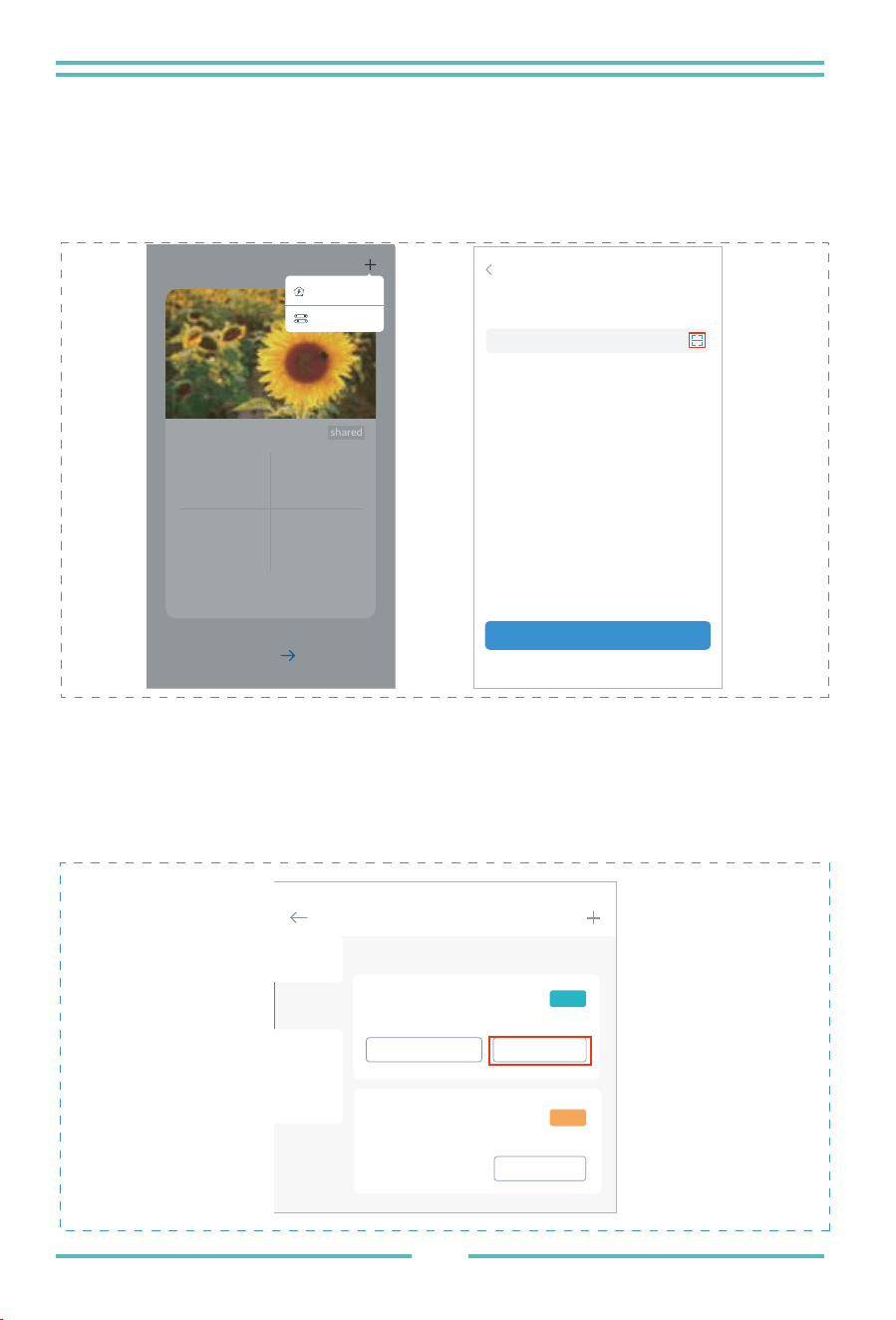
�. Add a Logger
Optional �: Enter the logger SN manually.
Optional �: Click the icon in the right and scan the QR code to enter logger SN.
You can find logger SN on the carton packaging or on the logger body.
�. Network Configuration
After the logger is added, please configure the network to ensure normal operation.
Go to "Plant Details"-"Device List", find the target SN and click " Device Networking".
If showing"online" which means the datalogger of the inverter connects the solarman
platform successfully. Then you will be able to check the plant info on the platform.
Device Details
NO. of Connections: �
Inverter
Meter
Module
Logger
Logger
Logger
SN:���������
SN:���������
Offine
Normal
Device Networking
Select associated device Device Networking
MY Plants
More
Demo plant-Micro inverter
shared
��.��W
��.��K CNY
���.��K CNY
��.��MWh
Current Production
Power
Anticipated Yield-
Today
Anticipated Yield-This
Month
Production-Today
Create a Plant
Add a device
- �� -
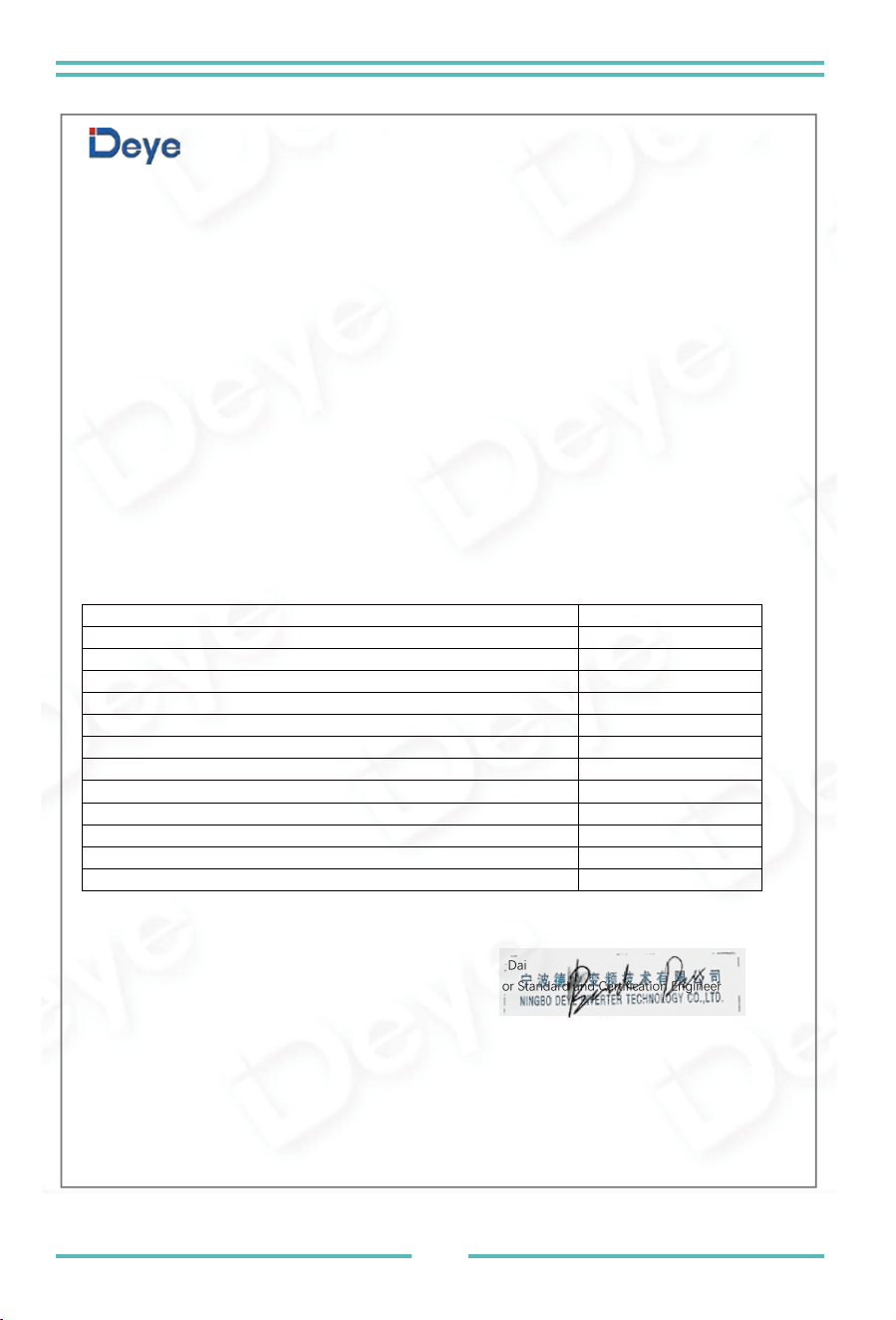
EU Declaration of Conformity
within the scope of the EU directives
· Radio Equipment Directive ����/��/EU (RED)
· Restriction of the use of certain hazardous substances ����/��/EU)(RoHS)
NINGBO DEYE INVERTER TECHNOLOGY CO.,LTD. confirms herewith that the products
described in this document are in compliance with the fundamental requirements and other
relevant provisions of the above mentioned directives. The entire EU Declaration of Conformity
and certificate can be found at https://www.deyeinverter.com/download/#microinverter-�.
Maintenance
Deye microinverters do not require any specific regular maintenance.
Troubleshooting
If you have any question you can't handle during using Deye products,please contact with
our after services by email:service@deye.com.cn,details can refer to products' warranty.
- �� -
231012001
www.deyeinverter.com
EU DoC
– v1
Ningbo Deye Inverter Technology Co., Ltd.
No. 26 South YongJiang Road, Daqi, Beilun, NingBo, China
EU Declaration of Conformity
Product: Micro Inverter (integrated NS Protection Device)
Models: SUN-M60G4-EU-Q0; SUN-M80G4-EU-Q0; SUN-M100G4-EU-Q0;
Name and address of the manufacturer: Ningb o Deye Inverter Technology Co., Ltd.
No. 26 South YongJiang Road, Daqi, Be ilun, NingBo, China
This declaration of conformity is issued under the sole resp onsibility of the manufacturer. Also this product
is under manufacturer’s warranty.
This declaration of conformity i
s n ot valid any longer: if the product is modified, supplemented or changed in
any other way, as well as in case the product is used or installed improperly.
The object of the declaration described above is in conformity with the relevant Union harmonization legislation: The
restriction of the use of certain ha zardous substances (RoHS) Directive 2 011/65/EU and the Radio Equipment Directive
(RED) 2014/53/EU.
References to the relevant harmonized standards used or refer
ences to the other technical specifications in relation to
which conformity is declared:
EN 62109-1:2010
🔴
EN 62109-2:2011
🔴
EN 300328 V 2.2.2:2019
🔴
EN 301489-1 V 2.2.3:2019
🔴
EN 301489-17 V 3.2.4:2020
🔴
EN 55011:2016+A1+A11+A2
🔴
EN 62920:2017+A11+A1
🔴
EN IEC 61000- 6-1:2019
🔴
EN IEC 61000- 6-2:2019
🔴
EN IEC 61000- 6-3:2021
🔴
EN IEC 61000- 6-4:2019
🔴
EN IE C 62311:202 0
🔴
CISPR 11:2015+A1+A2
🔴
Nom e t Titre / Name and Title:
Au nom de / On behalf of:
Date / Date (yyyy-mm-dd):
A / Place:
Bard Dai
Senior Standard and Certi fication Engineer
Ningbo Deye In verter Technology Co., Ltd.
2023-10-12
Ningbo, China