
INSTRUCTION MANUAL
PHOTOVOLTAIC MICRO INVERTER
IN CASE OF ANY QUERY/ISSUE WITH THE PRODUCT, PLEASE REACH OUT TO US AT: SUPPORT@V-TAC.EU
FOR MORE PRODUCTS RANGE, INQUIRY PLEASE CONTACT OUR DISTRIBUTOR OR NEAREST
DEALERS. V-TAC EUROPE LTD. BULGARIA, PLOVDIV 4000, BUL.L.KARAVELOW 9B
Thank you for selecting and buying V-TAC Product. V-TAC will serve you
the best. Please read these instructions carefully & keep this user manual
handy for future reference. If you have any another query, please contact
our dealer or local vendor from whom you have purchased the product.
They are trained and ready to serve you at the best.
INTRODUCTION
Multi-Language Manual QR CODE
Please scan the QR code to access the manual
in multiple languages.
Important Safety Instructions
This manual contains important instructions to follow during installation and maintenance
of the Photovoltaic Grid-connected Inverter(Microinverter).To reduce the risk of
electrical shock and ensure the safe installation and operation of the Microinverter, the
following symbols appear throughout this document to indicate dangerous conditions
and important safety instructions.
Specifications subject to change without notice - please ensure you are using the latest
manual found at the manufacturer website.
Safety Instructions
Only qualified professionals should install and/or replace the Microinverters.
Perform all electrical installations in accordance with local electrical codes.
Before installing or using the Microinverter, please read all instructions and cautionary
markings in the technical documents and on the Microinverter system and the
solar-array.
Be aware that the body of the Microinverter is the heat sink and can reach a temperature
of 80℃. To reduce risk of burns,do not touch the body of the Microinverter.
DO NOT attempt to repair the Microinverter. If it fails, contact technical support
to obtain an RMA number and start the replacement process. Damaging or opening
the Microinverter will void the warranty.
Caution!
The external protective earthing conductor is connected to the inverter protective
earthing terminal through AC connector.
When disconnecting, disconnect the AC by opening the branch circuit breaker first
WARNING: This indicates a situation where failure to follow instructions may cause a
serious hardware failure or personnel danger if not applied appropriately. Use extreme
caution when performing this task.
NOTE: This indicates information that is important for optimized microinverter
operation. Follow these instructions strictly.
CE EMC Compliance:The equipment can comply with CE EMC, which are designed
to protect against harmful interference in a residential installation. The equipment could
radiate radio frequency energy and this might cause harmful interference to radio
communications if not following the instructions when installing and using the equip-
ment. But there is no guarantee that interference will not occur in a particular installation.
If this equipment causes harmful interference to radio or television reception,the following
measures might resolve the issues:
A) Relocate the receiving antenna and keep it well away from the equipment.
B) Consult the dealer or an experienced radio / TV technical for help.
Changes or modifications not expressly approved by the party responsible for compliance
may void the user's authority to operate the equipment.
Radio Interference Statement
Please install isolation switching devices on the AC side of the inverter.
but maintain the protective earthing conductor in the branch circuit breaker connect
to the inverter ,then disconnect the DC inputs.
In any circumstance, do not connect DC input when AC connector is unplugged.
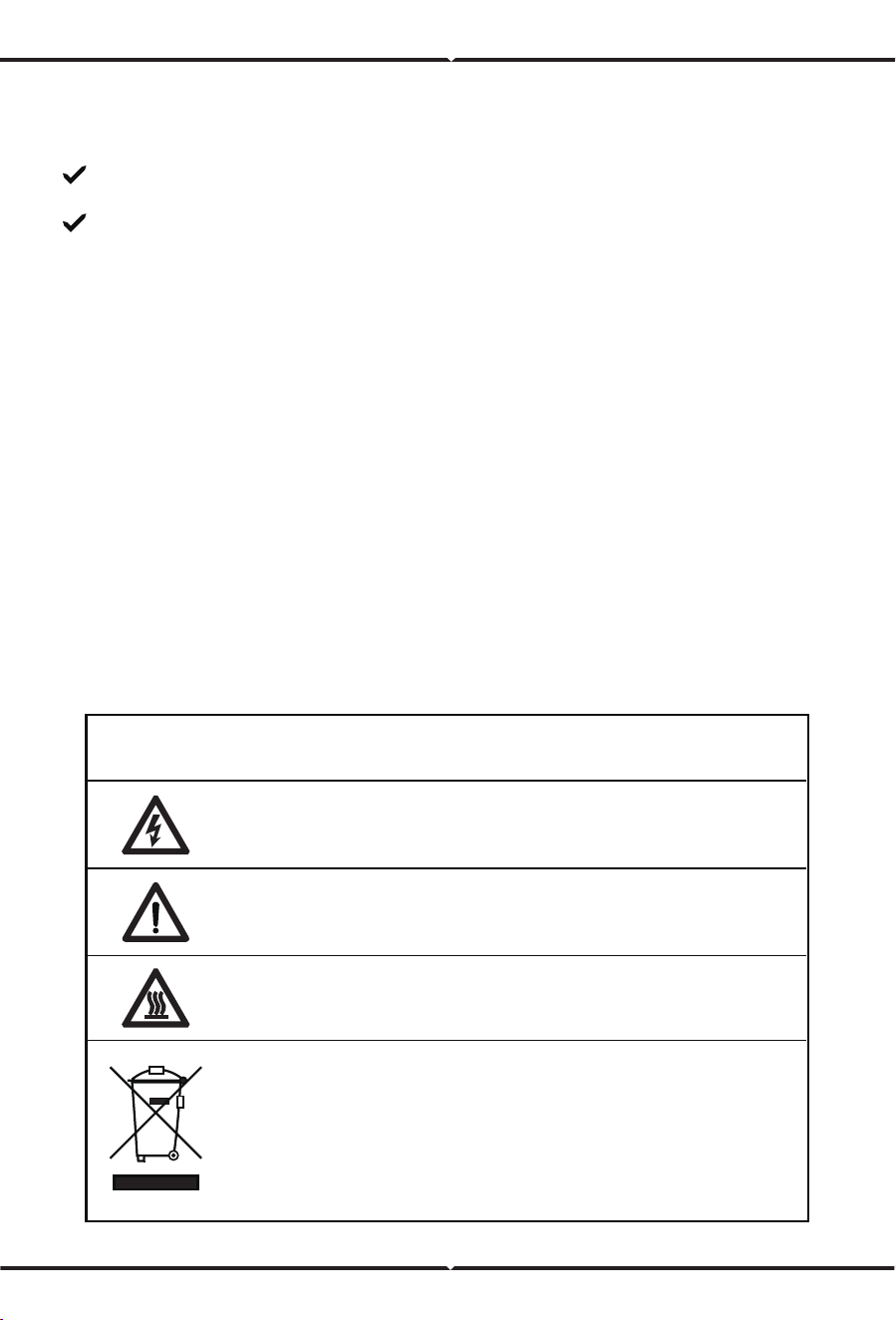
The Meaning of Symbols
Can be OEMTrademark.
Caution, risk of electric shock.
Caution, risk of burn - Do not touch.
Symbol for the marking of electrical and electronics devices according to
Directive 2002/96/EC. Indicates that the device, accessories and the
packaging must not be disposed as unsorted municipal waste and must
be collected separately at the end of the usage. Please follow Local
Ordinances or Regulations for disposal or contact an authorized
representative of the manufacturer for information concerning the
decommissioning of equipment.
Caution, hot surface.
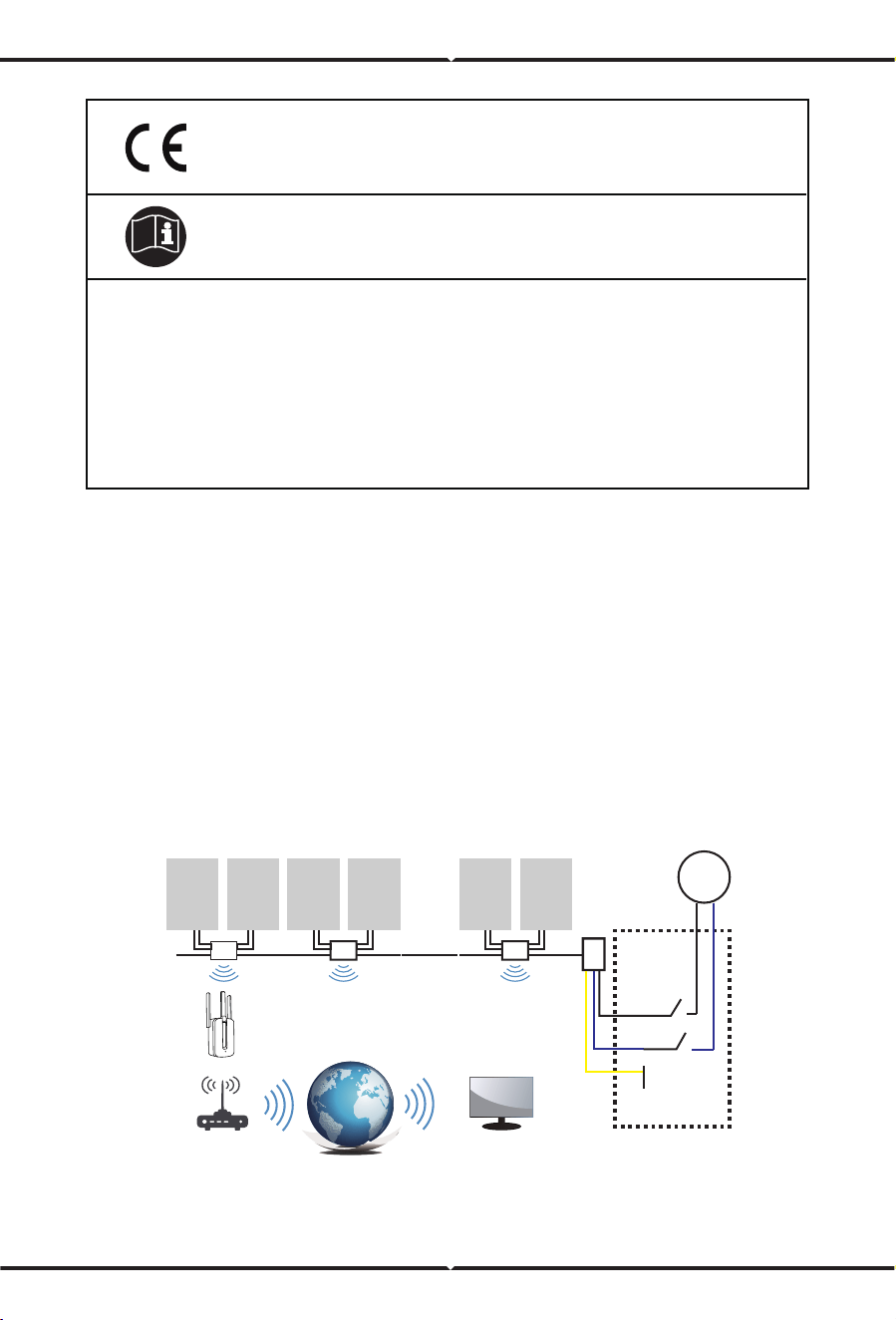
CE mark is attached to the solar inverter to verify that the unit
follows the provisions of the European Low Voltage and EMC
Directives.
Refer to the operating instructions.
Person adequately advised or supervised by an electrically skilled person
to enable him or her to perceive risks and to avoid hazards which
electricity can create. For the purpose of the safety information of this
manual, a "qualified person" is someone who is familiar with
requirements for safety, refrigeration system and EMC and is authorized
to energize,ground, and tag equipment, systems, and circuits in
accordance with established safety procedures. The inverter and endues
system may only be commissioned and operated by qualified personnel.
Qualified
personnel
Microinverter System Introduction
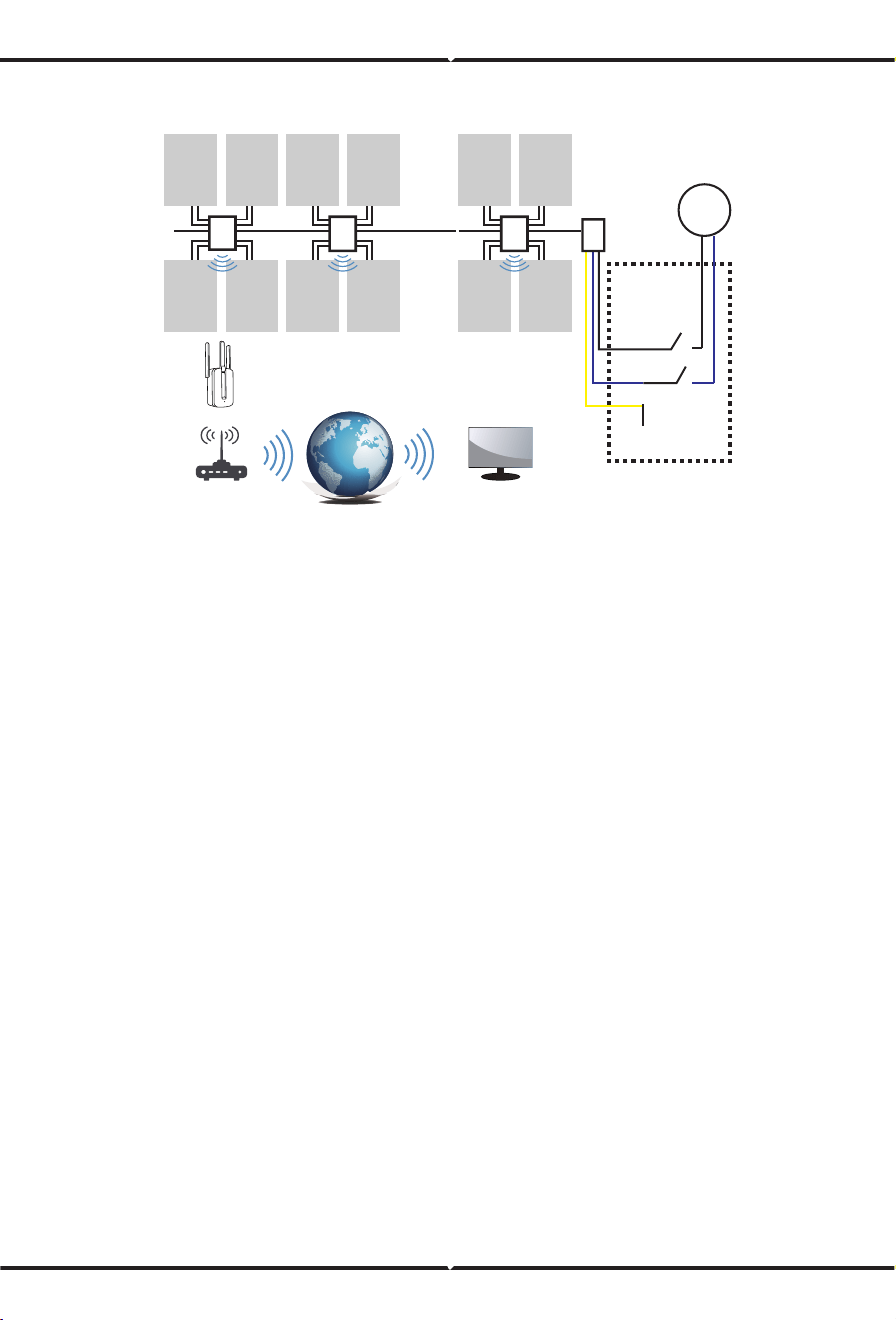
The Microinverter is used in utility-interactive grid-tied applications, comprised of two
key elements:
· Microinverter
· Router
This series microinverter has built-in WIFI module so it can communicate with router
directly.
300 / 500 / 600 / 800 / 1000G3
Meter
Distribution Box
Microinverter
Ground
Neutral
PV
Module
Router
Monitoring system
WIFI Boost
Microinverters Maximize PV Energy Production
Each PV module has individual Maximum Peak Power Tracking (MPPT) controls,
which ensures that the maximum power is exported to the utility grid regardless of the
performance of the other PV modules in the array.When PV modules in the array are
affected by shade, dust, orientation,or any situation in which one module
underperforms compared with the other units, the Microinverter ensures top
performance from the array by maximizing the performance of each module within the
array.
More Reliable than Centralized or String Inverters
The distributed Microinverter system ensures that no single point of system failure exists
across the PV system.Microinverters are designed to operate at full power at ambient
outdoor temperatures of up to 149℉ (65℃). The inverter housing is designed for
outdoor installation and complies with the IP65 environmental enclosure rating.
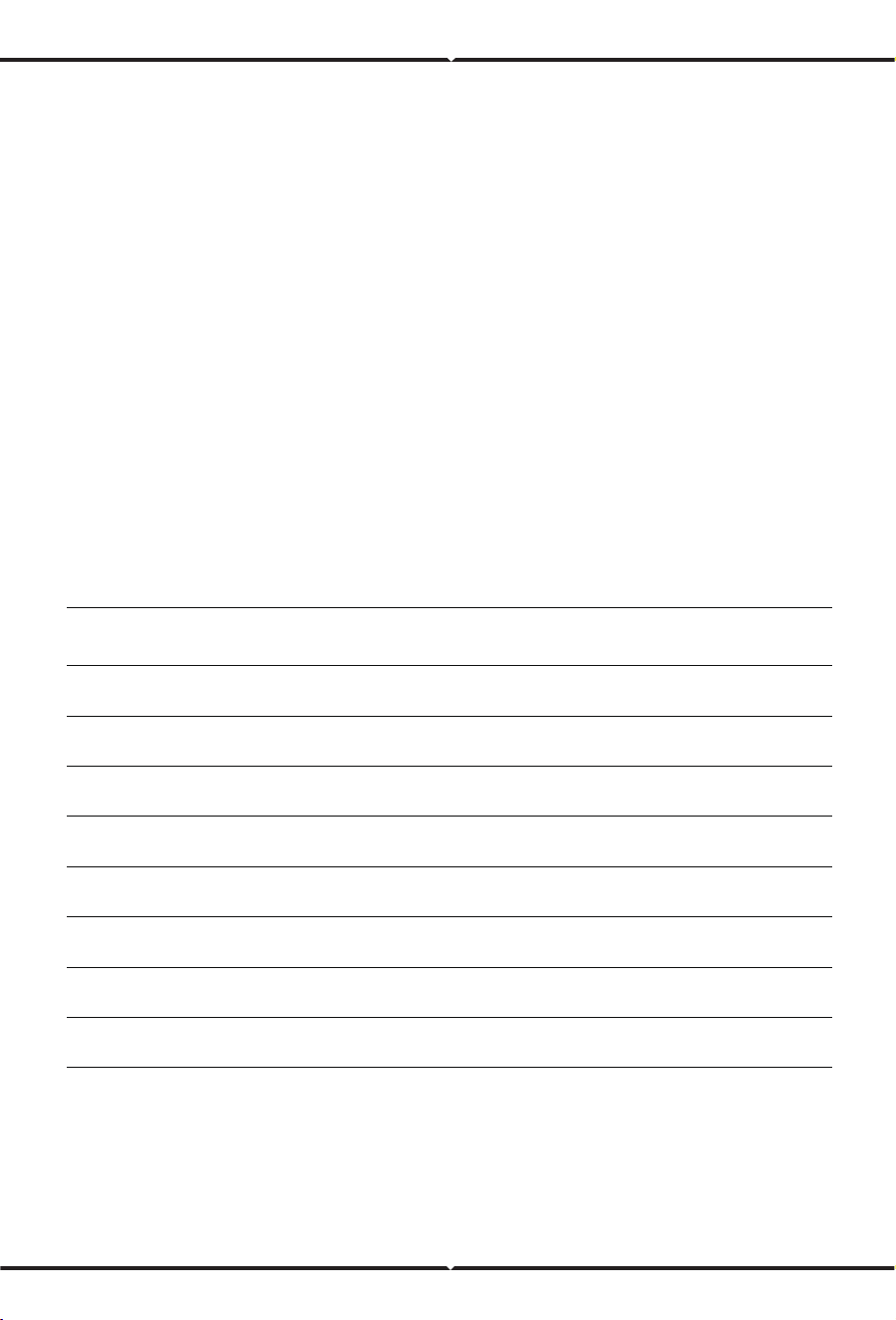
1300 / 1600 / 2000G3
NOTE: If the wireless signal in the area where the microinverter is weak is weak, it is
necessary to add a wifi signal booster at a suitable place between the router
and the microinverter.
Meter
Distribution
Box
Ground
Neutral
PV
Module
Microinverter
This integrated system improves safety; maximizes solar energy harvest;increases system
reliability, and simplifies solar system design, installation,maintenance, and management.
Router
Monitoring system
WIFI Boost
Simple to Install
You can install individual PV modules in any combination of Module quantity,
orientation, different type and power rate The Ground wire (PE) of the AC cable is
connected to the chassis inside of the Microinverter,potentially eliminating the
installation of grounding wire (check local regulation).
Data collection adopts internal wifi,wireless router is needed near the microinverter.When
complete the installation of microinverter,configure wireless router with internal wifi(refer
to the wifi user manual).The data will be uploaded automatically.Users can monitor and
manage the microinverter through corresponding website or APP.
Microinverter Introduction
The Microinverters connect with the single-phase grid, and can also use multiple Micro-
inverters in the form of single-phase grid to achieve three-phase grid.
For more information, please see the Technical Data page (P17~20) of this manual.
Model
Number
AC grid
Max. #
Per branch
SUN300G3-EU-23050/60Hz, 230V
SUN1000G3-EU-23050/60Hz, 230V
17 for 25A breaker
5 for 25A breaker
SUN500G3-EU-23050/60Hz, 230V10 for 25A breaker
SUN800G3-EU-23050/60Hz, 230V6 for 25A breaker
SUN600G3-EU-23050/60Hz, 230V8 for 25A breaker
SUN1300G3-EU-23050/60Hz, 230V4 for 25A breaker
SUN1600G3-EU-23050/60Hz, 230V4 for 45A breaker
SUN2000G3-EU-23050/60Hz, 230V3 for 45A breaker
Microinverter System Installation
A PV system using Microinverters is simple to install. Each Microinverter easily mounts
on the PV racking, directly beneath the PV module(s). Low voltage DC wires connect
from the PV module directly to the Microinverter, eliminating the risk of high DC
voltage.Installation MUST comply with local regulations and technical rules.
Special Statement! An AC GFCI device should not be used to protect the dedicated circuit
to the microinverter even though it is an outside circuit. None of the small GFCI devices
(5~30mA) are designed for back feeding and will be damaged if back feed. In a similar
manner, AC AFCIs have not been evaluated for back feeding and may be damaged if back
feed with the output of a PV inverter.
WARNING: Perform all electrical installations in accordance with local electrical codes.
WARNING: Be aware that only qualified professionals should install and/or replace
Microinverters.
WARNING: Before installing or using an Microinverter,please read all instructions and
warnings in the technical documents and on the Microinverter system
itself as well as on the PV array.
WARNING: Be aware that installation of this equipment includes the risk of electric
shock.
Additional Installation components
· AC Male and Female Interconnection Connectors (sold separately)
· Sealing end caps(sold separately)
NOTE: Strongly recommend to install Surge protection Devices in the dedicated meter
box.
Required Parts and Tools from you
In addition to your PV array and its associated hardware, you will need the following
items:
· An AC connection junction box
· Mounting hardware suitable for module racking
· Sockets and wrenches for mounting hardware
· Continuous grounding conductor and grounding washers
· A Phillips screwdriver
· A torque wrench
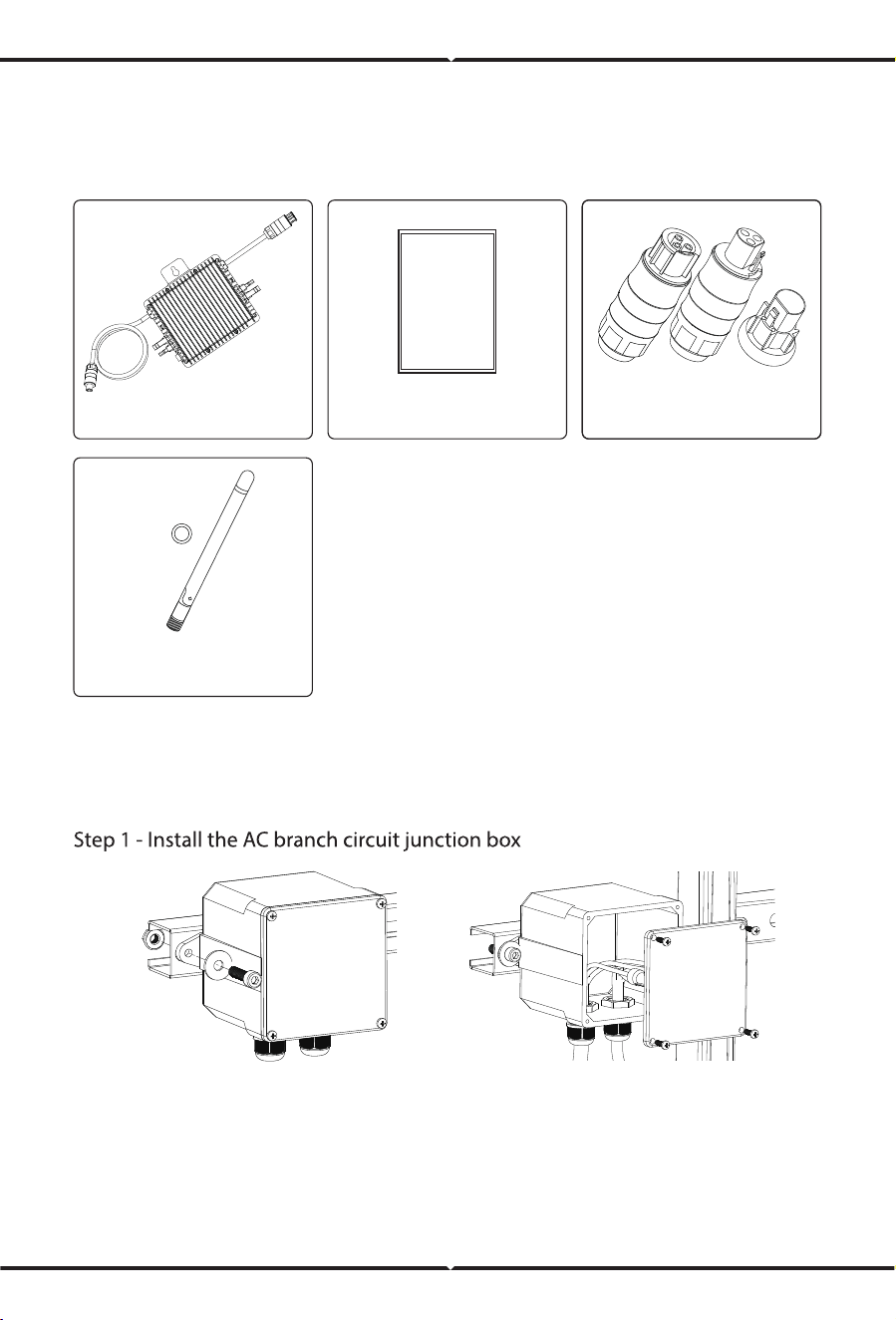
Installation Procedures
a. Install an appropriate junction box at a suitable location on the PV racking system
(typically at the end of a branch of modules).
b. Connect the open wire end of the AC cable into the junction box using an appropriate
gland or strain relief fitting.
Parts list
Please check the following table, to see whether all the parts are included in the package:
User
manual
User manual x1
AC power connectors
(oponal) x1
Microinverter x1
* This antenna is for microinverter that has built-in wifi module.
*Antenna for WIFI
module x1
WARNING: Wiring colour code can be different according local regulation,check all
the wires of the installation before connecting to the AC cable to be sure they match.
Wrong cabling can damage irreparably the microinverters,such an issue is not covered
by the warranty.
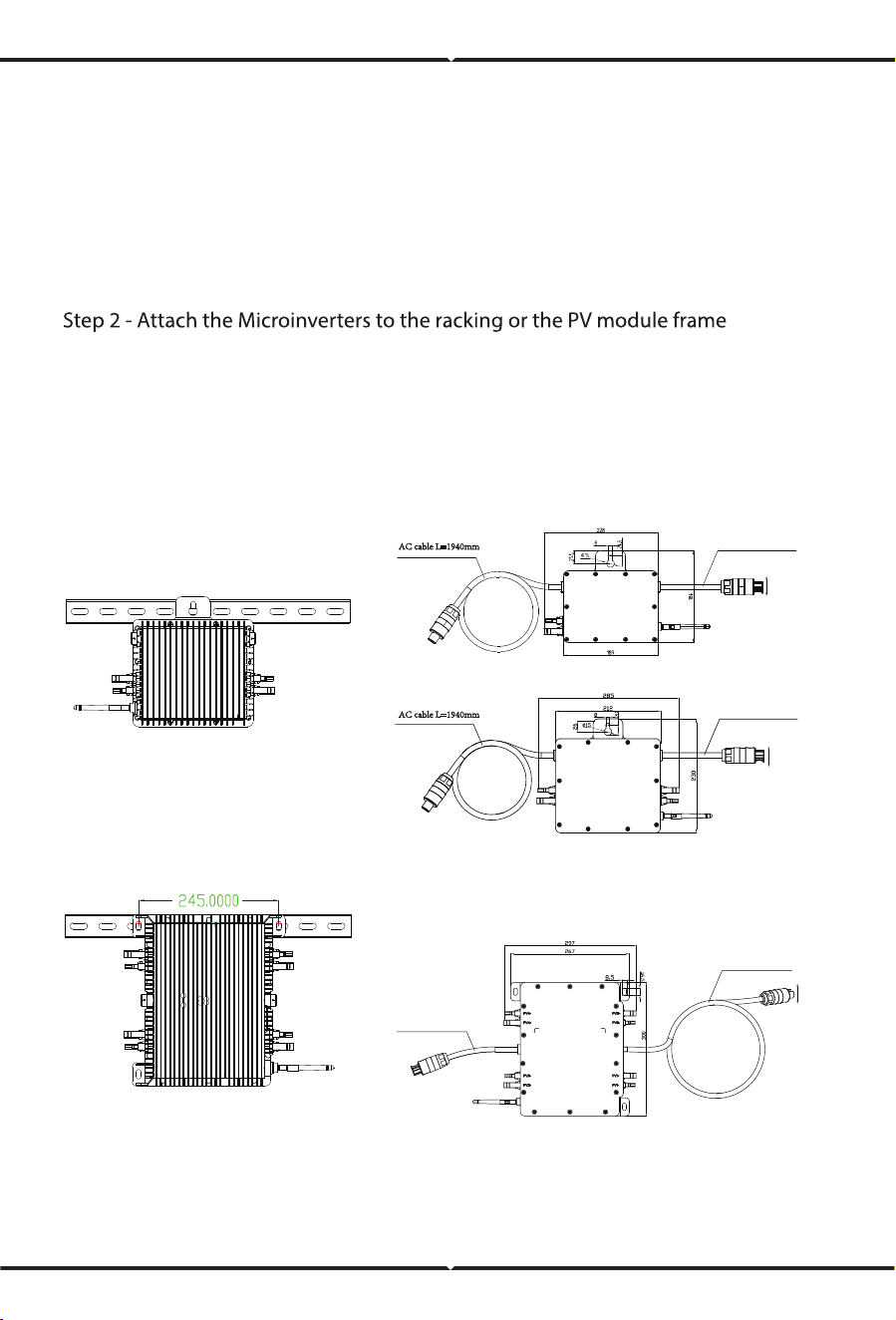
a. Mark the location of the Microinverter on the rack, with respect to the PV module
junction box or any other obstructions.
b. Mount one Microinverter at each of these locations using hardware recommended
by your module racking vendor.
c. Wire the conductors of the AC(230/400Vac): L - red; N - black ;PE - yellow green.
d. Connect the AC branch circuit junction box to the point of utility Interconnection.
1300 / 1600 / 2000G3 (4MPPT)
Mounting
300 / 500G3 (1MPPT)
600 / 800 / 1000G3 (2MPPT)
Mounting
- 08 -
AC cable L=120mm
AC cable L=120mm
AC cable L=85mm
AC cable L=1960mm
The AC wire on the micro inverter is a TC-ER wire with a wire cross-section area of
3.33mm².
3.33mm²
3.33mm²
3.33mm²
WARNING: Prior to installing any of the microinverters, verify that the utility voltage
at the point of common connection matches the voltage rating on microinverter label.
WARNING: Do not place the inverters (including DC and AC connectors) where
exposed to the sun, rain or snow, even gap between modules.Allow a minimum of 3/4
(1.5cm.) between the roof and the bottom of the Microinverter to allow proper air flow.
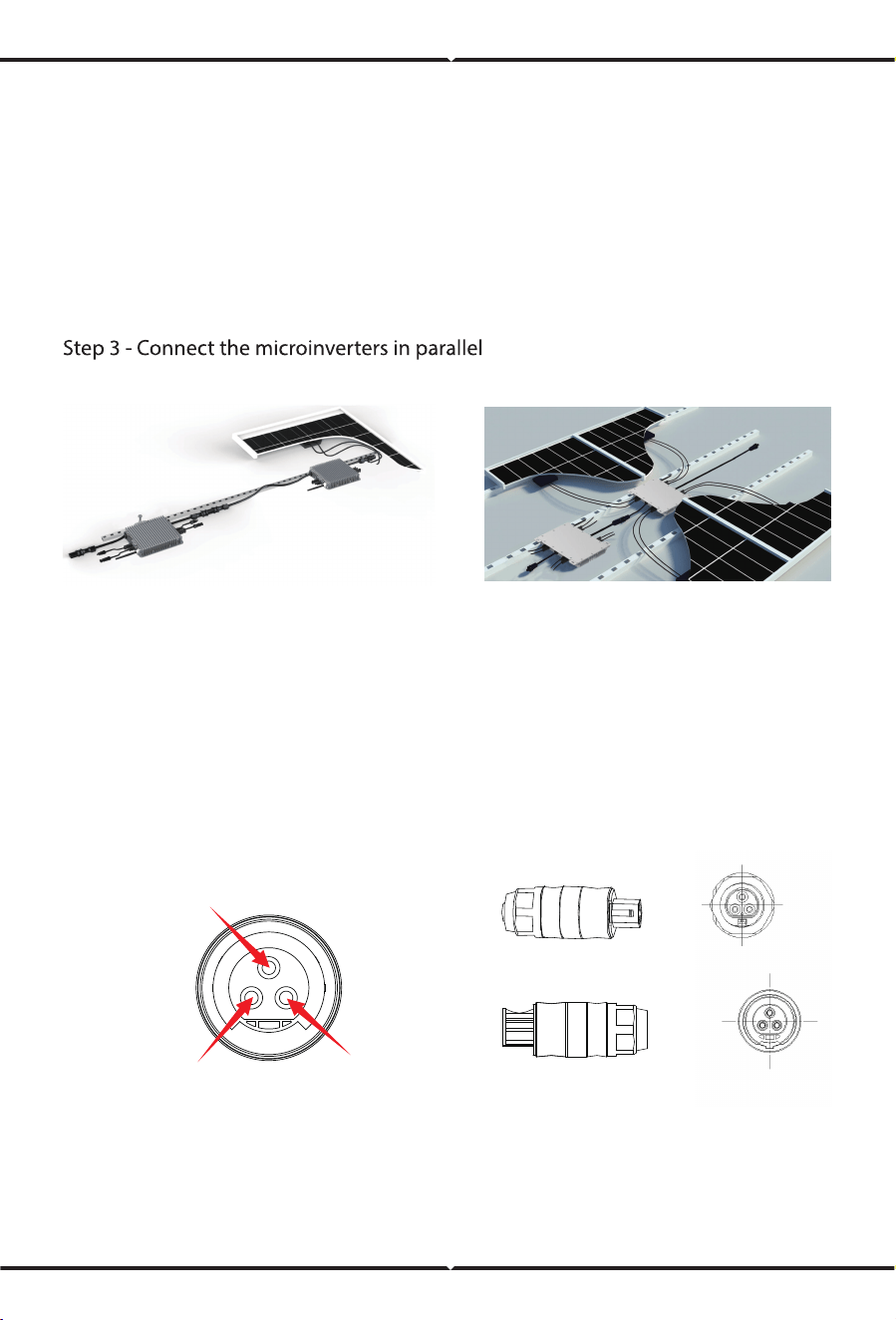
a. Check the Microinverter technical data page 5 for the maximum allowable number of
Microinverters on each AC branch circuit.
b. Plug the male AC connector of the Microinverter into the female connector to get it
connected.AC connector interface as follows.
WARNING: DO NOT exceed maximum number of Microinverters in an AC branch
circuit, as displayed on the page 5 of this manual.
300/500G3 (1MPPT)
600/800/1000G3 (2MPPT)
connect in parallel
1300/1600/2000G3 (4MPPT)
connect in parallel
LN
PE
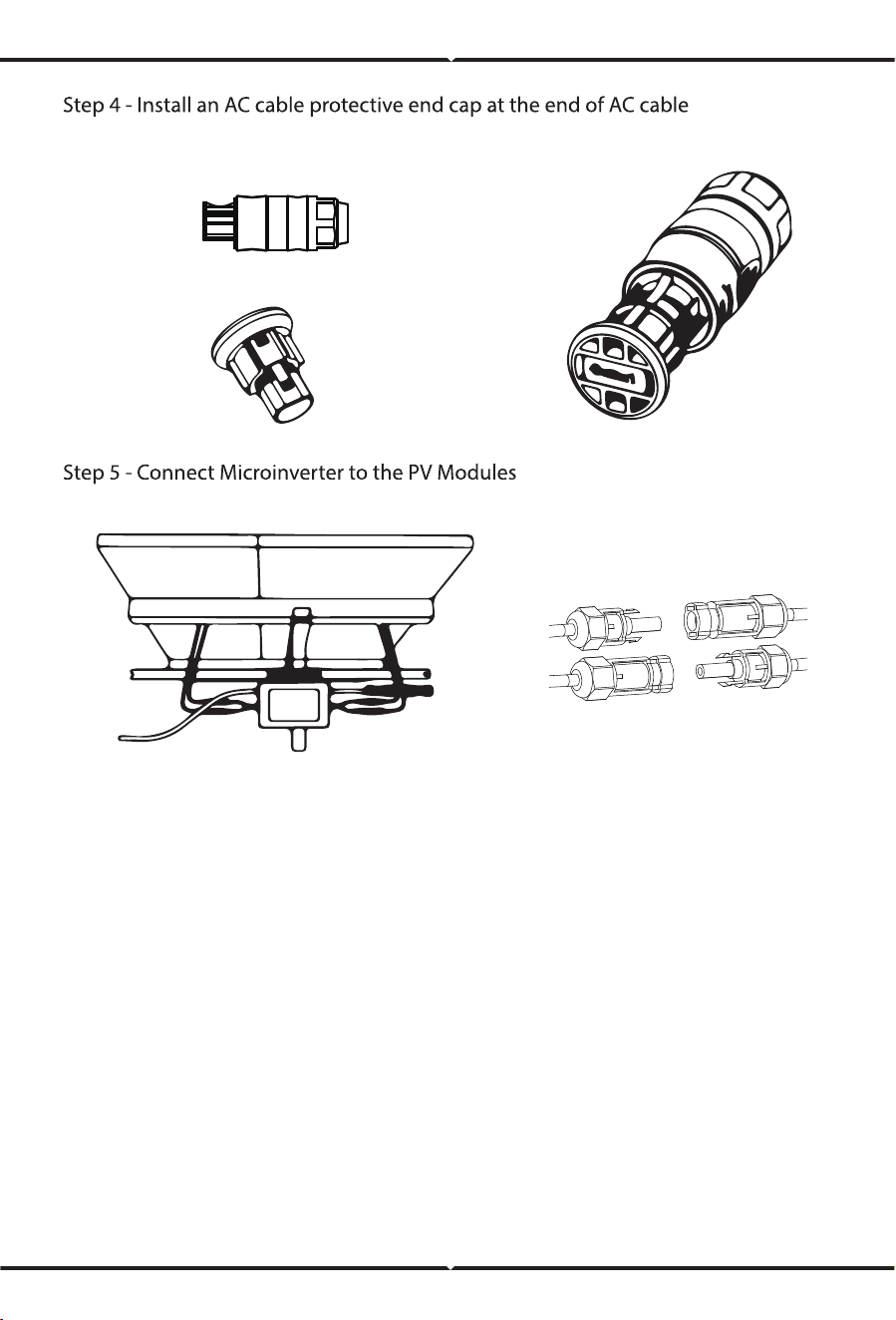
NOTE:When plugging in the DC cables, if AC already available,the Microinverter should
immediately blink red light and will start work within the setting time (default 60 seconds).
If AC is not available,the red light will blink 3 times quickly and repeat after one second
until AC is connected.
Microinverter System Operating Instructions
1. Turn ON the AC circuit breaker on each microinverter AC branch circuit.
2. Turn ON the main utility-grid AC circuit breaker. Your system will start producing
power after a one-minute waiting time.
To operate the microinverter PV system:
Troubleshooting
3. The units should start blinking red one minutes after turning on the AC circuit breaker.
Then blue led blinking. This means they are producing power normally, the faster
blinking of the blue led means more power generated.
4. Configure the internal wifi module according to its user manual.
5. The Microinverters will start to send performance data over wifi module to the network
every 5 minutes.It enables customers to monitor performance data of each microinverter
through website and APP.
Qualified personnel can use the following troubleshooting steps if the PV system does
not operate correctly:
NOTE: When AC power is applied but the microinverter not started up, about 0.1A current
and 25VA(W) power for each microinverter may be measured by a power meter. This
power is reactive power,not consume from utility grid.
Start up LED
Operation LED
One minute after DC power is first applied to the microinverter,one
short red blinks indicate a successful microinverter startup sequence,
be equal or greater than two short red blinks after DC power is first
applied to the microinverter indicate a failure during microinverter
setup.
Flashing Slow Blue - Producing small power
Flashing Fast Blue - Producing big power
Flashing Red - Not producing power
Red blinking two times - AC low-voltage or high-voltage
Red blinking three times - Grid failure
Status Indications and Error Reporting
GFDI Error
Other Faults
A four time red LED indicates the Microinverter has detected a
Ground Fault Detector Interrupter (GFDI) error in the PV system.
Unless the GFDI error has been cleared, the LED will remain four
times blinking.
All other faults can be reported to the website and APP.
WARNING: Never disconnect the DC wire connectors under load. Ensure that no
current is flowing in the DC wires prior to disconnecting. An opaque
covering may be used to cover the module prior to disconnecting the
module.
There are two possible overall areas of trouble:
A. The Microinverter itself may be having problems.
B. The Microinverter itself is working fine but the communication between microinverter
and network has problem. The items below refer to Microinverter issues, not communicat
-ion issues:
One quick way to tell whether the issue is the Microinverter or the communication problem:
1. Diagnosing from the Microinverter: A red light–either blinking or solid on the
Microinverter, or no light at all means it is definitely the Microinverter problem.
2. 0 watts, or 2 watts: Possibly a Microinverter problem
Troubleshooting a non-operating Microinverter
2. Diagnosing from the network:
a. No-Data-Display: The website and APP don't display any data.Check the network
configuration.
b. Only display microinverter is online but no data.This maybe because server is
updating.
To troubleshoot a non-operating Microinverter, Follow the steps
below in order:
1. Verify the utility voltage and frequency are within ranges shown in the Technical Data
section of this manual.
2. Check the connection to the utility grid.Disconnect AC firstly,then disconnect DC and
make sure the utility grid voltage can be measured at AC connector. Never disconnect
the DC wires while the microinverter is producing power. Re-connect the DC module
connectors and watch for three short LED flashes.
3. Check the AC branch circuit interconnection between all the microinverters. Verify
each inverter is energized by the utility grid as described in the previous step.
4. Make sure that any AC breaker are functioning properly and are closed.
5. Check the DC connections between the microinverter and the PV module.
6. Verify the PV module DC voltage is within the allowable range shown in the Technical
Data of this manual.
7. If the problem still persists, please contact technical support.
WARNING: Do not attempt to repair the microinverter.If troubleshooting methods fail,
please call for Technical Support
Technical Data
Replacement
A. Disconnect the Microinverter from the PV Module, in the order shown below:
1. Disconnect the AC by turning off the branch circuit breaker.
2. Disconnect the AC connector of the microinverter.
3. Cover the module with an opaque cover.
4. Disconnect the PV module DC wire connectors from the Microinverter.
5. Remove the Microinverter from the PV array racking.
B. Install a replaced Microinverter to the bracket then remove the opaque cover.
Remember to observe the flashing LED light as soon as the new Microinverter is
plugged into the DC cables.
C. Connect the AC cable of the replacement Microinverter.
Follow the procedure to replace a failed Microinverter
WARNING: Be sure to verify the voltage and current specifications of your PV module
match with those of the Microinverter. Please refer to the datasheet or user manual.
WARNING: You must match the DC operating voltage range of the PV module with
the allowable input voltage range of the Microinverter.
WARNING: The maximum open circuit voltage of the PV module must not exceed
the specified maximum input voltage of the inverter.
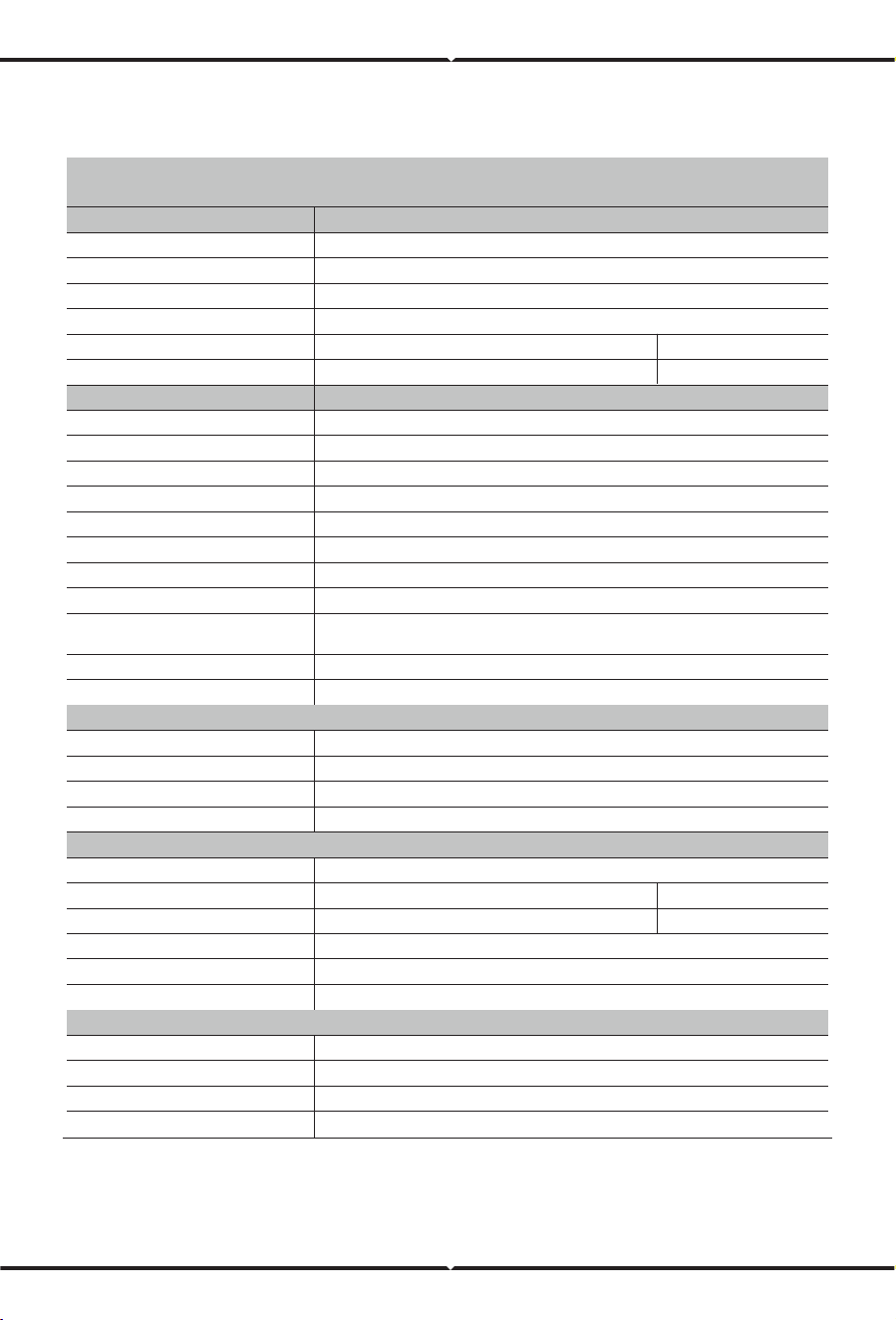
300G3/500G3/600G3 Microinverter Datasheet
SUN600G3
-EU-230
Model
Input Data (DC)
Output Data (AC)
Recommended input power(STC)
210~400W
Maximum input DC voltage
19.5Ax2
13Ax2
600W
MPPT Voltage Range
Operating DC Voltage Range
Max DC short circuit current
Max input current
Rated output Power
2.7/2.6A
8
SUN300G3
-EU-230
210~420W
300W
1.4/1.3A
17
1.5/1.4A
SUN500G3
-EU-230
210~600W
60V
25~55V
20~60V
19.5A
13A
500W
2.3/2.2A
220V/0.85Un-1.1Un 230V/ 0.85Un-1.1Un
50/60Hz
45~55Hz / 55~65Hz
>0.99
10
<4000m
0A
10A
2.5/2.4A3/2.9A
Rated output Current
Nominal voltage / range
Nominal frequency
Extended frequency / range
Power factor
Maximum unit per branch
Efficiency
Mechanical Data
95%
96.5%
99%
50mW
Max. allowed altitude operating
CEC weighted efficiency
Peak inverter efficiency
Static MPPT efficiency
Night time power consumption
Ambient temperature range
Dimensions(W×H×D mm)
Weight (kg)
Cooling
Enclosure environmental rating
-40 ℃ ~ 65 ℃
IP67
Class I
Natural cooling
10 Years
Features
Protective class
Compatibility
Communication
Compliance
Warranty
Compatible with 60,72 cell PV modules
WiFi / Zigbee
EN50549,VDE0126,VDE4105,IEC62109,CE,INMETRO
Max.inverter backfeed
current to the array
Max output fault current
Max output overcurrent protection
189W×184H×31.5D (Without mounting bracket and cable)
2.15
212W×230H×40D
3.15
(Without mounting bracket and cable)
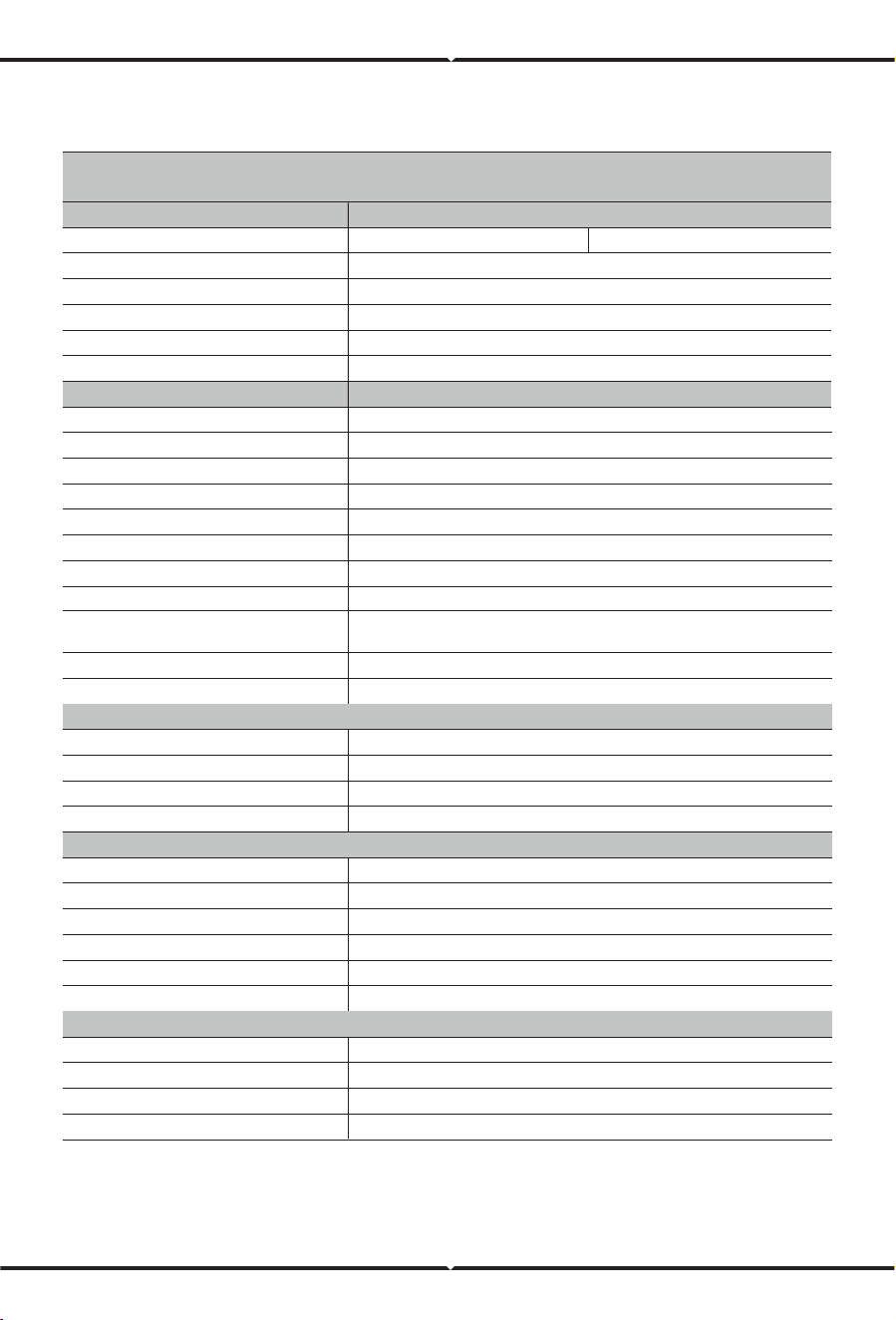
800G3/1000G3 Microinverter Datasheet
SUN800G3
-EU-230
SUN1000G3
-EU-230
Model
Input Data (DC)
Output Data (AC)
Recommended input power(STC)210~600W210~500W
Maximum input DC voltage60V
25~55V
20~60V
19.5Ax2
13Ax2
1000W800W
MPPT Voltage Range
Operating DC Voltage Range
Max DC short circuit current
Max input current
Rated output Power
3.6/3.5A4.5/4.35A
220V/0.85Un-1.1Un 230V/ 0.85Un-1.1Un
50/60Hz
>0.99
56
Rated output Current
Nominal voltage / range
Nominal frequency
Extended frequency / range
Power factor
Maximum unit per branch
<4000m
0A
10A
4/3.8A5/4.8A
Efficiency
Mechanical Data
95%
96.5%
99%
50mW
Max. allowed altitude operating
CEC weighted efficiency
Peak inverter efficiency
Static MPPT efficiency
Night time power consumption
Ambient temperature range
Dimensions(W×H×D mm)
Weight (kg)
Cooling
Enclosure environmental rating
-40 ℃ ~ 65 ℃
IP67
Class I
Natural cooling
10 Years
Features
Protective class
Compatibility
Communication
Compliance
Warranty
Compatible with 60,72 cell PV modules
WiFi / Zigbee
EN50549,VDE0126,VDE4105,IEC62109,CE,INMETRO
Max.inverter backfeed
current to the array
Max output fault current
Max output overcurrent protection
45~55Hz / 55~65Hz
212W×230H×40D (Without mounting bracket and cable)
3.15
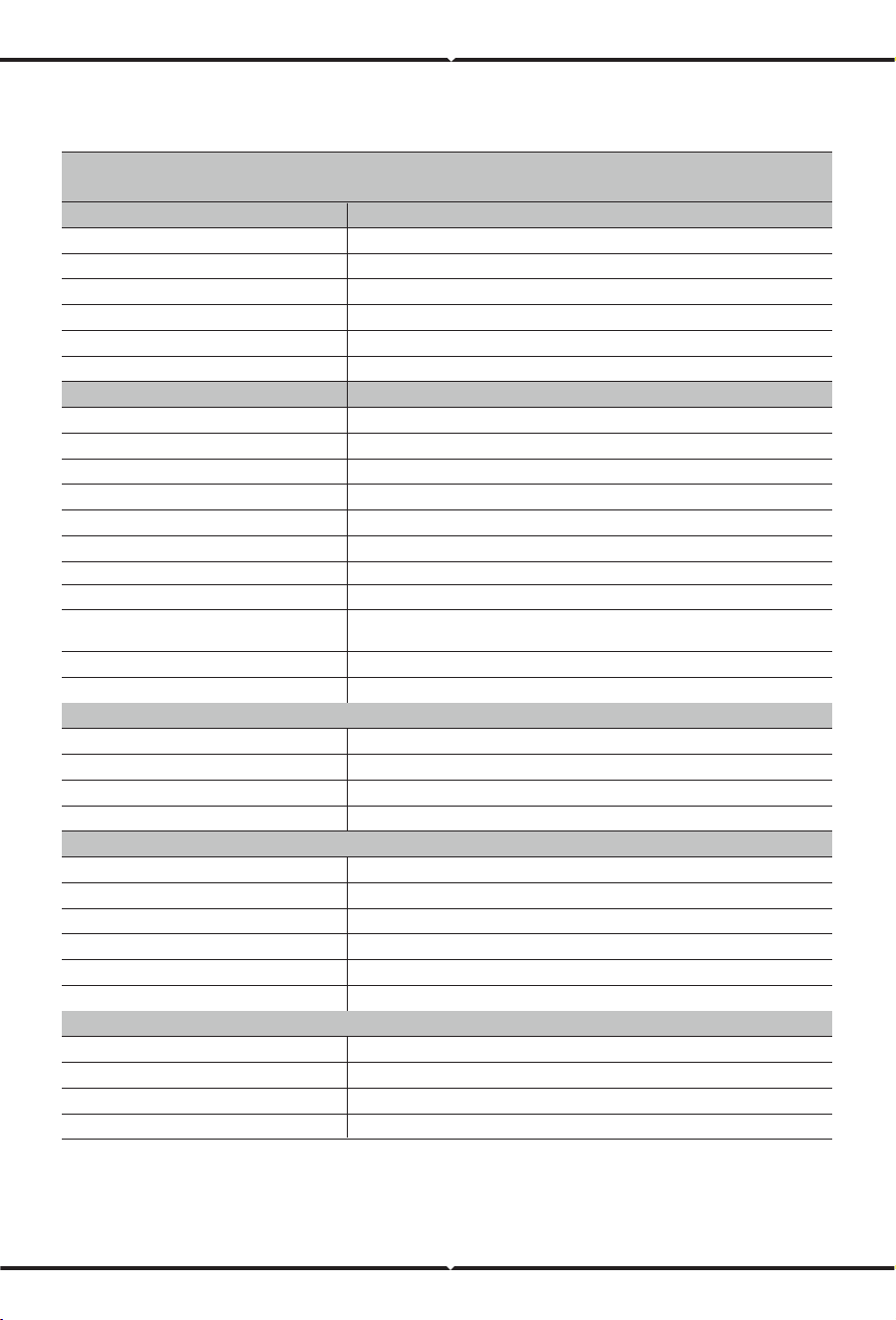
1300G3/1600G3/2000G3 Microinverter Datasheet
SUN1300G3
-EU-230
SUN1600G3
-EU-230
SUN2000G3
-EU-230
Model
Input Data (DC)
Output Data (AC)
Recommended input power(STC)210~600W210~420W210~500W
Maximum input DC voltage60V
25~55V
20~60V
19.5Ax4
13Ax413Ax413Ax4
1600W1300W2000W
MPPT Voltage Range
Operating DC Voltage Range
Max DC short circuit current
Max input current
Rated output Power
5.9/5.7A7.3/7A9.1/8.7A
50/60Hz
>0.99
443
Rated output Current
Nominal voltage / range
Nominal frequency
Extended frequency / range
Power factor
Maximum unit per branch
<4000m
0A
10A
Efficiency
Mechanical Data
95%
96.5%
99%
50mW
Max. allowed altitude operating
CEC weighted efficiency
Peak inverter efficiency
Static MPPT efficiency
Night time power consumption
Ambient temperature range
Dimensions(W×H×D mm)
Weight (kg)
Cooling
Enclosure environmental rating
-40 ℃ ~ 65 ℃
IP67
Class I
Natural cooling
10 Years
Features
Protective class
Compatibility
Communication
Compliance
Warranty
Compatible with 60,72 cell PV modules
WiFi / Zigbee
EN50549,VDE0126,VDE4105,IEC62109,CE,INMETRO
Max.inverter backfeed
current to the array
Max output fault current
Max output overcurrent protection6.5/6.2A8/7.7A10/9.6A
45~55Hz / 55~65Hz
220V/0.85Un-1.1Un 230V/ 0.85Un-1.1Un
267W×300H×42D (Without mounting bracket and cable)
5.2
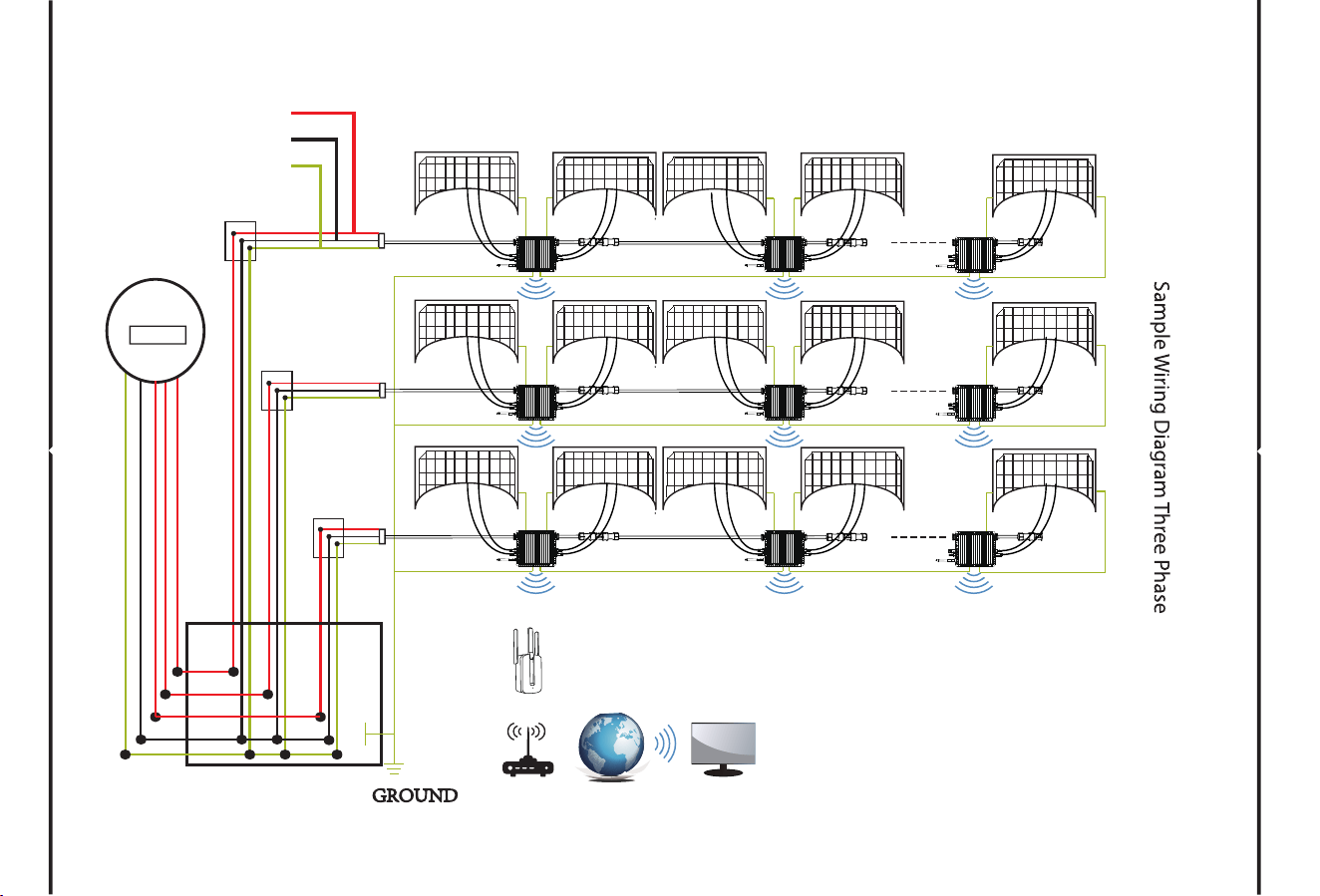
Wiring Diagram
meter
GROUND
JUNCTION
BOX
BLACK N
RED L
YELLOW PE
300/500G3 (1MPPT)
600/800/1000G3 (2MPPT)
Router
Monitoring system
WIFI Boost
MAX 17 SUN300G3-EU-230 per Branch
MAX 10 SUN500G3-EU-230 per Branch
MAX 8 SUN600G3-EU-230 per Branch
MAX 6 SUN800G3-EU-230 per Branch
MAX 5 SUN1000G3-EU-230 per Branch
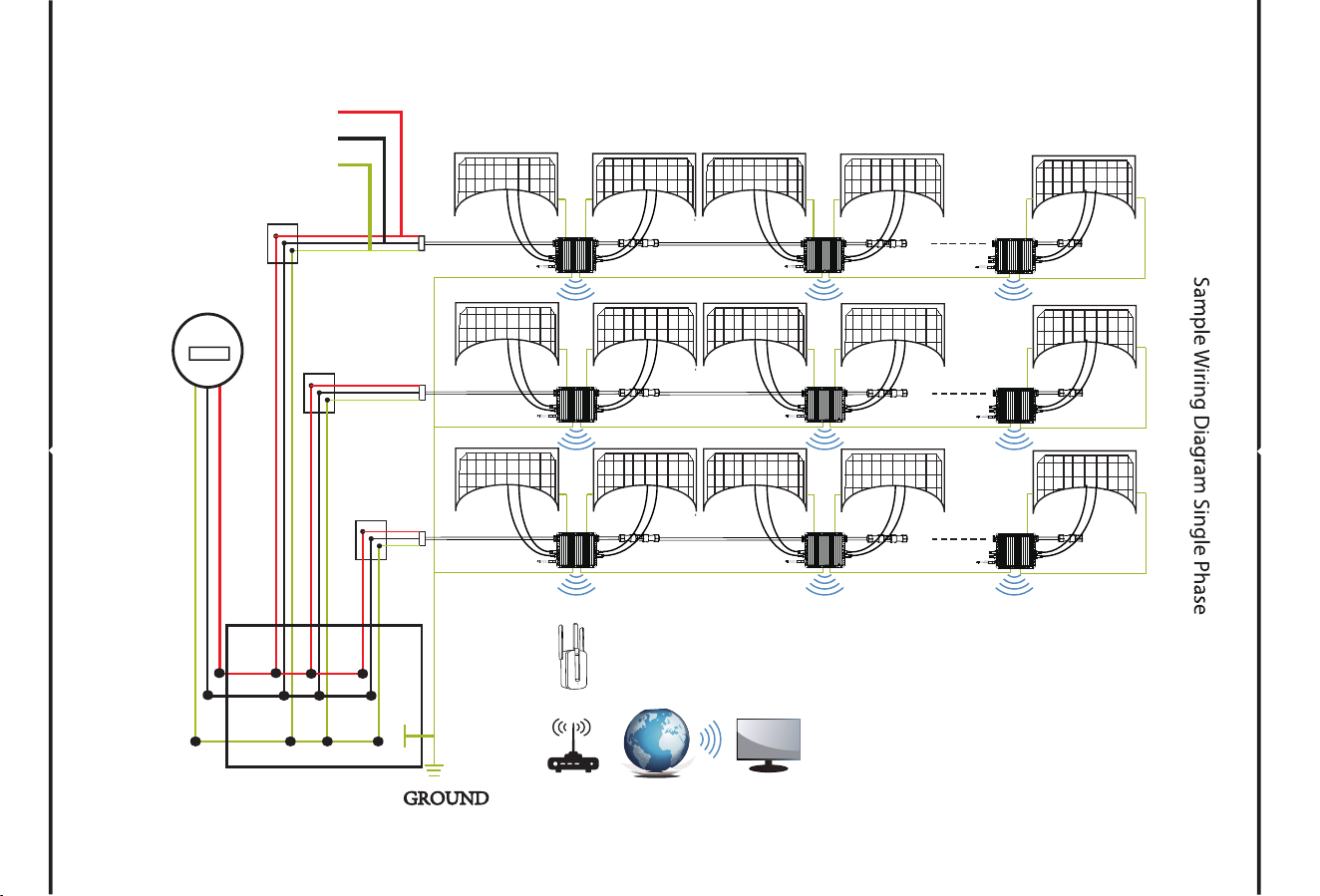
BLACK N
RED L
YELLOW PE
meter
GROUND
JUNCTION
BOX
300/500G3 (1MPPT)
600/800/1000G3 (2MPPT)
Router
Monitoring system
WIFI Boost
MAX 17 SUN300G3-EU-230 per Branch
MAX 10 SUN500G3-EU-230 per Branch
MAX 8 SUN600G3-EU-230 per Branch
MAX 6 SUN800G3-EU-230 per Branch
MAX 5 SUN1000G3-EU-230 per Branch
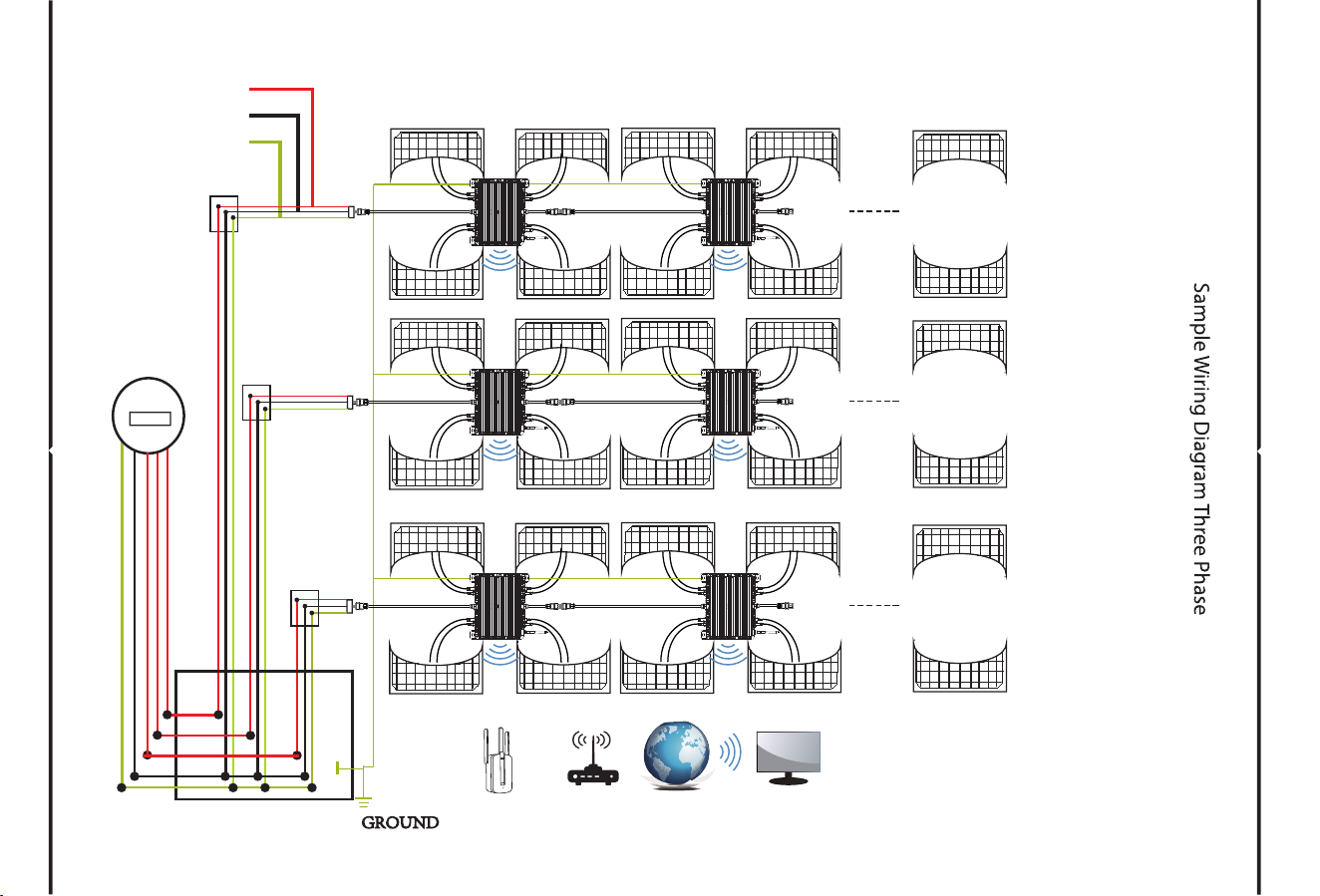
BLACK N
RED L
YELLOW PE
meter
GROUND
JUNCTION
BOX
SUN1300/1600/2000G3-EU-230 (4MPPT)
Router
Monitoring system
WIFI Boost
MAX 4 SUN1300G3-EU-230 per Branch
MAX 4 SUN1600G3-EU-230 per Branch
MAX 3 SUN2000G3-EU-230 per Branch
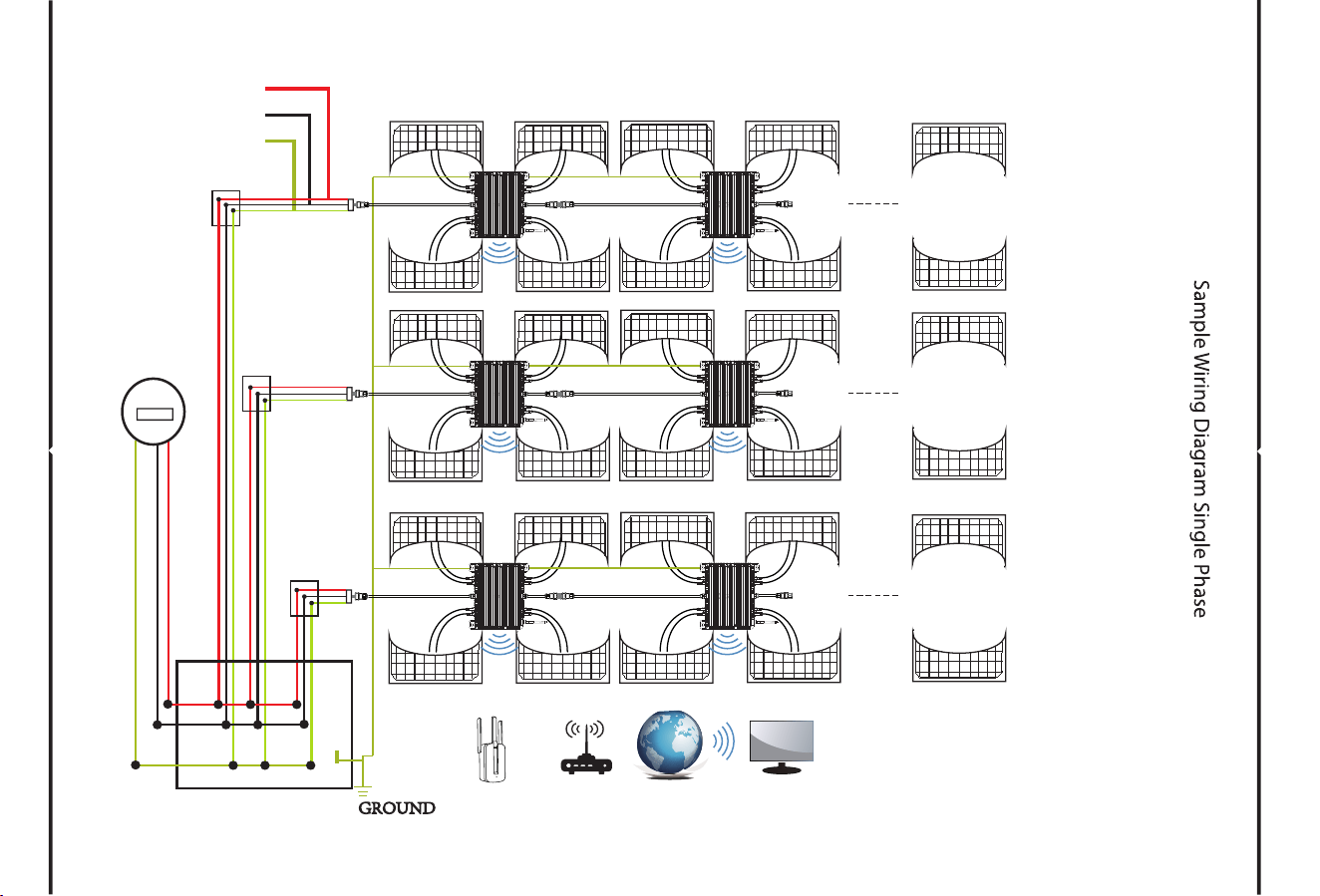
SUN1300/1600/2000G3-EU-230 (4MPPT)
BLACK N
RED L
YELLOW PE
meter
GROUND
JUNCTION
BOX
Router
Monitoring system
WIFI Boost
MAX 4 SUN1300G3-EU-230 per Branch
MAX 4 SUN1600G3-EU-230 per Branch
MAX 3 SUN2000G3-EU-230 per Branch
This series microinverter has built-in WIFI modular which is able to connect router
directly. For WIFI configuration, please check the manual of“Built-in WIFI modular
microinverter WIFI configuration Manual”
Web monitoring address: https://pro.solarmanpv.com; (for Solarman distributor account)
https://home.solarmanpv.com (for Solarman end user account)
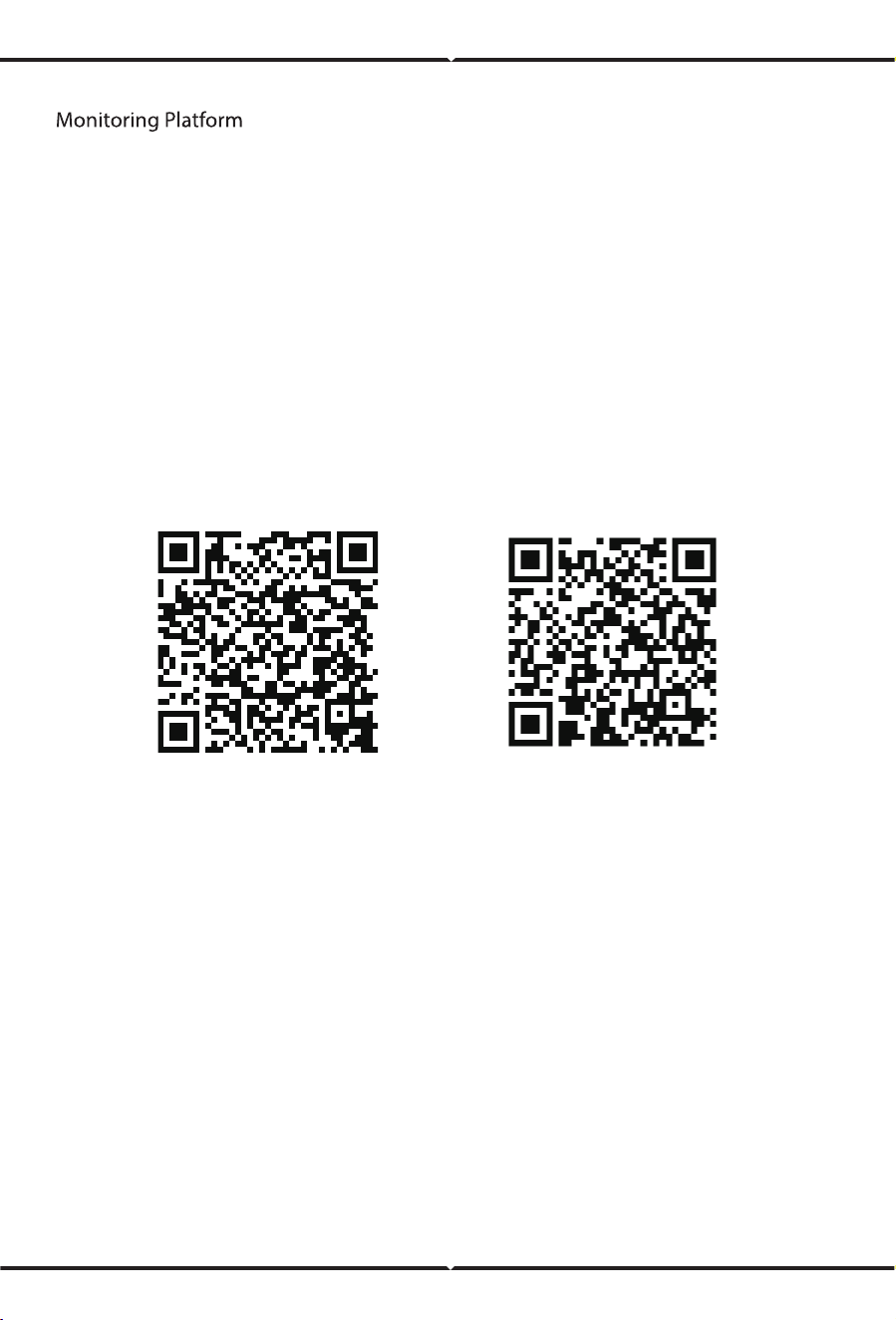
For mobile phone monitoring system, scan the QR code to download the APP.
Also you can find it by searching “solarman business” in App store or Google Play store,
and this App is for distributor/installer.
Find it by searching “solarman smart” in App store or Google Play store and choose
“solarman smart”, this app is for plant owner.
SOLARMAN Smart
for end user
SOLARMAN Business
for distributor/installer
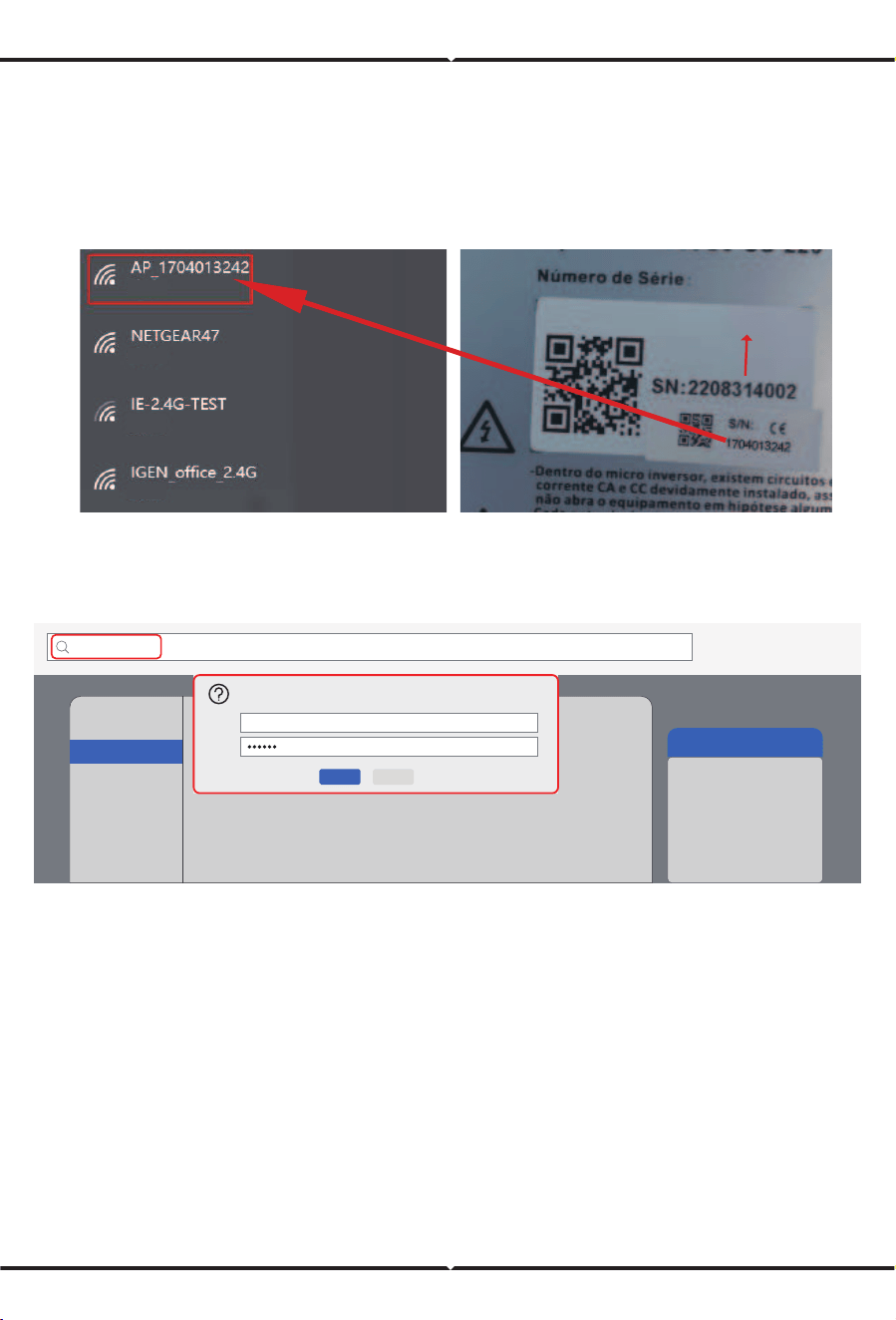
Microinverter SN: 2208314002 Built-in datalogger :1704013242
1. Turn on the wireless network of your PC or smartphone.
2. Select logger network (network name: AP_SN) and connect. The default
password is 12345678.
3. Open a browser and enter 10.10.100.254. Both username and password are
"admin".
(Recommended browser: IE 8+, Chrome 15+, Firefox 10 + ).
How to Configure the Microinverter to the Router Via Web
4. Browser jumps to “ Status ” page, the basic information is listed there.
10.10.100.254
http://10.10.100.254 Please input username and password.“USER LOGIN”
Username:
Password:
Sure Cancel
admin
Help
The setup wizard will assist
you to complete the device
setting within one minute.
Status
Quick Set
Advanced
Upgrade
Restart
Reset
Wizard
Microinverter SN
Safe
Safe
Safe
Safe
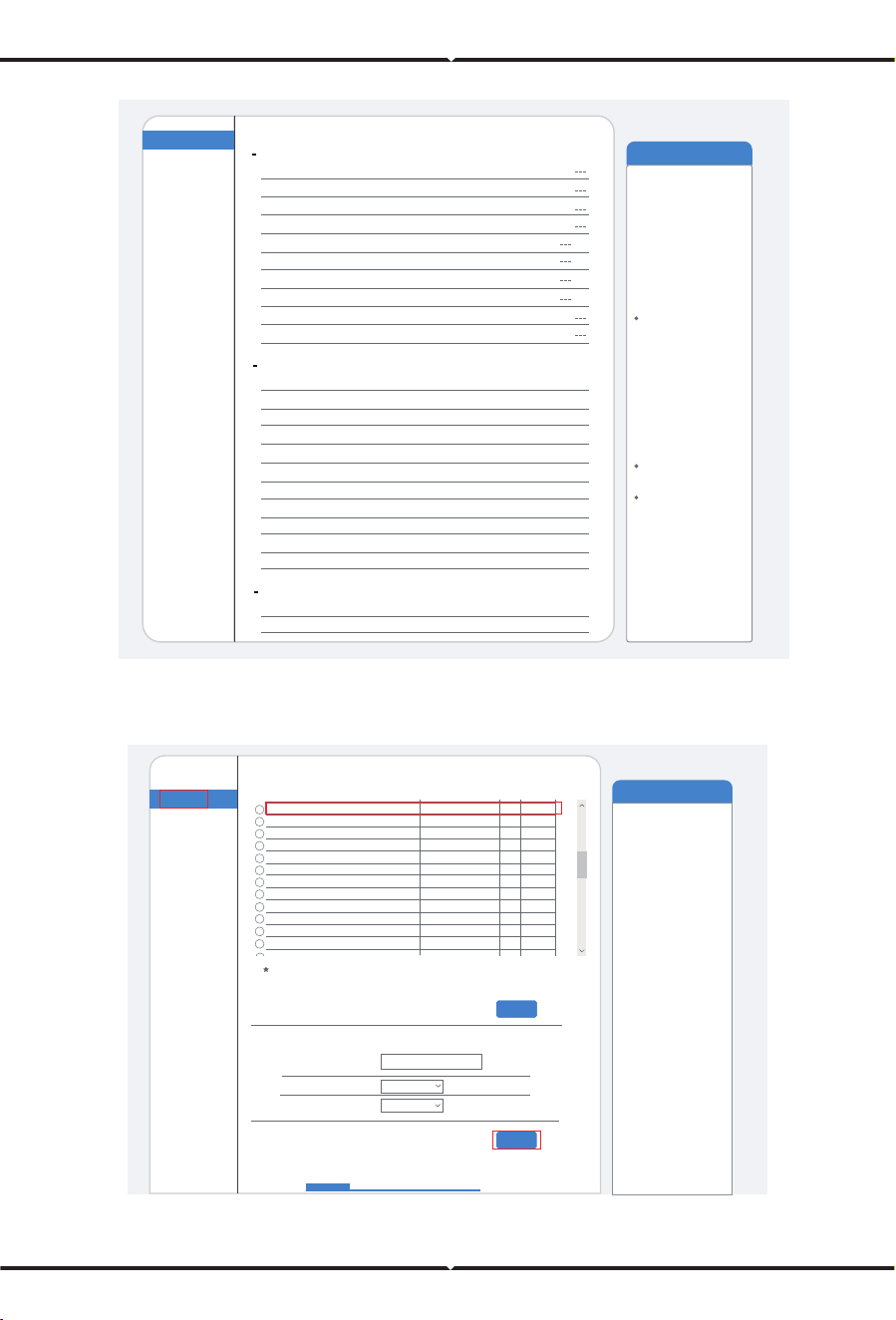
6. Enter the password and click Next.
5. Turn to
"Wizard" page, click "Refresh" to search the wireless network. Select the target
network and click "Next" .
Help
Quick Set
Advanced
Upgrade
Restart
Reset
Wizard
Status
The setup wizard will assist
you to complete the device
setting within one minute.
Refresh
Please select your current wireless network:
IE-2.4G-TEST 54:A7:3:70:99:13
0:BE:D5:20:B8:2C
0:BE:D5:20:B8:2C
E8:65:D4:F2:15:B8
90:5D:7C:97:95:29
90:5D:7C:97:95:27
90:5D:7C:97:C9:E5
90:5D:7C:97:C9:E3
4A:E:EC:9E:C3:3E
0:BE:D5:20:B7:EE
98:D8:63:76:BA:24
30:EA:E7:36:B:36
30:EA:E7:36:CF:B2
AP_1753738492
AP_1719065936
IGEN_office_2.4G
IGEN_office_2.4G
IGEN_office_2.4G
IGEN_office_2.4G
TESR+“”?=,;
IGENTEST
AP_517075065
1
1
1
6
2
1
1
1
1
1
1
11
11
82
80
78
76
74
74
72
72
70
70
70
66
66
Refresh
Note: When RSSI of the selected WiFi network is lower than 15%, the
connection may be unstable, please select other available network or
shorten the distance between the device and router.
Add wireless network manually:
Network name (SSID)
Encryption method
IE-2.4G-TEST
WPA2PSK
AES
Encryption algorithm
(Note:case sensitive)
1 2
3
4
Next
Help
Quick Set
Advanced
Upgrade
Restart
Reset
Wizard
Status
The device can be used as
a wireless access point(AP
mode) to facilitata users to
configure the device, or it
can also be used as a
wireless information terminal
(STA mode) to connect the
remote server via wireless
router.
Status of remote server
If under such status, please
check the issues as follows:
(1)check the device
information to see whether
IP address is obtained or
not;
(2)check if the router is
connected to internet or not;
(3)check if a firewall is set
on the router or not;
Not connected: Connection
to server failed last time.
Connected: connection to
server successful last time;
Unknown: No connection
to server.Please check
again in 5 minutes.
Inverter information
Inverter serial number
Firmware version(main)
Firmware version(slave)
Inverter model
Rated power
Current power
Yield today
Current power
Alerts
Last updated
Device information
Device serial number
Firmware version
Wireless AP mode
SSID
IP address
IP address
MAC address
MAC address
Remote server A
Remote server B
Wireless STA mode
Router SSID
Signal Quality
Remote server information
W
W
kWh
kWh
1704013242
Enable
Disable
Not connected
Not connected
AP_1704013242
10.10.100.254
8C:D8:B3:71:8D:B0
LSW3_14_FFFF_1.0.23
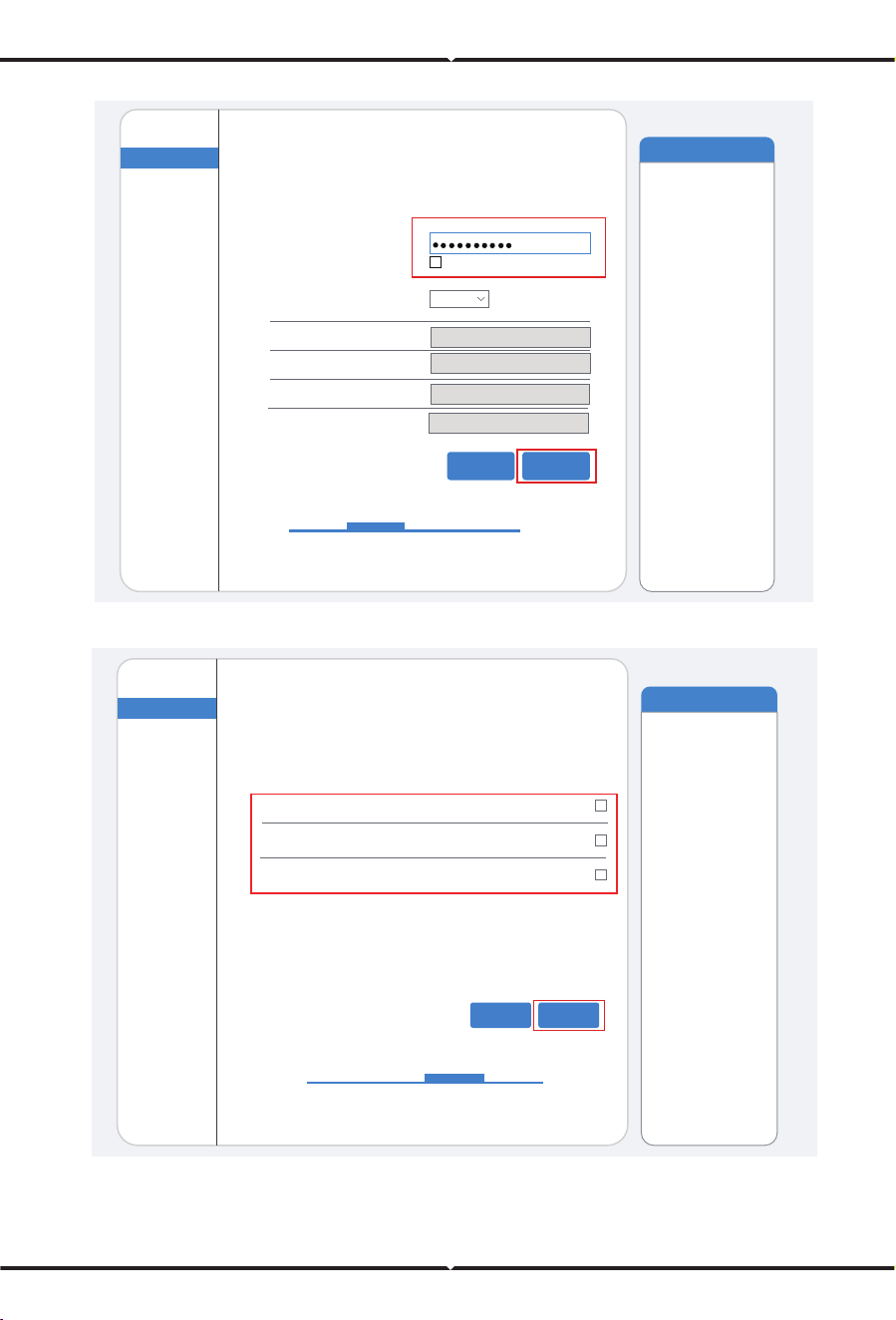
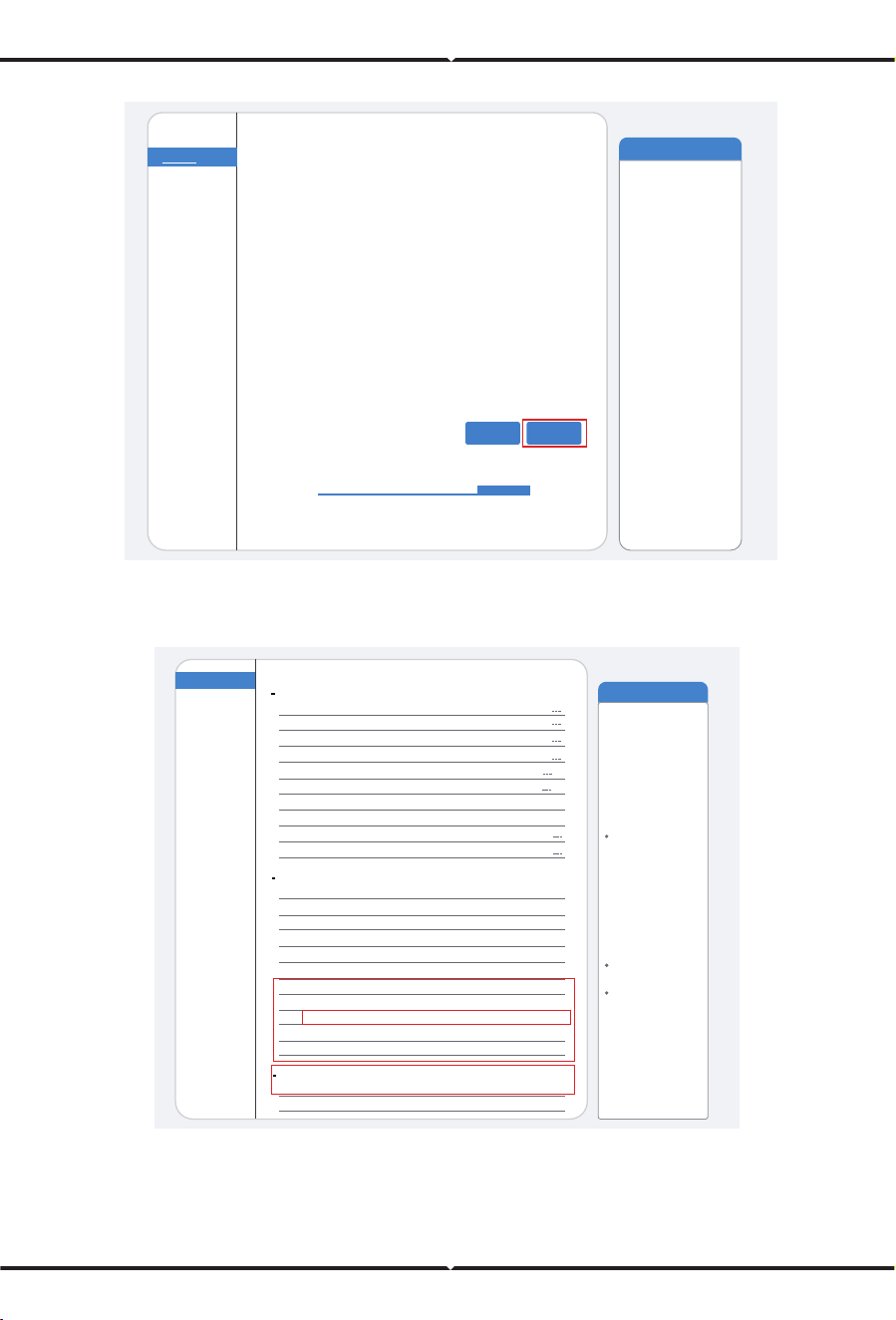
7. Users can select any options below to enhance the security and click Next.
8. If the setup is successful, the following page will pop up and click OK to reboot the
micro inverter.
Help
Quick Set
Advanced
Upgrade
Restart
Reset
Wizard
Status
Please fill in the following information:
(Note: case sensitive)
Password(8-64 bytes)
Obtain an IP address
automatically
IP address
Subnet mask
Gateway address
DNS server address
Show Password
Enable
Back Next
1 2 3 4
Most systems support the
function of DHCP to obtain
IP address automatically.
Please select disable and
add it manually if your router
does not support such
function.
Help
Quick Set
Advanced
Upgrade
Restart
Reset
Wizard
Status
1 2 3 4
Change the encryption
mode for AP
Change the user name
and password for Web
server
If you change the username
and password for the web
server, you will need to enter
the new username and
password to get access to
the setting page.
If you set password for the
AP network, you will need to
enter the password to
connect to AP.
Back Next
Enhance Security
Hide AP
Change the encryption mode for AP
Change the user name and password for Web server
You can enhance your system security by choosing the
following methods
9. Connect to loggeer AP network again, then log in to 10.10.100.254 by Browser,
and check the system info of "Status" page. After the network setting is done, the remote
server A or B should be "connected".
10. If both remote server A and B are "Not connected", please refresh the page or repeat the
previous steps. If the "Signal Quality" is lower than 40%, please move your Router closer to
the Microinverter.
Help
Quick Set
Advanced
Upgrade
Restart
Reset
Wizard
Status
1 2 3 4
After clicking OK,the
system will restart
immediately.
Back OK
Setting complete!
Click OK, the settings will take effect and the system will
restart immediately.
If you leave this interface without clicking OK, the settings will
be ineffective.
Help
Quick Set
Advanced
Upgrade
Restart
Reset
Wizard
Status
The device can be used as
a wireless access point(AP
mode) to facilitata users to
configure the device, or it
can also be used as a
wireless information terminal
(STA mode) to connect the
remote server via wireless
router.
Status of remote server
If under such status, please
check the issues as follows:
(1)check the device
information to see whether
IP address is obtained or
not;
(2)check if the router is
connected to internet or not;
(3)check if a firewall is set
on the router or not;
Not connected: Connection
to server failed last time.
Connected: connection to
server successful last time;
Unknown: No connection
to server. Please check
again in 5 minutes.
Inverter information
Inverter serial number
Firmware version(main)
Firmware version(slave)
Inverter model
Rated power
Current power
Yield today
Current power
Alerts
Last updated
Device information
Device serial number
Firmware version
Wireless AP mode
SSID
IP address
IP address
MAC address
MAC address
Remote server A
Remote server B
Wireless STA mode
Router SSID
Signal Quality
Remote server information
connected
Not connected
W
W
---kWh
---kWh
1704013242
Disable
Enable
IE-2.4G-TEST
100%
172.16.30.247
98:D8:63:71:8D:B0
LSW3_14_FFFF_1.0.23
MY Plants
YOU have no plants for now.
Add Now
plant Me
Register
Phone Number E-mail
E-mail
Password
Password
Please enter E-mail
Password length must be greater than 6bits
Retrieve Xs
SOLARMAN Smart
E-mail
Phone Number Username
E-mail
E-mail
password
Password
Log In
Register Forgot Password?
English
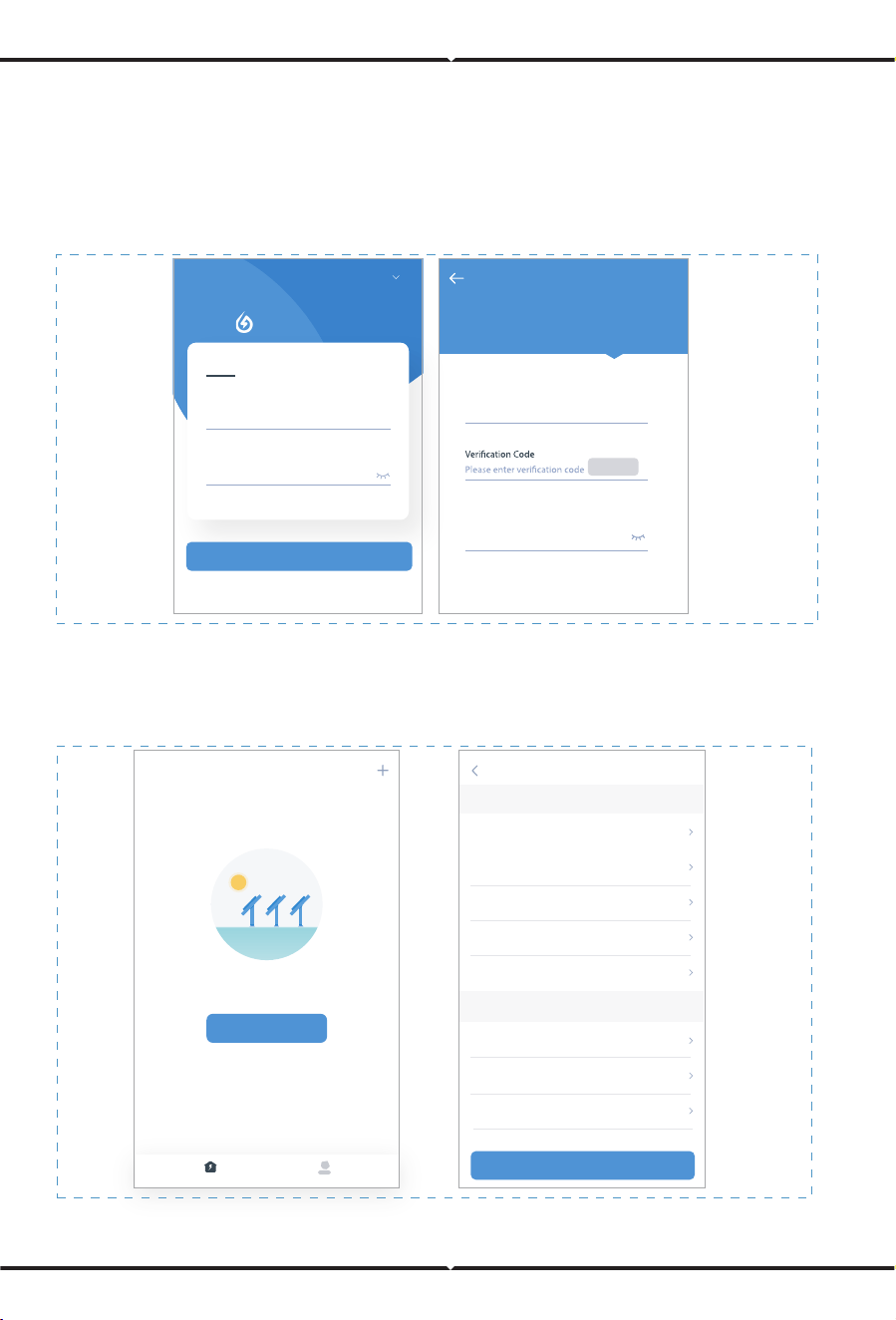
1. Registration
Open the app of SOLARMAN Smart and register an account.
Click "Register" and create your account here.
2. Create a Plant
Click "Add Now" to create your plant.
Please fill in plant basic info and other info here.
How to connect in APP
Plant Details
Basic Info
Plant Name
Plant Loc
Time Zone
Creation Date
Founder
System Info
Plant Type
System Type
Installed Capacity(kWp)
Demo plant -Commercial
Zhwjiang yuyao
((UTC+08:00)Beijing,Chongqing,
HongKong,Urumqi)
2019-05-04
Clavin
Residential Rooftop
All on Grid
18350
Finish
System Info

MY Plants
More
Demo plant-Micro inverter
shared
88.00W
45.38K CNY
773.30K CNY
45.38MWh
Current Production
Power
Anticipated Yield-
Today
Anticipated Yield-This
Month
Production-Today
Create a Plant
Add a device
Logger hinzufugen
Bitte geben Sie die Logger-SN ein und fugen Sie sie der
Anlage hinzu.
SN
Bitte Gerate-SN eingeben
Kann der SN/Barcode nicht gefunden werden?
hinzufugen
3. Add a Logger
Optional 1: Enter the logger SN manually.
Optional 2: Click the icon in the right and scan the QR code to enter logger SN.
You can find logger SN on the carton packaging or on the logger body.
4. Network Configuration
After the logger is added, please configure the network to ensure normal operation.
Go to "Plant Details"-"Device List", find the target SN and click " Device Networking".
Device Details
NO. of Connections: 2
Inverter
Meter
Module
Logger
Logger
Logger
SN:136689995
SN:123341245
Normal
Device Networking
Select associated device Device Networking
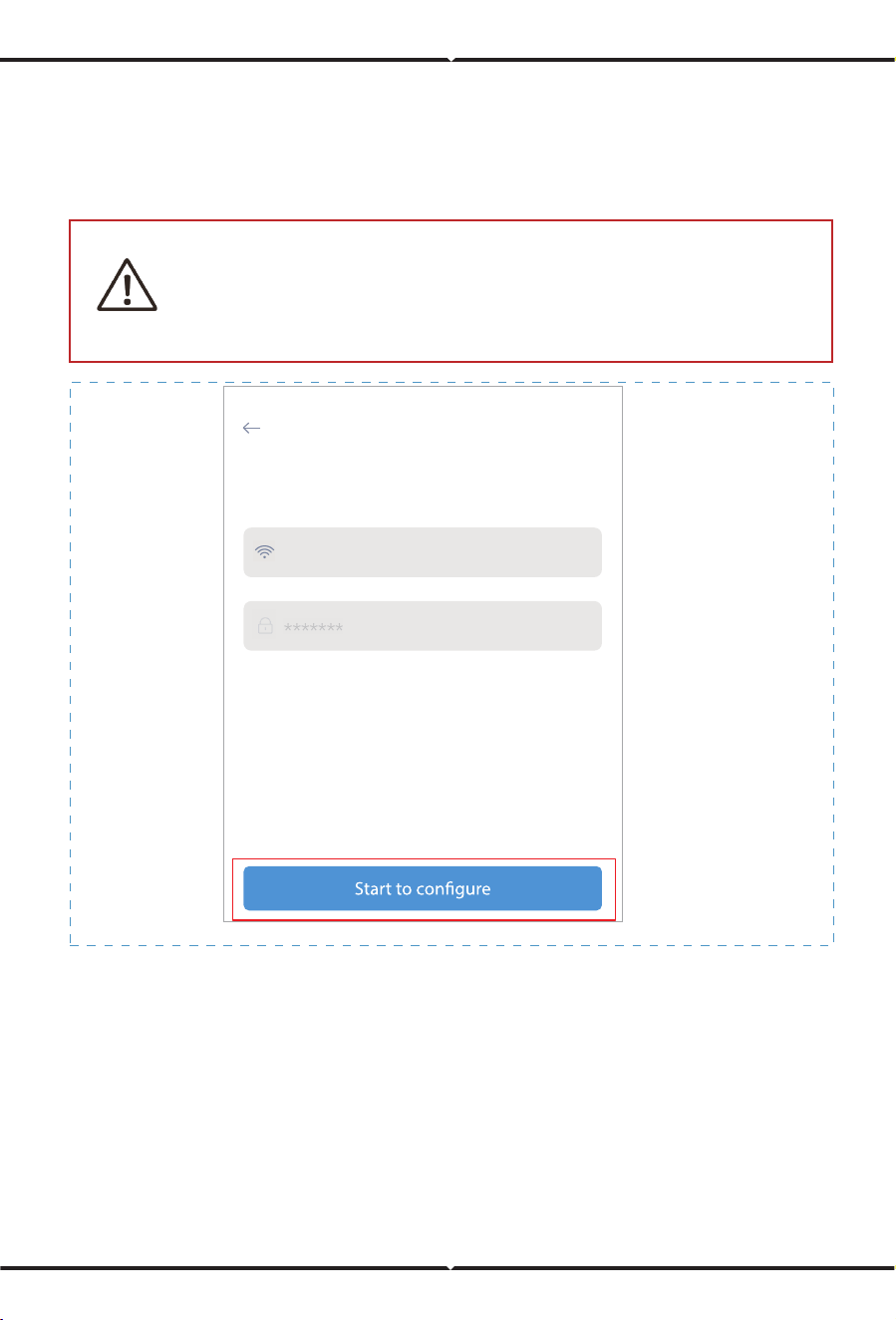
Step 1:Confi rm Wi-Fi Info
Please make sure your phone has connected to the right WiFi network. And click "Start
to configure".
Notice:
5G WiFi is not supported .
Special characters (e.g. ,;‘’ =” ” `) in router name
and password are not supported.
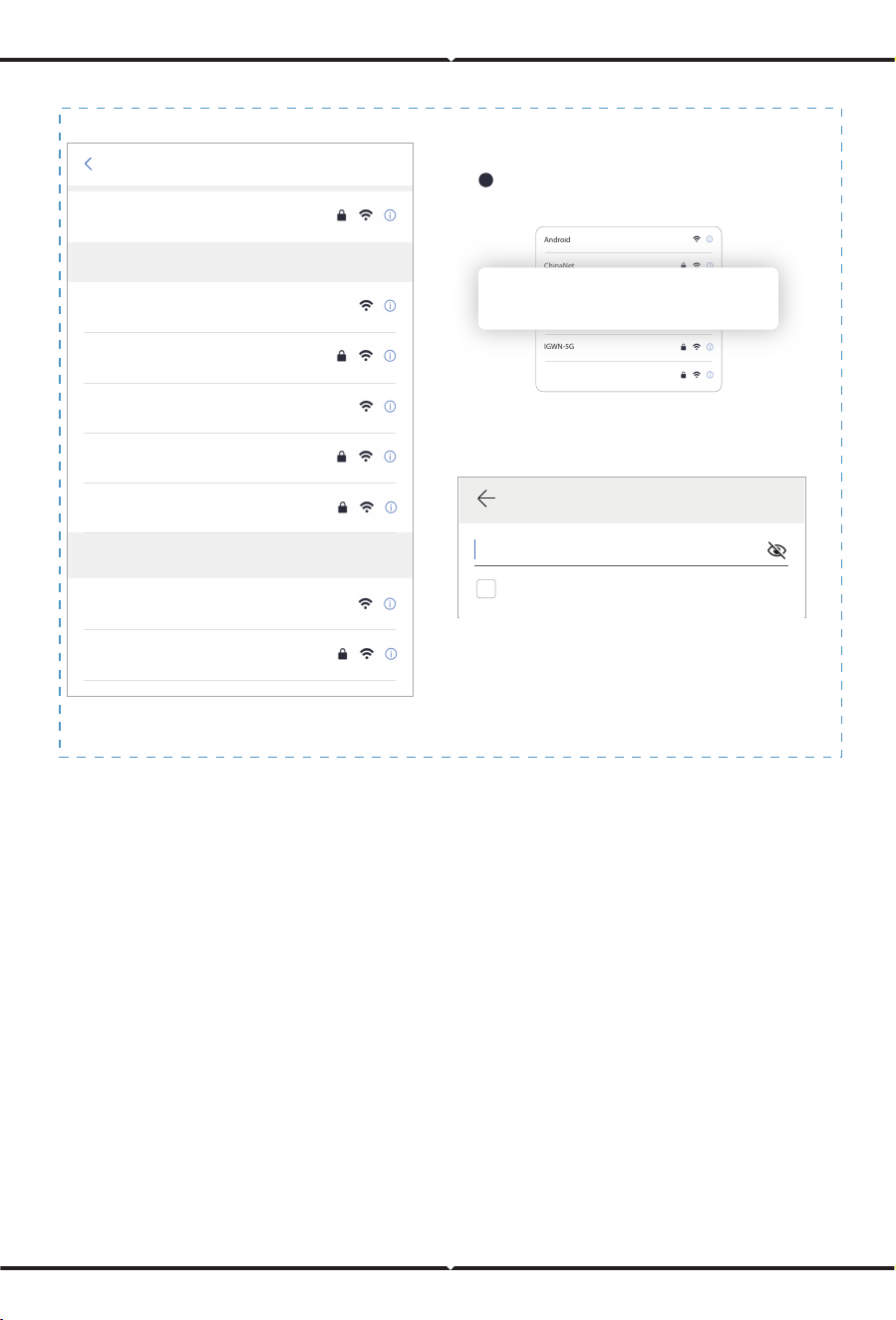
Step 2:Connect to AP network
Click " Go to connect" and find the right "AP_XXXXXXXXXX" network (XXXXXXXXXX
refers to logger SN).
The password is required, please input "12345678".
Go back to SOLARMAN Smart APP after connecting to AP network.
SN:2312423
Password
App_only
5G frequency band is not supprted.
Please connect to 2.4G frequency band.
Change network
Android
ChinaNet
AP_622602179
HYH123
IGWN-5G
IGWN-HILINK
1
Go to WLAN Setting and connect the
following network manually
AP_622602179
settings
WLAN
Android
ChinaNet
AP_622602179
HYH123
IGWN-5G
act-blue
ChinaNet-igen
WLAN
MY NETWORKS
OTHER NETWORKS
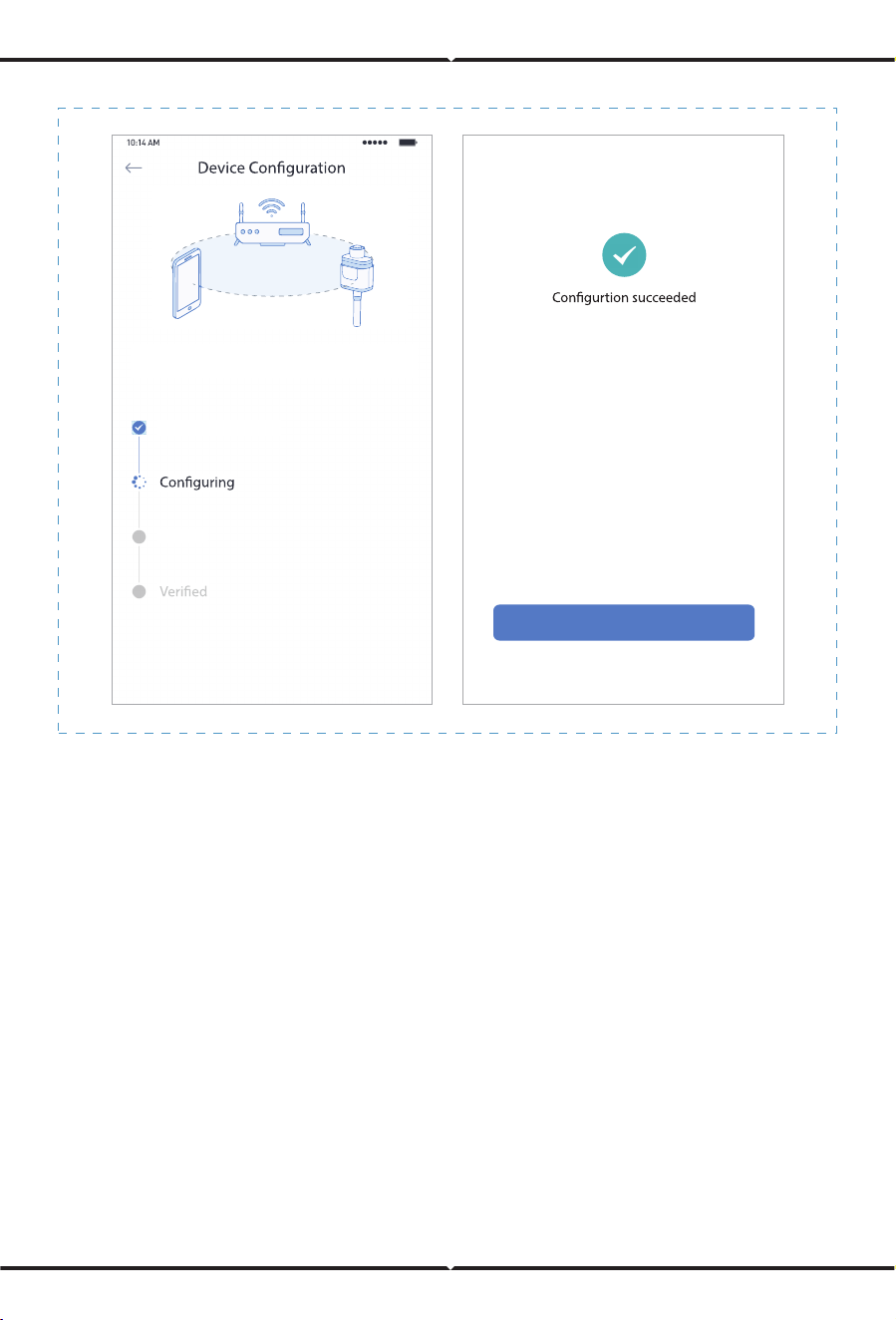
Step 3:Auto Confi guration
Please wait for a while to complete the configuration. Then system will turn to the following
page.
Click "Done" to check plant data. (Usually, the data will be updated in 10 mins)
AP_622602179
Password
Show advanced options
Done
Device data will be displayed in 10 mins. After that,
you can check device status in device list.
Please shorten the distance between the device,
router and phone.
Connect to device
Restart