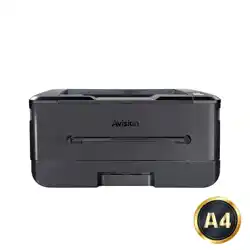
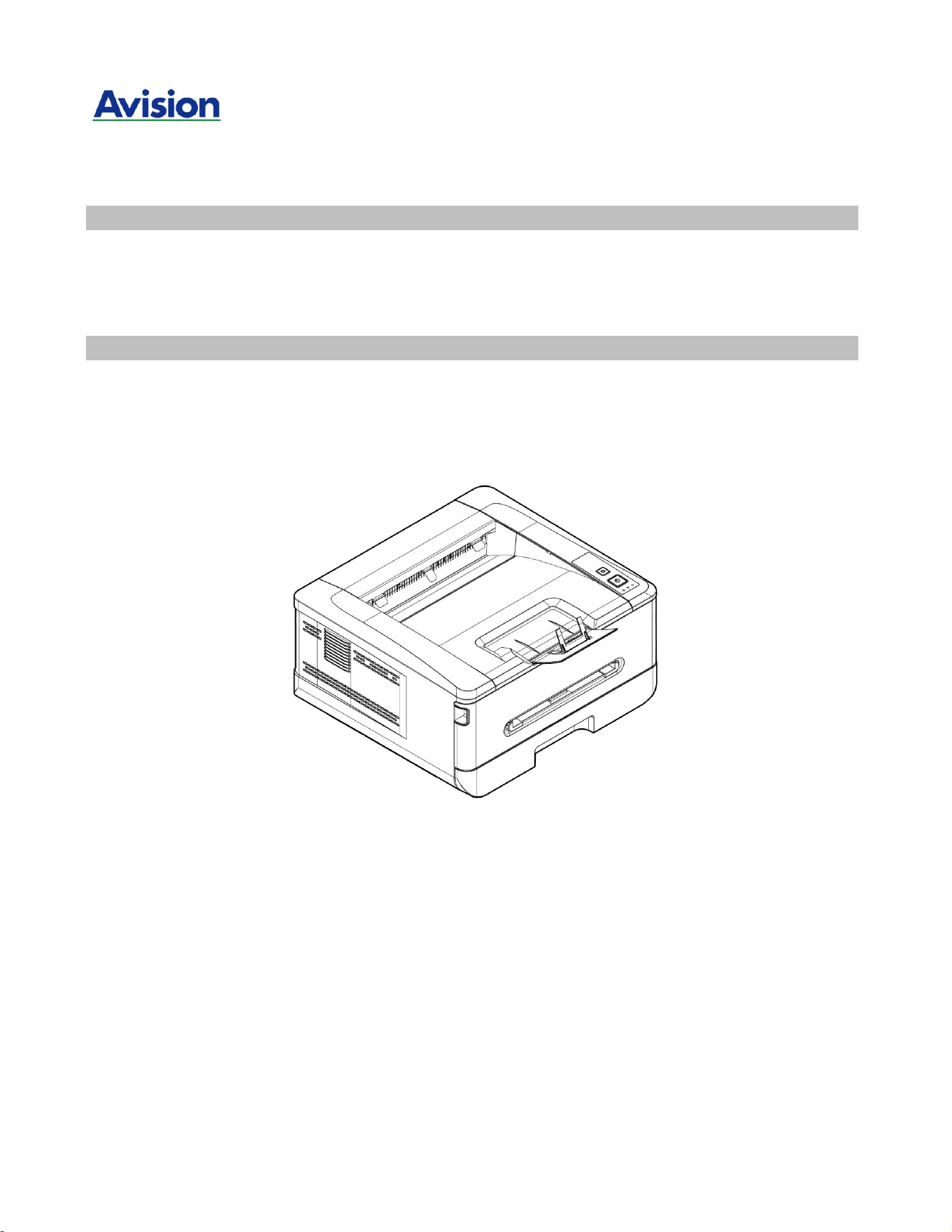
A4 Printer
User's Guide
Regulatory model no.: AP33Q、AP33Qs、
AP33、AP3320n、AP3321n、AP3322n、AP3320ns、
AP3321ns、AP3322ns、AP3320w、AP3321w、AP3322w、AP3320ws、AP3321ws、
AP3322ws、AP33 Series、AP33Q Series
Avision Inc.
User’s Guide
ii
Copyrights and Trademarks
Ethernet is a registered trademark of Xerox Corporation.
Windows 7, 8, 10, 11 are registered trademarks of Microsoft Corporation in the United States
and/or other countries.
Other product names used herein are for identification purposes only and may be trademarks of
their respective companies. We disclaim any and all rights to those marks.
Warranty
The information contained in this document(s) is subject to change without notice.
The manufacturer makes no warranty of any kind with regard to this material, including, but not
limited to, the implied warranties of fitness for a particular purpose.
The manufacturer shall not be liable for errors contained herein or for incidental or consequential
damages in connection with the furnishing, performance, or use of this material.
European Union Regulatory Notice
Products bearing the CE marking comply with the following EU Directives:
Low Voltage Directive 2014/35/EC
EMC Directive 2014/30/EC
Restriction of the use of certain hazardous substances (RoHS) Directive 2011/65/EU
RED (Radio Equipment Directive) (2014/53/EC)
This product satisfies the Class B limits of EN55032, EN55035, and safety requirements of
EN62368-1.
*This machine is certified as Class 1 LED product.
When this PRINTER has no operation for an extended period of time
Note: If the PRINTER is idle for a period of time (for example,
overnight), turn off the PRINTER with the power switch. If the PRINTER
is idle for a longer period of time (such as holidays), unplug the power
cord from the electrical outlet to prevent danger.
Take care to remove the paper from the paper tray and store it in the wrapper to
prevent the paper from getting wet.

iii
Federal Communications Commission (FCC) compliance information
statement
Part 15
This equipment has been tested and found to comply with the limits for a Class B digital device,
pursuant to Part 15 of the FCC Rules. These limits are designed to provide reasonable protection
against harmful interference in a residential installation. This equipment generates, uses and can
radiate radio frequency energy and, if not installed and used in accordance with the instructions,
may cause harmful interference to radio communications.
However, there is no guarantee that interference will not occur in a particular installation. If this
equipment does cause harmful interference to radio or television reception, which can be
determined by turning the equipment off and on, the user is encouraged to try to correct the
interference by one of the following measures:
Reorient or relocate the receiving antenna.
Increase the separation between the equipment and receiver.
Connect the equipment into an outlet on a circuit different from that to which the receiver
is connected.
Consult the dealer or an experienced radio/TV technician for help.
This device complies with Part 15 of the FCC Rules. Operation is subject to the following two
conditions: (1) This device may not cause harmful interference, and (2) this device must accept
any interference received, including interference that may cause undesired operation.
User’s Guide
iv
Safety Information
When using this equipment, the following safety precautions should always be followed.
Safety During Operation
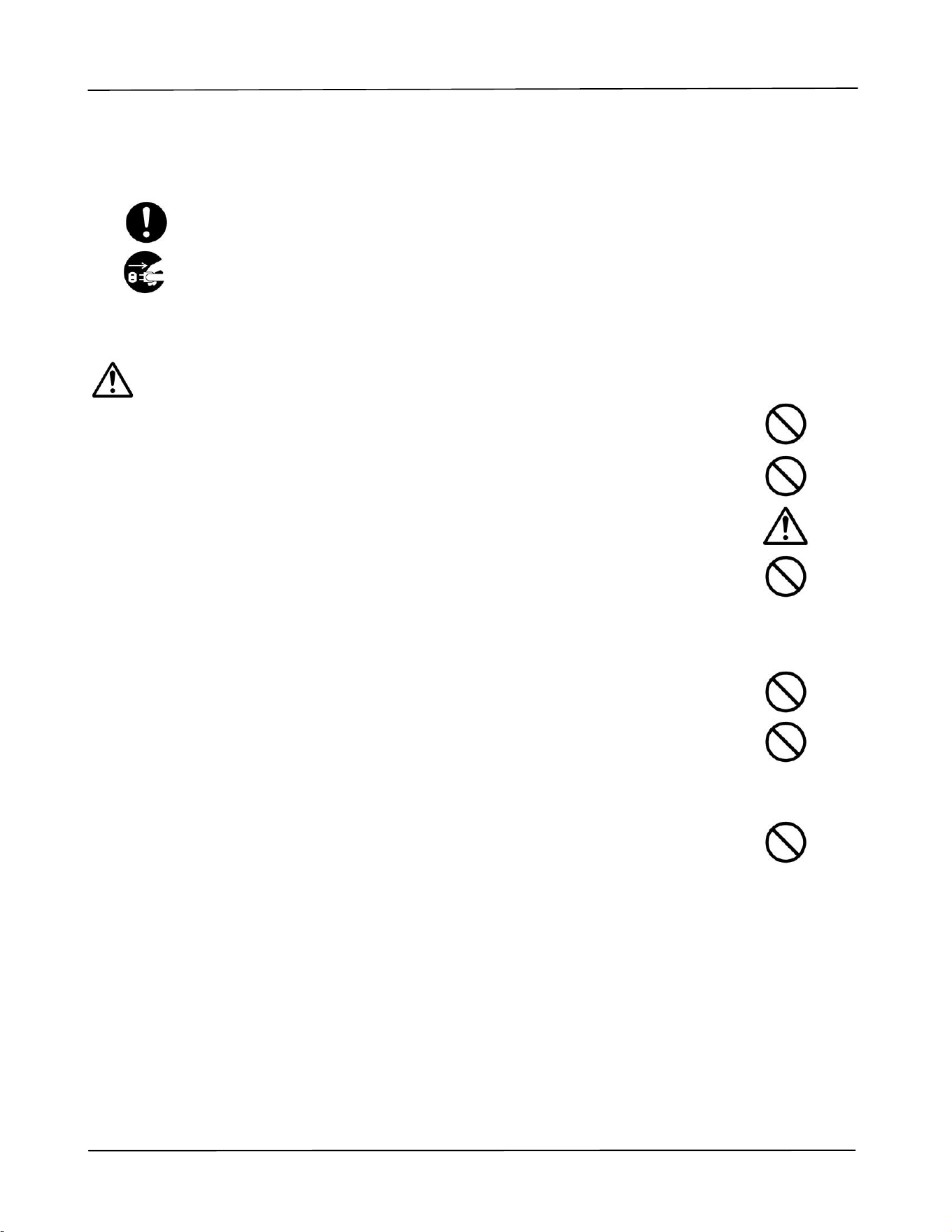
In this manual, the following important symbols are used:
WARNING:
Indicates potentially hazardous situations, which if instructions are not
followed, could result in death or serious injury.
CAUTION:
Indicates a potentially hazardous situation which, if instructions are not
followed, may result in minor or moderate injury or damage to property.
Important:
Indicates operational requirements and restrictions. Please read and follow these instructions to
ensure a proper operation and to avoid damage to the machine.
Note:
Indicates further explanation or clarification. Reading this is highly recommended.
The following symbols indicate that the related section includes safety warnings. Specific points of
attention are indicated inside the symbol.
[General warning]
[Warning of high temperature]
[Warning of danger of electrical shock]
The following symbols indicate that the related section includes information on prohibited actions.
Specifics of the prohibited action are indicated inside the symbol.
[Warning of prohibited action]
[Disassembly prohibited]
v
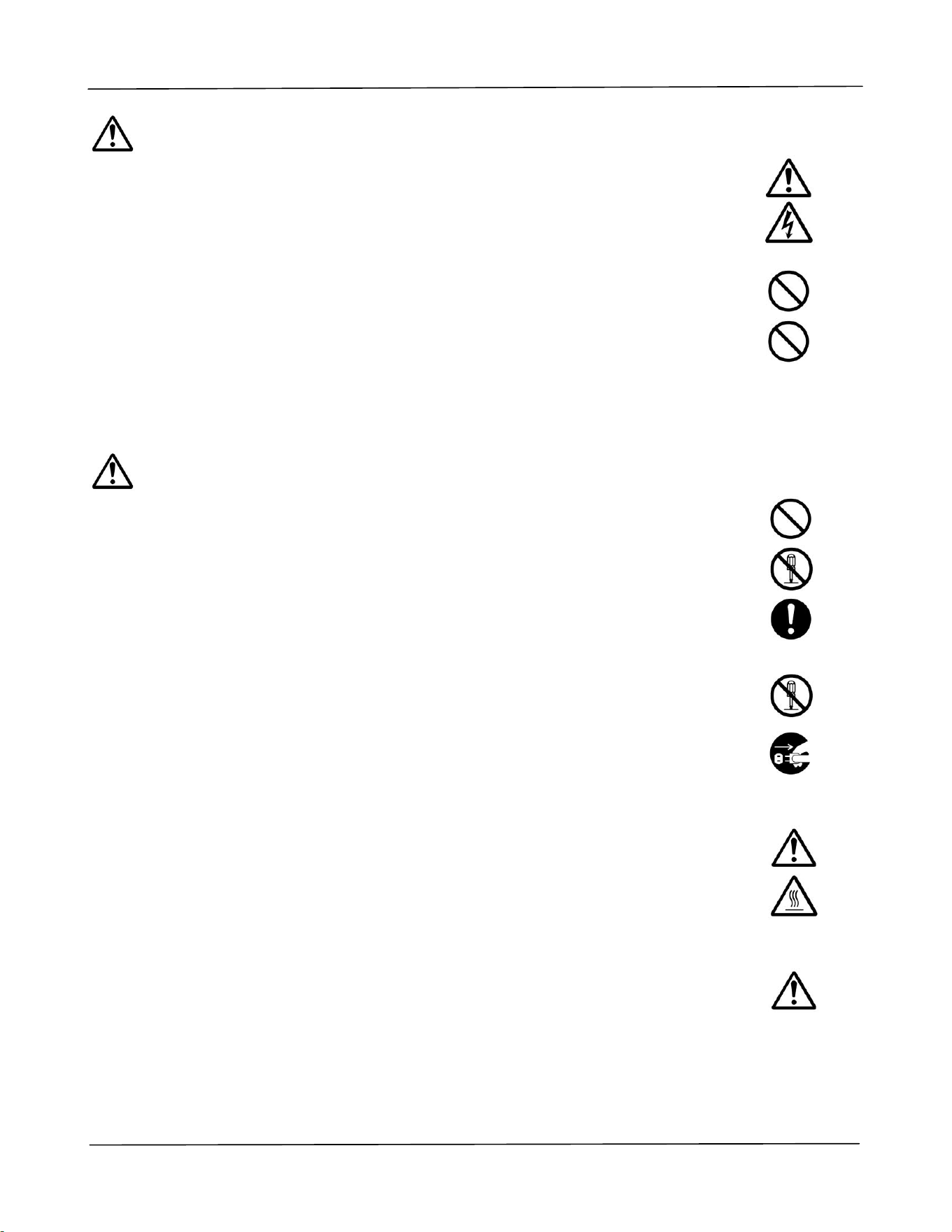
The following symbols indicate that the related section includes information on actions which must
be performed. Specifics of the required action are indicated inside the symbol.
[Alert of required action]
[Remove the power plug from the outlet]
Installation and the Operating Environment
Warning
Do not install the equipment near direct sun light, heating or air conditioning
units. Direct sunlight or high temperature may damage the machine.
Do not install the equipment in a humid or dusty place. If dust or dust adheres
to the power plug, clean the plug to avoid fire or electric shock.
Keep the vent hole on the back of the PRINTER at least 10 cm away from the
wall to avoid overheating and fire.
Do not place or store the device:
Outdoors
Near excessive dirt or dust, water, or heat sources
In locations subject to shocks, vibrations, high temperature or humidity,
direct sunlight, strong light sources, or rapid changes in temperature or
humidity
Place the equipment securely on an even, flat surface. Tilted or uneven surfaces
may cause mechanical or paper-feeding problems.
Do not locate the device on rackety or aslope tables. Do not locate the device on
unstable surface. The device may fall down and this may result in injury.
Place the device close enough to the computer so that the interface cable can
easily reach between the device and the computer.
Do not place a coffee cup, vase, or other liquid-filled container on the machine.
Spillage can damage the machine’s electrical parts and insulation.
Make good use of the recycled paper while printing.
User’s Guide
vi
Caution
Place the device in an independent, well-ventilated area.
Place the device in a place with good environmental conditions. Operating the
machine beyond the recommended temperature and humidity may cause an
electrical fire.
Do not place heavy objects on the unit. It may cause unbalance and the device
may fall down. This may result in injury.
Do not place the device in any position that may obstruct the output of the unit,
as it may cause paper jams.
Safety Information During Operpation
Warning
To prevent fires, do not use flammable sprays near the machine.
Never attempt to open any fixed cover. Otherwise there is danger of electric
shock, fire and laser beam and may cause blindness.
Never disassemble, modify, or attempt to repair the device or device option by
yourself, except as specifically explained in the device's documentation. This could
cause fire, electrical shock, or injury.
Do not attempt to alter the machine or its parts. Avoid contact with the internal
high voltage part or the laser light beam, it may cause electric shock or blindness.
If this product becomes inordinately hot or emits smoke, or unusual odor or noise,
immediately turn OFF the power switch, unplug the power cord from the power
outlet, and then call your authorized service representative. If you keep on using it
as is, a fire or electrical shock could result.
Take care not to drop paper clips, staples, or any other metal objects into the
machine.
The inside of this product has areas subject to high temperature, which may cause
burns. When checking the inside of the unit for malfunctions such as paper
mis-feed, do not touch the locations (around the fusing unit, etc.) which are
indicated by a “Caution! Hot Surface” caution label.
Under normal conditions the small quantities of ozone gas produced by the
machine are harmless. However, if the machine is used for an extended period or
within a small room, you should make sure that the area is adequately ventilated.
Also ventilate the room if you notice the machine smells after a period of frequent
or extended use.
vii
Do not attempt to remove the covers and panels which have been fixed to the
product. Some products have a high-voltage part or a LSU beam source inside
that could cause an electrical shock or blindness.
Do not modify this product, as a fire, electrical shock, or breakdown could result.
If the product employs a LSU printhead, the LSU beam source could cause
blindness.
If this product has been dropped or its cover damaged, immediately turn OFF the
power switch, unplug the power cord from the power outlet, and then call your
authorized service representative. If you keep on using it as is, a fire or electrical
shock could result.
Take appropriate emergency measures when the following conditions occur
When toner gets into your eyes, wash it off with water until your eyes are not
painful. If the situation is serious, ask a doctor for treatment.
When the toner gets on your skin, wash it off with soap and rinse it off.
When you are in the toner inlet, leave the dust location immediately and rinse
with plenty of water.
When the toner is in the abdomen, spit it out and consult a doctor.
Do not use the device with wet hands.
Unplug the device and the USB cable, and refer servicing to qualified service
personnel under the following conditions:
Liquid has entered the device.
Object has entered the device.
The device has been dropped, or the case has been damaged.
The device does not operate normally (i.e. appearance of smoke, strange
smell, odd noise, etc.), or exhibits a distinct change in performance.。
Caution
When there is paper jam inside the machine, be sure to remove it thoroughly.
The remaining paper in the machine may cause a fire. When the paper is
attached to an invisible or difficult-to-see area, do not remove it by force to
avoid injury and contact the service personnel or dealer for help.
The temperature inside of the machine may be very hot. When the paper jam is
released, note any warning labels and do not touch it to avoid burns. It is
recommended to clear the jam after the machine has cooled down.
When clearing paper jams, refer to the instructions in this manual.
When using a large number of copies of the machine for a long time, keep the
indoor air flow. Otherwise you may feel a headache.
Unplug the device’s power cord and USB cable before cleaning.
User’s Guide
viii
About the Consumables
Warning
Do not unpack the consumables and store the machine’s consumables in any
of these locations:
Outdoors
Near excessive dirt or dust, water, or heat sources
In locations subject to shocks, vibrations, high temperature or humidity,
direct sunlight, strong light sources, or rapid changes in temperature or
humidity
Do not throw the toner cartridge into the fire. After the toner remaining in the
crucible comes into contact with the fire, the powder may explode and cause
personal injury.
Caution
Do not discard the discarded toner cartridges. Please put the used waste toner
cartridges in the supplied plastic bags and return them to the dealer or service
personnel. (For the customer service locations around the company, please refer
to our website.). The latter will recycle the used toner cartridge in accordance with
relevant regulations.
The used consumables must be disposed of properly and in accordance with local
environmental regulations, or disposed of by the company's designated dealer.
Safety Information When using power cord and the USB cable
Warning
Plug the power cord securely into the outlet. Do not touch the pins of the power
cord plug with any metal objects as they may touch dangerous voltage points or
short circuit. This can cause fire, electric shock or injury. Failure to do so may
result in a fire or electric shock.
Before disconnecting the plug, turn the machine off. Make sure your hands are
dry. Hold the plug itself, not its cord, when disconnecting it from the receptacle.
Do not share the power with other high-powered devices, as this may result in fire
or electric shock.
Do not use extension cords as this may result in fire or electric shock.
Always use the correct AC power source. For future transportation and handling,
please keep all packaging materials for this product.
Use only the USB cable that came with your device and avoid abrasions, cuts,
fraying, crimping, and kinking. Using any other USB cable could cause fire,
electrical shock, or injury.
ix
Do not store the cables in the following locations:
Outdoors
Near excessive dirt or dust, water, or heat sources
In locations subject to shocks, vibrations, high temperature or humidity,
direct sunlight, strong light sources, or rapid changes in temperature or
humidity
Keep the supplied USB cable, etc., in a location that is out of reach of children to
avoid the risk of injury.
Please put the packaging materials such as the supplied plastic bags in a place
that children cannot obtain or discard them to avoid the risk of suffocation.
Caution
If you are not using the device for a long time, remove the USB cable from the
connector.
This product has a power-saving mode and a standby mode. The zero-energy
state can be achieved only when the product is connected without any external
input power.
At least every year, please disconnect the power cord from the wall outlet to
check whether the power cord is exposed, damaged, cracked, dent, hot, pin
deformation or any burnt marks. If these conditions exist, please do not use the
power cord again and contact the authorized service personnel or dealer.
Make sure the power cord is plugged into a grounded electrical outlet, otherwise it
may cause a fire or electric shock.
Be sure to fully plug the power cord into a wall outlet. Failure to completely insert
may cause unstable connections and heat build-up, creating an unsafe condition.
When disconnecting the power cord from the wall outlet, be sure to pull the plug,
not the power cord, as this may damage the power cord and cause a fire or
electric shock.
To repair the machine, be sure to disconnect the power cord from the wall outlet.
Make sure the power cord is firmly secure and will not trip over.
SAFETY INSTRUCTION
This printer is an A4 page printer which is operated by means of a LSU (Laser Scanning Unit).
There is no possibility of danger from the LSU, provided the printer is operated according to the
instructions in this manual. Since radiation emitted by the laser beam is completely confined
within protective housings and external covers, the laser beams cannot escape from the machine
during any phase of user operation.
1
1. Overview
Introduction
Thank you for choosing Avision’s state-of-the-art printer which can be used for local and
network printing up to A4 size. Through the clear LCD display and control panel,
operation becomes simple and easy.
Features
This product provides the following features to make your print out more efficient and
effective.
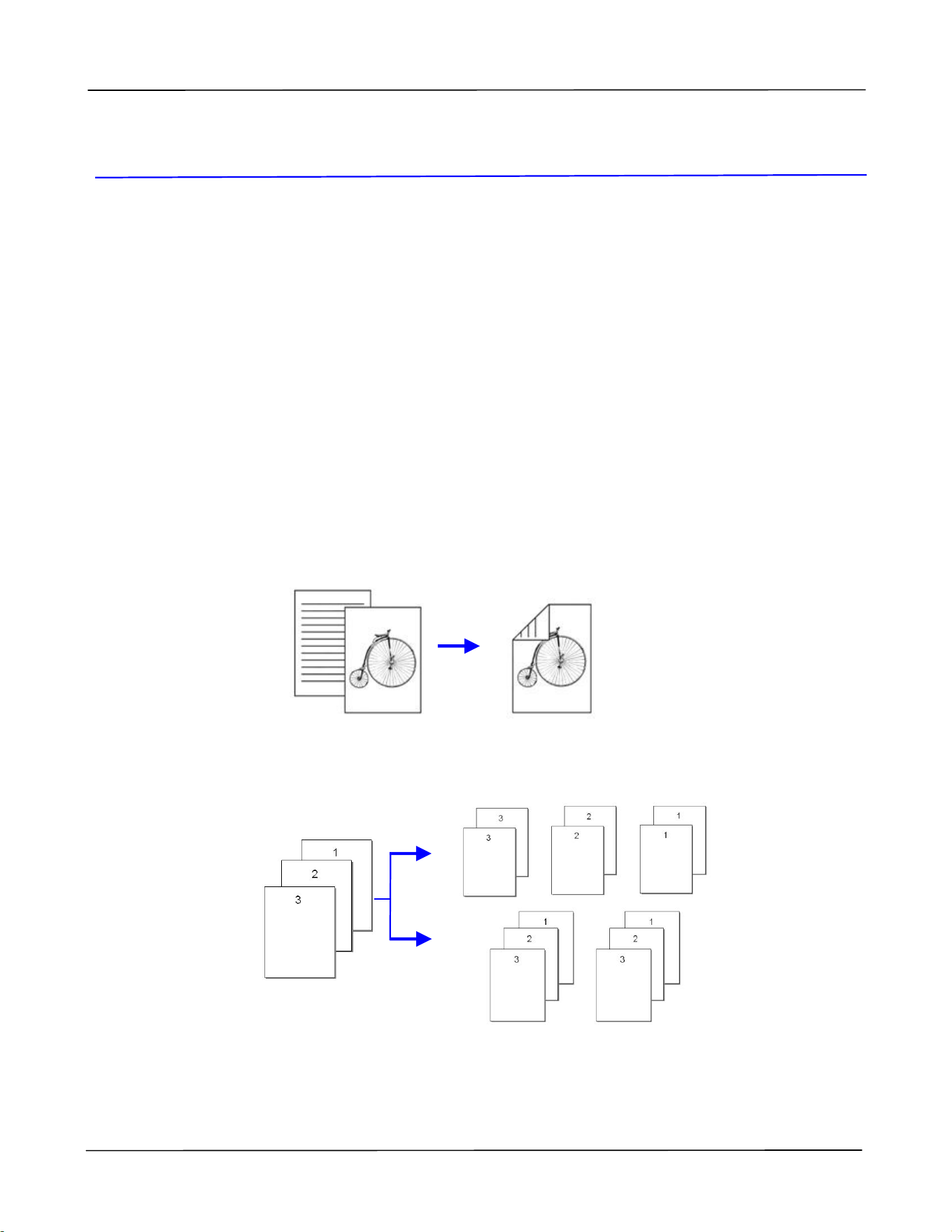
Print on Both Sides: Prints two pages (one on each side) on a single sheet of
paper.
Collate: Prints multiple copies at one time and sorts the printed pages.
2
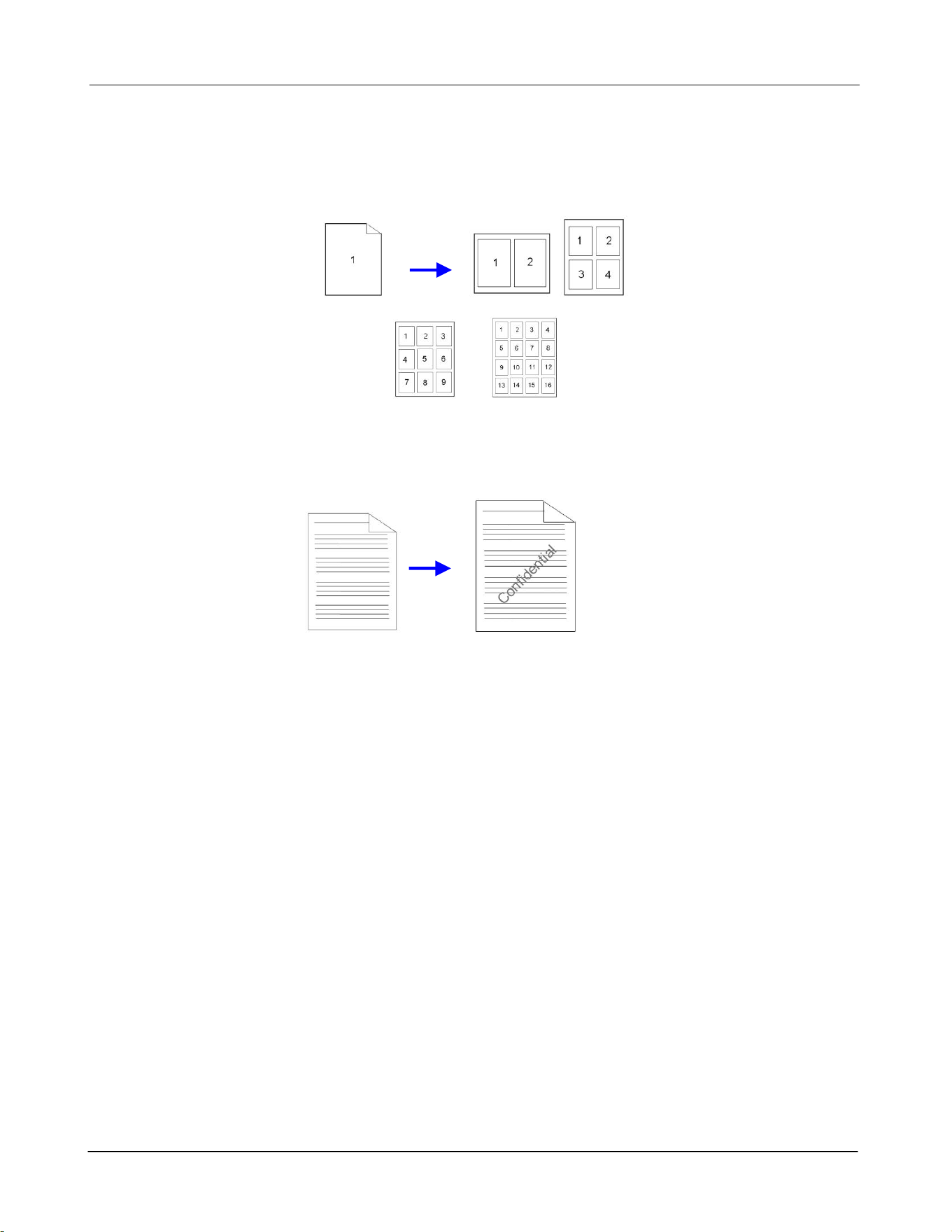
Print Multiple Pages on a Single Sheet: Prints two or four pages of the original
on a single sheet of paper. A maximum of 16 pages can be printed on a single
sheet of paper.
Print Watermark: Print text such as confidential, important content or image in
the background.
3
External View
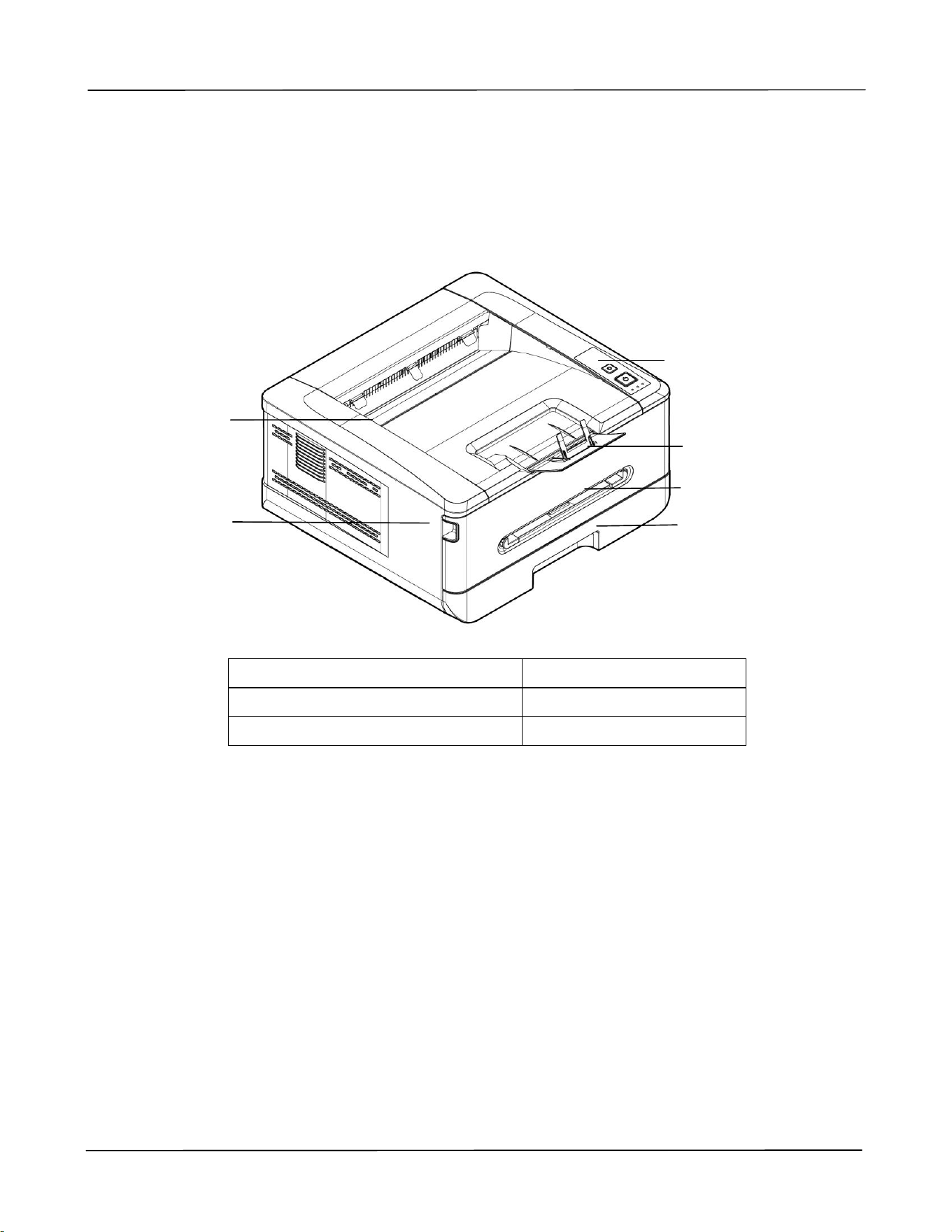
The Front View
1. Output Tray
4. Front Cover
2. Handle of the Front Cover
5. Paper Stopper
3. Main Paper Tray
6. Control Panel
6
5
1
2
4
3
4
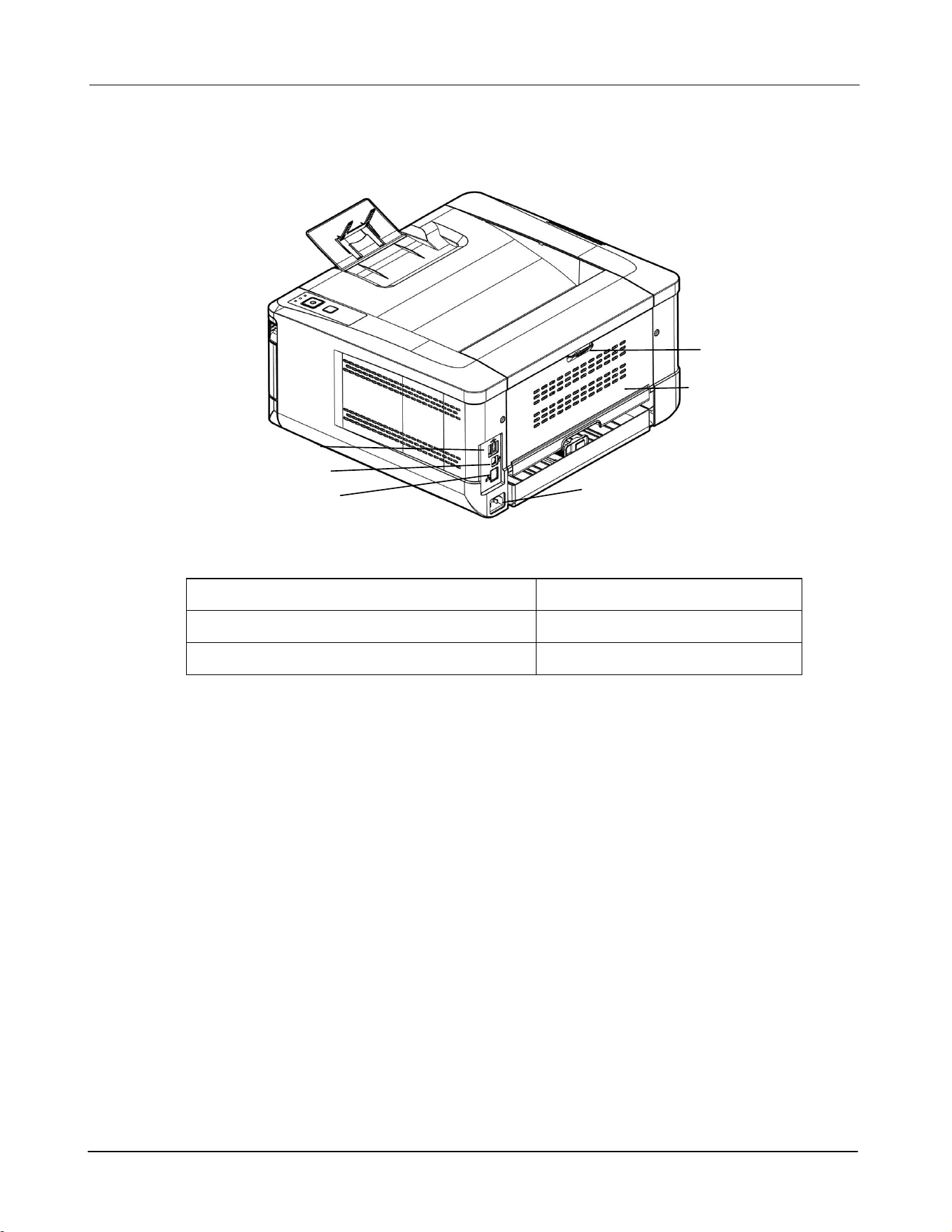
The Rear View
1. USB Port (Type B, to PC)
4. Rear cover
2. LAN Port
5. Handle of the Rear Cover
3. Power Receptacle
5
1
6
2
3
4
5
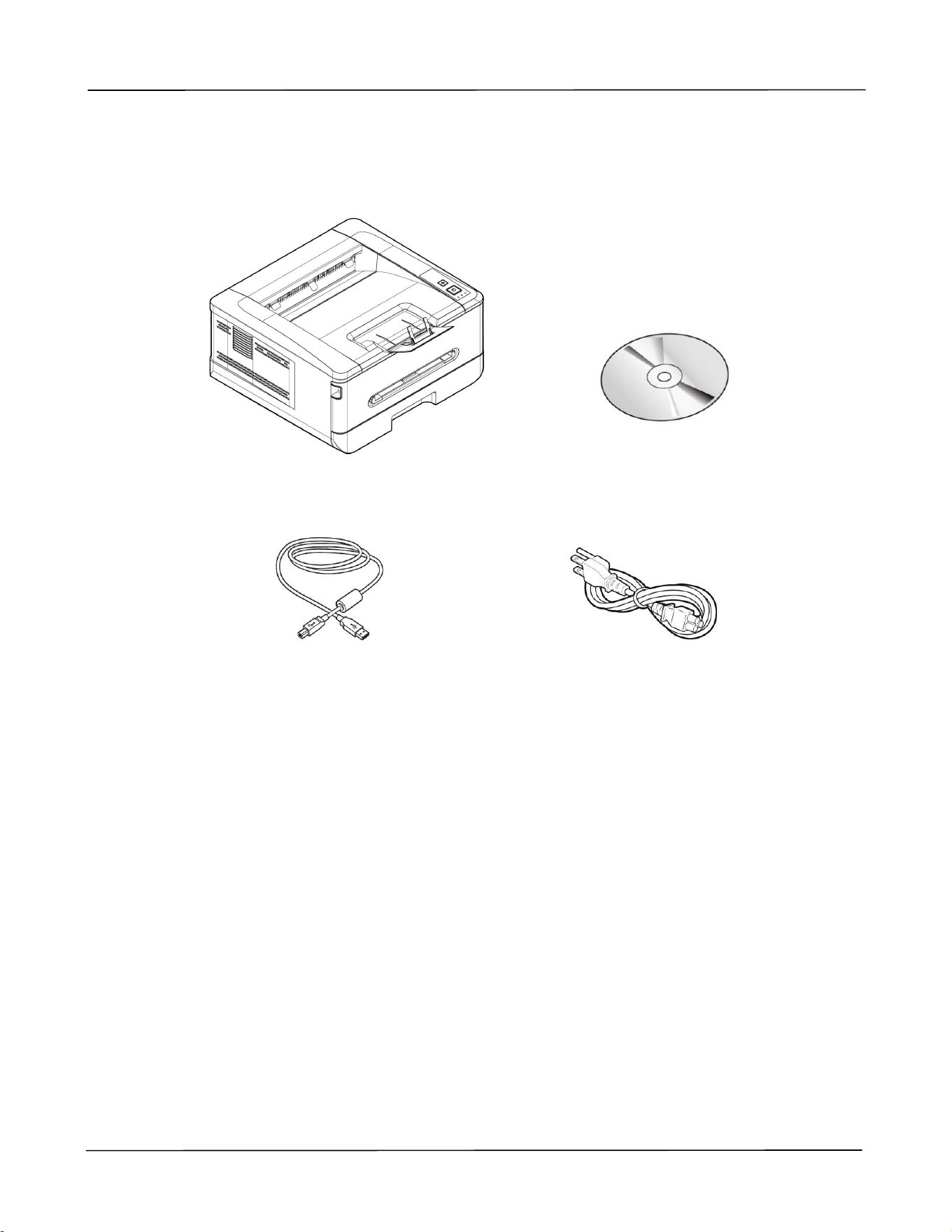
Package Contents
Main unit
Software CD (*Printer Driver,
User Manual)
USB Cable
Power Cable
* You may also download the driver and manual at www.avision.com/download.
6
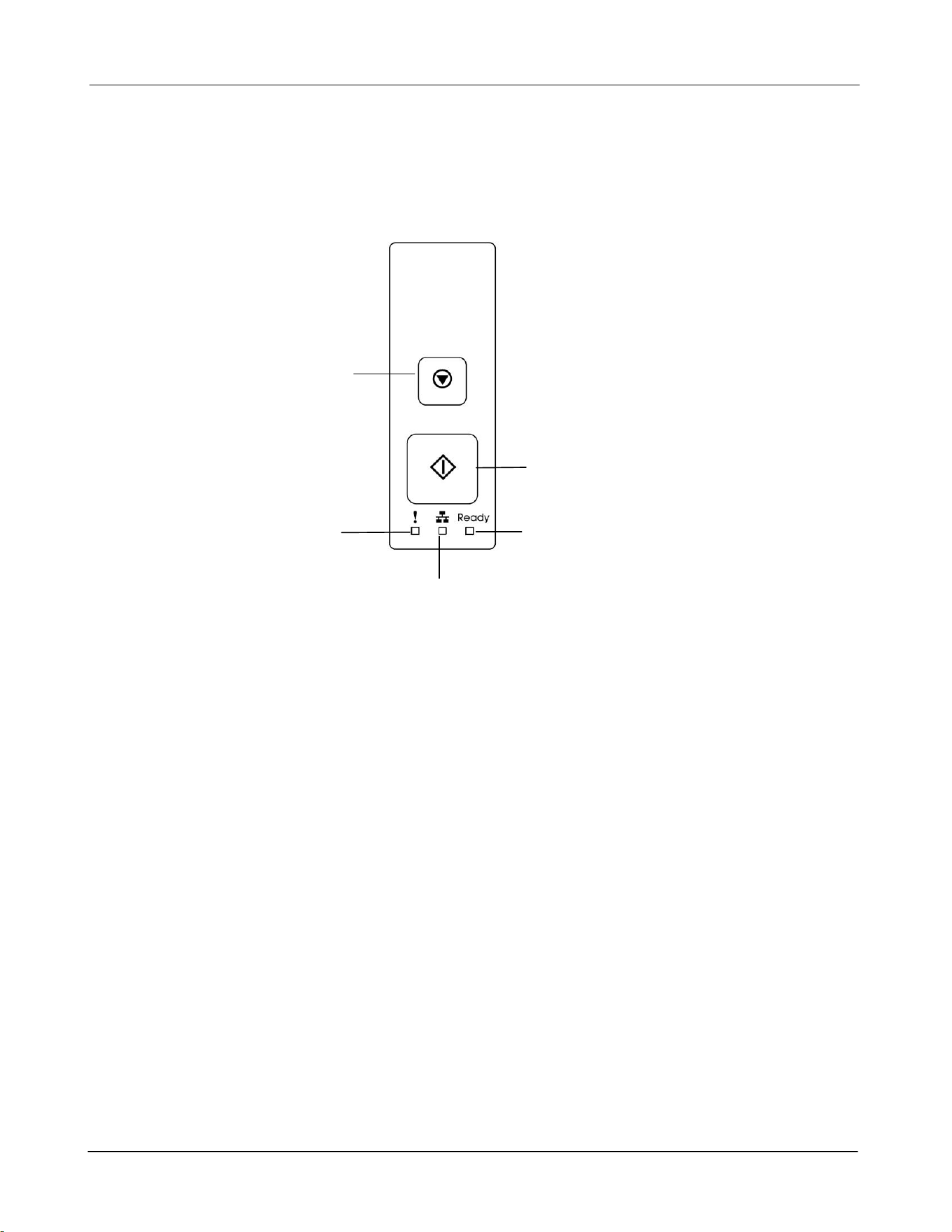
The Control Panel
取消鍵: 停止目前的列印。
Alert LED:
Turn flashing to
indicate an error.
LAN LED:
Indicate LAN connection.
Power button:
Short press to turn on the printer.
Long press to turn off the printer.
Power/Ready LED:
Turn solidly on when the printer is
turned on.
Cancel Button:
Press to cancel a
printing job.
Press 3 seconds to
Print the usage
report.
Installation
7
2. Installation
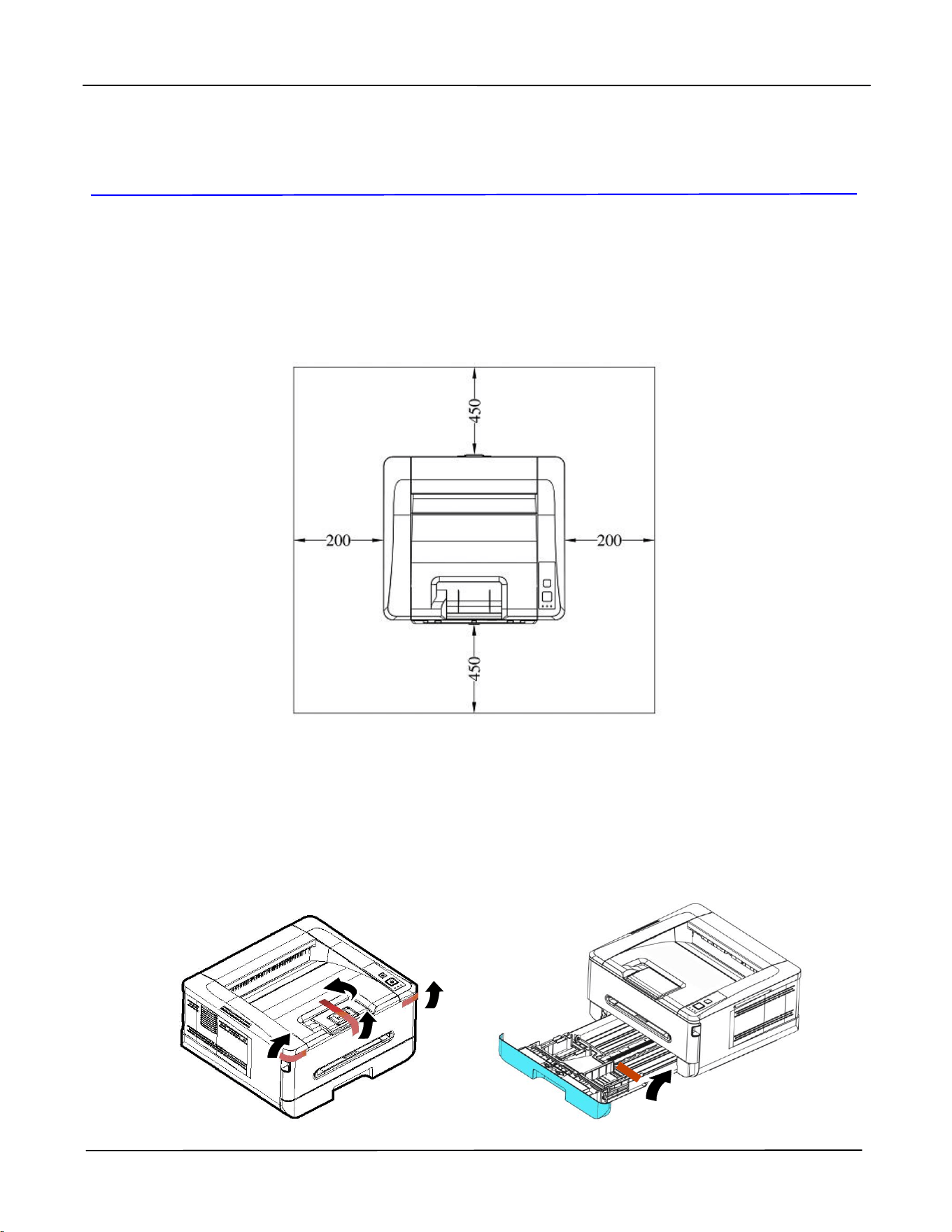
Operation Space
Please reserve the following operation space.
Machine dimension: 404 x 380 x 204 mm (WxDxH)
Removing the Tapes
Remove the packing material and tapes of the product.
单位: mm
User’s Guide
8
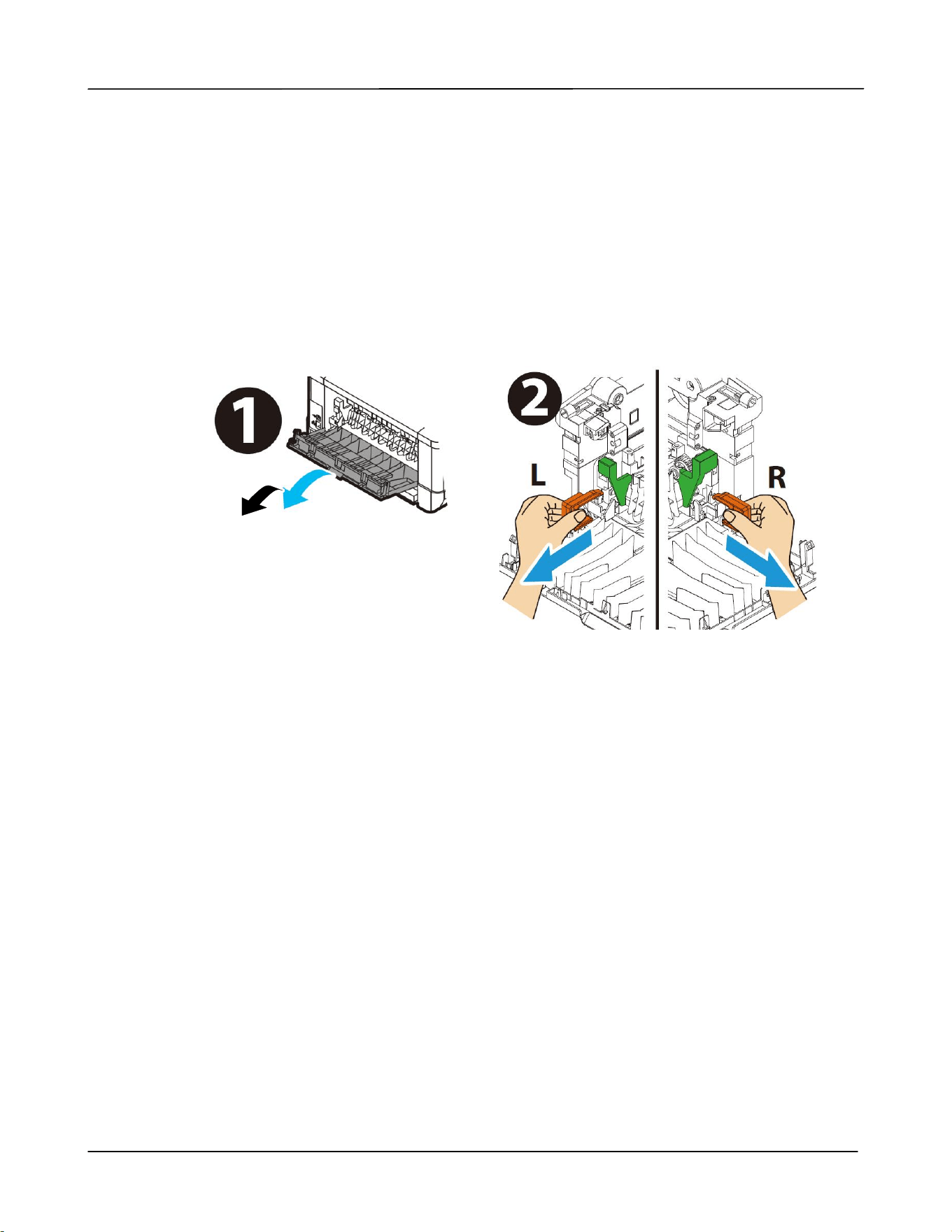
Remove the Spacers
1. Open the rear cover.
2. Remove the spacers on both sides of paper path as shown. The spacers are
designed to protect the printer during transportation.
Installation
9
Removing the Tapes, Protective Sheet, and
Seal on the Drum and Toner Cartridge
Assembly
WARNING!
Be careful not to inhale toner.
To avoid print quality problems, DO NOT touch the toner rollers.
If toner gets on your clothing or other fabric, wipe off the toner with
a dry cloth. Wash the items in cold water and dry them in the
shade.
To prevent the toner cartridge from damage, do not expose it more
than several minutes.
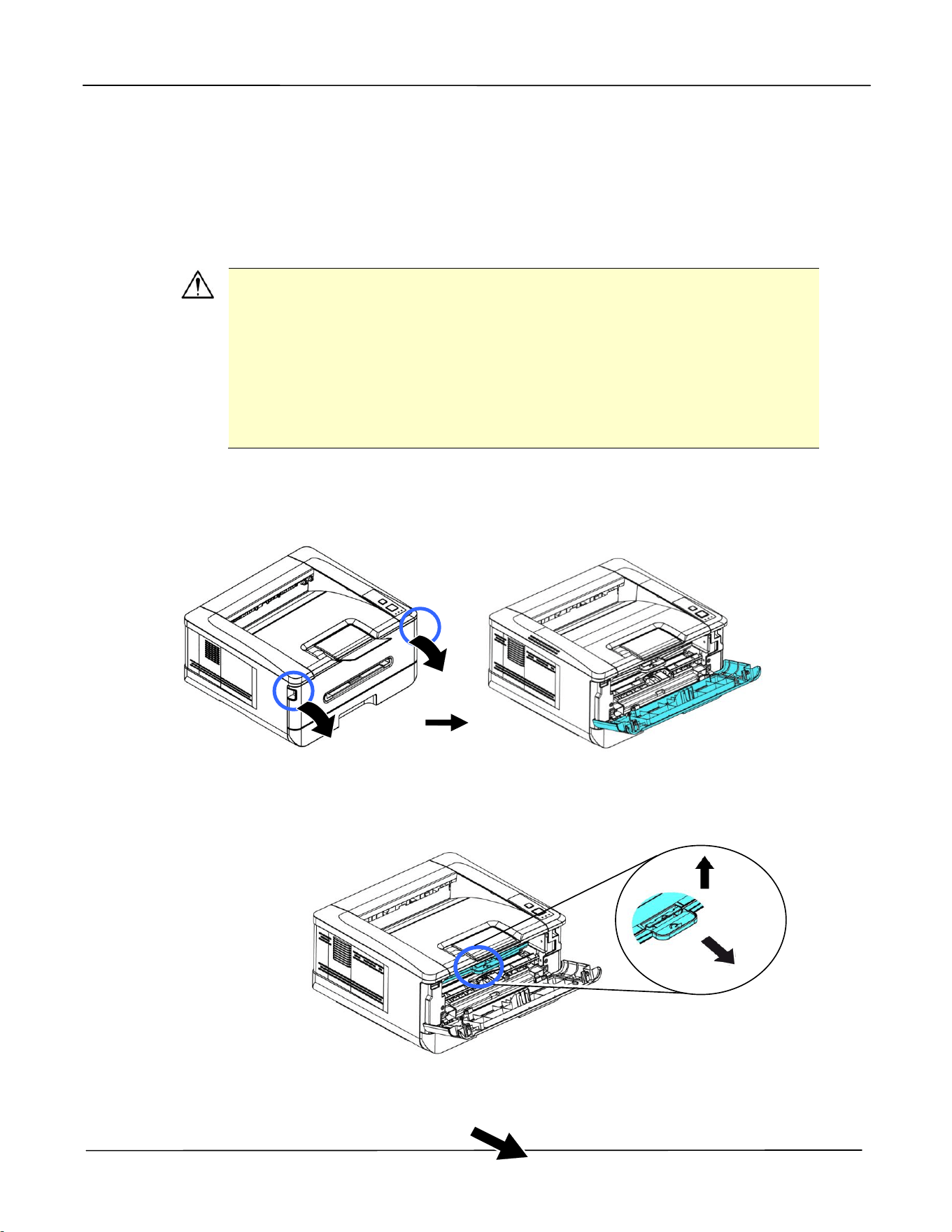
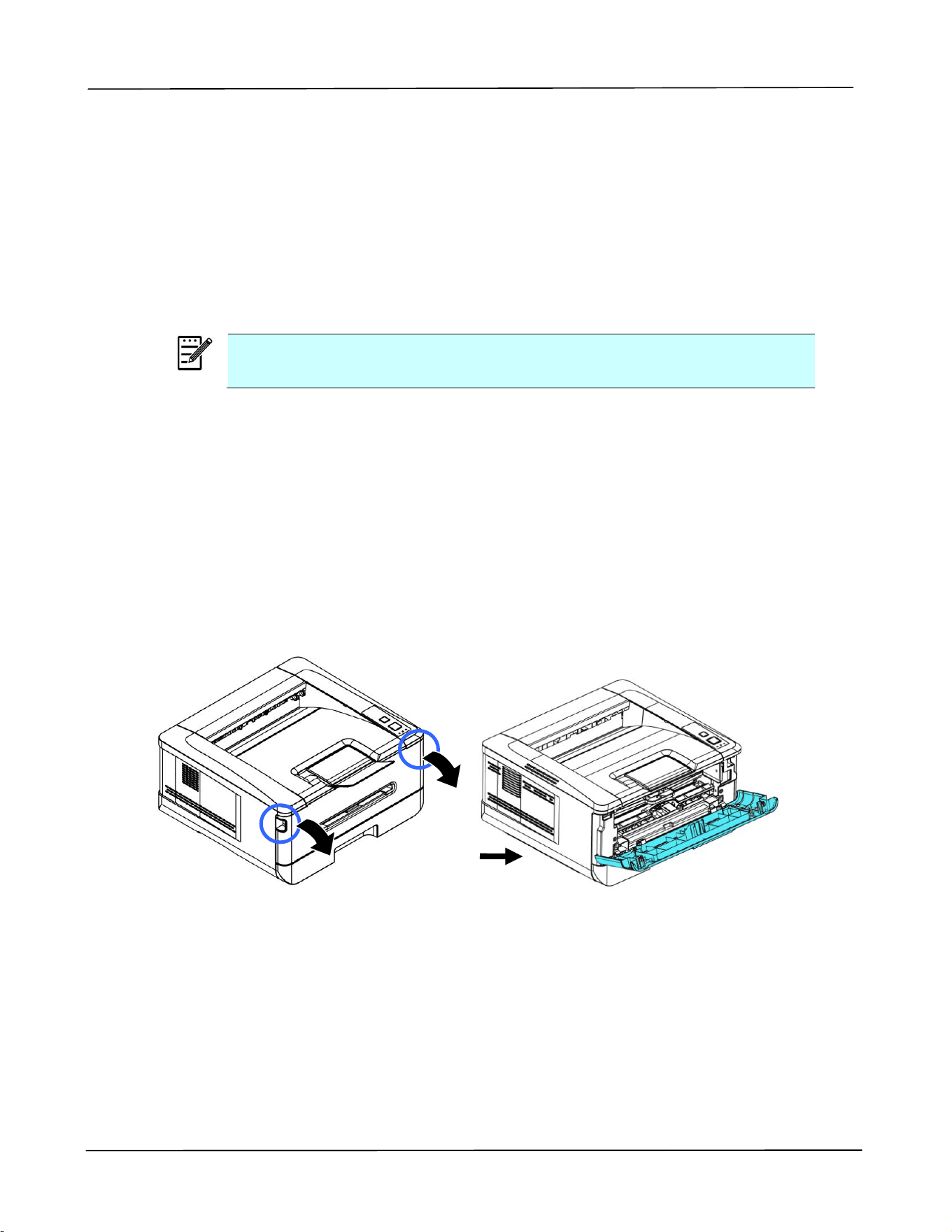
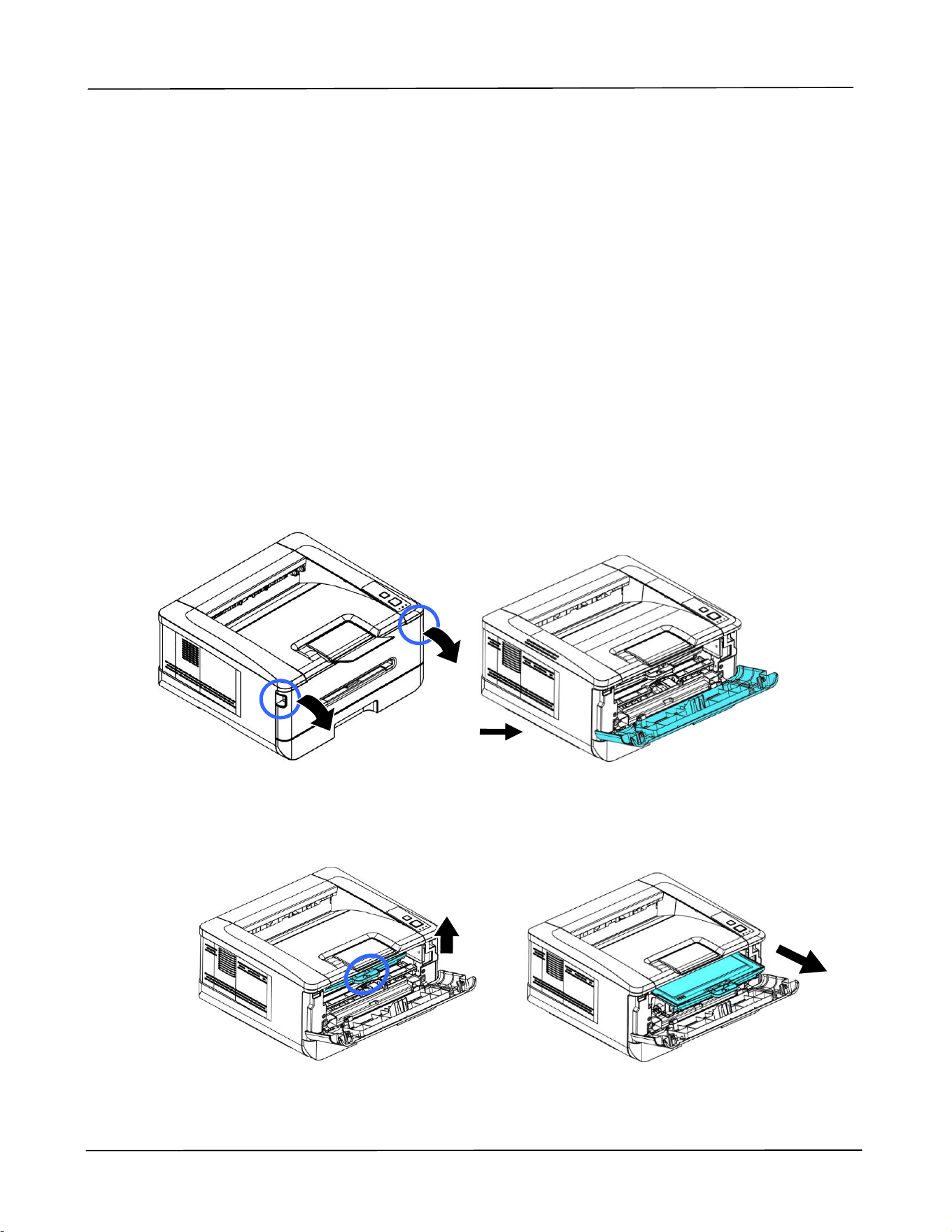
1. Open the front door by pulling the handles on both sides as shown.
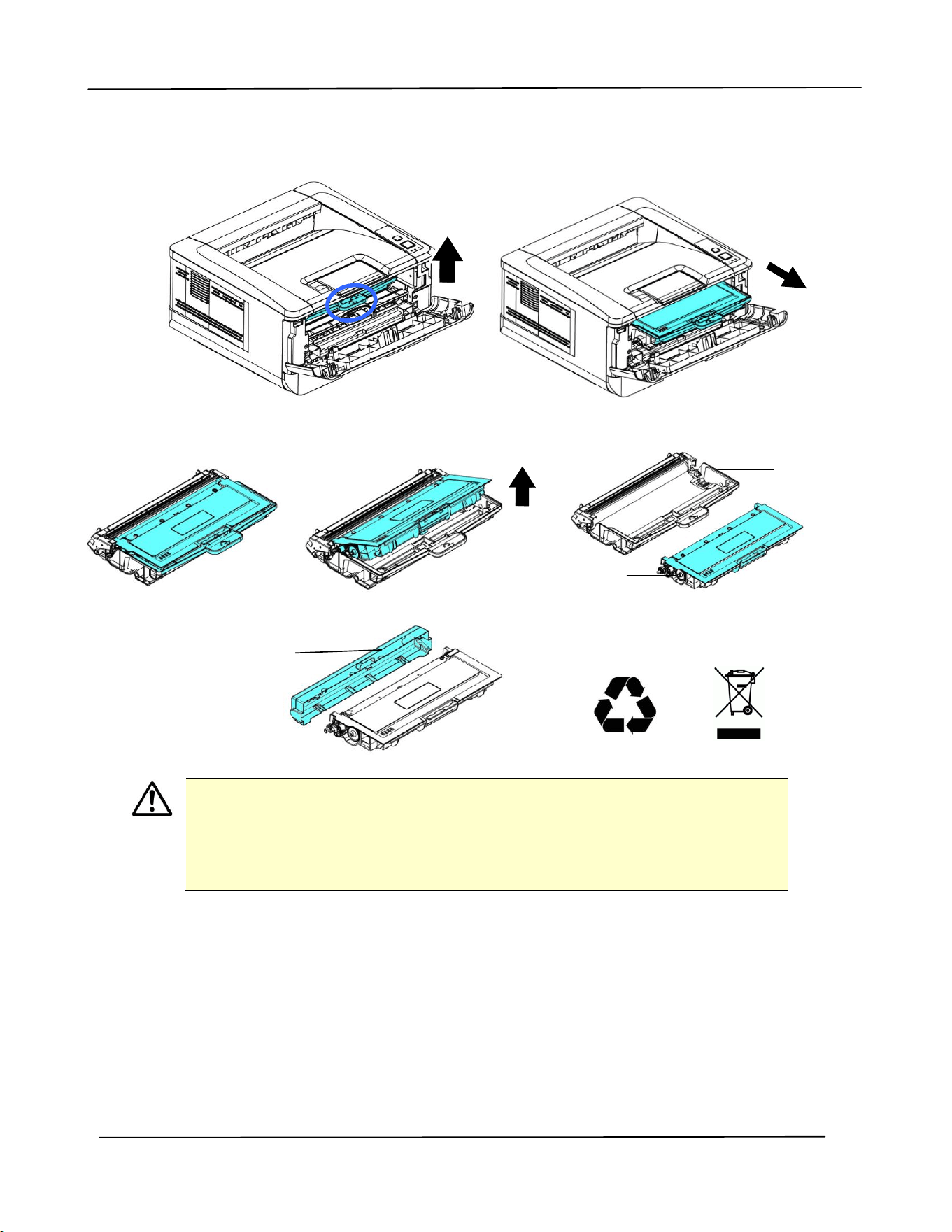
2. Lift the handle of the drum unit up and then pull it out as shown.
User’s Guide
10
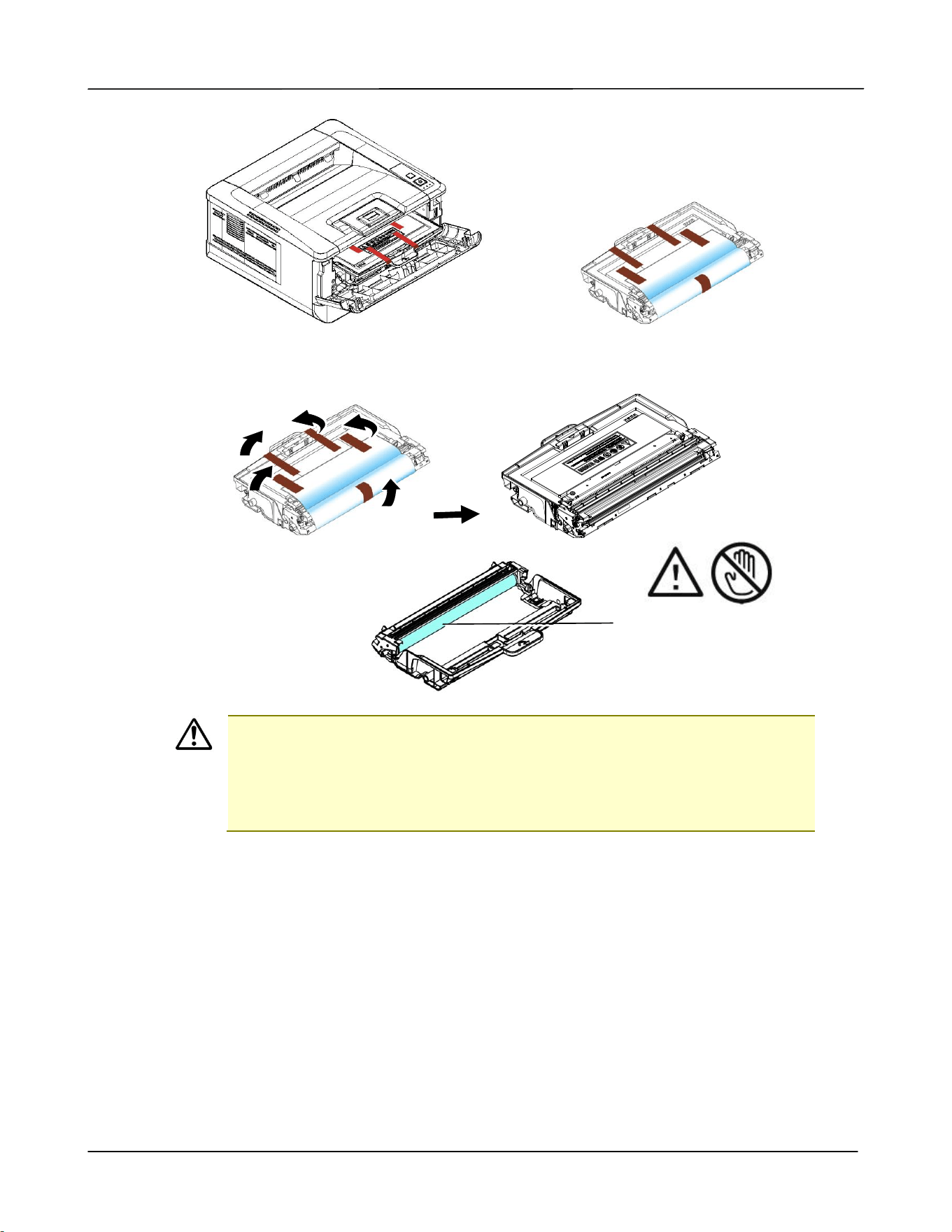
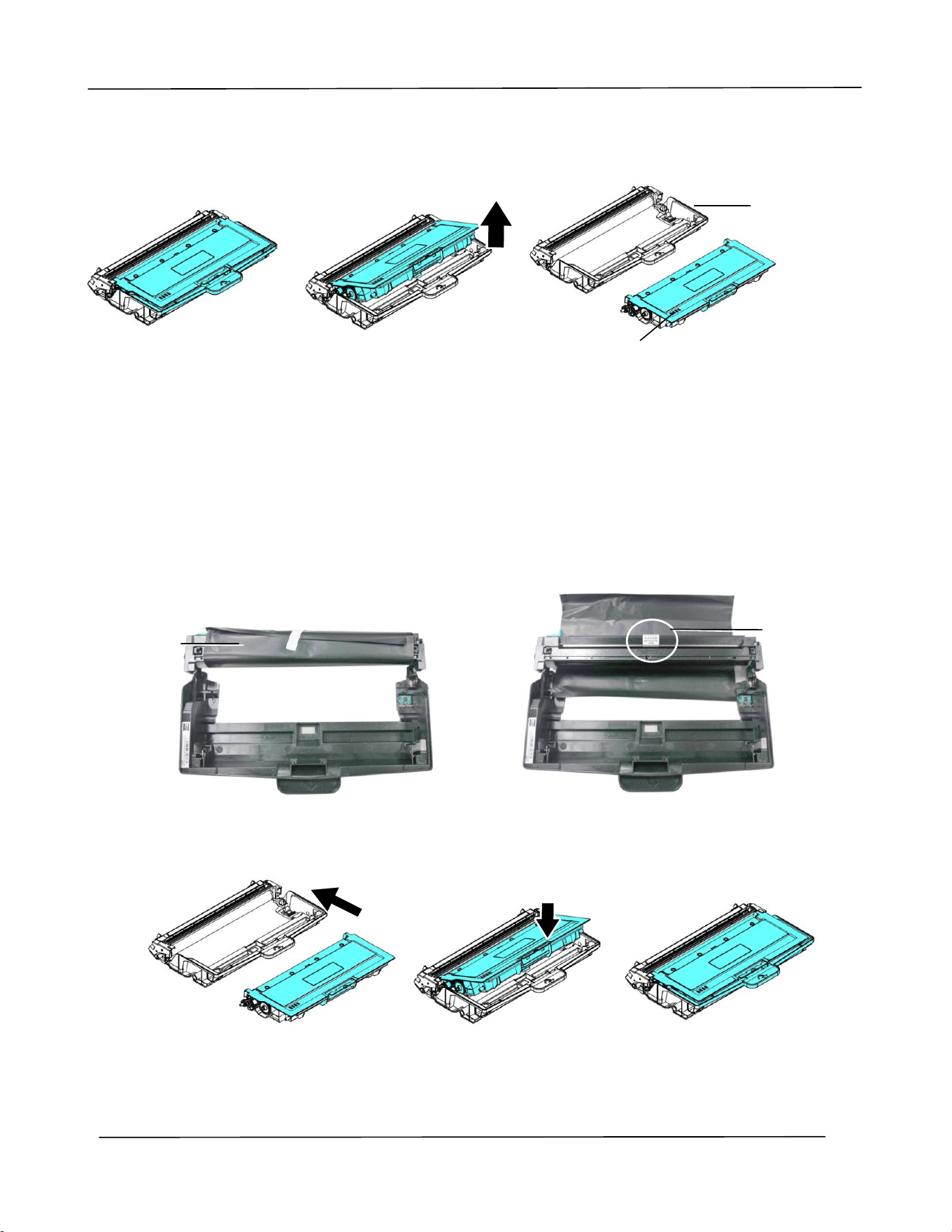
3. Remove all the tapes, protective sheets on the drum and toner cartridge assembly.
Important!
DO NOT touch the drum surface since the fingerprints or other
marks may affect the print quality.
DO NOT expose the drum unit under light for a few minutes.
Install the drum unit as soon as the package is opened.
DO NOT touch the drum
surface.
Installation
11
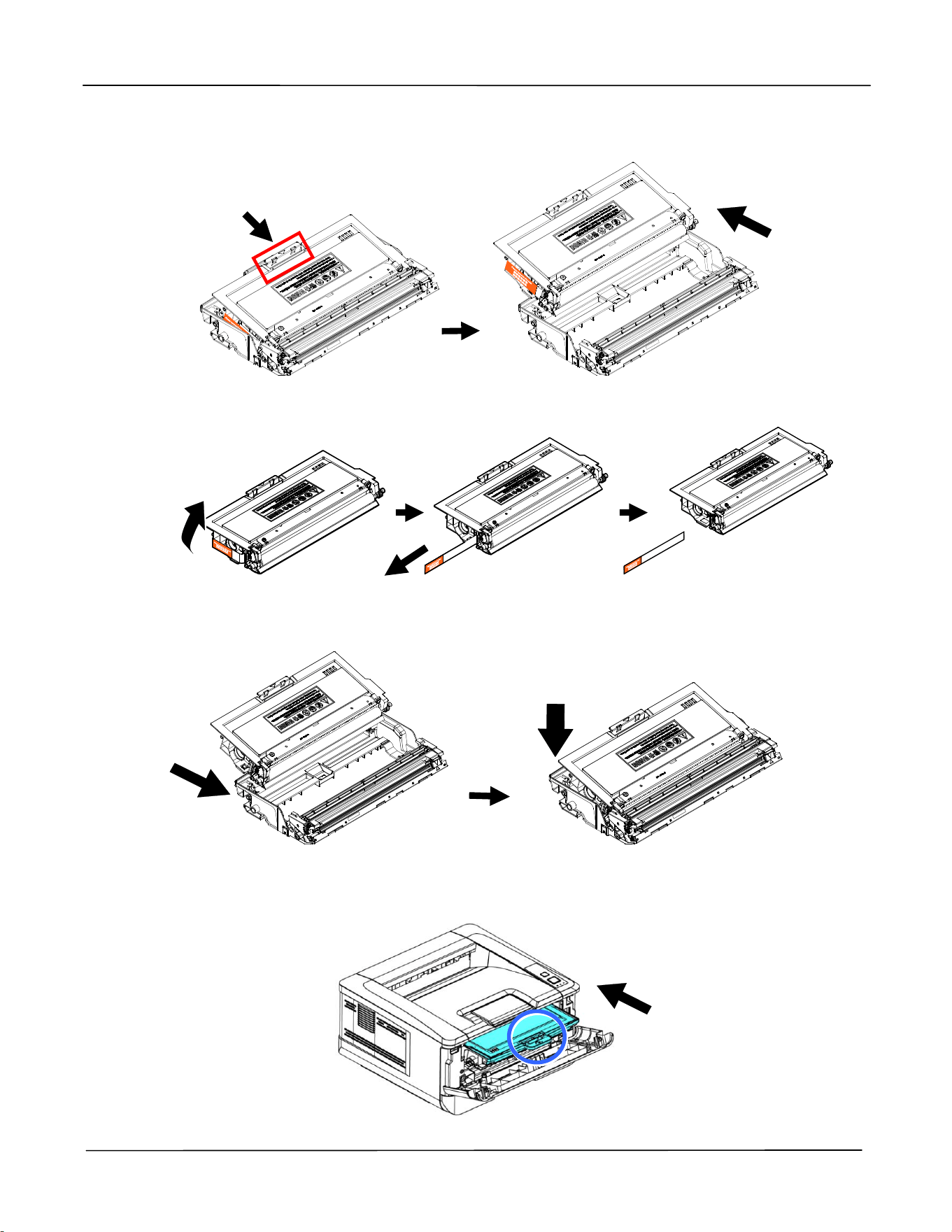
4. Push the latch in the middle of the toner cartridge forward in the direction of the
arrow to separate the toner cartridge from the drum.
5. Pull out the protective seal of the toner cartridge until it is completely removed.
6. Install the toner cartridge to the drum unit until you hear it lock into place.
7. Hold the handle of the drum and toner cartridge assembly and insert the
assembly to its original place.
User’s Guide
12
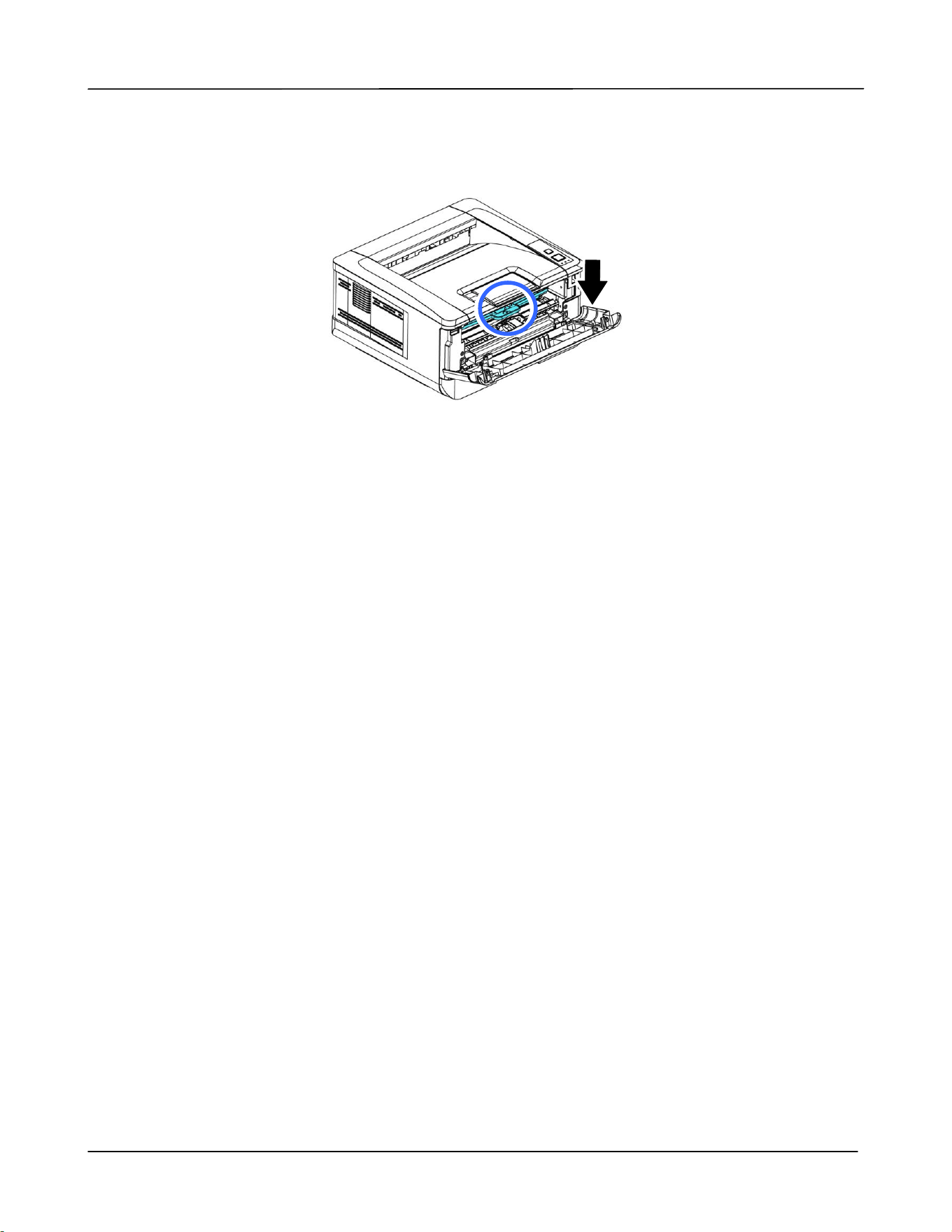
8. Press down the handle of the toner cartridge to fix the toner cartridge.
9. Close the front cover.
Installation
13
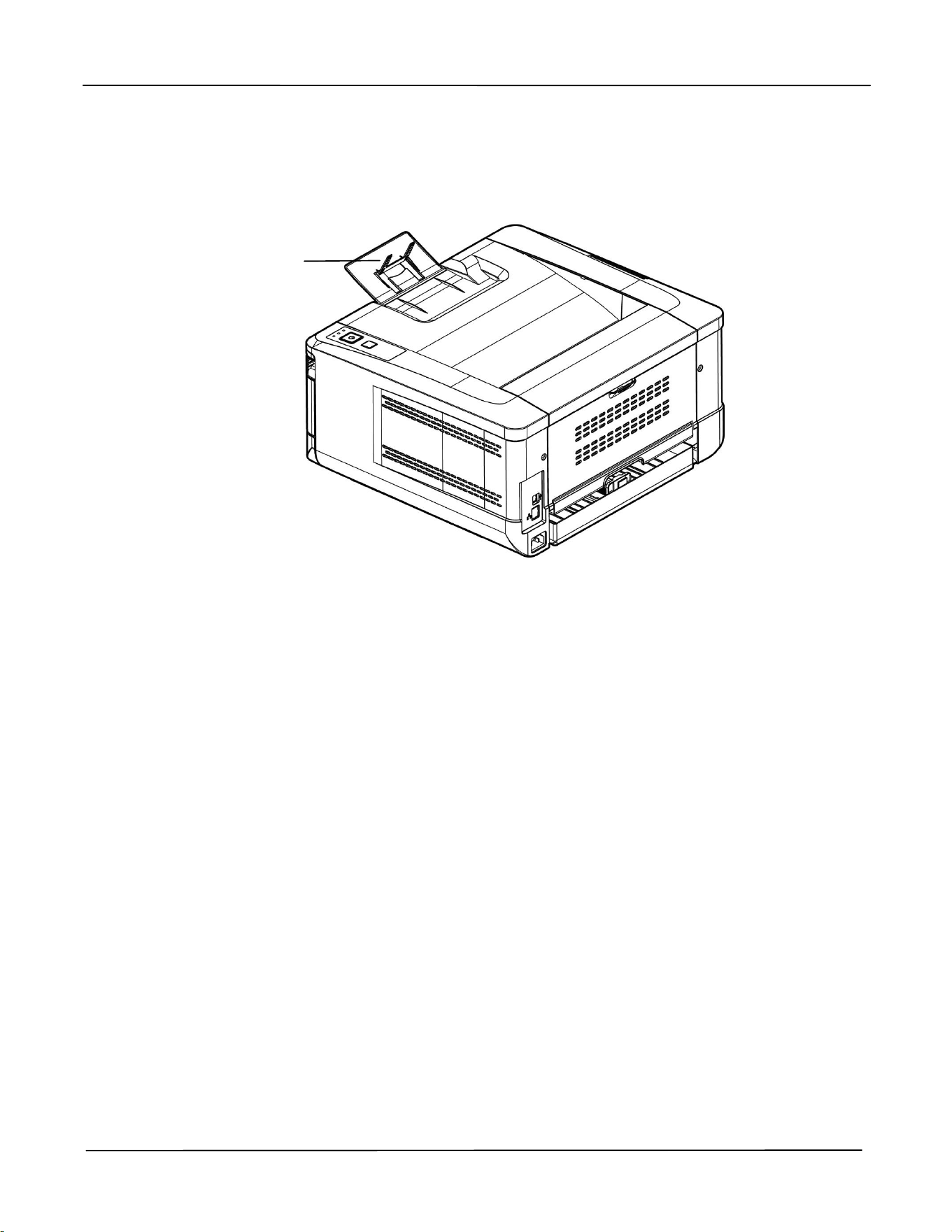
Lifting Up the Paper Stopper
Gently lift the paper stopper and its extension to collect the paper.
Paper Stopper
User’s Guide
14
Loading Paper into The Main Tray
To insert paper to the main paper tray,
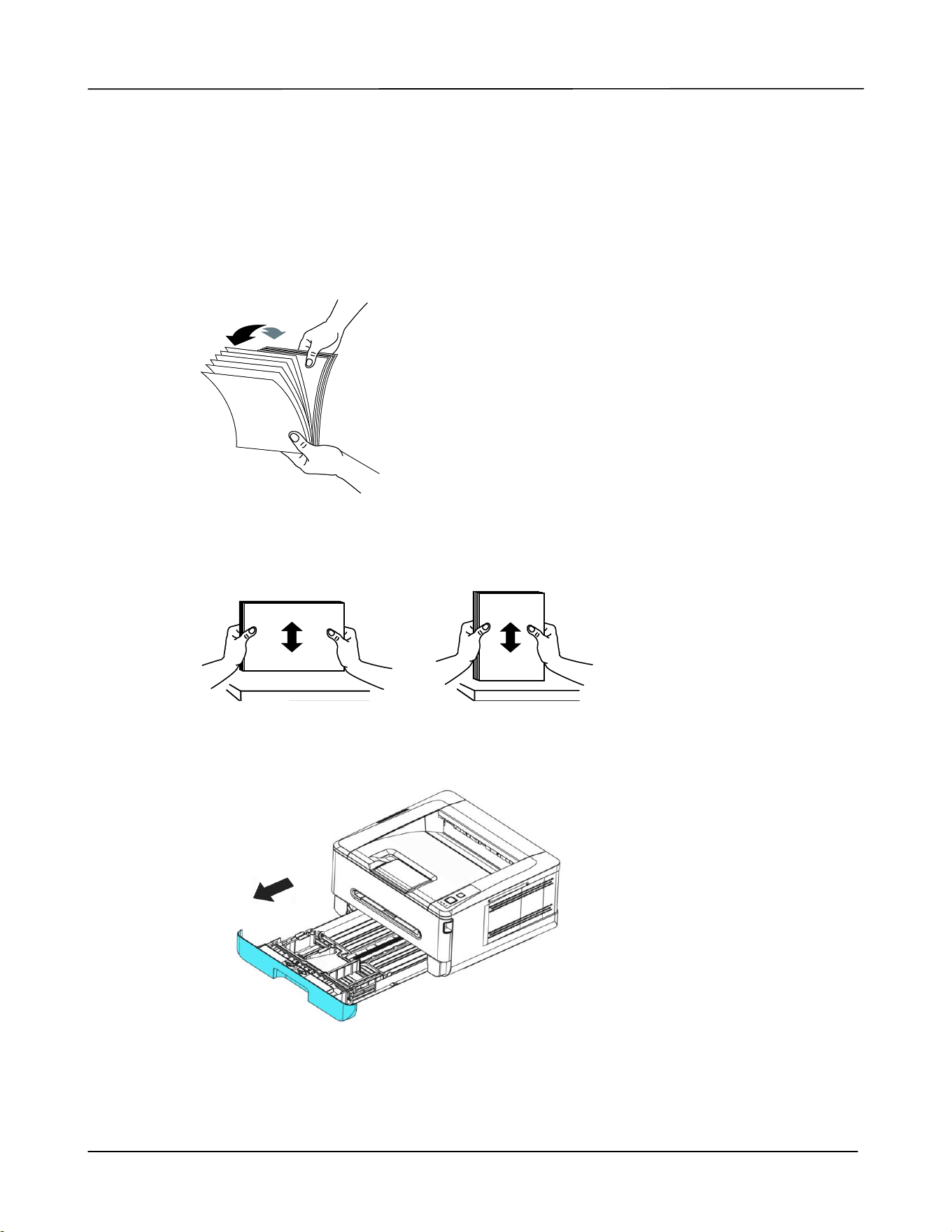
1. Fan your paper first to ensure that the pages do not stick together.
2. Align the edges of the documents by tapping the bottom of the stack against the
table top. Rotate the stack 90 degrees and repeat.
3. Lift the handle of the main paper tray and then pull out the main tray.
Installation
15
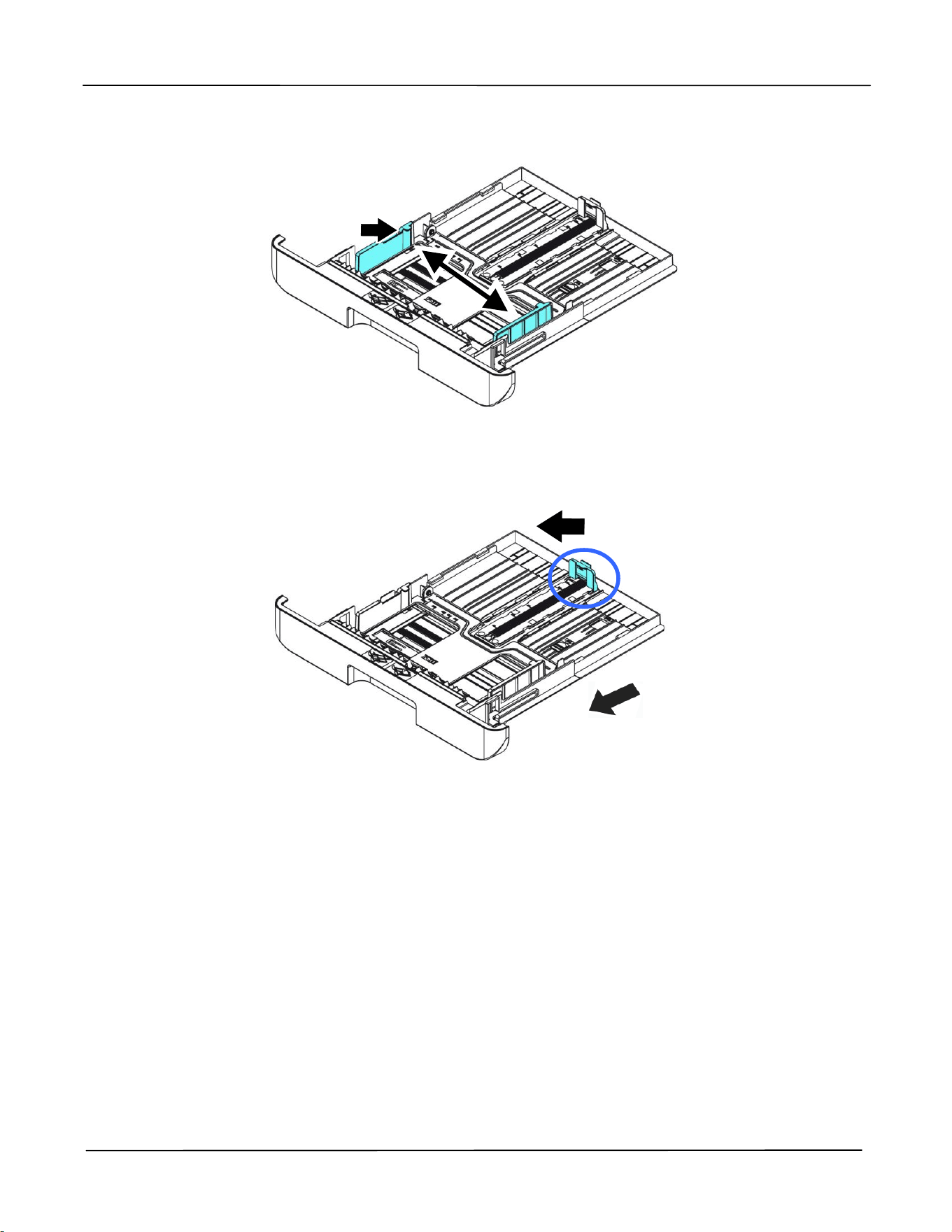
4. Push the width guide tab (), and move the width guide ()to the correct position
for the paper size being loaded.
5. Push the length guide (), and slide the guide () to the correct position for the
paper size being loaded.
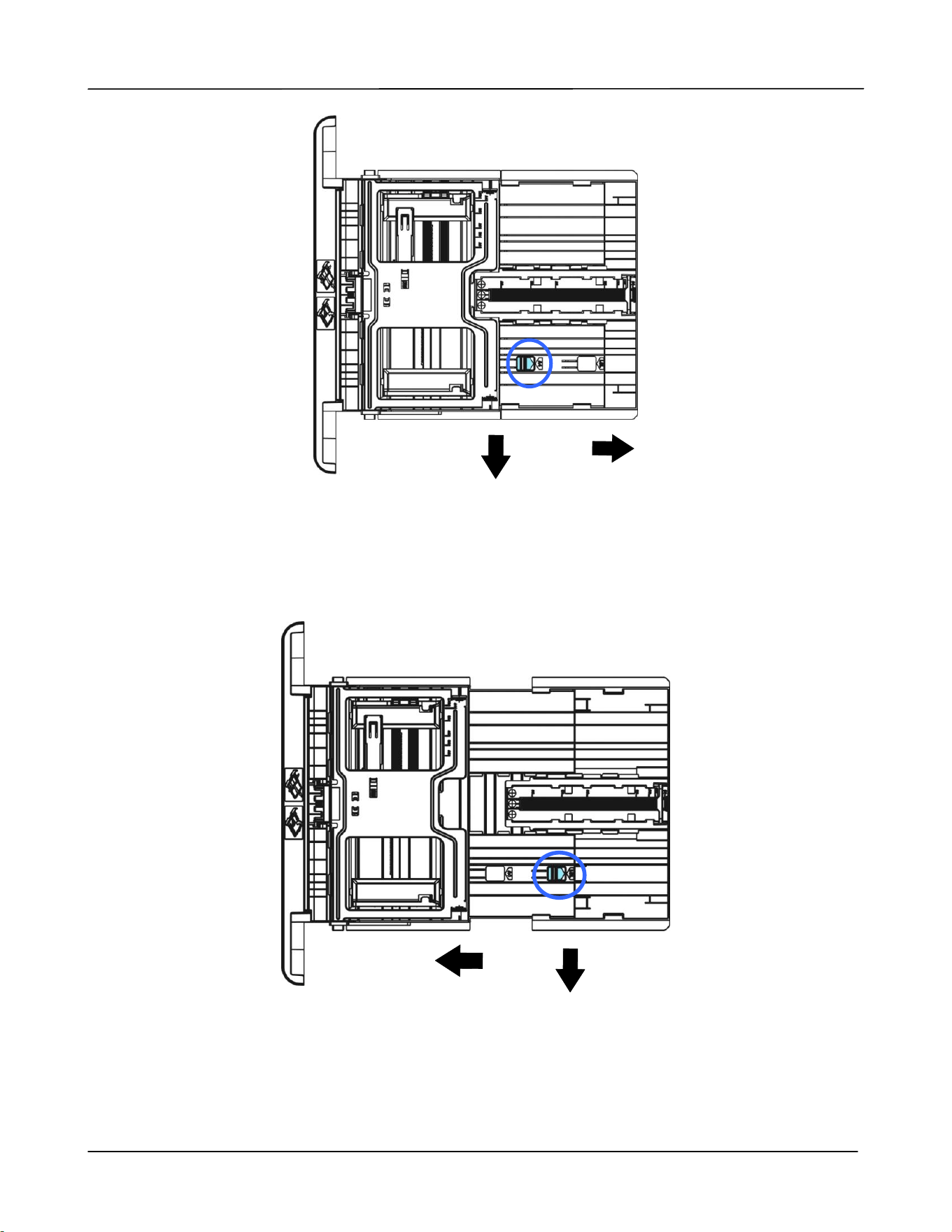
6. If you want to load a sheet of paper larger than the length of A4, press down the first
length adjustment latch (), and at the same time slide the manual tray to the right
() until it reaches the paper size you want.
User’s Guide
16
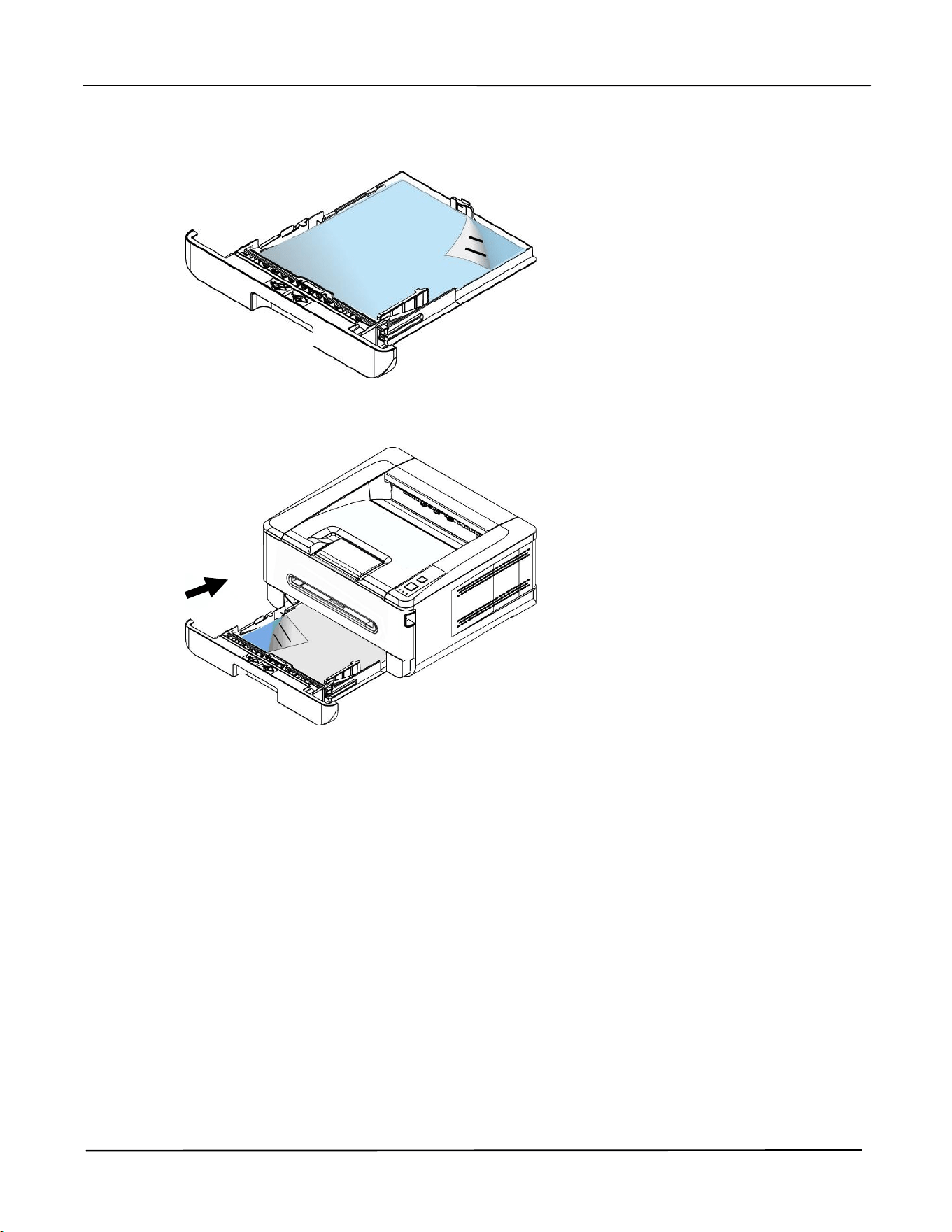
To move the tray back to the original A4 length, press down the second length
adjustment latch (), and at the same time slide the manual tray to the left
().
Installation
17
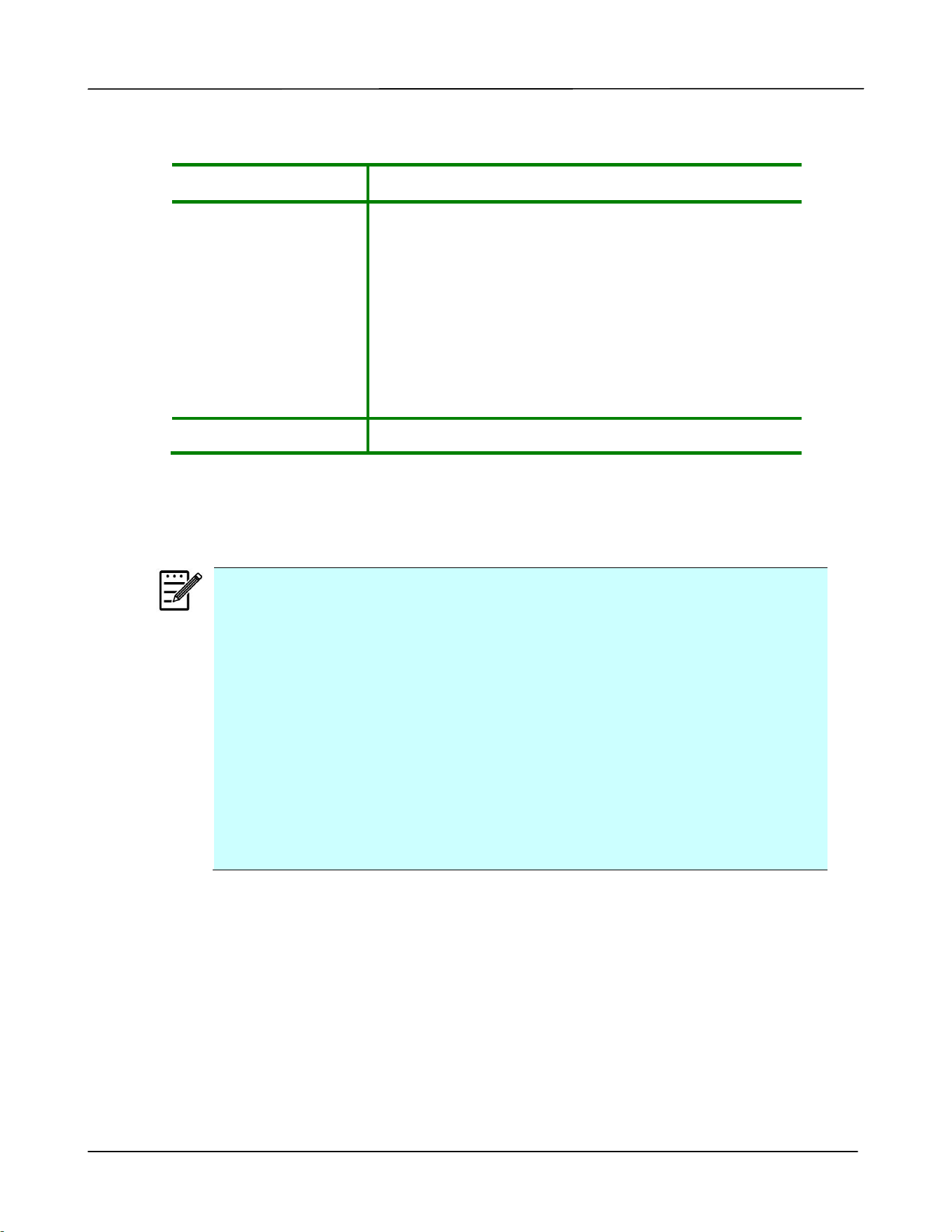
7. Load the paper stack with the Printing Side Facing Down as illustrated.
8. Insert the tray to the printer.
User’s Guide
18
Paper sizes and weights used for Main paper tray
Paper capacity
250 pages(70 g/m² plain paper)
Paper size
A4 (210 x 297 mm)
A6 (105 x 148 mm)
B6 (JIS) (125 x 176 mm)
B5 (JIS) (176 x 250 mm)
Letter (216 x 279 mm)
Legal (216 x 356 mm)
76 x 152 mm
Paper weight
60 ~ 120 g/m²
* Duplex printing is available only for paper in A4, B5 (JIS), Letter size.
Note:
To ensure the best quality printing and copying, please use the paper or
media which we have recommended.
Make sure to fan your paper before loading it to the paper tray.
If there are instructions about the printing side on the package of your
paper, please follow the instructions to load your paper properly with
the correct printing side to the paper tray.
If the printing quality is not satisfactory or paper jams are easily to
occur, turn over the paper stack so that the top page is now on bottom
and then reload it to the paper tray.
Pack and seal the remaining paper with the original packaging and store
the paper in a dark and dry location away from the sunshine. Paper
which collects much moisture is easy to cause jam during printing.
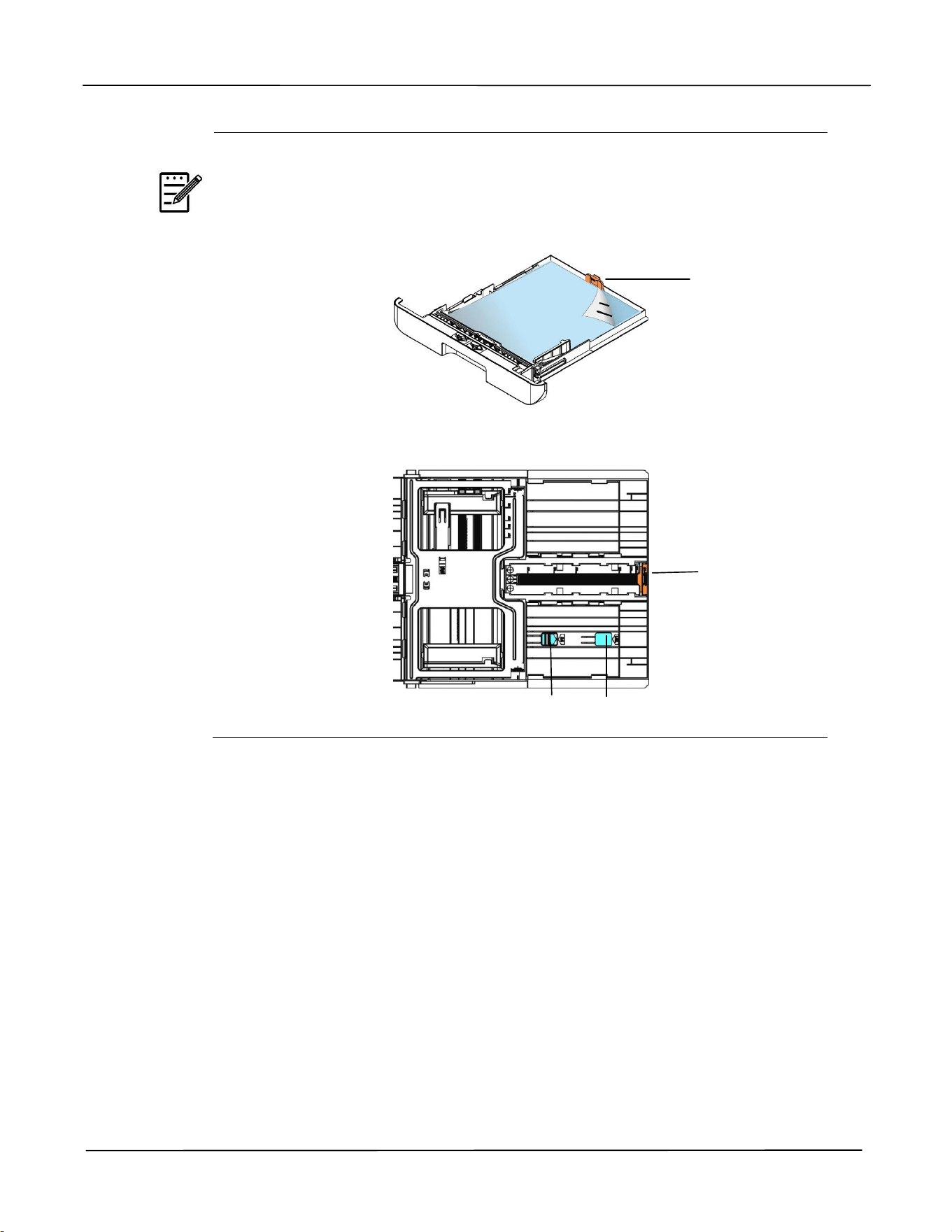
Installation
19
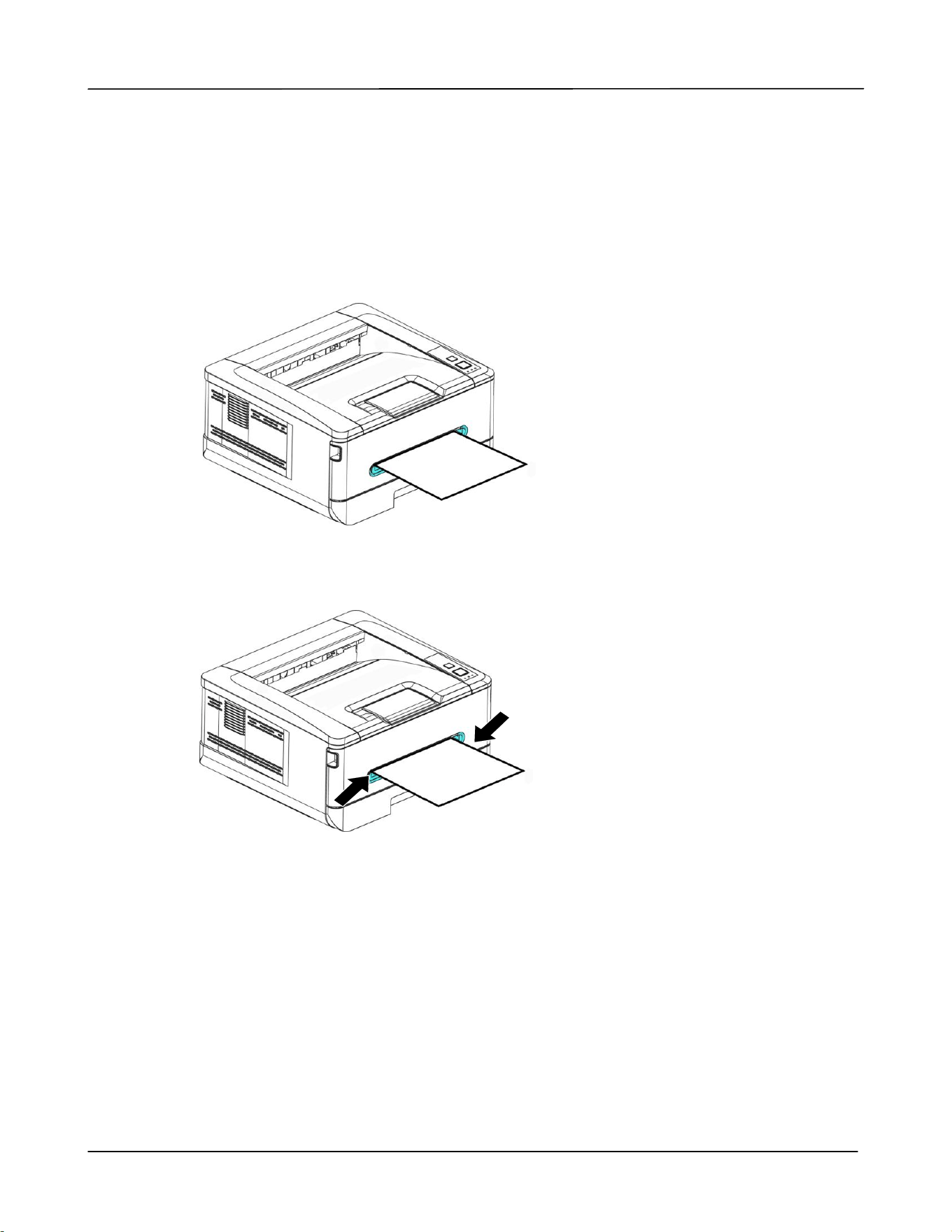
Important:
To avoid the chance of miss-fed, make sure the length guide tab and
length slider are installed in their proper positions.
Make sure the end of your paper slightly touch the length guide as
indicated in below.
Make sure the length slider is installed in the specified location in either
position A or B as shown in below.
Length
Guide Tab
Length
Guide Tab
Position A Position B
User’s Guide
20
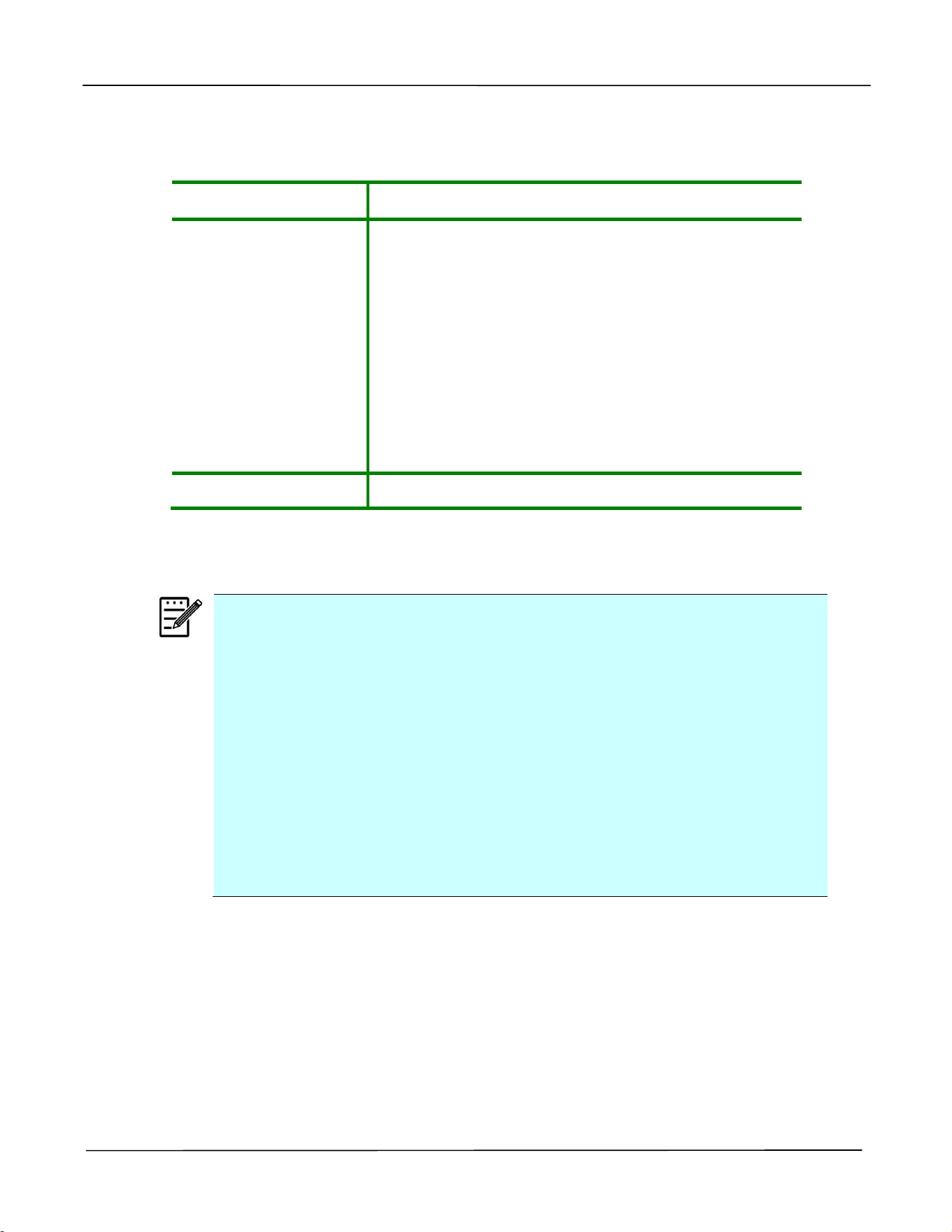
Loading the Manual Tray
To insert paper to the manual tray,
1. Insert the paper with the printing side facing up.
2. Slide the paper guides so that they lightly touch the paper.
Installation
21
Paper size and weights used for Manual Tray
Paper capacity
1 page(70 g/m² plain paper)
Paper size
A4 (210 x 297 mm)
A6 (105 x 148 mm)
A5 (148 x 210 mm)
B6 (JIS) (125 x 176 mm)
B5 (JIS) (176 x 250 mm)
Letter (216 x 279 mm)
Legal (216 x 356 mm)
Custom Size: 76 x 127 mm ~ 216 x 356 mm
Paper weight
60 ~ 200 g/m²
* Duplex printing is available only for paper in A4, B5 (JIS), Letter size.
Note:
To ensure the best quality printing and copying, please use the paper or
media which we have recommended.
Make sure to fan your paper before loading it to the paper tray.
If there are instructions about the printing side on the package of your
paper, please follow the instructions to load your paper properly with
the correct printing side to the paper tray.
If the printing quality is not satisfactory or paper jams are easily to
occur, turn over the paper stack so that the top page is now on bottom
and then reload it to the paper tray.
Pack and seal the remaining paper with the original packaging and store
the paper in a dark and dry location away from the sunshine. Paper
which collects much moisture is easy to cause jam during printing.
User’s Guide
22
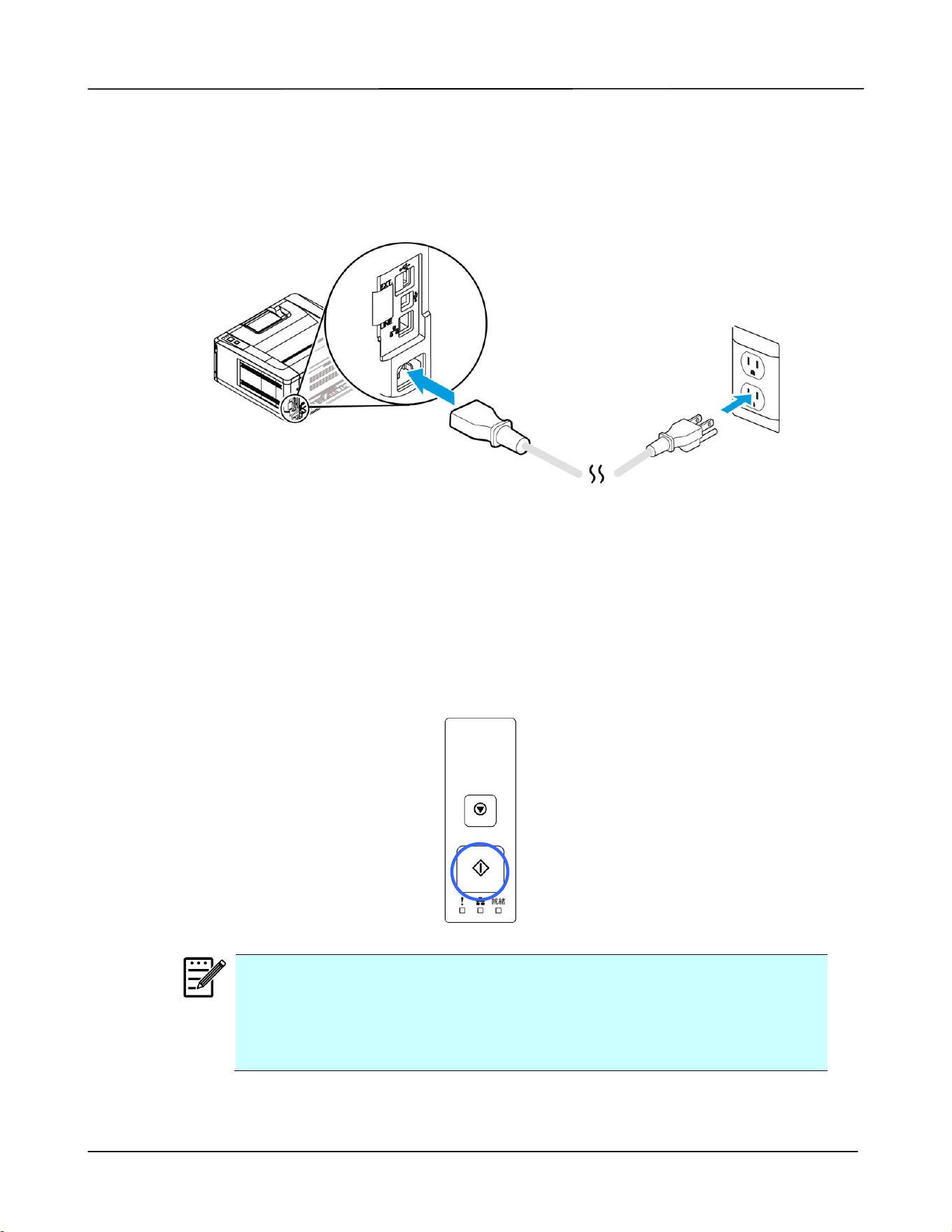
Connecting to Power
1. Connect the of the power cable to the power jack of your product.
2. Connect the other end to an appropriate power outlet.
Turning On The Printer
To turn on the PRINTER, press the power button located on the control panel. Ready
LED will be lit.
Note:
When the product is not in use, please long press the power button for 5
seconds until the Ready LED is turned off to get a zero power
consumption state.
Installation
23
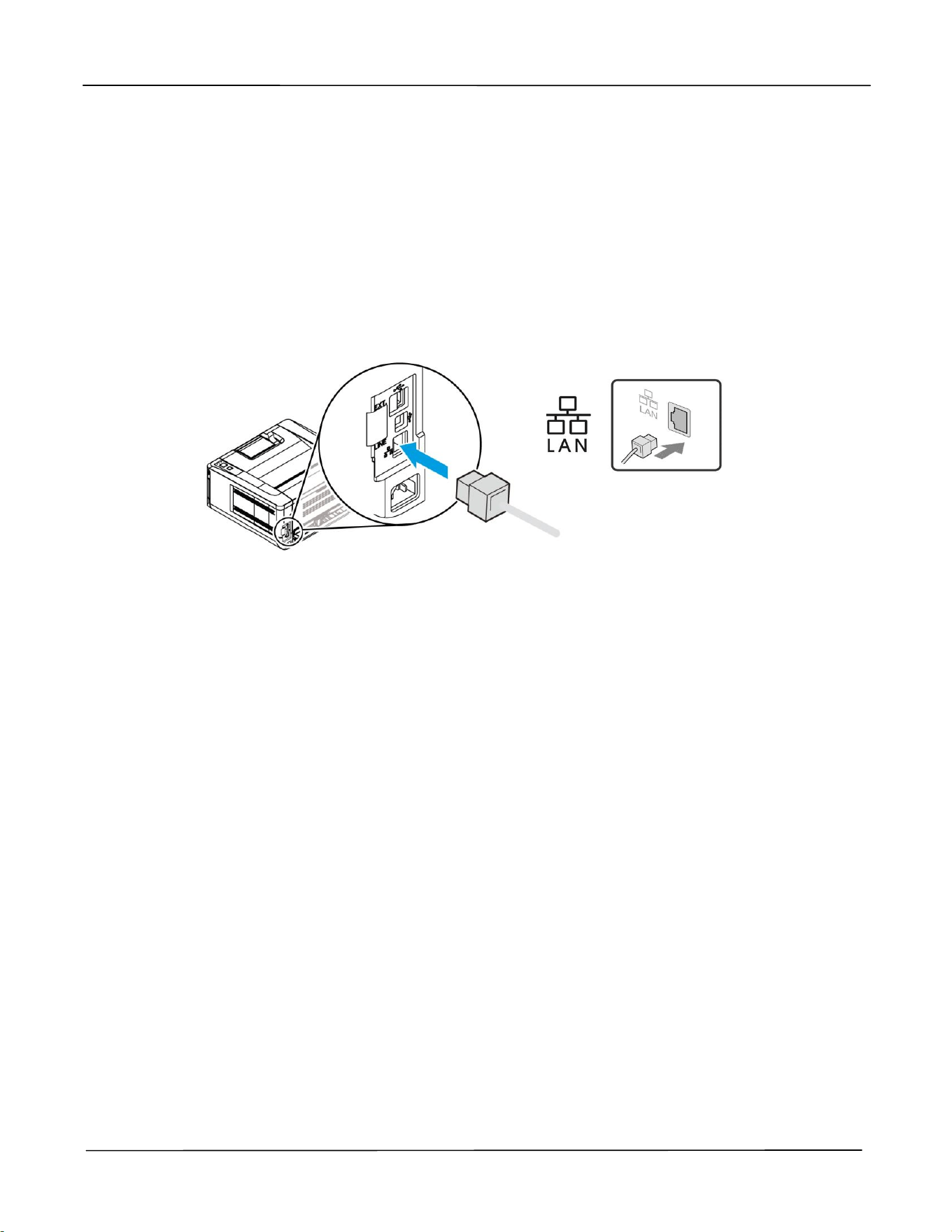
Connecting to the Network
Connect the PRINTER to the network to use the network printing function.
1. Connect one end of your network cable to an available port of your Ethernet Hub.
2. Connect the other end to the LAN port at the back of the product as shown.
User’s Guide
24
Installing the Driver (Windows)
System Requirement
Windows 7, Windows 8, Windows 10, Windows 11
For USB Interface Users
Please follow these steps to install the PRINTER driver if this machine is connected to
your computer via a USB cable. *You may also download the driver and manual at
www.avision.com/download.
Important!
DO NOT connect the USB cable before installing the PRINTER’s driver.
You may also download the driver and manual at our web site
www.avision.com/download.
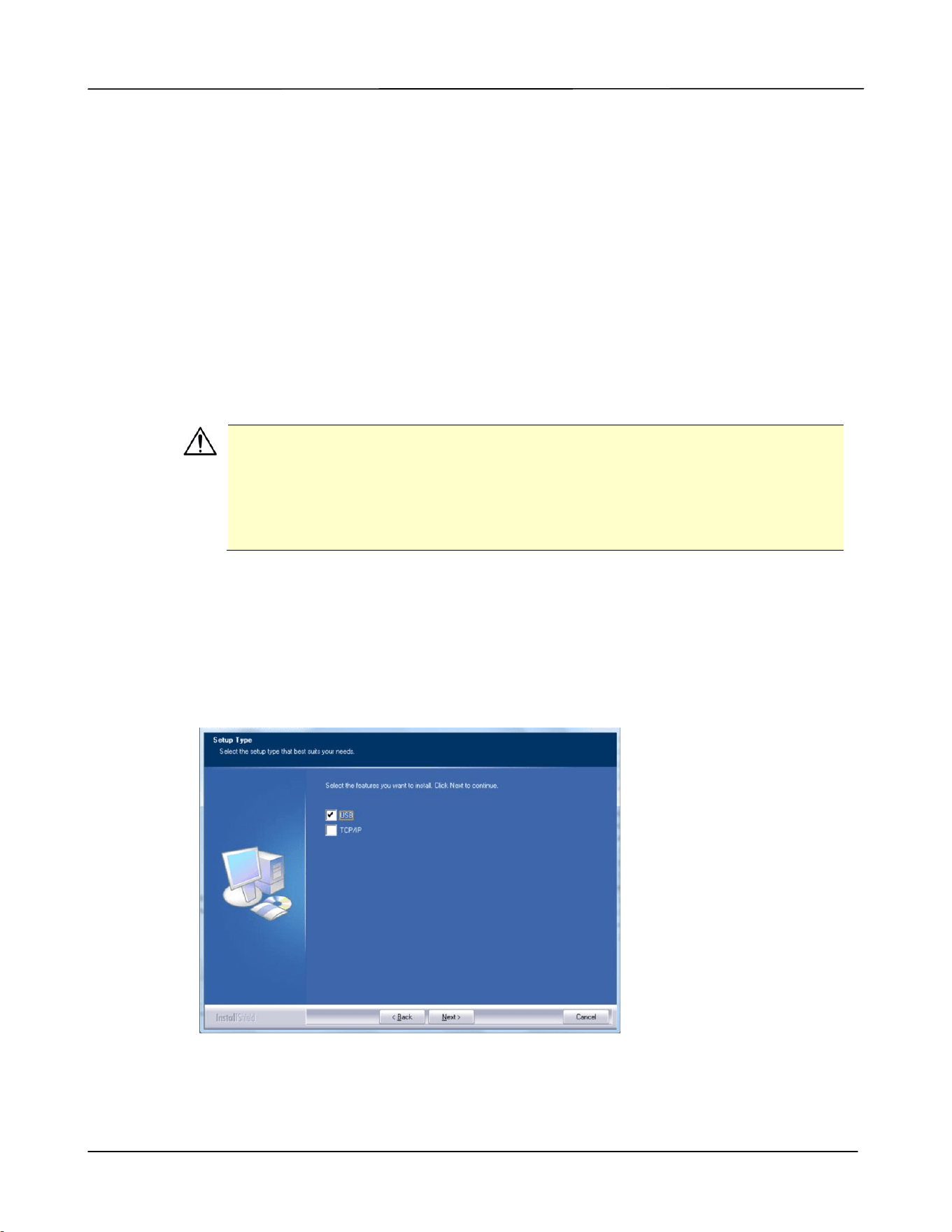
1. Insert the supplied CD into your CD-ROM drive. The installation menu appears, as
shown below.
2. Click “Install Driver” and follow the on-screen instructions to install the program.
3. When the Setup Type dialog box appears, select USB.
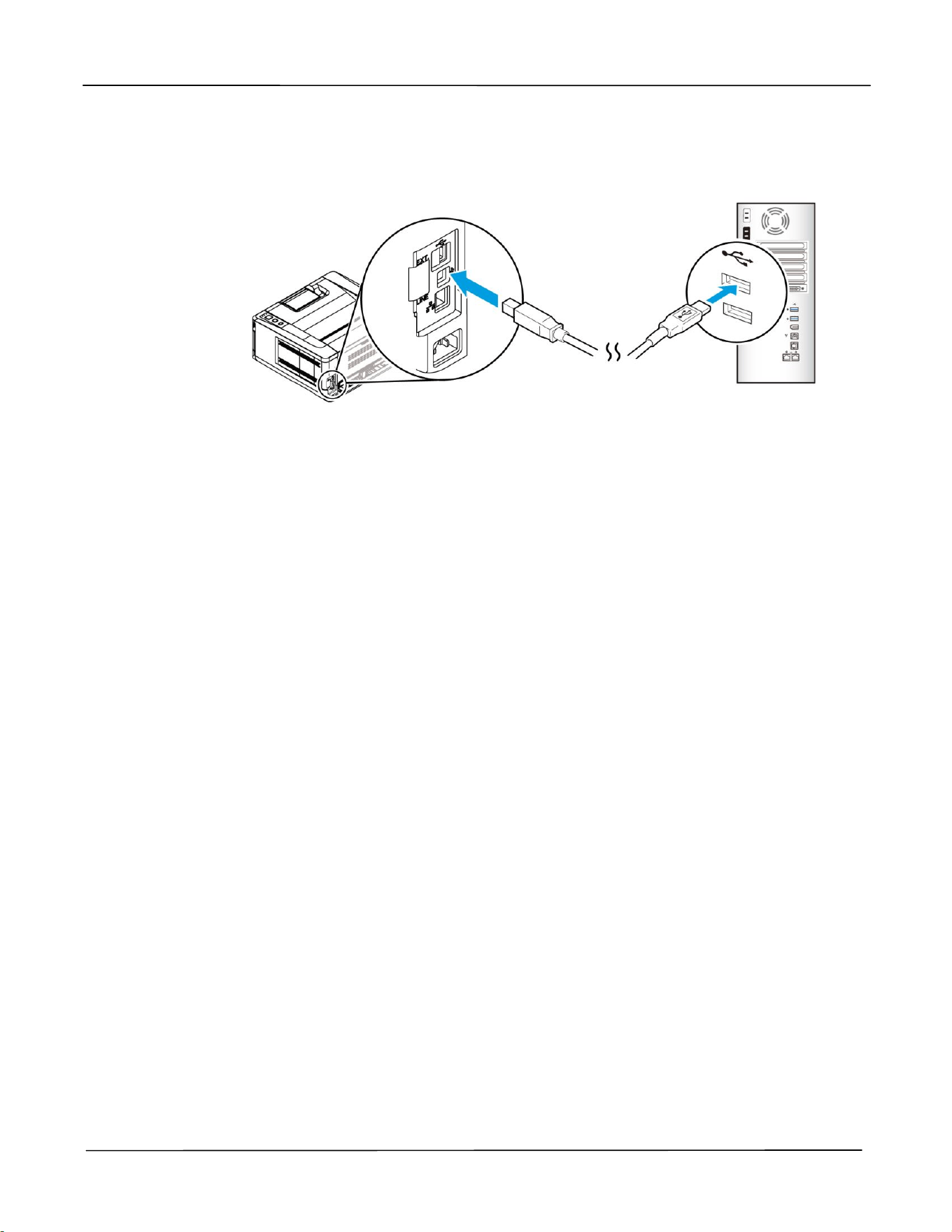
4. During installation, the USB Connection dialog box will be prompted to instruct you
to connect the machine to your computer with a USB cable.
Installation
25
a. Connect one end of the USB cable to your computer.
b. Connect the other end to the USB port of your product.
5. When the “Found New Hardware” screen appears, click Next and follow the
on-screen instruction to complete the installation.
6. When the Finish dialog box appears, click Finish to complete.
If you have successfully installed the driver, you will find “Avision AP33XX Printer” has
been added in the “Printers and Faxes” option from the Control Panel.
Uninstalling the Printer Driver
1. Make sure your USB cable is connected to your product.
2. From the “Start” menu, select All Programs>Avision AP33XX Printer>Uninstall
Driver in succession to remove the driver.
User’s Guide
26
For Network Interface Users
Please follow these steps to install the scanner, printer drivers if this machine is
connected to your computer via a network. You may also download the driver and
manual at our web site www.avision.com.
1. Insert the supplied CD into your CD-ROM drive. The installation menu wil be
displayed.
2. To install the scanner driver and PRINTER driver:
Click 「Install Driver」and follow the on-screen instructions to complete the
installation of the program.
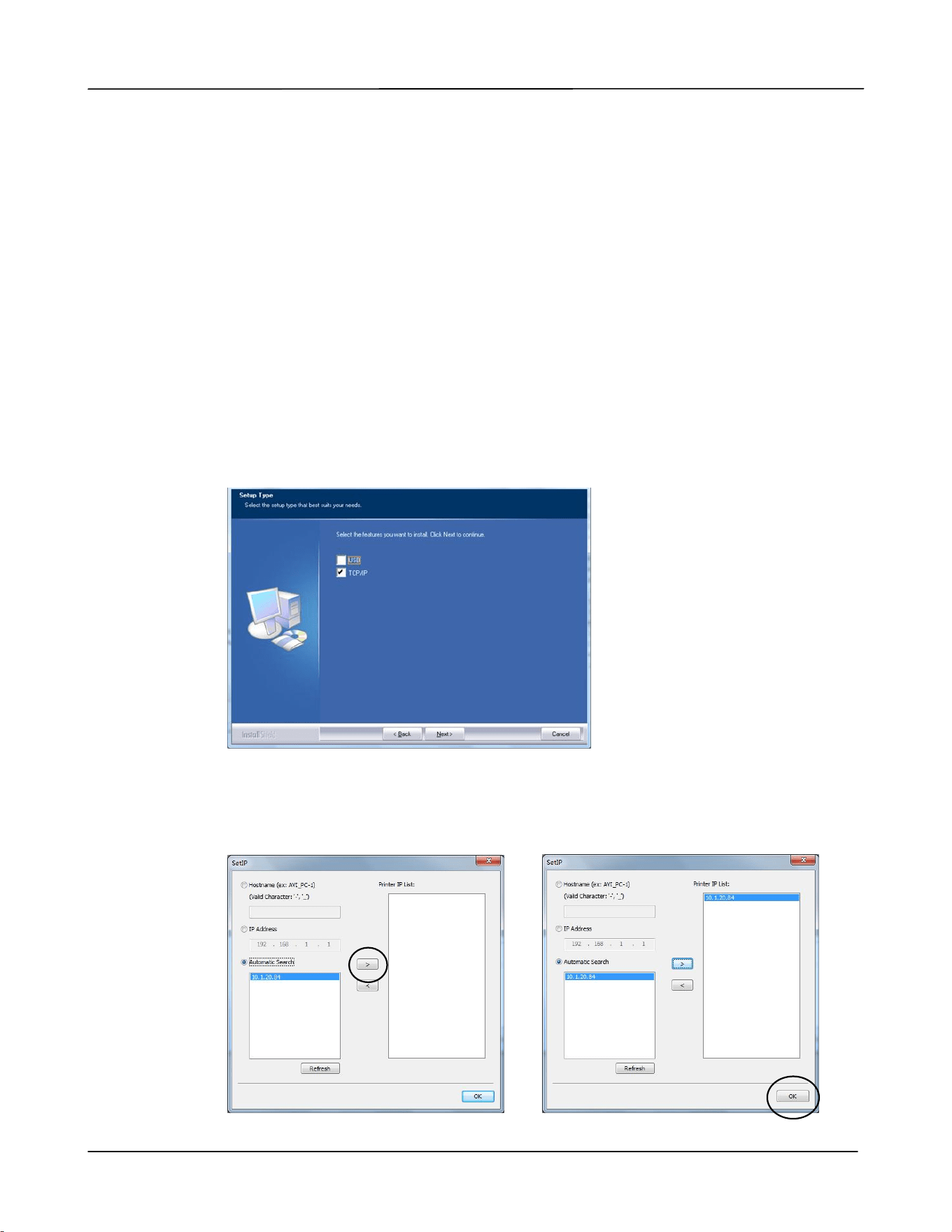
3. When the Setup Type dialog box appears, check [TCP/IP] and click [Next] to
continue.
4. When the following Set IP dialog box appears, choose one of the following
options and click [>] to add to the PRINTER list. When the desired option
setting is completed, click [OK]. (Follow the preceding section – Checking the
Product’s Default IP Address to obtain the product’s default IP address.

Installation
27
Host Name
Enter the product’s host name to be connected in
the blank box of the Host Name option.
IP Address
Enter the product’s IP address to be connected in
the blank box of the IP Address option.
Automatic Search
Searches the product’s Printers automatically, and
all the product’s host names found in the network
will be displayed in the box of the Automatic
Search. Use your mouse to choose your desired
host name to be connected.
5. When the Finish dialog box appears, choose 「Finish」to complete.
If you have successfully installed the printer’s driver, you will find「Avision
AP33XX NetWork」, has been added in the 「Printers and Faxes」option from the
Control Panel.
User’s Guide
28
Changing the Product’s IP Address in a Wired Network
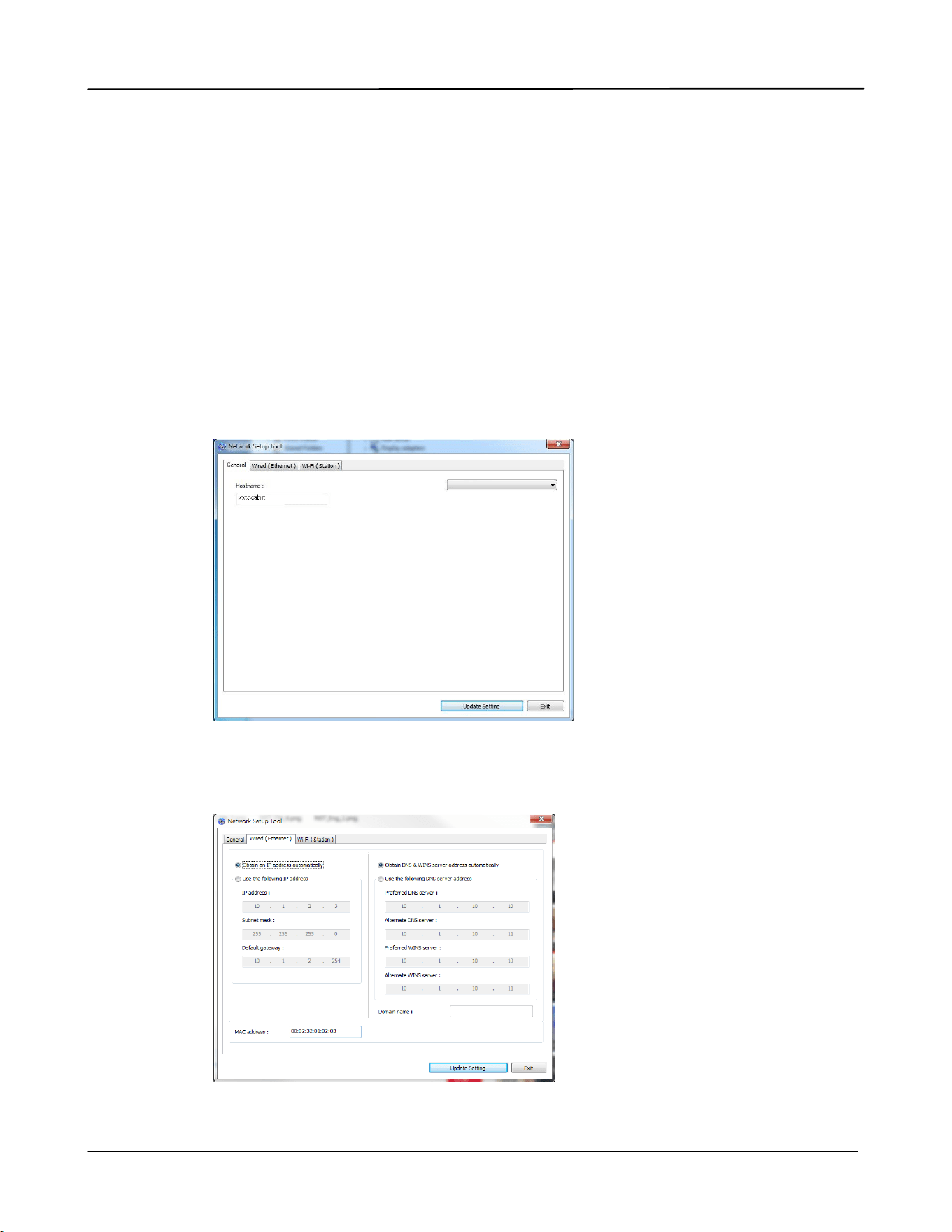
To change the product’s IP address, you need to install the Network Setup Tool. The
Network Setup Tool is included in the USB PRINTER driver. After the installation of
the USB PRINTER driver is completed, the Network Setup Tool is automatically
installed onto your computer. Follow these steps to update the IP address to the
product in a wired network.
1. Make sure the product is connected to your computer via a USB cable.
2. Start Network Setup Tool by choosing the Start button and then select All
Programs>Avision AP33XX Printer>Network Setup Tool in succession. The
following Network Setup Tool screen will be prompted.
3. On the [General] page, check [Wired (Ethernet)] Network.
4. Click the [Wired (Ethernet)] tab to prompt the Wired (Ethernet) page.
AP33XX Printer

Installation
29
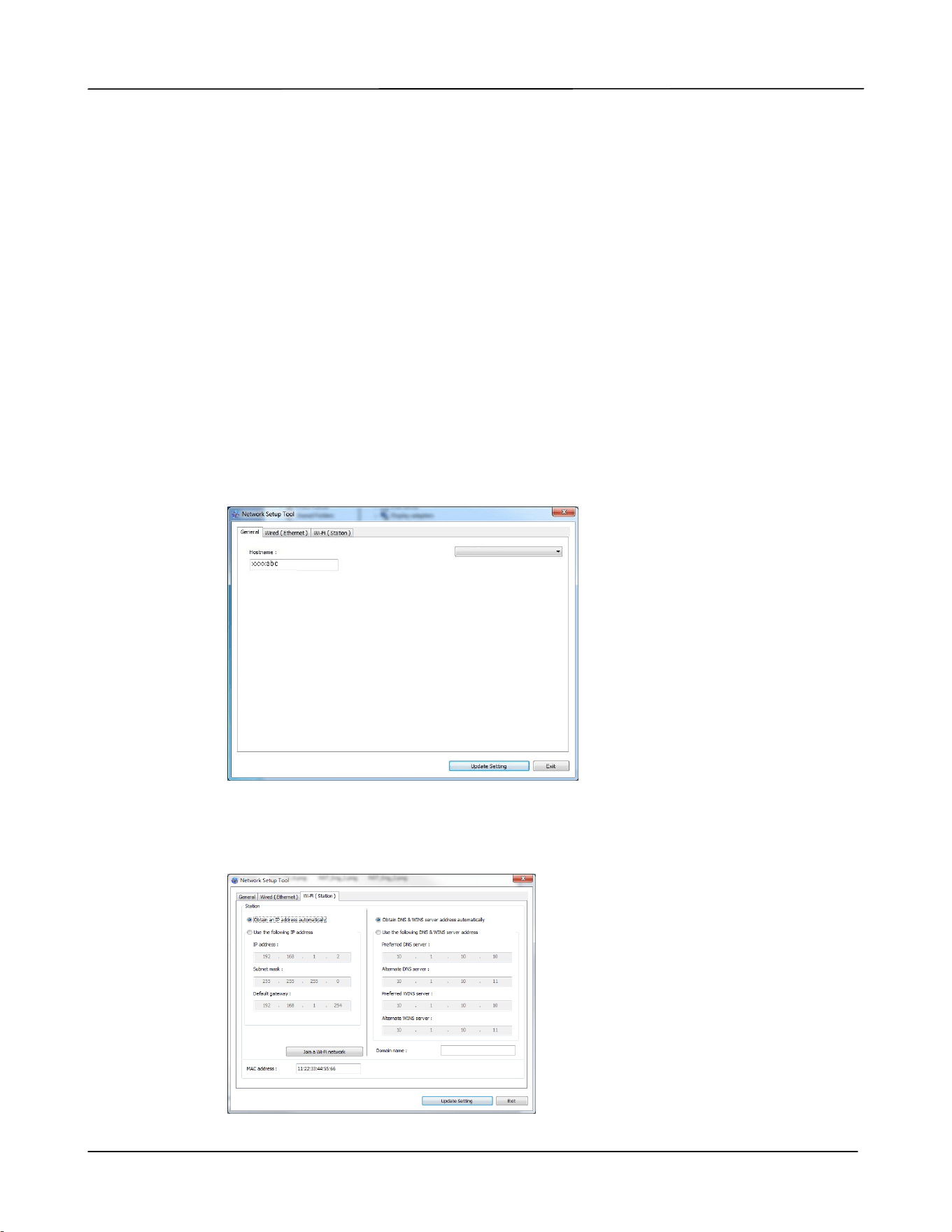
5. Check [Obtain an IP address automatically] to obtain the IP address directly
from the DHCP server or you may enter your static IP on the [IP Address],
[Subnet Mask], and [Gateway] field respectively.
6. If you have assigned a specific IP, enter your domain name server and WINS
server as well and then click [Update Setting] to update the IP information to
the product.
7. If update is successful, an [Update Device Successfully] message will be
displayed and the Network Setup Tool will be automatically closed.
User’s Guide
30
Setting the Product’s IP Address in a Wireless Network
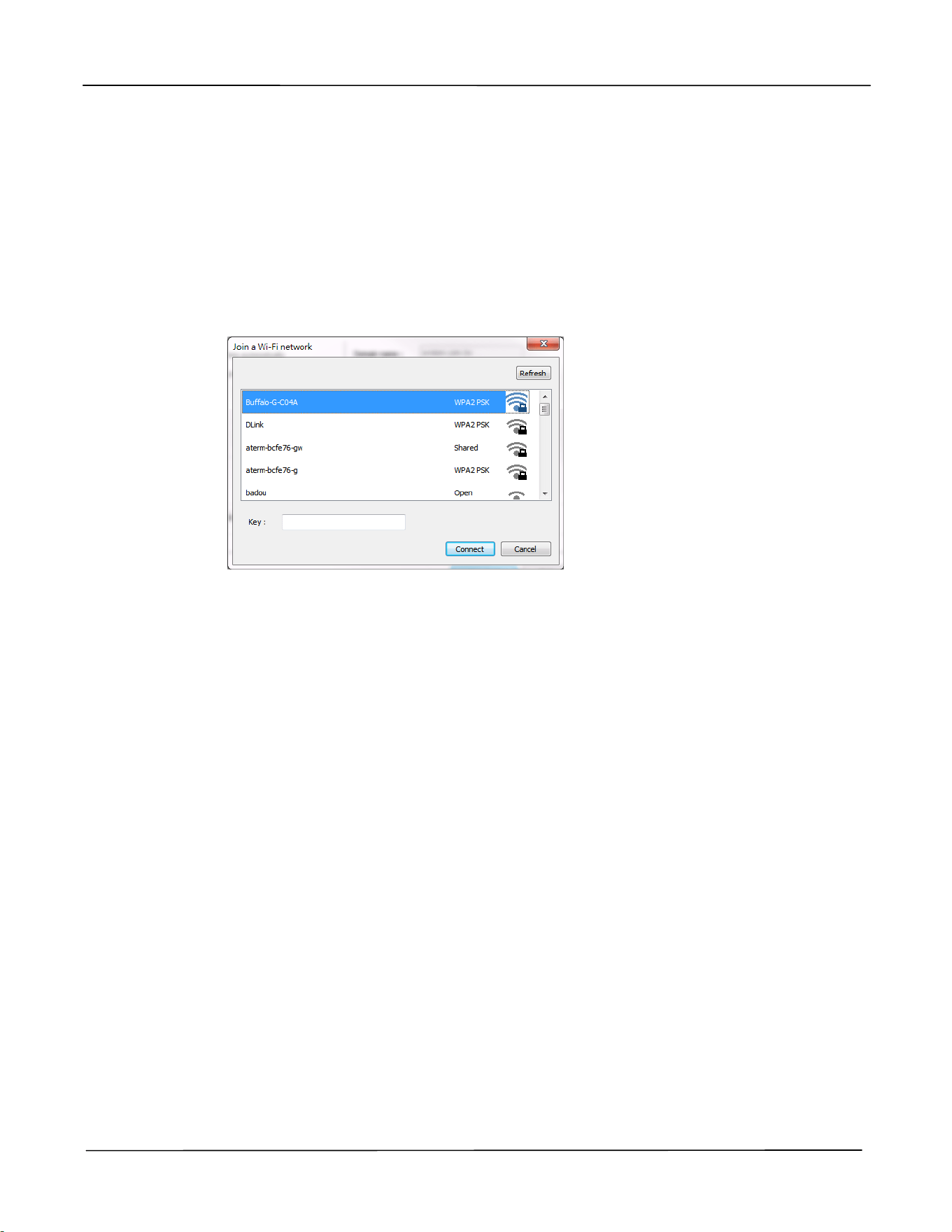
To set an IP address to the product, you need to install the Network Setup Tool. The
Network Setup Tool is included in the USB PRINTER driver. After the installation of
the USB PRINTER driver is completed, the Network Setup Tool is automatically
installed onto your computer. Follow these steps to set and update the IP address to
the product in a wireless network:
*It is only available for the model which is built-in with a Wi-Fi dongle that is able to
connect to a wireless network.
1. Make sure the product is connected to your computer via a USB cable.
2. Start the Network Setup Tool by choosing the Start button and then select All
Programs>Avision AP33XX Printer>Network Setup Tool in succession. The
following Network Setup Tool screen will be prompted.
3. On the [General] page, check [Wi-Fi (Station)].
4. Click the [Wi-Fi (Station)] tab to prompt the [Wi-Fi (Station)] page.
AP33XX Printer
Installation
31
5. Check [Obtain an IP address automatically] to obtain the IP address directly
from the DHCP server or you may enter your static IP on the [IP Address],
[Subnet Mask], and [Gateway] field respectively.
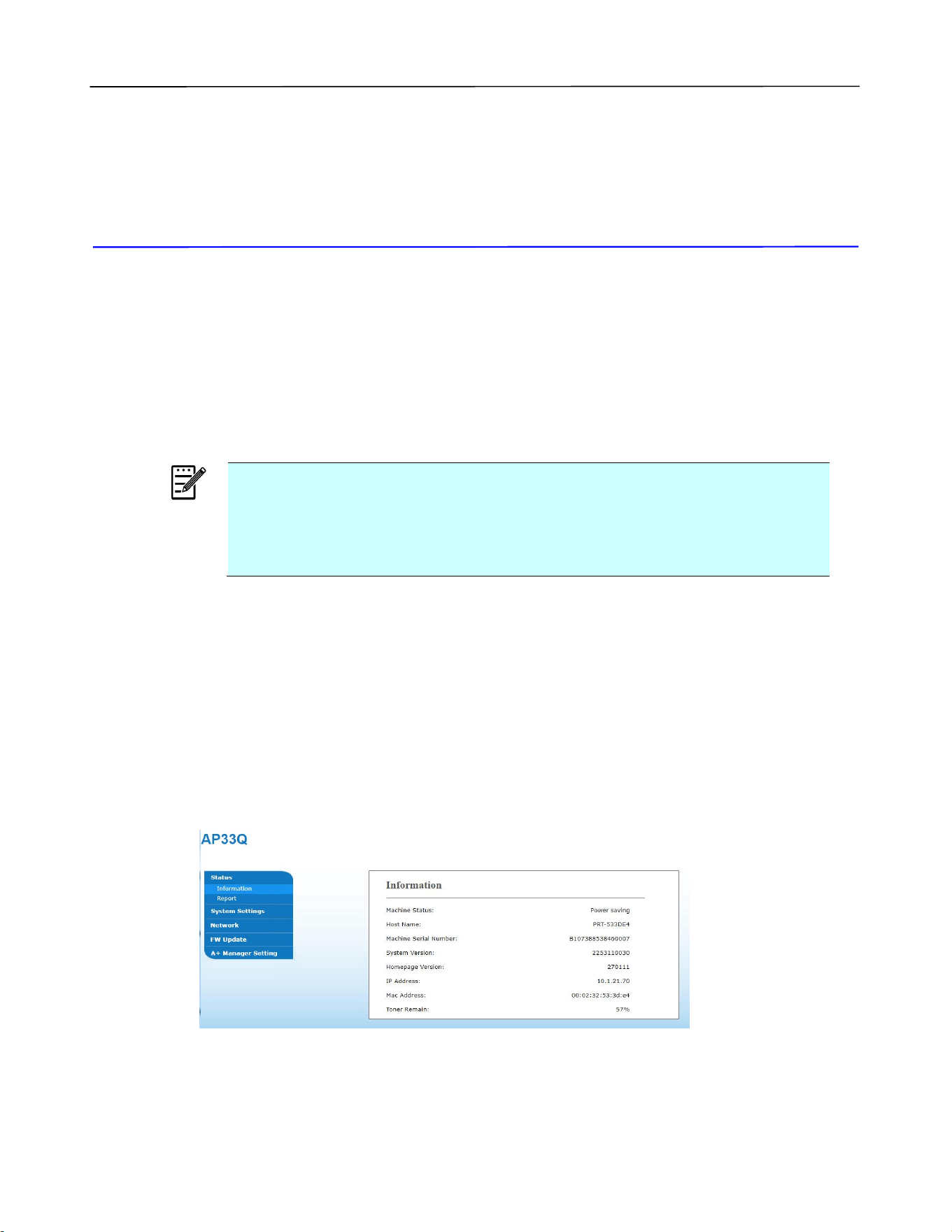
6. Click [Join a Wi-Fi network] and the currently connected wireless networks will
be displayed. Select the wireless network you want to connect and then enter
the security key if required.
7. Click [Connect] to start connecting the SSID (wireless network name) and then
update the IP information to the product.
8. If update is successfully, an [Update Device Successfully] message will be
displayed and the Network Setup Tool will be automatically closed.

User’s Guide
32
Uninstalling the Driver
1. From the 「Start」menu, select 「All Programs」, 「Avision AP33XX Printer」,
and then 「Uninstall Driver」.
Or from the 「Start」menu, select 「Control Panel」, 「Add or Remove
Programs」, 「Avision AP33XX Printer」, and then 「Remove」.
2. Follow the instructions on the screen to complete removing the scanner driver
and the PRINTER driver.
3. Customizing the Product’s
Settings
This chapter is specifically targeted to the persons who are responsible for the
administration of the product. It is recommended that the administrator read this
chapter before installing the machine.
Note:
When installing the product for the first time, it is recommended that the
Administrator retain the default system settings. The settings can be
customized at a later date once you are familiar with the operation and
functionality.
Customize System’s Settings via the Embedded Web Page
Note: Any update of the web page requires administrator’s login.
1. Refer to the preceding section to setup the product’s network settings.
2. Open your browser and type the product’s IP address on the URL address, for
example, http://10.1.21.46 and press Enter. In a second, the embedded web page
will be displayed.
3. Enter your desired setting on your selected items.
User’s Guide
34
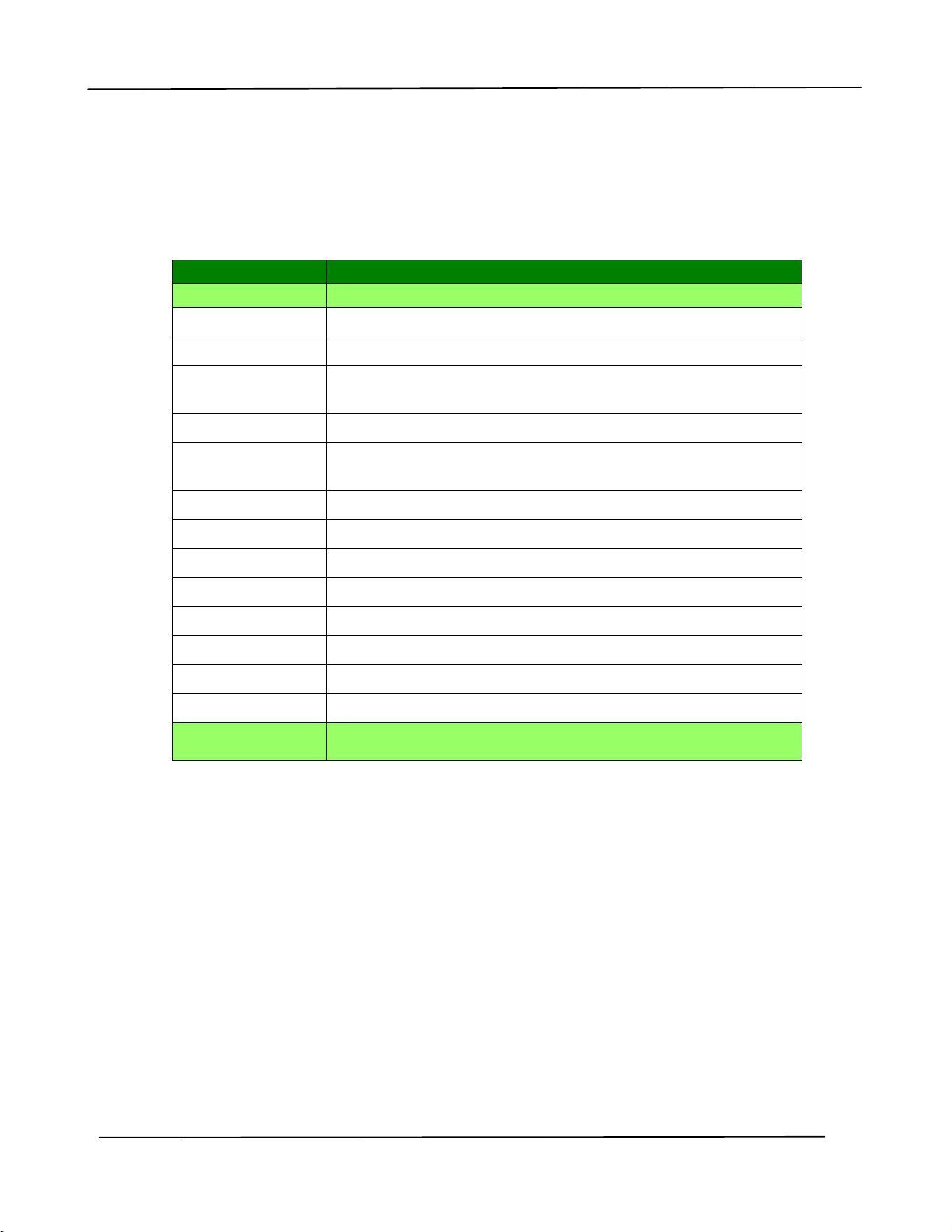
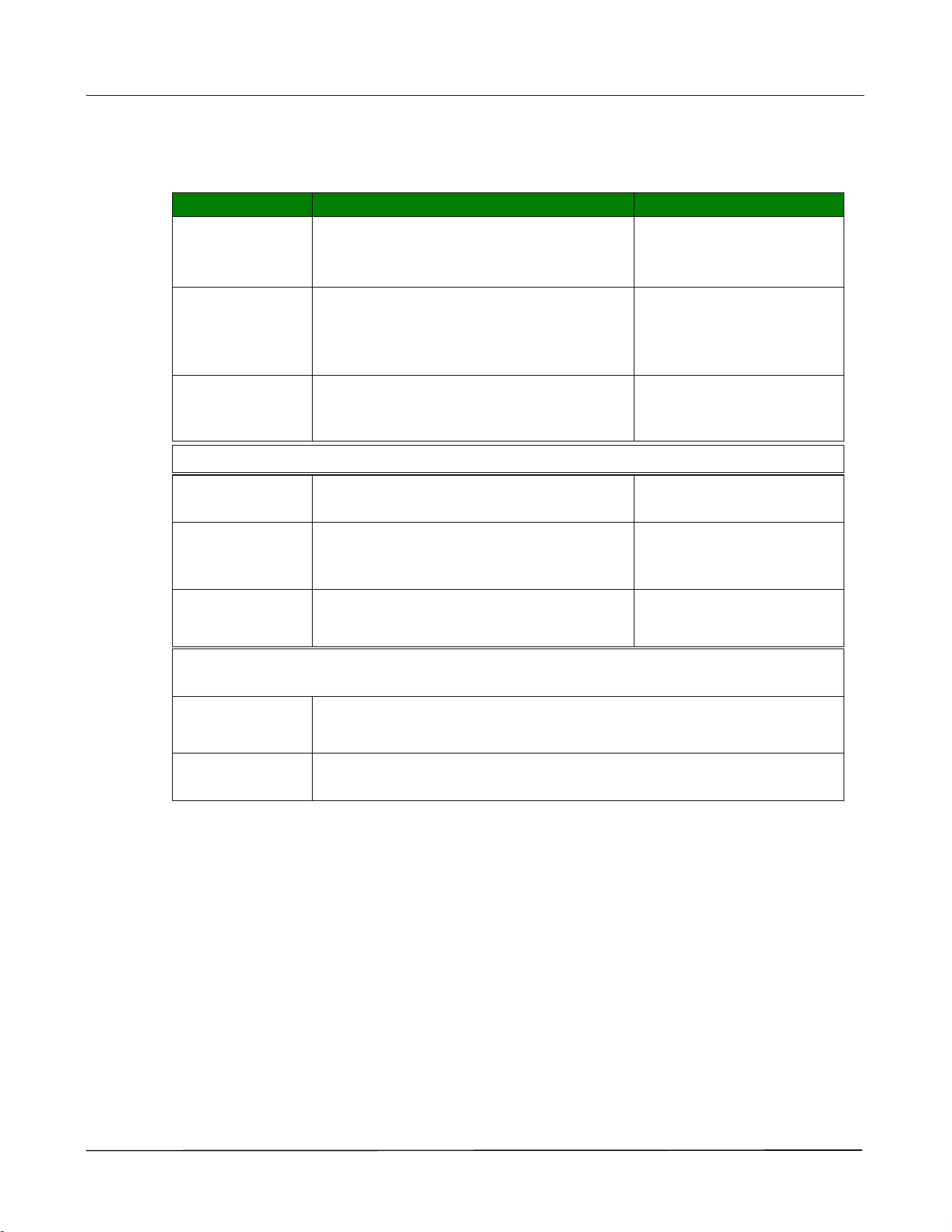
Setting Items to be Customized on the webpage
Status
Displays the status and basic information of the product.
*Factory Default
Item
Description
Information
Display the following basic information of the product.
Machine Status
Displays the machine status.
Host Name
Displays the host name.
Machine Serial
Number
Displays the machine’s series number.
System Version
Displays the firmware version.
Homepage
Version
Displays the version of the embedded web page.
IP Address
Displays the IP address.
Mac Address
Displays the Mac address.
**Wi-Fi IP
Displays the Wi-Fi IP address.
**Wi-Fi MAC
Displays the Wi-Fi Mac address.
**Wi-Fi SSID
Displays the Wi-Fi SSID name.
**AP Mode IP
Displays the IP address in AP Mode.
**AP Mode SSID
Displays the SSID name in AP Mode.
Toner Remain
Displays the toner remaining percentage.
System Usage
Page
Clicks [Download] to download an image containing the
system usage information and system settings.
**These items will only be available for the model with a Wi-Fi module.
Customizing the Product’s Settings
35
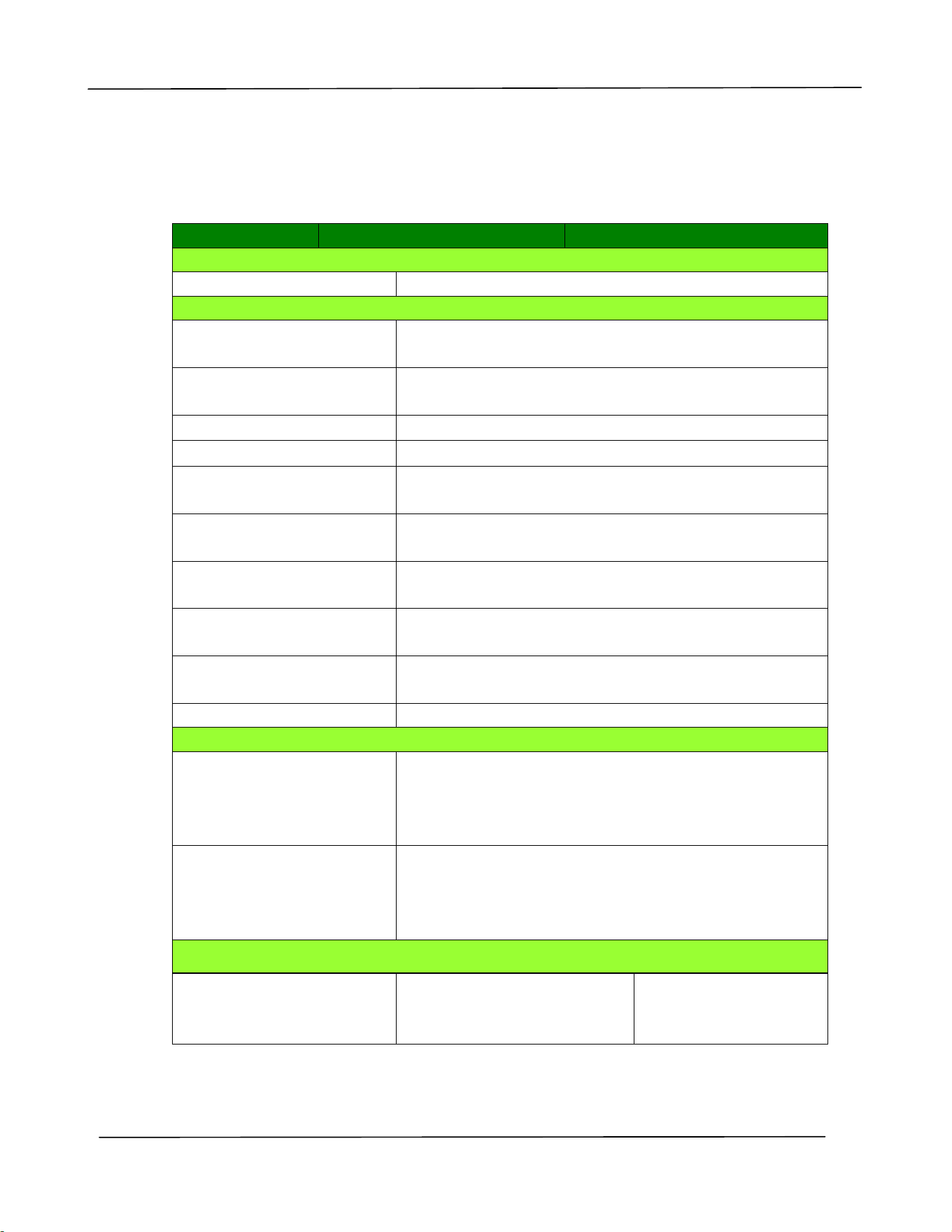
System Settings
*Factory Default
Item
Description
Option
Language
The language displayed on the web
page.
The displayed language
varies depending on
your operating system
Sleep Mode
Choose if you wish to enter energy
saving mode and how long to enter
the energy saving mode after your
last action.
ECO
mode/5Min/*15Min/30M
in/1Hr
Auto Off
Choose how long to shut down the
product automatically after your last
action.
*Off/5Min/15Min/30Min
/1Hr/2Hr/4Hr
Management
Factory Def.
Reset all settings to factory default
values.
Reset Count
Choose to reset count for the pad or
roller after replacement. Click
[immediate] to reset count.
Manual Tray Pad, Tray 1
pad
V-Mag
Adjustmnet
Choose to adjust the vertical
magnification rate of the PRINTER.
-0.4%/-0.2%/*0%/+0.
2%/
+0.4 %
Password Settings (If these two fields are left blank, this means the password
has not been changed.)
New
Password
Enter a password to enable modifying the web page.
Password should be 8~16 characters or digits in length.
Retype
Password
Retype new password.
User’s Guide
36
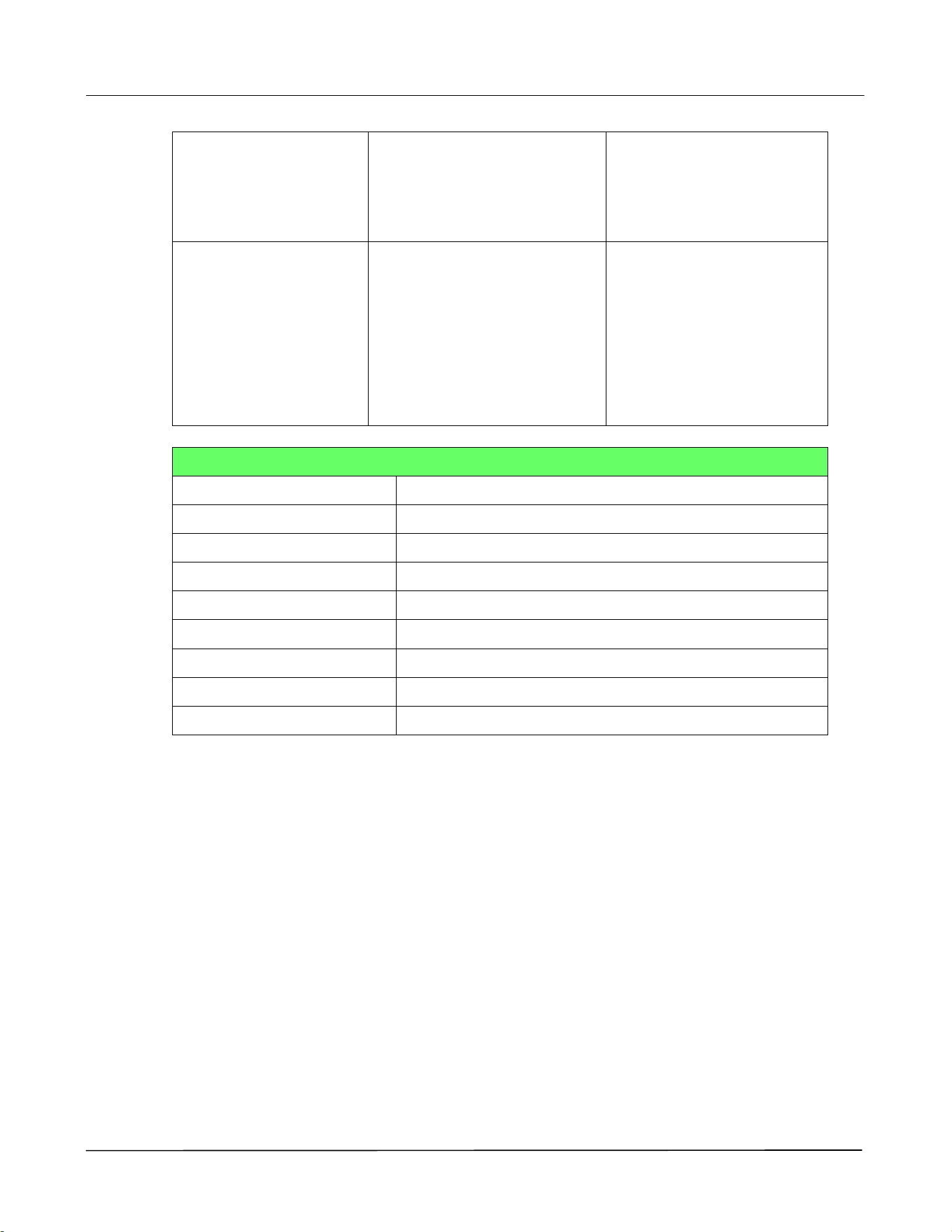
Network
Displays the network information of the product.
*Factory Default
Item
Description
Option
Host Name
Host Name
Dipslay the host name for the product.
Ethernet Settings
Obtain an IP address
automatically
*Off/On
IP Address: Set up an IP
address.
Input the IP address of the product.
Subnet Mask
Input the subnet mask number.
Gateway
Input the gateway for your IP.
Obtain WINS/DNS server
address automatically
*Off/On
Preferred DNS Server
Sets up the preferred DNS server address for the
product.
Alternate DNS Server
Sets up the alternate DNS server address for the
product.
Preferred WINS Server
Sets up the preferred WINS server address for the
product.
Alternate WINS Server
Sets up the alternate WINS server address for the
product.
Domain Name
Sets up a domain name for the product.
Wi-Fi Settings
Search AP
Click [Search AP] and the currently connected
wireless networks will be displayed. Select the
wireless network you want to connect and then
enter the security key if required.
IP Settings
Obtain the IP address directly from the DHCP server
or you may enter your static IP on the [IP
Address], [Subnet Mask], and [Gateway] field
respectively.
Network Security Setup
Security Configuration
Filter
Specify if you wish to
enable or disable the filter
configuration.
*Disable/Enable
Customizing the Product’s Settings
37
Filter Mode
Specify your filter mode to
allow some IPs to access
the device or deny some
IPs from accessing the
device.
Allow/Deny
IP Address Filter
Configuration
IP Address Filter
Configuration- Four types
of Start IP and End IP can
be specified.
Mac Address Filter
Configuration- Up to 10
Mac address can be
specified.
IP Address Filter
Configuration/
Mac Address Filter
Configuration
SNMP
Enable SNMPv1/v2
On/Off
Community name
Define your community name.
Enable SNMPV3
On/Off
User Name
Enter your user name. (1~32 characters)
Authentication Protocol
MD5/SHA
Invalid URL
Enter your invaoid URL address. (8~32 characters)
Privacy Protocol
DES/AES-128
Password
Enter your password. (8~32 characters)
Context Name
Enter your context name.
FW Update
Update the firmware of the product. Before updating the product’s firmware, you need
to first download the latest firmware from our web site at 0Hwww.avision.com onto your
computer. On the webpage, choose [Browse] to find the firmware file on your
computer and then choose [Update] to begin updating the firmware to the product.
*A+ Manager Settings
Check [Enable] and then enter the IP address of a specified server to send the system
log file to for quick troubleshooting. *Availability varies according to your model.
4. Configuring the Printer Driver
Displaying the Printer Driver Properties
Dialog Box (Windows)
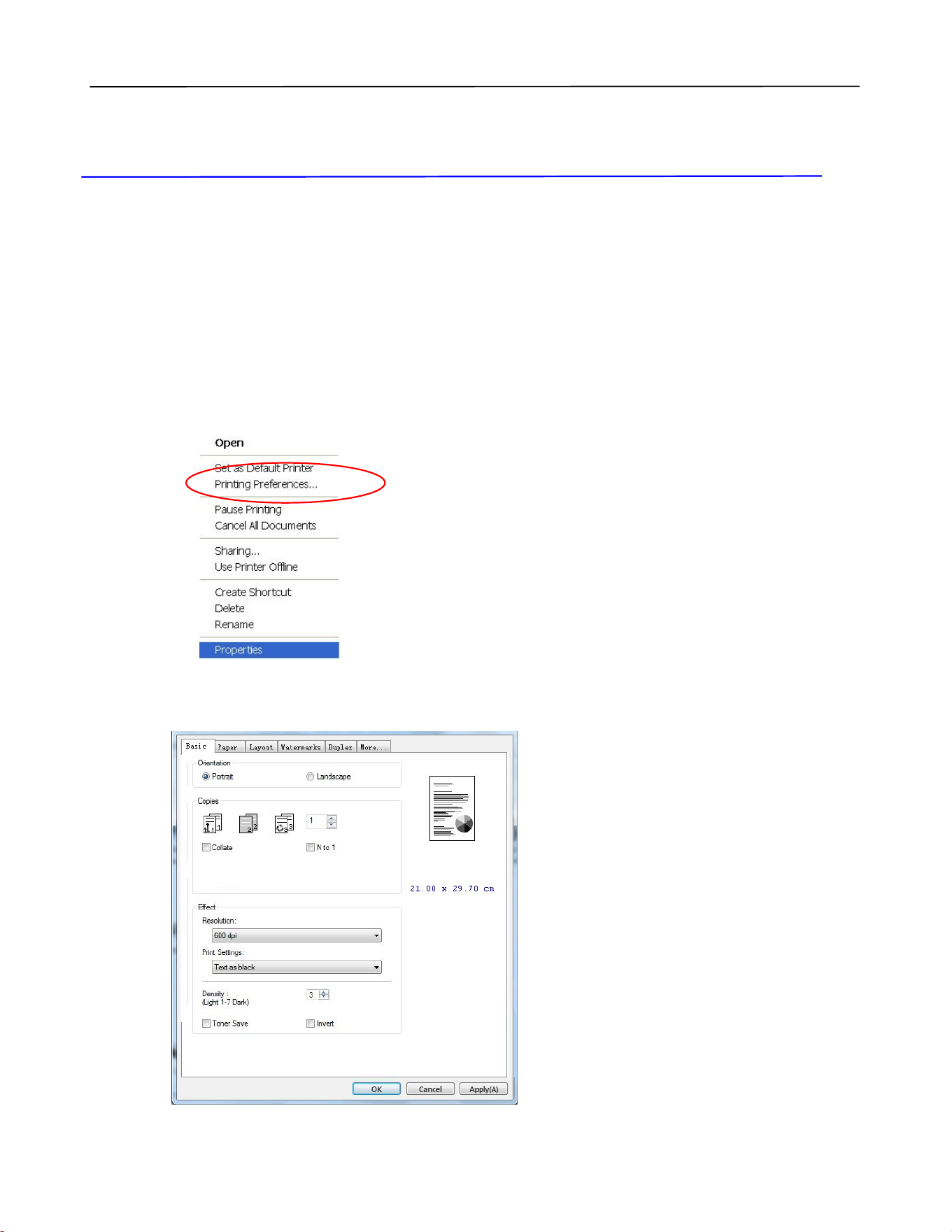
To display the Printer Driver Properties dialog box,
1. Click Start on the system tray and choose Printers and Faxes.
2. Right-click the product’s printer name and choose Printing Preferences.
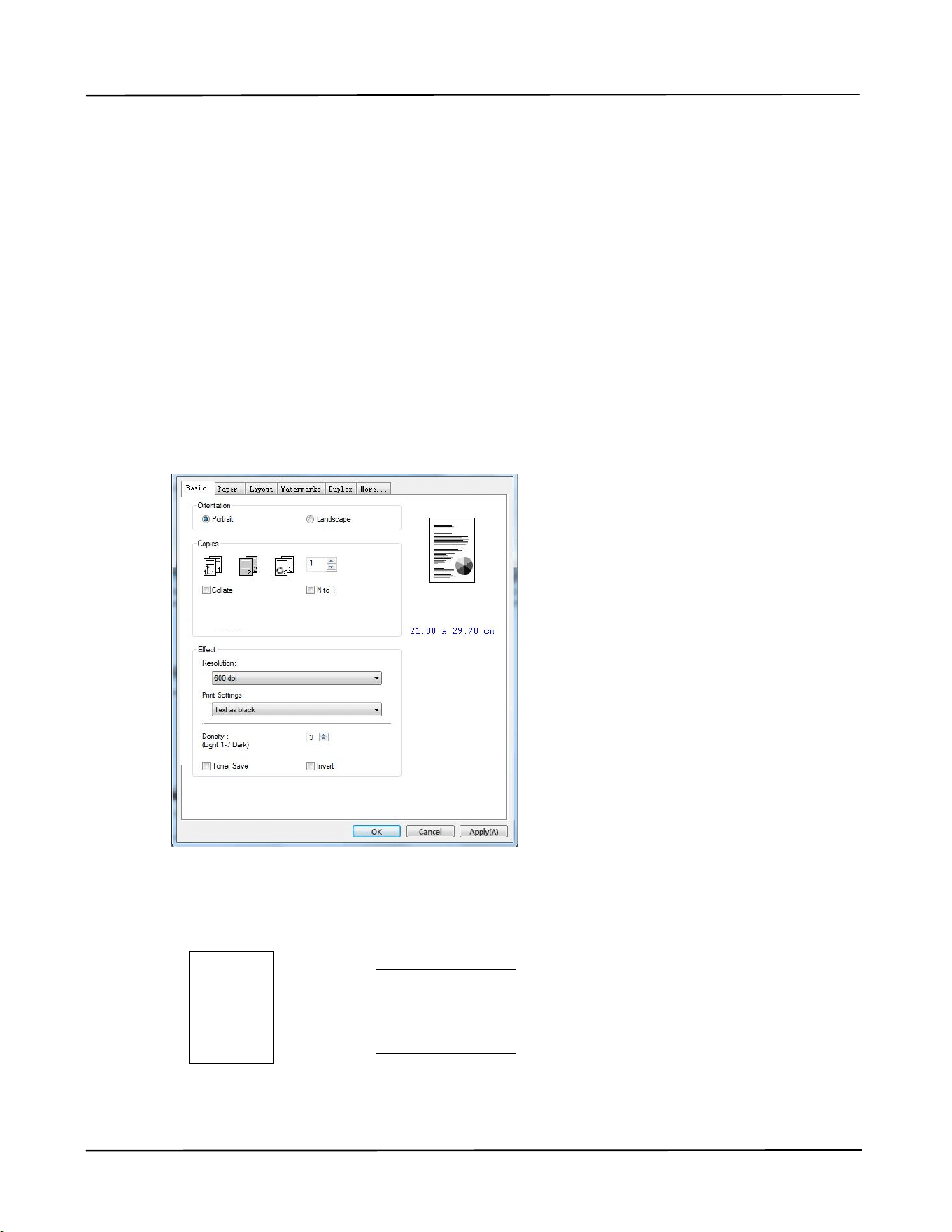
3. The Printing Preferences dialog box.
Configuring the Printer’s Driver
39
Configuring Printer Driver Settings
The Printing Preferences dialog box consists of the Basic tab, the Paper tab, the Layout
tab, the Watermark tab, the Duplex tab, and the More tab. The contents of each tab
will be explained in the following sections.
The Basic Tab
The Basic tab contains settings for Orientation, Copies, Effect, Density, Toner Save, and
Invert.
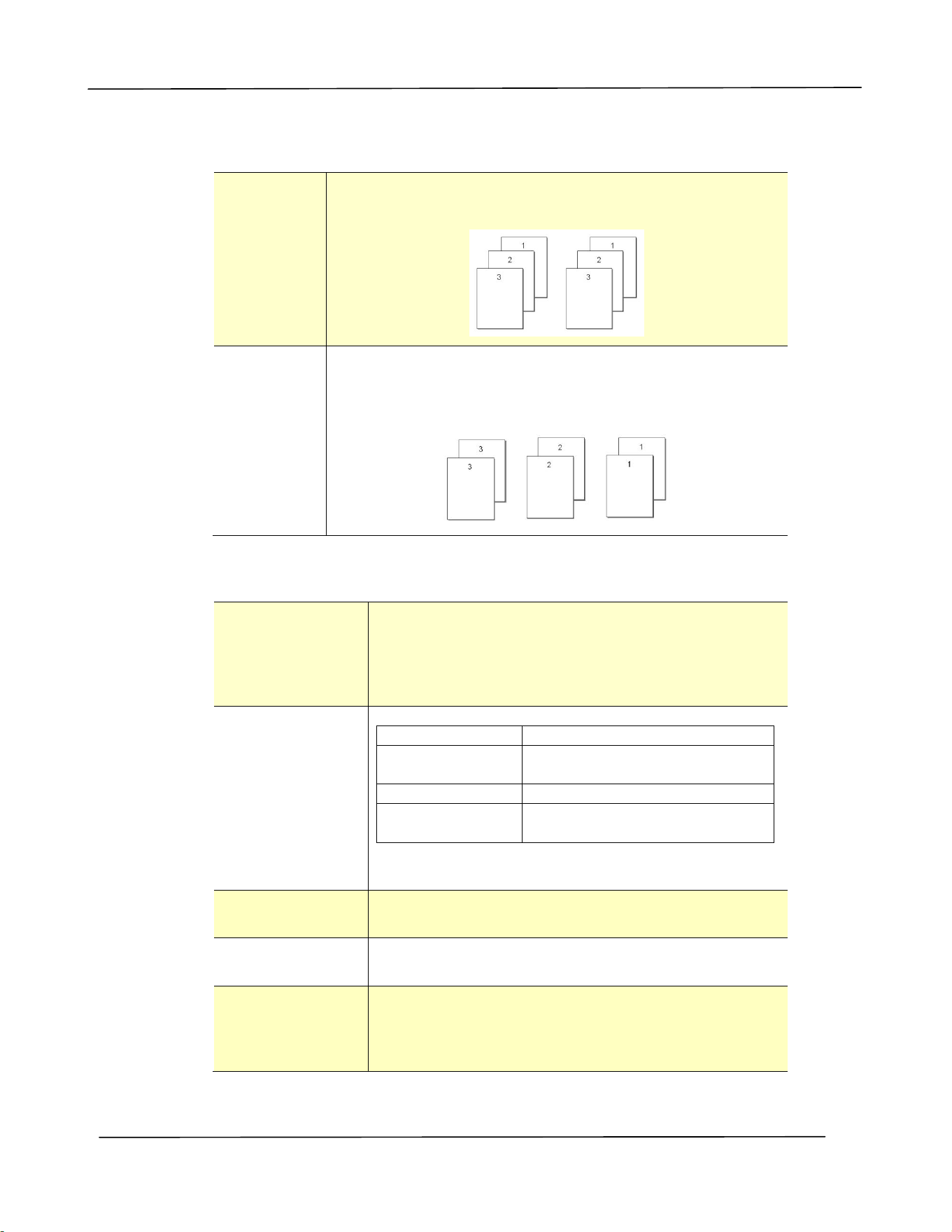
Orientation
Choose your orientation. Choice: *Portrait, Landscape
Portrait
Landscape
* Factory Default
ABC
ABC
User’s Guide
40
Copies
Choose the number of copies to be printed. You can enter up to 999.
Collated:
Click to print your document in the page order such as
1/2/3, 1/2/3, 1/2/3.
N to 1:
Click to reverse the printing order of your document. As
a result, the last page of your document will be printed
first and vice versa.
Effect
Resolution:
Choice: *600 dpi, 1200 dpi HQ *Option varies
due to your printer model.
600 dpi: for normal document.
1200 dpi: Choose 1200 dpi if you wish to enhance
the print quality.
Print Settings:
Normal:
Normal mode.
**Picture Mode:
Suitable for your document
containing pictures.
Text as Black:
Print color text in pure black.
**Enhance
Text:
Make the text bold.
** These features are only available for GDI
printer language.
Density:
Click to lighten or darken your document. Density
level (1~7). Default: 3
Toner Save:
Allows you to print your document using the toner
saving mode.
Invert:
Invert makes each image pixel inverted to its
complementary color. For example: the original
black text on white background becomes white
text on black background.
*Factory Default
Configuring the Printer’s Driver
41
The Paper Tab
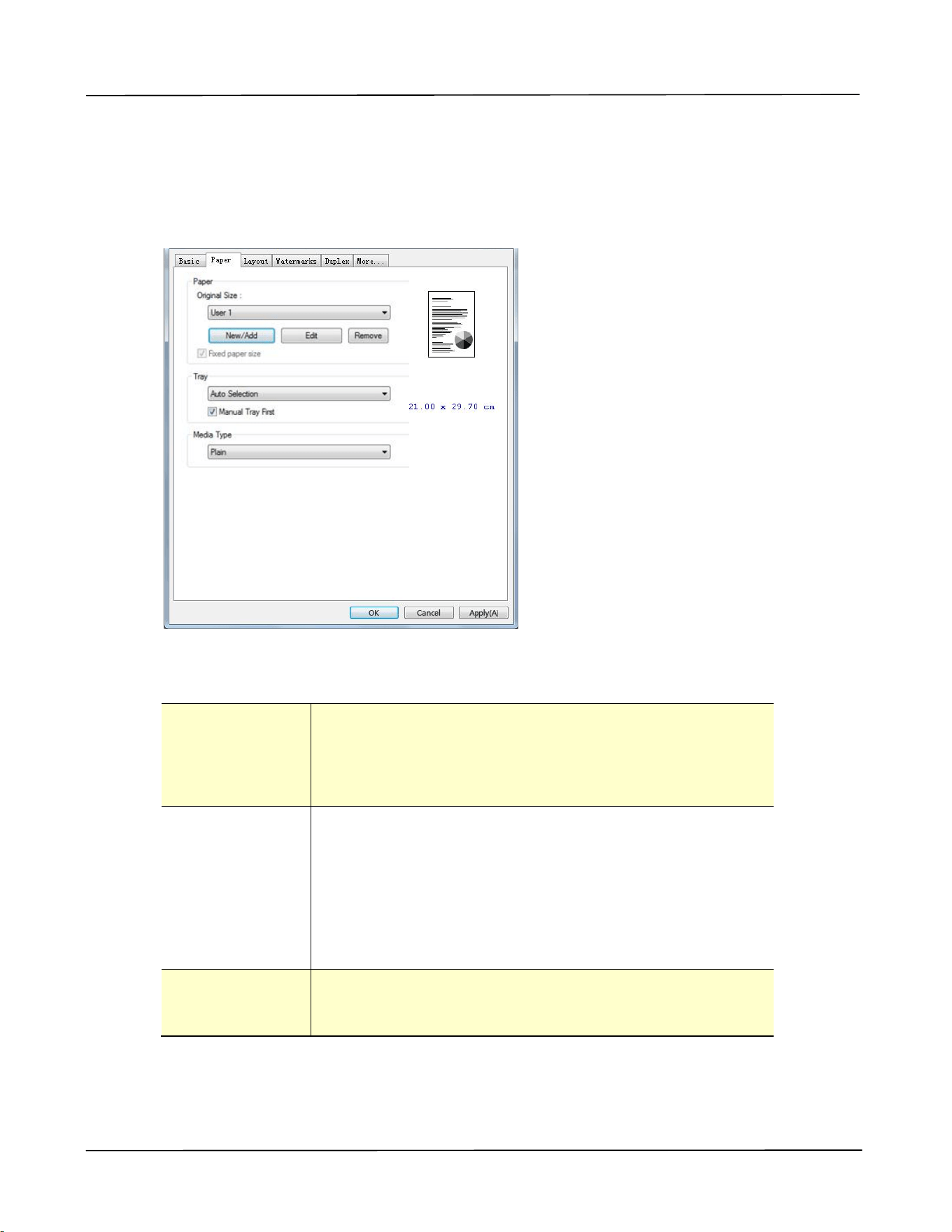
The Paper tab contains settings for Original Size, Tray, and Media Type.
Paper
Original Size:
Choose the size of paper loaded in the designated tray.
Choice: *A4, A5, A6, B5 (JIS), B6 (JIS), Legal,
Letter, User Define
Click [Add/New] to create up to 20 sets of custom size.
Tray:
Choose the tray from which your paper should be fed.
Choice: Auto Selection, Manual Tray, Tray 1
*Manual Tray First: Automatically select the paper
tray which is available (priority: 1: Manual Tray; 2: Tray
1).
Auto Selection: Automatically select the paper tray
which is available (priority: 1: Tray 1; 2: Manual Tray).
Media Type:
Choose the type of media to be used for printing.
Choice: *Plain, Thin, Thick, Laser, Bond
*Factory Default
User’s Guide
42
The Layout Tab
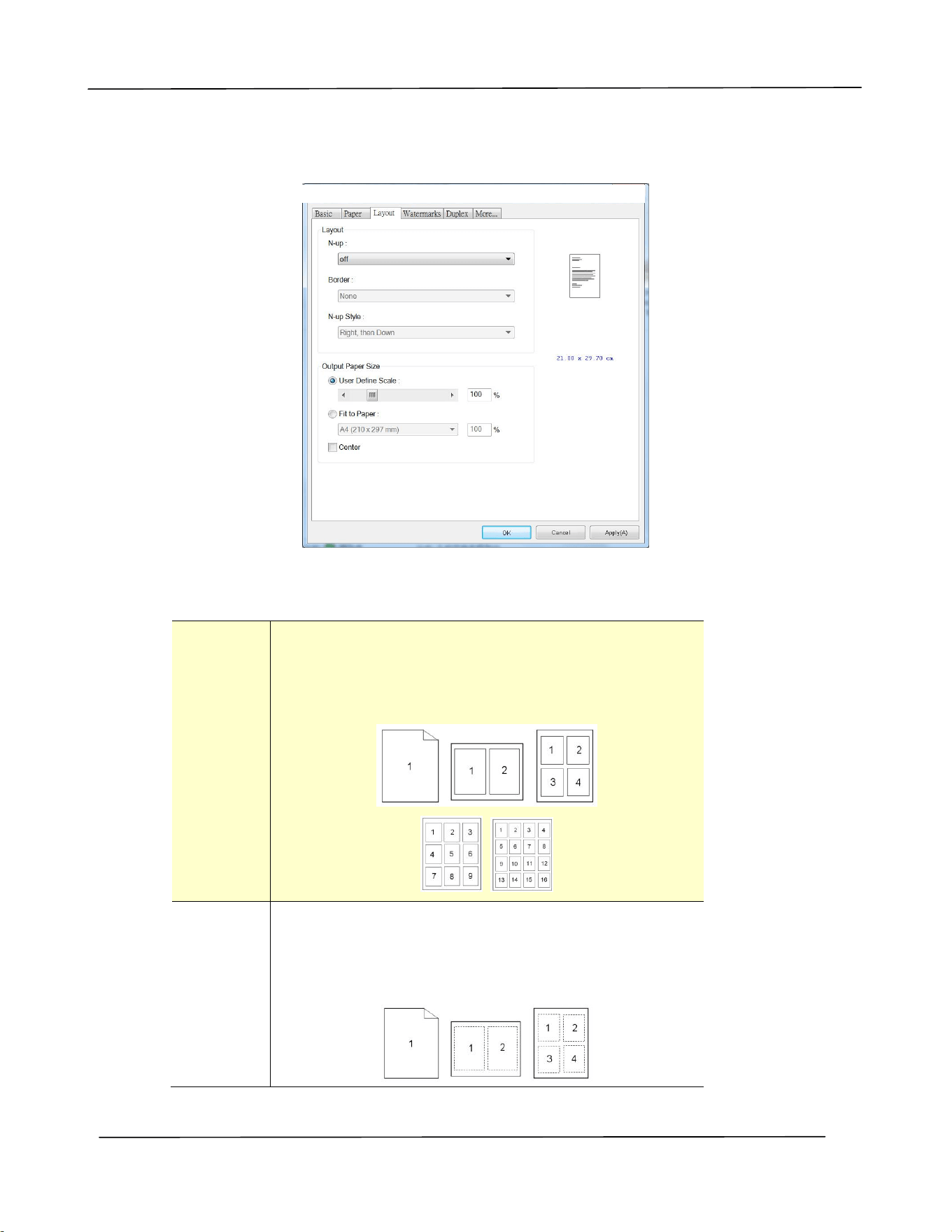
The Layout tab contains settings for N-up, and Output Paper Size.
Layout
N-up:
Choose number of pages to be printed on a single
sheet of paper.
Choice: *Off, 2up(2-in-1), 4-up(4-in-1),
9-up(9-in-1), 16-up(16-in-1)
Border:
Choose if you wish to add border around each page
when printing more than one page on a single sheet
of paper.
Choice: *None, Border Line, Dashed Line
* Factory Default
Configuring the Printer’s Driver
43
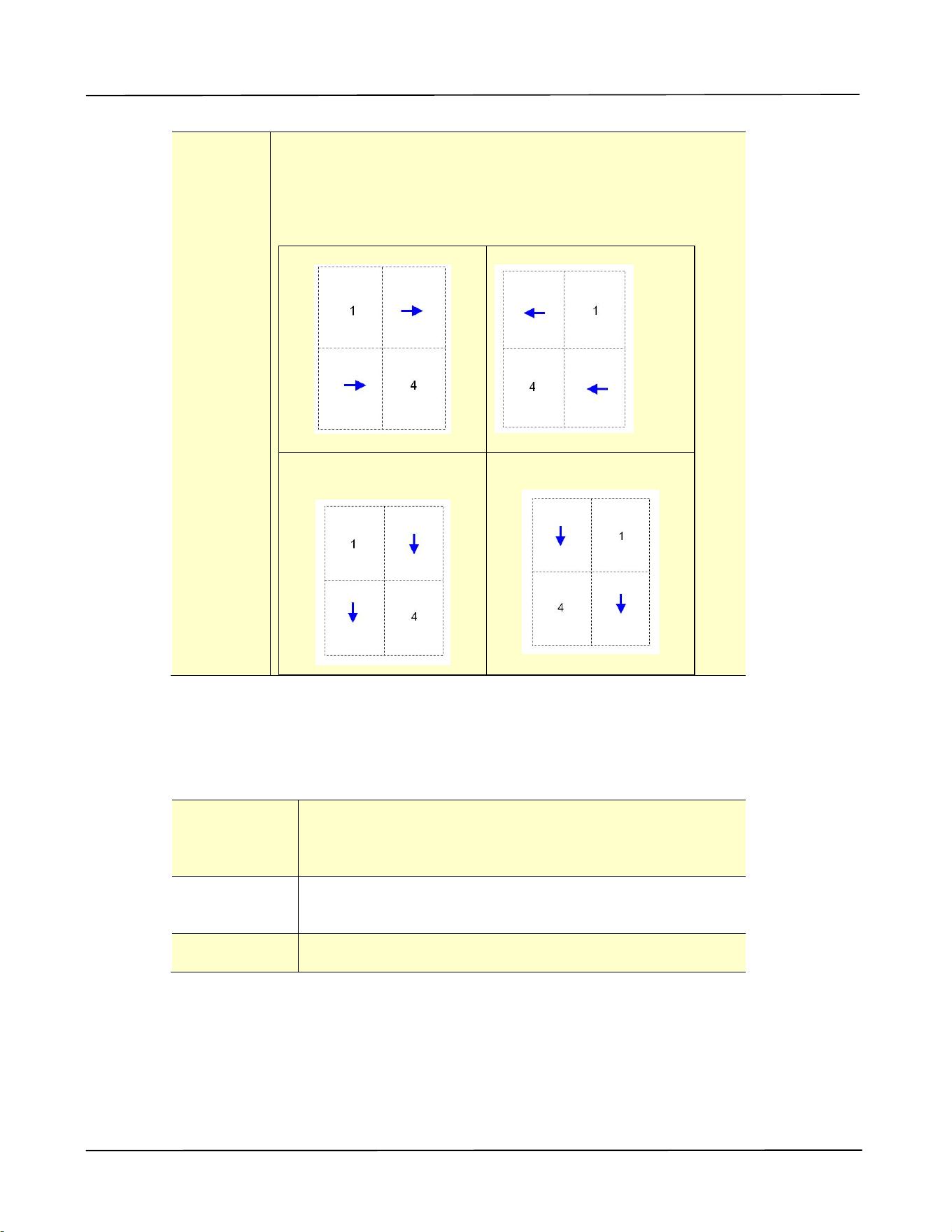
N-up
Style:
Choose the style you want when printing multi-page
document on a single sheet.
Choice: *Right, then Down/Down, then Right/Left,
then Down/Down, then Left
Right, then Down
Down, then Left
Down, then Right
Left, then Down
Output Paper Size
User Define
Scale
You can reduce or enlarge your printed image using
the Slider Bar. Scaling rate: 25%~400%
*100%
Fit to Paper
Output the full page of the selected original including
the four margins.
Center
Print your image in the center of the output paper.
*Factory Default
User’s Guide
44
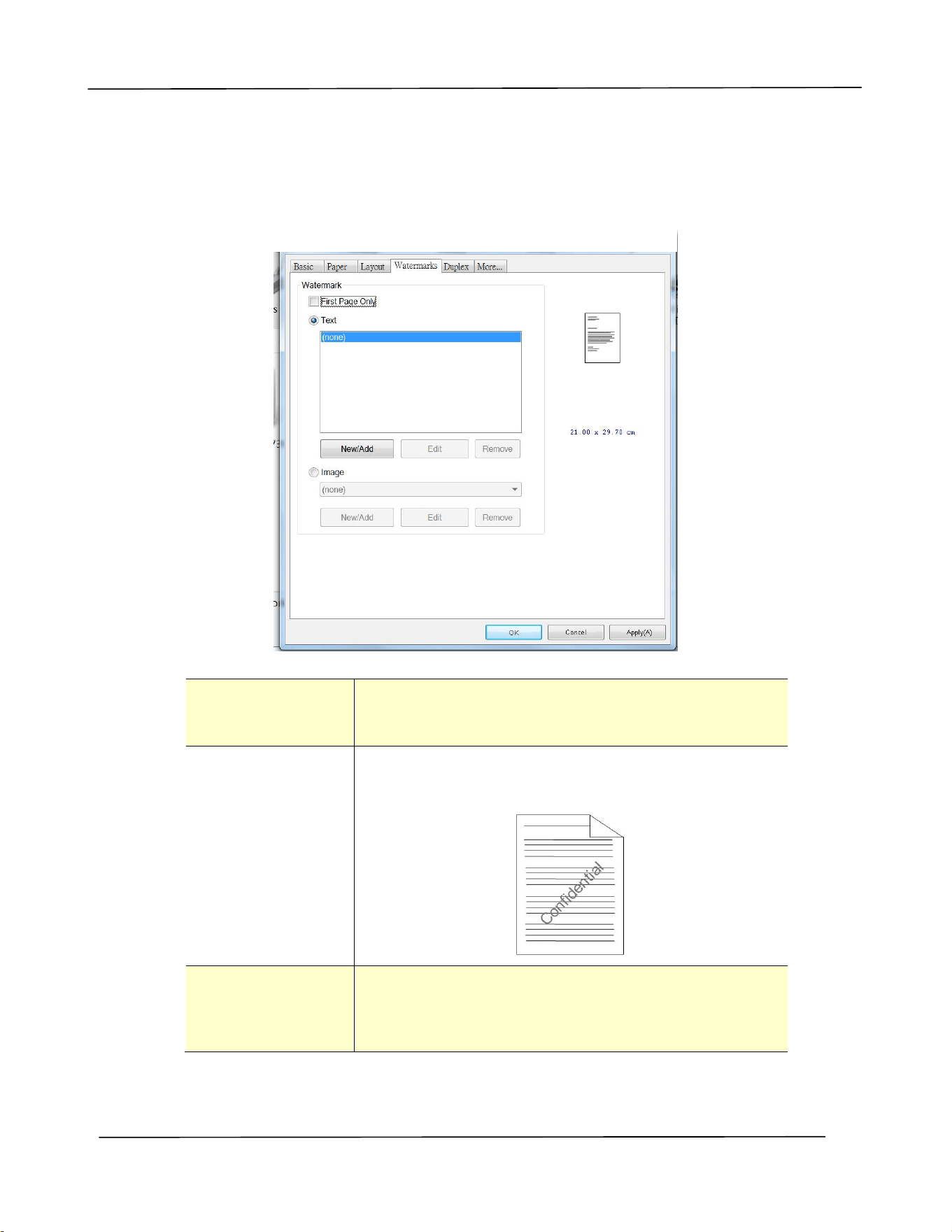
The Watermark Tab
The Watermark tab allows you to add some text or image (such as CONFIDENTIAL,
IMPORTANT, DRAFT, etc) for your document.
First Page only
Check to print watermark only on the first page.
Clear the check box will print watermark on all
pages.
Text
Choose and click New/Add to add new watermark
text. Click the Edit button to change or the
Remove button to delete.
Image
Choose and click New/Add to add watermark image.
Click the Edit button to change or the Remove
button to delete. You can choose your image in file
format such as BMP, TIFF, or JPEG.
Configuring the Printer’s Driver
45
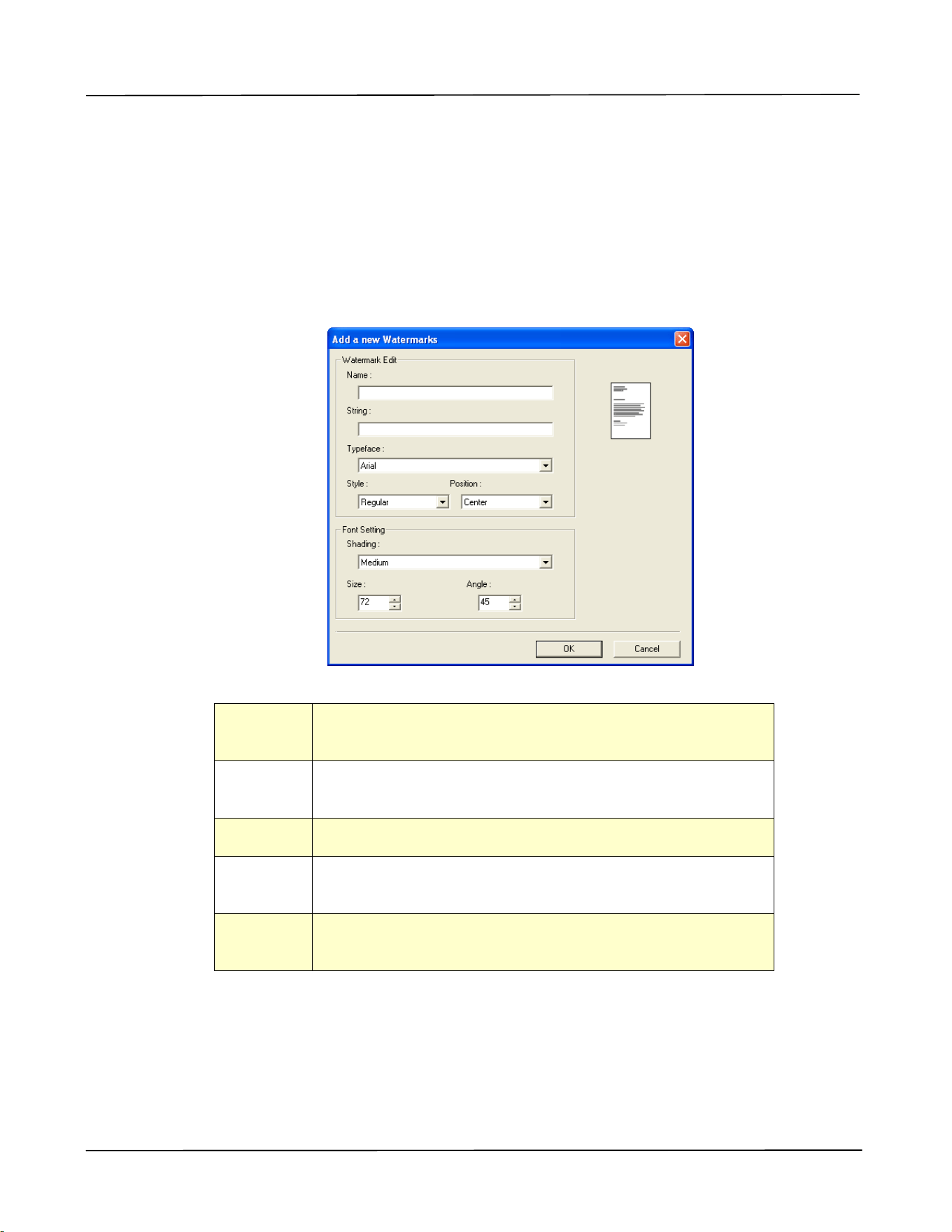
Adding a new watermark text
To add a new watermark text,
1. Choose Text and then click the Add/New button. The following Watermark dialog
box appears.
Name
Name your watermark text. This name will be shown in
the Watermark text list.
String
Enter your watermark text, such as confidential,
important, and so on.
Typeface
Choose your font type for your watermark text.
Style
Choose the style of your watermark text. Choice:
*Regular, Bold, Italic, Bold Italic.
Position
Choose the position of your watermark text. Choice:
*Center, Tile.
*Factory Default

User’s Guide
46
Angle
Specify the angle of the watermark text from 0° to 360°
Size
Specify the size of your watermark text from 1 to 288.
Shading
Specify a relative density for the watermark text.
Choice: Lightest, Light, Medium, Dark, Darkest.
2. Click the OK button to save the settings. If the new watermark text is created
successfully, the watermark name will be shown in the Text list.
Editing a current watermark text
To edit a current watermark text,
1. Choose the watermark name that you wish to edit from the Text list.
2. Click the Edit button. The Watermark Edit dialog box appears.
3. Change your settings for the selected watermark text and choose OK to
complete.
Removing a current watermark text
To remove a current watermark text,
1. Choose the watermark name that you wish to remove from the Text list.
2. Click the Remove button. The watermark text will be removed.
Configuring the Printer’s Driver
47
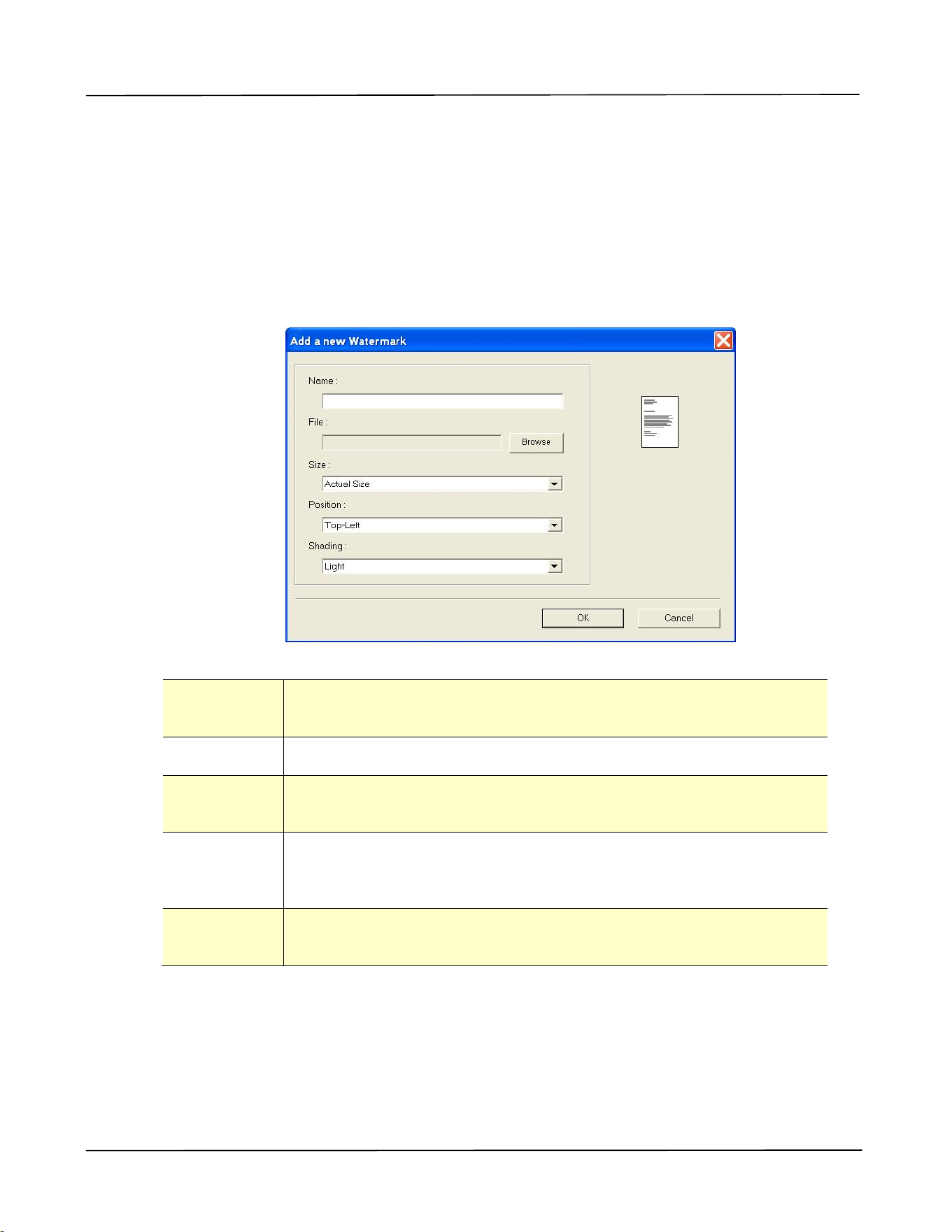
Adding a new watermark image
To add a new watermark image,
1. Choose Image and then click the Add/New button. The following Watermark
dialog box appears.
Name
Name your watermark image. This name will be shown in the
Watermark image list.
File
Click the Browse button to locate your watermark image.
Size
Specify the size of your watermark image. Choice: *Actural
Size, Fit to Page, Tile.
Position
Choose the position of your watermark image. Choice:
*Top-Left, Top-Center, Top-Right, Center, Center-Left,
Center-Right, Bottom-Center, Bottom-Right, Bottom-Left.
Shading
Specify a relative density for the watermark text. Choice:
Lightest, *Light, Medium, Dark, Darkest.
* Factory Default
2. Click the OK button to save the settings. If the new watermark image is created
successfully, the watermark name will be shown in the Image list.

User’s Guide
48
Editing a current watermark image
To edit a current watermark image,
1. Choose the watermark name that you wish to edit from the Image list.
2. Click the Edit button. The Watermark Edit dialog box appears.
3. Change your settings for the selected watermark image and choose OK to
complete.
Removing a current watermark Image
To remove a current watermark image,
1. Choose the watermark name that you wish to remove from the Image list.
2. Click the Remove button. The watermark image will be removed.
Configuring the Printer’s Driver
49
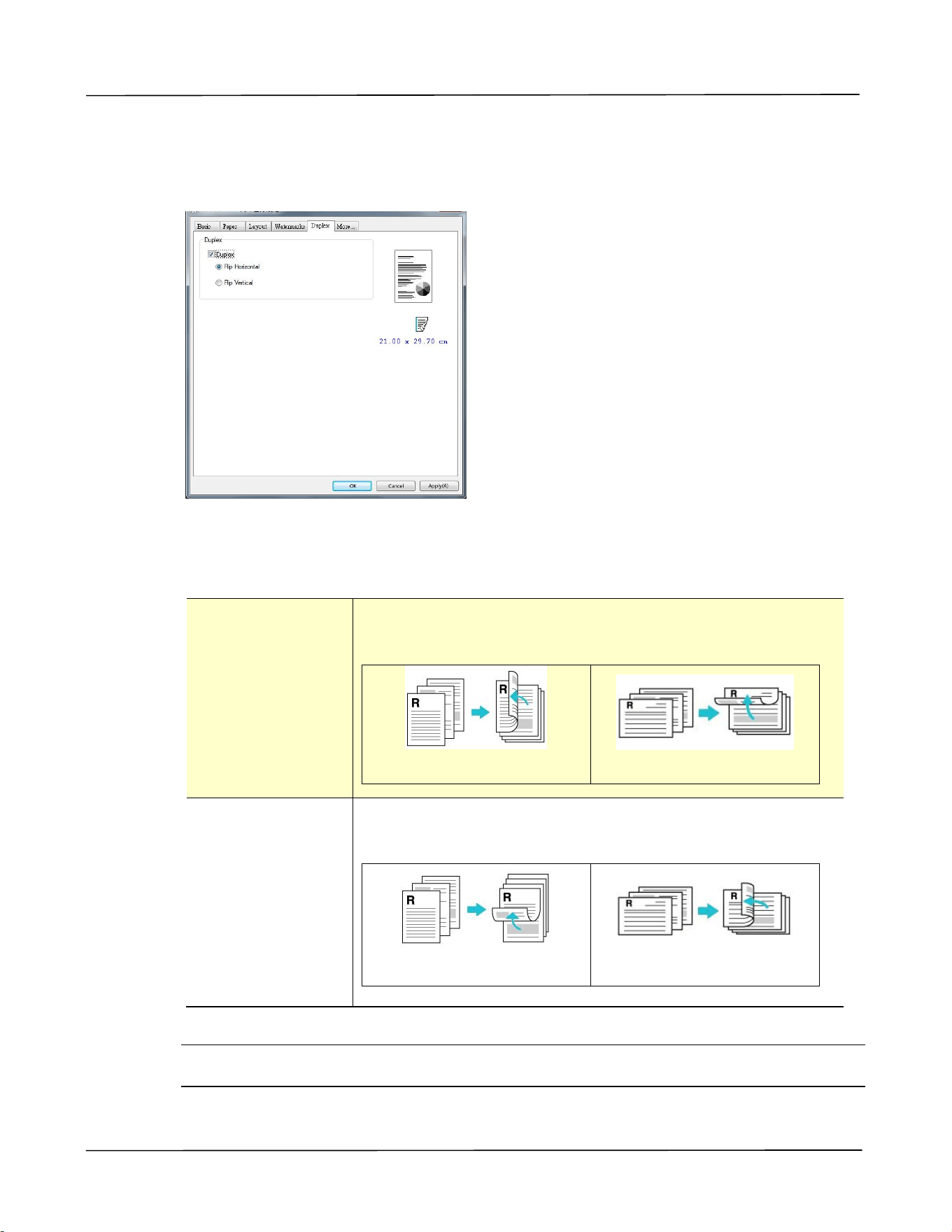
The Duplex Tab
The Duplex tab allows you to print your document on two sides of the paper.
When using Two-Sided printing, you can select whether to bind copies on the
long-edge or short-edge.
Long Edge
(Binding)
Long-Edge binding (Portrait) will print the pages so that
you flip them like you would do on a book.
Long-Edge binding (Portrait)
Long-Edge binding
(Landscape)
Short Edge
(Binding)
Short-Edge binding (Portrait) prints them so that your
flip them like you would do on a calendar.
Short-Edge binding (Portrait)
Short-Edge binding
(Landscape)
* Factory Default Setting
Note: The duplex feature supports only page sizes of A4, B5 (JIS), and Letter with
paper weight between 60g/m
2
and 105g/m
2
.
User’s Guide
50
The More Tab
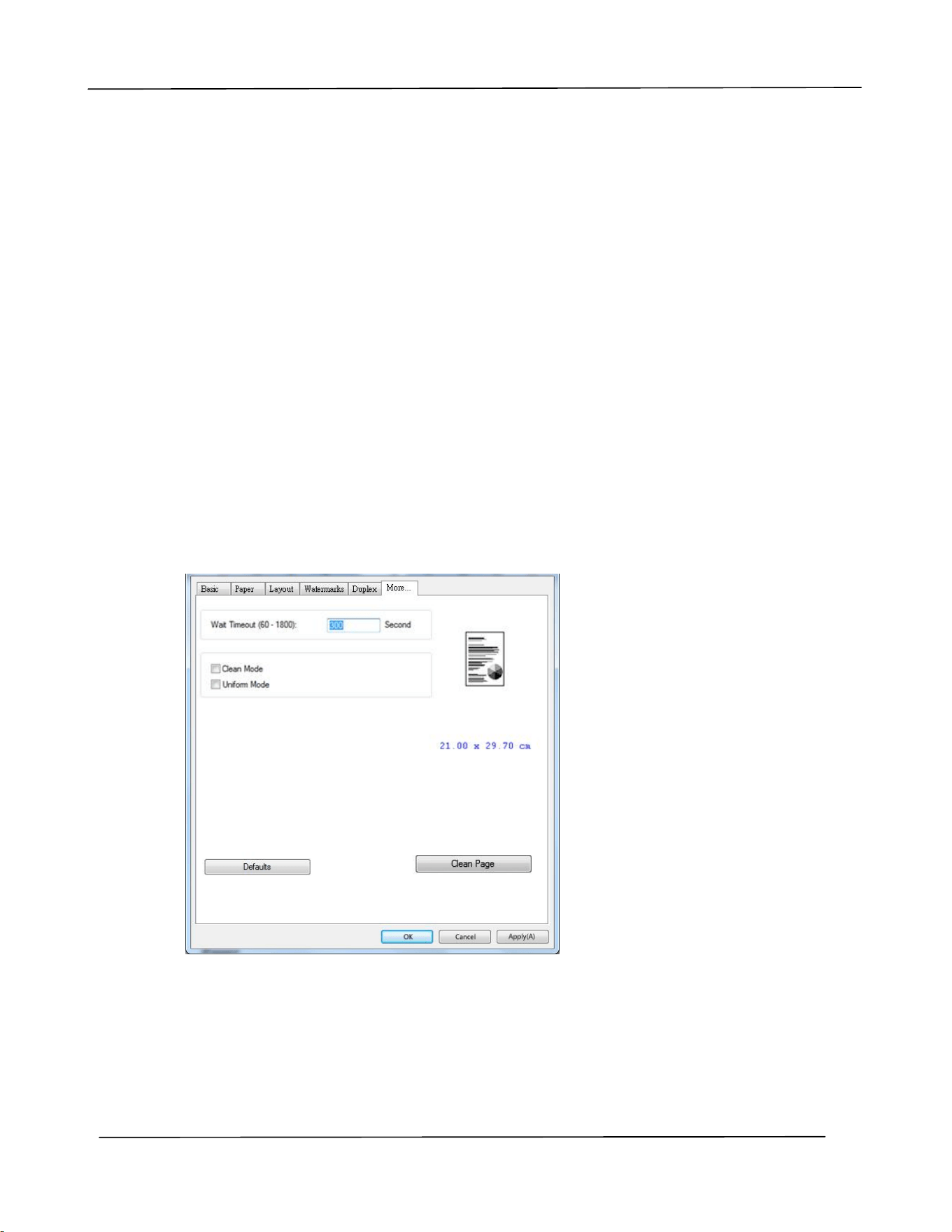
On the More tab, a Wait Timeout option is provided to set the amount of time the
MFP waits for data to come from computer during a job. If the data stream pauses for
longer than the specified number of seconds, the job is cancelled.
Permitted timeout values: 60~1800 seconds, default timeout values: 300 seconds
Clean Mode: If unwanted image appears in the blank space, you can check “Clean
Mode” to improve the printing quality.
Uniform Mode: If uneven shading appears in the image area, you can check “Uniform
Mode” to improve the printing quality.
Defaults: Press to change all setting values back to factory default.
Clean Page: After pressing the button, the machine will immediately print a cleaning
chart to clean the excessive toner in the printer.

5. Printing Documents from a
Mobile Device
For the model comes with a Wi-Fi module, the product can be converted into a
wireless device and your mobile device is able to print emails and documents by
simply tapping Print from the menu. (The availability of Wi-Fi function varied
according to your model name.)
Making Preparation
To connect the product to a wireless LAN, prepare the followings:
An environment in which a wireless LAN is available
When connecting the scanner to a wireless LAN, you may need information for a
wireless access point such as an SSID (network name) and a security key (password).
For details, contact your Network Administrator or refer to the manual for the
wireless access point.
Attention!
Do not place obstacles that block radio waves (e.g. walls or metal plates) or devices
that cause radio wave interference (e.g. cordless phones) within 100 mm of the
product, or near your wireless access point.
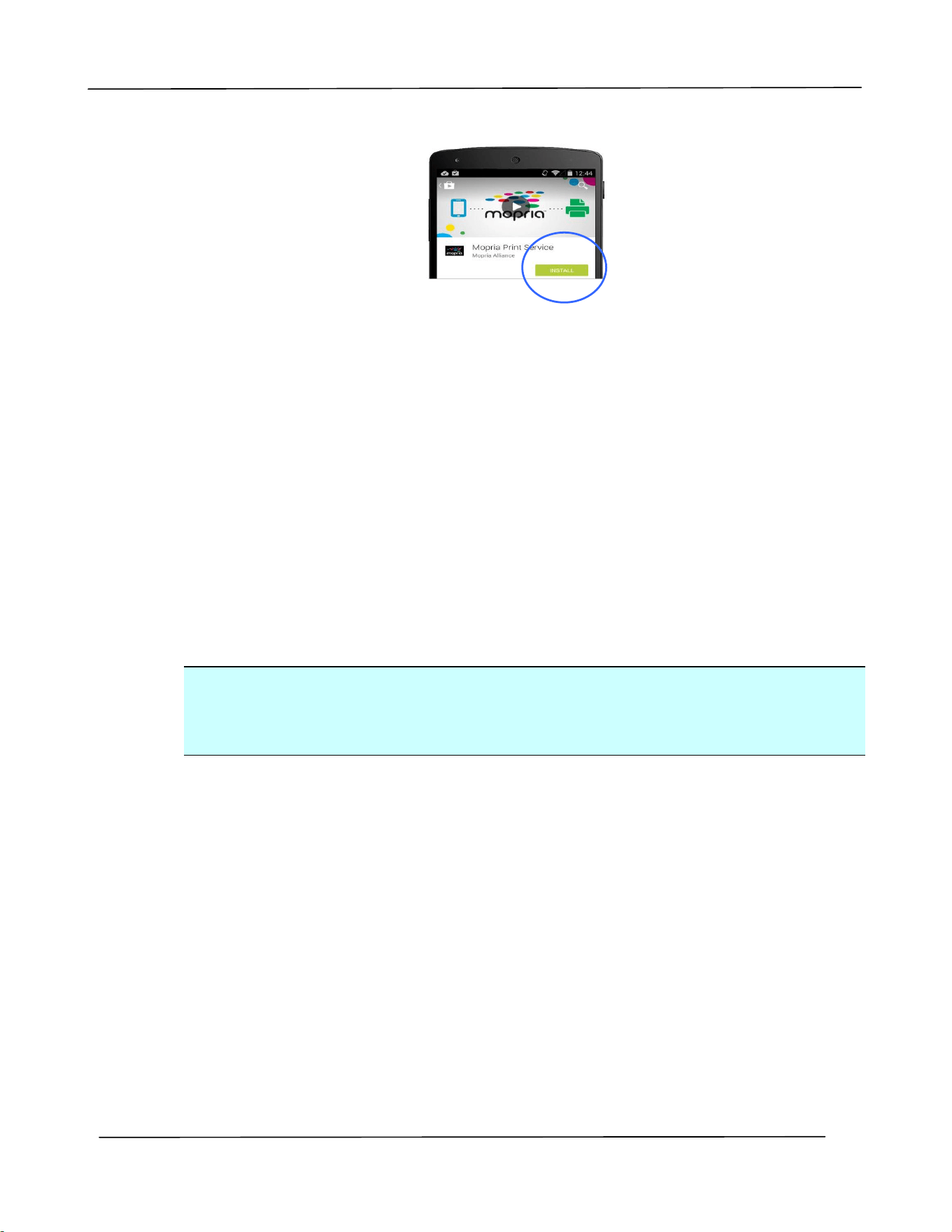
Mopria Print Service
The Mopria Print Service (app) can be downloaded from the Google Play Store to
enable print functionality on any Android phone or tablet (Android version 4.4 or
later). Once installed, simply connect your device to the same network as the
PRINTER and your mobile print can be completed.
User’s Guide
52
Print via Software Application (depending on your mobile phone)
You can also turn on Wi-Fi on your mobile phone, connect it directly to the printer,
then open the document on the mobile phone, use the software that opens the
document and select the printer to print it out.
Connecting to a Wireless Network via the
Network Setup Tool
*For the product that comes with a Wi-Fi module, the Wi-Fi is automatically turned on
when the product is turned on, and the product work as an AP (Access Point) by
default.
Before You Begin!
Make sure the computer has been connected to the product via the USB cable.
Make sure the power adapter has been connected and the product has been turned
on.
The Network Setup Tool is an application to configure the settings required for
connecting the product via wireless LAN. The Network Setup Tool can be used to
configure the following wireless or wired settings:
Connecting the product to a wireless access point
Connecting the product to a wired network
Setting the IP address for the scanner
Printing Document from A Mobile Device
53
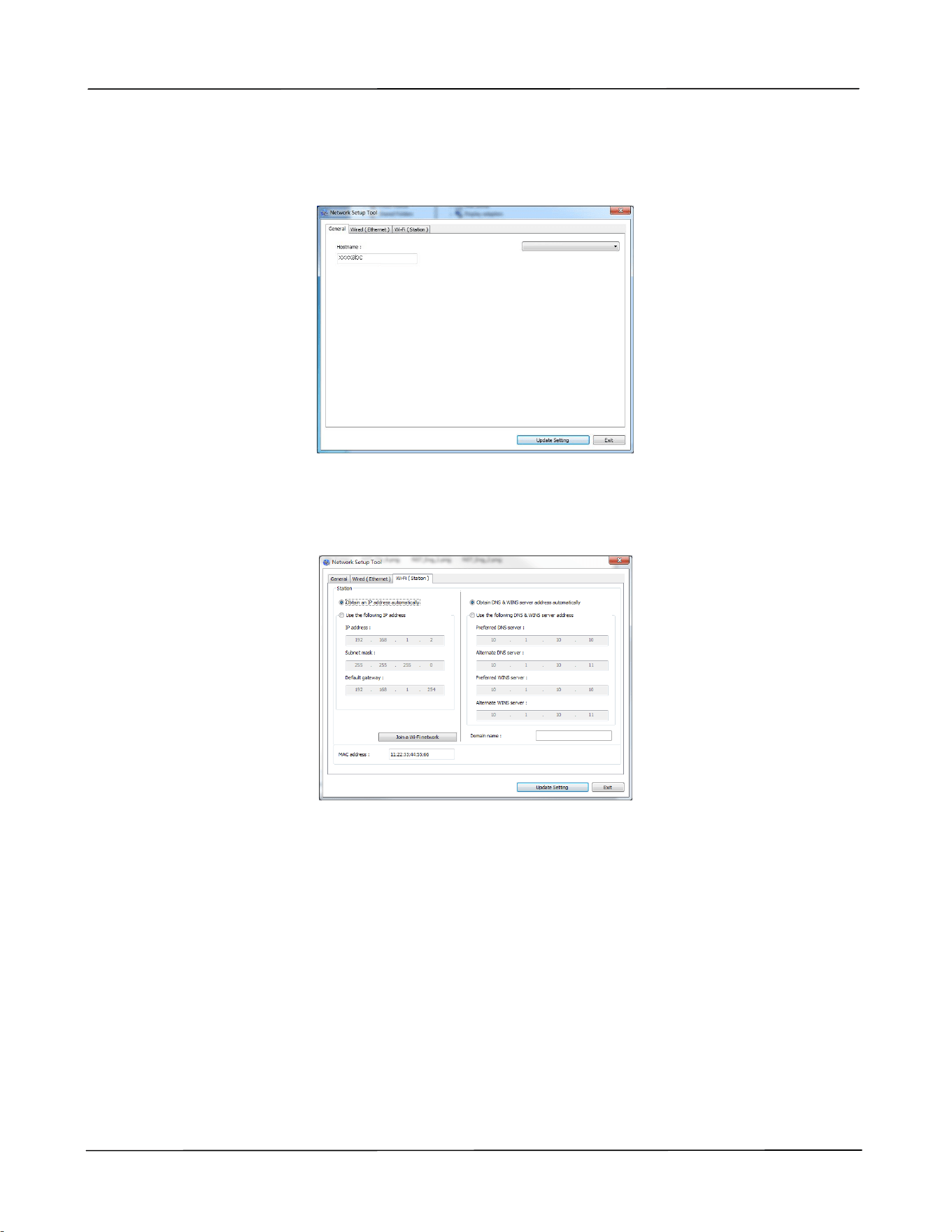
1. Launch the program by clicking the Start>All Programs>Avision AP33XX
Printer>Network Setup Tool. The main window appears.
2. On the [General] page, check [Wi-Fi (Station)].
3. Click the [Wi-Fi (Station)] tab to prompt the [Wi-Fi (Station)] page.
4. Check [DHCP] to obtain the IP address directly from the DHCP server or you may
enter your static IP on the [IP Address], [Subnet Mask], and [Gateway] field
respectively.
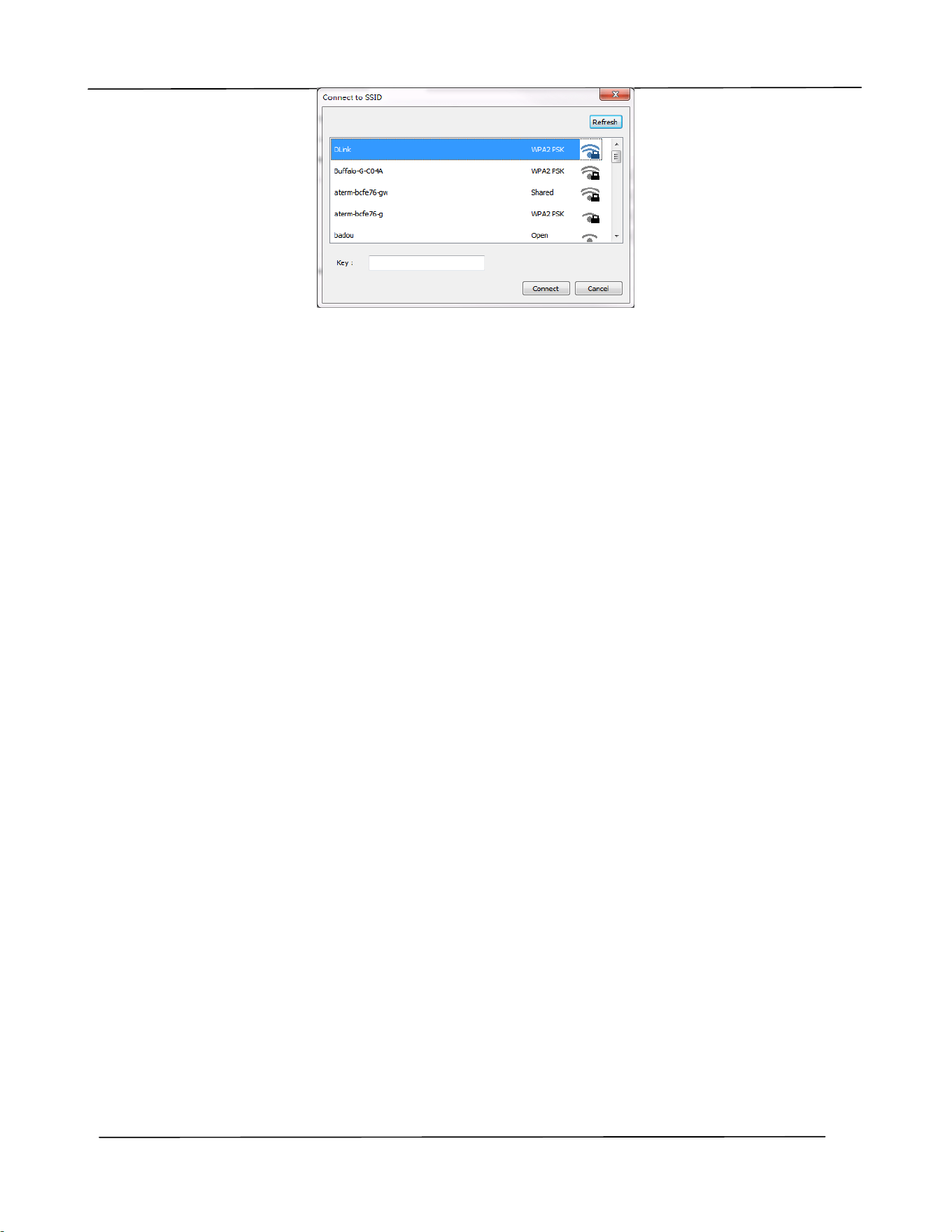
5. Click [Connect to SSID] and the currently connected wireless networks will be
displayed. Select the wireless network you want to connect and then enter the
security key if required.
AP33XX Printer
User’s Guide
54
6. Click [Connect] to start connecting the SSID (wireless network name) and then
update the IP information to the product.
7. If update is successfully, an [Update Device Successfully] message will be
displayed and the Network Setup Tool will be automatically closed.
Printing Document from A Mobile Device
55
Printing Your File from a Android Mobile
Device
Make sure that the Mopria Print Service (Print App) has been installed on your
Android mobile device. The Mopria Print App can be purchased for free from an
application store such as Google Play.
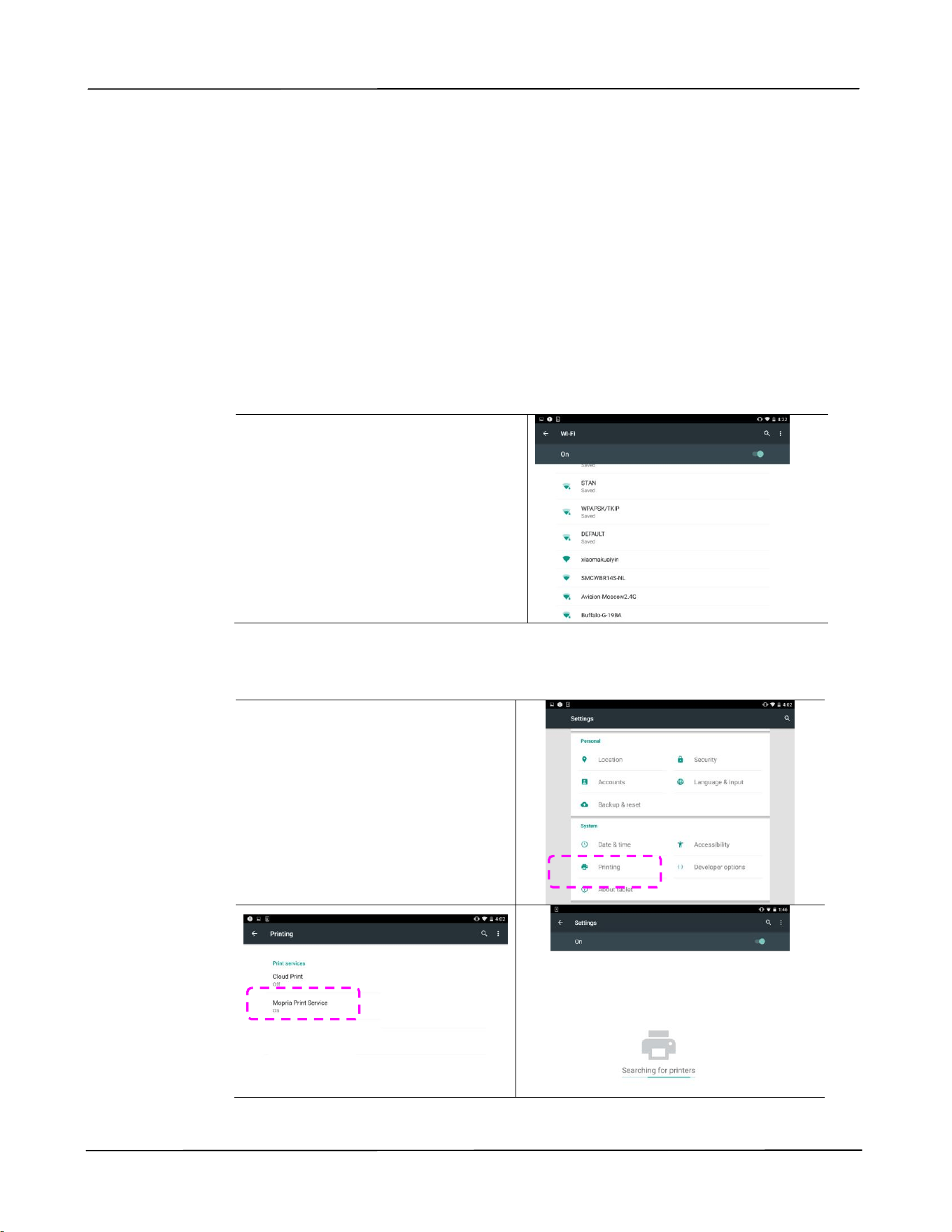
1. Select the same wirelss network as your PRINTER.
On your mobile device, tap
Settings>Wi-Fi and choose the
same network name (SSID) of
your PRINTER.
2. Turn Mopria Print Service on. The device will search available PRINTERs.
On your mobile device, tap
Settings>Printing>Mopria
Print Service to turn Mopria
Print Service on. The Device will
search for all available
PRINTERs.
User’s Guide
56
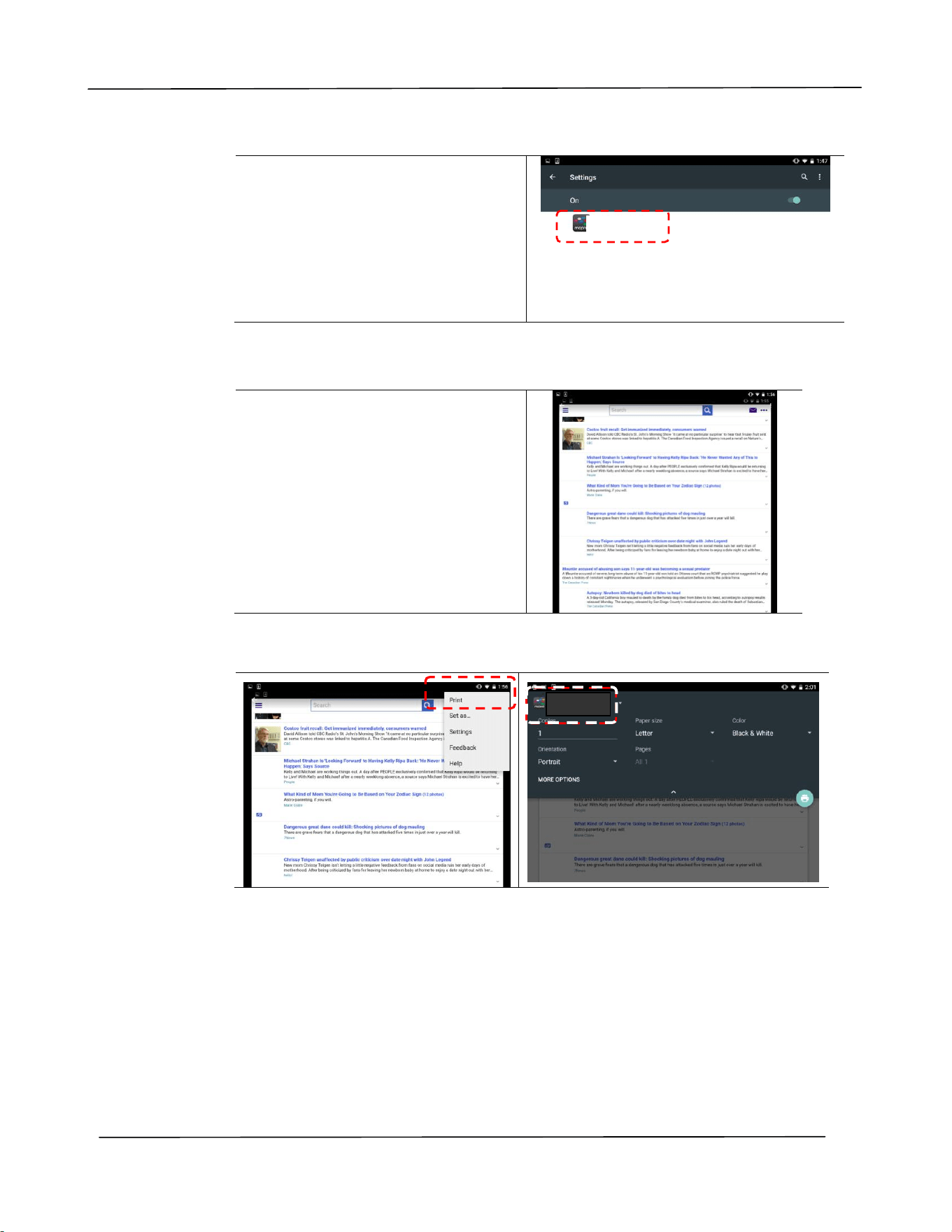
3. Select your PRINTER.
Select [XXX at XXX] from the
PRINTER list.
(XXX=Modellnummer)
4. Open the file which you want to print.
Open the file you want to print.
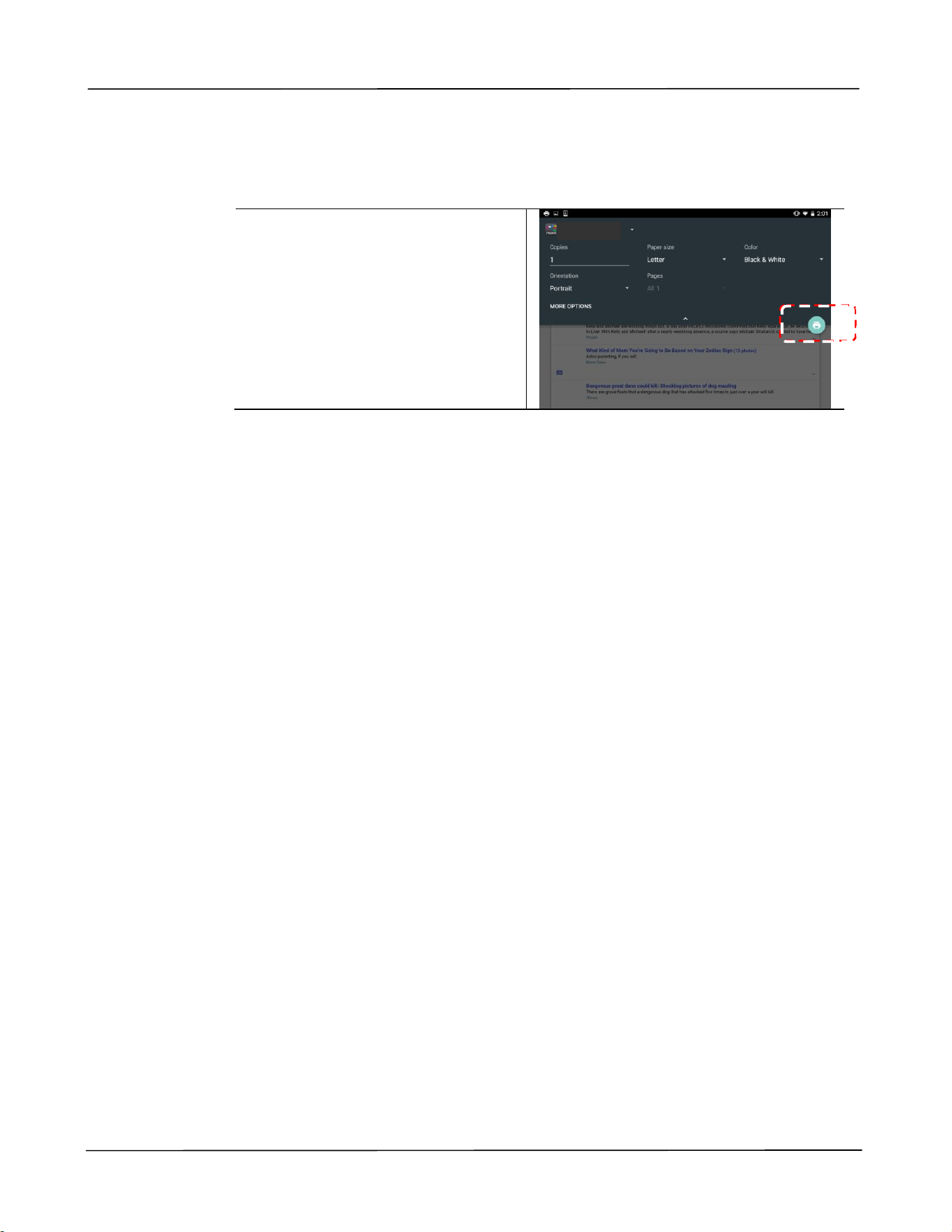
5. Choose [Print] from the menu and select your PRINTER.
xxx at xxx
Mopria Print Service
xxx at xxx
Mopria Print
Service
Printing Document from A Mobile Device
57
6. Choose print settings and print.
If you do not need to change
print options, tap Print to
send the print job.
If you need to change print
options, continue to the next
section.
xxx at xxx
Mopria Print
Service
User’s Guide
58
Printing Your File from a iOS Mobile Device
1. Turn on your mobile devices such as iPhone or iPad.
2. Tap 「Settings」 and then open Wi-Fi. Select the network same with your
PRINTER.
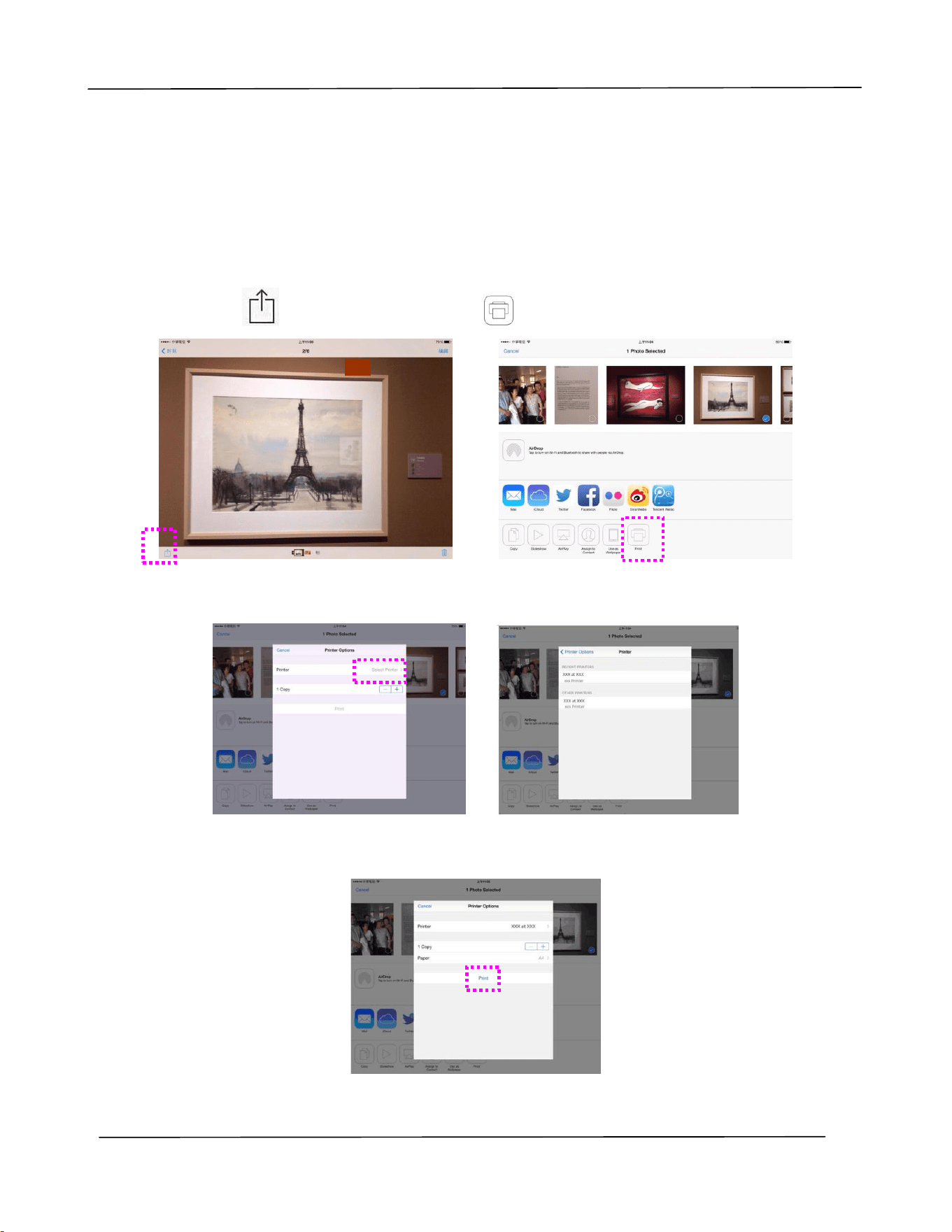
3. Open the picture or the document that you want to print. Tape the Share icon
( ) and then the print icon ( ).
4. Tap [Select PRINTER] and choose your desired PRINTER. (xxx=model name)
5. Tap [Print] to start printing.
Troubleshooting
59
6. Troubleshooting
Monitoring Your Printer Using Printer
Status Monitor
The PRINTER Status Monitor allows you to monitor your PRINTER’s status, get
information on consumable parts, and alerts you when PRINTER errors occur.
PRINTER Status Monitor is available when the PRINTER is connected directly to a
host computer via the USB port or a network port.
PRINTER Status Monitor is installed when you install the PRINTER driver as described
in the preceding section.
Accessing Printer Status Monitor
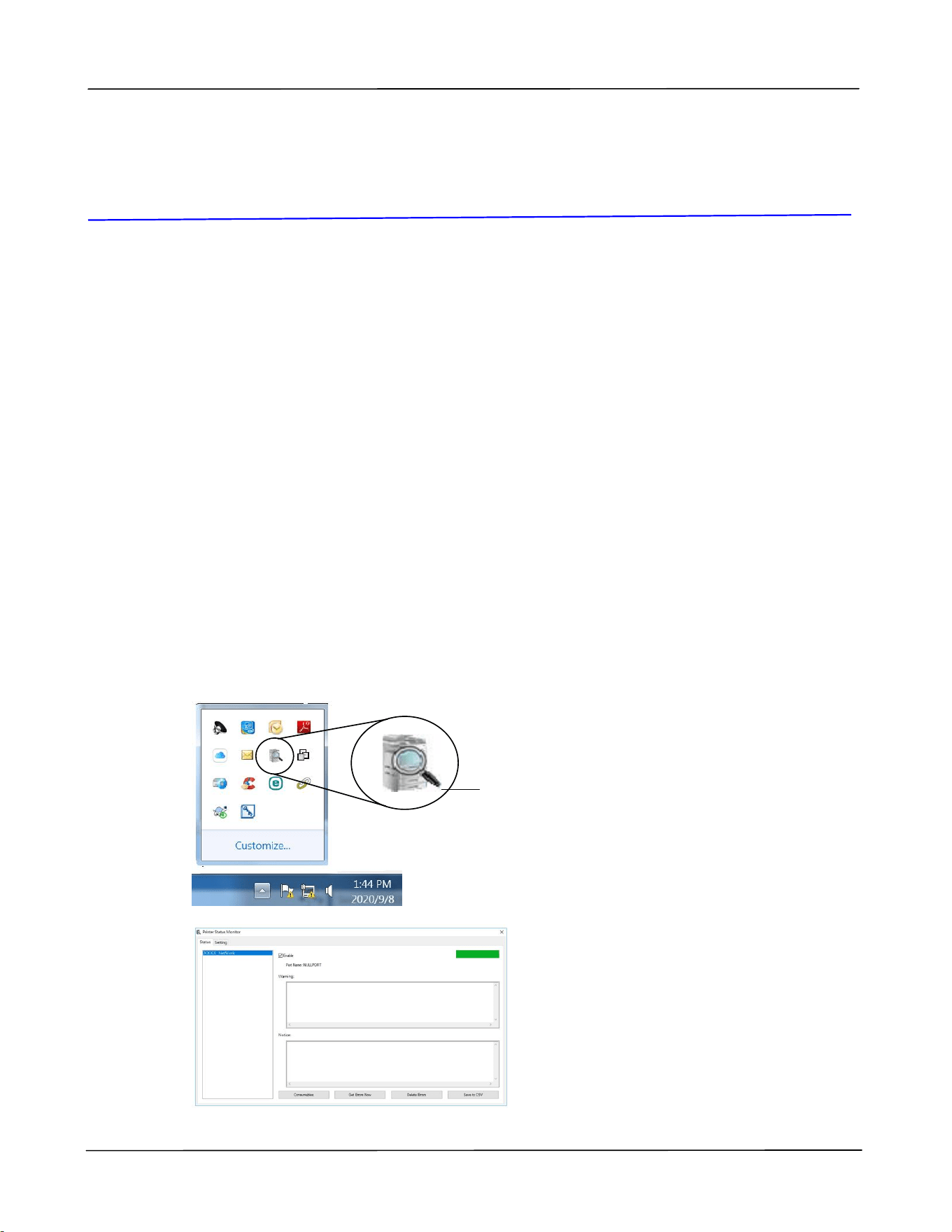
Double-click the Printer Status Monitor icon on the system tray. The following
PRINTER status window appears.
Printer Status Window
Printer Status Monitor icon
User’s Guide
60
Getting Printer Status Details
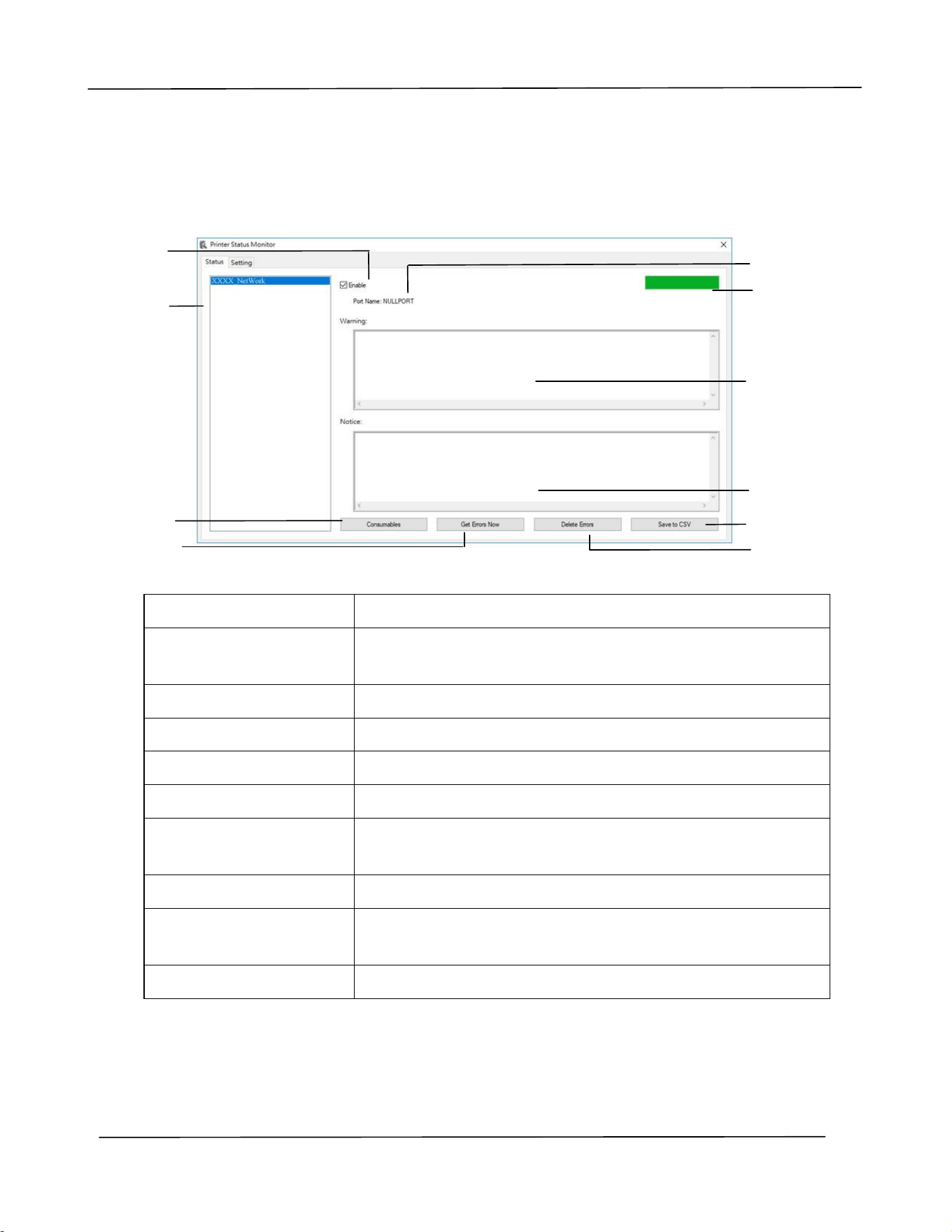
You can monitor printer status and get information on consumable products using
the Printer Status Monitor dialog box.
a Port Name
Port name for the specified printer.
b Progress Bar
The progress bar to access the latest data of the specified
printer.
c Text Box
Display the warning message.
d Text Box
Display the notice message.
e Save Errors to CSV
Save error message to a CSV file.
f Delete Errors
Delete all the error messages.
g Enable
Check the box to enable accessing the status of a
specified printer.
h Printer
Display connected printers.
i Consumables
Click to show the information of the paper tray and the
consumables parts such as Drum(EP), Toner.
j Get Errors Now
Refresh the printer status now.
a
b
c
d
e
f
g
h
i
j
Troubleshooting
61
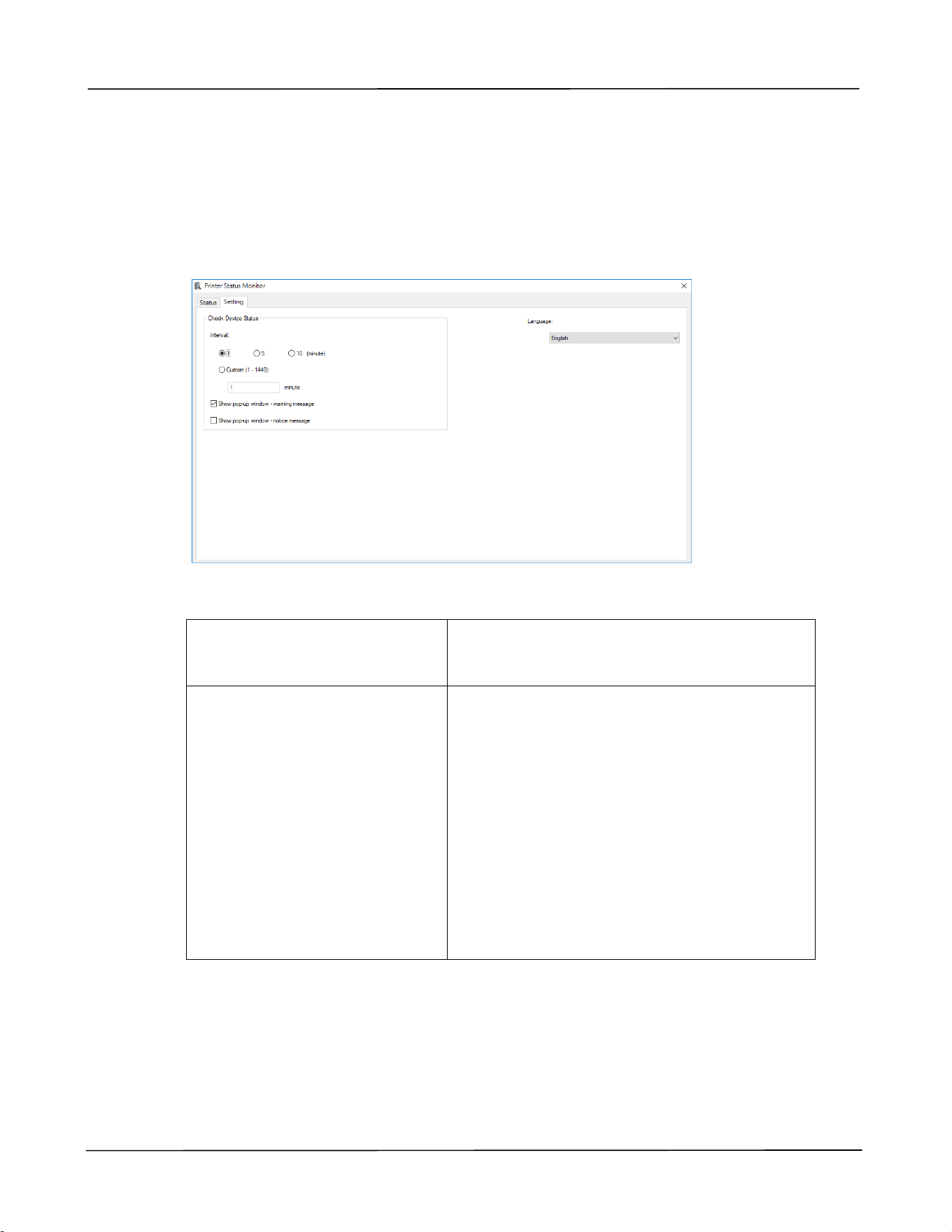
Setting Monitoring Preferences
To make specific monitoring settings, click the Setting tab on the Avision Status
Monitor window.
Language
Displays the language of the window.
Status Alert
Update Time
Show pop-up window –
warning message
Show pop-up window –
notice message
Define the interval to refresh the printer
error status.
Choice: 1, 5, 10 (minute), Custom (1 ~
86400) second
Check the box to automatically show the
warning message.
Check the box to automatically show the
notice message.

User’s Guide
62
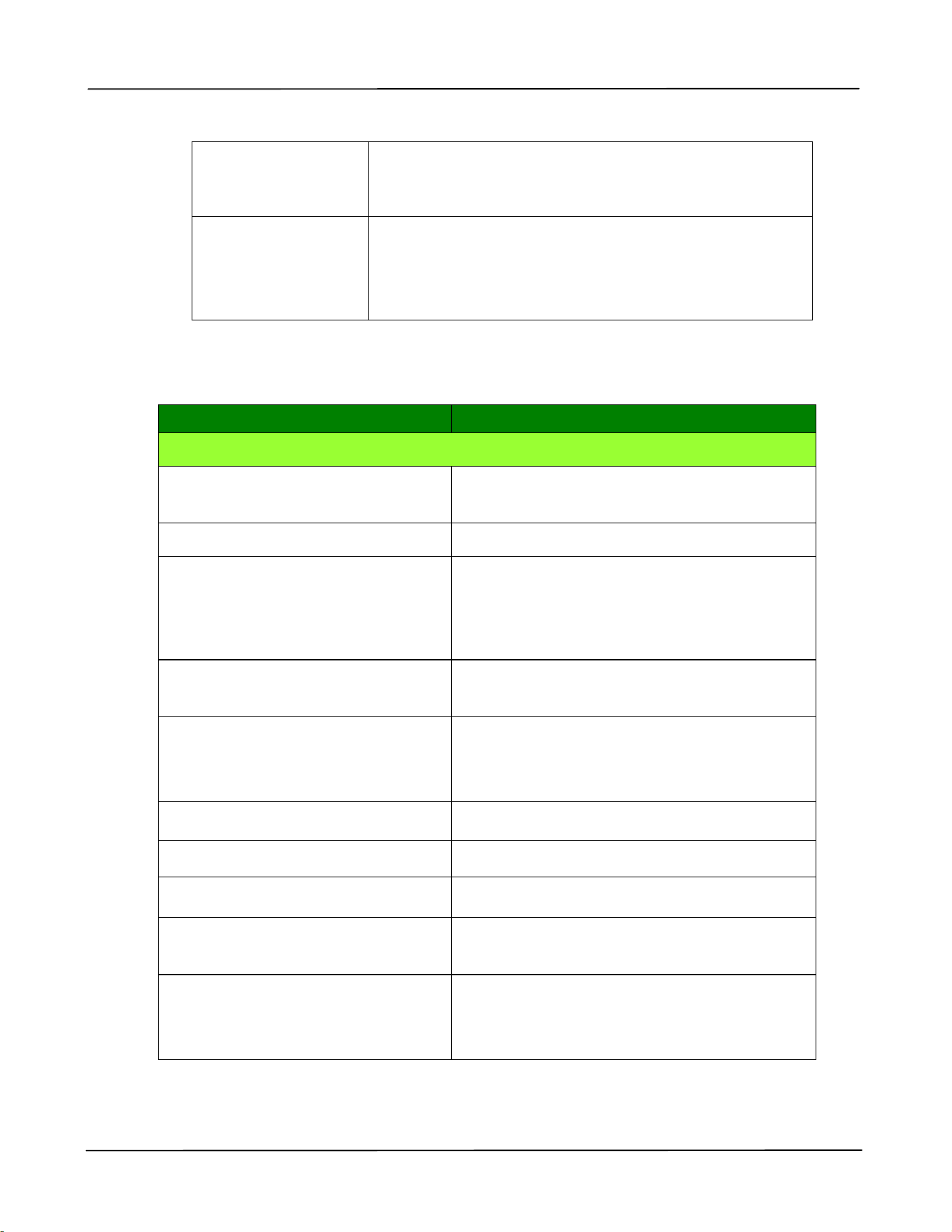
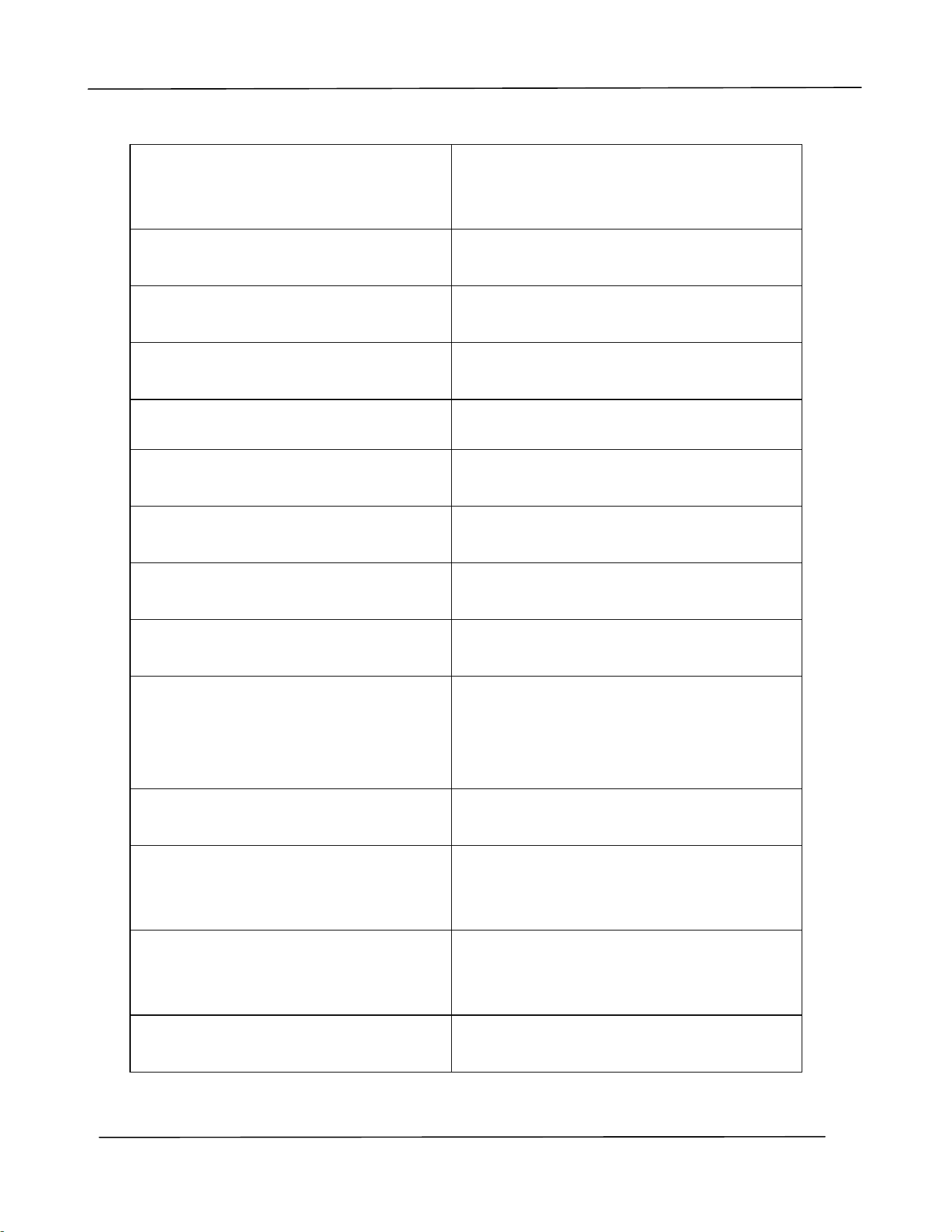
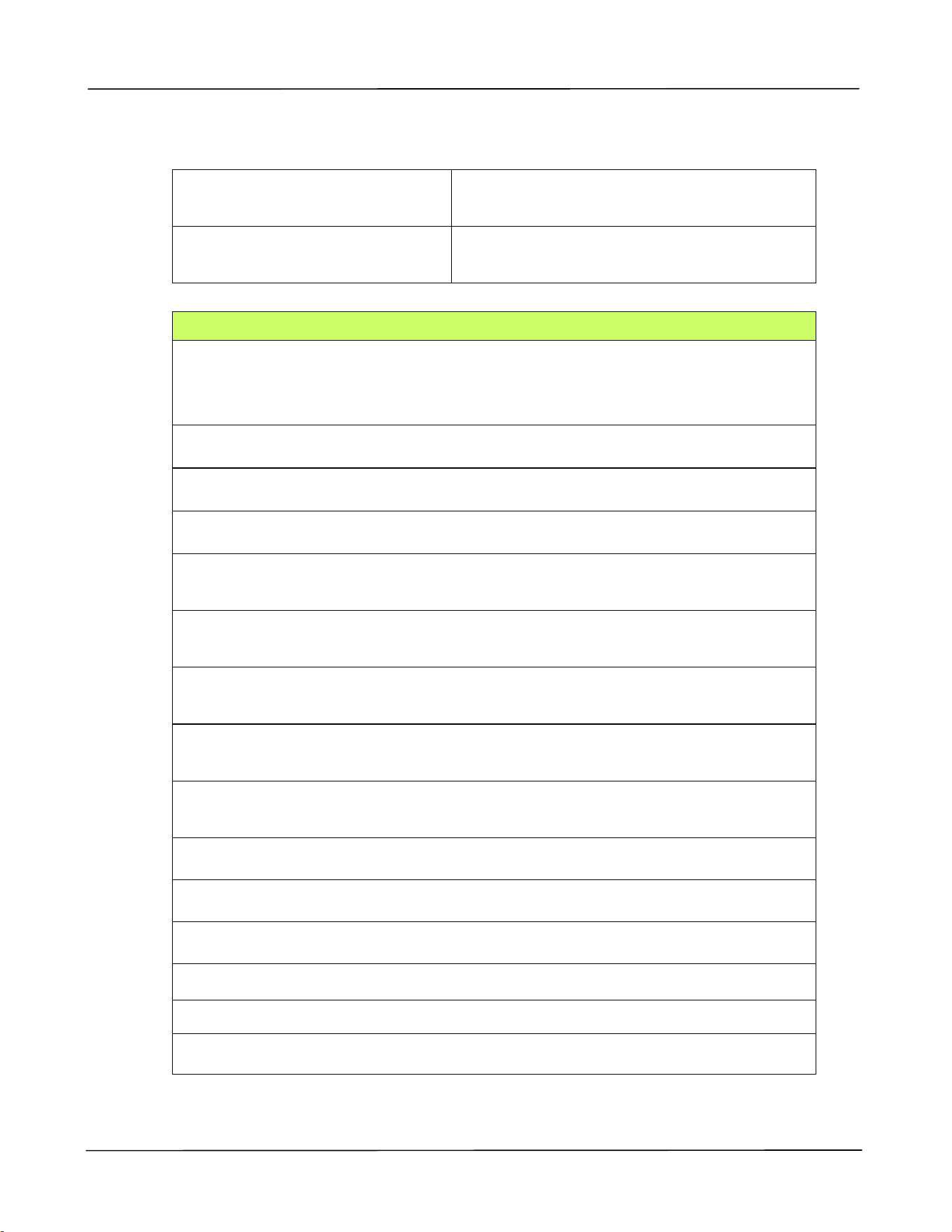
Clearing A Warning or An Error
If a problem occurs during operation, the Error LED will be flashing to indicate a
warning or an error status. To solve the problem, please refer the following table for
more detailed information.
Warning Message
Message
Description or Solution
Toner low
(200032).
Toner that remains is lower than 10%. The machine
can still perform printing or copying function yet with
poor quality.
Drum near end
(200043).
Drum that remains is lower than 10%.
Call the service personnel to order and replace the
drum.
Toner empty
(200031)
Toner has run out.
Replace a new toner cartridge.
Invalid toner
200039
Toner cartridge error. (incorrect vendor name)
Please replace the drum from the original
manufacturer.
No Drum (200041)
Please install drum and restart PRINTER.
Drum life ends
(200042)
Drum life has been exhausted.
Call the service personnel to order and replace the
drum module.
Drum type not
support (200047)
Drum type not support. Relace the drum unit.
Invalid drum unit
(200044, 201504,
201514)
Invalid drum unit. Please replace the drum from the
original manufacturer.
Invalid fuser
(201502, 201512)
Invalid fuser. Replace the fuser.
Fuser temperapture
is too low (200006)
Wait until the temperature rises to the required
degrees.
Drum unit changed
(200046)
Drum unit has been upgraded. Replace drum unit.
Troubleshooting
63
Auto temp.
adjustment
(200004)
Temperature inside the product is too high. Wait until
the temperature rises to the required degrees.
Toner cartridge
error.
(200036, 201505,
201515
Please replace toner cartridge from the original
manufacturer.
Error Message
Error Message and Codes
Possible Causes or Solution
System error
PRINTER error. (100111)
Restart PRINTER. If this error persists, call
service personnel for help.
I2C error (100112)
Call service for further help.
PRINTER module error.
Please restart PRINTER or call
service (205000, 205001)
An unexpected error from PRINTER parts
occurs.
Restart PRINTER or call service personnel to
replace PRINTER parts that fail.
Please clean the charger wire
(205101).
Please clean the charger wire.
Motor error (000001).
Press # button to erase or call
service.
When PRINTER is booted, the scanner and
PRINTER engine Initialization fail.
Restart PRINTER.
Fan fails (200090).
Call service personnel to replace the fan.
Front cover opens (200051).
Please close front cover.
Rear cover opens (200054).
Please close rear cover.
Continue feed error (200000).
Please open front cover to clear the paper
and load paper to proper tray.
Fuser error (201600, 201604~5,
201613, 201615~201618,
201621~201623) (201626)
Please restart PRINTER. If the error persists,
call service personnel for help.
User’s Guide
64
Scanner lamp error (940305)
Close the scan module and then restart the
PRINTER. If the error persists, call service
personnel for help.
AFE R/W error (940306)
Restart the PRINTER. If the error persists,
call service personnel for help.
Please load paper in manual tray
(200080).
Paper empty in the manual tray.
Please check tray 1 (200003).
Pick up error. Paper empty, paper jam, or
pickup failed in tray 1.
Please load paper to tray1 (200081)
Tray 1 paper empty.
IP conflict (500000).
Please check network settings.
Check your network setting.
DHCP no response (500002).
Please check network settings.
Check network settings.
PRINTER not ready.
Try again later.
PRINTER is busy with current job. Wait until
current job is completed.
Buffer full Job abort.
Memory is not enough to process the
scanned images.
Buffer full
Print scanned images:1
Cancel job:2
Memory is not enough to process the
scanned images. Press [1] to print the first
few images which have not exceeded the
memory limit or press [2] to cancel job.
Resetting default settings fails.
Please try again later.
Resetting default settings.
Scanner Calibration fails.
Please try again later.
Please try again by pressing the Menu
button and then choosing
System>Management>Calibration.
Reset count fail.
Please try again later.
Please try again by pressing the Menu
button and then choosing
System>Management>Reset count.
Setting fails.
Please try again later.
Setting the Menu option fails. Check your
setting.
Troubleshooting
65
Full page not support N in 1
The Full page feature does not support N in 1
(2 in 1 or 4 in 1).
Custom zoom not support N in 1
The Custom Zoom feature does not support
N in 1 (2 in 1 or 4 in 1).
Paper Jam
ADF paper jam (002013).
1. Open ADF cover and clear paper.
2. Close ADF cover.
Paper feed failed (200301). Please check manual tray.
Paper feed failed (200302). Please check tray 1 and clear the jammed paper.
Paper jam (200324). Please open front cover and tray 1 to clear jam paper.
Paper jam (200325). Please open front cover and pull drum unit out to clear jam
paper.
Paper jam (200326). Please open front cover and pull drum unit out to clear jam
paper.
Paper jam (200327). Please open front cover and pull drum unit out to clear jam
paper.
Paper jam (200328). Please open front cover and pull drum unit out to clear jam
paper.
Paper jam (200329). Please open front cover and pull drum unit out to clear jam
paper.
Paper jam (200330). Please open front cover and rear cover to clear jam paper.
Paper jam (200331). Please open front cover and rear cover to clear jam paper.
Paper jam (200332). Please open front cover and rear cover to clear jam paper.
Paper jam (200333). Please open front cover and rear cover to clear jam paper.
Paper jam (200334). Please check duplex tray.
Paper jam (200335). Please check duplex tray.
User’s Guide
66
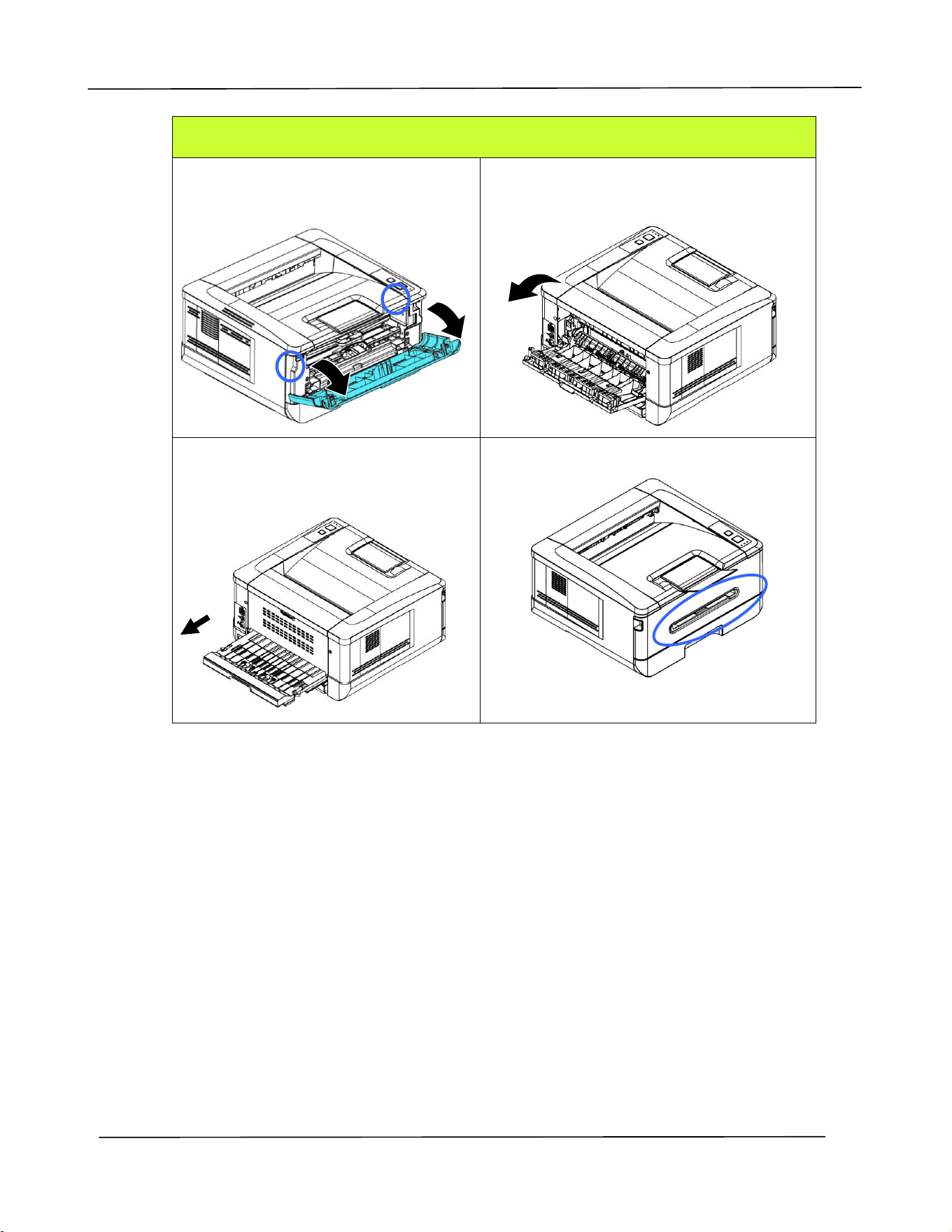
Locations of the Jammed Paper
Front Cover: Open the front cover
by pulling the handles of the front
cover on both sides as illustrated.
Rear Cover: Open the rear cover by
pulling the handle of the rear cover as
shown.
Duplex Tray: Pull the duplex tray
beneath the rear cover out of the
main unit.
Manual Tray:
Troubleshooting
67
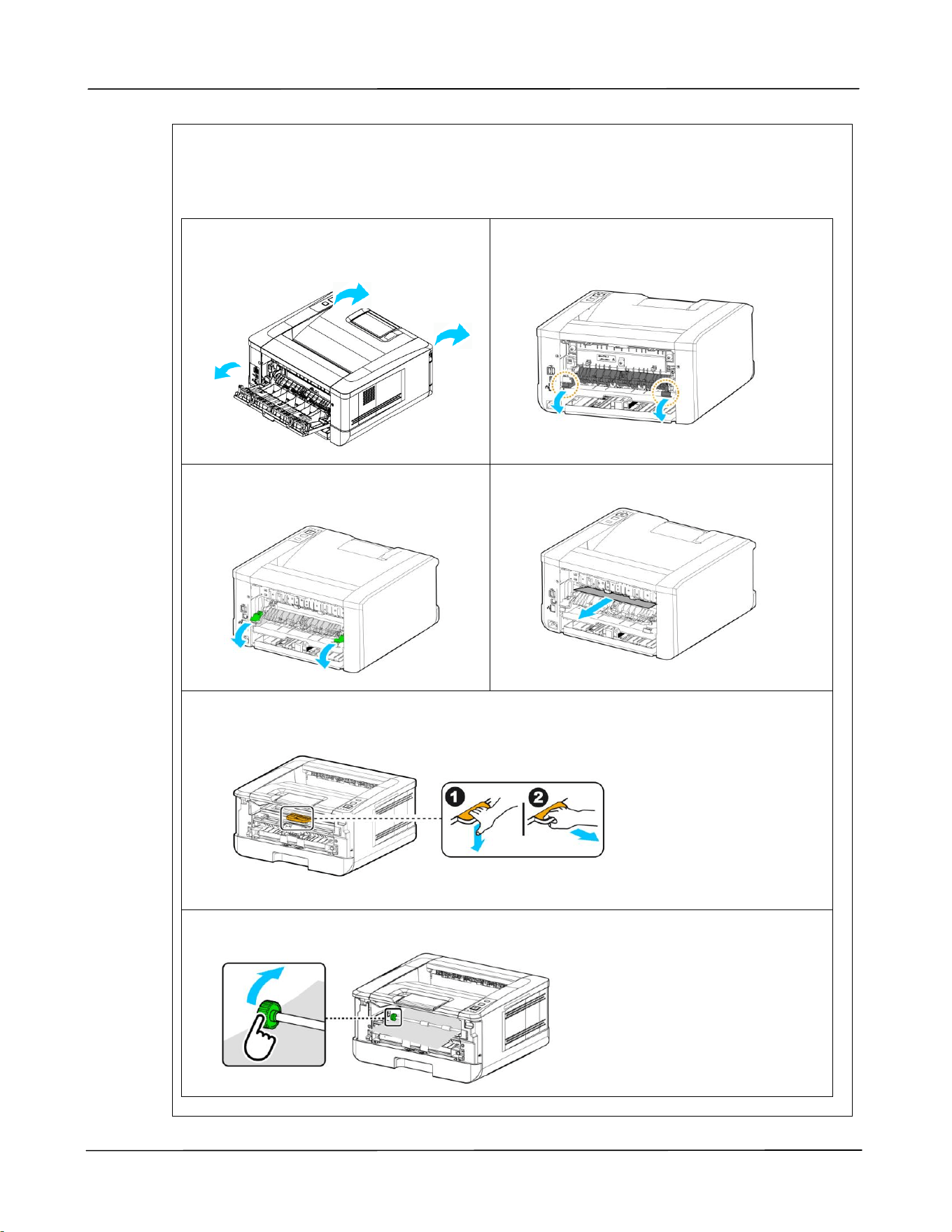
Fuser:
The area around the fuser is hot. To avoid a burn injury, be careful not to touch the
fuser until it cools down and follow these steps to remove the jammed paper:
1. Open the Front Cover and the
Rear Cover.
2. Pull down the Fuser Path as
indicated.
3. Pull down the Release Arm on
both sides.
4. Slowly remove the jammed paper.
5. If there is difficulty to pull off the jammed paper, remove the PRINTER
cartridge first.
6. Rotate the Release Wheel to slowly pull out the jammed paper.
User’s Guide
68
Error Message and Codes
Possible Causes or Solution
Runtime error
Error (Number).
Restart PRINTER. If this error persists, call service personnel
for help.
201516
Write Data Smaller Error -Engine
201631
Black LPH Type Error
201632
Red LPH Type Error
201610
PRINTER LPH Error,LPH cable connection fails.
201650
PRINTER runtime error.
201651
Firmware error.
201701
PRINTER MB NVRAM:reading error
201702
PRINTER MB NVRAM:writing error
201703
PRINTER MB NVRAM:reading error while comparing
201704
PRINTER MB NVRAM:comparing error
201711
PRINTER Drum Unit NVRAM:reading error
201712
PRINTER Drum Unit NVRAM:writing error
201713
PRINTER Drum Unit NVRAM:reading error
201714
PRINTER Drum Unit NVRAM:comparing error
201721
PRINTER Toner NVRAM:reading error
201722
PRINTER Toner NVRAM:writing error
201723
PRINTER Toner NVRAM:reading error while comparing
201724
PRINTER Toner NVRAM:comparing error
201730
PRINTER uses wrong NVRAM Address.
300100
PRINTER API_NVRAM_RW_TEST_FAIL
300101
PRINTER API_NVRAM_WRITE_FAIL
300102
PRINTER API_NVRAM_READ_FAIL
300200
PRINTER Flash Error
300201
PRINTER FLASH_BLOCK_ERASE_FAILED
Troubleshooting
69
300202
PRINTER FLASH_CHIP_ERASE_FAILED
300203
PRINTER FLASH_PROGRAM_FAILED
302651
Network_INIT_FAIL , network initialization fails.
Image Problem Troubleshooting
Problem
Image Example
Solution
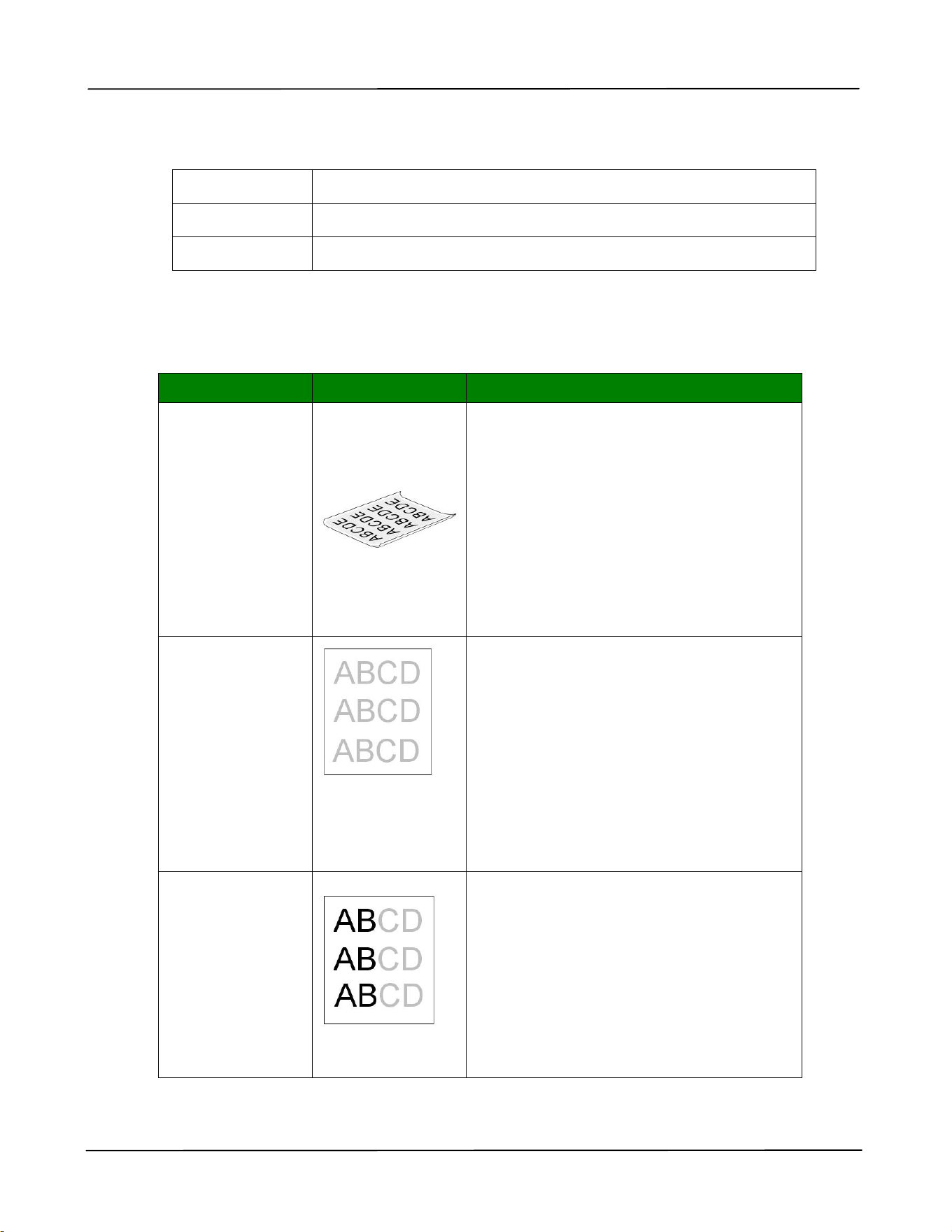
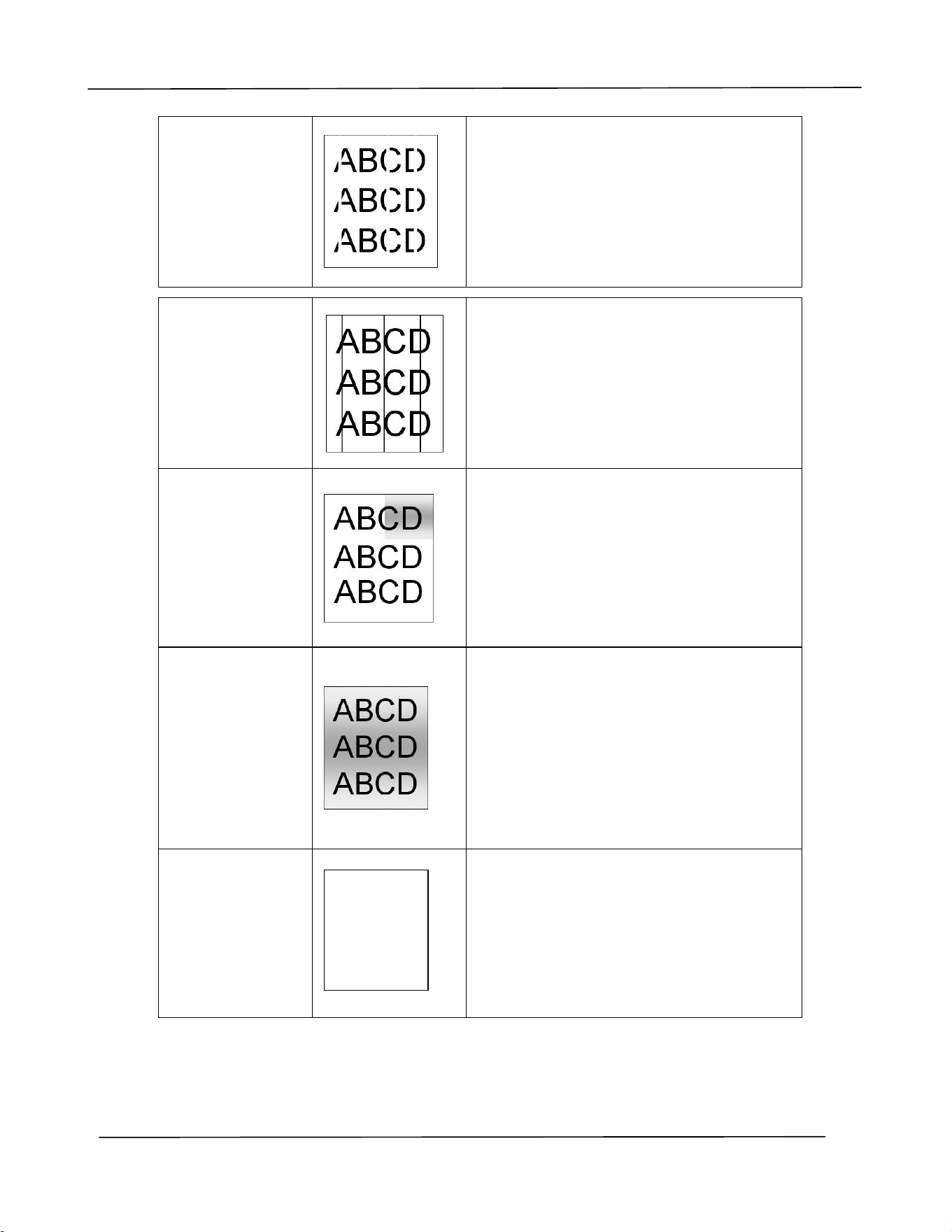
Paper curls
1. Use paper of standard weight: If
you are using thin paper, try to use
paper of standard weight (70
g/m
2
).
2. Use paper with less moisture: Load
the paper to the paper tray
immediately after removing them
from the packaging. Seal the
remaining paper with the original
packaging to keep from the
moisture absorption.
Light
print(entire
page)
1. Make sure that the toner cartridge
is fully installed.
2. Make sure that the Toner Save
setting is turned off in the PRINTER
driver.
3. Try using a different type of paper.
4. The toner cartridge might be
almost empty. Replace the toner
cartridge.
Light
print(partial
page)
1. Make sure that the toner cartridge
is fully installed.
2. The toner level might be low.
Replace the toner cartridge.
3. The paper might not meet the
PRINTER’s specifications (for
example, the paper is too moist or
too rough).
User’s Guide
70
Vertical white
lines
Call the service personnel for help.
Vertical black
lines
Please clean the EP charger according to
the procedure described in this manual
(p. 102).
Dirty
background(pa
rtial page)
Check if toner is not leaked from the
toner cartridge. If so, replace the toner
cartridge.
Dirty
background
(entire page)
1. The paper might not meet the
PRINTER’s specifications (for
example, the paper is too thin).
2. Check if there is enough toner in
the toner cartridge. If not, please
replace toner cartridge.
3. Call the service personnel for help.
Print blank
page
Check if there is enough toner in the
toner cartridge. If not, please replace
the toner cartridge.
If this error happens again, call service
for help.
Troubleshooting
71
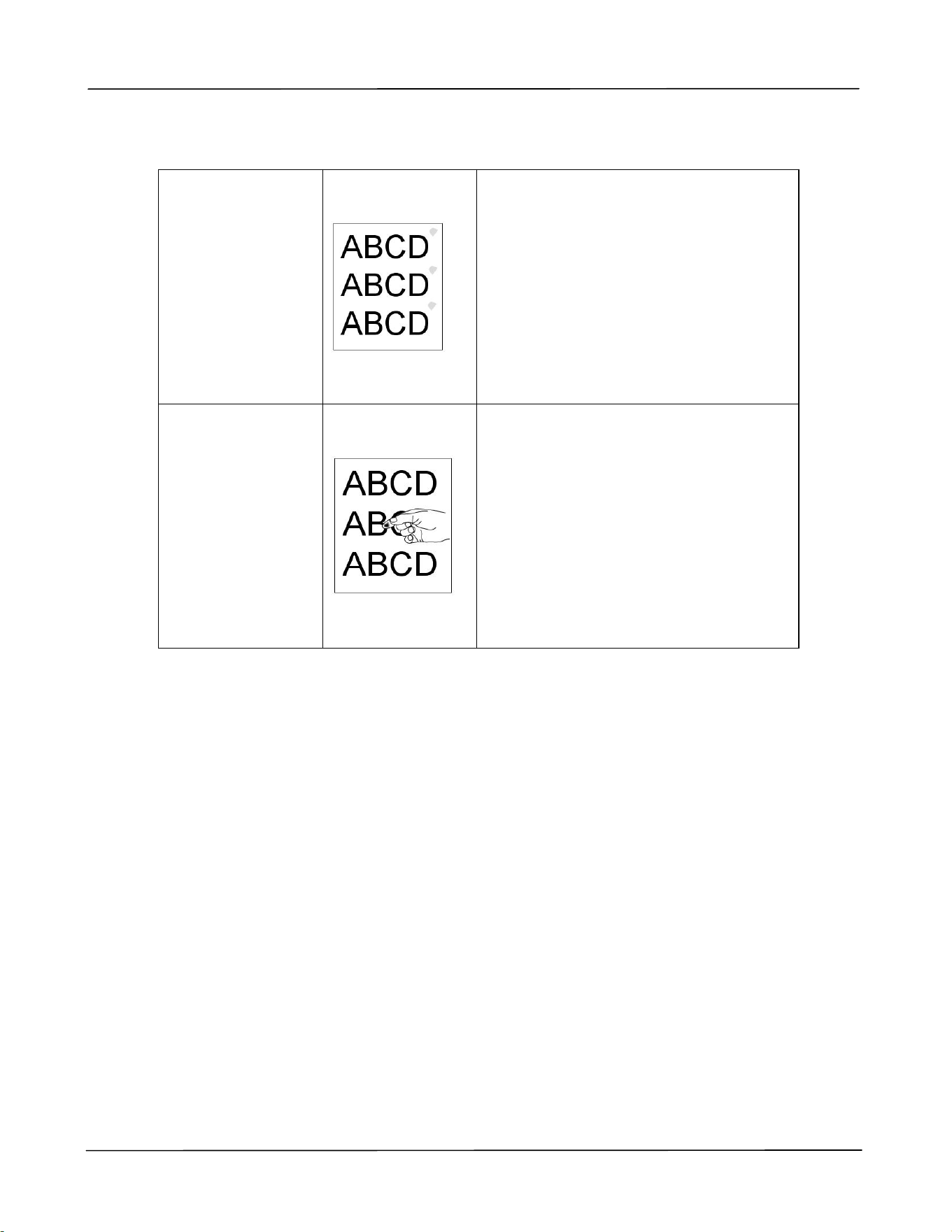
Defective image
of regular
interval
1. Use a clean and soft cloth to wipe
the off the dust or particle on the
drum unit. (See page 98)
2. If the error occurs again, contact
the service personnel.
Loose toner
1. If you have observed a rougher
texture on one side of your
paper, try printing on the
smoother side.
2. The paper might not meet the
PRINTER’s specifications (for
example, the paper surface is not
smooth or paper too thick).
3. Media type incorrect. Please
choose proper media type for
your paper.

User’s Guide
72
TECHNICAL SUPPORT
If your problem still exists after trying the above solution, please contact our technical
support.
Headquarter
Avision Inc.
No. 20, Creation Road I, Science-Based Industrial Park,
Hsinchu 300, Taiwan, ROC
TEL: +886 (3) 578-2388
FAX: +886 (3) 577-7017
Web Site: http://www.avision.com.tw
US and Canada Area
Avision Labs, Inc.
6815 Mowry Ave., Newark CA 94560, USA
TEL: +1 (510) 739-2369
FAX: +1 (510) 739-6060
Web Site: http://www.avision.com
China Area
Shanghai Technical Support Center
7A, No.1010, Kaixuan Road, Shanghai 200052 P.R.C.
TEL :+86-21-62816680
FAX :+86-21-62818856
E-MAIL :sales@avision.net.cn
Web Site:http://www.avision.com.cn
Europe Area
Avision Europe GmbH
Bischofstr. 101 D-47809 Krefeld Germany
TEL: +49-2151-56981-40
FAX: +49-2151-56981-42
Web Site: http://www.avision.de
Espaço Brasil
Avision Brasil Ltda.
Avenida Jabaquara, 2958 – Cj. 75 – Mirandópolis
São Paulo / SP
TEL: +55-11-2925-5025
E-MAIL: [email protected]
Web Site: http://www.avision.com.br
Maintaining the Product
73
7. Maintaining the Product
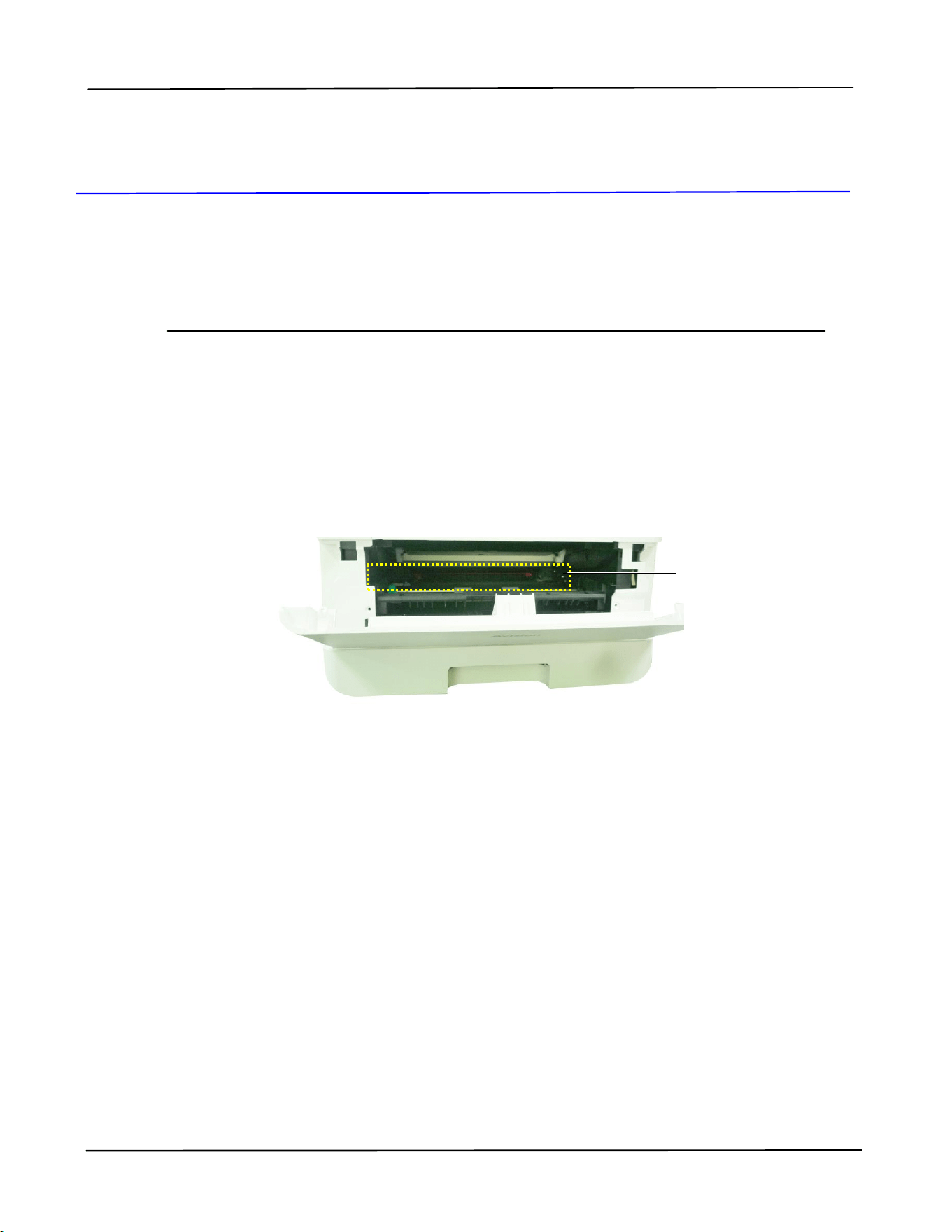
Cleaning the Paper Path
1. Refer to the preceding section to remove the Toner Cartridge.
2. Check if there is paper dust on the Paper Path. If so, remove the dust.
Paper Path
User’s Guide
74
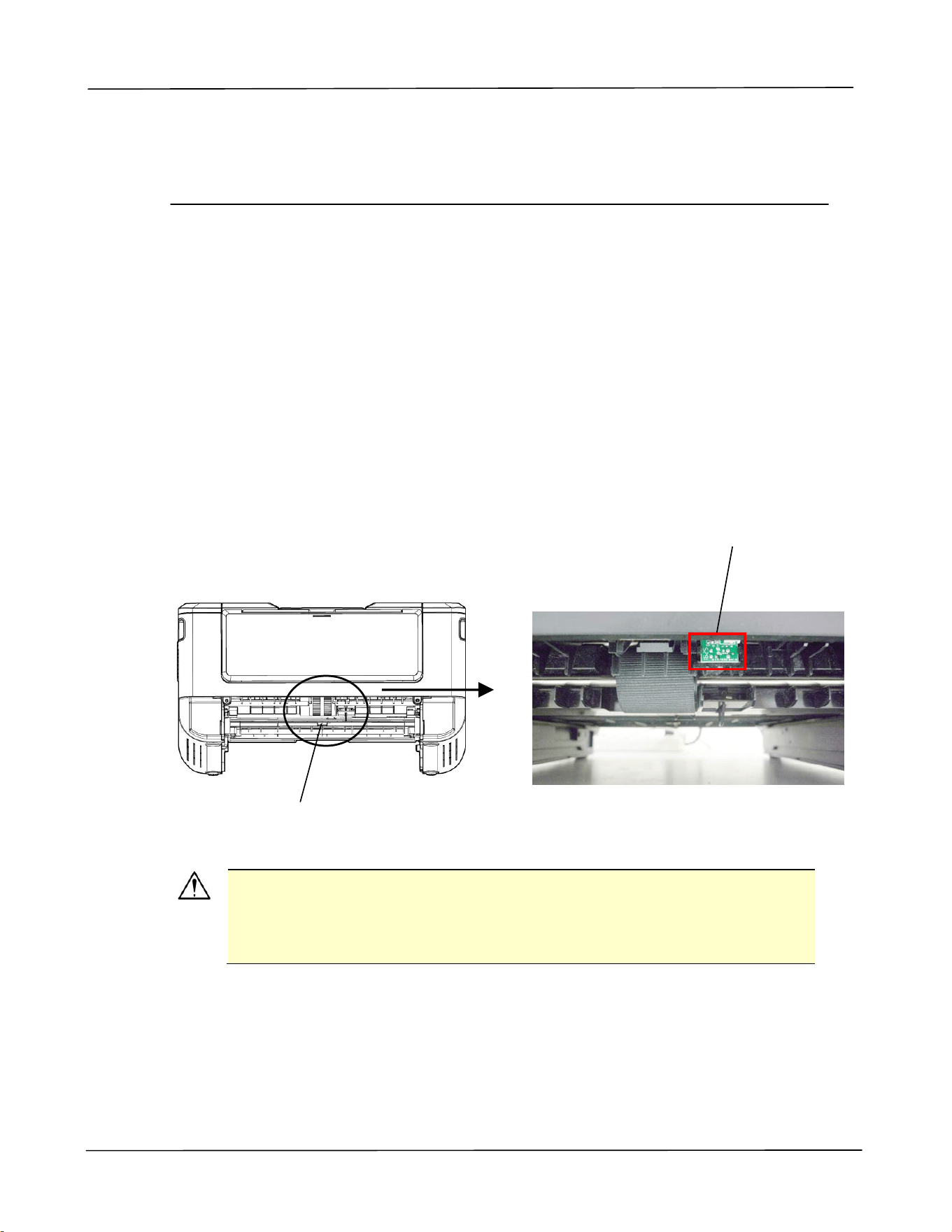
Cleaning the IR Sensors
If too much paper dust or dust accumulates on the IR sensors, it may cause the
misjudgment of paper jam. For example, there is error code of paper jam occurs yet in
fact no jammed paper found inside the PRINTER. In this case, please clean the IR
sensor according to the following steps. If the problem persists, the sensors are
probably malfunctioning. Please contact the service personnel to replace the sensor.
1. Refer to the preceding section to remove the Toner Cartridge.
2. Moisten a clean, soft cloth with 95% alcohol.
3. Wipe the area near the sensors as indicated.
IR Sensors
Maintaining the Product
75
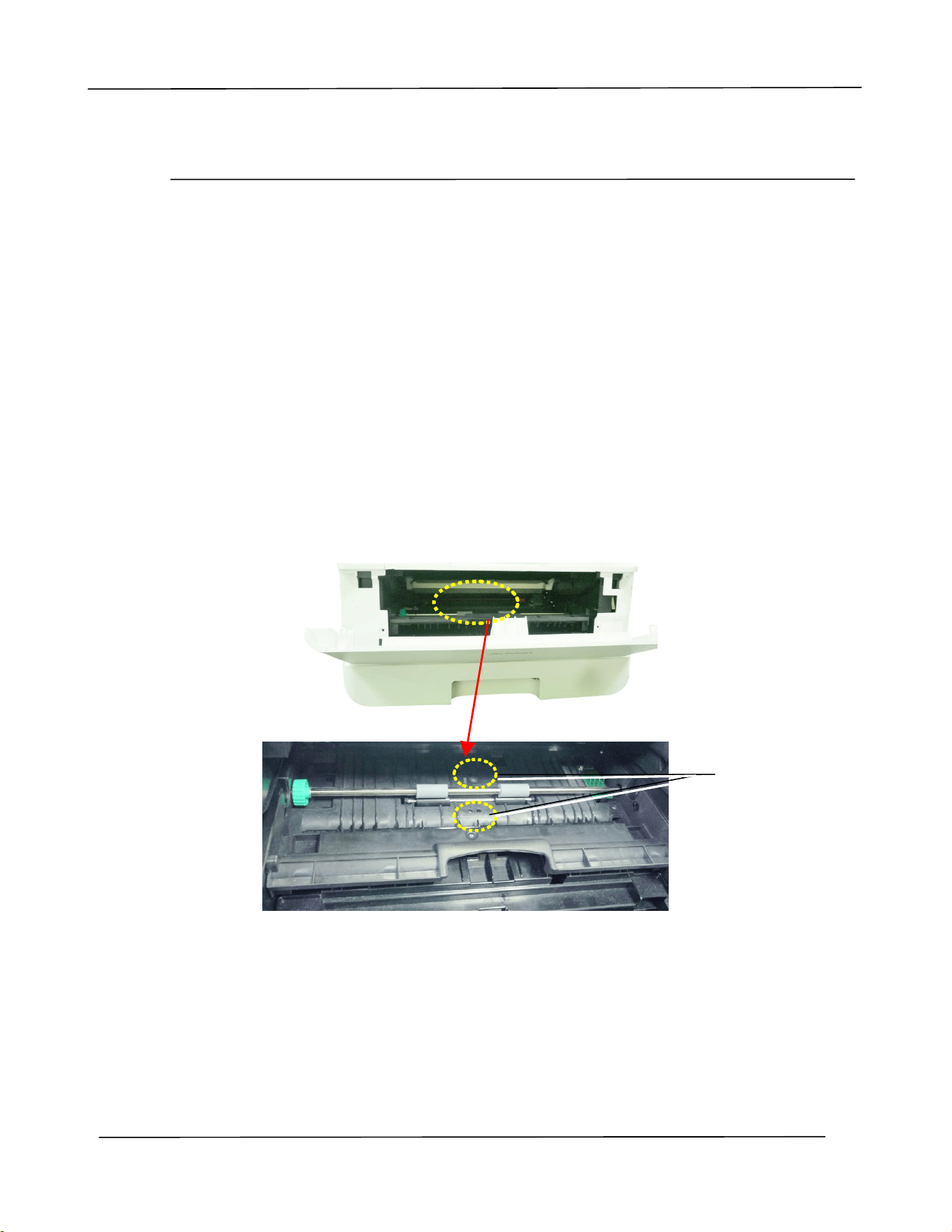
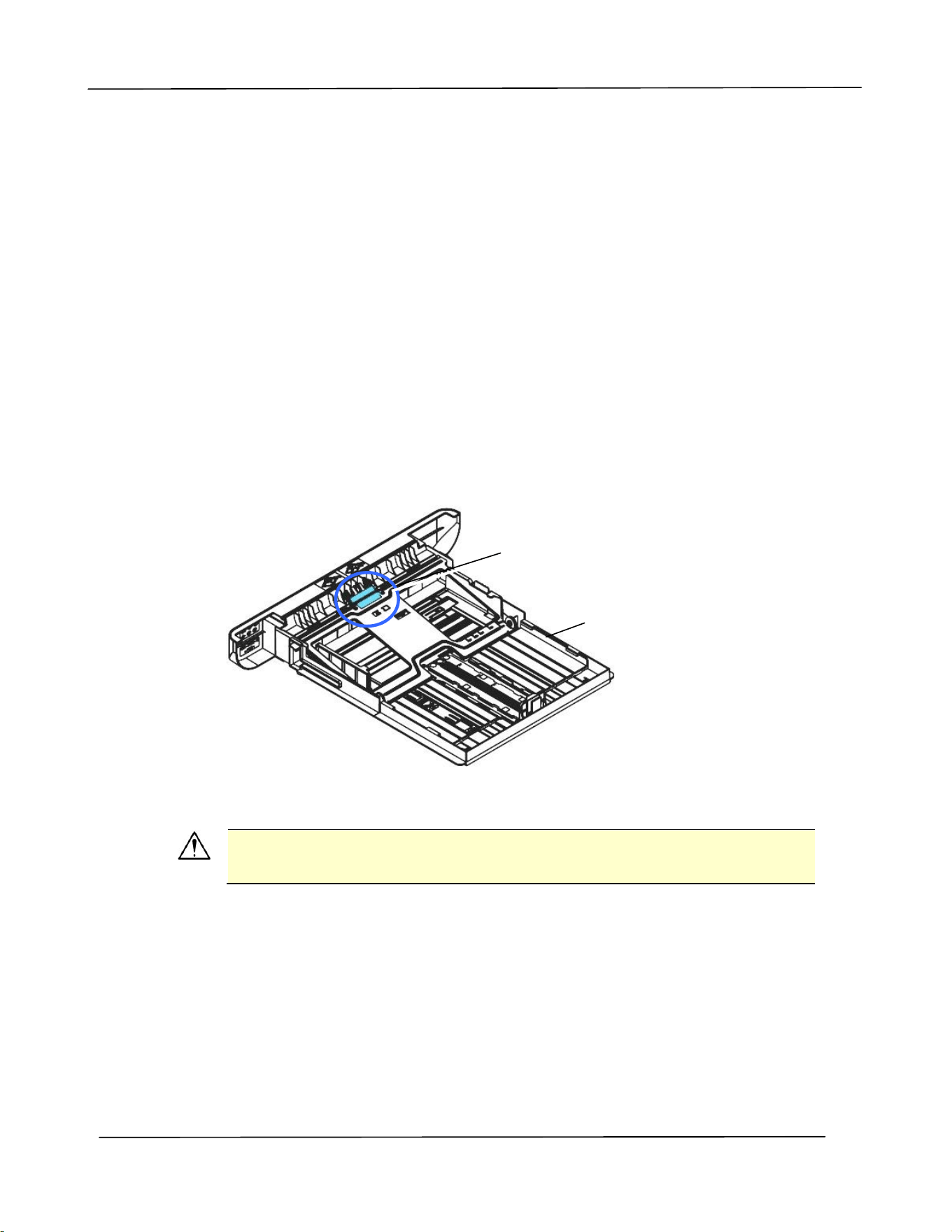
Cleaning the Paper-In Sensors
If too much paper dust or dust accumulates on the Paper-in sensors, it may cause the
misjudgment of paper jam. For example, there is error code of paper jam occurs yet in
fact no jammed paper found inside the PRINTER. In this case, please clean the Paper-in
sensor according to the following steps. If the problem persists, the sensors are
probably malfunctioning. Please contact the service personnel to replace the sensor.
1. Turn off the power.
2. Remove the Paper Tray.
3. Moisten a clean, soft cloth with 95% alcohol.
4. Wipe the Back of the sensor board as indicated.
Important!
Before cleaning the paper-in sensor, make sure the power has been
turned off and avoid touching the sensor board in case the
components of the circuit board may be damaged.
Pickup Roller
Wipe the Back of
the sensor board
User’s Guide
76
Cleaning the Pad in the Cassette
If the Pad in the Cassette is smeared with paper powder or dirt or every 30K copies,
paper may not feed smoothly or noise occurs during paper feeding. Follow the
procedure below to clean the Pad in the Cassette.
You need to prepare: cotton swab
1. Remove all paper in the cassette.
2. Moisten a cotton swab with isopropyl alcohol (95%). If accidentally use too much
alcohol, be sure to wring out the damp cloth
3. Clean the rubber part of the pad.
Important:
After cleaning the smeared Pad, dry it completely.
Cassette
Pad
Maintaining the Product
77
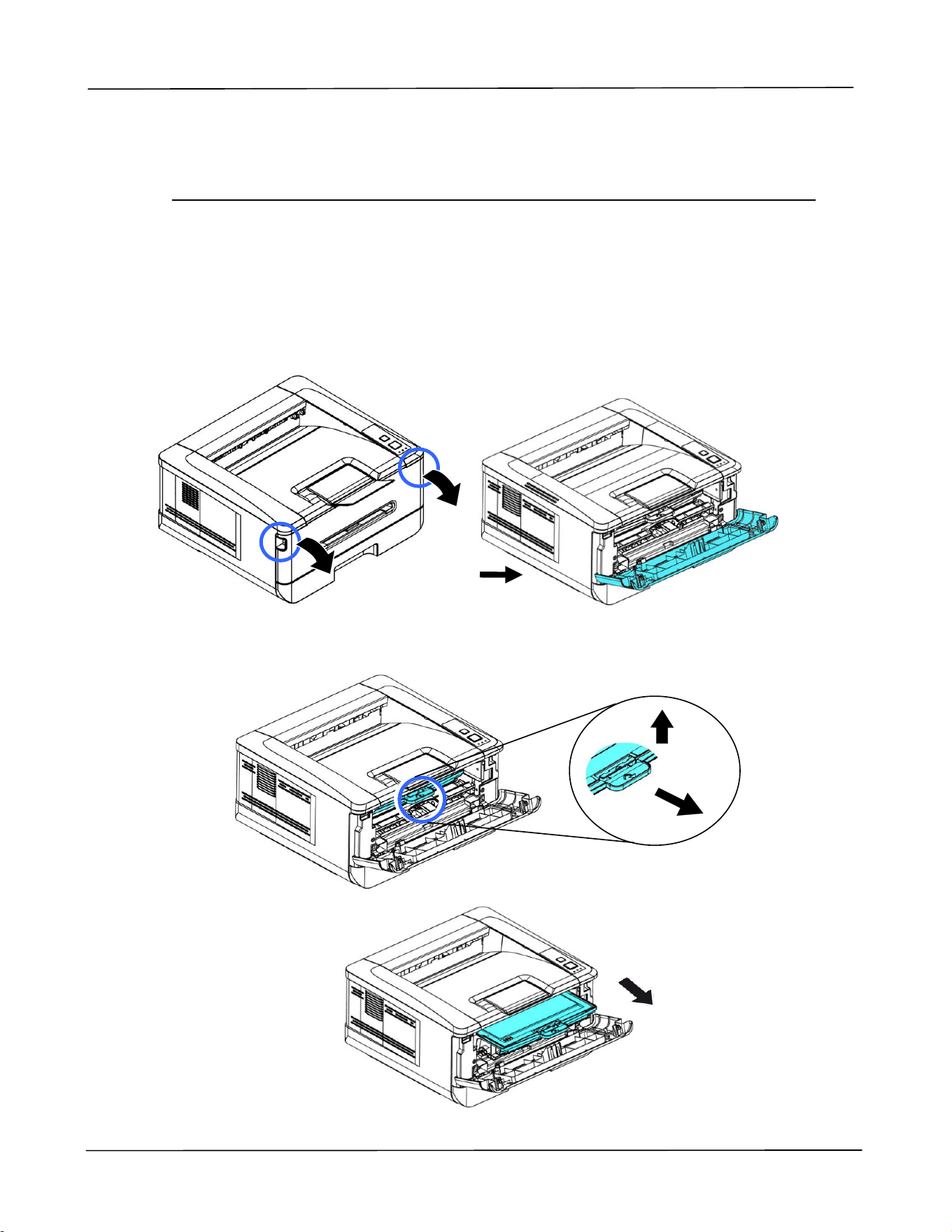
Cleaning the Drum Unit
If the drum unit is smeared with paper powder or dirt, the print out may appear
defective image of regular interval. Follow the procedure below to clean the drum unit.
1. Turn off the power and remove the power cord from the power outlet.
2. Open the front cover by pulling the handles on both sides as shown.
3. Lift the handle of the drum unit and toner cartridge assembly and gently remove
the assembly.
User’s Guide
78
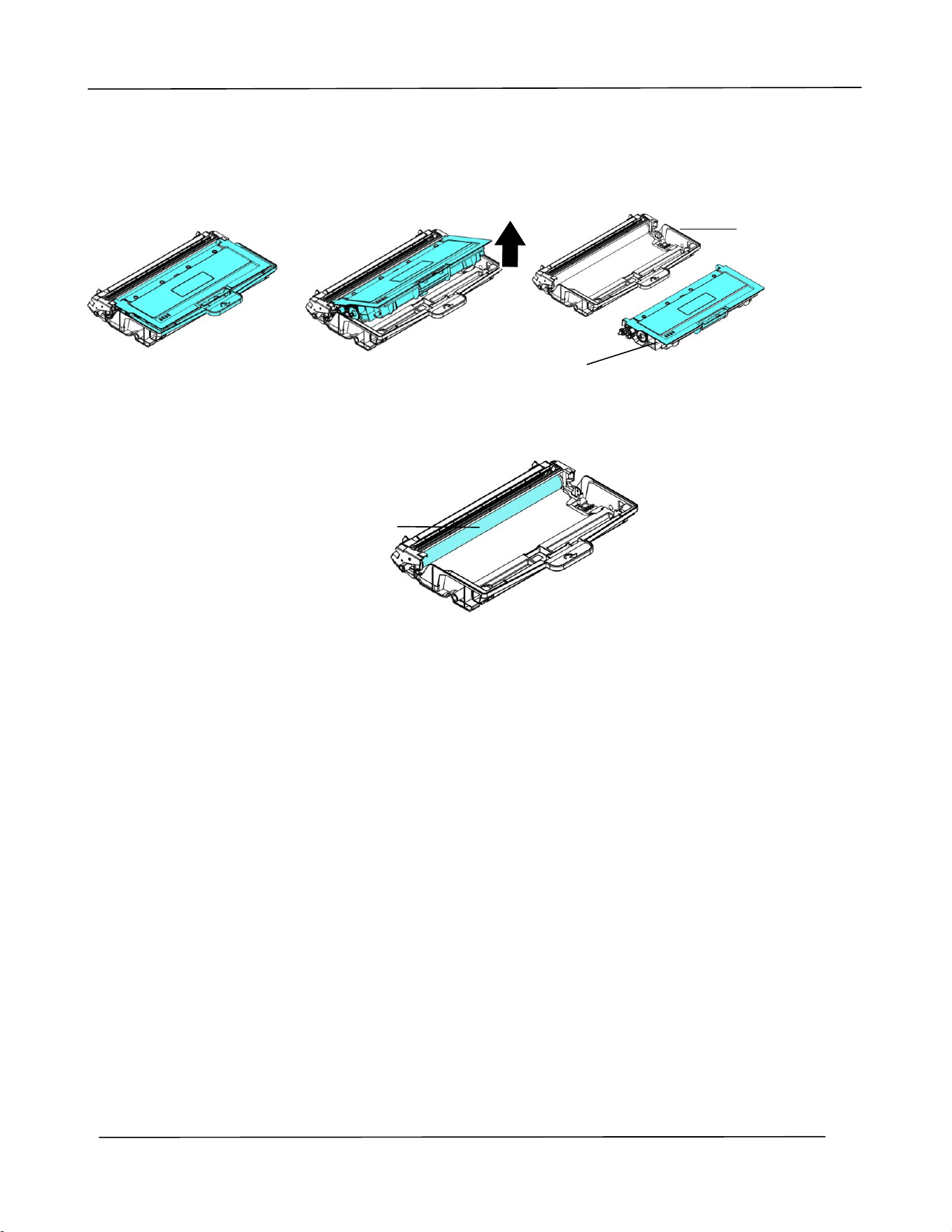
4. Remove the toner cartridge from the drum unit as shown.
5. Clean the drum unit with a clean and soft cloth.
Drum unit
Toner
Cartridge
Clean this area.
Maintaining the Product
79
Replacing the Toner Cartridge
The toner cartridge that comes with the product needs to be replaced after printing
approximately 3,000 pages. When the toner cartridge is running low, you will be
prompted with a [Toner Low] message through the PRINTER monitoring program –
[Avision Status Monitor]. Buy a new toner cartridge and have it ready before you
receive [Replace Toner] message.
Note:
The drum unit and the toner cartridge are two separate parts.
Follow these steps to replace the toner cartridge:
Removing the Toner Cartridge
1. Turn off the power and remove the power cord from the power outlet.
2. Open the front cover by pulling the handles on both sides as shown.
User’s Guide
80
3. Lift the handle of the drum unit and toner cartridge assembly and gently remove
the assembly.
4. Remove the toner cartridge from the drum unit as shown.
Important!
Do not dispose of the toner cartridge. Put the used toner cartridge into
the bundled plastic bag, and then return it to a dealer or service
representative. The latter recycles or deals with the collected toner
cartridges in accordance with the relevant regulations.
Drum
Toner
Cartridge
Protective
Cover
Maintaining the Product
81
Installing the Toner Cartridge
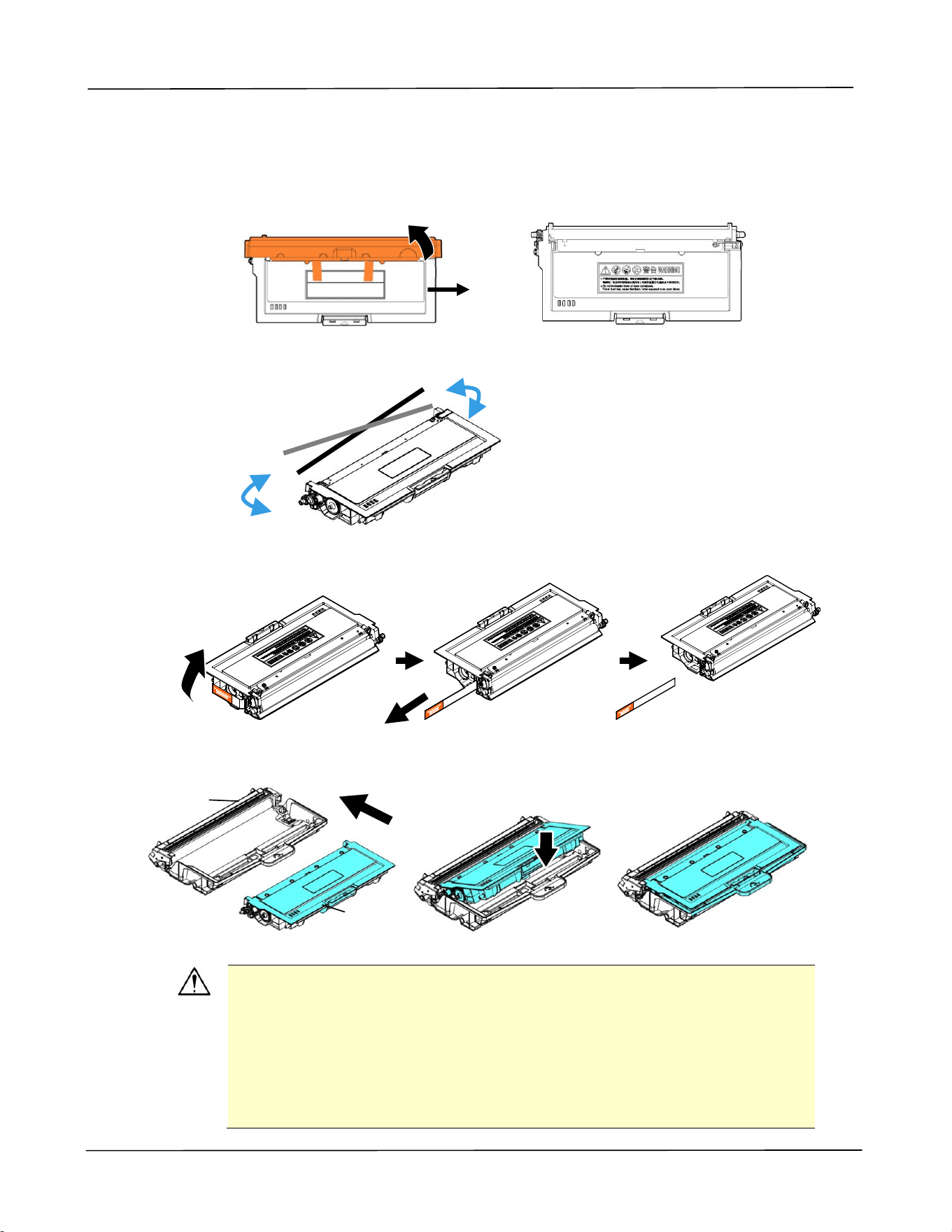
1. Unpack the new toner cartridge、and remove the protective cover.
2. Tilt the new toner cartridge up and down and then right and left 10 times to
distribute the toner evenly inside the toner cartridge.
3. Pull out the protective seal of the toner cartridge until it is completely removed.
4. Install the new toner cartridge to the drum unit.
Warning!
Be careful not to inhale toner.
To avoid print quality problems, DO NOT touch the toner rollers.
If toner gets on your clothing or other fabric, wipe off the toner
with a dry cloth. Wash the items in cold water and air dry.
To prevent the toner cartridge from damage, do not expose it
more than several minutes.
Drum unit
Toner
Cartridge
User’s Guide
82
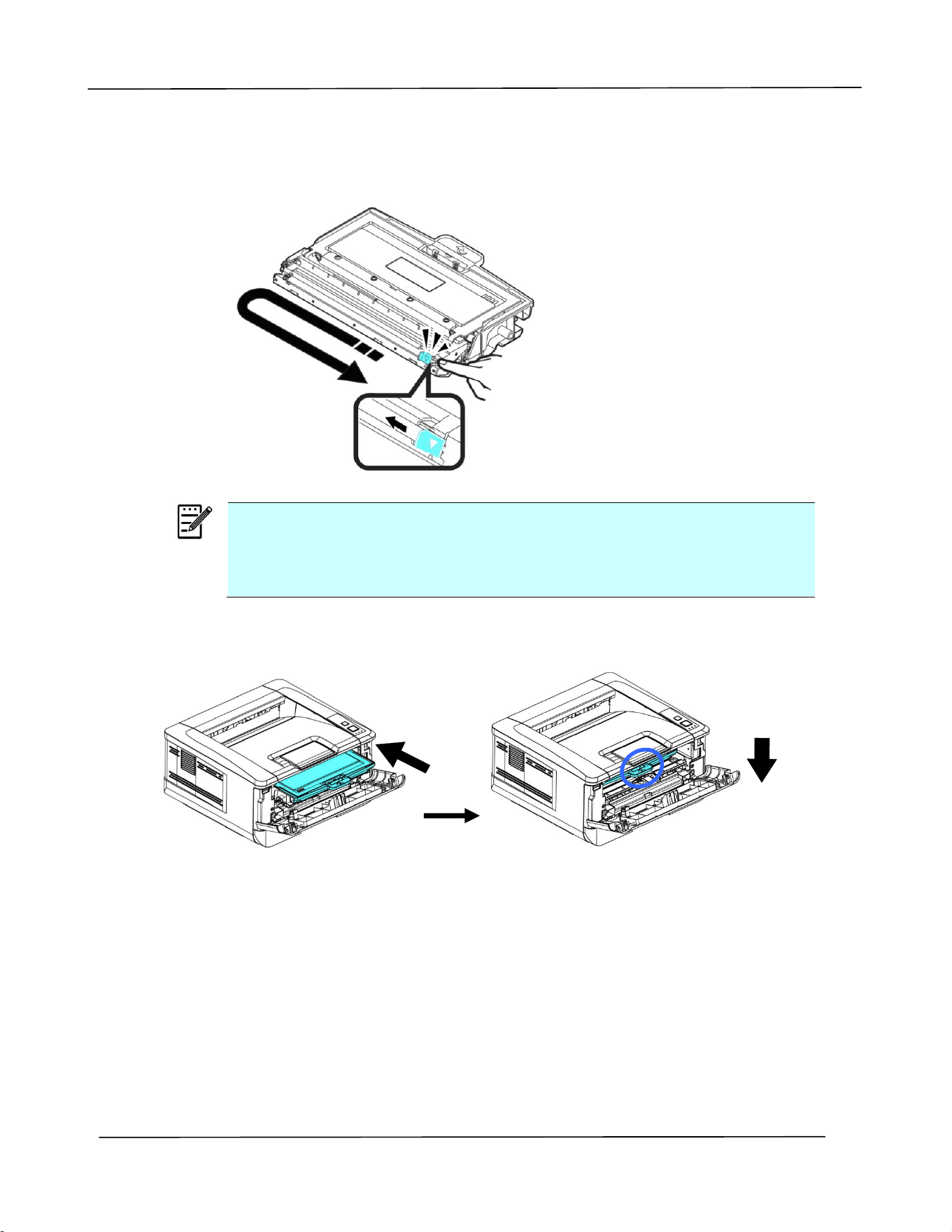
5. Clean the corona wire inside the drum unit by gently sliding the tab from left to
right and right to left for several times. (After the toner cartridge has been
used for a period of time, some amounts of toner may remain on the corona
wire.)
Note:
Be sure to return the tab to the Home position (▲). The arrow on the
tab must be aligned with the arrow on the drum unit. If it is not,
printed pages may have a vertical stripe.
6. Hold the handle of the toner cartridge assembly and insert the toner cartridge
assembly to its original place. Press the handle to fix it firmly in place.
7. Close the front cover.
Maintaining the Product
83
Replacing the Drum Unit
The drum unit that comes with the product needs to be replaced after printing
approximately 30,000 pages. When the drum unit is running low, you will be prompted
with a [Drum Unit Low] message through the PRINTER monitoring program –
[Avision Status Monitor]. Buy a new toner cartridge and have it ready before you
receive [Replace Drum Unit] message.
Follow these steps to replace the toner cartridge:
Removing the Drum Unit and the Toner Cartridge Assembly
1. Turn off the power and remove the power cord from the power outlet.
2. Open the front cover by pulling the handles on both sides as shown.
3. Lift the handle of the drum and the toner cartridge assembly and gently remove
the assembly.
User’s Guide
84
4. Remove the toner cartridge from the drum unit as shown.
Installing the Drum Unit
1. Remove the protective film and the label in the center of the drum unit. Be
sure not to touch the drum during unpacking. Your finger print may affect the
print quality.
2. Install the toner cartridge to the new drum unit.
Drum unit
Toner
Cartridge
Label
Black Film
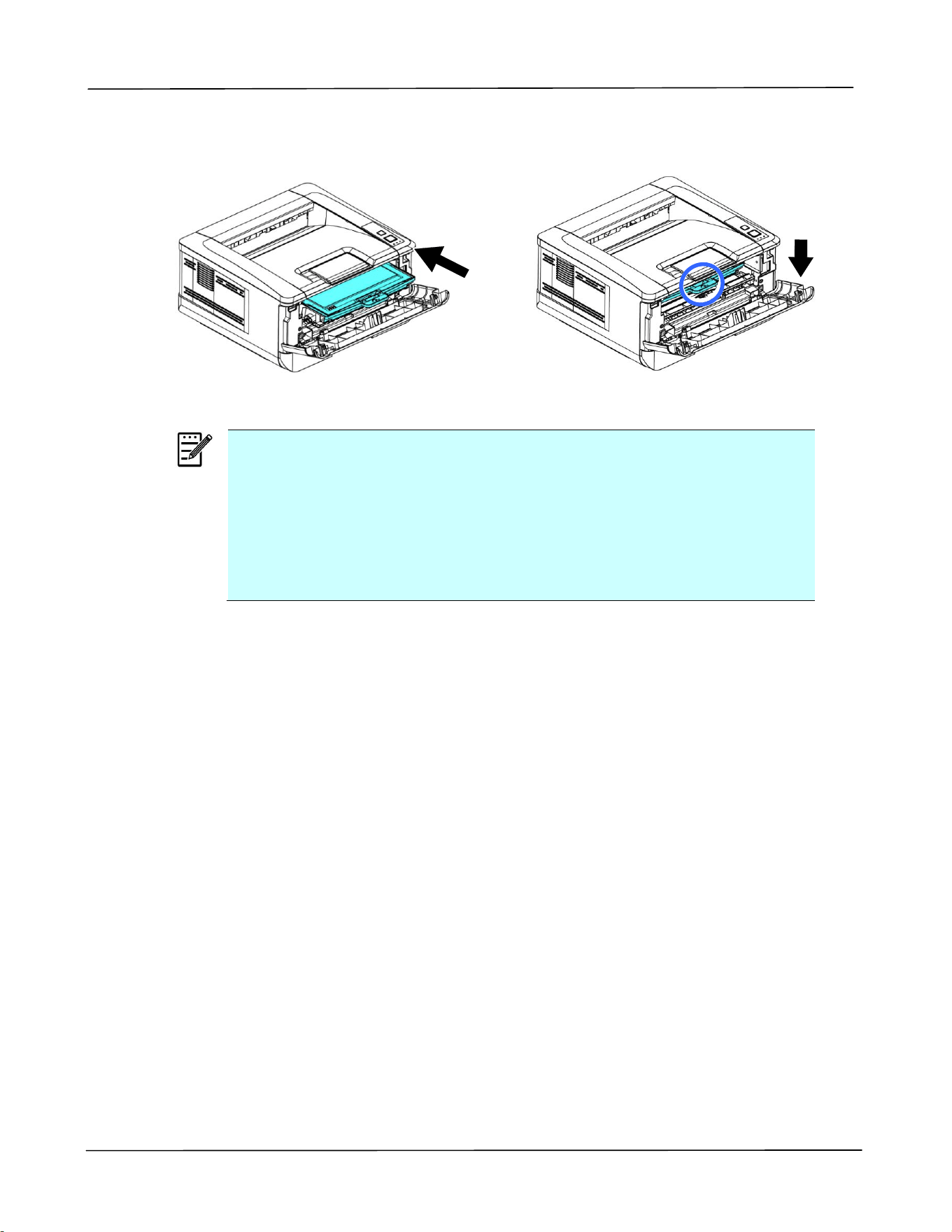
Maintaining the Product
85
3. Hold the handle of the toner cartridge and insert the toner cartridge to its
original place. Press the handle to fix it firmly in place.
Note:
If toner gets on your clothing or other fabric, wipe off the toner
with a dry cloth. Wash the items in cold water and air dry.
Do not dispose of the toner cartridge. Put the used toner cartridge
into the bundled plastic bag, and then return it to a dealer or
service representative. The latter recycles or deals with the
collected toner cartridges in accordance with the relevant
regulations.
4. Close the front cover.
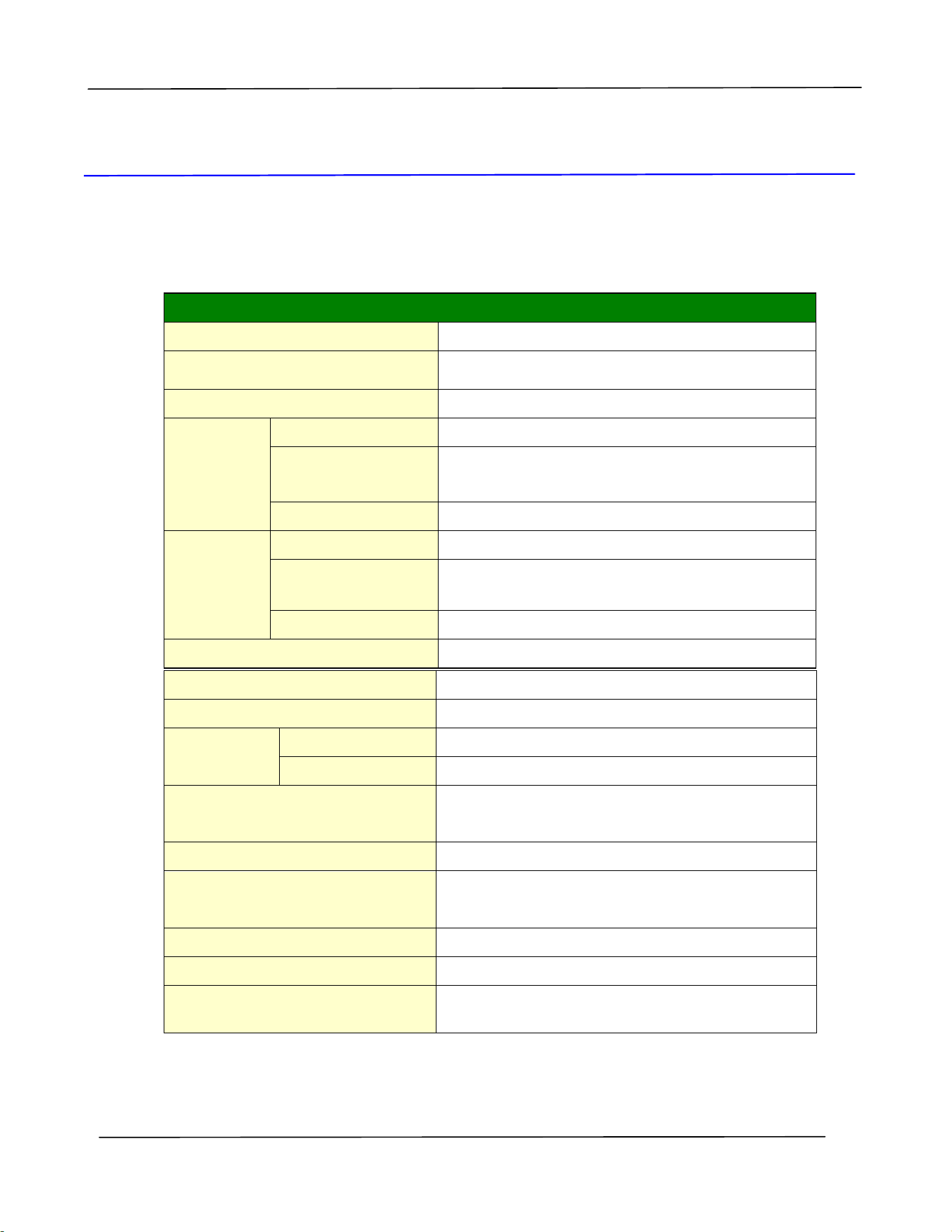
User’s Guide
86
8. Specifications
All specifications are subject to change without notice.
General
Max media size
Legal size
Resolution
1200 × 1200 dpi
Printing speed
33 ppm (A4 SEF)
Manual
tray
Paper capacity
1 page(70 g/m² plain paper)
Paper size
A4, A5, A6, B5 (JIS), B6 (JIS), Letter, Legal,
customized size:76 x 127 ~ 216 x 356 mm
Paper weight
60~200 g/m²
Tray 1
Paper capacity
250 pages(70 g/m² plain paper)
Paper size
A4, A5, A6, B5 (JIS), B6 (JIS), Letter, Legal
76 x 152 mm
Paper weight
60~120 g/m²
Paper output
Top output
Paper output capacity
150 pages
Duplex printing unit
Build-in
Duplex print
Paper size
A4, Letter, B5 (JIS)
Paper weight
60~105 g/m² (16~28 lbs)
Connectivity
USB2.0, 10/100 Base-T Ethernet
Wi-Fi (For the model includes Wi-Fi module)
Printer language
GDI
Supported operation system
Windows 7, Windows 8, Windows 10, Windows
11
Dimemsion (WxDxH)
404 x 380 x 204 mm
Weight
Approx. 8.5 kg
Power source
110~127Vac,50/60Hz, 9.5A
220-240Vac, 50/60Hz, 4.5A
Specifications
87
Power consumption
< 1.02kw
Operation
Environment
Temperature
10°C~32°C
15%~80% (no dew)
Humidity
Product Lifecycle
Printer life
5 year or 60,000 pages
Toner Cartridge
1,500/3,000** pages
Drum Unit
*30,000 pages
Fuser
60,000 pages
*Drum yield is based on 3 pages per job [letter/A4 simplex].
The number of pages maybe affected due to the media type or paper size.
**Declared cartridge yield in accordance with ISO/IEC 19752
User’s Guide
88
Wi-Fi Spec.
Model: CF-WU810N
Main Chipset
RTL8188EUS
Host interface
USB 2.0
Frequency Range
2.412~2.484 GHz
Wi-Fi Standard
IEEE 802.11b
IEEE 802.11g
IEEE 802.11n
Transmit Speed
11b: 1/2/5.5/11 Mbps
11g: 6/9/12/24/36/48/54 Mbps
11n: 150 Mbps
Transmit Power
Max. 18 dBm
Security
WPA-PSK/WPA2-PSK
WPA/WPA2
WEP
Operating System
Windows XP/Vista/7/8/8.1/10 (32/64
bit)
Max OS 10.6 ~10.11
Linux Kernel 2.6.18~3.10