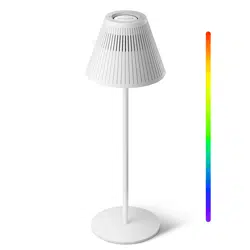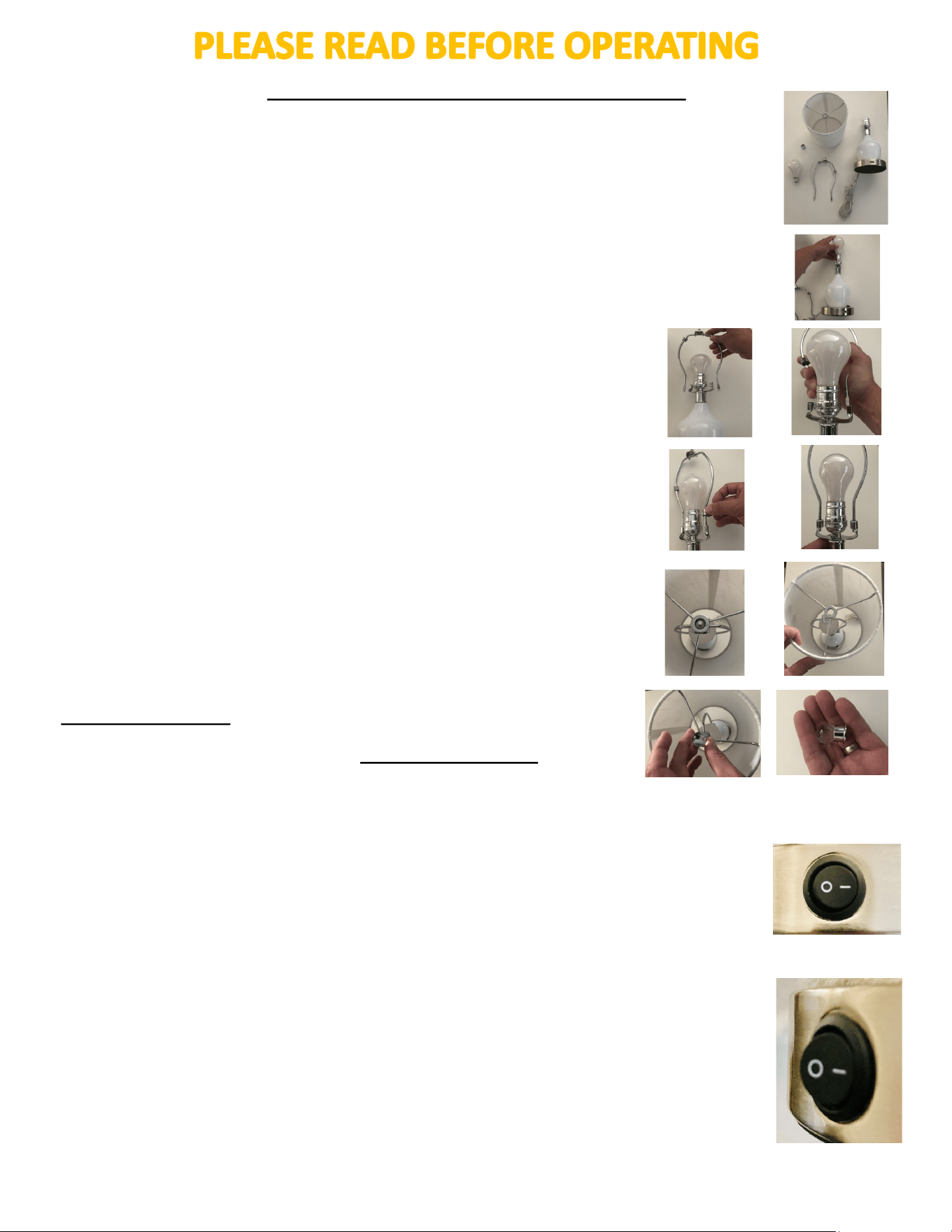
Carefully remove lamp base, harp and shade from box. Remove ALL packing
from lamp base, harp, shade and cord. Properly recycle/dispose of all packing
materials (plascs can be a choking hazard, please keep away from children).
If you are missing parts, please email us at sales@inpoweredlights.com
1) Install included light bulb in the lamp (Use a Maximum of Medium base
60 wa regular/incandescent, 13 wa CFL or 10 wa LED bulbs.).
2) Posion harp above the lamp base and slide the holders up-
ward while squeezing harp arms to t into lamp base.
Lamp Angel® Quick Start Instrucons
3) Slide holders down on harp to secure to lamp base.
4) Place shade over harp and guide the center opening of the
shade over the top screw of the harp.
5) Secure shade to the harp by installing top glass knob (nial),
do not overghten.
CRITICAL STEPS
- Plug lamp into regular outlet, please be sure the outlet is not controlled by a
wall switch.
• Turn switch on the side of the lamp base to “ON” posion.
“o” = OFF
“-“ = ON
- Lamp is ready to charge for emergency use. Failure to turn on switch means
the emergency funcon will not be acvated and charged. Leave this switch in
the “ON” posion. If power is lost, the light will automacally come on. Use
this switch to control the On/O of the emergency light . WHEN POWER IS RE-
STORED BE SURE SWITCH IS IN ON POSITION SO IT WILL CONTINUE TO
CHARGE.
Allow the lamp to charge at least 24 hours before using the USB or emergency
funcon.. The switch on top of the base controls the main light bulb and is
ready to operate.
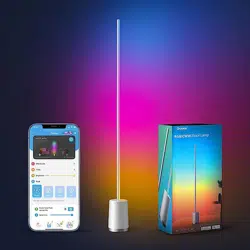
You can change the colors of the base of the Lamp Angel to a large array of col-
ors and change the style to Strobe, Flash, Fade and Smooth Transions. There
are two ways to change colors:
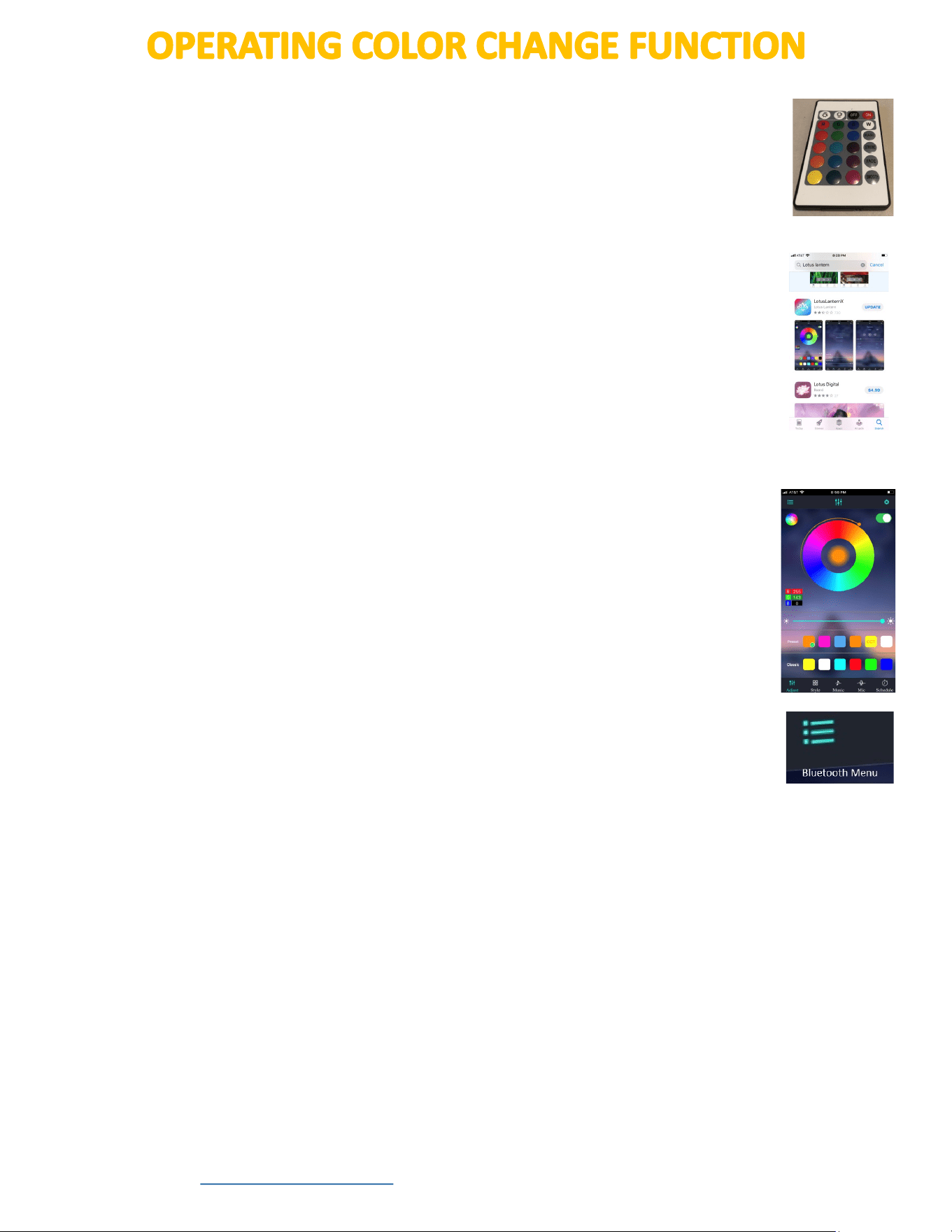
1) Remote Control—Included in box
2) LotusLanternX—Downloadable Smartphone app
1) For the remote control, remove the plasc tab to acvate the baery. Point
the remote at the base of the lamp and press the red ON buon on the top
right of the remote control and this will acvate the lights inside of the lamp
body. Then you can begin to choose dierent colors and dierent modes.
You can control the brightness of the lights in the lamp body with the white
buons on the top le of the remote control.
Make sure your Smartphone’s Bluetooth funcon is turned on. Aer the app
has downloaded, open LotusLanternX app on your smartphone and conrm
that the Lamp Angel is connected. To make sure your phone is connected to
your Lamp Angel, click on the menu on the le hand side that looks like three
dots and three lines. (see photo on the right) If it is connected, the Light Bulb
will have a Green Dot, if not, click on the Refresh boom to reconnect.
The Green Sliding Tab in the upper right hand corner controls the On/O of
the Lamp Angel.
Choose your color by clicking on the actual color at the boom or use the cen-
ter wheel to choose dierent shades of colors.
Click on Style to change the format and transion of the colors such as Fading,
Transion, Strobe and Flash.
Click on Schedule to set up mes for the lights to turn on or turn o.
Refer to the LotusLanternX app for addional funcons.
The color changing funcon only operates during normal AC operaon even
while the top socket is on. *Color changing will not funcon in emergency
mode.*
Go to www.inpoweredlights.com for detailed installaon and operang instrucons.
We sincerely thank you for your Lamp Angel® purchase. May you never be caught in the dark again!