1
01-21-11
PAC-UP
PAC Interface Updater Module
Description
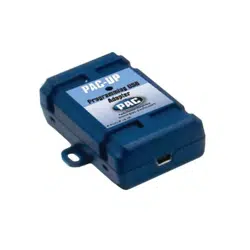
The PAC-UP is a device used to update selected PAC products by connecting the PAC-UP directly to it.
1.
PAC Updater (PAC-UP)
2. Updater Cable
3. Standard to mini USB Cable
Pacific Accessory Corporation
Setup & Programming Instructions
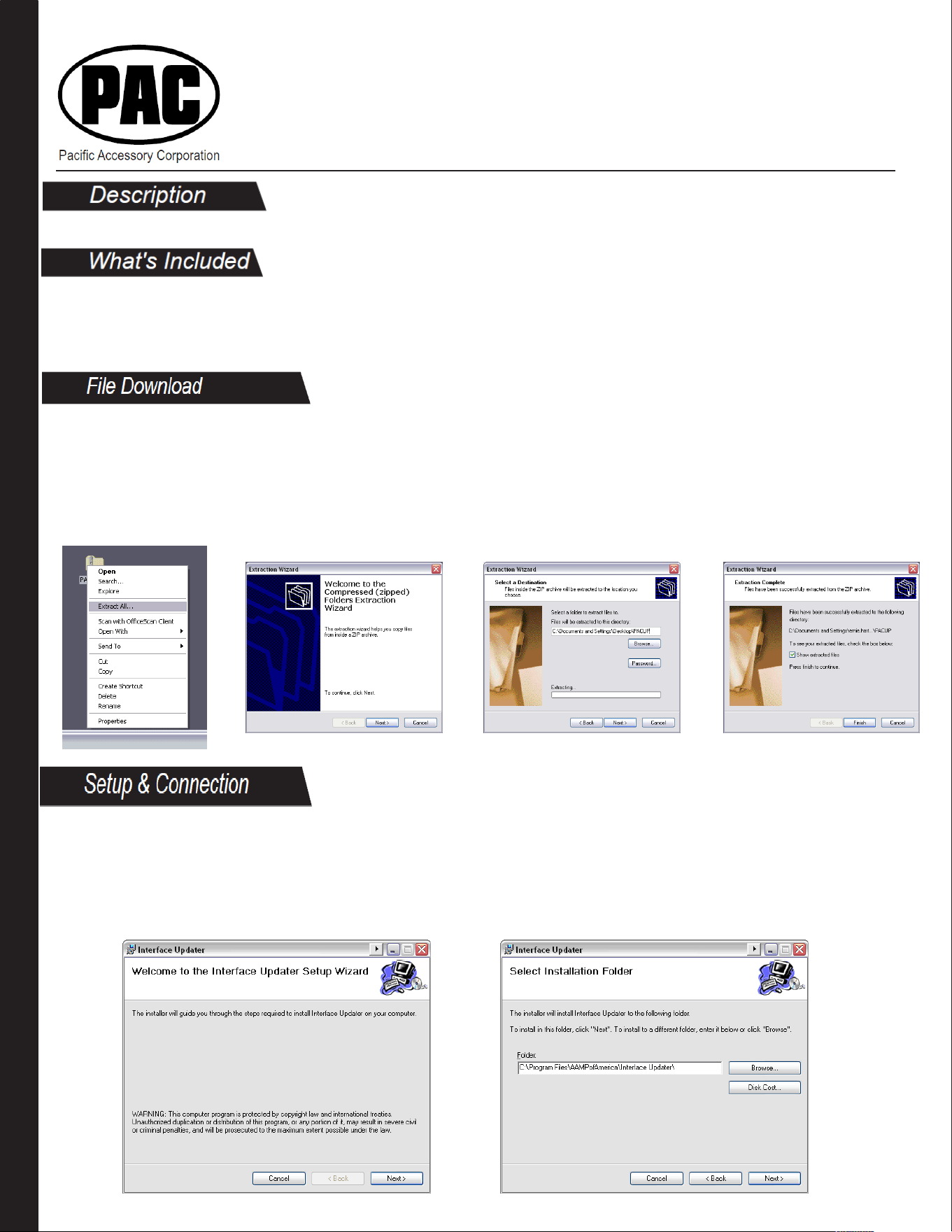
1.
Browse to the location where you
unzipped the file
2.
Double click the "Setup.exe" icon. You
will see this window. Click "Next" to
start the installation
File Download
3.
Click "Next" to choose the default
folder
Before you begin you must visit www.pac-audio.com/firmware/ to download the necessary PAC-UP installation
program and driver files. Determine the version (32 or 64 bits) of your Windows by going to “Start” > right click
“My Computer” > “Properties”. Save file to your desk top for easy access. Once you have the .zip file on your
computer's desktop, right click and select “Extract All”, then “Next”, “Next” again and then “Finish”.
Setup & Connection
2
Setup & Connection (cont.)
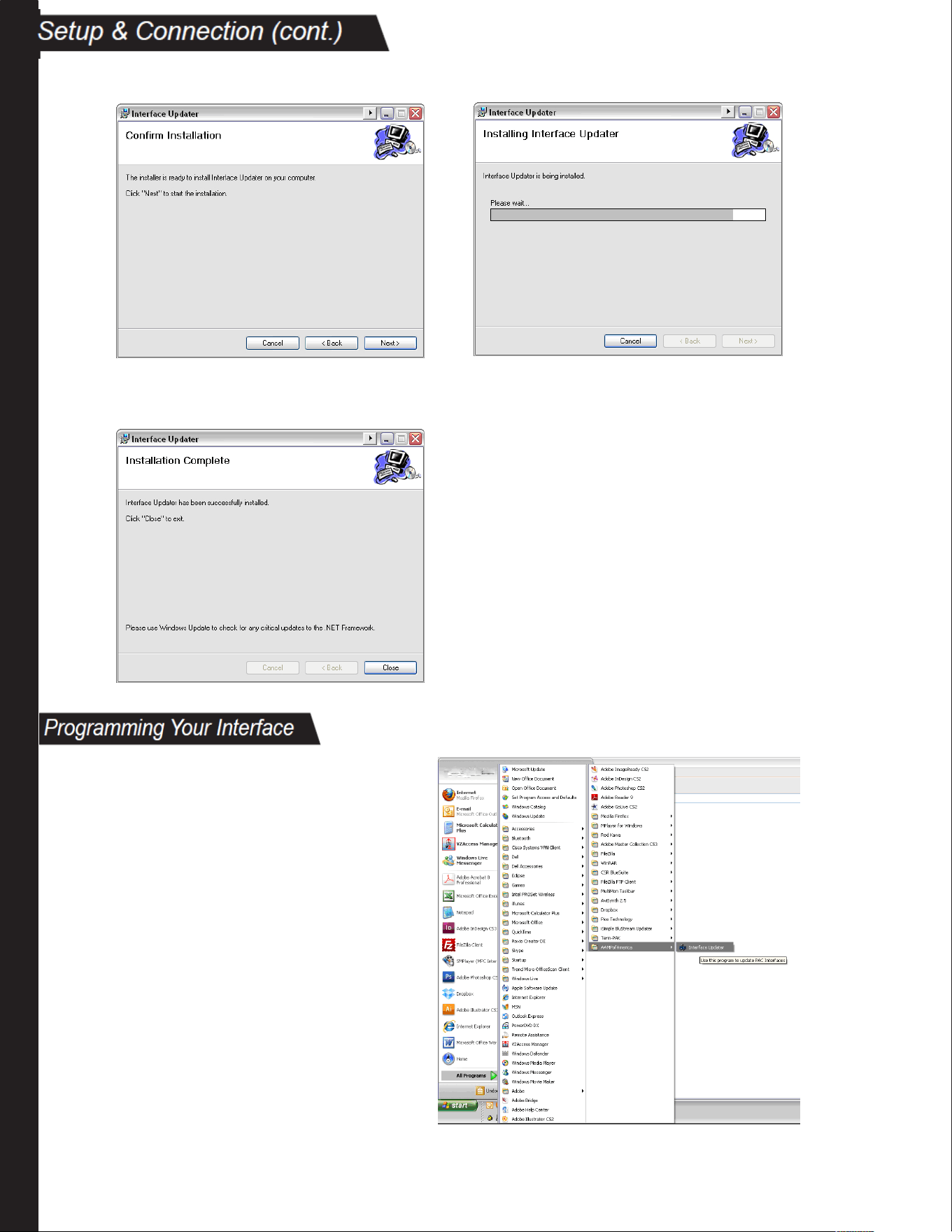
4.
Click "Next" to confirm the installation
5.
The installation will begin
6.
The installation is complete. Click
"Close" to exit
7.
PAC Interface Updater is now
installed on your PC.
You may now
proceed with the updating
process.
Programming Your Interface
1. Connect the PAC-UP to your PC
using the supplied mini to standard
USB cable. Connect the PAC-UP to
the device you wish to be updated
using the supplied updater cable.
2. Open the Interface Updater program
by going to Start> All Programs>
AAMPofAmerica>Interface Updater.
3
01-21-11
Programming Your Interface (cont.)
5.
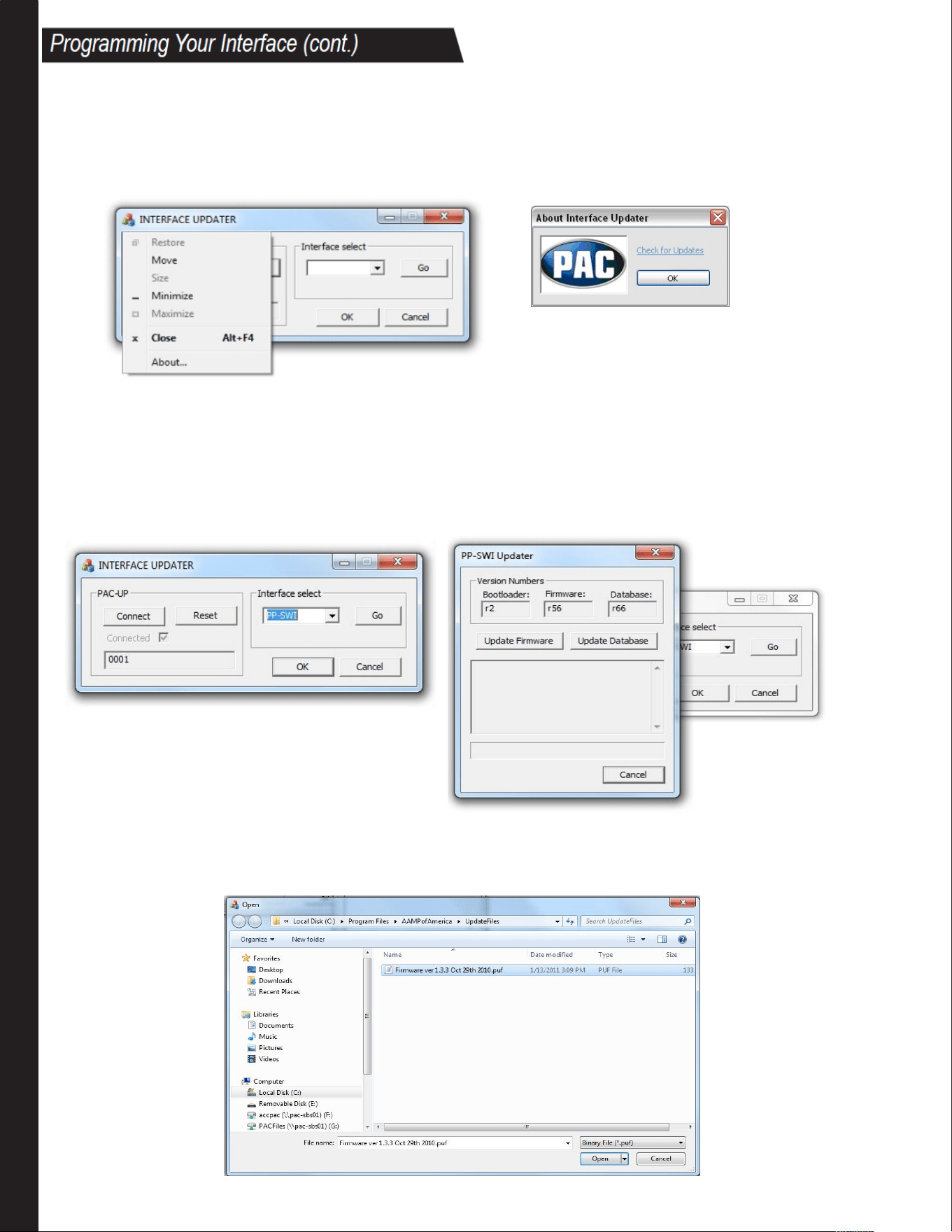
Click “Connect” button to connect the interface to the PAC Updater. The Connected check box will be checked
and the red light on the Updater will turns on. Under the check box, it will display the firmware version
number of PAC-UP. On the “Interface select” pull down menu, select the correct Interface to be updated.
Click “Go” button when done.
4.
To obtain the proper firmware for your PAC interface, click the PAC icon in the top left corner
and then choose "About Interface Updater". In this window you will see the link "Check for Updates".
This will take you to the website where you can download the proper firmware for your device. Please
follow the instructions on this website for downloading and unzipping your firmware file.
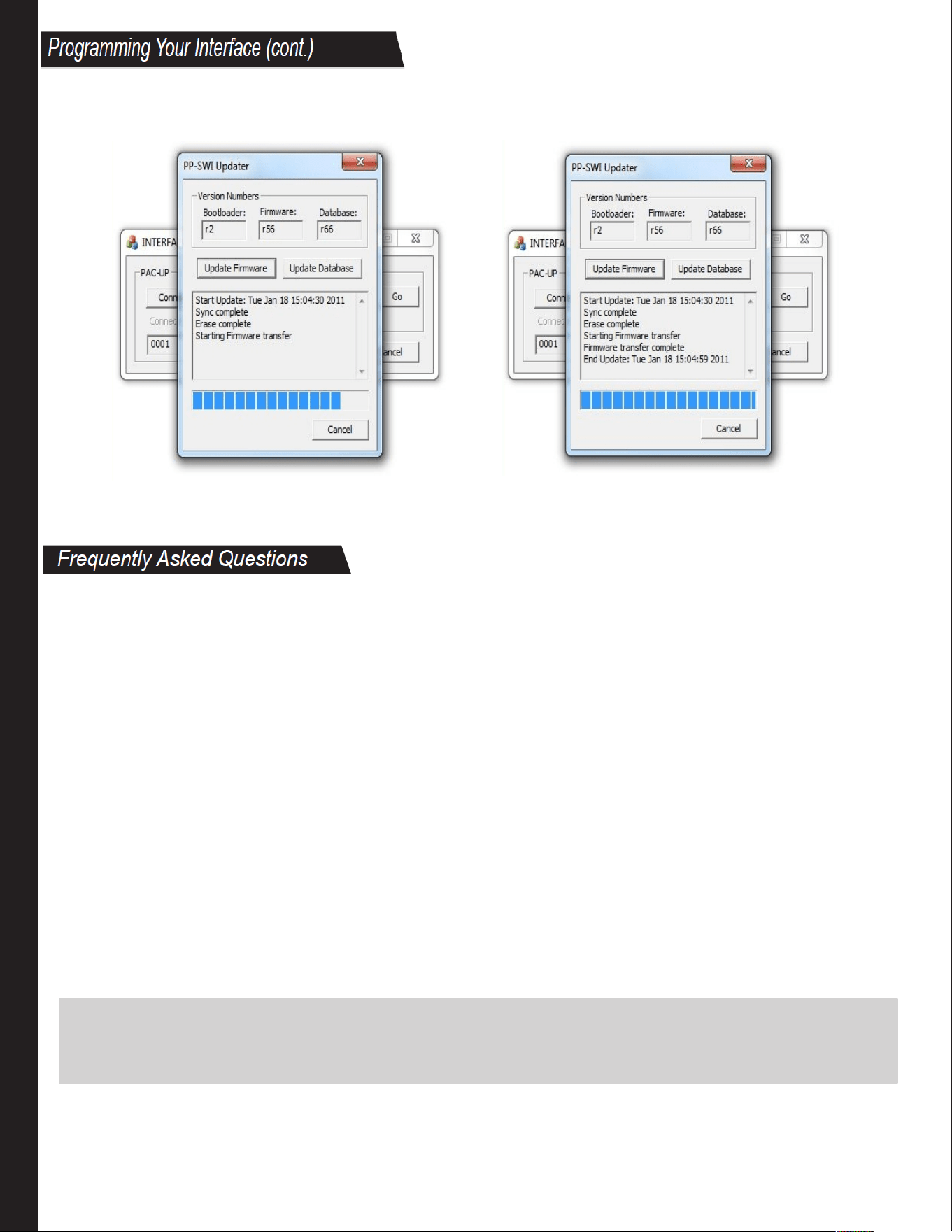
A new dialog box will show up. Dialog boxes will be different depending on the interface selected. Picture
below shows the dialog box of “PP-SWI Updater”.
6. Click “Update Firmware” button to update the firmware; click “Update Database” button to update the
database. Browse the correct file to perform the updates.
4
Programming Your Interface (cont.)
6.
Once the file is chosen the update will begin. The progress bar will show the progress
of the update. When finished the window will display the message "Update Success".
7.
That's it, you're finished! You may now disconnect your PAC interface from the PAC-UP and use/install
it.
Q: Where do I get the latest firmware file to update my interface?
A: Go to the the top left corner of the Interface Updater program and click the PAC logo>About
Interface Updater>Check for updates, or visit www.pac-audio.com/firmware.
Please provide feedback so that we can improve:
http://aampofamerica.com/web/contact-customer-service.asp
Working on a new or unlisted vehicle?
We are always looking for new vehicle information. If you’ve successfully completed the installation on a vehicle with
steering wheel controls, and the vehicle is not listed in these instructions or on our Website, contact us at
techsuppo[email protected] so that we may add the information to the instructions.
Pacific Accessory Corporation
Santa Ana, CA 92705
techsupport@pac-audio.com • www.pac-audio.com
Copyright 2010 Pacific Accessory Corporation. Content subject to change without notice.
Frequently Asked Questions
