

2
Table of Contents
Basics
3 Read me first
4 Device overheating situations and
solutions
7 Device layout and functions
13 Battery
16 SIM or USIM card
18 Memory card (microSD card)
21 Turning the device on and off
22 Keyboard Cover
30 Controlling the touchscreen
33 Windows
41 Entering text
43 Screen capture
43 Device and data management
44 Connecting to an external display
Applications
45 Installing or uninstalling apps
46 Air Command
50 Samsung Notes
55 Samsung Flow
57 Camera
58 Samsung Gallery
62 Galaxy Book
Settings
63 Windows Settings
66 BIOS (Setup utility)
Appendix
69 Troubleshooting
74 Windows recovery function

3
Basics
Read me first
Please read this manual before using the device to ensure safe and proper use.
•
Descriptions are based on the device’s default settings.
•
Some content may differ from your device depending on the region, service provider,
model specifications, or device’s software.
•
Content (high quality content) that requires high CPU and RAM usage will affect the
overall performance of the device. Apps related to the content may not work properly
depending on the device’s specifications and the environment that it is used in.
•
Samsung is not liable for performance issues caused by apps supplied by providers other
than Samsung.
•
Samsung is not liable for performance issues or incompatibilities caused by edited
registry settings or modified operating system software. Attempting to customise the
operating system may cause the device or apps to work improperly.
•
Software, sound sources, wallpapers, images, and other media provided with this device
are licenced for limited use. Extracting and using these materials for commercial or other
purposes is an infringement of copyright laws. Users are entirely responsible for illegal
use of media.
•
You may incur additional charges for data services, such as uploading and downloading,
auto-syncing, or using location services depending on your data plan. For large data
transfers, it is recommended to use the Wi-Fi feature.
•
Default apps that come with the device are subject to updates and may no longer be
supported without prior notice. If you have questions about an app provided with
the device, contact a Samsung Service Centre. For user-installed apps, contact service
providers.
•
Modifying the device’s operating system or installing softwares from unofficial sources
may result in device malfunctions and data corruption or loss. These actions are violations
of your Samsung licence agreement and will void your warranty.
•
Depending on the region or model, some devices are required to receive approval from
the Federal Communications Commission (FCC). If your device is approved by the FCC,
you can view the FCC ID of the device. To view the FCC ID, tap
→
Galaxy Book
→
About device
→
Regulatory information
.
Basics
4
•
Depending on the region, you can view the regulatory information on the device. To
view the information, tap
→
Galaxy Book
→
Legal information
→
Regulatory
information
.
Instructional icons
Warning: situations that could cause injury to yourself or others
Caution: situations that could cause damage to your device or other equipment
Notice: notes, usage tips, or additional information
Device overheating situations and solutions
When the device heats up while charging the battery
While charging, the device and the charger may become hot. During wireless charging or fast
charging, the device may feel hotter to the touch. This does not affect the device’s lifespan
and is in the device’s normal range of operation. If the battery becomes too hot, the charger
may stop charging.
Do the following when the device heats up:
•
Disconnect the charger from the device and close any running apps. Wait for the
device to cool down and then begin charging the device again.
•
If the device overheats, it could be because the connected USB cable is damaged.
Replace the damaged USB cable with a new Samsung-approved one.
•
When using a wireless charger, do not place foreign materials, such as metal objects,
magnets, and magnetic stripe cards, between the device and the wireless charger.
The wireless charging or fast charging feature is only available on supported models.

Basics
5
When the device heats up during use
When you use features or apps that require more power or use them for extended periods,
your device may temporarily heat up due to increased battery consumption. Close any
running apps and do not use the device for a while.
The following are examples of situations in which the device may overheat. Depending on
the functions and apps you use, these examples may not apply to your model.
•
During the initial setup after purchase or when restoring data
•
When downloading large files
•
When using apps that require more power or using apps for extended periods
–
When playing high-quality games for extended periods
–
When recording videos for extended periods
–
When streaming videos while using the maximum brightness setting
–
When connecting to a TV
•
While multitasking (or, when running many apps in the background)
–
When using Multi window
–
When updating or installing apps while recording videos
–
When downloading large files during a video call
–
When recording videos while using a navigation app
•
When using large amount of data for syncing with the cloud, email, or other accounts
•
When using a navigation app in a car while the device is placed in direct sunlight
•
When using the mobile hotspot and tethering feature
•
When using the device in areas with weak signals or no reception
•
When charging the battery with a damaged USB cable
•
When the device’s multipurpose jack is damaged or exposed to foreign materials, such as
liquid, dust, metal powder, and pencil lead
•
When you are roaming

Basics
6
Do the following when the device heats up:
•
Keep the device updated with the latest software.
•
Conflicts between running apps may cause the device to heat up. Restart the device.
•
Deactivate the Wi-Fi, GPS, and Bluetooth features when not using them.
•
Close apps that increase battery consumption or that run in the background when
not in use.
•
Delete unnecessary files or unused apps.
•
Decrease the screen brightness.
•
If the device overheats or feels hot for a prolonged period, do not use it for a while. If
the device continues to overheat, contact a Samsung Service Centre.
Device limitations when the device overheats
When the device heats up, the features and performance may be limited or the device may
turn off to cool down. This feature is only available on supported models.
•
To lower the device’s temperature, the screen brightness and the performance speed will
be limited and battery charging will stop.
•
If the device overheats or feels hot for a prolonged period, turn off the device, and wait
until it cools down.
Precautions for operating environment
Your device may heat up due to the environment in the following conditions. Use caution to
avoid shortening the battery’s lifespan, damaging the device, or causing a fire.
•
Do not store your device in very cold or very hot temperatures.
•
Do not expose your device to direct sunlight for extended periods.
•
Do not use or store your device for extended periods in very hot areas, such as inside a
car in the summertime.

Basics
7
•
Do not place the device in any areas that may overheat, such as on an electric heating
mat.
•
Do not store your device near or in heaters, microwaves, hot cooking equipment, or high
pressure containers.
•
Never use a damaged charger or battery.
Device layout and functions
Package contents
Refer to the quick start guide for package contents.
•
The items supplied with the device and any available accessories may vary
depending on the region or service provider.
•
The supplied items are designed only for this device and may not be compatible
with other devices.
•
Appearances and specifications are subject to change without prior notice.
•
You can purchase additional accessories from your local Samsung retailer. Make
sure they are compatible with the device before purchase.
•
Use only Samsung-approved accessories. Using unapproved accessories may cause
the performance problems and malfunctions that are not covered by the warranty.
•
Availability of all accessories is subject to change depending entirely on
manufacturing companies. For more information about available accessories, refer
to the Samsung website.
Basics
8
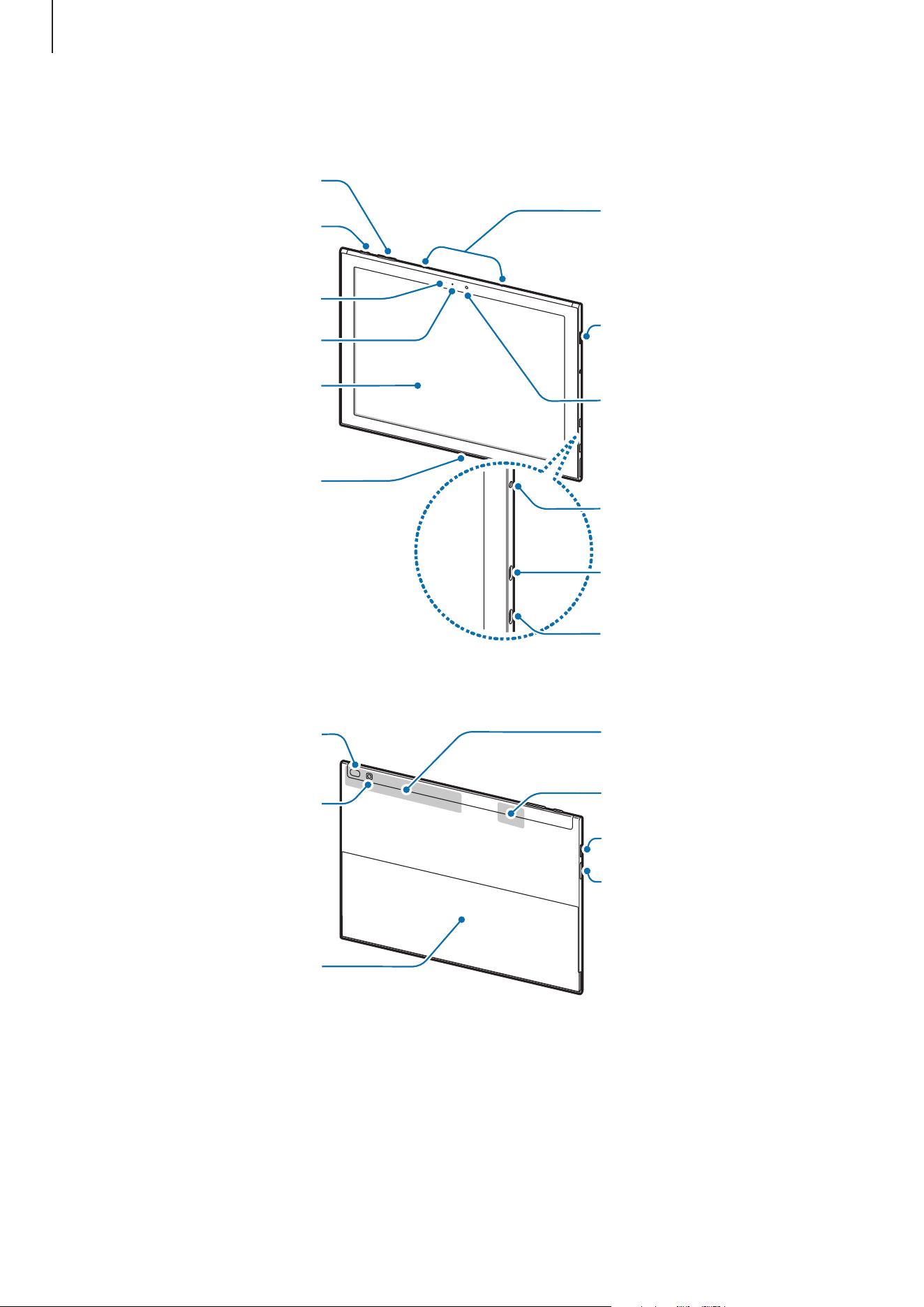
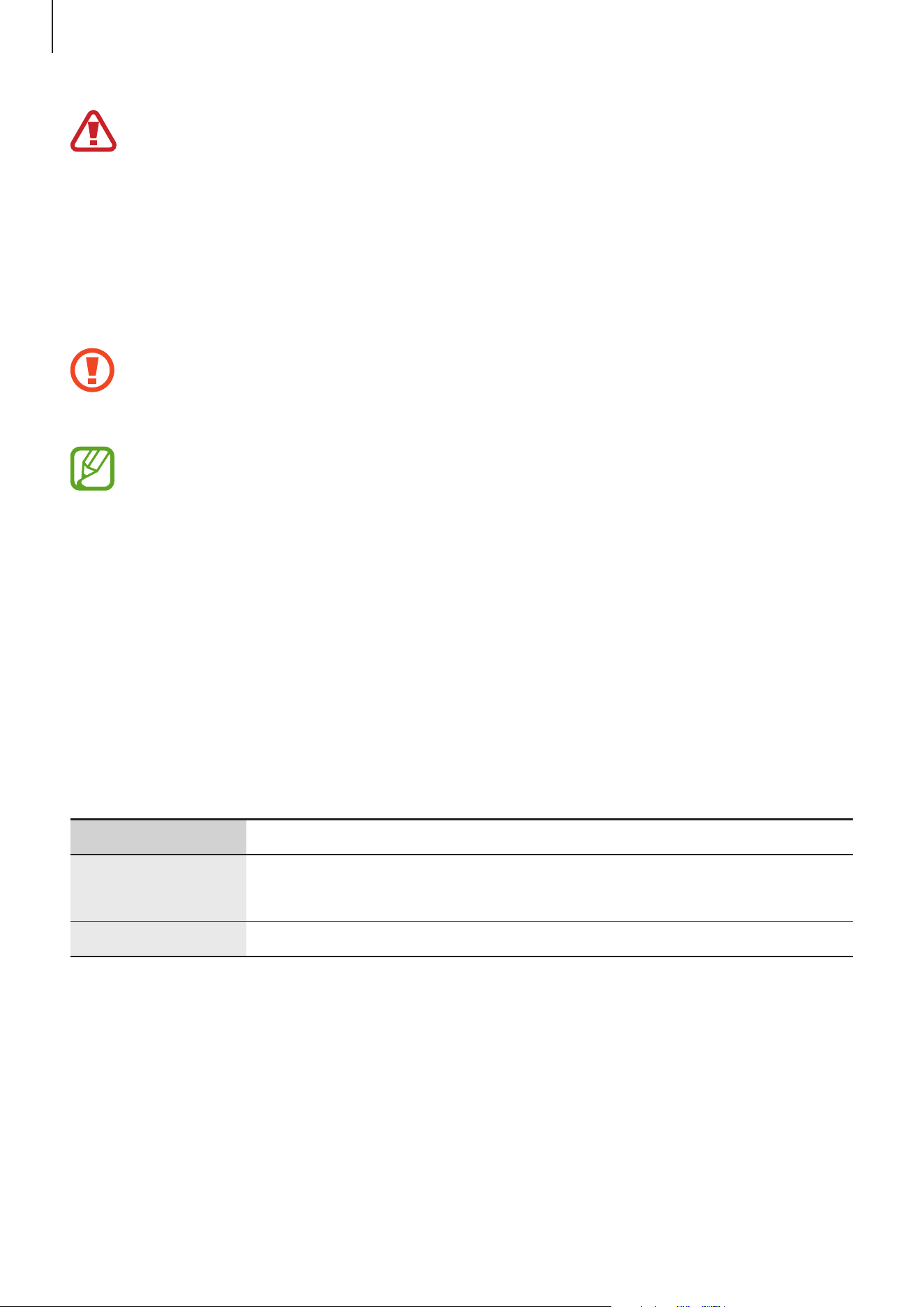
Device layout
Keyboard dock port
Touchscreen
Front camera
Speaker
Headset jack
Multipurpose jack
(USB Type-C)
Volume key
Power key
LED indicator
Light sensor
Microphone
Multipurpose jack/
External display port
(USB Type-C)
GPS antenna
Main antenna
SIM card / Memory card tray
Rear camera
Kickstand
Fingerprint recognition
sensor
Speaker
Basics
9
The device and some accessories (sold separately) contain magnets. The American
Heart Association (US) and the Medicines and Healthcare Products Regulatory
Agency (UK) both warn that magnets can affect the operation of implanted
pacemakers, cardioverters, defibrillators, insulin pumps or other electro medical
devices (collectively, “Medical Device”) within the range of 15 cm (6 inches). If you
are a user of any of these Medical Devices, DO NOT USE THIS DEVICE AND SOME
ACCESSORIES (SOLD SEPARATELY) UNLESS YOU HAVE CONSULTED WITH YOUR
PHYSICIAN.
Do not store your device and some accessories (sold separately) near magnetic fields.
Magnetic stripe cards, including credit cards, phone cards, passbooks, and boarding
passes, may be damaged by magnetic fields.
•
Connectivity problems and battery drain may occur in the following situations:
–
If you attach metallic stickers on the antenna area of the device
–
If you attach a device cover made with metallic material to the device
–
If you cover the device’s antenna area with your hands or other objects while
using certain features, such as the mobile data connection
•
Using a Samsung-approved screen protector is recommended. Unapproved screen
protectors may cause the sensors to malfunction.
•
Do not allow water to contact the touchscreen. The touchscreen may malfunction
in humid conditions or when exposed to water.
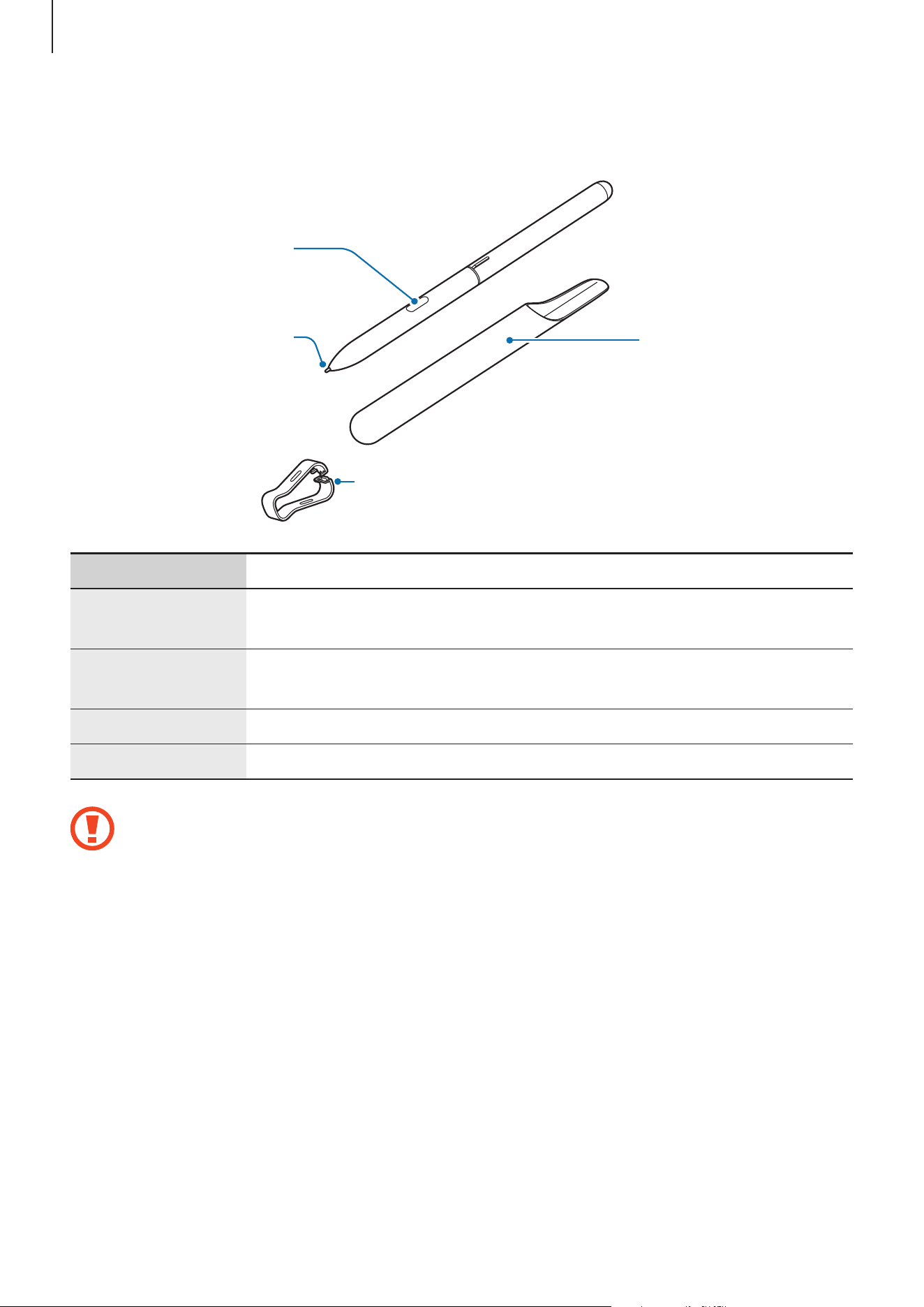
Keys
Key Function
Power
•
Press and hold to turn the device on or off.
•
Press to turn on or lock the screen.
Volume
•
Press to adjust the device volume.
Basics
10
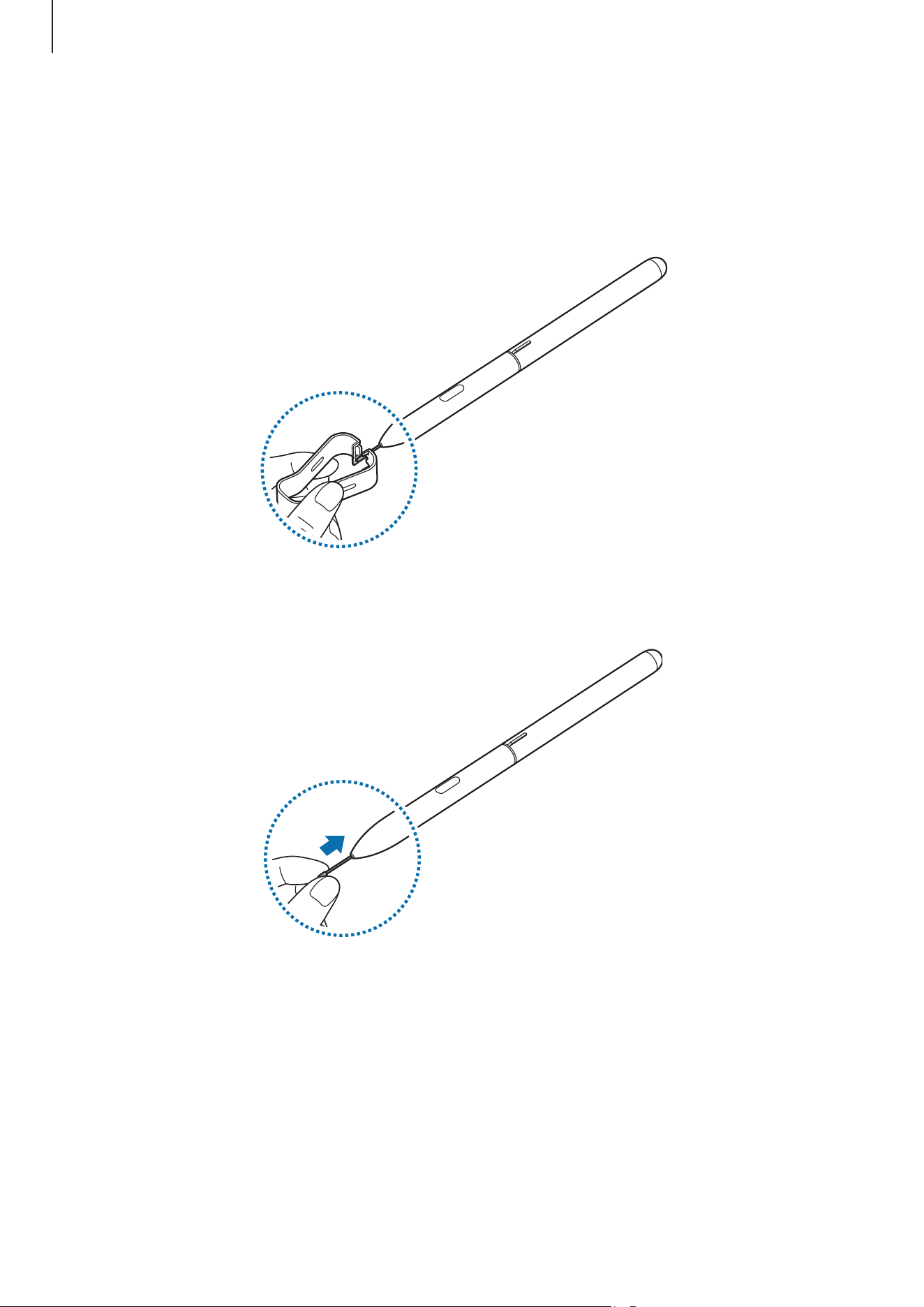
S Pen
S Pen button
S Pen nib
Tweezers
S Pen case
Name Functions
S Pen nib
•
Use the S Pen to write, draw, or perform touch actions on the
screen.
S Pen button
•
Hover the S Pen over the screen and press the S Pen button to
display the air command features.
Tweezers
•
Remove the S Pen nib with the tweezers when replacing the nib.
S Pen case
•
Store the S Pen to avoid the damaging the S Pen nib.
The supplied S Pen is already calibrated. Do not calibrate the screen for pen input
randomly. Doing so may cause performance degradation or malfunction.
Basics
11
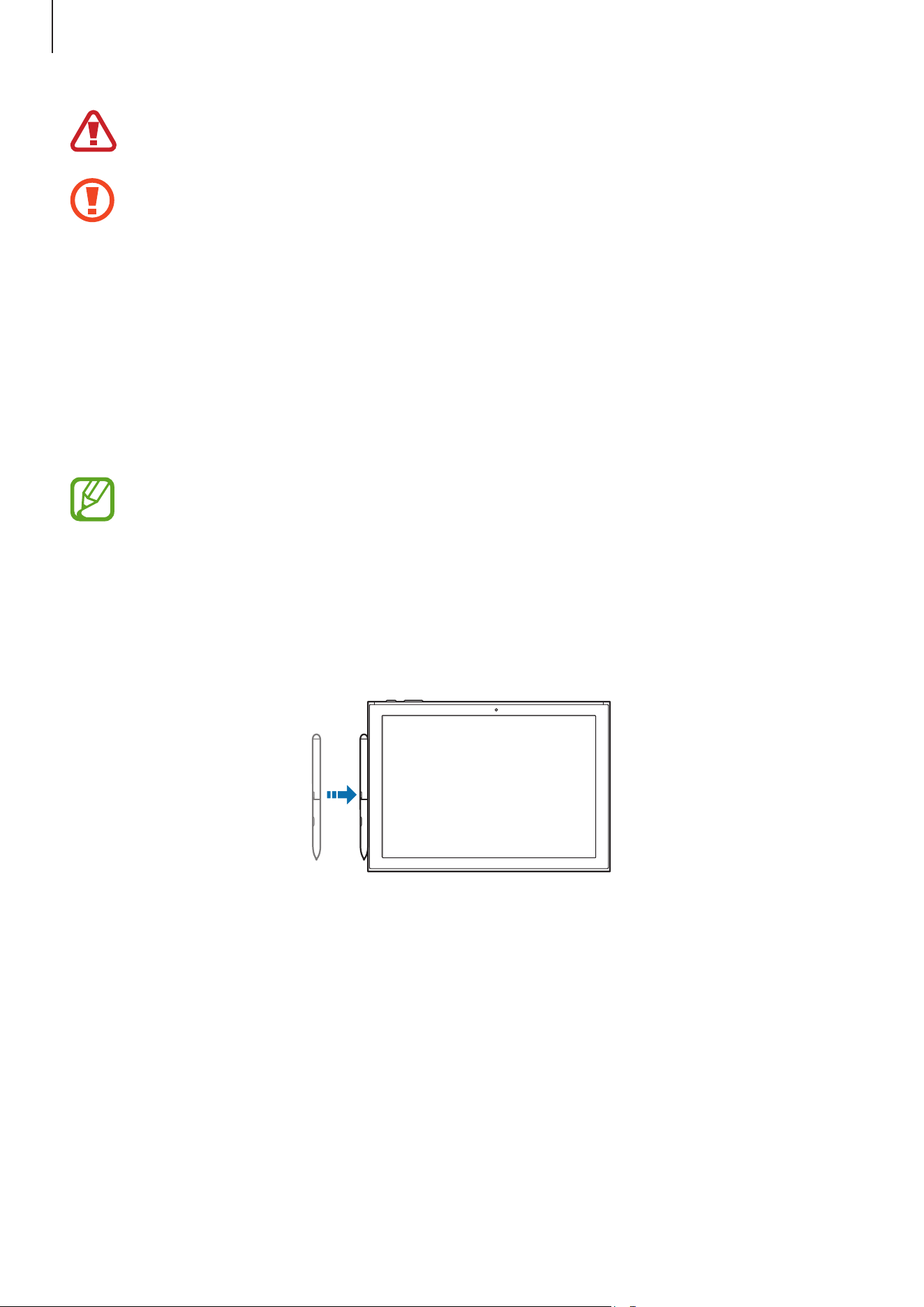
Replacing the S Pen nib
If the nib is dull, replace it with a new one.
1
Firmly hold the nib with the tweezers and remove it.
2
Insert a new nib into the S Pen.
Basics
12
Be careful not to pinch your fingers with the tweezers.
•
Do not reuse old nibs. Doing so may cause the S Pen to malfunction.
•
Do not press the nib excessively when inserting the nib into the S Pen.
•
Do not insert the round end of the nib into the S Pen. Doing so may cause damage
to the S Pen or your device.
•
Do not bend or apply excessive pressure with the S Pen while using it. The S pen
may be damaged or the nib may be deformed.
•
Do not hard press the screen with the S Pen. The pen nib may be deformed.
•
The S Pen may not be attached firmly if you clip it on the objects that are too thick
or too thin.
•
If you use the S Pen at sharp angles on the screen, the device may not recognise
the S Pen actions.
•
For more information about the S Pen, visit the Samsung website.
Attaching the S Pen
You can attach the S Pen to the left side of the device.
Basics
13
Battery
Charging the battery
Charge the battery before using it for the first time or when it has been unused for extended
periods.
Use only Samsung-approved batteries, cables, and chargers supplied with the device.
Unapproved chargers or cables can cause the battery to explode or damage the
device.
•
Connecting the charger improperly may cause serious damage to the device. Any
damage caused by misuse is not covered by the warranty.
•
Use only USB Type-C cable supplied with the device. The device may be damaged
if you use Micro USB cable.
To save energy, unplug the charger when not in use. The charger does not have a
power switch, so you must unplug the charger from the electric socket when not in
use to avoid wasting power. The charger should remain close to the electric socket
and easily accessible while charging.
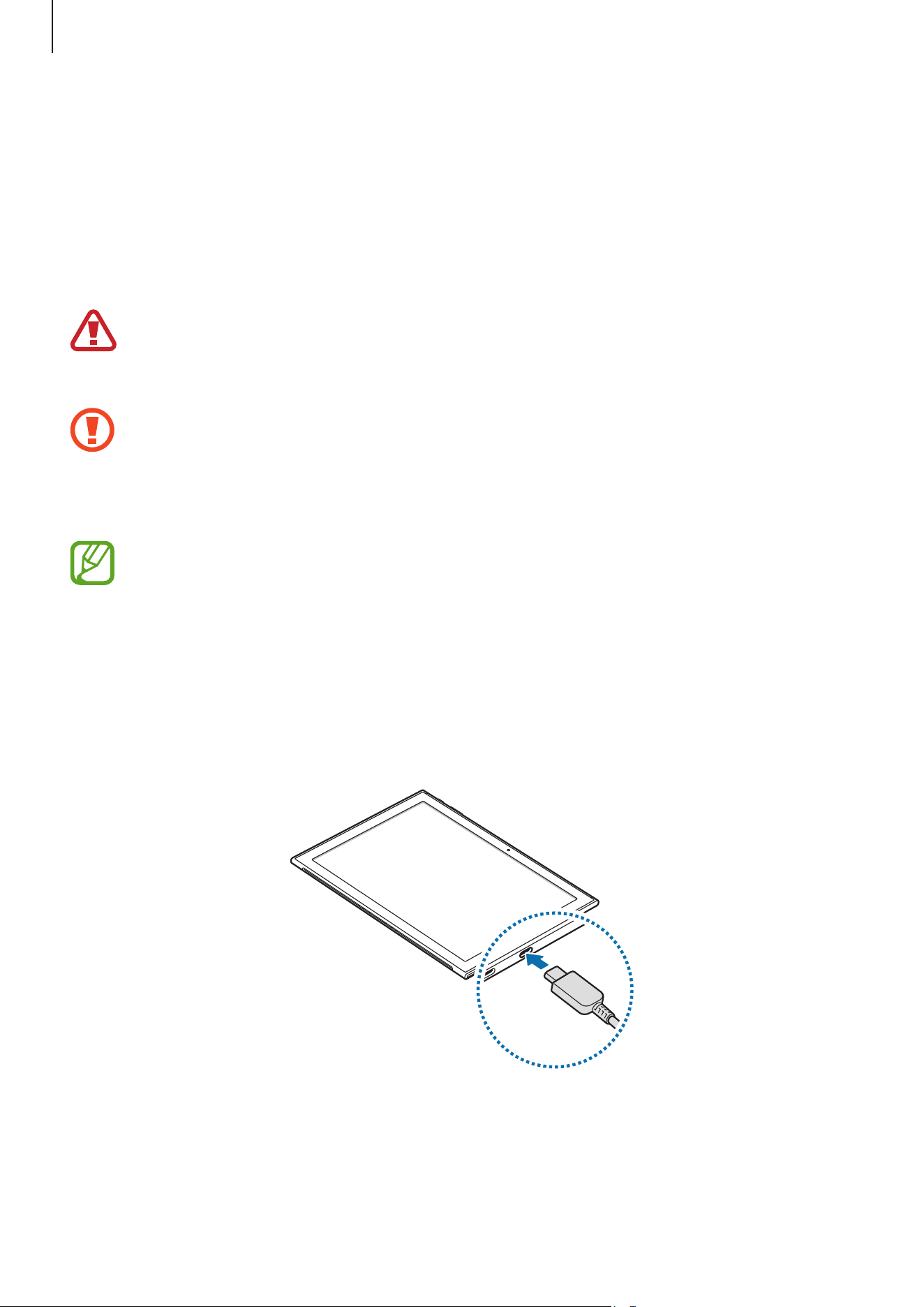
1
Connect the USB cable to the USB power adaptor.
2
Plug the USB cable into the device’s multipurpose jack.
3
Plug the USB power adaptor into an electric socket.
4
After fully charging, disconnect the charger from the device. Then, unplug the charger
from the electric socket.

Basics
14
Viewing the remaining charging time
While charging, on the taskbar, tap
→
→
System
→
Battery
.
The actual charging time may vary depending on the status of your device and the
charging conditions. The estimated charging time may not be displayed when you
charge the device in very cold or very hot conditions.
Reducing the battery consumption
Your device provides various options that help you conserve battery power.
•
When you are not using the device, switch to sleep mode by pressing the Power key or
close the Keyboard Cover.
•
Activate battery saver.
•
Close unnecessary apps.
•
Deactivate the Bluetooth feature when not in use.
•
Deactivate the Wi-Fi feature when not in use.
•
Deactivate auto-syncing of apps that need to be synced, such as emails.
•
Decrease the backlight time.
•
Decrease the screen brightness.

Basics
15
Battery charging tips and precautions
•
Use the charger supplied with the device. It may take longer to charge the battery if you
use other chargers.
•
When the battery power is low, the battery icon appears empty.
•
If the battery is completely discharged, the device cannot be turned on immediately
when the charger is connected. Allow a depleted battery to charge for a few minutes
before turning on the device.
•
If you use multiple apps at once, network apps, or apps that need a connection to
another device, the battery will drain quickly. To avoid losing power during a data
transfer, always use these apps after fully charging the battery.
•
Using a power source other than the charger, such as a computer, may result in a slower
charging speed due to a lower electric current.
•
The device can be used while it is charging, but it may take longer to fully charge the
battery.
•
If the device receives an unstable power supply while charging, the touchscreen may not
function. If this happens, unplug the charger from the device.
•
While charging, the device and the charger may heat up. This is normal and should not
affect the device’s lifespan or performance. If the battery gets hotter than usual, the
charger may stop charging.
•
If you charge the device while the multipurpose jack is wet, the device may be damaged.
Thoroughly dry the multipurpose jack before charging the device.
•
If the device is not charging properly, take the device and the charger to a Samsung
Service Centre.
Battery saver
Save the battery power by limiting the device’s activity running in the background and push
notifications.
On the taskbar, tap
→
→
System
→
Battery
, and then tap the
Battery saver status
until next charge
switch to activate it. Alternatively, on the taskbar, tap
→
Battery saver
to activate it.
To automatically activate battery saver mode when the remaining battery power reaches the
preset level, tap
Turn battery saver on automatically if my battery falls below:
and set the
battery level.
Basics
16
SIM or USIM card
Installing the SIM or USIM card
Insert the SIM or USIM card provided by the mobile telephone service provider.
•
Use only a nano-SIM card.
•
Use caution not to lose or let others use the SIM or USIM card. Samsung is not
responsible for any damages or inconveniences caused by lost or stolen cards.
•
It is only for data network. Calling and messaging features are not supported.
•
Some LTE services may not be available depending on the service provider. For
more information about service availability, contact your service provider.
Basics
17
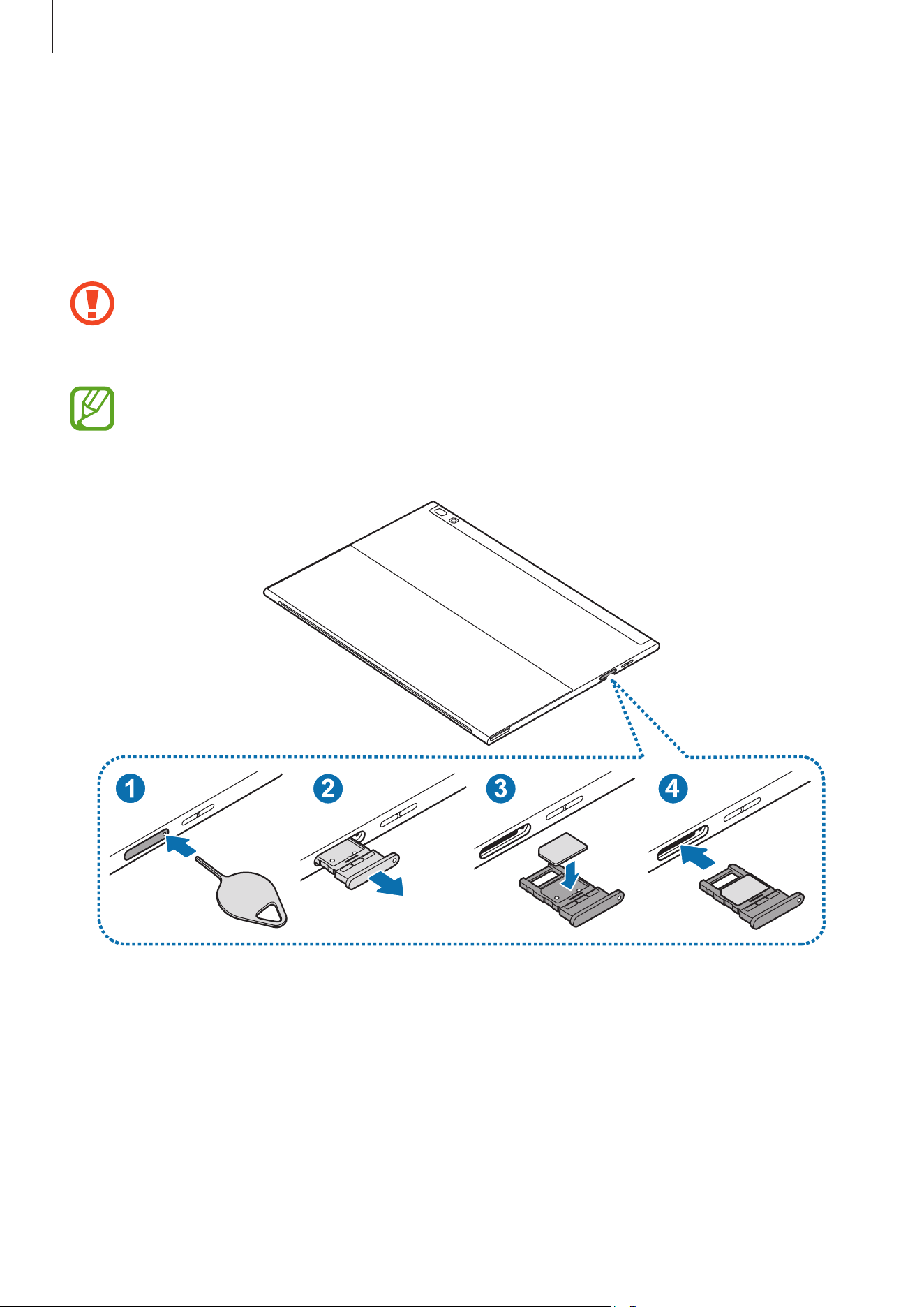
1
Place the device with the bottom facing upwards.
2
Insert the ejection pin into the hole on the tray to loosen the tray.
Ensure that the ejection pin is perpendicular to the hole. Otherwise, the device may
be damaged.
3
Pull out the tray gently from the tray slot.
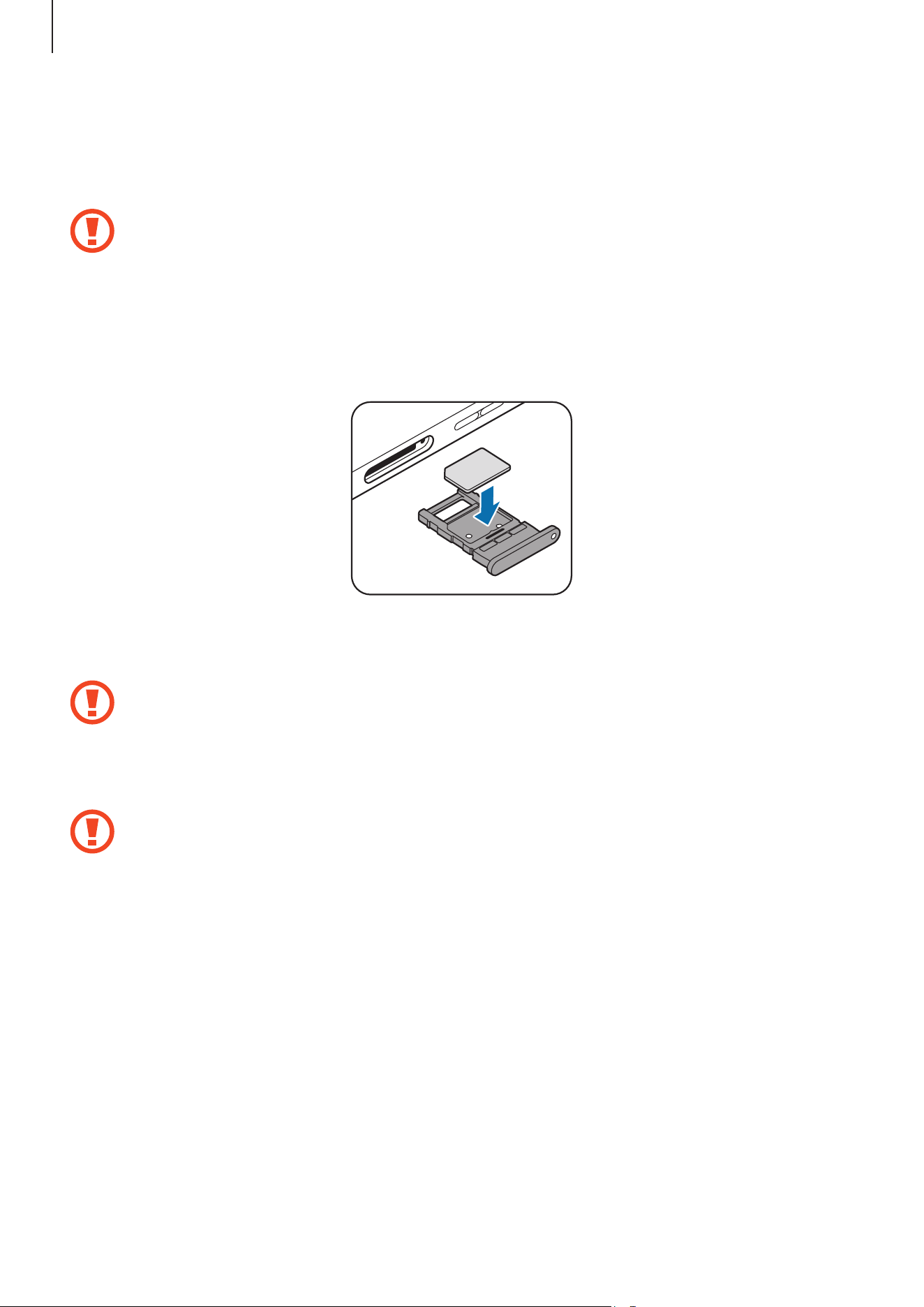
4
Place the SIM or USIM card on the tray with the gold-coloured contacts facing upwards.
5
Gently press the SIM or USIM card into the tray to secure it.
If the card is not fixed firmly into the tray, the SIM card may leave or fall out of the tray.
6
Insert the tray back into the tray slot.
•
If you insert the tray into your device while the tray is wet, your device may be
damaged. Always make sure the tray is dry.
•
Fully insert the tray into the tray slot to prevent liquid from entering your device.
Removing the SIM or USIM card
1
Insert the ejection pin into the hole on the tray to loosen the tray.
2
Pull out the tray gently from the tray slot.
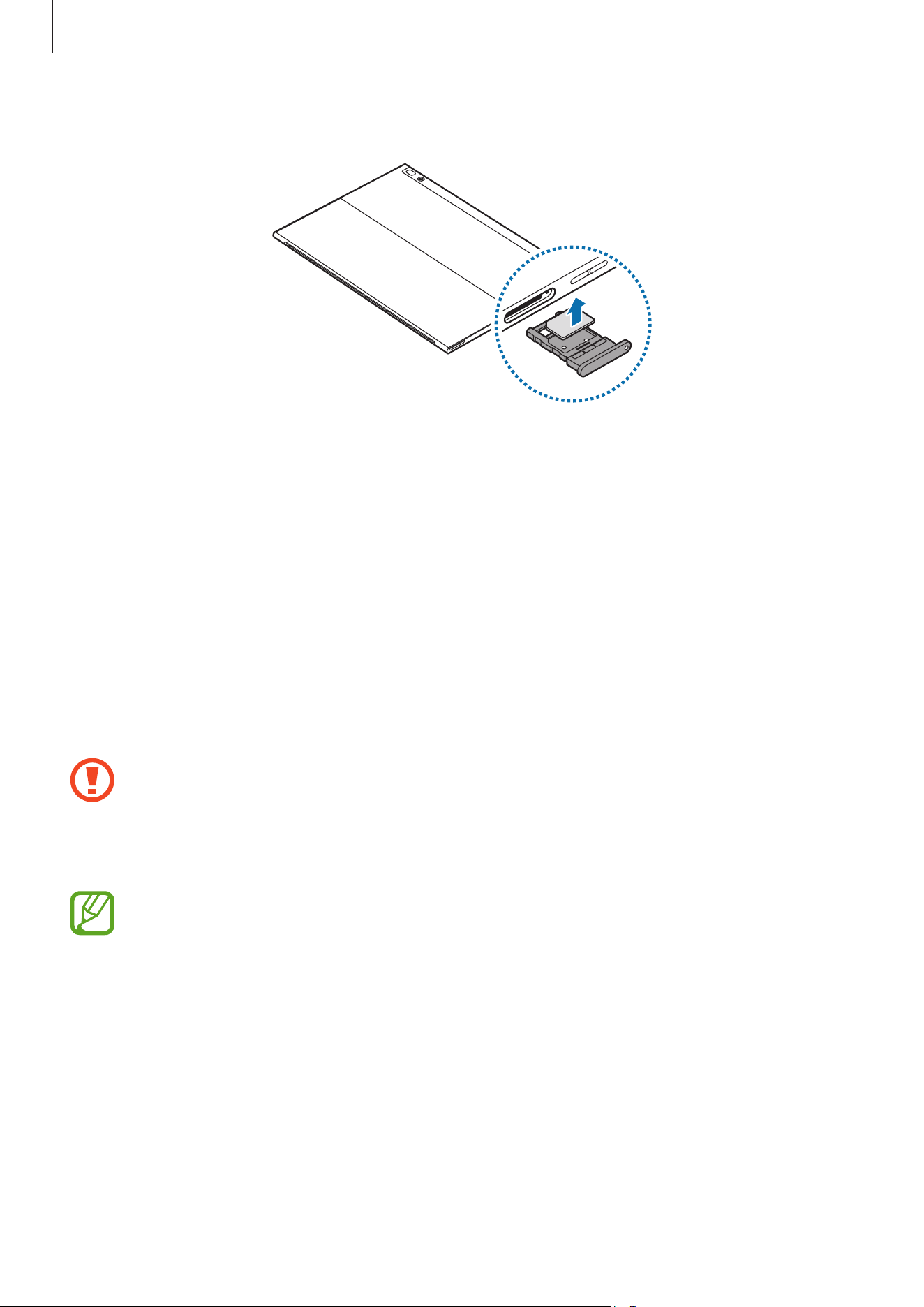
Basics
18
3
Remove the SIM or USIM card.
4
Insert the tray back into the tray slot.
Memory card (microSD card)
Installing a memory card
Your device’s memory card capacity may vary from other models and some memory cards
may not be compatible with your device depending on the memory card manufacturer and
type. To view your device’s maximum memory card capacity, refer to the Samsung website.
•
Some memory cards may not be fully compatible with the device. Using an
incompatible card may damage the device or the memory card, or corrupt the data
stored in it.
•
Use caution to insert the memory card right-side up.
•
The device supports the FAT and the exFAT file systems for memory cards. When
inserting a card formatted in a different file system, the device will ask to reformat
the card or will not recognise the card. If the device does not recognise your
memory card, format it on your computer.
•
Frequent writing and erasing of data shortens the lifespan of memory cards.
•
When inserting a memory card into the device, the memory card’s file directory
appears in the
File Explorer
→
Secure Digital storage device
folder.
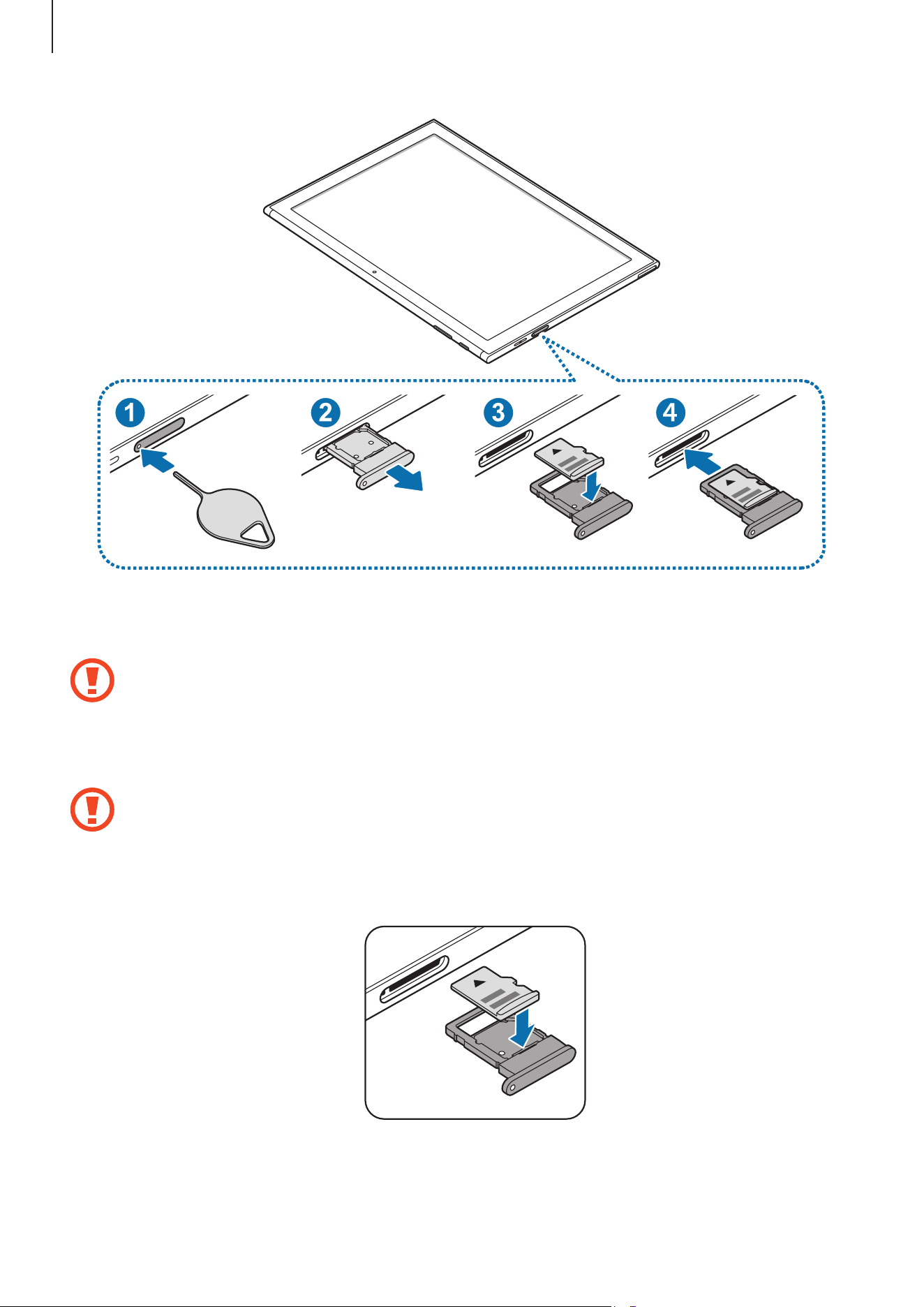
Basics
19
1
Insert the ejection pin into the hole on the tray to loosen the tray.
Ensure that the ejection pin is perpendicular to the hole. Otherwise, the device may
be damaged.
2
Pull out the tray gently from the tray slot.
When you remove the tray from the device, the mobile data connection will be
disabled.
3
Place a memory card on the tray with the gold-coloured contacts facing downwards.
4
Gently press the memory card into the tray to secure it.
Basics
20
5
Insert the tray back into the tray slot.
•
If you insert the tray into your device while the tray is wet, your device may be
damaged. Always make sure the tray is dry.
•
Fully insert the tray into the tray slot to prevent liquid from entering your device.
Removing the memory card
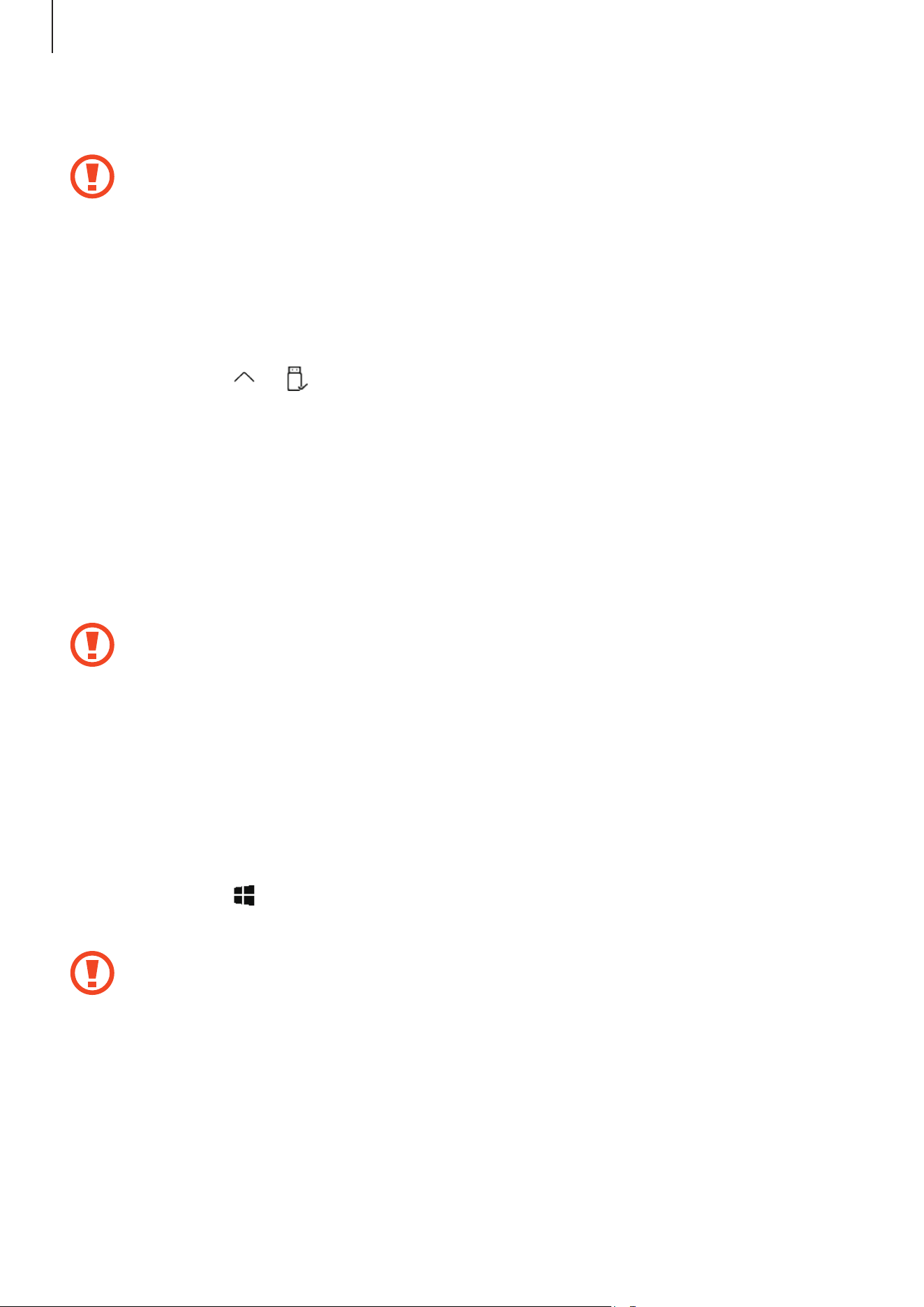
Before removing the memory card, first unmount it for safe removal.
On the taskbar, tap
→
, and then select the ejection option.
1
Insert the ejection pin into the hole on the tray to loosen the tray.
2
Pull out the tray gently from the tray slot.
3
Remove the memory card.
4
Insert the tray back into the tray slot.
Do not remove the memory card while the device is transferring or accessing
information. Doing so can cause data to be lost or corrupted or damage to the
memory card or device. Samsung is not responsible for losses that result from the
misuse of damaged memory cards, including the loss of data.
Formatting the memory card
A memory card may not be compatible with the device, so format the memory card on the
device.
On the taskbar, tap
→
Windows System
→
File Explorer
→
This PC
, tap and hold
Secure
Digital storage device
, and then tap
Format...
.
Before formatting the memory card, remember to make backup copies of all
important data stored in the memory card. The manufacturer’s warranty does not
cover loss of data resulting from user actions.
Basics
21
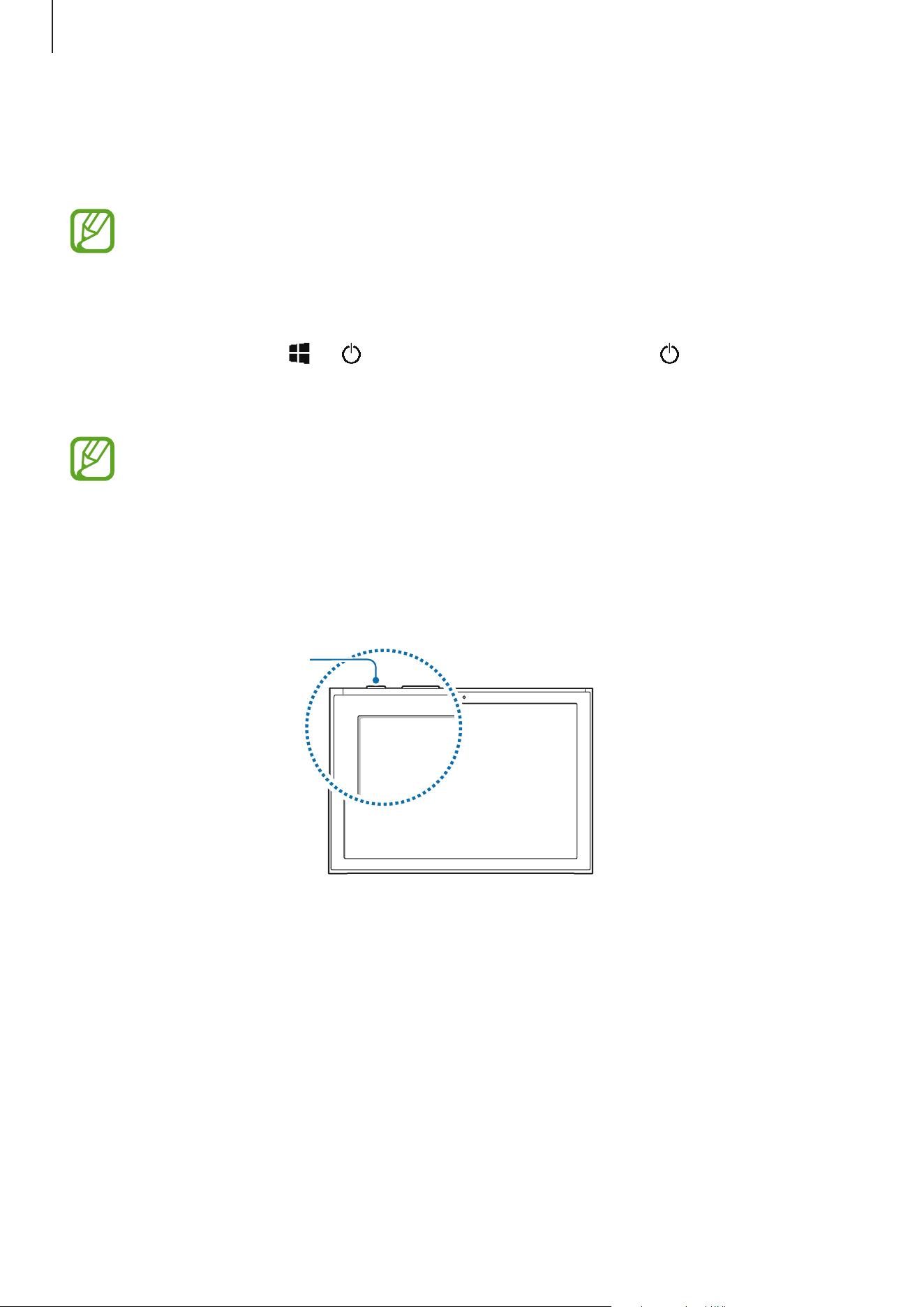
Turning the device on and off
Press and hold the Power key for a few seconds to turn on the device.
Before turning on your device for the first time, you must connect the device to a
power supply.
When you turn on your device for the first time or after performing a data reset, follow the on-
screen instructions to set up your device.
To turn off the device, tap
→
→
Shut down
. In Tablet mode, tap
→
Shut down
.
Alternatively, press and hold the Power key until
Slide to shut down your PC
appears, and
then drag the screen downwards.
Follow all posted warnings and directions from authorised personnel in areas where
the use of wireless devices is restricted, such as aeroplanes and hospitals.
Restarting the device
If your device is frozen and unresponsive, press and hold the Power key for more than
10 seconds until the device restarts. Then, press and hold the Power key again to restart it.
Power key
Basics
22
Keyboard Cover
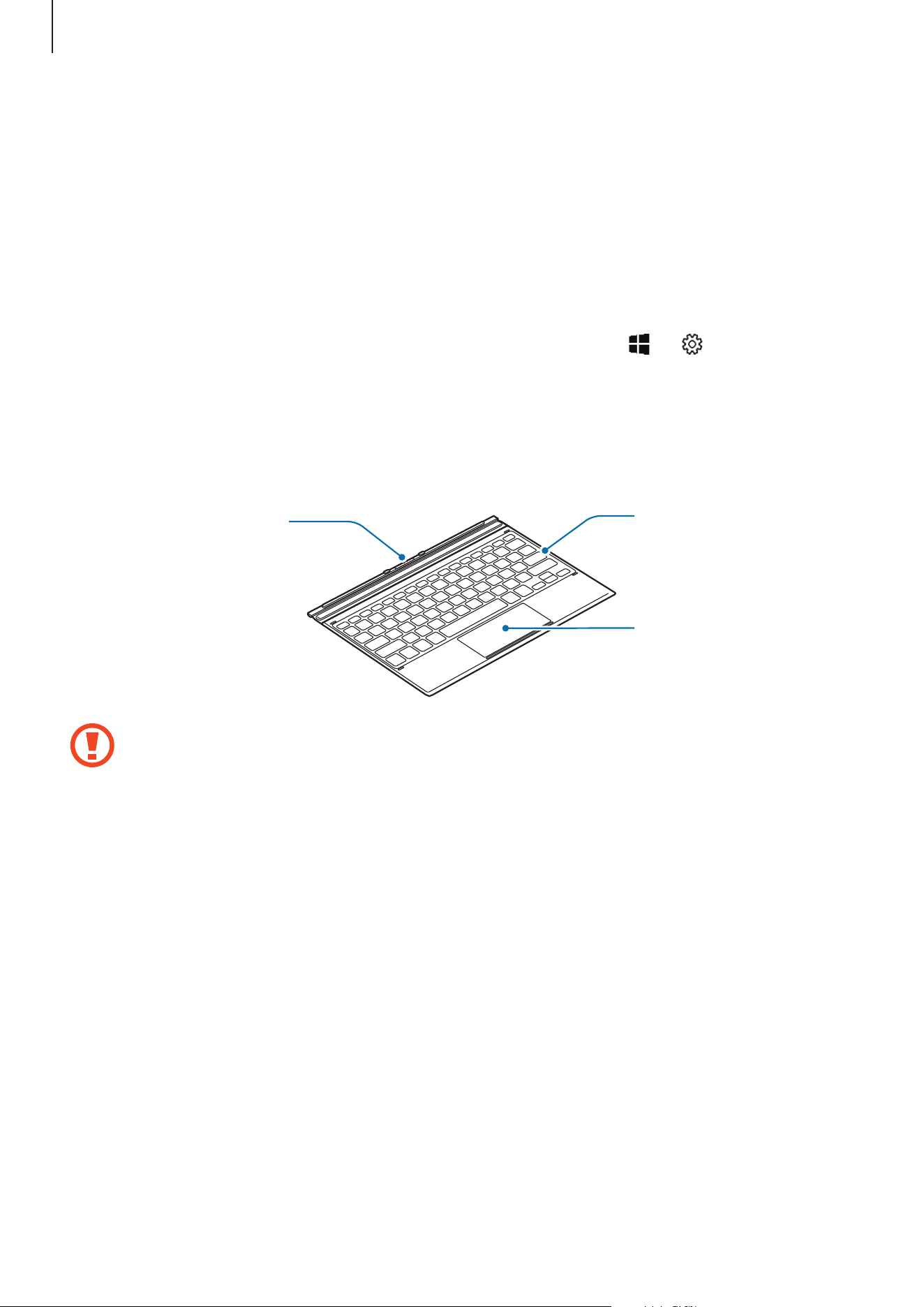
Introduction
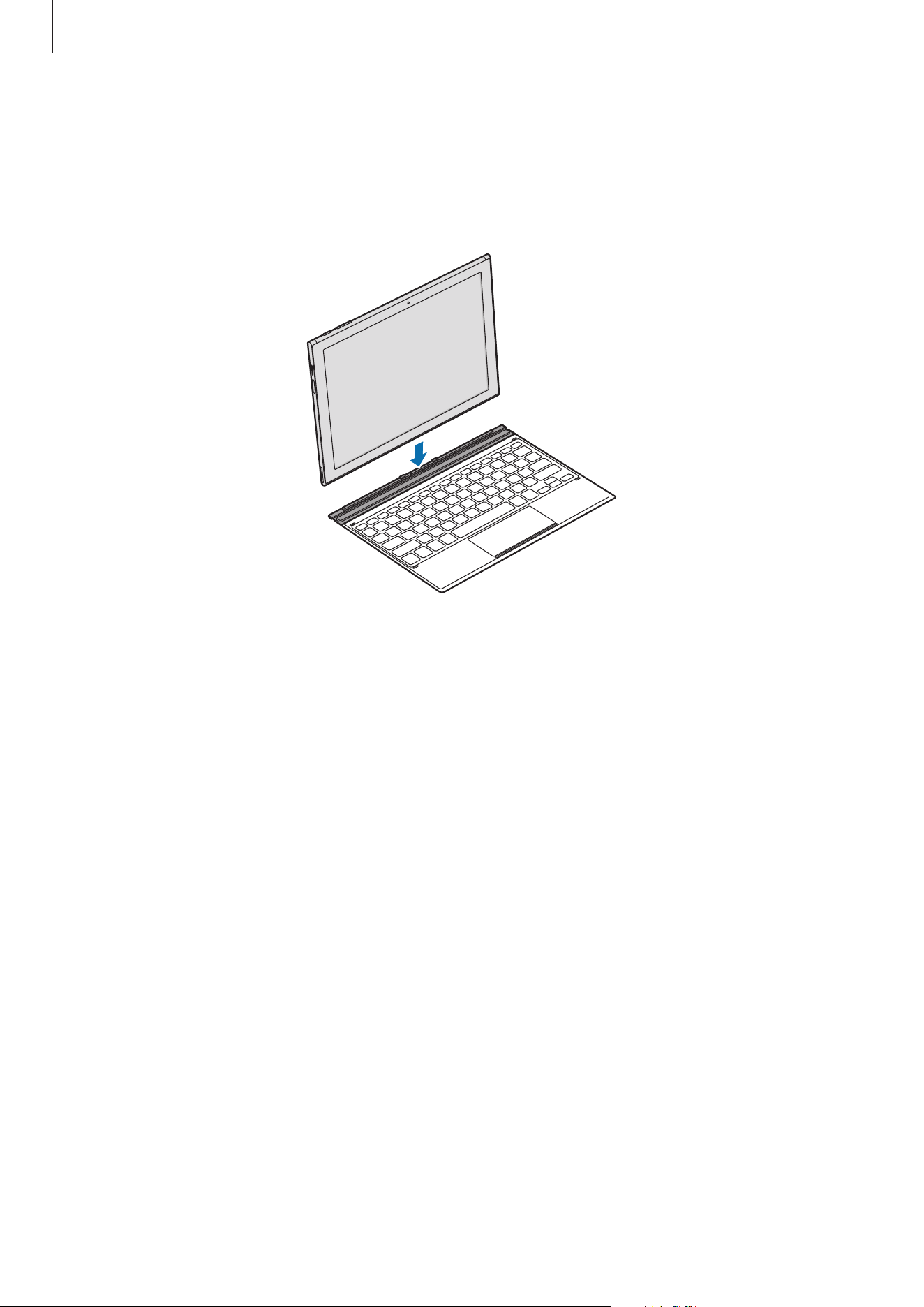
Connect the device to the Keyboard Cover. The bottom of the touchpad acts as the left and
right buttons of a mouse.
When you close the Keyboard Cover, your device will enter sleep mode. When you open
the cover, the touchscreen will turn on. To change the settings, tap
→
→
System
→
Power & sleep
→
Additional power settings
→
Choose what closing the lid does
, and then
configure the
When I close the lid:
settings.
Keyboard Cover
Connector
Keyboard
Touchpad
Do not remove keycaps from the keyboard. Doing so may damage the keyboard and
the keycaps.
Basics
23
Connecting the Keyboard Cover
1
Connect the keyboard dock port at the bottom of the device to the connector on the
Keyboard Cover.
Basics
24
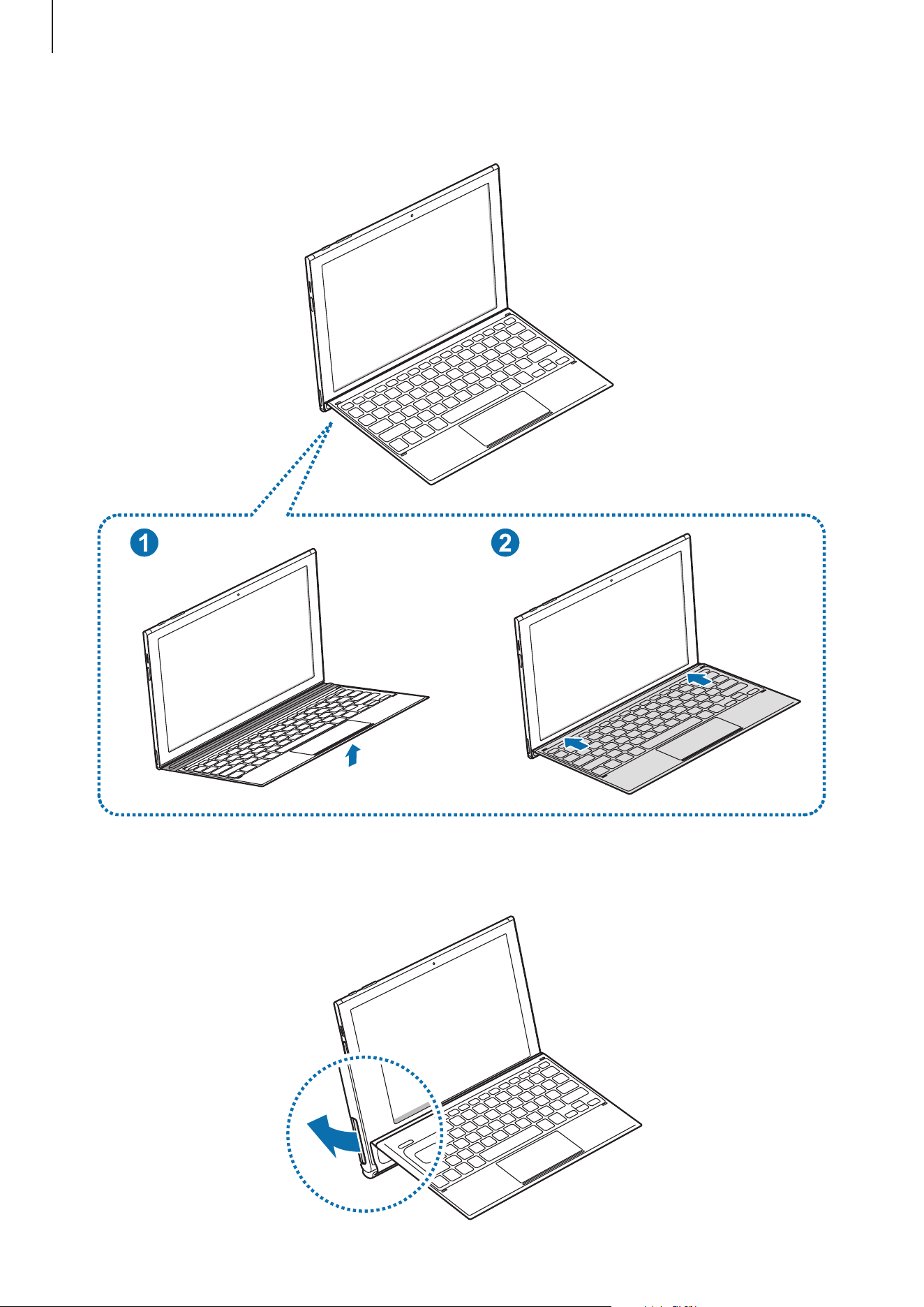
2
Lift the Keyboard Cover slightly and push it towards the screen.
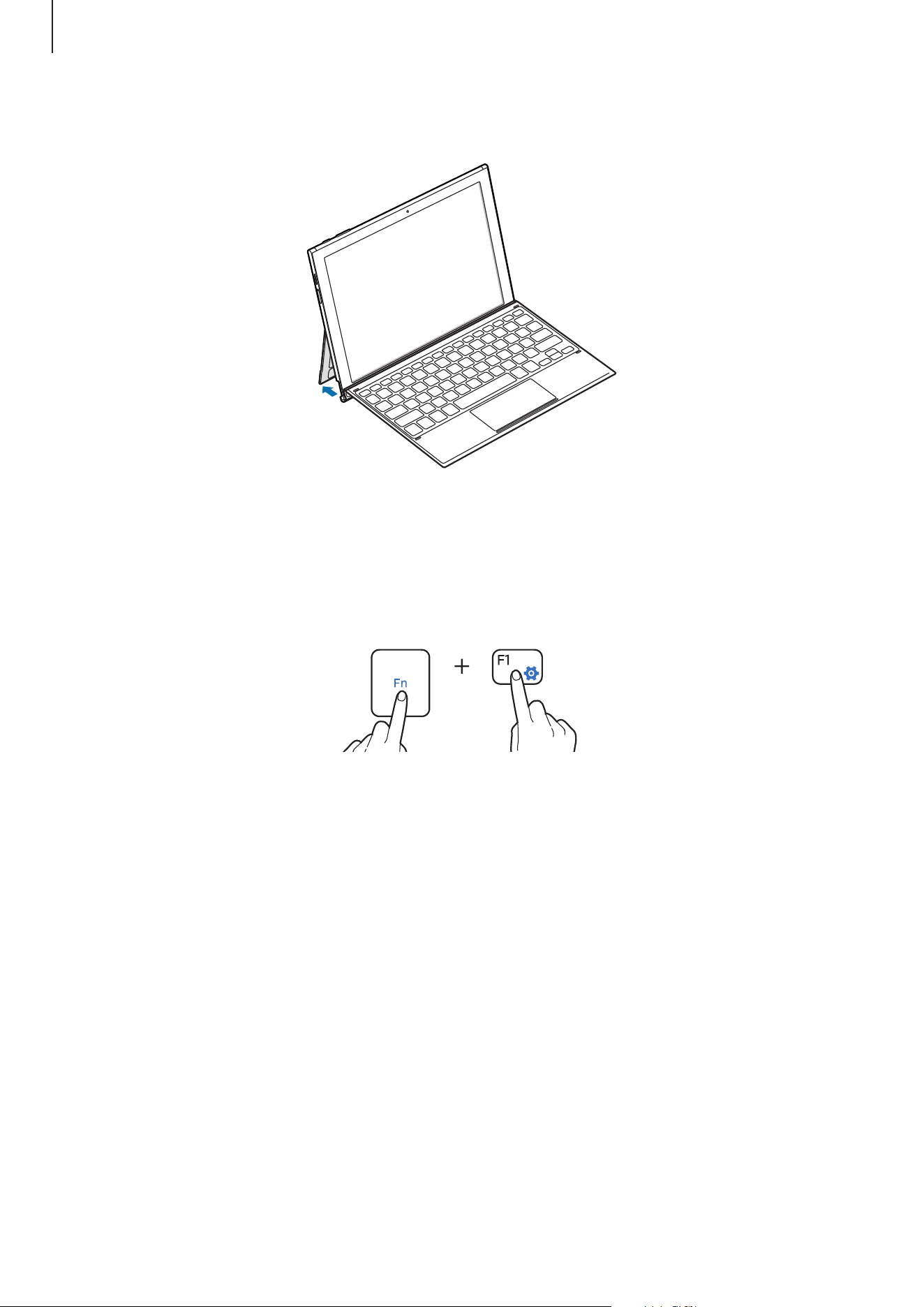
3
Flip out the kickstand.
Basics
25
4
Adjust the kickstand until you find the proper angle.
Hot keys
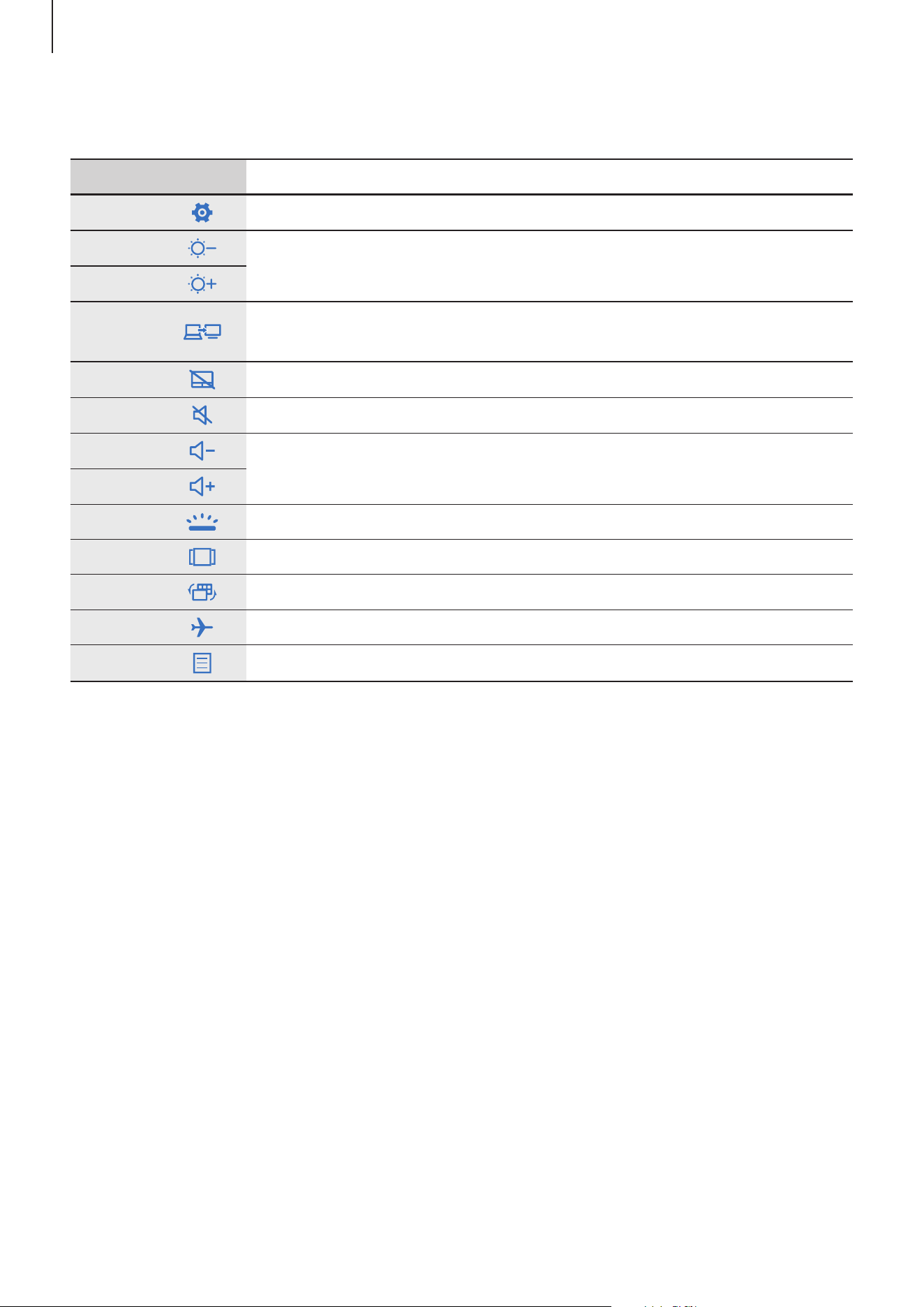
Use hot keys to easily use features and change settings, such as brightness and volume.
To use hot keys, simultaneously press and hold the Fn key and press a hot key.
If you lock the Fn key, you can use hot keys without pressing the Fn key. To lock the Fn key,
tap the Fn Lock key.
The Fn Lock key will automatically unlock when you reconnect the device and the Keyboard
Cover.
Basics
26
Hot key functions
Key/Icon Function
F1
•
Launch
Settings
.
F2
•
Adjust the brightness of the display.
F3
F4
•
Change the display mode when an external display is connected
to the device.
F5
•
Lock or unlock the touchpad.
F6
•
Mute or unmute the audio.
F7
•
Adjust the volume.
F8
F9
•
Turn the keyboard backlight on or off.
F10
•
Open the task view screen.
F11
•
Hide or show currently open windows.
F12
•
Activate or deactivate flight mode.
•
Perform the same function as the right buttons of a mouse.
Basics
27
Touchpad
Use the touchpad to move the cursor or select items. The left and right buttons of the
touchpad function the same as the left and right buttons of a mouse.
Use only your fingers on the touchpad. The touchpad may not recognise the S Pen or
the other tools.
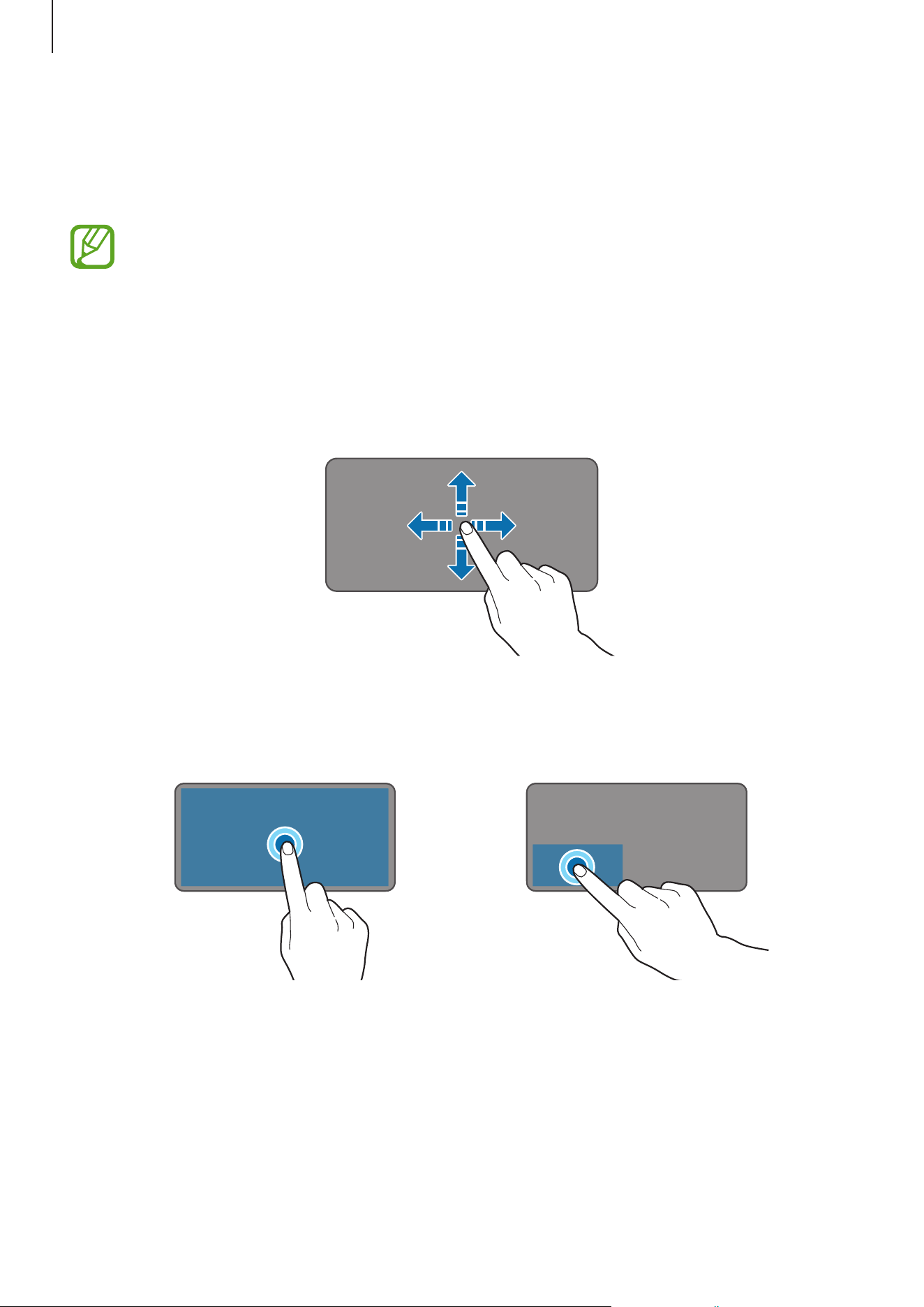
Basic touchpad functions
Moving
To move the cursor, move your finger on the touchpad.
Clicking
Tap the touchpad or press the left-click button.
or
Basics
28
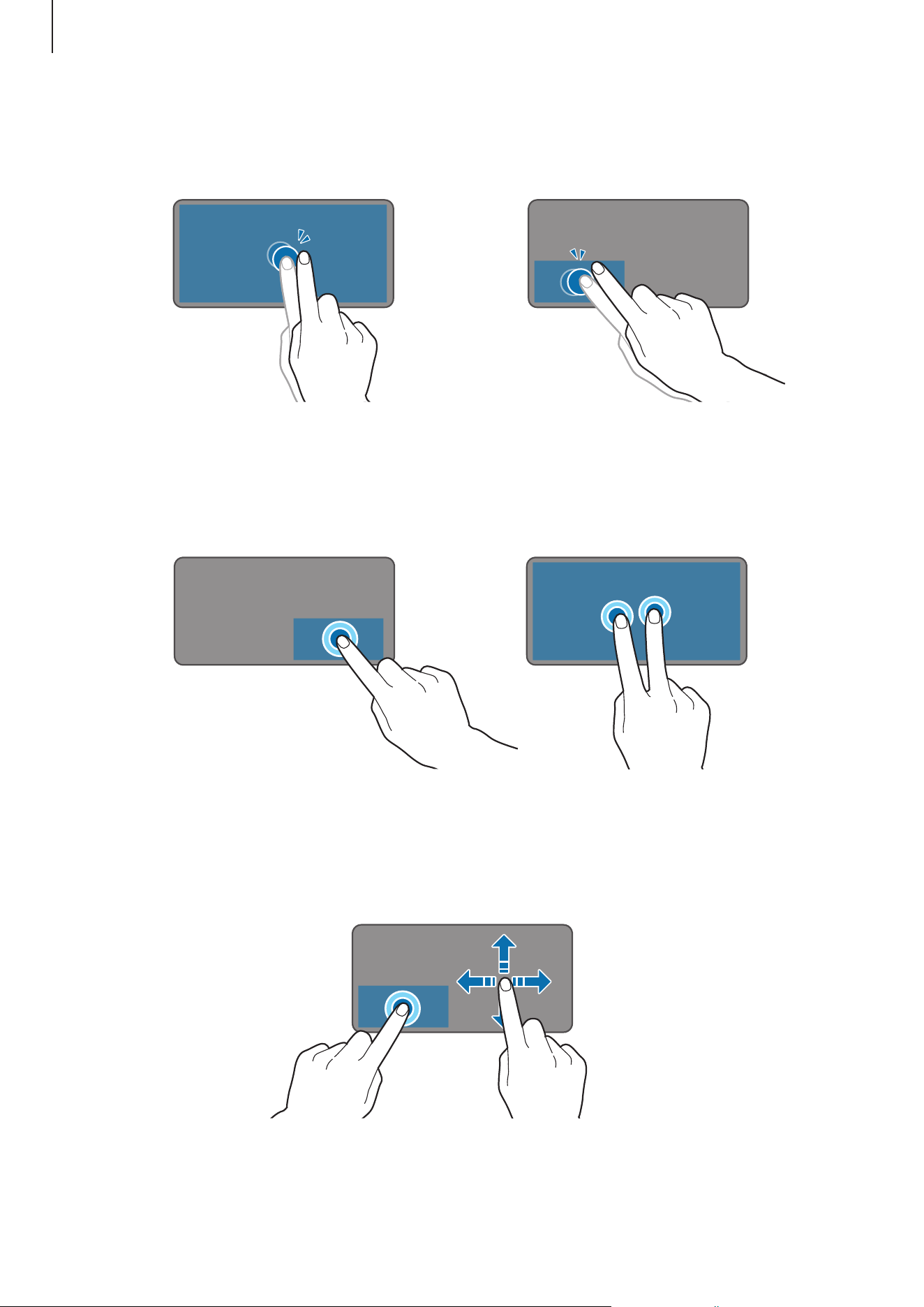
Double-clicking
Double-tap the touchpad or press the left-click button twice.
or
Right-clicking
Press the right-click button to perform the right-click function. Alternatively, tap the touchpad
with two fingers.
or
Dragging
To move an item, select and drag it to the target position while pressing and holding the left-
click button.
Basics
29
Additional functions
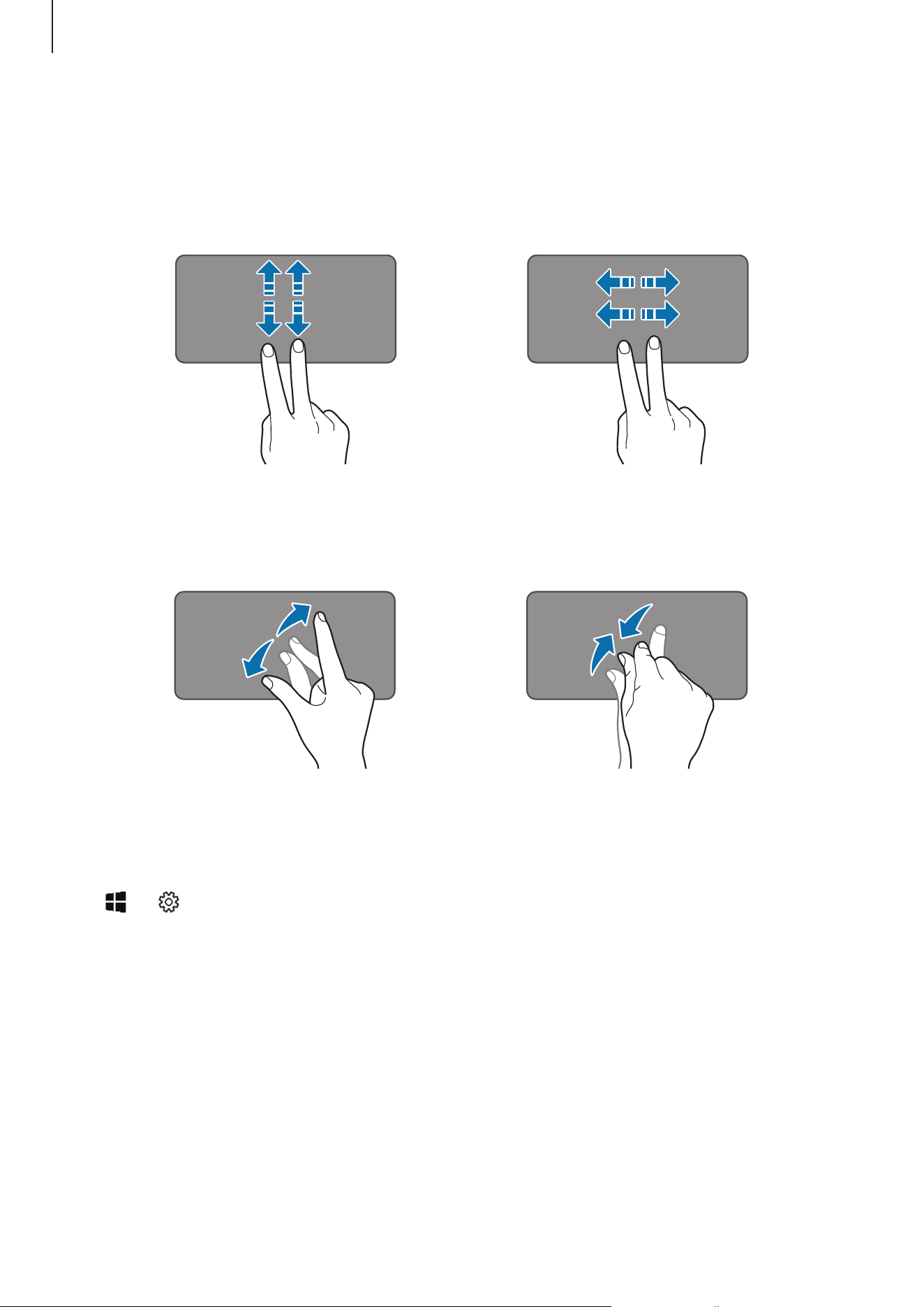
Swiping
To scroll up, down, left, or right to a desired location, swipe with two fingers on the touchpad.
or
Spreading and pinching
Spread two fingers apart on a webpage, map, or image to zoom in a part. Pinch to zoom out.
Configuring touchpad settings
Configure touchpad settings to use the touchpad more efficiently.
Tap
→
→
Devices
→
Touchpad
, and configure the settings.
Locking and unlocking the touchpad
Press and hold the Fn key and press the F5 key to lock or unlock the touchpad.
If the touchpad was locked when it was disconnected, it will still be locked when you
reconnect the Keyboard Cover. To use the touchpad again, unlock it manually.
Basics
30
Controlling the touchscreen
•
Do not allow the touchscreen to come into contact with other electrical devices.
Electrostatic discharges can cause the touchscreen to malfunction.
•
Leaving the touchscreen idle for extended periods may result in afterimages
(screen burn-in) or ghosting. Turn off the touchscreen when you do not use the
device.
•
To avoid damaging the touchscreen, do not tap it with anything sharp or apply
excessive pressure to it with your fingertips.
•
The device may not recognise touch inputs close to the edges of the screen, which
are outside of the touch input area.
•
It is recommended to use fingers or the S Pen when you use the touchscreen.
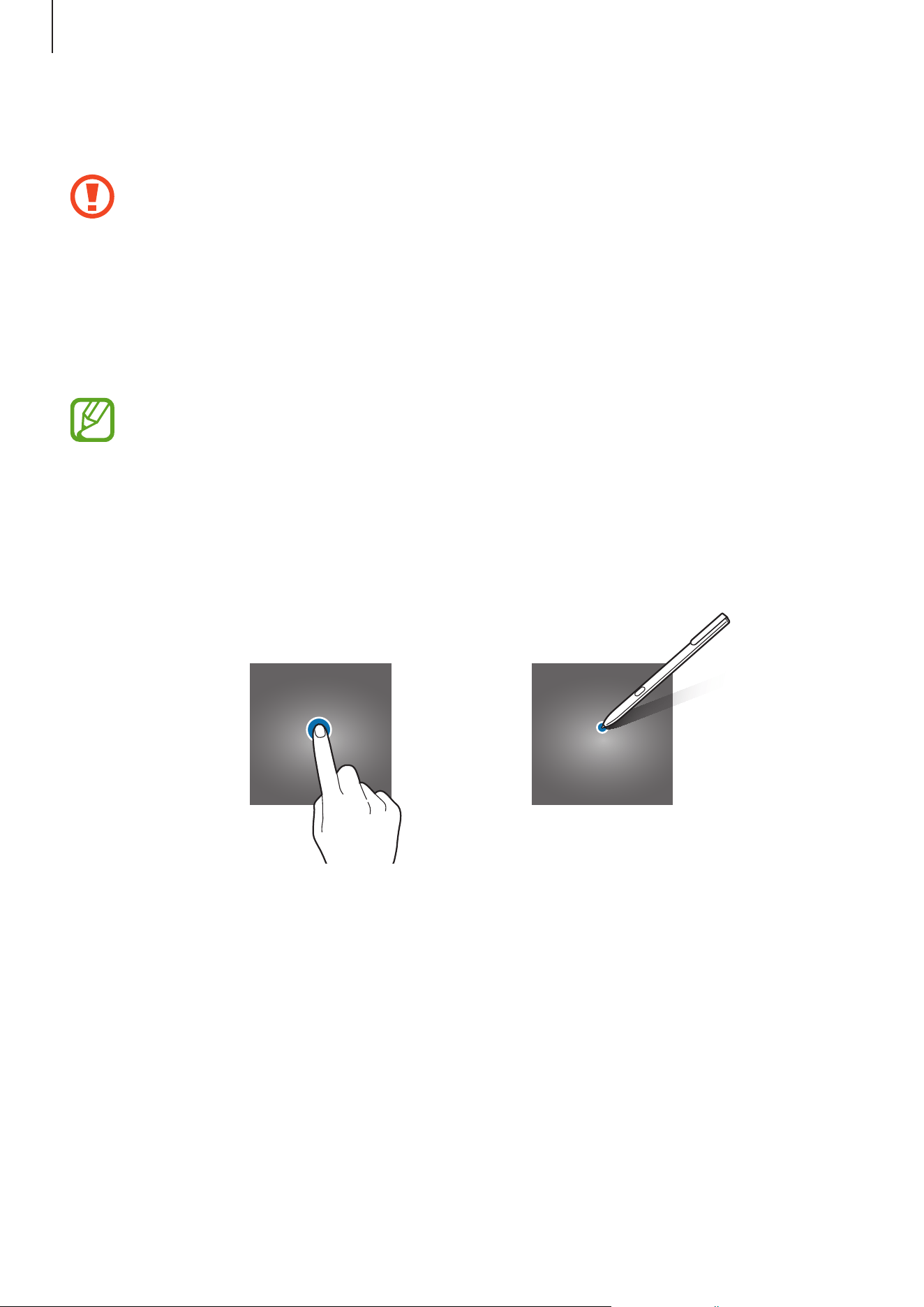
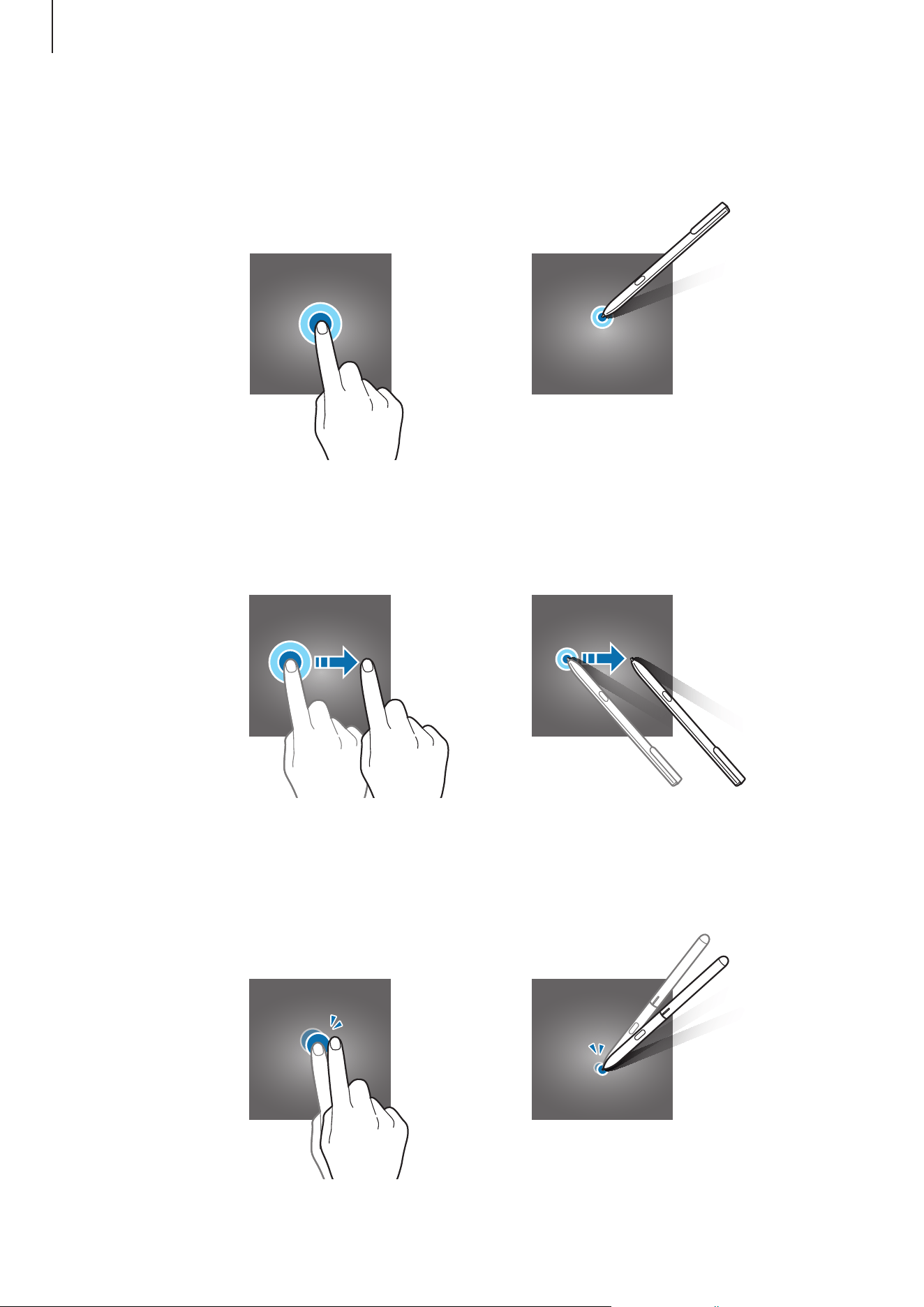
Tapping
Tap the screen.
Basics
31
Tapping and holding
Tap and hold the screen for approximately 2 seconds.
Dragging
Tap and hold an item and drag it to the target position.
Double-tapping
Double-tap the screen.
Basics
32
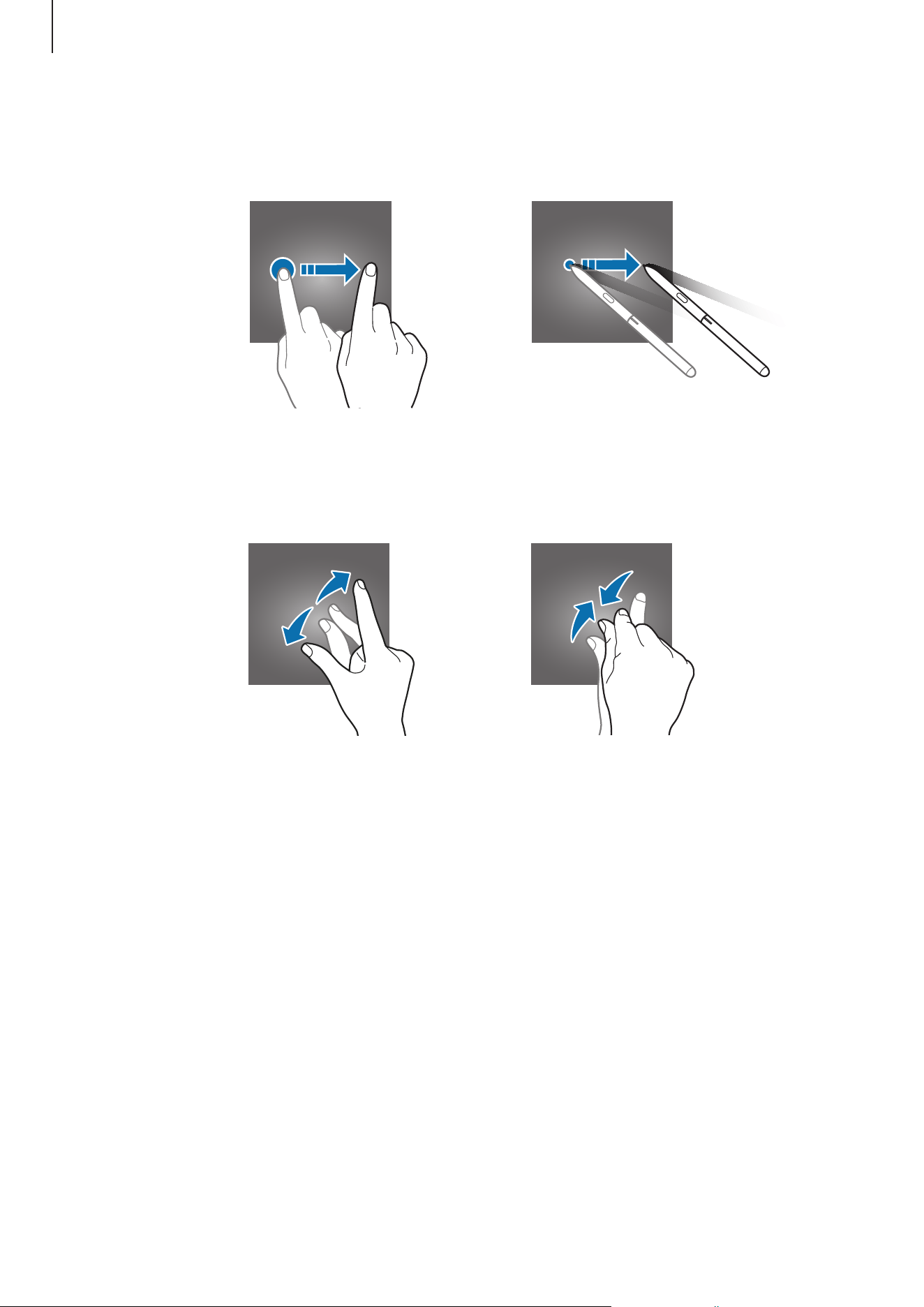
Swiping
Swipe upwards, downwards, to the left, or to the right.
Spreading and pinching
Spread two fingers apart or pinch on the screen.
Basics
33
Windows
Microsoft Windows is an operating system that is used to control the device.
•
Images and available features may differ depending on the model and operating
system.
•
This manual is designed for Windows 10 and content may differ depending on the
OS version.
•
The image displayed on the desktop screen may differ between models and OS
versions.
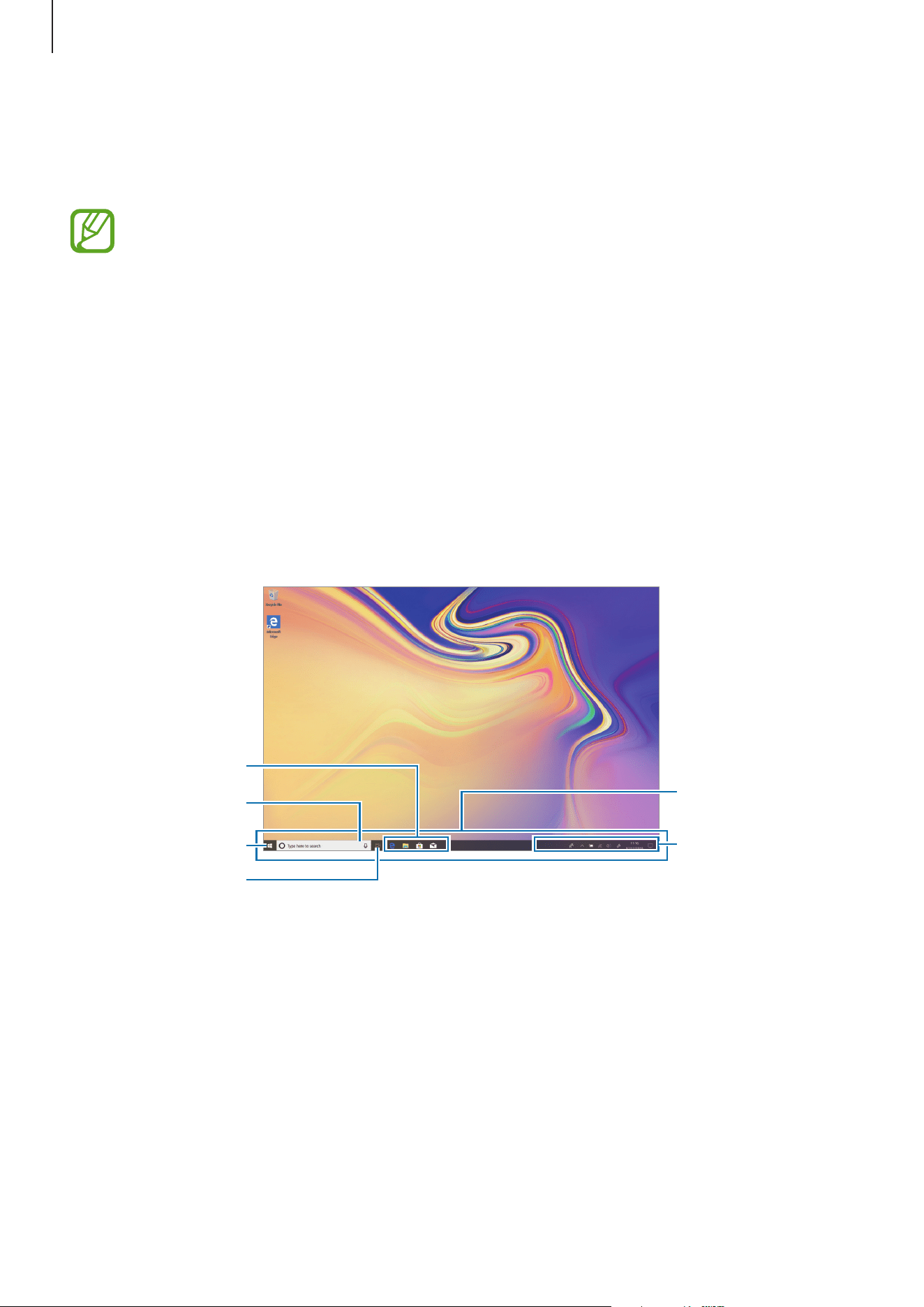
Start screen
Start screen
The Start screen is the starting point for accessing all of the device’s features.
Taskbar
Start menu
Task view
Search box
Notification icons
Shortcuts
Moving and removing an item
Drag an item on the Start screen to a new location.
To remove an item, tap and hold the item, and then tap
Delete
.
Basics
34
Taskbar
The bottom area of the screen is the taskbar. You can access the Start menu, launch the search
box, view notification icons, and more on the taskbar.
Managing shortcuts
To add a shortcut, on the taskbar, tap , tap and hold an item, tap
More
, and then tap
Pin to
taskbar
.
To delete a shortcut, tap and hold a shortcut, and then tap
Unpin from taskbar
.
To move a shortcut to another location, drag it to a new location.
Managing notification icons
On the taskbar, tap
→
→
Personalization
→
Taskbar
→
Select which icons appear
on the taskbar
, and then select items to display in the notification area.
Search box
Search for a wide variety of content on the device or web with a keyword.
Tap the search box on the taskbar and enter a keyword in the search field.
Cortana
If
Cortana
is supported in your region, it will launch when you tap the search box.
Cortana
will help you find things on your device, manage your schedules, and more. Enter a keyword
or question into the search field to search for something, set a reminder, and more.
This feature may not be available depending on the region and language settings.
Basics
35
Start menu
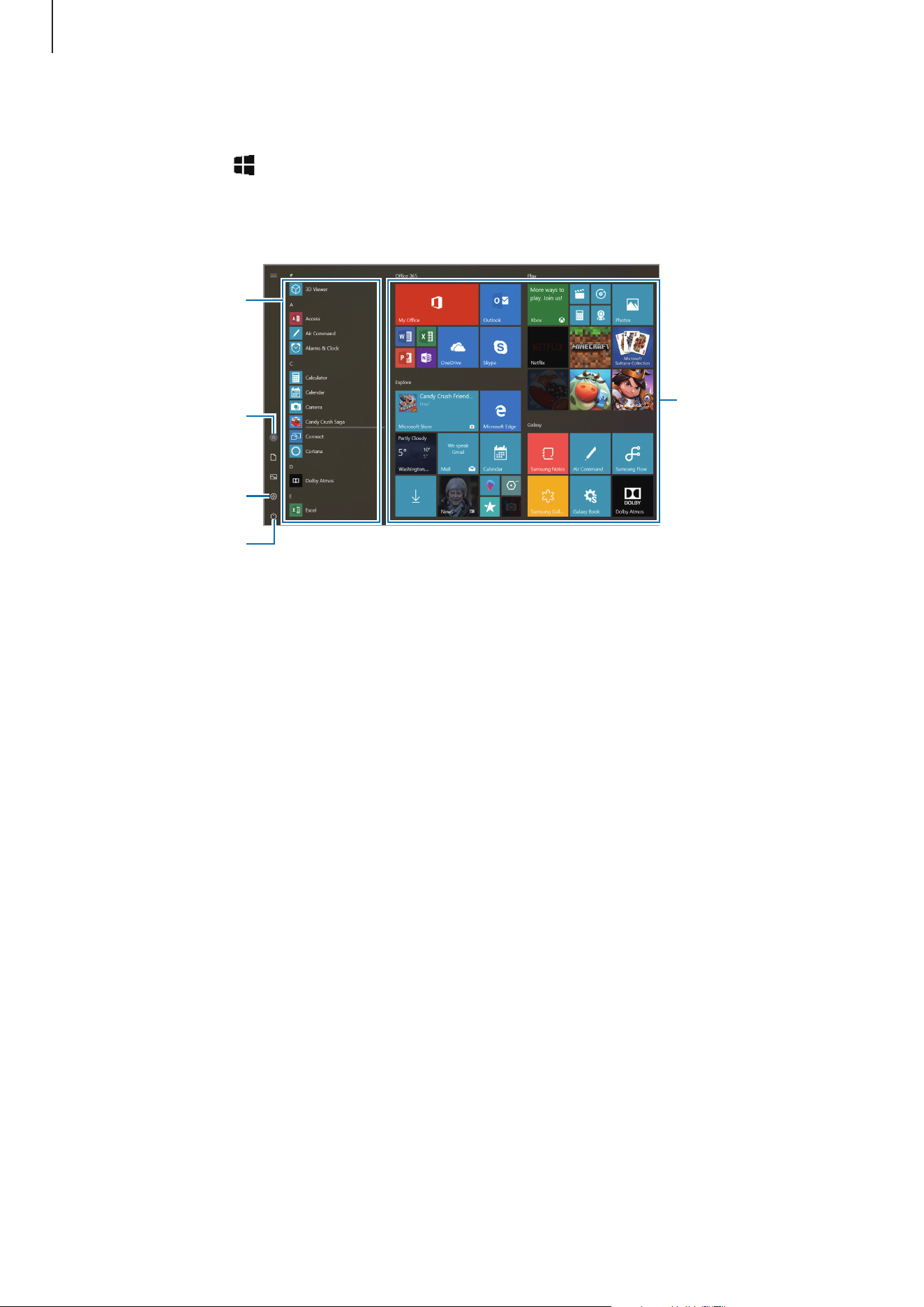
On the taskbar, tap to open the Start menu.
From the Start menu, you can access your frequently used apps, shortcuts to other locations
on your device, and more.
Settings
App tiles
Power
Your account
Frequently used
apps
Managing app tiles
You can pin your favourite apps on the app tile area.
To add more apps, tap and hold an app from the apps list, and then drag it to the app tile
area.
To move a tile, tap and hold a tile, and then drag it to a new location.
Basics
36
Switching to tablet mode
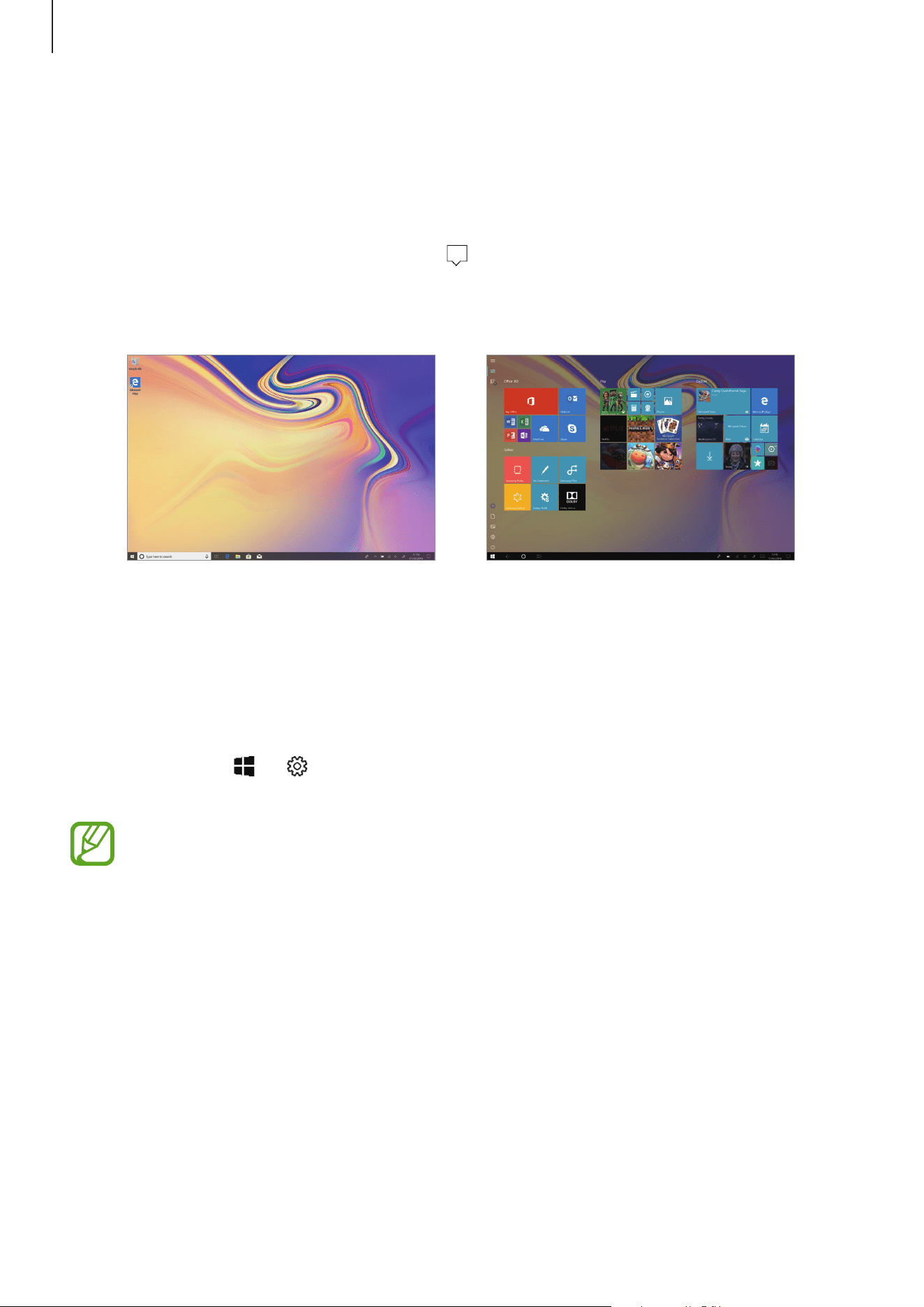
You can switch between PC mode and tablet mode. In Tablet mode, the full Start menu
screen will be the Start screen. Switching to tablet mode makes the device more touch-
friendly.
To switch to tablet mode, on the taskbar, tap
→
Tablet mode
. Alternatively, Swipe from
the right edge of the screen towards the centre of the screen, then tap
Tablet mode
.
To return to PC mode, tap
Tablet mode
again.
Pc mode Tablet mode
Lock screen
You can change the way that you lock the screen to prevent others from accessing your
personal information.
On the taskbar, tap
→
→
Accounts
→
Sign-in options
, and then select a screen lock
method. The device requires an unlock code whenever unlocking it.
•
If your PIN or password is forgotten, you will not be able to use the device if you do
not reset it. Samsung is not responsible for any data loss or inconvenience caused
by forgotten unlock codes.
•
You must sign in to your Microsoft account or add a password before you can use
the other lock methods.

Basics
37
Fingerprint
You can unlock the screen with you fingerprints instead of entering the password. Set a
password or a pin, and then register your fingerprints.
PIN
A PIN consists of numbers only. Enter at least four numbers, and then enter the password
again to verify it.
Password
A password consists of characters or numbers. Enter a password, enter the password again to
verify it, and then enter a password hint.
If you have signed in to your Microsoft account, your account password will be set as the
password automatically.
Picture password
A password consists of circles, straight lines, and taps. Select an image and draw on the image
to create gestures.
Dynamic lock
You can set the device to lock the screen automatically when the paired Bluetooth device
exceed Bluetooth range. Tap the
Allow Windows to automatically lock your device when
you’re away
switch to activate it.
Basics
38
ACTION CENTER
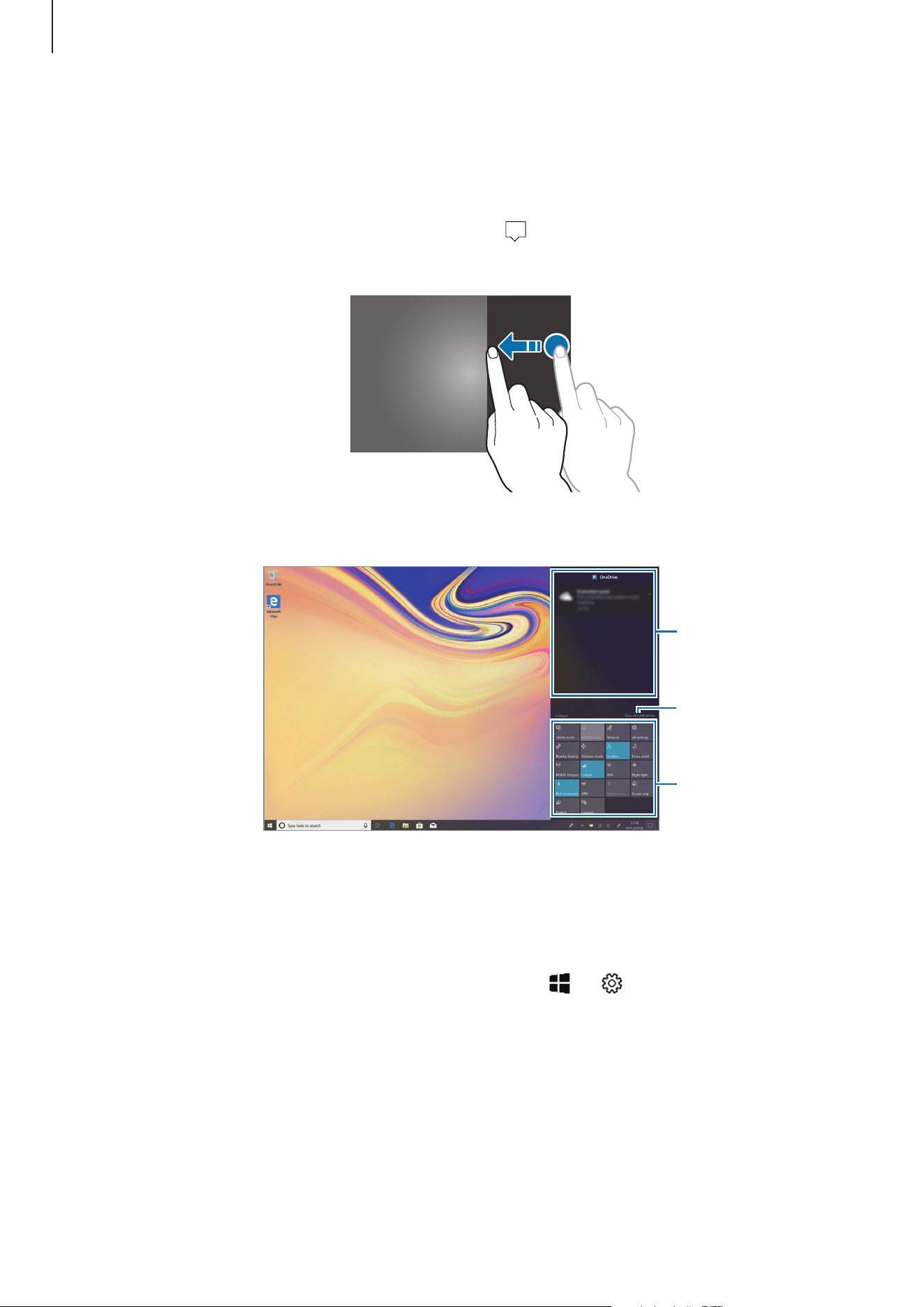
You can view new notifications from Windows and apps, and use quick action buttons. Quick
action buttons allow you to easily adjust frequently used settings, such as activating Wi-Fi.
To open the action centre panel, on the taskbar, tap
. Alternatively, swipe from the right
edge of the screen.
You can use the following functions on the action centre panel.
Clear all
notifications.
Tap a notification
and perform various
actions.
Quick action
buttons
Using quick action buttons
Tap quick action buttons to activate certain features. To view more detailed settings, tap and
hold a button, and then tap
Go to Settings
.
You can change the top four buttons. On the taskbar, tap
→
→
System
→
Notifications & actions
, and then change quick action buttons under
Quick actions
.
Basics
39
Multi desktop
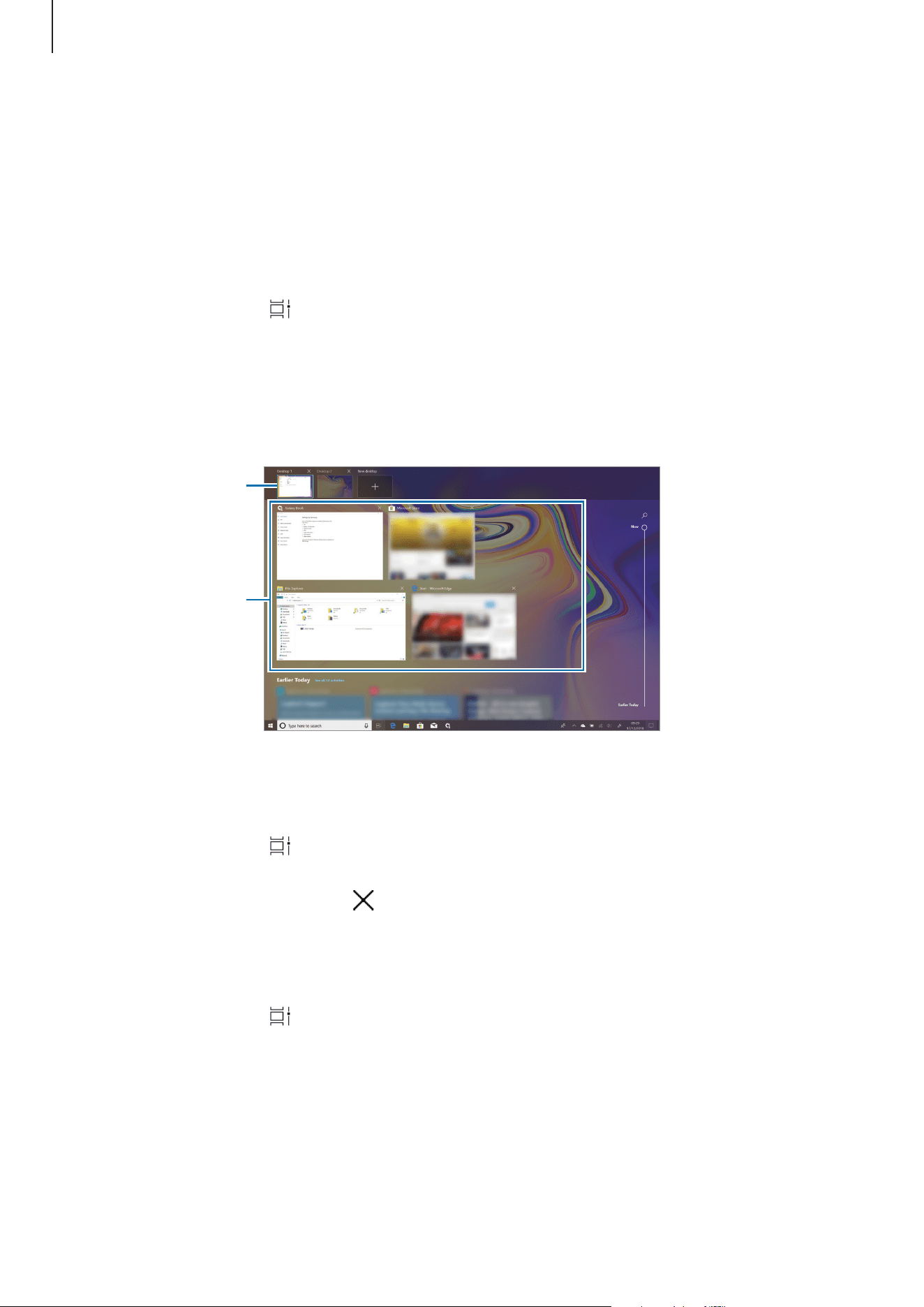
Multi desktop allows you to work on various tasks at the same time via multiple desktops. You
can use different desktops for a variety of purposes.
Creating new desktops
1
On the taskbar, tap . Alternatively, swipe from the left edge of the screen.
2
Tap
New desktop
.
A new desktop will be added. You can select a desktop from the list displayed at the bottom
of the screen.
Currently open
windows
Multi desktop list
Deleting desktops
1
On the taskbar, tap .
2
On the multi desktop list, tap on the desktop to delete.
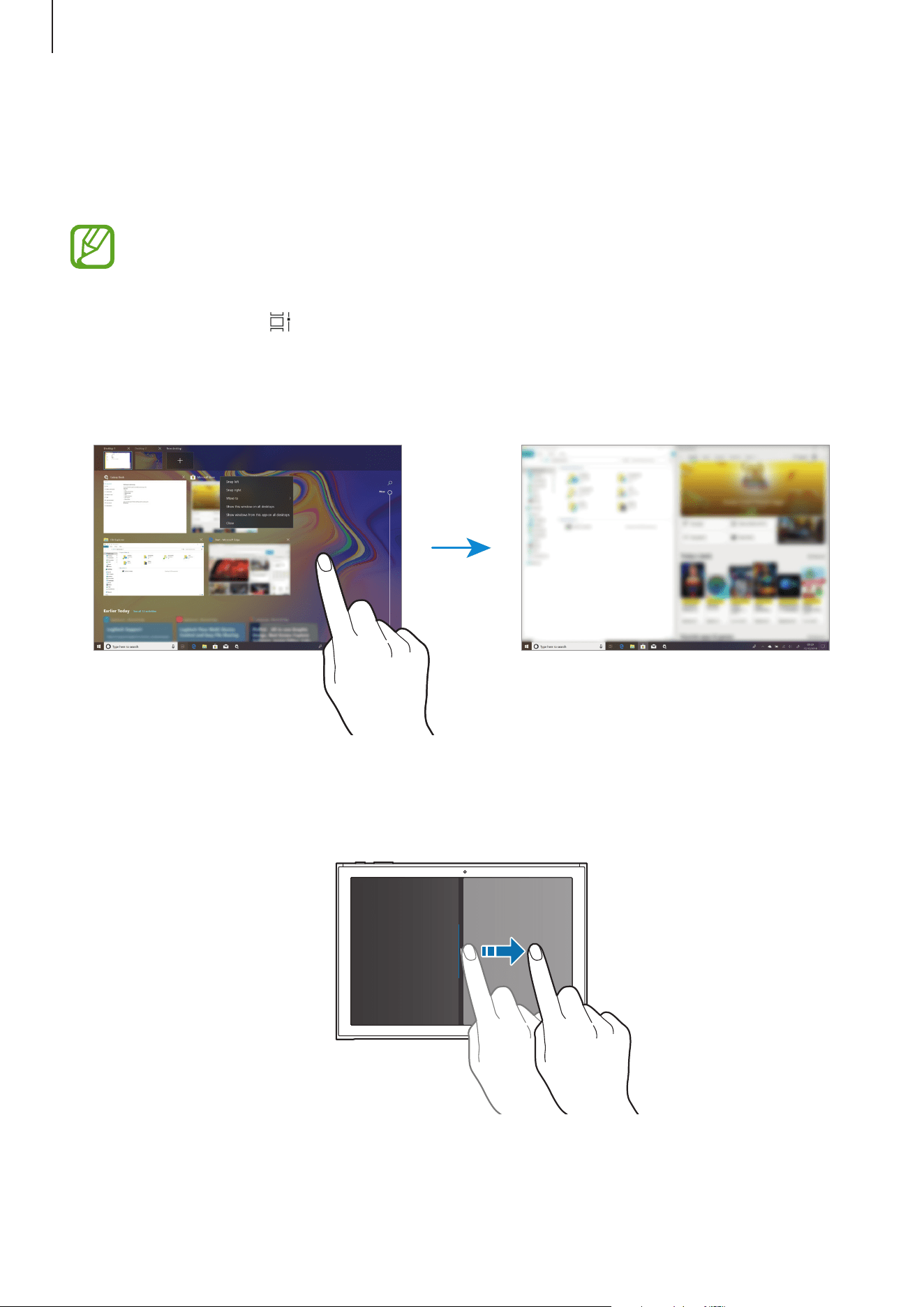
Moving windows to another desktop
1
On the taskbar, tap to view the current desktop’s open windows.
2
Tap and hold a window to move, and then tap
Move to
.
3
Select a desktop to move the window.
Basics
40
Split screen view
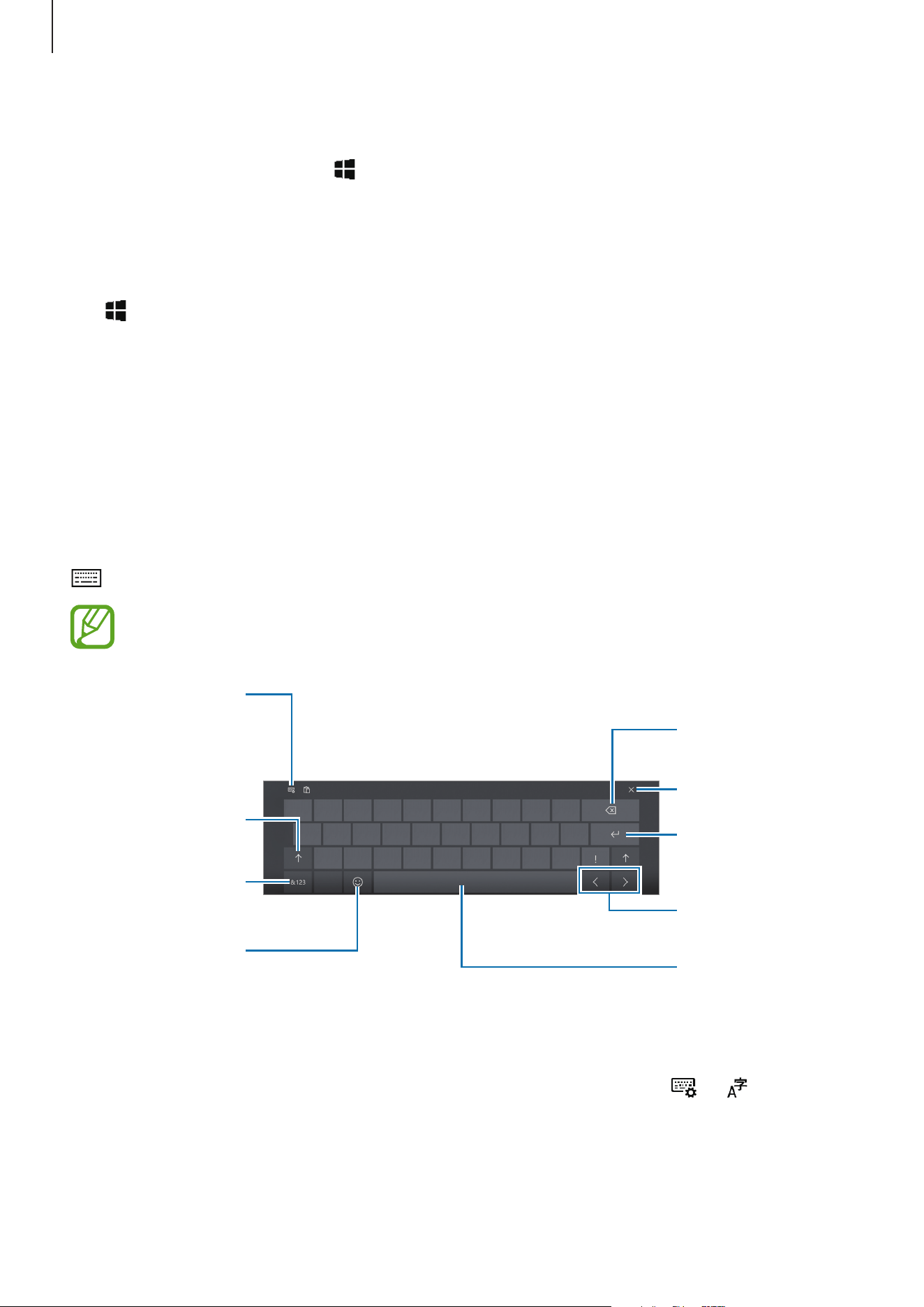
In Tablet mode, you can open two windows at the same time in the split screen view by
selecting windows from the task view screen.
Some apps may not support this feature.
1
On the taskbar, tap to view currently open windows. Alternatively, swipe from the left
edge of the screen.
2
Tap and hold a window and select
Snap left
or
Snap right
.
Adjusting the window size
Drag the handle between the windows left or right to adjust the size of the windows.
Basics
41
Help
To access help information, tap
→
Tips
.
Using the control panel
You can adjust basic system settings, such as hardware, software, or user account settings.
Tap
→
Windows System
→
Control Panel
.
Entering text
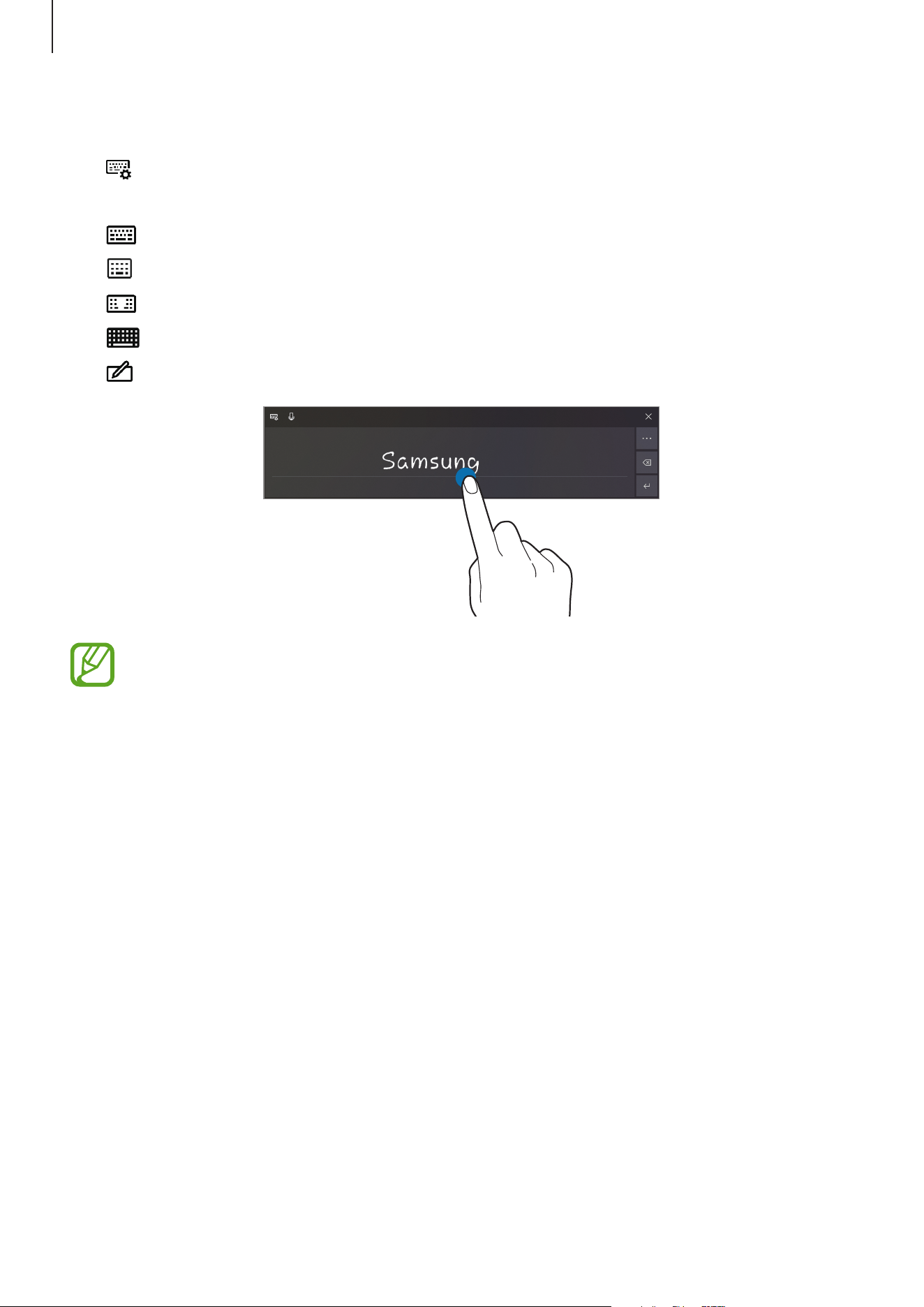
Using the on-screen keyboard
In Tablet mode, the on-screen keyboard appears automatically when you enter text to send
emails, create notes, and more. To use the on-screen keyboard in PC mode, on the taskbar, tap
.
Text entry is not supported in some languages. To enter text, you must change the
input language to one of the supported languages.
Break to the next
line.
Move the cursor.
Enter a space.
Change the input
language or the
keyboard layout, or
add input
languages.
Enter numbers and
punctuation marks.
Enter uppercase. For
all caps, tap it twice.
Enter emoticons.
Delete a preceding
character.
Hide the keyboard.
Changing the input language
Tap
ENG
to switch between the input languages. To add languages, tap
→
, and then
tap
Add a language
under
Preferred languages
.
Basics
42
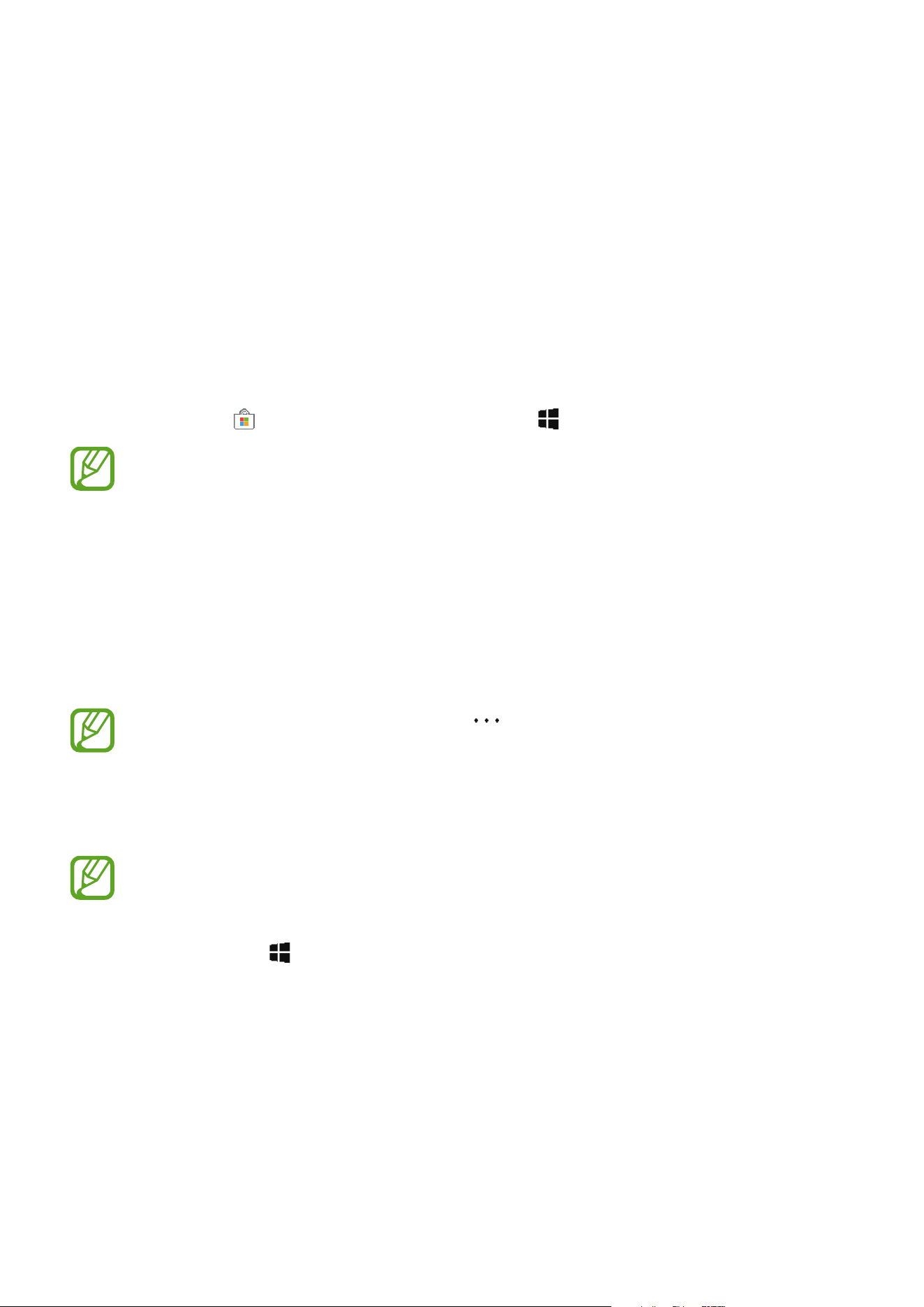
Additional keyboard functions
Tap to use various functions. You can move the keyboard to another location by dragging
the keyboard.
•
: Switch to the default keyboard.
•
: Switch to the mini keyboard.
•
: Switch to the split keyboard.
•
: Switch to the standard keyboard.
•
: Switch to handwriting mode.
This feature may not be available depending on the region or service provider.
Copying and pasting
1
Drag your finger across text to select it.
2
Tap and hold the text to display the options.
3
Tap
Copy
or
Cut
.
The selected text is copied to the clipboard.
4
Tap and hold where the text is to be inserted and tap
Paste
.
Using the Keyboard Cover
When your device is connected to the Keyboard Cover, you can enter text using the
traditional keyboard. Refer to Keyboard Cover for more information.

Basics
43
Screen capture
Capture a screenshot while using the device.
You can view captured images in the
This PC
→
Pictures
→
Screenshots
folder.
It is not possible to capture a screenshot while using some apps and features.
Capturing screenshots with the S Pen
You can also use the Air command features to capture screenshots.
Screen write
allows you to write on captured screenshots.
To select and capture a specific area, use
Smart select
.
Refer to Screen write and Smart select for more information.
Device and data management
Updating the device
Keep the device up to date by downloading and installing updates, such as service packs and
patches, for the operating system and other Microsoft apps.
The device is set to download and install updates automatically. To check for available
updates manually, on the taskbar, tap
→
→
Update & Security
→
Windows Update
→
Check for updates
.
Performing a data reset
Delete all settings and data on the device. Before performing a factory data reset, ensure
you back up all important data stored on the device. Refer to Resetting the device for more
information.

Basics
44
Connecting to an external display
You can connect your device to an external display, such as a TV or monitor, and view
presentations or movies on the connected display. Connect your device to an external display
using an HDMI cable and display adapter.
•
HDMI cables and display adapters are sold separately.
•
Use only a Samsung-approved display adapter. Performance problems and
malfunctions caused by using unapproved accessories are not covered by the
warranty.
•
The method for connecting to an external display may differ depending on cable
or adapter types. The following actions are based on using an HDMI cable.
1
Connect the display adapter to the external display port of the device.
2
Connect the HDMI cable into the display adapter and to a HDMI port of the external
display.
3
Turn on the external display and change its display mode to one that supports an
external input.
4
Press and hold the
Fn
key and press the
F4
key several times simultaneously.
5
Select a mode from the list.
45
Applications
Installing or uninstalling apps
Microsoft Store
Purchase and download apps.
On the taskbar, tap
. Alternatively, on the taskbar, tap
→
Microsoft Store
.
For service requests for apps provided by third-party providers, contact the provider.
If you contact a Samsung Service Centre, troubleshooting actions in response to
service requests may have limitations depending on the app.
Installing apps
Browse apps by category or tap the search field to search for a keyword.
Select an app to view information about it. To download free apps, tap
Get
. To purchase and
download apps where charges apply, tap
Buy
and follow the on-screen instructions.
To change the auto update settings, tap
→
Settings
, and then tap the
Update
apps automatically when I’m on WiFi
switch to activate or deactivate it.
Uninstalling apps
Some apps cannot be uninstalled.
1
On the taskbar, tap .
2
Tap and hold an app, and then tap
Uninstall
.
Some apps will automatically move to the
Uninstall or change a program
screen. Tap
and hold an app, tap
Uninstall
, and then follow the on-screen instructions to uninstall
the app.
3
Tap
Uninstall
.
Applications
46
Air Command
Introduction
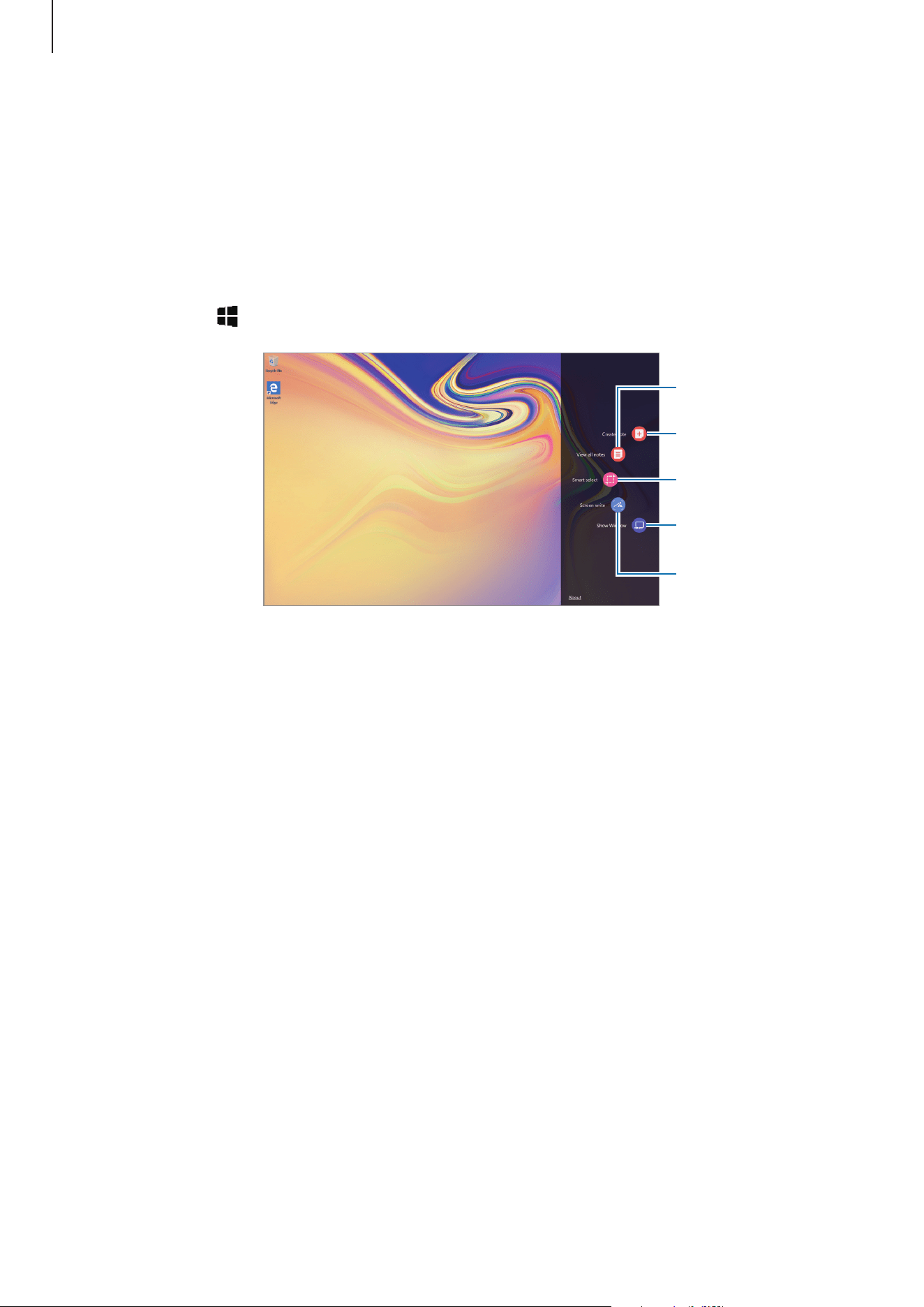
Air command is a menu that provides S Pen features.
To open the Air command panel, hover the S Pen over the screen and press the S Pen button.
Alternatively, tap
→
Air Command
.
Create note
Show Window
Smart select
Screen write
View all notes
•
Create note
: Launch
Samsung Notes
and create a new note. Refer to Samsung Notes for
more information.
•
View all notes
: Launch
Samsung Notes
and view all notes.
•
Smart select
: Collect content quickly. Refer to Smart select for more information.
•
Screen write
: Capture, edit, and write memos on screenshots, and then share them. Refer
to Screen write for more information.
•
Show Window
: Select an area on the screen and show it in full screen mode on an
external display. Refer to Show Window for more information.
Applications
47
Smart select
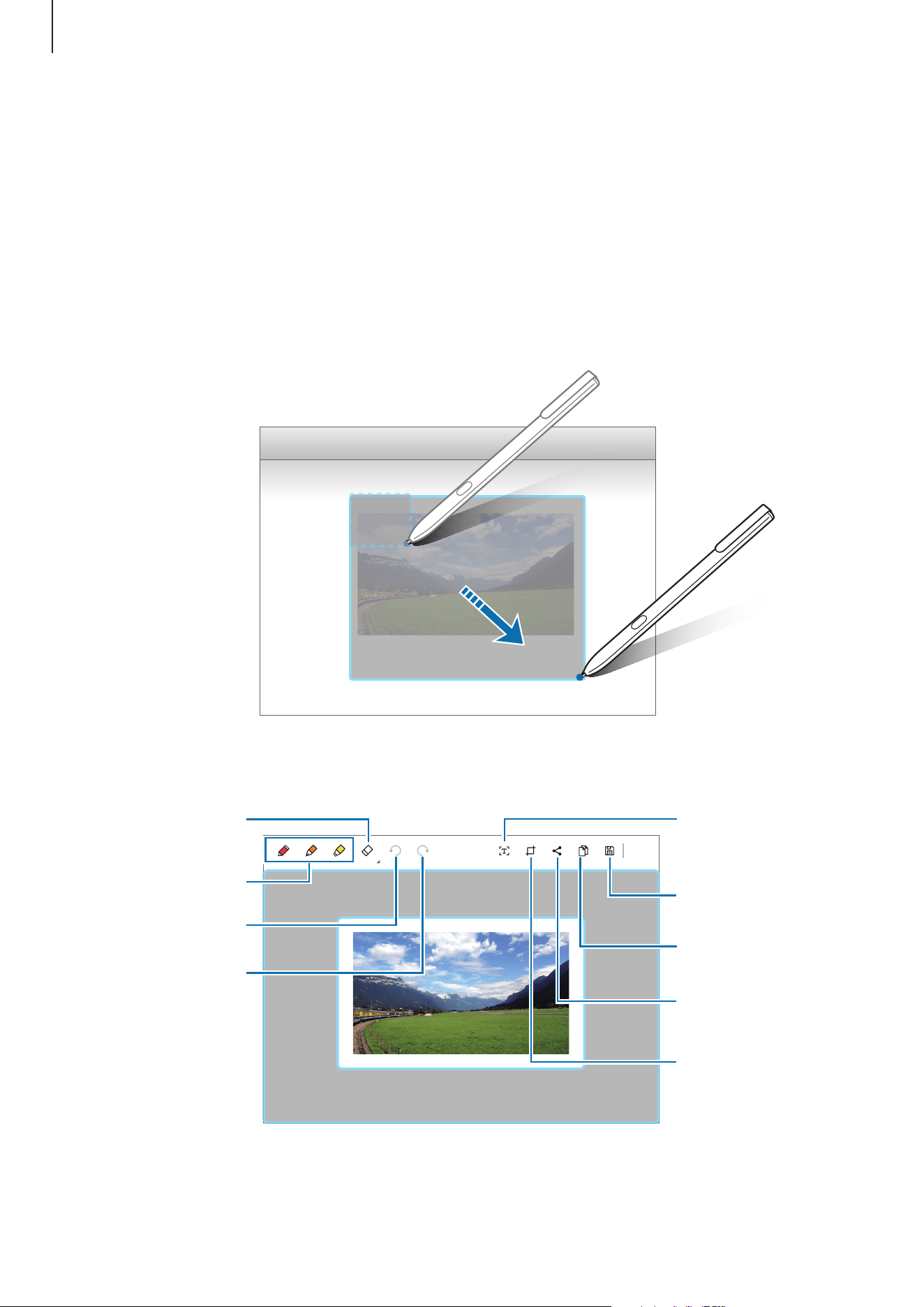
Use the S Pen to select an area and perform actions, such as sharing or saving.
1
When there is content you want to capture, such as a part of an image, open the Air
command panel and tap
Smart select
.
2
Select a desired shape icon on the toolbar and drag the S Pen across the content you
want to select.
3
Edit the selected area using various editing options.
Pen mode
Eraser mode
Undo
Redo
Recognise and
extract text from the
selected area.
Save the selected
area.
Share the selected
area with others.
Copy the selected
area.
Crop the selected
area.
Applications
48
Screen write
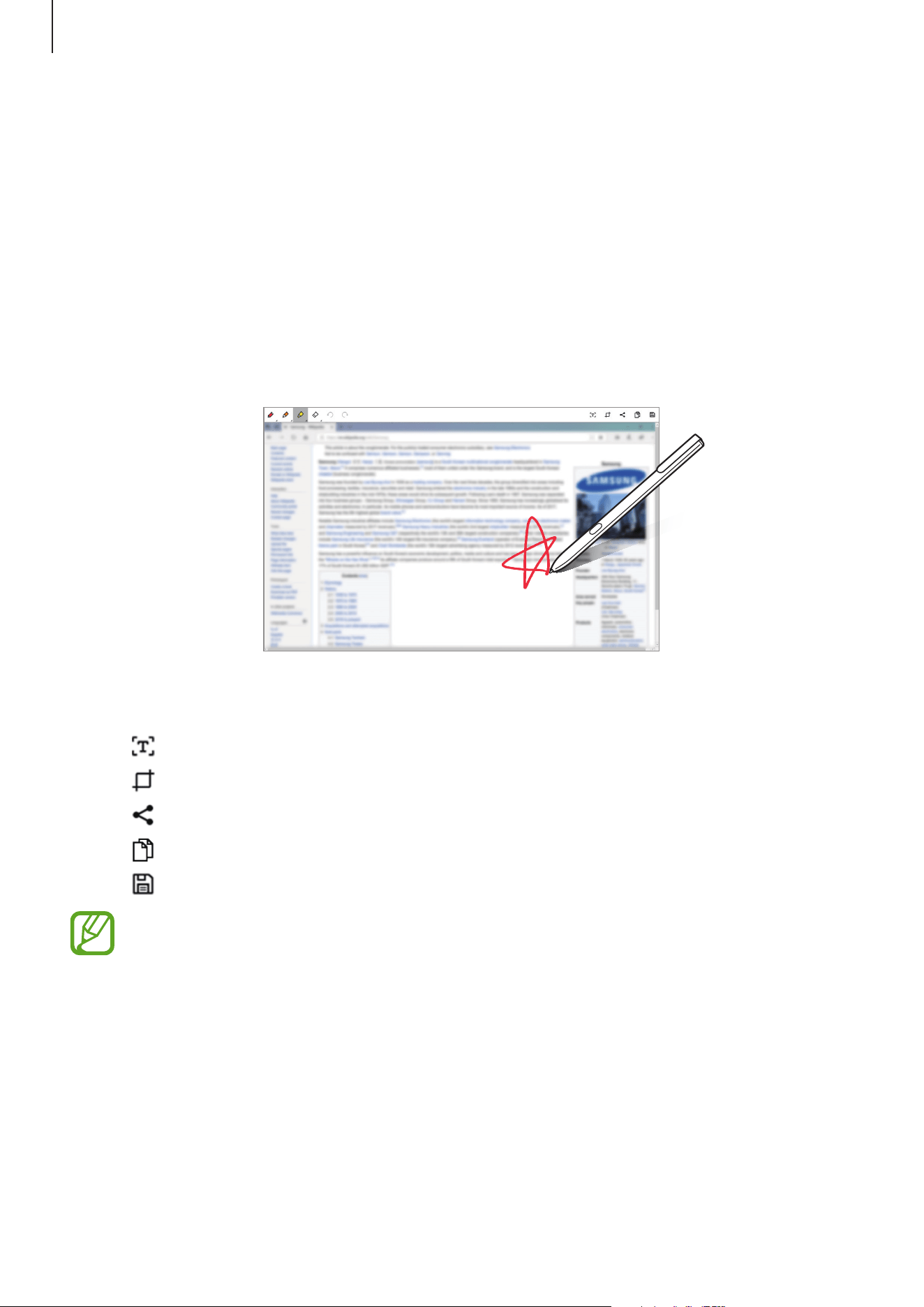
Capture screenshots to write or draw on them.
1
When there is content you want to capture, open the Air command panel and tap
Screen
write
.
The current screen is automatically captured and the editing toolbar appears on the
screen.
2
Write a memo on the screenshot.
3
Select an option to use with the screenshot.
•
: Recognise and extract text from the screenshot.
•
: Crop the screenshot.
•
: Share the screenshot with others.
•
: Copy the screenshot.
•
: Save the screenshot.
It is not possible to capture a screenshot while using some apps.
Applications
49
Show Window
Show Window allows you to select an area on the screen and show it in full screen mode on
an external display. You can draw on the screen using tools.
Showing a selected area on an external display
1
Connect the device to an external display.
You can connect an external display using a cable or wirelessly. Refer to Connecting
to an external display for more information.
2
Open the Air command panel and tap
Show Window
.
3
Press and hold the
Fn
key and press the
F4
key simultaneously, and then press the
F4
key
again to select
Extend
.
4
Tap
Start
.
A white frame for selecting an area will appear.
Start
is activated only when the display mode is set to
Extend
.
5
Drag to select an area to show in full screen mode on the external display, and then
tap
Done
.
The selected area will be shown on the external display.
To fix the ratio of the selected area to the ratio of the external screen, tap
and tap the
Fixed
ratio
switch to activate it.
To stop displaying the screen, tap
Stop
.
Applications
50
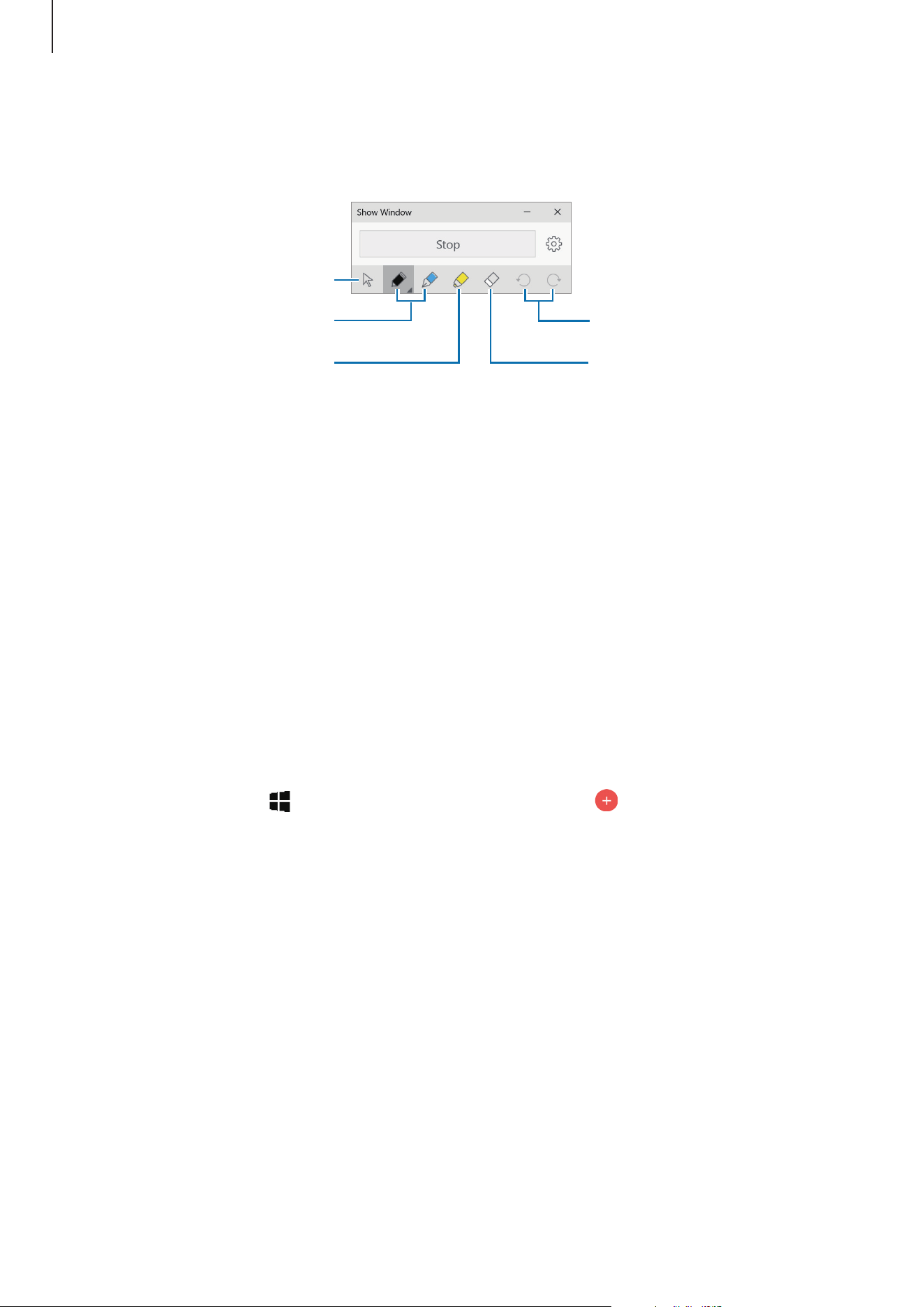
Using tools
While showing the screen on the connected display, you can use the following tools.
Cursor
Pen
Undo/Redo
Eraser
Highlighter
While using the pen or highlighter, tap the desired icon again to change the colour or line
thickness.
Samsung Notes
Introduction
Create notes by writing or drawing on the screen with the S Pen. You can also insert images
into your notes.
Creating notes
1
On the taskbar, tap
→
Samsung Notes
→
All notes
→
.
You can also open the Air command panel and tap the
Create note
shortcut.
Applications
51
2
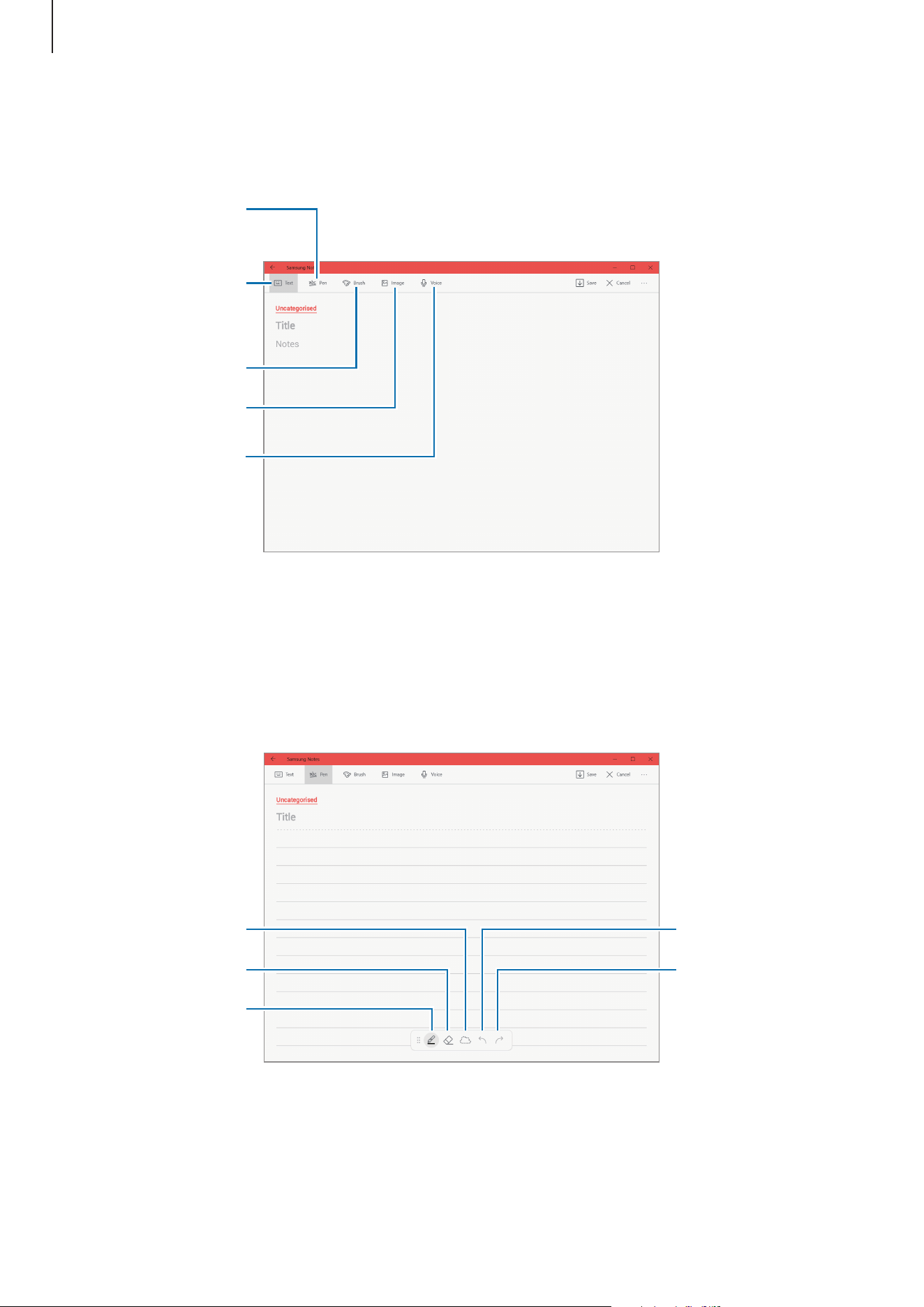
Select an input method from the toolbar at the top of the screen and compose a note.
Tap
Image
to insert an image by selecting from
File Explorer
.
Enter text using the
keyboard.
Write or draw with
pens.
Paint with brushes.
Insert an image.
Insert a voice
recording.
3
When you are finished composing the note, tap
Save
.
Composing notes in handwriting mode
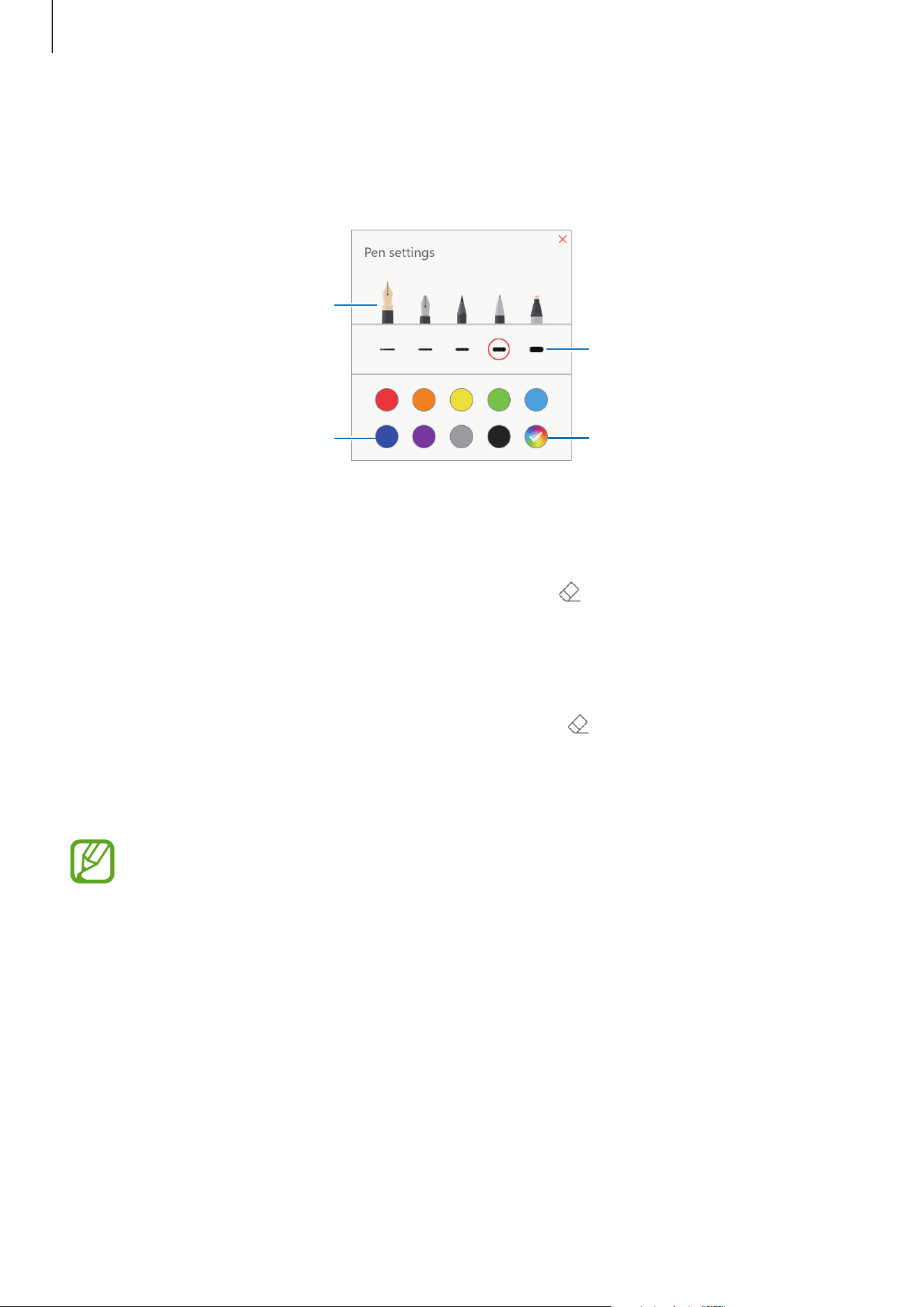
On the note composer screen, tap
Pen
to write or draw with the S Pen.
Redo
Undo
Eraser
Pen
Select and edit.
Applications
52
Changing the pen settings
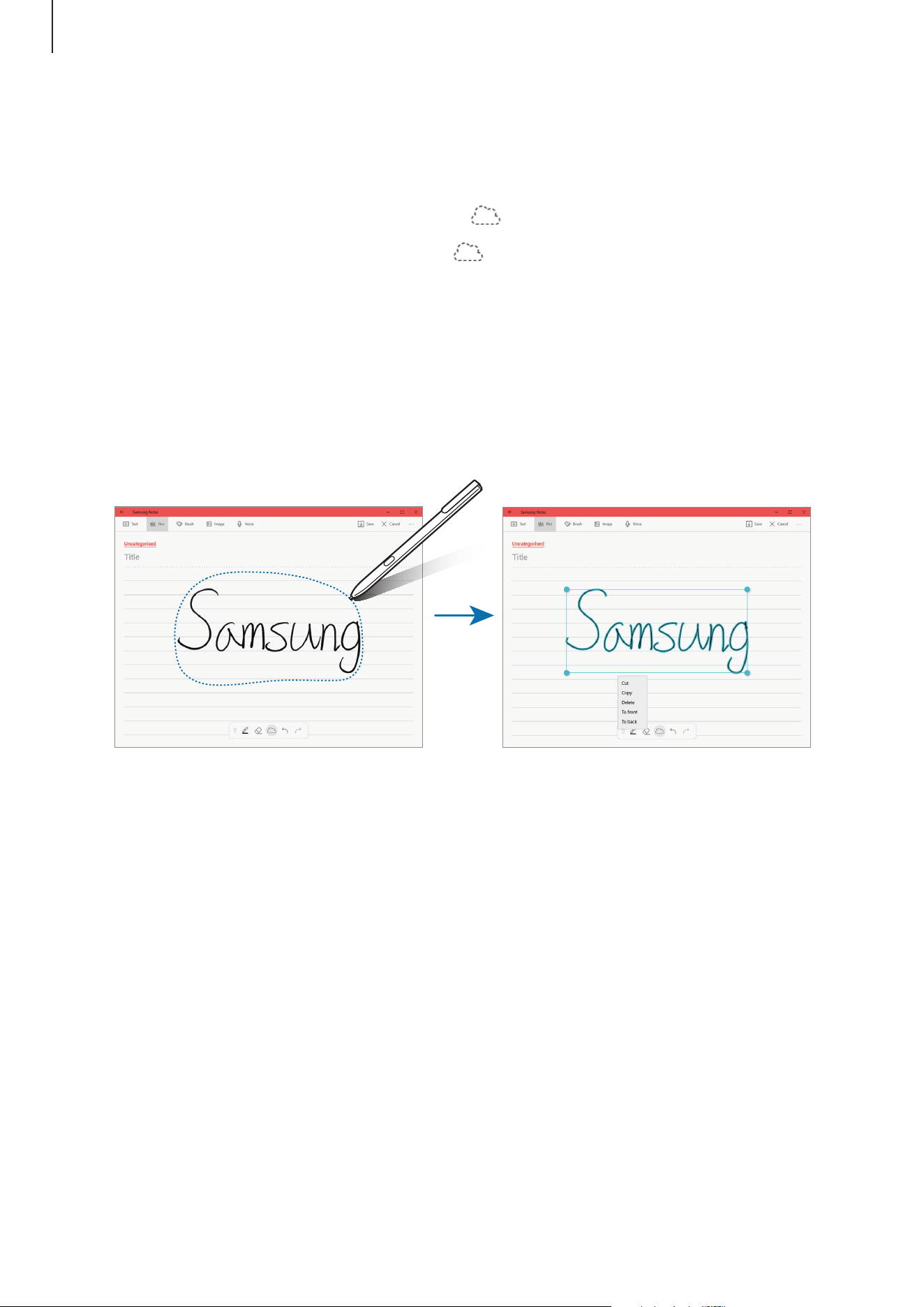
When writing or drawing on the screen, you can change the pen type, line thickness, or pen
colour.
Change the pen colour.
Change the line thickness.
Change the pen type.
Select a new colour using the
colour picker.
Using the line eraser
1
When you want to erase handwriting from a note, tap .
2
Tap an area to erase.
The whole line on the area will be erased. The line eraser can erase your note line by line.
•
To only erase the area you touch with the S Pen, tap once more and tap
Erase
touched area
. You can adjust the size of the eraser by dragging the size adjustment
bar.
•
To clear the note, tap
ERASE ALL
.
•
You can also erase an area in pen mode by tapping it while pressing and holding
the S Pen button.
•
Even with a smaller eraser, you may still not be able to precisely erase the intended
part.
Applications
53
Editing handwritten notes
Edit handwritten notes using various editing options, such as cutting, moving, or resizing.
1
When there is handwriting on the note, tap .
To change the shape of the selection, tap
once more.
2
Tap or draw a line around the input to select.
To move the input to another location, select the input, and then drag it to a new
location.
To change the size of the selection, tap the input and drag a corner of the frame that
appears.
3
Edit the input using the available options.
•
Cut
: Cut out the input. To paste it to another location, tap and hold the location, and
then tap
Paste
.
•
Copy
: Copy the input. To paste it to another location, tap and hold the location, and
then tap
Paste
.
•
Delete
: Delete the input.
•
To front
: Send the input to the front.
•
To back
: Send the input to the back.
Applications
54
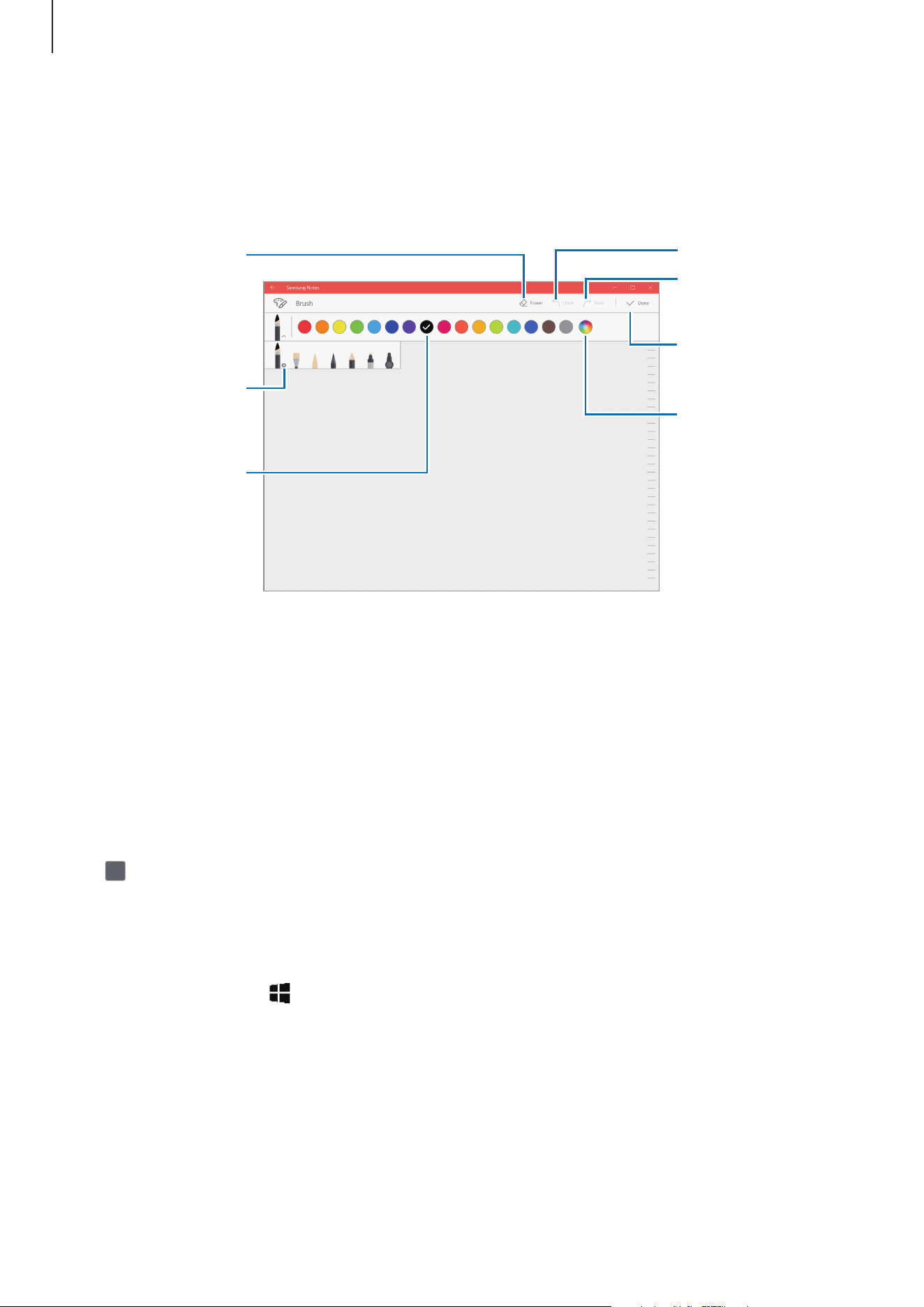
Painting with brushes
On the note composer screen, tap
Brush
to paint with various brushes.
When you are finished, tap
Done
to insert your painting into the note.
Undo
Redo
Insert the painting
into the note.
Select a new colour
using the colour
picker.
Eraser mode
Change the brush
colour.
Change the brush’s
radius or opacity.
Inserting images into a note
On the note composer screen, tap
Image
to select an image. The image will be inserted into
your note.
Inserting voice recordings into a note
On the note composer screen, tap Voice to make a voice recording.
Tap
to stop recording. The voice recording will be inserted into your note.
Deleting notes
1
On the taskbar, tap
→
Samsung Notes
→
All notes
.
2
Tap
Select
and tick a note to delete.
To delete multiple notes, tick more notes to delete.
3
Tap
Delete
.
Applications
55
Samsung Flow
Introduction
Samsung Flow allows you to easily connect the device to your smartphone and use them
conveniently, such as sharing contents.
Samsung Flow must be installed on the device and smartphone that you want to connect. If
Samsung Flow is not installed, download it from app stores.
•
This feature is only available when a Samsung Android smartphone is connected
to the device.
•
To use this feature, you must activate Bluetooth feature on your smartphone.
Connecting the device and smartphone
1
On your smartphone, launch
Samsung Flow
.
2
On the taskbar of the device, tap
→
Samsung Flow
, and then tap
START
.
3
Select the smartphone from the detected devices list.
4
When a pairing confirmation pop-up window appears, tap
Yes
.
5
Accept the connection request on both devices.
Both devices will connect via Samsung Flow.
You can use your fingerprint to verify yourself to use Samsung Flow.

Applications
56
Sharing mobile data connection
Share your smartphone’s mobile data connection with the device using a mobile hotspot
when the Internet connection is not available on the device.
1
On your smartphone, activate the mobile hotspot feature.
2
When the mobile hotspot window appears on the device, follow the on-screen
instructions to complete the connection.
You can access the Internet on the device using your smartphone’s mobile data
connection.
You may incur additional charges on your smartphone when using this feature.
Viewing your smartphone’s content on the device screen
On the Samsung Flow screen, tap
.
The smartphone’s screen appears on the device’s screen.
Checking notifications on the device
When the smartphone receives a new notification, the device displays the pop-up window for
the notification.
Sharing contents
You can share your smartphone’s contents with the device.
On the Samsung Flow screen, tap
.
You can share the content stored in the clipboard between connected devices.
Applications
57
Camera
Take photos and record videos using various modes and settings.
On the taskbar, tap
→
Camera
.
When you launch
Camera
, the LED indicator turns on. The LED indicator will be
automatically turned off after the camera is turned off.
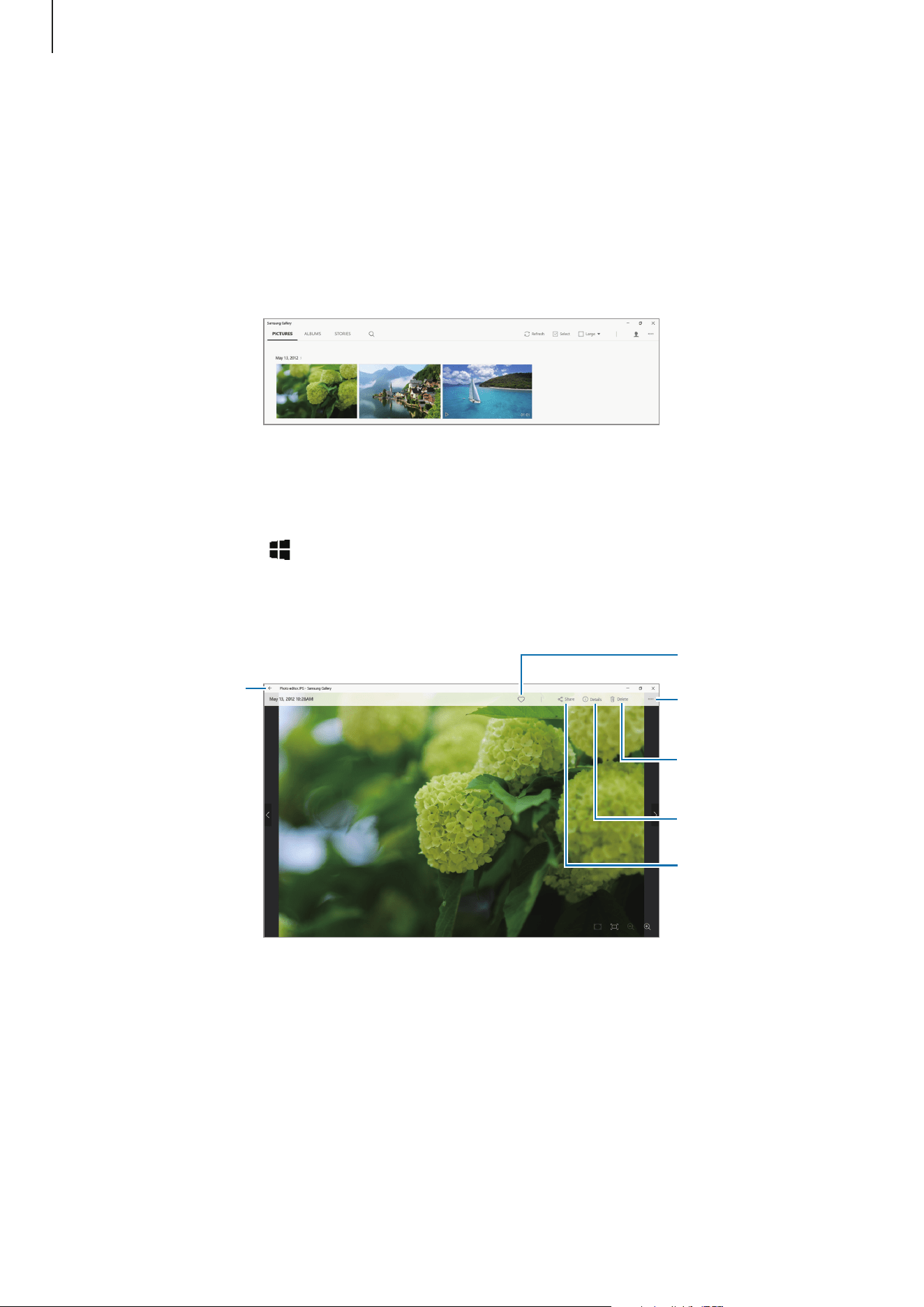
Taking photos or recording videos
1
Tap the image on the preview screen where the camera should focus.
This feature is only available when using the rear camera.
2
Tap to take a photo or tap to record a video.
•
Spread two fingers apart on the screen to zoom in, and pinch to zoom out. Or, tap
or
on the zoom bar.
Front camera/Rear
camera
Take a photo.
Record a video.
Camera settings
Quick settings
Take a panorama.
Preview thumbnail
Applications
58
Samsung Gallery
Introduction
View images and videos stored in your device. You can also manage images and videos by
album or create stories.
Viewing images
1
On the taskbar, tap
→
Samsung Gallery
, and then tap
PICTURES
.
2
Select an image.
Add to favourites
list.
View image details.
Share the image
with others.
Delete the image.
Use additional
options.
Move to the
previous screen.
Applications
59
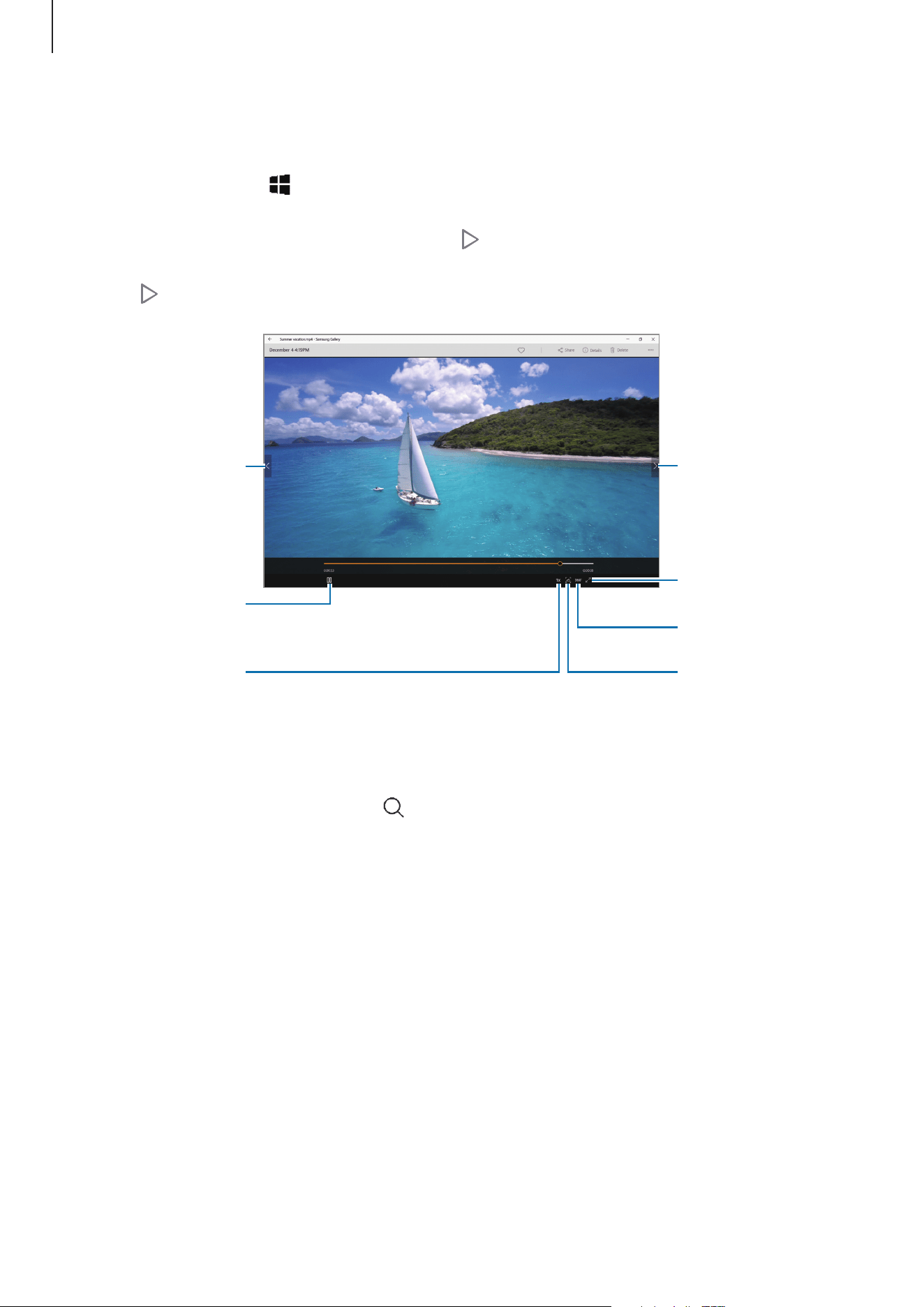
Viewing videos
1
On the taskbar, tap
→
Samsung Gallery
, and then tap
PICTURES
.
2
Select a video to play. Video files show the icon on the preview thumbnail.
3
Tap to play the video.
Pause and resume
playback.
Change the
playback speed.
Capture the current
screen.
Switch to the full
screen view.
Switch to the
spherical view.
Skip to the
previous video.
Skip to the next
video.
Searching for images or videos
Launch the Samsung Gallery and tap to view images sorted by category, such as types,
locations, or documents.
To search for images by entering keywords, tap the search field.
Using the spherical view
1
While playing a 360-degree video, tap
360°
.
2
Drag the screen to rotate the sphere.

Applications
60
Viewing the details of images and videos
You can view file details, such as people, location, and basic information. If there is auto
created content, such as a story or a GIF, the content will also be displayed.
1
On the taskbar, tap
→
Samsung Gallery
, and then tap
PICTURES
.
2
Select an image or a video.
3
Tap the screen and tap
Details
.
Viewing albums
You can view your images and videos sorted by folders or albums.
On the taskbar, tap
→
Samsung Gallery
, and then tap
ALBUMS
.
Viewing stories
When you capture or save images and videos, the device will read their date and location
tags, sort the images and videos, and then create stories. To create stories automatically, you
must capture or save multiple images and videos.
On the taskbar, tap
→
Samsung Gallery
, tap
STORIES
, and then select a story.
Creating stories
Create stories with various themes.
1
On the taskbar, tap
→
Samsung Gallery
, tap
STORIES
.
2
Tap
Create story
.
3
Tick images or videos to include in the story and tap
DONE
.
4
Enter a title for the story and tap
OK
.
To add images or videos to a story, select a story and tap
Add items
.
To remove images or videos from a story, select a story, tap
Edit
, tick images or videos to
remove, and then
Remove from story
.

Applications
61
Deleting stories
1
On the taskbar, tap
→
Samsung Gallery
, tap
STORIES
.
2
Tap and hold a story to delete, and tap
Delete
.
Syncing images and videos
You can sync images and videos saved in
Samsung Gallery
with Samsung Cloud and access
them from other devices.
You must register and sign in to your Samsung account to use Samsung Cloud.
On the taskbar, tap
→
Samsung Gallery
, tap
→
Settings
, and then tap the
Samsung Cloud
switch to activate it. Images and videos captured on the device will be
automatically saved to Samsung Cloud.
Deleting images or videos
Deleting an image or a video
Tap and hold an image or a video and tap
Delete
.
Deleting multiple images and videos
1
On the Samsung Gallery screen, tap
Select
.
2
Tick the images or videos to delete.
3
Tap
Delete
.

Applications
62
Galaxy Book
Samsung-integrated settings app offers various settings functions.
On the taskbar, tap
→
Galaxy Book
.
•
Pen
: Select an app to launch when you press the S Pen button while hovering the
S Pen over the screen. Or, select an action to perform when touching the screen with
the S Pen button pressed. You can also adjust the S Pen pressure sensitivity.
•
Battery Life Extender
: Set the maximum battery charge level to prolong the battery
lifetime.
•
Screen mode
: Change the screen mode.
•
Network mode
: Select a network type.
•
APN
(mobile network-enabled models): Set up access point names (APNs).
•
Legal information
: View the Samsung legal information, the open source licence
announcement, and the safety information.
•
User manual
: View help information to learn how to use the device and apps or
configure important settings.
•
About device
: Access your device’s information.
63
Settings
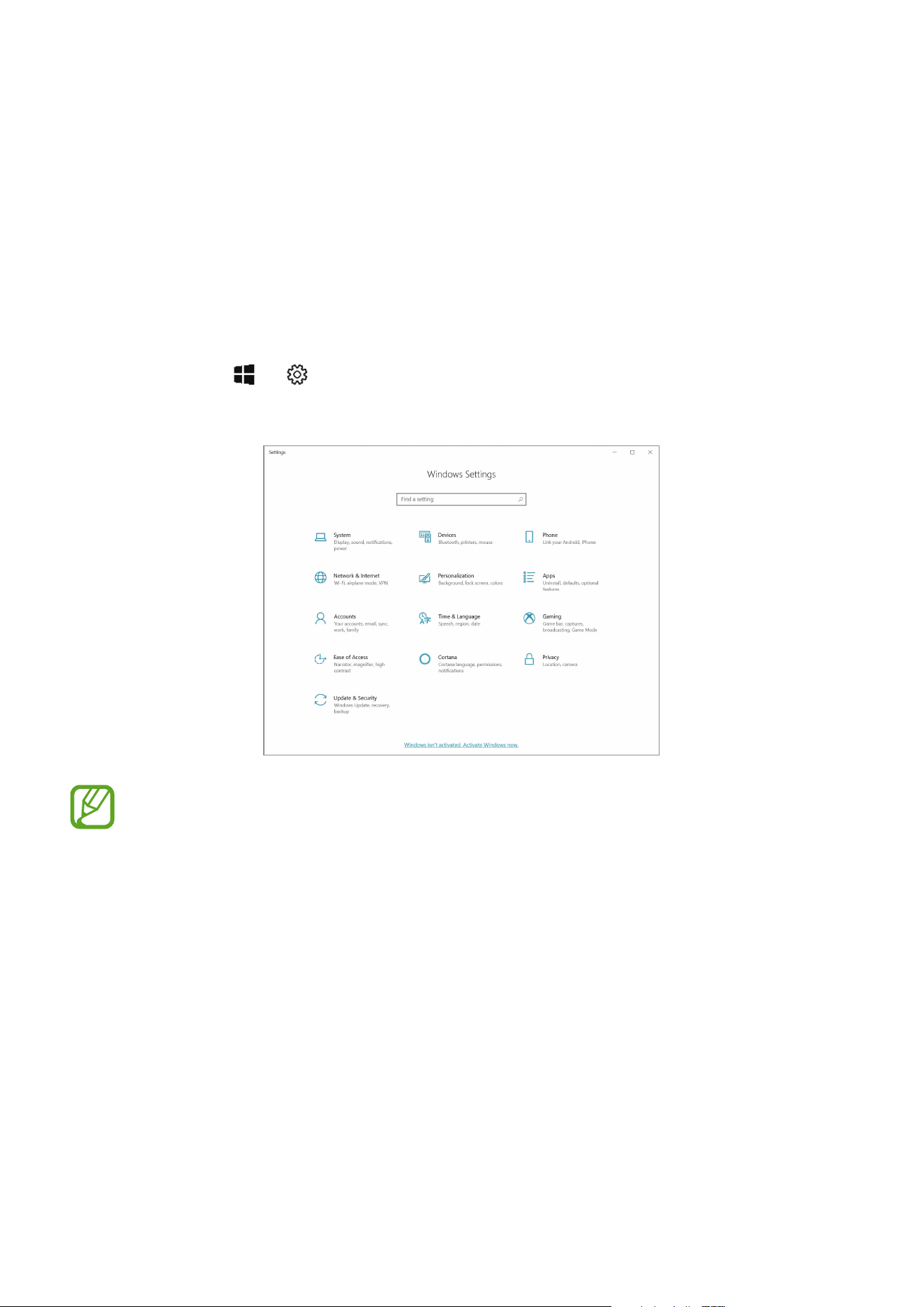
Windows Settings
Customise settings for the device. You can make your device more personalised by
configuring various setting options.
On the taskbar, tap
→
.
To search for settings by entering keywords, tap the search field at the top of the screen.
The available options may vary depending on the region or service provider.

Settings
64
System
Change the system settings.
The actual available capacity of the internal memory is less than the specified
capacity because the operating system and default apps occupy part of the memory.
The available capacity may change when you update the device.
Devices
Change settings related to your connected devices.
Phone
Connect the device and your smartphone to use both devices continuously.
This feature supports Android and iOS smartphones only.
Network & Internet
Change the network and Internet settings.
•
Your device uses a non-harmonised frequency and is intended for use in all
European countries. The WLAN can be operated in the EU without restriction
indoors, but cannot be operated outdoors.
•
Turn off Wi-Fi to save the battery when not in use.
Personalization
Change the display settings, such as a wallpaper, colour, and theme.
Apps
Manage the device’s apps and change their settings.
Accounts
Change the account settings.

Settings
65
Time & language
Change settings to control how the device displays the time and date, and select your
country or region. You can also select device languages and change settings, such as
keyboards and voice input types.
If the battery remains fully discharged or removed from the device, the time and date
is reset.
Gaming
Set the Game bar shortcuts. You can capture, record, or stream your gameplay using the
Game bar.
Ease of Access
Change settings to improve the device’s accessibility.
Cortana
Change Cortana settings.
Privacy
Change the privacy settings.
Update & Security
Change the Windows update, data backup, and device security settings.
Settings
66
BIOS (Setup utility)
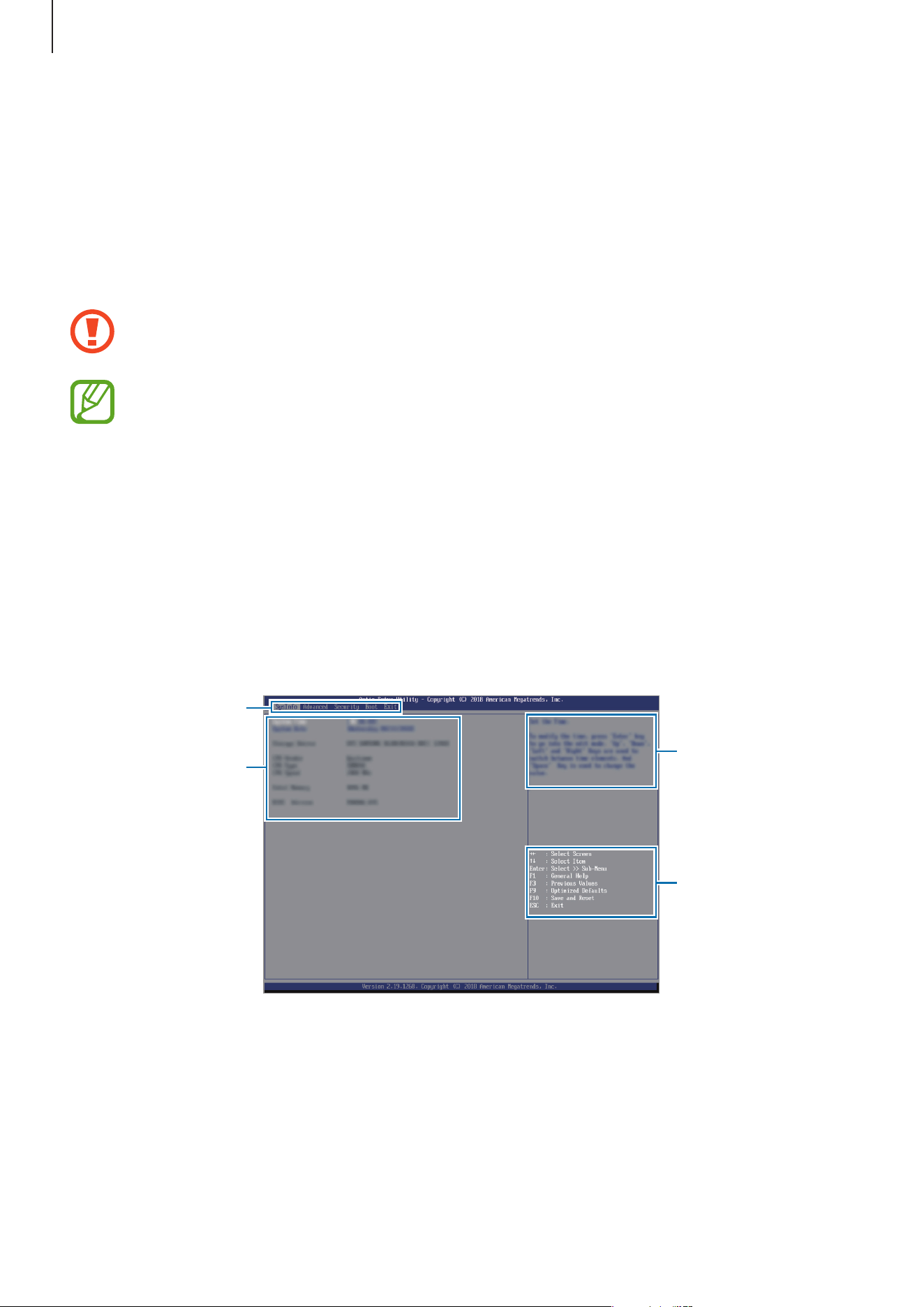
Introduction
BIOS is the program that starts the operating system when you turn on your device. Access
the BIOS setup screen to set a boot password, perform battery calibration, and more.
Be careful when changing BIOS settings. Incorrect changes may cause the system to
malfunction or crash.
The BIOS setup screens, menus, and items may appear differently depending on the
model and BIOS version.
Entering the BIOS screen
When your device is connected to the Keyboard Cover, press the F2 key several times
immediately after you turn on your device, before the Samsung logo appears.
Alternatively, press the Volume Down key several times when your device is not connected to
the Keyboard Cover. Then, tap
Enter Setup
to enter the BIOS screen.
If the locked screen or the Start screen appears, restart the device and try again.
Setup menus
Setup items
Shortcuts
Help information

Settings
67
Shortcuts
•
F1
: View the help information for the BIOS setup.
•
F3
: Undo changes.
•
F9
: Restore the device to the default settings.
•
F10
: Save the changes and restart the device.
•
Esc
: Restart the device without saving the changes.
Setup menus
•
SysInfo
: View the basic specifications of the device.
•
Advanced
: Configure the advanced settings.
•
Security
: Configure security functions.
•
Boot
: Configure boot-related settings.
•
Exit
: Restart the device with or without saving the changes.
Setting the boot password
Setting a password with the BIOS enhances protection against viruses and hacking attacks.
On the BIOS screen, tap
Security
.
The following password settings are available:
•
Supervisor Password
: This password is required when turning on the device or entering
the BIOS screen. This password allows you to enter the BIOS screen as an administrator.
You can change the BIOS settings.
•
User Password
: This password is required when turning on the device or entering the
BIOS screen. This password allows you to enter the BIOS screen as a user. You cannot
change the BIOS settings. The password will be deactivated automatically if the
supervisor password is removed.
Do not forget your password or expose it to others.
•
If you forget your supervisor password, contact a Samsung Service Centre.
•
If you forget your user password, you can remove it by removing the supervisor
password.

Settings
68
Setting a boot password
To set a user password, you must set the supervisor password first.
1
Tap
Set Supervisor Password
or
Set User Password
.
2
Enter a password and press the
Enter
key.
The password can be up to 20 characters long.
3
Enter a password again and press the
Enter
key.
4
Press the
F10
key, and then tap
Yes
to save the password and restart the device.
Removing a password
1
Tap
Set Supervisor Password
or
Set User Password
.
2
Enter the password and press the
Enter
key.
3
Without entering any characters, press the
Enter
key, and then tap
Yes
.
The password will be removed.
Boot priority
Change the boot priority from the BIOS setup.
1
On the BIOS screen, tap
Boot
.
2
Tap
Boot Device Priority
.
3
Tap the drop-down menu and select an option.
4
Press the
F10
key, and then tap
Yes
to save the password and restart the device.

69
Appendix
Troubleshooting
Before contacting a Samsung Service Centre, please attempt the following solutions. Some
situations may not apply to your device.
When you turn on your device or while you are using the device, it
prompts you to enter one of the following codes:
•
Password: When the device lock feature is enabled, you must enter the password you set
for the device.
•
PIN: When using the device for the first time or when the PIN requirement is enabled, you
must enter the PIN supplied with the SIM or USIM card. You can disable this feature by
using the Lock SIM card menu.
•
PUK: Your SIM or USIM card is blocked, usually as a result of entering your PIN incorrectly
several times. You must enter the PUK supplied by your service provider.
•
PIN2: When you access a menu requiring the PIN2, you must enter the PIN2 supplied with
the SIM or USIM card. For more information, contact your service provider.
Your device displays network or service error messages
•
When you are in areas with weak signals or poor reception, you may lose reception. Move
to another area and try again. While moving, error messages may appear repeatedly.
•
You cannot access some options without a subscription. For more information, contact
your service provider.
Your device does not turn on
When the battery is completely discharged, your device will not turn on. Fully charge the
battery before turning on the device.

Appendix
70
The touchscreen responds slowly or improperly
•
If you attach a screen protector or optional accessories to the touchscreen, the
touchscreen may not function properly.
•
If you are wearing gloves, if your hands are not clean while touching the touchscreen,
or if you tap the screen with sharp objects or your fingertips, the touchscreen may
malfunction.
•
The touchscreen may malfunction in humid conditions or when exposed to water.
•
Restart your device to clear any temporary software bugs.
•
Ensure that your device software is updated to the latest version.
•
If the touchscreen is scratched or damaged, visit a Samsung Service Centre.
The device responds slowly
If you use the device without connecting the Keyboard Cover, the device’s speed and
performance may be affected. Use the device with the Keyboard Cover connected.
Your device freezes or has fatal errors
Try the following solutions. If the problem is still not resolved, contact a Samsung Service
Centre.
Restarting the device
If your device freezes or hangs, you may need to close apps or turn off the device and turn it
on again.
Forcing restart
If your device is frozen and unresponsive, press and hold the Power key for more than
10 seconds until the device restarts.

Appendix
71
Resetting the device
If the methods above do not solve your problem, perform a factory data reset.
Before performing the factory data reset, remember to make backup copies of all important
data stored in the device.
On the taskbar, tap
→
→
Update & Security
→
Recovery
→
Get started
→
Keep my
files
or
Remove everything
.
If the Windows does not start properly, you can perform a factory reset to return the device to
its original system state.
Press
F8
key several times immediately after you turn on your device, before the Samsung
logo appears. When the blue screen appears, tap
Troubleshoot
→
Factory Reset
and follow
the on-screen instruction to complete the factory reset.
The Internet is often disconnected
•
Ensure that you are not blocking the device’s internal antenna.
•
When you are in areas with weak signals or poor reception, you may lose reception. You
may have connectivity problems due to issues with the service provider’s base station.
Move to another area and try again.
•
When using the device while moving, wireless network services may be disabled due to
issues with the service provider’s network.
The battery icon is empty
Your battery is low. Charge the battery.
The battery does not charge properly (For Samsung-approved
chargers)
•
Ensure that the charger is connected properly.
•
Visit a Samsung Service Centre and have the battery replaced.
The battery depletes faster than when first purchased
•
When you expose the device or the battery to very cold or very hot temperatures, the
useful charge may be reduced.
•
Battery consumption increases when you use some apps, such as games or the Internet.
•
The battery is consumable and the useful charge will get shorter over time.

Appendix
72
Your device is hot to the touch
When you use apps that require more power or use apps on your device for an extended
period of time, your device may feel hot to the touch. This is normal and should not affect
your device’s lifespan or performance.
If the device overheats or feels hot for a prolonged period, do not use it for a while. If the
device continues to overheat, contact a Samsung Service Centre.
Error messages appear when launching the camera
Your device must have sufficient available memory and battery power to operate the camera
app. If you receive error messages when launching the camera, try the following:
•
Charge the battery.
•
Free some memory by transferring files to an external storage device or deleting files
from your device.
•
Restart the device. If you are still having trouble with the camera app after trying these
tips, contact a Samsung Service Centre.
Photo quality is poorer than the preview
•
The quality of your photos may vary, depending on the surroundings and the
photography techniques you use.
•
If you take photos in dark areas, at night, or indoors, image noise may occur or images
may be out of focus.
Error messages appear when opening multimedia files
If you receive error messages or multimedia files do not play when you open them on your
device, try the following:
•
Free some memory by transferring files to an external storage device or deleting files
from your device.
•
Ensure that the music file is not Digital Rights Management (DRM)-protected. If the file is
DRM-protected, ensure that you have the appropriate licence or key to play the file.
•
Ensure that the file formats are supported by the device. If a file format is not supported,
such as DivX or AC3, install an app that supports it. To confirm the file formats that your
device supports, visit www.samsung.com.

Appendix
73
•
Your device supports photos and videos captured with the device. Photos and videos
captured by other devices may not work properly.
•
Your device supports multimedia files that are authorised by your network service
provider or providers of additional services. Some content circulated on the Internet,
such as ringtones, videos, or wallpapers, may not work properly.
Another Bluetooth device is not located
•
Ensure that the Bluetooth wireless feature is activated on your device.
•
Ensure that the Bluetooth wireless feature is activated on the device you wish to connect
to.
•
Ensure that your device and the other Bluetooth device are within the maximum
Bluetooth range (10 m).
If the tips above do not solve the problem, contact a Samsung Service Centre.
Your device cannot find your current location
GPS signals may be obstructed in some locations, such as indoors. Set the device to use Wi-Fi
to find your current location in these situations.
Data stored in the device has been lost
Always make backup copies of all important data stored in the device. Otherwise, you cannot
restore data if it is corrupted or lost. Samsung is not responsible for the loss of data stored in
the device.
The touchscreen does not turn on when you open the Keyboard Cover
Ensure that your device connects to the Keyboard Cover. Refer to Keyboard Cover for more
information.
A small gap appears around the outside of the device case
•
This gap is a necessary manufacturing feature and some minor rocking or vibration of
parts may occur.
•
Over time, friction between parts may cause this gap to expand slightly.
Appendix
74
Windows recovery function
If the
Samsung Recovery
app is not supported, reinstall Windows using the Windows
recovery function.
Reinstalling Windows will erase all apps and data on the device. Back up important
apps and data to an external storage device before reinstalling Windows.
After Windows is reinstalled, you can install the required Samsung apps.
1
On the taskbar, tap
→
→
Update & Security
→
Recovery
.
2
Tap
Get started
.
3
Tap
Keep my files
or
Remove everything
.

Copyright
Copyright © 2018 Samsung Electronics
This manual is protected under international copyright laws.
No part of this manual may be reproduced, distributed, translated, or transmitted in any form
or by any means, electronic or mechanical, including photocopying, recording, or storing
in any information storage and retrieval system, without the prior written permission of
Samsung Electronics.
Trademarks
•
SAMSUNG and the SAMSUNG logo are registered trademarks of Samsung Electronics.
•
Microsoft, MS-DOS, and Windows are trademarks or registered trademarks of the
Microsoft Corporation.
•
Bluetooth
®
is a registered trademark of Bluetooth SIG, Inc. worldwide.
•
Wi-Fi
®
, Wi-Fi Protected Setup
™
, Wi-Fi CERTIFIED
™
, and the Wi-Fi logo are registered
trademarks of the Wi-Fi Alliance.
•
All other trademarks and copyrights are the property of their respective owners.