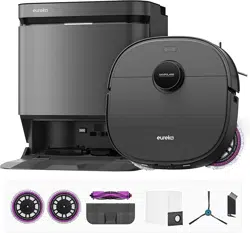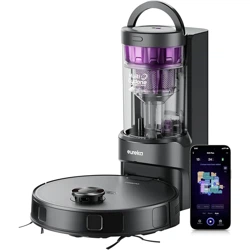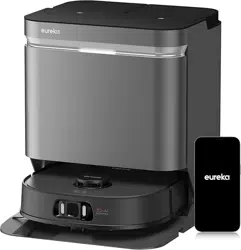
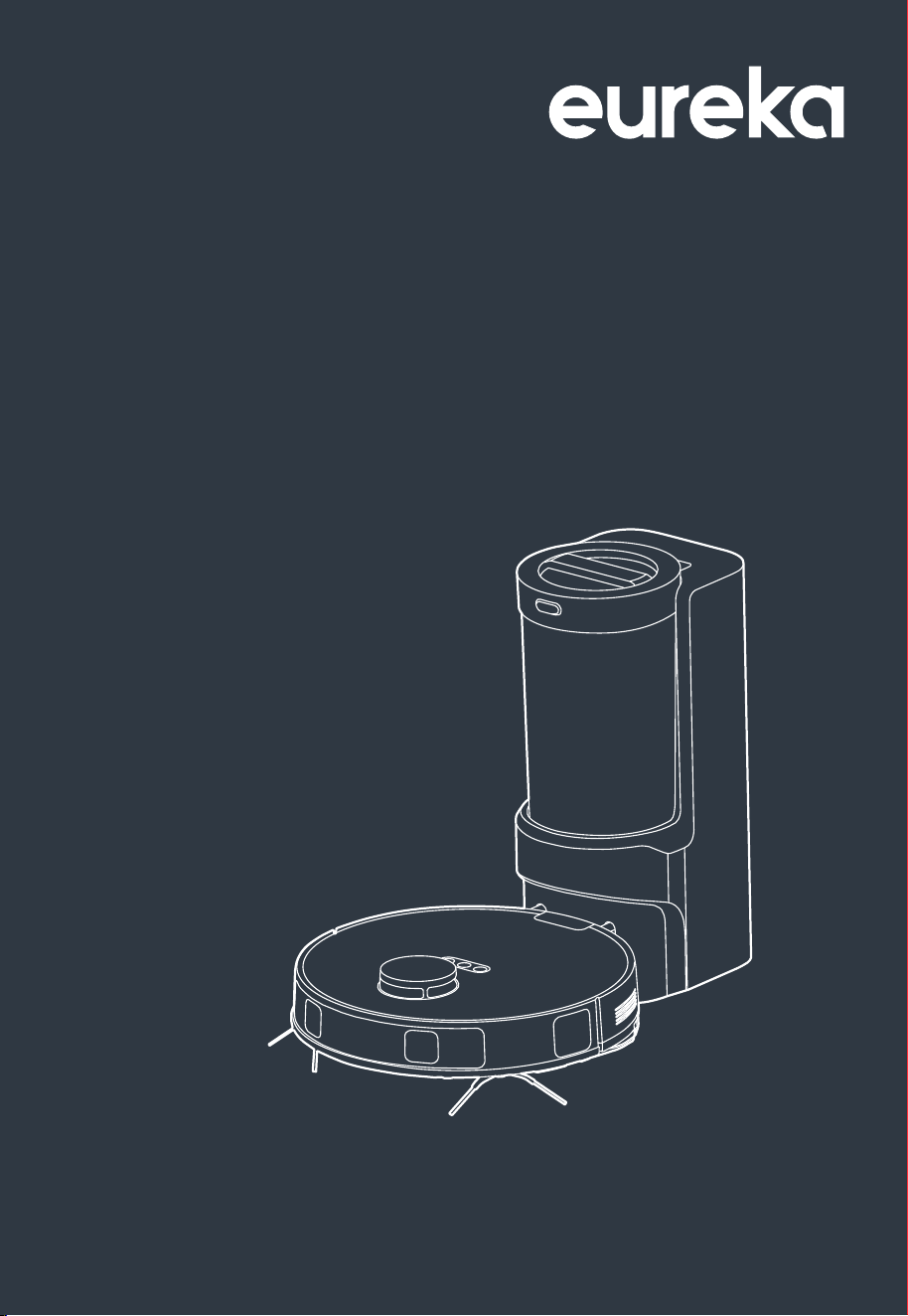
ROBOT VACUUM CLEANER
INSTRUCTION
MANUAL
Please read the manual before use
NER E10s

CONTENTS
Safety instructions
Technical data
What comes in the box
How to identify parts of
your robot
Assembling and charging
robot
How to use your robot
03
08
09
10
11-12
13
How to set up app, connect
the device and use app
How to maintain your robot
How to maintain brushroll 16
14
15
Other routine maintenance 17-18
Troubleshooting 19
TRADEMARKS, COPYRIGHTS
AND LEGAL STATEMENT 21
02
SAFETY INSTRUCTIONS
Warning for the machine
This appliance is not intended for use by persons (including children) with
reduced physical, sensory or mental capabilities, or lack of experience and
knowledge, unless they have been given supervision or instruction concerning
use of the appliance by a person responsible for their safety.
Children should be supervised to ensure that they do not play with the
appliance.
Plug must be removed from the socket-outlet before cleaning or maintaining
If the supply cord is damaged, it must be replaced by the manufacturer, its
service agent or similarly qualified persons in order to avoid a hazard.
WARNING: For the purposes of recharging the battery, only use the detach-
able supply unit provided with this Appliance.
Use only with BS2302 supply unit.
This Appliance contains batteries that are only replaceable by skilled
persons.
Do not bring the smart robot close to heat source, radiation or burning
cigarette butts. It is strictly forbidden to vacuum the following objects:
1) All liquids such as water and solvents;
2) Lime, cement dust and other construction dust and garbage;
3) Heat generating objects, such as unextinguished carbon butts, cigarette
butts;
4) Sharp fragments, such as glass, etc.;
5) Flammable and explosive items, such as gasoline and alcohol products.
Before using, please remove all fragile items from the ground (such as
glasses, lamps, etc.), and items that may be tangled with the side brush,
Roller brush and drive wheels(such as wires, curtains and other easily-entan-
gled materials).
Please pay attention to your hair and avoid entanglement on wheels or roller
brushes when using, cleaning and maintaining the robot.
Do not use this product at an altitude of more than 2000m.
1.
2.
3.
4.
5.
6.
7.
8.
9.
03
10.
11.
12.
13.
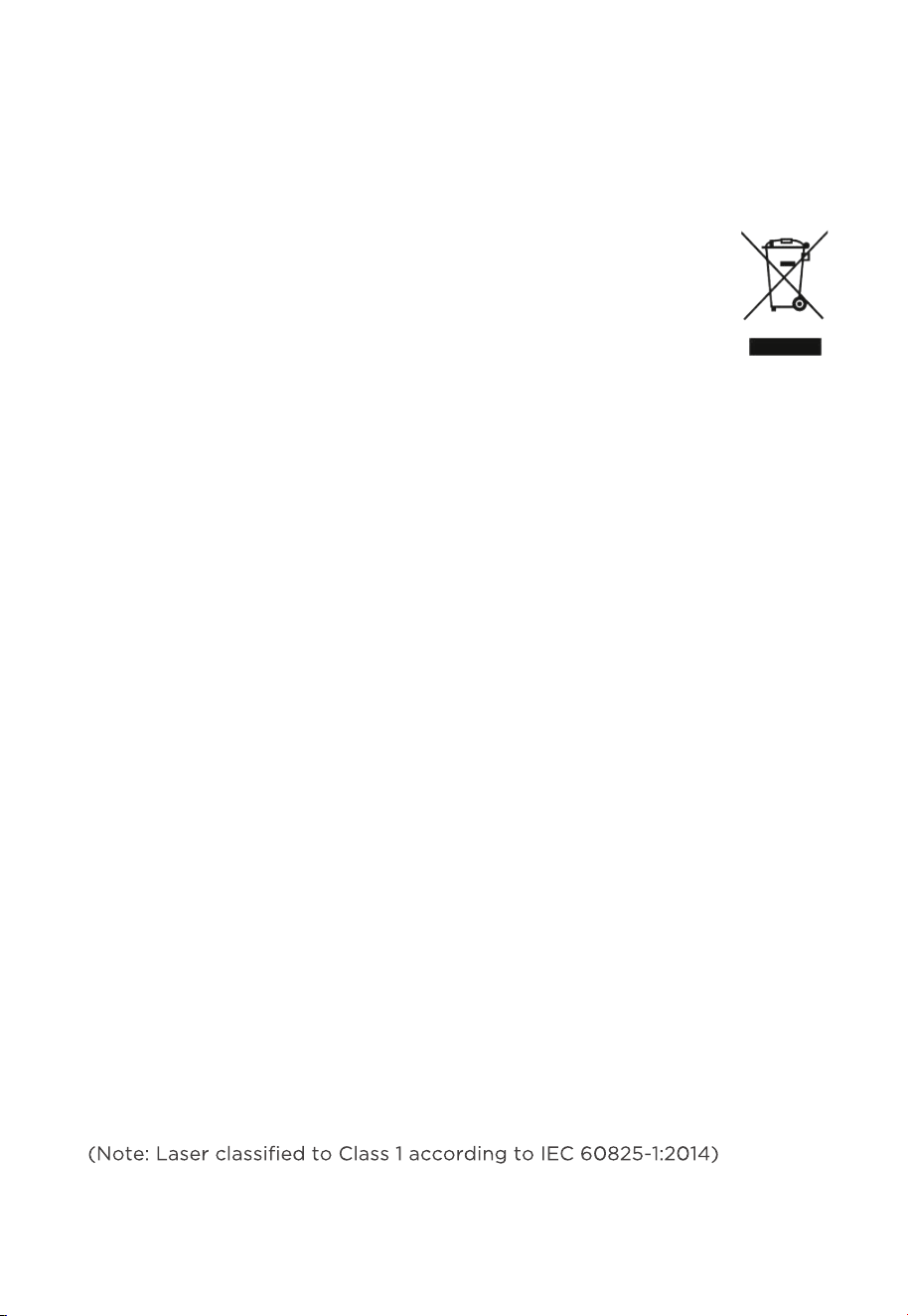
Correct Disposal of this product.
This marking indicates that this product should not be
disposed of with other household wastes throughout the EU.
To prevent possible harm to the environment or human health
from uncontrolled waste disposal, recycle it responsibly to
promote the sustainable reuse of material resources. To return
your used device, please use the return and collection systems
or contact the retailer where the product was purchased. They
can take this product for environmentally safe recycling.
Warranty Information
The manufacturer provides warranty in accordance with the legislation of the
customer's own country of residence, with a minimum of 1 year (Germany: 2
years), starting from the date on which the Appliance is sold to the end user.
The warranty only covers defects in material or workmanship.
The repairs under warranty may only be carried out by an authorized service
centre. When making a claim under warranty, the original bill of purchase (with
purchase date) must be submitted.The warranty will not Apply in cases of:
- Normal wear and tear
- Incorrect use, e.g. overloading of the Appliance, use of non-Approved
accessories
- Use of force, damage caused by external influences
- Damage caused by non-observance of the user
manual, e.g. connection to an unsuitable mains supply or non-compliance with
the installation instructions
- Partially or completely dismantled Appliances
Wireless network: 2400-2483.5MHz, MAX POWER:20dBm.
BLUETOOTH MAX POWER:10dBm
To satisfy RF exposure requirements, a separation distance of 20 cm or more
should be maintained between the antenna of this device and persons during
device operation. To ensure compliance, operations at closer than this
distance is not recommended.
CLASS 1 LASER PRODUCT
INVISIBLE LASER RADIATION
SAFETY INSTRUCTIONS
04
1.
2.
3.
4.
5.
6.
7.
“IMPORTANT SAFETY INSTRUCTIONS – SAVE THESE INSTRUCTIONS" and
"DANGER – TO REDUCE THE RISK OF FIRE OR ELECTRIC SHOCK, CARE-
FULLY FOLLOW THESE INSTRUCTIONS".
This appliance can be used by children aged from 8 years and above and
persons with reduced physical, sensory or mental capabilities or lack of
experience and knowledge if they have been given supervision or instruction
concerning use of the appliance in a safe way and understand the hazards
involved.
Children shall not play with the appliance.
Cleaning and user maintenance shall not be made by children without
supervision.
Plug must be removed from the socket-outlet before cleaning or maintaining
the Appliance.
If the supply cord is damaged, it must be replaced by the manufacturer, its
service agent or similarly qualified persons in order to avoid a hazard.
Docking base is only Applicable to the product NER E10s. (Battery pack
type : Li-ion, DC 14.4 V, 5200 mAh)
The Docking base will automatically start charging after Robot Vacuum
Cleaner returned to the base.
Warning: The battery charger (Docking station) is not intended to charge
non-rechargeable batteries.
CAUTION: In order to avoid a hazard due to inadvertent resetting of the
thermal cut-out, this Appliance must not be supplied through an external
switching device, such as a timer, or connected to a circuit that is regularly
Warning for docking station
SAFETY INSTRUCTIONS
05
before removing the battery.
Please note that do not disassemble the battery by yourself.
If you need to replace it, please contact the after-sales service center.
Please dispose of used battery according to local laws and regulations
Do not dismantle, open or shred the battery.
Do not expose batteries to heat or fire. Avoid storage in direct sunlight.
Do not short-circuit a battery.
Do not store batteries haphazardly in a box or drawer where they may
short-circuit each other or be short-circuited by other metal objects.
Do not subject batteries to mechanical shock.
In the event of a leaking, do not allow the liquid to come in contact with
copious amounts of water and seek medical advice.
Do not use any charger other than that specifically provided for use with
the equipment.
Do not use any battery which is not designed for use with the equipment.
Keep batteries out of the reach of children.
Seek medical advice immediately if the battery has been swallowed.
Keep batteries clean and dry.
Do not leave a battery on prolonged charge when not in use.
After extended periods of storage, it may be necessary to charge and
discharge the batteries several times to obtain maximum performance.
The batteries give their best performance when they are operated at
normal room temperature (20 °C ± 5 °C).
Retain the original product literature for future reference.
The battery may be irreversibly damaged if the battery is in low power for
before storage.
1.
2.
3.
4.
5.
6.
7.
8.
9.
10.
11.
12.
13.
14.
15.
16.
17.
18.
19.
20.
21.
Warning for battery
SAFETY INSTRUCTIONS
06
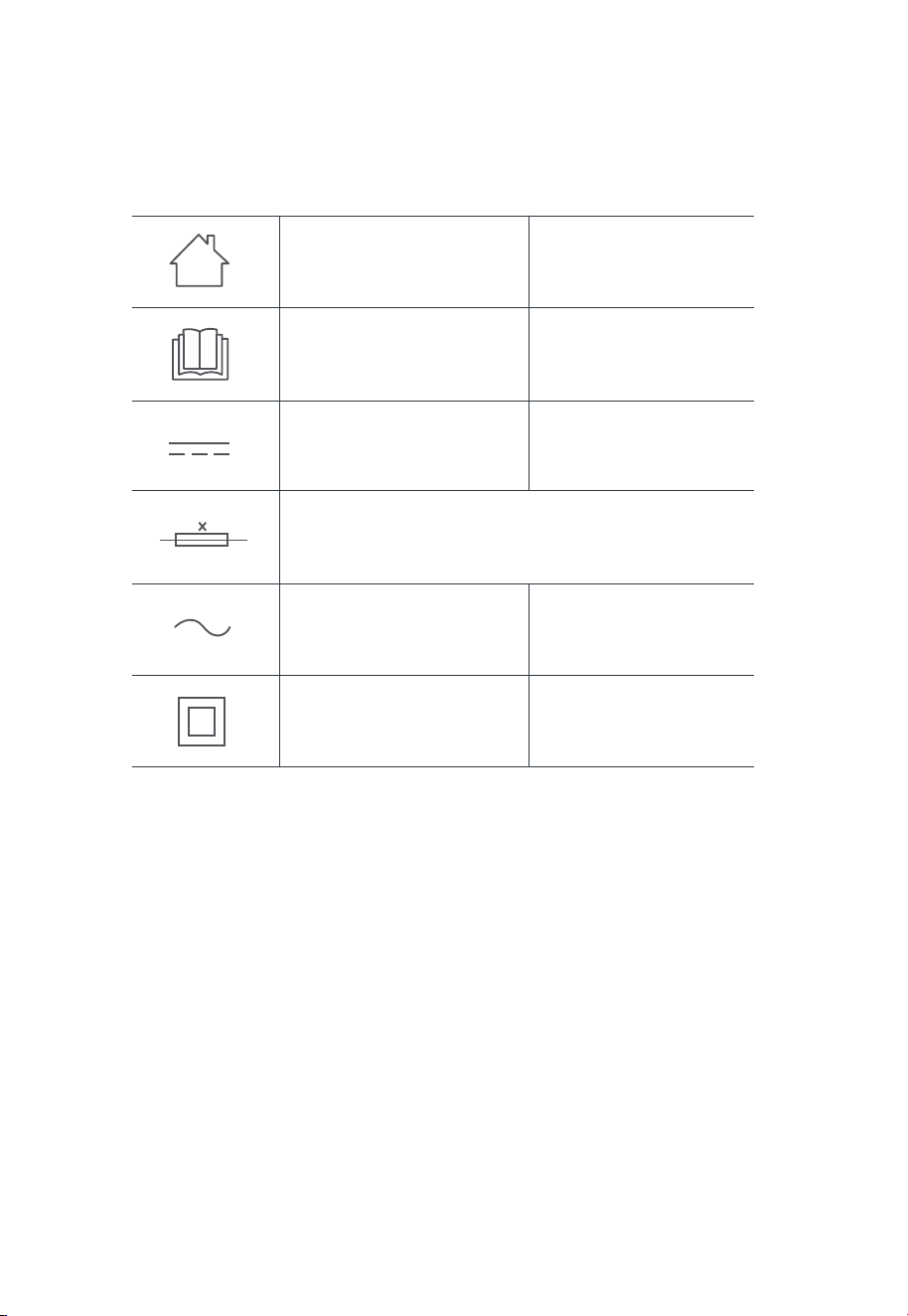
[symbol IEC 60417-5957
( 2004-12 )]
[symbol ISO 7000-0790
( 2004-01 )]
[symbol IEC 60417-5031
( 2002-10 )]
[symbol IEC 60417-5032
( 2002-10 )]
[symbol IEC 60417-5172
( 2003-02 )]
time-lag miniature fuse-link where X is the symbol for the
time/current characteristic as given in IEC 60127
for indoor use only
read operator's manual
direct current
alternating current
class II equipment
SAFETY INSTRUCTIONS
07

TECHNICAL DATA
Product Model: NER E10s
Host Charging Voltage: 16.7V
Host Rated Voltage: 14.4V
Host Rated Power: 55W
Docking Station Model: BS2302
Docking Station Input: 220-240V~, 50-60Hz, 850W
Docking Station Output: 16.7V , 1A
Battery Model: BP14452C
Battery Rated Voltage: 14.4V
Battery Capacity: 5200mAh 74.88Wh
Charging Limit Voltage: 16.8V
1.
2.
3.
4.
5.
6.
7.
8.
9.
10.
11.
08
Note: You can also view the instructions on the App.
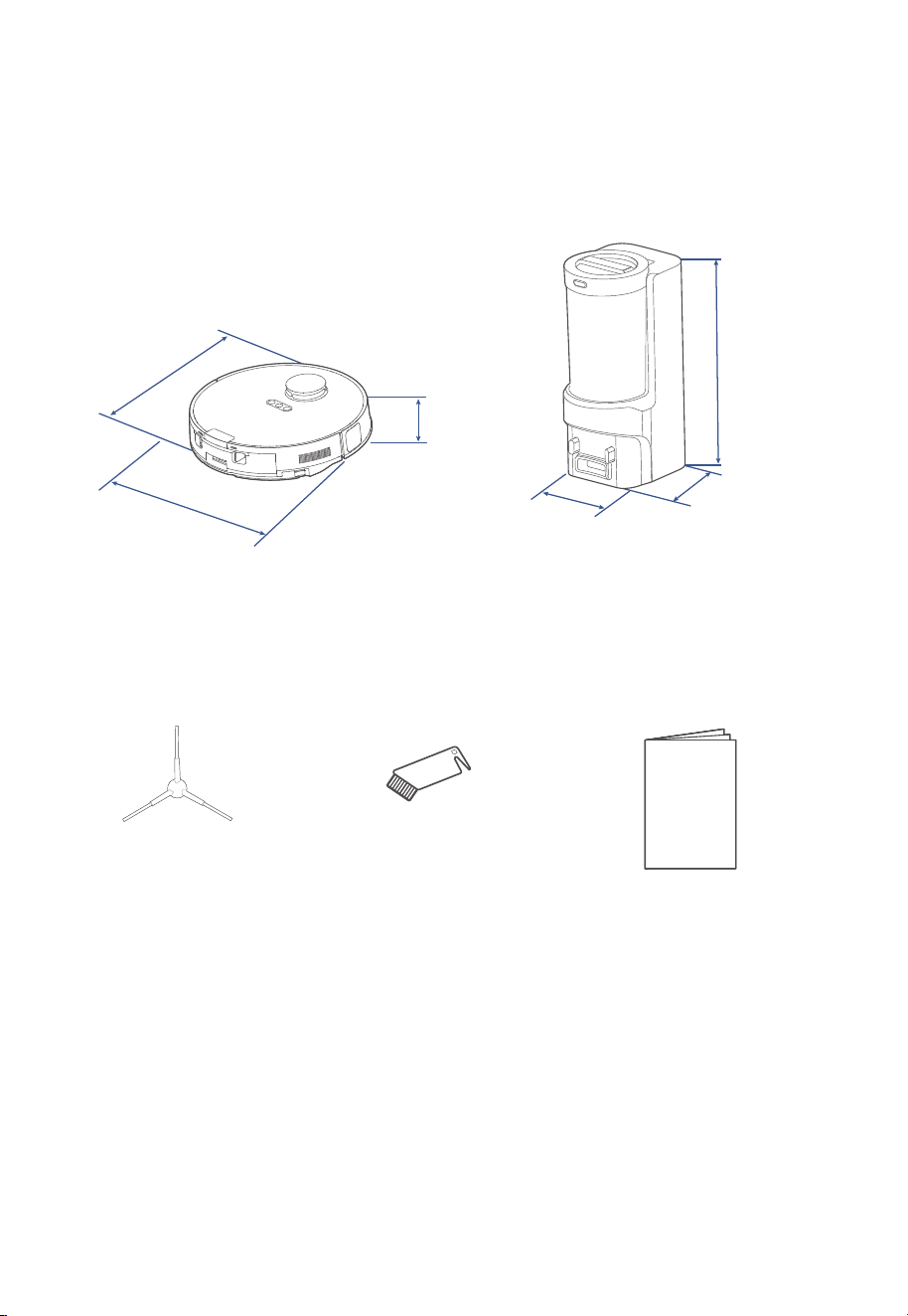
Parts and Components
What comes in the box
350mm
350mm
97mm
Robot Vacuum
Side Brush x2 Instruction Manual
244mm
178mm
445mm
Self-Emptying Base
Cleaning Brush
09
Instruction
Manual
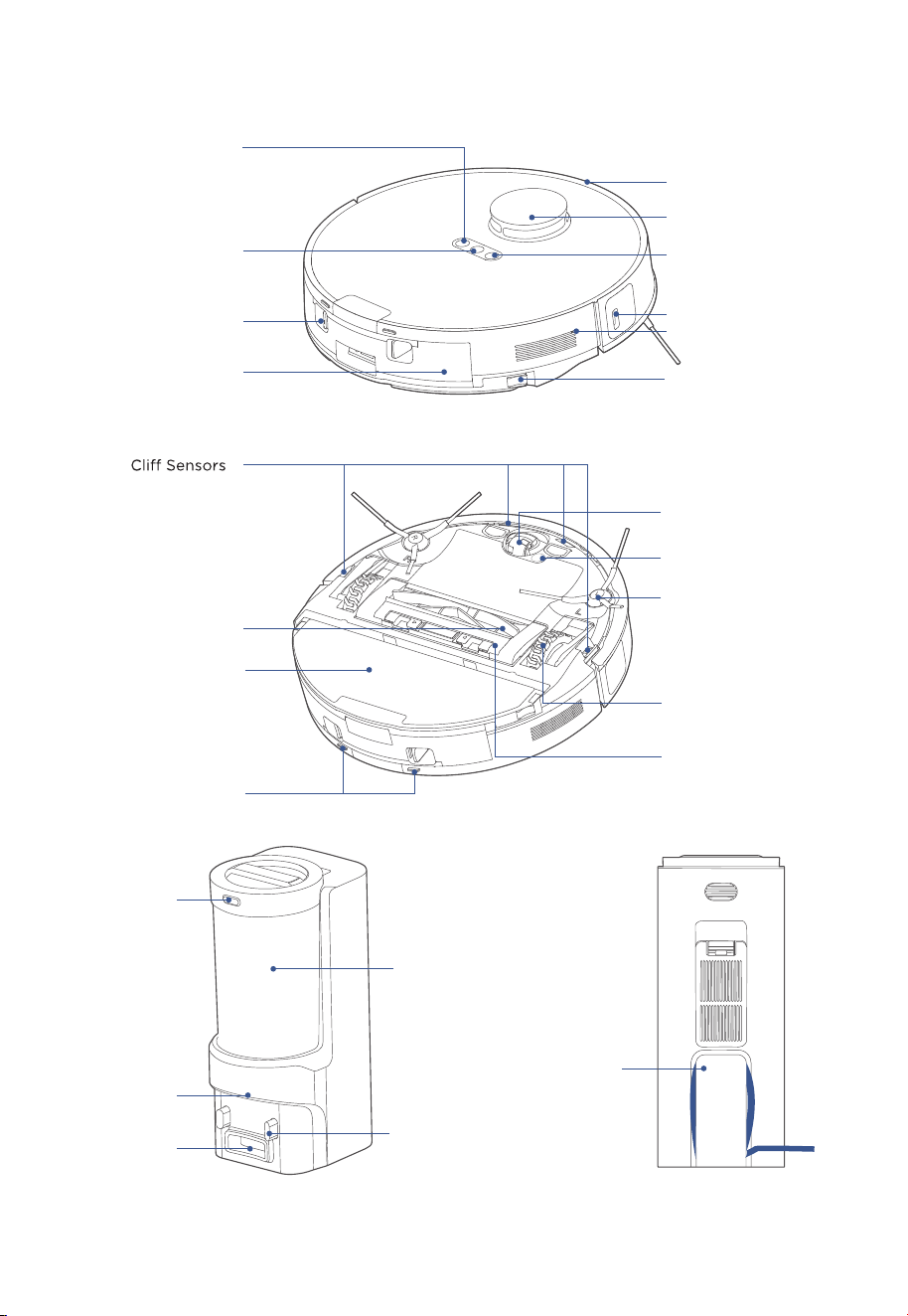
How to identify parts of your robot
Power Cable
Slot
Dust Cup
Indicator Light
Release Button
Self-empty
Inlet
Charging
Contacts
Carpet Detection
Sensor
Auto-lifting Mop
Assembly
Omni-directional
Wheel
Side Brush
Main Wheel
Cover Plate of
Main Brush
Charging Contacts
Main Brush
Edge Sensor
Power Button
Network / Spot
Cleaning Button
Bumper
LiDAR Sensor
Recharging Button
Dustbin /
Water Tank
Dustbin Release
Button
Release Button of
Auto-lifting Mop
Reset Button
10
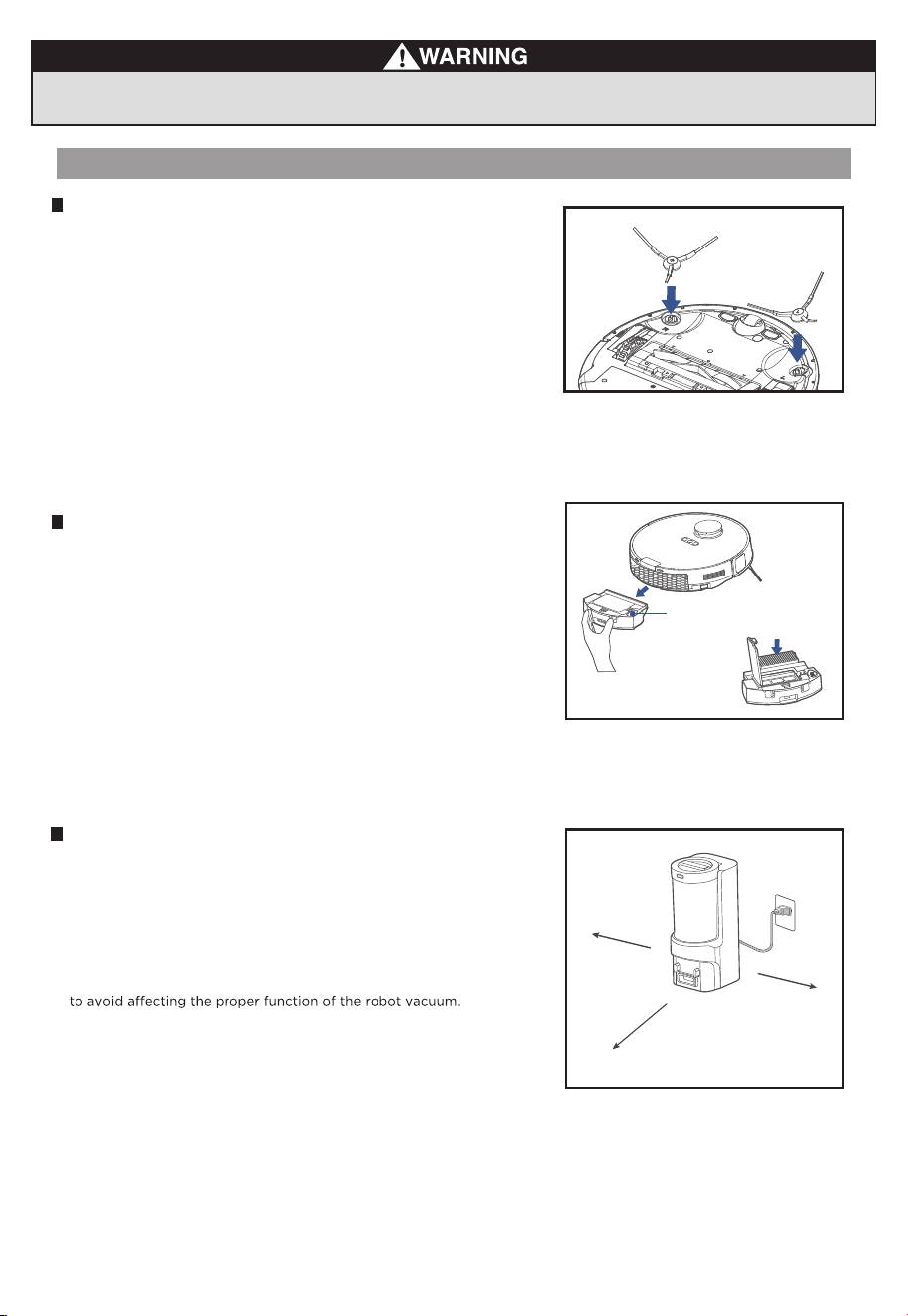
Remove excess clutter and cables on the floor before cleaning.
Setting up self-emptying base
1.
2.
3.
Place the self-emptying base flat against the wall on a level surface.
If there is any charging base for other robot vacuum cleaners in the
room, please put it away before use of our self-emptying base to avoid
mismatching.
Place the self-emptying base in an area covered with wireless network
signal to ensure stable network connection of the robot and proper
function of the App.
Store the excess cables into the slot at the back of the charging base
Plug the power plug into a power outlet.
Installation of side brushes
Quick Assembly
Filter installation
Robot comes with filter installed. Before use, ensure the filter is securely
in place. If not, remove dustbin from robot, pull up lid of dustbin and make
sure filter is snApped into place. Ensure dustbin lid and bottom latch
are securely closed and place back dustbin onto robot.
When using the mopping function, open the tank lid, fill the water tank
with purified cold water, and securely close the lid.
Please do not add any detergent into the water tank to prevent
potential clog.
Turn the main unit over. Attach the side brush to its color-matched
post and press down until they fit into place.
≥ 5 ft (1.5m)
≥ 1.5 ft (0.5m)
≥ 1.5 ft (0.5m)
Water Inlet/Outlet
11
1. Avoid placing the robot and the base under direct sunlight.
2. Be sure to keep the charging area dry.
NOTES
NOTES
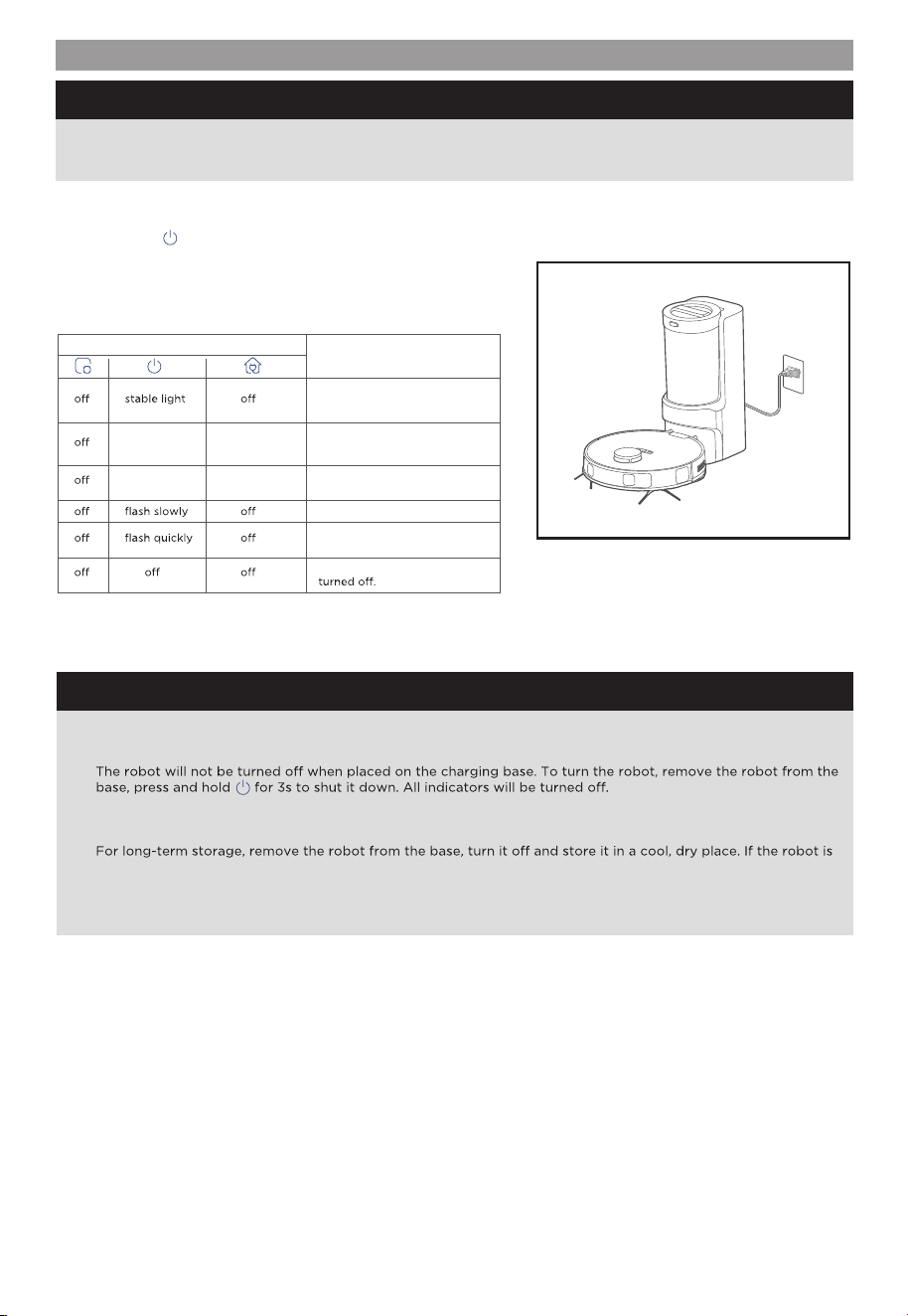
Charging
Press and hold " " for 3 seconds to power on the robot vacuum.
After the power indicator turns on, press the recharging button or
manually put the robot back into the self-emptying base for charging,
as shown. We recommend you charge the robot for at least 6 hours
before using it for the first time.
1) Robot is in standby mode, or
2) Cleaning in progress, or
3) Robot is fully charged.
stable light stable light
battery level ≥ 20%, robot has
finished its mission and is going
to recharge
Status
stable light flash quickly
battery level < 20%, robot is
going to recharge
Robot is charging
Error has occurred, see
"Troubleshooting".
Indicator Light
Robot is in sleep mode or
When the battery level is too low, the robot cannot be turned on. Please manually put the robot onto the
charging base.
To ensure the optimal performance of the lithium-ion battery, please keep the robot charged.
If you manually put the robot vacuum into the base, ensure that the charging contacts of both the robot and the
base are connected.
not used for more than 3 months, allow it to get charged for at least 12 hours before using. To preserve the
battery lifespan, we suggest you fully charge the battery at least once every six months.
1.
2.
3.
4.
5.
12
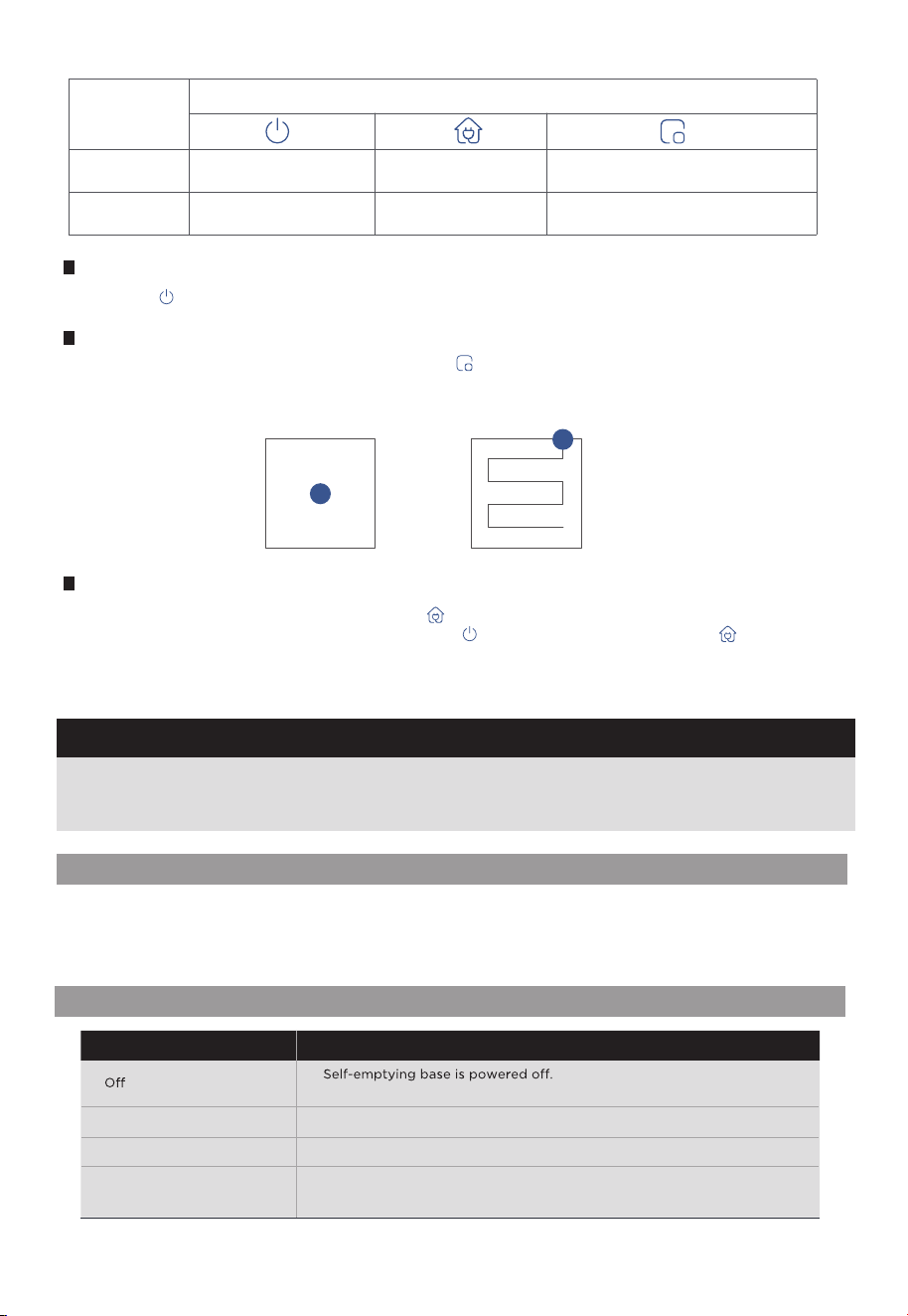
Briefly Press " " to start/pause/resume cleaning or use your App to control.
Start / Pause / Resume
The robot vacuum will enter sleep mode when it is in standby mode for more than 10 minutes. In sleep mode,
press any key to wake up the robot vacuum.
Do not immerse the robot in water. Doing so may damage the equipment, causing short-circuit or current leakage.
1.
2.
NOTES
How to use your robot
Operation
Short Press
Start/pause/resume Return to the base Start spot cleaning
Shut down
/
Enter the network pairing state
Press and
hold for 3s
Button
SPOT Cleaning
When the robot vacuum is in standby/pause mode, press " " to start spot cleaning. The robot will begin to
clean an area of one square meter centered on itself. After spot cleaning, the robot will automatically return to
the charging base to recharge.
Note that starting the spot cleaning mode will automatically stop the current cleaning cycle.
1.0m 1.0m
1.0m 1.0m
Self-Emptying Function
After cleaning, the robot will return to the charging base and automatically begin self-emptying.
Press the recharging button (the recharge interval between two times should be longer than 5 minutes) to trigger
self-emptying.
Select manual self-emptying function on the App. Avoid manual self-emptying frequently.
1.
2.
3.
Recharge
① When the robot vacuum is in standby mode, press " " and the robot vacuum will start recharging.
② When the robot vacuum is in cleaning process, pressing " " can stop cleaning, and then press " " can start
recharging.
Under special circumstances (such as power depletion, robot vacuum jamming, etc.), the robot vacuum may not
be able to recharge automatically. Please manually place the robot vacuum back to the charging base.
Status Indicators of Self-Emptying Base
White light flashes quickly
Indicator Light Status
Self-emptying base is powered on.
The air duct of the dust cup may be clogged.
Please check and empty the dust cup in time.
Self-emptying is in progress.
Self-emptying base is in sleep mode.
White light stays on
White light flashes slowly
13
14
NOTES
The app supports iOS versions 13.0 and above and
Android versions 8.0 and above. The app is not available
for use with tablets.
This model does not support a WEP encrypted router.
The home wireless network name and password must
contain only letters, numbers and standard symbols.
The network accessing configuration of the robotic vacuum
requires a wireless network of 2.4GHz frequency range.
The robotic vacuum must be connected to wireless network
to enable controlling the robotic vacuum using the app.
Once you have set up the app and connected the robotic
vacuum to wireless network, the app can be used to control
the robotic vacuum in the wireless network/2G/3G/4G/5G
network environment.
If your home wireless network password is changed or the
the app; you will need to reconnect the robotic vacuum to
the wireless network following the wireless network
connection instructions.
●
●
●
●
●
●
In the App Store or Google Play, search for eureka
robot, download and install the app.
Open the Eureka app and complete the
registration process, which includes an email
address confirmation, and once you have
confirmed your email address you can log in
and follow the setup instructions in the app.
Connect your phone to your home wireless
network.
In the app select Add Devices and choose
the device NER E10s.
Connect your robotic vacuum to your wireless
network. After assembling and powering on the
robotic vacuum, press and hold the " " button
for 3 seconds until a beep is heard.
The network indicator light should start flashing
white. Follow instructions on app for next steps.
1.
2.
3.
4.
5.
Setting Up App and Connecting the Device
Using Eureka Robot App
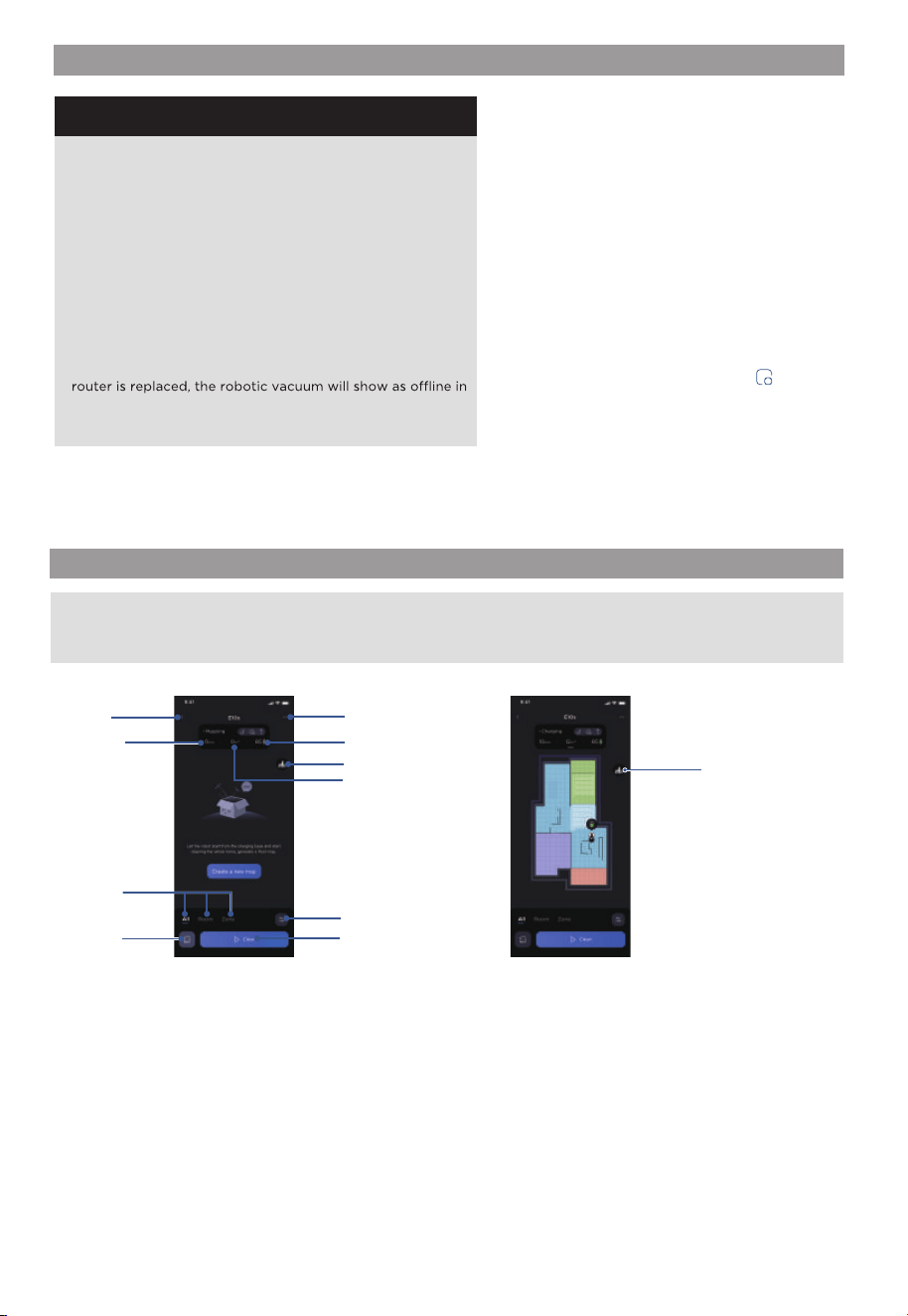
Back to
previous
page
Robotic Vacuum
settings
Cleaning area
Start cleaning
Battery
Cleaning
mode
Dust
collection
Cleaning
time
Map edit
NOTE: If the wireless network in your home is unstable, it may cause issues with the operation of the Eureka Robot App.
The content of the Eureka Robot App may change when the version is updated. Please refer to the Eureka Robotic
Vacuum interface for details. This interface will be upgraded later, this interface is for reference only.
Map edit
NOTE: When you start clean,
the machine automatically
scans and creates a map.
Cleaning
preferences
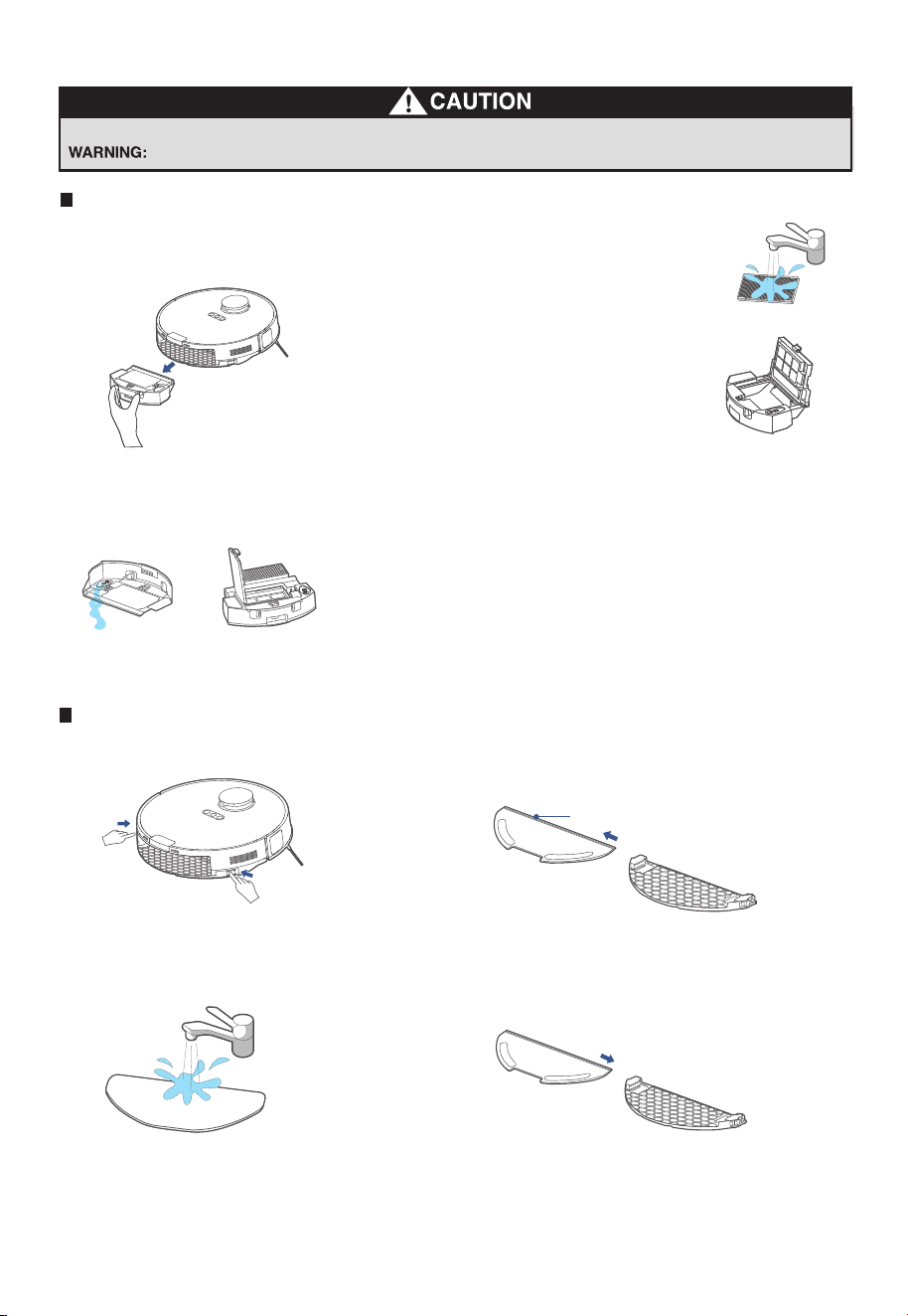
Dustbin/Water tank maintenance (clean as needed)
Take out the dustbin:
Press the dustbin release button
as shown and take out the dustbin.
1.
Remove debris by tApping the
filter against your garbage bin.
You can clean the dustbin, the
filter and filter mesh with water,
but remember to dry them
THOROUGHLY before reinserting
them into the robot (Do not clean
the filter elements with detergents).
3.
Reinsert the dustbin into the robot. It is
recommended to clean the filter elements
every week and replace them every 1-3 months.
4.
Moving parts! Recharge robot vacuum cleaner after each use.
Never operate robot without all filters, filter screen and dustbin in proper position.
How to maintain your robot
Open the lid of the water tank
and clean out the remaining water.
Open the lid of the dustbin and
take out the filter.
2.
Cleaning the mop assembly
Release the mop assembly and clean it.1.
Wash the mopping cloth with water
and dry it.
3.
Place the cleaned mopping cloth
back to the mop holder and re-install
the mop assembly to the robot.
4.Remove the mopping cloth from
the mop holder.
2.
Push/Pull Slot
15
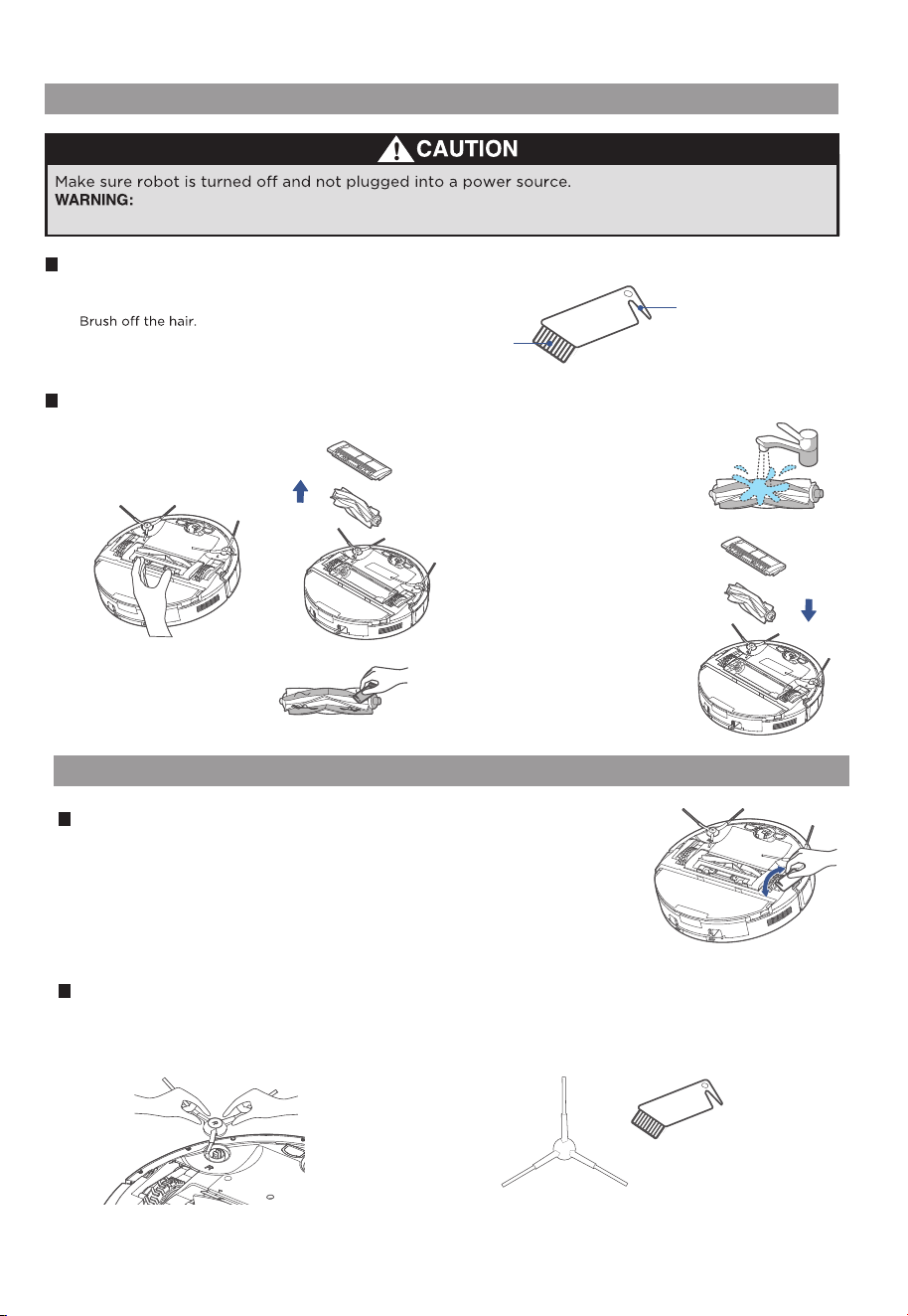
Main wheels cleaning (weekly cleaning recommended)
Rotate the main wheels back and forth to remove debris or dust - remove and take out
the hair or debris with the cleaning brush or a soft cloth.
Side brushes cleaning (weekly cleaning recommended)
Pull out the side brush.
Remove dust on the side brush.
1. It is recommended to clean the side brush
every week and replace them every 6 months.
2.
Main wheels and side brushes cleaning
Do not attempt to remove belt.
Cleaning tools
Main brush maintenance (weekly cleaning recommended)
Turn the main unit over. Release the
cover plate of the main brush and
pull it out, and lift the right side of
the main brush to take it out.
1.
After cleaning, press the end
cover back to the main brush
body. Install the main brush
body into the main unit
according to the direction
shown in the figure. It is
recommended to clean the
main brush every week and
replace them every 6 months.
4.
Clean the main brush and its
cover plate with the cleaning
brush or a soft cloth.
2.
Wash the main brush with
water and dry it.
3.
How to maintain brushroll
Washable brushroll – clean frequently
How to use the cleaning brush:
① Cut the hair entangled on the main brush with the blade.
②
Brush
Blade
16
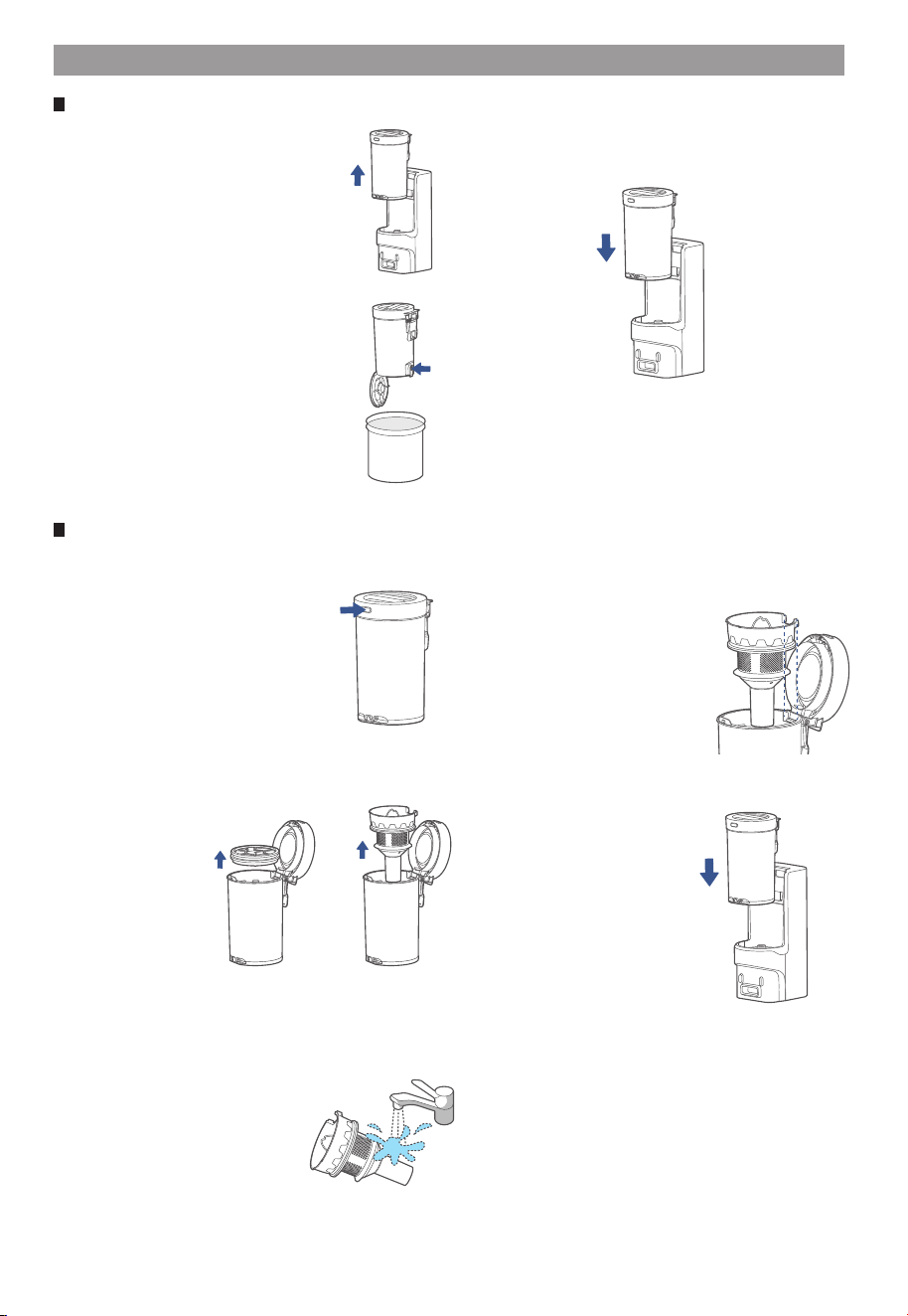
Maintenance of Self-Emptying Base
Empty as soon as dirt reaches the MAX
mark. Remove the dust cup by moving it
vertically upwards.
1.
Hold the dust cup over a bin. Press the
lower dust cup release tab and empty
the trash into the bin.
2.
Take out the sponge filter and the
cyclone (use the handle) as shown in
figure.
2.
Close the tab, and place the dust cup straight
down back into the self-emptying base.
3.
How to empty the dust cup
Press the upper release tab to open the
top of the dust cup.
1.
How to clean the cyclone
Rinse the cyclone with clean water and
make sure it is completely dry before
putting it back.
Note: Do not use detergents, polishes or
air fresheners to clean the dust cup and
cyclone to avoid corrosion.
3.
Place the cyclone and sponge filter
back down into their regular positions.
Close the dust cup so it clicks into
place.
4.
Place the dust cup back into the
self-emptying base.
5.
17
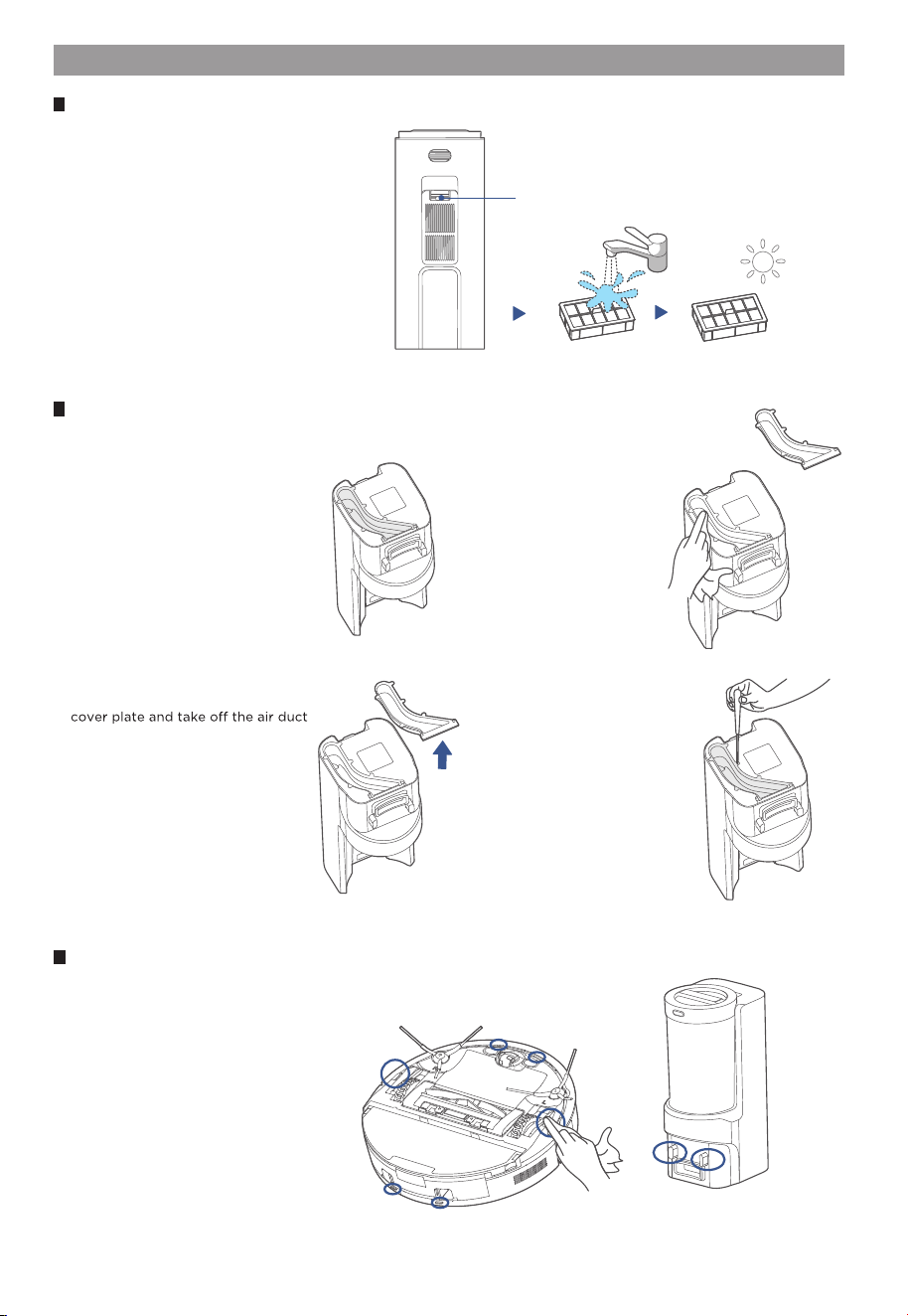
Maintenance of Self-Emptying Base
Rinse the filter with clean water until it is
clean. Make sure the filter is completely
dry before putting it back.
2.
Release Button
Press the release tab of the cover of the
filter on the back of the base to remove
the cover.
1.
How to clean the filter
If the air duct has been clogged, use a
screwdriver to unscrew the air duct
cover plate.
2.
Turn the self-emptying base upside
down and check whether the dust
collection air duct has been clogged.
1.
How to clean the dust collection air duct
After cleaning, reinstall the air
duct cover and tighten the air
duct cover.
4.
Clean and wipe the air duct
and air duct cover plate with
a dry cloth.
3.
Sensors and charging contacts cleaning
Wipe the sensors on the robot and charging contacts on both the robot and the base
with a dry, soft cloth.
18
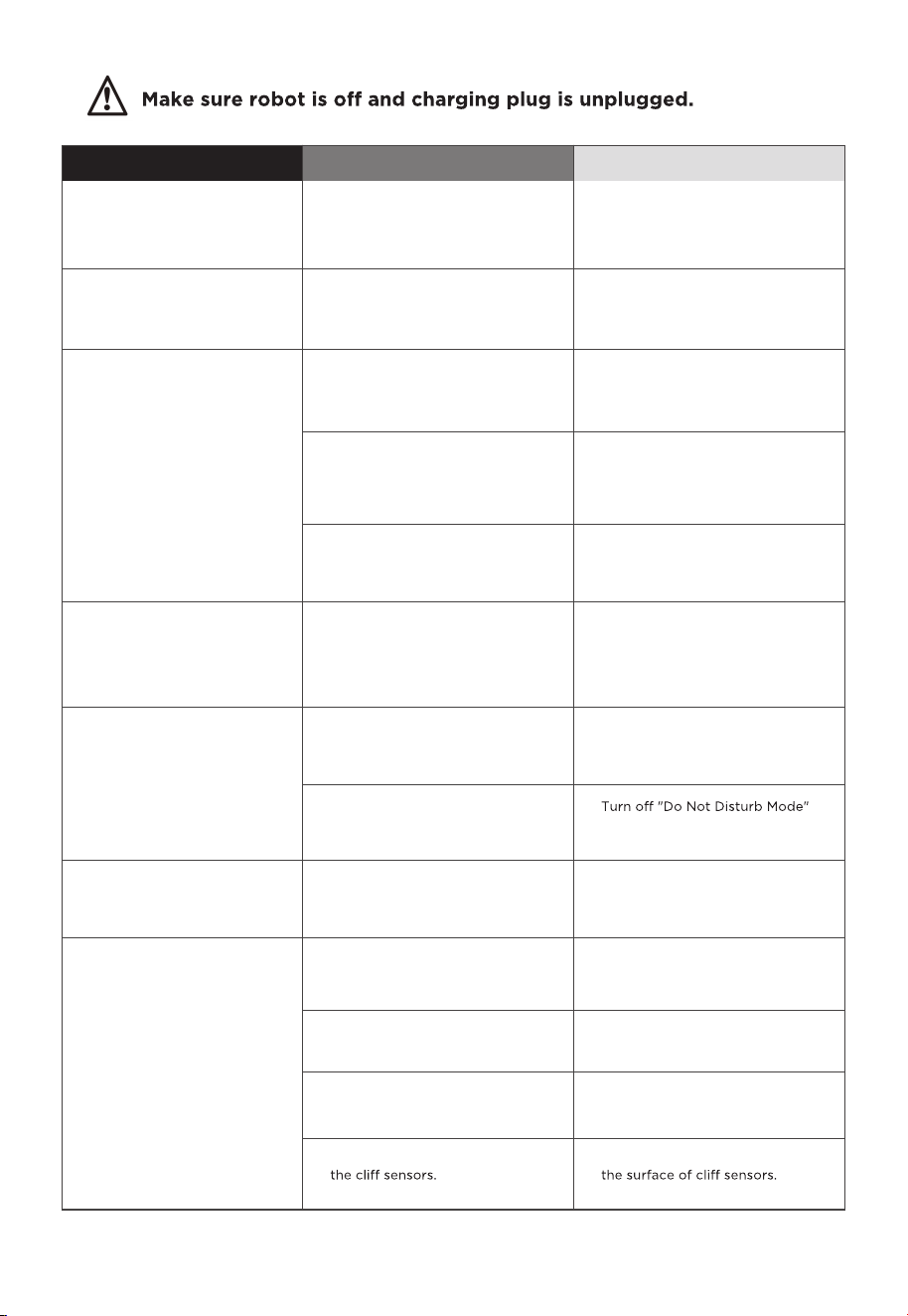
Troubleshooting
The robot vacuum
cannot be recharged
Faults
Possible Causes
The robot vacuum is not in
contact with the charging
contacts.
Place the robot vacuum 1m in
front of the self-emptying base
and press the recharging button.
Actions
The robot vacuum
cannot return for
charging
The self-emptying base is
placed improperly.
Place the self-emptying base on
a level surface that is free of
obstacles.
The robot vacuum is
entangled/stuck by objects
(such as cords) on the floor.
Please put away the scattered
cords and objects on the floor.
The side brush/main brush is
stuck so that the robot vacuum
cannot move normally.
Remove the objects that caused
the main/side brush to be stuck
and place the robot flat on the
floor and restart.
The robot vacuum is stuck by
obstacles.
Remove the obstacles and
proceed with cleaning, or set
No-go zones in App.
Cleaning process has
not been completed,
but the robot vacuum
returns for charging
The battery level of the robot
vacuum is running low.
Let the robot vacuum return for
recharging.
Scheduled Appointment has
been cancelled.
Reset Appointment.
Fail to clean as
Appointment
The robot vacuum is in Do Not
Disturb Mode.
The robot vacuum
does not work
Left/right wheel is suspended.
Place the robot vacuum flat on
the floor and retry.
The robot vacuum
moves backward
The protective cover of
navigation module is stuck.
Gently tap the protective cover
to remove dust.
There is obstacle ahead. Remove the obstacle ahead.
The bumper is stuck.
Gently tap the front bumper to
remove dust.
There is dust accumulated on
Clean the dust accumulated on
The robot vacuum is
trapped
or adjust the "Do Not Disturb"
time interval.
19
!
To preserve natural resources, please recycle or dispose of expired battery
pack properly.
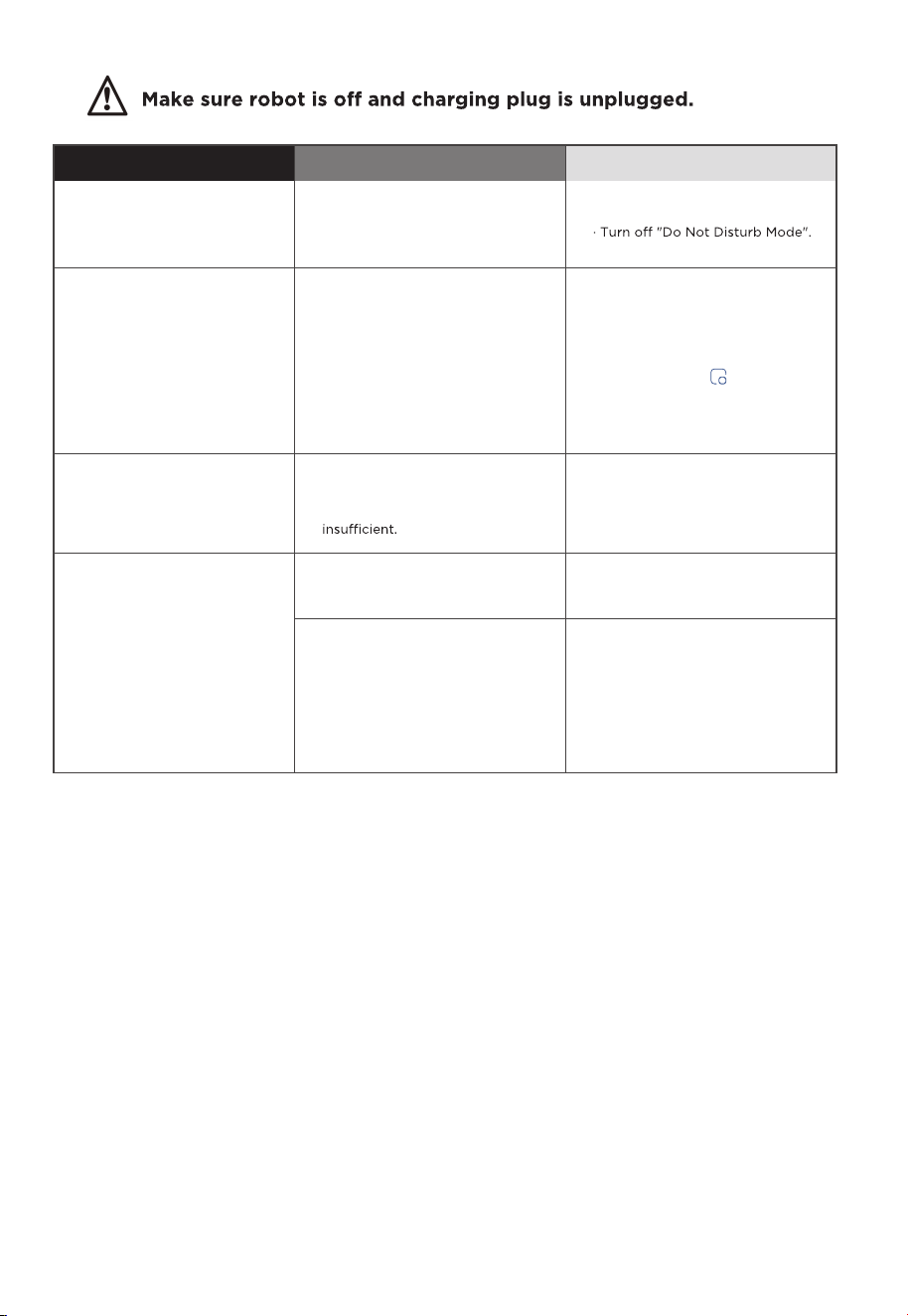
Troubleshooting
Faults
Possible Causes
Actions
The robot vacuum has
no sound
· The sound is muted.
· The robot vacuum is in Do Not
Disturb Mode.
· Turn up the volume.
The App shows the
connection is
disconnected
· The phone is not connected
to the network normally.
· The router is not working
properly.
· The robot vacuum is not
turned on.
· The network is removed.
· Wireless network password or
network has been changed.
· Reconnect the phone network.
· Restart the router.
· Turn on the robot.
· Add new Appliances in the App.
· Reset the network by pressing
and holding the
" " button for
3 seconds
· Add the device again following
the phone's instructions.
App operation response
delays
· Wireless network signal is
weak.
· The network bandwidth is
· Restart the router to reduce the
number of access users.
· Check the phone settings.
· Increase the network bandwidth.
After the robot
vacuum returns to the
self-emptying base,
the self-emptying
process fails to start
automatically
The dust cup is full. Empty the dust.
· The lid of dust cup is not
closed.
· The dust cup is not installed
correctly.
· Close the lid.
· Reinstall the dust cup correctly.
20
21
logo, word marks, trade name, trade dress and all versions thereof are valuable assets of
intellectual property rights, and all goodwill derived from using any part of an Midea trademark. Use
of Midea trademark for commercial purposes without the prior written consent of Midea may
constitute trademark
infringement or unfair competition in violation of relevant laws.
This manual is created by Midea and Midea reserves all copyrights thereof. No entity or individual
may use, duplicate, modify, distribute in whole or in part this manual, or bundle or sell with other
products without the prior written consent of Midea.
All the described functions and instructions were up to date at the time of printing this manual.
However, the actual product may vary due to improved functions and designs.
TRADEMARKS, COPYRIGHTS
AND LEGAL STATEMENT