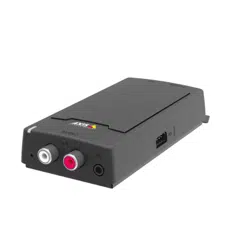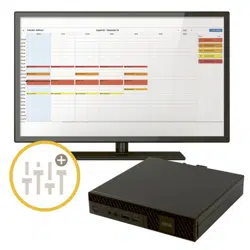


AXISAudioManagerProC7050MkIII
TableofContents
Solutionoverview...........................................3
Systemrequirements.............................................3
Getstarted................................................4
Installation....................................................4
UpdateAXISAudioManagerPro...................................4
Downloadaudiodrivers..........................................4
Starttheapplication.............................................4
Congurethenetwork...........................................4
Prepareyourdevices.............................................5
Setupyourrstsite.............................................8
Addandorganizedevices.....................................9
Identifyadevice................................................9
Schedulecontent...........................................10
Scheduleannouncements.........................................10
Schedulemusic.................................................11
Editevents.....................................................13
Setyouropeninghours......................................14
Setuppaging..............................................15
Pagingwitha2NSIPMic.........................................15
PagingwithSIPtrunk............................................17
Setpriorityforpaging............................................18
TalkbacktoanAxisdevice........................................
18
Setvolumes................................................19
Calibratemastervolumes.........................................
19
Setvolumelevels...............................................
19
Manageyourdatabase.......................................21
Manageyourdevice.........................................22
UpdateWindows®...............................................22
CongureWindowsupdatesettings................................22
Needmorehelp?............................................24
2

AXISAudioManagerProC7050MkIII
Solutionoverview
Solutionoverview
WithAXISAudioManagerPropre-installedontheC7050MkIIIserver,youcancontrollargeandadvancedaudioinstallationsfroma
singlepoint.Youcansetupzones,audiosources,andschedules.
Systemrequirements
Recommendedbrowsersfortheclient:
•Chrome
•Firefox
3

AXISAudioManagerProC7050MkIII
Getstarted
Getstarted
Installation
1.InitialWindows®setup.Afterinstallingyourdevice,youareguidedthroughafewstepstosetuptheregion,language,
keyboardlayout,andanadministratoraccountanditspassword.
2.WerecommendtoupdateWindows®tothelatestversion.SeeUpdateWindows®onpage22.
UpdateAXISAudioManagerPro
1.Gotoaxis.comanddownloadthelatestversionofAXISAudioManagerPro.
2.Downloadandruntheinstallationle.
3.SelectacerticateandclickNext.
-Ifyoudon’thaveacerticate,thenselectSelf-signedcerticate.
Note
Whenusingaself-signedcerticateyouwillbepromptedthersttimeyoustartAXISAudioManagerPro4andaskedtoadd
asecurityexceptioninyourbrowser.Allyouneedtodoistoacceptthesecurityexceptionandyouwillnotbepromptedagain.
Ifyouwanttoreplaceyourcerticateinthefuture,gotoSystemsettings>Securityinthewebclient.
Formoreinformationaboutcerticates,seeCerticatemanagement.
4.SelectFinish.
Downloadaudiodrivers
InsomecasesyoumaywanttousethehardwareinputsandoutputsonthePCinsteadofportsonthenetworkdevices.Depending
ontheusecase,youmayhavetochangethedefaultcongurationofthehardwareports.Toswitchfunctionalitybetweenthe
3.5mmaudiojacks,youneedtoupdatetheaudiodrivers.
Toupdatetheaudiodrivers:
1.SeeDell’ssupportpageanddownloadthelatest.exele.
2.LaunchtheleinWindows
®
andfollowtheinstructionsprovidedonscreen.
Starttheapplication
1.OntheWindowssystemtray,click
>>OpenAXISAudioManagerProClient.
2.Enterpasswordandlogin.
4

AXISAudioManagerProC7050MkIII
Getstarted
Congurethenetwork
AlldevicesmustbeconnectedtothesamemulticastdomainastheserverthatAXISAudioManagerProisinstalledon.
Audiostreamingbetweentheserverandallthedevicesusemulticast.Thedefaultrangeis239.0.0.0-239.0.0.254.
Makesureyouhavereservedenoughbandwidth.Themaximumconsumptionforeachmulticaststreamis443kbps.
Port
TCP
UDPAdjustableDescription
443
xx
WebUI
1
5433
xx
Systemport
2
6992
x
Systemport
3
6999
x
Systemport
6999
x
Systemport(multicast
audiostreaming)
7010
xx
Systemport
2
5060
xxx
SIP
4
30000–31999
xx
RTPstreamforSIPcalls
1
Ifthedefaultportisalreadyinuse,theusermustchooseadifferentportwheninstallingAXISAudioManagerPro.
2
Ifthedefaultportisalreadyinuse,thenthenextavailableportwillbeused.
3
Ifthedefaultportisalreadyinuse,thentheTraceviewapplicationforcapturingserverlogswillnotbeabletoconnecttothe
AXISAudioManagerProserver.
4
ThedefaultportfortheSIPserveris5060.Youcanchooseadifferentport.IfyousetupseveralSIPservers,youneedoneportfor
eachserver.
Congurethenetworksettings:
1.GototheAXISAudioManagerProclient.
-SeeStarttheapplicationonpage4
2.Goto
Systemsettings>Network.
3.Changethemulticastrangeifneeded.
Note
Ifyouwanttosetmulticastorunicastforaphysicalzone,goto
Physicalzones,clickazone,andthengotoNETWORK
COMMUNICATION.
4.UnderNetworkinterface,selectthesameIPaddressasyourserver.
5.Ifyouintendtostreamcontentfromtheweb,goto
Systemsettings>Proxyandsetupyourproxysettings.
5

AXISAudioManagerProC7050MkIII
Getstarted
Prepareyourdevices
Towatchthisvideo,gotothewebversionofthisdocument.
help.axis.com/?&piaId=85591§ion=prepare-your-devices
PrepareyourAxisdevices:
1.RunAXISDeviceManagerClient.
-TodownloadandinstallAXISDeviceManager,gotoaxis.com/products/axis-device-manager.
2.WhenAXISDeviceManagerstarts,itwillautomaticallysearchfordevices.
-Tostartthesearchmanually,click
.
-Ifnodevicesarefound,checkyournetworkconguration.SeeCongurethenetworkonpage4.
-Iftheapplicationinformsyouthatsomedeviceshaveoldrmware,thenclickthelinktoupgradetothe
latestrmware.
-Selectthedevicesyouwanttoadd,clickNext,andthenclickFinish.
3.Setapasswordforthedevices:
3.1Selectallyourdevicesandclick
.
3.2Enterusernameandpassword,andclickOK.
4.Installtheapplicationlesonyourdevices:
4.1Selectallyourdevicesinthelist.
4.2Right-clicktheselectionandchooseInstallCameraApplication....
4.3Browsetothisfolderontheserver:
\Programfiles\AxisCommunications\AXISAudioManagerPro\Manager
\Firmware\
4.4SelecttheleAXIS_Audio_Manager_Pro_*_mipsisa32r2el.eapandclickOK.
Thiswillinstalltheapplicationonthefollowingdevices:
-AXISC8033NetworkAudioBridge
-AXISC2005NetworkCeilingSpeaker
-AXISC1004-ENetworkCabinetSpeaker
6

AXISAudioManagerProC7050MkIII
Getstarted
Note
Ifyouhaveothertypesofdevices,thenyouwillgetanerrormessage,sincetheyuseadifferentapplication.Thisis
notaproblem.Justclosetheerrormessageandcontinue.
Thereasonwerecommendthissolution,isthatitissimplyeasiertoselectalldevicesthantoselectonlythose
thatapplytotheselectedapplicationle.
4.4ClickNext.
4.5ClickNoandNext.
4.6ClickFinish.
4.7Selectallyourdevicesagain,right-clickandchooseInstallCameraApplication....
4.8Browsetothisfolderonyourcomputer:
\Programfiles\AxisCommunications\AXISAudioManagerPro\Manager
\Firmware\
4.9SelecttheleAXIS_Audio_Manager_Pro_*_armv7hf.eapandclickOK.
Thiswillinstalltheapplicationonthefollowingdevices:
-AXISC1310–ENetworkHornSpeaker
-AXISC1410NetworkMiniSpeaker
-AXISC1210-ENetworkCeilingSpeaker
-AXISC1211-ENetworkCeilingSpeaker
-AXISC1510NetworkCeilingSpeaker
-AXISC1511NetworkCeilingSpeaker
-AXISC1610-VENetworkSoundProjector
-AXISC8110NetworkAudioBridge
-AXISC8210NetworkAudioAmplier
-AXISD3110ConnectivityHub
Note
Ifyouhaveothertypesofdevices,thenyouwillgetanerrormessage,sincetheyuseadifferentapplication.Thisis
notaproblem.Justclosetheerrormessageandcontinue.
Thereasonwerecommendthissolution,isthatitissimplyeasiertoselectalldevicesthantoselectonlythose
thatapplytotheselectedapplicationle.
4.11ClickNext.
4.12ClickNoandFinish.
5.Restartthedevices:
5.1Selectallthedevicesyouwanttouse.
5.2Right-clicktheselectionandclickRestart.
5.3ClickYestoconrm.
6.ConguretheAXISAudioManagerProapplication:
7

AXISAudioManagerProC7050MkIII
Getstarted
6.1Selectallthedevicesyouwanttouse.
6.2Right-clicktheselectionandchooseCongureDevices>Congure....
6.3Inthesearcheld,type‘audiomanagerpro’.
6.4InthePrimaryserveripaddresseld,entertheIPaddressoftheserverthatAXISAudioManagerProis
runningon.
6.5ClickNextandFinish.
Tousea2NSIPMic,youneedtoupgradetormwareversion1.17.0orlater.
Formoreinformation,seethe2NSIPMicusermanual.
Setupyourrstsite
Onceyouhaveconguredthenetworkandpreparedyourdevices,youarereadytosetupasite.
Suggestedworkow:
1.Addandorganizedevicesonpage9
2.Setvolumesonpage19
3.Setyouropeninghoursonpage14
4.Schedulecontentonpage10
5.Setuppagingonpage15
8

AXISAudioManagerProC7050MkIII
Addandorganizedevices
Addandorganizedevices
Beforeyoucanaddadevice,makesureitispreparedforuse.SeePrepareyourdevicesonpage5.
Adevicecanonlybeusedbythesystemifitbelongstoaphysicalzone.Physicalzonescanbecreatedinahierarchy.Ifyouclicka
zoneandcreateanewzone,thenthenewzonewillbecomeasub-zone.Thehierarchycanbeuptotenlevelsdeep.
Beforeyoucreateazonestructure,youshouldthinkabouthowyouwanttouseyouraudiosystem.Forinstance,inaschoolyoumight
wanttocreateonezonecalled“Allclassrooms”.Inthiszoneyoucouldcreatesub-zonesforeachclassroom.Thiswillgiveyouthe
possibilitytoadjustthevolumeorplaycontentinalltheclassroomssimultaneouslybyworkingonlywiththe“Allclassrooms”zone.
Towatchthisvideo,gotothewebversionofthisdocument.
help.axis.com/?&piaId=85591§ion=add-and-organize-devices
Setupthezonestructureforaschool.
1.Goto
Physicalzones.
2.Ifyouwanttocreateasubzone,clicktheparentzoneinthetreestructure.
3.Click
tocreateanewphysicalzone.
4.Toaddadevicetothephysicalzone,gotoDEVICESandclick+ADD.
Identifyadevice
Youcanmakeadeviceplayatesttone,tomakeiteasyforyoutolocatethespeaker.
1.GotoPhysicalzones.
2.Click
forthedeviceandselecthowlongtimethetesttonewillplay.
9

AXISAudioManagerProC7050MkIII
Schedulecontent
Schedulecontent
Scheduling&destinationsiswhereyouplanyouraudiocontent.
Youcreateadestinationtodenewheretoplayyouraudiocontent.Youcanaddmultiplephysicalzonesaswellasindividualspeakers.
Onceyouhavecreatedyourdestination,youcanaddschedulesforplanningyourannouncementsandmusic.Ifyouintendtodo
paging,youaddpagingsourcestothedestination.
Scheduleannouncements
Youcanschedulewhentoplayaplaylist.Thefullplaylistwillbeplayed.Ifyouwanttoplayonlyoneaudiole,thenyouneedto
createaplaylistcontainingonlythatle.
1.Goto
Announcements.
2.Toaddsoundlestothelibrary,clickADDAUDIOFILES.
3.Createaplaylist:
3.1UnderPLAYLISTS,click
.
3.2Addaudiolestotheplaylist.
4.Createadestination.
4.1Goto
Scheduling&destinations.
4.2UnderDESTINATIONS,click
.
4.3NamethedestinationandclickCREATE.
4.4Denewheretoplayyouraudioforthedestinationbyselectingpagingsources,physicalzonesorindividual
speakers.
5.Click+EDITSCHEDULE.
6.Click+EVENT.
7.UnderSourcetype,selectAnnouncement.
8.FillintheothereldsandclickSAVE.
Example
Inaschool,youwantabelltoringinthewholeschoolbuildingat8:30and16:30,everyweekdayfortherestofthesemester.
10

AXISAudioManagerProC7050MkIII
Schedulecontent
Towatchthisvideo,gotothewebversionofthisdocument.
help.axis.com/?&piaId=85591§ion=schedule-announcements
Schedulemusic
Firstdenethecontentyouwanttoplay,bysettingupaplaylist,webstream,devicesourceorserversource.Thenschedule
whenandwheretoplaythecontent.
IfyouwanttouseawebstreamorRTPstream,makesureyouhavesetupyourproxy.SeeCongurethenetworkonpage4.
Createaplaylistfromaudioles:
1.Toaddaudiolestotheserver,goto
Music>Library.
2.Youcancreatefolderstoorganizeyouraudioles.
Tocreateafolder,clickCREATEFOLDER.
3.Toaddanaudioletothelibrary,clickADDCONTENT.
-Supportedformats:mp3,mp4,mpeg,aac,wma,ogg,ac,wav
4.ClickPLAYLISTS>.
5.NameyourplaylistandclickCREATE.
6.Toaddalefromthelibrary,clickADDTRACKSFROMLIBRARY.
7.Toaddalefromtheweb,clickADDATRACKFROMURL.
-Supportedformats:mp3,mp4,mpeg,aac,wma,ogg,ac,wav
Createaninternetradiostream:
1.Goto
Music>WEBSTREAMS.
2.Click
.
3.UnderWebstreamtype,selectInternetradio.
4.Nameyourwebstream.
5.EnteraURLforthewebstream.
-Supportedformats:m3u,pls,asx
6.ClickCREATE.
7.Adjustthestreamdelay.
8.Selectanaudioquality.
11

AXISAudioManagerProC7050MkIII
Schedulecontent
9.ClickSAVE.
CreateanRTPstream:
1.Goto
Music>WEBSTREAMS.
2.Click
.
3.UnderWebstreamtype,selectRTPstream.
4.Nameyourwebstream.
5.Enteralisteningport.
6.ClickCREATE.
7.Touseunicaststreaming,turnoffMulticastIPaddress.
8.Tousemulticaststreaming,turnonMulticastIPaddressandenteranIPaddress.
9.IfyouwanttoreceivecontentonlyfromoneIPaddressforsecurityreasons,thenturnonSourceIPaddressandenter
theIPaddress.
10.ClickSAVE.
Streammusicfromadeviceusinganaudiobridge:
1.Connectadevice,suchasamobilephone,totheline-inofanaudiobridgeoramplierinyoursystem.
2.GotothedeviceinterfaceoftheaudiobridgeoramplierbyenteringtheIPaddressofthedeviceinyourwebbrowser.
3.GotoDevicesettings>GeneralandselectFullduplexorSimplex-microphoneonlyunderAudiomode.
4.GotoInputtoadjusttheinputgain.
5.InAXISAudioManagerPro,goto
Music>DEVICESOURCEStoseeyourdevicesources.
StreammusicfromaudiodevicesinyourWindowsoperatingsystem:
1.Goto
Music>SERVERSOURCES.
2.Click
.
3.Namethesource.
4.UnderAudiodevice,selecttheinputdeviceyouwanttouse.Availabledevicesaredetectedautomatically.
5.ClickCREATE.
Scheduleyourcontent:
1.Goto
Scheduling&destinations.
2.UnderDESTINATIONS,click
.
3.NamethedestinationandclickCREATE.
12

AXISAudioManagerProC7050MkIII
Schedulecontent
4.Click+EDITSCHEDULE.
5.Click+EVENT.
6.Nametheschedule.
7.UnderSourcetype,selectMusic.
8.UnderSelectsource,selectyoursource(aplaylist,webstream,devicesourceorserversource).
9.DenewhentoplaythemusicandclickSAVE.
10.Click
toexit.
11.UnderDestinations,clickyourdestination.
12.Addphysicalzonesandindividualspeakerstodenewheretoplaythemusic.
Editevents
Musicandannouncementswillappearaseventsinyourcontentschedule.
Toviewyourevents,goto
Scheduling&destinationsandclick+EDITSCHEDULE
•Toeditorremoveaneventseries,clicktheeventinthelisttotheright.
•Toeditorremoveasingleevent,clicktheeventintheschedule.
Note
Ifyoueditasingleevent,thenthechangeswillbelostifyouedittheseriesthattheeventbelongsto.
13

AXISAudioManagerProC7050MkIII
Setyouropeninghours
Setyouropeninghours
Openinghoursareusefulforrelativescheduling.
Example
Youwantabelltoplayanannouncementeveryschooldaytenminutesbeforetheschoolcloses.
Setuptheannouncementtoplaytenminutesbeforeclosingtime.Thiswaythebellwillalwaysringatthecorrecttimeevenifyou
changetheclosingtime,oriftheclosingtimevaryfromdaytoday.
1.Goto
Openinghours.
2.SettheopeninghoursofyoursiteandclickSAVE.
14

AXISAudioManagerProC7050MkIII
Setuppaging
Setuppaging
Beforeyousetuppaging,youshouldpreparethedestinationsyouwanttouse.Adestinationcontainsthezonesanddevicesthat
thepagingwillbesentto.
Ifyouwanttopageanannouncement,youmustrstcreateaplaylistcontainingoneorseveralaudioles.
•Forinstructionsabouthowtocreatedestinationsandplaylists,seeScheduleannouncementsonpage10.
Pagingwitha2NSIPMic
1.SetupaSIPserver:
1.1Goto
SIPsettings.
1.2Click+SERVER.
1.3NametheSIPserver.
1.4EnterthedomainnameorIPaddressofyourserver.
1.5ClickCREATE.
2.SetupaSIPclientforyour2NSIPMic:
2.1Click
fortheSIPserver.
2.2GotoCLIENTS.
2.3Click+CLIENT.
2.4Nametheclient.
2.5EnterauserID.
2.6Entercredentialsforauthentication.
2.7ClickCREATE.
3.Congurethe2NSIPMic:
3.1Gotothe2NSIPMicinterface.
-TheinterfaceisreachedbyenteringtheIPaddressforthemicinawebbrowser.
3.2GotoVoIP>SIPProxyaccount.
3.3UnderCallerID,entertheuserIDyouusedfortheclient.
3.4TurnonUseSIPaccount.
3.5UnderSIPProxyaddress,entertheserverIPaddressordomainname.
3.6TurnonUseregistration.
3.7UnderRegistrationserveraddress,entertheserverIPaddressordomainname.
3.8EnterthecredentialsyouusedforauthenticationinyourSIPclient.
3.9ClickAPPLY.
15

AXISAudioManagerProC7050MkIII
Setuppaging
4.CheckthatthepagingdeviceisregisteredontheSIPserver:
4.1Inthe2NSIPMicinterface,gotoSystemstatusandcheckthatitsaysRegisteredunderSIPProxylinestatus.
4.2ReturntoAXISAudioManagerPro.
4.3PressF5torefreshthebrowser.
4.4Goto
Pagingsources>2NSIPMIC.
4.5CheckthatyourmichasthestatusRegistered.
Note
Iftheregistrationdidn'twork,checkyournetworksettingsandSIPaccountcredentials.
5.Setupapagingsourcetodenewhereyourpagingwillbeplayed:
5.1Goto
Pagingsources>PAGINGSOURCES.
5.2Click+SOURCE.
5.3Namethesource.
5.4Enteracallnumber.
5.5Selectyourdestination.
6.Congureabuttononthe2NSIPMicforpagingalivecallout:
6.1Goto
Pagingsources>2NSIPMIC.
6.2Click
forthemic.
6.3Turnonthebuttonyouwanttouseforpaging.
6.4Enteraname.
6.5SelectPagingasaction.
6.6Selectyourpagingsource.
6.7ClickSAVE.
7.Congureabuttononthe2NSIPMicforpaginganannouncement:
7.1Goto
Pagingsources>2NSIPMIC.
7.2Click
forthemic.
7.3Turnonthebuttonyouwanttouseforpaging.
7.4Enteraname.
7.5SelectPlayannouncementasaction.
7.6Selectadestination.
7.7Selectaplaylist.
16

AXISAudioManagerProC7050MkIII
Setuppaging
7.8Selectapriority.
8.Startpagingalivemessage:
8.1Presstheconguredbuttononthe2NSIPMic.
8.2Startspeaking.
8.3Tostoppaging,pressthesamebuttonagain.
9.Startpaginganannouncement:
9.1Presstheconguredbuttononthe2NSIPMic.Theplaylistisplayedonce.
PagingwithSIPtrunk
YoucanpagebycallinganumberthatisredirectedbyaPBXtoAXISAudioManagerPro,whichwillforwardtheaudiotoadestination.
Beforeyoustart,youneedtohaveaconguredPBXenvironment,suchasCisco.InAXISAudioManagerPro,youmusthavecreateda
destinationthattheaudiowillbesentto.Formoreinformationaboutdestinations,seeSchedulecontentonpage10.
1.AddaSIPserver:
1.1Goto
SIPsettings.
1.2Click+SERVER.
1.3NametheSIPserver.
1.4EnterthedomainnameorIPaddressoryourserver.
1.5Enterportnumber.
1.6ClickCREATE.
2.AddaSIPtrunktotheSIPserver:
2.1ClickthepeniconforyourSIPserver.
2.2GotoTRUNKS.
2.3Click+TRUNK.
2.4NametheSIPtrunk.
2.5EnterthedomainnameorIPaddressofyourPBXasremoteaddress.
2.6EntertheSIPportusedinthePBXasremoteport.
2.7Selectatransporttypedependingonyournetworkrequirements.
2.8IfthePBXrequiresidentication,enterthecredentials.
Note
IfyourPBXdoesn’trequireidentication,thengoto
SIPsettings>ADVANCEDtodisableit.
2.9IfyourPBXserverrequiresregistration,selectUseregistrationandenterthedetails.
2.10ClickCREATE.
3.Addapagingsource:
17

AXISAudioManagerProC7050MkIII
Setuppaging
3.1GotoPagingsources.
3.2Click+SOURCE.
3.3Namethepagingsource.
3.4EnteracallnumberthatcorrespondstotheroutepatternsetinthePBX.
3.5Selectadestination.
3.6ClickSave.
Setpriorityforpaging
Ifyouarepagingtoseveraldestinationsatthesametime,thentheonewiththehighestprioritywillbeused.
Changethepriorityorderofyourdestinations:
1.Goto
Scheduling&destinations.
2.UnderCONTENTPRIORITIES,clickPaging.
3.Draganddropthedestinationstochangetheirpriority.
TalkbacktoanAxisdevice
ItispossibletocallfromaSIPdevicetoanAxisdevice,sothataudioiscommunicatedinbothdirection.
Requirements:
•ASIPdeviceconguredtoyourSIPserver(seePagingwitha2NSIPMiconpage15)
•AnAxisdevicethathasbothamicrophoneandaspeaker
Setupatalkbackdevice:
1.GotoPagingsources>TALKBACKDEVICES.
2.Click+TALKBACKDEVICE.
3.EnteranameandaSIPcallnumber.
4.Toselectyourtalkbackdevice,clickSELECTDEVICE.
5.UnderDevicesourceconguration,selectasourcetype,inputgainandanaudioprole.
6.Selectapriority.
7.ClickSAVE.
Toinitiatetalkback,calltheSIPnumberofthetalkbackdevicefromyourSIPdevice.
18

AXISAudioManagerProC7050MkIII
Setvolumes
Setvolumes
Calibratemastervolumes
Thesystemhasamastervolumeforeachcontenttype.Bydefault,musicissetto20dblowerthanothercontenttypes,tomake
themsoundlouderastheyareusuallymoreimportant.
Youcanadjustthevolumesforindividualspeakersaswellasgroupsofspeakersbyadjustingthevolumeforthephysicalzones.
Example
InaschoolyouhaveaphysicalzonecalledAllclassrooms.Insidethisphysicalzone,youhavethephysicalzonesClassroom
1,Classroom2andClassroom3.
IfyouadjustthevolumeforAllclassrooms,thenthiswillaffectallthespeakerslocatedinalltheclassrooms.
IfyouadjustthevolumeforClassroom1,thenonlythespeakersinthatclassroomwillbeaffected.
Theresultingvolumeforeachspeakerwillbethesumofthefollowing:
•Themaximumvolumeofthespeaker(thisisdifferentfordifferentproducts)
•Thesetvolumefortheindividualspeaker
•Thesumofallthevolumessetforthezonesthatthespeakerbelongsto
•Themastervolumeforthecontenttype
Ifthenalsumofallvolumesexceedthemaximumvolumeofthespeaker,thenthemaximumvolumewillbeused.
1.GotoVolumecalibration>Mastersitecalibration.
2.Setthemastervolumeforeachcontenttype.
3.Playacontenttypeandlistentothesound.Adjustthevolumetoasuitablelevel.
4.Clickthezonesandcalibratethevolumeforeachzone.
-Adjustthevolumesofthephysicalzonesbystartingatthetopofthehierarchyandthenfurtherdowninthe
sub-zones.
5.Toadjustthevolumeforanindividualspeaker:
5.1GotothedeviceinterfacebyenteringtheIPaddressofthedeviceinawebbrowser.
5.2GotoAudio>Devicesettingsandadjustthegain.
Setvolumelevels
Tochangevolumestemporarily,goto
Musicvolumes.
•Tomutetheentiresite:
1.GotoSitevolumes.
2.TurnonMutesite.
Nosoundwillbeplayedfromthesystem.
•Tomuteallmusic:
1.GotoSitevolumes.
19

AXISAudioManagerProC7050MkIII
Setvolumes
2.TurnonMutemusic.
Musicwillbemuted,butyoucanstillplayannouncementsandpaging.
•Tosetthevolumeofazone:
1.Clickazone.
2.Adjustthevolume.
20

AXISAudioManagerProC7050MkIII
Manageyourdatabase
Manageyourdatabase
Ifyouwanttoreinstallortransferyoursystem,youcanbackupandrestoreyourdatabase.Thebackupwillincludeallyour
congurations,butnotyourles.
•OntheWindowssystemtray,click>>BackupdatabaseorRestoredatabase.
Youcanalsoclearyourdatabase.Allcongurationswillberemoved,butyourleswillremain.
•OntheWindowssystemtray,click>>Cleanandreinitializedatabase.
21

AXISAudioManagerProC7050MkIII
Manageyourdevice
Manageyourdevice
UpdateWindows®
Windows®10periodicallychecksforupdates.Whenanupdateisavailable,yourdeviceautomaticallydownloadstheupdatebut
you'vetoinstallitmanually.
Note
Recordingwillbeinterruptedduringascheduledsystemrestart.
Tomanuallycheckforupdates:
1.GotoSettings>Update&Security>WindowsUpdate.
2.ClickCheckforupdates.
CongureWindowsupdatesettings
SometimesyoumightwanttochangehowandwhenWindows
®
updates.
Note
Allongoingrecordingsstopduringascheduledsystemrestart.
1.OpentheRunapp.
-GotoWindowsSystem>Run,or
-pressWINandR.
2.Typegpedit.mscandclickOK.TheLocalGroupPolicyEditoropens.
3.GotoComputerConguration>AdministrativeTemplates>WindowsComponents>WindowsUpdate.
4.Congurethesettingsasrequired,seeexample.
Example
Toautomaticallydownloadandinstallupdateswithoutanyuserinteractionandhavethedevicerestartifnecessaryoutofofce
hoursusethefollowingconguration:
1.OpenAlwaysautomaticallyrestartatthescheduledtimeandselect:
1.1Enabled
1.2Therestarttimerwillgiveusersthismuchtimetosavetheirwork(minutes):15.
1.3ClickOK.
2.OpenCongureAutomaticUpdatesandselect:
2.1Enabled
2.2CongureAutomaticupdates:Autodownloadandscheduletheinstall
2.3ScheduleInstallday:EverySunday
2.4ScheduleInstalltime:00:00
2.5ClickOK.
3.OpenAllowAutomaticUpdatesimmediateinstallationandselect:
22

AXISAudioManagerProC7050MkIII
Manageyourdevice
3.1Enabled
3.2ClickOK.
23


UserManualVer.M1.11
AXISAudioManagerProC7050MkIII
Date:February2023
©AxisCommunicationsAB,2023
PartNo.T10184928