The Speaker for Television
Incredible Sound, Powerful Volume, Connect other OontZ Speakers
OontZ App for the OontZ Angle 3 Pro Soundbar
Control the OontZ Angle 3 Pro Soundbar Advanced Features
from your iPhone or Smartphone
User Guide
3
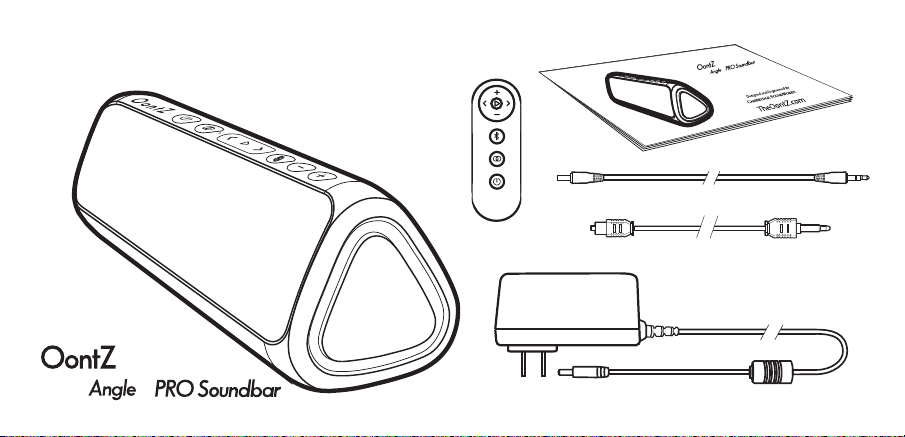
In the Package
User Guide
3.5mm Stereo Audio Cable
User Guide
The Speaker for Television
Incredible Sound, Powerful Volume, Connect
other OontZ Speakers
OontZ App for the OontZ Angle 3 Pro Soundbar
Control the OontZ Angle 3 Pro Soundbar Advanced Features
from your iPhone or Smartphone
3
3
Power Adapter (Dual Voltage)
Digital Audio Optical Cable
Remote Control

Buttons, Lights, and Connectors
Turning On and Off
Connecting with Television Using the Digital Audio Optical Cable
Connecting with a Television Using the 3.5mm Audio Cable
Connecting with Your Device Using Bluetooth
Using the OontZ Remote Control
Connecting OontZ Speakers Together
Dual Mode - Connect Two OontZ Angle 3 Pro Soundbar Speakers Together
Surround Mode - Connect 2, 3, or 4 Supported OontZ Speakers Together
The OontZ App
Contacting Customer Support
Safety and Precautions
Table of Contents
Pages
1 - 3
4
5
6
7 - 9
10 -11
12
13 - 16
17 - 19
20 - 31
32
33 - 35
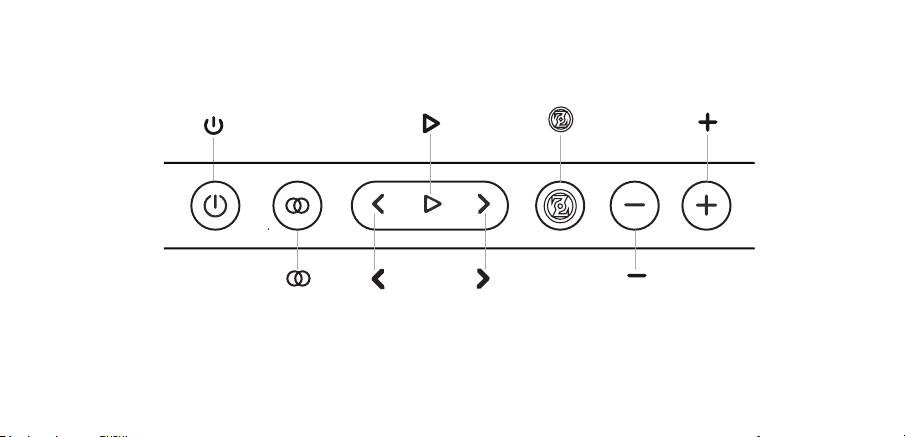
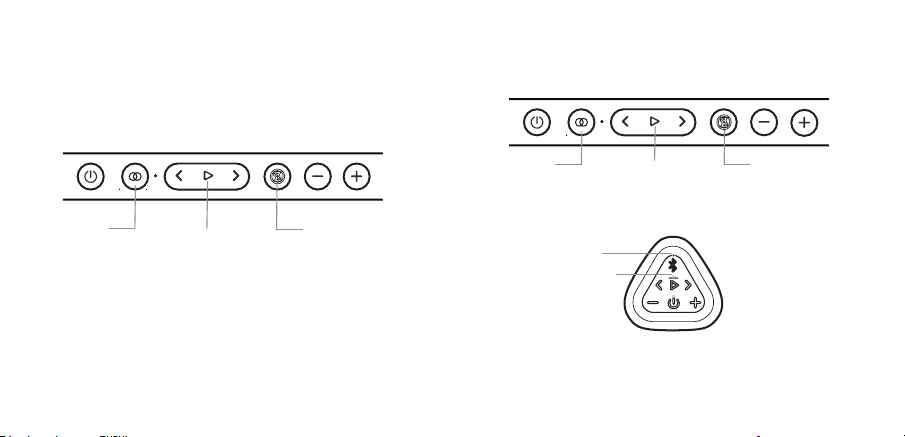
Buttons
Page 1
Important - Some apps may not support track back, track forward, or play/pause
Power
Play/Pause
Multi-Function
Volume Down
Volume Up
Track
Back
Track
Forward
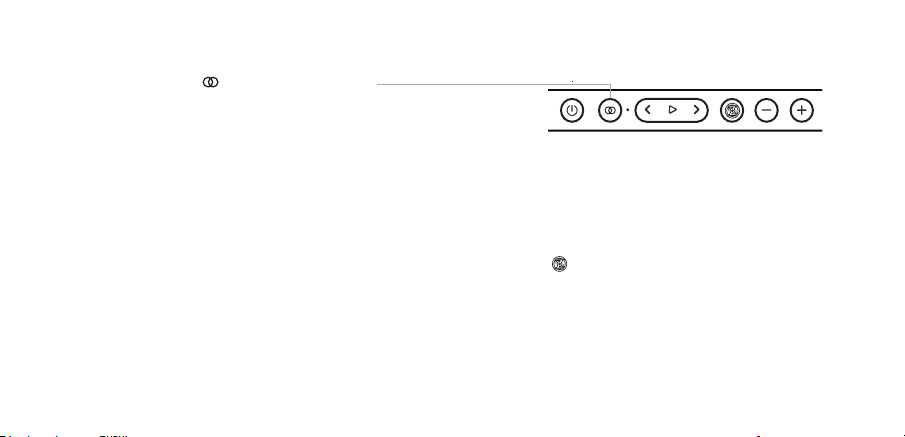
Source
Switch between Aux In,
Optical In and Bluetooth Sources
Switch between
Music and Movie Mode
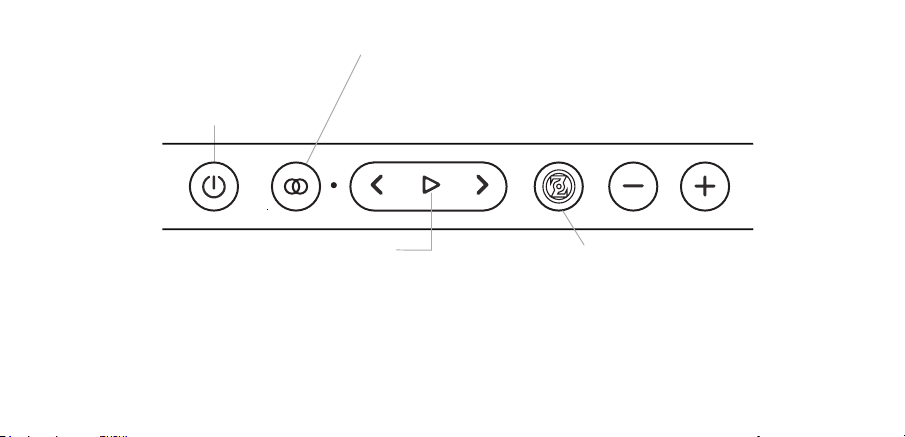
Lights
Page 2
Power Button Light
Lit Red when OontZ Angle 3 Pro
Soundbar is turned off and plugged in
Lit Blue when Bluetooth Source is selected:
- Flashing in Bluetooth pairing mode
- Solid connected to Bluetooth Device
Source Button Light
Lit Green when Aux In is the selected the
audio source
Lit Red when Optical In is the selected the
audio source
Play/Pause Button Light - Two, Three or Four Speakers
Lit White when speakers are in Dual Mode
- With a second OontZ Angle 3 Pro Soundbar (sold separately) you can wirelessly
connect both speakers together to play in Dual Mode .
- For Dual Mode instructions
please see page 13.
Lit Orange when speakers are in Surround Mode
- With 2, 3 or 4 OontZ Angle 3 Pro speakers (sold separately) you can wirelessly
connect the speakers together to play with Surround Mode.
- For Surround Mode instructions please see page 17.
Multi-Function Button
- Lit Blue when connected to OontZ app
on iPhone or Smartphone
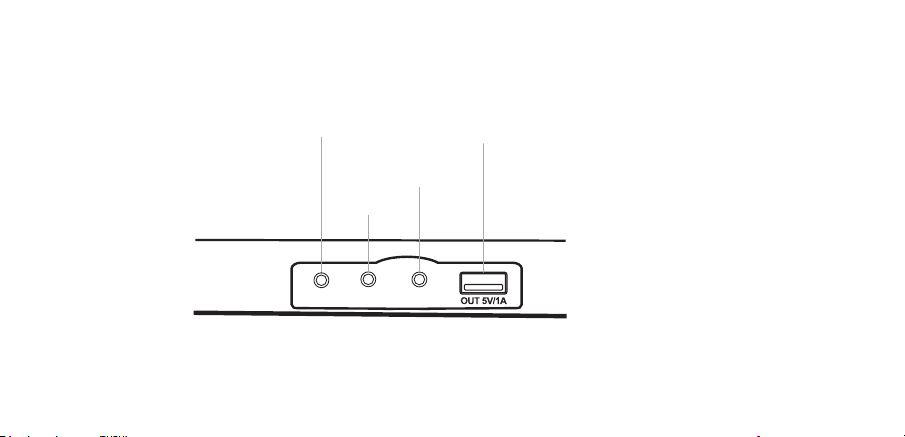
Connectors
AUX IN Jack
Power Adapter
Charging
Connector
Page 3
- Use for keeping your iPhone or
Smartphone charged while playing.
- Use to power your Echo Input.
- Output 5V - 1A
USB Power Bank
OPTICAL INAUX INDC IN 15V
Optical IN
Jack
Page 4
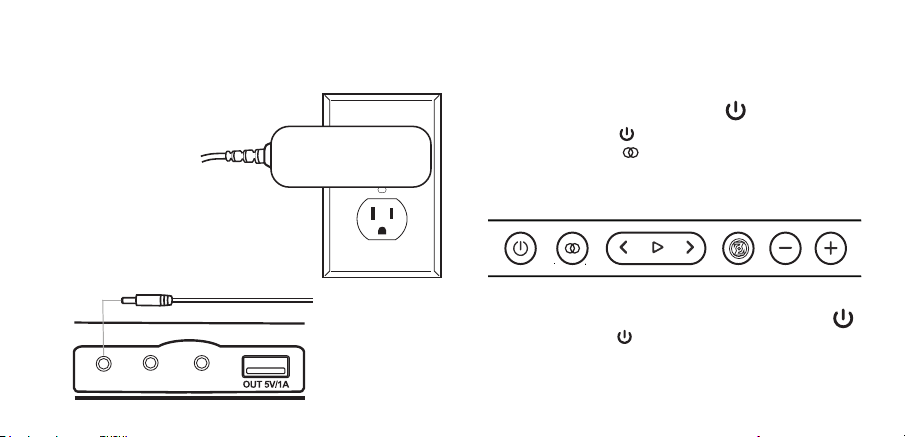
Turning On and Off
- Press and Release the Power Button
- Power Button Light will turn turn off
- Source Button Light will turn Blue, Green or Red
depending on the last setting before the speaker was
turned off
- Press and Hold Down the Power Button for 2 Seconds
- Power Button Light will turn Red
Turn ON
Turn OFF
Step 2: Insert the small end of the
Power Adapter into the DC IN Jack as
shown
Step 1: Connect the wall plug end of
the Power Adapter into a power
outlet.
OPTICAL INAUX INDC IN 15V
Page 5
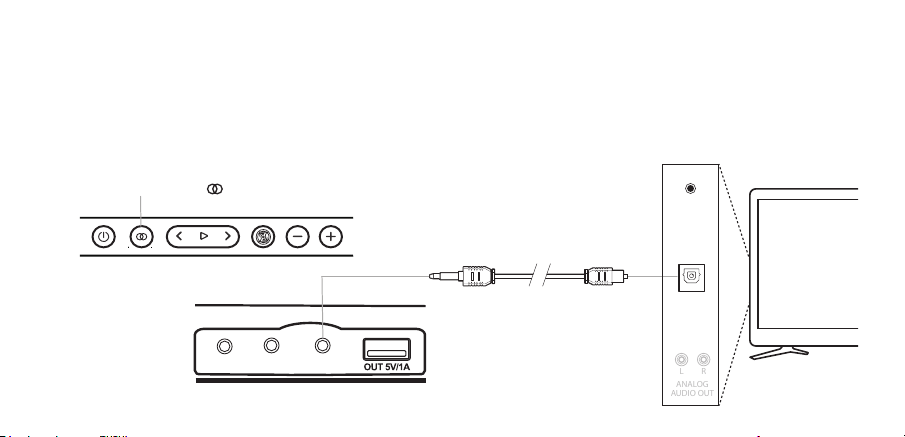
Connecting with a Television Using the Digital Audio Optical Cable
- Plug the longer end of the Digital Audio Optical Cable into the Optical In Connector on the OontZ Angle 3 Pro Soundbar as shown
below.
- Plug the shorter end of the Digital Audio Optical Cable into the Optical - Digital Audio Out on your TV as shown below.
- Make sure both ends of the cable are fully inserted.
- Press the Source Button until the light is lit Red. The speaker will respond with ‘Optical In’
We recommend to connect to your TV using the Digital Audio Optical Out Connector. If the TV does not have a Digital Audio Optical
Out Connector, use the 3.5mm Audio Connection as described on Page 6.
Digital Audio Optical Cable is included
ANALOG
AUDIO OUT
L R
DIGITAL
AUDIO OUT
OPTICAL
AUDIO
OUT
OPTICAL INAUX INDC IN 15V
Page 6
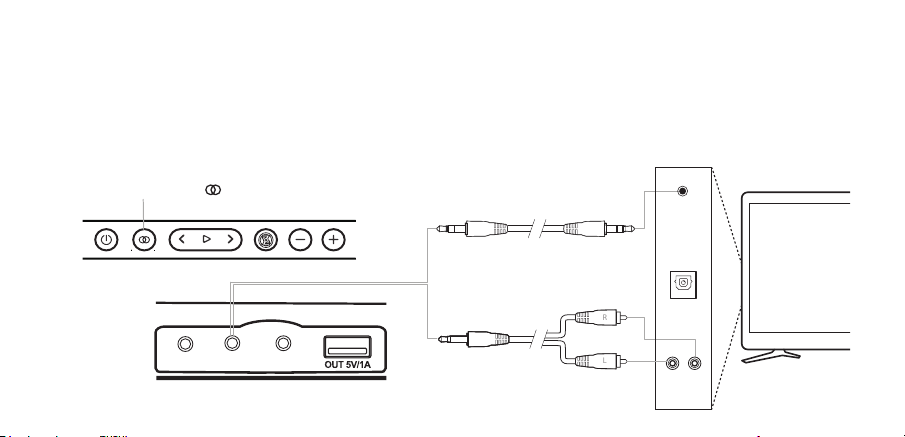
Connecting with a Television Using the 3.5mm Audio Cable
- Plug one end of the 3.5mm Audio Cable into the AUX In Connector on the OontZ Angle 3 Pro Soundbar.
- Plug the other end of that 3.5mm Audio Cable into the Headphone or Audio-Out Connector on your television.
- Make sure both ends of the cable are fully inserted.
-If your TV does not have a Headphone Connector or Audio-Out Connector but does have Left Right Analog Audio Out you will need a
3.5mm to RCA cable as shown below.
- Press the Source Button until the light is lit Green. The speaker will respond with
‘Aux In Source’
ANALOG
AUDIO OUT
L R
3.5mm to 3.5mm Audio Cable (included)
OR
3.5mm to RCA audio cable is not included
AUDIO OUT
HEADPHONE
OUT
- or -
DIGITAL
AUDIO OUT
OPTICAL
L
R
OPTICAL INAUX INDC IN 15V
Press the Source Button until the light is lit Blue
Source Button Light is Flashing Blue
- The OontZ Angle 3 Pro Soundbar is ready to pair and connect.
Source Button Light is Solid Blue
- Your device has connected to the OontZ Angle 3 Pro Soundbar and is ready to play.
- The OontZ Angle 3 Pro Soundbar allows the last device it was connected with to automatically
reconnect with the speaker each time the speaker is turned on and that device is within range.*
The OontZ Angle 3 Pro Soundbar can only be connected to one Bluetooth device at a time.
- To pair and connect to a different device, you need to first disconnect the currently paired device.
- To disconnect the current device, press and hold down the Multi-Function button for 3 seconds.
- The Source Light will b
egin flashing and the OontZ Angle 3 Pro Soundbar is ready for the next device to pair and
connect.
Connecting with Your Device Using Bluetooth -- Step 1 --
Page 7
- Your device needs to be within 100 unobstructed feet of the OontZ Angle 3 Pro Soundbar to pair and connect.
If there is an issue when connecting please move your device closer to the speaker, then pair and connect.
*Exception: certain devices may not automatically reconnect. When connected to an Amazon Echo device it will not automatically
reconnect. You will need to say to your Amazon Echo device, "Alexa, connect my speaker".

Connecting with Your Device Using Bluetooth -- Step 2 --
Page 8
- Go to Settings > Bluetooth, check Bluetooth is on
- Select 'OontZ Angle 3P SB xxx' when it appears under DEVICES (xxx: 3 characters which are unique to your speaker)
- Your device will connect in a few seconds
- The Source Button Light will turn solid blue and there will be a quiet chime
- You can now play your audio wirelessly to your OontZ Angle 3 Pro Soundbar
Note: Your Smartphone or Tablet instructions may vary
-- With Your iPhone, iPad, iPod, Smartphone, Tablet & Mobile Devices
-- With Your Apple Mac or Windows Laptop/Computer
For the pairing and connecting guide for your Apple Mac or Windows laptop/computer, please visit: TheOontZ.com/pairing.
Important - The volume control on your device and the speaker work independently of each other. To play the speaker at the loudest
volume, set the volume on your device to maximum and raise the volume on the speaker to maximum.

Page 9
Connecting with Your Device Using Bluetooth -- Step 2 --
-- With Your Amazon Echo, Amazon Echo Dot or Amazon Echo Input
For assistance with the Alexa app, contact Amazon's Customer Service. Open the Alexa app and select Help & Feedback > Email
Customer Service
- Open the Alexa app
- Select 'Devices' in the lower right corner of the screen.
- Press 'Echo & Alexa'
- Select your Amazon Echo device by pressing it
- Press 'Bluetooth Devices'
- Press 'Pair a New Device'
- Select the 'OontZ Angle 3P SB xxx' (xxx: 3 characters unique to your speaker) when it appears in the list of 'Available
Speakers'
- Alexa will announce: "Connected to OontZ Angle 3P SB xxx"
To connect the next time, turn on the OontZ Angle 3 Pro Soundbar, press the Source Button until the light is Blue and say
"Alexa, connect my speaker" or "Alexa, pair"
To pair and connect with the Amazon Echo, Amazon Echo Dot or Amazon Echo Input for the first time use the Alexa app.
For other Amazon Alexa devices please refer to their pairing and connecting instructions.
Page 10
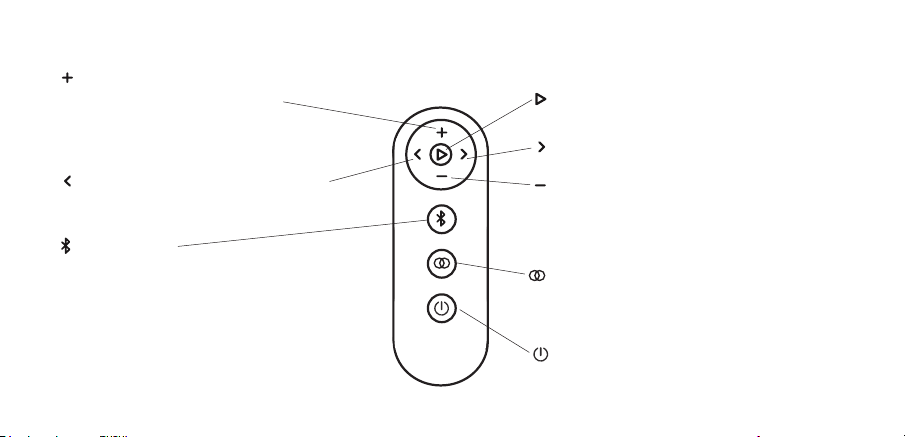
Using the OontZ Remote with the OontZ Angle 3 Pro Soundbar
(The OontZ app can also be used to control the OontZ Angle 3 Pro Soundbar, refer to Page 20)
PULL
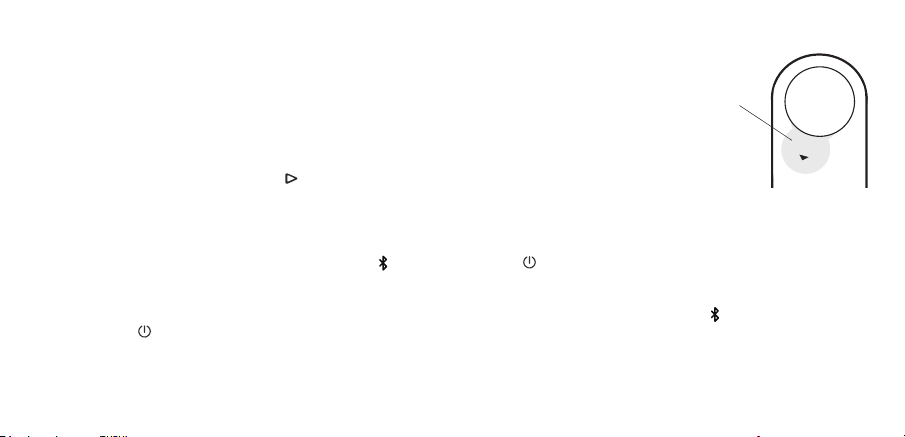
To use the OontZ Remote first remove the insulation strip on the back side of the OontZ Remote as shown.
Once the insulation strip is remove, the OontZ Remote must be paired with the OontZ Angle 3 Pro Soundbar.
– Plug in the OontZ Angle 3 Pro Soundbar (Do not turn on), the Power Light should be lit Red.
– Press and hold the Play/Pause Button for more than two seconds on the OontZ Angle 3 Pro Soundbar.
- The Power Button Light on the OontZ Angle 3 Pro Soundbar will flash indicating the OontZ Angle 3 Pro Soundbar
is ready to pair with the Remote.
- Hold the remote within 3 feet (1 meter) of the OontZ Angle 3 Pro Soundbar.
– At the same time Press and hold the Bluetooth Button and the Power Button on the remote for more than two seconds.
– Once the remote has connected with the OontZ Angle 3 Pro Soundbar the Source Button Light will flash Green 6 times.
Note: To verify if your remote is paired with the OontZ Angle 3 Pro Soundbar press and hold the Bluetooth Button and the
Power Button on the remote for more than two seconds at any time when the OontZ Angle 3 Pro Soundbar is powered on.
The Source Button Light on the OontZ Angle 3 Pro Soundbar will flash 6 times when the remote and the OontZ Angle 3 Pro Soundbar
are paired.
Page 11
Using the OontZ Remote with the OontZ Angle 3 Pro Soundbar
Volume Up
- Press one time to increase the volume of
your OontZ Angle 3 Pro Soundbar one
level.
- Press and hold to increase the volume of
your OontZ Angle 3 Pro Soundbar until the
desired volume is reached.
Source set to Bluetooth - Track Back Function
- Press and release to go to the beginning of the
track or the previous track depending on the
connected device’s media player.
Volume Down
- Press one time to decrease the volume of your
OontZ Angle 3 Pro Soundbar one level.
- Press and hold to decrease the volume of your
OontZ Angle 3 Pro Soundbar until the desired
volume is reached.
Source set to Bluetooth
- Press one time to Pause and again to Play.
Source set to Aux In or Optical In
- Press one time to mute and again to unmute.
Source and Mode
- Press and release to change between Aux In,
Optical In and Bluetooth sources.
- Press and hold to change between Music and
Movie Mode.
Source set to Bluetooth - Track Forward Function
- Press and release to go to the next track.
Power
- Press and hold for 3 seconds to turn on and
off the OontZ Angle 3 Pro Soundbar.
Bluetooth Button
- With the Source set to Bluetooth, Press and release
to enable the OontZ Angle 3 Pro Soundbar to
connect with your Bluetooth enabled device.
- Press and hold for 3 seconds to disconnect your
connected Bluetooth device from the OontZ Angle
Pro 3 Soundbar.
- When already connected to your Bluetooth device
or when Aux In or Optical In sources are selected,
press and release once to enter or exit Surround
Mode.
Page 12
Bluetooth
for playing music
Audio or Optical Cable
for playing the audio from a
video
or
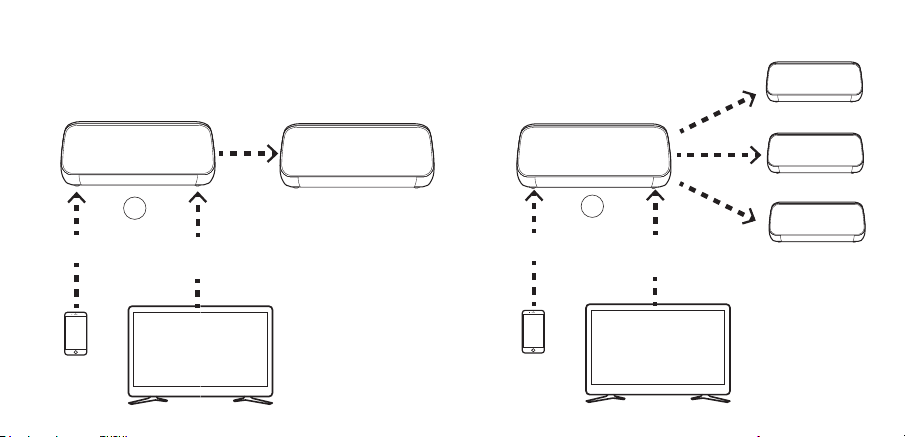
Connecting OontZ Speakers together
Dual Mode (See Page 13)
Surround Mode (See Page 17)
Bluetooth
for playing music
Audio or Optical Cable
for playing the audio from a
video
or
Left Channel
or
Stereo
Right Channel
or
Stereo
Stereo
Stereo
Stereo
Stereo
Connect two OontZ Angle 3 Pro Soundbar speakers
together to play Left Channel - Right Channel or Full
Stereo in separate areas
Connect the OontZ Angle 3 Pro Soundbar
with up to 3 other OontZ Supported
speakers
Page 13
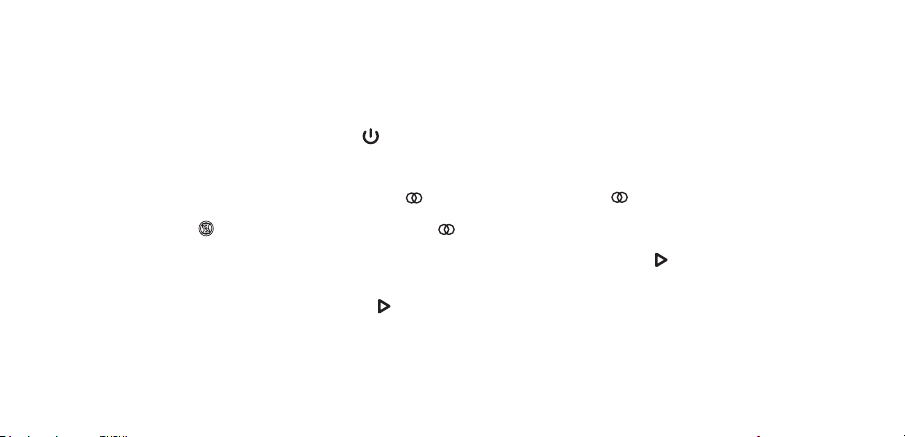
– Turn on both OontZ Angle 3 Pro Soundbar speakers.
– Connect one of the speakers with your device. This speaker will serve as the Host Speaker.
– On the second speaker press and release the Source Button until lit Blue. The Source Button light needs to be flashing. If the
second speaker has a solid Blue Light it is connected to a device and you need to disconnect it by pressing and holding down the
Multi-Function Button for 3 seconds until the Sourece Button light begins flashing.
- On the Host Speaker (speaker connected to your device) press and hold down the Play/Pause button for 3 seconds until the
Play/Pause Button is flashing with a White Light and the speaker says “Dual Pairing”.
- After a few seconds both speakers Play/Pause Button will be lit with a solid White light. The Host speaker will say “Left Channel”
and the second speaker will say “Right Channel”. The speakers will be connected together for Left Channel - Right Channel and you are
ready to play.
Connecting two OontZ Angle 3 Pro Soundbar speakers together for
Left Channel - Right Channel
You can also us the OontZ app to connect two OontZ Angle 3 Pro Soundbar speakers together - See page 20 for instructions on using the
OontZ app
Page 14
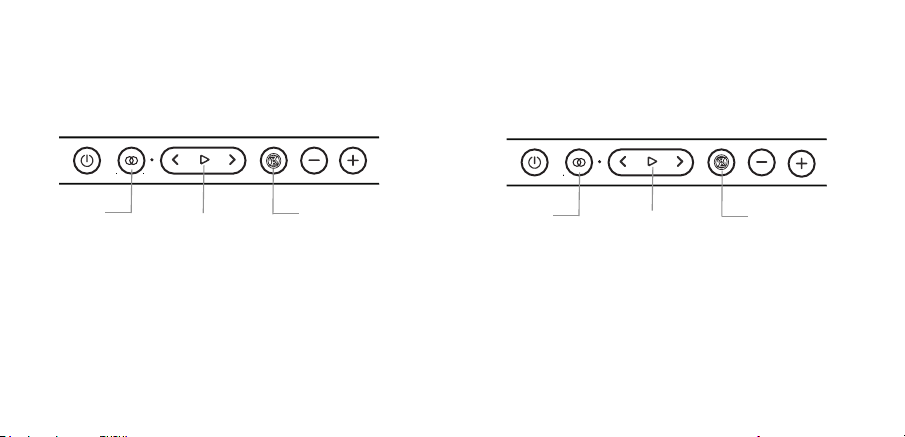
– Use the buttons on the Host Speaker for volume, play/pause, track back, and track forward. These controls are disabled on the
second speaker when paired together.
– Use the Host Speaker for connecting to different audio devices via Bluetooth, Optical IN or AUX IN. The Bluetooth, Optical IN
and AUX IN are disabled on the second speaker when paired together.
Host Speaker
Second Speaker
Two OontZ Angle 3 Pro Speakers connected for Left Channel - Right Channel
Lit Blue if
connected to
the OontZ app
Lit White
Light OFF
Lit White
Left Channel -
Right Channel
Light OFF
Lit Blue,
Green,
or Red
fl
fl
fl
fl

Page 15
Changing to Dual Stereo from Left Channel - Right Channel
Changing back to Left Channel - Right Channel from Dual Stereo
–
To change back to Left Channel - Right Channel, press and hold down the Track Forward button on the Host Speaker for 3
seconds. The Host
Speaker will say “Left Channel” and the second speaker will say “Right Channel”. You are ready to play.
Use Dual Stereo when placing the two speakers in different areas, and both speakers will play in full stereo.
– To set both speakers for Dual Stereo they must first be connected together for Left Channel - Right Channel (see page 13).
– With the speakers connected together for Left Channel - Right Channel, you can change the speakers to Dual Stereo.
–
To change to Dual Stereo, press and hold down the Track Forward button on the Host Speaker for 3 seconds until both speakers
say “Dual Stereo”. You are ready to play.

Page 16
Turning the speakers off
– Turning the Host Speaker off will turn both speakers off.
– Turning the second speaker off first will only turn that speaker off and the Host Speaker will play as a single speaker.
Turning the speakers back on
– Turn both speakers on and they will automatically try to connect to each other again.
– Turn one of the speakers on and a device can connect with it, and play as a single speaker.
Disconnecting the two speakers from each other
– Both speakers need to be turned on.
– On the Host Speaker press and hold down the Play/Pause button for 3 seconds. The White Lights will turn off and the
speakers will be disconnected from each other.
Playing the audio from a video in Dual Mode
–To play the audio from a video or TV in Dual Mode you will need to connect the Host Speaker to your device or TV using a the
3.5mm Stereo Audio Cable or Optical IN Cable, allowing the audio and video to play in sync with each other. If the Host Speaker
is connected over Bluetooth to your device or TV there will be a delay in the audio playback from a video.
OontZ Dual Mode - Important Notes

Page 17
– Turn on one of OontZ Angle 3 Pro Soundbar speaker.
– Connect the speaker to your device with Bluetooth, 3.5mm audio cable or Optical Digital Audio Cable. This speaker will serve as the
Host Speaker.
– Turn on the other supported OontZ speakers. These speakers will be the Guest Speakers.
– The Guest Speakers must not be connected to any device, their Source Button Light must be flashing with a Blue light. If a speaker
has a solid Blue Light it is connected to a device and you need to disconnect it by pressing and holding down the Multi-Function
Button for 3 seconds until the Source Button Light begins flashing with a Blue light.
– On the OontZ Angle 3 Pro Soundbar (Host Speaker) press and release the Multi-Function Button . The Play/Pause Button Light
will turn solid Orange and the speaker will say “Surround Mode Transmit”.
– On the Guest Speakers with a flashing Blue Light, press and release the Multi-Function Button . The Play/Pause Button Light will
flash Orange and the speaker will say “Surround Mode Receive”.
– After a few seconds each speaker will connect with the Host Speaker and will have the Play/Pause Button Light lit with a solid Orange
light.
Surround Mode - Connecting 2, 3 or 4 Supported OontZ speakers to OontZ Angle 3 Pro Soundbar
You can also us the OontZ app to connect the supported OontZ speakers together - See page 20 for instructions on using the OontZ app
Note: The OontZ Angle 3 Pro Soundbar is compatible with the OontZ Angle 3 ULTRA (4th Gen) and OontZ Angle 3
Pro (2nd Gen) speakers. It is NOT compatible with other OontZ Speakers or previous generations of the OontZ
Angle 3 ULTRA or OontZ Angle 3 Pro speakers
Page 18
– Use the buttons on the Host Speaker for volume, play/pause, track back, and track forward. These controls are disabled on
the other speakers when connected together.
– Use the Host Speaker for connecting to different audio devices via Bluetooth, AUX IN or Optical IN. The Bluetooth and AUX IN
are disabled on the other speakers when connected together.
OontZ Angle 3 Pro Soundbar Speakers connected in Surround Mode
OontZ Angle 3 Pro Soundbar
Host Speaker
OontZ Angle 3 Pro (2nd Gen)
Guest Speaker(s)
Lit Blue if
connected the
OontZ App
Lit Orange
Light OFF
Lit Orange
Light OFF
Lit Blue,
Green,
or Red
Light OFF
Light lit solid Orange
OontZ Angle 3 ULTRA (4th Gen)
Guest Speaker(s)

Turning the speakers off
– Turning the Host Speaker off will turn off all the speakers.
– Turning a Guest Speaker off first will only turn that speaker off and the other Guest Speakers will continue to play. The Host Speaker
will play as a single speaker if no other Guest Speakers are connected.
Turning the speakers back on
– Turn all the speakers on and repeat the pairing process - S
ee page 17 for instructions.
– Turn one speaker on and the speaker can be paired and connected with another device. The speaker will play as a single speaker.
Disconnecting the speakers from each other
– To disconnect a single Guest Speaker, press and release the Multi-Function Button on the speaker. All other Guest Speakers will stay
connected to the Host Speaker.
– To disco
nnect all the speakers, turn off the Host Speaker or press and release the Multi-Function Button on the Host Speaker.
The speakers will all be disconnected from the Host Speaker.
– If the Guest Speaker(s) are not turned off and are disconnected by pressing and releasing the Multi-Function Button on the Host
Speaker. The speakers will automatically reconnected when the Host Speaker when Multi-Function Button on the Host
Speaker is pressed and released again. If a Guest Speaker is turned off the Multi-Function Button on the speaker will need to be
pressed and released to enter Surround Mode.
Note: To pair a Guest Speaker with a flashing Orange Light with another device, press and release the Multi-Function Button . The
Source Button Light will begin flashing Blue and the OontZ Angle 3 Pro is ready to pair and connect with the device.
Page 19
Surround Mode - Important Notes

The OontZ app
Control the advanced features of your
OontZ Angle 3 Pro Soundbar from your iPhone or Smartphone running the Android operation
system.
EQ - Adjust the Treble and Bass levels
Volume Control - With a single OontZ Angle 3 Pro speaker remotely control the volume. With two OontZ Angle 3 Pro Soundbar speakers in
Dual Mode sync the volume to control both speakers together or independently control the volume on each speaker.
Dual Mode - Connect, Disconnect and change between Left Channel - Right Channel and Dual Stereo when using two OontZ Angle 3 Pro
Soundbar Speakers.
Audio Source - Change the audio source between Aux In, Optical In and Bluetooth sources.
Surround Mode - Connect, Disconnect and manage 2, 3 or 4 OontZ Angle 3 ULTRA (4th Gen) or OontZ Angle 3 Pro (2nd Gen) Speakers.
Support - View the latest online manual and get OontZ speaker updates
Speakers - Select to allow the OontZ app to control other connected OontZ speakers
Download the OontZ app from the Apple App Store® or Google Play™ Store.
1) Open the Apple App Store
®
or Google Play
™
Store on your iPhone or Smartphone running the Android operating system.
2) Search for the “Oontz” app and install.
3) After the app has been installed the Oontz app will appear on your iPhone or smartphone.
Page 20
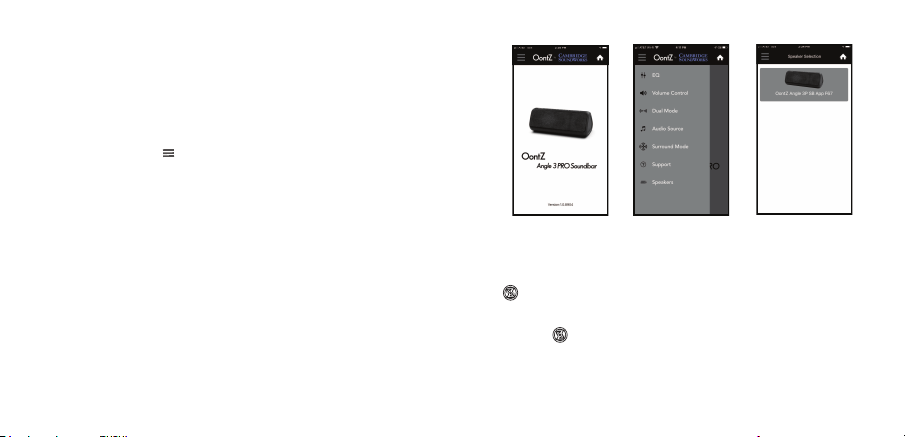
To enable the OontZ app with your OontZ Angle 3 Pro Soundbar
- Turn on your OontZ Angle 3 Pro Souondbar speaker
- Launch the OontZ app and the Home screen will appear
- Select the Menu in the upper left hand corner of the OontZ
app and the Menu screen will appear
- Select ‘Speakers’ from the Menu and the Speaker screen will
appear
OontZ Angle 3 Pro Soundbar icon is Grey
- Press the Grey speaker icon on the app to enable the OontZ app with the OontZ Angle 3 Pro Soundbar.
- The OontZ app will be enabled with
your OontZ Angle 3 Pro Soundbar in a few seconds
- The Grey speaker icon will turn Blue and the Multi-Function Button Light on the OontZ Angle 3 Pro Soundbar will turn Blue.
- The
OontZ app is enabled and ready to use.
If the OontZ Angle 3 Pro Soundbar icon is Blue and Multi-Function Button Light on the OontZ Angle 3 Pro Soundbar is lit Blue.
- The OontZ app is already enabled and ready to use.
The OontZ app
Home screen
Menu screen
Speaker screen
Page 21
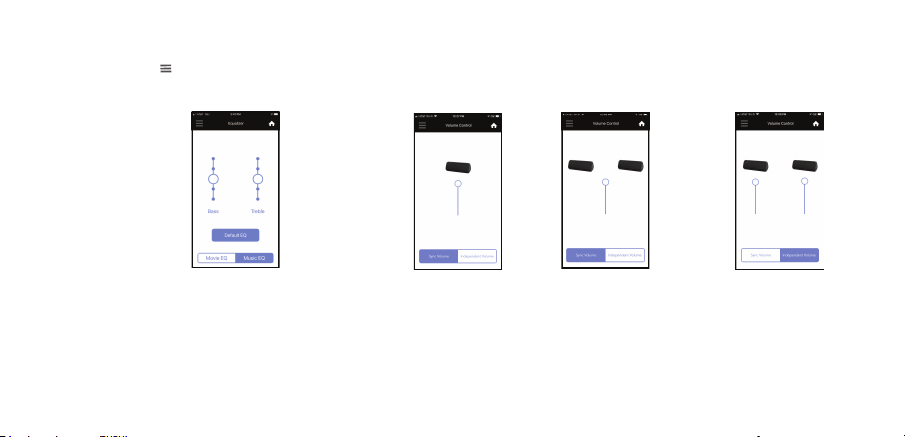
Select the Menu in the upper left hand corner of the app
- Select ‘EQ’ from the menu to access the speaker Equalizer screen or ‘Volume Control’ from the menu to access the Volume
Control screen.
Using the OontZ app for EQ and Volume Control
Select Movie or Music for a preset EQ optimized
for movies or music playback. The sliders can be
used to further adjusts the Bass and Treble.
Works when connected to one or two speakers
and the OontZ app will adjust both speakers to
the same EQ with two speakers connected in
Dual Mode.
Press ‘Sync Volume’ to
control together the
volume of two OontZ
Angle 3 Pro Soundbar
speakers when connected
in Dual Mode.
Press ‘Independent
Volume’ to separately
control the volume of two
OontZ Angle 3 Pro
Soundbar speakers when
connected in Dual Mode.
When using only one OontZ
Angle 3 Pro Soundbar
speaker, the volume control
functions the same for ‘Sync
Volume’ or ‘Independent
Volume’.
EQ screen
Volume
Control
screen
for Two
Speakers
Volume
Control
screen
for One
Speaker
Page 22
The Left slider adjusts
the Bass and the Right
slider adjusts the
Treble. Press ‘Default
EQ’ to set the EQ to the
default setting.

Page 23
Using the OontZ app for Dual Mode
Connect two OontZ Angle 3 Pro Soundbar speakers together - Play your music wirelessly through both speakers up to 100
feet apart.
Refer to Page 13 for more information about Dual Mode
– Turn on one of the OontZ Angle 3 Pro Soundbar speakers.
– Connect the speaker with your device. This speaker will serve as the Host Speaker.
– Enable the OontZ app with the OontZ Angle 3 Pro Soundbar speaker. When the OontZ app is enabled the Multi-Function Button
Light on the OontZ Angle 3 Pro Soundbar will be lit solid Blue.
– Turn on the second OontZ Angle 3 Pro Soundbar speaker.
– On the second speaker press and release the Source Button until lit Blue. The Source Button light needs to be flashing. If the
second speaker has a solid Blue Light it is connected to a device and you need to disconnect it by pressing and holding down the
Multi-Function Button for 3 seconds until the Source Button light begins flashing.
- Refer to the next page for connecting the two OontZ Angle 3 Pro Soundbar speakers together with the OontZ app.
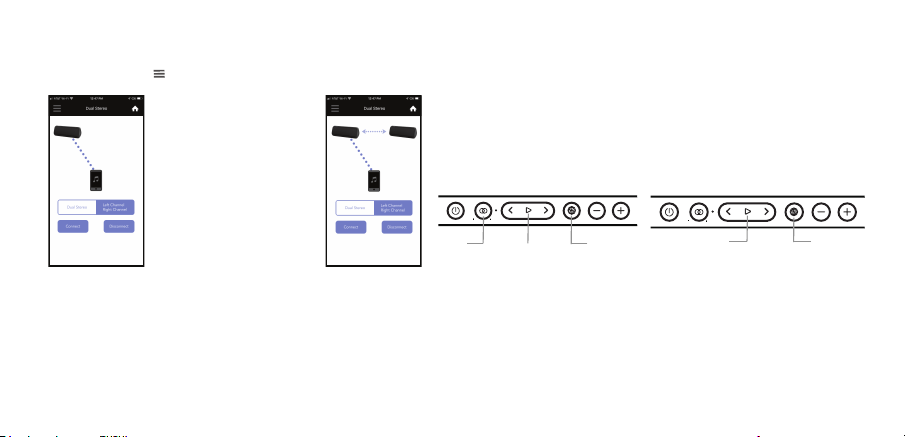
Page 24
Press ‘Connect’ to connect
two OontZ Angle 3 Pro
Soundbar speakers in Dual
Mode.
Select the Menu in the upper left hand corner of the app and select ‘Dual Mode’ from the menu.
Disconnecting and Reconnecting the OontZ Angle 3 Pro Soundbar speakers.
– Press ‘Disconnect’ to disconnect the two OontZ Angle 3 Pro Soundbar connected speakers.
– The Play/Pause Button White Light on the second speaker will turn off and the speakers will be disconnected from each other.
– To reconnect press ‘Connect’ with both OontZ Angle 3 Pro Soundbar speakers turn on.
Playing the audio from a video in Dual Mode
– To play the audio from a video or TV in Dual Mode you will need to connect the Host Speaker to your device or TV using a the
3.5mm Stereo Audio Cable or Optical Digital Cable, allowing the audio and video to play in sync with each other. If the Host
Speaker is connected over Bluetooth to your device or TV there will be a delay in the audio playback from a video.
After a few seconds the second speaker Play/Pause Button Light will be
lit solid White. The Host Speaker will say “Left Channel” and the second
speaker will say “Right Channel”. The speakers are connected together for
Left Channel - Right Channel and you are ready to play.
Second Speaker
Right Channel
Blue Light off
Lit White
Using the OontZ app for Dual Mode
Host Speaker
Left Channel
Lit Blue if
connected to
the OontZ App
Lit White
Lit Blue,
Green,
or Red
Page 25
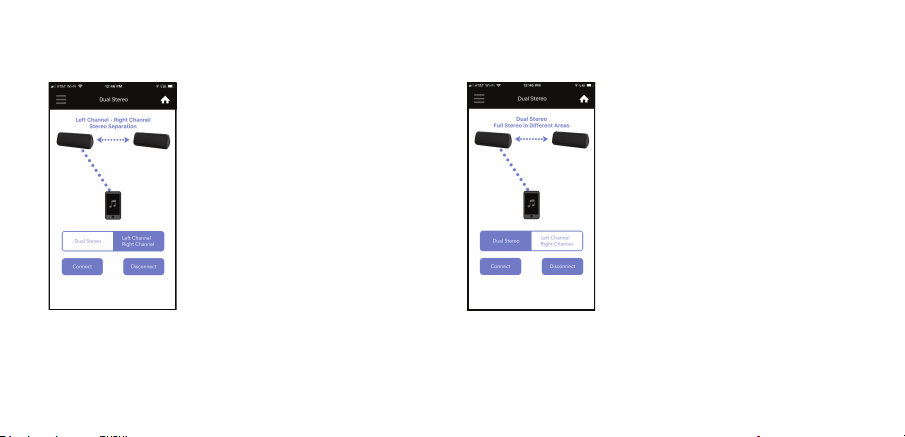
Use Dual Mode when placing the two
speakers in different areas, and both
speakers will play in full stereo.
– With the speakers connected together for
Left Channel - Right Channel, you can
change the speakers to Dual Stereo.
–
To change to Dual Stereo, press ‘Dual
Stereo’.
–
Both speakers will say “Dual Stereo” and
you are ready to play.
Using the OontZ app for Dual Mode
Use Left Channel - Right Channel for
incredible left and right stereo seperation.
– With the speakers connected together for
Dual Stereo, you can change the speakers
to Left Channel - Right Channel.
–
To change to Left Channel - Right Channel,
press ‘Left Channel Right Channel’.
– The Host Speaker
will say “Left Channel”
and the second speaker will say “Right
Channel” and you are ready to play.
Page 26
Using the OontZ app for Audio Source selection
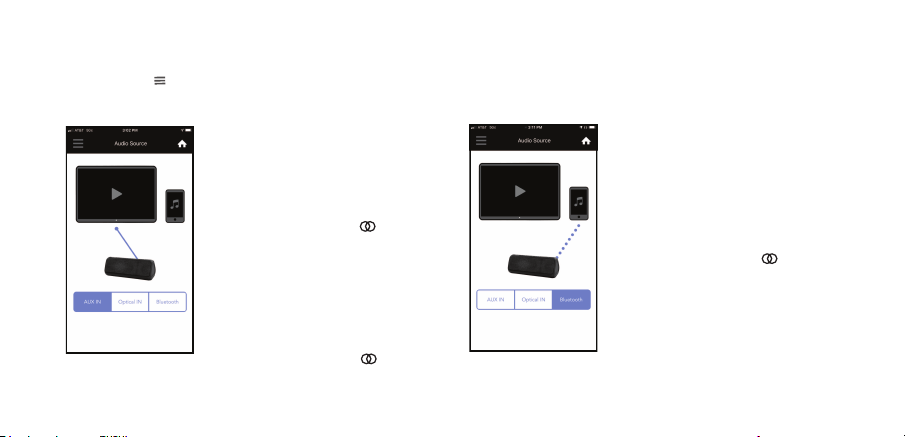
Select the Menu in the upper left hand corner of the app and select ‘Audio Source’ from the menu.
Press “Aux In” to change the audio
source for the OontZ Angle 3 Pro
Soundbar to play from the device
connected to the OontZ Angle 3 Pro
Soundbar Aux In Jack.
The Source Button Light on the
OontZ Angle 3 Pro Soundbar will be lit
solid Green.
Press “Optical IN” to change the source
to play from the device connected to
the Optical In Jack.
The Source Button Light will be lit
solid Red.
Press “Bluetooth” to change the audio
source to Bluetooth. The last device
connected to the OontZ Angle 3 Pro
Souundbar will automatically reconnect
if that device is turned on and within
range.
The Source Button Light will flash
Blue until reconnected to your device.
After connected the Source Button
Light wil be lit solid Blue.

Page 27
– Turn the OontZ Angle 3 Pro Soundbar speaker.
– Connect the OontZ Angle 3 Pro Soundbar speaker to your device. This speaker will serve as the Host Speaker.
– Turn on the other supported OontZ speakers. These speakers will be the Guest Speakers.
Note: Only OontZ Angle 3 Pro Soundbar, OontZ Angle 3 ULTRA (4th Gen) and OontZ Angle 3 Pro (2nd Gen) speakers are supported. Other
OontZ speakers and previous generations of the OontZ Angle 3 ULTRA and OontZ Angle 3 Pro are NOT supported.
Connecting a 2nd, 3rd or 4th OontZ Angle 3 Pro Soundbar as Guest Speakers
– The OontZ Angle 3 Pro Soundbar Guest speakers must not be connected to any device, their Source Button Light must be flashing Blue. If
a speaker has a solid Blue Light it is connected to a device and you need to disconnect it by pressing and holding down the Mulit-Function
Button for 3 seconds until the Source Button Light begins flashing Blue.
Connecting a 2nd, 3rd or 4th OontZ Angle 3 ULTRA (4th Gen) and OontZ Angle 3 Pro (2nd Gen) as Guest Speakers
– The Guest speakers must not be connected to any device, their Bluetooth Light must be flashing Blue. If a speaker has a solid Blue Light it is
connected to a device and you need to disconnect it by pressing and holding down the Bluetooth Button for 3 seconds until the Bluetooth
Light begins flashing Blue.
Using the OontZ app for Surround Mode
Connecting 2, 3 or 4 supported OontZspeakers together
Page 28
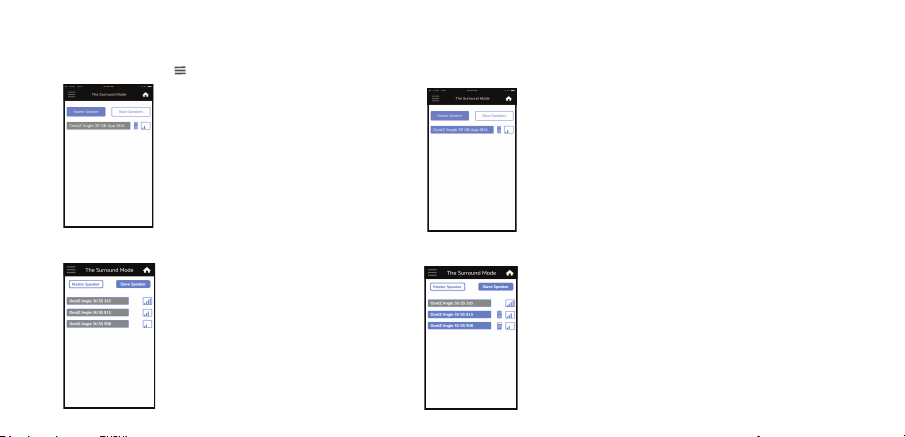
Select the Menu in the upper left hand corner of the app and select ‘Surround Mode’ from the menu.
The ‘Host Speaker’ menu will be
displayed and the speaker connected to
your iPhone or Smartphone will be
displayed.
The first time entering Surround Mode the
speaker connected with your device will
automatically be selected and the box will
turn from Grey to Blue.
Using the OontZ app for Surround Mode
The selected speaker boxes will turn from Grey
to Blue.
The Light on the selected speakers will flash
Orange.
After a few seconds each speaker will connect with
the Host Speaker. The Light on each speaker will
be lit a solid Orange
and the speaker will
announce “Surround Mode Receive”.
The Play/Pause Button Light on the Host
Speaker will turn solid Orange and the speaker will
announce “Surround Mode Transmit”. This
speaker will serve as the Host Speaker.
If the Host Speaker has exited Surround Mode.
Surround Mode can be enabled again by selecting
the Grey box of the Host Speaker. The box will
turn from Grey to Blue.
Press the ‘Guest Speaker’ Button.
The other supported OontZ speakers
that are turned on and within range
will be displayed.
Select the Grey boxes in the list of
displayed speakers that you want to
connect with the Host Speaker in
Surround Mode.
Selecting the Guest Speaker(s)
Page 29
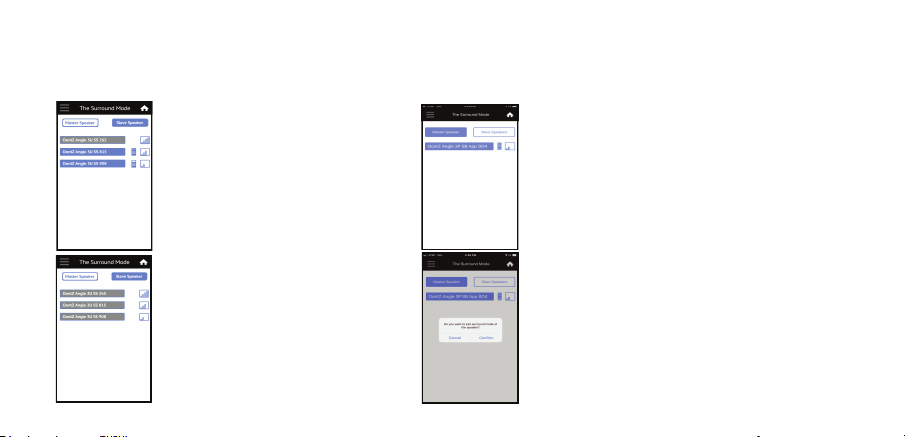
Using the OontZ app for Surround Mode
Disconnecting and reconnecting the supported OontZ speakers in Surround Mode
To disconnect a Guest speaker in
Surround Mode, press the ‘Guest
Speaker’ Button.
Select a desired speaker from the list of
displayed speakers.
Confirm you want the speaker to exit
Surround Mode.
The box will turn from Blue to Grey, the
speaker will disconnect from the Host
Speaker and the speaker will exit
Surround Mode.
If the Host Speaker is still in Surround
Mode, to reconnect a Guest Speaker just
select the Grey box. The Grey box will
turn Blue. The speaker will enter
Surround Mode and connect with the
Host Speaker.
To disconnect all speakers in Surround Mode, press
the ‘Host Speaker’ Button.
Select the Blue box displayed for the Host Speaker.
Confirm you want to the Host Speaker to exit
Surround Mode.
The box will turn from Blue to Grey, all speakers will
disconnect from the Host Speaker and the Host
Speaker will exit Surround Mode.
Guest Speaker(s) have not been turned off after being
disconnected and are in Surround Mode, the speakers
will automatically reconnect when the Host Speaker
is enabled for Surround Mode.
Guest Speaker(s) have been turned off and back on. The
speakers will need to be reconnected. To reconnect
using the OontZ app refer to the instructions on Page
27 and 28.
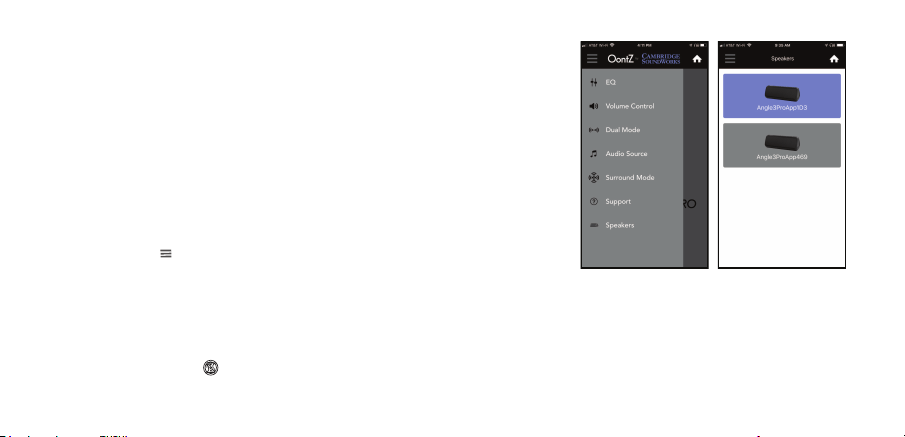
The OontZ app allows you to control different supported OontZ speakers.
The OontZ app currently supports the following OontZ speaker models:
- OontZ Angle 3 Pro (1st and 2nd Gen)
- OontZ Angle 3 ULTRA (4th Gen)
- OontZ Angle 3 Pro Soundbar
- OontZ Bluetooth Adapter (2nd Gen)
- OontZ Angle 3 Shower with Alexa (OontZ app support only for Alexa function)
For the latest list of supported OontZ speakers please visit
TheOontZ.com/OontZapp
To utilize the OontZ app with a different supported OontZ speaker.
- Select the Menu in the upper left hand corner of the OontZ app and select
‘Speakers’ from the menu
- Select the desired speaker from the available list of OontZ speakers
- Speaker icon is Blue - the OontZ app is already enabled with this speaker
- Speaker icon is Grey - press and the OontZ app will be enabled with this
speaker.
The Source Button Light on the OontZ Angle 3 Pro Soundbar will be lit solid Blue
to indicate the OontZ app is enabled with this speaker.
Using the OontZ app for Speaker selection
Menu screen
Speaker screen
Page 30
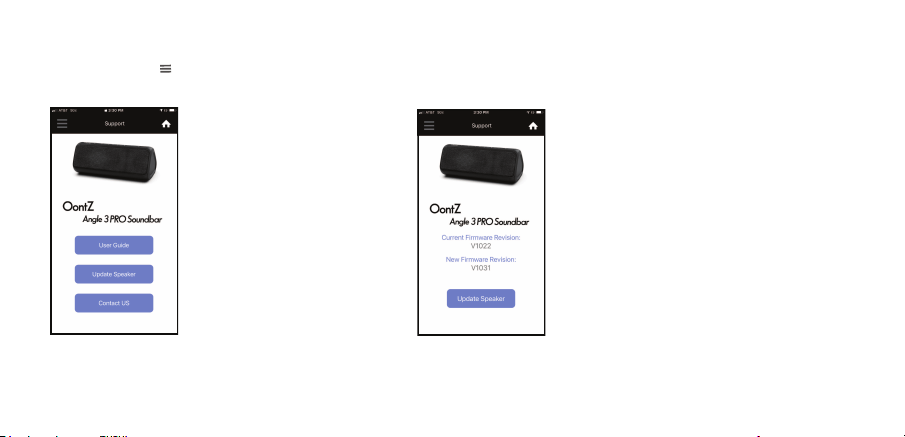
Using the OontZ app for Support
Select the Menu in the upper left hand corner of the app and select ‘Support’ from the menu to access the Support
screen.
Press ‘User Guide’ to display the
latest version of the online user
guide and FAQ for the OontZ
Angle 3 Pro Soundbar.
Press ‘Update Speaker’ to
check the version of the
current firmware version on
the OontZ Angle 3 Pro
Soundbar and whether there
is a new version available.
The firmware version of the OontZ Angle 3 Pro
Soundbar is shown under ‘Current Firmware
Version’.
If there is a new version of firmware it will be
displayed under ‘New Firmware Version’ along with
the version number of the update.
To update the OontZ Angle 3 Pro Soundbar to the
‘New Firmware Version’ press ‘Update Speaker’ and
follow the instructions in the OontZ
app.
Note: The update may take up to 30 minutes. Make
sure the iPhone or Smartphone is not interrupted by
a phone call during the update of the OontZ Angle 3
Pro Soundbar.
Press ‘Contact Us’ to display
the customer support form.
Fill in the information in the
displayed form to email to our
OontZ support team.
Page 31

For online troubleshooting tips please visit:
TheOontZ.com/troubleshooting
and select the OontZ Angle 3 Pro Soundbar
For latest version of this manual please visit:
TheOontZ.com/pages/manuals
and select the OontZ Angle 3 Pro Soundbar
Contact us at:
TheOontZ.com/support
and fill in our customer support form
If you have a question about your OontZ Angle 3 Pro Soundbar or experience an issue with the speaker,
our Customer Support Team wants to assist you.
Customer Support
Page 32

Page 33
Safety and Precautions
When the OontZ Angle 3 Pro Soundbar speaker is plugged in to power, never use the speaker in the shower, bath, or near
water, to prevent risk of electric shock.
Read and follow all instructions – All operating and use instructions should be followed.
Protect the Power Adapter Cable from being pinched, particularly at the connectors.
Unplug the Power Adapter during lightning storms or when unused for long periods of time.
Do not place speaker near any heat sources such as radiators, heat registers, stoves, or other apparatus (including amplifiers)
that produce heat.
Refer all servicing to qualified personnel. Servicing is required when the speaker has been damaged in any way.
Do not make alterations to this speaker.
Use this speaker only with the included power adapter which meets local regulatory requirements (e.g., UL, CSA, VDE, CCC).
Do not place near naked flame sources, such as lighted candles, on or near the speaker.
Do not expose this speaker to excessive heat
(e.g. from storage in direct sunlight, fire or the like)
1.
2.
3.
4.
5.
6.
7.
8.
9.
10.

Safety and Precautions (continued)
Page 34
Apple, iPhone, iPad, iPod, Mac and Siri are registered trademarks of Apple Inc.
Amazon, Amazon Echo Input, Amazon Echo and Amazon Echo Dot are registered trademarks of Amazon.com, Inc.
Windows is a registered trademark of Microsoft Corporation
Bluetooth is a registered trademark of Bluetooth SIG, Inc
UL is a registered trademark of UL.
This device complies with Part 15 of the FCC Rules. Operation is subject to the following two conditions:
(1) This device may not cause harmful interference, and (2) this device must accept any interference received, including interference
that may cause undesired operation.
NOTE 1: This equipment has been tested and found to comply with the limits for a Class B digital device, pursuant to part 15 of the
FCC Rules. These limits are designed to provide reasonable protection against harmful interference in a residential installation. This
equipment generates, uses and can radiate radio frequency energy and, if not installed and used in accordance with the
instructions, may cause harmful interference to radio communications. However, there is no guarantee that interference will not
occur in a particular installation. If this equipment does cause harmful interference to radio or television reception, which can be
determined by turning the equipment off and on, the user is encouraged to try to correct the interference by one or more of the
following measures:
- Reorient or relocate the receiving antenna.
- Increase the separation between the equipment and receiver.
- Connect the equipment into an outlet on a circuit different from that to which the receiver is connected.
- Consult the dealer or an experienced radio/TV technician for help.
NOTE 2: Any changes or modifications to this unit not expressly approved by the party responsible for compliance could void the
user's authority to operate the equipment.
FCC ID: 2AGA6-OONTZRC
FCC ID: 2AGA6-OZSBAR

User Manual V1.1
Safety and Precautions (continued)
Warning!Do not ingest battery, Chemical Burn Hazard.
The remote control supplied with this product contains a coin / button cell battery. If the coin / button cell battery is
swallowed, it can cause severe internal burns in just 2 hours and can lead to death.
Keep new and used batteries away from children.
If the battery compartment does not close securely, stop using the product and keep it away from children.
If you think batteries might have been swallowed or placed inside any part of the body, seek immediate medical attention.
Page 35