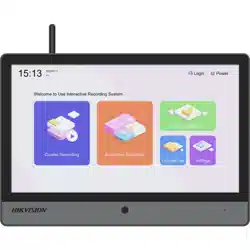

Education Sharing System
User Manual

Education Sharing System User Manual
1
TABLE OF CONTENTS
Chapter 1 Introduction and Installation ............................................................................................. 11
Indecator Description ........................................................................................................... 11
Device Installation ................................................................................................................ 11
Wall-Mounted Installation .......................................................................................... 11
Standing Installation ................................................................................................... 12
Chapter 2 Start-up ............................................................................................................................. 13
Startup and Shutdown .......................................................................................................... 13
Startup ....................................................................................................................... 13
Shutdown................................................................................................................... 13
Network Connection ............................................................................................................. 13
Chapter 3 Local Operation (Mainly Used for Teacher) ........................................................................ 15
Basic Operation .................................................................................................................... 15
Activate Your Device ................................................................................................... 15
Log In to Your Device .................................................................................................. 15
Configure Network Parameters ................................................................................... 16
Live View .............................................................................................................................. 16
Interactive Education ............................................................................................................ 17
Point-to-Point (P-to-P) Video Meeting ......................................................................... 17
Multi-Classroom Interaction (Cloud Interaction) ........................................................ 18
Play Back Course Videos ........................................................................................................ 21
Download Course Files .......................................................................................................... 21
System Settings..................................................................................................................... 22
Configure Audio ......................................................................................................... 22
Configure Auto Screen Off Time .................................................................................. 22
Configure LCD Screen Brightness ................................................................................. 22
Configure Recording Parameters ................................................................................. 23
Configure Time ........................................................................................................... 23
Configure Auto Logout Time ....................................................................................... 23
Configure Password Protection ................................................................................... 23
View Device Info ......................................................................................................... 24
Chapter 4 Web Operation (Mainly Used for Technical Support) ......................................................... 25
Basic Operation .................................................................................................................... 25
Activate Your Device ................................................................................................... 25
Configure Network Parameters ................................................................................... 25
Use Wizard to Set System Main Parameters................................................................. 26
Education Specified Camera Connection ................................................................................ 28
SADP Search ............................................................................................................... 28
Connect Network Camera via PoE Interface ................................................................. 28
Connect via Network .................................................................................................. 29
Live View .............................................................................................................................. 31
Configure Live View Image .......................................................................................... 31

Education Sharing System User Manual
2
PTZ Control ................................................................................................................ 34
HDD Management ................................................................................................................ 37
Format Hard Disk ........................................................................................................ 37
Manage Network Hard Disk ........................................................................................ 37
Set Cloud Storage ....................................................................................................... 38
Record Schedule Settings ............................................................................................ 38
Advanced Settings ...................................................................................................... 39
Recording Settings ................................................................................................................ 40
Manage Background Picture ....................................................................................... 40
Courseware Detection ................................................................................................ 41
Course Publishing ....................................................................................................... 46
Video Head/Tail Configuration .................................................................................... 49
Logo Configuration ..................................................................................................... 50
Multi-Classroom Interaction (Clould Interaction).................................................................... 52
Interaction Settings .................................................................................................... 52
Join/Initiate Interaction .............................................................................................. 58
Point-to-Point Video Meeting ................................................................................................ 62
Course Playback and Download ............................................................................................. 63
Play Back Course Videos ............................................................................................. 63
Download Courses via Web Browser ........................................................................... 64
Smart Settings ...................................................................................................................... 66
Configure Analysis Mode ............................................................................................ 66
Class Statistics Data .................................................................................................... 66
Network Settings ................................................................................................................ 67
PPPoE Settings .......................................................................................................... 67
DDNS Settings .......................................................................................................... 68
Email Settings ........................................................................................................... 70
NAT Settings ............................................................................................................. 72
HTTPS Settings ......................................................................................................... 74
SSH Settings ............................................................................................................. 75
Alarm Settings .................................................................................................................... 76
User Management .............................................................................................................. 77
Add a User ............................................................................................................... 77
Modify a User ........................................................................................................... 78
Delete a User ............................................................................................................ 79
Maintenance ...................................................................................................................... 80
Reboot the Device .................................................................................................... 80
Default Settings ........................................................................................................ 80
Export/Import Configuration File............................................................................... 80
Import/Export IP Camera Configuration File .............................................................. 81
Remote Upgrade ...................................................................................................... 81
Other Settings ..................................................................................................................... 82
Video Settings .......................................................................................................... 82

Education Sharing System User Manual
3
Display Settings ........................................................................................................ 83
DST Settings ............................................................................................................. 87
Chapter 5 Appendix ........................................................................................................................... 87
SADP Software Introduction .................................................................................................. 87
Glossary ............................................................................................................................... 89

Education Sharing System User Manual
4
Legal Information
About this Document
● This Document includes instructions for using and managing the Product. Pictures, charts, images and all other information
hereinafter are for description and explanation only.
● The information contained in the Document is subject to change, without notice, due to firmware updates or other reasons.
Please find the latest version of the Document at the Hikvision website (https://www.hikvision.com). Unless otherwise agreed,
Hangzhou Hikvision Digital Technology Co., Ltd. or its affiliates (hereinafter referred to as "Hikvision") makes no warranties,
express or implied.
● Please use the Document with the guidance and assistance of professionals trained in supporting the Product.
About this Product
● This product can only enjoy the after-sales service support in the country or region where the purchase is made.
● If the product you choose is a video product, please scan the following QR code to obtain the "Initiatives on the Use of Video
Products", and read it carefully.
Acknowledgment of Intellectual Property Rights
● Hikvision owns the copyrights and/or patents related to the technology embodied in the Products described in this Document,
which may include licenses obtained from third parties.
● Any part of the Document, including text, pictures, graphics, etc., belongs to Hikvision. No part of this Document may be
excerpted, copied, translated, or modified in whole or in part by any means without written permission.
● and other Hikvision’s trademarks and logos are the properties of Hikvision in various jurisdictions.
● Other trademarks and logos mentioned are the properties of their respective owners.
● The terms HDMI and HDMI High-Definition Multimedia Interface, and the HDMI Logo are trademarks or registered
trademarks of HDMI Licensing Administrator, Inc. in the United States and other countries.
LEGAL DISCLAIMER
● TO THE MAXIMUM EXTENT PERMITTED BY APPLICABLE LAW, THIS DOCUMENT AND THE PRODUCT DESCRIBED, WITH ITS
HARDWARE, SOFTWARE AND FIRMWARE, ARE PROVIDED "AS IS" AND "WITH ALL FAULTS AND ERRORS". HIKVISION MAKES NO
WARRANTIES, EXPRESS OR IMPLIED, INCLUDING WITHOUT LIMITATION, MERCHANTABILITY, SATISFACTORY QUALITY, OR
FITNESS FOR A PARTICULAR PURPOSE. THE USE OF THE PRODUCT BY YOU IS AT YOUR OWN RISK. IN NO EVENT WILL HIKVISION
BE LIABLE TO YOU FOR ANY SPECIAL, CONSEQUENTIAL, INCIDENTAL, OR INDIRECT DAMAGES, INCLUDING, AMONG OTHERS,

Education Sharing System User Manual
5
DAMAGES FOR LOSS OF BUSINESS PROFITS, BUSINESS INTERRUPTION, OR LOSS OF DATA, CORRUPTION OF SYSTEMS, OR LOSS
OF DOCUMENTATION, WHETHER BASED ON BREACH OF CONTRACT, TORT (INCLUDING NEGLIGENCE), PRODUCT LIABILITY, OR
OTHERWISE, IN CONNECTION WITH THE USE OF THE PRODUCT, EVEN IF HIKVISION HAS BEEN ADVISED OF THE POSSIBILITY OF
SUCH DAMAGES OR LOSS.
● YOU ACKNOWLEDGE THAT THE NATURE OF THE INTERNET PROVIDES FOR INHERENT SECURITY RISKS, AND HIKVISION SHALL
NOT TAKE ANY RESPONSIBILITIES FOR ABNORMAL OPERATION, PRIVACY LEAKAGE OR OTHER DAMAGES RESULTING FROM
CYBER-ATTACK, HACKER ATTACK, VIRUS INFECTION, OR OTHER INTERNET SECURITY RISKS; HOWEVER, HIKVISION WILL PROVIDE
TIMELY TECHNICAL SUPPORT IF REQUIRED.
● YOU AGREE TO USE THIS PRODUCT IN COMPLIANCE WITH ALL APPLICABLE LAWS, AND YOU ARE SOLELY RESPONSIBLE FOR
ENSURING THAT YOUR USE CONFORMS TO THE APPLICABLE LAW. ESPECIALLY, YOU ARE RESPONSIBLE, FOR USING THIS
PRODUCT IN A MANNER THAT DOES NOT INFRINGE ON THE RIGHTS OF THIRD PARTIES, INCLUDING WITHOUT LIMITATION,
RIGHTS OF PUBLICITY, INTELLECTUAL PROPERTY RIGHTS, OR DATA PROTECTION AND OTHER PRIVACY RIGHTS. YOU SHALL NOT
USE THIS PRODUCT FOR ANY PROHIBITED END-USES, INCLUDING THE DEVELOPMENT OR PRODUCTION OF WEAPONS OF MASS
DESTRUCTION, THE DEVELOPMENT OR PRODUCTION OF CHEMICAL OR BIOLOGICAL WEAPONS, ANY ACTIVITIES IN THE
CONTEXT RELATED TO ANY NUCLEAR EXPLOSIVE OR UNSAFE NUCLEAR FUEL-CYCLE, OR IN SUPPORT OF HUMAN RIGHTS
ABUSES.
● IN THE EVENT OF ANY CONFLICTS BETWEEN THIS DOCUMENT AND THE APPLICABLE LAW, THE LATTER PREVAILS.
© Hangzhou Hikvision Digital Technology Co., Ltd. All rights reserved.

Education Sharing System User Manual
6
Regulatory Information
FCC Information
Please take attention that changes or modification not expressly approved by the party responsible for compliance could void the
user's authority to operate the equipment.
FCC compliance: This equipment has been tested and found to comply with the limits for a Class A digital device, pursuant to part 15
of the FCC Rules. These limits are designed to provide reasonable protection against harmful interference in a residential installation.
This equipment generates, uses and can radiate radio frequency energy and, if not installed and used in accordance with the
instructions, may cause harmful interference to radio communications. However, there is no guarantee that interference will not
occur in a particular installation. If this equipment does cause harmful interference to radio or television reception, which can be
determined by turning the equipment off and on, the user is encouraged to try to correct the interference by one or more of t he
following measures:
● Reorient or relocate the receiving antenna.
● Increase the separation between the equipment and receiver.
● Connect the equipment into an outlet on a circuit different from that to which the receiver is connected.
● Consult the dealer or an experienced radio/TV technician for help.
FCC Conditions
This device complies with part 15 of the FCC Rules. Operation is subject to the following two conditions:
● This device may not cause harmful interference.
● This device must accept any interference received, including interference that may cause undesired operation.
EU Conformity Statement
This product and - if applicable - the supplied accessories too are marked with "CE" and comply
therefore with the applicable harmonized European standards listed under the EMC Directive
2014/30/EU, LVD Directive 2014/35/EU, the RoHS Directive 2011/65/EU.
2012/19/EU (WEEE directive): Products marked with this symbol cannot be disposed of as unsorted
municipal waste in the European Union. For proper recycling, return this product to your local
supplier upon the purchase of equivalent new equipment, or dispose of it at designated collection
points. For more information see: http://www.recyclethis.info.
2006/66/EC (battery directive): This product contains a battery that cannot be disposed of as
unsorted municipal waste in the European Union. See the product documentation for specific
battery information. The battery is marked with this symbol, which may include lettering to indicate
cadmium (Cd), lead (Pb), or mercury (Hg). For proper recycling, return the battery to your supplier
or to a designated collection point. For more information see: http://www.recyclethis.info.

Education Sharing System User Manual
7
Industry Canada ICES-003 Compliance
This device meets the CAN ICES-3 (A)/NMB-3(A) standards requirements.
Education Sharing System User Manual
8
Applicable Models
This manual is applicable to the models listed in the following table.
Symbol Conventions
The symbols that may be found in this document are defined as follows.
Product Name
Model
Education Sharing System
DS-9604LNI-V/B12
Symbol
Description
Provides additional information to emphasize or supplement
important points of the main text.
Indicates a potentially hazardous situation, which if not avoided,
could result in equipment damage, data loss, performance
degradation, or unexpected results.
Indicates a hazard with a high level of risk, which if not avoided, will
result in death or serious injury.

Education Sharing System User Manual
9
Safety Instructions
Proper configuration of all passwords and other security settings is the responsibility of the
installer and/or end-user.
In the use of the product, you must be in strict compliance with the electrical safety
regulations of the nation and region.
Firmly connect the plug to the power socket. Do not connect several devices to one power
adapter. Power off the device before connecting and disconnecting accessories and
peripherals.
Shock hazard! Disconnect all power sources before maintenance.
The equipment must be connected to an earthed mains socket-outlet.
The socket-outlet shall be installed near the equipment and shall be easily accessible.
indicates hazardous live and the external wiring connected to the terminals requires
installation by an instructed person.
Never place the equipment in an unstable location. The equipment may fall, causing serious
personal injury or death.
Input voltage should meet the SELV (Safety Extra Low Voltage) and the LPS (Limited Power
Source) according to the IEC60950-1.
High touch current! Connect to earth before connecting to the power supply.
If smoke, odor or noise rise from the device, turn off the power at once and unplug the power
cable, and then please contact the service center.
Use the device in conjunction with an UPS, and use factory recommended HDD if possible.
This product contains a coin/button cell battery. If the battery is swallowed, it can cause severe
internal burns in just 2 hours and can lead to death.
This equipment is not suitable for use in locations where children are likely to be present.
CAUTION: Risk of explosion if the battery is replaced by an incorrect type.
Improper replacement of the battery with an incorrect type may defeat a safeguard (for
example, in the case of some lithium battery types).
Do not dispose of the battery into fire or a hot oven, or mechanically crush or cut the battery,
which may result in an explosion.
Do not leave the battery in an extremely high temperature surrounding environment, which
may result in an explosion or the leakage of flammable liquid or gas.
Do not subject the battery to extremely low air pressure, which may result in an explosion or
the leakage of flammable liquid or gas.
Dispose of used batteries according to the instructions.
Keep body parts away from fan blades and motors. Disconnect the power source during
servicing.
Keep body parts away from motors. Disconnect the power source during servicing.

Education Sharing System User Manual
10
Preventive and Cautionary Tips
Before connecting and operating your device, please be advised of the following tips:
The device is designed for indoor use only. Install it in a well-ventilated, dust-free environment
without liquids.
Ensure recorder is properly secured to a rack or shelf. Major shocks or jolts to the recorder as a
result of dropping it may cause damage to the sensitive electronics within the recorder.
The equipment shall not be exposed to dripping or splashing and that no objects filled with
liquids shall be placed on the equipment, such as vases.
No naked flame sources, such as lighted candles, should be placed on the equipment.
The ventilation should not be impeded by covering the ventilation openings with items, such
as newspapers, table-cloths, curtains, etc. The openings shall never be blocked by placing the
equipment on a bed, sofa, rug or other similar surface.
For certain models, ensure correct wiring of the terminals for connection to an AC mains
supply.
For certain models, the equipment has been designed, when required, modified for
connection to an IT power distribution system.
identifies the battery holder itself and identifies the positioning of the cell(s) inside the
battery holder.
+ identifies the positive terminal(s) of equipment which is used with, or generates direct
current. + identifies the negative terminal(s) of equipment which is used with, or generates
direct current.
Keep a minimum 200 mm (7.87 inch) distance around the equipment for sufficient ventilation.
For certain models, ensure correct wiring of the terminals for connection to an AC mains
supply.
Use only power supplies listed in the user manual or user instruction.
The USB port of the equipment is used for connecting to a mouse, keyboard, USB flash drive,
or Wi-Fi dongle only.
Use only power supplies listed in the user manual or user instruction.
Do not touch the sharp edges or corners.
Education Sharing System User Manual
11
Chapter 1 Introduction and Installation
Indecator Description
The device has an indicator at the lower-right corner of the front panel. The indicator indicates
different working status of your device.
Indicator Description
Indicator Status
Description
Unlit
The device is shut down.
Solid Blue
The device is powered on.
Fast Blinking Blue
The device is downloading or publishing videos.
Slowly Blinking Blue
The device is starting up.
Solid Red
The device system is shut down, but the power is still on.
Fast Blinking Red
The video is exceptional.
Device Installation
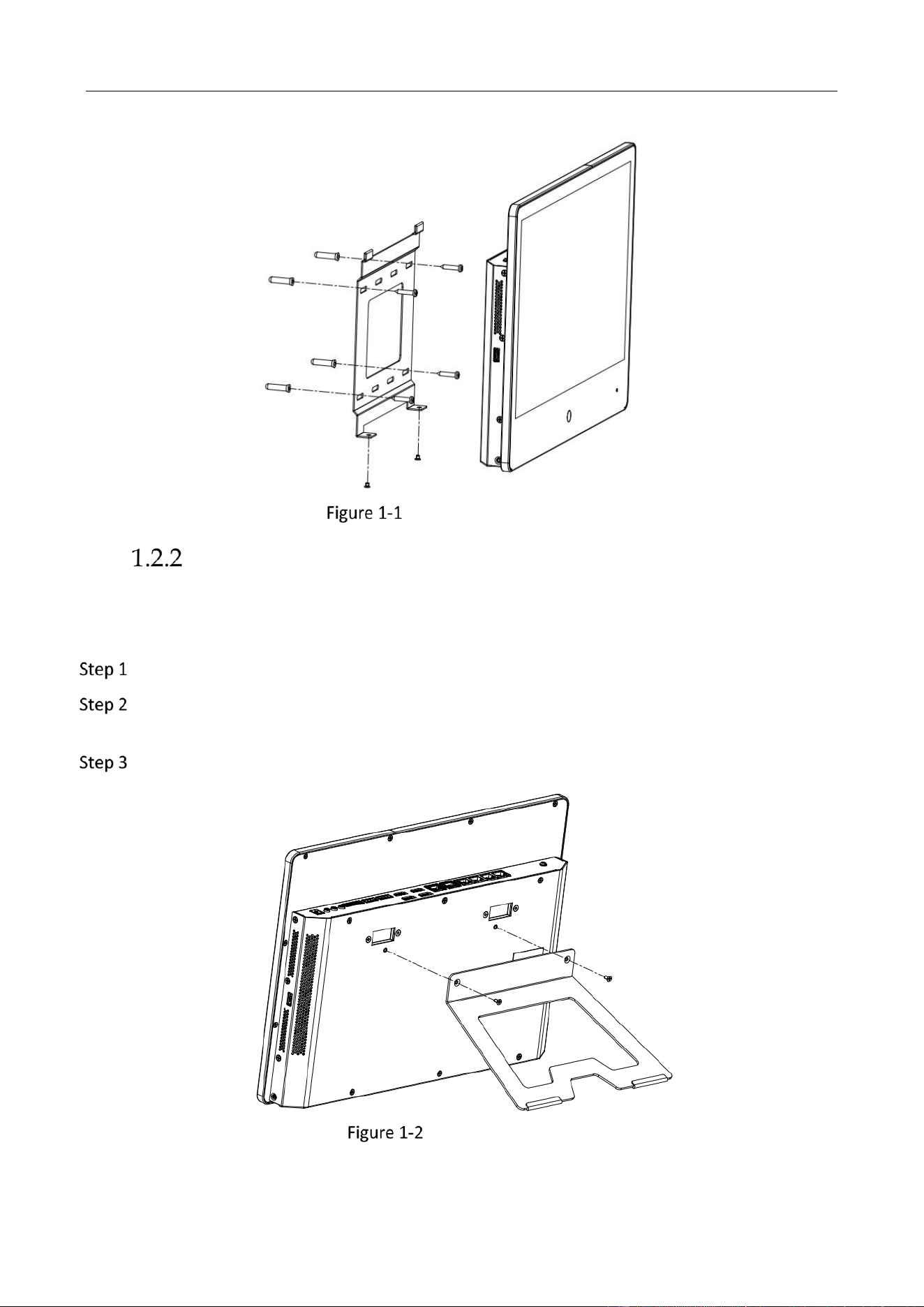
Wall-Mounted Installation
Before you start:
Prepare suitable installation tools, including screwdrivers and an electric drill.
Take out the accessories from the device package.
Determine the mounting position for the wall-mounted bracket (as the direction shown in
the following figure).
Mark 4 holes for installing expansion bolts.
Secure the bracket on to the wall with 4 expansion bolts.
Align the device mounting hooks with the bracket.
Mount the device on the bracket.
Tighten 2 crews at the bottom to fix the device firmly.
Education Sharing System User Manual
12
Wall-Mounted Installation
Standing Installation
Before you start:
Prepare suitable installation tools, including screwdrivers.
Take out the accessories from the device package.
Align the standing bracket holes with the device (as the direction shown in the following
figure).
Tighten 2 crews at the backside to fix the device firmly.
Standing Installation
Education Sharing System User Manual
13
Chapter 2 Start-up
Startup and Shutdown
Proper startup and shutdown procedures are crucial to expanding the life of the device. Follow the
steps to start your device.
Startup
Connect the device and a socket with the provided power cord. It is HIGHLY recommended
that an Uninterruptible Power Supply (UPS) be used in conjunction with the device.
Turn on the power switch at the device side panel.
Shutdown
Tap Power at the upper-right corner.
Tap Shutdown, and wait for the device to power off.
Turn off the power switch at the device side pane.
Network Connection
You shall acknowledge that the use of the product with Internet access might be under
network security risks. For avoidance of any network attacks and information leakage, please
strengthen your own protection. If the product does not work properly, please contact with
your dealer or the nearest service center.
To ensure the network security of the education sharing system, we recommend you to have
the device assessed and maintained termly. You can contact us if you need such service.
Purpose:
Create network connection between the education sharing system and your computer. Two
methods are provided, including connecting the education sharing system via a LAN (Local Area
Network) and via a WAN (Wide Area Network). We take the example of connecting via LAN to
describe the steps.
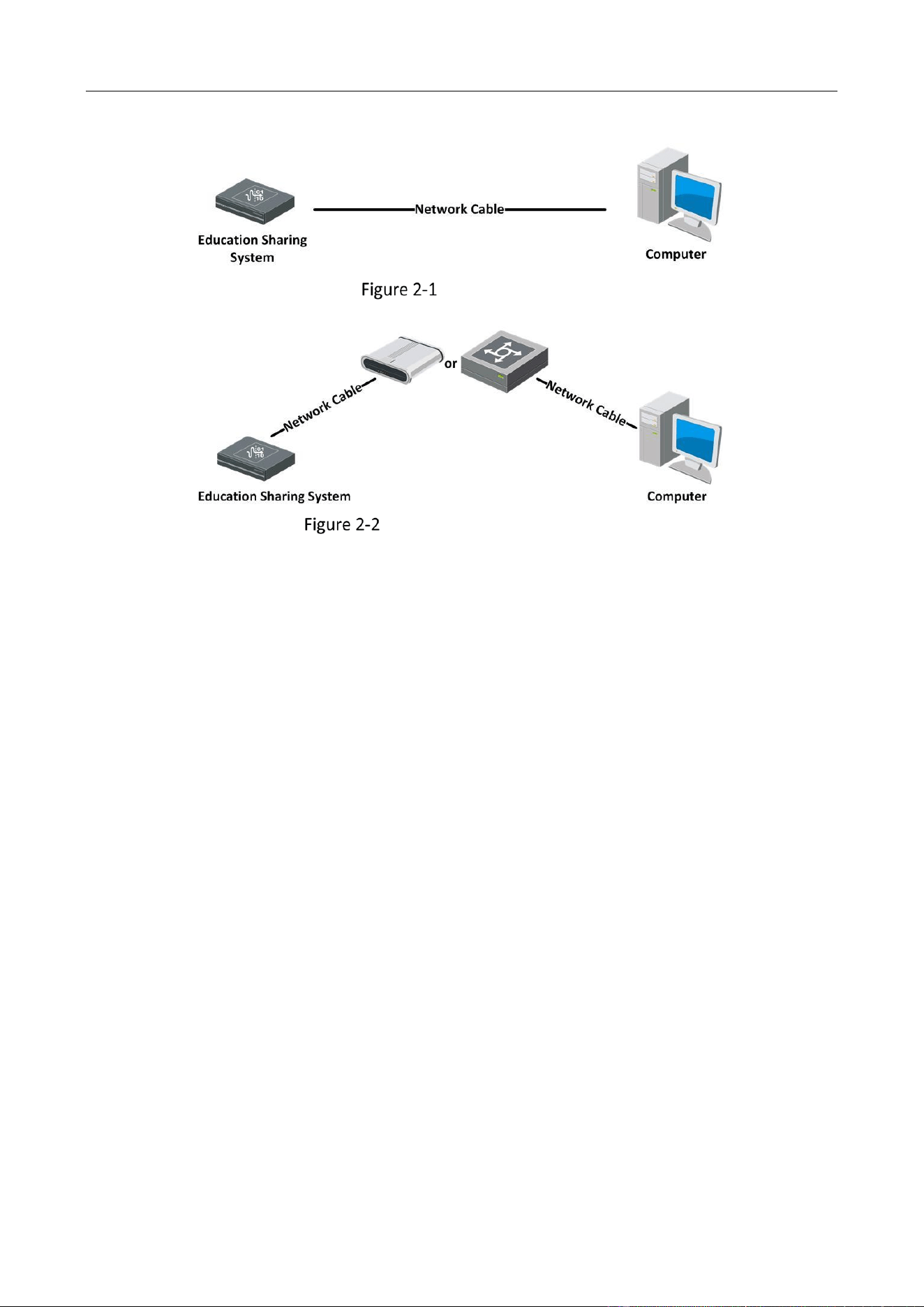
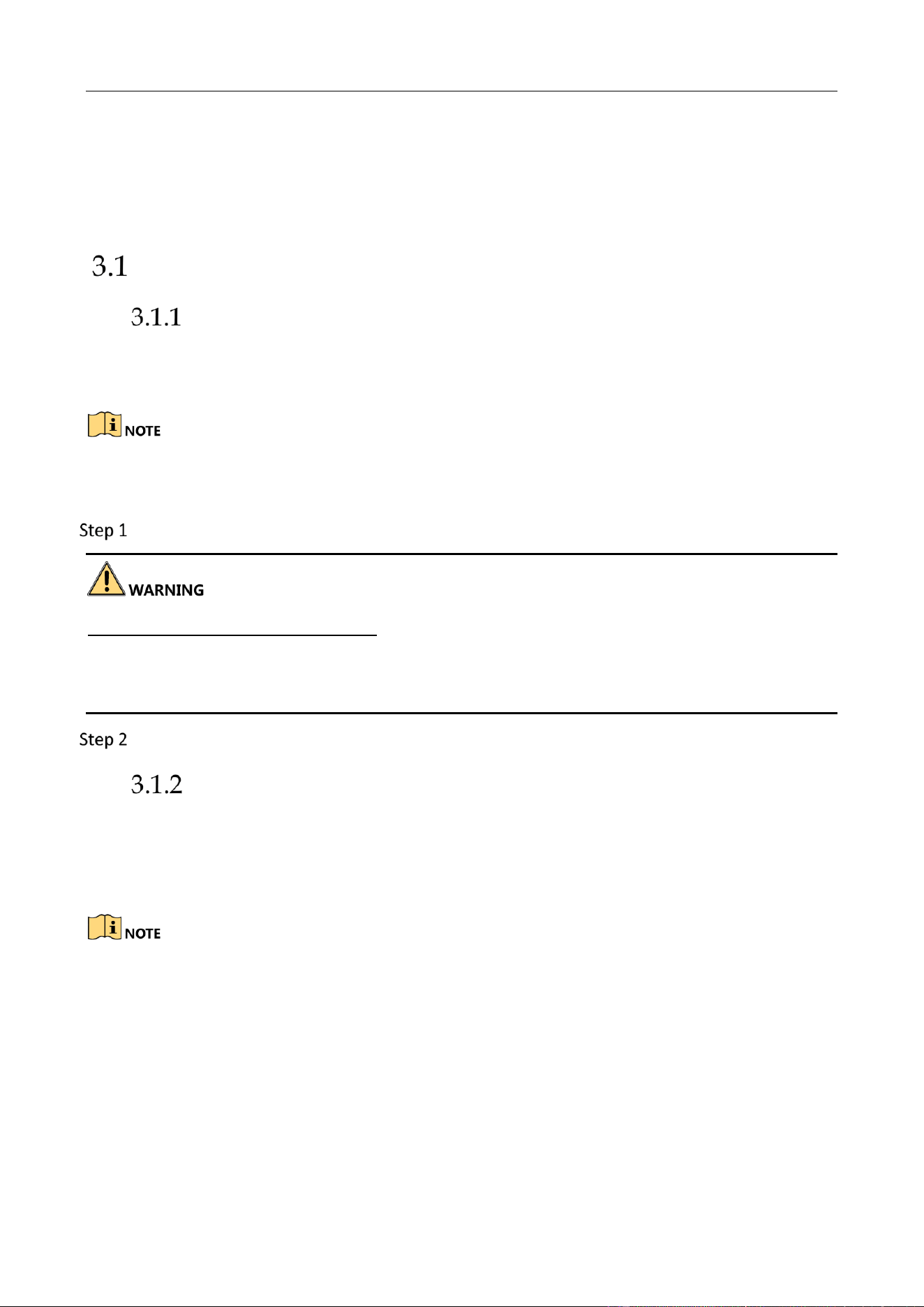
Create the network connection between the device and your computer.
Option1: Directly connect the device to the computer with a network cable.
Option 2: Connect the device and your computer via a switch or a router.
Education Sharing System User Manual
14
Connect Directly
Connect via a Switch or a Router
Education Sharing System User Manual
15
Chapter 3 Local Operation (Mainly Used for
Teacher)
Basic Operation
Activate Your Device
For the first-time access, you have to set an admin password to activate your device. No operation
is allowed before activation. You can also activate the device via web browser, or SADP.
Default administrator account: admin.
Default IPv4 address: 192.168.1.64.
Enter the user password twice.
STRONG PASSWORD RECOMMENDED–We highly recommend you create a strong password of your
own choosing (Using a minimum of 8 characters, including at least three of the following categories:
upper case letters, lower case letters, numbers, and special characters.) in order to increase the
security of your product. And we recommend you reset your password regularly, especially in the
high security system, resetting the password monthly or weekly can better protect your product.
Tap Activate.
Log In to Your Device
You may have to log in to your device to configure a few devices functions.
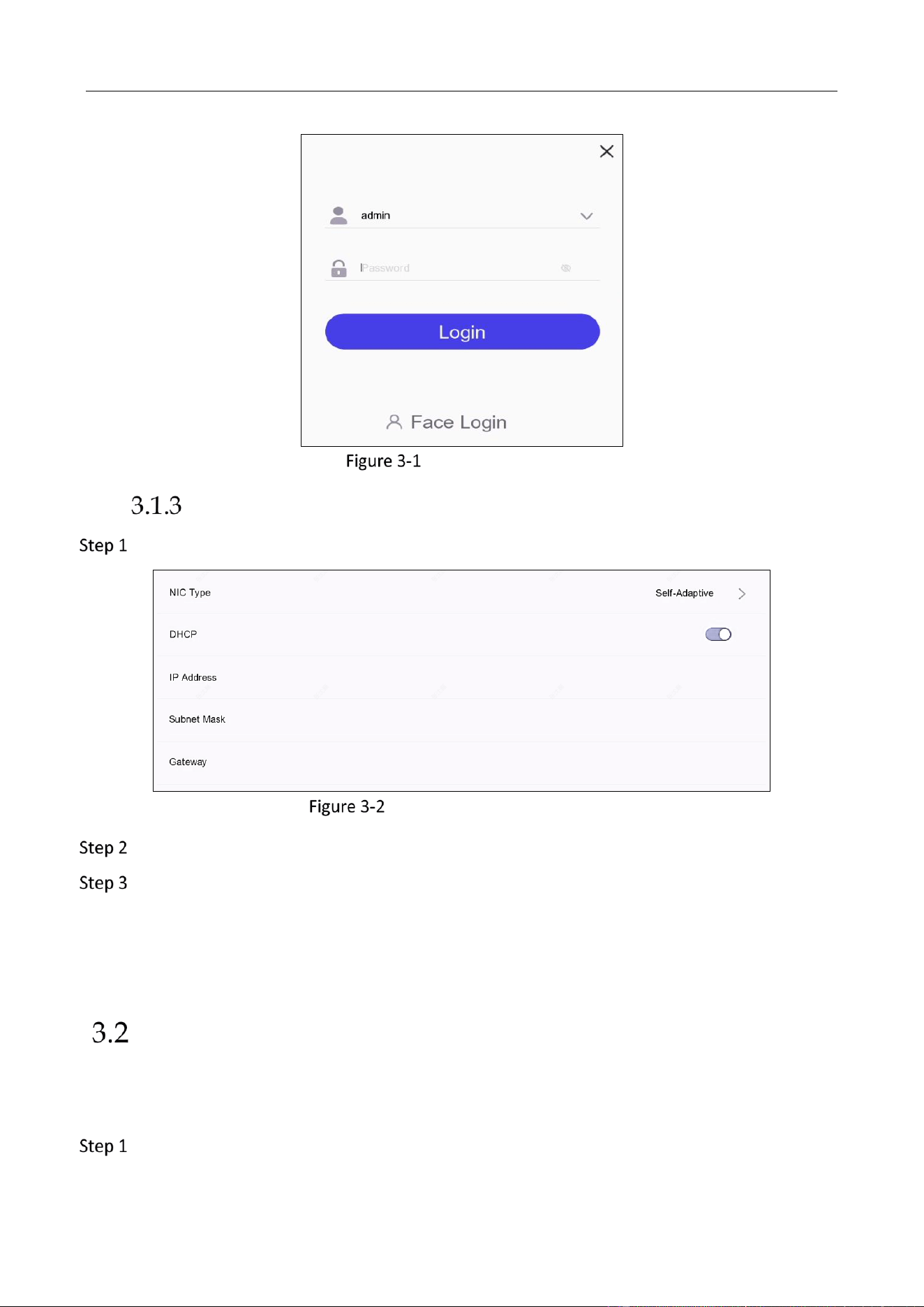
Tap Login at upper-right corner, and choose a login method. You can enter your user name and
password to log in, or tap Face Login to scan your face to log in.
Face Login is only available for the operator, and the corresponding face picture should be
imported in advance via web browser. Refer to 4.12 User Management for details about adding
face picture.
Education Sharing System User Manual
16
Log In to Your Device
Configure Network Parameters
Tap System Settings > System > Network.
Configure Network Parameters
Set NIC Type.
IPv4 IP address parameters.
If you enable DHCP (Dynamic Host Configuration Protocol), the device will obtain IPv4
address parameters automatically.
If you disable DHCP, you shall manually enter IPv4 address parameters, including IP
Address, Subnet Mask, and Gateway.
Live View
Purpose:
You can view the live image of connected cameras on the device screen.
Tap Course Recording after login.
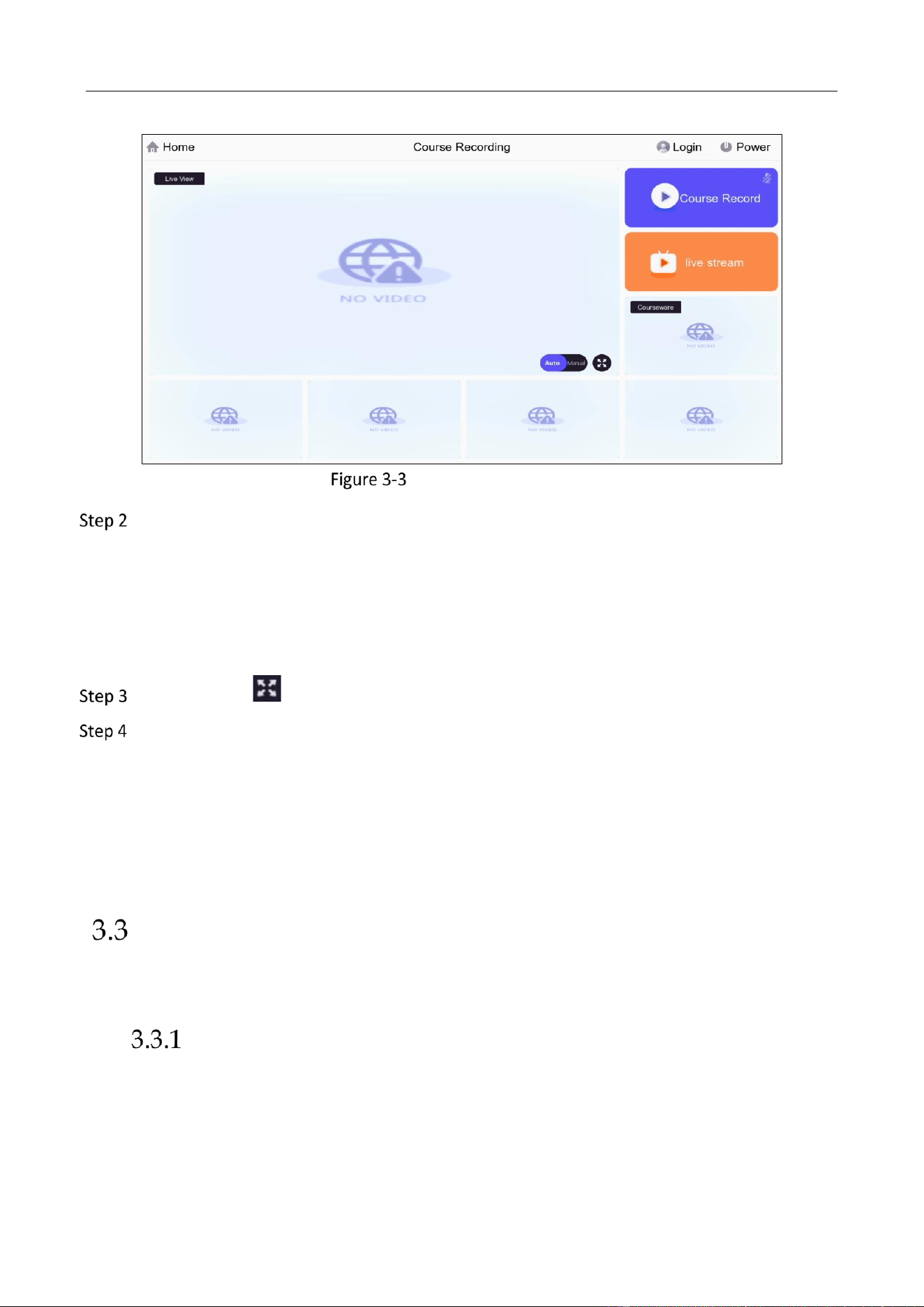
Education Sharing System User Manual
17
Live View via Local Menu
Optionally, select the live mode as Manual, or Auto.
Manual: Manually swith camera image to the main screen. You can tap the camera
image at the bottom to switch.
Auto: The speed dome can automatically track object. The device will automatically
display image to the main screen when the connected education specified cameras have
detected smart events.
Optionally, tap to view the full image of live view.
Optionally, tap Course Recording to record course live videos. The course recording videos
are configurable, refer to 3.4 Download Course Files for details.
1) Enter the course information, including Course Name and Course Teacher.
2) Click OK, and the device starts to record.
3) Tap Pause Recording or Stop Recording to pause/stop course recording.
4) After course recording is stopped, you can tap View Video to view the recorded
videos.
Interactive Education
There are two interactive education options, one is point-to-point meeting, and the other is multi-
classroom interaction.
Point-to-Point (P-to-P) Video Meeting
Purpose:
Point-to-point (P-to-P) video meeting creates a meeting with two devices. You can only invite
another one to the meeting.
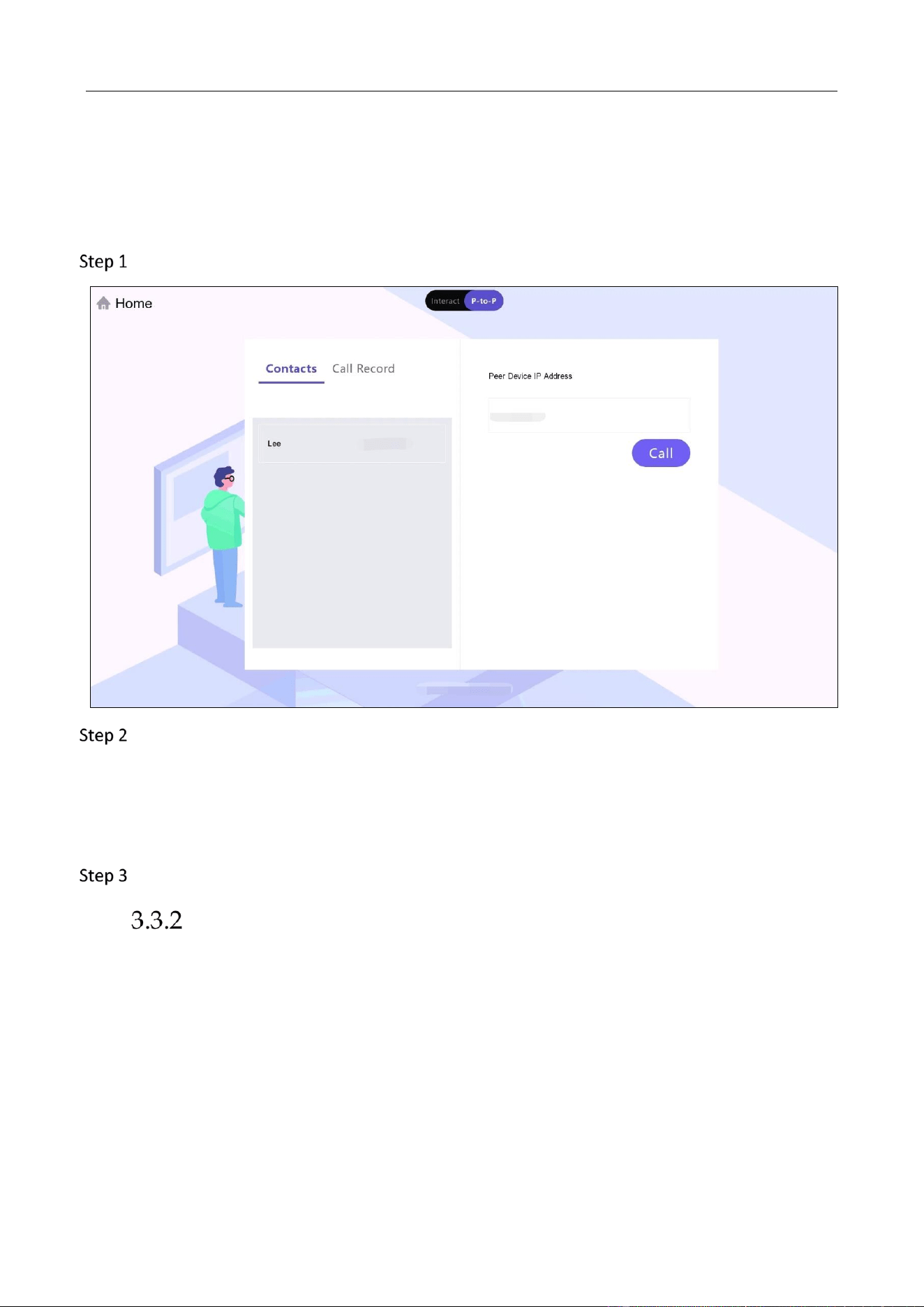
Education Sharing System User Manual
18
Before you start
Prepare the terminal device IP address, or add the terminal device IP address in contacts via web
browser in advance. Refer to 4.7 Point-to-Point Video Meeting for details about contacts
configuration.
Tap Interactive Education > P-to-P.
Call the terminal device.
- Use Contacts to call a terminal device.
- Use Call Record to call a terminal device.
- Enter the terminal device under Peer Device IP Address, and tap Call.
After the terminal device accepts the call, the meeting would be initiated.
Multi-Classroom Interaction (Cloud Interaction)
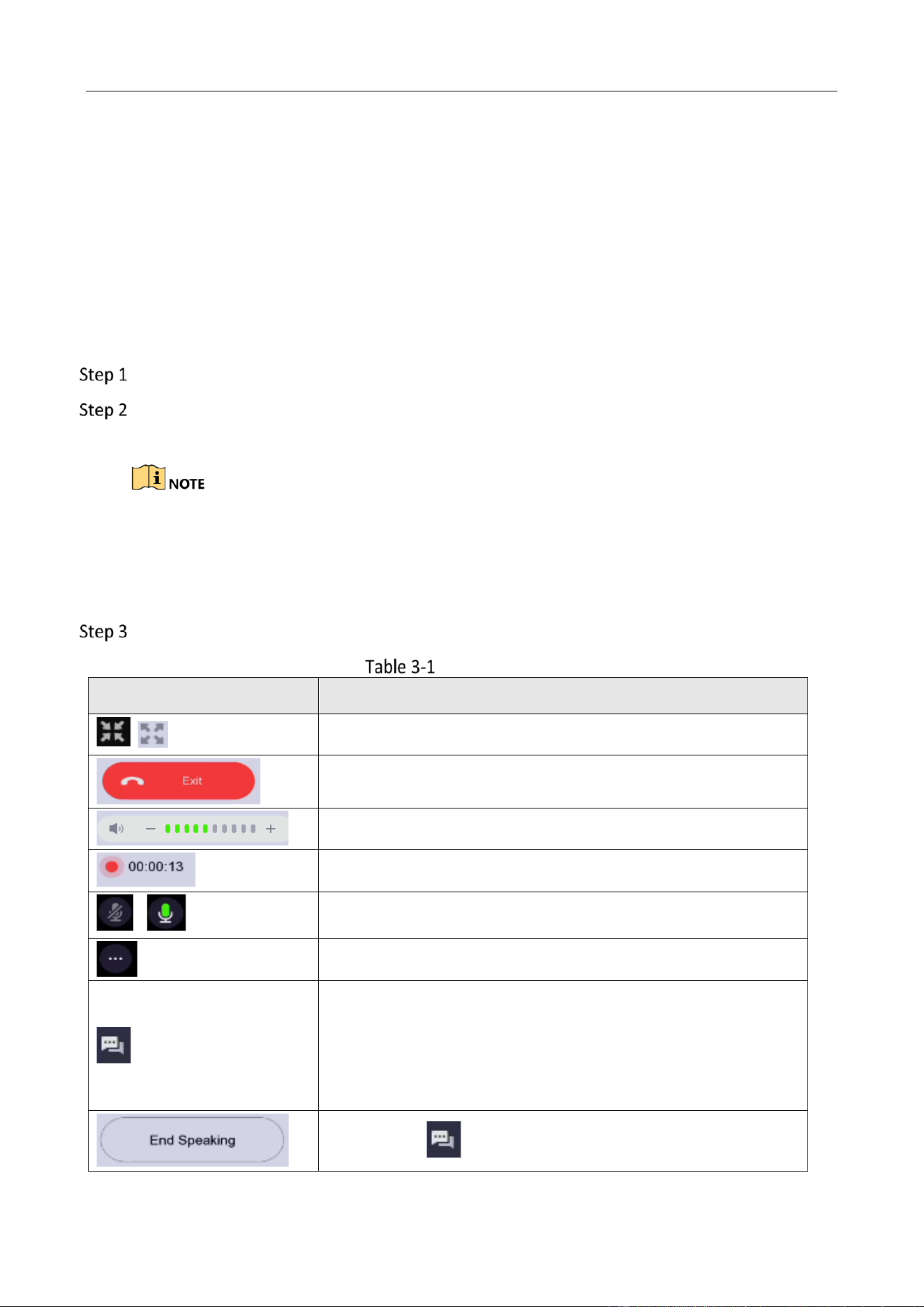
Configure Platform Parameters
Platform parameters are used for interaction. You can configure platform parameters in System
Settings > System > Platform Management via local menu.
Default settings are recommended. If the default parameters are invalid, please contact the
installer or technical support service.
Education Sharing System User Manual
19
Join/Initiate Interaction
Before you start
● Ensure you have properly configured interactive meeting parameters. The parameters can be
configured through Configuration > Interaction Settings > Cloud Interactive Class via web
browser.
● Ensure you have properly configured Platform parameters. Refer for details.
● Turn off point-to-point video meeting.
● The device has been registered, logged in and topped up.
Tap Interactive Education.
Enter the meeting number to join an interactive meeting, or tap Initiate Interaction to
create an interactive meeting.
If you are going to join an interactive meeting, the meeting number can be obtained from
the initiator. Refer to Configure Meeting Room Permission for details.
If you are going to join an interactive meeting, but the meeting does not have verification
code, just leave the verification code empty, and tap OK.
Operation as your desire.
Icon Description
Icon
Description
/
Exit/enter full screen.
Exit the interaction.
Tap – or + to adjust volume.
Display the recorded time.
/
Enable/disable the microphone of participant.
Display more options.
Interact with the participant. For example, you can tap it to
ask questions to the participant, and the participant would be
able to speak (the microphone of participant would be
enabled automaitcally).
After taping to interact with the participant, tap End
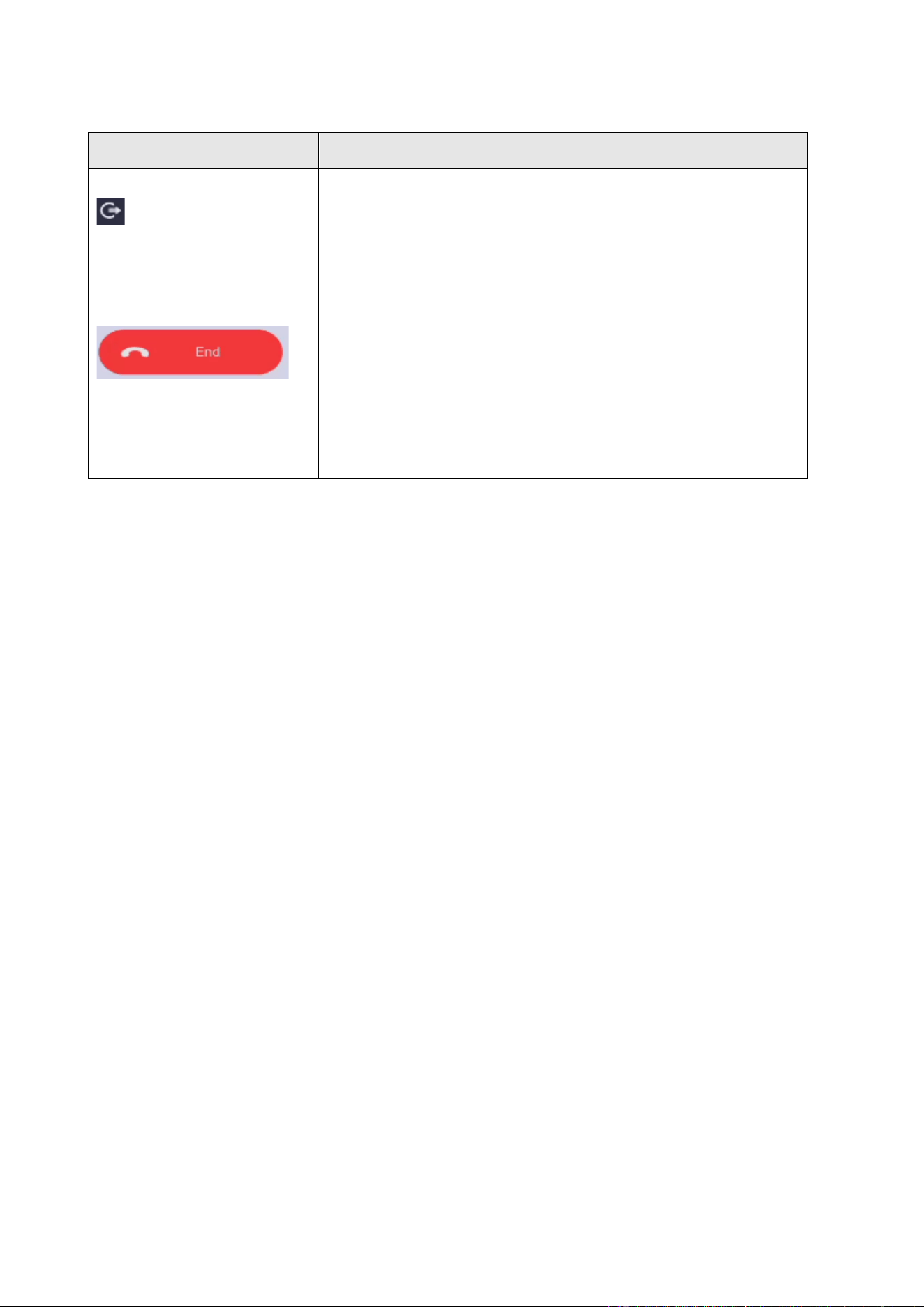
Education Sharing System User Manual
20
Icon
Description
Speaking to finish.
Remove the participant from the meeting.
End the interactive meeting.
Education Sharing System User Manual
21
Play Back Course Videos
Tap Course File.
Locate the course video.
Tap the video.
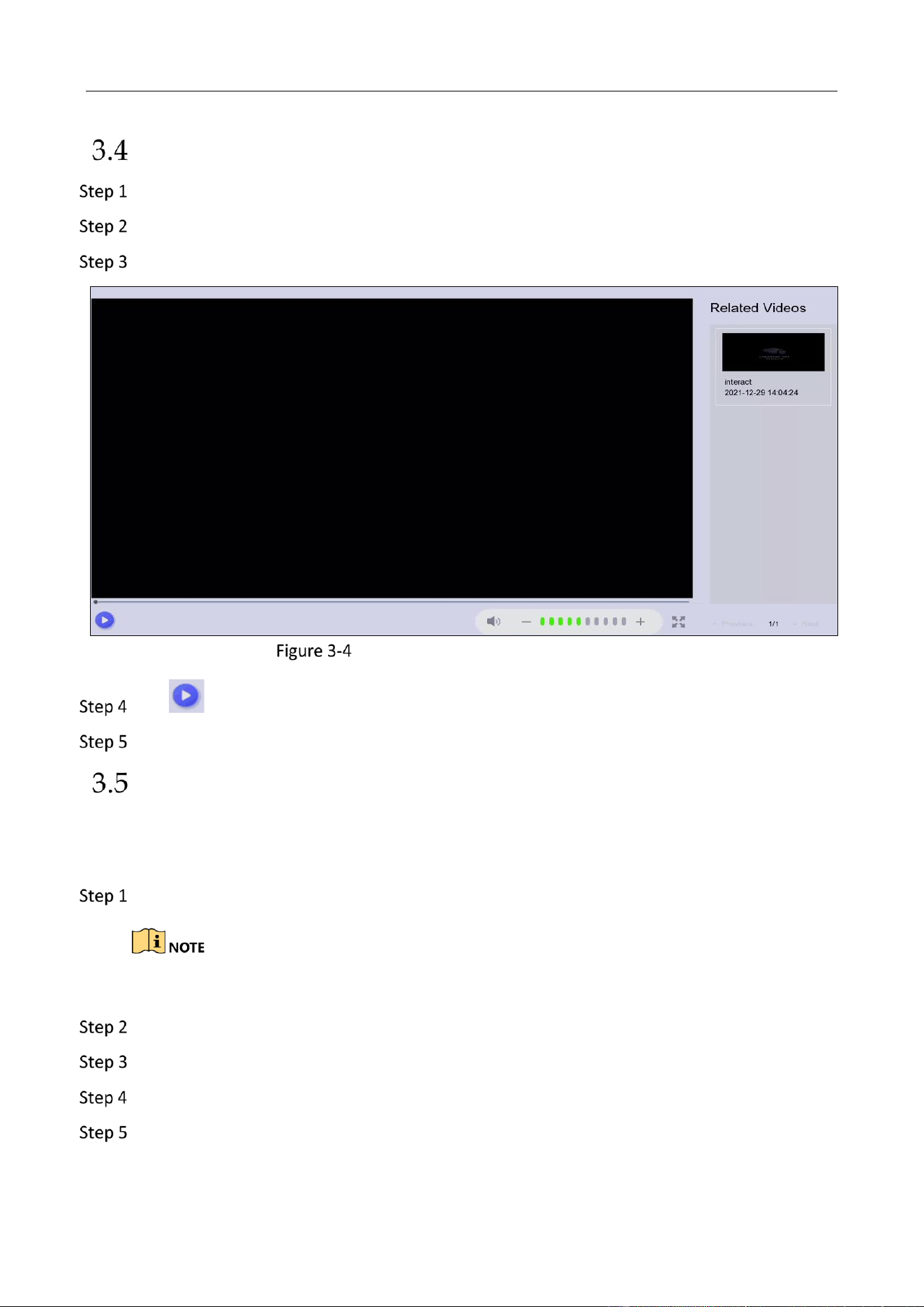
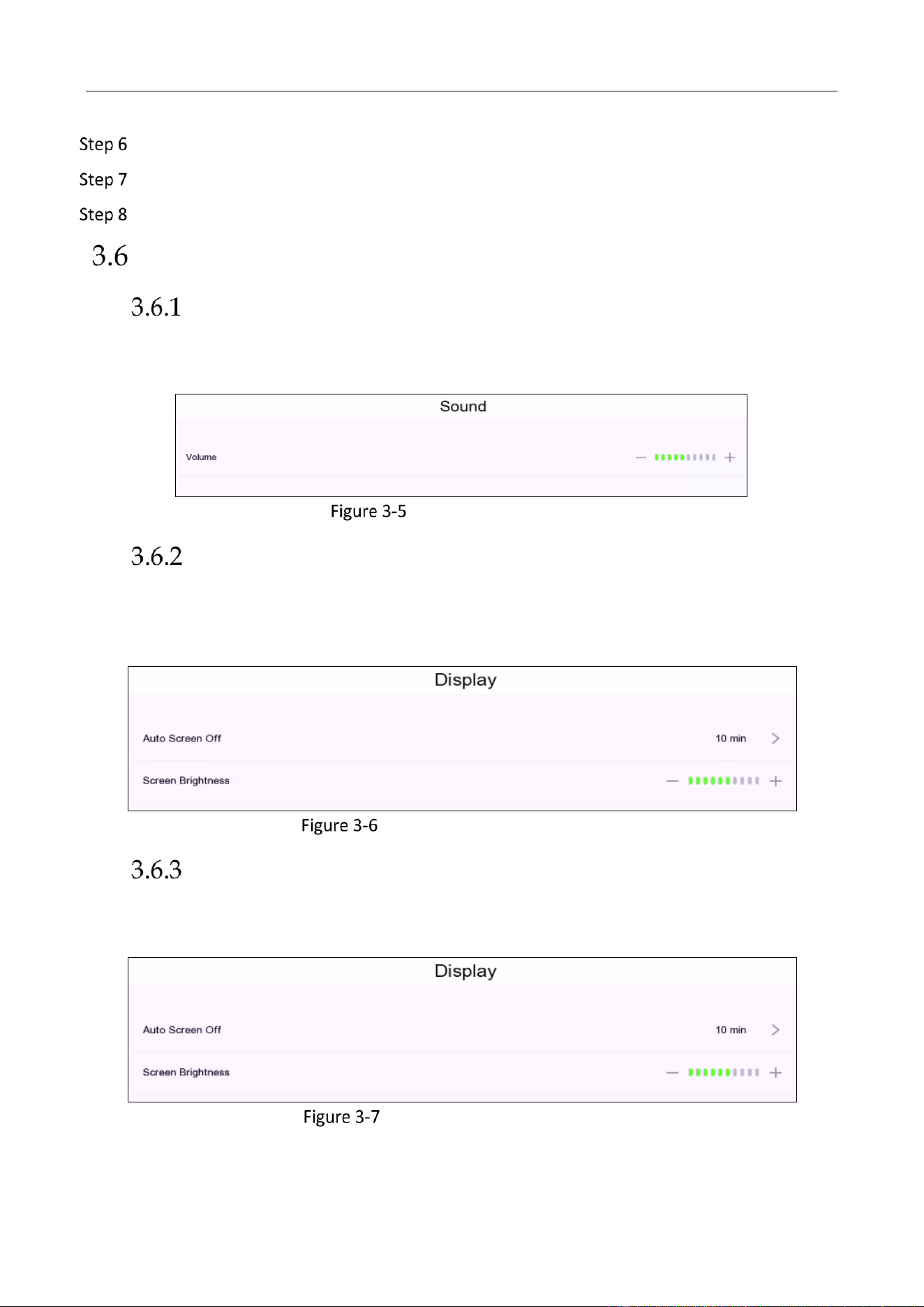
Play Back Course Videos Via Local Menu
Tap to start playback.
Optionally, tap the related video(s) at the right list, and play back the related videos.
Download Course Files
Before you start:
Prepare a USB flash drive with enough free space.
Insert a USB flash drive to your device.
The device USB interface is at the side panel.
Tap Course File.
Locate the course video or course video folder.
Tap Export at the upper-right corner.
Select the course videos or course video folders as your desire.
Education Sharing System User Manual
22
Tap Export again.
Select the backup device and folder path.
Tap Save.
System Settings
Configure Audio
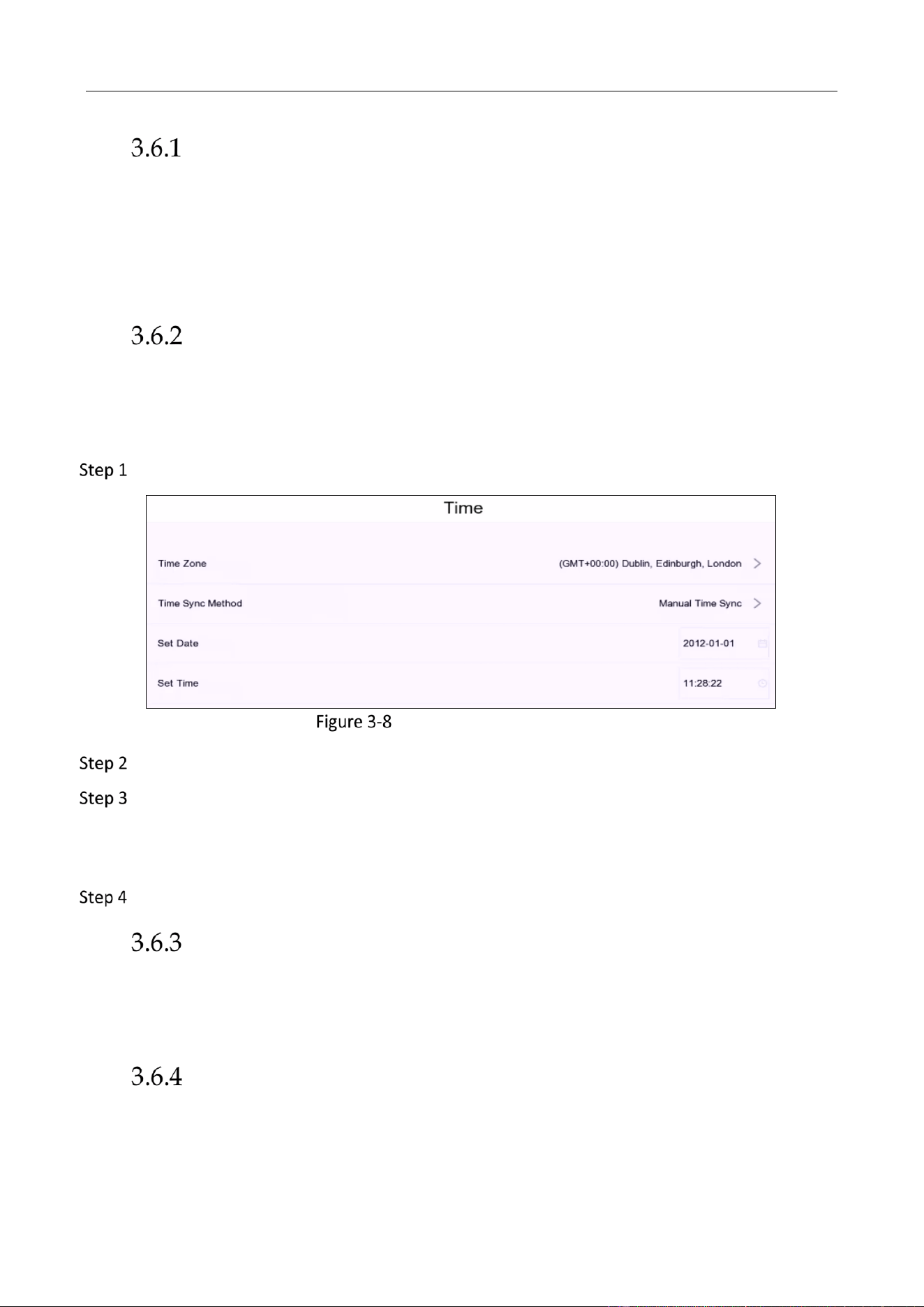
You can configure the sound volume in System Settings > Sound via local menu. For sound mix
settings, refer to 0Sound Mix Settings for details.
Configure Sound Volume
Configure Auto Screen Off Time
Your device will automatically turn off the local menu screen after a specified period. When the
screen is off, you can press the power button at the side panel to light it up. The time period is
configurable in System Settings > Display via local menu.
Configure Auto Lock Screen Time
Configure LCD Screen Brightness
The local menu LCD screen brightness is configurable in System Settings > Display via local menu.
You can tap – or + to adjust the brightness.
Configure LCD Screen Brightness
Education Sharing System User Manual
23
Configure Recording Parameters
The recording channels are configurable in System Settings > Record. The device Recording
Channel is set to Live View Channel by default. You can choose to record multiple channel during
live view as your desire.
If you forget to stop recording, the device will automatically stop it according to Manual Recording
Auto Stop Time. You can configure Manual Recording Auto Stop Time as your desire.
Configure Time
Purpose:
You can manually sync the device time, or let the device automatically sync time with NTP
(Network Time Protocol) server.
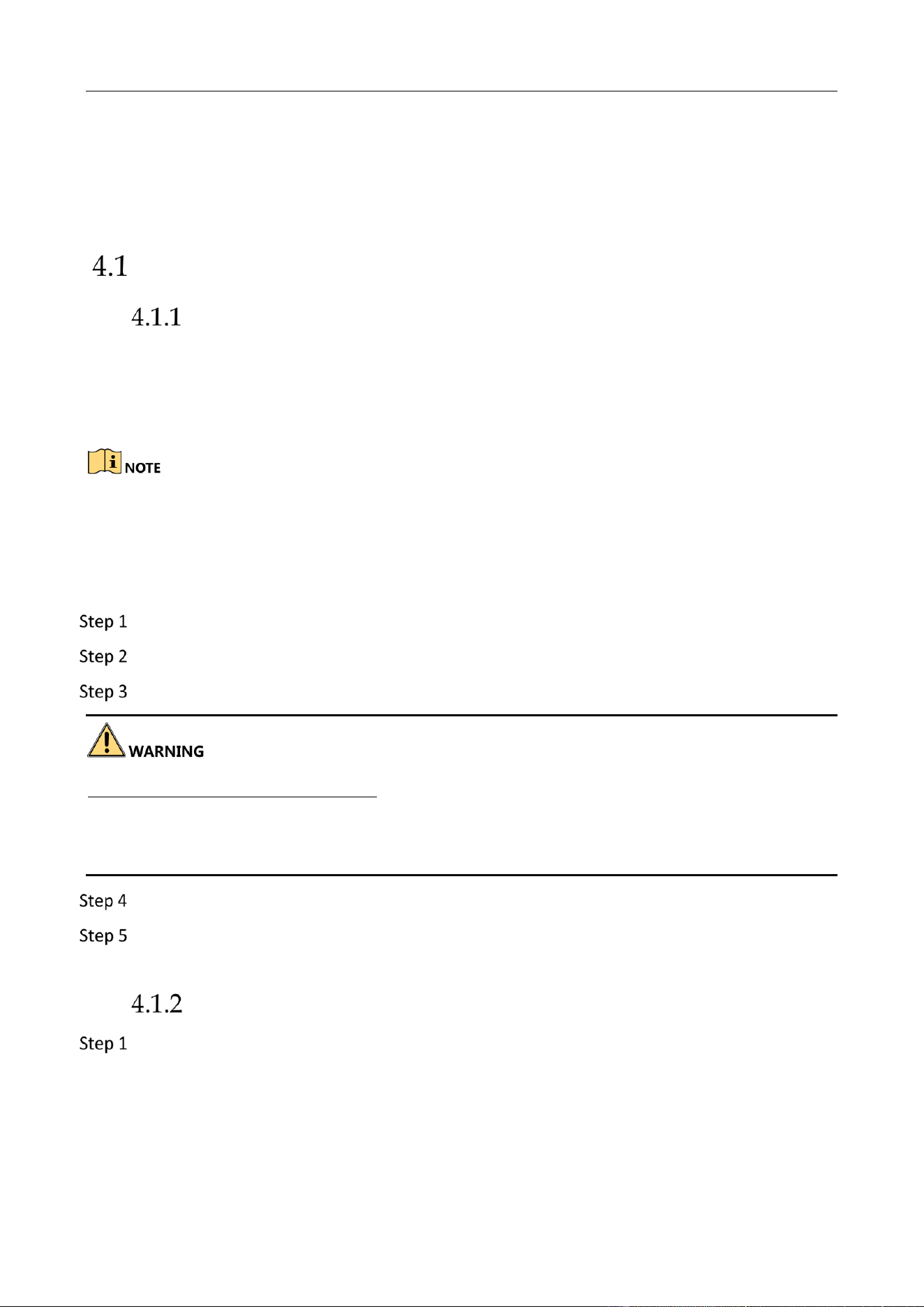
Go to System Settings > System > Time via local menu.
Time Settings via Local Menu
Select Time Zone.
Select Time Sync Method.
Manual Time Sync: Manually adjust the device time.
NTP Time Sync: Automatically adjust the device time with the connected NTP server.
Set the related parameters.
Configure Auto Logout Time
Your device can automatically log out after it is on standby for a specified time. After the device is
logged out, you have to enter your password again to log in
.
The auto logout time is configurable
in System Settings > System > Auto Logout via local menu.
Configure Password Protection
After password protection is enabled, the device will verify your password when operating certain
functions like live view, cloud interaction, courseware settings, etc. Password protection function

Education Sharing System User Manual
24
is configurable in System Settings > System > Password Protection via local menu.
View Device Info
Device information like software version, storage status, PoE status, network status, connected
channel information, and logs can be viewed in System Settings > System > Info via local menu.
You can search and export logs as your desire.
Education Sharing System User Manual
25
Chapter 4 Web Operation (Mainly Used for
Technical Support)
Basic Operation
Activate Your Device
Purpose:
You can get access to the device via web browser. The supported resolutions include 1024*768 and
above.
Default administrator account: admin.
Default IPv4 address: 192.168.1.64.
You may have to close the web browser to finish the installation of the plug-in.
It is recommended to use Chrome or Edge web browser.
Open web browser, input the device IP address. The default IP address is 192.168.1.64.
Press Enter.
Enter the admin password twice.
STRONG PASSWORD RECOMMENDED–We highly recommend you create a strong password of your
own choosing (Using a minimum of 8 characters, including at least three of the following categories:
upper case letters, lower case letters, numbers, and special characters.) in order to increase the
security of your product. And we recommend you reset your password regularly, especially in the
high security system, resetting the password monthly or weekly can better protect your product.
Click OK.
Optional: If new user accounts or facial login function are needed, please set the parameters
via web browser. Refer to 4.12 User Management for details.
Configure Network Parameters
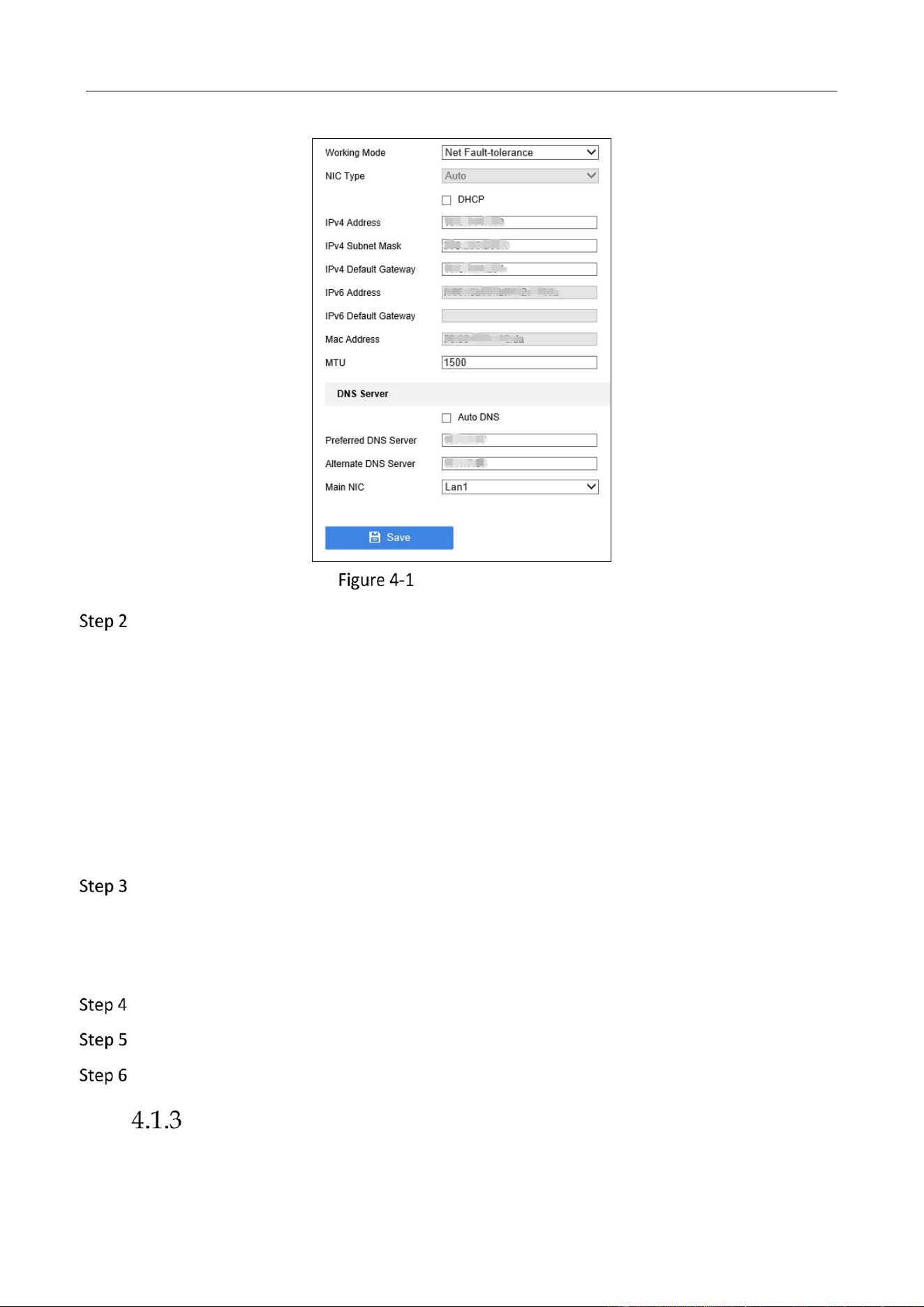
Go to Configuration > System Settings > Network Settings > TCP/IP.
Education Sharing System User Manual
26
Basic Network Settings
Select Working Mode as Net Fault-Tolerance, Load Balance, or Multi-Address.
Net-fault Tolerance Mode: The two NIC cards use the same IP address, and you can select the
Main NIC to any LAN. By this way, in case of one NIC card failure, the system will automatically
enable the standby NIC card so as to ensure the normal running of the whole system.
Load Balance: By using the same IP address and two NIC cards share the load of the total
bandwidth, which enables the system to provide two Gigabit network capacity.
Multi-address Mode: The parameters of the two NIC cards can be configured independently.
You can select a LAN in the NIC type field for parameter settings. You can select one NIC card
as the default route. And then the system is connecting with the extranet the data will be
forwarded through the default route.
Set the NIC settings.
1) Select NIC Type.
2) Enter IPv4 Address, IPv4 Subnet Mask, IPv4 Default Gateway. You can check DHCP
(Dynamic Host Configuration Protocol) to obtain IPv4 address dynamically.
Optionally, you can configure the maximum transmission unit (MTU) as your desire.
Enter DNS server parameters.
Click Save to save the settings.
Use Wizard to Set System Main Parameters
Purpose:

Education Sharing System User Manual
27
The wizard is used to quickly view system information and configure system main parameters.
Go to Configuration › Wizard Configuration › Step 1 via web browser.
System Info: View the device model, software version, and connected PoE camera
information.
Audio Configuration: Audio mode and audio gain is configurable. You can get the
description of each audio mode in pop-ups. Refer to Sound Mix Settings for details
about audio gain.
Interaction Platform Management: Interaction platform parameters are configurable
if you have the device logged into a platform. After your device logged in to a
platform, the parameters would not be configurable.
Interaction Account Management: You can log in or log out your interactive meeting
account. Refer to Account Management for details.
Go to Configuration › Wizard Configuration › Step 2 via web browser. The live view strategy
is configurable. Refer to Automatic Live View Control for details.

Education Sharing System User Manual
28
Education Specified Camera Connection
Before you can get the live view or record the image of classroom, connect the education specified
camera to the device via PoE (Poser over Ethernet) interface or network.
SADP Search
Purpose:
You can search and modify network parameters of IP cameras in the same network segment.
Go to Configuration > System Settings > Camera Management > SADP Search.
Click Refresh to search the IP camera in the same network segment.
Optionally, edit the network parameters of IP camera.
1) Select the camera.
2) Click Modify.
3) Edit the network parameters, including IP address and port.
4) Enter the user name and password.
5) Click OK.
Connect Network Camera via PoE Interface
Purpose:
PoE provides power to a network camera via the same cable as used for the network connection.
Supported PoE camera number varies with device module. If you disable the PoE interface, you
can also connect to the online network cameras. And the PoE interface supports the Plug-and-Play
function.
Connect an education specified PoE camera to a device PoE interface with network cable.
Go to Configuration > System Settings > Camera Management > SADP Search via web
browser.
If the PoE camera is activated, edit its IP address under 192.168.254.xxx network segment
(for example, 192.168.254.123).
The device would automatically allocate IP addresses to inactivated PoE cameras.
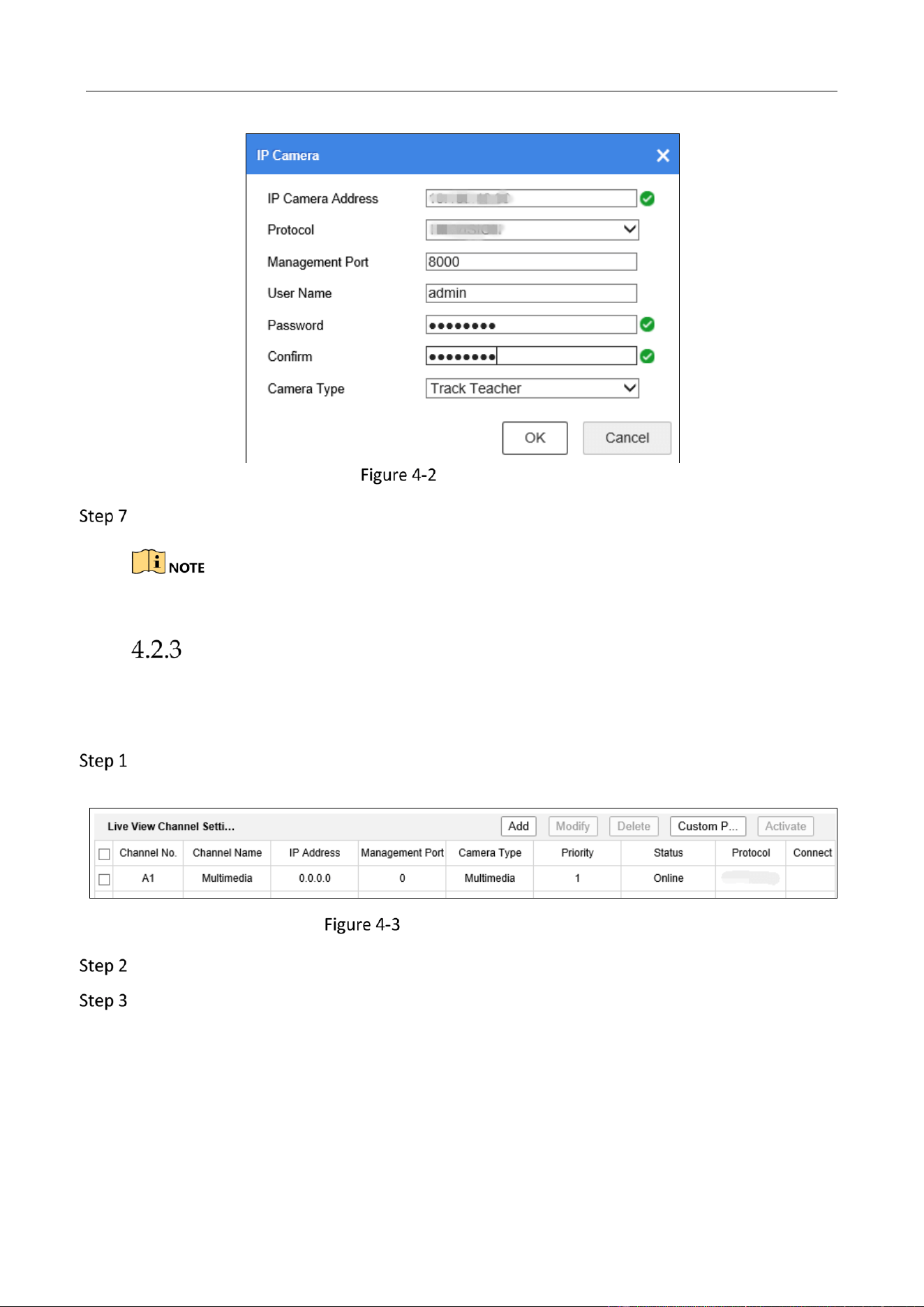
Go to Configuration › Recording Settings › Live View Settings › Live View Channel Settings.
Click Add.
Enter the PoE camera parameters.
Education Sharing System User Manual
29
Add PoE Camera
Click OK.
Camera type cannot be duplicated with each other.
Connect via Network
Before you start:
Connect the education specified camera to network.
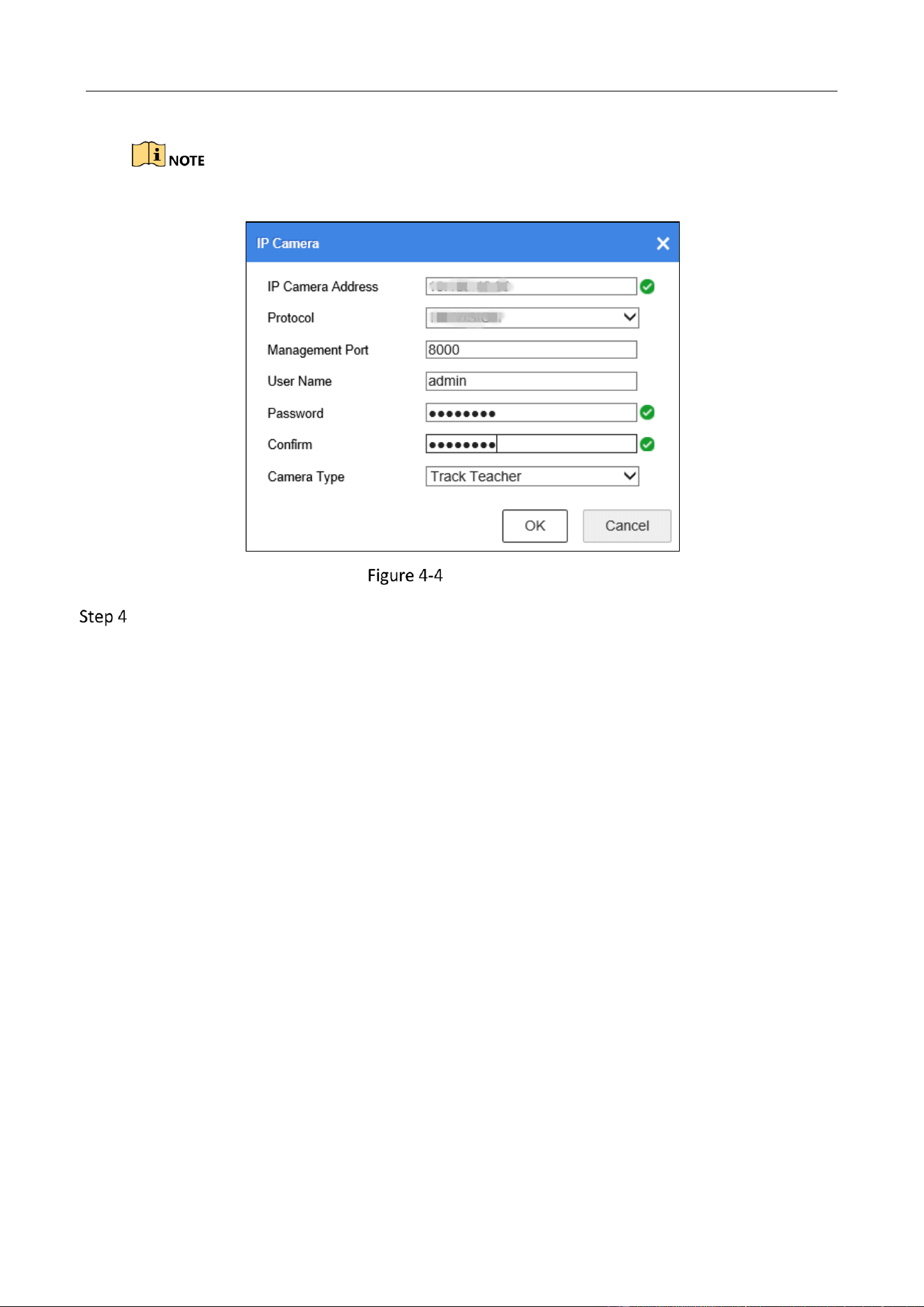
Go to Configuration › Recording Settings › Live View Settings › Live View Channel Settings
via web browser.
Live View Channel Settings
Click Add to add IP camera.
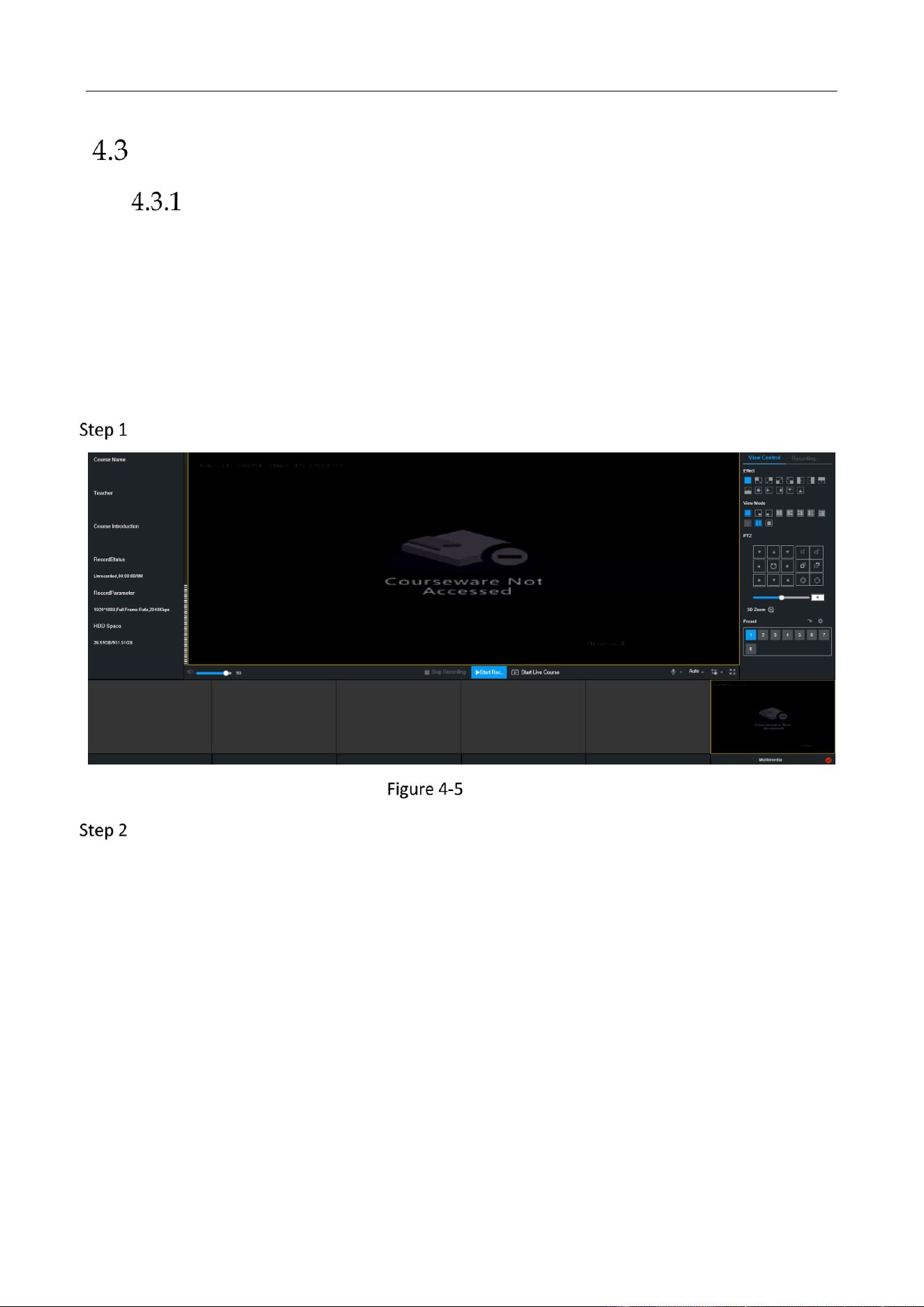
Enter the camera parameters.
Education Sharing System User Manual
30
Camera type cannot be duplicated with each other.
Add IP Camera
Click OK.
Education Sharing System User Manual
31
Live View
Configure Live View Image
Purpose:
You can view the live image of connected cameras with manual, semi-auto, or auto mode. The
relevant information is displayed on the left.
Before you start:
Ensure the device has successfully connected to the education specified cameras, and your web
browser has installed the latest web component.
Go to Live View via web browser.
Live View
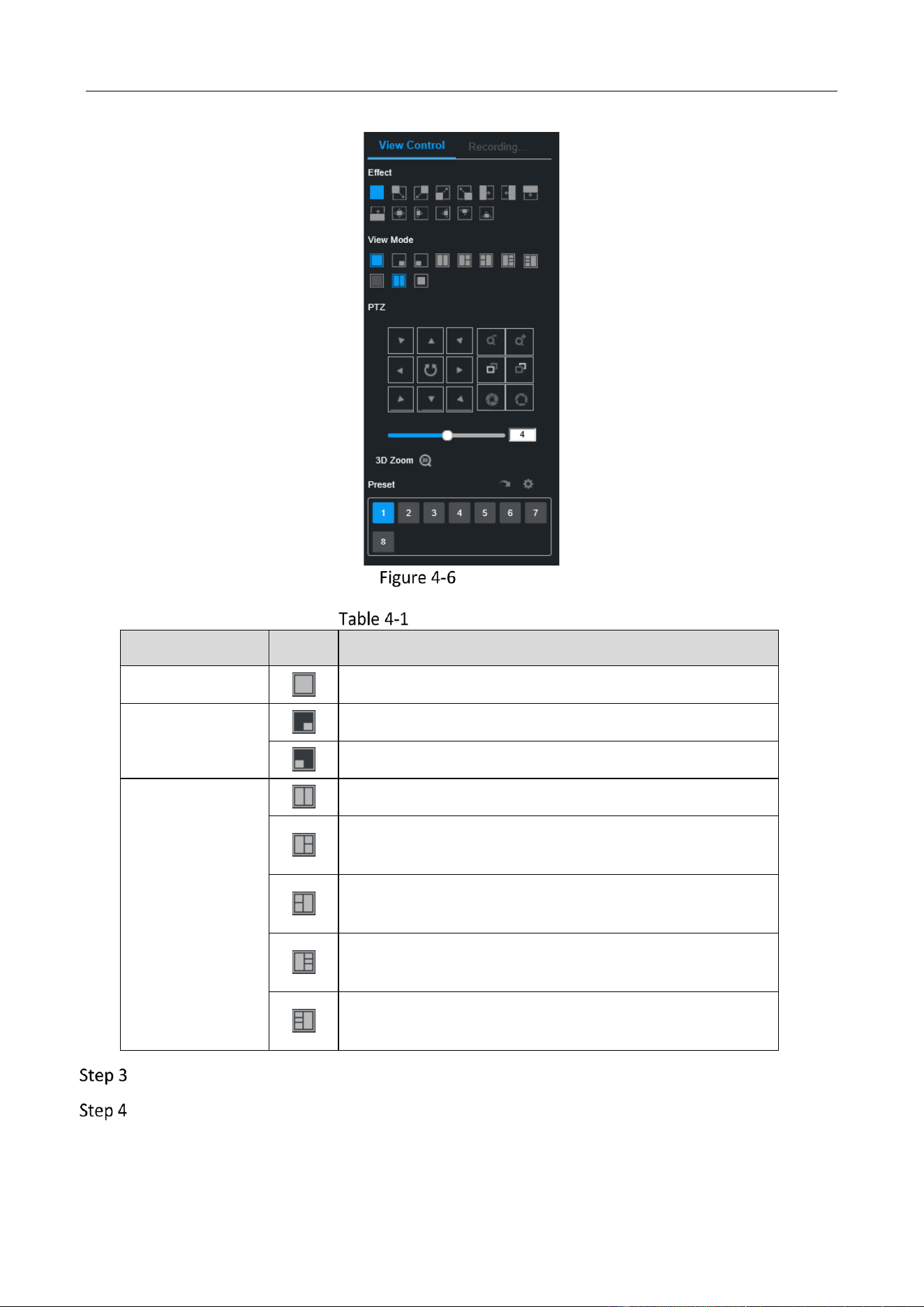
Click View Control to set the view mode.
Education Sharing System User Manual
32
View Mode
View Mode Description
Mode
Icon
Description
Movie
Single screen
Picture-in-Picture
PIP 1, overlay the picture at the lower right corner
PIP 1, overlay the picture at the lower left corner
Multi-Screen
Multi-Screen 1, split screen in half
Multi-Screen 2, split screen in three blocks with the
larger one at left side
Multi-Screen 3, split screen in three blocks with the
larger one at right side
Multi-Screen 4, split screen in four blocks with the larger
one at left side
Multi-Screen 5, split screen in four blocks with the larger
one at right side
Optionally, set the channel switching effect.
Optionally, when you are in single screen, you can double-click the windows at the bottom
to switch live view camera.
Education Sharing System User Manual
33
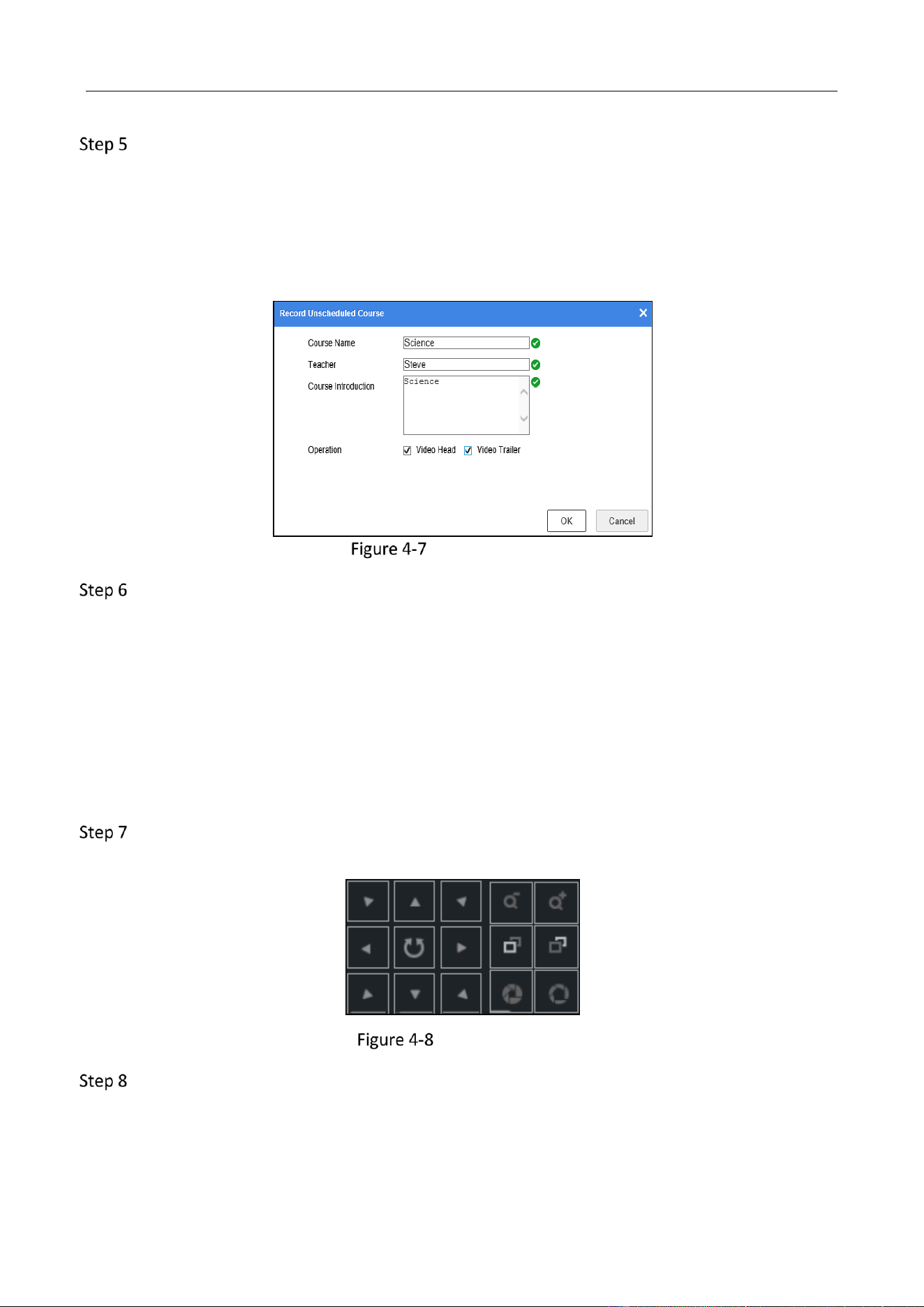
Optionally, click Start Recording or Stop Recording. You shall enter the course informaiton
when you start course recording.
1) Enter course information including Course Name, Teacher, and Course Introduction.
2) You can check Video Head or Video Trailer to add video head or tail to the recording
video. Refer to for details.
3) Click OK.
Course Information
Select the live mode as Manual, SimiAuto, or Auto.
Manual: Manually switch the camera image to the main screen. You can double-click the
camera image at the bottom to switch image, or use the PTZ control panel to manually
track the object.
SimiAuto: The speed dome can automatically track object, but you still have to manually
switch live view image by double-clicking the camera display window at the bottom.
Auto: The speed dome can automatically track object. The device will automatically
display image to the main screen when the connected education specified cameras have
detected smart events. The auto live view control is enabled by default.
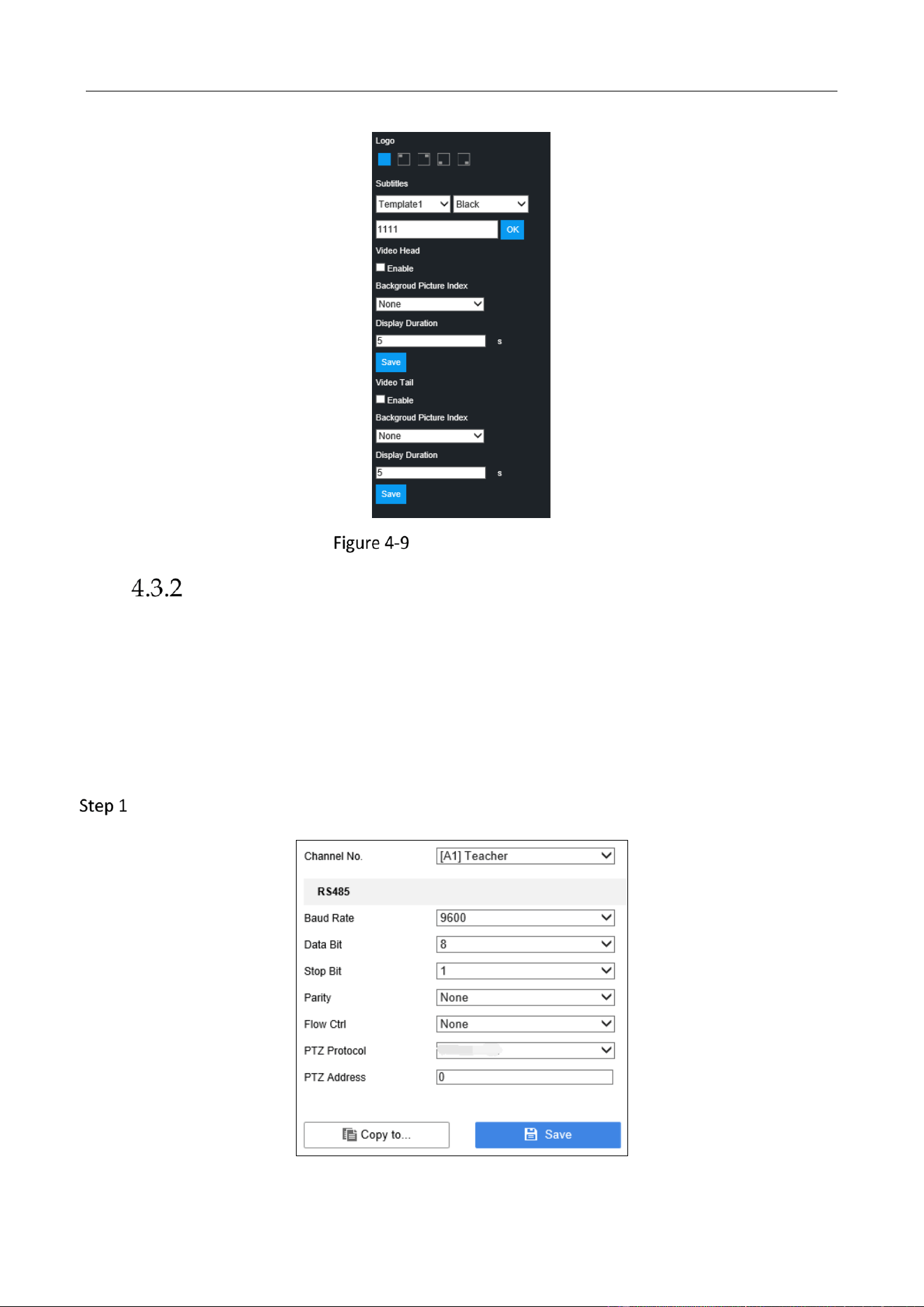
For the student and teacher channel, rotate the camera to desired view. Refer to 4.3.2 PTZ
Control for details.
PTZ Control Panel
Optionally, click Recording Management to edit Logo, Subtitles, Video Head, and Video Tail.
Refer to 4.5.5 Logo Configuration and Configure OSD.
Education Sharing System User Manual
34
Recording Management
PTZ Control
PTZ Settings
Purpose:
For the student and teacher channel, you can rotate them to desired view.
Follow the procedure to set the parameters for PTZ. The configuring of the PTZ parameters should
be done before you control the PTZ camera.
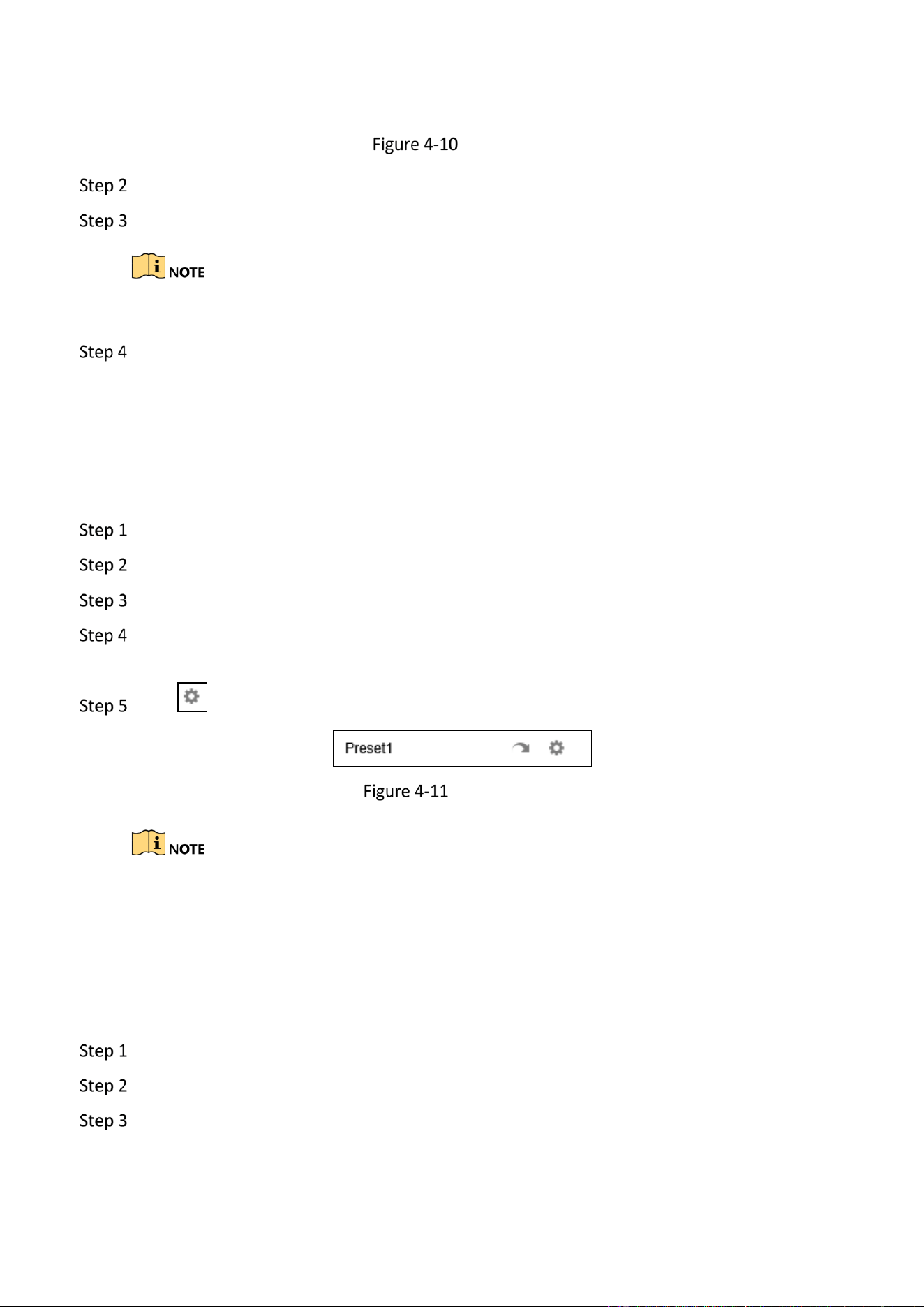
Go to Configuration > System Settings > System Settings > RS-485 via web browser.
Education Sharing System User Manual
35
PTZ Settings
Select the camera for PTZ setting in Channel No.
Set the PTZ camera parameters.
All the parameters should be the same as the PTZ camera parameters.
Click Save to save the settings.
Set PTZ Presets
Purpose:
Follow the steps to set the preset position location which you want the PTZ camera to point to
when an event takes place.
Go to Live View via web browser. And start live view of a channel.
Click PTZ at the upper right corner.
Select a preset.
Use the directional button to wheel the camera to the location where you want to set
preset. The zoom and focus operations can be recorded in the preset as well.
Click to save the preset.
Select a Preset
Repeat the above steps to set more presets.
Call Presets
Purpose:
This feature enables the camera to point to a specified position such as a window when an event
takes place.
Go to Live View via web browser. And start live view of a channel.
Click PTZ at the upper right corner.
Select the preset you want to call.

Education Sharing System User Manual
36
Click to call the preset.
Education Sharing System User Manual
37
HDD Management
Format Hard Disk
Purpose:
A newly installed hard disk must be formatted before using.
Go to Configuration > System Settings > Storage Management > HDD Management via web
browser.
Select the HDD.
Click Format to start formatting.
Manage Network Hard Disk
Purpose:
You can add the allocated NAS or disk of IP SAN to the education sharing system, and use it as a
network hard disk. Up to 8 network hard disks can be added.
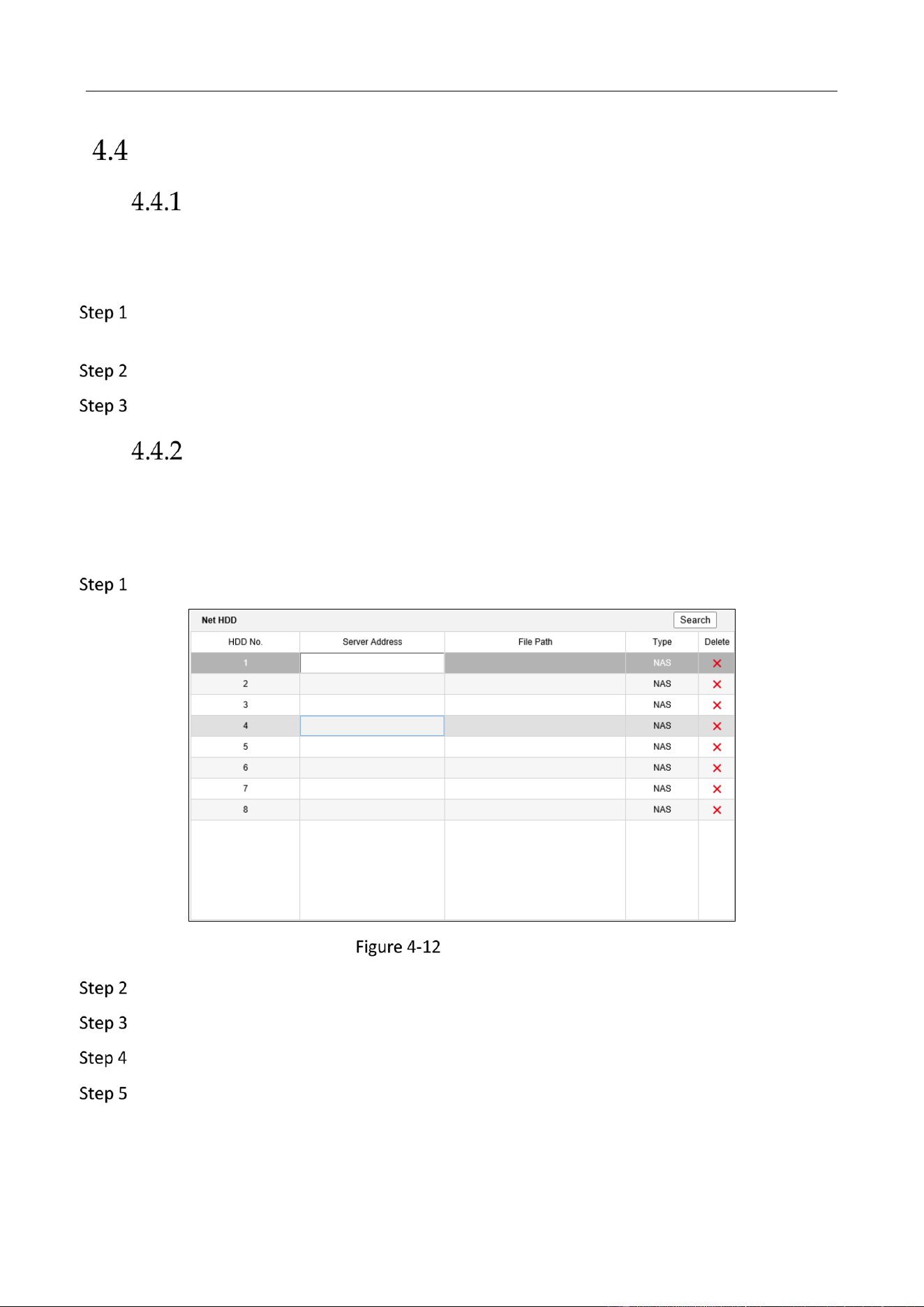
Go to Configuration > System Settings > Storage Management > NetHDD via web browser.
NetHDD Settings
Enter Server Address and File Path.
Optionally, click Search to get the NetHDD file path by its type and server address.
Select the NetHDD type.
Click Save to save the settings.
Education Sharing System User Manual
38
Set Cloud Storage
Purpose:
The cloud storage allows you to get alarm pictures from the device.
Go to Configuration > System Settings > Storage Management > Cloud Storage via web
browser.
Check Enable Cloud Storage.
Set the related parameters.
Click Save.
Record Schedule Settings
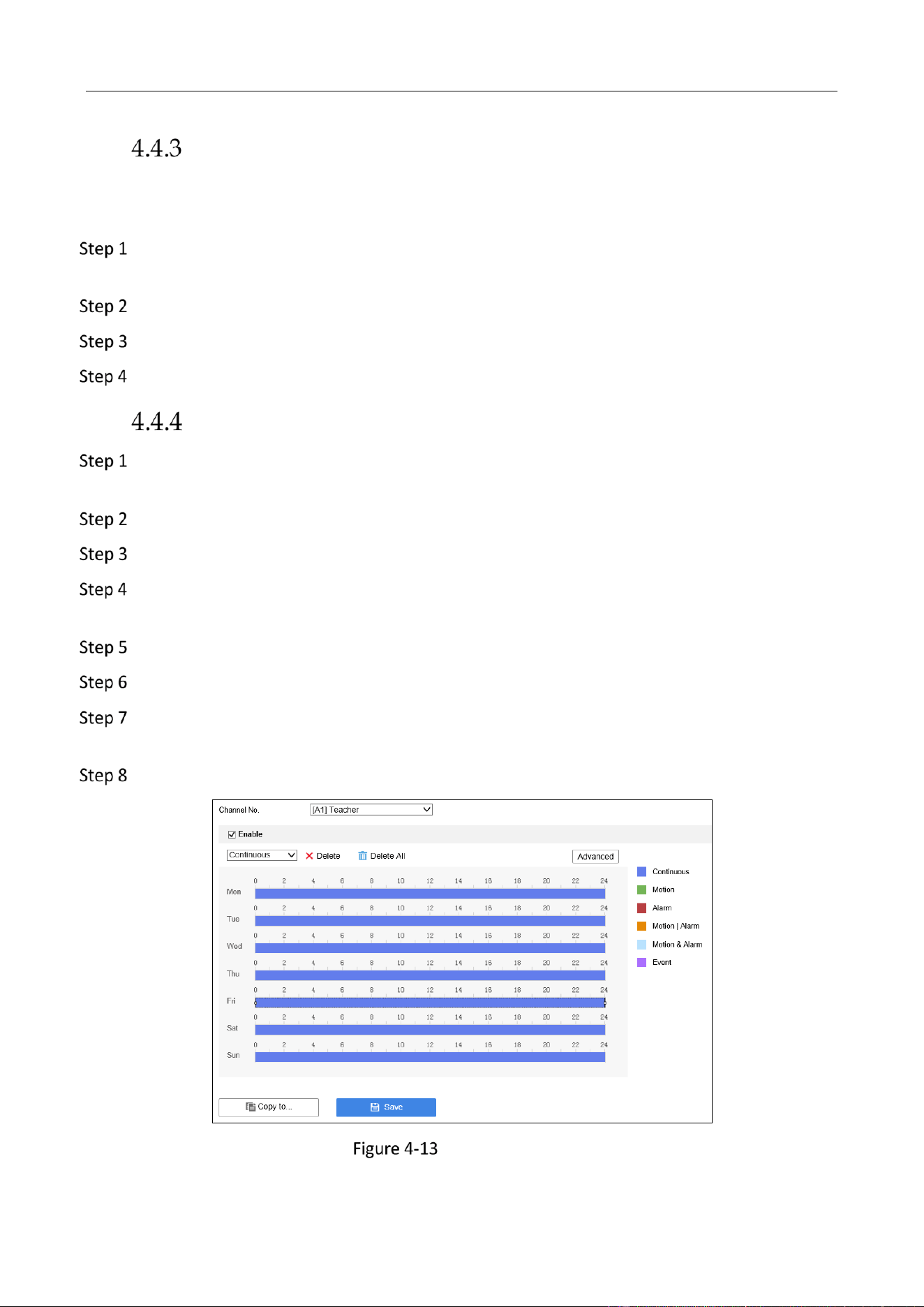
Go to Configuration > System Settings > Camera Management > Record Schedule via web
browser.
Select Channel No.
Check Enable.
Select the recording type, including Continuous, Motion, Alarm, Motion | Alarm, Motion &
Alarm, and Event.
Set the recording schedule of selected day.
Optionally, you can click Copy to to copy the schedule settings to other channel(s).
Optionally, click Advanced to set the pre-record and post-record time of the recording
schedule, and expired time of the recording file.
Click Save.
Schedule Settings
Education Sharing System User Manual
39
Advanced Settings
HDD Sleeping
Purpose:
To reduce consumption and extend hard disk’s lifespan, you can enable the hard disk sleep feature.
The hard disk will turn into sleep status if it keeps idle for a period.
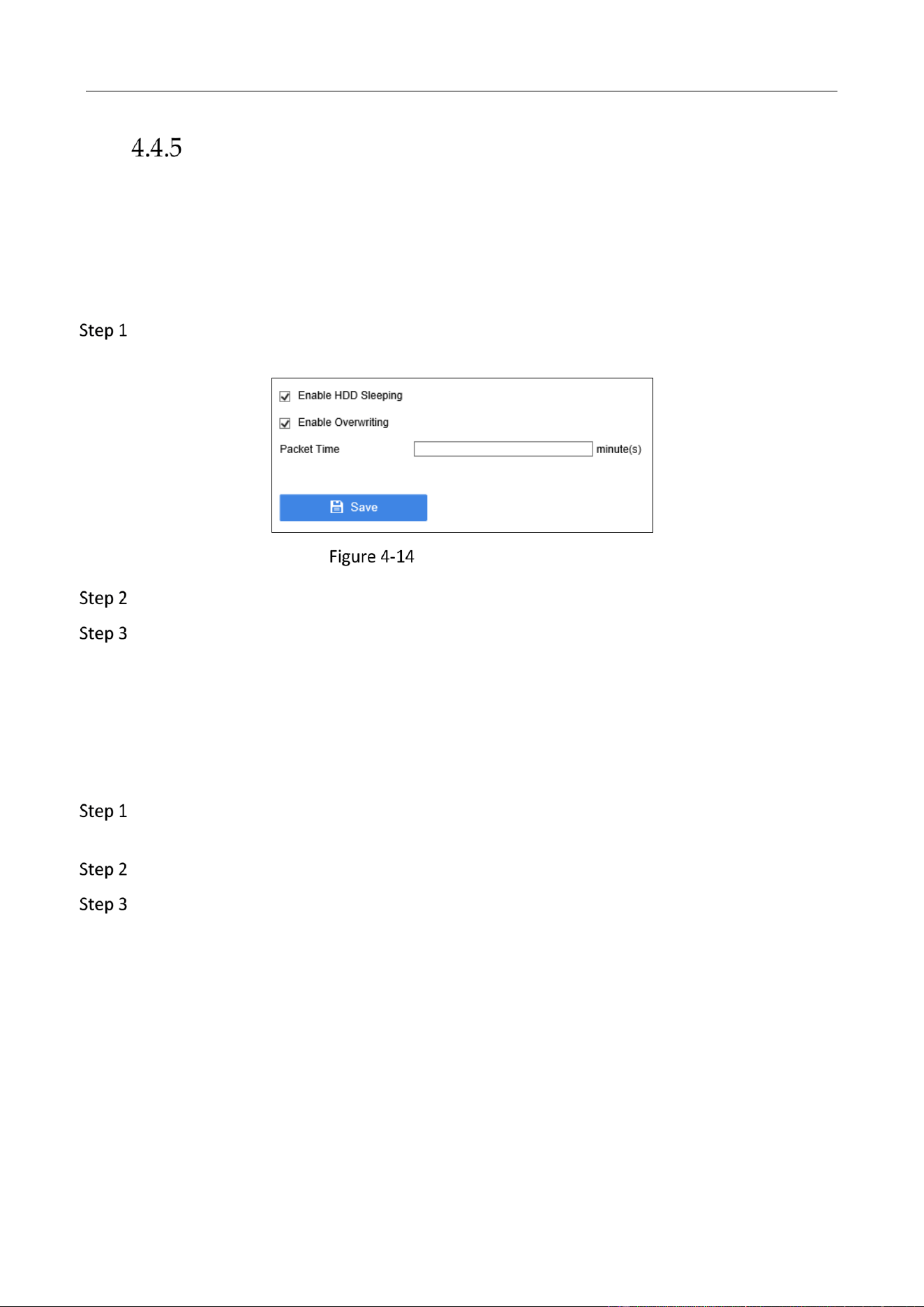
Go to Configuration > System Settings > Storage Management > Advanced Configuration
via web browser.
Advanced Configuration
Check Enable HDD Sleeping.
Click Save to activate the feature.
Overwriting
Purpose:
When the hard disk is full, the overwriting function will keep writing data into the hard disk by
replacing its previous data.
Go to Configuration > System Settings > Storage Management > Advanced Configuration
via web browser.
Check Enable Overwriting.
Click Save to save the settings.
Education Sharing System User Manual
40
Recording Settings
Manage Background Picture
Purpose:
When the live view control view is set as multi-screen 1, multi-screen 2, or multi-screen 3, in case
the collaged image cannot fill in the whole screen and leaves the screen top and bottom filled in
black bar, you can upload a background picture to span the whole screen.
Before you start
Ensure you have installed a hard disk to the device.
Upload Image
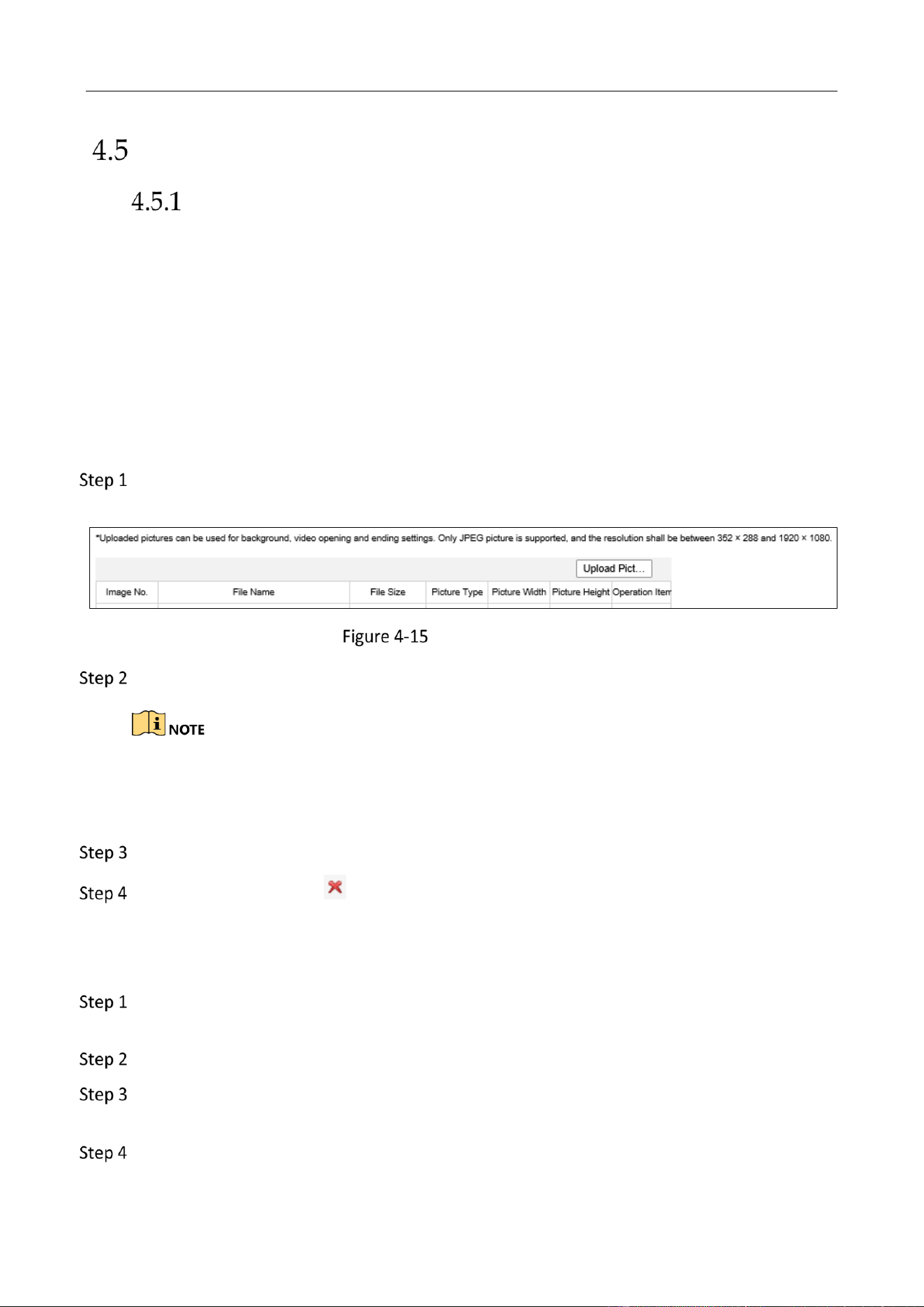
Go to Configuration > Recording Settings > Auxiliary Settings > Picture Upload via web
browser.
Background Settings
Click Upload Picture to upload a picture.
Only JPEG format pictures can be uploaded, and the resolution shall be between 352 × 288
and 1920 x 1080.
Up to 11 pictures can be uploaded.
Click OK.
Optionally, you can click to deleted the picture. But you cannot delete the background
picture that is in usage.
Set Background Picture
Go to Configuration > Recording Settings > Auxiliary Settings > Background Settings via web
browser.
Check Enable Background Overlay.
Check the live view control view that requires to overlay background image. Only multi-
screen is available.
Select background image for the multi-screen.
Education Sharing System User Manual
41
Click Save.
Courseware Detection
Set Courseware Detection
Purpose:
If auto live view control is enabled, once multimedia change is detected, education sharing system
will automatically switch to multimedia channel.
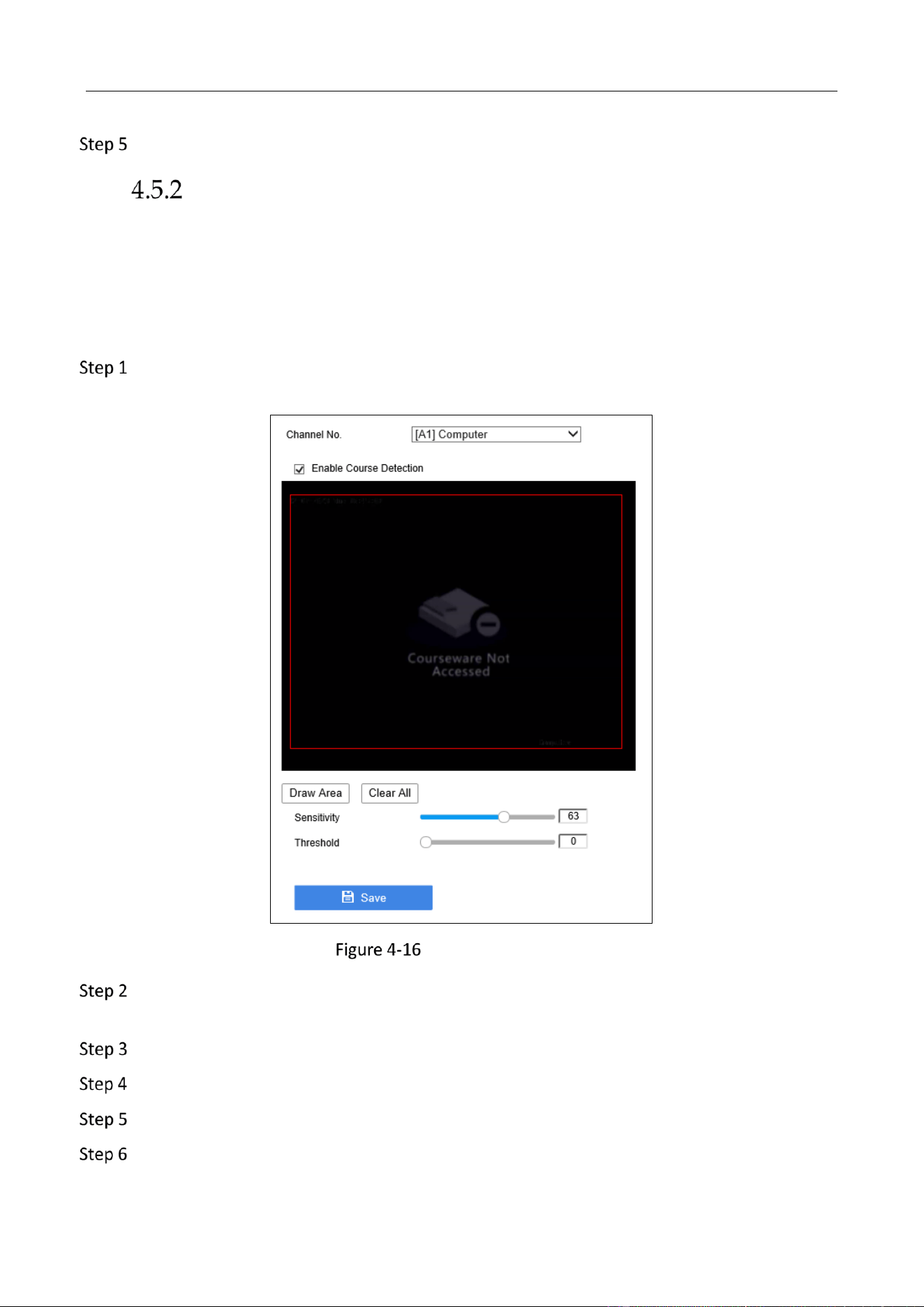
Go to Configuration > Recording Settings > Courseware Settings > Courseware Settings via
web browser.
Courseware Detection
Select Channel No. for course detection. [A9] Computer and [A10] Computer refer to VEDIO
IN 1 and VEDIO IN 2 at the rear panel respectively.
Check Enable Course Detection.
Click Draw Area to draw the detection area in the camera view.
Click Stop Drawing when you finish drawing the detection area.
Optionally, you can click Clear All to detete the drawing area.
Education Sharing System User Manual
42
Set Sensitivity and Threshold of course detection.
Sensitivity: Sensitivity refers to the how much the detection area pixels change.
Threshold: Threshold refers to how many pixels are changing.
Click Save to save the settings.
Configure Courseware Input Source
Purpose:
The device can automatically detect the courseware input source at startup. You can configure the
input source as your desire.
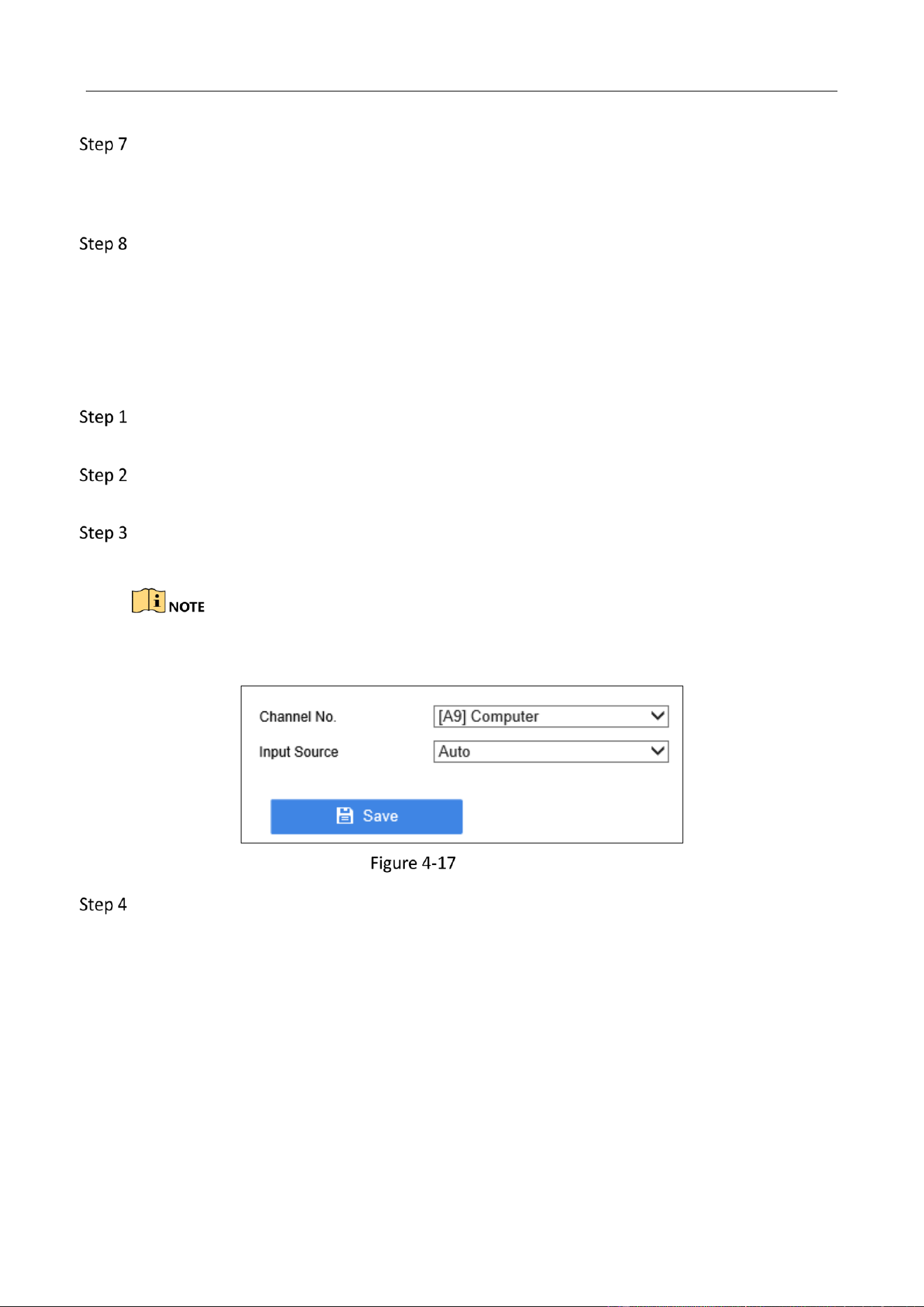
Go to Configuration > Recording Settings > Courseware Settings > Input Source
Configuration via web browser.
Select Channel No. for input source. [A9] Computer and [A10] Computer refer to VEDIO IN 1
and VEDIO IN 2 at the rear panel respectively.
Select Input Source. The device can automatically detect the courseware input source if you
select Auto.
When Input Source is set as Auto, and both HDMI and VGA signal source have been detected, the
device will choose HDMI as its priority input source.
Input Source
Click Save.
Automatic Live View Control
Purpose:
Combined with education specified speed dome and detection camera (including teacher close
shot camera, student close shot camera, and multimedia camera), education sharing system can
automatic display the teacher image, student image, or HDMI/VGA multimedia image in live view
control view according to the speed dome smart detection information. Besides, the speed dome
can preciously positioning and track teacher and record the teaching process.
Education Sharing System User Manual
43
Connect education specified speed dome and detection to education sharing system via
network.
In auto live view control mode, when the education specified speed dome occurs smart
events or HDMI/VGA multimedia courseware changes, the cameras will be automatically
displayed in the resource channel in the largest window of live view control view according
to the set priority.
You need to log in education specified speed dome configuration interface to configure its
smart detection rules.
Configure Live View Control View
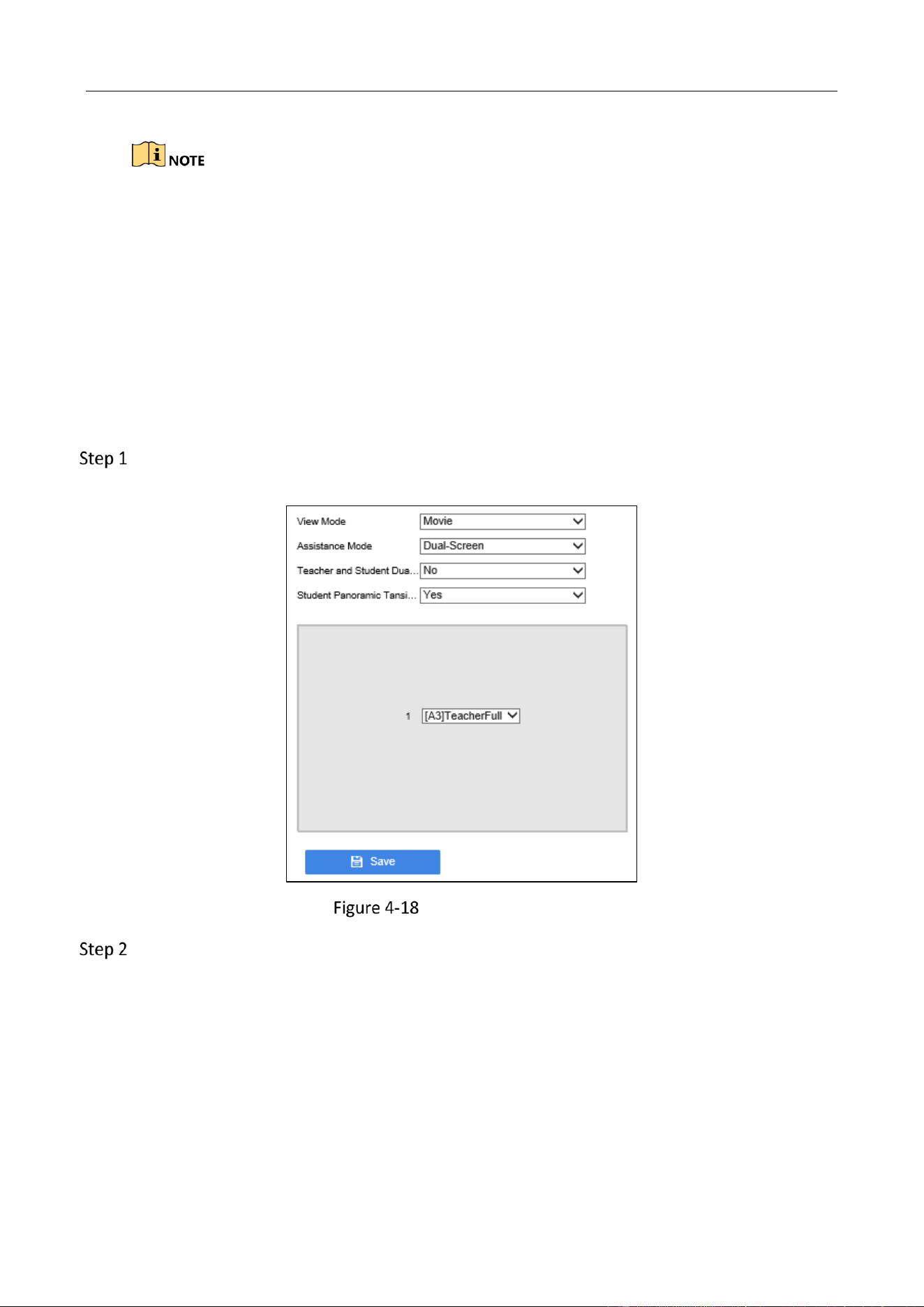
Go to Configuration > Recording Settings > Live View Settings > View Settings via web
browser.
Live View Control View
Select View Mode.
Movie: You need to set Assistance Mode for movie mode. When one alarm is triggered,
it will display in single screen. But if two or more alarms are trigged, it will display as
what the Assistance Mode is set, including Single Screen, Dual-Screen, and Picture-in-
Picture.
PiP: PiP (Picture-in-picture) is the video display method that when the video is on full
screen, another video is displayed in the inset window at the same time.
Multi-Screen: Multi-image of the camera are displayed simultaneously on the screen.
Education Sharing System User Manual
44
Select display channel.
Click Save.
Configure Live View Control Strategy
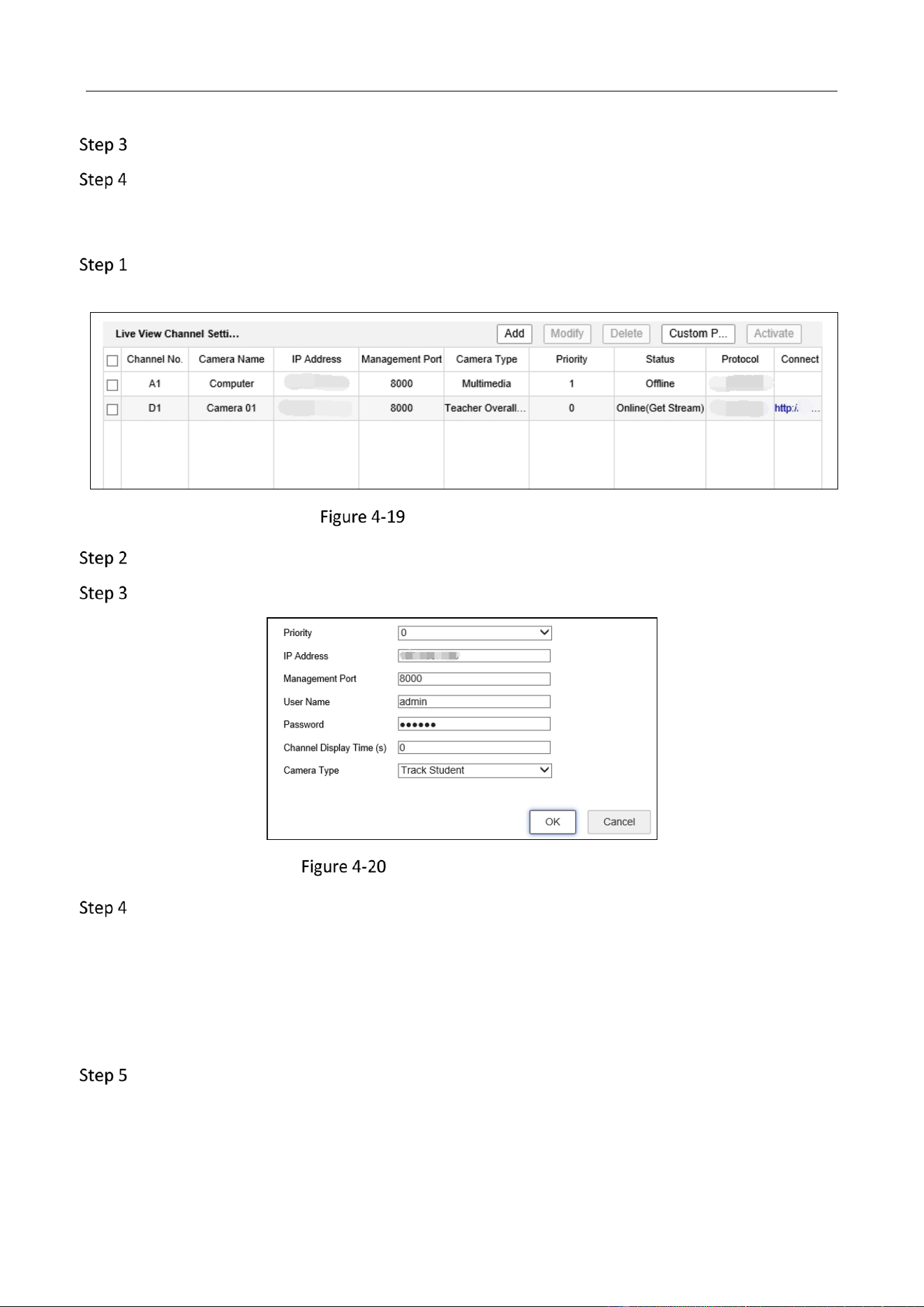
Go to Configuration > Recording Settings > Live View Settings > Live View Channel Settings
via web browser.
Live View Channel Settings
Select a channel for modification.
Click Modify.
Strategy Configuration Interface
Set the parameters, including priority, IP address, port, user name, password, etc.
Priority: The priority of the selected channel. The larger the value is, the higher the
priority will be.
Channel Display Time (s): The display time of multimedia is recommended to set as its
actual duration. Other channel’s display time is recommended to set as 0. Valid channel
display time range: [0, 900].
Click OK to save the settings.
Education Sharing System User Manual
45
Configure One-Touch Configuration
Go to Configuration > Recording Settings > Live View Settings > Live View Strategy Settings
via web browser.
Click Add.
Enter the channel parameters of live view control strategy.
Click OK.
Click One-touch Configuration.
The device will automatically recognize supportable education specified cameras. If issues occur,
contact the product distributor for help.
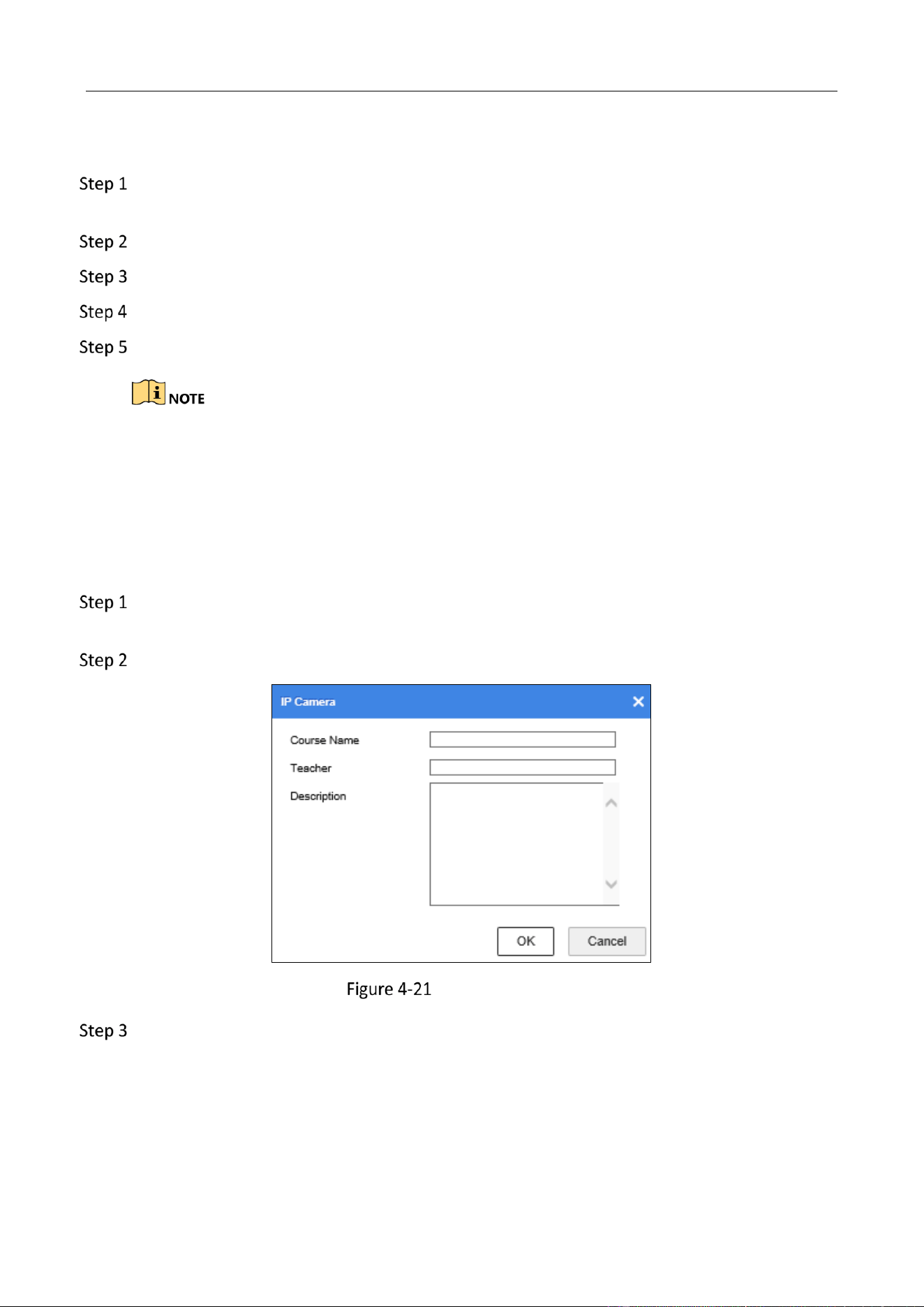
Course Information
Purpose:
You can define the course number, course name, and course instructor.
Go to Configuration > Courseware Settings > Course Settings > Course Information via web
browser.
Edit the course information including name, teacher, etc.
Course Information
Click OK.
Course Plan
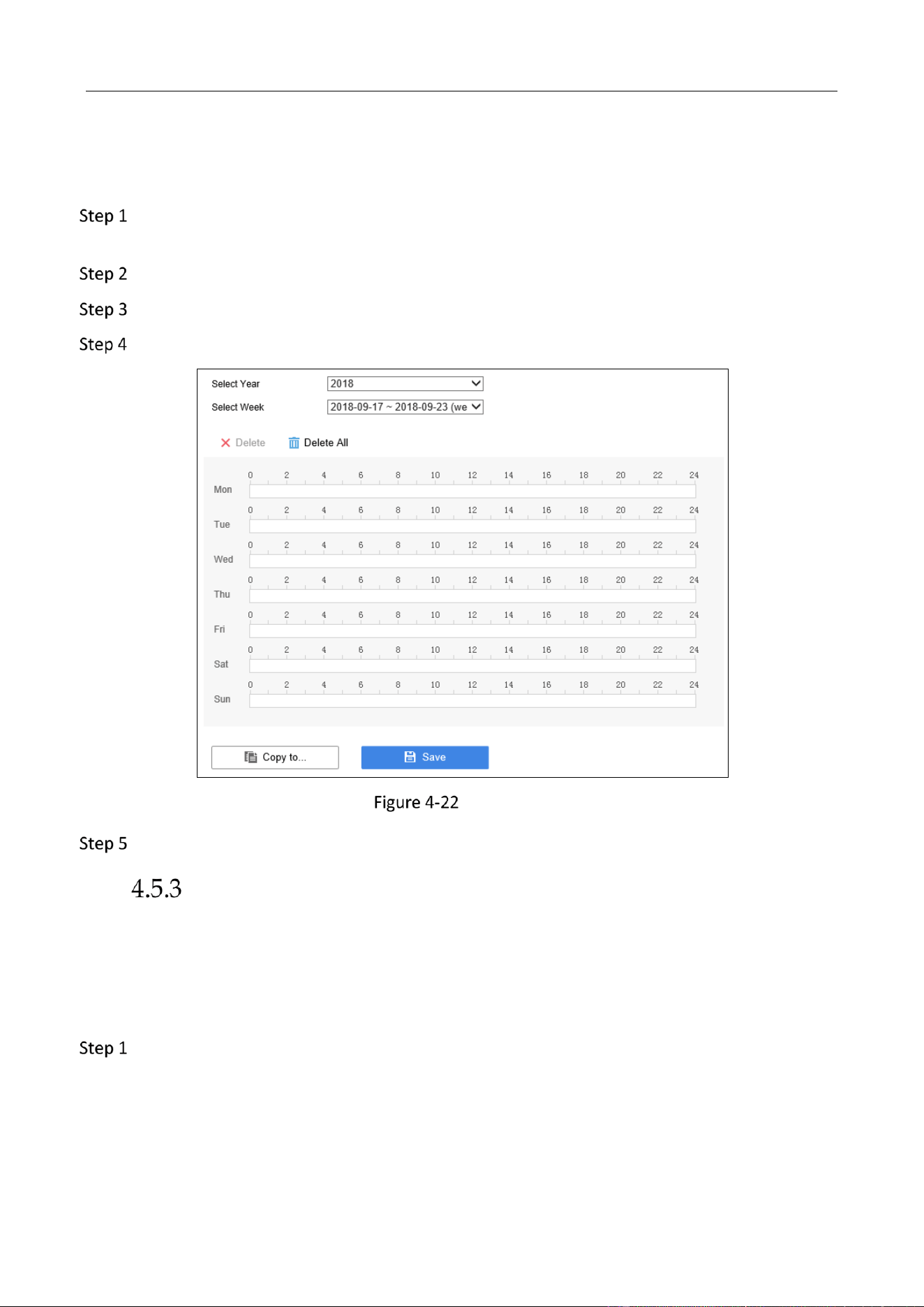
Purpose:
You can set the course recording plan as your desire.
Education Sharing System User Manual
46
Before you start:
Course plan is saved in hard disk. So you need to install at least one hard disk and format it.
Go to Configuration > Courseware Settings > Course Settings > Course Plan via web
browser.
Select year and week for the plan.
Set the recording schedule for each day in the week.
Optionally, click Copy to to copy the recording schedule to other week.
Course Plan
Click Save.
Course Publishing
Publish Course
Purpose:
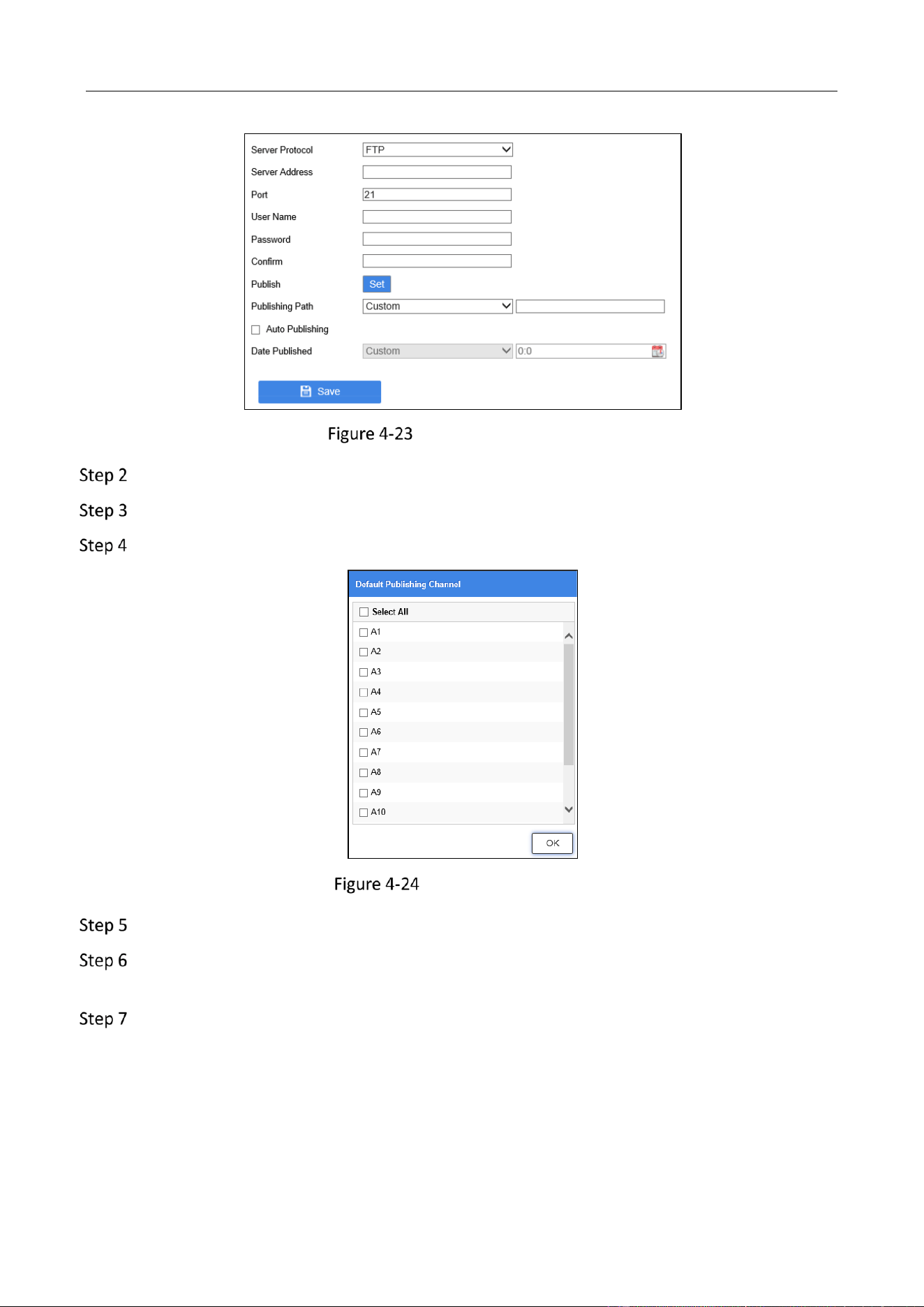
The recorded courses can be automatically published to FTP server.
Go to Configuration > System Settings > FTP Publishing > Publish Configuration via web
browser.
Education Sharing System User Manual
47
Publishing Configuration
Enter the FTP server address, port, user name, and password.
Click Set to select the publishing channel(s).
Click OK.
Set Publishing Channel
Set Publishing Path.
Optionally, check Auto Publishing to automatically publish courses. You can set Date
Published as Last Course or Custom time for the course that requires to be published to FTP.
Click Save to save the settings.
Education Sharing System User Manual
48
The published course video format is MP4.
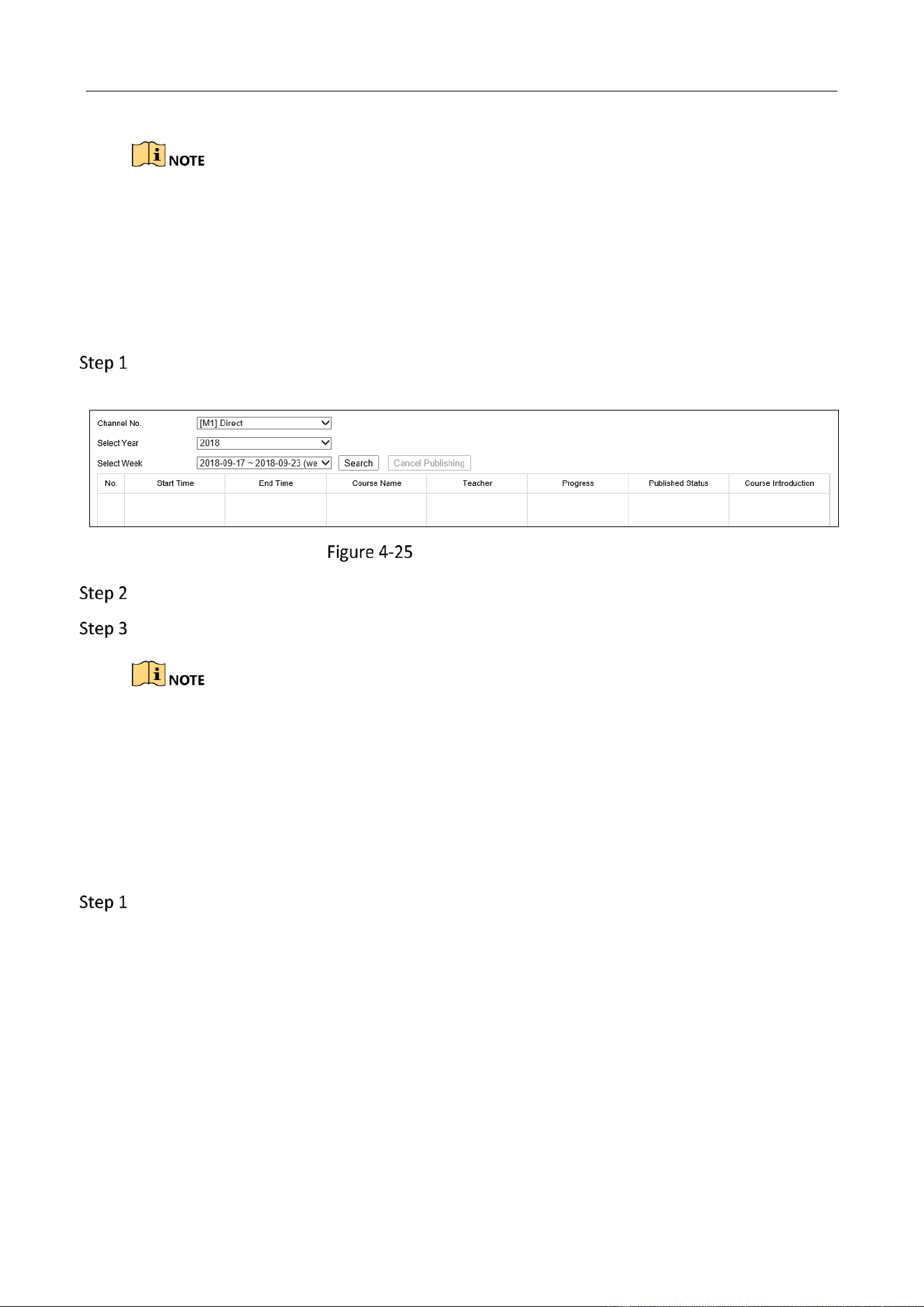
Search Published Course
Purpose:
After course is published, you can search its publishing progress, publishing status, course
introduction.
Go to Configuration > System Settings > FTP Publishing > Published Course Search via web
browser.
Search Published Course
Select channel, year, and week.
Click Search.
When multiple courses are waiting to be uploading, to increase the uploading speed of high
priority courses, you can cancel uploading of low priority courses.
RTMP Live Settings
Purpose:
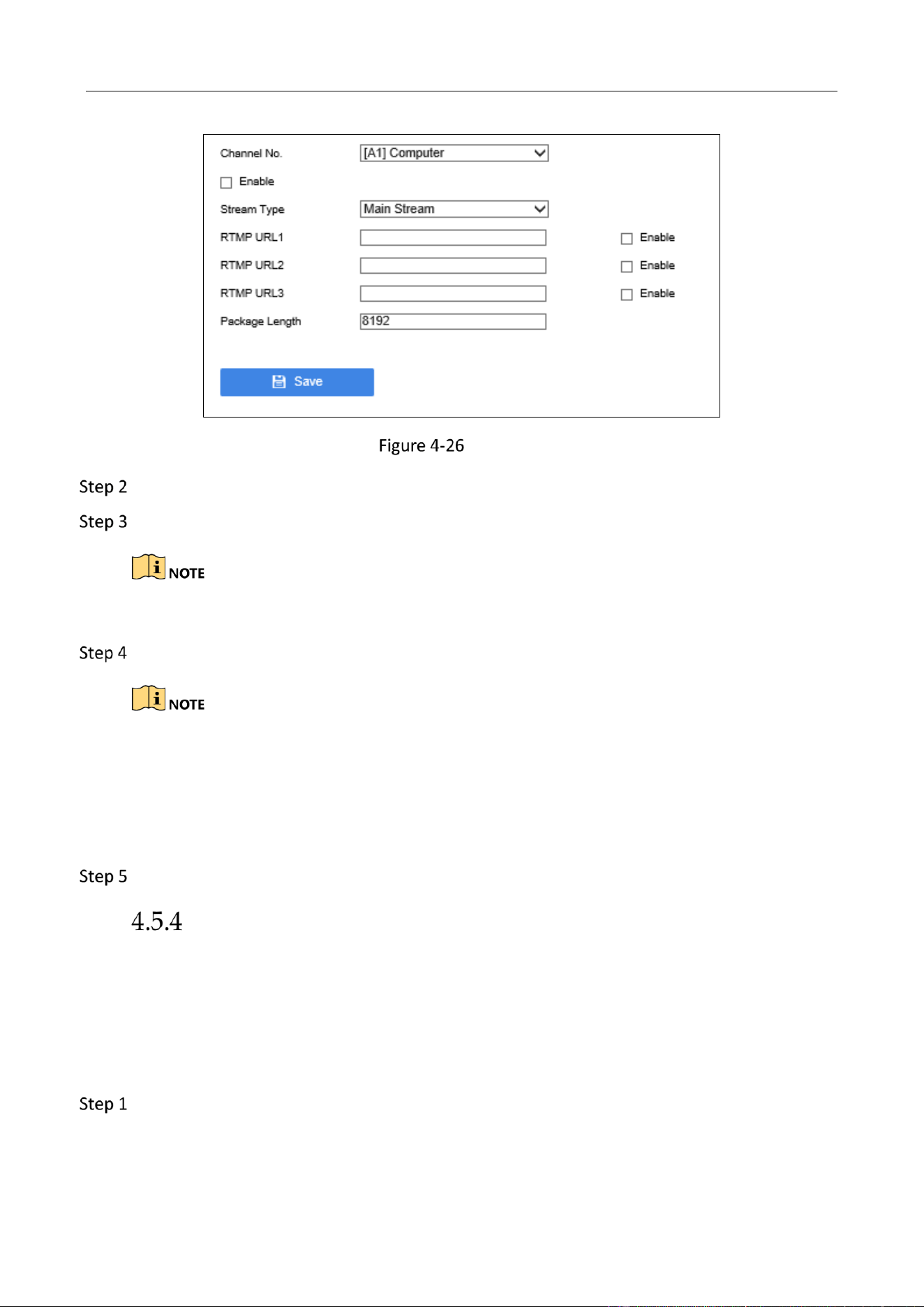
You can view the course live view image in RTMP server. The feature is turned off by default.
Go to Configuration > System Settings > Network Settings > RTMP Live via web browser.
Education Sharing System User Manual
49
RTMP Live
Select Channel No.
Check Enable to enable the RTMP live feature.
Network camera supports push main stream and sub-stream.
Edit Stream Type, RTMP URL, and Package Length.
RTMP URL format: rtmp://192.168.1.64:1935/live/12345. 192.168.1.64 is the server IP
address. 1935 is server port. Live is server name. 12345 is a custom name used to
distinguish channels and stream types.
Valid package length range: [1024, 8192]. Package length is 8192 by default and is a
recommended value.
Click Save.
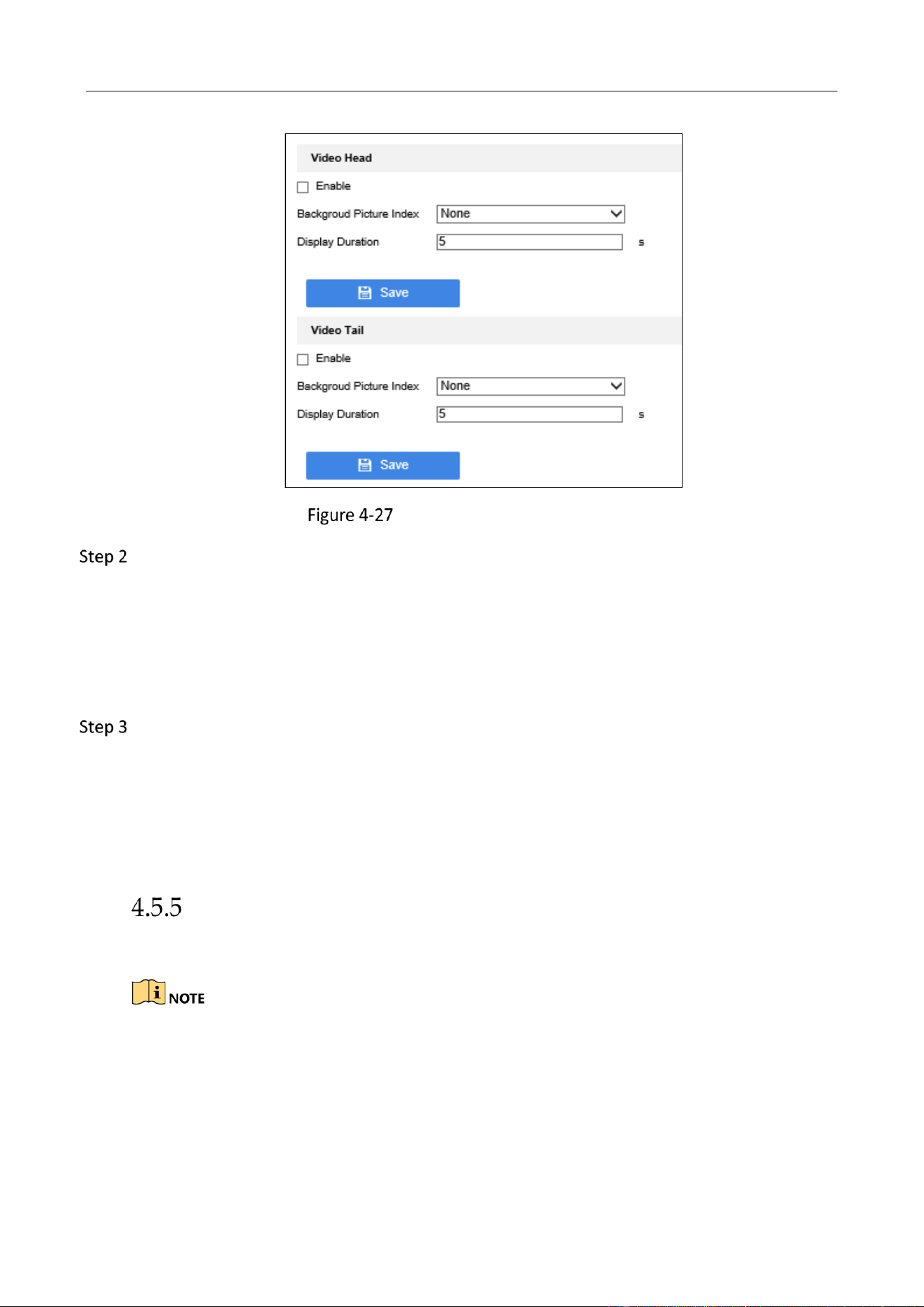
Video Head/Tail Configuration
Purpose:
You can insert the picture at the beginning and ending of course video.
Before you start:
Upload background first. For detailed steps, refer to 4.5.1 Manage Background Picture.
Go to Configuration > Recording Settings > Auxiliary Settings > Video Head/Tail
Configuration via web browser.
Education Sharing System User Manual
50
Video Head/Tail Configuration
Configure video head.
1) Check Enable under Video Head.
2) Enter Background Picture Index. The index No. is the background picture No. in the
background settings interface.
3) Enter Display Duration for the background picture.
4) Click Save.
Configure video tail.
1) Check Enable under Video Tail.
2) Enter Background Picture Index. The index No. is the background picture No. in the
background settings interface.
3) Enter Display Duration for the background picture.
4) Click Save.
Logo Configuration
You can overlay logo image on the live view.
The required logo picture format is .jpeg and .jpg, the resolution shall be smaller than 256 × 128,
and file size shall be smaller than 80 KB.
Education Sharing System User Manual
51
Upload Logo
Go to Configuration > Recording Settings > Auxiliary Settings > Logo Configuration via web
browser.
Click Browse to select the image path.
Click Save.
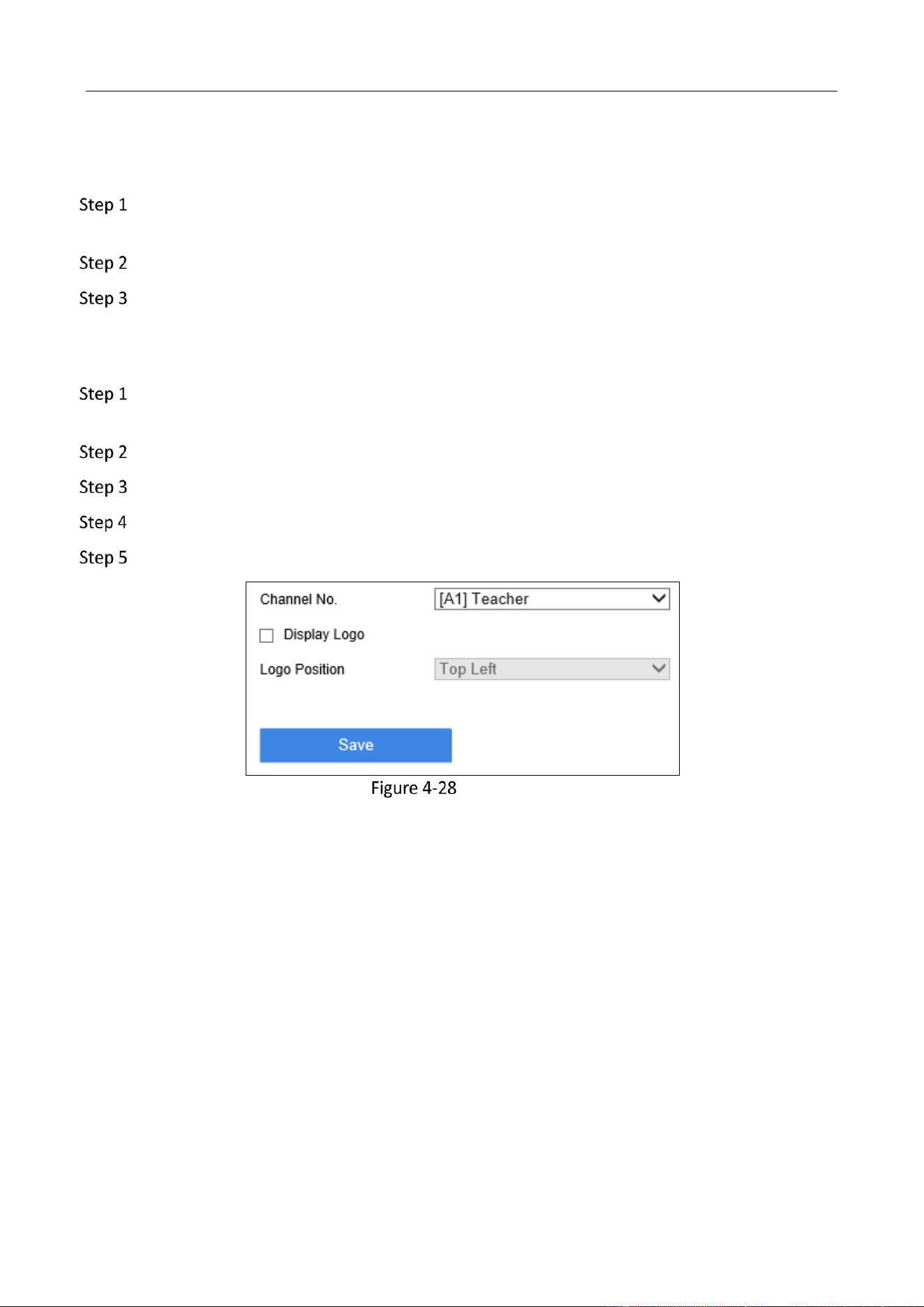
Display Logo
Go to Configuration > Recording Settings > Auxiliary Settings > Logo Configuration via web
browser.
Select Channel No. The logo will be displayed at the selected channel.
Check Display Logo.
Select Logo Position as your desire.
Click Save.
Display Logo
Education Sharing System User Manual
52
Multi-Classroom Interaction (Clould Interaction)
Interaction Settings
Account Management
Purpose:
You can manage your interactive meeting account in Account Management.
Go to Configuration > Interaction Settings > Cloud Interactive Class > Account Management
via web browser.
Click Current Login Account to register the device (your device will log in automatically after
registration. If you log out from the current account, you have to log in manually).
Enter your user name and password. Click login to get access to the platform.
Manage your account as required.
Account Management Procedures
Item
Description
Change your alias and phone number.
Change account password.
Exit current account.
Local Meeting No.
If the device initiates an interactive meeting, other devices shall use
the meeting number to join in.
Alias
Alias is your device name, and other participants can find your
meeting through it. You can click to edit it. For example, it can be
set as the class name.
Service Details
Check your account ID, start time and end time.
Top-up/Record
Top up or check your top-up records.
Click top-up, fill in your card number and top up.
Configure Platform Parameters
Platform parameters are used for interaction. You can configure platform parameters in
Configuration > Interaction Settings > Cloud Interactive Class > Basic Settings via web.
Default settings are recommended. If the default parameters are invalid, please contact the
installer or technical support service.
Education Sharing System User Manual
53
Configure Interactive Video Linkage
Purpose:
You can configure Interactive Video Linkage in the interaction view.
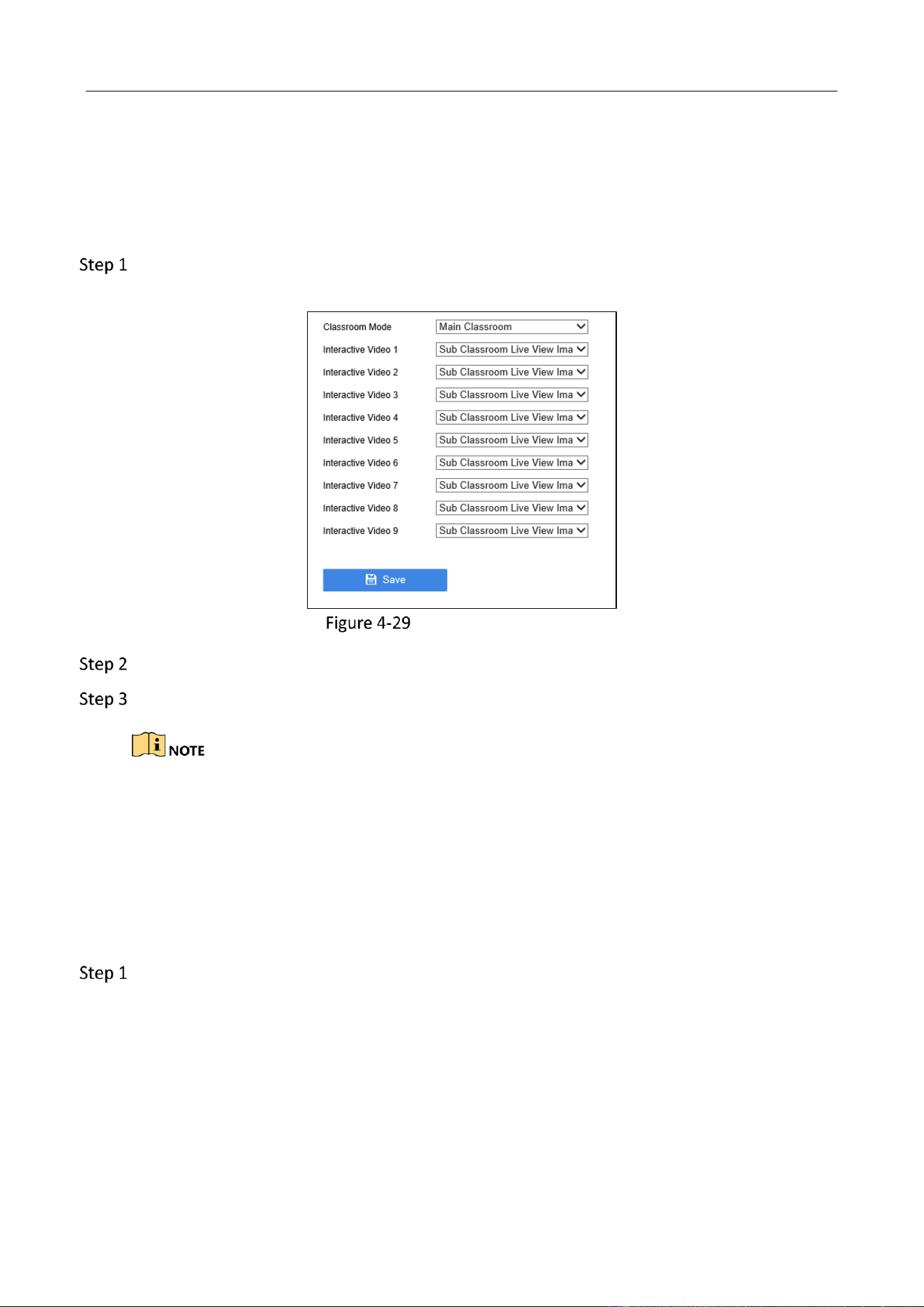
Go to Configuration > Interaction Settings > Cloud Interactive Class > Interactive Video
Linkage via web browser.
Interactive Video Linkage
Set your classroom mode as Main Classroom or Sub Classroom.
Select classroom live view image of the interactive video accordingly.
You can go to Configuration > Interaction Settings > Cloud Interactive Class > Interaction View to
set the position of interactive video in the interaction view.
Configure Interaction View
Purpose:
You can configure the view mode and the channels of the individual interaction view.
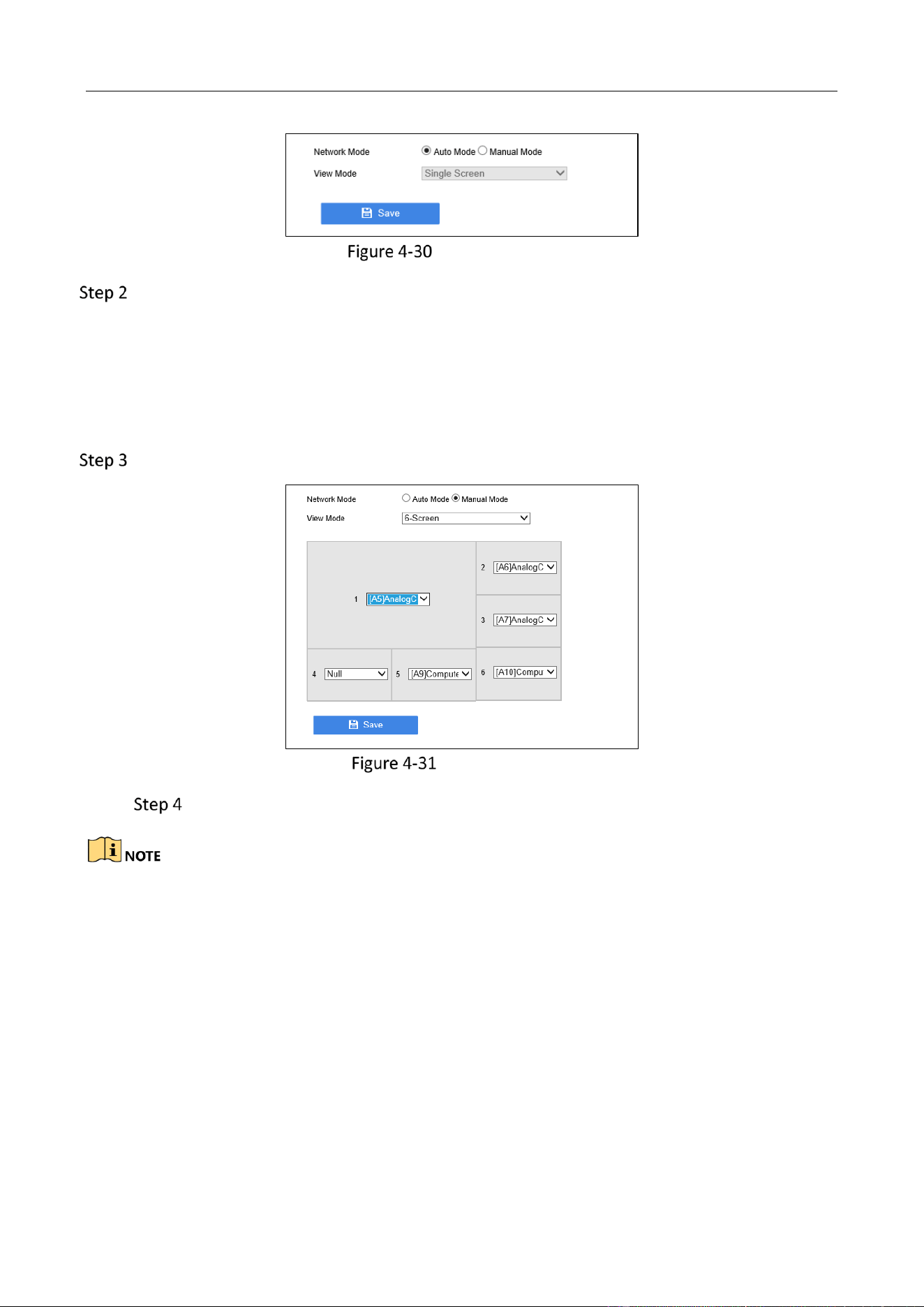
Go to Configuration > Interaction Settings > Cloud Interactive Class > Interaction View via
web browser.
Education Sharing System User Manual
54
View Configuration
Select Network Mode.
Auto Mode: If no view is provided by other recorder, default view mode would be single
screen. Otherwise, it will add new view automatically and switch to multi-screen.
Manual Mode: This mode shows multi-screen view and can match the interactive video with
the required view. You can set the presentation of the interactive video if you go to
Configuration > Interaction Settings > Cloud Interactive Class > Interactive Video Linkage.
Click and set the channel of each view.
Channel Selection
Click Save.
The screenshots are for reference only, the optional channel is subject to the actual device
conditions.
If the view channel is null, it will present black screen.
Sending Channel Encoding Settings
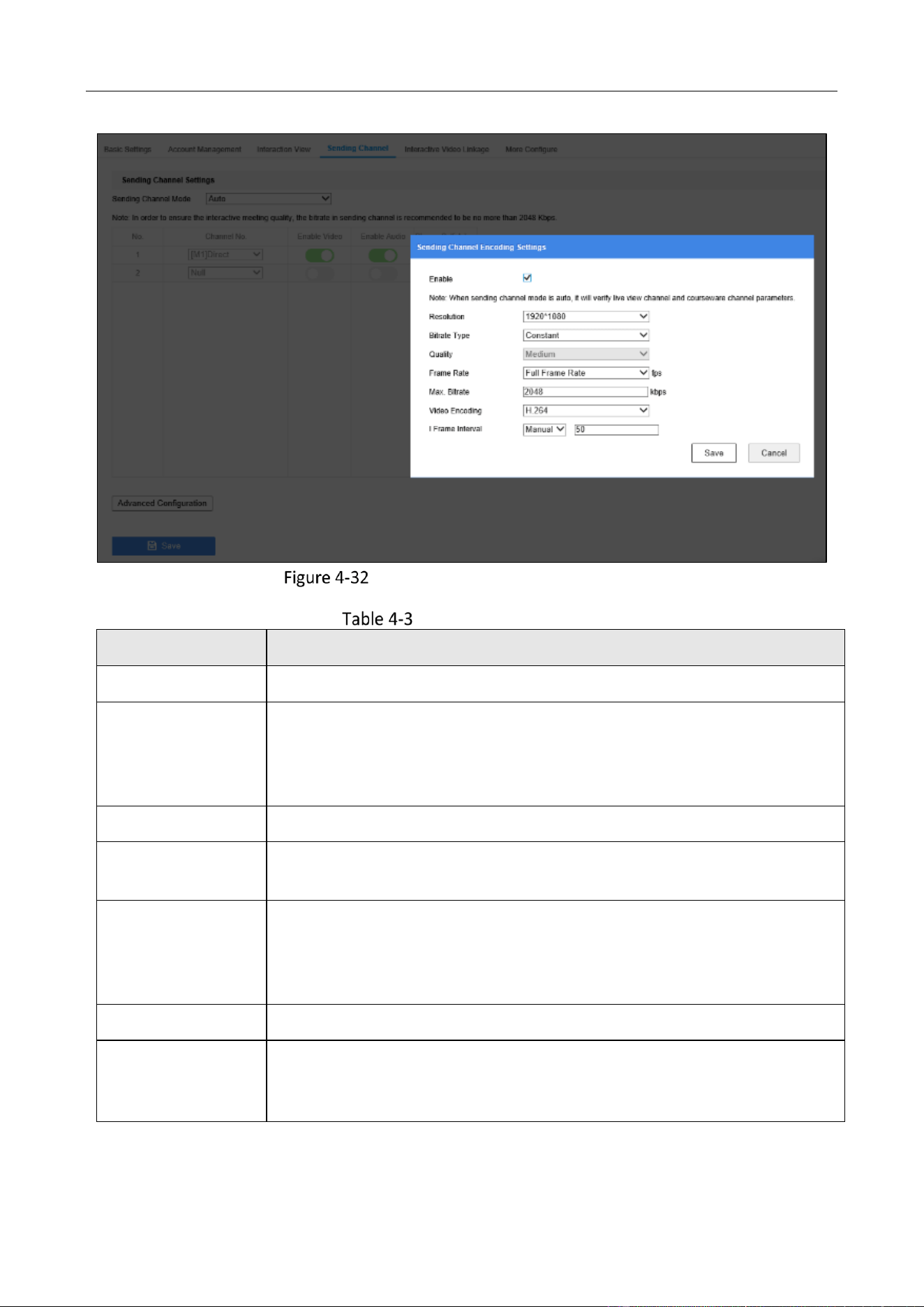
Purpose:
You can configure the main stream parameters of the sending channels.
Go to Configuration > Interaction Settings > Cloud Interactive Class > Sending Channel >
Advanced Configuration via web browser.
Education Sharing System User Manual
55
Sending Channel Code Configuration
Parameter Description
Parameter Name
Parameter Description
Resolution
Indicates image precision. The higher the resolution, the clearer the image.
Bitrate Type
Variable Bitrate: Bitrate varies according to the scenarios. 6 levels of image
quality are available. You can have higher usage of network bandwidth and
higher efficiency of storage space. If the video encoding is H.265 and the
Bitrate Type is variable, the system would adopt H.265 Pro format.
Quality
Only adjustable when Bitrate Type is set as Variable.
Frame Rate
Indicates video frame rate per second. The higher the frame rate, the
higher the consistency of the video. Default setting is recommended.
Max. Bitrate
A reference number that indicates Max. Bitrate of the video encoding. The
higher the Max. Bitrate, the better the video quality. Default setting is
recommended. If you have to edit it for better video quality, resolution is
suggested to be adjusted together.
Video Encoding
Video encoding format depends on specific camera.
I Frame Interval
You can improve its consistency in video loss by setting I Frame Interval.
Generally, you do not need to adjust this setting, and default setting is
recommended.
Education Sharing System User Manual
56
The main stream parameters of the sending channels are only effective if configured in Sending
Channel Encoding Settings but not in Audio/Video > Video Settings.
Configure Sending Channel
Purpose:
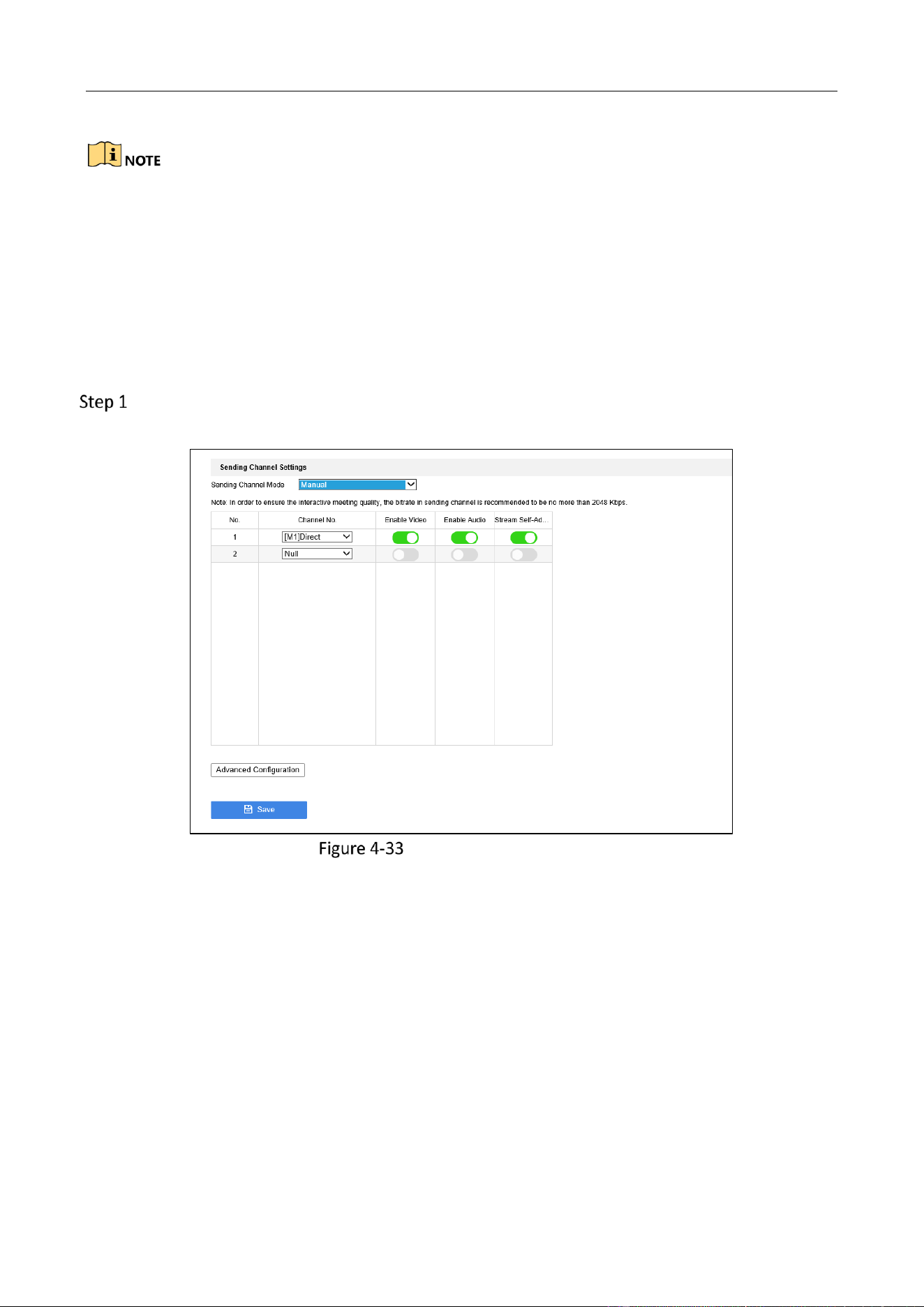
You can configure the interactive image parameters, and the image will be sent to the interactive
meeting.
Go to Configuration > Interaction Settings > Cloud Interactive Class > Sending Channel via
web browser.
Configure Sending Channel
Stream Self-Adaption is recommended. If this function is enabled, it will adjust video bitrate
automatically according to the network performance.
Education Sharing System User Manual
57
If the Sending Channel Mode is auto, the parameters can not be configured. The
courseware channel and the broadcast channel are sent by default. Meanwhile, the main
stream, video, audio and Stream Self-Adaption are applied by default.
As the channel No. and the stream cannot be configured during the interaction process,
please configure them before the interaction starts.
Audio can be enabled or controlled only after the video is enabled.
After enabling the video and audio, if the host is the initiator, / will be available to
initiate or stop the sending process, while if the host is the participant, the device will send
the video or audio by default, but it cannot stop the sending process.
Click Advanced Configuration to configure the sending channel No.
Configure Meeting Room Permission
Purpose:
You can configure the meeting room permission (direct participation or participation with
verification code).
Go to Configuration > Interaction Settings > Cloud Interactive Class > Basic Settings >
Meeting Room Management via web browser.
Select Meeting Room Permission.
If you select encrypted meeting room permission, you should configure the verification
code.
After you complete the configuration, verification code is required when other devices join in the
interactive meeting that initiated by the host.
Configure Course Output
Purpose:
You can configure the course output.
Go to Configuration > Interaction Settings > Cloud Interactive Class > More Configure> Course
Output via web browser.
If HDMI and VGA offer simultaneous video output, both HDMI or VGA provide the video of your
course; if they offer independent output, the course output can be set manually. By default, VGA
can provide access to both main room courseware and the sub room courseware, and this default
setting can also be switched to HDMI output.

Education Sharing System User Manual
58
Overlay Interactive Alias
Purpose:
You can overlay interactive alias on the image of sending channels.
Select Configuration > Interaction Settings > Cloud Interactive Class > Basic Settings >
Interactive Alias Overlay via web browser.
Check Enable and set Overlay Position.
Interactive Course Data Counting
Purpose:
Course data counting is available. Statistics such as head rise data and question frequencies.
Go to Configuration > Interaction Settings > Cloud Interactive Class > More Configure >
Interactive Course Data Counting via web browser to enable this function. You can check the
counting result on the platform.
Network Status Counting
Purpose:
The interactive view can show network status, and you can configure Current Packet Loss Rate
Counting Time Interval with this function.
Go to Configuration > Interaction Settings > Cloud Interactive Class > More Configure > Network
Status Counting via web browser to input required intervals, from 1-1000.
Interactive Facial Image Live View
Purpose:
When teacher stands in front of the interactive screen, the live view will switch to the facial image
of the teacher.
Go to Configuration > Recording Settings > Live View Settings > Live View Strategy Settings
via web browser.
Set Configuration Mode as Auto Configuration.
Go to Configuration > Recording Settings > Live View Settings > Live View Channel Settings.
Click Add.
Set Camera Type as None.
Set other camera parameters as required.
Click OK.
Join/Initiate Interaction
Before you start
Education Sharing System User Manual
59
● Configure interactive meeting parameters (Go to Configuration > Interaction Settings > Cloud
Interactive Class via web browser).
● Turn off point-to-point video meeting.
● The device has been registered, logged in and topped up.
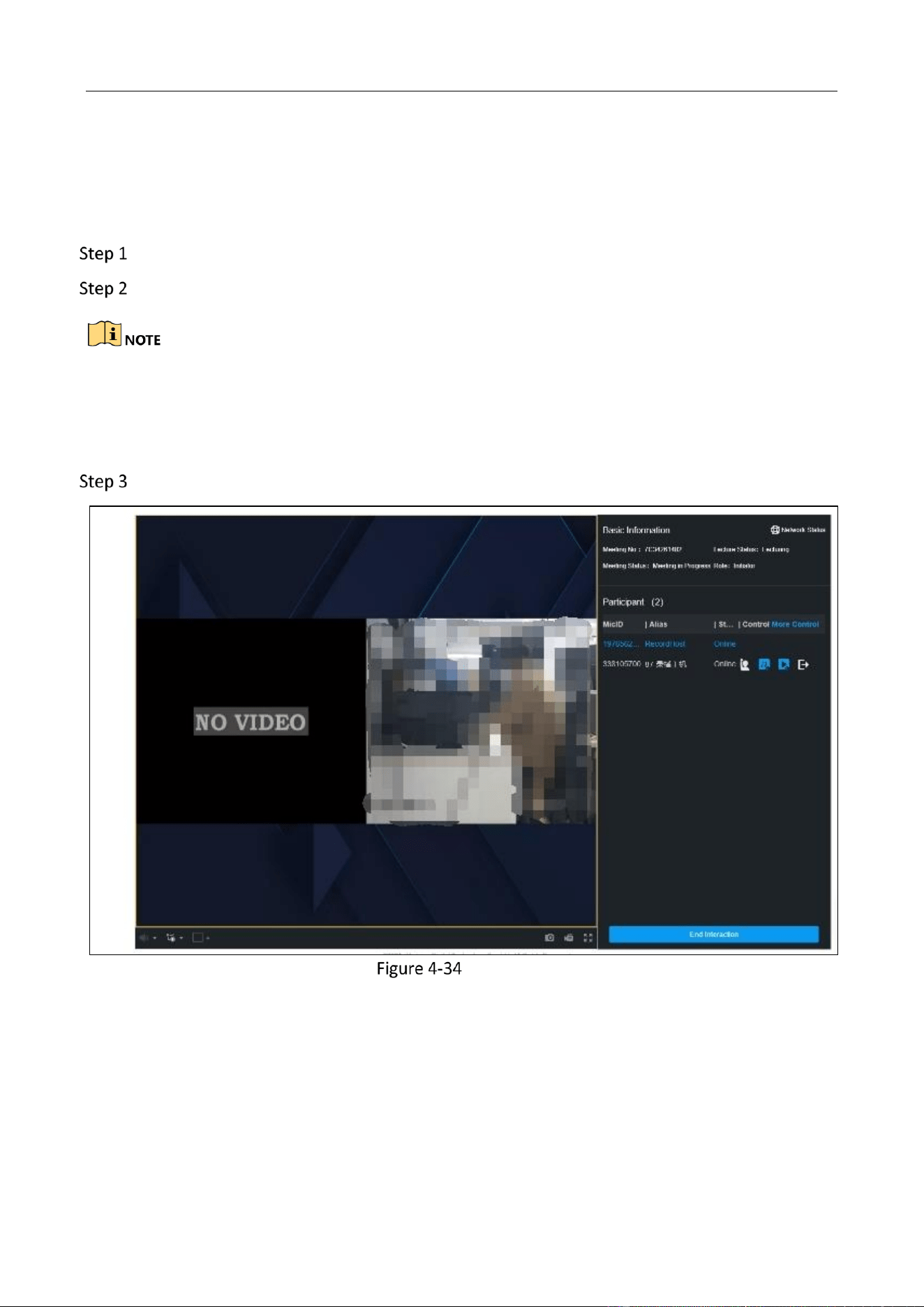
Click Interaction.
Initiate or join a meeting.
The initiator can ask questions to the participant or remove the participant. The meeting No.
filled in by participant is the device meeting No. (can be obtained from the initiator, on the web
page of the host Configuration > Interaction Settings > Cloud Interactive Class > Account
Management).
Complete the configuration accordingly.
Interaction
Education Sharing System User Manual
60
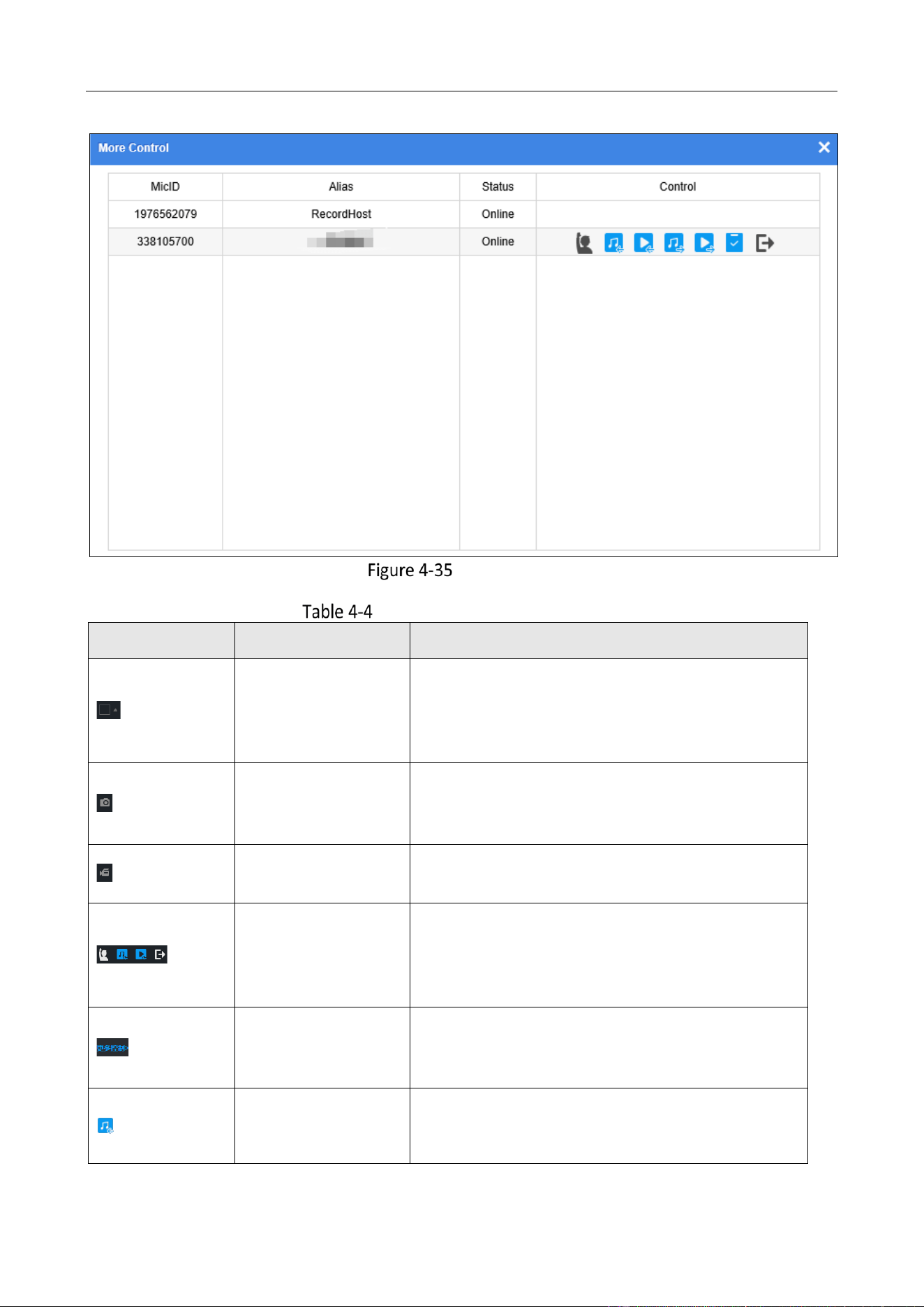
More Control
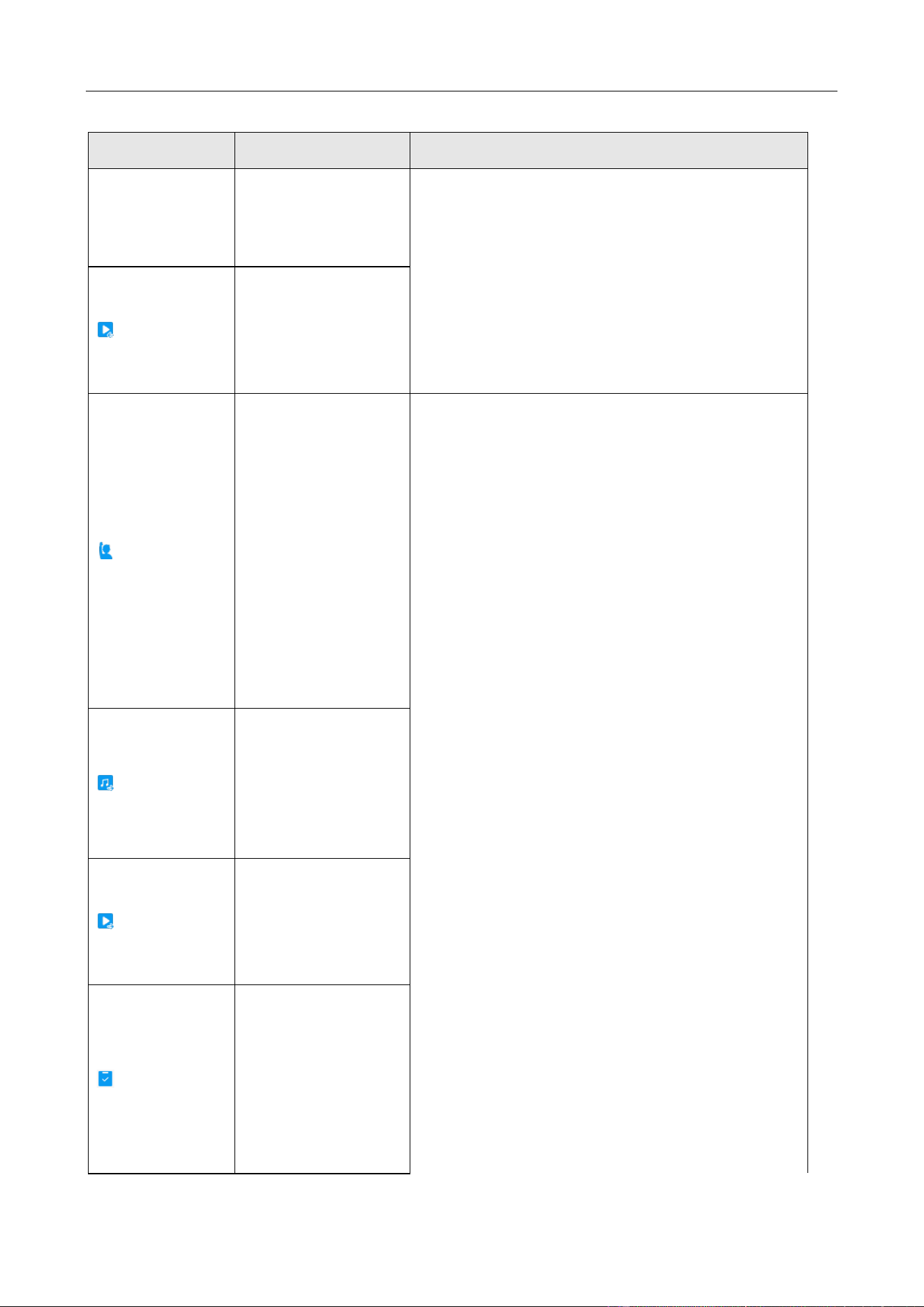
Interaction and Other Procedures
Icon
Description
Remarks
Adjust view mode.
This function is only available when the view
mode is ‘manual’ (Go to Configuration >
Interaction Settings > Cloud Interactive Class >
Interactive View).
Capture current
view.
Go to Configuration > System Settings > System
Settings > WEB Config > Save Snapshots in Live
View to.
Start recording.
Go to Configuration > System Settings > System
Settings > WEB Config> Save Record Files to.
Control button of
the participant list.
Function is as same
as the more control.
Blue indicates on, white indicates off, grey
indicates channel is offline and unavailable.
Click and you can
control more
options.
Null.
Receive audio. To
receive or decline
the audio sent by
Blue indicates on, black indicates off, grey
indicates channel is offline and unavailable.
Education Sharing System User Manual
61
Icon
Description
Remarks
the participant. Only
available when
video stream is
enabled.
Receive video
stream. To receive
or decline the audio
and video sent by
the participant.
Ask question.
The initiator can ask
questions to the
participant, when
you go to
Configuration >
Interaction
Settings > Cloud
Interactive Class >
Interactive View,
select auto mode
and enable this
function.
Only available for initiators.
Blue indicates on, black indicates off, grey
indicates channel is offline and unavailable.
Receive audio. To
receive or decline
the audio sent by
the participant. Only
available when
video is enabled.
Receive video. To
receive or decline
the audio and video
sent by the
participant.
To show or hide
student name in the
meeting room. Only
available when
individual behavior
analytics is
configured and
when the camera
Education Sharing System User Manual
62
Icon
Description
Remarks
supports this
function.
Remove meeting.
Remove other
device from the
interaction.
If the interactive view prompts unstable network connection, please check and adjust the network
enviornment.
Point-to-Point Video Meeting
Purpose:
For certain models, point-to-point video meetings can be initiated or attended through H.323
protocol.
Before you start:
Ensure interaction is not enabled.
Go to Configuration > Interaction Settings > Video Meeting H323.
Configure Point-to-Point Video Meeting
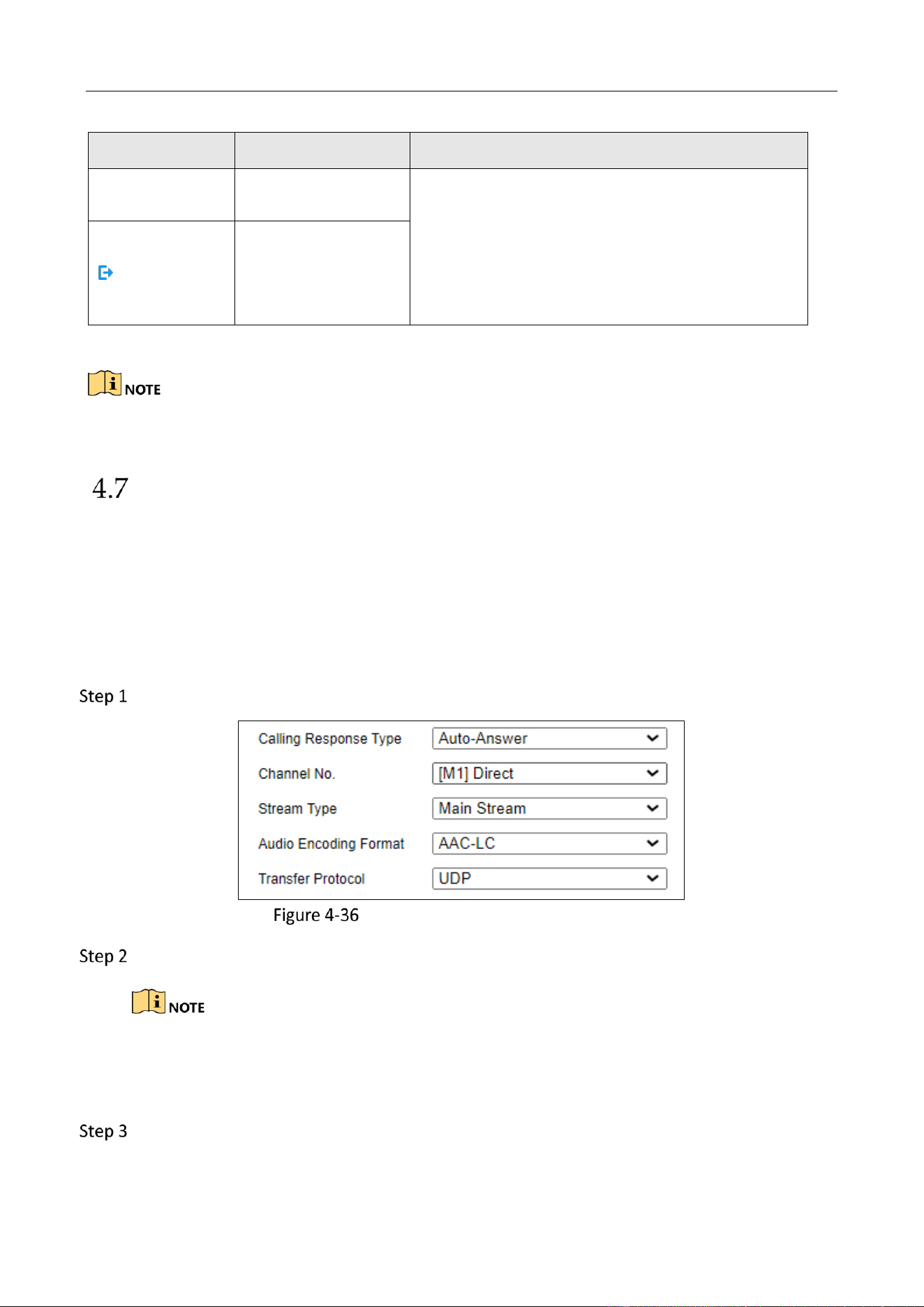
Configure Channel No. Audio Encoding Format, and Stream Type.
The point-to-point video meeting input channel includes recording channel, analog
channel, and IP channel of image streaming.
For recording channel, analog channel, and IP channel
Configure Calling Response Type and Transfer Protocol.

Education Sharing System User Manual
63
Calling Response Type includes Auto-Answer, Auto-Reject and Manual-Answer. Calling
Response Type only supports H.323 protocol.
Point-to-point video meeting devices should use the same Transfer Protocol.
Configure Calling Operation.
System URL is the IP address of remote point-to-point video meeting device. Calling Speed should
be between 32 and 6144 Kbps.
Click Meeting Status to view the current meeting status.
Optional: If a frequently-used terminal device IP address is fixed, its IP address can be added
to contacts, and the meeting could be initiated more conveniently. Click Contacts to add
terminal devices.
The number of devices in the contacts is limited. And only certain models support the
contacts function.
After a devices is added to Contacts, you can select it to edit or delete it.
When you are initiating a point to point video meeting through the local menu, you can
directly use the contacts to call a terminal device.
Course Playback and Download
Play Back Course Videos
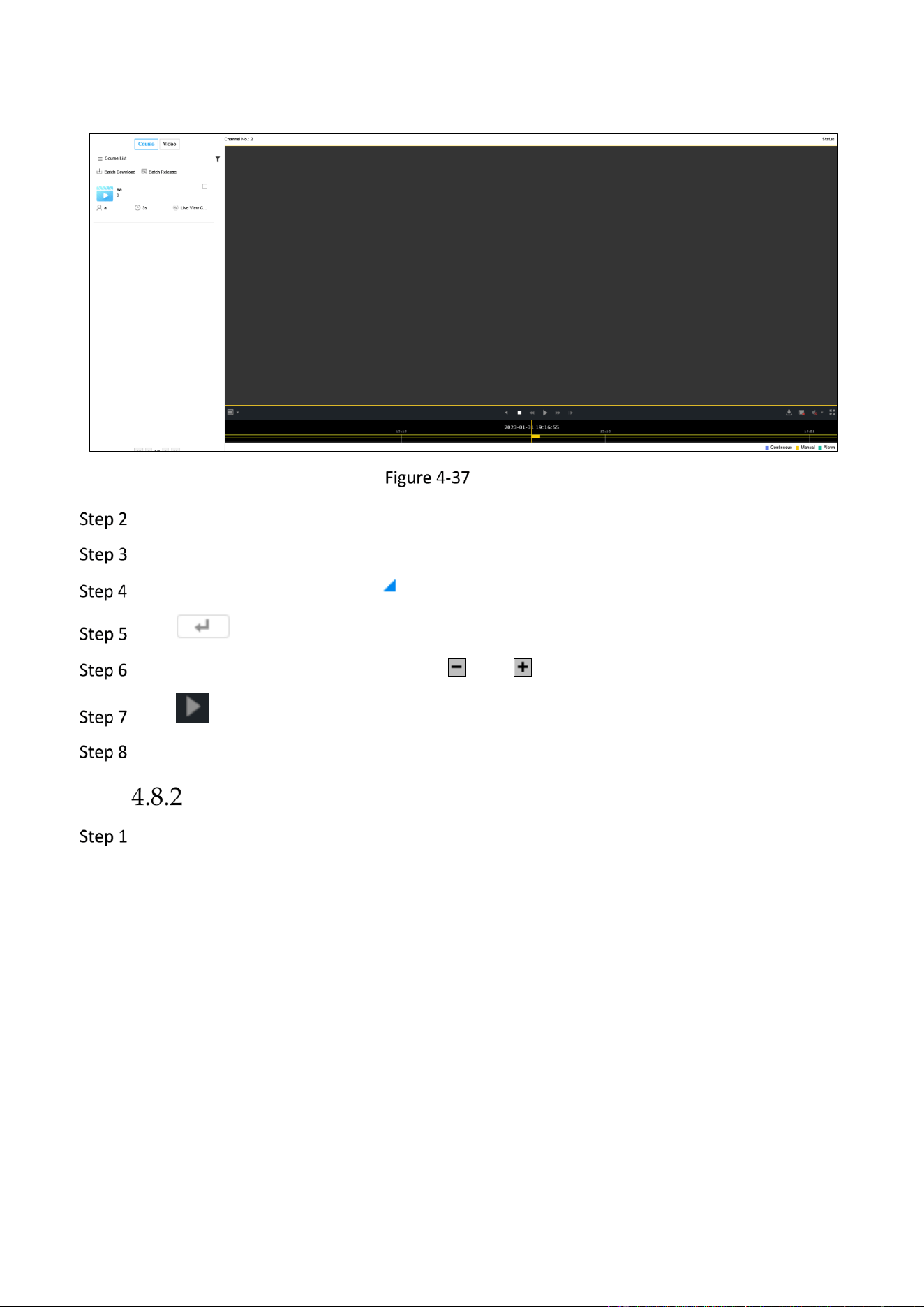
Go to Playback.
Education Sharing System User Manual
64
Playback
Click Video.
Select a channel in the left channel list.
Set date and time. The day with mark means it has videos.
Click .
Drag the time bar at the bottom, or click and to adjust time.
Click to start playback.
Optionally, click Course to play back by searched courses.
Download Courses via Web Browser
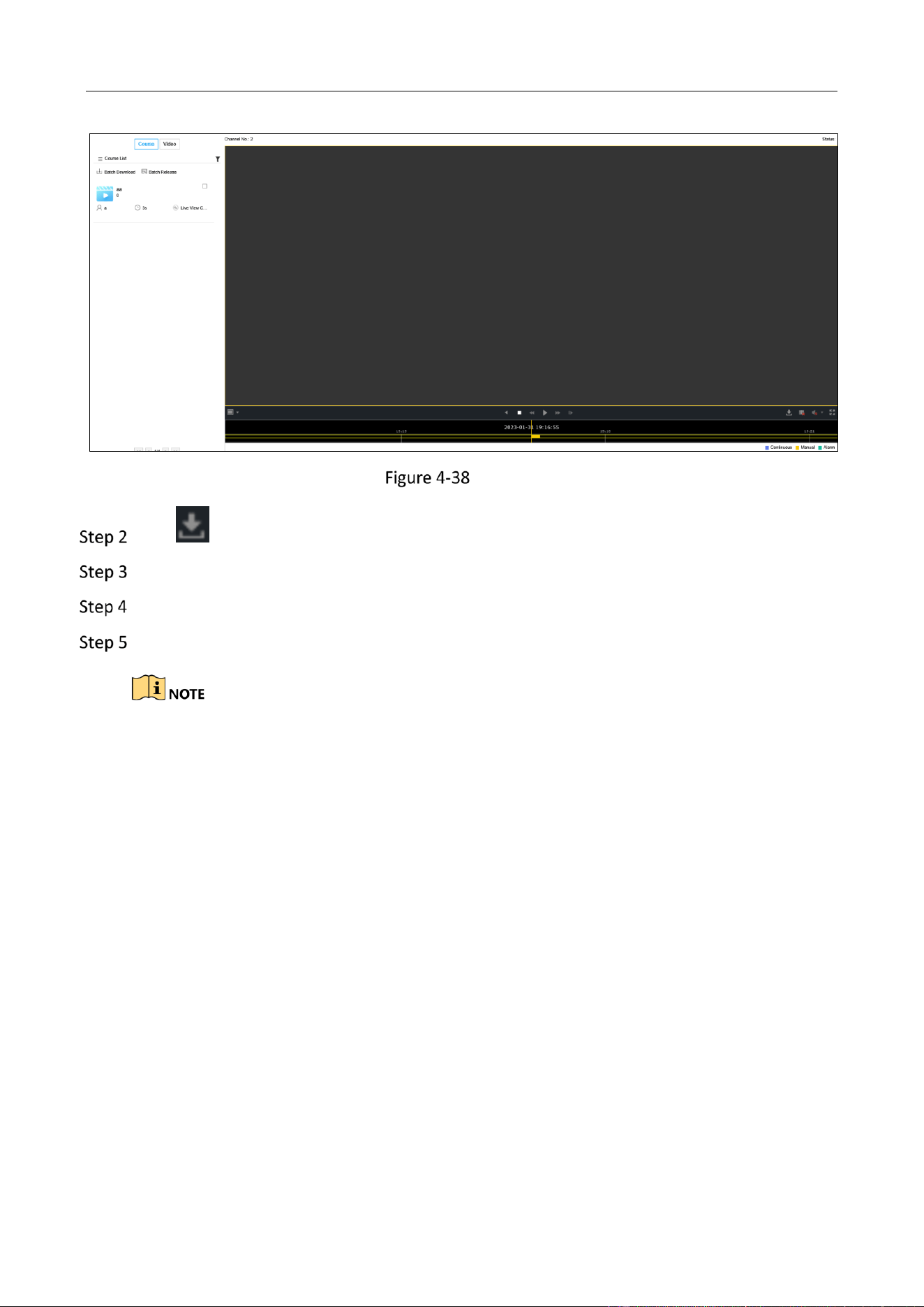
Go to Playback.
Education Sharing System User Manual
65
Playback
Click at the lower-right corner.
Set the search conditions.
Select the course(s) from the search result for downloading.
Click Download to start downloading.
The record file will be downloaded locally. You can set the download path in Configuration >
System Settings > System Settings > Web Config.
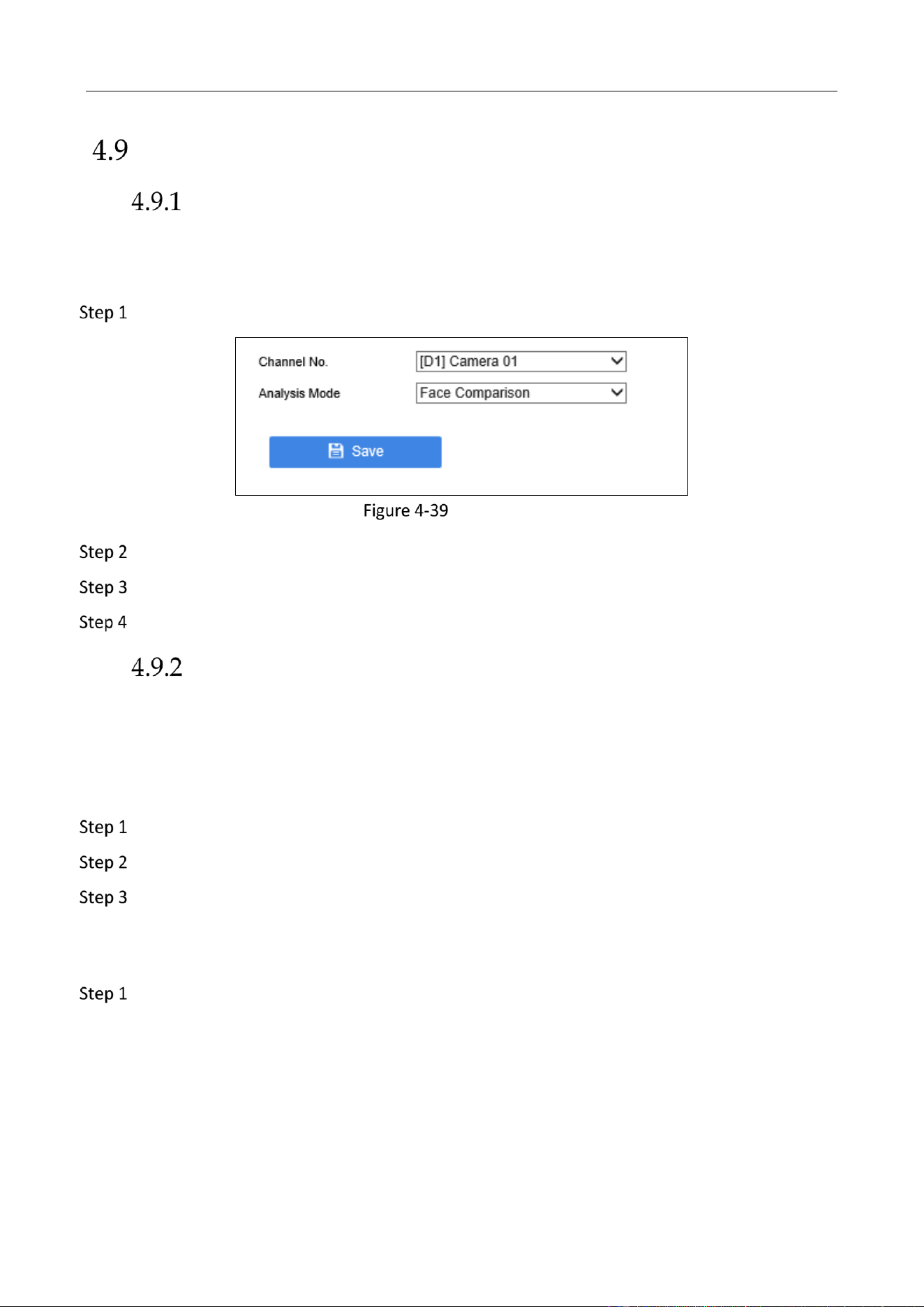
Education Sharing System User Manual
66
Smart Settings
Configure Analysis Mode
Purpose:
Before using a smart function, you shall select a channel and set its analysis mode.
Go to Configuration > Smart Settings > Analysis Mode.
Analysis Mode
Select a channel.
Set Analysis Mode.
Click Save.
Class Statistics Data
Enable Class Statistics Data
Purpose:
You can count view and alarm information via the feature. By default, the feature is turned off.
Go to Configuration > Smart Settings > Class Data via web browser.
Check Enable Course Data Statistics.
Click Save.
Search Class Statistics Data
Go to Smart Data > Class Data via web browser.
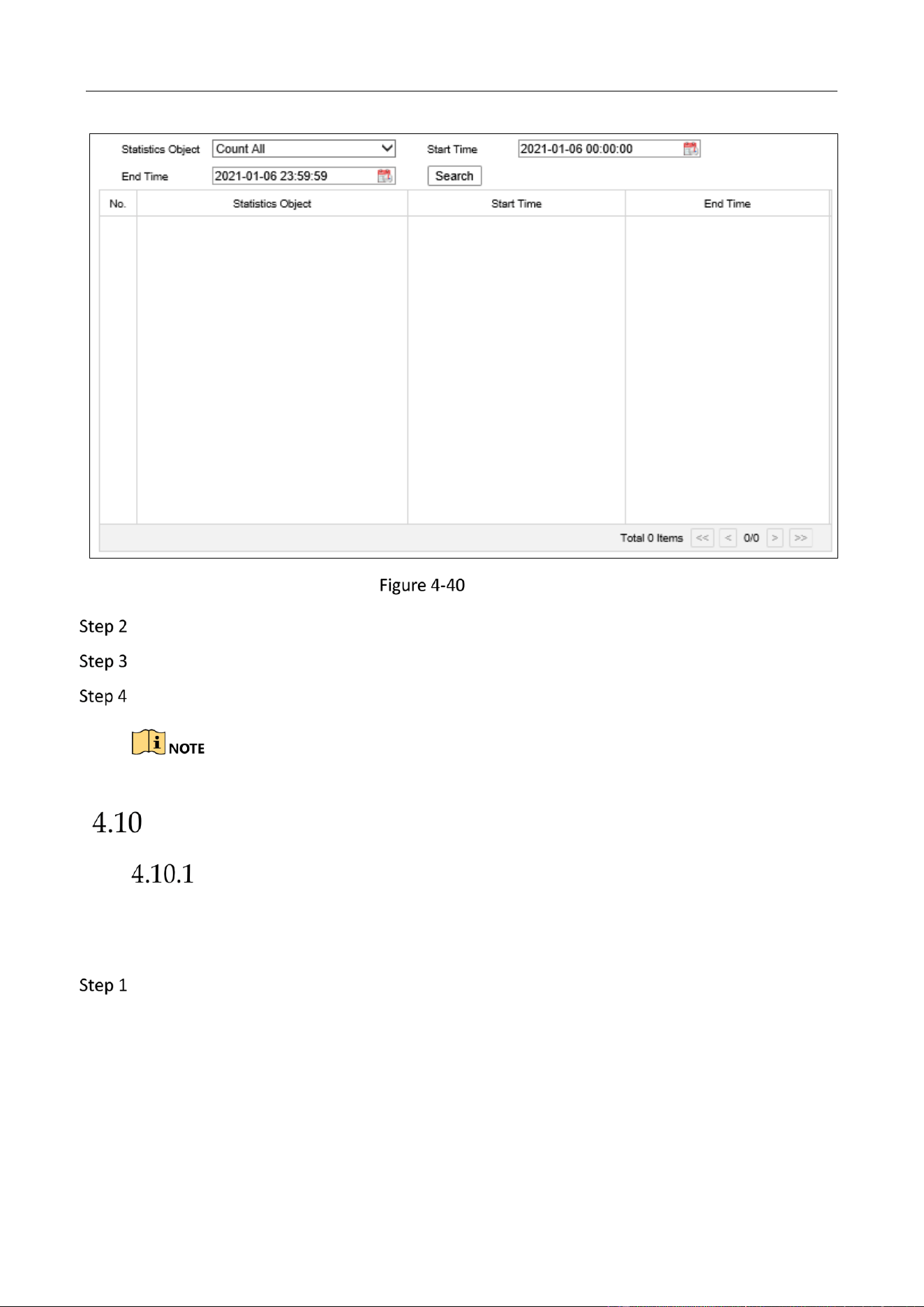
Education Sharing System User Manual
67
Class Data
Select Statistics Object. 7 views and 10 alarms are selectable.
Specify statistic Start time and End time.
Click Search to start searching.
After statistics finished, wait for 5 minutes to write data into hard disk before shutdown.
Network Settings
PPPoE Settings
Purpose
The device can access Internet via dialing up.
Go to Configuration > System Settings > Network Settings > PPPoE via web browser.
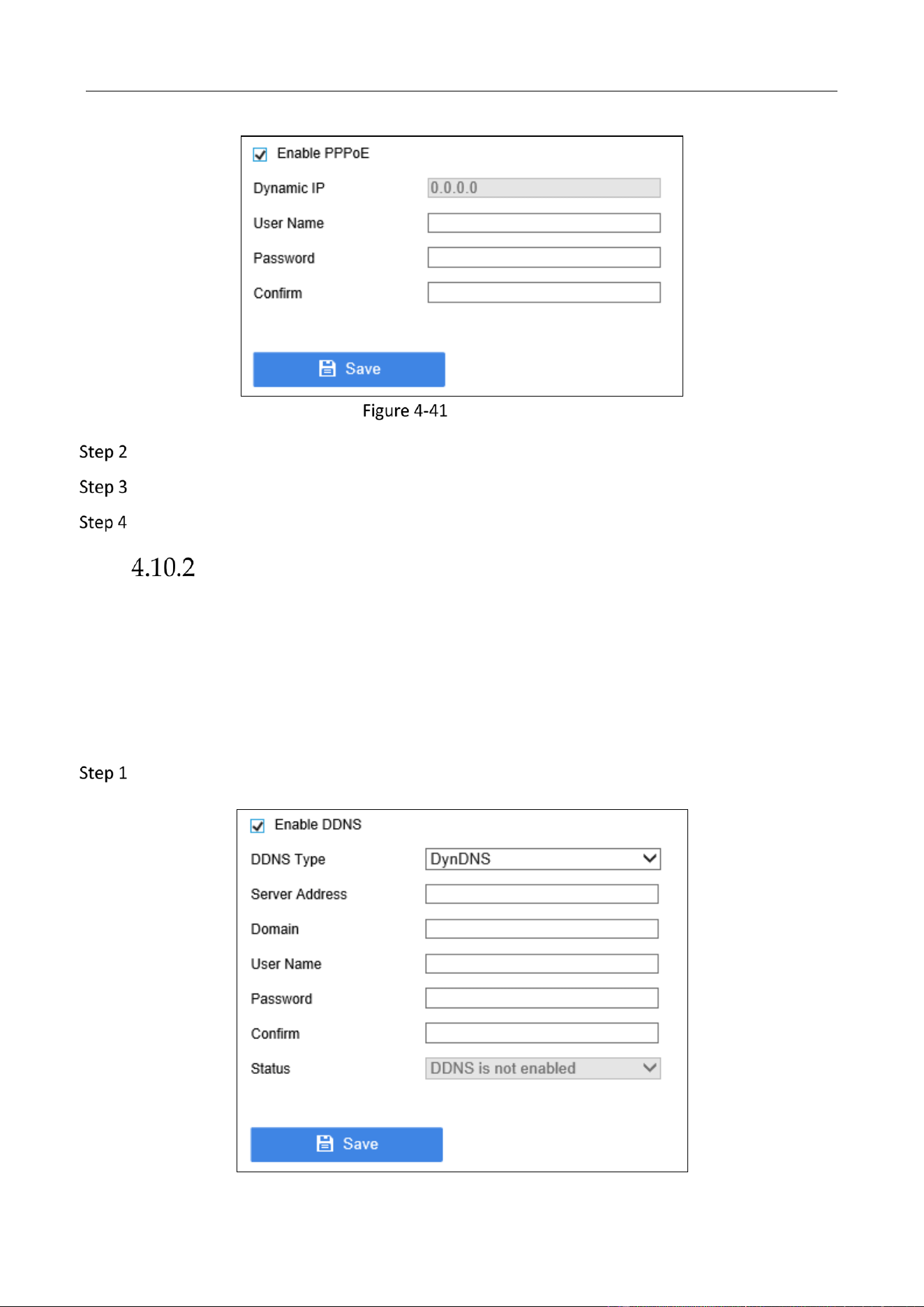
Education Sharing System User Manual
68
PPPoE Settings
Check Enable PPPoE.
Enter user name and password of your dial-up account.
Click Save.
DDNS Settings
Purpose:
If your device is set to use PPPoE as its default network connection, you may set Dynamic DNS
(DDNS) to be used for network access.
Before you start:
Prior registration with your DDNS Provider is required before configuring the system to use DDNS.
Go to Configuration > System Settings > Network Settings > DDNS via web browser.
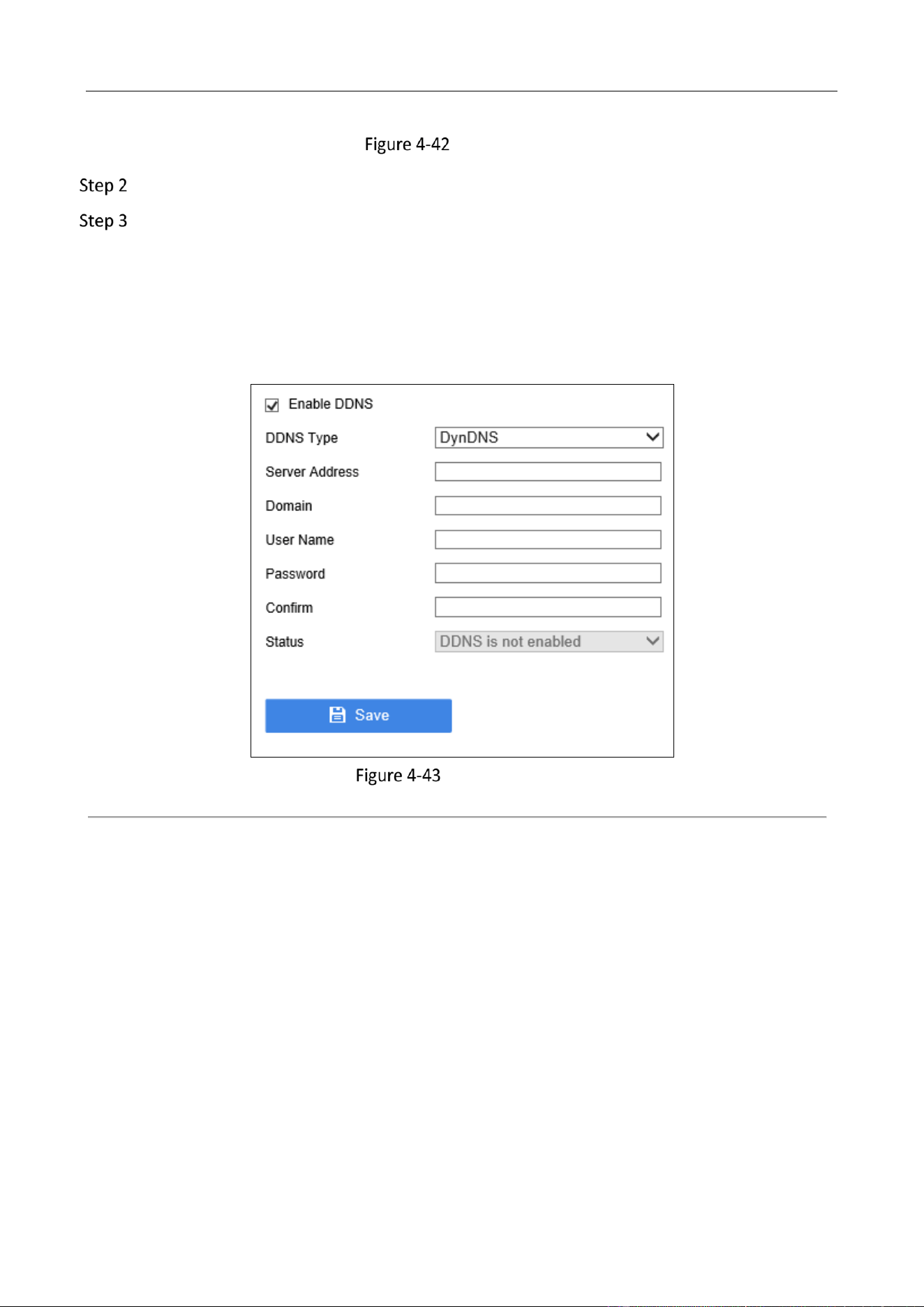
Education Sharing System User Manual
69
DDNS Settings
Check Enable DDNS.
Select DDNS Type as DynDNS, PeanutHull, or NO-IP.
DDNS Type: DynDNS
1) Enter Server Address for DynDNS server.
2) Enter the domain obtained from the DynDNS website in Domain.
3) Enter user Name and password registered in the DynDNS website.
4) Click Save to save the settings.
DynDNS Settings
DDNS Type: PeanutHull
1) Enter the user Name and password obtained from the PeanutHull website.
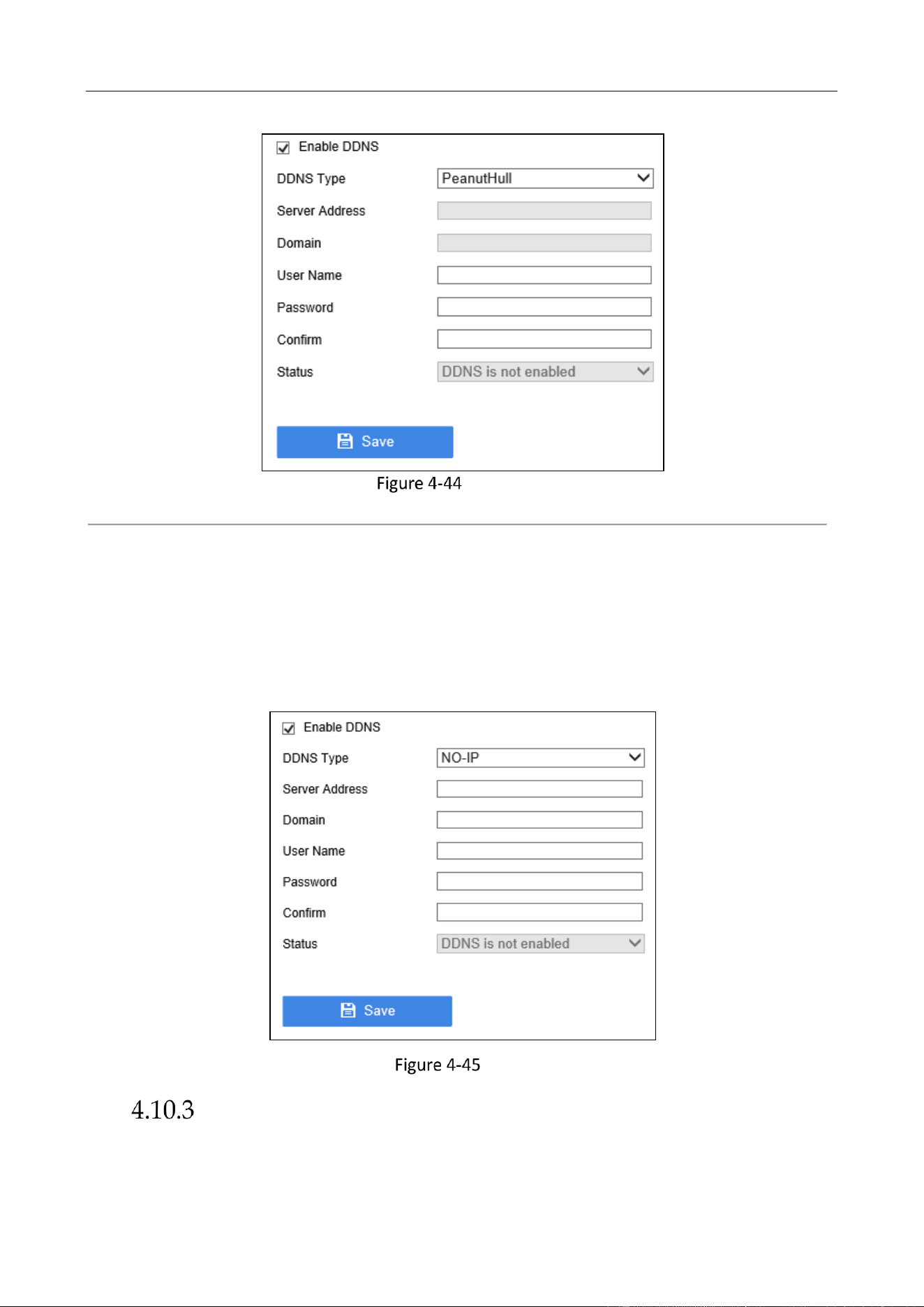
Education Sharing System User Manual
70
PeanutHull
2) Click Save to save the settings.
DDNS Type: NO-IP
1) Enter Server Address for NO-IP.
2) Enter the domain obtained from the NO-IP website (www.no-ip.com) in Domain.
3) Enter the user name and password registered in the NO-IP website.
4) Click Save to save the settings.
NO-IP
Email Settings
Purpose:
Education Sharing System User Manual
71
The system can be configured to send an Email notification to all designated users if an alarm
event is detected, etc., an alarm or motion event is detected or the administrator password is
changed.
Before configuring the email settings, the education sharing system must be connected to a local
area network (LAN) that maintains an SMTP mail server. The network must also be connected to
either an intranet or the Internet depending on the location of the email accounts to which you
want to send notification.
Before you start:
Configure IPv4 Address, IPv4 Subnet Mask, IPv4 Gateway, and the Preferred DNS Server in the
basic network setting interface. For detailed steps, refer to 4.1 Basic Operation
Activate Your Device
Purpose:
You can get access to the device via web browser. The supported resolutions include 1024*768 and
above.
Default administrator account: admin.
Default IPv4 address: 192.168.1.64.
You may have to close the web browser to finish the installation of the plug-in.
It is recommended to use Chrome or Edge web browser.
Open web browser, input the device IP address. The default IP address is 192.168.1.64.
Press Enter.
Enter the admin password twice.
STRONG PASSWORD RECOMMENDED–We highly recommend you create a strong password of your
own choosing (Using a minimum of 8 characters, including at least three of the following categories:
upper case letters, lower case letters, numbers, and special characters.) in order to increase the
security of your product. And we recommend you reset your password regularly, especially in the
high security system, resetting the password monthly or weekly can better protect your product.
Click OK.
Optional: If new user accounts or facial login function are needed, please set the parameters via
web browser. Refer to 4.12 User Management for details.
Configure Network Parameters.
Go to Configuration > System Settings > Network Settings > Email via web browser.

Education Sharing System User Manual
72
Configure the following Email settings:
Authentication (optional): Check the checkbox to enable the server authentication feature.
User Name: The user name of sender’s account registered on the SMTP server.
Password: The password of sender’s account registered on the SMTP server.
Confirm: Enter the password again.
SMTP Server: The SMTP Server IP address or host name (e.g., smtp.263xmail.com).
SMTP Port: The SMTP port. The default TCP/IP port used for SMTP is 25.
Enable SSL/TLS (optional): Click the checkbox to enable SSL/TLS if required by the SMTP
server.
Sender: The name of sender.
Sender’s Address: The Email address of sender.
Select Receivers: Select the receiver. Up to 3 receivers can be configured.
Receiver: The name of user to be notified.
Receiver’s Address: The Email address of user to be notified.
Enable Attached Picture: Check the checkbox of Enable Attached Picture if you want to send
email with attached alarm images. The interval is the time of two adjacent alarm images. You
can also set SMTP port and enable SSL here.
Interval: The interval refers to the time between two actions of sending attached pictures.
Click Save.
NAT Settings
Purpose:
Two ways are provided for port mapping to realize the remote access via the cross-segment
network, UPnP™ and manual mapping.
UPnP
TM
Settings
Universal Plug and Play (UPnP™) can permit the device seamlessly discover the presence of other
network devices on the network and establish functional network services for data sharing,
communications, etc. You can use the UPnP™ function to enable the fast connection of the device
to the WAN via a router without port mapping.
Before you start:
If you want to enable the UPnP™ function of the device, you must enable the UPnP™ function of
the router to which your device is connected. When the network working mode of the device is set
as multi-address, the Default Route of the device should be in the same network segment as that
of the LAN IP address of the router.
Go to Configuration > System Settings > Network Settings > UPnP via web browser.
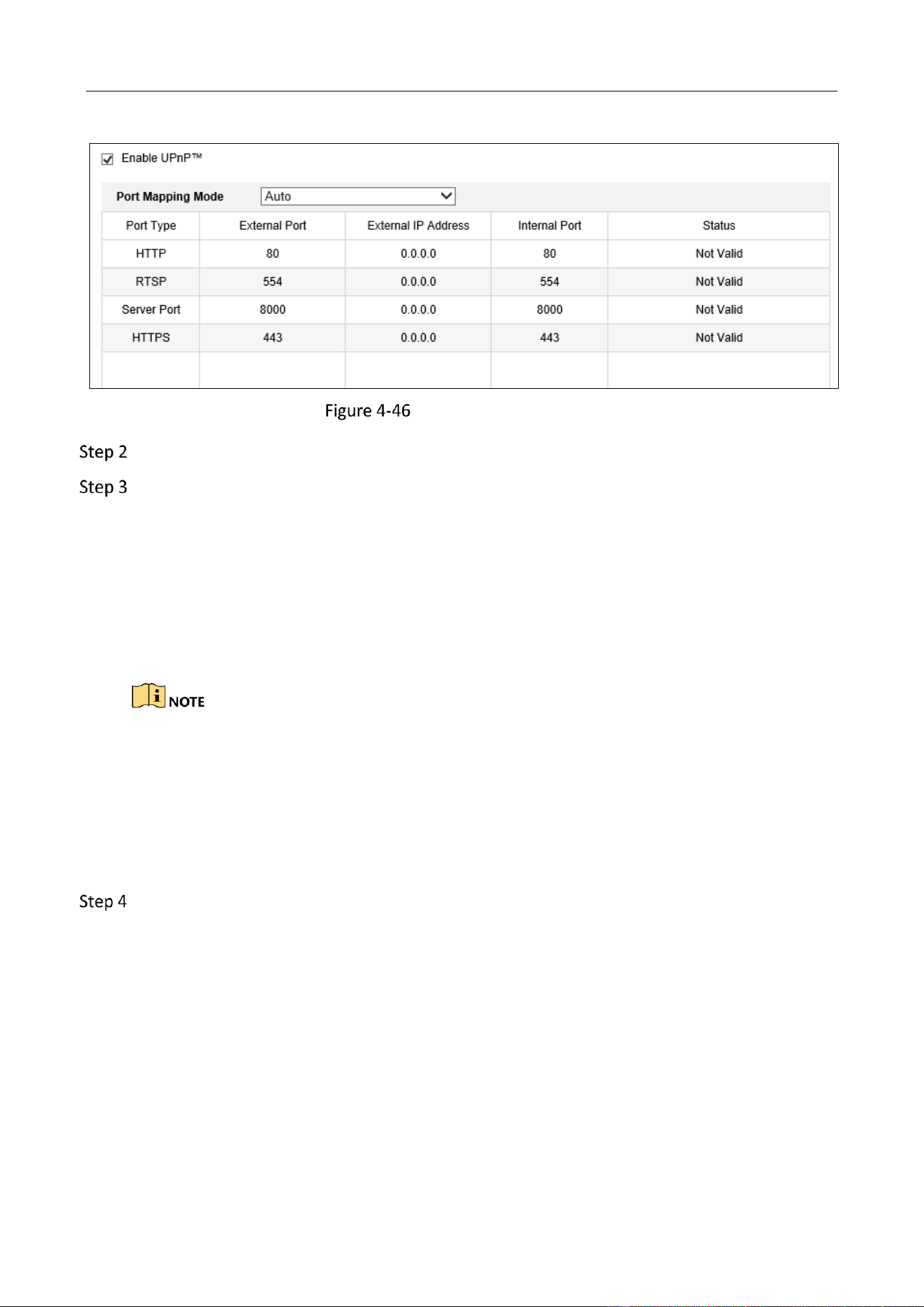
Education Sharing System User Manual
73
UPnP™ Settings Interface
Check Enable UPnP™.
Select Port Mapping Type as Manual or Auto.
OPTION 1: Auto
If you select Auto, the port mapping items are read-only, and the external ports are set by the
router automatically.
OPTION 2: Manual
If you select Manual as the mapping type, you can edit the external port as your demand.
You can use the default port No., or change it according to actual requirements.
External Port indicates the port No. for port mapping in the router.
The value of the RTSP port No. should be 554 or between 1024 and 65535, while the value of
the other ports should be between 1 and 65535 and the value must be different from each
other. If multiple devices are configured for the UPnP™ settings under the same router, the
value of the port No. for each device should be unique.
Click Apply to save the settings.
Manual Mapping
Purpose:
If your router does not support the UPnP™ function, perform the following steps to map the port
manually in an easy way.
Before you start:
Make sure the router support the configuration of internal port and external port in the interface
of Forwarding.
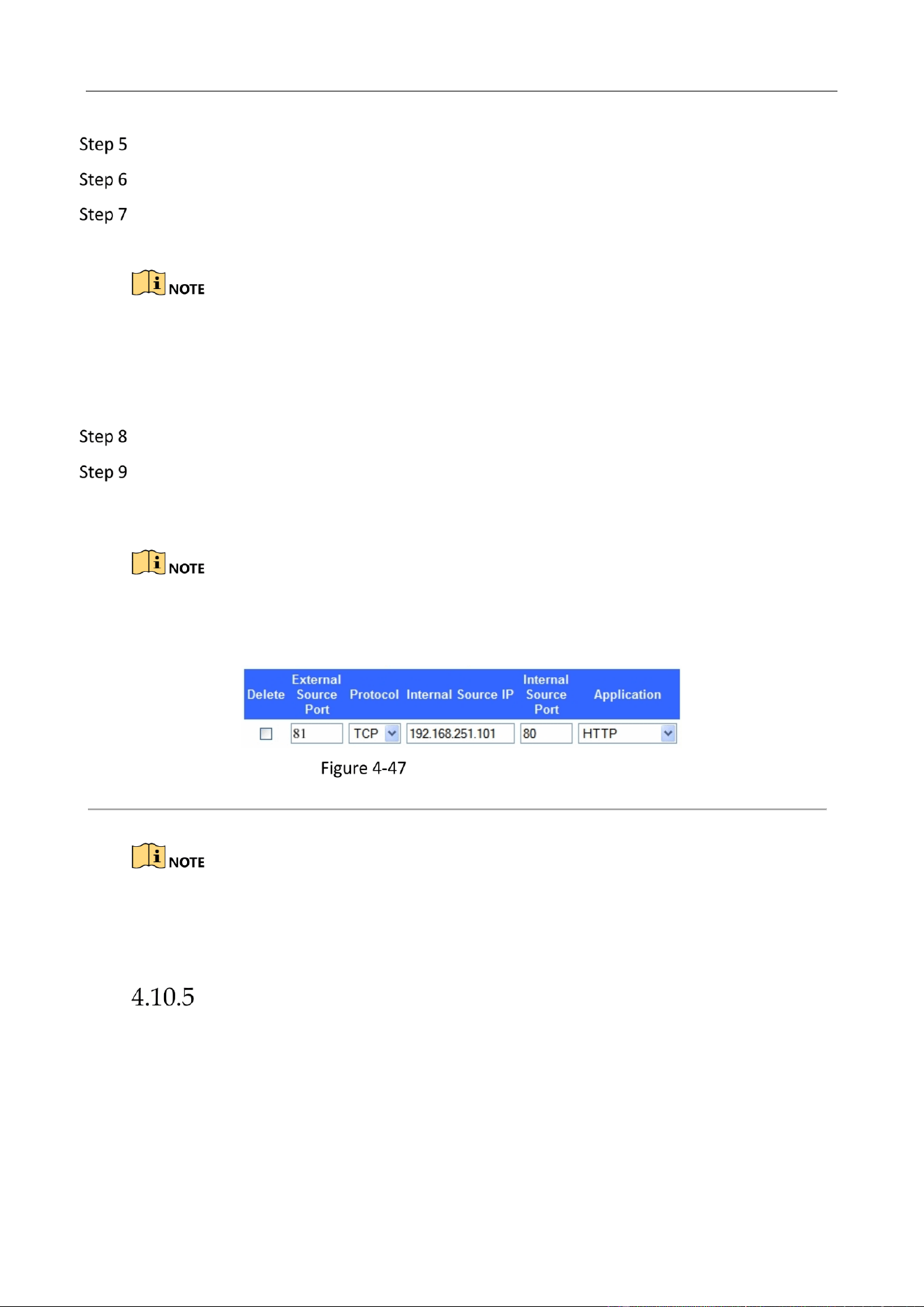
Education Sharing System User Manual
74
Go to Configuration > System Settings > Network Settings> UPnP via web browser.
Uncheck Enable UPnP™.
Click on a value of External Port. And enter the external port No. for server port, http port,
RTSP port, and https port respectively.
The value of the RTSP port No. should be 554 or between 1024 and 65535, while the value of the
other ports should be between 1 and 65535 and the value must be different from each other. If
multiple devices are configured for the UPnP™ settings under the same router, the value of the
port No. for each device should be unique.
Click Save to save the settings.
Enter the virtual server setting page of router; fill in the blank of Internal Source Port with
the internal port value, the blank of External Source Port with the external port value, and
other required contents.
Each item should be corresponding with the device port, including server port, http port, RTSP port
and https port.
Setting Virtual Server Item
The above virtual server setting interface is for reference only, it may be different due to different
router manufactures. Please contact the manufacture of router if you have any problems with
setting virtual server.
HTTPS Settings
Purpose:
HTTPS provides authentication of the web site and associated web server that one is
communicating with, which protects against Man-in-the-middle attacks. Perform the following
steps to set the port number of https.
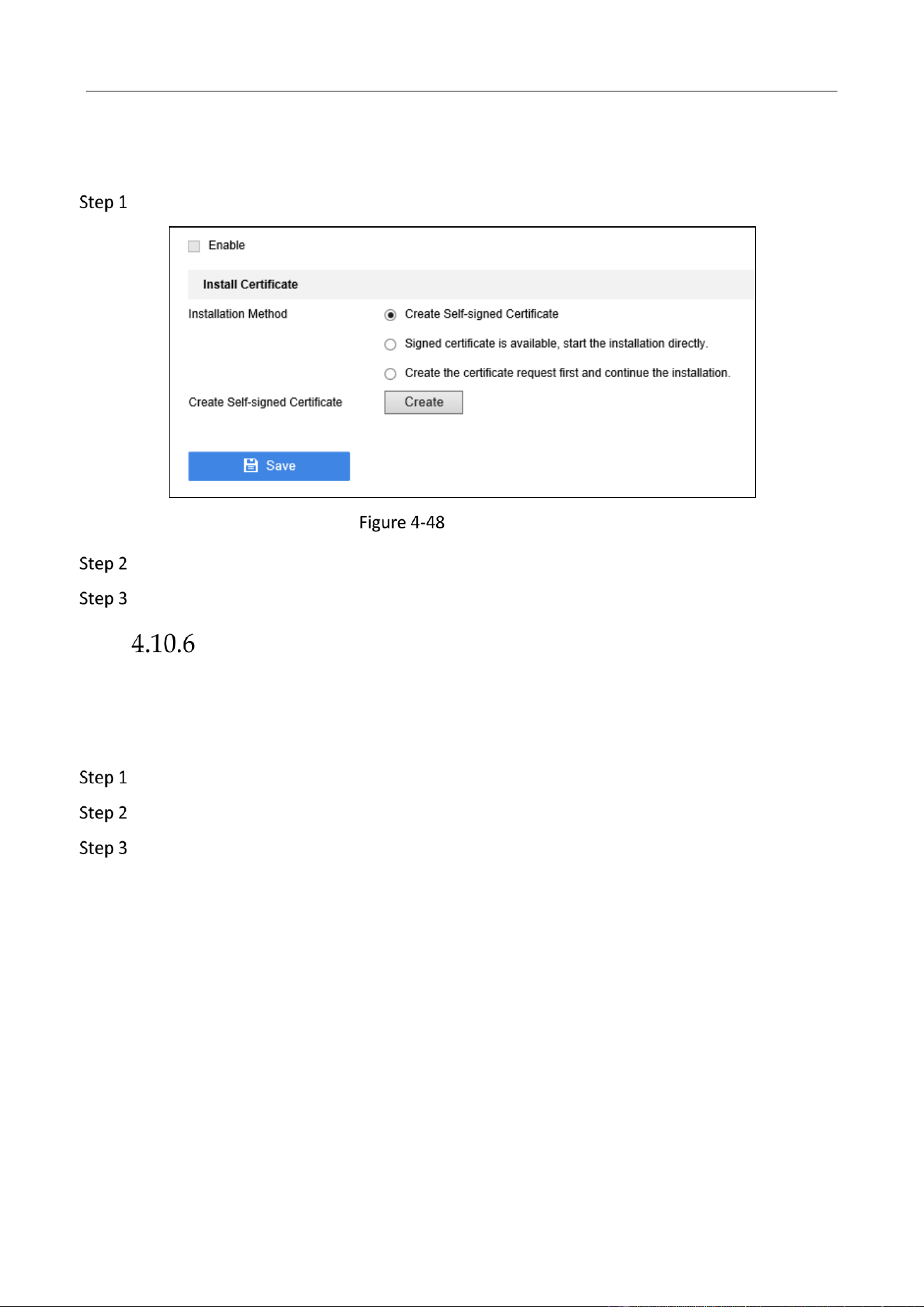
Education Sharing System User Manual
75
For example, if you set the port number as 443 and the IP address is 192.0.0.64, you may access
the device by inputting https://192.0.0.64:443 via the web browser.
Go to Configuration > System Settings > Network Settings > HTTPS via web browser.
HTTPS Interface
Check Enable HTTPS to enable the function.
Click Save to save the settings.
SSH Settings
Purpose:
You can enable SSH feature, thus to effectively prevent information leakage during remote
management.
Go to Configuration > System Settings > Maintenance > Security Service via web browser.
Check Enable SSH.
Click Save to save the settings.
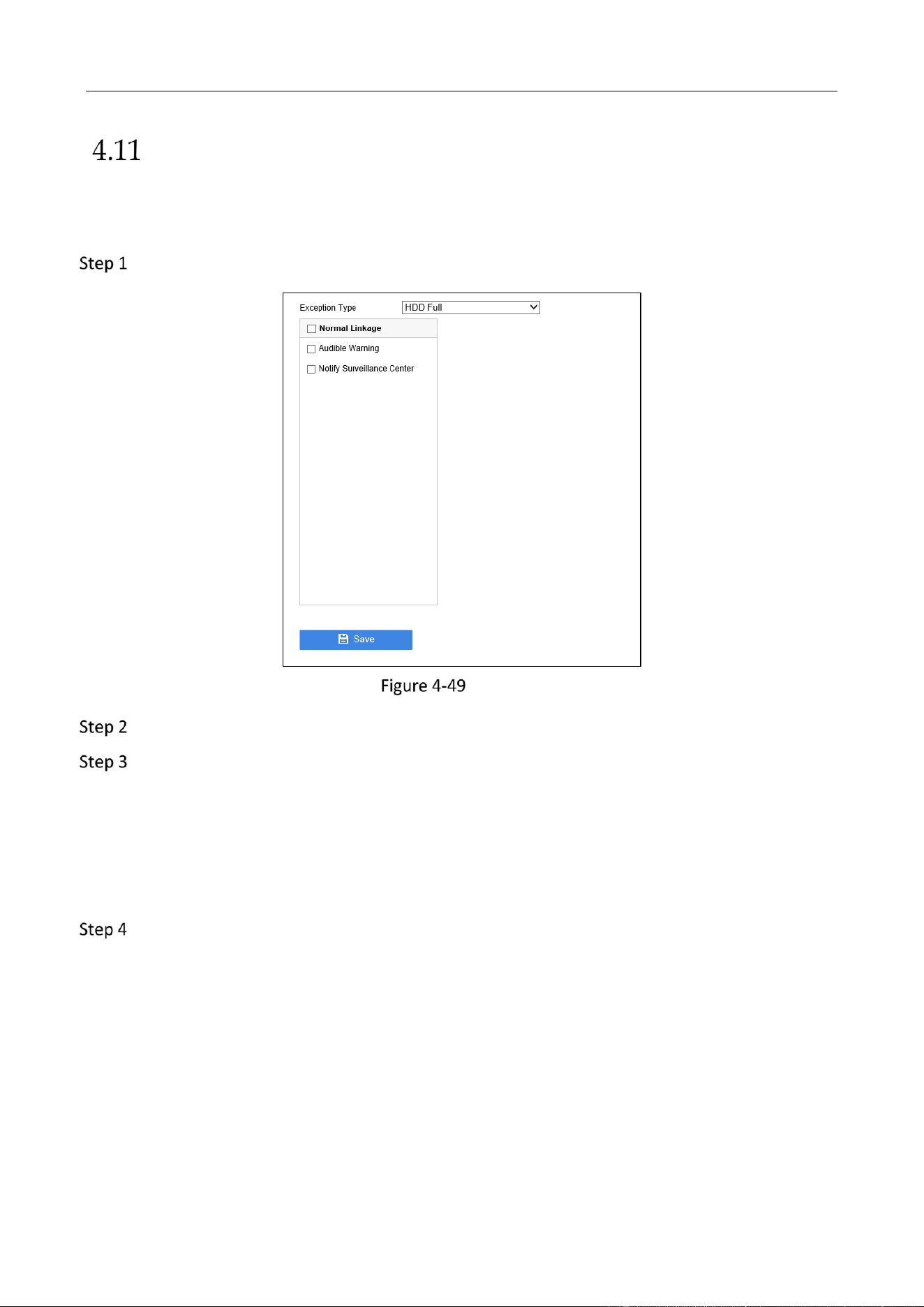
Education Sharing System User Manual
76
Alarm Settings
Purpose:
You can specify the triggered linkage action when exception occurs.
Go to Configuration > System Settings > Event Configuration > Exception via web browser.
Exception
Select Exception Type.
Select Normal Linkage.
Audible Warning: When an alarm is triggered, the device would play an audio file as the
linkage action.
Notify Surveillance Center: The device can send an exception or alarm signal to the remote
alarm host when an event occurs. The alarm host refers to the PC installed with client software
(e.g., iVMS-4200, iVMS-5200).
Click Save.
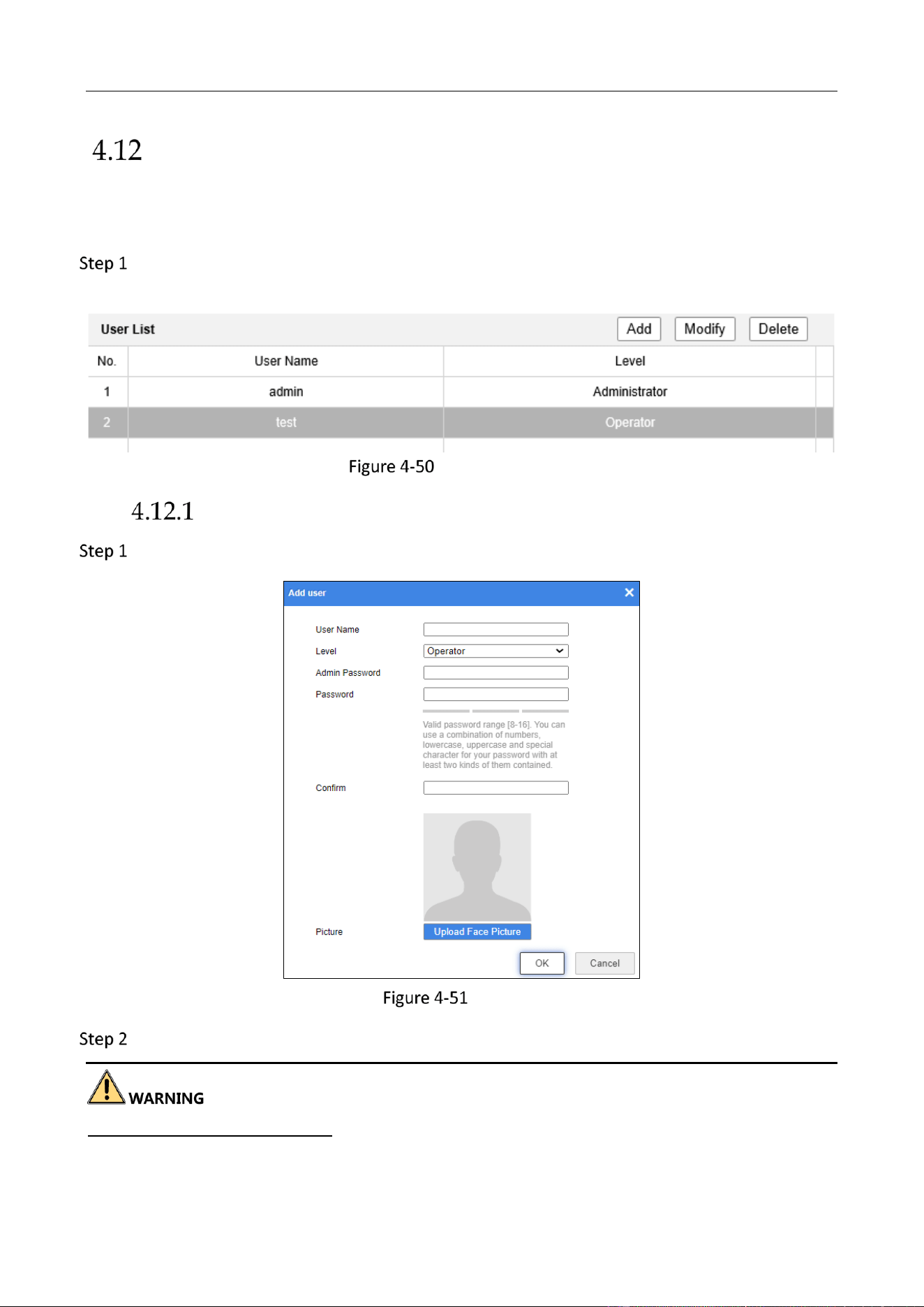
Education Sharing System User Manual
77
User Management
Purpose:
You can add, edit, and delete users.
Go to Configuration > System Settings > User Management > User Management via web
browser.
User Management
Add a User
Click Add.
Add User
Enter user name and password.
Strong Password recommended–We highly recommend you create a strong password of your own
choosing (Using a minimum of 8 characters, including at least three of the following categories:
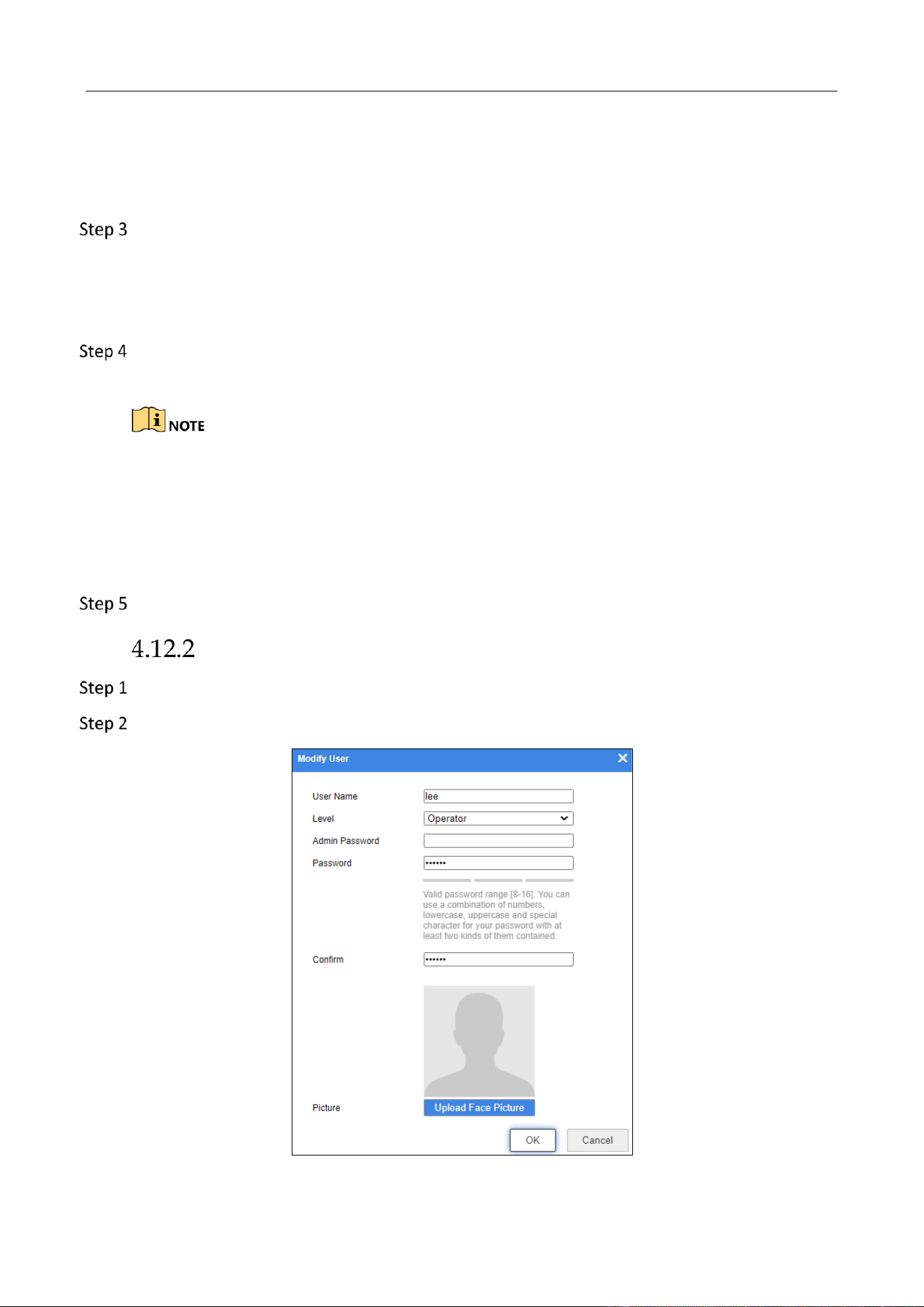
Education Sharing System User Manual
78
upper case letters, lower case letters, numbers, and special characters.) in order to increase the
security of your product. And we recommend you reset your password regularly, especially in the
high security system, resetting the password monthly or weekly can better protect your product.
Select Level as Operator or User.
Operator: The Operator user can view live image, and achieve playback operation which
includes course search and course download.
User: The Guest user only has permission of viewing live image.
Optional: Click Upload Face Picture for facial login. After a face picture is uploaded, facial
login function would be available for Operator through local menu.
The facial login function is only available for Operator through local menu.
The face picture format should be JPG, and its resolution cannot exceed 1080p.
Ensure the face picture only contains one face.
After a face picture is uploaded, you can edit the face picture comparison parameters in
Configuration > System Settings > User Management > Upload Face Picture.
Click OK to add the user.
Modify a User
Select a user account.
Click Modify.
Education Sharing System User Manual
79
Modify User
Edit the user account, including password and level.
STRONG PASSWORD RECOMMENDED–We highly recommend you create a strong password of your
own choosing (Using a minimum of 8 characters, including at least three of the following categories:
upper case letters, lower case letters, numbers, and special characters.) in order to increase the
security of your product. And we recommend you reset your password regularly, especially in the
high security system, resetting the password monthly or weekly can better protect your product.
If Operator has uploaded face picture before, you can click Upload Face Picture to replace
the previous face picture. If Operator has not uploaded face picture before, you can click
Upload Face Picture for facial login. After a face picture is uploaded, facial login function
would be available for Operator through local menu.
The facial login function is only available for Operator through local menu.
The face picture format should be JPG, and its resolution cannot exceed 1080p.
Ensure the face picture only contains one face.
After a face picture is uploaded, you can edit the face picture comparison parameters in
Configuration > System Settings > User Management > Upload Face Picture.
Click OK.
Delete a User
Select a user account.
Click Delete, and a message box will pop up.
Click OK to delete the selected user account.
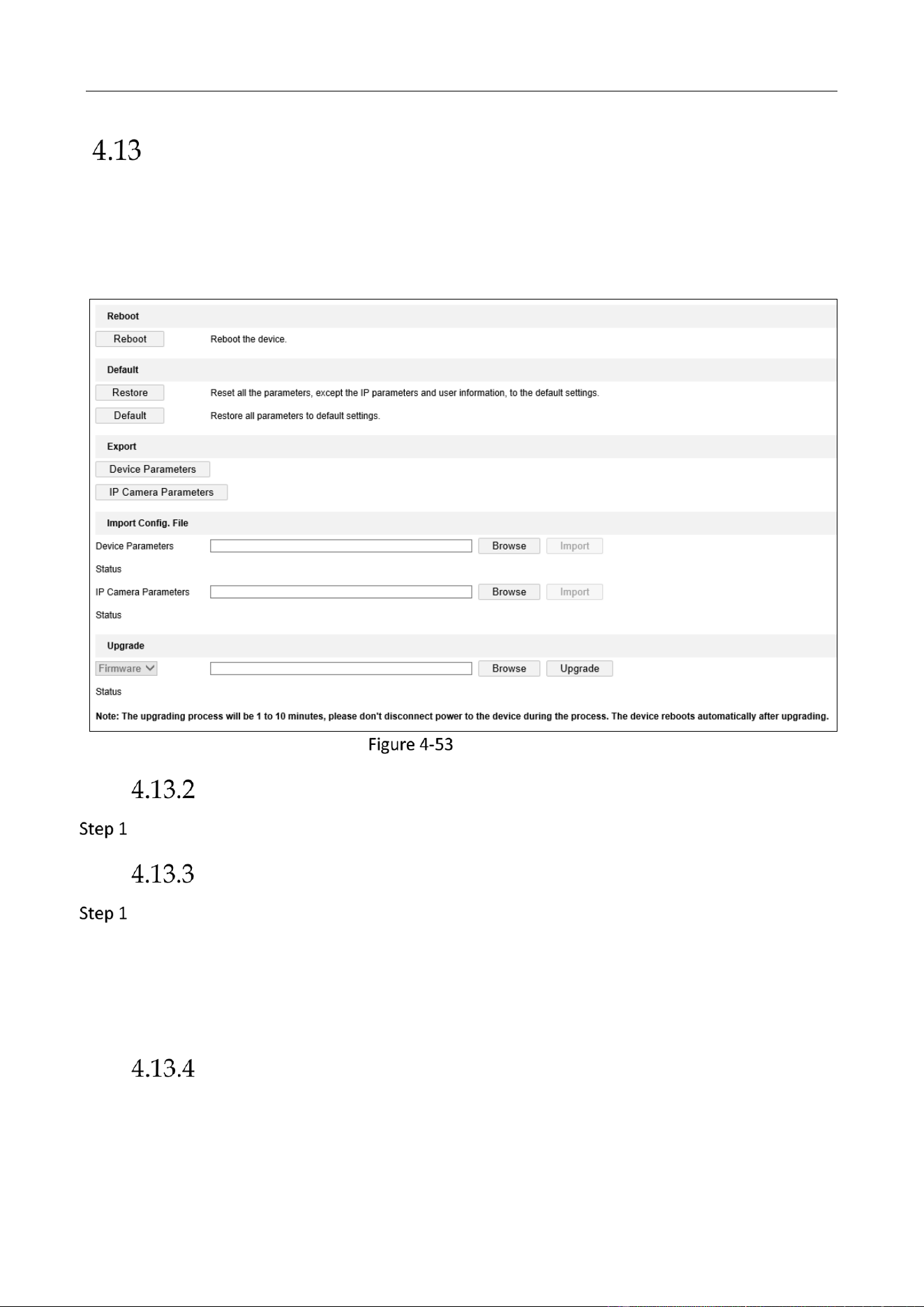
Education Sharing System User Manual
80
Maintenance
Purpose:
You can restart, restore default, repair database index, export/import configuration file, and
upgrade device in Configuration > System Settings > Maintenance > Upgrade & Maintenance via
web browser.
Maintenance
Reboot the Device
Click Reboot to restart the device.
Default Settings
Select the restoring type as Restore or Default.
Restore: Restore all parameters, except the network (including IP address, subnet mask,
gateway, MTU, NIC working mode, default route, server port, etc.) and user account
parameters, to the factory default settings.
Default: Restore all parameters to the factory default settings.
Export/Import Configuration File
Import configuration file.
1) Click Browse.
2) Select configuration file path.

Education Sharing System User Manual
81
3) Click Import to import the selected file.
Export configuration file.
1) Click Export.
2) Select exporting path.
3) Click Save to save the configuration file.
Import/Export IP Camera Configuration File
Purpose:
You can export the education sharing system’s IP camera adding configuration file to the computer.
And import the IP camera adding configuration file into the education sharing system.
Import IP camera configuration file.
1) Click Browse.
2) Select IP camera configuration file path.
3) Click Import to import the selected file.
Export IP camera configuration file.
1) Click Export.
2) Select exporting path.
3) Click Save to save the configuration file.
Remote Upgrade
Click Browse.
Select upgrade file.
Click Upgrade to upgrade.
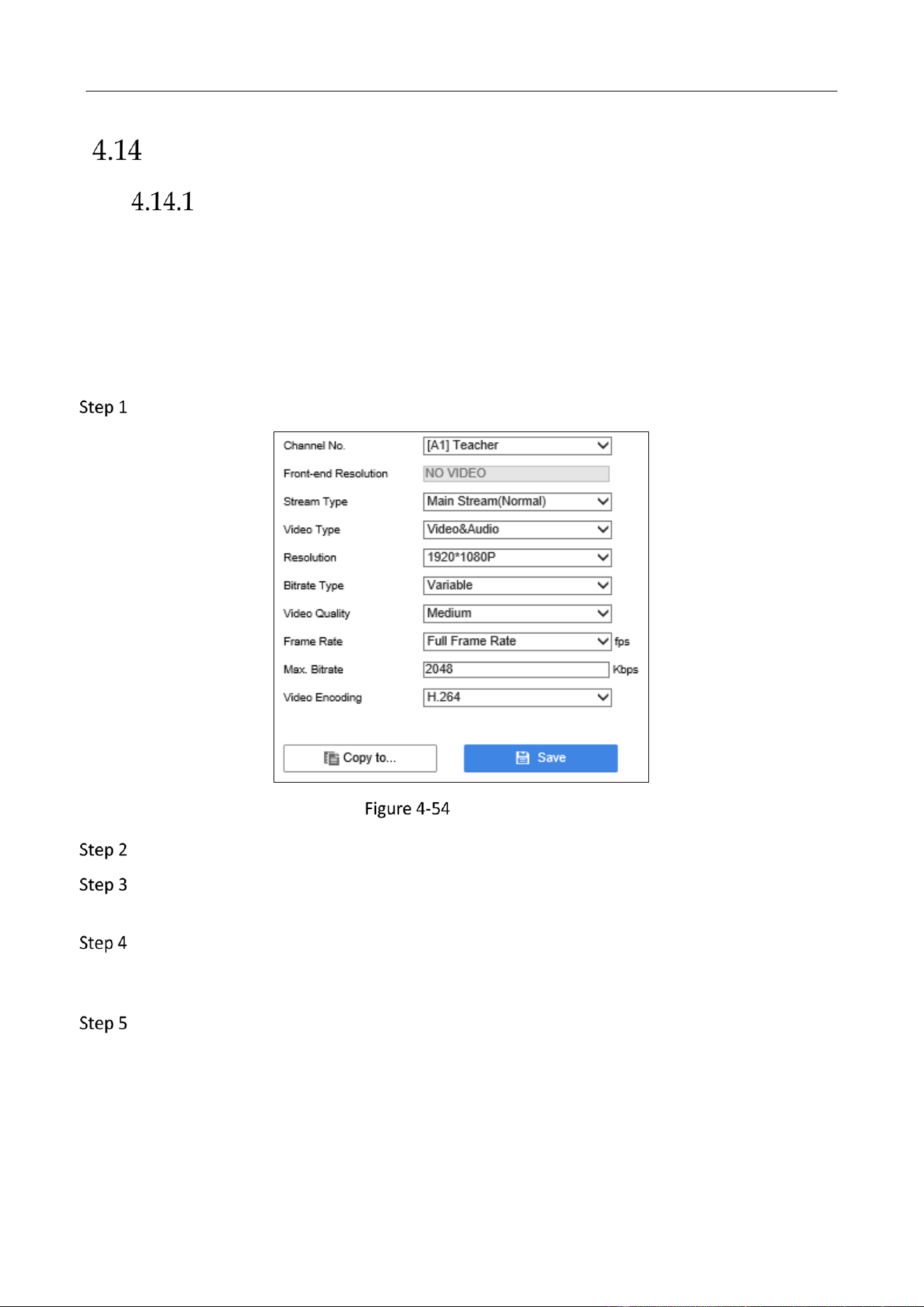
Education Sharing System User Manual
82
Other Settings
Video Settings
Purpose:
By configuring the video parameters you can define the parameters which affect the image quality,
such as the resolution, video quality, and so on.
Before you start:
Ensure the hard disk has already been installed.
Go to Configuration > Audio/Video > Video Settings > Video.
Video Settings
Select Channel No. to configure.
Select Stream Type as Main Stream (Normal), Third Stream, Sub-Stream. Main stream is for
recording and sub-stream is for network transmission.
Configure the video parameters as your desire, including Resolution, Bitrate Type, Video
Quality, Frame Rate, Max. Bitrate. The video encoding format and audio encoding format
will be shown in Encoding Format and Audio Format.
Click Save to save the settings.
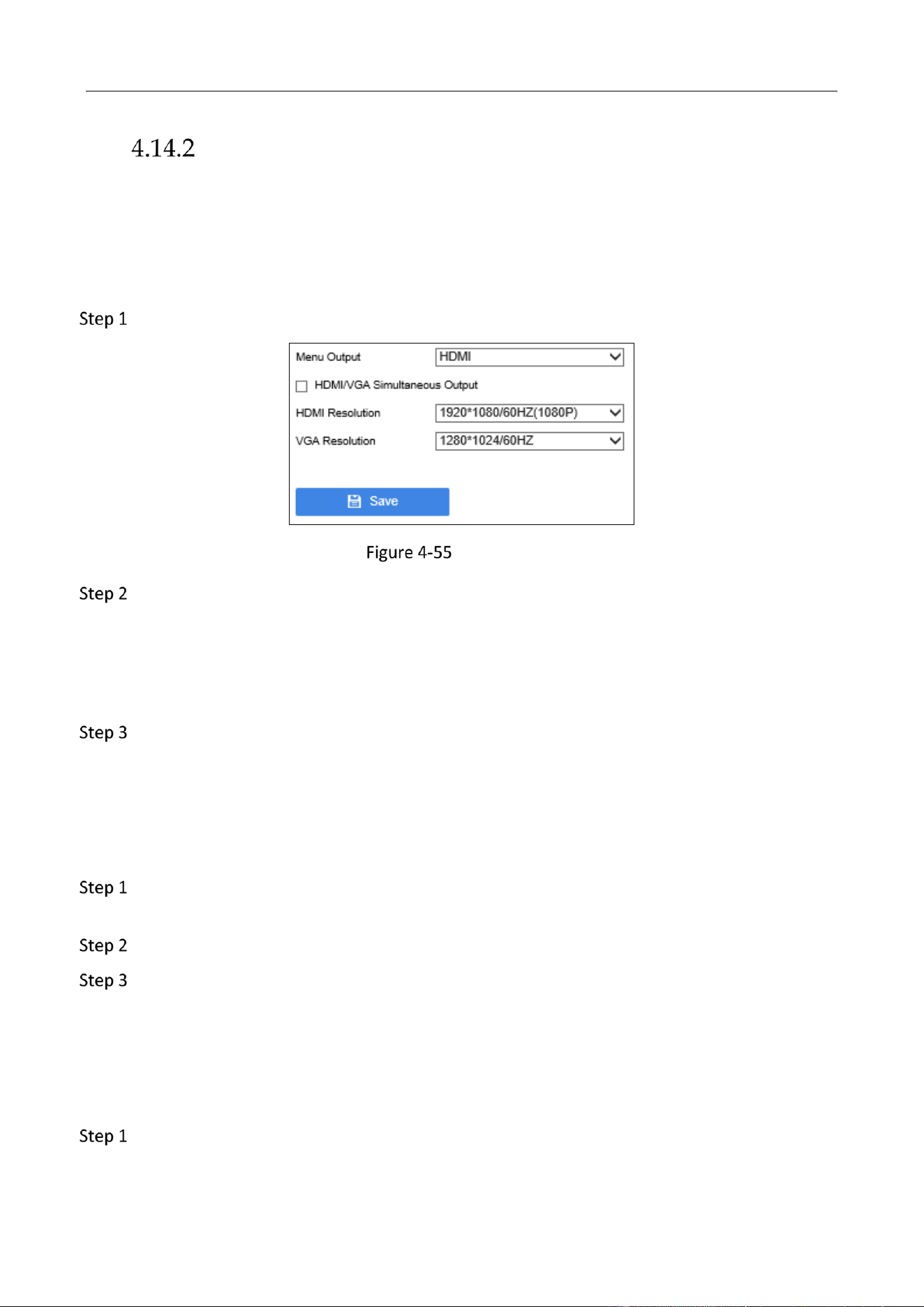
Education Sharing System User Manual
83
Display Settings
Menu Output
Purpose:
You can set the local menu output interface and HDMI/VGA output resolution.
Go to Configuration > System Settings > System Settings > Menu Output via web browser.
Menu Output
Edit Menu Output, VGA Resolution, HDMI Resolution and HDMI/VGA Simultaneous
Output.
HDMI/VGA Simultaneous Output: It means that the screens connected by different interfaces
(e.g. HDMI, VGA) share the same output source, so their images are the same, so do the
mouse operation and menu content.
Click Save to save the settings.
HDMI/VGA Output Image Parameter Settings
Purpose:
You can adjust display effect of courseware image and HDMI/VGA output image.
Go to Configuration > System Settings > System Settings > Output Image Parameter
Adjustment via web browser.
Select Configuration Port.
Set image parameters, including brightness, contrast, saturation, hue, and sharpness.
Configure OSD
Purpose:
You can configure parameters of OSD (On Screen Display) menu.
Go to Configuration > Audio/Video > Video Settings > OSD and Subtitle via web browser.
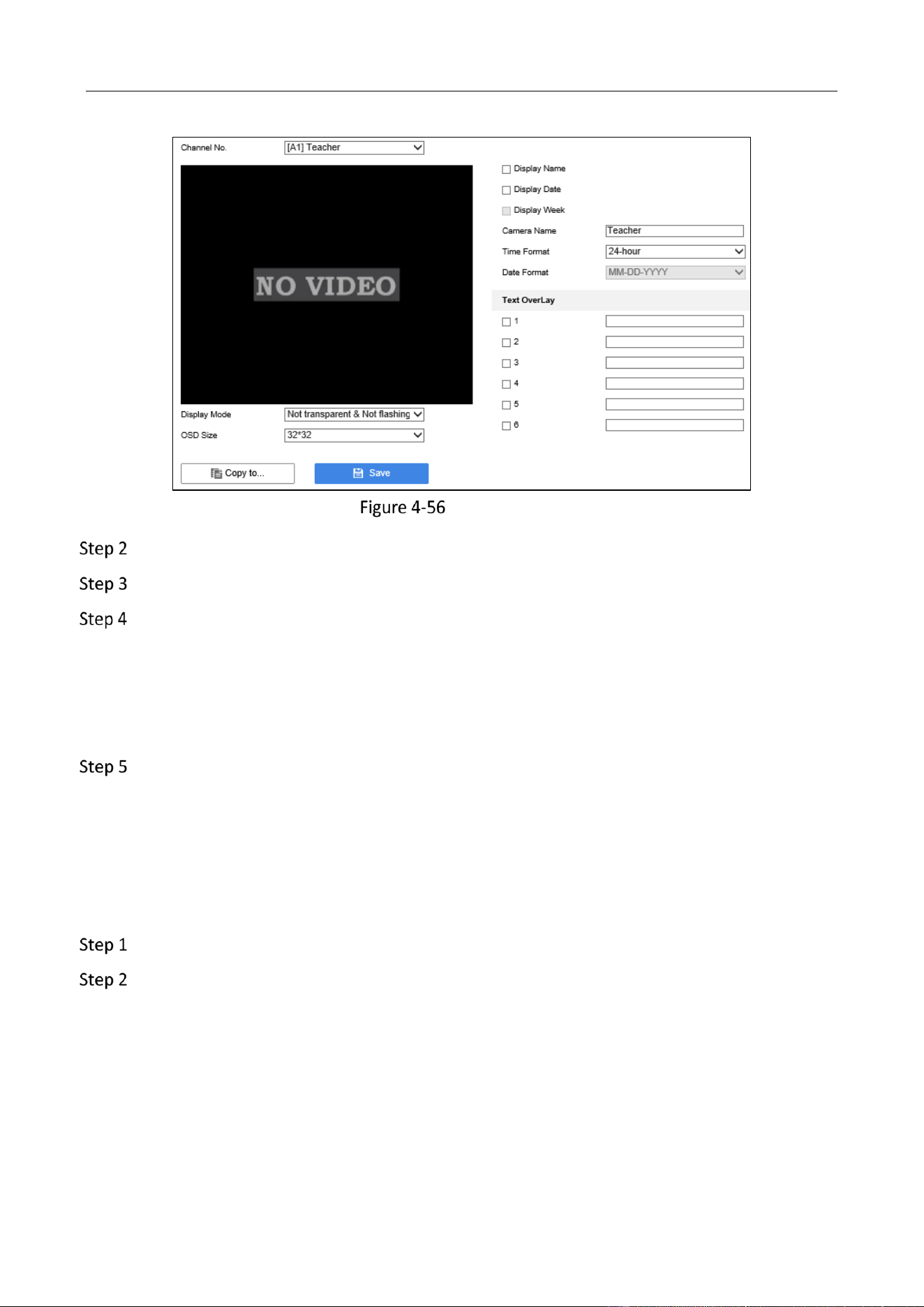
Education Sharing System User Manual
84
Display Settings
Select Channel No.
Configure parameters as your desire.
Optionally, you can overlay text on the selected channel.
1) Check the number of Text OverLay.
2) Enter text content.
3) You can drag the OSD on screen to move its position.
4) Set the Display Mode and OSD Size as your desire.
Click Save to save the settings.
Sound Mix Settings
Purpose:
You can configure the sound mix parameters, including output volume, input volume, and audio
gain.
Go to Configuration > Mix Settings > Output Volume via web browser.
Click to view and set audio volume. It is recommended to use the default value.
Local Output: The audio output(s) at the device panel, such as audio out and HDMI out.
Input Volume: The audio input(s) at the device panel, the input volume is adjustable at each
tab.
Interactive Output: The audio that sends to other remote devices during multi-classroom
interaction (cloud interaction) or point-to-point meeting.
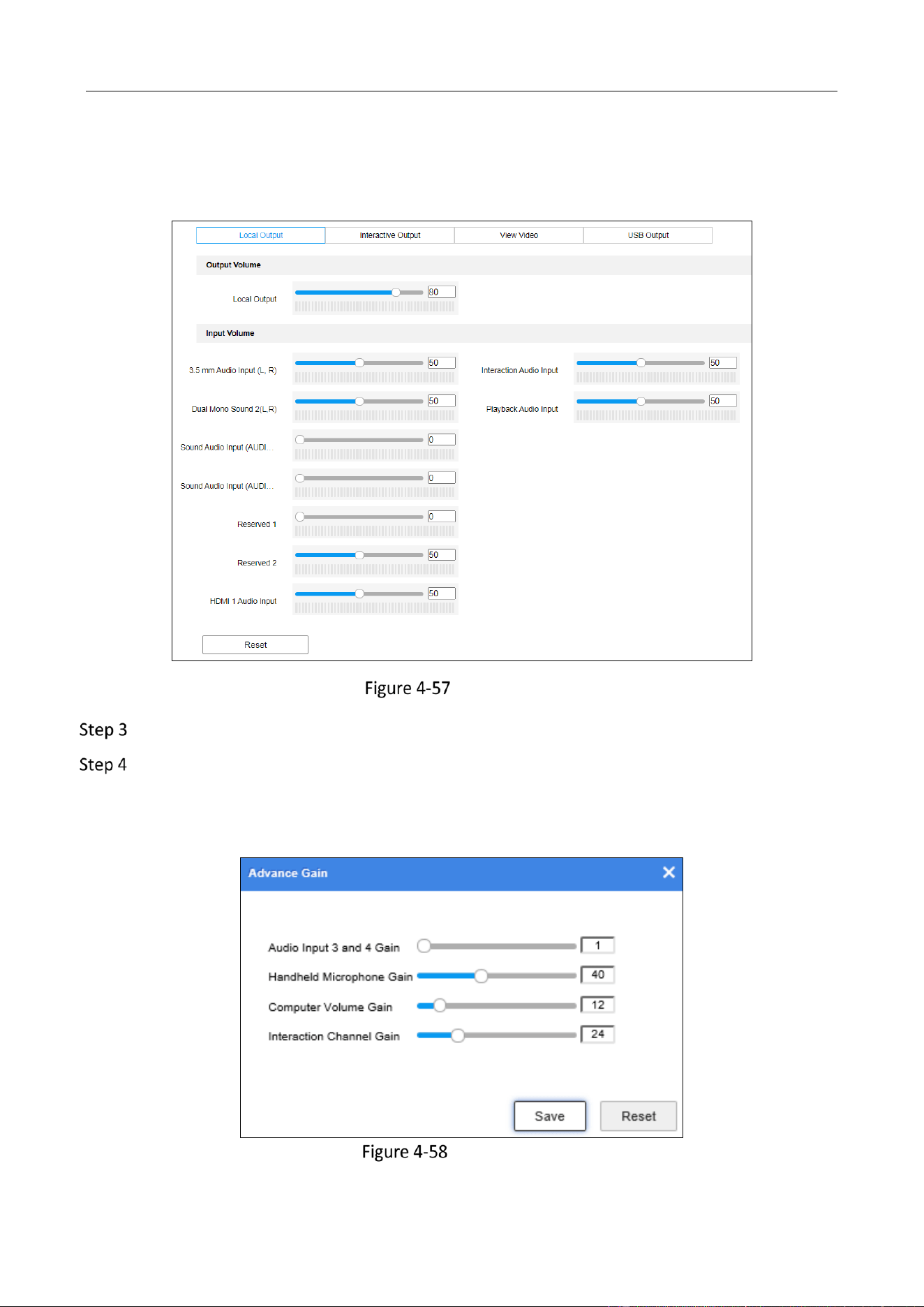
Education Sharing System User Manual
85
View Video: The audio during live view for each channel. For example, if the video at the web
browser interface or playback is low, you can adjust the corresponding parameter.
USB Output: The audio output from USB interface at the device panel.
Audio Volume
Click More Configure > Advance Gain.
Set the audio gain. Audio gain adjusts the input audio, after the adjustment, the mixed
sound will be applied to the audio output at rear panel. The gain value ranges from 1 to 100.
When it is set as 1, the audio gain reaches to the minimum, and when it is set as 100, it
reaches to the minimum.
Advanced Gain
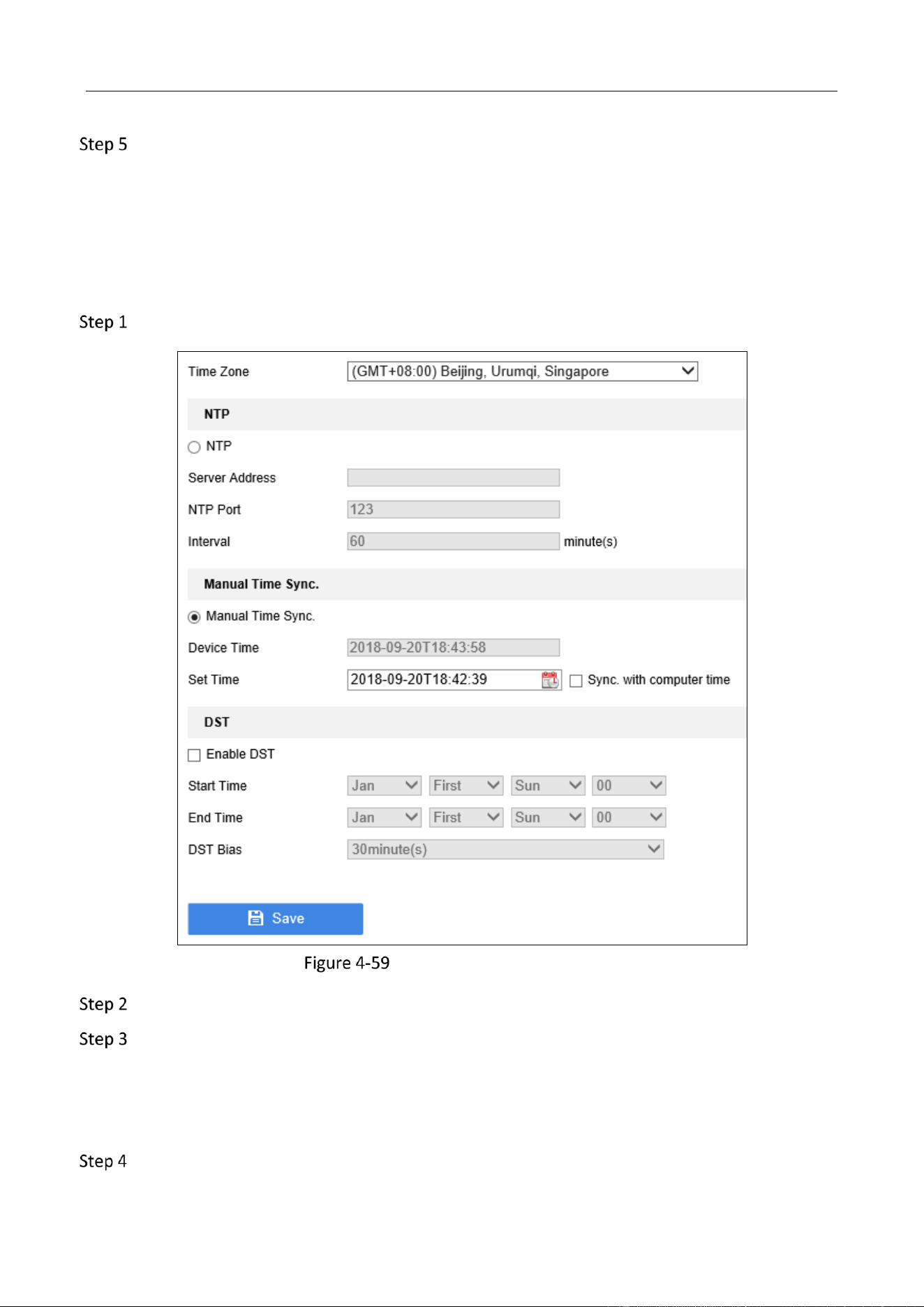
Education Sharing System User Manual
86
Click Save.
Time Settings
Purpose:
You can manually sync the device time, or let the device automatically sync time with NTP
(Network Time Protocol) server.
Go to Configuration > System Settings > System Settings > Time Settings via web browser.
Time Settings via Web Browser
Select Time Zone.
Select the clock synchronization mode as NTP or Manual Time Synchronization.
NTP: Enter NTP server, port and interval time.
Manual Time Sync: Set the time in Set Time. Or you can check Synchronize with computer
time.
Click Save.
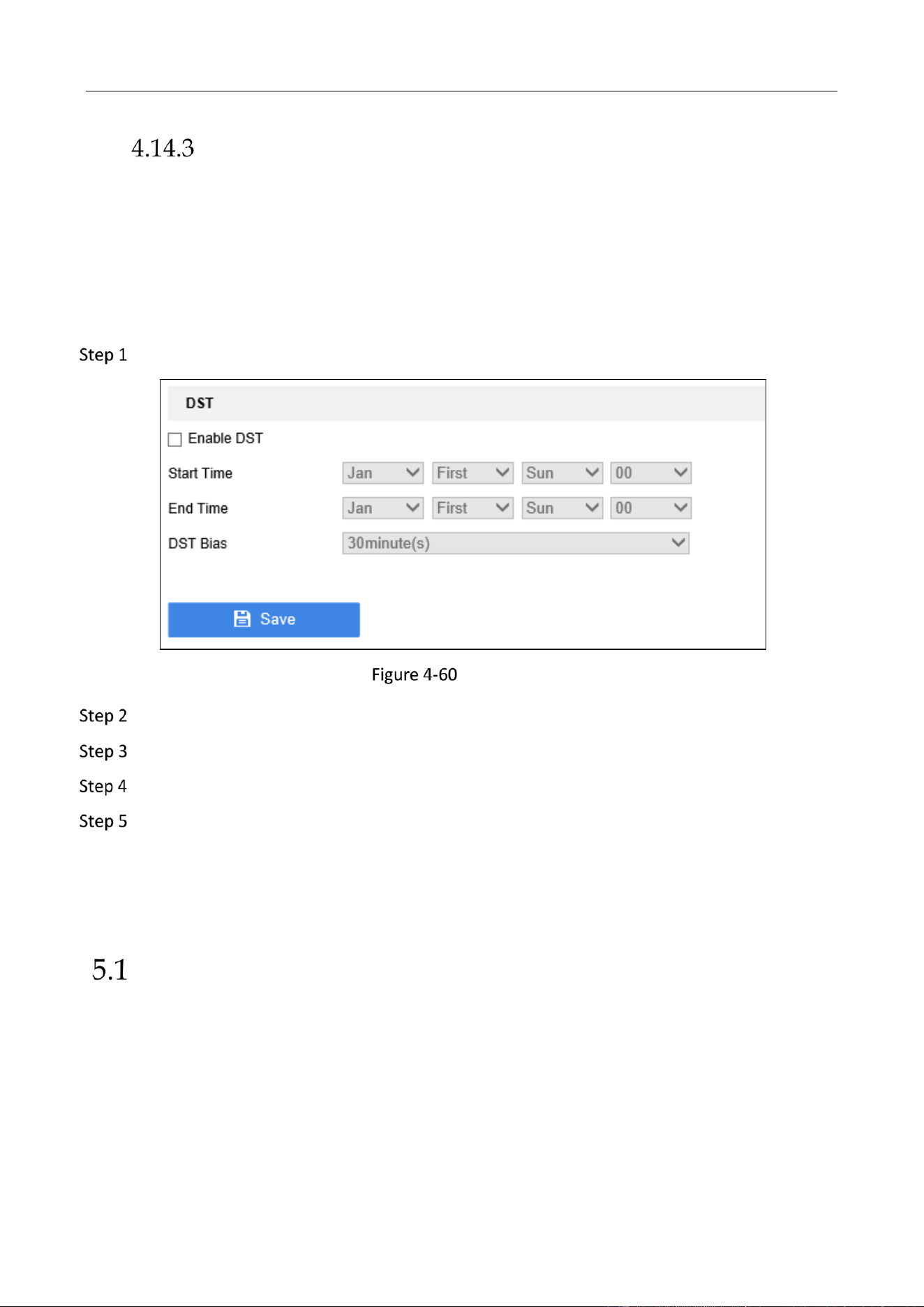
Education Sharing System User Manual
87
DST Settings
Purpose:
DST (daylight saving time) refers to the period of the year when clocks are moved one period
ahead. In some areas worldwide, this has the effect of creating more sunlit hours in the evening
during months when the weather is the warmest.
We advance our clocks ahead a certain period (depends on the DST bias you set) at the beginning
of DST, and move them back the same period when we return to standard time (ST).
Go to Configuration > System Settings > System Settings > Time Settings via web browser.
DST Settings
Check Enable DST.
Set Start Time and End Time of the DST period.
Select DST Bias.
Click Save to save the settings.
Chapter 5 Appendix
SADP Software Introduction
Description of SADP
SADP (Search Active Devices Protocol) is a kind of user-friendly and installation-free online
device search tool. It searches the active online devices within your subnet and displays the
information of the devices. You can also modify the basic network information of the devices
using this software.
Search active devices online
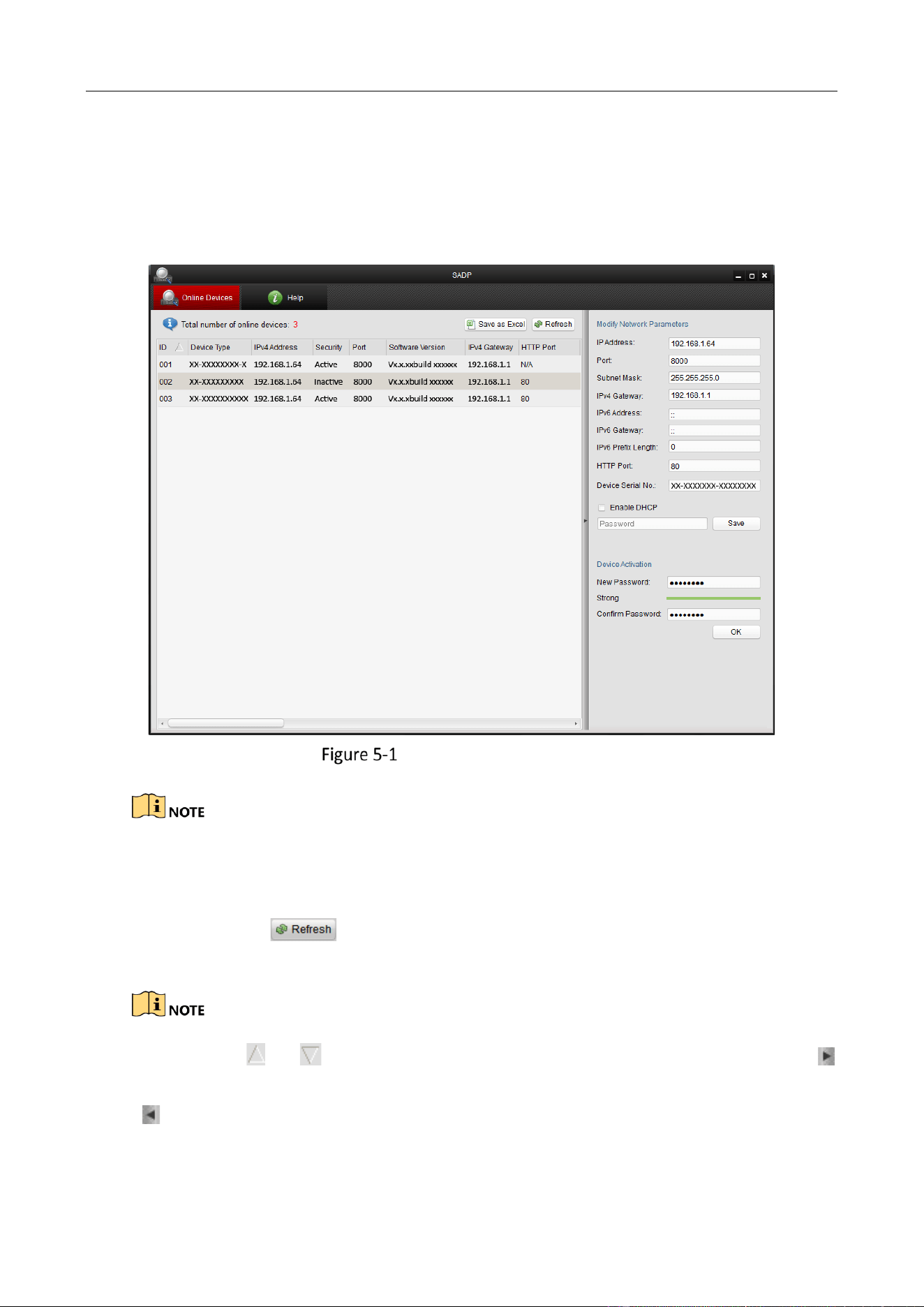
Education Sharing System User Manual
88
Search online devices automatically
After launch the SADP software, it automatically searches the online devices every 15
seconds from the subnet where your computer locates. It displays the total number and
information of the searched devices in the Online Devices interface. Device information
including the device type, IP address and port number, etc. will be displayed.
Searching Online Devices
Device can be searched and displayed in the list in 15 seconds after it went online; it will be
removed from the list in 45 seconds after it went offline.
Search online devices manually
You can also click to refresh the online device list manually. The newly searched
devices will be added to the list.
You can click or on each column heading to order the information; you can click
to expand the device table and hide the network parameter panel on the right side, or click
to show the network parameter panel.
Modify network parameters
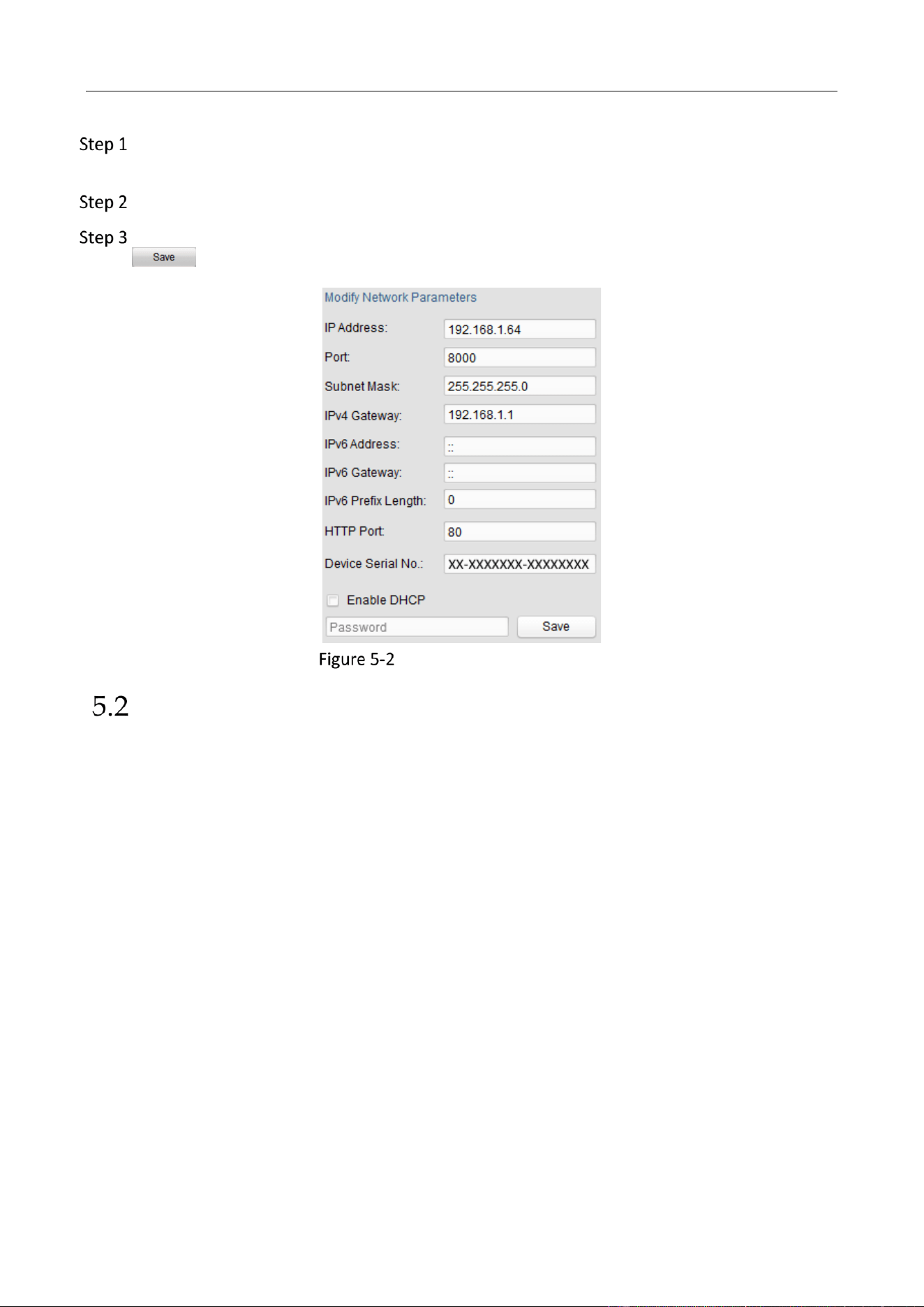
Education Sharing System User Manual
89
Select the device to be modified in the device list and the network parameters of the device
will be displayed in the Modify Network Parameters panel on the right side.
Edit the modifiable network parameters, e.g. IP address and port number.
Enter the password of the admin account of the device in the Password field and click
to save the changes.
Modify Network Parameters
Glossary
Dual-Stream
Dual-stream is a technology used to record high resolution video locally while transmitting a lower
resolution stream over the network. The two streams are generated by the DVR, with the main
stream having a maximum resolution of 1080P and the sub-stream having a maximum resolution
of CIF.
DVR
Acronym for Digital Video Recorder. A DVR is device that is able to accept video signals from
analog cameras, compress the signal and store it on its hard drives.
HDD
Acronym for Hard Disk Drive. A storage medium which stores digitally encoded data on platters
with magnetic surfaces.
DHCP
Dynamic Host Configuration Protocol (DHCP) is a network application protocol used by devices
(DHCP clients) to obtain configuration information for operation in an Internet Protocol network.
HTTP

Education Sharing System User Manual
90
Acronym for Hypertext Transfer Protocol. A protocol to transfer hypertext request and
information between servers and browsers over a network.
PPPoE
PPPoE, Point-to-Point Protocol over Ethernet, is a network protocol for encapsulating Point-to-
Point Protocol (PPP) frames inside Ethernet frames. It is used mainly with ADSL services where
individual users connect to the ADSL transceiver (modem) over Ethernet and in plain Metro
Ethernet networks.
DDNS
Dynamic DNS is a method, protocol, or network service that provides the capability for a
networked device, such as a router or computer system using the Internet Protocol Suite, to notify
a domain name server to change, in real time (ad-hoc) the active DNS configuration of its
configured hostnames, addresses or other information stored in DNS.
Hybrid DVR
A hybrid DVR is a combination of a DVR and NVR.
NTP
Acronym for Network Time Protocol. A protocol designed to synchronize the clocks of computers
over a network.
NTSC
Acronym for National Television System Committee. NTSC is an analog television standard used
in such countries as the United States and Japan. Each frame of an NTSC signal contains 525 scan
lines at 60Hz.
NVR
Acronym for Network Video Recorder. An NVR can be a PC-based or embedded system used for
centralized management and storage for IP cameras, IP Domes and other DVRs.
PAL
Acronym for Phase Alternating Line. PAL is also another video standard used in broadcast
televisions systems in large parts of the world. PAL signal contains 625 scan lines at 50Hz.
PTZ
Acronym for Pan, Tilt, Zoom. PTZ cameras are motor driven systems that allow the camera to pan
left and right, tilt up and down and zoom in and out.
USB
Acronym for Universal Serial Bus. USB is a plug-and-play serial bus standard to interface devices
to a host computer.
