
P1043301-005
ZebraNet
®
Wired and Wireless Print Server
User Guide

© 2013 ZIH Corp. The copyrights in this manual and the software and/or firmware in the label
printer described therein are owned by ZIH Corp. Unauthorized reproduction of this manual or the
software and/or firmware in the label printer may result in imprisonment of up to one year and fines
of up to $10,000 (17 U.S.C.506). Copyright violators may be subject to civil liability.
This product may contain ZPL
®
, ZPL II
®
, and ZebraLink™ programs; Element Energy Equalizer
®
Circuit; E
3®
; and Monotype Imaging fonts. Software © ZIH Corp. All rights reserved worldwide.
ZebraLink and all product names and numbers are trademarks, and Zebra, the Zebra logo, ZPL,
ZPL II, Element Energy Equalizer Circuit, and E
3
Circuit are registered trademarks of ZIH Corp.
All rights reserved worldwide.
All other brand names, product names, or trademarks belong to their respective holders. For
additional trademark information, please see “Trademarks” on the product CD.
Proprietary Statement This manual contains proprietary information of Zebra Technologies
Corporation and its subsidiaries (“Zebra Technologies”). It is intended solely for the information
and use of parties operating and maintaining the equipment described herein. Such proprietary
information may not be used, reproduced, or disclosed to any other parties for any other purpose
without the express, written permission of Zebra Technologies Corporation.
Product Improvements Continuous improvement of products is a policy of Zebra
Technologies Corporation. All specifications and designs are subject to change without notice.
Liability Disclaimer Zebra Technologies Corporation takes steps to ensure that its published
Engineering specifications and manuals are correct; however, errors do occur. Zebra Technologies
Corporation reserves the right to correct any such errors and disclaims liability resulting therefrom.
Limitation of Liability In no event shall Zebra Technologies Corporation or anyone else
involved in the creation, production, or delivery of the accompanying product (including hardware
and software) be liable for any damages whatsoever (including, without limitation, consequential
damages including loss of business profits, business interruption, or loss of business information)
arising out of the use of, the results of use of, or inability to use such product, even if Zebra
Technologies Corporation has been advised of the possibility of such damages. Some jurisdictions
do not allow the exclusion or limitation of incidental or consequential damages, so the above
limitation or exclusion may not apply to you.
Part Number: P1043301-005

11/21/13 P1043301-005
Contents
About This Document . . . . . . . . . . . . . . . . . . . . . . . . . . . . . . . . . . . . . . . . . . . . . . . 7
Who Should Use This Document . . . . . . . . . . . . . . . . . . . . . . . . . . . . . . . . . . . . . . . . . . . . 8
How This Document Is Organized . . . . . . . . . . . . . . . . . . . . . . . . . . . . . . . . . . . . . . . . . . . 9
Document Conventions . . . . . . . . . . . . . . . . . . . . . . . . . . . . . . . . . . . . . . . . . . . . . . . . . . 10
1 • Introduction . . . . . . . . . . . . . . . . . . . . . . . . . . . . . . . . . . . . . . . . . . . . . . . . . . . 15
Overview . . . . . . . . . . . . . . . . . . . . . . . . . . . . . . . . . . . . . . . . . . . . . . . . . . . . . . . . . . . . . 16
Support . . . . . . . . . . . . . . . . . . . . . . . . . . . . . . . . . . . . . . . . . . . . . . . . . . . . . . . . . . . . . . 16
Browser Support . . . . . . . . . . . . . . . . . . . . . . . . . . . . . . . . . . . . . . . . . . . . . . . . . . . . 16
Supported Services . . . . . . . . . . . . . . . . . . . . . . . . . . . . . . . . . . . . . . . . . . . . . . . . . . 16
Address Administration Protocols . . . . . . . . . . . . . . . . . . . . . . . . . . . . . . . . . . . . . . . 16
Supported Wireless Radio Cards . . . . . . . . . . . . . . . . . . . . . . . . . . . . . . . . . . . . . . . 17
Supported Security Types . . . . . . . . . . . . . . . . . . . . . . . . . . . . . . . . . . . . . . . . . . . . . 18
Printer Requirements . . . . . . . . . . . . . . . . . . . . . . . . . . . . . . . . . . . . . . . . . . . . . . . . . . . . 22
Hardware — Wired Print Servers . . . . . . . . . . . . . . . . . . . . . . . . . . . . . . . . . . . . . . . 22
Hardware — Wireless Print Servers . . . . . . . . . . . . . . . . . . . . . . . . . . . . . . . . . . . . . 23
Memory Requirements . . . . . . . . . . . . . . . . . . . . . . . . . . . . . . . . . . . . . . . . . . . . . . . 24
Firmware — 10/100 Print Server . . . . . . . . . . . . . . . . . . . . . . . . . . . . . . . . . . . . . . . . 25
Firmware — Wireless . . . . . . . . . . . . . . . . . . . . . . . . . . . . . . . . . . . . . . . . . . . . . . . . 27
Compatibility . . . . . . . . . . . . . . . . . . . . . . . . . . . . . . . . . . . . . . . . . . . . . . . . . . . . . . . . . . 29
Specifications . . . . . . . . . . . . . . . . . . . . . . . . . . . . . . . . . . . . . . . . . . . . . . . . . . . . . . . . . . 29
External ZebraNet 10/100 Print Server Specifications . . . . . . . . . . . . . . . . . . . . . . . 29
Internal ZebraNet 10/100 Print Server Specifications . . . . . . . . . . . . . . . . . . . . . . . . 30
Wireless Print Server Specifications . . . . . . . . . . . . . . . . . . . . . . . . . . . . . . . . . . . . . 31

Contents
4
P1043301-005 11/21/13
2 • Installation . . . . . . . . . . . . . . . . . . . . . . . . . . . . . . . . . . . . . . . . . . . . . . . . . . . . 33
External ZebraNet 10/100 Print Server . . . . . . . . . . . . . . . . . . . . . . . . . . . . . . . . . . . . . . 34
Before You Begin . . . . . . . . . . . . . . . . . . . . . . . . . . . . . . . . . . . . . . . . . . . . . . . . . . . . 34
Illustration . . . . . . . . . . . . . . . . . . . . . . . . . . . . . . . . . . . . . . . . . . . . . . . . . . . . . . . . . 35
Installation Instructions . . . . . . . . . . . . . . . . . . . . . . . . . . . . . . . . . . . . . . . . . . . . . . . 36
Internal ZebraNet 10/100 Print Server . . . . . . . . . . . . . . . . . . . . . . . . . . . . . . . . . . . . . . . 37
Wireless Print Servers . . . . . . . . . . . . . . . . . . . . . . . . . . . . . . . . . . . . . . . . . . . . . . . . . . . 37
Install a Radio Card in a Wireless Print Server . . . . . . . . . . . . . . . . . . . . . . . . . . . . . . . . 37
Wireless Radio Card . . . . . . . . . . . . . . . . . . . . . . . . . . . . . . . . . . . . . . . . . . . . . . . . . 37
Compact Flash Wireless Radio Card . . . . . . . . . . . . . . . . . . . . . . . . . . . . . . . . . . . . . 39
3 • Getting Started . . . . . . . . . . . . . . . . . . . . . . . . . . . . . . . . . . . . . . . . . . . . . . . . . 41
Before You Begin . . . . . . . . . . . . . . . . . . . . . . . . . . . . . . . . . . . . . . . . . . . . . . . . . . . . . . . 43
Default User ID and Password . . . . . . . . . . . . . . . . . . . . . . . . . . . . . . . . . . . . . . . . . 43
Printing a Configuration Label — External ZebraNet 10/100 Print Server . . . . . . . . . . . . 44
Printing a Network Configuration Label — Internal ZebraNet 10/100 Print Server
and Wireless Print Servers . . . . . . . . . . . . . . . . . . . . . . . . . . . . . . . . . . . . . . . . . . . . . . . 46
Configuration of Wireless Securities . . . . . . . . . . . . . . . . . . . . . . . . . . . . . . . . . . . . . . . . 51
View Wireless Status through the Control Panel . . . . . . . . . . . . . . . . . . . . . . . . . . . . . . . 52
LCD Link Status and Wireless Signal Indicators . . . . . . . . . . . . . . . . . . . . . . . . . . . . 52
HC100 Wireless Status Indicator Lights . . . . . . . . . . . . . . . . . . . . . . . . . . . . . . . . . . 54
ZD500R Wired and Wireless Status Indicator Icons . . . . . . . . . . . . . . . . . . . . . . . . . 54
ZT210, ZT220, ZT230, ZT410, and ZT420
Wired and Wireless Status Indicator Lights . . . . . . . . . . . . . . . . . . . . . . . . . . . . . . . . 55
Determining the Active Print Server . . . . . . . . . . . . . . . . . . . . . . . . . . . . . . . . . . . . . . . . . 57
Viewing IP Addresses and the Active Print Server . . . . . . . . . . . . . . . . . . . . . . . . . . . 57
Active Device Selection . . . . . . . . . . . . . . . . . . . . . . . . . . . . . . . . . . . . . . . . . . . . . . . 58
Assigning an IP Address on any Print Server . . . . . . . . . . . . . . . . . . . . . . . . . . . . . . . . . 60
With Dynamic Host Configuration Protocol (DHCP) . . . . . . . . . . . . . . . . . . . . . . . . . 60
Assigning an IP Address Without DHCP via ZebraNet Bridge . . . . . . . . . . . . . . . . . 60
Assigning an IP address Without DHCP from the Control Panel . . . . . . . . . . . . . . . . 61
Assigning an IP Address Without DHCP via a Telnet Session . . . . . . . . . . . . . . . . . . 62
Setting and Monitoring Alerts on Any Print Server . . . . . . . . . . . . . . . . . . . . . . . . . . . . . . 64
ZebraLink Alerts . . . . . . . . . . . . . . . . . . . . . . . . . . . . . . . . . . . . . . . . . . . . . . . . . . . . . 64
Using ZebraNet Bridge . . . . . . . . . . . . . . . . . . . . . . . . . . . . . . . . . . . . . . . . . . . . . . . 66
Using WebView . . . . . . . . . . . . . . . . . . . . . . . . . . . . . . . . . . . . . . . . . . . . . . . . . . . . . 66
Checking Print Server Configuration Settings . . . . . . . . . . . . . . . . . . . . . . . . . . . . . . . . . 68
Using ZebraNet Bridge . . . . . . . . . . . . . . . . . . . . . . . . . . . . . . . . . . . . . . . . . . . . . . . 68
Using WebView . . . . . . . . . . . . . . . . . . . . . . . . . . . . . . . . . . . . . . . . . . . . . . . . . . . . . 69
Enabling Protocols . . . . . . . . . . . . . . . . . . . . . . . . . . . . . . . . . . . . . . . . . . . . . . . . . . . . . . 72
Using WebView . . . . . . . . . . . . . . . . . . . . . . . . . . . . . . . . . . . . . . . . . . . . . . . . . . . . . 72

5
Contents
11/21/13 P1043301-005
Defaulting ALL Print Servers . . . . . . . . . . . . . . . . . . . . . . . . . . . . . . . . . . . . . . . . . . . . . . 75
Using WebView . . . . . . . . . . . . . . . . . . . . . . . . . . . . . . . . . . . . . . . . . . . . . . . . . . . . . 75
Using ZebraNet Bridge . . . . . . . . . . . . . . . . . . . . . . . . . . . . . . . . . . . . . . . . . . . . . . . 76
Using a ZPL Command . . . . . . . . . . . . . . . . . . . . . . . . . . . . . . . . . . . . . . . . . . . . . . . 76
Defaulting the ZebraNet 10/100 Print Server on the 105SL, S4M, PAX4, and
External Devices . . . . . . . . . . . . . . . . . . . . . . . . . . . . . . . . . . . . . . . . . . . . . . . . . . . . 76
Defaulting the Wireless Print Server on the S4M . . . . . . . . . . . . . . . . . . . . . . . . . . . 77
Defaulting the Print Servers on the ZM400 and ZM600 Printers . . . . . . . . . . . . . . . . 77
Defaulting the Print Servers on the ZP Series, LP/TLP 2824 Plus, and
G-Series Printers . . . . . . . . . . . . . . . . . . . . . . . . . . . . . . . . . . . . . . . . . . . . . . . . . . . . 77
Defaulting the Print Servers on the HC100 Printers . . . . . . . . . . . . . . . . . . . . . . . . . 78
Defaulting the Print Servers on the 105SL, PAX4, Xi4, ZE500, and
105SLPlus Printers . . . . . . . . . . . . . . . . . . . . . . . . . . . . . . . . . . . . . . . . . . . . . . . . . . 78
Defaulting the Print Servers on the ZD500R, ZT210, ZT220, ZT230, ZT410, and
ZT420 Printers . . . . . . . . . . . . . . . . . . . . . . . . . . . . . . . . . . . . . . . . . . . . . . . . . . . . . . 79
Defaulting the Print Servers on the ZD500R, ZT230, ZT410, and ZT420 Printers
via the Control Panel . . . . . . . . . . . . . . . . . . . . . . . . . . . . . . . . . . . . . . . . . . . . . . . . . 79
4 • Printing Queues . . . . . . . . . . . . . . . . . . . . . . . . . . . . . . . . . . . . . . . . . . . . . . . . 81
Berkeley Software Distribution (BSD)-Style Print Queue . . . . . . . . . . . . . . . . . . . . . . . . . 82
Configuring the Print Queue . . . . . . . . . . . . . . . . . . . . . . . . . . . . . . . . . . . . . . . . . . . 82
System V Queue Installation . . . . . . . . . . . . . . . . . . . . . . . . . . . . . . . . . . . . . . . . . . . . . . 83
Configuring Operating System V Queue for ZebraNet Printing . . . . . . . . . . . . . . . . . 83
Prerequisites . . . . . . . . . . . . . . . . . . . . . . . . . . . . . . . . . . . . . . . . . . . . . . . . . . . . . . . 83
UNIX Configuration . . . . . . . . . . . . . . . . . . . . . . . . . . . . . . . . . . . . . . . . . . . . . . . . . . 83
5 • Using Printing Protocols . . . . . . . . . . . . . . . . . . . . . . . . . . . . . . . . . . . . . . . . 85
IPP . . . . . . . . . . . . . . . . . . . . . . . . . . . . . . . . . . . . . . . . . . . . . . . . . . . . . . . . . . . . . . . . . . 86
FTP . . . . . . . . . . . . . . . . . . . . . . . . . . . . . . . . . . . . . . . . . . . . . . . . . . . . . . . . . . . . . . . . . 87
6 • ZebraLink WebView . . . . . . . . . . . . . . . . . . . . . . . . . . . . . . . . . . . . . . . . . . . . . 89
WebView . . . . . . . . . . . . . . . . . . . . . . . . . . . . . . . . . . . . . . . . . . . . . . . . . . . . . . . . . . . . . 90
Home Page . . . . . . . . . . . . . . . . . . . . . . . . . . . . . . . . . . . . . . . . . . . . . . . . . . . . . . . . 90
View Printer Configuration . . . . . . . . . . . . . . . . . . . . . . . . . . . . . . . . . . . . . . . . . . . . . 92
View and Modify Printer Settings . . . . . . . . . . . . . . . . . . . . . . . . . . . . . . . . . . . . . . . . 93
Network Communications Screens . . . . . . . . . . . . . . . . . . . . . . . . . . . . . . . . . . . . . . . . 100
Directory Listing . . . . . . . . . . . . . . . . . . . . . . . . . . . . . . . . . . . . . . . . . . . . . . . . . . . . 105
Printer Controls . . . . . . . . . . . . . . . . . . . . . . . . . . . . . . . . . . . . . . . . . . . . . . . . . . . . .110
7 • Print Server Web Pages . . . . . . . . . . . . . . . . . . . . . . . . . . . . . . . . . . . . . . . . 111
Print Server Features . . . . . . . . . . . . . . . . . . . . . . . . . . . . . . . . . . . . . . . . . . . . . . . . . . . .112
Status and Configuration . . . . . . . . . . . . . . . . . . . . . . . . . . . . . . . . . . . . . . . . . . . . . .112
Print Server Status . . . . . . . . . . . . . . . . . . . . . . . . . . . . . . . . . . . . . . . . . . . . . . . . . . 120
Reset . . . . . . . . . . . . . . . . . . . . . . . . . . . . . . . . . . . . . . . . . . . . . . . . . . . . . . . . . . . . 122
Restore . . . . . . . . . . . . . . . . . . . . . . . . . . . . . . . . . . . . . . . . . . . . . . . . . . . . . . . . . . 123

Contents
6
P1043301-005 11/21/13
8 • Control Panel . . . . . . . . . . . . . . . . . . . . . . . . . . . . . . . . . . . . . . . . . . . . . . . . . 125
Control Panel Menu Options . . . . . . . . . . . . . . . . . . . . . . . . . . . . . . . . . . . . . . . . . . . . . 126
Wired Network Parameters on the LCD . . . . . . . . . . . . . . . . . . . . . . . . . . . . . . . . . 126
Wireless Network Parameters on the LCD . . . . . . . . . . . . . . . . . . . . . . . . . . . . . . . 129
9 • Hardware Troubleshooting . . . . . . . . . . . . . . . . . . . . . . . . . . . . . . . . . . . . . . 133
Troubleshooting the External 10/100 Print Server . . . . . . . . . . . . . . . . . . . . . . . . . . . . . 134
Resetting to Factory Defaults . . . . . . . . . . . . . . . . . . . . . . . . . . . . . . . . . . . . . . . . . 134
External ZebraNet 10/100 Print Server Network Status and Status Indicators . . . . 134
Troubleshooting the External ZebraNet 10/100 Print Server . . . . . . . . . . . . . . . . . . 135
Troubleshooting the Internal ZebraNet 10/100 Print Server . . . . . . . . . . . . . . . . . . . . . 137
Resetting the Internal ZebraNet 10/100 Print Server to Factory Defaults . . . . . . . . 137
Internal ZebraNet 10/100 Print Server Network Status and Activity Indicators . . . . 137
Troubleshooting the Wireless Print Server . . . . . . . . . . . . . . . . . . . . . . . . . . . . . . . . . . . 139
ZebraNet n Print Server Will Not Operate on the 5Ghz Band . . . . . . . . . . . . . . . . . 139
Resetting the Wireless Print Server to Factory Defaults . . . . . . . . . . . . . . . . . . . . . 139
ZebraNet Bridge Discovery or Configuration Problems . . . . . . . . . . . . . . . . . . . . . . . . . 140
Unable to Print . . . . . . . . . . . . . . . . . . . . . . . . . . . . . . . . . . . . . . . . . . . . . . . . . . . . . . . . 140
Ping the Printer . . . . . . . . . . . . . . . . . . . . . . . . . . . . . . . . . . . . . . . . . . . . . . . . . . . . 140
Telnet . . . . . . . . . . . . . . . . . . . . . . . . . . . . . . . . . . . . . . . . . . . . . . . . . . . . . . . . . . . . 141
Unable to Configure Device . . . . . . . . . . . . . . . . . . . . . . . . . . . . . . . . . . . . . . . . . . . . . . 142
HP JetAdmin or HP Web JetAdmin . . . . . . . . . . . . . . . . . . . . . . . . . . . . . . . . . . . . . . . . 142
Wireless Error Messages . . . . . . . . . . . . . . . . . . . . . . . . . . . . . . . . . . . . . . . . . . . . . . . . 142
General Wireless Issues . . . . . . . . . . . . . . . . . . . . . . . . . . . . . . . . . . . . . . . . . . . . . . . . 143
Encryption and Authentication Issues . . . . . . . . . . . . . . . . . . . . . . . . . . . . . . . . . . . . . . 145
IP Issues . . . . . . . . . . . . . . . . . . . . . . . . . . . . . . . . . . . . . . . . . . . . . . . . . . . . . . . . . . . . 146
10 • Frequently Asked Questions . . . . . . . . . . . . . . . . . . . . . . . . . . . . . . . . . . . 147
FAQs . . . . . . . . . . . . . . . . . . . . . . . . . . . . . . . . . . . . . . . . . . . . . . . . . . . . . . . . . . . . . . . 147
Glossary . . . . . . . . . . . . . . . . . . . . . . . . . . . . . . . . . . . . . . . . . . . . . . . . . . . . . . . . 151
Index . . . . . . . . . . . . . . . . . . . . . . . . . . . . . . . . . . . . . . . . . . . . . . . . . . . . . . . . . . . 157

11/21/13 P1043301-005
About This Document
This section provides you with contact information, document structure and organization, and
additional reference documents.
Contents
Who Should Use This Document. . . . . . . . . . . . . . . . . . . . . . . . . . . . . . . . . . . . . . . . . . . . 8
How This Document Is Organized . . . . . . . . . . . . . . . . . . . . . . . . . . . . . . . . . . . . . . . . . . . 9
Document Conventions . . . . . . . . . . . . . . . . . . . . . . . . . . . . . . . . . . . . . . . . . . . . . . . . . . 10

About This Document
Who Should Use This Document
8
P1043301-005 11/21/13
Who Should Use This Document
This User Guide is intended for anyone who will install and work with Zebra print servers
(PS). The print servers addressed in this manual include:
• External ZebraNet 10/100 Print Server
• Internal ZebraNet 10/100 Print Server
• ZebraNet Wireless Print Server
• ZebraNet Wireless Plus Print Server
• ZebraNet Internal Wireless Plus Print Server
• ZebraNet b/g Print Server
• ZebraNet n Print Server
9
About This Document
How This Document Is Organized
11/21/13 P1043301-005
How This Document Is Organized
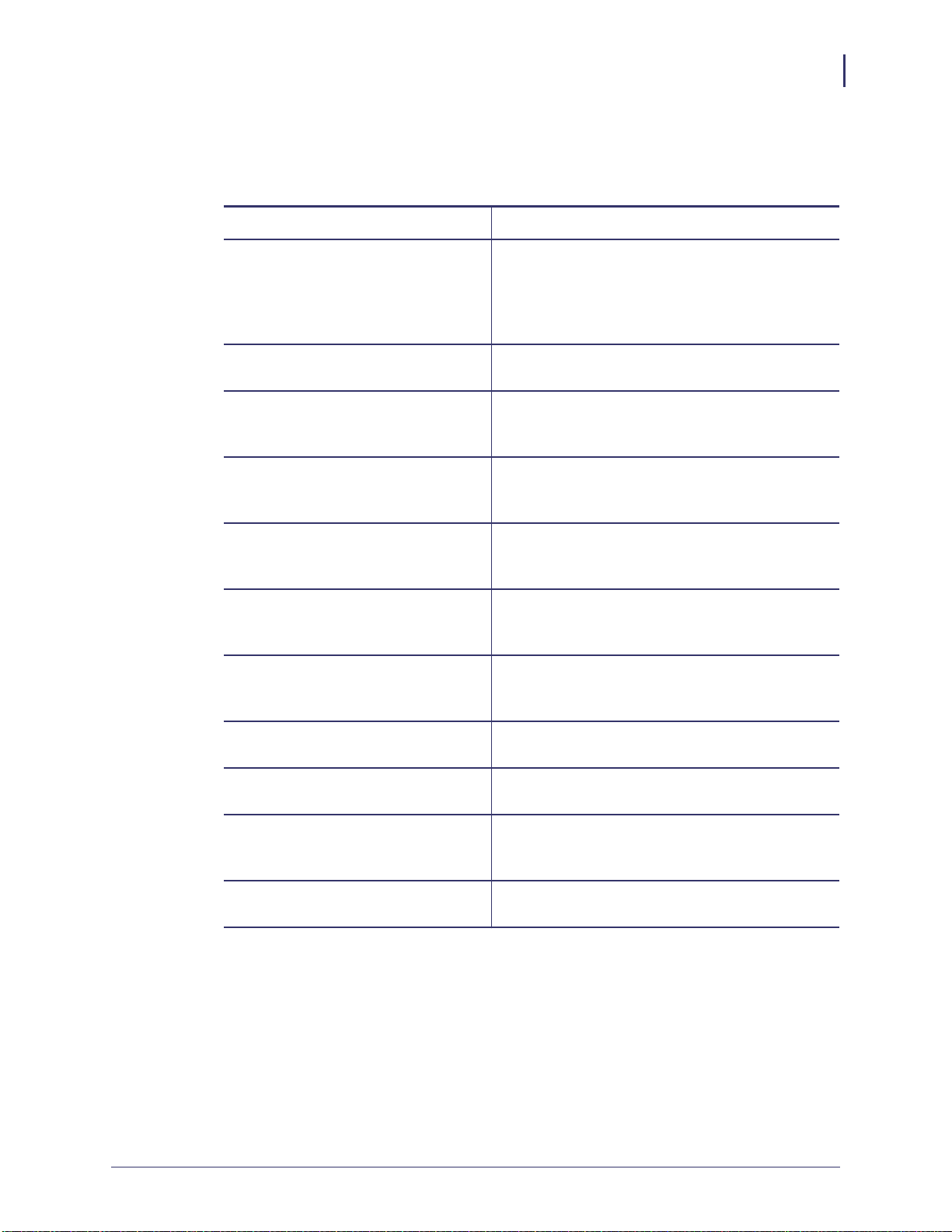
This User Guide is set up as follows:
Section Description
Introduction on page 15 This chapter provides a high-level overview of
Zebra’s wired and wireless print servers,
installation types, standard network
configurations, and how to work with the print
servers.
Installation on page 33 This chapter provides information on how to
install the Zebra’s wired and wireless print servers.
Getting Started on page 41 This section provides you with contact
information, document structure and organization,
and additional reference documents.
Printing Queues on page 81 This section provides information and instructions
on configuring your printer for use with a BSD or
System V Queue.
Using Printing Protocols on page 85 In this section, you are given steps to set up your
print server to support Internet Printing Protocol
(IPP) and File Transfer Protocol (FTP).
ZebraLink WebView on page 89 This section provides you with contact
information, document structure and organization,
and additional reference documents.
Print Server Web Pages on page 111 This section provides you with contact
information, document structure and organization,
and additional reference documents.
Control Panel on page 125 This section provides you with details on the
Control Panel menu options.
Hardware Troubleshooting
on page 133
This section provides you with solutions to known
issues.
Frequently Asked Questions
on page 147
This section provides a group of frequently asked
questions (FAQs) about Zebra’s wired and
wireless print servers.
Glossary on page 151 This appendix is a list of terms and associated
definitions.
About This Document
Document Conventions
10
P1043301-005 11/21/13
Document Conventions
The following conventions are used throughout this document to convey certain information:
Alternate Color (online only) Cross-references contain links to other sections in this guide.
If you are viewing this guide online, click the blue text to jump to its location.
Command Line Examples All command line examples appear in Courier New font.
For example, type the following to get to the Post-Install scripts in the
bin directory:
Ztools
Files and Directories All file names and directories appear in Courier New font. For
example, the
Zebra<version number>.tar file and the /root directory.
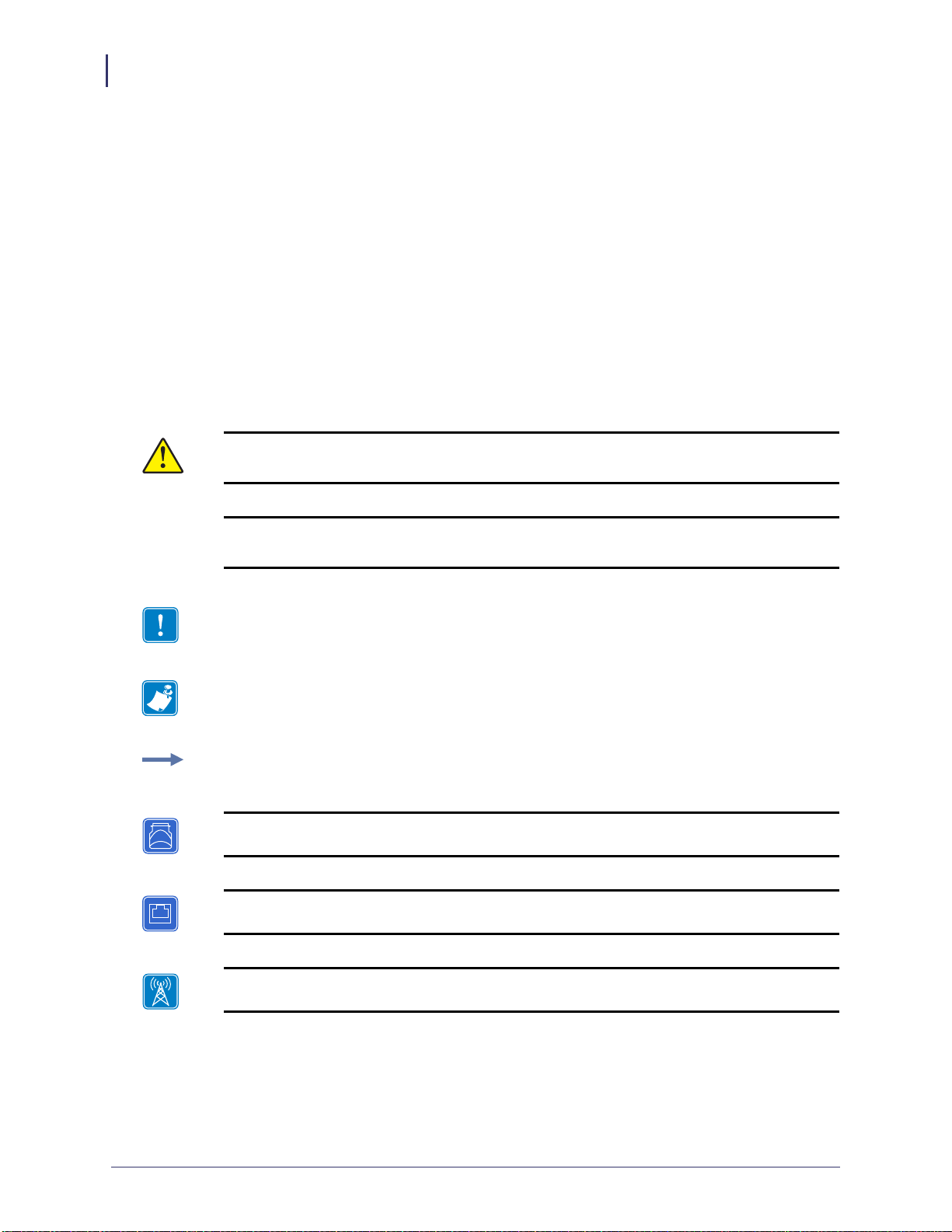
Cautions, Important, Note, Example, and Print Server Icons
Caution • Advises you that failure to take or avoid a specific action could result in physical
harm to you.
Caution • Advises you that failure to take or avoid a specific action could result in physical
harm to the hardware.
Important • Advises you of information that is essential to complete a task.
Note • Indicates neutral or positive information that emphasizes or supplements important
points of the main text.
Example • Provides an example, often a scenario, to better clarify a section of text.
This icon represents the external ZebraNet 10/100 Print Server.
This icon represents the internal ZebraNet 10/100 Print Server.
This icon represents the ZebraNet wireless print servers.
11
About This Document
Document Conventions
11/21/13 P1043301-005
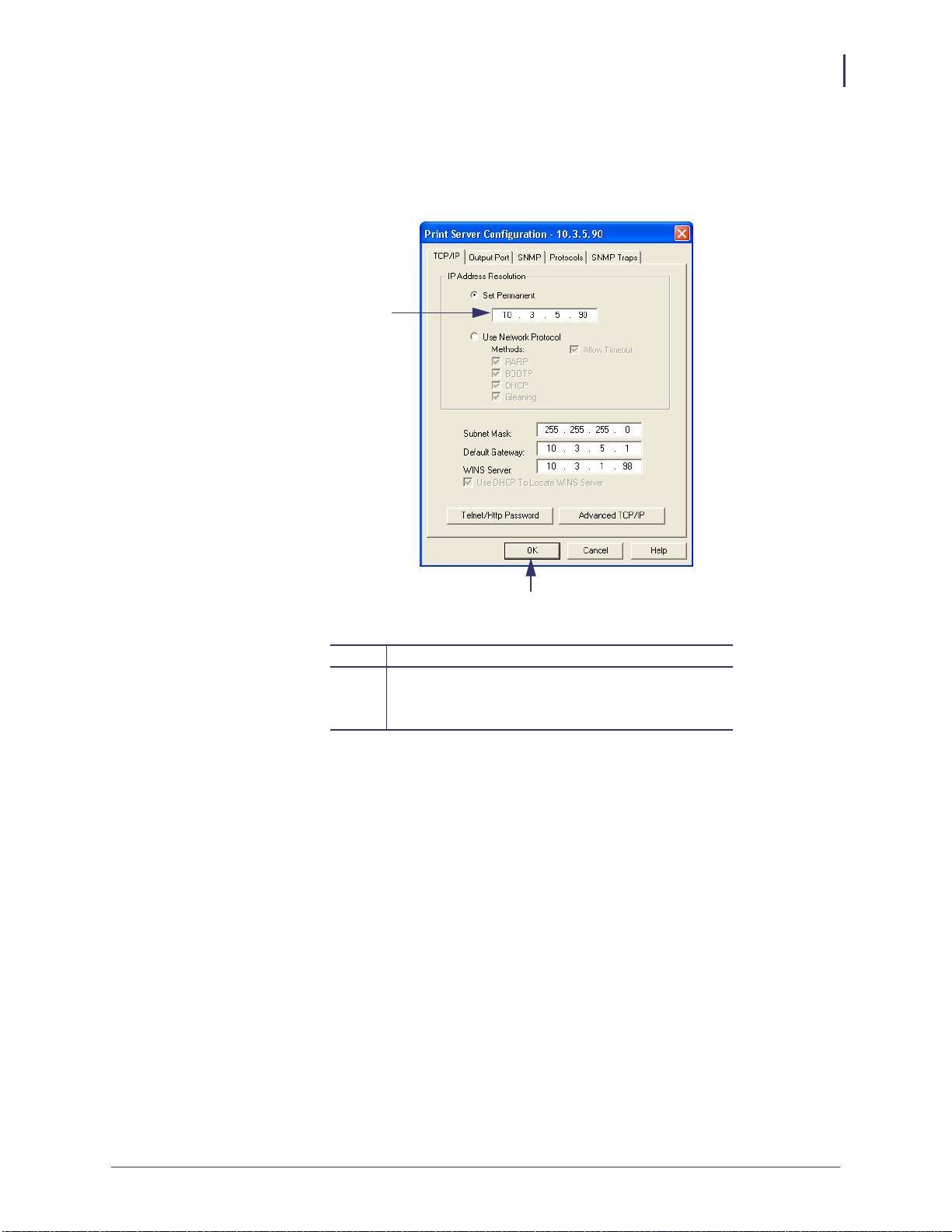
Illustration Instructions Used when an illustration contains either information about a
dialog box or step(s) to accomplish in a dialog box.
One illustration instruction identifies a section of the dialog box and the other shows steps to
follow.
1
Set Permanent text-box.
2
a. In the Set Permanent text-box, type in the print
server’s IP address.
b. When you are finished, click OK.
1
2

About This Document
Document Conventions
12
P1043301-005 11/21/13
Notes • ___________________________________________________________________
__________________________________________________________________________
__________________________________________________________________________
__________________________________________________________________________
__________________________________________________________________________
__________________________________________________________________________
__________________________________________________________________________
__________________________________________________________________________
__________________________________________________________________________
__________________________________________________________________________

11/21/13 P1043301-005
1
Introduction
This chapter provides a high-level overview of Zebra’s wired and wireless print servers,
installation types, standard network configurations, and how to work with the print servers.
Contents
Overview . . . . . . . . . . . . . . . . . . . . . . . . . . . . . . . . . . . . . . . . . . . . . . . . . . . . . . . . . . . . . 16
Support. . . . . . . . . . . . . . . . . . . . . . . . . . . . . . . . . . . . . . . . . . . . . . . . . . . . . . . . . . . . . . . 16
Browser Support . . . . . . . . . . . . . . . . . . . . . . . . . . . . . . . . . . . . . . . . . . . . . . . . . . . . . 16
Supported Services . . . . . . . . . . . . . . . . . . . . . . . . . . . . . . . . . . . . . . . . . . . . . . . . . . . 16
Address Administration Protocols . . . . . . . . . . . . . . . . . . . . . . . . . . . . . . . . . . . . . . . . 16
Supported Wireless Radio Cards. . . . . . . . . . . . . . . . . . . . . . . . . . . . . . . . . . . . . . . . . 17
Supported Security Types . . . . . . . . . . . . . . . . . . . . . . . . . . . . . . . . . . . . . . . . . . . . . . 18
Printer Requirements. . . . . . . . . . . . . . . . . . . . . . . . . . . . . . . . . . . . . . . . . . . . . . . . . . . . 22
Hardware — Wired Print Servers. . . . . . . . . . . . . . . . . . . . . . . . . . . . . . . . . . . . . . . . . 22
Hardware — Wireless Print Servers . . . . . . . . . . . . . . . . . . . . . . . . . . . . . . . . . . . . . . 23
Memory Requirements. . . . . . . . . . . . . . . . . . . . . . . . . . . . . . . . . . . . . . . . . . . . . . . . . 24
Firmware — 10/100 Print Server . . . . . . . . . . . . . . . . . . . . . . . . . . . . . . . . . . . . . . . . . 25
Firmware — Wireless. . . . . . . . . . . . . . . . . . . . . . . . . . . . . . . . . . . . . . . . . . . . . . . . . . 27
Compatibility. . . . . . . . . . . . . . . . . . . . . . . . . . . . . . . . . . . . . . . . . . . . . . . . . . . . . . . . . . . 29
External ZebraNet 10/100 Print Server Specifications. . . . . . . . . . . . . . . . . . . . . . . . . . . 29
External ZebraNet 10/100 Print Server Specifications. . . . . . . . . . . . . . . . . . . . . . . . . 29
Internal ZebraNet 10/100 Print Server Specifications . . . . . . . . . . . . . . . . . . . . . . . . . 30
Wireless Print Server Specifications . . . . . . . . . . . . . . . . . . . . . . . . . . . . . . . . . . . . . . 31

Introduction
Overview
16
P1043301-005 11/21/13
Overview
The print server is an optional factory- or field-installed device that connects the network and
your ZebraLink-enabled printer. The print server provides you with a web browser as a user
interface for printer and print server settings. If you use the ZebraNet Bridge, you can easily
access the specialized features of a ZebraLink-enabled printer. For details, see the ZebraNet
Bridge Enterprise User Guide.
Support
This section lists the minimum requirements for print servers, which include browsers,
supported services, address administration protocols, hardware, and firmware.
Browser Support
• HTML v3.2 or higher
• Internet Explorer
Supported Services
Address Administration Protocols
• DHCP
• BootP
• RARP
• Gleaning
• Permanent
Important • You can download the most recent version of ZebraNet Bridge Enterprise from
www.zebra.com/utilities.
• Raw TCP • FTP
• HTTP • UDP
• LPR/LPD • Telnet
• SNMPv1 • SMTP
• POP3 • WINS
• IPP v1.0 * † • ARP
* Only supported on the external 10/100 Print Server.
† Only supported on the internal 10/100 Print Server for
S4M, XiIIIPlus, PAX4, and 105SL.

17
Introduction
Support
11/21/13 P1043301-005
Supported Wireless Radio Cards
A supported third-party PCMCIA, Compact Flash™, or CardBus wireless radio card is
required for the printer to connect to the WLAN. After the wireless option board is installed in
the printer, the wireless radio card inserts into a slot on this board. A wireless radio card is
NOT provided with the ZebraNet Wireless Print Server or the ZebraNet Wireless Plus Print
Server.
The following wireless radio cards are supported at the time of this release:
Symbol
®
Technologies
• Spectrum24
®
Compact Flash wireless radio card LA-4137-1020-WW (the card uses an
adapter and must have firmware version F3.91-69 or later)
For instructions on how to install this card and the adapter, see Install a Radio Card in a
Wireless Print Server on page 37.
• 802.11b Spectrum24 High Rate Direct Sequence PN:LA-4121-1000-US (card must have
firmware version V2.90-58 or later)
• 802.11b Spectrum24 High Rate Direct Sequence PN:LA-4121-1020-US (card must have
firmware version V2.90-58 or later)
• 802.11b Spectrum24 High Rate Direct Sequence PN:LA-4121-1120-US (card must have
firmware version V2.90-58 or later)
Note • This section applies only to the ZebraNet Wireless Print Server and the ZebraNet
Wireless Plus Print Server. All other Zebranet wireless print servers have a built-in radio.
Note •
• Some wireless radio cards listed here may not support all ZebraNet wireless print server
features.
• See Table 1 on page 19 or check with the card manufacturer to ensure that the card that
you wish to use supports the wireless security type used on your WLAN.
• Some wireless radio cards may require specific firmware versions to support certain
features. You may be able to download new firmware to your wireless radio card. Check
with the card manufacturer for more information.
• Check the operating conditions (such as temperature and humidity) for the wireless radio
card that you choose. If the card has more restrictions than the printer, this may limit the
conditions under which you can operate the printer with a wireless connection.

Introduction
Support
18
P1043301-005 11/21/13
Cisco
®
Systems
All Aironet
®
cards must have card firmware version 5.60.21 or later.
• 802.11g Aironet CB21AG CardBus wireless radio card (for the Wireless Plus Print Sever
only)
• 802.11b Aironet AIR-PCMC340
• 802.11b Aironet AIR-PCMC341
• 802.11b Aironet AIR-PCMC342
• 802.11b Aironet PCMC350
• 802.11b Aironet PCMC351
• 802.11b Aironet PCMC352
Supported Security Types
Your WLAN can use any of a number of different types of security and encryption, or it can
use none at all. This section shows which security types you can use with the various ZebraNet
wireless print servers.
Note • Configuring a printer for WPA also allows the printer to be used in WPA2
environments.
19
Introduction
Support
11/21/13 P1043301-005
ZebraNet Wireless Plus Print Server
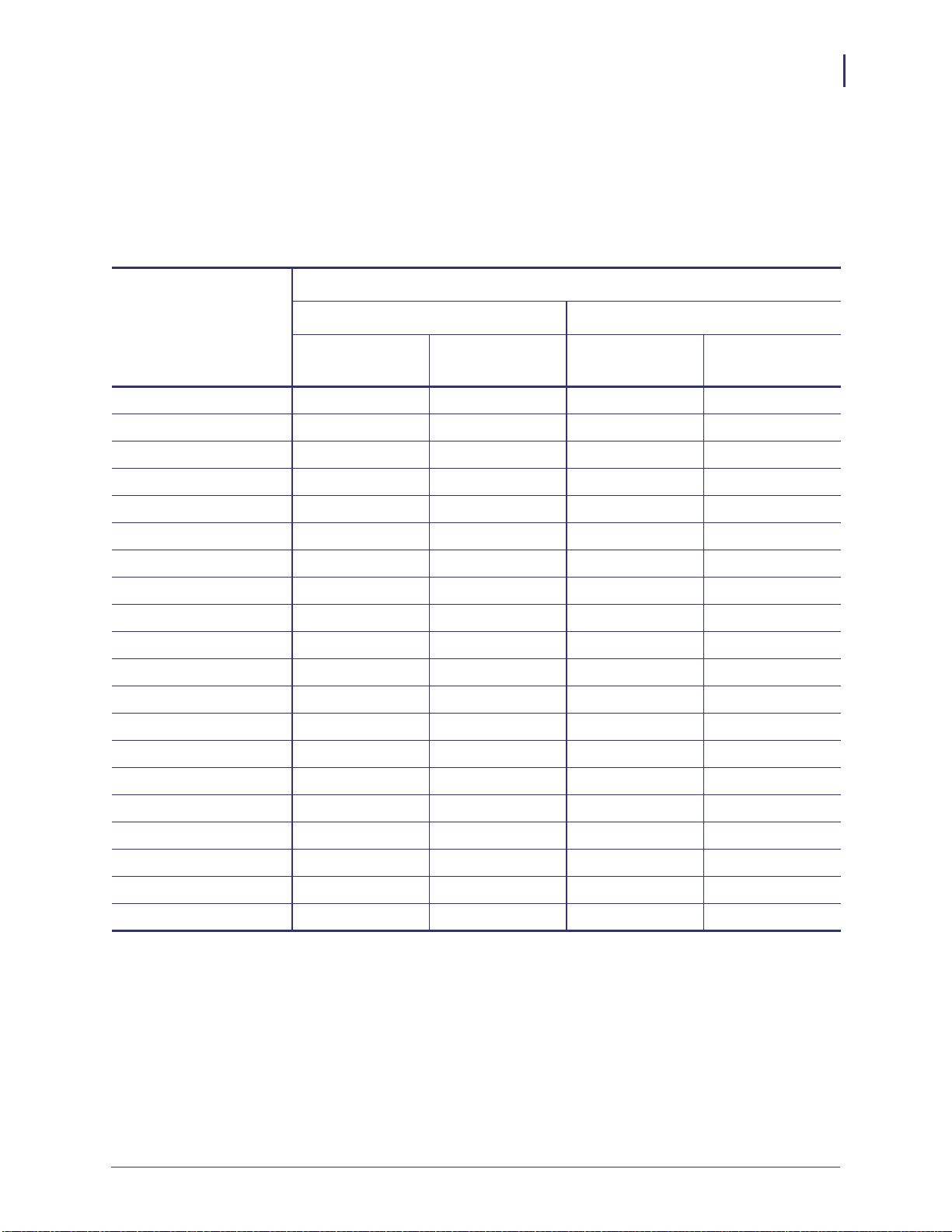
Table 1 lists the security types that are supported by the Wireless Plus Print Server. Support
varies by the card manufacturer and the card type. Select a wireless radio card that is supported
by your wireless print server and that supports the security type being used on your WLAN.
Table 1 • Security Types Supported on the Wireless Plus Print Server
Security Type
Card Manufacturer
Cisco Symbol
Cisco CB21 Cisco 350
LA-4121
(PCMCIA)
LA-4137
Compact Flash
Open Yes Yes Yes Yes
EAP-FAST Yes Not Supported Yes Yes
EAP-TLS Yes Not Supported Not Supported Yes
EAP-TTLS Yes Not Supported Not Supported Yes
Kerberos Not Supported Not Supported Yes Yes
LEAP Yes Yes Yes Yes
PEAP Yes Not Supported Yes Yes
WEP (40 bit and 128 bit) Yes Yes Yes Yes
WPA - LEAP Yes Yes Yes Yes
WPA - PSK Yes Yes Yes Yes
WPA- EAP-FAST Yes Yes Yes Yes
WPA- EAP-TLS Yes Yes Yes Yes
WPA- EAP-TTLS Yes Yes Yes Yes
WPA- PEAP Yes Yes Yes Yes
WPA2 - LEAP Yes Not Supported Not Supported Not Supported
WPA2 - PSK* Yes* Not Supported Not Supported Not Supported
WPA2- EAP-FAST Yes Not Supported Not Supported Not Supported
WPA2- EAP-TLS Yes Not Supported Not Supported Not Supported
WPA2- EAP-TTLS Yes Not Supported Not Supported Not Supported
WPA2- PEAP Yes Not Supported Not Supported Not Supported
* Key rotation for WPA2 PSK is supported in firmware version V60.15.8Z or later, V53.15.8Z or later., and RX.15.8Z or later.

Introduction
Support
20
P1043301-005 11/21/13
ZebraNet Internal Wireless Plus Print Server, ZebraNet b/g Print Server, and
ZebraNet n Print Server
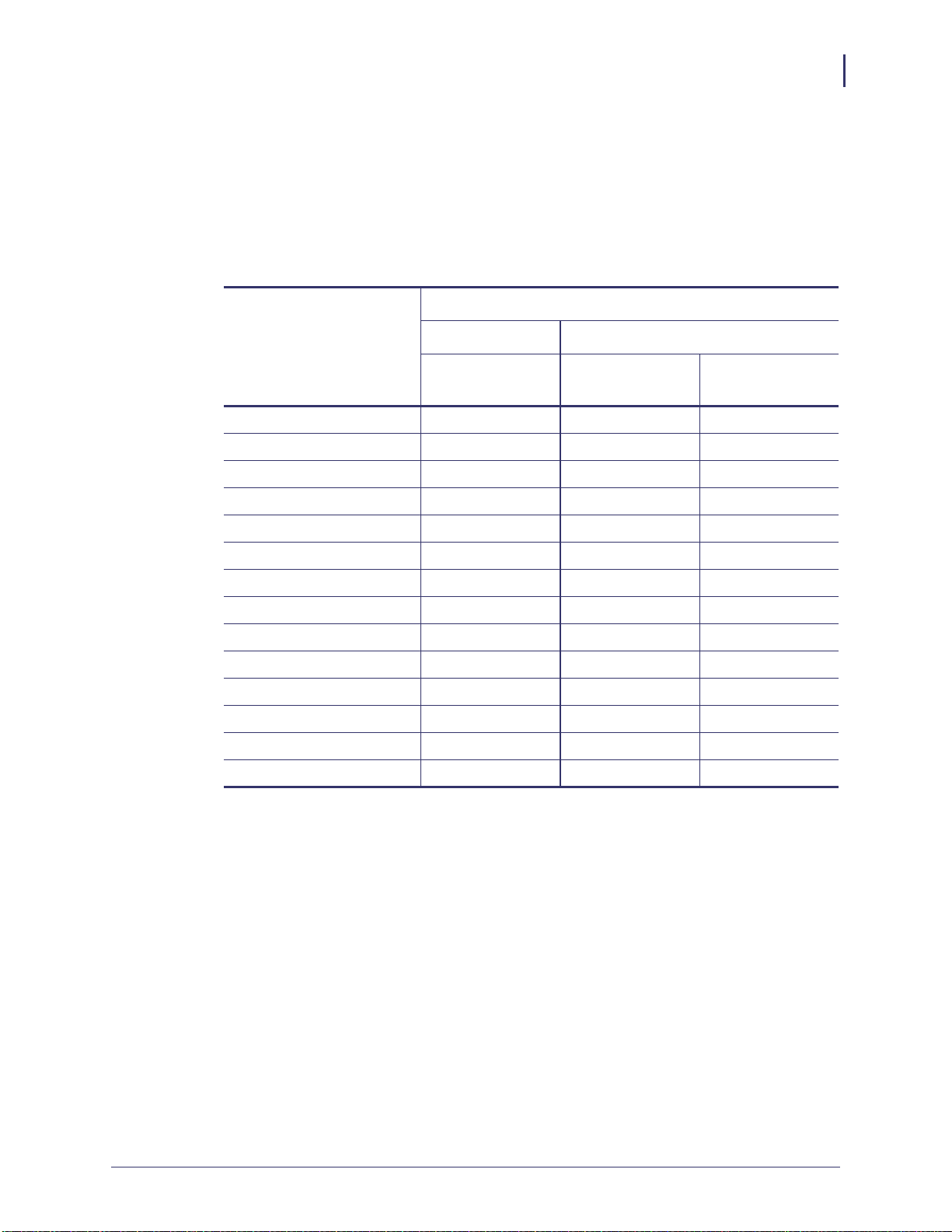
Table 2 lists the security types that are supported by the Internal Wireless Plus Print Server, the
b/g Print Server, and the n Print Server.
Table 2 • Security Types Supported on the
Internal Wireless Plus Print Server, b/g Print Server and
n Print Server
Security Type Supported?
Open Yes
EAP-FAST Yes
EAP-PEAPv2 Yes *
EAP-TLS Yes
EAP-TTLS Yes
Kerberos Not Supported
Key Management Yes *
LEAP Yes
MIC Yes *
PEAP Yes
WEP (40 bit and 128 bit) Yes
WPA - LEAP Yes
WPA - PSK Yes
WPA - EAP-FAST Yes
WPA - EAP-TLS Yes
WPA - EAP-TTLS Yes
WPA - PEAP Yes
WPA - TKIP Yes *
WPA2 - 802.1x + AES Yes *
WPA2 - LEAP Yes
WPA2 - PSK Yes
WPA2 - EAP-FAST Yes
WPA2 - EAP-TLS Yes
WPA2 - EAP-TTLS Yes
WPA2 - PEAP Yes
*Note: Supported on the ZebraNet n Print Server only
21
Introduction
Support
11/21/13 P1043301-005
ZebraNet Wireless Print Server
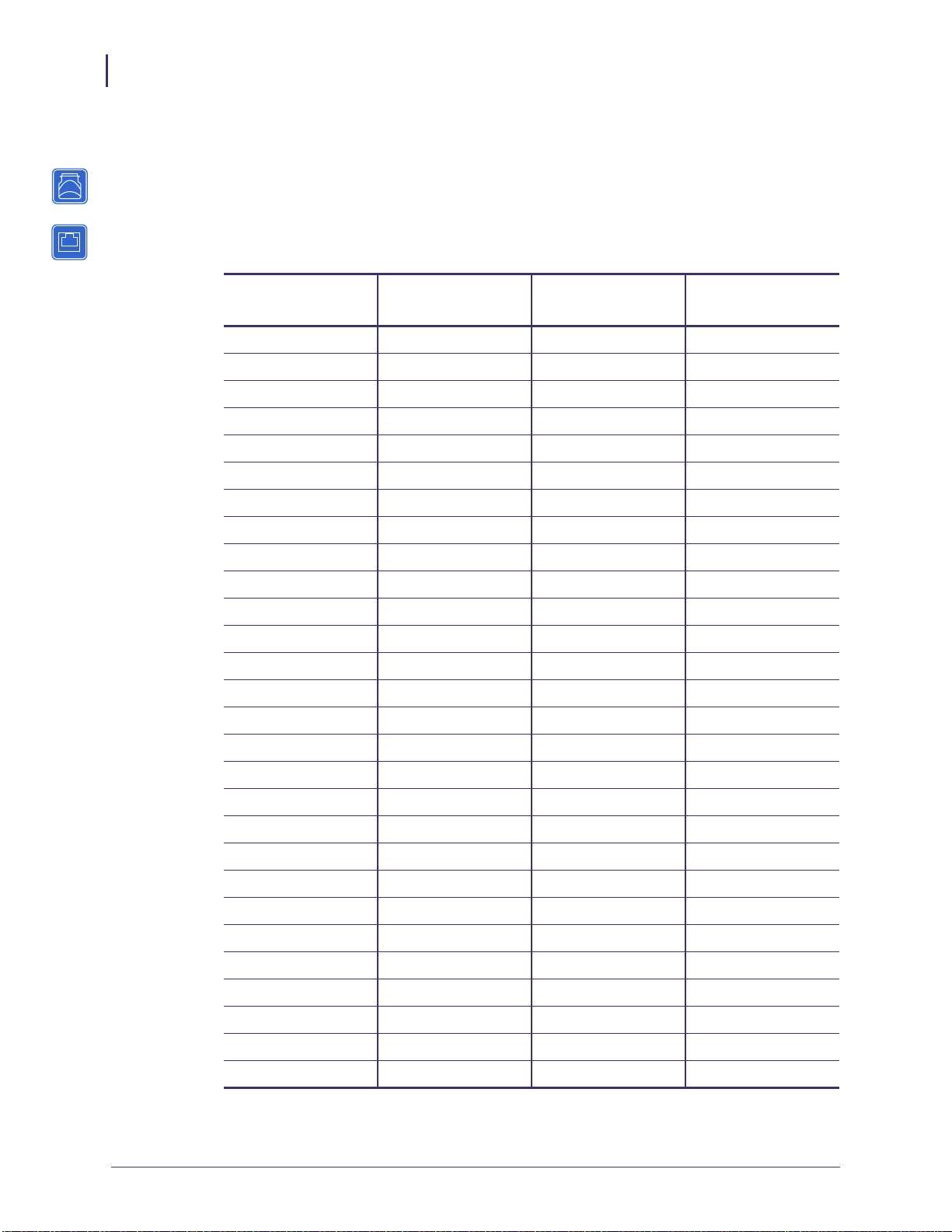
Table 3 lists the security types that are supported by the Wireless Print Server. Support varies
by the card manufacturer and the card type. Select a wireless radio card that is supported by
your wireless print server and that supports the security type being used on your WLAN. The
Wireless Print Server does not support the Cisco CB21 radio card.
Table 3 • Security Types Supported on the Wireless Print Server
Security Type
Card Manufacturer
Cisco Symbol
Cisco 350
LA-4121
(PCMCIA)
LA-4137
Compact Flash
Open Yes Yes Yes
EAP-FAST Not Supported Not Supported Yes
EAP-TLS Not Supported Not Supported Yes
EAP-TTLS Not Supported Yes Yes
Kerberos Not Supported Yes Yes
LEAP Yes Yes Yes
PEAP Not Supported Yes Yes
WEP (40 bit and 128 bit) Yes Yes Yes
WPA - LEAP Yes Yes Yes
WPA - PSK Yes Yes Yes
WPA- EAP-FAST Yes Yes Yes
WPA- EAP-TLS Yes Yes Yes
WPA- EAP-TTLS Yes Yes Yes
WPA- PEAP Yes Yes Yes
Introduction
Printer Requirements
22
P1043301-005 11/21/13
Printer Requirements
Hardware — Wired Print Servers
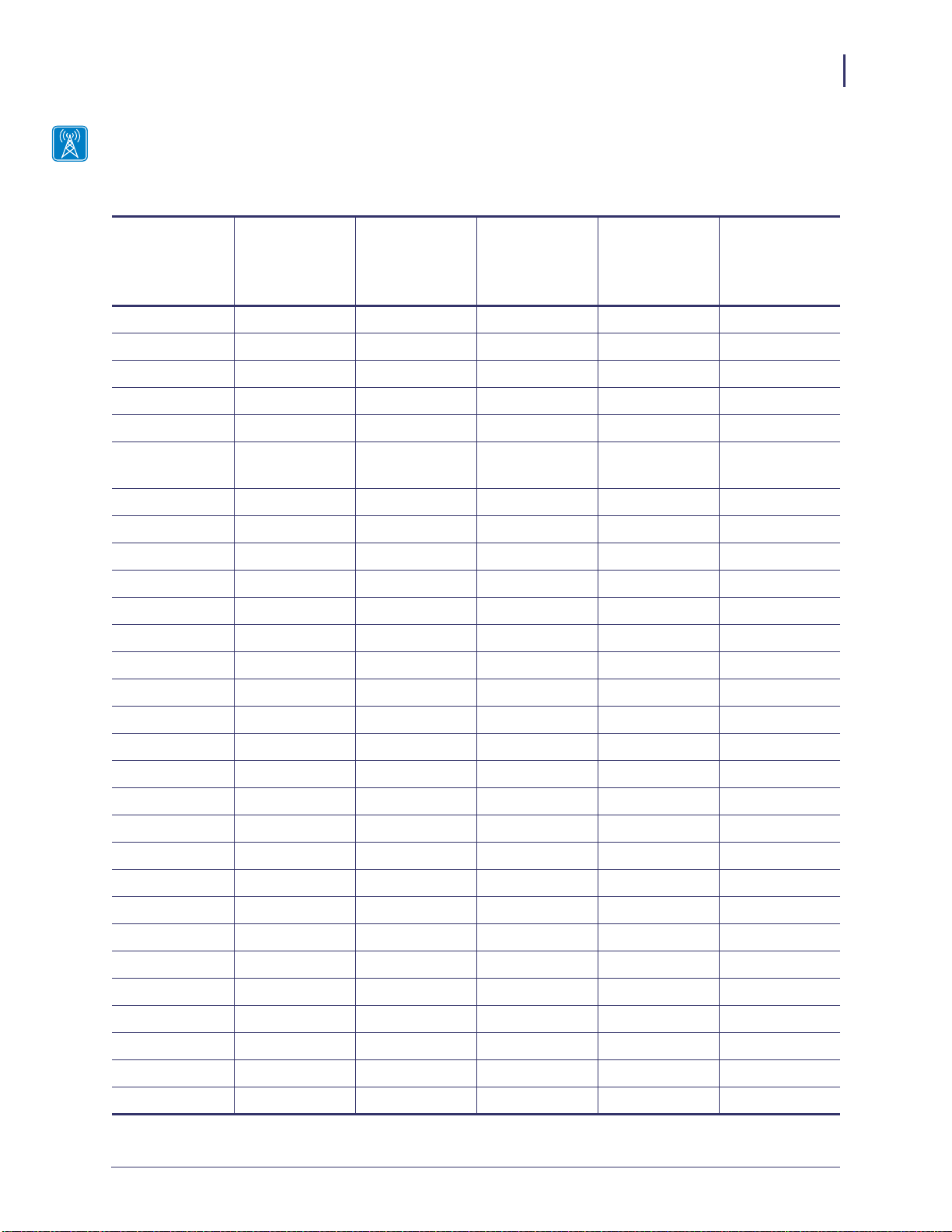
Table 4 indicates which printers are compatible with wired print server options.
Table 4 • Wired Print Servers Available by Printer
Printers
External *
Internal
Field Upgrade
Internal
Factory
105SL™ XXX
105SLPlus™XXX
GK420™ X X
GX420™/GX430™ X X
HC100™ X
LP/TLP 2824 Plus™ X
PA X 4™ series X X X
R110PAX 4™XXX
R110Xi™ X X X
R170Xi™ X X X
R110Xi4™ X X X
RZ400™ X X X
RZ600™ X X X
S4M™ X X * X *
XiIIIPlus™XXX
Xi4™ X X X
Z4Mplus™ X X X
Z6Mplus™ X X X
ZD500R™ X X
ZE500™ X X X
ZM400™ X X X
ZM600™ X X X
ZP Series X
ZT210™ X X X
ZT220™ X X X
ZT230™ X X X
ZT410™ series X X
ZT420™ series X X
* For additional information on print server firmware versions, see Firmware — 10/100 Print Server on
page 25.
23
Introduction
Printer Requirements
11/21/13 P1043301-005
Hardware — Wireless Print Servers
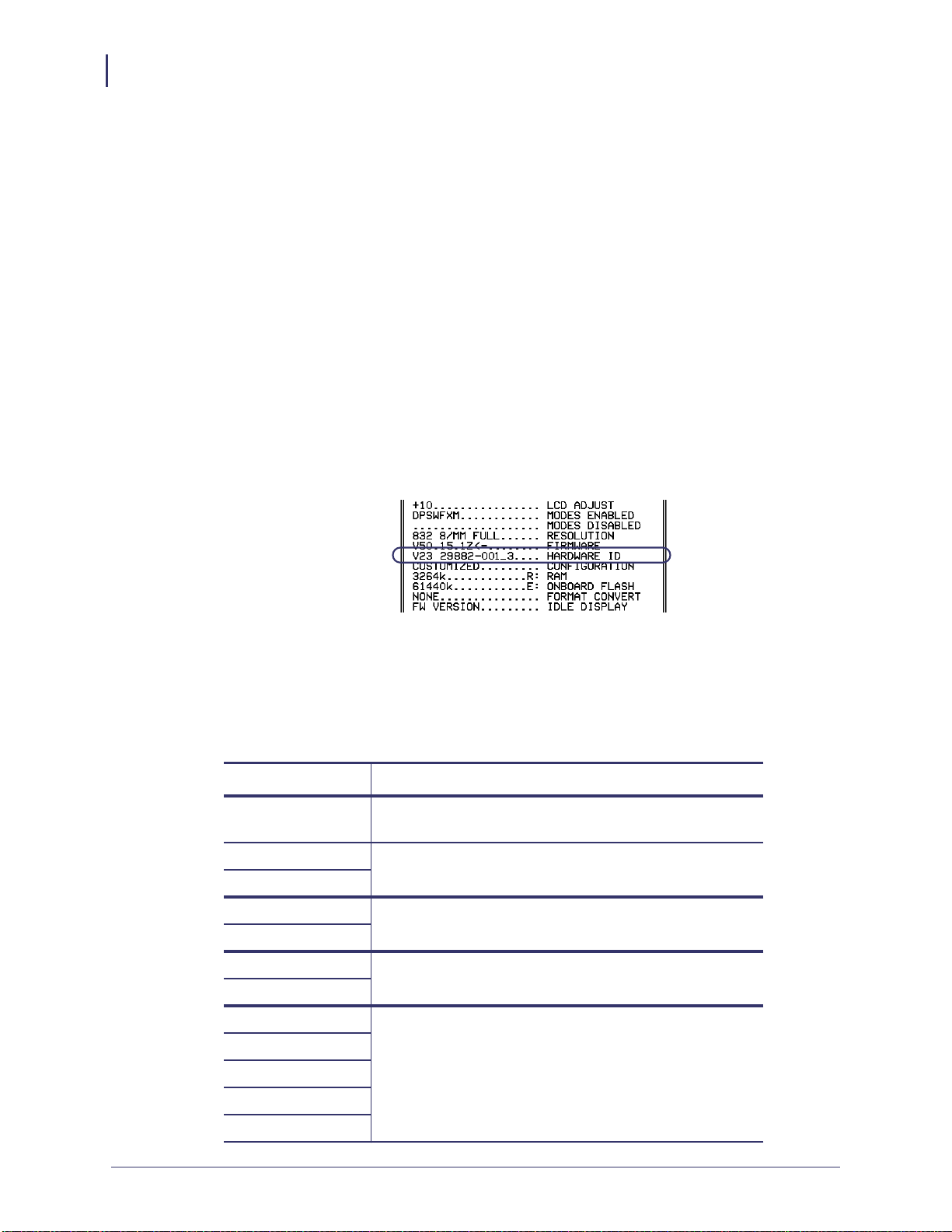
Table 5 indicates which printers are compatible with wireless print server options.
Table 5 • Wireless Print Servers Available by Printer
Printers
ZebraNet
a/b/g/n
Print Server
ZebraNet
b/g
Print Server
Internal
Wireless
Plus Print
Server
Wireless
Plus Print
Server
Wireless
Print Server
105SL™ XXX
105SLPlus™X
GK420
GX420/430
HC100 X
LP/TLP 2824
Plus
PA X 4™ series XXXX
R110PAX 4™ XXX
R110Xi™ X X X
R170Xi™ X X X
R110Xi4™ XXXX
RZ400™ XXXX
RZ600™ XXXX
S4M™ XXXX
XiIIIPlus™ XXX
Xi4™ X X X
Z4Mplus™ X
Z6Mplus™ X
ZD500R™ X
ZE500™ X
ZM400™ X X X
ZM600™ X X X
ZP Series
ZT210™ X
ZT220™ X
ZT230™ X
ZT400™ series X
R4Mplus X
R110Xi HF X X X
Introduction
Printer Requirements
24
P1043301-005 11/21/13
Memory Requirements
PCMCIA and Compact Flash Memory Cards PCMCIA memory or Compact Flash
memory cards will not work and are not supported on the Wireless Plus Print Server. The
Internal Wireless Plus Print Server and the b/g Print Server do not include a slot for these card
types.
Wireless Card Socket Option The ZebraNet wireless print server options replace the
Wireless Card Socket Option (WCSO) in 105SL printers with a serial number of 6400357 or
greater. Do not install a wireless option board on a 105SL printer with a serial number that is
less than 6400357.
Wireless Option Board A special wireless option board must be installed in your
printer/print engine. To determine if you have a wireless option board installed, use a printer
configuration label (refer to the “Printing Configuration Labels” section in your User Guide).
To purchase a wireless option, contact your authorized Zebra reseller for more information.
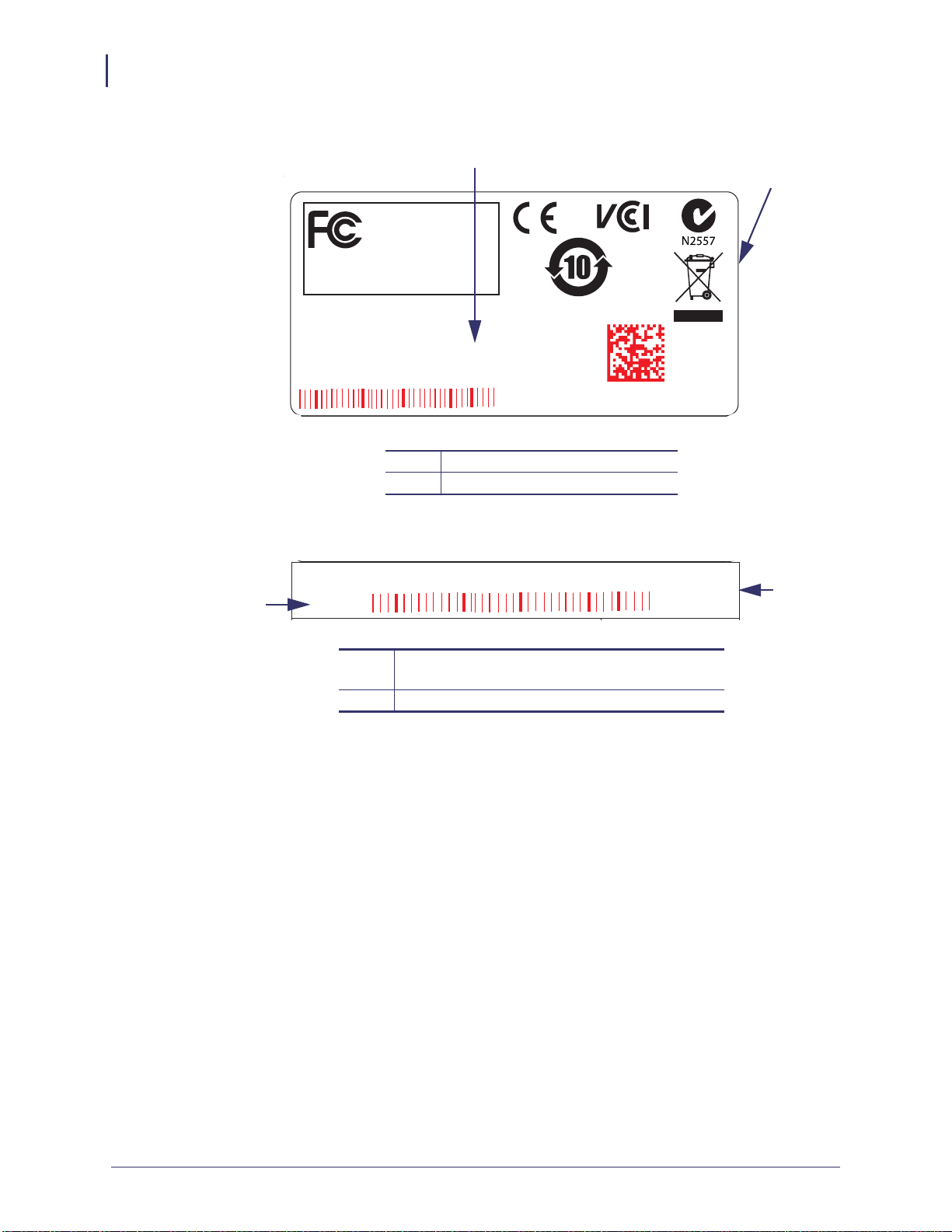
The wireless option boards are identified by the HARDWARE ID line on the printer
configuration label.
The part numbers shown on the HARDWARE ID line indicate the wireless print servers as
shown in Table 6.
Table 6 • Zebra Part Numbers for ZebraNet Wireless Print Server
Boards
Part Number Corresponds to the Following
P1033782-0x n Print Server
(radio included)
P1033557-0xx b/g Print Server
(radio included)
P1033605-001
29652-0xx Internal Wireless Plus Print Server
(radio included)
29883-001
29651-0xx Wireless Plus Print Server
(requires a third-party radio card)
29882-001
29881-009 Wireless Print Server
(requires a third-party radio card)
79077
79078
79079
79100

25
Introduction
Printer Requirements
11/21/13 P1043301-005
Firmware — 10/100 Print Server
The S4M printers and all external print servers are available with several versions of print
server firmware. PA X 4, 105SL, XiIIIPlus printers will use print server firmware version 1.01.x.
To determine the proper firmware version, first determine your hardware version.
To locate your hardware version, perform the following:
1. Which type of printer and print server do you have?
If you have… Then…
Any printer with an
external print server
a. Look at the side of the print server.
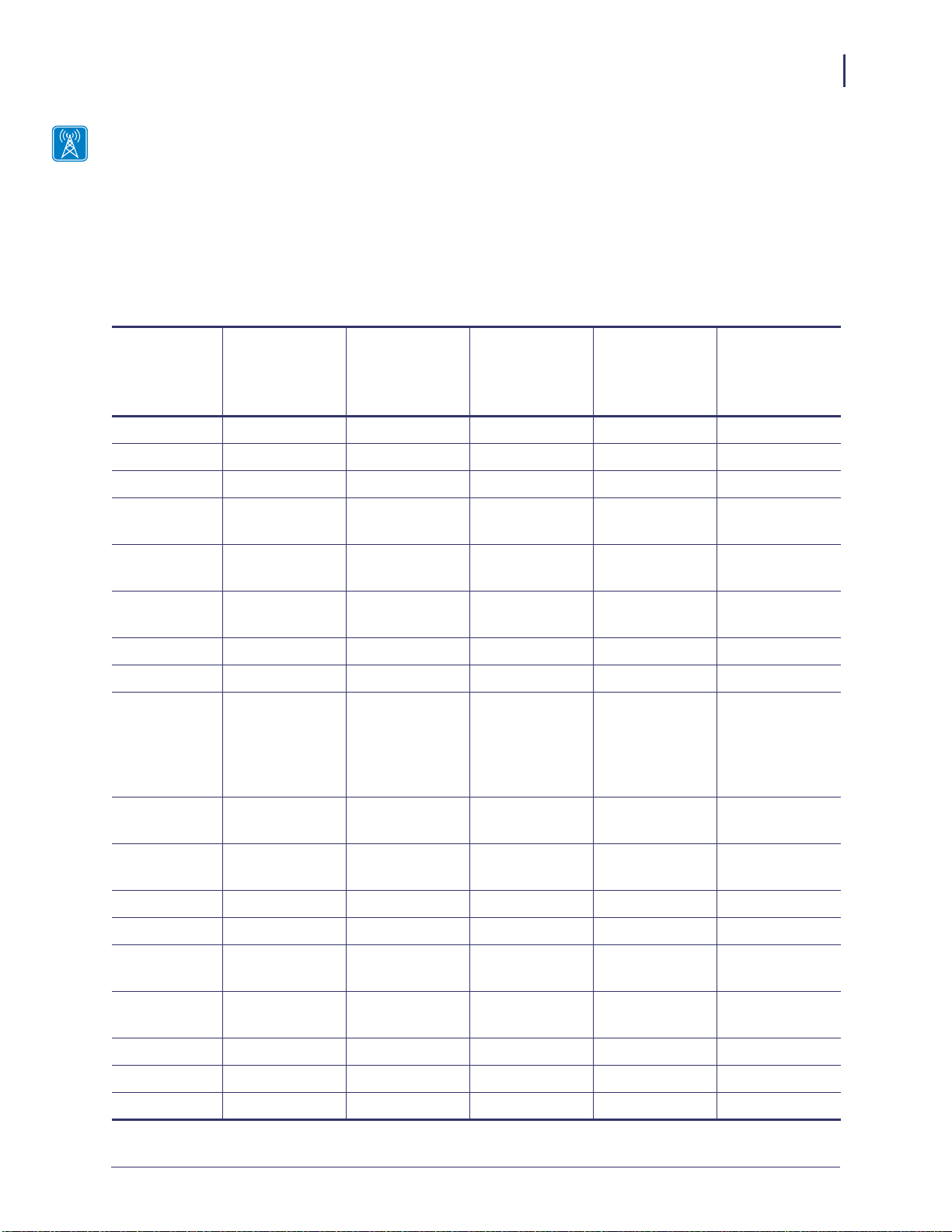
b. See Figure 1 on page 26. Your version is listed on the
Compliance label.
c. Your hardware version number is either blank or V2.
• If your hardware version is blank, assume this
means V1 (version 1). You will need firmware
version 1.01.x.
• If your hardware version is V2, you will need
firmware version 2.01.x.
An S4M printer with an
internal print server
a. Look at the back plate of the printer.
b. See Figure 2 on page 26. Your version is listed on the
thin Compliance label on the bracket of the wired print
server.
c. The version number is shown as blank or V2.
• If your hardware version is blank, assume this
means V1 (version 1). You will need firmware
version 1.01.x.
• If your hardware version is V2, you will need
firmware version 2.01.x.
All other printers with an
internal print server
a. Your hardware version will be V1.
b. You will need firmware version 1.01.x.
Introduction
Printer Requirements
26
P1043301-005 11/21/13
Figure 1 • External 10/100 Print Server Sample Compliance Label
Figure 2 • Internal 10/100 Print Server Sample Compliance Label
1
Sample Compliance label
2
Location of hardware version
1
Sample Compliance label
(vertically oriented on the back of the printer)
2
Location of hardware version
EN: ZZ:ZZ:ZZ:ZZ:ZZ:ZZ
UID #
SN YYYYYYY
PN XXXXX
FOR HOME, OFFICE,
COMMERCIAL, OR
INDUSTRIAL USE
Tested to Comply
With FCC Standards
This Class B digital apparatus
complies with Canadian ICES-003
V2
1
2
(
SN YYYYYYY EN: ZZ:ZZ:ZZ:ZZ:ZZ:ZZ
V2
1
2
27
Introduction
Printer Requirements
11/21/13 P1043301-005
Firmware — Wireless
After a wireless option board is installed, your printer must be running a supported firmware
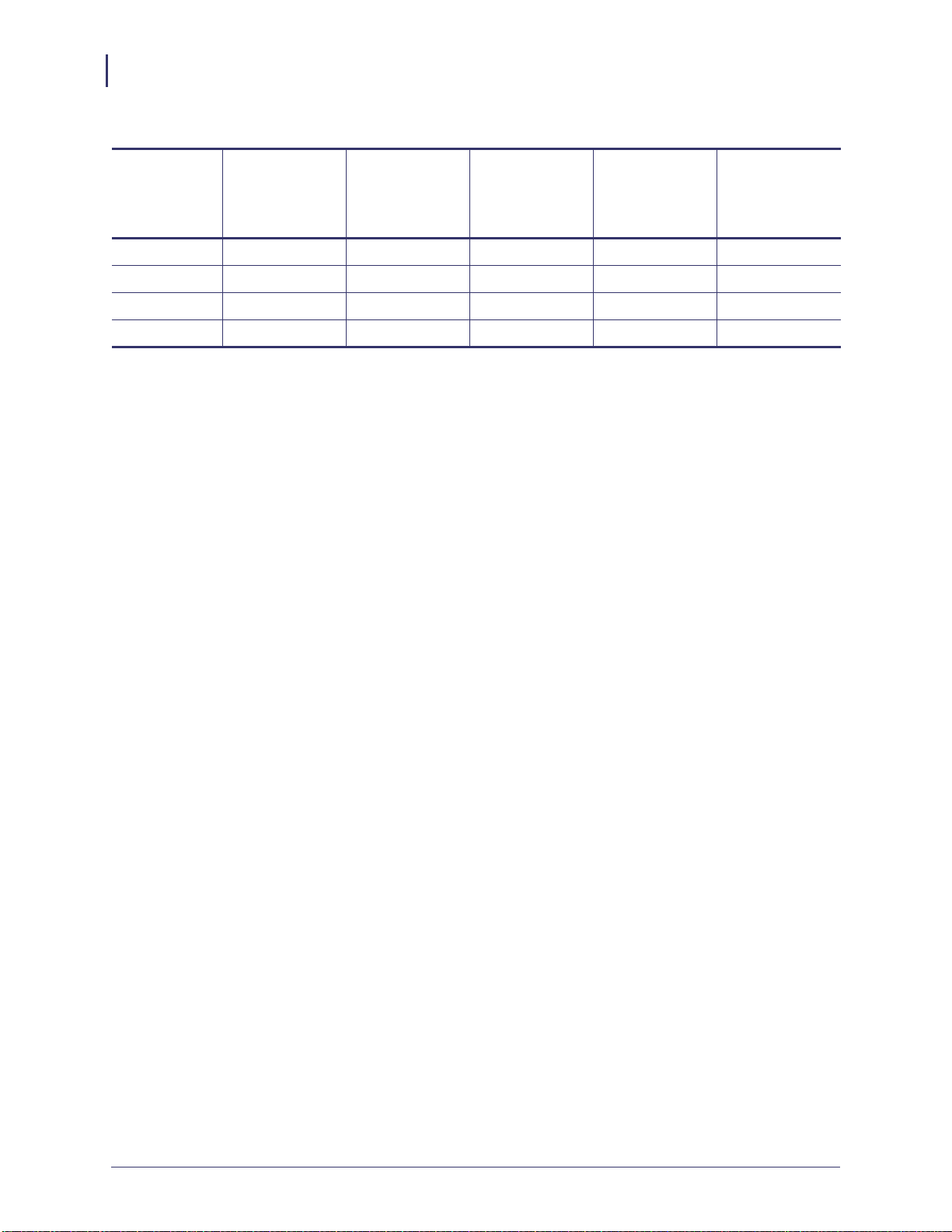
version to access the features in this manual. Table 7 shows the minimum firmware version
required.
You may download the latest firmware appropriate for your printer to access the latest
encryption features. Go to http://www.zebra.com/firmware for firmware download options.
Table 7 • Supported Firmware Versions
Printer
ZebraNet
Internal
a/b/g/n
Print Server
ZebraNet
Internal b/g
Print Server
ZebraNet
Internal
Wireless Plus
Print Server
ZebraNet
Wireless Plus
Print Server
ZebraNet
Wireless
Print Server
105SL — — V60.16.X V60.15.X V60.15.X
105SLPlus — V53.17.16Z — — —
HC100 — — V54.16.X — —
110PA X4,
170PA X 4
— V60.17.11Z V60.16.X V60.15.X V60.15.X
R110PAX 4 — — R62.16.X
R63.16.X
R62.15.X
R63.15.X
R62.15.X
R63.15.X
R110Xi,
R170Xi
— — R60.16.X R60.15.X R60.15.X
R110Xi HF — — R65.16.X R65.15.X R65.15.X
R110Xi4 — V53.17.11Z V.53.17.7 V.53.17.7 —
R4Mplus ————ZSP994P
ZSP999F
ZSP1027
ZSP1056E
ZSP1082F
RZ400,
RZ600
— V53.17.11Z R53.16.X R53.16.X R53.16.X
S4M — V53.17.11Z V53.16.X V50.15.X
V53.15.X
V50.15.X
V53.15.X
XiIIIPlus — — V60.16.X V60.15.X V60.15.X
Xi4 — V53.17.11Z V53.17.X V53.17.X —
Z4Mplus,
Z6Mplus
————V60.15.X
ZM400,
ZM600
— V53.17.11Z V53.16.X V53.15.X —
ZE500 — V53.17.15Z — — —
ZT210 V72.18.X ————
ZT220 V72.18.X ————
Introduction
Printer Requirements
28
P1043301-005 11/21/13
ZT230 V72.18.X ————
ZT410 V75.19.7Z ————
ZT420 V75.19.7Z ————
ZD500 V74.19.6Z ————
Table 7 • Supported Firmware Versions
Printer
ZebraNet
Internal
a/b/g/n
Print Server
ZebraNet
Internal b/g
Print Server
ZebraNet
Internal
Wireless Plus
Print Server
ZebraNet
Wireless Plus
Print Server
ZebraNet
Wireless
Print Server

29
Introduction
Compatibility
11/21/13 P1043301-005
Compatibility
This section identifies the various components that are compatible with all print servers.
Software IBM
®
: Tivoli
®
v7.1.3, HP
®
: Web JetAdmin™ v7.0, OpenView™ v6.4, and any
SNMP management application via Zebra Management Information Base (MIB) all work with
both the wired and wireless print servers.
Specifications
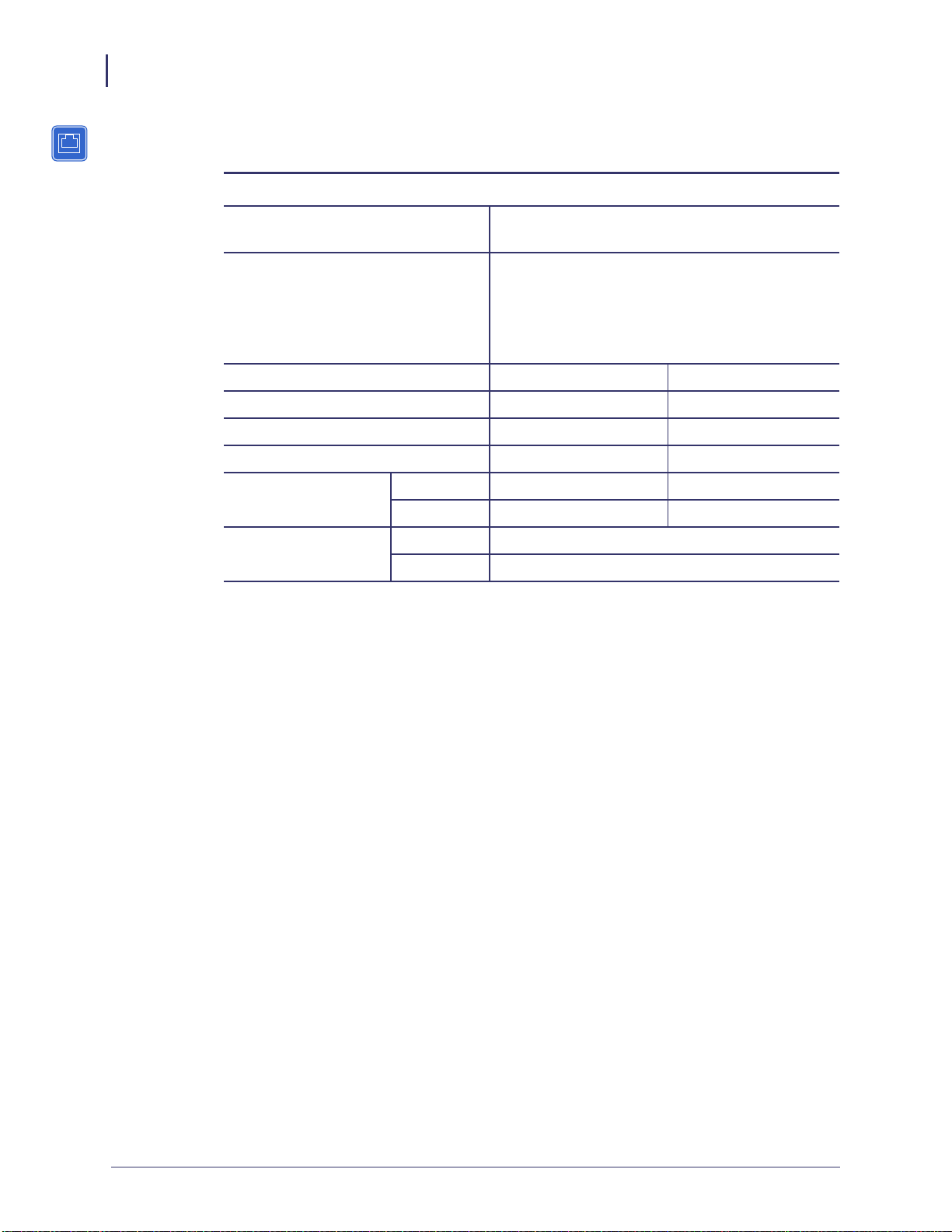
External ZebraNet 10/100 Print Server Specifications
General Specifications
Network Connection Ethernet 10BASE-T and 100BASE-T UTP RJ-45
connection Half and Full Duplex Communications
Printer Connection Bi-directional, IEEE-1284 Centronics parallel port
(Compatibility, Nibble, and ECP)
User Interface LED activity indicators:
• bi-color display of operational status
• bi-color display of speed and network activity
Height (external dimensions) 1.2 in. 30.48 mm
Width (external dimensions) 2.8 in. 71.12 mm
Length (external dimensions) 3.2 in. 81.28 mm
Weight 2.7 oz 77 g
Electrical Maximum 450mA at 5.25VDC Power provided by
the printer (Centronics pin 18, 5VDC at 450mA)
Temperature Operating 32° to 104°F 0° to 40°C
Storage –40° to 140°F –40° to 60°C
Relative Humidity Operating 20% to 85%, non-condensing
Storage 5% to 85%, non-condensing
Agency Approvals Agency Approvals
• IEC 60950
• EN 55022, class B
• EN 55024
• AS/NZS3548
Agency Marks
• FCC - B
• ICES-003
• VCCI
• C-Tick
Introduction
Specifications
30
P1043301-005 11/21/13
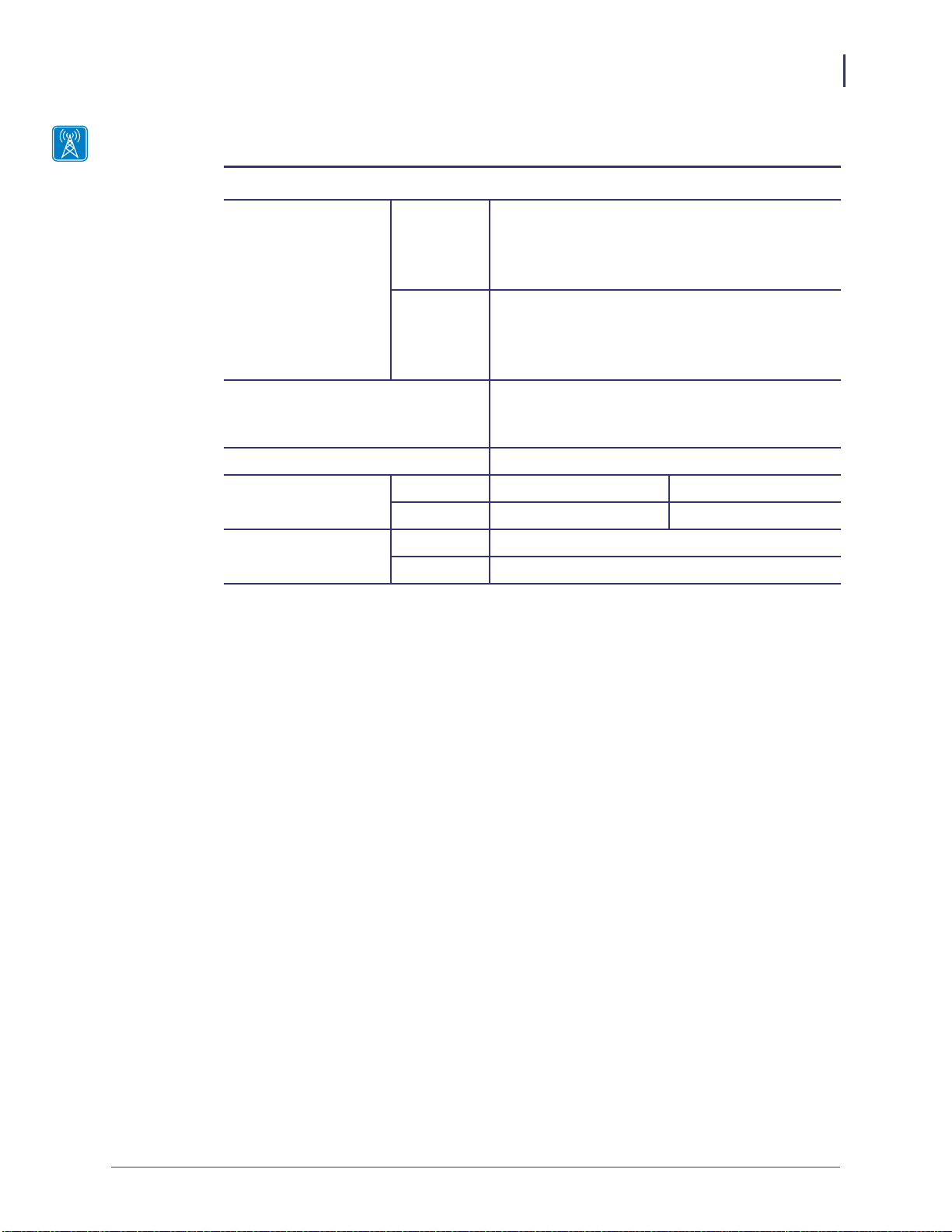
Internal ZebraNet 10/100 Print Server Specifications
General Specifications
Network Connection Ethernet 10BaseT and 100BaseT UTP RJ-45
connection Half and Full Duplex Communications
User Interface A single (two element) LED activity indicator:
• bi-color display of operational status (solid
green or solid amber)
• bi-color display of speed and network activity
(flashing green or flashing amber)
Height (external dimensions) 0.5 in. 13.4 mm
Width (external dimensions) 2.2 in. 55.9 mm
Length (external dimensions) 3.7 in. 92.9 mm
Weight 0.9 oz 26 g
Temperature Operating 32° to 140°F 0° to 60°C
Storage –40° to 140°F –40° to 60°C
Relative Humidity Operating 20% to 80%, non-condensing
Storage 5% to 85%, non-condensing
31
Introduction
Specifications
11/21/13 P1043301-005
Wireless Print Server Specifications
General Specifications
Network Connection
All Wireless
Print Servers
• IEEE 802.11b/g
• Data Rates up to 54 Mb per second
• Wireless Medium DSSS and OFDM
• Frequency Band: 2.4 GHz
n Print
Server
• IEEE 802.11a/b/g/n
• Data Rates up to150 Mbps
• Wireless Medium DSSS and OFDM
• Frequency Band: 2.4 and 5 GHz
User Interface
• Link Status Indicator—real-time display of
network status
• Wireless Signal Indicators
Electrical Power provided by the printer
Temperature Operating 32° to 140°F 0° to 60°C
Storage –40° to 140°F –40° to 60°C
Relative Humidity Operating 20% to 80%, non-condensing
Storage 5% to 85%, non-condensing

Introduction
Specifications
32
P1043301-005 11/21/13
Notes • ___________________________________________________________________
__________________________________________________________________________
__________________________________________________________________________
__________________________________________________________________________
__________________________________________________________________________
__________________________________________________________________________
__________________________________________________________________________
__________________________________________________________________________
__________________________________________________________________________
__________________________________________________________________________

11/21/13 P1043301-005
2
Installation
This chapter provides information on how to install the Zebra’s wired and wireless print
servers.
Contents
External ZebraNet 10/100 Print Server . . . . . . . . . . . . . . . . . . . . . . . . . . . . . . . . . . . . . . 34
Before You Begin . . . . . . . . . . . . . . . . . . . . . . . . . . . . . . . . . . . . . . . . . . . . . . . . . . . . . 34
Illustration. . . . . . . . . . . . . . . . . . . . . . . . . . . . . . . . . . . . . . . . . . . . . . . . . . . . . . . . . . . 35
Installation Instructions . . . . . . . . . . . . . . . . . . . . . . . . . . . . . . . . . . . . . . . . . . . . . . . . 36
Internal ZebraNet 10/100 Print Server. . . . . . . . . . . . . . . . . . . . . . . . . . . . . . . . . . . . . . . 37
Wireless Print Servers . . . . . . . . . . . . . . . . . . . . . . . . . . . . . . . . . . . . . . . . . . . . . . . . . . . 37
Install a Radio Card in a Wireless Print Server . . . . . . . . . . . . . . . . . . . . . . . . . . . . . . . . 37
Wireless Radio Card . . . . . . . . . . . . . . . . . . . . . . . . . . . . . . . . . . . . . . . . . . . . . . . . . . 37
Compact Flash Wireless Radio Card. . . . . . . . . . . . . . . . . . . . . . . . . . . . . . . . . . . . . . 39
Installation
External ZebraNet 10/100 Print Server
34
P1043301-005 11/21/13
External ZebraNet 10/100 Print Server
This section provides you with an illustration of the external ZebraNet 10/100 Print Server and
the steps required for its installation. For a list of compatible printers, see Hardware — Wired
Print Servers on page 22.
Before You Begin
To upgrade you printer firmware, complete these steps:
1. If your printer has firmware x.12 firmware, you must upgrade your printer firmware to
version x.14.x or higher.
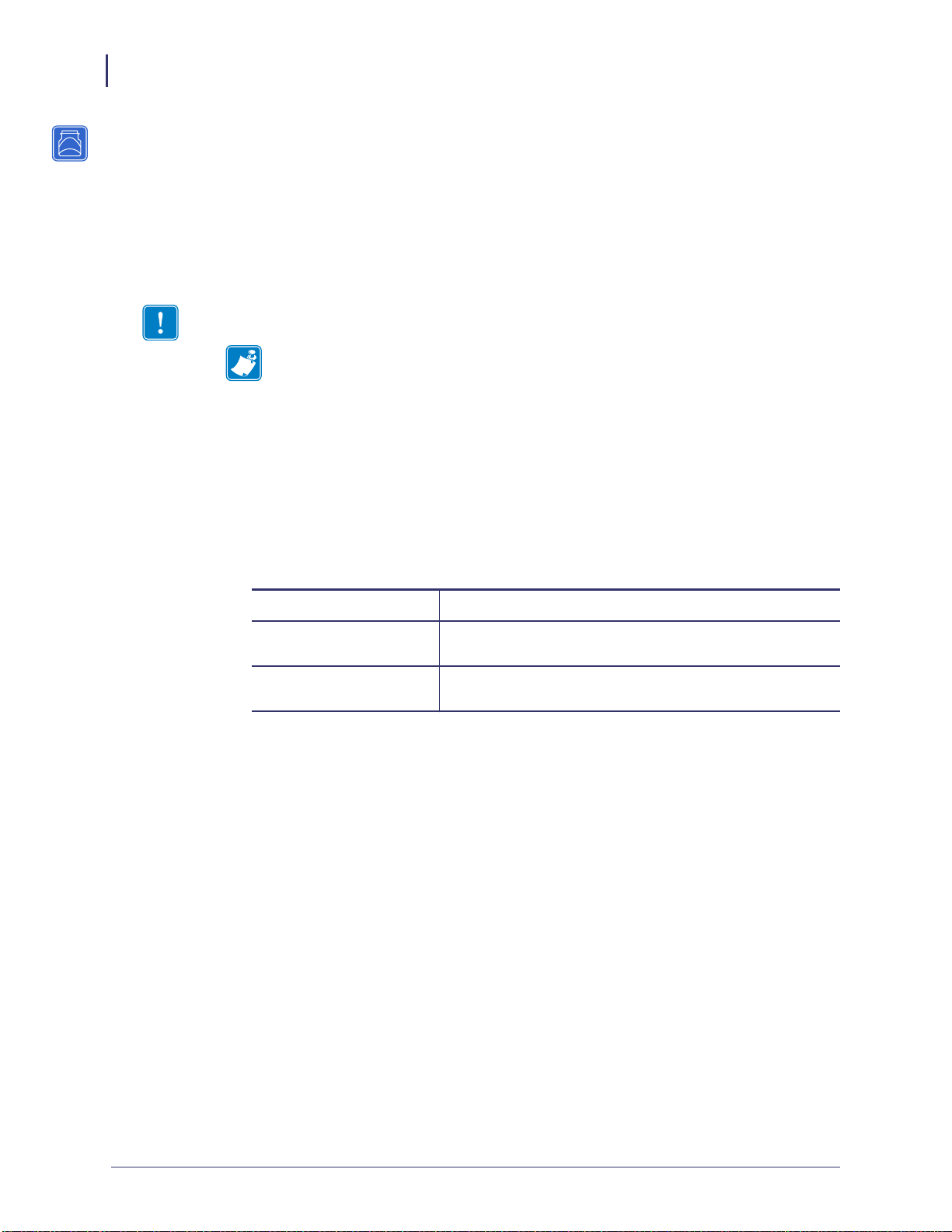
2. To upgrade your firmware, visit the Zebra Web site:
www.zebra.com/firmware
3. Confirm that the upgrade was successful:
Important • In order to take advantage of all features described in this manual, you must
download firmware X.14 or later.
Note • Not all printers support firmware X.14 or later. On those printers, the features
for this print server will be limited.
If... Then...
Your printer has an LCD Look at the lower right-hand corner and confirm the
version of firmware that is on your printer.
Your printer does not have
an LCD
Print out a configuration label to see the version of
firmware that is on your printer.
35
Installation
External ZebraNet 10/100 Print Server
11/21/13 P1043301-005
Illustration
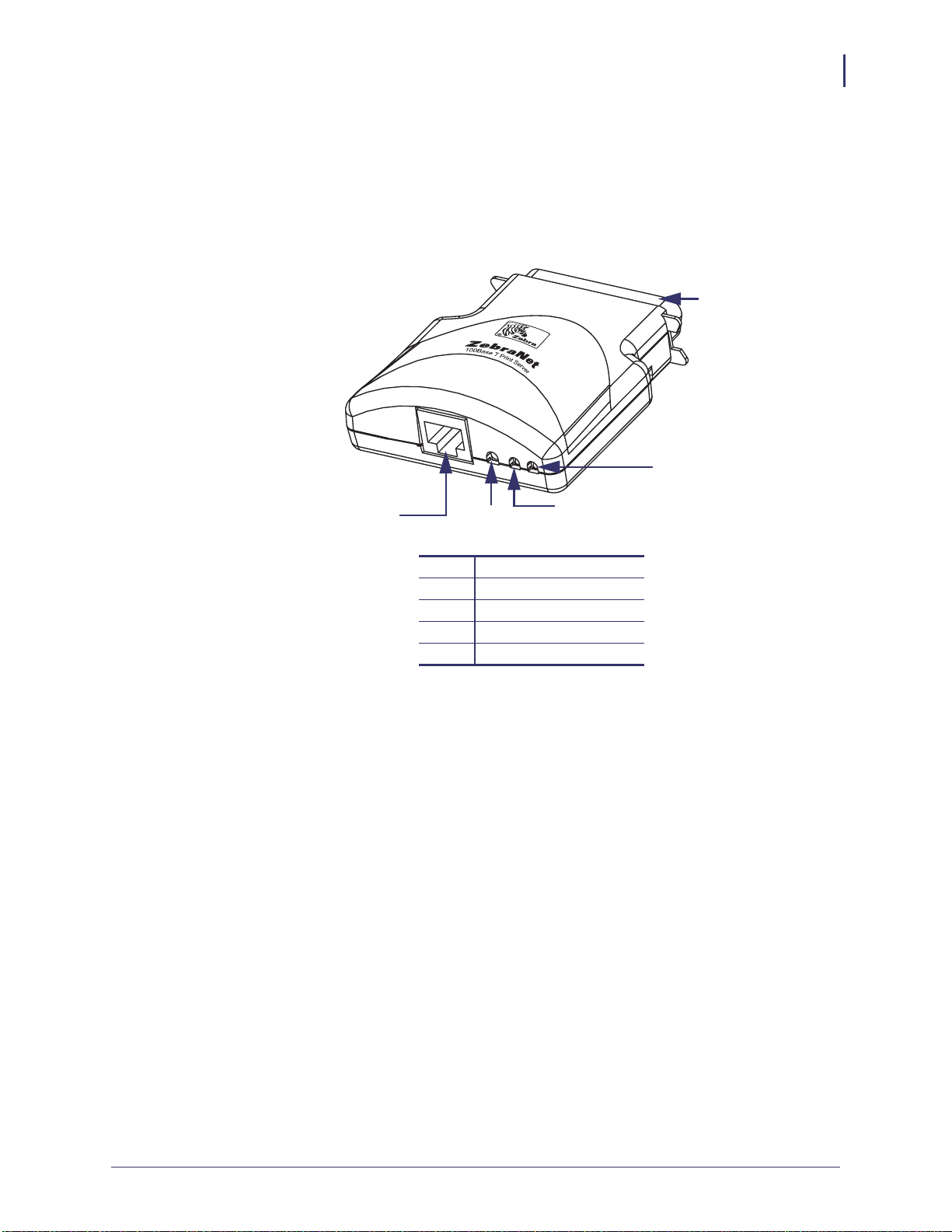
Figure 1 shows an external ZebraNet 10/100 Print Server. When necessary, refer back to this
illustration during the installation steps.
Figure 1 • External ZebraNet 10/100 Print Server
For more details on status indicators, see External ZebraNet 10/100 Print Server Network
Status and Status Indicators on page 134.
1
Parallel connector
2
Network status LED
3
Status LED
4
Test button
5
Ethernet connector
1
5
4
3
2
Installation
External ZebraNet 10/100 Print Server
36
P1043301-005 11/21/13
Installation Instructions
To install an external ZebraNet 10/100 Print Server, complete these steps:
1. Turn off (O) the printer.
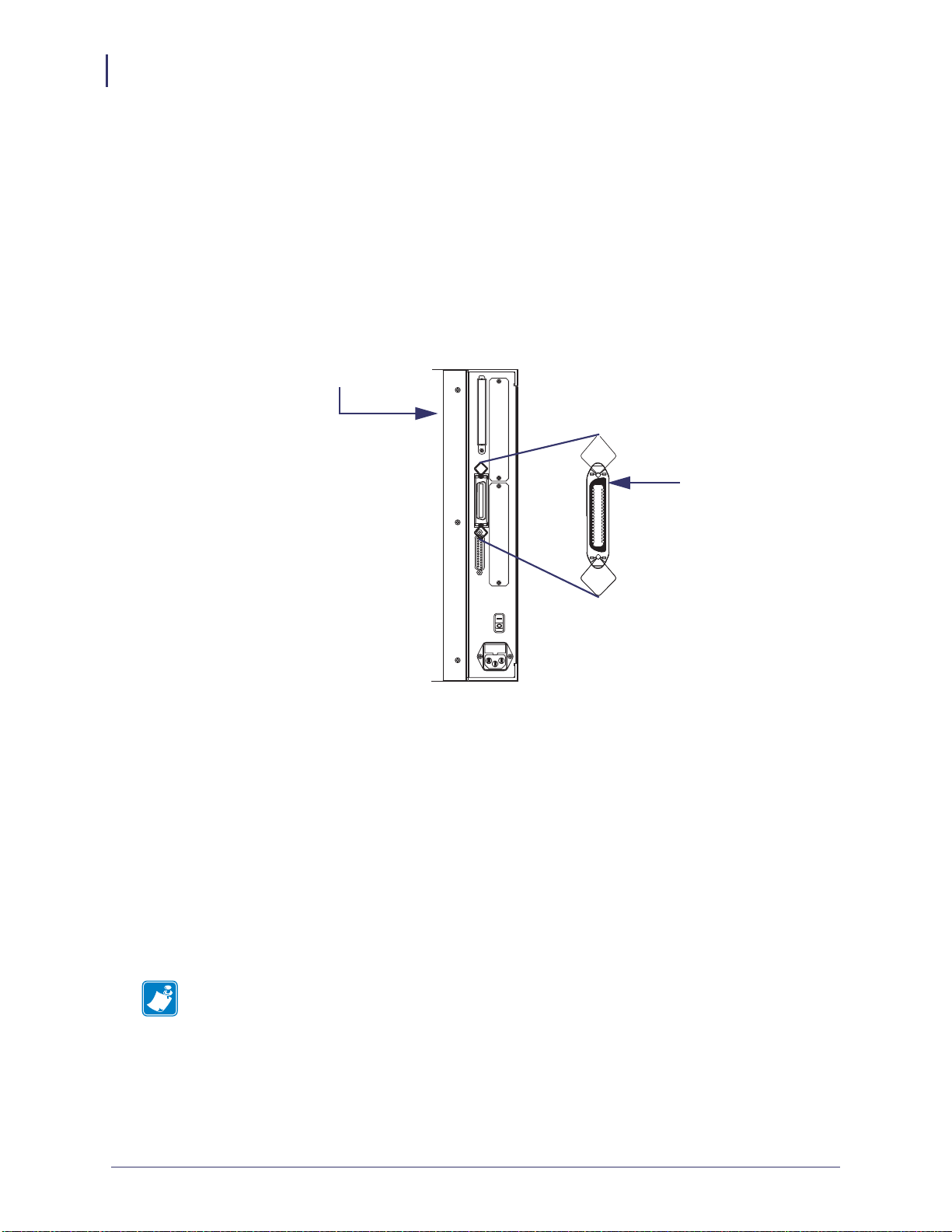
2. On the back of the printer, connect the external ZebraNet 10/100 Print Server device to the
parallel port.
Figure 2 shows the location and provides an enlarged illustration of the parallel port.
Figure 2 • Rear of 105SL Printer
3. Secure the wire locks.
4. On the back of the external ZebraNet 10/100 Print Server, connect an active Ethernet
cable to the RJ-45 connector Ethernet connector.
5. Turn on (I) the printer.
The external ZebraNet 10/100 Print Server performs a Power On Self-Test (POST). This
takes about 45 seconds. During the POST, the external ZebraNet 10/100 Print Server
Status LED (just below the TEST button) turns red and flashes on and off. Once the POST
is successfully completed and the external ZebraNet 10/100 Print Server is fully
initialized, the Status LED turns green.
For more details on status indicators, see External ZebraNet 10/100 Print Server Network
Status and Status Indicators on page 134.
6. To check the status of the external ZebraNet 10/100 Print Server, press the Test button
located on the back of the external ZebraNet 10/100 Print Server.
This prints out a configuration label of the external ZebraNet 10/100 Print Server. To see a
sample label, see Figure 6 on page 45.
Note • If there is not an active Ethernet cable attached to the external ZebraNet
10/100 Print Server, the Status LED turns red and slowly flashes on and off.
Parallel
Port
Connector
Printer Back

37
Installation
Internal ZebraNet 10/100 Print Server
11/21/13 P1043301-005
Internal ZebraNet 10/100 Print Server
To install an internal ZebraNet 10/100 Print Server, see the installation instructions on the
Connectivity Solutions CD.
Wireless Print Servers
To install a wireless print server, see the installation instructions on the Connectivity Solutions
CD.
Install a Radio Card in a Wireless Print Server
Printers that have the wireless option board installed can use any of the wireless radio cards or
Compact Flash wireless radio cards listed in Supported Wireless Radio Cards on page 17. This
section provides instructions for installing either type of card. Most printers use a clear plastic
RF cover over the wireless radio card or compact Flash wireless radio card.
Wireless Radio Card
This section applies to PCMCIA or CardBus wireless radio cards.
To install a wireless radio card, complete these steps:
1. Turn off (O) the printer.
2. Remove and discard the metal cover that was shipped in place over the wireless option
card slot on the back of the printer.
Note • This section applies only to the ZebraNet Wireless Print Server and the ZebraNet
Wireless Plus Print Server. All other Zebranet wireless print servers have a built-in radio.
Note • Z4Mplus, R4Mplus, and Z6Mplus printers do not support CardBus wireless radio
cards.
Installation
Install a Radio Card in a Wireless Print Server
38
P1043301-005 11/21/13
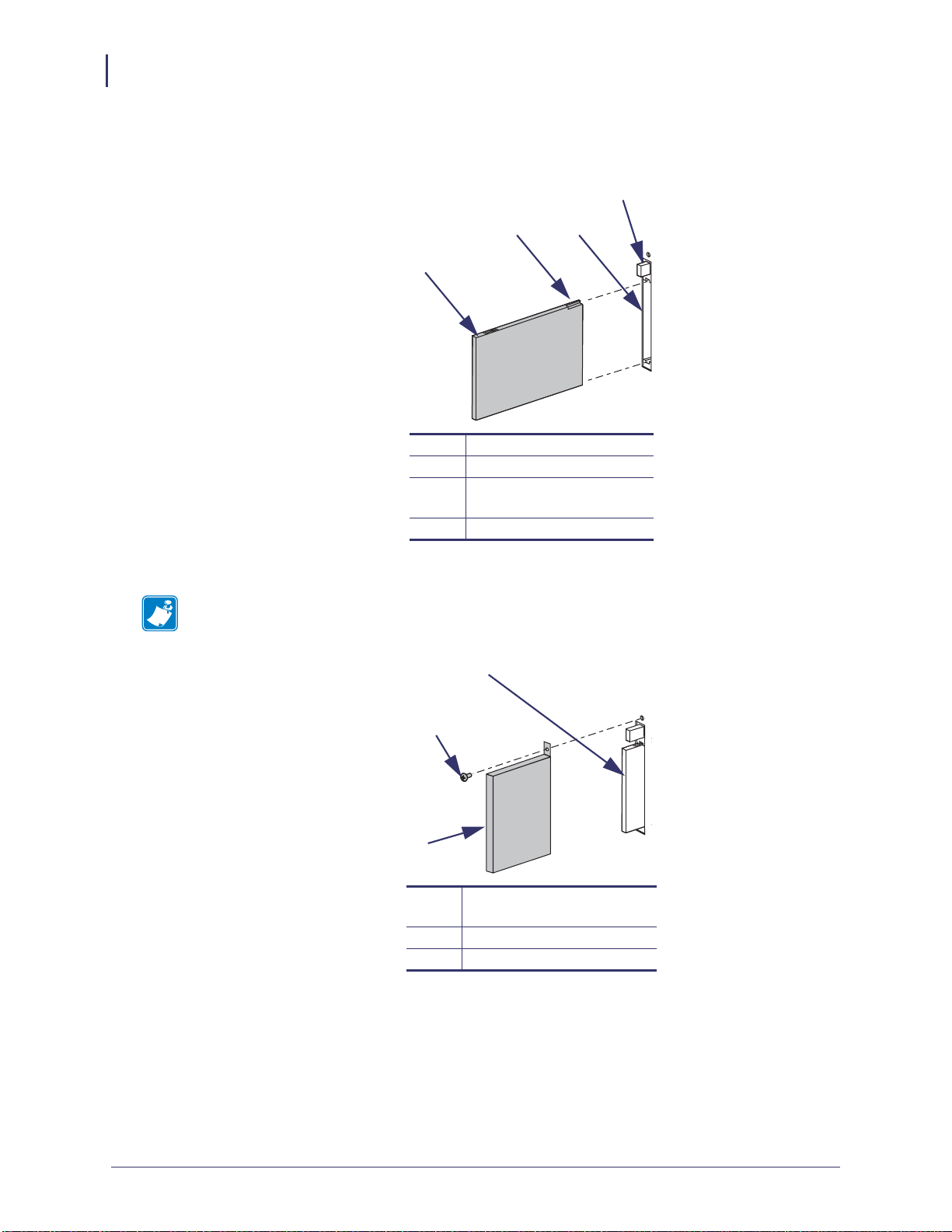
3. Position the notch on the wireless radio card on the top, leading edge. Insert the wireless
radio card into the wireless option card slot on the back of the printer until the card-eject
button pops out.
4. Place the RF card cover over the wireless radio card, and secure it with a small screw.
5. Turn on (I) the printer.
The printer restarts and uses the wireless radio card to communicate with your WLAN.
Allow several minutes for the printer to connect to the network. For more information
about wireless status, refer to View Wireless Status through the Control Panel on page 52
or Troubleshooting the Wireless Print Server on page 139.
1
Wireless radio card
2
Notch
3
Wireless option card slot
on back of printer
4
Card-eject button
Note • The S4M, ZM400, ZM600, RZ400, and RZ600 printers do not use the RF card
cover.
1
Clear plastic RF card cover
(not used on all printers)
2
Screw
3
Wireless radio card
4
2
1
3
3
1
2
39
Installation
Install a Radio Card in a Wireless Print Server
11/21/13 P1043301-005
Compact Flash Wireless Radio Card
This section applies to Compact Flash wireless radio cards, which require an adapter before
they can be used in the wireless option card slot.
To install a Compact Flash wireless radio card and adapter, complete these
steps:
1. If you have not already done so, turn off (O) the printer.
2. Remove and discard the metal cover that was shipped in place over the wireless option
slot on the back of the printer.
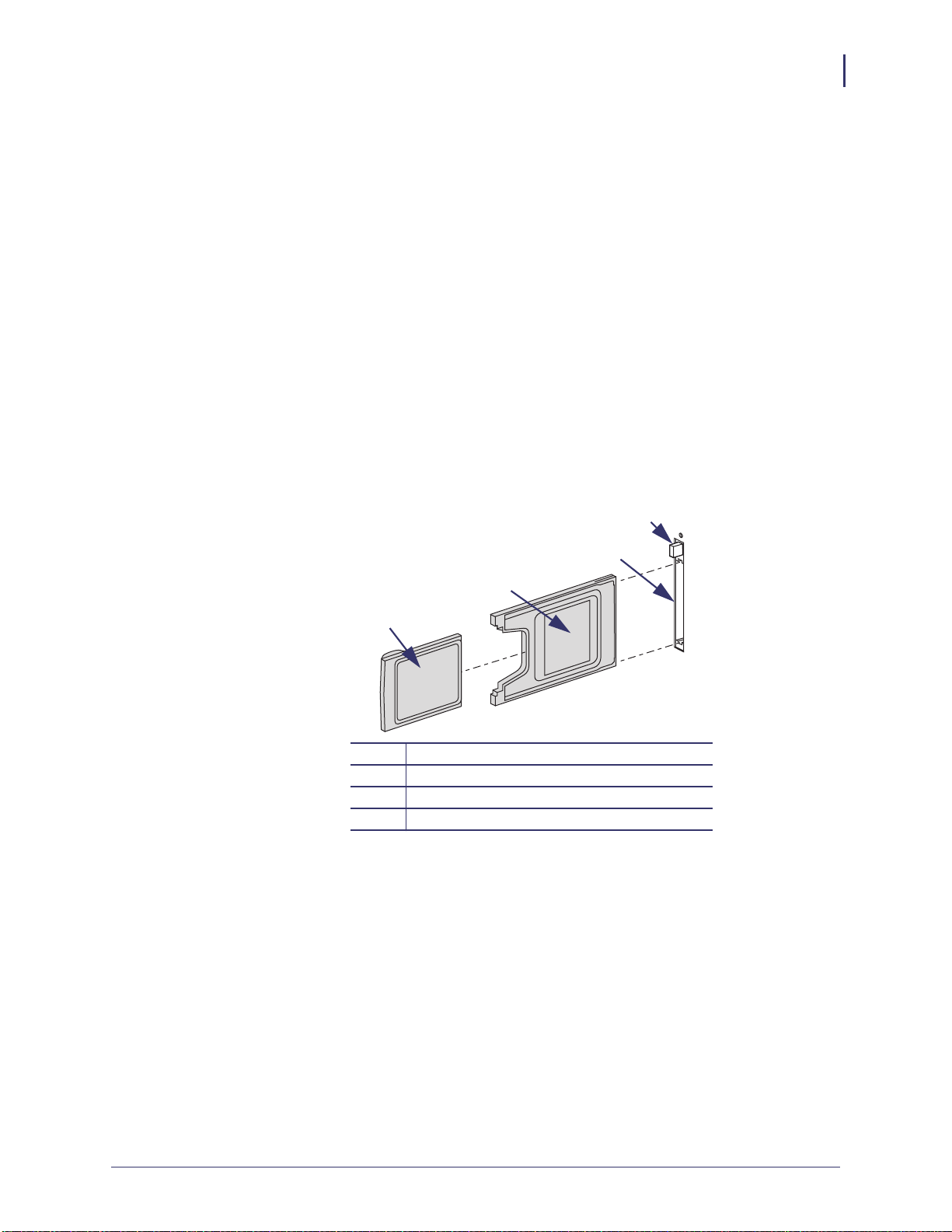
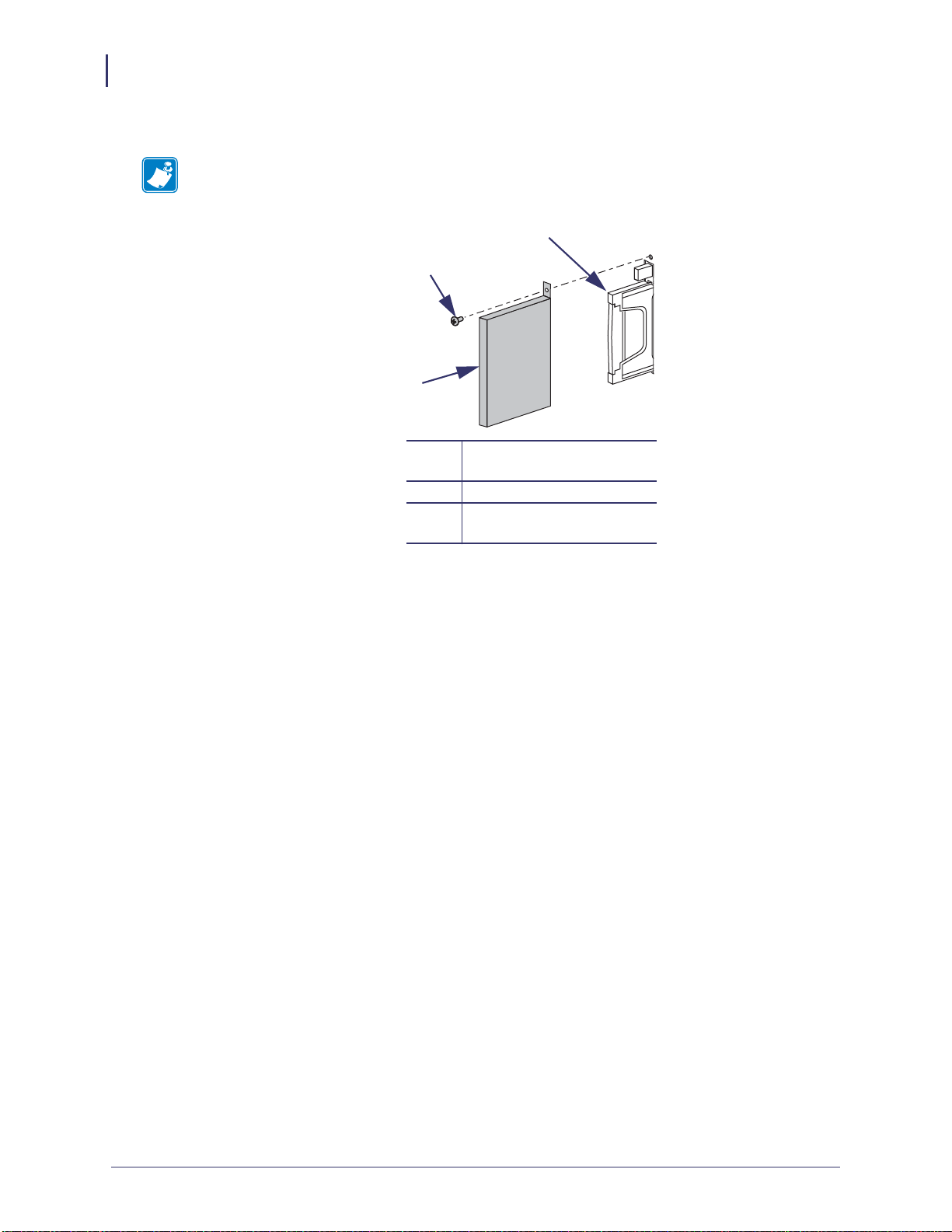
3. See Figure 3. Position the adapter with the back facing as shown. Insert the adapter into
the wireless option card slot on the back of the printer until the card-eject button pops out.
4. See Figure 3. Insert the Compact Flash wireless radio card into the adapter.
Figure 3 • Installing a Compact Flash Wireless Radio Card
1
Back of Compact Flash wireless radio card
2
Back of adapter
3
Wireless option card slot on back of printer
4
Card-eject button
4
2
1
3
Installation
Install a Radio Card in a Wireless Print Server
40
P1043301-005 11/21/13
5. Place the RF card cover over the wireless radio card, and secure it with a small screw.
6. Turn on (I) the printer.
The printer restarts and uses the wireless radio card to communicate with your WLAN.
Allow several minutes for the printer to connect to the network. For more information
about wireless status, refer to View Wireless Status through the Control Panel on page 52
or Troubleshooting the Wireless Print Server on page 139.
Note • The S4M, ZM400, ZM600, RZ400, and RZ600 printers do not use the RF card
cover.
1
Clear plastic RF card cover
(not used on all printers)
2
Screw
3
Compact Flash wireless
radio card and adapter
3
1
2

11/21/13 P1043301-005
3
Getting Started
This chapter provides you with information and procedures for working with the most
frequently used print server features.
Contents
Before You Begin . . . . . . . . . . . . . . . . . . . . . . . . . . . . . . . . . . . . . . . . . . . . . . . . . . . . . . . 43
Default User ID and Password. . . . . . . . . . . . . . . . . . . . . . . . . . . . . . . . . . . . . . . . . . . 43
Printing a Configuration Label — External ZebraNet 10/100 Print Server. . . . . . . . . . . . 44
Printing a Network Configuration Label — Internal ZebraNet 10/100 Print Server and
Wireless Print Servers . . . . . . . . . . . . . . . . . . . . . . . . . . . . . . . . . . . . . . . . . . . . . . . . . 46
Configuration of Wireless Securities . . . . . . . . . . . . . . . . . . . . . . . . . . . . . . . . . . . . . . . . 51
View Wireless Status through the Control Panel . . . . . . . . . . . . . . . . . . . . . . . . . . . . . . . 52
LCD Link Status and Wireless Signal Indicators . . . . . . . . . . . . . . . . . . . . . . . . . . . . . 52
HC100 Wireless Status Indicator Lights . . . . . . . . . . . . . . . . . . . . . . . . . . . . . . . . . . . 54
ZT210, ZT220, ZT230, ZT410, and ZT420 Wired and Wireless Status Indicator Lights .
55
Determining the Active Print Server. . . . . . . . . . . . . . . . . . . . . . . . . . . . . . . . . . . . . . . . . 57
Viewing IP Addresses and the Active Print Server. . . . . . . . . . . . . . . . . . . . . . . . . . . . 57
Active Device Selection . . . . . . . . . . . . . . . . . . . . . . . . . . . . . . . . . . . . . . . . . . . . . . . . 58
Assigning an IP Address on any Print Server . . . . . . . . . . . . . . . . . . . . . . . . . . . . . . . . . 60
With Dynamic Host Configuration Protocol (DHCP) . . . . . . . . . . . . . . . . . . . . . . . . . . 60
Assigning an IP Address Without DHCP via ZebraNet Bridge. . . . . . . . . . . . . . . . . . . 60
Assigning an IP address Without DHCP from the Control Panel. . . . . . . . . . . . . . . . . 61
Assigning an IP Address Without DHCP via a Telnet Session. . . . . . . . . . . . . . . . . . . 62
Setting and Monitoring Alerts on Any Print Server. . . . . . . . . . . . . . . . . . . . . . . . . . . . . . 64
ZebraLink Alerts. . . . . . . . . . . . . . . . . . . . . . . . . . . . . . . . . . . . . . . . . . . . . . . . . . . . . . 64
Using ZebraNet Bridge . . . . . . . . . . . . . . . . . . . . . . . . . . . . . . . . . . . . . . . . . . . . . . . . 66
Using WebView . . . . . . . . . . . . . . . . . . . . . . . . . . . . . . . . . . . . . . . . . . . . . . . . . . . . . . 66

Contents (Continued)
Getting Started
P1043301-005 11/21/13
42
Checking Print Server Configuration Settings . . . . . . . . . . . . . . . . . . . . . . . . . . . . . . . . . 68
Using ZebraNet Bridge . . . . . . . . . . . . . . . . . . . . . . . . . . . . . . . . . . . . . . . . . . . . . . . . 68
Using WebView . . . . . . . . . . . . . . . . . . . . . . . . . . . . . . . . . . . . . . . . . . . . . . . . . . . . . . 69
Enabling Protocols. . . . . . . . . . . . . . . . . . . . . . . . . . . . . . . . . . . . . . . . . . . . . . . . . . . . . . 72
Using WebView . . . . . . . . . . . . . . . . . . . . . . . . . . . . . . . . . . . . . . . . . . . . . . . . . . . . . . 72
Defaulting ALL Print Servers . . . . . . . . . . . . . . . . . . . . . . . . . . . . . . . . . . . . . . . . . . . . . . 75
Using WebView . . . . . . . . . . . . . . . . . . . . . . . . . . . . . . . . . . . . . . . . . . . . . . . . . . . . . . 75
Using ZebraNet Bridge . . . . . . . . . . . . . . . . . . . . . . . . . . . . . . . . . . . . . . . . . . . . . . . . 76
Defaulting the ZebraNet 10/100 Print Server on the 105SL, S4M, PAX4, and External
Devices . . . . . . . . . . . . . . . . . . . . . . . . . . . . . . . . . . . . . . . . . . . . . . . . . . . . . . . . . . 76
Defaulting the Wireless Print Server on the S4M. . . . . . . . . . . . . . . . . . . . . . . . . . . . . 77
Defaulting the Print Servers on the ZM400 and ZM600 Printers . . . . . . . . . . . . . . . . . 77
Defaulting the Print Servers on the ZP Series, LP/TLP 2824 Plus, and G-Series Printers
77
Defaulting the Print Servers on the HC100 Printers. . . . . . . . . . . . . . . . . . . . . . . . . . . 78
Defaulting the Print Servers on the 105SL, PAX4, Xi4, ZE500, and 105SLPlus Printers
78
Defaulting the Print Servers on the ZD500R, ZT210, ZT220, ZT230, ZT410, and ZT420
Printers. . . . . . . . . . . . . . . . . . . . . . . . . . . . . . . . . . . . . . . . . . . . . . . . . . . . . . . . . . . 79
Defaulting the Print Servers on the ZD500R, ZT230, ZT410, and ZT420 Printers via the
Control Panel. . . . . . . . . . . . . . . . . . . . . . . . . . . . . . . . . . . . . . . . . . . . . . . . . . . . . . 79

43
Getting Started
Before You Begin
11/21/13 P1043301-005
Before You Begin
Zebra’s wired and wireless print servers offers many features, but how you access and work
with them is dependent on your environment.
Default User ID and Password
Throughout the procedures in this document, there are some features that require the default
User ID and/or default password. If you are prompted, these are the defaults:
• User ID: admin
• Password: 1234
Getting Started
Printing a Configuration Label — External ZebraNet 10/100 Print Server
44
P1043301-005 11/21/13
Printing a Configuration Label — External ZebraNet
10/100 Print Server
Before you begin, you need to get information from the external ZebraNet 10/100 Print Server
configuration label.
In order to print the external ZebraNet 10/100 Print Server configuration label, the correct
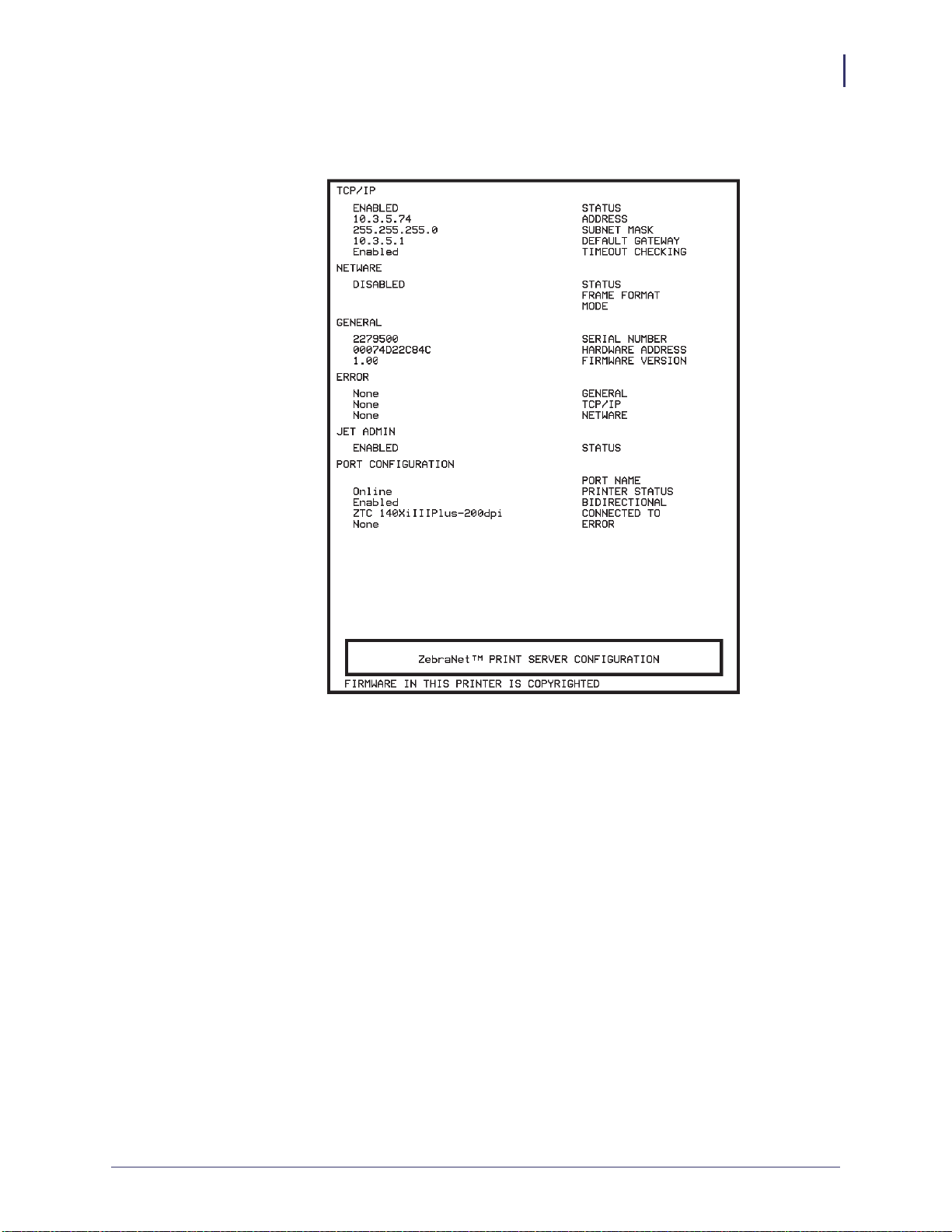
media size must be loaded in the printer. For specific information on media sizes, see Table 8.
To print an external ZebraNet 10/100 Print Server configuration label, complete
these steps:
1. Turn on (I) the printer and let it complete its power-up cycle.
2. When the POST cycle is complete, press the Test button and hold it in for a few seconds
before you release it.
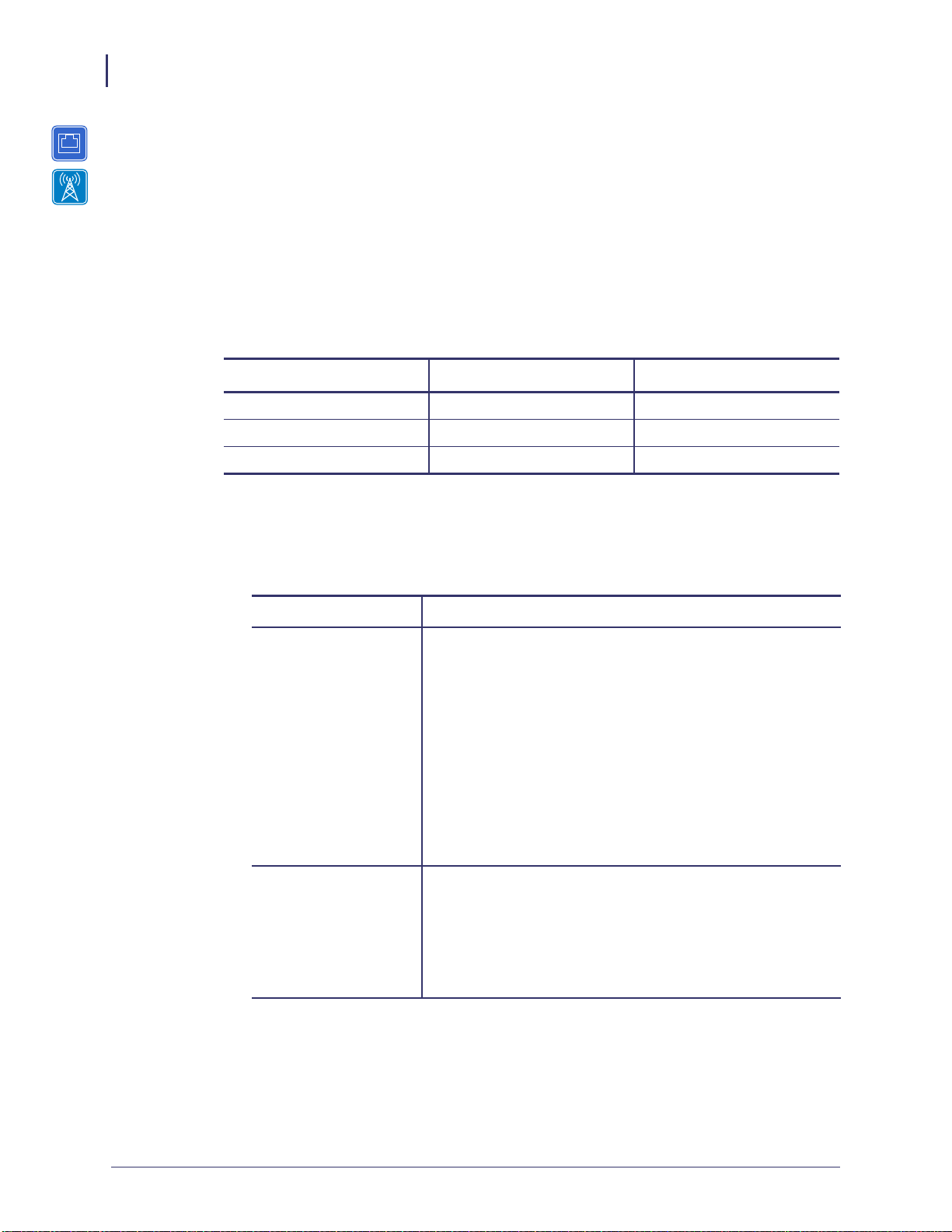
An external ZebraNet 10/100 Print Server configuration label prints. Your configuration
label looks similar to Figure 6 on page 45.
Important • Make sure the printer is turned off (O).
Table 8 • Label Width
DPI Inches mm
600 1.63 41.28
300 1.63 41.28
211 2.5 63.5
150 5.0 127.00
45
Getting Started
Printing a Configuration Label — External ZebraNet 10/100 Print Server
11/21/13 P1043301-005
Figure 6 • Configuration Label
with an External ZebraNet 10/100 Print Server
3. From the configuration label, you need to look for these numbers:
• ADDRESS (IP address)
• SUBNET MASK
• DEFAULT GATEWAY
• SERIAL NUMBER
• HARDWARE ADDRESS (MAC address)
4. On the configuration label that prints out for your external ZebraNet 10/100 Print Server
device, circle the aforementioned settings. You can now proceed to Assigning an IP
Address on any Print Server on page 60.
Getting Started
Printing a Network Configuration Label — Internal ZebraNet 10/100 Print Server and Wireless Print Servers
46
P1043301-005 11/21/13
Printing a Network Configuration Label — Internal
ZebraNet 10/100 Print Server and Wireless Print
Servers
Before you begin, you need to get information from the internal ZebraNet 10/100 Print Server
network configuration label.
Table 9 shows the minimum label widths needed to print an internal ZebraNet 10/100 Print
Server network configuration label with different DPI printheads.
To print an internal ZebraNet 10/100 Print Server and wireless print servers
network configuration label, complete these steps:
1. Which printer do you have?
Table 9 • Label Width
DPI Inches MM
600 1.25 31.75
300 2.50 63.50
200 3.69 93.73
If you have a… Then…
ZM400 and ZM600 a. Turn on (I) the printer and let it complete its power-up
cycle.
b. When the POST cycle is complete, press SETUP/EXIT to
enter the Setup Mode.
c. Scroll through the parameters by pressing PLUS (+) until
you reach LIST NETWORK.
d. Press SELECT.
e. Press PLUS (+) to print a network configuration label
(Figure 7).
f. Press SETUP/EXIT twice to exit the Setup Mode.
g. Continue to step 2.
G-Series, ZP Series,
and LP/TLP 2824 Plus
a. Turn on (I) the printer and let it complete its power-up
cycle.
b. Press and hold FEED until you see one flash of the LED.
c. After the LED flashes, release the button. A network and
printer configuration label (Figure 9) prints.
d. Continue to step 2.
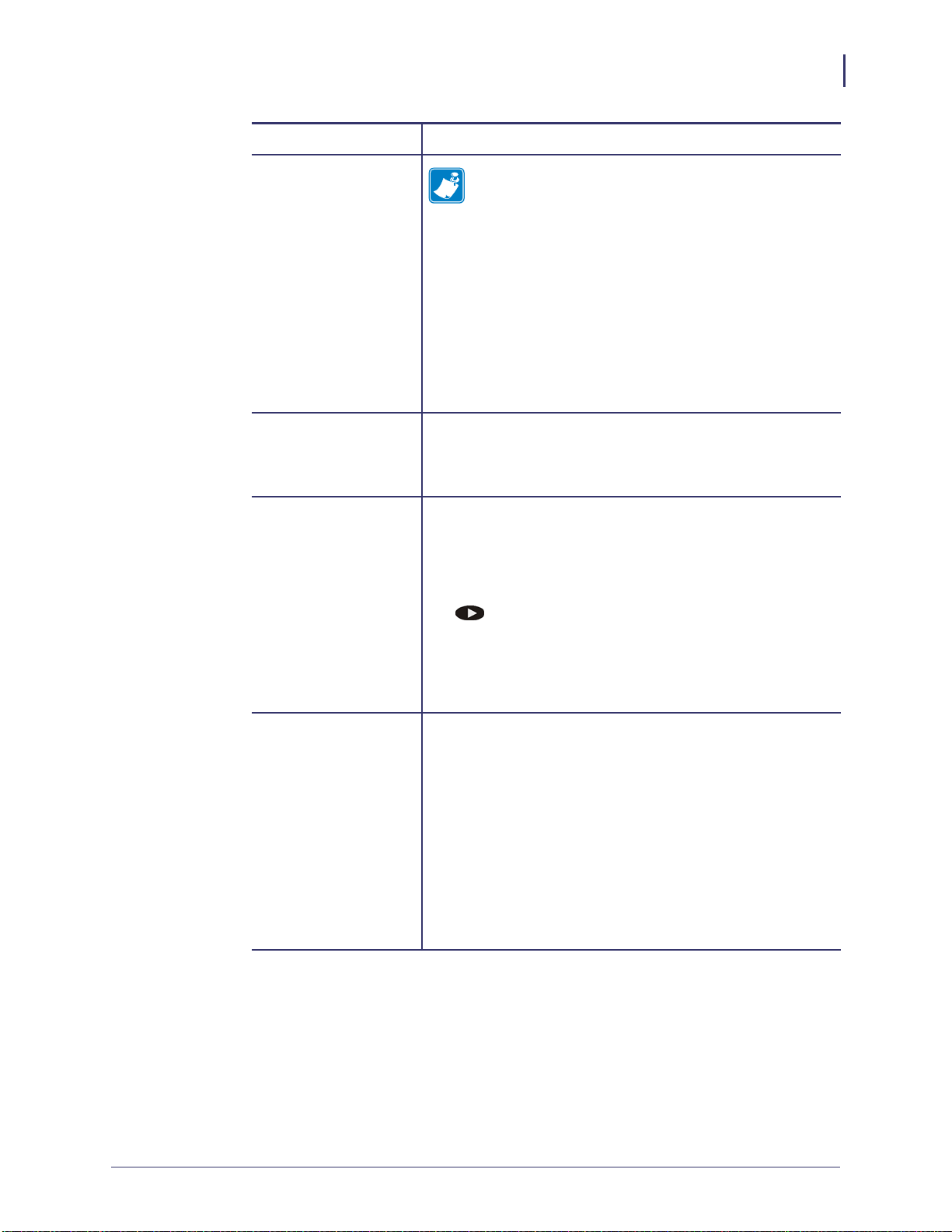
47
Getting Started
Printing a Network Configuration Label — Internal ZebraNet 10/100 Print Server and Wireless Print Servers
11/21/13 P1043301-005
HC100
Note • The HC100 does not have a network
configuration label. However, the IP Address, MAC
Address, and other useful information appear on the
printer configuration wristband.
a. Turn on (I) the printer and let it complete its power-up
cycle.
b. Press and hold PAUSE/FEED until the green lights turn
off on the printer status indicator and the orange lights
blink once.
c. Release PAUSE/FEED to print a printer configuration
wristband (Figure 10).
d. Continue to step 2.
ZT210, ZT220, ZT230,
ZT410, ZT420, and
ZD500R
Refer to the User Guide for your printer for specific
instructions on how to use the control panel. (See Figure 9 for
a sample ZT210, ZT220, and ZT230 printer configuration
label.)
Xi4, PAX4, 105SL,
ZE500, 105SLPlus
a. Turn on (I) the printer and let it complete its power-up
cycle.
b. When the POST cycle is complete, press SETUP/EXIT to
enter the Setup Mode.
c. Scroll through the parameters by pressing NEXT/SAVE
(
) until you reach LIST NETWORK.
d. Press PLUS (+) to print a network configuration label
(Figure 7).
e. Press SETUP/EXIT to exit the Setup Mode.
f. Press NEXT/SAVE to permanently save your changes.
S4M
a. From the control panel, enter Setup Mode. (Refer to the
User Guide for your printer for specific instructions on
how to use the control panel.)
b. Scroll to level 3 parameter PRINT OUT NETWORK
(for a network configuration label) or PRINT OUT
SETTINGS (for a standard configuration label).
c. Press ENTER to confirm printing.
The selected label prints.
d. Press MENU to exit the Setup Mode.
e. If necessary, press the up or down arrow to select YES.
f. Press ENTER to save changes and exit Setup mode.
If you have a… Then…
Getting Started
Printing a Network Configuration Label — Internal ZebraNet 10/100 Print Server and Wireless Print Servers
48
P1043301-005 11/21/13
2. From the configuration label, you need to look for these numbers:
• IP PROTOCOL *
• IP ADDRESS
• SUBNET MASK *
• DEFAULT GATEWAY *
• MAC ADDRESS
* Not available on HC100
3. On the configuration label that prints out for your internal ZebraNet 10/100 Print Server,
circle the aforementioned settings. You can now proceed to Assigning an IP Address on
any Print Server on page 60.
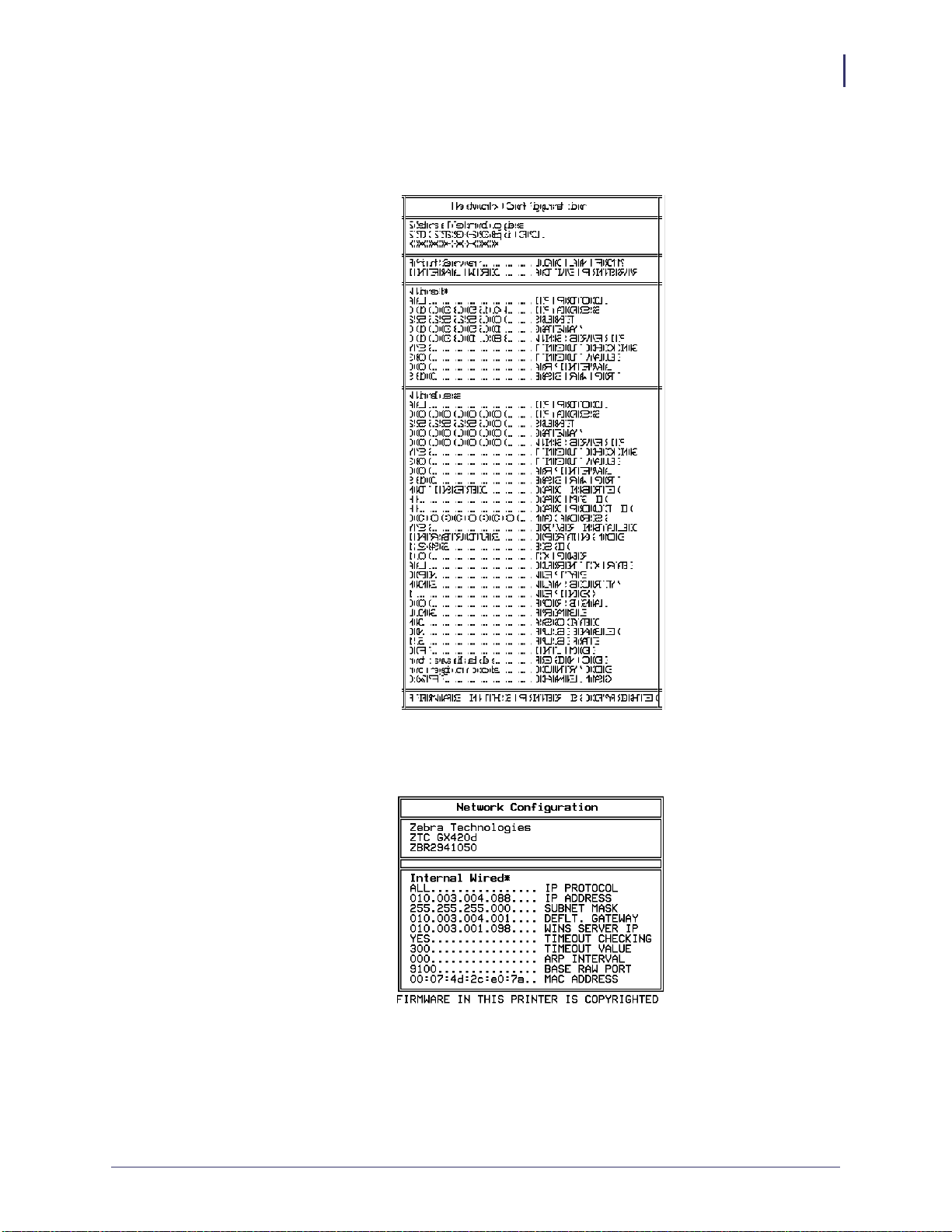
Figure 7 • Network Configuration Label for
ZM400/ZM600, Xi4, PAX4, 105SL, ZE500, 105SLPlus
49
Getting Started
Printing a Network Configuration Label — Internal ZebraNet 10/100 Print Server and Wireless Print Servers
11/21/13 P1043301-005
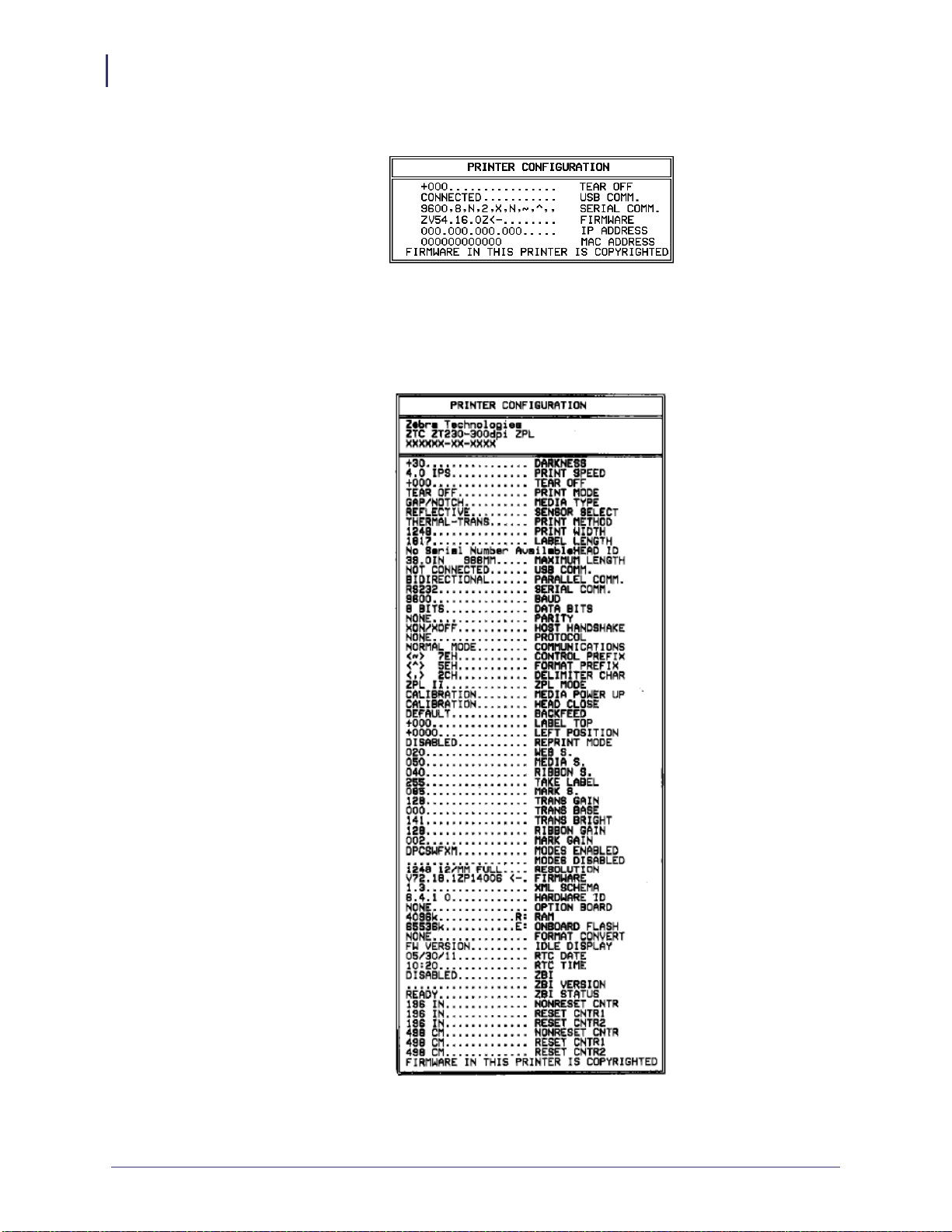
Figure 8 • Network Configuration Label for
ZT210, ZT220, ZT230
ZT410, ZT420, and ZD500R
Figure 9 • Network Configuration Label for G-Series, ZP Series, and
LP/TLP 2824 Plus Printers
Getting Started
Printing a Network Configuration Label — Internal ZebraNet 10/100 Print Server and Wireless Print Servers
50
P1043301-005 11/21/13
Figure 10 • Printer Configuration Wristband for HC100
The IP ADDRESS and MAC ADDRESS fields will have values only if a wired or wireless
print server is active.
Figure 11 • Printer Configuration Label for ZT210, ZT220, and ZT230

51
Getting Started
Configuration of Wireless Securities
11/21/13 P1043301-005
Configuration of Wireless Securities
You may configure your printer for wireless operation in the following ways:
Through the Network Setup Wizard. The Network Setup Wizard is part of the
ZebraNet™ Bridge Enterprise utility. The Network Setup Wizard writes a script for you. On
the last screen of the wizard, you may choose to send the script directly to your printer, or you
may choose to save the script to a file. The saved file has several purposes:
• The file can be sent to the printer through any available connection (serial, parallel, USB,
or wired print server).
• The file can be resent to the printer after the network settings have been restored to factory
defaults.
• The file can be sent to multiple printers that will use the same network settings.
The ZebraNet Bridge Enterprise utility resides on the User CD for your printer and is available
through http://www.zebra.com/software. ZebraNet Bridge Enterprise version 1.2.5 or later is
required to configure the printer correctly for use.
Through ZPL script that you write. Use the ^WX command to set the basic parameters
for security type. You can send the command through any available connection (serial,
parallel, USB, or wired print server).
Refer to the Programming Guide for ZPL, ZBI, Set-Get-Do, Mirror, and WML for more
information. A copy of the manual is available at http://www.zebra.com/manuals or on the
User CD that came with your printer.
Through Set/Get/Do (SGD) commands. Begin with wlan.security to set the
wireless security type. Depending on which security type that you select, other SGD
commands will be necessary to specify other parameters. You can send the commands through
any available connection (serial, parallel, USB, or wired print server).
Refer to the Programming Guide for ZPL, ZBI, Set-Get-Do, Mirror, and WML for more
information. A copy of the manual is available at http://www.zebra.com/manuals or on the
User CD that came with your printer.
Important • A wireless option board must be installed on your printer before you can
configure the printer to communicate using a wireless radio card. See Hardware — Wireless
Print Servers on page 23 to determine if your printer has a wireless board. See Firmware —
Wireless on page 27 for the required firmware version.
Note • To configure wired and wireless print servers on the same printer, run the program
once for each print server, creating a script for the wired print server and another for the
wireless print server.
Note • With printers running APL-I, APL-D, or EPL firmware, the only way to configure
wireless settings is through SGD commands.
Getting Started
View Wireless Status through the Control Panel
52
P1043301-005 11/21/13
View Wireless Status through the Control Panel
After the wireless print server is configured, you may view the wireless status on the printer’s
control panel in many cases.
• Printers with an LCD display text or symbols (see LCD Link Status and Wireless Signal
Indicators).
• The HC100 printer does not have an LCD, so the wireless status is indicated by the control
panel lights (see HC100 Wireless Status Indicator Lights on page 54).
• The ZT210, ZT220, and ZT230 printers also use control panel lights to indicate the
wireless status (see ZT210, ZT220, ZT230, ZT410, and ZT420 Wired and Wireless Status
Indicator Lights on page 55).
LCD Link Status and Wireless Signal Indicators
This section applies to printers and print engines other than the HC100, ZT210, ZT220, and
ZT230 printers.
Link Status Indicator The wireless link status indicator appears at the bottom left of the
LCD, providing a real-time display of the printer’s network status (Table 10).
Note • Refer to the User Guide for your printer for specific instructions on how to use the
control panel.
Table 10 • Link Status Indicators
Status Indicator Meaning
cycling through characters
. o O
The wireless radio card is associated with the WLAN.
underscore
_
• The wireless radio card is not associated with the WLAN. Verify that
your printer’s wireless settings match those of the WLAN.
• The firmware on the wireless radio card may need to be updated. See
Supported Wireless Radio Cards on page 17 for the required firmware
versions.
blank
• The printer is checking for a wired print server.
• The printer is running a wired print server.
• The wireless print server board is not installed or not installed correctly.

53
Getting Started
View Wireless Status through the Control Panel
11/21/13 P1043301-005
Wireless Signal Indicators Depending on which printer/print engine you are using, press
the following key to access and scroll through the wireless signal indicators on the LCD:
• The right oval for the PA X 4, RPAX4, RXi, RXi HF, and the XiIIIPlus printers/print
engines
•
PLUS (+) for the 105SL, RZ400, RZ600, ZM400, ZM600, Xi4, R110Xi4, 105SLPlus,and
the ZE500 printers/print engines
•
PLUS (+) for the R4Mplus, Z4Mplus, and Z6Mplus printers (supported configurations
only)
• The up arrow for the S4M printer
Table 11 shows the control panel indicators and messages that are associated with the wireless
signal.
Table 11 • Wireless Signal Indicators
Wireless Signal Indicator Description
SIGNAL STRENGTH and
SIGNAL QUALITY
When these indicators display percentages, the wireless radio card is
communicating with the network. The higher the number is, the better
the connection is between the printer and the network.
If your printer indicates a signal strength but you cannot communicate
with the printer from your computer, move the printer to a different
location to try to get a better signal strength or signal quality. This
situation could also indicate that the printer is associated with, but not
authenticated with, your access point.
NOISE LEVEL This number indicates any electrical interference with the wireless
signal.
If your printer cannot communicate with the network and the noise level
is high, move the printer to a location that is free of interference.
Getting Started
View Wireless Status through the Control Panel
54
P1043301-005 11/21/13
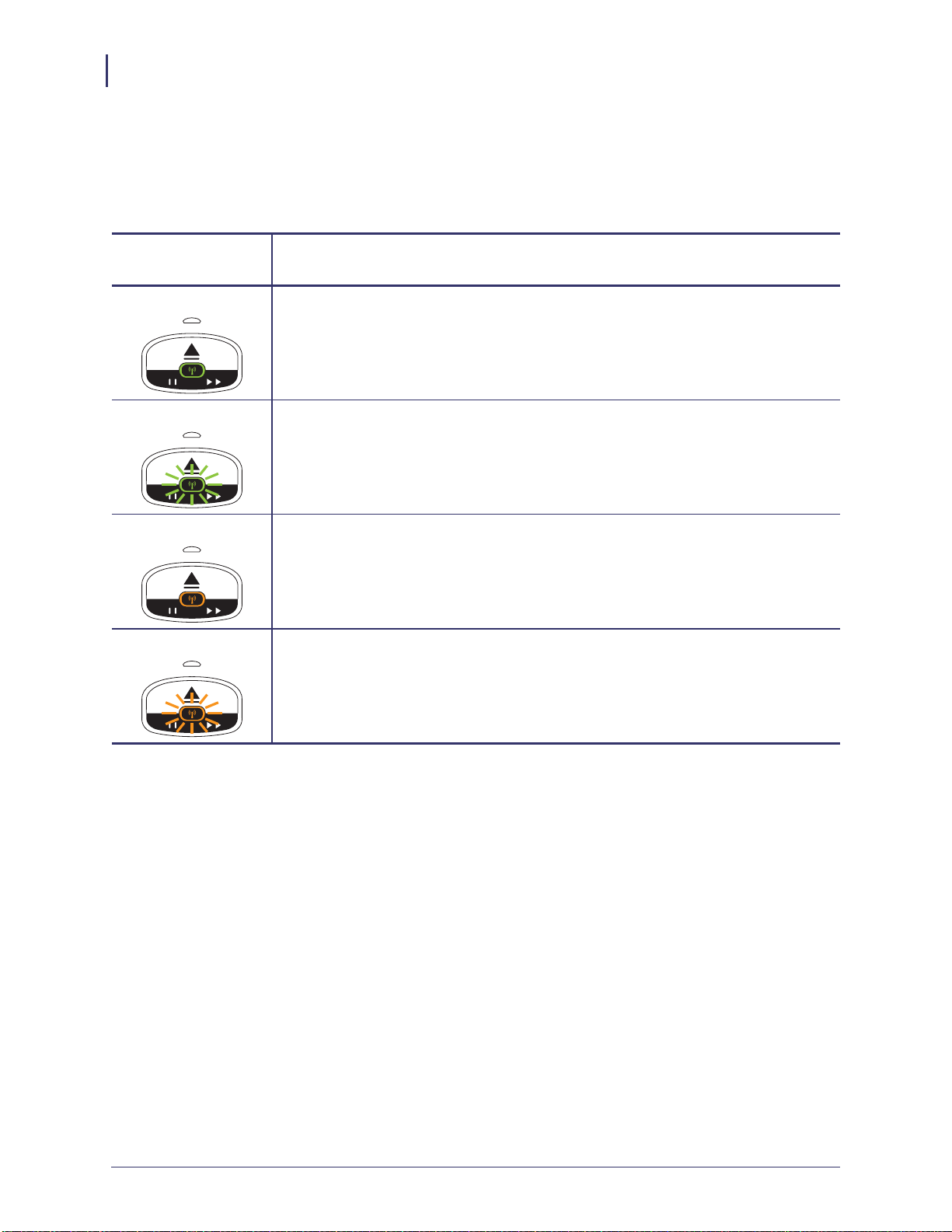
HC100 Wireless Status Indicator Lights
Table 12 shows the wireless status indicator lights for the HC100 printer.
ZD500R Wired and Wireless Status Indicator Icons
For more information on the ZD500R status indicator icons, refer to the ZD500R User Guide.
Table 12 • HC100 Wireless Status Indicator Lights
Wireless Status
Indicator
Meaning
Steady Green The printer is associated with a wireless network. The signal strength is strong.
Flashing Green The printer is NOT associated with a wireless network. The signal strength is strong.
Steady Orange The printer is associated with a wireless network. The signal strength is weak.
Flashing Orange The printer is NOT associated with a wireless network. The signal strength is weak.

55
Getting Started
View Wireless Status through the Control Panel
11/21/13 P1043301-005
ZT210, ZT220, ZT230, ZT410, and ZT420
Wired and Wireless Status Indicator Lights
Table 13 shows the wired and wireless status indicator lights for the ZT210, ZT220, and
ZT230 printers.
Table 13 • ZT210, ZT220, ZT230, ZT410, and ZT420 Status Indicator Lights
Status Indicator
Meaning
Printers with a ZebraNet wired Ethernet option
NETWORK light off
No Ethernet link is available.
NETWORK light steady green
A 100 Base link was found.
NETWORK light steady yellow
A 10 Base link was found.
NETWORK light steady red
An Ethernet error condition exists. The printer is not
connected to your network.
Printers with a ZebraNet wireless option
Off
Red Flash
Yellow Flash
NETWORK light off
A radio was found during power-up. The printer is
attempting to associate with the network. The light flashes
red while the printer associates with the network. The light
then flashes yellow while the printer is authenticating with
the network.
Steady Green NETWORK light steady green
The radio is associated with your network and
authenticated, and the WLAN signal is strong.
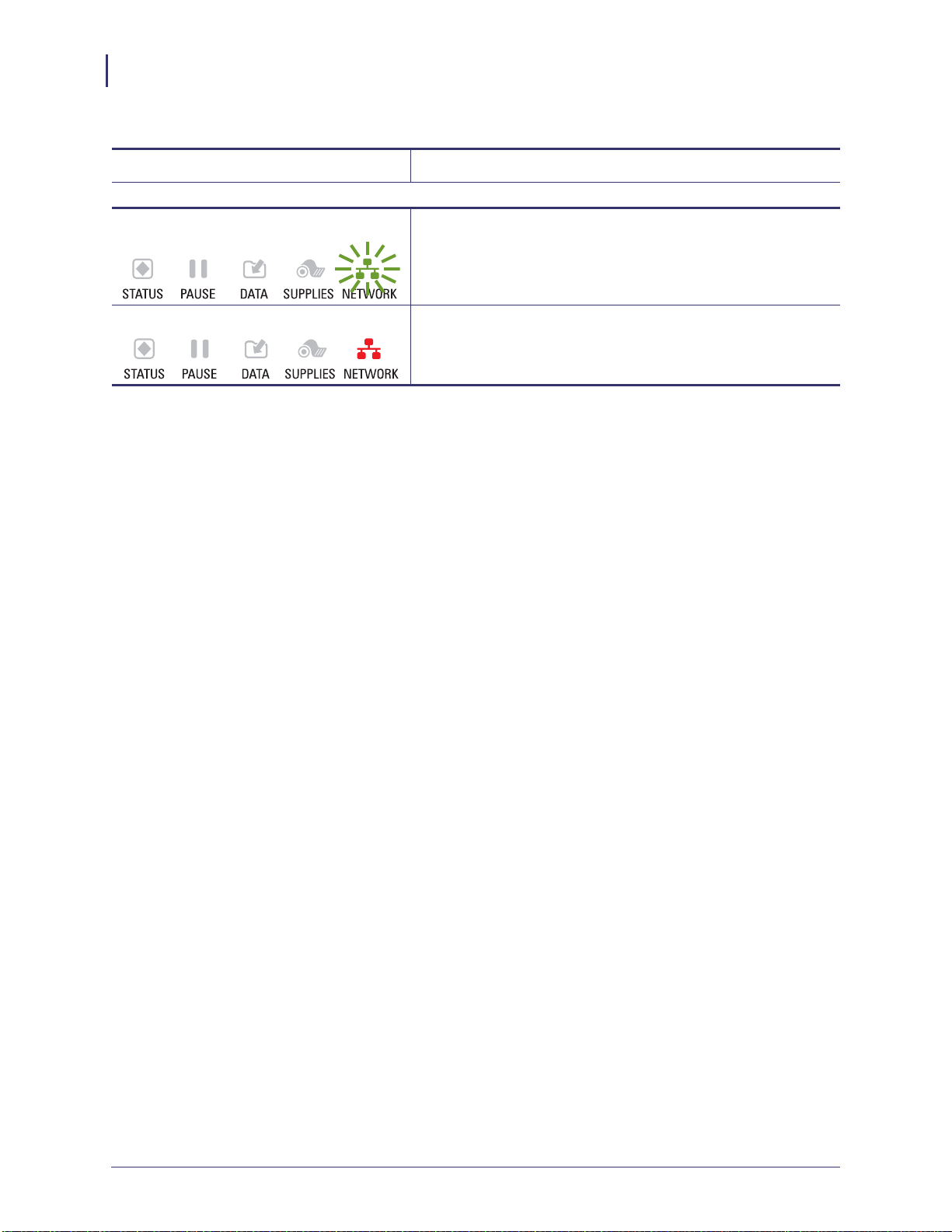
Getting Started
View Wireless Status through the Control Panel
56
P1043301-005 11/21/13
Flashing Green NETWORK light flashing green
The radio is associated with your network and
authenticated, but the WLAN signal is weak.
Steady Red NETWORK light steady red
An WLAN error condition exists. The printer is not
connected to your network.
Table 13 • ZT210, ZT220, ZT230, ZT410, and ZT420 Status Indicator Lights (Continued)
Status Indicator
Meaning
Printers with a ZebraNet wired Ethernet option
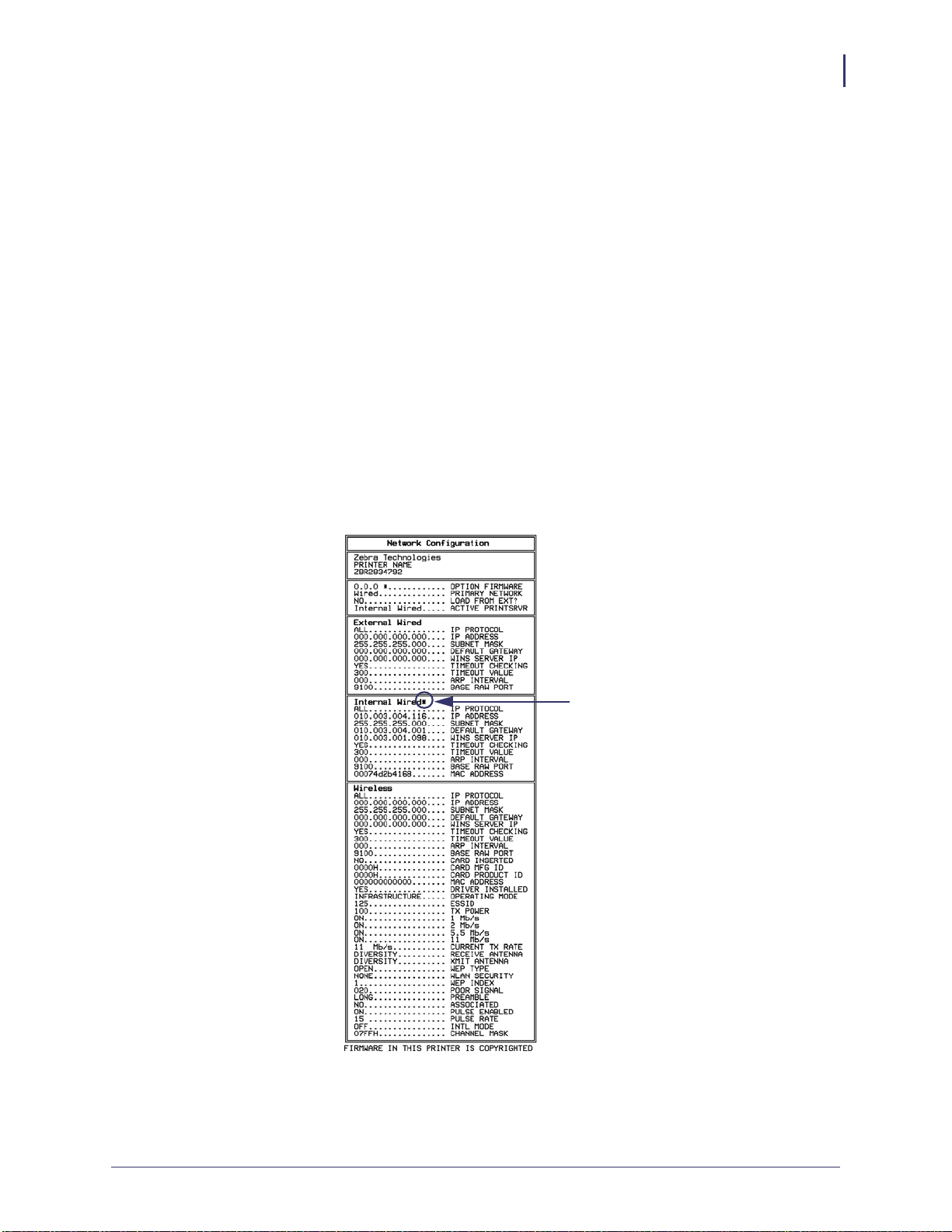
57
Getting Started
Determining the Active Print Server
11/21/13 P1043301-005
Determining the Active Print Server
Most printers can have wired and wireless print servers installed at the same time. However,
only one of the installed print servers can be active at any given time.
Viewing IP Addresses and the Active Print Server
The wired and wireless print servers have different IP addresses. The printer’s control panel
displays the IP address of the active print server (see View Wireless Status through the Control
Panel on page 52). You can view the printer’s web pages and send label formats to the printer
through the active print server’s IP address.
The network configuration label (Figure 12) displays the IP addresses of all installed print
server devices and indicates the active print server with an asterisk (circled in Figure 12). To
print a network configuration label for wired print servers, see Printing a Network
Configuration Label — Internal ZebraNet 10/100 Print Server and Wireless Print Servers
on page 46 or for wireless print servers, see Configuration of Wireless Securities on page 51.
Figure 12 • Active Print Sever on Sample Network Configuration Label
asterisk indicating
active print server

Getting Started
Determining the Active Print Server
58
P1043301-005 11/21/13
Active Device Selection
Your active print server selection is dependent on the model of printer or print engine that you
have.
If your printer is
a(n)…
Then…
• S4M
• ZT210
• ZT220
• ZT230
Only one print server (wired or wireless) can be installed at a
time. Thus, the print server installed is the primary print server.
• 105SL
• XiIIIPlus
• R110Xi
• R170Xi
• Z4Mplus
• Z6Mplus
• PAX4
• R110PAX4
You may select which installed device is the primary network
device. The printer will try to use the primary network device as
the active print server before trying the other installed options.
These printers and print engines use X60.16.x or later firmware.
The default for the printer is to
skip the check for a wired print
server during bootup. This makes the wireless print server the
primary network device if a wireless print server is installed. To
change this default and allow the wired print server to be the
primary network device when it is connected, use one of the
following methods to tell the printer to check for a wired print
server at bootup time:
• the WIRED PS CHECK parameter on the control panel
• the ^NB ZPL command
Table 14 identifies which device becomes the active print server
under various conditions.
• Xi4
• R110Xi4
• ZD500R
• ZM400
• ZM600
• ZT410
• ZT420
• RZ400
• RZ600
• ZE500
• 105SLPlus
These printers support the simultaneous installation of an
internal, external, and a wireless print server. Even though all
three print servers may be installed, only one is connected to the
network and is the active print server.
Table 15 outlines priorities and identifies which device becomes
the active print server when multiple print servers are installed.
You may select whether the wired or wireless print server will be
the primary connection by using one of the following methods:
• the PRIMARY NETWORK parameter on the control panel
• the ^NC ZPL command
59
Getting Started
Determining the Active Print Server
11/21/13 P1043301-005
Table 14 • Results of Check for Wired Print Server for
105SL, XiIIIPlus, Z4Mplus, Z6Mplus, and PAX4 Series Printers
If the Check
for Wired Print
Server is
set to:
Installed and Connected to
a Live Ethernet Network Then the Active Print
Server will be:
Wired Wireless*
Skip
X X Wireless
X Wired
X Wireless
Check
X X Wired
X Wired
X Wireless
* NOTE: A wireless option board must have an active radio that can properly associate to an access point.
Table 15 • Active Print Server Matrix for
Xi4, R110Xi4, ZM400, ZM600, RZ400, RZ600, ZE500, and 105SLPlus Printers
If the
Primary
Network is
set to:
Installed and Connected to
a Live Ethernet Network Then the Active
Print Server will be:
Internal External Wireless*
Wired
X X X Internal
X X External
X Wireless
Wireless
X X X Wireless
X X Internal
X External
* NOTE: A wireless option board must have an active radio that can properly associate to an access point.
Getting Started
Assigning an IP Address on any Print Server
60
P1043301-005 11/21/13
Assigning an IP Address on any Print Server
Before you can begin working with a print server, you must get or assign an IP address for the
print server device.
The four different ways to assign an IP address are:
• DHCP
• ZebraNet Bridge
• Printer Control Panel/LCD
• Telnet
With Dynamic Host Configuration Protocol (DHCP)
If your network uses DHCP, your print server device is assigned a temporary IP address.
Assigning an IP Address Without DHCP via ZebraNet Bridge
ZebraNet Bridge may be used to set the IP address. Refer to the ZebraNet Bridge Enterprise
User Guide for more detailed information.
Important • For specific information on the default User ID and/or default password, see
Default User ID and Password on page 43.
Note • Check with your Network Administrator to see whether your network uses DHCP.

61
Getting Started
Assigning an IP Address on any Print Server
11/21/13 P1043301-005
Assigning an IP address Without DHCP from the Control Panel
These steps can be used with all printers with a control panel.
To assign an IP address from the control panel (or LCD), complete these steps:
1. Turn on (I) the printer and wait until the control panel says PRINTER READY.
2. See Wired Network Parameters on the LCD on page 126 or Wireless Network Parameters
on the LCD on page 129 for specific print server menu options or your printer’s user guide
for specific instructions on the operation of your printer.
3. You may edit any of the following network settings in order to communicate with any
print server in your network environment.
• ip resolution (dynamic, permanent) The printer menu item IP RESOLUTION
must be set to PERMANENT if attempting to assign the IP address from the control
panel.
• default gateway (default setting of 000.000.000.000)
• subnet mask (default setting 255.0.0.0)
• ip address (if initial default setting is 0.0.0.0, after 2 minutes this defaults to
192.168.254.254
• ip protocol (gleaning only, RARP, BOOTP, DHCP, DHCP and BOOTP, all)
Important • Your ZebraNet 10/100 Print Server must have firmware 1.xx.x and higher and
your Zebra printer must have firmware x.10 or higher with a control panel.
Important • To change any of these settings, you need to enter the printer password. The
default password is
1234.

Getting Started
Assigning an IP Address on any Print Server
62
P1043301-005 11/21/13
Assigning an IP Address Without DHCP via a Telnet Session
The methods used for assigning an IP address with a Telnet session are Static Route and
Gleaning.
Before you can Telnet to the print server and configure it, you must first assign the print server
a temporary IP address.
Static Route
To use this method, complete these steps:
1. Turn on (I) the printer and wait for 2 minutes to allow for the device to complete the
self-test.
During this time, the print server performs an address broadcast. If no address is assigned
to the unit (via DHCP or BootP), it uses a default address. The default address for print
server is 192.168.254.254. Print the print server configuration label to confirm the
address. For details, see Before You Begin on page 43.
2. You can use the route add command to place the default IP address into the
workstation's network routing table.
3. At the workstation/host command prompt (in Windows, at the DOS prompt), type:
route add **** "IP address of the workstation" 0
where **** is the IP address on any print server configuration label
4. Telnet to the print server by typing:
"Telnet xxx.xxx.xxx.xxx"
The password is 1234.
5. At this point, you can alter the settings as desired. When complete, do a reset and allow
the print server self-test to complete before proceeding with any communications activity.
Important • This applies to any TCP/IP capable workstation/host networked with the Zebra
printer. Both, the workstation/host and the print server, must be on the same network
segment.
Note • The zero (0) placed at the end of the “route add” command is optional on some
systems.

63
Getting Started
Assigning an IP Address on any Print Server
11/21/13 P1043301-005
Gleaning
A method by which the print server uses the IP address of the first ping packet that is sent to its
hardware address.
To use this method, complete these steps:
1. Add an entry to the ARP table that assigns an IP address to an Ethernet (hardware)
address.
The syntax for this command is:
arp -s <temporary ip address> <MAC Address>
2. Power cycle the printer.
3. As the printer reboots, begin a continuous ping to the address assigned previously.
4. When the print server begins to respond, stop the ping activity.
In Windows,
Ctrl + C halts the pinging.
5. Telnet to the print server and assign the appropriate IP address, subnet mask, and gateway,
if applicable.
6. Once this is complete, reset the print server.
For details on resetting the print server, see Reset on page 122.
Note • Gleaning works only on local subnets at routers. It does not pass Address Resolution
Protocol (ARP) broadcasts.
Example • You would type: arp -s 10.3.50.59 00-07-4d-1D-B9-86
Note • Most UNIX systems use a continuous ping.
To use a continuous ping from a Windows host, you must issue the following command:
ping -t "ipaddress"

Getting Started
Setting and Monitoring Alerts on Any Print Server
64
P1043301-005 11/21/13
Setting and Monitoring Alerts on Any Print Server
It is important to understand the relationship between the print server and the printer when you
are establishing alerts. Here are the relationships you need to be aware of:
• Non-ZebraLink-enabled printers — can only send alerts on a specific set of printer errors
that are reported in the IEEE 1284 protocol.
• ZebraLink-enabled printers — ZebraLink allows for the printer to send alerts outside of
the IEEE 1284 protocol.
ZebraLink Alerts
ZebraLink Alerts give you the ability to manage your Zebra printers by immediately notifying
System Administrators of printer error or warning conditions, which reduces printer downtime
and increases application efficiency. Using Web-based configuration tools, selected errors or
warning conditions can be routed to a variety of destinations such as email messages, wireless
pagers, or ZebraLink Alerts.
Table 16 on page 65 shows the conditions that can trigger alerts and the possible destinations.

65
Getting Started
Setting and Monitoring Alerts on Any Print Server
11/21/13 P1043301-005
Table 16 • ZebraLink Alerts and Destinations
Alert Type Error Condition
ZebraNet
10/100 Print Server
Alerts
• On-line (condition clear)
• Off-line
• Paper out
• Printer error
ZebraLink Alerts
• Media out
• Ribbon out
• Printhead over-temp warning
• Printhead under-temp warning
• Head open
• Power supply over-temp
• Ribbon warning (in direct-thermal mode)
• Rewind full
• Cut error
• Printer paused
• PQ job completed
• Label taken
• Head element out
• ZBI (Zebra BASIC Interpreter) runtime error
• ZBI (Zebra BASIC Interpreter) forced error
• Clean printhead
• Media low
• Ribbon low
• Replace head
• Battery low
• RFID error
• All errors (in RFID printers only)
• All errors (in non-RFID printers only)
• Power on
ZebraLink Alerts
Destinations
Unsolicited Alert messages can be directed to the following
destinations:
• Email (ZebraNet 10/100 Print Server-specific)
• TCP (ZebraNet 10/100 Print Server-specific)
• UDP (ZebraNet 10/100 Print Server-specific)
• SNMP (ZebraNet 10/100 Print Server-specific)
• Serial *
• Parallel *
• USB *
* Available in ZebraNet Bridge
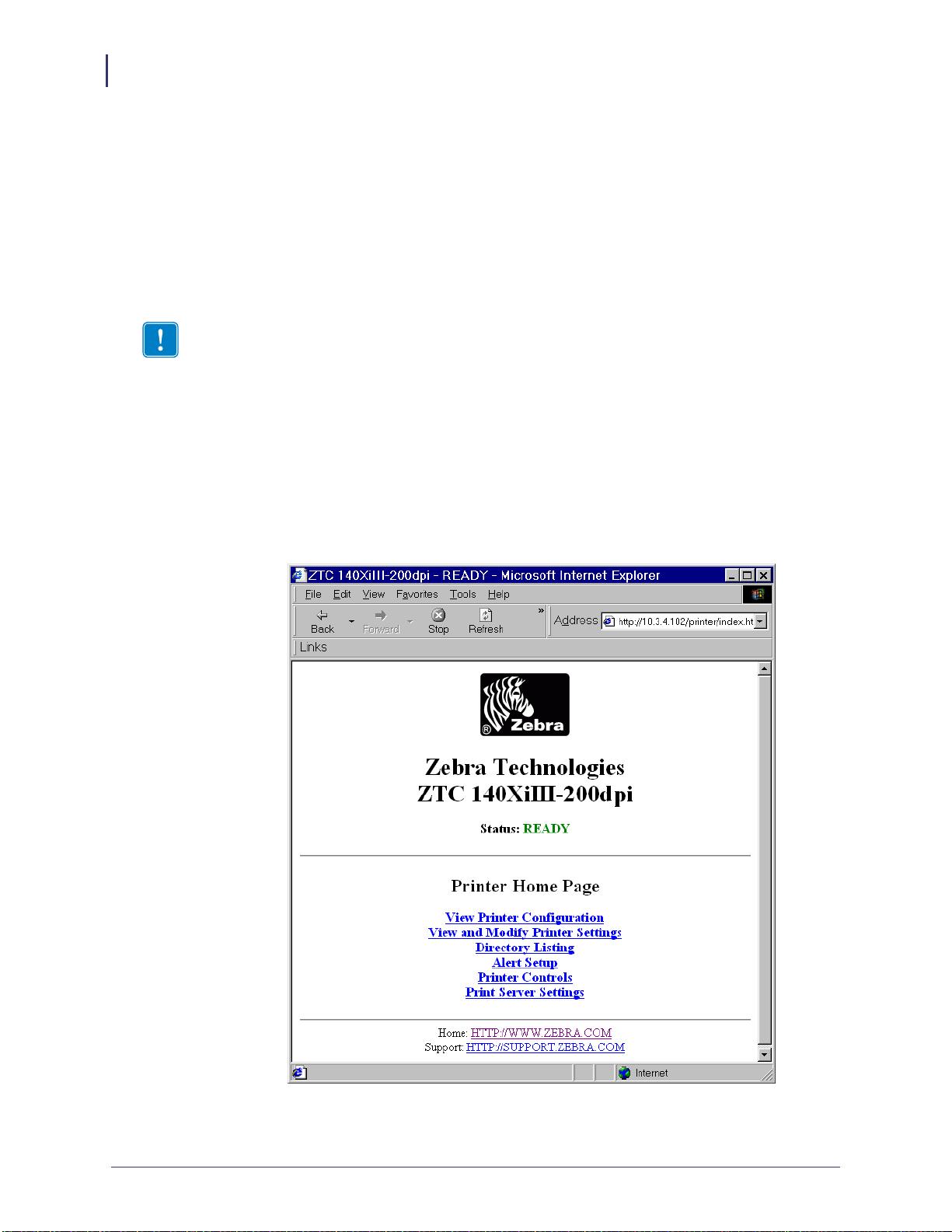
Getting Started
Setting and Monitoring Alerts on Any Print Server
66
P1043301-005 11/21/13
Using ZebraNet Bridge
ZebraNet Bridge may be used to set and monitor alerts. Refer to the ZebraNet Bridge
Enterprise User Guide for more detailed information.
Using WebView
This section has step-by-step instructions for setting up an alert using ZebraLink™ WebView.
To begin receiving notification of errors, complete these steps:
1. Open a Web browser.
2. In the Address text-box, type in the printer’s IP address.
The Printer Home Page opens.
Figure 13 • Printer Home Page
Important • If you do not have a ZebraLink-enabled printer, these steps will not work.
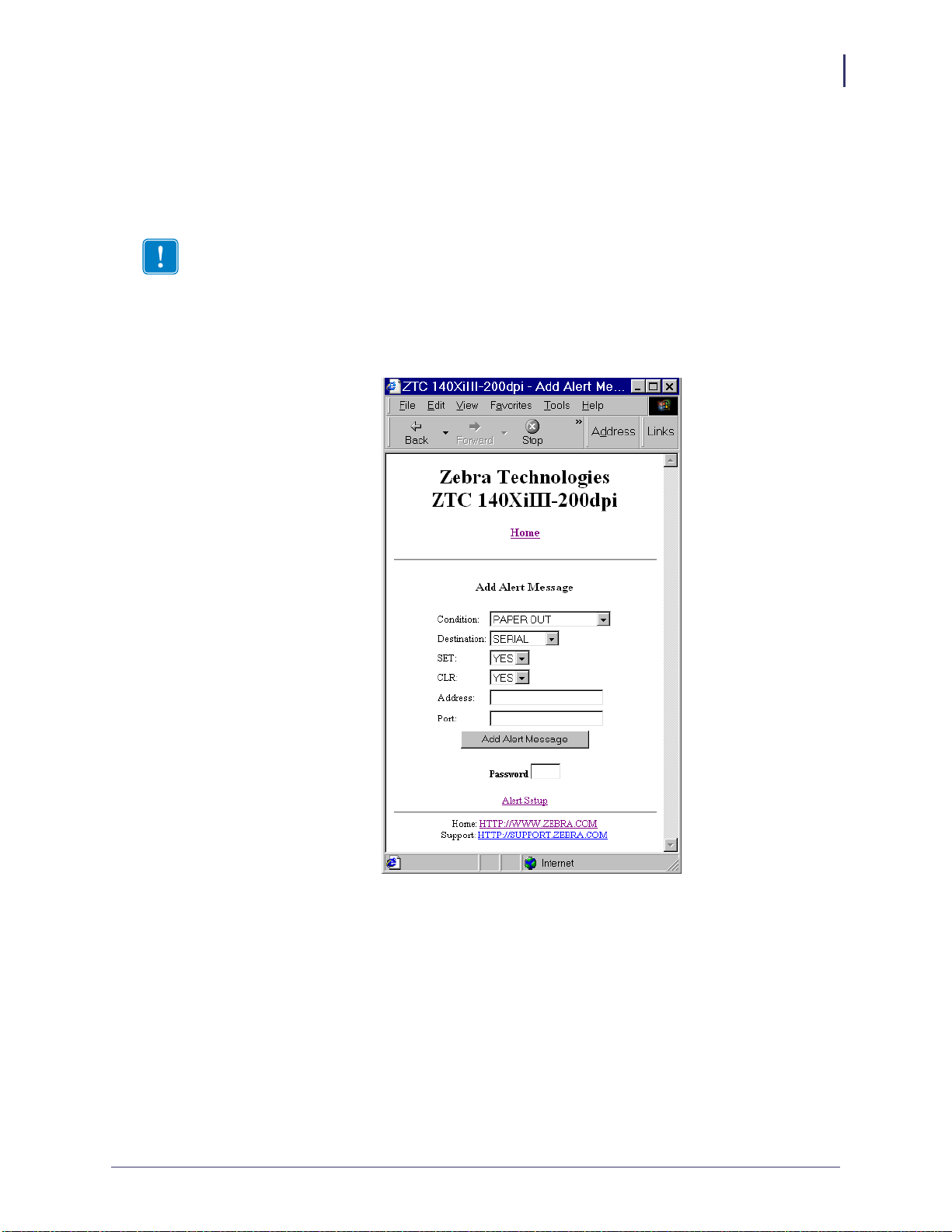
67
Getting Started
Setting and Monitoring Alerts on Any Print Server
11/21/13 P1043301-005
3. From the Printer Home Page, click Alert Setup.
The Alert Setup page shows a list of message notifications and their respective
destinations (if no notifications are listed).
4. To set up notification, go to the Alert Setup page and click Add Alert Message.
.
The Add Alert Message page opens.
Figure 14 • Add Alert
5. Specify the condition to send, such as HEAD ELEMENT BAD or PAPER OUT.
6. Set destination.
7. In the SET drop-down box, select YES.
You will be notified whenever your specific condition is detected.
8. In the CLR drop-down box, select YES if you wish to be notified when the specific
condition is cleared.
Important • The printer accepts only the last configuration made.

Getting Started
Checking Print Server Configuration Settings
68
P1043301-005 11/21/13
9. If you selected email for your destination, enter a valid email address to which your
messages will be sent.
To receive email alert, you must give your print server the IP address of your mail server
running SMTP. For instructions, refer to Status and Configuration on page 112.
10. If you selected TCP or UDP for your destination, enter the Port Number.
11. Click Add Alert Message.
12. To save current settings, click Save Printer Setting.
13. Enter the password and click Save Current Configuration.
Checking Print Server Configuration Settings
This section provides steps on how to check the print server configuration settings using
ZebraNet Bridge and a browser.
Using ZebraNet Bridge
ZebraNet Bridge may be used to check the print server configuration settings. Refer to the
ZebraNet Bridge Enterprise User Guide for more detailed information.
Important • A password is required. If you forget to enter the password, the alerts you just
set are deleted.
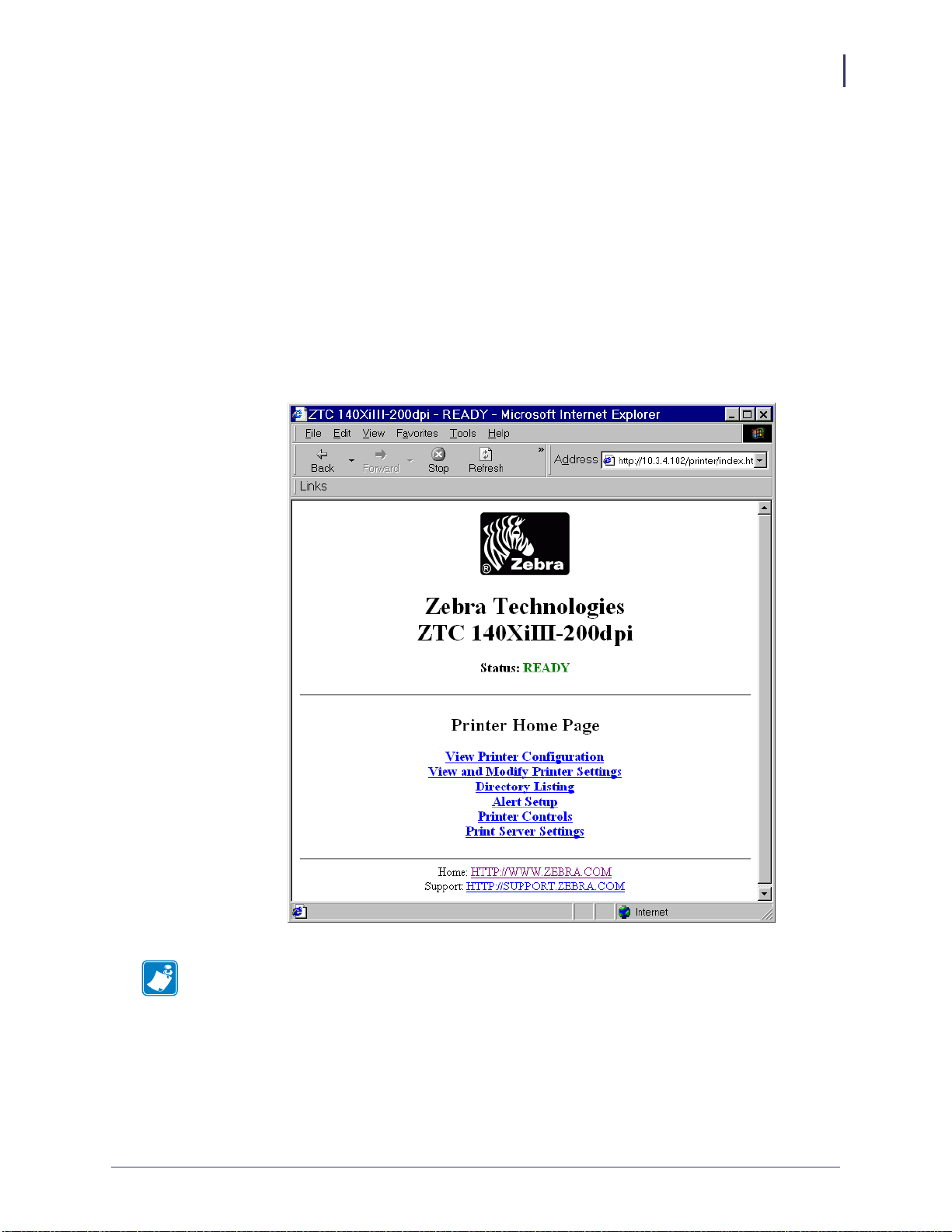
69
Getting Started
Checking Print Server Configuration Settings
11/21/13 P1043301-005
Using WebView
This section provides steps on how to check any print server configuration settings using its
Web pages.
To access the print server settings, complete these steps:
1. Open a Web browser.
2. In the Address text-box, type your printer’s IP address, and then press Enter.
Your browser page looks similar to Figure 15.
Figure 15 • Browser View
Note • Your printer firmware determines how this page looks. This page is from a printer
with firmware x.15 and above.
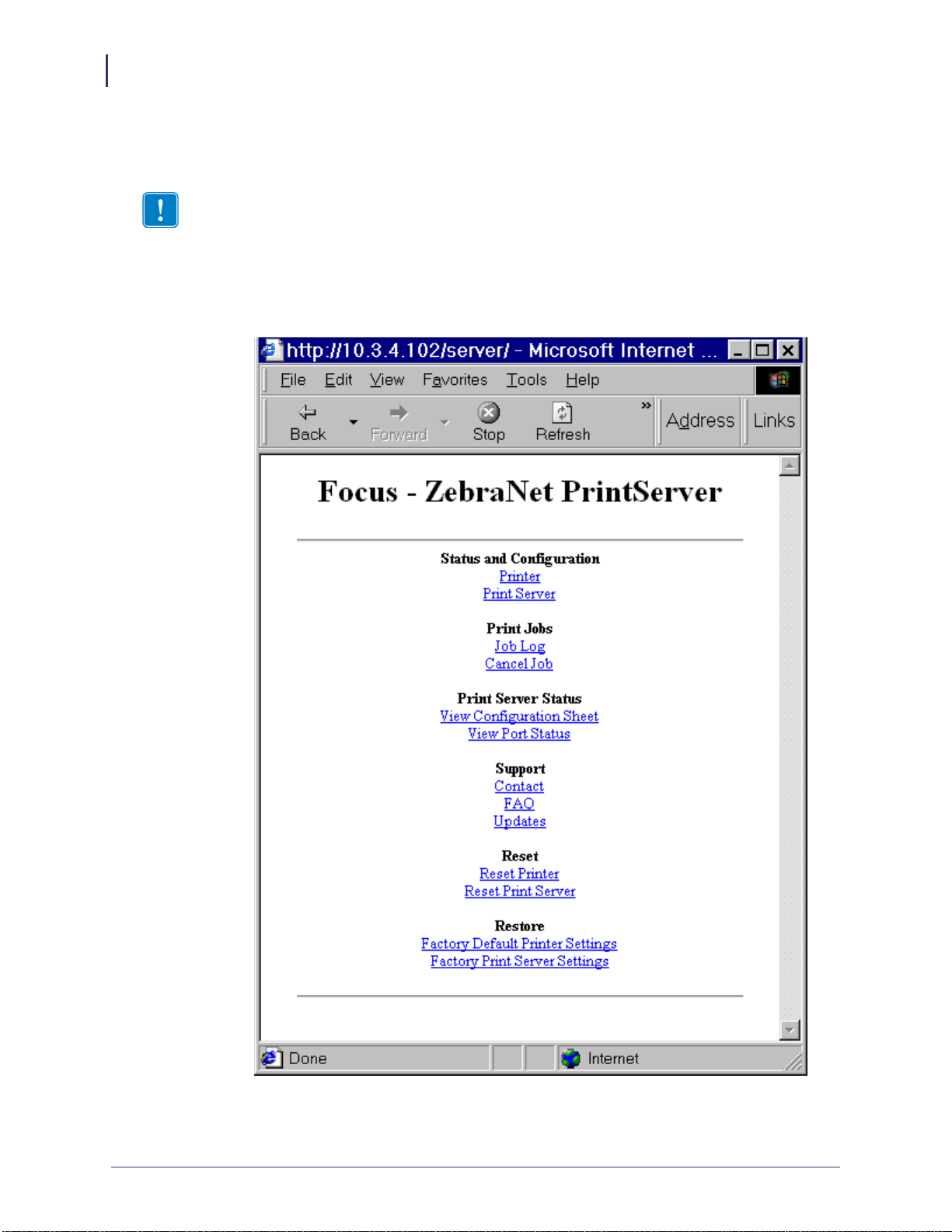
Getting Started
Checking Print Server Configuration Settings
70
P1043301-005 11/21/13
3. From the Printer Home Page, click Print Server Settings.
The default User ID and password are required.
The Print Server Configuration Page opens.
Figure 16 • Print Server Configuration Page
Important • For specific information on the default User ID and/or default password, see
Default User ID and Password on page 43.
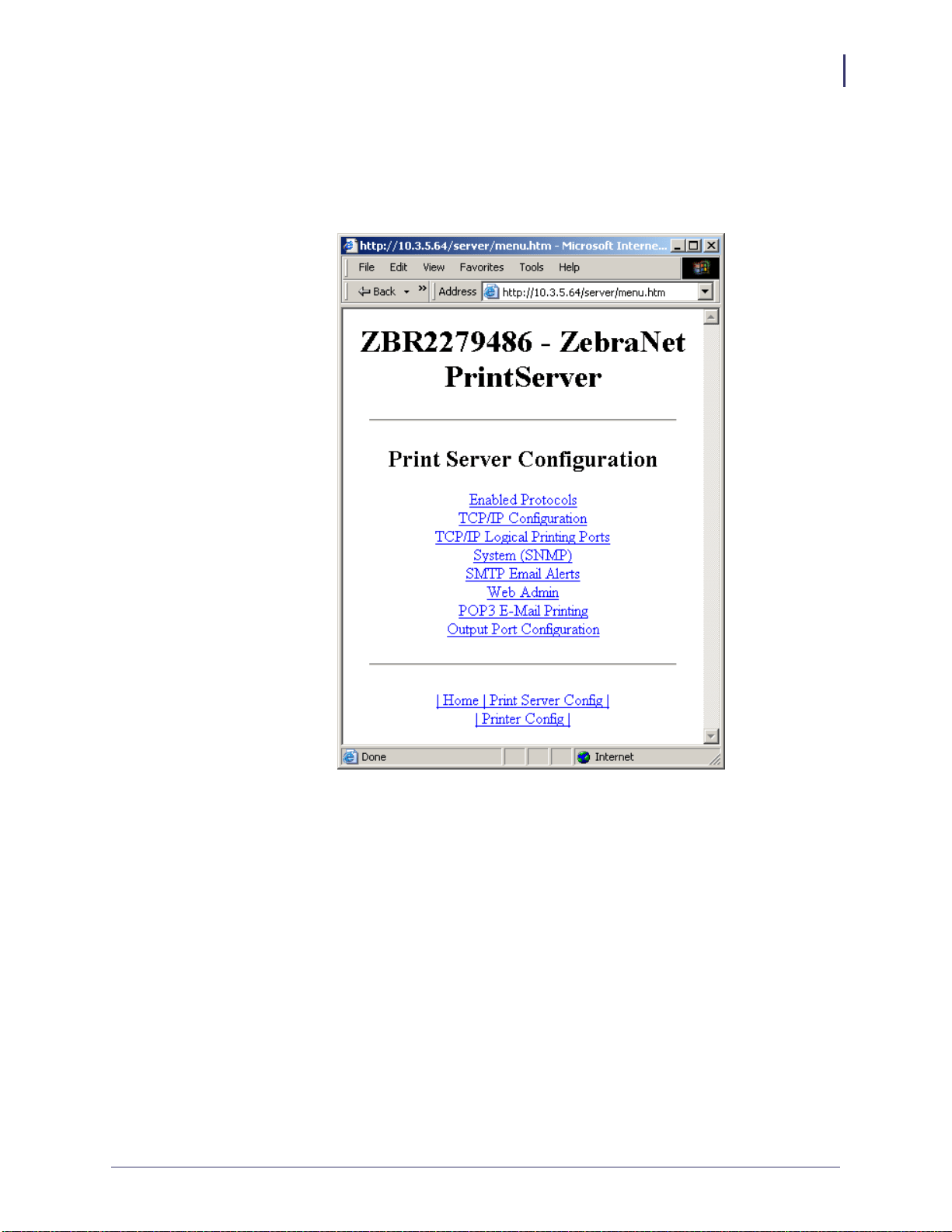
71
Getting Started
Checking Print Server Configuration Settings
11/21/13 P1043301-005
4. From the Print Server page, click Print Server.
The Print Server Configuration page opens.
Figure 17 • Access Settings
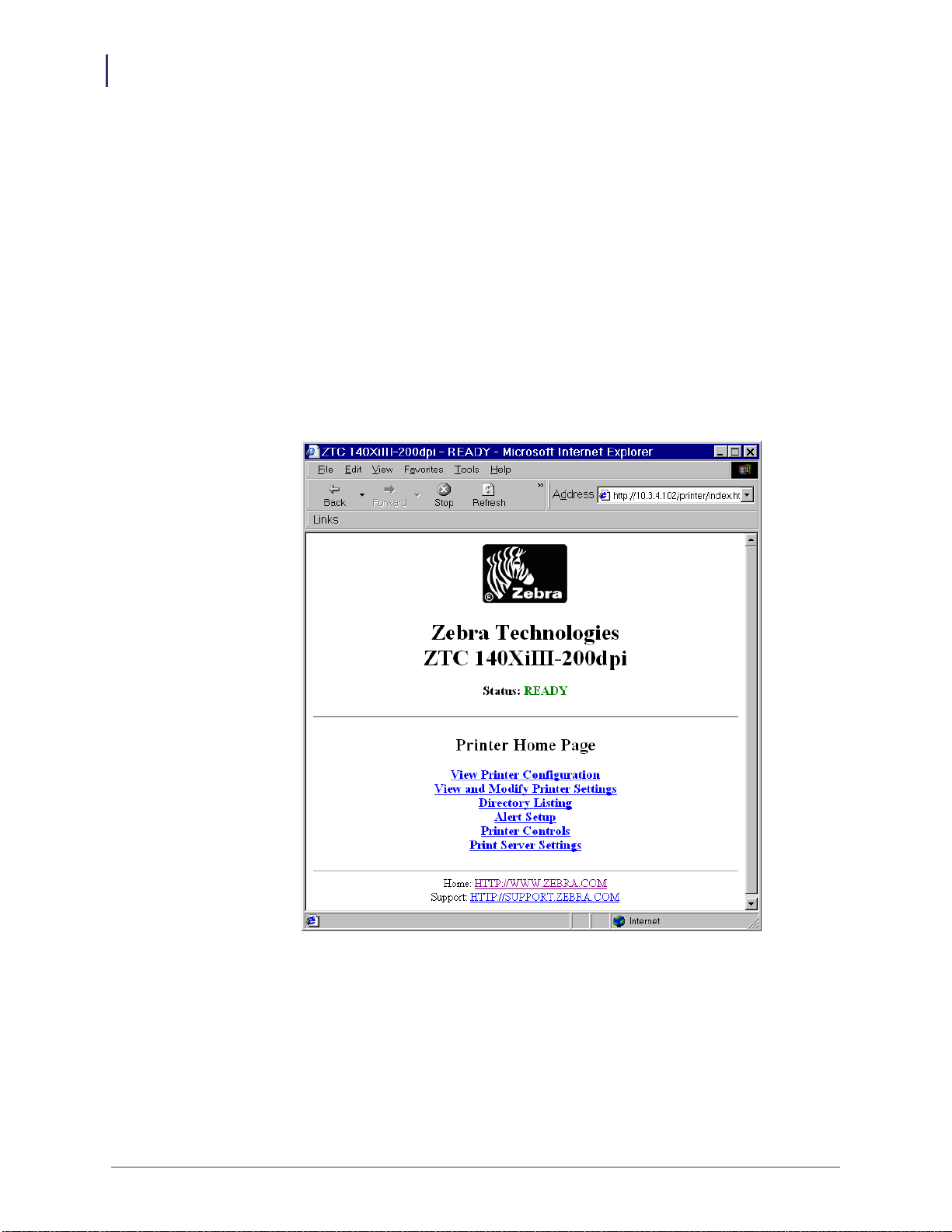
Getting Started
Enabling Protocols
72
P1043301-005 11/21/13
Enabling Protocols
This section contains directions for accessing protocols using WebView.
Using WebView
To enable protocols using WebView, complete these steps:
1. Open a Web browser.
2. In the Address text-box, type your printer’s IP address, then press Enter.
Your browser page looks similar to Figure 18.
Figure 18 • Address Text-Box
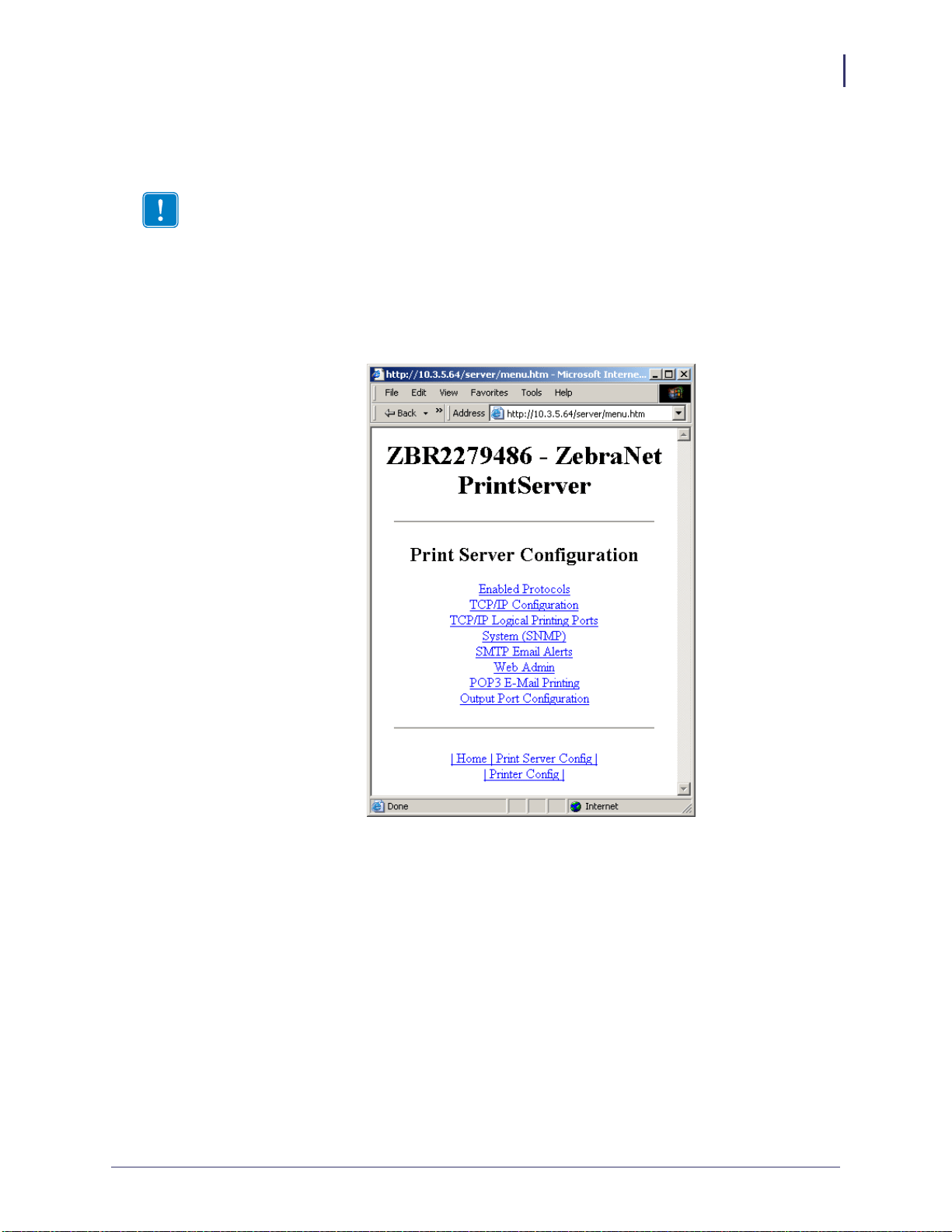
73
Getting Started
Enabling Protocols
11/21/13 P1043301-005
3. From the Printer Home Page, click Print Server Settings.
The default User ID and password are required.
4. From the Print Server page, click Print Server.
The Print Server Configuration page opens.
Figure 19 • Print Server Configuration
Important • For specific information on the default User ID and/or default password, see
Default User ID and Password on page 43.
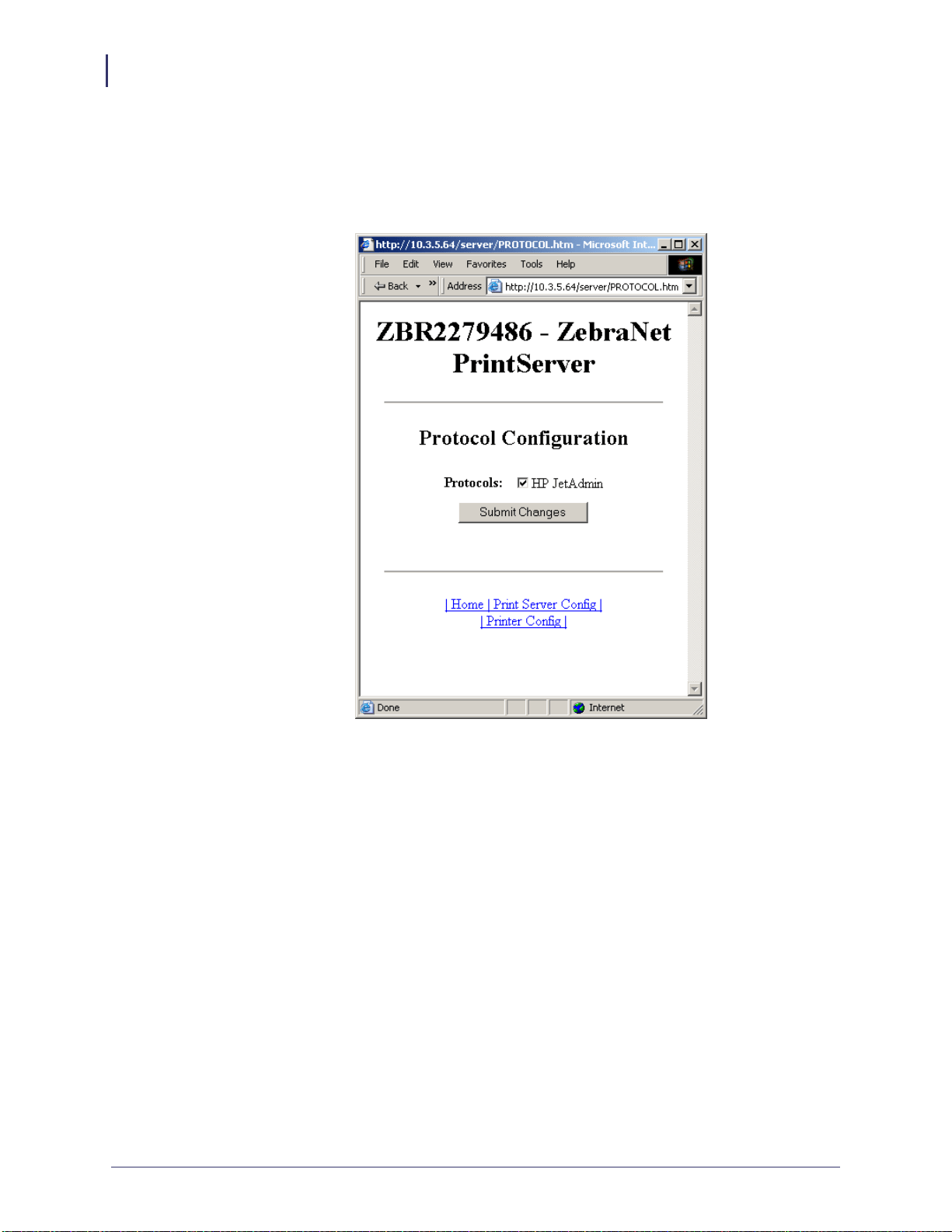
Getting Started
Enabling Protocols
74
P1043301-005 11/21/13
5. From the Print Server Configuration page, click Enabled Protocols.
The Protocol Configuration page opens.
Figure 20 • Protocol Configuration
6. Select the protocols you want to enable, then click Submit Changes.
You get a confirmation to reset the unit for changes to take place.
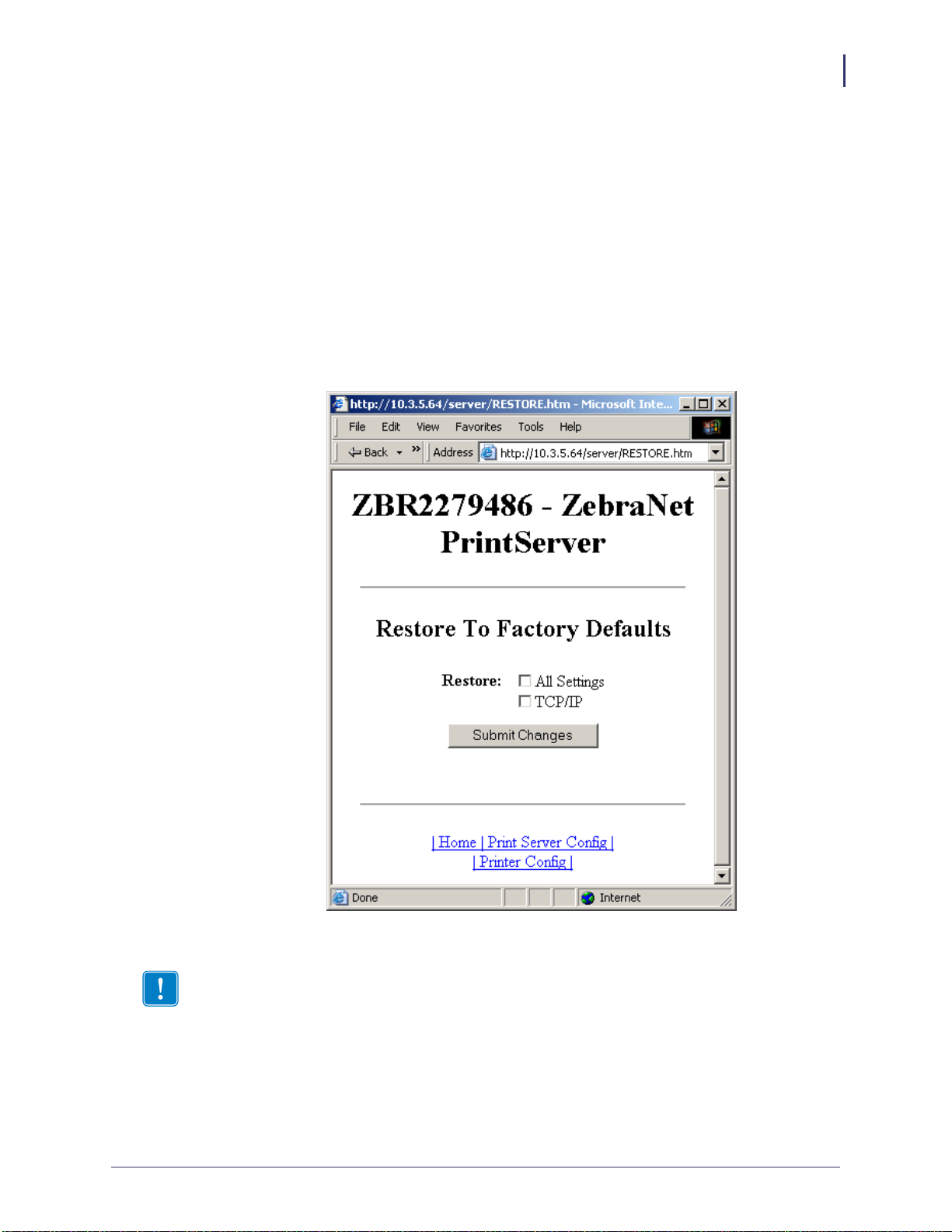
75
Getting Started
Defaulting ALL Print Servers
11/21/13 P1043301-005
Defaulting ALL Print Servers
Using WebView
To default the print server to factory settings using WebView, complete these
steps:
1. From the ZebraNet PrintServer view, click Factory Print Server Settings.
The Restore to Factory Defaults page opens:
Figure 21 • Restore to Factory Defaults
2. Enable the check box for the settings you want to reset, and click Submit Changes.
Important • During the reset cycle, the web pages are unavailable. Upon completion,
check the print server IP address as it may have changed during the reset cycle.
Getting Started
Defaulting ALL Print Servers
76
P1043301-005 11/21/13
Using ZebraNet Bridge
ZebraNet Bridge may be used default the print server to factory settings. Refer to the ZebraNet
Bridge Enterprise User Guide for more detailed information.
Using a ZPL Command
Issue the ZPL command shown immediately below or refer to the ZPL II
®
Programming
Guide for ZPL II, ZBI 2, Set-Get-Do, Mirror and WML for further details.
^XA^JUN^XZ
Defaulting the ZebraNet 10/100 Print Server on the 105SL, S4M,
PAX4, and External Devices
The Test button is accessed via a small recessed hole on the back of the external ZebraNet
10/100 Print Server device (see Figure 1 on page 35). To press the
Test button, you need to
insert something small into the hole, like the end of a paperclip.
For the internal ZebraNet 10/100 Print Server device, the
Test button is located on the back of
printer.
To default the ZebraNet 10/100 Print Servers to factory settings using the Test
button, complete these steps:
1. Turn off (O) the printer.
2. With the printer turned off, press and hold the Test button on the ZebraNet 10/100 Print
Server device and turn on (
l) the printer.
3. The status indicator tells you when ZebraNet 10/100 Print Server has been reset to factory
defaults, as follows:
• If an active network cable is connected to the ZebraNet 10/100 Print Server, the status
indicator turns solid green.
• If there is not an active network cable connected to the ZebraNet 10/100 Print Server,
the status indicator flashes red.
4. Release the Test button.
For more details on status indicators, see External ZebraNet 10/100 Print Server Network
Status and Status Indicators on page 134.
Note • To download a copy of either of the guides mentioned above, visit the Zebra web site
at: www.zebra.com/manuals.
Note • You must have an active network cable connected to the external ZebraNet
10/100 Print Server device to default the device using the
Test button.
77
Getting Started
Defaulting ALL Print Servers
11/21/13 P1043301-005
Defaulting the Wireless Print Server on the S4M
1. From the control panel, enter Setup Mode. (Refer to the User Guide for your printer for
specific instructions on how to use the control panel.)
2. Scroll to level 3 parameter DEFAULT NET.
3. Press ENTER twice to confirm defaulting.
4. Press MENU to exit the Setup Mode.
5. If necessary, press the up or down arrow to select Yes.
6. Press Enter to save changes and exit Setup mode.
Defaulting the Print Servers on the ZM400 and ZM600 Printers
To default the print server to factory settings using the control panel on the
ZM400 or ZM600 printers, complete these steps:
1. From the control panel, press SETUP/EXIT two times.
2. Press PLUS (+ button) five times.
The control panel will read DEFAULT NET.
3. Press SETUP/EXIT to save the change.
After the printer defaults all settings, the control panel will show PRINTER READY.
Defaulting the Print Servers on the ZP Series, LP/TLP 2824 Plus,
and G-Series Printers
To default the print server to factory settings, complete these steps:
1. Hold Feed until you see a sequence of four green flashes.
2. Release Feed and the LED will immediately flash amber once.
3. Press and hold Feed again to enter the Default submenu.
The flash sequences represent various devices to default:
• One green flash: Defaults the print server only
• Two green flashes: Defaults the printer only
• Three green flashes: Defaults both, the printer and the print server
4. Release Feed when you see the flash sequence that corresponds to the desired default.
Note • Be sure to count the number of LED flashes.
Important • If you do not press Feed the second time (in step 3 below),
you will default the printer only.
Getting Started
Defaulting ALL Print Servers
78
P1043301-005 11/21/13
Defaulting the Print Servers on the HC100 Printers
To default the print server to factory settings, complete these steps:
1. Press and hold Feed for two seconds.
2. Wait for the three blink sequence of the Error/Status LED.
3. Release Feed.
Defaulting the Print Servers on the 105SL, PAX4, Xi4, ZE500, and
105SLPlus Printers
To default the print server to factory settings, complete these steps:
1. From the control panel, press SETUP/EXIT two times.
2. Press PLUS (+) five times.
The control panel will read DEFAULT NET.
3. Press NEXT/SAVE to save the change.
The control panel will read PRINTER READY.
Note • Be sure to count the number of LED blinks. The three blink sequence defaults only
the print server parameters while the four blink sequence defaults all of the printer
parameters.
79
Getting Started
Defaulting ALL Print Servers
11/21/13 P1043301-005
Defaulting the Print Servers on the ZD500R, ZT210, ZT220, ZT230,
ZT410, and ZT420 Printers
1. Turn off (O) the printer.
2. Press and hold the Pause and Cancel keys and turn on (l) the printer.
3. Hold the Pause and Cancel keys until the first status indicator light turns off.
4. Which type of print server do you have?
For more information on status indicators, see ZT210, ZT220, ZT230, ZT410, and ZT420
Wired and Wireless Status Indicator Lights on page 55.
Defaulting the Print Servers on the ZD500R, ZT230, ZT410, and
ZT420 Printers via the Control Panel
Refer to the User Guide for your printer for specific instructions on how to use the control
panel.
If you have a… Then, you will see one of the following conditions…
Wired print server a. Steady green Network status indicator: A 100Base-T link was
found.
b. Steady yellow Network status indicator: A 10Base-T link was
found.
c. Steady red Network status indicator: No network link was
found.
Wireless print
server
a. Steady green Network status indicator: A wireless network
was found. Your print server has successfully associated with
and been authenticated by the wireless network.
b. Steady red Network status indicator: No network link was
found.
Note • If you reset your wireless print server, the ESSID
setting will change to “125” and all encryption and
authentication settings will be disabled. The wireless print
server settings should be reconfigured to match your
wireless network settings.

Getting Started
Defaulting ALL Print Servers
80
P1043301-005 11/21/13
Notes • ___________________________________________________________________
__________________________________________________________________________
__________________________________________________________________________
__________________________________________________________________________
__________________________________________________________________________
__________________________________________________________________________
__________________________________________________________________________
__________________________________________________________________________
__________________________________________________________________________
__________________________________________________________________________

11/21/13 P1043301-005
4
Printing Queues
This section provides information and instructions on configuring your printer for use with a
BSD or System V Queue.
Contents
Berkeley Software Distribution (BSD)-Style Print Queue. . . . . . . . . . . . . . . . . . . . . . . . . 82
Configuring the Print Queue . . . . . . . . . . . . . . . . . . . . . . . . . . . . . . . . . . . . . . . . . . . . 82
System V Queue Installation . . . . . . . . . . . . . . . . . . . . . . . . . . . . . . . . . . . . . . . . . . . . . . 83
Configuring Operating System V Queue for ZebraNet Printing . . . . . . . . . . . . . . . . . . 83
Prerequisites . . . . . . . . . . . . . . . . . . . . . . . . . . . . . . . . . . . . . . . . . . . . . . . . . . . . . . . . 83
UNIX Configuration . . . . . . . . . . . . . . . . . . . . . . . . . . . . . . . . . . . . . . . . . . . . . . . . . . . 83

Printing Queues
Berkeley Software Distribution (BSD)-Style Print Queue
82
P1043301-005 11/21/13
Berkeley Software Distribution (BSD)-Style Print Queue
BSD is a version of the UNIX OS that distributes software that includes TCP/IP.
Configuring the Print Queue
For remote BSD-style LPD printing, add the print server as a remote printer in the
/etc/printcap database to each host printing to any print server. You can add printcap options as
needed. If you are unfamiliar with these options, consult the printer documentation.
The entry looks similar to this:
local_print_queue_name|[printer_model_and_manufacturer]:\
:lp=:mx#0:rm=ZebraNet_name:\
:rp=remote_print_queue_name:\
:sd=path_to_spool_directory:lf=just log_file_name
local_print_queue_name — This defines the name of the printcap entry. It is used by
the LPR/LPD utilities to specify which printcap entry is being referenced. Additional printcap
entries can be added as needed for different queue types. Each entry must have a unique
local_print_queue_name and a different spool directory to work properly. When you are ready
to print, use the local_print_queue_name that matches the data type of the file to be printed.
ZebraNet_name — This is the name (alias) of the ZebraNet print server. This must be the
same name as entered in the /etc/ hosts file or your NIS or DNS system. An IP address may
also be used here.
remote_print_queue_name — This entry determines the ZebraNet port where the print
job will be printed and optionally specifies ASCII printing that must end for LF1.
path_to_spool_directory — This is the path to a directory where the print jobs will
be spooled for this queue. You must create a unique spool directory for each printcap entry.
log_file_name — This is the path to a file where error information from the LPD will be
logged.
Important • You must be logged in as root.
Example • Your printcap entries might look similar to this:
Ascii_files|form.feed.Queue_on_Port_1:\
:lp=:mx#0:rm=pserver1:rp=MYQUEUELF1:\
:sd=/usr/spool/myqueuelf1:\
:lf=/usr/spool/myqueuelf1/queue.log
Important • Each printcap entry must have a different spool directory to work properly.

83
Printing Queues
System V Queue Installation
11/21/13 P1043301-005
System V Queue Installation
Configuring Operating System V Queue for ZebraNet Printing
This section describes the configuration of the printing system on the UNIX operating system.
For clarity and brevity, the following specific names are used to represent general devices or
concepts.
lj4 — The local queue name on the UNIX system to which you want print server print jobs
directed.
ZEBRAPRINTER — The host name or IP address of the remote system that is the print server
device. For example, to Telnet to any print server and invoke the print server configuration
utility, you would enter:
Telnet ZEBRAPRINTER
A host name is not required for the print server — the IP address can be used.
yourqueuename — This is the name of the queue on the ZebraNet and must end with LF1.
Prerequisites
Before you proceed, the following prerequisites must be met:
• The name ZEBRAPRINTER and the IP address assigned to the print server are in the
/etc/hosts file on the UNIX system.
• The LPD must be running on the UNIX system.
UNIX Configuration
To configure the UNIX machine so users can spool print jobs to the PCL print
queue on the ZebraNet named ZEBRAPRINTER, complete these steps:
1. Log in to the UNIX machine as root.
2. Type:
lpsystem -t bsd ZEBRAPRINTER
3. Type:
lpadmin -p lj4 -s ZEBRAPRINTER!yourqueuename - I any
4. Type:
accept lj4
5. Type:
enable lj4
6. Try printing by typing the command:
lp -d lj4 [filename]

Printing Queues
System V Queue Installation
84
P1043301-005 11/21/13
Notes • ___________________________________________________________________
__________________________________________________________________________
__________________________________________________________________________
__________________________________________________________________________
__________________________________________________________________________
__________________________________________________________________________
__________________________________________________________________________
__________________________________________________________________________
__________________________________________________________________________
__________________________________________________________________________

11/21/13 P1043301-005
5
Using Printing Protocols
In this section, you are given steps to set up your print server to support Internet Printing
Protocol (IPP) and File Transfer Protocol (FTP).
Contents
IPP . . . . . . . . . . . . . . . . . . . . . . . . . . . . . . . . . . . . . . . . . . . . . . . . . . . . . . . . . . . . . . . . . . 86
FTP . . . . . . . . . . . . . . . . . . . . . . . . . . . . . . . . . . . . . . . . . . . . . . . . . . . . . . . . . . . . . . . . . 87

Using Printing Protocols
IPP
86
P1043301-005 11/21/13
IPP
Internet Printing Protocol (IPP) is an application-level protocol used for distributed printing
over the Internet. Using IPP from any standard IPP client, you can transfer jobs to a printer that
is connected to either your external ZebraNet 10/100 Print Server or your internal ZebraNet
10/100 Print Server for S4M, 105SL, PA X 4, and XiIIIPlus.
To set up your 10/100 Print Server to support IPP, complete these steps:
1. Open a browser.
2. Enter the 10/100 Print Server IPP URL as follows:
http://xxx.xxx.xxx.xxx:631/ipp/port1
xxx.xxx.xxx.xxx = the IP address of the 10/100 print server device
:631 = a fixed value
/ipp = a fixed string designating IPP
/port1 = a fixed value
Important • You must have IPP support on your system.
Important • IPP support is not available on all 10/100 Internal Print Server printers. To be
certain you are running the latest version of firmware, visit http://www.zebra.com.
Example • Your address might look like this:
http:198.60.248.120:631/ipp/port1

87
Using Printing Protocols
FTP
11/21/13 P1043301-005
FTP
Embedded within the print server is an FTP server application that processes file transfers
from a host computer to the printer.
If the printer is on a network, label formats can be generated and data can be transferred
without setting up a print queue.
To send information to the printer, perform these steps:
1. Open a command prompt and type:
ftp <IP of PS>
This opens a session with the FTP server.
2. Type your user name and press Enter.
3. Type:
put < filename>
where filename is the location and filename of your ZPL script
This transfers the file to the printer, and the printer generates a label.
4. To terminate the FTP session, type:
quit
Example • If the IP address of your print server device is 12.3.4.123, you would
type:
ftp 12.3.4.123
Note • By default, there is no user name.

Using Printing Protocols
FTP
88
P1043301-005 11/21/13
Notes • ___________________________________________________________________
__________________________________________________________________________
__________________________________________________________________________
__________________________________________________________________________
__________________________________________________________________________
__________________________________________________________________________
__________________________________________________________________________
__________________________________________________________________________
__________________________________________________________________________
__________________________________________________________________________

11/21/13 P1043301-005
6
ZebraLink WebView
This section describes the ZebraLink WebView functionality on your ZebraLink-enabled
printer with a print server.
Contents
WebView . . . . . . . . . . . . . . . . . . . . . . . . . . . . . . . . . . . . . . . . . . . . . . . . . . . . . . . . . . . . . 90
Home Page . . . . . . . . . . . . . . . . . . . . . . . . . . . . . . . . . . . . . . . . . . . . . . . . . . . . . . . . . 90
View Printer Configuration . . . . . . . . . . . . . . . . . . . . . . . . . . . . . . . . . . . . . . . . . . . . . . 92
View and Modify Printer Settings. . . . . . . . . . . . . . . . . . . . . . . . . . . . . . . . . . . . . . . . . 93
Network Communications Screens . . . . . . . . . . . . . . . . . . . . . . . . . . . . . . . . . . . . . . . . 100
Directory Listing . . . . . . . . . . . . . . . . . . . . . . . . . . . . . . . . . . . . . . . . . . . . . . . . . . . . . 105
Printer Controls . . . . . . . . . . . . . . . . . . . . . . . . . . . . . . . . . . . . . . . . . . . . . . . . . . . . . 110

ZebraLink WebView
WebView
90
P1043301-005 11/21/13
WebView
WebView provides the System Administrator or user complete, easy, one-step control over the
printing environment. It provides real-time configuration, control, and monitoring capabilities
with the convenient graphic interface of a Web browser.
The Web pages returned by Zebra printers are not static. They contain real-time information
about the printer’s present state of operation, including on-line status, error conditions, and all
printing parameters.
Home Page
The Home Page is the first Web page that opens. It is a page with a menu of hyperlinks. Each
hyperlink allows you to make modifications to the printer, print server, and network settings.
The other changeable settings on the Home Page include:
• Network Status, Error, and Warning reports
• ZebraNet print server configuration
• Printer settings
• Directories of objects stored in Flash memory and RAM devices
• Objects, stored fonts, images, programs, and formats
• Zebra Technologies support and home pages
Note • To access the printer’s Web page, you need the IP address. For instructions on getting
the IP address, see Assigning an IP Address on any Print Server on page 60.
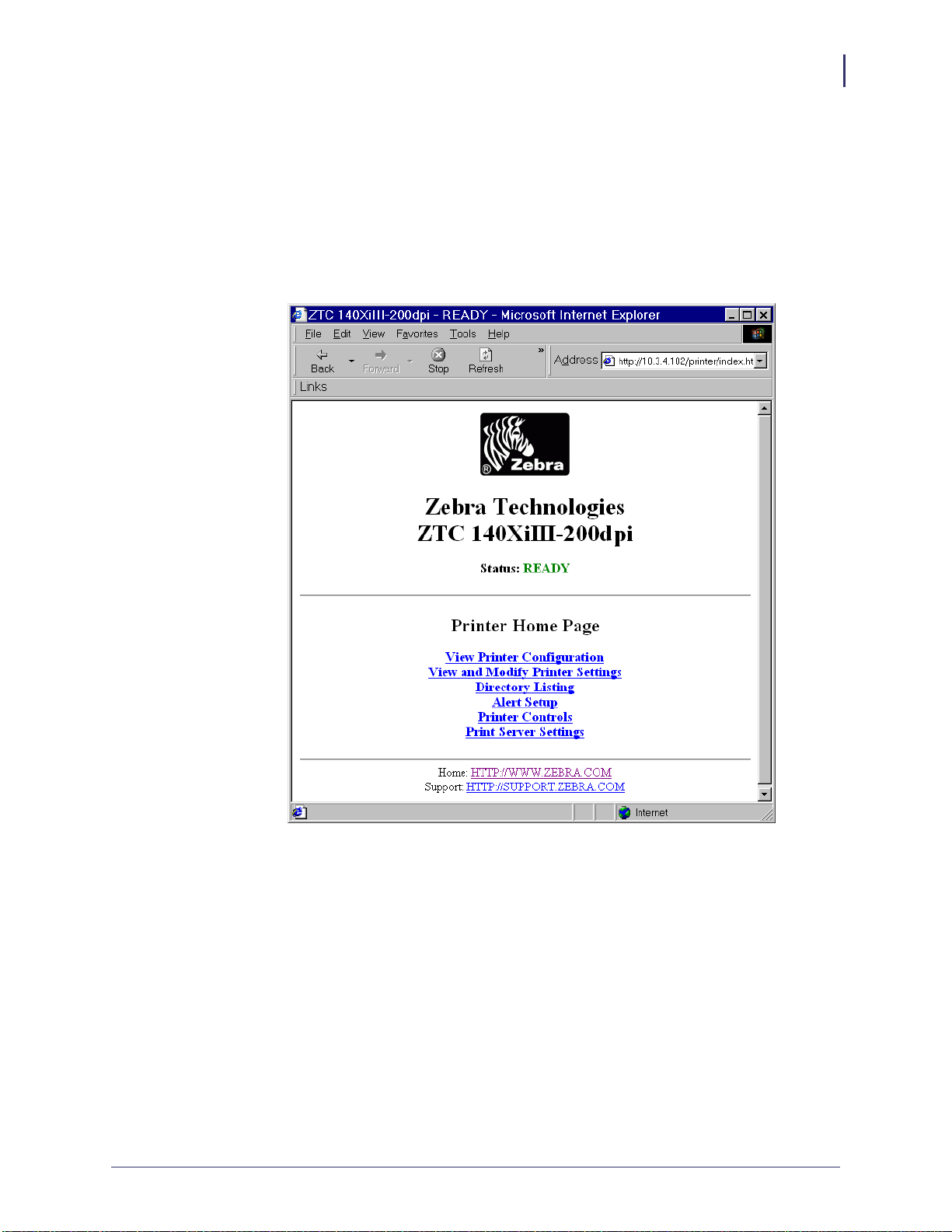
91
ZebraLink WebView
WebView
11/21/13 P1043301-005
To open the WebView of your printer, complete these steps:
1. Open a Web browser.
2. In the Address text-box, type your printer’s IP address, and press Enter.
The Printer Home Page opens.
Figure 20 • Printer Home Page
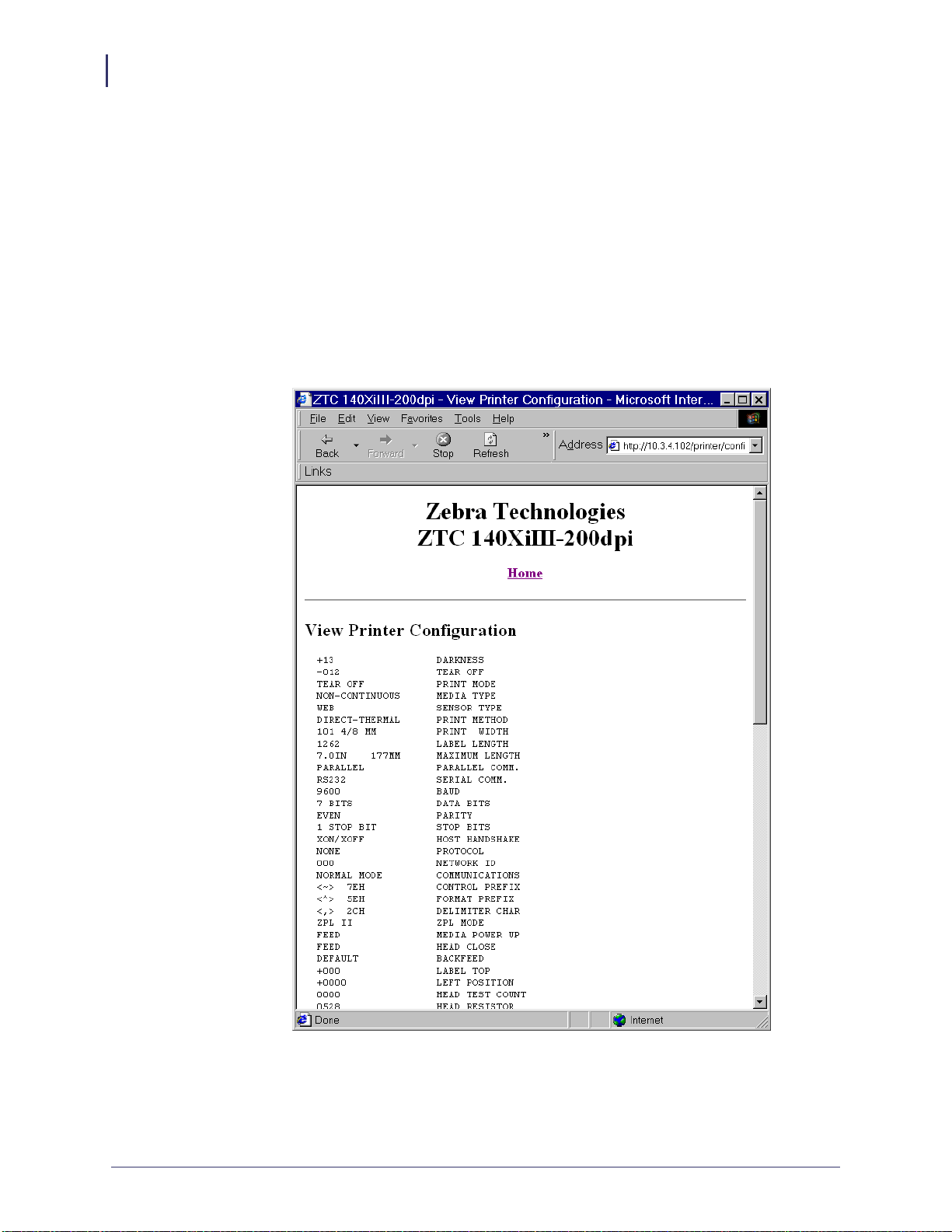
ZebraLink WebView
WebView
92
P1043301-005 11/21/13
View Printer Configuration
The View Printer Configuration menu option provides accurate, up-to-the-minute information
on the printer’s current state. An administrator can conveniently find any information on the
Virtual Configuration Label and also check on the status of printer ports.
To see the View Printer Configuration menu option, complete these steps:
1. From the Printer Home Page, click View Printer Configuration.
The WebView displays the configuration settings.
Figure 21 • Configuration Settings
93
ZebraLink WebView
WebView
11/21/13 P1043301-005
2. To update the printer information from this view, click Refresh and the printer sends
current information to the Web browser.
3. When you are finished reviewing:
View and Modify Printer Settings
This section provides you with steps for accessing and modifying printer settings with a
ZebraLink-enabled printer. It also provides illustrations of the various pages you can access.
To apply changes made in this section, the default User ID and password are required.
If... Then...
You want to return to
the Home page
Click the Home link.
You want to print a label Scroll to the bottom of this page and click
Print Label.
Important • For specific information on the default User ID and/or default password, see
Default User ID and Password on page 43.
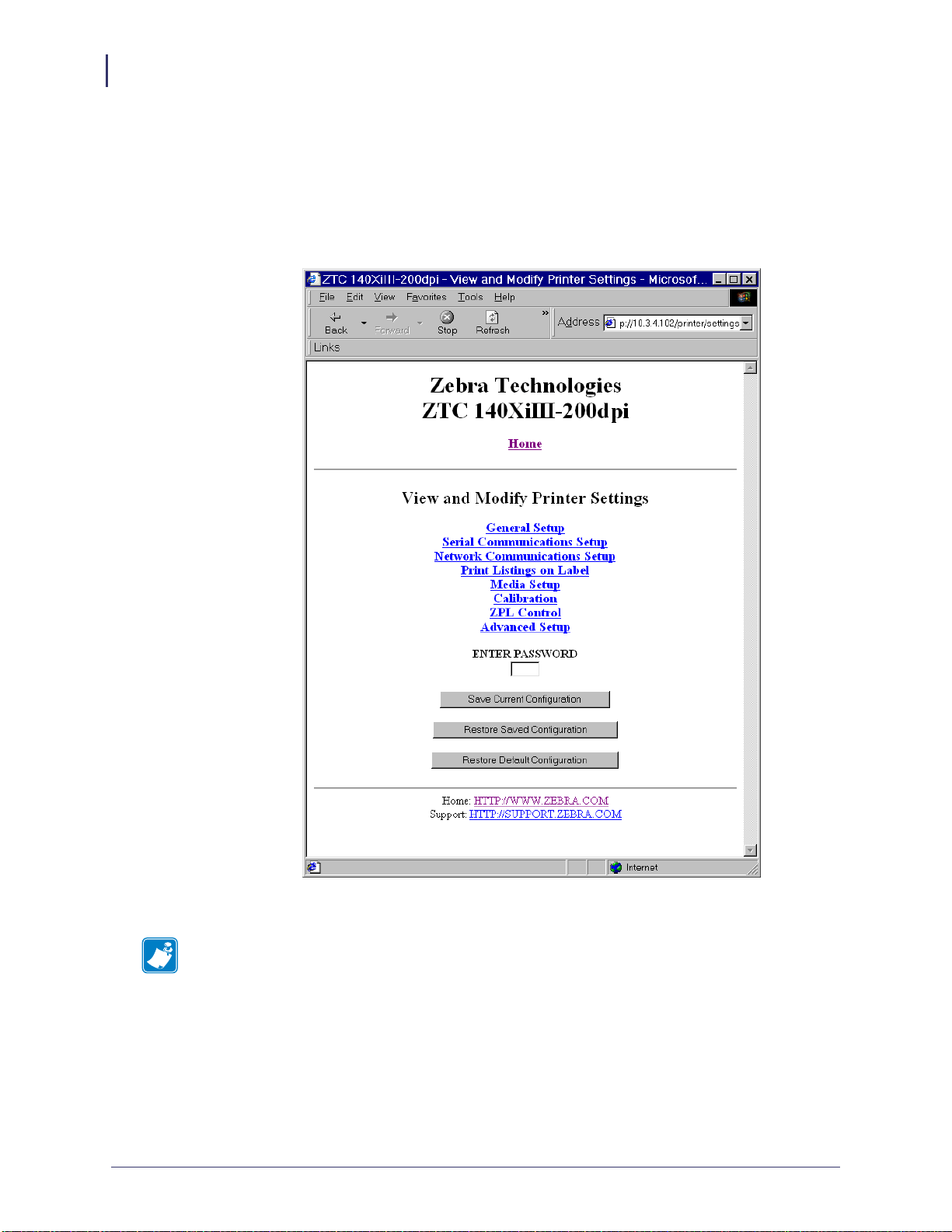
ZebraLink WebView
WebView
94
P1043301-005 11/21/13
To view and modify printer settings, complete these steps:
1. From the Printer Home Page, click View and Modify Printer Settings.
The View and Modify Printer Settings page opens.
Figure 22 • View and Modify Printer Settings
2. On the View and Modify Printer Settings page, you have a menu to choose from.
Note • Some options are not available on all printers.
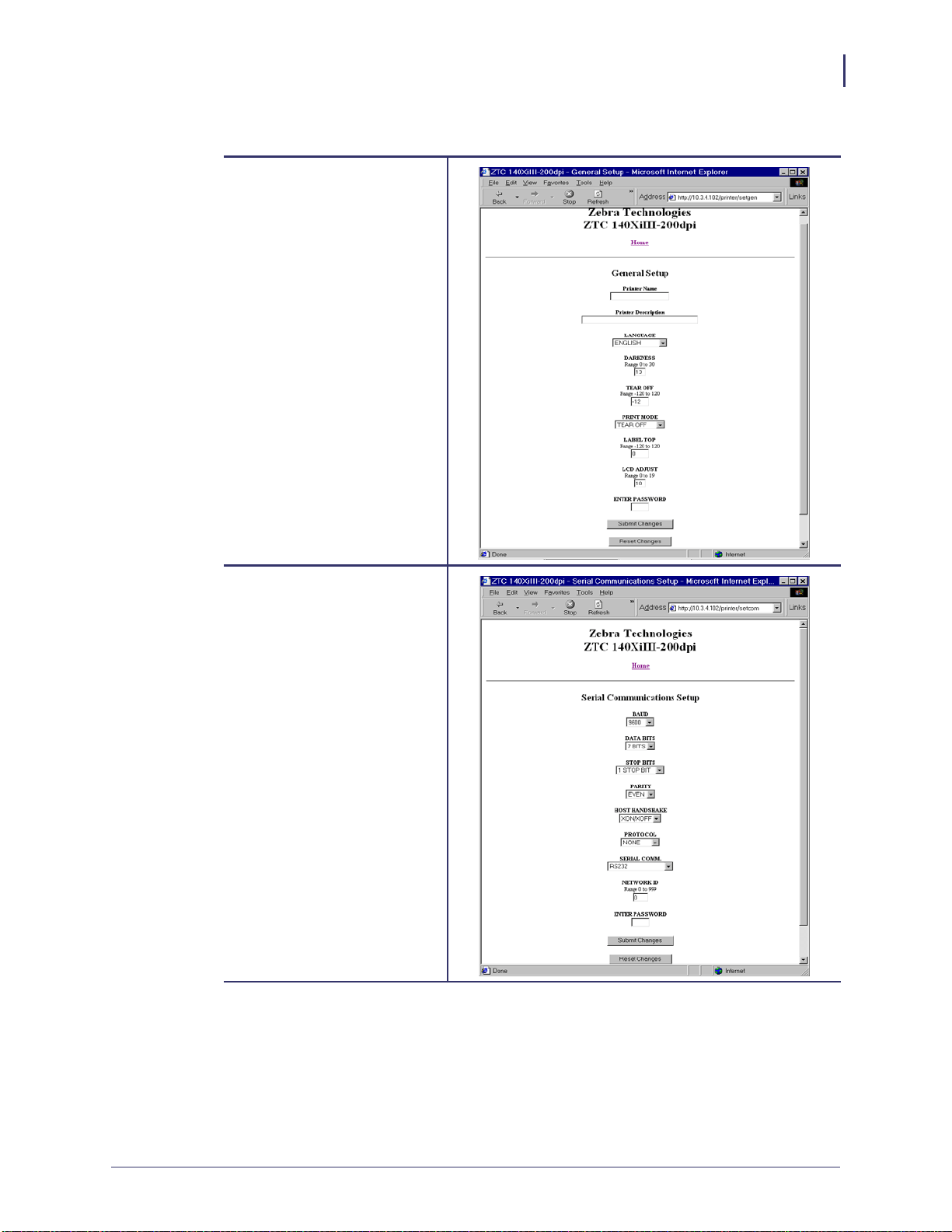
95
ZebraLink WebView
WebView
11/21/13 P1043301-005
Table 17 • View and Modify Printer Settings Menu Options
General Setup
Serial Communications Setup
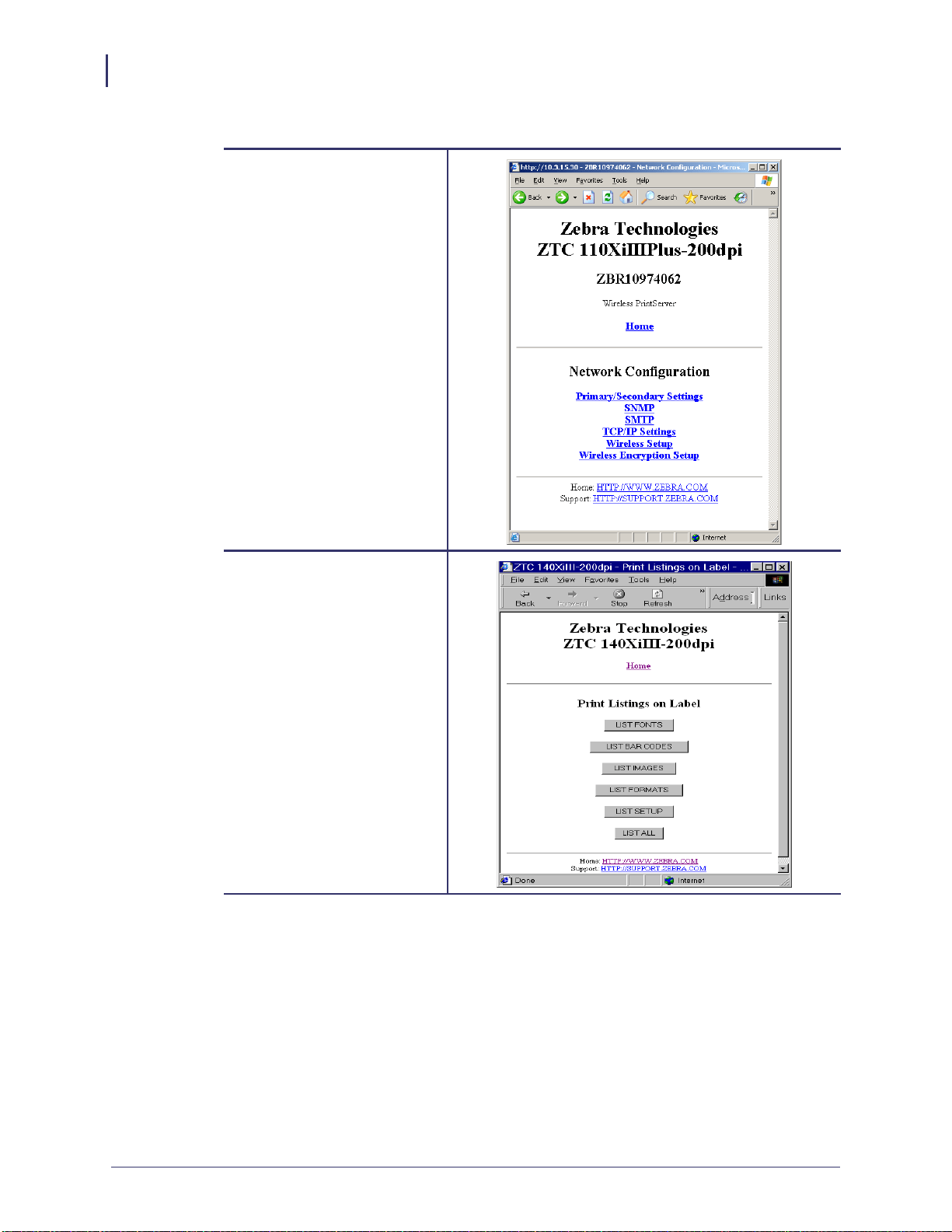
ZebraLink WebView
WebView
96
P1043301-005 11/21/13
Network Communications
Setup
Print Listings on Label
Table 17 • View and Modify Printer Settings Menu Options (Continued)
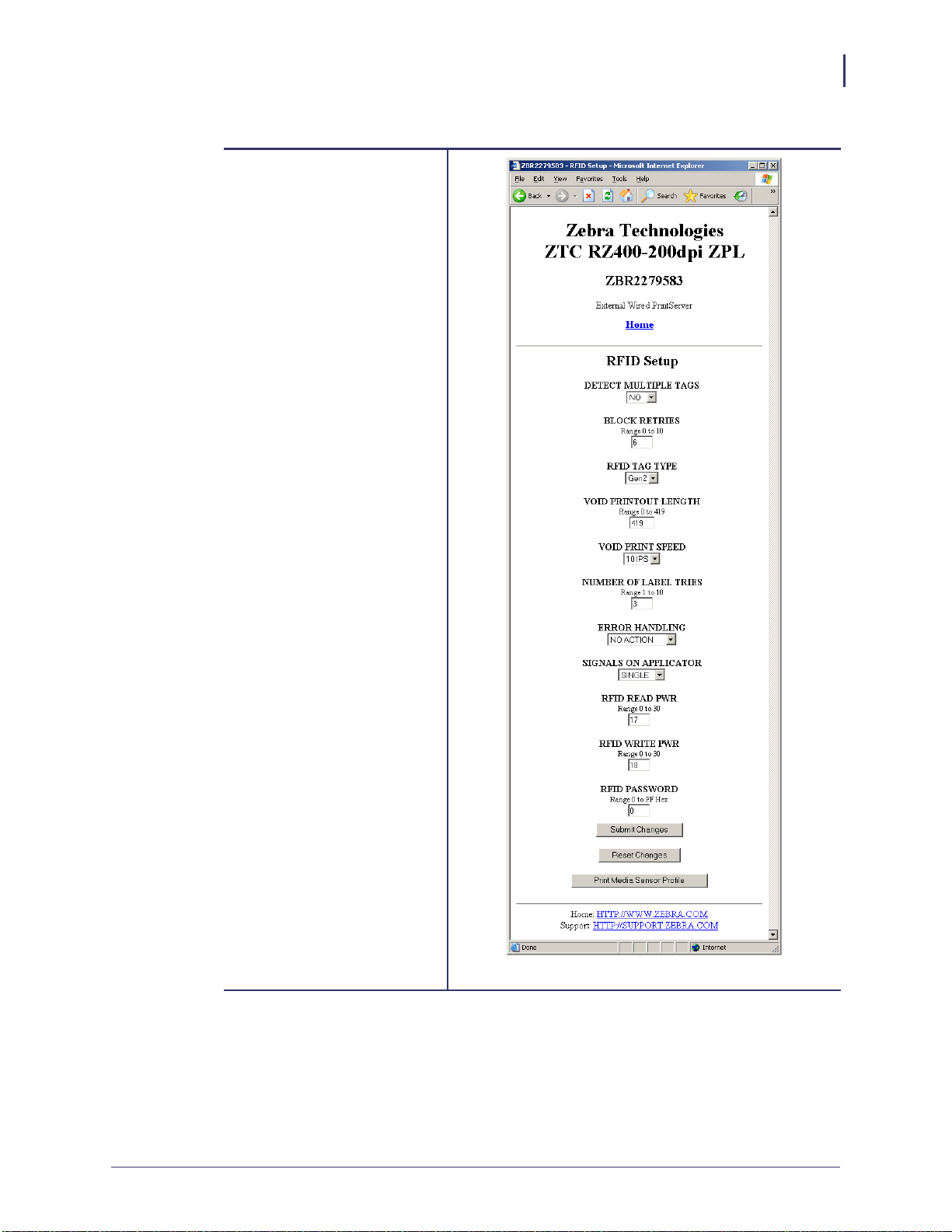
97
ZebraLink WebView
WebView
11/21/13 P1043301-005
RFID Setup
(RFID Printers/Print Engines
only)
Table 17 • View and Modify Printer Settings Menu Options (Continued)
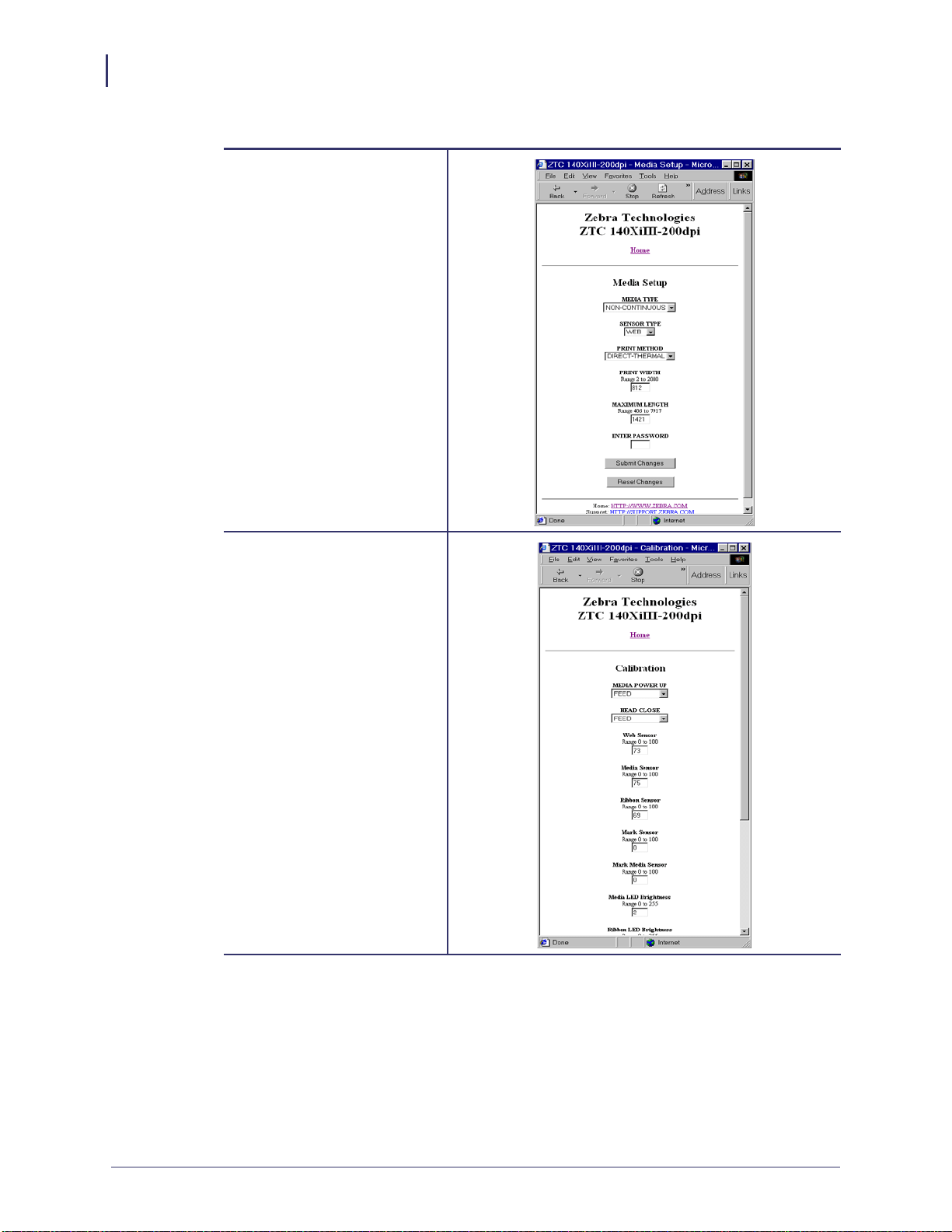
ZebraLink WebView
WebView
98
P1043301-005 11/21/13
Media Setup
Calibration
Table 17 • View and Modify Printer Settings Menu Options (Continued)
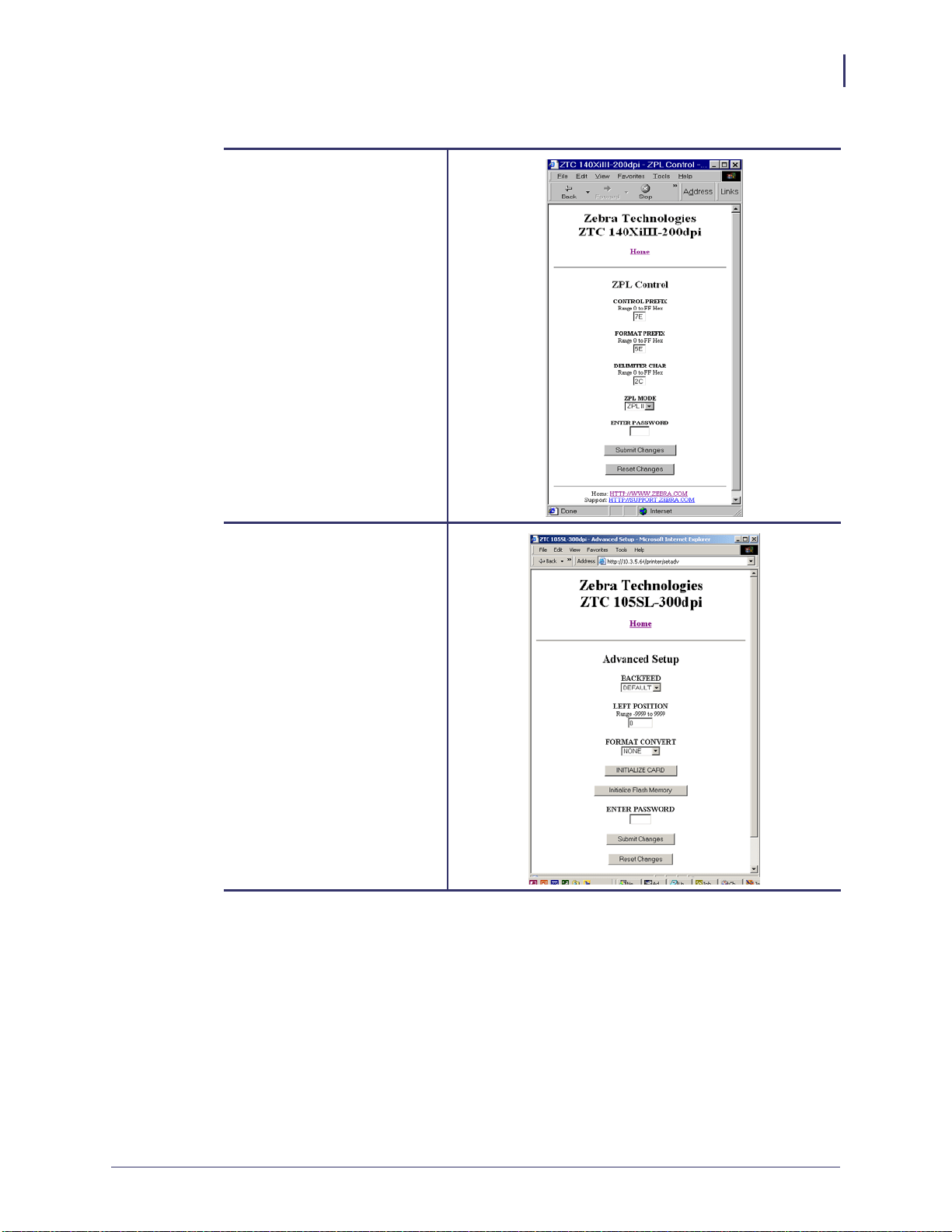
99
ZebraLink WebView
WebView
11/21/13 P1043301-005
ZPL Control
Advanced Setup
Table 17 • View and Modify Printer Settings Menu Options (Continued)
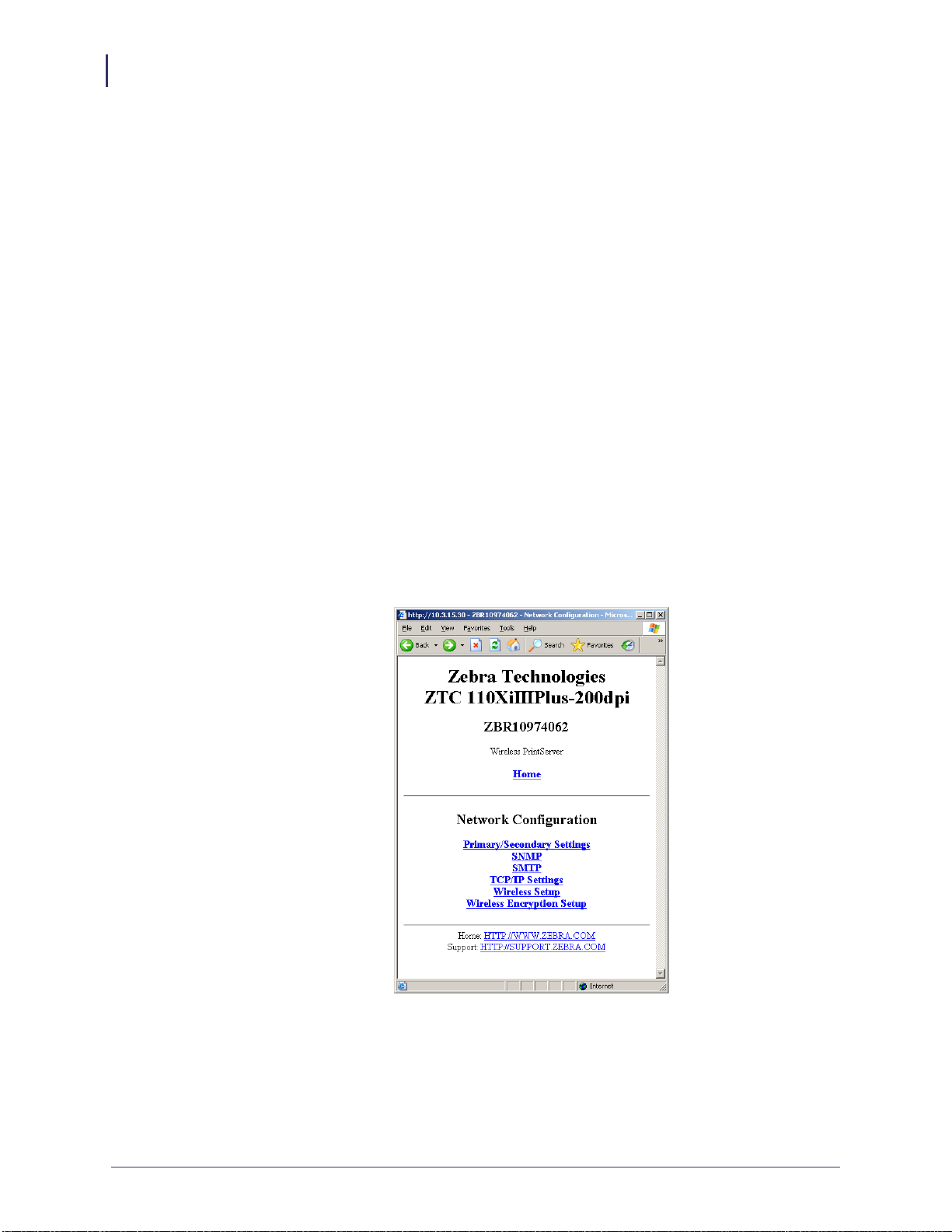
ZebraLink WebView
Network Communications Screens
100
P1043301-005 11/21/13
Network Communications Screens
This section shows the shows the screens that appear when you click on the menu items on the
Network Communications menu.
To access the Network Communications menu, complete these steps:
1. From the printer home page, click View and Modify Printer Settings.
The printer prompts you for a password.
2. Enter the password for your printer. The default password is 1234.
3. Click Submit Changes.
The following statement appears:
Access Granted. This IP Address now has admin access to the restricted printer
pages. Please Click here to proceed
4. Click on the statement.
The View and Modify Printer Settings page displays (see Figure 22 on page 94).
5. Click Network Configuration.
The Network Configuration Menu displays. Table 18 shows the screens that appear when
you click on the menu selections on this page and describes some of the items that may
need clarification.
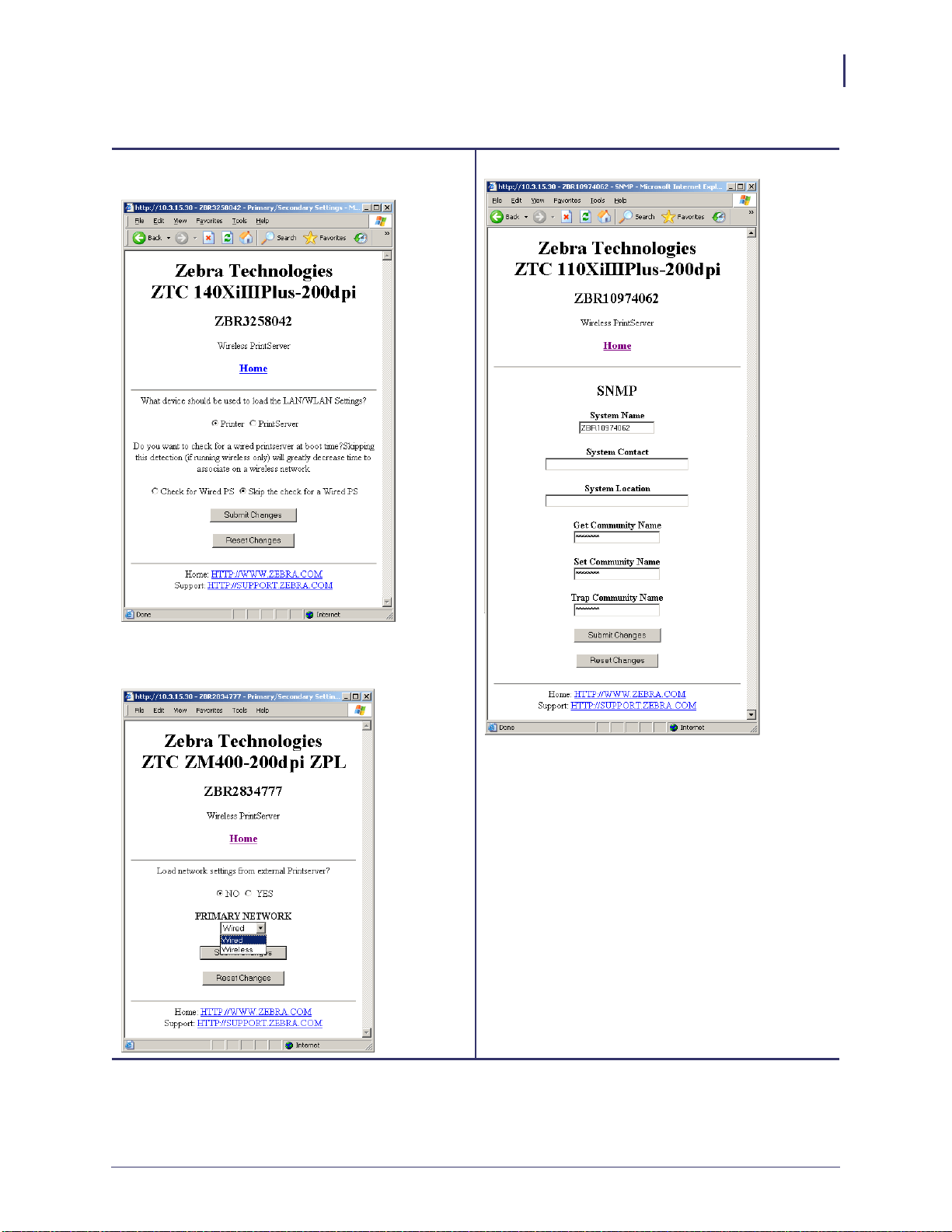
101
ZebraLink WebView
Network Communications Screens
11/21/13 P1043301-005
Table 18 • Subscreens: Network Communications Setup
Primary/Secondary Settings
X60.15.x
Xi4, R110Xi4, ZM400, ZM600, RZ400, RZ600,
ZE500, and 105SLPlus
SNMP
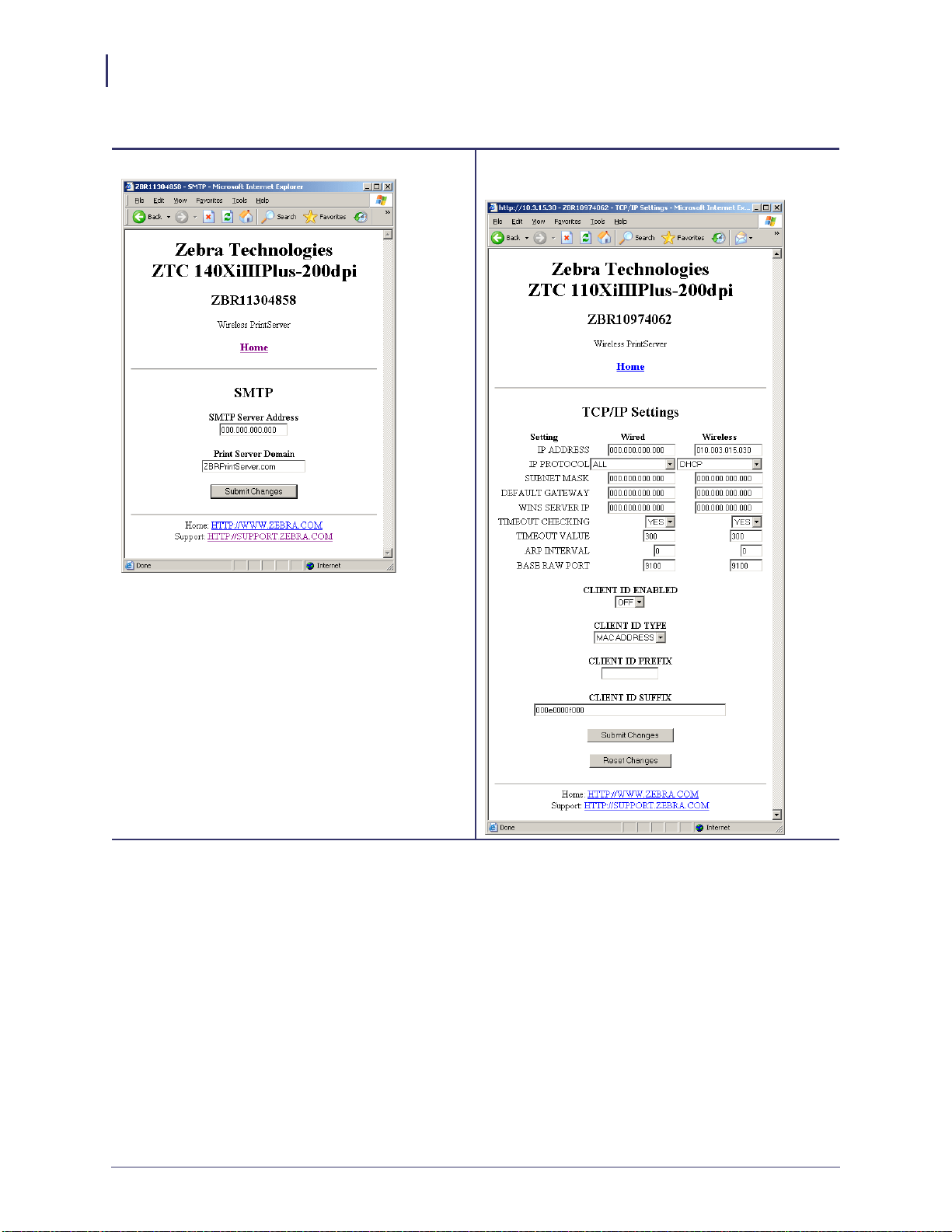
ZebraLink WebView
Network Communications Screens
102
P1043301-005 11/21/13
SMTP TCP/IP
X60.15.x and ZSPx
Table 18 • Subscreens: Network Communications Setup (Continued)
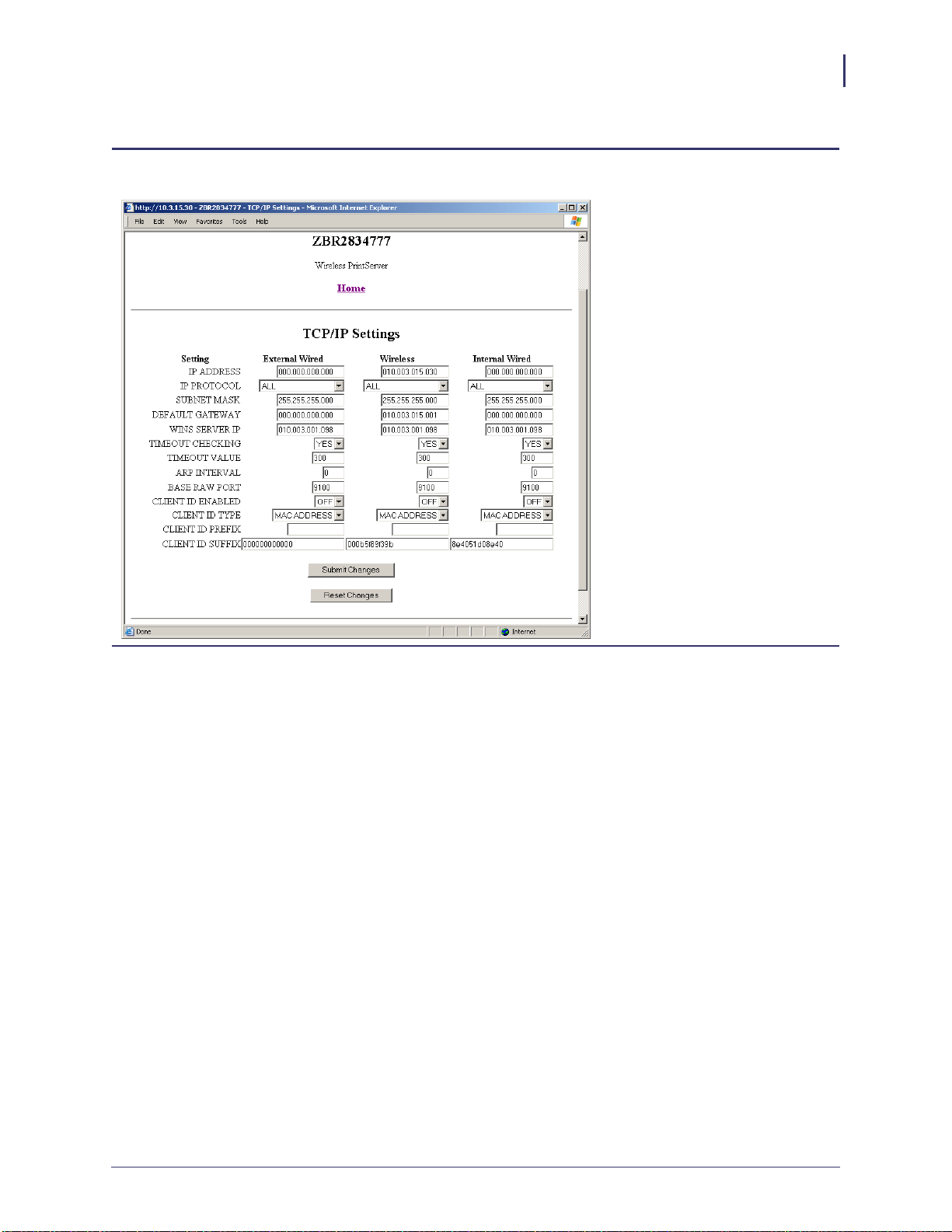
103
ZebraLink WebView
Network Communications Screens
11/21/13 P1043301-005
TCP/IP
Xi4, R110Xi4, ZM400, ZM600, RZ400, RZ600, ZE500, and 105SLPlus
Table 18 • Subscreens: Network Communications Setup (Continued)
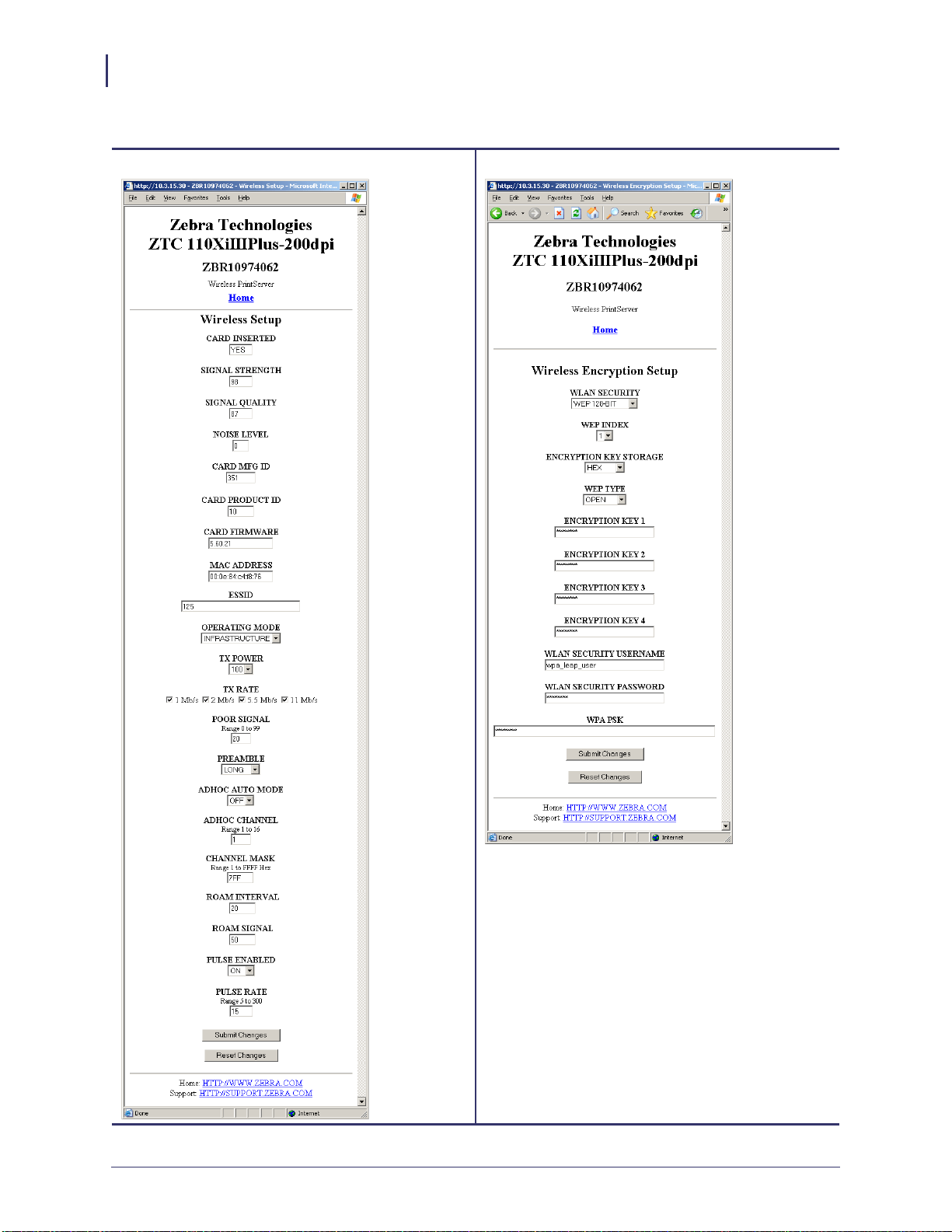
ZebraLink WebView
Network Communications Screens
104
P1043301-005 11/21/13
Wireless Setup Wireless Encryption Setup
Table 18 • Subscreens: Network Communications Setup (Continued)
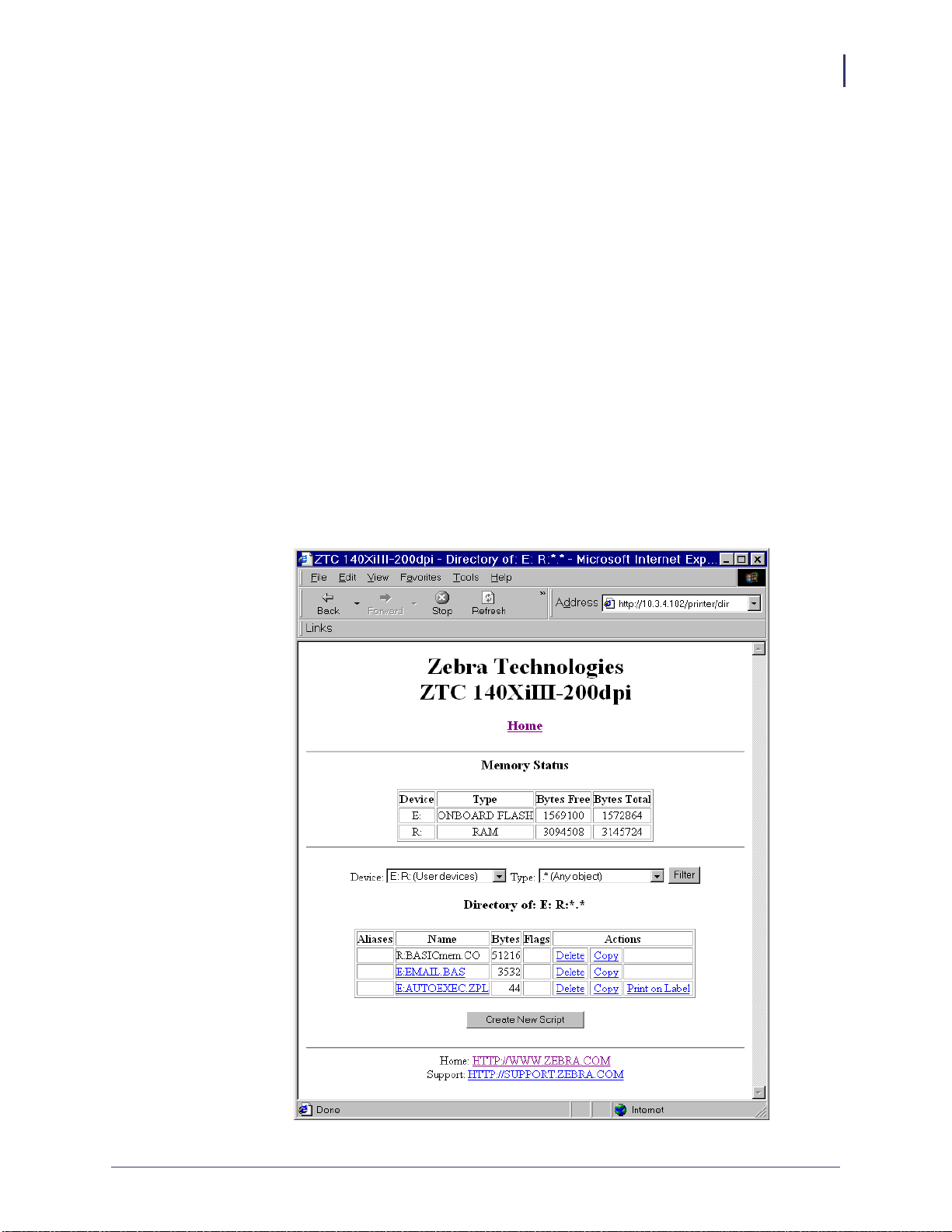
105
ZebraLink WebView
Network Communications Screens
11/21/13 P1043301-005
Directory Listing
The directory page provides a listing of all file system devices (B:, E:, R:, Z:). The size, name,
and location of each stored object appears.
Buttons are available to perform file management operations on the objects. The file
management operations include:
• Delete object — Not available for objects in read-only memory (Z:).
• Copy object to a new name and/or device — Not available for objects in read-only
memory (Z:).
• Run a ZBI program — Available only if the object is a stored ZBI program. For
details, see the Programming Guide for ZPL II, ZBI 2, Set-Get-Do, Mirror, and WML.
To view the Directory Listing, complete these steps:
1. From the Printer Home Page, click Directory Listing.
This page opens.
Figure 23 • Directory Listing
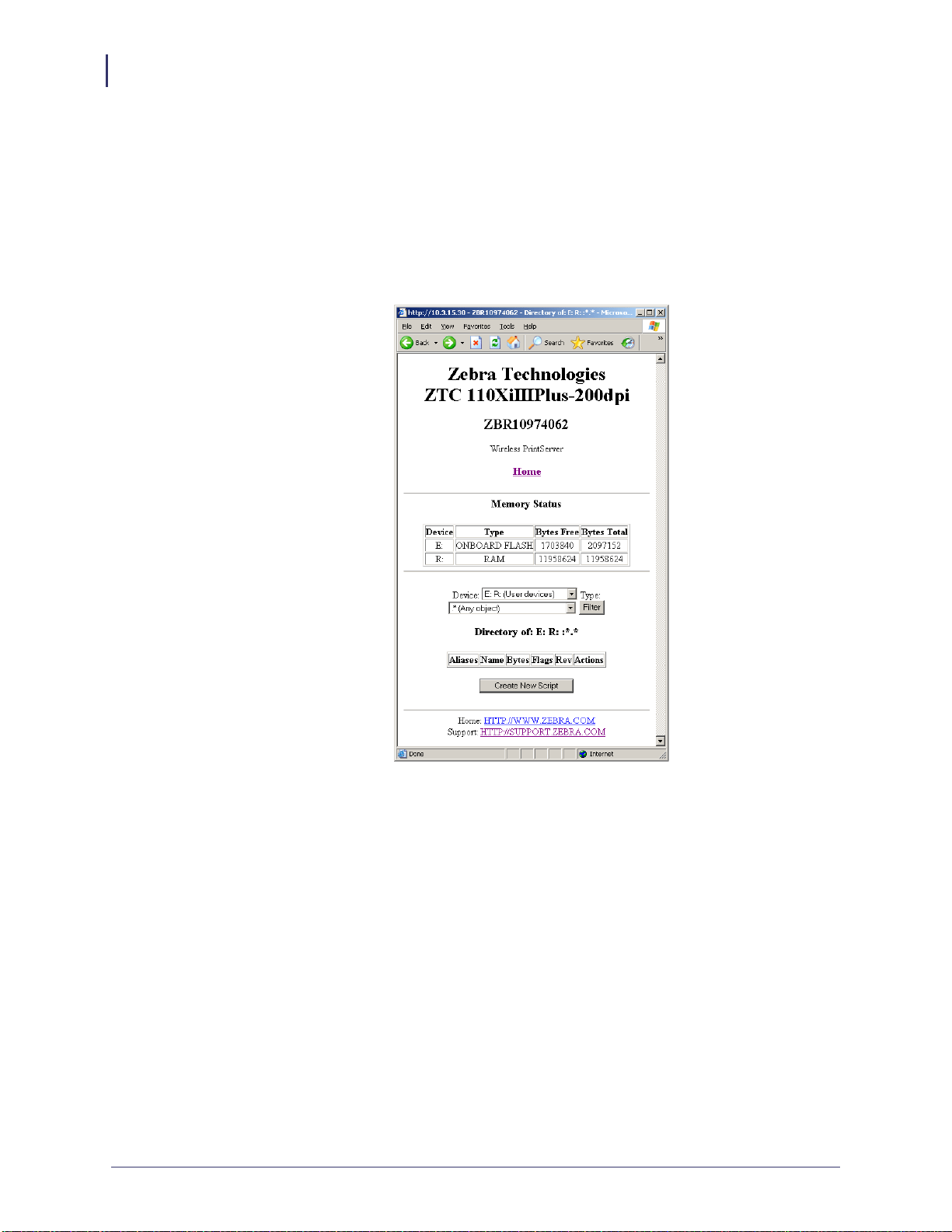
ZebraLink WebView
Network Communications Screens
106
P1043301-005 11/21/13
There are several fields to select in this view.
To create a new item on the Directory Listing screen, complete these steps:
1. From the Printer Home Page, click Directory Listing.
The Directory Listing screen displays.
Figure 24 • Directory Listing
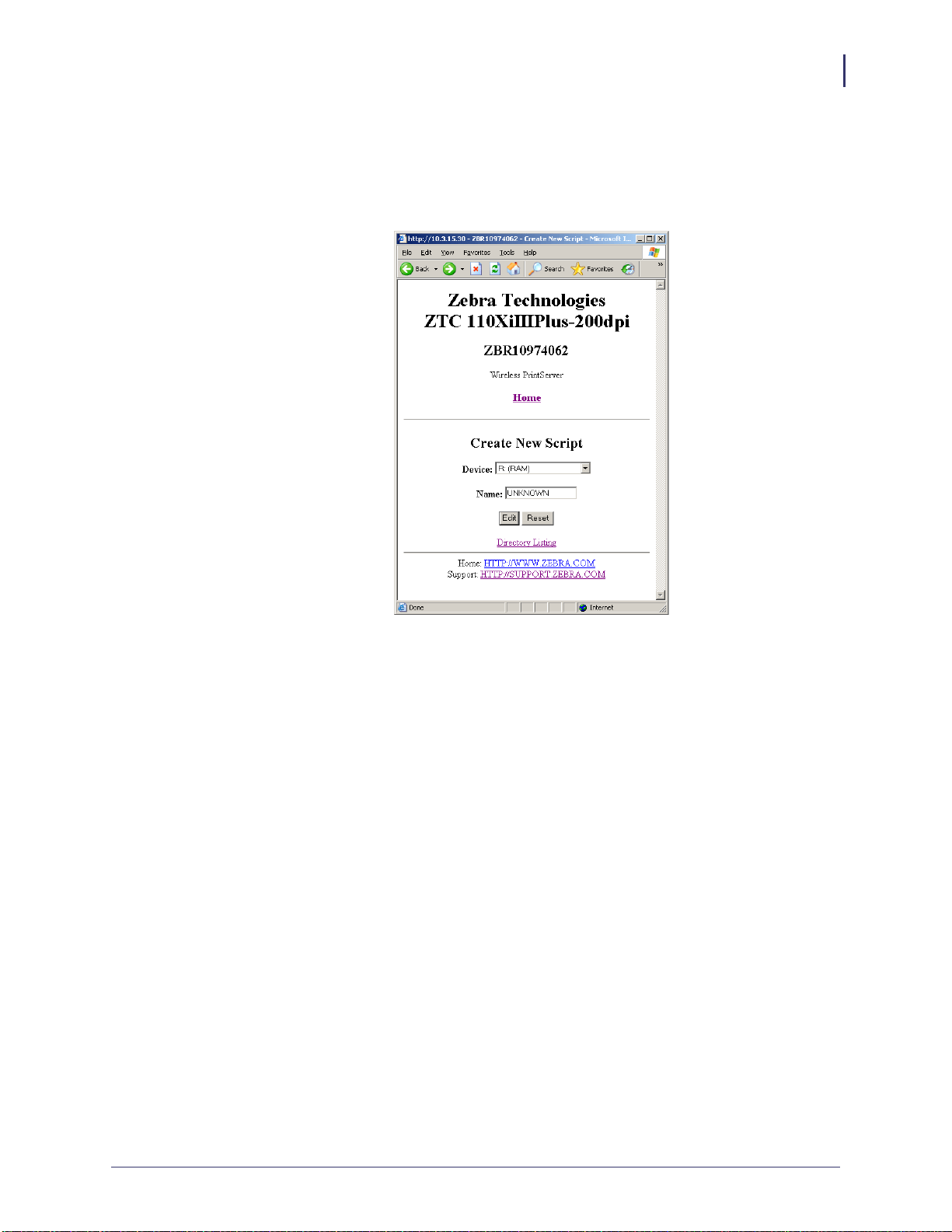
107
ZebraLink WebView
Network Communications Screens
11/21/13 P1043301-005
2. From the Directory Listing screen, click Create New Script.
The Create New Script screen displays.
Figure 25 • Create New Script
3. Select a device type from the drop-down menu to indicate a memory location that is
appropriate to your needs.
• E: (ONBOARD FLASH)—non-volatile memory, which is persistent across a power
cycle.
• R: (RAM)—volatile memory, which is not persistent across a power cycle.
• Z: (PRINTER INTERNAL MEMORY)—non-volatile memory where the printer’s
internal bar codes and fonts are stored. You can print a list of the bar codes and fonts
through the printer’s control panel. Refer to the User Guide for your printer for
instructions on listing the fonts and bar codes.
4. Type a name for the file in the Name field.
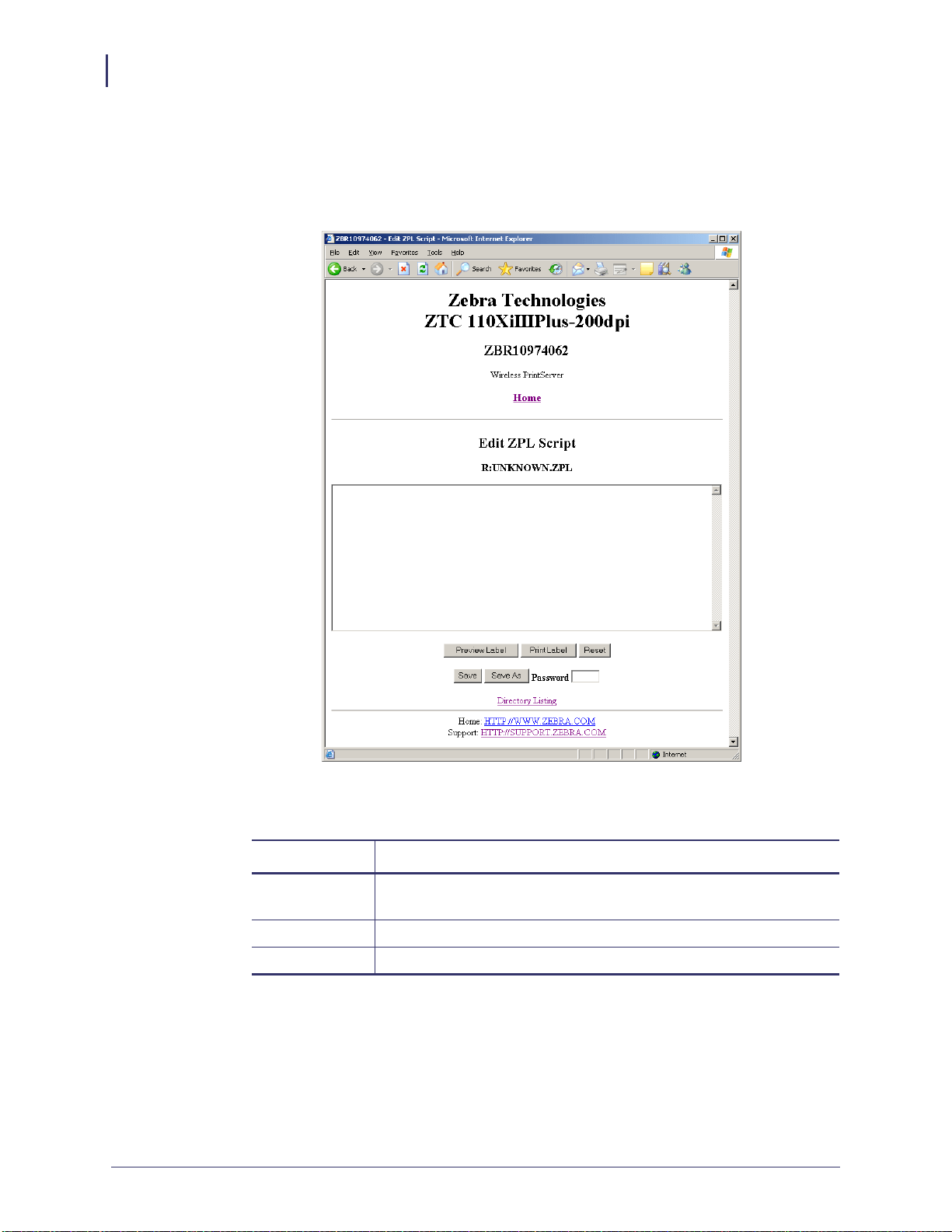
ZebraLink WebView
Network Communications Screens
108
P1043301-005 11/21/13
5. Click Edit.
The Edit ZPL Script screen displays.
Figure 26 • Edit ZPL Script
6. Enter the ZPL code in the text field.
7. Click one of the available buttons:
Button Function/Operation
Preview Label Displays a graphic representation of the label that results from the
ZPL code.
Print Label Sends the ZPL code to the printer.
Reset Clears the text field.
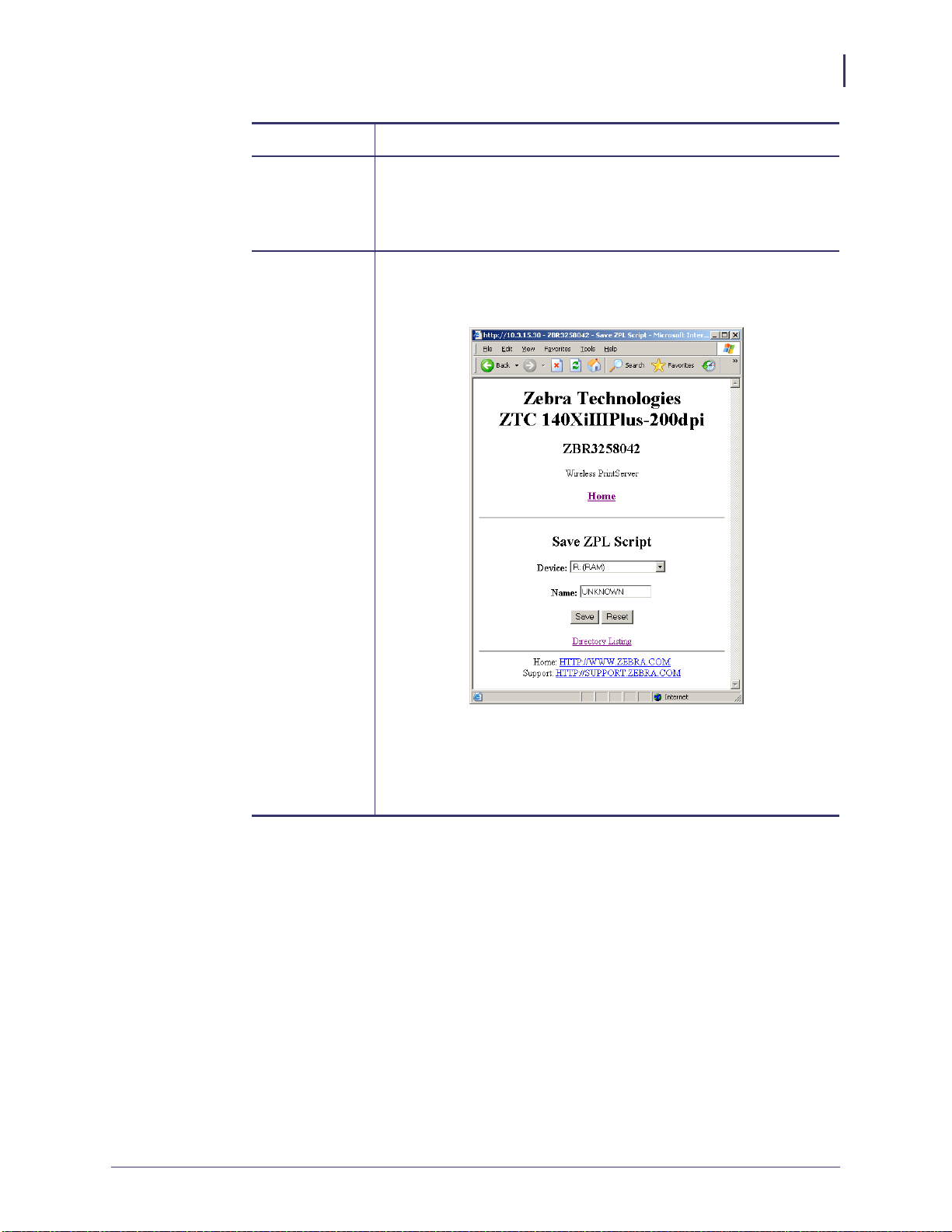
109
ZebraLink WebView
Network Communications Screens
11/21/13 P1043301-005
Save a. Enter the printer password in the password field.
b. Click Save.
If the correct password was entered, saves the label to the ZPL
file name entered on the Create New Script screen.
Save As
a. Enter the printer password in the password field.
b. Click Save As.
The Save ZPL Script screen displays.
c. Enter a file name in the Name field.
d. Click Save.
If the correct password was entered on the Edit ZPL Script
screen, the file is saved.
Button Function/Operation
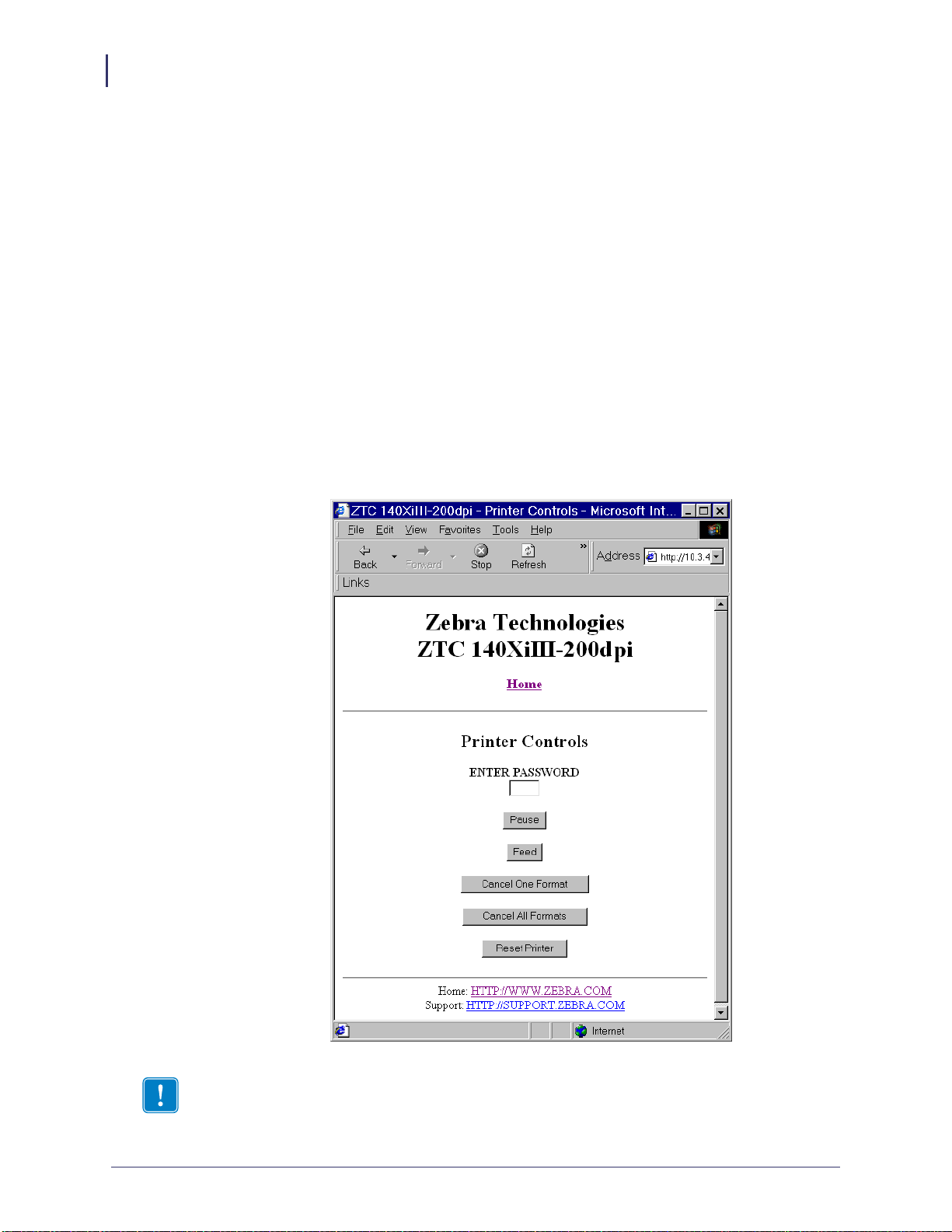
ZebraLink WebView
Network Communications Screens
110
P1043301-005 11/21/13
Printer Controls
This page offers control over basic printer functions.
Other functions are also accessible from this page. These include:
•
Feed — causes printer to feed one label.
•
Cancel One Format — cancels the currently printing format.
•
Cancel All Formats — cancels all formats.
•
Reset Printer — causes printer to perform its standard reset without cycling power.
To view Printer Controls, complete these steps:
1. From the Printer Home Page, click Printer Controls.
This Printer Controls page opens.
Figure 27 • Printer Controls
Important • In this view, you must have administrative rights to make changes to the printer
controls.

11/21/13 P1043301-005
7
Print Server
Web Pages
This section provides you with details on the print server features that were not covered in the
chapter Getting Started on page 41.
Contents
Print Server Features. . . . . . . . . . . . . . . . . . . . . . . . . . . . . . . . . . . . . . . . . . . . . . . . . . . 112
Status and Configuration . . . . . . . . . . . . . . . . . . . . . . . . . . . . . . . . . . . . . . . . . . . . . . 112
Print Server Status. . . . . . . . . . . . . . . . . . . . . . . . . . . . . . . . . . . . . . . . . . . . . . . . . . . 120
Reset . . . . . . . . . . . . . . . . . . . . . . . . . . . . . . . . . . . . . . . . . . . . . . . . . . . . . . . . . . . . . 122
Restore . . . . . . . . . . . . . . . . . . . . . . . . . . . . . . . . . . . . . . . . . . . . . . . . . . . . . . . . . . . 123
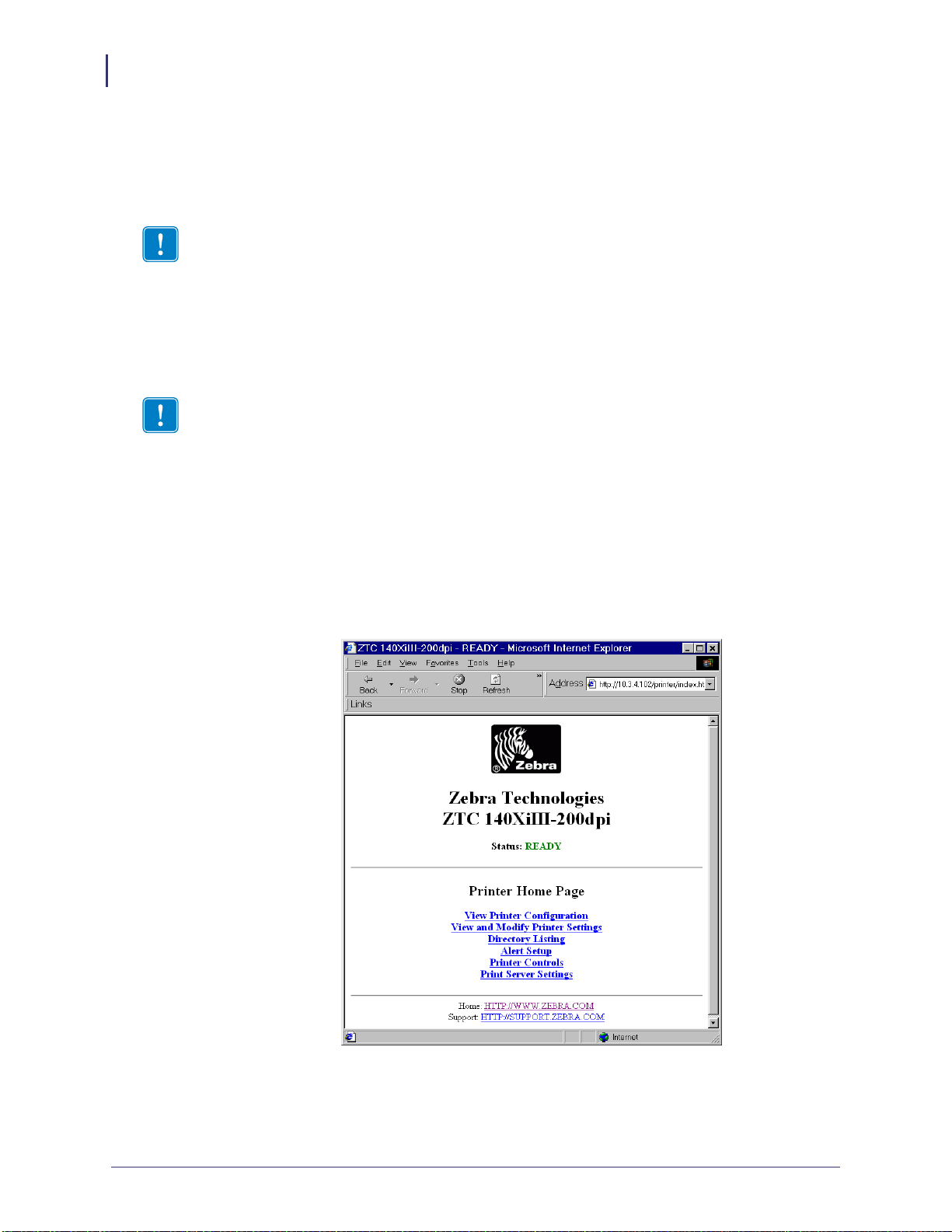
Print Server Web Pages
Print Server Features
112
P1043301-005 11/21/13
Print Server Features
This section covers features available for the print server only, not the printer’s features. Some
of the features you access in this section prompt you to enter the default user ID and password.
Status and Configuration
The steps that follow are based on the navigation of a ZPL printer using firmware X.15 or
above.
To access the print server settings, complete these steps:
1. Open a Web browser.
2. In the Address text-box, type your printer’s IP address, and press Enter.
The Printer Home Page opens.
Figure 28 • Printer Home Page
Important • For specific information on the default User ID and/or default password, see
Default User ID and Password on page 43.
Important • You can upgrade your firmware by visiting our web site:
http://www.zebra.com/firmware.
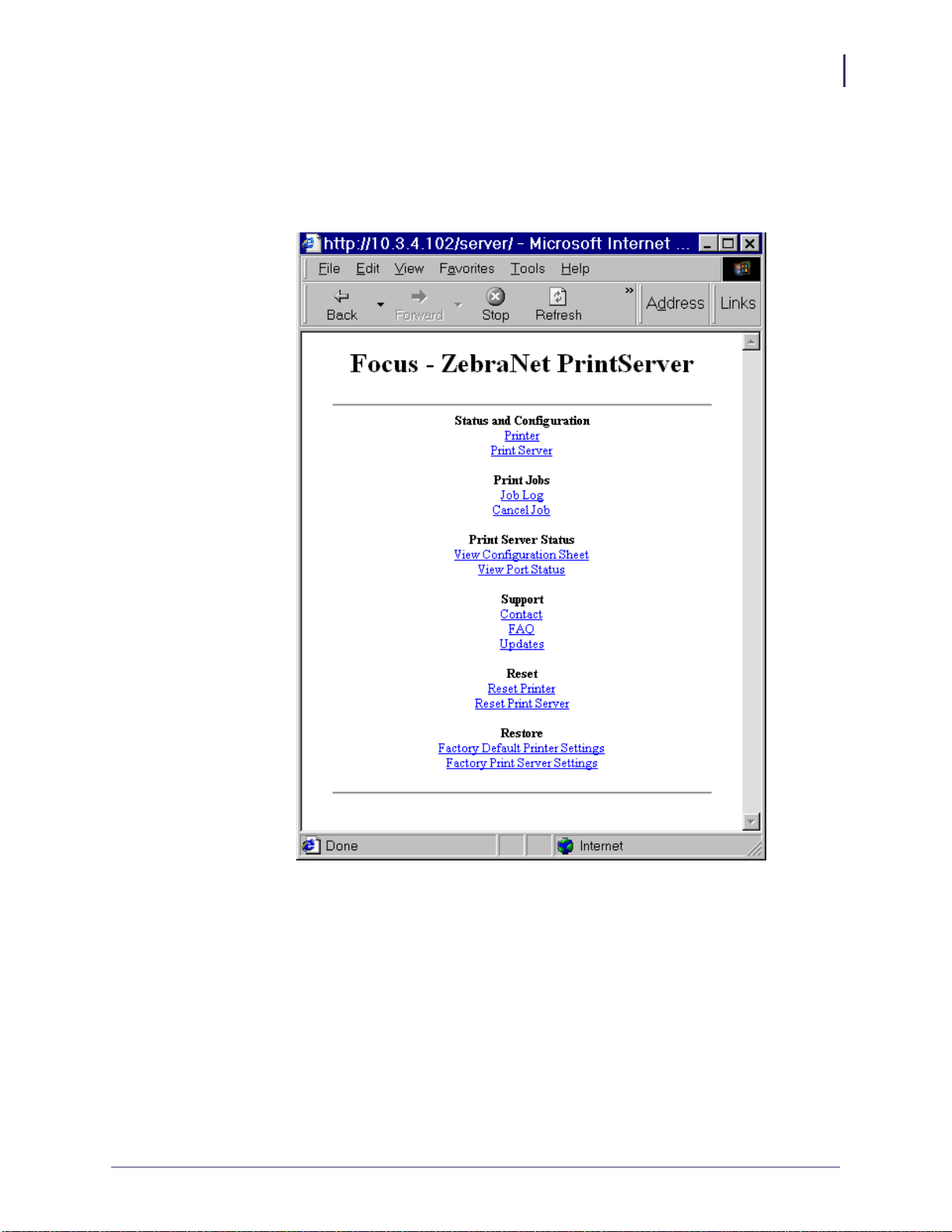
113
Print Server Web Pages
Print Server Features
11/21/13 P1043301-005
3. From the Printer Home Page, click Print Server Settings.
The Print Server Settings Page opens.
Figure 29 • Print Server Settings Page
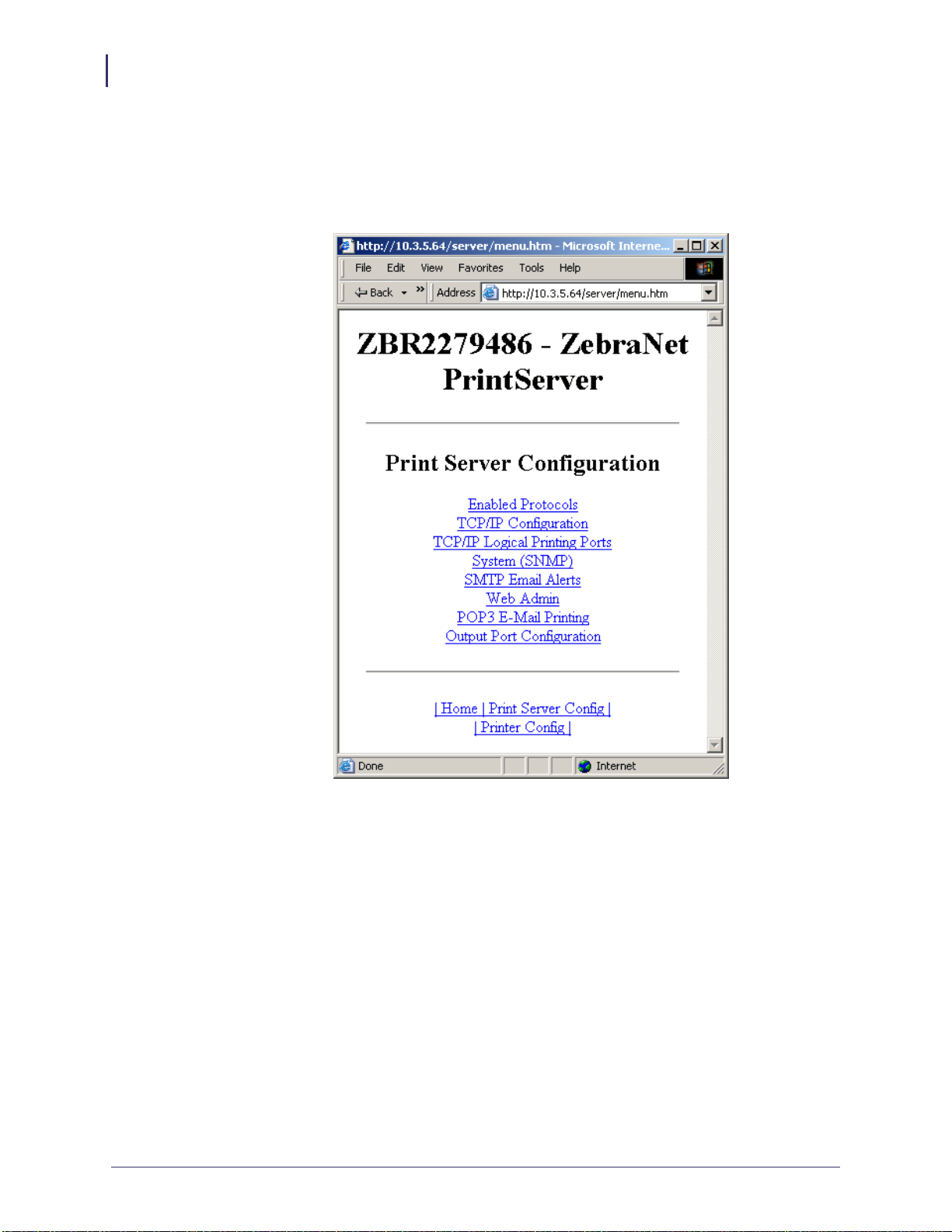
Print Server Web Pages
Print Server Features
114
P1043301-005 11/21/13
4. From the Print Server Settings Page, click Print Server.
The Print Server Configuration page opens.
Figure 30 • Print Server Configuration
5. In the Print Server Configuration page, you have a menu from which to choose. Table 19
identifies each menu option page.
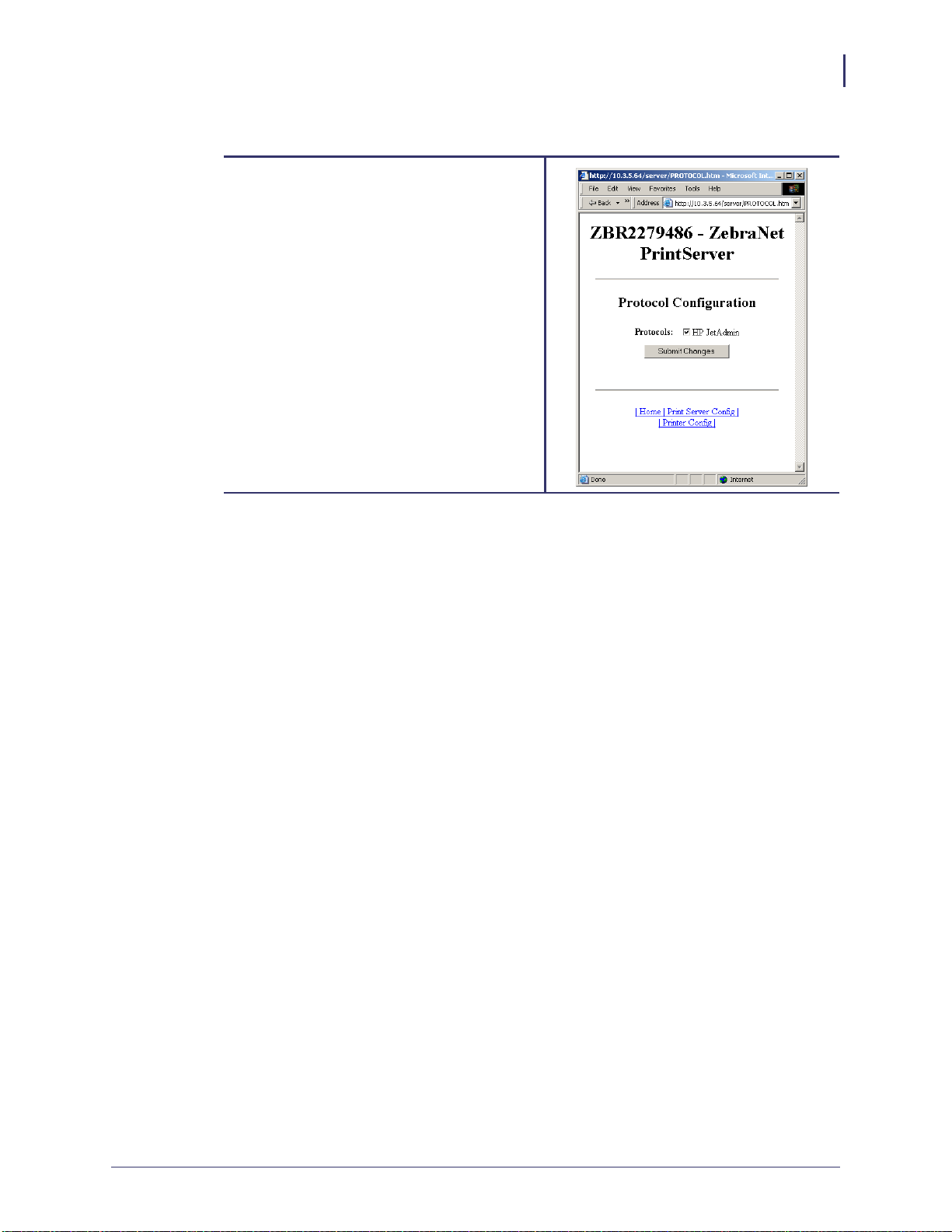
115
Print Server Web Pages
Print Server Features
11/21/13 P1043301-005
Table 19 • Print Server Configuration Menu Options
Enabled Protocols
Modifies the protocols to be used: NetWare,
HP JetAdmin, or both.
Enabling Hewlett-Packard’s HP JetAdmin
Support allows the status from the Zebra
device to display in HP JetAdmin utility.
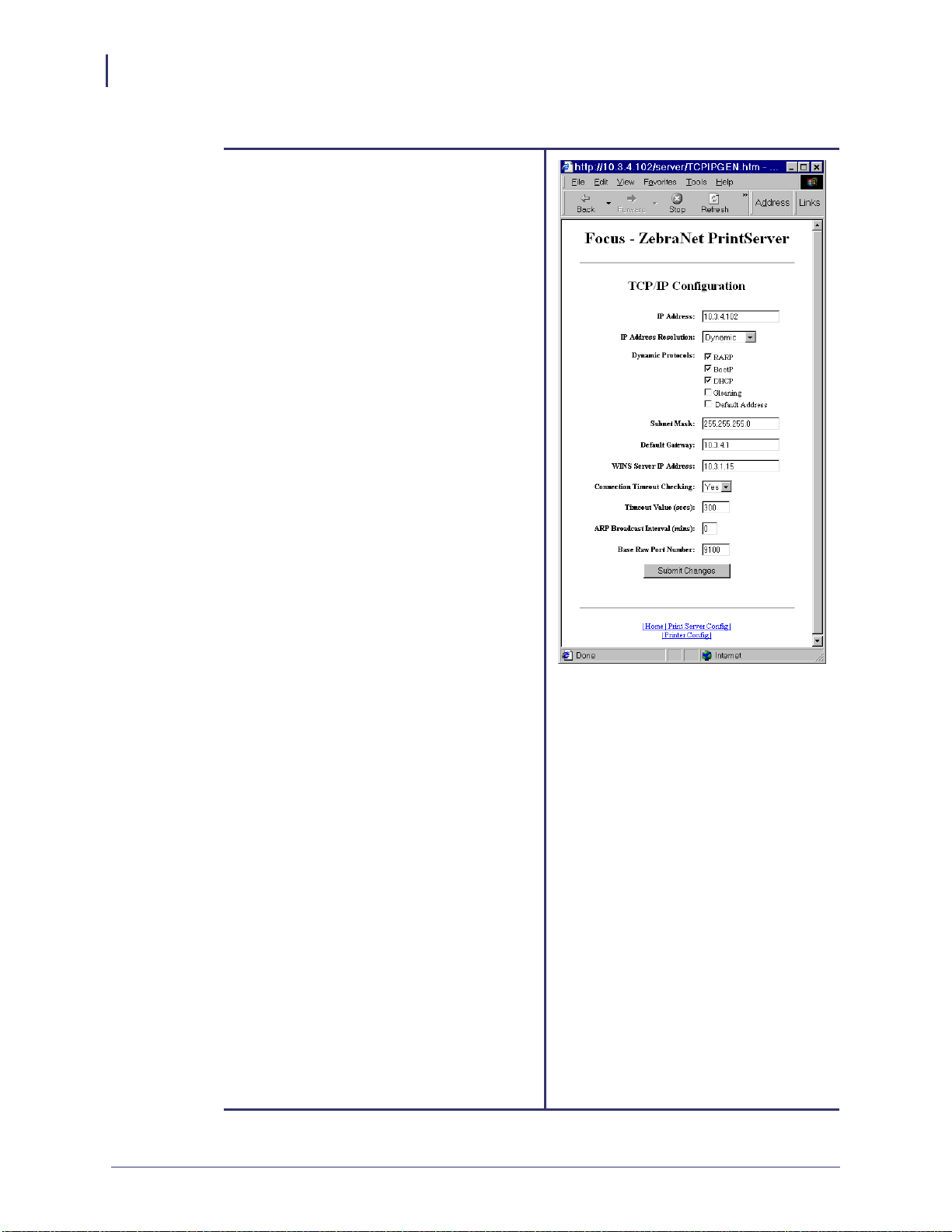
Print Server Web Pages
Print Server Features
116
P1043301-005 11/21/13
TCP/IP Configuration
You can change the TCP/IP configuration of
the 10/100 Internal Print Server.
• IP Address: Use this feature to set the IP
address if using the Permanent addressing
method.
• IP Address Resolution: Use this feature to
select the addressing method to use
(Dynamic or Permanent).
• Dynamic Protocols: Use this feature to
select the Dynamic Addressing method to use
at startup. Choices include RARP, BOOTP,
DHCP, Gleaning or Default Address.
• Subnet Mask: Use this feature to set the
subnet mask. The subnet mask must follow
the format XXX.XXX.XXX.XXX, where
each XXX is a number between 0 and 255.
• Default Gateway: Use this feature to set the
default gateway. This gateway will be used
whenever messages need to be sent to
another network. This gateway address must
follow the format XXX.XXX.XXX.XXX,
where each XXX is a number between 0 and
255.
• WINS Server IP Address: Use this feature
to set or view the IP address of the WINS
Server.
• Connection Timeout Checking: Use this
feature to enable or disable the Connection
Timeout feature. The timeout is used to close
network TCP/IP connections that are idle for
more than the number of seconds entered in
the Timeout Value.
• Timeout Value (secs): Use this feature to
set the Connection Timeout Value. The Valid
range is 10 to 3600 seconds. The default is
300 seconds.
• ARP Broadcast Interval (mins): Use this
feature to set interval for sending an ARP
Broadcast. The valid range is 1 to 30 minutes.
Address Resolution Protocol (ARP)
broadcast packets allow other network
devices to associate the print server's IP
Address with its hardware address.
• Base Raw Port Number: Use this feature
to set the raw TCP port that the print server
will use for printing tasks. The default is port
9100.
Table 19 • Print Server Configuration Menu Options (Continued)
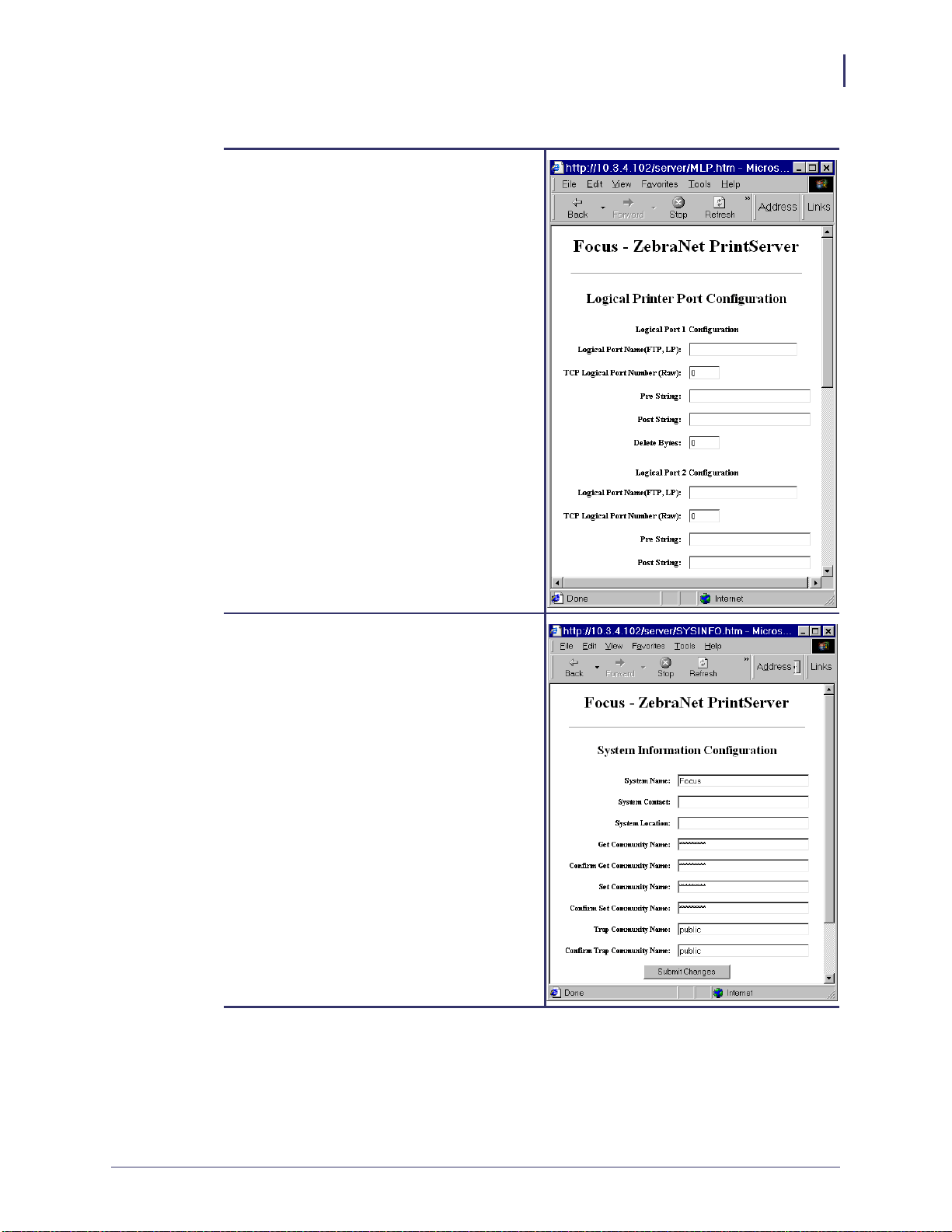
117
Print Server Web Pages
Print Server Features
11/21/13 P1043301-005
TCP/IP Logical Printing Ports
Logical printers allow you to set up multiple
pre- and post-processing configurations for
each output port. Each logical port
configuration can perform the following:
• Add user-configured strings before and
after the print data.
• Remove unwanted characters from the
beginning of the print data.
• Four logical printer configurations are
supported for each output port on the
printer. The configurations can be assigned
to any port, and all of these configurations
can be assigned to a single output port.
System (SNMP)
This feature gives you the ability to manage
multiple devices on a network, be it printers,
computers, or other network-attached devices.
On this page, you can define the SNMP system
name, system location (10/100 Internal Print
Server description), and other SNMP settings
for your 10/100 Internal Print Server.
Table 19 • Print Server Configuration Menu Options (Continued)
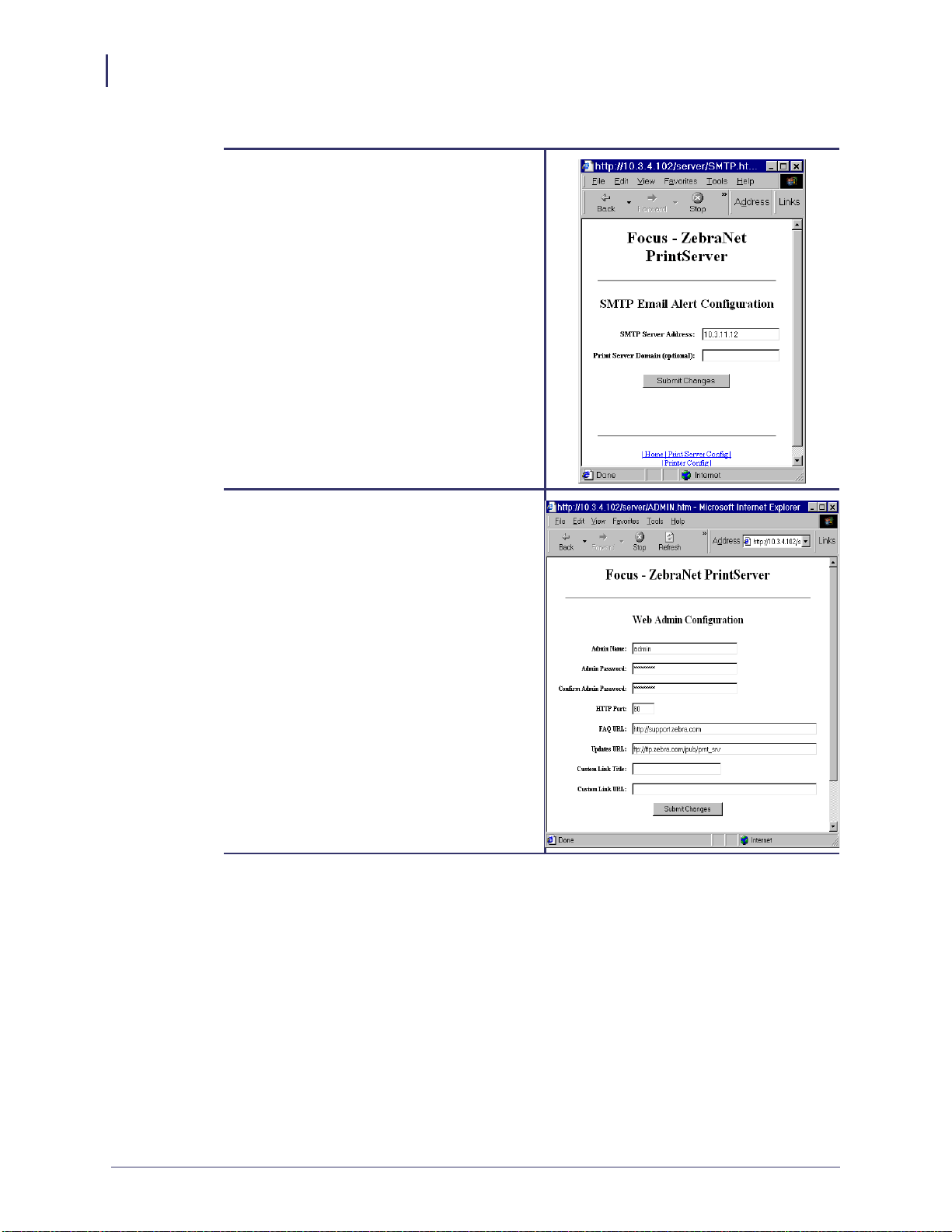
Print Server Web Pages
Print Server Features
118
P1043301-005 11/21/13
SMTP Email Alert Configuration
This feature allows you to enter data regarding
System Information on the network that is
being used. Typically, a Network
Administrator would use this.
Web Admin
This page allows you to configure the Admin
name and password. Links to upgrades and
support information can also be altered.
Note • The printer and print server password
can be changed on ZPL printers with firmware
x.10 or higher.
Table 19 • Print Server Configuration Menu Options (Continued)
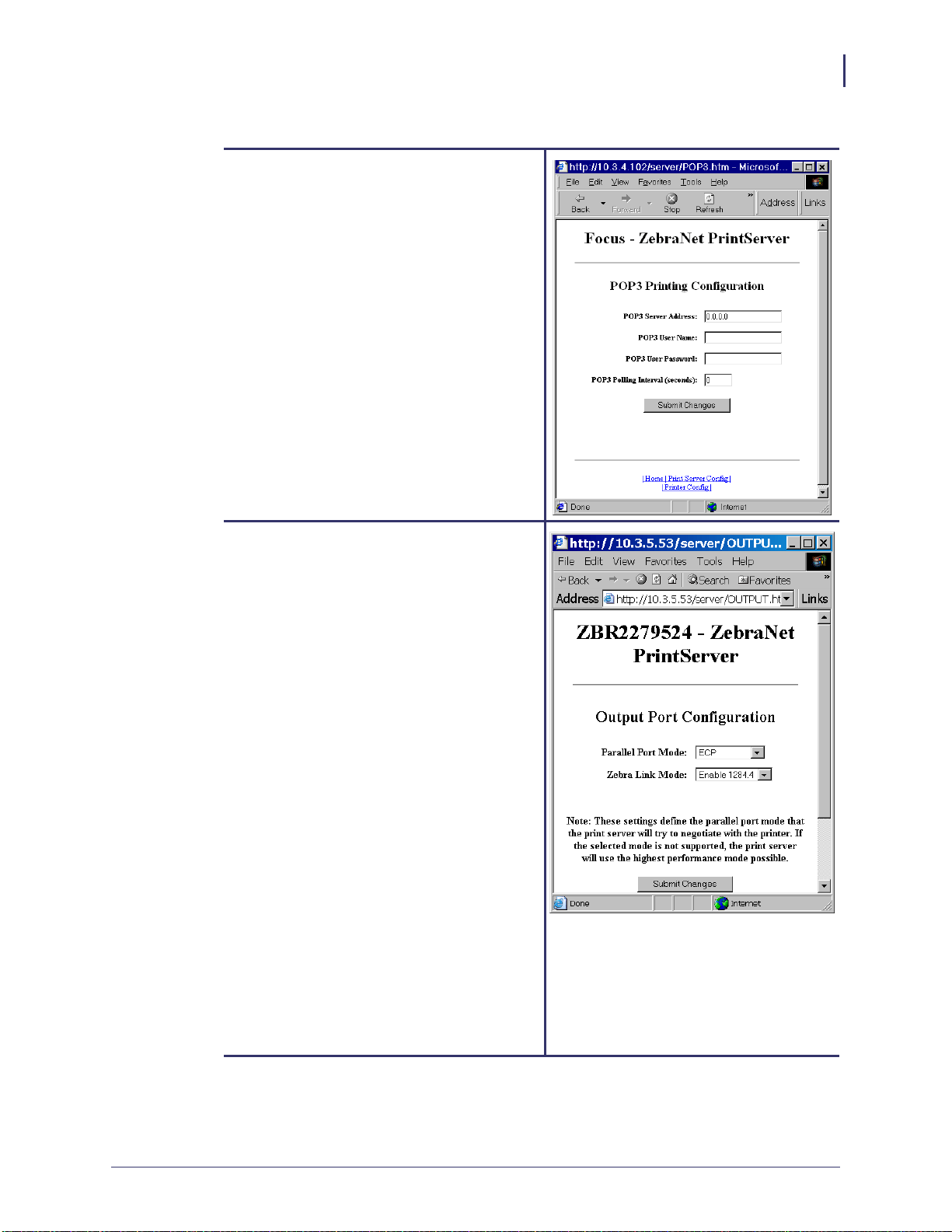
119
Print Server Web Pages
Print Server Features
11/21/13 P1043301-005
POP3 Email Printing
This feature helps you set up the print server to
receive email messages containing formats
that can be printed. The POP3 settings must be
set to retrieve emails from the email server.
Important • Zebra recommends setting the
POP3 polling interval no lower than 30. Some
email servers will lock accounts after repeated
login attempts.
Output Port Configuration
This feature allows you to change the Parallel
Port Mode setting.
Selections for Parallel Port Mode include
Compatibility, Nibble, Byte, and ECP.
• Compatibility is a unidirectional forward
mode used only for sending data to the
printer.
• Nibble, Byte, and ECP modes are all
bidirectional modes. Data can be sent to
and from the printer.
• Nibble mode sends only 4 bits of data at
a time in the reverse direction from the
printer to the print server. When in
nibble mode, communications from the
print server to the printer are
accomplished via compatibility mode.
• Byte mode sends a full byte of data at a
time in the reverse direction from the
printer to the print server. When in byte
mode, communications from the print
server to the printer are accomplished
via compatibility mode.
• ECP mode is a complete forward and
reverse mode that more efficiently
transfers data.
Table 19 • Print Server Configuration Menu Options (Continued)
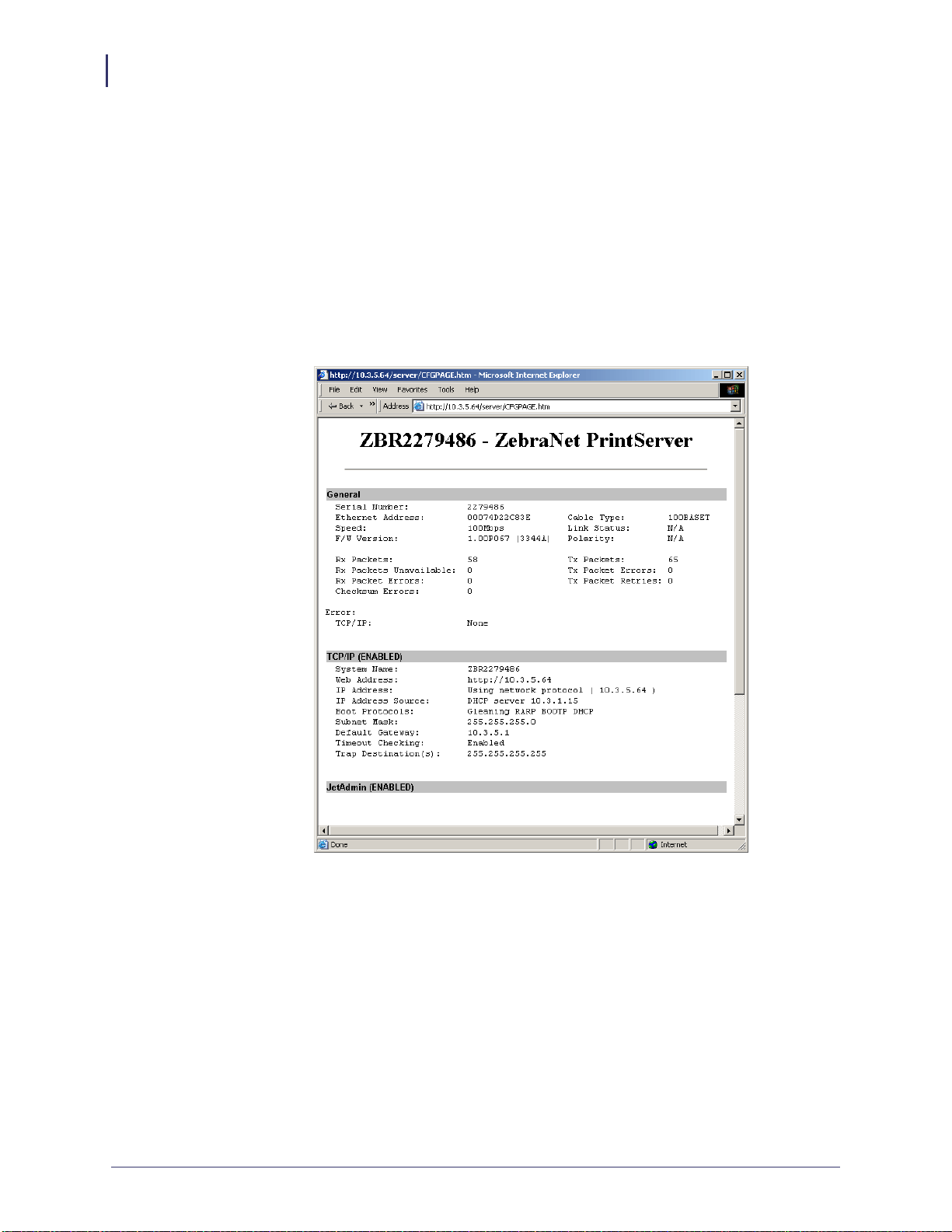
Print Server Web Pages
Print Server Features
120
P1043301-005 11/21/13
Print Server Status
From the Print Server page in the Print Server Status section, you can access the print server
configuration page and port status.
To open the print server configuration page, complete this step:
1. From the PrintServer page, click View Configuration Page.
The Configuration Page opens.
Figure 31 • Configuration Sheet
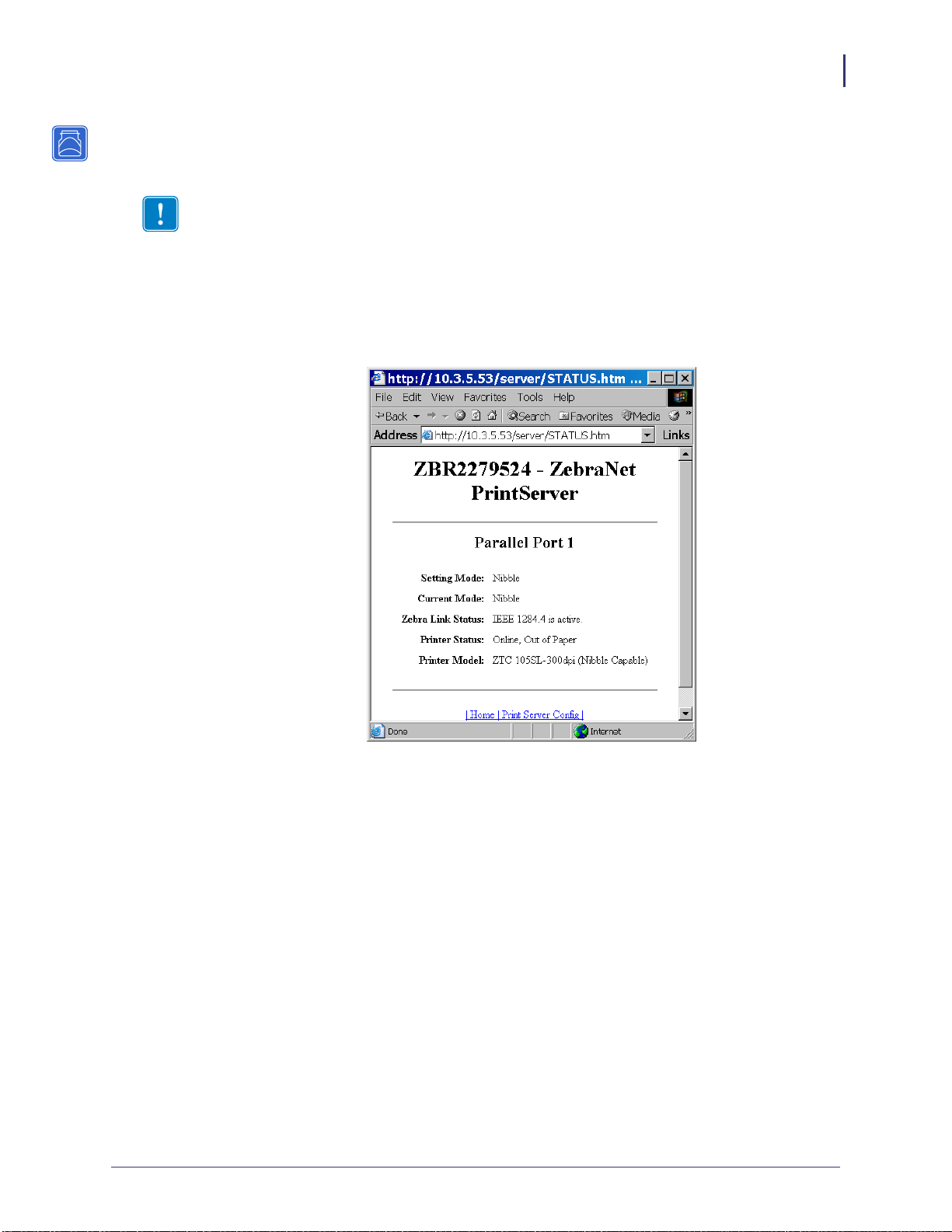
121
Print Server Web Pages
Print Server Features
11/21/13 P1043301-005
To view the port status complete this step:
The default User ID and password are required to access this page.
1. From the Print Server page, click View Port Status.
The Port Status page opens.
Figure 32 • Port Status
Important • For specific information on the default User ID and/or default password, see
Default User ID and Password on page 43.
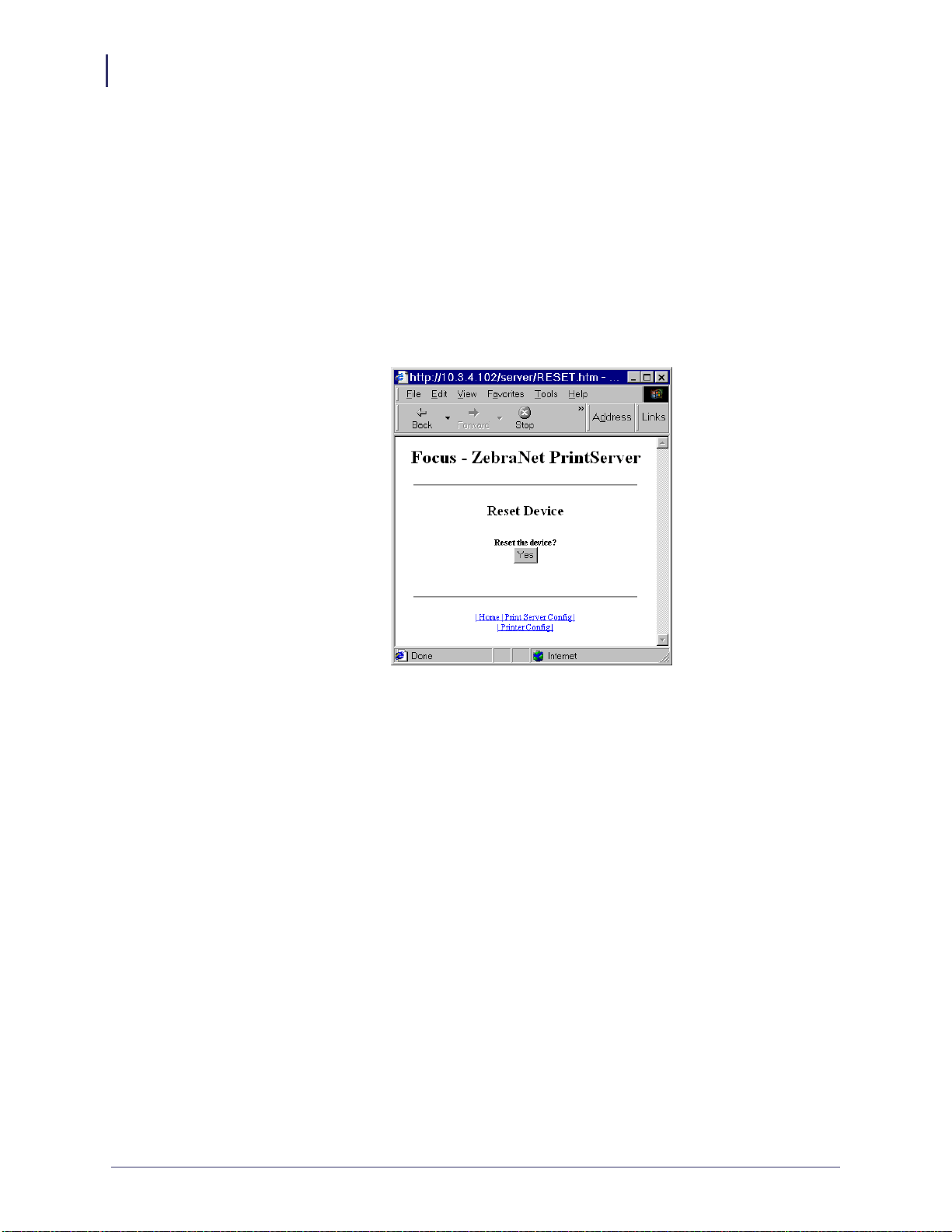
Print Server Web Pages
Print Server Features
122
P1043301-005 11/21/13
Reset
From the Print Server page in the Reset section, you can reset the print server configuration
settings to what they were before you made the most recent changes.
To reset the print server, complete these steps:
1. From the Print Server page, click Reset Print Server.
The Reset Device page opens.
Figure 33 • Reset Print Server
2. To reset print server, click Yes.
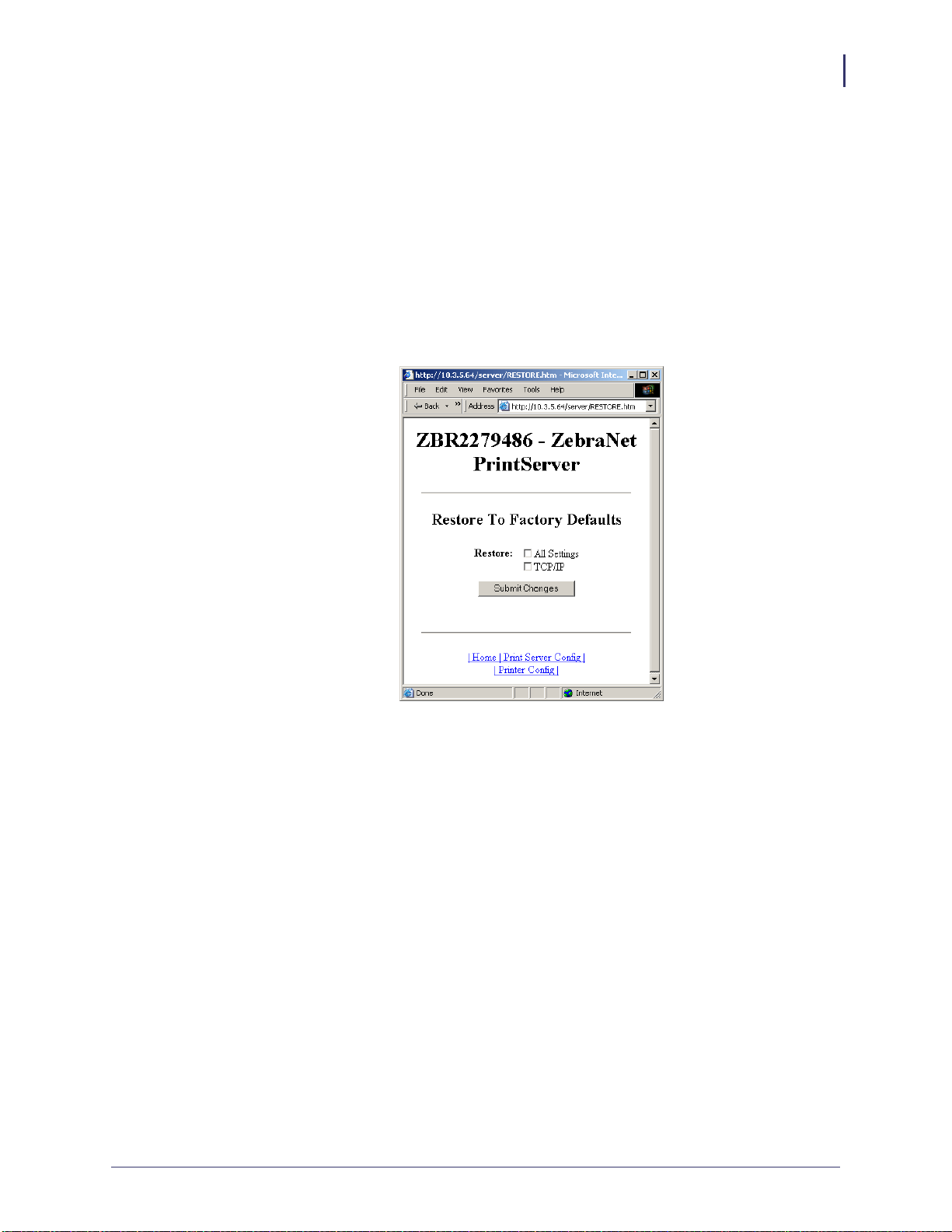
123
Print Server Web Pages
Print Server Features
11/21/13 P1043301-005
Restore
From the Print Server page, in the Restore section you can restore the print server to the
default factory settings.
To restore print server to the default factory settings, complete these steps:
1. From the Print Server page, click Factory Print Server Settings.
The Restore To Factory Defaults page opens.
Figure 34 • Restore to Factory Settings
2. Make the selections you want, and click Submit Changes

Print Server Web Pages
Print Server Features
124
P1043301-005 11/21/13
Notes • ___________________________________________________________________
__________________________________________________________________________
__________________________________________________________________________
__________________________________________________________________________
__________________________________________________________________________
__________________________________________________________________________
__________________________________________________________________________
__________________________________________________________________________
__________________________________________________________________________
__________________________________________________________________________

11/21/13 P1043301-005
8
Control Panel
This section provides you with details on the Control Panel menu options.
Contents
Control Panel Menu Options . . . . . . . . . . . . . . . . . . . . . . . . . . . . . . . . . . . . . . . . . . . . . 126
Wired Network Parameters on the LCD. . . . . . . . . . . . . . . . . . . . . . . . . . . . . . . . . . . 126
Wireless Network Parameters on the LCD . . . . . . . . . . . . . . . . . . . . . . . . . . . . . . . . 129
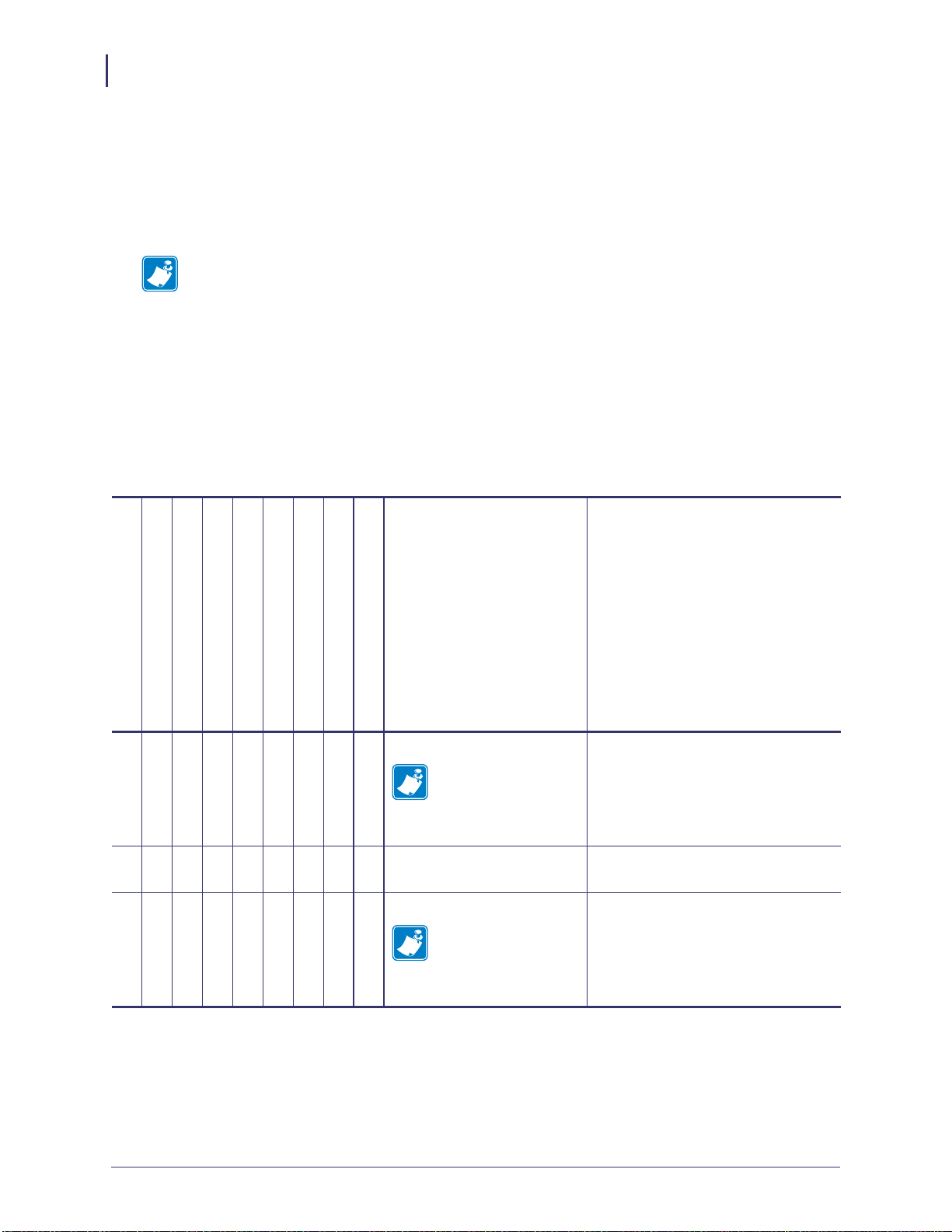
Control Panel
Control Panel Menu Options
126
P1043301-005 11/21/13
Control Panel Menu Options
Control Panel (or Liquid Crystal Display—LCD) menu options only appear if a print server is
installed. The control panel parameters are somewhat different for different printers. Refer to
the user guide for your printer for specific instructions on how to modify the control panel
parameters.
Wired Network Parameters on the LCD
Table 20 identifies the wired network parameters available on your Zebra XiIIIPlus,
Z4Mplus/Z6Mplus, 105SL, PA X 4, Xi4, ZM400/ZM600, S4M, ZE500, ZT230, 105SLPlus,
ZT410, ZT420, and ZD500R printers/print engines with a print server installed.
Note • The ZT210 and ZT220 printers have the same parameters available, but do not have
control panels. Refer to the Zebra ZT210/ZT220/ZT230 User Guide for more information on
how to access these parameters.
Table 20 • Wired Network Parameters
XiIIIPlus
Z4Mplus/Z6Mplus
105SL
PAX4
Xi4, 105SLPlus
ZM400/ZM600
S4M
ZE500
ZT230, ZT410, ZT420, ZD500R
LCD Option Details
LIST NETWORK
The ZT230 LCD
menu will appear as:
PRINT
INFORMATION
Prints a network configuration label.
WIRED PS CHECK? This tells if the printer searches for a
wired print server at bootup.
PRIMARY NETWORK
The ZT230 LCD
menu will appear as:
PRIMARY PRINT
SERVER
This allows you to see if the printer
is using an IP setting from the
wireless or a wired print server at
bootup.
127
Control Panel
Control Panel Menu Options
11/21/13 P1043301-005
LOAD LAN FROM?
The Xi4,
105SLPlus, and the
ZM400/ZM600
LCD menu will
appear as:
LOAD FROM
EXT?
This determines if the printer uses
IP settings from the printer or the
print server at bootup.
ACTIVE PRINTSRVR This allows you to see which print
server is being used.
IP PROTOCOL
The S4M LCD menu
will appear as:
OBTAIN IP
ADDRESS
followed by:
CHANGE IP
PROTOCOL
The allows you to see if the user
(permanent) or the server (dynamic)
selects the IP address.
IP ADDRESS
The S4M LCD menu
will appear as:
CHANGE IP
ADDRESS
This allows you to modify this
setting, only when Permanent is
select for OBTAIN IP ADDRESS.
SUBNET MASK
The S4M LCD menu
will appear as:
CHANGE
SUBNET
This allows you to view the subnet
mask.
Table 20 • Wired Network Parameters
XiIIIPlus
Z4Mplus/Z6Mplus
105SL
PAX4
Xi4, 105SLPlus
ZM400/ZM600
S4M
ZE500
ZT230, ZT410, ZT420, ZD500R
LCD Option Details
Control Panel
Control Panel Menu Options
128
P1043301-005 11/21/13
DEFAULT GATEWAY
The S4M LCD menu
will appear as:
CHANGE
GATEWAY
The ZT230 LCD
menu will appear as:
GATEWAY
This allows you to view the default
gateway.
MAC ADDRESS This allows you to view the MAC
address for the current wireless
radio card.
RESET NETWORK
The ZT230 LCD
menu will appear as:
LOAD
DEFAULTS
This allows you to re-initialize the
wireless radio card and the print
server (wired or wireless).
IP PORT This allows you to view the
currently selected TCP/IP port.
IP ALTERNATE PORT This allows you to view the
currently selected alternate TCP/IP
port.
Table 20 • Wired Network Parameters
XiIIIPlus
Z4Mplus/Z6Mplus
105SL
PAX4
Xi4, 105SLPlus
ZM400/ZM600
S4M
ZE500
ZT230, ZT410, ZT420, ZD500R
LCD Option Details
129
Control Panel
Control Panel Menu Options
11/21/13 P1043301-005
Wireless Network Parameters on the LCD
Table 21 identifies the wireless network parameters available on your Zebra XiIIIPlus,
Z4Mplus/Z6Mplus, 105SL, PA X 4, Xi4, ZM400/ZM600, ZE500, ZT230, 105SLPlus, ZT410,
ZT420, and ZD500R printers/print engines with a print server installed.
Note • The ZT210 and ZT220 printers have the same parameters available, but do not have
control panels. Refer to the Zebra ZT210/ZT220/ZT230 User Guide for more information on
how to access these parameters.
Table 21 • Wireless Network Parameters
XiIIIPlus
Z4Mplus/Z6Mplus
105SL
PAX4
Xi4, R110Xi4, 105SLPlus
ZM400/ZM600, RZ400/600
S4M
ZE500
ZT230, ZT410, ZT420, ZD500R
LCD Option Details
WIRED PS CHECK? This tells if the printer searches for
a wired print server at bootup.
PRIMARY NETWORK
The ZT230 LCD
menu will appear as:
PRIMARY PRINT
SERVER
This allows you to see if the printer
is using an IP setting from the
wireless or a wired print server at
bootup.
LOAD LAN FROM?
The Xi4, 105SLPlus,
and the
ZM400/ZM600 LCD
menu will appear as:
LOAD FROM
EXT?
This determines if the printer uses
IP settings from the printer or the
print server at bootup.
ACTIVE PRINTSRVR This allows you to see which print
server is being used.
IP PROTOCOL
The S4M LCD menu
will appear as:
OBTAIN IP
ADDRESS
followed by:
CHANGE IP
PROTOCOL
The allows you to see if the user
(permanent) or the server (dynamic)
selects the IP address.
Control Panel
Control Panel Menu Options
130
P1043301-005 11/21/13
IP ADDRESS
The S4M LCD menu
will appear as:
CHANGE IP
ADDRESS
This allows you to modify this
setting, only when Permanent is
select for OBTAIN IP ADDRESS.
SUBNET MASK
The S4M LCD menu
will appear as:
CHANGE
SUBNET
This allows you to view the subnet
mask.
DEFAULT GATEWAY
The S4M LCD menu
will appear as:
CHANGE
GATEWAY
The ZT230 LCD
menu will appear as:
GATEWAY
This allows you to view the default
gateway.
MAC ADDRESS This allows you to view the MAC
address for the current wireless
radio card.
RESET NETWORK
The ZT230 LCD
menu will appear as:
LOAD
DEFAULTS
This allows you to re-initialize the
wireless radio card and the print
server (wired or wireless).
ESSID This allows you to view the ESSID
value for your wireless network.
WLAN SECURITY This allows you to view the WLAN
Security Type.
Table 21 • Wireless Network Parameters
XiIIIPlus
Z4Mplus/Z6Mplus
105SL
PAX4
Xi4, R110Xi4, 105SLPlus
ZM400/ZM600, RZ400/600
S4M
ZE500
ZT230, ZT410, ZT420, ZD500R
LCD Option Details
131
Control Panel
Control Panel Menu Options
11/21/13 P1043301-005
IP PORT This allows you to view the
currently selected TCP/IP port.
IP ALTERNATE PORT This allows you to view the
currently selected alternate TCP/IP
port.
Table 21 • Wireless Network Parameters
XiIIIPlus
Z4Mplus/Z6Mplus
105SL
PAX4
Xi4, R110Xi4, 105SLPlus
ZM400/ZM600, RZ400/600
S4M
ZE500
ZT230, ZT410, ZT420, ZD500R
LCD Option Details

Control Panel
Control Panel Menu Options
132
P1043301-005 11/21/13
Notes • ___________________________________________________________________
__________________________________________________________________________
__________________________________________________________________________
__________________________________________________________________________
__________________________________________________________________________
__________________________________________________________________________
__________________________________________________________________________
__________________________________________________________________________
__________________________________________________________________________
__________________________________________________________________________

11/21/13 P1043301-005
9
Hardware Troubleshooting
This section provides you with solutions to known issues.
Contents
Troubleshooting the External 10/100 Print Server . . . . . . . . . . . . . . . . . . . . . . . . . . . . . 134
Resetting to Factory Defaults. . . . . . . . . . . . . . . . . . . . . . . . . . . . . . . . . . . . . . . . . . . 134
External ZebraNet 10/100 Print Server Network Status and Status Indicators . . . . . 134
Troubleshooting the External ZebraNet 10/100 Print Server. . . . . . . . . . . . . . . . . . . 135
Troubleshooting the Internal ZebraNet 10/100 Print Server. . . . . . . . . . . . . . . . . . . . . . 137
Resetting the Internal ZebraNet 10/100 Print Server to Factory Defaults . . . . . . . . . 137
Internal ZebraNet 10/100 Print Server Network Status and Activity Indicators . . . . . 137
Troubleshooting the Wireless Print Server. . . . . . . . . . . . . . . . . . . . . . . . . . . . . . . . . . . 139
Resetting the Wireless Print Server to Factory Defaults . . . . . . . . . . . . . . . . . . . . . . 139
ZebraNet Bridge Discovery or Configuration Problems. . . . . . . . . . . . . . . . . . . . . . . . . 140
Unable to Print . . . . . . . . . . . . . . . . . . . . . . . . . . . . . . . . . . . . . . . . . . . . . . . . . . . . . . . . 140
Ping the Printer . . . . . . . . . . . . . . . . . . . . . . . . . . . . . . . . . . . . . . . . . . . . . . . . . . . . . 140
Telnet . . . . . . . . . . . . . . . . . . . . . . . . . . . . . . . . . . . . . . . . . . . . . . . . . . . . . . . . . . . . . 141
Unable to Configure Device. . . . . . . . . . . . . . . . . . . . . . . . . . . . . . . . . . . . . . . . . . . . . . 142
HP JetAdmin or HP Web JetAdmin . . . . . . . . . . . . . . . . . . . . . . . . . . . . . . . . . . . . . . . . 142
Wireless Error Messages. . . . . . . . . . . . . . . . . . . . . . . . . . . . . . . . . . . . . . . . . . . . . . . . 142
General Wireless Issues . . . . . . . . . . . . . . . . . . . . . . . . . . . . . . . . . . . . . . . . . . . . . . . . 143
Encryption and Authentication Issues . . . . . . . . . . . . . . . . . . . . . . . . . . . . . . . . . . . . . . 145
IP Issues . . . . . . . . . . . . . . . . . . . . . . . . . . . . . . . . . . . . . . . . . . . . . . . . . . . . . . . . . . . . 146
Hardware Troubleshooting
Troubleshooting the External 10/100 Print Server
134
P1043301-005 11/21/13
Troubleshooting the External 10/100 Print Server
Resetting to Factory Defaults
See Defaulting the ZebraNet 10/100 Print Server on the 105SL, S4M, PAX4, and External
Devices on page 76.
External ZebraNet 10/100 Print Server Network Status and Status
Indicators
Alongside of the RJ45 connector, there are two LED’s containing a red element and a green
element. By turning on and off different combinations of these two LED elements, the LED
indicates Ethernet links, activity, and speed. For indicator locations, see Figure 1, External
ZebraNet 10/100 Print Server, on page 35.
Note • You must have an active network cable connected to the external ZebraNet
10/100 Print Server device to default the device using the
Test button.
Network Status LED State Description
Off No Ethernet link detected
Amber 10 Mbps link detected
Amber, blinking 10 Mbps link detected and Ethernet activity detected
Green 100 Mbps link detected
Green, blinking 100 Mbps link detected and Ethernet activity detected
Status LED State Description
Green, solid Print server is working.
Green, flashing For solutions, see Table 22 on page 135.
Red, solid For solutions, see Table 22 on page 135.
Red, flashing For solutions, see Table 22 on page 135.
Alternating Red/Green For solutions, see Table 22 on page 135.
135
Hardware Troubleshooting
Troubleshooting the External 10/100 Print Server
11/21/13 P1043301-005
Troubleshooting the External ZebraNet 10/100 Print Server
Table 22 • External ZebraNet 10/100 Print Server Issues and Solutions
Issue Possible Cause Recommended Solution
The Status LED is
slowly flashing red
The external ZebraNet 10/100
Print Server has not detected the
presence of a network cable.
1. Turn the printer off (O).
2. Remove the network cable from the
external ZebraNet 10/100 Print Server.
3. Plug the network cable back in until you
hear a click.
4. Check the other end of the cable in the
same manner.
5. Turn the printer on (l).
A bad or wrong cable.
Important • Cables with a
rating higher than CAT-6
have not been tested.
1. Verify that the network cable is
appropriate for the network and has an
RJ-45 connector.
2. Connect the external ZebraNet
10/100 Print Server to a network drop
that is a known good network
connection.
3. If the external ZebraNet 10/100 Print
Server is still unable to detect the
network cable, contact Technical
Support for assistance.
Power On Self-Test (POST) is in
progress.
Wait for the printer to complete the POST.
The Status LED is
slowly flashing green (1
time/sec)
The external ZebraNet
10/100 Print Server is trying to
print a job.
If the job does not print, check the
following:
1. Verify that the printer has media and
ribbon (if in thermal transfer mode).
2. If the printer is showing any errors, the
external ZebraNet 10/100 Print Server
cannot send data to the printer.
The LED continues to blink until the
printer malfunction is resolved or until
the printer is turned off
(O).

Hardware Troubleshooting
Troubleshooting the External 10/100 Print Server
136
P1043301-005 11/21/13
The Status LED is solid
red for more than 30
seconds
The external ZebraNet
10/100 Print Server has failed the
POST.
If the failure is not severe, the external
ZebraNet 10/100 Print Server attempts to
print a configuration label on the printer.
1. Turn the printer off (O), wait 10
seconds, then turn the printer on
(I).
2. If the external ZebraNet 10/100 Print
Server still fails the POST, the print
server has a hardware problem that can
only be fixed by replacing or returning
the unit.
3. Contact Repair for repair or replacement
information.
A failed POST may be a
connection to a malfunctioning
external ZebraNet 10/100 Print
Server device.
The Status LED is
alternately flashing red
and green for longer
than 2 minutes
The external ZebraNet
10/100 Print Server is in firmware-
download mode.
This means it is waiting for new
firmware data to be sent before it
continues normal functioning.
• If the external ZebraNet 10/100 Print
Server was purposely put into
firmware-download mode, finish the
download with the proper update utility.
Visit the Zebra Web site at
http://www.zebra.com/utilities to
download this utility.
• If the external ZebraNet 10/100 Print
Server was not put into
firmware-download mode or if you wish
to exit this mode, default the unit.
Follow the instructions in Defaulting the
ZebraNet 10/100 Print Server on the
105SL, S4M, PAX4, and External
Devices on page 76.
Table 22 • External ZebraNet 10/100 Print Server Issues and Solutions (Continued)
Issue Possible Cause Recommended Solution
137
Hardware Troubleshooting
Troubleshooting the Internal ZebraNet 10/100 Print Server
11/21/13 P1043301-005
Troubleshooting the Internal ZebraNet 10/100 Print
Server
Resetting the Internal ZebraNet 10/100 Print Server to Factory
Defaults
Which model printer do you have?
Internal ZebraNet 10/100 Print Server Network Status and Activity
Indicators
For the S4M, 105SL, and PAX4 Printers/Print Engines
Alongside of the RJ45 connector, there are two LED’s containing a red element and a green
element. By turning on and off different combinations of these two LED elements, the LED
indicates Ethernet links, activity, and speed.
If you have a… Then…
ZM400 or ZM600
printer
Go to Defaulting the Print Servers on the ZM400 and ZM600
Printers on page 77.
G-Series, ZP Series, or
LP/TLP 2824 Plus
printer
Go to Defaulting the Print Servers on the ZP Series, LP/TLP
2824 Plus, and G-Series Printers on page 77.
HC100 printer Go to Defaulting the Print Servers on the HC100 Printers
on page 78.
105SL, PA X 4,
Xi4, ZE500, and
105SLPlus
printer/print engine
Go to Defaulting the Print Servers on the 105SL, PAX4, Xi4,
ZE500, and 105SLPlus Printers on page 78.
ZT210 and ZT220
printer
Go to Defaulting the Print Servers on the ZD500R, ZT210,
ZT220, ZT230, ZT410, and ZT420 Printers on page 79.
ZT230 printer Go to Defaulting the Print Servers on the ZD500R, ZT230,
ZT410, and ZT420 Printers via the Control Panel on page 79.
Network Status LED State Description
Off No Ethernet link detected
Amber 10 Mbps link detected
Amber, blinking 10 Mbps link detected and Ethernet activity detected
Green 100 Mbps link detected
Green, blinking 100 Mbps link detected and Ethernet activity detected
Hardware Troubleshooting
Troubleshooting the Internal ZebraNet 10/100 Print Server
138
P1043301-005 11/21/13
For the ZM400, ZM600, HC100, Xi4, and 105SLPlus Printers
Alongside of the RJ45 connector, there is a single LED containing a red element and a green
element. By turning on and off different combinations of these two LED elements, the LED
indicates Ethernet links, activity, and speed.
For the G-Series, ZP Series, and LP/TLP 2824 Plus Printers
On the top of the RJ45 connector, two LEDs are provided for these printers. The left LED is
green and the right LED is amber. Follow the table below to determine activity and status of
the G-Series, ZP Series, and LP/TLP 2824 Plus printers.
Status LED State Description
Green, solid Print server is working.
Green, flashing For solutions, see Table 22 on page 135.
Red, solid For solutions, see Table 22 on page 135.
Red, flashing For solutions, see Table 22 on page 135.
Alternating Red/Green For solutions, see Table 22 on page 135.
LED State Description
Off No Ethernet link detected
Amber 10 Mbps link detected
Amber, blinking 10 Mbps link detected and Ethernet activity detected
Green 100 Mbps link detected
Green, blinking 100 Mbps link detected and Ethernet activity detected
Left LED State Right LED State Description
Off Off No Ethernet link detected
Off Amber 10 Mbps link detected
Green, blinking Amber 10 Mbps link detected and Ethernet activity
detected
Green Off 100 Mbps link detected
Green Amber, blinking 100 Mbps link detected and Ethernet activity
detected

139
Hardware Troubleshooting
Troubleshooting the Wireless Print Server
11/21/13 P1043301-005
Troubleshooting the Wireless Print Server
ZebraNet n Print Server Will Not Operate on the 5Ghz Band
You may need to set your country code in order to enable the 5Ghz band for the Zebranet n
Print Server.
• If you are using the wireless print server in the United States, Canada, or Japan, you will
not need to set the country code. These countries have been pre-set at the factory.
• If you are operating the print server anywhere else in the world, you must set the country
code to enable the 5GHz band. To set the country code, you must send a Set-Get-Do
command to the printer. For specific command information, see the Programming Guide
for ZPL II, ZBI 2, Set-Get-Do, Mirror and WML.
Resetting the Wireless Print Server to Factory Defaults
You may need to restore the network parameters to the factory defaults under the following
circumstances:
• If you download a different version of firmware to your printer
• If you need to reset the encryption keys (for instances where a key was entered incorrectly
or was forgotten)
After you return the network parameters to the defaults, you must reconfigure your printer to
use the wireless print server (see Configuration of Wireless Securities on page 51). If you
saved the ZPL script generated by the Wireless Setup Wizard, simply send this file to the
printer, and then power cycle the printer. If you were using a wireless password, you must set it
again (use the ^WP ZPL command or the wlan.password SGD command).
You can set the network parameters back to the factory defaults in two ways:
• The Restore Default Network Configuration button on the printer’s View and Modify
Printer Settings Page (see Figure 34 on page 123).
• The
DEFAULT NET option, which appears as an option when you exit Setup mode.
Refer to the User Guide for your printer for specific instructions on how to modify the
control panel parameters.
Note • The LOAD DEFAULTS option and the Restore Default Configuration button
reset all printer parameters other than network settings back to factory defaults. The network
settings will not change when these options are selected.

Hardware Troubleshooting
ZebraNet Bridge Discovery or Configuration Problems
140
P1043301-005 11/21/13
ZebraNet Bridge Discovery or Configuration Problems
If you are having problems using ZebraNet Bridge to discover or configure the unit, check the
following:
• Verify there is not a router between the workstation running ZebraNet Bridge and the print
server. Because the print server does not have an IP address, TCP/IP communication
cannot be started across a router. Run ZebraNet Bridge on the same subnet as the print
server.
• Verify the wired print server has a solid green light. If the LED shows a rapidly flashing
green light, check the network cable that is attached.
• Verify the wireless print server has authenticated tot he access point. See LCD Link Status
and Wireless Signal Indicators on page 52 for more detailed information.
Unable to Print
If you are having problems printing, verify that there is communication between the print
server and the printer. Check the following:
•
For the external ZebraNet 10/100 Print Server, print a configuration label by pressing the
test button. If a configuration label does not print, verify the printer has media and ribbon
(if used) and is not paused.
• For all print servers:
• Ping the printer to determine the ability to communicate with the printer. See Ping the
Printer.
• Or open a Telnet session and send a ZPL command to print a configuration label. See
Telnet on page 141 for more information.
• Check obvious error conditions such as head open, out of media, out of ribbon, etc.
• If problems persist, contact Technical Support.
Ping the Printer
To ping the printer, complete these steps:
1. Open a DOS window.
To open a DOS window, click on
Start > Run.
2. In the Open text box, type: cmd
3. From the DOS prompt, type:
ping xxx.xxx.xxx.xxx
where xxx.xxx.xxx.xxx is the IP address of the print server
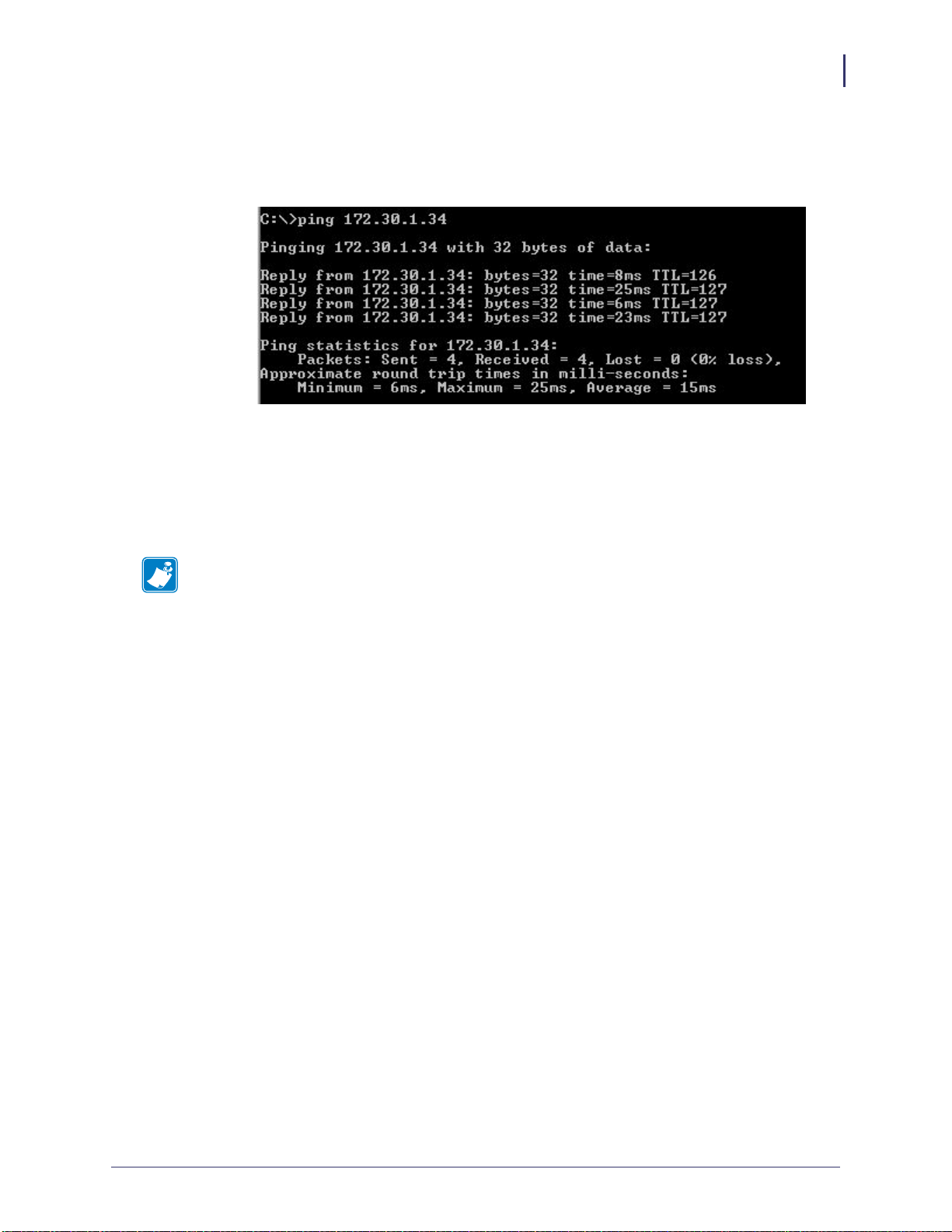
141
Hardware Troubleshooting
Unable to Print
11/21/13 P1043301-005
4. See Figure 35. You see a reply from the print server indicating a connection.
Figure 35 • Example of a Successful Ping
If the issue is a communication problem, you would have received an error message.
Telnet
Open a telnet session to send a ZPL command from a DOS prompt.
To print a configuration label by sending a ZPL II command, complete these
steps:
1. Open a DOS window.
To open a DOS window, click on
Start > Run.
2. In the Open text box, type: cmd
3. From the DOS prompt, type:
telnet xxx.xxx.xxx.xxx 9100
where xxx.xxx.xxx.xxx is the IP address of the print server.
This will connect your PC to the print server through the parallel port of the printer.
4. Enter ~WC.
This ZPL command will print a configuration label on your printer.
5. Click the X in the upper right-hand corner of the window to exit.
If the configuration label prints, the issue is not a communication problem between the printer,
the print server, or the PC.
Note • You do not need to open a telnet session if you pinged the printer using the previous
procedure. The purpose of these two procedures is to identify whether your PC can
communicate with your printer.
Hardware Troubleshooting
Unable to Configure Device
142
P1043301-005 11/21/13
Unable to Configure Device
To assign an IP address to a ZebraNet print server using ZebraNet Bridge, you must be on the
same subnet. If ZebraNet Bridge has Multicast enabled, you may be able to view the ZebraNet
print server on another subnet, but you will not be able to configure the device.
HP JetAdmin or HP Web JetAdmin
The ZebraNet print server may be set up and managed using HP JetAdmin or HP Web
JetAdmin products.
Wireless Error Messages
Table 23 shows error messages that may appear on the control panel.
Table 23 • Error Messages
Message Description
NO CARD INSERTED The wireless radio card is not inserted at all or is not fully seated.
NOT ASSOCIATED The wireless radio card is present but cannot log on to the network.
NOT AUTHENTICATD The wireless radio card is present and associated with the access
point, but it has not been authenticated by the authentication server.
RADIO WARNING
POOR SIGNAL
The wireless signal strength has dropped below the poor signal
threshold value, which is set through the Wireless Setup web page
(see Wireless Setup on page 104).
Note • The poor signal setting affects when you see the
POOR SIGNAL warning, but it does not affect whether
your printer will be able to associate with your network at a
low signal strength.
NO WLAN REGION CODE
CALL ZEBRA TECH.
WLAN card is not configured properly. Contact your Zebra reseller
for assistance.
WLAN COUNTRY CODE
NOT SELECTED
The WLAN country code has not been configured.
a. Use the Up and Down arrows to select the appropriate country
code.
b. Press Set to save the country code.

143
Hardware Troubleshooting
General Wireless Issues
11/21/13 P1043301-005
General Wireless Issues
Table 24 • General Issues and Recommended Solutions
Issue Possible Cause Recommended Solution
The printer
acknowledges the
wireless radio card and
indicates a signal
strength, but the
printer does not appear
to connect to the
network.
The combination of signal strength
and signal quality at the printer
may not be good enough to
establish a connection to the
network.
Move the printer or the access point to
another location, or remove any
obstructions between the two. A direct line
of site between the printer and access point
provides the best results. Refer to the
third-party documentation for your access
point for additional recommendations and
limitations.
The printer is associated with, but
not authenticated with, your access
point.
1. Check your encryption settings.
2. Verify that your MAC address is
approved for the access point.
The printer does not
acknowledge the
wireless radio card.
The card may not be inserted
correctly.
Make sure that the wireless radio card is
correctly seated in the wireless option card
slot.
Your printer may not be equipped
with a ZebraNet wireless print
server.
Contact your authorized Zebra
representative for information about
purchasing a ZebraNet wireless print server.
The card may not be supported for
use with the ZebraNet wireless
print servers.
Make sure that you are using a compatible
wireless radio card (see Supported Wireless
Radio Cards on page 17).
After a firmware
upgrade, the printer
will not connect to the
network.
Network settings need to be
updated.
1. Reset the printer’s network settings tho
their defaults. Refer to Defaulting ALL
Print Servers on page 75.
2. Reconfigure your printer to use the
ZebraNet wireless print server (see
Configuration of Wireless Securities
on page 51). If you saved the ZPL script
generated by the ZebraNet Bridge
Wireless Setup Wizard utility, simply
send this file to the printer. If you were
using a wireless password, you need to
set it again (use the ^WP ZPL command
or the wlan.password SGD
command).
3. Power cycle the printer for the settings
to take effect.
Hardware Troubleshooting
General Wireless Issues
144
P1043301-005 11/21/13
My wireless connection
is inconsistent. The
signal strengths change
back and forth between
high and low numbers.
An access point may be bad. The
card appears to be switching
affiliations between access points.
Check the access points on your WLAN,
particularly the one closest to the printer.
The wireless radio card is
repeatedly associating with two or
more access points because of
varying signal strengths.
Check the access points on your WLAN to
determine what is causing the signal
strengths to vary.
My “n” Print Server is
not operating on the
5Ghz band.
You have not set the region code
and are located in a country other
than:
• United States
• Canada
• Japan
If you are operating outside of the three
countries listed, you must send a specific
Set-Get-Do command to set your country
code. For specific command information,
see the Programming Guide for ZPL II,
ZBI 2, Set-Get-Do, Mirror, and WML.
Table 24 • General Issues and Recommended Solutions (Continued)
Issue Possible Cause Recommended Solution
145
Hardware Troubleshooting
Encryption and Authentication Issues
11/21/13 P1043301-005
Encryption and Authentication Issues
Table 25 • Encryption and Authentication Issues and Recommended Solutions
Issue Possible Cause Recommended Solution
The entry field for
WEP keys on the
printer’s web page
does not display all 26
characters.
The field accepts 26 characters, but
they may not be able to display all
at once because of your browser or
system settings.
Use the left and right arrow keys on your
keyboard to move the cursor in the WEP
key field and reveal characters that may not
display.
I set WEP encryption
keys using the
^WX
ZPL command, and
now my wireless print
server does not
function.
The ZPL script that you sent to the
printer may have been incorrect.
The printer may be using the
wrong encryption key or looking
for one that is undefined.
Resend the
^WX command. Make sure that
all of the required commas are in place in
the command. A missing or extra comma in
this command can prevent the printer from
joining the wireless network.
I set WEP encryption
keys using the
^WE
ZPL command, and
now my wireless print
server does not
function.
The ZPL script that you sent to the
printer may have been incorrect.
The printer may be using the
wrong encryption key or looking
for one that is undefined.
Use the
^WX command instead of ^WE.
You enabled WEP and WPA
encryption modes at the same time.
Before enabling a new security type,
disable any mode used previously. Use the
^WX command instead of ^WE to ensure
that only one security type is enabled at a
time.
I set WEP encryption
keys using the
wlan.wep.index
Set/Get/Do command,
and now my wireless
print server does not
function.
The command that you sent to the
printer may have specified the
index number for an encryption
key that is undefined.
Resend the
wlan.wep.index
command with the index number for a
defined encryption key.
WPA mode will not
work.
The wireless radio card contains an
outdated version of firmware.
Flash the latest firmware to the wireless
radio card. Contact the card manufacturer
for details.
Kerberos mode will not
work.
You are using a wireless radio card
that does not support Kerberos.
Kerberos is available only with
Symbol Technologies Spectrum24
wireless radio cards.
Switch to a Symbol Technologies
Spectrum24 wireless radio card.
The printer will not
connect to the WLAN.
You are using a wireless radio card
that does not support the security
type being used on your WLAN.
Switch to a wireless radio card that supports
your security type. Check Table 1
on page 19, Table 2 on page 20, or Table 3
on page 21, for the security types supported
by different wireless radio cards.

Hardware Troubleshooting
IP Issues
146
P1043301-005 11/21/13
IP Issues
Table 26 • IP Issues and Recommended Solutions
Issue Possible Cause Recommended Solution
The printer shows
IP address
192.168.254.254, which
does not appear to
work.
IP address 192.168.254.254 is a
default address. The printer shows
this address after it times out while
trying to connect. The printer was
likely set to an incorrect static IP
address.
Enter a valid static IP address.
OR
Set IP Protocol to All.
The DHCP server is not
functioning, so a dynamic IP
address is not being assigned. The
printer timed out and shows the
default IP address of
192.168.254.254.
Check the DHCP server.
On my control panel,
the IP settings are
missing or show all
zeroes
(000.000.000.000).
Actual IP settings (IP Resolution,
IP Address, Subnet Mask, and
Default Gateway) will only appear
when the printer is associated to
and authenticated with the WLAN.
Until the time that the printer
recognizes the existence of a
ZebraNet print server, these
parameters will not show through
the control panel. After the print
server is recognized, all zeroes will
display until the printer obtains an
IP address or defaults to address
192.168.254.254.
1. Allow more time for the printer to
complete its connection and obtain an
IP address.
2. If the printer does not connect, check
that there is an adequate signal between
the printer and the access point. If
necessary, move the printer or the access
point to another location, or remove any
obstructions between the two. A direct
line of site between the printer and
access point provides the best results.
Refer to the third-party documentation
for your access point for
recommendations and limitations.
3. Check the IP Protocol setting. If using a
static setting, the value entered might
not be valid.
The IP address for my
wired print server does
not bring up the
printer home page.
If both a wired and wireless print
server are installed on a printer at
the same time and the wireless
printer is the primary/active print
server, the printer web pages can
be accessed only through the
wireless print server’s IP address.
In your browser window, type in the IP
address of the wireless print server.

11/21/13 P1043301-005
10
Frequently Asked Questions
This section provides a group of frequently asked questions (FAQs) about Zebra’s wired and
wireless print servers.
FAQs
Can the print server option work on a computer network that is running both
TCP/IP and IPX protocols simultaneously? Yes. The print server runs all of its
available protocols simultaneously. This means that the print server can run on mixed
networks such as a network using Microsoft, and UNIX.
Will the ZebraNet print server allow connectivity to anything other than a PC
network? Yes. The ZebraNet print server allows connectivity to systems such as IBM’s
AS400, provided that it is configured using TCP/IP. Other network protocols can be used with
third-party adapters that are converted to 10BASE-T or 100BASE-T.
Important • The ZebraNet print servers do not support IPX, but they can function on
networks that use protocols.

Frequently Asked Questions
FAQs
148
P1043301-005 11/21/13
What if a print job makes it to the queue, but never leaves the queue? The label
does not print. See Table 27 for more information.
What are the minimum requirements to network a printer on a wired network?
• Cat-5 network cable with 10BASE-T or 100BASE-T connectors
• Internal or external print server
• Hub or Switch
• If a hub or switch is NOT used, you need a cross-over cable.
• Workstation running a TCP stack with print services installed.
What ports are open on any print server and related software?
TCP Ports:
• 21 FTP
• 23 Telnet
• 80 HTTP Server
• 515 Printer port
• 631 IPP port
• 9100 Raw socket connection
Table 27 • Things to Check
Issue Possible Cause Recommended Solution
If a print job
makes it to the
queue, but never
leaves the queue?
Printer is not turned on Confirm that the printer is turned on
and receiving power.
Printer is using a bad or
wrong network cable.
Confirm that the network cable is
plugged in and that you can ping the
printer.
There was a misconfiguration
while creating the queue.
Verify the following:
1. Confirm that you use the print
server’s valid IP address.
2. If you are using a UNIX or
AS/400 host, there is an option
for the remote queue name.
There is only one valid response
to use: PORTLF1.
3. If Windows does not have an
LPR installed, the above required
option should be left blank.
See the documentation for other
operating system specific queue
creation.

149
Frequently Asked Questions
FAQs
11/21/13 P1043301-005
UDP Ports:
• 161 SNMP broadcast from print server
• 162 SNMP trap on ZebraNet Alert
• 4201 discovery destination on print server
• (dynamic) SNMP get request from ZebraNet Bridge
• (dynamic) discovery broadcast from ZebraNet Bridge
• (dynamic) discovery broadcast from ZebraNet Bridge
What is the default User ID and password for the print server?
• The User ID is admin and the password is 1234.
What are my network connectivity options based on when using a print
server?
It depends on your environment, but the print server accepts print jobs in any of the following
ways:
• FTP — ZPL/EPL files can be sent to the printer via a FTP client as standard ASCII files.
• HTTP — (ZebraLink-enabled printers only) Using the script option of the print server’s
homepage, you can type ZPL into a specified location of the Web browser and send it to
the printer.
• IPP — Using third-party IPP clients, print jobs can be sent via the Internet.
• LPR/LPD — Sometimes referred to as queue based printing. LPR/LPD is the standard in
network printing. Most TCP/IP operating systems are compatible with this option.
• Raw socket connection — You can connect to the printer directly via the network,
bypassing everything in-between. This option is commonly used to integrate ZPL/EPL
into existing programs, such as VB scripts.
• POP3 — With proper configuration, you can place ZPL/EPL files into the body of an
email, and it will print. The print server periodically checks this email box at the specified
intervals and prints the body of the message. IMPORTANT: Attachments and subject lines
are not supported.

Frequently Asked Questions
FAQs
150
P1043301-005 11/21/13
Notes • ___________________________________________________________________
__________________________________________________________________________
__________________________________________________________________________
__________________________________________________________________________
__________________________________________________________________________
__________________________________________________________________________
__________________________________________________________________________
__________________________________________________________________________
__________________________________________________________________________
__________________________________________________________________________

11/21/13 P1043301-005
Glossary
10BASE-T A type of Ethernet that uses unshielded twisted pair cable.
100BASE-T A type of Ethernet that can transmit 100Mb of data per second with a
twisted-pair cable.
ARP The standard TCP/IP method for determining the actual network address of a device
based on its IP address.
ASCII A standard for the binary representation of characters.
BOOTP BOOTP (Bootstrap Protocol) is a protocol that lets a network user be automatically
configured (receive an IP address) and have an operating system booted (initiated) without
user involvement. The BootP server automatically configures the following information: IP
address, gateway, subnet, system name, name server, and more from a pool of pre-determined
addresses for a certain duration of time. BootP is the basis for a more advanced network
manager protocol, the DHCP (Dynamic Host Configuration Protocol).
broadcast In a network, a situation when all destinations on the network receive a given
packet.
client A workstation or PC in a client/server environment.
community For SNMP, a relationship between an agent and a set of SNMP managers that
defines security characteristics. The community concept is a local one, defined at the agent.
Each community is given a unique community name.
current mode (parallel port) A mode that the printer and print server negotiate.
DHCP (Dynamic Host Configuration Protocol) DHCP is an alternative to another
network IP management protocol, Bootstrap Protocol (BOOTP). Like BOOTP, DHCP can
configure an IP address, gateway, subnet, system name, and name server. When speaking
about any print server, BOOTP, and DHCP configure the same options.

Glossary
152
P1043301-005 11/21/13
delete bytes This number is used to remove characters from the beginning of every job sent
to the logical printer. The value for delete bytes can range from 0 to 255.
dynamic A dynamic configuration, as the name implies, means that it changes. BOOTP and
DHCP offer time-based leases for the configurations they assign. Their changes depend on the
time-based lease, and how often the printer itself is offline and online again. A dynamic
configuration can include BOOTP or DHCP.
Extensible Authentication Protocol over Flexible Authentication via Secure
Tunneling (EAP-FAST) Extensible Authentication Protocol-Flexible Authentication via
Secure Tunneling (EAP-FAST) is a publicly accessible IEEE 802.1X EAP type developed by
Cisco Systems. It is available as an IETF informational draft. Extensible Authentication
Protocol-Flexible Authentication via Secure Tunneling (EAP-FAST) is a publicly accessible
IEEE 802.1X EAP type developed by Cisco Systems. It is available as an IETF informational
draft. Cisco developed EAP-FAST to support customers who cannot enforce a strong
password policy and wish to deploy an 802.1X EAP type that does not require digital
certificates, supports a variety of user and password database types, supports password
expiration and change, and is flexible, easy to deploy, and easy to manage. For example, a
customer using Cisco LEAP who cannot enforce a strong password policy and does not want
to use certificates can migrate to EAP-FAST for protection from dictionary attacks.
Extensible Authentication Protocol over Transport Layer Security
(EAP-TLS) Second generation Wi-Fi security. Current Wi-Fi security standards (802.1x)
define the use of the TLS protocol encapsulated within the Extensible Authentication Protocol
(EAP) as one of the strongest security mechanisms for Wi-Fi. Using EAP-TLS provides well-
regarded, standards-based security between an access point and a Wi-Fi client. This is a
Microsoft standard.
• A form of 802.1X (EAP) authentication
• Uses client and server certificates for mutual authentication (PKI)
• TLS 1.0 (Transport Layer Security) is based on Secure Socket Layer (SSL) 3.0
Extensible Authentication Protocol over Tunneled Transport Layer Security
(EAP-TTLS) EAP-TTLS is an extension of EAP-TLS which provides for certificate-based,
mutual authentication of the client and network. Unlike EAP-TLS, however, EAP-TTLS
requires only server-side certificates, eliminating the need to configure certificates for each
WLAN client. In addition, it supports legacy password protocols, so you can deploy it against
your existing authentication system (such as tokens or Active Directories.) It securely tunnels
client authentication within TLS records, ensuring that the user remains anonymous to
eavesdroppers on the wireless link and the entire network to the RADIUS server.
Ethernet A widely used local area network system based on the IEEE 802.3 standard.
firmware Software routines that are stored in ROM (Read Only Memory). This is typically
part of a device, such as a printer or any print server.
FTP File Transfer Protocol, a TCP/IP-related protocol for transferring files between devices
on a network.
Flash memory A type of memory that allows read-and-write operations, but permanently
stores data when the power is turned off. Useful for storing firmware because it can be easily
updated by downloading new code.

153
Glossary
11/21/13 P1043301-005
gateway A device that converts one higher-level network protocol to a different higher level
protocol.
gleaning A temporary, local configuration option. Gleaning lets you add the address of the
device you want to configure to your local workstation’s ARP table. This configuration is not
permanent and is valid only from the workstation from which you entered the ARP
information. After the information is entered into the workstation’s ARP table, the user
follows up with a Telnet session to enter the information permanently. Note: When using
ZebraNet Bridge, a wired PS with an address of 0.0.0.0 can only be discovered through a local
broadcast.
IP Internet Protocol, one of the main protocols of the TCP/IP protocol suite.
IP address A network address used by the TCP/IP protocol.
IPP Internet Printing Protocol. Allows you to associate a printer with a URL address that is
used for printing over the Internet.
JetAdmin A Hewlett-Packard printer management program available for NetWare and
TCP/IP.
Kerberos Network authentication protocol that uses the concept of a time-limited “ticket”
for access to network resources. Kerberos uses key distribution and client/server
authentication.
Lightweight Extensible Authentication Protocol
(LEAP or Lightweight EAP) A non-standard Wireless Security protocol from Cisco.
LEAP uses mutual authentication, meaning that both the user and the access point must be
authenticated before access to the LAN is allowed. Mutual authentication can help protect
wireless networks from rogue access points, man-in-the-middle attacks, sniffing attacks, and
active attacks. Based on 802.1X EAP protocol.
liquid crystal display (LCD) The LCD is a back-lit display that provides the user with
either operating status during normal operation or option menus when configuring the printer
to a specific application.
logical Refers to conceptual rather than physical. For example, a computer might have a
single physical connection to the network (an Ethernet adapter card), but could have logical
connections to several other devices on the network.
LPD LPD stand for Line Printer Daemon; it is the part that receives and processes the
request. A “daemon” is a server or agent.
MAC Address Media Access Control. Ethernet address that corresponds to the assigned IP
address.
name server A workstation on a TCP/IP network that provides a list of all workstations on
the network.
node A device connected to a network, such as a computer or print server.

Glossary
154
P1043301-005 11/21/13
parallel port A port on a device that sends information in groups of bits over multiple
wires, one wire for each bit in a group.
ping A TCP/IP command that determines whether a device is accessible on the network.
POP3 Post Office Protocol, the protocol used to retrieve email from the server.
port A physical connector, such as the parallel port, or a logical connection to a device.
post-string A string that is sent at the end of every job going to the logical printer.
Maximum 64 characters long.
pre-string A string that is sent at the beginning of each job that goes to the logical printer.
Max 64 characters long.
print server A device in a network that changes a network protocol into a printer protocol.
protocol A method of sending and receiving data between two or more workstations on a
network, and ensuring that the data is received without errors.
Protected Extensible Authentication Protocol (PEAP) A draft standard for a
common approach to wireless-network user authentication.
• A form of 802.1X authentication
• Currently an IETF draft (still subject to change)
• Performs mutual client/server authentication using transport layer security (TLS), but only
requires a server certificate
• With no client certificate, configuration is easier than EAP-TLS
RARP Reverse Arp, a standard TCP/IP method of determining a device’s IP address based
on its Ethernet address.
raw TCP port A type of TCP port in which data is passed unmodified to the receiving node.
RJ45 A type of modular jack connector similar to a telephone connector with up to eight
wires. Used for 10BASE-T and 100BASE-T Ethernet connections and for serial port
connections.
serial port On a printer or print server, a port that transfers data one bit at a time. Serial ports
usually have either a 25-pin, 9-pin “D,” or RJ-45 connector setting mode (parallel port).
A mode that the print server is set to for the highest level of parallel port communications.
server A device on a local area network that provides services to client computers on the
network.
SMTP Simple Mail Transfer Protocol, a protocol used to send email messages over the
Internet.
SNMP Simple Network Management Protocol, a protocol for monitoring and controlling
devices on a network.

155
Glossary
11/21/13 P1043301-005
spooling In printing applications, spooling is the transfer of data to a temporary storage area
on disk (the print queue) prior to printing. Spooling allows many jobs to be queued to a single
printer.
static Refers to a static IP address. All information is provided by the network administrator.
subnet mask A TCP/IP method of dividing a network into several smaller subnetworks.
TCP/IP Transmission Control Protocol/Internet Protocol, the de facto standard for Internet
communications that is widely used on local area networks.
TCP Port A method of accessing a TCP/IP service, where a device with a single IP address
can have multiple TCP ports.
Telnet A TCP/IP protocol that allows two devices to communicate over a LAN.
trap An unsolicited message sent by an SNMP agent to an SNMP management station. It
notifies the management station of some unusual event.
UNIX A general-purpose computer operating system used on many different kinds of
computers.
Wi-Fi Protected Access (WPA) WPA is a security protocol for wireless local area
networks (WLANs) that includes encryption and user authentication.
Wireless Encryption Protocol (WEP) WEP is a security protocol for wireless local area
networks (WLANs) that secures data transmissions using 64-bit or 128-bit encryption.
ZebraNet 10/100 Print Server An Ethernet connectivity solution.
ZebraLink Allows you to connect and control your bar code printers anywhere and anytime.
ZPL II Zebra Programming Language II is a powerful label-definition and printer-control
language.

Glossary
156
P1043301-005 11/21/13
Notes • ___________________________________________________________________
__________________________________________________________________________
__________________________________________________________________________
__________________________________________________________________________
__________________________________________________________________________
__________________________________________________________________________
__________________________________________________________________________
__________________________________________________________________________
__________________________________________________________________________
__________________________________________________________________________

11/21/13 P1043301-005
Index
000.000.000.000
troubleshooting
146
10/100 print server settings
access
112
192.168.254.254
troubleshooting
146
A
access
10/100 print server settings
112
access point
troubleshooting problems
144
active device selection
58
active print server
determine
57
IP address
57
network configuration label
57
selecting primary network device
58
adaptor for compact flash card
39
address administration protocols
support
16
advanced setup
WebView
99
alerts
set using WebView
66
set using ZebraNet Bridge
66
setting and monitoring
64
ZebraLink
64
assign an IP address
60
from printer control panel (LCD)
61
from ZebraNet Bridge
60
using gleaning
63
using static route
62
via telnet
62
with DHCP
60
authentication
troubleshooting
145
B
browser
configuration settings
69
browser support
requirements
16
BSD-Style print queue
configuration
82
C
calibration
WebView
98
compact flash card
install
39

Index
158
P1043301-005 11/21/13
configuration label
default gateway
45, 48
fields to know for external wired print server
45
fields to know for internal wired print server
48
hardware address
45
IP address
45, 48
MAC address
45, 48
serial number
45
subnet mask
45, 48
to print an internal wired print server
46
to print external wired print server
44
configuration methods
wireless securities
51
configuration page
print server status
120
configuration problems
troubleshooting
140
configuration settings
browser
69
check using WebView
69
check using ZebraNet Bridge
68
configure wireless print server
through Network Setup Wizard
51
through Set/Get/Do (SGD) command
51
through ZPL command
51
control panel
menu options
126
view wireless status
52
create new item
directory listing
106
D
default
password
43
user ID
43
default gateway
configuration label
45, 48
default print servers to factory settings
using WebView
75
using ZebraNet Bridge
76
default to factory settings
print servers
75
default wired print server to factory settings
105SL printers
76
external wired device
76
HC100 printers
78
PAX4 print engines
76
S4M printers
76
Xi4 printers
78
ZM400 and ZM600 printers
77
ZT210, ZT220, ZT230 printers
79
default wired print server to factory settings via the
control panel
ZT230 printers
79
default wireless print server to factory settings
HC100 printers
78
S4M printers
77
Xi4 printers
78
ZM400 and ZM600 printers
77
ZT210, ZT220, ZT230 printers
79
default wireless print server to factory settings via the
control panel
ZT230 printers
79
device type
107
directory listing
to create new item
106
to view
105
WebView
105
discovery problems
troubleshooting
140
E
enable
protocols
72
enabled protocols
print server configuration menu
115
encryption
troubleshooting
145
external ZebraNet 10/100 Print Server
illustration
35
install
36
installation instructions
34
specifications
29
F
FAQ’s 147
File Transfer Protocol
87
firmware
connection problems after upgrade
143
requirements for wired print servers
25
requirements for wireless print servers
27
upgrade
34
flash memory
107
FTP
87
G
general setup
WebView
95
gleaning
assign an IP address
63

159
Index
11/21/13 P1043301-005
H
hardware address
configuration label
45
HP JetAdmin
troubleshooting
142
HP Web JetAdmin
troubleshooting
142
I
illustration
external ZebraNet 10/100 Print Server
35
install
external ZebraNet 10/100 Print Server
36
Internal 10/100 Internal Print Server
37
wireless print servers
37
wireless radio card
37
install wireless radio card
compact flash and adaptor
39
installation instructions
external ZebraNet 10/100 Print Server
34
Internal 10/100 Internal Print Server
install
37
internal ZebraNet 10/100 Print Server
specifications
30
Internet printing protocol
86
IP address
192.168.254.254 showing
146
all zeroes (000.000.000.000)
146
assign using control panel
61
assign using ZebraNet Bridge
60
assign via telnet session
62
configuration label
45, 48
for wired and wireless print servers
57
troubleshooting issues
146
IPP
print protocol
86
IPP support
86
K
Kerberos
wireless cards supported
18
L
label widths
requirements to print a configuration label for an
internal wired print server
46
requirements to print a configuration label for
external wired print server 44
LCD
menu options
126
network parameters (wired)
126
network parameters (wireless)
129
liability
2
link status indicator
52
M
MAC address
configuration label
45, 48
media setup
WebView
98
memory locations
107
memory requirements
24
menu options
control panel
126
LCD
126
multiple print servers
active device selection
58
N
network communications setup
primary/secondary settings
101
SMTP settings
102
SNMP settings
101
TCP/IP settings for X60.15.x and ZSPx
102
TCP/IP settings for Xi4 Series, ZM Series, RZ
Series
103
WebView
96
wireless encryption setup settings
104
wireless setup settings
104
network configuration screens
WebView
100
network parameters (wired)
LCD
126
network parameters (wireless)
LCD
129
network status/activity indicator
troubleshooting the external 10/100 print server
134
troubleshooting the internal 10/100 print server
137
NO CARD INSERTED message 142
no printer home page
troubleshooting
146
noise level indicator
53
NOT ASSOCIATED message 142
NOT AUTHENTICATD message 142

Index
160
P1043301-005 11/21/13
O
onboard flash 107
output port configuration
print server configuration menu
119
overview
16
P
password
default
43
ping the printer
troubleshooting
140
poor signal strength
142
POP3 email printing
print server configuration menu
119
prerequisites
System V queue
83
primary network device
preference for active print server
58
primary/secondary settings
WebView
101
print
configuration label for an internal wired print
server
46
configuration label for external wired print server
44
print a configuration label for an internal wired print
server
minimum label widths
46
print a configuration label for external wired print
server
minimum label widths
44
print listing on label
WebView
96
print problems
troubleshooting
140
print protocol
86
FTP
87
print queue configuration
Berkeley Software Distribution (BSD)-Style
82
print server
reset
122
restore
123
status and configuration
112
to view port status
121
print server configuration menu
enabled protocols
115
output port configuration
119
POP3 email printing
119
SMTP email alert configuration
118
SNMP settings
117
TCP/IP configuration
116
TCP/IP logical printing ports
117
web admin settings
118
print server configuration settings
to check
68
print server features
WebView
112
print server status
to open configuration page
120
WebView
120
print servers
default to factory settings
75
printer configuration
to view settings
92
WebView
92
printer controls
view
110
WebView
110
printer memory
107
protocols
enable
72
enabled using WebView
72
print server configuration menu
115
Q
queue configuration
BSD-Style
82
System V
83
R
RADIO WARNING POOR SIGNAL message
142
requirements
browser support
16
wired print servers
22
wireless print servers
23
requirements for wired print servers
firmware
25
requirements for wireless print servers
firmware
27

161
Index
11/21/13 P1043301-005
reset
print server
122
reset external wired print server to factory defaults
troubleshooting
134
reset internal wired print server to factory defaults
troubleshooting
137
reset wireless print server to factory defaults
troubleshooting
139
restore
print server
123
RFID setup
WebView
97
S
security type
wireless radio cards
18
serial communications setup
WebView
95
serial number
configuration label
45
set and monitor alerts
using WebView
66
using ZebraNet Bridge
66
signal strength and quality
indicators
53
simultaneous print servers
active device selection
58
SMTP settings
print server configuration menu
118
WebView
102
SNMP settings
print server configuration menu
117
WebView
101
specifications
external ZebraNet 10/100 Print Server
29
internal ZebraNet 10/100 Print Server
30
wireless print server
31
static route
assign an IP address
62
status and configuration
print server
112
subnet mask
configuration label
45, 48
support
16
address administration protocols
16
supported services
wired print servers
16
supported wireless radio cards
17
System V queue
configuration
83
prerequisites
83
UNIX configuration
83
T
TCP/IP configuration
print server configuration menu
116
TCP/IP logical printing ports
print server configuration menu
117
TCP/IP settings for X60.15.x and ZSPx
WebView
102
TCP/IP settings for Xi4 Series, ZM Series, RZ Series
WebView
103
telnet
troubleshooting
141
troubleshooting
000.000.000.000 as IP address
146
configuration problems
140
connection problems after firmware upgrade
143
discovery problems
140
encryption and authentication issues
145
general wireless issues
143
HP Web JetAdmin
142
inconsistent wireless connection
144
IP address
146
IP issues
146
Kerberos
145
network status/activity indicator for the external
10/100 print server
134
network status/activity indicator for the internal 10/
100 print server
137
NO CARD INSERTED message 142
no home page
146
NOT ASSOCIATED message 142
NOT AUTHENTICATD message 142
not connecting to wireless network
143
ping the printer
140
poor signal strength
142
print a configuration label using ZPL command
141
printer won’t connect to WLAN
145
RADIO WARNING POOR SIGNAL
message
142
reset external wired print server to factory defaults
134

Index
162
P1043301-005 11/21/13
reset internal wired print server to factory defaults
137
reset wireless print server to factory defaults
139
system disabled after encryption set
145
unable to configure device
142
unable to print
140
using telnet
141
WEP key field not large enough
145
wireless error messages
142
wireless print server
139
wireless radio card not acknowledged
143
WPA mode
145
U
unable to configure device
troubleshooting
142
upgrade
firmware
34
user ID
default
43
V
view
directory listing
105
port status of print server
121
printer configuration
92
printer controls
110
view and modify printer settings
advanced setup
99
calibration
98
general setup
95
media setup
98
network communications setup
96
print listings on label
96
RFID setup
97
serial communications setup
95
WebView
93
ZPL control
99
W
web admin settings
print server configuration menu
118
web pages
problems accessing with wired IP address
146
WebView
90
advanced setup
99
calibration
98
check configuration settings
69
default print servers to factory settings
75
directory listing
105
enabled protocols
72
general setup
95
home page
90
media setup
98
network communications setup
96
network configuration screens
100
primary/secondary settings
101
print listing on label
96
print server features
112
print server status
120
printer configuration
92
printer controls
110
reset print server
122
restore print server
123
RFID setup
97
serial communications setup
95
setting alerts
66
SMTP settings
102
SNMP settings
101
TCP/IP settings for X60.15.x and ZSPx
102
TCP/IP settings for Xi4 Series, ZM Series, RZ
Series
103
view and modify printer settings
93
view printer configuration settings
92
view printer controls
110
wireless encryption setup settings
104
wireless setup settings
104
ZPL control
99
wired and wireless print servers
both installed
57
wired print server
check during bootup
58
printer requirements
22
wired print servers
supported services
16
wireless encryption setup settings
WebView
104
wireless error messages
troubleshooting
142

163
Index
11/21/13 P1043301-005
wireless issues (general)
troubleshooting
143
wireless link status indicator
52
wireless print server
printer requirements
23
specifications
31
troubleshooting
139
wireless print servers
install
37
wireless radio card
install
37
install compact flash card and adaptor
39
printer not acknowledging
143
supported cards
17
supported security types
18
wireless setup settings
WebView
104
wireless signal indicators
53
wireless status
view through control panel
52
wireless status indicator lights (HC100)
54
wireless status indicator lights (ZT210, ZT220,
ZT230)
55
Z
ZebraLink alerts 64
ZebraLink WebView
90
ZebraNet Bridge
check configuration settings
68
configuration problems
140
default print servers to factory settings
76
discovery problems
140
ZPL control
WebView
99

Index
164
P1043301-005 11/21/13


Zebra Technologies Corporation
Zebra Technologies Corporation
475 Half Day Road, Suite 500
Lincolnshire, IL 60069 USA
T: +1 847 634 6700
Toll-free +1 866 230 9494
F: +1 847 913 8766
Zebra Technologies Europe Limited
Dukes Meadow
Millboard Road
Bourne End
Buckinghamshire, SL8 5XF, UK
T: +44 (0)1628 556000
F: +44 (0)1628 556001
Zebra Technologies Asia Pacific, LLC
120 Robinson Road
#06-01 Parakou Building
Singapore 068913
T: +65 6858 0722
F: +65 6885 0838
http://www.zebra.com
© 2013 ZIH Corp.
P1043301-005