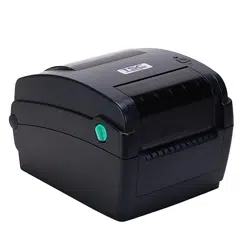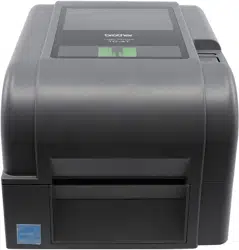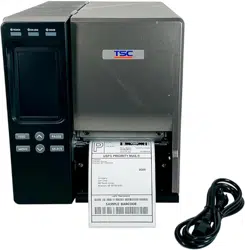
TTP-2410MU/ TTP-346MU/ TTP-644MU/
TTP-2410MT/ TTP-346MT/ TTP-644MT Series
SERVICE
MANUAL
THERMAL TRANSFER / DIRECT THERMAL
BAR CODE PRINTER

i
TABLE OF CONTENT
1. FUNDAMENTAL OF THE SYSTEM .......................................................................... 2
1.1. Overview ................................................................................................................. 2
2. ELECTRONICS .......................................................................................................... 7
2.1 Summary of Board Connectors ............................................................................. 7
2.2 Interface Pin Configuration .................................................................................. 11
3. MECHANISM ........................................................................................................... 13
3.1 Remove Covers and the Lower Front Panel ....................................................... 13
3.2 Replacing the LCD Panel Module for MU series ................................................ 15
3.3 Replacing the Touch Panel Module for MT series .............................................. 16
3.3 Replacing the Power Supply Unit ........................................................................ 18
3.4 Replacing Multi-interface Board .......................................................................... 19
3.5 Replacing the Main Board .................................................................................... 20
3.6 Replacing the Platen Roller Assembly ................................................................ 21
3.7 Replacing the Stepping Motor ............................................................................. 22
3.8 Replacing the Print head ASS’Y .......................................................................... 23
3.9 Replacing the Gap/Black Mark Sensor Module .................................................. 25
3.10 Replacing the Ribbon Rewind Spindle ............................................................. 27
3.11 Cutter Module Installation (Option) ................................................................... 28
3.12 Peel-off Kit Installation (Option) ........................................................................ 29
3.13 Internal Rewinding Kit Installation (Option) ..................................................... 34
3.14 Replacing the Cutter Driver IC Board (Option) ................................................. 37
3.15 Slot-in Wireless Housing Installation (Option) ................................................. 38
4. TROUBLESHOOTING ............................................................................................. 41
4.1 Common Problems ............................................................................................... 41
4.2 Mechanism Fine Adjustment to Avoid Ribbon Wrinkles ................................... 45
4.3 Adjustment Knob .................................................................................................. 47
4.3.1 Print head Pressure Adjustment Knob ................................................................ 47
4.3.2 Ribbon Tension Adjustment Knob ....................................................................... 48
4.3.3 Print Head Burn Line Adjustment Knob ............................................................... 49
5. MAINTENANCE ....................................................................................................... 50
UPDATE HISTORY ...................................................................................................... 52
2
2
1. FUNDAMENTAL OF THE SYSTEM
1.1. Overview
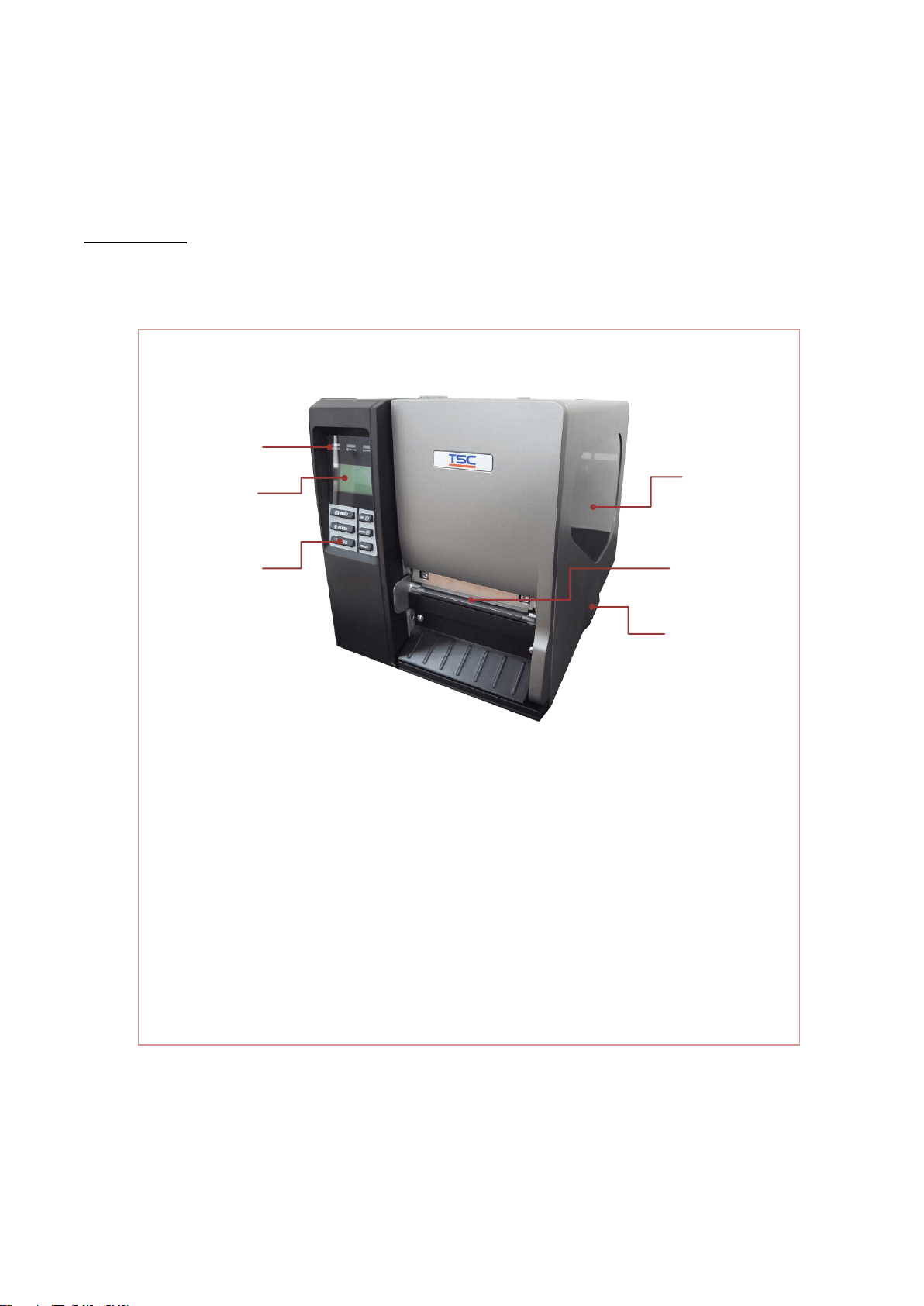
Front View
1. LED indicators
2. LCD display
3. Operation buttons
4. Media view window
5. Paper exit chute
6. Printer cover
2
1
3
P
o
w
e
r
L
E
D
i
n
d
i
c
a
t
o
r
4
5
6
Pri
nt
he
ad
For MU series
3
3
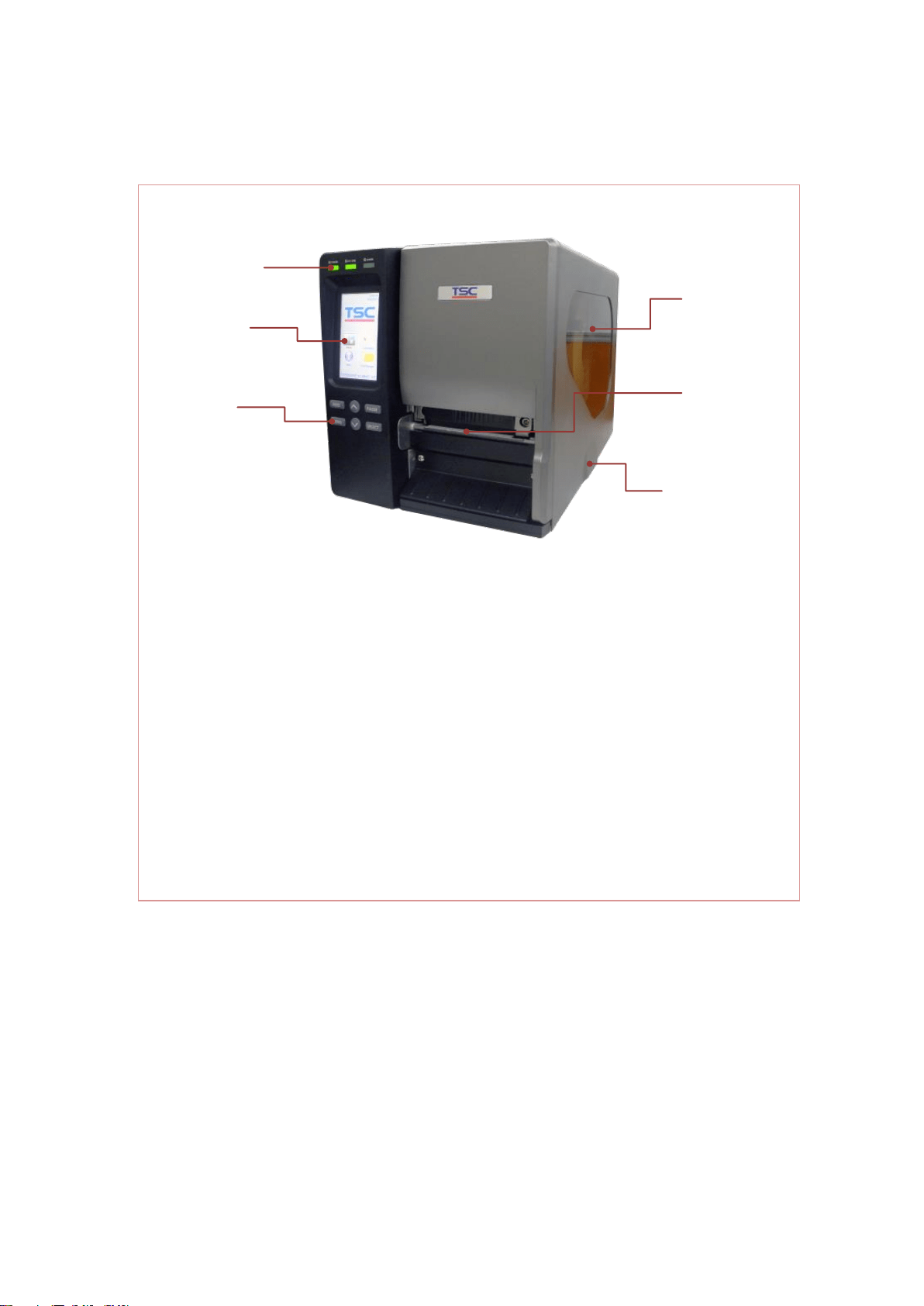
1. LED indicators
2. Touch screen
3. Operation buttons
4. Media view window
5. Paper exit chute
6. Printer cover
2
1
3
P
o
w
e
r
L
E
D
i
n
d
i
c
a
t
o
r
4
5
6
Pri
nt
he
ad
For MT series
4
4
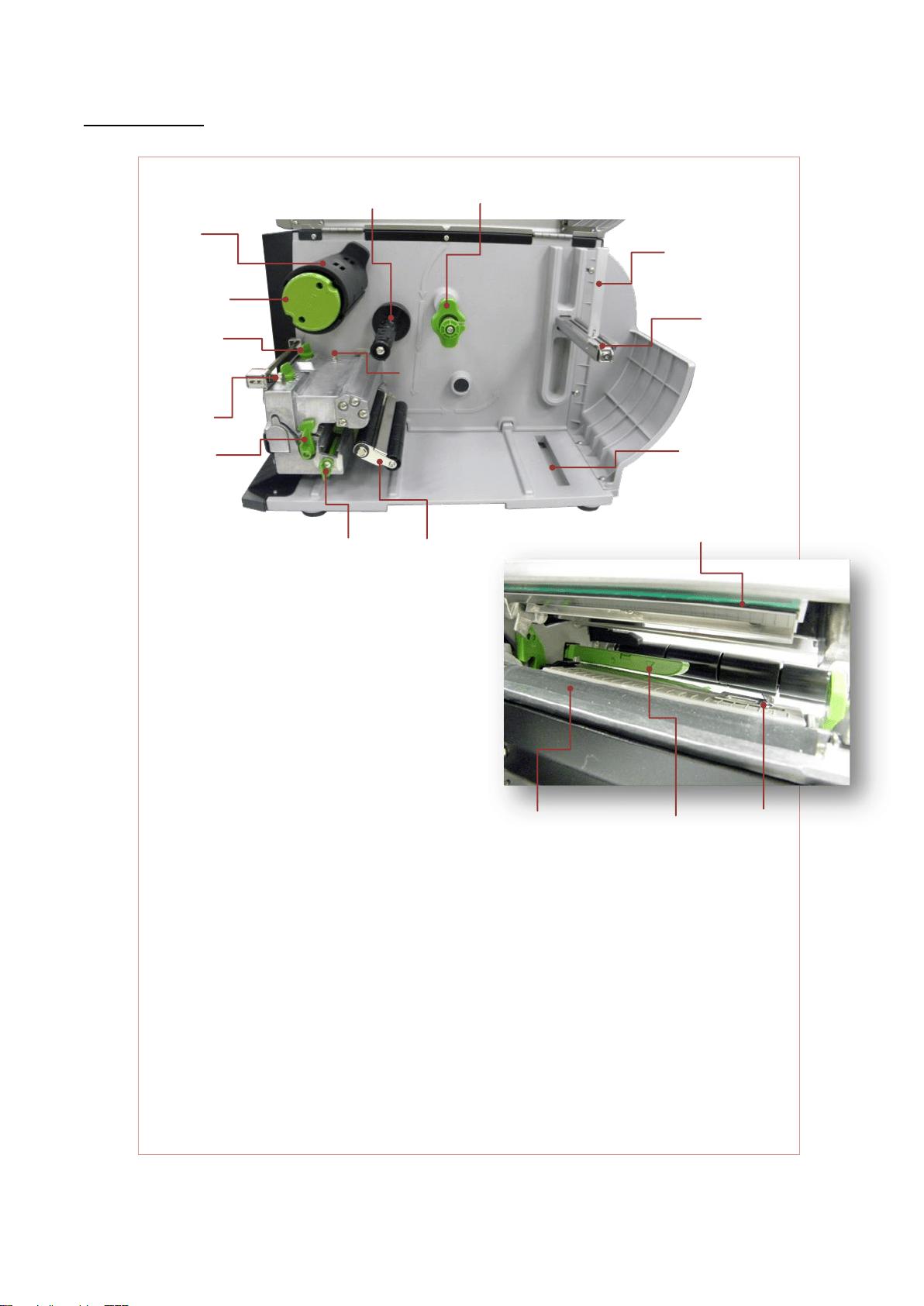
Interior View
1. Ribbon rewind spindle
2. Ribbon release button
3. Print head pressure adjustment knobs
4. Z axis mechanism adjustment knob
5. Ribbon tension adjustment knob
6. Print head release lever
7. Media sensor lock lever
8. Ribbon supply spindle
9. Media guide bar & Rear label guide
10. Label roll guard
11. 3” label supply spindle
12. External label entrance chute
13. Damper
14. Print head
15. Platen roller
16. Media sensor
17. Front label guide
2
1
3
P
o
w
e
r
L
E
D
i
n
d
i
c
a
t
o
r
4
13
7
Pri
nt
he
ad
5
8
Pri
nt
he
ad
9
Pri
nt
he
ad
10
Print
head
11
Prin
t
hea
d
12
Prin
t
hea
d
6
14
Print
head
15
Print
hea
d
16
Print
head
17
Prin
t
hea
d
5
5
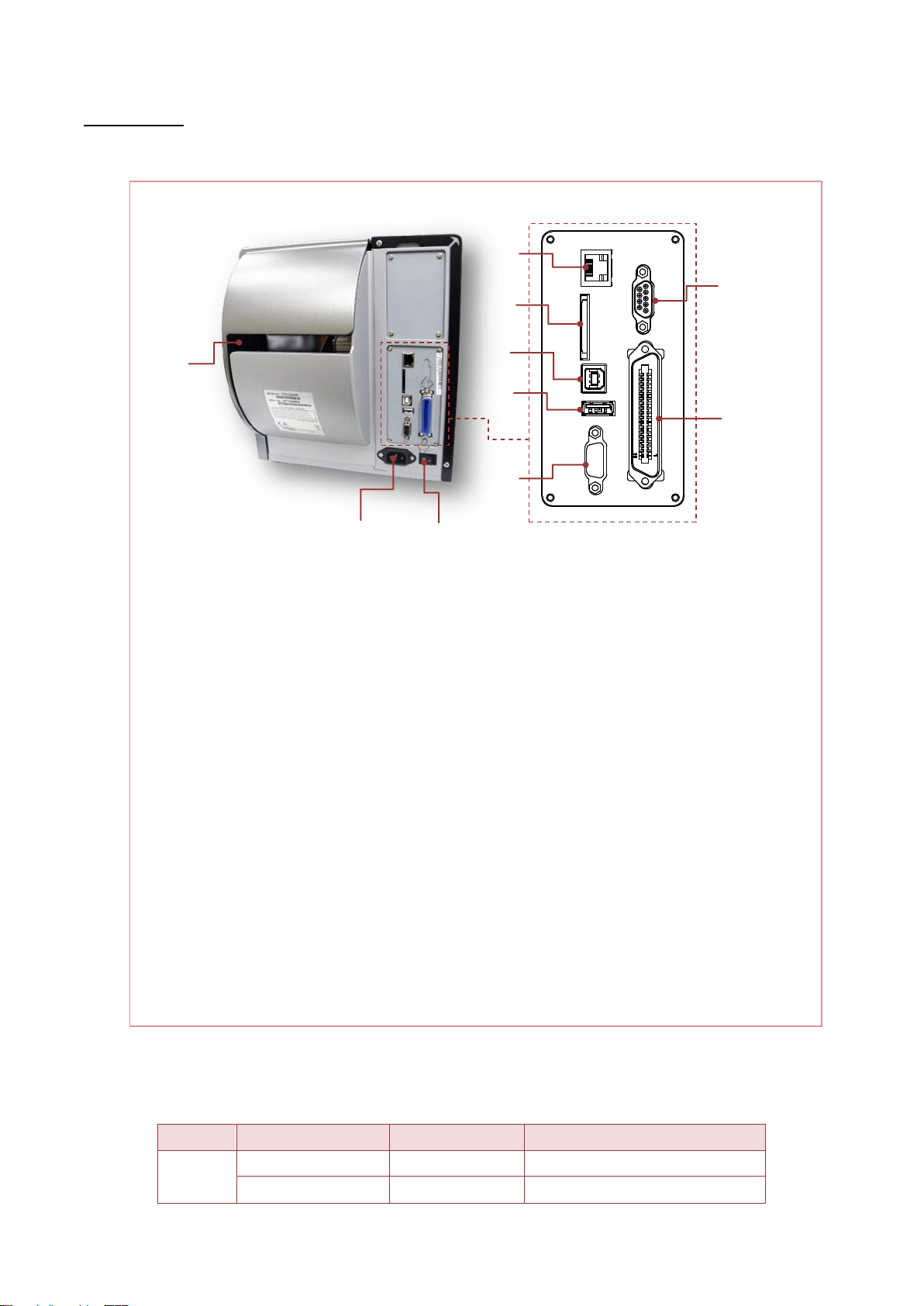
Rear View
* Recommended SD card specification
Type
SD card spec
SD card capacity
Approved SD card manufacturer
SDHC
V2.0 Class 4
2G
Transcend
V3.0 Class 10
32G
Kingston
1. External label entrance chute
2. Power cord socket
3. Power switch
4. Ethernet interface
5. * SD card socket
6. USB interface
7. USB host
8. RS-232C interface
9. GPIO interface (Option)
10. Centronics interface
Note:
The interface picture here is for reference only. Please refer to the product
specification for the interfaces availability.
1
3
2
4
US
B
inte
rfa
ce
7
USB
inter
face
6
5
8
9
Pri
nt
he
ad
10
Pri
nt
he
ad

6
6
V3.0 Class 10
16G
Kingston
V2.0 Class 4
8G
Scandisk
V3.0 Class 10
32G
Scandisk
Micro SD
V2.0 Class 4
4G
Transcend
V2.0 Class 4
8G
Transcend
V3.0 Class 10 UHS-I
16G
Transcend
V3.0 Class 10 UHS-I
32G
Transcend
V3.0 Class 10
16G
Kingston
V2.0 Class 4
16G
Scandisk
V3.0 Class 10 UHS-I
16G
Scandisk
- The DOS FAT file system is supported for the SD card.
- Folders/files stored in the SD card should be in the 8.3 filename format.
- The miniSD/microSD card to SD card slot adapter is required.
7
7
2. ELECTRONICS
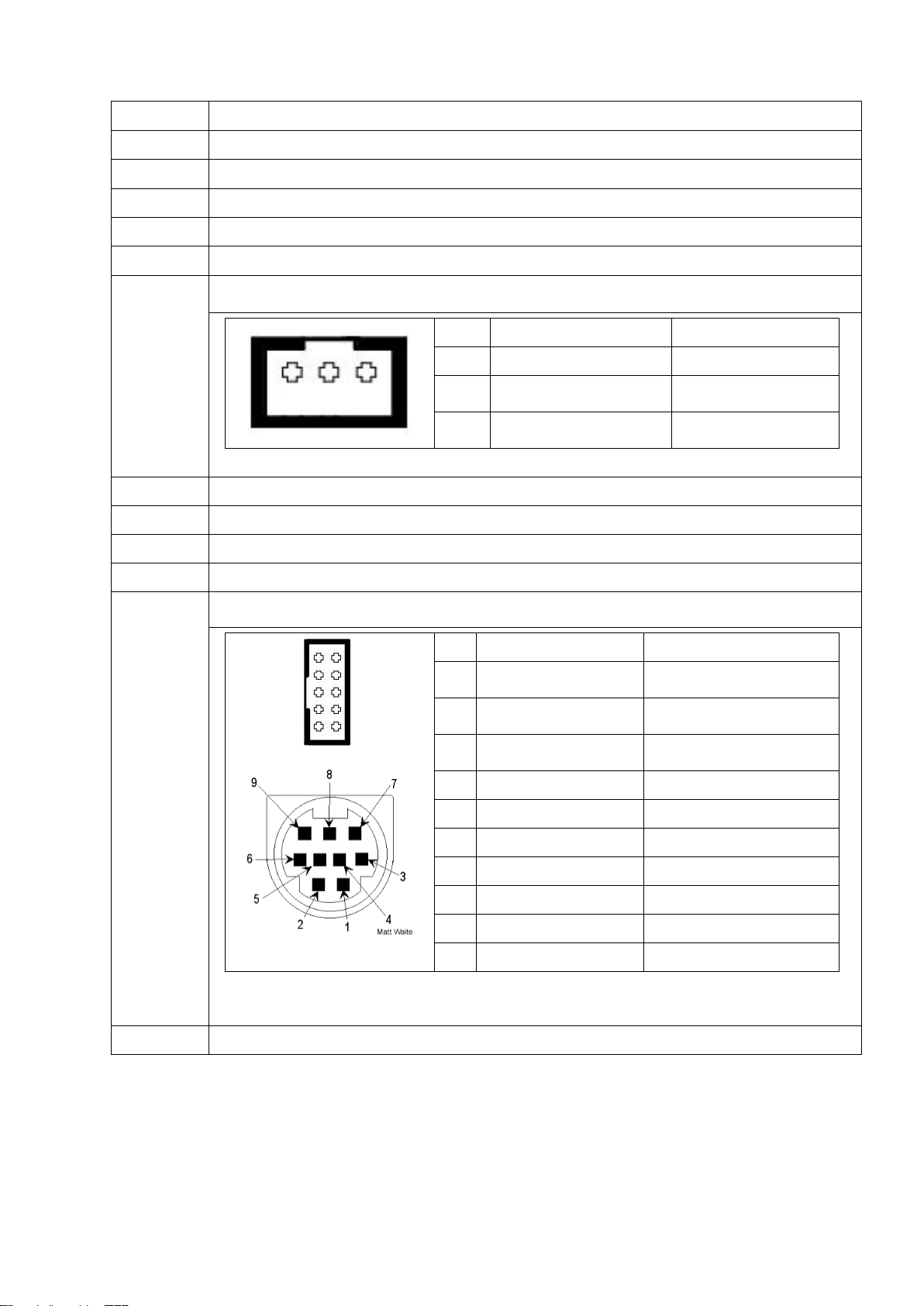
2.1 Summary of Board Connectors
Main board
Connector
Description
1
Ethernet RJ-45 connector
2
SD card slot
3
USB device connector
4
USB host connector
5
RS-232C connector
6
Microprocessor
7
GPIO connector
8
Centronics port FPC connector
2
3
5
10
6
13
12
20
19
16
17
4
1
11
7
18
21
22
23
15
9
8
14
8
8
9
TFT LCD panel FPC connector
10
KEY & LED connector
11
LCD panel connector
12
USB host internal connector (Reserve)
13
I2C internal connector (Reserve)
14
RFID module connector (4” 6pin / 6” or 8” 4pin)
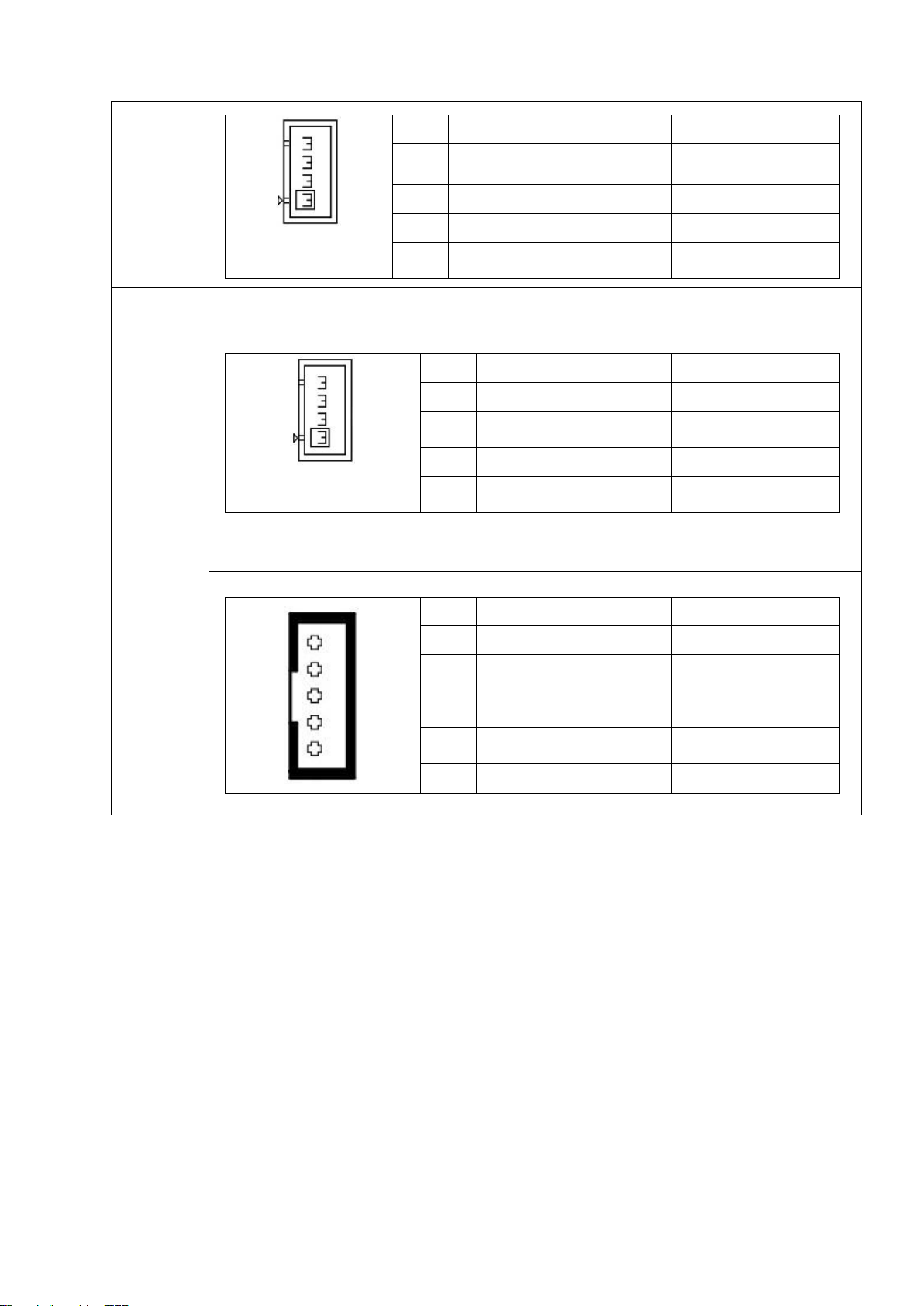
15
Ribbon recover sensor connector (For 4” used only)
Pin
Description
Voltage
1
GND
0V
2
Ribbon encoder sensor
receiver
A/D: 0~3.3V
3
Ribbon encoder sensor
emitter power pin
4.0~4.15V
16
Power supply output (24V DC) connector
17
Stepping motor connector
18
Print head data connector
19
Print head power connector
20
Cutter/peel-off sensor connector
Note:
9 Pin Mini Din for cutter/peel-off module connector
Pin
Description
Voltage
1
Cutter enable
0V: Cutter work
5V: Cutter stop
2
Cutter direction
0V: Cutter positive cut
5V: Cutter negative cut
3
Cutter position sensor
switch
0V: Cutter stop
3.3V: Cutter work
4
Peel sensor receiver
A/D: 0~3.3V
5
N/A
N/A
6
Logic power
5V
7
GND
0V
8
Cutter power
24V
9
I2C SCL signal
10
I2C SDA signal
21
Head open sensor connector
1 2 3
1 2
3 4
5 6
7 8
9 10
9
9
Pin
Description
Voltage
1
Head open sensor emitter
power pin
1.2~1.4V
2
GND
0V
3
Logic power
3.3V
4
Head open sensor receiver
0V: Head close
3.3V: Head open
22
Ribbon sensor connector
Pin
Description
Voltage
1
Ribbon sensor receiver
A/D: 0~3.3V
2
Ribbon sensor emitter
power pin
5V
3
GND
0V
4
Ribbon sensor emitter
4.0~4.1V: Emitter on
4.3~4.4V: Emitter off
23
Gap sensor connector
Pin
Description
Voltage
1
Power
5V
2
Gap sensor emitter
4.0~4.1V: Emitter on
4.3~4.4V: Emitter off
3
Black mark sensor emitter
4.0~4.1V: Emitter on
4.3~4.4V: Emitter off
4
Gap and black mark
sensor receiver
A/D: 0~3.3V
5
GND
0V
5
4
3
2
1
4
3
2
1
4
3
2
1
10
10
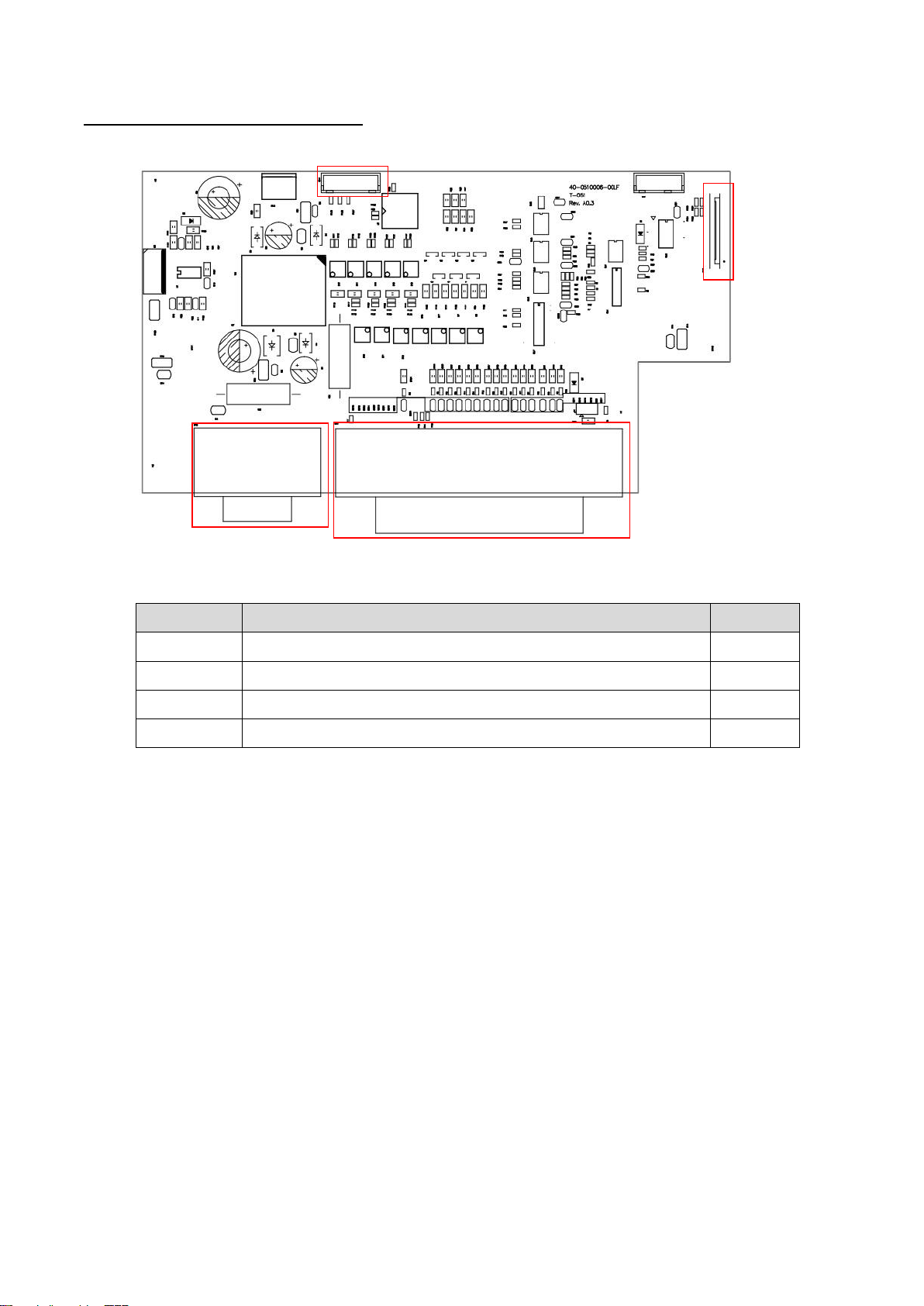
GPIO with multi-interface board
Connector
Description
Remark
1
GPIO connector
2
GPIO power and control signal connector
3
Centronics port connector
4
Centronics port FPC connector
2
1
4
3
11
11
2.2 Interface Pin Configuration
RS-232C
PIN
CONFIGURATION
1
+5 V
2
TXD
3
RXD
4
CTS
5
GND
6
RTS
7
N/C
8
RTS
9
N/C
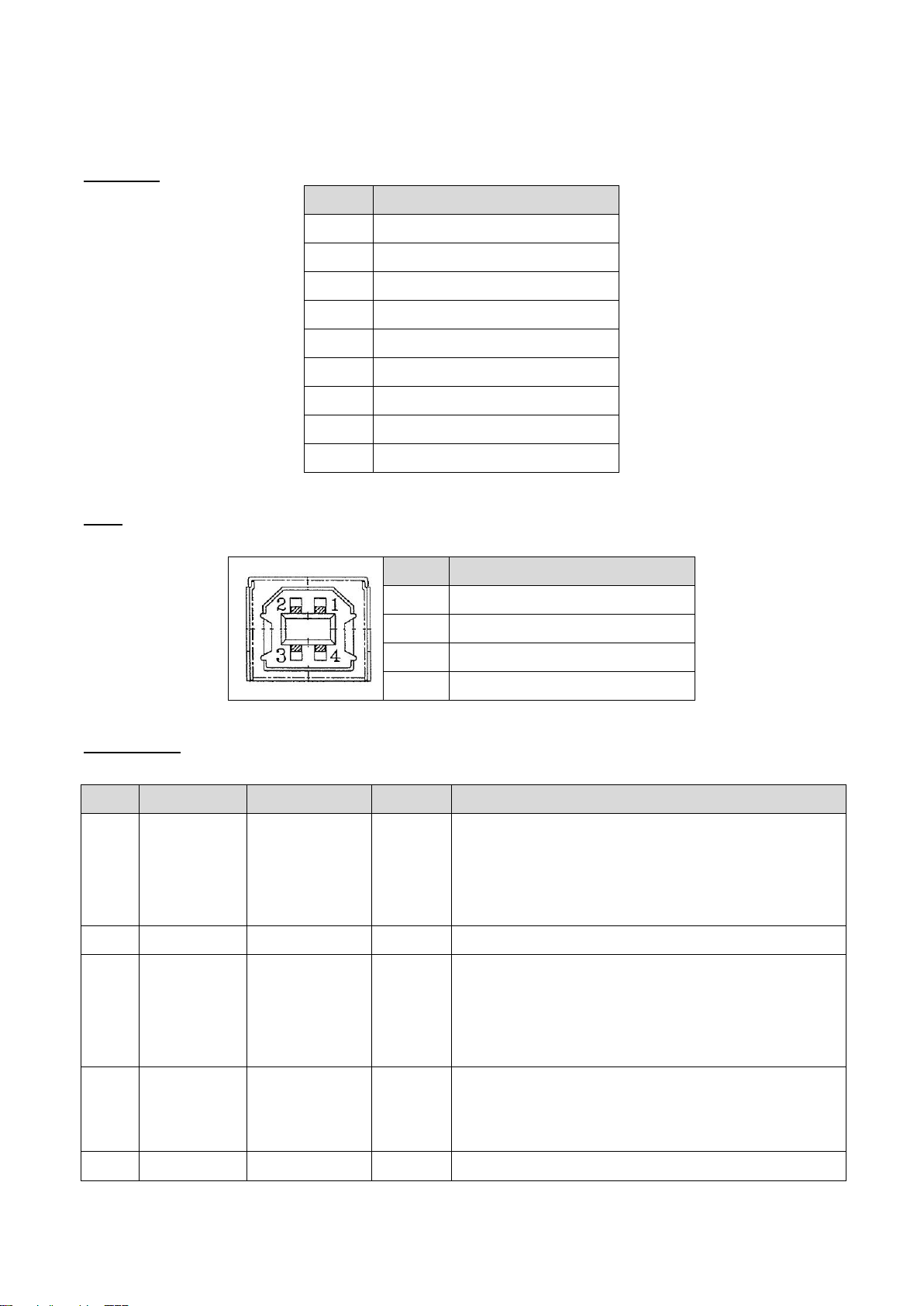
USB
PIN
CONFIGURATION
1
N/C
2
D-
3
D+
4
GND
Centronics
Pin
SPP Mode
Nibble
In/Out
Function
1
Strobe
N/A
In
A low on this line indicates that there are valid data
at the host. When this pin is de-asserted, the +ve
clock edge should be used to shift the data into the
device.
2-9
Data 0-7
N/A
In
Data Bus. Single-directional.
10
Ack
N/A
Out
A low on this line indicates that there are valid data
at the Device. When this pin is de-asserted, the +ve
clock edge should be used to shift the data into the
host.
11
Busy
N/A
Out
When in reverse direction, a high indicates data,
while a low indicates a command cycle. In forward
direction, it functions as PtrBusy.
12
Paper Out /
N/A
Out
When low, device acknowledges reverse request.
12
12
End
13
Select
N/A
Out
Extensibility flag
14
Ground
N/A
GND
15
No Defined
N/A
N/A
16-17
Ground
N/A
GND
Ground
18
No Defined
N/A
N/A
19-30
Ground
N/A
GND
Ground
31
No Defined
N/A
N/A
32
Error / Fault
N/A
Out
A low set by the device indicates that the reverse
data is available
33-35
Ground
N/A
GND
Ground
36
No Defined
N/A
N/A
Ethernet
PIN
CONFIGURATION
1
Tx+
2
Tx-
3
Rx+
4
N/C
5
N/C
6
Rx-
7
N/C
8
N/C
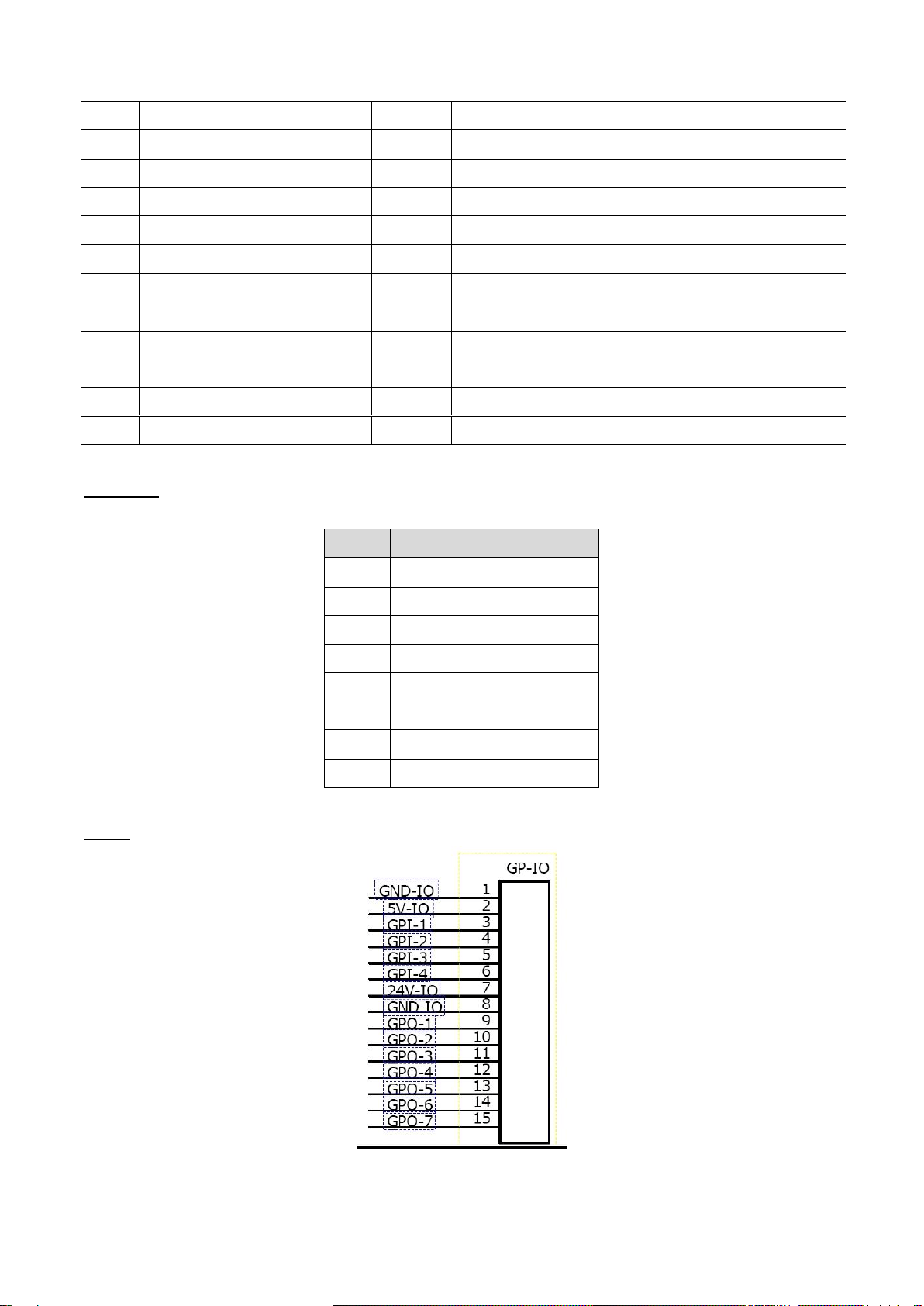
GPIO
13
13
3. MECHANISM
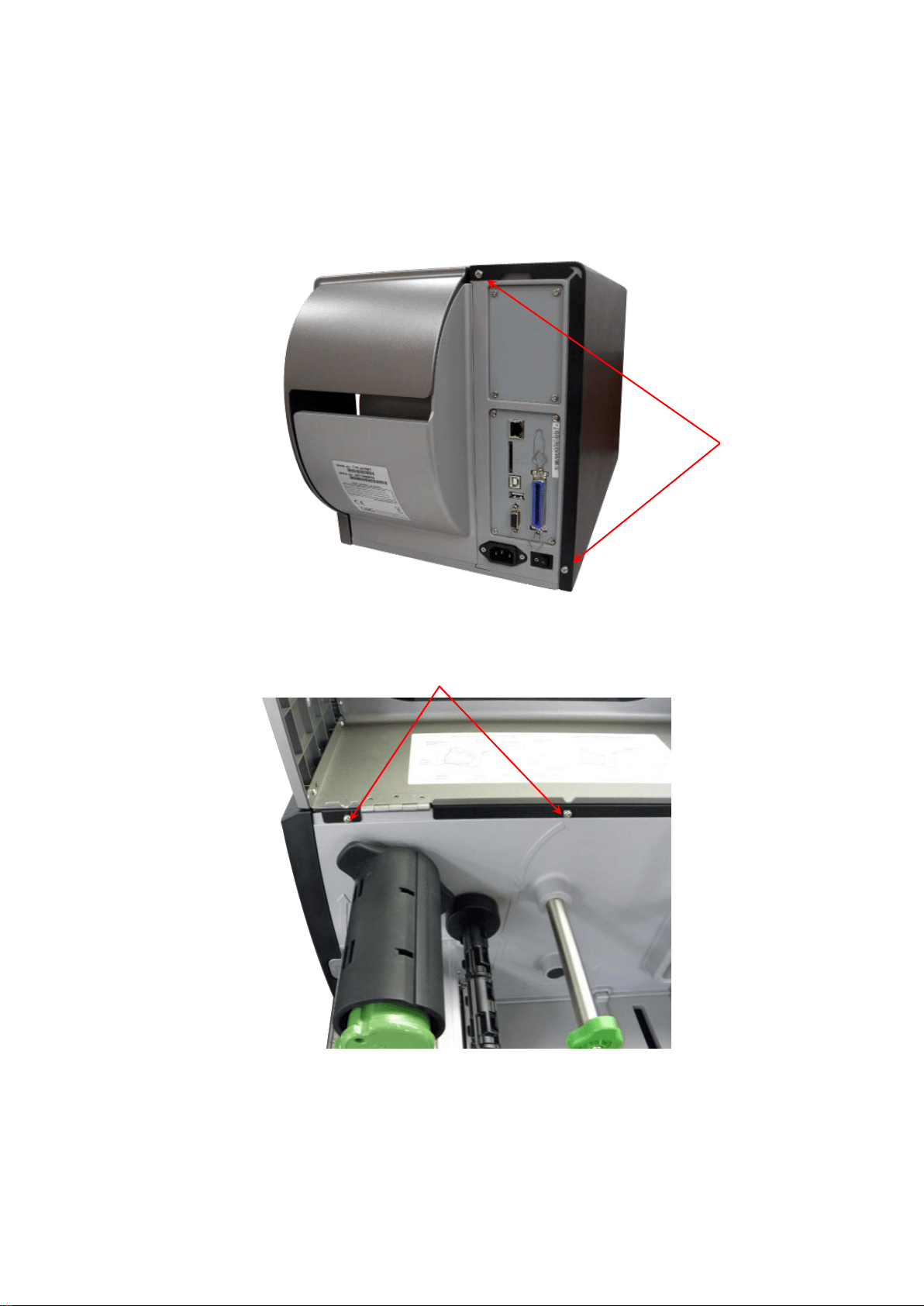
3.1 Remove Covers and the Lower Front Panel
1. Remove two screws on rear of printer.
2. Open printer right side cover and remove two screws then close the cover.
3. Push the printer left side electronics cover toward the interface direction then take it out
from the printer. Please refer to the following pictures.
Screws
Screws
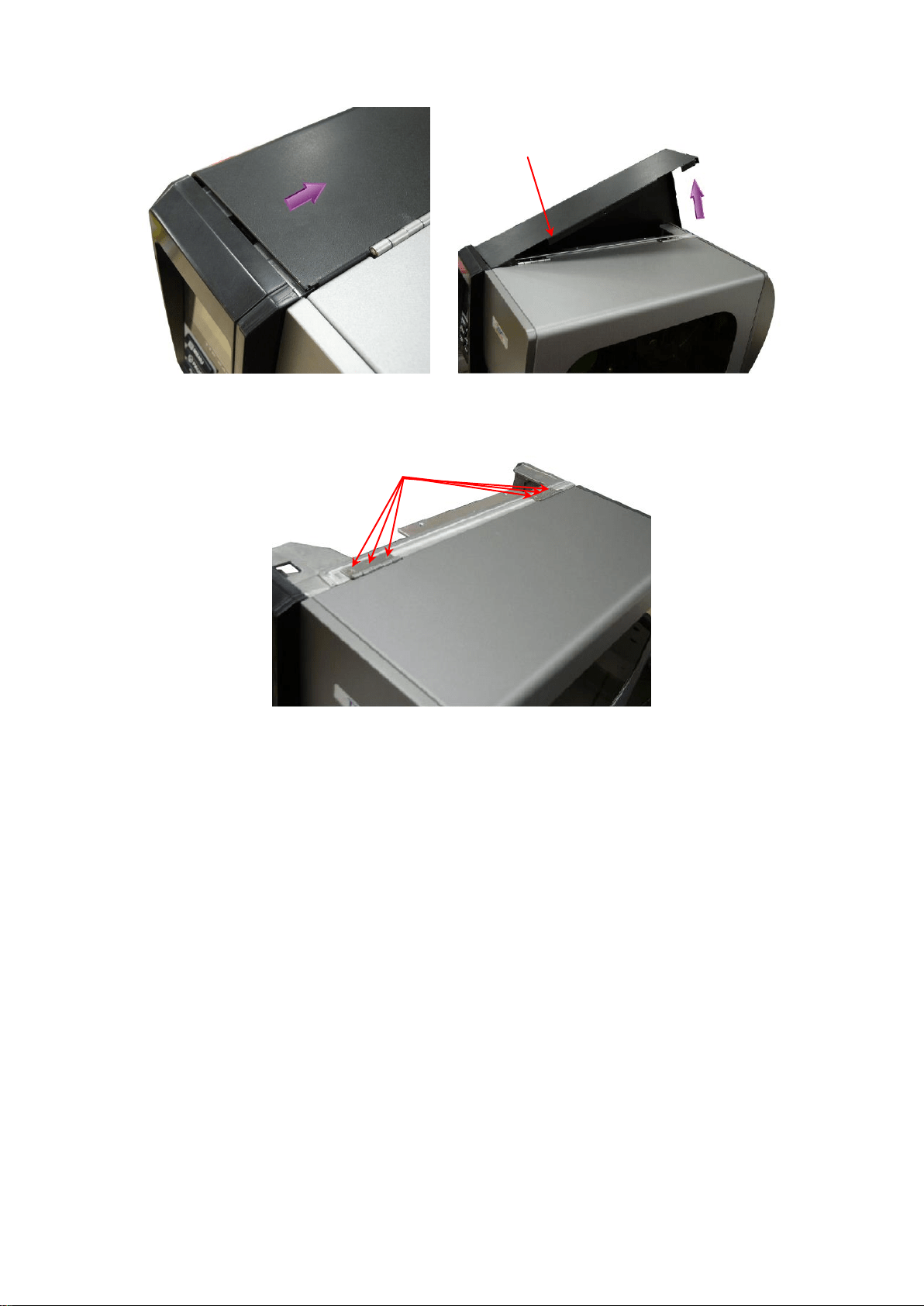
14
14
4. Remove 3 screws from each hinge. Be careful the right side cover may fall out from the
printer. Take out the right side cover from the printer.
5. Reassemble the parts in the reverse procedures.
Electronics cover
Screws
15
15
3.2 Replacing the LCD Panel Module for MU series
1. Refer to section 3.1 to remove the electronics cover.
2. Disconnect harness from the LCD panel module.
3. Push two tabs to remove/replace the LCD panel module.
4. Remove five screws to remove/replace LCD panel PCB ASS’Y and LCD panel ASS’Y.
5. Reassemble the parts in the reverse procedures.
16
16
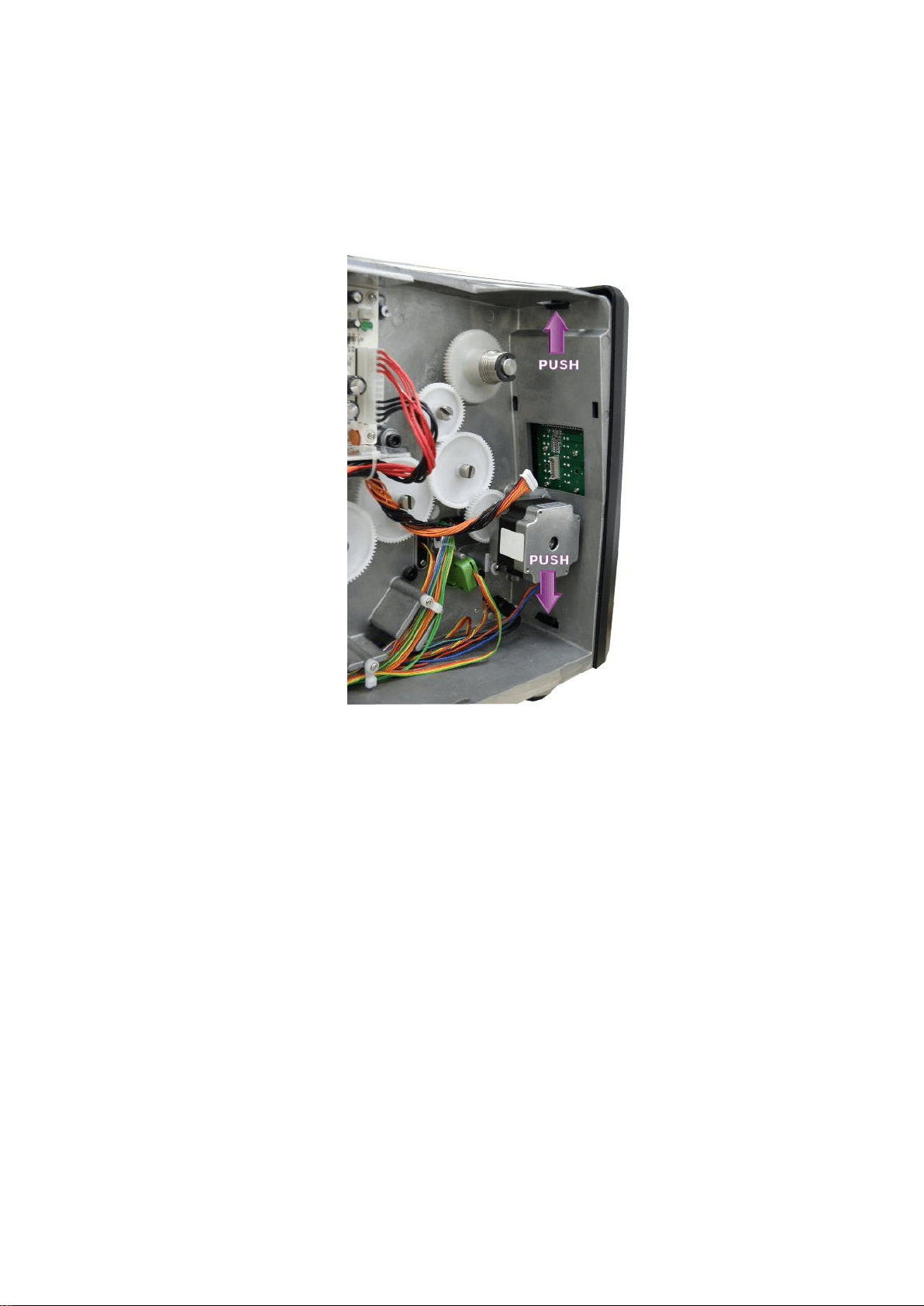
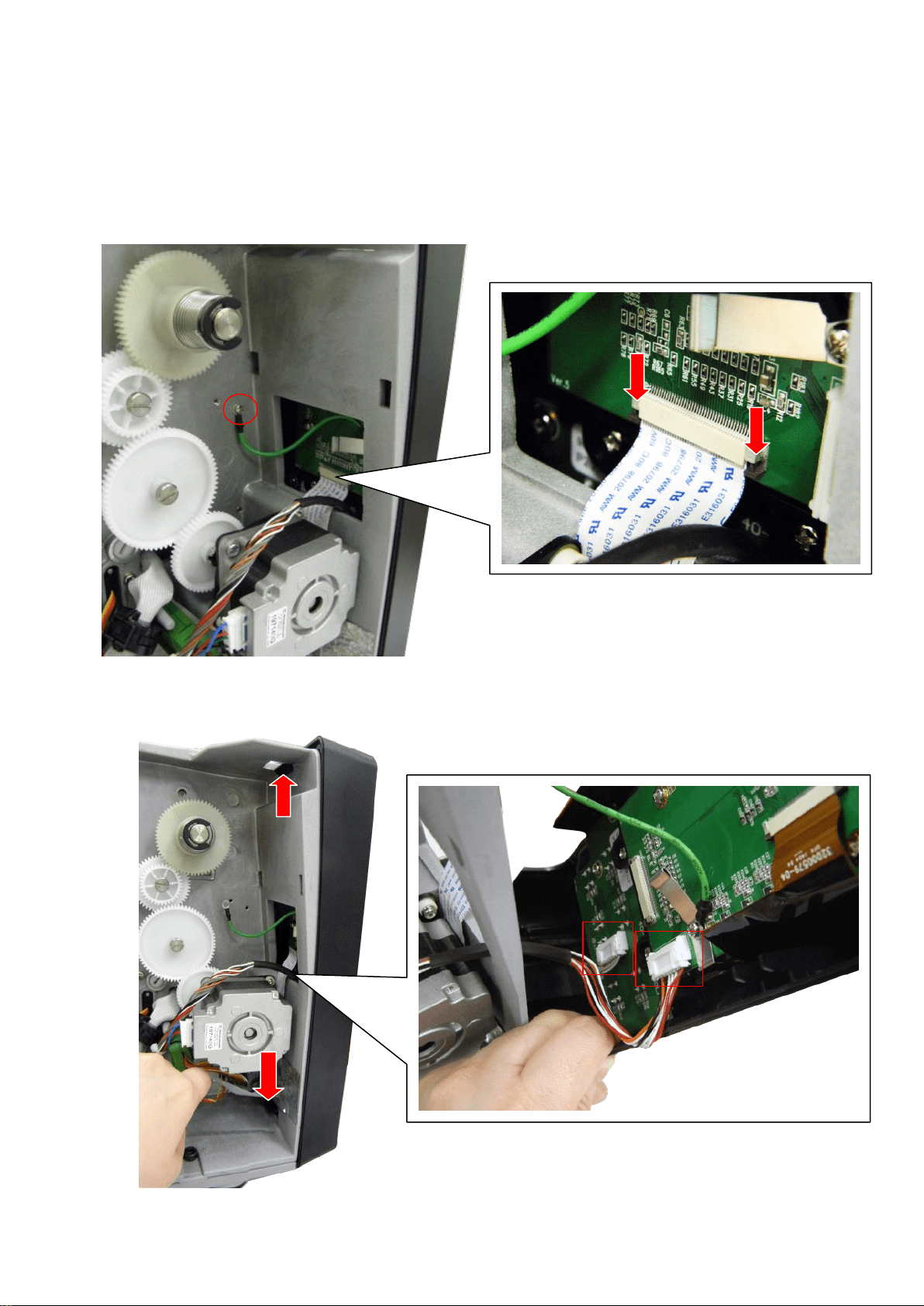
3.3 Replacing the Touch Panel Module for MT series
1. Refer to section 3.1 to remove the electronics cover.
2. Remove 1 screw to release ground cable. Loose the connector lock to disconnect the flat
cable from panel module carefully.
3. Push two tabs for touch panel module. Disconnect 2 connectors to remove/replace the
touch panel module.
PUSH
PUSH
17
17
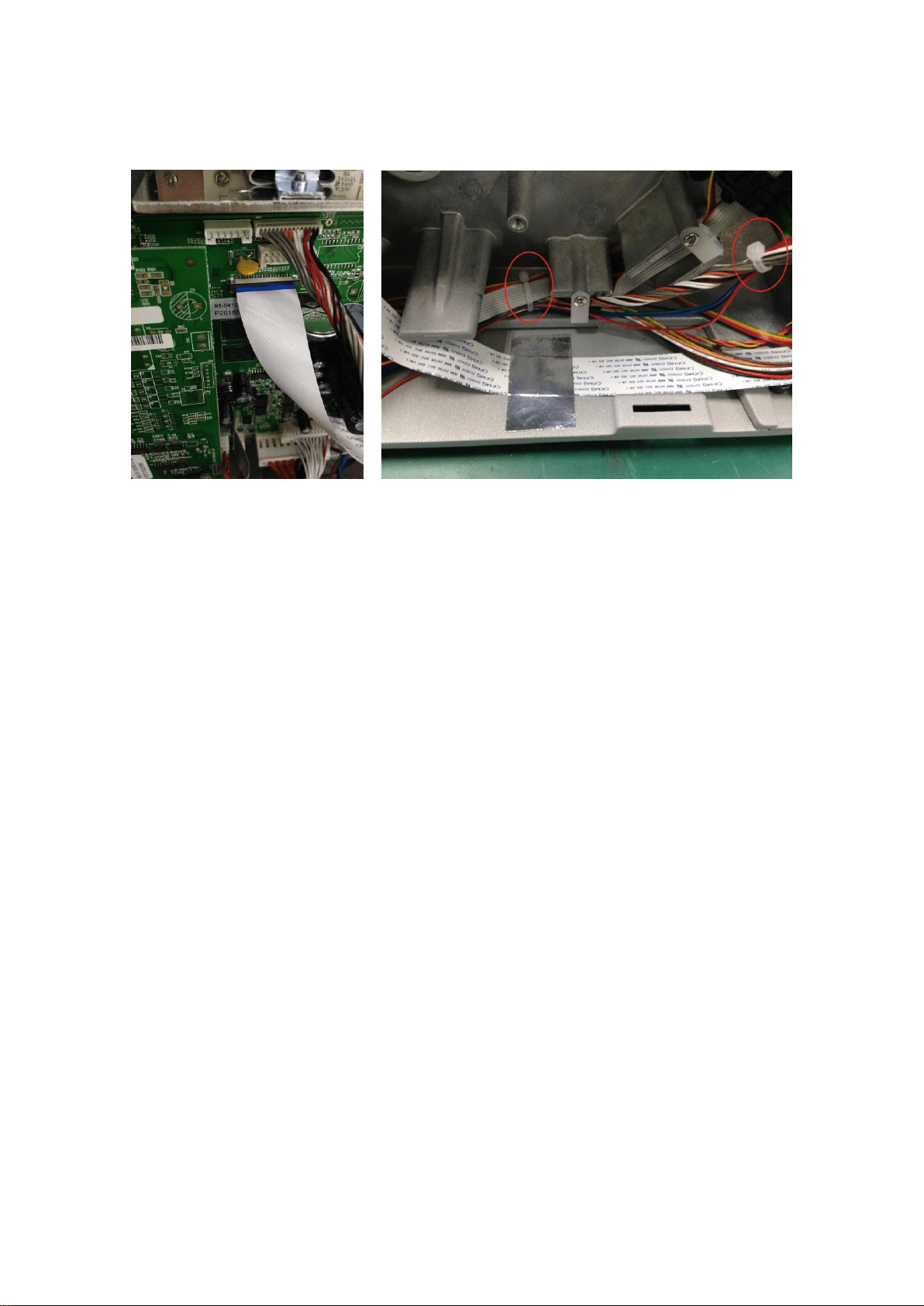
4. Reassemble the parts in the reverse procedures. If the flat cable on panel module is
difficult to connect back, please remove it on main board and loose 2 cable ties to install.
18
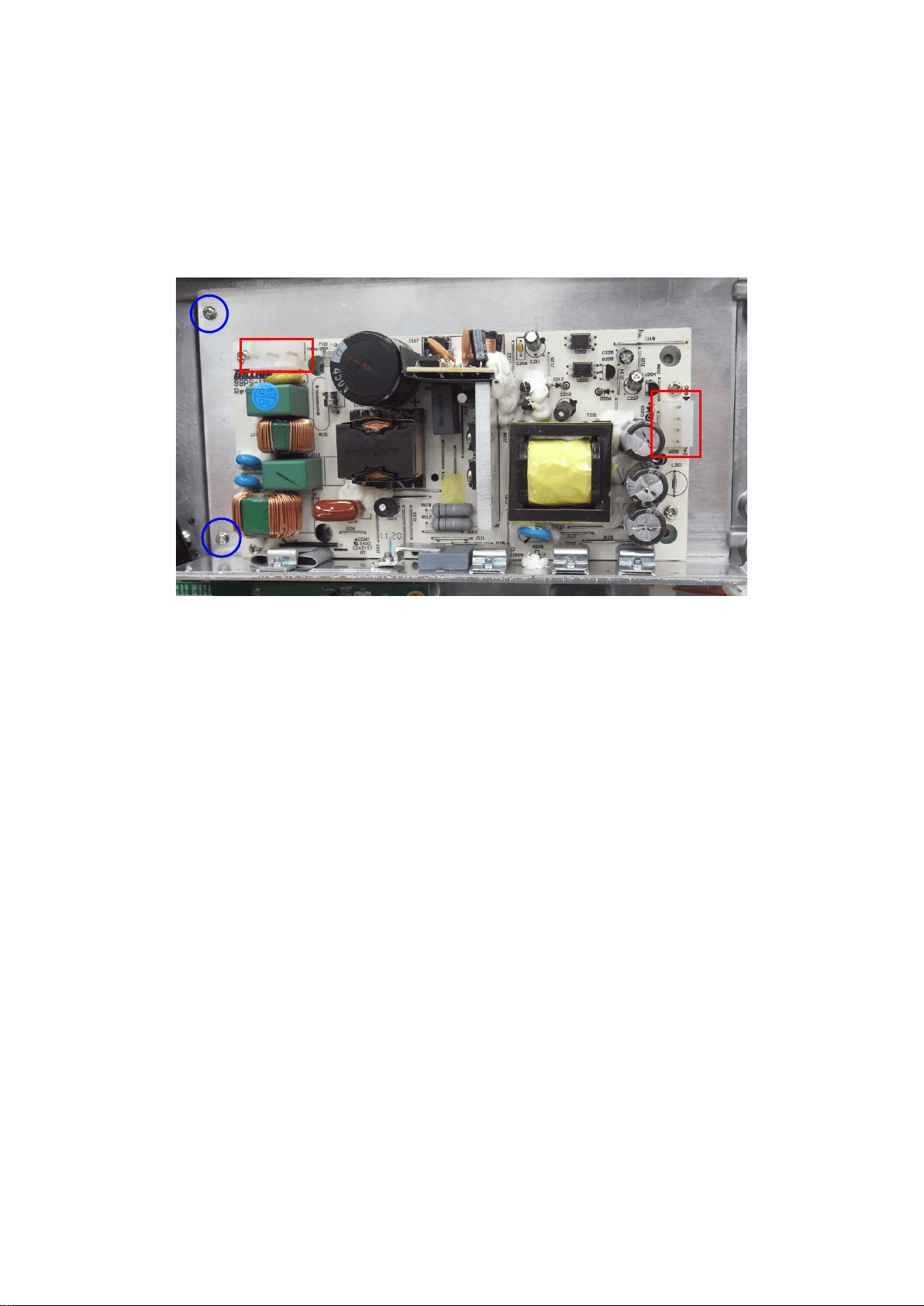
18
3.3 Replacing the Power Supply Unit
1. Refer to section 3.1 to remove the electronics cover.
2. Disconnect all connectors on the power supply unit.
3. Remove 2 screws and 2 cable ties.
---- Connector
---- Screw
4. Remove/Replace the power supply unit.
5. Reassemble the parts in the reverse procedures.
19
19
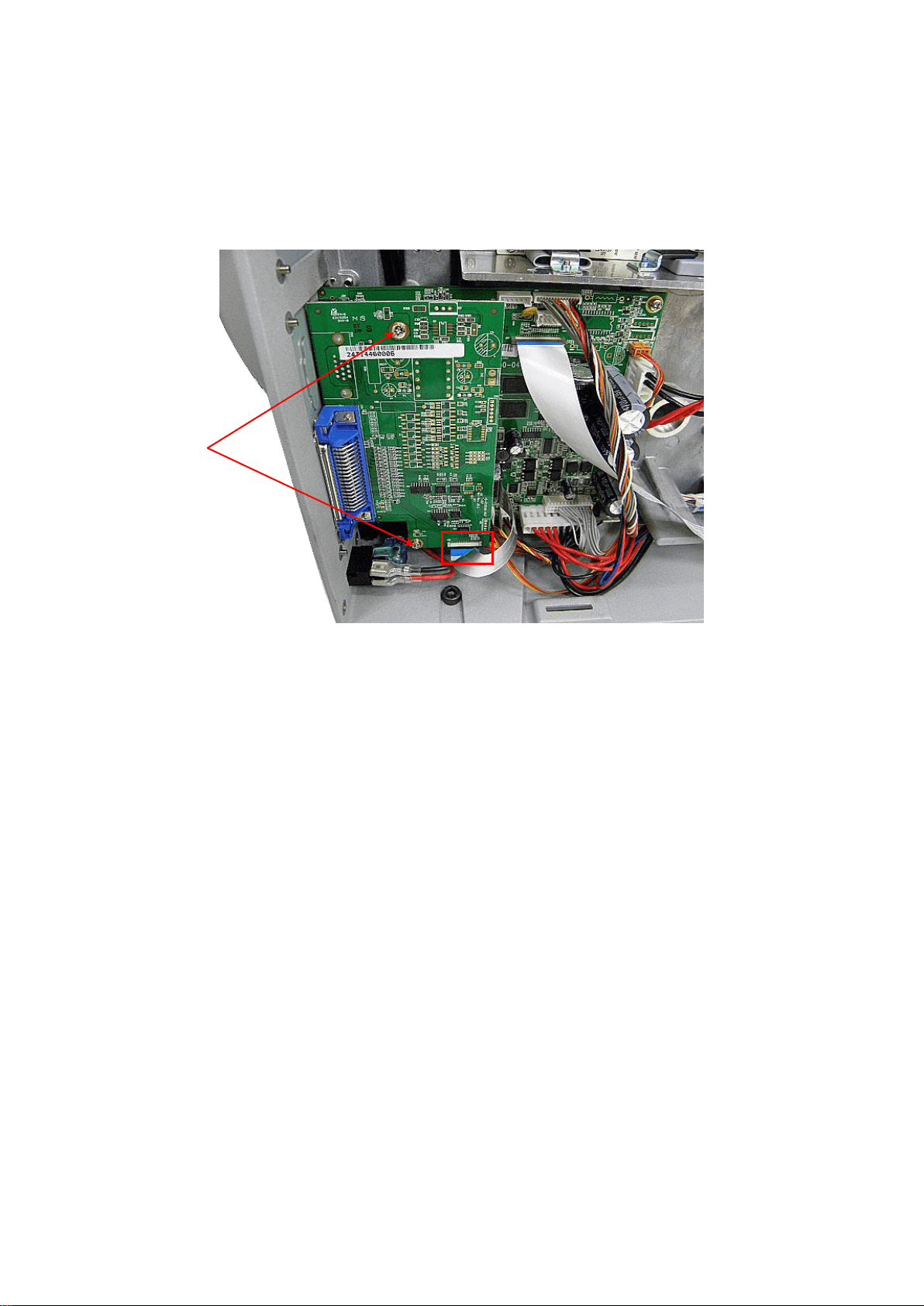
3.4 Replacing Multi-interface Board
1. Refer to section 3.1 to remove the electronics cover.
2. Remove 2 screws. Disconnect 1 flat cable. Remove/Replace the multi-interface board.
3. Reassemble the parts in the reverse procedures.
Screws
20
20
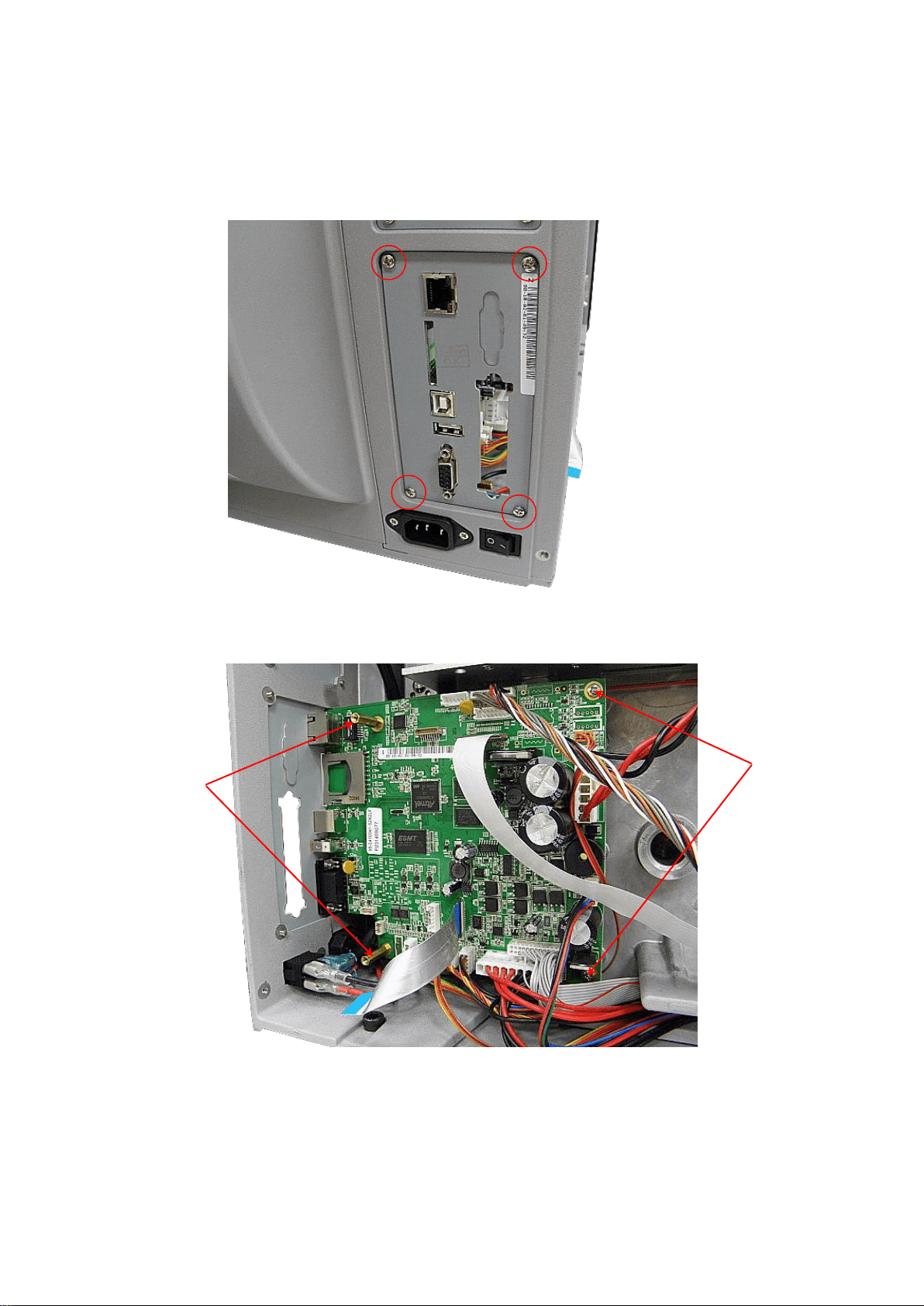
3.5 Replacing the Main Board
1. Refer to section 3.4 to remove the multi-interface board.
2. Remove 4 screws then take off the interface bracket.
2. Remove 2 screws and 2 copper pillars on the main board. Disconnect all connectors from
the main board. Remove/Replace the main board.
3. Reassemble the parts in the reverse procedures.
Copper pillars
Screws
21
21
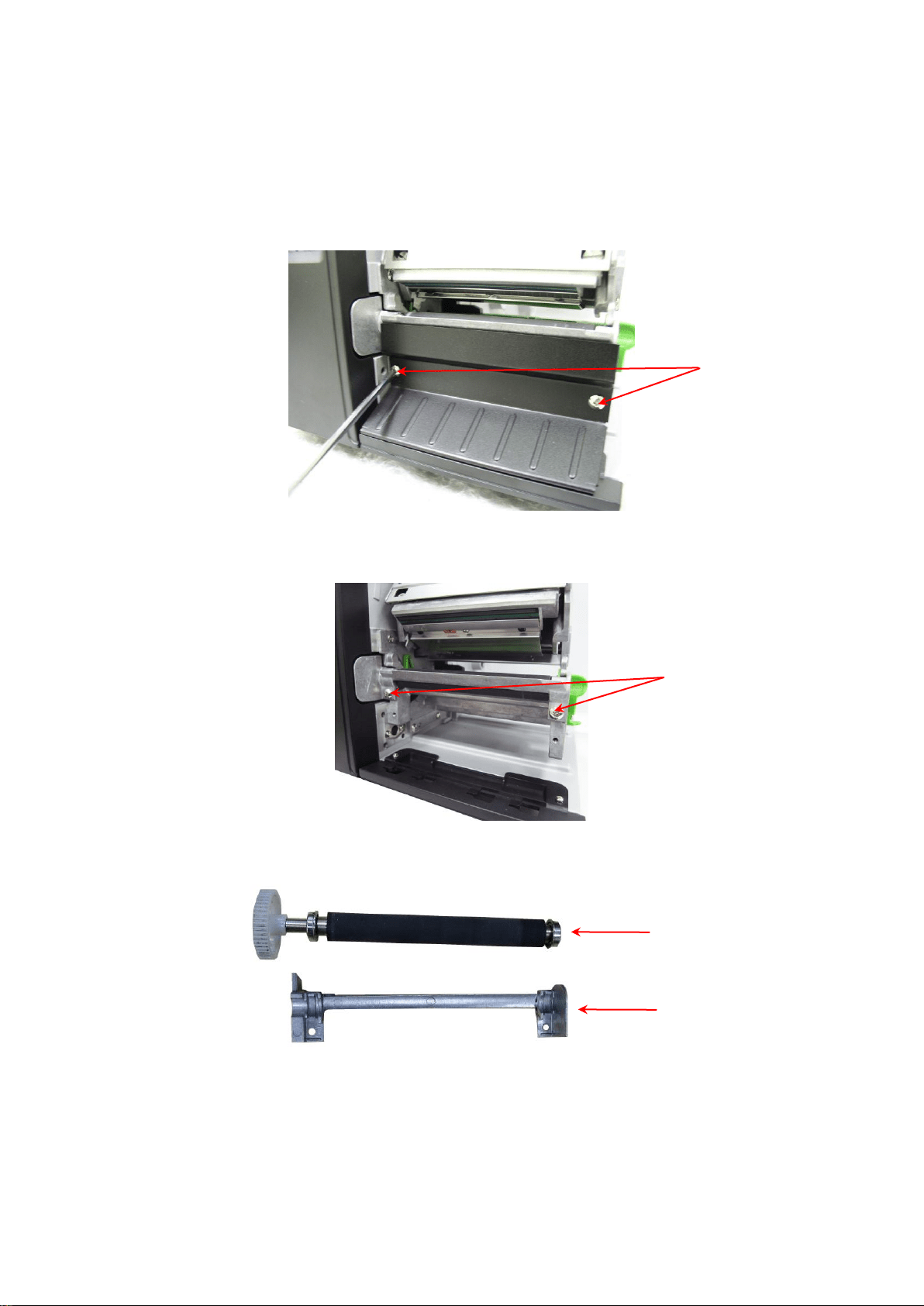
3.6 Replacing the Platen Roller Assembly
1. Open printer right side cover.
2. Disengage print head lift lever.
3. Remove 2 screws to remove lower front panel.
4. Remove 2 screws on the platen holder.
5. Take out the platen holder, platen roller assembly and replace a new platen roller
assembly.
6. Reassemble the parts in the reverse procedures.
Screws
Platen roller assembly
Holder
Screws
22
22
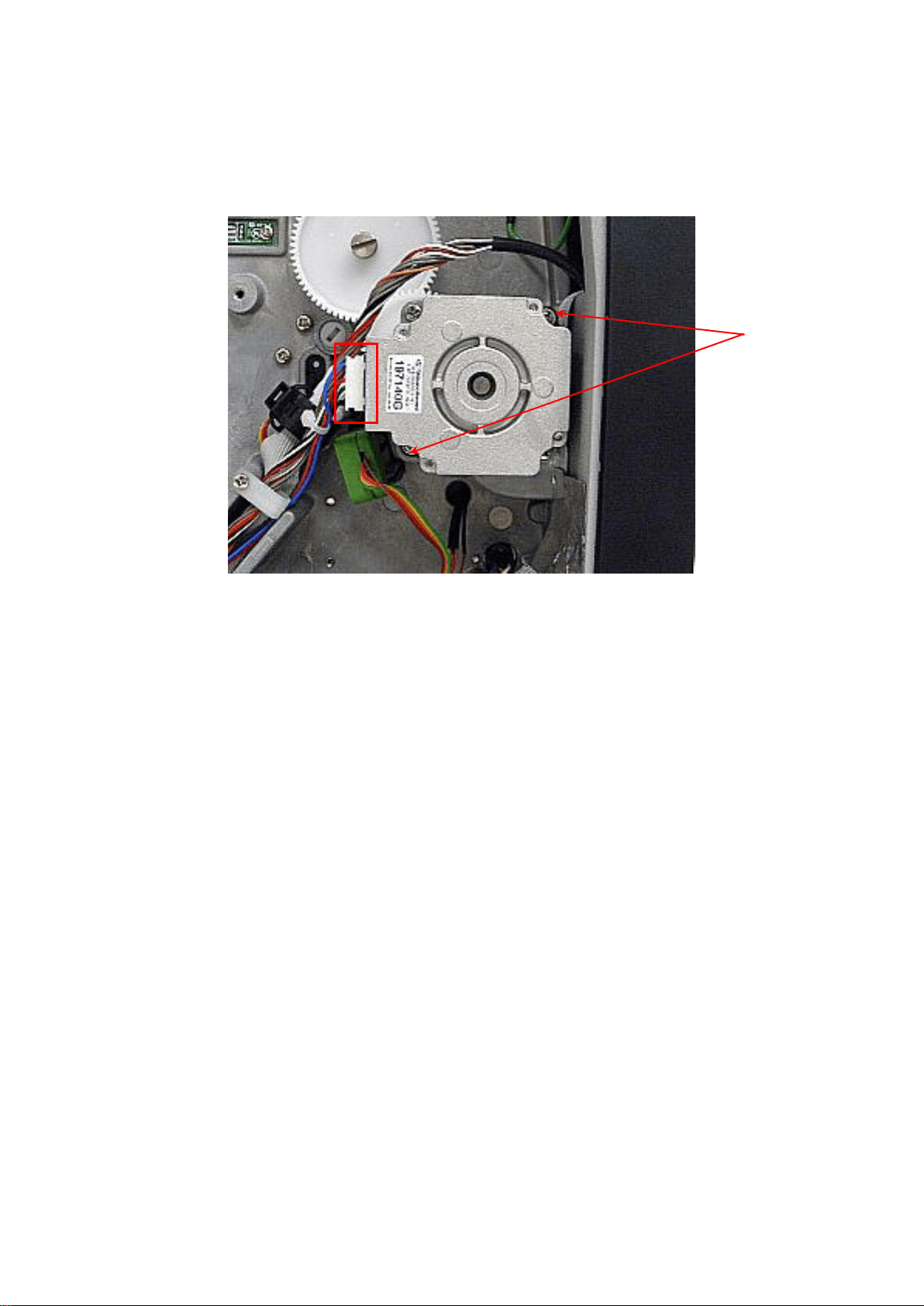
3.7 Replacing the Stepping Motor
1. Refer to section 3.1 to remove the electronics cover.
2. Disconnect the stepping motor connector. Remove 2 screws on the stepping motor.
3. Remove/Replace the stepping motor.
4. Reassemble the parts in the reverse procedures.
Screws
23
23
3.8 Replacing the Print head ASS’Y
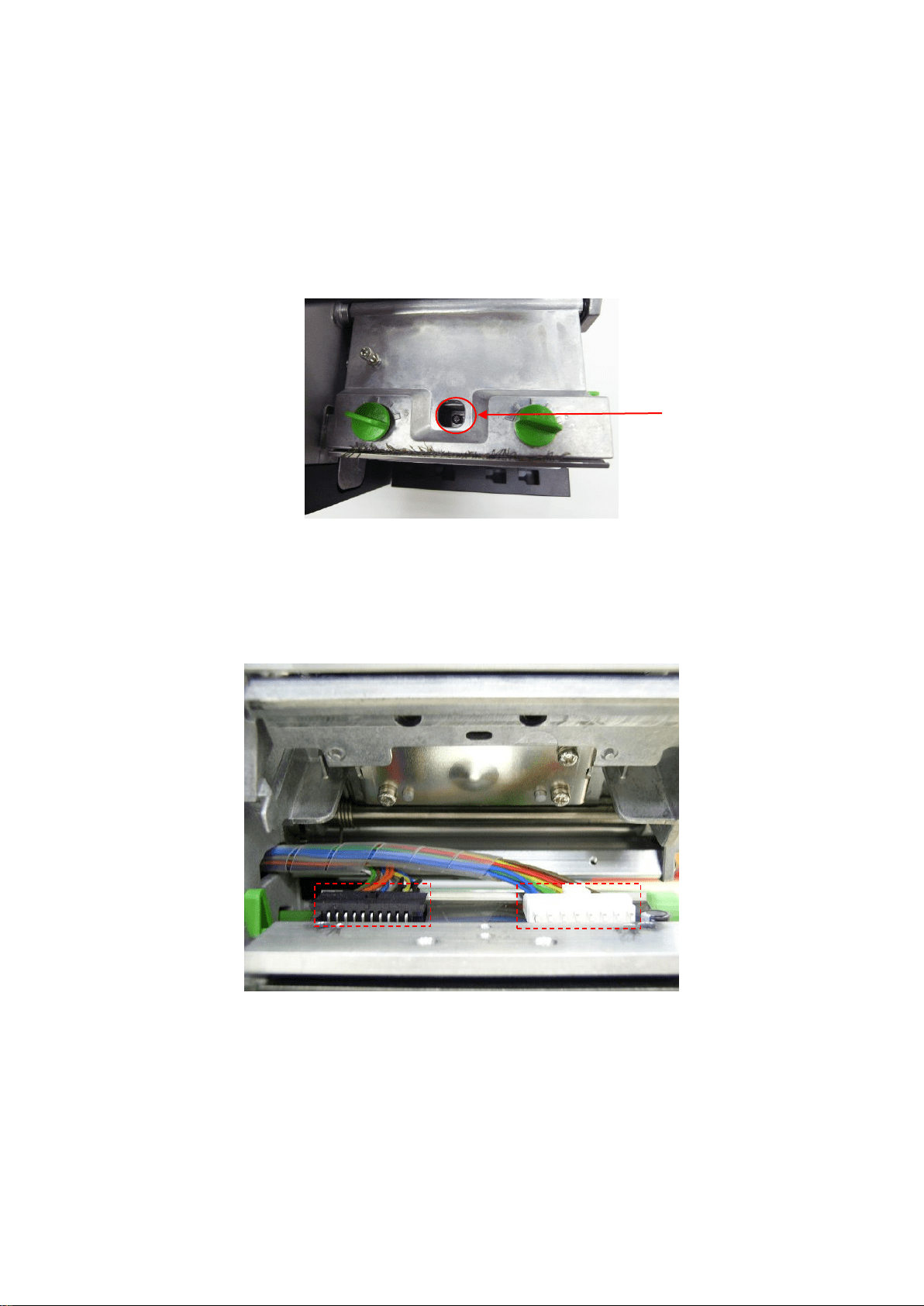
1. Open the printer right side cover.
2. Turn the two print head pressure adjustment knobs counterclockwise to lowest index to
minimize the pressure applied to the print head.
3. Disengage print head release lever.
4. Remove the screw upon the print head mechanism.
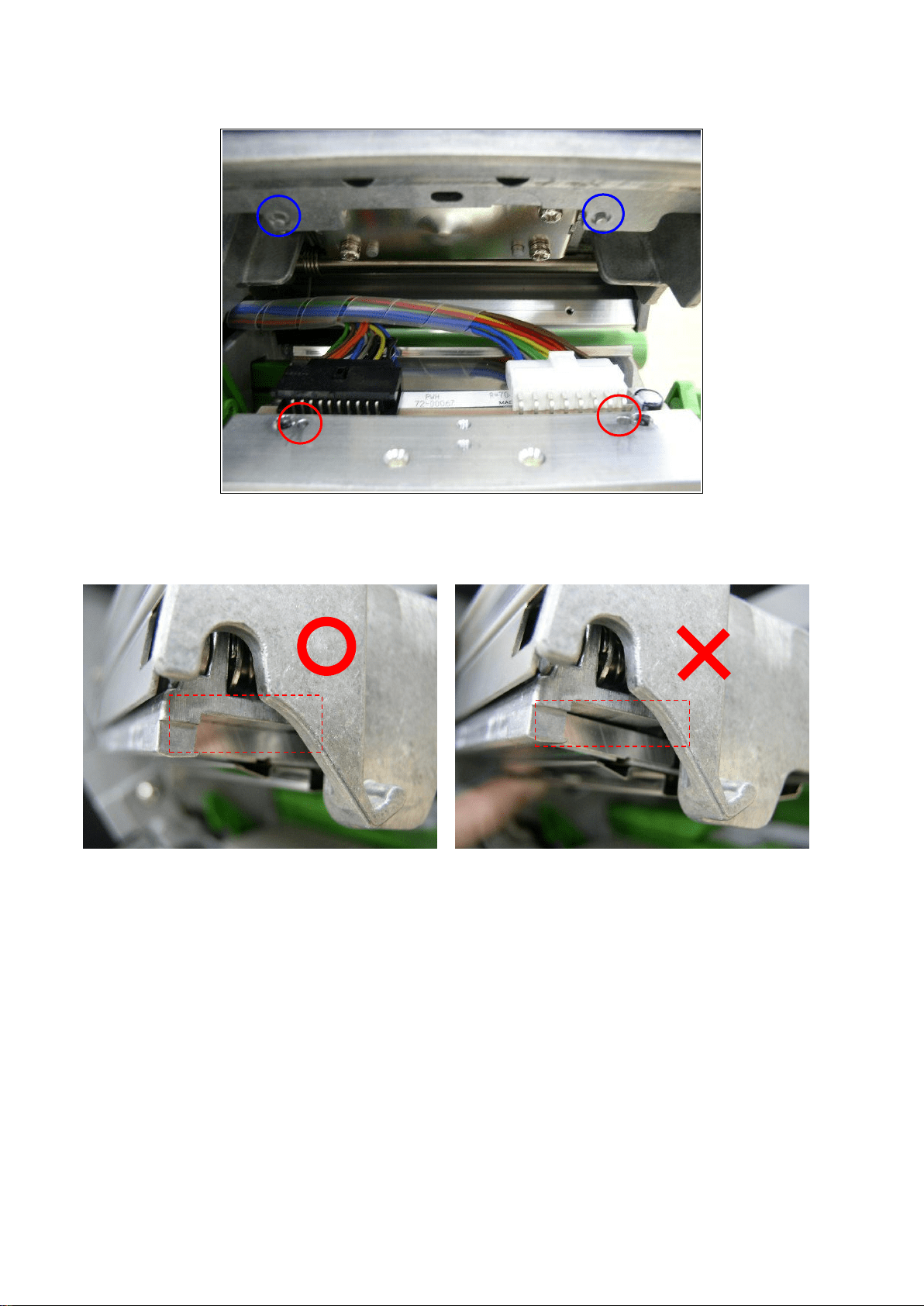
5. Carefully disconnect connector from the print head ASS’Y. Please do not pull the cable to
right and left side alternatively in order to disconnect it from the print head connector.
Please use the flat screw driver to push at the key in the middle of the connector. When
the connector becomes loose from the print head connector, you can disconnect it.
6. Remove/Replace the print head ASS’Y.
7. Connect the print head cable and carefully slide assembly into the print mechanism. Make
sure the two locating protrusions on the print mechanism mounting plate snap into the
locating holes on the print head.
---- Locating protrusions
---- Locating holes
Screw
24
24
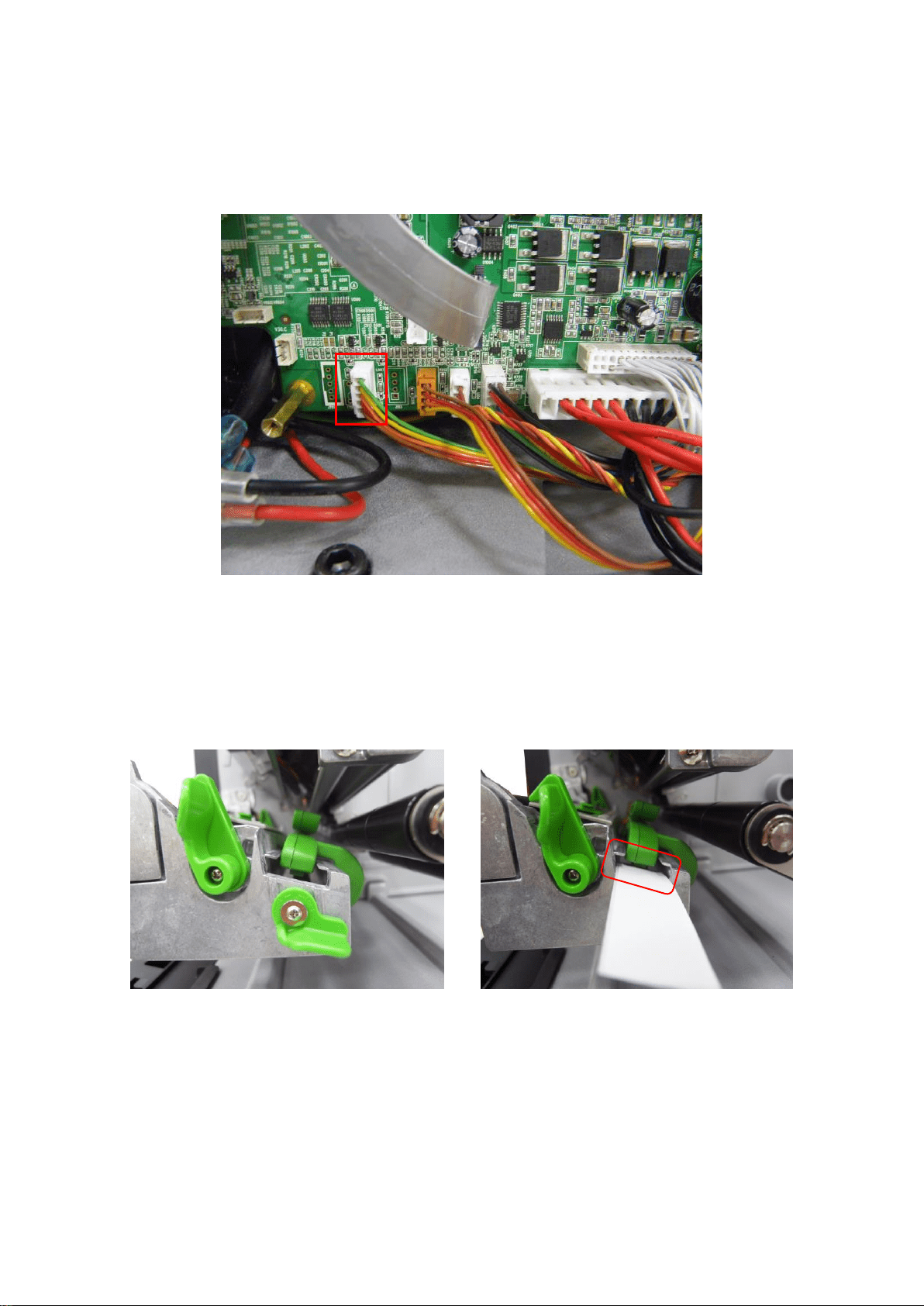
8. Check the print head has been totally closed to the print mechanism before secure the
print head by the previously removed thumbscrew.
9. Reassemble the parts in the reverse procedures.
Note: Please use the come with new print head screw to replace the print head
assembly. DO NOT use the original screw.
25
25
3.9 Replacing the Gap/Black Mark Sensor Module
1. Refer to section 3.1 to remove the electronics cover.
2. Disconnect the gap/black mark sensor connector on the main board.
3. Open the printer right side cover.
4. Unlock the media sensor lock lever.
5. Make the media sensor module approach the end of mechanism but not too close.
6. At the bottom of the gap/black mark sensor module, there is a green plastic tab to latch
the sensor module to the mechanism. Use a piece of label/paper which can fit the path of
the media sensor module and make the label/paper though the path and under the tab.
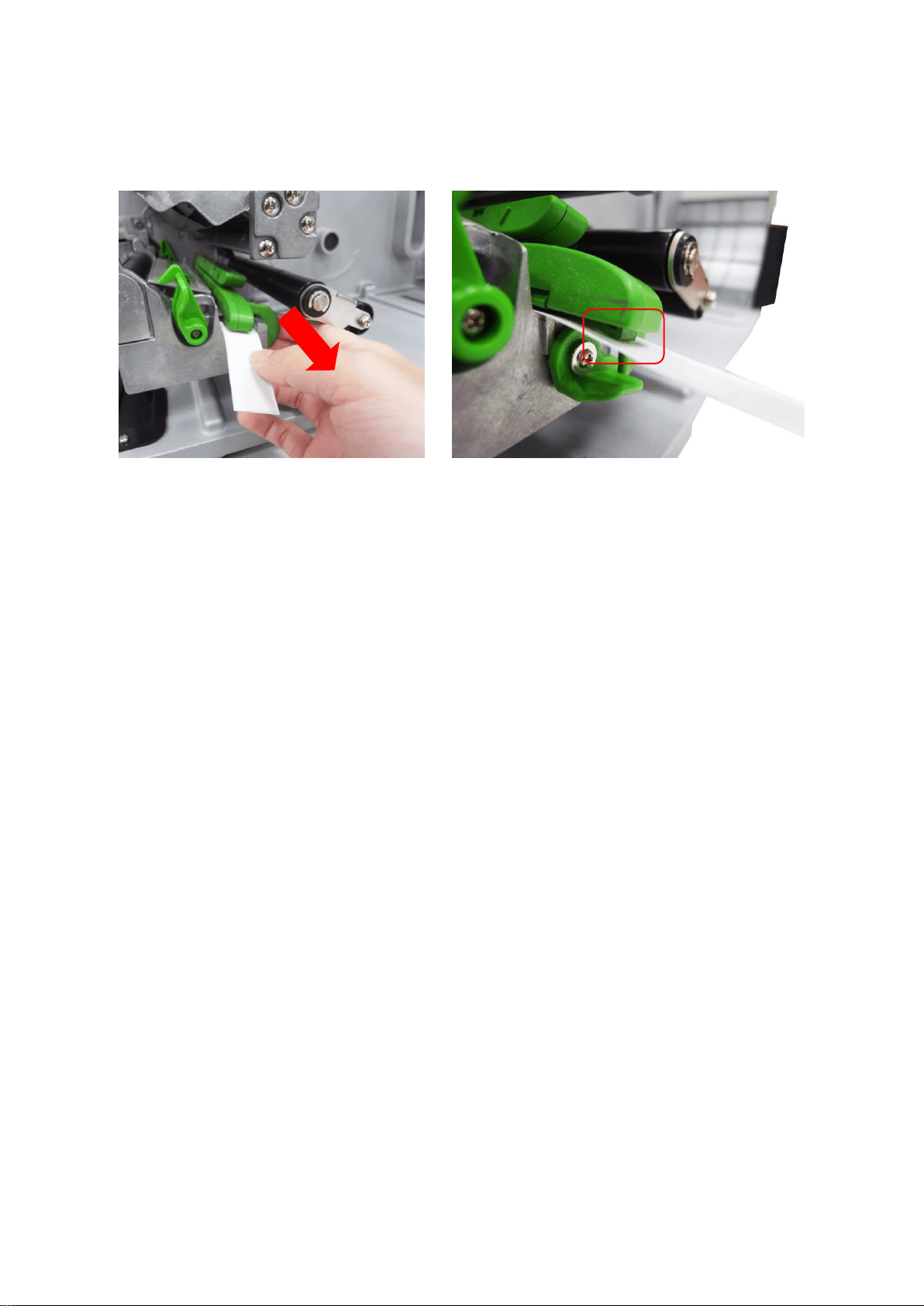
26
26
4. Pull the media sensor module and the label/paper and pull the media sensor module out
of the latch of the sensor module to the mechanism.
6. Replacing the gap/black mark sensor is pushing the gap/back mark sensor that is
reassembling the parts in the reverse procedures but using the piece of label/paper is not
necessary.
27
27
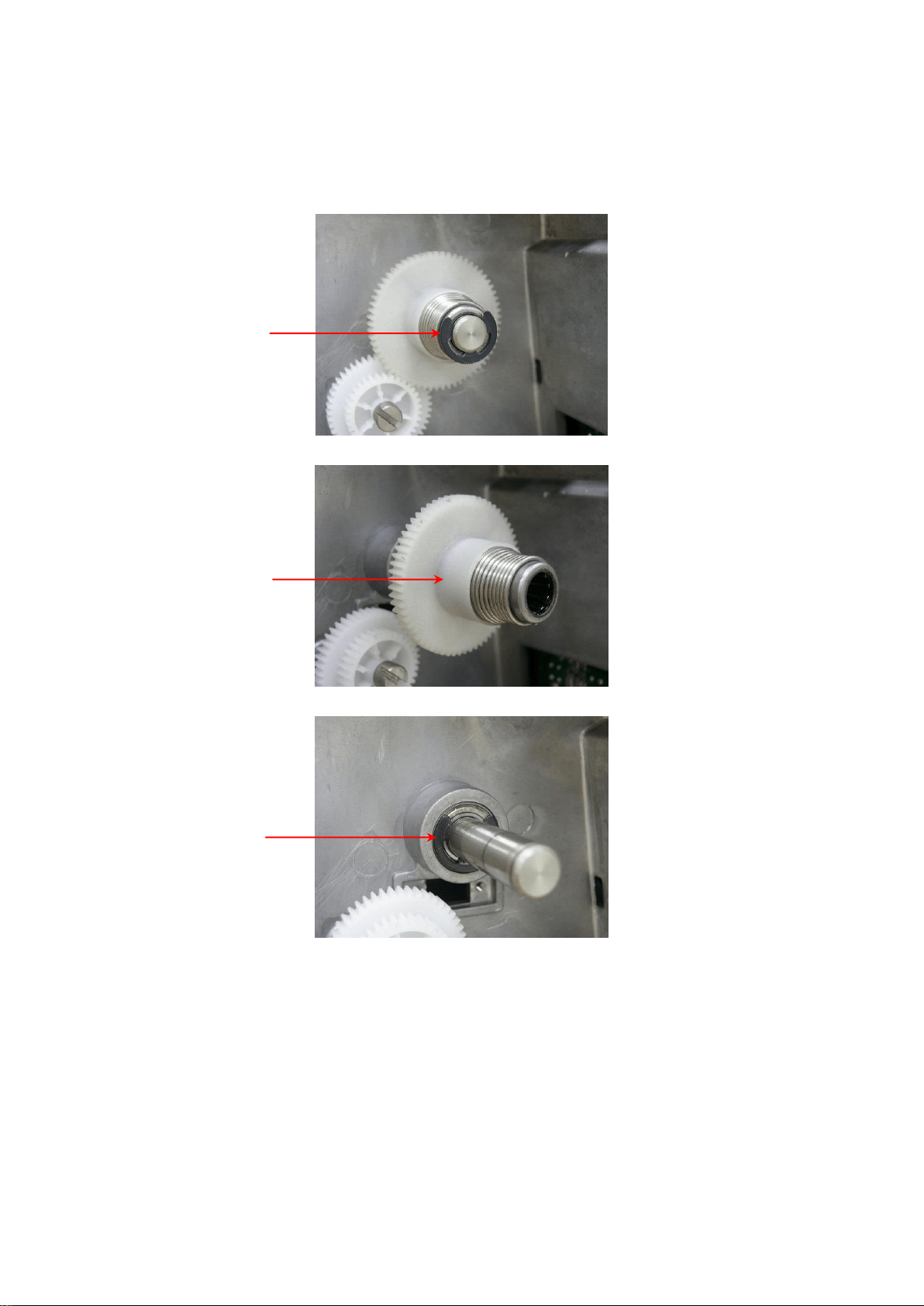
3.10 Replacing the Ribbon Rewind Spindle
1. Refer to section 3.1 to remove the electronics cover.
2. Remove 1 E-ring.
3. Remove the ribbon rewind spindle gear.
4. Remove the E-ring that fixes the spindle at the mechanism.
5. Remove/Replace the ribbon rewind spindle.
6. Reassemble the parts in the reverse procedures.
E-ring
Ribbon rewind
spindle gear
E-ring
28
28
3.11 Cutter Module Installation (Option)
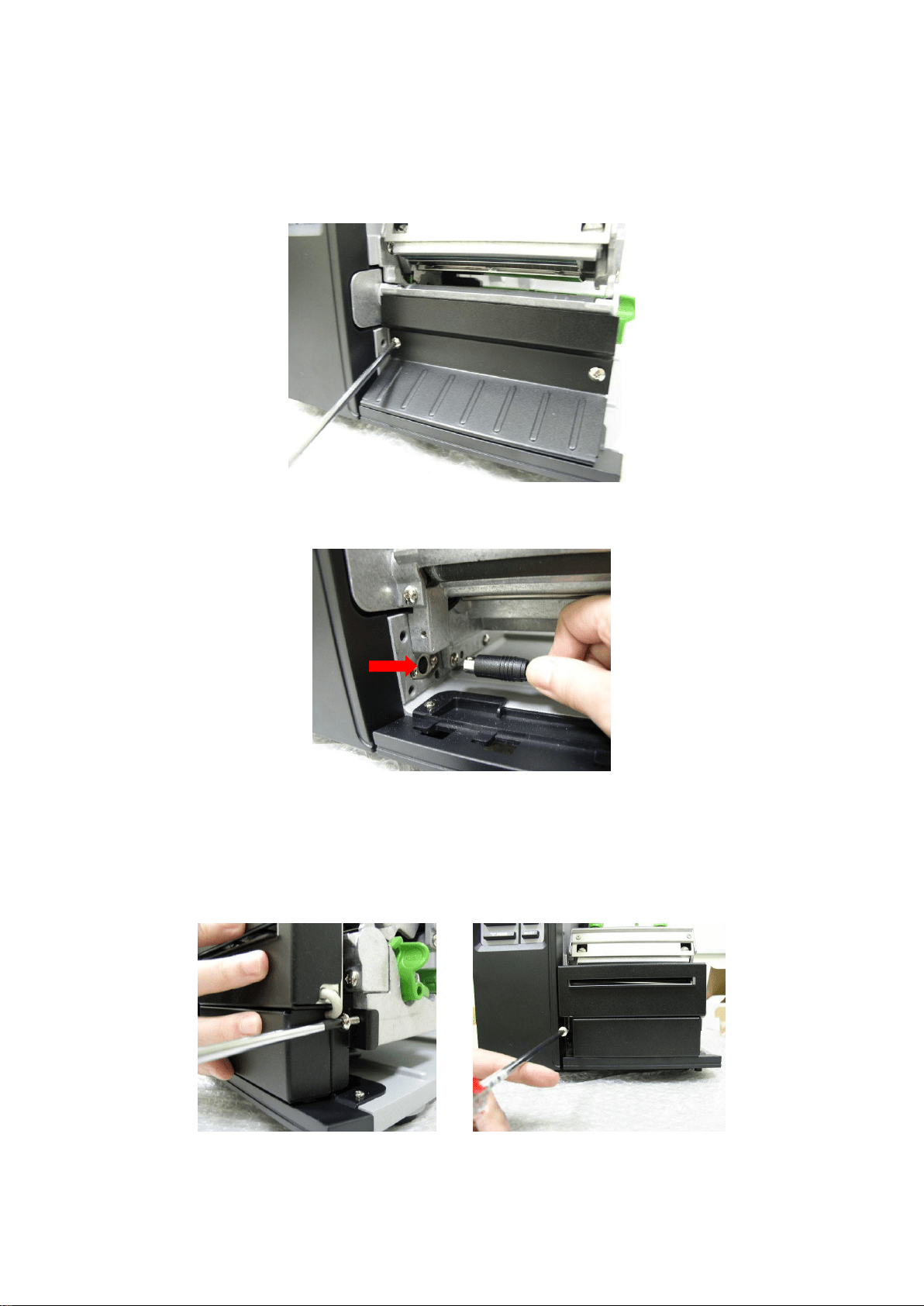
1. Open the printer right side cover.
2. Remove 2 screws to remove lower front panel.
3. Plug the cutter mini DIN cable connector into the cutter/peel-off module connector. The
triangle mark on the connector must be at the upper side.
4. Attach the cutter module to the front of the platen roller. Align the cutter bracket screw
holes to the screw holes that fix the lower front panel.
5. Fasten the 2 screws at the cutter bracket to fix the cutter module to the printer
mechanism.
29
29
3.12 Peel-off Kit Installation (Option)
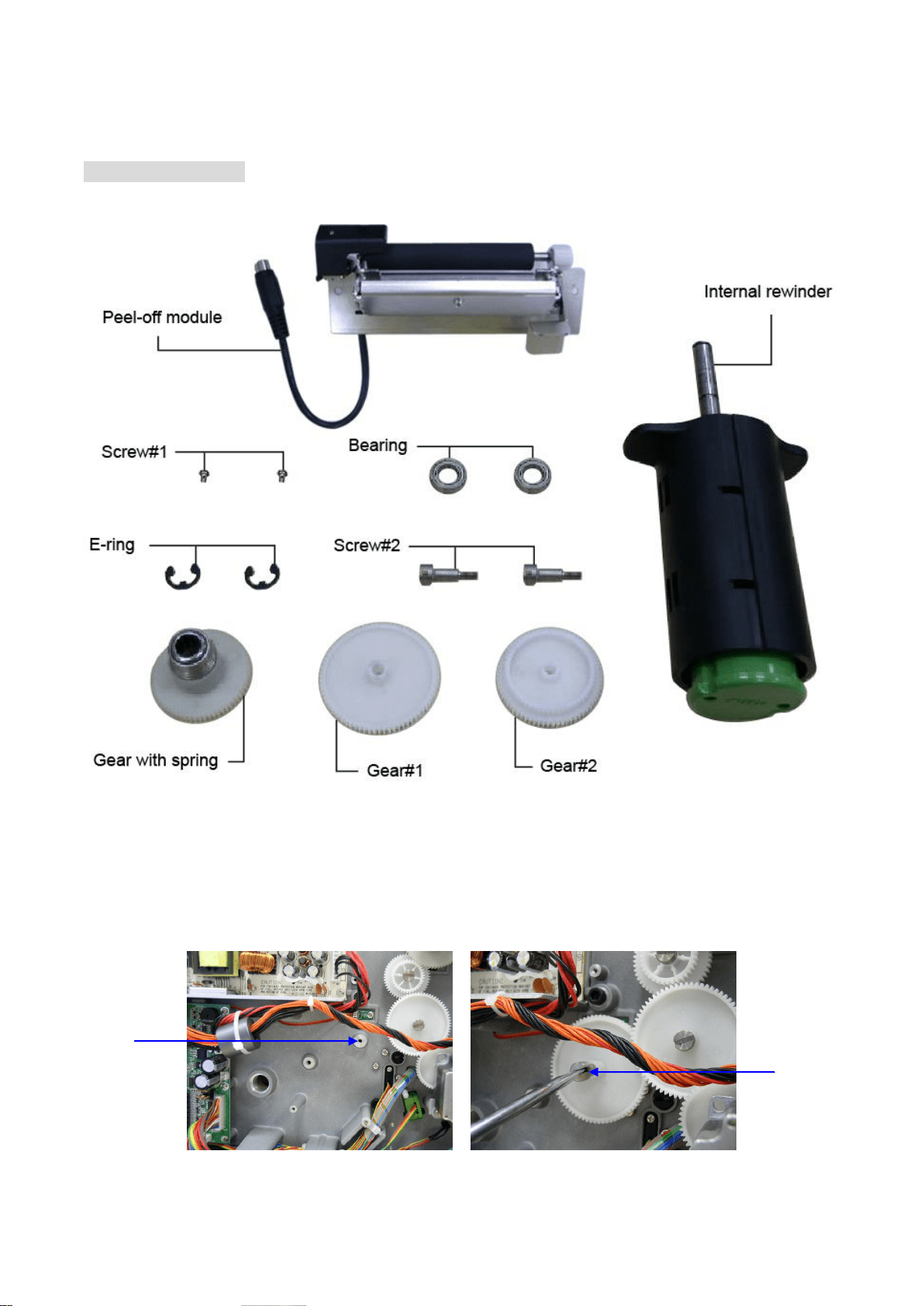
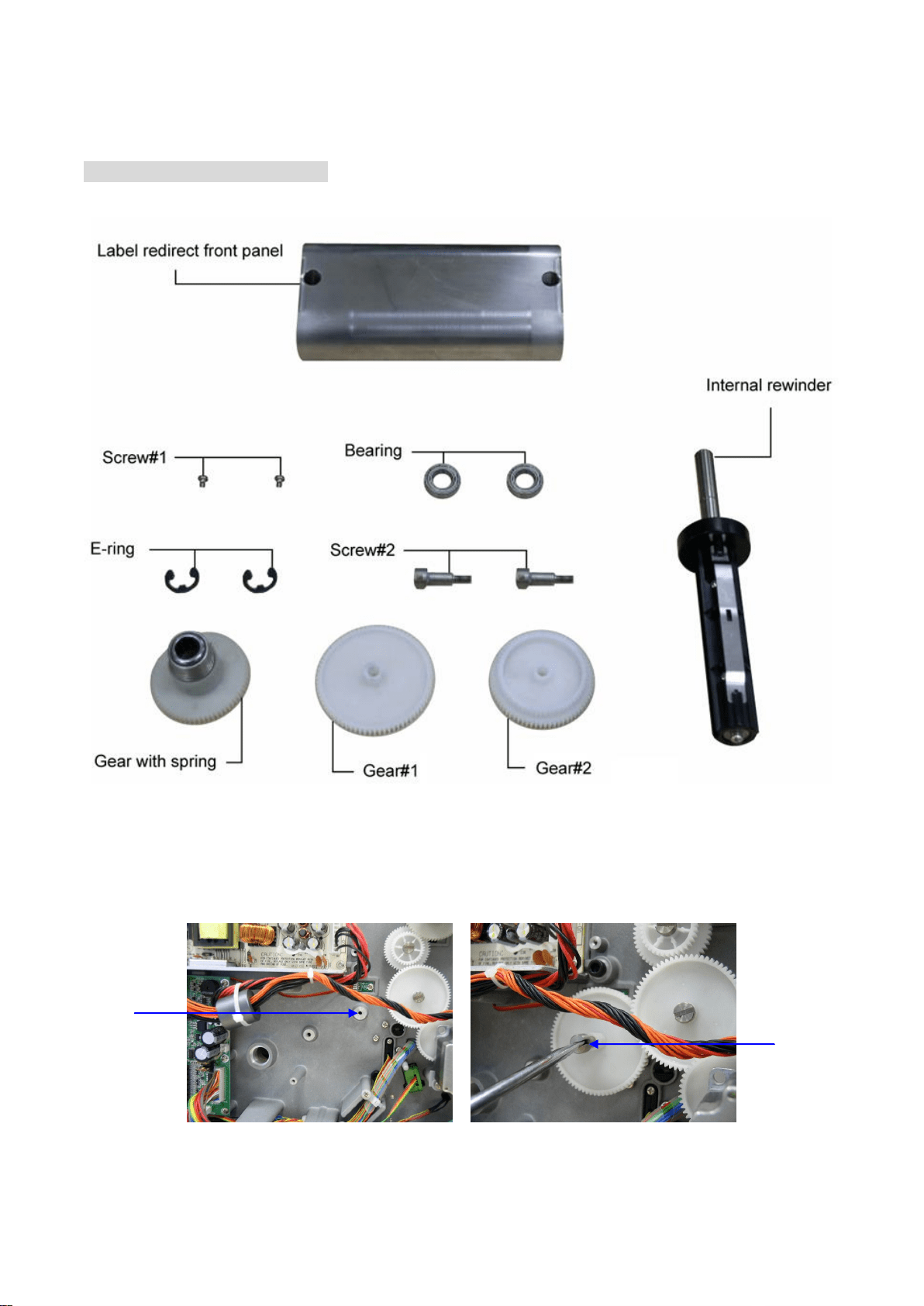
Peel-off kit parts list
1. Refer to section 3.1 to remove the electronics cover.
2. Fasten the screw#2 to fix the gear#1.
Gear#1
position
Screw#2
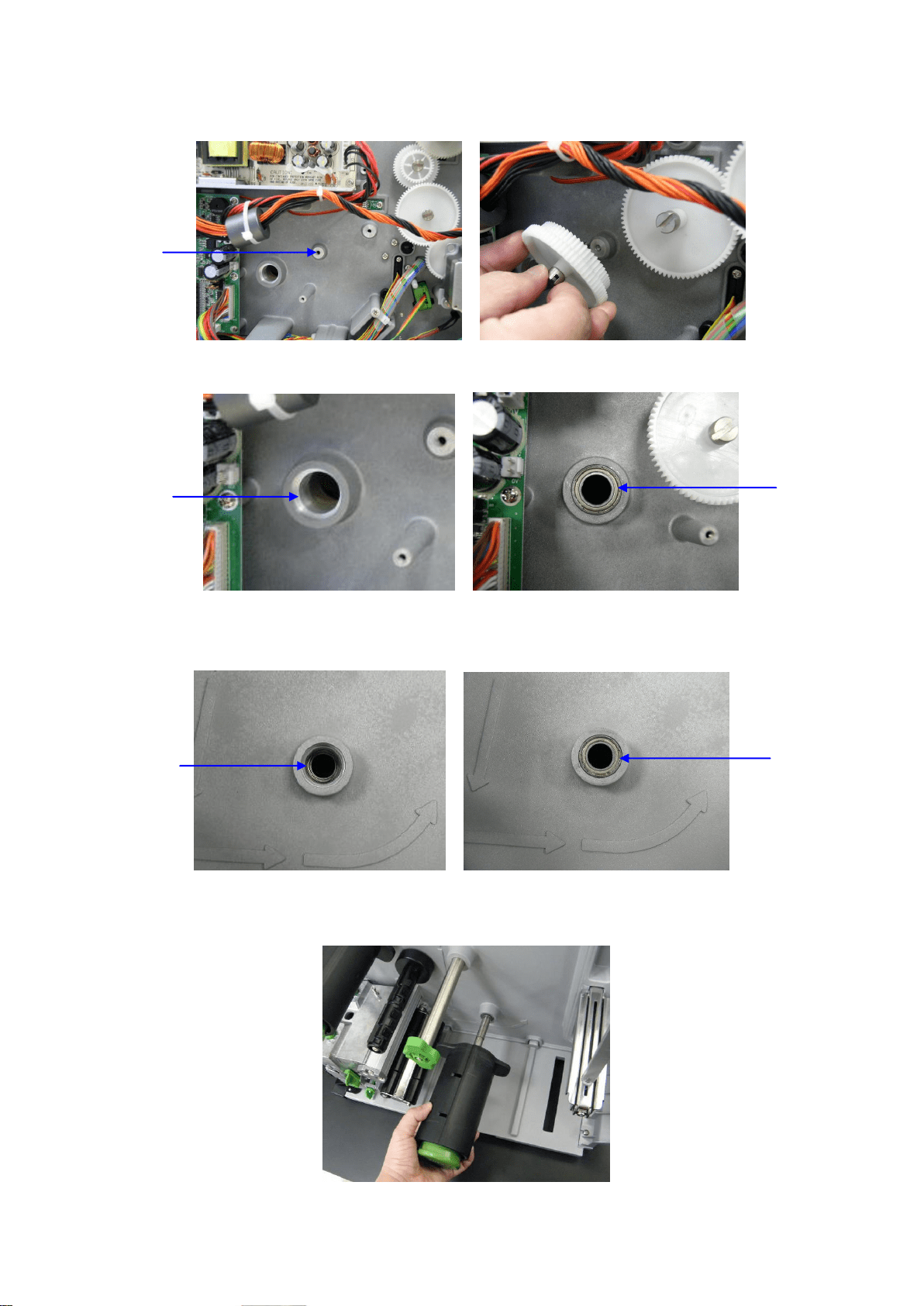
30
30
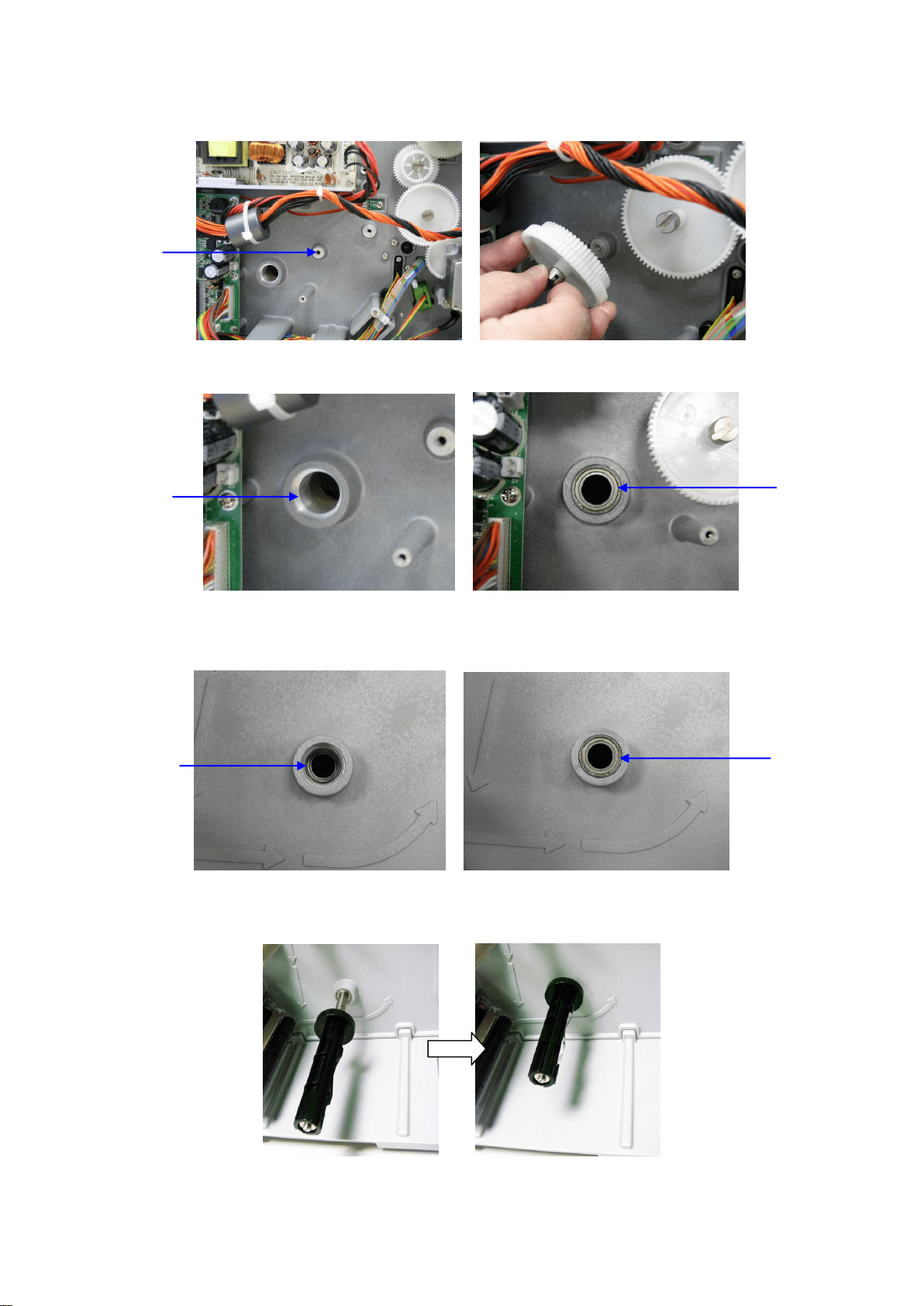
3. Fasten the screw#2 to fix the gear#2.
4. Put the bearing into the internal rewind hole.
5. Open the printer right side cover.
6. Remove the dustproof cover from the internal rewind hole and put the bearing into it.
7. Insert the internal rewind into the hole.
Gear#2
position
Internal rewind
hole (Left side)
Bearing
Internal rewind
hole (Right side)
Bearing
31
31
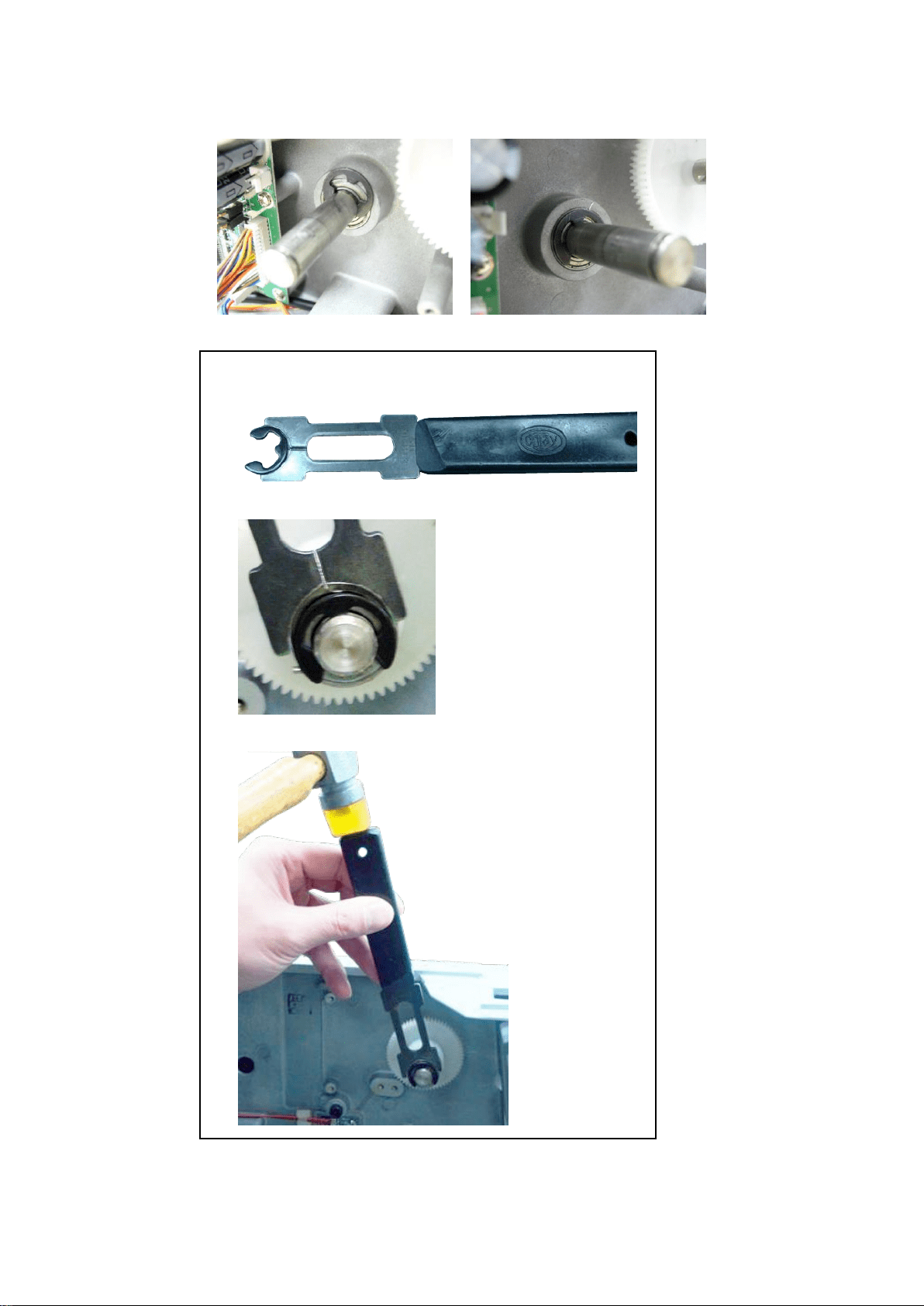
8. Use the E-ring driver and hammer to fix the internal rewind by E-ring.
*How to assemble e-ring?
a. Put E-ring into E-ring driver.
b. Put the E-ring on roller niche.
c. Use hammer to fix e-ring and roller.
32
32
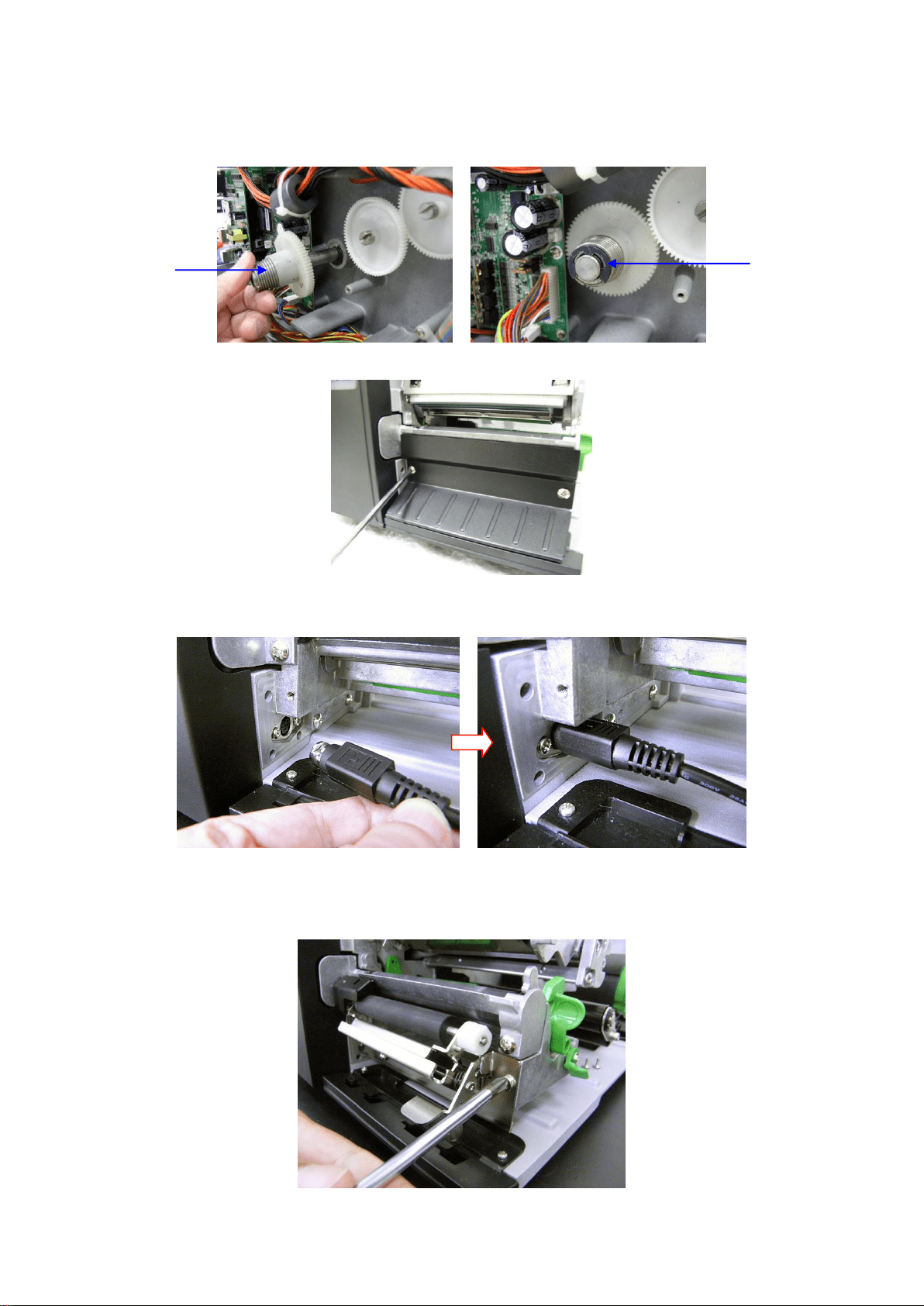
9. Insert the gear (with spring) into the spindle and fix it with E-ring. Install back the
electronics cover.
10. Remove 2 screws to remove lower front panel.
11. Plug the peel-off mini DIN cable connector into the cutter/peel-off connector. The triangle
mark on the connector must be at the upper side.
12. Attach the peel-off module to the front of the platen roller. Align the peel-off module screw
holes to the screw holes that fix the lower front panel. Fasten the 2 screws at the peel-off
module to fix the peel-off module to the printer mechanism.
Gear with
spring
E-ring
33
33
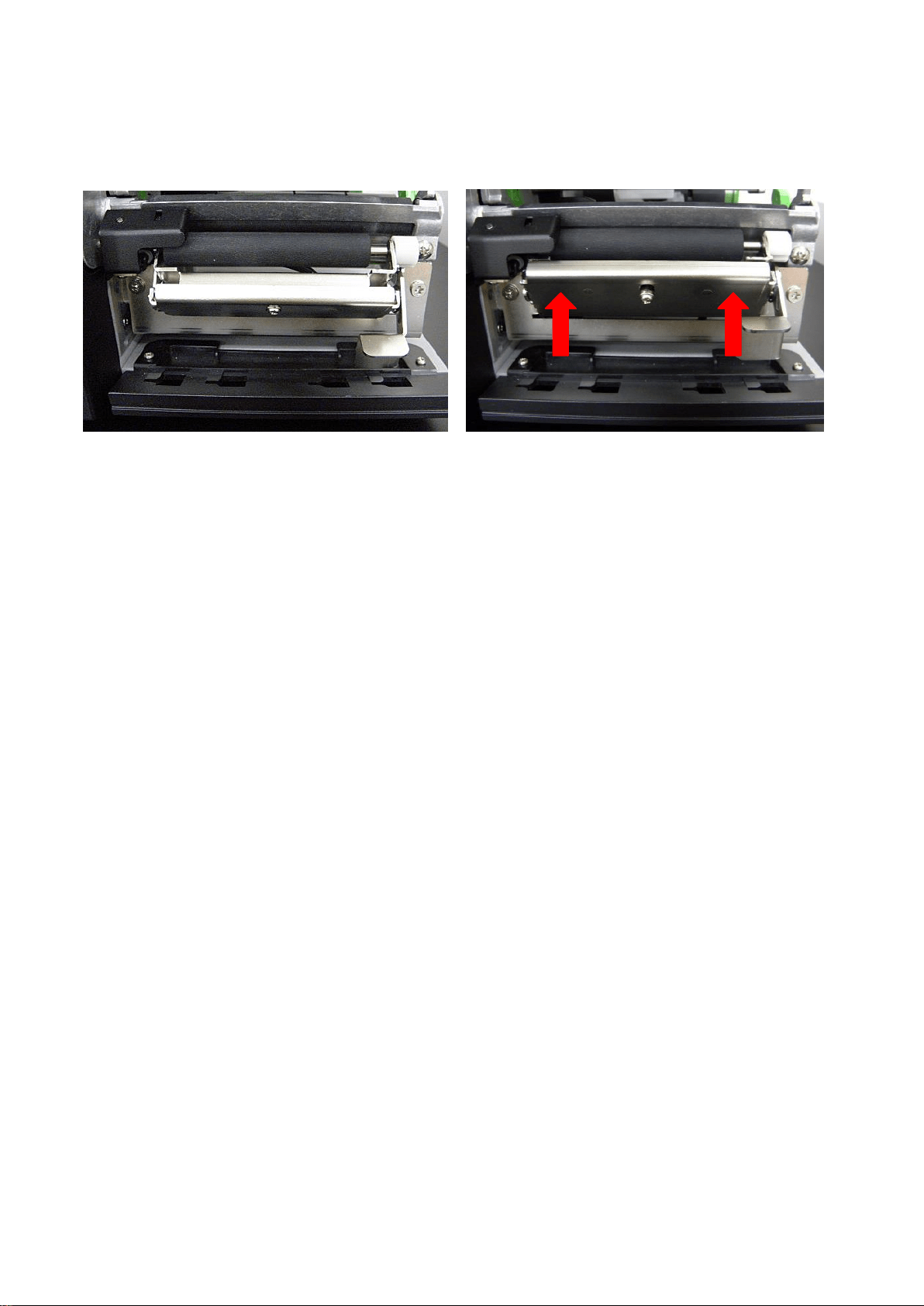
14. Close the peel-off module cover.
PUSH
PUSH
34
34
3.13 Internal Rewinding Kit Installation (Option)
Internal rewinding kit parts list
1. Refer to section 3.1 to remove the electronics cover.
2. Fasten the screw#2 to fix the gear#1.
Gear#1
position
Screw#2
35
35
3. Fasten the screw#2 to fix the gear#2.
4. Put the bearing into the internal rewind hole.
5. Open the printer right side cover.
6. Remove the dustproof cover from the internal rewind hole and put the bearing into it.
7. Insert the internal rewind into the hole.
Gear#2
position
Internal rewind
hole (Left side)
Bearing
Internal rewind
hole (Right side)
Bearing
36
36
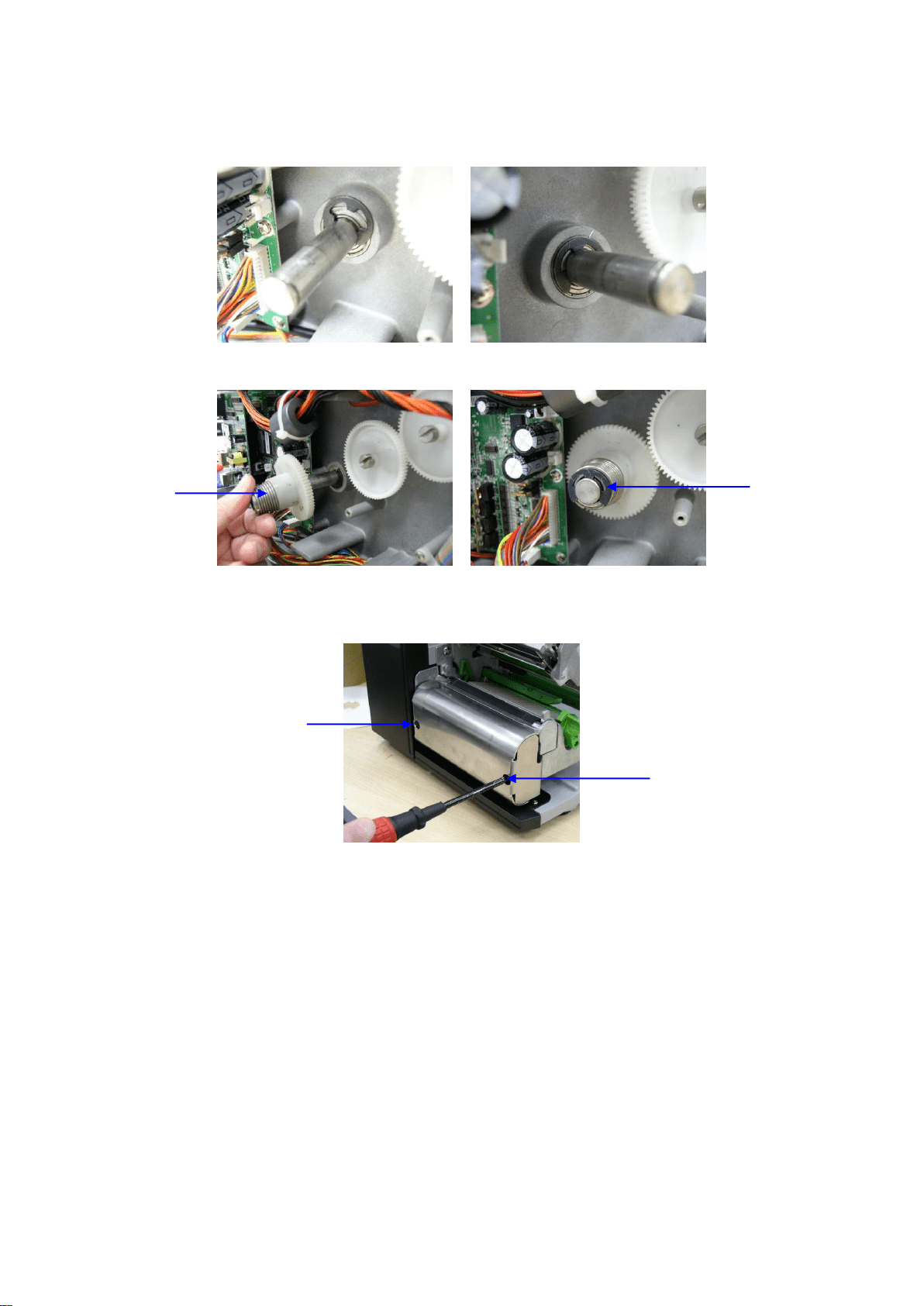
8. Use the E-ring driver and hammer to fix the internal rewind by E-ring. (Please refer to the
section 3.13 for “How to assemble e-ring?”)
9. Insert the gear (with spring) into the spindle and fix it with E-ring.
10. Refer to section 3.1 to remove the lower front panel.
11. Fasten the 2 screws to fix the label redirect front panel to the printer mechanism.
Gear with
spring
E-ring
Screw
Screw
37
37
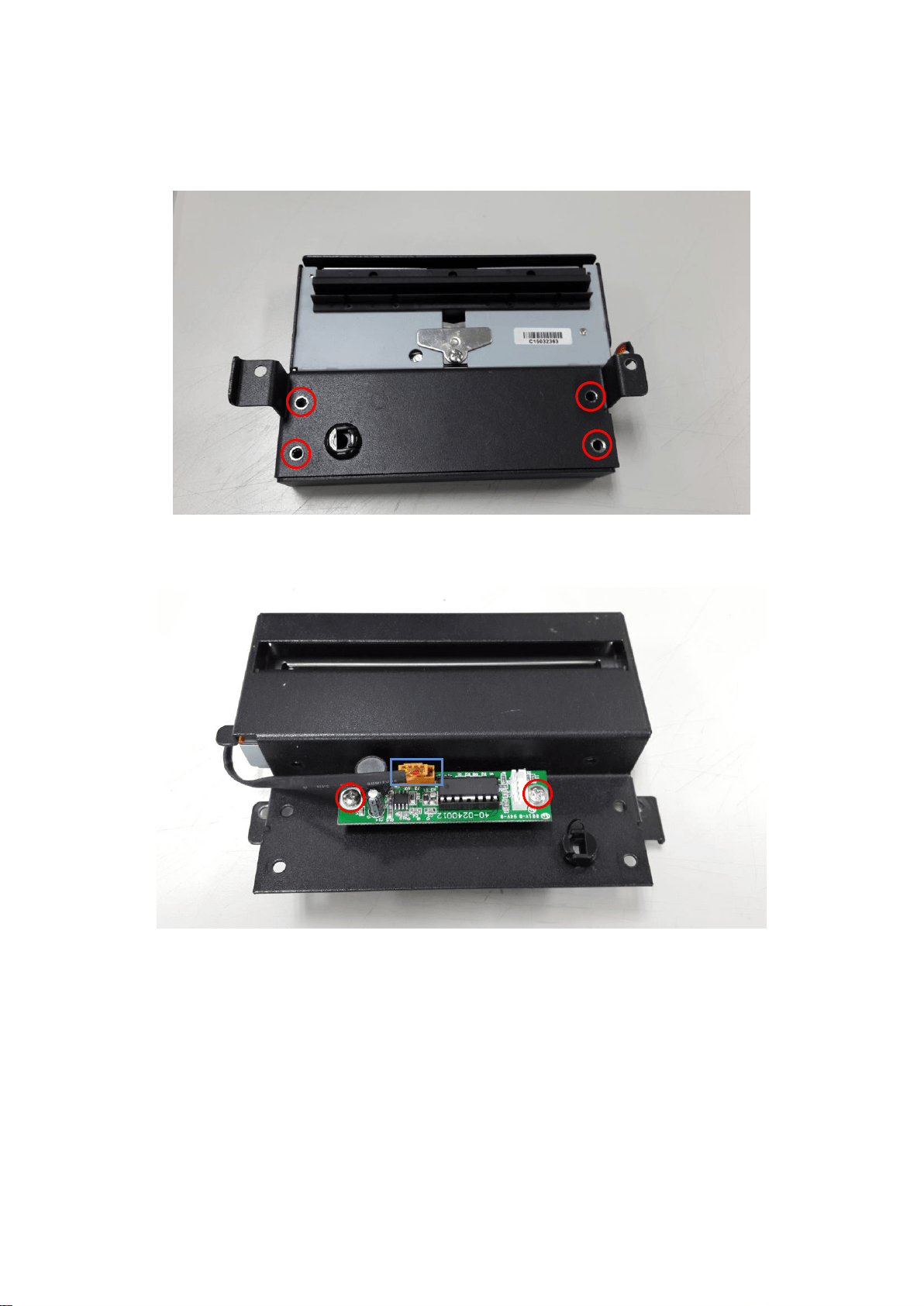
3.14 Replacing the Cutter Driver IC Board (Option)
1. Remove 4 screws on cutter cover.
2. Disconnect 1 connector on the cutter driver IC board. Remove 2 screws to replace the
cutter driver IC board.
6. Reassemble the parts in the reverse procedures.
38
38
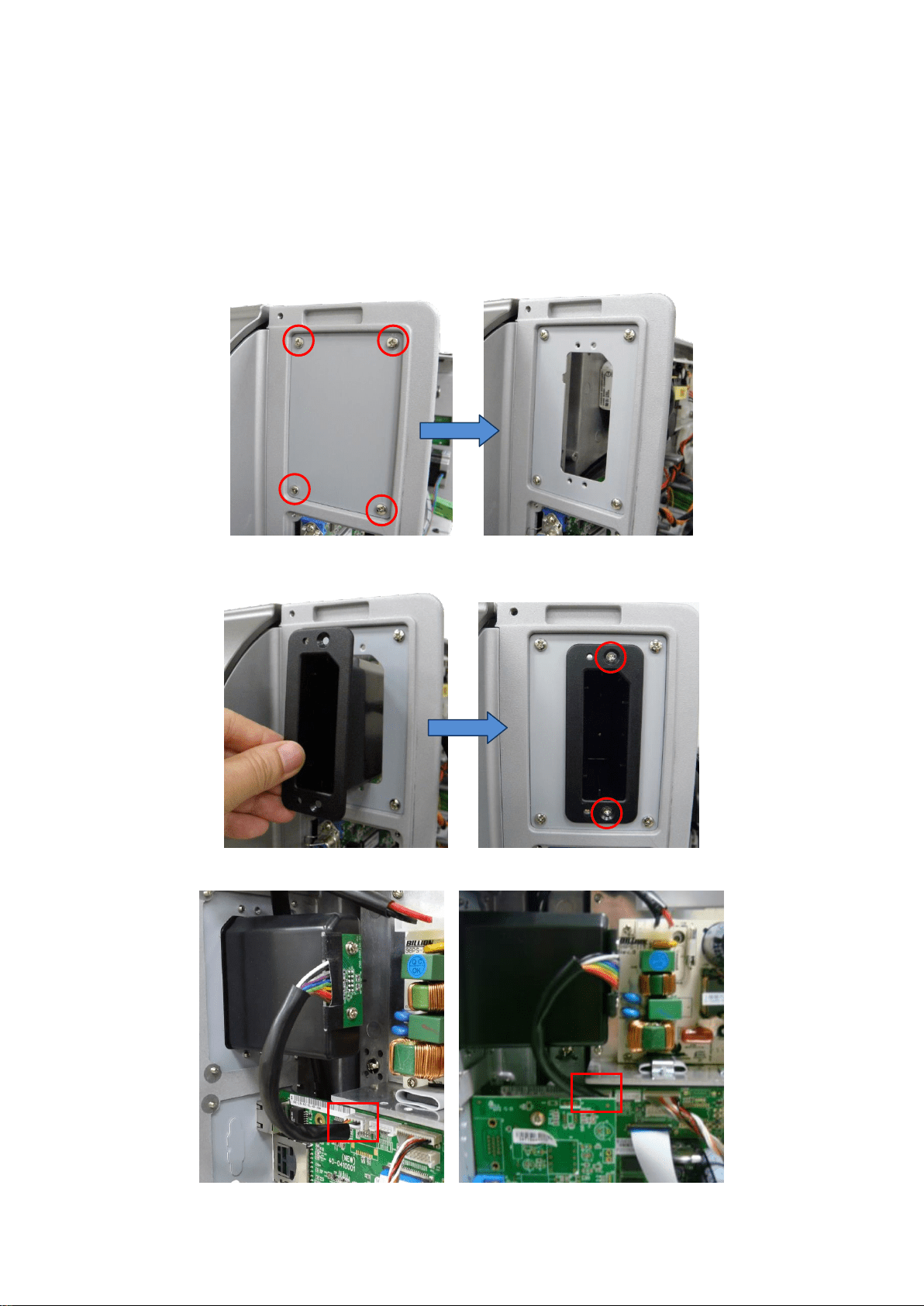
3.15 Slot-in Wireless Housing Installation (Option)
1. Refer to section 3.1 to remove the electronics cover.
2. Refer to section 3.4 & section 3.5 to remove the multi-interface board and to replace the
main board.
3. Remove 4 screws to replace the plate for slot-in Wireless housing.
4. Install the housing into the plate, and fasten 2 screws to fix it.
5. Connect the housing board cable to the main board.
39
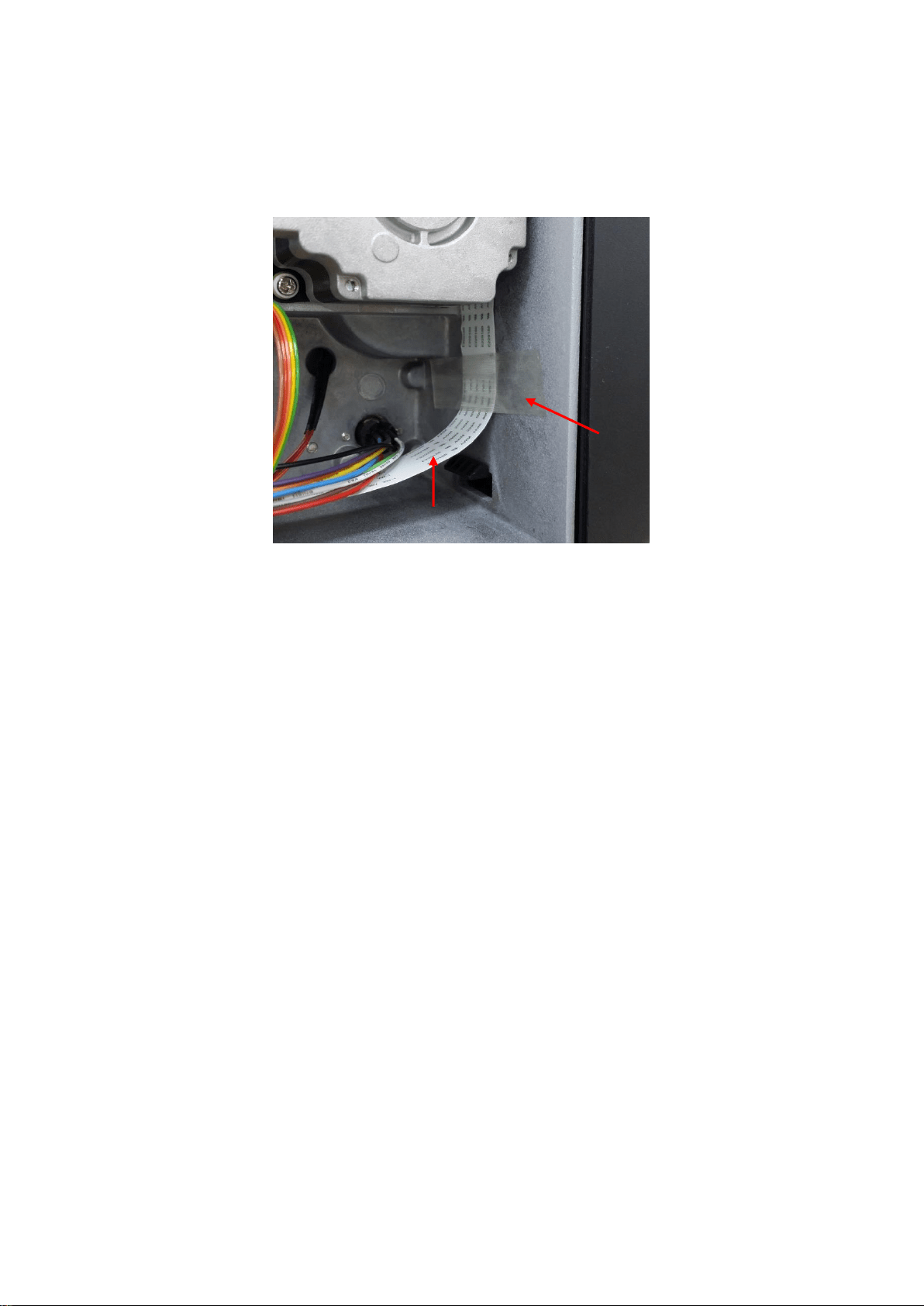
39
6. Make sure the LCD flat cable (white) is fixed on front of printer by a label. If not,
please paste the label that included within kit on plate to fix the LCD flat cable on front of
printer. (as picture shown)
7. Reassemble the parts in the reverse procedures.
Label
Label
LCD flat cable


41
41
4. TROUBLESHOOTING
4.1 Common Problems
The following guide lists the most common problems that might be encountered when
operating this bar code printer. If the printer still does not function after all suggested
solutions have been invoked, please contact the Customer Service Department of your
purchased reseller or distributor for assistance.
Problem
Possible Cause
Recovery Procedure
Power indicator does
not illuminate
* The power cord is not properly
connected.
* Plug the power cord in printer and outlet.
* Switch the printer on.
Carriage Open
* The printer carriage is open.
* Please close the print carriage.
No Ribbon
* Running out of ribbon.
* The ribbon is installed incorrectly.
* The ribbon sensor is not been well
calibrated.
* Supply a new ribbon roll.
* Please refer to the steps in user’s manual to
reinstall the ribbon.
No Paper
* Running out of label.
* The label is installed incorrectly.
* Gap/black mark sensor is not
calibrated.
* Supply a new label roll.
* Please refer to the steps in user’s manual to
reinstall the label roll.
* Calibrate the gap/black mark sensor.
Paper Jam
* Gap/black mark sensor is not set
properly.
* Make sure label size is set properly.
* Labels may be stuck inside the printer
mechanism.
* Calibrate the gap/black mark sensor.
* Set label size correctly.
Take Label
* Peel function is enabled.
* If the peeler module is installed, please remove
the label.
* If there is no peeler module in front of the printer,
please switch off the printer and install it.
* Check if the connector is plugging correctly.
UP: Fwd.
DOWN: Rev.
MENU: Exit
* Cutter jam.
* There is no cutter installed on the
printer.
* Cutter PCB is damaged.
* If the cutter module is installed, please press UP
or DOWN key to rotate the cutter up or down to
make the knife back to the right position.
* Remove the label.
* Make sure the thickness of label is less than 200
g/m2 (for regular cutter) or 300 g/m2 (for heavy
duty cutter).
* Replace a cutter PCB.

42
42
Not Printing
* Cable is not well connected to serial or
USB interface or parallel port.
* The serial port cable pin configuration
is not pin to pin connected.
* Re-connect cable to interface.
* If using serial cable,
- Please replace the cable with pin to pin
connected.
- Check the baud rate setting. The default baud
rate setting of printer is 9600,n,8,1.
* If using the Ethernet cable,
- Check if the Ethernet RJ-45 connector green
LED is lit on..
- Check if the Ethernet RJ-45 connector amber
LED is blinking.
- Check if the printer gets the IP address when
using DHCP mode.
- Check if the IP address is correct when using
the static IP address.
- Wait a few seconds let the printer get the
communication with the server then check the
IP address setting again.
* Chang a new cable.
* Ribbon and media are not compatible.
* Verify the ribbon-inked side.
* Reload the ribbon again.
* Clean the printhead.
* The print density setting is incorrect.
* Printhead’s harness connector is not well
connected with printheat. Turn off the printer
and plug the connector again.
* Check if the stepping motor is plugging in the
right connector.
* Check your program if there is a command
PRINT at the end of the file and there must have
CRLF at the end of each command line.
Memory full
( FLASH / DRAM )
* The space of FLASH/DRAM is full.
* Delete unused files in the FLASH/DRAM.
* The max. numbers of file of DRAM is 50 files.
* The max. user addressable memory space of
DRAM is 256 KB
* The max. numbers of file of FLASH is 256 files.
* The max. user addressable memory space of
FLASH is 2560 KB for TTP-246M Pro and
TTP-344M Pro and 6656KB for TTP-2410M Pro
and TTP-346M Pro.
SD card is unable to
use
* SD card is damaged.
* SD card doesn’t insert correctly.
* Use the non-approved SD card
manufacturer.
* Use the supported capacity SD card.
* Insert the SD card again.
* The supported SD card spec.
- 128MB
- 256MB
- 512MB
- 1GB
- 4GB SDHC CLASS 6
* Approved SD card manufacturers; SanDisk,
Transcend
PS/2 port does not
work
* Did not turn off power prior to plug in
the PS/2 keyboard
* PS/2 keyboard is damaged.
* PS/2 keyboard doesn’t plug-in
correctly.
* There is no BAS file in the printer.
* Turn off printer power prior to plug in the PS/2
keyboard .
* Plug the PS/2 keyboard again.
* Make sure the keyboard is fine.
* Make sure if there is any BAS file downloaded
into printer.

43
43
Poor Print Quality
* Ribbon and media is loaded incorrectly
* Dust or adhesive accumulation on the
print head.
* Print density is not set properly.
* Printhead element is damaged
* Ribbon and media are incompatible.
* The printhead pressure is not set
properly
* Reload the supply.
* Clean the printhead.
* Clean the platen roller.
* Adjust the print density and print speed.
* Run printer self-test and check the print head
test pattern if there is dot missing in the pattern.
* Change proper ribbon or proper label media.
* Adjust the printhead pressure adjustment knob.
- If the left side printout is too light, please adjust
the left side pressure adjustment knob to the
higher index (higher pressure). If the pressure
adjustment knob has been adjust to index “5”
and the poor print quality is still at the left side
of the printout, please adjust the pressure
adjustment knob to index “1” and use the
Z-axis adjustment knob to fine tune the
pressure.
- If the right side printout is too light, please
adjust the right side pressure adjustment knob
to the higher index (higher pressure) to
improve the print quality.
* If the label thickness is more than 0.22 mm, the
print quality might be good enough, please
adjust the heater line adjustment screw counter
clockwise to get the best print quality.
* The release lever does not latch the printhead
properly.
LCD panel is dark and
keys are not working.
* The cable between main PCB and LCD
panel is loose.
* Check if the cable between main PCB and LCD
is secured or not.
LCD panel is dark but
the LEDs are light.
* The printer initialization is
unsuccessful.
* Turn OFF and ON the printer again.
* Initialize the printer.
LCD panel is dark and
LEDs are lit on, but
the label is feeding
forward.
* The LCD panel harness connector is
loose.
* The LCD panel harness connector is plugged
upside down.
Ribbon encoder
sensor doesn’t work.
* The ribbon encoder sensor connector
is loose.
* Fasten the connector.
Ribbon end sensor
doesn’t work.
* The connector is loose.
* The ribbon sensor hole is covered with
dust.
* Check the connector.
* Clear the dust in the sensor hole by the blower.
Peel sensor is not
working.
* Peel sensor is not located on the
correct position.
* The connector is loose.
* Make sure that the media goes through the Peel
sensor.
* Plug the connect cable correctly.
Cutter is not working.
* The connector is loose.
* Plug in the connect cable correctly.
Label feeding is not
stable (skew) when
printing.
* The media guide does not touch the
edge of the media.
* If the label is moving to the right side, please
move the label guide to left.
* If the label is moving to the left side, please
move the label guide to right.
Skip labels when
printing.
* Label size is not specified properly.
* Sensor sensitivity is not set properly.
* The media sensor is covered with dust.
* Check if label size is setup correctly.
* Calibrate the sensor by Auto Gap or Manual
Gap options.
* Clear the GAP/Black mark sensor by blower.
44
44
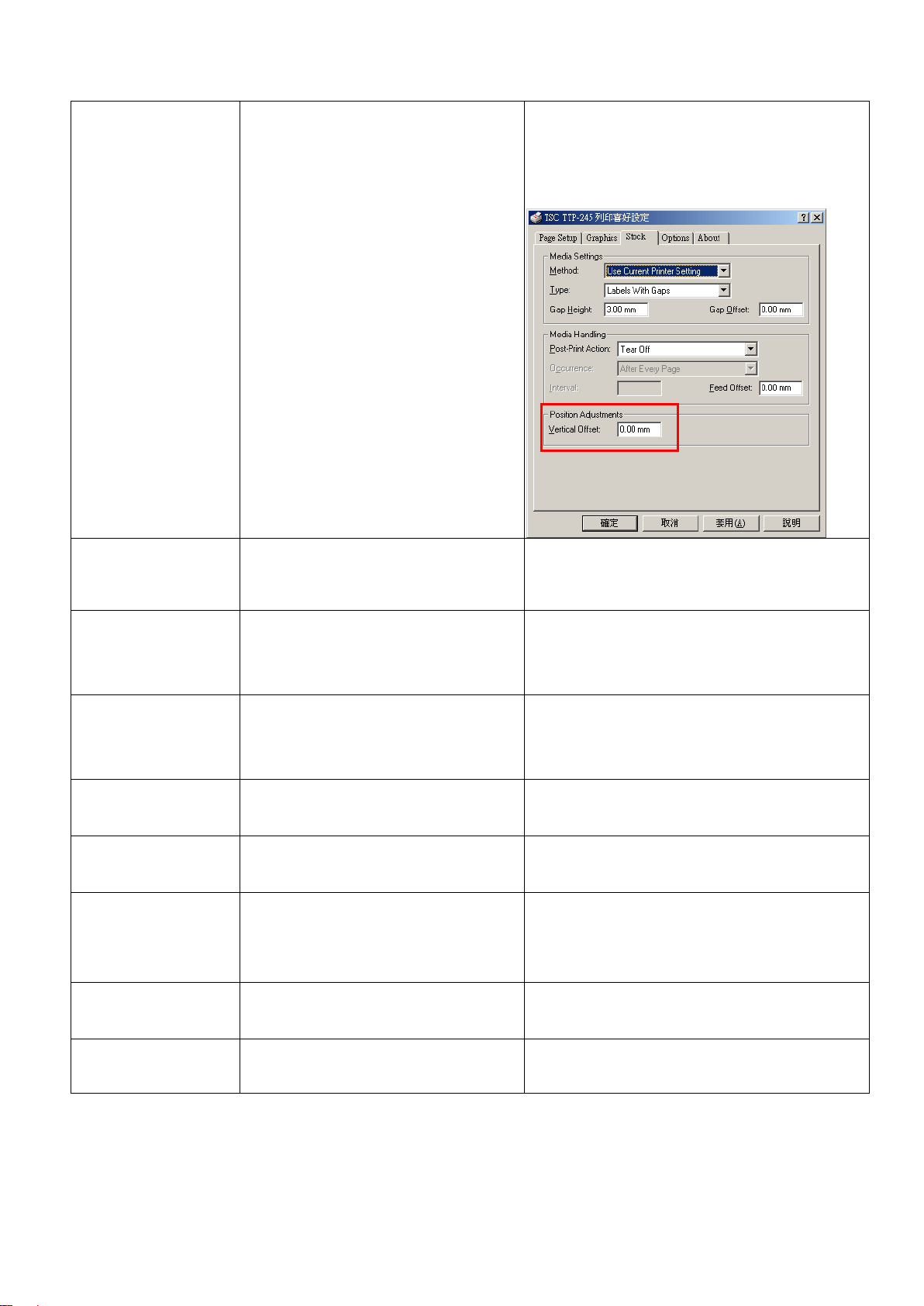
The printing position
of small label is
incorrect.
* Media sensor sensitivity is not set
properly.
* Label size is incorrect.
* The parameter Shift Y in the LCD menu
is incorrect.
* The vertical offset setting in the driver is
incorrect.
* Calibrate the sensor sensitivity again.
* Set the correct label size and gap size.
* Press [MENU] [SELECT] x3[DOWN]x6
[SELECT] to fine tune the parameter of Shift Y.
* If using the software BarTender, please set the
vertical offset in the driver.
The left side printout
position is incorrect.
* Wrong label size setup.
* The parameter Shift X in LCD menu is
incorrect.
* Set the correct label size.
* Press [MENU] [SELECT] x 3 [DOWN] x 5
[SELECT] to fine tune the parameter of Shift
X.
Missing printing on
the left or right side of
label.
* Wrong label size setup.
* Set the correct label size.
RTC time is incorrect
when reboot the
printer.
* The battery has run down.
* Check if there is a battery on the main board.
Multi interface board
doesn’t work.
* The installation is incorrect.
* Check if the board is plugged in the right
connector.
Power and Error LEDs
are blinking fast.
* Power switch OFF and ON too fast.
* Turn off the printer and wait all LEDs are dark,
and turn on the printer again.
Wrinkle Problem
* Printhead pressure is incorrect.
* Ribbon installation is incorrect.
* Media installation is incorrect.
* Print density is incorrect.
* Media feeding is incorrect.
* Please refer to the 4.2 chapter.
* Please set the suitable density to have good
print quality.
* Make sure the label guide touch the edge of the
media guide.
Gray line on the blank
label
* The printhaed is dirty.
* The platen roller is dirty.
* Clean the printhead.
* Clean the platen roller.
Irregular printing
* The printer is in Hex Dump mode.
* The RS-232 setting is incorrect.
* Turn off and on the printer to skip the dump
mode.
* Re-set the Rs-232 setting.
45
45
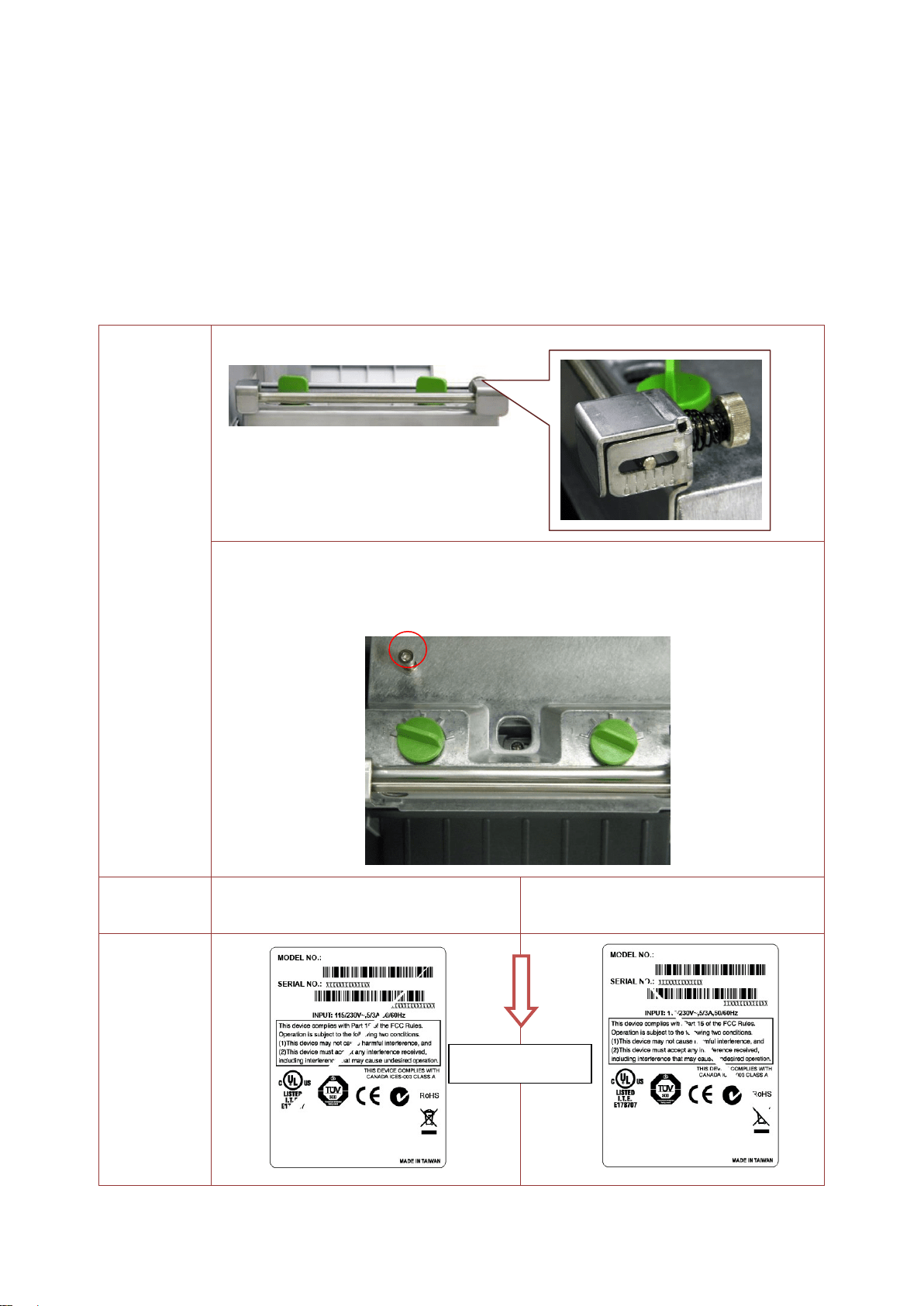
4.2 Mechanism Fine Adjustment to Avoid Ribbon Wrinkles
This printer has been fully tested before delivery. There should be no ribbon wrinkle
presented on the media for general-purpose printing application. Ribbon wrinkle is related to
the media thickness, print head pressure balance, ribbon film characteristics, print darkness
setting…etc. In case the ribbon wrinkle happens, please follow the instructions below to
adjust the printer parts.
Adjustable
Printer
Parts
The ribbon tension adjustment knob has 0 ~ 5 positions for adjustment.
The print head pressure adjustment knob has 5 levels of settings.
Clockwise direction adjustment is to increase the print head pressure.
Counter Clockwise adjustment can decrease the print head pressure.
Symptom
1. Wrinkle happens from label lower
left to upper right direction (“ / ”)
2. Wrinkle happens from label lower
right to upper left direction (“ \ ”)
Wrinkle
Example
Z-axis mechanism
adjustment knob
Print head pressure
adjustment knob
Feed
direction
Ribbon tension
adjustment knob

46
46
If the wrinkle on the label starts from
the lower left side to upper right side,
please do following adjustment.
1. Clockwise direction adjust the
ribbon tension adjustment knob to
“2” or “1” position. Then check if
wrinkle is gone.
2. Decrease the right side print head
pressure adjustment knob setting
1 level per each adjustment then
print the label again to check if
wrinkle is gone.
3. If the right side print head
adjustment knob setting has been
set to index 1 (the lowest pressure
index), please increase the left
side print head pressure.
4. If the left side print head
adjustment knob setting has been
set to 5 (the highest pressure
index) the wrinkle can’t be avoid,
please rotate the both knobs back
to setting 1 then rotate the Z-axis
mechanism adjustment knob
clockwise for a few degrees and
print again for fine tune the print
head pressure distribution.
Note for step 4:
*Factory default setting, the Z-axis
knob is rotated counter clockwise to
the end of thread.
*Turn the Z-axis mechanism
adjustment knob clockwise until you
feel the knob touch the mechanism
for the first adjustment.
* If the wrinkle is still there, please
turn the Z-axis mechanism
adjustment knob clockwise about
1/4 circle each time for adjustment
* If the winkled direction is change
from “/” to “\” by adjusting the Z-axis
mechanism adjustment knob, please
turn the Z axis mechanism
adjustment knob counter clockwise
to avoid the wrinkle.
If the wrinkle on the label starts from
the lower right side to upper left
side, please do following
adjustment.
1. Counter clockwise adjust the
ribbon tension adjustment knob to
“4” or “5” position. Then check if
wrinkle is gone.
2. Decrease the left side print head
pressure adjustment knob setting
1 level per each adjustment then
print the label again to check if
wrinkle is gone.
3. If the left side print head
adjustment knob level has been
set to index 1 (the lowest index),
please increase the right side print
head pressure.
47
47
4.3 Adjustment Knob
4.3.1 Print head Pressure Adjustment Knob
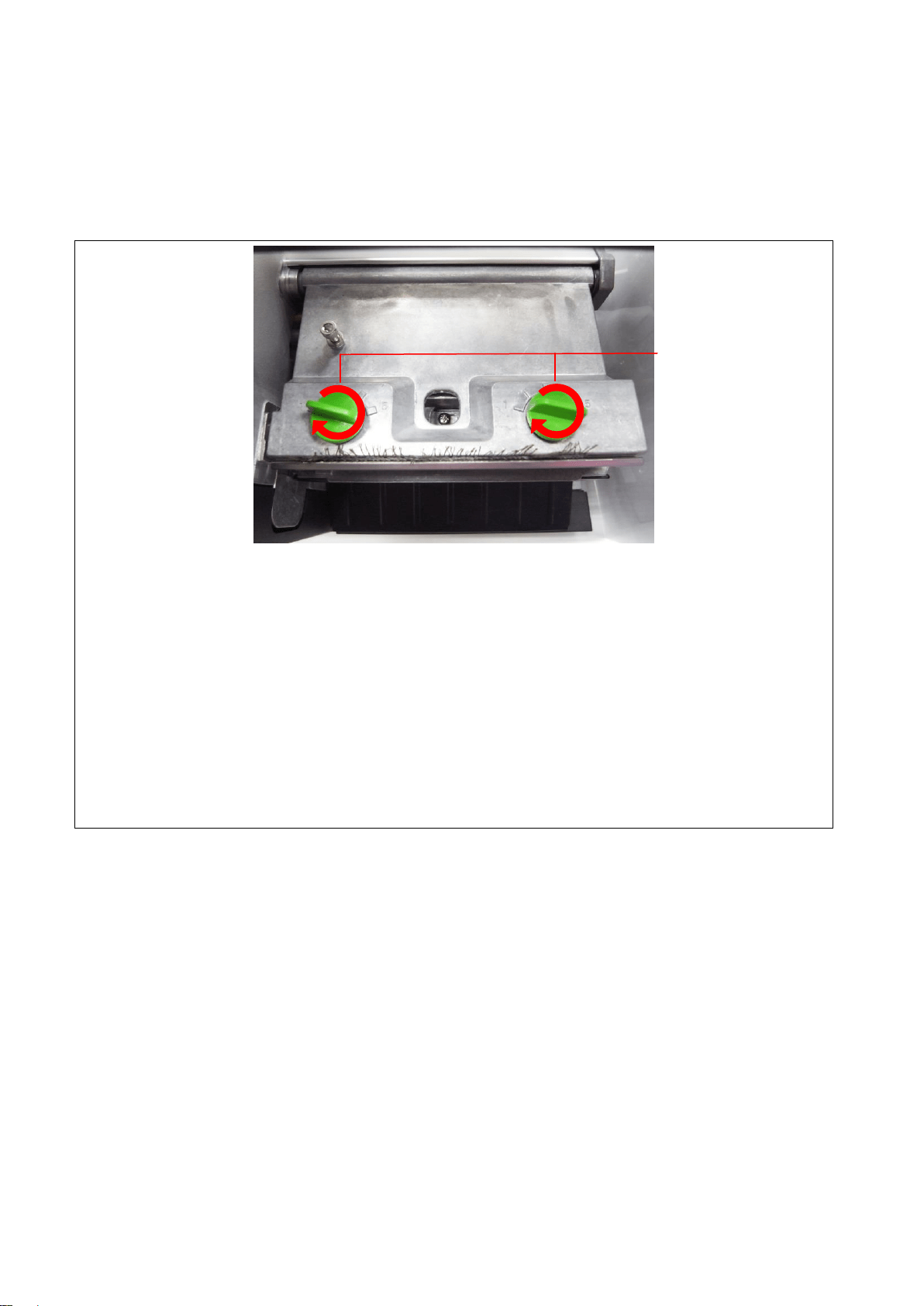
The print head pressure adjustment knob has 5 levels of adjustment. Because the
printer’s paper alignment is to the left side of mechanism, different media widths
require different pressure to print correctly. Therefore it may require to adjust the
pressure knob to get your best print quality. For example, if the label width is 4”,
adjust both print head pressure adjustment knobs to the same level. If the label is
less than 2” wide, increase the left side print head pressure by rotating the
adjustment knob clockwise and decrease the right side pressure by rotating the
adjustment knob counter-clockwise to level 1.
Print head pressure
adjustment knobs
48
48
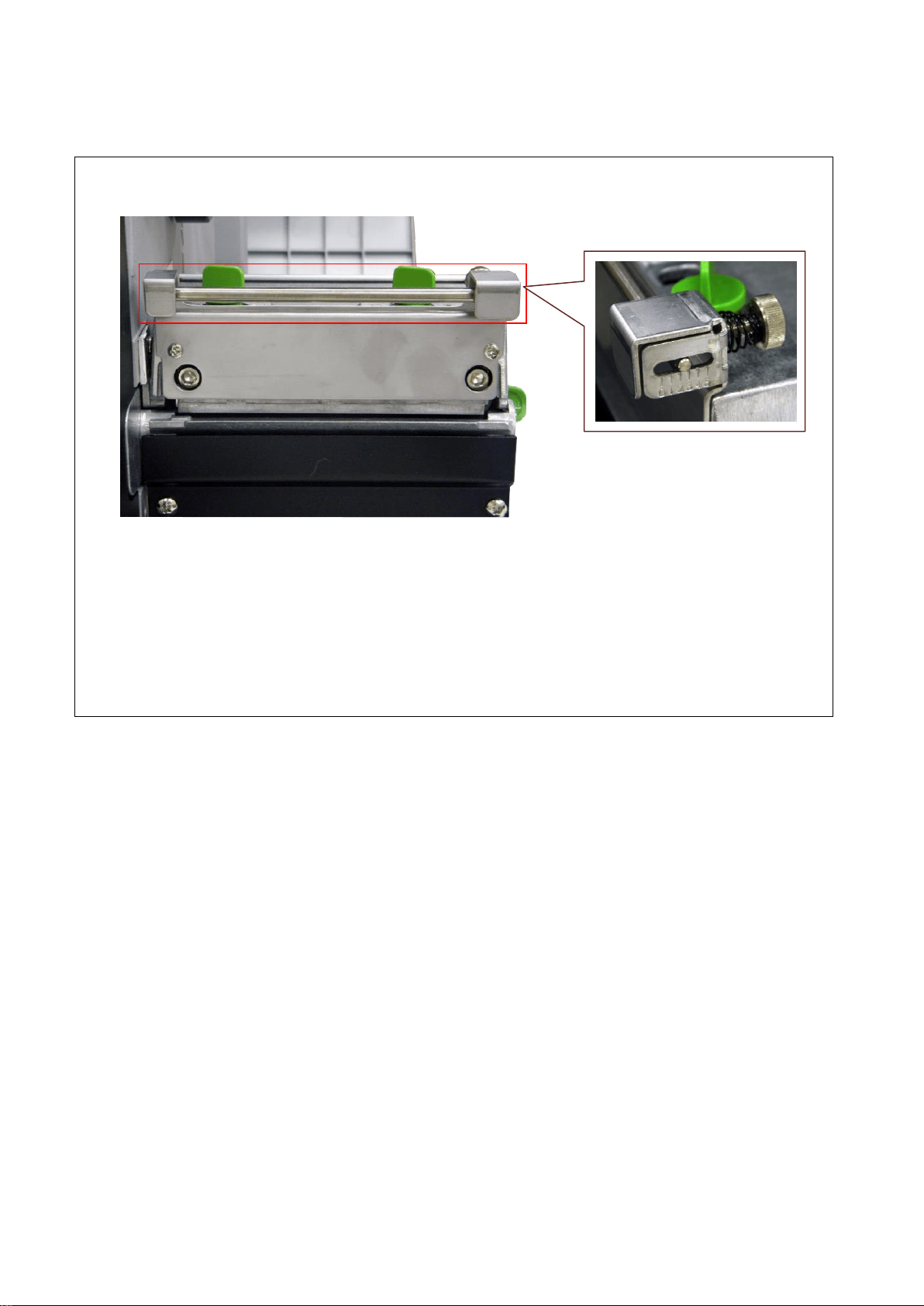
4.3.2 Ribbon Tension Adjustment Knob
The ribbon tension adjustment knob has 0 ~ 5 positions for adjustment. Because the
printer’s ribbon alignment is to the left side of mechanism, different ribbon or media
widths require different tension to print correctly. Therefore it may require to adjust
the ribbon tension knob to get your best print quality. Please refer to section 4.4 for
more information.
Adjustment
knob
49
49
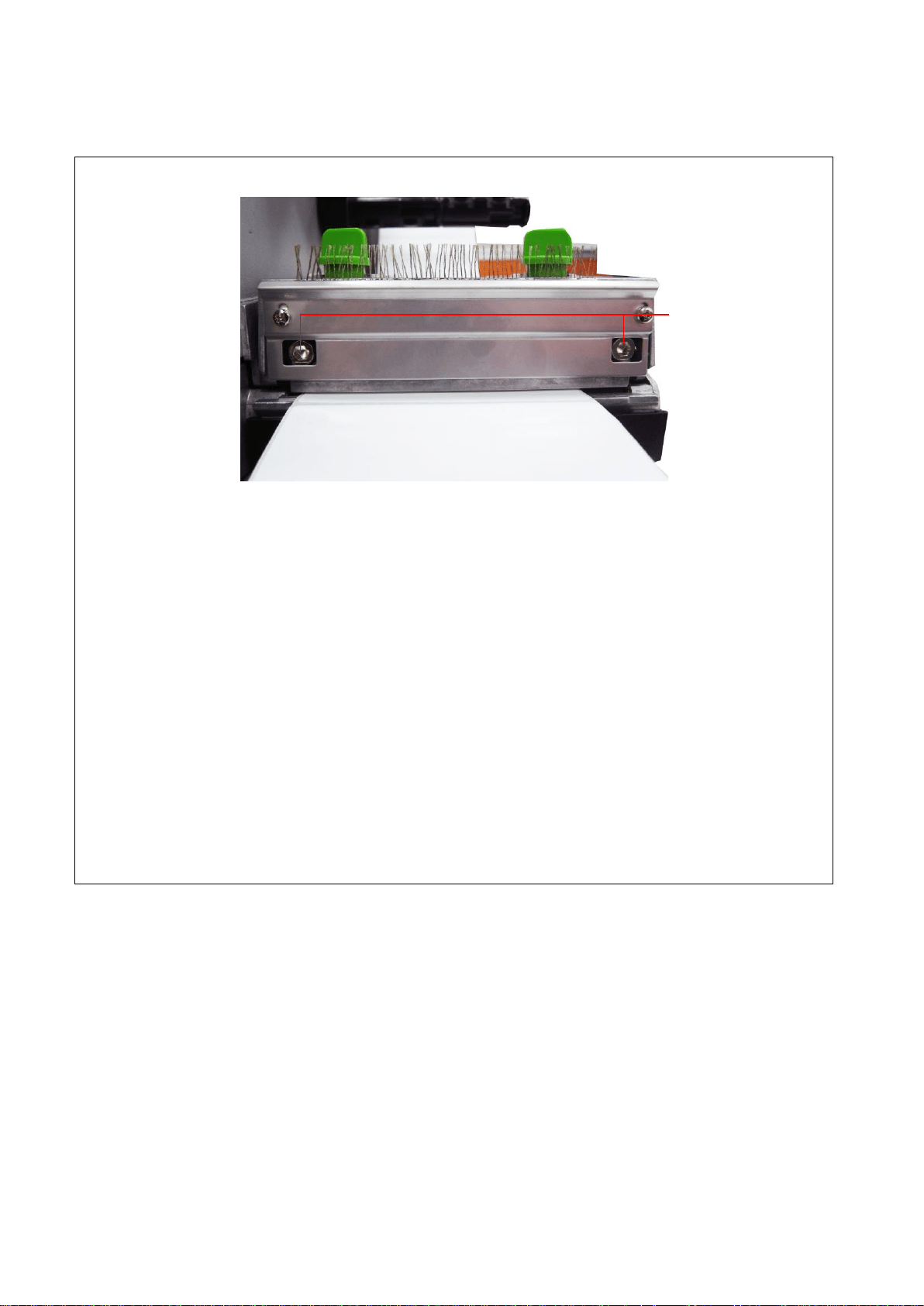
4.3.3 Print Head Burn Line Adjustment Knob
The print head burn line adjustment knobs are used to fine tune the print quality for
different thickness of media. Turning the knobs adjusts the print head’s burn line
forward or backward as it relates to the platen roller.
Caution: Incorrectly adjusting these knobs can lead to poor print quality and
may cause damage to the printer. Proceed with caution.
The print head burn line default is set for general purpose printing media (plain paper
and paper thickness less than 0.20mm).
Poor print quality when using paper thicker than 0.20mm may be due to the print
head burn line not being at the optimized position. To improve the print quality,
increase the head pressure or adjust the knobs counter-clockwise to move print head
burn line toward the paper out direction then print again. Continue to adjust the burn
line position and test print as necessary until the printout image is clear.
Print head burn line
adjustment knobs
50
50
5. MAINTENANCE
This session presents the clean tools and methods to maintain your printer.
Please use one of following material to clean the printer.
Cotton swab (Head cleaner pen)
Lint-free cloth
Vacuum / Blower brush
100% ethanol
2. The cleaning process is described as following
Printer Part
Method
Interval
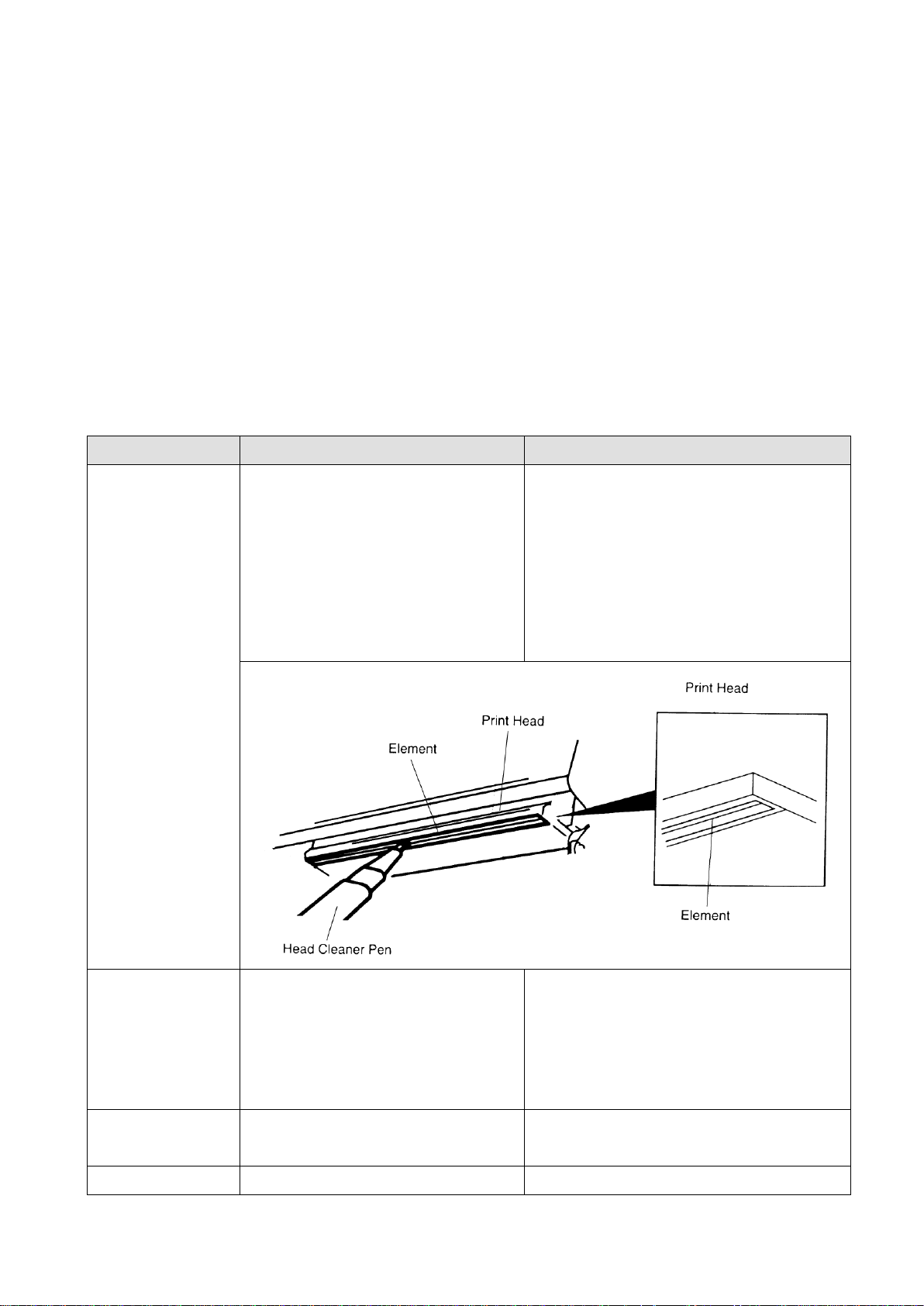
Print Head
1. Always turn off the printer
before cleaning the print head.
2. Allow the print head to cool for
a minimum of one minute.
3. Use a cotton swab (Head
cleaner pen) and 100% ethanol
to clean the print head surface.
Clean the print head when changing a
new label roll
Platen Roller
1. Turn the power off.
2. Rotate the platen roller and
wipe it thoroughly with 100%
ethanol and a cotton swab, or
lint-free cloth.
Clean the platen roller when changing
a new label roll
Tear Bar/Peel
Bar
Use the lint-free cloth with 100%
ethanol to wipe it.
As needed
Sensor
Compressed air or vacuum
Monthly

51
51
Exterior
Wipe it with water-dampened
cloth
As needed
Interior
Brush or vacuum
As needed
Note:
Do not touch printer head by hand. If you touch it careless, please use ethanol to clean
it.
Please use 100% Ethenol. DO NOT use medical alcohol, which may damage the printer
head.
Regularly clean the print head and supply sensors once change a new ribbon to keep
printer performance and extend printer life.

52
52
UPDATE HISTORY
Date
Content
Editor
2015/7/31
Update section 3.12 (Peel-off kit installation)
Camille
2015/8/12
Modify section 2.1
Camille
2015/10/2
Add section 3.14 (Replacing cutter driver IC board)
Camille
2015/10/21
Modify section 1.1 (Recommended SD card specification)
Camille
2015/11/9
Modify section 4.2
Add chapter 4.3.2
Camille
2015/12/17
Add section 3.15 (Slot-in Wireless housing installation)
Camille

53
53
Corporate Headquarters Li Ze Plant
9F., No.95, Minquan Rd., Xindian Dist., No.35, Sec. 2, Ligong 1st Rd., Wujie Township,
New Taipei City 23141, Taiwan (R.O.C.) Yilan County 26841, Taiwan (R.O.C.)
TEL: +886-2-2218-6789 TEL: +886-3-990-6677
FAX: +886-2-2218-5678 FAX: +886-3-990-5577
Web site: www.tscprinters.com
E-mail: printer_sales@tscprinters.com
tech_support@tscprinters.com
TSC Auto ID Technology Co., Ltd.