User Manual
for S6 Series Hybrid Inverter
Version 1.0, Release Date: 08,2024
Applicable models
S6-EH1P3K-L-PLUS
S6-EH1P3.6K-L-PLUS
S6-EH1P4.6K-L-PLUS
S6-EH1P5K-L-PLUS
S6-EH1P6K-L-PLUS
S6-EH1P8K-L-PLUS
Applicable System
Single phase system

Important Notes
Due to the product development,the product specifications and functions are subject to
change.The latest manual can be acquired via https://www.ginlong.com/global.
Every attempt has been made to make this document complete, accurate and up-to-date.
Individuals reviewing this document and installers or service personnel are cautioned,
however, that Solis reserves the right to make changes without notice and shall not be
responsible for any damages, including indirect, incidental or consequential damages
caused by reliance on the material presented including, but not limited to, omissions,
typographical errors, arithmetical errors or listing errors in the material provided in this
document.
Solis accepts no liability for customers' failure to comply with the instructions for
correct installation and will not be held responsible for upstream or downstream systems
Solis equipment has supplied.
The customer is fully liable for any modifications made to the system; therefore, any
hardware or software modification, manipulation, or alteration not expressly approved
by the manufacturer shall result in the immediate cancellation of the warranty.
Given the countless possible system configurations and installation environments, it is
essential to verify adherence to the following:
● There is sufficient space suitable for housing the equipment.
● Airborne noise produced depending on the environment.
● Potential flammability hazards.
● Solis will not be held liable for defects or malfunctions arising from:
● Improper use of the equipment.
● Deterioration resulting from transportation or particular environmental conditions.
● Performing maintenance incorrectly or not at all.
● Tampering or unsafe repairs.
● Use or installation by unqualified persons.
● This product contains lethal voltages and should be installed by qualified electrical
or service personnel having experience with lethal voltages.

01-04
05
32
08
10
11
18
19
05
01
02
32-33
14
22
1.1 Product Overview
………………………………………………………………………………………………………………………………
…………………………………………………………………………………………………………
……………………………………………………………………………………………………………………………………………
……………………………………………………………………………………………
………………………………………………………………………………………………
…………………………………………………………………………………………………………………
………………………………………………………………………………………………………………………
………………………………………………………………………………………………………………
………………………………………………………………………………………………………………………………
…………………………………………………………………
…………………………………………………………………………………………………………………………………
1. Introduction
1.2 Inverter Wire Box and Connection Points
2. Safety & Warning
2.1 Safety
2.2 General Safety Instructions
4. Overview
4.1 Screen
3.9 Meter/CT Connection
3. Installation
3.1 Select a Location to Install the Inverter
3.2 Product Handling
3.4 Inverter Wiring Overview
3.6 PV Cable Installation
3.7 Battery Cable Installation
………………………………………………………………………………………………………………………………………
………………………………………………………………………
07
2.3 Notice for Use
07
………………………………………………………………………………………………………………
………………………………………………………………………………………………
………………………………………………………………………………………………
15
3.5 Ground Cable Installation
………………………………………………………………………………………………………
20
3.8 AC Wiring
…………………………………………………………………………………………………………
34
…………………………………………………………………………………………………………………………………
5. Commissioning
7. Troubleshooting
…………………………………………………………………………………………………………………
51
56
………………………………………………………………………………………………………………………
8. Specifications
13
3.3 Mounting the Inverter
…………………………………………………………………………………………………
34
5.1 Pre-Commissioning
………………………………………………………………………………………………………………………………
36
5.2 Power ON
………………………………………………………………………………………………………………………………
Contents
2.4 Notice for Disposal
08-32
………………………………………………………………………………………………………………………………
50
…………………………………………………………………………………………………………………………
6. Maintenance
50
6.1 Smart O&M
……………………………………………………………………………………………………………………………
03
…………………………………………………………………………………………………………………
1.3 Product Features
1.4 Packaging
1.5 Tools Required for Installation
3.10 Inverter Communication
3.11 Inverter Remote Monitoring Connection
32
……………………………………………………………………………………………………………………………
4.3 Keypad
5.3 Power OFF
5.5 APP Setting
68
……………………………………………………………………………………………………………
9. Appendix - FAQs
04
………………………………………………………………………………………………………………………………
34
……………………………………………………………………………………………………………
34-36
…………………………………………………………………………………………………………………
29
…………………………………………………………………
05-07
……………………………………………………………………………………………………………
04
………………………………………………………………………………………
35
…………………………………………………………………………………………………………………
5.4 HMI Screen Setting
33
…………………………………………………………………………………………………………………………………………
4.2 LED Indicators
33
…………………………………………………………………………
4.4 Inverter built-in Bluetooth description
30
…………………………………………………………………………………………………
3.12 Wiring Diagram Overview
3.13 Parallel system Wiring
31
…………………………………………………………………………………………………………
1. Introduction
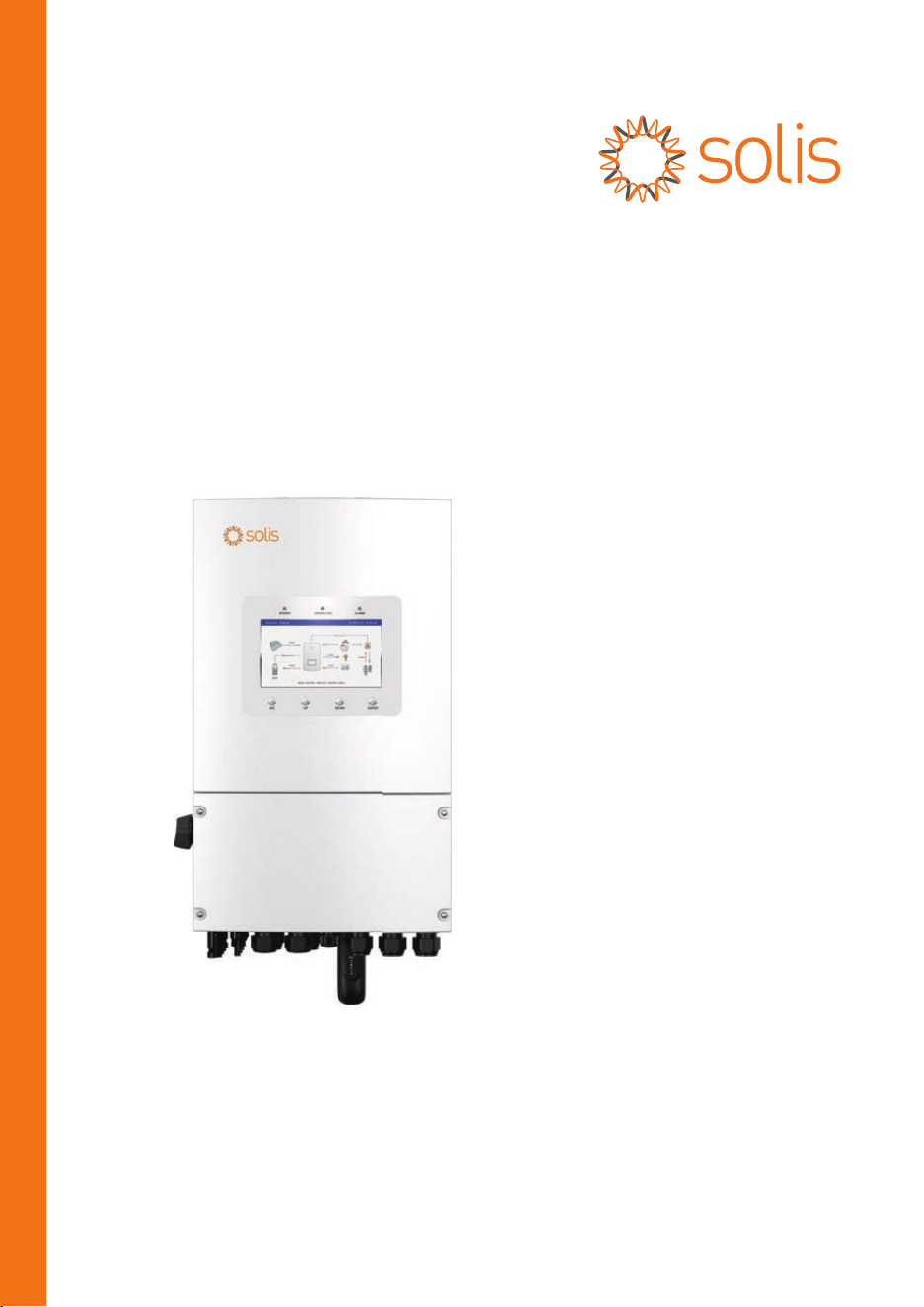
User Manual
1.1 Product Overview
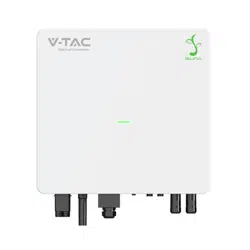
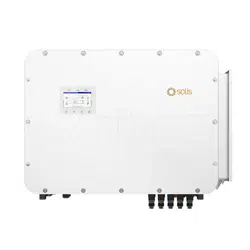
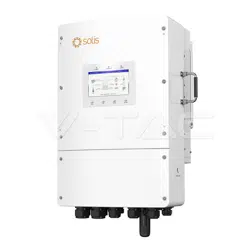
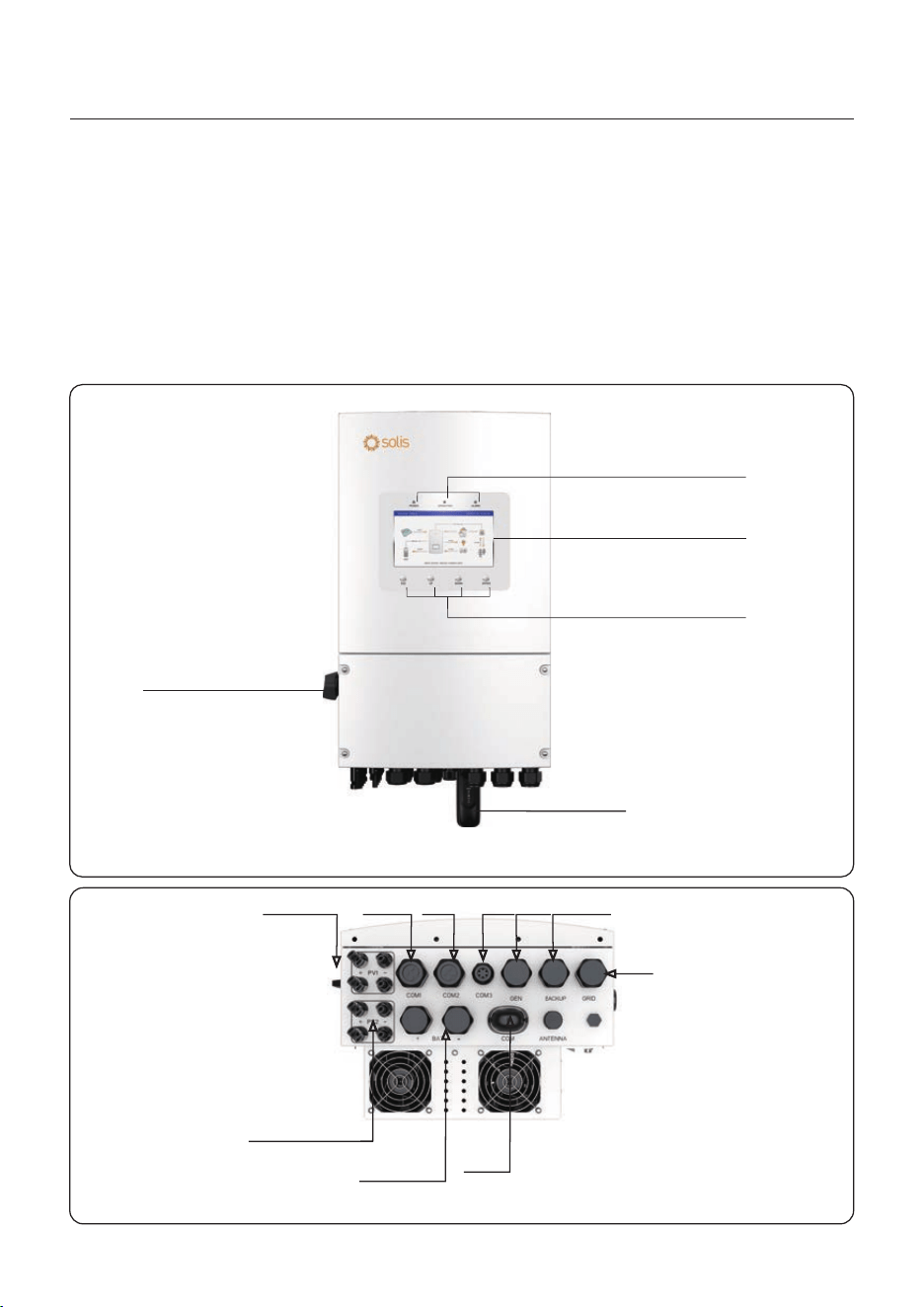
The Solis S6-EH1P(3-8)K-L-PLUS series is designed for residential hybrid systems.
The inverter can work with low-voltage lithium ion and Lead-acid batteries to maximize
self-consumption and provide backup power if the grid fails and there is not enough PV
power to cover load demand.
The S6-EH1P(3-8)K-L-PLUS series consists of the following inverter models:
3kW,3.6kW,4.6kW,5kW,6kW,8kW
The 8K model is of different hardware and size from the 3-6K models.
The max.input strings number of 8K is 4,and the 3-6K is 2.
Figure 1.1
Front side view
01
Figure 1.2
Bottom side view(8K)
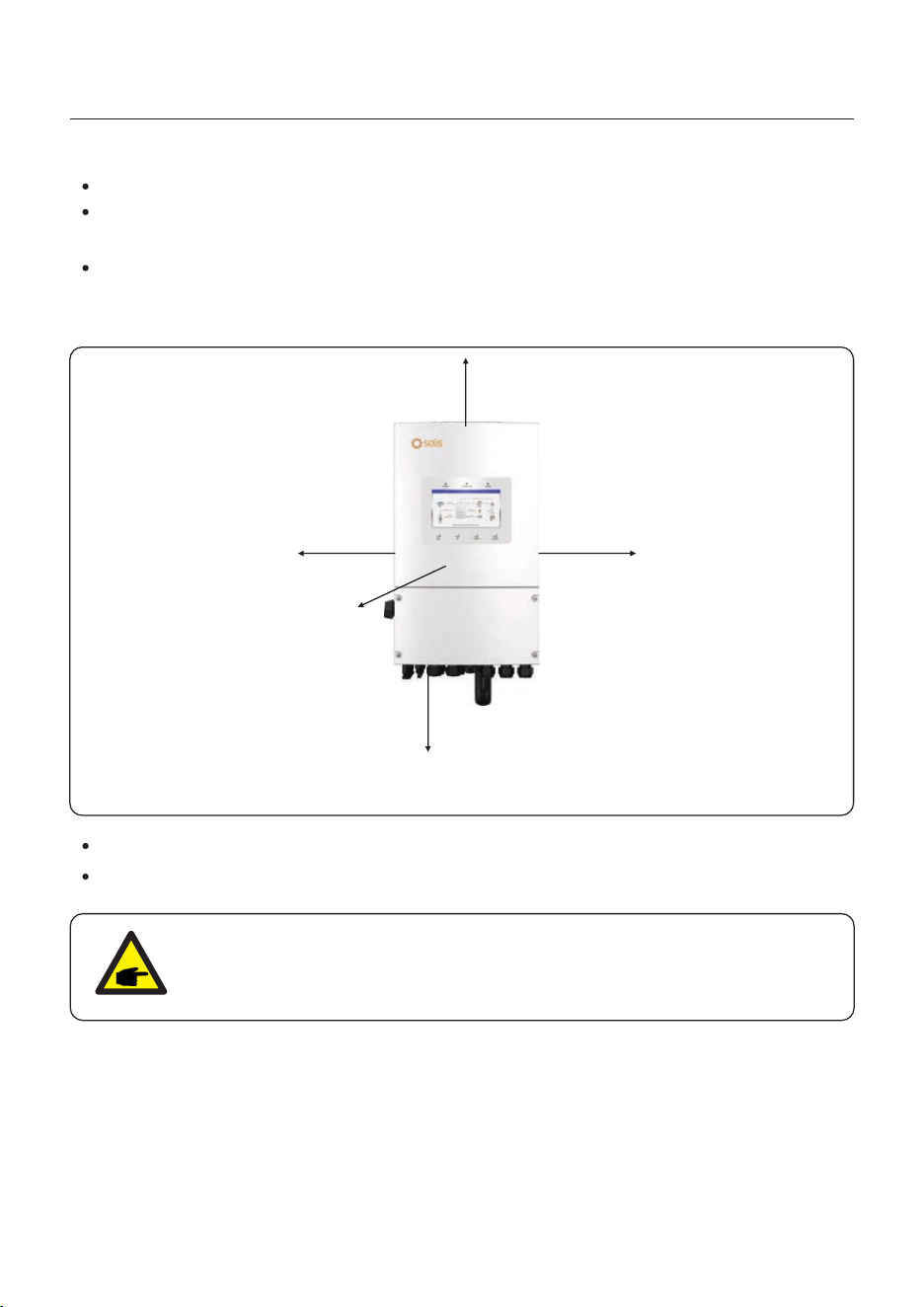
Display
DC Disconnect Switch
Solis Data Logger
PV Module Input
DC Switch
Battery
Connection
COM
Port
COM1 COM2 COM3
Grid
BackupGen
Indicator light
Key
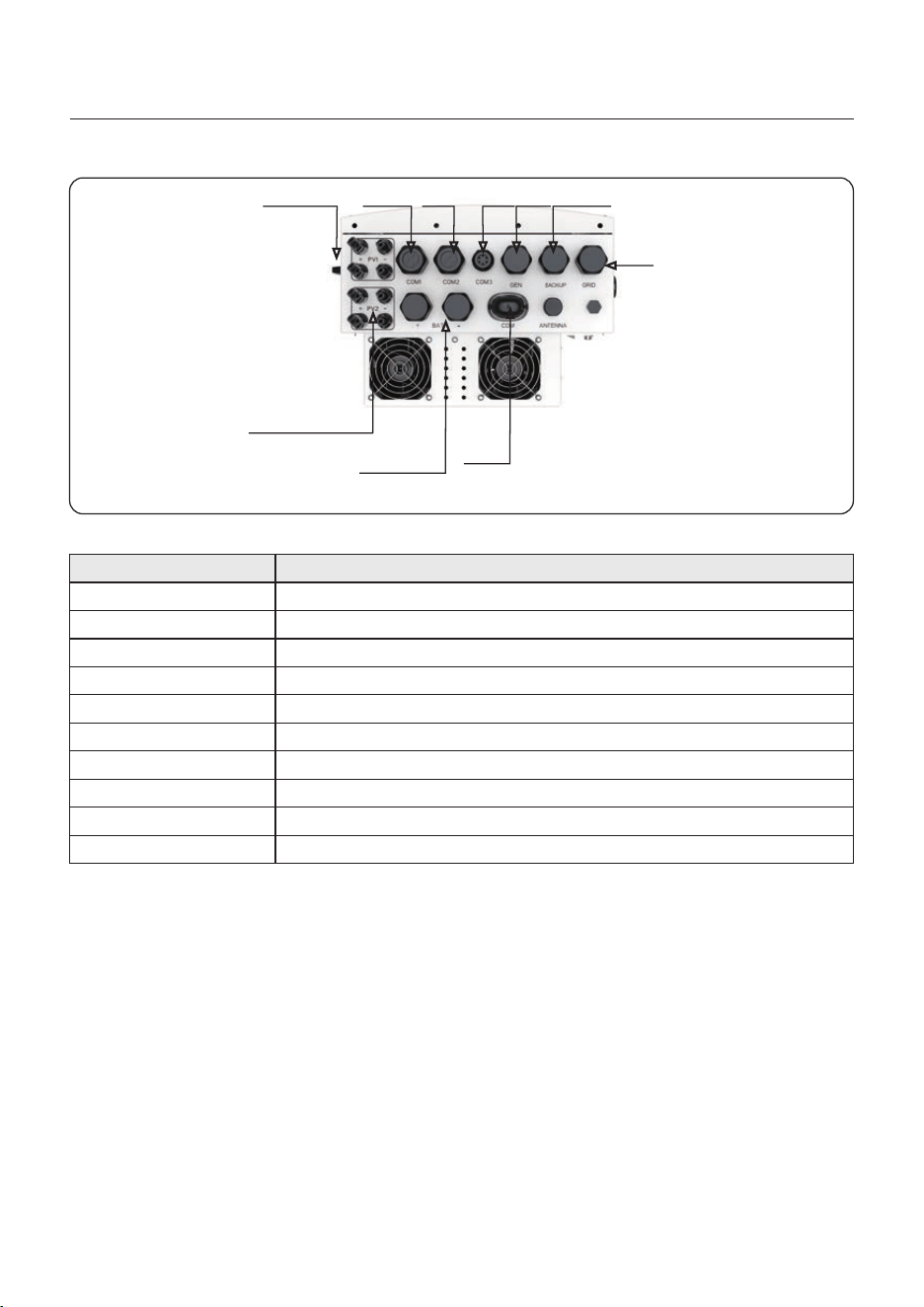
1.2 Inverter Wire Box and Connection Points
Name Description
2. COM1
3. COM2
1. DC Switch
8. PV Module Input
4. COM3
5. Gen
6. Backup
7. Grid
9. Battery Connection
10. COM Port
This is the DC disconnect switch for the PV
Conduit for AC conductors to backup loads panel should be connected here
Conduit for AC conductors to the main service panel should be connected here
1. Introduction
User Manual
RS485 and CAN communication cables and parallel cables should go through these
RS485 and CAN communication cables and parallel cables should go through these
Conduit for CT conductors should be connected here
Conduit for PV conductors should be connected here
Conduit for Battery conductors should be connected here
Solis data logger gets connected here-only USB version of the loggers will work
02
Conduit for AC conductors to generator should be connected here
Figure 1.3 Bottom side view(8K)
PV Module Input
DC Switch
Battery
Connection
COM
Port
COM1 COM2 COM3 Gen
Grid
Backup

User Manual
1.3 Product Features
Integrated 2 MPPTs with 2(3-6K)/4(8K) strings, suitable for residential rooftop
installations with multiple array orientations.
Compatible with multiple brands of battery models giving customers multiple battery
options.
7-Inch color LCD screen and built in Bluetooth provide local operation without Internet.
Highly Flexible
Support Max 6 pcs in parallel, capable of forming a three-phase system.
Inverter and generator can supply power to the load at the same time.
Smart load function achieves intelligent load shedding.
AC coupling to upgrade existing PV plant.
Customizable charge/discharge time settings.
190A maximum charge and discharge current.
Can be used with any battery (between 40V-60V).
Multiple battery protection function.
Outstanding Performance
Up to 16A(3-6K)/32A (8K)of MPPT current input to support 182mm solar panels.
Supports 1.6 DC:AC ratio to connect more PV capacity to the energy storage system.
Up to 135A/6K,190A/8K max.charge/discharge rating with industry highest level 8kW of
backup loads support capability.
UPS level switching time(<4ms)supporting critical loads all the time.
High PV charge efficiency to prevent excess PV loss.
10 second 200% surge power backup overload capability. Support inductor loads.
Intelligent Function
Safe&Reliable
Safety protection with integrated AFCI function, which actively detects arc faults in the
PV Array.
1. Introduction
03
Multiple battery protection function.
User Manual
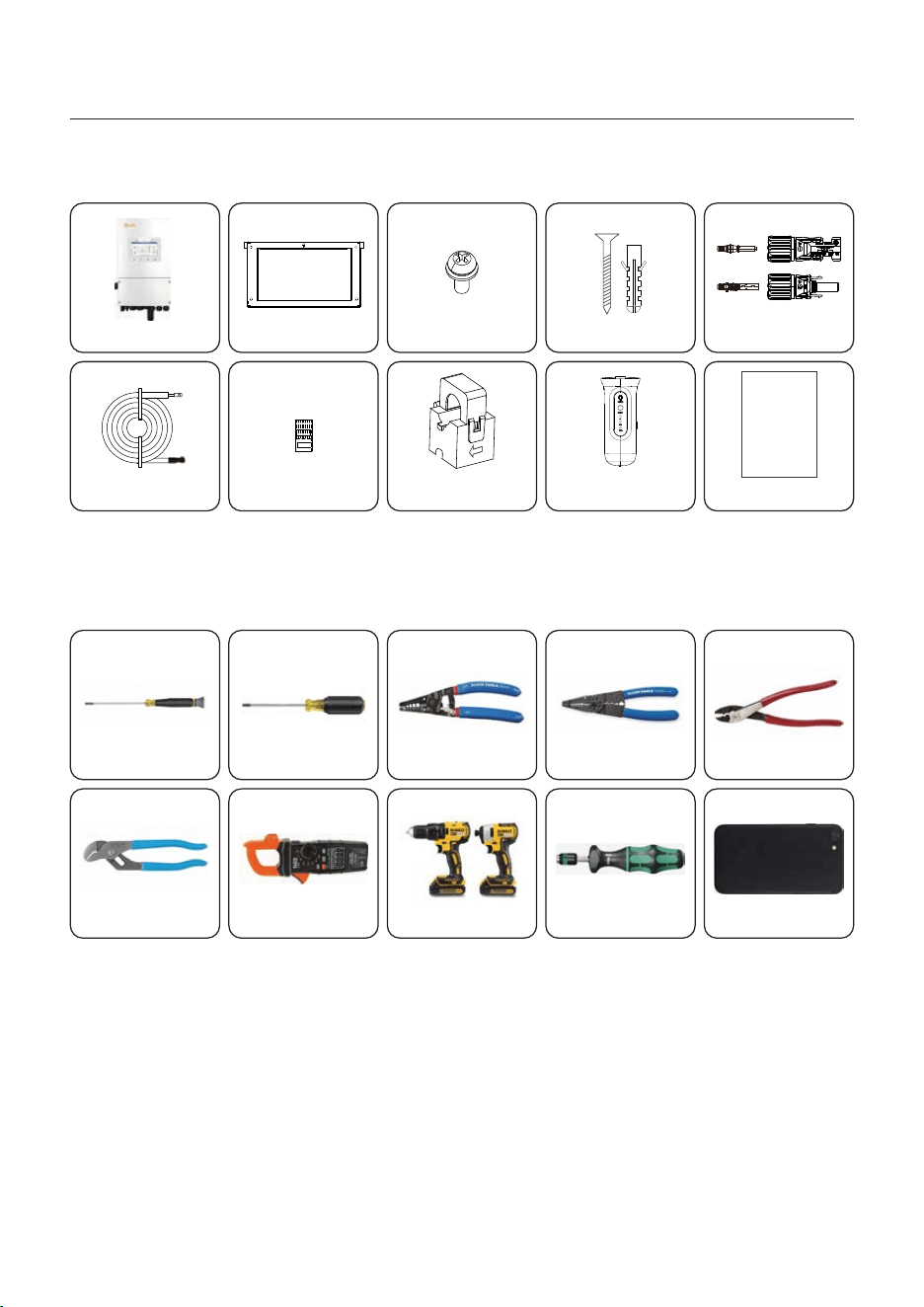
Back plate x1
Fastening screw x2
1.4 Packaging
Please ensure that the following items are included in the packaging with your machine:
If anything is missing, please contact your local Solis distributor.
Parallel communication
Cable x1
Inverter x1
1. Introduction
1.5 Tools Required for Installation
Torqx T20 Screwdriver Wire Strippers 12AWG to 6AWG Wire Strippers 20AWG to 10AWG
Drill and Impact Driver
Multimeter (AC/DC amps)
Channel Locks Smart Phone
Torque Wrench Screwdriver
Technician Screwdriver
Crimping Tool
RJ45 connector x4
WiFi/GPRS Stick x1 CT x1
(3-6)K DC connector x 2
8K DC connector x4
Quick Installation Manual x1
Quick
Installation
Manual
04
Expansion Bolt x4
2. Safety & Warning
User Manual
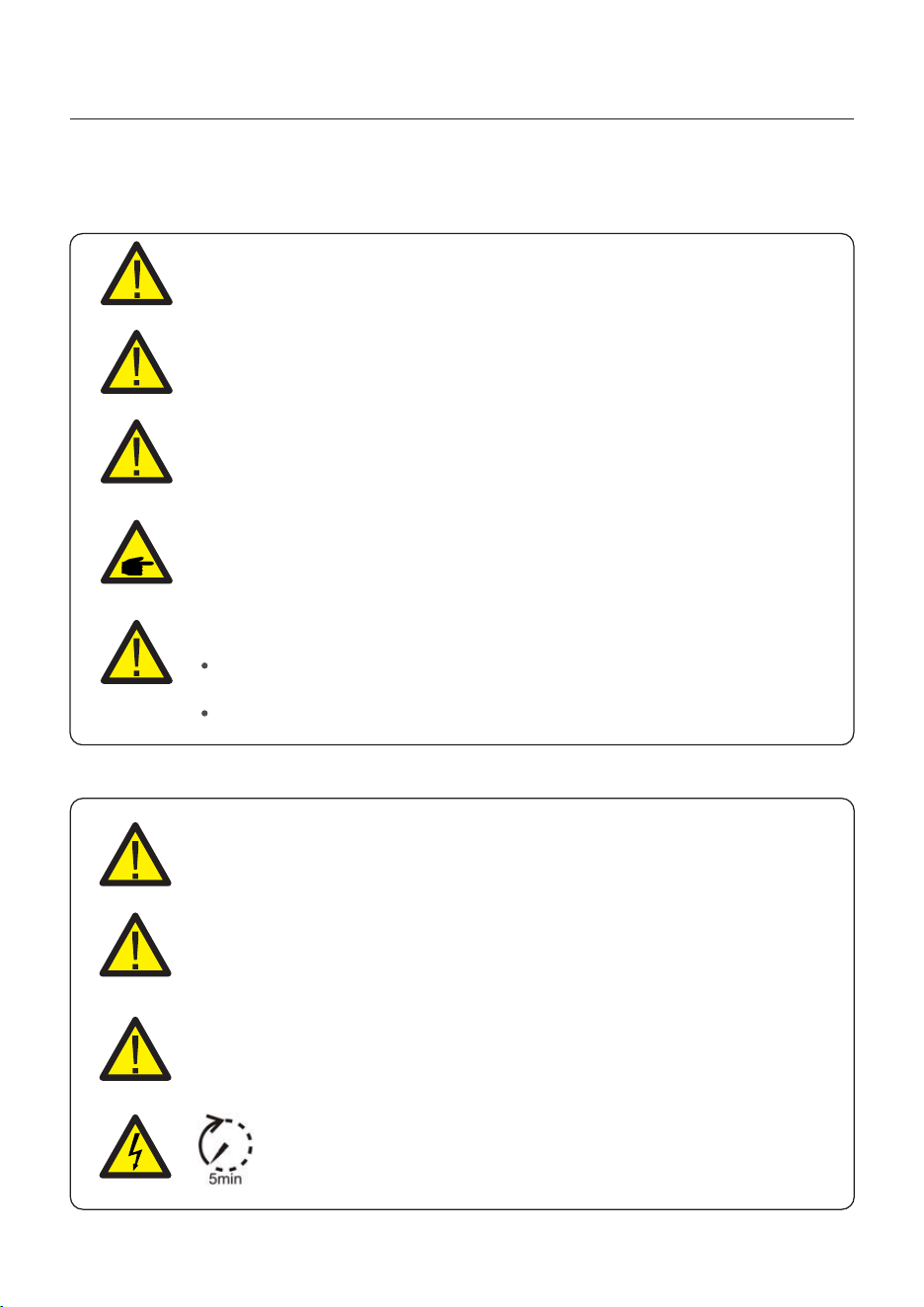
2.1 Safety
The following types of safety instructions and general information appear in this
document as described below:
CAUTION
“Caution” indicates a hazardous situation which if not avoided, could result
in minor or moderate injury.
WARNING
“Warning” indicates a hazardous situation which if not avoided, could result
in death or serious injury.
DANGER
“Danger” indicates a hazardous situation which if not avoided, will result in
death or serious injury.
NOTE
“Note” provides tips that are valuable for the optimal operation of your
product.
2.2 General Safety Instructions
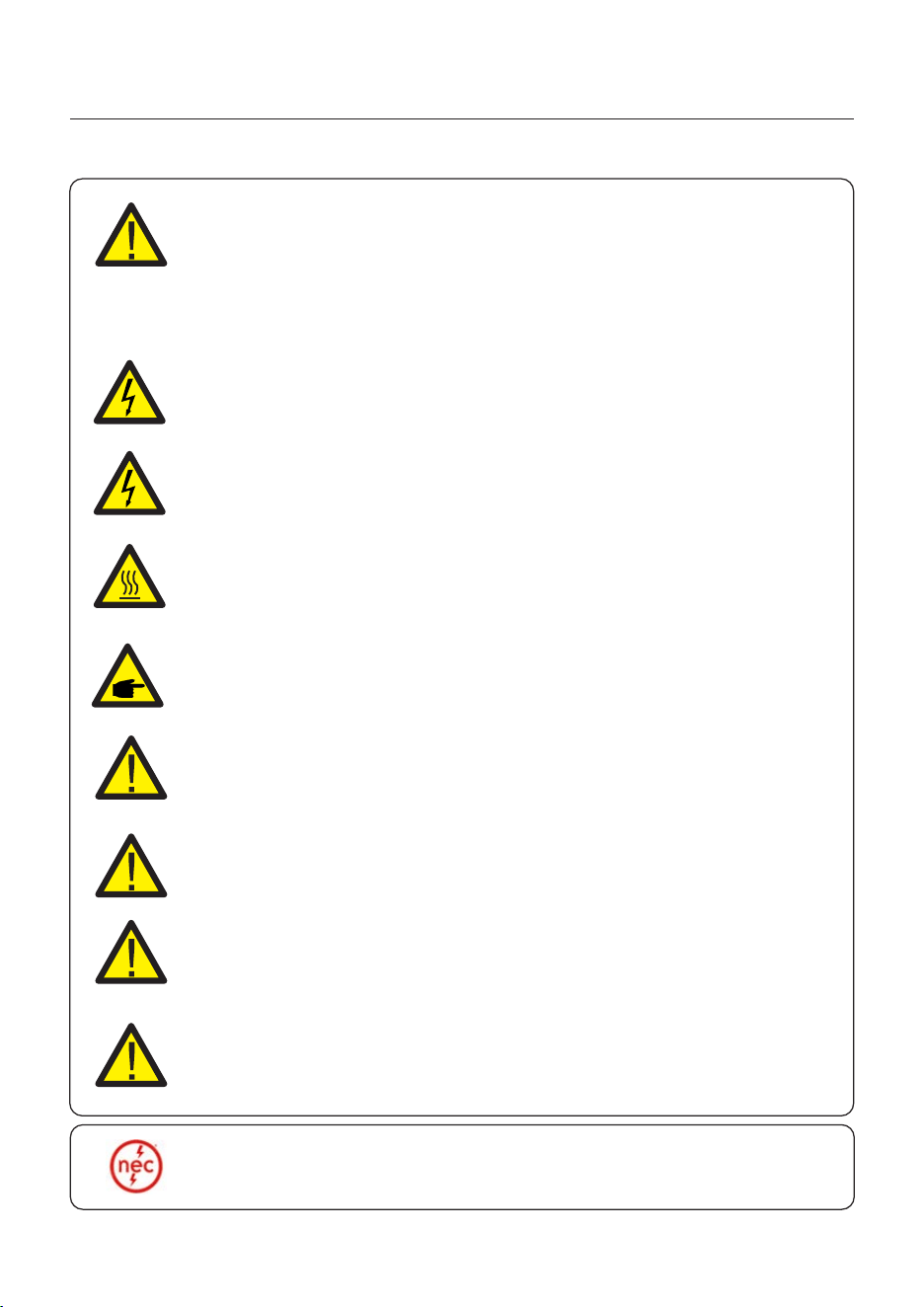
WARNING
Electrical installations must be done in accordance with local and national
electrical safety standards.
WARNING
Do not connect PV array positive (+) or negative (-) to ground, doing so could
cause serious damage to the inverter.
WARNING
Only devices in compliance with SELV (EN 69050) may be connected to the
RS485 and USB interfaces.
WARNING
Do not touch any internal parts until 5 minutes after disconnection
from the utility grid, PV array, and battery.
WARNING: Risk of fire
Despite careful construction, electrical devices can cause fires.
Do not install the inverter in an area containing flammable materials
or gases.
Do not install the inverter in a potentially explosive atmosphere.
05
2. Safety & Warning
User Manual
CAUTION
The PV conductors are energized with high voltage DC when the PV
modules are exposed to sunlight.
CAUTION
The surface temperature of the inverter can reach up to 75℃ .
To avoid risk of burns, do not touch the surface of the inverter while it is
operating. The inverter must be installed out of direct sunlight exposure.
WARNING
To reduce the risk of fire, over-current protective devices (OCPD) are
required for all circuits connected to the inverter.
The DC OCPD shall be installed per local requirements. All photovoltaic
source and output circuit conductors shall have isolators that comply with
the NEC Article 690, Part II.
All Solis single phase inverters feature an integrated DC disconnect switch.
CAUTION
Risk of electric shock, do not remove the cover. There are no serviceable
parts inside, refer servicing to qualified and accredited service technicians.
NOTE
PV modules used with inverter must have an IEC 61730 Class A rating.
WARNING
Operations must be accomplished by a licensed electrician or a
person authorized by Solis.
WARNING
Installer must wear personal protective equipment during the
entire installation process in case of electrical hazards.
WARNING
The AC Backup Port of the inverter cannot be connected to the grid.
WARNING
Please refer to the product manual of the battery before installation
and configuration to the inverter.
Systems using this product shall be designed and built in
accordance with the NEC & local electrical codes & standards.
06
2. Safety & Warning
User Manual
2.3 Notice for Use
The inverter has been constructed according to he applicable safety and technical
guidelines, use the inverter in installations that meet the following specifications only:
1. Permanent installation is required.
2. The electrical installation must be compliant with all local and national regulations &
standards.
3. The inverter must be installed according to the instructions stated in this manual.
4. The inverter must be installed according to the inverter technical specifications.
2.4 Notice for Disposal
This product shall not be disposed of with household waste.
It must be segregated and brought to an appropriate disposal facility
to ensure proper recycling.
This is to be done in order to avoid negative impacts on the environment
and human health.
Local waste management rules shall be observed and respected.
07
User Manual
WARNING: Risk of fire
Despite careful construction, electrical devices can cause fires.
Do not install the inverter in areas containing highly flammable materials
or gases.
Do not install the inverter in potentially explosive atmospheres.
The mounting structure where the inverter is installed must be fireproof.
3. Installation
3.1 Select a Location to Install the Inverter
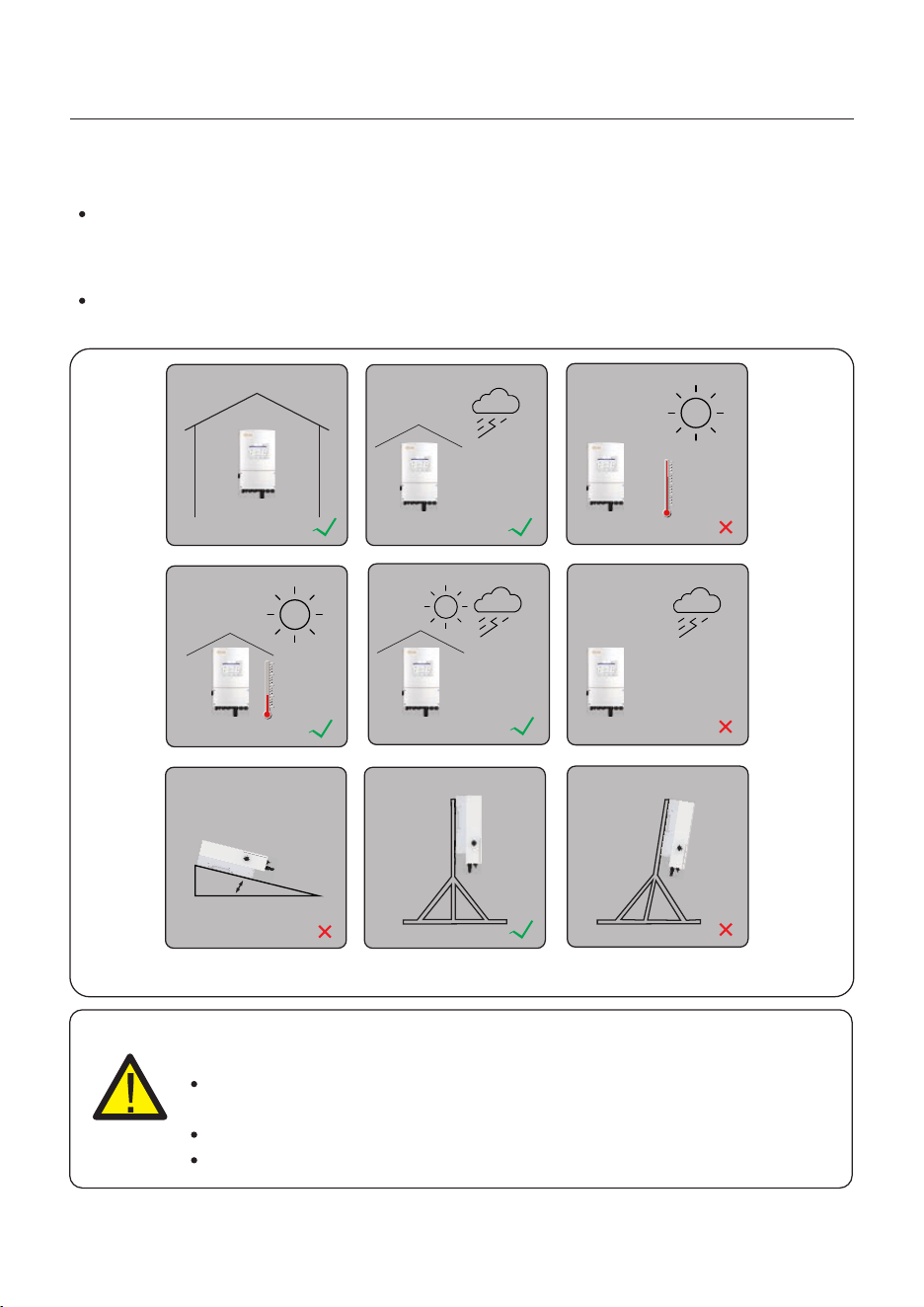
When selecting a location for the inverter, the following criteria should be considered:
Exposure to direct sunlight may cause output power derating due to overheating
It is recommended to avoid installing the inverter in direct sunlight. The ideal location is
one where the ambient temperature does not exceed 40°C.
It is also recommended to install the inverter somewhere the rain and snow will not land
directly on it. The ideal installation location is on a north-facing wall under an eave.
Figure 3.1 Recommended Installation locations
≥15°
Indoor
Direct Sun
Shade Cover
Shade Cover
Direct Rain
Rating
NEMA 4X
08
User Manual
3. Installation
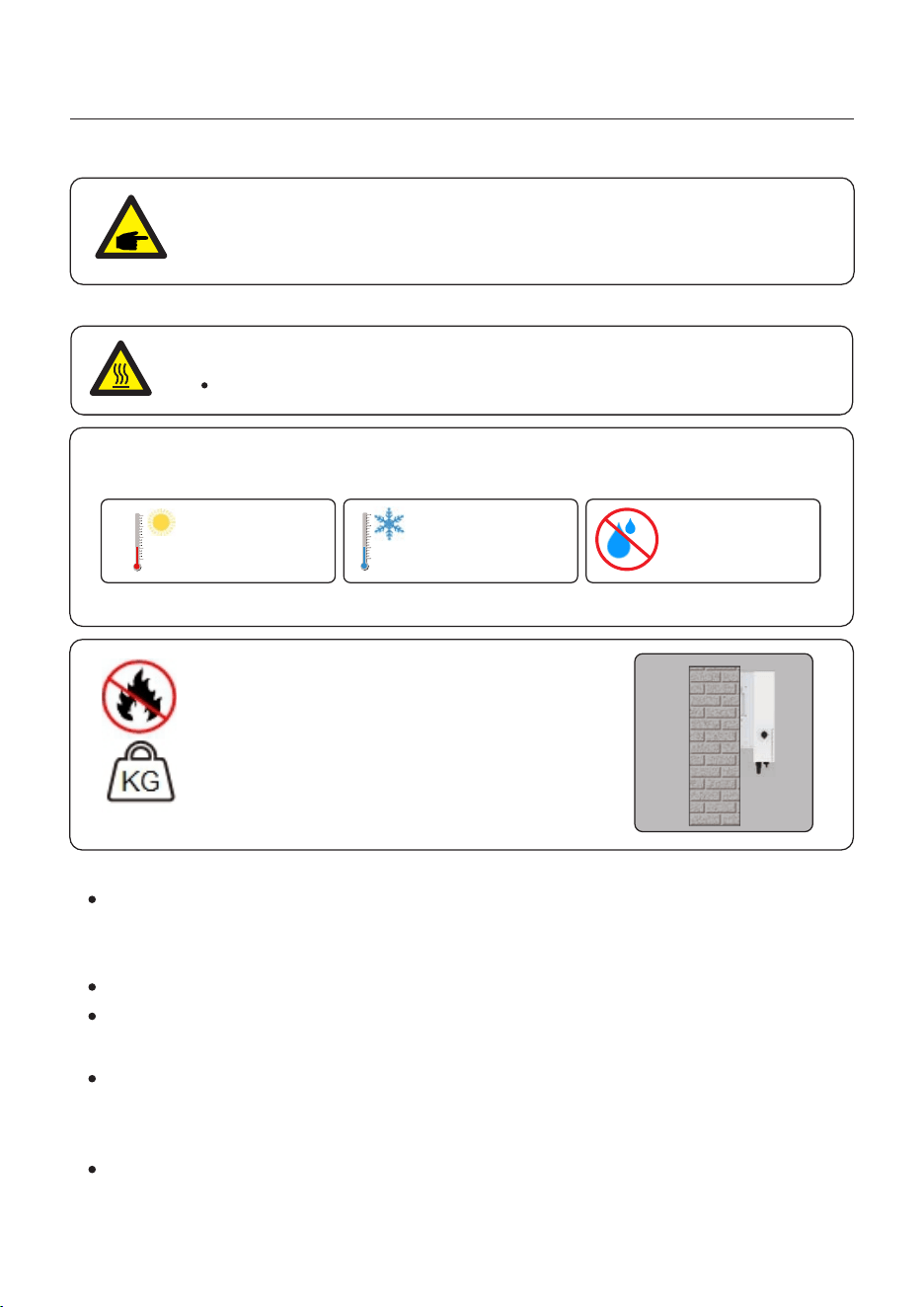
When selecting a location for the inverter, consider the following:
The temperature of the inverter heat-sink can reach 75℃.
The ambient temperature and relative humidity of the installation environment should
meet the following requirements:
If multiple inverters are installed on site, a minimum clearance of 150mm should be kept
between each inverter and all other mounted equipment. The bottom of the inverter should be
at least 800mm above of the ground or floor.
The LED status indicator lights located on the inverter's front panel should not be blocked
Adequate ventilation must be present if the inverter is to be installed in a confined space.
CAUTION: Hot Surface
Made of non-inflammable materials
Max. load bearing capacity ≥ 4 times of inverter weight
3.1.2 Consult technical data
Consult the technical specifications sections at the end of this manual for additional environmental
condition requirements (temperature range, altitude, etc.)
This model of Solis inverter must be mounted vertically (90 degrees or backwards less than or
equal to 15 degrees from 90 degrees straight up).
3.1.3 Angle of installation
3.1.1 Clearances
Figure 3.3 Load bearing structure
Load bearing surface:
Figure 3.2 Installation environment conditions
Max: +60℃ Max: -40℃ Max.RH : 100%
(non-condensing)
09
NOTE
If the inverter is installed in areas with high wind and sand, it is
recommended to install a windproof and sand barrier above the inverter.
3.1.6 Flammable substances
Do not install near flammable substances. Maintain a minimum distance of three meters
(10 feet) from such substances.
3.1.7 Living area
Do not install in a living area where the prolonged presence of people or animals is expected.
Depending on where the inverter is installed (for example: the type of surface around the
inverter, the general properties of the room, etc.) and the quality of the electricity supply, the
sound level from the inverter can be quite high.
3.2 Product Handling
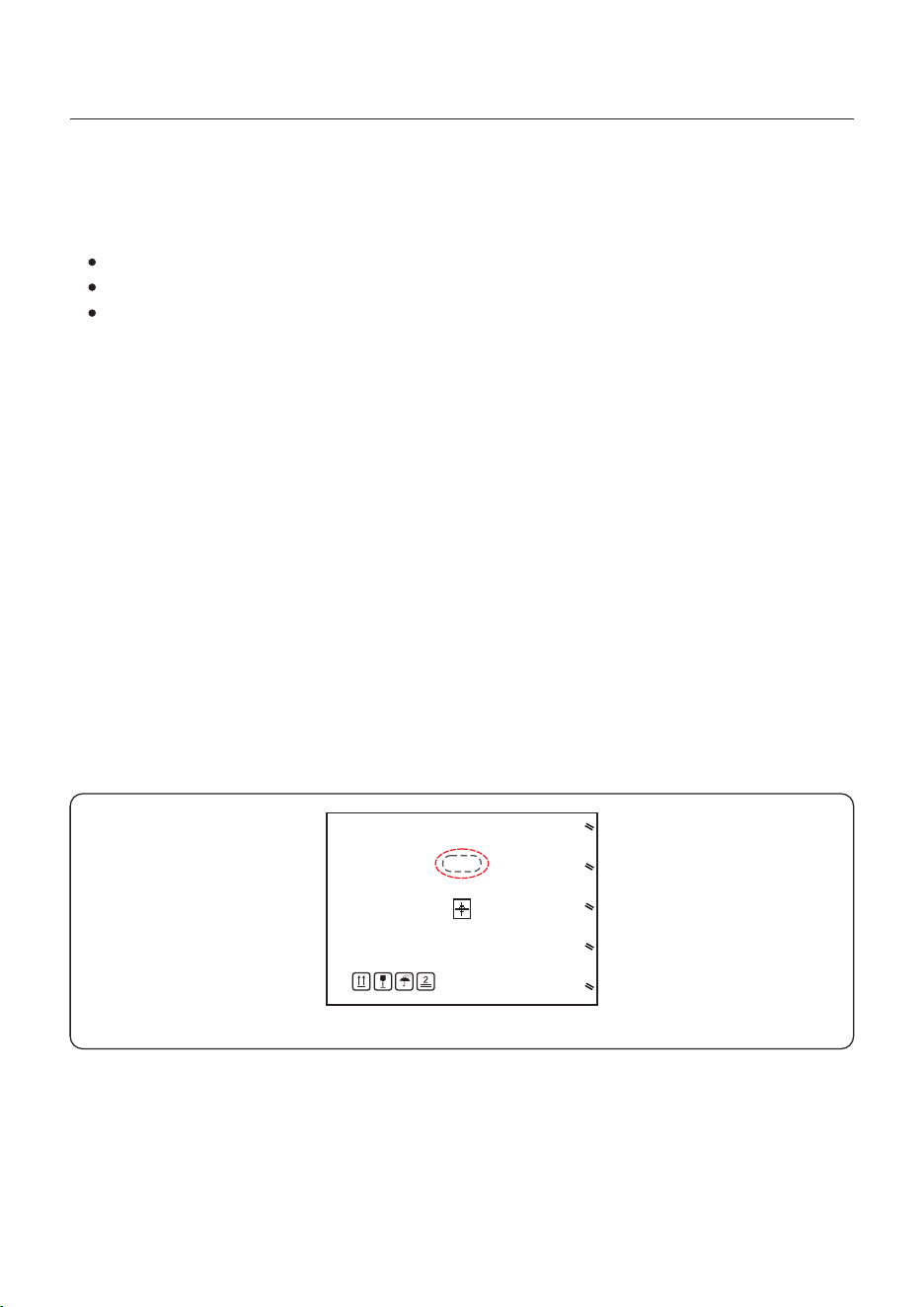
Figure 3.4 Handles used to move the inverter shown circled in red - one per side
3.1.5 Air circulation
Do not install in small, closed rooms where air cannot freely circulate.
To prevent overheating, always ensure that the air flow around the inverter is not blocked.
Please review the instruction below for handling the inverter:
1. The red circles below denote cutouts on the product package.
Push in the cutouts to form handles for moving the inverter (see Figure 3.4).
2. Two people are required to remove the inverter from the shipping box. Use the handles
integrated into the heat sink to remove the inverter from the carton.
3. When setting the inverter down, do it slowly and gently. This ensures that the internal
components and the outer chassis do not take any damage.
3.1.4 Avoiding direct sunlight
Installation of the inverter in a location exposed to direct sunlight should to be avoided.
Direct exposure to sunlight could cause:
Power output limitation (with a resulting decreased energy production by the system).
Premature wear of the electrical/electromechanical components.
Premature wear of the mechanical components (gaskets) and user interface.
User Manual
3. Installation
10
Visibility of the LCD screen should be considered.
Adequate ventilation around the inverter must be provided.
NOTE
Nothing should be stored on top of or placed against the inverter.
The inverter must be mounted vertically with a maximum incline of +/- 5 degree.
Exceeding this may cause the output power to derate.
Figure 3.5 Inverter Mounting Clearances
Mount the inverter on a wall or structure capable of bearing the weight of the machine.
3.3 Mounting the Inverter
User Manual
3. Installation
To avoid overheating, always make sure the flow of air around the inverter is not
blocked. A minimum clearance of 150mm should be kept between inverters or
objects and 800mm clearance between the bottom of the machine and the ground.
11
≥1200mm
≥150mm ≥150mm
≥500mm
≥800mm
User Manual
3. Installation
12
The inverter shall be mounted vertically.
The steps to mount the inverter are listed below:
1. Select the mounting height of the bracket and mark the mounting holes.
For brick walls, the position of the holes should be suitable for the expansion bolts.
WARNING:
The inverter must be mounted vertically.
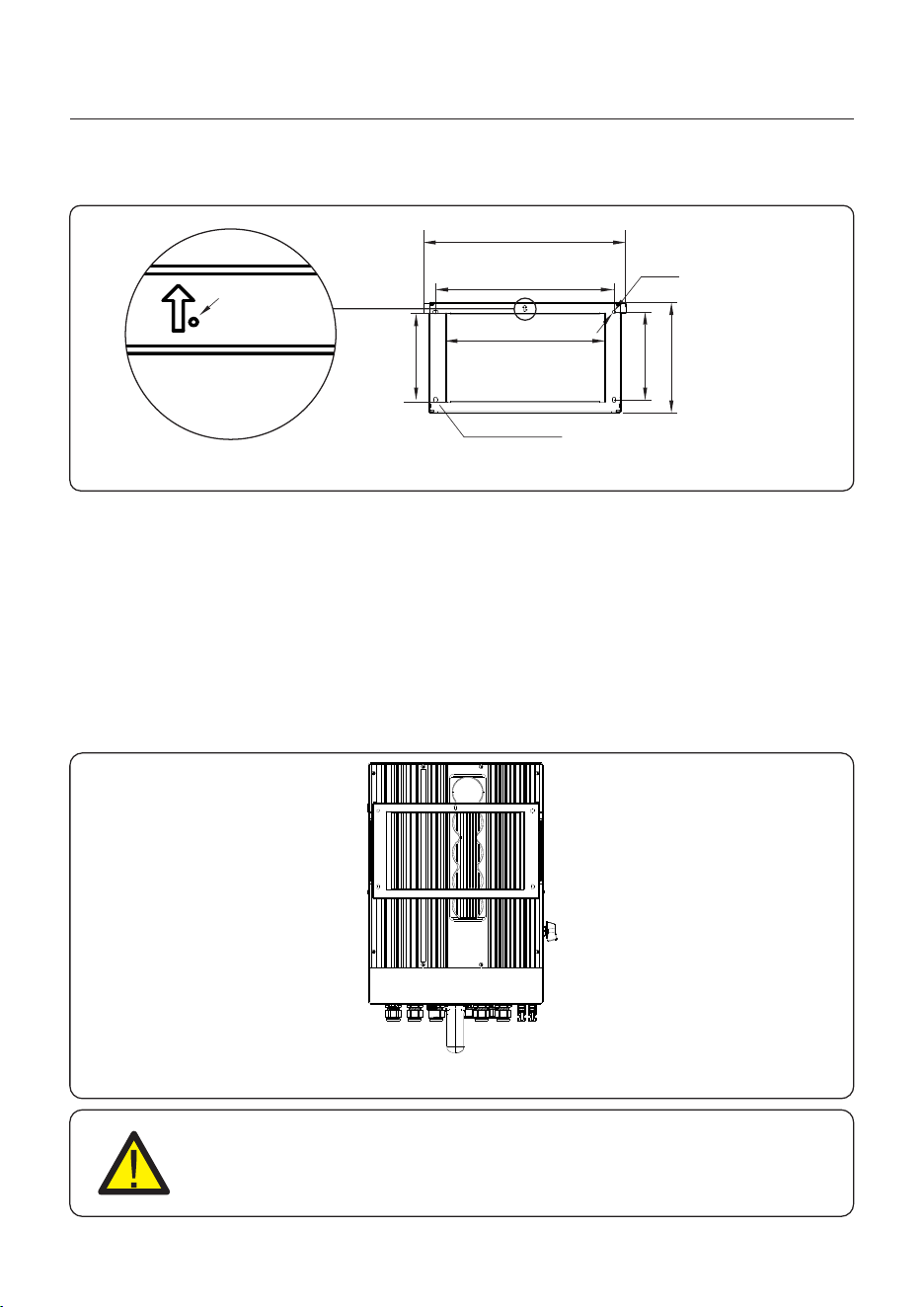
Once a suitable location has be found accordingly to 3.1 using figure 3.6 mount the wall
bracket to the wall.
Dimensions of mounting bracket:
unit:mm
Figure 3.7 Wall Mount Bracket
2. Lift up the inverter (be careful to avoid body strain), and align the back bracket on the
inverter with the convex section of the mounting bracket. Hang the inverter on the
mounting bracket and make sure the inverter is secure (see Figure 3.7)
3-OB11*6.8
407.5
(3-6)K is 358
8k is 360
322
177
222
Φ6.8
180
Figure 3.6 Inverter wall mounting
Only 8K has this hole, and
this hole cannot be blocked
Φ2
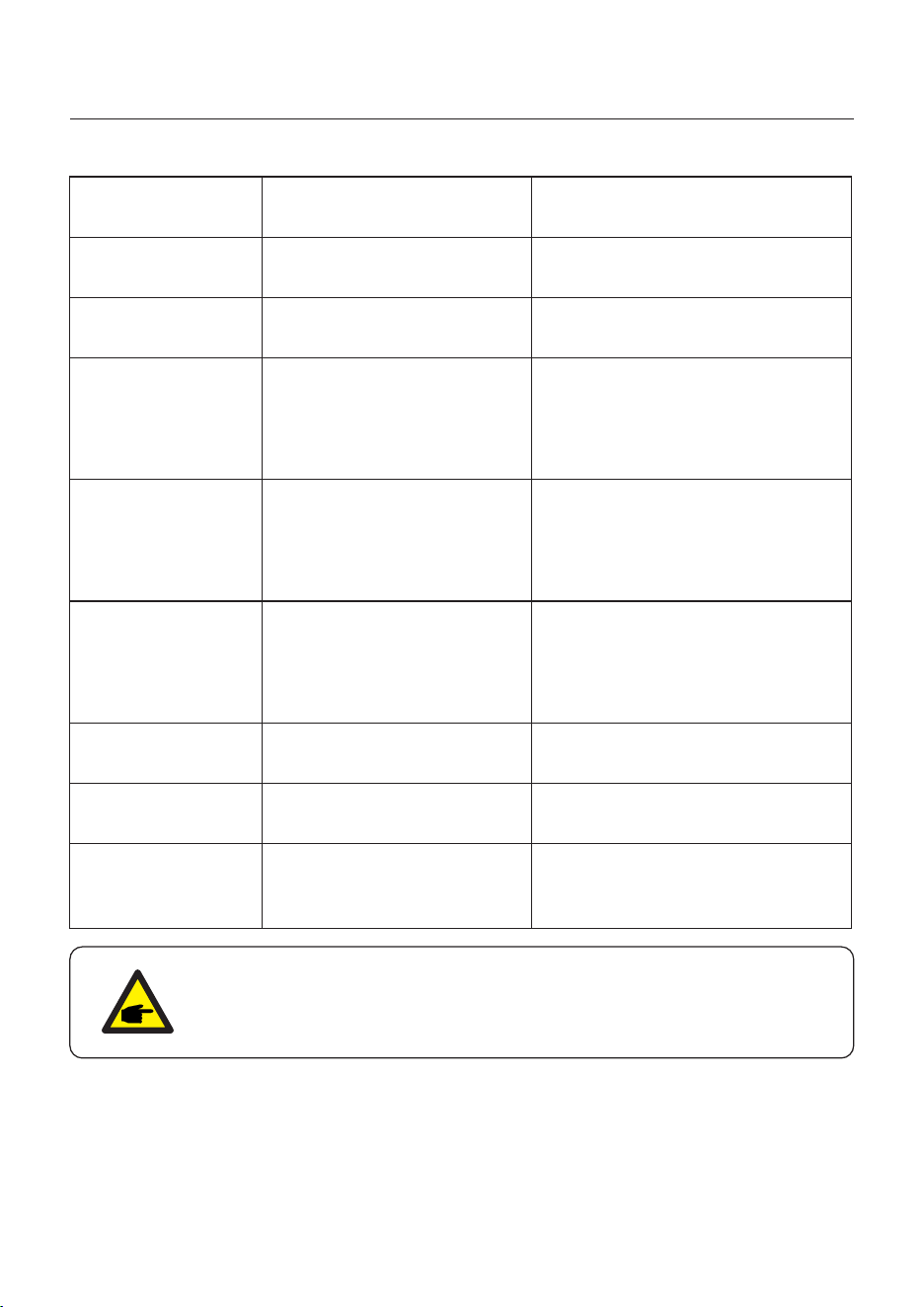
Connection Points
From the PV array to the DC+
and DC- terminals in the inverter
From the battery (+) and (-) terminals to
the inverter BAT+ and BAT- terminals
From the OCPD in the main service panel to
the AC-GRID L1 and L2 terminals
From the backup loads subpanel OCPD to
the inverter AC-BACKUP L1 and L2 terminals
From the main service panel ground bar to
the ground bar inside the inverter wire box
PV DC connection
to the inverter
Battery DC connection
to the inverter
Inverter AC connection
to the main service panel
Inverter AC connection
to the backup subpanel
PV Cables
Battery Cables
AC Grid Cables
AC Backup Cables
Ground Cables
From CT to terminal HM.
For more details, refer to figure
Installing the energy meter
From battery to terminal BMS.
For more details, refer to figure
Installing the battery
USB COM port at the bottom of the inverter
(For more details, please refer to the
Solis data logger product manual)
Communication
between inverter & CT
Communication between
the inverter & the battery
Monitoring of the system
on SolisCloud
CT cable
Battery CAN cable
Data Logger
Grounding conductors
for the system
Purpose
NOTE
Conductor dimensions and OCPD sizing to be determined in accordance
with the national electrical code (NEC) and local standards.
3.4 Inverter Wiring Overview
User Manual
3. Installation
13
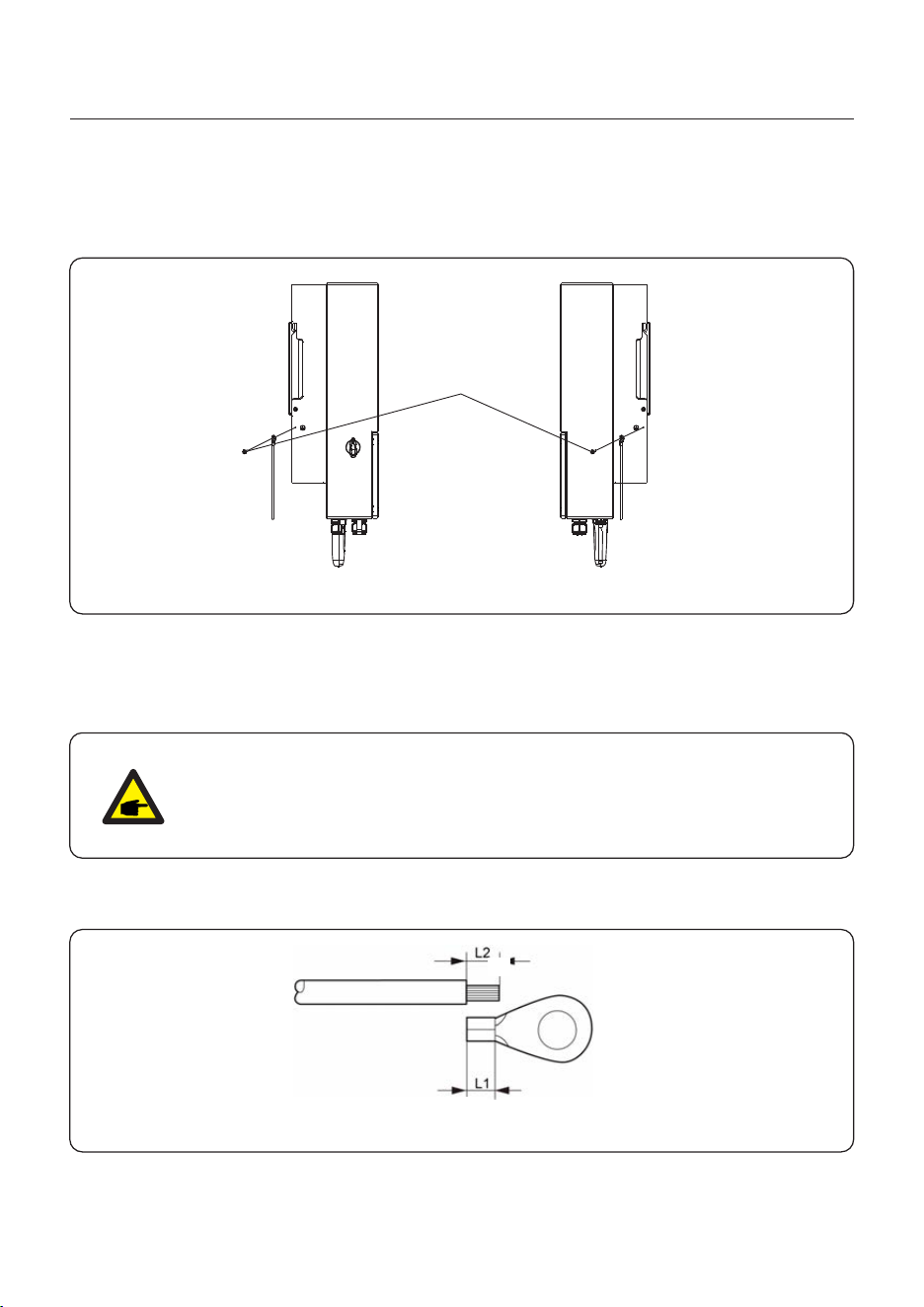
3.5 Ground Cable Installation
1. It is recommended to use copper wire for the chassis ground. Either solid conductor or
stranded wire is acceptable. Refer to local code standard for wire sizing.
2. Attach OT terminal: M4.
To connect the grounding terminal on the heat sink, please follow the steps below:
A
B
IMPORTANT
3. Strip the ground cable insulation to a suitable length. (see Figure 3.9)
4. Crimp a ring connector onto the cable and then connect it to the chassis ground terminal.
Figure 3.9 External Grounding Conductor Terminal
For multiple inverters in parallel , all inverters should be connected to the
same ground point to eliminate the possibility of a voltage potential existing
between inverter grounds.
User Manual
3. Installation
An external ground connection is provided at the right side of inverter.
Prepare OT terminals: M4. Use proper tooling to crimp the lug to the terminal.
Connect the OT terminal with ground cable to the right side of inverter. The torque is 2N.m.
Earth wire
Earth wire
M4 Screw removed
Torque: 2N.m
14
Figure 3.8 Connect the external grounding conductor
5. The external grounding conductor is recommended to be connected to 4mm2 and above.
User Manual
3. Installation
15
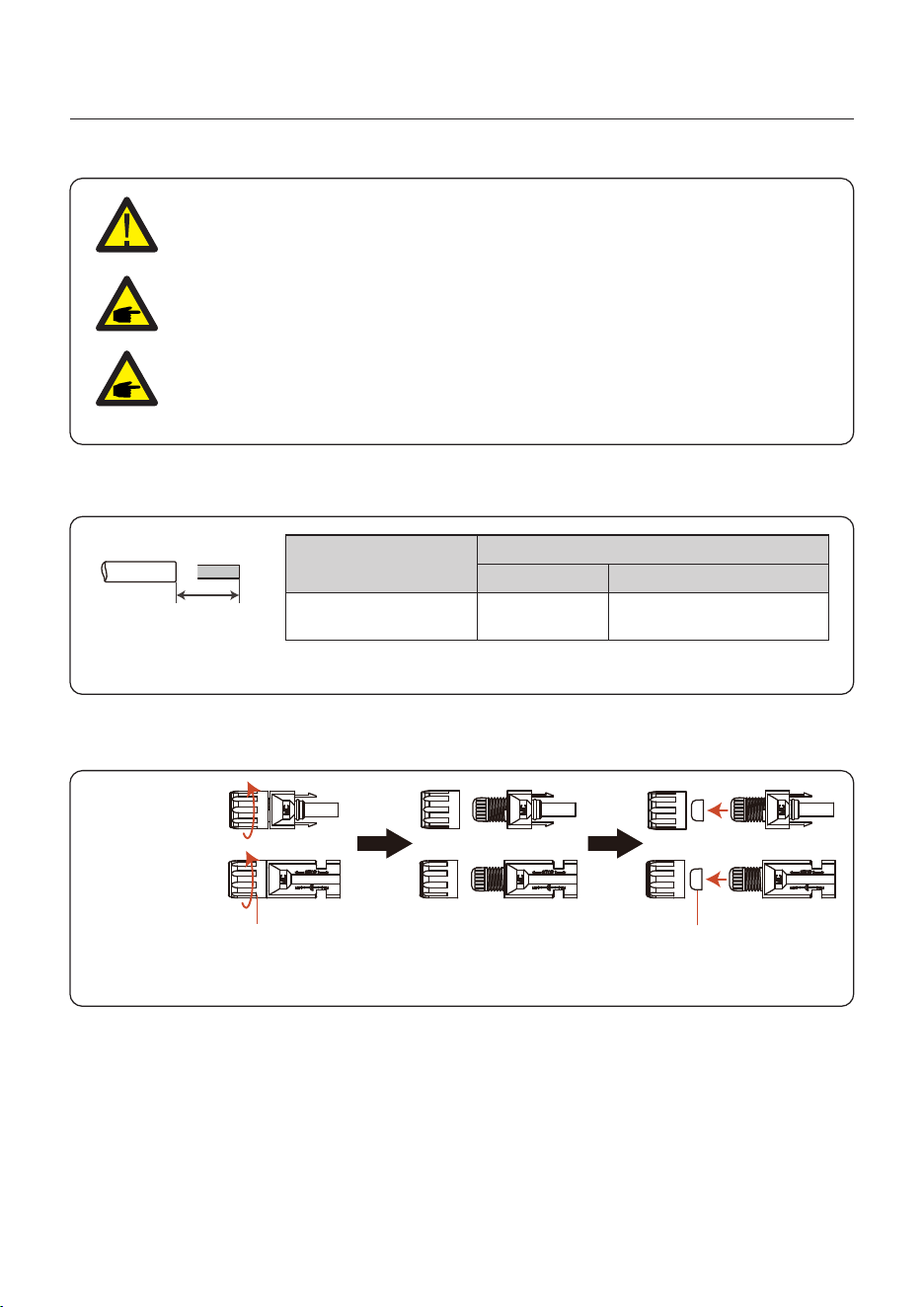
3.6 PV Cable Installation
Negative terminal
Positive terminal
Before connecting inverter, please make sure the PV array open circuit
voltage is within the limit of the inverter.
Please use approved DC cable for PV system.
4.0~6.0
4.0(12AWG)
(12~10AWG)
Cable type
Cross section(mm²)
Range
Industry generic P V cable
Recommended value
1. Select a suitable DC cable and strip the wires out by 7±0.5mm. Please refer to the table
below for specific specifications.
7±0.5mm
2. Take the DC terminal out of the accessory bag, turn the screw cap to disassemble it,
and take out the waterproof rubber ring.
Nut Waterproof collar
Figure 3.10
Figure 3.11
Before connection, please make sure the polarity of the output voltage of
PV array matches the“DC+”and“DC-”symbols.
User Manual
3. Installation
16
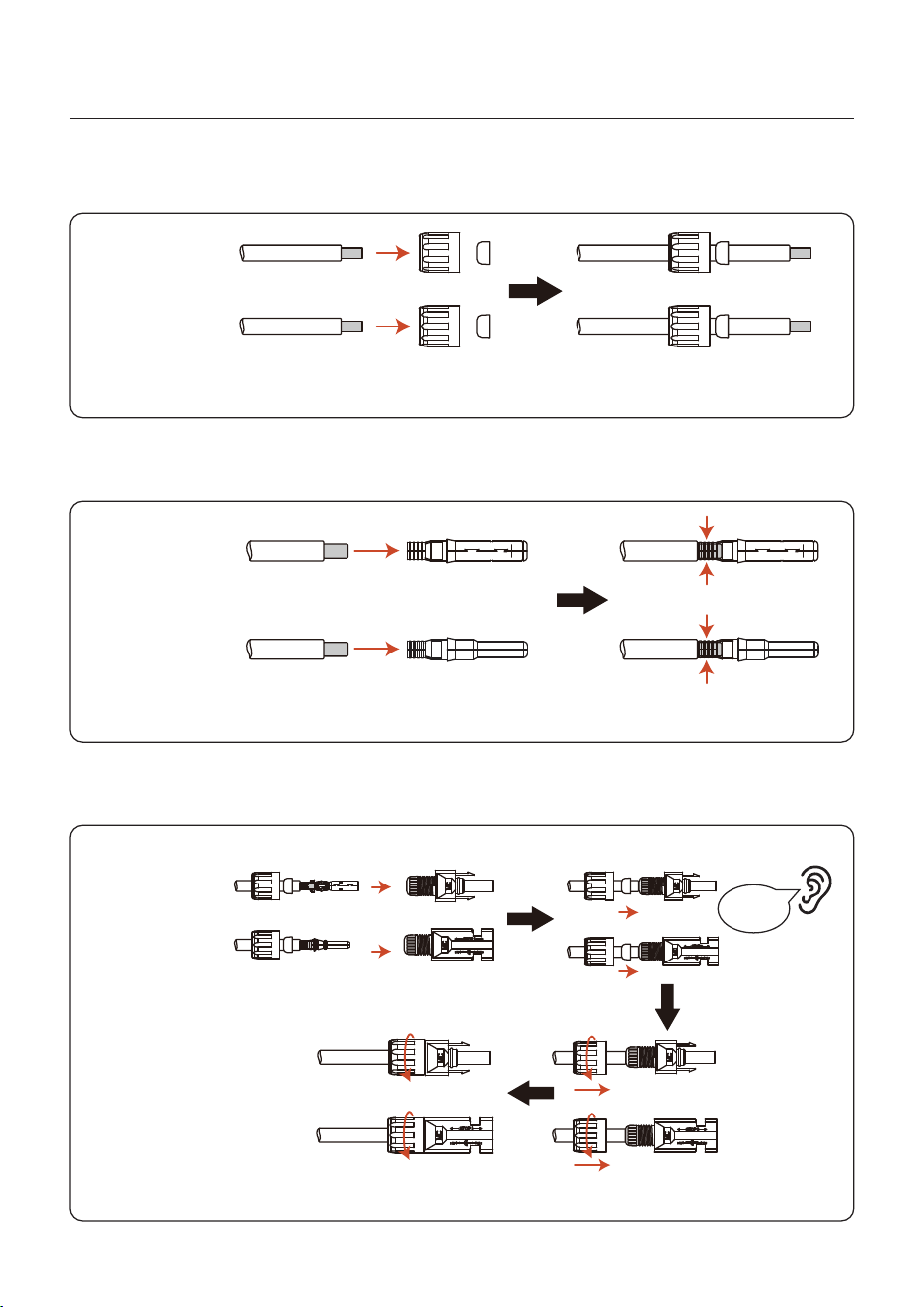
Negative terminal
Positive terminal
3. Pass the stripped DC cable through the nut and waterproof rubber ring.
4. Connect the wire part of the DC cable to the metal DC terminal and crimp it with a special
DC terminal crimping tool.
Negative terminal
Positive terminal
Squeeze
5. Insert the crimped DC cable into the DC terminal firmly, then insert the waterproof rubber
ring into the DC terminal and tighten the nut.
Tighten
After you hear a "click", pull gently to check for a firm engagement.
Click
Negative terminal
Positive terminal
Figure 3.12
Figure 3.13
Figure 3.14
User Manual
3. Installation
17
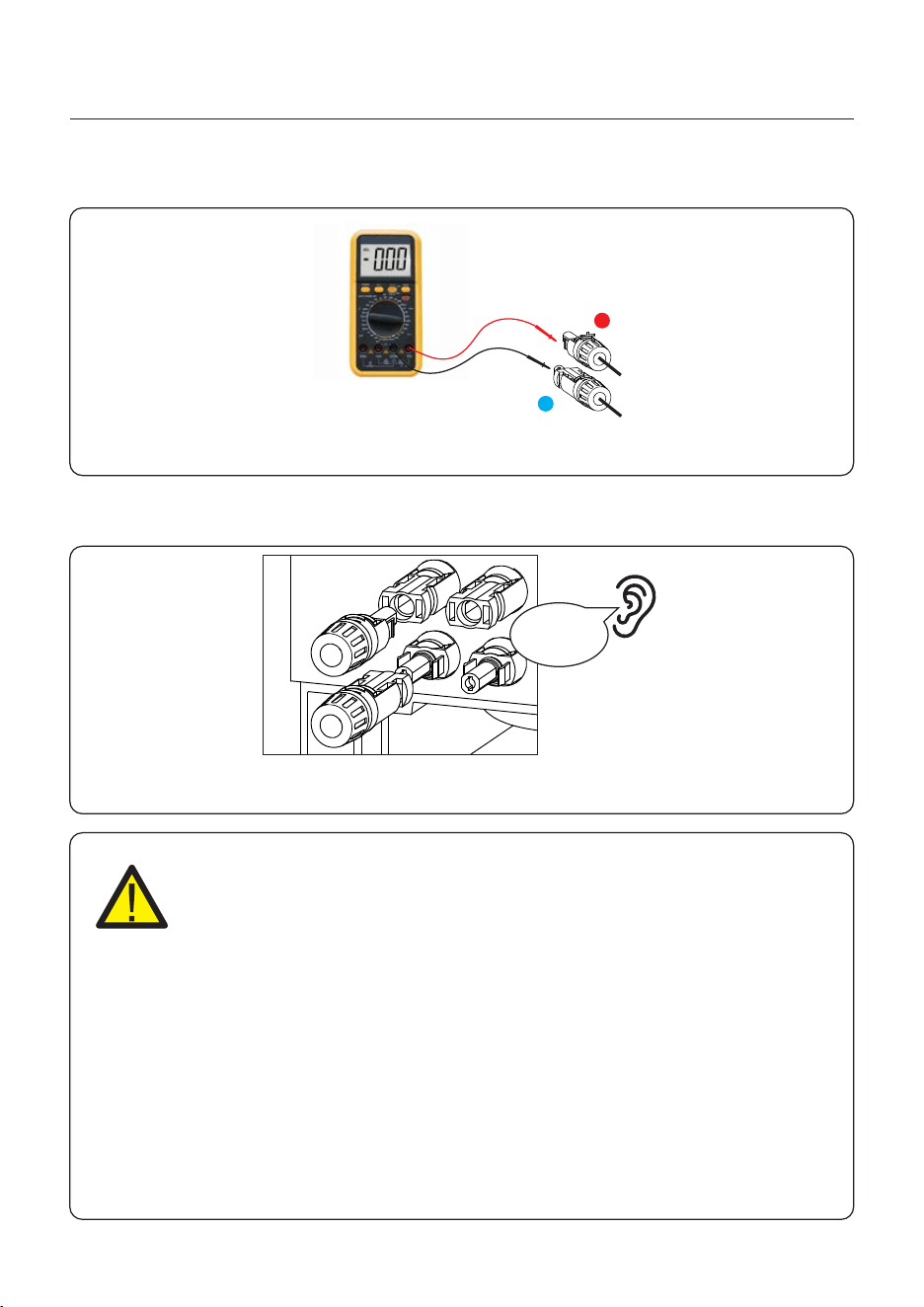
6. Measure PV voltage of DC input with multimeter, verify DC input cable polarity.
7. Connect the wired DC terminal to the inverter as shown in the figure, and a slight
"click" is heard to prove the connection is correct.
+
-
CAUTION:
If DC inputs are accidently reversely connected or inverter is faulty or not
working properly, it is NOT allowed to turn off the DC switch. Otherwise it
may cause DC arc and damage the inverter or even lead to a fire disaster.
The correct actions are:
*Use a clip-on ammeter to measure the DC string current.
*If it is above 0.5A, please wait for the solar irradiance reduces until the
current decreases to below 0.5A.
*Only after the current is below 0.5A, you are allowed to turn off the DC
switches and disconnect the PV strings.
* In order to completely eliminate the possibility of failure, please disconnect
the PV strings after turning off the DC switch to aviod secondary failures due
to continuous PV energy on the next day.
Please note that any damages due to wrong operations are not covered in
the device warranty.
Figure 3.15
Figure 3.16
Click
User Manual
3. Installation
3.7 Battery Cable Installation
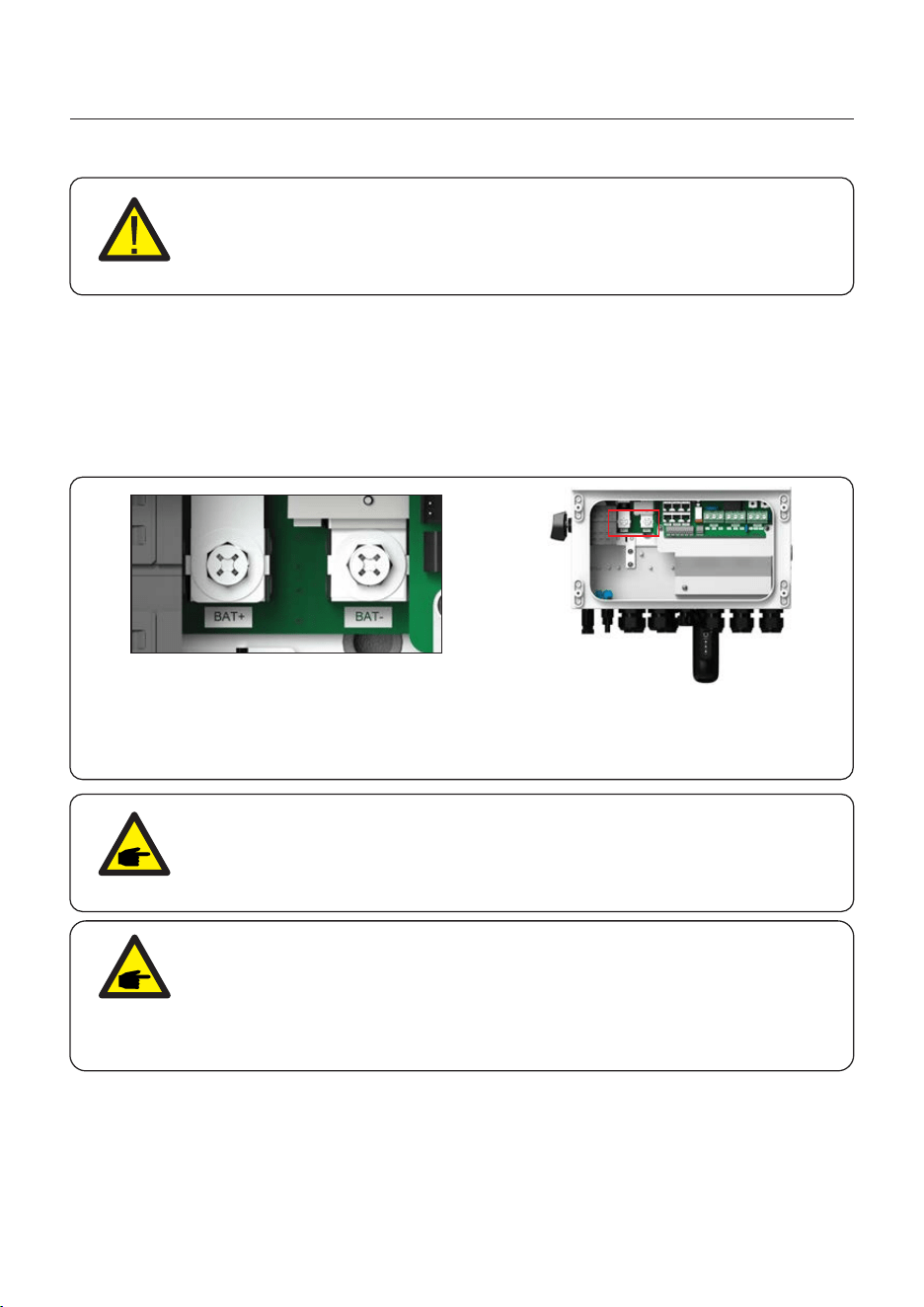
1. The battery (+) and (-) cables shall only be connected to the inverter BAT terminals.
2. Run the cables into the wire box. Strip 13mm off the ends of each cable.
3. Crimp the R-type connectors onto the cables. Do not over crimp the connectors.
4. Remove the terminal bolts and then insert them through the connector holes.
5. Put each bolt back into the proper place, be sure to not reverse the polarity.
6. Tighten the bolts with a torque wrench screwdriver following the torque specs.
Figure 3.17 Battery cable connection
DANGER
Before installing the battery cables, be sure that the battery is turned off.
Use a multimeter to verify that the battery voltage is 0Vdc before proceeding.
Consult the battery product manual for instructions on how to turn it off.
(3-6)K OT Terminal: R38-8, Recommended cable diameter: 2AWG
NOTE
Before connecting the battery, please carefully read the product manual of
the battery and perform the installation exactly as the battery manufacturer
specifies in the manual.
DC Breaker recommended size is 300A
18
8K OT Terminal: R60-8, Recommended cable diameter: 1AWG
NOTE
The battery fuse in the inverter wire box is replaceable.
The replacement can only be done by a technician authorized by Solis.
Fuse specification: 70V/300A .
User Manual
3. Installation
There are three sets of AC output terminals and the installation steps for both are the same.
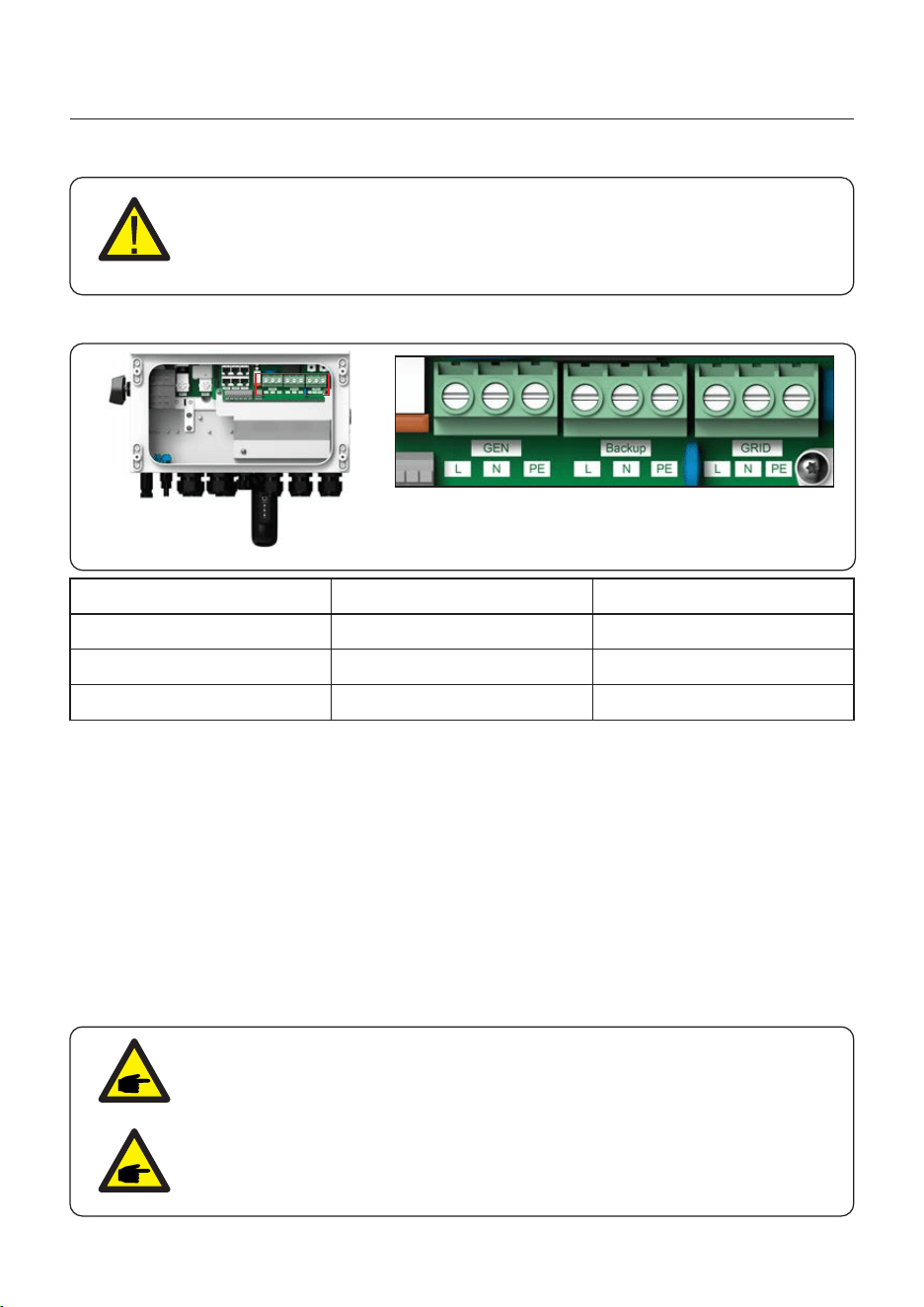
3.8 AC Wiring
Figure 3.18 AC output terminals
DANGER
Before installing the AC cables, be sure that the OCPDs (breakers) are
turned off.
Use a multimeter to verify that the AC voltages are 0Vac before proceeding.
1. Bring the AC cables for the backup loads panel (backup) and the main service
panel (grid) into the inverter wire box. The backup loads panel should not be
electrically connected to the main service panel.
2. Strip 13mm from the ends of each cable. Crimp the R-type connectors onto the ends.
3. Remove the terminal bolts, insert them into the connectors, then use a torque wrench
to tighten the bolts down.
4. Please refer to the terminal labels to connect the AC wires to the correct terminals.
19
Model
AC Grid
Terminal
Torque
Recommend cross section
C10-12
4-5N.m
8-6AWG
4-5N.m
10-6AWG
C6-12
AC Backup/AC Gen
5. AC Breaker recommended size: two-pole100A, leakage current protector recommended
Type C, Icc≥20KA, Icp, mr≥600A(6In) fault current interrupting capacity at 230 V/pole.
6. Cable Gland are recommended torque for installation is 4-5N.m. In order to ensure
waterproof effect, the operator regularly checks whether the installation is tight.
NOTE
It is recommended that AC and battery external conductors use conductors
whose temperature is below 105 ° C .
NOTE
Single inverter noise is less than 35 dB(A). When using multiple inverters
to combine, pay attention to noise protection.
3.9 Meter/CT Connection
User Manual
3. Installation
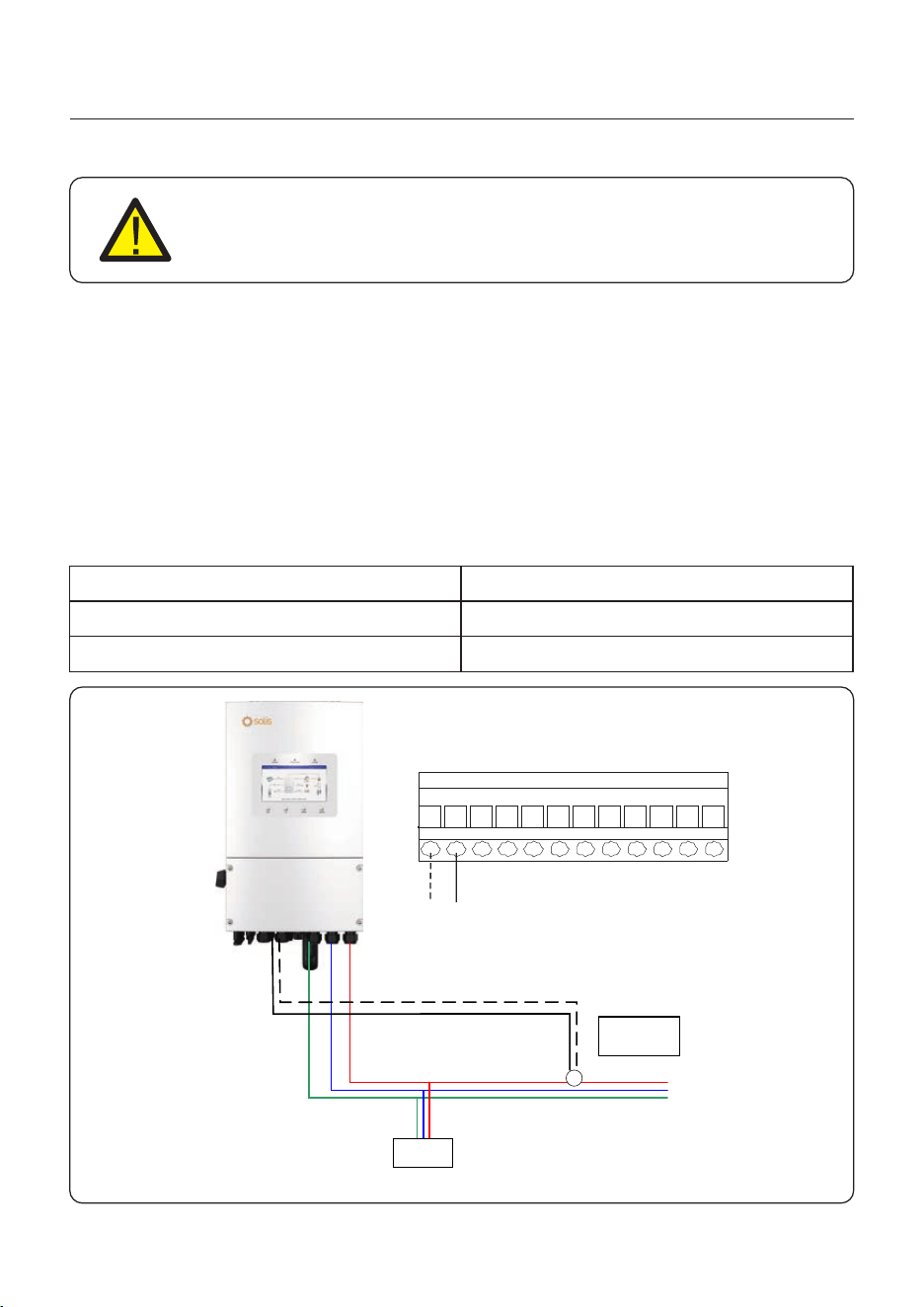
The CT provided in the product box is compulsory for hybrid system installation. It can be used
to detect the grid current direction and provide the system operating condition to hybrid inverter.
CT Model: ESCT-TA16-100A/50mA
CT Cable: Size – 2.3mm2, Length - 5m
Please install the CT on the power line at the system grid connection point and the arrow on the
CT needs to point to the grid direction.
Lead the CT wires through the COM3 port at the bottom of the inverter and connect the CT
wires to the 12pin communication terminal block.
CT Wire
White
Pin 1 (From Left to Right)
Pin 2 (From Left to Right)
Black
12 PIN Communication Terminal Block
CAUTION:
Make sure the AC cable is totally isolated from AC power before
connecting the smart meter or CT.
3.9.1 CT Installation
COM3
PE
N
L
Load
CT Arrow
->Grid
L
N
PE
Grid
White
Black
1 2
White Black
12-Pin Communication
Terminal Block
20
Figure 3.19
AC Grid
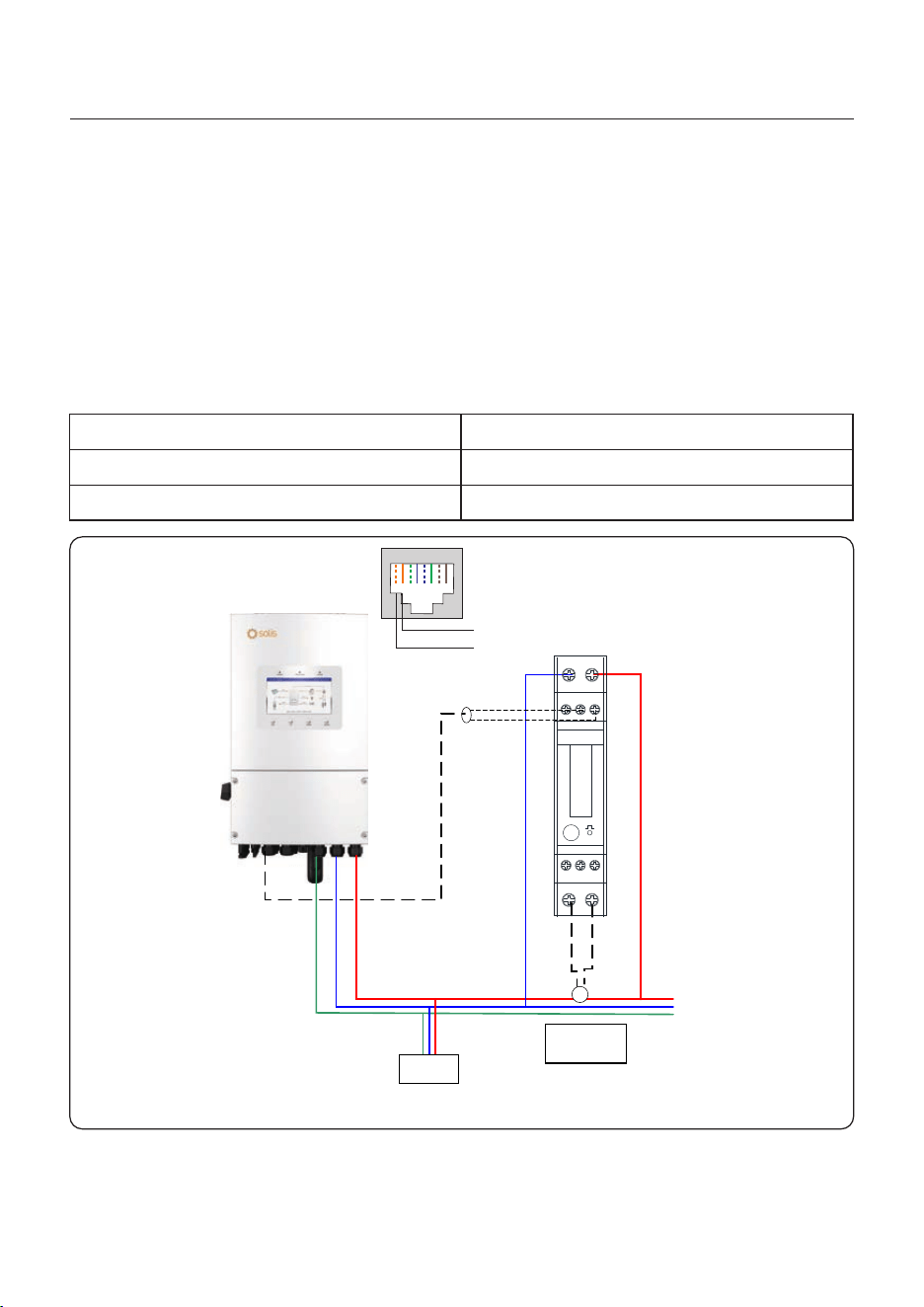
If a smart meter is preferred to be installed other than the provided CT, please contact Solis
sales rep to order the smart meter and corresponding meter CT.
Meter Model: SDM120CTM (With CT)
Please install the Meter's CT on the hot line at the system grid connection point and the arrow
on the Meter's CT needs to point to the grid direction.
Lead the Meter RS485 wires through the COM1 or COM2 port at the bottom of the inverter and
connect to the Meter RJ45 terminal.
RS485 Pins on the meter
Pin 9 – RS485B
Pin 2 Orange – RS485B
Pin 1 Orange/White – RS485A
Pin 10 – RS485A
Meter RJ45 Terminal (EIA/TIA 568B)
3.9.2 Meter Installation (Optional)
COM1/2
PE N L
10
5
8
6
SDM120M
9
7
3
4
1
2
1: White
2: Black
Load
CT Arrow
->Grid
L
N
PE
Grid
RJ45terminal
1 2 3 4 5 6 7 8
RS485B
RS485A
Pin 9 = RS485B
Pin 10 = RS485A
User Manual
3. Installation
21
Figure 3.20
AC Grid
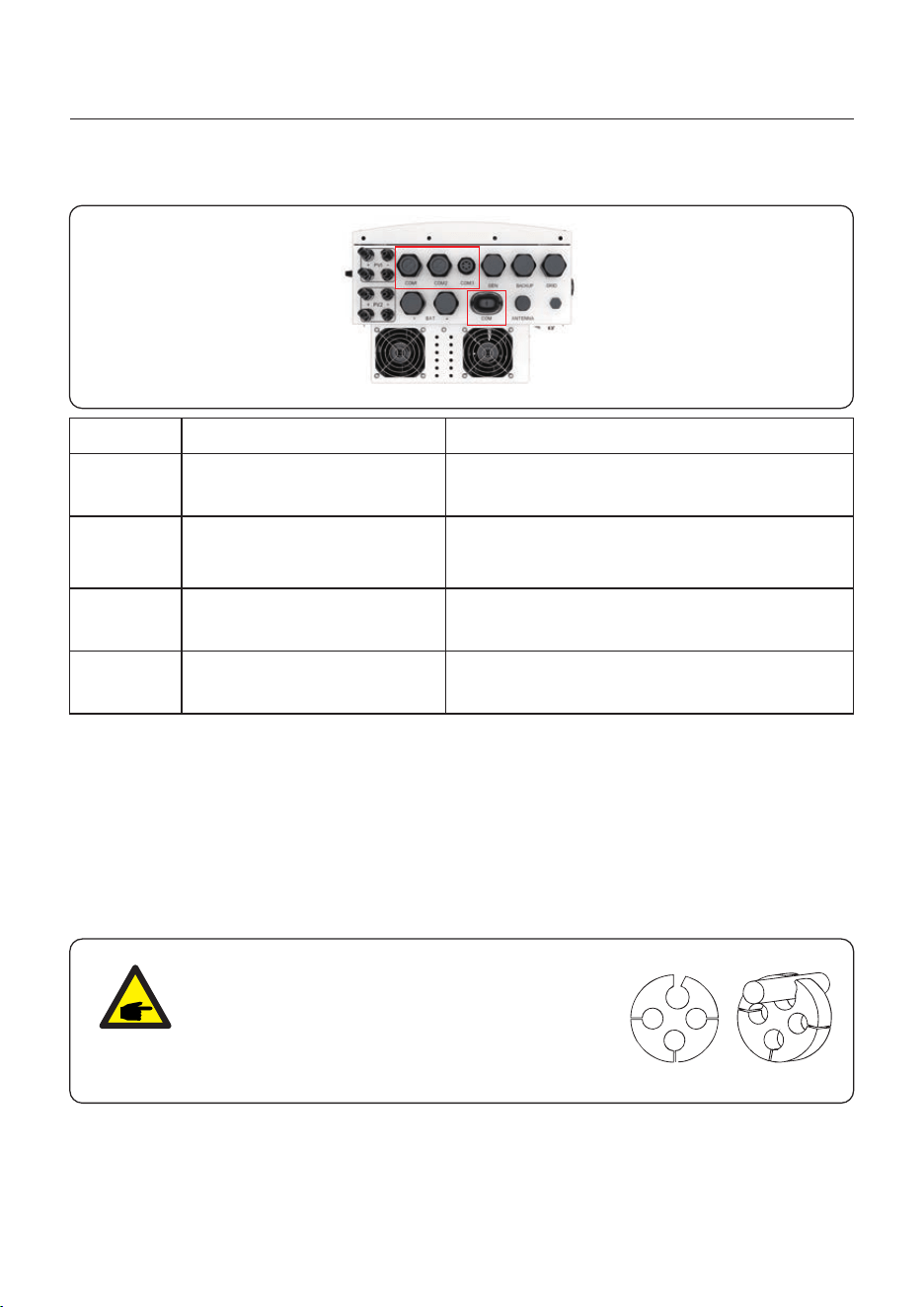
3.10 Inverter Communication
User Manual
3. Installation
3.10.1 Communication Ports
Port
COM
COM1
COM2
COM3
DescriptionPort Type
USB
4 hole watertight cable gland
4 hole watertight cable gland
6 hole watertight cable gland
Used for Solis data logger connection
Used for RJ45 connection inside wiring box
Used for 12 PIN terminal block connection
inside wiring box
Used for RJ45 connection inside wiring box
Wiring steps for COM1-COM3:
Step 1. Loose the cable gland and remove the watertight caps inside the cable gland based
on the number of the cables and keep the unused holes with watertight cap.
Step 2. Lead the cable into the holes in the cable gland.
(COM1-COM2 Hole Diameter: 6mm, COM3 Hole Diamet
er: 2mm)
Step 3. Connect the cable to the corresponding terminals inside the wiring box.
Step 4. Reassemble the cable gland and ensure there is no bending or stretching of the cables
inside the wiring box.
NOTE:
The 4-hole fastening rings inside the cable
gland for COM1 and COM2 are with openings
on the side.
Please separate the gap with hand and squeeze
the cables into the holes from the side openings.
22
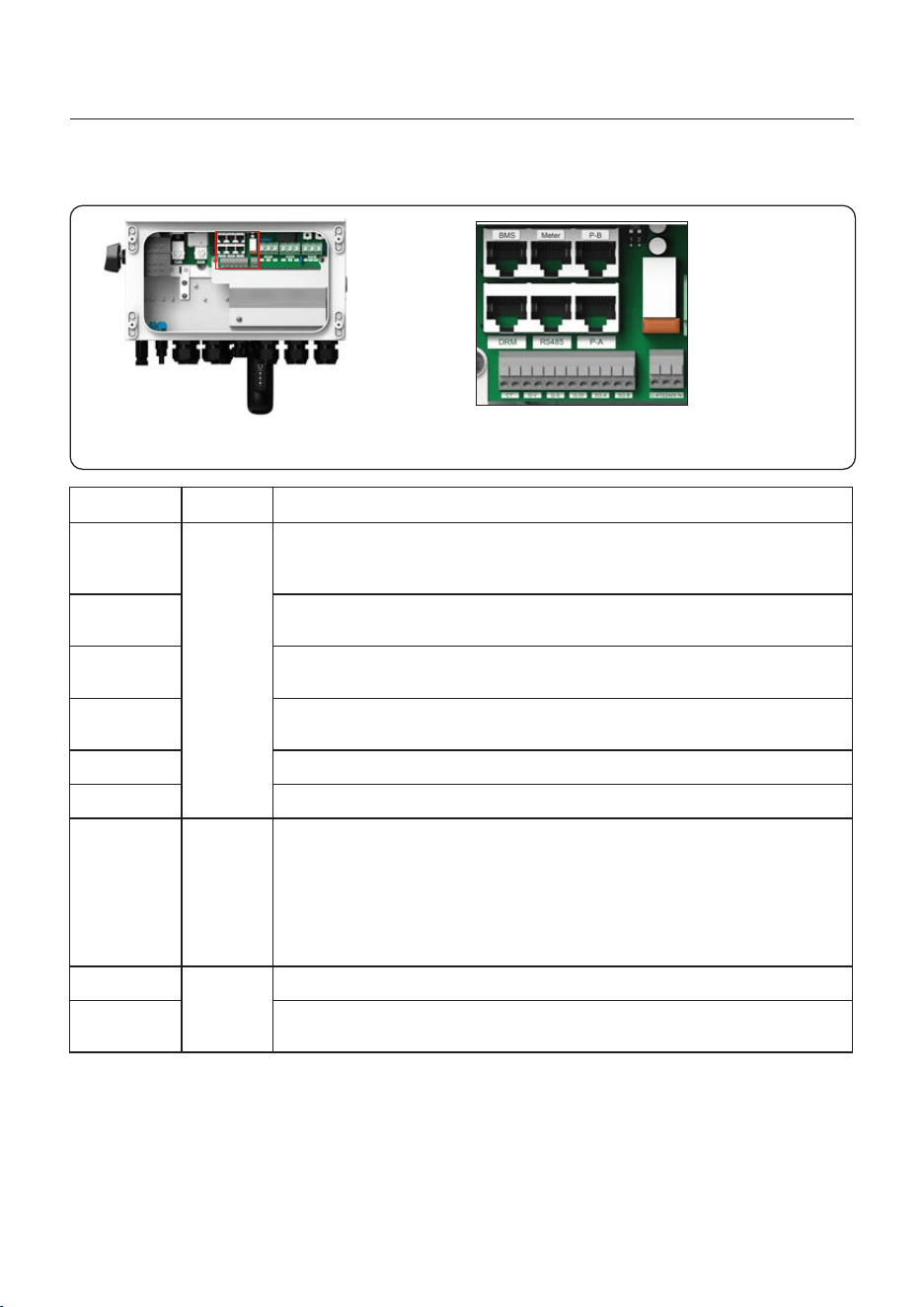
3.10.2 Communication Terminals
User Manual
3. Installation
Figure 3.21 Communication terminals
23
Terminal
BMS
Meter
DRM
RS485
P-A
P-B
DIP Switch
(2-1)
CT
G-V
DescriptionType
Used for CAN communication between inverter and Lithium battery
BMS. Used for Battery temperature sensor between inverter and
lead-acid battery.
(Optional)Used for RS485 communication between inverter and
the smart meter.
(Optional) To realize Demand Response or Logic Interface function,
this function may be required in UK and Australia.
(Optional) Parallel operation communication port.
(Optional) Parallel operation communication port.
Pin 1 & Pin 2 (From Left to Right) Used for CT wire connection.
Pin 3 & Pin 4 (From Left to Right) Used for Generator start-stop
signal.
(Optional) Used for Modbus RTU communication with 3rd party
external device or controller.
RJ45
-
Terminal
Block
When a single inverter is running, DIP switch 1 and 2 shall be both
at the bottom position.
When multiple inverters are paralleled, DIP switch:
Option 1: Both the first and last inverter (INV1 & INV3) have1 of the
DIP switch enabled (Either Pin1 or Pin2).
Option 2: One of the first and the last inverter (INV1 or INV3) has 2
DIP switches enabled (Both Pin1 & Pin2)
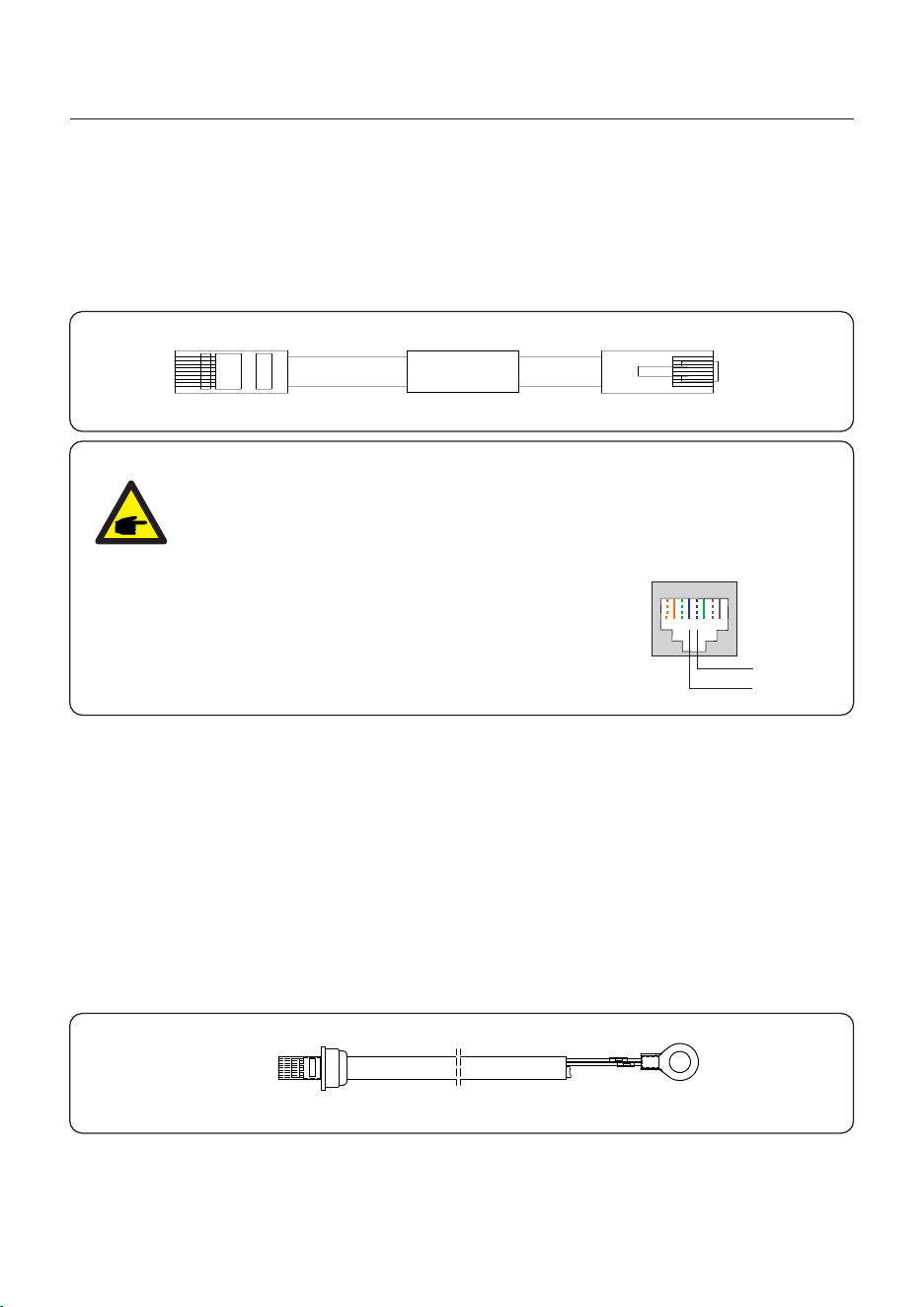
3.10.3 BMS Terminal Connection
User Manual
3. Installation
CAN communication is supported between inverter and compatible battery models.
Please lead the CAN cable through the COM1 or COM2 port of the inverter and connect to
the BMS terminal with RJ45 connector.
When Lead-acid battery is used, battery temperature sensor needs to be connected to the
BMS terminal of the inverter.
Step 1. Take out the battery temperature sensor cable and lead through the COM1 or COM2
port of the inverter and connect the RJ45 connector to the BMS terminal.
Step 2. Fasten the temperature sensor ring onto the battery module. If no suitable fastening
terminal can be found on the battery module, the sensor ring can be attached to the positive
or negative pole of the battery module.
NOTE:
Before connecting CAN cable with the battery, please check whether the
communication pin sequence of the inverter and the battery match;
If it does not match, you need to cut off the RJ45 connector at one end of the
CAN cable and adjust the pin sequence according to the pin definitions of
both inverter and battery.
Pin definition of the inverter BMS Port is following
EIA/TIA 568B.
CAN-H on Pin 4: Blue
CAN-L on Pin 5: Blue/White
RJ45terminal
1 2 3 4 5 6 7 8
CAN-L
CAN-H
CAN
3.10.3.2 With Lead-acid Battery
3.10.3.1 With Lithium Battery
24
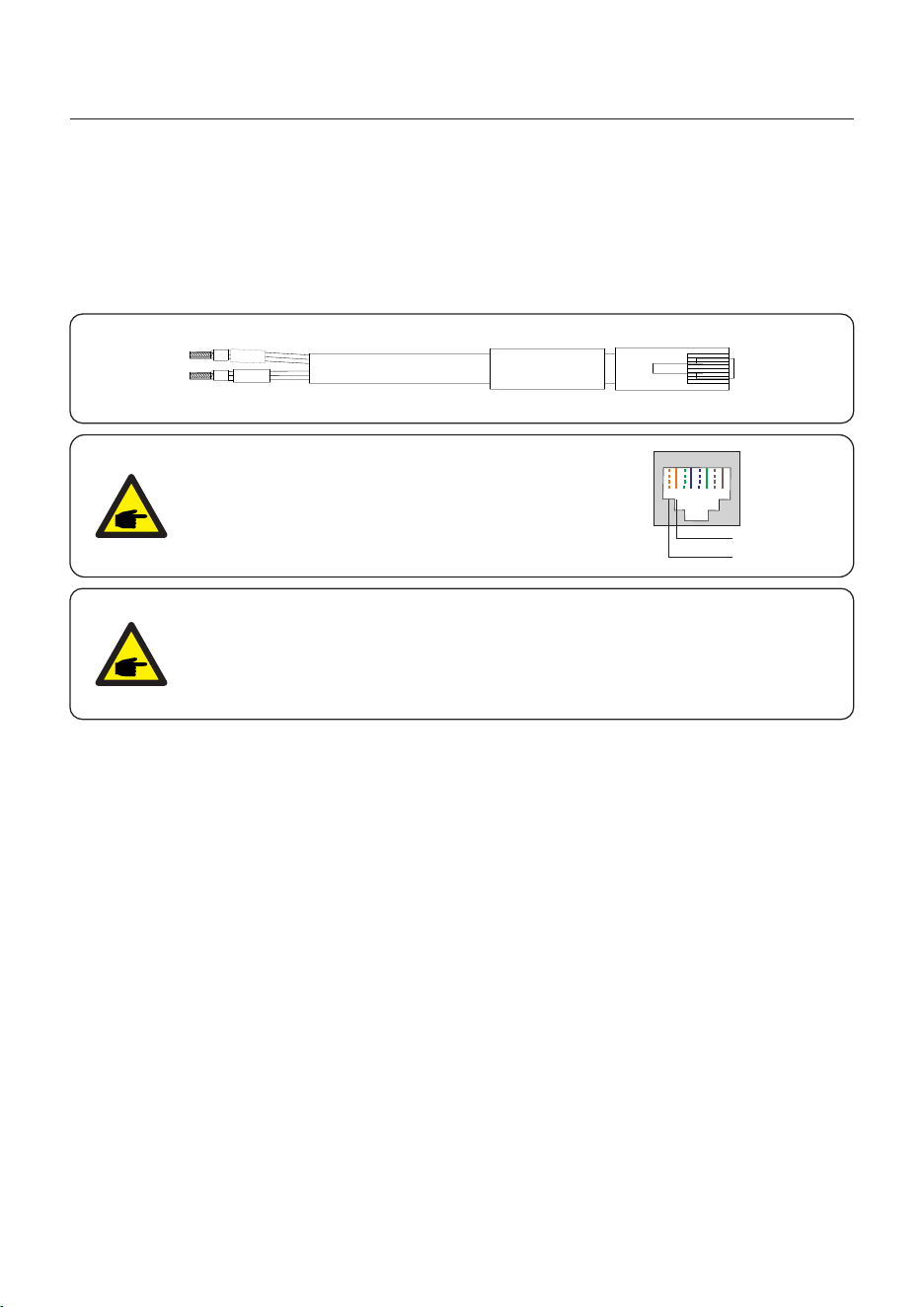
User Manual
3. Installation
3.10.4 Meter Terminal Connection (Optional)
If a smart meter is preferred to be installed other than the provided CT, please contact Solis
sales rep to order the smart meter and corresponding meter CT.
Please lead the Meter RS485 cable through the COM1 or COM2 port of the inverter and
connect to the Meter terminal with RJ45 connector.
NOTE:
Pin definition of the Meter Terminal is following
EIA/TIA 568B.
RS485A on Pin 1:Orange/white
RS485B on Pin 2:Orange
RJ45terminal
1 2 3 4 5 6 7 8
RS485B
RS485A
NOTE:
Compatible Smart Meter Pin Definition.
SDM120CTM (With CT) – Pin 9 is RS485B & Pin 10 is RS485A
METER
A
B
25
26
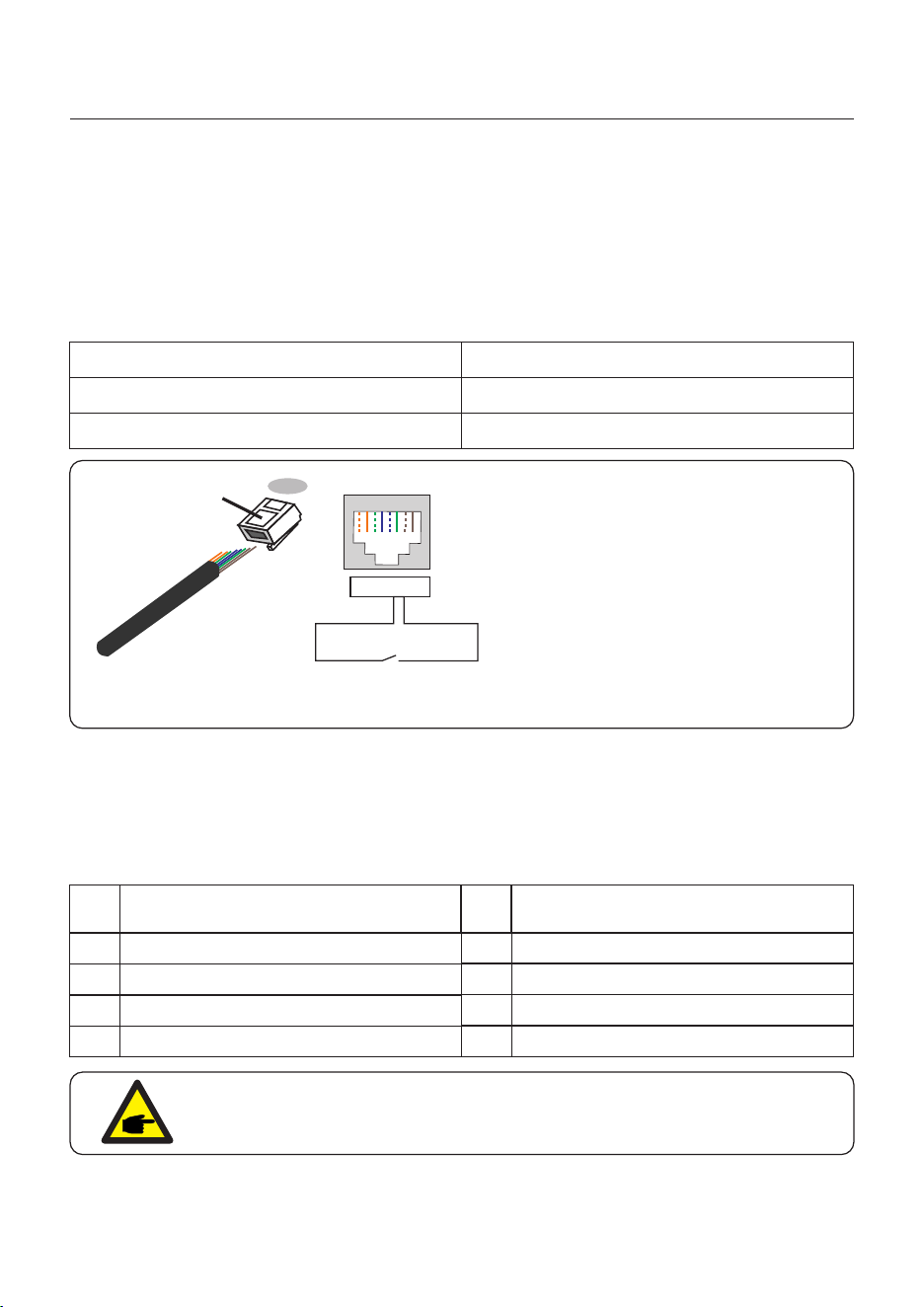
3.10.5.1 For Remote Shutdown Function
Solis inverters support remote shutdown function to remotely control the inverter to power on
and off through logic signals.
The DRM port is provided with an RJ45 terminal and its Pin5 and Pin6 can be used for remote
shutdown function.
Signal
Short Pin5 and Pin6 Inverter Generates
Inverter Shutdown in 5s
Open Pin5 and Pin6
Function
Correspondence between the cables
and the stitches of plug, Pin5 and Pin6
of RJ45 terminal is used for the logic
interface, other Pins are reserved.
Pin 1: Reserved; Pin 2: Reserved
Pin 3: Reserved; Pin 4: Reserved
Pin 5: Switch_input1; Pin 6: Switch_input2
Pin 7: Reserved; Pin 8: Reserved
1--8
Rj45 plug
RJ45terminal
1 2 3 4 5 6 7 8
1 2 3 4 5 6 7 8
DRM(logic interface)
Switch input1_ Switch input2_
Figure 3.22 Strip the insulation layer and connect to RJ45 plug
Assignment for inverters capable
of both charging and discharging
Pin
1
DRM 1/5
2
DRM 2/6
3
DRM 3/7
4
DRM 4/8
5
RefGen
6
7
8
Com/DRM0
V+
V-
Assignment for inverters capable
of both charging and discharging
Pin
DRED means demand response enable device. The AS/NZS 4777.2:2020 required inverter
need to support demand response mode(DRM).
This function is for inverter that comply with AS/NZS 4777.2:2020 standard.
A RJ45 terminal is used for DRM connection.
3.10.5.2 For DRED Control Function (For AU and NZ Only)
User Manual
3. Installation
3.10.5 DRM Port Connection (Optional)
NOTE:
Solis hybrid inverter is designed to provide 12V power for DRED.
27
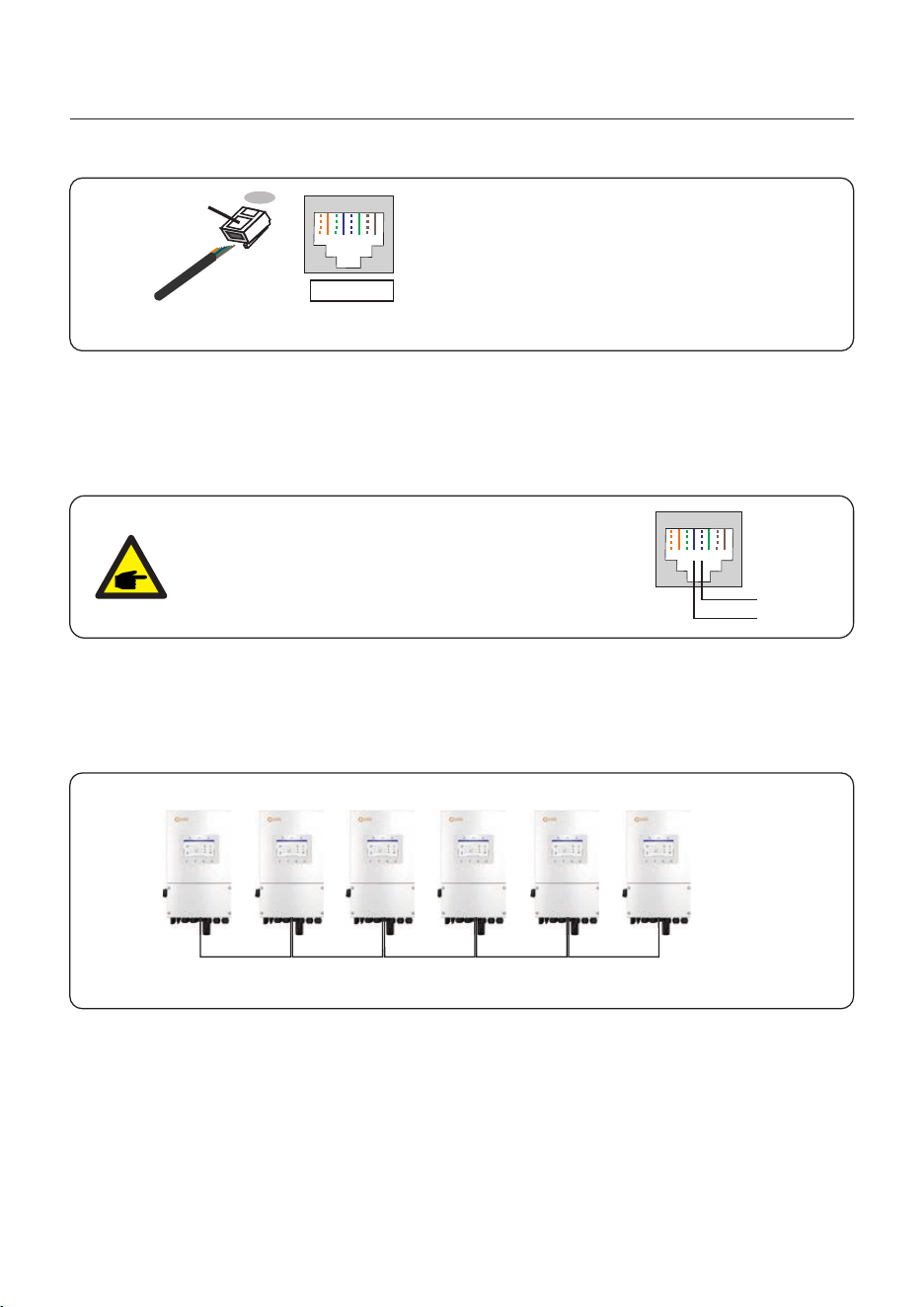
3.10.6 RS485 Port Connection (Optional)
Figure 3.23 Strip the insulation layer and connect to RJ45 plug
Correspondence between the
cables and the stitches of plug
Pin 1: white and orange ; Pin 2: orange
Pin 3: white and green; Pin 4: blue
Pin 5: white and blue; Pin 6: green
Pin 7: white and brown; Pin 8: brown
1--8
RJ45 plug
RJ45terminal
1 2 3 4 5 6 7 8
1 2 3 4 5 6 7 8
If a 3rd party external device or controller needs to communicate with the inverter, the RS485
port can be used. Modbus RTU protocol is supported by Solis inverters.
To acquire latest protocol document, please contact Solis local service team or Solis sales.
NOTE:
Pin definition of the RS485 Port is following
EIA/TIA 568B.
RS485A on Pin 5: Blue/White
RS485B on Pin 4: Blue
RJ45terminal
1 2 3 4 5 6 7 8
RS485A
RS485B
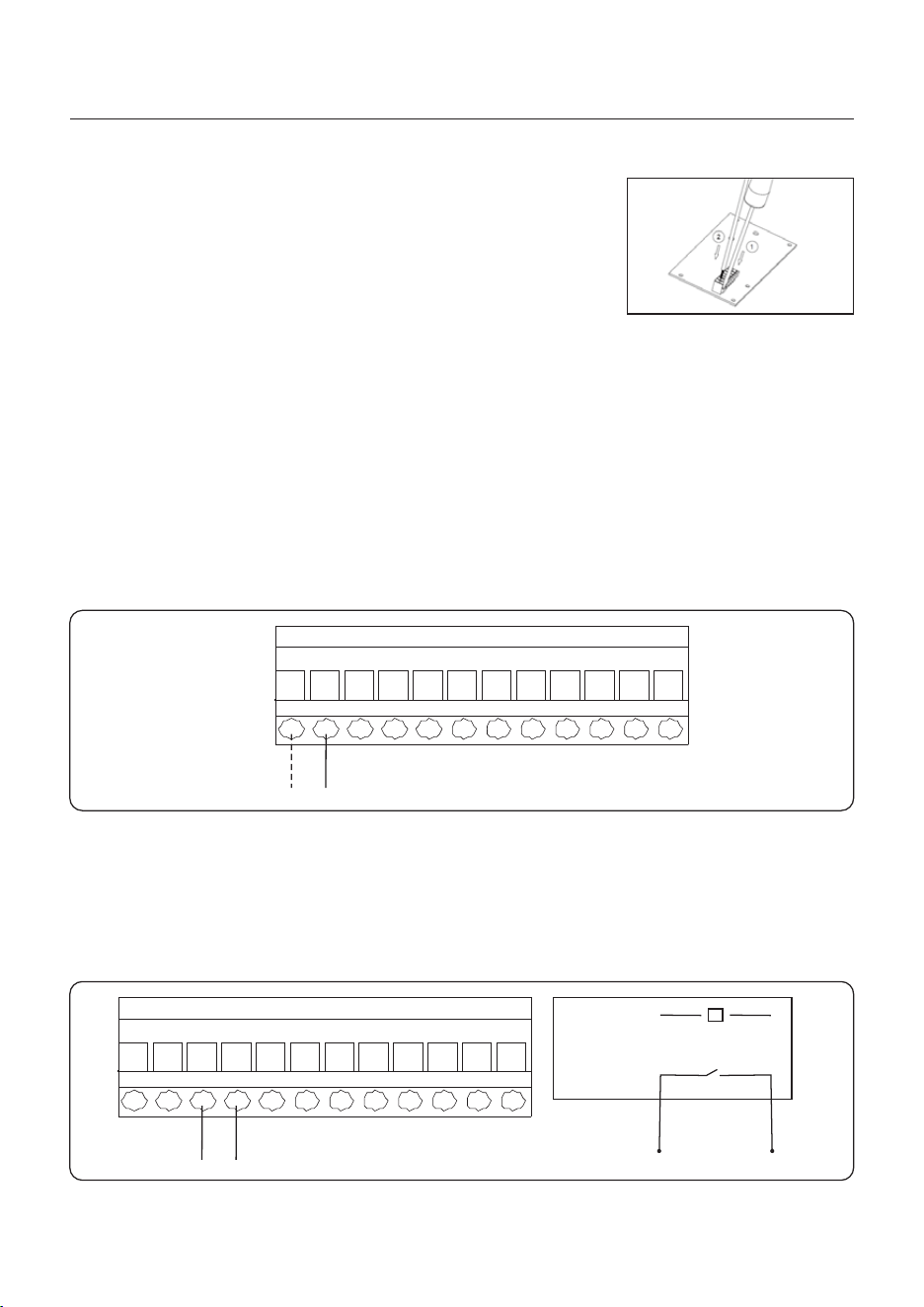
Up to 6 units of the inverter can be connected in parallel.
Please connect the paralleled inverters in daisy chain by using P-A and P-B terminals.
Standard CAT5 with shielding layers internet cable can be used.
P_B P_A P_B P_A P_B P_A P_B P_A P_B P_A
3.10.7 Parallel Terminal Connection (Optional)
User Manual
3. Installation
Figure 3.24 Parallel Terminal Connection
Master Slave1 Slave2 Slave3 Slave4 Slave5
User Manual
3. Installation
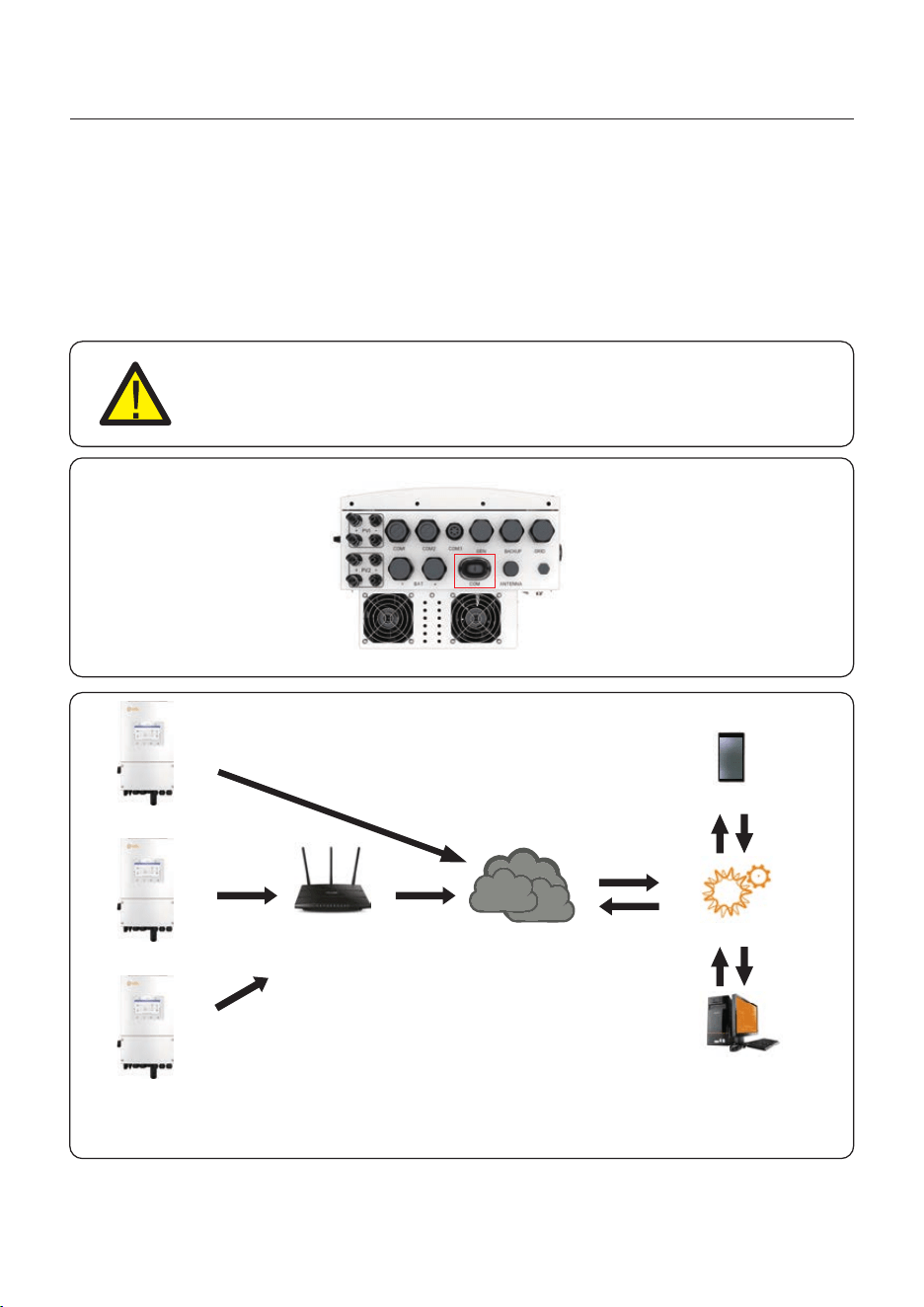
Terminal Block Connection Steps:
Step 1. Lead the wires through the hole in COM3 port.
(Hole Diameter: 2 mm)
Step 2. Strip the wires for 9mm length.
Step 3. Use slot type screwdriver to press the block on the top.
Step 4. Insert the exposed copper part of the cable into the terminal.
Step 5. Remove the screwdriver and the terminal will clamp.
down on the exposed copper part.
Step 6. Give the cable a gentle tug to ensure that it is firmly secured.
CT connection is necessary to realize the correct control logic of the hybrid inverter, unless
the smart meter is used as stated in section 3.10.4 and section 3.9.
The CT provided in the inverter package has BLACK(S2) and WHITE(S1) wires. The BLACK
wire needs to connect to the Pin 2 of the terminal block and the WHITE wire needs to connect
to the Pin 1 of the terminal block as in the following diagram.
1 2
White Black
3.10.8.1 CT Terminal Connection
3.10.8 12-pin Communication Terminal Block
28
Figure 3.25
12-Pin Communication Terminal Block
The G-V terminal is a voltage-free dry contact signal for connecting with generator's NO relay
to start up the generator when necessary.
When generator operation is not needed, Pin3 and Pin4 is in open circuit.
When generator operation is needed, Pin3 and Pin4 is in short circuit.
3.10.8.2 G-V Terminal Connection
3 4
Figure 3.26
coil
open contact
G V
relay
G V
12-Pin Communication Terminal Block
User Manual
3. Installation
29
LAN monitoring
The inverter can be remotely monitored via WiFi, LAN or 4G.
The USB type COM port at the bottom of the inverter can connect to different kinds of Solis
data loggers to realize the remote monitoring on Soliscloud platform.
To install Solis data loggers, please refer to corresponding user manuals of Solis data loggers.
The Solis data loggers are optional and can be purchased separately.
Dust cover is provided the inverter package in case the port is not used.
WARNING:
The USB type COM port is only allowed to connect Solis data loggers.
It is forbidden to be used for other purposes.
4G monitoring
WiFi monitoring
Router
Internet
Web server
Figure 3.27 Wireless communication function
Soliscloud
APP
3.11 Inverter Remote Monitoring Connection
User Manual
3. Installation
30
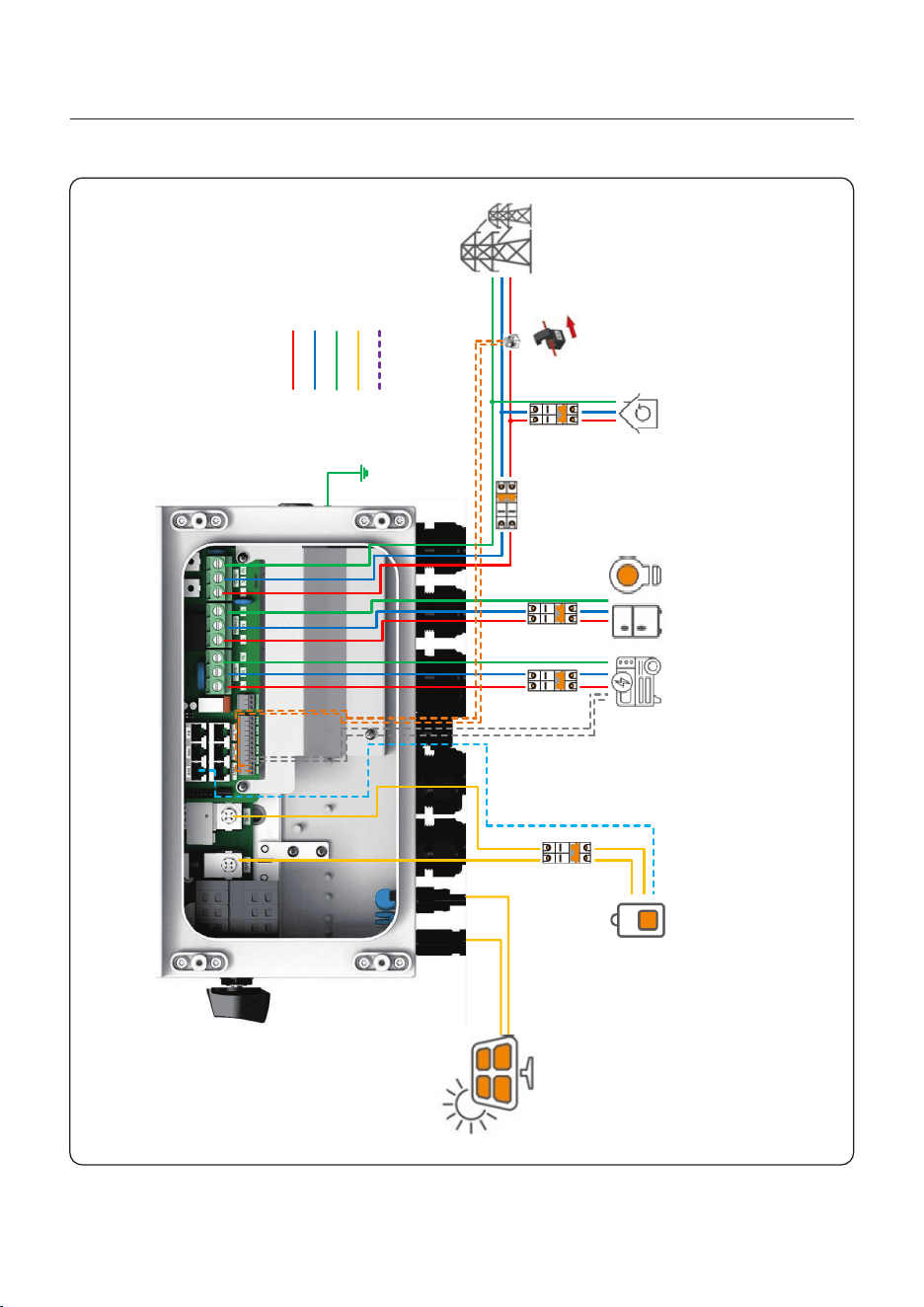
3.12 Wiring Diagram Overview
Figure 3.28
PV Strings
DC Breaker
Backup Breaker
AC Breaker
Generator Breaker
Battery
Grid LoadGenerator Backup Load
L Wire
N Wire
PE Wire
DC Wire
Load Breaker
Grid
Comm Wire
CT
User Manual
3. Installation
31
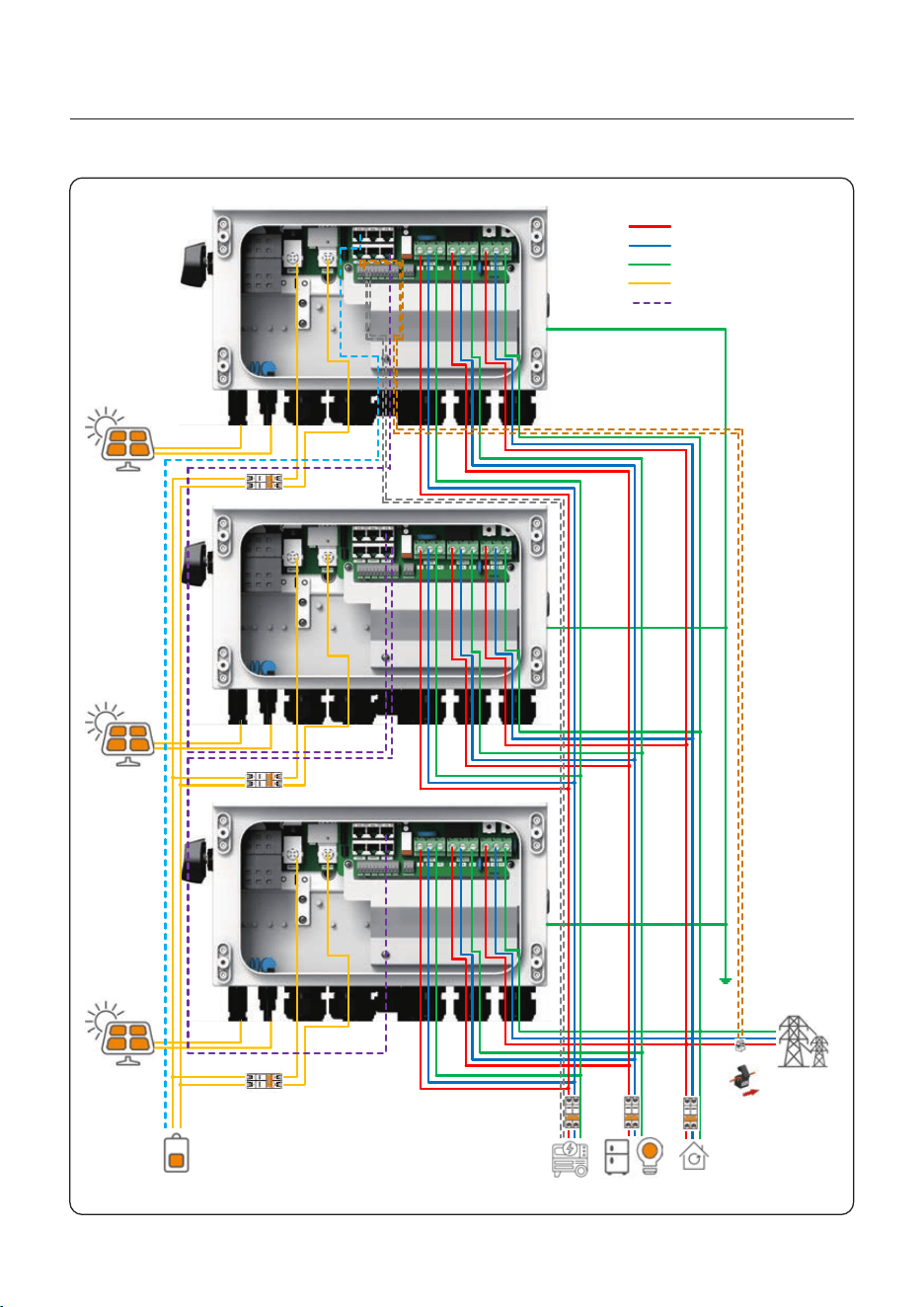
Figure 3.29
3.13 Parallel system Wiring
PV Strings
L Wire
N Wire
PE Wire
DC Wire
Comm Wire
PV Strings
PV Strings
CT
Grid LoadGenerator Backup Load
Battery
Grid
Inverter 1 (Master)
Inverter 2 (Slave)
Inverter 3 (Slave)
32
User Manual
4. Overview
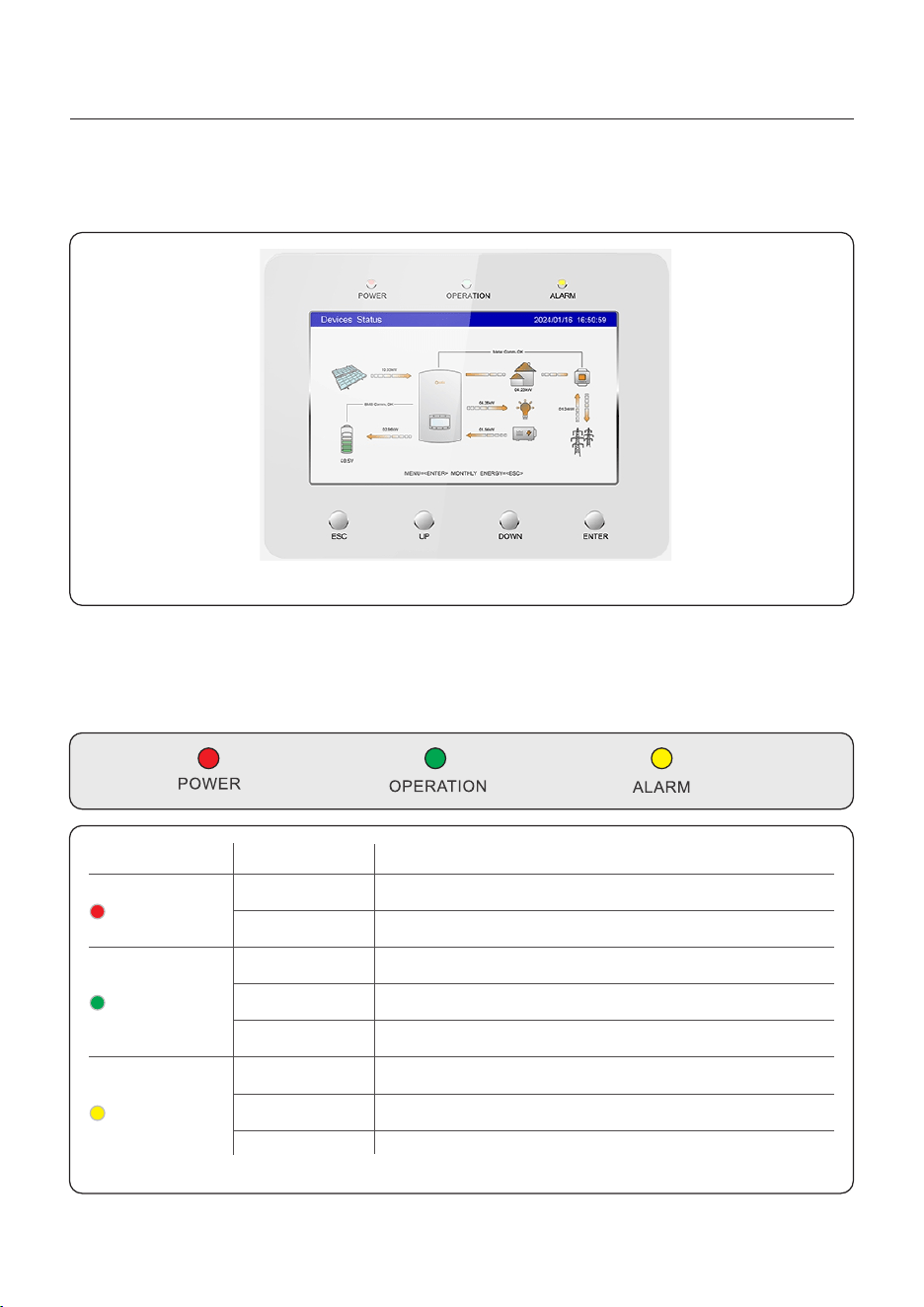
4.1 Screen
Solis S6 Series adopts 7 inch color screen, it displays the status, operating information and
settings of the inverter.
Description
The inverter can detect DC power.
No DC power.
The inverter is fully operational.
The inverter has stopped operating.
The inverter is initializing.
Fault condition is detected.
No fault condition detected.
Status
ON
OFF
ON
OFF
OFF
ON
FLASHING
Light
POWER
OPERATION
ALARM
4.2 LED Indicators
There are three LED indicators on the inverter (Red, Green, and Orange) which
indicate the working status of the inverter.
Table 4.1 Status Indicator Lights
FLASHING
Either the grid or solar cannot be detected.
33
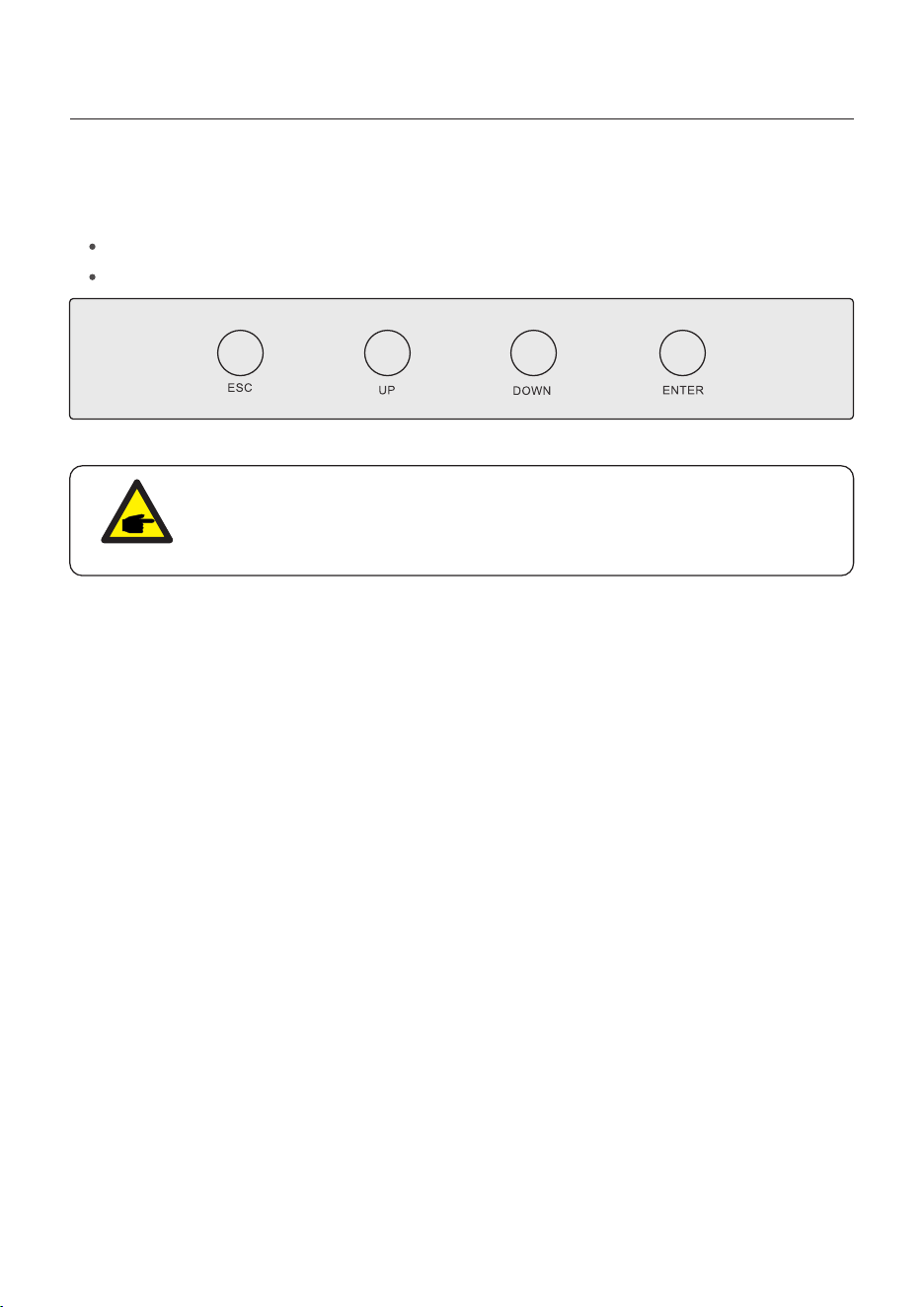
4.3 Keypad
There are four keys in the front panel of the inverter (from left to right):
ESC, UP, DOWN and ENTER keys. The keypad is used for:
Scrolling through the displayed options (the UP and DOWN keys);
Access and modify the settings (the ESC and ENTER keys).
Figure 4.1 Keypad
User Manual
4. Overview
NOTE:
The screen will be automatically turn off after being idle for a few minutes to
save power, click any operation button(“ESC”/“UP”/“DOWN”/ “ENTER”) to
restart the screen, then press“Enter”into the main operation interface.
4.4 Inverter built-in Bluetooth description
Blueooth: BDR、EDR、BLE
frequency band(s) in which the radio equipment operates:2.402-2.480GHZ
Maximum transmitting power: 8dBm
Hereby, Ginlong Technologies Co.,Ltd.declares that the radio equipment type hybrid
inverter is in compliance with Directive 2014/53/EU
34
5. Commissioning
User Manual
5.1 Pre-Commissioning
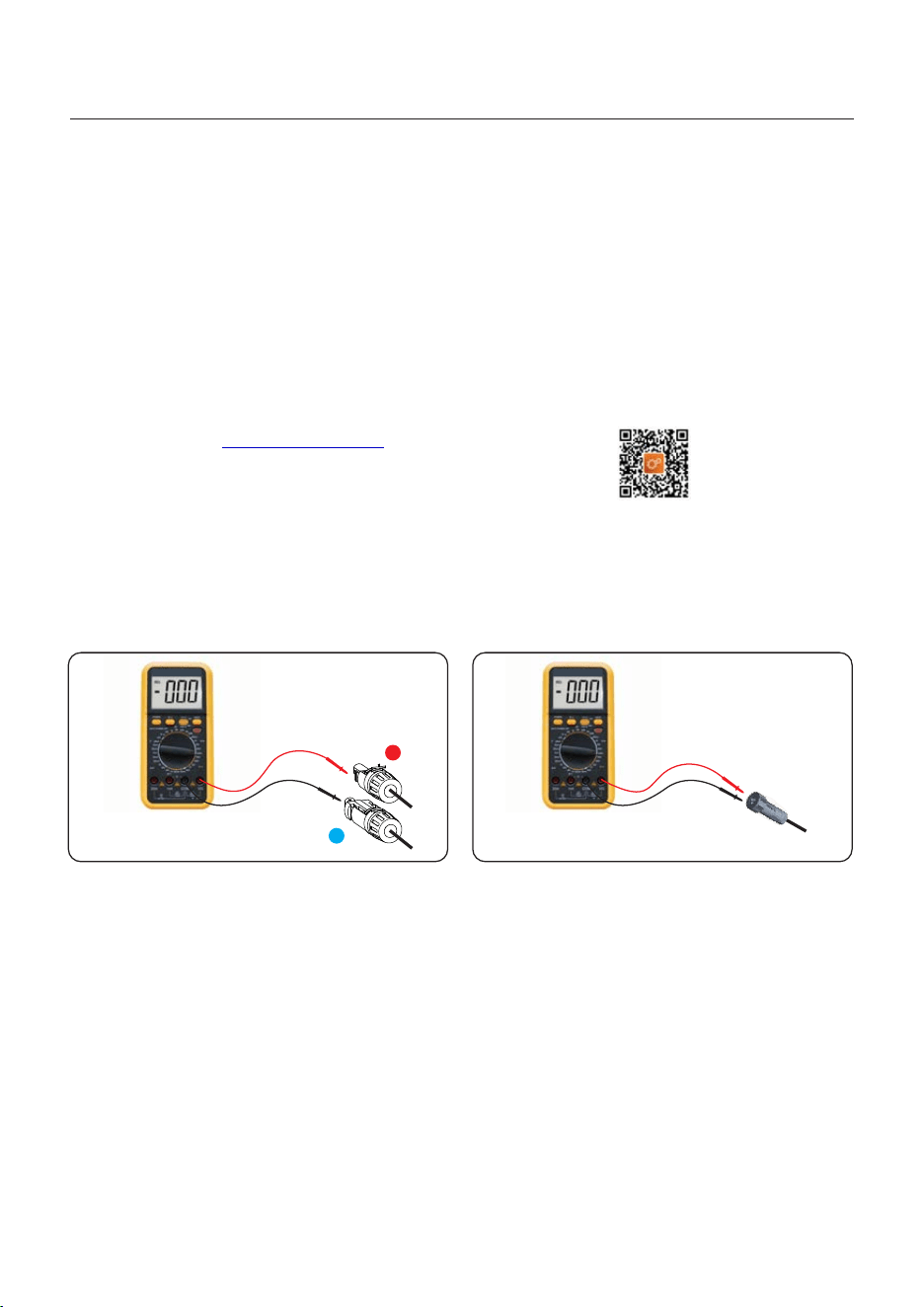
+
-
Measure DC voltage of
PV strings and battery
Measure AC voltage
and frequency
● Make sure that no high voltage conductors are energized.
● Check all conduit and cable connection points ensure they are tight.
● Verify that all system components have adequate space for ventilation.
● Follow each cable to ensure that they are all terminated in the proper places.
● Ensure that all warning signs and labels are affixed on the system equipment.
● Verify that the inverter is secured to the wall and is not loose or wobbly.
● Prepare a multimeter that can do both AC and DC amps.
● Have an Android or Apple mobile phone with Bluetooth capability.
● Install the Soliscloud APP on the mobile phone and register a new account.
● There are three ways to download and install the latest APP.
1. You can visit www.soliscloud.com.
2. You can search”Soliscloud”in Google Play or APP Store.
3. You can scan this QR code to download Soliscloud.
5.2 Power ON
Step 1: With the DC switch off, energize the PV strings and then measure DC voltage of the
PV strings to verify that the voltage and polarity are correct. Turn on the battery and check
the battery voltage and polarity as well.
Step 2: Turn on the OCPD for the system and then measure the AC voltages line to line
and line to neutral. The backup side of the system will be off until commissioning is complete.
Turn the OCPD back off for now.
Step 3: Turn the DC switch on and then the OCPD(AC breaker) for the system.
This inverter can be powered on by PV only, battery only and Grid only.
When the inverter is pow
ered on,the five indicators will be lighted at once.
5.3 Power OFF
Step 1: Turn off the AC breaker or AC disconnect switch to disable AC power to the inverter.
Step 2: Turn off the DC switch of the inverter.
Step 3: Turn off the battery breaker.
Step 4: Use a multimeter to verify that the battery and AC voltages are 0V.
5. Commissioning
User Manual
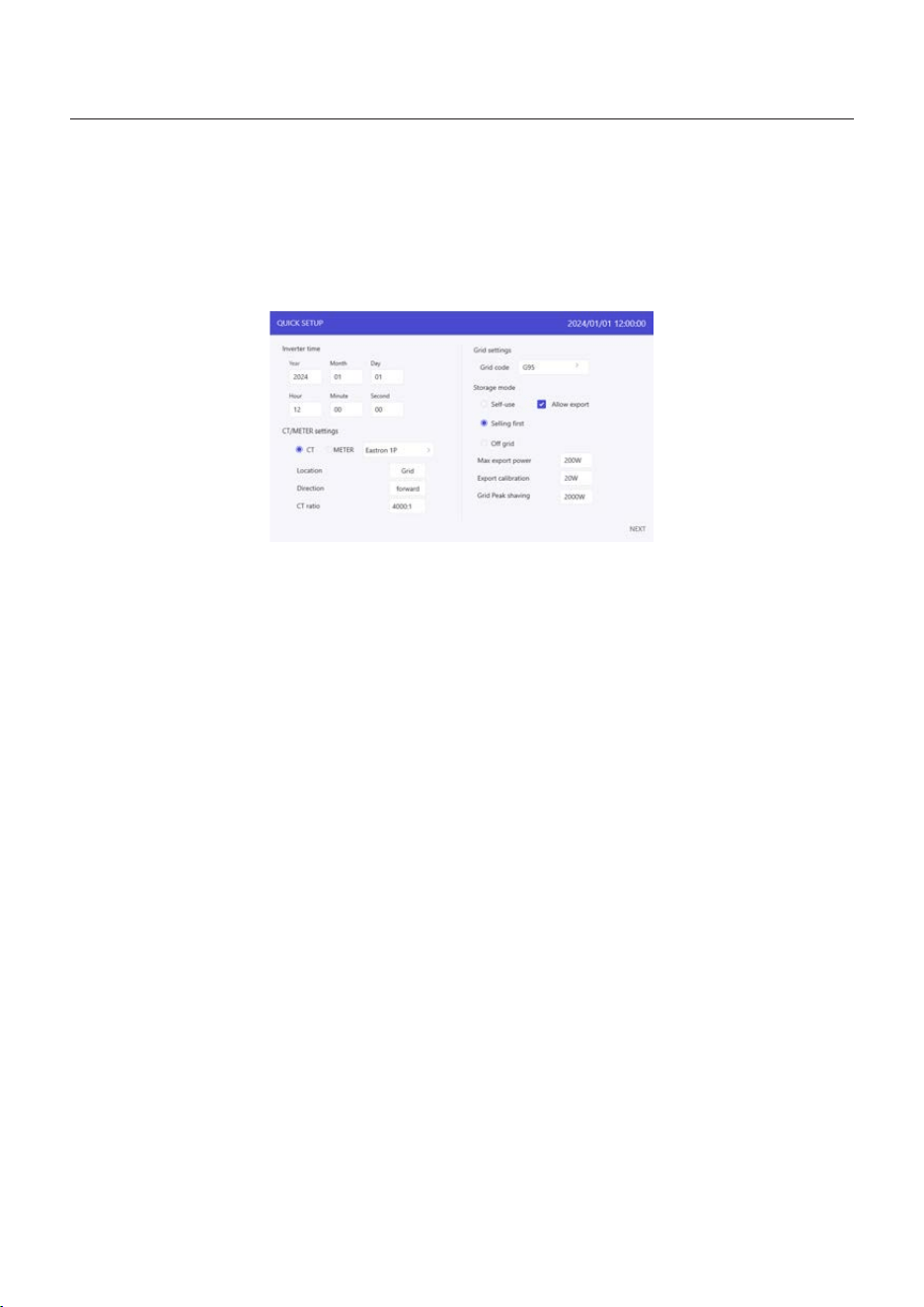
If this is the first time the inverter has been commissioned, you will need to first go through
the Quick Settings. Once this has been done, these settings can be changed later.
Inverter Time -> Meter Setting -> Grid Code -> Storage mode -> Battery Model
5.4 HMI Screen Setting
1. Inverter time:
Set inverter time and date.
2. CT/Meter setting:
Select the CT or Meter, Solis provide ESCT-TA16-100A/50mA CT as standard, and
customers can select the meter as an option. If there is no meter connected for the moment,
please select”No Meter” to avoid alarms.
Location: Default Grid side.
Direction: Default Forward. The CT installation direction is towards the grid.
CT ratio: Default 2000:1. If the system connected to Meter, then CT ratio need to be set on
Meter.
3. Grid code:
Select grid code that meet the local regulations.
4. Storage mode:
All modes first priority is to use the available PV power to power loads. The different modes
determine the second priority, which is whether to use excess PV power to charge the battery
or feed the grid.
Self-use/Selling first/off grid are exclusive, and users can only select one mode.
5.4.1 HMI Quick Setting
35

5. Commissioning
User Manual
Mode
Self-use
Selling first
Off grid
Description
PV power consumption priority: load > battery > grid.
In this mode, The PV power supplies to the load preferentially, and the
excess power is charged to the battery.
If “Allow export” enabled, when the battery is fully charged, or there is
no battery, the excess PV power will feed the grid.
If “Allow export” disabled, then the inverter will curtail the PV power
according to the power of the load.
PV power consumption priority: load > grid > battery.
In this mode, The PV power supplies to the load preferentially, and the
excess power will feed the grid. If the export power quota has been met,
the excess PV power will charge the battery.
Note: This mode should not be used if export power set to zero.
PV power consumption priority: load> battery.
This mode applies the area not covered by the grid or the system is not
connected to the grid.
When the power outage is detected, the system will automatically enter
the off-grid mode, supplying only the backup load.
Table 1 Description of modes
Under each mode, user could set other functions based on their requirements.
Settings
Max export power
Export calibration
Grid peak shaving
Description
Limit the maximum power sold to the grid.
Range : -500w-500w, default 20w, settable.
To compensate the deviation of CT/Meter in practical application.
Table 2 Description of mode settings
Default enable, default 2 times of rated power.
Limit the power drawn from the grid to prevent from exceeding
regulatory requirements or the power line capacity.
When the grid supplies power to the load while charging the
battery, it will limit the power used to charge the battery, so that
the total power does not exceed the set value.
If the grid only supplies power to the load and does not charging
the battery, it is not limited by the setting value.
36
5. Commissioning
User Manual
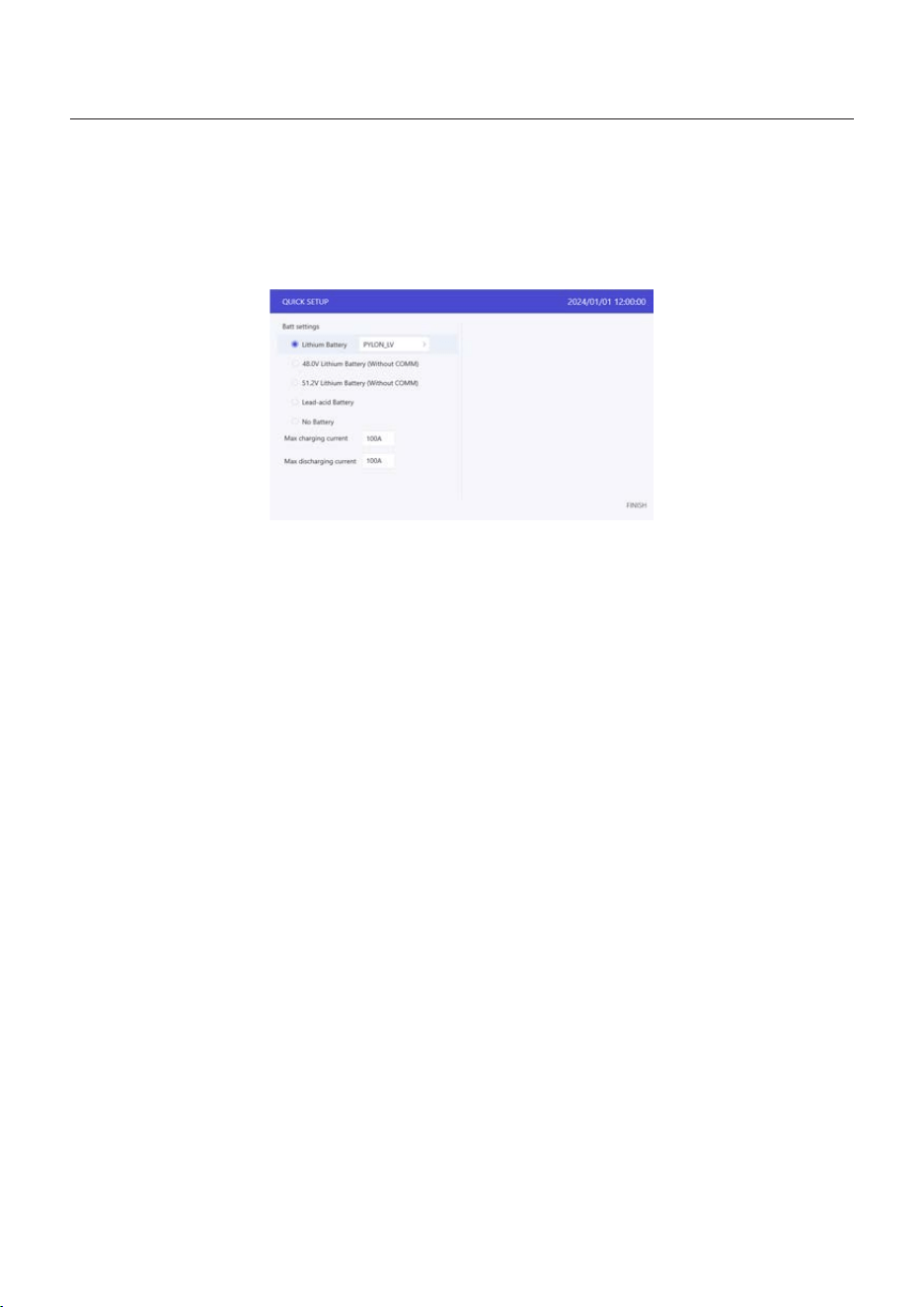
5. Battery setting:
If the connected communication lithium battery is on the battery matching list but not found
in the model list, you need to select Lithium Battery LV.
Set Max charging/discharging current.
37
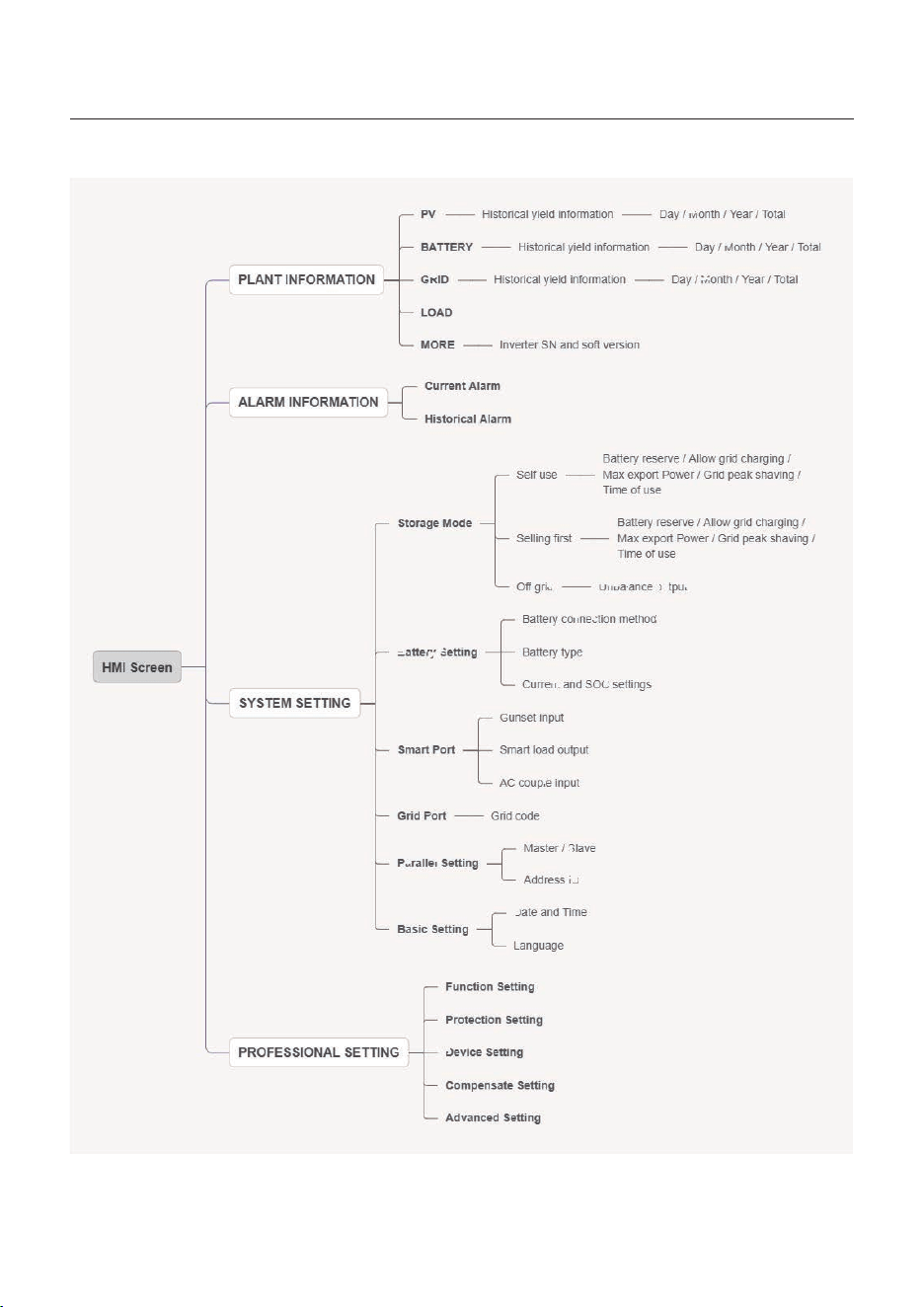
5.4.2 HMI screen operation system overview
5. Commissioning
User Manual
38
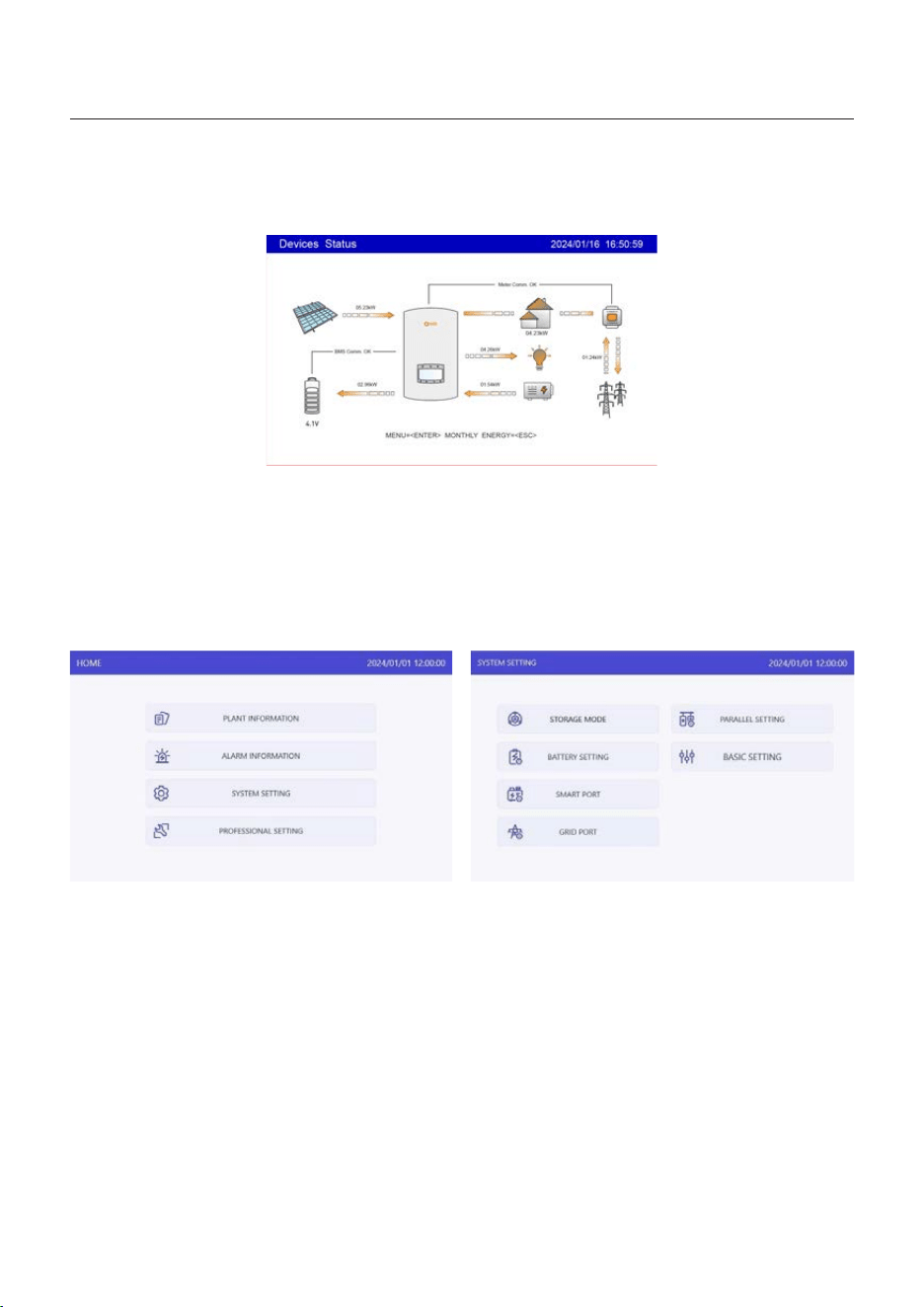
5.4.3 Detailed System Setting
Step 1: Enter Home page
After quick setting, press “ENTER”, the screen displays the home page.
Step 2: Enter “SYSTEM SETTING” interface
Press“Down” , then press “ENTER” into the “SYSTEM SETTING” interface.
5. Commissioning
User Manual
39
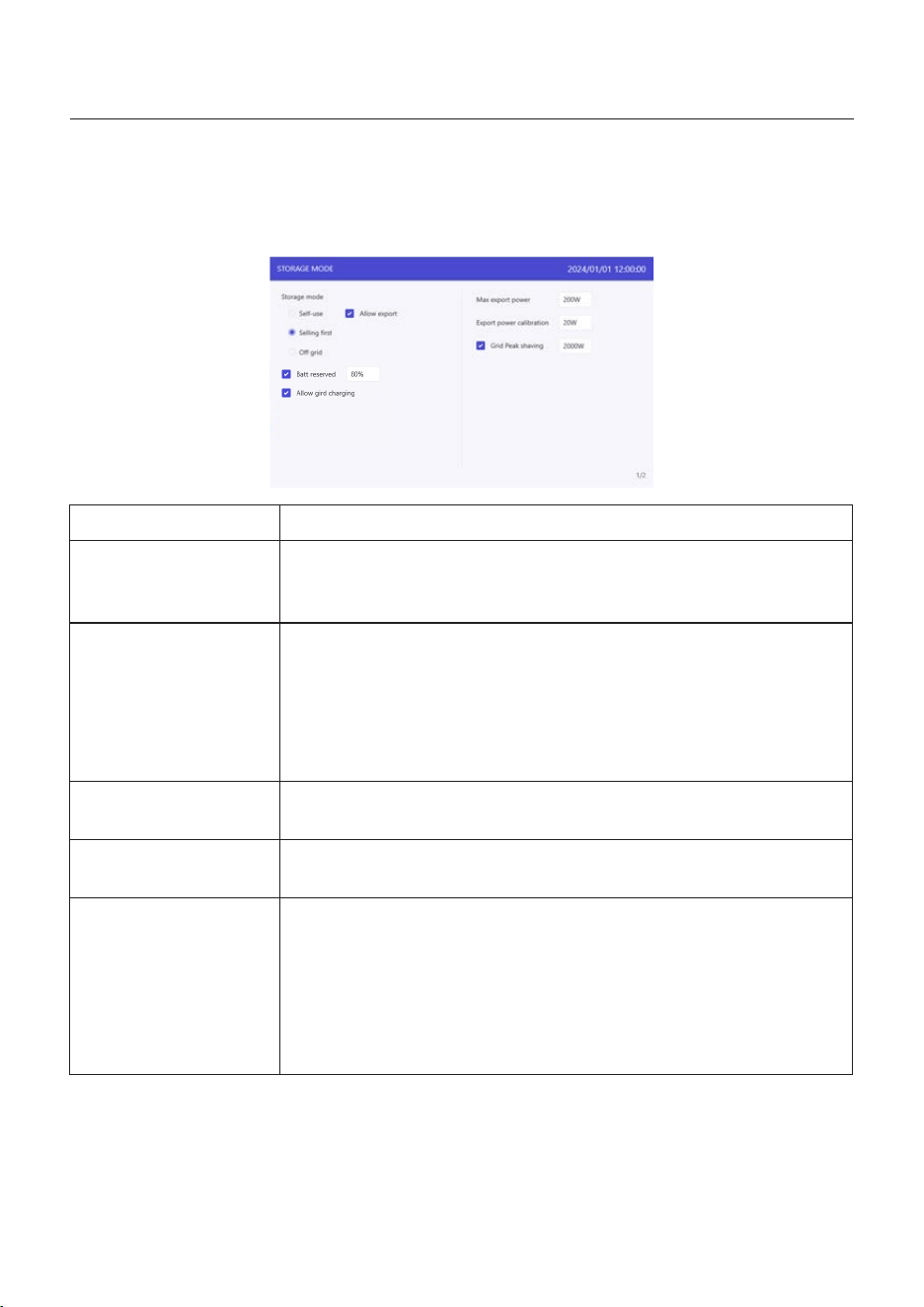
5. Commissioning
User Manual
Step 3: Set “Storage Mode”
Use “UP” or “DOWN” key to select the desired mode, then press “ENTER”.
The Mode description please refer to 5.4.1.
Settings
Battery reserve
Allow grid charging
Max export power
Export calibration
Grid peak shaving
Description
Range: 5~95%, default: 80%, settable.
When battery SOC < set battery reserve SOC, battery will stop
discharging.
Allow grid charging the battery when it enables.
Notice: if “Allow Grid Charging” is turned on, the inverter will use
grid power to charge the battery only under two circumstances:
The battery drains to the Force Charge SOC.
When PV power output can’t meet the set current value during
the charge periods.
Default: 1.1 times of rated power.
Notice: if feed-in is not allowed, set Max export power to 0.
Range : -500w-500w, default 20w, settable.
To compensate the deviation of CT/Meter in practical application.
Default enable, default 2 times of rated power.
Limit the power drawn from the grid to prevent from exceeding
regulatory requirements or the power line capacity.
When the grid supplies power to the load while charging the
battery, it will limit the power used to charge the battery, so that
the total power does not exceed the set value.
If the grid only supplies power to the load and does not charging
the battery, it will be not limited by the setting value.
Table 3 Description of storage mode settings
40
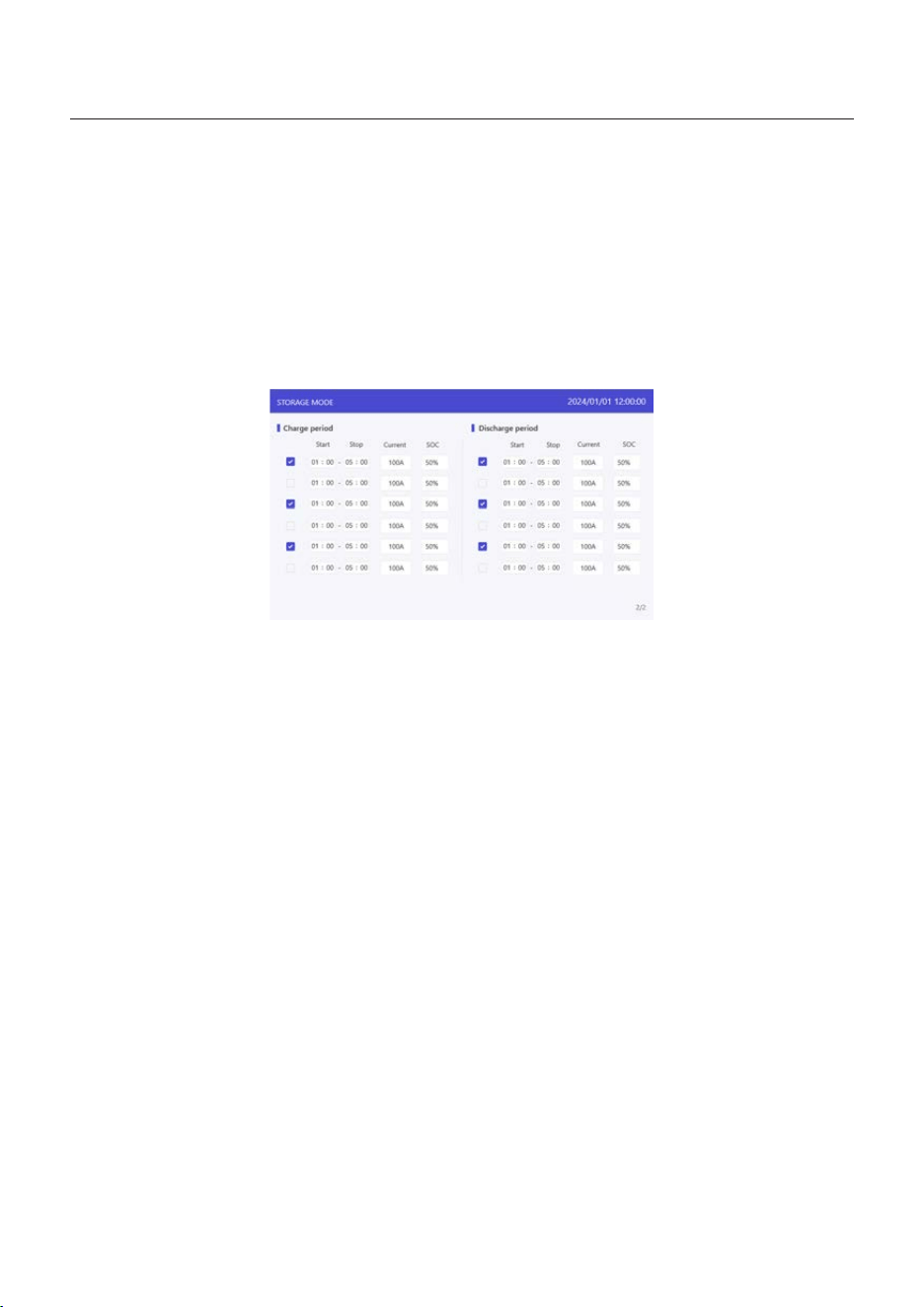
5. Commissioning
User Manual
Step 4: Set “Time of use” under each mode (Skip this step if no need)
Time of Use is for manual control of the battery charging/discharging. When the time is
between Start and Stop, the system will charge/discharge the battery according to the set
Current until the set "SOC/voltage" is reached.
1. Charge period: battery charges with set current value until the charging cut-off voltage
(settable), selecting the box to control whether enable this charging period.
2. Discharge period: battery discharges with set current value until the discharging cut-off
voltage (settable), selecting the box to control whether enable this discharging period.
41
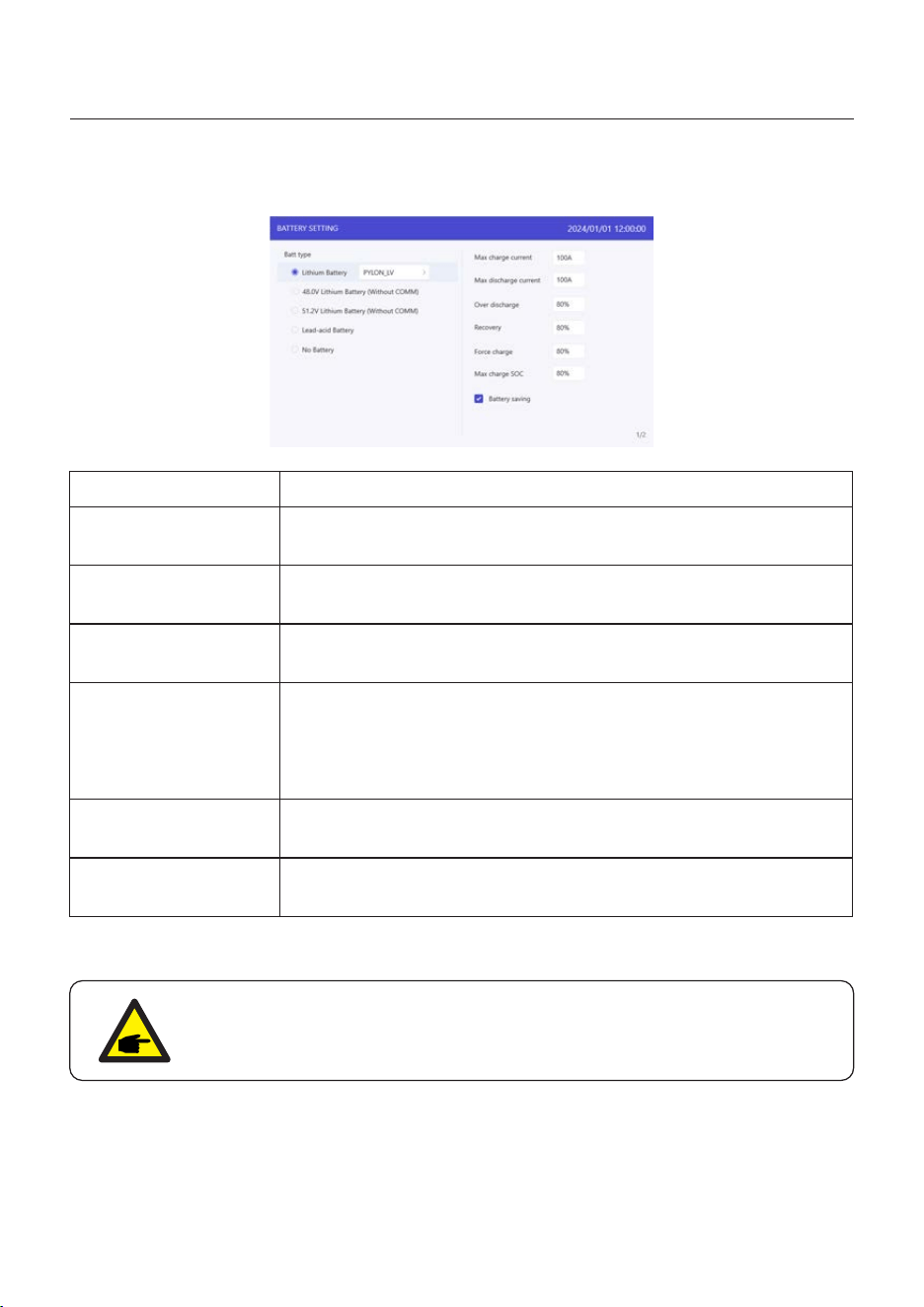
Step 5: Set “Battery Setting”
Settings
Max charge current
Max discharge current
Over discharge
Recovery
Force charge
Max charge SOC
Description
Max charge current, settable.
Max discharge current, settable.
Range: 5~40%, default 20%,
when battery SOC < over discharge, it will stop discharging.
Range: set Over discharge value +1% ~ set Over discharge
value +20%;
The battery can discharge when the SOC/Voltage reaches the
set value. Avoid repeated changes in the charging and
discharging status of the battery.
The battery will be charged to the over discharge SOC/Voltage
when it reaches this setting.
The maximum SOC/Voltage that the battery can be charged to.
Default 100%.
Table 4 Description of battery mode settings
NOTICE:
Force charge SOC < Over discharge SOC < Recovery SOC, otherwise the
setting might be error.
5. Commissioning
User Manual
42
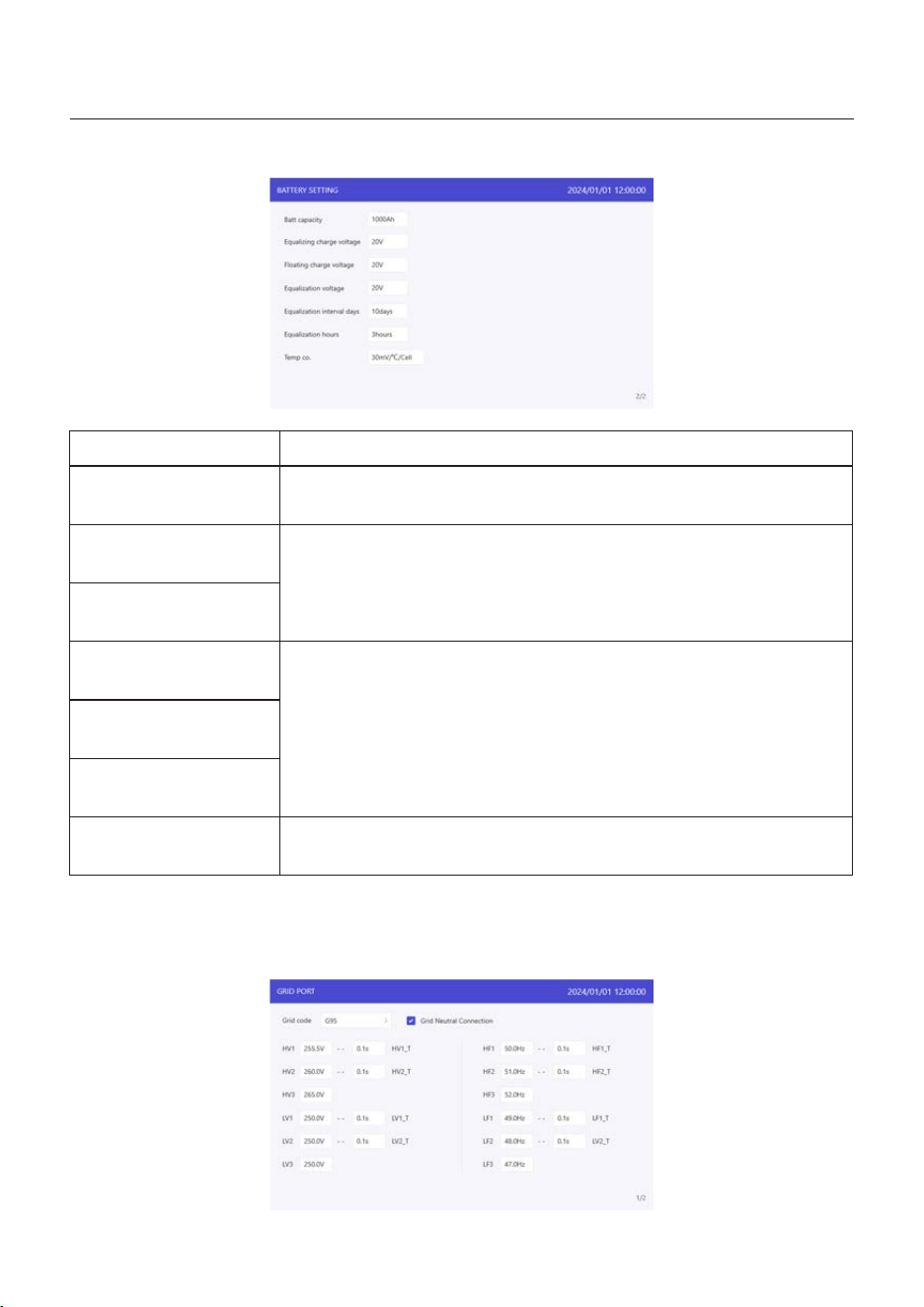
5. Commissioning
User Manual
Settings
Batt capacity
Equalizing charge
voltage
Floating charge
voltage
Equalization voltage
Equalization
interval days
Equalization hours
Description
The value depends on the actual battery capacity.
The three stages of battery charging:
Constant Current Charging -- Constant Voltage Charging --
Float Charging
You do not need to set this parameter.
Charge the battery to Equalization voltage during the
Equalization hours. Ensure that each battery cell is charged
to the battery equalization state.
After each Equalized Interval days, equalization charging will
be performed again.
Temperature compensation coefficient. You do not need to set
this parameter.
Temp co.
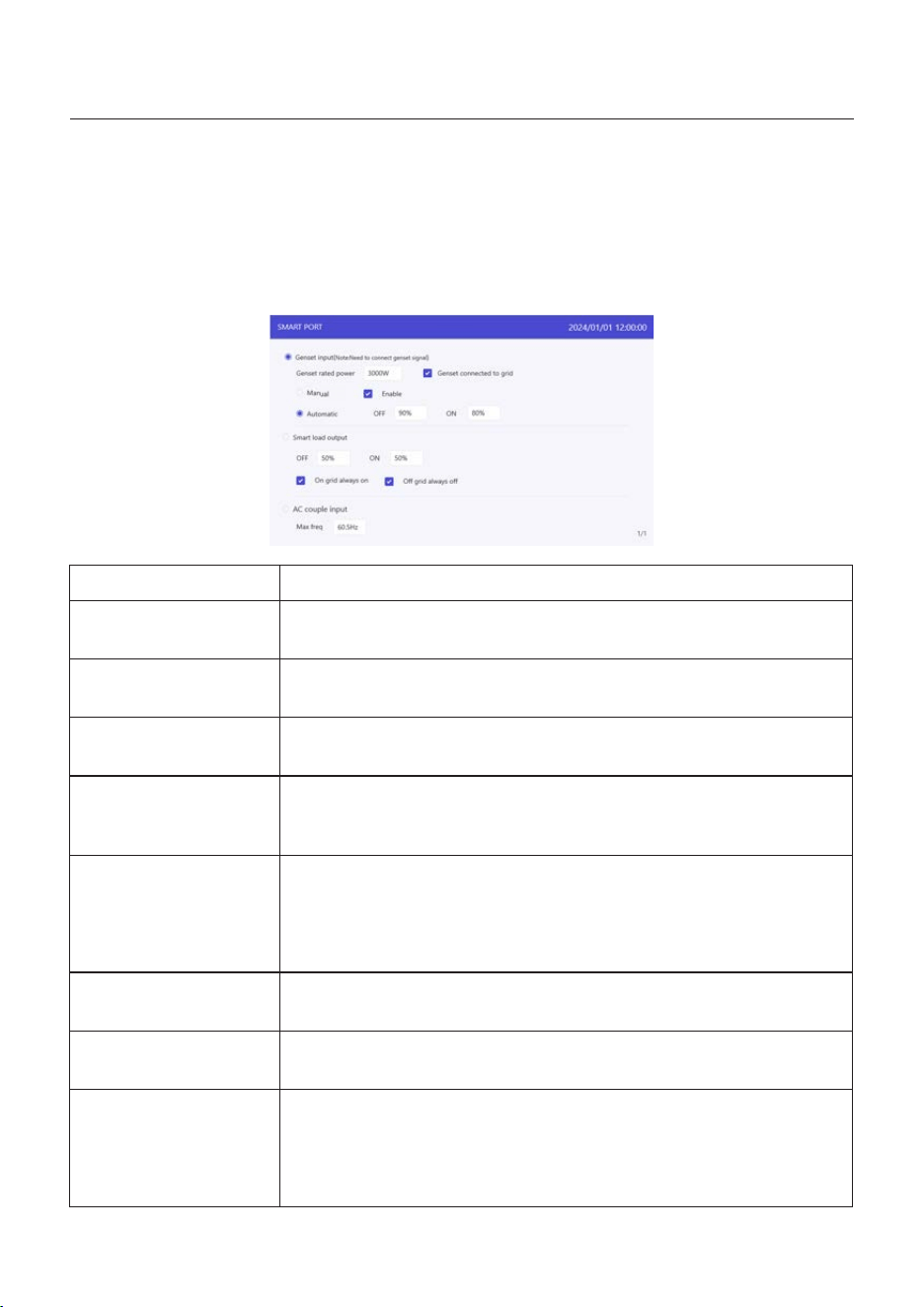
Step 6: Set “Grid Port”
(Skip this step if grid code is already set in quick setting)
Select grid code that meet the local regulations.
43
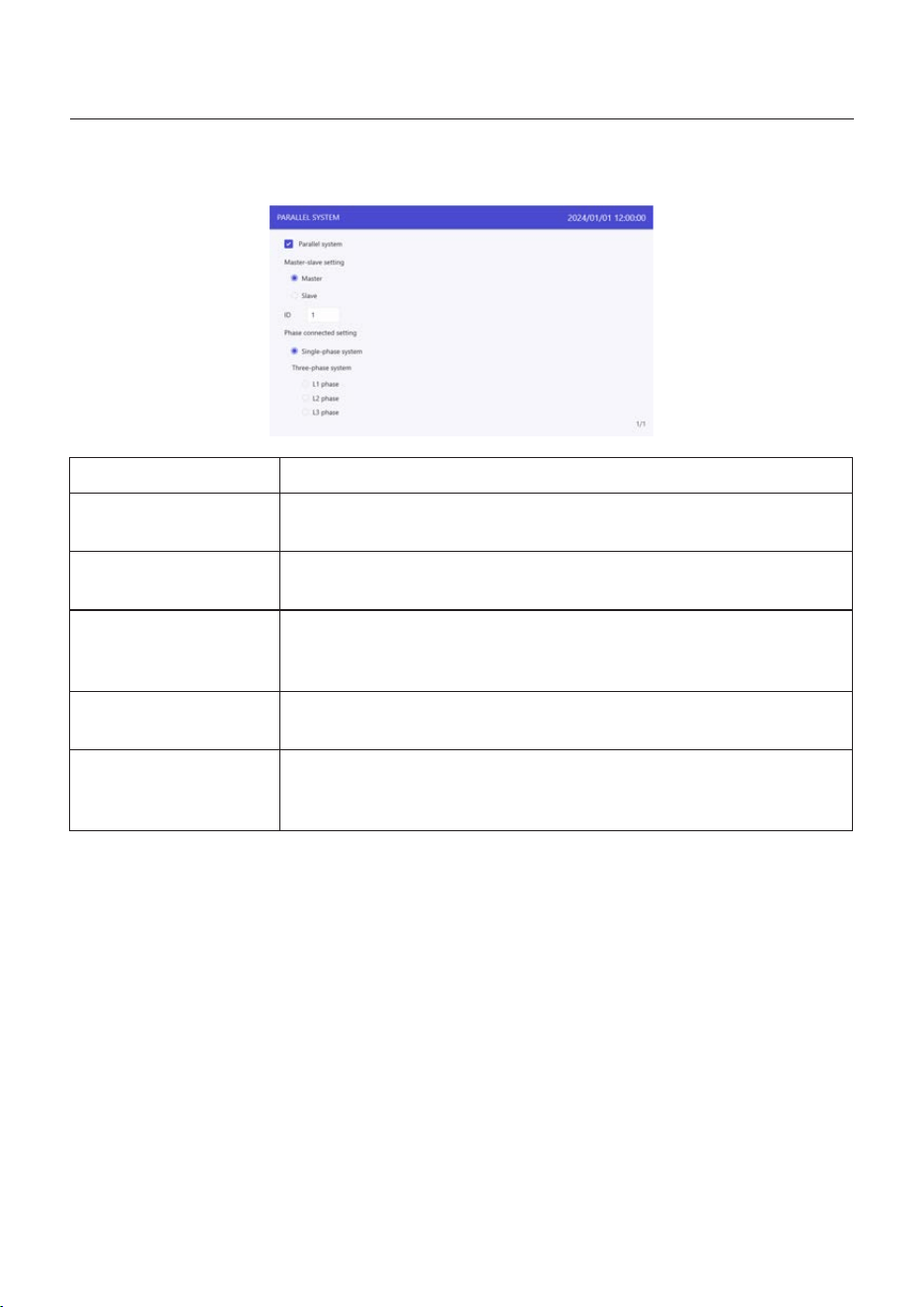
5. Commissioning
User Manual
Step 7: Set “Smart Port”
(Skip this step if the system is not connected to generators)
When it is connected to Generator, select “Gunset input”;
When it is connected to smart load, select “Smart load output”
When it is connected to Grid-tied inverter, select “AC coupled”
Settings
Genset input
Genset connected
to grid
Manual/Enable
Automatic OFF/ON
Smart load output
OFF/ON
On grid always on
Description
The generator is connected to the GEN port.
The generator is connected to the Grid port.
If Automatic is selected, the generator will start when the battery
SOC drops to the ON value, and stop when the SOC value
reaches the OFF value.
Off grid always off: smart port will cut off power supply to smart
load when the grid is off.
The external grid-tied inverter is connected to the GEN port.
The hybrid uses Freq-Watt to modulate the output of the PV
inverter. Please consult with the PV inverter’s manufacturer to
confirm the correct setting procedures of its Freq-Watt response
first.
AC couple input
When manually selecting to connect the generator, enable
needs to be selected.
The load is connected to the GEN port as smart load.
When the battery SOC/Volt drops to the OFF SOC/Volt, the
system will cut off the power of smart load to ensure sufficient
power for Backup load. When the battery SOC/Volt reaches the
ON SOC/Volt, the smart port will supply power to smart load.
Off grid always off
On grid always on: smart port will always supply power to smart
load when the grid is available.
44
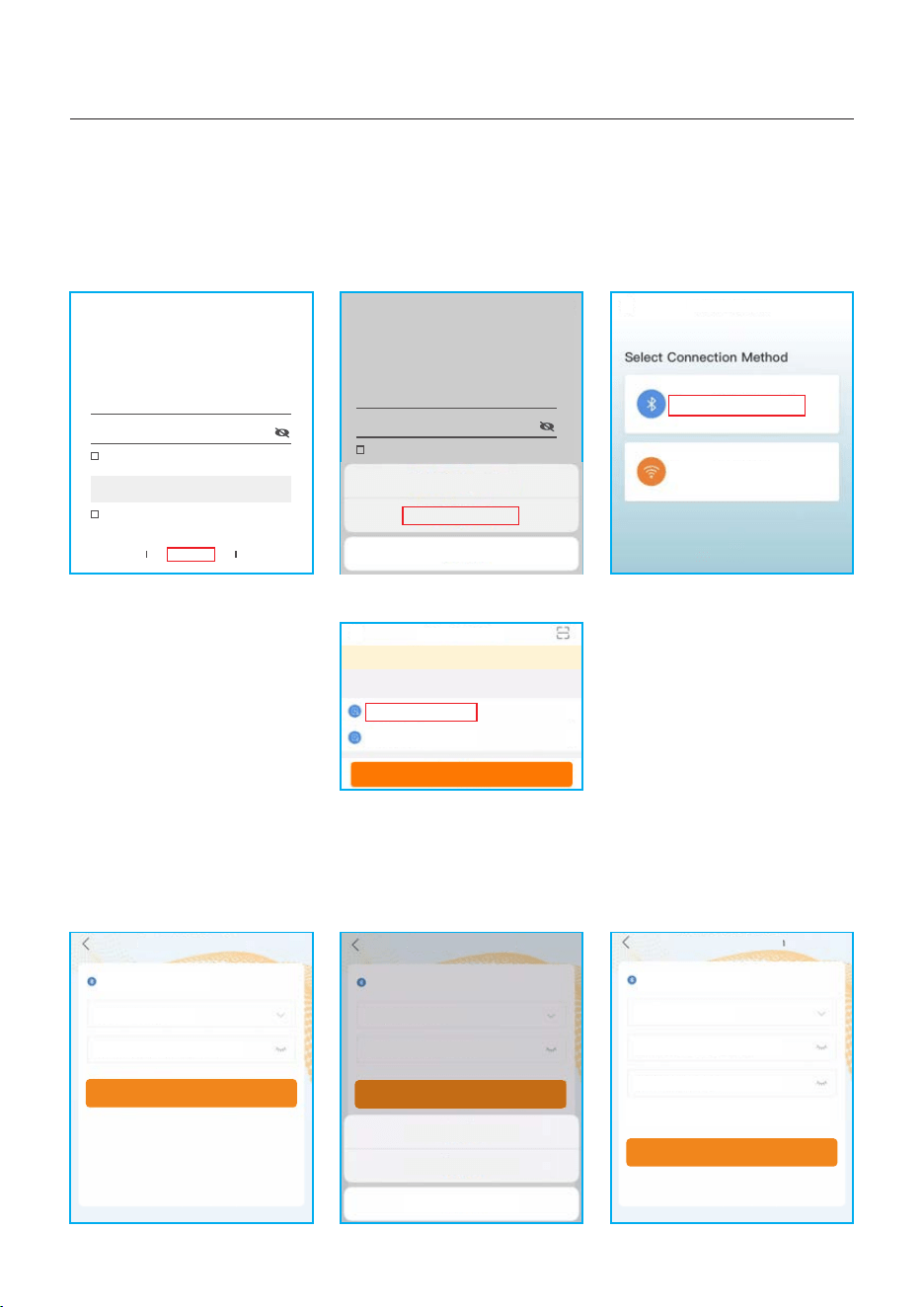
Step 8: Set parallel system
5. Commissioning
User Manual
Settings
Parallel system
Master-slave setting
ID
Single-phase system/
Three-phase system
L1phase/
L2phase/
L3phase/
Description
When the system is parallel, it needs to be selected.
The first inverter must be set as the Master.
Multiple parallel modes are provided, including Single-phase
parallel system and three-phase system forming.
The first inverter address is set to 1, the second to 2, and so on.
The address of the master must be 1.
(Note: The address cannot be set to 0)
If it is three-phase parallel system, please select which phase
the inverter is connected to.
45
5. Commissioning
User Manual
46
Step 1: Connect with Bluetooth.
Turn on Bluetooth switch on your mobile phone and then open the Soliscloud APP.
Click “More Tools”->”Local Operation”->”Connect with Bluetooth”
Step 2: Select the Bluetooth signal from the inverter. (Bluetooth Name: Inverter SN)
Step 3: Login account.
If you are the installer, please select the account type as Installer. If you are the
plant owner, please select the account type as owner. Then set your own initial password
for control verification. (The first log-in must be finished by installer in order to do the
initial set up)
Hello,
Welcome to SolisCloud
Register
Username/Email
Password
I have agreed Privacy Policy
Remember Forgot Password
Language More Tools Data Migration
Log in
Local Operation
Connect With Bluetooth
Connect With WiFi
<
xxxxxxxxxxxx
Nearby Device
<
vivo TWS 2
<
<
Search Device
If the dev ice is not in the list, ple as e click the “Search D ev ice”
butt on a t the bottom or drop-do wn t o refresh the page
Other Device
xxxxxxxxxxxx
Control Verification
Select account type
Enter password (6-characters)
Verify
<
xxxxxxxxxxxx
Control Verification
Installer
Enter password (6-characters)
Enter password again
Please set the password of the installer’s account
before continuing
Set Enable
<
xxxxxxxxxxxx
Control Verification
Select account type
Enter password (6-characters)
Verify
Installer
Owner
Cancel
<
5.5 APP Setting
5.5.1 Log in the APP via Bluetooth
Hello,
Welcome to SolisCloud
Register
Username/Email
Password
I have agreed Privacy Policy
Remember Forgot Password
Log in
WiFi Configuration
Local Operation
Cancel
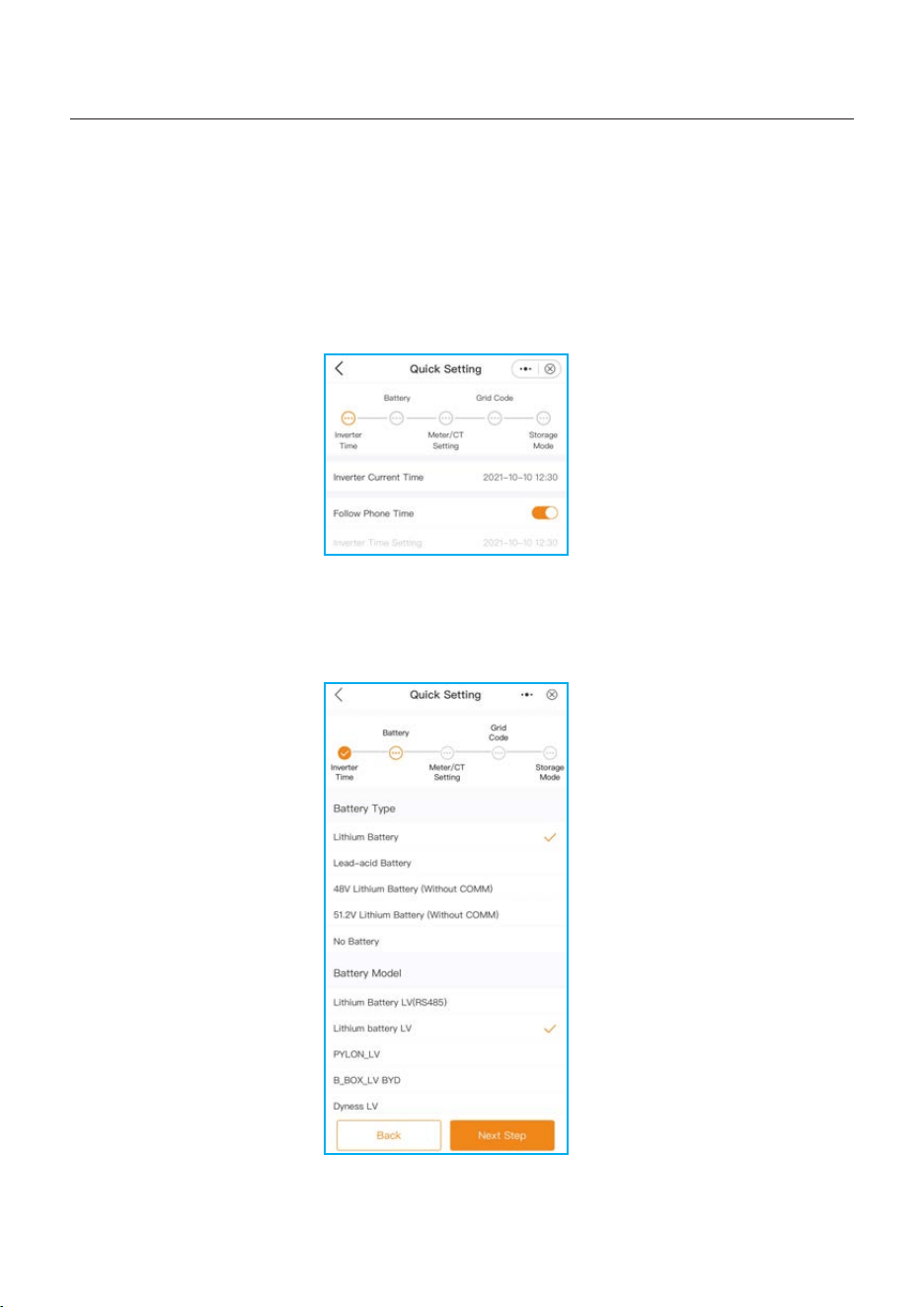
Inverter Time -> Battery Model -> Meter Setting -> Grid Code -> Work mode
A. Inverter Time: Set the Inverter Time and Date. It may be easier to tap the slider next to
“Follow Phone Time”.Then tap Next in the top right corner. This will set the inverter to
match your phone.
5. Commissioning
User Manual
If this is the first time the inverter has been commissioned, you will need to first go
through the Quick Settings.Once this has been done,these settings can be changed later.
47
5.5.2 APP Quick Setting
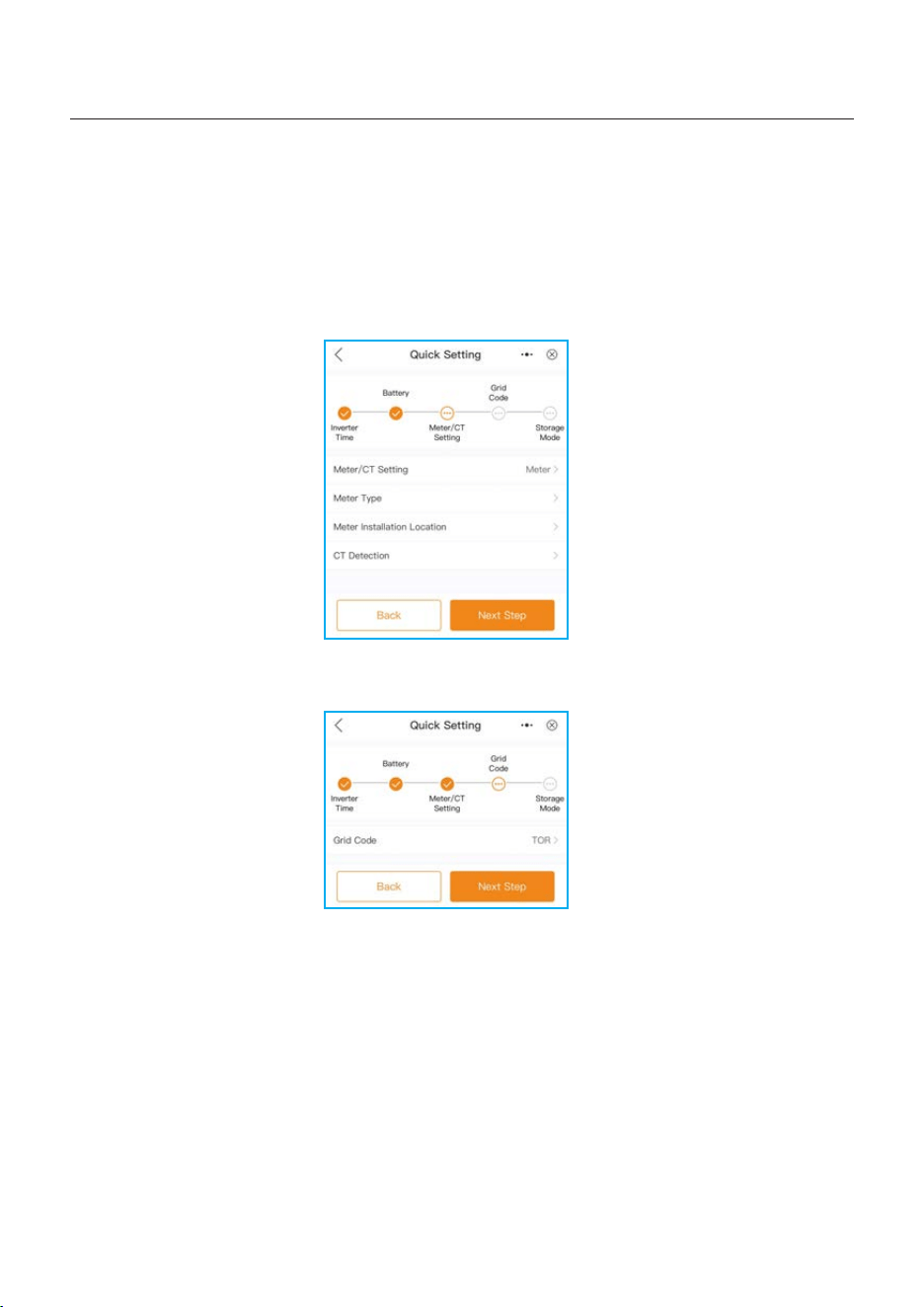
B. If the connected communication lithium battery is on the battery matching list but not found
in the model list, you need to select Lithium Battery LV.
Set Max charging/discharging current.
5. Commissioning
User Manual
48
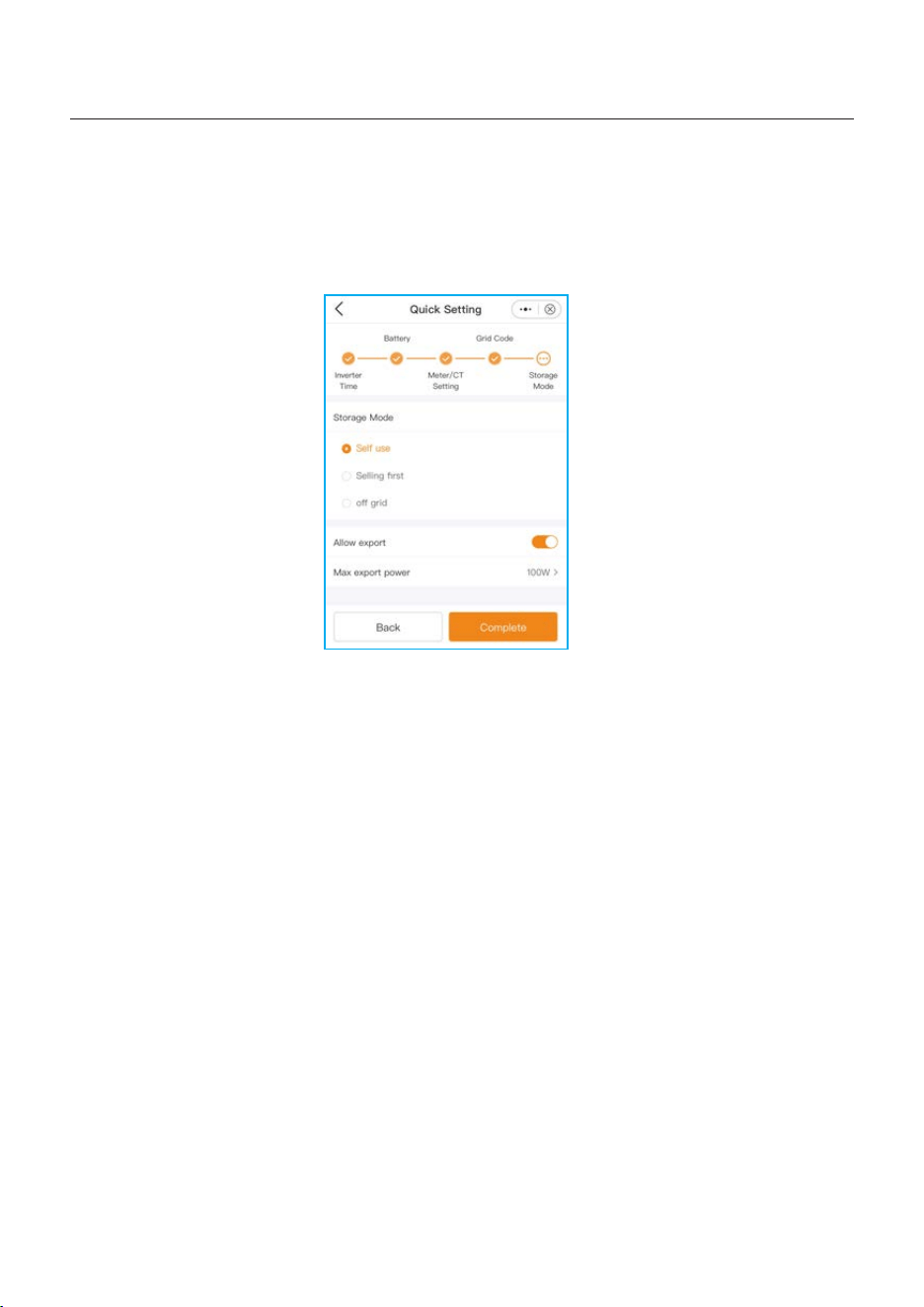
D. Select grid code that meet the local regulations.
C.Select the CT or Meter, Solis provide ESCT-TA16-100A/50mA CT as standard, and
customers can select the meter as an option. If there is no meter connected for the moment,
please select”No Meter” to avoid alarms.
Location: Default Grid side.
Direction: Default Forward. The CT installation direction is towards the grid.
CT ratio: Default 2000:1. If the system connected to Meter, then CT ratio need to be set on Meter.
5. Commissioning
User Manual
49
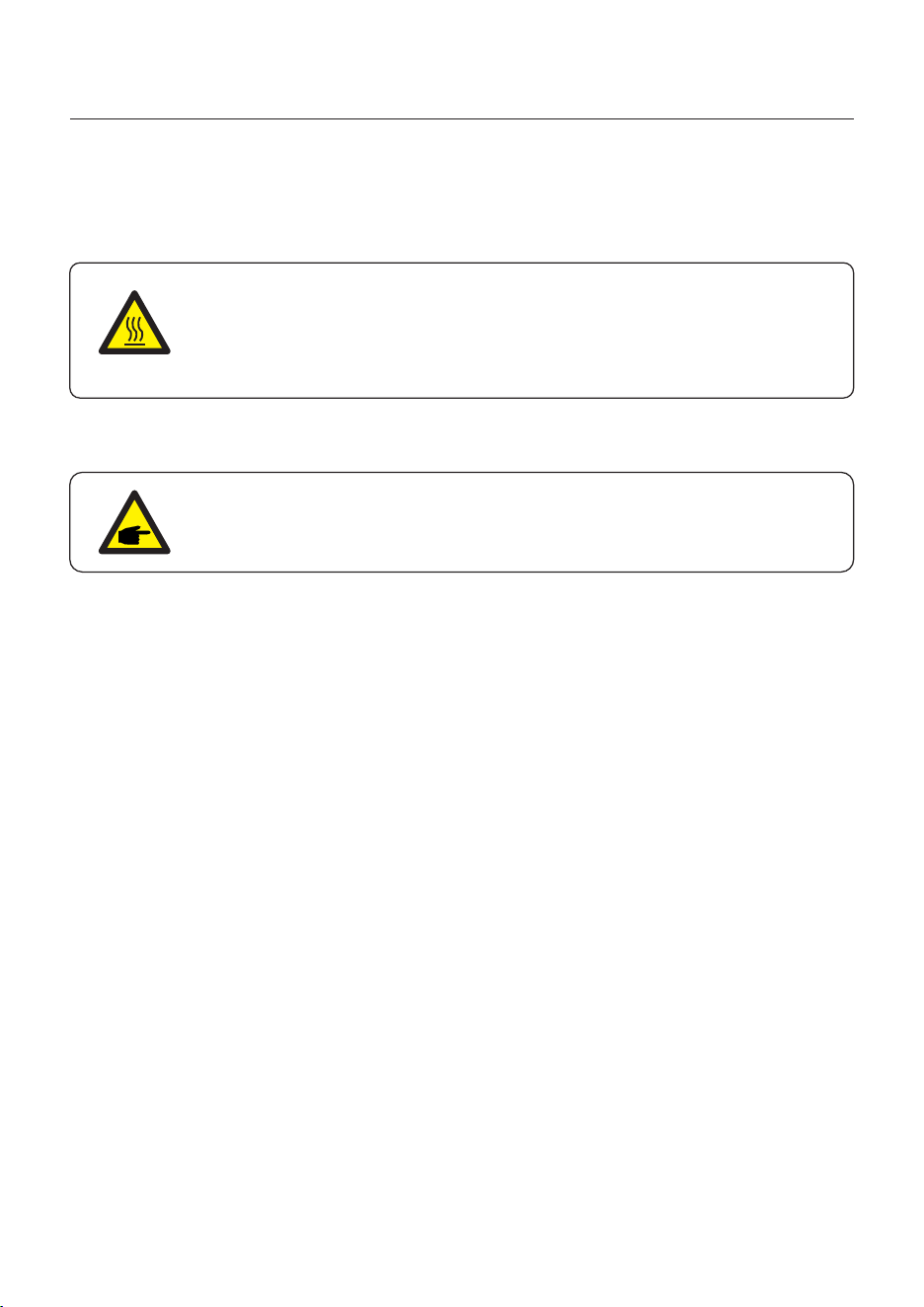
E. All modes first priority is to use the available PV power to power loads. The different modes
determine the second priority, which is whether to use excess PV power to charge the battery
or feed the grid.
Self-use/Selling first/off grid are exclusive, and users can only select one mode.
NOTE:
Never use any solvents, abrasives, or corrosive materials to clean the inverter.
CAUTION:
Do not touch the surface when the inverter is operating. Some parts may be
hot and could cause burns. Turn OFF the inverter and let it cool down before
you do any maintenance or cleaning of inverter.
Solis S6 Series inverter does not require any regular maintenance. However, cleaning the
heatsink will help the inverter dissipate heat and increase the lifetime of inverter. The dirt on the
inverter can be cleaned with a soft brush.
The Screen and the LED status indicator lights can be cleaned with cloth if they are
too dirty to be read.
User Manual
6. Maintenance
6.1 Smart O&M
In order to improve our products and provide you with higher quality services, this device
has a built-in data logging module for collecting relevant information during operation
(such as power generation data, fault data)
Commitment:
1. We will only collect, use and process your device information for the purpose of
improving our products and services.
2. We will take all reasonable and feasible measures to ensure that no irrelevant
information is collected and we will protect your device information.
3. We will not share, transfer or disclose the collected device information with any
company, organization or individual.
4. When we stop operating products or services, we will stop collecting your device
information in a timely manner.
5. If you do not want to provide such information, you can notify our company to turn off
this function, which will not affect your normal use of other functions of the product.
50
7. Troubleshooting
User Manual
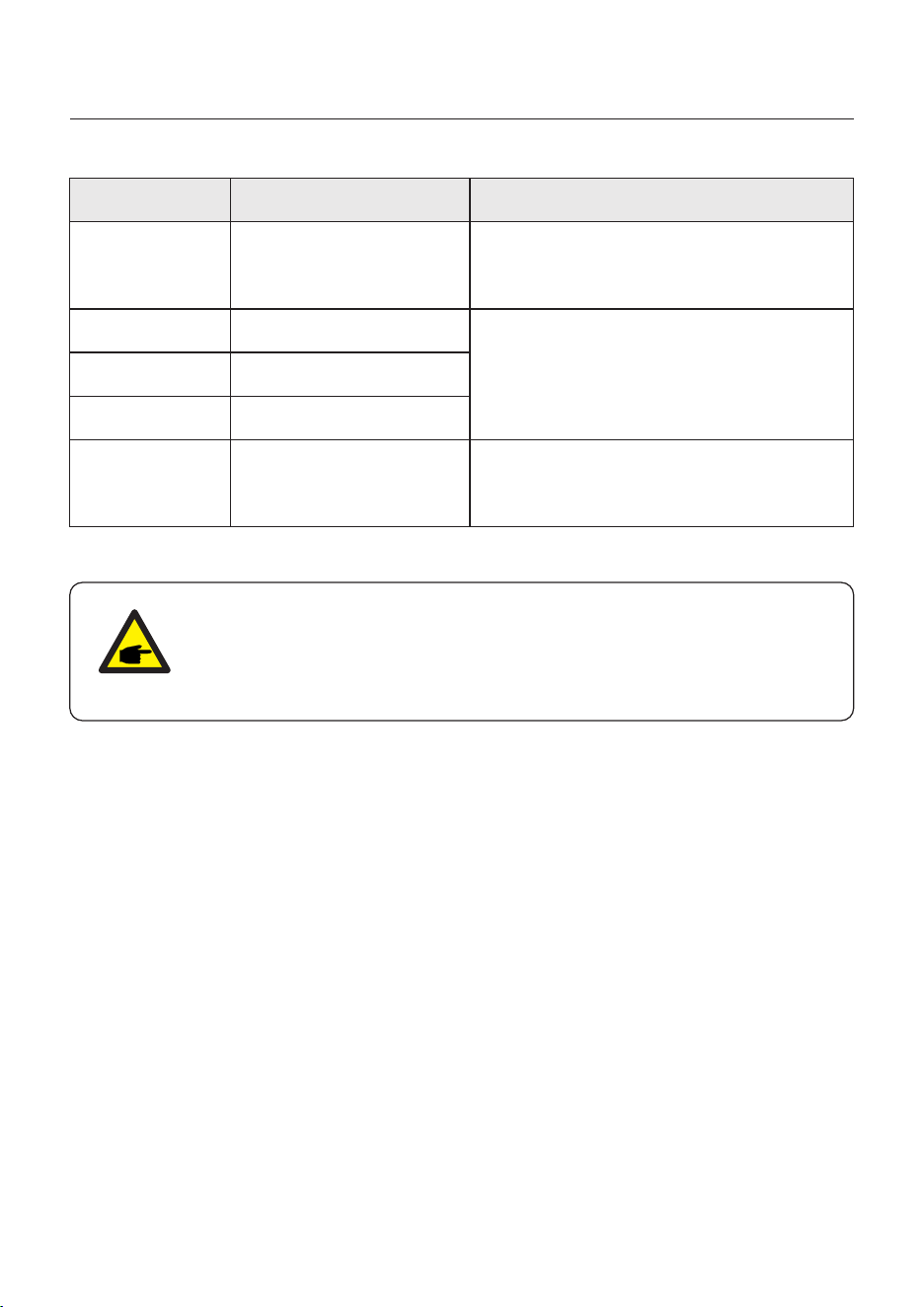
Message Name
Information Description
Troubleshooting Suggestion
1. Confirm whether the inverter is connected
to an external EPM/meter to prevent
reverse current.
2. Confirm whether the inverter is controlled
by an external third-party device.
3. Confirm whether the power setting of the
inverter power control is limited.
4. Verify settings in section 6.6.7 and check
your meter readings.
1. No need to deal with it.
1. No need to deal with it, the device is in
normal operation.
1. Due to the requirements of local safety
regulations, when the grid voltage is high,
the Volt-watt working mode is triggered,
which generally does not need to be dealt with.
2. Inverter factory test errors causing this
mode to open, if you need to close, you can
close this mode in LCD, set the process:
Main menu → Advanced Settings →
Password 0010 → STD mode settings →
Working Mode → Working mode: NULL →
Save and exit.
1. Due to the requirements of local safety
regulations, when the grid voltage is high,
the Volt-watt working mode is triggered,
which generally does not need to be dealt with.
2. Inverter factory test errors causing this
mode to open, if you need to close, you can
close this mode in LCD, set the process:
Main menu → Advanced Settings →
Password 0010 → STD mode settings →
Working Mode → Working mode: NULL →
Save and exit.
LmtByEPM
LmtByDRM
LmtByTemp
LmtByFreq
LmtByVg
LmtByVar
The device's output is under
controlled
DRM Function ON
Over temperature power
limited
Frequency power limited
The device is in the
Volt-Watt mode
The device is in the Volt-Var
mode of operation
Off Control device to shutdown
1. Turn on the device in the ON/OFF Setting.
LmtByUnFr
Under frequency limit
Standby
Bypass run
StandbySynoch
Off grid status to On grid
status
1. No need to deal with it.
GridToLoad Grid to load
51
User Manual
OV-G-F01
UN-G-F01
G-PHASE
G-F-GLU
NO-Grid
OV-G-V02
OV-G-V03
IGFO L-F
OV-G-V05
OV-G-V04
UN-G-V02
OV-G-F02
UN-G-F02
NO-Battery
Grid frequency exceeds the
upper frequency range
Grid frequency exceeds the
lower frequency range
Unbalanced grid voltage
Grid voltage frequency
fluctuation
Grid transient overvoltage
Grid transient overvoltage
Grid current tracking failure
Grid voltage RMS instanta-
neous overvoltage fault
Grid voltage exceeds the
upper voltage range
Grid voltage exceeds the
lower voltage range
Grid frequency exceeds the
upper frequency range
Grid frequency exceeds the
lower frequency range
Battery is not connected
UN-G-V01
Grid voltage exceeds the
lower voltage range
OV-G-V01
Grid voltage exceeds the
upper voltage range
Surge Alarm On-site grid surge
1. Grid side fault, restart the device.
If it is still not eliminated, please contact the
manufacturer's customer service.
1. Confirm whether the power grid is abnormal.
2. Confirm that the AC cable is properly
connected.
3. Restart the system and check if the fault
persists.
1. Restart the system, confirm if that the fault
continues.
1. Check on information page 1 – Verify the
battery voltage is within standards.
2. Measure battery voltage at plug.
No grid
1. Confirm whether the power grid is abnormal.
2. Confirm that the AC cable is properly
connected.
3. Restart the system and check if the fault
persists.
Message Name
Information Description
Troubleshooting Suggestion
OV-Vbackup
Over-Load
Inverting overvoltage
Load overload fault
1. Check whether the backup port wiring is
normal
2. Restart the system, confirm that the fault
continues.
1. Backup load power is too large, or some
inductive load startup power is too large,
need to remove some backup load, or remove
the inductive load on the backup.
7. Troubleshooting
52
User Manual
Message Name
Information Description
Troubleshooting Suggestion
BatName-FAIL
OV-Vbatt
UN-Vbatt
Fan Alarm
OV-DC01
(1020 DATA:0001)
OV-DC02
(1020 DATA:0002)
OV-BU S
(1021 DATA:0000)
UN-BUS01
(1023 DATA:0001)
UNB-BUS
(1022 DATA:0000)
UN-BUS02
(1023 DATA:0002)
DC-INTF.
(1027 DATA:0000)
OV-G-I
(1018 DATA:0000)
OV-DC A-I
(1025 DATA:0000)
OV-DC B-I
(1026 DATA:0000)
GRID-IN T F.
(1030 DATA:0000)
Wrong battery brand selection
Battery undervoltage detected
Fan alarm
DC 1 input overvoltage
DC 2 input overvoltage
DC bus overvoltage
DC bus undervoltage
DC bus unbalanced voltage
Abnormal detection of
DC bus voltage
DC hardware overcurrent
(1, 2, 3, 4)
A phase RMS value
overcurrent
DC 1 average overcurrent
DC 2 average overcurrent
AC hardware overcurrent
(abc phase)
Battery overvoltage detected
1. Confirm whether the battery model selection
is consistent with the actual one.
1. Restart the system and check if the fault
persists. If it is still not eliminated, please
contact the manufacturer's customer service.
1. Check if the internal fan is working correctly
or jammed.
1. Check if the PV voltage is abnormal
2. Restart the system, confirm that the fault
continues
1. Restart the system, confirm that the fault
continues.
1. Check if the DC wires are connected correctly
without loose connection.
1. Confirm that the grid is abnormal.
2. Confirm that the AC cable connection is not
abnormal.
3. Restart the system, confirm that the fault
continues.
1. Restart the system, confirm that the fault
continues.
1. Verify battery voltage is within standards.
Measure battery voltage at inverter connection
point. Contact your battery manufacturer for
further service.
CAN Fail CAN Fail
1. Can failure is a failure of communication
between inverter and battery. Check cable
conditions. Check to ensure you have it
plugged in on the CAN port of the battery and
inverter. Check that you are using the right
cable. Some batteries require a special
battery from the battery manufacturer.
7. Troubleshooting
53
User Manual
Message Name
Information Description
Troubleshooting Suggestion
1. Confirm that the grid is abnormal.
2. Confirm that the AC cable connection is not
abnormal.
3. Restart the system, confirm that the fault
continues.
DCInj-FAU LT
(1037 DATA:0000)
The current DC component
exceeds the limit
IGBT-OV-I
(1048 DATA:0000)
OV-TE M
(1032 DATA:0000)
UN-TEM
(103A DATA:0000)
PV I S O-PRO01
(1033 DATA:0001)
PV I S O-PRO02
(1033 DATA:0002)
12Power-FAULT
(1038 DATA:0000)
ILeak-PRO01
(1034 DATA:0001)
ILeak-PRO02
(1034 DATA:0002)
ILeak-PRO03
(1034 DATA:0003)
ILeak-PRO04
(1034 DATA:0004)
ILeak_Check
(1039 DATA:0000)
GRID-IN T F02
(1046 DATA:0000)
OV-Vbatt-H/
OV-BU S-H
(1051 DATA:0000)
IGBT overcurrent
Module over temperature
Low temperature protection
PV negative ground fault
PV positive ground fault
12V undervoltage failure
Leakage current failure 01
(30mA)
Leakage current failure 02
(60mA)
Leakage current failure 03
(150mA)
Leakage current failure 04
Leakage current sensor
failure
Power grid disturbance 02
Battery overvoltage hardware
failure / VBUS
1. Restart the system, confirm that the fault
continues.
1. Check whether the surrounding environment
of the inverter has poor heat dissipation.
2. Confirm whether the product installation
meets the requirements.
RelayChk-FAIL
(1035 DATA:0000)
Relay failure
1. Restart the system, confirm that the fault
continues.
1. Check the working environment temperature
of the inverter.
2. Restart the system to confirm if the fault
continues.
1. Check whether the PV strings have insulation
problems.
2. Check whether the PV cable is damaged.
1. Check current leakage to ground.
Verify your grounding.
Verify all wires are in good condition and not
leaking current to ground.
1. Confirm whether the grid is seriously distorted.
2. Check whether the AC cable is connected
reliably.
1. Check if the battery circuit breaker is tripping.
2. Check if the battery is damaged.
7. Troubleshooting
54
User Manual
OV-IL L C
(1052 DATA:0000)
LLC hardware overcurrent
1. Check whether the backup load is overloaded.
2. Restart the system, confirm that the fault
continues.
DSP-B-FAULT
(1036 DATA:0000)
AFCI-Check
(1040 DATA:0000)
ARC- FAULT
(1041 DATA:0000)
The master-slave DSP
communication is abnormal
AFCI self-test failure
AFCI failure
INI-FAULT
(1031 DATA:0000)
AD zero drift overlink
1. Restart the system, confirm that the fault
continues.
1. Verify connections are tight within your PV
system. Arc fault settings can be changed in
advanced settings if further adjustment is
necessary.
Table 7.1 Fault message and description
Message Name
Information Description
Troubleshooting Suggestion
NOTE:
If the inverter displays any alarm message as listed in Table 8.1; please
turn off the inverter and wait for 5 minutes before restarting it .
If the failure persists, please contact your local distributor or the service
center.
1. Serial number of Solis Singles Phase Inverter;
2. The distributor/dealer of Solis Singles Phase Inverter (if available);
3. Installation date.
4. The description of the problem together with necessary information, pictures,
attachment.
5. The PV array configuration (e.g. number of panels, capacity of panels, number of
strings, etc.);
6. Your contact details.
Please keep ready with you the following information before contacting us.
7. Troubleshooting
55
8. Specifications
User Manual
Max. input voltage
Start-up voltage
MPPT voltage range
MPPT number/Max input strings number
Max. input current
Max. inverter backfeed current to the array
Battery Voltage range
Max. charge / discharge power
Recommended max. PV power
Max. charge / discharge current
Communication
Technical Data
S6-EH1P3K-L-PLUS
4800W
90V
90-435V
2/2
16A/16A
0A
3kW
70A
CAN/RS485
500V
40 - 60V
Battery Type
Li-ion / Lead-acid
S6-EH1P3.6K-L-PLUS
Input DC (PV side)
Rated voltage
330V
Full load MPPT voltage range
150-435V 180-435V
Max. short circuit current 20A/20A
Battery
5760W
3.6kW
80A
Rated output power
3.6kW3kW
Max. apparent output power
3.6kVA
3kVA
Output AC(Grid side)
Power Factor
>0.99 (0.8 leading - 0.8 lagging)
Max. output current
Inrush current
217A 10us
THDi
<2%
AC grid frequency range
Rated grid output current
Maximum output fault current
13.7 A/13.1 A
60 A
45-55 Hz/55-65 Hz
16.4 A/15.7 A
The grid voltage range
Rated grid frequency
187-253 V
50 Hz/60 Hz
Operation phase
Rated grid voltage
1/N/PE
220 V/230 V
56
13.7 A/13.1 A 16.4 A/15.7 A
Technical Data
8. Specifications
User Manual
Rated output power
Max. output power
Max. apparent output power
Back-up switch time
Rated output voltage
Rated frequency
Rated. output current
Max. output current
Max. AC Passthrough current
TH Dv(@linear load)
3kW
3kW
1/N/PE, 220 V/230 V
50Hz/60Hz
35.0 A
2%
2 times of rated power, 10 S
Output AC(Back-up)
AC Input (For grid port and Gen port)
Input voltage range
Frequency range
187-253V
45-55 Hz/ 55-65Hz
Max. input current
<4ms
3.6kW
3.6kW
S6-EH1P3K-L-PLUS S6-EH1P3.6K-L-PLUS
13.7 A/13.1 A 16.4 A/15.7 A
57
21.0 A/20.0 A 25.0 A/24.0 A
13.7 A/13.1 A 16.4 A/15.7 A
Max. efficiency
EU efficiency
BAT charged by PV/AC Max. efficiency
BAT discharged to AC Max. efficiency
94.7%
95.3%/94.5%
94.9%
Efficiency
96.2%
Protection
Ground fault monitoring
Residual current mornitoring
Integrated AFCI
DC reverse polarity protection
Protection class / Over voltage category
Yes
Yes
Optional
Yes
I / II(PV and BAT), III (MAINS and BACKUP and GEN)
Features
Terminal Block
AC connection
Communication
Warranty
RS485,CAN, Optional: Wi-Fi, GP R S, LAN
5 years standard (extand to 20 years)
Display
LE D+APP
Grid connection standard
NR S 097-2-1, IEC 62116, IEC 61727, IEC 60068,
IE C 61683, EN 50530, MEA, PEA
Safty/EMC standard
IE C/EN 62109-1/-2, EN 61000-6-2/-3
3000m
Max.operation altitude
MC4 plug(PV port)/Terminal Block(BAT port)
DC connection
Dimensions(W/H/D)
335*560*253mm
-40℃~+60℃
Weight
Operation temperature range
Ingress protection
IP66
General data
21.6kg
High frequency insolation (for battery)
Topology
Indoor and outdoor
0-95%
3
Cooling concept
Environmental category
Relative humidity range
Pollution degre
Technical Data
8. Specifications
User Manual
S6-EH1P3K-L-PLUS S6-EH1P3.6K-L-PLUS
Natural convection
58
8. Specifications
User Manual
Max. input voltage
Start-up voltage
MPPT voltage range
MPPT number/Max input strings number
Max. input current
Battery Voltage range
Max. charge / discharge power
Recommended max. PV power
Max. charge / discharge current
Communication
Technical Data
S6-EH1P4.6K-L-PLUS
7360W
90V
90-435V
2/2
16A/16A
4.6kW
105A
CAN/RS485
500V
40 - 60V
Battery Type
Li-ion / Lead-acid
Input DC (PV side)
Rated voltage
330V
Full load MPPT voltage range
250-435V
Max. short circuit current 20A/20A
Battery
Rated output power
4.6kW
Max. apparent output power
4.6kVA
Output AC(Grid side)
Power Factor
>0.99 (0.8 leading - 0.8 lagging)
Max. output current
THDi
<2%
AC grid frequency range
Rated grid output current
20.9 A/20.0 A
45-55 Hz/55-65 Hz
The grid voltage range
Rated grid frequency
187-253 V
50 Hz/60 Hz
Operation phase
Rated grid voltage
1/N/PE
220 V/230 V
Max. inverter backfeed current to the array
0A
Inrush current
217A 10us
Maximum output fault current
80 A
59
S6-EH1P5K-L-PLUS
8000W
5kW
112A
5kW
5kVA
22.8 A/21.8 A
60 A
20.9 A/20.0 A 22.8 A/21.8 A
8. Specifications
User Manual
Max. efficiency
EU efficiency
BAT charged by PV/AC Max. efficiency
BAT discharged to AC Max. efficiency
94.7%
95.3%/94.5%
94.9%
Efficiency
96.2%
Technical Data
Protection
Ground fault monitoring
Residual current mornitoring
Integrated AFCI
DC reverse polarity protection
Protection class / Over voltage category
Yes
Yes
Optional
Yes
4.6kW
4.6kW
1/N/PE, 220 V/230 V
50Hz/60Hz
2%
2 times of rated power, 10 S
Output AC(Back-up)
Input voltage range
Frequency range
187-253V
29.0 A/28.0 A
45-55 Hz/ 55-65Hz
Max. input current
<4ms
40.0 A
Rated output power
Max. output power
Max. apparent output power
Back-up switch time
Rated output voltage
Rated frequency
Rated. output current
Max. output current
Max. AC Passthrough current
TH Dv(@linear load)
20.9 A/20.0 A
I / II(PV and BAT), III (MAINS and BACKUP and GEN)
60
AC Input (For grid port and Gen port)
5kW
5kW
22.8 A/21.8 A
32.0 A/31.0 A
20.9 A/20.0 A 22.8 A/21.8 A
S6-EH1P4.6K-L-PLUS S6-EH1P5K-L-PLUS
8. Specifications
User Manual
Features
Terminal Block
AC connection
Communication
Warranty
RS485,CAN, Optional: Wi-Fi, GP R S, LAN
5 years standard (extend to 20 years)
Display
LE D+APP
Grid connection standard
NR S 097-2-1, IEC 62116, IEC 61727, IEC 60068,
IE C 61683, EN 50530, MEA, PEA
Safty/EMC standard
IE C/EN 62109-1/-2, EN 61000-6-2/-3
Max.operation altitude
MC4 plug(PV port)/Terminal Block(BAT port)
DC connection
Dimensions(W/H/D)
-40℃~+60℃
Weight
Operation temperature range
Ingress protection
IP66
General data
21.6kg
High frequency insolation (for battery)
Topology
Natural convection
Cooling concept
Technical Data
3000m
335*560*253mm
Indoor and outdoor
0-95%
3
Environmental category
Relative humidity range
Pollution degre
61
S6-EH1P4.6K-L-PLUS S6-EH1P5K-L-PLUS
8. Specifications
User Manual
Max. input voltage
Start-up voltage
MPPT voltage range
MPPT number/Max input strings number
Max. input current
Battery Voltage range
Max. charge / discharge power
Recommended max. PV power
Max. charge / discharge current
Communication
Technical Data
90V
90-435V
2/2
CAN/RS485
500V
40 - 60V
Battery Type
Li-ion / Lead-acid
Input DC (PV side)
Rated voltage
330V
Full load MPPT voltage range
Max. short circuit current
Battery
Rated output power
Max. apparent output power
Output AC(Grid side)
Power Factor
>0.99 (0.8 leading - 0.8 lagging)
Max. output current
THDi
<2%
AC grid frequency range
Rated grid output current
45-55 Hz/55-65 Hz
27.3 A/26.1 A
The grid voltage range
Rated grid frequency
187-253 V
50 Hz/60 Hz
Operation phase
Rated grid voltage
1/N/PE
220 V/230 V
Max. inverter backfeed current to the array
0A
Inrush current
217A 10us
Maximum output fault current
80 A
62
16A/16A
S6-EH1P6K-L-PLUS
300-435V
20A/20A
9600W
6kW
135A
6kW
6kVA
27.3 A/26.1 A
8. Specifications
User Manual
Technical Data
1/N/PE, 220 V/230 V
50Hz/60Hz
2%
2 times of rated power, 10 S
Output AC(Back-up)
Input voltage range
Frequency range
187-253V
45-55 Hz/ 55-65Hz
Max. input current
<4ms
6kW
6kW
40.0 A
S6-EH1P6K-L-PLUS
Rated output power
Max. output power
Max. apparent output power
Back-up switch time
Rated output voltage
Rated frequency
Rated. output current
Max. output current
Max. AC Passthrough current
TH Dv(@linear load)
37.3 A/26.1 A
63
AC Input (For grid port and Gen port)
40.0 A/39.0 A
37.3 A/26.1 A
Max. efficiency
EU efficiency
BAT charged by PV/AC Max. efficiency
BAT discharged to AC Max. efficiency
94.7%
95.3%/94.5%
94.9%
Efficiency
96.2%
Protection
Ground fault monitoring
Residual current mornitoring
Integrated AFCI
DC reverse polarity protection
Protection class / Over voltage category
Yes
Yes
Optional
Yes
I / II(PV and BAT), III (MAINS and BACKUP and GEN)
8. Specifications
User Manual
Features
Terminal Block
AC connection
Communication
Warranty
RS485,CAN, Optional: Wi-Fi, GP R S, LAN
5 years standard (extand to 20 years)
Display
LE D+APP
Grid connection standard
NR S 097-2-1, IEC 62116, IEC 61727, IEC 60068,
IE C 61683, EN 50530, MEA, PEA
Safty/EMC standard
IE C/EN 62109-1/-2, EN 61000-6-2/-3
Max.operation altitude
MC4 plug(PV port)/Terminal Block(BAT port)
DC connection
Dimensions(W/H/D)
-40℃~+60℃
Weight
Operation temperature range
Ingress protection
IP66
General data
21.6kg
High frequency insolation (for battery)
Topology
Cooling concept
Technical Data
S6-EH1P6K-L-PLUS
3000m
335*560*253mm
Indoor and outdoor
0-95%
3
Environmental category
Relative humidity range
Pollution degre
Intellgent cooling
64
8. Specifications
User Manual
Max. input voltage
Start-up voltage
MPPT voltage range
MPPT number/Max input strings number
Max. input current
Battery Voltage range
Max. charge / discharge power
Recommended max. PV power
Max. charge / discharge current
Communication
Technical Data
S6-EH1P8K-L-PLUS
12800W
90V
90-435V
2/4
32A/32A
CAN/RS485
500V
40 - 60V
Battery Type
Li-ion / Lead-acid
Input DC (PV side)
Rated voltage
330V
Full load MPPT voltage range
200-435V
Max. short circuit current 40A/40A
Battery
8kW
190A
Rated output power
8kW
Max. apparent output power
8kVA
Output AC(Grid side)
Power Factor
>0.99 (0.8 leading - 0.8 lagging)
Max. output current
THDi
<2%
AC grid frequency range
Rated grid output current
45-55 Hz/55-65 Hz
36.4 A/34.8 A
The grid voltage range
Rated grid frequency
187-253 V
50 Hz/60 Hz
Operation phase
Rated grid voltage
1/N/PE
220 V/230 V
Max. inverter backfeed current to the array
0A
Inrush current
217A 10us
Maximum output fault current
132 A
65
36.4 A/34.8 A
8. Specifications
User Manual
Technical Data
1/N/PE, 220 V/230 V
50Hz/60Hz
2%
2 times of rated power, 10 S
Output AC(Back-up)
Input voltage range
Frequency range
187-253V
45-55 Hz/ 55-65Hz
Max. input current
<4ms
50.0 A
8kW
8kW
36.4 A
50.0 A
S6-EH1P8K-L-PLUS
Rated output power
Max. output power
Max. apparent output power
Back-up switch time
Rated output voltage
Rated frequency
Rated. output current
Max. output current
Max. AC Passthrough current
TH Dv(@linear load)
36.4 A/34.8 A
AC Input (For grid port and Gen port)
Max. efficiency
EU efficiency
BAT charged by PV/AC Max. efficiency
BAT discharged to AC Max. efficiency
94.7%
95.3%/94.5%
94.9%
Efficiency
96.2%
Protection
Ground fault monitoring
Residual current mornitoring
Integrated AFCI
DC reverse polarity protection
Protection class / Over voltage category
Yes
Yes
Optional
Yes
I / II(PV and BAT), III (MAINS and BACKUP and GEN)
66
8. Specifications
User Manual
Features
Terminal Block
AC connection
Communication
Warranty
RS485,CAN, Optional: Wi-Fi, GP R S, LAN
5 years standard (extand to 20 years)
Display
LE D+APP
Grid connection standard
NR S 097-2-1, IEC 62116, IEC 61727, IEC 60068,
IE C 61683, EN 50530, MEA, PEA
Safty/EMC standard
IE C/EN 62109-1/-2, EN 61000-6-2/-3
Max.operation altitude
MC4 plug(PV port)/Terminal Block(BAT port)
DC connection
Dimensions(W/H/D)
-40℃~+60℃
Weight
Operation temperature range
Ingress protection
IP66
General data
22.2kg
High frequency insolation (for battery)
Topology
Cooling concept
Technical Data
S6-EH1P8K-L-PLUS
3000m
335*560*253mm
Indoor and outdoor
0-95%
3
Environmental category
Relative humidity range
Pollution degre
Intellgent cooling
67

9. Appendix - FAQs
User Manual
Frequently Asked Questions
Q2: Why I have "BATName-Fail" Alarm on the inverter ?
A: Please check in the "Battery Setting->Battery Model" setting and confirm you selected the
correct battery option as the nameplate of your battery module.
Q3:Why I have "MET-SLT-Fail" Alarm on the inverter?
A: Please check in the "Meter Setting->Meter Type" setting and confirm you selected the
correct meter option corresponding to your smart meter.
Q4:Why the power values on the screen are fluctuating
very fast?
A: If your loads are changing drastically, the inverter will adjust its power accordingly. If you
confirm the loads are stable while the inverter power is changing very fast, please double
check your meter CT's direction and make sure the arrow is towards grid.
Q1: Why I have "CAN Fail" Alarm on the inverter?
A:"CAN Fail" indicates the CAN communication between inverter and battery is lost.
Please double check if your CAN cable is correctly connected and if your battery is power on.
Q5: Why I have "OV-ILLC" Alarm on the inverter ?
A: OV-ILLC indicates there is an overcurrent issue on the internal LLC circuit. It could be
transient status during extreme condition such as overload. If it happens constantly or too
frequent and the extreme conditions have been excluded, please contact Solis service team.
Q6: Why I have "OV-BATT-H" Alarm on the inverter ?
A: OV-BATT-H indicates over voltage issue on the hardware of battery circuit. It could be
caused by high battery voltage at full SOC, battery suddenly switching off, etc. If it happens
constantly or too frequent and the extreme conditions have been excluded, please contact
Solis service team.
Q7: Why I have "No-Battery" Alarm on the inverter?
A: Please double check if the battery power cables have been correctly connected and the
battery breaker (on battery or external) has been turn on. If you don't want to connect the
battery for now, please select the "No battery" option in "Battery Setting->Battery Model"
to prevent the alarm to show up.
68

Ginlong Technologies Co., Ltd.
No. 57 Jintong Road, Binhai Industrial Park, Xiangshan, Ningbo,
Zhejiang, 315712, P.R.China.
Tel: +86 (0)574 6578 1806
Fax: +86 (0)574 6578 1606
If you encounter any problem on the inverter, please find out the inverter S/N
and contact us, we will try to respond to your question ASAP.
Please adhere to the actual products in case of any discrepancies in this user manual.