SET UP GUIDE
MODEL: 327-1417BW
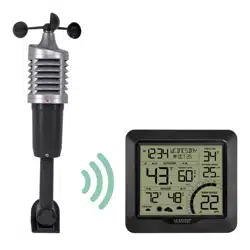
Wind Speed Station

Table of Contents
Power Up
Settings Menu
Forecast Icons
03
04
11
13
13
14
15
15
15
16
BASICS
TEMPERATURE/HUMIDITY
APPENDIX
Temperature/Humidity
Readings
Temperature/Humidty
Records
Reset Records
Trend Arrows
05
06
06
06
2
We’re Here to Help
Stay in Touch
Specifications
Warranty & Patents
Care & Maintenance
FCC Statement
Double Warranty Oer
WIND SPEED
Wind Speed Readings
Wind Speed History
Reset Wind Records
07
07
08
ALERTS
Custom Alerts
Set Alerts
Triggered Alerts
Deactivate Alerts
Frost and Storm Warnings
Activate or Deactivate
Warnings
08
08
09
09
09
10
SENSORS
Add-on Temperature/
Humidity Sensor
View Add-on Sensor
Search for Sensors
Low Battery Icon
Wind Sensor Placement
and Mounting
11
12
12
12
13
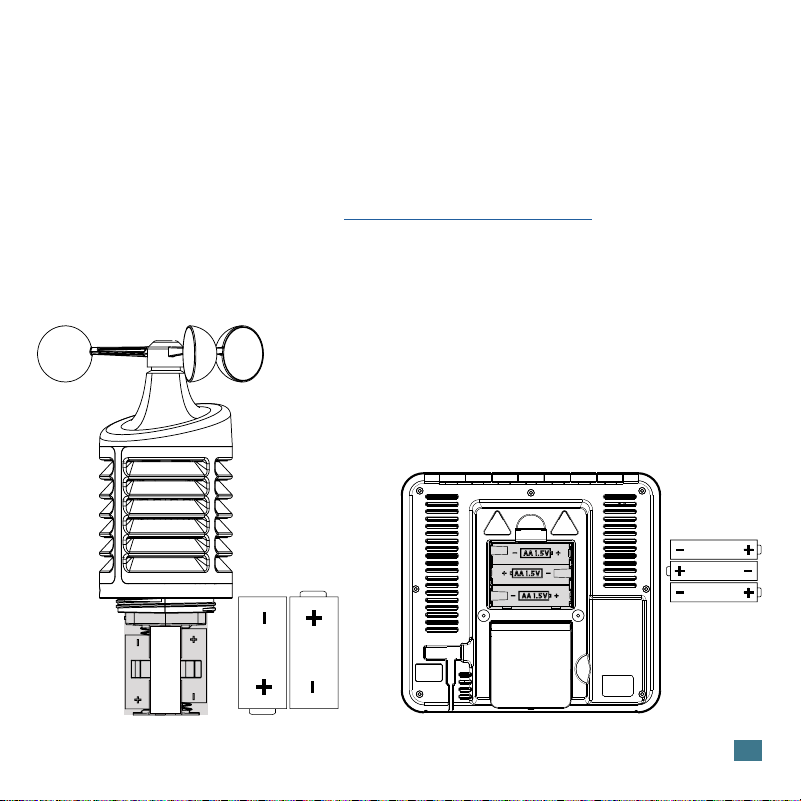
1. Insert 3 “AA” batteries into your Wind Speed Sensor.
2. Insert 2 “C” batteries into your Wind Speed Station.
3. Once both sensors are reading your station, place the sensors outside.
Watch our sensor mounting video: bit.ly/wind_sensor_mounting
Power Up
3
Wind Speed Sensor
TX141W2
CC
CC
Wind Speed Station
327-1417BW
AA
AA
AA
4
Settings Menu Order:
• Beep ON/OFF
• Hour
• Minute
• 12HR/24HR Time
• Year
• Month
• Date
• Fahrenheit/Celsius
• Wind Speed MPH or KMH
Weekday: Will set automatically when the Year, Month, and Date are set.
Settings Menu
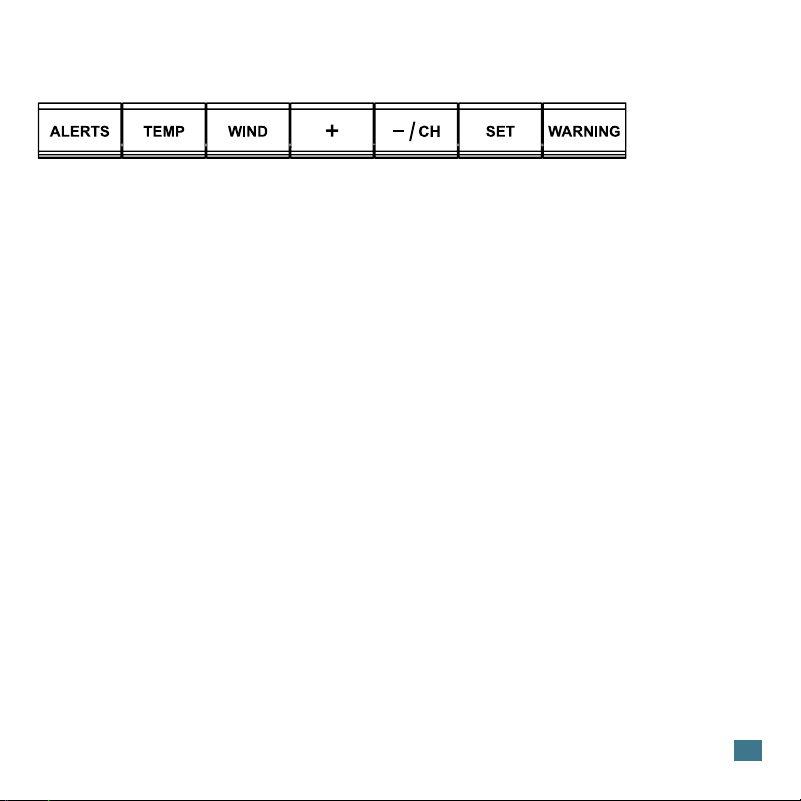
Press or hold one button at a time in the Settings Menu.
1. Hold the SET button until the display changes, to enter the Settings Menu.
2. Press and release the + or -/CH button to adjust values. Hold to adjust quickly.
3. Press and release the SET button to confirm values and move to the next setting.
4. Press and release the WARNING button at any time to save and exit.
5
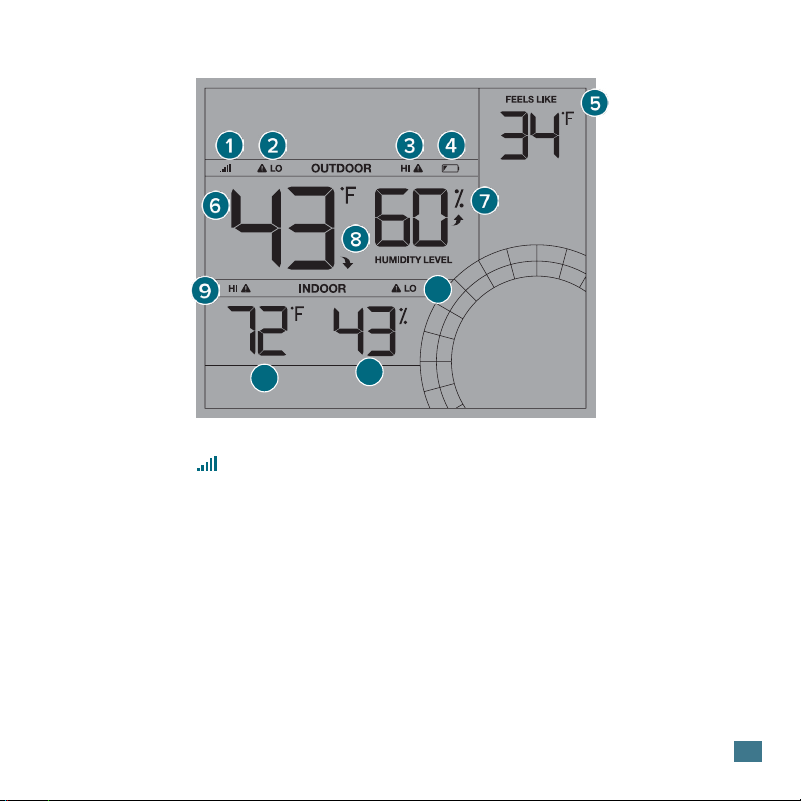
Temperature/Humidity Readings
Current Indoor Humidity.
Indicates Trisnig and falling
trends.
Current Outdoor
Temperature.
Current Outdoor Humidity.
Current Indoor Temperature.
Low Battery in TH Sensor
4. LOW BATTERY ICON 6. OUTDOOR TEMPERATURE
Indicates if the station is
receiving data from the
sensor.
1. RECEPTION ICON
8. TREND ARROWS7. OUTDOOR HUMIDITY
11. INDOOR TEMPERATURE
12. INDOOR HUMIDITY
Shows an Alert is armed.
2. TEMPERATURE ALERT
Combination of Wind
Speed and Temperature
5. FEELS LIKE TEMPERATURE
Shows an Alert is armed.
3. HUMIDITY ALERT
10
11
12
Shows an Alert is armed.
9. TEMPERATURE ALERT
Shows an Alert is armed.
10. HUMIDITY ALERT
6
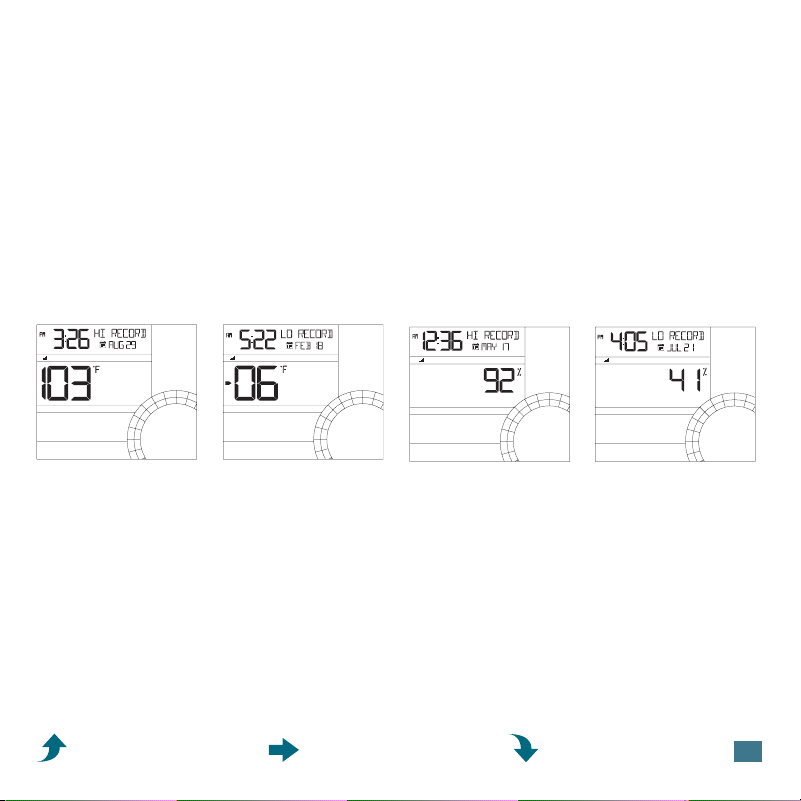
Viewing Records
Reset Temperature/Humidity Records
Records Viewing Order
Press and release the TEMP button to toggle through outdoor/indoor temperature &
humidity records with time and date stamps.
1. Press the TEMP button to view the individual temperature & humidity values
you’d like to reset.
2. Hold the MINUS (-) button until dashes appear.
3. The reading will then reset to the current value.
Outdoor High Temperature • Outdoor Low Temperature • Outdoor High Humidity
Outdoor Low Humidity • Indoor High Temperature • Indoor Low Temperature
Indoor High Humidity • Indoor Low Humidity • Feels Like High Temperature
Feels Like Low Temperature • Outdoor Dew Point (not time stamped)
Temperature/Humidity Records
Outdoor HI Temp Outdoor LO Temp.
Outdoor HI Humidity Outdoor LO Humidity
15
20
+
10
5
4
3
2
1
0
OUTDOOR
15
20
+
10
5
4
3
2
1
0
OUTDOOR
15
20
+
10
5
4
3
2
1
0
HUMIDITY LEVE L
OUTDOOR
15
20
+
10
5
4
3
2
1
0
HUMIDITY LEVE L
OUTDOOR
The arrows next to the temperature and humidity readings indicate if the
temperature (2°F / 1°C) or humidity (3%) is rising, falling, or remaining steady.
Temperature & Humidity Trend Arrows
Rising in the
past hour
Steady in the
past hour
Falling in the
past hour
7
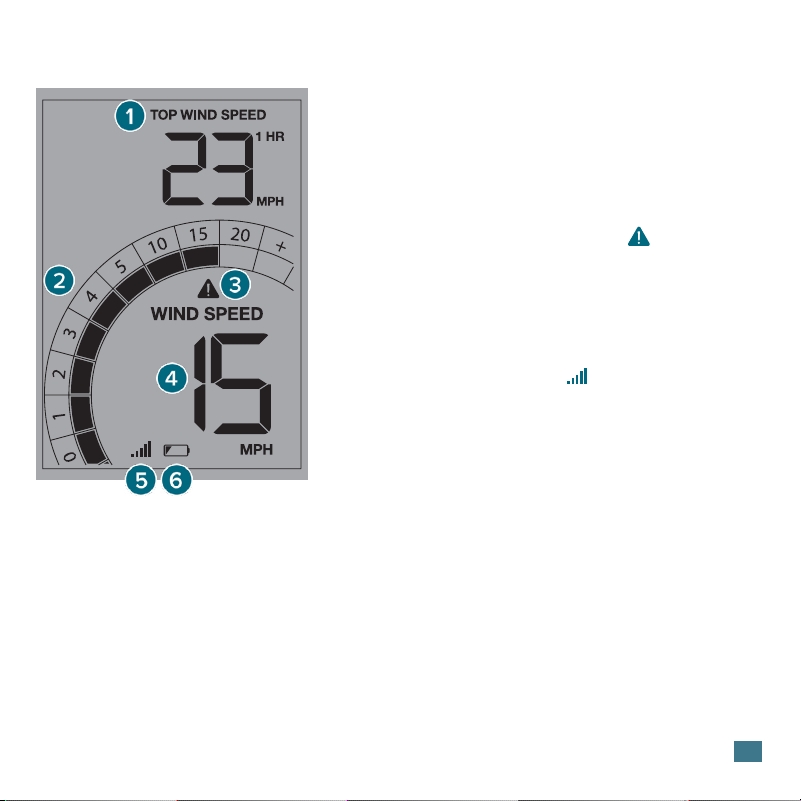
Wind Speed Readings
Indicates low battery in the Wind Sensor.
Segments will animate according to the
current wind speed.
2. WIND SPEED GRAPH
Top Wind Speed for the past 60 minutes.
1. TOP WIND SPEED
6. LOW BATTERY ICON
Current Wind Speed. Highest speed in the
past 31 seconds.
4. WIND SPEED
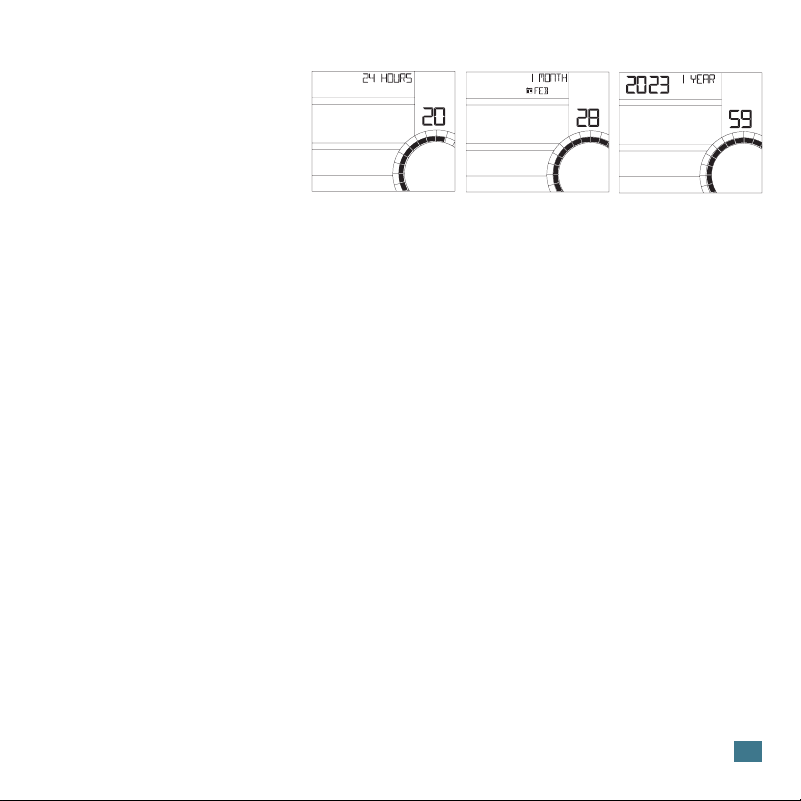
Viewing History
Press and release the WIND button to toggle through wind speed records with time
and date stamps. The station will stay on the last history viewed.
When viewing the Monthly Record, press and release the PLUS (+) button to toggle
through the current and past 11 months of top speed records.
Wind Speed History
Indicates the station is receiving data from
the Wind Sensor.
5. RECEPTION ICON
Shows an Alert is armed.
3. WIND SPEED ALERT ICON
8
1. Press and release the WIND button to view the individual wind speed record
you’d like reset.
2. Hold the MINUS(-) button until dashes appear.
3. The reading will then reset to the current wind speed value.
Reset Wind Records
This station measures high
wind speed records for the
past 1 hour, 24 hours, 7 days,
1 month, and 1 year.
Custom Alerts
This station provides custom alerts for the following measurements:
• High Wind Speed
• Outdoor Low Temperature • Outdoor High Temperature
• Outdoor Low Humidity • Outdoor High Humidity
• Indoor Low Temperature • Indoor High Temperature
• Indoor Low Humidity • Indoor High Humidity
24 Hour
Record Example
1 Month
Record Example
1 Year
Record Example
MPH
15
20
+
10
5
4
3
2
1
0
TOP WIND SPEE D
15
20
+
10
5
4
3
2
1
0
MPH
TOP WIND SPEED
15
20
+
10
5
4
3
2
1
0
MPH
TOP WIND SPEED
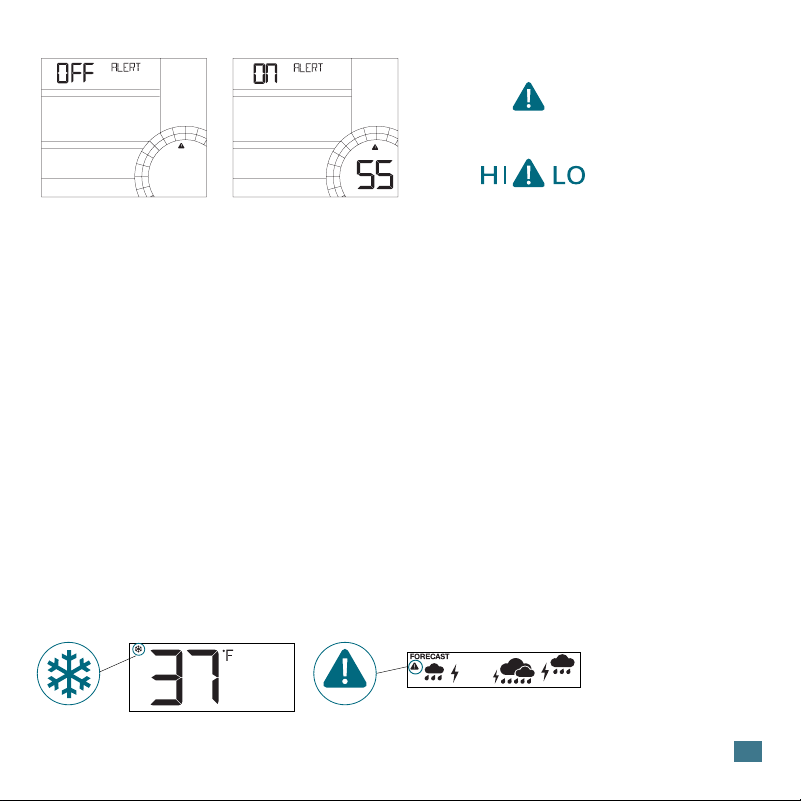
Set Alerts
1. Hold the ALERTS button to enter the Alert Settings Menu.
2. Press and release the + or -/CH button to activate/deactivate individual alerts,
or press the ALERTS button to skip to the next option.
3. Once activated, press and release the + or -/CH button to adjust the
values. Press the ALERTS button to confirm and move forward.
9
Wind Alert OFF/ON
• When an alert value is reached, the corresponding value and alert icon will
flash on screen.
• The station will beep 5 times each minute until the value moves out of the alert
range.
• Press any button to stop the alert sound.
Triggered Alerts
15
20
+
10
5
4
3
2
1
0
WIND SPEED
15
20
+
10
5
4
3
2
1
0
WIND SPEED
MPH
Temp/Humidity
Alert Icons
Wind Speed
Alert Icon
1. Hold the ALERTS button to enter the Alert Settings Menu.
2. Press and release the + or -/CH button to deactivate individual alerts.
3. Press and release the ALERTS button to confirm and exit
Deactivate Alerts
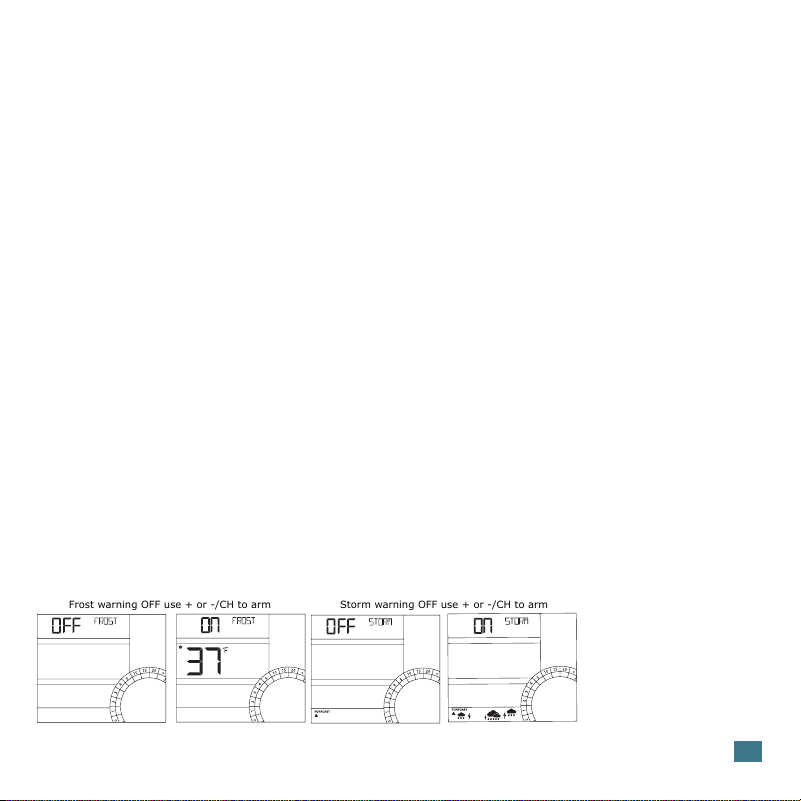
Frost and Storm Warnings
This station oers the option of active Frost and Storm alerts. Simply activate the alerts to use
them.
CH
1
Frost Warning Storm Warning
10
Frost Warning:
• When the outdoor temperature is between: 28 °F to 37 °F (-2 °C to 3 °C),
and the frost warning is active a Frost Warning will alert you with a flashing
snowflake icon and the station will sound.
• Outside of this range the frost warning is not active.
• Weather station will beep 5 times each minute, for 5 minutes. After 5 minutes the
Frost Warning Icon will flash until frost warning is out of range.
Storm Warning:
• When the barometric pressure drops more than 2.5hPa in a 3 hour period, the
storm warning will flash and the station will sound.
• The storm warning icon (alert triangle) will flash storm and storm icons
(clouds, rain, lightning) will flash and sound for 1 minute.
• After 1 minute the warning icon will flash for a period of 1 hour.
• Press any button to stop the sound. Storm Warning Icon will still flash.
Activate or Deactivate Warnings
1. Hold the WARNING button to view Warning Options.
2. Press and release the + or -/CH button to activate/deactivate Frost and Storm
Warnings.
3. Press and release the WARNING button to confirm.
Note: The Warning Values are not programmable. You can only activate or deactive
the warning.
CH
1
CH
1
Frost warning OFF use + or -/CH to arm
Storm warning OFF use + or -/CH to arm
Note: When setting FROST alerts for channels 2 & 3, user will select channel (1, 2, 3) first, then
select outdoor alert.
Forecast Icons
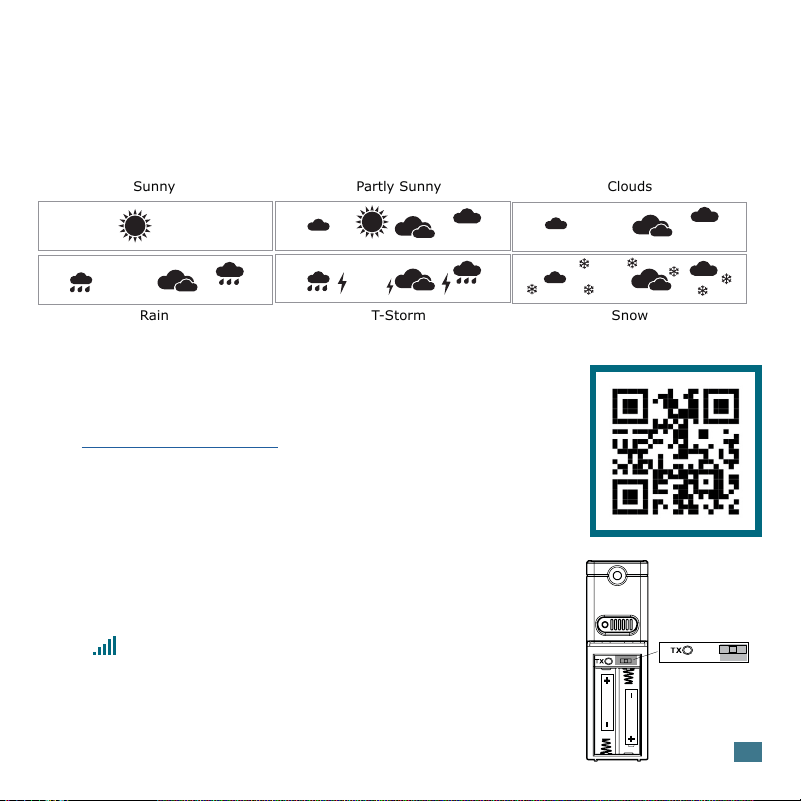
Your station uses changing atmospheric pressure to predict weather conditions for
the next 12-hours. When the outdoor temperature is below 32°F and the forecast is
Rain or T-Storm, the station will show Snow.
Note: Above 6,200 feet your forecast icons may not change.
FORECAST
FORECAST
FORECAST
FORECAST
FORECAST
FORECAST
Sunny
Partly Sunny
Clouds
Rain
T-Storm
Snow
Add-on Temperature/Humidity Sensors
Visit bit.ly/327-1417bw_parts or scan the QR code to
find and purchase up to two compatible add-on sensors.
Purchase Add-on Sensor TX141TH-BCH (any version)
Add a Temperature/Humidity Sensor to Station:
1. Install batteries into your Sensor.
2. Select Channel 2 or 3 on the sensor.
3. Hold the TEMP button on the station until the Reception
Icon starts to animate. This will start a search for all
sensors.
4. Your sensor should connect within the next few minutes.
Channel
Selector
1 2 3
AA
AA
11
View Add-on Temperature/Humidity Sensors
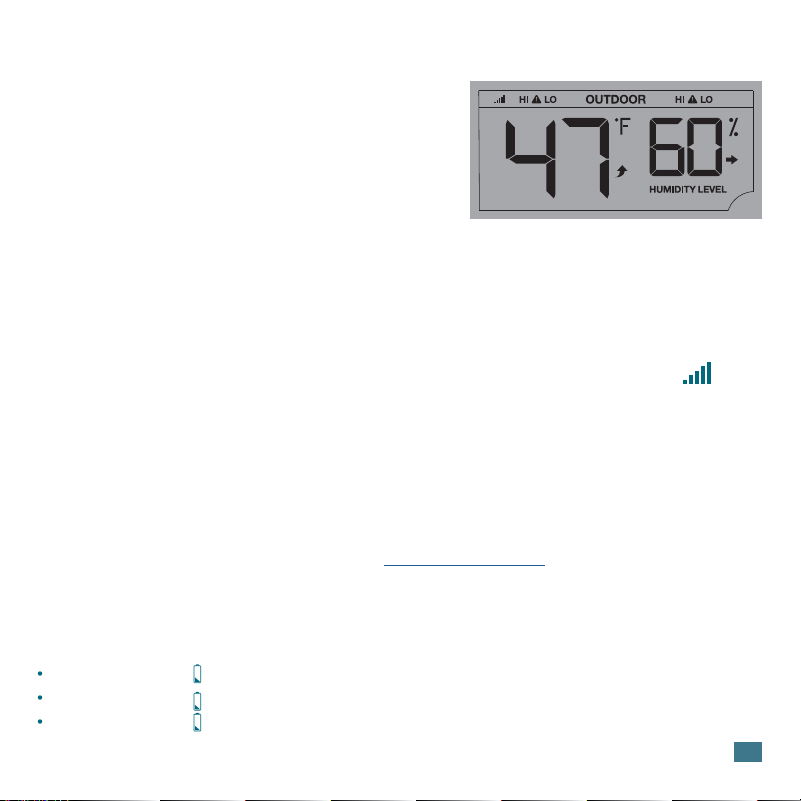
• Press the -/CH button to toggle between
remote sensor channels when multiple
sensors are used.
• Channels are indicated with CH 1, CH 2, or
CH 3, in the outdoor temperature area.
• CH 1 is reserved for the Temperature/Humidity
from your Wind Speed Sensor.
CH
2
If you are seeing dashes for any sensor readings, please try the following steps:
1. Hold the WIND button to search for your Wind Sensor. Hold the TEMP button
to search for all Temperature/Humidity Sensors. The Reception Indicator will
begin to animate.
2. If after 3 minutes the sensor still isn’t connected, hold the WARNING and
ALERTS buttons together to factory reset the station.
3. If your sensor data is still not appearing after these steps, please contact our
support sta. For additional help visit: bit.ly/basic_restart.
Search for Sensors
Low Battery Icons
Low Battery Icon by Time, replace batteries in the Station.
Low Battery Icon by the Wind replace batteries in the Wind Sensor.
Low Battery Icon by Outdoor Humidity, replace batteries in the add-on
Temperature/Humidity Sensor.
12
13
Sensor Placement & Mounting
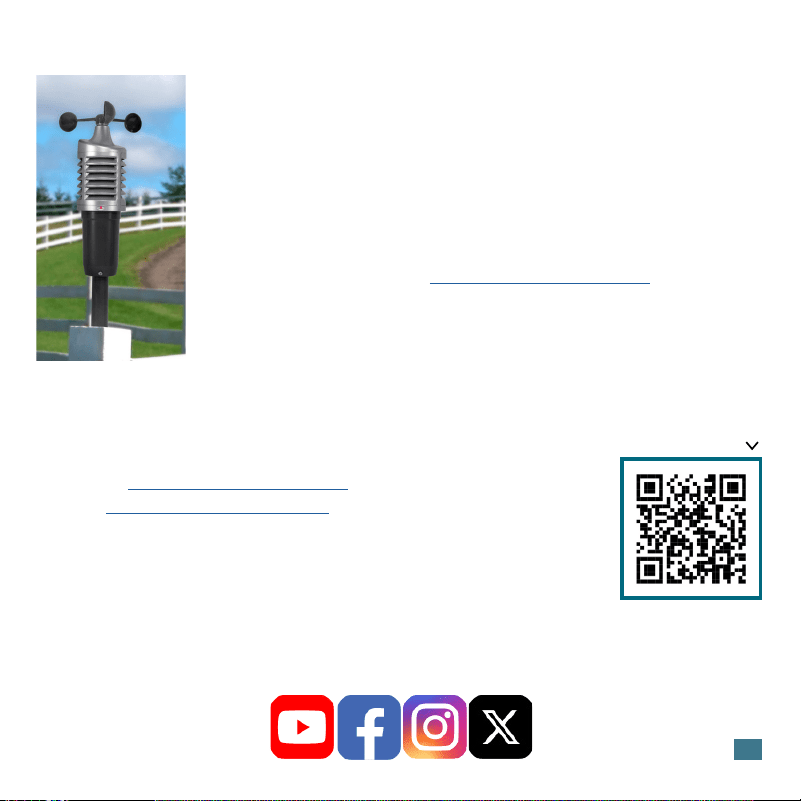
• Ideally, the sensor should be mounted on the tallest object in your
area. Avoid positioning it parallel or below eaves, rooflines, trees, or
other objects that may obstruct wind readings.
• Make sure all the screws on the Mounting Bracket, Wind Cups, and
Battery compartment are securely fastened.
• The sensor should be mounted with the Wind Cups on top.
• For more information visit: bit.ly/wind_sensor_mounting
• The maximum wireless transmission range to the station is up to 330ft
(100m) in open air. This does not include walls, floors, or other large
obstructions.
For Accurate Wind Sensor Measurements
If you require additional assistance, get in touch with our friendly
customer support team based in La Crosse, WI.
Self Help: bit.ly/327-1417bw_support
Online: bit.ly/contact_techsupport
Phone: 1.608.782.1610
Our knowledgable customer support team is available:
Mon-Fri 8am-6pm CST
We’re Here to Help
SCAN HERE
Additional Info
and Support
Stay in Touch!
Ask questions, watch set up videos, and provide feedback on our social media
outlets. Follow La Crosse Technology on Youtube, Facebook, Instagram, and
X (Twitter).
14
TH Sensor (TX141Wv2)
Wind Speed Range:
0-111.8 mph (0-180 kMh)
Temperature Range:
-40°F to 140°F (-40°C to 60°C)
Humidity Range: 10% - 99% RH
Transmission Range:
Over 330 feet (100 meters) in
open air RF 433MHz
Update Interval:
About every 30 seconds
Power:
2-C, IEC, LR14 batteries (not included)
Battery Life: 24+ months
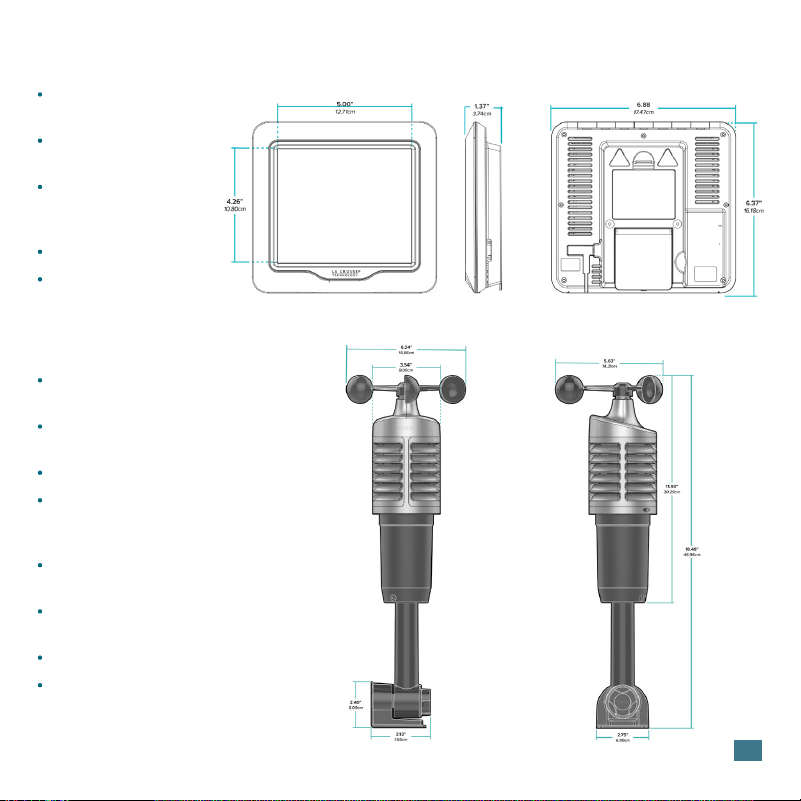
Dimensions: Without Bracket
6.24 in L x 6.24 in W x 11.93 in H
(15.86cm L x 15.86cm W x 30.29cm H)
Weather Station (327-1417BW)
Temperature Range:
32ºF to 122ºF (0ºC to 50ºC)
Humidity Range:
10% - 99% RH
Power:
3-AA, IEC, LR6 batteries
(not included)
Battery Life: 12+ months
Dimensions:
6.88in L x 1.37in W x 6.37in H
(17.47cm L x 3.74cm W x 16.18cm H)
Specifications
Designed in La Crosse, Wisconsin • Made in China • Printed in China • DC062124
This equipment has been tested and found to comply with the limits for a Class B digital device, pursuant to part 15 of the FCC Rules. These limits are
designed to provide reasonable protection against harmful interference in a residential installation. This equipment generates, uses and can radiate
radio frequency energy and, if not installed and used in accordance with the instructions, may cause harmful interference to radio communications.
However, there is no guarantee that interference will not occur in a particular installation. If this equipment does cause harmful interference to radio or
television reception, which can be determined by turning the equipment o and on, the user is encouraged to try to correct the interference by one or
more of the following measures:
Reorient or relocate the receiving antenna.
Increase the separation between the equipment and receiver.
Connect the equipment into an outlet on a circuit dierent from that to which the receiver is connected.
Consult the dealer or an experienced radio/TV technician for help.
This device complies with Part 15 of the FCC Rules. Operation is subject to the following two conditions:
(1) This device may not cause harmful interference, and
(2) This device must accept any interference received, including interference that may cause undesired operation.
Caution!
Any changes or modifications not expressly approved by the party responsible for compliance could void the user’s authority to operate the equipment.
All rights reserved. This manual may not be reproduced in any form, even in part, or duplicated or processed using electronic, mechanical or chemical
process without the written permission of the publisher. This booklet may contain errors or misprints. The information it contains is regularly checked
and corrections are included in subsequent editions. We disclaim any responsibility for any technical error or printing error, or their consequences. All
trademarks and patents are recognized. The manufacturer is not responsible for any radio or TV interference caused by unauthorized changes or
modifications to this equipment. Such changes or modifications could void the user authority to operate the equipment.
FCC Statement
Care & Maintenance
When batteries of dierent brand or type are used together, or new and old batteries are used together, some batteries may
be over-discharged due to a dierence of voltage or capacity. This can result in venting, leakage, and rupture and may cause
personal injury.
• Do not mix Alkaline, Lithium, standard, or rechargeable batteries.
• Always purchase the correct size and grade of battery most suitable for the intended use.
• Always replace the whole set of batteries at one time, taking care not to mix old and new ones, or batteries of dierent
types.
• Clean the battery contacts and also those of the device prior to battery installation.
• Ensure the batteries are installed correctly with regard to polarity (+ and -).
• Remove batteries from product during periods of non-use. Battery leakage can cause corrosion and damage to this item.
• Remove used batteries promptly.
• For recycling and disposal of batteries, and to protect the environment, please check the internet or your local phone
directory for local recycling centers and/or follow local government regulations.
15
WARNING: This product can expose you to chemicals including acrylonitrile, 1, 3-butadiene, and
styrene, which are known to the State of California to cause cancer and birth defects or other
reproductive harm. For more information go to: www.P65Warnings.ca.gov
Warranty & Patents
La Crosse Technology Ltd. provides a 1-year limited-time warranty on this product relating to manufacturing defects in
materials & workmanship. Per the Song-Beverly Act, in the state of California, the warranty on this item becomes effective on
the date of delivery. La Crosse Technology, Ltd, 2830 S. 26th St., La Crosse, WI 54601
For Full Warranty Details, Visit: www.lacrossetechnology.com/pages/warranty
Patents: www.lacrossetechnology.com/pages/patents