SET UP GUIDE
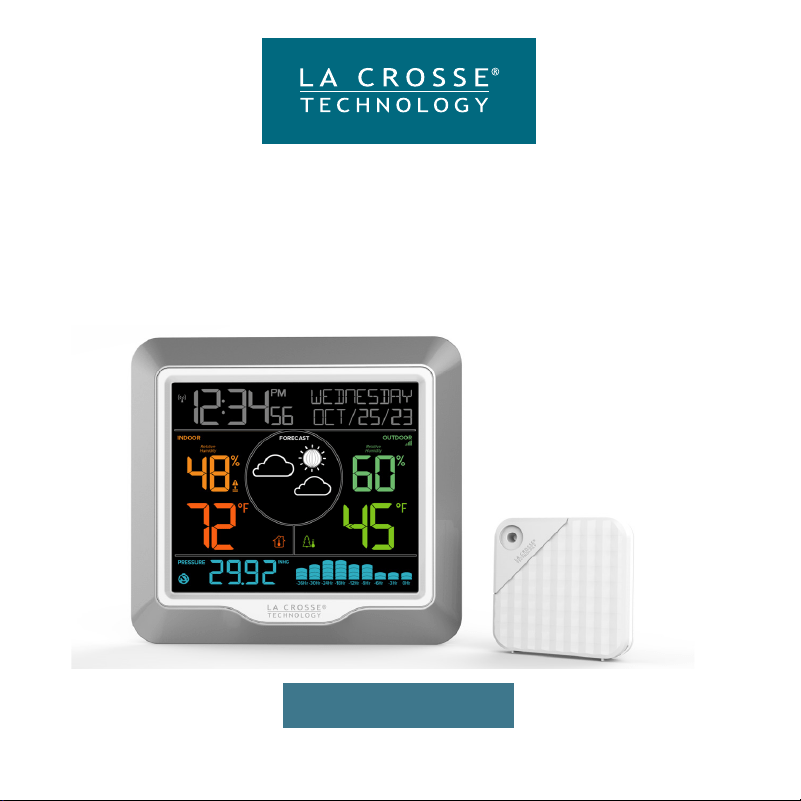
MODEL: M73170
Wireless Color
Weather Station

Table of Contents
Power Up
Atomic Time
Settings Menu
Adjustable Backlight
Auto-Dim Settings
Forecast Icons
Forecast Animation
Pressure History Graph
Pressure Number
Moon Phase
03
03
04
05
05
06
07
08
08
09
12
13-14
14
14
15
15
15
16
BASICS
TEMPERATURE/HUMIDITY
APPENDIX
Temperature & Humidity
Icons
History Records
Heat Index and Dew Point
Customizable Alerts
Search for Outdoor
Sensor
09
10
10
11
12
2
Care & Maintenance
Specifications
Stay In Touch
We’re Here to Help
Warranty & Patents
California Statement
FCC Statement
Double Warranty Oer
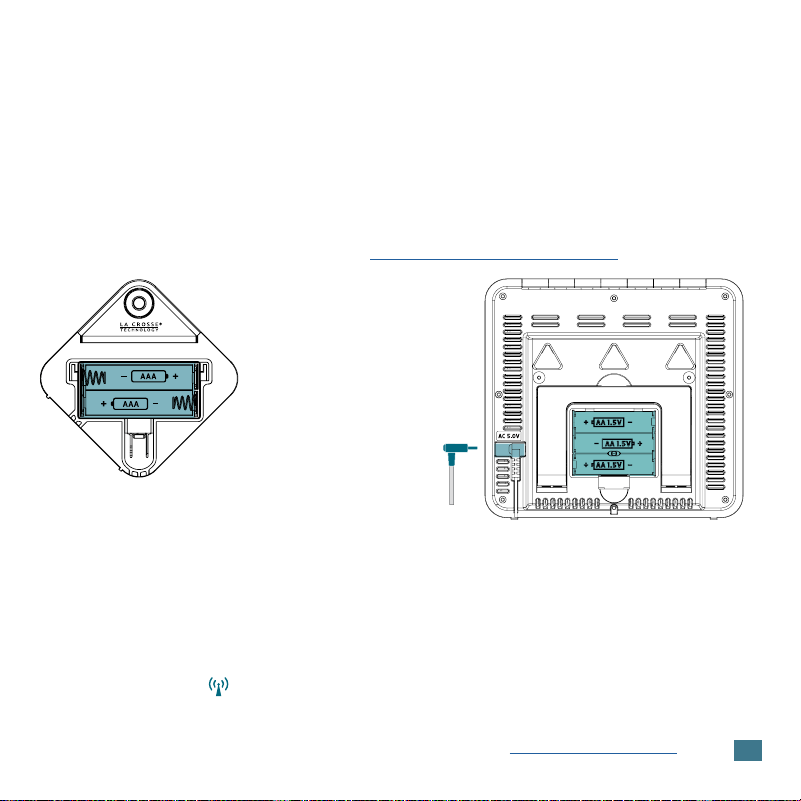
1. Insert 2-AAA batteries into your Outdoor Sensor.
2. Insert the 5V Power Adapter into an outlet, and then plug it into the
Power Jack on the back of the station. Optional: Insert 3 -AA batteries to
backup time and date.
3. Once the sensor is reading your station, place it outside in a shaded
location to protect it from the sun’s heat.
Watch our sensor mounting video: bit.ly/th_sensor_mounting
Outdoor Sensor
TX147TH
Power Up
3
Weather Station
M73170
• Your station will automatically search for the Atomic Time Signal at UTC
7:00, 8:00, 9:00, 10:00, and 11:00.
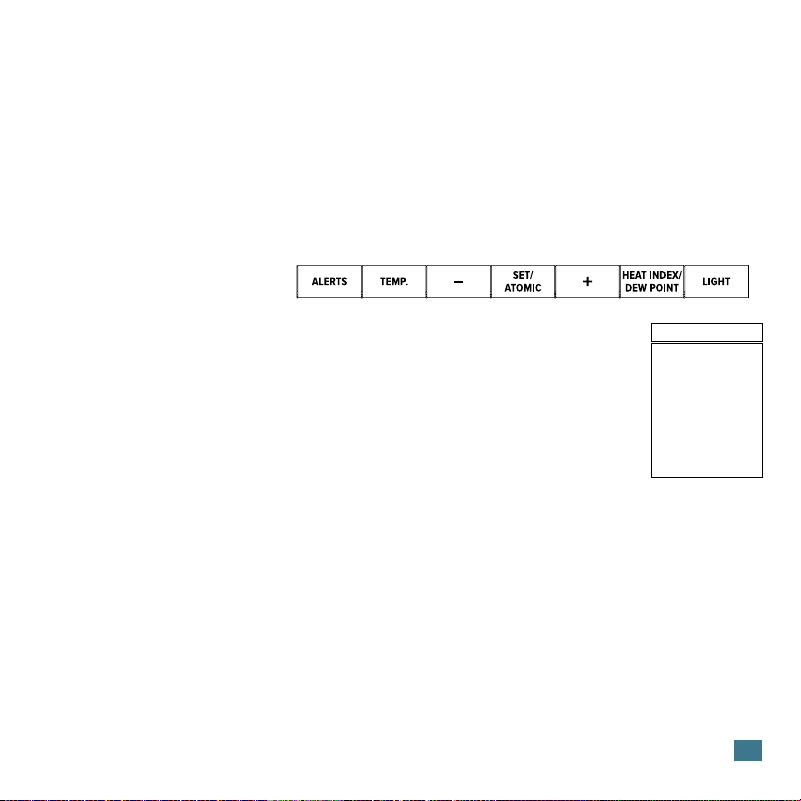
• Press and release the SET/ATOMIC button to manually start or stop a
search for the WWVB Atomic Time Signal.
• The Tower Icon will flash while searching, and remain solid on screen
when the WWVB Signal is received.
• For information about WWVB Atomic Time visit: bit.ly/atomic_time
Atomic Time
4
Settings Menu
1. Hold the SET/ATOMIC button until the display changes to enter the
Settings Menu.
2. Press and release the +/- buttons to adjust values.
3. Press and release the SET/ATOMIC button to confirm values and move
to the next setting.
4. Press and release the LIGHT button at any time to save and exit.
Settings Menu Order:
• Greeting
• Language
(English, Spanish, French, German)
• Beep ON/OFF
• Atomic ON/OFF
• DST: AUTOMATIC DST / NO DST / ALL YEAR DST
(Change Spring/Fall) / (Standard Time all year) / (DST all year)
• Time Zone
• 12HR/24HR Time
• Hour
• Minute
• Seconds
• Year
• Month
• Date
• Fahrenheit/Celsius
• Decimal ON/OFF
(Temperature Reading)
• Pressure: InHg / hPa
• Pressure number setting
• Thank you
7 Time Zones
ATLANTIC
EASTERN
CENTRAL
MOUNTAIN
PACIFIC
ALASKA
HAWAII
Language: The language selected in this menu will control
other menu items, as well as your full weekday readout.
Atomic OFF: When Atomic OFF is selected, you will move
directly to 12/24 Hour setting.
DST: Select Automatic ON for correct daylight saving time
adjustments.
Weekday: Will set automatically when your Year, Month, and
Date are set.
5
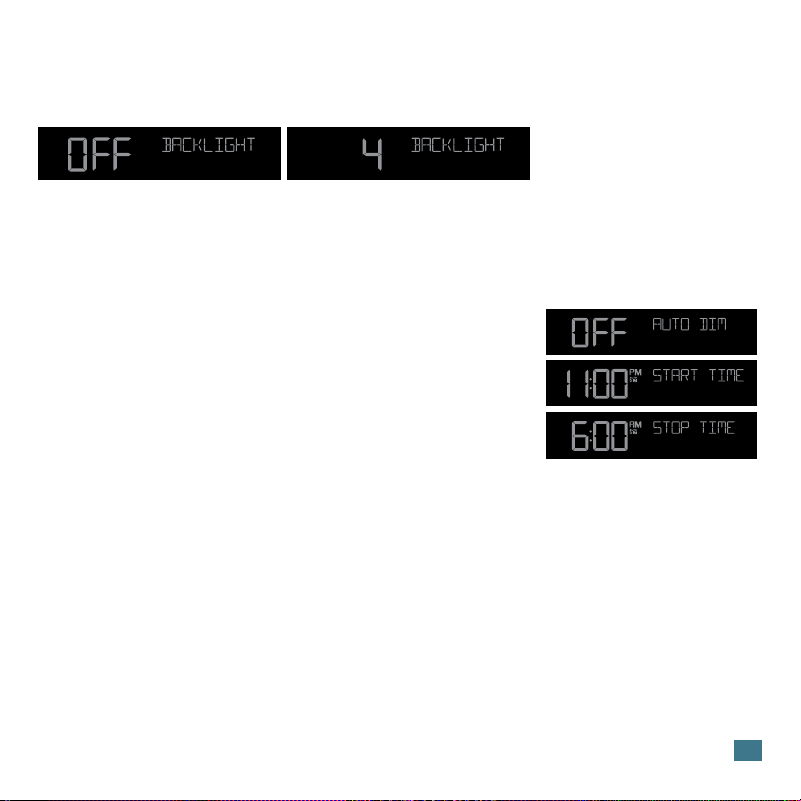
• Press and release the LIGHT button to adjust the backlight intensity.
• There are 4 brightness levels, plus an o option.
Adjustable Backlight
Auto-Dim Settings
1. Hold the LIGHT button until the display changes
to enter the Auto-Dim Settings Menu.
2. Press and release the +/- buttons to turn the
Auto-Dim feature on or o. Press LIGHT to
confirm.
3. Press and release the +/- buttons to adjust the
starting hour. Press LIGHT to confirm.
4. Press and release the +/- buttons to adjust the
stopping hour. Press LIGHT to confirm and exit.
Note: Only the starting and stopping hours can be
set.
Program your display to automatically dim during
preselected times.
6
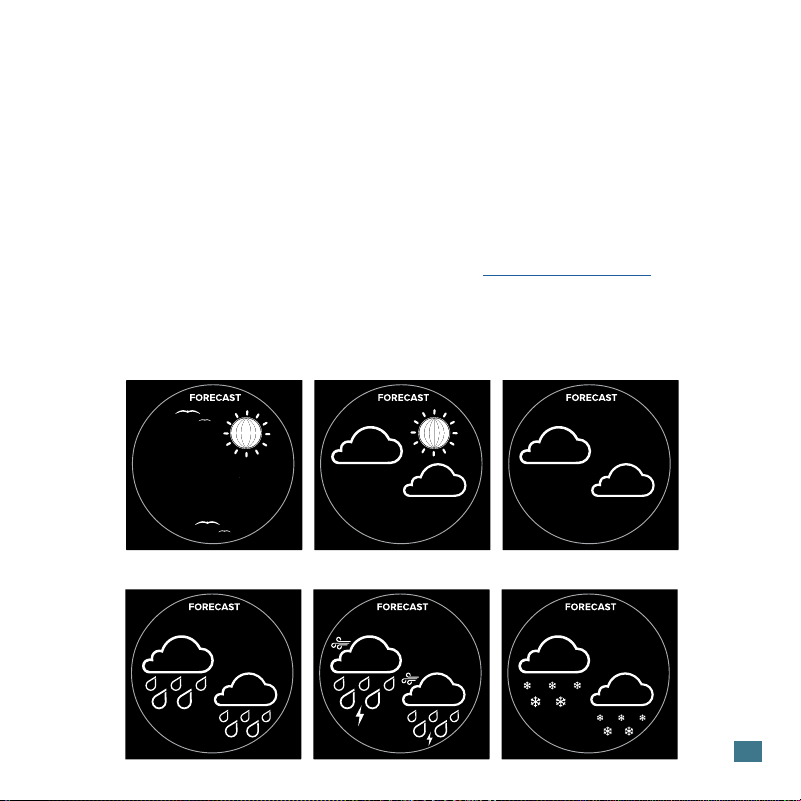
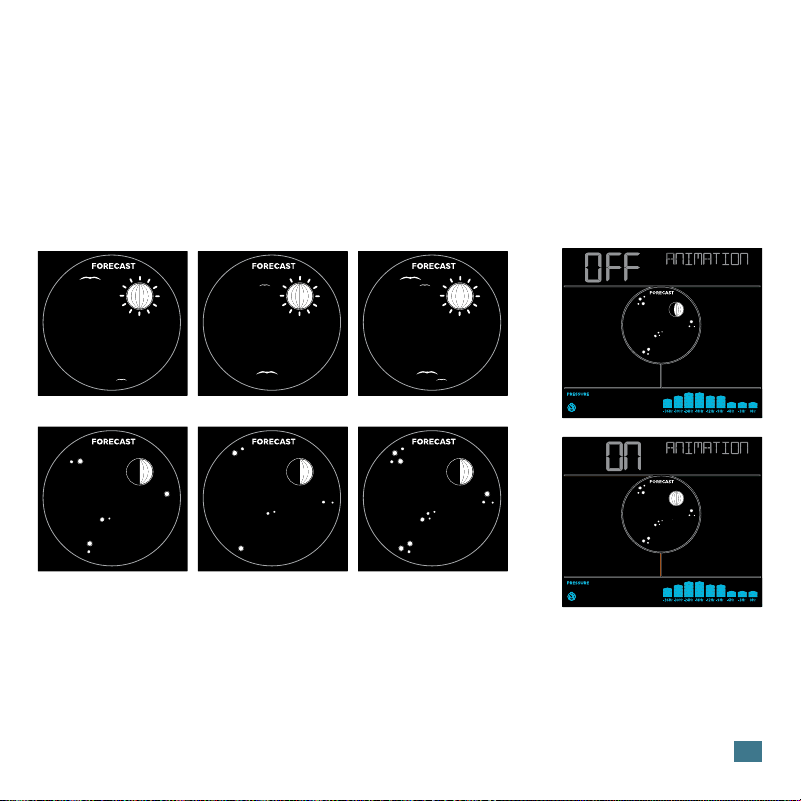
• The forecast icons use the station’s internal barometer to predict
conditions to come within the next 12 hours.
• For the most accurate forecasts, allow 7-10 days for station calibration.
• The Snow Icon will show when temperatures are below 32°F (0°C) and
rain or storms are predicted.
• When the forecast is Sunny or Clear you will see Animated Birds from
7:00am to 6:59pm and Animated Stars from 7:00pm to 6:59am.
• For more info on how these icons work, visit: bit.ly/forecast_vid
Note: At elevations above 6,200 feet your forecast icons may not change.
Forecast Icons
SnowT-Storms
Rain
Sunny
Clouds
Partly Cloudy
7
Animation Sequence
Birds 7:00am to 6:59pm with sunny forecast.
Stars 7:00pm to 6:59am with clear nighttime forecast.
Forecast Animation
When a sunny or clear forecast is predicted, you will see:
Animated Birds between 7:00am-6:59pm or Animated Stars from
7:00pm-6:59am. The animation will be in 3 stages and last for 2 seconds
each then repeat.
Turn animation off:
• Press and relase the + (PLUS) button to turn animation off.
• Press and release the + (PLUS) button again to turn animation on.
• This will affect animation on the Pressure History Graph as well.
Note: When the animation is off, the Pressure History Graph will not scroll
and all birds or stars will be solid during sunny or clear predictions.
8
Pressure Number
Your Relative Pressure reading will come from your station’s internal barometer.
Allow up to 10 days for automatic calibration or set the pressure number manu-
ally within the station’s Settings Menu.
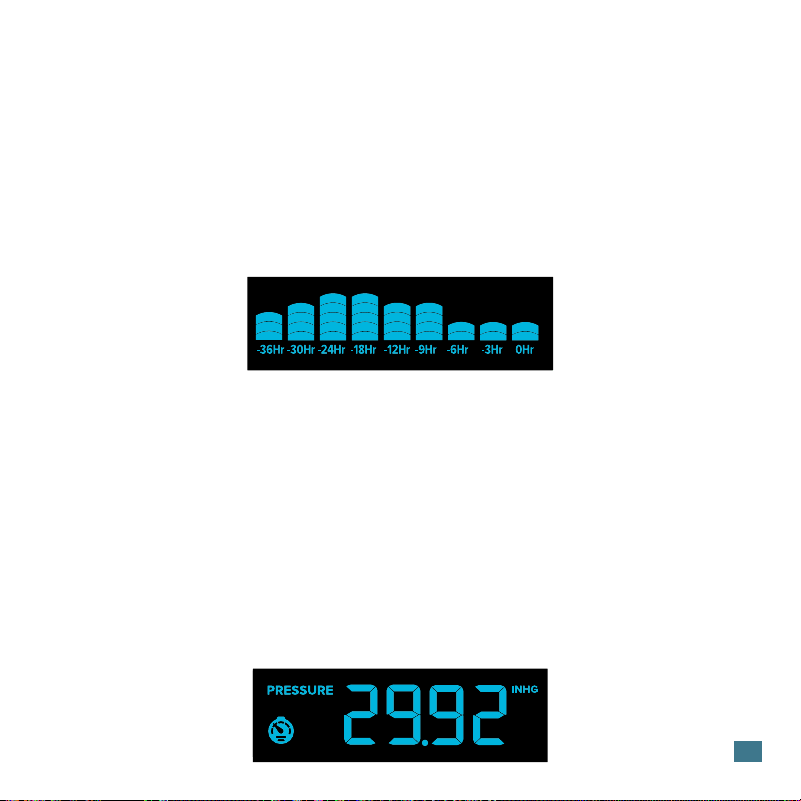
Pressure History Graph
• Read from left to right, the Pressure History Graph indicates the rise and
fall in air pressure over the past 36 hours.
• The “0Hr” on the horizontal axis indicates the current hour, thus the
current air pressure also.
• At every full hour, the current air pressure is used as a basis for the
display of a new graph bar.
Pressure
Scrolling Graph
• The graph will scroll continually to provide visual interest.
• Press and relase the + (PLUS) button to turn the scrolling (animation) o.
• Press and release the + (PLUS) button again to turn the scrolling
(animation) on.
• This will aect the animation of Birds and Stars as well.
9
The moon phase is based on the Lunar
Calendar and the year, month, and date
settings. Moon Phase will show from
7:00pm to 6:59am regardless of the
forecast.
Moon Phase
Full
Moon
New Moon
Small Waning
Crescent
Large Waxing
Gibbous
Large Waning
Crescent
Small Waxing
Gibbous
Last
Quarter
First
Quarter
Small Waning
Gibbous
Large Waxing
Crescent
Large Waning
Gibbous
Small Waxing
Crescent
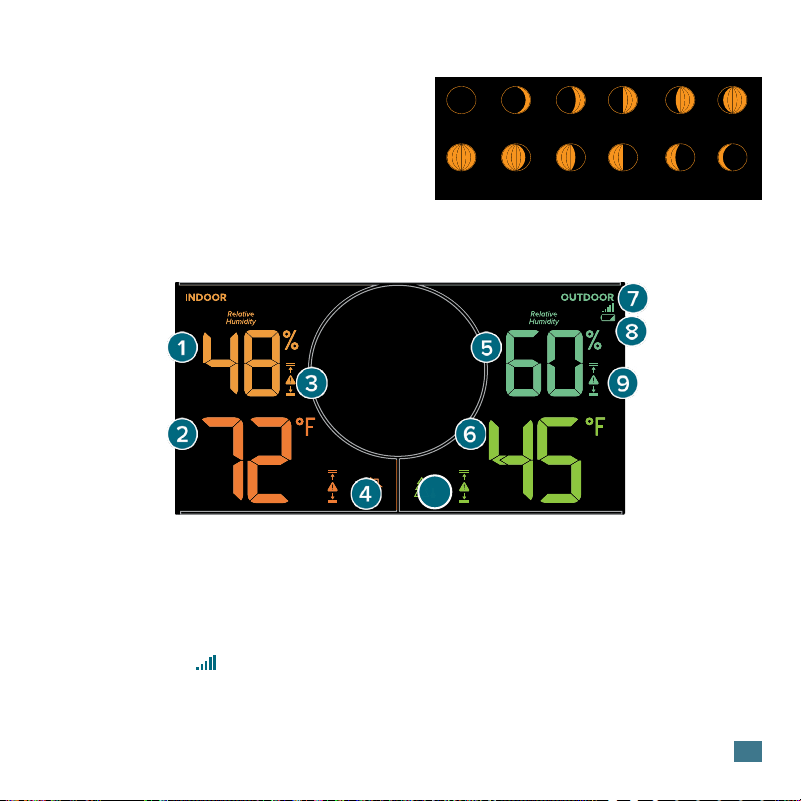
Temperature & Humidity Icons
10
Current Indoor Humidity.
Shows an Alert is armed.
Current Outdoor Temp.
Current Outdoor Humidity.
Current Indoor Temp.
Low Battery in
Outdoor Sensor
8. LOW BATTERY ICON
6. OUTDOOR TEMPERATURE
Indicates if the station is
receiving data from the sensor.
7. RECEPTION ICON
3. HUMIDITY ALERT ICONS
5. OUTDOOR HUMIDITY
2. INDOOR TEMPERATURE 1. INDOOR HUMIDITY
Shows an Alert is armed.
10. TEMP. ALERT ICONS
Shows an Alert is armed.
4. TEMP. ALERT ICONS
Shows an Alert is armed.
9. HUMIDITY ALERT ICONS
10
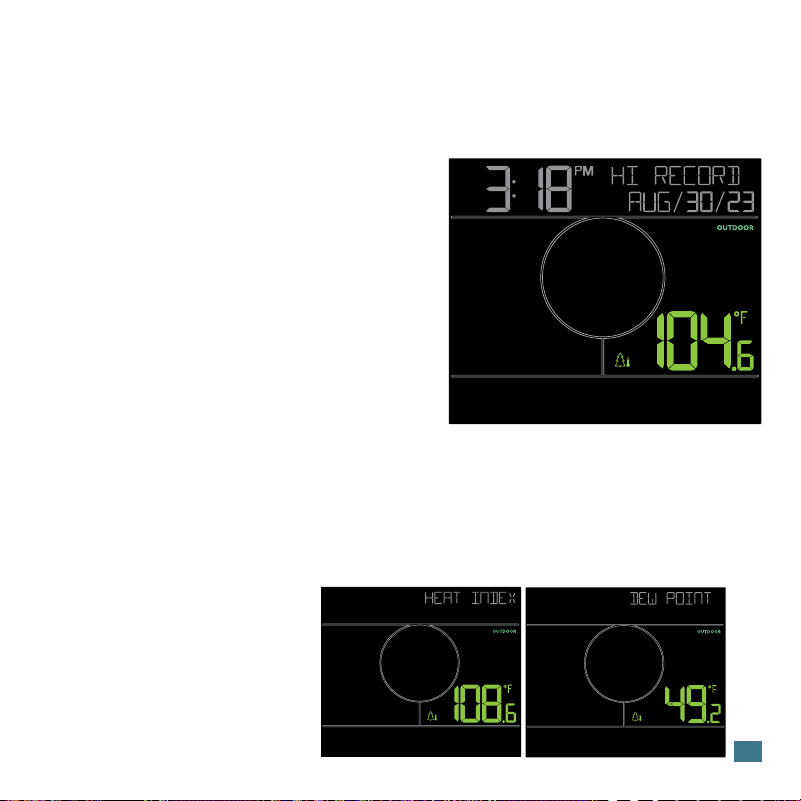
History Records
From normal time display, press and release the TEMP button to toggle
through indoor/outdoor temperature and humidity records with time and
date stamps.
Records Viewing Order
• Outdoor High Temperature
• Outdoor Low Temperature
• Outdoor High Humidity
• Outdoor Low Humidity
• Indoor High Temperature
• Indoor Low Temperature
• Indoor High Humidity
• Indoor Low Humidity
Resetting Individual Records
1. Press and release the TEMP button to view the value you’d like reset.
2. Hold the (-) MINUS button until dashes appear, indicating that value has
been reset to your current readings.
Heat Index and Dew Point Temperature
Press and release the
HEAT/DEW button to view
Outdoor Heat Index and
Dew Point Temperature.
11
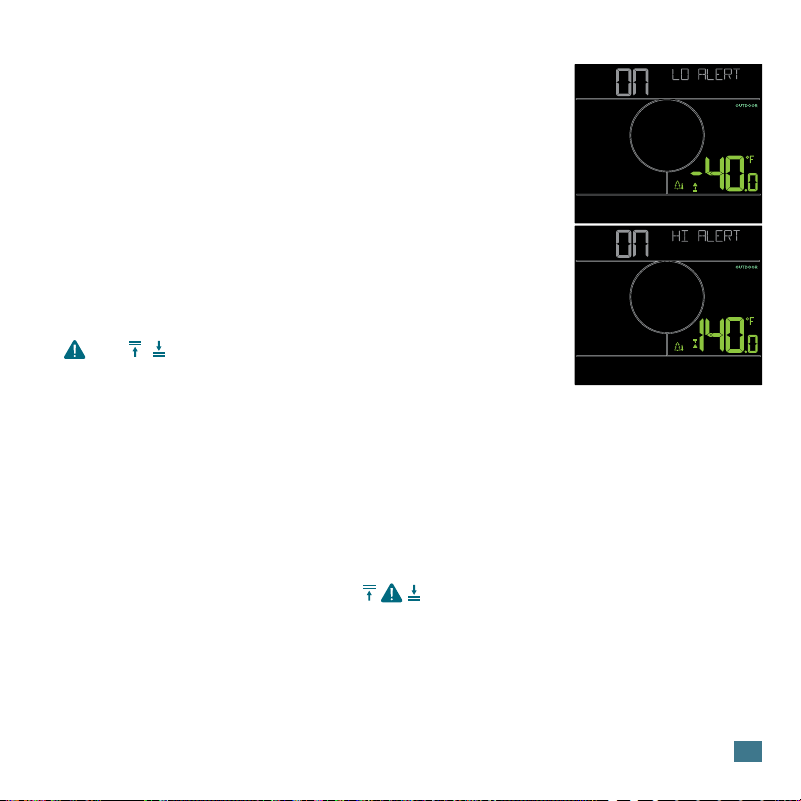
Customizable Alerts
Alerts Setting Order
Outdoor Low Temperature • Outdoor High Temperature • Outdoor Low Humidity
Outdoor High Humidity • Indoor Low Temperature • Indoor High Temperature
Indoor Low Humidity • Indoor High Humidity
Activating/Deactivating Alerts
• When an alert value is reached, the station will beep 5 times each minute until
out of the alert range. Press any button to stop the alert sound.
• The Alert Icon will remain flashing until out of the alert range.
Alert Sounds
Setting Custom Alerts
1. Hold the ALERTS button until the display
changes to enter the Alert Settings Menu.
2. Press and release the +/- buttons to
activate/deactivate and adjust alerts
settings. Press ALERTS to confirm your
selection.
3. Your programmed alerts are active when the
and / icon appear on the LCD.
When in the Alerts Settings Menu, use the +/- buttons to activate or
deactivate alerts. Indicated by the Alert Icons in that section.

12
If you are seeing “NO” or dashes for your outdoor readings, please try the
following steps:
1. Hold the TEMP button to search for your outdoor sensor. The Reception
Indicator will begin to animate.
2. If after 3 minutes the sensor still isn’t connected, bring the sensor inside,
install fresh batteries, then hold the ALERTS and LIGHT button together
to restart the station.
3. If your outdoor data is still not appearing after these steps, please
contact our support sta. For additional help visit: bit.ly/basic_restart
Search for Outdoor Sensor
When batteries of dierent brand or type are used together, or new and old batteries are
used together, some batteries may be over-discharged due to a dierence of voltage or
capacity. This can result in venting, leakage, and rupture and may cause personal injury.
• Do not mix Alkaline, Lithium, Standard, or Rechargeable battteries.
• Always purchase the correct size and grade of battery most suitable for the intended
use.
• Always replace the whole set of batteries at one time, taking care not to mix old and
new ones, or batteries of dierent types.
• Clean the battery contacts and also those of the device prior to battery installation.
• Ensure the batteries are installed correctly with regard to polarity (+ and -).
• Remove batteries from product during periods of non-use. Battery leakage can cause
corrosion and damage to this product.
• Remove used batteries promptly.
• For recycling and disposal of batteries, and to protect the environment, please check
the internet or your local phone directory for local recycling centers and/or follow local
government regulations.
Care & Maintenance
13
Weather Station (M73170)
Temperature Range: 32ºF to 122ºF (0ºC to 50ºC)
Humidity Range: 10% - 99% RH
Relative Pressure Range: 23.62 to 32.48 inHg (800 to 1100 hPa)
Power Requirements: 5-volt power adapter (included) GPU280500150WAOO
The plug on the power adapter is intended to serve as the disconnect device, the socket-
outlet shall be installed near the equipment and shall be easily accessible.
Battery Backup: 3-AA batteries (not included)
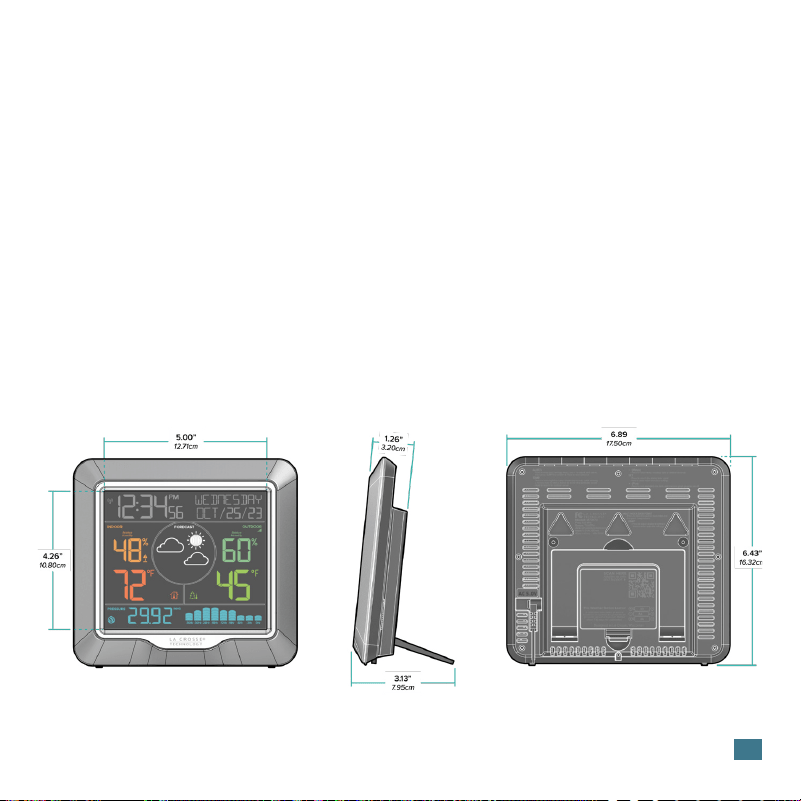
Dimensions: 6.89 in. L x 3.13 in. W x 6.43 in. H (17.50cm L x 7.95 cm W x 16.32 cm H)
Specifications
Designed in La Crosse, Wisconsin • Made in China • Printed in China • DC 051523
14
Outdoor Sensor (TX147TH)
Power Requirements: 2 “AAA” batteries (not included)
Battery Life: Up to 12 months
Temperature Range: -40ºF to 140ºF (-40ºC to 60ºC)
Humidity Range: 10% to 99% RH
Transmission Range: 330 feet (100meters)
open air, 433MHz
Update Interval: About every 51 Seconds.
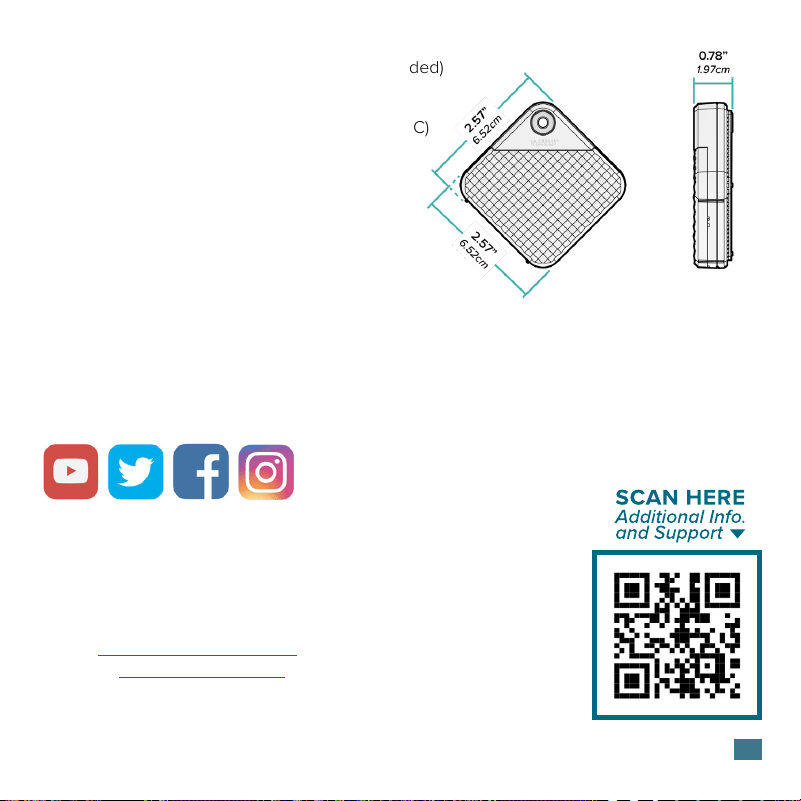
Dimensions: 2.57” L x 0.78” W x 2.57” H
(6.52cm L x 1.97cm W x 6.52cm H)
Ask questions, watch setup videos, and provide feedback on our social media outlets. Follow
La Crosse Technology on YouTube, Twitter, Facebook and Instagram.
Stay in Touch!
If you require additional assistance, get in touch with our friendly
customer support team based in La Crosse, WI.
Phone: 1.608.782.1610
Online: bit.ly/contact_techsupport
Self Help: bit.ly/m73170_support
Our knowledgable customer support team is available:
Mon-Fri 8am-6pm CST
We’re Here to Help

15
This equipment has been tested and found to comply with the limits for a Class B digital device, pursuant to part 15 of the FCC
Rules. These limits are designed to provide reasonable protection against harmful interference in a residential installation.
This equipment generates, uses and can radiate radio frequency energy and, if not installed and used in accordance with the
instructions, may cause harmful interference to radio communications. However, there is no guarantee that interference will
not occur in a particular installation. If this equipment does cause harmful interference to radio or television reception, which
can be determined by turning the equipment o and on, the user is encouraged to try to correct the interference by one or
more of the following measures:
Reorient or relocate the receiving antenna.
Increase the separation between the equipment and receiver.
Connect the equipment into an outlet on a circuit dierent from that to which the receiver is connected.
Consult the dealer or an experienced radio/TV technician for help.
This device complies with Part 15 of the FCC Rules. Operation is subject to the following two conditions:
(1) This device may not cause harmful interference, and
(2) This device must accept any interference received, including interference that may cause undesired operation.
Caution!
Any changes or modifications not expressly approved by the party responsible for compliance could void the user’s authority
to operate the equipment.
All rights reserved. This manual may not be reproduced in any form, even in part, or duplicated or processed using electronic,
mechanical or chemical process without the written permission of the publisher.
This booklet may contain errors or misprints. The information it contains is regularly checked and corrections are included in
subsequent editions. We disclaim any responsibility for any technical error or printing error, or their consequences.
All trademarks and patents are recognized.
FCC Statement
La Crosse Technology, Ltd. provides a 1-year limited time warranty (from date of purchase)
on this product relating to manufacturing defects in materials & workmanship. La Crosse
Technology, Ltd, 2830 S. 26th St., La Crosse, WI 54601
For Full Warranty Details, Visit: www.lacrossetechnology.com/pages/warranty
Patents: www.lacrossetechnology.com/pages/patents
Warranty & Patents
This product can expose you to chemicals including acrylonitrile, butadiene, and styrene,
which are known to the State of California to cause cancer and birth defects or other
reproductive harm. For more information, go to: www.P65Warnings.ca.gov
CA WARNING:
California Statement