
1. Introduction
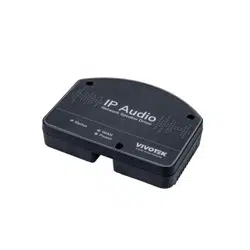
IP network audio devices with VAST2 VMS are the next generation network based
on TCP / IP audio broadcasting technology, with standard SIP protocol to support
one by one VoIP call or Multicast Broadcast protocol to allow users to broadcast
multiple audio devices.
With VAST2 alarm management, all the triggering events can be set for auto
broadcasting, this application has diverse usages on all scenarios, such as school,
factory, transportation, retail…etc.
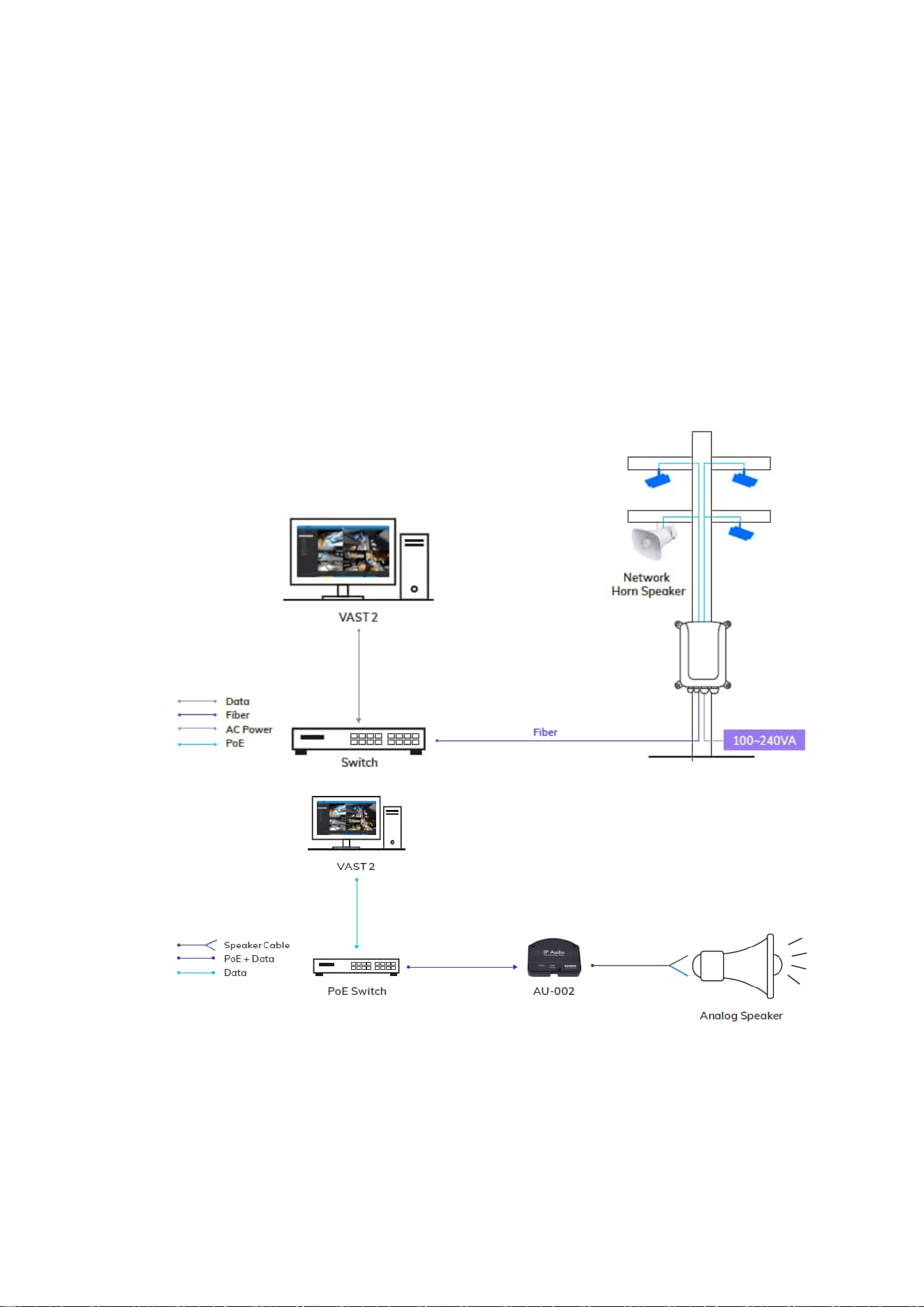
2. System Architecture
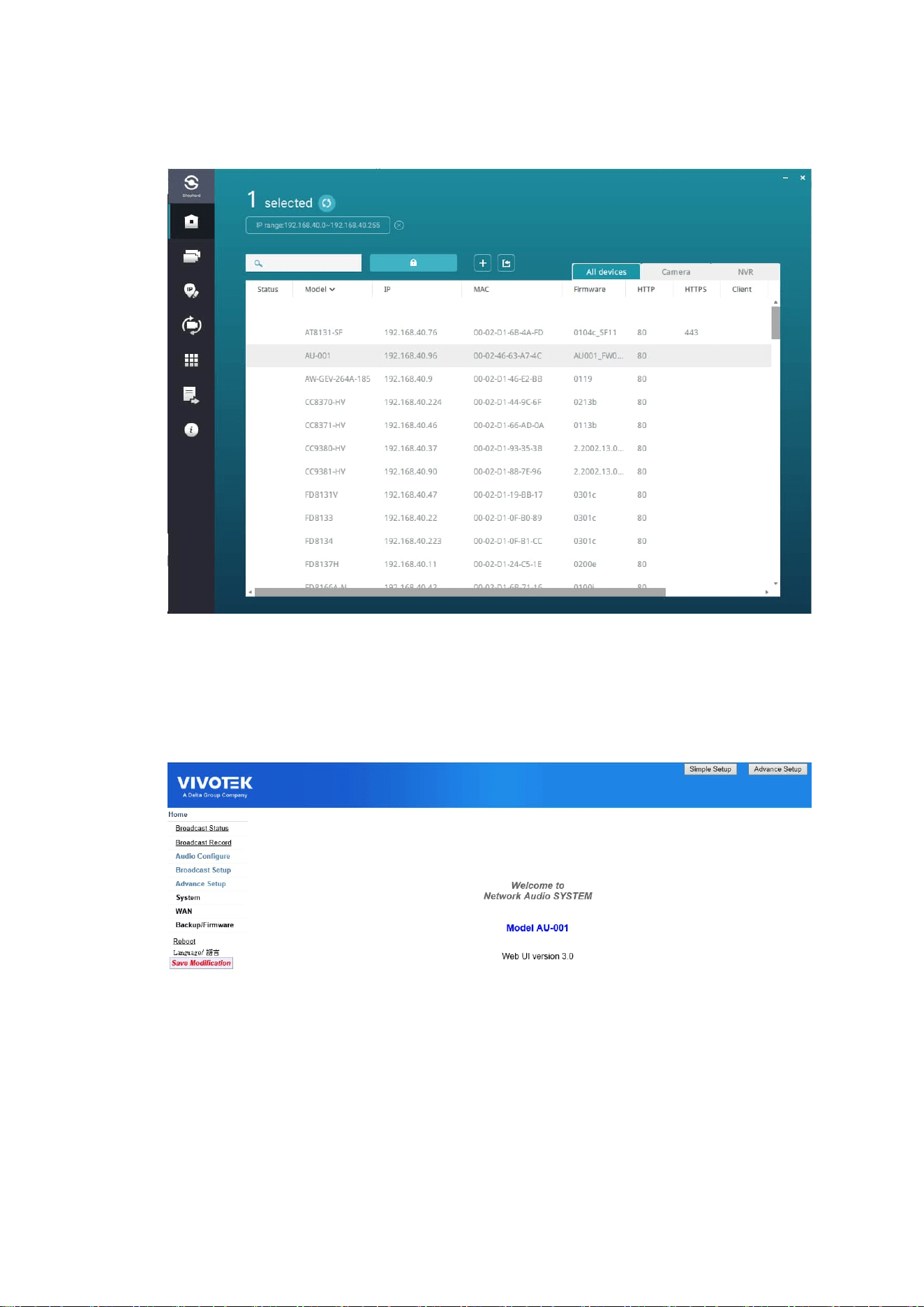
3. Use Shepherd to search for AU-001 & AU-002.
Double click on AU-001 to open the web UI.
Username: admin
Password: 1234
(Password can be changed in Advance Setup -> System -> Administrator Settings)
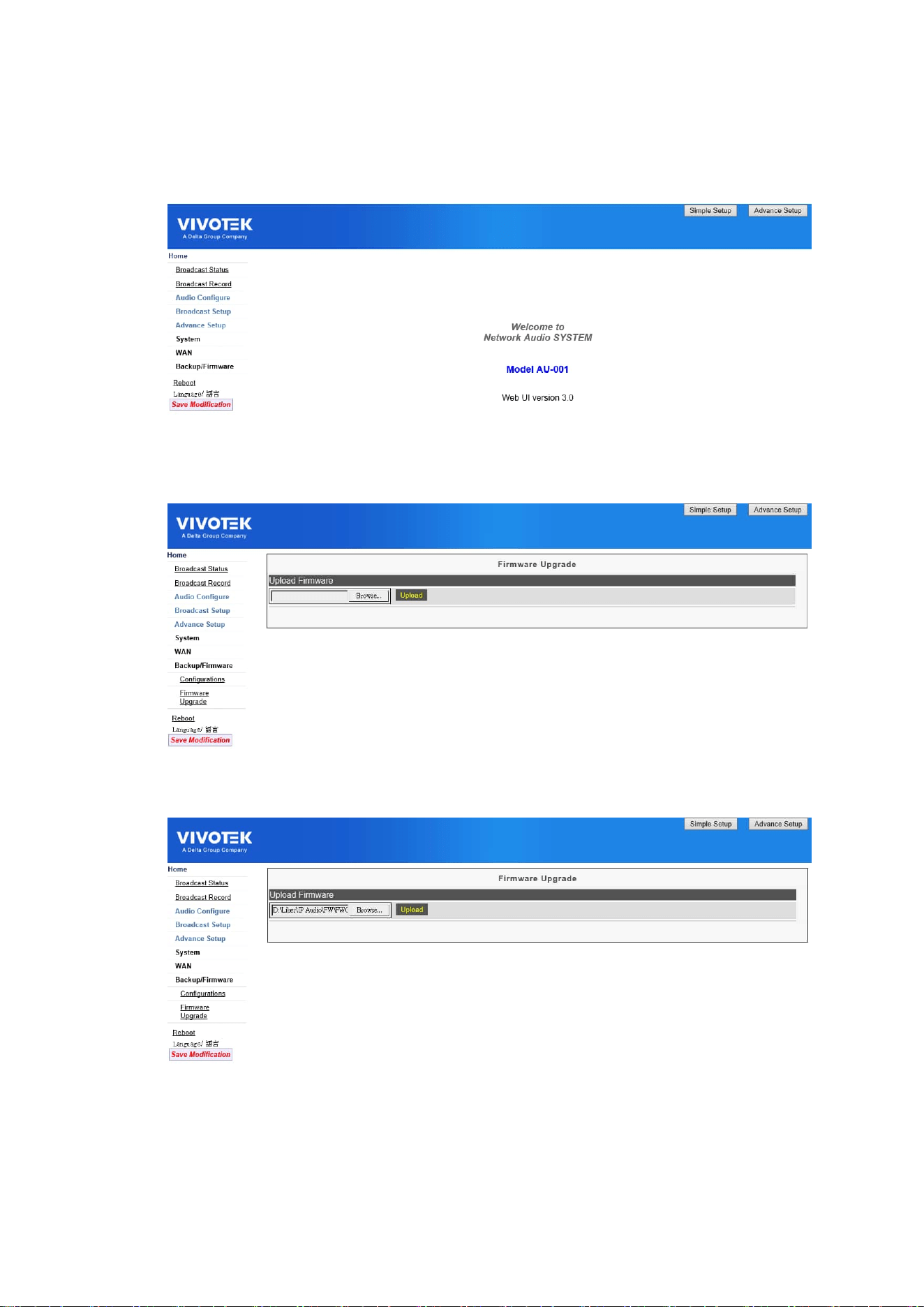
4. Upgrade F/W
Sign in to the AU-001/AU-002 web page
Click Backup/Firmwre and choose Firmware Upgrade, find Upload Firmware
Choose F/W image and upload then press the Upload button
Reboot the device
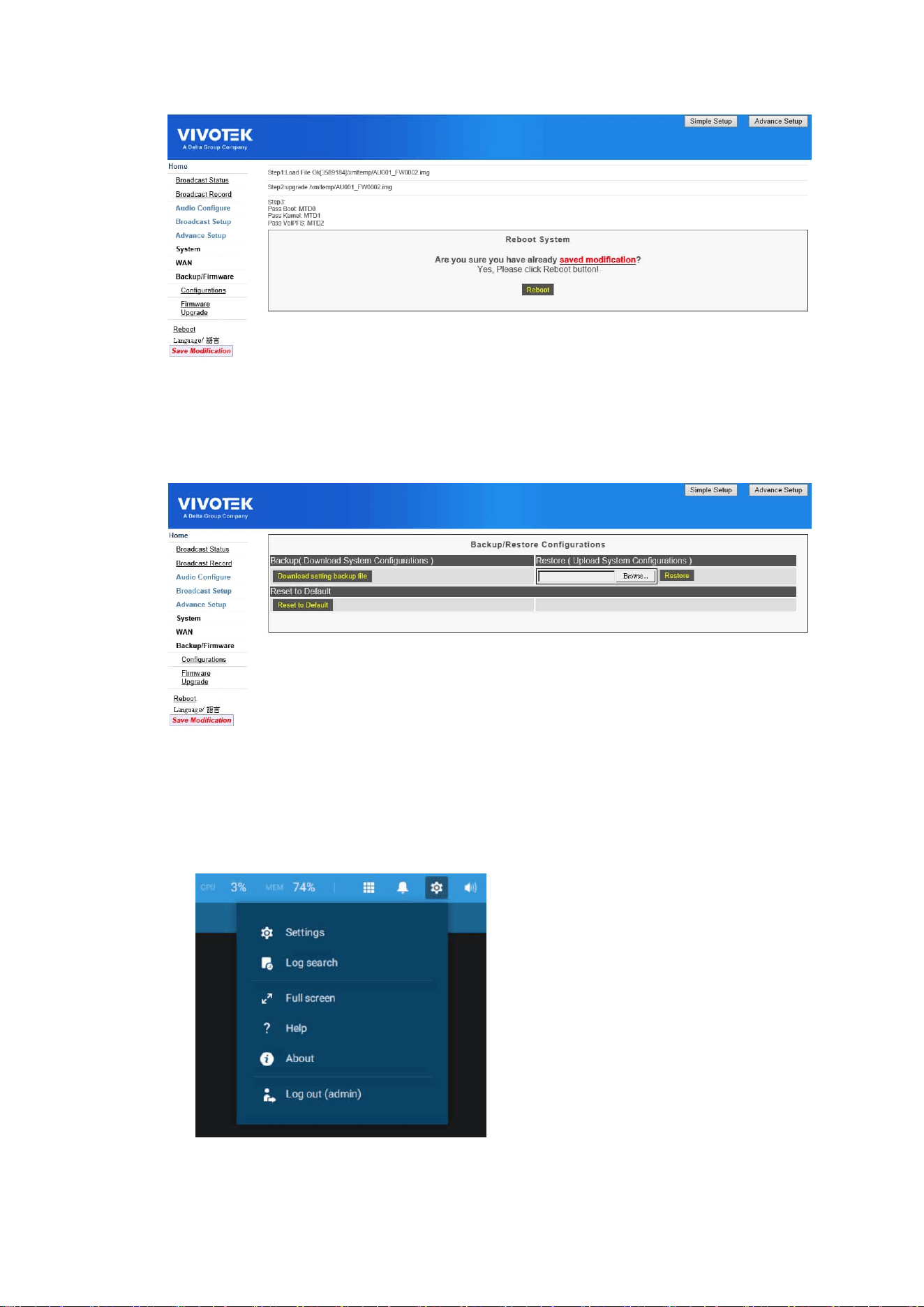
It is highly recommended to run Reset to default after a firmware upgrade, click
Backup/Firmware, and next choose Configurations, press Reset to Default button
to restore the setting.
5. VAST2 Setup
Install VAST2_ 2.13.0.7100(64-bit) Server and Client.
a. Go to Settings
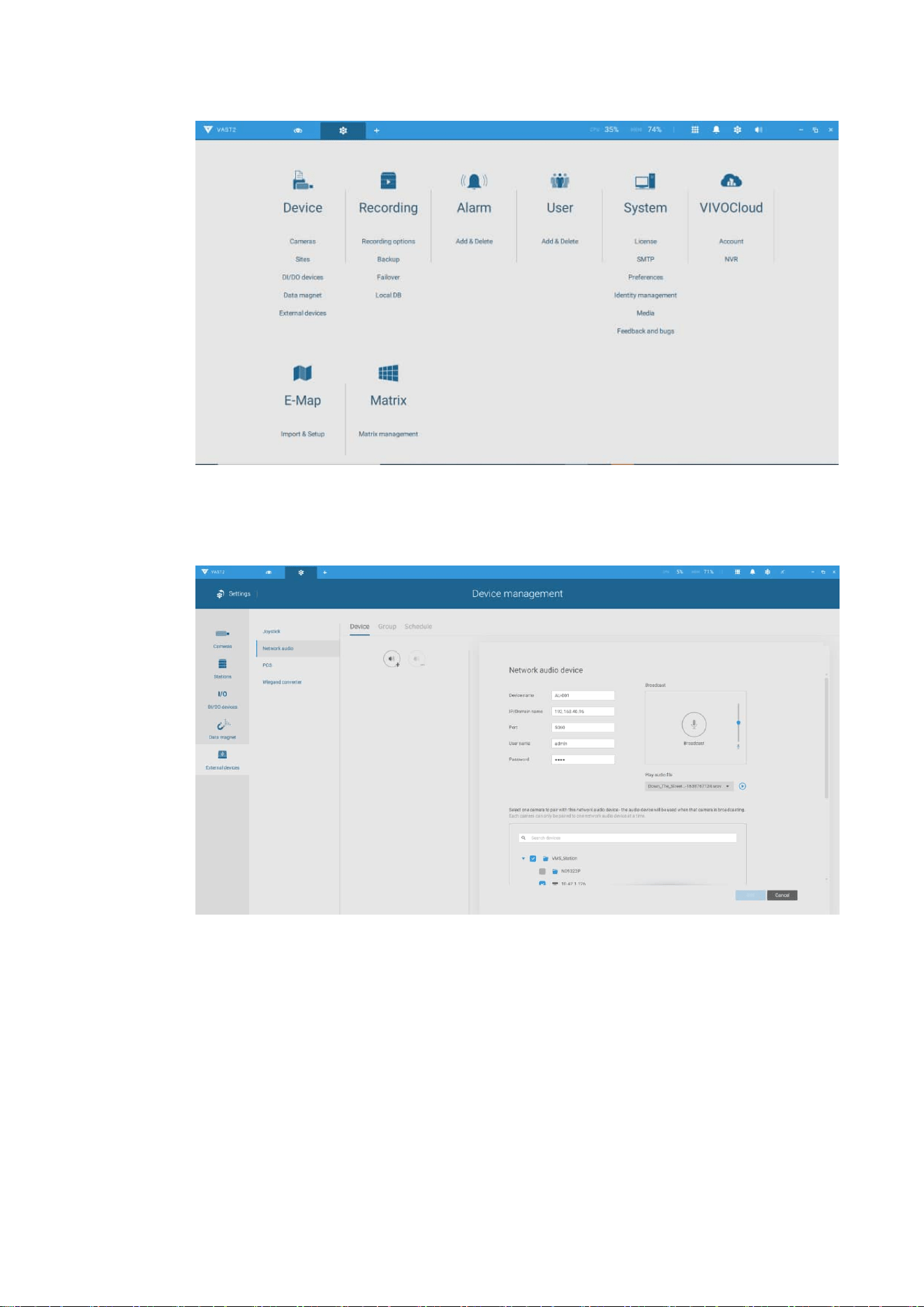
Go to Device / External Devices.
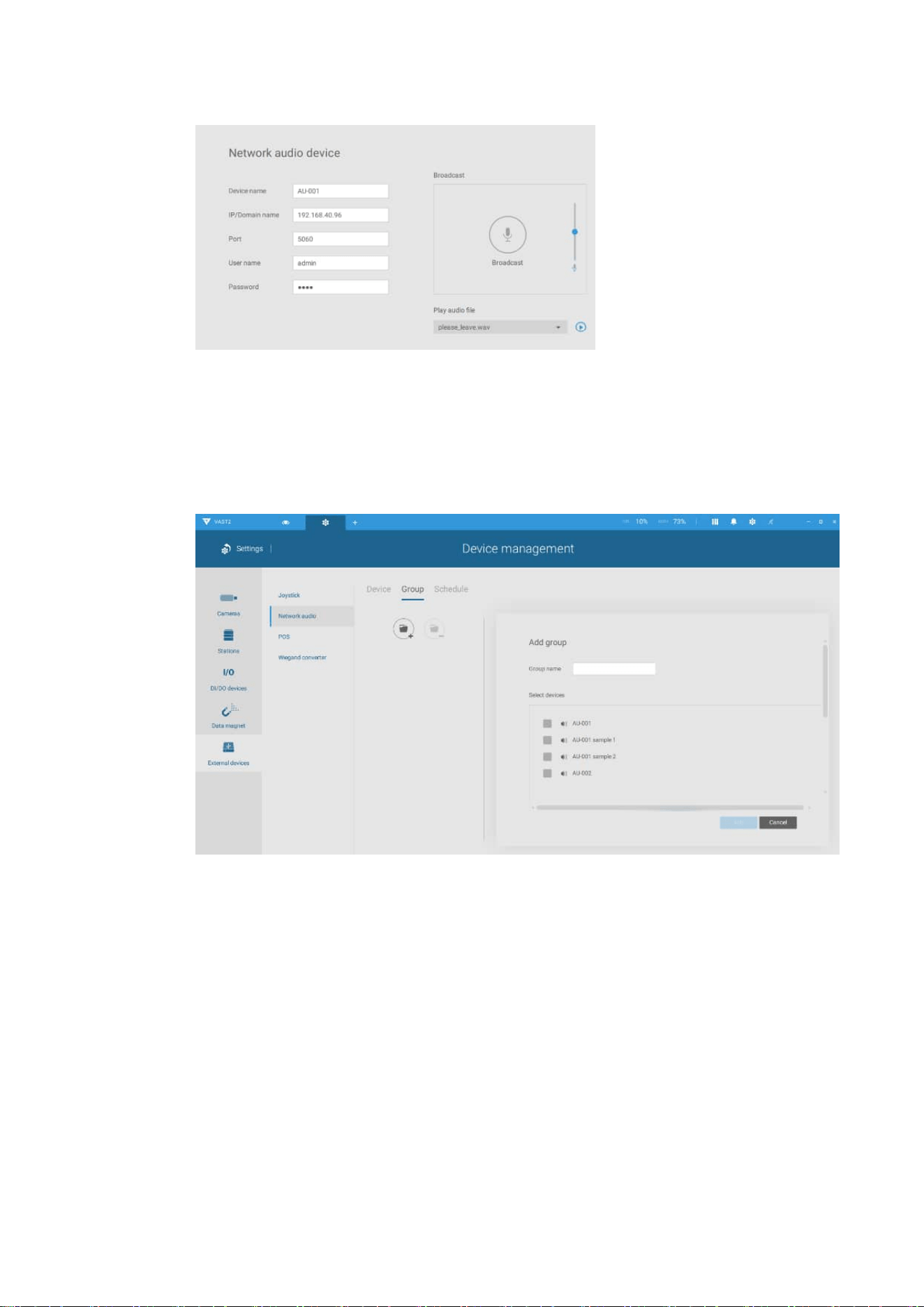
b. Click on Network Audio and Add to enter your audio device.
*The port number is 5060 for AU-001 and AU-002.
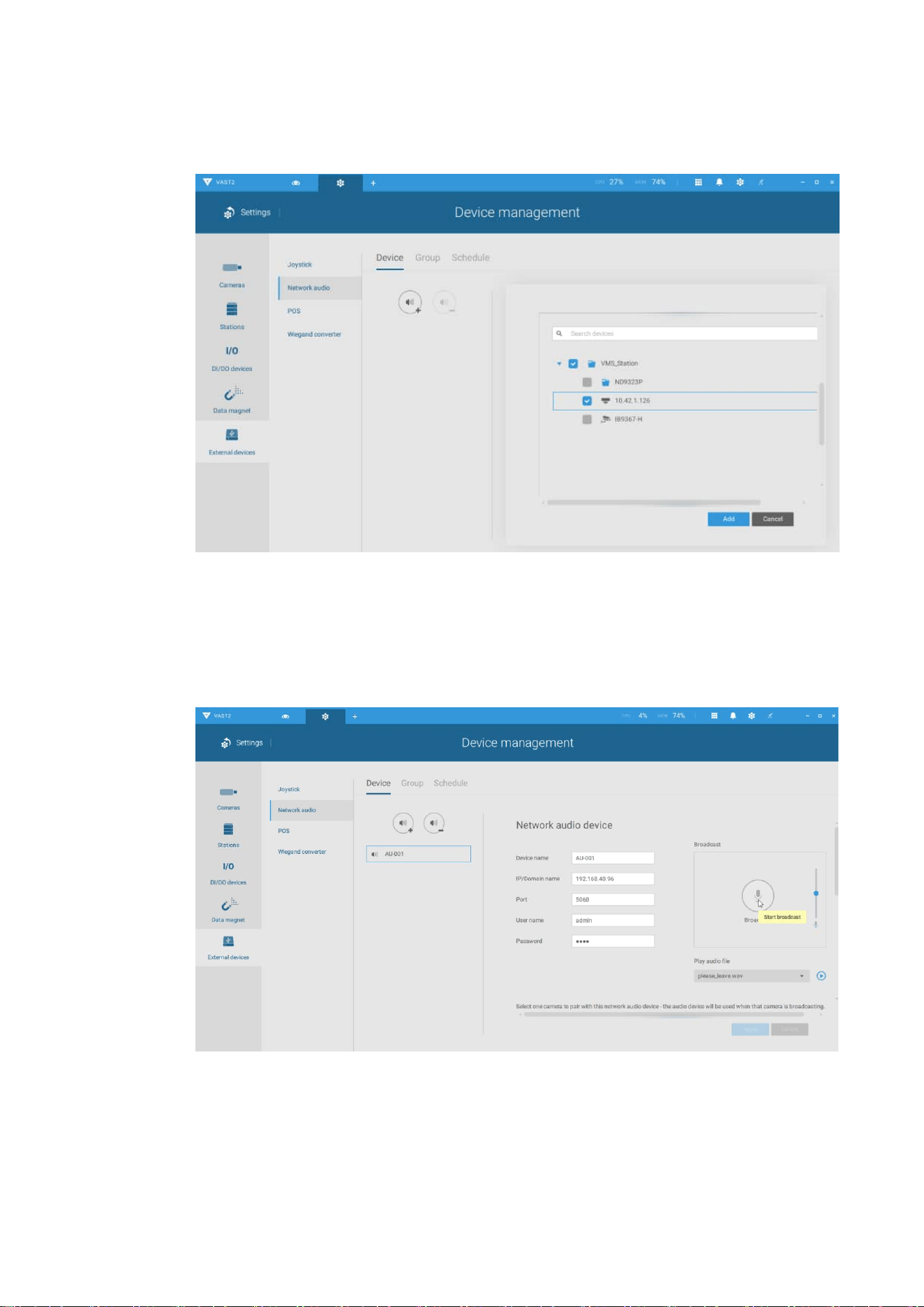
c. Binding a speaker with your IP camera.
You can choose one or more cameras to synchronize a speaker with camera
broadcast on the Liveview.
Click on Apply after setup.
d. Click on Broadcast to test if the connection is established.
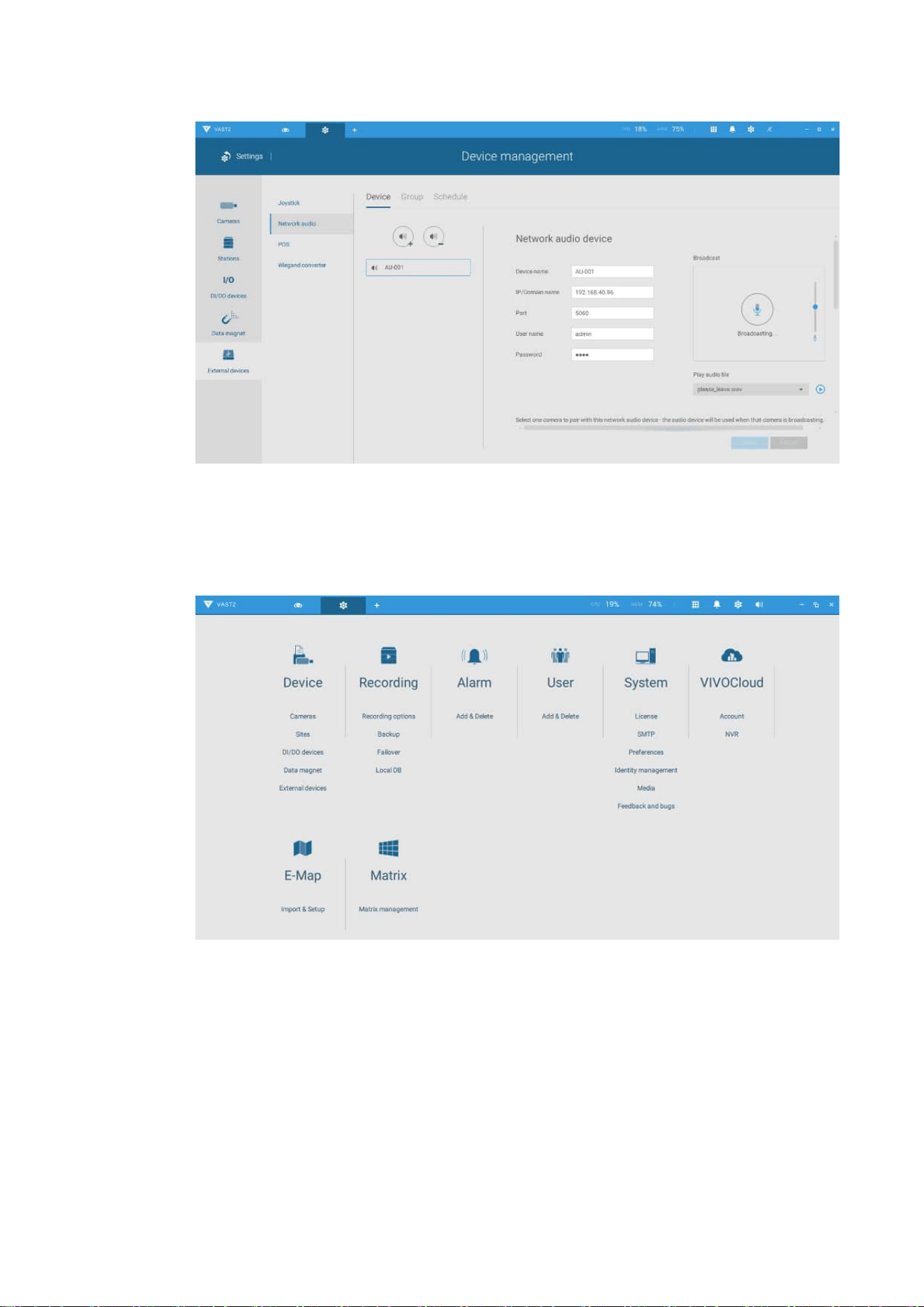
e. One more click to stop the broadcast.
f. Upload your broadcast audio files.
Go to System / Media.
Click on Audio file to upload your audio clip file.
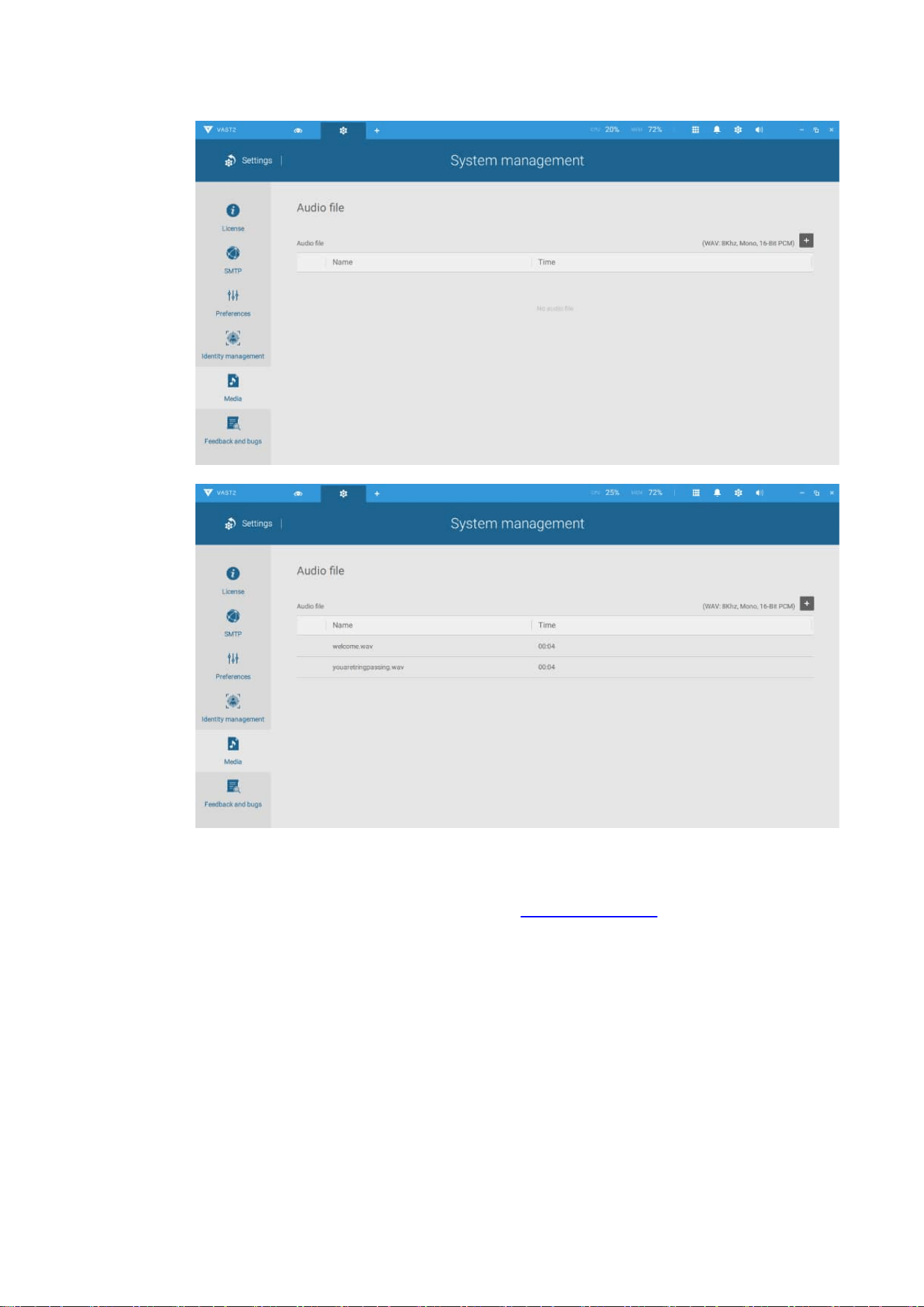
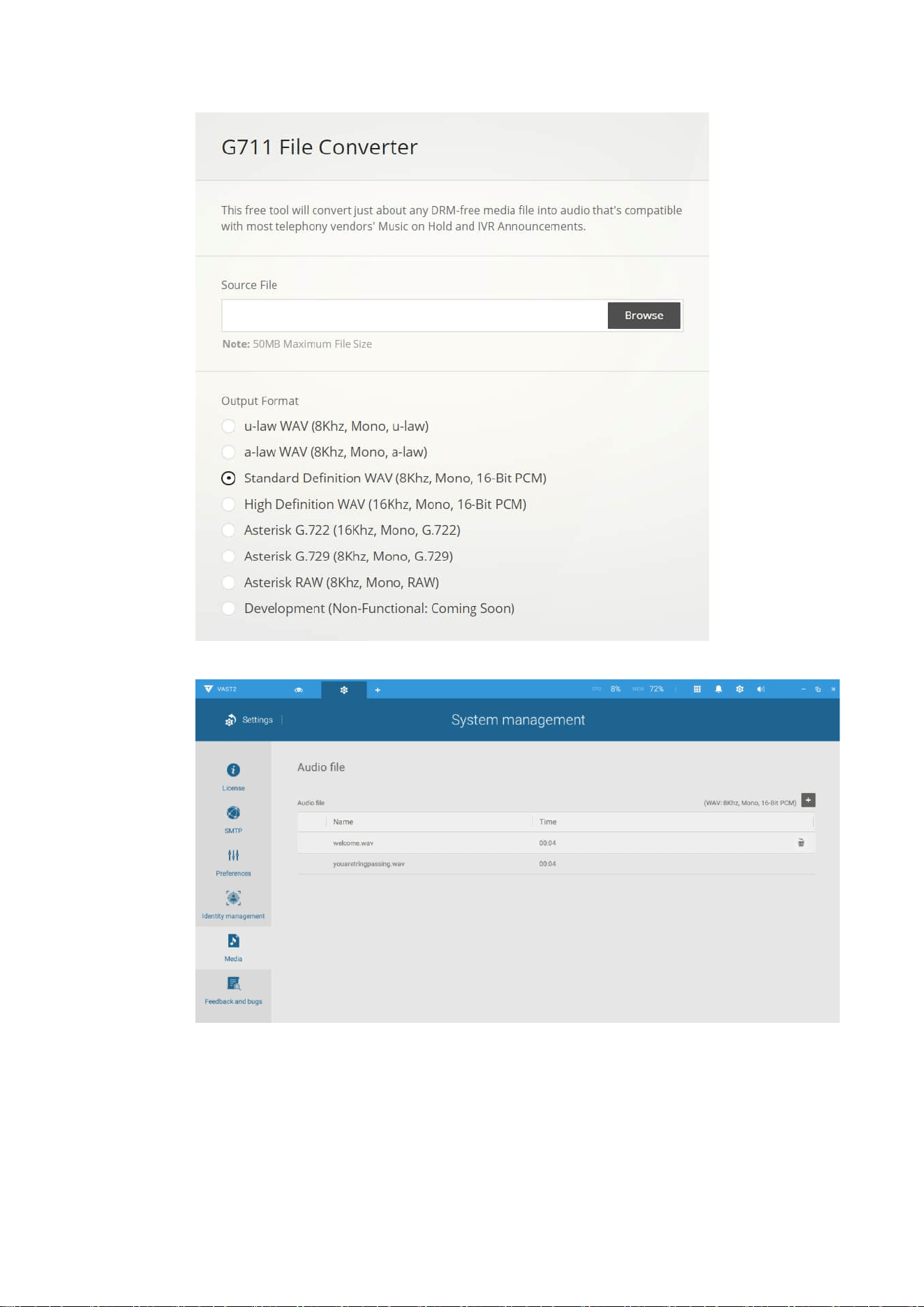
You can delete the file by a click on the trash can icon at the right side of file.
g. Test the sound on speaker.
Go to External Devices\Network Audio and select your speaker, then scroll
down to the bottom.
Choose the file you want to test and click on play, VAST2 will broadcast the
file to speaker.
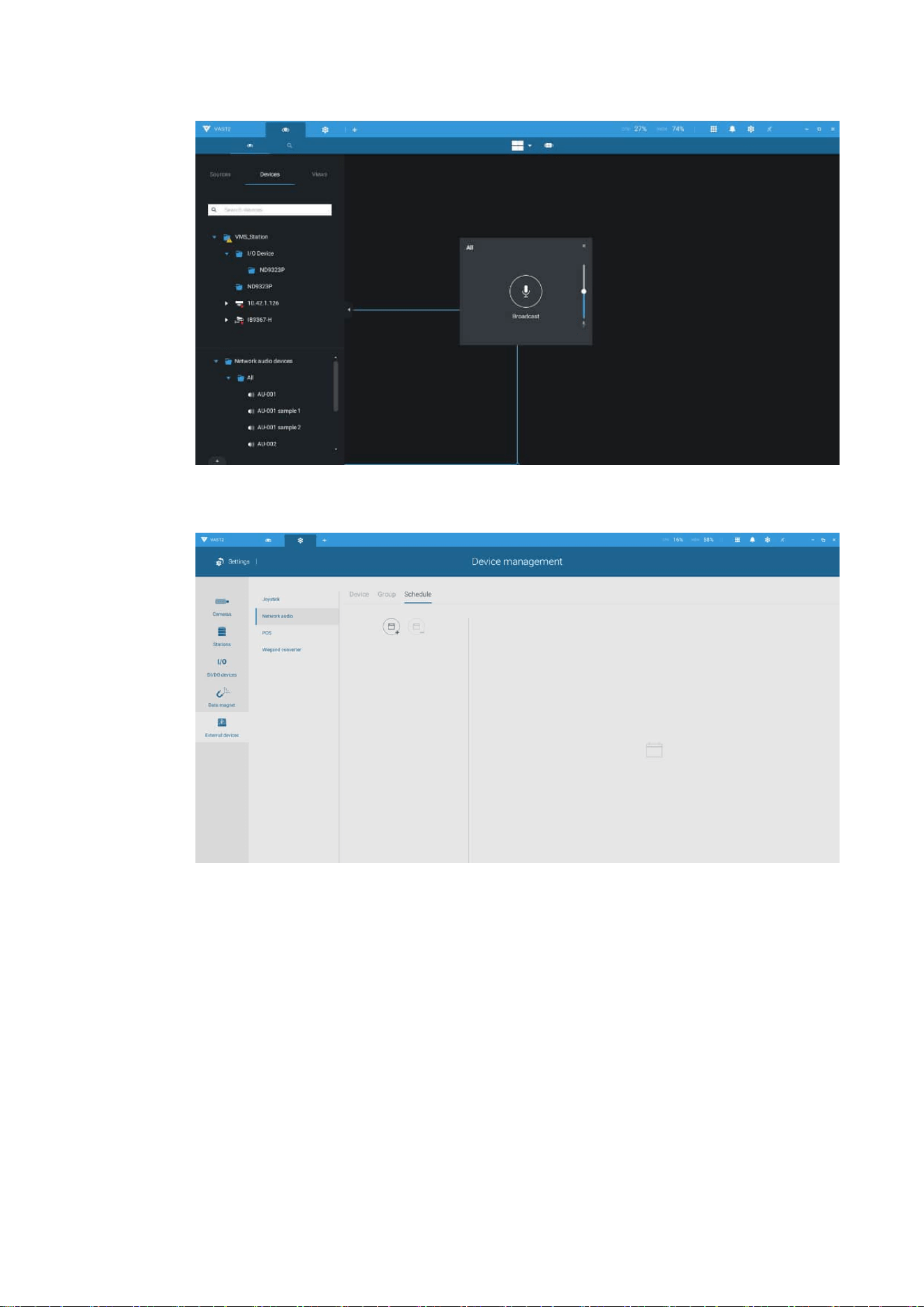
h. Add broadcast group
Go to Device / External Devices / Network audio / Group
Fill in a new group name and you can select which audio devices to
join this new group.
Press Add
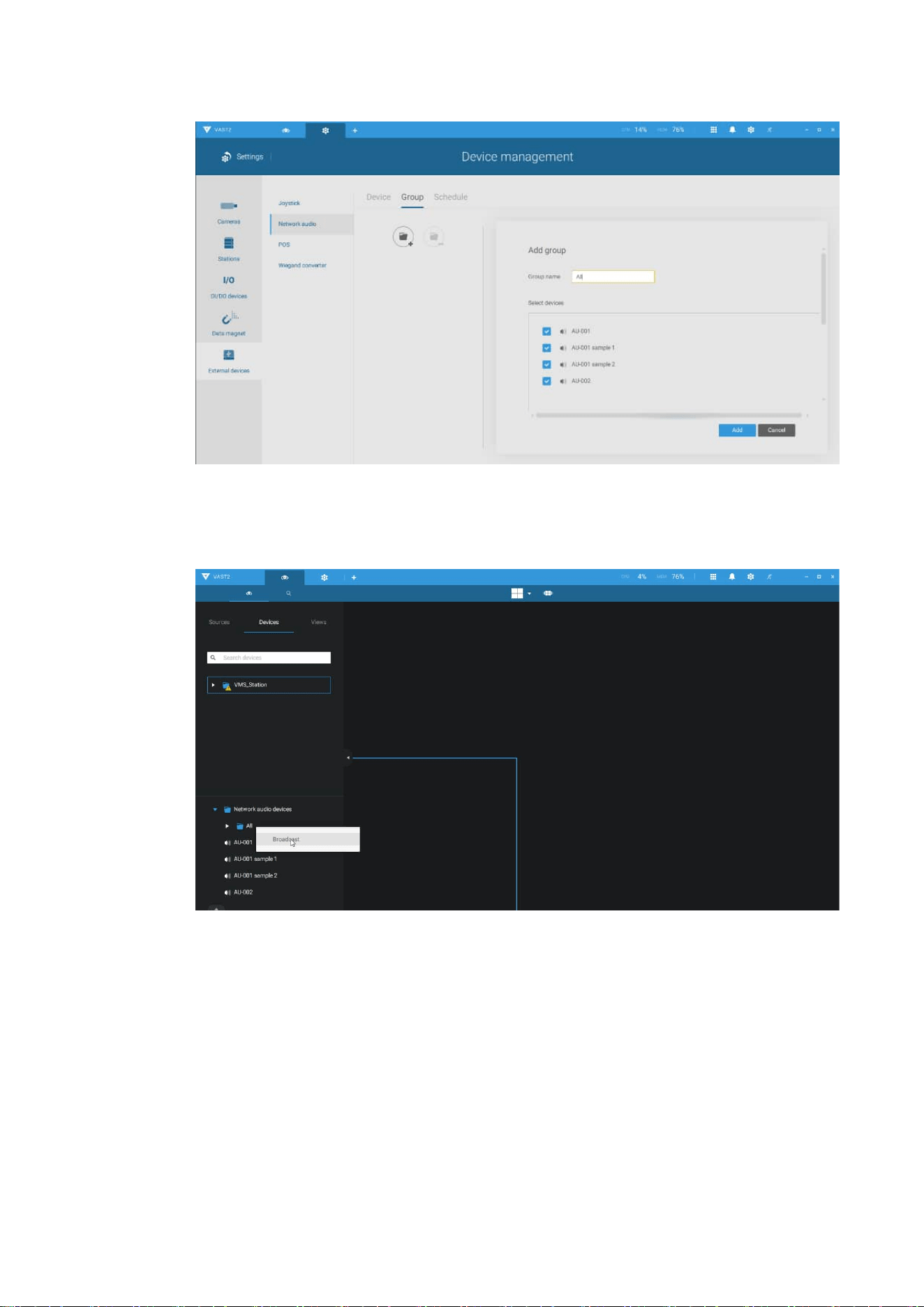
Go to VAST 2 Live view and choose the left side sidebar. Select the tab
of Devices, find your Network audio devices group and right-click
choose Broadcast.
You can then see the microphone icon in the middle of VAST2.
Click on Broadcast and you can speak to the audio device of the group.
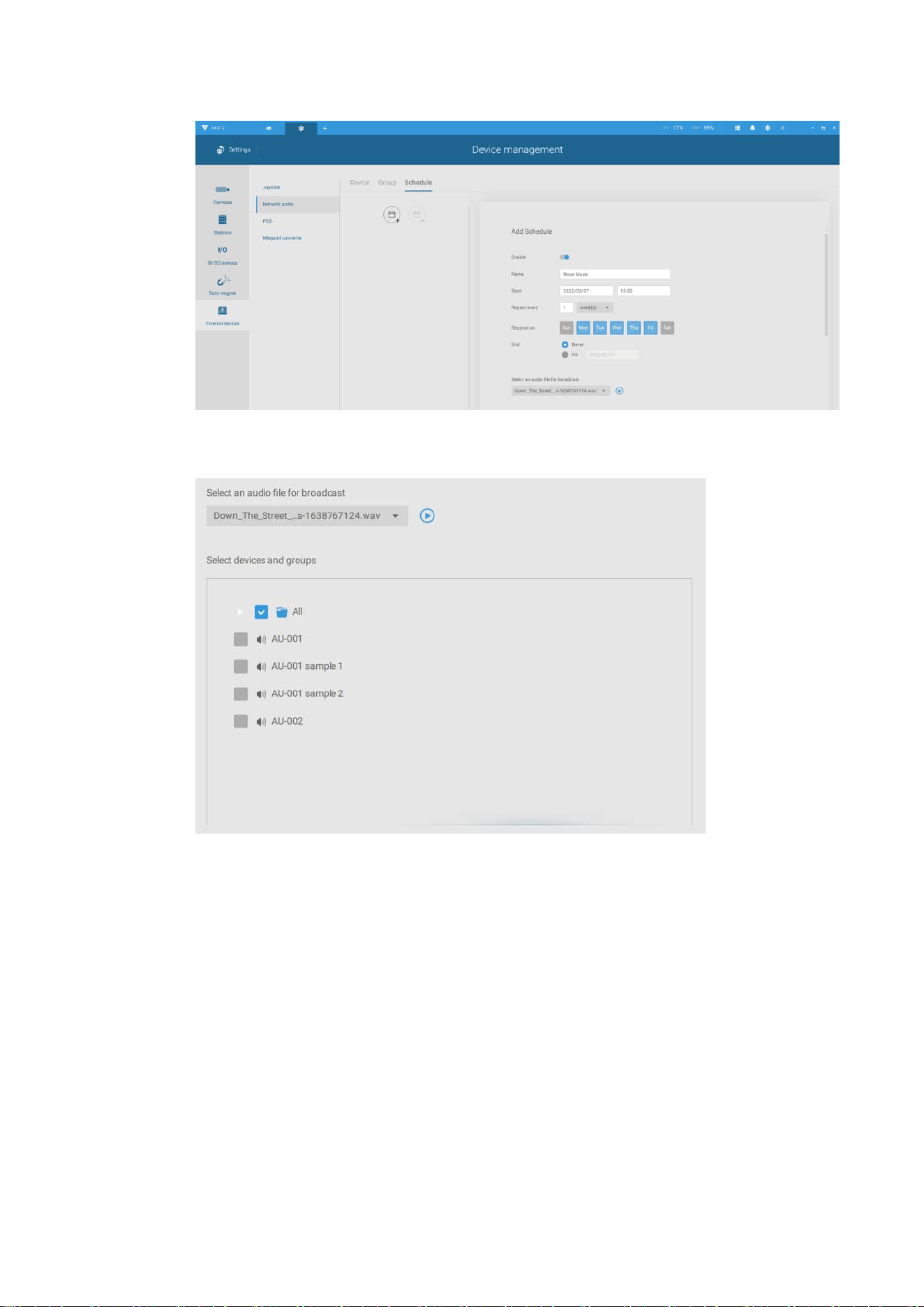
i. Add Schedule broadcast
Go to Device / External Devices / Network audio / Schedule
Create a name for your schedule and choose which time you want to
automatically run this schedule broadcast in the Start section and
please choose which days you want the end of this schedule.
If you want to repeat this broadcast Monday to Friday at 13:00, please
choose Repeat every week and click Repeat on Mon to Fri, last make it
never end of this schedule.
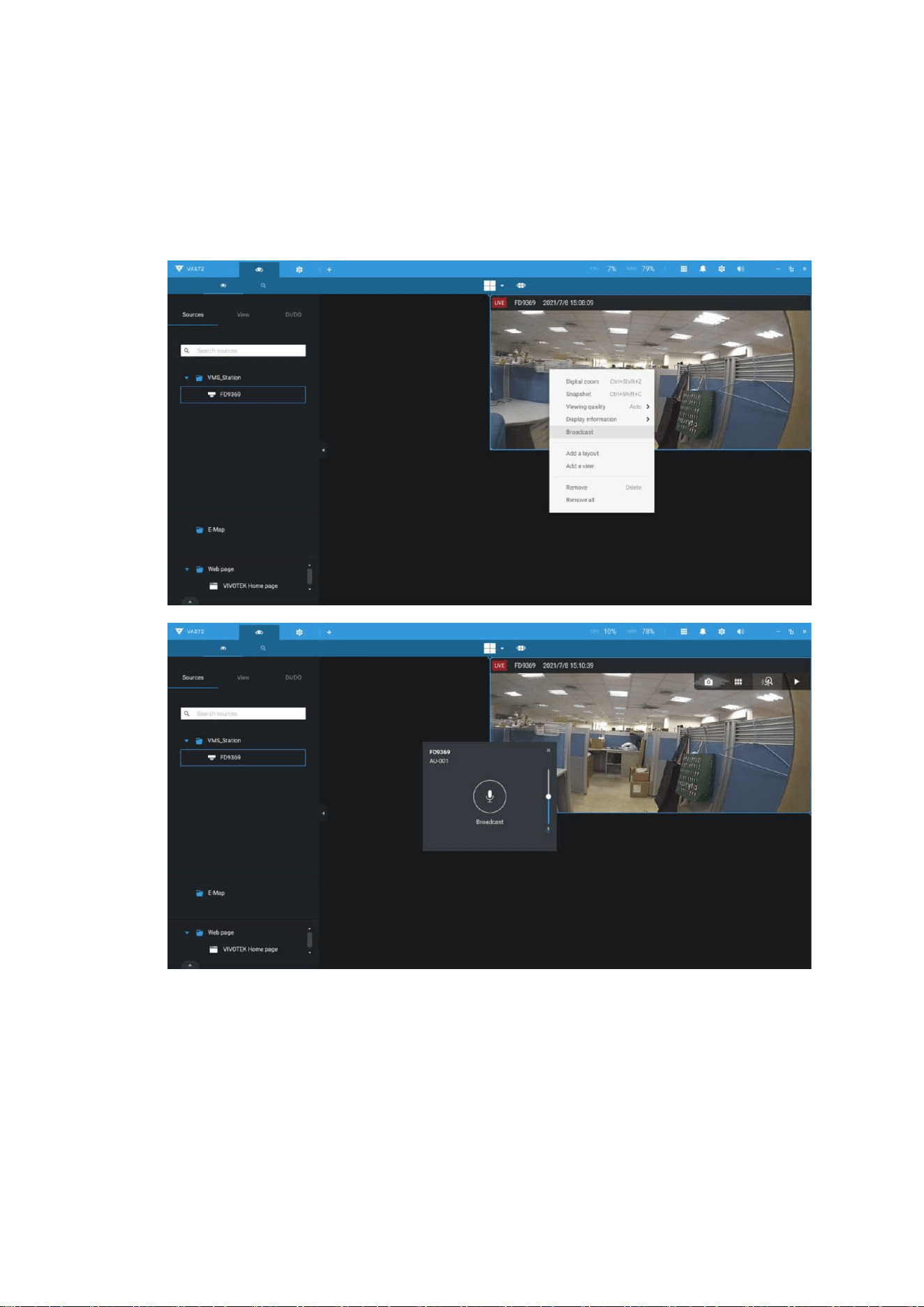
Furthermore, you can choose which audio file and audio group you
want to run up with this schedule.
6. VAST2 Live view Broadcast
Go to Live view and drag the camera which have already been bound with a
speaker on the view cell.
Right click on the view and choose Broadcast.
You can then see the microphone icon in the middle of VAST2.
Click on Braodcast and you can speak to the audio device.
7. VAST2 Alarm Setting
Go to Settings and click on Add & Delete.
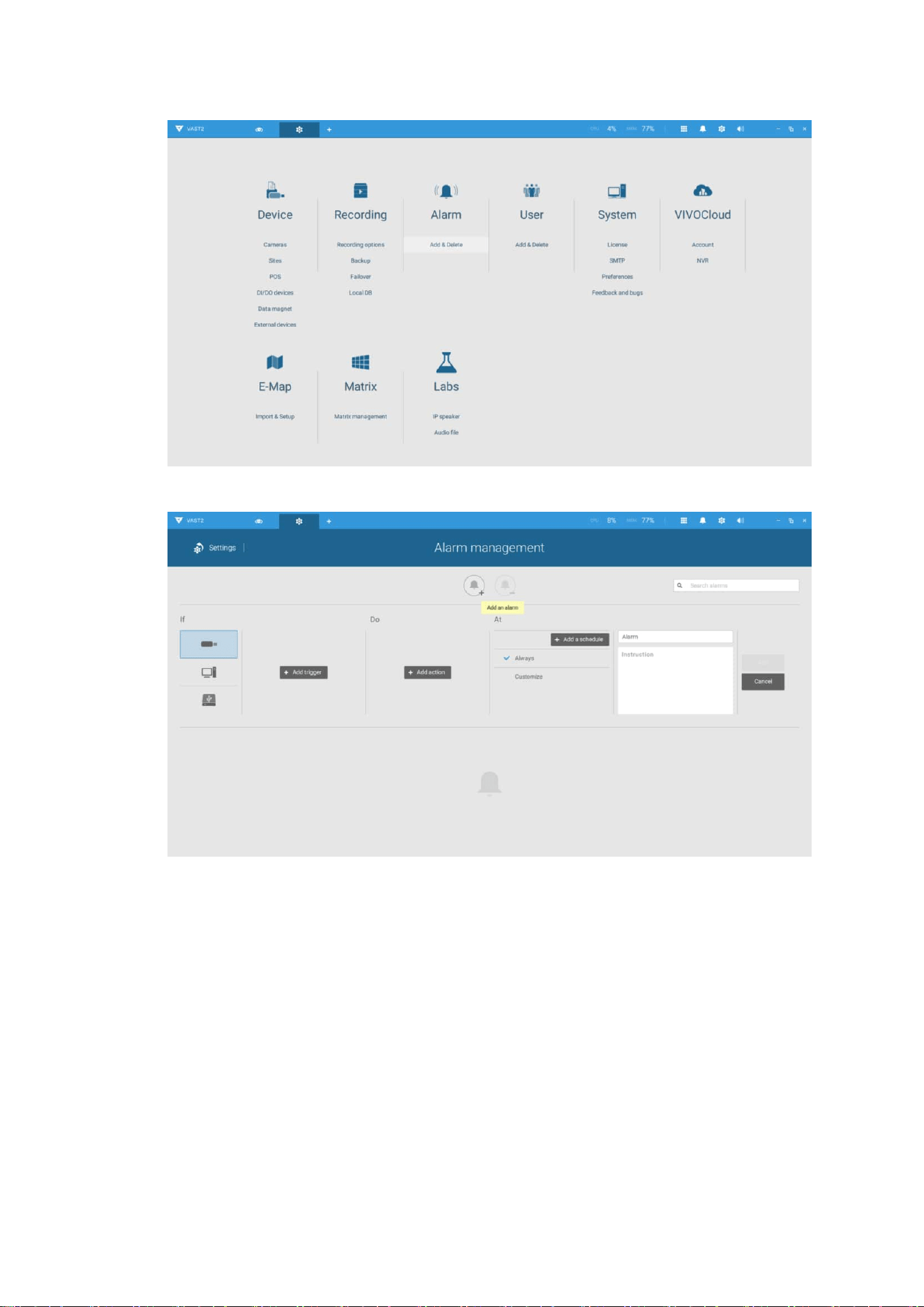
Click on Add an alarm.
Add a triggering event and the camera you want to configure.
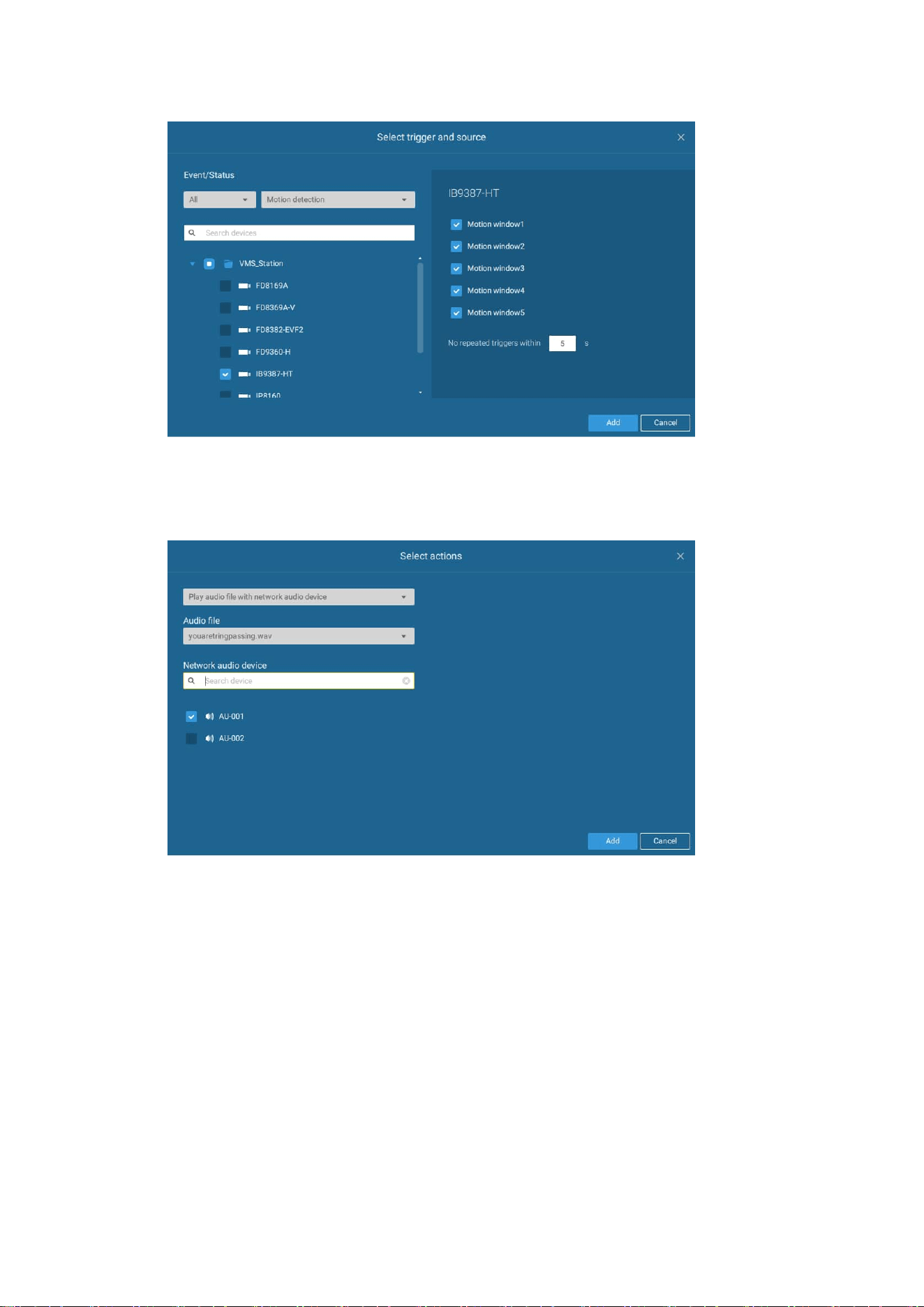
Add action.
Select Play audio file with IP speaker then choose the audio file and device.
(Please upload audio file first, refer to section3-d.)
Choose a schedule and enter alarm name/instruction, then click Add.
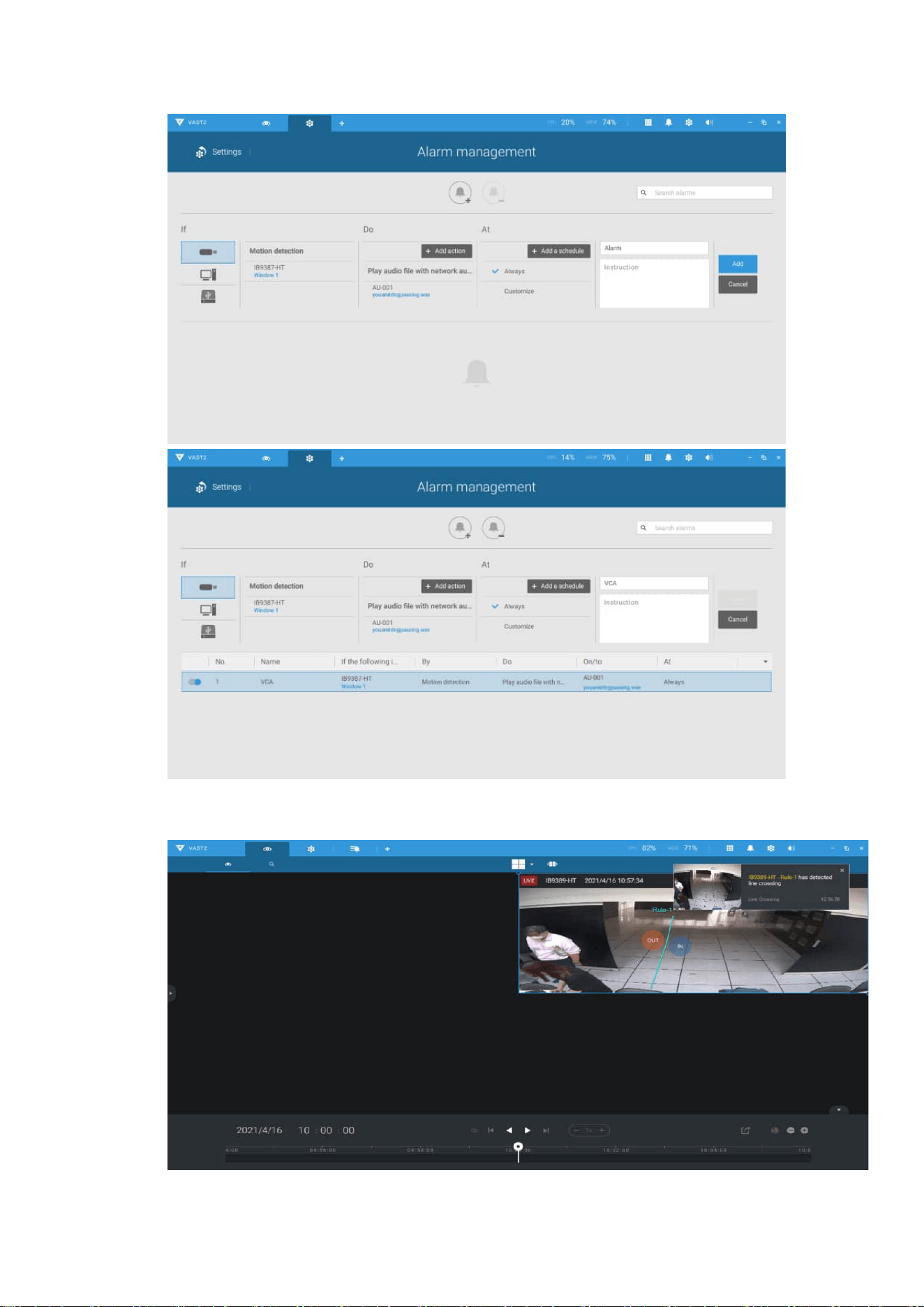
When an alarm is triggered, VAST2 will pop up with a recordong clip and the IP
speaker will braodcast the selected audio file automactically.
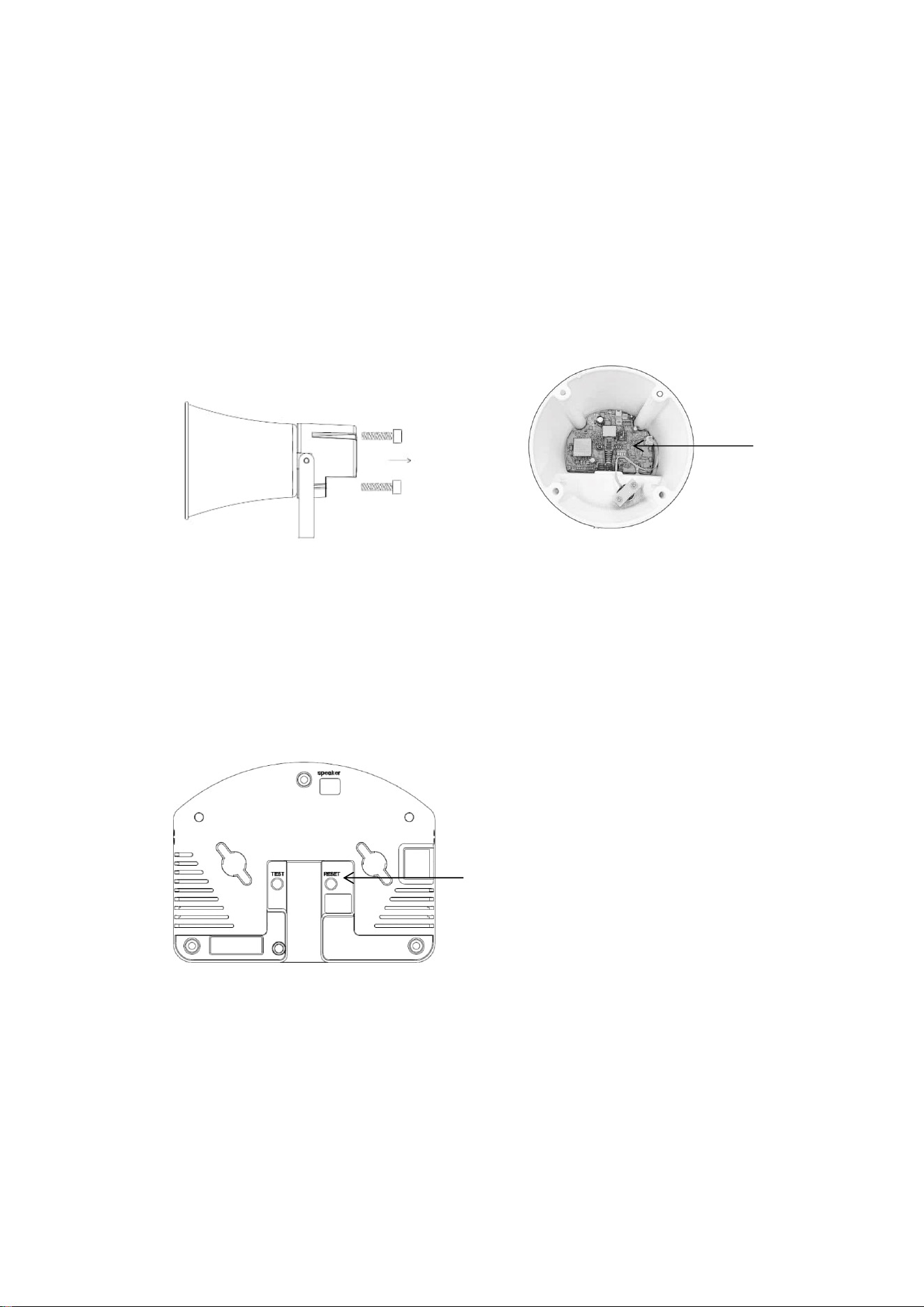
8. Reset to default
AU-001
Please remove the back cover from Network Audio Hom Speaker, you will find
the reset button on the PCB board. Power on AU-001, make sure the status green
LED is on, press and hold the reset button for 5 seconds until the green LED turns
Red and blinks and then release.
AU-002
Please find the reset button on the AU-002 rear side, power on the AU-002, make
sure the status green LED is on, press and hold the reset button for 5 seconds
until the green LED turns Red and blinks then release.
Reset
Reset
