
USER MANUAL
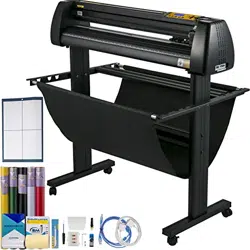
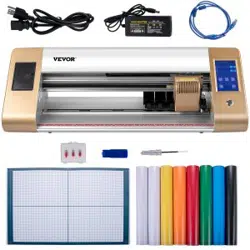
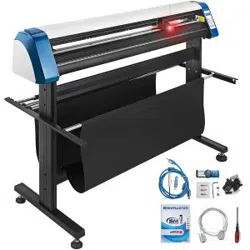
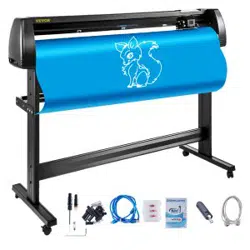
Vinyl Cutter Machine
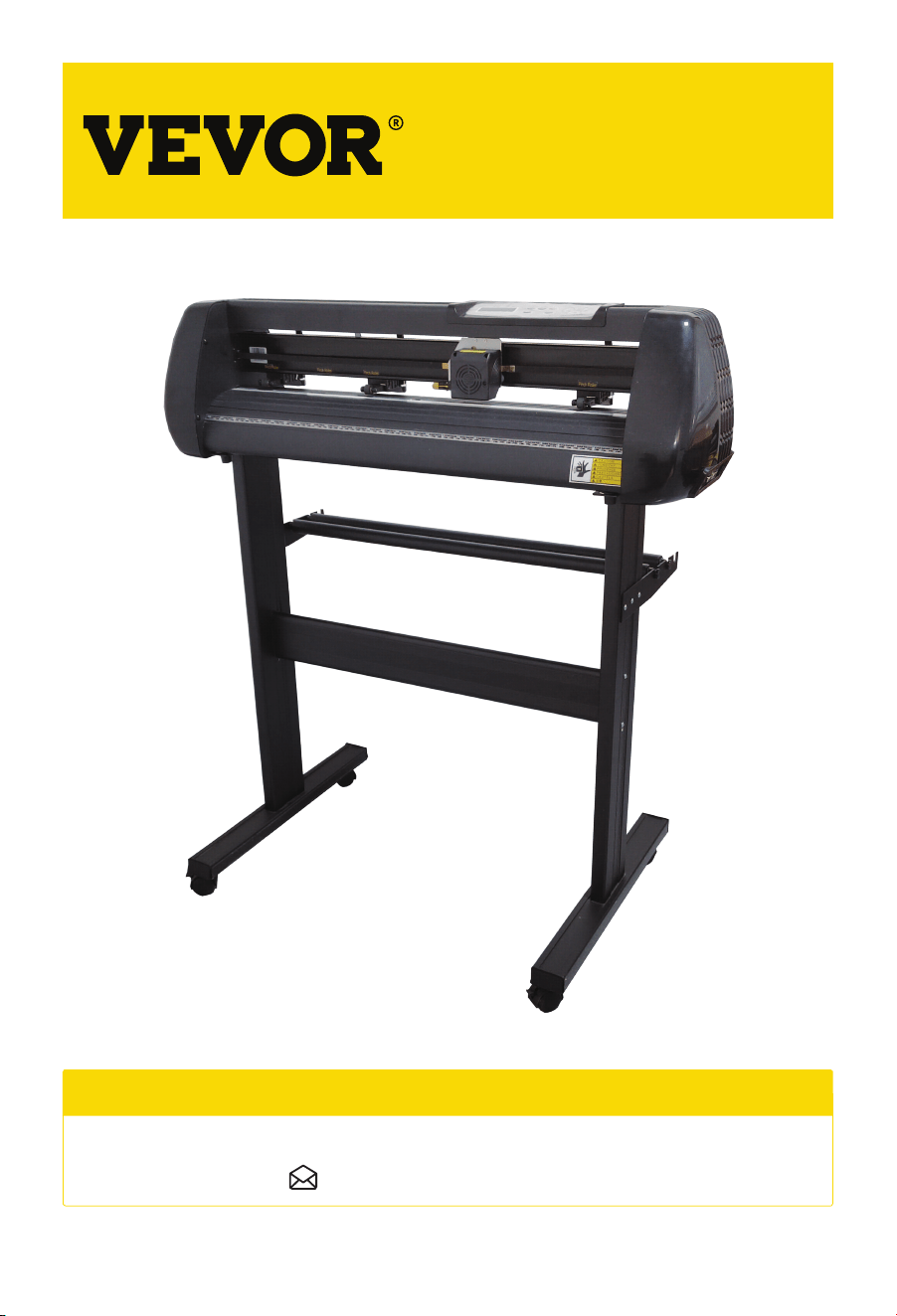
Vinyl Cutter
Machine
NEED HELP? CONTACT US!
Have product questions? Need technical suppo? Please feel free to contact us:
Instruction Manual
CustomerSe[email protected]

CONTENTS
Precautions ………………………………………………….................................. 1
Symbol Indication .......................................................................................... 1
Introduction for Main Pas ………………..............................…............... 3
Technical Parameters ………….…............................................................... 4
Accesso Box ……..…………..………….........……........................................ 5
Bracket Assembly Diagram ……..…………..................................…......... 5
Control Buttons Description and Operation Instructions ……..…6
Product Assembly Steps …......................................................….............. 6
Software and Driver Installation …........................................................ 8
Connection of Software and Machine ….............................................. 11
App Operation Guide .................................................................................. 13
Troubleshooting ............................................................................................ 15
Disposal ............................................................................................................ 16
Attention .......................................................................................................... 16

PRECAUTIONS
SYMBOL INDICATION
• Protective material must be removed before turning on the cutting plotter.
• Check the label on the backside of the plotter to conrm that the rated voltage required by
the plotter matches the voltage of the power base.
• Firstly make sure that the power switch is o, then plug the power supply into a grounded power outlet.
• Please do not touch the power cord with wet hands to avoid electric shock.
• Use only the power cord and data cable provided by the product or the replacement approved by
the manufacturer.
• Please do not drop metal objects and liquids into the machine to avoid malfunction.
• After shutting down, you must wait another 5 seconds to turn on the cutting plotter again,
otherwise it will cause damage to the cutting plotter.
• In thunderstorms, turn the power switch to OFF and unplug the power cord.
• Please do not privately change the manufacturer's components.
• Manufacturer resees the right to change product specications without prior notice.
• The manufacturer only bears the legal obligations of the product itself sold to the users and does not
bear other losses caused by the malfunction of the products.
• Without our company’s permit, no pa of this manual can be copied or transmitted in any name.
• Do not drag the carriage by hand.
01
Improper operation can result in inju
Warning
Attention
Improper operation may cause damage to the machine
Improper operation may result in personal inju or damage to
other objects
To ensure that the plotter can be used correctly and avoid causing damage, users should follow
the instructions below while operating.
1. Ensure Safe Use Methods
• If there is an abnormal sound after powering on the machine, please turn o the power immediately
and contact the after-sales depament for feedback.
02
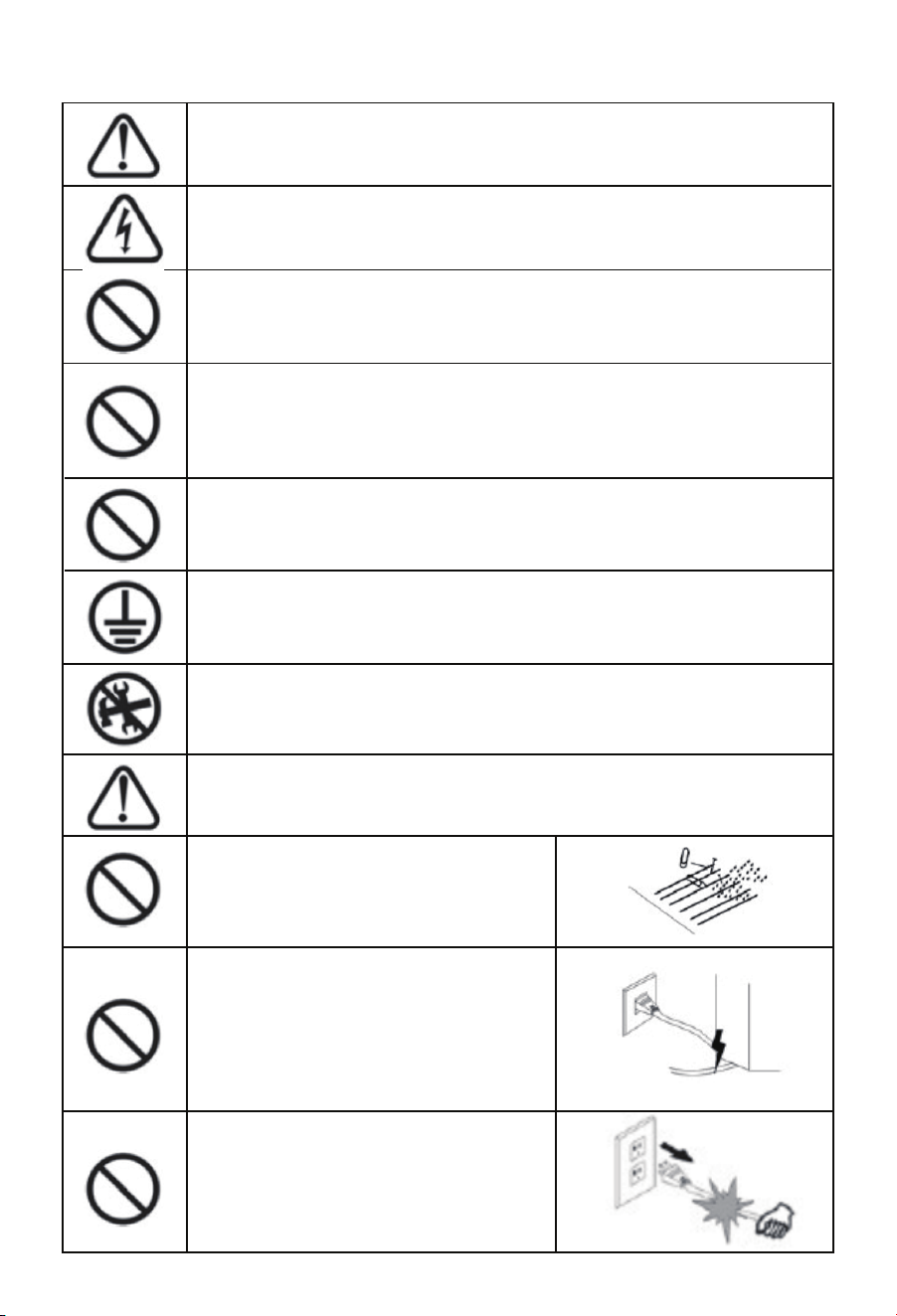
Warning
• This symbol indicates that users need to pay close attention. The picture on the
left means "Be careful of electric shock".
• Do not use a power supply that does not meet the rated voltage.
• Using an unqualied power supply can cause re or electric shock.
• If the machine gives out smoke, smell, noise and other abnormal circumstances,
please power o immediately.
• Continuing to use machine under these conditions could cause a re or
electric shock.
2. Symbol Description
• Do not plug or remove the power plug when the power is on.
• Unplugging the power plug while the power is on will damage the machine.
• Ensure machine grounding.
• If not grounded, the machine will cause electrical shock or mechanical failures.
• Ensure machine grounding.
• Doing so will result in re or electric shock, resulting in personal inju.
• The machine can not penetrate into liquids,
fall into metal objects, etc.
• These objects may cause res.
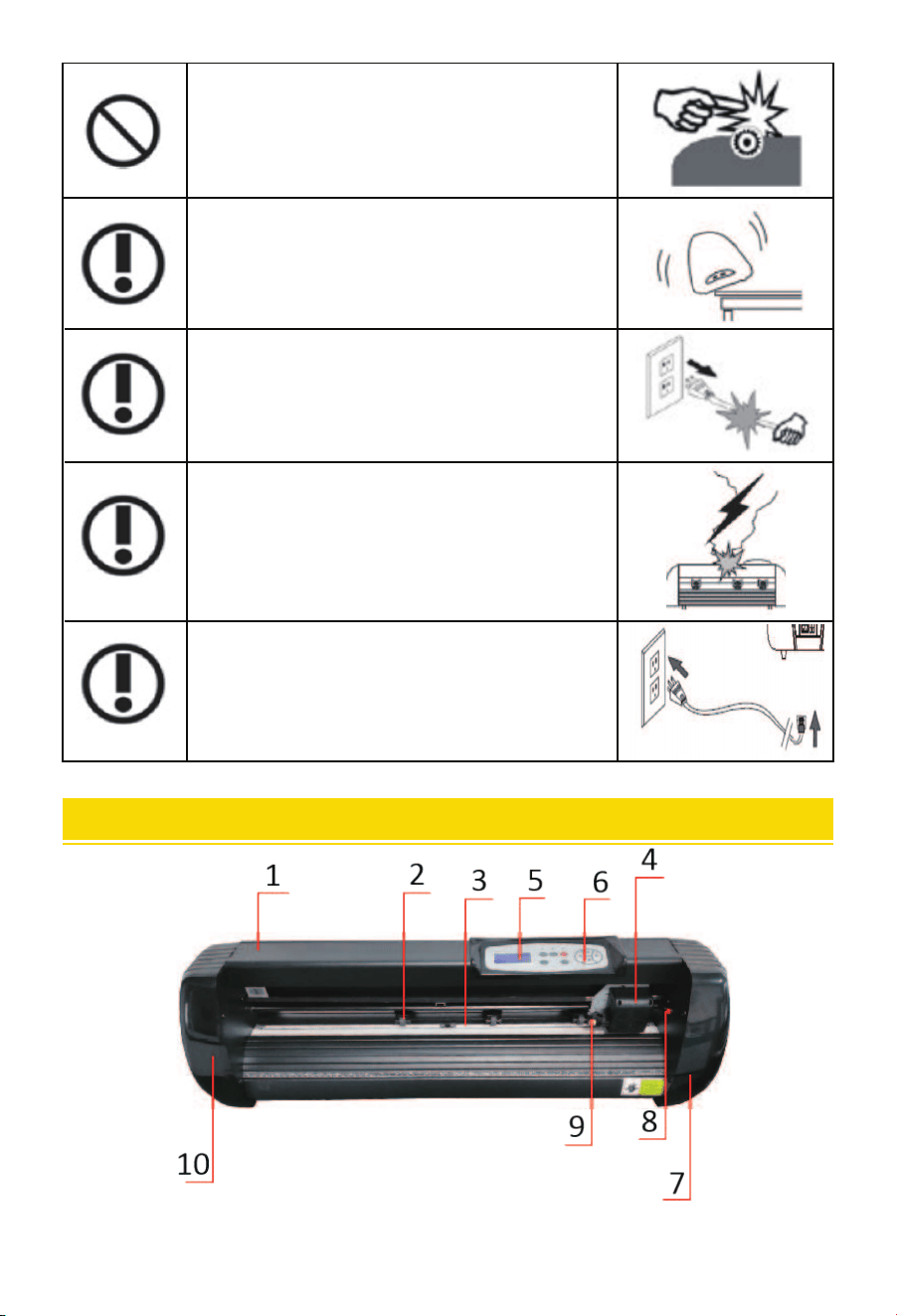
Attention
• Do not destroy or replace the original power
cord, and do not allow the power cord to be
excessively bent, pulled, tied or pressed under
heavy objects.
• Doing so could damage power supply,
causing an electric shock or re.
• If the machine is not used for a long time,
please unplug the power cord from the socket.
• Otherwise it could cause a re.
INTRODUCTION FOR MAIN PARTS
• When operating, do not put your hands on the roller.
• This may cause inju.
• The machine should be placed on a stable suace.
• Otherwise the machine will fall down and cause inju.
• When unplugging the power cord from the socket,
the plug should be pulled, not the cable.
• Pulling on the cable can cause electric shock or re.
• It is prohibited to use in thunderstorms and lightning
weather.
• To avoid lightning damage to the machine.
• Before inseing the power plug, check whether the
power supply voltage and power cable are normal.
• Make sure you connect the device without exceptions.
SK Model
03
TECHNICAL PARAMETERS
Model
SK-870L
870mm
780mm
SK-720L
720mm
630mm
≤1mm
20-800mm/s 20-500g
1-4M
CN/EN
Suppo
COM+USB +Bluetooth
Suppo
0.127mm
0.0245mm/step
DMPL/HPGL
AC85-264V 2.5A
104*33*36CM
17KG
119*33*36CM
19KG
Temperature: +10±35℃
Relative humidity: 30%-50%
Max Feeding Width
Max Cutting Width
Cutting Thickness
Speed/Pressure
Buer
LCD Display
Real-Time Speed Adjusting
Inteace
Re-Cutting Function
Re-Cutting Accuracy
Resolution Ratio
Language Format
Voltage and Current
Package Size
Weight
Storage Environment and
Working Environment
Item
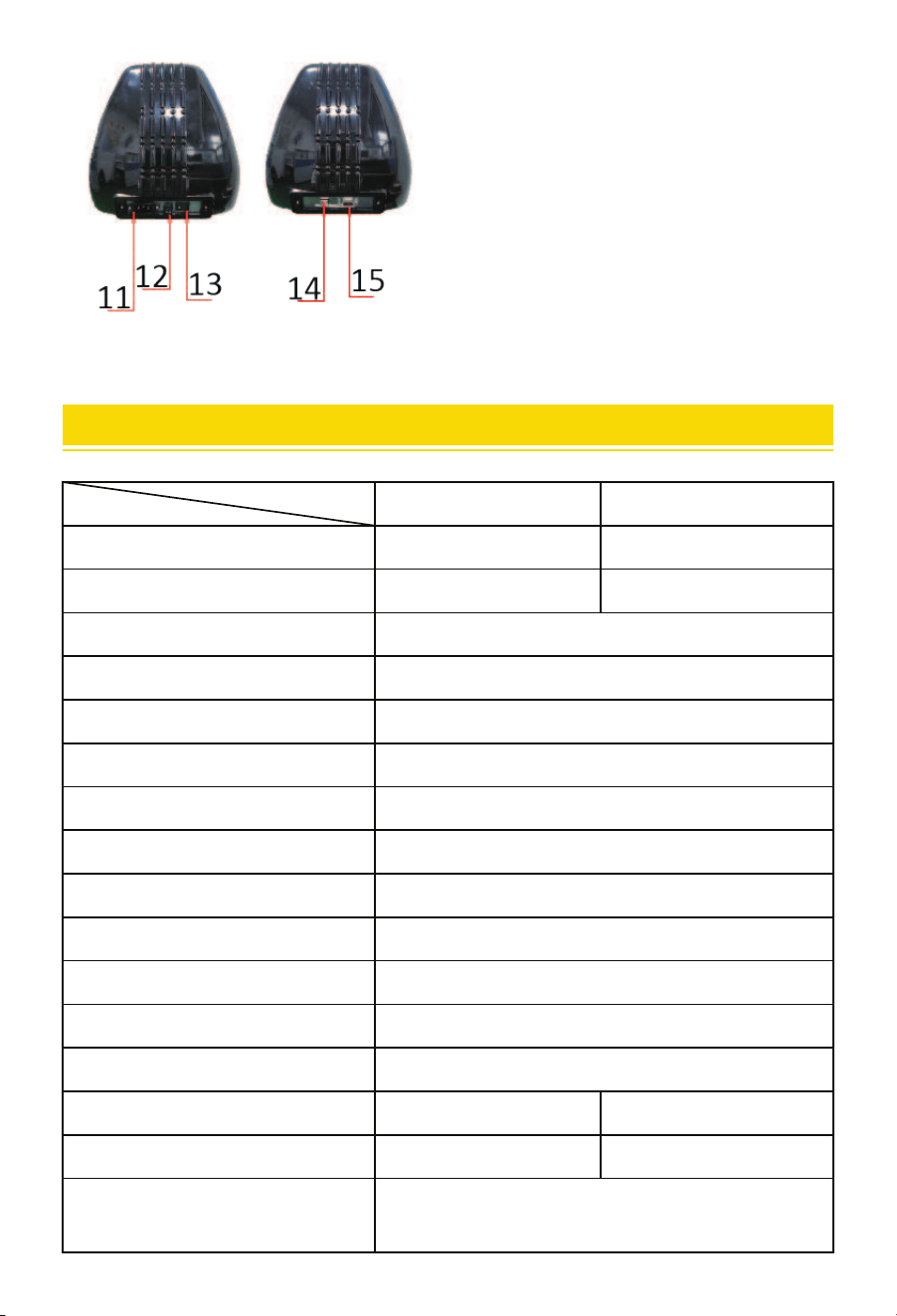
1. Cover for Rail Guide
2. Pinch Roller Kit
3. Roller for Feeding Paper
4. Carriage
5. Screen
6. Buttons
7. Right Cover
8. Reset Switch
9. Blade Clamp
10. Left Cover
11. Power Connection
12. Fuse Holder
13. Power Switch
14. USB Po
15. COM Po
Left Side Right Side
04
ACCESSORY BOX
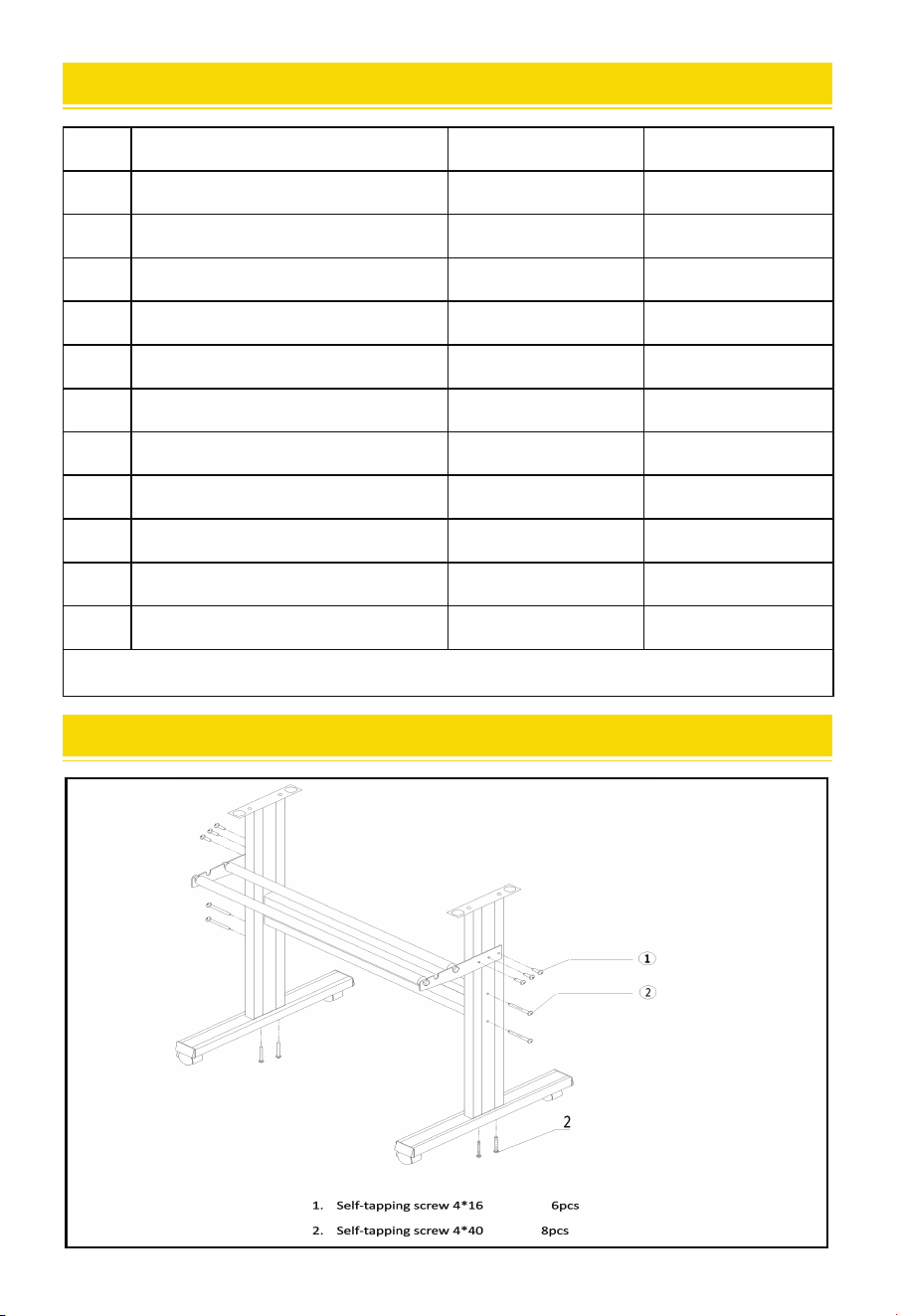
BRACKET ASSEMBLY DIAGRAM
Unit
Set
Pc
Box
Pc
Pc
Pc
Pc
Pc
Pc
Pc
Bag
1 1
1
1
1
1
1
1
1
1
1
1
2
3
4
5
6
7
8
9
10
11
To protect the machine, use only the accessories in this accesso box
Cutting Plotter
Power Supply Cable
Blade
Blade Holder
Pen Holder
Ball Pen Core
COM Connection Cable
USB Cable
Spanner
USB Driver
Bracket Screws
Item Quantity
05
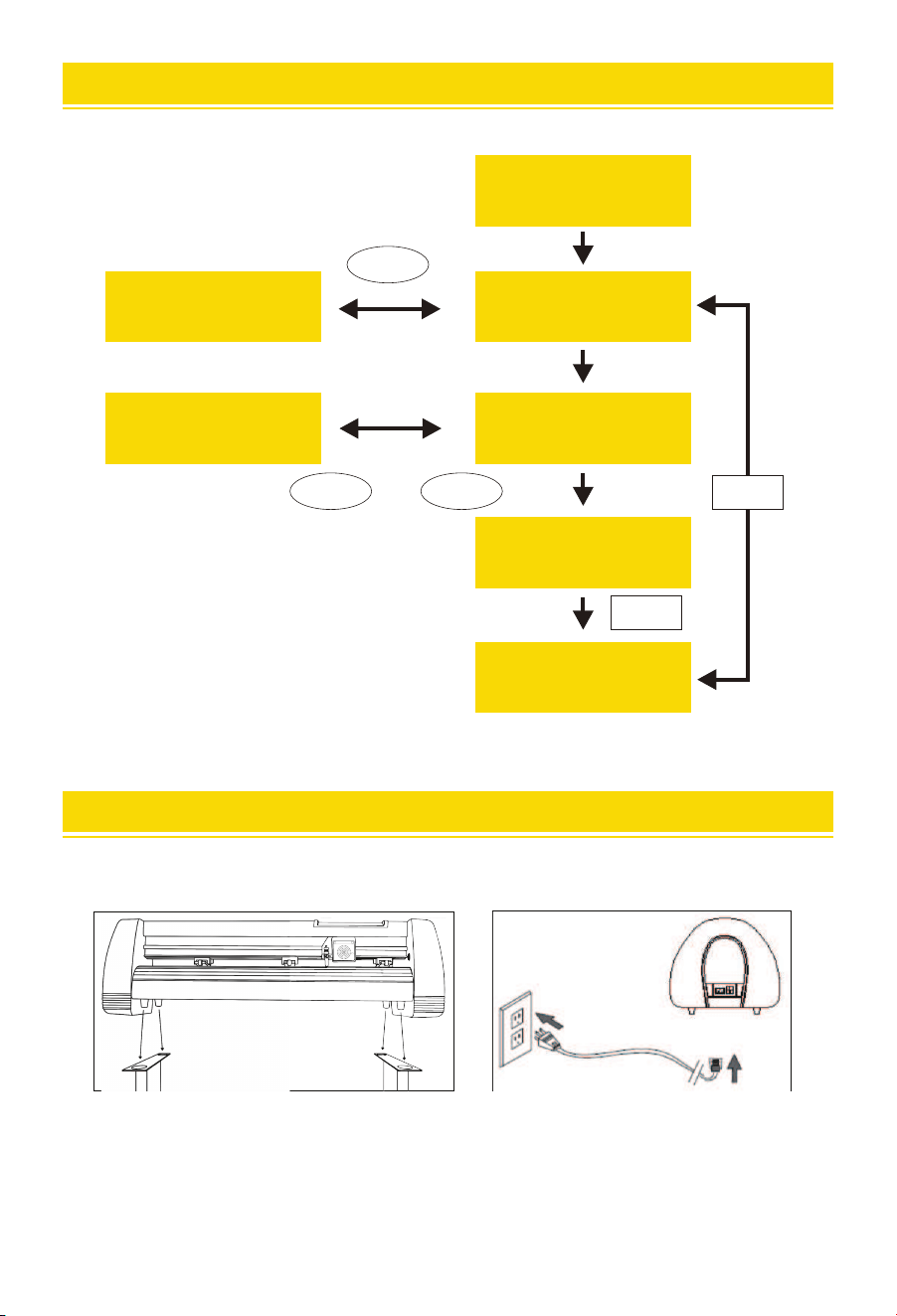
Before connecting the power supply, check the power supply voltage and the power cord.
Under normal conditions, the power can be directly energized.
CONTROL BUTTONS DESCRIPTION AND OPERATION INSTRUCTIONS
X= 0
Y= 0
Setting Language
English
Setting Language
Chinese
One
V+
V-
or
06
A: Put the machine on the stand B: Connect the power supply
PRODUCT ASSEMBLY STEPS
X scale 10000
Y scale 10000
SET UP
SET UP
Viual COM N
Printer Y
Speed 800mm\s
Force 105g
Welcome
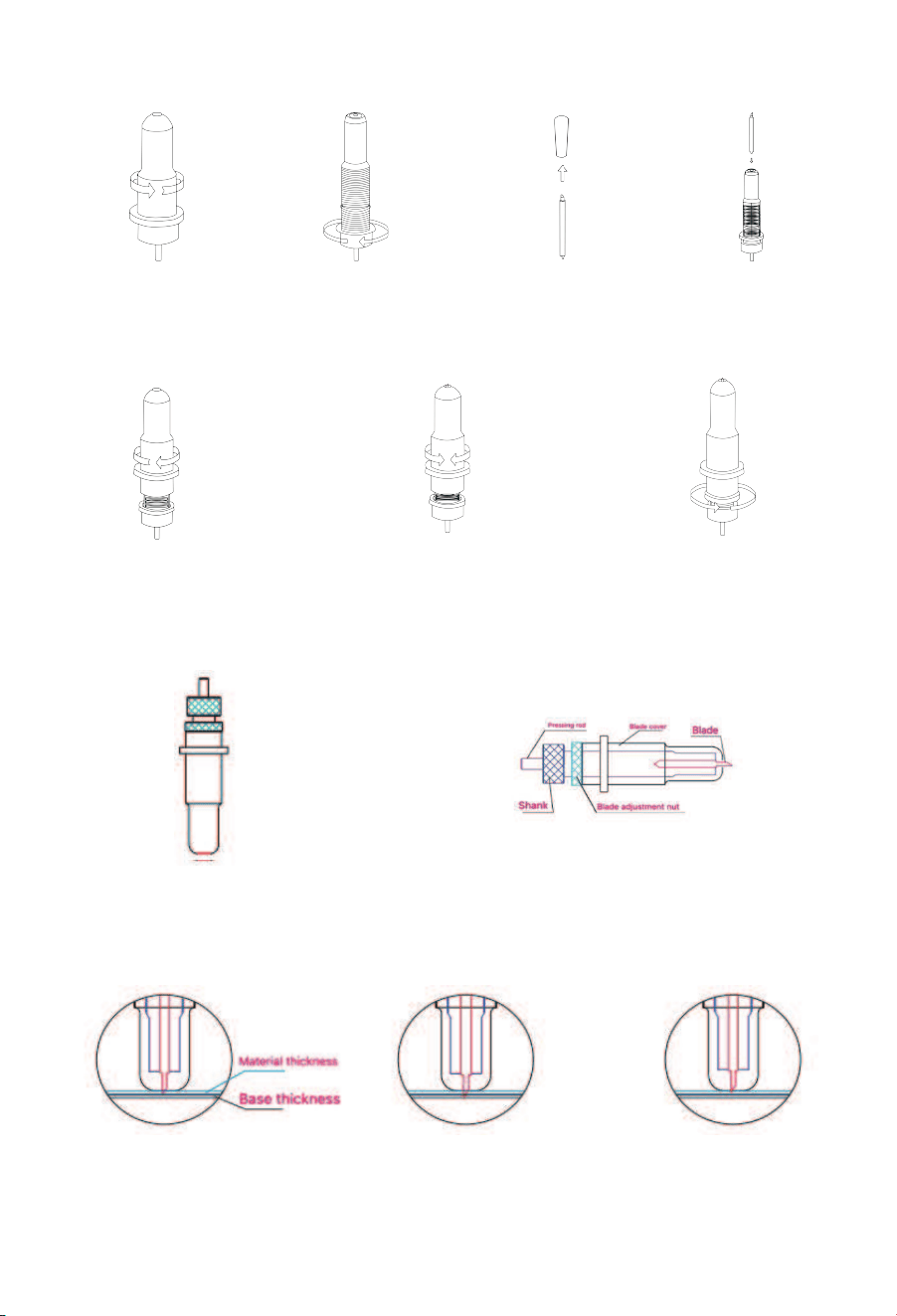
C: Blade assembly
4. Inse the blade into
the top of the Blade
Carriage.
3. Remove the protective
cover from a new blade.
2. Set Brass Ring on Blade
Carriage to the fully
down position.
1. Unscrew the cap from
the Blade Carriage.
5. Screw the cap back onto
the Blade Carriage.
Appearance view Exploded view
7. Adjust the Brass Ring until
it ts snug against the Cap.
This will help keep the cap
in place during operation.
6. Adjust the carriage cap until
the blade is protruding
approximately 1/64 of an inch.
a. Assembly the blade into holder, see as below:
c. Press the pressing rod when you want to change blade. Take out the blade when it is exposed.
Correct Blade tip is too long Blade tip is too sho
b. Loosen the blade adjustment nut and rotate the shank to adjust the length of the exposed blade tip.
Determine the tip length according to the thickness of the material.
07
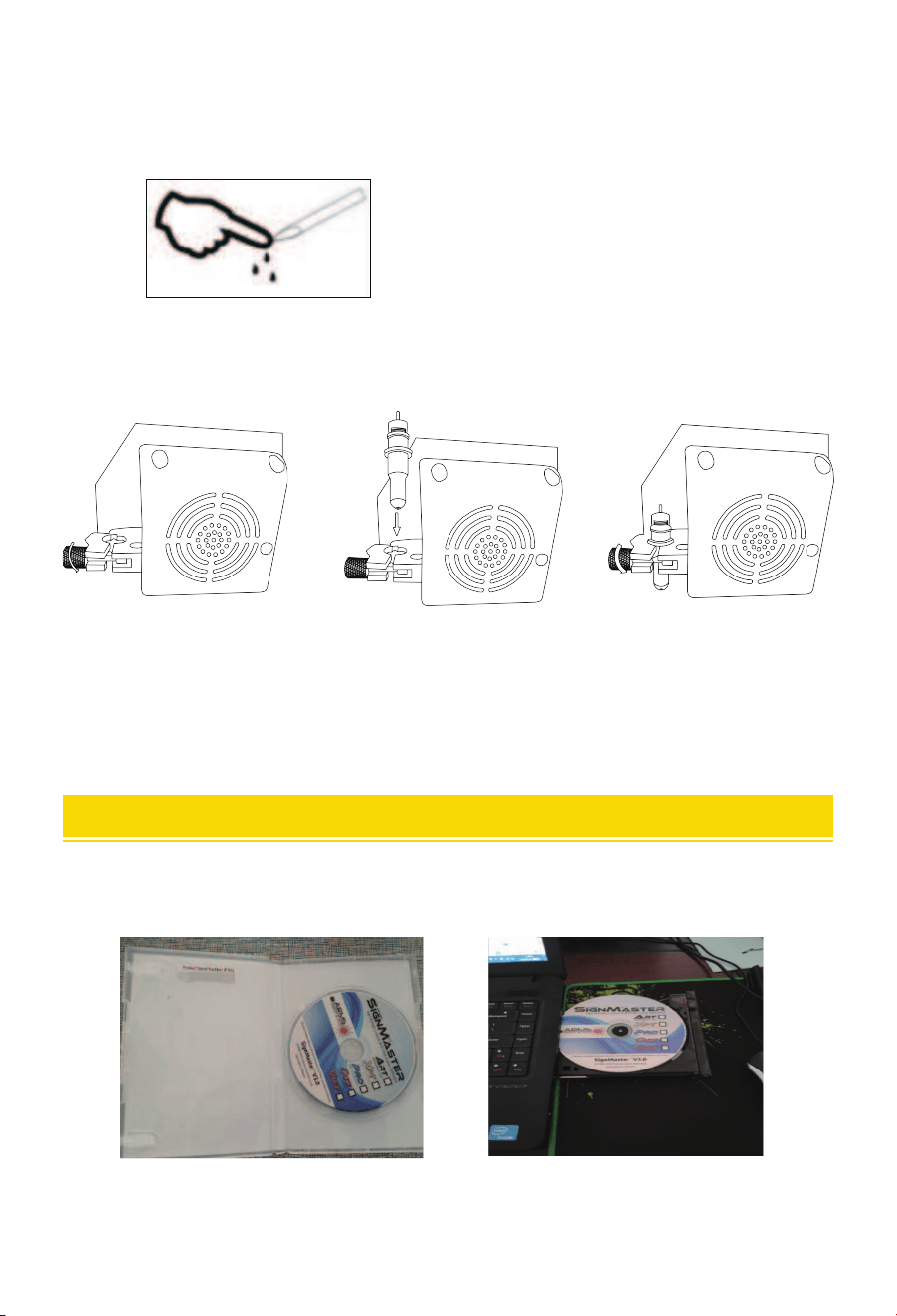
d: Installation Procedure of Knife Holder
1. Loosen the locking knob
on the carriage arm.
3. Tighten the locking knob
on the carriage arm.
2. Place blade carriage into
the carriage arm.
Tips:
Do not touch the blade tip by nger, otherwise,
your nger will be injured and the tip will be blunt.
pic 1 pic 2
Note: The cutting plotter can process soft coiled materials with a thickness of no more than 1 mm
of adhesive backing. It is forbidden to process metal materials.
1. Open the software box pic 1, take the disk and put it into CD optical drive pic 2.
SOFTWARE AND DRIVER INSTALLATION
d. Assembly the blade holder into wagon:
1. Loosen the xed screw on tool holder
2. Put the blade holder into tool holder
3. Tighten and x the blade holder when it arrives to correct position
08
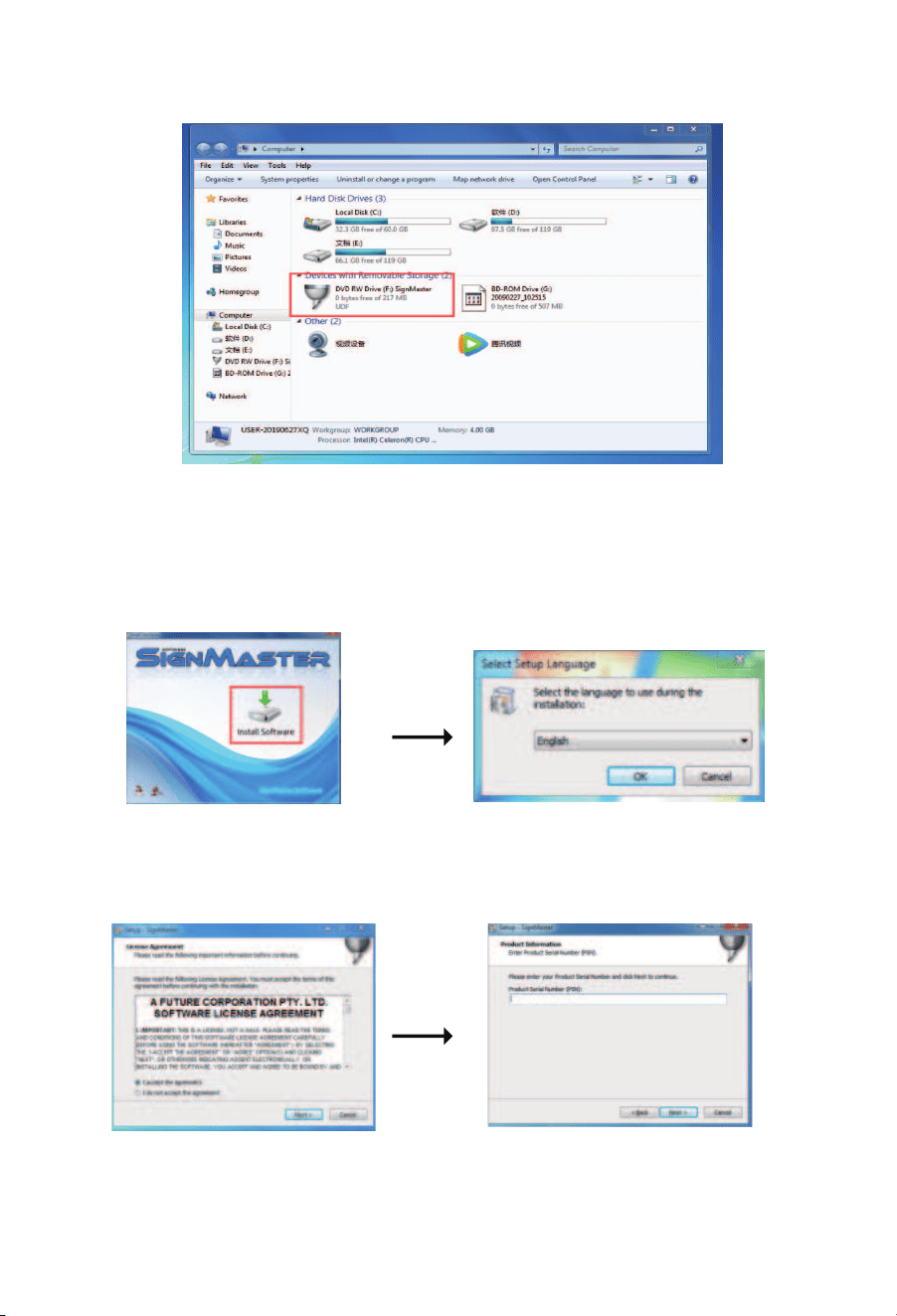
pic 3
pic 4-1 pic 4-2
pic 4-3 pic 4-4
Click on the icon in the red box Select the language
Enter the PSN code Agree to click next
2. Open the computer, double click or right click optical drive to install the software. pic 3
3. After opening optical drive, click Install Software. pic 4
PSN code can be found at
left side of opend software box.
09
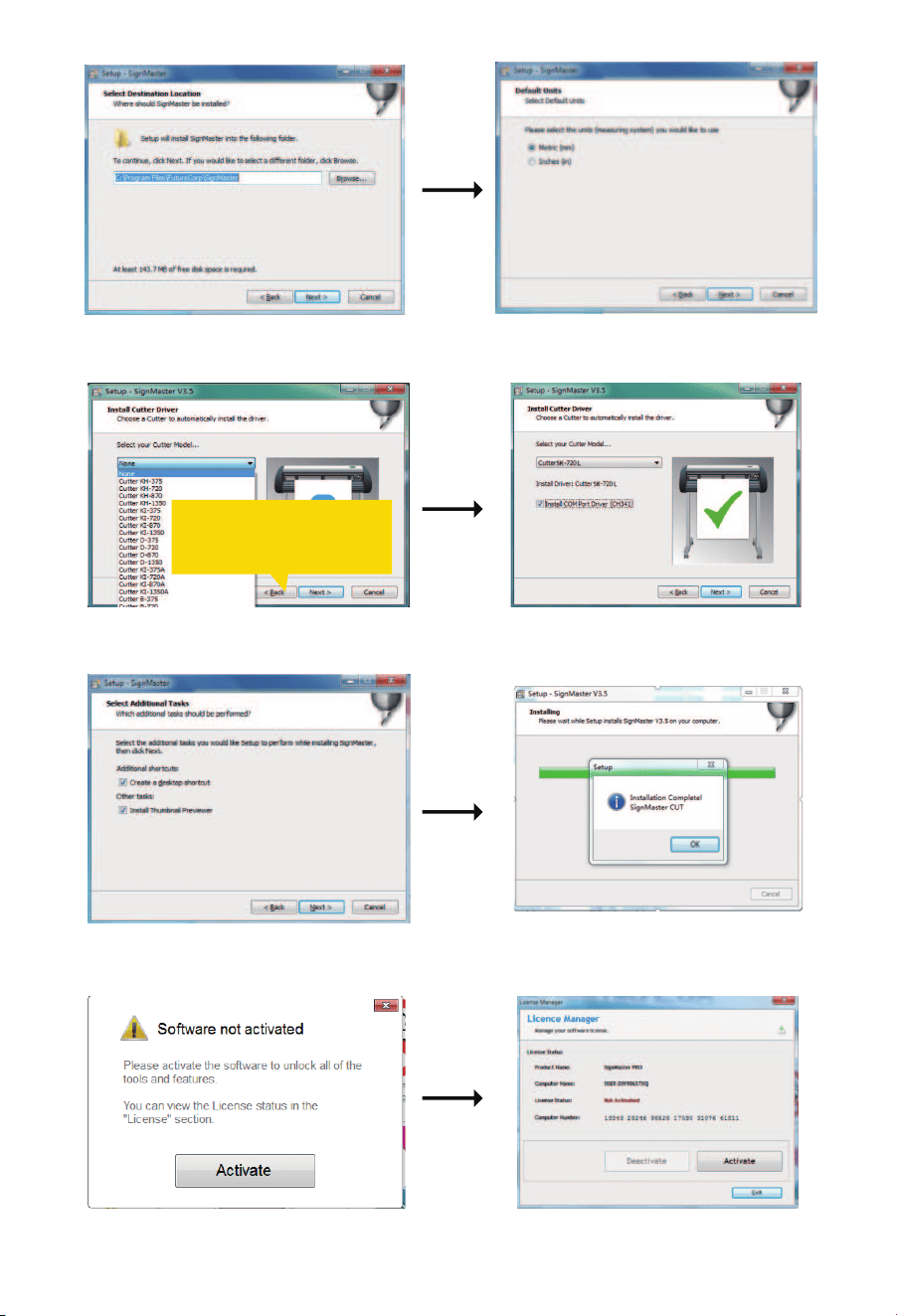
pic 4-5
Default installation path, click next
pic 4-6
Select the unit
pic 4-7
Select machine model
pic 4-8
Please select install COM po driver
pic 4-9
Next
pic 4-10
The installation is complete
pic 4-11
This activation window appears when you open the software
pic 4-12
Click activate and enter your email twice
The selected machine model can
be vi ewed in the l abel above
the machine power socket
10
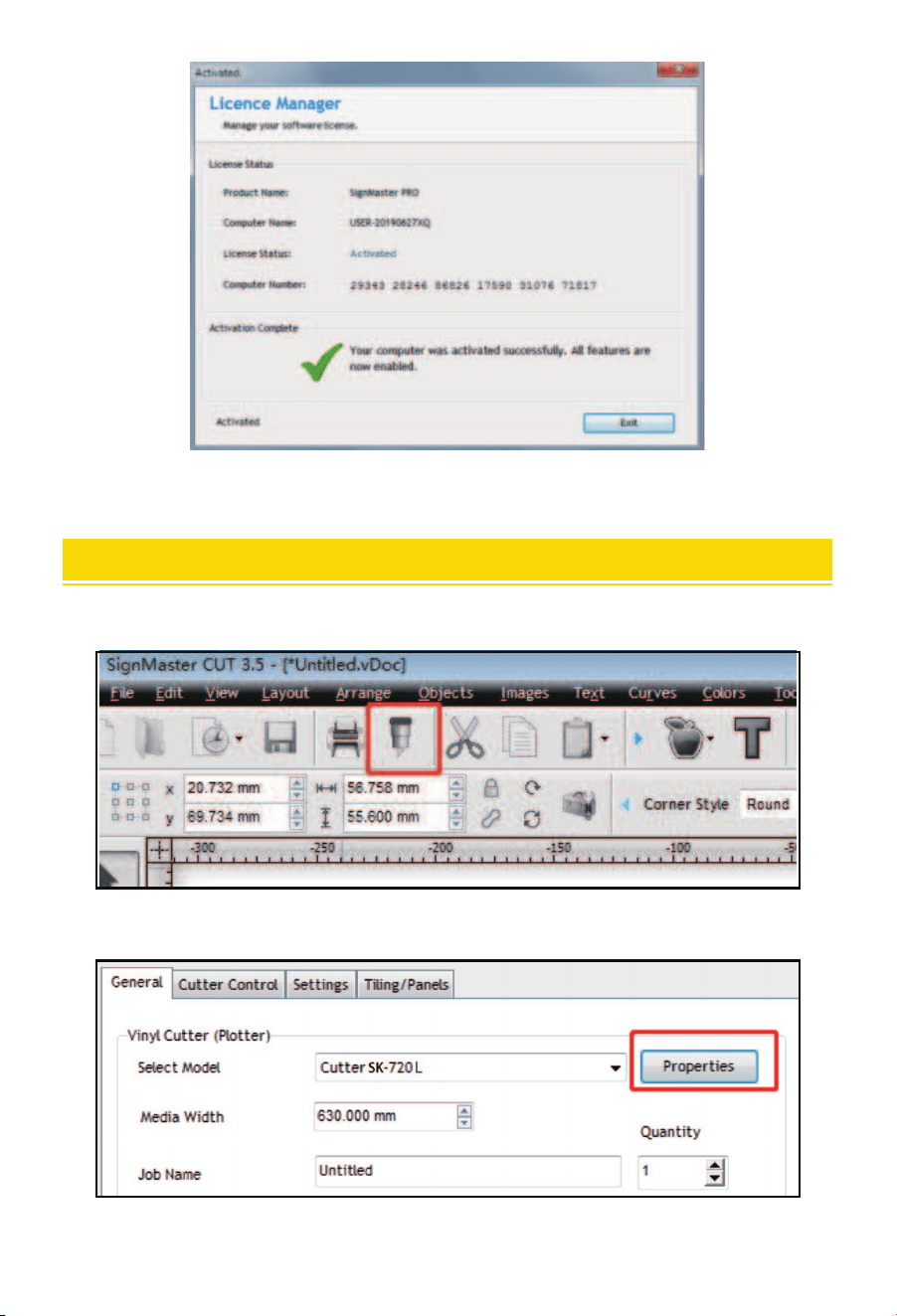
CONNECTION OF SOFTWARE AND MACHINE
Open the software, select cut content, and click send to the cutting plotter
pic 5-1
Click the cutter icon in the red box
pic 5-2
Click propeies
11
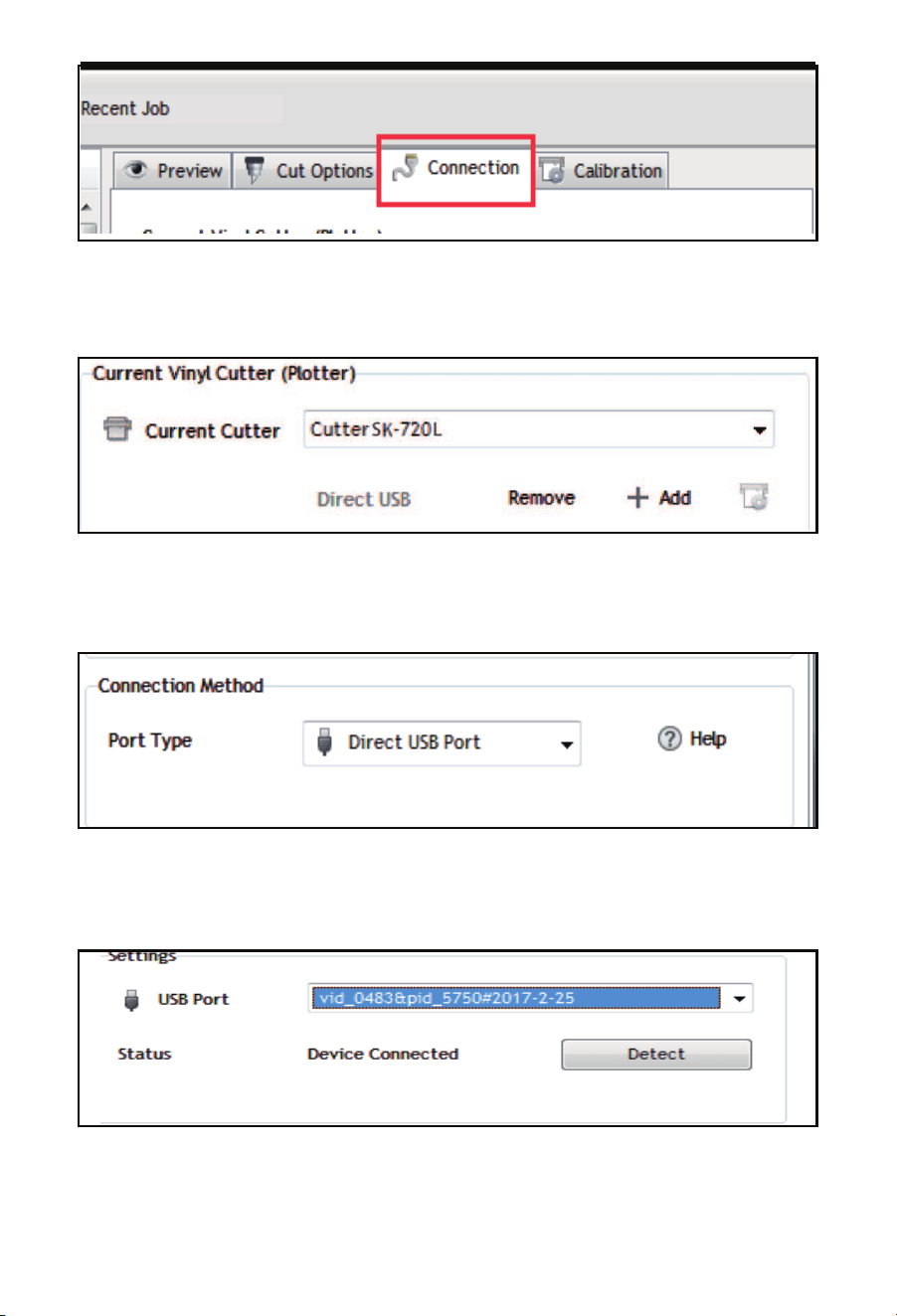
pic 5-4
Select machine model
pic 5-5
Select Direct USB Po
pic 5-6
Drop-down select driver
pic 5-3
Click connection
12
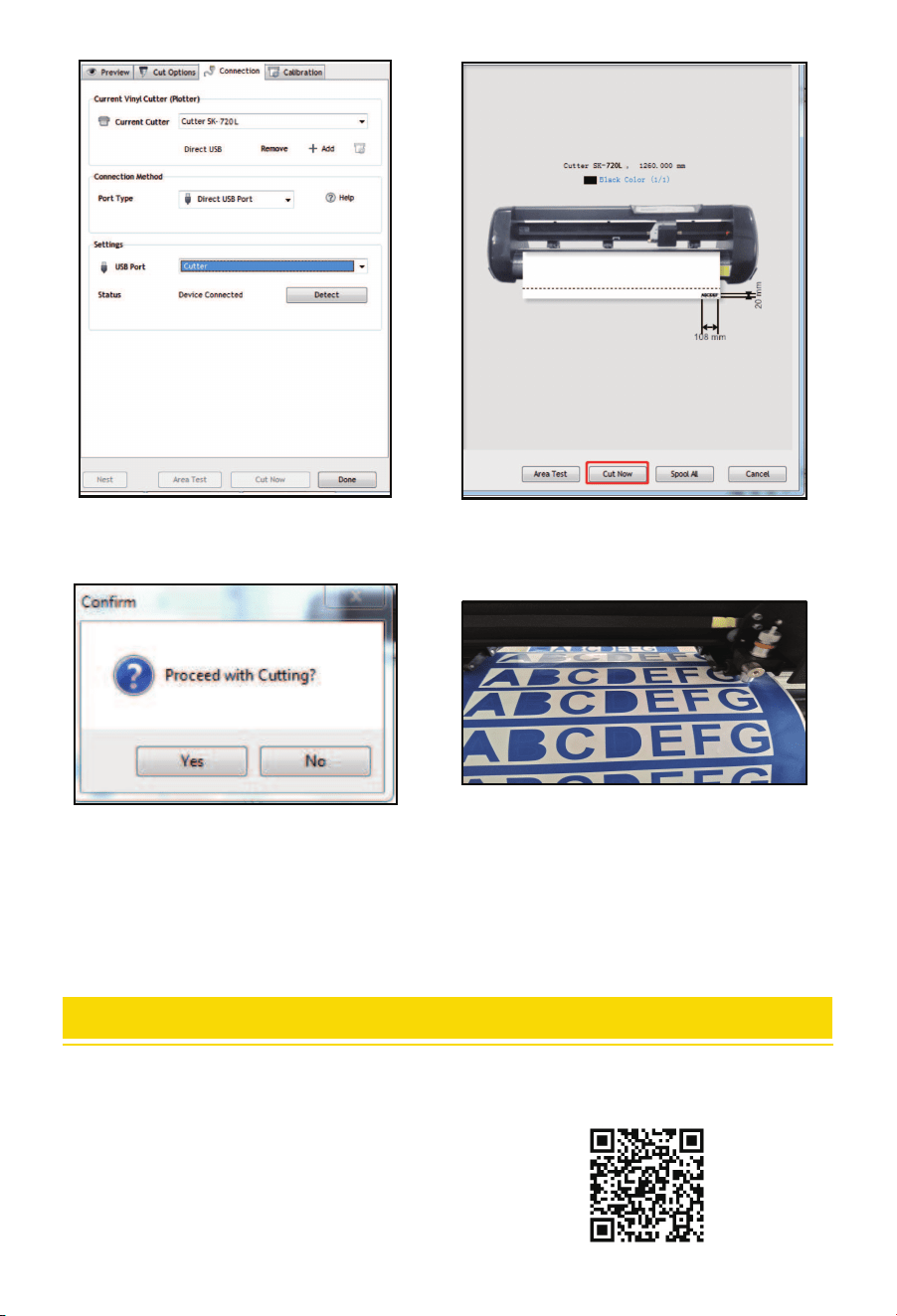
Note: Specic operation can refer to USB ash drive operation video, including as follows:
1. Ordina cutting video. 2. Automatic contour video.
3. Automatic deviation correction video. 4. Software installation video.
pic 5-7
Click nish
pic 5-8
Click cut now
pic 5-9
Click cut now
pic 5-10
The output is completed,
the cutting plotter is cutting.
13
APP OPERATION GUIDE
Note: This APP can only suppo Android system, there is no need to choose the language when
installing, software installation will follow the phone system language installation.
1. First download the APP in any of the following ways.
a. Download link:http://apk.ahroto.com/CUT.apk
b. You can download the APP by scanning the following QR code
through your browser.
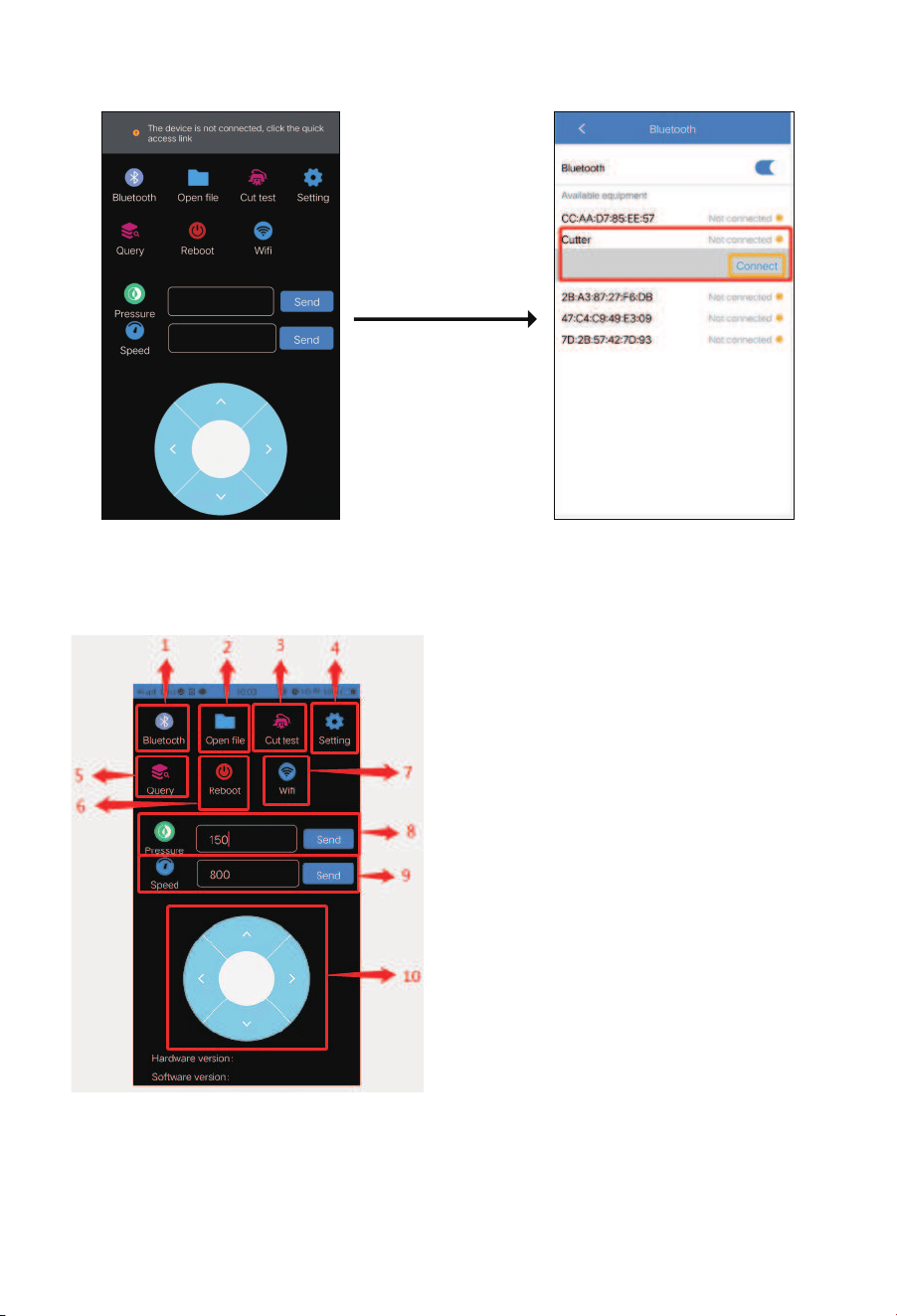
Open the APP Turn on Bluetooth
and search for pairing
3. Function is introduced
① Bluetooth management: Connect the plotter
through Window.
② File management: Search for downloaded PLT les
and send cutting les.
③ Cutting test: After loading the materials, you can
click the test cutting function to check whether the
knife pressure is appropriate
④ Set up: Po mode, gear ratio and machine language
can be changed. Light settings and camera settings
are not related to this machine. Do not change these
parameters.
⑤ Version of the que: Que the hardware version
and software version.
⑥ Resta function: Pressing this button will resta the
machine.
⑦ WiFi Connection window: This machine does not
suppo WiFi function, do not need to set and
connect this function.
⑧ Pressure display bar: Here you can display the current pressure value of the machine and change the
pressure value.
⑨ Speed display bar: Here you can display current machine speed values and change speed values.
⑩ Spos carriage and material control area: After connecting the machine, you can control the carriage of
the machine and move the material to determine the cutting position.
Power up the machine
and turn it on
14
2. Connection Operation Guide
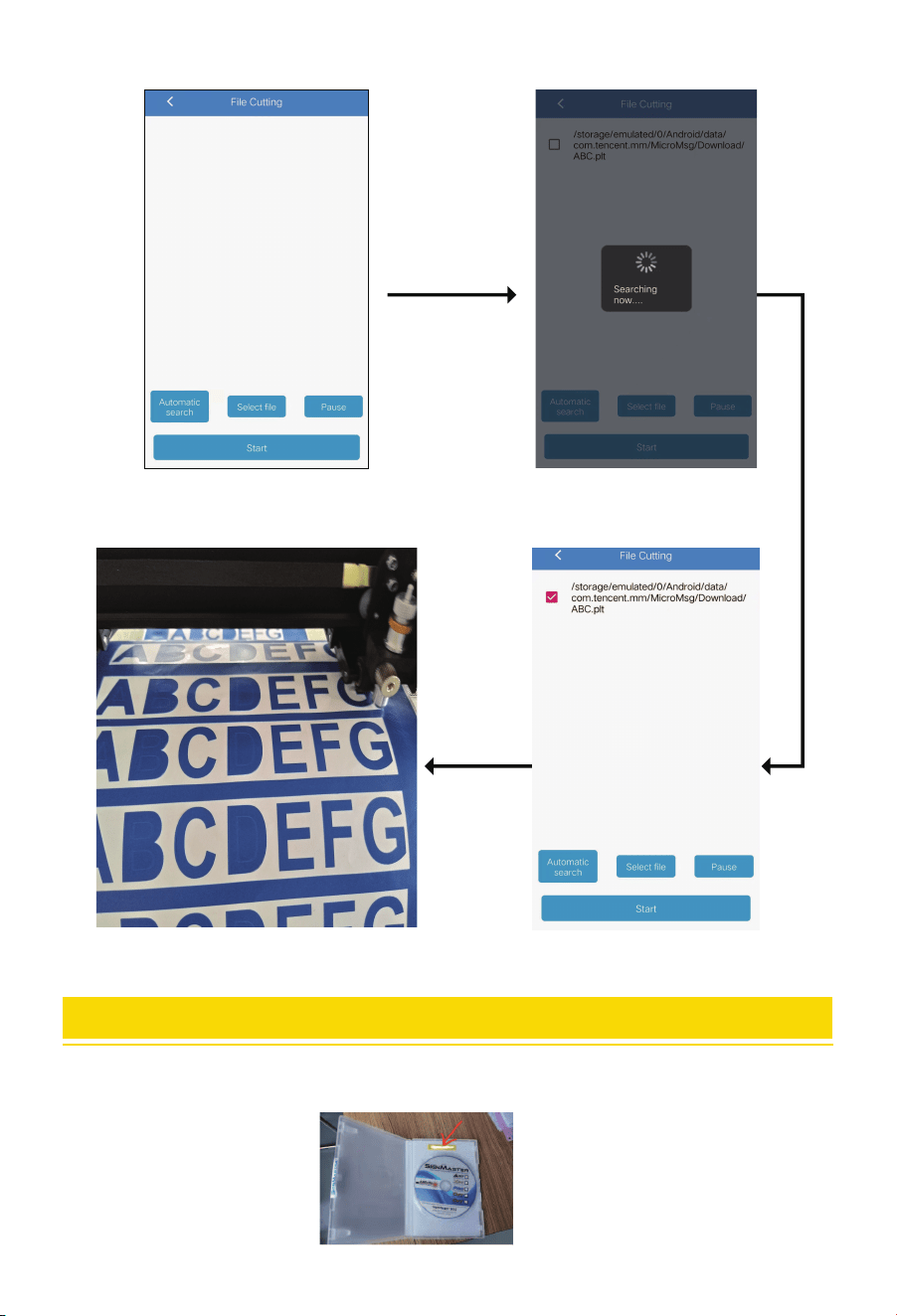
Open le Management Click auto Search to sta searching
for PLT les saved on the phone
Eect of cutting Select the le and click cut
4. Send Cutting le
TROUBLESHOOTING
1. PSN code is required during software installation. Where is this code?
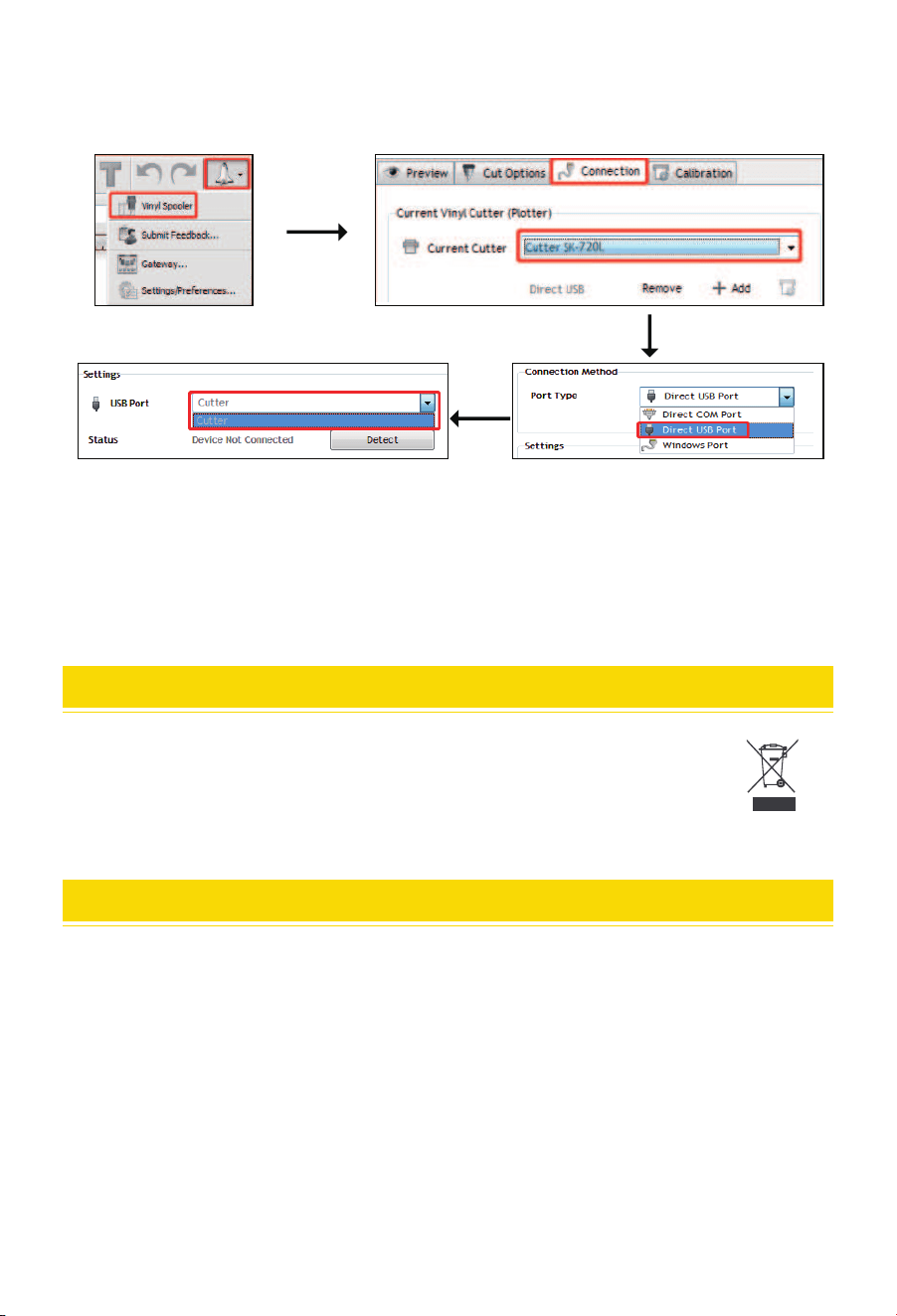
Solution: The software code is in the CD box, you can see it when you open it, as shown below:
15
DISPOSAL
2. Computer software can't connect to the plotter?
Solution: The software is not set properly.Open the software cutting background and select USB
as the po type, as shown below:
3. What should I do if MY mobile APP cannot connect to the cutting plotter?
Solution: Resta the plotter because the Bluetooth po is occupied.
4.What should I do if the display blinks or blue screen when I sta it?
Solution: In this case, the control card is damaged, and you need to contact the after-sales seice
to replace the accessories.
This product is subject to the provisions of European Directive 2012/ 19/ EC.
Products marked with the logo on the right require separate waste collection in the EU.
This rule applies to all products and accessories bearing this mark.
Products containing the label on the right must not be discarded with general household waste and
must be sent to a collection point for recycling of electrical and electronic equipment.
ATTENTION
Attention: This device complies with Pa 15 of the FCC Rules. Operation is subject to the following
two conditions:
1. This device may not cause harmful inteerence,
2. this device must accept any inteerence received, including inteerence that may cause
undesired operation.
UK REP: Acumen IBC Ltd Ground Floor, 94 Ock Street,
Abingdon, OX14 5DH Richard Kupce
[email protected] +44 1235 200526
EC REP: EUREP GmbH Unterlettenweg 1a, 85051 Ingolstadt
[email protected] +49 841 8869 7744
16

E-mail: CustomerSeice@vevor.com