Before using your new product, please read these instructions to prevent any damage.
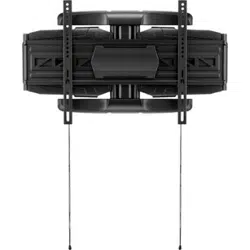
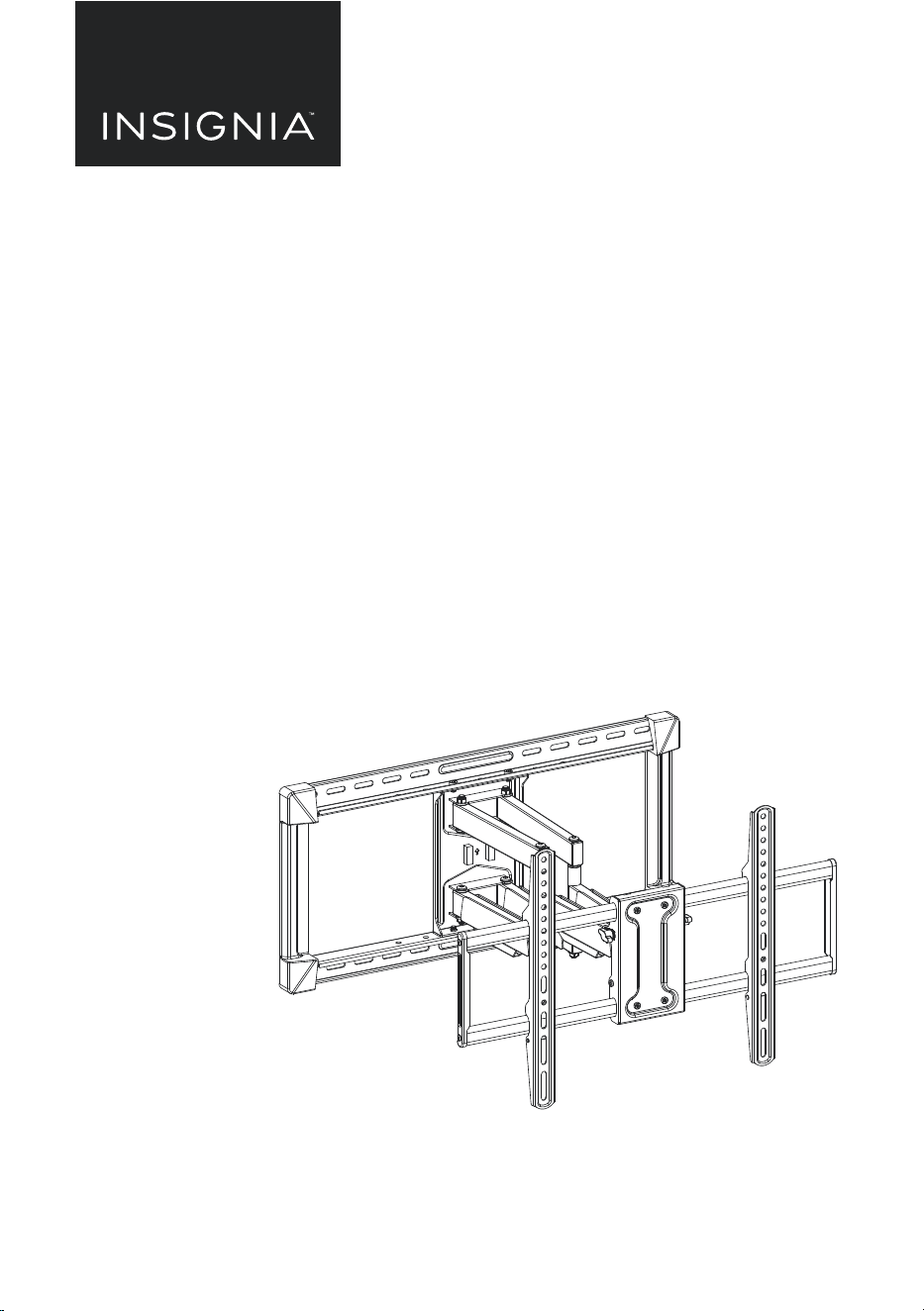
Full-Motion Wall
Mount for 42-90” TVs
NS-TVLFMB / NS-TVLFMB-C
INSTALLATION GUIDE
For VESA patterns:
• 7.9 × 3.9" (200 × 100 mm)
• 7.9 × 7.9" (200 × 200 mm)
• 11.8 × 7.9" (300 × 200 mm)
• 11.8 × 11.8" (300 × 300 mm)
• 15.7 × 7.9" (400 × 200 mm)
• 15.7 × 11.8" (400 × 300 mm)
• 15.7 × 15.7" (400 × 400 mm)
• 19.7 × 15.7" (500 × 400 mm)
• 23.6 × 15.7" (600 × 400 mm)
2
www.insigniaproducts.com
Safety information and specifications
IMPORTANT
SAFETY
INSTRUCTIONS
- SAVE THESE
INSTRUCTIONS
CAUTION: Do
not u
se this product for any purpose
not explicitly specified by Insignia.
Improper installation may cause
prope
rty damage or personal
injury. If you do not understand
these directions, or have doubts
about the safety of the installation,
contact Customer Service or call a
qualified contractor. Insignia is not responsible for damage or injury caused by incorrect installation or use.
The weight of your TV must not exceed 120 lbs. (54.4 kg). The wall must be capable of supporting five
times
the weight of your TV and wall mount combined.
This product contains small items that could be a choking hazard if swallowed. Keep these items away
from
young children!
Maximum TV weight: 120 lbs. (54.43 kg)
Screen size: 42 in. to 90 in. diagonal
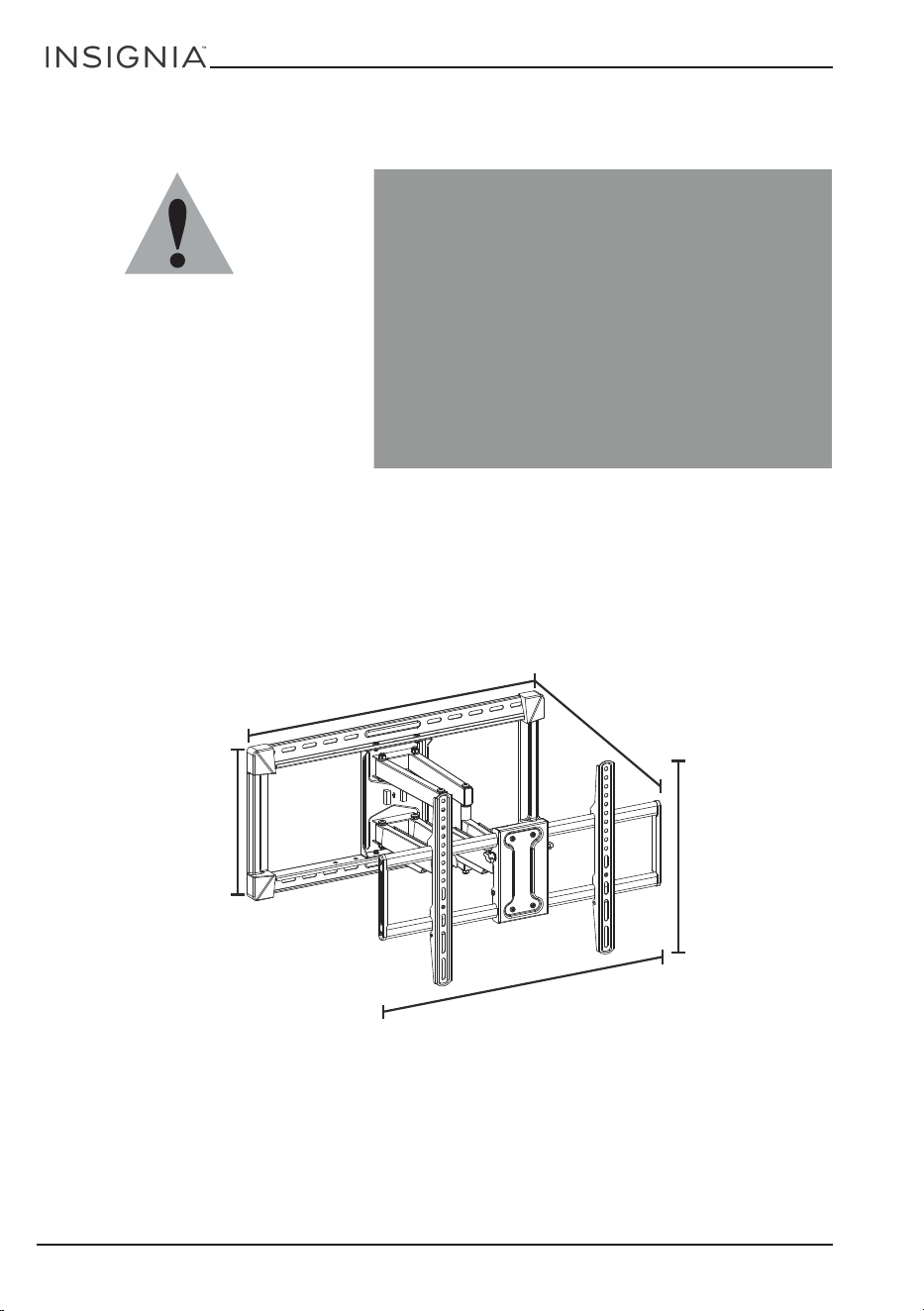
Overall dimensions (H × W ):
17.2 × 28.1 in. (43.6 × 71.4 cm)
Wall-mount weight: 22.15 lbs. (10.05 kg)
We’re here for you
www.insigniaproducts.com
For customer service, call:
1-877-467-4289
2
8
.
1
i
n
.
(
7
1
.
4
c
m
)
13.4 in. (34.0 cm)
2
2
.3
i
n
. (
5
6
.6
c
m
)
17.2 in. (43.6 cm)
2
6
.
9
i
n
.
(
6
8
.
3
c
m
)
3
www.insigniaproducts.com
Full-Motion Wall Mount for 42-90” TVs
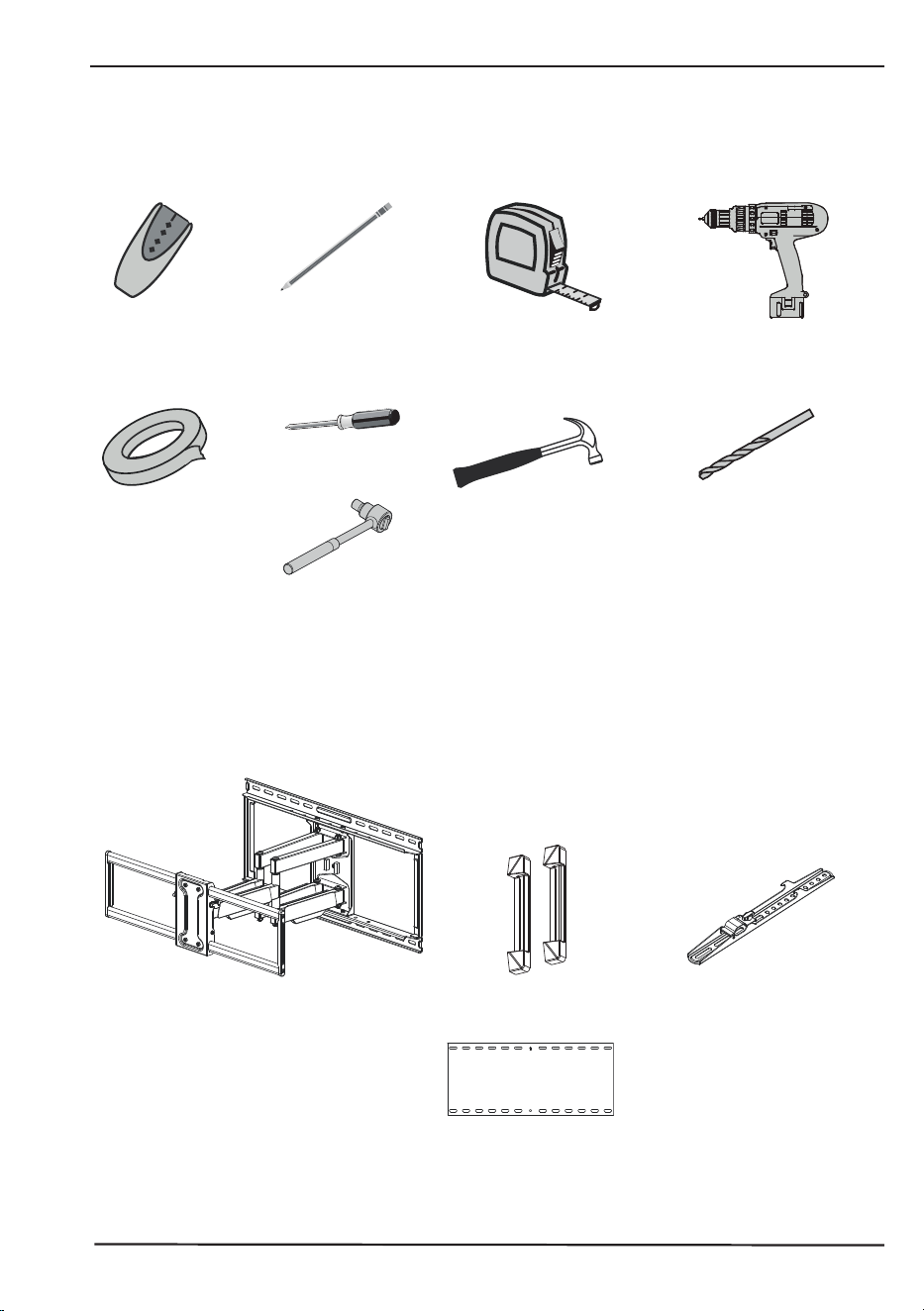
Tools needed
You will need the following tools (not provided) to assemble your new TV wall mount:
ardware
Package contents
Make sure that you have all the hardware necessary to assemble your new TV wall mount:
Edge-to-edge
stud finder
Phillips screwdriver
Measuring tape
Drill
7/32 in. (5.5 mm) wood drill
bit (for wood stud wall)
OR
3/8 in. (10 mm) masonry
drill bit (for concrete wall)
Hammer
Masking tape
Pencil
Socket wrench set
1/2 in. (13 mm)
Wall Mount (1)
with cable management
clips (4) preinstalled
Wall Plate Template (1)
TV Brackets (2)
Wall Mount End Caps (2)
4
www.insigniaproducts.com
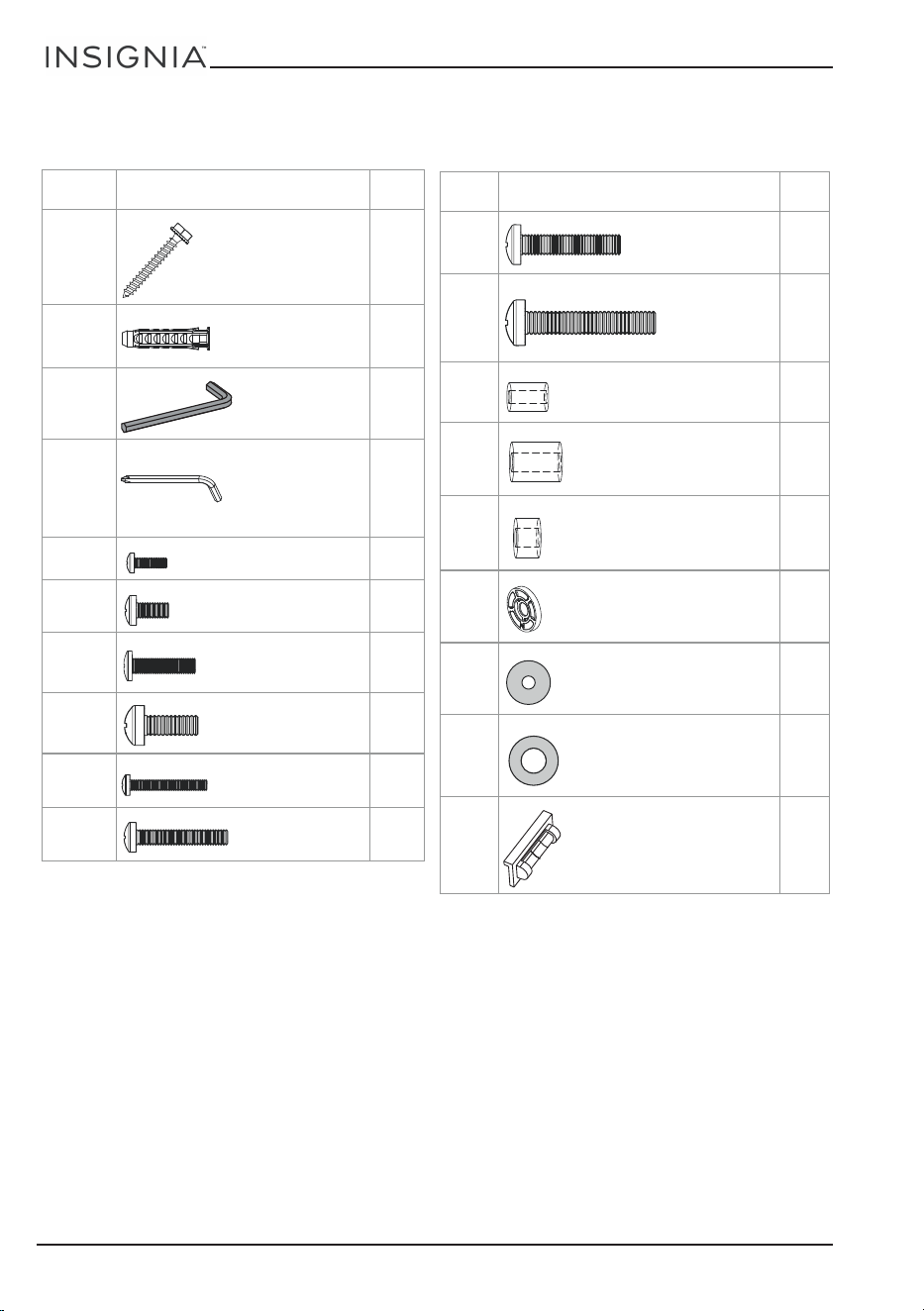
TV hardware bag
Label Hardware Qty.
D 4
E
4
F
1
G
1
H1 4
H2 4
H3 4
H4 4
H5 4
H6 4
Lag bolts
Concrete anchor
4 mm Allen
wrench
5 mm Allen
wrench
M4 × 12 mm screw
M6 × 12 mm screw
M6 × 20 mm screw
M8 × 20 mm screw
M4 × 35 mm screw
M6 × 35 mm
screw
Label Hardware Qty.
H7 4
H8 4
I1 4
I2 4
I3 4
I4 8
J1 4
J2 4
K
1
M8 × 35 mm screw
M8 × 50 mm
screw
M6 x 17 mm Spacer
M8 x 22 mm Spacer
M8 x 10 mm Spacer
M4/M8 x 2.5 mm Spacer
M4 washer
M6 washer
Magnetic removable
bubble level
5
www.insigniaproducts.com
Full-Motion Wall Mount for 42-90” TVs
Installation instructions
STEP 1 - Determine whether your TV has a flat back or an
irregular or obstructed back
1 Carefully place your TV screen face-down on a cushioned, clean surface to protect the screen from
damages and scratches.
2 If your TV has a table-top stand attached, remove the stand. See the documentation that came with your
TV for instructions.
3 Lay the TV brackets, oriented vertically, on the back of your TV.
4 Align the screw holes in the TV brackets with the mounting screw holes on your TV.
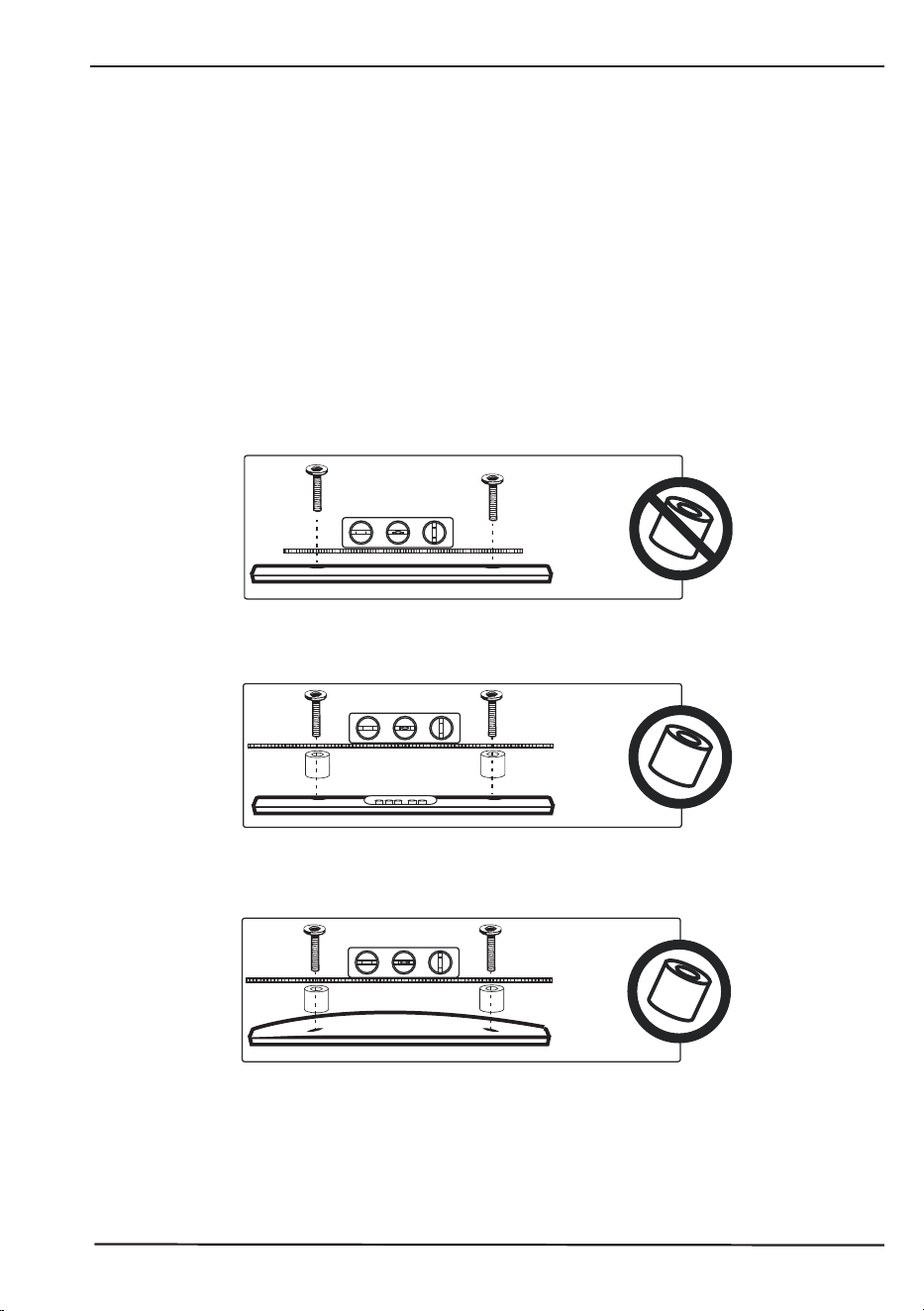
5 Identify which type of back your TV has:
• Flat back: The brackets lay flush against the back of your TV and do not block any jacks. You do not need
spacers when assembling the wall mount.
• Obstructed back: The brackets block one or more of the jacks on the back of your TV. You will need
spacers when assembling the wall mount.
• Irregularly-shaped back: There is a gap between a bracket and some part of the back of your TV. You
will need spacers when assembling the wall mount.
6 Remove the TV brackets.
6
www.insigniaproducts.com
STEP 2 - Select screws, washers, and spacers
1 Select the hardware for your TV (screws, washers, and spacers). A limited number of TVs come with
mounting hardware included. (If there are screws that came with the TV, they are almost always in the
holes on the back of the TV.) If you don't know the correct length of the mounting screws your TV
requires, test various sizes by hand-threading the screws.
Select one of the following types of screws:
For a TV with a flat back:
M4 X 12 mm screws (H1)
M6 X 12 mm screws (H2)
M6 X 20 mm screws (H3)
M8 X 20 mm screws (H4)
For a TV with an irregular/obstructed back:
M4 X 35 mm screws (H5)
M6 X 35 mm screws (H6)
M8 X 35 mm screws (H7)
M8 X 50 mm screws (H8)
Select either an M4 washer (J1) or an M6 washer (J2) for the corresponding types of screws. For an
irreg
ular or obstructed TV back, also use the spacers (I1, I2, I3, or I4).
Note: If the included hardware does not work for your TV, call 1-877-467-4289, for Insignia Customer
Suppor
t, and we’ll work to determine the necessary parts required and ship them to you without charge.
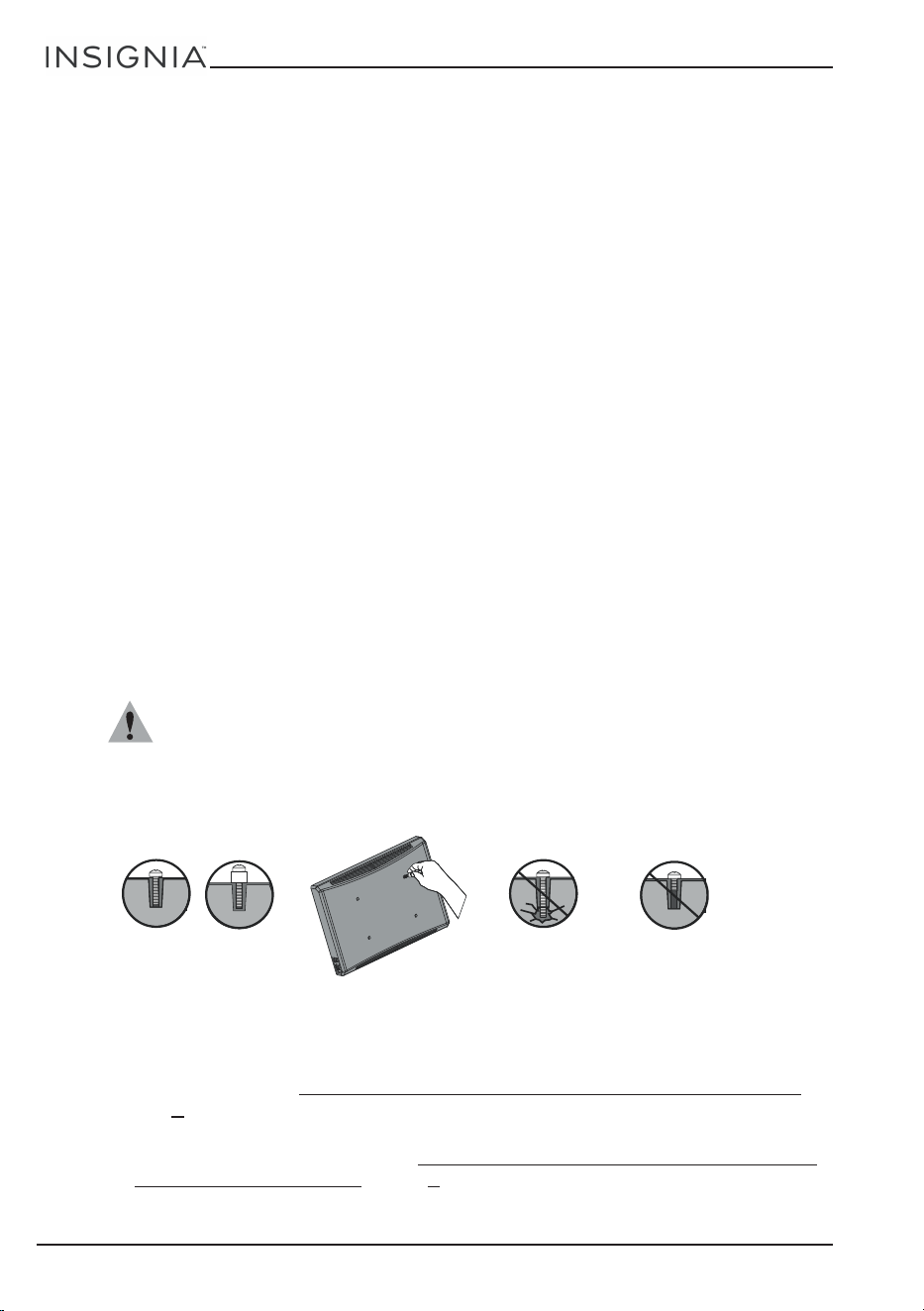
CAUTION: To avoid potential personal injuries and property damage, make sure that there are adequate
threads to secure the brackets to your TV. If you encounter resistance, stop immediately and contact customer
servi
ce. Use the shortest screw and spacer combination to accommodate your TV. Using hardware that is too long
may damage your TV. However, using a screw that is too short may cause your TV to fall from the mount.
2 Remove the screws from the holes in the back of your TV.
3 For a flat back TV, go to “STEP 3 - Option 1: Attaching the mounting hardware to TVs with a flat back“ on
page 7.
-OR-
For an irregular or obstructed back, go to “
STEP 3 - Option 2: Attaching the mounting hardware to TVs
with irregular or obstructed backs” on page 8.
Screw fits
correctly
Screw is too
long
Screw is too
short
7
www.insigniaproducts.com
Full-Motion Wall Mount for 42-90” TVs
STEP 3 - Option 1: Attaching the mounting hardware to TVs
with a flat back
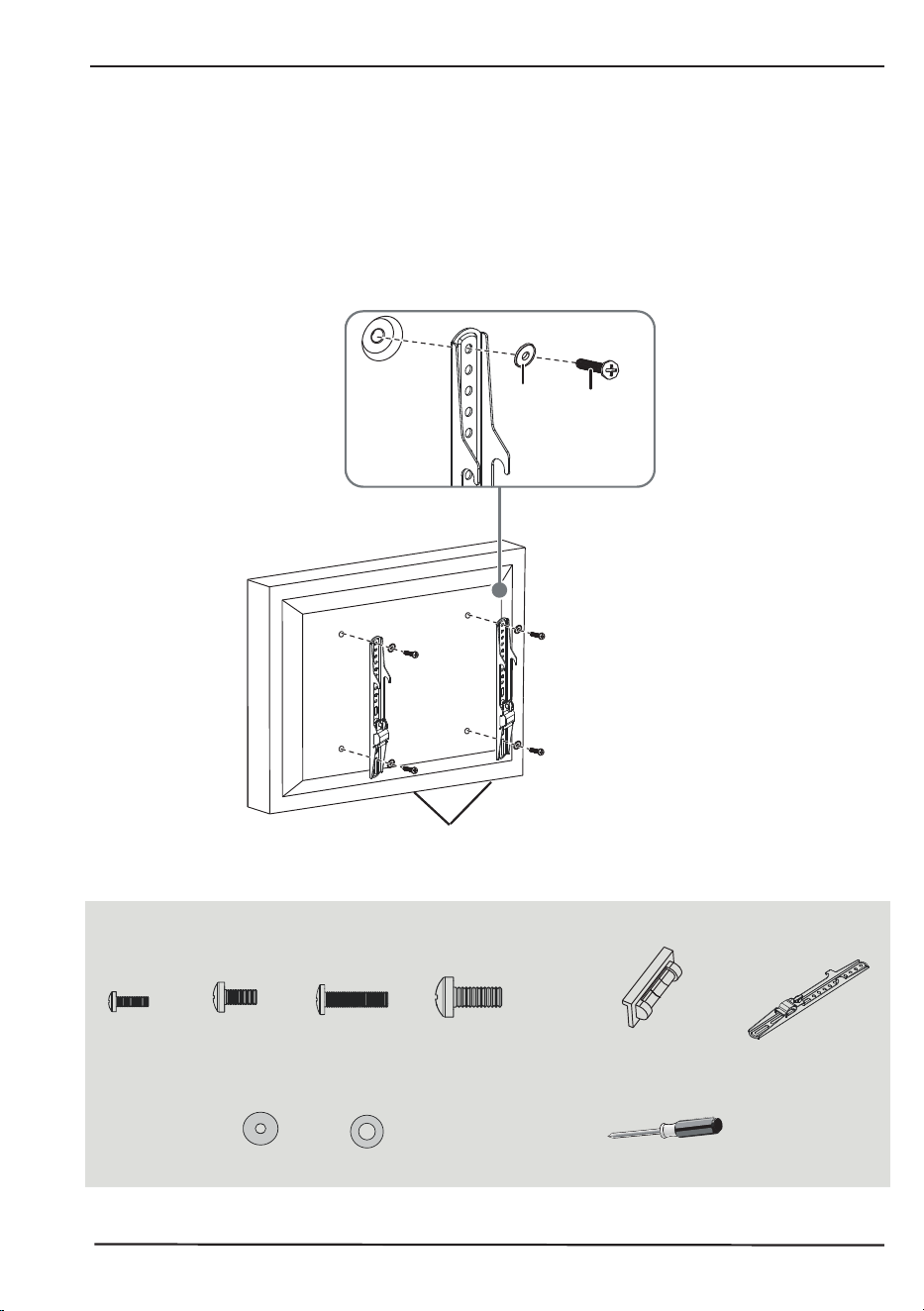
1 Align the left and right TV brackets with the screw holes on the back of the TV. Make sure that the
brackets are level.
2 Install washers (J1 or J2 - except with H4 screws), and screws (H1, H2, H3, or H4) into the holes in the
back of the TV.
3 Tighten the screws until they are snug against the TV brackets. Do not over tighten.
You’ll need
J1
or J2
H1, H2,
H3, or H4
TV brackets
Note: No washers
required for H4
screws
H4 (4)H1 (4)
Phillips screwdriver
Screws
Washers
TV brackets
(2)
or
H2 (4)
J1 (4)
H3 (4)
Magnetic
removable bubble
level
oror
J2 (4)
or
8
www.insigniaproducts.com
STEP 3 - Option 2: Attaching the mounting hardware to TVs
with irregular or obstructed backs
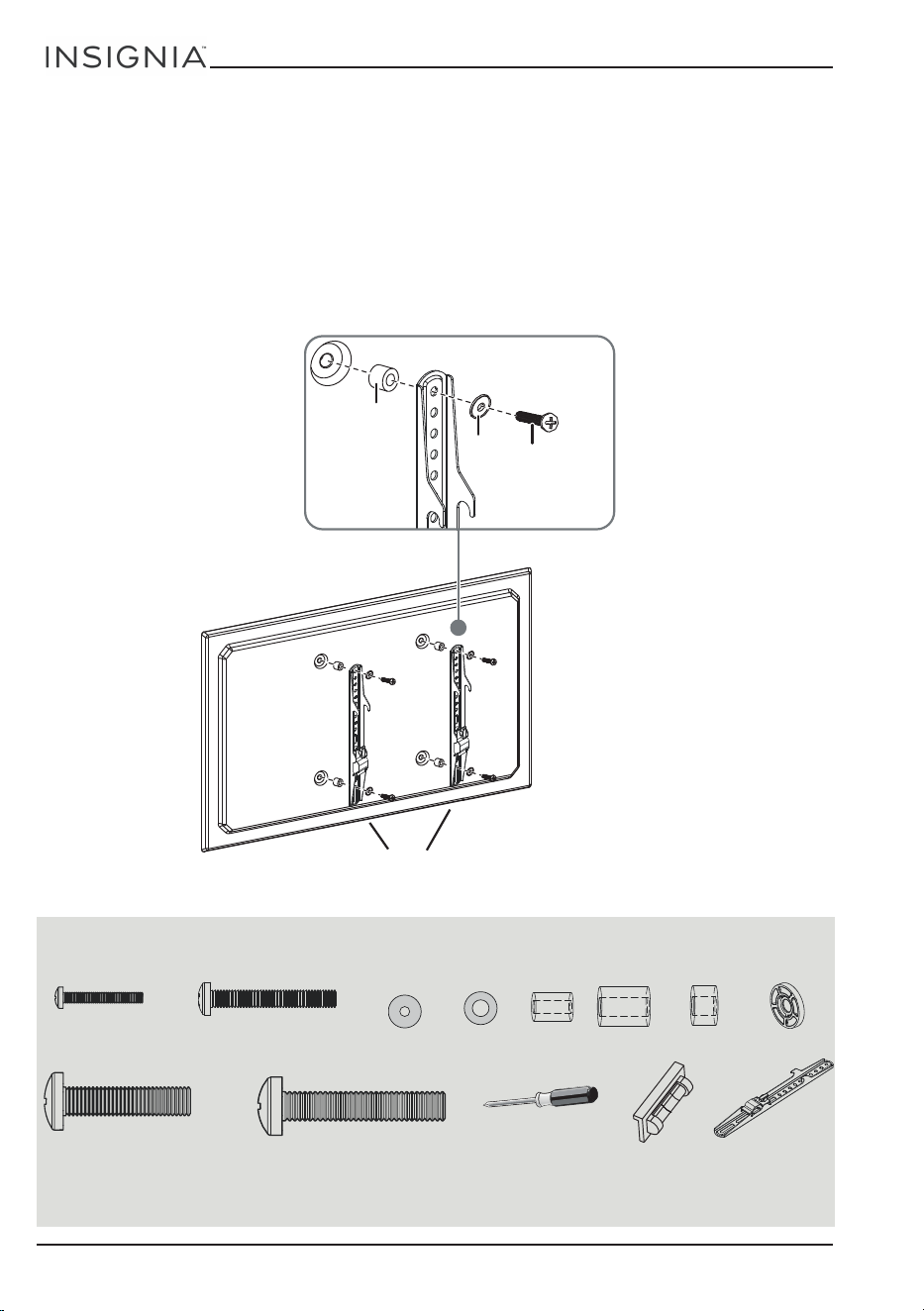
1 Place spacers (I1, I2, I3, or I4) over the holes on the back of the TV.
2 Align the left and right TV brackets with the screw holes on the back of the TV. Make sure that the
brackets are level.
3 Place washers (J1 or J2 - except with H7 or H8 screws) over the holes in the TV brackets. Insert screws
(H5, H6, H7, or H8) through the washers, TV brackets, and spacers.
4 Tighten the screws until they are snug against the TV brackets. Do not over tighten.
You’ll need
J1 or J2
H5, H6,
H7 or H8
TV
brackets
I1, I2, I3,
or I4
Note: No washers
required for H7 or
H8 screws
H5 (4)
H6 (4)
Phillips screwdriver
Screws
Washers
Spacers
TV brackets
(2)
H7 (4)
or
or
I1 (4)
J1 (4) J2 (4)
or
or
or
Magnetic
removable
bubble level
H8 (4)
I2 (4)
I3 (4)
I4 (8)
or
or or
9
www.insigniaproducts.com
Full-Motion Wall Mount for 42-90” TVs
STEP 4 - Determine wall-mount location
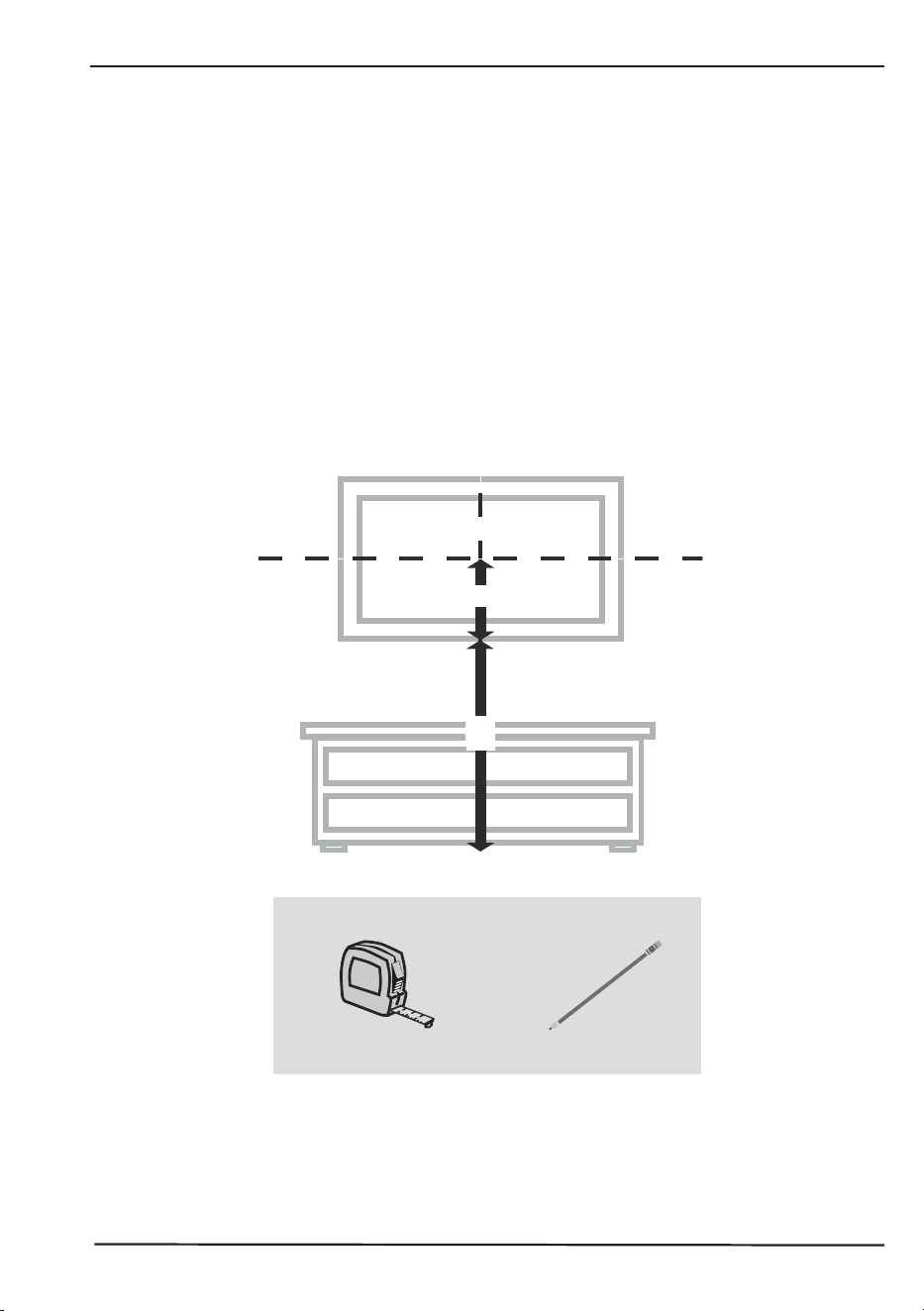
Note: Your TV should be high enough so that your eyes are level with the middle of the screen. This is
normally 40 to 60 in. from the ground.
The center of your TV will be offset .8 in. (2 cm) lower than the center of the wall plate on the wall-mount.
Befor
e you drill holes in the wall:
1 Measure the distance from the bottom of your TV to the center point halfway between the top and
bottom mounting holes on the back of your TV. This is measurement a.
2 Measure the distance from the floor to where you want the bottom of the TV to be placed on the wall.
Keep in mind that the bottom of the TV should be placed above any furniture (such as entertainment
centers or TV stands). The TV should also be above items placed on top of the furniture (like a Blu-ray
player or cable box). This measurement is b.
3 Add a + b. The total measurement is the height where you want the center of the wall plate to be on the
wall.
4 Use a pencil to mark this spot on the wall.
You’ll need
A
B
a
b
Measuring tape Pencil

10
www.insigniaproducts.com
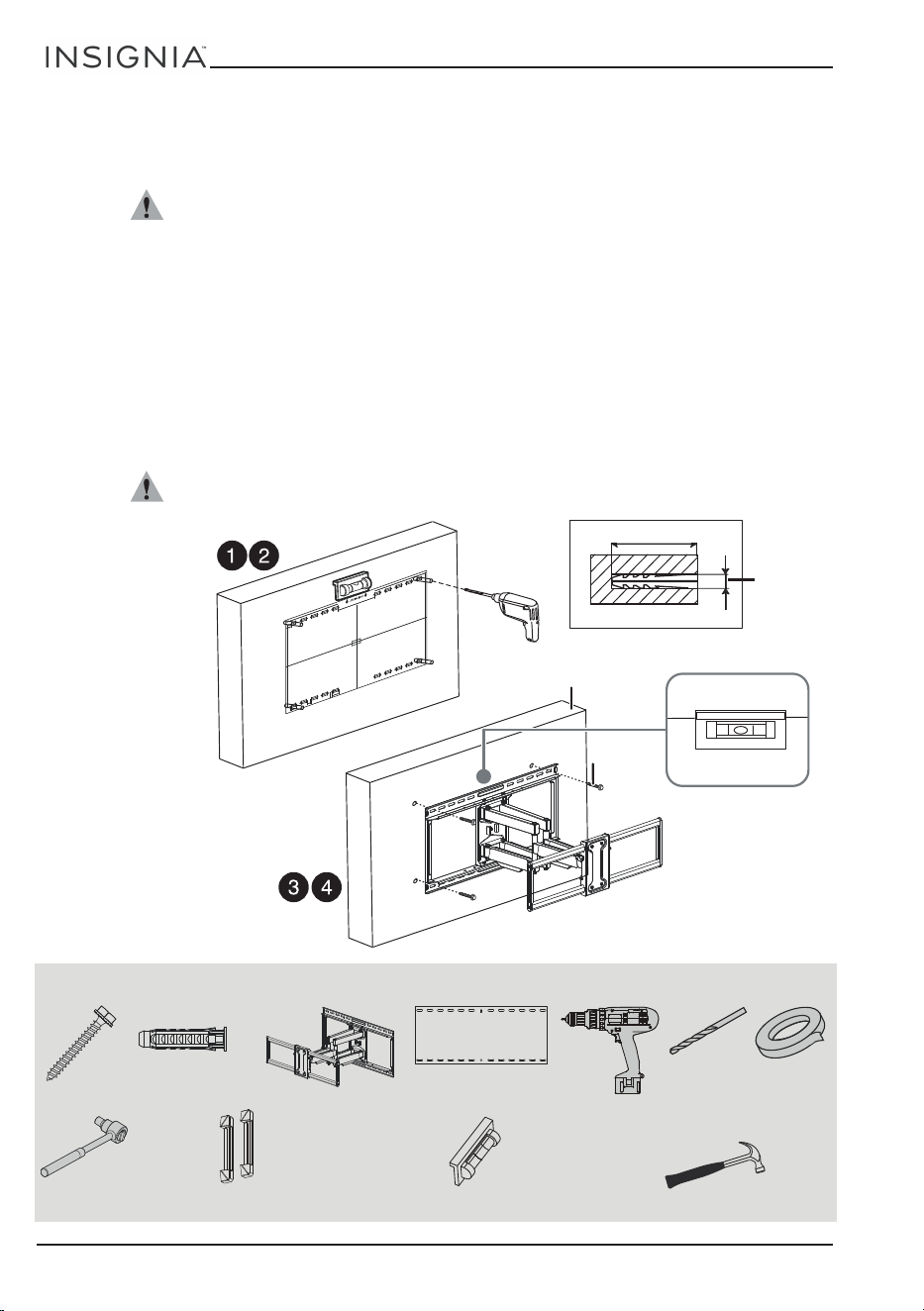
STEP 5 - Option 1: Installing on a wood stud wall
Notes: - Any drywall covering the wall must not exceed 5/8 in. (16 mm).
- Minimum wood stud size: common 2 x 4 in. (51 x 102 mm) nominal 1-1/2 x 3-1/2 in. (38 x 89 mm).
- Minimum horizontal spacing between fasteners cannot be less than 16 in. (406 mm).
1 Locate the stud. Verify the center of the stud with an edge-to-edge stud finder.
2 Align the center of the wall plate template at the height (a + b) you determined in the previous step,
make sure that the template is level, then tape it to the wall.
3 Drill four pilot holes through the template to a depth of 2.5 in. (64 mm) using a 7/32 in. (5.5 mm)
diameter drill bit, then remove the template.
4 Make sure that the wall-mount arm on the wall-mount is perpendicular to the wall plate, align the wall
plate with the pilot holes, insert the lag bolts (D) through the holes in the wall plate. Make sure that the
wall plate is level by checking it with the bubble level, then tighten the lag bolts with the socket wrench
only until they are firm against the wall plate.
CAUTION: Use only the four center holes to mount the wall plate. Do not use the slotted side holes.
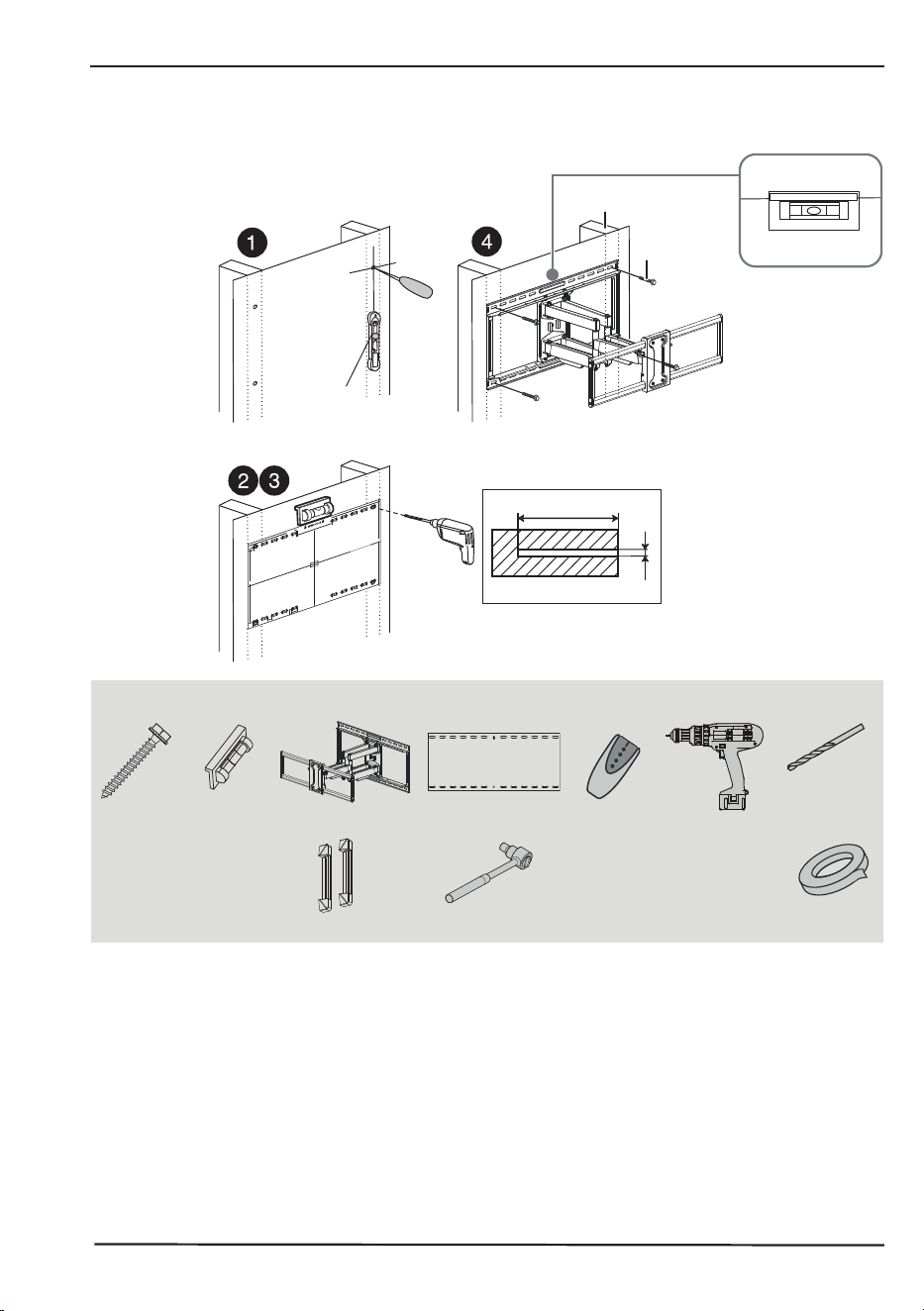
11
www.insigniaproducts.com
Full-Motion Wall Mount for 42-90” TVs
• DO NOT over-tighten the lag bolts (D).
You’ll need
Align the center
of the template
with the height
mark (a+b) you
made in step 4.
2.5 in. (64 mm)
7/32 in. (5.5 mm)
D
Magnetic
removable
bubble level
Stud
finder
Stud
Edge-to edge
stud finder
Drill
7/32 in. wood
drill bit
Wall plate
template
Tape
D (4)
Socket wrench
Magnetic
removable
bubble level
Wall mount
Wall mount end caps
Socket
wrench
12
www.insigniaproducts.com
STEP 5 - Option 2: Installing on a solid concrete or concrete
block wall
CAUTION: To prevent property damage or personal injury, never drill into the mortar between
blocks. Mount the wall plate directly onto the concrete surface.
1 Align the center of the wall plate template at the height (a + b) you determined in the previous step,
make sure that it is level, then tape it to the wall.
2 Drill four pilot holes through the template to a depth of 2.5 in. (64 mm) using a 3/8 in. (10 mm) diameter
masonry drill bit, then remove the template.
3 Insert the concrete wall anchors (E) into the pilot holes and use a hammer to make sure the anchors are
flush with the concrete surface.
4 Make sure that the wall-mount arm on the wall-mount is perpendicular to the wall plate, align the wall
plate with the anchors, insert the lag bolts (D) through the holes in the wall plate. Make sure that the
wall plate is level by checking it with the bubble level, then tighten the lag bolts with the socket wrench
only until they are firm against the wall plate.
CAUTION: DO NOT over-tighten the lag bolts (D).
.
You’ll need
2.5 in. (64 mm)
* Minimum solid concrete thickness:
8 in. (203mm)
* Minimum concrete block size:
8 x 8 x 16 in. (203 x 203 x 406 mm).
* Minimum horizontal spacing between
fasteners cannot be less than
16 in. (406 mm).
Align the center of the
template with the
height mark (a+b) you
made in step 4.
Concrete wall
Magnetic bubble
level
D
3/8 in.
(10 mm)
E (4)
Drill
3/8 in.
masonry
drill bit
Wall plate
template
D (4)
Hammer
Wall mount
Magnetic removable bubble level
Tape
Wall mount end caps
13
www.insigniaproducts.com
Full-Motion Wall Mount for 42-90” TVs
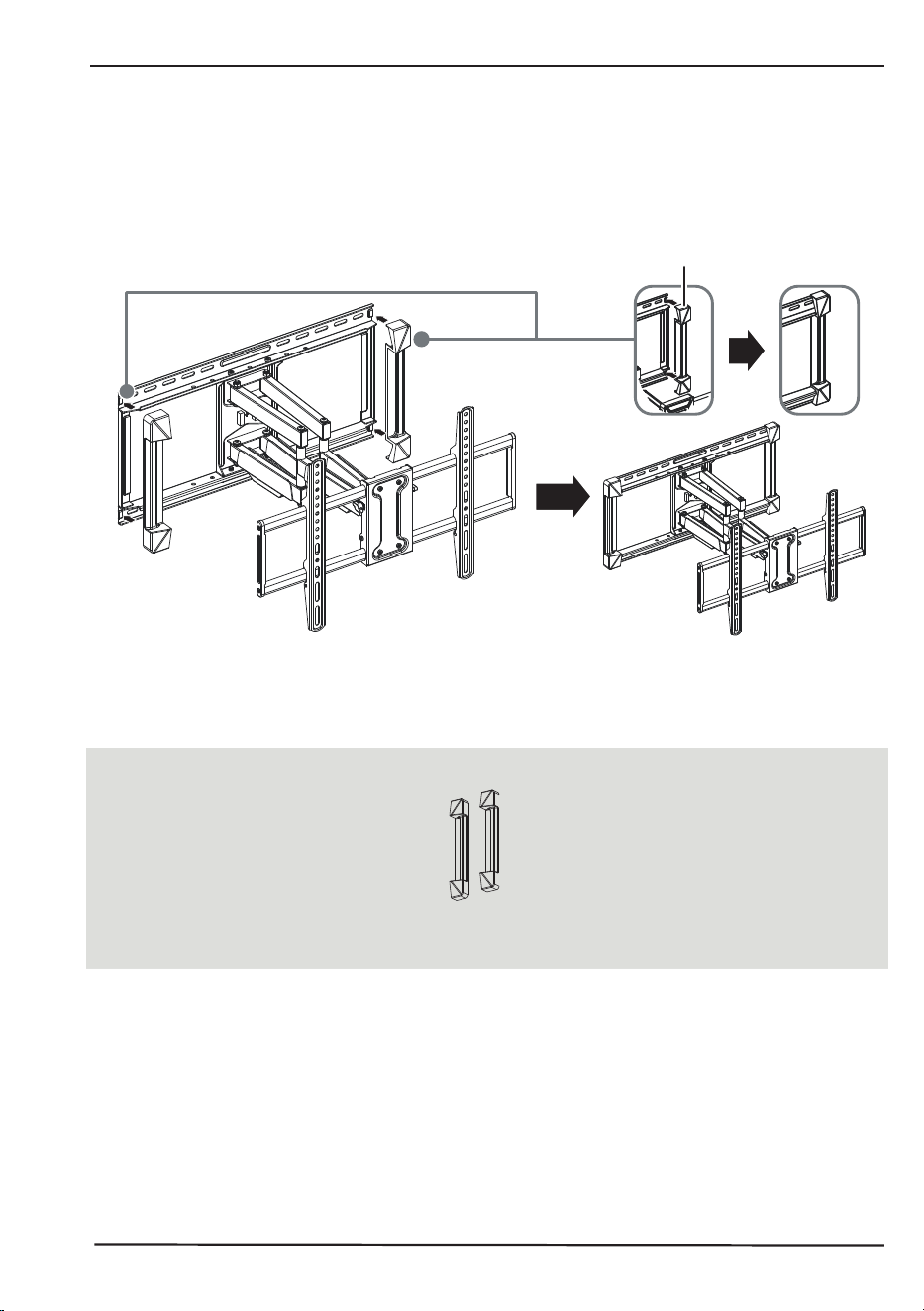
STEP 6 - Installing the wall mount end caps
• Snap a wall mount end cap on each end of the wall plate.
You’ll need
Wall mount
end cap
Wall mount end cap (2)
14
www.insigniaproducts.com
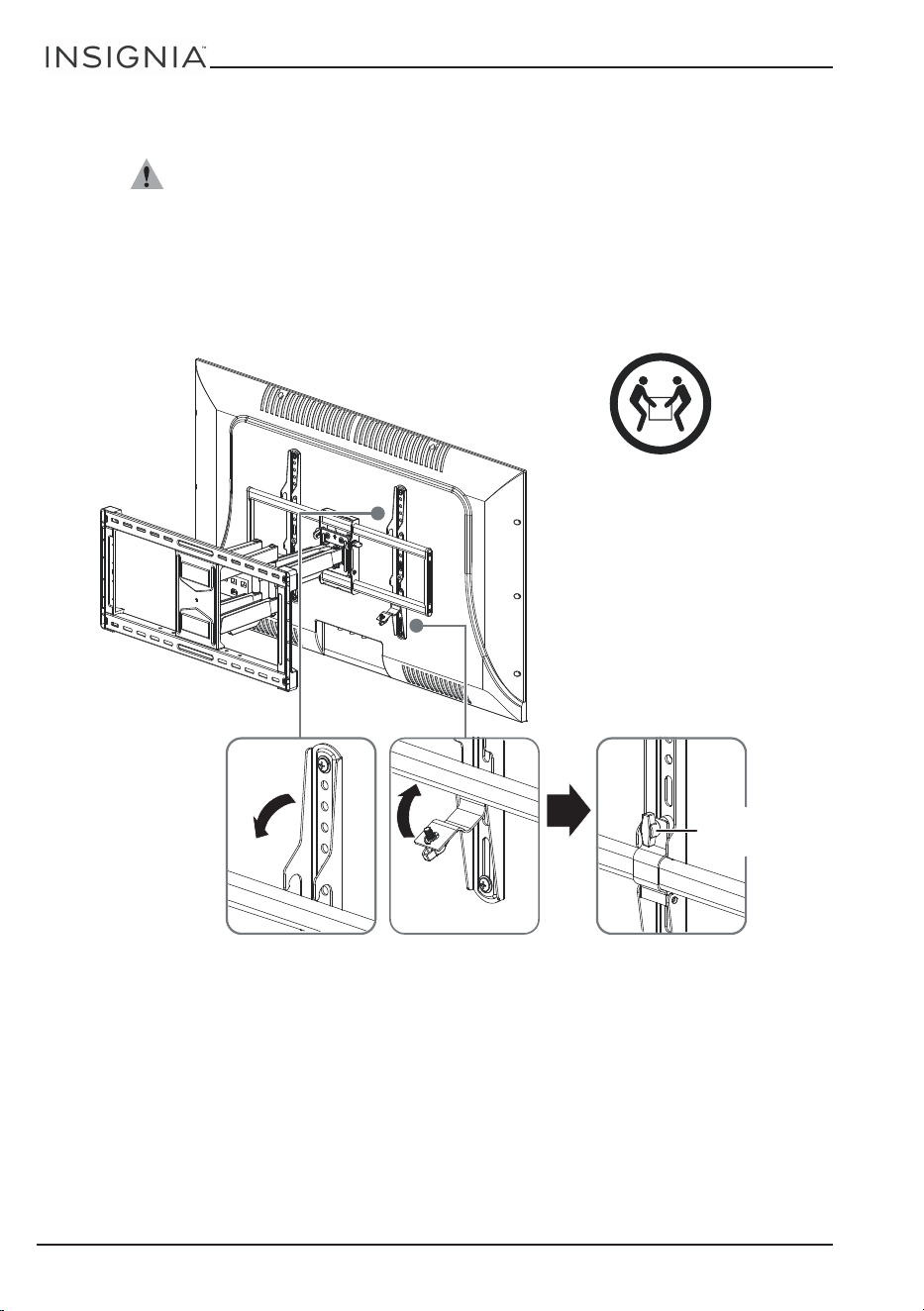
STEP 7 - Mounting the TV to the wall plate
CAUTION: Prior to mounting the TV to the wall plate, grasp the top of the wall mount arm
and pull down, to make sure that it is mounted firmly to the wall.
1 Holding the TV with the top of the screen tilted toward the wall, slide the upper edges of the right and
left TV brackets into the rail on the upper lip of the wall mount arm.
2 Push the bottom of the TV towards the wall until the TV brackets touch the bottom rail of the wall mount
arm.
3 Swing the bracket safety latches over the bottom rail of the wall mount arm, then secure with the thumb
screws.
HEAVY! You
will need
assistance
with this step.
Tighten thumb
screws
TV brackets into wall
mount arm
Bracket safety latch
Thumb
screw
15
www.insigniaproducts.com
Full-Motion Wall Mount for 42-90” TVs
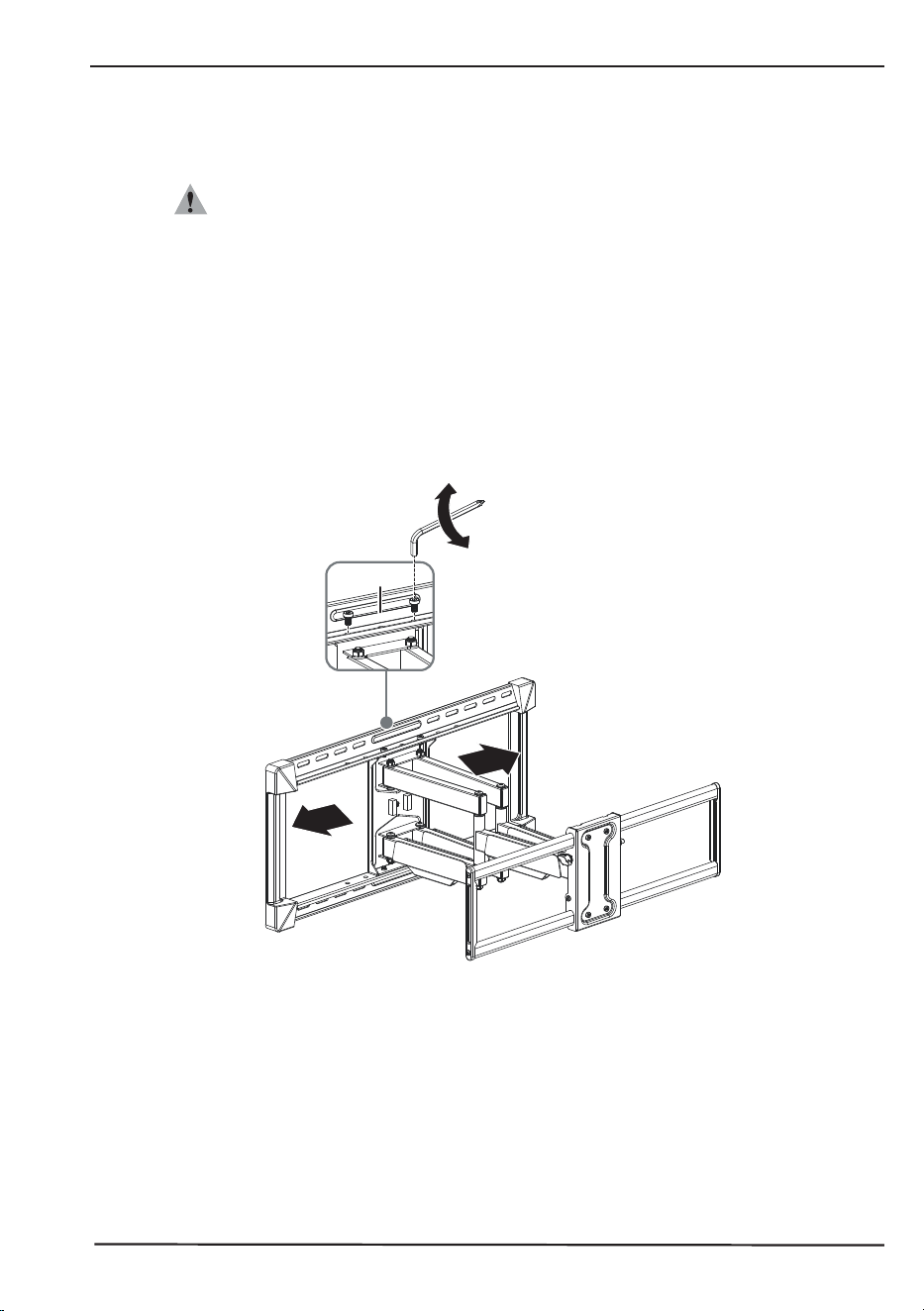
STEP 8 - Making adjustments
CAUTIONS:
• Making adjustments may require two persons to complete.
• Your TV must be removed from the wall plate before making lateral (side-to-side) adjustments.
Side to side
1 To adjust your TV side to side, use the Allen wrench (G) to remove the two screws at the top and the two
screws at the bottom of the wall plate, then reposition the TV/mounting arm assembly where you want
it.
2 Reinstall the screws after completing the adjustment to secure the TV/mounting arm assembly to the
wall plate.
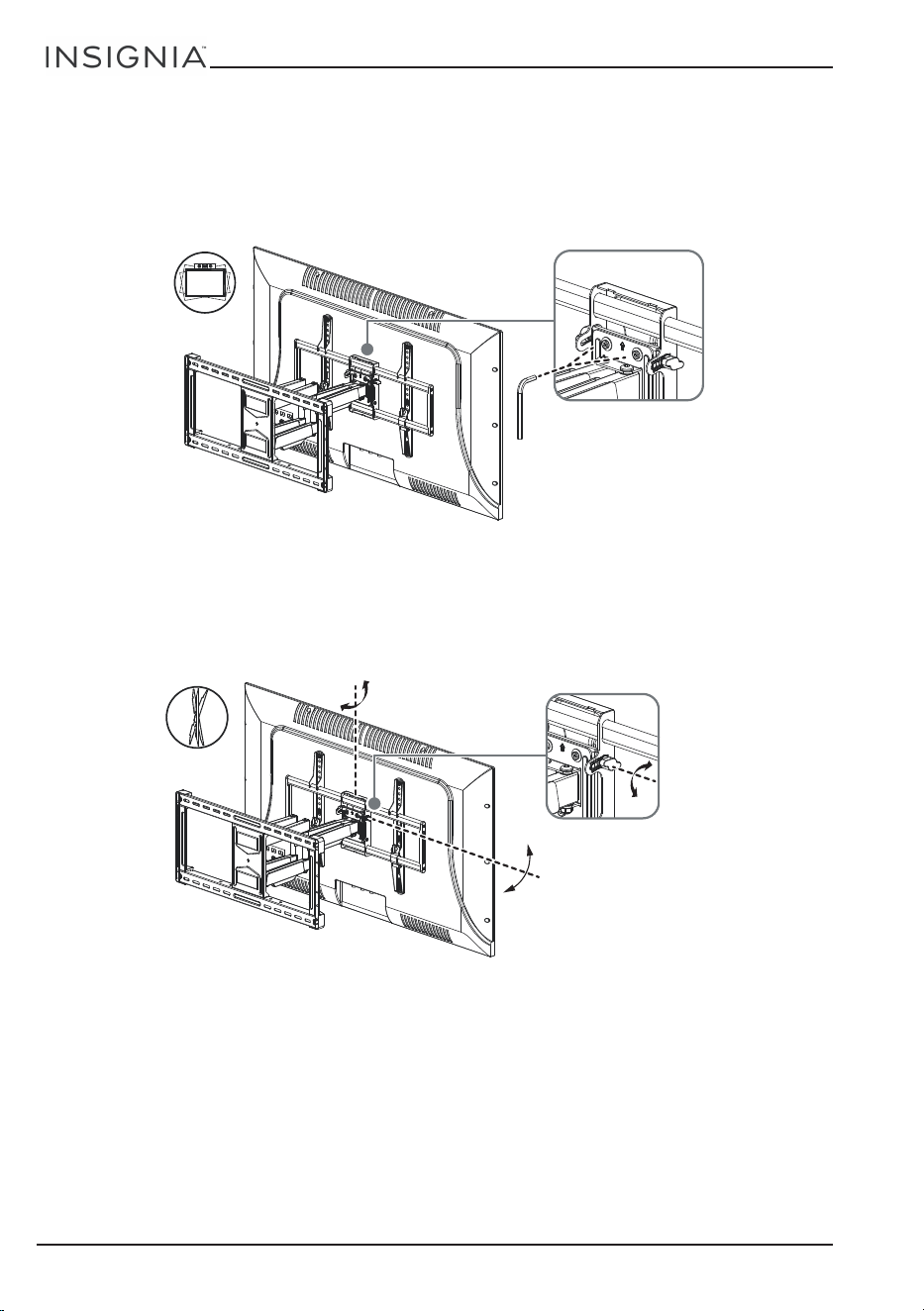
16
www.insigniaproducts.com
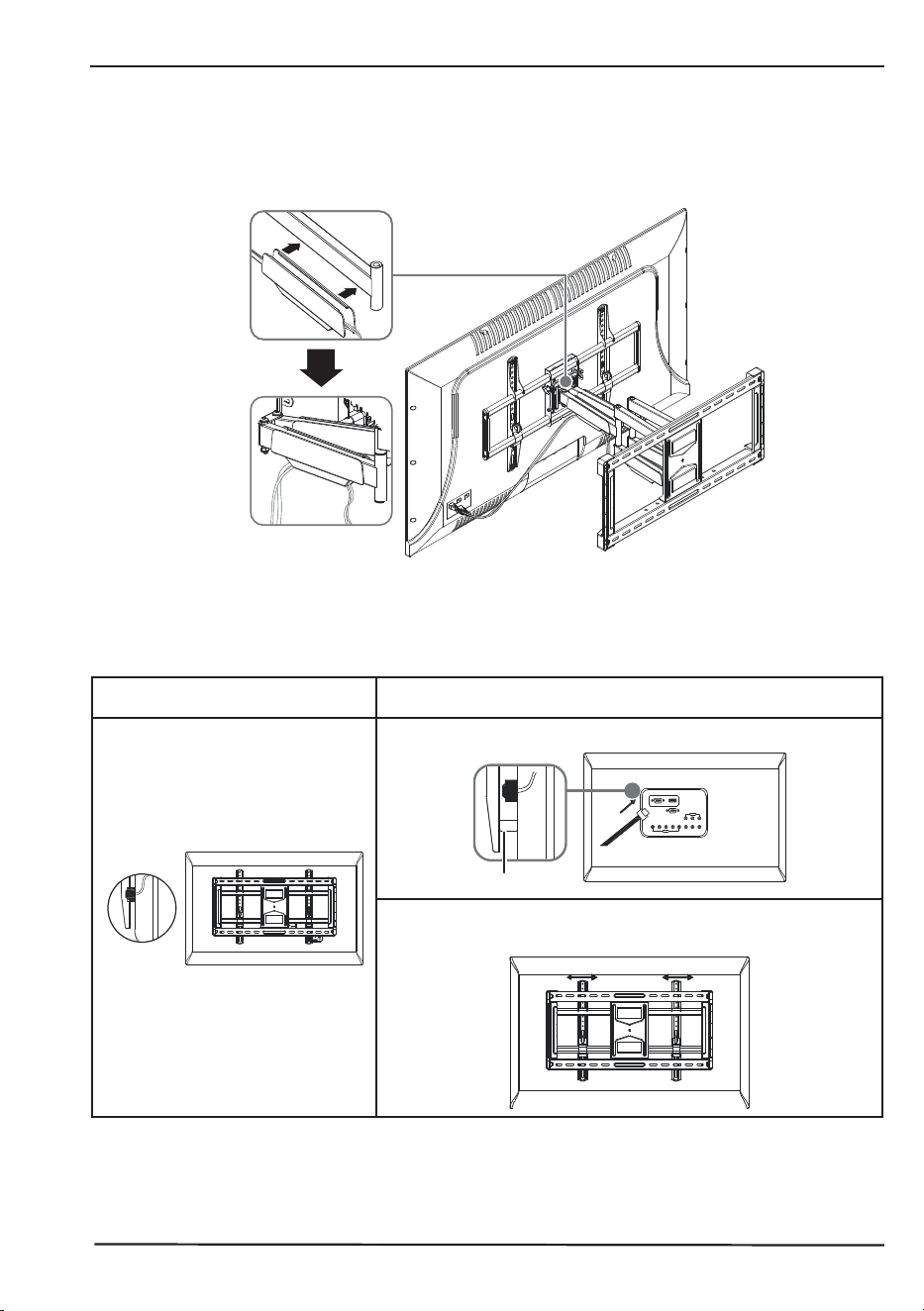
Leveling your TV
1 If your TV needs to be leveled, loosen the two leveling screws on the TV plate, as shown below.
2 Level your TV using the level (provided), then tighten the leveling screws until they are secure.
Adjusting the tilt
1 If the angle of your TV needs to be adjusted, loosen the two thumbscrews as shown below.
2 When the tilt angle is correct, tighten the thumbscrews until secure.
Use the Allen
wrench (F) to make
the adjustment
Use the thumbscrews to
make the adjustment
Tighten
Loosen
17
www.insigniaproducts.com
Full-Motion Wall Mount for 42-90” TVs
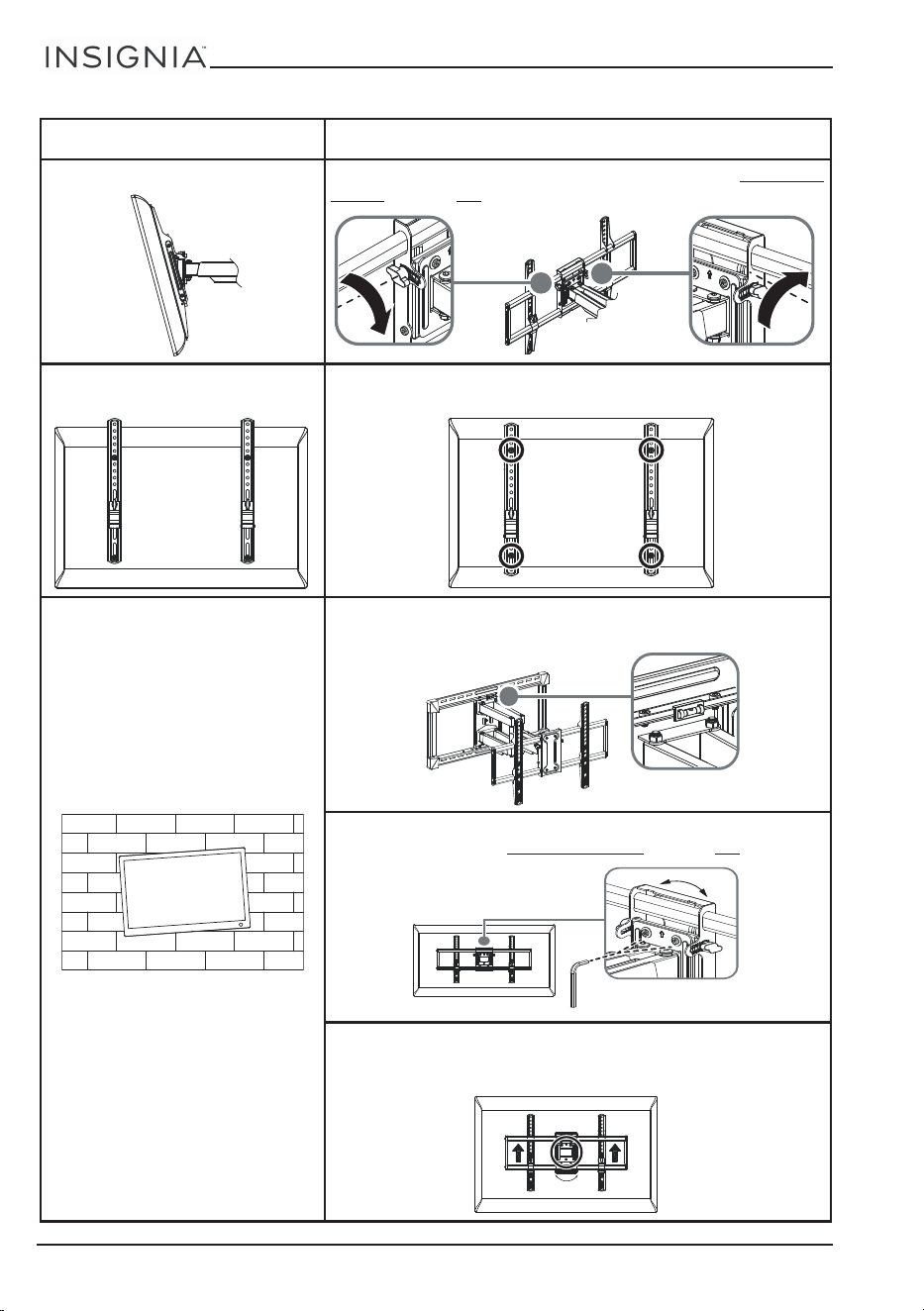
Managing cables
When you have completed making adjustments, use the cable management clip (provided) to keep cables
out o
f sight and secure.
Troubleshooting
If you have a problem with your TV mount, review the following chart for a possible solution.
PROBLEM POSSIBLE SOLUTION
The TV cables are blocked by the
m
ount
or the TV brackets.
Add spacers between the TV brackets and the back of the TV.
If there is room to adjust or move the bolts, move the TV
brack
et away from the cables.
Spacer
18
www.insigniaproducts.com
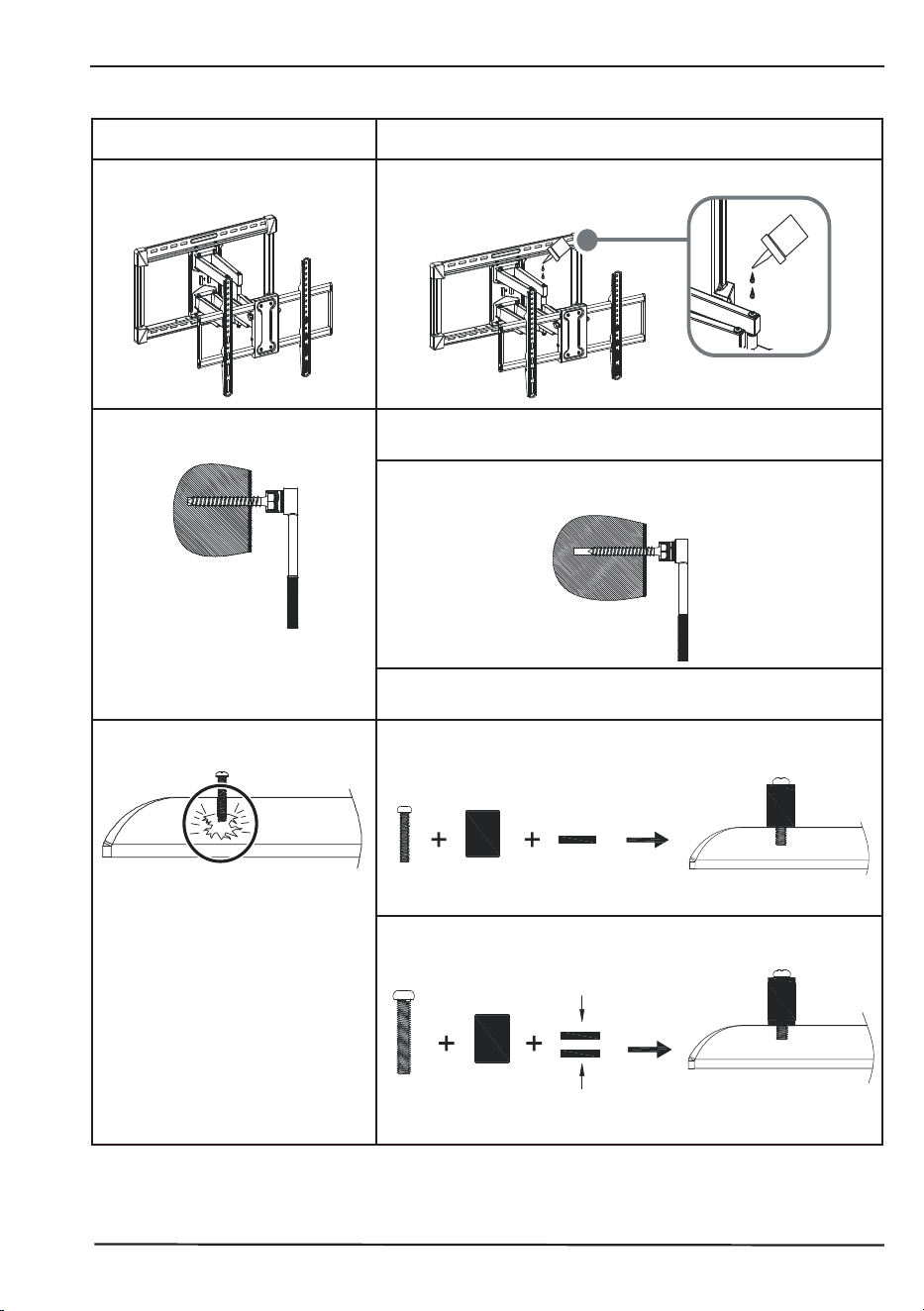
The TV keeps tilting. Lock the thumbscrews after tightening them. See Adjusting
the tilt on page 16.
The TV brackets are visible from
the front of the TV.
Move the TV brackets downward by using higher screw
holes in the brackets to mount to VESA holes.
Your TV is not level or is out of
balan
ce.
Make sure that the wall plate is level using the level
(provided). If the wall plate is not level, adjust to correct.
Make sure that the TV plate is level. If the TV plate is not level,
adjus
t to correct. See
Leveling your TV on page 16.
Make sure that at least two bolts mounted on the brackets
are the same height, that is, position the bolts at the highest
hole possible to ensure they are at the same height.
PROBLEM POSSIBLE SOLUTION
Use the Allen wrench (F)
to make the adjustment
19
www.insigniaproducts.com
Full-Motion Wall Mount for 42-90” TVs
The TV arm moves stiffly or does
not move smoothly.
Apply a lubricant (light oil or grease) to the arm joints.
The lag bolt (D) is difficult to
screw
into a wooden stud.
If the lag bolt is damaged, contact customer service for a
replacement bolt and follow the installation instructions.
Pre-drill the pilot holes using the recommended drill size to
the r
ecommended depth.
Use an open end or socket wrench (not provided) instead of
a pow
er tool, which could damage the bolt.
The bolts are too long for the bolt
holes
in the TV.
Add spacers and/or washers to accommodate the bolt
length.
If the bolts are still too long, add 2.5 mm plastic spacers or
M4/M6
steel washers (provided).
PROBLEM POSSIBLE SOLUTION
Bolt
Spacer
Washer
Bolt
Spacer
Plastic spacer
Steel washer

20
www.insigniaproducts.com
Specifications
Mount Style Tilting, Swiveling, Extending
Tilt -15° to 5°
Maximum Weight Capacity 120 lbs. (54.43 kg)
Compatibility 42” – 90” TVs
Maximum Extension 22.3” (56.6 cm)
Minimum Extension 3.1” (7.9 cm)
Dimensions (H x W x D) 17.2 x 28.1 x 3.1 in. (43.6 x 71.4 x 7.9 cm)

21
www.insigniaproducts.com
Full-Motion Wall Mount for 42-90” TVs
ONE-YEAR LIMITED WARRANTY
Definitions:
The Distributor* of Insignia branded products warrants to you, the original purchaser of this new
Insignia-branded product (“Product”), that the Product shall be free of defects in the original
manufacturer of the material or workmanship for a period of one (1) year from the date of your
purchase of the Product (“Warranty Period”).
For this warranty to apply, your Product must be purchased in the United States or Canada from a
Best
Buy branded retail store or online at
www.bestbuy.com or www.bestbuy.ca and is packaged
with this warranty statement.
How long does the coverage last?
The Warranty Period lasts for 1 year (365 days) from the date you purchased the Product. Your
purchase date is printed on the receipt you received with the Product.
What does this warranty cover?
During the Warranty Period, if the original manufacture of the material or workmanship of the
Product is determined to be defective by an authorized Insignia repair center or store personnel,
Insignia will (at its sole option): (1) repair the Product with new or rebuilt parts; or (2) replace the
Product at no charge with new or rebuilt comparable products or parts. Products and parts replaced
under this warranty become the property of Insignia and are not returned to you. If service of
Products or parts are required after the Warranty Period expires, you must pay all labor and parts
charges. This warranty lasts as long as you own your Insignia Product during the Warranty Period.
Warranty coverage terminates if you sell or otherwise transfer the Product.
How to obtain warranty service?
If you purchased the Product at a Best Buy retail store location or from a Best Buy online website
(www.bestbuy.com or www.bestbuy.ca), please take your original receipt and the Product to any
Best Buy store. Make sure that you place the Product in its original packaging or packaging that
provides the same amount of protection as the original packaging.
To obtain warranty service, in the United States and Canada call 1-877-467-4289. Call agents may
diagnose and correct the issue over the phone.
Where is the warranty valid?
This warranty is valid only in the United States and Canada at Best Buy branded retail stores or
websites to the original purchaser of the product in the country where the original purchase was
made.
What does the warranty not cover?
This warranty does not cover:
• Food, beverage, and or medicine loss/spoilage.
• Customer instruction/education
• Installation
• Set up adjustments
• Cosmetic damage
• Damage due to weather, lightning, and other acts of God, such as power surges
• Accidental damage
• Misuse
• Abuse
• Negligence
• Commercial purposes/use, including but not limited to use in a place of business or in
communal areas of a multiple dwelling condominium or apartment complex, or otherwise
used in a place of other than a private home.
• Modification of any part of the Product, including the antenna
• Display panel damaged by static (non-moving) images applied for lengthy periods (burn-in).

22
www.insigniaproducts.com
• Damage due to incorrect operation or maintenance
• Connection to an incorrect voltage or power supply
• Attempted repair by any person not authorized by Insignia to service the Product
• Products sold “as is” or “with all faults”
• Consumables, including but not limited to batteries (i.e. AA, AAA, C etc.)
• Products where the factory applied serial number has been altered or removed
• Loss or Theft of this product or any part of the product
• Display panels containing up to three (3) pixel failures (dots that are dark or incorrectly
illuminated) grouped in an area smaller than one tenth (1/10) of the display size or up to five (5)
pixel failures throughout the display. (Pixel based displays may contain a limited number of
pixels that may not function normally.)
• Failures or Damage caused by any contact including but not limited to liquids, gels or pastes.
REPAIR REPLACEMENT AS PROVIDED UNDER THIS WARRANTY IS YOUR EXCLUSIVE REMEDY FOR
BREACH
OF WARRANTY. INSIGNIA SHALL NOT BE LIABLE FOR ANY INCIDENTAL OR CONSEQUENTIAL
DAMAGES FOR THE BREACH OF ANY EXPRESS OR IMPLIED WARRANTY ON THIS PRODUCT,
INCLUDING, BUT NOT LIMITED TO, LOST DATA, LOSS OF USE OF YOUR PRODUCT, LOST BUSINESS OR
LOST PROFITS. INSIGNIA PRODUCTS MAKES NO OTHER EXPRESS WARRANTIES WITH RESPECT TO
THE PRODUCT, ALL EXPRESS AND IMPLIED WARRANTIES FOR THE PRODUCT, INCLUDING BUT NOT
LIMITED TO ANY IMPLIED WARRANTIES OF AND CONDITIONS OF MERCHANTABILITY AND FITNESS
FOR A PARTICULAR PURPOSE, ARE LIMITED IN DURATION TO THE WARRANTY PERIOD SET FORTH
ABOVE AND NO WARRANTIES, WHETHER EXPRESS OR IMPLIED, WILL APPLY AFTER THE WARRANTY
PERIOD. SOME STATES, PROVINCES AND JURISDICTIONS DO NOT ALLOW LIMITATIONS ON HOW
LONG AN IMPLIED WARRANTY LASTS, SO THE ABOVE LIMITATION MAY NOT APPLY TO YOU. THIS
WARRANTY GIVES YOU SPECIFIC LEGAL RIGHTS, AND YOU MAY ALSO HAVE OTHER RIGHTS, WHICH
VARY FROM STATE TO STATE OR PROVINCE TO PROVINCE.
Contact Insignia:
1-877-467-4289
www.insigniaproducts.com
INSIGNIA is a trademark of Best Buy and its affiliated companies.
*Distributed by Best Buy Purchasing, LLC
7601 Penn Ave South, Richfield, MN 55423 U.S.A
©2024 Best Buy. All rights reserved.

V3 ENGLISH
24-0381
1-877-467-4289
www.insigniaproducts.com
INSIGNIA is a trademark of Best Buy and its affiliated companies
Distributed by Best Buy Purchasing, LLC
7601 Penn Ave South, Richfield, MN 55423 U.S.A.
©2024 Best Buy. All rights reserved