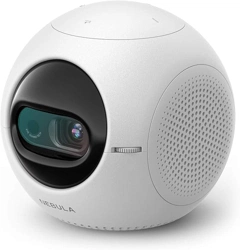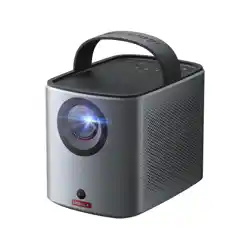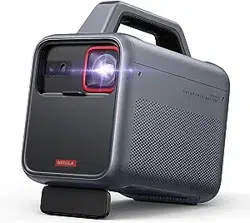

Nebula Mars 3
Model: D2333
User Manual
Nebula Mars 3

EN
01
Table of Contents
Important Safety Instructions
02
What's Included
05
At a Glance
06
1. Projector 06
2. Remote Control 11
Charging
12
1. Charge Your Projector 12
2. Check Battery Level 12
3. Power Mode 13
4. Charge External Device 13
Getting Started
14
1. Prepare the Remote 14
2. Position Your Projector 14
3. Power On / Off 16
4. Auto Image Correction 17
5. Setup 18
Nebula Connect App
19
Settings
19
1. Network 19
2. Projector 20
3. Apps 23
4. Device Preferences 23
5. Other 24
Using Your Projector
25
1. Select an App 25
2. Voice Assistant 25
3. Wireless Casting 25
4. Play from HDMI Playback Devices 26
5. Play from a USB Drive 27
6. Play Through External Sound Devices 28
7. Bluetooth Speaker Mode 29
Firmware Updates
29
Specifications
30
Troubleshooting
32
Notice
34
Trademarks
38
Warranty
39

EN
02
Important Safety Instructions
Read all instructions before you use this product. Do not make any
changes or create settings that are not described in this manual. If
physical injury, loss of data, or damage is caused by failure to follow
instructions, the warranty does not apply.
Setup
• Do not use the product in any way other than described herein in
order to avoid personal injury or property damage.
• Do not place this product on soft surfaces such as tablecloths or
carpets, otherwise, the product could be a fire hazard.
• Do not place this product in areas susceptible to excessive dust and
dirt or near any appliance generating a strong magnetic field.
• To prevent overheating, do not block or clog the ventilation
openings.
• Never place this product in a confined space. Always leave enough
space around this product for ventilation.
• Do not use the product in an environment where the temperature is
too high or too low. Never expose the product to strong sunshine or
wet environments.
• When this product is running for a long period of time, the surface
may become hot. If this occurs, shut it down immediately and
unplug the charger. Resume operation after the product has cooled
down.
• Always handle this product with care. Avoid touching the lens.
• Do not allow children to handle the product without supervision.
• Do not place heavy or sharp objects on this product.
• To avoid electric shock, do not disassemble the product.
• Avoid extreme vibrations as they may damage the internal
components.
• Please ensure you use only the adapter offered by the manufacturer.
Using an unauthorized adapter may be dangerous and violate the
Terms of Use and product warranty.

EN
03
• Users should comply with the laws and regulations of the
corresponding countries and regions where the equipment is
located (used), abide by professional ethics, pay attention to
safety obligations, and strictly prohibit the use of our products
or equipment for any illegal purposes. Our company will not be
responsible for any violators' legal liability under any circumstances.
Hearing Safety
• To prevent hearing damage, do not listen for extended periods at
high volume. Set the volume to a safe level.
Charging
• The adapter is for indoor use only.
• For pluggable equipment, the socket outlet shall be easily accessible.
• Due to the enclosure material, the product must only be connected
to a USB 2.0 or higher.
• It is recommended to charge the product in an environment with a
temperature that ranges from 5°C~25°C / 41°F~77°F.
• When supplying power, place the device in an environment with a
normal room temperature and good ventilation.
Battery
• The remote control contains batteries, which are a choking hazard.
Keep the remote control out of the reach of children.
• Remove the batteries when the remote control has not been used
for a long period of time.
• Replace the remote control batteries only with the same or an
equivalent type.
• Batteries contain chemical substances and they should be disposed
of properly.
• Charge this device regularly. Do not store this device with a
completely discharged battery.

EN
04
Warning
• Replacing a battery with an incorrect type may defeat safeguards
and create danger;
• Disposal of the battery/device in a fire or a hot oven or other source
of significant heat, or mechanically crushing, or cutting of the
battery/device, may result in an explosion;
• Leaving the battery/device in an extremely hot environment may
result in an explosion or leakage of flammable liquids or gases;
• The battery/device subjected to extremely low air pressure may
result in an explosion or leakage of flammable liquids or gases.
Cleaning
• Use a soft, lint-free cloth. Never use liquid, gaseous, or easily
flammable cleansers to clean.
• Do not use any liquid cleaning agents to clean the lens to avoid
damaging the film coating on the lens.
• Wipe surfaces gently. Be careful that you do not scratch the surface.
• Use lens cleaning paper to clean the lens.
Repairs
• Do not make any repairs to this product yourself.
• Improper maintenance can result in injuries or product damage.
• Refer all servicing to qualified service personnel.
EN
05
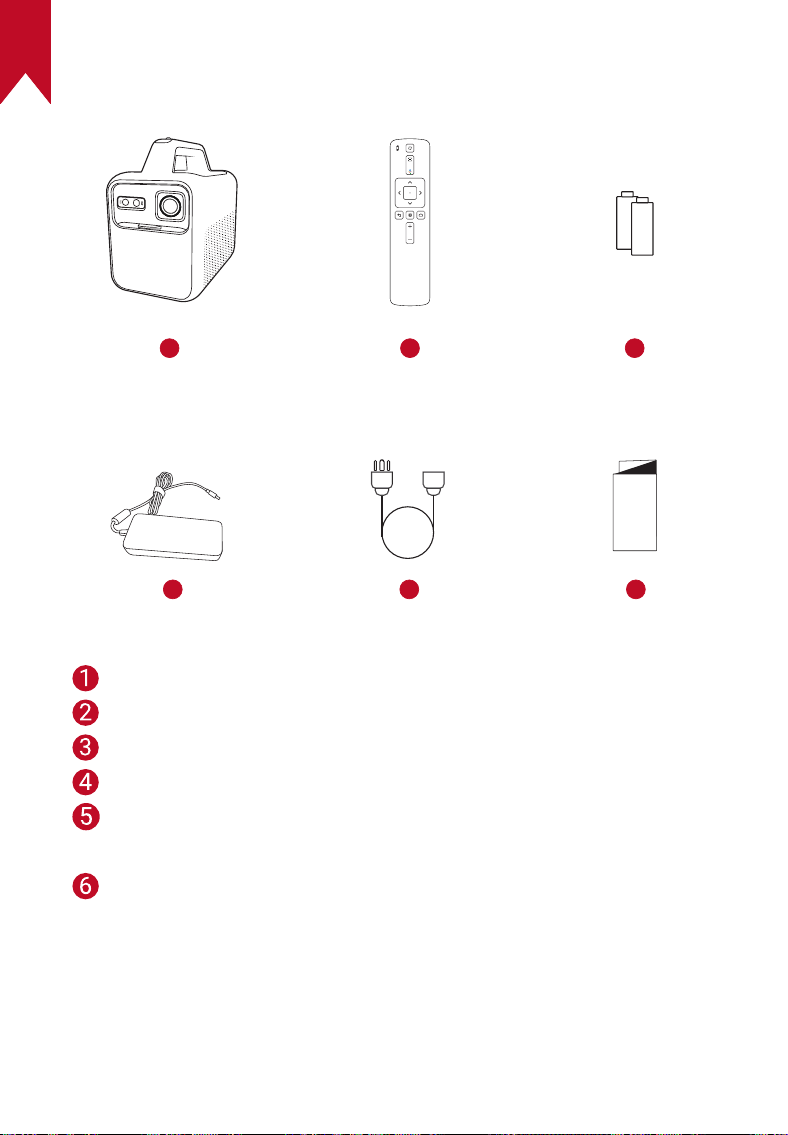
What's Included
1 2 3
4 5 6
QSG
Nebula Mars 3
Remote Control
AAA Battery × 2
Power Adapter
Power Cord
Note: The plug type varies by region.
Quick Start Guide
EN
06
At a Glance
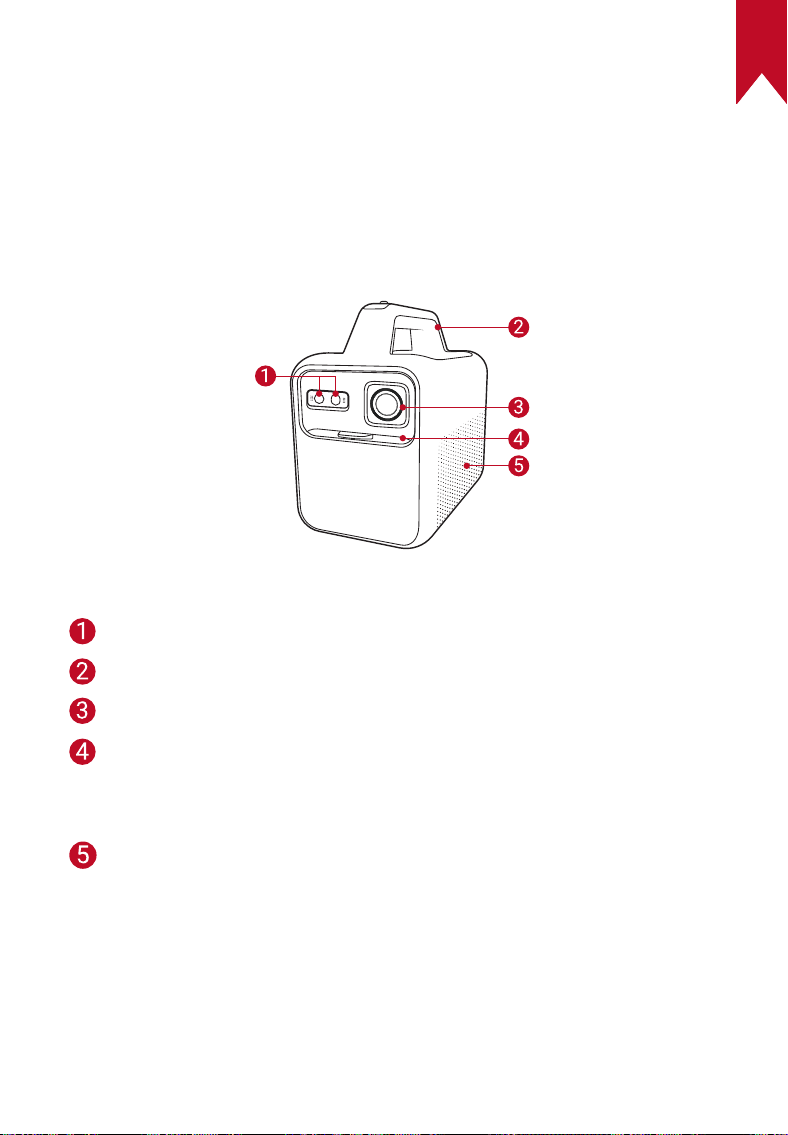
1. Projector
Front View
Sensors (for autofocus and auto keystone correction)
Handle
Lens
Lens cover
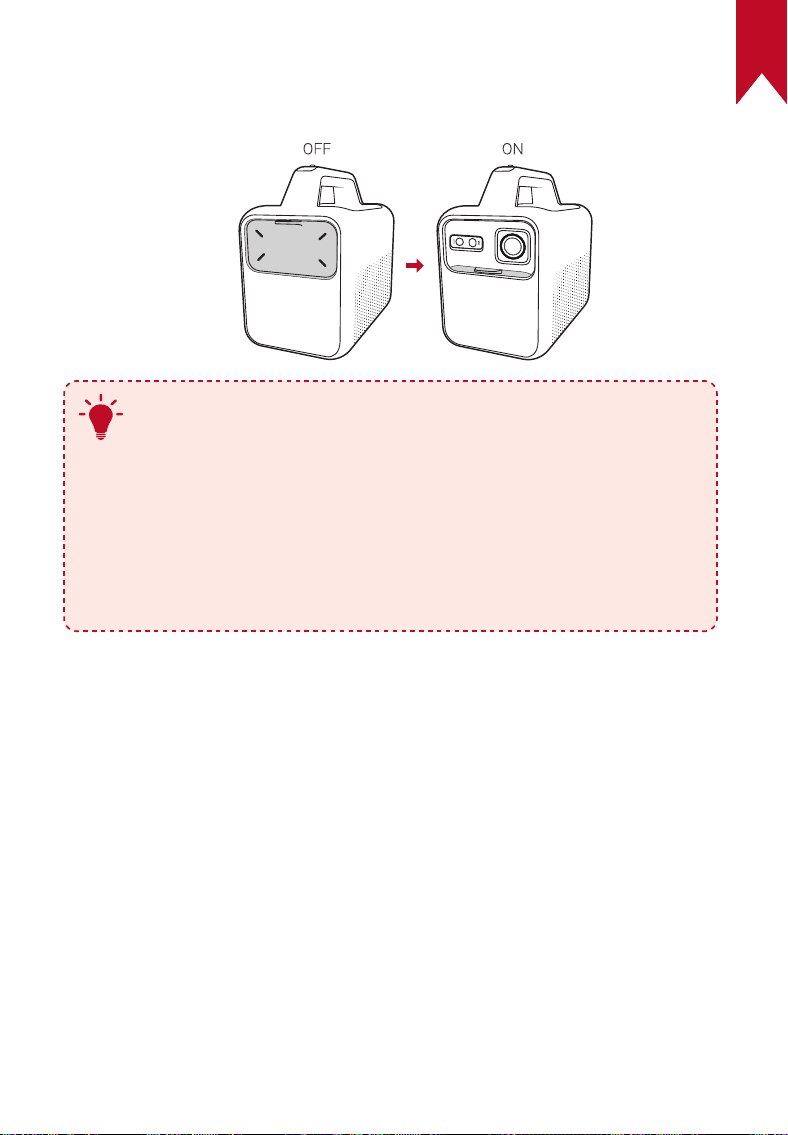
• Slide down to turn on and automatically adjust focus
• Slide up to turn off
Loudspeaker
EN
07
Rear View
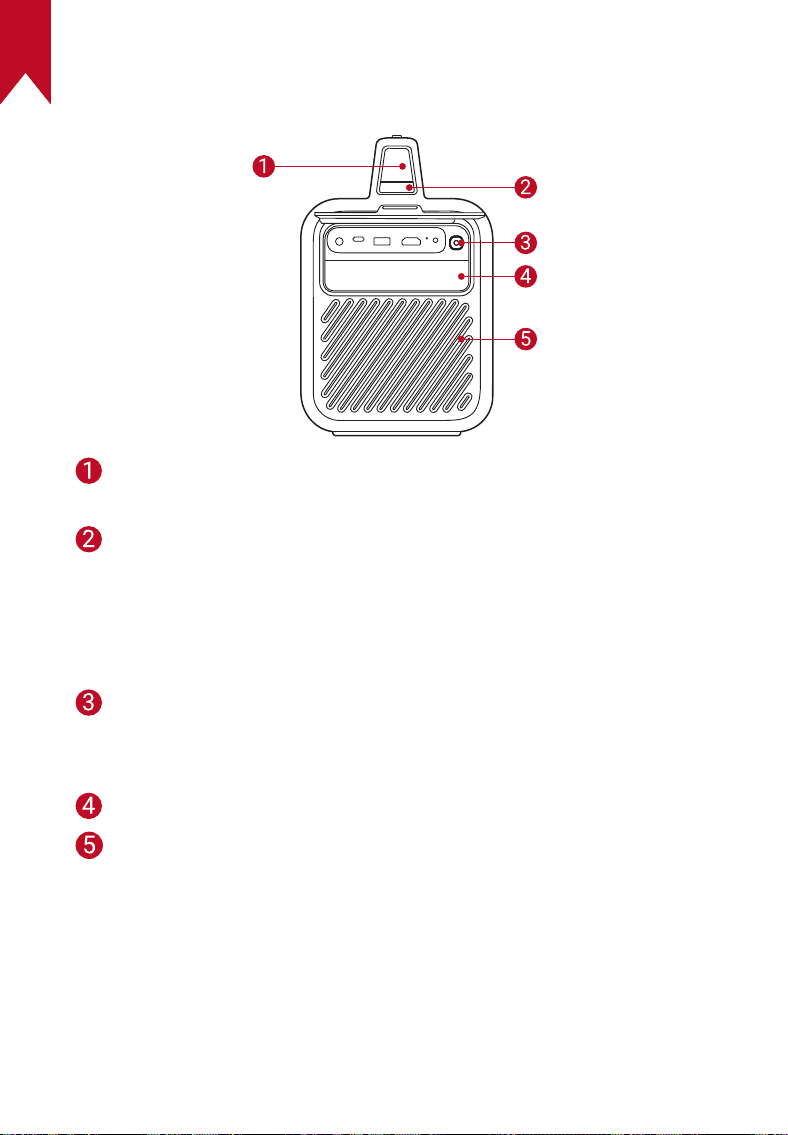
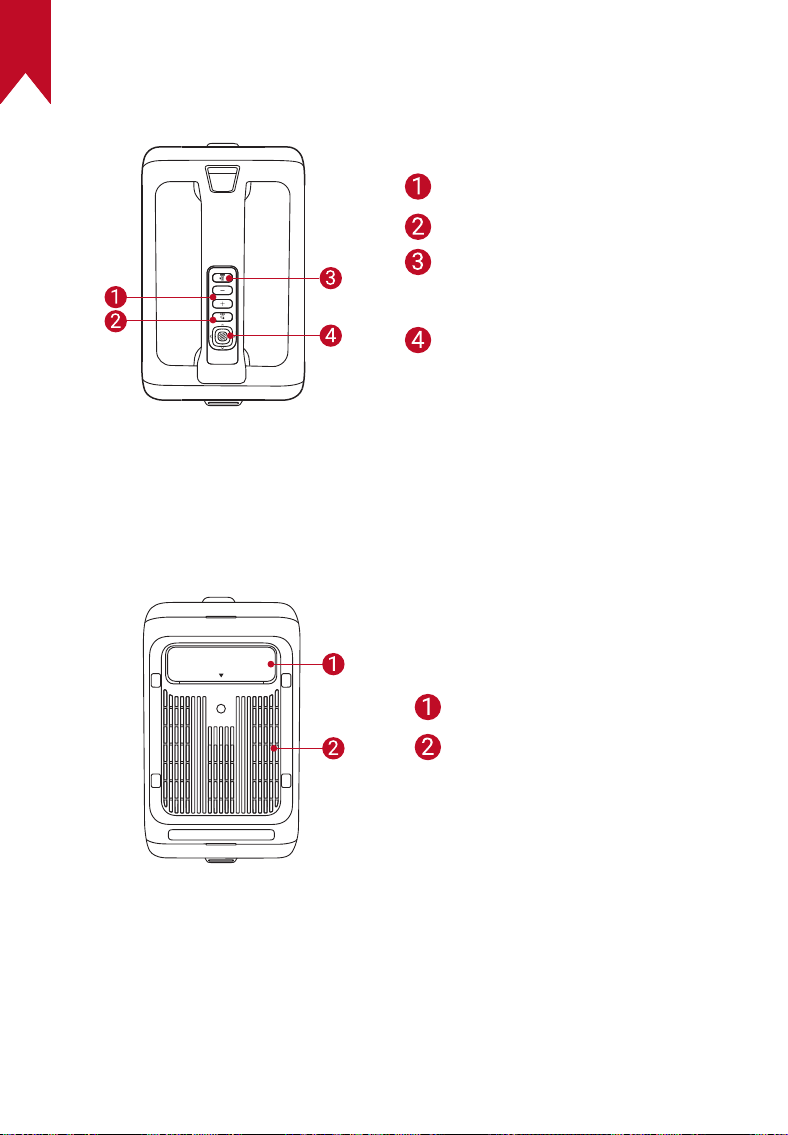
LED screen
• Indicates current battery level and power mode
Power mode button
• Press to switch power modes when the projector is on
• Press once to check the battery level when the projector is off
• Press and hold for 2 seconds to enable charge-out when the
projector is off
Ambient light button
• Press to turn the ambient light on / off
• Increase brightness
Ambient light
Air ventilation (outlet)
EN
08
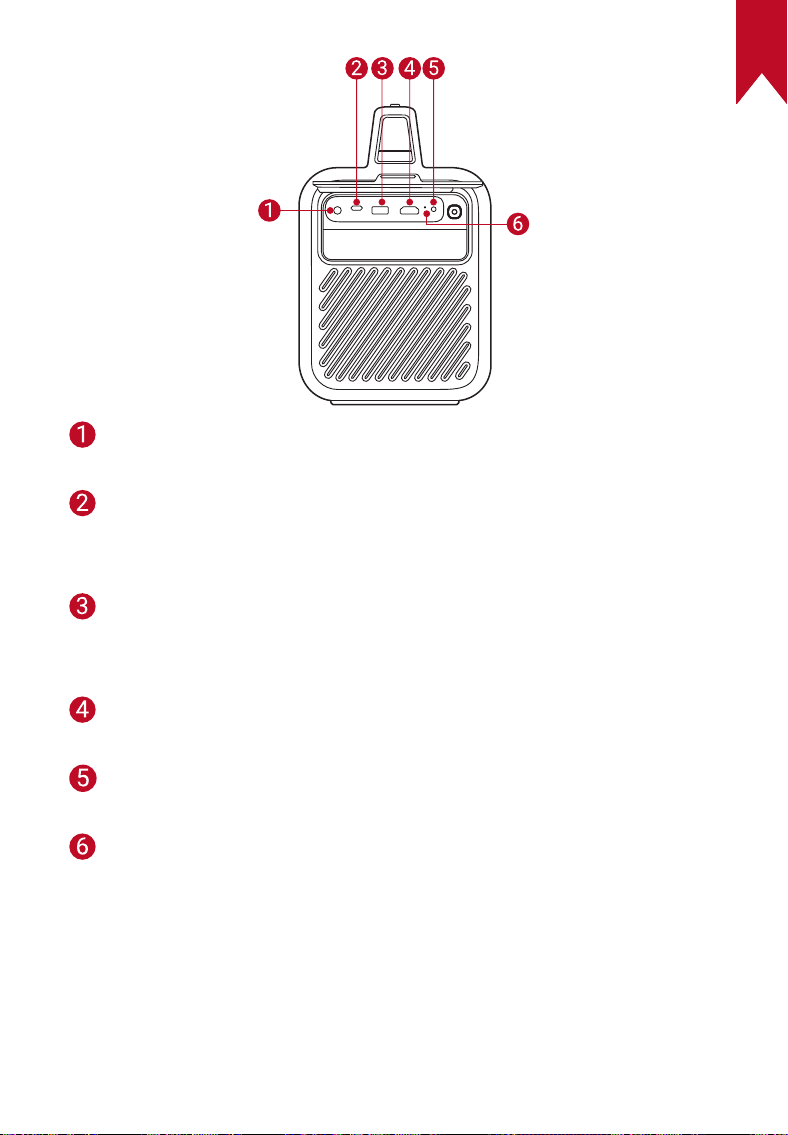
DC IN port
• Connect to power supply
USB-C port
• Connect to a USB drive
• Charge an external device as a power bank
USB-A port
• Connect to a USB drive
• Charge an external device as a power bank
HDMI port
• Connect to a playback device via HDMI output
AUX-OUT port
• Connect to an external sound output device
Reset button
• Press to reset your projector
EN
09
Top View
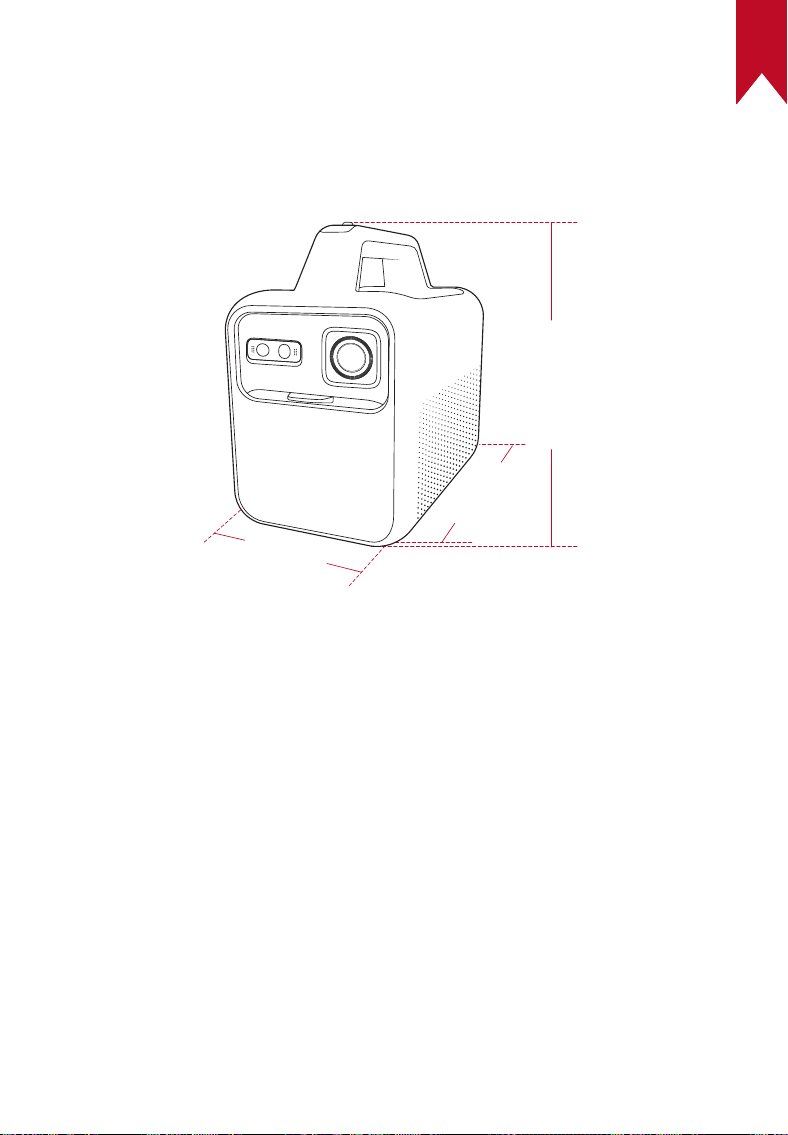
Volume up / down buttons
Return button
Bluetooth speaker button
• Press to enter or exit
Bluetooth speaker mode
Navigation / confirmation
buttons
Bottom View
Adjustable stand
Air ventilation (inlet)
EN
10
Dimensions
250 (L) × 160 (W) × 250 (H) mm / 9.8 (L) × 6.3 (W) × 9.8 (H) in
250mm
250mm
160mm
EN
11
2. Remote Control
1
2
3
4
5
6
7
8
9
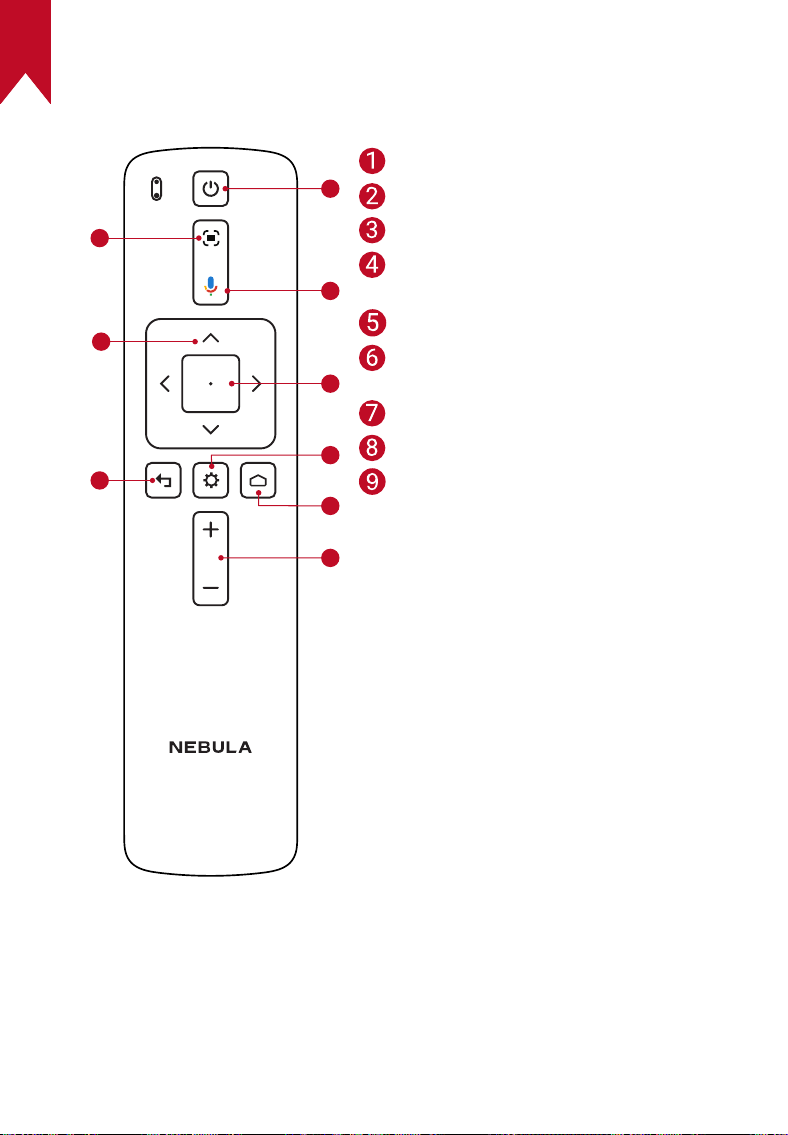
Adjust focus
Navigation
Return to the previous menu
Power on / off or switch to
standby mode
Activate the Google Assistant
Confirm a selection / Pause /
Resume
Access more options
Access the home menu
Volume up / down
Nebula RC
Model: D0413X
EN
12
Charging
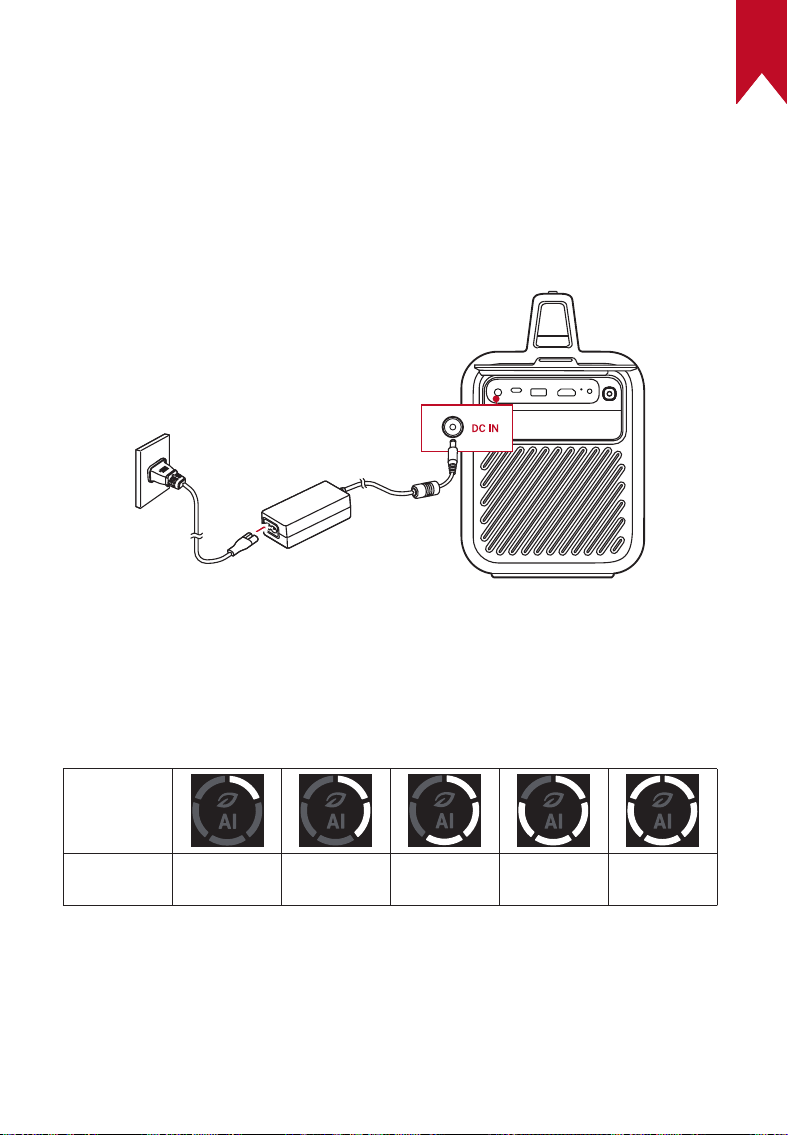
1. Charge Your Projector
Before using it for the first time, fully charge the built-in battery using
the provided adapter and power cord.
The LED screen will light up when the battery is being charged.
2. Check Battery Level
The projector's LED ring indicates the current battery level.
To check the battery level when powered off, press the power mode
button.
LED Ring
Battery
Level
<20% 20% - 40% 40% - 60% 60% - 80% 80% - 100%
EN
13
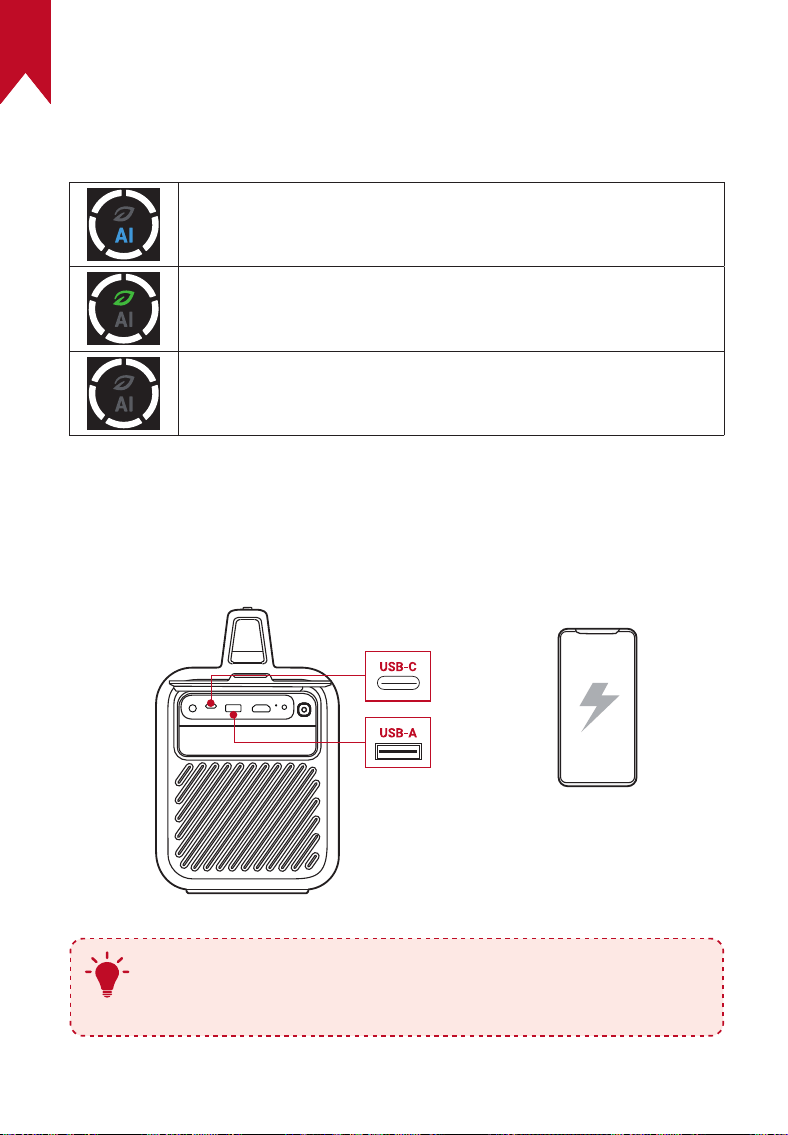
3. Power Mode
Press the power mode button to switch power modes when the
projector is powered on.
AI Mode: Adjusts the display brightness based on ambient
brightness.
Eco Mode: Lowers the display brightness to 300 lumens to
extend playtime.
Standard Mode: Sets the display brightness to the highest
level.
4. Charge External Devices
Charge an external device through the USB port when the projector is
powered on.
5V/3A
5V/2A
T
To enable or disable charge-out when the projector is
powered off, press and hold the power mode button for two
seconds.
EN
14
Getting Started
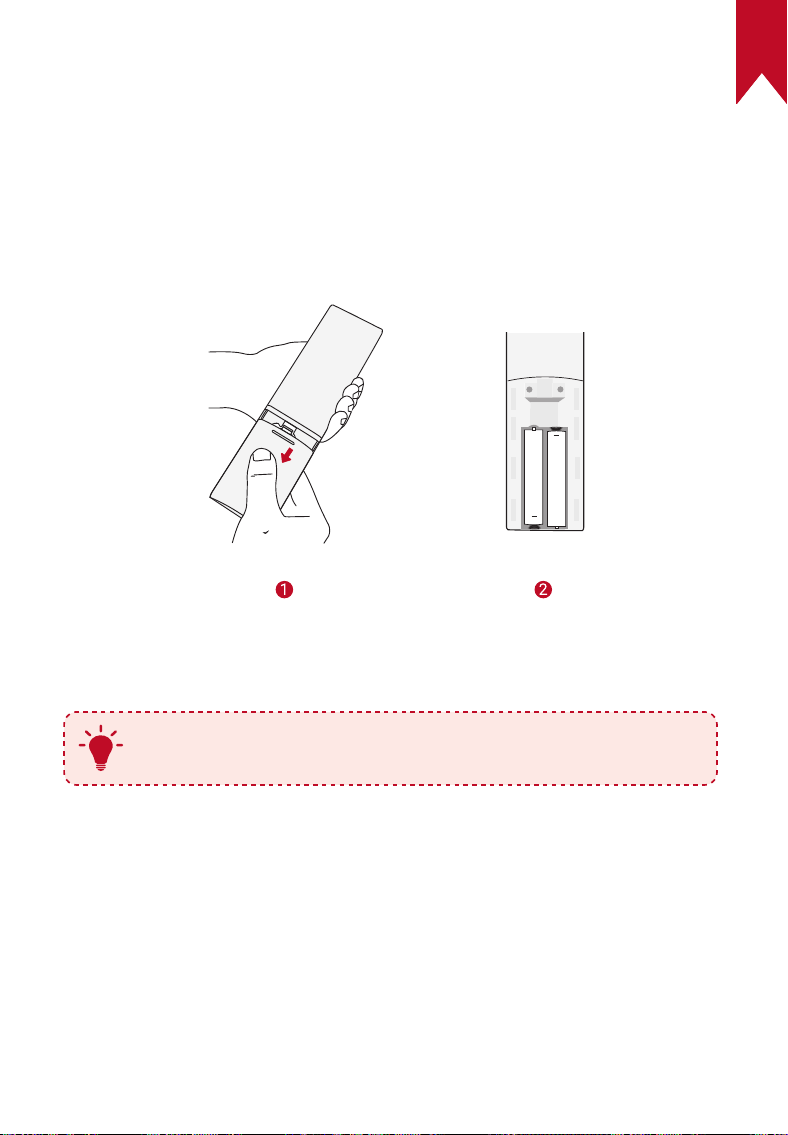
1. Prepare the Remote
①
Slide to open the battery compartment.
②
Insert new batteries matching the polarity (+/-) and close the battery
compartment.
+
+
③
For first-time use, follow the on-screen instructions to pair the
remote with your projector.
T
The distance between the remote and the projector should
not exceed 10 m / 33 ft.
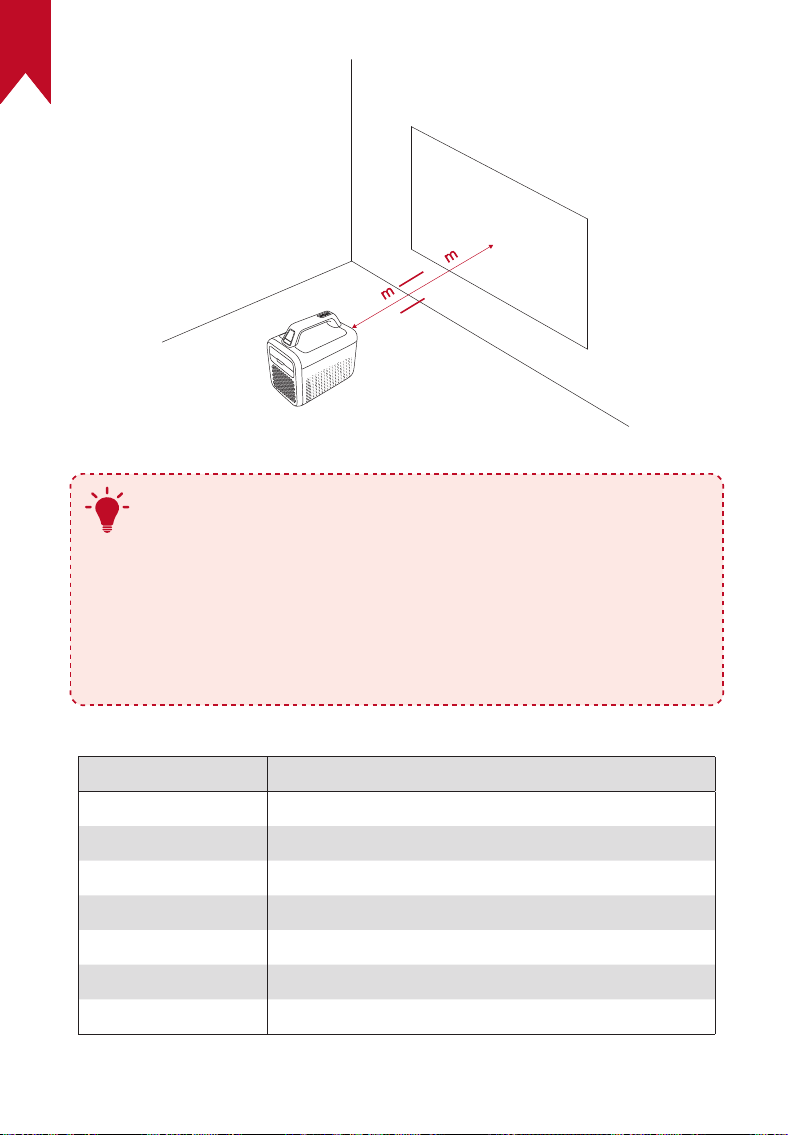
2. Position Your Projector
Place the projector on a stable, flat surface in front of the projection
surface. For the best results, the projection surface should be white and
flat.
EN
15
2.62
0.8
5.3
17.39ft
T
•
It is unnecessary to tilt the projector towards the
projection surface. You can correct the projection image
with the built-in autofocus and auto-keystone correction.
•
The distance between the projector and the projection
surface determines the projection image size. For the best
result, position the projector 0.8-5.3 m / 2.62-17.39 ft away
from the projection surface to get a screen size of 30-200
inches.
Screen Size Distance Between Projector Lens and Screen
30 inches 0.8 m / 2.62 ft
50 inches 1.33 m / 4.36 ft
80 inches 2.1 m / 6.89 ft
100 inches 2.65 m / 8.69 ft
120 inches 3.20 m / 10.50 ft
150 inches 4.00 m / 13.12 ft
200 inches 5.30 m / 17.39 ft
EN
16
3. Power On / Off
Slide the lens cover down to turn on the projector, and slide up to turn it off.
T
•
You can also press and hold the power button on the
remote for 3 seconds to power off.
•
When powered on, press the power button on the remote
to switch to standby mode.
•
In HMDI Source Mode, the projector will switch to standby
mode after 10 minutes of button inactivity or when no
signal is detected.
•
When standby mode lasts for 30 minutes, the projector
will automatically power off.
EN
17
4. Auto Image Correction
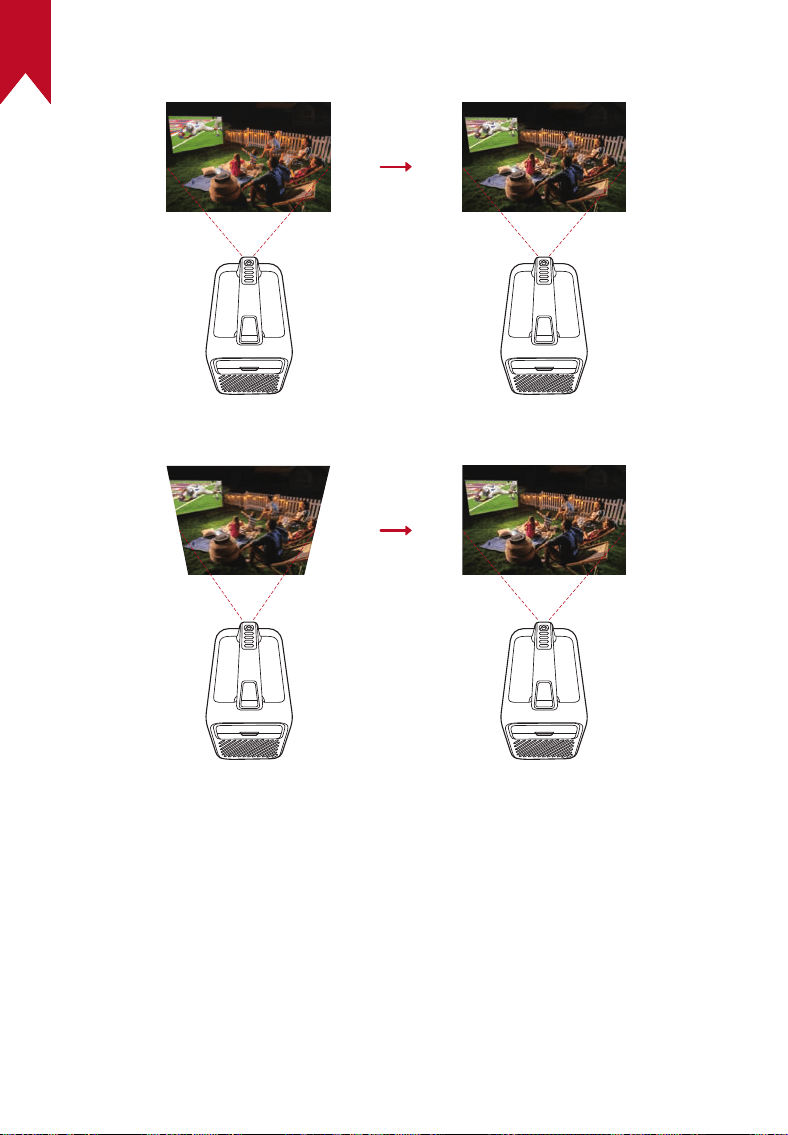
Autofocus
Auto Keystone Correction
EN
18
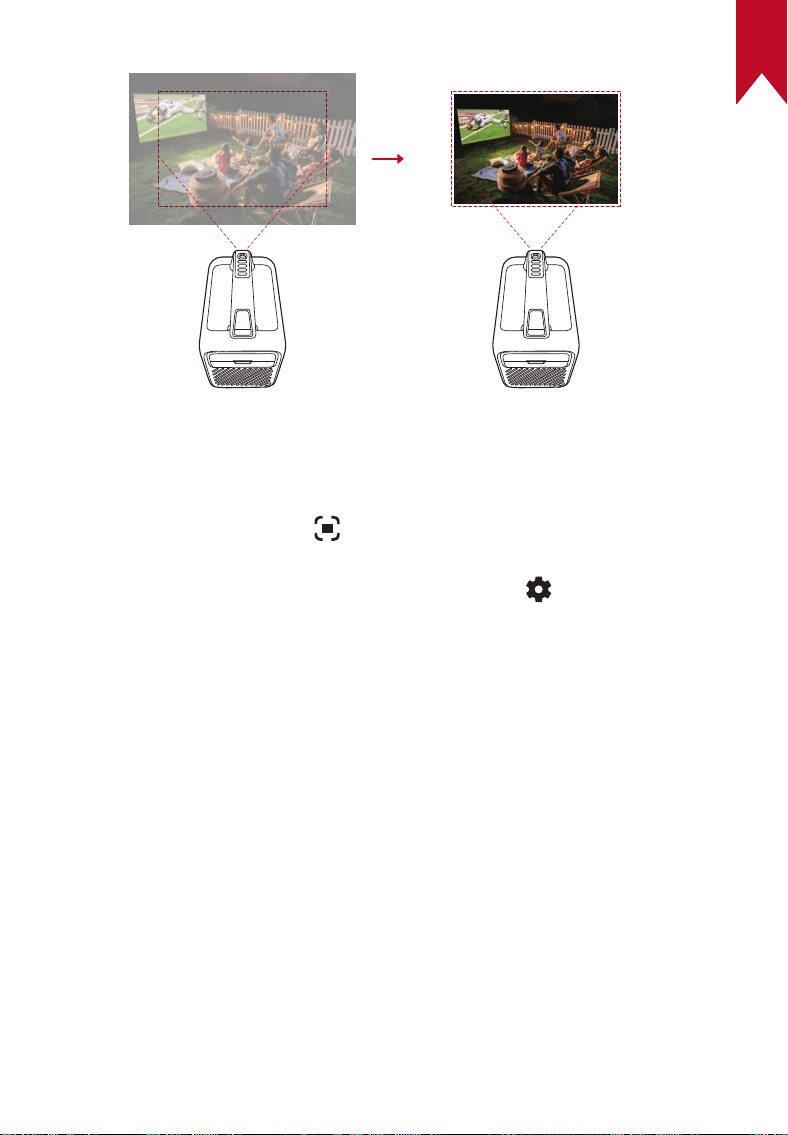
Auto image correction includes autofocus, auto keystone correction, and
auto screen fit. These features can be enabled in three ways: by powering
on the projector, by pressing on the remote, or by slightly moving the
projector.
To set your auto image correction preferences, go to > [Projector
Settings] > [Image Correction].
5. Setup
When using the projector for the first time, follow the on-screen display
(OSD) instructions to complete the basic setup.
• Pair the remote with your projector
• Select your language
• Set up your TV with your Android phone (optional)
• Connect to Wi-Fi
• Sign in with your Google account
Auto Screen Fit
EN
19
Nebula Connect App
To easily control the projector, we recommend you download the
Nebula Connect app.
①
Download the Nebula Connect app from the App Store (iOS devices)
or Google Play (Android devices).
②
Enable Bluetooth on your smartphone.
③
Open the Nebula Connect app and select [Mars 3 XXXXXX] as the
device to be connected.
④
Follow the on-screen instructions to complete the connection setup.
Settings
Go through the setup process when you power on the projector for the
first time.
1. Network
This projector can be connected to the Internet via a wireless (Wi-Fi)
connection.
①
On the home screen, select > [Network & Internet] and press .
②
Follow the on-screen instructions to complete the network
connection.
EN
20
2. Projector
On the home screen, select > [Projector Settings] and press .
Brightness
AI Brightness: Automatically adjusts the display
brightness based on the ambient brightness.
Eco: Lowers the display brightness to 300 lumens
to extend playtime.
Standard: Sets the display brightness to the highest
level by default. You can also adjust the brightness
manually.
Auto: Switches to standard mode when being
charged, and to eco mode when disconnected from
the power supply.
Picture
Picture Mode: The projector comes with several
predefined picture modes so that you can choose
one to suit your environment and input source.
• Standard: Keeps natural-looking colors with a
balance of warm and cool tones.
• Movie: Provides the best colors for watching
movies.
• Bright: Increases the brightness and response
time level for gaming.
• Custom: Manually set the contrast, saturation,
sharpness, color temperature, wall color, and
gamma, or reset the values.
Expert Settings: Customize advanced settings to
enhance image quality.
• DNR: Reduces digital noise on-screen.
• MPEG NR: Eliminates image noise when playing
an MPEG-compressed video.
• DI Film Mode: Creates high-definition images
encoded at 24 frames per second.
• MEMC: Inserts additional frame between original
frames for smoother motions.
EN
21
Image Correction
Auto Keystone Correction Settings: Trigger auto
keystone correction by remote, at startup, or after
movement.
Manual Keystone Correction: Manually perform
keystone correction by adjusting each corner.
Auto Screen Fit Settings: Trigger auto screen fit
by remote, at startup, or after movement.
One-Click Screen Fit: Automatically adjust the
image size to your surface.
Zoom: Zoom in or out of the projection image
from 50% to 100%.
Focus Settings
Auto Focus at Startup: Automatically adjust the
focus when the projector powers on.
Auto Focus After Movement: Automatically adjust
the focus when you move the projector.
Manual Focus Correction: Enable manual focus
correction.
Sound
Sound Mode: The projector comes with several
predefined sound modes so that you can choose
one to suit your environment and input source.
• Music: Enhances the treble for listening to
music.
• Movie: Creates a surround-sound listening
experience for watching movies.
• Outdoors: Increases volume for playing audio /
video outdoors.
• Custom: Manually set audio settings such as
balance, bass, and treble.
System Sound: Turn on / off system sound
notifications.
EN
22
Speaker Delay: To synchronize the sound with the
image, adjust the sound delay by 10 milliseconds
for each operation.
Expert Settings: Customize advanced settings to
enhance audio quality.
• Digital Output: Select an output audio format.
• eARC: Allows TV to send audio backward to its
source device via a single HDMI cable.
• Auto Volume Control: Controls volume
automatically.
Bluetooth Speaker
Mode
Enable Bluetooth speaker mode.
Advanced Settings
Projector Mode: Select projector placement.
•
Auto: Automatically detects whether the
projector is inverted and automatically switches
to an appropriate projector mode.
•
Front: The device is located in front of the
projection surface.
•
Front Ceiling: The device is hanging from the
ceiling in an upside-down position. The image is
rotated by 180 degrees.
•
Rear: The device is located behind the projection
surface.
•
Rear Ceiling: The device is hanging from the
ceiling in an upside-down position behind the
projection surface. The image is rotated by 180
degrees and horizontally mirrored.
Motion Settings: Set a sensitivity level to trigger
autofocus and auto keystone correction.
Keystone Calibration: Recalibrate the projector if
keystone correction doesn't work properly.
EN
23
Smart Solutions: Turn on / off auto-alerts when
the projector detects an issue.
• Projection Angle Alert: Shows an alert when
the maximum projection angle is reached.
• Fine Tuning Popup: Shows a prompt to access
fine-tuning after auto keystone correction.
• AI Brightness Popup: Shows a prompt when
ambient brightness varies greatly from the
display brightness.
Updates Check for firmware updates.
Ambient Light
Turn the ambient light off or set the brightness
level.
3. Apps
①
On the home screen, select
> [Apps], and press .
②
Select an app and check the current version, open or force stop the
app, check the storage used, clear data or cache, uninstall the app,
or enable or disable notifications and permissions.
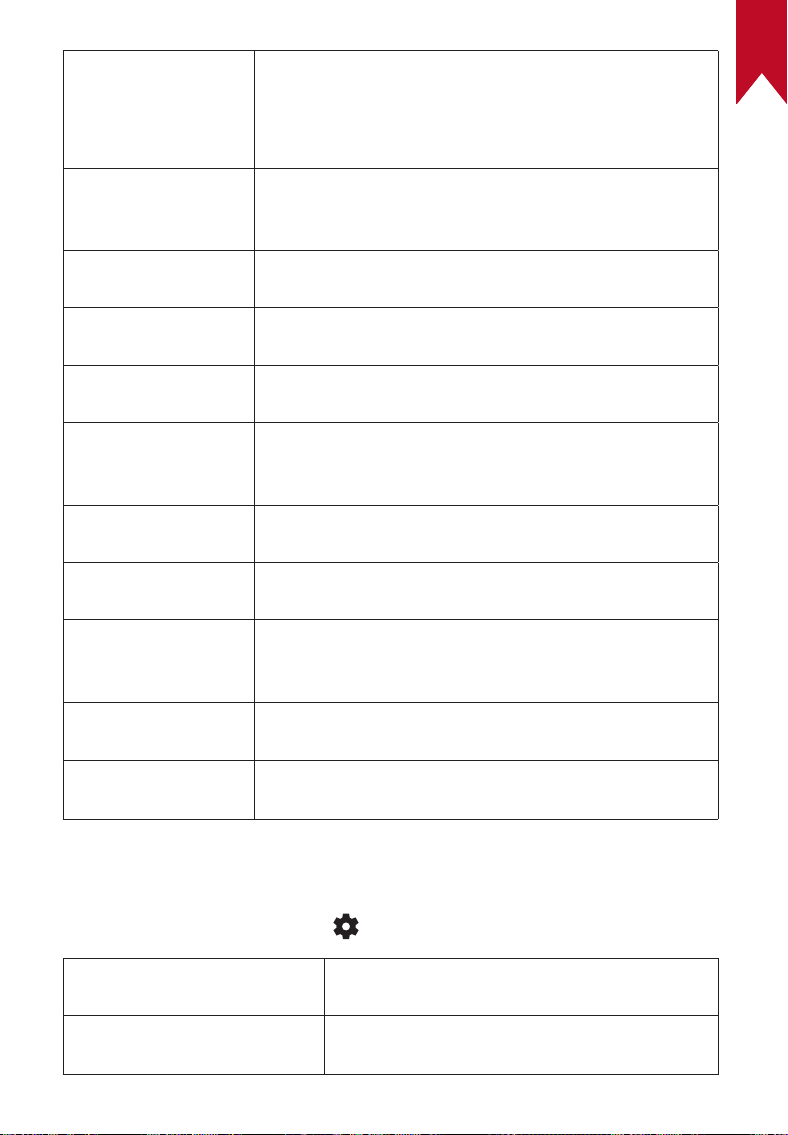
4. Device Preferences
On the home screen, select > [Device Preferences] and press .
About
Check device information, update the system, reset
the device, or rename the device.
Date & Time
Enable or disable automatic date and time,
manually set date and time, select time zone, or
set time format.
Timer
Change settings for auto power-off.
Language
Select an on-screen display language.
Keyboard
Check and manage keyboards.
EN
24
Input
Select HDMI as the input source, or change
Consumer Electronic Control (CEC) settings.
CEC allows your HDMI device and Android TV to
control each other.
Power
Change the auto-sleep settings, turn off the current
display, or set auto power-off time when no signal
is available.
Storage
Check the device storage.
Home Screen
Set the channels and apps on the home screen or
check open-source licenses.
Google Assistant
Change settings for the Google Assistant.
Chromecast
Choose to show notifications on all Android devices
connected to your Wi-Fi and let them control media
casting to this device.
Screen Saver
Change the screen saver settings.
Location
Use Wi-Fi or permit apps to estimate locations.
Usage &
Diagnostics
Automatically send diagnostic information to Google,
like crash reports and usage data from your device,
apps, and Chromecast built-in.
Accessibility
Change the caption settings or enable accessibility
service.
Restart Restart the system or cancel.
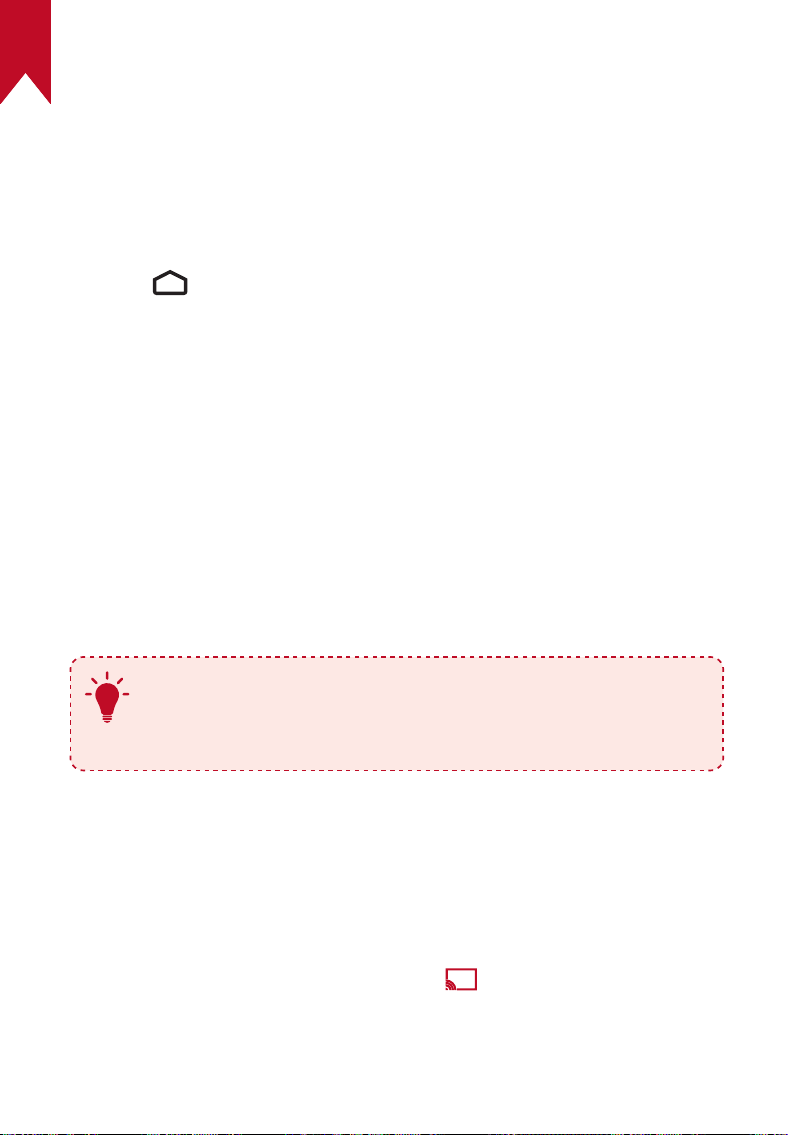
5. Others
On the home screen, select
to nd more setting options.
Accounts & Sign-In
Sign in to make the most of Android TV.
Remotes & Accessories Search for accessories for pairing.
EN
25
Using Your Projector
1. Select an App
Once connected to a wireless network, you can access online services,
enjoy movies, music, pictures, and browse online. You can download
more apps from Google Play.
①
Press to access the home screen.
②
Select [Apps] > [Get More Apps].
2. Voice Assistant
After setup, press the Google Assistant button on the remote, you can
speak to the Google Assistant and request your commands.
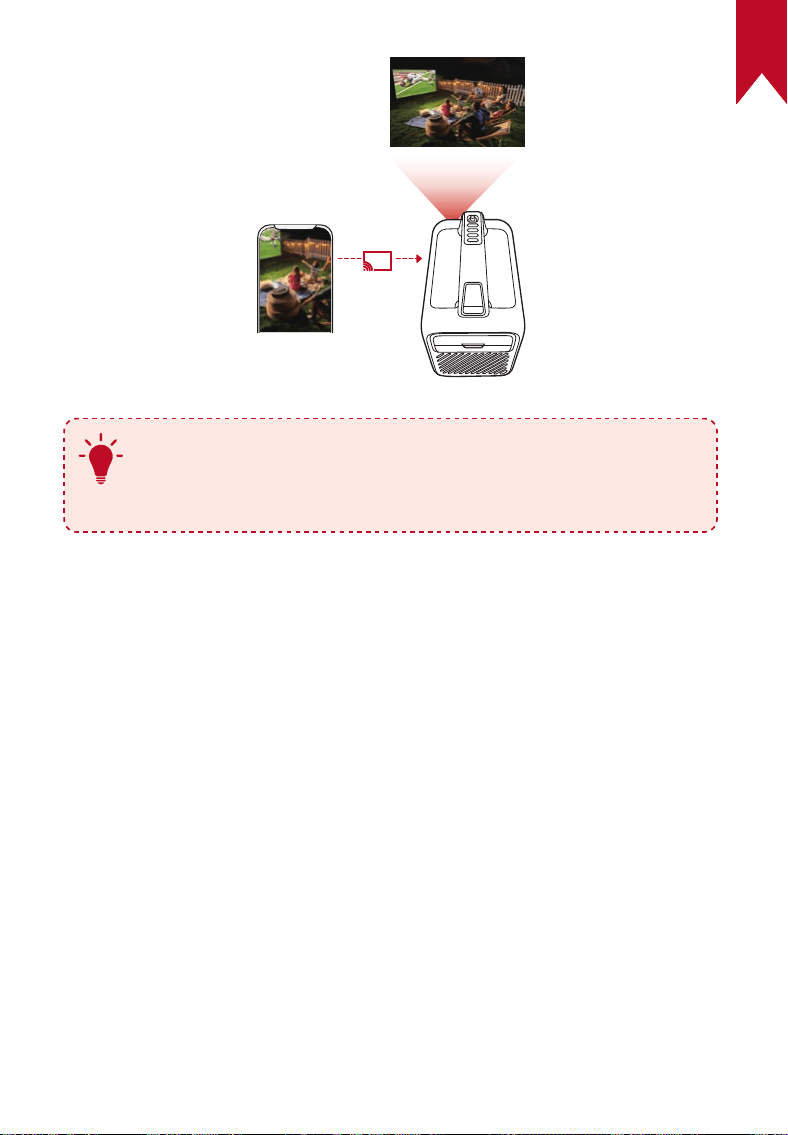
3. Wireless Casting
You can wirelessly cast movies, games, music, and the entire screen
from your iOS, macOS, Android, or Windows device to Nebula Mars 3.
T
Make sure Nebula Mars 3 and your device are connected
to the same wireless network. The network can be a Wi-Fi
network or your phone's hotspot.
3.1 Cast In-App Content
You can cast content from apps that support Chromecast, such as
YouTube and Prime Video.
①
Connect your device and projector to the same wireless network.
②
Open the streaming app on your device.
③
Play a video clip and tap the cast icon on the video screen.
④
Select D2333 to connect. The projector will mirror the video screen
on your device.
EN
26
T
Certain content cannot be cast on Nebula Mars 3 due to
copyright restrictions. You can stream the content via the
same app installed on your projector.
3.2 Cast Device Screen
You can cast the entire screen from your device to the projector.
①
Connect your device and projector to the same wireless network.
②
Install the Nebula Cast app on your projector.
③
Open Nebula Cast and follow the on-screen instructions to complete
the process.
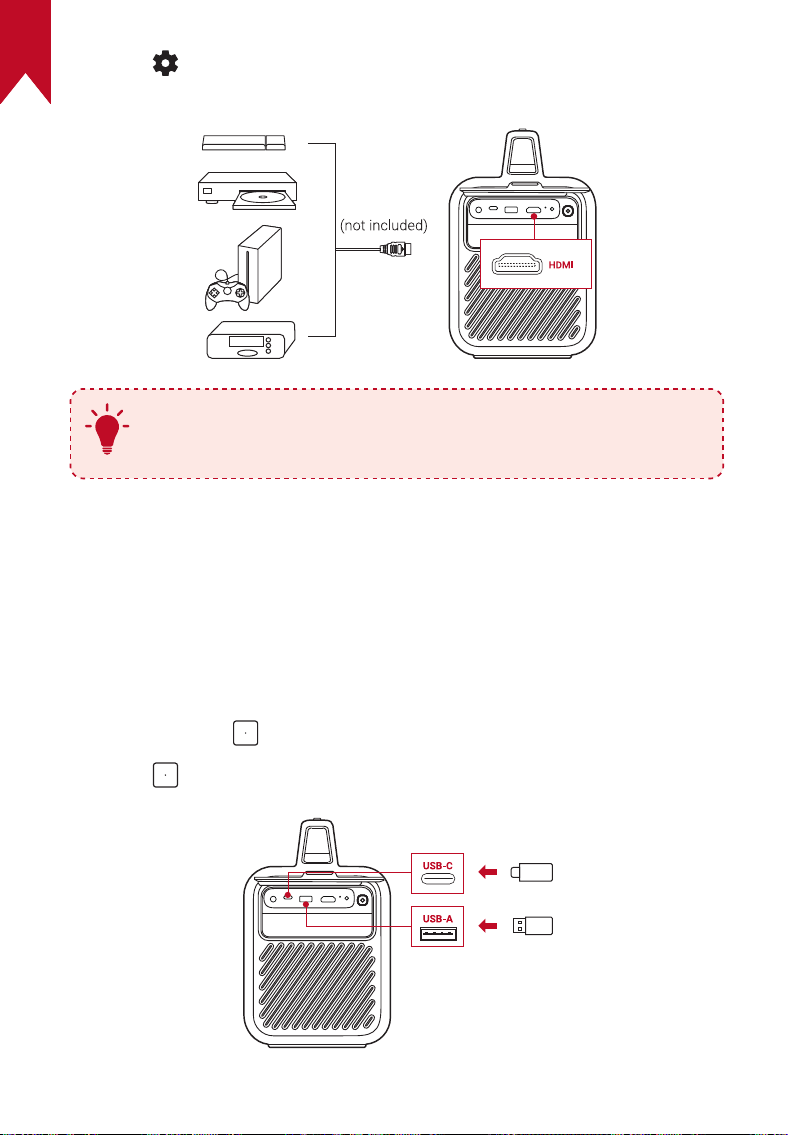
4. Play from HDMI Playback Devices
The projector can be connected to various HDMI playback devices such
as a TV box, TV stick, DVD player, set-top box (STB), gaming console, or
other devices.
①
Connect the projector to an HDMI playback device with an HDMI
cable (not provided).
EN
27
②
Press to access the settings menu, then select [Device
Preferences] > [Input] > [HDMI].
T
The projector will automatically start HDMI playback once
connected to an HDMI playback device for the first time.
5. Play from a USB Drive
With this projector, you can enjoy music, video, and pictures, or install
apps that are stored on a USB 2.0 drive.
①
Download the File Explorer app from Google Play.
②
Insert a USB-A or USB-C drive into the USB port.
③
Select music, videos, or photos from the USB drive that you want to
play and press .
④
Press to stop playback.
EN
28
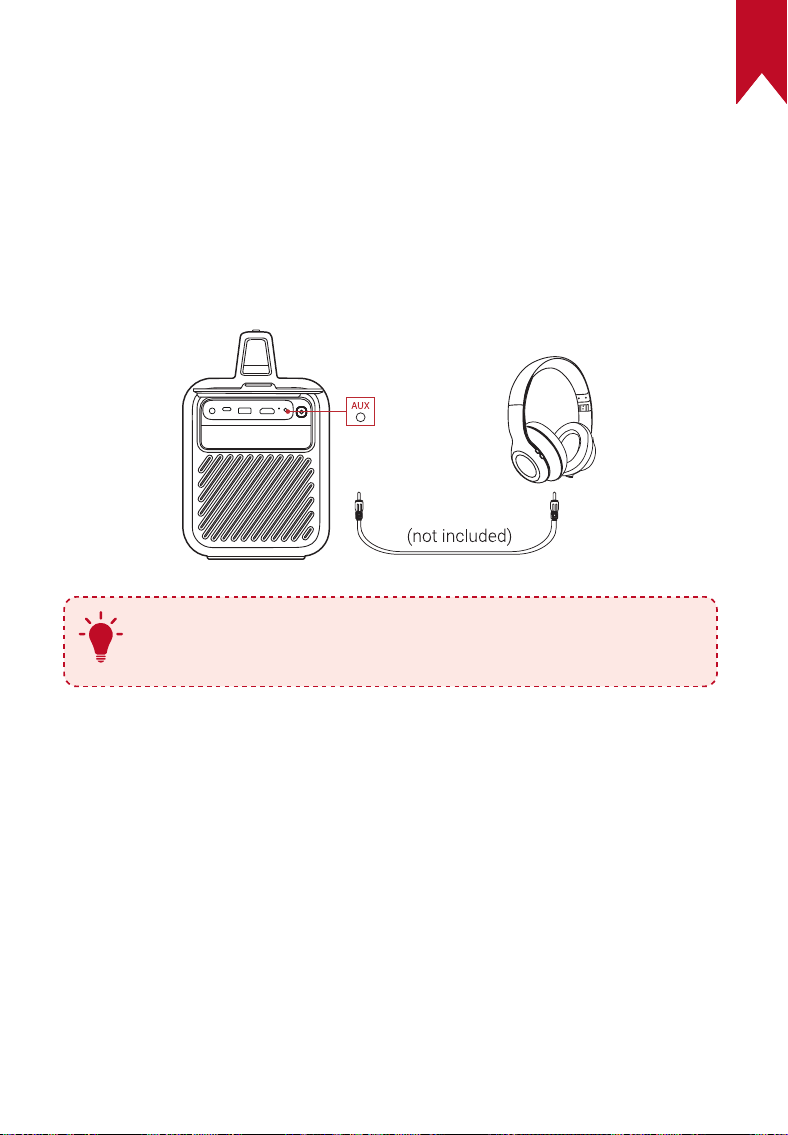
6. Play Through External Sound Devices
This projector can also be connected to external sound output devices,
including headphones and speakers; when connected to external
speakers, the built-in speaker system is disabled.
①
Use a 3.5 mm audio cable or an adapter (not provided) to connect
your headphones or external speakers.
②
Connect the other end of the cable to the AUX port on this projector.
• You will hear audio from your headphones or external speakers.
T
Before connecting headphones and putting them on, turn
down the volume to avoid hurting your ears.
EN
29
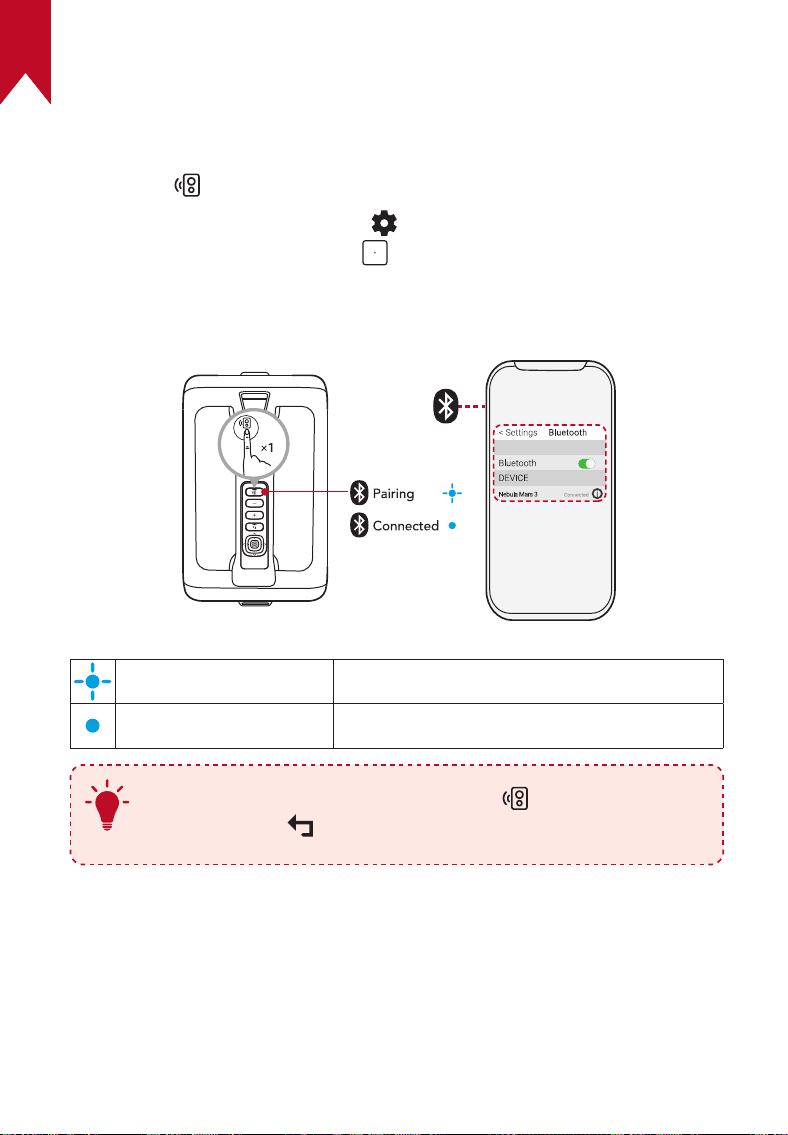
7. Bluetooth Speaker Mode
You can use this projector as a standalone Bluetooth speaker.
①
To switch to Bluetooth speaker mode, you have two options:
A: Press on the projector.
B: On the home screen, select > [Projector Settings] > [Bluetooth
Speaker Mode] and press .
②
Enable Bluetooth on your smartphone and select Nebula Mars 3 to
connect.
Flashing blue Ready to pair / Bluetooth pairing
Steady blue Bluetooth connected
T
To exit Bluetooth speaker mode, press on the projector or
press and hold on the remote for two seconds.
Firmware Update
To fully enhance your experience with this projector with the latest
features, you are recommended to update the firmware from time to
time.
EN
30
To update the firmware, go to [Projector Settings] > [Updates] >
[Firmware Update].
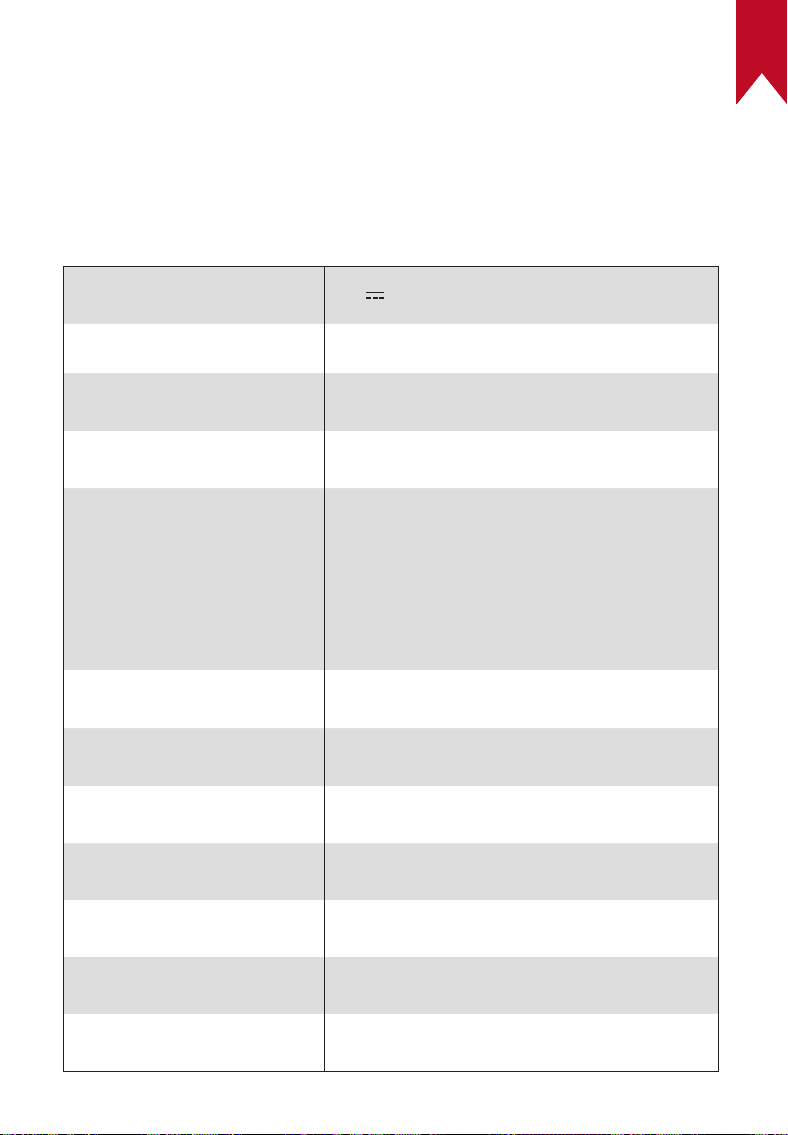
Specifications
Specifications are subject to change without notice.
Input
19V 9.47A
Power Consumption
150W
Standby Power
Consumption
< 1W
Resolution
1920 × 1080p
Compatible Resolutions
480p (60 Hz), 576p (50 Hz), 720p (30 Hz),
720p (50 Hz), 720p (60 Hz), 1080p (24 Hz),
1080p (30 Hz), 1080p (50 Hz), 1080p (60
Hz), 4K2K (23.976 Hz), 4K2K (25 Hz), 4K2K
(30 Hz), 4K2K (50 Hz), 4K2K (60 Hz), 4096
(23.976 Hz), 4096 (25 Hz), 4096 (30 Hz),
4096 (50 Hz), 4096 (60 Hz)
USB-A Output Power
(Charging)
10W
USB-C Output Power
(Charging)
15W
Contrast Ratio
400:1
Aspect Ratio
16:9
Screen Size
30" to 150"
Throw Ratio
1.2:1
Throw Distance
0.5~4.02 m / 1.64~13.18 ft
EN
31
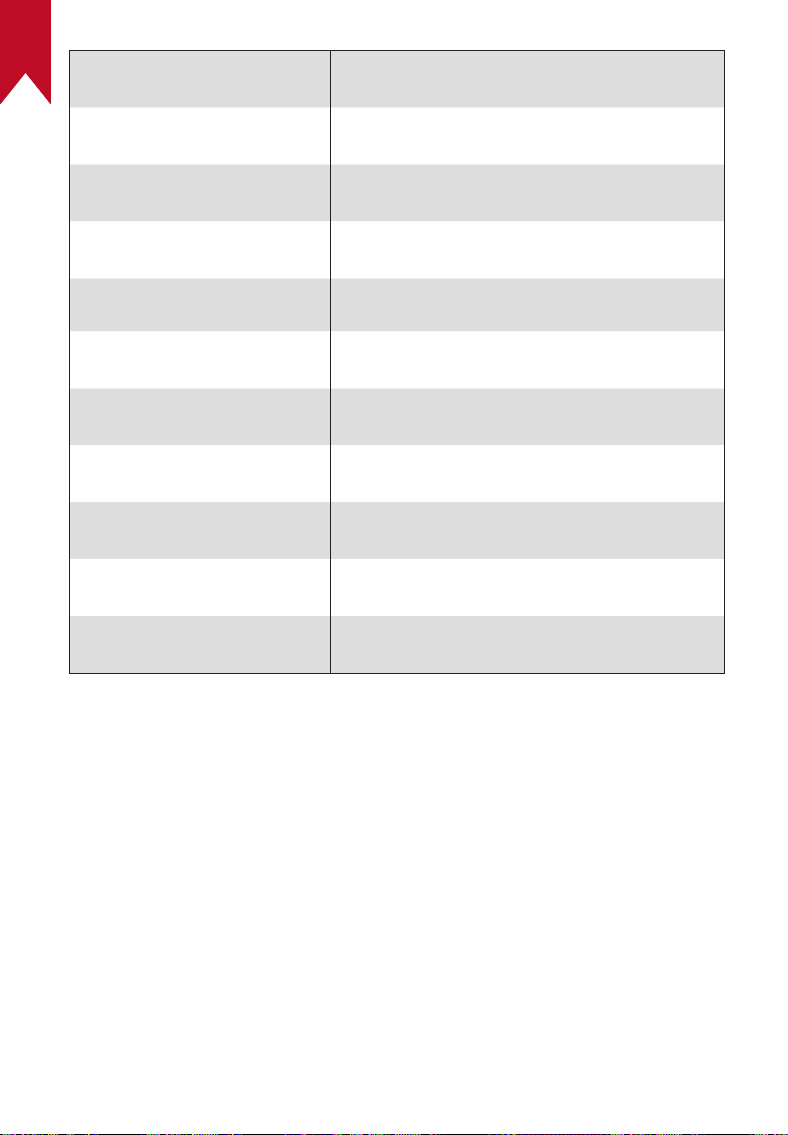
Light Source
LED
Focus
Auto
Keystone Correction
Auto
Speaker Output Power
40W max
Noise
28 dB at
25°C
Wi-Fi
Wi-Fi 2.4 GHz/5.0 GHz 802.11 a/b/g/n/ac
Bluetooth Version
5.1
Bluetooth Range
25 m / 82 ft
USB Format
FAT, FAT32, NTFS
Operating Temperature
0°C~35°C / 32°F~95°F
Remote Control Batteries
AAA × 2
EN
32
Troubleshooting
①
Fails to Power On
• The projector may be out of power. Charge the projector for 15-30
minutes and see if the LED screen lights up.
②
Cannot Charge
• Use the included adapter and power cord to charge the projector.
• Try a different adapter (at least 180W) and power cord.
③
Cannot Connect to a Wi-Fi Network
• Place your projector within 16 ft / 5 m of the router and reconnect.
• Set your router to 2.4 GHz or 5 GHz and retry.
• Restart your projector and router and retry.
• Try a different Wi-Fi network or your phone's hotspot.
④
Blurry Image
• Slightly move the projector or press on the remote to start
autofocus.
• To manually adjust the focus, go to [Settings] > [Projector
Settings] > [Focus Settings] > [Manual Focus Correction], and use
and on the remote.
• Adjust the projection angle and direction as well as the height of
the projector if necessary.
⑤
Distorted Image
• Update the firmware to the latest version via [Projector Settings] >
[Updates] > [Firmware Update].
• Go to [Settings] > [Projector Settings] > [Image Correction] >
[Perform Manual Keystone Correction].
• Move the projector left or right, or alter the tilt if necessary.
⑥
No HDMI Signal
• Use a different HDMI cable.
• Connect your projector with another HDMI playback device.
• Connect the HDMI playback device to your TV with an HDMI cable
to check if the device or cable are working.

EN
33
• Adjust the HDMI playback device's output resolution / frequency to
be the same as the projector's.
⑦
How to Install Netflix
• On your projector, download and install the Nebula Play app
from Google Play. Open Nebula Play and select [Tips] > [Netflix
Installation]. Then follow the on-screen instructions to install
Netflix.
⑧
How to Control Netflix with Mouse Mode
• Install Nebula Connect on your phone and connect with Mars
3. Select Mouse mode. Use one finger to move and click, or two
fingers to scroll.
⑨
How to Play Videos without Wi-Fi
• Download videos to a USB drive in FAT32 format. For the following
steps, see Play from a USB Drive.

EN
34
Notice
This product complies with the radio interference requirements
of the European Community.
Declaration of Conformity
Hereby, Anker Innovations Limited. declares that this device
is in compliance with the essential requirements and
other relevant provisions of Directive 2014/53/EU. For the
Declaration of Conformity, visit the Web site
https://uk.seenebula.com/.
This product complies with the radio interference requirements
of the United Kingdom.
Declaration of Conformity
Hereby, Anker Innovations Limited declares that this device
is in compliance with Radio Equipment Regulations 2017(SI
2017/1206). The full text of the UK Declaration of Conformity is
available at the following internet address:
https://uk.seenebula.com/.
The suitable temperature range for the projector and its
accessories is 0°C~35°C / 32°F~95°F.
The adapter is for indoor use only. The adapter type is
NSA180EC-19094701 or KA180B-19009470H with a rated
output voltage/current of 19.0VDC / 9.47A.
RF Exposure Information
The Maximum Permissible Exposure (MPE) level has been calculated
based on a distance of d=20 cm between the device and the human
body. To maintain compliance with RF exposure requirements, maintain
a 20 cm distance between the device and the human body.
EN
35
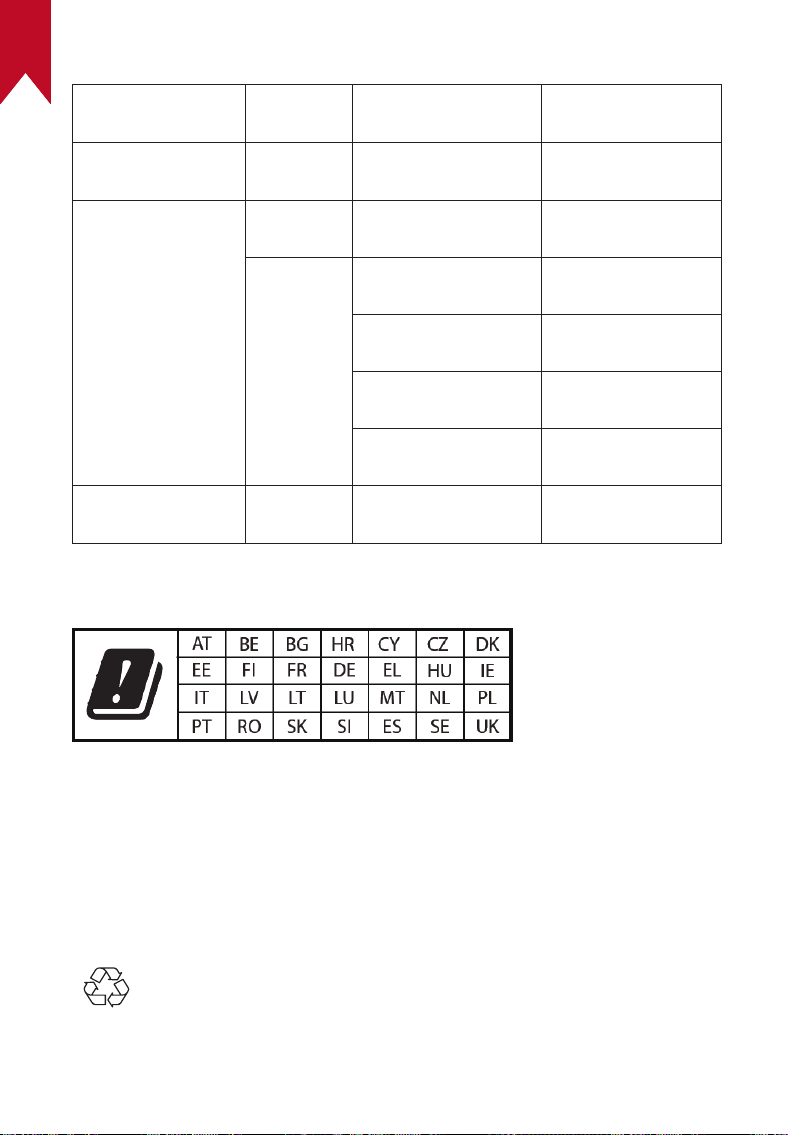
Frequency Bands and Power
Function
Bands
Operation
Frequency
Max Power
Bluetooth
(Projector)
2.4 GHz
2402-2480 MHz EIRP 16.61 dBm
WIFI
(Projector)
2.4 GHz
2412-2472 MHz EIRP 19.51 dBm
5 GHz
5150-5250 MHz EIRP 20.13 dBm
5250-5350 MHz EIRP 18.70 dBm
5470-5725 MHz EIRP 17.89 dBm
5725-5850 MHz EIRP 13.16 dBm
Bluetooth
(Remote Control)
2.4 GHz 2402-2480 MHz EIRP 3.62 dBm
5150~5350 MHz can only be used indoors.
The following importer is the responsible party (contract for EU matters):
Anker Innovations Deutschland GmbH | Georg-Muche-Strasse 3, 80807
Munich, Germany
The following importer is the responsible party (contract for UK matters):
Anker Technology (UK) Limited | GNR8, 49 Clarendon Road, Watford,
Hertfordshire, WD17 1HP, United Kingdom
Your product is designed and manufactured with high-quality
materials and components, which can be recycled and reused.

EN
36
This symbol means the product must not be discarded as
household waste, and should be delivered to an appropriate
collection facility for recycling. Proper disposal and recycling
helps protect natural resources, human health, and the
environment. For more information on the disposal and
recycling of this product, contact your local municipality,
disposal service, or the shop where you bought this product.
FCC Statement
This device complies with Part 15 of the FCC Rules. Operation is
subject to the following two conditions: (1) this device may not cause
harmful interference, and (2) this device must accept any interference
received, including interference that may cause undesired operation.
Warning: Changes or modifications not expressly approved by the party
responsible for compliance could void the user's authority to operate
the equipment.
Note: This equipment has been tested and found to comply with the
limits for a Class B digital device, pursuant to Part 15 of the FCC Rules.
These limits are designed to provide reasonable protection against
harmful interference in a residential installation.
This equipment generates uses and can radiate radio frequency energy
and, if not installed and used in accordance with the instructions, may
cause harmful interference to radio communications. However, there is
no guarantee that interference will not occur in a particular installation.
If this equipment does cause harmful interference to radio or television
reception, which can be determined by turning the equipment off and
on, the user is encouraged to try to correct the interference by one or
more of the following measures: (1) Reorient or relocate the receiving
antenna. (2) Increase the separation between the equipment and
receiver. (3) Connect the equipment into an outlet on a circuit different
from that to which the receiver is connected. (4) Consult the dealer or
an experienced radio/TV technician for help.
FCC Radio Frequency Exposure Statement
The device has been evaluated to meet general RF exposure
requirements. The device can be used in fixed/mobile exposure
conditions. The min separation distance is 20cm.
EN
37
Notice: Shielded Cables
All connections to other computing devices must be made using
shielded cables to maintain compliance with FCC regulations.
The following importer is the responsible party.
Company Name: Fantasia Trading LLC
Address: 5350 Ontario Mills Pkwy, Suite 100, Ontario, CA 91764
Telephone: 1-800-988-7973
5150~5350 MHz can be used indoors only.
CAUTION: RISK OF EXPLOSION IF BATTERY IS REPLACED
BY AN INCORRECT TYPE. DISPOSE OF USED BATTERIES
ACCORDING TO THE INSTRUCTIONS.
ATTENTION RISQUE D'EXPLOSION SI LA BATTERIE EST
REMPLACÉE PAR UN TYPE INCORRECT. ÉLIMINER LES
BATTERIES USÉES SELON LES INSTRUCTIONS.
IC Statement
This device complies with Industry Canada licence-exempt RSS
standard(s). Operation is subject to the following two conditions:
1) this device may not cause interference, and
2) this device must accept any interference, including interference that
may cause undesired operation of the device.
Le présent appareil est conforme aux CNR d'Industrie Canada
applicables aux appareils radio exempts de licence. L'exploitation est
autorisée aux deux conditions suivantes:
1) l'appareil nedoit pas produire de brouillage, et
2) l'utilisateur de l'appareil doit accepter tout brouillage radioélectrique
subi, même si le brouillage est susceptible d'en compromettre le
fonctionnement.
This Class B digital apparatus complies with Canadian ICES-003.
Cet appareil numérique de la classe B est conforme à la norme NMB-
003 du Canada.
IC RF Statement
When using the product, maintain a distance of 20cm from the body to
ensure compliance with RF exposure requirements.
Lors de l'utilisation du produit, maintenez une distance de 20 cm du
corps afin de vous conformer aux exigences en matière d'exposition
RF.
EN
38
5150~5250 MHz can be used indoors only.
5150~5250 MHz peut être utilisé à l'intérieur uniquement.
Anker Innovations Limited
Room 1318-19, Hollywood Plaza, 610 Nathan Road, Mongkok, Kowloon,
Hong Kong
Trademarks
The Bluetooth® word mark and logos are registered trademarks
owned by the Bluetooth SIG, Inc. and any use of such marks by Anker
Innovations Limited is under license. Other trademarks and trade
names are those of their respective owners.
HDMI, HDMI logo, and High-Definition Multimedia Interface are
trademarks or registered trademarks of HDMI licensing LLC in the
United States and other countries.
Manufactured under license from Dolby Laboratories. Dolby, Dolby
Audio, and the double-D symbol are trademarks of Dolby Laboratories
Licensing Corporation.

EN
39
Warranty
30-Day Money-Back Guarantee for Any Reason
You may return your undamaged product and packaging within 30 days
of purchase to receive a FULL REFUND for any reason. If the reason
for the return isn't quality-related, the customer must pay for the return
shipping.
12-Month Warranty for Quality-Related Issues
Nebula's products are warrantied to be free from material and
workmanship defects for 12 months from the date of purchase. Within
this period, Nebula will provide a replacement and cover any return
shipping costs for products that fail in normal use.
Please note: Any provided shipping labels must be used within 20 days
from the date they're issued by Nebula Support.