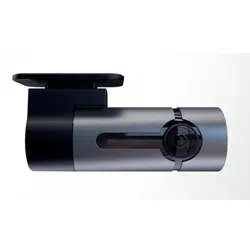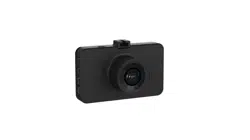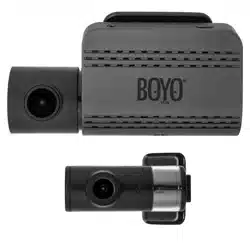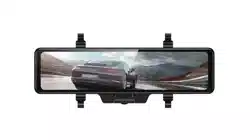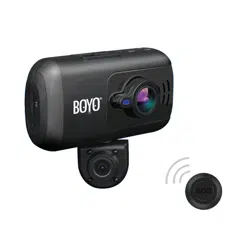
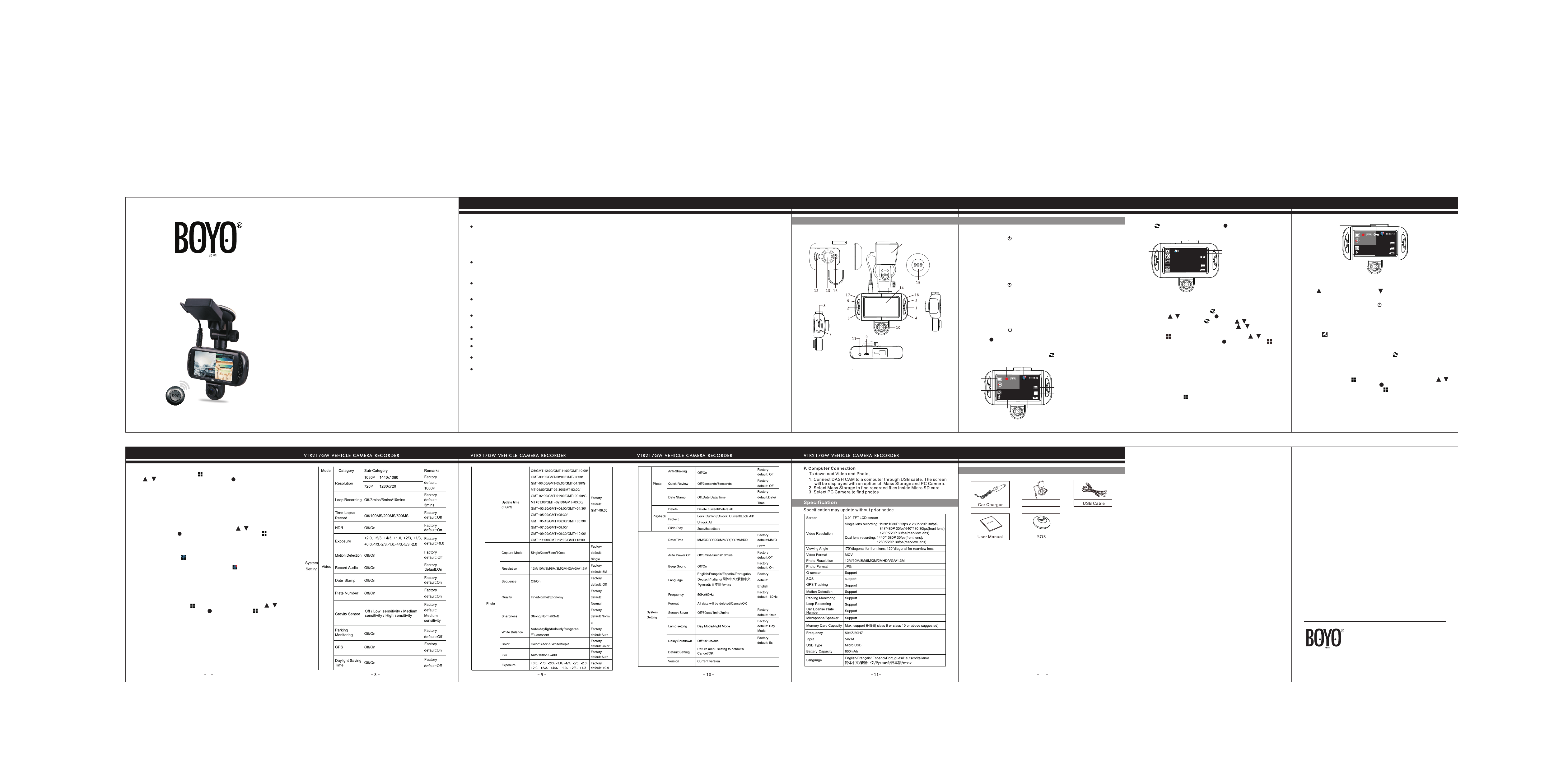
Buit-in GPS Bracket
Accessories
VTR217GW VEHICLE CAMERA RECORDER
1 OK/REC
2.Menu
3.Up
4.Down
5.Mode
6.ON/OFF
.
7.Reset Hole
8.TF card slot
9. USB Port
10.Rearview lens
11.GPS port
12.Speaker
13.Front lens
14.LCD screen
15.SOS Controller
16.Working Indicator
17.Recording Indicator
18.Charging Indicator
19.GPS Module
19
Structure
VTR217GW VEHICLE CAMERA RECORDER
1
VTR217GW VEHICLE CAMERA RECORDER
2 3
VTR217GW VEHICLE CAMERA RECORDER
Function
A. On/Off
1. Power On
Press and hold button to turn on DASH CAM. DASH CAM will be
entered into video recording mode and start recording automatically.
When DASH CAM is connected to a car charger, it will start recording
automatically. When DASH CAM is unplugged from the car charger,
DASH CAM will automatically save the current file and be shut down
in 5 seconds.
Note: The LCD screen will display ‘Please insert SD card’ when Micro
SD card isn’t inserted.
2.Power Off
Press and hold button to turn off DASH CAM.
Note: When the battery is low, DASH CAM will display ‘Low Battery’.
Then, DASH CAM will automatically save the current file and will be
shut down.
B. Battery Charging
When the battery is charging, the battery charging indicator will be on.
Once it is fully charged, it will be off.
C. Video
Press and hold button to turn on DASH CAM. DASH CAM will be
entered into video recording mode and start recording automatically.
1080P+720 P
2017/06/0 6 15:00:45
1
2
3
4
6
7
12
11
5
9
8
13
AAAAAAA
10
14
1. Recording
2. Video
3. Loop Recording
4. Exposure
5.Voice/Mute
6.Date
7.Time
8.Battery Charging Icon
9.Micro SD Card
10.G-sensor
11.Video Resolution
12.Recording Time
13.GPS Status Icon
14.HDR
4
F. G-Sensor
When an impact is detected, G-sensor will be activated to save and
protect the current video clip from being overwritten. G-Sensor is
consisted of three grades setting (high, medium, low).
While recording, tap or SOS Telecontroller to save the current
video from being overwritten.
D. Photo
Press to enter into photo mode. Press to take any picture.
19
20
21
15. Photo
16. Exposure
17. White Balance
18. ISO
19. Photo Quantity
20. Image Resolution
21. Image Quality
22. Anti-Shaking
G. SOS
E. Playback and Delete
00088
12M
15
16
17
18
22
During video standby mode, press twice to enter into video playback
mode. Press / to select the file. is used for play or pause.
When a video is playing, press to stop. Tap / to fast forward or
reverse. Depending on how many time you tap / , DASH CAM
will fast forward or reverse to 2x, 4x, and up to 8x. If you want to delete
files, press to be entered into Delete mode. Press / to select
‘delete current’ or ‘delete all’ and press to confirm it. Press to
exit and go back to video playback mode.
VTR217GW VEHICLE CAMERA RECORDER
5
VTR217GW VEHICLE CAMERA RECORDER
Time lapse record is to save memory capacity.
In standby mode, tap to enter into the setting menu and press /
to select Time-lapse Record. Press to select “Off/100ms/200ms
/500ms” to activate this function. Tap to exit the setting menu.
H.Digital Zoom
Tap to zoom in up to 4x and tap to zoom out to 1:1.
I . Switch Lens
In recording/standby mode,press to switch lens.
J. Parking Monitoring
Parking Monitoring can be set to trigger recording when a vehicle is
parked and powered off and an impact is detected through the
G-Sensor. Please set Parking Monitor ON in settings menu. You will
notice on the screen. When a vehicle is powered off, DASH CAM
will be turned off accordingly. When DASH CAM detects an impact, it
will be turned on to start recording automatically for 10 seconds and
then will be turned off. In case of continuous impact, DASH CAM will
keep recording the event. Press and hold to turn on/off parking
monitor when DASH CAM is turned on.
K. Time Lapse Record
2017/06 /0 6 15: 00:45
AAAAAAA
SOS
1080P+7 20 P
6
M. Car License Plate Number
Go to car license plate number setting menu to input your car license
plate number. The first character can only be alphabet. The following
characters can be alphabets or numbers. Press / to select among
0-9 or A-Z. Press to confirm and go to the next one. Press to exit.
N. GPS Tracking
A. Insert G-MOUSE into DASH CAM.
B. You will notice a icon appearing on the top of screen when DASH
CAM successfully locates GPS.
In case of no GPS signal, you will notice a icon.
C. The current driving track and coordinates will be displayed on a Player.
L. Motion Detection
In video standby mode, tap to enter into setting menu, then press
/ to select motion detection and press to turn on motion
detection.
When DASH CAM detects any movement, it starts to record with a
flashing green indicator. When no movement is detected for 10
seconds, DASH CAM will stop recording and it will be back to video
standby mode. Factory default setting is OFF.
VTR217GW VEHICLE CAMERA RECORDER
7 12
User’s Guide
VTR217GW
Vision Tech America, Inc.
1452 E. Valencia Dr.,
Fullerton, CA 92831
Tel: 888-941-3060
For technical support contact 888-941-3060 or email
[email protected] WWW.VISIONTECHAMERICA.COM
O. System Setting
In standby mode, press to enter into system setting. Press / to
selectthe setting item and press to confirm it. Press again to
exit it out.
Go to Update time of GPS setting menu to select a proper time zone.
When DASH CAM locates GPS successfully, DASH CAM’s current
time will be synchronized with GPS satellite time.
Press to stop recording and save the current file. DASH CAM will
be entered into standby mode. In standby mode, press OK button to
restart recording and press it again to pause.
During video recording mode, press to turn on or turn off sound.
To obtain clear images, please clean the windshield and DASH CAM
lens on a regular basis. Avoid using DASH CAM in a dusty environment.
CAUTIONS
VTR217GW VEHICLE CAMERA RECORDER
Please insert micro SD card in the right direction to avoid damage to
the card or DASH CAM. If DASH CAM shows error message, please
format the micro SD card from DASH CAM menu. Please reset DASH
CAM or change micro SD card if similar error continues.
Note: All files will be deleted when formatting micro SD card. Please
backup the important files before you format. When reset function is
selected, the settings will be returned to default setting.
Recommended micro SD card : CLASS 10 or above micro SD card.
Micro SD card specification varies from one brand to another and it
may not function as expected when using with DASH CAM. Please
check upon micro SD’s compatibility before you use micro SD card.
Micro SD card must be formatted before using with DASH CAM. Backup
recording files once a week to prevent files from being overwritten.
Please format micro SD card once every month for its recording stability.
Please make sure the suction cup is mounted properly and firmly on the
windshield to avoid any damage to DASH CAM and to have better
recording angle.
Battery life-span will continuously decrease upon usage. Please charge
battery once every month to preserve the battery life.
Please do not use DASH CAM in a wet environment as DASH CAM is
not waterproof or water resistant.
Please do not record or take picture in a direct sunlight.
Please handle DASH CAM with care. Avoid using DASH CAM in a high
electromagnetic environment.
Operating temperature of DASH CAM is -4°F to 140°F. Continuous
exposure to sunlight, especially when DASH CAM is mounted in a
vehicle where temperature exceeds above 158°F, may result in DASH
CAM mal-function, color change, housing and image distortion.
CAUTIONS
This device is NOT intended to be used for illegal purposes;
surveillance shall not be used in any form as evidence for claim
purposes. Some countries prohibit drivers from mounting anything on
the windshield, or restrict mounting to specific areas of the windshield.
It is the owner’s responsibility to mount the device in compliance with
local laws. Errors may occur depending on the surrounding environment
and the voltage of the car. Company is not liable or responsible for
non-recorded event, missing files and others. Company will not be liable
for any damage incurred directly or indirectly from errors, omissions,
or discrepancies.
Do not operate the device while driving. Using this device does not
change the requirement for a driver to take full responsibility for his or
her behavior. This responsibility includes observing all traffic rules
and regulations in order to avoid accidents, personal injury or property
damage.