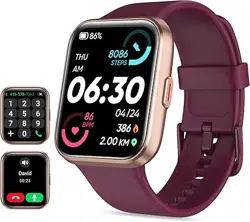
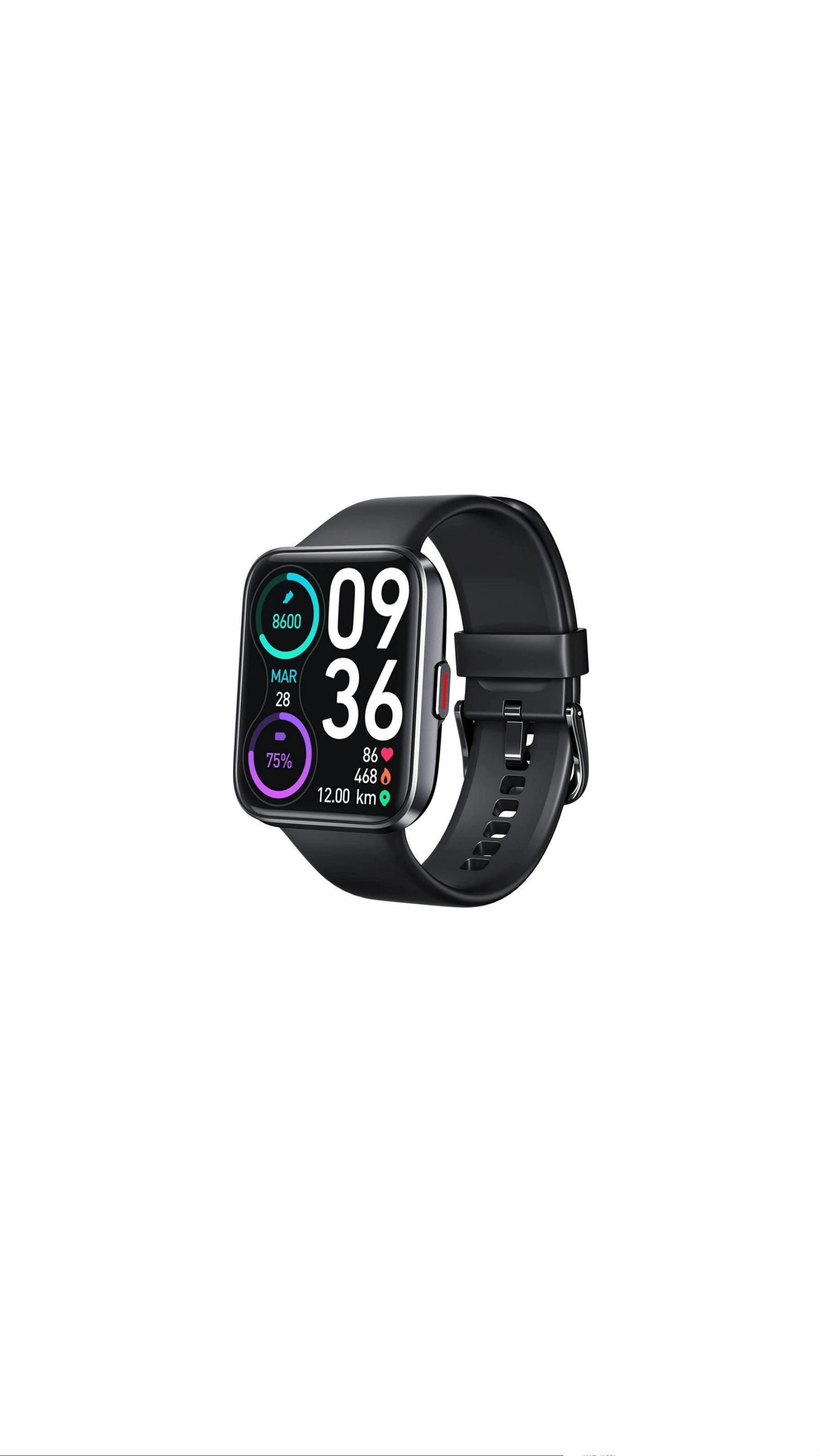
Tensky
SMART WATCH
User Manual
Introduction
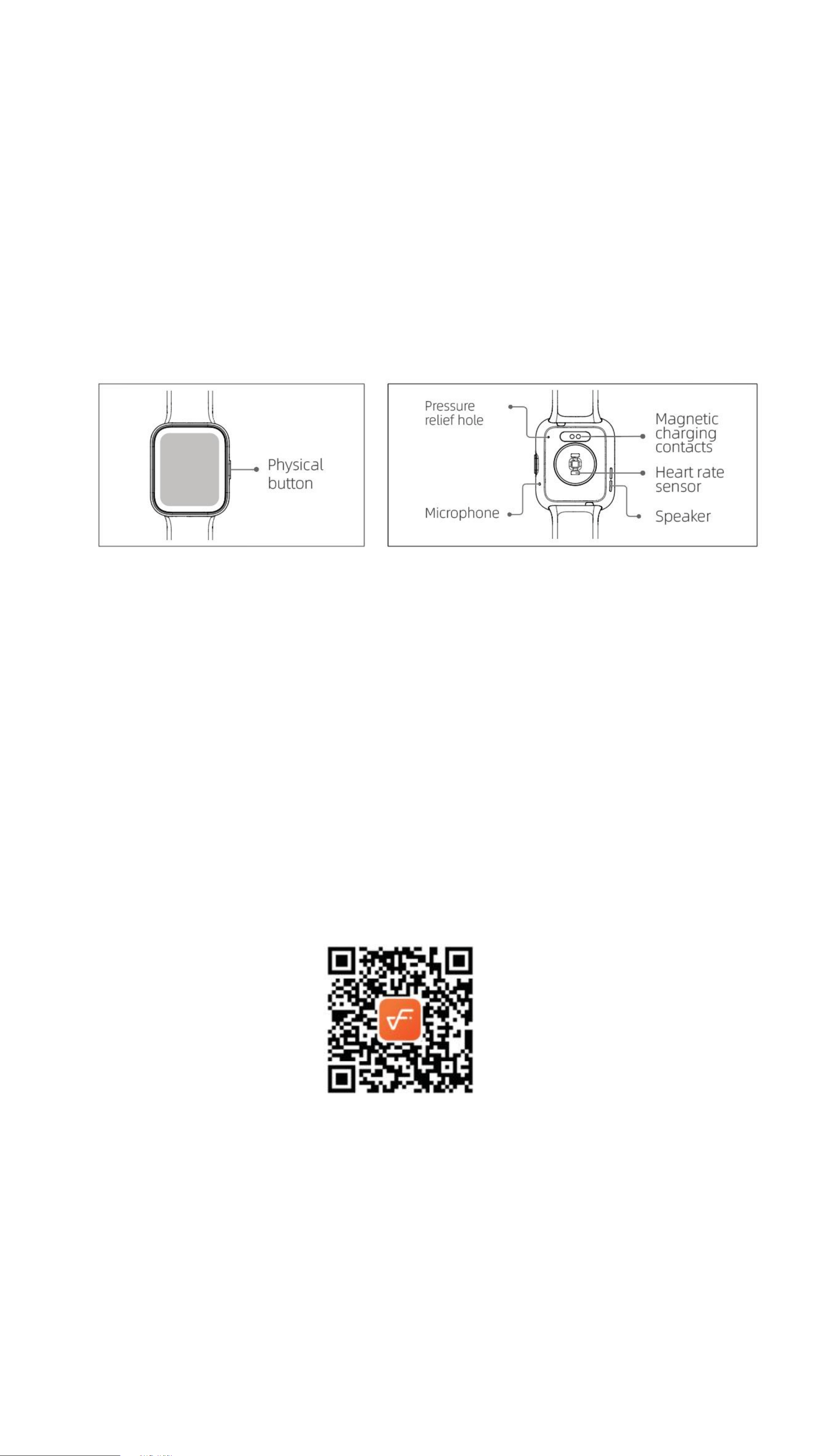
Screen display area
Function button
Pressure relief hole
Heart rate sensor
Microphone
Speaker
Front side
Back side
Getting started
(1) Open the package and check its content.
(2) Delivery content: 1) ID208 BT smart watch (with built-in lithium battery); 2)
user manual; 3) original charging cable.
(3) Charge the watch to activate and turn it on before first use. To charge, simply
connect the magnetic charging cable to the charging contacts located on the
back of the watch.
(4) Search for “veryfit” on the App Store, Google Play or scan the QR code to
download and install the app.
(5) Log in to the app and set your personal information, as well as your step and
weight goals.
(6) On the “Device” interface, tap the “+” icon in the upper right corner, your
phone starts searching. From the device list found, choose your smart watch
name to pair with. You may also link the device directly by scanning the
device’s QR code using the scan function.

Health
a) Watch
1. The watch will automatically record your data.
2. You can measure your heart rate, blood oxygen, stress level, body temperature
and ambient sound level on the watch, or turn on automatic measurement of
heart rate, blood oxygen, stress, ambient sound level and sleep on the app to
track these data the whole day. You can manually or make the watch
automatically monitor your health status continuously.
3. To start an exercise:
1) When the watch face interface is displayed, short press the physical button
to access the application list. Tap the Sport icon to access the icons of
different exercise types, then tap the icon of an exercise (such as Outdoor
Running) to start the exercise.
2) The watch can display up to 24 exercise types by default. On the app's
Multi exercise mode, you can add or delete the exercise types displayed on
the watch or change their order.
b) App
1. Start “veryfit”,enable the Bluetooth feature, and grant the GPS positioning
permission;
2. Light up the bracelet screen and bring it close to your phone;
3. Click the “+” icon on the App, and select the smart watch model in the search
results to bind;
4. Confirm the binding request on the smart watch;
5. Fill in your information and set your step goal on the App to complete the
binding.
Basic Operations
1. Wear the watch correctly: ensure that your watch is at least one finger above
your wrist bone and that the sensor on the back touches your skin.
2. Screen operation: ID208 BT has a full touch screen, which supports operations
including short tap, swipe left/right and swipe up/down.
3. Button operation: ID208 BT has a physical button; which supports “short press”
and “long press” operations. Short press: to return to home page/pause exercise.
Long press: for 2 seconds to turn on the watch when it is off; to turn on Alexa
when the watch is on.
Function Description
1、Watch face
The watch comes with 8 watch faces by default. You can switch between them
manually on the watch or on the veryfit app’s watch face settings. You can also
customize the watch face on the app. More watch faces are available for download
from the "Watch Face Market".
2
、
Sports
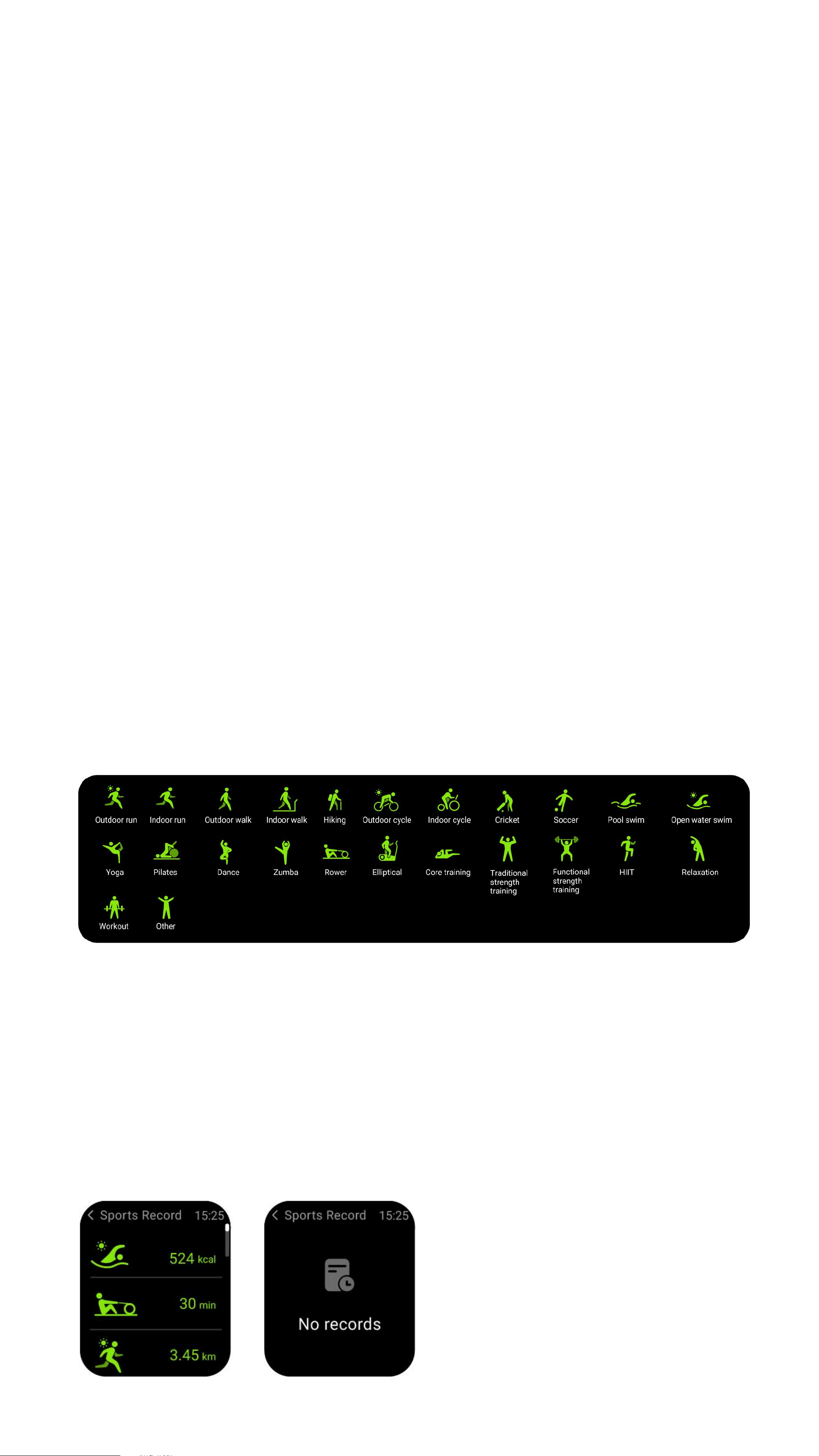
a) Up to 24 exercise types can be displayed by default:
Outdoorrun , Indoorrun ,
Outdoor walk , Indoor walk , Hiking , Outdoor cycle , Indoor cycle ,
Cricket , Soccer , Pool swim , Open water swim , Yoga , Pilates , Dance ,
Rower , Zumba , Rower , Elliptical Core training , Traditional strength
training , Functional strength training , High-intensity interval training
(HIIT) , Cooldown , Workout , Other
. On the veryfit app, you can add or
delete the exercise types or change their order displayed on the watch. There are
a total of 60 exercise types to choose from on the app.
b) ID208 BT supports intelligent exercise recognition. It can recognize whether
the user is running/walking/pool swim/outdoor cycle or using an elliptical
machine/a rowing machine. It supports automatically pausing an exercise or
reminding when an exercise ends. This feature can be turned on/off on the app.
c) ID208 BT’s summary of exercise contains various exercise data, which can be
checked on the veryfit app.
d) You can view your recent exercise records on the watch, including detailed data
about your exercise; you can also view the exercise records on the APP.
3
、
Application list
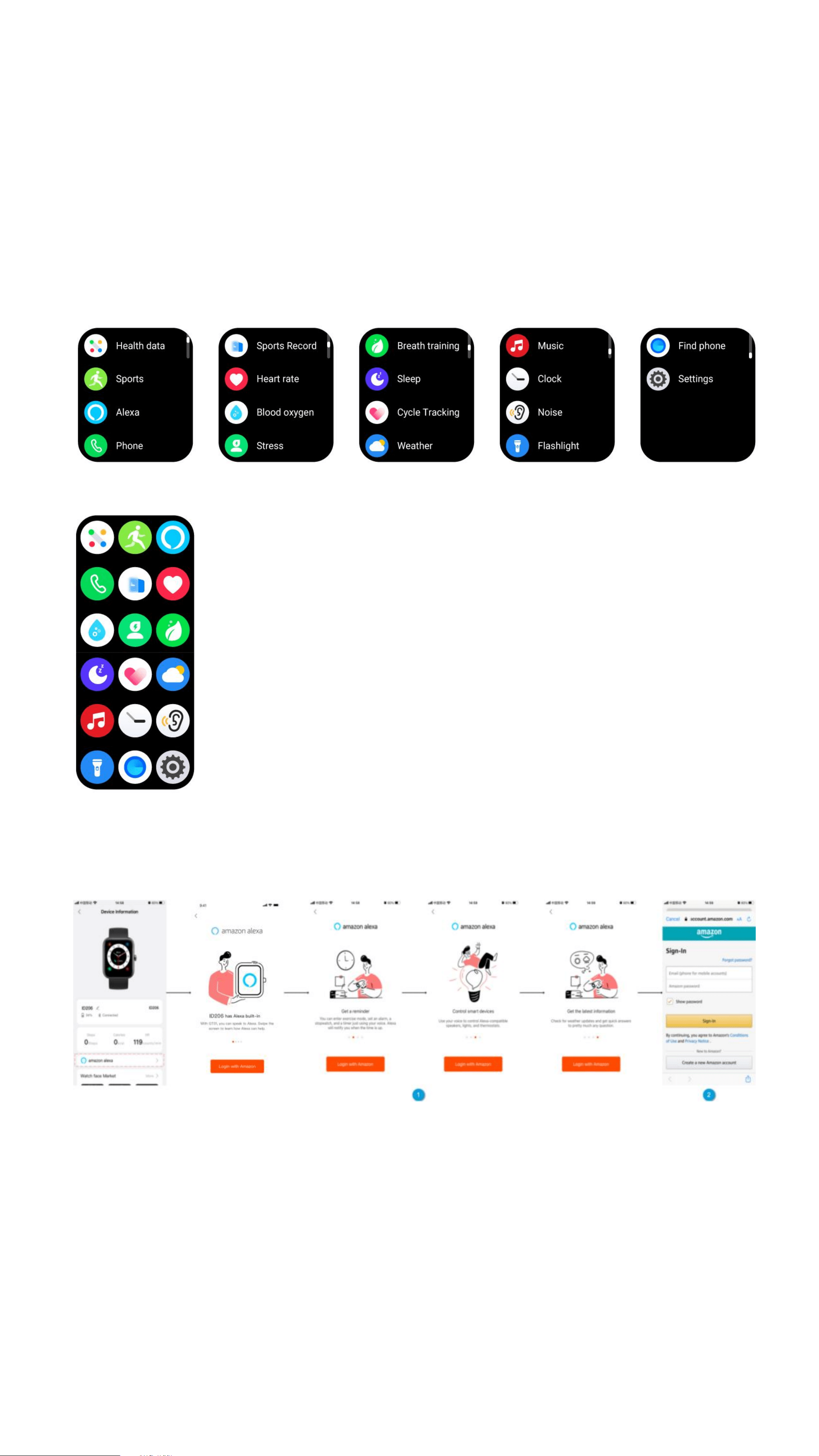
When the watch face interface is displayed, short press the physical button to access
the application list, which is displayed respectively from top to bottom: Health data,
Sports, Alexa, Phone , Sports Record , Heart rate, Stress, Blood oxygen, Sleep,
Breath training, Cycle Tracking , Weather , Music , Clock (Alarm, Timer,
Stopwatch , World clock), Noise , Find phone , Flashlight , Settings.
List view
Grid view
3.1 Alexa
3.1.1 VeryFit App-Alexa
1. App can click the amazon Alexa area to enter the login tutorial interface.
2. Jump to the Amazon dedicated Alexa account login interface for account
binding authorization;
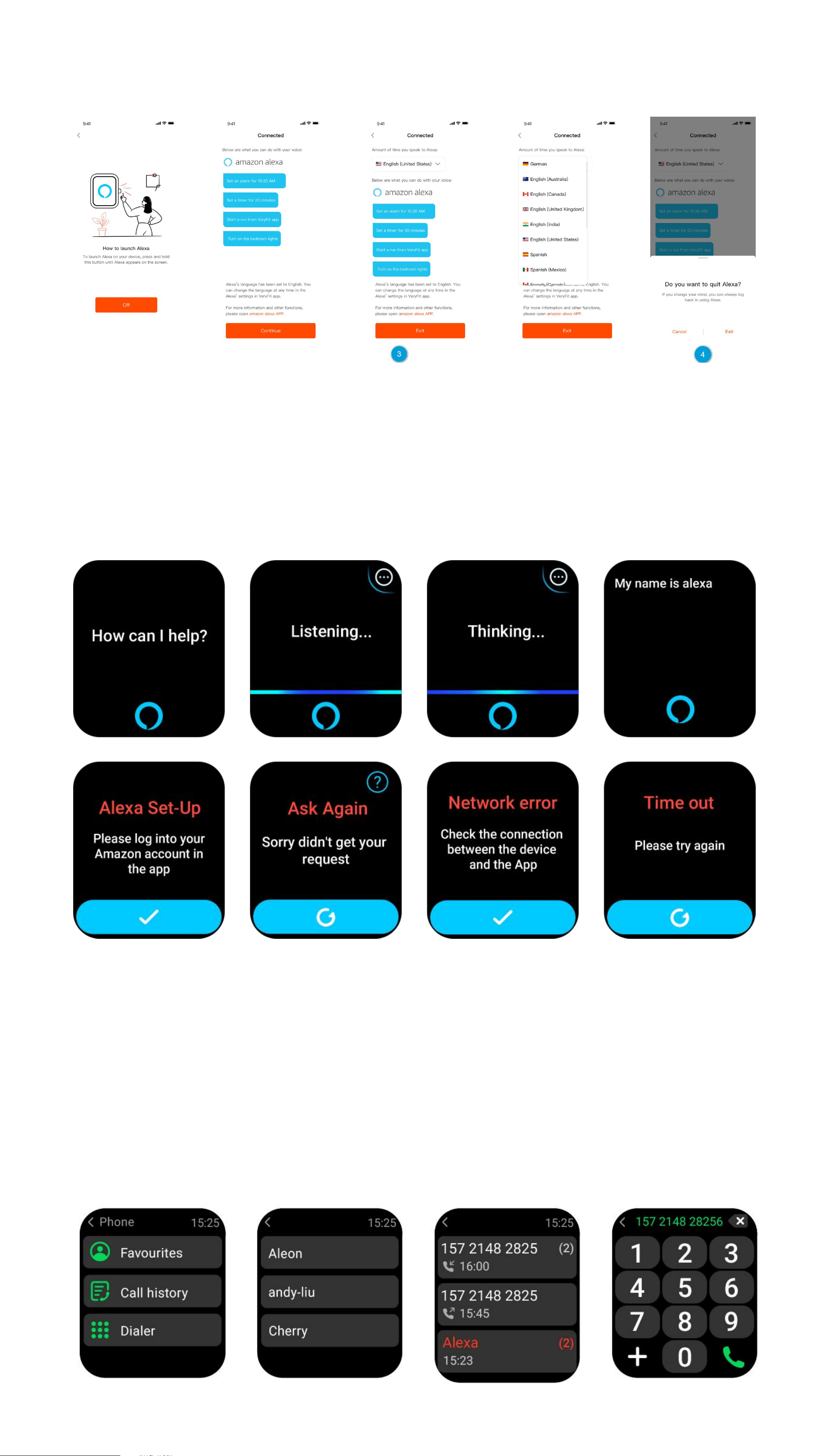
3. After binding authorization, you can view part of the operation introduction and
set different national languages;
4. Click the log out button to log out of Alexa, you can log in again at any time.
3.1.2 Watch-Alexa
1. The watch is Alexa built-in. On Listening interface, if you ask a question or say
a voice command, it turns to Thinking interface and returns an answer or
executes the command. Currently via Alexa you can turn on the stopwatch,
alarm clock, countdown, event reminder services on the watch.
2. A corresponding prompt is displayed in case the request is timed out, the voice
is not recognized, the account is not logged in, the network connection is
unstable, or the Bluetooth is not connected.
3.2 Phone
1. You can add up to 20 frequent contacts to your watch through the app, then call
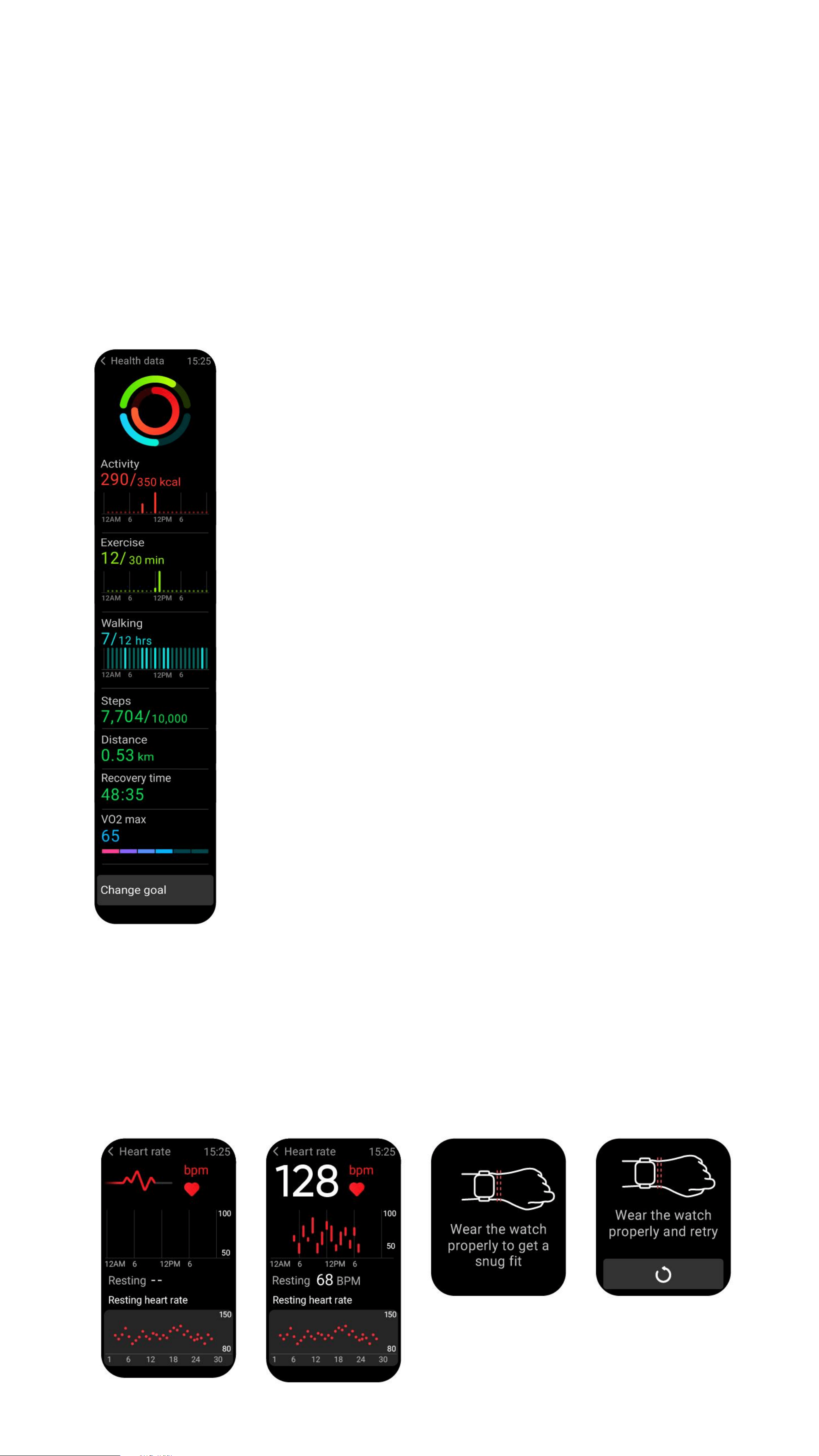
these contacts on your watch.
2. You can view recent call history on your watch and call the numbers displayed
in the call history.
3. You can make calls through the watch’s dialer.
3.3 Health Data
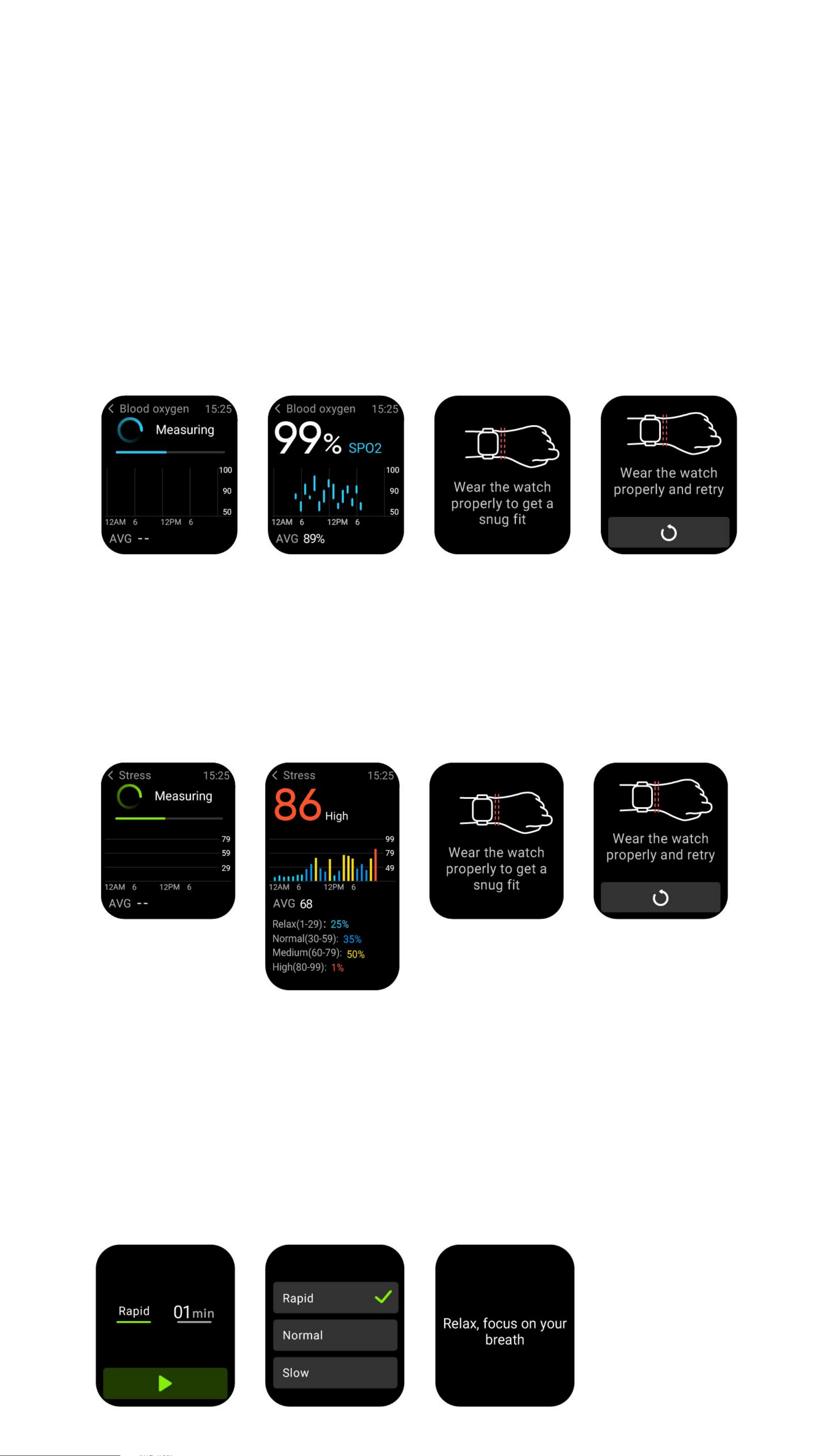
The watch can collect and display: Exercise/Activity/Walking data and goals of the
day, histogram of Exercise/Activity/Walking data per hour throughout the day,
Steps and Distance of the day, Recovery Time and Maximal Oxygen Uptake for the
latest Exercise, Daily Goal Setting, etc.
3.4 Heart Rate
1. You can manually measure the heart rate on the watch. In the APP settings,
you can turn on/off the intelligent around-the-clock monitoring of the heart
rate, or view the heart data.
2. Each time heart rate is measured, keep your arm and wrist still and wait
patiently until the measurement finishes.
3.5 Blood oxygen
1. You can manually measure SPO2 on the watch. In the APP settings, you can
turn on/off this function, or view the SPO2 data.
2. Each time blood oxygen is measured, keep your arm and wrist still and wait
patiently until the measurement finishes.
3.6 Stress
1. You can manually measure stress on the watch. In addition, the watch supports
automatic around-the-clock stress monitoring. In the APP settings, you can turn
on/off this function, or view the stress data.
2. Each time stress is measured, keep your arm and wrist still and wait patiently
until the measurement finishes.
3.7 Breath training
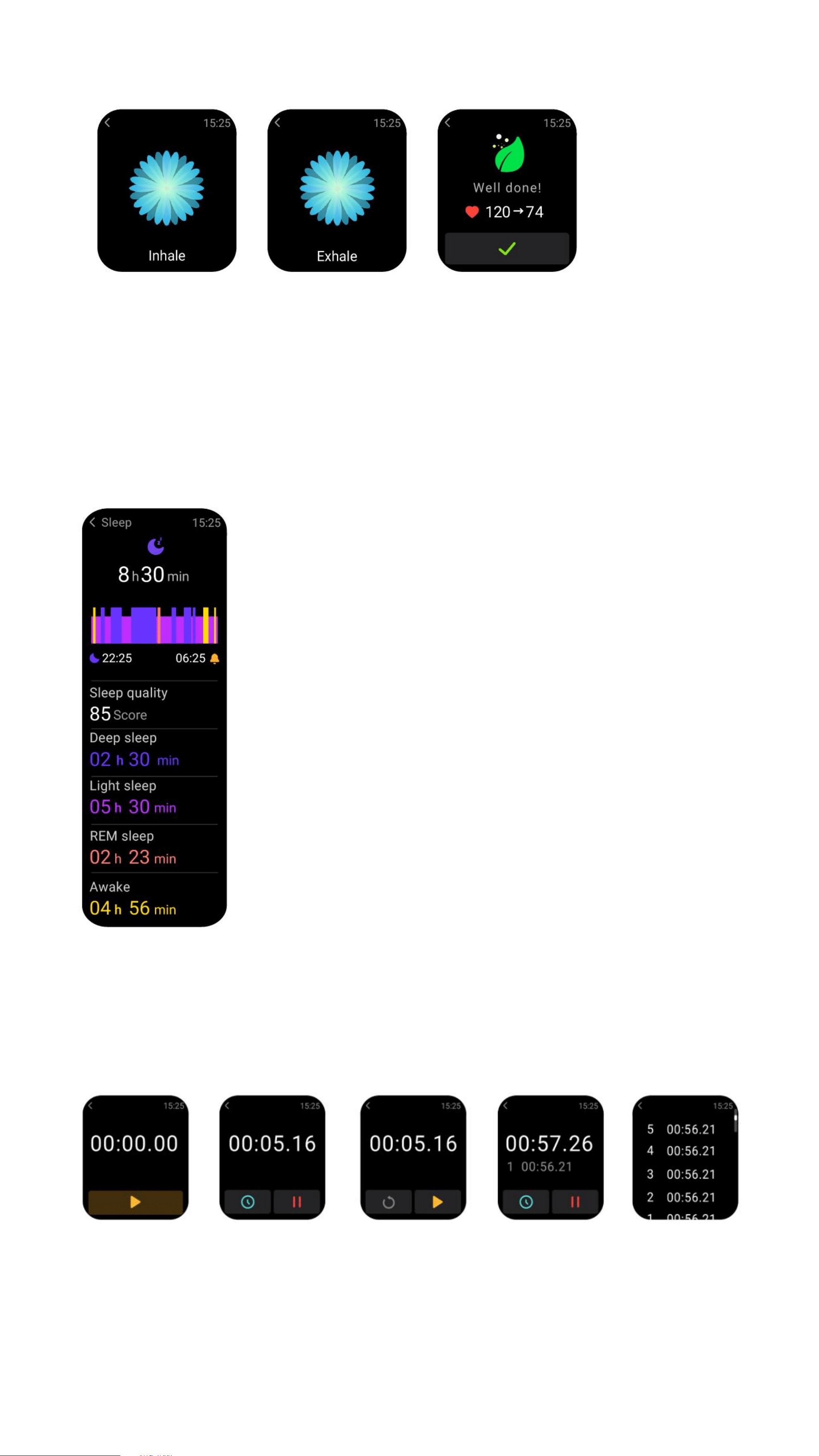
1. Click Breath training icon to access this feature. It helps adjust your breathing
rate: fast, normal and slow; and choose the duration
2. Click Start to directly enter the breath training animation. Follow the vibration
and animation frequency to adjust your breathing. Reasonable breath training
can help soothe your emotions.
3.8 Sleep
You can view the most recent sleep record and sleep status at each stage.
3.9 Clock
3.9.1 Stopwatch
Use the watch as a stopwatch. The stopwatch has a “Lap” function.
3.9.2 Alarm
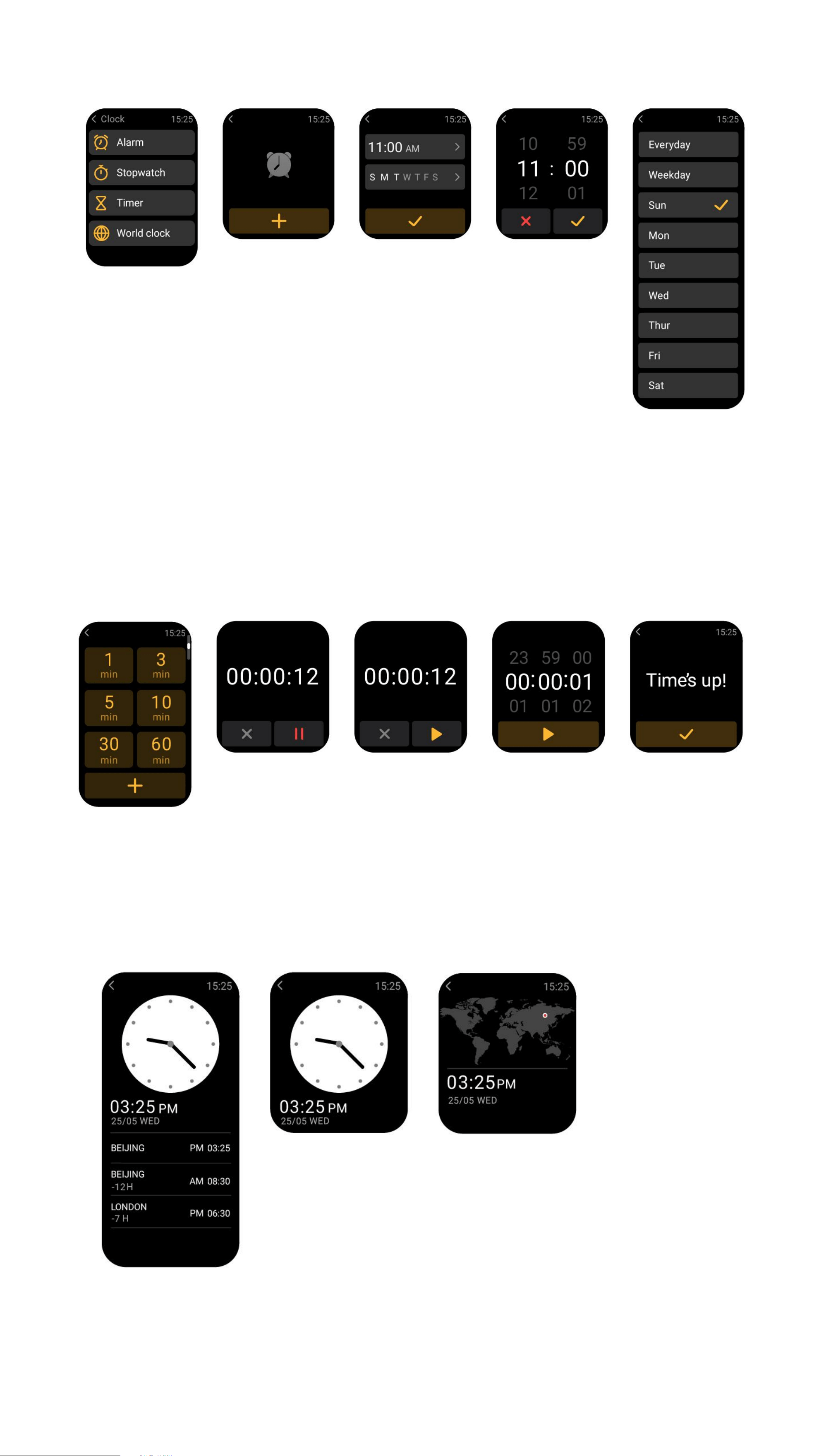
1. You can add, delete an alarm, or turn the alarm on/off on the watch, and also set
an alarm for the watch via the app.
2. You can set the alarm delay time and times in the APP to decide how long you
want to delay and how many times to delay.
3.9.3 Time
You can set a timer with a preset duration on the watch, and the timer will remind
you when the timer expires; you can customize the timer time.
3.9.4 World clock
You can check the time in your city on the watch, and set on the app the time in
cities of other countries to be displayed on the watch.
3.10 Noise
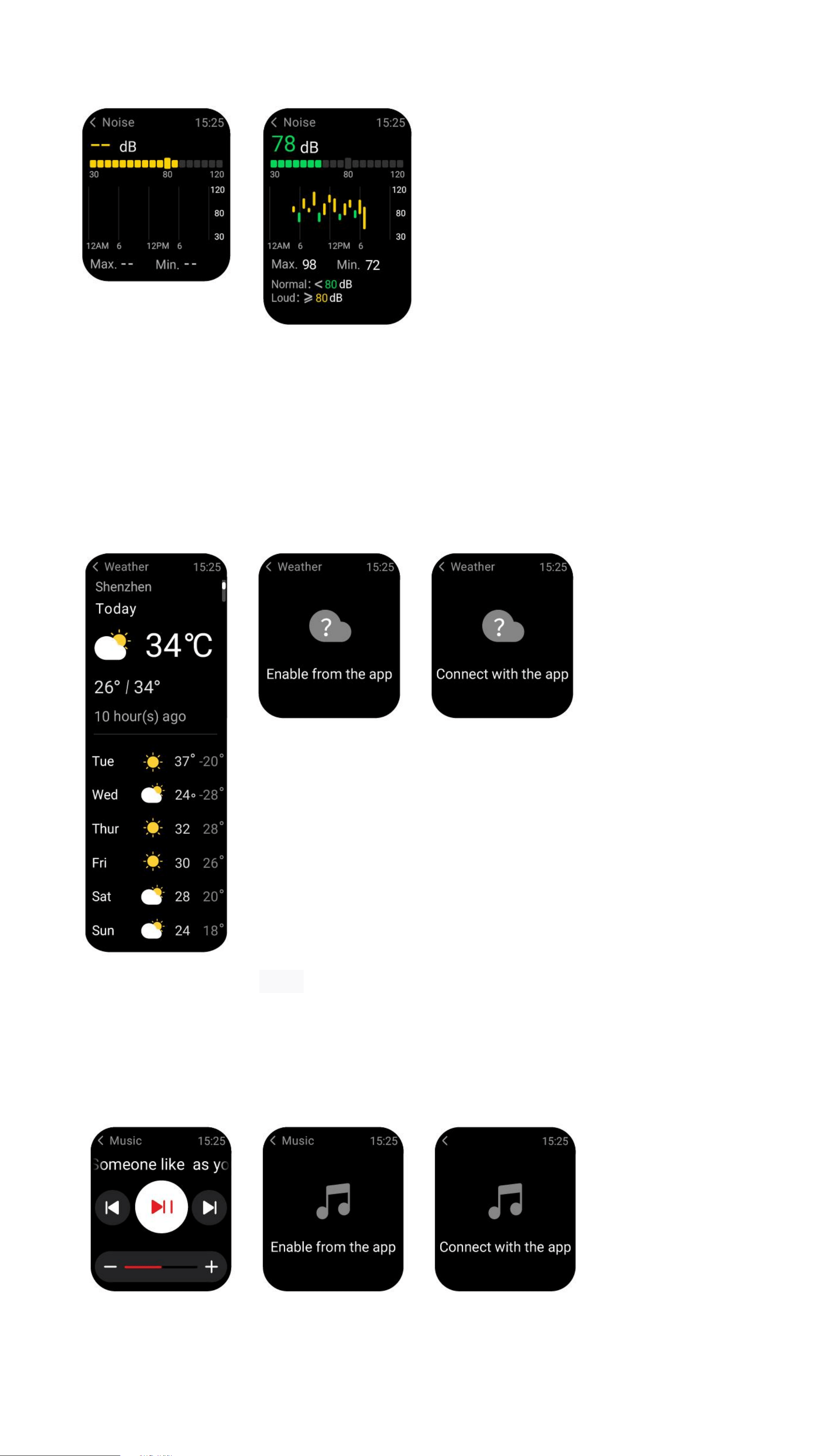
1. You can manually measure noise on the watch. In addition, the watch supports
automatic around-the-clock noise monitoring. In the APP settings, you can turn
on/off this function, or view the corresponding data.
2. Each time noise is measured, keep your arm and wrist still and wait patiently
until the measurement finishes.
3.11 Weather
Supports Current city seven-day weather viewing, you can view today’s "current
weather, highest and lowest weather values" and the "highest and lowest weather
values" for the next six days.
3.12 Music
1. When the watch is connected to the APP, you can control the mobile music
player to perform the functions of "next, previous", "play\pause" and "volume
increase and decrease".
2. This function can be displayed\hide in the APP settings.
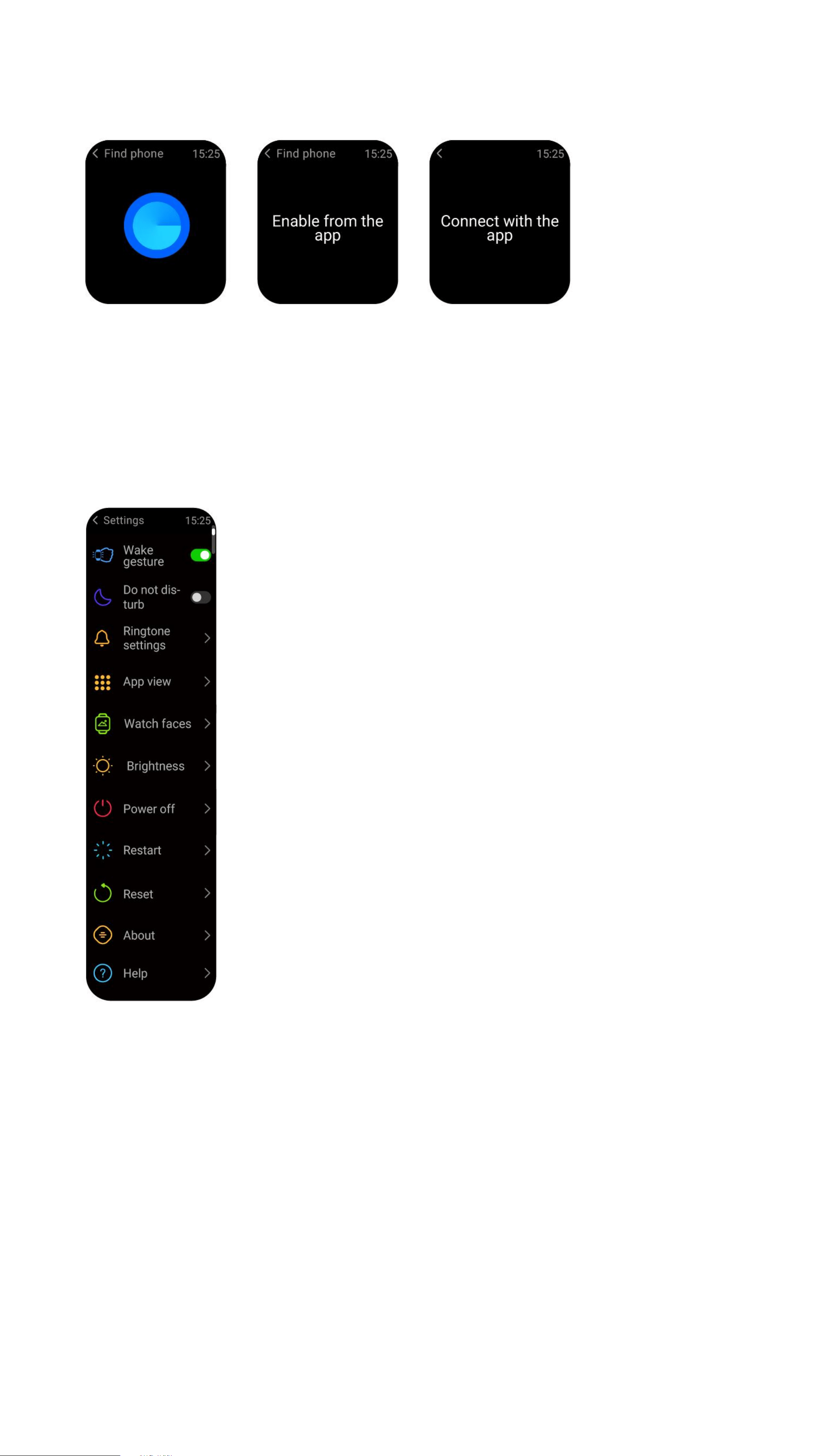
3.13 Fine Phone
1. When the watch is connected to the APP, you can make your phone ring.
2. Click the icon to end the ringing.
3. This function can be displayed\hide in the APP settings.
3.14 Settings
1. In the watch’s settings, you can set the screen-on time, ringtone settings and
APP view.
2. In the watch’s settings, you can also shut down, restart or reset the watch
(once reset, all data stored in the watch will be cleared, and the watch will be
unpaired from your phone).
4. Reminder module
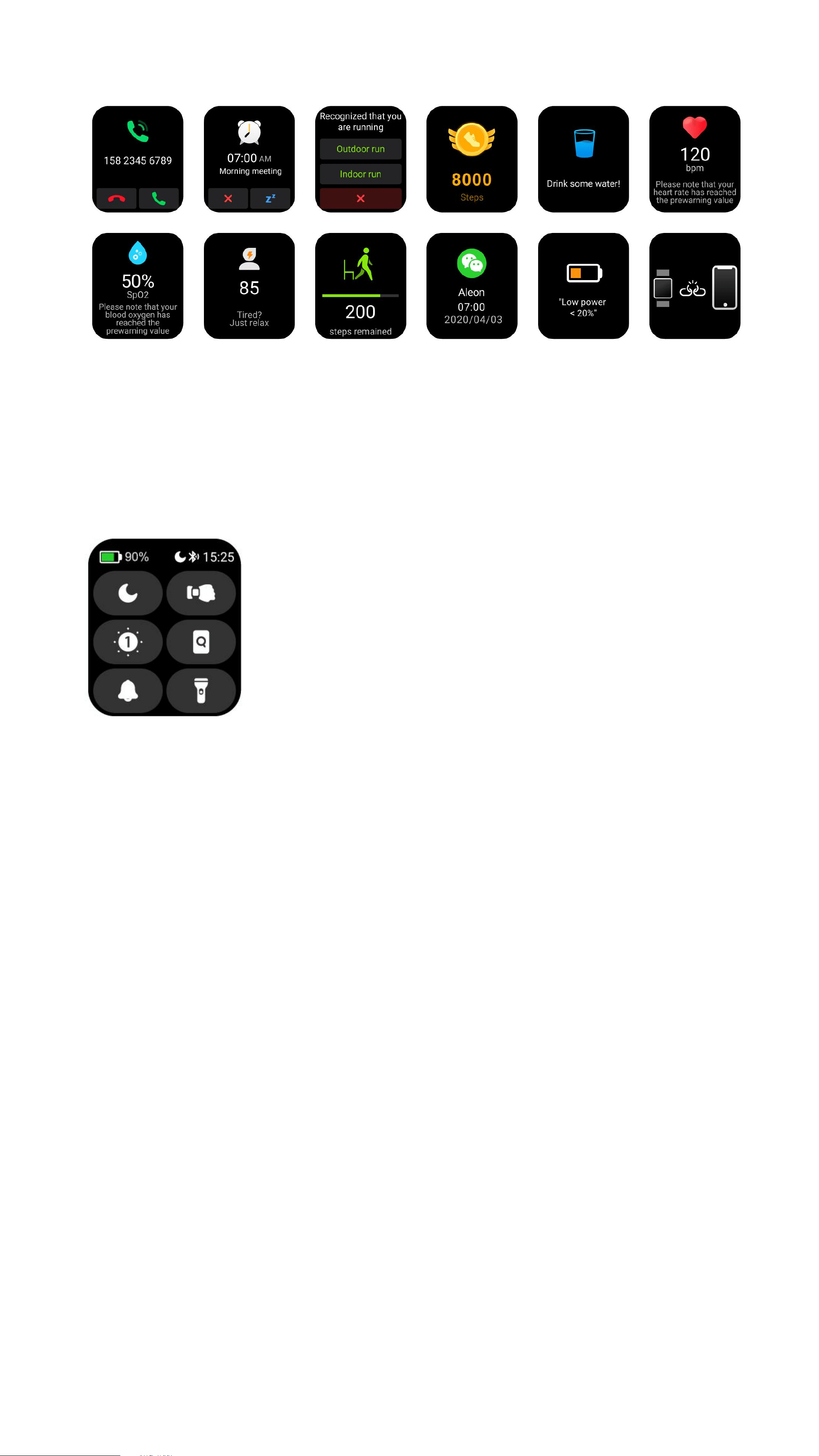
The watch supports multiple reminder modes, including message reminder,
incoming call reminder, walking reminder, drinking reminder, exercise goal
reminder, exercise center rate warning reminder, etc.
5. Control center
Control center gives you an easy way to turn on functions such as Do Not
Disturb, raise to Wake, set the screen brightness, find my phone, mute your
watch, turn your watch into a flashlight.
