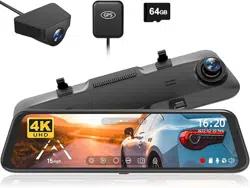

Instruction Manual
Mirror Dash Cam G850

Product Overview
Product Specifications
Precautions
Warnings
Package Contents
Getting started
Appearance
About the Micro-SD card
Installation
Power On/Off
Menu Settings
Video Playback on PC
Troubleshooting
3
3
4
5
8
9
10
12
13
26
26
41
42
…………………………………………
…………………………………………
…………………………………………
…………………………………………
…………………………………………
…………………………………………
…………………………………………
…………………………………………
…………………………………………
…………………………………………
…………………………………………
…………………………………………
…………………………………………
CONTENT

Product Overview
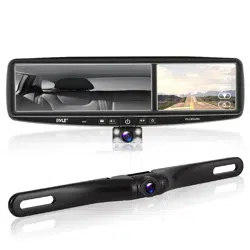
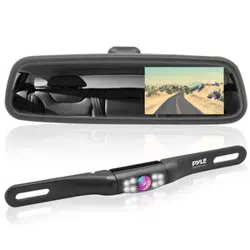
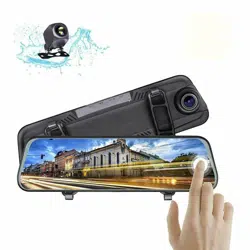
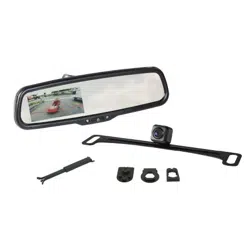
Thank you for choosing WOLFBOX G850 4K Mirror Dash Cam.
WOLFBOX is a professional automotive supplies manufacturing company. We have worked in
field of dash cam for more than 10 years.We have a team of experienced and imaginative
Engineers who are committed to building a reliable and trustworthy automotive supplies brand
We have been selling G840S(the 1080P model) for about 3 years,According to the different
opinions of customers, we have developed this model-G850, the resolution of front camera
improved to 4K. Thank you for your continued support.
Product Specifications
CPU
RAM
Display Size
Display Type
Full Touch Screen
> SSC8826Q
> DDR3 256M
> 11.8 inch
> IPS
> Support
Resolution(Rear Cam)
Resolution(Front Cam)
Video Format
> 1920*1080P
> 3840*2160P
2560*1440P
1920*1080P
> TS
3

Pre-cautions
Power interface
Input voltage
Working Temperature
Storage Temperature
> Type C
> 5V
> -20℃~70 ℃
> -30 ℃~80℃
Picture Format
WDR Techology
Loop Recording
GPS Tracking
Parking Monitoring
> JPG
> Support
> Support
> Support
> Support
If you have any questions or want accessories, Please CONTACT US ([email protected]),
we will solve it for you and send you the accessories.
Please read this manual carefully before using or installing the camera. Plug in the camera
before installing it and verify its functionality, especially if you hire a professional to install it.
Use the accessories provided in the box to ensure compatibility. When the power supply is
plugged into a power splitter the camera will not have enough current to power on.
4
Do not attempt to extend the camera wire by splicing in more wire or the camera may not
work. The length of original cable for rear camera is 20 feet, suitable for most types of cars.
We also have 33 feet rear camera extension cables (ASIN: B082RZNJFY) sold separately.

Warnings
If you use micro SD card capacity > 32GB, Please change micro SD card [Class10 (10MB/
sec) required] format to FAT 32 on PC (a 32GB card is inciuded in the package ).
If you want 24H parking monitor function to guide your car parking safety, dedicated
hardwire-kit(ASIN:B09X1L1GMX ) is needed.
Please confirm whether your cigar power port is ACC.(if the cigarette lighter is still charged
after the car is turned off,please use the hardwire kit or manually unplug the car charger
while parking,otherwise it may exhaust your car's power supply.(Note:This happens in some
Ford/Audi cars,and electric cars).
Please use our products as required. Incorrect installation may lead to serious consequences.
Please carefully read the instructions provided by us. If you have any doubts, please contact our
staff and they will solve them for you. Please do not install incorrectly without understanding. The
company will not be responsible for any consequences arising therefrom.
Keep small accessories out of the reach of children.
Be sure to use included accessories and parts. Using other parts may damage the equipment or
cause fire, electric shock, or malfunction.
5

If this product is damaged or malfunctions, stop using it immediately and consult your dealer.
Continued use may cause fire, electric shock or vehicle failure.
If the location or use of the camera interferes with driving, please do not install it. This may cause an
accident.
This product is intended to be used for reference material in the event of an accident. We do not
guarantee its effectiveness as complete evidence.
Please note that this product may infringe on privacy and other rights depending on how it is
used. We are not responsible for these cases.
Since this product uses a wide-angle lens, part of the image may be distorted. It also differs from
the actual perspective. This is a characteristic of wide-angle lenses and is not a malfunction.
If the lens needs to be cleaned, we recommend gently wiping it with a soft damp cloth to avoid
scratching the lens and affecting the clarity of the video.
This product is for DC12V/24V vehicles only.
The specifications and appearance of this product are subject to change without notice.
6

If the driving recorder is faulty or has a black screen during use, please be sure to contact us or
go to a professional store for repair, please do not repair it yourself, otherwise the seller will not
be responsible for the consequences.
Do not use the charger if the cord is broken or damaged.
Do not disassembie or modify this product. Otherwise, it may cause a fire, electric shock or
malfunction.
Please comply with local laws while using this product. Some countries have legal provisions
prohibiting the installation of items on the windshield or specific areas of the windshield.
The company is not responsible for errors in the user's installation area.
7
Getting Started
Please use the original power adapter provided in package, do not use other power adapter.
Please read the instructions before operating.

You will need to insert a memory card before you can start recording. Please insert a Class-10, U3
or higher speed Micro-SD card up to 128 GB for reliable operation. (32G-Memory card is
included in the package)
Before the G850 starts running, please check the SD card and format it to ensure the smooth
operation of the mirror dash cam.
If the dash cam cannot be turned on after powering, please keep the power on and press the
hole marked "R" (on the back of the mirror unit) to reset the dash cam. Please CONTACT US if it
still doesn't work.
8
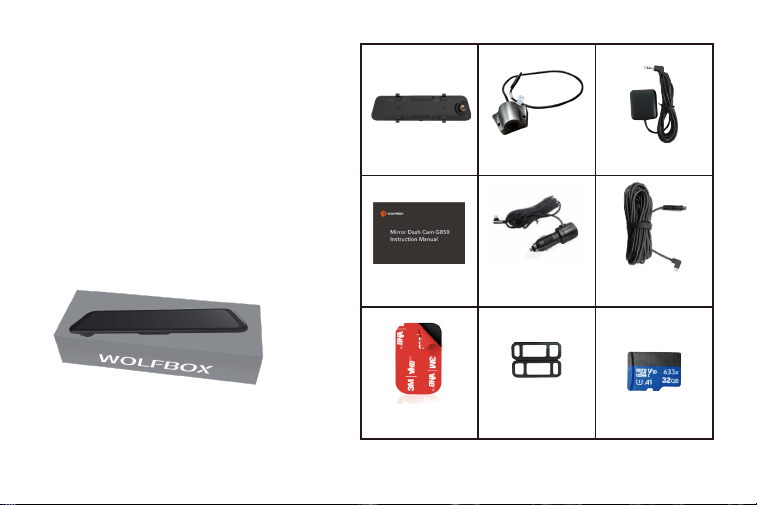
1* 4K
Mirror Dash Cam
1* User Manual
1 * Power Supply
Cable with Car
Charger
1 * 3M Adhesive
1* GPS
1* Rear
Camera Cable
1*32GB TF Card
1* 1080P
Rear Camera
2*Rubber Straps
for fixing
front camera
PACKAGE CONTENTS
Tip: In addition to the original accessories in
the package, we also provide separate
Hardwire-Kit (used for parking monitor-ing
and replacement of car chargers), rear
camera extension cable (approximately 10m
long),and the rear camera mounting bracket
in the car (you can use this to install the rear
camera in the car). If you need these
accessories, please feel free to contact us.
9
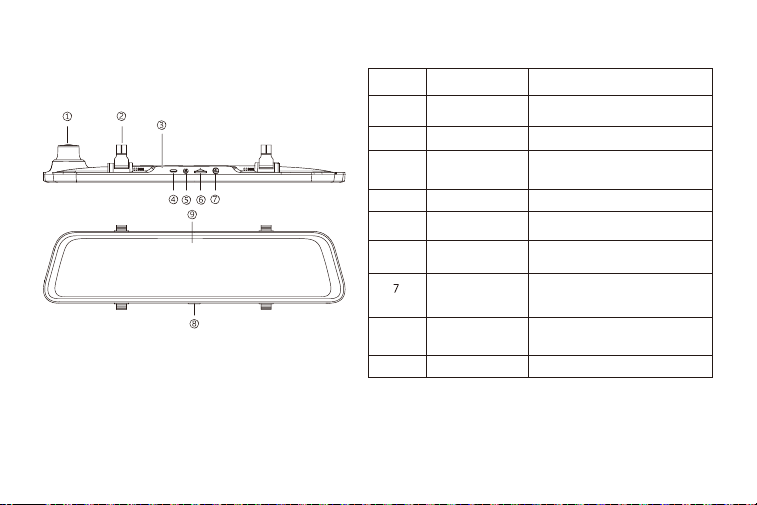
Appearance
NO. Name
lens
Front lens, record the front image of the
car
Fasteners
The machine can be fixed with 2 straps
Reset hole
When the machine failure cannot be
eliminated, you can try to restart the
machine by clicking here
USB
Port for charging
AV-IN
Port used to connect the rear lens
TF card slot
Provide extensible storage(class 10
Max 128GB)
GPS port
Used to connect GPS module(GPS
function requires optional GPS
antennal)
Power button
Short press to wake and turn off the
screen, long press to turn on and off the
power
Display screen
11.8 inch touch screen display
Description
1
2
3
4
5
6
8
9
10
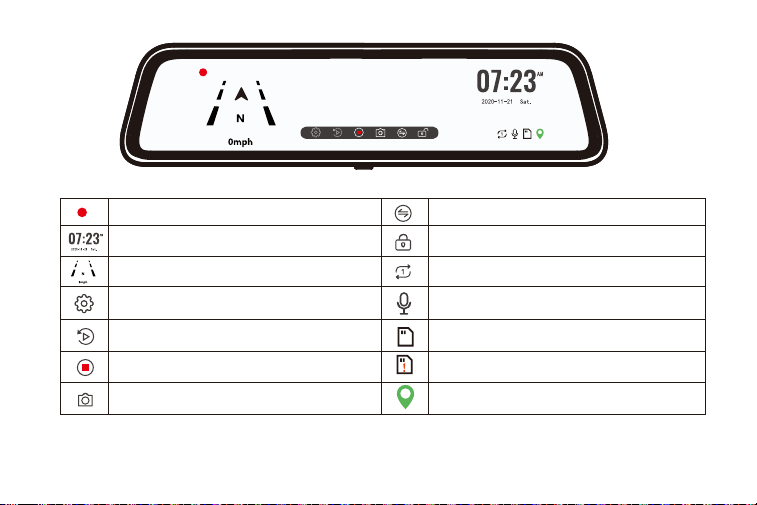
Recording status: During normal recording,it is red, turns
yellow while emergency recording
Click on it, the clock setting appears on the screen
GPS Status: Once gps antenna connected, the GPS icon
on the home screen will show
Menu Setting:Touch and enter to set the screen in your
favor (Please pause recording first)
Video/Photo Playback: Playback the video & Photo
Start/Stop Recording: Record and save every precious
moment
Photograph: Take photos one moment
Rear view/Front view switchable: Switch between front
view & rear view one moment
Emergency Lock: Lock videos as event files so it won't be
overwritten by loop recording
The recording duration of each video, you can set 1min,
2min, 3min in the settings
Sound Record is on
The Micro SD card is inserted
The Micro SD card is not inserted
This means the GPS is effective.
11

About the Micro SD Card
When using a new MicroSD card, be sure to format it in the dash cam.
Do not remove or insert a Micro SD card while the power is on.
Use a Micro SD card with Class 10 or higher(32GB-128GB). We Recommend 64GB SAMSUNG
Class 10, U3 Speed Micro-SD Card.
For stable use,it is recommended to format the micro SD card regularly. Recommend: Once a
month.
This product will check the Micro SD card at startup and will announce if it is not inserted or
damaged, that can prevent missed shots.
Please note that memory cards have their self life span,after so many uses of overwriting data,
eventually they will become inoperable.When that happens,please replace your memory card.
Formatting will erase all recorded data.
12
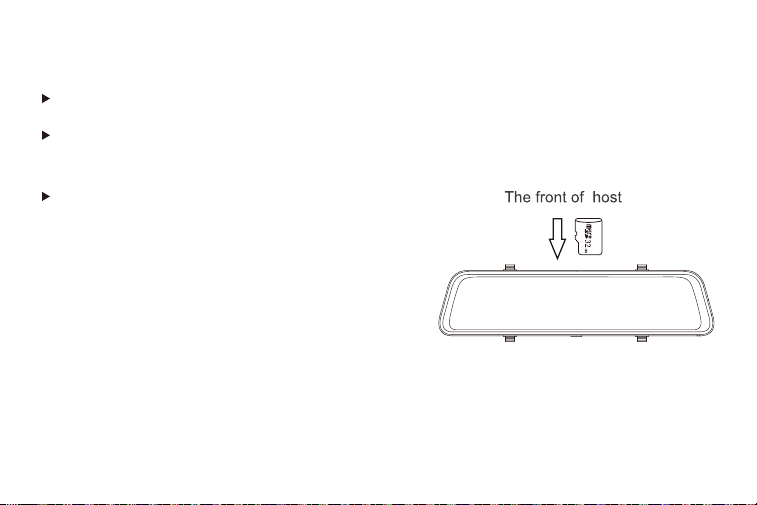
SD card insertion and removal
Make sure the dash cam is off when inserting or removing the SD card.
Please press the SD card with your fingernail and you will hear a Click sound. This will keep the
SD card stuck in the slot.
Please note the insertion direction of the SD card.
Please check the functionality of dash cam with its all accessories before installation.
When you use the dash cam for the first time, the dash cam comes with factory default settings and
you do not need to set it manually.
13
Installation
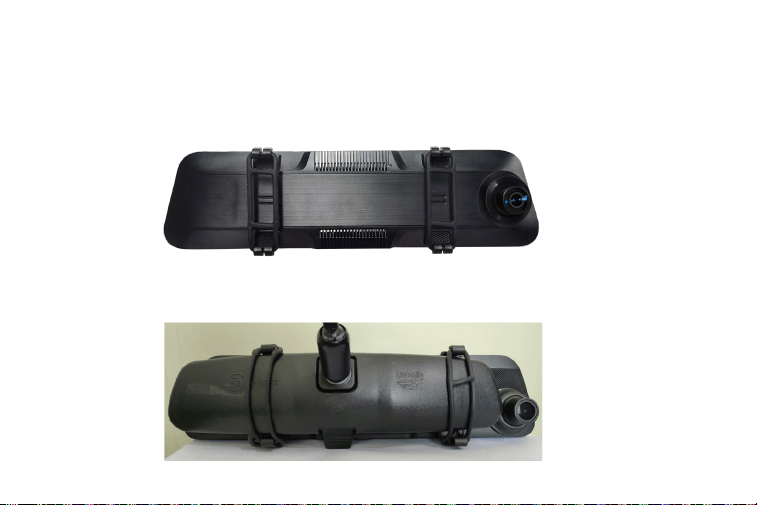
Step 1: Piace the host on the rear-view mirror by hand, be sure to separate the silicone brackets on
both sides of the rear-view mirror
Step 2: Buckle the product in the rearview mirror by silicone button
Host installation
14
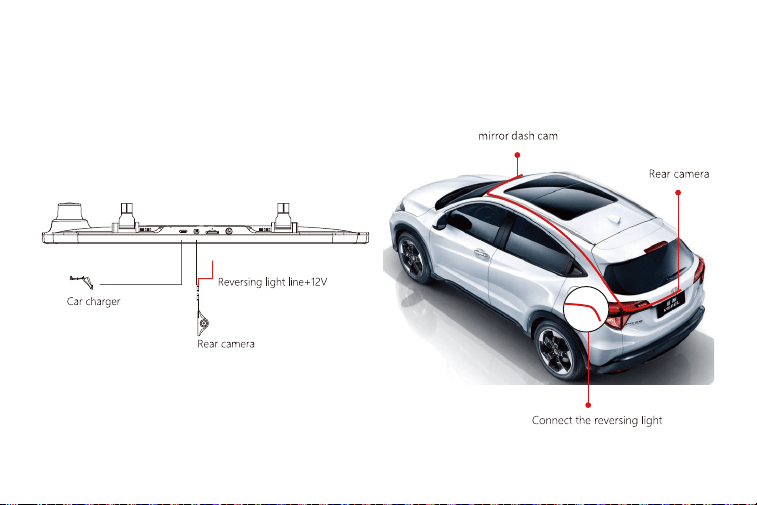
Step 3: Adjust the front lens to the right position
Rear camera installation
15
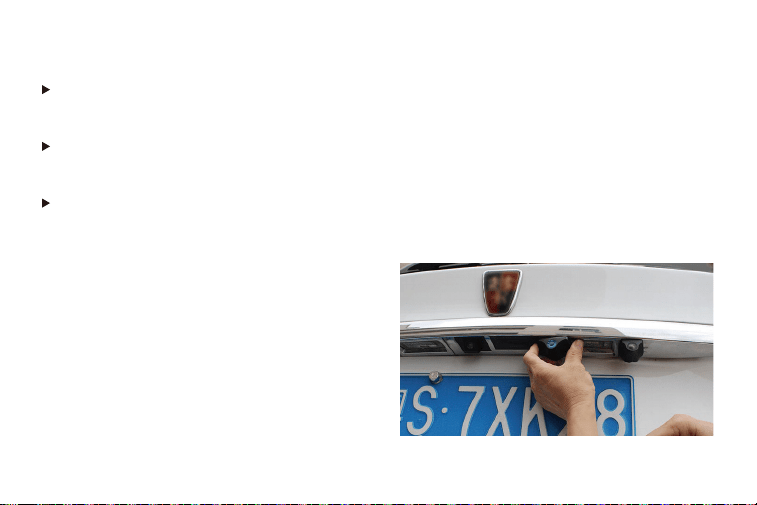
NOTE:
We recommend installing the rear camera outside the car, the effect inside the car is far worse
than outside the car.
If your car is an RV or a pickup truck, you can install the rear camera forward, turn on the"mirror
flip of rear image"and turn off the "Upside down of rear image"to adjust the image.
If the rear camera cable is short for your car, we have a 33ft extension cable ( B082RZNJFY), or
you can CONTACT US to get one.
1. Fix the rear camera with 3M adhesive
Find the best position , tear off the 3M adhesive
on the rear camera and install the rear camera near
the license plate lamp.
16
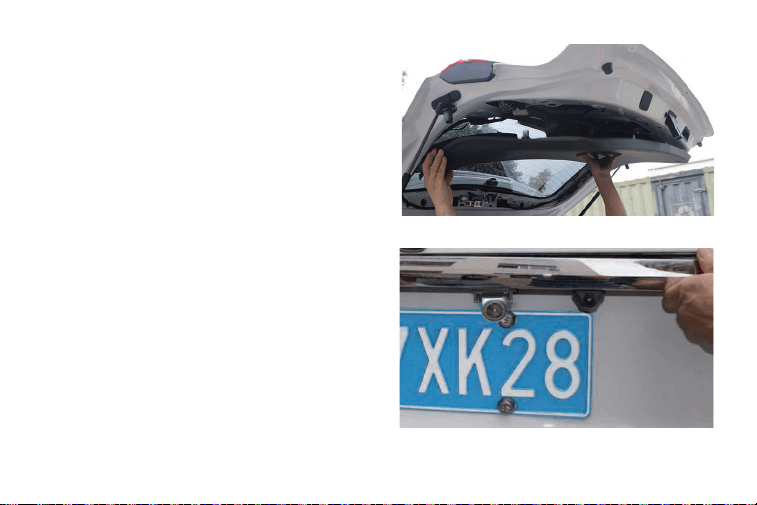
2. Remove the panel
Remove the inside panel of the trunk to expose
the car's rear wiring room. pop up your trunk and
look for a solid interior panel that covers the other
side of the license plate mount area. Then, insert a
trim removal tool or other thin device behind the
panel and pry it open.
3. Hide the cable
Use the trim strip removal tool to pop up the
tailgate trim strip, then the cable is inserted from
the outside into the trunk of the car.
17
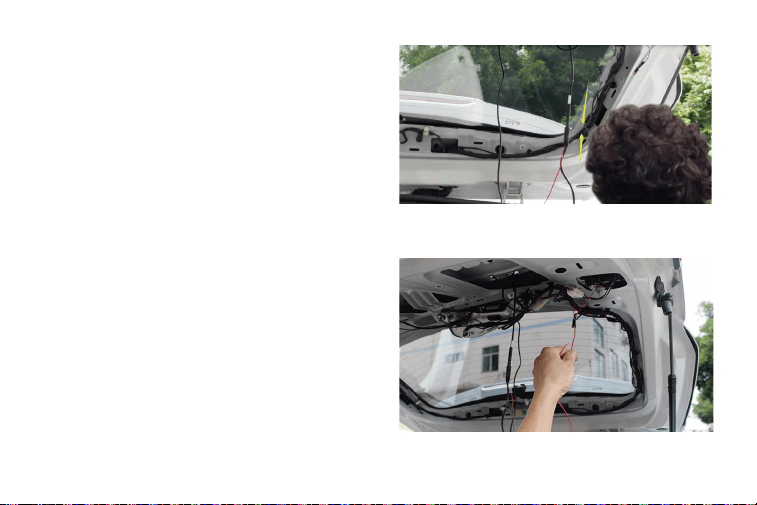
4. Connect the rear lens power cord to the
extension cord
Connect the power cord to the rear camera
extension cord after plugging in the rear camera
extension cord.
5. Connect the red line with Reversing control line
Reversing control lines are usually located at the
rear of the car, although their position may vary, so
be sure to refer to the car's manual, use pliers or a
wire stripper to strip the rubber and expose live
wires.
18
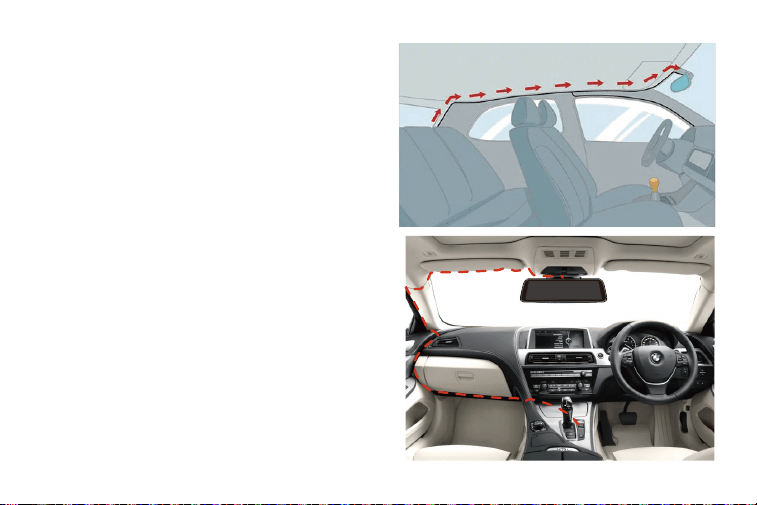
6. Connect the power cord of the rear camera to
the front of the car
If desired, use the trim tool to pop the windshield
panel directly above the windshield. Then, pass
the cable through the exposed chamber.
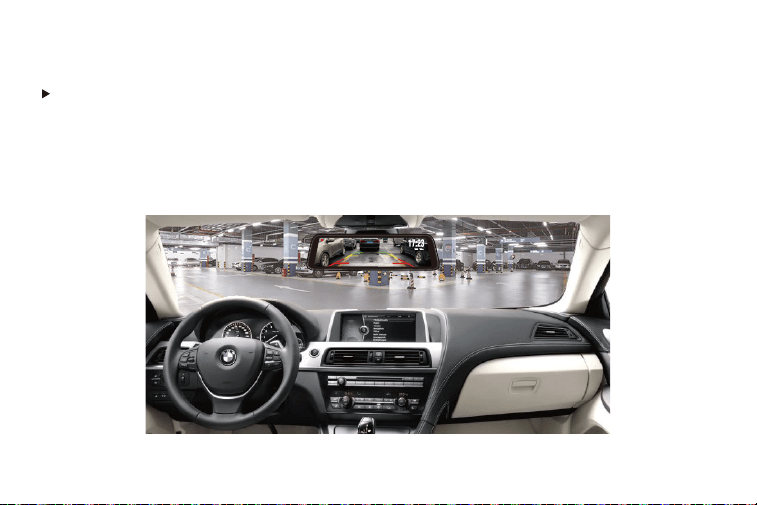
7. Connect the car charger to the charger adapter
to supply power for the dash cam
19
CAUTION:
Connect the cigar plug cord connector in the correct orientation. Connecting in the wrong
direction may cause malfunction or damage. If you cannot connect successfully, check the
connection part carefully before connecting.
8. Ignite the car and light the dash cam
20
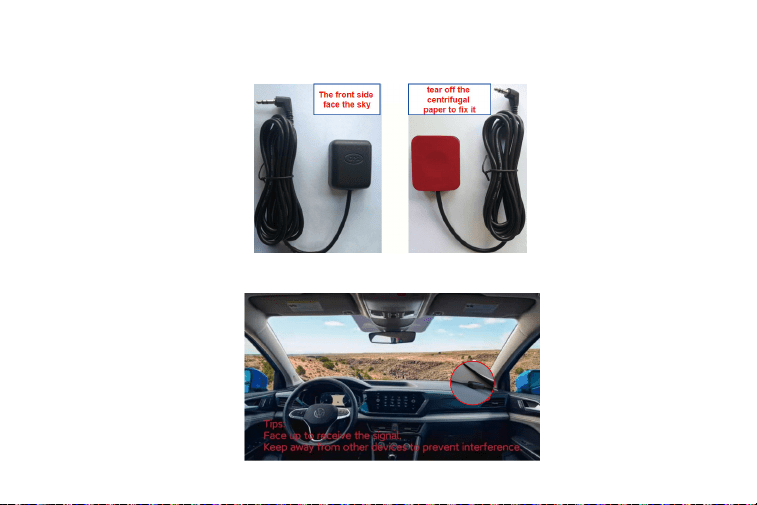
How to install the GPS
Installation location
GPS front and back
21
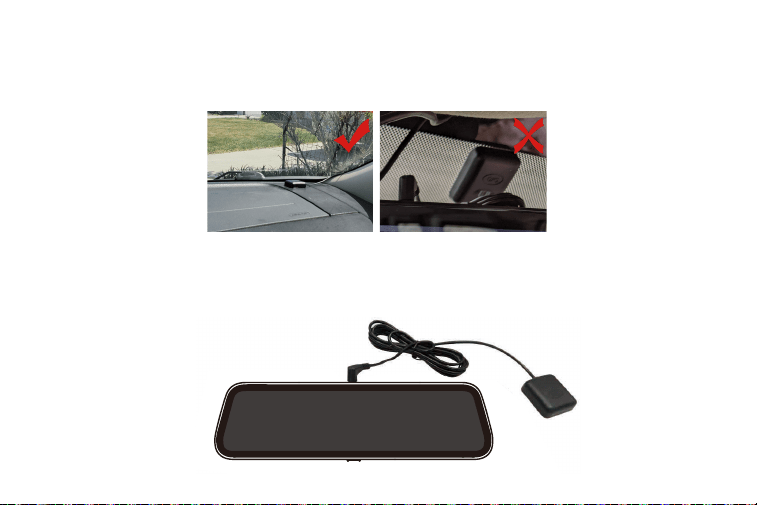
Considering the use effect and installation convenience, we usually recommended customers to
install it at the position specified in the picture. Of course, you can also try to install it in other
locations for testing, and choose the location you think is most suitable.
Installing step
1. Install the GPS Antenna onto the camera, the GPS Antenna will start to search for a GPS signal.
22
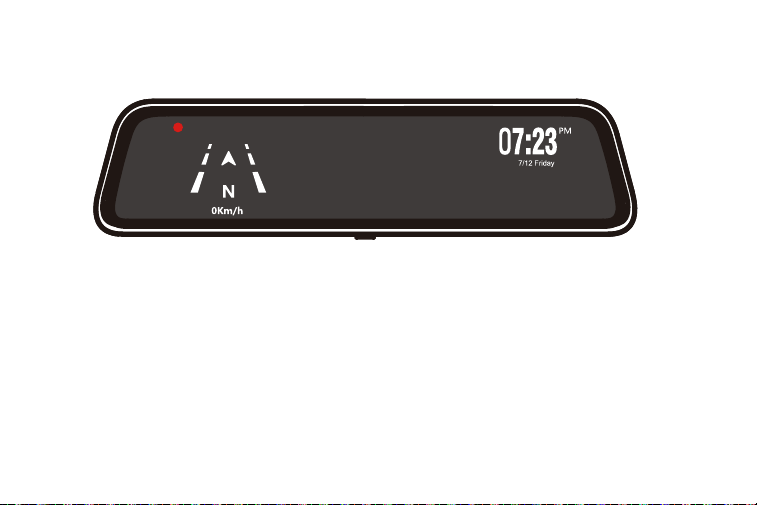
1. The vehicle must be within a large area.
2. Insert the GPS plug again.
3. Place the GPS plug upward.
4. Restart
2. Once the GPS is installed, the GPS icon on the home screen will show. After the GPS signal has
been received, it will show direction and speed.
Q: Why is my GPS not working? /How to use GPS ?
A: If you cannot receive the signal after inserting the GPS, please follow the steps below.
5. It will be recognized after about 40 seconds.If still cannot receive the signal, it may be a GPS
problem. Please CONTACT US and we will help you solve this problem.
23

1. Fix the rear camera with 3M adhesive
Find the best position , tear off the 3M adhesive
on the rear camera and install the rear camera near
the license plate lamp.
Hardwire Kit Installation
Dedicated Hardware Kit ASIN: B09X1L1GMX
1. Stop the engine.
2. Open the fuse box.
3. Use a power detector to detect the constant power and ACC power (emergency power). *note:
Use an ACC power supply of 15A to 25A.Use a constant power supply below 30A.
4. Connect the yellow fuse to the constant power source, the red fuse to the ACC power source,
and the ground terminal (black wire) to the metal part of the body.
Installation - Connect the following three cables to the car fuse box.(The position of the fuse box
differs depending on the model)
24
Step:
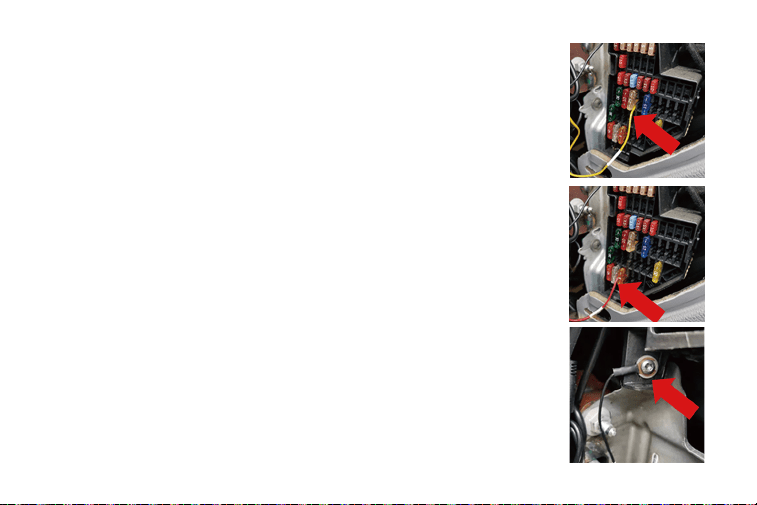
Yellow cable (BATT/B+)
The yellow cable should be connected to the fuse of the constant power
supply in the car fuse box. If you are looking for a constant power supply
in the fuse box: Use a voltage tester to check the fuse to ensure it still have
electricity even if the car engine is off.
Red cable (ACC)
Connect the red cable supply power only when the car engine starts.
Testing method: The tester bulb will light when the engine is on and won't
light when the engine is off.
Black cable (GND)
Connect this black cable(GND) to the metal part of the vehicle. Most cars
have screws or metal parts next to the fuse box. Connect the black cable to
the screw or metal part.(As in the picture below)
25

5. Connect the red line with Reversing control line
Reversing control lines are usually located at the
rear of the car, although their position may vary, so
be sure to refer to the car's manual, use pliers or a
wire stripper to strip the rubber and expose live
wires.
NOTE:
If you can't install it, please CONTACT US, you can send us a photo of your fuse box, and we
have professional technicians who can help you wire it.
If you turn on the engine (ACC on) while the cigar power adapter is connected,the power
will be turned on automatically and the opening screen will be displayed.
Press and hold the power button to turn off the power during startup,and then briefly press
the power button again to turn on the power of the unit and display the opening screen.
Short press the power button to wake and turn off the screen.
Power ON/OFF
Menu Settings
Home-interface
After turning on the power, the machine will automatically turn on and enter the main interface,
and the camera will start recording at the same time.
26
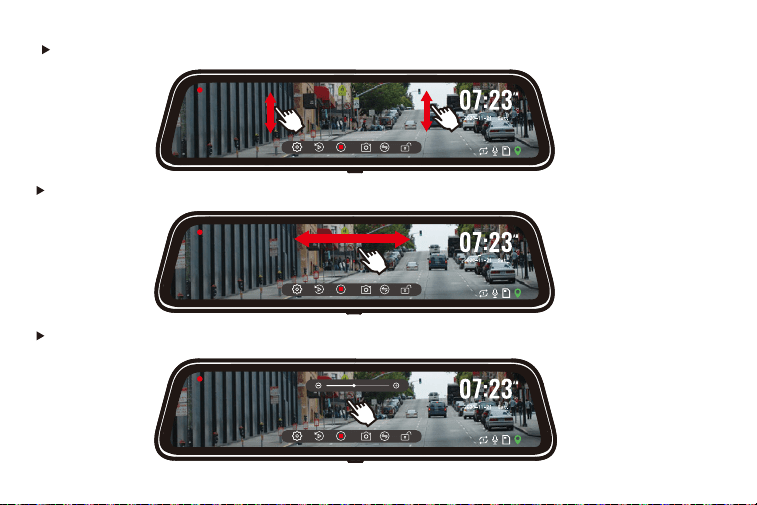
Swipe left or right to switch between front and rear cameras.
Click the top of the screen,to adjust the brightness.
Swip the left/right screen up and down to adjust the angle of view.
27
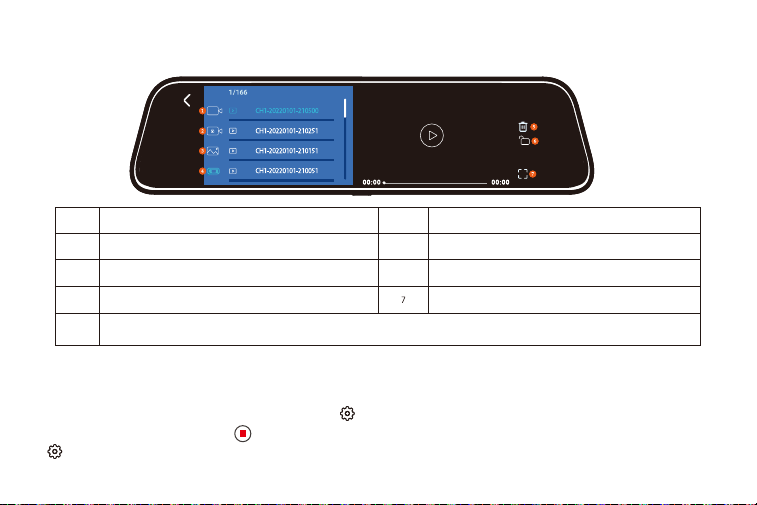
Overview
NO.
Overview
NO.
1
3
2
4
5
6
Normal Video: Select it to view recorded videos
Locked Video: Select it to check locked videos
Photos: Select it to check photos
Front/Rear Video Switch:Click it to switch to front/rear video
Delete
Lock the video
View videos on fullscreen
Video playback interface
Function interface
After powering ON the camera, press the button to enter the setup process.(If the camera is
recording video, press the button to stop recording before pressing the
button.)
28
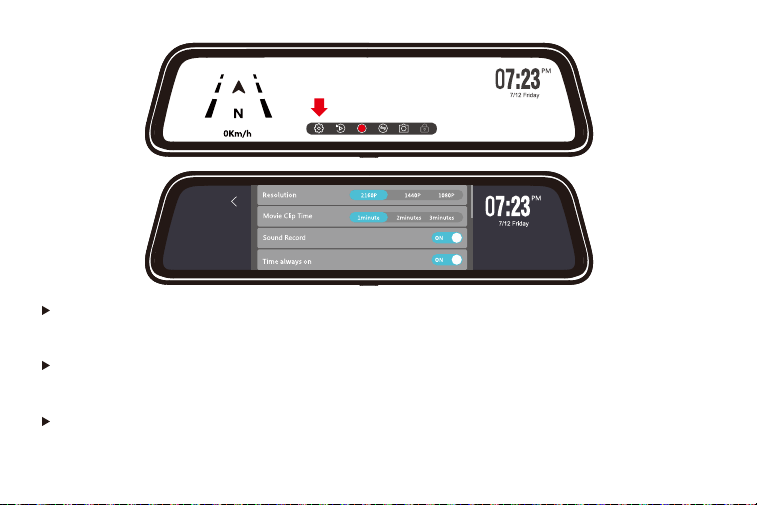
Resolution: 2160P/1440P/1080P
The front camera supports 2160P/1440P/1080P, and rear camera supports 1080P.
Movie clip time: 1min/2min/3min
Select the recording duration for each video.
Sound Record: ON/OFF
In order to be able to record more comprehensive evidence, we recommend that you turn
on this switch.
29
Q: Why is every video recording so short?
A: We set the recording interval of each video to 1min/2min/3min.This is for the convenience
of finding the locked video later.The main function of the recorder is to record, especially to
record emergency video. If each video is too long and the G-Sensor triggers emergency
recording when a collision occurs, the video will be locked and cannot be covered by the loop
recording, and customers will be difficult to find the video in the subsequent search. You need
slide the longer progress bar to find this locked video.And the capacity of the Micro SD card is
limited, if the locked video is too long, the normal video capacity that can be stored will
decrease.
(Avaliable after correctly installing the hardwire kit)
Movie Clip Time: 1minutes/2minutes/3minutes
Parking Monitor
30

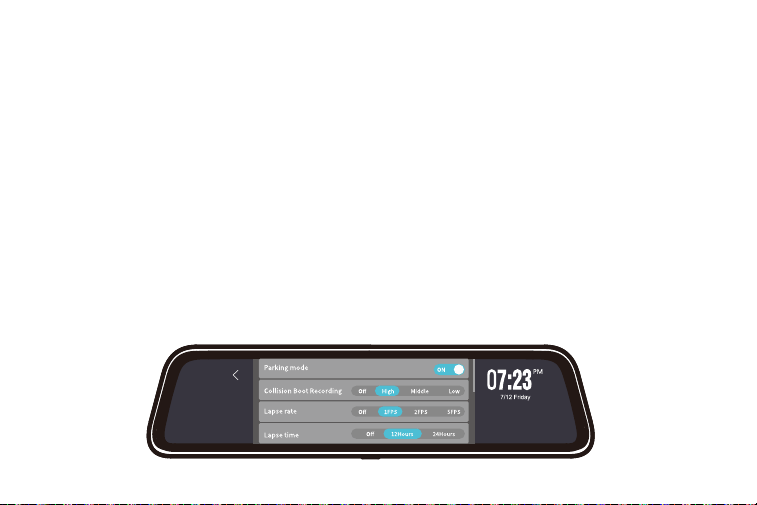
There are two parking monitor modes: "Collision Boot Recording" and "Lapse Recording".
Please set the menu below to choose the mode you want.
Parking mode: on/off
Turn it on to achieve parking monitor.
Collision Boot Recording : Off/ Low /Middle/High
After Choosing the Sensitivity of Collision Boot Recording, the dash cam will automatically
turn on and record 30 seconds locked video after a collision is detected.
Lapse rate: 1FPS/2FPS/5FPS
Record a frame every 1/3/5 second.
Lapse time: Off/12Hours/24Hours
After setting the time and rate, the dash cam will turn off the screen but keep recording
time-lapse videos for the next 12/24 Hours.
NOTE:
In the time-lapse recording mode, the car will not trigger the G-Sensor when it is vibrated,
and the emergency recording video will not appear in the locked folder.
31

Principle
When the hardwire kit is correctly connected and the Parking mode lapse Recording mode is
turned on, the acc is out of power when the car is turned off (bat is always charged), and the
dash cam detects that the acc is out of power and will stop normal recording and enter the
"Lapse Recording mode". When the engine is started and the acc is powered, the machine will
boot into the normal recording mode.In the normal recording state, it can record 30FPS, and
time-lapse recording can choose 1FPS, 2FPS, and 5FPS.
Advantage
1. Save electricity, will not drain the car battery.
2. Save the SD card space, which is 1/30 of the normal recording.
32
NOTE:
This function needs to connect the hardwire kit(ASIN: B09X1L1GMX), you can buy it yourself
or CONTACT US.
If you need the introduction and installation video of the hardwire kit, please CONTACT US.
These two modes can't be implemented simultaneously.

Time always on
If you turn on the "Collision Boot Recording" without setting the "Lapse time" to off, the dash
cam will enter Timelapse mode after parking.
If you want to lock some videos during Timelapse mode,Please set the G-Sensor Sensitivity.
on/off
When this setting is turned off, the time is not displayed
when in the recording interface.
Screen saver mode
Off/1min/2min/3min.
If you want it to automatically turn off the screen or use it as a rearview mirror, you can set the
screen saver mode.
33
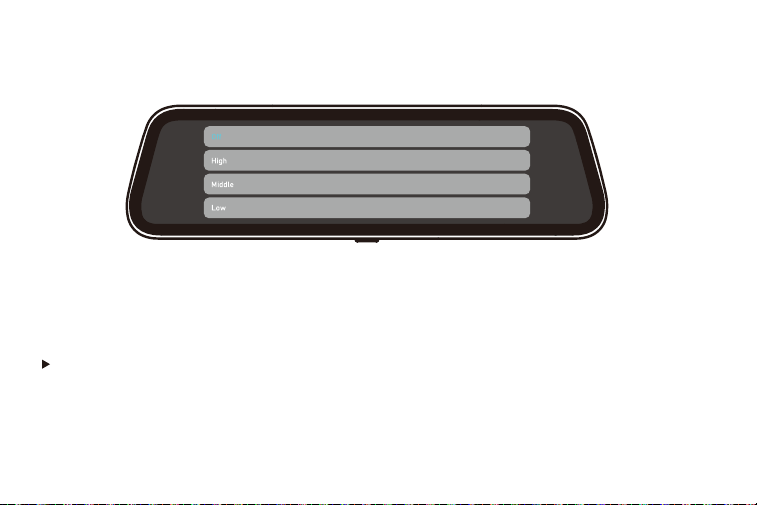
Off/High/Middle/Low
G-Sensor sensitivity
Default booting display
After turning on the G-Sensor, the dash cam will lock the video when it detects bumps while
driving.
Choose the default camera image to display when powering on
NOTE:
Recommended to adjust to medium/low
34
Set the time and date manually.
12/24H time format
MPH/KMH Select the unit you need.
Speed unit
Clock settings
Time format
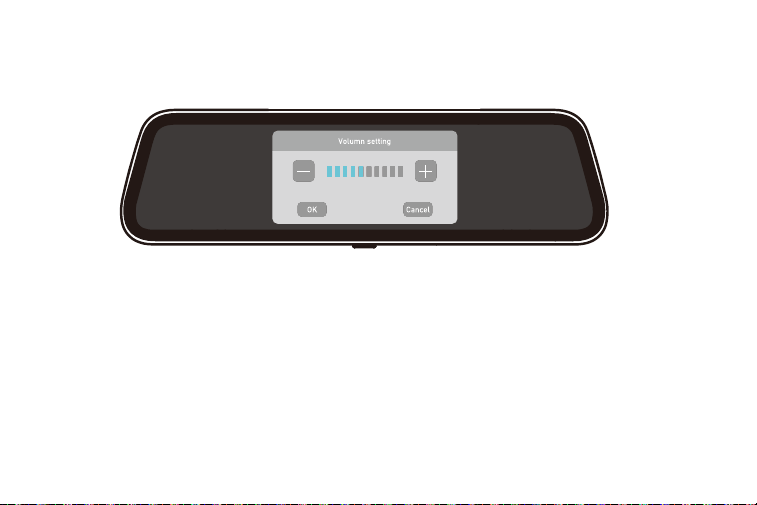
Set the volume of the dash cam
Volume setting
35
ON/OFF
Forced recording
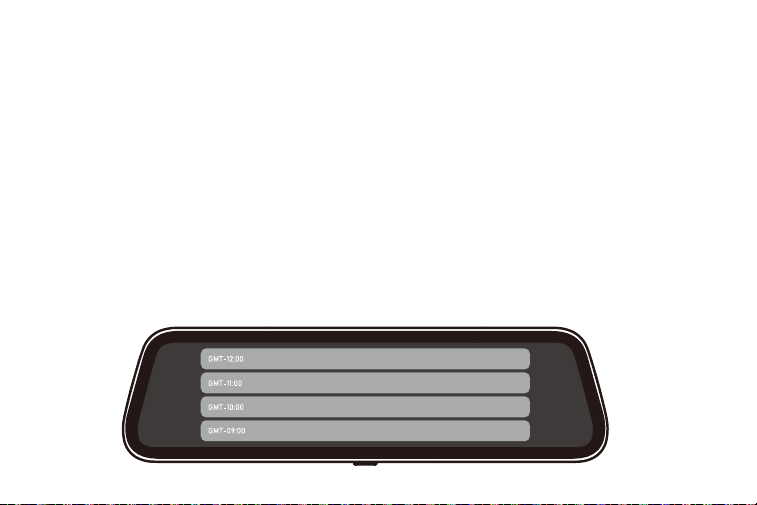
Time zone(Available after installing GPS )
Locked video loop
Daylight Saving time
If you stay in other interface and forget to record video, it will force to start recording.
The principle of the loop recording function is to only overwrite the unlocked normal video to
record a new video. If you want to lock the video to be covered as well, please turn on this
function.
36
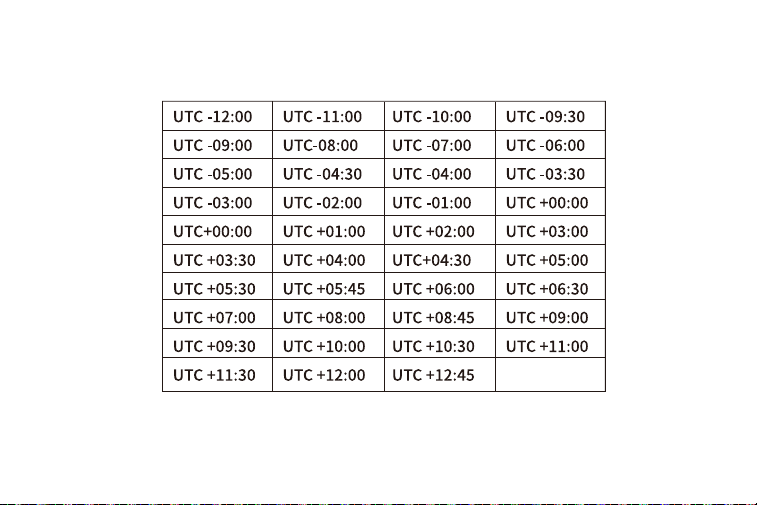
The camera will set the date and time based on the GMT value selection when it receives the
GPS signal lock Automatically. You can set the daylight saving time by adjust the time-zone.
37
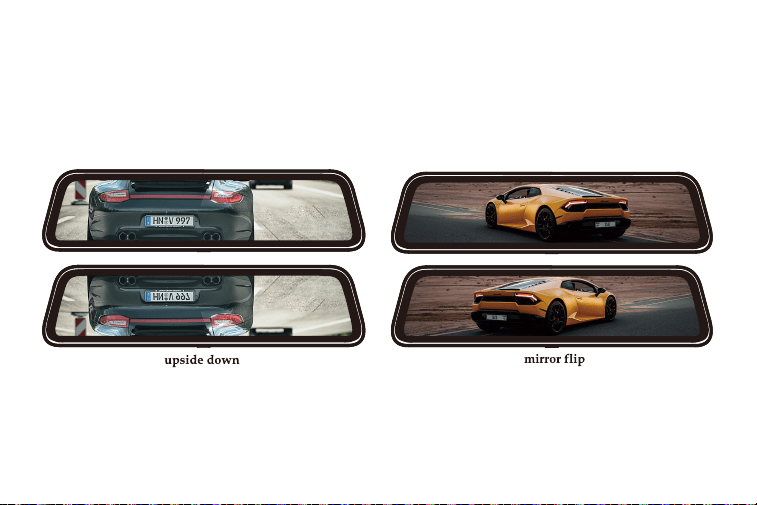
Mirror flip of rear image: ON/OFF
Upside down of rear image:ON/OFF
Format SD card
Clean all the data. It is recommended to manually format the SD card once a month. Please
format the SD card before first use.
If you are installing rear camera in a forward direction (fixing the bracket downwards), please
turn on "Upside down of rear image" and turn off "Mirror flip of rear image"to adjust the view.
38

Reset setup
This is used to restore factory settings.
When reversing, the reversing line will automatically appear on the screen, and the screen will
automatically be pressed down 15° horizontally. However, due to the different installation
location of each guest, manual adjustment is required.
Show reversing line
ON/OFF
Reversing line (Auxiliary function)
If your car does not have a reversing system and you need a backup reversing system as an
aid, you need to connect the red cable of the rear cam to the positive pole of your reversing
lamp. If your car already has a reversing system, you just ignore the red cable on the rear cam.
When you shift to "r" gear, the rear view will automatically show on the screen with reversing
lines for easy and safe parking. You can enter the "Reversing line" option in the settings, then
adjust the angle of the reversing image and the reversing line. Also when in reversing, you can
adjust the viewing angle of the image. (This function activate after the red wire of the rear
camera be connected to the positive pole of the reversing light.)
39

Q: How do I use the reversing system when reversing the car?
A: First,you should turn on the "Show reversing line", then you can enter the "Reversing line"
option in the settings to adjust the angle of the reversing image and reversing line.
Please install the GPS first.
To track the Location, Speed, status, Signal Strength, please go to info on the Menu Setting.
Check your version number here.
You can adjust the viewing angle and the positions of the four corners of the reversing line in
the "Reversing line" option of the settings
The reversing line has three colors of red, yellow and green. When the object behind the car
reaches the red distance, it means you can stop reversing.
GPS Information
Product information
40
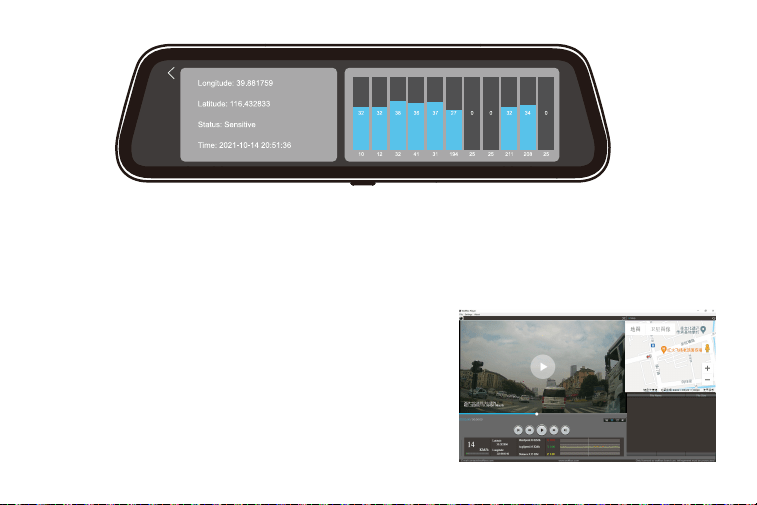
Video Playback on PC
If you need to track GPS information, please download the dedicated player, The G850
GPSPlayer download link as follows: https://wolfbox.com/gps-player/
Player interface
Please install the GPS first.
To track the Location, Speed, status, Signal Strength,
please go to info on the Menu Setting.
41

Trouble Shootings
Please feel free to contact our customer support at [email protected].
NOTE:
1. Click File in the upper left corner
2. Click "Open" to select the file
3. Start playing
If you encounter problems during use, please CONTACT US.
Why the front lens image is tilted?
Please rotate the front lens to adjust the front image.
Why doesn't the rear camera work? Why can't the rear camerabe detected?
1. Please confirm whether the rear cable is installed correctly, pay attention to whether the 4pin
connection position is loose and whether the position of the host and the rear camera mouth is
loose. Please try to reconnect.
42

2. If still not work after reconnection, there may be a problem with the cable. Because when
wiring in the car, it may cause the metal wire in the rubber to bend and cause a short circuit.
Please CONTACT US and we will solve it for you.
Why can't it automatically switch to the rear camera when reversing or why can't the reversing
line appear?
1. Check if the 4pin is loose, and if the rear camera port of the dash cam is loose.
2. Check whether the red wire of the rear camera cable is connected to the positive pole of the
reverse light, please do not connect it to the brake light or other.
3. If the connection is correct, please use a tester to measure whether the voltage is output
from the reversing light when in reverse gear.
Why dash cam does not work/cannot be turned on/freezes/restarts repeatedly?
1. Unplug the GPS, card, and rear camera cable, reset after power on again, and try to see if it
can be turned on.
2. If the above does not work, please contact us.
43

ONE YEAR LIMITED WARRANTY
We are committed to giving customers the best product experience and after-sale service.
Our warranty period is one year. If the machine parts are damaged or there are any problems
during use, we will solve them in time and provide you with a satisfactory shopping experience.
Please CONTACT US with your online order, and we will provide free replacement and lifetime
technical support.Besides, you can also get free accessories from us.
44



USER
Check us out here!
We have professional customer service!
MANUAL
E-mail: service@wolfbox.com
Phone: +1 888 296 8399