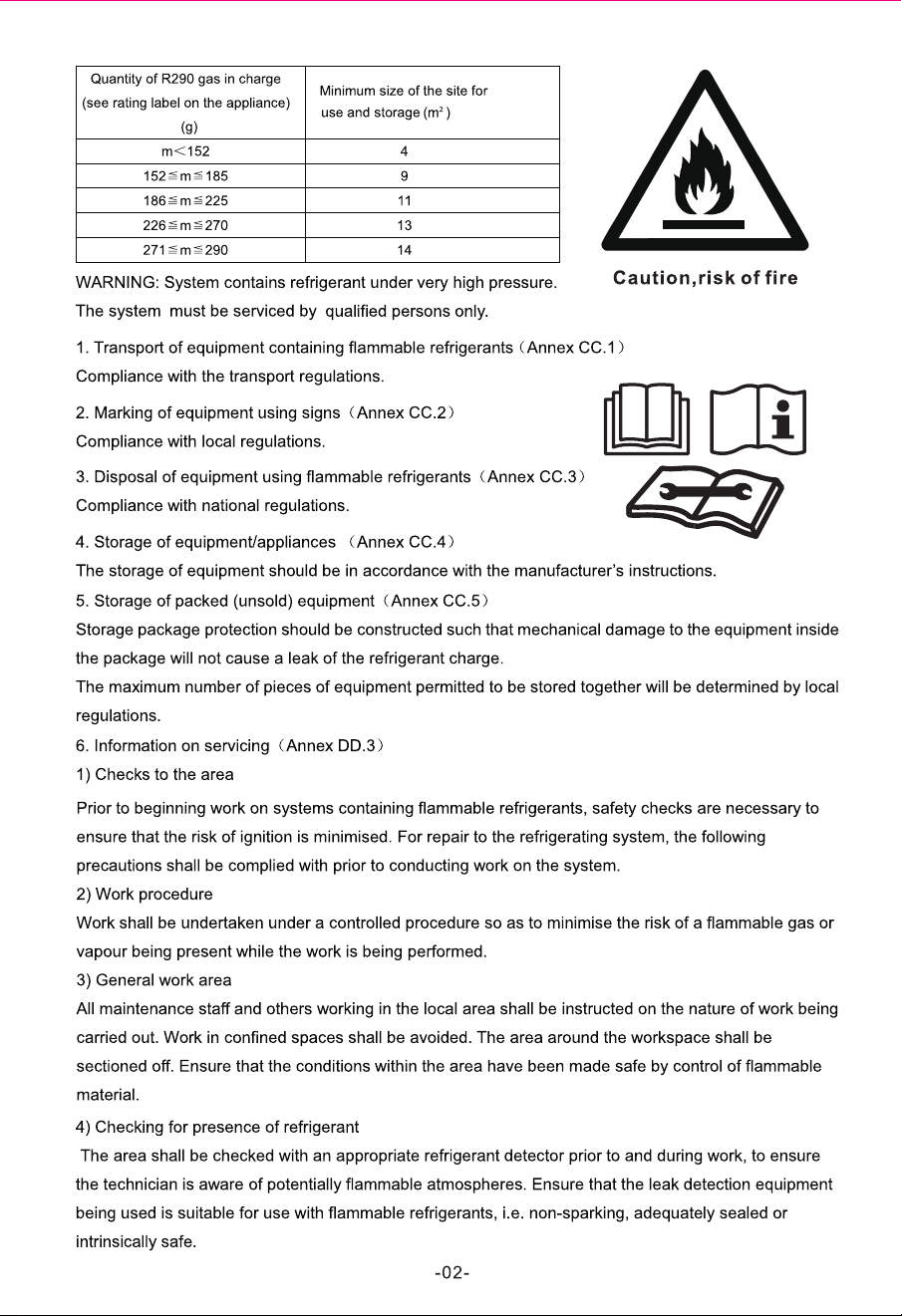
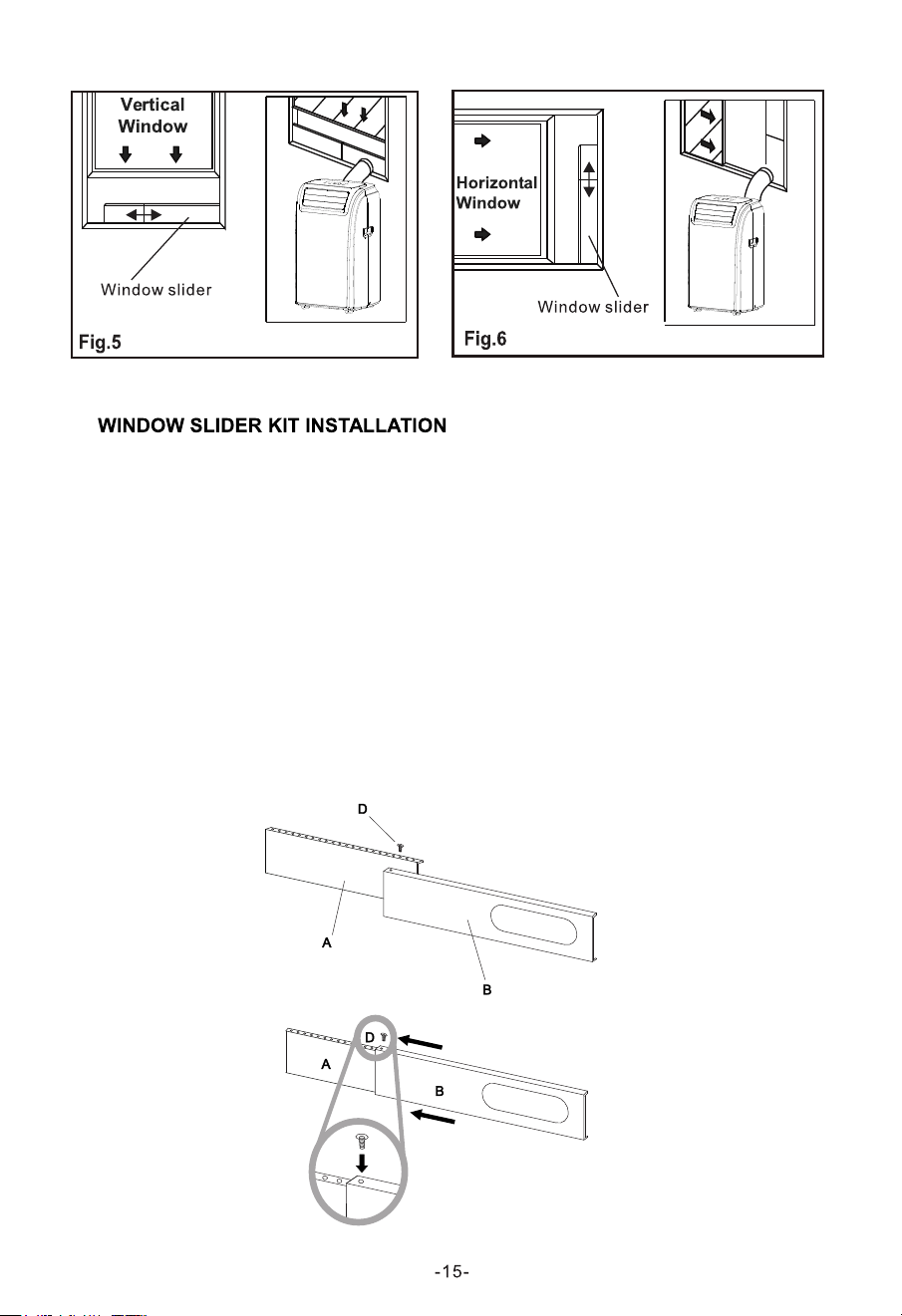
1:Parts:
A) Panel
B) Panel with one hole
D) Screw to lock window kit in place
2: Assembly:
Slide Panel B into Panel A and size
to widow width. Windows sizes vary. When
sizing the window width, be sure that the window kit assembly is free from gaps
from gaps and/or air pockets when taking measurements.
3.Lock the screw into the holes that correspond
With the width that your window requires to ensure that there are no gaps or air
pockets in the window kit assembly after installation.
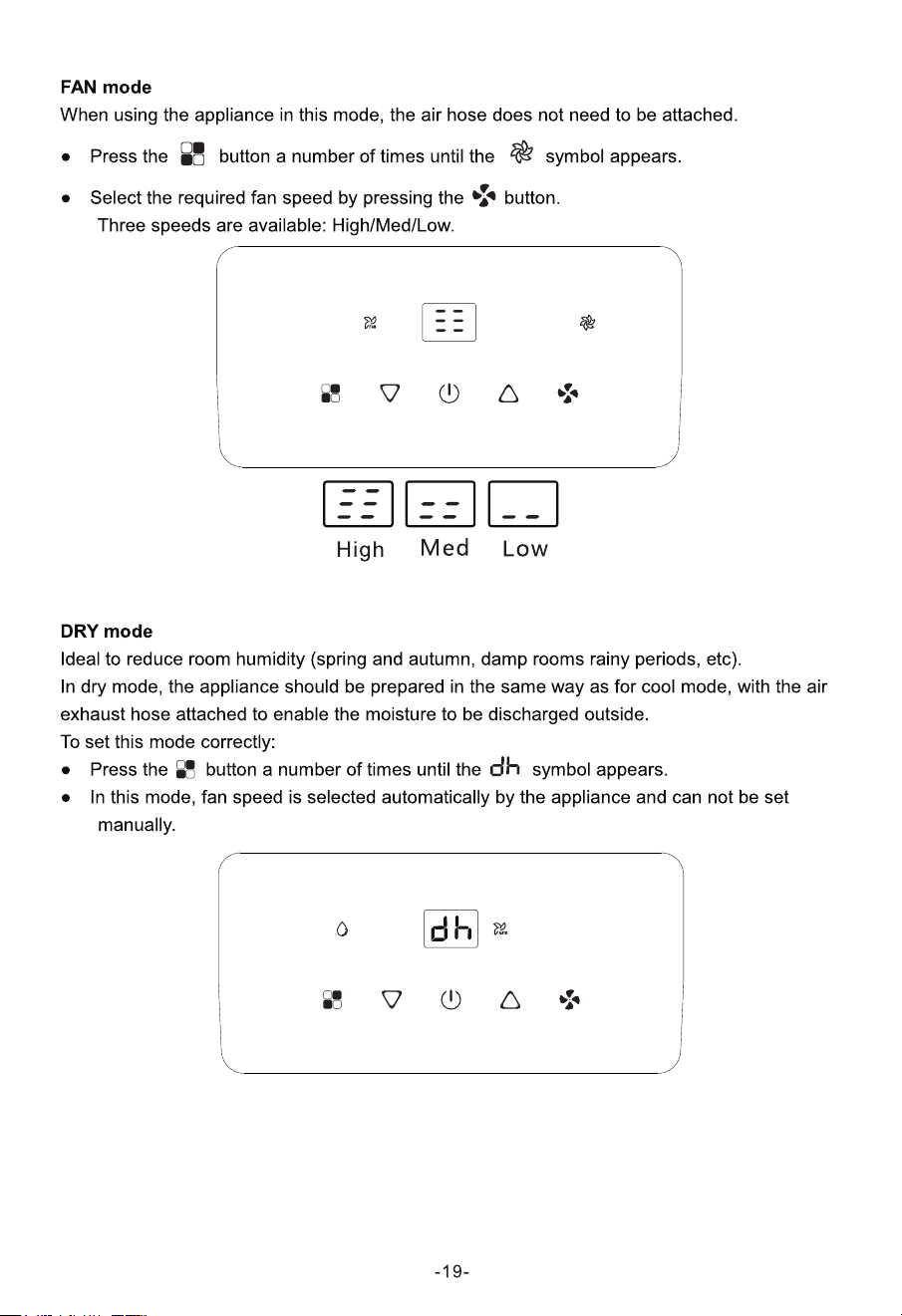
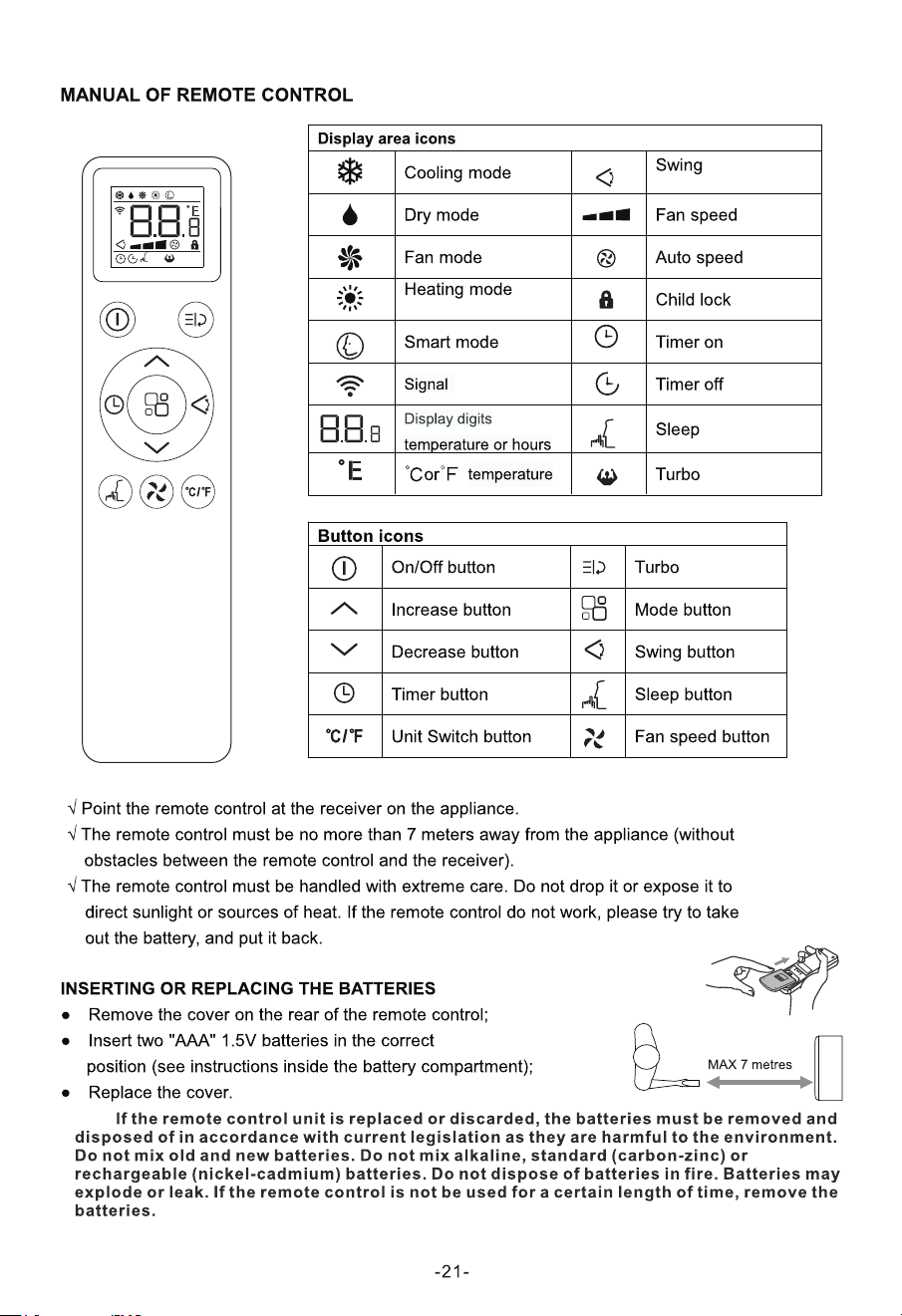
(don't have this function)
(don't have this function)
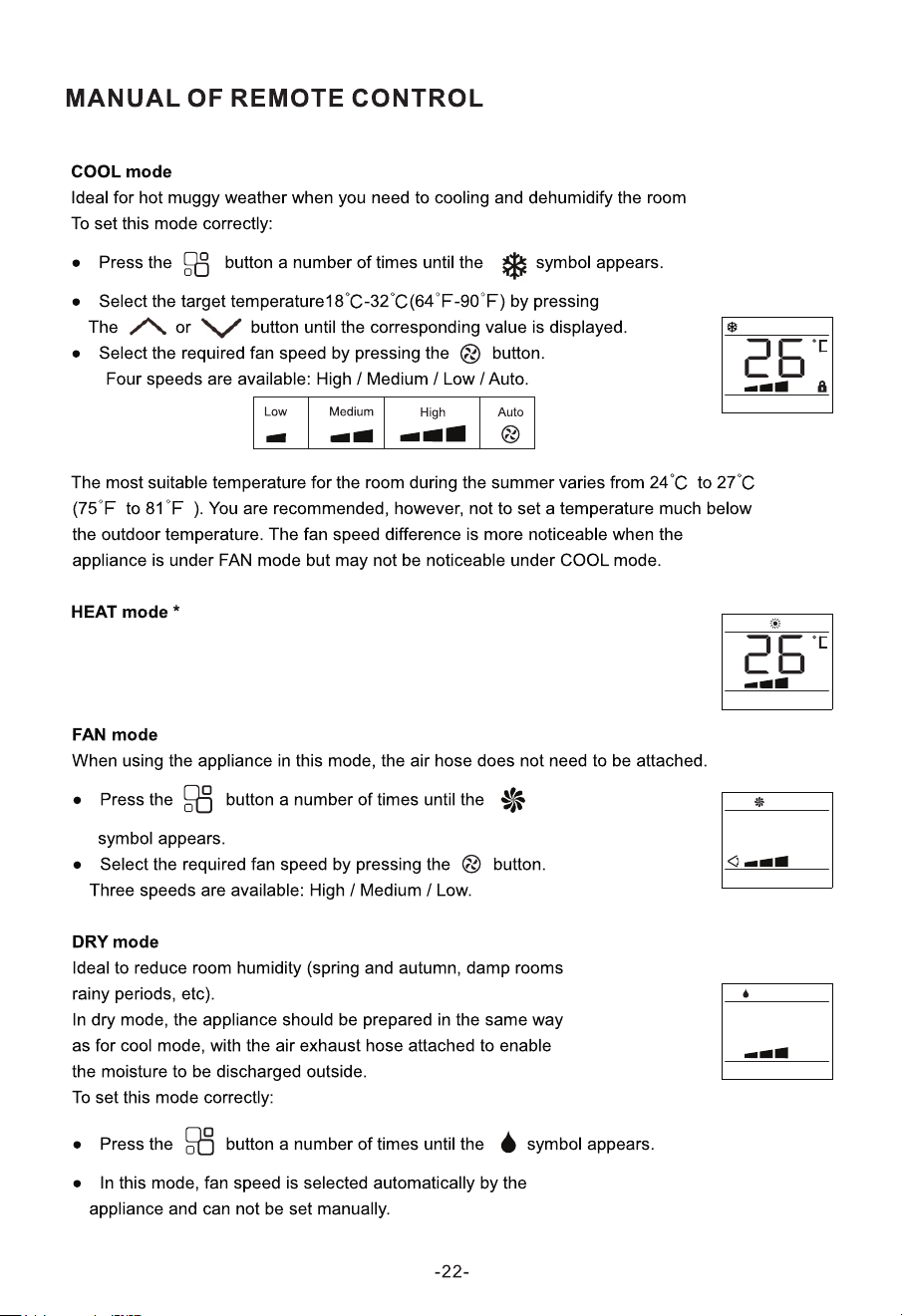
This serial appliance don't have this fucntion.
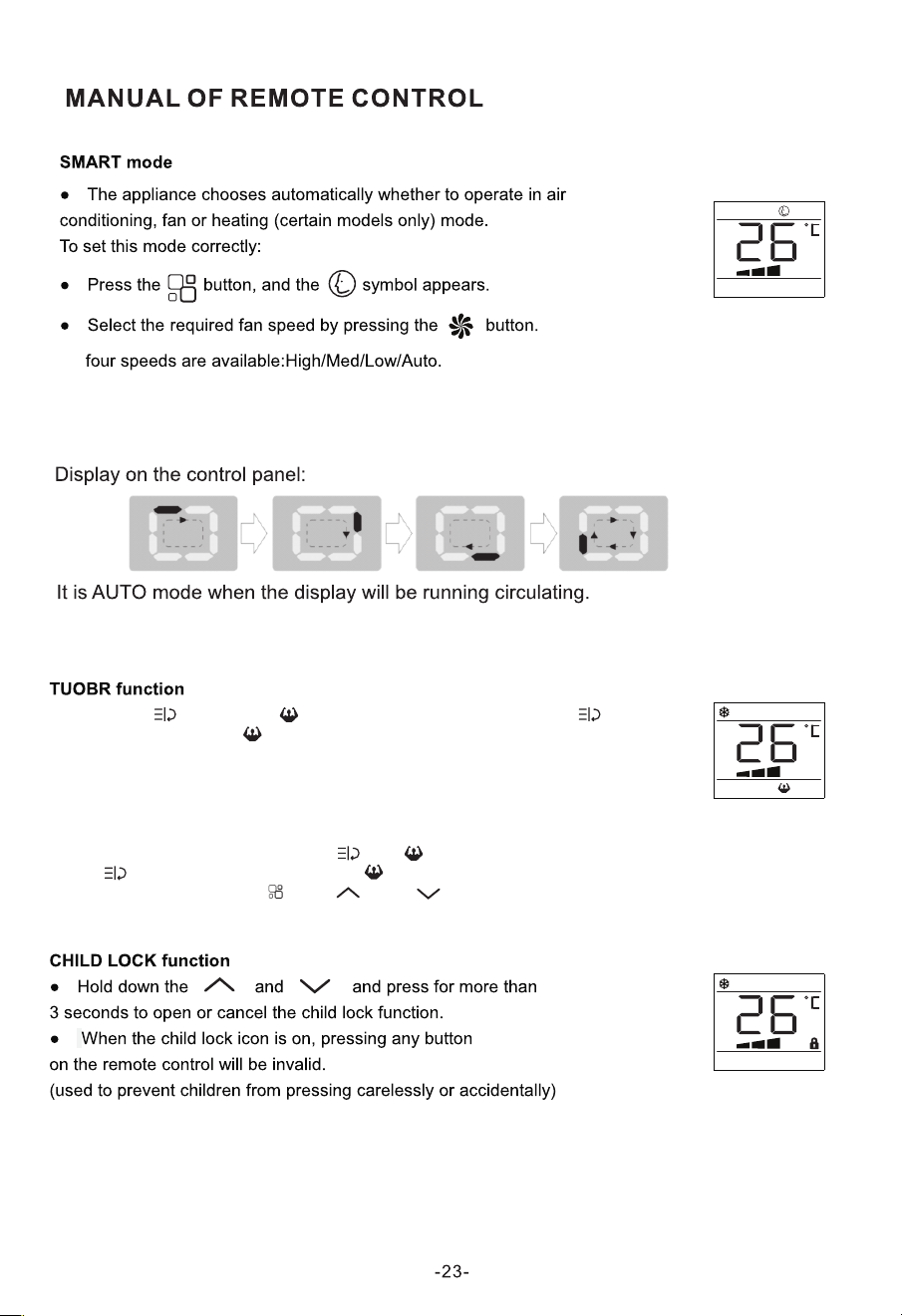
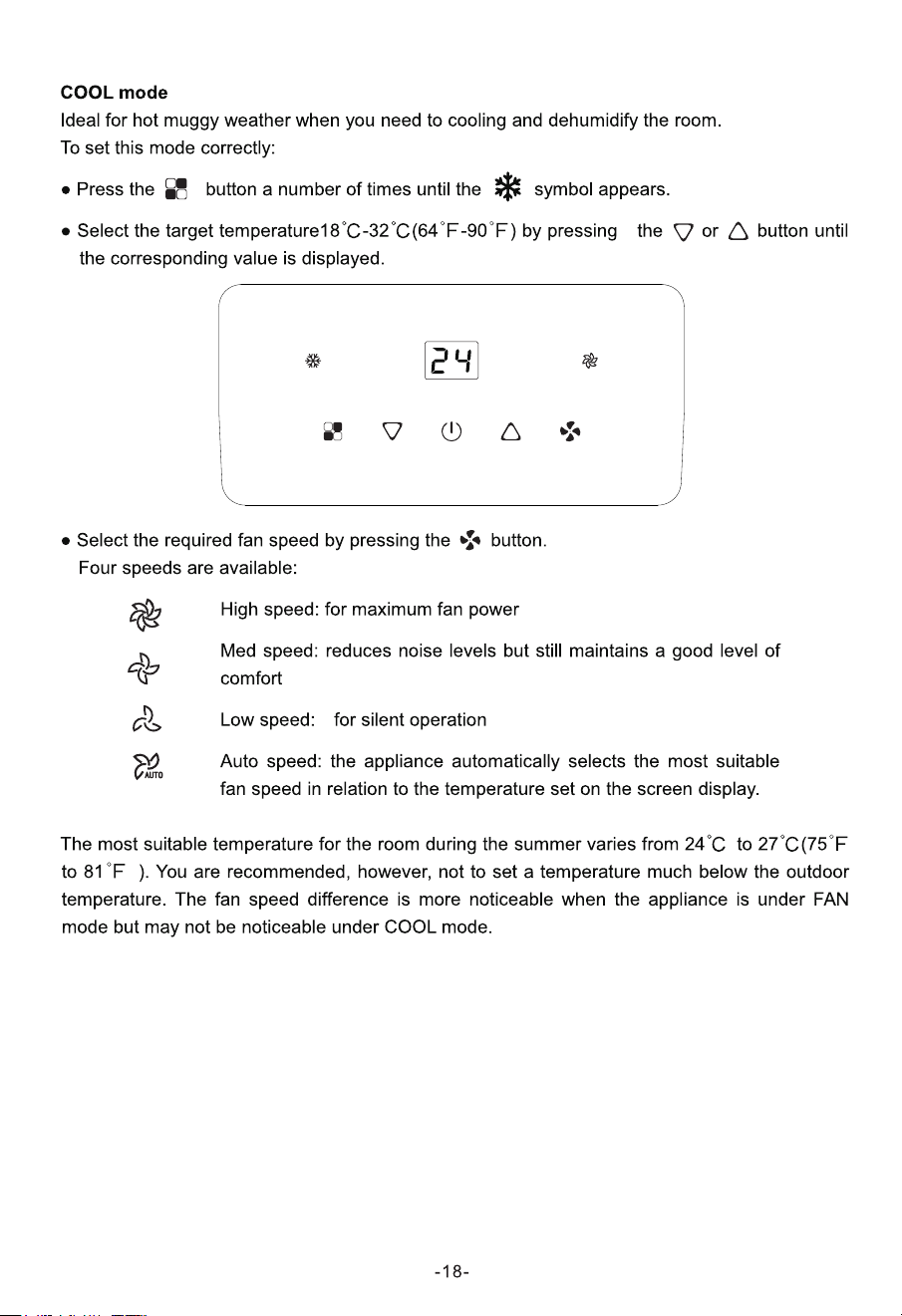
The appliance operates in FAN mode when the room temperature is below 23℃(73℉),
and COOL mode when room temperature is above 23℃(73℉).
● Press the button , the symbol flash on screen, press the button
Again to confirm, the will stop flash and show on screen, that the function
is working.
● This function set the appliance directly to COOL mode with setting temperature
18℃(64℉) and High fan speed in order to reach low temperature in the
shortest time.
● This function can not be set in Heat mode.
● To cancel this function, press the , the flash on screen, and then press
the button again to confirm , the will stop flash and disappear from screen.
● Press other button like “ ” or “ ” or “ ” also can cancel this function.
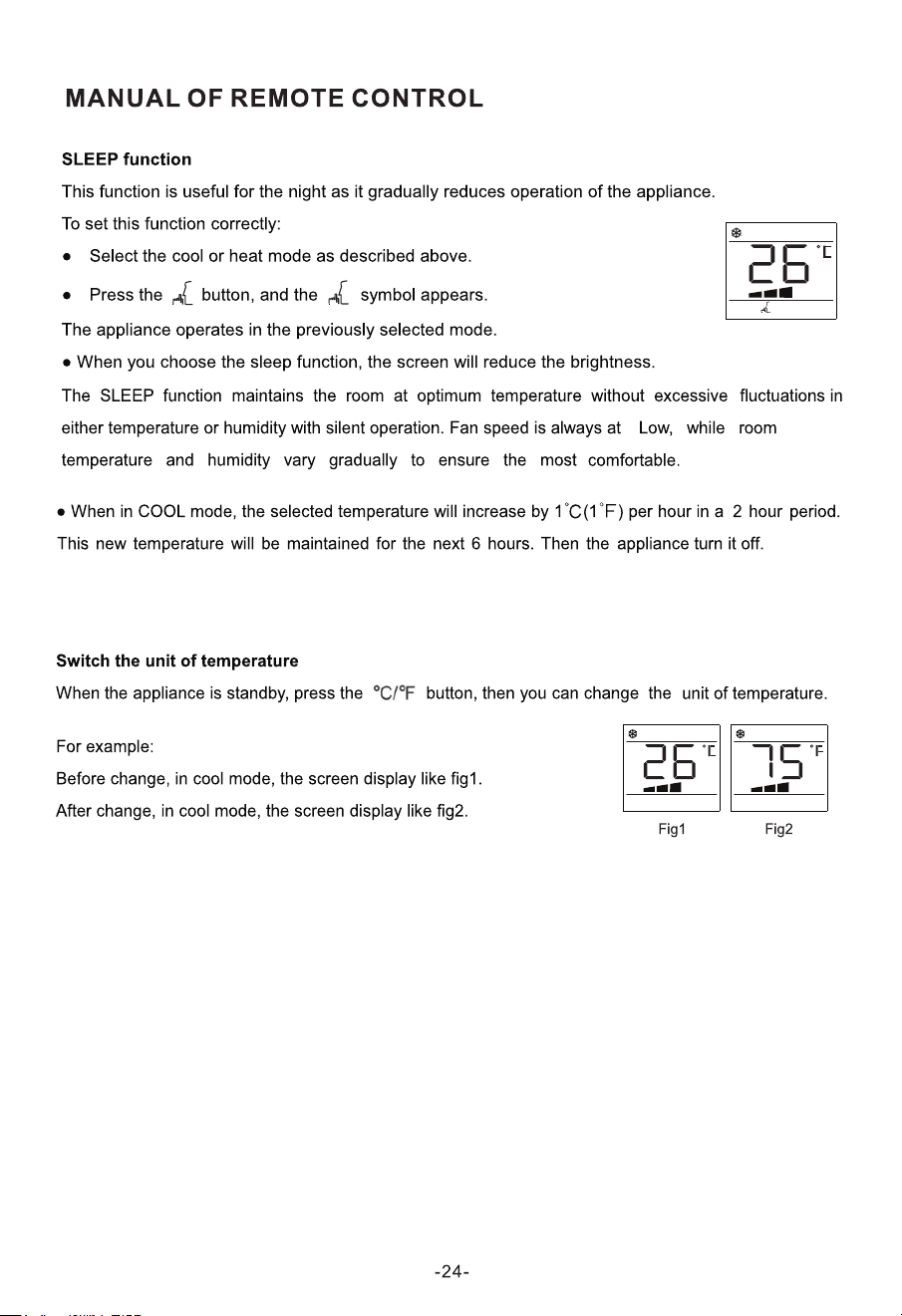
In FAN or DRY mode, SLEEP function is still available.
Let's get start!
Operation guideline. Please take below simple guideline instruction as reference.
Operation
Steps
Operation
Items
New Account
Re-install APP
(registered before)
Step 1
Step 2
Step 3
Step 4
Step 5
Download and Install APP
Active APP
Registration Account
Login
Add Device to control
YES
YES
YES
YES
YES
YES
YES
NO
YES
Registered Device will
remain.
Wi-Fi Module specification and basic information
1.Minimum specifications on a Smart phone:
Android 5.0 version or higher
IOS 10.0 version or higher
2.Basic parameters for Wi-Fi:
Parameters Details
Network frequency
Standards of WLAN
Protocol stack support
Security support
Network type support
2.400 - 2.500GHz
IEEE 802.11 b/g/n(channels 1-14)
IPv4/IPv6/TCP/UDP/HTTPS/TLS/Multicast DNS
WEP/WPA/WPA2/AES128
STA/AP/STA+AP
3.Wi-Fi module reset method
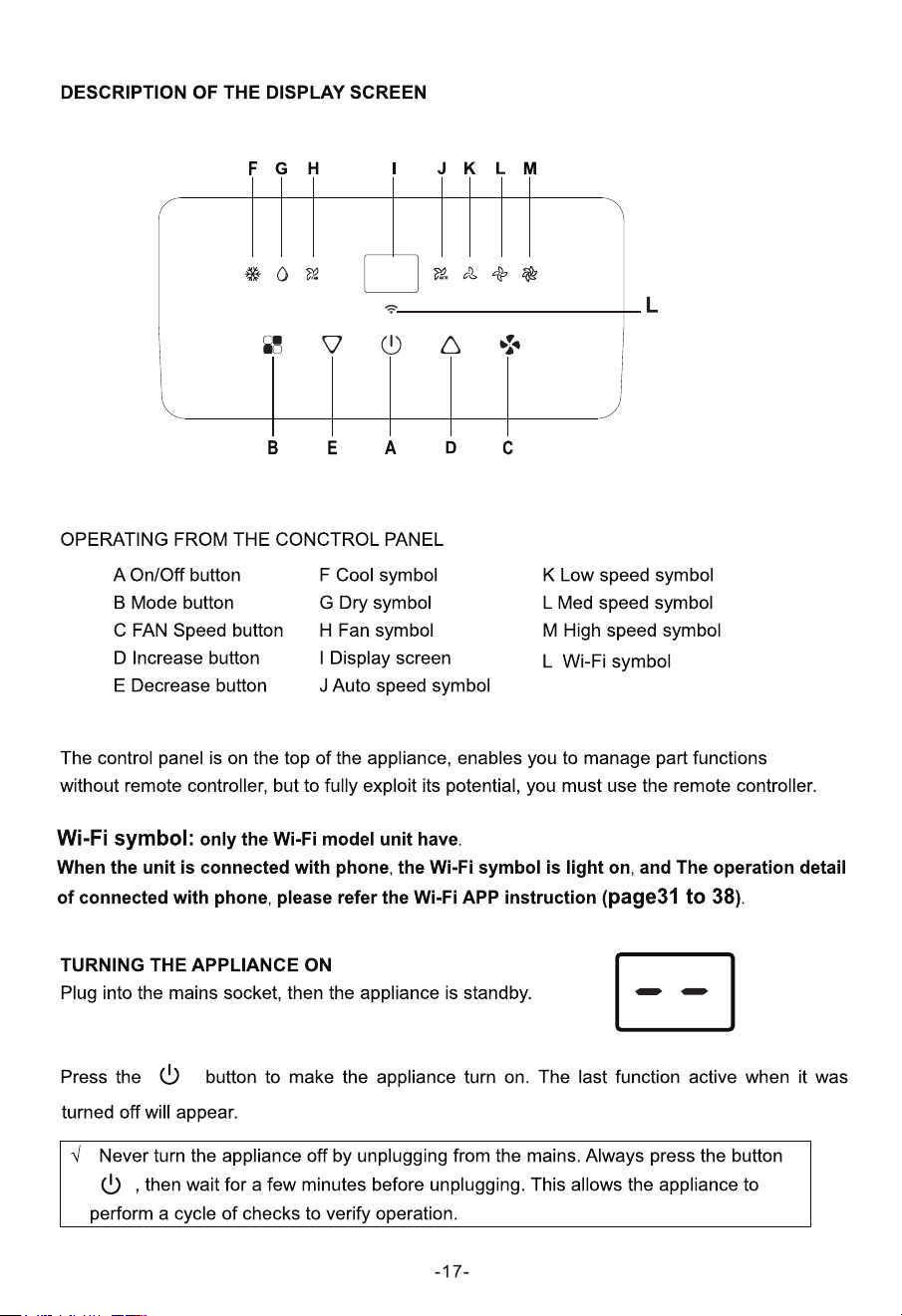
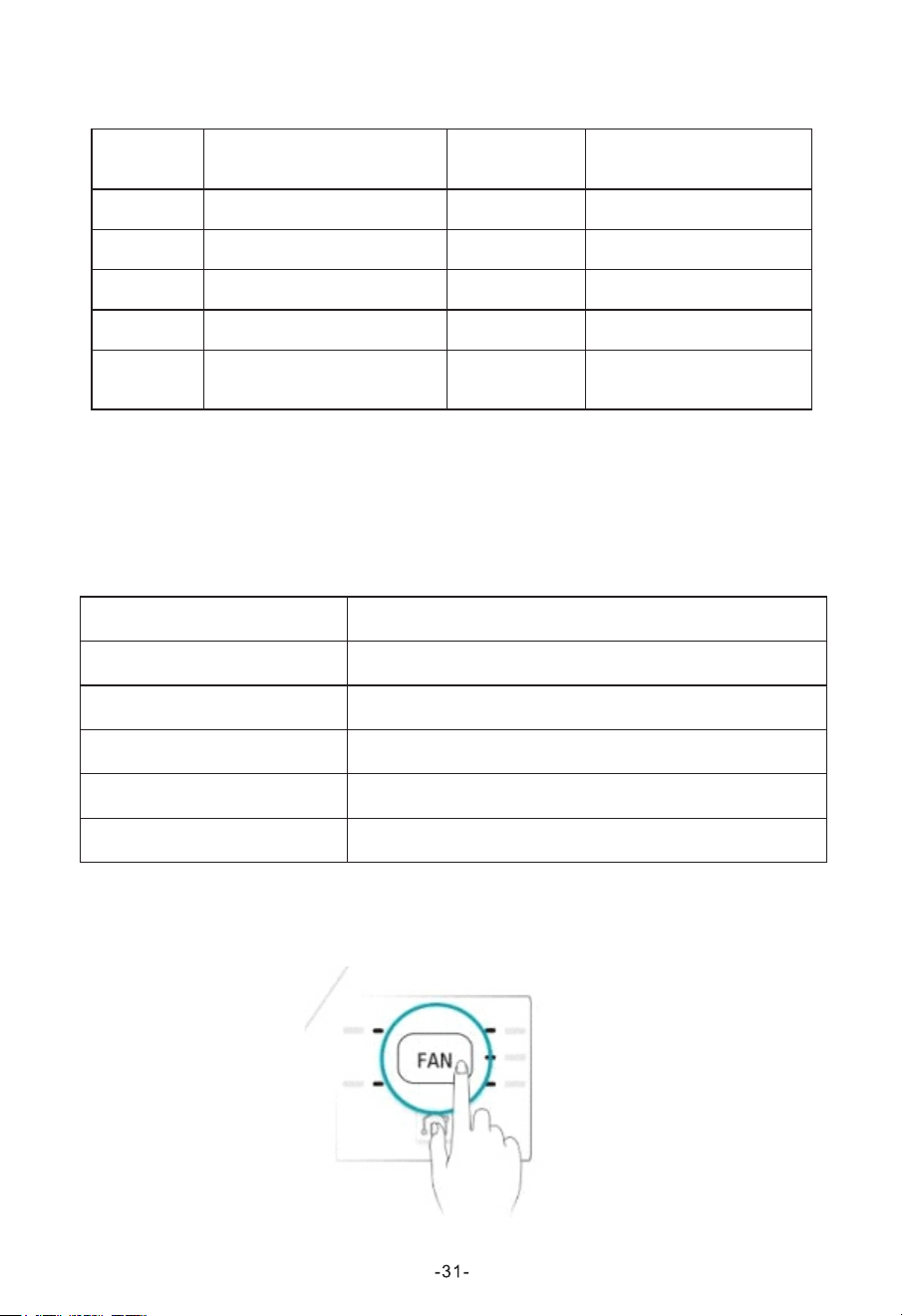
On control panel, please press the “FAN” button 6 times within 4 seconds.
Download and Install the App
Method1: Please scan the QR code with a browser scanner, download and install
the APP.
Android
Method2:
For Android smart phone, open the Google "Play Store" on your smart phone and
search "SmartLife-SmartHome", download and install the APP.
For IOS smart phone, open the Apple "App Store" on your smart phone and search
" SmartLife-SmartHome ", download and install the APP.
Note:
Please enable the permissions of Storage/Location/Camera for this APP when
installing. Otherwise it will have some problems when operating.
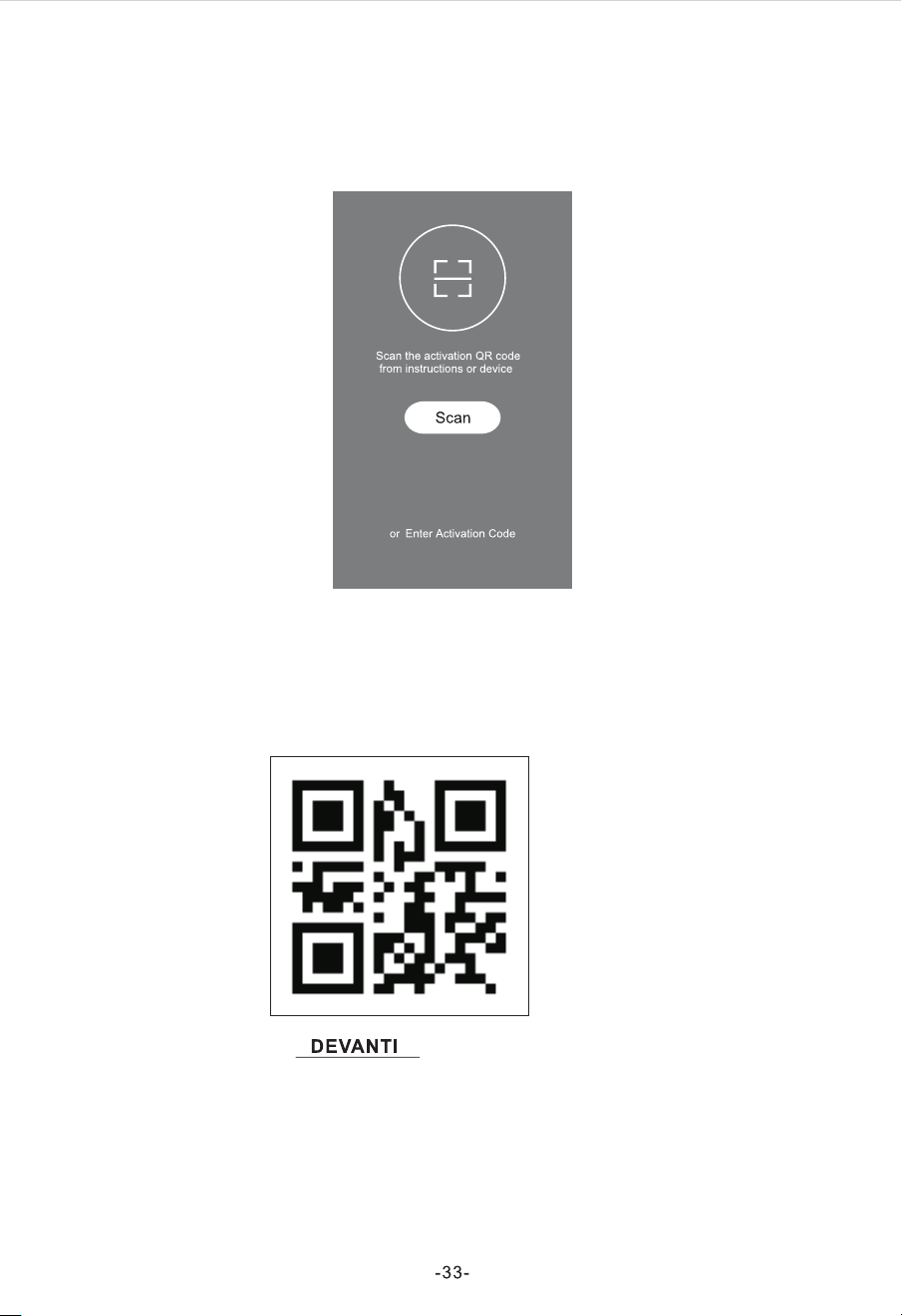
Active App
1.When you first time enter the APP,it will display activation interface,you can select
activation QR code(click “Scan”button and scan the activation QR code in below page)
or input “activation code”words(in below page),click “activate”button to active it
2. Activation QR code
3. Activation code words:
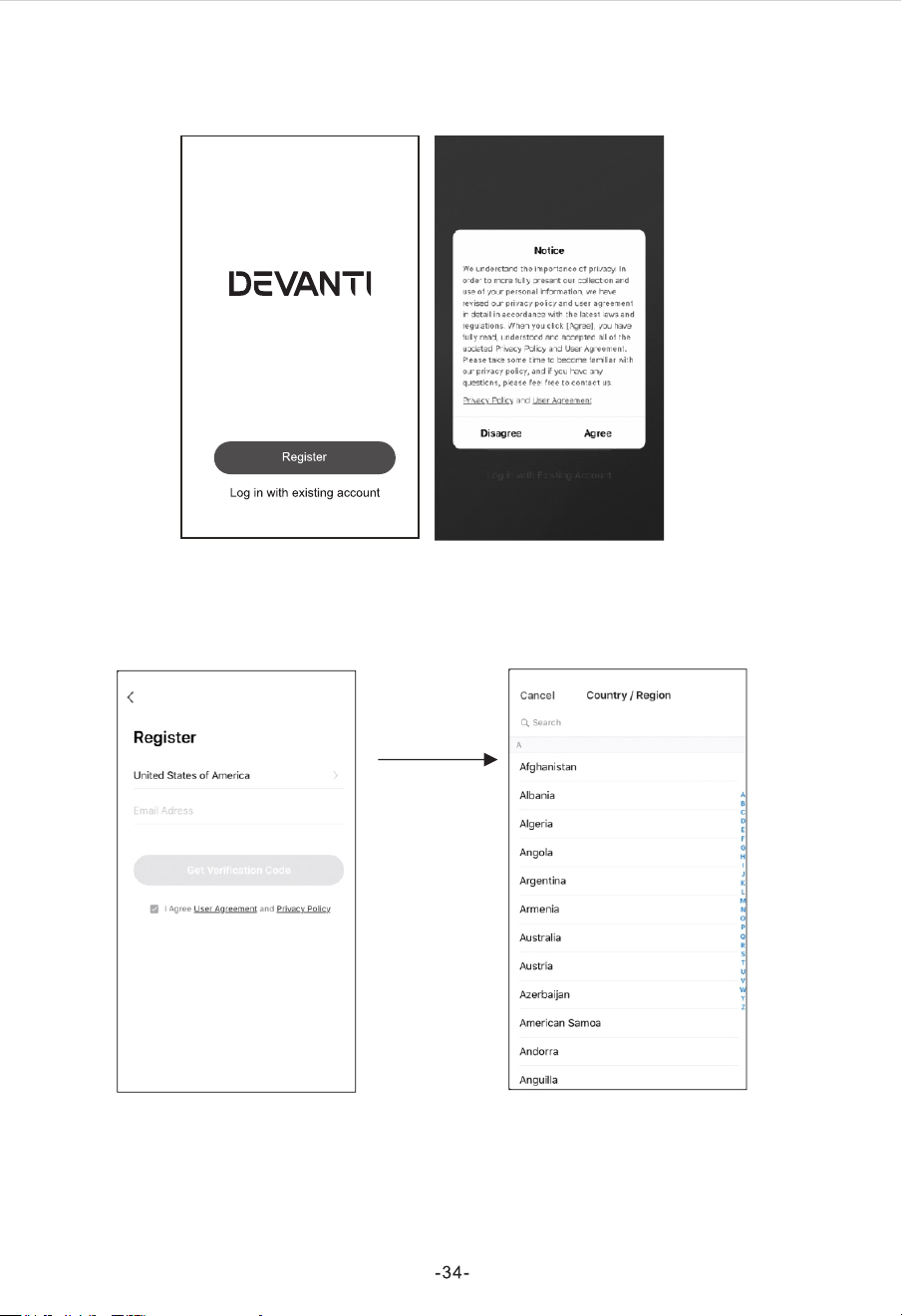
Registration
1.If you don't have any account please tap button "Register".
2.Read the “Privacy Policy” and tap "Agree".
3.Tap">" and choose the country.
Search the
country or slide
the screen
up/down to find
and choose the
country.
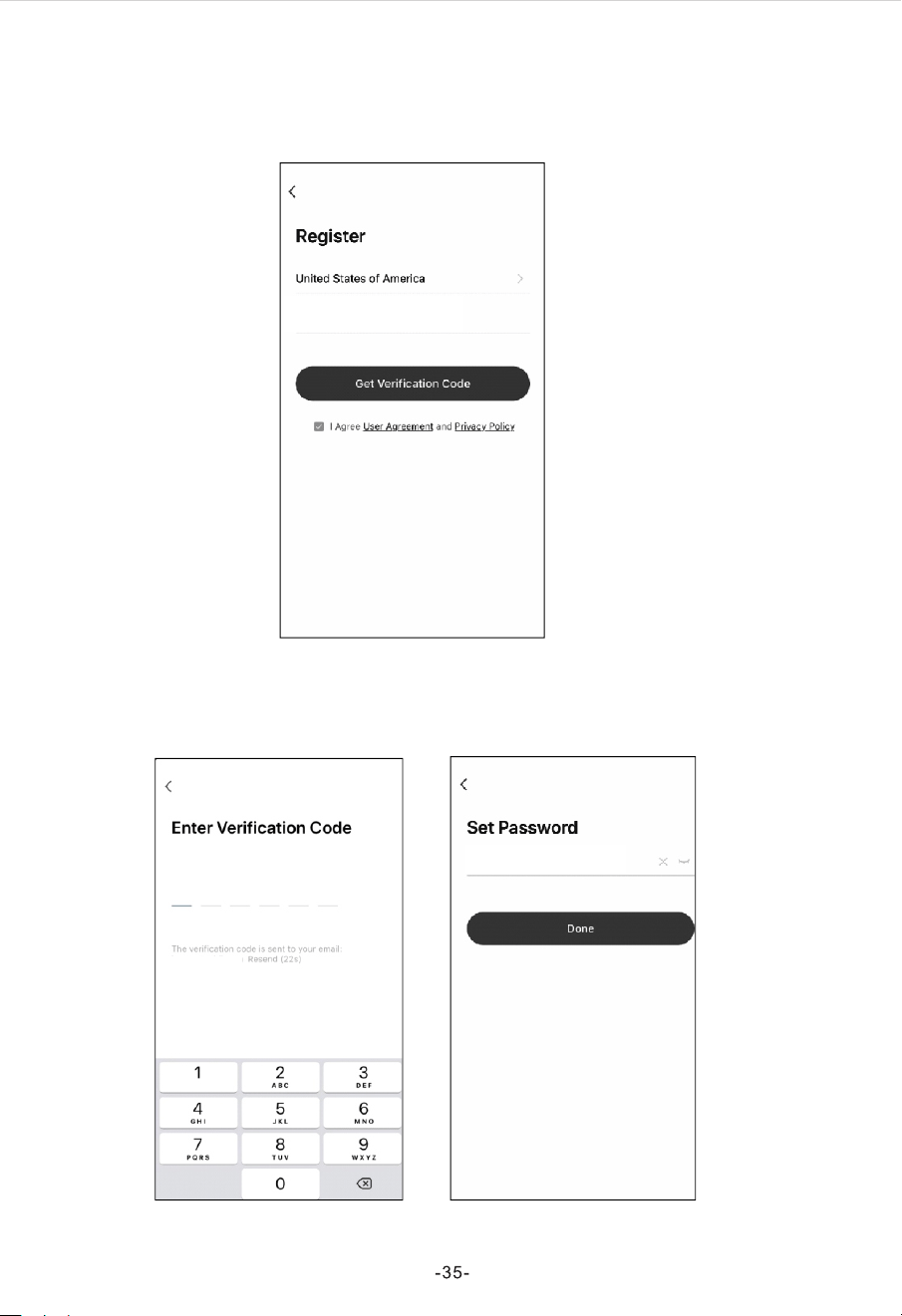
Registration
4.Enter your E-mail address.
5.Tap the button "Get Verification Code".
xxxxxxxxx@x x x.xxx
6.Enter the verification code you received from E-mail.
7.Set the Password with 6-20 characters including characters and numbers.
8.Tap "Done".
●●●●●●●●
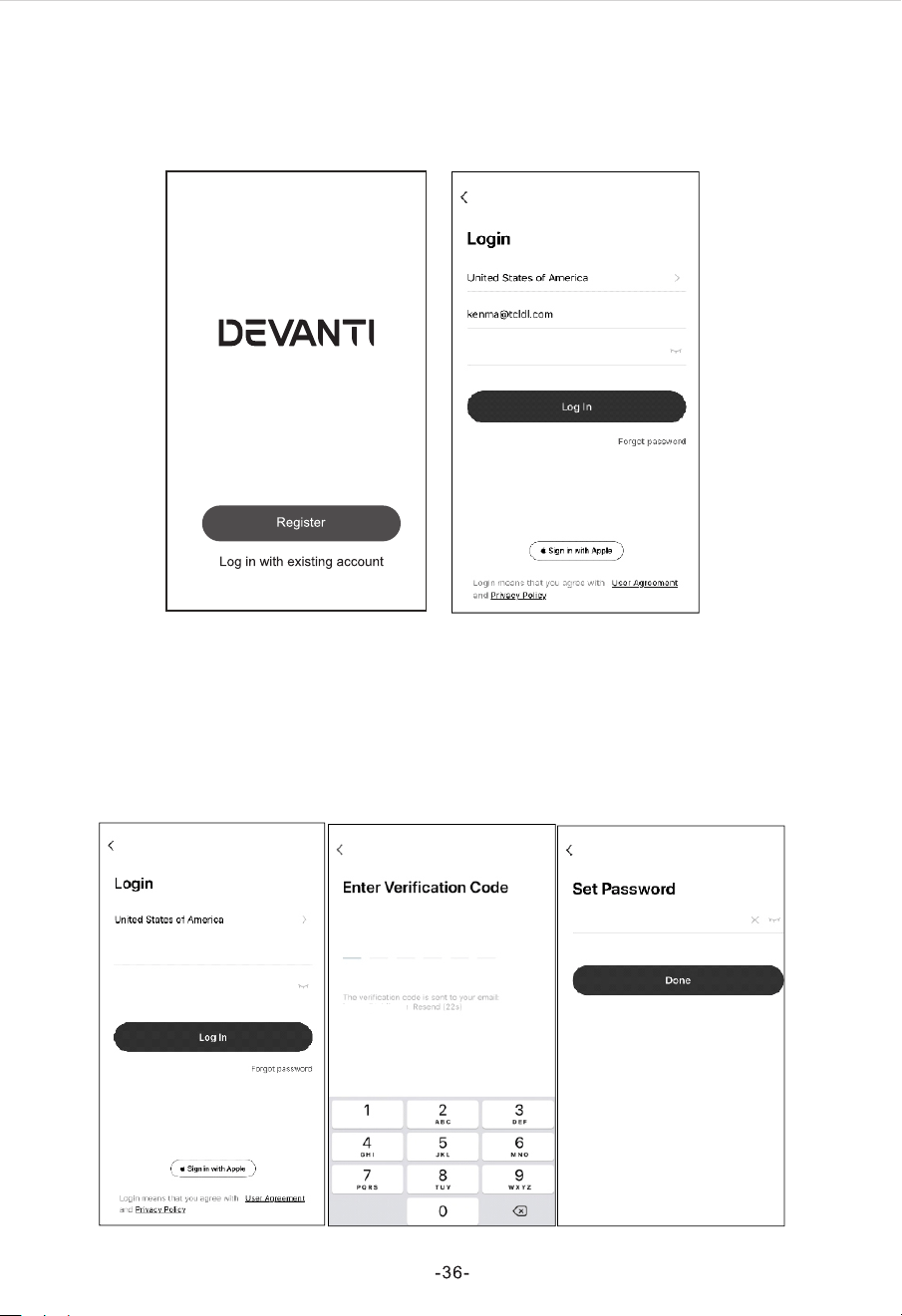
Log in
1.If you already have account, tap "Log in with Existing Account".
2.Enter your registered account and password.
3.Tap "Log in" button.
Log in
Forgot the password
If you forgot the password or you want to reset the password, operate as below:
1.Tap "Forgot password".
2.Enter your account(E-mail address) and tap button "Get verification code".
3.Enter the verification code received by your E-mail.
4.Set the new password and tap button "Done".
xxx xxxxxx@xxx.xx x
●●●●● ●●●
●●●●● ●●●
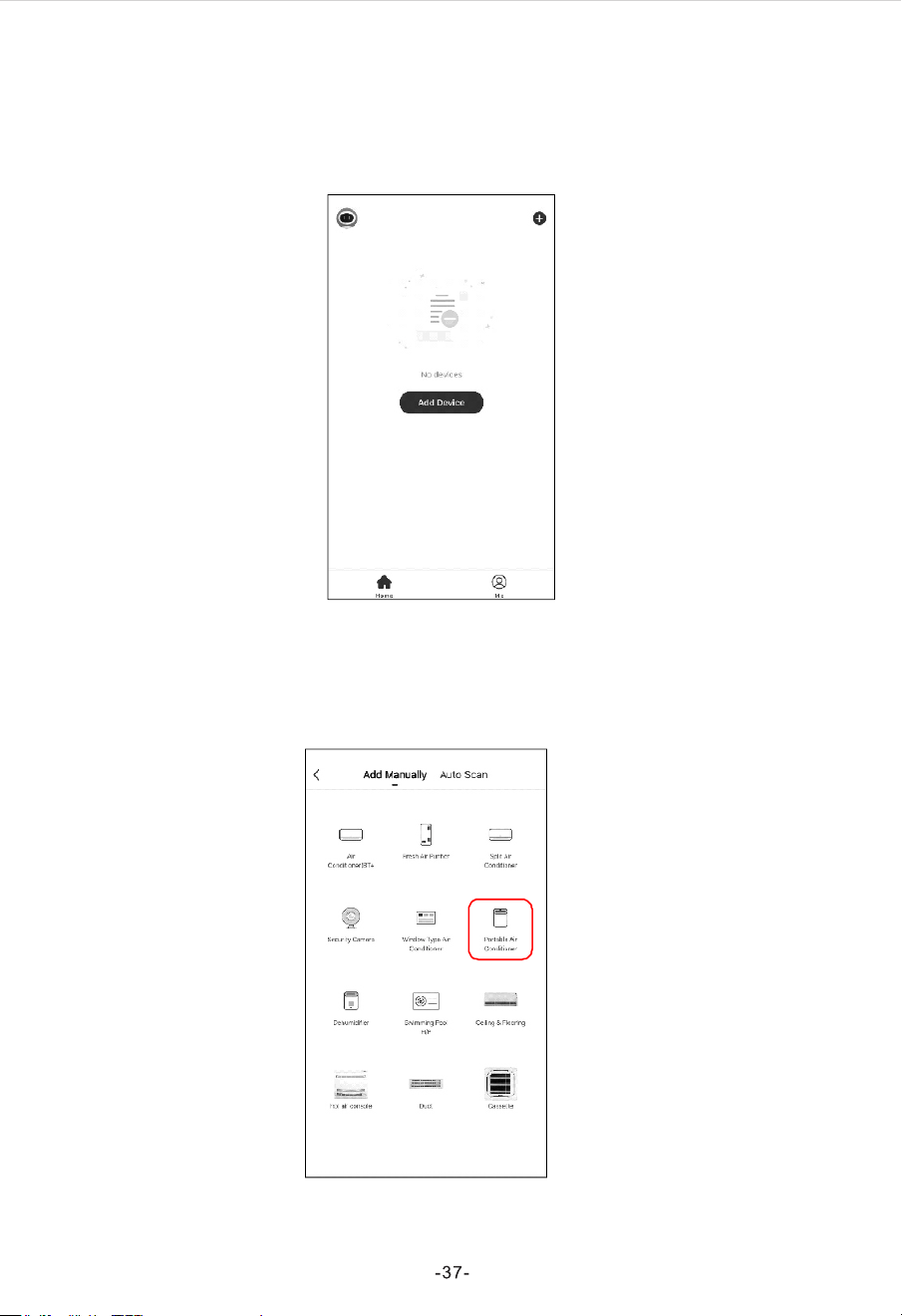
Add device
There are 2 methods to add the device.
1-CF mode
1.1 Click "+" in the upper right corner of the "Home" screen or tap "Add device" on the
room which has no device.
1.2 Tap the "Portable Air Conditioner” logo
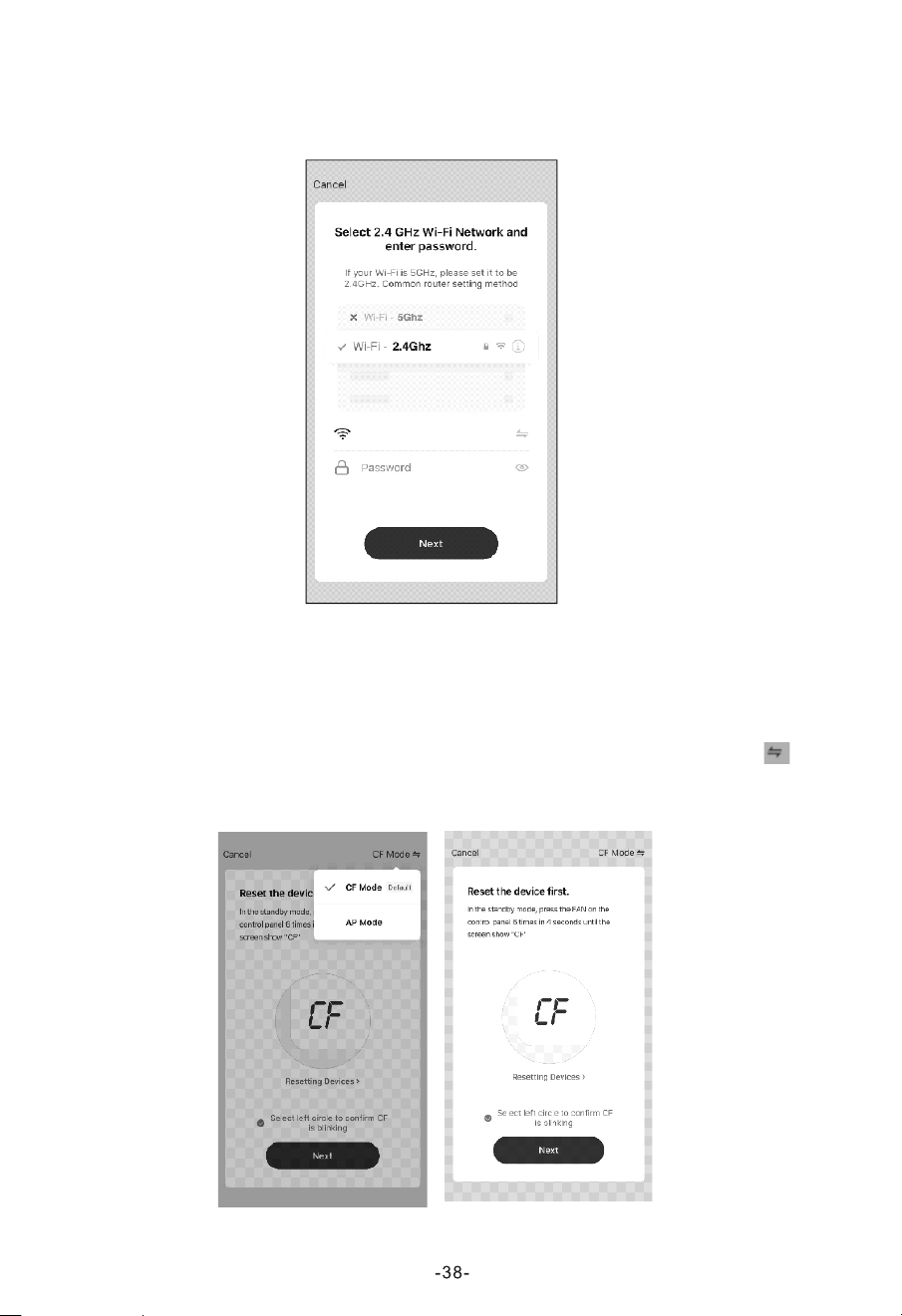
1.3 Input the password of the Wi-Fi which the same as your smart phone connected,
then tap "Next".
xxxx xxxxx
1.4 Power on the appliances, no need to launch the appliances.
Press the “FAN” button on the control panel 6 times within 4 seconds, until the LED
screen show “CF”, which can make Wi-Fi reset, there will be switch between “CF”
and “AP” if press many times.
1.5 Follow the comments on the next screen to reset the Wi-Fi module, Click " " in
the upper right corner and select the "CF Mode" ,then check "Select circle to confirm
the CF is blinking" and tap "Next".
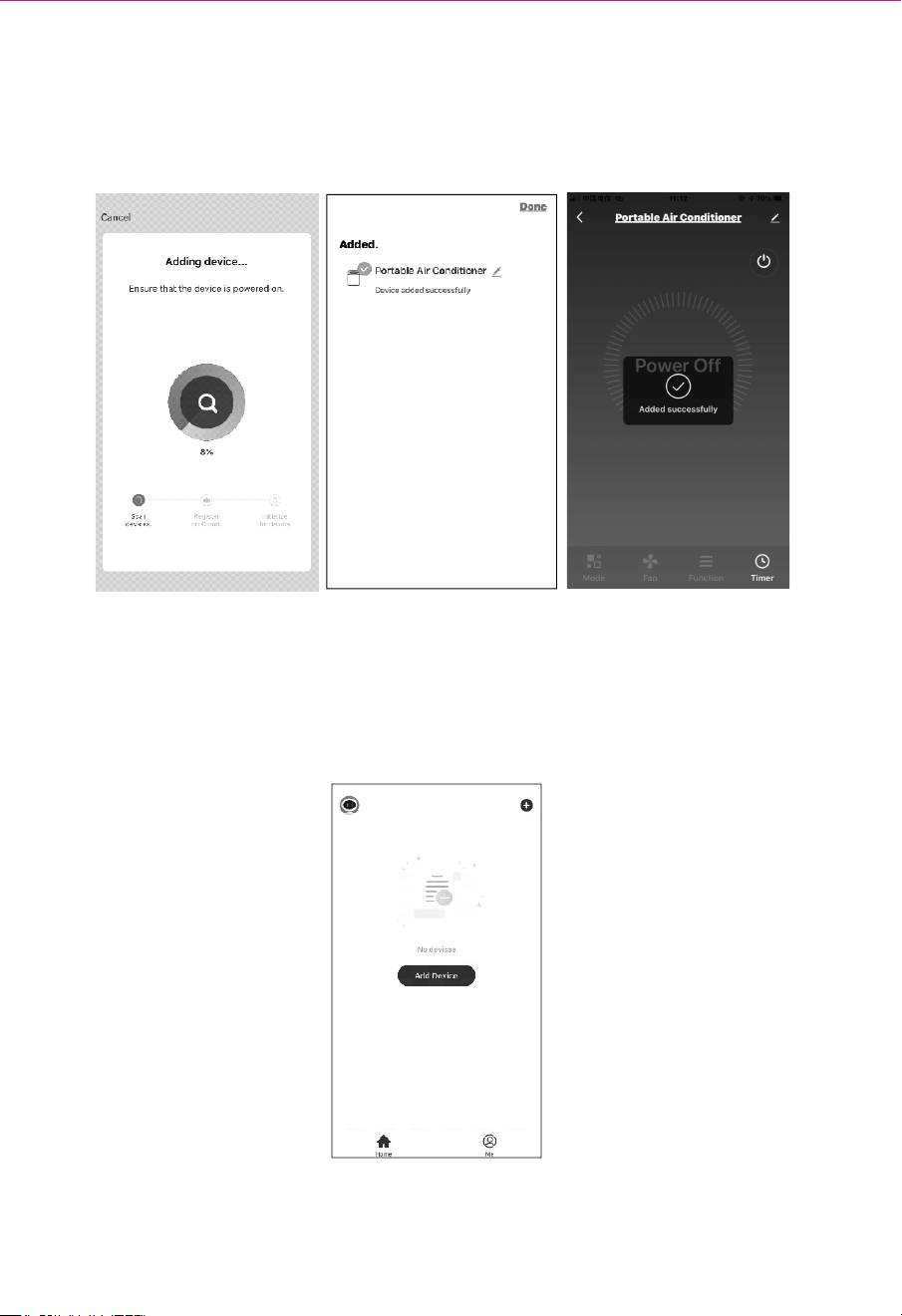
1.6 You can see the percent rate of connecting process, at the same time "PP",
"SA", "AP" shining in turn on the appliances display.
"PP" means "Searching the router"
"SA" means "connected to the router"
"AP" means "connected to the server"
-39-
Add device
2-AP mode
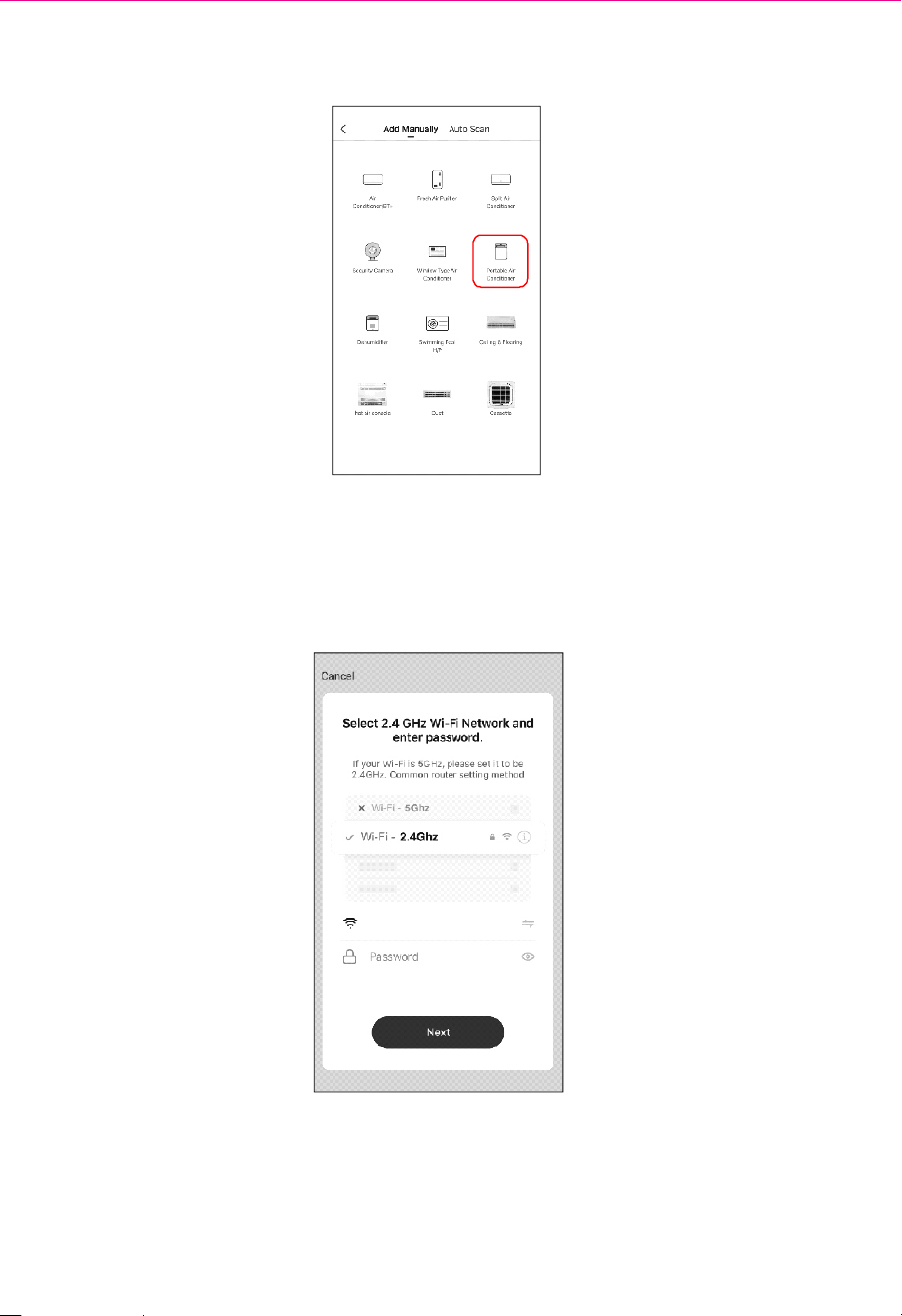
2.1Click "+" in the upper right corner of the "Home" screen or tap "Add device" on the
room which has no device.
-40-
2.2Tap the "Portable Air Conditioner” logo
2.3 Input the password of the Wi-Fi which the same as your smart phone connected,
then tap "Next".
xxxx xxxxx
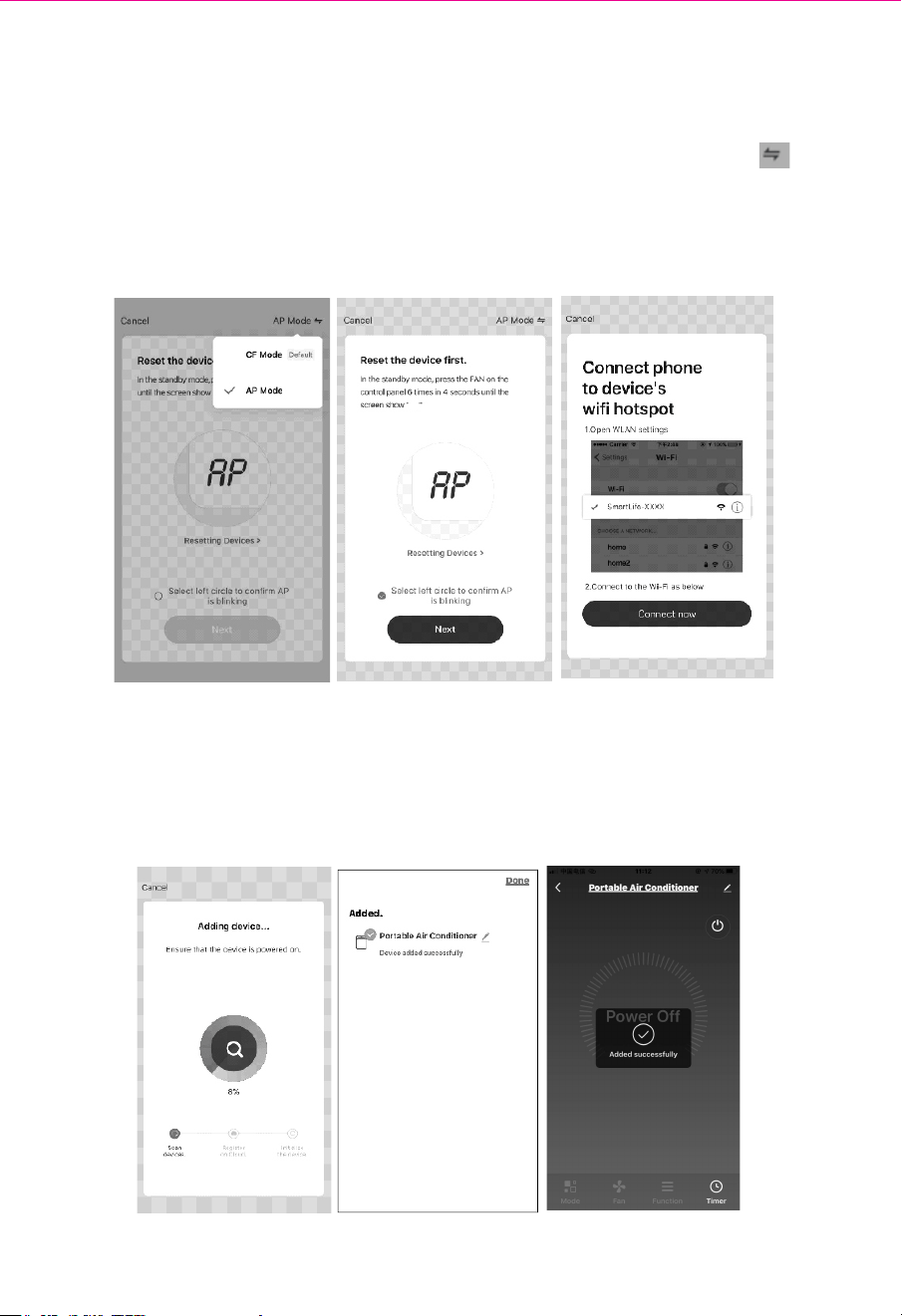
2.4 Power on the appliances, no need to launch the appliances.
Press the “FAN” button on the control panel 6 times within 4 seconds, until the LED
screen show “AP”, which can make Wi-Fi reset, there will be switch between “CF” and
“AP” if press many times.
2.5 Follow the comments on the next screen to reset the Wi-Fi module, Click " " in
the upper right corner and select the "AP Mode" ,then check "Select circle to confirm
the AP is blinking" and tap "Next".
2.6 Select the device as name “Smartlife-XXXX” at the WLAN setting, then back to the
APP interface,The APP will automatically do match
AP
-41-
2.7You can see the percent rate of connecting process, at the same time "PP", "SA",
"AP" shining in turn on the appliances display.
"PP" means "Searching the router"
"SA" means "connected to the router"
"AP" means "connected to the server"
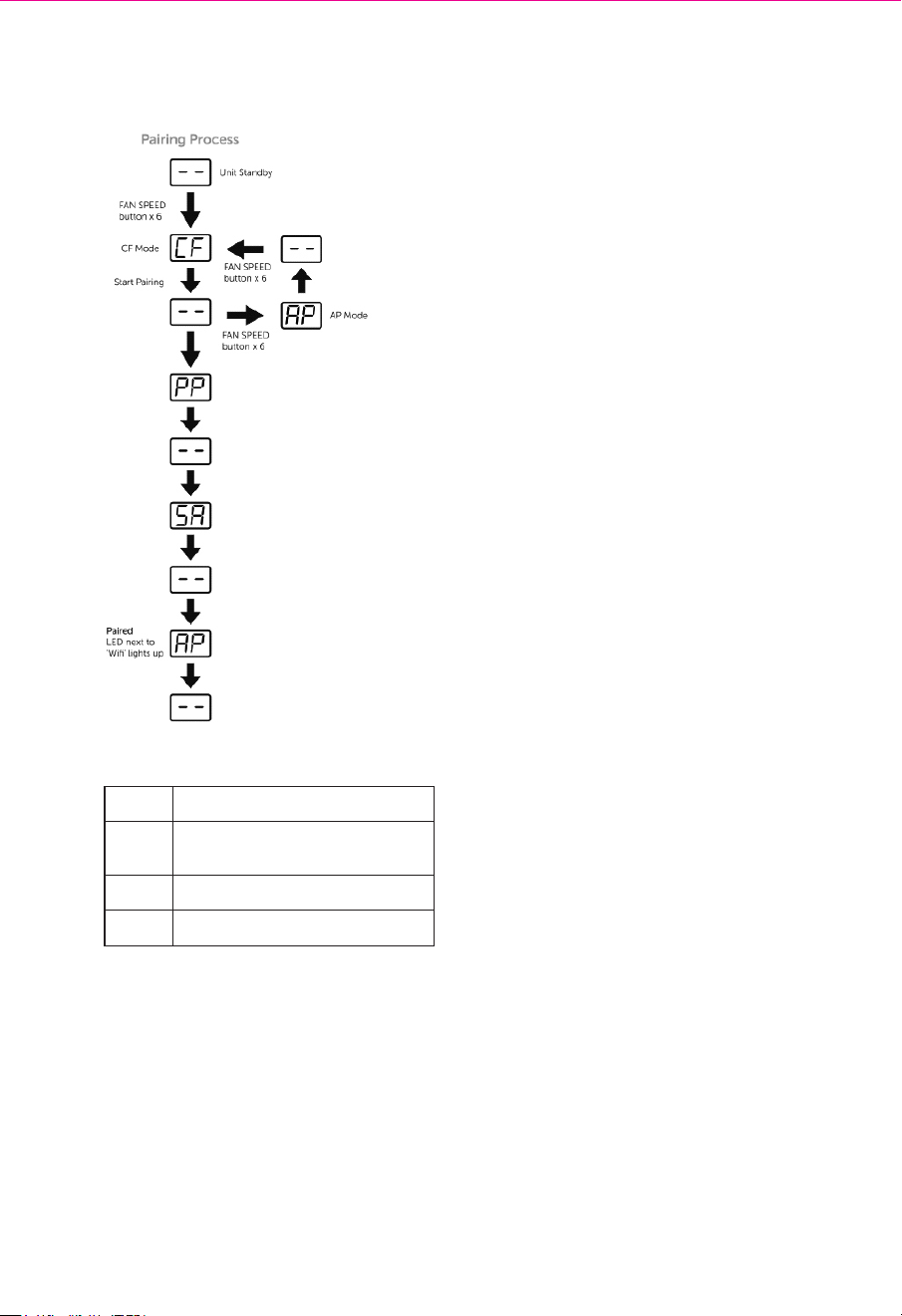
Paring Process
-42-
CF
AP
PP
SA
Waiting pair after reset
1)Hot-spot connect mode
2)Access to the Internet
Searching and try to connect
Connect successful
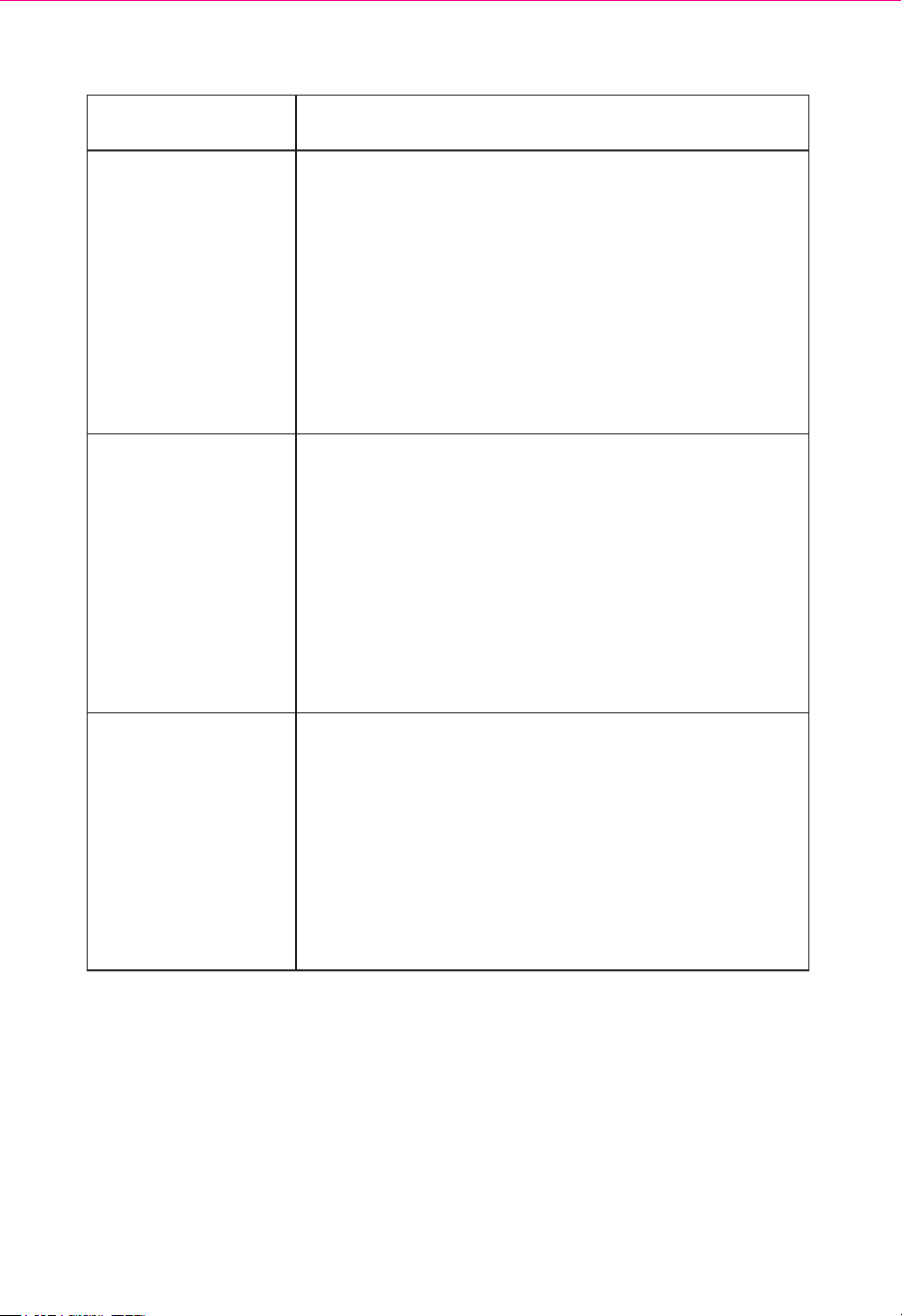
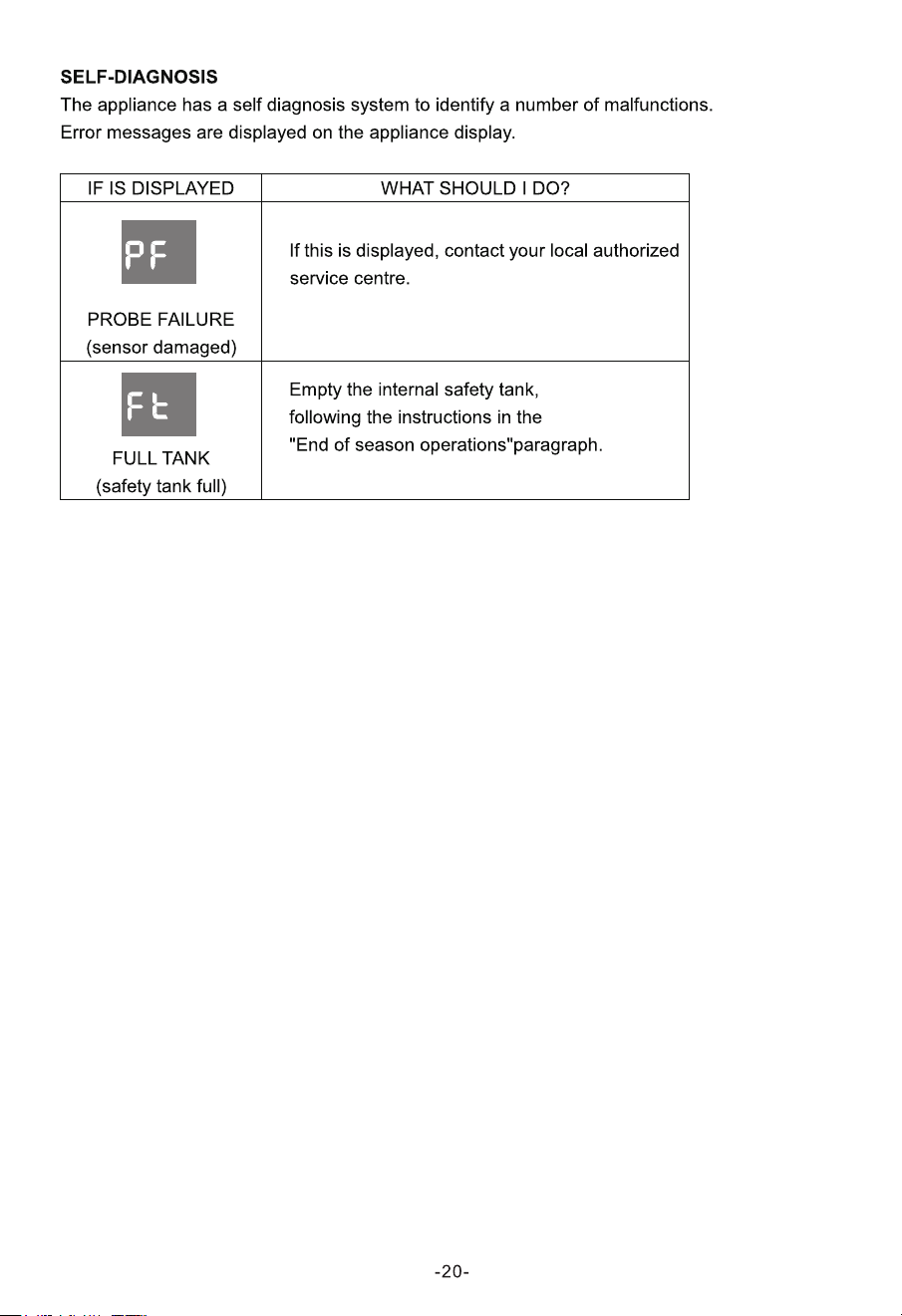
Trouble Shooting
Description Analysis of cause
appliance can't be
configured
successfully
1.Check the mobile connected WLAN router SSID and
password is correct;
2.Check whether there are additional settings of WLAN
router as shown below.
1)Firewall by router itself or by PC
2)MAC address filtering
3)Hidden SSID
4)DHCP server
Reboot WLAN router, mobile device and appliance
(WLAN module) and connect appliance by CF mode
again. Before rebooting, check nobody has already
connected to same appliance.
Mobile can't control
appliance
1.When appliance (WLAN module) is rebooted and app
displays device remove, ignoring this confirmation will
lead to mobile device losing control permission of the
appliance. You will need to connect the appliance by
CF mode again.
2.In case of power failure, mobile device will lose control
permission of appliance for 3 minutes after power
failure. (Notification will now show up on the mobile
device.)
If you cannot control the app (appliance) even after
power restored, you will need to connect the appliance
by CF mode again.
Mobile can't find
appliance
1.App display appliance Device offline. Please check
the following conditions.
1)The appliance has been reconfigured.
2)Appliance out of power.
3)Router out of power.
4)Appliance can't connect to router.
5)Appliance can't connect to network through the router.
6)Mobile device can't connect to network.
2.After adding the device, it disappears in device list .
Hold and slide down to refresh the device list. If it has
no change, shut down the app and start again.
-43-