
i
© 2022 GeoVision, Inc. All rights reserved.
Under the copyright laws, this manual may not be copied, in whole or in part,
without the written consent of GeoVision.
Every effort has been made to ensure that the information in this manual is
accurate. GeoVision, Inc. makes no expressed or implied warranty of any kind
and assumes no responsibility for errors or omissions. No liability is assumed
for incidental or consequential damages arising from the use of the
information or products contained herein. Features and specifications are
subject to change without notice.
GeoVision, Inc.
9F, No. 246, Sec. 1, Neihu Rd.,
Neihu District, Taipei, Taiwan
Tel: +886-2-8797-8377
Fax: +886-2-8797-8335
http://www.geovision.com.tw
Trademarks used in this manual: GeoVision, the GeoVision logo and GV
series products are trademarks of GeoVision, Inc. Windows is the registered
trademark of Microsoft Corporation.
August 2022
Scan the following QR codes for product warranty and technical support
policy:
[Warranty] [Technical Support Policy]

i
Thank you for purchasing our product. Contact your local dealer if you
have any questions or feedback. No part of this manual may be
copied, reproduced, translated, or distributed in any form or by any
means without prior consent in writing from our company.
Disclaimer
CAUTION!
⚫ The default password is intended only for your first login.
We strongly recommend you set a strong password to
ensure account security.
⚫ Strong: contains at least 9 characters comprising all three
elements: letter, special character, digit.
⚫ Weak: contains at least 8 characters from two of the four
types: upper-case letter, lower-case letter, special
character, digit.
⚫ To the maximum extent permitted by applicable law, the product
described, with its hardware, software, firmware, and documents,
is provided on an "as is" basis.
⚫ Best effort has been made to verify the integrity and correctness
of the contents in this manual, but no statement, information, or
recommendation in this manual shall constitute formal guarantee
of any kind, expressed or implied. We shall not be held
responsible for any technical or typographical errors in this
manual. The contents of this manual are subject to change
without prior notice. Update will be added to the new version of
this manual.

ii
⚫ Use of this manual and the product and the subsequent result
shall be entirely on the user's own responsibility. In no event shall
we be liable for any special, consequential, incidental, or indirect
damages, including, among others, damages for loss of business
profits, business interruption, or loss of data or documentation, or
product malfunction or information leakage caused by cyber
attack, hacking or virus in connection with the use of this product.
⚫ Video and audio surveillance can be regulated by laws that vary
from country to country. Check the law in your local region before
using this product for surveillance purposes. We shall not be held
responsible for any consequences resulting from illegal
operations of the device.
⚫ The illustrations in this manual are for reference only and may
vary depending on the version or model. The screenshots in this
manual may have been customized to meet specific
requirements and user preferences. As a result, some of the
examples and functions featured may differ from those displayed
on your monitor.
⚫ This manual is a guide for multiple product models and so it is not
intended for any specific product.
⚫ Due to uncertainties such as physical environment, discrepancy
may exist between the actual values and reference values
provided in this manual. The ultimate right to interpretation
resides in our company.

iii
Safety Symbols
The symbols in the following table may be found in this manual.
Carefully follow the instructions indicated by the symbols to avoid
hazardous situations and use the product properly.
Symbol
Description
WARNING!
Indicates a hazardous situation which, if not
avoided, could result in bodily injury or death.
CAUTION!
Indicates a situation which, if not avoided, could
result in damage, data loss or malfunction to
product.
NOTE!
Indicates useful or supplemental information
about the use of product.

iv
Contents
Disclaimer ............................................................................................. i
Safety Symbols ................................................................................... iii
Contents .............................................................................................. iv
Preface ............................................................................................... viii
Part I Local Operations ....................................................................... 1
1 Before You Begin ............................................................................. 2
1.1 User Login............................................................................................. 2
1.2 Local Operations .................................................................................. 3
2 Initial Configuration ....................................................................... 10
2.1 Preparation ......................................................................................... 10
2.2 Device Login ....................................................................................... 10
2.3 Wizard ................................................................................................. 12
3 Live View ......................................................................................... 15
3.1 Live View Status ................................................................................ 15
3.2 Sequence Operation ......................................................................... 19
3.3 Zoom .................................................................................................... 21
3.4 Image Configuration .......................................................................... 21
3.5 Preview Configuration ....................................................................... 22
4 Channel Configuration .................................................................. 24
4.1 Channel Management ....................................................................... 24
4.2 OSD Configuration ............................................................................ 36
4.3 Image Configuration .......................................................................... 38
4.4 Privacy Mask Configuration ............................................................. 44
5 PTZ Control ..................................................................................... 46
5.1 PTZ Control Window and PTZ Management Window ................. 46

v
5.2 Setting and Calling a Preset ............................................................ 47
5.3 Setting a Preset Patrol ...................................................................... 49
5.4 Setting a Recorded Patrol ................................................................ 50
5.5 Setting Auto Guard ............................................................................ 51
6 Recording and Snapshot ............................................................... 52
6.1 Encoding Settings .............................................................................. 52
6.2 Draw or Edit a Schedule ................................................................... 56
6.3 Scheduled Recording and Snapshot .............................................. 58
6.4 Motion Detection Recording and Snapshot ................................... 58
6.5 Alarm Triggered Recording and Snapshot .................................... 61
6.6 Manual Recording and Snapshot .................................................... 63
6.7 Holiday Recording and Snapshot .................................................... 63
7 Playback .......................................................................................... 66
7.1 Instant Playback ................................................................................. 66
7.2 Playback Toolbar ............................................................................... 67
7.3 Playback by Camera and Date ........................................................ 69
7.4 Playback in Corridor Mode ............................................................... 70
7.5 Playback by Tag ................................................................................ 70
7.6 Playback by Motion Detection ......................................................... 71
7.7 Playback by Video Loss .................................................................... 72
7.8 Playback by Smart Search ............................................................... 72
7.9 Playback by External File ................................................................. 73
7.10 Playback by Image .......................................................................... 73
7.11 File Management ............................................................................. 74
8 Backup ............................................................................................. 76
8.1 Recording Backup ............................................................................. 76
8.2 Image Backup .................................................................................... 79
9 Alarm ............................................................................................... 80
9.1 Alarm Input and Output ..................................................................... 80

vi
9.2 Motion Detection ................................................................................ 82
9.3 Tampering Detection ......................................................................... 84
9.4 Human Body Detection ..................................................................... 85
9.5 Video Loss .......................................................................................... 86
9.6 Alert ...................................................................................................... 86
9.7 Buzzer ................................................................................................. 89
9.8 People Present Alarm ....................................................................... 89
9.9 One-Key Disarming ........................................................................... 90
9.10 Alarm-Triggered Actions ................................................................. 90
9.11 Manual Alarm ................................................................................... 91
10 VCA ................................................................................................ 92
10.1 VCA Configuration ........................................................................... 92
11 Network Configuration .............................................................. 105
11.1 Basic Configuration ....................................................................... 105
11.2 Platform Configuration .................................................................. 110
11.3 Advanced Configuration ............................................................... 111
12 Disk Configuration ..................................................................... 118
12.1 Disk Management.......................................................................... 118
12.2 Array Configuration ....................................................................... 119
12.3 Disk Group ...................................................................................... 123
12.4 Space Allocation ............................................................................ 124
12.5 Advanced Configuration ............................................................... 125
13 System Configuration ................................................................ 126
13.1 Basic Configuration ....................................................................... 126
13.2 Time Configuration ........................................................................ 127
13.3 Serial Configuration ....................................................................... 128
13.4 User Configuration ........................................................................ 128
13.5 Security Configuration .................................................................. 130
13.6 Hot Spare Configuration ............................................................... 133

vii
14 System Maintenance .................................................................. 134
14.1 System Information ....................................................................... 134
14.2 Network Information ...................................................................... 136
14.3 Log Query ....................................................................................... 138
14.4 Import/Export .................................................................................. 140
14.5 System Restoration ....................................................................... 142
14.6 Automatic Maintenance ................................................................ 142
14.7 System Upgrade ............................................................................ 143
14.8 Hard Disk Detection ...................................................................... 144
14.9 One-Click Collect ........................................................................... 145
15 Shutdown .................................................................................... 146
Part II Web-Based Operations........................................................ 147
1 Before You Begin ......................................................................... 147
2 Login .............................................................................................. 148
3 Live View ....................................................................................... 149
4 Playback ........................................................................................ 151
5 Configuration ................................................................................ 153
Appendix A Typical Applications .................................................. 154
Typical Application 1 .............................................................................. 154
Typical Application 2 .............................................................................. 155
Appendix B Acronyms .................................................................... 156
Appendix C FAQs ............................................................................ 157

viii
Preface
This manual describes how to use your NVR locally or on the Web
interface.
In this manual, the terms IP camera and IPC refer to the same thing:
network camera, which requires a connection to the network. And the
IP device mentioned in this manual refers to an IP camera (also
known as network camera).

1
Part I Local Operations
An NVR supports two types of operations: local operations and web-
based remote operations. With local operations you connect a monitor
and a mouse to the NVR and use the mouse to operate. If your NVR
has buttons on the front panel or is delivered with a remote control,
you may also control your NVR by pressing the front panel buttons or
using the remote control.
The NVR has an embedded web server and allows web-based
operations. To do this, you need a PC that has a network connection
to the NVR and is installed with a web browser. You just need to
navigate to the NVR's IP address and log in to the Web interface like
you log in to the system locally.
This section describes local operations.
2
1 Before You Begin
Please be aware that the parameters that are grayed out on the
system user interface (UI) cannot be modified. The parameters and
values displayed may vary with device model, and the figures in this
manual are for illustration purpose only.
1.1 User Login
Use the default username admin and password 123456 for your first
login.
CAUTION!
The default password is intended only for the first login and
should be changed to a strong one containing at least nine
characters including letters, digits and special characters
after your first login to ensure security.
1. Right-click anywhere in the window and then choose Menu. The
login dialog box is displayed.
2. Select the username from the drop-down list, enter your password,
and then click Login.
3
1.2
Local Operations
You can refer to 2. Initial Configuration and complete a quick
configuration.
NOTE!
Unless otherwise specified, all operations described in this
manual are performed with a mouse by the right hand. See
1.2.2 Mouse Operations for details.
1.2.1 Overview
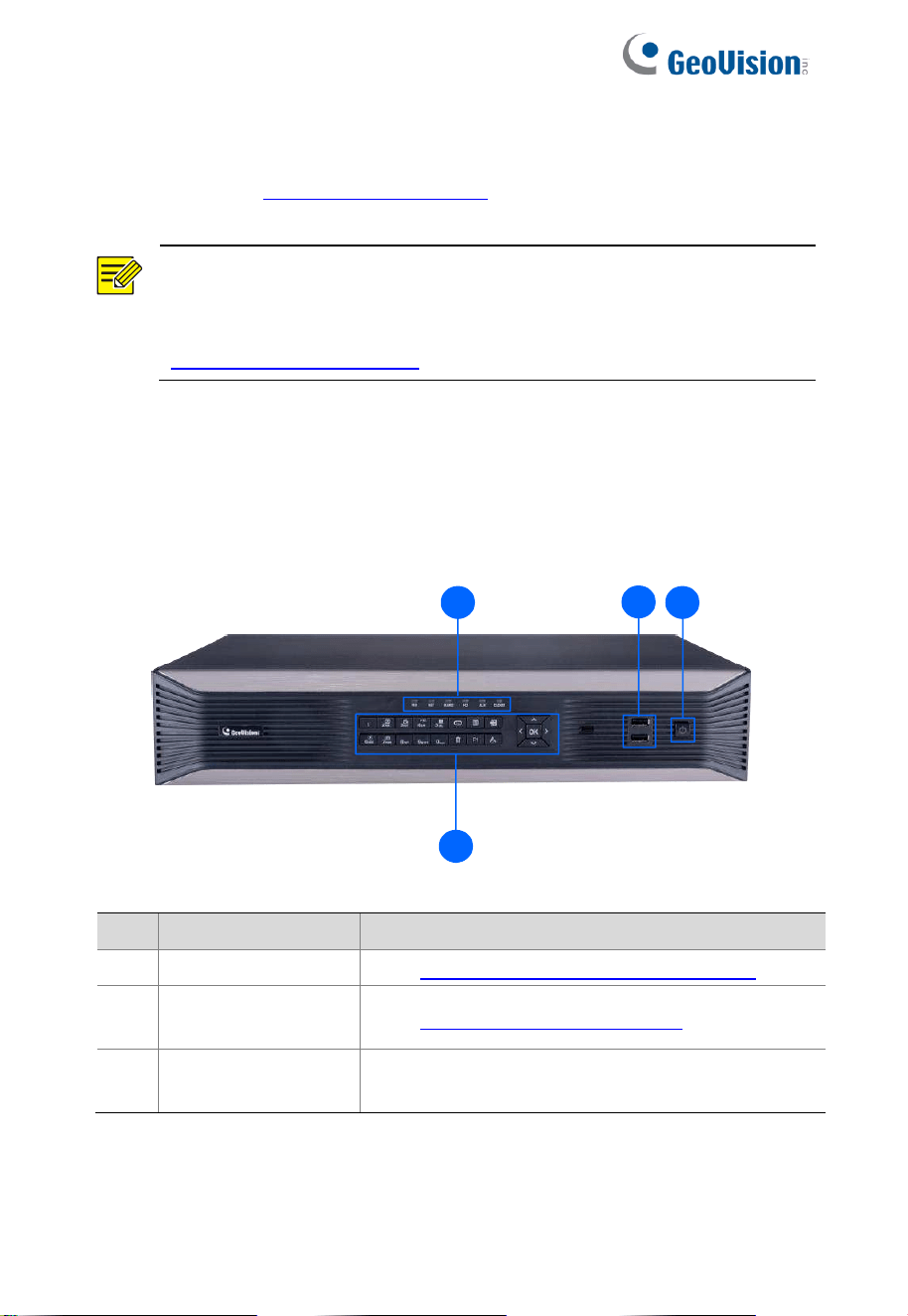
1.2.1.1 GV-SNVR3203 / GV-SNVR6403 Front View
1
2
3
4
No.
Name
Description
1
LED Indicators
See 1.2.4 Front Panel LED Indicators.
2
Front Panel
Buttons
See 1.2.3 Front Panel Buttons.
3
USB 2.0 Ports
Connects to a keyboard, mouse, or USB
flash drive.

4
4
Power Off Button
To shut down the NVR, press this button
and hold for at least 3 seconds untill a
message appears. Click Yes.
Note:
1. The shutdown operation can be performed only when you have
logged in to the system.
2. To turn on the NVR, switch on the power button at the rear
panel. See 1.2.1.2 GV-SNVR3203 / GV-SNVR6403 Rear View.
1.2.1.2 GV-SNVR3203 / GV-SNVR6403 Rear View
2
4
6
3
5
7
8
9
11
12
13
10
1
No.
Name
Description
1
Grounding Screw
Fixes the NVR to the ground.
2
Network Ports
Connects to the network.
3
Audio Line Out Port
Connects to a speaker.
4
Audio Line In Port
Connects to a microphone.
5
HDMI Output Ports
Connects to HD TVs.
6
eSATA Port
Connects to external storage devices.
7
VGA Output
Connects to a VGA monitor.

5
No.
Name
Description
8
USB 3.0 Port
Connects to a keyboard, mouse, or
USB flash drive.
9
RS232 Port
Not functional.
10
RS485 Ports
Connects to a PTZ camera.
11
Alarm In/Out Ports
Connects to alarm input/output devices.
12
Power Input
Connects to power supply.
13
Power Button
Turns the system on or off.
Note:
1. HDMI output ports do not support for audio output on the
connected monitors.
2. One 4K video output (HDMI) and two 1080p video outputs
(HDMI / VGA) are supported.

6
1.2.2 Mouse Operations
Table 1–1 Mouse Operations
Name
Action
Description
Left
button
Click
⚫ Select or confirm an item.
⚫ Select to edit digits, symbols, upper-case
or lower-case letters in a field.
Double-
click
Enter or exit full screen mode in live view.
Drag
Draw or move a rectangle on the screen, for
example, a motion detection area.
Right
button
Click
⚫ Show the shortcut menu.
⚫ Exit zoom.
⚫ Exit the current window when Cancel or
Exit is displayed.
Wheel
Scroll up
or down
Scroll up or down a list or a window; or zoom
in or out on a playback progress bar.
Long
press
Restore to lowest resolution.

7
1.2.3 Front Panel Buttons
The front panel buttons may vary with NVR model.
Table 1–2 Front Panel Buttons 1
Button
Description
Display the main menu.
Switch to the next tab on the screen or switch
the input method.
Auxiliary function button.
Exit the current window.
⚫ The 4 arrows: Switch windows or menu
items; or control rotation directions of a
PTZ camera when the PTZ toolbar is
closed. PTZ stands for pan, tilt, and zoom.
⚫ OK button: Confirm an operation, or
start/pause the playback.

8
Table 1–3 Front Panel Buttons 2
Button
Description
Enter 1.
Enter 2, A, B, or C; or start instant playback.
Enter 3, D, E, or F; or start manual recording.
Enter 4, G, H, or I; or enter the PTZ control
interface.
Enter 5, J, K, or L; or switch the screen layout in
live view or playback mode.
Enter 6, M, N, or O; or enable or disable arming.
Enter 7, P, Q, R, or S; or take a snapshot.
Enter 8, T, U, or V.
Enter 9, W, X, Y, or Z.
Enter 0 or a space.
Delete.
Switch the input method.
Auxiliary function button.

9
Button
Description
Exit the current window.
1.2.4 Front Panel LED Indicators
Table 1–4 Front Panel LED Indicators
LED
Description
RUN
Steady on: Normal.
Blinking: Starting up.
NET
Steady on: Connected to network.
GUARD
Steady on: Arming is enabled.
HD
Blinking: Reading or writing data.
Steady on: No disk; disk abnormal.
ALM
Steady on: Device alarm occurred.
CLOUD
Not functional.

10
2 Initial Configuration
2.1 Preparation
⚫ Make sure that at least one monitor is correctly connected to the
VGA or HDMI interface on the rear panel of the NVR.
⚫ Verify that the hard disk(s) are correctly installed. For detailed
steps to install a hard disk, please refer to the quick guide
shipped with your NVR.
2.2 Device Login
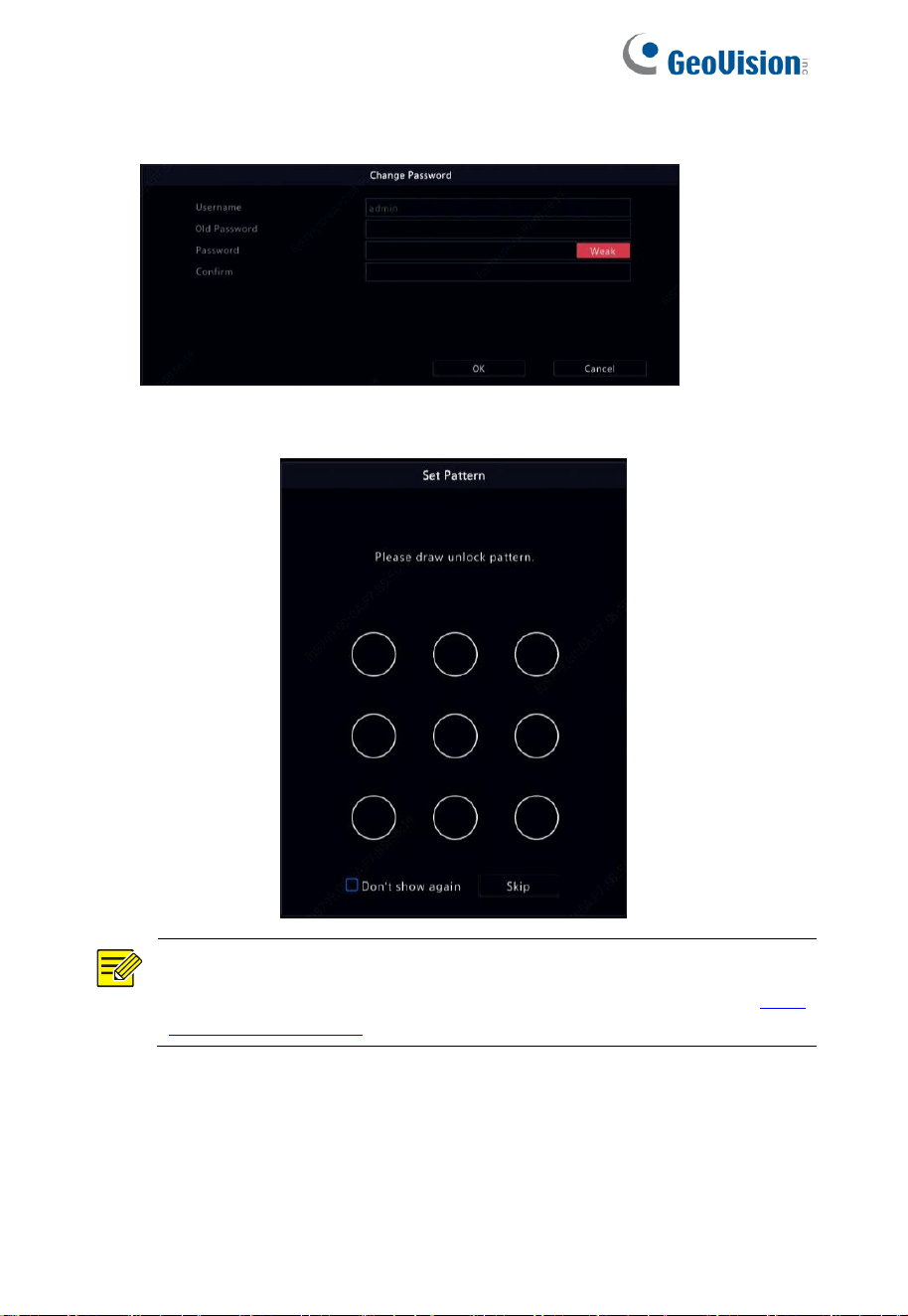
The login page appears after the NVR starts up.
1. Enter the default admin password 123456, click Login, and then
click Yes to change the password.

12
2.3 Wizard
The wizard can guide you to complete the most basic setup. The
following page appears after your login:
1. Enable or disable the wizard as needed and then click Next. You
may also click
.
2. Select the time zone, date and time format, set the system time,
and then click Next.

13
3. Complete network configuration, and then click Next.
4. Select the devices to add in the discovered device list, click Add,
and then click Yes to complete configuration.

14
NOTE!
To add devices through PoE ports, see Option 3 in
4.1.1
Adding an IP Device for details.
The devices added can get online and start live view only if
the device password is default; if not, you need to enter the
correct device password.
If the desired device is not in the device list, you may add it
in a preview window or under Camera > Camera > Camera
(see
4.1.1 Adding an IP Device).

15
3 Live View
3.1 Live View Status
The following icons are used to indicate alarms, recording status, and
audio status in a live view window.
Table 3–1 Live View Window Icons
Icon
Description
Tampering alarm
Motion detection alarm
Recording
Two-way audio
3.1.1 Window Toolbar
Icon
Description
Available for PTZ cameras only. Click to display the
PTZ control window.
Set mount mode and display mode for fisheye camera.
This icon appears only for fisheye cameras.
Record live video in the window to the hard disk.
Click
to stop recording.
Click to play video recorded during the past 5 minutes
and 30 seconds.
Zoom in on an area of interest.
Click to edit image settings.
Click to set OSD.

16
Icon
Description
Click to take a snapshot. The window borders will flash
white.
You may view and back up snapshots under Backup >
Image.
Rest your mouse pointer on the icon to view bitrate
info; click this button to view the camera ID and IP
address or to change the username and password
used to connect the camera.
Start two-way audio with the camera. Click to stop.
The sound volume is adjustable.
Note: Correct audio input and output connections are
required.
Click to turn on audio. Click to turn off audio. The
sound volume is adjustable.
Note: When you turn on audio in the current window,
audio of the previous window will be turned off.
3.1.2 Screen Toolbar
Icon
Description
Click to access the main menu.
Select the screen layout.
/
Previous or next screen.
/
Start or stop sequence.
Playback.
Rest the mouse pointer on this icon to view
encoding information including frame rate, bit
rate, and resolution; or click to view camera
status.

17
Icon
Description
Click to view device alarm status and camera
status.
Rest the mouse pointer on it to view NIC card
information. Or click this icon to edit basic
network settings.
Rest the mouse pointer on it to view the date. Or
click this icon to edit time settings.
Click to automatically hide the toolbar, or click
to lock.
3.1.3 Shortcut Menu
A shortcut menu as shown below appears when you right-click in a
window. Some menu items are described in
Shortcut Menu
Description.

18
Table 3–2 Shortcut Menu
Table 3–3 Shortcut Menu Description
Menu
Description
Menu
Access the main menu.
Most of operations described in this manual are
performed from the main menu; for example, click
Camera > Camera (or click Menu only to enter the
same page).
Common
Menu
Quick access to Camera, Net Config, and Backup.
Single
Window/Multi-
Window
Display different live view layout.
Corridor
Choose a corridor mode. Corridor mode can also be
set in the Preview Windows drop-down list under
System > Preview.
To display images in corridor mode, the camera
must be installed correctly (rotated 90° clockwise or
counterclockwise), and then use the Image
Rotation parameter under Camera > Image to
rotate images accordingly.
Main/Aux
Monitor
Switch live video from different video output.

19
Menu
Description
Playback
Play the current day's recording for the camera
linked to the current window.
Preview Mode
Switch between Normal and Smart.
The default is Normal mode.
VCA Search
Search for data of each VCA function.
Output Mode
Choose a video output mode, including standard,
soft, bright, and vivid.
Manual
Manual settings include manual recording, manual
snapshot, manual alarm, and buzzer.
3.2 Sequence Operation
The sequence operation requires you to configure the screen layout,
windows, linked cameras, and the sequence interval.
This example describes how to configure sequence for five cameras
based on a 4-window screen layout.
1. Click 4 Windows on the screen toolbar.
NOTE!
The number of windows that can be displayed may vary with
NVR model.

20
2. Click Start Sequence on the screen toolbar. Sequence starts by
displaying four windows on the first screen and then the fifth on
the second at the set interval.
NOTE!
⚫ The default sequence interval is eight seconds and can be
set under System > Preview.
⚫ You may drag video to the desired window on the screen.

21
3.3 Zoom
Zoom in on an area of images in a window for details.
1. Click the window and then click
on the window toolbar.
2. Move your mouse to the area you want to zoom in, then use your
scroll wheel to zoom in and out.
3. Right click to exit zoom.
3.4 Image Configuration
Adjust image settings to get optimal images from a camera.
1. Click the window and then click
on the window toolbar.
2. Select a mode from the drop-down list according to the
surveillance scenario, and then adjust contrast, hue, saturation
and brightness as needed. The settings available may vary with
device model.
3. Click OK to save the settings and exit.
22
3.5 Preview Configuration
Normally, live view (video) is available after you complete the basic
setup by following the wizard. You can click System > Preview and
edit preview setting as needed, including video output, image
resolution, default layout, and sequence interval. The video output
and the number of windows supported may vary with NVR model.
NOTE!
Pressing and holding the scroll wheel for at least 3 seconds
will restore the default resolution.
3.5.1 Preview Configuration
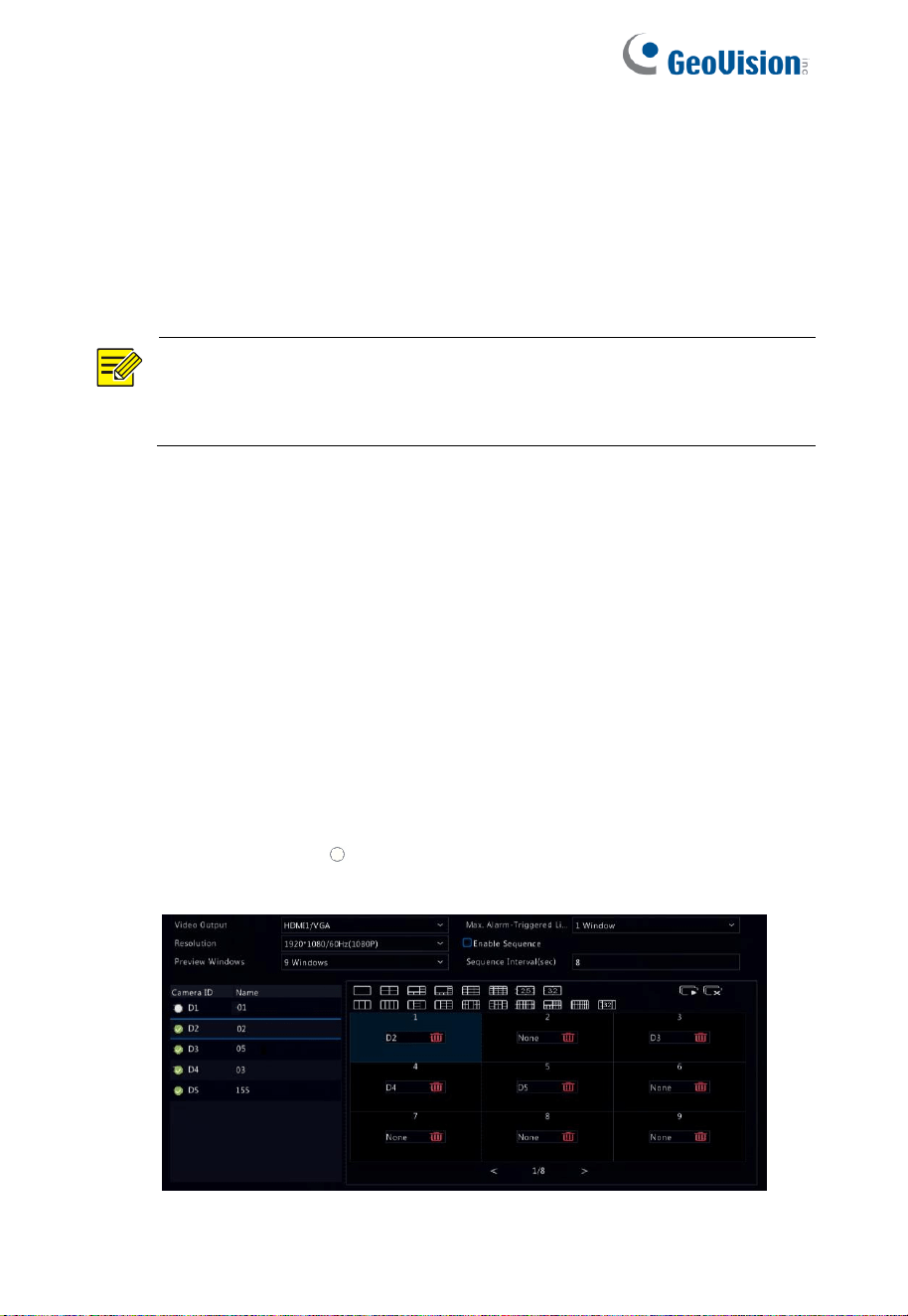
Each preview window (window for short) links to a camera. By default,
window 1 links to camera D1, window 2 links to camera D2, and so
on. You may want to change the link to display live video from a
camera in another specified window. The following example describes
how to link window 1 to camera D2 and link window 2 to camera D1.
Step 1: Click window 1 on the right, and then click D2 under Camera
on the left. Now D2 appears in window 1, and None appears in
window 2. Meanwhile,
is cleared for camera D1, meaning D1 is not
linked to any window.

23
Step 2: Click window 2 on the right, and then click D1 under Camera
on the left. Now D1 appears in window 2. Click Apply to save the
settings.
3.5.2 Advanced Configuration
Click the Advanced tab and then select Sub Stream First so the
NVR uses the sub stream to establish live video from multiple
cameras simultaneously. This function is disabled by default.
24
4 Channel Configuration
4.1 Channel Management
This chapter describes how to add and manage IP devices in your
NVR. The IP devices mentioned in this manual mainly refer to IP
camera (or network camera). Before you start, make sure the IP
devices are connected to your NVR via network.
CAUTION!
An IP device should be connected to one NVR only. An IP
device managed by multiple NVRs may cause unwanted
issues.
4.1.1 Adding an IP Device
This section provides multiple options to add an IP device. Choose
one as appropriate.
Option 1
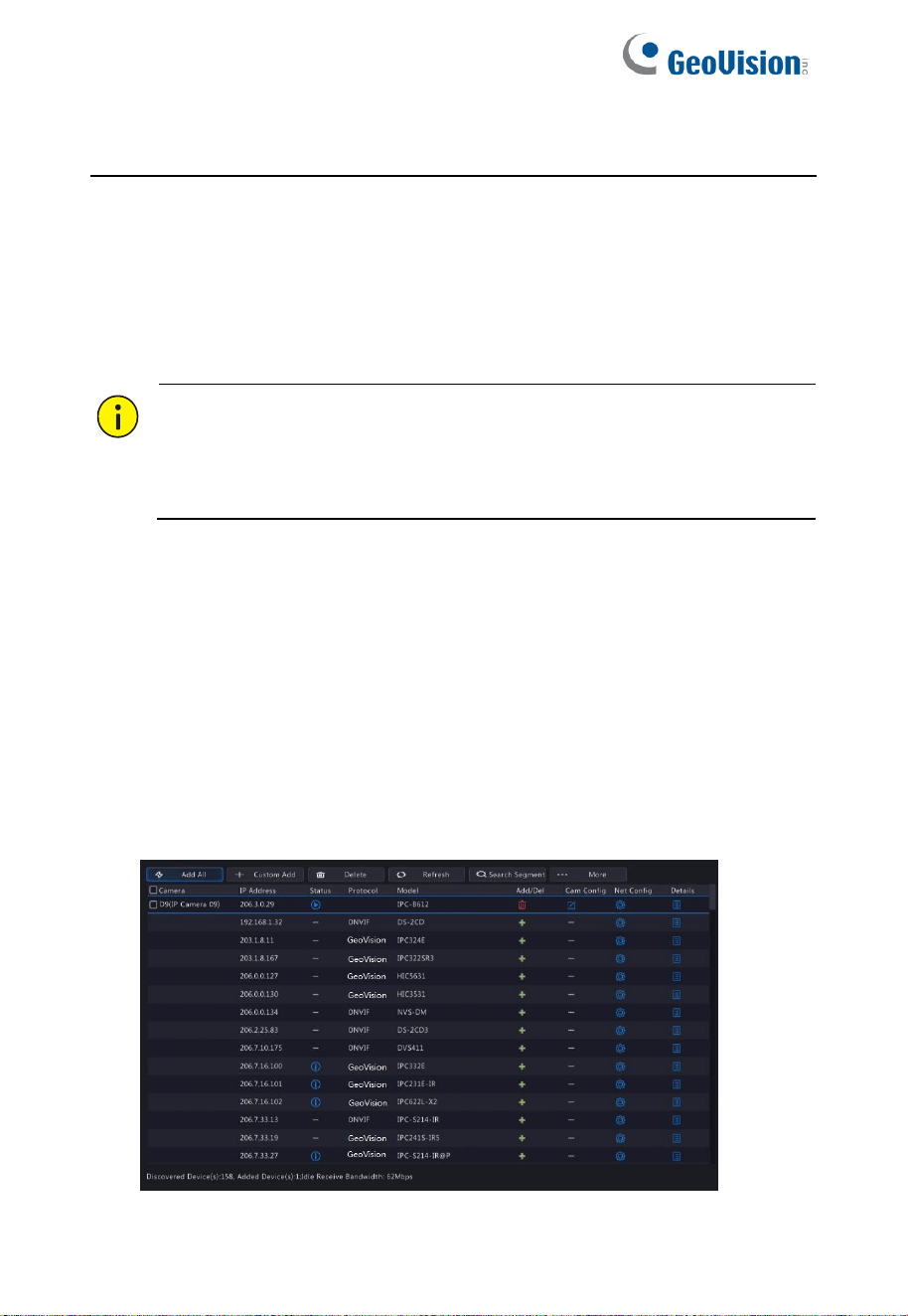
1. Click Camera > Camera > Camera. The system automatically
searches for IP devices and lists the discovered.

25
2. (Optional) To search a specified network segment, click Search
Segment and then set the address range.
3. You may choose one of the following ways to add an IP device:
⚫ Click Add All to add all the discovered IP devices allowed
(depending on channels supported by the NVR).
⚫ Click Custom Add. In the window displayed, enter the IP
address and complete other settings, and then click Add.
You may also click Search Segment and add discovered
cameras in the list.
⚫ Click
Click
to add the camera.
Option 2
1. Click
in a window.
2. Select the desired IP device and then click OK.
Option 3
Use this option to add an IP device that is connected to a different
router, for example, when the NVR and the IP device are connected
across the Internet.
NOTE!
First you need to enable port mapping at Setup > Port > Port
Mapping on the IP device's Web interface.
1. Click Camera > Camera, click Custom Add.
2. Choose an option:

26
⚫ By IP
A. On the IP device's Web interface, go to Setup > Port >
Port Mapping, find the external IP (public IP) and
external port number.
B. On the NVR: Select a protocol, enter the above-
mentioned IP address and port number. Enter the
username and password.
C. Click OK.
⚫ By MyDDNS
A. On the IP device's Web interface, go to Setup >
Network > DDNS, enable DDNS, select MyDDNS, set
a domain name and get the server address.
NOTE!
⚫ After setting the domain name, check that you can use the
device address to access the IP device's Web interface.
⚫ Make sure the MyDDNS server and the NVR are
connected (ping the MyDDNS server from the NVR).
B. On the NVR: Select a protocol, enter the above-
mentioned server address, domain name, username
and password.
C. Click OK.

27
⚫ By a domain name
A. On the IP device's Web interface, go to Setup >
Network > DDNS, enable DDNS, select DynDNS or
NO-IP, enter the domain name that you have signed up
on the DNS website, enter the username and password,
and then click Save.
B. On the NVR: Select a protocol, enter the domain name
mentioned above, enter the username and password.
The port is the external port of the IP device.
C. Click OK.
NOTE!
⚫ If Custom is selected for Protocol, the port is the mapped
external RTSP port of the IP device.
⚫ Do not add an IP device to an NVR using different
methods (e.g., IP and MyDDNS) at the same time.
⚫ When an IP device is added by MyDDNS, domain name
(NO-IP or DynDNS), or IP (public IP + public port) and it is
not connected to the same router as the NVR, alarm is
configurable, but alarm push is not available.
Option 4
Use this option only when the IP device to add supports the standard
RTSP, and all you need from the IP device are just view live and
playback. IP devices added in this way cannot be configured from the
NVR.
1. Click Camera > Camera.
2. Click Custom Add.

28
3. Click to select a camera in the list, select Custom from the
Protocol drop-down list, and then click the Protocol button in the
lower left corner.
4. In the Protocol window, name the protocol, enter the RTSP port
number, select a transmission protocol, input the resource paths,
and then click Apply.

29
NOTE!
Contact the camera manufacturer for resource paths.
5. Edit settings in the Add/Modify window as needed, including the
IP address, username and password, and then click Add. Check
status in the camera list.
4.1.2 Managing an IP Device
Manage IP devices under Camera > Camera > Camera.
⚫ Click
to edit settings including the protocol, IP address,
port number, username and password. The IP Address field
displays the IP address that the current channel links to, and
you may change the address so the channel links to another
device. The username and password must be consistent with
that of the IP camera.
⚫ Click to delete an IP device, or select multiple IP devices
and then click Delete.
⚫ Click to change the IP address of an IP camera and the
default gateway.

30
4.1.3 Sort Cameras
Sort cameras to display in the desired order.
NOTE!
⚫ This chapter describes how to sort cameras on an NVR
with more than 32 channels. For NVRs with 32 channels
or less, you can sort cameras by dragging the mouse.
For example, to switch channel 1 with channel 4, click
,
and choose Sort Camera, and then follow the steps below:
1. In the left list, select the check box for channel 1, and then click
. Channel 1 now appears in the right list. Perform the same
operations to channel 4.
2. In the right list, select channel 4 and then click
. Now channel
4 appears at the previous line of channel 1 in the list. Perform the
same operations to channel 1, so channel 1 appears at the
previous line of channel 4 in the list.
3. Click Apply to save the setting, and then click Yes.
31
NOTE!
⚫ To move a channel left or right, select the check box first;
otherwise, the buttons are grayed.
⚫ To move a channel up or down, click the channel first;
otherwise, the buttons are grayed.
⚫ A channel will be inserted to the first blank line in the left
list unless you have specified another line in the list by
selecting the corresponding check box.
⚫ Save cannot be clicked when the right list is not empty.
You need to clear the list first.
4.1.4 Batch Edit Password
If the password you used to add the cameras is incorrect, use this
function to batch edit the password used for authentication.
NOTE!
The cameras can be added to NVR successfully only when
the authentication password is correct.
1. Select the cameras with the same password.
2. Click
, and then select Batch Edit Password.
3. Enter the correct camera password.
4. Click Confirm, then check whether password is changed
successfully in Status window.
NOTE!
The cameras can be added to NVR successfully only when
the authentication password is correct.
5. Click OK.
32
4.1.5 Fisheye Configuration
NOTE!
Fisheye configuration is supported only by GV-FER5702.
4.1.5.1 Configuration
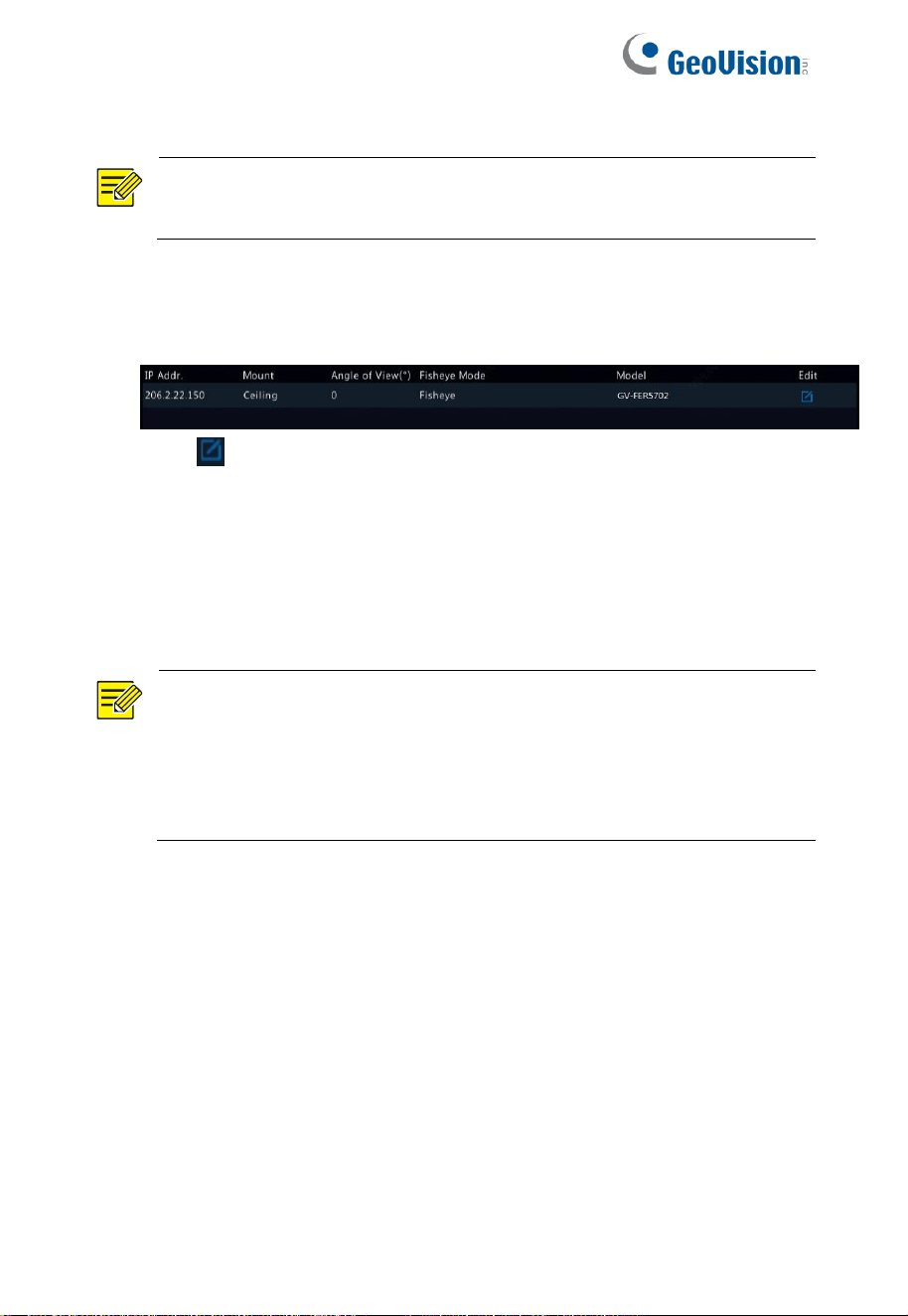
1. Click Camera > Camera > Fisheye.
2. Click
under Edit. The Fisheye window appears.
3. Select a correct mounting mode and complete other settings
accordingly.
4. Click OK.
4.1.5.2 Dewarping
NOTE!
1. Dewarping is available in live view and playback (in
normal and corridor playback modes). The operations are
similar.
2. Fisheye dewarping is only applicable to GV-FER5702.

33
Click Fisheye Mode on the window toolbar. The figure below appears.
Set mounting mode and display mode.
Three mounting modes are available: ceiling, wall, desktop. Ceiling
and desktop mounting modes use the same dewarping method.
Mounting
Mode
Display
Mode
Description
Ceiling mount
Desktop mount
Original Image
360° Panoramic + 1PTZ
180° Panoramic
Fisheye + 3PTZ
Fisheye + 4PTZ
360° Panoramic + 6PTZ
Fisheye + 8PTZ

34
Wall mount
Original Image
Panoramic
Panoramic + 3PTZ
Panoramic + 4PTZ
Panoramic + 8PTZ
Operations: Take Ceiling Mount and Fisheye + 3PTZ as an example:
On a PTZ image, drag the mouse to rotate the image or use the scroll
wheel to zoom in or out. A box appears on the fisheye image as the
image rotates, and as you drag the box or move the scroll wheel on
the fisheye image, the corresponding PTZ image rotates or zooms in
or out as well.

35
4.1.6 Advanced Functions
Change the password of connected IP cameras or restore factory
default settings for cameras under Camera > Camera > Advanced.
NOTE!
Changing camera password is available for certain cameras
only.
4.1.6.1 Change Camera Password
⚫ To change the password of a single camera, select the target
camera, and click
, enter the new password, then click
Confirm.
⚫ To change the password of cameras in batch, select the target
cameras, and click
. Enter the new password,
then click Confirm.
36
NOTE!
⚫ Select the checkbox of Use Admin Password to change
the camera’s password to the admin’s password of the
NVR.
⚫ You can check if the password has been successfully
changed on Status window.
4.1.6.2 Restore Default Settings
Click , then click OK in the pop-up window, then the camera’s
default settings will be restored.
4.2 OSD Configuration
On Screen Display (OSD) are characters displayed with video images,
for example, camera name, date and time, and people counting
statistics.
1. Click Camera > OSD; or click
on the preview window toolbar.
2. Select the desired camera.
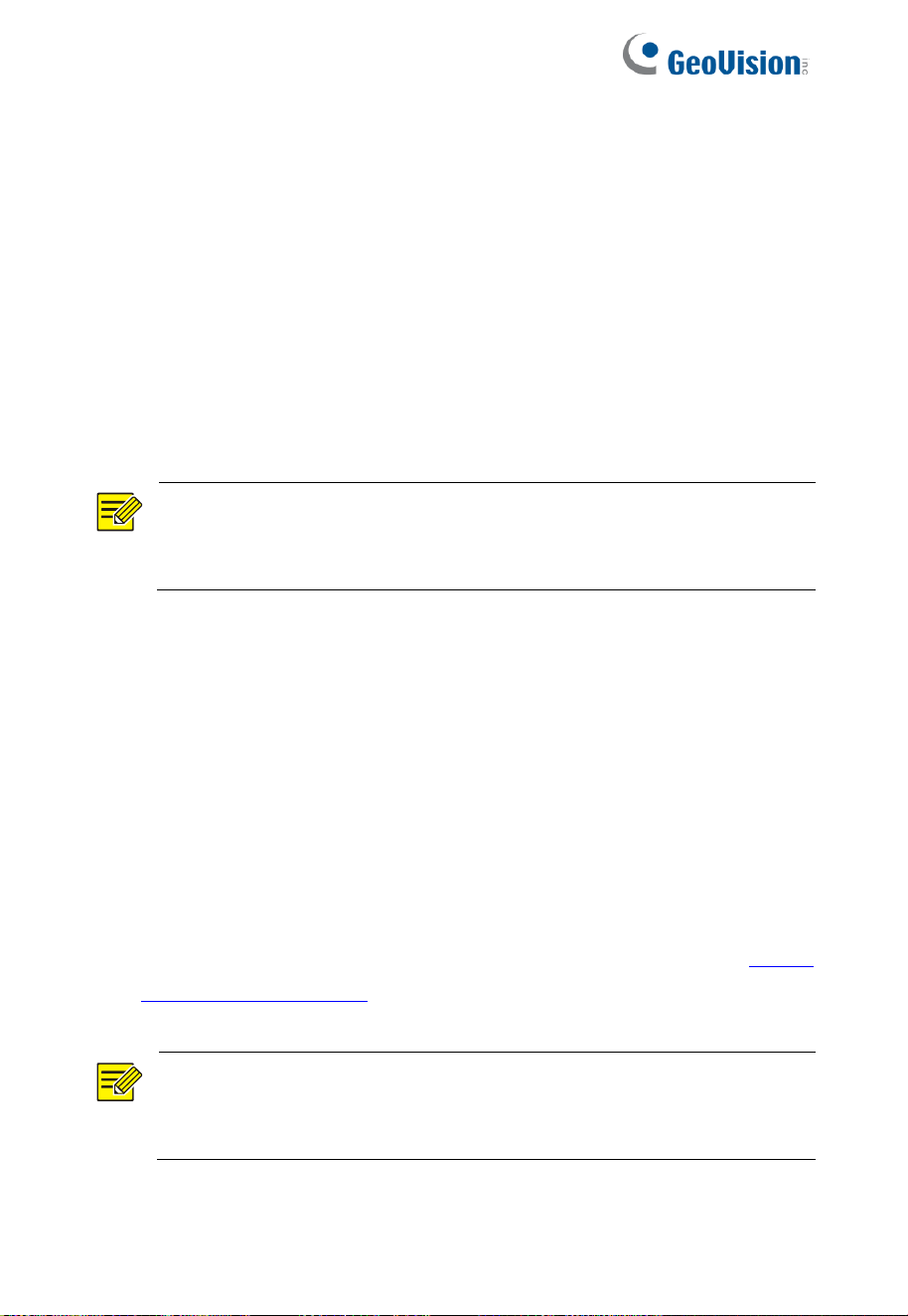
37
3. Set camera name to display. Enable Show Name first, and set
OSD camera name as needed:
⚫ If camera name is less than 20 characters, and camera
name and OSD Camera Name (i.e., the camera name you
want to overlay on video image) are the same:
a. Select Sync OSD Camera Name, then the OSD
name will be synchronized with the camera name.
This function is enabled by default.
b. Enter the camera name in the Name field. The name
will be displayed on video image.
NOTE!
If camera name exceeds 20 characters, only the first 20
characters will be used as the OSD camera name.
⚫ If camera name exceeds 20 characters, and you want to
overlay a different camera name on video image:
a. Deselect Sync OSD Camera Name.
b. Enter the camera name in Name field.
c. Enter the OSD camera name.
1. Set time to display. Select Show Time, and select date and time
formats.
2. Set people counting statistics to display. Select Count People.
You need to configure people counting function first. See
10.1.4
People Flow Counting for details.
3. Set font size and color as needed.
NOTE!
You may click Copy to apply the same settings to other
cameras.
4. Click Apply to save the settings.

38
4.3 Image Configuration
1. Click Camera > Image.
2. Select the desired camera and scene.
3. Adjust settings on the tabs as needed to achieve optimal images.
See the following sections for detailed information.
NOTE!
⚫ A scene can be selected only when supported by the IP
camera.
⚫ To restore default image settings, click Default in the
lower right corner. This function is available only when the
camera is connected to the NVR via the GeoVision
protocol.
⚫ Image settings apply to both live and recorded videos.
4.3.1 Image enhancement
1. Click the Image Enhancement tab.
2. Adjust the settings as needed. Some important parameters are
described in the table below.
Parameter
Description
Brightness
The greater the value, the brighter the
images appear.
Saturation
The amount of color in a specified hue.
Contrast
The degree of difference between the lightest
(white) and darkest (black) parts of an image.
Setting a greater value increases contrast.
39
Parameter
Description
Sharpness
Contrast of boundaries of objects in an
image.
Noise
Reduction
Reduce noises in images to improve image
quality.
Image
Rotation
Normal: Displays images without rotation.
180°: Displays images flipped vertically
and horizontally.
⚫ 90° CW and 90° CCW: Display images in
corridor format. The camera must be
installed correctly (rotated 90° clockwise
or counterclockwise).
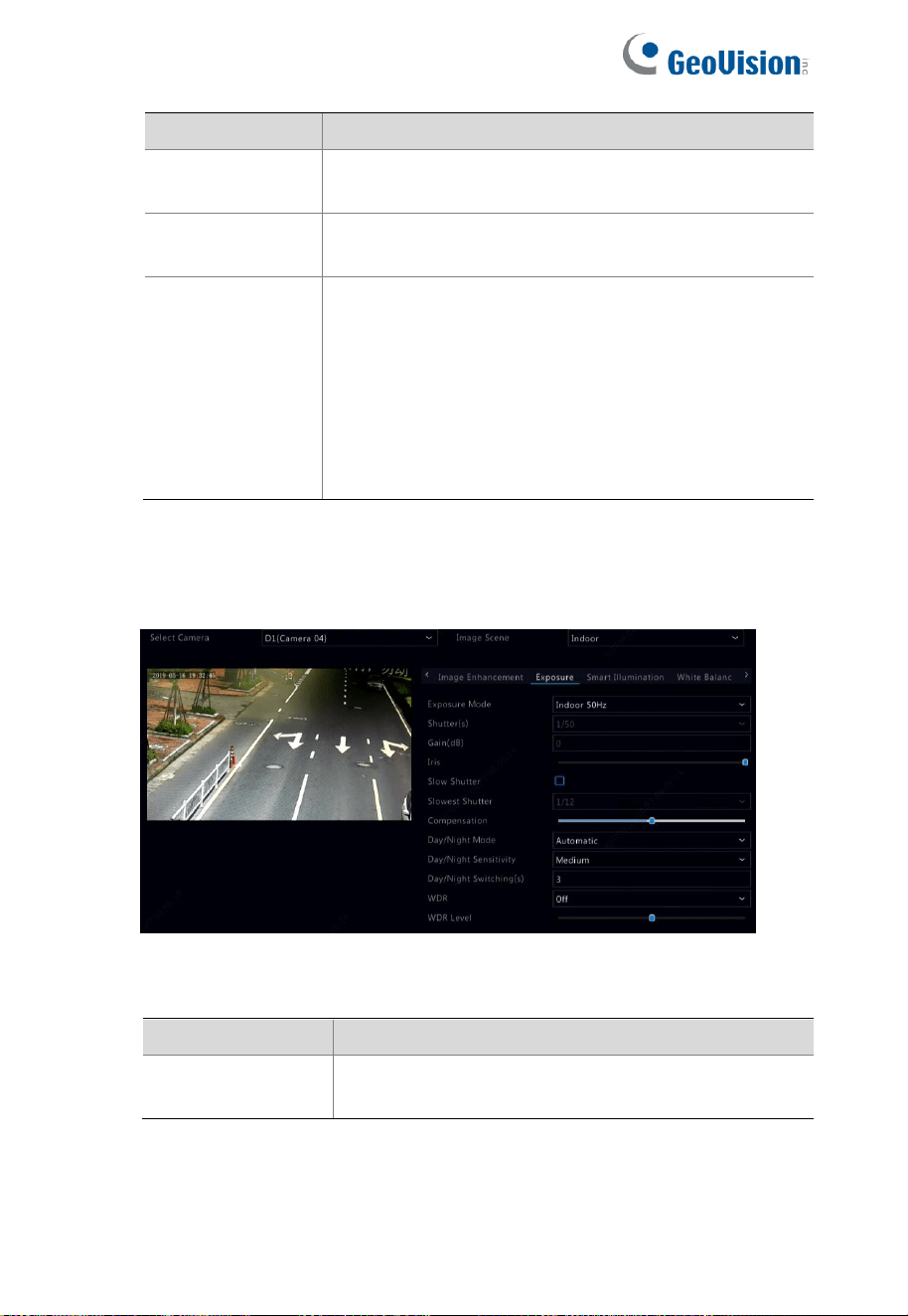
4.3.2 Exposure
1. Click the Exposure tab.
2. Adjust the settings as needed. Some important parameters are
described in the table below.
Parameter
Description
Exposure Mode
Select the correct exposure mode to
achieve the desired exposure effect.

40
Parameter
Description
Shutter(s)
Shutter is used to control the light that
comes into the lens. A fast shutter speed is
ideal for scenes in quick motion. A slow
shutter speed is ideal for scenes that
change slowly.
Gain(dB)
Control image signals so that the camera
can output standard video signals in
different light conditions.
Slow Shutter
Improves image brightness in low light
conditions.
Slowest Shutter
Set the slowest shutter speed for the
camera during exposure.
Compensation
Adjust the compensation value as required
to achieve the desired image effects.
Day/Night Mode
Automatic: In this mode, the camera can
automatically switch between night mode
and day mode according to the ambient
lighting condition to output optimum
images.
Night: The camera outputs high-quality
black and white images according to the
ambient lighting condition.
Day: The camera outputs high-quality
color images according to the ambient
lighting condition.
Day/Night
Sensitivity
Light threshold for switching between day
mode and night mode. A higher sensitivity
value means that the camera is more
sensitive to the change of light and is
therefore more easily to switch between day
mode and night mode.
Day/Night
Switching(s)
Set the length of time before the camera
switches between day mode and night
mode after the switching conditions are met.

41
Parameter
Description
WDR
Enable WDR to ensure clear images in high
contrast conditions.
WDR Level
After enabling WDR, you can improve
image quality by adjusting the WDR level.
4.3.3 Smart Illumination
1. Click the Smart Illumination tab.
2. Check the box to enable smart illumination.
3. Adjust the settings on this tab. Important parameters are
described in the table below.
Parameter
Description
Lighting Type
Iinfrared is set by default.
Control Mode
Set the IR illumination and exposure control
mode.
⚫ Global Mode: Set to achieve balanced
image effects.
⚫ Overexposure Restrain: Set to avoid
regional overexposure.
⚫ Manual: Set to manually control the
illumination level.

42
Parameter
Description
Illumination
Level
Asjust the IR illumination level from 0 to
1000.
4.3.4 White balance
1. Click the White Balance tab.
2. Adjust the settings on this tab. Some important parameters are
described in the table below.
Parameter
Description
White Balance
Adjust the red or blue offset of the image:
⚫ Auto: The camera adjusts the red or blue
offset automatically according to the
lighting condition (the color tends to be
blue).
⚫ Finetune: Allows you to adjust the red or
blue offset manually.
⚫ Outdoor: Recommended for outdoor
scenes with a wide range of color
temperature variation.
⚫ Sodium Lamp: Asjusts the red and blur
offset automatically according to the light
condition.
⚫ Lock: Locks the current color
temperature settings without adjustment.
Red Offset
Adjust the red offset manually.
Blue Offset
Adjust the blue offset manually.

43

44
4.3.5 Advanced settings
1. Click the Advanced tab.
2. Use defog to improve image quality in foggy days.
3. Adjust the Defog Intensity.
4.4 Privacy Mask Configuration
A privacy mask is an area of solid color covering certain parts of the
monitored area. Privacy mask protects specified areas of images
from being viewed and recorded. Multiple mask areas are allowed.
1. Click Camera > Privacy Mask.
2. Select the desired camera, select Enable Privacy Mask, click
Add Area and then use the mouse to specify areas to mask. Up
to 4 areas are allowed. The areas are differentiated by different
colors.
45
3. (Optional) To clear a mask area, click
.
4. Click Apply to save the settings.

46
5 PTZ Control
PTZ (pan, tilt and zoom) control is applicable to PTZ cameras only
and may vary depending on the functions and protocols supported by
the PTZ cameras. Refer to PTZ camera specifications for more
details.
5.1 PTZ Control Window and PTZ Management Window
1. Click on the window toolbar. The PTZ Control window
appears. See
PTZ Control Window Buttons for detailed
descriptions.
2. Click the Set button. The PTZ Management window appears
(can also be opened by clicking Camera > PTZ).
Table 5–1 PTZ Control Window Buttons
Button
Description
Control the rotation direction of the PTZ
camera or stop rotation.
Adjust the zoom, focus, and iris of the PTZ
camera.
Note: You can also zoom in or out using the
scroll wheel on your mouse.
Control the rotation speed of the camera. 1
means the slowest, and 9 means the fastest.
Click to display the PTZ Management
window.

47
Button
Description
⚫ Turn on/off the light.
⚫ Turn on/off the wiper.
⚫ Use 3D positioning.
⚫ Turn on/off the heater.
⚫ Turn on/off the function to remove snow.
⚫ Turn on/off PTZ shortcut operations.
Note:
⚫ Check that the 3D positioning, heater and
snow removal functions are supported by
the camera before using.
⚫ Use 3D positioning to zoom in or out.
Dragging from top down zooms in.
Dragging the other way zooms out.
⚫ Call a preset so the PTZ camera goes to
the preset position.
⚫ Delete a preset
Note:
and are displayed for saved
presets only.
/
/
Preset patrol, recorded patrol, and auto
guard. For detailed information, see
5.3
Setting a Preset Patrol, 5.4 Setting a
Recorded Patrol, and 5.5 Setting Audio
Guard.
Start or stop.
5.2 Setting and Calling a Preset
A preset position (preset for short), is a saved view used to quickly
steer the PTZ camera to a specific position. A preset consists of the
following settings: pan and tilt positions, zoom, focus, and iris.

48
1. Access the PTZ Management window. For the detailed steps,
see
5.1 PTZ Control Window and PTZ Management Window.
2. Add presets.
A. Click the directional buttons to steer the PTZ camera to
the desired position.
B. Adjust the zoom, focus, and iris as needed.
C. Select a preset number not in use, and then click
under Edit.
D. Repeat the above steps to add all the presets.
3. To call a preset, click
for the corresponding number. The
camera rotates to the preset position.
NOTE!
Presets can also be triggered by alarms. See
9.10 Alarm-
Triggered Actions for details.

49
5.3 Setting a Preset Patrol
Set the PTZ camera to patrol by presets (go from one preset to the
next in specified order). You need to set presets first and then select
some as keypoints. Up to four patrol routes (Preset Patrol 1, 2, 3 and
4) are allowed for each PTZ camera, and each patrol route can have
up to eight presets (keypoints). After setting presets, follow the steps
to set a preset patrol. The following takes preset patrol 1 as an
example.
1. In the PTZ Management window, click Add Keyoint. A window is
displayed as follows.
2. Select a preset from the drop-down list, set the duration (time the
camera stays at the preset, unit: second), and then set the
rotation speed (1: slowest, 9: fastest). Click OK to save the
settings. The preset is added as a keypoint.
3. Repeat the above steps to add all presets (keypoints), and adjust
the sequence of these presets by clicking
or
. Modify or delete a preset by clicking or .
Clicking
will delete all the added keypoints.
4. After completing the configuration, click Apply to save the
settings. Now keypoints for preset patrol 1 is complete.

50
5. Click
next to the drop-down list to start preset patrol 1. To
stop, click .
NOTE!
The duration ranges from 0 to 1800 seconds (default: 10).
The rotation speed ranges from 1 to 9 levels (default: 5).
5.4 Setting a Recorded Patrol
This function requires the camera's support. The drop-down list and
the buttons on the right are hidden if this function is not supported by
the camera. Currently only one recorded patrol route is allowed.
Record a patrol, including the patrol route, the time that the camera
stays at a certain direction, rotation speed, zoom, and focus.
1. Click
to start recording. Steer the camera to the desired
directions, adjust the zoom, focus, iris as needed during the
process.
2. Click
to stop recording. All the patrol actions have been
recorded.
3. To start the recorded patrol, click
. Click to stop.

51
5.5 Setting Auto Guard
Use auto guard so the PTZ camera automatically operates as
configured if no operation is performed by any user during a certain
time period. Auto guard avoids situations where the camera is left to
monitor incorrect scenes by user's negligence.
This function requires the camera's support. The Auto Guard tab is
hidden if it is not supported.
1. Click Auto Guard and then select Enable.
2. Select the desired mode from the drop-down list and then
complete other settings accordingly. Click Apply to save the
settings.

52
6 Recording and Snapshot
Video recording has different levels of priority, which from high to low
is: event recording, manual recording, and scheduled recording.
NOTE!
Snapshot is supported by certain device models only.
6.1 Encoding Settings
6.1.1 Recording
The parameters and options displayed may vary with camera model
and version. Some functions may be unavailable if the camera
version does not support. In this case, you need to upgrade the
camera first.
1. Click Camera > Encoding.

53
Select the camera and then edit settings as needed. Some parameters
are described in the table below.
Table 6–1 Encoding Settings
Parameter
Description
Storage Mode
Five storage modes are available: Main Stream,
Sub Stream, Main and Sub Stream, Main and
Third Stream, Sub and Third Stream.
Note:
Only certain models support all the five modes.
Capture Mode
Combinations of resolutions and frame rates.
Note:
This parameter is effective only when the camera
is connected to the NVR via the Geovision
protocol.
Stream Type
⚫ Normal: main stream that is intended for
scheduled recording.
⚫ Event: main stream that is intended for
recording triggered by events such as alarm
inputs or motion detection alarms.
Video
Compression
Video compression standard, for example, H.264,
H.265.
Resolution
Image resolution.

54
Bitrate Type
CBR: Constant Bit Rate (CBR) is used to
maintain a specific bit rate by varying the
quality of video streams. CBR is preferred
when limited bandwidth is available. The
disadvantage is that video quality will vary and
may decrease significantly with increased
motion in the scene.
VBR: When using Variable Bit Rate (VBR),
video quality is kept as constant as possible,
at the cost of a varying bit rate, and regardless
of whether there is motion in the image. VBR
is ideal when high quality is a requirement,
especially when there is motion in the picture.
Bit Rate(Kbps)
Number of bits transferred per second. Select a
value or select Custom and then set a value as
needed.
Frame Rate(fps)
Number of frames per second.
Image Quality
This parameter is effective only when Bitrate
Type is set to VBR. 9 levels are provided.
I Frame Interval
Number of frames between two adjacent I
frames.
I Frame Range
Range of I frames.
Smoothing
Use the slider to control the sudden increase of
bit rate.
Smart Encoding
The advanced mode achieves higher
compression ratios.
1. (Optional) Click Copy to apply some current settings such as bit
rate and frame rate to other cameras.
2. Click Apply to save the settings.

55
6.1.2 Audio
1. Click Camera > Audio.
2. Select the camera and edit the audio input/output settings.
6.1.3 Snapshot
Set resolution, image quality and snapshot interval for snapshots
taken according to schedule or triggered by an event.
1. Click Camera > Snapshot.
2. Select the camera and set the parameters as needed.

56
Parameter
Description
Snapshot Type
Scheduled snapshot uses the Normal type of
schedule. Event-triggered snapshot is triggered
by an event such as an alarm input and a
motion detection alarm.
Note: Settings effective to event-triggered
snapshot also apply to manual snapshot.
Image Quality
High, Medium or Low are available.
Snapshot
Interval
The time interval between two snapshots.
3. Click Apply to save the settings.
6.2 Draw or Edit a Schedule
Make a recording or snapshot schedule by drawing (pressing and
dragging) or by editing (using the Edit button). The operations for
recording and snapshot are similar, so this section only describes
how to make a recording schedule.
1. Click Storage > Recording.
2. Select the camera from the list. Schedule is enabled by default. If
it is disabled, select to enable it.
3. Set Pre-Record and Post-Record as needed.

57
4. To save a redundant copy of recordings, select Enable
Redundant Recording and configure a redundant hard disk (see
12.1 Disk Management for details).
5. Click a color icon on the right under the Edit button and then
draw a schedule on the left. You may also click Edit and set
schedule details in the Edit Schedule window.
NOTE!
When editing a schedule, you may clear the All Day check
box and set up to eight different periods for each day. To
apply the settings to other day(s), select the day(s) right to
Copy To.
6. Click Apply.
7. (Optional) Click Copy to apply the same settings to other
cameras.

58
6.3 Scheduled Recording and Snapshot
6.3.1 Scheduled Recording
Scheduled recording records video according to the set schedule and
it is different from manual recording and alarm-triggered recording. A
24×7 recording schedule is enabled by default and may be edited as
needed to record video in specified periods only.
See 6.2 Draw or Edit a Schedule for the detailed steps. Make sure
the schedule type is Normal. The set schedule appears in blue,
which stands for scheduled recording.
6.3.2 Scheduled Snapshot
Configure scheduled snapshot under Storage > Snapshot.
Scheduled snapshot is similar to scheduled recording (see
6.3.1
Scheduled Recording for details). Make sure the schedule type is
Normal.
6.4 Motion Detection Recording and Snapshot
When enabled, a motion detection alarm occurs if an object inside the
detection area moves to a certain extent (see
9.2 Motion Detection for
more details). Motion detection alarms can trigger actions including
recording and snapshot.
6.4.1 Motion Detection Recording
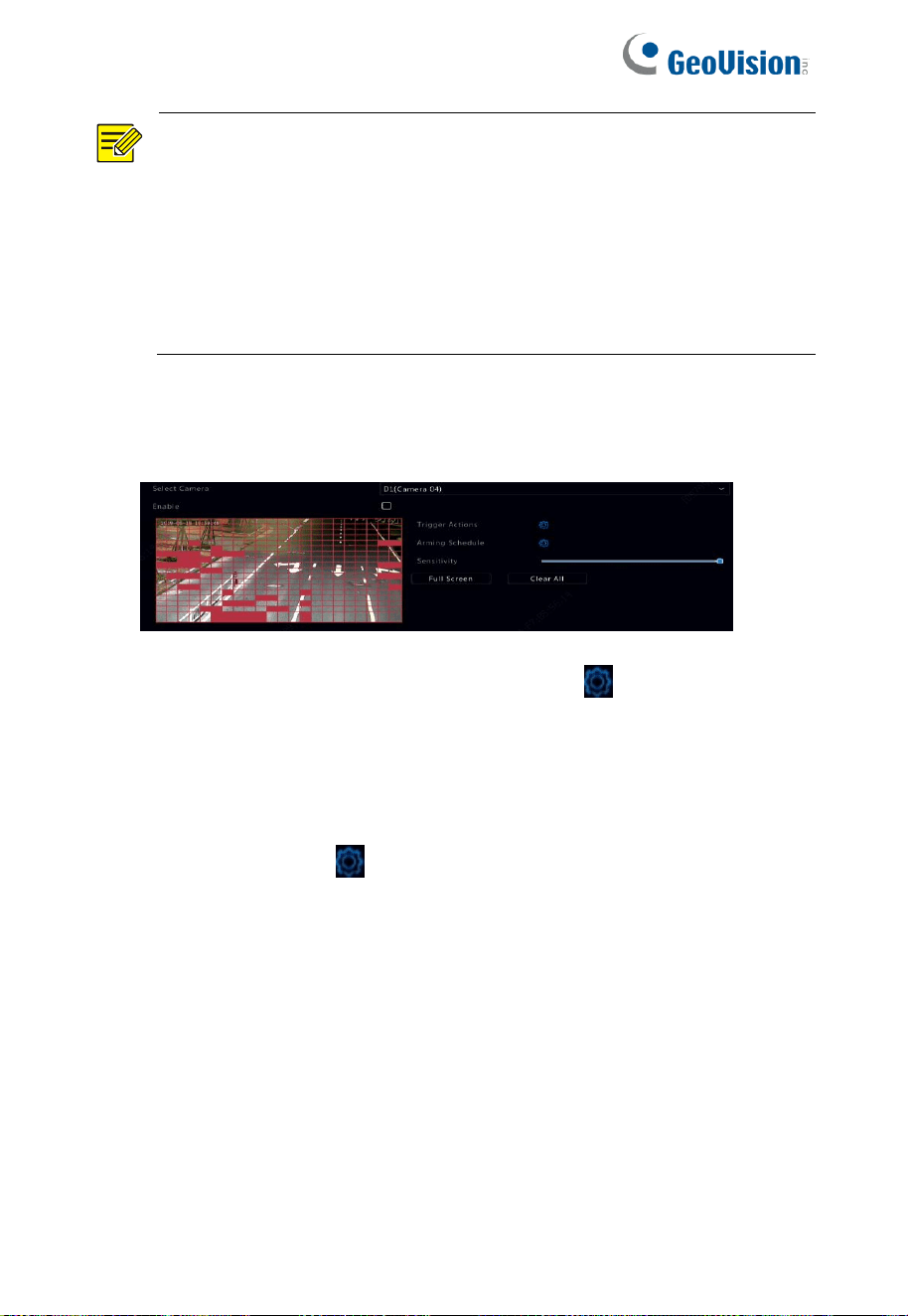
1. Click Alarm > Motion.
2. Select the camera from the list, and then select the check box to
enable motion detection.
59
NOTE!
⚫ Motion detection is enabled on the NVR by default. Unless
modified, the detection area covers the full screen, and
recording is triggered only for the current camera. The
settings remain if you disable motion detection and then
enable it.
⚫ An alarm icon appears in the upper right corner when
motion is detected.
3. In the preview window on the left side, click and drag your mouse
to specify a motion detection area (red grid). Use the slider to
adjust detection sensitivity.
4. Configure motion detection recording: click
right to Trigger
Actions, click the Recording tab, select the desired camera, and
then click OK.
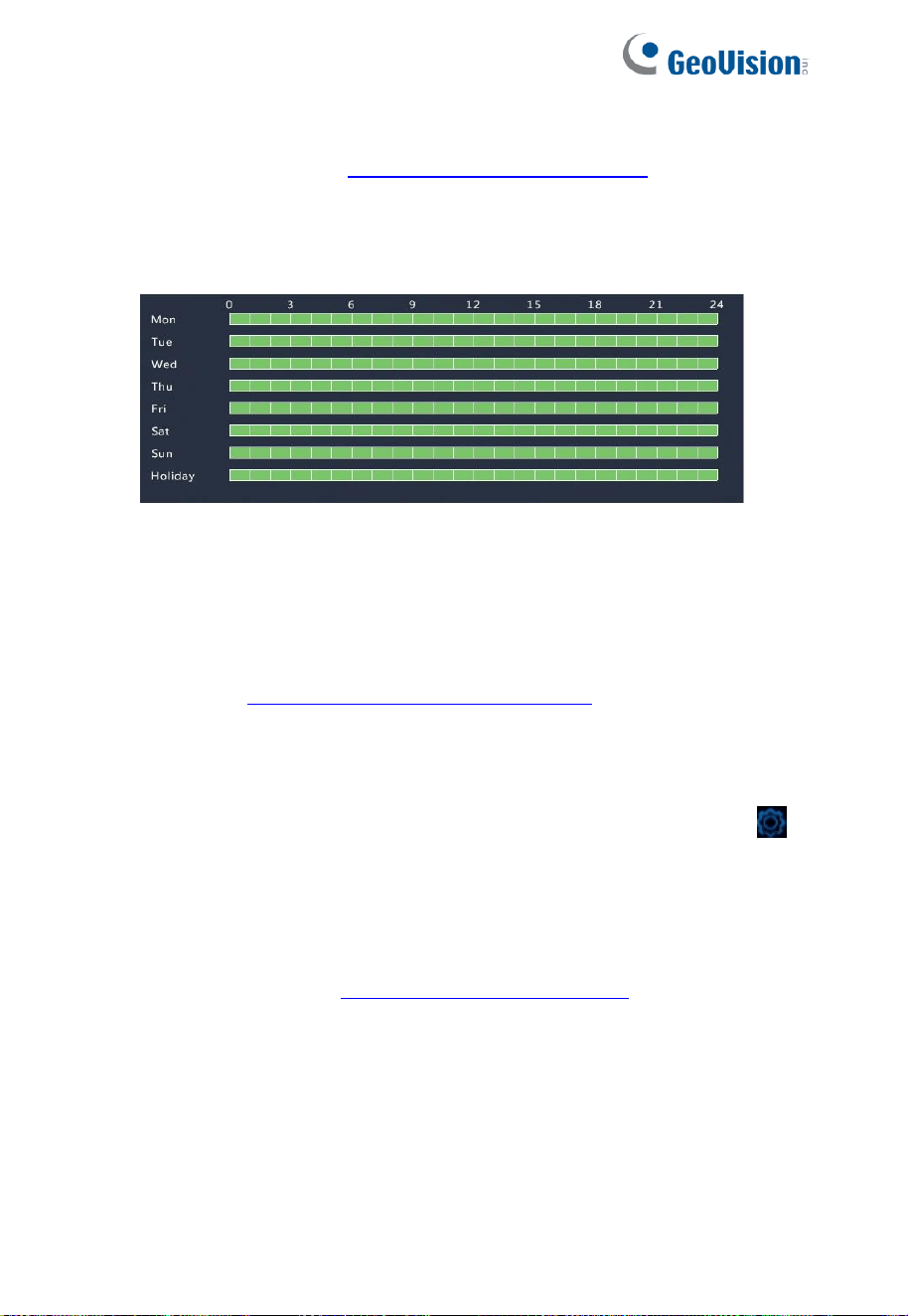
5. (Optional) Configure an arming schedule (time when actions will
be triggered): click right to Arming Schedule and then set
time periods as needed.
60
6. Set a recording schedule under Storage > Recording. For the
detailed steps, see
6.2 Draw or Edit a Schedule. Make sure the
schedule type is Motion. The set schedule appears in green,
which stands for motion detection recording. The following figure
shows an example.
6.4.2 Motion Detection Snapshot
Motion detection snapshot is similar to motion detection recording.
You need to enable and configure motion detection alarm first (see
steps 1 to 3 in 6.4.1 Motion Detection Recording for details), and then
proceed with the following steps.
1. Set motion detection snapshot under Alarm > Motion: click
right to Trigger Actions. In the window displayed, click the
Snapshot tab, select the desired camera, and then click OK.
2. Set a snapshot schedule under Storage > Snapshot. For the
detailed steps, see 6.2 Draw or Edit a Schedule. Make sure the
schedule type is Motion.
61
6.5 Alarm Triggered Recording and Snapshot
Set input alarms to trigger recording and snapshot. See 9.1 Alarm
Input and Output for more details.
6.4.1 Alarm Triggered Recording
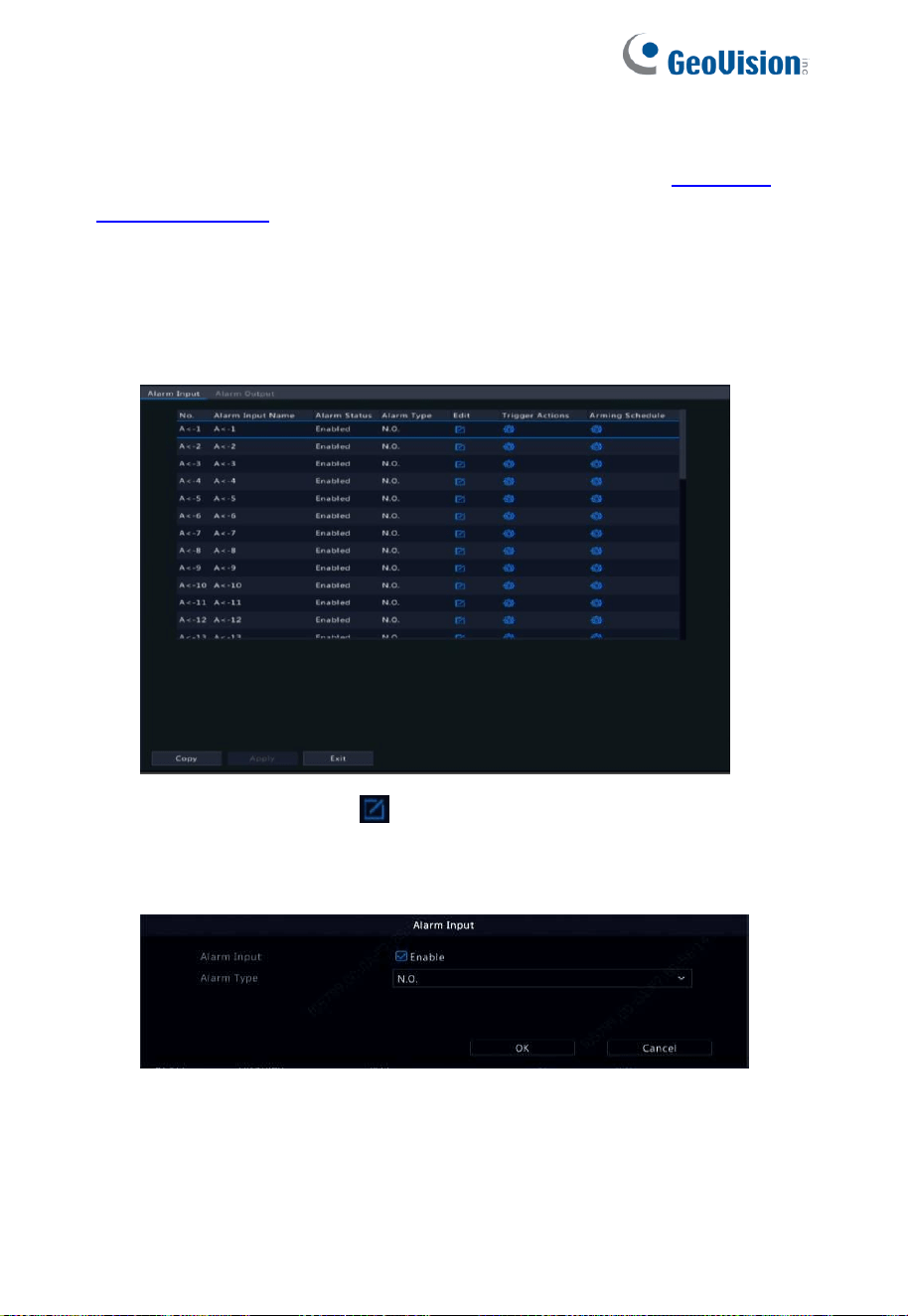
1. Click Alarm > Input/Output > Alarm Input.
2. Set alarm input: click for the desired camera. In the window
displayed, select Enable, select N.O. (normally open) or N.C.
(normally closed) trigger mode, and then click OK.

62
NOTE!
To apply the same settings to other camera(s), click Copy
and then select the desired camera(s).
3. Set alarm triggered recording: click under Trigger Actions. In
the window displayed, click the Recording tab, select the desired
camera, and then click OK.
4. Set a schedule under Storage > Recording. For the detailed
steps, see
6.2 Draw or Edit a Schedule. Make sure the schedule
type is Alarm. The set schedule appears in red, which stands for
alarm-triggered recording. The following shows an example.
6.4.2 Alarm Triggered Snapshot
Alarm triggered snapshot is similar to alarm triggered recording. You
need to enable and configure alarm input first (see steps 1 to 2 in
6.4.1 Alarm Triggered Recording for details) and then proceed with
the following steps.
1. Set alarm triggered snapshot: Click
under Trigger Actions. In
the window displayed, click the Snapshot tab, select the desired
camera, and then click OK.

63
2. Set a snapshot schedule under Storage > Snapshot. For the
detailed steps, see
6.2 Draw or Edit a Schedule. Make sure the
schedule type is Alarm.
6.6 Manual Recording and Snapshot
6.6.1 Manual Recording
Right click on the preview window, select Manual in the shortcut
menu. Click the Manual Recording tab, select the desired camera
and then click Start. To stop manual recording, select the camera and
then click Stop.
6.6.2 Manual Snapshot
Manual snapshot is similar to manual recording. Right click and select
Manual > Manual Snapshot, select the desired camera, and then
click Start. Click Stop to stop.
6.7 Holiday Recording and Snapshot
Holiday recording and snapshot allows you to specify certain time
periods as holidays for scheduled recording and snapshot. First you
specify certain date(s) as holidays, and then configure recording or
snapshot schedules on these days.

64
6.7.1 Holiday Recording
1. Click System > Time > Holiday.
2. Click the Add button in the lower right corner. The Holiday
window is displayed. Complete the settings including the holiday
name, start and end dates. By default a holiday is enabled when
added and does not repeat.
3. Click OK. The holiday appears in the list.
4. Click Storage > Recording and then set a recording schedule as
described in
6.2 Draw or Edit a Schedule. Make sure Holiday is
selected in the Select Day drop-down list. In the following
example, motion detection recording is enabled on the set holiday.

65
6.7.2 Holiday Snapshot
Holiday snapshot is similar to holiday recording. First you set holidays
under System > Time > Holiday, and then configure a snapshot
schedule under Storage > Snapshot. Set a snapshot schedule as
described in
6.3.1 Scheduled Recording. Make sure Holiday is
selected from the Select Day drop-down list.
6.7.3 Other Recording and Snapshot Types
To access the options, select Storage > Recording / Snapshot.
⚫ Event: Including the types below and VCA. Any of these types
will trigger event recording/snapshot.
⚫ Motion detection AND alarm triggered (M and A for short):
recording or snapshot is triggered only when a motion
detection alarm AND an input alarm occur simultaneously.
⚫ Motion detection OR alarm triggered (M or A for short):
recording or snapshot is triggered when a motion detection
alarm OR an input alarm occurs.
When you choose an Event type of recording or snapshot, make sure
you have enabled the corresponding alarm function and configured
alarm-triggered recording/snapshot. The configuration steps are
similar. See
6.4 Motion Detection Recording and Snapshot for more
details.
66
7 Playback
7.1 Instant Playback
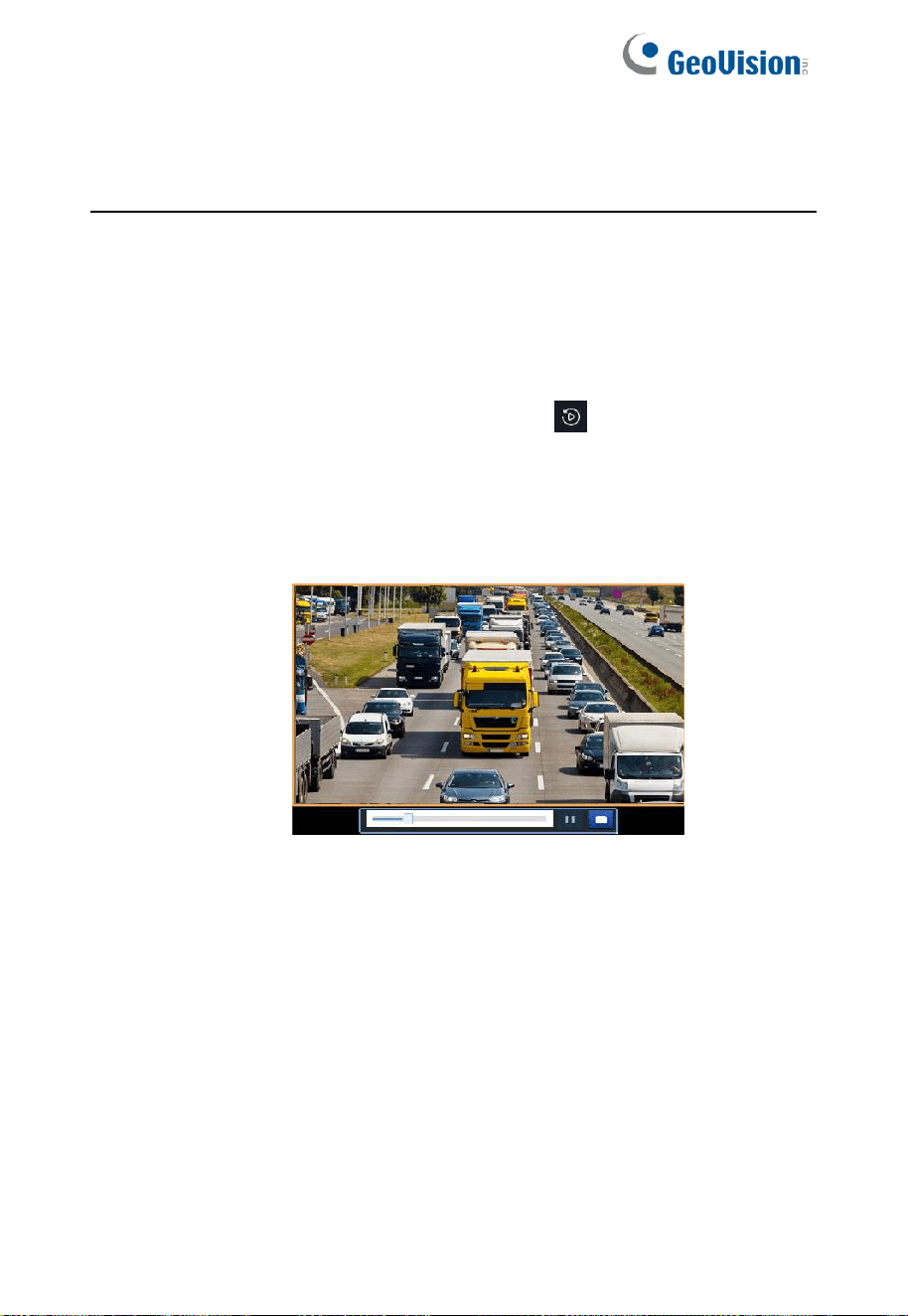
Instant playback plays the video recorded during the last 5 minutes
and 30 seconds. If no recording is found, it means there is no
recording during this period.
1. Click the desired window, and then click
on the toolbar to start
instant playback.
2. You may drag the slider to control the progress. Pause and
resume as needed.

67
7.2 Playback Toolbar
Table 7–1 Playback Toolbar Buttons
Button
Description
Show playback progress.
Note:
⚫ A small window displaying video of the selected
window is displayed as you drag the slider,
helping locate the part of the video you want to
view.
⚫ The first progress bar indicates playback
progress of the video playing in the highlighted
window. The second indicates the overall
playback progress for all the selected cameras.
Timeline.
Zoom in or out on the timeline.
Note: Alternatively, scroll your mouse wheel.
/ / /
Play, pause, stop, and reverse.
/
Rewind or forward 30 seconds. Adjust the time
duration from the dropdown list in the middle.
/
Slow down or speed up.
Note: Click
to restore the normal playback
speed after clicking
, and vice versa.
Forward by frame.
/
Start or stop clipping video.
Take a snapshot. The success window will appear.
Lock.
Manage files (clips, snapshots, locked files, tags).
Adjust sound volume for the current window.


69
7.3 Playback by Camera and Date
Use this method to search and play recordings by camera and date.
1. Click on the preview window, then right click and choose
Playback to start playback.
NOTE!
In playback window, you can select multiple cameras for
synchronous playback. Clicking Max. Camera selects the
maximum number of cameras allowed, and clicking Close All
stops playback for all cameras. The performance varies with
NVR model.
2. Select the desired date on the calendar and then click to start
playback. Double-clicking the date will start playback directly.

70
NOTE!
⚫ The calendar uses different flags to indicate different
recording types. No flag means no recording. The blue
flag means normal recording. The red flag means event-
triggered recording.
⚫ In the drop-down list at the bottom: HD means video
recorded with the main or sub stream; SD means video
recorded with the third stream.
7.4 Playback in Corridor Mode
Play recordings in corridor mode in multiple windows.
1. In the playback window, select Corridor above the progress bar.
2. Select cameras and then double-click the desired date to start
playback.
7.5 Playback by Tag
Add tags named with keywords such as event name and location to a
recording and use tags to quickly locate the part of the video you
need during playback.
7.5.1 Adding a Tag
1. Right-click and then click Playback.
2. Click
on the window toolbar, and then set the tag name.
3. To manage the added tags, click
on the screen toolbar, and
then rename or delete tags as needed.

71
7.5.2 Playback by Tag
1. In the playback window, click Video Retrieval, select Tag Search
from the drop-down list in the upper left corner.
2. Select cameras, set the time period, and then click Search.
Search results, if there are any, are displayed with names of
cameras and tags.
3. Click
for the desired tag to start playback. You may configure
Set Time to set when the tagged video starts and ends.
7.6 Playback by Motion Detection
Search for and play recordings triggered by motion detection during a
specified time period.
NOTE!
Make sure motion detection is enabled and alarm-triggered
recording has been configured before you use this function.
See
9.2 Motion Detection and 9.10 Alarm-Triggered Actions
for details.
1. In the playback window, click Video Retrieval, select Motion
from the drop-down list in the upper left corner.
2. Select the desired camera, set the time period, and then click
Search.
3. Click for the desired recording to start playback.

72
7.7 Playback by Video Loss
Search for and play recordings triggered by video loss during a
specified time period.
NOTE!
Make sure video loss alarm is enabled and alarm-triggered
recording has been configured before you use this function.
See
9.5 Video Loss and 9.10 Alarm-Triggered Actions.
1. In the playback window, click Video Retrieval, select Video Loss
from the drop-down list in the upper left corner.
2. Select the desired camera, set the time period, and then click
Search.
3. Click
for the desired recording to start playback.
7.8 Playback by Smart Search
This function provides an efficient way to review recordings
containing smart search results such as detected motions. In smart
playback mode, the system analyzes recordings for smart search
results. If such results are detected, the progress bar is highlighted in
green, and the video plays at the normal speed, allowing you enough
time to catch details; otherwise, the video plays at 16x speed to save
time.
1. In the playback window, select Smart above the progress bar.
2. Click
for the desired camera to start smart playback.

73
3. Click
at the bottom. The smart search window is displayed.
By default, the full screen is the smart search area. To clear all,
click
; to restore the full-screen search area, click .
4. Set smart search rules, including detection area and sensitivity.
5. Click to start search. To quit, click .
7.9 Playback by External File
Use this function to play recordings stored in an external storage
device, for example, a USB drive or a portable USB hard drive.
1. In the playback window, click
on the screen toolbar.
2. Click Refresh and then wait for the NVR to read the external
storage device.
3. Select the desired recording file and then click
to start
playback.
7.10 Playback by Image
Specify an image type (for example, Normal or Motion) to search for
and play images from one or more cameras during a specified time
period.
1. In the playback window, click Video Retrieval, select Picture
Search from the drop-down list in the upper left corner.

74
2. Select a type from the Type drop-down list in the upper right
corner.
3. Select the desired camera(s), set the desired time period, and
then click Search.
4. Click the desired file to start playback.
7.11 File Management
File management allows you to manage video clips, tags, snapshots
taken during playback, and lock or unlock files.
1. Take snapshot during playback.
A. In playback page, play the recording until the desired image
appears.
B. Click
in the playback window to take a snapshot.
C. Click
and then click the Playback Image tab to view the
snapshot.
D. Select the desired image file(s) and then click Backup to
save them to the storage device.
NOTE!
The image resolution depends on the resolution from the
output interface and the number of windows displayed when
the snapshot is taken.

75
2. Lock files.
Use this function to lock a recording file so it will not be
overwritten. To lock a recording file will prevent all the files stored
in the same disk partition from being overwritten.
A. Play the recording you want to lock.
B. Click
in the playback window.
C. Click
and then click the Locked File tab to view the
locked file. To unlock a file, click
, and the icon
changes to
. To back up a file, select the file and then
click Backup.

76
8 Backup
8.1 Recording Backup
Backup, also known as recording backup, is the process of querying
video stored on a hard disk of the NVR and then saving to a USB
storage device or a DVD-R disc as a file.
Recording backup has the following conditions:
⚫ Back up using a USB storage device: format the partition in
FAT32 or NTFS format; connect the storage device
correctly to the NVR.
⚫ Back up using a disc: use a GP65NB60 DVD burner. Make
sure the DVD-R disc is empty, and the burner is correctly
connected to your PC.
⚫ Permission is required.
⚫ The recording to back up is stored on a hard disk of the
NVR.
NOTE!
⚫ The default file format is .mp4 when you back up
recordings to a USB storage device.
⚫ When backing up using a disc, recordings are saved
as .TS files only.
⚫ Backing up using a disk is only applicable on the Web
interface.

77
8.1.1 Normal Backup
1. Click Backup > Recording. All cameras are selected by default.
2. Set search conditions and then click Search. Search results are
displayed.
NOTE!
You can lock/unlock and play recording files in this window.
3. Select the desired recording(s) and then click Backup.
4. Set the destination in the USB storage device and then click
Backup. The recording(s) will be saved to the specified directory.
NOTE!
⚫ You may want to create a new folder for the recording(s)
by clicking New Folder.
⚫ If the connected storage device has a capacity that is
greater than 2T, clicking Format will format the device to
NTFS file system; if the capacity is 2T or less, the device
will be formatted to FAT32 or NTFS. Only certain devices
can format a storage device that has a greater capacity
than 2T.
⚫ A progress bar (e.g., Exporting X/Y) is displayed to
indicate the progress, where X indicates the current
number being backed up, and Y indicates the total number
of recordings. To cancel the operation, click Cancel.
⚫ A backup file is named in this format: camera name-
recording start time.file extension. For example, Ch9-
20150630183546.mp4.

78
⚫ Back up to a DVD-R disc using the Web interface
On the Web interface, click Backup > Back Up Recording to
back up the recordings. Set the destination on the disk and then
click Backup. The recording(s) will be saved to the specified
directory.
NOTE!
⚫ Before you start burning, check that the video to back up
was not compressed using smart encoding.
⚫ Clicking Cancel before burning is finished will cause the
disc unusable.
⚫ When burning is finished, wait for the drive to eject itself.
Do not eject the drive manually.
8.1.2 Video Clip Backup
A recording can be clipped and saved to a USB storage device.
1. Open the playback window. For the detailed steps, see
7.
Playback.
2. After playback starts, click on the playback toolbar to clip
videos.
3. Click
and then click the Video Clip tab to view video clips.
4. Select the desired video clip(s) and then click Backup.
5. Select a destination in the USB storage device and then click
Backup. The selected video clips are saved to the specified
directory.

79
8.2 Image Backup
The default format of image backup is JPG.
1. Click Backup > Image.
2. Set search conditions and then click Search. Search results are
displayed.
NOTE!
The image resolution depends on the resolution from the
output interface and the number of windows displayed when
the snapshot is taken.
3. Select the desired file(s) and then click Backup.
4. Select a destination in the USB storage device and then click
Backup. The selected files are saved to the specified directory.

80
9 Alarm
9.1 Alarm Input and Output
9.1.1 Alarm Input
1. Click Alarm > Input/Output > Alarm Input.
2. Click
for the desired camera. In the Alarm Input window,
select Enable to enable alarm input.
3. Enable the Alarm Input, and optionally type the desired alarm
name.
4. Select the normally open (N.O.) or normally closed (N.C.) trigger
mode, and then click OK.
5. Click
under Trigger Actions and then set action(s) to trigger.
For more details, see
9.10 Alarm-Triggered Actions.
NOTE!
⚫ The number of cameras that can be connected may vary
with NVR model.
⚫ Actions that can be triggered may vary with alarm type.

81
6. Click
under Arming Schedule and then set the time when
actions will be triggered.
NOTE!
⚫ The default schedule is 24×7. You may change it as
needed and set up to eight different periods for each day.
Time periods cannot overlap.
⚫ To apply the same arming schedule to other days, select
the intended days right to Copy To.
⚫ To apply the same settings to other cameras, click Copy,
select cameras, and then click OK.

82
9.1.2 Alarm Output
1. Click Alarm > Input/Output > Alarm Output.
2. Click
under Edit for the desired camera, and then set the
default status and duration. After you have completed the settings,
click OK.
3. Click
under Arming Schedule and then set the time when
actions will be triggered.
NOTE!
To apply the same settings to other cameras, click Copy,
select cameras, and then click OK.
9.2 Motion Detection
When enabled, a motion detection alarm occurs if an object inside the
detection area moves to certain extent, and an alarm icon appears in
the upper right corner.
Motion detection is enabled on the NVR by default. Unless modified,
the detection area covers the full screen, and recording is triggered
only for the current camera. The settings remain if you disable motion
detection and then enable it.
1. Click Alarm > Motion.
2. Select the desired camera and then select Enable to enable
motion detection.

83
3. The detection area is set full screen by default. Optionally click
Clear All and use the mouse to draw a detection area. Drag the
slider to set detection sensitivity. The higher the sensitivity, the
more likely a moving object will be detected.
4. Click
right to Trigger Actions and set action(s) to trigger. For
more details, see
9.10 Alarm-Triggered Actions.
NOTE!
⚫ The number of cameras that can be connected may vary
with NVR model.
⚫ Actions that can be triggered may vary with alarm type.
5. (Optional) Click right to Arming Schedule and then set the
time when actions will be triggered.
NOTE!
⚫ The default schedule is 24×7. You may change it as
needed and set up to eight different periods for each day.
Time periods cannot overlap.
⚫ To apply the same arming schedule to other days, select
the intended days right to Copy To.
6. Click Apply to save the settings.
7. (Optional) Click Copy to apply the same settings to other
cameras.

84
9.3 Tampering Detection
A tampering detection alarm occurs when the camera lens is covered.
1. Click Alarm > Tampering.
2. Select the desired camera and then select Enable to enable
tampering detection.
3. Click right to Trigger Actions and set action(s) to trigger. For
more details, see
9.10 Alarm-Triggered Actions.
4. (Optional) Click right to Arming Schedule and then set the
time when actions will be triggered.
5. (Optional) Click Copy to apply the same settings to other
cameras.
6. Click Apply to save the settings.

85
9.4 Human Body Detection
Human body detection alarms occur when the presence of human
beings is detected in the specified area. Note that this function is only
applicable to the IP cameras that are equipped with Human Body
Detection function. See
10.1 VCA Configuration for details.
1. Click Alarm > Human Body Detection.
2. Enable human body detection by selecting the Enable check box.
3. Click , and then draw detection area.
NOTE!
Only one detection area is allowed for each camera.
4. Set detection sensitivity. The higher the sensitivity, the more likely
a human body will be detected.
5. Click right to Trigger Actions and set action(s) to trigger. For
more details, see 9.10 Alarm-Triggered Actions.
6. (Optional) Click right to Arming Schedule and then set the
time when actions will be triggered.
7. Click Apply to save the settings.

86
9.5 Video Loss
A video loss alarm occurs when the NVR loses video signals from a
camera. Video loss alarm is enabled by default.
1. Click Alarm > Video Loss. To disable video loss alarm for a
channel, click
, which then changes to .
2. Click
under Trigger Actions and set action(s) to trigger. For
more details, see 9.10 Alarm-Triggered Actions.
NOTE!
Video loss alarm cannot trigger recording, preset, preview
(live view) and snapshot actions for the current camera.
3. Click under Arming Schedule and then set the time when
actions will be triggered.
4. (Optional) Click Copy to apply the same settings to other
cameras.
9.6 Alert
The NVR reports an alert when an event occurs in the system. The
following are some alerts and their definitions in the system.
⚫ IP Conflict: Devices on the network use the same IP
address.
⚫ Network Disconnected: Network connection is lost.
⚫ Disk Offline: A disk is not properly connected or is
damaged.
⚫ Disk Abnormal: A disk can be detected but cannot be
accessed.

87
⚫ Illegal Access: A failed login attempt for a username that
does not exist or a password that is incorrect.
⚫ Hard Disk Space Low: Less than 10% of disk space
remains.
⚫ Hard Disk Full: No disk space.
⚫ Recording/Snapshot Abnormal: Storage resource
cannot be found. For example, when all hard disks are
removed, or when there is no disk in disk group 1 (see
12.3 Disk Group for more information).
Perform the following steps to configure an alert:
1. Click Alarm > Alert.
2. Select an alert type, select the desired actions, and then select
the camera(s) for which you want to enable alarm output.
3. Click Apply to save the settings.

88
9.6.1 Audio Detection
An audio detection alarm occurs when a camera detects a sudden
change in sound volume.
1. Click Alarm > Audio Detection.
2. Select the camera and then select Enable to enable audio
detection.
3. Click
right to Trigger Actions and set action(s) to trigger. For
more details, see
9.10 Alarm-Triggered Actions.
4. (Optional) Click right to Arming Schedule and then set the
time when actions will be triggered.
5. Select a detection type and adjust the settings as needed.
Detection Type
Description
Sudden Rise
An alarm occurs when the rise of volume
exceeds the set value.
Sudden Fall
An alarm occurs when the fall of volume
exceeds the set value.
Sudden Change
An alarm occurs when the rise or fall of
volume exceeds the set value.
Threshold
An alarm occurs when the volume
exceeds the set value.
6. Drag the bar to adjust the difference value.
7. Click Apply to save the settings.

89
9.7 Buzzer
The buzzer can be triggered by alarms to alert the user. Follow the
steps to set how long the buzzer will buzz after it is triggered.
1. Click Alarm > Buzzer.
2. Set the duration as needed. The range is from 1 to 600 seconds.
3. Click Apply to save the settings.
9.8 People Present Alarm
People present alarms occur when the number of people detected in
the specified area exceeds the set threshold. Note that this function is
only applicable to the IP cameras that are equipped with People
Counting function. See
10.1 VCA Configuration for details.
1. Click Alarm > People Present Alarm.
2. Select the camera.
3. Enable people present alarm by selecting the Enable check box.
4. Click
right to Trigger Actions and set action(s) to trigger. For
more details, see
9.10 Alarm-Triggered Actions.
5. (Optional) Click right to Arming Schedule and then set the
time when actions will be triggered.
6. Set the People Present Alarm Threshold.
7. Click Apply to save the settings.

90
9.9 One-Key Disarming
One-key disarming allows users to disable NVR/IPC alarms over
appointed peropd of time or based on the set frequency.
1. Click Alarm > One-Key Disarming.
2. Click the NVR Disarming / IPC Disarming tabs to disable the
alarms on the NVR or IPC.
9.10 Alarm-Triggered Actions
An alarm can trigger actions, for example, buzzer, recording, and
preview. The supported actions may vary with NVR model.
Alarm-Triggered Buzzer
The NVR makes a buzzing sound when an alarm occurs.
Alarm-Triggered E-mail
The NVR e-mails an alarm message to a specified email address
when an alarm occurs.
Alarm-Triggered Pop-up Window
A window pops up when an alarm occurs.
Alarm-Triggered Recording
The NVR records video from a specified camera when an alarm
occurs.
Alarm-Triggered Snapshot
The NVR takes a snapshot when an alarm occurs.
Alarm-Triggered Preset
A PTZ camera rotates to a preset position when an alarm occurs.
Alarm-Triggered Preview
The NVR plays live video in full screen when an alarm occurs.

91
Alarm-Triggered Alarm Output
The NVR outputs an alarm to trigger actions by a third-party device
when an alarm occurs.
9.11 Manual Alarm
9.11.1 Manual Alarm Output
Follow the steps to trigger or clear an alarm output manually.
1. Right click on the live view video and select Manual > Manual
Alarm.
2. To trigger an alarm output manually, select the desired channel
and then click Trigger. To clear an alarm output manually, select
the desired channel and then click Clear.
Manual Buzzer
Follow the steps to stop the buzzer manually.
1. Right click on the live view video and select Manual > Buzzer.
2. Select the buzzer (in Started status) and then click Stop.

92
10 VCA
10.1 VCA Configuration
VCA means Video Content Analysis. VCA functions include face
recognition, perimeter protection, and exception detection. Note that
the functions are only applicable when the NVR is connected to
compatible AI-capable IP cameras that are equipped with the
corresponding functions. See the table below for details.
AI Functions
Compatible AI-capable IP cameras
GV-BLFC5800,
EBD4813,
EBFC5800,
TBL4810,
TDR4803,
TFD4800,
TVD4810
(V1.04 or later)
GV-
EBD8813,
EBD8800,
TBL8804,
TBL8810,
TDR8805,
TVD8810
(V1.05 or
later)
GV-SD4825-
IR, SD4834-
IR (V1.02 or
later)
GV-PTZ5810-
IR (V1.01 or
later)
Intrusion
✓
✓
✓
✓
Cross Line
✓
✓
✓
✓
Enter Area
✓
✓
✓
✓
Face Detection
✓
✓
✓
✓
Leave Area
(Human &
Vehicle
Classification)
✓
✓
✓
✓
People Flow
Counting
✓
✓
✓
✓
Crowd Density
Monitoring
✓
✓
✓
✓
Auto Tracking
✓

93
1. Click VCA > VCA Config.
2. Select the camera you wish to eable the VCA functions on from
the Select Camera dropdown list.
3. Camera Side Analysis is set by default. The analysis is
performed by the camera.
NOTE!
⚫ The checkbox of a function that is grayed out means that
the function is not supported by the camera.
4. Click to enter the configuration page of that function.

94
10.1.1 Face Detection
Face detection is used to detect and capture human faces in a
specified surveillance area.
1. Select the detection area. You may choose full screen or specify
an area to detect. If you select Specify Area, click Draw Area
and then draw a detection area using the mouse.
2. Set face detection sensitivity. The higher the sensitivity, the more
likely a face will be detected.
NOTE!
The lower the sensitivity, the less likely a side face or blurring
face will be detected. Adjust detection sensitivity as needed
to achieve optimal effects.
3. Configure trigger actions. Click right to Trigger Actions and
set action(s) to trigger. For more details, see 9.10 Alarm-
Triggered Actions.
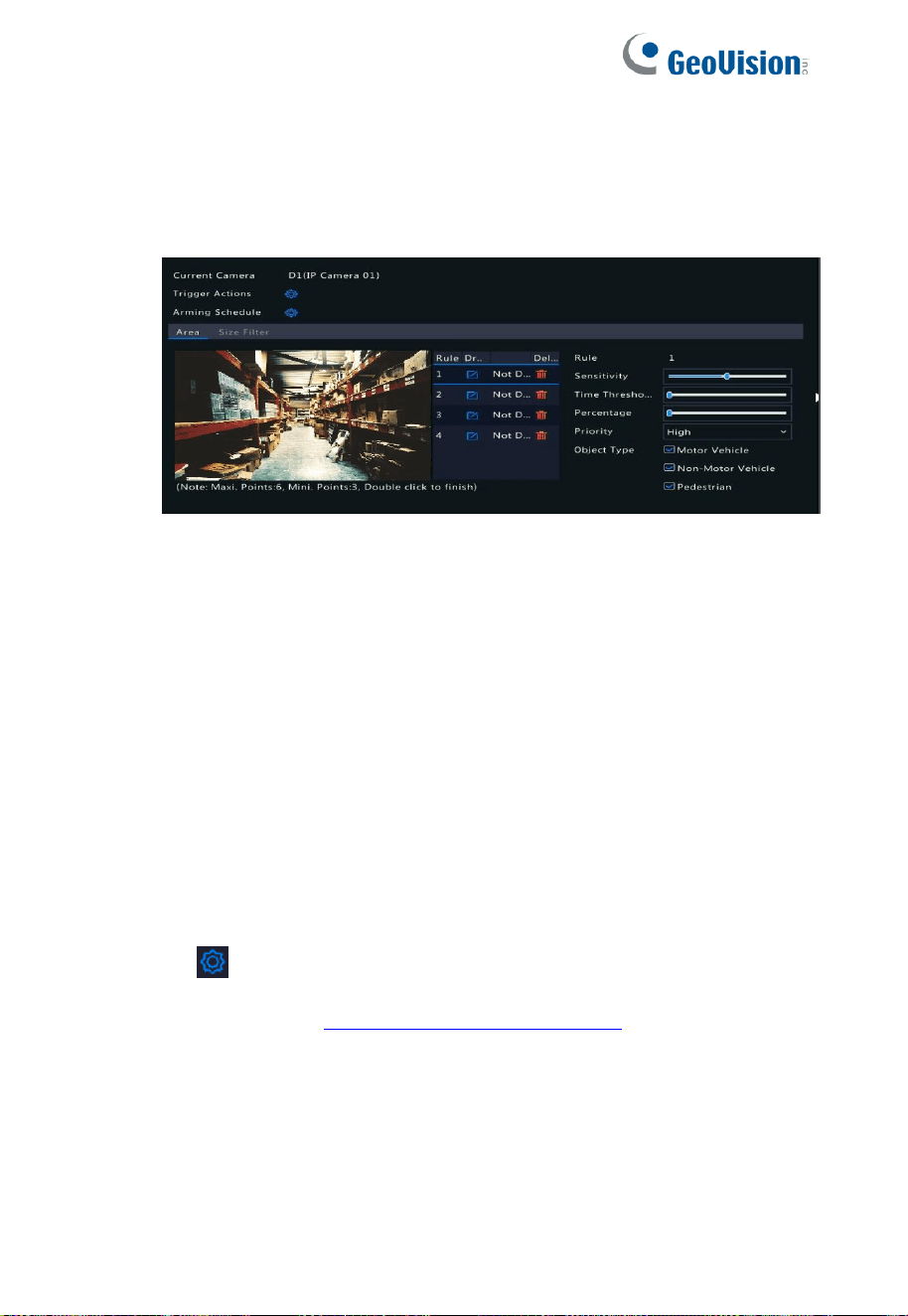
95
10.1.2 Intrusion Detection
Intrusion detection is used to detect objects entering specified area(s)
and trigger actions as needed.
1. Draw detection areas on the screen and set detection rules
including sensitivity, time threshold and percentage. Up to four
areas are allowed. The time threshold means the minimum length
of time an object stays in the detection area(s). The percentage
means the proportion of target object size to the size of the
detection area. An alarm occurs when the threshold or the
percentage is exceeded.
2. From the Priority dropdown list, set the detection priority (Low,
Mid, or High) when multiple VCA functions are enabled.
3. For Object Type, select Motor Vehicle, Non-Motor Vehicle, or
Pedestrian.
4. Click
right to Trigger Actions and set action(s) to trigger. For
more details, see 9.10 Alarm-Triggered Actions.

96
10.1.3 Cross Line Detection
Cross line detection is used to detect whether any object crosses a
virtual line on the screen and trigger alarms as needed.
1. Draw detection line(s). Up to four are allowed. Set detection rules,
including Trigger Direction and Sensitivity.
2. From the Priority dropdown list, set the detection priority (Low,
Mid, or High) when multiple VCA functions are enabled.
3. For Object Type, select Motor Vehicle, Non-Motor Vehicle, or
Pedestrian.
4. Click
right to Trigger Actions and set action(s) to trigger. For
more details, see
9.10 Alarm-Triggered Actions.

97
10.1.4 People Flow Counting
People flow counting is used to count people entering or leaving an
area.
1. Draw a virtual line on the screen to set the minimum width of
detection. People narrower than the set width will be ignored.
2. Click the Draw button and then draw rules on the left. Set
entrance direction and sensitivity as needed.
3. Select the desired counting type, including Total/People
Enterted/People Exited.
4. For Reporting Interval(s), set the time interval for reporting people
counting data.
5. By selecting Enable Clear by Schedule, you can have people
counting OSD reset at a specified time every day. You may also
click Clear Counting Result to clear the OSD immediately.
Resetting people counting OSD only changes the OSD. It does
not change report statistics.
6. Click Apply to save the settings.

98
10.1.5 Defocus Detection
Use defocus detection to check whether the camera focuses properly.
1. Click
right to Trigger Actions and set action(s) to trigger. For
more details, see
9.10 Alarm-Triggered Actions.
2. (Optional) Click right to Arming Schedule and then set the
time when actions will be triggered.
3. Set detection sensitivity and then click Apply to save the settings.
10.1.6 Scene Change Detection
Use scene change detection to detect the change of surveillance
environment caused by external factors such as intentional rotation of
the camera.
1. Click
right to Trigger Actions and set action(s) to trigger. For
more details, see 9.10 Alarm-Triggered Actions.
2. (Optional) Click right to Arming Schedule and then set the
time when actions will be triggered.
3. Set detection sensitivity and then click Apply to save the settings.

99
10.1.7 Auto Tracking
Auto tracking detects moving objects in the scene and automatically
tracks the first object detected. Note this function is only applicable
when the NVR is connected to certain AI-capable IP cameras. See
the table in
10.1 VCA Configuration for details.
1. Click right to Trigger Actions and set action(s) to trigger. For
more details, see
9.10 Alarm-Triggered Actions.
2. (Optional) Click right to Arming Schedule and then set the
time when actions will be triggered.
3. Set tracking mode (currently only Panoramic). Set tracking
timeout and zoom ratio.

100
NOTE!
⚫ Tracking Timeout(s) means the maximum length of time
the camera tracks an object automatically. The range is 1-
300 seconds and the default is 30 seconds. When the
tracking timeout is over, the camera stops tracking and
restores the original scene and status.
⚫ Zoom means zoom ratio and includes Auto (default) and
Current Zoom. Auto means the camera automatically
adjusts the zoom ratio according to the tracking distance
and thus captures more details on the tracking object;
Current Zoom means the camera maintains the original
zoom ratio during tracking and thus attends to the whole
scene.
4. Click Apply to save the settings.
10.1.8 Object Left Behind
Detect object left behind in specified areas and trigger an alarm.
1. Click
to draw detection areas.
NOTE!
When drawing a detection area, you can use up to 6 points to
specify the area. Up to 4 detection areas area allowed.

101
2. Set sensitivity and time threshold:
⚫ Sensitivity: The higher the sensitivity, the more likely an
object left behind will be detected.
⚫ Time Threshold: An alarm will be triggered when the length
of time an object is left behind in a detection area exceeds
this value.
3. Click
right to Trigger Actions and set action(s) to trigger. For
more details, see
9.10 Alarm-Triggered Actions.
4. (Optional) Click right to Arming Schedule and then set the
time when actions will be triggered.
5. Click Apply to save the settings.

102
10.1.9 Object Removed
Detect object removed from specified areas and trigger an alarm.
1. Click
to draw detection areas.
NOTE!
When drawing a detection area, you can use up to 6 points to
specify the area. Up to 4 detection areas area allowed.
2. Set sensitivity and time threshold:
⚫ Sensitivity: The higher the sensitivity, the more likely an
object will be detected.
⚫ Time Threshold: An alarm will be triggered when the length
of time an object is missing in specified areas exceeds this
value.
3. Click
to Trigger Actions and set action(s) to trigger. For more
details, see Alarm-Triggered Actions.
4. (Optional) Click right to Arming Schedule and then set the
time when actions will be triggered.
5. Click Apply to save the settings.

103
10.1.10 VCA Search
VCA searches for data of each VCA function. The search result,
application scenario and settings vary with the VCA function.
10.1.11 Face Snapshot Search
Use face snapshot search to search for captured face images.
1. Click VCA > VCA Search > Face Snapshot Search.
2. Select cameras, set a search period, and then click Search.
Search results are displayed.
3. View search results in a chart or table. Back up search results
(including images and recordings) as needed. To view videos
recorded when the face was detected (around 10 seconds before
and after), click the play button.
10.1.12 Behavior Search
Use behavior search to search for recordings triggered by detected
behaviors.
1. Click VCA > VCA Search > Behavior Search.
2. Select camera(s), set a search period, select an event type, an
object type, and then click Search. Search results are displayed.
3. View search results in a chart or table. Back up search results as
needed.

104
People Counting Report
Use people counting to count people entering and/or leaving an area
during a specified period (hour, day, week or year).
1. Click VCA > VCA Search > People Counting Report.
2. Select the camera, counting type (people entered or exited),
report type (daily, weekly, monthly, yearly, or hourly), set a time
period, and then click Count. Search results are displayed. You
may choose to display search results in a chart or table. When
you click a bar, statistics of the selected camera(s) are displayed.
3. (Optional) To save the counting statistics to a connected USB
storage device, click Backup.

105
11 Network Configuration
Network configuration is required if your NVR operates in a network.
NOTE!
The default IP address is 192.168.0.100 for NIC 1 and
192.168.1.100 for NIC 2, and likewise.
11.1 Basic Configuration
11.1.1 TCP/IP
1. Click Network > Basic > TCP/IP.
2. Set the network parameters as needed. DHCP is enabled by
default.
You can choose a working mode if your NVR has two NICs:
⚫ Multi-address mode: The two NICs work independently
and can be configured separately. Either NIC can be
chosen as the default route, and data will be forwarded
through this NIC when the NVR connects to the extranet.
⚫ Load Balance mode: The two NICs are bound to the same
IP address and work together to share network traffic.
⚫ Net Fault-tolerance mode: The two NICs are bound to the
same IP address. In cases where one NIC fails, the other
takes over service seamlessly from the faulty one to
ensure network connectivity.

106
3. Click Apply to save the settings.
NOTE!
⚫ For an NVR with multiple NICs, you can configure the
NICs and choose a default route (currently NIC1).
⚫ If your NVR has a PoE port or a switching port, you can
configure an internal NIC IPv4 address.

107
CAUTION!
⚫ If you switch the working mode, the enabled 802.1x and
ARP protection will be disabled automatically.
⚫ The valid MTU ranges from 576 to 1500 (1280-1500 for
IPv6). To use IPv6, make sure the NVR and PC can
connect to each other using IPv6 addresses. To view live
or recorded videos, make sure the IPv4 addresses are
also connectable.
11.1.2 Mobile APP
The NVR supports for remote access via mobile devices based on
Android and iOS operating system. Click Network > Basic > Mobile
APP. Refer to GV-Eye Installation Guide for the following operating
instructions on GV-Eye. This function is only applicable to GV-Eye
V3.0.0 or later.
11.1.3 DDNS
If your NVR is connected to the Internet through PPPoE, the IP
address of the network changes every time it connects to the ISP
server without your awareness. This is inconvenient when you
remotely access your NVR with an IP address. To avoid this issue,
you can register with an DDNS server to obtain a domain name for
your NVR and then access your NVR by visiting the domain name
instead of an IP address (http://DDNS server address/NVR's domain
name) using a web browser.
1. Click System > Network > DDNS.

108
2. Enable DDNS, select a DDNS type, and then complete other
settings.
⚫ If the DDNS type is DynDNS, enter the domain name,
username and password. The domain name is the one that
you have successfully registered at a domain name
registration website (e.g., DynDNS). The username and
password are those of the account you have registered at
the domain name registration website (e.g., DynDNS).
⚫ If the DDNS type is GVDIP. Enter the username
(hostname) and password registered in the GV-Dynamic
DNS Service V2 server (visit
http://ns.gvdip.com/register.aspx). Click Save.
3. Click Apply to save the settings.
11.1.4 Email
After Email is enabled as a triggered action (in Trigger Actions
windows) and configured properly, the NVR sends an email
notification to specified email address(es) if an alarm occurs within
the time period(s) set in the arming schedule. The email contains
basic alarm information such as alarm type, alarm time, camera ID,
and camera name, etc.
Before using this function, make sure the NVR has a functional
connection to an SMTP server with which you have a valid email
account. Depending on the intended recipients, a connection to the
Internet may be required.
1. Click Network > Basic > Email.

109
2. Configure the related parameters. If server authentication is
required, you need to enter the correct username and password.
Click Test to send a test email. Enter a valid SMTP server
address and port number, and then select Enable TLS/SSL if
required.
NOTE!
⚫ By default a 24×7 arming schedule is enabled. The NVR
sends an email notification only in the arming period.
⚫ Select Attach Image if you want snapshots to be sent via
email. Make sure Email and snapshot have been enabled
in the Trigger Actions window.
⚫ You may click Test to check whether the email can be
sent successfully.
3. Click Apply to save the settings.

110
11.2 Platform Configuration
11.2.1 SNMP
Use SNMP to connect to a platform and obtain system time.
1. Click Network > Platform > SNMP. Select Enable SNMP.
2. Select an SNMP type.
⚫ Snmp V2
Set Read Community Name and Write Community Name,
which are used by the platform to read data on NVR.
⚫ Snmp V3
Set authentication password (for the platform to access the
NVR) and encryption password (for encrypting data sent from
the NVR to the platform).
3. Click Apply.

111
11.2.2 Alarm Service
Use this function to send alarm signals to an external alarm device
(for example, alarm control panel) when an alarm or an alert occurs
on the NVR.
1. Click Network > Platform > Alarm Service.
2. Select Enable Alarm Service, and set the server address and
SIP server port.
NOTE!
The NVR only sends alarm signals when an alarm or alert
occurs; users need to implement alarm receiving and
reporting for the external alarm device separately.
11.3 Advanced Configuration
11.3.1 PPPoE
The NVR allows access through Point-to-Point over Ethernet (PPPoE).
1. Click Network > Advanced > PPPoE.
2. Enable PPPoE by selecting the check box.
3. Enter the username and password provided by your Internet
Service Provider (ISP). Network information including IP address
appears when dial-up succeeds.

112
NOTE!
If your NVR has multiple NICs, PPPoE dial-up will be
implemented through the NIC specified as the default route.
4. Click Apply to save the settings.
11.3.2 Port
Normally the default port numbers need no modification. This function
is mainly used together with the port mapping function. See
4.1.1
Adding an IP Device for more details.
1. Click Network > Advanced > Port.
2. Configure ports as planned. Each port number must be unique.
NOTE!
⚫ A valid port number ranges from 1 to 65535, among which
21, 23, 2000, 3702 and 60000 are reserved.
⚫ An RTSP URL can be used to view live video of a channel
of the current NVR from another NVR. See Option 4 in
4.1.1 Adding an IP Device for more information.
3. Click Apply to save the settings.

113
11.3.3 Port Mapping
Two port mapping methods are available:
⚫ Universal Plug and Play (UPnP)
⚫ Internal and external mapping
11.3.3.1 UPnP
UPnP enables the NVR to discover other devices on the network and
establish network services such as data sharing and communication.
To use UPnP on your NVR, you must enable UPnP in the connected
router. With UPnP enabled for Network Address Translation (NAT),
the ports on the NVR can be mapped automatically to the router, and
computers can access your NVR from outside the LAN.
1. Click Network > Advanced > Port Mapping.
2. UPnP is enabled by default. Select the desired mapping type
from the drop-down list. To map ports manually, select Manual
and then set external ports for the router.

114
NOTE!
⚫ Automatic mapping (Auto) is recommended. Ports will
conflict if not configured properly.
⚫ For an NVR with multiple NICs, port mapping should be
configured based on the NIC specified as the default
route.
3. Click Refresh and check that Active is displayed for these ports
under UPnP Status.
4. Click Apply to save the settings.
11.3.3.2 Manual Port Mapping
If your router does not support UPnP, then you need to configure
internal and external ports manually.
NOTE!
⚫ The principle of port mapping is that the internal and
external ports of the NVR are consistent with that of the
router.
⚫ Some routers may require the same internal and external
ports for the NVR and the router.
1. Click Network > Advanced > Port Mapping.
2. Select Manual for Mapping Mode, and then set external ports
manually.

115
3. Click Apply to save the settings.
NOTE!
After port mapping is completed, you may access the Web
client of your NVR by entering the following information in the
address bar of your web browser: router's WAN port IP
address: external HTTP port. For example, if 10.2.2.10 is the
IP address and 82 is the HTTP port, then you enter
http://10.2.2.10:82.
11.3.4 FTP
Use this function to automatically upload images to a preconfigured
FTP server.
1. Click Network > Advanced > FTP.
2. Select the check box to enable FTP.
3. Enter the IP address of the FTP server, username and password,
remote directory, and upload interval.
NOTE!
⚫ Click Test to verify whether an FTP connection can be
established.
⚫ If the remote directory is not specified, the system will
create different folders directly by IP, time and camera.
You may also specify a remote directly, for example,
FTPtest/xxx/xxx, then the system will create the directory
first and then create folders by IP, time and camera.

116
4. Select the desired camera and then click
right to Upload
Schedule. In the Upload Schedule window, select the desired
image type and set time periods.
NOTE!
⚫ If you select Event, Motion, Alarm or Video Loss, you also
need to configure the corresponding alarm-triggered
snapshot. For example, if you select Motion, you need to
configure alarm-triggered snapshot (select Motion in the
Edit Schedule window).
⚫ To apply the same settings to other days in a week, select
the desired days right to Copy To.
5. (Optional) Apply the same settings to other cameras by clicking
right to Copy and then selecting desired cameras.
6. Click Apply to save the settings.
NOTE!
To apply the same settings to other cameras, click
right to
Copy, select cameras and then click OK.
11.3.5 Multicast
Multicast can be used to realize live view when the number of
connecting Web clients exceeds the limit the NVR can accommodate.
1. Click Network > Advanced > Multicast.

117
2. Select the check box to enable multicast, and then enter the
multicast IP and port number.
3. Click Apply to save the settings.
4. Log in to the Web client and set Live View Protocol to Multicast
under Setup > Client.
NOTE!
Set the multicast IP correctly. Multicast address is class D
address with the range 224.0.0.0 through 239.255.255.255;
some are for special use:
⚫ 224.0.1.0--238.255.255.255 can be used on the Internet.
⚫ 224.0.0.0-244.0.0.255: only for use on LAN.
⚫ 224.0.0.1: all-hosts group address, which refers to all the
multicast-capable hosts and routers on a physical
network.
⚫ 224.0.0.2: for all routers on this subnet.
⚫ 224.0.0.5: for all OSPF routers.
⚫ 224.0.0.13: for all PIMv2 routers.
⚫ 239.0.0.0--239.255.255.255 are for private use like
192.168.x.x.

118
12 Disk Configuration
12.1 Disk Management
View disk information, including total and free disk space, disk status,
disk type, disk usage, and disk property. Admin users can format
disks and edit disk property
1. Click Storage > Hard Disk.
2. To add a disk, click Add. In the dialog box displayed, select disk
usage (recording/snapshot or backup) and disk type (currently
NAS only), enter the server address and directory, and then click
Add. Up to eight NAS disks are allowed.
3. To edit disk property, click
, and then modify disk usage
(recording/snapshot or backup) and disk property (Read/Write,
Read Only or Redundant) as needed.

119
NOTE!
⚫ Disk property can be edited if the disk is used for
recording/snapshot.
⚫ The Redundant property is available to certain NVR
models.
⚫ You may use external eSATA disks for recording/snapshot
or backup purpose and unmount them if necessary.
eSATA disks and NAS disks cannot be used to create
arrays.
4. To format a disk, select the disk and then click Format. A
confirmation message appears. Click Yes.
NOTE!
⚫ Local disks will be formatted automatically when installed.
Extended disks will not. Format a disk with caution. All
data will be removed.
12.2 Array Configuration
The table below lists the supported RAID types and hard disks required.
RAID
HDD Qty
RAID 0
2-8
RAID 1
2
RAID 5
3-8
RAID 6
4-8
RAID 10
4-16 (Must be an integral multiple of
2, e.g., 4, 8, 10, etc).

120
12.2.1 Enabling RAID
You need to enable RAID first.
1. Click Storage > Array.
2. Select the check box to enable RAID. A confirmation message
appears. Click Yes.
12.2.2 Creating an Array
It is recommended to configure physical hard disks as hot spare disks
to ensure reliable system operation and successful rebuilding in case
an array fails.
1. Click Storage > Array.
2. To create an array automatically, click One-click Create.
NOTE!
⚫ There is no need to select disks when creating an array
with One-click Create. The system identifies all usable
disks. RAID 1 is created when two disks are available.
When three or more disks are available, RAID 5 is
created.
⚫ Arrays created in this way are named ARRAYX, for
example, ARRAY1, ARRAY2.

121
3. To create an array manually, select the desired disks and then
click Create. In the window displayed, enter the array name,
select the array type, and select local disks. Click Apply to
complete the setup. Note that no hot spare disk will be created
automatically. Make sure all disks are selected to create array(s);
otherwise, disk space will be wasted (because disks that are not
selected will not be used for storage).
12.2.3 Rebuilding an Array
By checking array status, you can determine whether maintenance is
necessary.
NOTE!
To be alerted when an array is degraded or damaged, you
can configure alarm-triggered action at Alarm > Alert.
An array is in one of four statuses: normal, degraded, damaged,
rebuild. The status is normal if no physical disk is lost. When the
number of physical disks lost reaches the specified value, the array is
considered damaged. The status between normal and damaged is
degraded. A degraded array can be recovered to normal status
through rebuilding.
NOTE!
Take RAID 5 that consists of 4 disks as an example. The
array is degraded when one disk is lost. When two disks are
lost, the array is damaged.

122
A degraded array can be automatically rebuilt in ten minutes if these
conditions are met: a hot spare disk is available; the capacity of the
hot spare disk is not less than that of any disk in the array. A
degraded array without a hot spare disk can only be rebuilt manually
under Storage > Array > Array. By default the first local disk that
satisfies requirements is selected.
12.2.4 Deleting an Array
CAUTION!
Deleting an array will erase all data on it.
1. Click Storage > Array > Array.
2. Click for the array to delete. A confirmation message appears.
Click Yes.

123
12.3 Disk Group
Assign hard disks to a disk group and use the disk group to store
recordings and snapshots of specified cameras. Different arrays can
be assigned to different disk groups.
Redundant disks cannot be assigned to any disk group. Disk group
information will be initialized if any disk in the group is formatted.
1. Click Storage > Disk Group.
2. Select Enable Disk Group. By default all disks belong to Disk
Group 1. Click
for the disk to edit, and then select a group to which
the disk will be assigned.
3. Click Apply to save the settings.
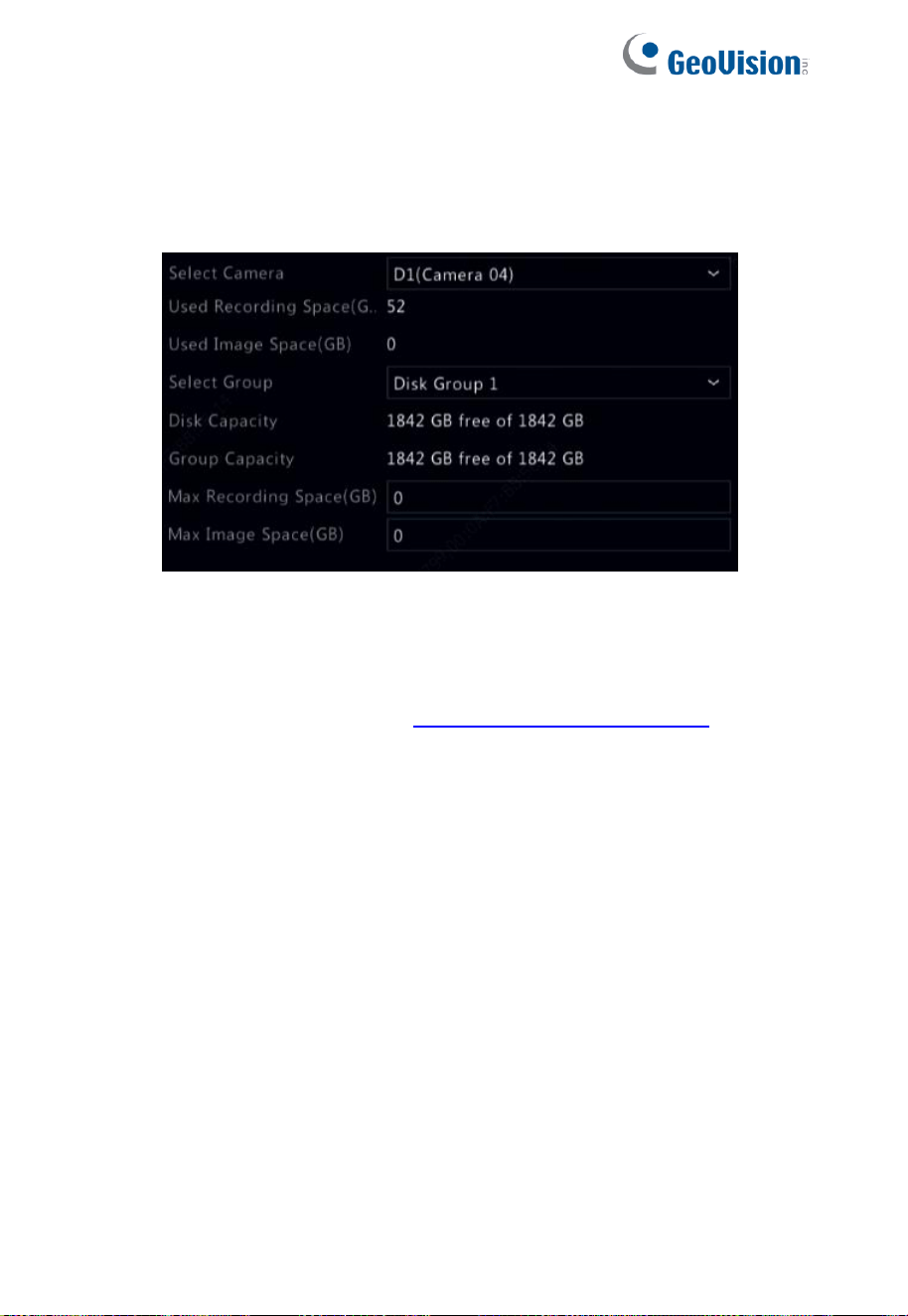
124
12.4 Space Allocation
Allocate space to store videos and snapshots of a specified camera.
1. Click Storage > Allocate Space.
2. Select the desired camera and then set the maximum recording
space and maximum image space. You can select a disk group
only when disk group is enabled under Storage > Disk Group.
For more information, see 11.3 Advanced Configuration.
3. Click Apply to save the settings.
4. (Optional) Click Copy to apply the same settings to other
camera(s).

125
12.5 Advanced Configuration
Set whether to overwrite recordings or snapshots when storage is full.
1. Click Storage > Advanced.
2. Choose an option.
Option
Allocated
Space
Description
Overwrite
0
The camera shares unallocated
space, and its oldest
recordings/snapshots will be
overwritten when the space is
used up.
Other
values
The camera's oldest
recordings/snapshots will be
overwritten when its allocated
space is used up.
Stop
0
The camera shares unallocated
space, and its oldest
recordings/snapshots will still be
overwritten when the space is
used up.
Other
values
The camera's new
recordings/snapshots will not be
saved when its allocated space is
used up.
3. Click Apply to save the settings.

126
13 System Configuration
13.1 Basic Configuration
1. Click System > Basic.
2. Configure the parameters.
NOTE!
⚫ Only admin can set Enable Password Protection.
⚫ If Enable Password Protection is not selected, no
password is required for local login at system startup.
However, a username and password are still required
when you log in after a logout.
⚫ Some NVR models support Intelligent Mark. When the
NVR and IP camera are both enabled, the latest
areas/lines or VCA data configured for face detection,
intrusion detection, and cross line detection will be
displayed on the Preview, Behavior and Alarm windows
in real time.
⚫ Intelligent mark is displayed on the screen as areas/lines
in different colors. Yellow means areas/lines configured for
face detection, intrusion detection, and cross line
detection; green means VCA data has changed but not
triggered rules; red means rules are triggered in the
configured area (rules are configured for VCA alarms),
and VCA alarm has occurred.
⚫ You may also set startup Wizard here by clicking Wizard.
3. Click Apply to save the settings.

127
13.2 Time Configuration
13.2.1 Time
1. Click System > Time > Time.
2. Select the correct time zone, and then set date and time formats
and the system time. The following shows an example.
3. To use Network Time Protocol (NTP), enable auto update, set the
address and port number of the NTP server, and the update
interval.
4. Click Apply to save the settings.
13.2.2 DST
1. Click System > Time > DST.
2. Enable DST by selecting the check box, and then set the start
time, end time, and DST bias correctly.
3. Click Apply to save the settings.

128
13.2.3 Time Synchronization
Use this function to synchronize camera time with the NVR. Time
sync is enabled by default, and cameras will synchronize time with
the NVR after getting online, and then synchronize once every 30
minutes.
1. Click System > Time > Time Sync.
2. Select Sync Camera Time and then click Apply.
CAUTION!
Use this function with caution if you have more than one NVR
on the network. An IP camera synchronizing time with
multiple NVRs at the same time will cause chaotic recordings.
13.3 Serial Configuration
The Serial page allows you to configure RS485 parameters when
connecting to a PTZ camera. Click System > Serial for relevant
configurations.
13.4 User Configuration
Add, delete users or edit user permissions. Only admin can perform
these operations. Device password is required for user configuration.

129
A user type is a set of permissions in the system. When a user type is
assigned to a user, this user has all the permissions specified for the
user type.
There are four user types in the system:
⚫ Admin: Default super administrator in the system, has full
system access. Its initial password is 123456.
⚫ Default: Default user reserved in the system, cannot be
created or deleted, and only has access to live view and
two-way audio. If the default user is denied access, the
corresponding channel is locked when no user is logged in,
and
appears in the window.
⚫ Operator: Has basic permissions and access to cameras.
⚫ Guest: Only has access to cameras by default.
1. Click System > User.
2. To add a user, click Add, and then set the username and
password, select user type, permissions and whether to enable
unlock pattern as needed. Click OK to save the settings.

130
3. To edit or delete a user, click
or as needed. If you change
the password for a user, the new password takes effect at the
user's next login.
13.5 Security Configuration
13.5.1 IP Address Filtering
Use this function to enhance security by allowing or forbidding access
to the NVR from specified IP addresses.
1. Click System > Security > IP Address Filtering.
2. Select Enable IP Address Filtering, select Blocklist or
Allowlist from the drop-down list, set the start and end IP
addresses, and then click Add.

131
NOTE!
⚫ If Blocklist is selected, the NVR denies remote access
from the IP address(es) on the list.
⚫ If Allowlist is selected, the NVR only allows remote
access from the IP address(es) on the list. However, if
Allowlist is selected with no IP address specified, remote
access to the NVR will be denied.
3. Click Apply to save the settings.
13.5.2 ONVIF Authentication
Enable ONVIF authentication under System > Security > ONVIF
Auth so a username and password will be required for ONVIF-based
device access.
Select the check box and then click Apply.
13.5.3 ARP Protection
ARP protocol is used to associate an IP address to a hardware MAC
address. ARP attacks mainly occur on LAN, in which attackers use
forged IP and MAC addresses. APR protection prevents this kind of
attacks by verifying the gateway's MAC address in all access
requests.

132
Note that changing the NIC working mode will disable ARP protection
automatically.
1. Click System > Security > ARP Protection.
2. Select the desired NIC and then select Enable ARP Protection.
3. Obtain the gateway's MAC address automatically, or select
Custom and input the MAC address.
4. Click Apply to save the settings.
13.5.4 802.1x
802.1x is a port-based network access control protocol mainly used to
solve authentication and security issues on LAN.
Note that changing the NIC working mode will disable 802.1x
automatically.
1. Click System > Security > 802.1x.
2. Select the desired NIC and select the check box to enable 802.1x.
3. Select the EAPOL version, and then enter the username and
password of the authentication server.
4. Click Apply to save the settings.
133
13.6 Hot Spare Configuration
Note that the hot spare is not functional.
CAUTION!
If the NVR is set as the hot spare device by accident,
all
settings and recording data on the set NVR will be removed
without a warning message.

134
14 System Maintenance
14.1 System Information
Click Maintenance > System Info to view the basic NVR information
for maintenance purpose.
14.1.2 System Info
Click the Basic Info tab to view the basic information such as the
device model, serial number, firmware version, build date and
operation time.
14.1.3 Camera status
Click the Camera tab to view camera status (online or offline with
possible offline cause) and status of alarm functions such as motion
detecion, tampering, video loss and audio detection. Off means
disabled, and On means enabled.

135
14.1.4 Recording status
Click the Recording tab to view recording status and stream settings.
14.1.5 Online user
Click the Online User tab for information about users who are
currently logged in.
14.1.6 Disk status
Click the Disk tab to view the hard disk status and disk properties.

136
14.2 Network Information
14.2.1 Traffic
Click Maintenance > Network Info > Network Traffic to view
network traffic information.
14.2.2 Packet Capture
To capture and save packets, click Maintenance > Network Info >
Packet Capture. Select the USB storage device, specify the port
number and IP address, and then click
right to the desired NIC.
The captured packets are saved as a backup file in the root directory
of the USB storage device. You may click Open to view the file.
NOTE!
⚫ The packet size is 1520 byes by default and can be
changed as needed.
⚫ The backup file of the captured packets is named in NIC
name_time.pcap format.
⚫ Packets cannot be captured if it is already started on the
Web interface.

137
14.2.3 Network Detection
Click Maintenance > Network Info > Network Test.
To test network delay and packet loss rate, enter the test address and
then click Start Test.
NOTE!
The test packet size is 3000 bytes by default and can be
changed as needed.
14.2.4 Network Settings
Click Maintenance > Network Info > Network to view network
settings.
14.2.5 PoE/Network Port Status
Click System > Network Info to view port status. A blue port indicates
that the port is in use. For PoE models, power information will be
displayed.

138
14.2.6 Network Statistics
Click Maintenance > Network Info > Network Statistics. Bandwidth
usage statistics are displayed.
NOTE!
⚫ Insufficient receiving bandwidth (Idle Receive
Bandwidth) may cause the connected cameras to be
offline.
⚫ When the sending bandwidth (Idle Send Bandwidth) is
insufficient, remote live view, playback or download may
fail on the NVR.
14.3 Log Query
Logs contain information about user-performed operations and device
status. By analyzing logs, you can keep track of device operation
status and view detailed alarm information.
1. Click Maintenance > Log > Log Search.
2. Set query conditions, including the start and end times, main type
and sub type.

139
3. Click Search.
4. If
is displayed under Play, you may click to view the
recording that started one minute before the alarm time and
ended ten minutes after the alarm time.
means this function is
not available.
5. To export logs to an external storage device, click Export, set the
export destination and format, and then click Backup.

140
14.4 Import/Export
14.4.1 System Import/Export
Configurations and diagnosis information can be exported to a
storage device and saved as files for backup. A configuration file can
also be imported to the NVR to restore configurations. The
configuration file of an NVR can be imported to multiple NVRs of the
same model if you want them to have the same settings. If the
imported configuration file contains camera information, the related
camera will be added to all the NVRs.
Only admin can perform these operations.
1. Click Maintenance > Backup > Import/Export.
2. To export device configurations, specify the destination directory
and then click Export. A .xml file will be created in the specified
directory when export is completed.
3. To import device configurations, double-click the target folder
containing the .xml file, select the file, and then click Import.
CAUTION!
Delete files with caution. Deleted files cannot be recovered.

141
14.4.2 Diagnosis Info
The device can save diagnosis info for 14 days and will overwrite the
oldest when space is full.
1. Click Maintenance > Backup > Diagnosis Info.
2. Select a device type:
⚫ NVR: For NVR, history diagnosis info is generated at 00:00
every day. To export history diagnosis info, click Export at
the bottom. To export current diagnosis info, click Export
right to Current Diagnosis Info.
⚫ IPC: For IPC, history diagnosis info is generated at 00:05
every day. Select channels and then click Export at the
bottom. To export current diagnosis info, click Export right
to Current Diagnosis Info.
NOTE!
For IPC, diagnosis info is recorded based on channel, which
means, if an IPC is added to multiple channels, all the
channels will record diagnosis info for the IPC.

142
14.5 System Restoration
Use this function to restore some or all factory default settings. The
NVR will restart automatically to complete this operation. Recordings
and operation logs will not be deleted.
1. Click Maintenance > Restore.
2. Click Default to restore factory default settings except network
and user settings, or click Factory Default to restore all factory
default settings.
14.6 Automatic Maintenance
Set the NVR to restart as scheduled and delete files (including
recordings and snapshots) as needed. Only admin can perform this
operation.
1. Click Maintenance > Auto-Function.
2. Set an auto-restart time, and choose a way to delete files
automatically.
CAUTION!
Files deleted automatically cannot be recovered.
143
14.7 System Upgrade
Upgrade the device locally (using an upgrade file saved in a USB
storage device).
CAUTION!
Make sure power is not interrupted during upgrade. A power
failure during system upgrade may cause startup failure. Use
an Uninterrupted Power Supply (UPS) if necessary.
14.7.1 NVR Upgrade
1. Click Maintenance > Upgrade.
2. Local is set by default for the upgrade type.
⚫ Local upgrade
3. Locate the upgrade file and click Upgrade to start the upgrade.
NOTE!
⚫ To upgrade the NVR, extract the upgrade file as the .bin
file before the operation.
⚫ NVR upgrade is also applicable on the Web interface.
14.7.2 Camera Upgrade
Click Maintenance > Upgrade > IPC Upgrade to see if the version of
the connected IP camera is up to date. You may upgrade cameras by
disk (
) one by one, or select multiple cameras and then click
Upgrade By Disk to upgrade cameras in batches.
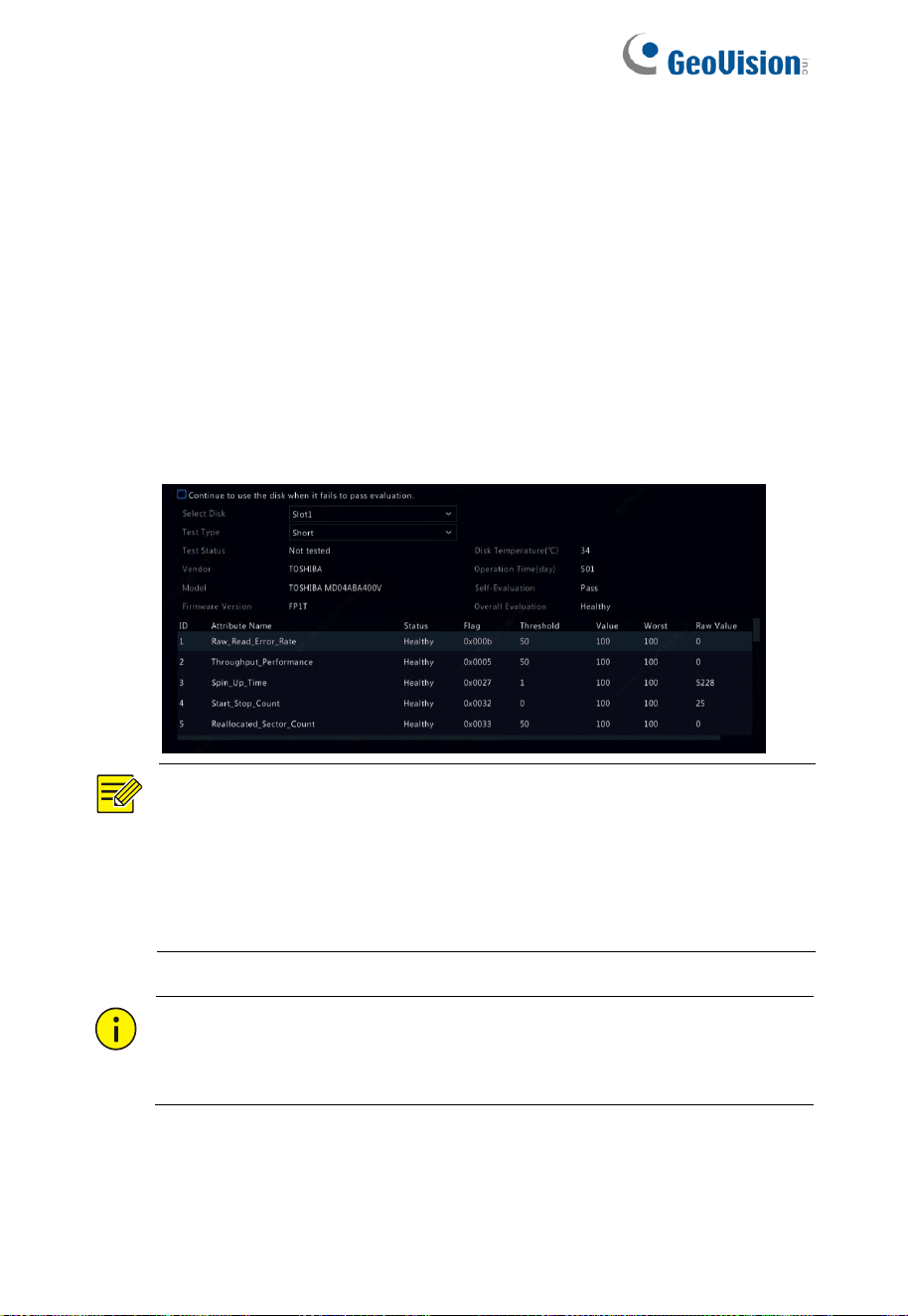
144
14.8 Hard Disk Detection
14.8.1 S.M.A.R.T. Test
Click Maintenance > HDD > S.M.A.R.T. Test to do the S.M.A.R.T.
test.
S.M.A.R.T. (enabled by default) checks the head, platter, motor, and
circuit of hard disks to evaluate their health status. The overall
evaluation results include Healthy, Failure, and Bad Sectors. It is
recommended to replace the disk immediately if the status is Failure.
NOTE!
⚫ Some hard disks only support some of the test items.
⚫ The system provides three test types: Short, Extended,
and Conveyance. Extended tests detect more thoroughly
and thus take longer time than Short tests. Conveyance
tests mainly detect data transmission problems.
CAUTION!
Using a faulty disk is risky. Faulty disks should be replaced
immediately.

145
14.8.2 Bad Sector Detection
Bad sector detection checks for bad sectors in hard disks.
1. Click Maintenance > HDD > Bad Sector Detect.
2. Select the desired disk and detection type, and then click Detect
to start detection. Click Stop if you want to stop.
CAUTION!
The detection stops automatically when the error count
reaches 100.
14.9 One-Click Collect
Collect the diagnosis information of IPC and NVR with one click. Click
Maintenance > One-Click Collect for the configurations.

146
15 Shutdown
Click to shutdown, log out, or restart as needed. To shut down the
NVR, you may also long-press the power off button. See no.4 in
1.2.1.1 GV-SNVR3203 / GV-SNVR6403 Front View.
CAUTION!
Unsaved settings will be lost if the NVR is shut down
unexpectedly, for example, due to a power failure. An
incorrect shutdown during a system upgrade may cause
startup failures.

147
Part II Web-Based Operations
1 Before You Begin
You may access and manage your NVR remotely using a web
browser on a PC (through the Web interface). Check the following
before you begin:
⚫ Access will be authenticated during login, and operation
permissions will be required.
⚫ The PC is operating properly and has a network
connection to the NVR.
⚫ The PC uses the Windows 8 operating system or later
versions.
⚫ A Web browser has been installed on the PC. Microsoft
Internet Explorer 8.0 or higher is recommended. Non-IE
browsers (Chrome, Edge, Firefox, Safari) are also
supported.
⚫ A 32-bit Web browser is still required even if you are using
a 64-bit operating system.
NOTE!
⚫ The parameters that are grayed out on the Web GUI
cannot be modified. The parameters and values displayed
may vary with NVR model.
⚫ The figures are for illustration purpose only and may vary
with NVR model.

148
2 Login
You may need to install a plug-in as prompted at your first login. Close
the Web browser when the installation starts.
1. Open a Web browser on your PC and browse to the login page
by entering the IP address (192.168.0.100 / 192.168.1.100 by
default) of your NVR.
2. In the login dialog box, enter the default username and password
(admin / 123456) or the modified password based on your
configurations on the NVR and then click Login.
CAUTION!
The default password is intended only for your first login. We
strongly recommend you set a strong password to ensure
account security.
⚫ Strong: contains at least 8 characters from at least three
of the four types: upper-case letter, lower-case letter,
special character, digit.
⚫ Weak: contains at least 8 characters from two of the four
types: upper-case letter, lower-case letter, special
character, digit.

149
3 Live View
The Live View page is displayed when you are logged in. The
following figure shows an example. Click the camera on the list at the
left to access the live view.
1
3
5 6
8
9
2
4
7
10
11
12
13
14
15
16
Table 3–1 Live View Window Control Buttons
No.
Button
Description
1
Two-way audio
2
/
Main/Sub stream
3
/
Start or stop live view in all windows
4
/
Previous and next screen
5
Switch screen layout
6
Select stream type
7
Shows the current frame rate, bit rate,
resolution, and packet loss rate
8
Take a snapshot
9
Local recording

150
No.
Button
Description
10
Enable digital zoom
11
/
Open or close the control panel
12
Set fisheye mounting mode and display mode.
13
/
Turn on or off audio; adjust sound volume.
14
/
Adjust MIC volume
15
3D positioning
16
Full screen
NOTE!
⚫ The
icon means two-way audio is available. Click to
start two-way audio with the NVR or a camera (depending
on where the icon is displayed).
⚫ Only the main stream
is displayed when the camera is
offline or it supports only one stream.
⚫ Snapshots are saved in a snapshot file folder named by
the IP address, and the snapshot file is named in this
format: Camera ID_ time. By default, snapshots are saved
in this directory: \Snap\IP\Camera ID_time. The time is in
YYYYMMDDHHMMSSMS format.
⚫ Local recordings are saved in a recording file folder
named by the IP address, and the recording file is named
in this format: Camera ID_S recording start time_E
recording end time. By default, recordings are saved in
this directory: \Record\IP\Camera ID_S recording start
time_E recording end time. The recording start and end
times are in YYYYMMDDHHMMSSMS format.

151
4 Playback
Click Playback on the top to show the Playback page. The following
figure shows an example. Click the camera to access the playback
videos.
1
3
4
8
9
2
5
10
11
12
13
14
15
6
7
Table 4–1 Playback Control Buttons
No.
Button
Description
1
/
Previous or next period (time)
2
/
Play/Pause
3
Stop
4
Reverse
5
/
Slow down or speed up
6
/
Rewind or forward the playback video;
adjust the rewind/forward time length by
selecting from the dropdown list in the
middle

152
No.
Button
Description
7
/
Rewind or forward by frame
8
Take a snapshot
9
/
Clip video/pause
10
Save video clip
11
Set fisheye mounting mode and display
mode.
12
Enable digital zoom
13
Add customized tag
14
Adjust sound volume; turn on or off sound
15
Zoom in/out the playback timeline
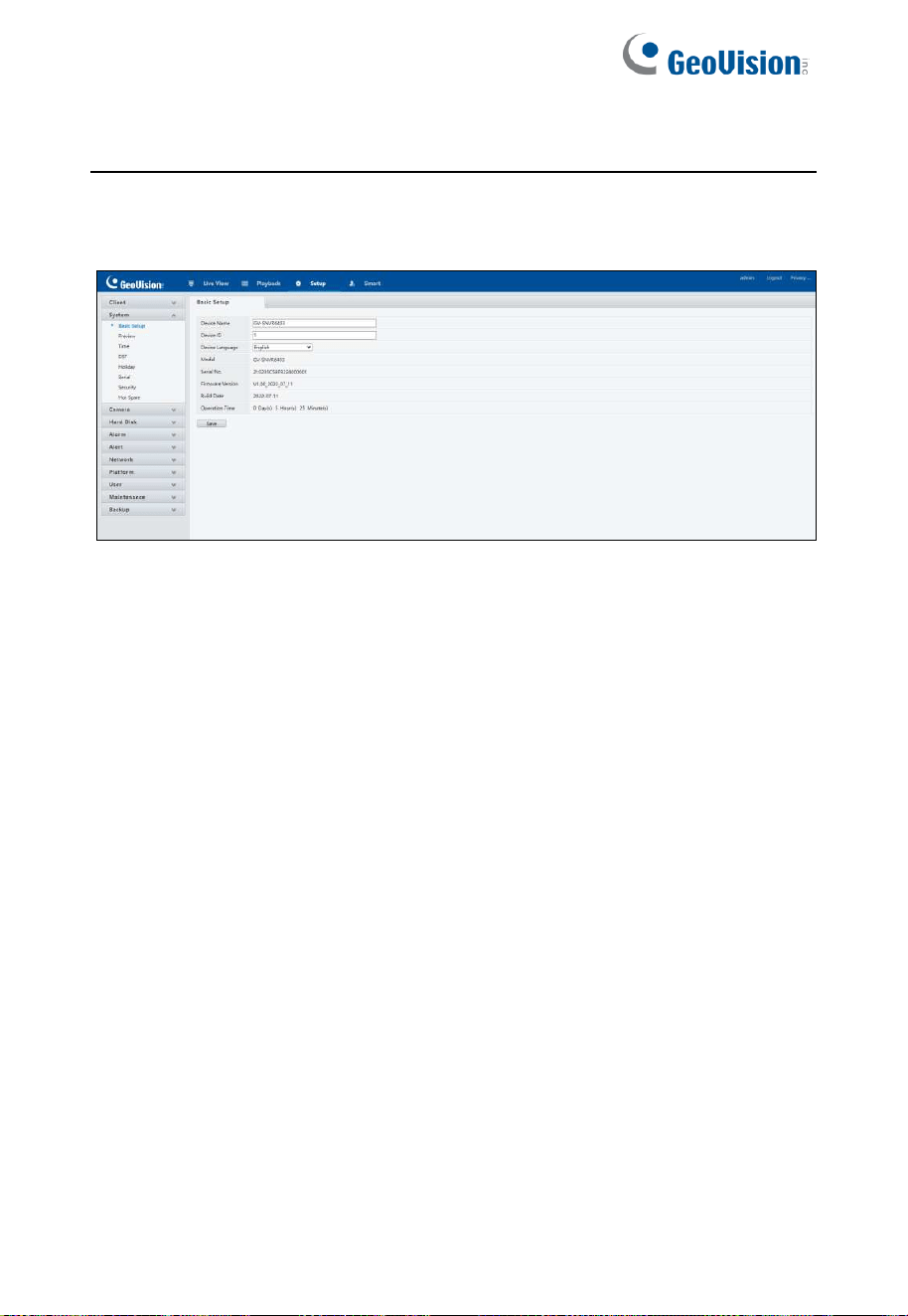
153
5 Configuration
Click Setup on the top, and then click the menus on the left to
configure parameters.

154
Appendix A Typical Applications
Typical Application 1
The NVR, IP cameras, and PC are connected on a private network
(or LAN). The IP cameras can be connected to the NVR directly or via
a switch. You can manage the NVR and the connected IP cameras
through the monitor or using a web browser on the PC.
Monitor
Switch
PC
IPC1
IPCn
NVR
IPCn
IPC1
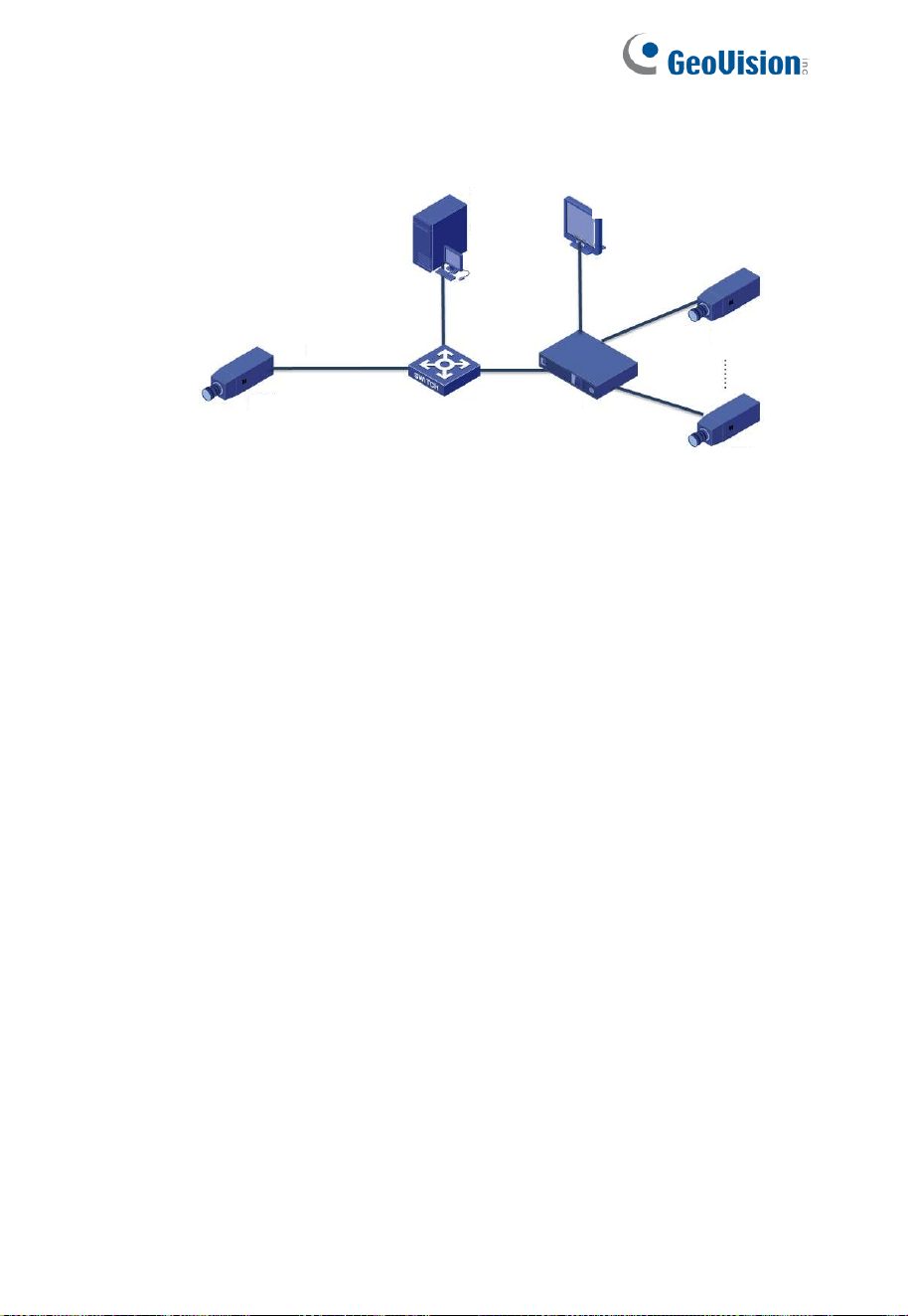
155
Typical Application 2
The NVR, IP cameras, and PC are connected on a private network
(or LAN). The IP cameras can be connected to the NVR directly or via
a switch. The PC is installed with surveillance management software.
You can manage the NVR and the connected IP cameras using the
surveillance software or through the monitor.
Switch
Surveillance
management
software
Monitor
NVR
IPCn
IPC1
IPC

156
Appendix B Acronyms
Acronym
Description
CBR
Constant Bit Rate
DDNS
Dynamic Domain Name Service
DHCP
Dynamic Host Configuration Protocol
DST
Daylight Saving Time
FTP
File Transfer Protocol
HDMI
High Definition Multimedia Interface
HTTPS
Hypertext Transfer Protocol Over Secure
Sockets Layer
IPC
IP Camera
JPEG
Joint Photographic Experts Group
MTU
Maximum Transfer Unit
NAT
Network Address Translation
NIC
Network Interface Card
NTP
Network Time Protocol
NVR
Network Video Recorder
ONVIF
Open Network Video Interface Forum
PoE
Power over Ethernet
PPPoE
Point-to-Point Protocol over Ethernet
PTZ
Pan, Tilt, Zoom
RAID
Redundant Arrays of Independent Disks
RTSP
Real-Time Streaming Protocol
SDK
Software Development Kit
S.M.A.R.T.
Self-Monitoring, Analysis and Reporting
Technology
UPnP
Universal Plug-and-Play
USB
Universal Serial Bus
VGA
Video Graphics Array

157
Acronym
Description
VBR
Variable Bit Rate
Appendix C FAQs
Problem
Possible Cause and Solution
Forgot the login
password
Click Forgot Password on the login
page, then follow the on-screen
instructions to retrieve password.
The Web plugin
(ActiveX) cannot
be loaded.
Close your web browser when the
installation starts.
Disable the firewall and close the
anti-virus program on your
computer.
Enable your Internet Explorer (IE)
to check for newer versions of the
stored pages every time you visit
the webpage (Tools > Internet
Options > General > Settings).
Add your NVR's IP address to the
trusted sites in your IE (Tools >
Internet Options > Security).
Add your NVR's IP address to the
Compatibility View list in your IE
(Tools > Compatibility View
Settings).
Clear your IE's cache.

158
Problem
Possible Cause and Solution
No images are
displayed in live
view on the Web
interface.
Check if the bit rate is 0Mbps in the
live view window.
If yes, check if the firewall has been
disabled, and the anti-virus program
has been stopped on your
computer.
If not, maybe it is because the
graphics card driver on your
computer is not working properly.
Try installing the driver again.
A camera is offline,
and No Link is
displayed.
Click Maintenance > System Info >
Camera. The cause is displayed under
Status. Common causes include
disconnected network, incorrect
username or password, weak
password, insufficient bandwidth.
Check network connection and
network configurations.
If it indicates incorrect username or
password, check that the camera
password set in the NVR is the one
used to access the camera's Web
interface.
If it indicates denied access for
weak password, log in to the
camera's Web interface and set a
strong password.
If it indicates insufficient bandwidth,
delete other online IP devices in the
NVR.

159
Problem
Possible Cause and Solution
The NVR displays
live video for some
cameras and No
Resource for
others.
Set the camera to encode the sub
stream, and decrease its resolution
to D1.
Set the NVR to use the sub stream
first for live view.
A camera goes
online and offline
repeatedly.
Check if network connection is
stable.
Upgrade the firmware for the
camera and the NVR. Contact your
dealer for the latest versions.
Live view is
normal, but the
recording cannot
be found.
Check if a recording schedule has
been properly configured.
Check if the time and time zone
configured in the NVR are correct.
Check if the hard disk storing the
recording has been damaged.
Check if the desired recording has
been overwritten.
Motion detection is
not effective.
Check if motion detection is
enabled, and the motion detection
area is properly configured.
Check if detection sensitivity is
properly set.
Check if the arming schedule is
properly configured.

160
Problem
Possible Cause and Solution
A hard disk cannot
be identified by the
NVR.
Use the power adapter delivered
with your NVR.
Power down the NVR and then
mount the hard disk again.
Try another disk slot.
The disk is not compatible with your
NVR.
The mouse does
not work.
Use the mouse delivered with your
NVR.
Make sure no cable is extended.