
AX HYBRID PRO
User Manual

AX HYBRID PRO User Manual
i
Legal Information
© 2022 Hangzhou Hikvision Digital Technology Co., Ltd. All rights reserved.
About this Manual
The Manual includes instructions for using and managing the Product. Pictures, charts, images and
all other information hereinafter are for description and explanation only. The information
contained in the Manual is subject to change, without notice, due to firmware updates or other
reasons. Please find the latest version of this Manual at the Hikvision website
(https://www.hikvision.com/).
Please use this Manual with the guidance and assistance of professionals trained in supporting the
Product.
Trademarks
and other Hikvision's trademarks and logos are the properties of
Hikvision in various jurisdictions.
Other trademarks and logos mentioned are the properties of their respective owners.
Disclaimer
TO THE MAXIMUM EXTENT PERMITTED BY APPLICABLE LAW, THIS MANUAL AND THE PRODUCT
DESCRIBED, WITH ITS HARDWARE, SOFTWARE AND FIRMWARE, ARE PROVIDED “AS IS” AND
“WITH ALL FAULTS AND ERRORS”. HIKVISION MAKES NO WARRANTIES, EXPRESS OR IMPLIED,
INCLUDING WITHOUT LIMITATION, MERCHANTABILITY, SATISFACTORY QUALITY, OR FITNESS FOR
A PARTICULAR PURPOSE. THE USE OF THE PRODUCT BY YOU IS AT YOUR OWN RISK. IN NO EVENT
WILL HIKVISION BE LIABLE TO YOU FOR ANY SPECIAL, CONSEQUENTIAL, INCIDENTAL, OR INDIRECT
DAMAGES, INCLUDING, AMONG OTHERS, DAMAGES FOR LOSS OF BUSINESS PROFITS, BUSINESS
INTERRUPTION, OR LOSS OF DATA, CORRUPTION OF SYSTEMS, OR LOSS OF DOCUMENTATION,
WHETHER BASED ON BREACH OF CONTRACT, TORT (INCLUDING NEGLIGENCE), PRODUCT
LIABILITY, OR OTHERWISE, IN CONNECTION WITH THE USE OF THE PRODUCT, EVEN IF HIKVISION
HAS BEEN ADVISED OF THE POSSIBILITY OF SUCH DAMAGES OR LOSS.
YOU ACKNOWLEDGE THAT THE NATURE OF INTERNET PROVIDES FOR INHERENT SECURITY RISKS,
AND HIKVISION SHALL NOT TAKE ANY RESPONSIBILITIES FOR ABNORMAL OPERATION, PRIVACY
LEAKAGE OR OTHER DAMAGES RESULTING FROM CYBER-ATTACK, HACKER ATTACK, VIRUS
INSPECTION, OR OTHER INTERNET SECURITY RISKS; HOWEVER, HIKVISION WILL PROVIDE TIMELY
TECHNICAL SUPPORT IF REQUIRED.
YOU AGREE TO USE THIS PRODUCT IN COMPLIANCE WITH ALL APPLICABLE LAWS, AND YOU ARE
SOLELY RESPONSIBLE FOR ENSURING THAT YOUR USE CONFORMS TO THE APPLICABLE LAW.
ESPECIALLY, YOU ARE RESPONSIBLE, FOR USING THIS PRODUCT IN A MANNER THAT DOES NOT
INFRINGE ON THE RIGHTS OF THIRD PARTIES, INCLUDING WITHOUT LIMITATION, RIGHTS OF
PUBLICITY, INTELLECTUAL PROPERTY RIGHTS, OR DATA PROTECTION AND OTHER PRIVACY RIGHTS.
YOU SHALL NOT USE THIS PRODUCT FOR ANY PROHIBITED END-USES, INCLUDING THE
DEVELOPMENT OR PRODUCTION OF WEAPONS OF MASS DESTRUCTION, THE DEVELOPMENT OR

AX HYBRID PRO User Manual
ii
PRODUCTION OF CHEMICAL OR BIOLOGICAL WEAPONS, ANY ACTIVITIES IN THE CONTEXT RELATED
TO ANY NUCLEAR EXPLOSIVE OR UNSAFE NUCLEAR FUEL-CYCLE, OR IN SUPPORT OF HUMAN
RIGHTS ABUSES.
IN THE EVENT OF ANY CONFLICTS BETWEEN THIS MANUAL AND THE APPLICABLE LAW, THE LATER
PREVAILS.
Data Protection
During the use of device, personal data will be collected, stored and processed. To protect data,
the development of Hikvision devices incorporates privacy by design principles. For example, for
device with facial recognition features, biometrics data is stored in your device with encryption
method; for fingerprint device, only fingerprint template will be saved, which is impossible to
reconstruct a fingerprint image.
As data controller, you are advised to collect, store, process and transfer data in accordance with
the applicable data protection laws and regulations, including without limitation, conducting
security controls to safeguard personal data, such as, implementing reasonable administrative and
physical security controls, conduct periodic reviews and assessments of the effectiveness of your
security controls.
AX HYBRID PRO User Manual
iii
Symbol Conventions
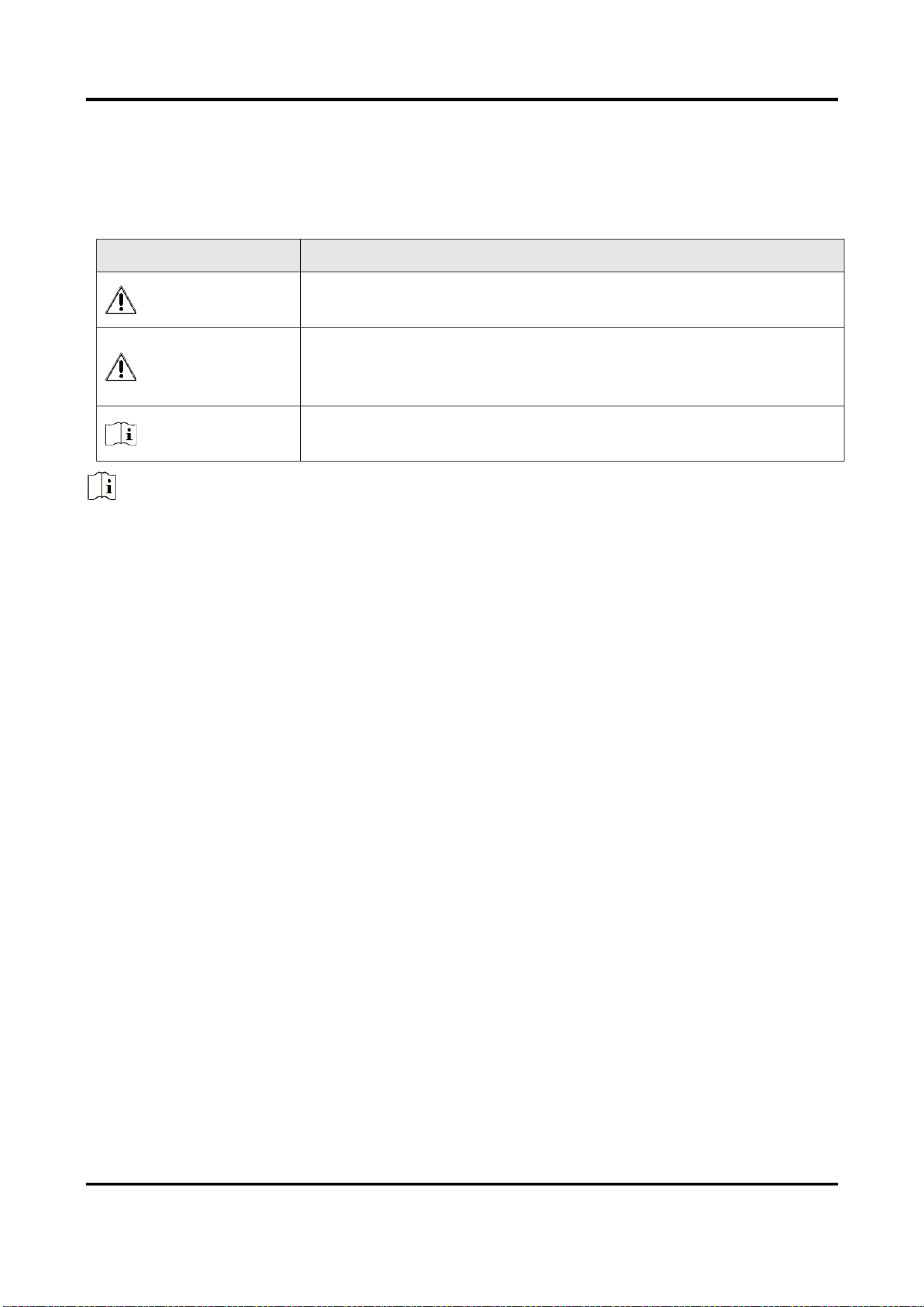
The symbols that may be found in this document are defined as follows.
Symbol
Description
Danger
Indicates a hazardous situation which, if not avoided, will or could
result in death or serious injury.
Caution
Indicates a potentially hazardous situation which, if not avoided,
could result in equipment damage, data loss, performance
degradation, or unexpected results.
Note
Provides additional information to emphasize or supplement
important points of the main text.
Note
Please update firmware to the latest version.
For installers, it is recommended to install and maintain devices via Hik-Partner Pro.
AX HYBRID PRO User Manual
iv
Regulatory Information
EN 50131-3:2009
EN 50131-10:2014
EN 50136-2:2013
EN 50136-1:2012+A1:2018
EN 50131-6:2017
EN 50131-1:2006+A1:2009+A2:2017+A3:2020
EN 50130-4:2011+A1:2014
EN 50130-5:2011
Security Grade (SG): 2
Environmental Class (EC) : II
SP4
Note EN50131 compliance labeling should be removed if non-compliant configurations are
used.
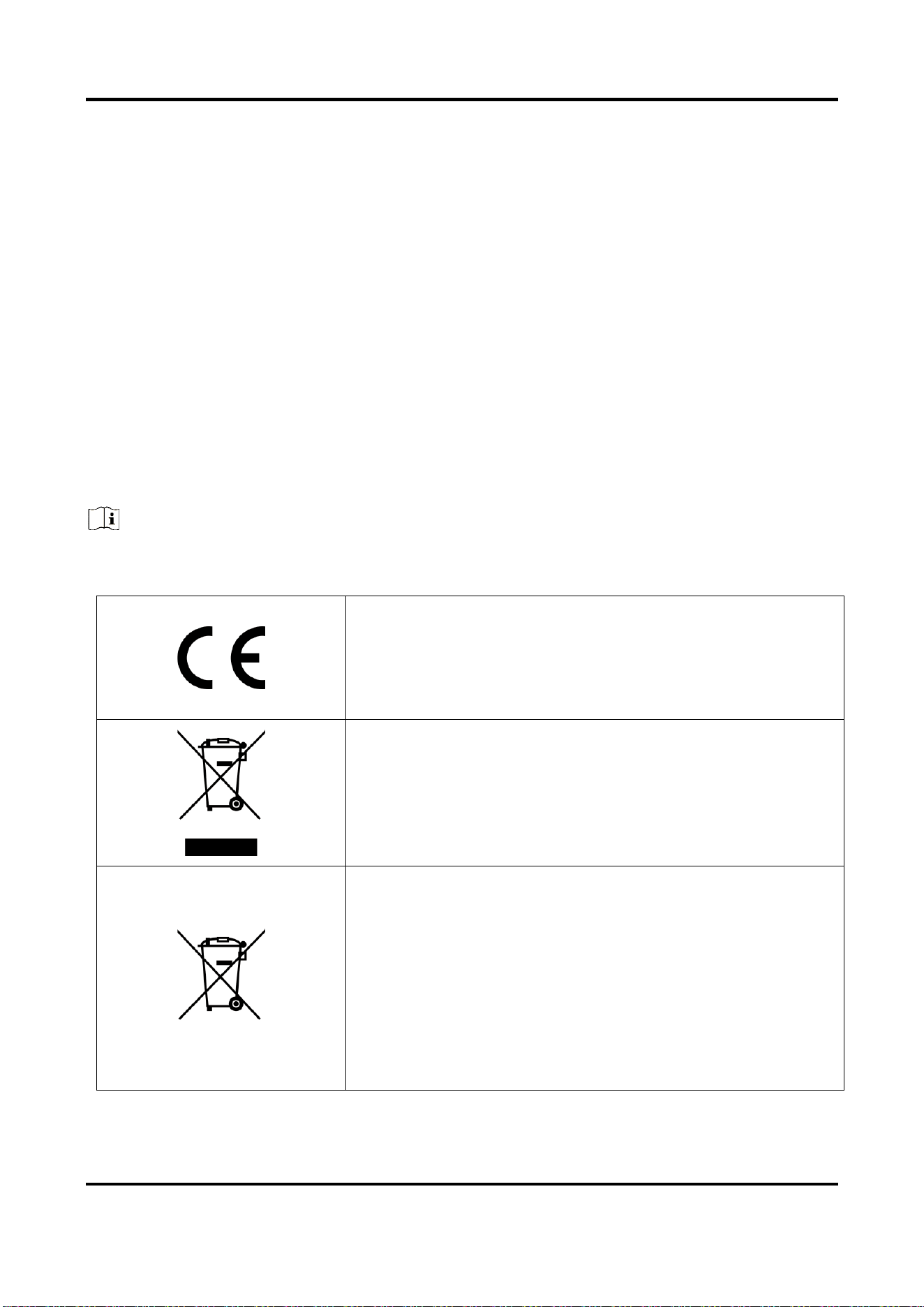
EU Conformity Statement
This product and - if applicable - the supplied accessories too
are marked with "CE" and comply therefore with the applicable
harmonized European standards listed under the EMC Directive
2014/30/EU, RE Directive 2014/53/EU,the RoHS Directive
2011/65/EU
2012/19/EU (WEEE directive): Products marked with this
symbol cannot be disposed of as unsorted municipal waste in
the European Union. For proper recycling, return this product
to your local supplier upon the purchase of equivalent new
equipment, or dispose of it at designated collection points. For
more information see: www.recyclethis.info
2006/66/EC (battery directive): This product contains a battery
that cannot be disposed of as unsorted municipal waste in the
European Union. See the product documentation for specific
battery information. The battery is marked with this symbol,
which may include lettering to indicate cadmium (Cd), lead
(Pb), or mercury (Hg). For proper recycling, return the battery
to your supplier or to a designated collection point. For more
information see: www.recyclethis.info

AX HYBRID PRO User Manual
v
Contents
Chapter 1 Introduction ............................................................................................................... 1
System Description ...................................................................................................................... 1
Chapter 2 Start Up ...................................................................................................................... 3
2.1 Activate via WEB ................................................................................................................... 3
2.2 Activate via APP..................................................................................................................... 3
Chapter 3 Configuration ........................................................................................................... 11
3.1 Set-up with the Web Client ................................................................................................. 11
3.1.1 User Management .................................................................................................... 11
3.1.2 Device Management ................................................................................................ 12
3.1.3 System Settings ........................................................................................................ 24
3.1.4 Communication Settings .......................................................................................... 30
3.1.5 Maintenance ............................................................................................................. 39
3.1.6 Security ..................................................................................................................... 42
3.2 Set-up with Hik-Partner Pro ................................................................................................ 44
3.3 Set-up with Hik-Connect ..................................................................................................... 66
3.4 Report to ARC (Alarm Receiver Center) ............................................................................. 89
Setup ATS in Transceiver of Receiving Center .................................................................. 89
Setup ATS in Transceiver of the Panel .............................................................................. 90
Signaling Test ..................................................................................................................... 92
Chapter 4 General Operations .................................................................................................. 93
4.1 Access Entries ...................................................................................................................... 93
4.2 Arming ................................................................................................................................. 93
4.3 Disarming ............................................................................................................................. 95
4.4 SMS Control ......................................................................................................................... 95
A. Trouble Shooting .................................................................................................................. 96
A.1 Communication Fault .......................................................................................................... 96
A.1.1 IP Conflict ................................................................................................................. 96
A.1.2 Web Page is Not Accessible ..................................................................................... 96
A.1.3 Hik-Connect is Offline .............................................................................................. 96

AX HYBRID PRO User Manual
vi
A.1.4 Network Camera Drops off Frequently ................................................................... 96
A.1.5 Failed to Add Device on APP ................................................................................... 96
A.1.6 Alarm Information is Not Reported to APP/4200/Alarm Center ........................... 97
A.2 Mutual Exclusion of Functions ........................................................................................... 97
A.2.1 Unable to Enter Enrollment Mode .......................................................................... 97
A.3 Zone Fault ............................................................................................................................ 97
A.3.1 Zone is Offline .......................................................................................................... 97
A.3.2 Zone Tamper-proof/Lid-opened ............................................................................. 97
A.3.3 Zone Triggered/Fault ............................................................................................... 97
A.4 Problems While Arming ...................................................................................................... 98
A.4.1 Failure in Arming (When the Arming Process is Not Started) ................................ 98
A.5 Operational Failure ............................................................................................................. 98
A.5.1 Failed to Enter the Test Mode ................................................................................. 98
A.5.2 The Alarm Clearing Operation on the Panel Does Not Produce the Alarm Clearing
Report ........................................................................................................................ 98
A.6 Mail Delivery Failure ........................................................................................................... 98
A.6.1 Failed to Send Test Mail .......................................................................................... 98
A.6.2 Failed to Send Mail during Use................................................................................ 99
A.6.3 Failed to Send Mails to Gmail .................................................................................. 99
A.6.4 Failed to Send Mails to QQ or Foxmail ................................................................... 99
A.6.5 Failed to Send Mails to Yahoo ................................................................................. 99
A.6.6 Mail Configuration ................................................................................................. 100
B. Input Types ........................................................................................................................ 101
C. Output Types ..................................................................................................................... 104
D. Event Types ....................................................................................................................... 105
E. Access Levels ...................................................................................................................... 106
F. Signalling ............................................................................................................................ 108
Detection of ATP/ATS Faults ................................................................................................... 108
ATS Category ............................................................................................................................ 108
G. SIA and CID Code ............................................................................................................... 109

1
Chapter 1 Introduction
System Description
AX HYBRID PRO control panel is a wired intrusion control panel with wireless detectors &
peripherals access capability. It is the first control panel that supports high-speed Speed-X Bus,
which is a creative technology and is used to transmit verification video/picture from PIR-CAM.
Besides, this hybrid control panel supports customized voice library, which is designed for users to
upload customized voice files. These voice files will be played via alarm phone call when alarm
triggered. As for basic functions, it supports Wi-Fi, PSTN, TCP/IP and GPRS/3G/4G communication
methods. It also supports Hik-Partner Pro, Hik-Connect, Hik IP Receiver, Hik IP Receiver Pro and
Hik-Central, which is applicable to the scenarios of market, hotel, supermarket, warehouse, office,
house (especially with cables pre-installed), etc.

2
Note
ISUP5.0: a privacy internet protocol that is used for accessing the third-party platform, which
supports alarm report uploading, AX HYBRID PRO management, and short video uploading.
The prioritization of the message and indications are the same. The AXPRO uploads messages and
gives indications synchronously.
Note
Standard DC-09 Protocol:
ADM-CID: The data presenting method of DC-09 is CID, which is not encrypted and only for
uploading alarm report.
*ADC-CID: The data presenting method of DC-09 is CID, which is encrypted and only for
uploading alarm report.
SIA-DCS: The data presenting method of DC-09 is DCS (also called SIA protocol), which is not
encrypted and only for uploading alarm report.
*SIA-DCS: The data presenting method of DC-09 is DCS (also called SIA protocol), which is
encrypted and only for uploading alarm report.

3
Chapter 2 Start Up
2.1 Activate via WEB
Use web browser to activate the device. Use SADP software or PC client to search the online
device to get the IP address of the device, and activate the device on the web page.
Before You Start
Make sure your device and your PC connect to the same LAN.
Steps
1. Open a web browser and enter the IP address of the device.
Note
If you connect the device with the PC directly, you need to change the IP address of your PC
to the same subnet as the device. The default IP address of the device is 192.0.0.64.
2. Create and confirm the admin password. (The default user name of admin account is admin.)
Caution
STRONG PASSWORD RECOMMENDED-We highly recommend you create a strong password
of your own choosing (using a minimum of 8 characters, including upper case letters, lower
case letters, numbers, and special characters) in order to increase the security of your
product. And we recommend you reset your password regularly, especially in the high
security system, resetting the password monthly or weekly can better protect your product.
3. Click OK to complete activation.
Note
• The default user name of admin account is admin.
• You should login the admin account first to enable the installer.
• The default password of the installer is installer12345.
2.2 Activate via APP
While initial the device with Hik-Partner Pro or Hik-Connect, you should enable Hik-Connect via
SADP and add an installer account to AX HYBRID PRO first. The installer account will invite and
transfer ownership to the administrator account later after finishing all initial setup and test.
Follow the steps below to initializing the hybrid alarm system.
4
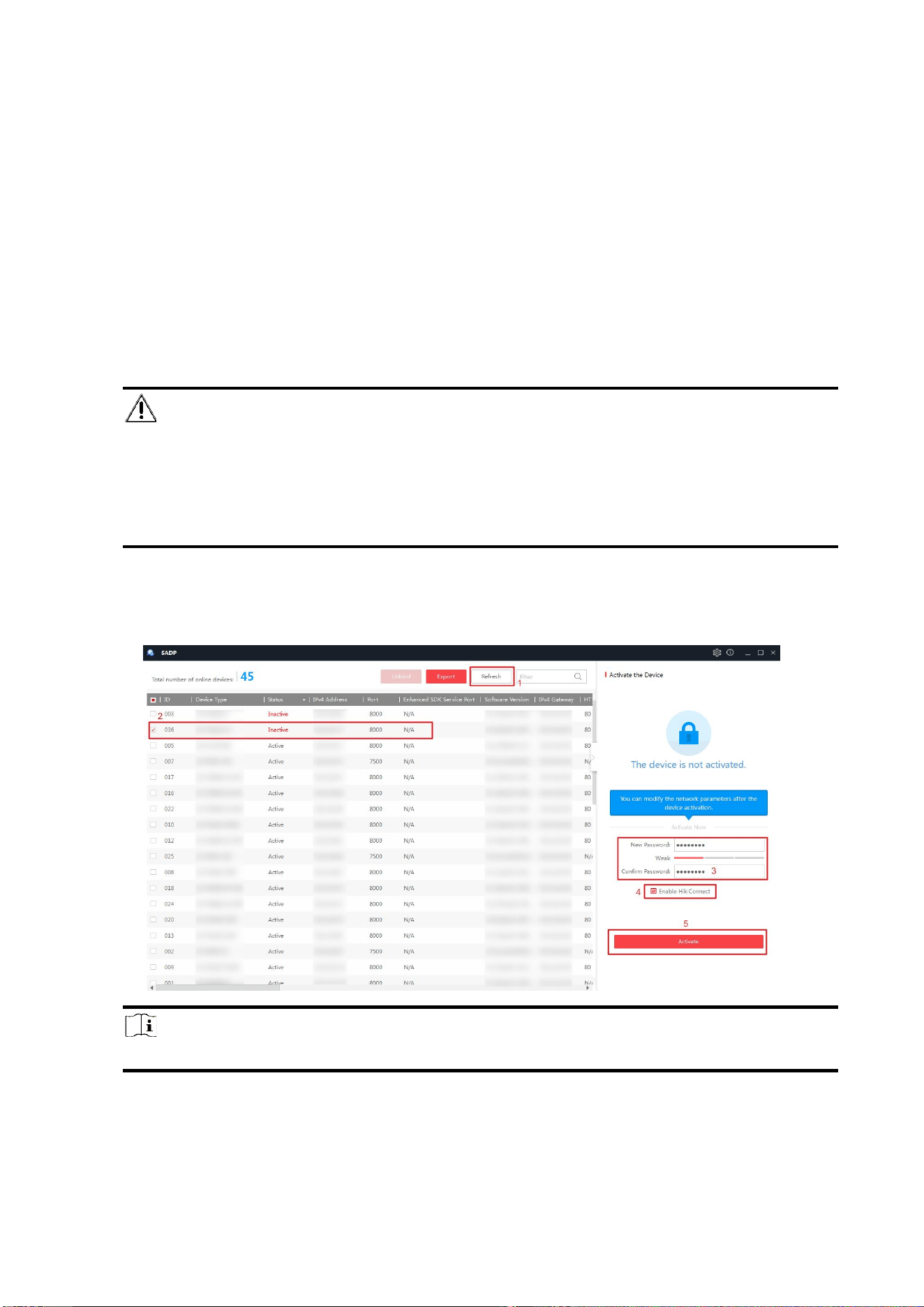
Step1 Activate via SADP
Before You Start
● Get the SADP software from the supplied disk or the official website http://
www.hikvision.com/en/, and install the SADP according to the prompts.
● The device and the PC that runs the SADP tool should be within the same subnet.
1. Run the SADP software and search the online devices.
2. Find and select your device in online device list.
3. Input new password (admin password) and confirm the password.
Caution
STRONG PASSWORD RECOMMENDED-We highly recommend you create a strong password
of your own choosing (using a minimum of 8 characters, including upper case letters, lower
case letters, numbers, and special characters) in order to increase the security of your
product. And we recommend you reset your password regularly, especially in the high
security system, resetting the password monthly or weekly can better protect your product.
4. Check Enable Hik-Connect.
5. Click Activate to start activation. Status of the device becomes Active after successful
activation.
Note
• Only AX Hybrid PRO V1.0.4 and above need the step1. Lower version can skip this step.
5
Step2 Create a site (Only for HPP)
Download the Hik-Partner Pro and login with the installer account.
A site is the place where the alarm system deployed. Create a site where the device can be added
to with its site name and address. The owner of the site would be an end user, usually regarded as
administrator.
Step3 Configure the Network on APP
1. Download Hik-Connect/Hik-Partner Pro and log in.
2. Power on the AX HYBRID PRO.
3. Turn the Wi-Fi mode switch to HOTSPOT.
4. Connect your phone to your home Wi-Fi. Make sure that this Wi-Fi can access the Internet
normally and the signal is stable.
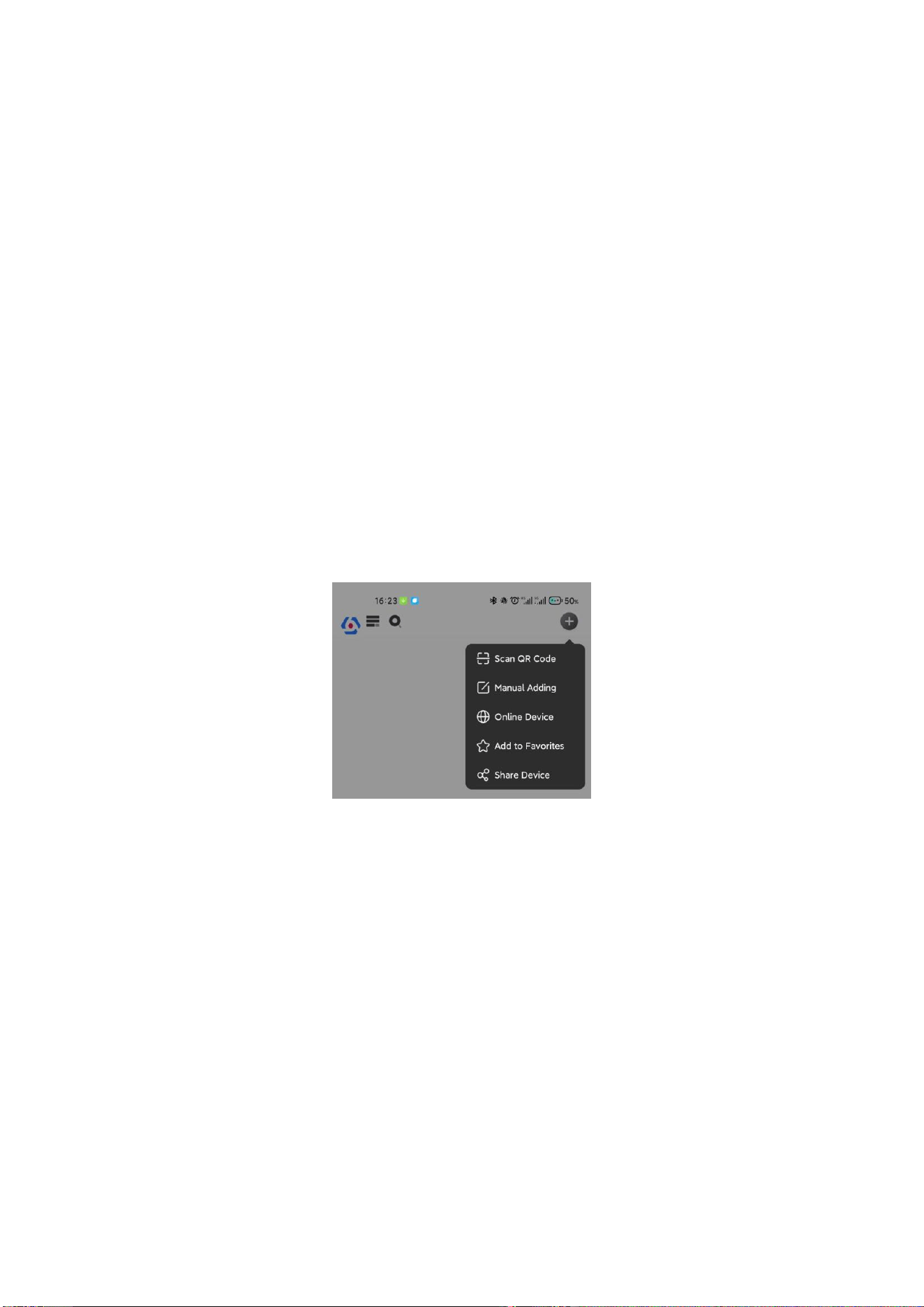
5. Open the HC or HPP, tap +, and select Scan QR Code. Scan the QR code of the AX HYBRID and
wait for the result.
Or you can tap Manual Adding and enter the serial No.
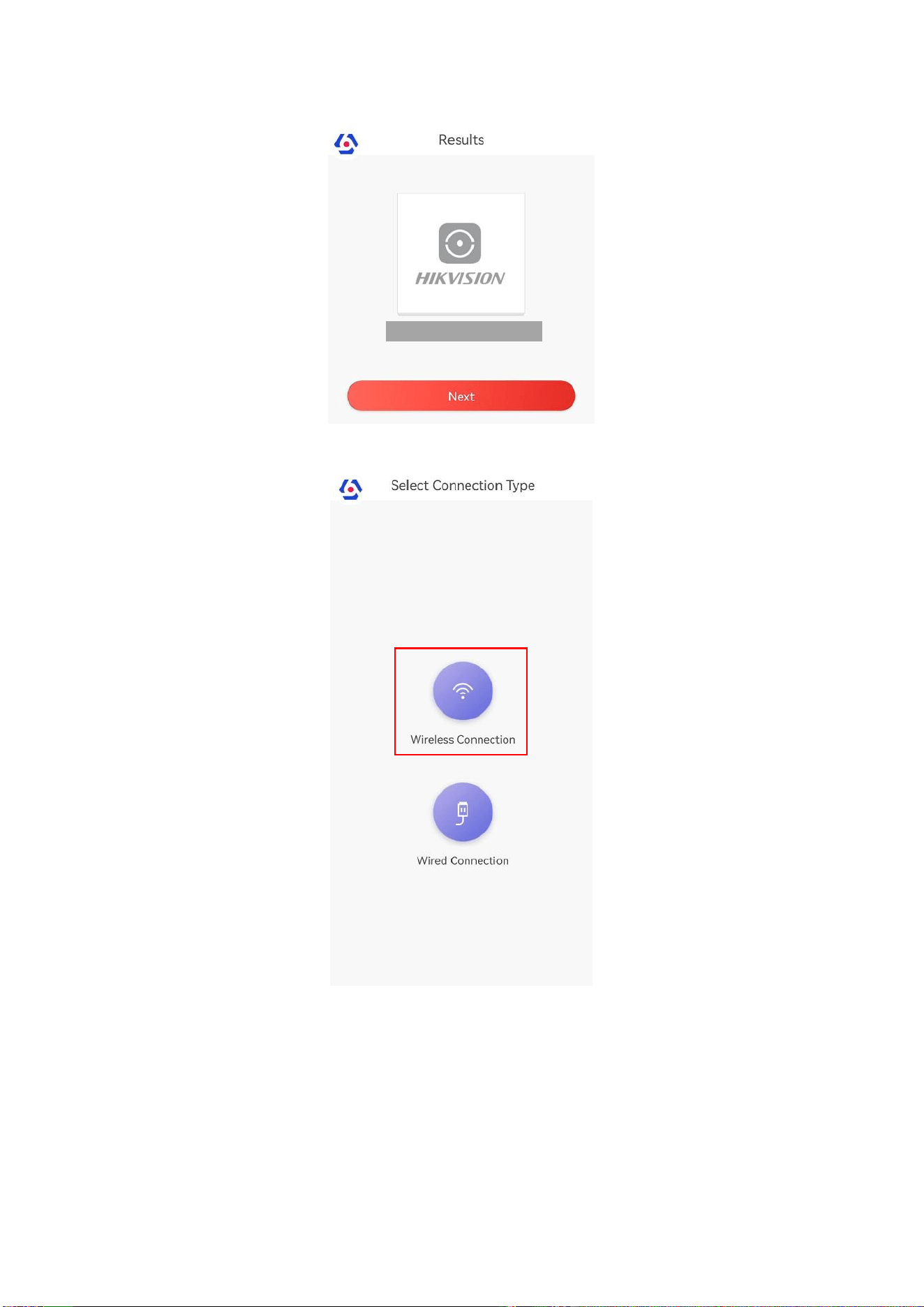
6. Tap Next.
6
7. Tap Wireless Connection, and tap Next.
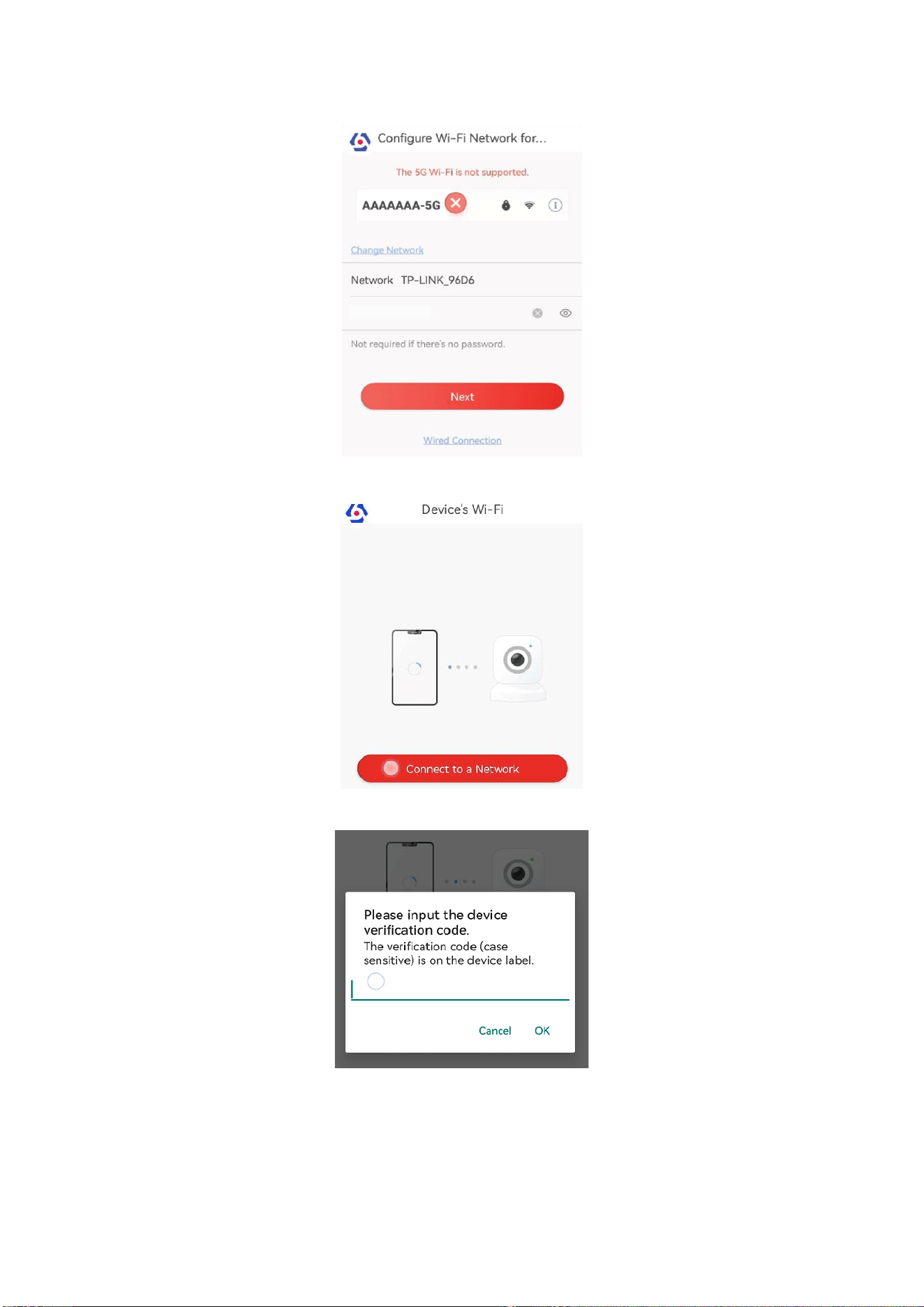
8. The APP will automatically fill in the home Wi-Fi currently used by the mobile phone into the
page, as shown in the figure below. After confirming the Wi-Fi password, tap Next.
7
9. Tap Connect to a Network.
10. Enter the device verification code and tap OK. (The verification code is on the device label.)
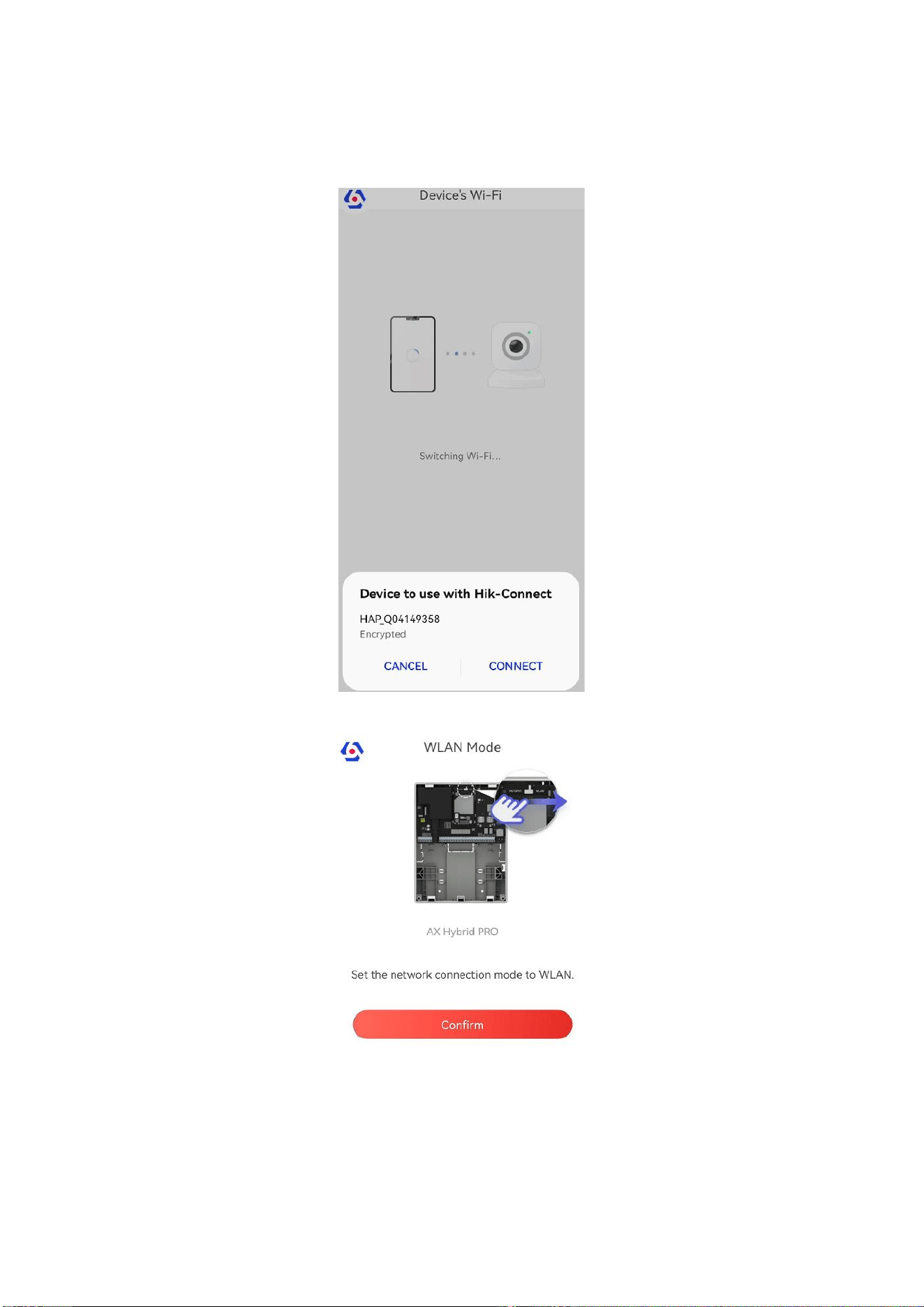
11. The APP will search the device Wi-Fi automatically. Check whether the connected Wi-Fi is
belonged to the target device and tap Connect. As shown in the figure below, the Wi-Fi connected
8
to the mobile phone should with name “HAP_serial number” (AX HYBRID PRO serial number)
12. Follow the prompts: turn the Wi-Fi mode switch to WLAN.
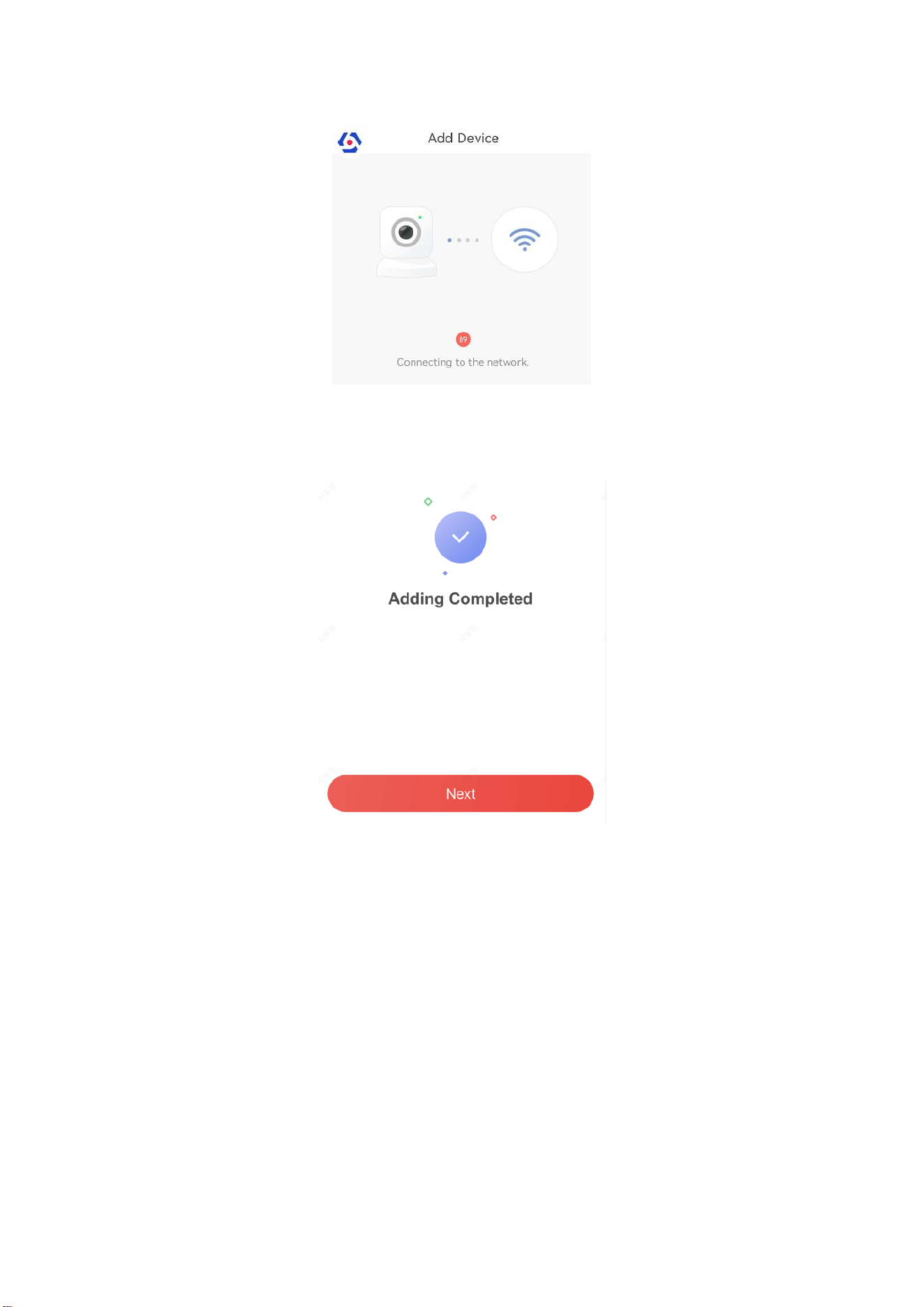
12. Wait for connection.
9
13. Wait for the device to join the home Wi-Fi and log in the Cloud.
(1) When the home Wi-Fi signal is good, the control panel will successfully log in to cloud and
complete the binding before the countdown ends.
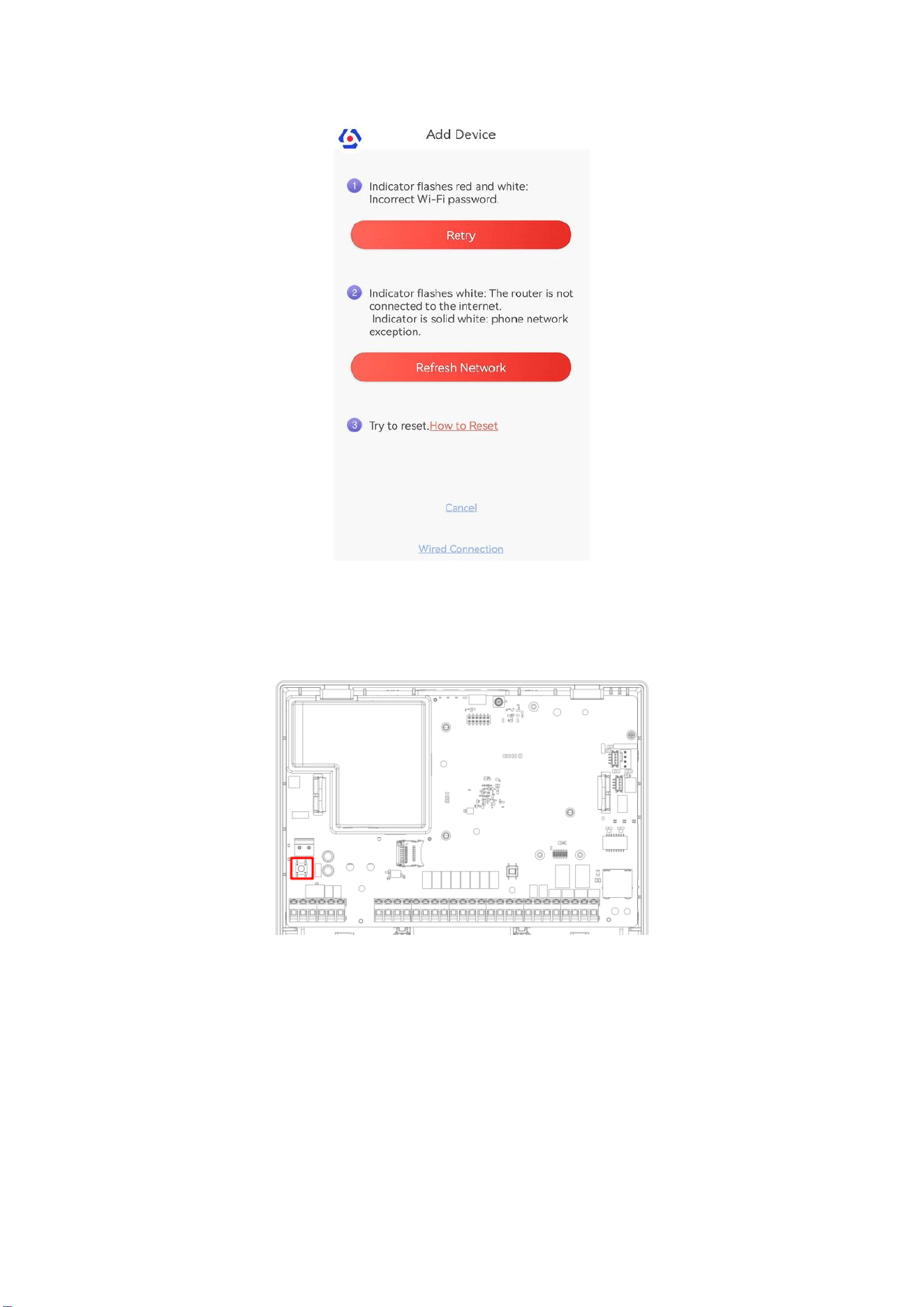
(2) When the home Wi-Fi signal is unstable, the control panel may not be connected to the cloud
before the countdown ends, and the following page will appear:
10
If you make sure that the home Wi-Fi password is correct and quality is good, tap Refresh
Network, the control panel will enter a new countdown. You can wait for the connection.
If you want to change the home Wi-Fi, you should change the home Wi-Fi connected to the mobile
phone first, then press the RESET button of the control panel (marked in the figure below) for 10
seconds. Tap Retry. The interface will jump back step 8, you can configure the network again.

11
Chapter 3 Configuration
3.1 Set-up with the Web Client
Steps
1. Connect the device to the Ethernet.
2. Search the device IP address via the client software and the SADP software.
3. Enter the searched IP address in the address bar.
4. Enter the user name and password to login.
Note
Only the admin and the installer can login to the web client.
You can view the area, zone, device, and network information on the overview page.
3.1.1 User Management
The administrator and the installers can manage users. If you are the administrator, you can add,
edit, and delete users, and assign different permissions to the newly-added users.
Click User Management to enter the page.
Note
There are three types of users for the AX PRO, including administrator (or owner), operator, and
installer (or setter). Different types of users have different permissions for accessing the
functionality of the AX PRO.
Add User
Steps
1. Click User Management to enter the page.
2. Click +Add.
3. Configure the user parameters in the pop-up window on the right.
Disposable User

12
-Permanent: Permanent use. Configurable with full user permission.
-One-Time User: Expired after arming or disarming once, or automatically expires after 24
hours. No duress code permission. No keyfobs and tags permission.
Duress Code
After entering the duress code, the system will upload the duress alarm to the alarm
receiving center. No audible or visual alarm.
4. Click Save to add the user.
Edit User
Steps
1. Click User Management to enter the page.
2. Click to the right of a user to edit user parameters.
User Parameters
You can configure linked areas, the keypad password, the duress code and user permissions.
Keyfob&Tag
You can add, delete, enable or disable keyfobs and tags.
3. Click Save.
Delete User
Steps
1. Click User Management to enter the page.
2. Click to the right of a user to delete user parameters. You can also check users in the list
and click Delete to delete users in batch.
Note
The administrator and the installer cannot be deleted.
3.1.2 Device Management
You can manage the enrolled peripherals including detector, sounder, keypad, etc. in this section.
Area
You can set the area parameters on the page.
Steps
1. Click Device Management → Area to enter the page.
2. Select an area and click to enable the area.
3. Click Away Arm, Stay Arm, Disarmed and Silence Alarm to change the area status.

13
4. Click to edit parameters.
Late to Disarm Notification
Enable the function and set the time. If the alarm is triggered after the configured time, the
person will be considered as late.
Enable Auto Arm
Enable the function and set the arming start time (Time Schedule). The zone will be armed
according to the configured time.
Note
The auto arming time and the auto disarming time cannot be the same.
- Force Arm When System has Faults:
While the function is enabled, faults will be ignored when the system is automatically armed.
- Count Down Sound Prompt:
After enabled, the buzzer beeps slowly 2 minutes before the auto arming starts, and beeps
rapidly 1 minute before the auto arming starts. After disabled, the buzzer will not beep
before auto arming.
Enable Auto Disarm
Enable the function and set the disarming start time (Time Schedule). The zone will be
disarmed according to the configured time.
Note
The auto arming time and the auto disarming time cannot be the same.
- Weekend Exception:
Enable the function and the zone will not be armed in the weekend.
- Holiday Exception:
Enable the function and the zone will not be armed/disarmed in the holiday. You should set
the holiday schedule after enabling. Up to 12 holiday groups can be set.
5. Click Save.
6. Click Linked Zone/Detector to enter the page. Click Bypass or Bypass Restored to edit linkages
of the area.
Quick Adding
Enroll peripherals.
Scan Adding
Steps
1. Click Device Management → Mount Device → Quick Add Device → Scan Adding to enter the
page.

14
2. Select Scan Mode.
Continuous Scan
Add devices from a continuous address range.
Discrete Scan
Add devices from several discrete addresses.
3. Set Address Range or select address.
Note
Please enter a number in the range 0 to 63.
The address range should be continuous.
4. Click OK. Scanned peripherals will be listed.
Note
The scan takes 1 minute.
If the peripheral and the control panel has different frequency, the peripheral cannot be
enrolled. Click Scan Updating to select the frequency supported by the current control panel.
5. Tick the checkbox in front of the peripheral. Multiple selection is possible.
6. Click Batch Add to Control Panel to add peripherals.
Note
Up to 32 peripherals can be enrolled.
Device Enroll Mode
Steps
1. Click Device Management → Mount Device → Quick Add Device → Device Enroll Mode to
enter the page.
2. Drag the slider to enable wireless device enrollment mode.
3. Select main device type and name.
4. Click OK. Wireless peripherals will be enrolled.
Zone
You can set the zone parameters on the zone page.
Steps
1. Click Device Management → Mount Device → Zone to enter the Zone page.

15
2. Click Add to add a zone.
3. Select Relate Mode.
Wireless
Enter Serial Number, and select Detector Type. Select Main Device Type and Main Device
Name. Click Next, it will start enrolling. Power on the device and configure basic settings and
zone parameters. Click Save to add a wireless zone.
Wired
Select Main Device Type. Select Main Device Name and Channel. Click Next, it will start
enrolling. Configure basic settings and zone parameters. Click Save to add a wired zone.
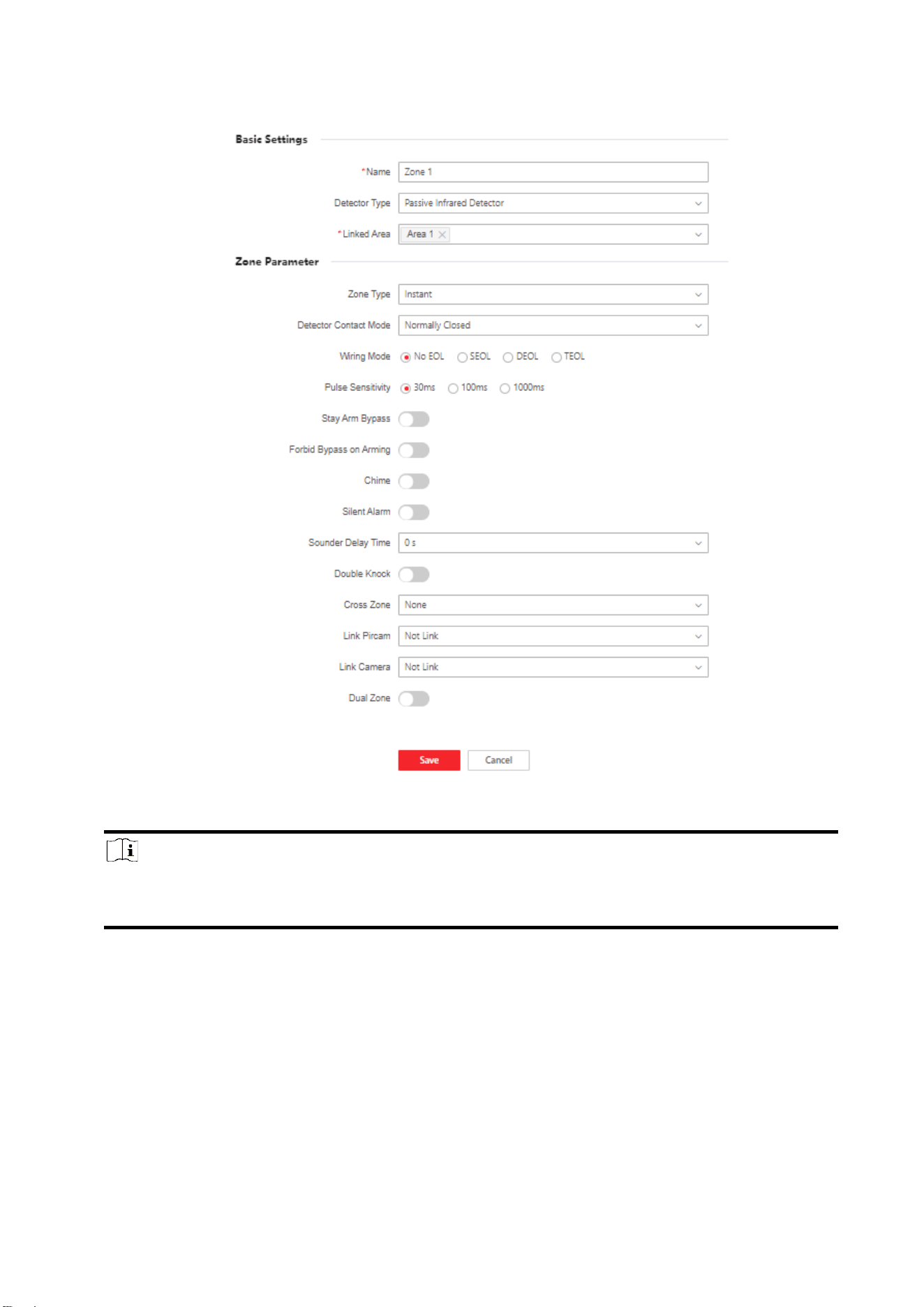
4. Select a zone and click to enter the Zone Settings page.
16
5. Edit the zone name.
6. Select the detector type and linked areas.
Note
Only enabled areas will be listed.
The newly added peripheral is linked to area 1 by default.
7. Select a zone type and detector contact mode.
Instant Zone
This Zone type will immediately trigger an alarm event when armed.
Delay Zone
-Exit Delay: Exit Delay provides you time to leave through the zone without alarm.
Arm with faults is enabled: You should confirm faults first, and then the zone is in arming

17
process. If the delay zone is triggered within the exit delay time but it restores before the
time ends, the alarm will not be triggered and the zone will be armed.
Arm with faults is disabled: Immediately armed. If the delay zone is triggered within the exit
delay time but it restores before the time ends, the alarm will not be triggered.
-Entry Delay: Entry Delay provides you time to enter the zone to disarm the system without
alarm.
After triggering, if the zone is not disarmed or silenced before the entry delay time ends, the
zone will alarm.
-Stay Arm Delay Time: Stay arming uses Stay Arm Delay Time to count down.
The system gives Entry/Exit delay time when it is armed or reentered. It is usually used in
entrance/exit route (e.g. front door/main entrance), which is a key route to arm/disarm via
operating keypad for users.
Note
You can set 2 different time durations in System Options → Schedule & Timer.
Ensure that timer is no longer than 45 seconds in order to comply with EN50131-1.
You can set Stay Arm Delay Time for the delay zone.
Panic Zone
24-hour active zone, whether armed or not. Report panic alarm after triggering. It is usually
used in the sites equipped with panic button, smoke detector and glass-break detector.
Medical Alarm
24-hour active zone, whether armed or not. Report medical alarm after triggering.
Fire Zone
24-hour active zone, whether armed or not. Report fire alarm after triggering.
Gas Zone
24-hour active zone, whether armed or not. Report gas alarm after triggering.
Follow Zone
The zone acts as delayed zone when it detects triggering event during system Entry Delay,
while it acts as instant zone otherwise.
Keyswitch Zone
-By Trigger Time: Change the arming and disarming status after each trigger. For example, in
the disarmed status, if the zone is triggered, the linked area will be armed. Trigger the zone
again and the area will be disarmed.
-By Zone Status: You need to choose to arm or disarm the linked area after the zone is
triggered.
In the case of the tampering alarm, the arming and disarming operation will not be triggered.

18
Disabled Zone
Zone disabled ignoring any alarm event. It is usually used to disable faulty detectors.
24-hour Zone
The zone activates all the time with sound/light output when alarm occurs, whether it is
armed or not. It is usually used in fire hazardous areas equipped with smoke detectors and
temperature sensors.
Timeout Zone
The zone activates all the time. When this zone has been triggered or restored and exceeds
the set time, an alarm will be generated.
It can be used in places equipped with magnetic contacts that require access but for only a
short period (e.g., fire hydrant box's door or another external security box door).
-Not-Triggered Zone Alarm: If the zone is not triggered for the set time, it will alarm.
-Alarm on Zone Activated: If the zone is triggered for the set time, it will alarm.
-Retry Time Period: Set the timeout period.
8. Enable other functions according to your detector types and actual needs.
Note
The configurable functions vary in different detectors and zones. Refer to the actual zone to set
the function.
Wiring Mode
Select the resistor wiring mode of the control panel.
Pulse Sensitivity
Select the sensitivity change ability for different pulse signals.
Stay Arm Bypass
The zone will be automatically bypassed in stay arming.
Forbid Bypass on Arming
After enabled, you cannot bypass zones when arming.
Chime
Enable the doorbell. Usually used for door magnetic detectors.
Silent Alarm
After enabled, when an alarm is triggered, only the report will be uploaded and no sound is
emitted.
Sounder Delay Time
The sounder will be triggered immediately (0s) or after the set time.
Double knock
After enabled, the time interval can be set. If the same detector is triggered twice or
19
continuously in a period of time, the alarm will be triggered.
Cross Zone
PD6662 is not enabled: You need to set the combined time interval.
When the first zone is triggered, the system will start timing after the zone is restored. If the
second zone is triggered within the set time, both zones will give alarms. Otherwise, no alarm
will be triggered.
If the first zone is not be restored, both zones will give alarms when the second zone is
triggered, regardless of whether the set time has elapsed.
PD6662 is enabled: You need to set the combined time interval.
The first zone will give an alarm when triggered. If the first zone is not restored and the
second zone is triggered, the system will report the alarm confirmation.
If the first zone is restored, the system will start timing. If the second zone is triggered within
the set time, the system will report the alarm confirmation.
If the first zone is restored, the system will start timing. If the second zone is not triggered
within the set time, no information will be reported.
Dual Zone
After enabled, when multi transmitter detects that the entire zone circuit of the local zone
and the extended zone is open circuit, both zones trigger lid opened alarms.
9. If required, link a PIRCAM or a camera for the zone.
10. Click Save.
11. Click to delete the zone.
12. Click or to bypass or restore bypass.
13. Click
to view the added zones’ status, and click Refresh to view the latest status.
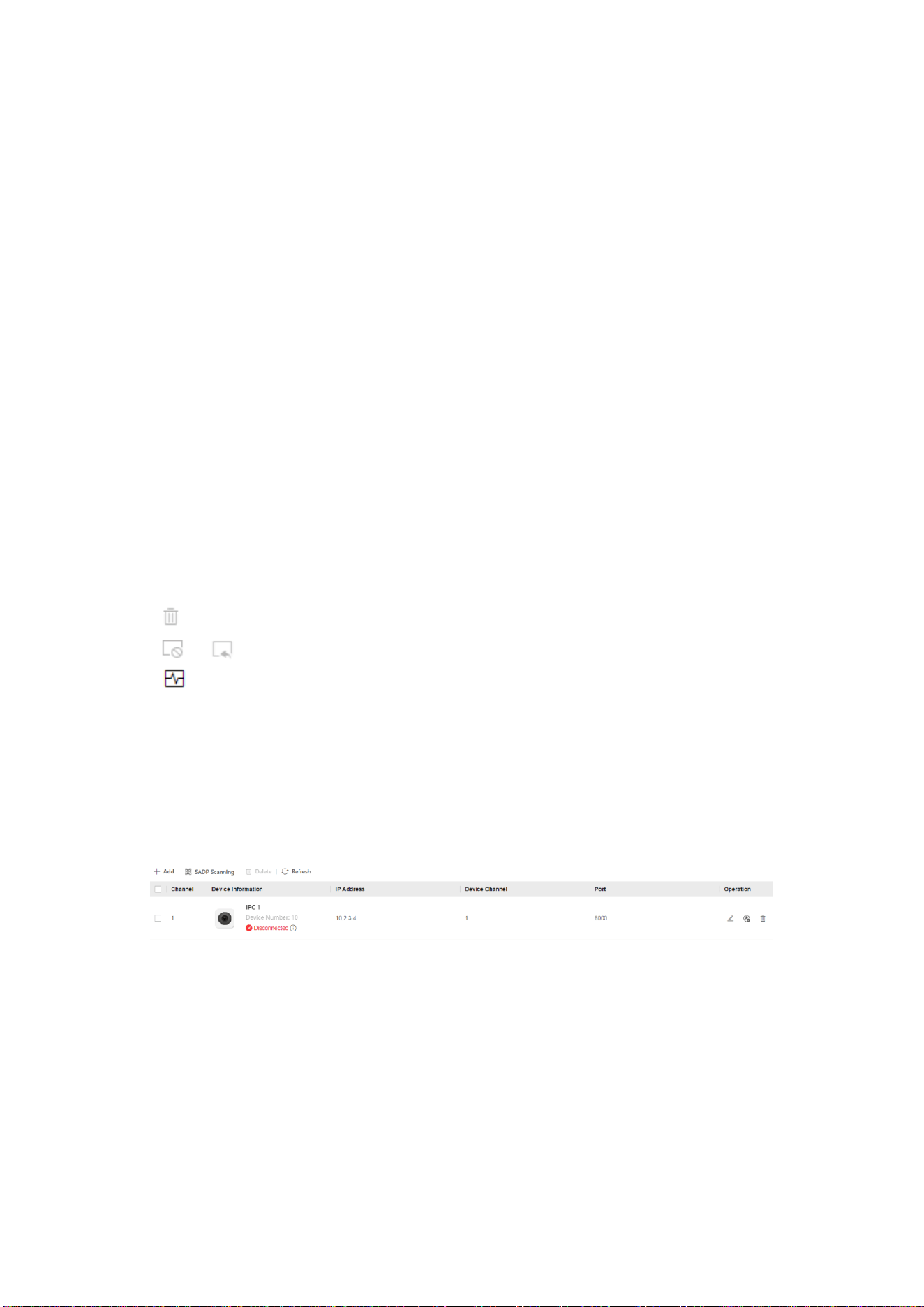
Network Camera
You can add network cameras in the system.
Steps
1. Click Device Management → Mount Device → Network Camera to enter the network camera
management page.
2. Click Add, and enter the basic information of the camera, such as IP address and port No., and
select the protocol type.
3. Enter the user name and password of the camera.
SADP Scanning
Scan all network cameras in the same LAN. A list will pop up after scanning. You can directly
check to add cameras in the list.
4. Click Next, change the camera name and select linked areas.
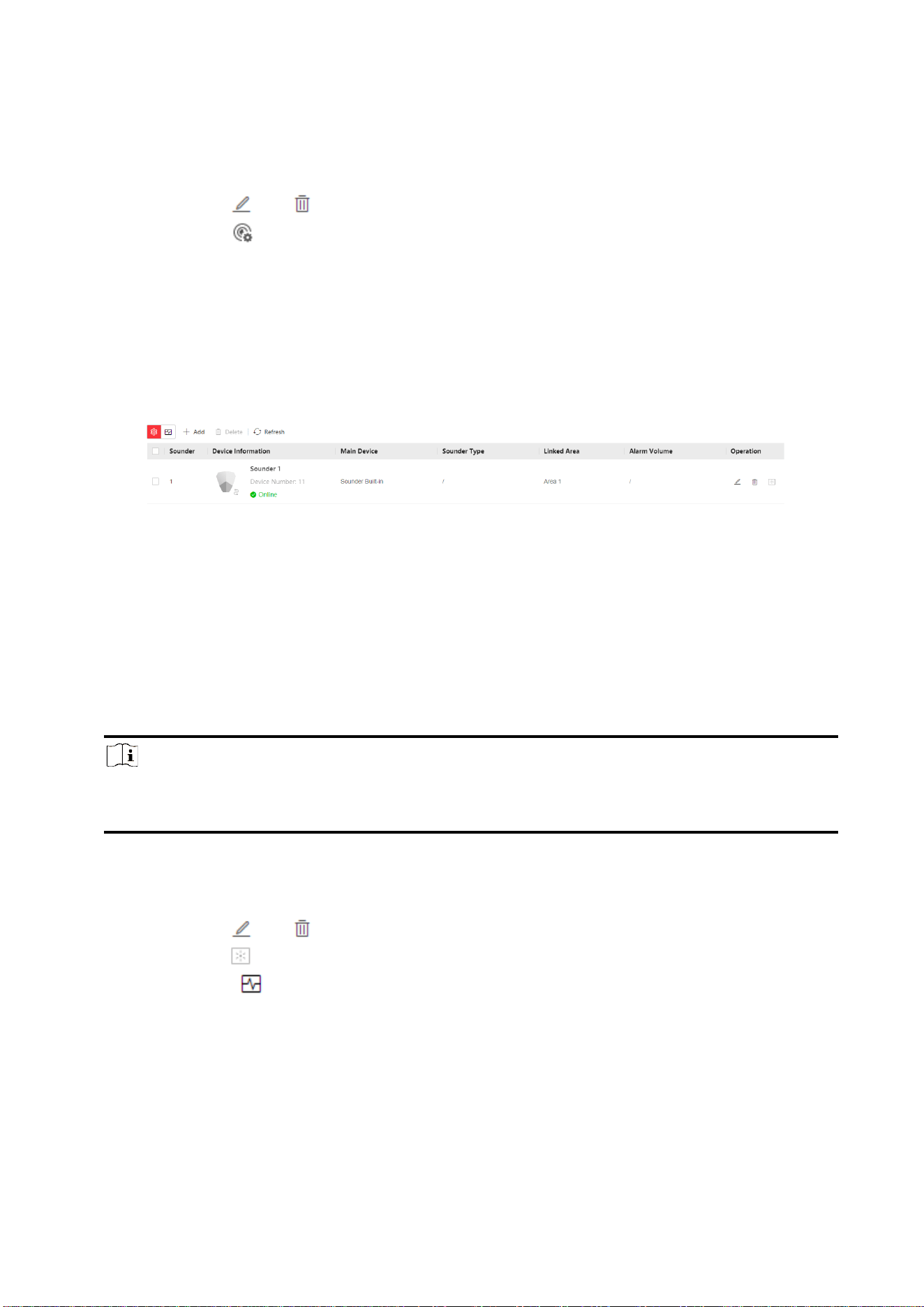
20
5. Configure camera parameters such as zone type, stay arm bypass, chime, silent alarm, cross
zone, etc. according to your actual needs.
6. Click Save.
7. Optional: Click or to edit or delete the selected camera.
8. Optional: Click to configure video parameters.
9. Optional: Click Refresh to view the latest device information.
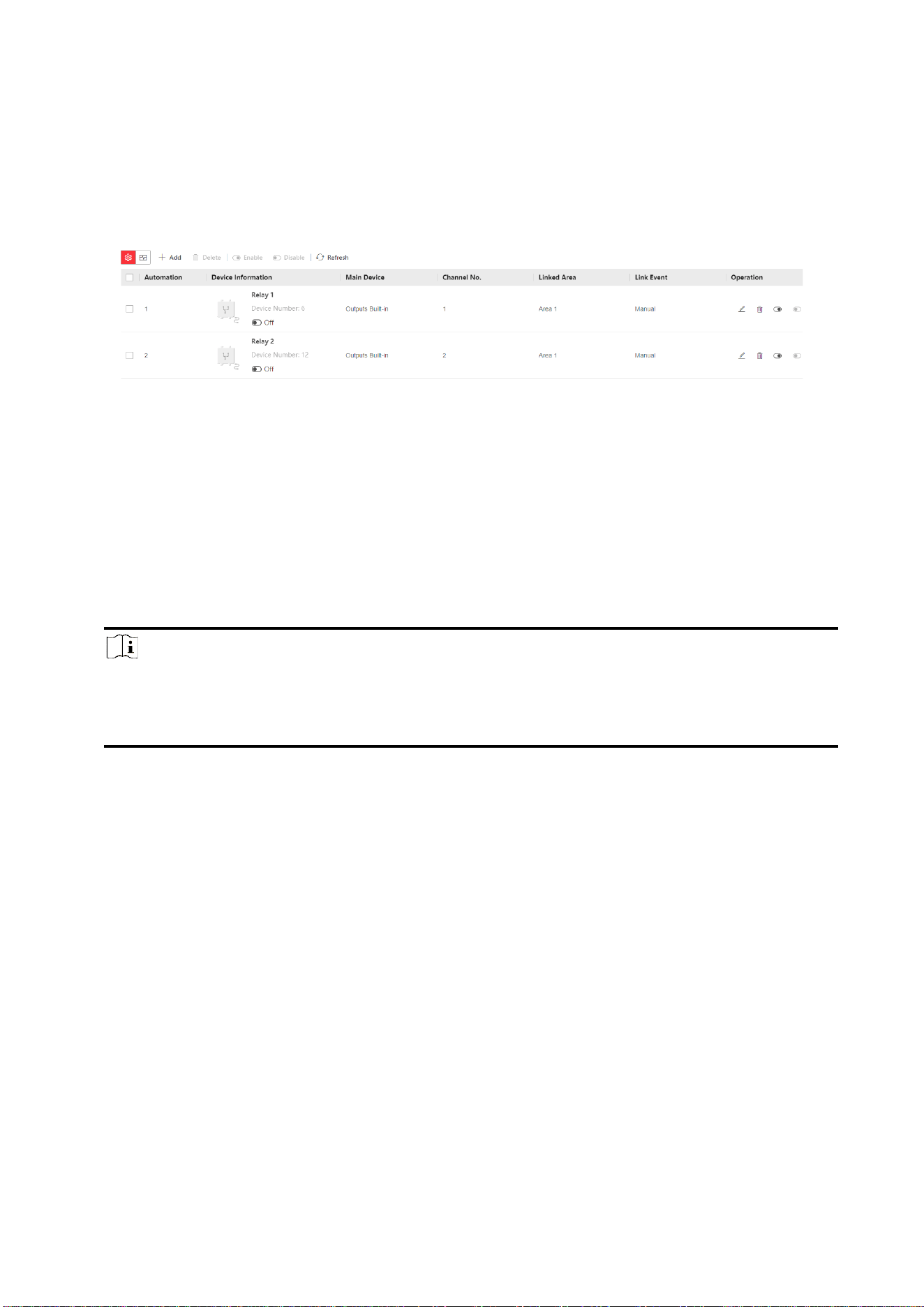
Sounder
Set sounder parameters.
Steps
1. Click Device Management → Mount Device → Sounder to enter the Sounder page.
2. Click Add to add a sounder.
3. Select the relate mode.
Wireless
Add wireless sounder. Enter the device serial No., select the sounder model, and check main
device type and name. Click Next.
Wired
Add wired sounder. Check main device type and name. Click Next.
4. Check the linked area.
Note
Only enabled areas will be listed.
The newly added peripheral is linked to area 1 by default.
5. Enter the alarm duration.
6. Enable Sounder Tamper Alarm.
7. Click Save.
8. Optional: Click or to edit or delete the selected sounder.
9. Optional: Click to enable find me mode.
10. Optional: Click
to view the added sounders’ status, and click Refresh to view the latest
status.
21
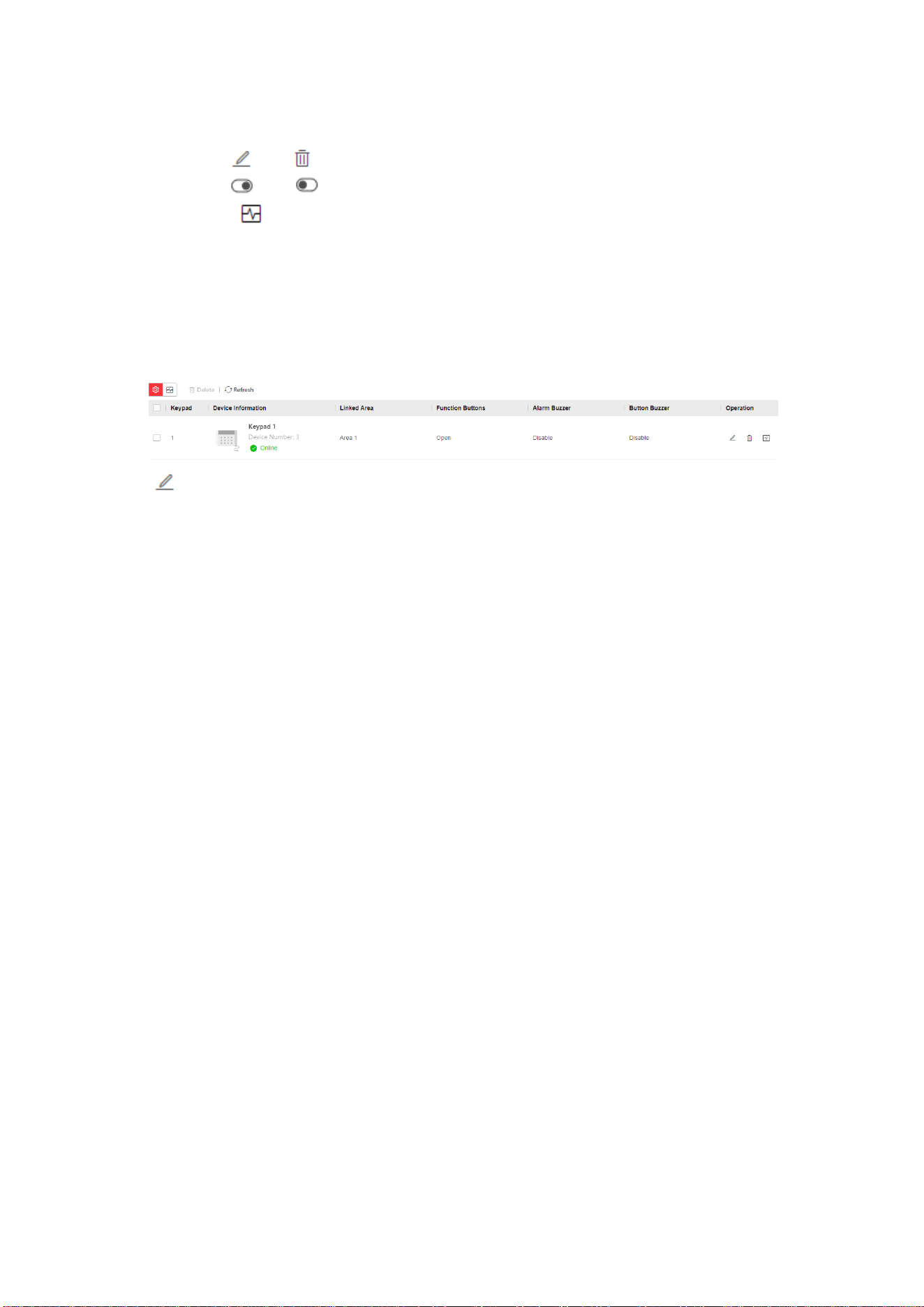
Automation
You can set the parameters of the relay outputs that is enrolled.
Steps
1. Click Device Management → Mount Device → Automation to enter the page.
2. Click Add to add relay output.
3. Select the relate mode.
Wireless
Add wireless relay output. Enter the device serial No., select the sounder model, and check
main device type and name. Click Next.
Wired
Add wired relay output. Check main device type and name. Click Next.
4. Set the relay name.
5. Select the linked area.
Note
Only enabled areas will be listed.
The newly added peripheral is linked to area 1 by default.
The function varies according to different relay types
6. Set event type and its parameters:
Secondary Event
The sub-event type of alarm, arm, disarm and fault event.
Activation Mode
Latched: Continue the output until the relay is manually closed or opened.
Pulsed: The relay will be closed/open after the set duration.
Contact Status
Normally Open: Under normal conditions, the relay is open. When the event is triggered, the
relay will be closed.
Normally Closed: Under normal conditions, the relay is closed. When the event is triggered,
the relay will be open.
Schedule
You can set the close/open time for the relay.
22
7. Click Save.
8. Optional: Click or to edit or delete the selected relay.
9. Optional: Click or to enable or disable the relay.
10. Optional: Click
to view the added relays’ status, and click Refresh to view the latest status.
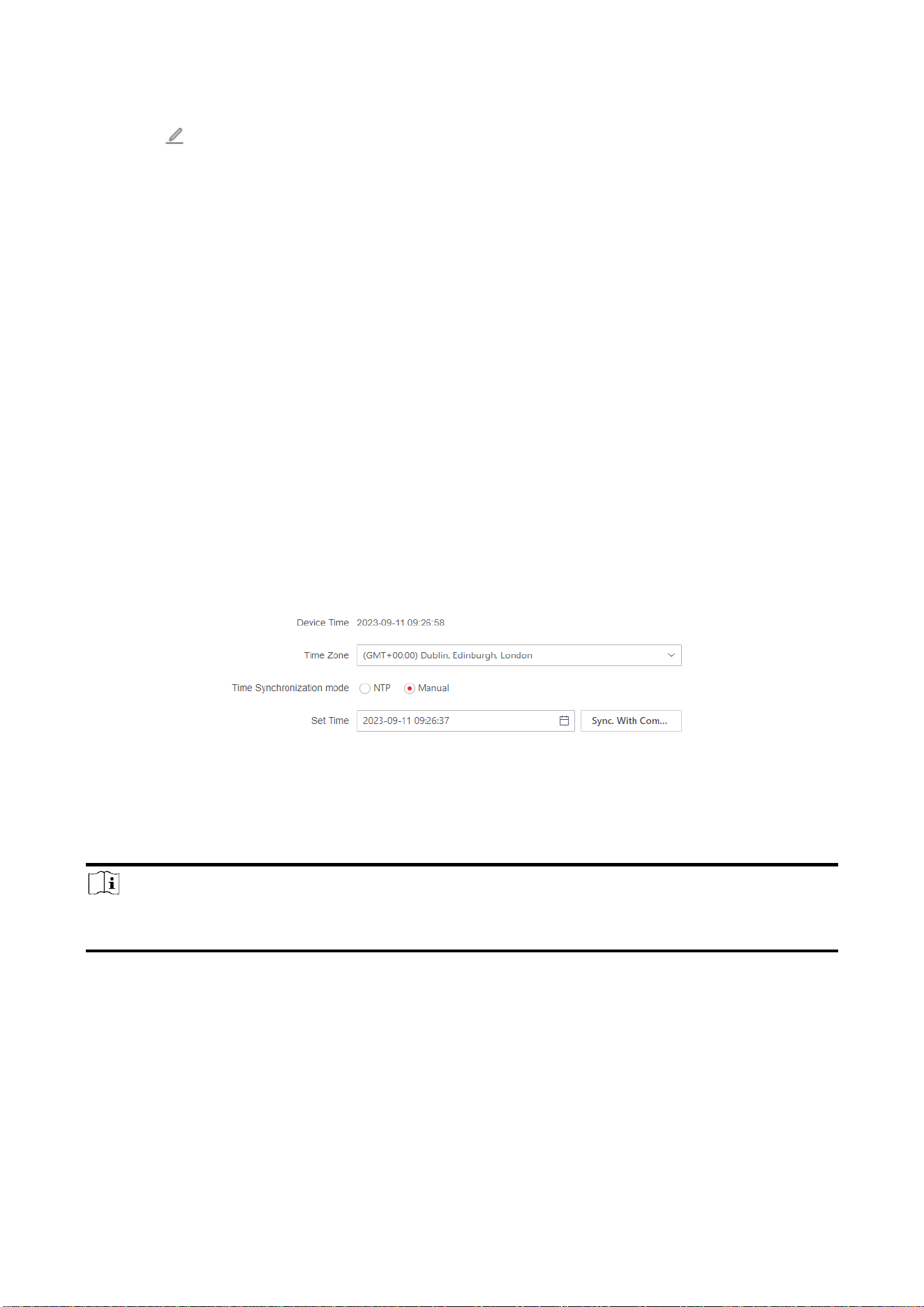
Keypad
You can set the parameters of the keypad that is enrolled to the AX HYBRID PRO .
Steps
1. Click Device Management → Mount Device → Keypad to enter the page.
2. Click to enter the Keypad Settings page.
3. Set the keypad name.
4. Check linked areas.
5. Enable the function buttons.
6. Select the keypad mode.
Standard Mode
Area selection and fault confirmation are supported when swiping tag to arm or disarm.
Simple Mode
No Area selection and fault confirmation when swiping tag to arm or disarm.
7. Enable the function according to your actual needs.
Authorization
Only standard mode has this function. You can select the authorization method.
Arming Without Password
If enabled, the Arming Process function will be unavailable when you arm areas.
Area Status
Display area status and alarm information in the keypad main page.
Backlight
Enable the backlight of the keypad. You can set the backlight off time.
Alarm Buzzer / Button Buzzer
If enabled, when alarm or button is triggered, the device will beep.
Active on Entry Delay
When someone enters the delay zone, the screen and backlight of the keypad will be on.
This function can indicate the keypad position for those who enter the delay zone at night.

23
Keypad Arming Light
Enable the arming indicator of the keypad.
Silent Panic Alarm / Silent Medical Alarm
Panic alarm / Medical alarm do not sound.
Text1 / Text2
The text displayed on the main page when waking up. Customizable content.
Note
Only enabled areas will be listed.
The newly added peripheral is linked to area 1 by default.
For detailed information, refers to the keypad user manual.
7. Click Save.
Note
● You can set the keypad password on the page of User → User Management→ Operation.
8. Optional: Click or to edit or delete the selected keypad.
9. Optional: Click to enable find me mode.
10. Optional: Click
to view the added keypads’ status, and click Refresh to view the latest
status.
Keyfob
You can set the parameters of the keyfob.
Steps
1. Click Device Management → Mount Device → Keyfob to enter the page.
2. Click Add to add a keyfob.
3. Enter the serial No., select main device type and name. Click Next.
4. Select a linked user. Configure the functions of the buttons according to your actual needs.
5. Optional: Click or to edit or delete the selected keyfob.
9. Optional: Click or to enable or disable the keyfob.
10. Optional: Click
to view the added keyfobs’ status, and click Refresh to view the latest
status.
Module
Set module parameters.
Steps
1. Click Device Management → Mount Device → Expander to enter the page.
24
2. Click to edit the parameters.
3. Select linked areas.
4. Optional: Enable AUX according to your needs. It will enable the auxiliary power output of the
module. (Only for input expanders and output expanders.)
5. Click Save.
3.1.3 System Settings
Basic Information
Click System → System Settings → Basic Information to enter the page.
You can edit the device name and view model, serial No., version, number of zones and areas.
Time Settings
You can set the device time zone, synchronize device time, and set the DST time. The device
supports time synchronization via Hik-Connect server.
Time Management
Click System → System Settings → Time Management to enter the page.
You can select a time zone from the drop-down list.
You can synchronize the device time automatically with NTP. Check the check box of NTP Time
Sync., enter the server address and port No., and set the synchronization interval.
You can synchronize the device time manually. Or check Sync. with Computer Time to synchronize
the device time with the computer time.
Note
While you synchronize the time manually or with the computer time, the system records the log
“SDK Synchronization”.
DST Management
Click System → System Settings → Time Management to enter the Time Management page.
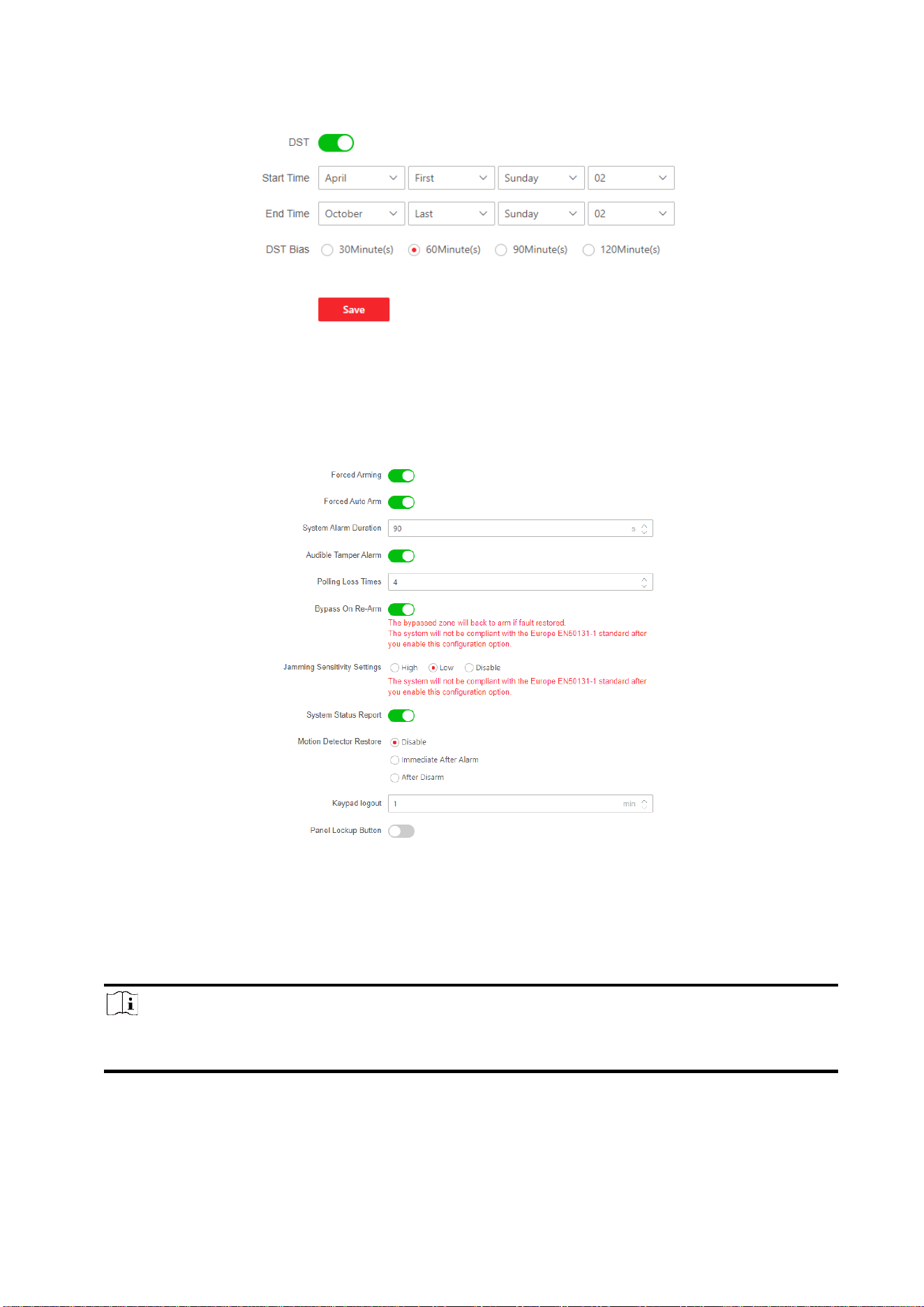
25
You can enable the DST and set the DST bias, DST start time, and DST end time.
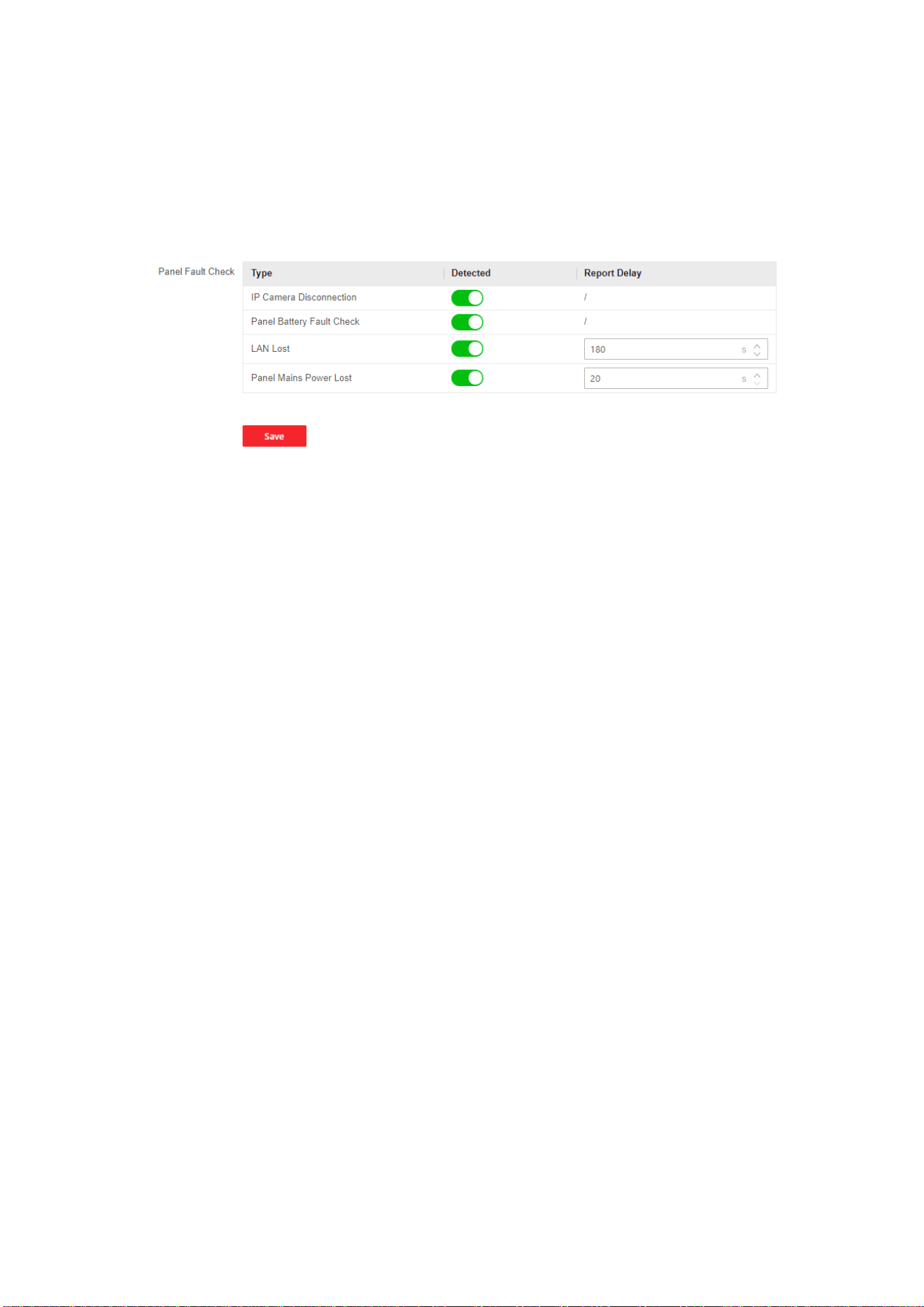
Option Management
Set the authority options.
Click Configuration → Control Panel Option → Option Management to enter the page.
Forced Arming
After enabled, when manual arming starts, if there are active faults in a zone, the zone will be
automatically bypass.
You can use keyfobs, tags, and keypads to arm zones, or manually arm zones on APP. Single,
multiple or all areas can be selected for arming.
Note
You should disable the Arm With Faults in the Arm Options page. Or the Forced Auto
Arm/Forced Arming function cannot be valid.
Forced Auto Arm

26
After enabled, when the timed automatic arming starts, if there are active faults in a zone, the
zone will be automatically bypass.
Note
You should disable the Arm With Faults in the Arm Options page. Or the Forced Auto
Arm/Forced Arming function cannot be valid.
System Alarm Duration
Set the duration of the buzzer after the alarm is triggered.
Audible Tamper Alarm
While enabled, the system will alert with buzzer for the tamper alarm. Regardless of whether it
is enabled or not, the tamper alarm will be normally pushed to Cloud (for APP) and ARC.
Polling Loss Times
Set the maximum number of times for polling loss of peripherals and detectors. The system will
report fault if the time is over the limit. The status of these peripherals and detectors will be
shown as offline.
Bypass on Re-Arm
While enabled, after the detector is bypassed, if its faults are restored and the linked area is
armed, the detector will automatically arm.
Jamming Sensitivity Settings
The device will detect RF interference and push messages when the RF interference interferes
with communication. You can adjust the detection sensitivity.
System Status Report
While enabled, system status will be uploaded and you can check the status.
Motion Detector Restore
Motion detectors include all PIR detectors.
-Disable: No automatic restore.
-Immediate After Alarm: Motion detectors automatically restores immediately after the alarm
and reports to Cloud (for APP) and ARC.
-After Disarm: Motion detectors automatically restores after disarming and reports to Cloud
(for APP) and ARC
Keypad Logout
After the keypad enters the programming page, if there is no key operation, it will exit the
programming page after reaching this time.
Panel Lockup Button
All functions of AX HYBRID PRO will be frozen after it is enabled. This function can only be
enabled by users with installer permission.
27
Fault Check
The fault check here is only for the control panel in the normal status.
The system determines whether to check the faults listed on the page. The system will only check
the fault that is selected.
Click Configuration → Control Panel Option → Panel Fault Check to enter the page.
IP Camera Disconnection
If the option is enabled, when the linked network camera is disconnected, an alarm will be
triggered.
Panel Battery Fault Check
If the option is enabled, when battery is disconnected or in low battery status, the device will
upload events.
LAN Lost
If the option is enabled, when the wired network is disconnected or with other faults, the alarm
will be triggered.
LAN Lost Delay
The system checks the fault after the configured time duration after the wired network
disconnect.
Panel Mains Power Lost
If the option is enabled, an alarm will be triggered when the control panel main supply is
disconnected.
Panel Mains Power Loss Delay
The system checks the fault after the configured time duration after AC power down.
To compliant the EN 50131-3, the check time duration should be 10 s.
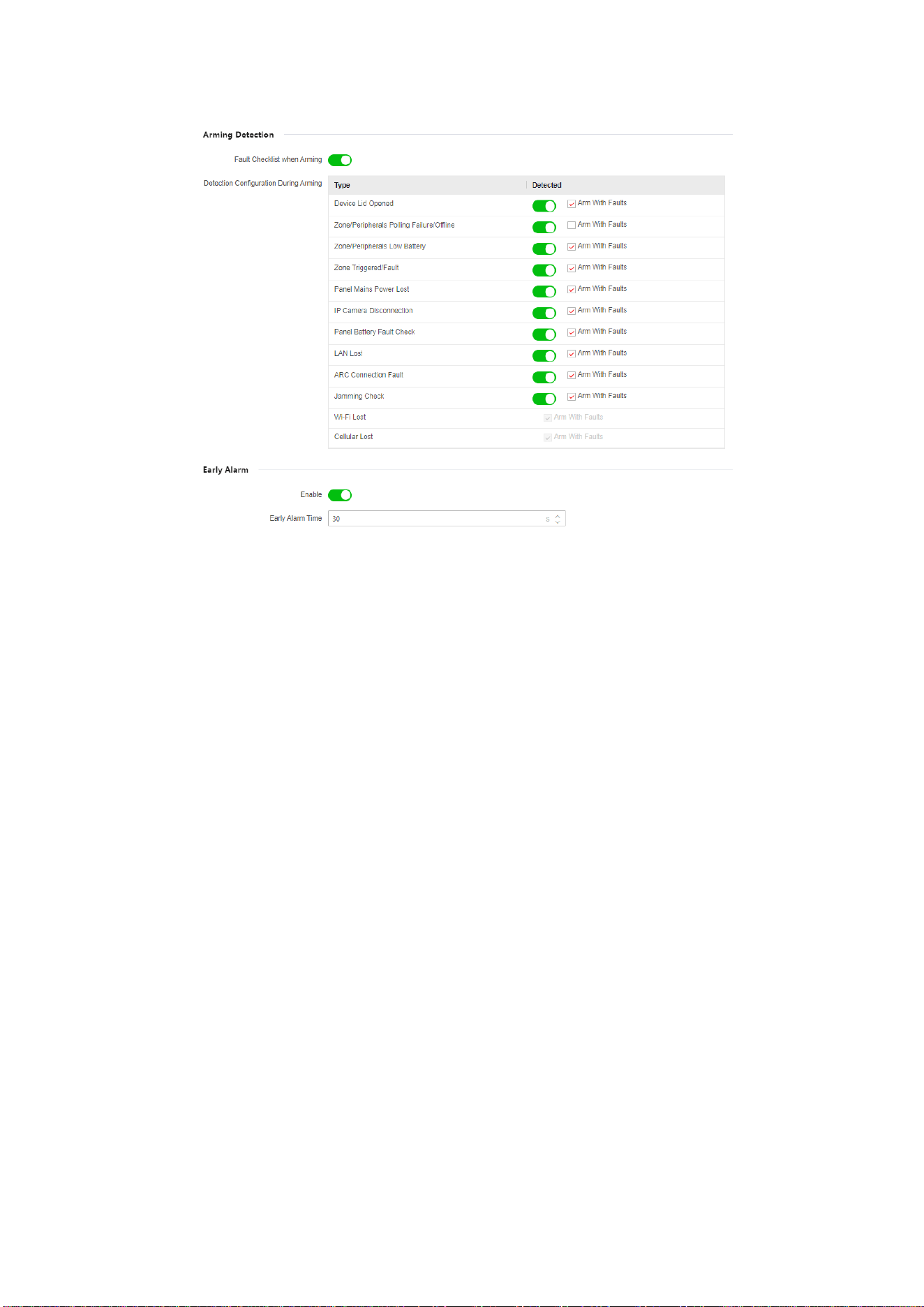
Arming Options
This function is for the whole alarm system, to inform the user of the current system status before
arming. If it is enabled, there will be a fault prompt and confirmation process for keypads, keyfobs,
and APP. If it is not enabled, there will be no fault detection before arming.
Click Configuration → Control Panel Option → Arming Options to enter the page.
28
You can set the following parameters:
Arm with Fault
Check the faults in the Arm with Fault list, and the device will not stop the arming process when
faults occurred.
Fault Checklist when Arming
The system will check if the device has the faults in the checklist during the arming process.
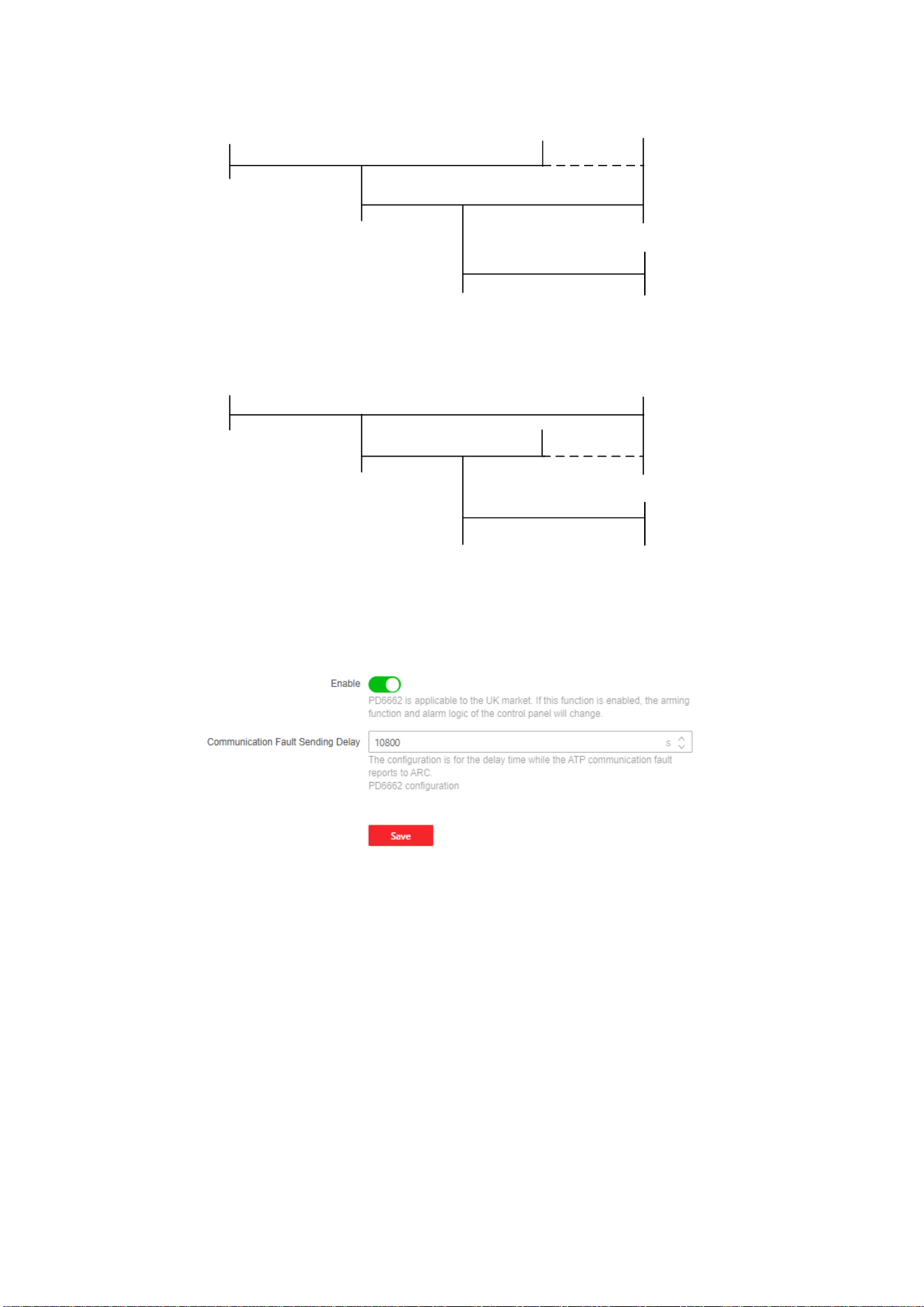
Early Alarm
A delay zone is triggered first, and the area is in the "Entry Delay" stage. During the delay time
period, an instant zone is triggered. At this time, the area enters the early alarm stage. There
are control panel voice alarm and local sounder alarm, but no alarm message is pushed. If the
zone is disarmed or silence before both the early alarm and entry delay end, the alarm message
will not be reported. Otherwise, both the delayed zone and the instant zone will alarm.
29
Trigger
Delay Zone
Entry Delay
Trigger
Instant Zone
Early Alarm
Delay Zone & Instant Zone: Alarm
Disarm/Silence
No Alarm
Trigger
Delay Zone
Entry Delay
Trigger
Instant Zone
Early Alarm
Delay Zone & Instant Zone: Alarm
Disarm/Silence
No Alarm
OR
Regional Certification
Click Configuration → Control Panel Option → Regional Certification to enter the page.
Enable PD6662
Enable PD6662 standard. Functions that do not meet the standard will not take effect.
Communication Fault Sending Delay
Set the delay time while the ATP communication fault reports to ARC.
30
3.1.4 Communication Settings
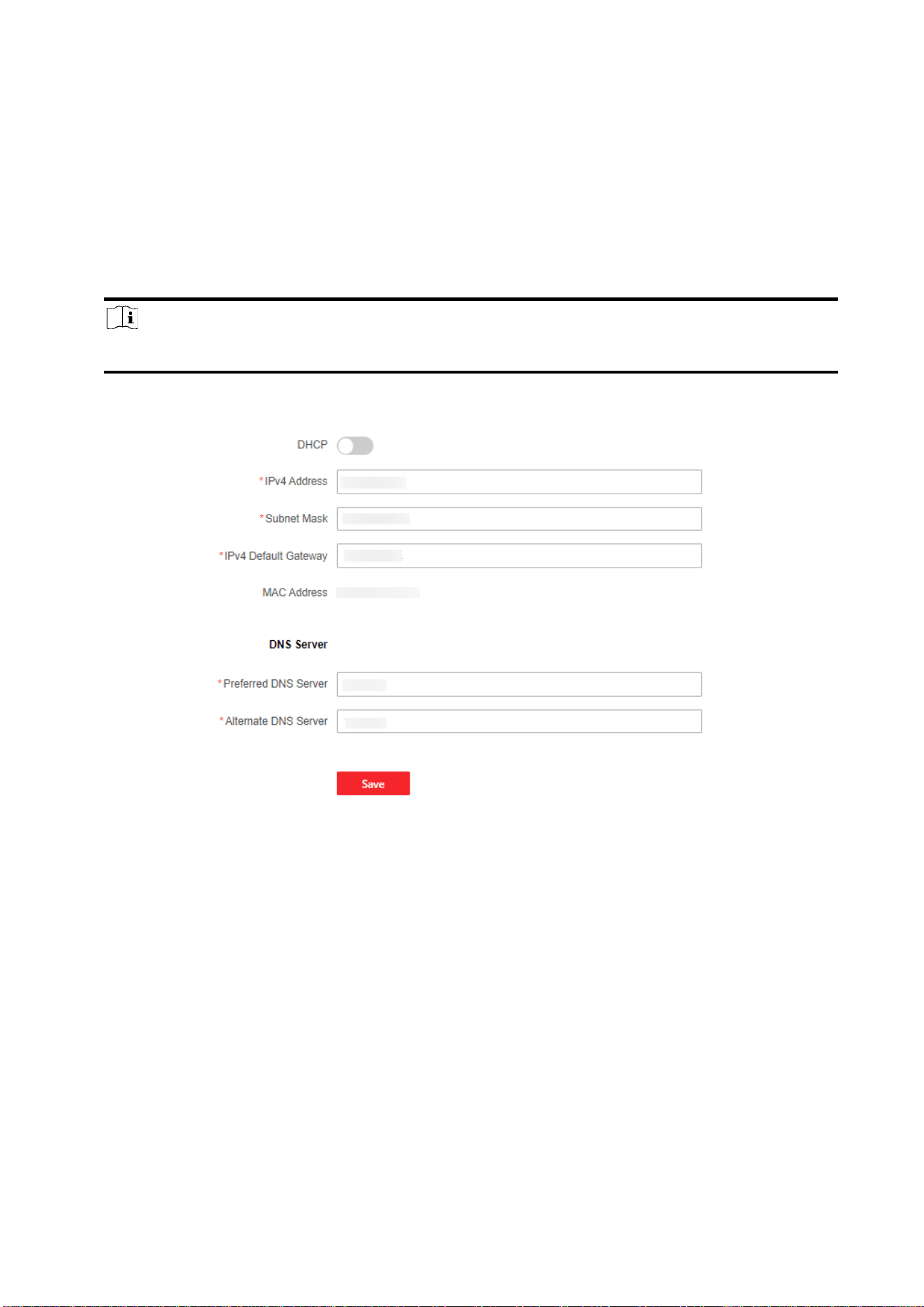
Wired Network
You can set the device IP address and other network parameters.
Steps
Note
Functions varied depending on the model of the device.
1. Click Network → Network Settings → TCP/IP to enter the page.
2. Set the parameters.
– Automatic Settings: Enable DHCP.
– Manual Settings: Disabled DHCP and set IPv4 Address, Subnet Mask, IPv4 Default Gateway,
DNS Server Address.
3. Optional: Set correct DNS server address if the device needs to visit Hik-Connect server via a
domain name.
4. Click Save.
HTTP
Steps
1. Click Network → Network Service → HTTP(S) to enter the page.
2. Set the HTTP port.
3. Click Save to complete the settings.
31
NAT
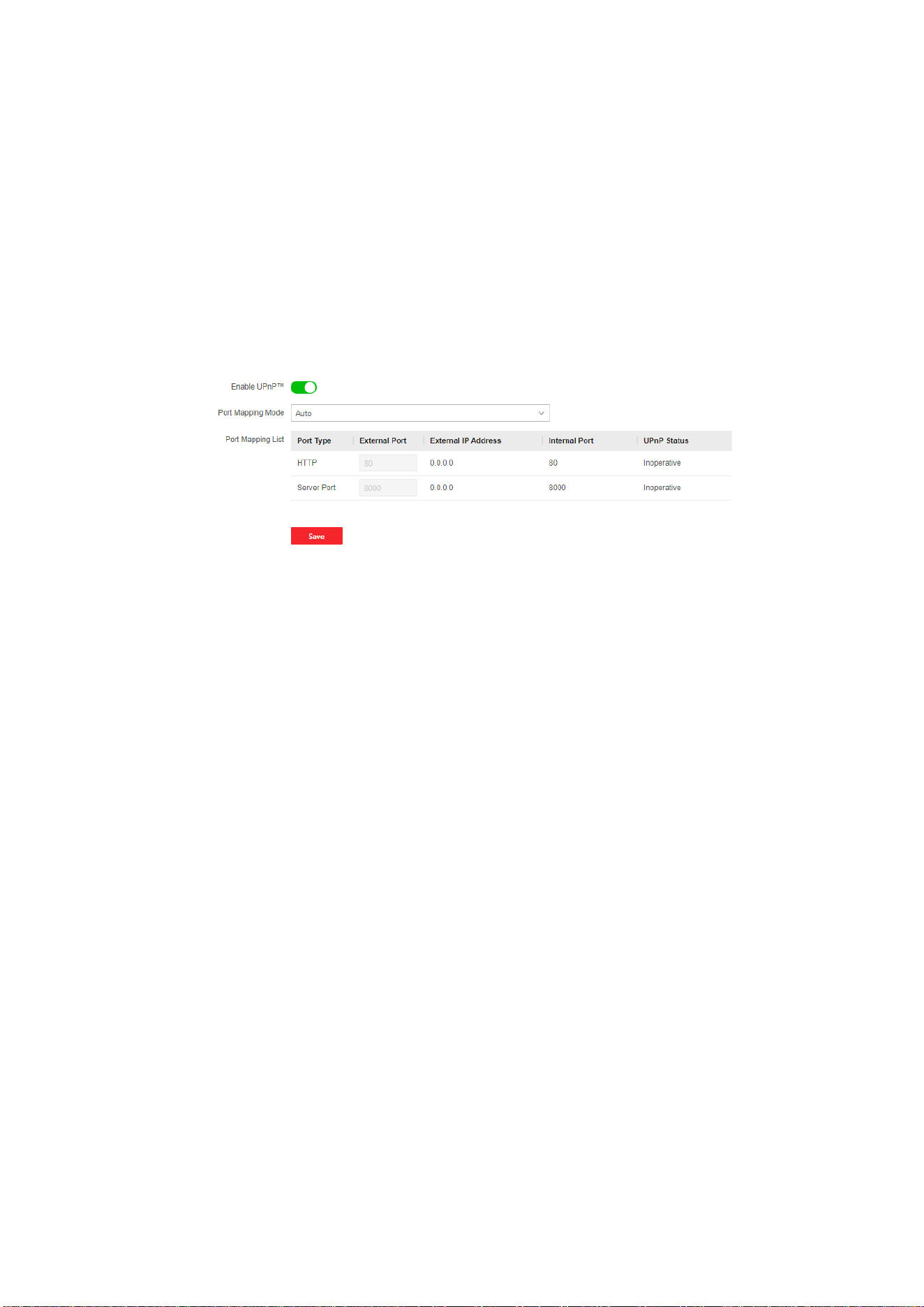
Universal Plug and Play (UPnP™) is a networking architecture that provides compatibility among
networking equipment, software and other hardware devices. The UPnP protocol allows devices
to connect seamlessly and to simplify the implementation of networks in the home and corporate
environments.
Enable the UPnP function, and you don’t need to configure the port mapping for each port, and
the device is connected to the Wide Area Network via the router.
Steps
4. Click Network → Network Service → NAT to enter the page.
2. Drag the slider to enable UPnP.
3. Optional: Select the port mapping mode as Manual and set the HTTP port and the service port.
4. Click Save to complete the settings
Cloud Service
If you want to register the device to the mobile client for remote configuration, you should set the
mobile client registration parameters.
Before You Start
● Connect the device to the network via wired connection, dial-up connection, or Wi-Fi
connection.
● Set the device IP address, subnet mask, gateway and DNS server in the LAN.
Steps
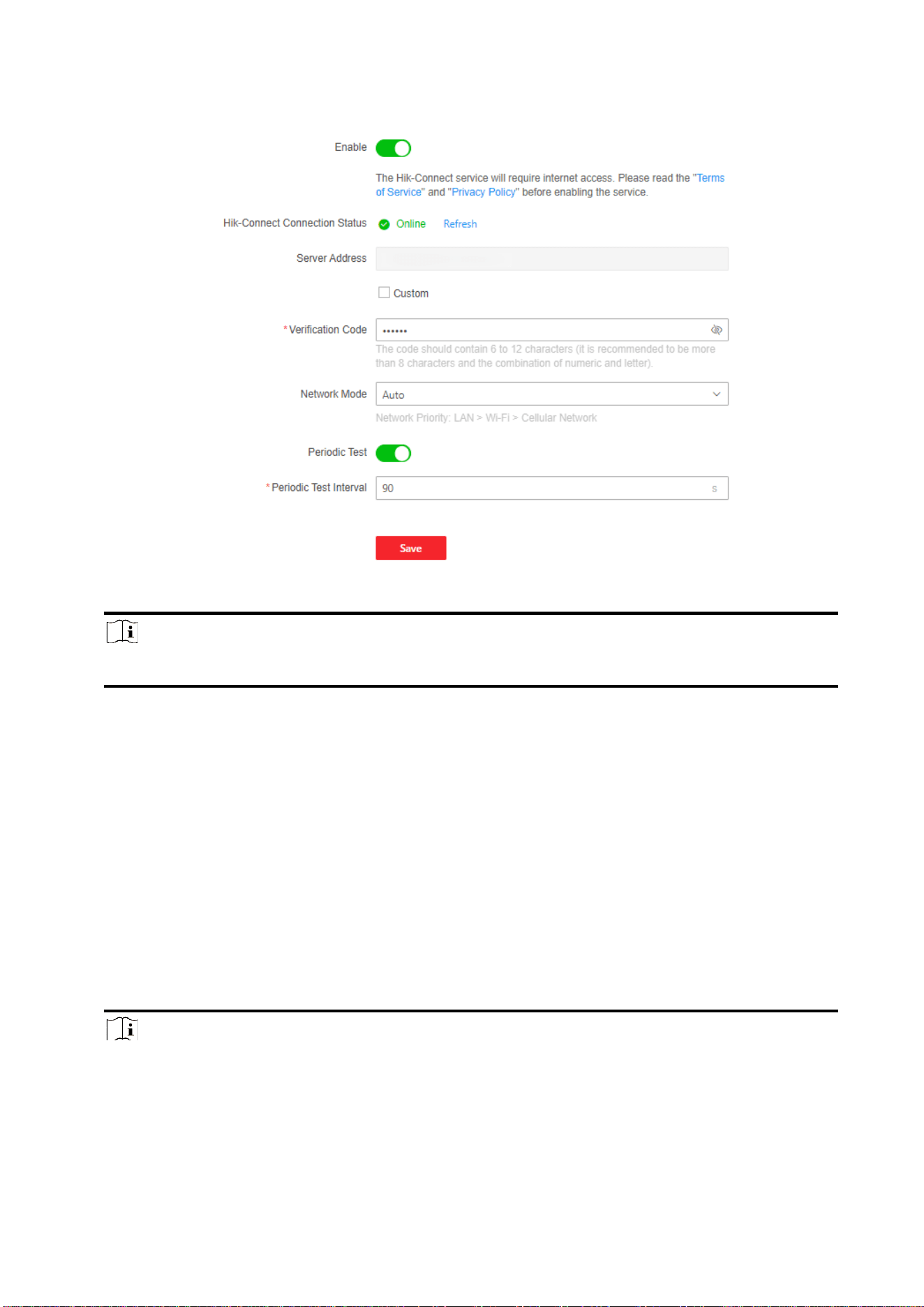
1. Click Network → Device Access → Cloud Service to enter the page.
32
2. Drag the slider to enable Hik-Connect service.
Note
By default, the device Hik-Connect service is enabled.
You can view the device status in the Hik-Connect server (www.hik-connect.com).
3. You can view the Hik-Connect connection status, and click Refresh to view the latest status.
4. Enable Custom Server Address.
The server address is already displayed in the Server Address text box.
4. Select a network mode from the drop-down list according to the actual device communication
method.
Wired &Wi-Fi
The system will select wired network first. If no wired network detected, it will select Wi-Fi
network.
Auto
The system will select communication mode automatically.
5. Optional: Change the verification code.
Note
● By default, the verification code is displayed in the text box.
● The verification code should contain 6 to 12 letters or digits. For security reasons, an 8-
character password is suggested, which containing two or more of the following character
33
types: uppercases, lowercases, and digits.
6. Enable Periodic Test. Enter the periodic test interval.
7. Click Save.
Alarm Center
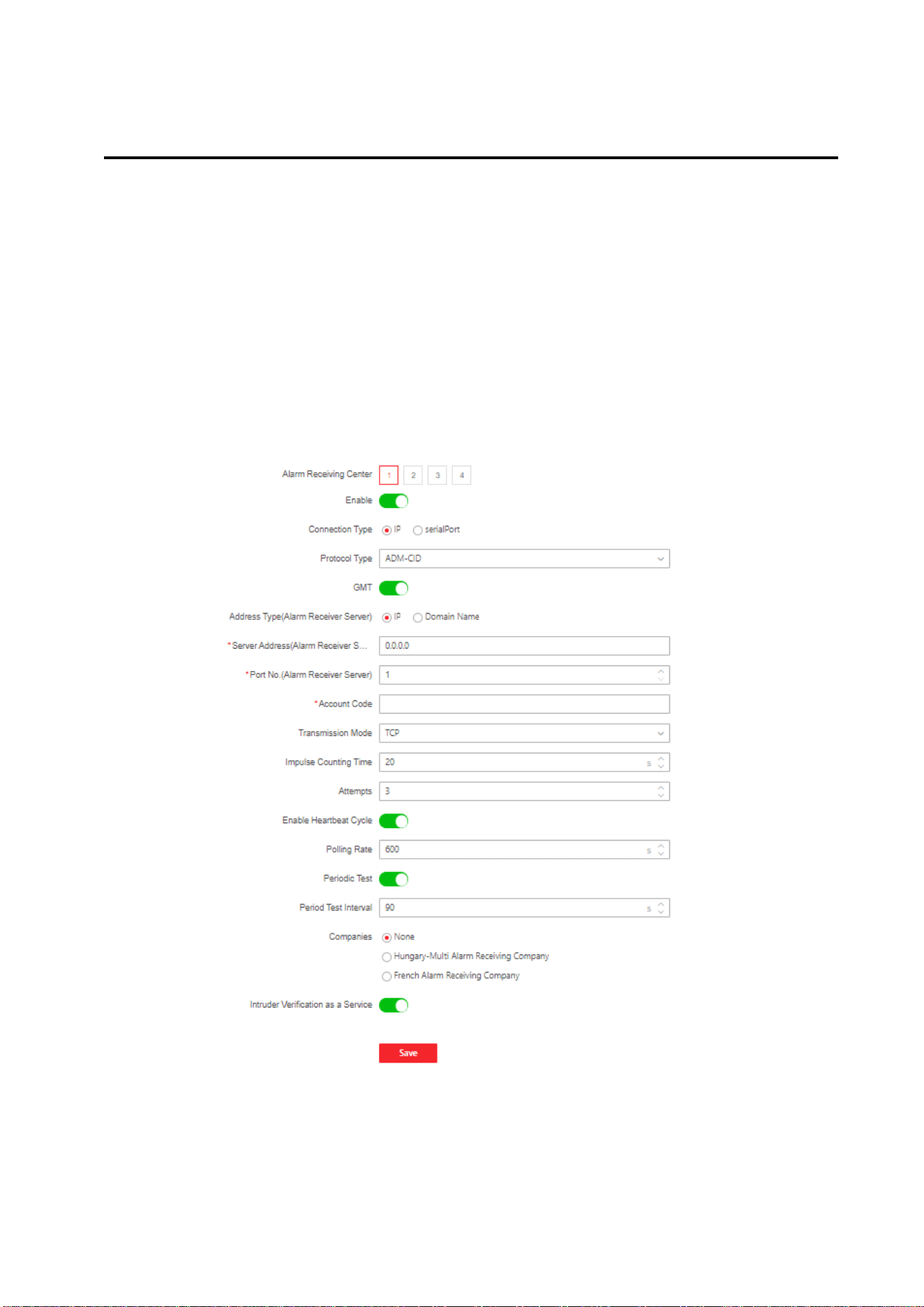
You can set the alarm center’s parameters and all alarms will be sent to the configured alarm
center.
Steps
1. Click Alarm Communication → Alarm Receiving Center to enter the page.
2. Drag the slider to enable the selected alarm receiver center.
3. Select the connection type as IP, and select the Protocol Type as ADM-CID, ISUP, SIA-DCS, *SIA-
DCS, *ADM-CID, or CSV-IP to set uploading mode.

34
Note
Standard DC-09 Protocol
ADM-CID: The data presenting method of DC-09 is CID, which is not encrypted and only for
uploading alarm report.
*ADM-CID: The data presenting method of DC-09 is CID, which is encrypted and only for
uploading alarm report.
SIA-DCS: The data presenting method of DC-09 is DCS (also called SIA protocol), which is not
encrypted and only for uploading alarm report.
*SIA-DCS: The data presenting method of DC-09 is DCS (also called SIA protocol), which is
encrypted and only for uploading alarm report.
ADM-CID or SIA-DCS: You should select the Address Type as IP or Domain name, and enter the
Server address, port number, account code, impulse counting time, attempts, polling rate, etc.
Note
Set the polling rate with the range from 10 to 3888000 seconds.
ISUP, CSV-IP: You do not need to set the protocol parameters.
*SIA-DCS or *ADM-CID You should select the Address Type as IP or Domain name, and enter
the IP address, port number, account code, impulse counting time, attempts, polling rate,
encryption arithmetic, password length, etc.
Note
Set the polling rate with the range from 10 to 3888000 seconds.
ADM-CID, SIA-DCS, *SIA-DCS, *ADM-CID, CSV-IP: You can enable Intruder Verification as a
Service.
Note
When enabled, the SDK returns the URL address of the video storage after the PIRCAM
composite video is uploaded to the cloud. The control panel will add this URL in the additional
field when reporting the intruder verification to ARC. After receiving the URL, ARC can download
the video.
The alarm video can be stored in the cloud for up to 7 days.
You can select companies. When you select it as French Alarm Receiving Company, set PIRCAM
picture upload mode as video or picture. Set HTTP data transmission parameters, and click Test
to ensure the service is available. Click Restore Default to restore the parameters to the default
value.
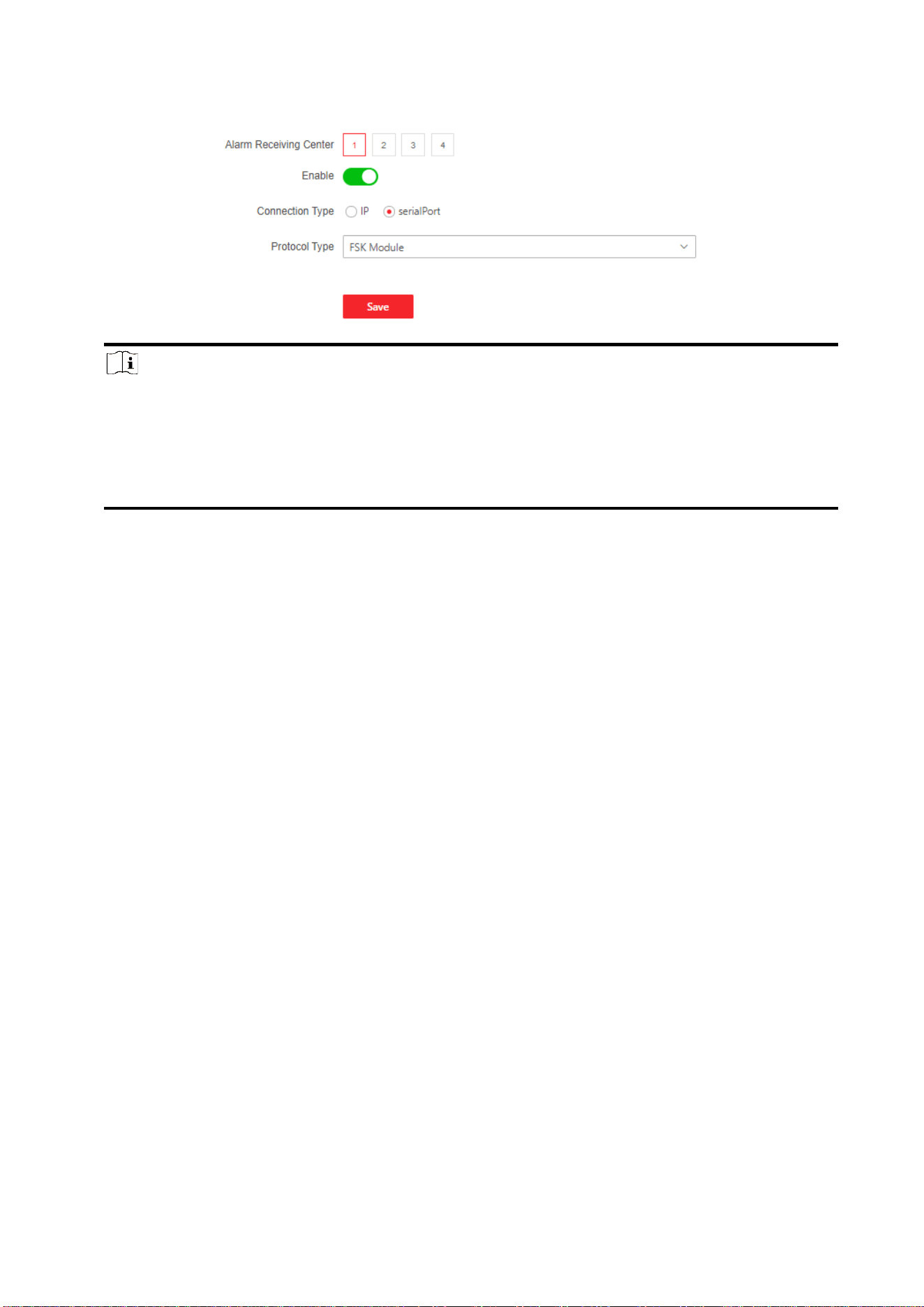
4. Select the connection type as serialPort, and select the Protocol Type to set uploading mode.
35
Note
FSK Module: The control panel communicates with the third-party modules through the
reserved serial port. You can select Baud Rate, Data Bits, Parity and Stop Bits. When FSK is
uploaded, it will convert to the ADM-CID format.
Only one center of the serial port in the ARC can be configured with FSK or RDC, and the center
cannot be used as a standby channel.
5. Click Save.
Notification Push
When an alarm is triggered, if you want to send the alarm notification to the client, alarm center,
cloud or mobile phone, you can set the notification push parameters.
Steps
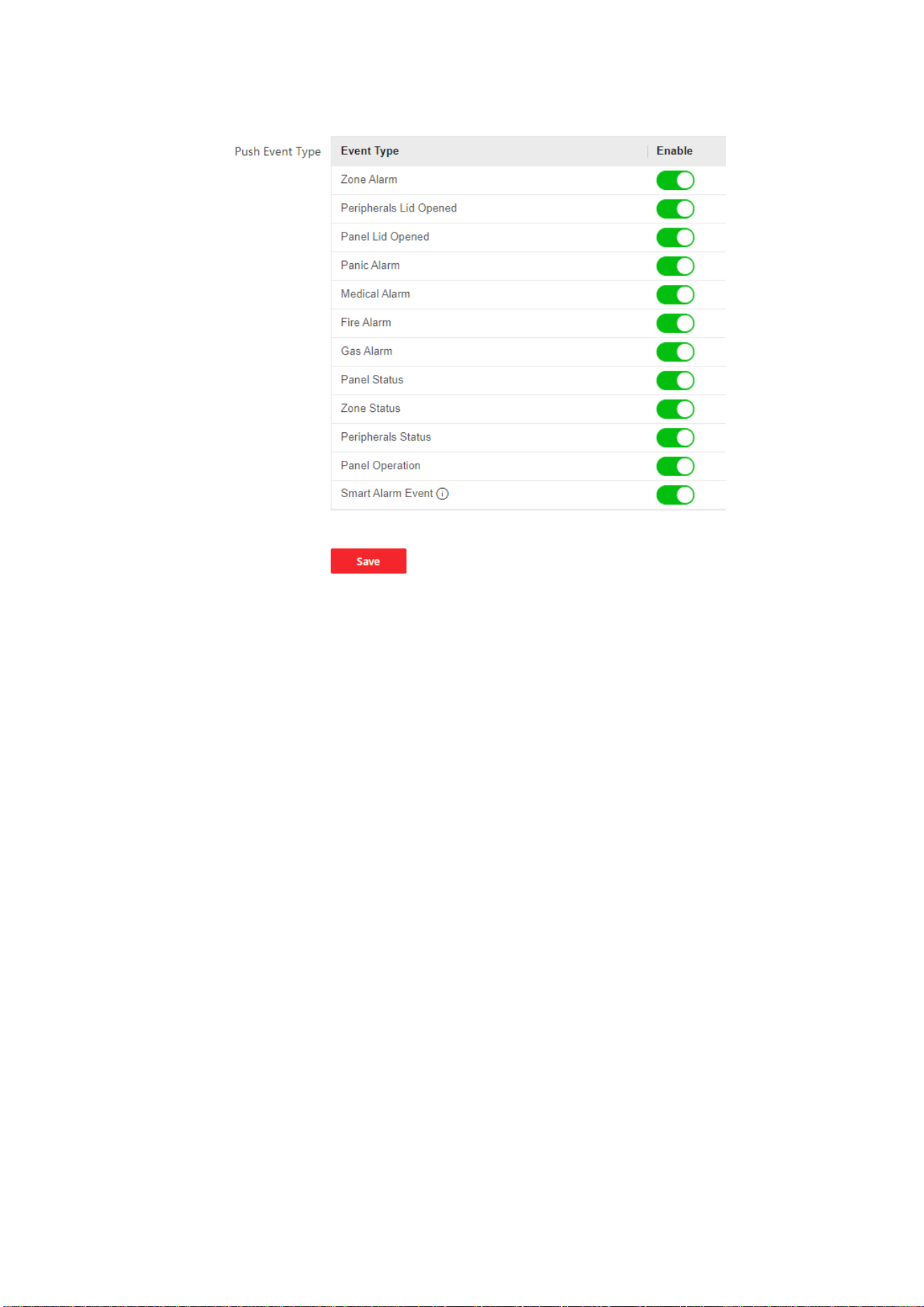
1. Click Alarm Communication → Event Notification.
36
2. Enable the target notification.
Zone Alarm
The device will push notifications when the zone alarm (on web client, software client or mobile
client) is triggered or the zone peripherals alarm is triggered or restored.
Peripherals Lid Opened
The device will push notifications when lid opened alarm of any peripheral is triggered or
restored.
Panel Lid Opened
The device will push notifications when lid opened alarm of the control panel is triggered or
restored.
Panic Alarm
The device will push notifications when panic alarm on keypads or keyfobs is triggered or
restored.
Medical Alarm
The device will push notifications when medical alarm on keypads is triggered.
Fire Alarm
The device will push notifications when fire alarm on keypads is triggered or a user presses the
fire alarm key on the keypad.
37
Gas Alarm
The device will push notifications when gas alarm on keypads is triggered.
Panel Status
The device will push notifications when the control panel system status is changed.
Zone Status
The device will push notifications when any zone status is changed.
Peripherals Status
The device will push notifications when any peripheral status is changed.
Panel Operation
The device will push notifications when the user operate the control panel.
Smart Alarm Event
The device will push notifications when alarm is triggered in network cameras.
3. Optional: For Alarm Receiving Center, you need to select center number before settings.
4. Optional: If you want to send the alarm notifications to the mobile client, you should set APP
parameters.
Notification by Email
You can send the alarm video or event to the configured email.
Steps
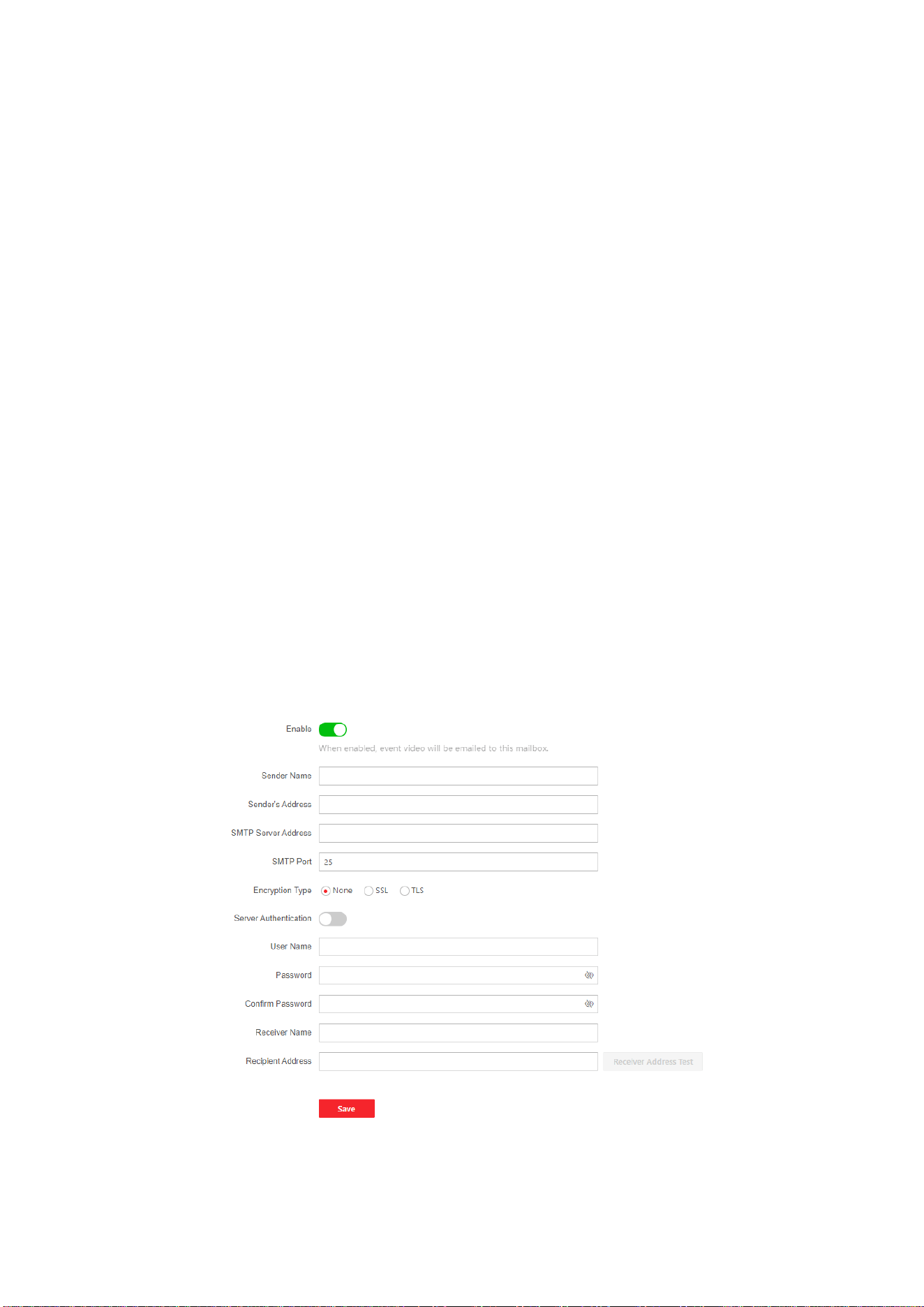
1. Click Alarm Communication → Notification by Email to enter the page.
38
2. Enable Video Verification Events and Server Authentication.
3. Enter the sender’s information.
Note
It is recommended to use Gmail and Hotmail for sending mails.
Only if the zone is linked with a network camera, the alarm email will be attached with alarm
video.
4. Enter the receiver's information.
5. Select the encryption type.
6. Click Receiver Address Test and make sure the address is correct.
7. Click Save.
FTP
You can configure the FTP server to save alarm video.
Steps
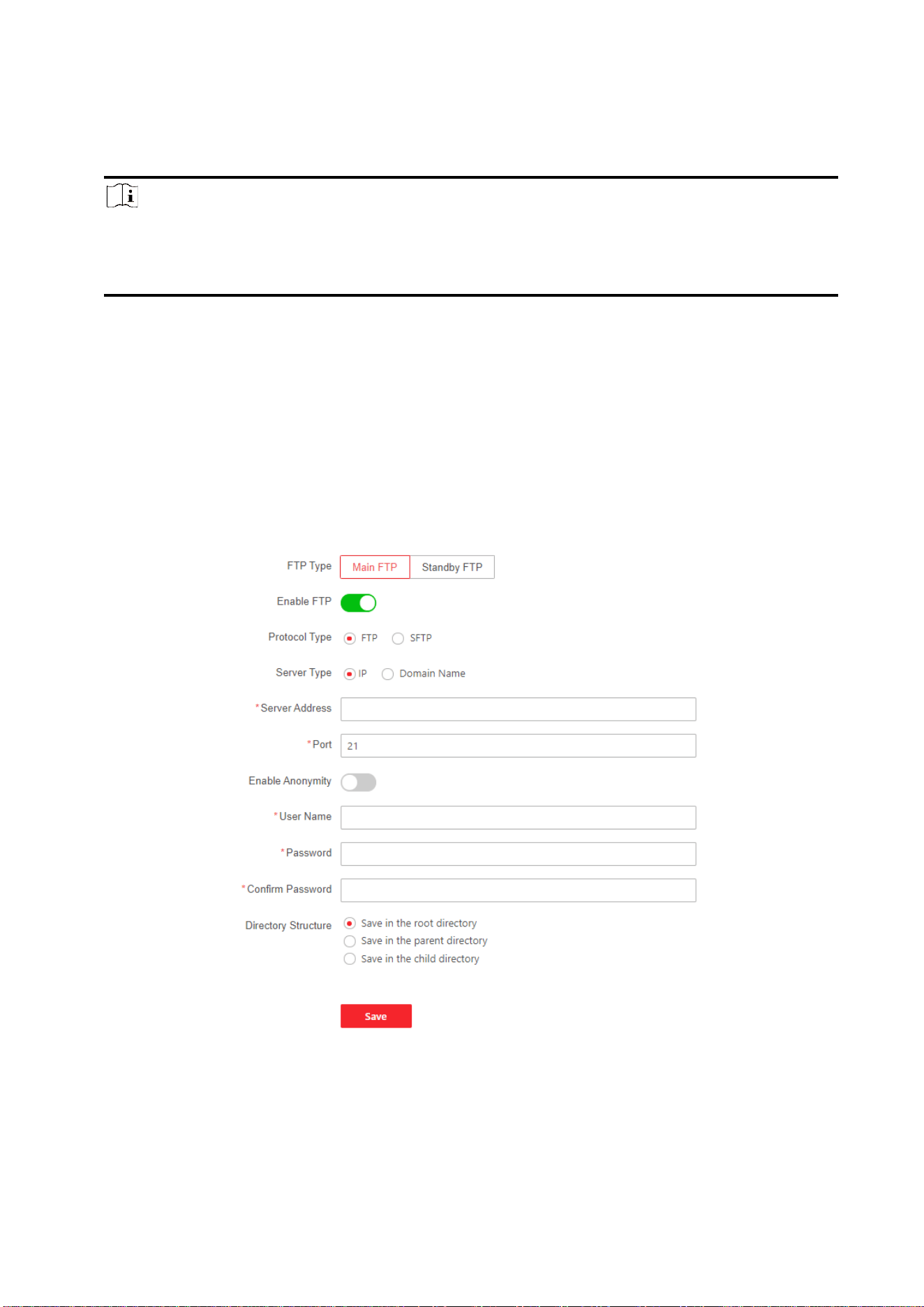
1. Click Alarm Communication → FTP to enter the page.
2. Configure the FTP parameters
FTP Type
Set the FTP type as preferred or alternated.

39
Protocol Type
FTP and SFTP are selectable. The files uploading is encrypted by using SFTP protocol.
Server Type
IP and Domain Name are selectable. Set corresponding FTP server address or domain name,
and set port number.
User Name and Password
The FTP user should have the permission to upload pictures. If the FTP server supports
picture uploading by anonymous users, you can drag the slide to Enable Anonymity to hide
your device information during uploading.
Directory Structure
The saving path of snapshots in the FTP server.
3.1.5 Maintenance
Maintenance and Upgrade
Reboot device, upgrade device version and restore device parameters.
Reboot Device
Click Maintenance and Security → Maintenance → Restart.
Click Restart to restart the device.
Upgrade
Click Maintenance and Security → Maintenance → Control Panel Upgrade.
Click
and select the upgrade file from your local PC. Click Upgrade to start upgrading.
Click Maintenance and Security → Maintenance → Detector & Peripheral Upgrade.
Select upgrade type and peripheral,
Click
and select the upgrade file from your local PC.
Click Upgrade to start upgrading.
Note
Do not power off during the upgrading.
Restore Parameters
Click Maintenance and Security → Maintenance → Backup and Reset.
Click Default, the device will restore to the default settings, except for the network parameters
and the user information.
Click Restore All, all parameters will be restored to the factory settings. You should activate the
device before usage.
Import and Export Parameters
40
Click Maintenance and Security → Maintenance → Backup and Reset.
Click Export to export the device parameters.
Click and select the file to import. Click Import to start import configuration file.
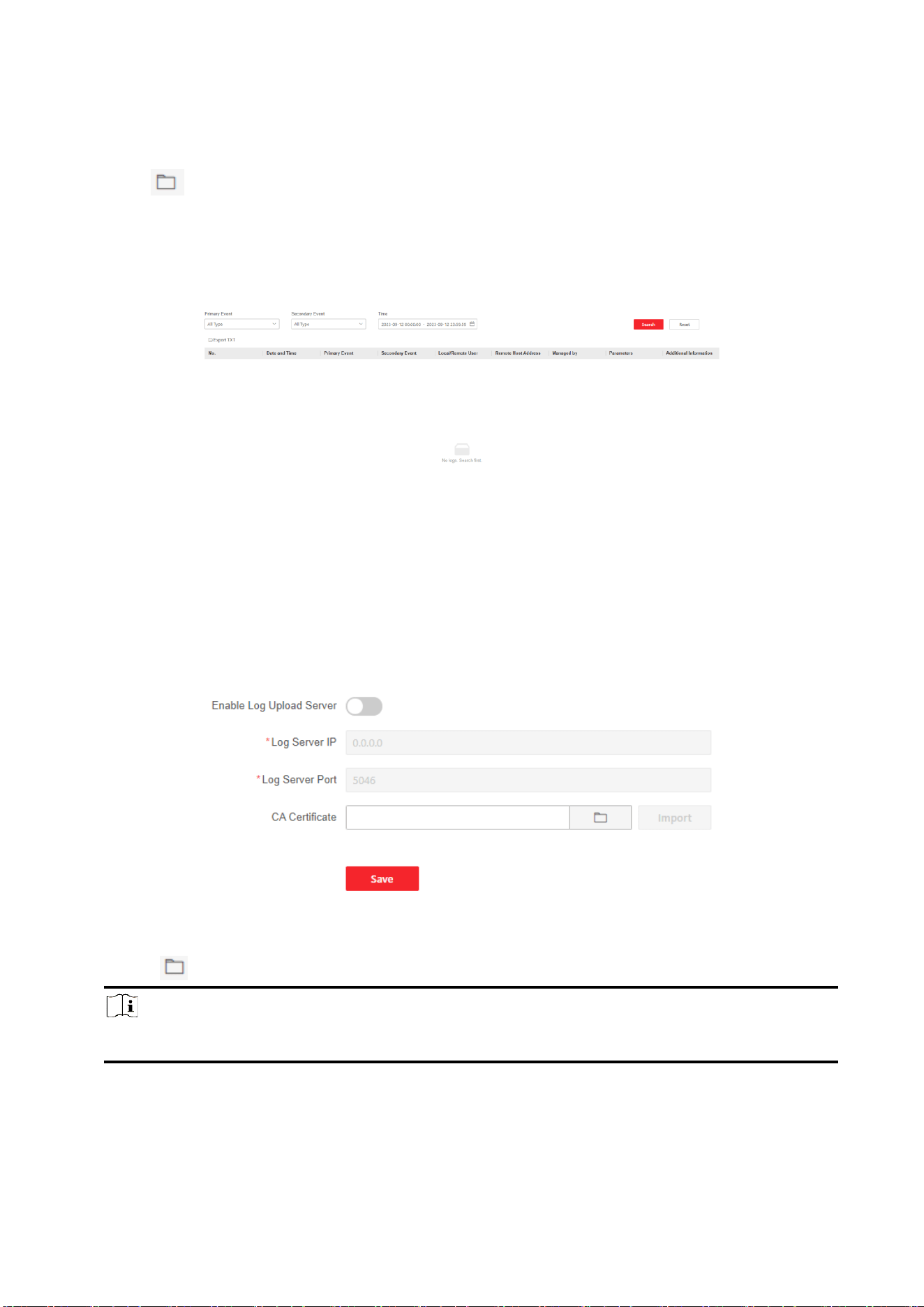
Local Log Search
You can search the log on the device.
Click Maintenance and Security → Maintenance → Log to enter the page.
Select a primary event and a secondary event from the drop-down list, set the log start time and
end time and click Search. All filtered log information will be displayed in the list.
You can also click Reset to reset all search conditions.
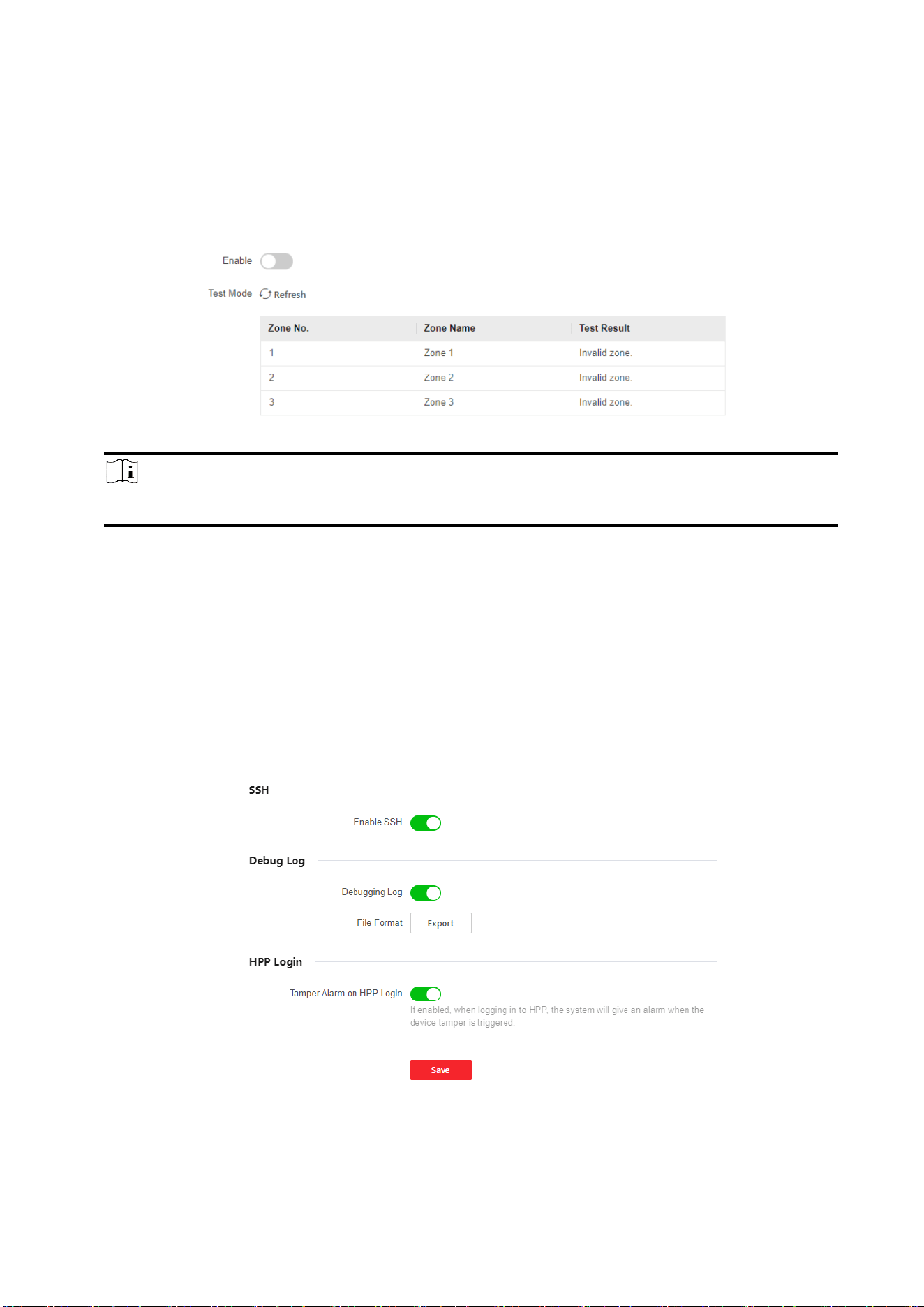
Security Audit Log
You can add the Security Audit Server to the system. The device will upload web logs to the server.
Steps
1. Click Maintenance and Security → Maintenance → Security Audit Log to enter the page.
2. Drag the slider to Enable Log Upload Server.
3. Enter log server IP and port.
4. Click to select a certificate.
Note
Formats include ca.crt
、
ca-chan.crt
、
private.txt are allowed.
5. Click Import.
6. Click Save.
41
Test
The AX HYBRID PRO supports walk test function.
Steps
1. Click Maintenance and Security → Maintenance → Walk Test to enter the page.
Note
Only when all the detectors are without fault, you can enter the mode TEST mode.
2. Drag the slider to start walk test.
3. Click Save to complete the settings.
4. Trigger the detector in each zone.
5. Check the test result. Click Refresh to view the latest status.
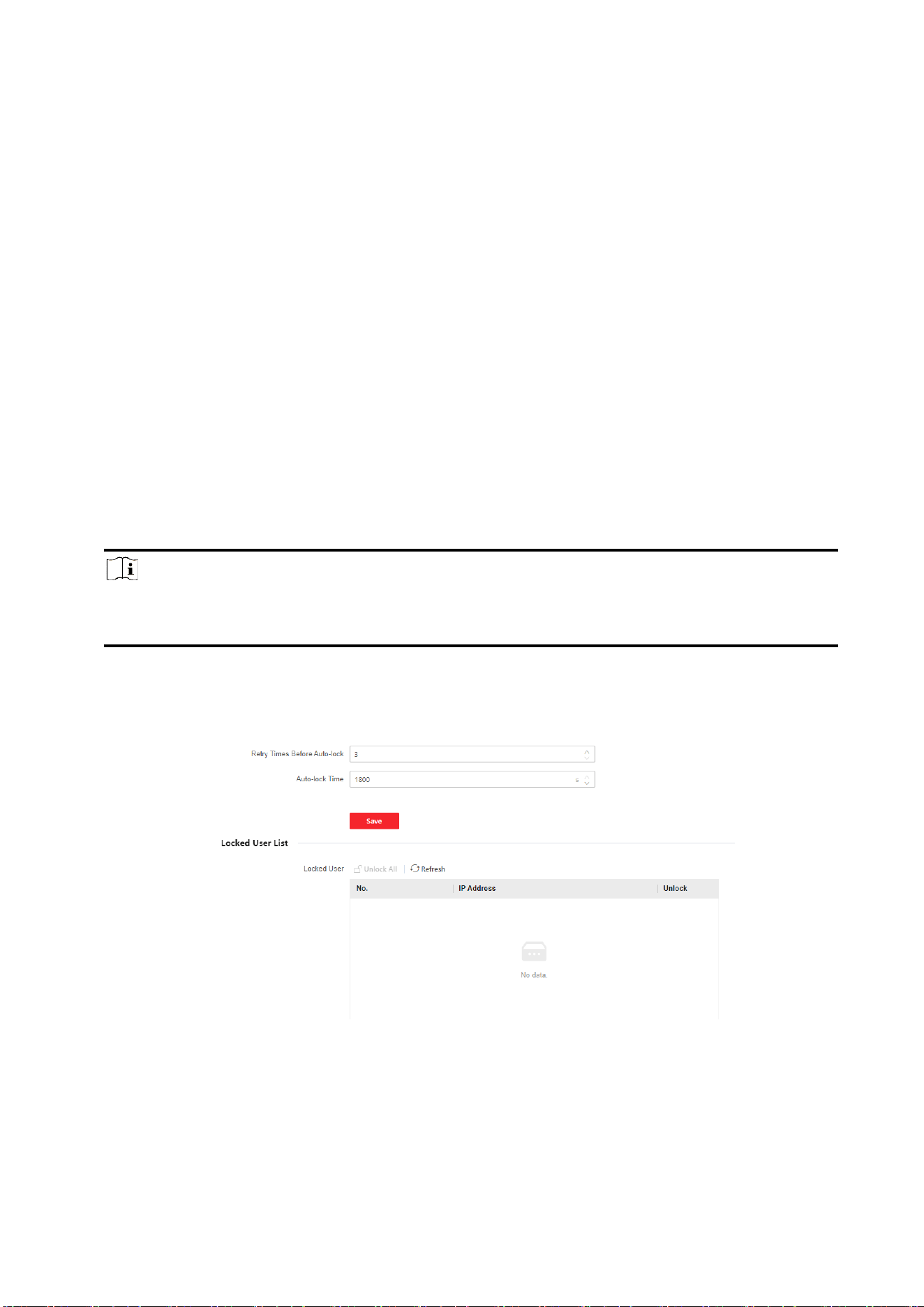
Device Debugging
You can set device debugging parameters.
Steps
1. Click Maintenance and Security → Maintenance → Device Debugging to enter the page.
2. You can set the following parameters.
42
Enable SSH
To raise network security, disable SSH service. The configuration is only used to debug the
device for the professionals.
Debug Log
You can click Export to export log.
HPP Login
If enabled, when logging in to HPP, the system will give an alarm when the device tamper is
triggered.
3.1.6 Security
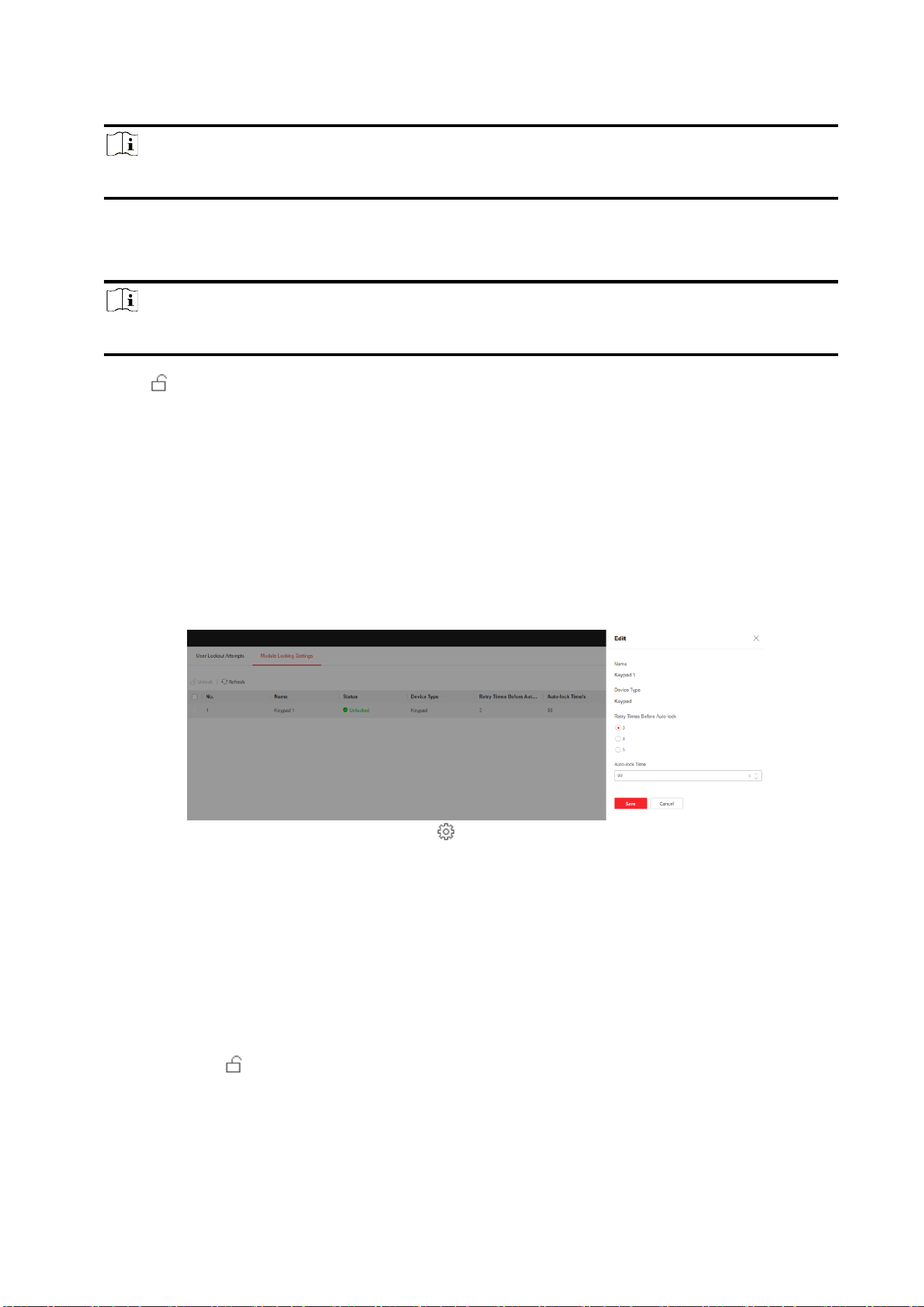
Locking User Settings
The device will be locked 90 s after 3 failed credential attempts (can be set in Retry Time before
Auto-Lock) in a minute.
You can view the locked user or unlock a user and set the user locked duration.
Note
To compliant the EN requirement, the system will only record the same log 3 times
continuously.
Steps
1. Click Maintenance and Security → Security → User Lockout Attempts to enter the Locking
User Settings page.
2. Set the following parameters.
Retry Times Before Auto-Lock
If the user continuously input the incorrect password for more than the configured times, the
account will be locked.
43
Note
The administrator has two more attempts than the configured value.
Auto-lock Time
Set the locking duration when the account is locked.
Note
The available locking duration is 5s to 1800s.
3. Click to unlock the account or click Unlock All to unlock all locked users in the list.
4. Click Save.
Module Lock Settings
Set the module locking parameters, including the Max Failure Attempts, and locked duration. The
module will be locked for the programmed time duration, once the module authentication has
failed for the amount of configured times.
Steps
1. Click Maintenance and Security → Security → Module Locking Settings to enter the Module
Lock Settings page.
2. Select a module from the list, and click the icon.
3. Set the following parameters of the selected module.
Retry Times before Auto-Lock
If a user continuously tries to authentication a password for more than the configured
attempts permitted, the keypad will be locked for the programmed duration.
Auto-lock Time
Set the locking duration when the keypad is locked. After the configured duration, the keypad
will be unlocked.
4. Click OK.
5. Optional: Click to unlock the locked module. Click Refresh to view the latest user status.

44
3.2 Set-up with Hik-Partner Pro
The installer can use the Hik-Partner Pro to configure the AX HYBRID PRO, such as activation,
device enrollment etc.
3.2.1 Download and Login the Hik-Partner Pro
Download the Hik-Partner Pro mobile client and login the client before operating the AX HYBRID
PRO.
Steps
1. Download Hik-Partner Pro mobile client.
2. Optional: Register a new account if it is the first time you use the Hik-Partner Pro mobile client.
Note
● For details, see User Manual of Hik-Partner Pro Mobile Client.
● You need an invitation code for registration. Please ask technical supports.
3. Run and login the client.
3.2.2 Add AX HYBRID PRO to the Mobile Client
Add AX HYBRID PRO to the mobile client before other operations.
Steps
1. Power on the AX HYBRID PRO.
2. Create or search a site.
– Tap +, set site name, time zone, address, city, state/province/region and tap OK to create a
site.
– Enter site name in the search area and tap Search Icon to search a site.
3. Tap Add Device.
– Tap Scan QR Code to enter the Scan QR code page. Scan the QR code on the AX HYBRID PRO.
Note
Normally, the QR code is printed on the label stuck on the back cover of the AX HYBRID PRO.
Tap Manual Adding to enter the Add Device page. Enter the device serial No. and verification code
to add the device.
4. Activate the Device.
3.2.3 Add Peripheral to the AX HYBRID PRO
Add peripheral to the AX HYBRID PRO.

45
Steps
1. Select a control device (AX HYBRID PRO).
2. Tap +.
Scan Bus Device
– Select scan mode. Continuous scan means adding devices from a continuous address range.
You can set the minimum and maximum range of the address. Discrete Scan means adding
devices from several discrete addresses. You can tick several discrete address.
– Tap Scan. Tick devices in the bus device list, and Tap Add.
Add Wired Device
– Enter the device serial No. and select the channel No. to add the device.
Add Wireless Device
– Scan the QR code on the peripheral.
– Tap to enter the Manually Input page. Enter the device serial No. and select the device
type to add the device.
3.2.4 Main Page
You can view faults, arm and disarm areas, view device status, etc.
On the device list page, tap the AX HYBRID PRO and then log in to the device (if required) to enter
the page.
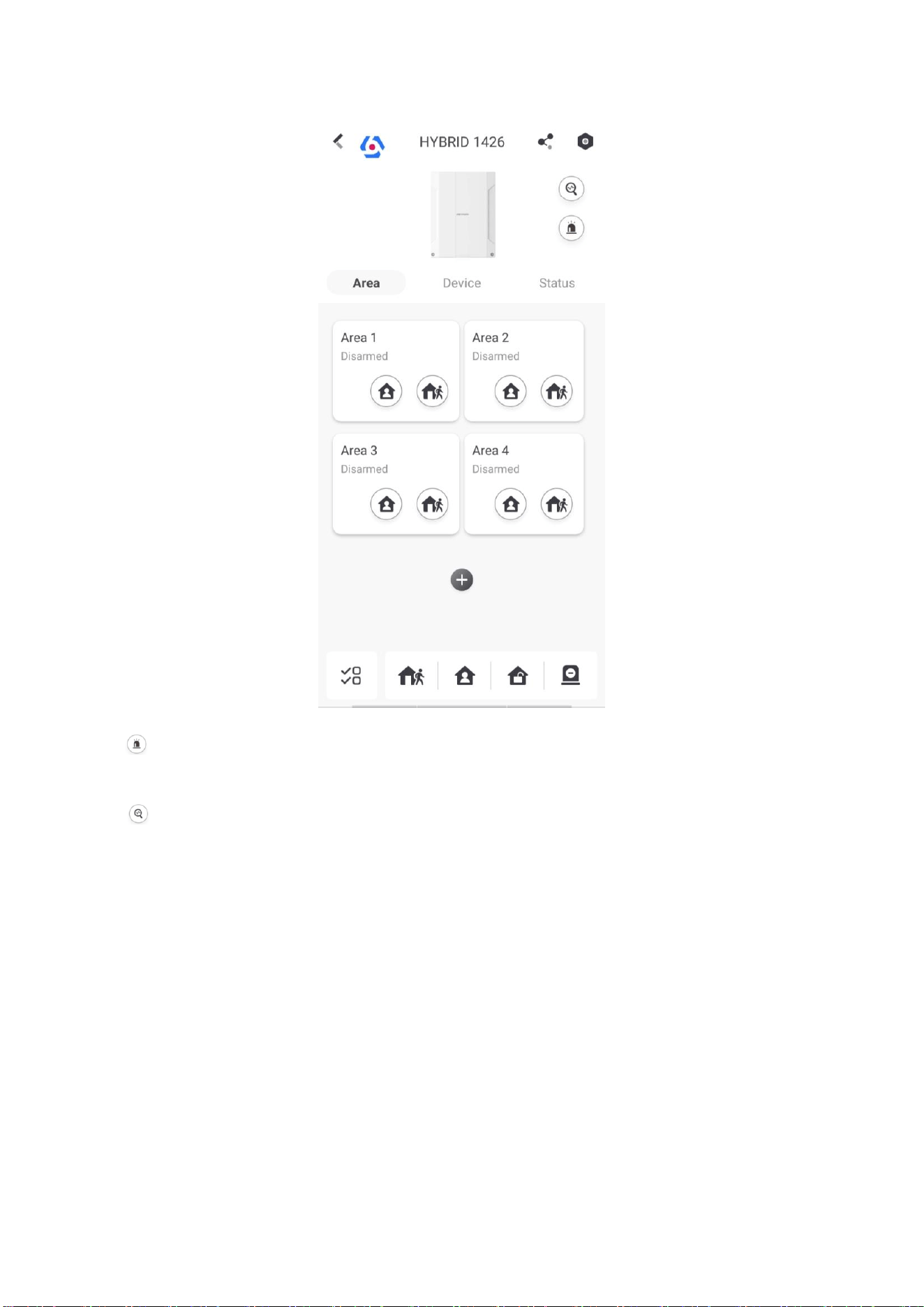
46
Enable Alarm
Tap to select Audible Panic Alarm or Silent Panic Alarm.
View Faults
Tap to view faults.
Area Management
Tap + to add an area.
Tap Area to enter the area management page. Refers to 3.2.15 Set Arming/Disarming
Schedule
for details.
Arm/Disarm the Area
Arm or disarm the area manually as you desired.
On the device list page, tap the AX HYBRID PRO and then log in to the device (if required) to enter
the Area page.
Operations for a Single Area
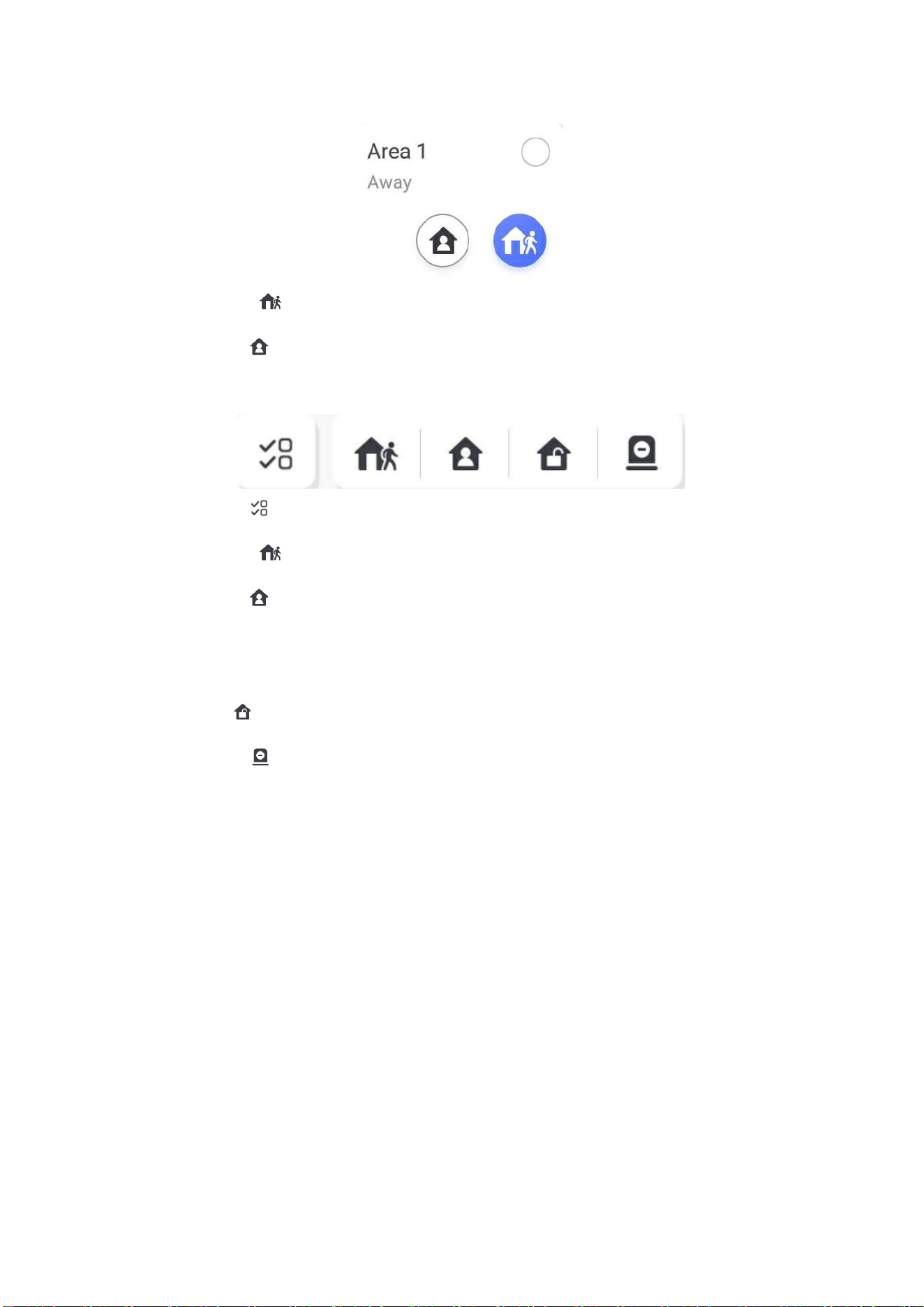
47
● Away Arming: Tap to away arm a single area. When all people in the detection area leave,
turn on the away mode to arm all zones in all areas after the defined dwell time.
● Stay Arming: Tap to stay arm a single area. When all people stays inside the detection
area, turn on the stay mode to enable all perimeter theft detection set in all zones of all areas.
Operations for Multiple Areas
● Select Areas: Tap to select areas you want to operate. If you do not select areas, following
operations will take effect for all areas.
● Away Arming: Tap to away arm a single area. When all people in the detection area leave,
turn on the away mode to arm all zones in all areas after the defined dwell time.
● Stay Arming: Tap to stay arm all areas. When people stays inside the detection area, turn
on the stay mode to enable all perimeter theft detection (such as perimeter detector, magnetic
contacts, and curtain detector in the balcony) set in all zones of all areas. At the meantime, the
detectors inside the detection area are bypassed (such as PIR detectors). People can move
inside the area and alarm will not be triggered.
● Disarming: Tap to disarm all areas. In disarm mode, all zones of all areas will not trigger
alarm, no matter alarm events happen or not.
● Silent Alarm: Tap to silent alarms for all areas.
3.2.5 Zone Management
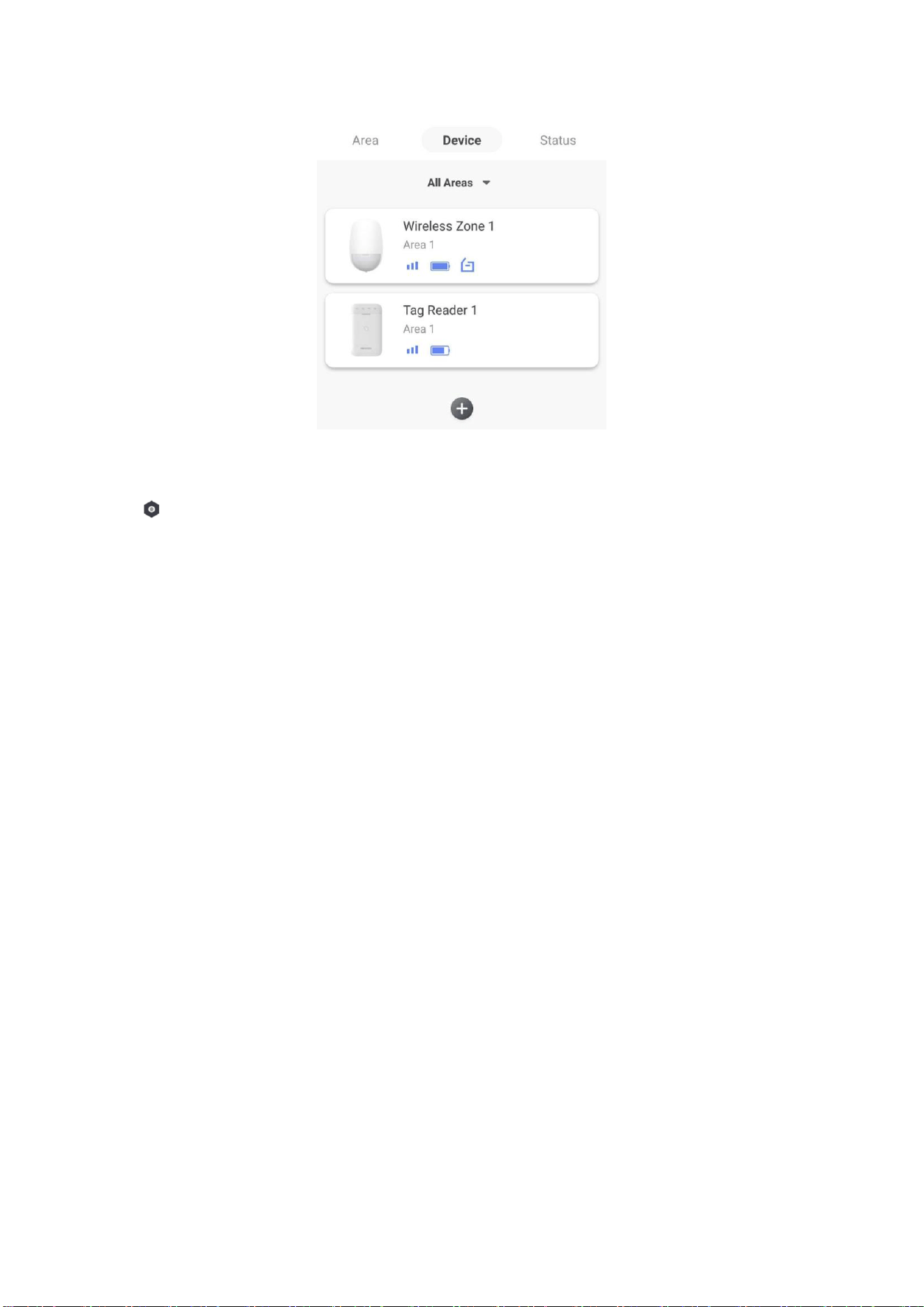
1. Tap Device to view linked zones.
48
2. Tap + to add a new zone.
3. Tap a zone to enter the management page. You can view device status (e.g. temperature,
battery status, single strength, etc.).
4. Tap on the upper right corner to enter the zone settings page.
5. Select a zone type.
Instant Zone
This Zone type will immediately trigger an alarm event when armed.
Delay Zone
-Exit Delay: Exit Delay provides you time to leave through the zone without alarm.
Arm with faults is enabled: You should confirm faults first, and then the zone is in arming
process. If the delay zone is triggered within the exit delay time but it restores before the
time ends, the alarm will not be triggered and the zone will be armed.
Arm with faults is disabled: Immediately armed. If the delay zone is triggered within the exit
delay time but it restores before the time ends, the alarm will not be triggered.
-Entry Delay: Entry Delay provides you time to enter the zone to disarm the system without
alarm.
After triggering, if the zone is not disarmed or silenced before the entry delay time ends, the
zone will alarm.
-Stay Arm Delay Time: Stay arming uses Stay Arm Delay Time to count down.
The system gives Entry/Exit delay time when it is armed or reentered. It is usually used in
entrance/exit route (e.g. front door/main entrance), which is a key route to arm/disarm via
operating keypad for users.

49
Note
You can set 2 different time durations in System Options → Schedule & Timer.
Ensure that timer is no longer than 45 seconds in order to comply with EN50131-1.
You can set Stay Arm Delay Time for the delay zone.
Panic Zone
24-hour active zone, whether armed or not. Report panic alarm after triggering. It is usually
used in the sites equipped with panic button, smoke detector and glass-break detector.
Medical Alarm
24-hour active zone, whether armed or not. Report medical alarm after triggering.
Fire Zone
24-hour active zone, whether armed or not. Report fire alarm after triggering.
Gas Zone
24-hour active zone, whether armed or not. Report gas alarm after triggering.
Follow Zone
The zone acts as delayed zone when it detects triggering event during system Entry Delay,
while it acts as instant zone otherwise.
Keyswitch Zone
-By Trigger Time: Change the arming and disarming status after each trigger. For example, in
the disarmed status, if the zone is triggered, the linked area will be armed. Trigger the zone
again and the area will be disarmed.
-By Zone Status: You need to choose to arm or disarm the linked area after the zone is
triggered.
In the case of the tampering alarm, the arming and disarming operation will not be triggered.
Disabled Zone
Zone disabled ignoring any alarm event. It is usually used to disable faulty detectors.
24-hour Zone
The zone activates all the time with sound/light output when alarm occurs, whether it is
armed or not. It is usually used in fire hazardous areas equipped with smoke detectors and
temperature sensors.
Timeout Zone
The zone activates all the time. When this zone has been triggered or restored and exceeds
the set time, an alarm will be generated.
It can be used in places equipped with magnetic contacts that require access but for only a
short period (e.g., fire hydrant box's door or another external security box door).
-Not-Triggered Zone Alarm: If the zone is not triggered for the set time, it will alarm.
-Alarm on Zone Activated: If the zone is triggered for the set time, it will alarm.

50
-Retry Time Period: Set the timeout period.
7. Enable other functions according to your detector types and actual needs.
Note
The configurable functions vary in different detectors and zones. Refer to the actual zone to set
the function.
Arm Mode
If the zone is a public zone (the zone is belongs to more than one areas), you can set arm
mode.
And: When all linked areas are armed, the zone will arm. When any of linked areas is
disarmed, the zone will disarm.
Or: When any of the linked areas is armed, the zone will arm. When all linked areas are
disarmed, the zone will disarm. When the zone is in alarm, the disarmed areas linked with the
zone cannot be armed.
Stay Arm Bypass
The zone will be automatically bypassed in stay arming.
Cross Zone
PD6662 is not enabled: You need to set the combined time interval.
When the first zone is triggered, the system will start timing after the zone is restored. If the
second zone is triggered within the set time, both zones will give alarms. Otherwise, no alarm
will be triggered.
If the first zone is not be restored, both zones will give alarms when the second zone is
triggered, regardless of whether the set time has elapsed.
PD6662 is enabled: You need to set the combined time interval.
The first zone will give an alarm when triggered. If the first zone is not restored and the
second zone is triggered, the system will report the alarm confirmation.
If the first zone is restored, the system will start timing. If the second zone is triggered within
the set time, the system will report the alarm confirmation.
If the first zone is restored, the system will start timing. If the second zone is not triggered
within the set time, no information will be reported.
Forbid Bypass on Arming
After enabled, you cannot bypass zones when arming.
Chime
Enable the doorbell. Usually used for door magnetic detectors.
Silent Alarm
After enabled, when an alarm is triggered, only the report will be uploaded and no sound is
emitted.

51
Double knock
After enabled, the time interval can be set. If the same detector is triggered twice or
continuously in a period of time, the alarm will be triggered.
Sounder Delay Time
The sounder will be triggered immediately (0s) or after the set time.
Final Door Exit
Only magnetic contacts have this option.
After enabling, when the user use keypads or tags to arm:
- Arm With Faults is enabled: During the arming countdown, if the magnetic contact is
triggered and then restored, the arming process will be terminated immediately after
restoring, and the arming is completed.
- Arm With Faults is disabled: If the magnetic contact is triggered and then restored, the
linked area immediately arms the delayed zone.
Dual Zone
After enabled, when multi transmitter detects that the entire zone circuit of the local zone
and the extended zone is open circuit, both zones trigger lid opened alarms.
Timer With Restart
During the Exit Delay process, the exit delay time will be re-timed at the time when the
second delay zone was triggered.
3.2.6 User Management
The installers (user of Hik-Partner Pro) can manage users. If you are the administrator, you can
add, edit, and delete users, and assign different permissions to the newly-added users.
Steps
Note
There are four types of users for the AX HYBRID PRO, including administrator (or owner),
operator, and installer (or setter). Different types of users have different permissions for
accessing the functionality of the AX HYBRID PRO.
1. Enter the site, tap the AX HYBRID PRO and then log in to the device (if required) to enter the AX
HYBRID PRO page.
2. Tap Next to invite the user.
Note
The recipient need to accept the invitation.
3. Tap → User Management → User.
4. Tap a user to enter the User Management page.

52
5. Optional: Perform the following operations if required.
User Permission
You can tap the target user on the user list and then tap Edit Icon to
set the permissions authorized to the target user.
Note
Only the administrator can do such an operation.
Set Linked Areas
If the target user is an operator, tap the target user on the user list
and then tap Linked Areas to set the area linked to the target user.
Note
Only the administrator can do such an operation.
Change Keypad
Password
If the target user is an administrator, an installer, or an operator, you
can tap the target user on the user list and then tap Change Keypad
Password to set the keypad password to the target user.
Change Duress
Password
If the target user is an administrator or an operator, you can tap the
target user on the user list and then tap Change Duress Password to
set the duress password to the target user.
Note
If under duress, you can enter the duress code on the keyboard to
arm and disarm area(s) and upload a duress alarm.
Automation Control
An administrator, an installer or an operator can control the relay
module, wall switch and smart plug.
Note
● Configuration items and user permission will vary according to the user type.
● You can view linked cards/tags and keyfobs of the user but you do not have permission to
configure them.
● You can only change your own keypad password.
3.2.7 Card/Tag Management
After adding cards/tags to the wireless AX HYBRID PRO, you can swipe the card/tag to arm or

53
disarm all the detectors added to specific area(s) of the AX HYBRID PRO, and silence alarms.
Note
The tag ID/PIN is a 32 bit long integer, and the variant could be 42949672956.
Steps
1. Enter the site, tap the AX HYBRID PRO and then log in to the device (if required) to enter the
page.
2. Tap → User Management → Card/Tag to enter the Card/Tag page.
3. Tap + to add a tag.
4. When hearing the voice prompt "Swipe Tag", you should present the tag on the AX HYBRID PRO
tag presenting area.
● When hearing a beep sound, the tag is recognized.
● The tag will be displayed on the tag page.
5. Optional: Tap a Tag to enter the Setting Page.
6. Tap Edit Icon to edit the Tag name.
Note
● If you log in as an installer, skip this step. Editing tag name is only available to administrator.
● The name should contain 1 to 32 characters.
7. Slide Enable Tag.
8. Select a linked user.
9. Select the tag type
Note
Different linked users have different tag permissions.
Operation Tag
You can swipe the tag to arm or disarm.
Patrol Tag
When you swipe the tag, the system will upload a record.
10. Optional: Tap Delete to delete the tag.
3.2.8 Device Information
You can change language and select time zone.
Steps
1. On the device list page, tap the AX HYBRID PRO and then log in to the device (if required) to
enter the page.
2. Tap → System → Configuration to enter the page.

54
3. Select device language and time zone.
3.2.9 System Management
Steps
1. On the device list page, tap the AX HYBRID PRO and then log in to the device (if required) to
enter the page.
2. Tap → System → System Options → System Management to enter the page.
Forced Auto Arm
After enabled, when the timed automatic arming starts, if there are active faults in a zone, the
zone will be automatically bypass.
You can go to System → System Options → Schedule & Time to set the auto arming/disarming
schedule and linked areas.
Note
You should disable the Arm With Faults in the Arm Options page. Or the Forced Auto
Arm/Forced Arming function cannot be valid.
Forced Arming
After enabled, when manual arming starts, if there are active faults in a zone, the zone will be
automatically bypass.
You can use keyfobs, tags, and keypads to arm zones, or manually arm zones on APP. Single,
multiple or all areas can be selected for arming.
Note
You should disable the Arm With Faults in the Arm Options page. Or the Forced Auto
Arm/Forced Arming function cannot be valid.
System Status report
If the option is enabled, the device will upload report to Cloud (for APP) and ARC automatically
when the AX HYBRID PRO status is changed.
Voice Prompt
If the option is enabled, the AX HYBRID PRO will enable the voice prompt.
-Fault Prompts on Arming: Voice prompt of faults when arming.
-Fault Prompts When Armed: Voice prompt of faults when the system is armed.
-Fault Prompts on Disarming: Voice prompt of faults when disarming
-Fault Prompts When Disarmed: Voice prompt of faults when the system is disarmed.
-Voice Prompts on Alarm: Voice prompt of faults when an alarm is triggered.
System Volume
The available system volume range is from 0 to 10.
Audible Tamper Alarm

55
While enabled, the system will alert with buzzer for the tamper alarm. Regardless of whether it
is enabled or not, the tamper alarm will be normally pushed to Cloud (for APP) and ARC.
Panel Lockup Button
All functions of AX HYBRID PRO will be frozen after it is enabled. This function can only be
enabled by users with installer permission.
Alarm Duration
Set linked alarm voice prompt lasting time.
Wireless Supervision Loss
Detectors and peripherals whose heartbeat loss times exceed the set value will be shown as
offline.
Bypass on Re-Arm
While enabled, after the detector is bypassed, if its faults are restored and the linked area is
armed, the detector will automatically arm.
Motion Detector Restore
Motion detectors include all PIR detectors.
-Disable: No automatic restore.
-Immediate After Alarm: Motion detectors automatically restores immediately after the alarm
and reports to Cloud (for APP) and ARC.
-After Disarm: Motion detectors automatically restores after disarming and reports to Cloud (for
APP) and ARC
Jamming Sensitivity Settings
The device will detect RF interference and push messages when the RF interference interferes
with communication. You can adjust the detection sensitivity.
Enable PD6662
Enable PD6662 standard. Functions that do not meet the standard will not take effect.
Keypad Logout
After the keypad enters the programming page, if there is no key operation, it will exit the
programming page after reaching this time.
3.2.10 Fault Check
The fault check here is only for the control panel in the normal status.
The system determines whether to check the faults listed on the page. The system will only check
the fault that is selected.
Steps
1. On the device list page, tap the AX HYBRID PRO and then log in to the device (if required) to
enter the page.

56
2. Tap → System → System Options → System Fault Check to enter the page.
Detect Network Camera Disconnection
If the option is enabled, when the linked network camera is disconnected, an alarm will be
triggered. The delay time of network camera disconnection detection is the same as that of
LAN.
Panel Battery Fault Check
If the option is enabled, when panel battery is disconnected or in low battery status, the device
will upload events.
LAN Lost
If the option is enabled, when the wired network is disconnected or with other faults, the alarm
will be triggered.
WiFi Lost
If the option is enabled, when the Wi-Fi is disconnected or with other faults, the alarm will be
triggered.
Cellular Lost
If the option is enabled, when the cellular data network is disconnected or with other faults, the
alarm will be triggered.
Panel Mains Power Lost
If the option is enabled, an alarm will be triggered when the control panel main supply is
disconnected.
Panel Mains Power Loss Delay
The system checks the fault after the configured time duration after AC power down.
To compliant the EN 50131-3, the check time duration should be 10 s.
3.2.11 Arm Options
This function is for the whole alarm system, to inform the user of the current system status before
arming. If it is enabled, there will be a fault prompt and confirmation process for keypads, keyfobs,
and APP. If it is not enabled, there will be no fault detection before arming.
Steps
1. On the device list page, tap the AX HYBRID PRO and then log in to the device (if required) to
enter the page.
2. Tap → System → System Options → Arm Options to enter the page.
You can set the following parameters:
Arm with Fault
Check the faults in the Enable Arming with Fault list, and the device will not stop the arming
procedure when faults occurred.
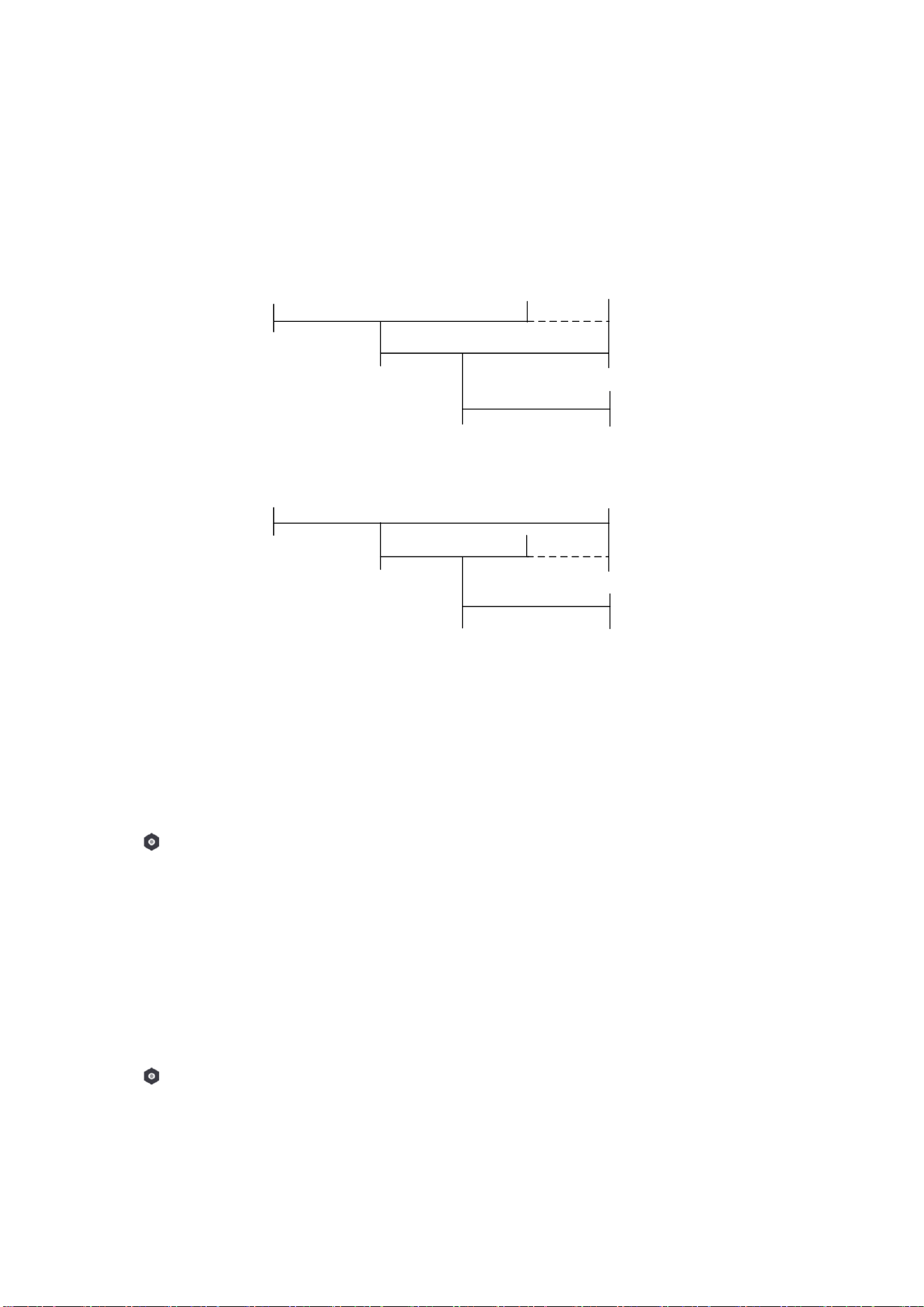
57
Early Alarm
A delay zone is triggered first, and the area is in the "Entry Delay" stage. During the delay time
period, an instant zone is triggered (only for the first triggered instant zone). At this time, the
area enters the early alarm stage. There are control panel voice alarm and local sounder alarm,
but no alarm message is pushed. If the zone is disarmed or silence before both the early alarm
and entry delay end, the alarm message will not be reported. Otherwise, both the delayed zone
and the instant zone will alarm.
Trigger
Delay Zone
Entry Delay
Trigger
Instant Zone
Early Alarm
Delay Zone & Instant Zone: Alarm
Disarm/Silence
No Alarm
Trigger
Delay Zone
Entry Delay
Trigger
Instant Zone
Early Alarm
Delay Zone & Instant Zone: Alarm
Disarm/Silence
No Alarm
OR
3. Tap Save.
3.2.12 Enrollment Mode
Steps
1. On the device list page, tap the AX HYBRID PRO and then log in to the device (if required) to
enter the page.
2. Tap → System → System Options → Enrollment Mode to enter the page.
3. Tap Enter the Enrollment Mode. You can enroll the peripheral by triggering it.
3.2.13 Network Camera
Add Cameras to the AX HYBRID PRO
Steps
1. In the site, tap the AX HYBRID PRO and then log in to the device (if required).
2. Tap → Network Camera → Network Camera Channel to enter the page.
3. Tap Add Channel.

58
4. Enter IP address, port, the user name and password of the camera.
5. Tap Save Icon.
6. Optional: tap Edit or Delete to edit or delete the selected camera.
3.2.14 Set Video Parameters
Steps
1. In the site, tap the AX HYBRID PRO and then log in to the device (if required).
2. Tap → Network Camera → Event Video Settings to enter the page.
3. Select a camera and set the video parameters.
Stream Type
Main Stream: Being used in recording and HD preview, it has a high resolution, code rate and
picture quality.
Sub-Stream: It is used to transmit network and preview pictures as a video streaming with
features of lower resolution, bit rate and picture quality.
Bitrate Type
Select the Bitrate type as constant or variable.
Resolution
Select the resolution of the video output.
Bitrate
The higher value corresponds to the higher video quality, but the better bandwidth is
required.
Before Alarm
The recording time length before the alarm.
After Alarm
The recording time length after the alarm.
3.2.15 Set Arming/Disarming Schedule
Steps
1. On the device list page, tap the AX HYBRID PRO and then log in to the device (if required) to
enter the page.
2. Tap → Area to enter the page.
3. Tap an area in the list, enable the area and select linked devices.
4. Set parameters:
Auto Arm
Enable the area to automatically arm itself in a specific time point.
Auto Arm Time

59
Set the schedule for the area to automatically arm itself.
Auto Disarm
Enable the area to automatically disarm itself in a specific time point.
Auto Disarm Time
Set the schedule for the area to automatically disarm itself.
Auto Arming Sound Prompt
After disabled, the buzzer will not beep before auto arming.
Late to Disarm
Enable the device to push a notification to the phone or tablet to remind the user to disarm the
area when the area is still armed after a specific time point.
Note
You should enable the Panel Management Notification function on the Web Client of
Communication Parameters → Event Communication before enabling the Late to Disarm
function.
Late to Disarm Time
Set the time point mentioned in Late to Disarm.
Weekend Exception
If enabled, Auto Arm, Auto Disarm, and Late to Disarm are disabled on the weekend.
Holiday Excepted
Enable the function and the zone will not be armed/disarmed in the holiday. You should set the
holiday schedule after enabling.
Note
Up to 6 holiday groups can be set.
3.2.16 Communication
Wired Network
Steps
1. In the site, tap the AX HYBRID PRO and then log in to the device (if required).
2. Tap → Communication Parameters→ Wired Network to enter the page.
3. Set the parameters.
– Automatic Settings: Enable DHCP and set the HTTP port.
– Manual Settings: Disabled DHCP and set IP Address, Subnet Mask, Gateway Address, DNS
Server Address.

60
4. Optional: Set correct DNS server address if the device needs to visit Hik-Connect server via a
domain name.
5. Click Save.
Wi-Fi Configuration
Steps
1. In the site, tap the AX HYBRID PRO and then log in to the device (if required).
2. Tap → Communication Parameters→ Wi-Fi Configuration to enter the page.
3. Tap a Wi-Fi to connect in the list.
Cellular Data Network
Steps
1. In the site, tap the AX HYBRID PRO and then log in to the device (if required).
2. Tap → Communication Parameters→ Cellular Data Network Settings to enter the page.
3. Enable Cellular Data Network.
4. Tap to select a SIM card. Tap Parameter Configuration → Edit Icon and set parameters
including the user name, access password, APN, MTU and PIN code.
5. Tap Save Icon.
6. Enable Data Usage Limit.
7. Edit Data Used This Month and Data Limited per Month.
Access Number
Input the operator dialing number.
Note
Only the private network SIM card user needs to enter the access number.
User Name
Ask the network carrier and input the user name.
Access Password
Ask the network carrier and input the password.
APN
Ask the network carrier to get the APN information and input the APN information.
Data Limited per Month
You can enable the function and set the data threshold every month. If data usage is more
than the configured threshold, an alarm will be triggered and uploaded to the alarm center
and mobile client.
Data Used This Month
The used data will be accumulated and displayed in this text box.

61
Push Notifications
When an alarm is triggered, if you want to send the alarm notification to the mobile phone, you
can set the notification push parameters.
Steps
1. In the site, tap the AX HYBRID PRO and then log in to the device (if required).
2. Tap → Communication Parameters→ Push Notification(s) to enter the page.
3. Enable the target notification.
Zone Alarm/Lid Opened
The device will push notifications when the zone alarm is triggered or the zone lid opened is
triggered or restored.
Note
You need to set event filtering interval time for phone calling.
Peripherals Lid Opened
The device will push notifications when lid opened of any peripherals is triggered or restored.
Panel Lid Opened
The device will push notifications when lid opened of the control panel is triggered or
restored.
Panic Alarm
The device will push notifications when panic alarm is triggered or restored by zones, keypads
or keyfobs.
Medical Alarm
The device will push notifications when medical alarm is triggered.
Fire Alarm
The device will push notifications when fire alarm is triggered.
Gas Alarm
The device will push notifications when gas alarm is triggered.
Panel Status
The device will push notifications when the control panel system status is changed.
Zone Status
The device will push notifications when the zone status is changed.
Peripherals Status
The device will push notifications when any peripheral status is changed.
Panel Operation
The device will push notifications when the user operates the AX HYBRID PRO.

62
Smart Alarm Event
The device will push notifications when the alarm is triggered in thermal cameras.
4. Tap Phone Call and SMS.
5. Tap + Add Phone Number to enter the phone number.
6. Tap the added phone number to enable Phone Call and SMS according to your need.
(For Phone Call) Set Numbers of Calling.
(For SMS) Set Arming Permission, Disarming Permission and Alarm Clearing Permission for
areas.
Common Message
You can enter message content. When the alarm is triggered, your customized content will be
added at the beginning of the message sent by the system.
Common Voice
You can import a new audio. When the alarm is triggered, your customized voice will be added
at the beginning of the content of the phone dialed by the system. You can also tap Clear to
delete audios
Note
Only WAV format is supported, up to 512 KB and 15 s.
7. Check notifications.
Alarm Receiving Center (ARC)
You can set the alarm receiving center's parameters and all alarms will be sent to the configured
alarm center.
Steps
1. In the site, tap the AX HYBRID PRO and then log in to the device (if required).
2. Tap → Communication Parameters→ Alarm Receiving Center (ARC) to enter the page.
3. Select an ARC and enable it.
Connection Type
Select the Connection Type as IP, serialPort or PSTN to set connection mode.
Protocol Type
Select the Protocol Type as ADM-CID, ISUP, SIA-DCS, *SIA-DCS, *ADM-CID, CSV-IP, FSK
Module, RDC Module, PSTN-CID, RDC Module-CID or FSK Module-CID to set uploading mode.
GMT
Enable the Greenwich Mean Time.
Address Type

63
Select the Address Type as IP Address and Domain Name. Enter server address/domain name,
port number and account code.
Transmission Mode
Select the Transmission Mode as TCP or UDP. UDP is recommended by the SIA DC-09
standard.
Impulse Counting Time
After the selected time, the system will retry to transmit.
Attempts
Set the number of retry attempts.
Polling Option
Set the polling rate with the range from 10 to 3888000 seconds. The system will report fault if
the time is over the limit. The status of device will be shown as offline.
Periodic Test
After enabling, you can set the time interval, setting how often to send a test event to the
ARC to ensure the connection.
Companies
Select the support company as None, Hungary-Multi Alarm Receiving Company or French
Alarm Receiving Company.
Intruder Verification as a Service
The SDK returns the URL address of the video storage after the PIRCAM composite video is
uploaded to the cloud. The control panel will add this URL in the additional field when
reporting the intruder verification to ARC. After receiving the URL, ARC can download the
video. The alarm video can be stored in the cloud for up to 7 days.
Cloud Service Settings
Steps
1. In the site, tap the AX HYBRID PRO and then log in to the device (if required).
2. Tap → Communication Parameters→ Cloud Service Settings to enter the page.
3. Select the Communication Mode.
Auto
The system will select the communication mode automatically according to the sequence of,
wired network, Wi-Fi network, and cellular data network. Only when the current network is
disconnected, will the device connect to other network.

64
Wired Network & Wi-Fi Priority
The connection priority order from high to low is: wired network, Wi-Fi, cellular data
network.
Wired &Wi-Fi
The system will select wired network first. If no wired network detected, it will select Wi-Fi
network.
Cellular Data Network
The system will select cellular data network only.
4. Enable Periodic Test. Enter the periodic test interval.
Periodic Test
After enabling, you can set the time interval, setting how often to send a test event to the
ARC to ensure the connection.
5. Tap Save.
Notification by Email
Steps
1. In the site, tap the AX HYBRID PRO and then log in to the device (if required).
2. Tap → Communication Parameters→ Notification by Emails to enter the page.
3. Enable Email 1.
4. Enter the sender name, sender email address, SMTP server address, SMTP port, user name and
password.
Note
It is recommended to use Gmail and Hotmail for sending mails.
Only if the zone is linked with a network camera, the alarm email will be attached with alarm
video.
5. Select the encryption type as None, SSL or TLS.
6. Enable Server Authentication.
7. Enter receiver name and receiver email address. Tap Test Receiver Email Address to test
whether the email address is correct.
8. Tap Save.
FTP Settings
Steps
1. In the site, tap the AX HYBRID PRO and then log in to the device (if required).
2. Tap → Communication Parameters→ FTP Settings to enter the page.
3. Select Preferred FTP or Alternated FTP, and enable FTP.

65
4. Configure the FTP parameters
FTP Type
Set the FTP type as preferred or alternated.
Protocol Type
FTP and SFTP are selectable. The files uploading is encrypted by using SFTP protocol.
Server Address and Port
The FTP server address and corresponding port.
User Name & Password/Anonymity
The FTP user should have the permission to upload pictures. If the FTP server supports
picture uploading by anonymous users, you can enable Anonymous to hide your device
information during uploading.
Directory Structure
The saving path of snapshots in the FTP server.
4. Tap Save.
NAT
Universal Plug and Play (UPnP™) is a networking architecture that provides compatibility among
networking equipment, software and other hardware devices. The UPnP protocol allows devices
to connect seamlessly and to simplify the implementation of networks in the home and corporate
environments.
Enable the UPnP function, and you don’t need to configure the port mapping for each port, and
the device is connected to the Wide Area Network via the router.
Steps
1. In the site, tap the AX HYBRID PRO and then log in to the device (if required).
2. Tap → Communication Parameters→ NAT to enter the page.
3. Drag the slider to enable UPnP.
4. Optional: Select the mapping type as Manual to set the HTTP port and the service port.
5. Click Save to complete the settings.
3.2.17 Device Maintenance
Walk Test
Steps
1. In the site, tap the AX HYBRID PRO and then log in to the device (if required).
2. Tap →Maintenance → Device Maintenance to enter the maintenance page.
3. Tap Test, and tap Start Walk Test to test the whether the device works properly or not.

66
Maintenance
1. In the site, tap the AX HYBRID PRO and then log in to the device (if required).
2. Tap →Maintenance →Maintenance.
Tamper Alarm on HPP Login
If enabled, an alarm will be triggered when the device is tampered after you log in to HPP.
Reboot Device
The AX HYBRID PRO will reboot.
Log
View device logs.
Device Upgrade
Steps
1. In the site, tap the AX HYBRID PRO and then log in to the device (if required).
2. Tap →Maintenance → Device Upgrade to upgrade the control panel, or tap
→Maintenance → Detector & Peripheral Upgrade to upgrade detectors and peripherals.
Remote Log Collection
Steps
1. In the site, tap the AX HYBRID PRO and then log in to the device (if required).
2. Tap →Maintenance → Remote Log Collection to enable the function.
Remote Log Collection is for getting logs relating to the device. When this is enabled, our technical
support will be able to collect logs relating to the device remotely and upload then to our server
for troubleshooting. You can set the validity period according to actual needs. This function will be
disabled after the set validity period.
3.3 Set-up with Hik-Connect
The operator can use the Hik-Connect to control the device, such as general arming/disarming
operation, and user management etc.
3.3.1 Download and Login the Mobile Client
Download the Hik-Connect mobile client and login the client before operating the AX HYBRID PRO.
Steps
1. Download Hik-Connect mobile client.
2. Optional: Register a new account if it is the first time you use the Hik-Connect mobile client.

67
Note
For details, see User Manual of Hik-Connect Mobile Client.
3. Run and login the client.
3.3.2 Add AX HYBRID PRO to the Mobile Client
Add an AX HYBRID PRO to the mobile client before other operations.
Steps
1. Power on the AX HYBRID PRO.
2. Select adding type.
Tap + → Scan QR Code to enter the Scan QR code page. Scan the QR code on the AX HYBRID PRO.
Note
Normally, the QR code is printed on the label stuck on the back cover of the AX HYBRID PRO.
Tap + → Manual Adding to enter the Add Device page. Enter the device serial No. with the Hik-
Connect Domain adding type.
3. Tap to search the device.
4. Tap Add on the Results page.
5. Enter the verification code and tap OK.
6. After adding completed, enter the device alias and tap Save.
7. Optional: Tap → Delete Device to delete the device.
8. Optional: Tap → to edit the device name.
3.3.3 Add Peripheral to the AX HYBRID PRO
Add peripheral to the AX HYBRID PRO.
Steps
1. Select a control device (AX HYBRID PRO).
2. Tap +.
Scan Bus Device
– Select scan mode. Continuous scan means adding devices from a continuous address range.
You can set the minimum and maximum range of the address. Discrete Scan means adding
devices from several discrete addresses. You can tick several discrete address.
– Tap Scan. Tick devices in the bus device list, and Tap Add.
Add Wired Device
– Enter the device serial No. and select the channel No. to add the device.
Add Wireless Device
– Scan the QR code on the peripheral.
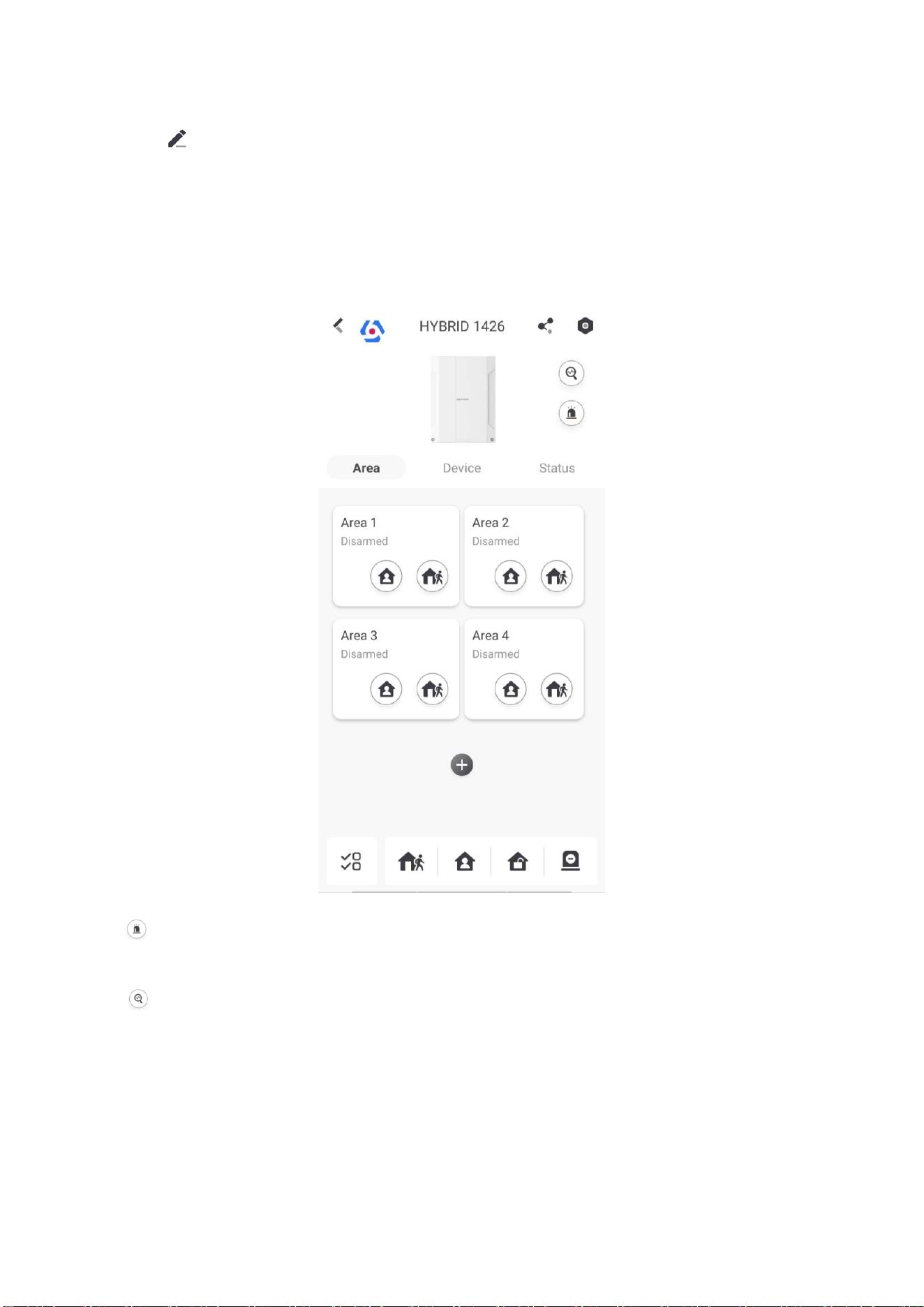
68
– Tap to enter the Manually Input page. Enter the device serial No. and select the device
type to add the device.
3.3.4 Main Page
You can view faults, arm and disarm areas, view device status, etc.
On the device list page, tap the AX HYBRID PRO and then log in to the device (if required) to enter
the page.
Enable Alarm
Tap to select Audible Panic Alarm or Silent Panic Alarm.
View Faults
Tap to view faults.
Area Management
Tap + to add an area.
Tap Area to enter the area management page. Refers to 3.2.15 Set Arming/Disarming
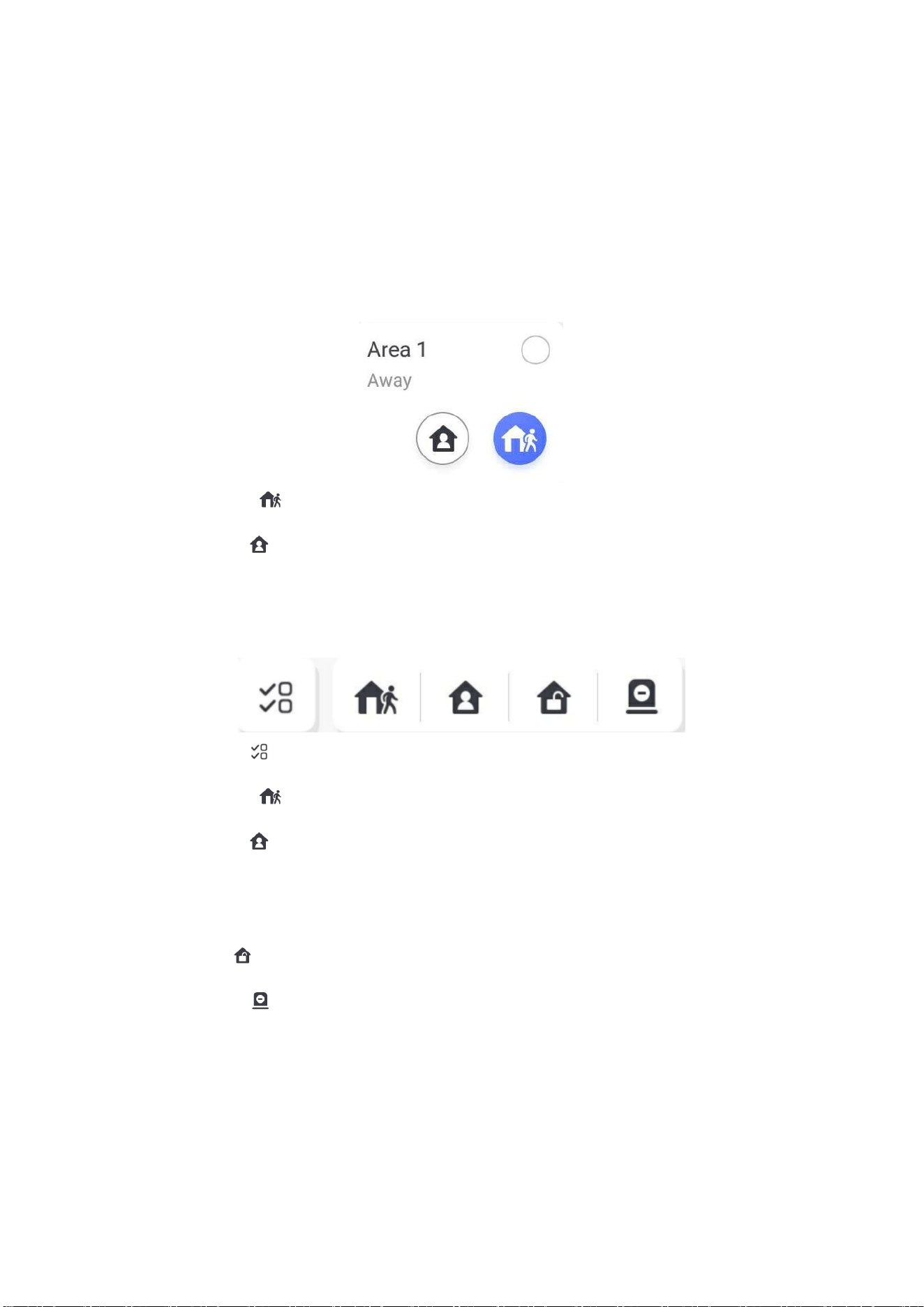
69
Schedule
for details.
Arm/Disarm the Area
Arm or disarm the area manually as you desired.
On the device list page, tap the AX HYBRID PRO and then log in to the device (if required) to enter
the Area page.
Operations for a Single Area
● Away Arming: Tap to away arm a single area. When all the people in the detection area
leave, turn on the Away mode to arm all zones in the area after the defined dwell time.
● Stay Arming: Tap to stay arm a single area. When all the people stays inside the detection
area, turn on the Stay mode to arm all the perimeter burglary detection set in all the zones of all
areas.
Operations for Multiple Areas
● Select Areas: Tap to select areas you want to operate. If you do not select areas, following
operations will take effect for all areas.
● Away Arming: Tap to away arm selected areas. When all the people in the detection area
leave, turn on the Away mode to arm all zones in all areas after the defined dwell time.
● Stay Arming: Tap to stay arm all areas. When the people stays inside the detection area,
turn on the Stay mode to arm all the perimeter burglary detection (such as perimeter detector,
magnetic contacts, curtain detector in the balcony) set in all the zones of all areas. At the
meantime, the detectors inside the detection area are bypassed (such as PIR detectors). People
can move inside the area and alarm will not be triggered.
● Disarming: Tap to disarm all areas. In Disarm mode, all the zones of all areas will not
trigger alarm, no matter alarm events happen or not.
● Silent Alarm: Tap to silent alarms for all areas.
3.3.5 Zone Management
1. Tap Device to view linked zones.
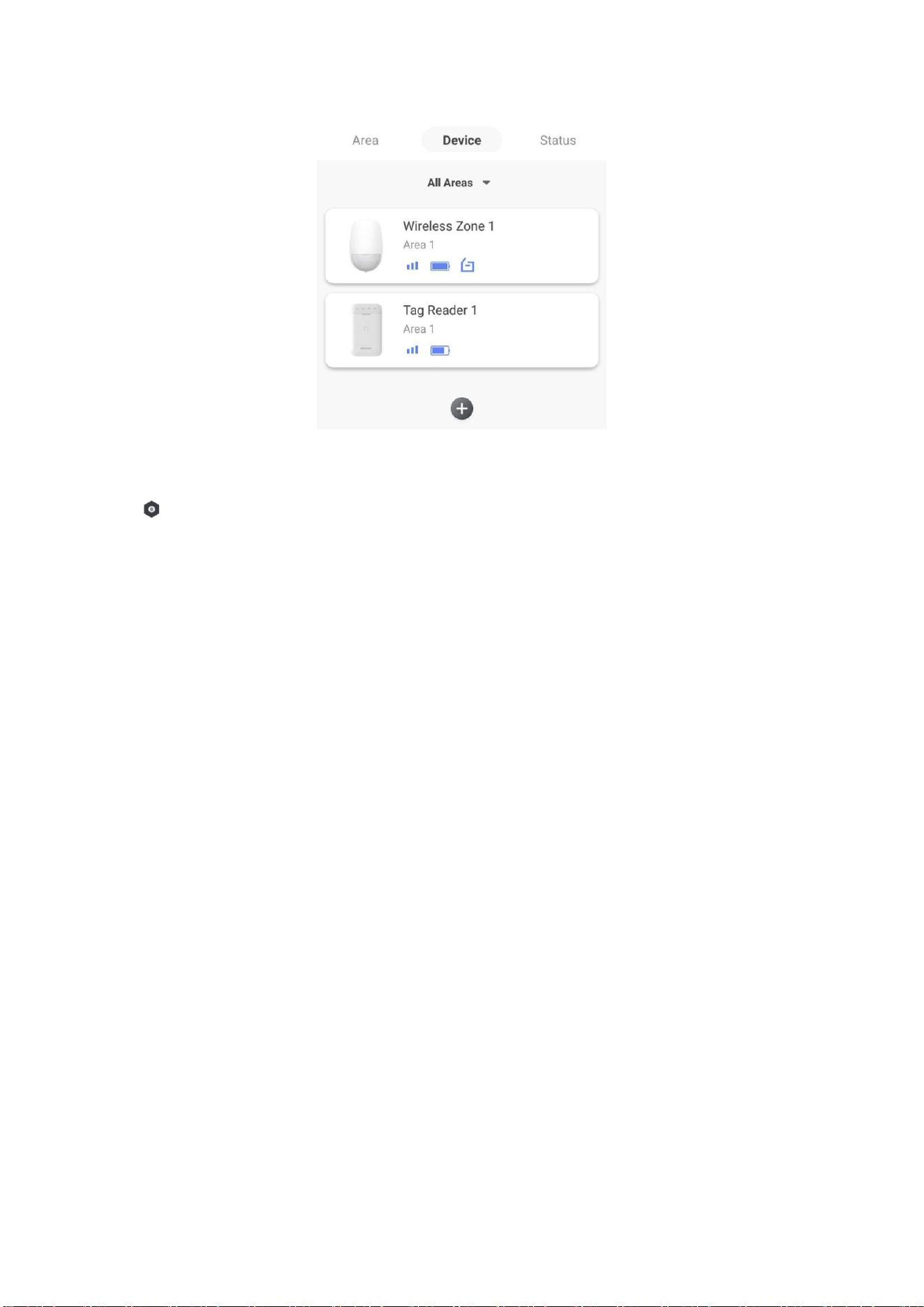
70
2. Tap + to add a new zone.
3. Tap a zone to enter the management page. You can view device status (e.g. temperature,
battery status, single strength, etc.).
4. Tap on the upper right corner to enter the zone settings page.
5. Select a zone type.
Instant Zone
This Zone type will immediately trigger an alarm event when armed.
Delay Zone
-Exit Delay: Exit Delay provides you time to leave through the zone without alarm.
Arm with faults is enabled: You should confirm faults first, and then the zone is in arming
process. If the delay zone is triggered within the exit delay time but it restores before the
time ends, the alarm will not be triggered and the zone will be armed.
Arm with faults is disabled: Immediately armed. If the delay zone is triggered within the exit
delay time but it restores before the time ends, the alarm will not be triggered.
-Entry Delay: Entry Delay provides you time to enter the zone to disarm the system without
alarm.
After triggering, if the zone is not disarmed or silenced before the entry delay time ends, the
zone will alarm.
-Stay Arm Delay Time: Stay arming uses Stay Arm Delay Time to count down.
The system gives Entry/Exit delay time when it is armed or reentered. It is usually used in
entrance/exit route (e.g. front door/main entrance), which is a key route to arm/disarm via
operating keypad for users.

71
Note
You can set 2 different time durations in System Options → Schedule & Timer.
Ensure that timer is no longer than 45 seconds in order to comply with EN50131-1.
You can set Stay Arm Delay Time for the delay zone.
Panic Zone
24-hour active zone, whether armed or not. Report panic alarm after triggering. It is usually
used in the sites equipped with panic button, smoke detector and glass-break detector.
Medical Alarm
24-hour active zone, whether armed or not. Report medical alarm after triggering.
Fire Zone
24-hour active zone, whether armed or not. Report fire alarm after triggering.
Gas Zone
24-hour active zone, whether armed or not. Report gas alarm after triggering.
Follow Zone
The zone acts as delayed zone when it detects triggering event during system Entry Delay,
while it acts as instant zone otherwise.
Keyswitch Zone
-By Trigger Time: Change the arming and disarming status after each trigger. For example, in
the disarmed status, if the zone is triggered, the linked area will be armed. Trigger the zone
again and the area will be disarmed.
-By Zone Status: You need to choose to arm or disarm the linked area after the zone is
triggered.
In the case of the tampering alarm, the arming and disarming operation will not be triggered.
Disabled Zone
Zone disabled ignoring any alarm event. It is usually used to disable faulty detectors.
24-hour Zone
The zone activates all the time with sound/light output when alarm occurs, whether it is
armed or not. It is usually used in fire hazardous areas equipped with smoke detectors and
temperature sensors.
Timeout Zone
The zone activates all the time. When this zone has been triggered or restored and exceeds
the set time, an alarm will be generated.
It can be used in places equipped with magnetic contacts that require access but for only a
short period (e.g., fire hydrant box's door or another external security box door).
-Not-Triggered Zone Alarm: If the zone is not triggered for the set time, it will alarm.
-Alarm on Zone Activated: If the zone is triggered for the set time, it will alarm.

72
-Retry Time Period: Set the timeout period.
7. Enable other functions according to your detector types and actual needs.
Note
The configurable functions vary in different detectors and zones. Refer to the actual zone to set
the function.
Arm Mode
If the zone is a public zone (the zone is belongs to more than one areas), you can set arm
mode.
And: When all linked areas are armed, the zone will arm. When any of linked areas is
disarmed, the zone will disarm.
Or: When any of the linked areas is armed, the zone will arm. When all linked areas are
disarmed, the zone will disarm. When the zone is in alarm, the disarmed areas linked with the
zone cannot be armed.
Stay Arm Bypass
The zone will be automatically bypassed in stay arming.
Cross Zone
PD6662 is not enabled: You need to set the combined time interval.
When the first zone is triggered, the system will start timing after the zone is restored. If the
second zone is triggered within the set time, both zones will give alarms. Otherwise, no alarm
will be triggered.
If the first zone is not be restored, both zones will give alarms when the second zone is
triggered, regardless of whether the set time has elapsed.
PD6662 is enabled: You need to set the combined time interval.
The first zone will give an alarm when triggered. If the first zone is not restored and the
second zone is triggered, the system will report the alarm confirmation.
If the first zone is restored, the system will start timing. If the second zone is triggered within
the set time, the system will report the alarm confirmation.
If the first zone is restored, the system will start timing. If the second zone is not triggered
within the set time, no information will be reported.
Forbid Bypass on Arming
After enabled, you cannot bypass zones when arming.
Chime
Enable the doorbell. Usually used for door magnetic detectors.
Silent Alarm
After enabled, when an alarm is triggered, only the report will be uploaded and no sound is
emitted.

73
Double knock
After enabled, the time interval can be set. If the same detector is triggered twice or
continuously in a period of time, the alarm will be triggered.
Sounder Delay Time
The sounder will be triggered immediately (0s) or after the set time.
Final Door Exit
Only magnetic contacts have this option.
After enabling, when the user use keypads or tags to arm:
-Arm With Faults is enabled: During the arming countdown, if the magnetic contact is
triggered and then restored, the arming process will be terminated immediately after
restoring, and the arming is completed.
- Arm With Faults is disabled: If the magnetic contact is triggered and then restored, the
linked area immediately arms the delayed zone.
Dual Zone
After enabled, when multi transmitter detects that the entire zone circuit of the local zone
and the extended zone is open circuit, both zones trigger lid opened alarms.
Timer With Restart
During the Exit Delay process, the exit delay time will be re-timed at the time when the
second delay zone was triggered.
3.3.6 User Management
The installers (user of Hik-Connect) can manage users. If you are the administrator, you can add,
edit, and delete users, and assign different permissions to the newly-added users.
Steps
Note
There are four types of users for the AX HYBRID PRO, including administrator (or owner),
operator, and installer (or setter). Different types of users have different permissions for
accessing the functionality of the AX HYBRID PRO.
1. Enter the site, tap the AX HYBRID PRO and then log in to the device (if required) to enter the AX
HYBRID PRO page.
2. Tap Next to invite the user.
Note
The recipient need to accept the invitation.
3. Tap → User Management → User.
4. Tap a user to enter the User Management page.

74
5. Optional: Perform the following operations if required.
User Permission
You can tap the target user on the user list and then tap Edit Icon to
set the permissions authorized to the target user.
Note
Only the administrator can do such an operation.
Set Linked Areas
If the target user is an operator, tap the target user on the user list
and then tap Linked Areas to set the area linked to the target user.
Note
Only the administrator can do such an operation.
Change Keypad
Password
If the target user is an administrator, an installer, or an operator, you
can tap the target user on the user list and then tap Change Keypad
Password to set the keypad password to the target user.
Change Duress
Password
If the target user is an administrator or an operator, you can tap the
target user on the user list and then tap Change Duress Password to
set the duress password to the target user.
Note
If under duress, you can enter the duress code on the keyboard to
arm and disarm area(s) and upload a duress alarm.
Automation Control
An administrator, an installer or an operator can control the relay
module, wall switch and smart plug.
Note
● Configuration items and user permission will vary according to the user type.
● You can view linked cards/tags and keyfobs of the user but you do not have permission to
configure them.
6. Optional: (Only for the administrator) Click + to add a user. You can select to add the operator,
one-time user or temporary user.
Note
● The operator can configure arming, disarming and control output permissions.
● The one-time user’s keypad password will become invalid after one arming and disarming or

75
after 24 hours.
● The temporary user can set usage duration through time settings.
● You can only change your own keypad password.
3.3.7 Card/Tag Management
After adding cards/tags to the wireless AX HYBRID PRO, you can swipe the card/tag to arm or
disarm all the detectors added to specific area(s) of the AX HYBRID PRO, and silence alarms.
Note
The tag ID/PIN is a 32 bit long integer, and the variant could be 42949672956.
Steps
1. Enter the site, tap the AX HYBRID PRO and then log in to the device (if required) to enter the
page.
2. Tap → User Management → Card/Tag to enter the Card/Tag page.
3. Tap + to add a tag.
4. When hearing the voice prompt "Swipe Tag", you should present the tag on the AX HYBRID PRO
tag presenting area.
● When hearing a beep sound, the tag is recognized.
● The tag will be displayed on the tag page.
5. Optional: Tap a Tag to enter the Setting Page.
6. Tap Edit Icon to edit the Tag name.
Note
● If you log in as an installer, skip this step. Editing tag name is only available to administrator.
● The name should contain 1 to 32 characters.
7. Slide Enable Tag.
8. Select a linked user.
9. Select the tag type
Note
Different linked users have different tag permissions.
Operation Tag
You can swipe the tag to arm or disarm.
Patrol Tag
When you swipe the tag, the system will upload a record.
10. Optional: Tap Delete to delete the tag.

76
3.3.8 Device Information
You can change language and select time zone.
Steps
1. On the device list page, tap the AX HYBRID PRO and then log in to the device (if required) to
enter the page.
2. Tap → System → Configuration to enter the page.
3. Select device language and time zone.
3.3.9 System Management
Steps
1. On the device list page, tap the AX HYBRID PRO and then log in to the device (if required) to
enter the page.
2. Tap → System → System Options → System Management to enter the page.
Forced Auto Arm
After enabled, when the timed automatic arming starts, if there are active faults in a zone, the
zone will be automatically bypass.
You can go to System → System Options → Schedule & Time to set the auto arming/disarming
schedule and linked areas.
Note
You should disable the Arm With Faults in the Arm Options page. Or the Forced Auto
Arm/Forced Arming function cannot be valid.
Forced Arming
After enabled, when manual arming starts, if there are active faults in a zone, the zone will be
automatically bypass.
You can use keyfobs, tags, and keypads to arm zones, or manually arm zones on APP. Single,
multiple or all areas can be selected for arming.
Note
You should disable the Arm With Faults in the Arm Options page. Or the Forced Auto
Arm/Forced Arming function cannot be valid.
System Status report
If the option is enabled, the device will upload report to Cloud (for APP) and ARC automatically
when the AX HYBRID PRO status is changed.
Voice Prompt
If the option is enabled, the AX HYBRID PRO will enable the voice prompt.
-Fault Prompts on Arming: Voice prompt of faults when arming.

77
-Fault Prompts When Armed: Voice prompt of faults when the system is armed.
-Fault Prompts on Disarming: Voice prompt of faults when disarming
-Fault Prompts When Disarmed: Voice prompt of faults when the system is disarmed.
-Voice Prompts on Alarm: Voice prompt of faults when an alarm is triggered.
System Volume
The available system volume range is from 0 to 10.
Audible Tamper Alarm
While enabled, the system will alert with buzzer for the tamper alarm. Regardless of whether it
is enabled or not, the tamper alarm will be normally pushed to Cloud (for APP) and ARC.
Panel Lockup Button
All functions of AX HYBRID PRO will be frozen after it is enabled. This function can only be
enabled by users with installer permission.
Alarm Duration
Set linked alarm voice prompt lasting time.
Wireless Supervision Loss
Detectors and peripherals whose heartbeat loss times exceed the set value will be shown as
offline.
Bypass on Re-Arm
While enabled, after the detector is bypassed, if its faults are restored and the linked area is
armed, the detector will automatically arm.
Motion Detector Restore
Motion detectors include all PIR detectors.
-Disable: No automatic restore.
-Immediate After Alarm: Motion detectors automatically restores immediately after the alarm
and reports to Cloud (for APP) and ARC.
-After Disarm: Motion detectors automatically restores after disarming and reports to Cloud (for
APP) and ARC
Jamming Sensitivity Settings
The device will detect RF interference and push messages when the RF interference interferes
with communication. You can adjust the detection sensitivity.
Enable PD6662
Enable PD6662 standard. Functions that do not meet the standard will not take effect.
Keypad Logout
After the keypad enters the programming page, if there is no key operation, it will exit the
programming page after reaching this time.

78
3.3.10 Fault Check
The fault check here is only for the control panel in the normal status.
The system determines whether to check the faults listed on the page. The system will only check
the fault that is selected.
Steps
1. On the device list page, tap the AX HYBRID PRO and then log in to the device (if required) to
enter the page.
2. Tap → System → System Options → System Fault Check to enter the page.
Detect Network Camera Disconnection
If the option is enabled, when the linked network camera is disconnected, an alarm will be
triggered. The delay time of network camera disconnection detection is the same as that of
LAN.
Panel Battery Fault Check
If the option is enabled, when panel battery is disconnected or in low battery status, the device
will upload events.
LAN Lost
If the option is enabled, when the wired network is disconnected or with other faults, the alarm
will be triggered.
WiFi Lost
If the option is enabled, when the Wi-Fi is disconnected or with other faults, the alarm will be
triggered.
Cellular Lost
If the option is enabled, when the cellular data network is disconnected or with other faults, the
alarm will be triggered.
Panel Mains Power Lost
If the option is enabled, an alarm will be triggered when the control panel main supply is
disconnected.
Panel Mains Power Loss Delay
The system checks the fault after the configured time duration after AC power down.
To compliant the EN 50131-3, the check time duration should be 10 s.
3.3.11 Arm Options
This function is for the whole alarm system, to inform the user of the current system status before
arming. If it is enabled, there will be a fault prompt and confirmation process for keypads, keyfobs,

79
and APP. If it is not enabled, there will be no fault detection before arming.
Steps
1. On the device list page, tap the AX HYBRID PRO and then log in to the device (if required) to
enter the page.
2. Tap → System → System Options → Arm Options to enter the page.
You can set the following parameters:
Arm with Fault
Check the faults in the Enable Arming with Fault list, and the device will not stop the arming
procedure when faults occurred.
Early Alarm
A delay zone is triggered first, and the area is in the "Entry Delay" stage. During the delay time
period, an instant zone is triggered (only for the first triggered instant zone). At this time, the
area enters the early alarm stage. There are control panel voice alarm and local sounder alarm,
but no alarm message is pushed. If the zone is disarmed or silence before both the early alarm
and entry delay end, the alarm message will not be reported. Otherwise, both the delayed zone
and the instant zone will alarm.
Trigger
Delay Zone
Entry Delay
Trigger
Instant Zone
Early Alarm
Delay Zone & Instant Zone: Alarm
Disarm/Silence
No Alarm
Trigger
Delay Zone
Entry Delay
Trigger
Instant Zone
Early Alarm
Delay Zone & Instant Zone: Alarm
Disarm/Silence
No Alarm
OR
3. Tap Save.
3.3.12 Enrollment Mode
Steps
1. On the device list page, tap the AX HYBRID PRO and then log in to the device (if required) to
enter the page.
2. Tap → System → System Options → Enrollment Mode to enter the page.
3. Tap Enter the Enrollment Mode. You can enroll the peripheral by triggering it.

80
3.3.13 Network Camera
Add Cameras to the AX HYBRID PRO
Steps
1. In the site, tap the AX HYBRID PRO and then log in to the device (if required).
2. Tap → Network Camera → Network Camera Channel to enter the page.
3. Tap Add Channel.
4. Enter IP address, port, the user name and password of the camera.
5. Tap Save Icon.
6. Optional: tap Edit or Delete to edit or delete the selected camera.
3.3.14 Set Video Parameters
Steps
1. In the site, tap the AX HYBRID PRO and then log in to the device (if required).
2. Tap → Network Camera → Event Video Settings to enter the page.
3. Select a camera and set the video parameters.
Stream Type
Main Stream: Being used in recording and HD preview, it has a high resolution, code rate and
picture quality.
Sub-Stream: It is used to transmit network and preview pictures as a video streaming with
features of lower resolution, bit rate and picture quality.
Bitrate Type
Select the Bitrate type as constant or variable.
Resolution
Select the resolution of the video output.
Bitrate
The higher value corresponds to the higher video quality, but the better bandwidth is
required.
Before Alarm
The recording time length before the alarm.
After Alarm
The recording time length after the alarm.

81
3.3.15 Set Arming/Disarming Schedule
Steps
1. On the device list page, tap the AX HYBRID PRO and then log in to the device (if required) to
enter the page.
2. Tap → Area to enter the page.
3. Tap an area in the list, enable the area and select linked devices.
4. Set parameters:
Auto Arm
Enable the area to automatically arm itself in a specific time point.
Auto Arm Time
Set the schedule for the area to automatically arm itself.
Auto Disarm
Enable the area to automatically disarm itself in a specific time point.
Auto Disarm Time
Set the schedule for the area to automatically disarm itself.
Auto Arming Sound Prompt
After disabled, the buzzer will not beep before auto arming.
Late to Disarm
Enable the device to push a notification to the phone or tablet to remind the user to disarm the
area when the area is still armed after a specific time point.
Note
You should enable the Panel Management Notification function on the Web Client of
Communication Parameters → Event Communication before enabling the Late to Disarm
function.
Late to Disarm Time
Set the time point mentioned in Late to Disarm.
Weekend Exception
If enabled, Auto Arm, Auto Disarm, and Late to Disarm are disabled on the weekend.
Holiday Excepted
Enable the function and the zone will not be armed/disarmed in the holiday. You should set the
holiday schedule after enabling.
Note
Up to 6 holiday groups can be set.

82
3.3.16 Communication
Wired Network
Steps
1. In the site, tap the AX HYBRID PRO and then log in to the device (if required).
2. Tap → Communication Parameters→ Wired Network to enter the page.
3. Set the parameters.
– Automatic Settings: Enable DHCP and set the HTTP port.
– Manual Settings: Disabled DHCP and set IP Address, Subnet Mask, Gateway Address, DNS
Server Address.
4. Optional: Set correct DNS server address if the device needs to visit Hik-Connect server via a
domain name.
5. Click Save.
Wi-Fi Configuration
Steps
1. In the site, tap the AX HYBRID PRO and then log in to the device (if required).
2. Tap → Communication Parameters→ Wi-Fi Configuration to enter the page.
3. Tap a Wi-Fi to connect in the list.
Cellular Data Network
Steps
1. In the site, tap the AX HYBRID PRO and then log in to the device (if required).
2. Tap → Communication Parameters→ Cellular Data Network Settings to enter the page.
3. Enable Cellular Data Network.
4. Tap to select a SIM card. Tap Parameter Configuration → Edit Icon and set parameters
including the user name, access password, APN, MTU and PIN code.
5. Tap Save Icon.
6. Enable Data Usage Limit.
7. Edit Data Used This Month and Data Limited per Month.
Access Number
Input the operator dialing number.
Note
Only the private network SIM card user needs to enter the access number.
User Name
Ask the network carrier and input the user name.
Access Password

83
Ask the network carrier and input the password.
APN
Ask the network carrier to get the APN information and input the APN information.
Data Limited per Month
You can enable the function and set the data threshold every month. If data usage is more
than the configured threshold, an alarm will be triggered and uploaded to the alarm center
and mobile client.
Data Used This Month
The used data will be accumulated and displayed in this text box.
Push Notifications
When an alarm is triggered, if you want to send the alarm notification to the mobile phone, you
can set the notification push parameters.
Steps
1. In the site, tap the AX HYBRID PRO and then log in to the device (if required).
2. Tap → Communication Parameters→ Push Notification(s) to enter the page.
3. Enable the target notification.
Zone Alarm/Lid Opened
The device will push notifications when the zone alarm is triggered or the zone lid opened is
triggered or restored.
Note
You need to set event filtering interval time for phone calling.
Peripherals Lid Opened
The device will push notifications when lid opened of any peripherals is triggered or restored.
Panel Lid Opened
The device will push notifications when lid opened of the control panel is triggered or
restored.
Panic Alarm
The device will push notifications when panic alarm is triggered or restored by zones, keypads
or keyfobs.
Medical Alarm
The device will push notifications when medical alarm is triggered.
Fire Alarm
The device will push notifications when fire alarm is triggered.
Gas Alarm

84
The device will push notifications when gas alarm is triggered.
Panel Status
The device will push notifications when the control panel system status is changed.
Zone Status
The device will push notifications when the zone status is changed.
Peripherals Status
The device will push notifications when any peripheral status is changed.
Panel Operation
The device will push notifications when the user operates the AX HYBRID PRO.
Smart Alarm Event
The device will push notifications when the alarm is triggered in thermal cameras.
4. Tap Phone Call and SMS.
5. Tap + Add Phone Number to enter the phone number.
6. Tap the added phone number to enable Phone Call and SMS according to your need.
(For Phone Call) Set Numbers of Calling.
(For SMS) Set Arming Permission, Disarming Permission and Alarm Clearing Permission for
areas.
Common Message
You can enter message content. When the alarm is triggered, your customized content will be
added at the beginning of the message sent by the system.
Common Voice
You can import a new audio. When the alarm is triggered, your customized voice will be added
at the beginning of the content of the phone dialed by the system. You can also tap Clear to
delete audios
Note
Only WAV format is supported, up to 512 KB and 15 s.
7. Check notifications.
Alarm Receiving Center (ARC)
You can set the alarm receiving center's parameters and all alarms will be sent to the configured
alarm center.
Steps
1. In the site, tap the AX HYBRID PRO and then log in to the device (if required).
2. Tap → Communication Parameters→ Alarm Receiving Center (ARC) to enter the page.
3. Select an ARC and enable it.

85
Connection Type
Select the Connection Type as IP, serialPort or PSTN to set connection mode.
Protocol Type
Select the Protocol Type as ADM-CID, ISUP, SIA-DCS, *SIA-DCS, *ADM-CID, CSV-IP, FSK
Module, RDC Module, PSTN-CID, RDC Module-CID or FSK Module-CID to set uploading mode.
GMT
Enable the Greenwich Mean Time.
Address Type
Select the Address Type as IP Address and Domain Name. Enter server address/domain name,
port number and account code.
Transmission Mode
Select the Transmission Mode as TCP or UDP. UDP is recommended by the SIA DC-09
standard.
Impulse Counting Time
After the selected time, the system will retry to transmit.
Attempts
Set the number of retry attempts.
Polling Option
Set the polling rate with the range from 10 to 3888000 seconds. The system will report fault if
the time is over the limit. The status of device will be shown as offline.
Periodic Test
After enabling, you can set the time interval, setting how often to send a test event to the
ARC to ensure the connection.
Companies
Select the support company as None, Hungary-Multi Alarm Receiving Company or French
Alarm Receiving Company.
Intruder Verification as a Service
The SDK returns the URL address of the video storage after the PIRCAM composite video is
uploaded to the cloud. The control panel will add this URL in the additional field when
reporting the intruder verification to ARC. After receiving the URL, ARC can download the
video. The alarm video can be stored in the cloud for up to 7 days.

86
Cloud Service Settings
Steps
1. In the site, tap the AX HYBRID PRO and then log in to the device (if required).
2. Tap → Communication Parameters→ Cloud Service Settings to enter the page.
3. Select the Communication Mode.
Auto
The system will select the communication mode automatically according to the sequence of,
wired network, Wi-Fi network, and cellular data network. Only when the current network is
disconnected, will the device connect to other network.
Wired Network & Wi-Fi Priority
The connection priority order from high to low is: wired network, Wi-Fi, cellular data
network.
Wired &Wi-Fi
The system will select wired network first. If no wired network detected, it will select Wi-Fi
network.
Cellular Data Network
The system will select cellular data network only.
4. Enable Periodic Test. Enter the periodic test interval.
Periodic Test
After enabling, you can set the time interval, setting how often to send a test event to the
ARC to ensure the connection.
5. Tap Save.
Notification by Email
Steps
1. In the site, tap the AX HYBRID PRO and then log in to the device (if required).
2. Tap → Communication Parameters→ Notification by Emails to enter the page.
3. Enable Email 1.
4. Enter the sender name, sender email address, SMTP server address, SMTP port, user name and
password.
Note
It is recommended to use Gmail and Hotmail for sending mails.
Only if the zone is linked with a network camera, the alarm email will be attached with alarm
video.

87
5. Select the encryption type as None, SSL or TLS.
6. Enable Server Authentication.
7. Enter receiver name and receiver email address. Tap Test Receiver Email Address to test
whether the email address is correct.
8. Tap Save.
FTP Settings
Steps
1. In the site, tap the AX HYBRID PRO and then log in to the device (if required).
2. Tap → Communication Parameters→ FTP Settings to enter the page.
3. Select Preferred FTP or Alternated FTP, and enable FTP.
4. Configure the FTP parameters
FTP Type
Set the FTP type as preferred or alternated.
Protocol Type
FTP and SFTP are selectable. The files uploading is encrypted by using SFTP protocol.
Server Address and Port
The FTP server address and corresponding port.
User Name & Password/Anonymity
The FTP user should have the permission to upload pictures. If the FTP server supports
picture uploading by anonymous users, you can enable Anonymous to hide your device
information during uploading.
Directory Structure
The saving path of snapshots in the FTP server.
4. Tap Save.
NAT
Universal Plug and Play (UPnP™) is a networking architecture that provides compatibility among
networking equipment, software and other hardware devices. The UPnP protocol allows devices
to connect seamlessly and to simplify the implementation of networks in the home and corporate
environments.
Enable the UPnP function, and you don’t need to configure the port mapping for each port, and
the device is connected to the Wide Area Network via the router.
Steps
1. In the site, tap the AX HYBRID PRO and then log in to the device (if required).
2. Tap → Communication Parameters→ NAT to enter the page.
3. Drag the slider to enable UPnP.
4. Optional: Select the mapping type as Manual to set the HTTP port and the service port.

88
5. Click Save to complete the settings.
3.3.17 Device Maintenance
You can reboot the device.
Steps
1. In the site, tap the AX HYBRID PRO and then log in to the device (if required).
2. Tap →Maintenance → Reboot Device. to enter the maintenance page.
The AX HYBRID PRO will reboot.
3. Tap →Maintenance → Device Upgrade to upgrade the control panel, or tap
→Maintenance → Detector & Peripheral Upgrade to upgrade detectors and peripherals.
4. Optional: Tap →Maintenance → Remote Log Collection to enable the function.
Remote Log Collection is for getting logs relating to the device. When this is enabled, our
technical support will be able to collect logs relating to the device remotely and upload them to
our server for troubleshooting. You can set the validity period according to actual needs. This
function will be disabled after the set validity period.
3.3.18 Wi-Fi Connection
You can make the AX HYBRID PRO connect to Wi-Fi through APP.
Steps
1. On the device list page, tap the AX HYBRID PRO and then log in to the device (if required) to
enter the page.
2. Tap → Configure Wi-Fi Network.
3. Follow the instructions on the page and change the AX HYBRID PRO to the AP mode. Tap Next.
4. Select a stable Wi-Fi for the device to connect.
5. Back to configuration page to enter the Wi-Fi password and tap Next.
6. Tap Connect to a network and wait for connection.
After the connection is completed, the AX HYBRID PRO will prompt to exit AP mode and
automatically switch to STA mode.
3.3.19 Check Alarm Notification
When an alarm is triggered, and you will receive an alarm notification. You can check the alarm
information from the mobile client.
Before You Start
● Make sure you have linked a zone with a detector.
● Make sure the zone is not bypassed.
● Make sure you have not enabled the silent zone function.
Steps
1. Tap Notification in the mobile client to enter the page.
All alarm notifications are listed in Notification page.
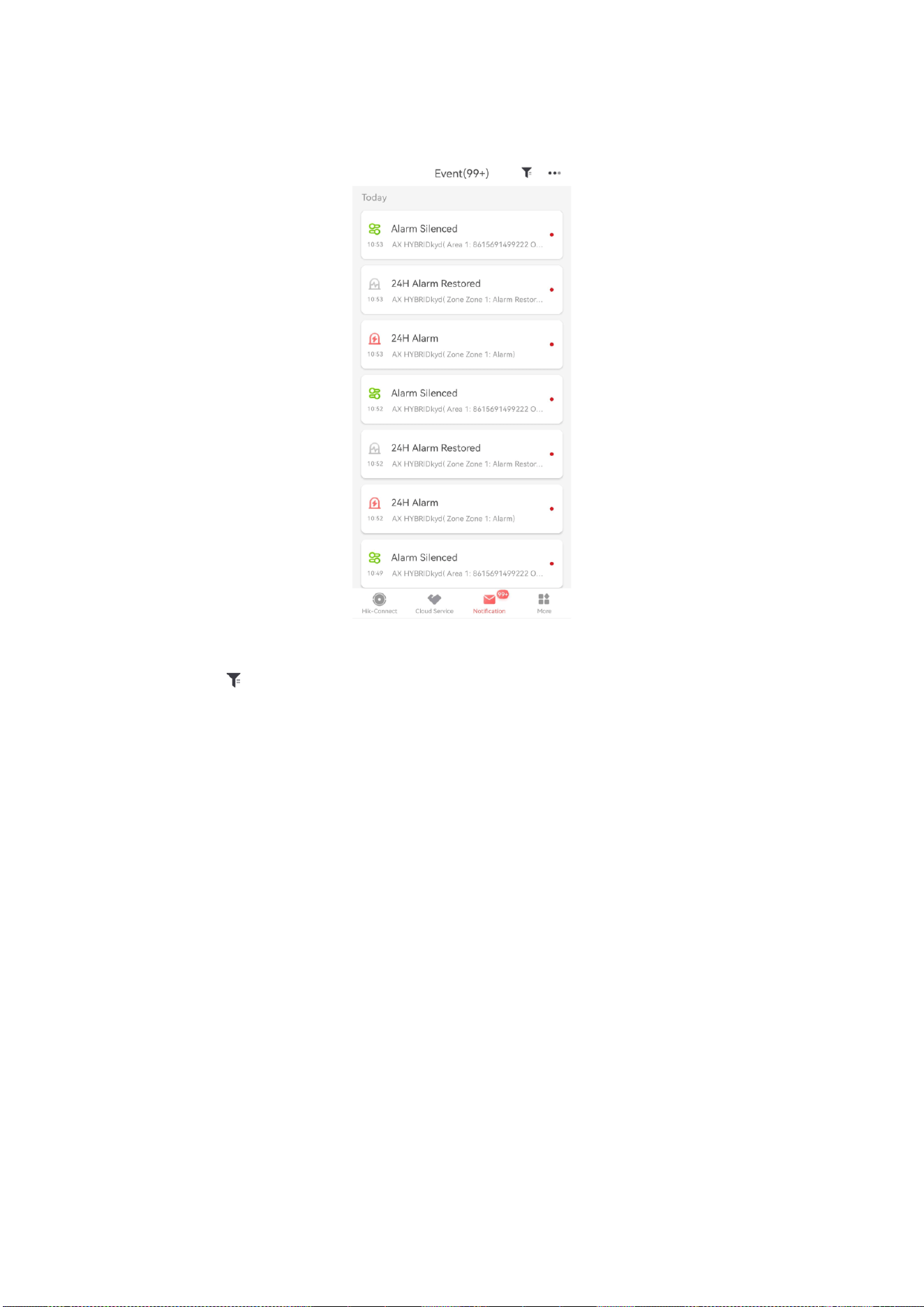
89
2. Select an alarm and you can view the alarm details.
3. Optional: If the zone has linked a camera, you can view the playback when the alarm is
triggered.
4. Optional: Tap to search events by dates or devices.
3.4 Report to ARC (Alarm Receiver Center)
AX HYBRID PRO wireless control panel is designed with transceiver built in following the guidance
of EN 50131-10 and EN 50136-2. Category DP2 is provided with primary network interface of
LAN/Wi-Fi and secondary network interface of GPRS or 3G/4G LTE. ATS (Alarm Transmission
system) is designed to always use LAN/Wi-Fi network interface when available to save mobile data
usage. The secondary network interface provides resilience and reliability during mains power
failure.
Setup ATS in Transceiver of Receiving Center
Steps:
1. Login to the web client of the alarm receiver.
2. Click Configuration→ IP Reception, and create a receiving server as shown below.
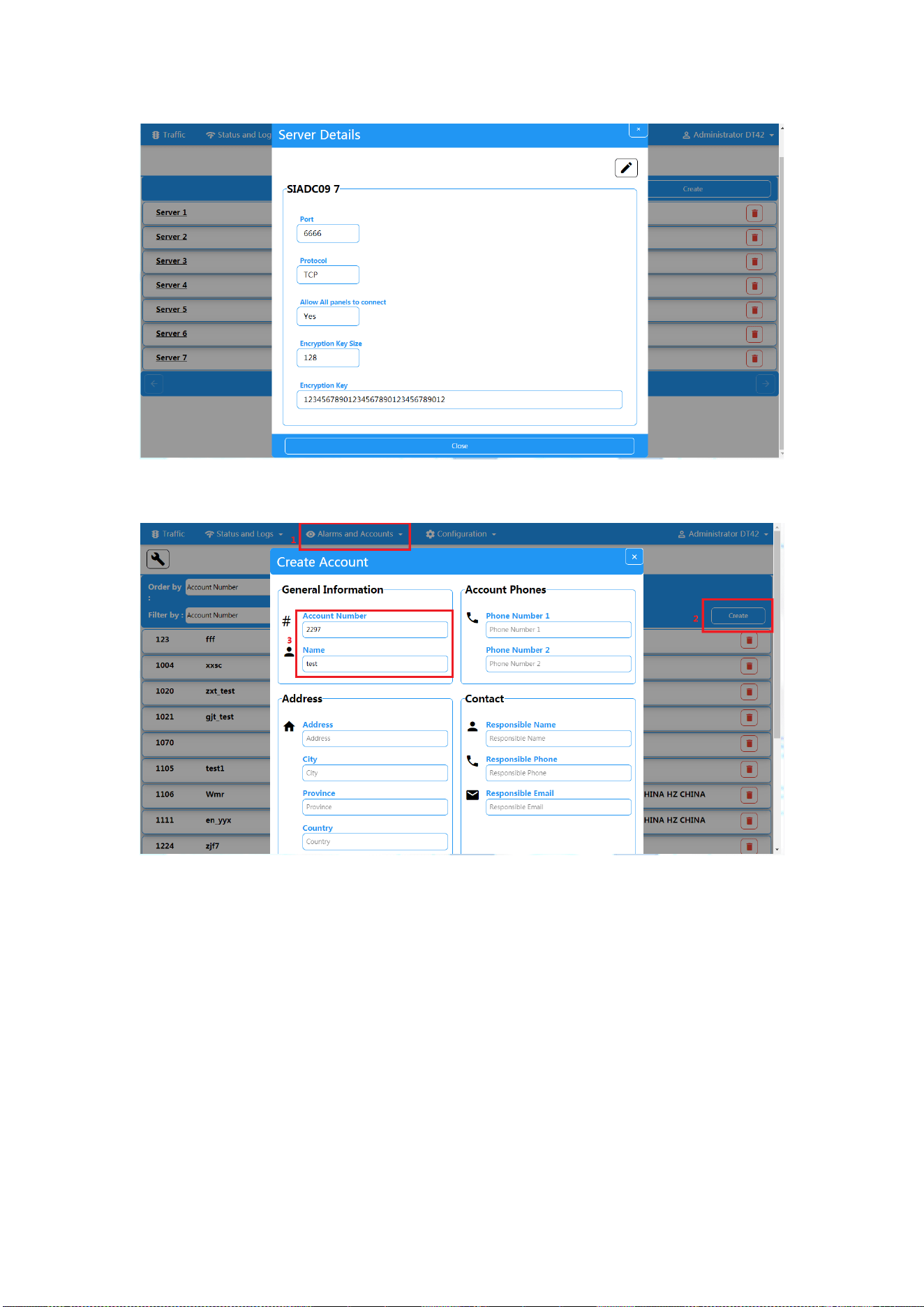
90
3. Click Alarms and Accounts→ Accounts Management, and assign an account for the panel as
show below.
Setup ATS in Transceiver of the Panel
Steps:
1. Login using installer account from local web client.
2. Click Communication→ Alarm Receiving Center (ARC), and enable Alarm Receiving Center 1.
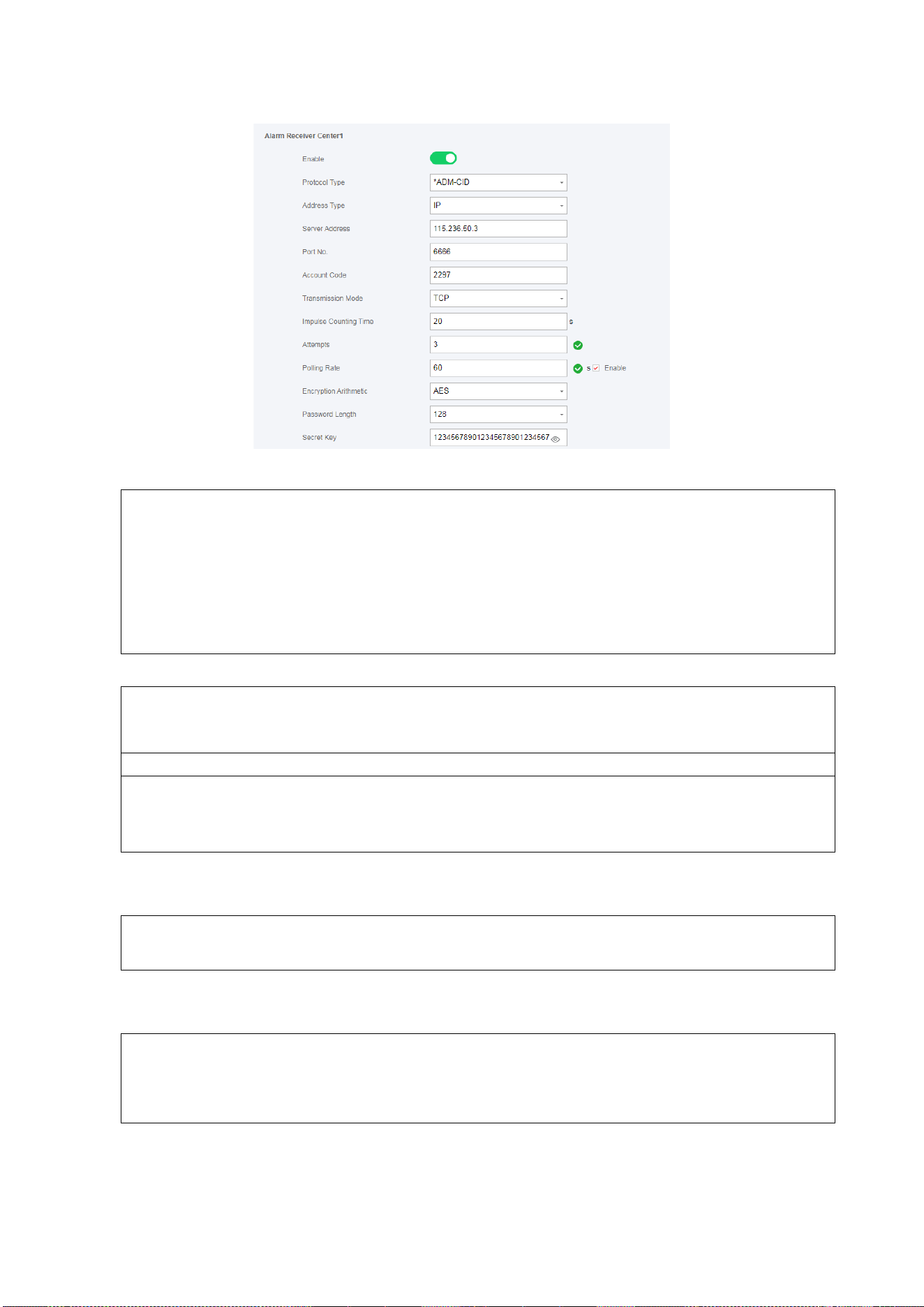
91
= Protocol Setting =
Protocol Type
— ADM-CID
— SIA-DCS
— *ADM-CID
— *SIA-DCS
Select token supported by the receiver in the ARC. Choose the token with “*” mark to
improve the communication security.
= Server Setting =
Address Type
— IP
— Domain Name
Server Address / Domain Name
Port No.
Input IP address or domain name by which the transceiver of receiving center could be
reached. Input port number of the server provided by the ARC
= Account Setting =
Account Code
Input the assigned account provided by the ARC.
= SIA DC-09 Protocol Setting =
Transmission Mode
— TCP
— UDP
Both TCP and UDP are supported for transmission. UDP is recommended by the SIA DC-09
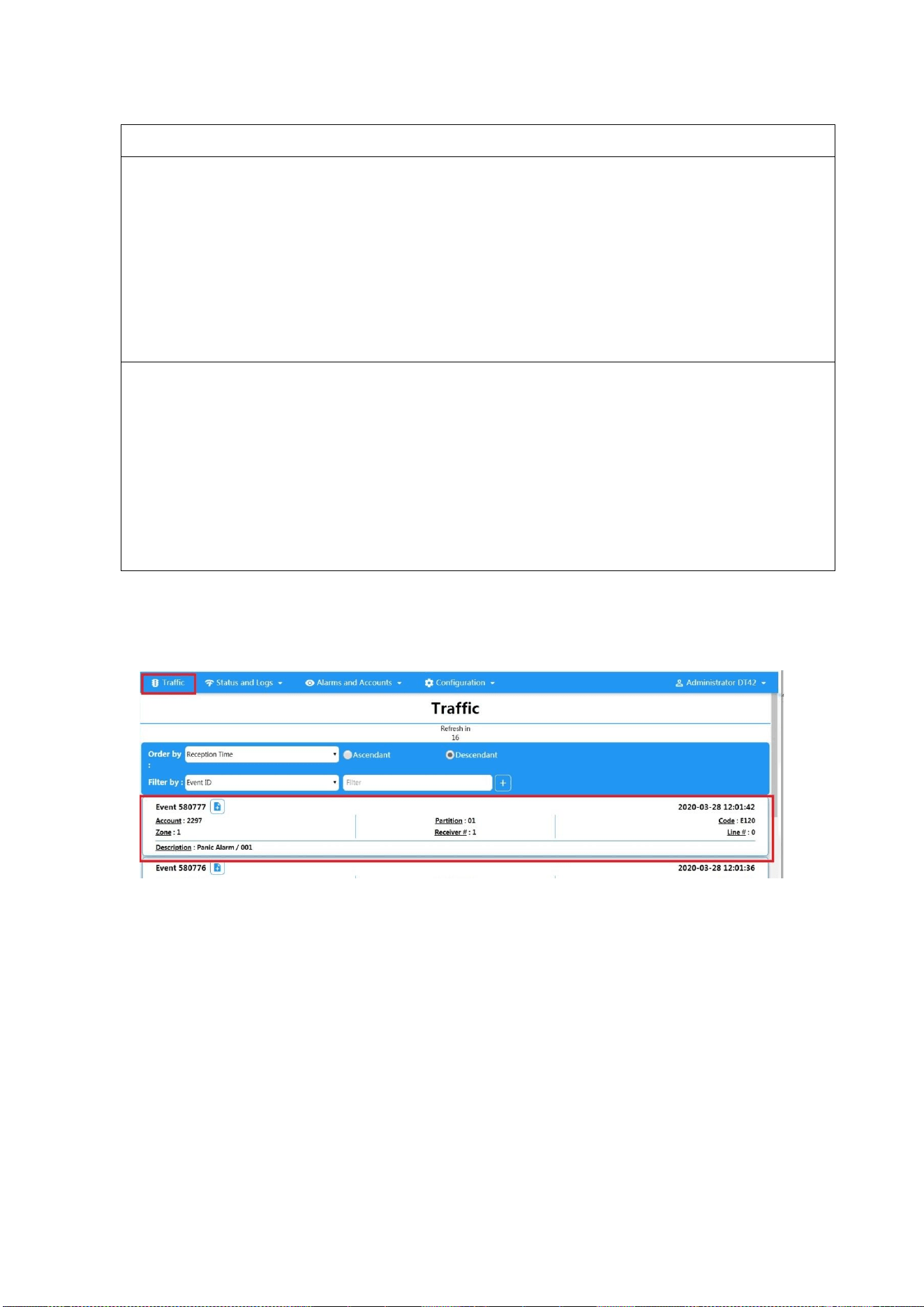
92
standard.
Connection Setting
○
Impulse Counting Time / Retry Timeout Period
Setup the timeout period waiting for receiver to respond. Re-transmission will be
arranged if the transceiver of receiving center is timeout.
○
Attempts
Setup the maximum number that re-transmission will be tried.
○
Polling Rate
Setup the interval between 2 live polling if enable is checked.
Encryption Setting
○
Encryption Arithmetic
— AES
○
Password Length
— 128
— 192
— 256
○
Secret Key
Setup the encryption key length and input the key provided by the ARC.
Signaling Test
Activate a panic alarm from the control panel.
Login to Receiver. Click Traffic to review all the messages received.

93
Chapter 4 General Operations
4.1 Access Entries
The installer and operators of the AX HYBRID PRO were assigned different access levels which
define the system functions that an individual user can perform. Various user entries are provided
for different user roles with particular access level.
Access entries for Installers (Access Level 3)
Hik-Partner Pro Service
Hik-Partner Pro is a service for installers that is used to manage customers’ alarm systems
located in various sites remotely. Control panels can be added to an installer account on the
Hik-Partner Pro Service and be managed in sites.
Local Web Client
Visit the device IP address that can be found out with SADP tool. The installer can login with
Hik-Partner Pro service account after the panel was added.
Other entries
Keypad PINs and tags can be also assigned with installer user at particular access level to
perform essential operations.
Access Entries for the Administrator and Operators (Access Level 2)
Hik-Connect Service
The Hik-Connect service can be used for end users to access and manage the devices.
Local Web Client (for the administrator)
As soon as the panel was added to the end user account on Hik-Connect Service, the Hik-
Connect account can be used to login to the web client build in.
Operators cannot login the web client.
Other entries
Keypad PINs and tags can be also assigned with end user at particular access level to perform
essential operations.
4.2 Arming
You can use keypad, keyfob, tag, client software, mobile client to arm your system.
After the arming command is sending to AX HYBRID PRO, the system will check the detector
status. If the detector is in fault, you will need to choose whether to arm the system with fault.
While the system is armed, the AX HYBRID PRO will prompt the result in 5s, and upload the arming
report.
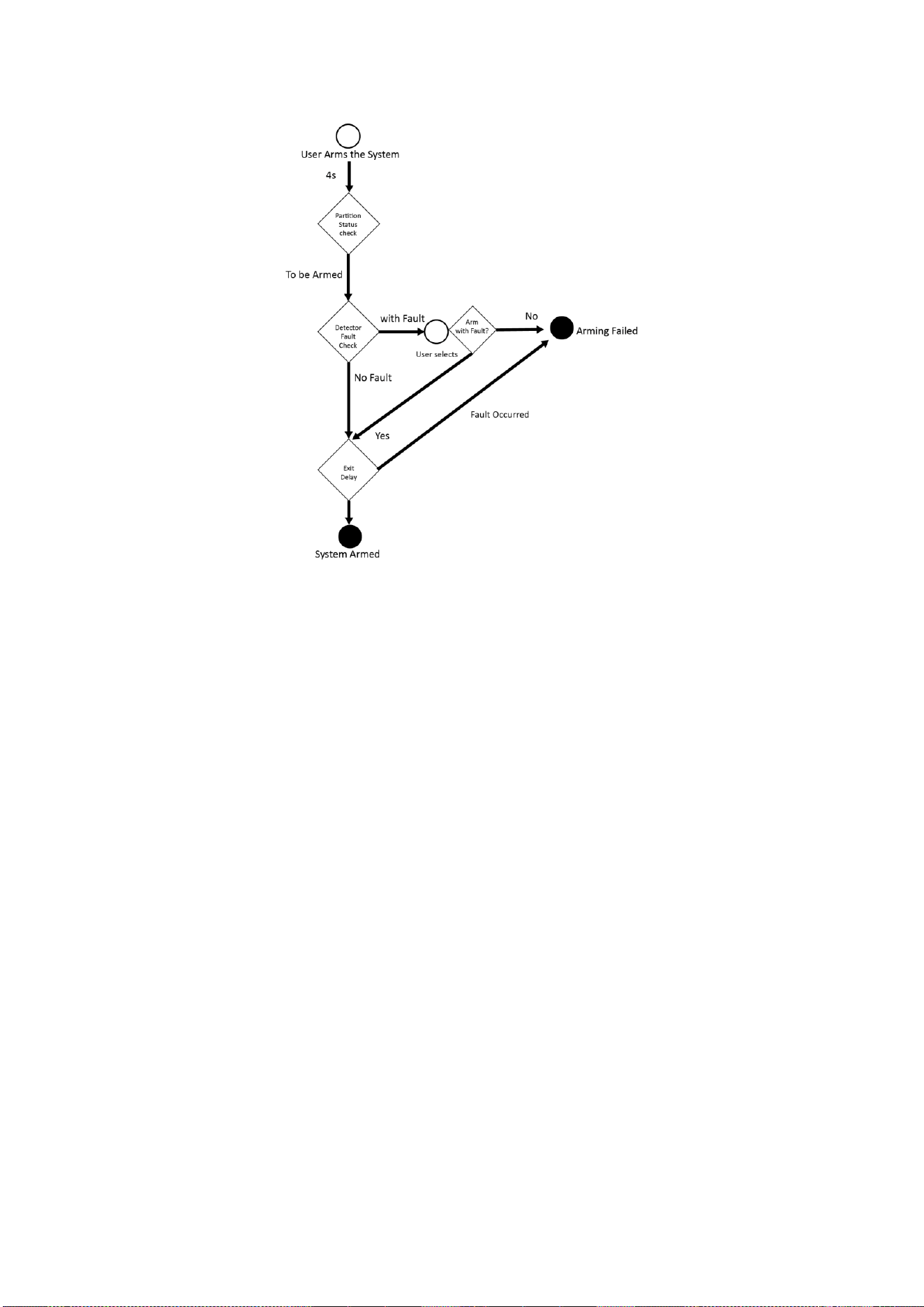
94
Access level of Arming
The user in level 2 or 3 has the permission to arm or partly arm the system.
Arming Indication
The arming/disarming indicator keeps solid blue for 5s.
Reason of Arming Failure
● Intrusion detector triggered (excepts the detector on the exit route).
● Panic alarm device triggered.
● Lid opened (tamper) alarm occurred.
● Communication exception
● Main power supply exception
● Backup battery exception
● Alarm receiving fault
● Sounder fault
● Low battery of the keyfob
● Others
Arming with Fault
While the arming is stopped with fault, user in level 2 has the permission to arm the system with
fault (forced arming).
Forced arming only takes effect on the current arming operation.
The forced arming operation will be record in the event log.

95
4.3 Disarming
You can disarm the system with keypad, keyfob, Tag, client software, or mobile client.
Disarming Indication
The arming/disarming indicator flashes 30s while the user successfully disarm the system through
the entry/exit route.
The system will report the disarming result after the operation completed.
Entry Delay Duration
Ensure that timer is no longer than 45 seconds in order to comply with EN50131-1.
Early Alarm
If either the intrusion or tampering alarm occurs on the enter/exit route when the AX HYBRID PRO
is in the status of entry delay, the AX HYBRID PRO then enters the early alarm mode.
The early alarm duration can be set (> 30s).
The AX HYBRID PRO will reports the alarm only if the alarm event lasts over the duration of early
alarm with the addition of entry delay.
4.4 SMS Control
You can control the security system with SMS, and the command is shown below.
SMS format for Arming/disarming/silencing alarm:
{Command} + {Operation Type} + {Target}
Command: 2 digits, 00- Disarming, 01- Away arming, 02- Stay arming, 03- Silencing alarm
Operation type: 1- Area Operation
Target: No more than 3 digits, 0-Operation for all areas, 1-Operation for area 1(zone1), and the
rest can be deduced by the analogy.

96
A. Trouble Shooting
A.1 Communication Fault
A.1.1 IP Conflict
Fault Description:
IP that the panel automatically acquired or set is same as other devices, resulting in IP conflicts.
Solution:
Search the current available IP through ping. Change the IP address and log in again.
A.1.2 Web Page is Not Accessible
Fault Description:
Use browser to access web pages and display Inaccessible.
Solutions:
1. Check whether the network cable is loose and the panel network is abnormal.
2. The panel port has been modified. Please add a port to the web address for further access.
A.1.3 Hik-Connect is Offline
Fault Description:
The web page shows that the Hik-Connect is offline.
Solution:
Network configuration of the panel is error, unable to access extranet.
A.1.4 Network Camera Drops off Frequently
Fault Description:
System reports multiple event logs of IPC disconnection and connection.
Solution:
Check whether the network communication or camera live view is proper.
A.1.5 Failed to Add Device on APP
Fault Description:
When using APP to add devices, it is prompted that the device fails to be added, the device could
not be found, etc.
Solution:

97
Check the web page: whether the Hik-Connect is offline.
A.1.6 Alarm Information is Not Reported to APP/4200/Alarm Center
Fault Description:
After the alarm is triggered, the app/4200/ alarm center does not receive the alarm message.
Solution:
"Message push" - "alarm and tamper-proof notice" is not enabled. You should enable "alarm and
tamper-proof notice".
A.2 Mutual Exclusion of Functions
A.2.1 Unable to Enter Enrollment Mode
Fault Description:
Click the panel function key, and prompt key invalid.
Solution:
The panel is in "Hotspot" mode. Switch the panel to "station" mode, and then try to enter the
enrollment mode again.
A.3 Zone Fault
A.3.1 Zone is Offline
Fault Description:
View status of zones which displays offline.
Solution:
Check whether the detector reports undervoltage. Replace the detector battery
A.3.2 Zone Tamper-proof/Lid-opened
Fault Description:
View status of zones which displays tamper-proof/lid-opened.
Solution:
Make tamper-proof button of the detector holden.
A.3.3 Zone Triggered/Fault
Fault Description:

98
View status of zones which displays triggered/fault.
Solution:
Reset the detector.
A.4 Problems While Arming
A.4.1 Failure in Arming (When the Arming Process is Not Started)
Fault Description:
When the panel is arming, prompt arming fails.
Solution:
The panel does not enable "forced arming", and when there is a fault in the zone, the arming will
fail. Please turn on the "forced arming" enable, or restore the zone to the normal status.
A.5 Operational Failure
A.5.1 Failed to Enter the Test Mode
Fault Description:
Failed to enable test mode, prompting "A fault in the zone".
Solution:
Zone status, alarm status or zone power is abnormal.
A.5.2 The Alarm Clearing Operation on the Panel Does Not Produce the
Alarm Clearing Report
Fault Description:
The alarm clearing operation on the panel does not produce the alarm clearing report.
Solution:
In the absence of alarm, no report will be uploaded for arm clearing.
A.6 Mail Delivery Failure
A.6.1 Failed to Send Test Mail
Fault Description:
When configure the mail information, click "test inbox" and prompt test fails.

99
Solution:
Wrong configuration of mailbox parameters. Please edit the mailbox configuration information, as
shown in table 1/1.
A.6.2 Failed to Send Mail during Use
Fault Description:
Check the panel exception log. There is "mail sending failure".
Solution:
The mailbox server has restricted access. Please log in to the mailbox to see if the mailbox is
locked.
A.6.3 Failed to Send Mails to Gmail
Fault Description:
The receiver's mailbox is Gmail. Click "Test Inbox" and prompt test fails.
1. Google prevents users from accessing Gmail using apps/devices that do not meet their security
standards.
Solution:
Log in to the website (https://www.google.com/settings/security/lesssecureapps), and "start using
access of application not safe enough". The device can send mails normally.
2. Gmail does not remove CAPTCHA authentication.
Solution: Click the link below, and then click "continue"
(https://accounts.google.com/b/0/displayunlockcaptcha).
A.6.4 Failed to Send Mails to QQ or Foxmail
Fault Description:
The receiver's mailbox is QQ or foxmail. Click "Test Inbox" and prompt test fails.
1. Wrong QQ account or password.
Solution:
The password required for QQ account login is not the password used for normal login. The
specific path is: Enter the email account → device → account → to generate the authorization
code, and use the authorization code as the login password.
2. SMTP login permission is needed to open.
A.6.5 Failed to Send Mails to Yahoo
Fault Description:
The receiver's mailbox is yahoo. Click "test inbox" and prompt test fails.
1. The security level of mailbox is too high.
Solution:
Go to your mail account and turn on "less secure sign-in".
100
A.6.6 Mail Configuration
Table A-1 Mail Configuration
Mail Type
Mail Server
SMTP Port
Protocols Supported
Gmail
smtp.gmail.com
587
TLS/STARTTLS (TLS)
Outlook
smtp.office365.com
587
STARTTLS (TLS)
Hotmail
smtp.office365.com
587
STARTTLS (TLS)
QQ
smtp.qq.com
587
STARTTLS (TLSv1.2)
Yahoo
smtp.mail.yahoo.com
587
STARTTLS (TLSv1.2)
126
smtp.126.com
465
SSL/TLS
Sina
smtp.sina.com
25/465/587
SSL/TLS/STARTTLS
(SSL/TLS)
Note
About mail configuration:
● SMTP portDefault to use port 25 without encryption, or using port 465 if SSL/TLS is used.
Port 587 is mainly used for STARTTLS protocol mode.
The STARTTLS protocol mode that is usually used by default when selecting TLS.
● User nameUser name of Outlook and Hotmail require full names, and other email require a
prefix before @.

101
B. Input Types
Table B-1 Input Types
Input Types
Operations
Instant Zone
The system will immediately alarm when it detects triggering
event after system armed.
Audible Response Trigger the system sound and sounder.
Voice Prompt: Zone X alarm.
Perimeter Zone
The system will immediately alarm when it detects triggering
event after system armed.
Audible Response: Trigger the system sound and sounder.
There is a configurable interval between alarm and sounder
output, which allows you to check the alarm and cancel the
sounder output during the interval.
Voice Prompt: Zone X perimeter alarm.
Delayed Zone
The system provides you time to leave through or enter the
zone without alarm.
Audible Response: Trigger the system sound and sounder.
Voice Prompt: Zone X alarm.
Follow Zone
The zone acts as delayed zone when it detects triggering event
during system Entry Delay, while it acts as instant zone
otherwise.
Audible Response: Trigger the system sound and sounder.
Voice Prompt: Zone X follow alarm.
24H Silence Zone
The zone activates all the time without any sound/sounder
output when alarm occurs.
Audible Response: No system sound (voice prompt or
sounder).
Panic Zone
The zone activates all the time.
Audible Response: Trigger the system sound and sounder.
Voice Prompt: Zone X panic alarm.
Fire Zone
The zone activates all the time with sound/sounder output
when alarm occurs.

102
Input Types
Operations
Audible Response: Trigger the system sound and sounder.
Voice Prompt: Zone X fire alarm.
Gas Zone
The zone activates all the time with sound/sounder output
when alarm occurs.
Audible Response: Trigger the system sound and sounder.
Voice Prompt: Zone X gas alarm.
Medical Zone
The zone activates all the time with beep confirmation when
alarm occurs.
Audible Response: Trigger the system sound and sounder.
Voice Prompt: Zone X medical alarm.
Timeout Zone
The zone activates all the time. The zone type is used to
monitor and report the "ACTIVE" status of a zone, but it will
only report and alarm this status after the programmed time
has expired (1 to 599) seconds.
Disabled Zone
Alarms will not be activated when the zone is triggered or
tampered.
Audible Response: No system sound (voice prompt or
sounder).
Virtual Zone (Keypad/Keyfob)
The system will immediately alarm when it detects triggering
event after system armed.
Audible Response: Trigger the system sound and sounder.
Voice Prompt: Buzzer beeps.
Tamper Alarm (Lid Opened
Alarm)
The system will immediately alarm when it detects triggering
event after system armed.
Audible Response: Trigger the system sound and sounder.
Voice Prompt: Zone X tampered.
Link
Trigger the linked device when event occurs.
e.g. The output expander linked relays will be enabled when
the AX HYBRID PRO is armed.
Arm
When armed: Voice prompt for fault. You can handle the fault
according to the voice prompt.
● System sound for arming with Tag or keyfob.
● Voice prompt for fault. You can handle the fault according to
the voice prompt.

103
Input Types
Operations
Fault event displays on client. You can handle the fault via
client software or mobile client.
● Voice Prompt: Armed/Arming failed.

104
C. Output Types
Table C-1 Output Types
Output Types
Active
Restore
Arming
Arm the AX HYBRID PRO
After the configured output
delay
Disarming
Disarm the AX HYRBID PRO
After the configured output
delay
Alarm
When alarm event occurs. The
alarm output will be activated
after the configured exit/enter
delay.
After the configured output
delay, disarm the AX HYBRID
PRO or silence alarm
Zone Linkage
When alarm event occurs, the
linked relay will output alarm
signal.
After the configured output
duration
Manual Operation
Enable relays manually
Over the triggering time or
disable the relays manually

105
D. Event Types
Table D-1 Event Types
Event Types
Custom
Default 1
(client
software
notification)
Default 2
(alarm
receiving
center 1/2)
Default 3
(mobile
client)
Default 4
(telephone)
Alarm and
Tamper
×/√
√
√
√
√
Life Safety
Event
×/√
√
√
√
√
System Status
×/√
√
×
×
×
Panel
Management
×/√
√
×
×
×
106
E. Access Levels
Level
Description
1
Access by any person; for example the general public.
2
User access by an operator and administrator; for example customers
(systems users).
3
User access by an installer; for example an alarm company professional.
Table E-1 Permission of the Access Level
Function
Permission
1
2
3
Arming
No
Yes
Yes
Disarming
No
Yes
Yes
Restoring/Clearing Alarm
No
Yes
Yes
Entering Walk Test Mode
No
Yes
Yes
Bypass(zone)/Disabling/Force Arming
No
Yes
Yes
Adding/Changing Verification Code
No
Yes
d
Yes
d
Adding/Editing Level 2 User and
Verification Code
No
Yes
Yes
Adding/Editing Configuration Data
No
No
Yes
Replacing software and firmware
No
No
No
Note
a
By the condition of being accredited by user in level 2.
b
By the condition of being accredited by user in level 2 and level 3.
d
Users can only edit their own user code.
● The user level 2 can assign the login permission of the controller to the user level 3 in the
settings page.
● The user level 2 should assign permissions to the user level 3 if the user level 3 wants to login
the controller remotely.
● When the controller is bypassed, the user level 3 can login the controller without the permission
assignment of the user level 2.

107
● When the controller is bypassed, the user level 3 can login the controller without the permission
assignment of the user level 2.
● The user level 4 can login the controller only when the user level 2 or level 3 has assigned
permissions to the user level 4.

108
F. Signalling
Detection of ATP/ATS Faults
ATP (Alarm Transmission Path) faults will be detected when network interface of the control
panel disconnected or the transmission path to the transceiver of receiving center located in ARC
blocked somewhere in between. An ATS (Alarm Transmission System) fault will be reported when
ATP faults are detected on both transmission paths.
ATP restore will be detected as soon as network interface connected and the transmission path to
the transceiver of receiving center restored. ATS restore will be reported when ATP restore of any
transmission path is detected.
The timing performance of detecting ATP faults and restores shows in the table below.
TN
Maximum timing of detection
Primary ATP failure/restore
LAN/WiFi
10 min
Secondary ATP failure/restore
GPRS
60 min
20 min (when primary ATP failed )
3G/4G LTE
Signalling will be always transmitted from primary ATP when it is operational. Otherwise it will be
automatically switched to secondary transmission path that is operational at the moment. Both primary
and secondary ATP fault and restore events will be reported to ARC when there is an ATP left to work. They
will also be recorded to mandatory log memory with capacity of 1000 records allocated in non-volatile flash
memory storage, as well as the ATS fault record. The detail of reports and log records are listed in the table
below.
Event code when
signalling
Event log description
Primary ATP failure/restore
E351/R351
LAN Path Failed/LAN Path Recovery
Secondary ATP failure/restore
E352/R352
Mobile Net Path Failed/Mobile Net Path
Recovery
ATS failure/restore
N/A
ATS Failed
Primary network interface failure/restore
E351/R351
LAN Path Failed/LAN Path Recovery
Secondary network interface failure/restore
E352/R352
Mobile Net Path Failed/Mobile Net Path
Recovery
ATS Category
The ATS category of AXPRO is DP2. While the alarm receiving center is enabled. The control panel will upload alarm
report to the receiver center via the main path (LAN or Wi-Fi) or the back-up path (3G/4G). If the control panel is
properly connected to the LAN or Wi-Fi, the main path is selected as the transmission path. If the main path
connection is failed, the path will be switched to 3G/4G. And if the main path connection is restored, the path will be
switched back to LAN or Wi-Fi. The control panel checks the connection status continuously, and generates logs
transmission fault for any of the path. While both of the paths are invalid, the control panel determines ATS fault.

109
G. SIA and CID Code
Note
The code below is for transmitting from the security control panel to ARC via DC09 protocol.
Table F-1 SIA and CID Code
SIA code
CID code
Description
MA
1100
Medical Alarm
MH
3100
Medical Alarm Restored
BA
(Water Leak Detector: WA)
1130
(Water Leak Detector: 1154)
Burglary Alarm
BH
(Water Leak Detector: WH)
3130
(Water Leak Detector: 3154)
Burglary Alarm Restored
FA
(Heat Detector: KA)
1111
(Heat Detector: 1114)
Fire Alarm
FH
(Heat Detector: KH)
3111
(Heat Detector: 3114A)
Fire Alarm Restored
HA
1121
Duress alarm
HA
1122
Silent Panic Alarm
HH
3122
Silent Panic Alarm Restored
1133
24H Alarm
3133
24H Alarm Restored
NA
1780
Timeout Alarm
BH
3780
Timeout Alarm Restored
PA
1120
Panic Alarm
Audible Panic Alarm
PH
3120
Audible Panic Alarm Restored
BA
1130
Burglary Alarm
BH
3130
Burglary Alarm Restored
BA
1131
Perimeter Breached
BH
3131
Perimeter Restored
AD
1132
Interior Burglary Alarm
CK
3132
Interior Burglary Alarm Restored
BA
(Water Leak Detector: WA)
1130
(Water Leak Detector: 1154)
24H Alarm
BH
(Water Leak Detector: WH)
3130
(Water Leak Detector: 3154)
24H Alarm Restored
BA
(Water Leak Detector: WA)
1130
(Water Leak Detector: 1154)
Burglary Alarm
BH
(Water Leak Detector: WH)
3130
(Water Leak Detector: 3154)
Burglary Alarm Restored
TA
1137
Lid Opened

110
SIA code
CID code
Description
TR
3137
Lid Restored
BV
1139
Confirmed Alarm
BW
3139
Confirmed Alarm Restore
BUS Open-circuit Alarm
BUS Open-circuit Restored
AF
1142
BUS Short-circuit Alarm
CN
3142
BUS Short-circuit Restored
TA
1144
External Probe Disconnected
TR
3144
External Probe Connected
AG
1148
Device Motion Alarm
CO
3148
Device Motion Alarm Restored
1149
Masking Alarm
3149
Masking Alarm Restored
GA
1162
Gas Leakage Alarm
GH
3162
Gas Leakage Alarm Restored
AH
1207
Zone Early-Warning
CP
3207
Zone Early-Warning Dismissed
AT
1301
Mains Power Lost
AR
3301
Mains Power Restored
YT
1302
Battery Low
YR
3302
Battery Voltage Restored
ZY
1305
Reset to defaults
YM
Transmitter battery missing
ID range: 301~
1311
Transmitter battery missing
ID range: 301~
Battery Disconnected
YR
Transmitter battery missing
ID range: 301~
3311
Transmitter battery missing
ID range: 301~
Battery Reconnected
YI
1312
Overcurrent Protection Triggered
YJ
3312
Overcurrent Protection Restored
YP
1319
Overvoltage Protection Triggered
YQ
3319
Overvoltage Protection Restored
AI
1333
Expander Exception
CQ
3333
Expander Restored
AJ
1336
Printer Disconnected
CR
3336
Printer Connected
XT
1384
Battery Low
XR
3384
Battery Voltage Restored
Expander Low Voltage
Normal Expander Voltage
AT
1342
Mains Power Lost
AR
3342
Mains Power Restored
YM
1311
Battery Disconnected

111
SIA code
CID code
Description
YR
3311
Battery Reconnected
TA (The serial number of
output module starts from 1,
of keypad starts from 101, of
tag reader starts from 201)
1144 (The serial number of
output module starts from 1,
of keypad starts from 101, of
tag reader starts from 201)
Lid Opened
TR (The serial number of
output module starts from 1,
of keypad starts from 101, of
tag reader starts from 201)
3144 (The serial number of
output module starts from 1,
of keypad starts from 101, of
tag reader starts from 201)
Lid Restored
YP
Transmitter AC power Loss
ID range: 301~
Sounder AC power Loss
ID range: 202~
1301
Transmitter AC power Loss
ID range: 301~
Sounder AC power Loss
ID range: 202~
Expander AC Power Loss
YQ
Transmitter AC power Loss
ID range: 301~
Sounder AC power Loss
ID range: 202~
3301
Transmitter AC power Loss
ID range: 301~
Sounder AC power Loss
ID range: 202~
Expander AC Power Loss Restored
TA
1144
Lid Opened
TR
3144
Lid Restored
TA
1144
Lid Opened
TR
3144
Lid Restored
XL
1381
Device Offline
XC
3381
Device Restored
TA (The serial number of
output module starts from 1,
of keypad starts from 101, of
tag reader starts from 201, of
transmitter starts from 301)
1144 (The serial number of
output module starts from 1,
of keypad starts from 101, of
tag reader starts from 201, of
transmitter starts from 301)
Lid Opened
TR (The serial number of
output module starts from 1,
of keypad starts from 101, of
tag reader starts from 201, of
transmitter starts from 301)
3144 (The serial number of
output module starts from 1,
of keypad starts from 101, of
tag reader starts from 201, of
transmitter starts from 301)
Lid Restored
XT (The serial number of
output module starts from 1,
of keypad starts from 101, of
tag reader starts from 201, of
transmitter starts from 301)
1384 (The serial number of
output module starts from 1,
of keypad starts from 101, of
tag reader starts from 201, of
transmitter starts from 301)
Battery Low
XR (The serial number of
output module starts from 1,
of keypad starts from 101, of
tag reader starts from 201, of
transmitter starts from 301)
3384 (The serial number of
output module starts from 1,
of keypad starts from 101, of
tag reader starts from 201, of
transmitter starts from 301)
Battery Voltage Restored

112
SIA code
CID code
Description
XL (The serial number of
output module starts from 1,
of keypad starts from 101, of
tag reader starts from 201, of
transmitter starts from 301)
1381 (The serial number of
output module starts from 1,
of keypad starts from 101, of
tag reader starts from 201, of
transmitter starts from 301)
Device Offline
XC (The serial number of
output module starts from 1,
of keypad starts from 101, of
tag reader starts from 201, of
transmitter starts from 301)
3381 (The serial number of
output module starts from 1,
of keypad starts from 101, of
tag reader starts from 201, of
transmitter starts from 301)
Device Restored
LT
1351
Main Signalling Path Fault
LR
3351
Main Signalling Path Restored
LT
1352
Backup Signalling Path Fault
LR
3352
Backup Signalling Path Restored
AM
1354
Telephone Line Disconnected
CU
3354
Telephone Line Connected
AN
1382
BUS Supervision Fault
CV
3382
BUS Supervision Restored
1380
3380
TA
1144
Lid Opened
TR
3144
Lid Restored
Zone Open-circuit Alarm
Zone Short-circuit Alarm
OP
1401
Disarmed
CL
3401
Armed
OA
1403
Auto Disarmed
CA
3403
Auto Armed
BC
1406
Alarm Silenced
CW
3408
Instant Arming
CS
1409
Keyswitch Zone Disarming
OS
3409
Keyswitch Zone Arming
NL
3441
Armed in home mode
CX
3442
Forced Arming
Turn On Output by Schedule
Turn Off Output by Schedule
CT
1452
Late to Disarm
CD
1455
Auto Arming Failed
Turning On Output Failed
Turning Off Output Failed
Auto Disarming Failed
1556
Network Change
QB
1570
Bypassed

113
SIA code
CID code
Description
QU
3570
Bypass Restored
AU
1574
Group Bypass
CZ
3574
Group Bypass Restored
AV
1601
Manual Report Test
RP
1602
Periodic Report Test
TS
1607
Walk Test Enabled
TE
3607
Walk Test Disabled
AW
1617
Telephone Connection Test
LB
1627
Programming mode
LX
1628
Exit Programming
BA
1131
Intrusion Detection
BH
3131
Intrusion Detection Restored
BA
1131
Cross-Zone Alarm
BH
3131
Cross-Zone Alarm Restored
PIR Alarm
PIR Alarm Restored
AY
1775
Sudden Increase of Sound Intensity
Alarm
DE
3775
Sudden Increase of Sound Intensity
Alarm Restored
AZ
1776
Sudden Decrease of Sound Intensity
Alarm
DF
3776
Sudden Decrease of Sound Intensity
Alarm Restored
Audio Input Fault
Audio Input Restored
BA
1131
Line Crossing Alarm
BH
3131
Line Crossing Alarm Restored
BA
1134
Region Entrance Detection
EA
1134
FA
1112
Fire Source Alarm
FH
3112
Fire Source Alarm Restored
KS
1158
High Temperature Pre-Alarm
KR
3158
High Temperature Pre-Alarm Restored
ZS
1159
Low Temperature Pre-Alarm
ZR
3159
Low Temperature Pre-Alarm Restored
KA
1158
High Temperature Alarm
KH
3158
High Temperature Alarm Restored
ZA
1159
Low Temperature Alarm
ZH
3159
Low Temperature Alarm Restored
EA
1134
Region Exiting Detection
PA (The user No. of keyfob
starts from 901)
1120 (The user No. of keyfob
starts from 901)
Audible Panic Alarm

114
SIA code
CID code
Description
Audible Panic Alarm
Audible Panic Alarm
Audible Panic Alarm
FA
1110
Keypad/Keyfob Fire Alarm
Keypad/Keyfob Burglary Alarm
CI
1454
Arming Failed
MA
(Contains user information in
the text message if triggered
by keyfobs.)
1100
Keypad/Keyfob Medical Alarm
DK
1501
Keypad Locked
DO
3501
Keypad Unlocked
Absence Alarm
Keypad Disconnected
Keypad Connected
KBUS Relay Disconnected
KBUS Relay Connected
KBUS GP/K Disconnected
KBUS GP/K Connected
KBUS MN/K Disconnected
KBUS MN/K Connected
DK
1501
Tag Reader Locked
DO
3501
Tag Reader Unlocked
B D
1865
Unregistered Tag
XL
1381
Device Offline
XC
3381
Device Restored
XT
1384
Battery Low
XR
3384
Battery Voltage Restored
XL (The serial number of
output module starts from 1,
of keypad starts from 101, of
tag reader starts from 201)
1381 (The serial number of
output module starts from 1,
of keypad starts from 101, of
tag reader starts from 201)
Device Offline
XC (The serial number of
output module starts from 1,
of keypad starts from 101, of
tag reader starts from 201)
3381 (The serial number of
output module starts from 1,
of keypad starts from 101, of
tag reader starts from 201)
Device Restored
XL
1381
Device Offline
XC
3381
Device Restored
BI
1918
Radar Transmitter Fault
DL
3918
Radar Transmitter Restored
XT
1384
Battery Low
XR
3384
Battery Voltage Restored
NT
1350
Cellular Fault

115
SIA code
CID code
Description
NR
3350
Cellular Restored
NT
1350
SIM Card Exception
NR
3350
SIM Card Restored
NT
1350
Network Fault
NR
3350
Network Restored
XQ
1344
Jamming Detected
XH
3344
Jamming Restored
NT
1350
Data limitation Reached
XT
1384
Battery Low
XR
3384
Battery Voltage Restored
NT
1350
IP Address Already Used
NR
3350
Normal IP address
NT
1350
Network Fault
NR
3350
Network Restored
BA
1131
Motion Detection Alarm Started
BH
3131
Motion Detection Alarm Stopped
BJ
1941
Device Blocked
DM
3941
Device Blocking Alarm Restored
Video Signal Loss
Video Signal Restored
Input/Output Format Unmatched
Input/Output Format Restored
Video Input Exception
Video Input Restored
Full HDD
Free HDD
HDD Exception
HDD Restored
Upload Picture Failed
BQ
1948
Email Sending Failed
BR
1949
Network Camera Disconnected
DS
3949
Network Camera Connected
Duty Checking
Post Response
BU
1962
Fire Alarm Consulting
DT
3962
Fire Alarm Consulting Over
BV
1963
Duress Alarm Consulting
DU
3963
Duress Alarm Consulting Over
BW
1964
Emergency Medical Alarm Consulting
DV
3964
Emergency Medical Alarm Consulting
Over
DW
3250
Patrol Signing

116
SIA code
CID code
Description
BX
1970
BUS Query
BY
1971
BUS Registration
BZ
1973
Single-Zone Disarming
DX
3973
Single-Zone Arming
CA
1974
Single-Zone Alarm Cleared
CB
1306
Device Deleted
DY
3306
Device Enrolled
CC
1976
Business Consulting
DZ
3976
Business Consulting Over
CD
1306
Device Deleted
EA
3306
Device Enrolled
CE
1306
Device Deleted
EB
3306
Device Enrolled
CF
1306
Device Deleted
3306
Device Enrolled
CG
1306 (The serial number of
output module starts from 1,
of keypad starts from 101, of
tag reader starts from 201, of
transmitter starts from 301)
Device Deleted
ED
3306 (The serial number of
output module starts from 1,
of keypad starts from 101, of
tag reader starts from 201, of
transmitter starts from 301)
Device Enrolled
JA
1461
Incorrect Password
NT
1350
Device Offline
YM
1311
Power Depletion

117
UD27253B