1.0.0
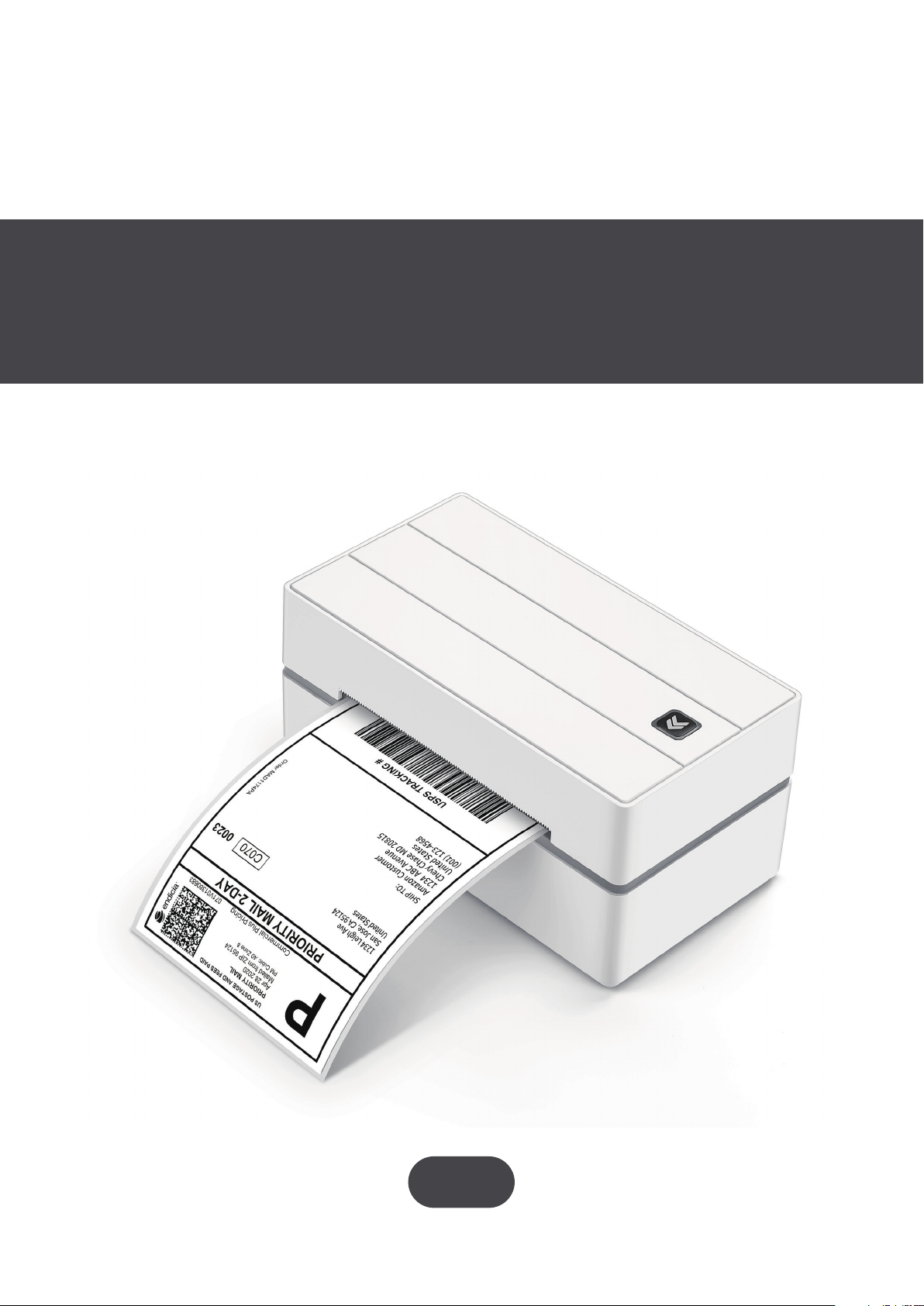
ITPP130 Label Printer
Frequently Asked Questions

We have served more than 452,850 customers worldwide with
reliable products and professional support of our technical team.
If you have any issues, please contact our engineers directly to get
a prompt solution within 1 hour. Our support is available via
phone, email, and remote desktop assistance.
SUPPORT

CONTENTS
1. Installation issue
1.1. Driver Installation Issue
1.1.1. How to check the USB connection after driver successful installed?
1.2. Mac Driver Installation Issue
1.2.1. Why is my printer not showing up on my desktop?
1.2.2. How do I fix an invalid digital signature?
2. Printing Issue
2.1. Label Issue
2.1.1 Why doesn't my label print correctly?
2.1.2 Why is the printer printing blank labels?
2.1.3 Why is the red light blinking on the printer?
2.2. Print Quality Issue
2.2.1 Why is the printed label too dark and cannot be scanned?
2.2.2 Why is the printed label not clear?
2.2.3 Why can't I print clearly about Australia Post and Canada Post?
2.2.4 How to maintain the print head?
2.2.5 How to adjust the density and speed in the settings?
2.3. Other Issue
2.3.1 Why does the printer out a blank label when I load paper?
2.3.2 Why does the printer keep beeping?
2.3.3 Why does my windows display the printer status as Error?
2.3.4 Why does my Mac display the printer status as Offline?
2.3.5 Why do the Labels are not printing centered using the printer?
2.3.6 Why can't the printer work after I update the computer system?
2.3.7 Why can't I find 4x6 inches in Google Chrome?
3. How to print labels on the following platforms
3.1. Transportation platform (logistics company)
3.1.1. FedEx
3.1.2. USPS
3.1.3. DHL
3.1.4. Canada Post
3.1.5. Royal Mail
3.1.6. UPS
3.2. E-commerce platform (online store)
3.2.1. Shopify
3.2.2. Etsy
3.2.3. Amazon
3.2.4. eBay
3.2.5. PayPal
3.2.6. Poshmark
························································································································1
····················································································································
1
·························1
·········································································································3
······················································3
···········································································3
·································································································································4
·········································································································································
4
················································································4
··········································································5
····································································5
···························································································································6
·······································6
····················································································6
·····························7
······················································································7
················································8
········································································································································9
·······································9
··············································································10
·····································10
············································12
····························13
··························14
···························································15
·······················································16
········································································
16
··········································································································································16
··········································································································································16
············································································································································16
····························································································································16
·································································································································16
············································································································································16
························································································16
·······································································································································16
·············································································································································16
·····································································································································16
···········································································································································16
········································································································································16
·································································································································16

CONTENTS
3.3. Third-party platform
3.3.1. Pirate Ship
3.3.2. Stamps
3.3.3. Shipeasy
3.3.4. Endica
3.3.5. XPS
4. Tips
4.1. How to create a new customized label size?
4.2. How to print labels in non-4x6 inches size, like USPS and Amazon ASIN labels?
4.3. How to judge whether is hardware failures in the printer?
·····················································································································17
································································································································17
·····································································································································17
···································································································································17
······································································································································17
············································································································································17
····················································································································································18
··········································································
18
·······22
···············································23
1.0. Installation Issue
1.1. Driver Installation Issue
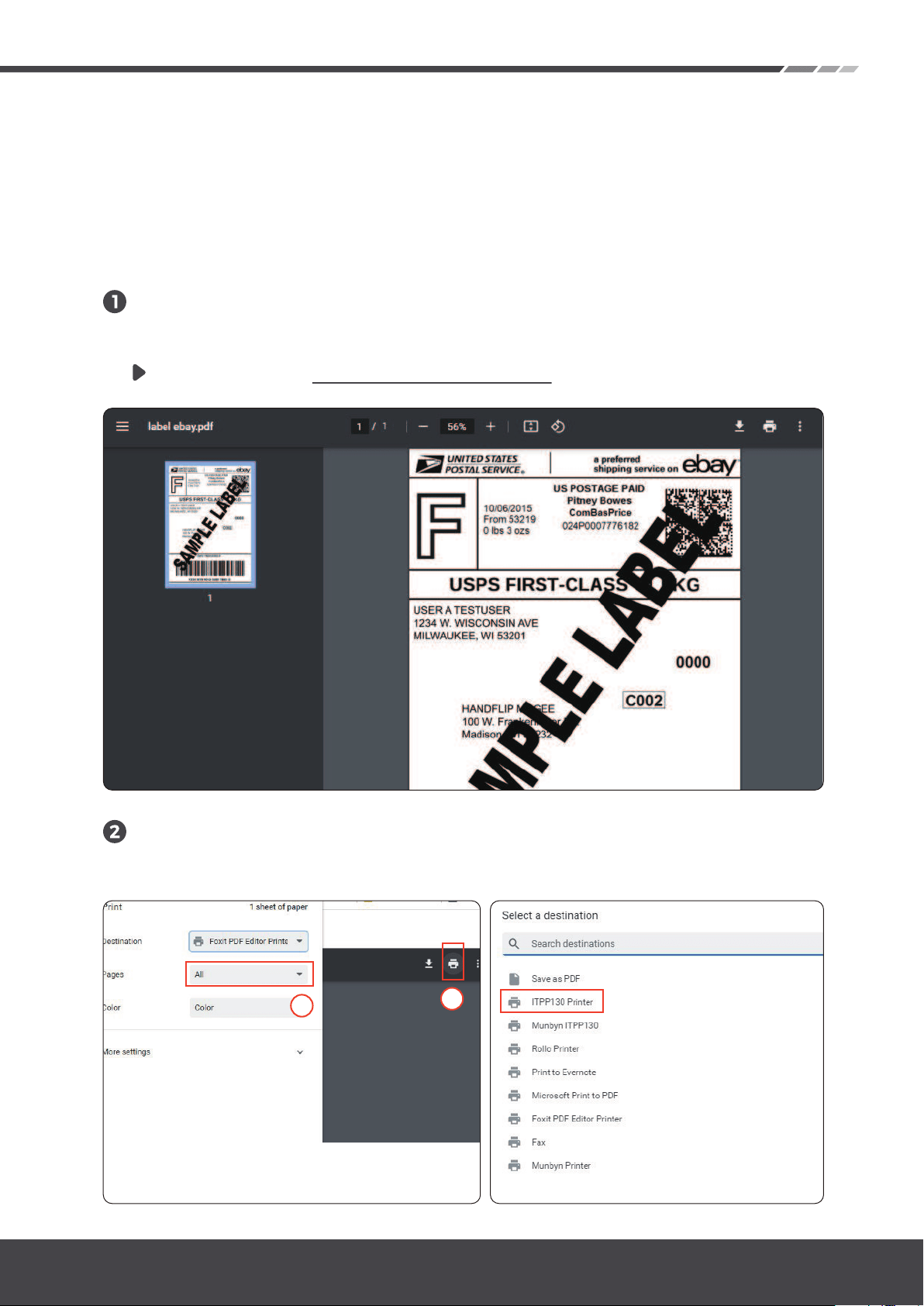
1.1.1. How to check the USB connection after driver successful
installed?
Please click the link below to download and open the 4×6 label
document. (It is recommended to use Google Chrome to open)
Click the printer icon as shown below,
then select in "Destination" -> “See more" -> "ITPP130".
Sample label: https://bit.ly/label130
1
2
-Page 1
ITPP130 Frequently Asked Questions
Version 1.0.0
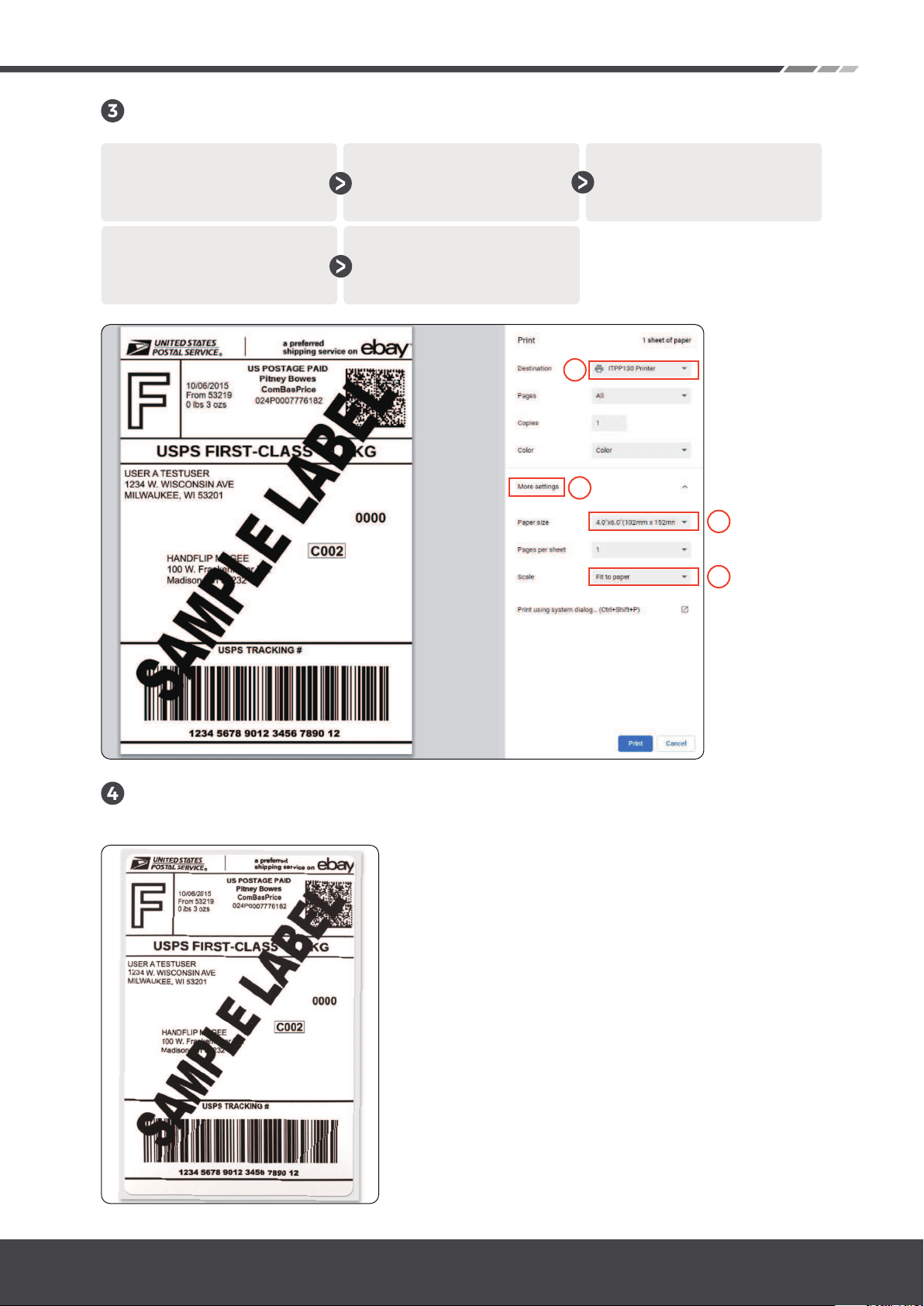
Follow the steps below to set up the printer.
Check whether the printed label is consistent with the PDF
document.
Make sure the printer is
selected as "ITPP 130"
Open "More settings"
Select "4x6 inch" in
"Paper size"
Select "Fit to printable
area" in "Scale"
Click "Print"
1
2
3
4
-Page 2
ITPP130 Frequently Asked Questions
Version 1.0.0
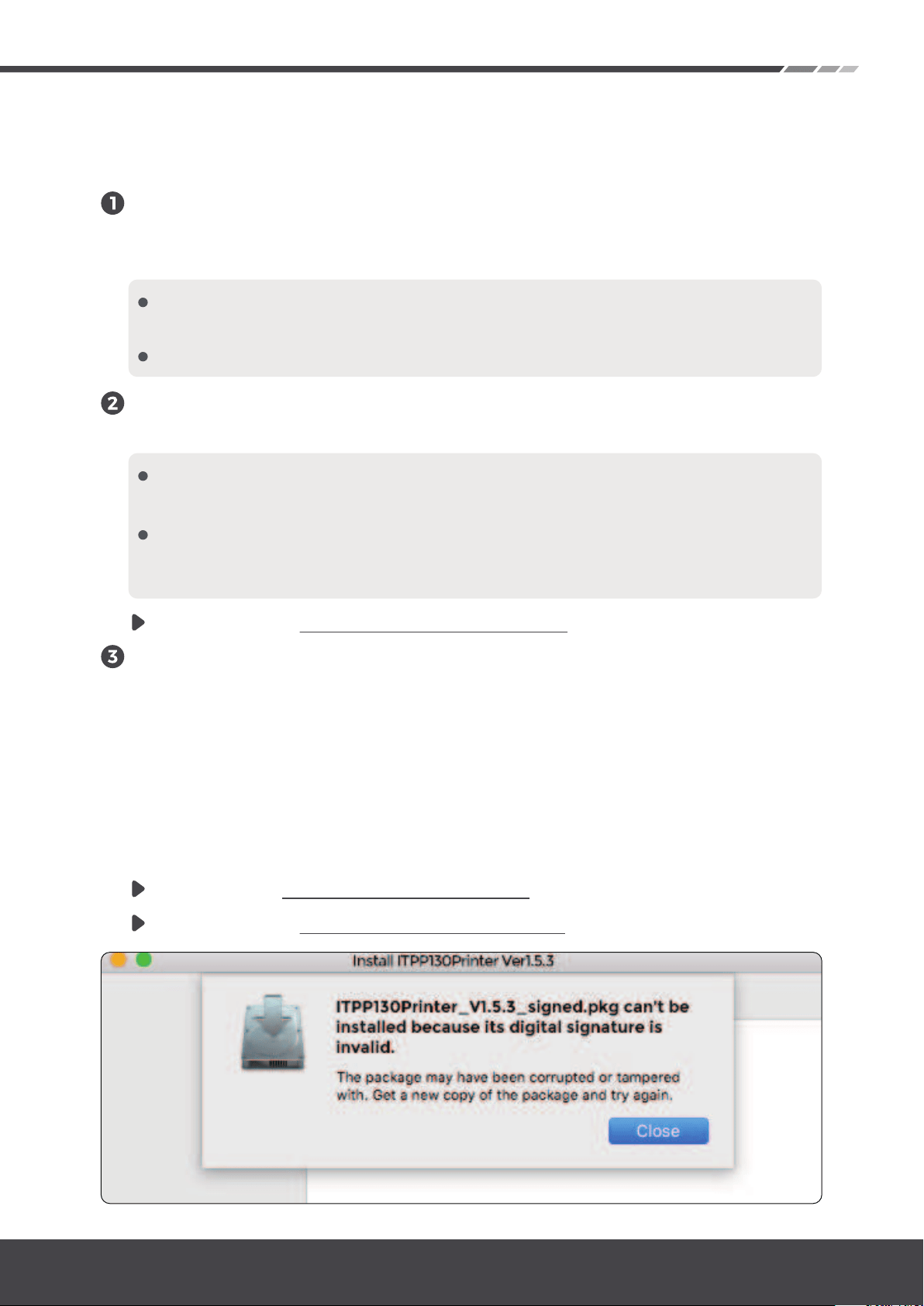
1.2.2. How do I fix an invalid digital signature?
1.2. Mac Driver Installation Issue
If it is still not display in “Printers&Scanners”, please contact our
after-sales service.
This is because you are using an older version of the driver
whose signature has expired. Please click the link below to
download the latest version of the driver, then follow the Demo
video to reinstall the driver.
Mac driver: https://bit.ly/macd130
Demo video: https://bit.ly/mvideo130
1.2.1. Why is my printer not showing up on my desktop?
If your Mac shows ITPP130 States "Offline"or not display in
“Printers&Scanners”,it means that Mac did not recognize the
printer.
Please try to unplug and plug the USB cable the mac computer side
and the printer side.
Then restart the printer(power off then on).
If it is still not display in “Printers&Scanners”, we need to check
the USB connection.
Connecting the flash drive by using the USB adapter and check
whether the computer can read the data.
Unplug the flash drive and replace it with the USB cable of the printer.
normally if the flash drive can be read on the Mac , that USB adapter
can provide a stable data connection for the printer.
Demo video: https://bit.ly/macoffline
-Page 3
ITPP130 Frequently Asked Questions
Version 1.0.0
2.0. Printing Issue
2.1. Label Issue
2.1.1. Why doesn't my label print correctly?
The main reason is that the size of your shipping label file is not
4x6 inches. At this time, you need to set the correct label size.
This needs to be set on the shipping platform or online store,
depending on your file source. This part will be listed step by
step in the platform setup.
It is not set correctly when switching to print labels of different
sizes. Please see the settings below.
Please select the size that corresponds to your shipping label.
The following is an example of the most common 4x6 inch ship-
ping label.
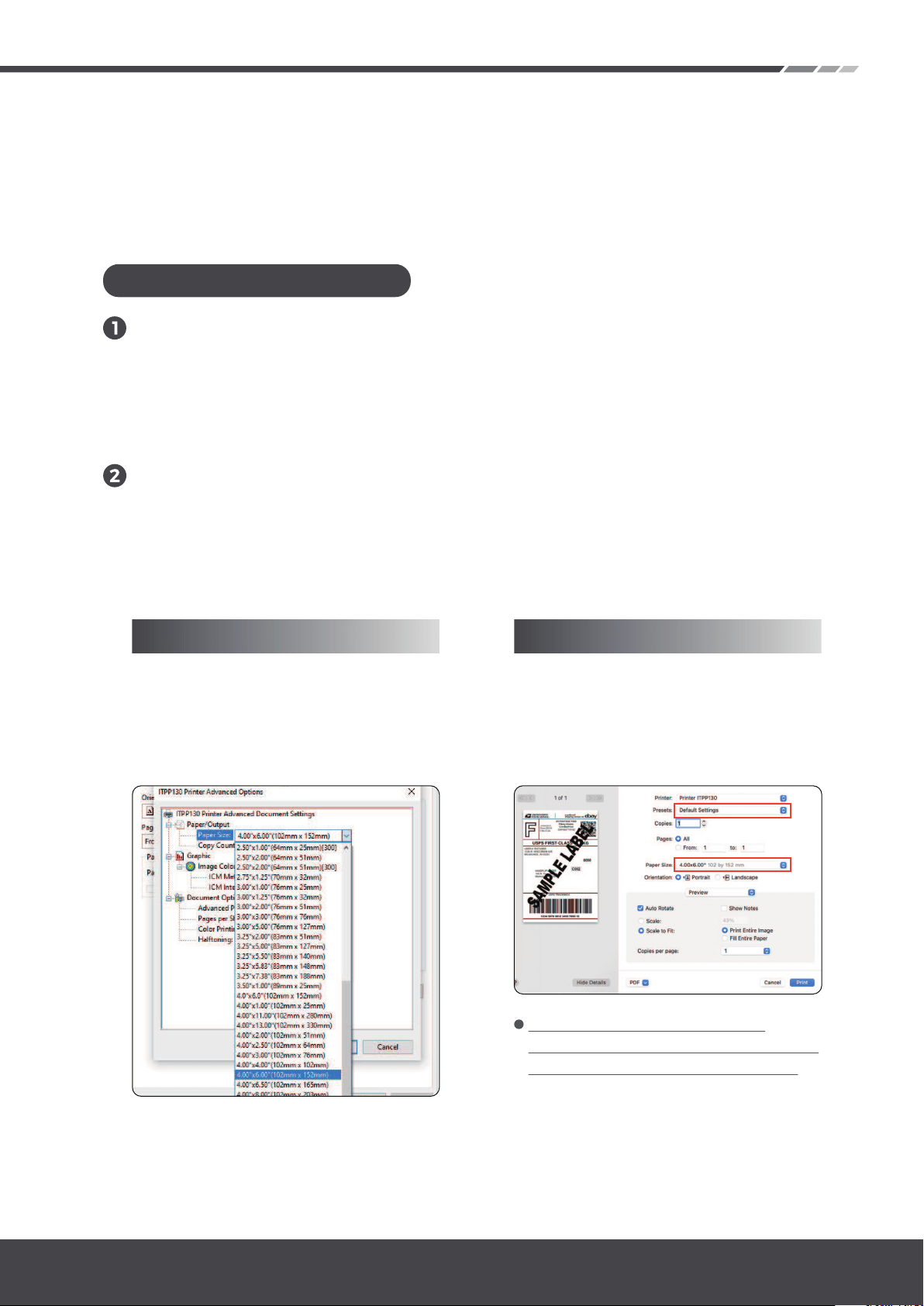
There are three situations:
Go to the "printer preferences” ->
“advanced” ->"paper size”,
select the correct size for the printer
(please select the 4x6 inch or 100*150mm)
If you print a 4x6 size page. In the
print dialogue, please be sure to select
your "Paper Size" appropriately
(for example 4 x 6”)
In the presets settings, you can
permanently save the settings for this
printing to avoid repeated settings.
For Windows: For Mac:
-Page 4
ITPP130 Frequently Asked Questions
Version 1.0.0

If your file size is correct, only a small part is missing, for example, the
barcode is not printed, and the consignee's information is not printed.
First of all, you can check if your adapter is included in the package. The pic-
ture of the adapter can be seen in the sixth point. If the adapter is correct,
follow the steps to calibrate the paper.
321
Load no less than 4
consecutive sheets of
paper into the printer.
After the paper stop
moving, press and hold
FEED (red/green light),
and when you hear a
beep, release the feed.
The printer will learn
the size of the paper
at this time. After the
process is complete,
the printer is back to
normal.
21
If the above are correct, but the printer still print blank labels or
the label cannot be prints completely printed.
2.1.2. Why is the printer only printing blank?
The most common reason is that the labels were loaded upside
down. Please ensure your labels are properly loaded, the tearable
side up.
Ensure your labels are "Direct Thermal" labels, The paper enclosed
in the package meets this condition.
Please print the self-test page:
Press the feeder (green/red light)
button and hold on.
Release after you hear two
consecutive beeps.
The printer will print a self-test page.
If the issue has not been solved , please contact us.
There are three situations:
2.1.3. Why is the red light blinking on the printer?
Your printer is not loaded with label paper
The solution is that the light will turn green when the label paper is loaded
into the printer.
Your printer does not identify the size of the paper.There are two
manifestations.
-Page 5
ITPP130 Frequently Asked Questions
Version 1.0.0
321
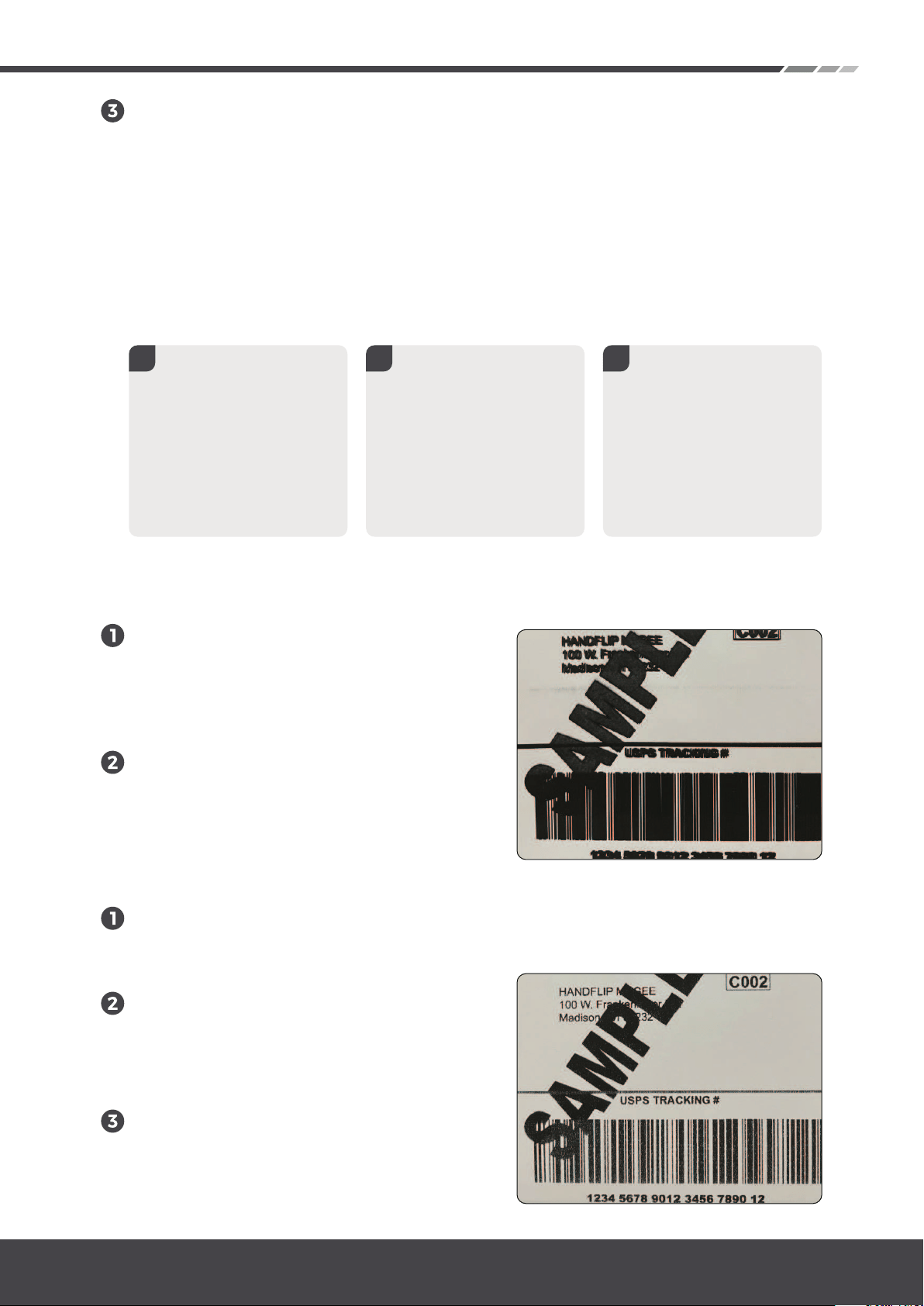
2.2.2. Why is the printed label not clear?
Try to choose PDF file format for printing instead of PNG, PIG, and other
image formats, when the barcode you print out is light (please refer to the
picture).
2.2. Print Quality Issue
2.2.1. Why is the printed label too dark and cannot be scanned?
The label does not feed properly. There may be some abnormal
noise at the situation.
A. After the printer successfully prints a label, it outputs a few
blank sheets of paper and cannot print continuously, and then
the printer appears red.
B. The printer only prints a small part of the text and the paper is
jammed, and then the printer shows a red light.
Load no less than 4
consecutive sheets of
paper into the printer
After the paper stop
moving, press and hold
FEED (red/green light),
and when you hear a
beep, release the feed.
The printer will learn the
size of the paper at this
time, and the top of the
printer will light up in
green when it stops.
After the process is
complete, the printer is
back to normal.
Solutions for the above two situations:
Try to choose PDF file format for print-
ing instead of PNG, PIG, and other
image formats, when the barcode you
print out is very fuzzy (please refer to
the picture).
If the font is still not clear, please try
to increase the density and reduce
the speed. (Please refer to 2.2.4 for
specific operation steps).
If the barcode still cannot be
scanned, please try to reduce the
density and increase the speed
(Please refer to 2.2.5 for specific
operation steps).
If it is still not clear for the label, you
can wipe the print head with alcohol
wipes or wet tissues. Please refer to the
2.2.3 to clean the print head.
-Page 6
ITPP130 Frequently Asked Questions
Version 1.0.0
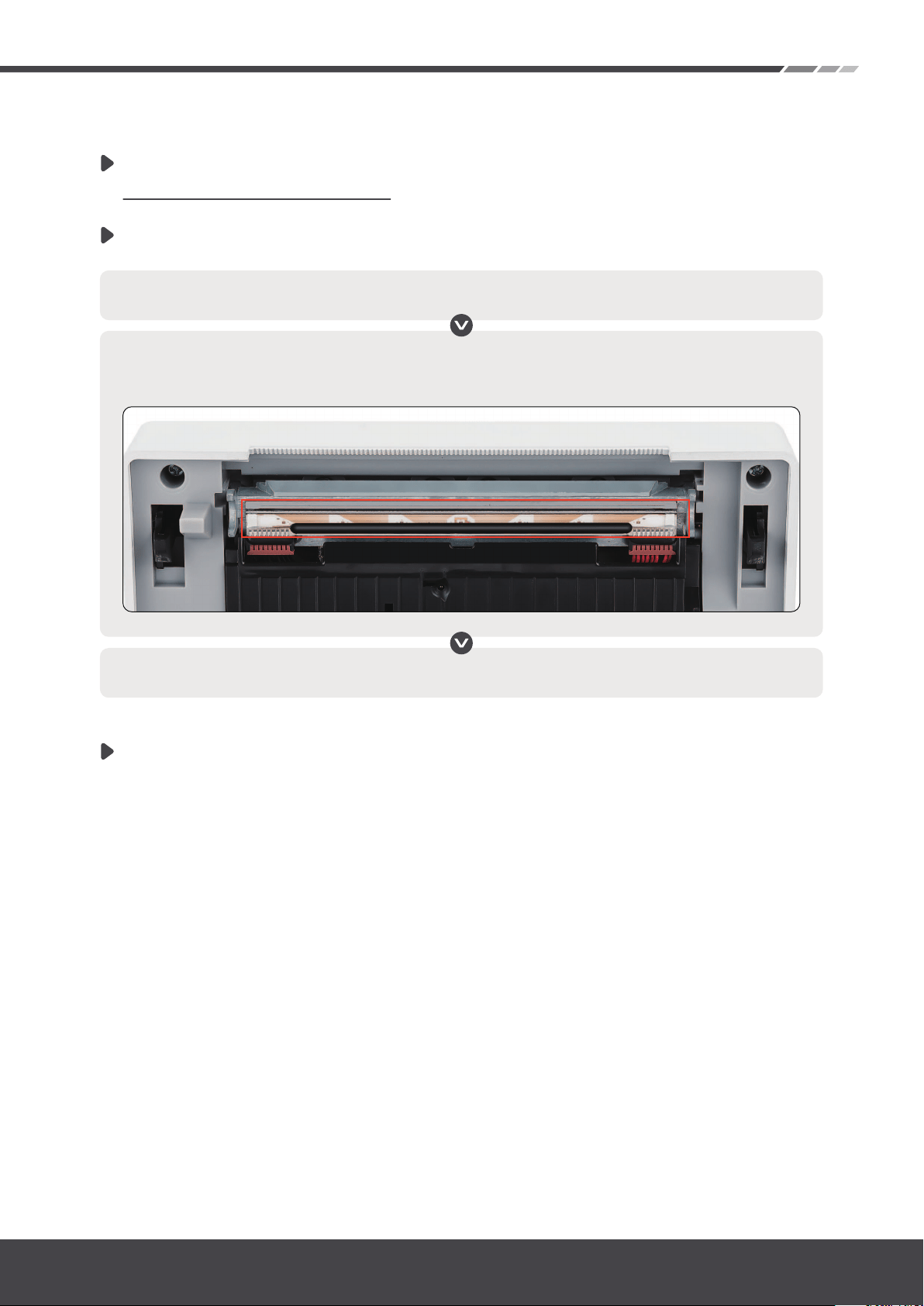
2.2.3. How to maintain the print head?
Here are the steps that maintain the print head
Please turn printer off and allow it to cool down (about half a minute)
Please use alcohol wipes or wipes to clean the print head marked at the following
picture.
Please wait 2-5 minutes until the print head dry, then turn the printer on.
Please use high-quality thermal label paper (such as our label
paper) as much as possible to prevent the inferior label paper
from peeling off and remaining on the print head, which will
affect the life of the print head.
Here is the video to maintain the print head:
https://bit.ly/cleanpd130
-Page 7
ITPP130 Frequently Asked Questions
Version 1.0.0
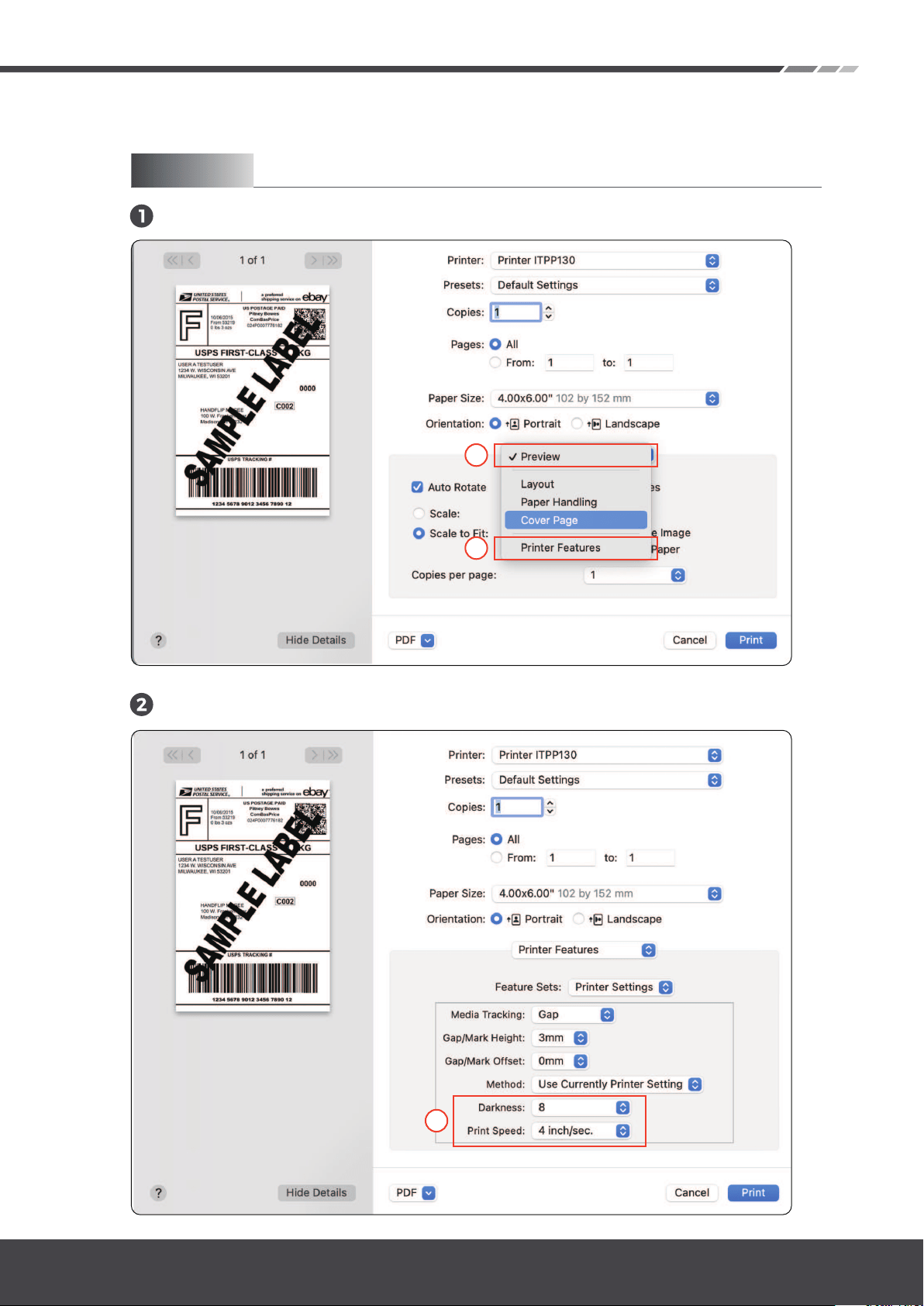
2.2.4. How to adjust the density and speed in the settings?
Choose printer features
Adjust the density(darkness) and speed
For Mac
1
2
3
-Page 8
ITPP130 Frequently Asked Questions
Version 1.0.0
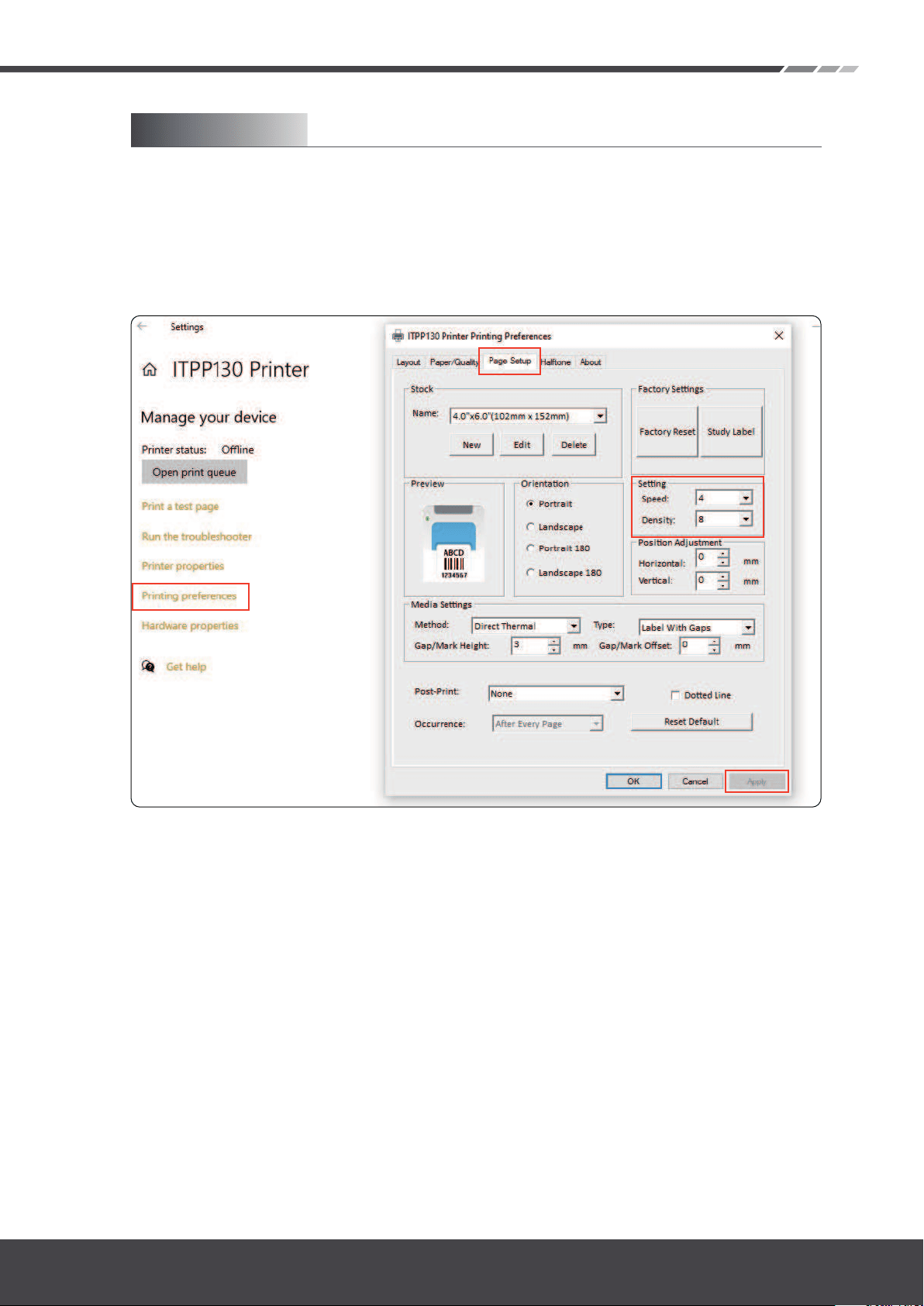
Settings -> Devices -> Printers and Scanners -> Click on 'ITPP130
Printer' -> Manager -> Printing Preferences -> Page Setup ->
Density/Speed->Apply.
You can do this by entering:
2.3. Other Issue
2.3.1. Why does the printer spit out a blank label when I load paper?
This is because the label printer is set to output a sheet of paper
first to ensure printing on a sheet of paper.
Please try to close the lid first, and then insert the paper from
the back, it will not output a blank label paper.
For Windows
-Page 9
ITPP130 Frequently Asked Questions
Version 1.0.0
2.3.2. Why does the printer keep beeping?
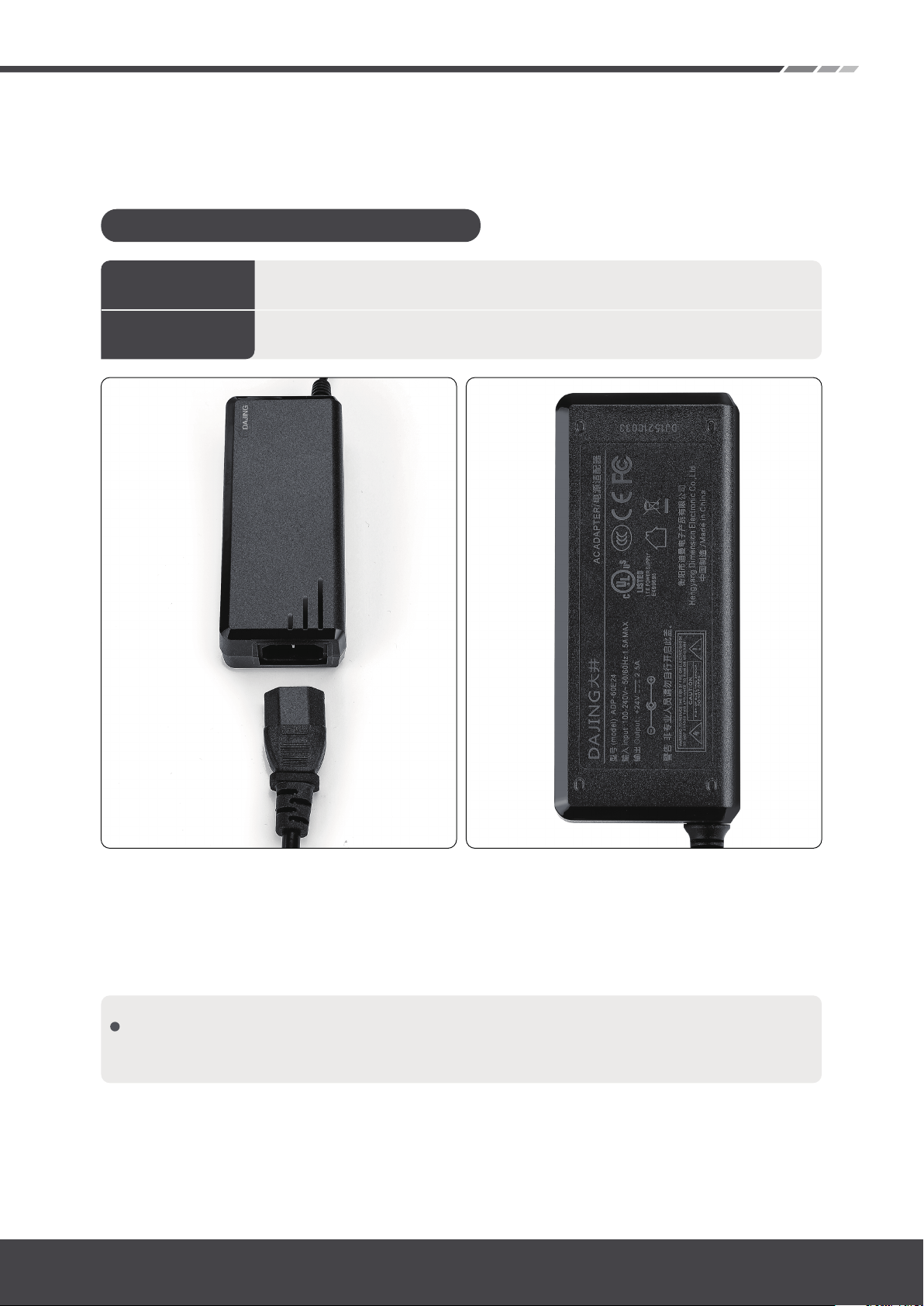
Please check if your power adapter is the one included in the
package, as shown in the picture below
2.3.3. Why does my windows display the printer status as offline?
If the status of the printer is offline, it means that windows did not
recognize the printer, please replug the USB cable and restart the
printer. The status will be online (Idle).
2.3.4. Why does my windows display the printer status as Error?
Because the printer USB port number is incorrect at the Windows
configuration. You can modify the port by following the steps
below.
If it still shows offline, please reinstall the driver, at this time it
may show as "ITPP130 (Copy 1)"
Input:
Output:
100-240V≈50/60Hz, 2.0A
24V, 2.5A; 48W
The power adapter specification:
-Page 10
ITPP130 Frequently Asked Questions
Version 1.0.0
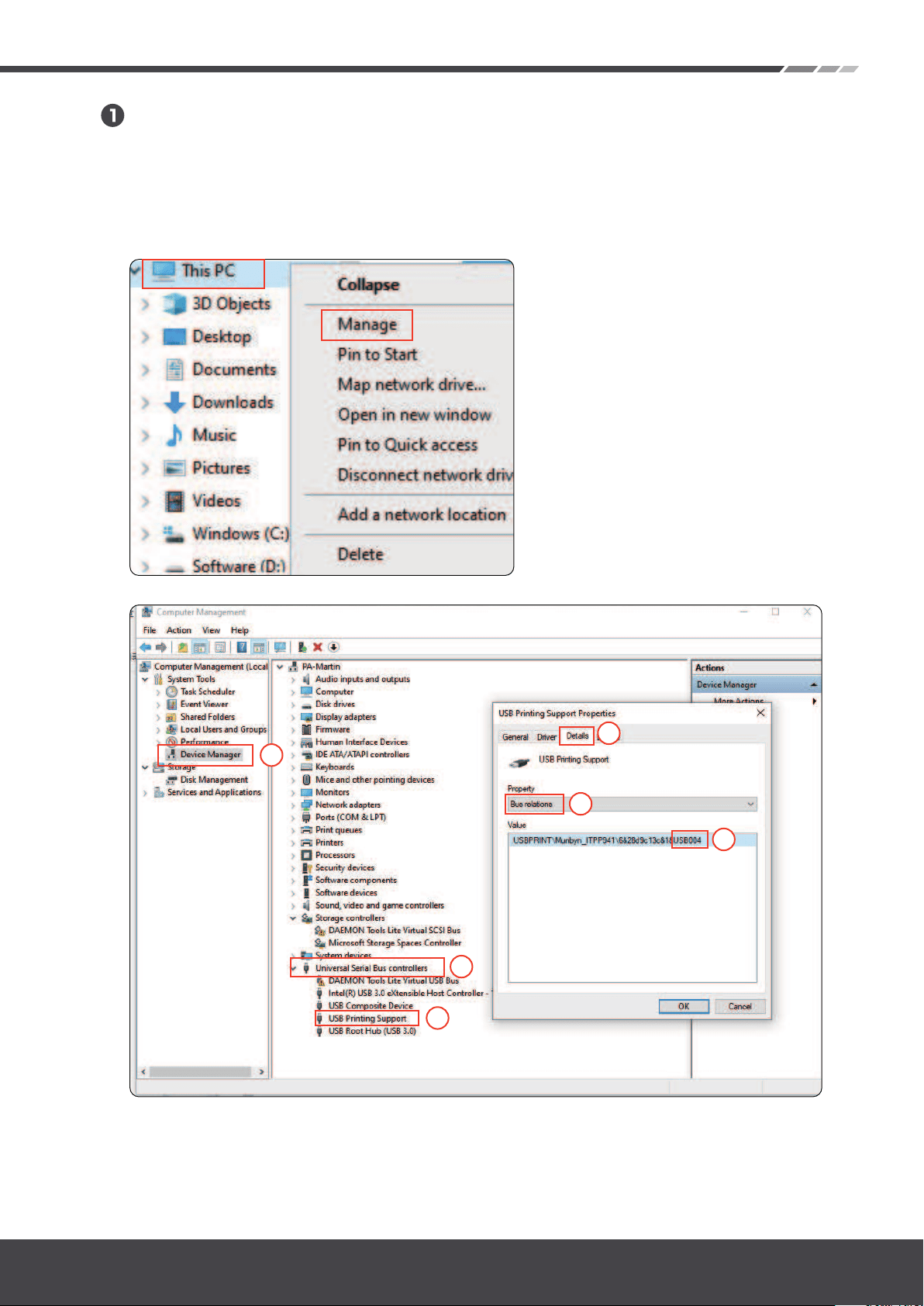
Please find the correct port first, and refer to the following steps
Steps:
This PC (right-click)->Manage->Device Manager->Universal Serial
Bus controllers->USB Printing Support->Details->Bus rela-
tions->USB00*.
At this point, you will see that the USB port assigned to the
printer by Windows is USB00*.
1
2
3
4
5
6
-Page 11
ITPP130 Frequently Asked Questions
Version 1.0.0
2
Then restart the printer
(power off then on)
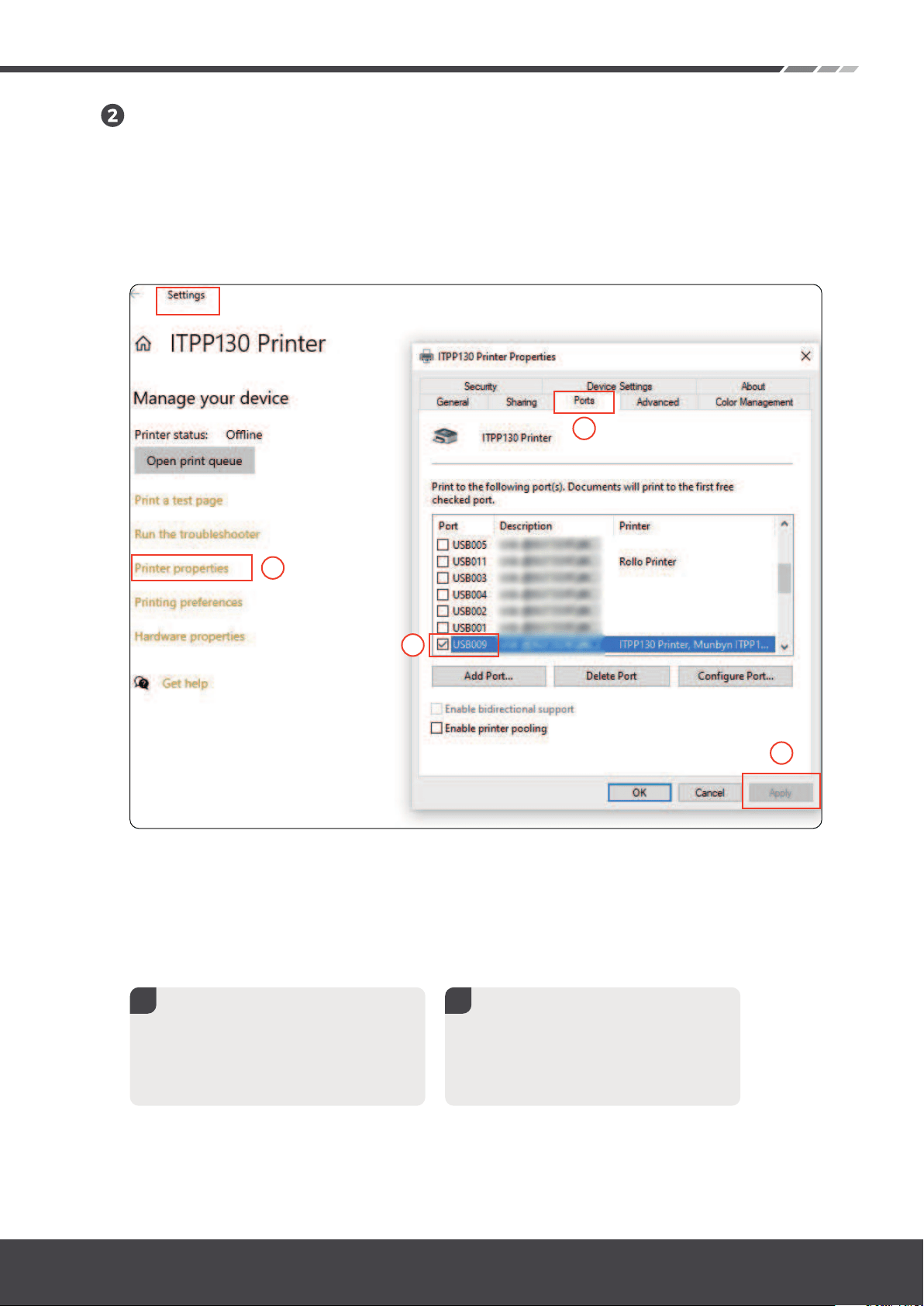
Please follow the steps below to modify it to the correct port
USB00*
2.3.5. Why does my Mac display the printer status as Offline?
If your Mac shows IPTT130 States "Offline" or does not display in
“Printers&Scanners”, it means that Mac did not recognize the
printer.
Steps:
Setting->Device->Printers&Scanners->ITPP130->Manage->Printer
properties->Ports->USB00*->Apply.
1
Please try to unplug and
plug the USB cable the mac
computer side and the
printer side.
1
2
3
4
-Page 12
ITPP130 Frequently Asked Questions
Version 1.0.0
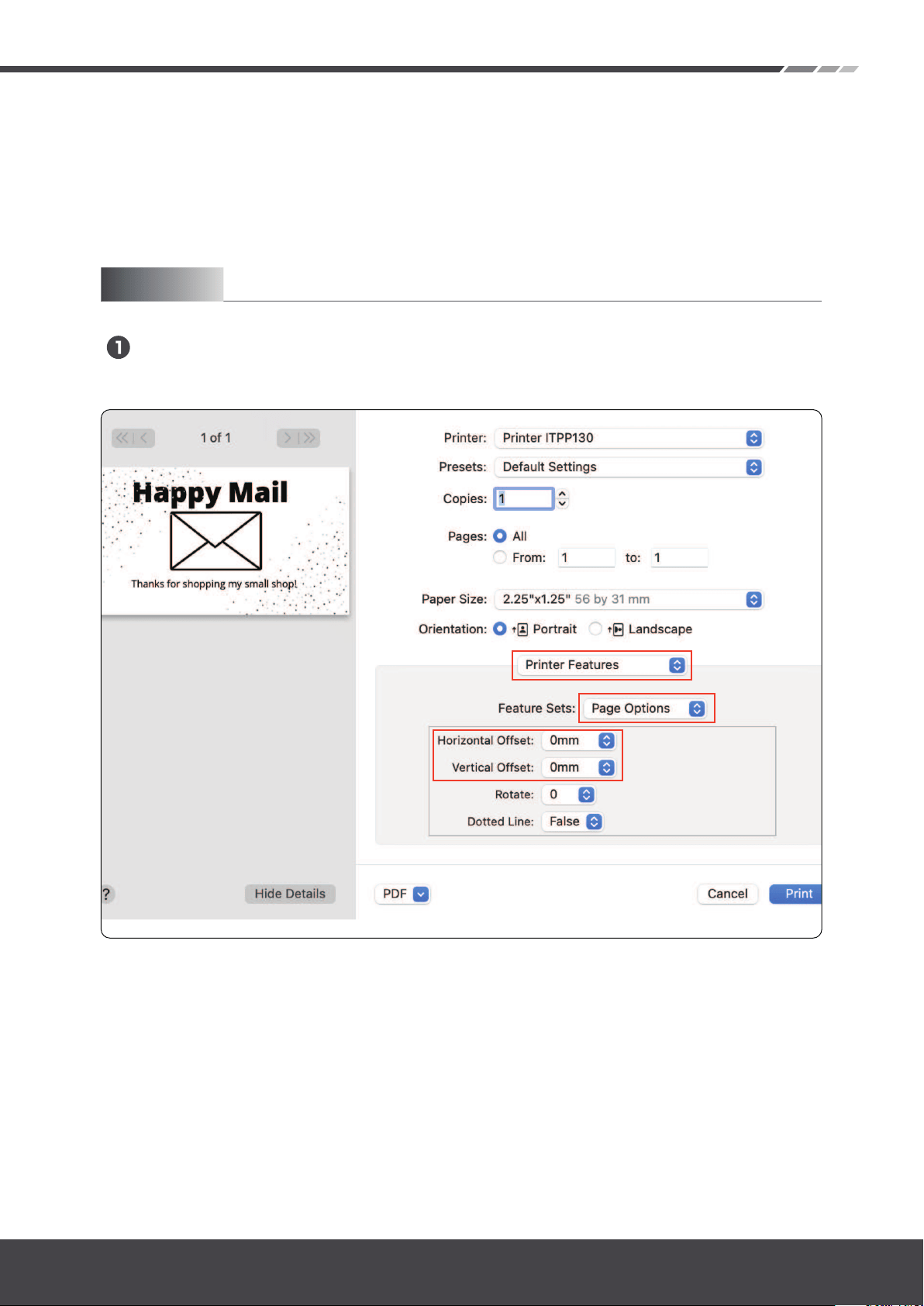
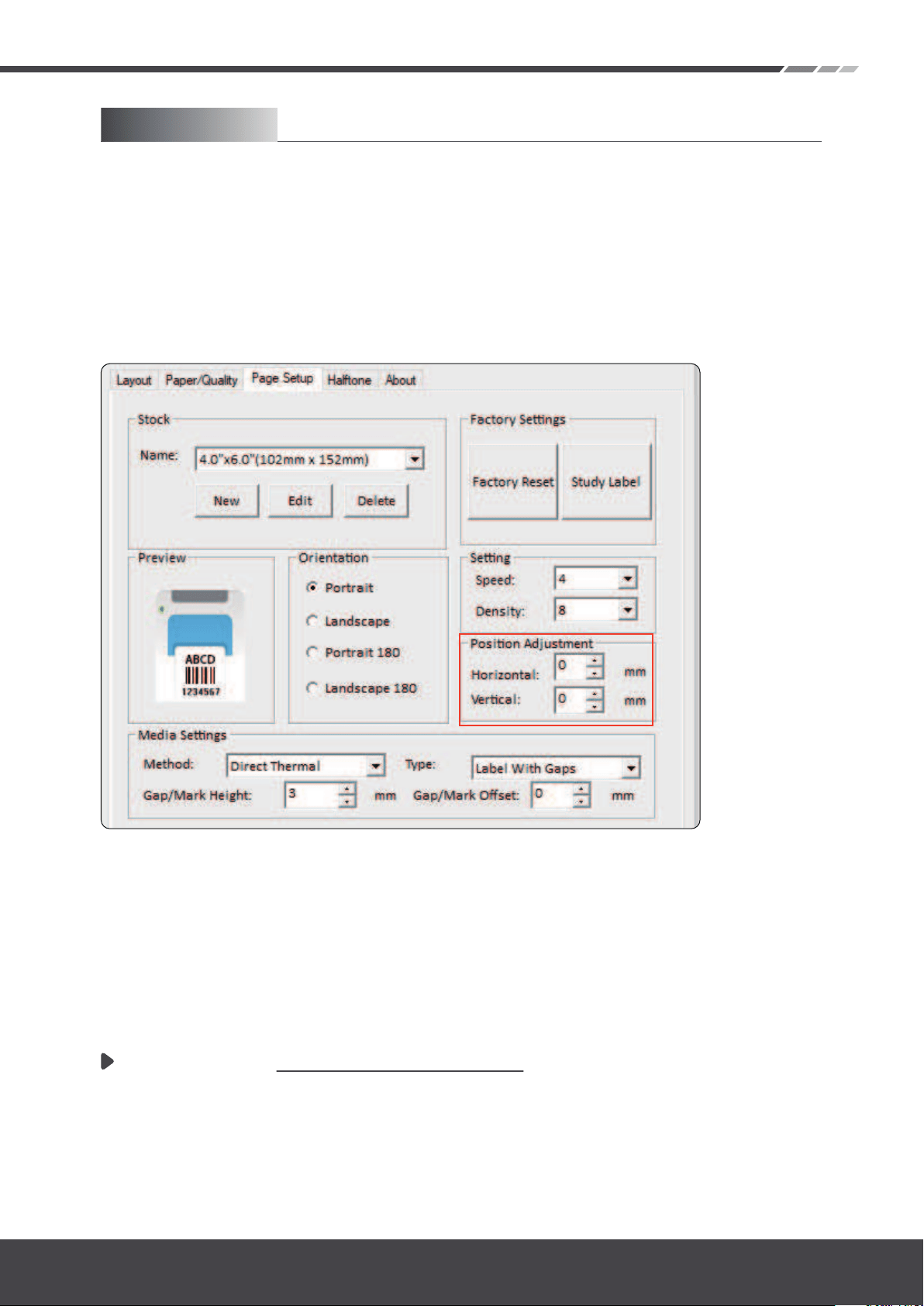
2.3.6. Why are the stickers not printing centered ?
When you print an image that is not in the middle of the sticker, if
it is not missing a large area but only a few millimeters distance
difference, please follow the steps below to correct the offset.
Choose “Printer Features”->” Page Option”, please
adjust the vertical and horizontal offset value accord-
ing to the printing situation.
In order to avoid the need to re-select every time you print, you
can save the settings in the "Presets".
For Mac
-Page 13
ITPP130 Frequently Asked Questions
Version 1.0.0
2.3.7. Why can't the printer work after I update the computer
system?
Please try to download the latest driver file and install it on your
computer.
If the printer still does not work, please contact us.
You can do this by entering:
Settings -> Devices -> Printers and Scanners -> Click on 'ITPP130' ->
Manager -> Printing Preferences -> Page Setup
Please adjust the vertical and horizontal offset according to the
printing situation Then click the “Apply” to save the offset settings.
For Windows
Latest driver: https://bit.ly/driver130
-Page 14
ITPP130 Frequently Asked Questions
Version 1.0.0
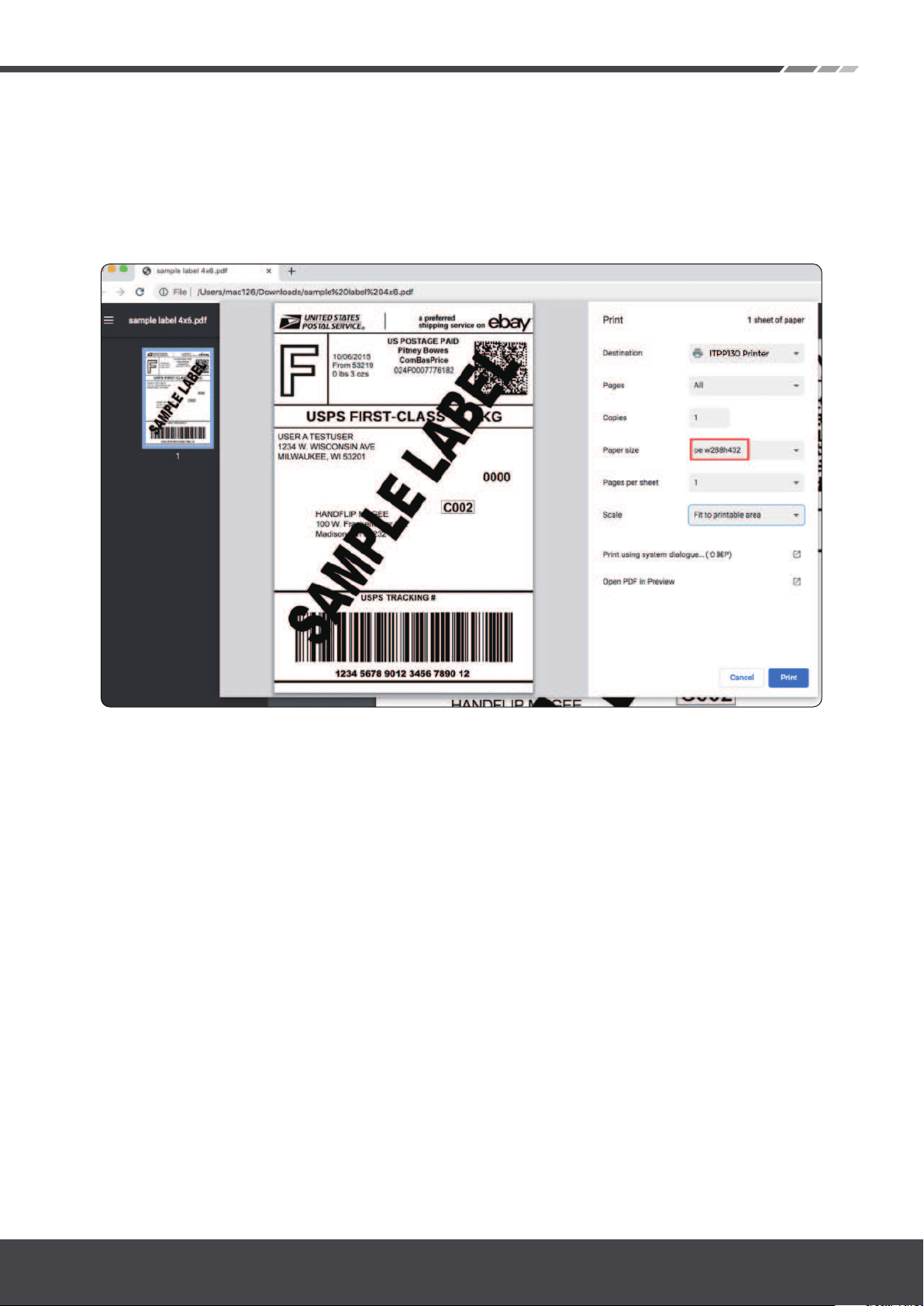
2.3.8. Why can't I find 4x6 inches in Google Chrome?
There are other measurement methods for some Google
Chrome sizes. When you need to print a 4x6 inch label file,
please select "oe w288h432". Or you can use other browser to
print the labels.
-Page 15
ITPP130 Frequently Asked Questions
Version 1.0.0

3.0. How to print labels on the following
platforms
3.1. Transportation platform (logistics company)
3.1.1. FedEx
https://bit.ly/fedex130
3.1.2. USPS
https://bit.ly/usps130
3.1.3. DHL
https://bit.ly/dhl130
3.1.4. Canada Post
https://bit.ly/capost130
3.1.5. Royal Mail
https://bit.ly/rmail130
3.1.6. UPS
https://bit.ly/ups130
3.2. E-commerce platform (online store)
3.2.1. Shopify
https://bit.ly/shopify130
3.2.2. Etsy
https://bit.ly/etsy130
3.2.3. Amazon
https://bit.ly/amazon130
3.2.4. eBay
https://bit.ly/ebay130
3.2.5. PayPal
https://bit.ly/ppal130
3.2.6. Poshmark
https://bit.ly/poshmark130
-Page 16
ITPP130 Frequently Asked Questions
Version 1.0.0
3.3. Third-party platform
3.3.1. Pirate Ship
https://bit.ly/pirateship130
3.3.2. Stamps
https://bit.ly/stamps130
3.3.3. Shipeasy
https://bit.ly/shipeasy130
3.3.4. Endica
https://bit.ly/endica130
3.3.5. XPS
https://bit.ly/xpps130
If your platform does not appear here, please contact us
-Page 17
ITPP130 Frequently Asked Questions
Version 1.0.0

321
4.0. Tips
4.1. How to create a new customized label size?
Run the automatic label identification on the printer.
Please confirm the size of the paper.
Set the size of the paper on the computer. Please make sure
that the size setting on the computer (Mac and Windows) is the
same as the paper.
Note:
You can choose to watch the video or the following text steps to
guide your operation.
Load no less than 8
consecutive papers into
the printer(When you
load paper, please pull
the paper out a little bit
in front of the printer).
After the paper stop
moving, press and hold
FEED (red/green light),
and when you hear a
beep, release the feed.
The printer will learn the
size of the paper at this
time. After the process is
complete, the printer is
back to normal.
Video: https://bit.ly/msize130
-Page 18
ITPP130 Frequently Asked Questions
Version 1.0.0
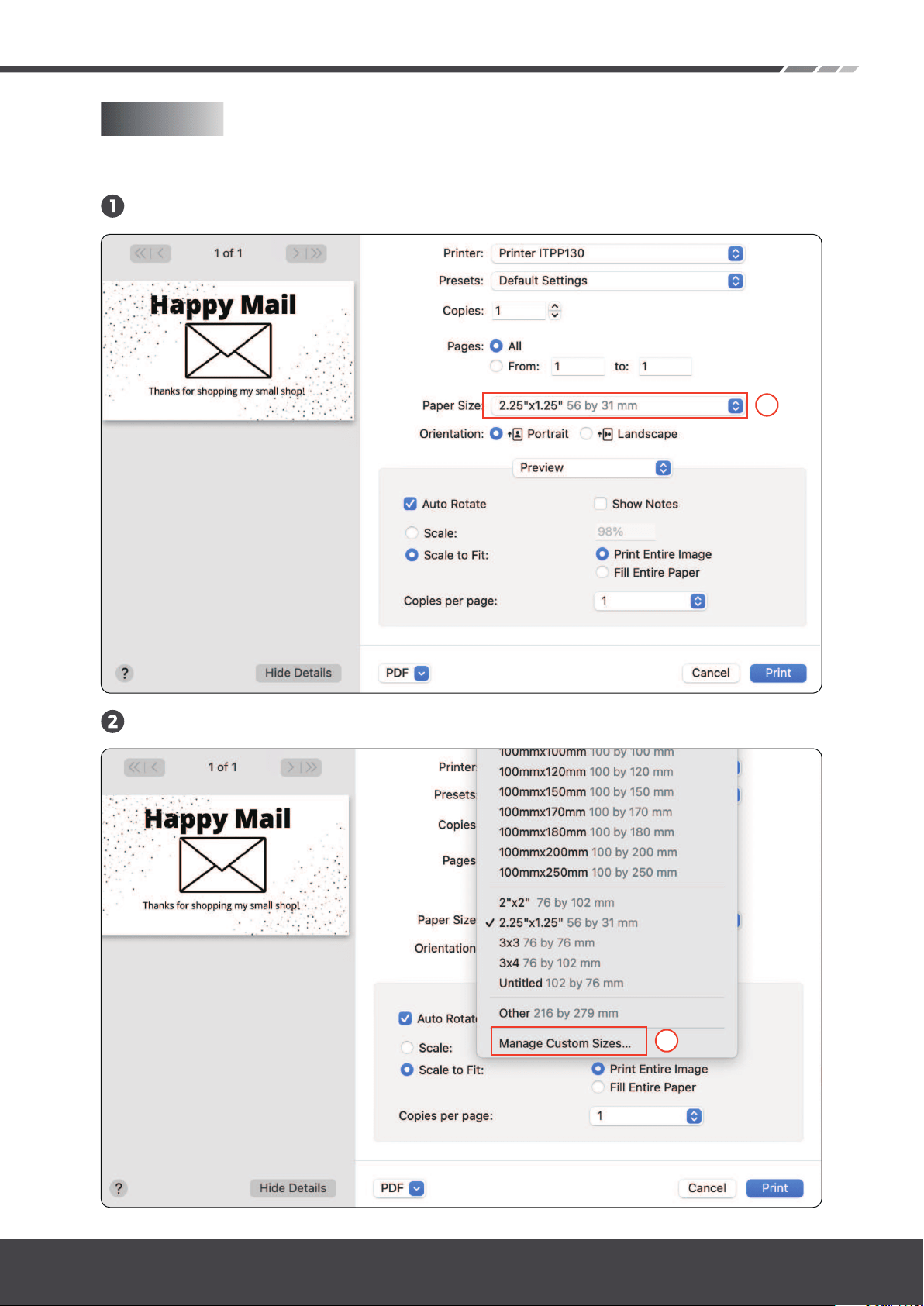
For Mac
Set your custom label size
Click on "Manage Custom Sizes".
In your print preview page, click on "Other".
1
2
-Page 19
ITPP130 Frequently Asked Questions
Version 1.0.0
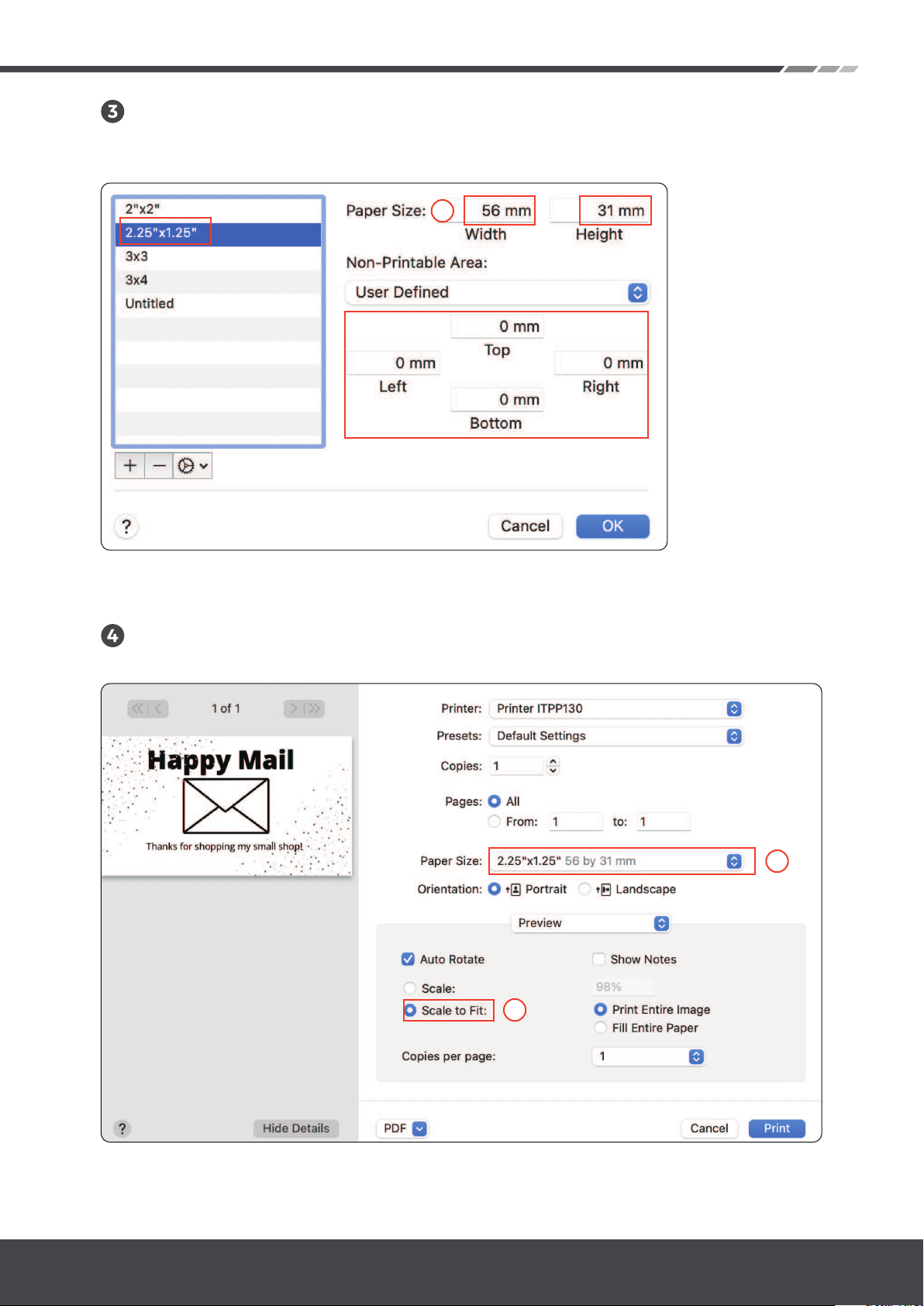
Enter your paper size and margins on the next window and click OK. You
can rename your new label size by double-clicking on the highlighted
item on the left.
Select the size(the size of the paper) you added, and select
"Scale to fit"
3
4
5
-Page 20
ITPP130 Frequently Asked Questions
Version 1.0.0
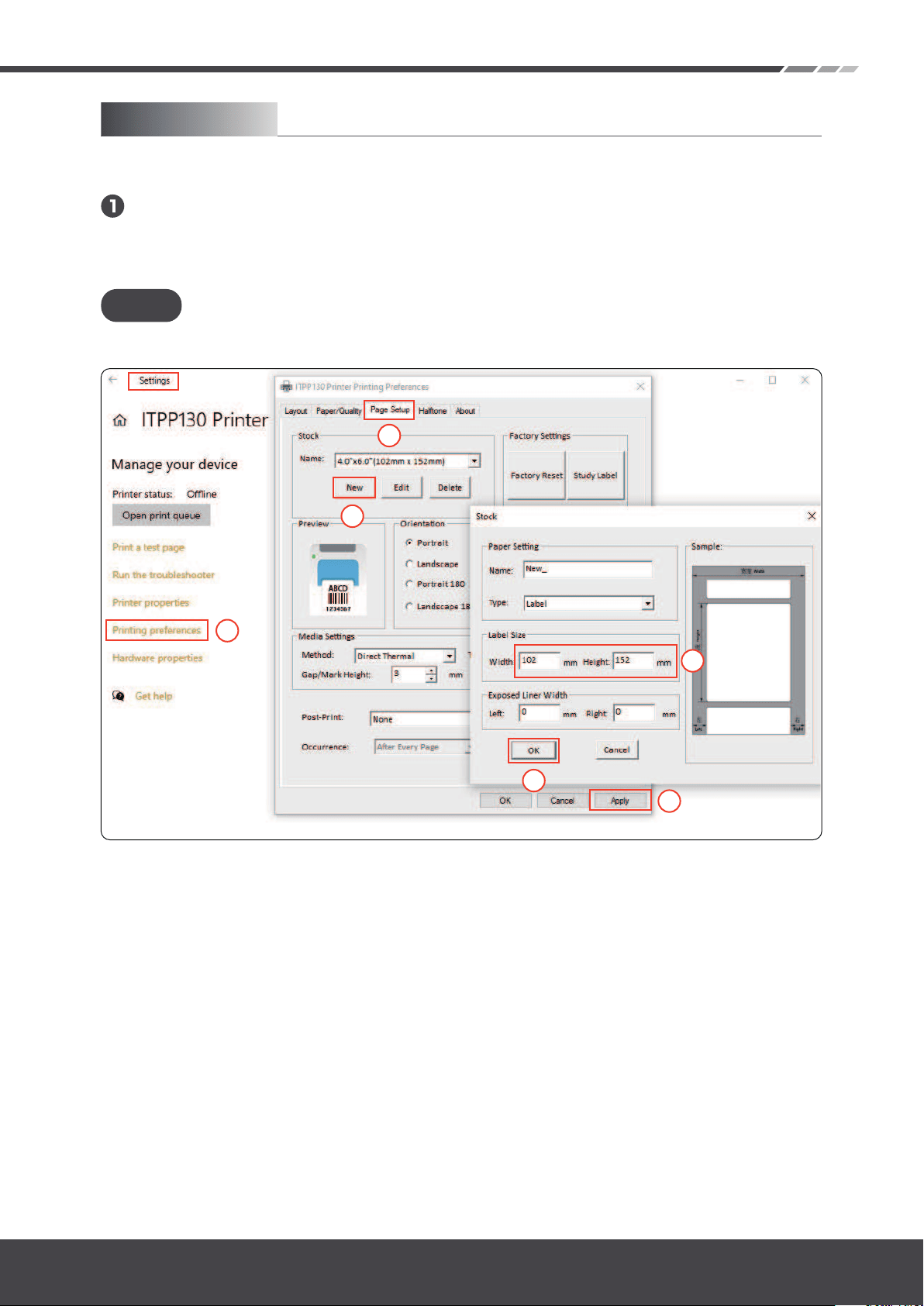
Note:
Please follow the order of numbers in the picture below to set
For Windows
Set your custom label size
Please enter the setting interface:
Settings -> Devices -> Printers and Scanners -> Click 'ITPP130' -> Manager
-> Printing Preferences -> Page Setup -> New.
1
2
3
4
5
6
-Page 21
ITPP130 Frequently Asked Questions
Version 1.0.0
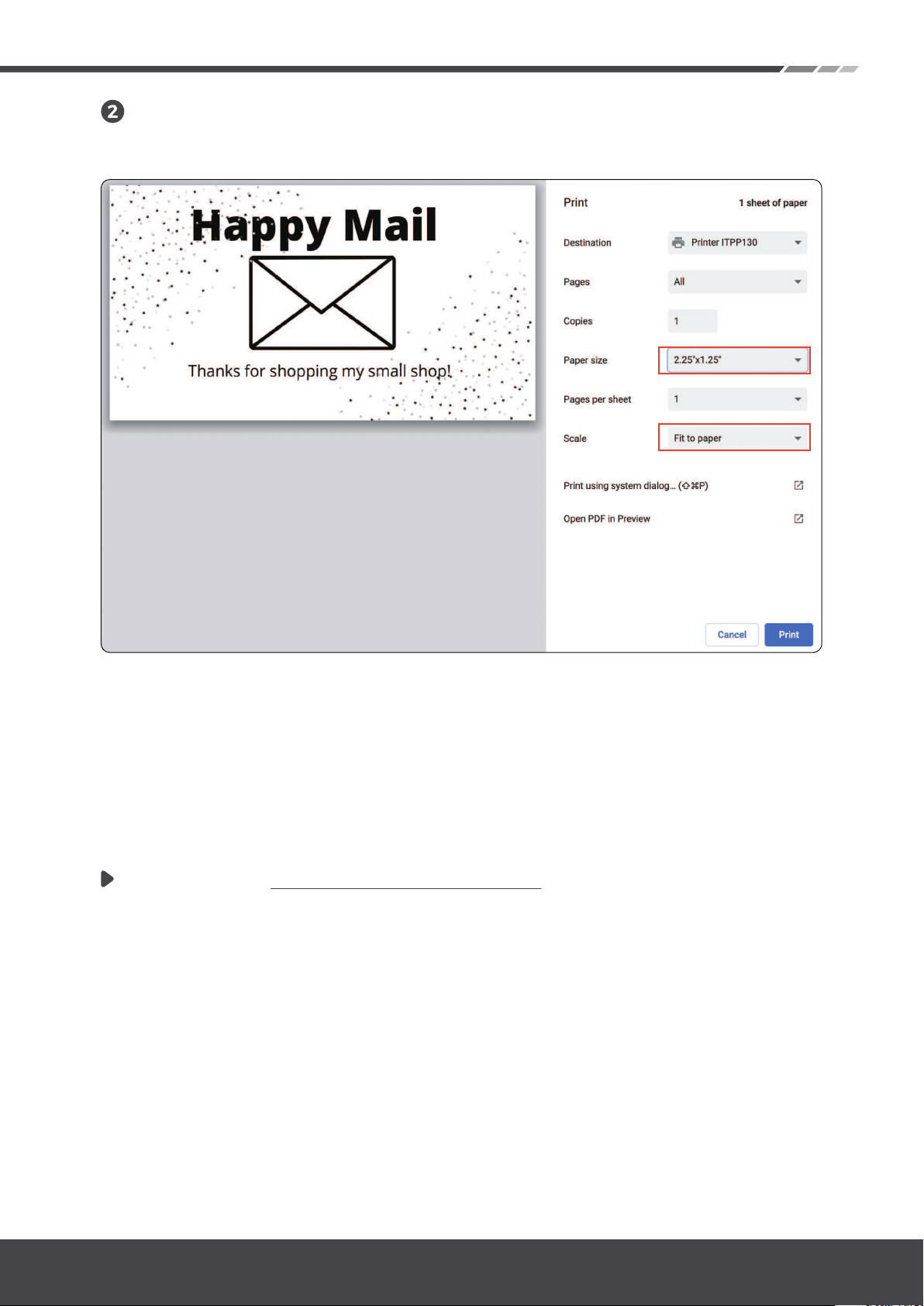
4.2. How to print labels in non-4x6 inches size,
like USPS and Amazon ASIN labels?
ITPP130 recommends that you use Google Chrome to open PDF files.
Select the size(the same size as the paper) you added, and select "fit to
printable area"
The self-test page can be used to determine whether the machine
has a hardware failure.
Demo video: https://bit.ly/madobe130
You can use the ‘Acrobat Reader DC’ to crop the shipping label to
print.
-Page 22
ITPP130 Frequently Asked Questions
Version 1.0.0

4.3. How to judge whether is hardware failures in
the printer?
321
The steps to print a self-check page are as follows:
Disconnect the USB
connection and load
paper
Wait for the green
light to turn on (if there
is no green light,
please do the auto-
matic label identifica-
tion), press the FEED
button and hold it
down, release it after
hearing two beeps.
It will print out the
self-check label. If the
self-test label prints
well, the printer
hardware is normal.
If it can’t to print a
self-test page, please
contact us.
-Page 23
ITPP130 Frequently Asked Questions
Version 1.0.0