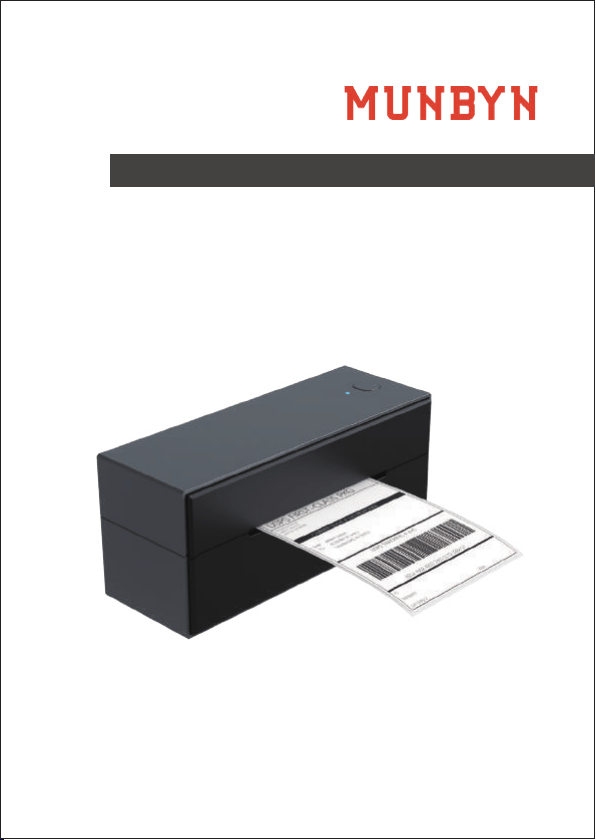
USER GUIDE
Logistics Label Printer

Contents
01 Product Introduction
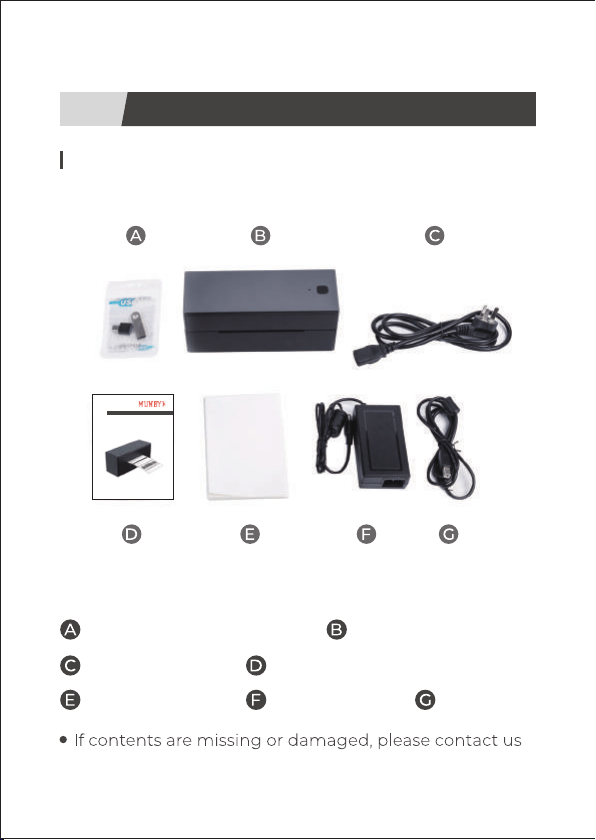
1.1 What’s in the package?
01
02
03
03
04
04
04
1.2 Printer features
2.1 Quick printer connection
2.2 Label setup
2.3 Driver installation
2.3.1 Windows Driver Installation
2.3.2 Mac Driver Installation
05
05
05
2.4 Bluetooth connection
2.4.1 Connect to App
2.4.2 Connect to Windows 10
01
02
05
05
06
06
07
08
09
02 Set Up the Printer
03 Pro Tips
04 FAQ
05 LED Status
06 Feeder Button Instruction
07 Specifications
08 Safety Notices
09 Tech Support
01
1.1 What’s in the package?
USB Flash/USB-A to C
Power Cord
Labels
Printer
User Manual
USB CableAdapter
Product Introduction
1
USER GUIDE
Logistics Label Printer
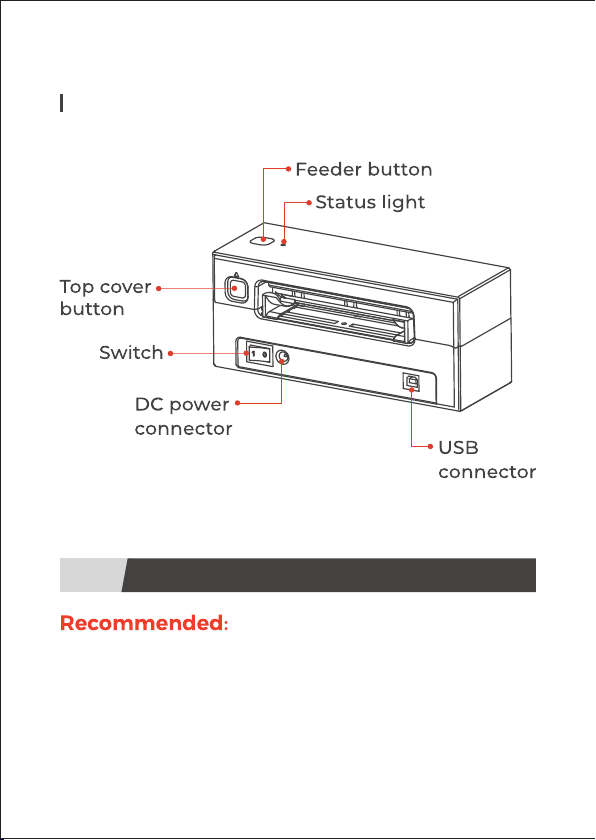
1.2 Printer features
02
Set Up The Printer
2
Watch the short setup video at:
www.munbyn.biz/129unboxing
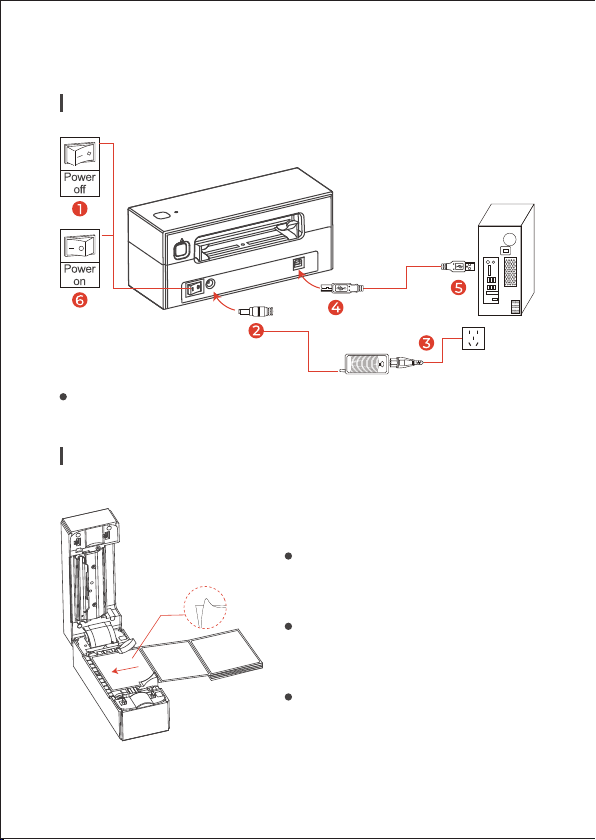
2.1 Quick printer connection
2.2 Label setup
3
Automatic label
identification:
Please follow the sequence of the above picture to
operate
Load no less than 6
consecutive labels of paper
into the printer.
After the paper is stable, press
and hold FEED until the blue
light flashes 2 times.
Then, the printer will run
automatically label
identification.
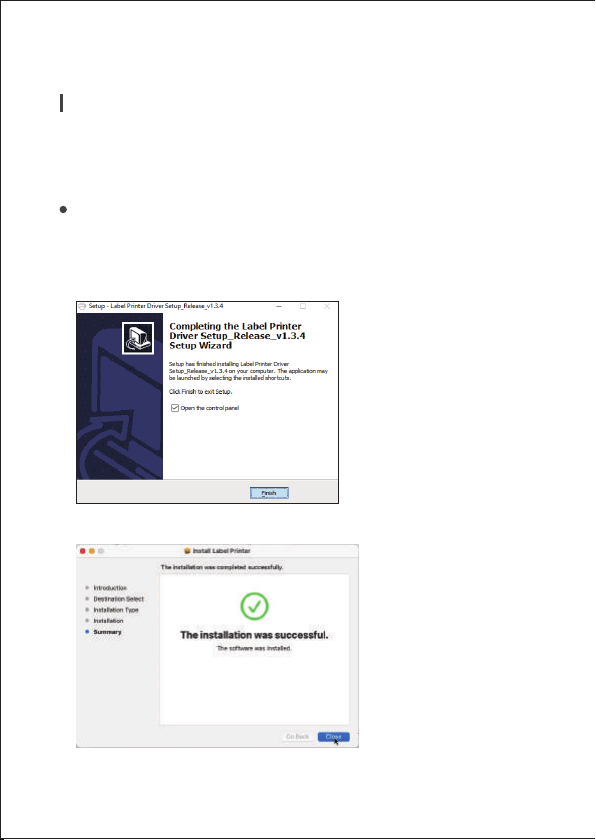
2.3 Driver installation
4
For the latest driver, please visit,
2.3.1 windows Driver Installation
2.3.2 Mac Driver Installation
www.munbyn.biz/129d
Please run the downloaded software from
the web address indicated above and follow the
prompts to complete installation.
5
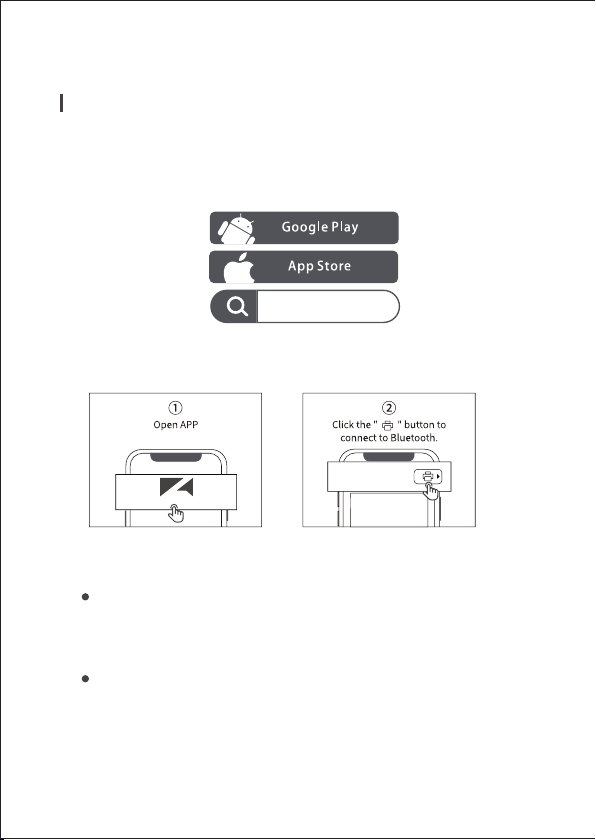
2.4. Bluetooth connection
2.4.1 Connect to App
1. Search "Labelife" on App Store or Google Play to get
the app.
Labelife
2. Open the "Labelife", connect the printer in two steps.
Note:
Due to the mobile phone system requirements ,
App needs access to location,you need to enable
GPS and confirm authorization (Android only).
Make sure to select 4"×6" file to print.
Labelife
Labelife
Open PDF

6
03
Pro Tips
04
FAQ
FAQ file, please visit
www.munbyn.biz/129faq
Anytime you change your label, run the automatic
label identification.
Press the circle feeder button on the printer to skip a
blank label.
To run a self-test, press and hold the feeder button
until the blue light flash once.
If the paper is jammed and the blue flashing slowly,
run Automatic label identification.
Insert Munbyn into the same USB port on your
computer every time. This will avoid creating duplicate
copies of the printer in your operating system.
Avoid poor quality labels as they can damage the printer.
Regularly clean the printer head.
7
06
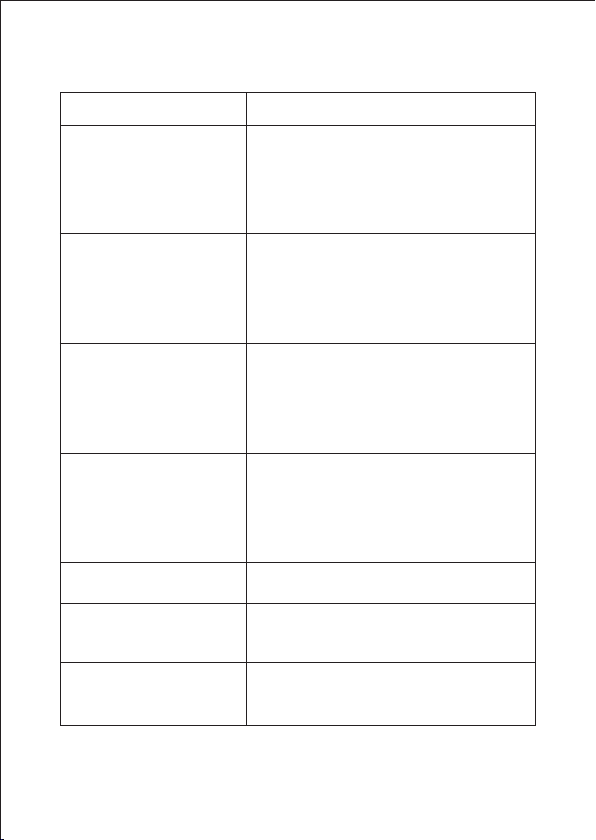
Feeder Button Instruction
05
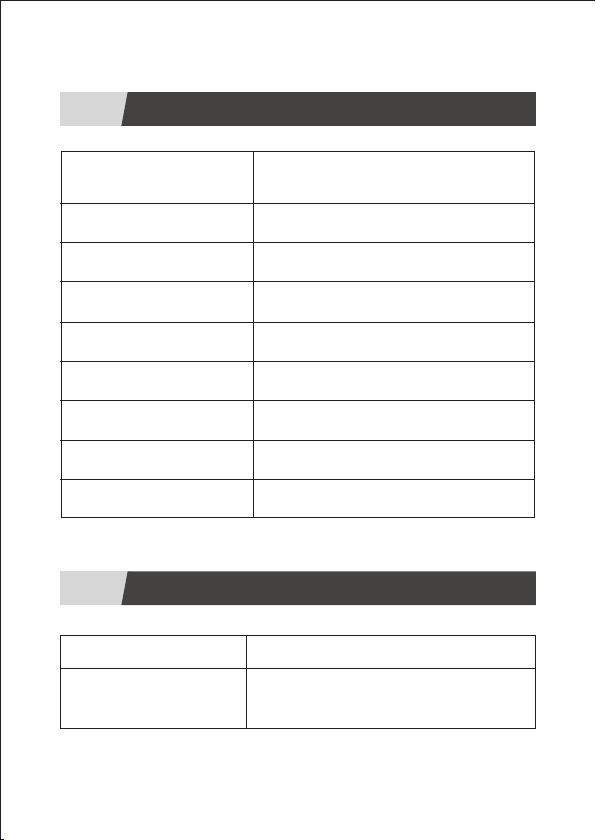
LED Status
Solid blue
Blue flashing slowly
Blue flashing quickly
Solid red
Light
Standby
Label jams or label detection error
Wrong media tracking
Printer head is over-heated
Red flashing slowly Paper shortage
Red flashing quickly Cover is not closed
Solid purple Printing
Purple flashing quickly Pause printing
Printer Status
Skip a label
Desired Action Execution
When the printer is standby(not in the
middle of printing), press the Feed
Button once.
8
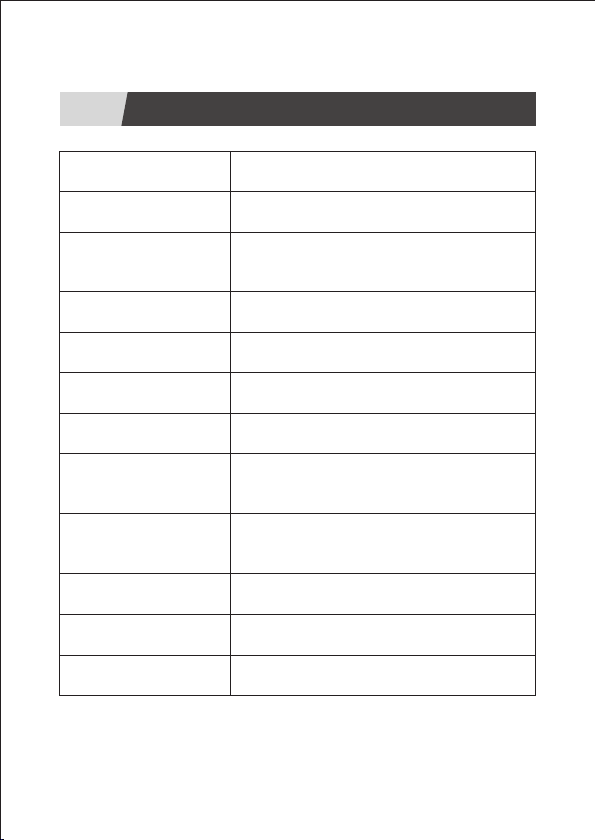
Restore factory setting
Run the automatic label
identification
(for labels with black
marks)
Desired Action
Run the automatic label
identification
(for labels with gaps)
Print test page
Pause printing
Resume printing
Clear printing data
Execution
When the printer is printing, press the
Feed Button once.
When the printer pauses printing, press
the Feed Button once to resume
printing.
When the printer pauses printing, press
the Feed Button twice to clear the
printing data.
Insert the label, ensure it is straight and
smooth. When the printer is standby
and ready, press and hold the Feed
Button for about 10 seconds while
the blue light flashes 4 times, then
release the Feed Button.
Insert the label, ensure it is straight and
smooth. When the printer is standby
and ready, press and hold the Feed
Button for about 8 seconds while the
blue light flashes 3 times, then
release the Feed Button.
Insert the label, ensure it is straight and
smooth. When the printer is standby
and ready, press and hold the Feed
Button for about 6 seconds while the
blue light flashes 2 times, then
release the Feed Button.
Insert the label, ensure it is straight and
smooth. When the printer is standby
and ready, press and hold the Feed
Button for about 4 seconds while the
blue light flashes once, then release
the Feed Button.
9
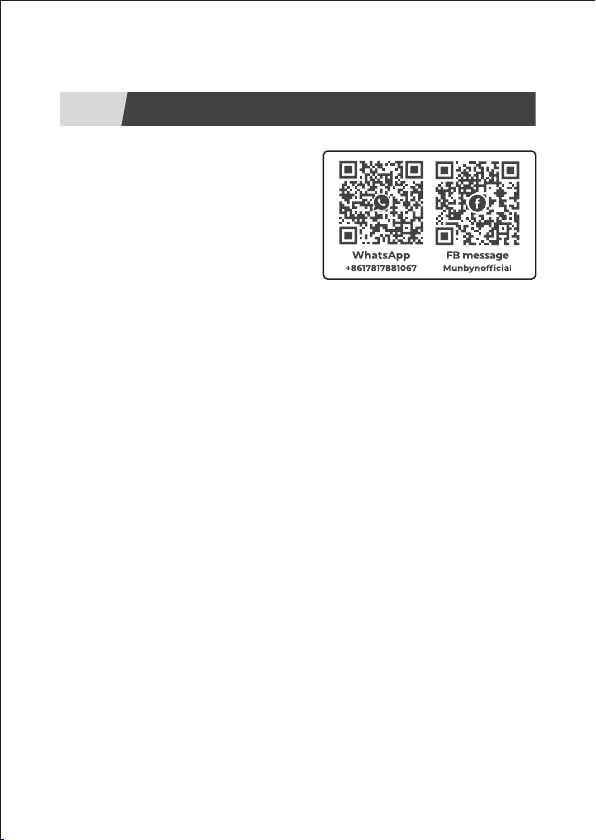
07
Specifications
Direct Thermal
Method
203 dpi
Resolution
150 mm/s
Max Printing
Speed
25.4-117mm
Paper Width
0.06-0.25 mm
Paper Thickness
TPH 50KM
Printing Life
Temperature: 5 to 50 °C
Humidity: 20-85% (non-condensing)
Operating
Environment
Temperature: -20 to 60 °C
Humidity: 5-95% (non-condensing)
Storage
Environment
24V / 2.5A
Power Adapter
USB/Bluetooth
Connection
213×80×95mm(L*W*H)
Dimensions
1.59lb /0.74kg
Weight

10
08
Safety Notices
The printer head can become very hot after printing
labels. Do not touch the printer head.
Do not bend the power cord excessively or place
objects on the cord.
Do not use the printer if you find any irregularities as
these could result in fire or electrocution.
Keep the printer away from water and other objects
that could penetrate the components.
Please unplug the printer when it is not in use for long
periods.
Use only approved accessories and do not try to
disassemble, repair the unit by yourself.
Keep the printer out of reach of children.
11
09
Tech Support
E-mail: support@munbyn.com
Whatsapp: +86 1 781 788 1067
Phone: +1 403 477 1911
Skype: munbyn
Support time:
Monday to Friday 24 hours
Website: www.munbyn.com
(how-to videos, warranty details)
MUNBYN provides 18 months warranty and lifetime free
service.
If you encounter any issues with the product, please contact
the MUNBYN team to promptly receive troubleshooting tips
or a replacement.

MUNBYN
More Choice
For Your Growing Business