
Pelco Troubleshooting Contact Information
If the instructions provided fail to solve your problem, contact Pelco Product Support at 1-800-289-9100
(USA and Canada) or +1-559-292-1981 (international) for assistance. Be sure to have the serial number
available when calling.
Do not try to repair the unit yourself. Leave maintenance and repairs to qualified technical personnel only.
Chapter 1: Important Notices Sarix TI Series Camera User Manual
1-1
List of Revisions
No. Date Description Page Number
1.0 New Release All

Sarix TI Series Camera User Manual Chapter 1: Important Notices
Table of Contents
1. Important Notices ............................................................................................................................. 1-8
1.1 Regulatory Notices [FCC Class A] ..................................................................................................... 1-8
1.1.1 Radio and Television Interference ............................................................................................. 1-8
1.2 Legal Notice [Audio Notice] ............................................................................................................... 1-8
1.3 Video Quality Caution ........................................................................................................................ 1-9
1.3.1 Frame Rate Notice Regarding User Selected Options ............................................................... 1-9
1.4 Open Source Software ........................................................................................................................ 1-9
1.5 CCC Power Cord Statement ............................................................................................................... 1-9
1.5.1 2.4 GHZ Radio Device ............................................................................................................ 1-10
1.6 ESD Warning .................................................................................................................................... 1-10
1.7 Warranty ............................................................................................................................................ 1-10
1.8 Network Topology Statement ........................................................................................................... 1-10
2. Overview .......................................................................................................................................... 2-13
2.1 Overview ........................................................................................................................................... 2-14
2.2 Features ............................................................................................................................................. 2-14
2.3 Physical Description of the Camera .................................................................................................. 2-15
2.4 Marking ............................................................................................................................................. 2-16
2.5 Sarix TI Web GUI ............................................................................................................................. 2-17
2.6 Technical Data and Specifications .................................................................................................... 2-18
2.6.1 System Specifications .............................................................................................................. 2-18
2.6.2 Configurations ......................................................................................................................... 2-19
2.6.3 Thermal Camera ...................................................................................................................... 2-20
2.6.4 CMOS Camera ........................................................................................................................ 2-20
3. Safety .................................................................................................................................................. 3-1
3.1 Safety Conventions ............................................................................................................................. 3-1
3.2 Safety During Installation ................................................................................................................... 3-2
3.3 Safety During Maintenance ................................................................................................................ 3-2
4. Installation ......................................................................................................................................... 4-1
4.1 Unpacking ........................................................................................................................................... 4-1
4.2 Camera Installation ............................................................................................................................. 4-2
4.2.1 Installation Guidelines and Preparation .................................................................................... 4-2
4.2.2 Mechanical Interface Preparation .............................................................................................. 4-3
4.2.3 Wall Mount Configuration ........................................................................................................ 4-4
4.2.4 Pole Mount Configuration ......................................................................................................... 4-5
4.2.5 Electrical ICD IP PoE Cable ..................................................................................................... 4-6
5. Operation ........................................................................................................................................... 5-1
5.1 First Time Credentials Setup ............................................................................................................... 5-2

Chapter 1: Important Notices Sarix TI Series Camera User Manual
1-3
5.2 Logging Into Sarix TI Camera Web GUI ........................................................................................... 5-3
5.3 Changing Your Password ................................................................................................................... 5-5
5.4 Main Window Overview .................................................................................................................... 5-6
5.5 Live View Window ............................................................................................................................ 5-7
5.6 Status Window .................................................................................................................................... 5-8
5.6.1 System Tab ................................................................................................................................ 5-9
5.6.2 Thermal Tab ............................................................................................................................ 5-10
5.6.3 Day Tab ................................................................................................................................... 5-12
5.6.4 Disabling / Enabling a Camera ............................................................................................... 5-13
5.7 Network Window ............................................................................................................................. 5-15
5.7.1 Setting of IP Address .............................................................................................................. 5-16
5.7.2 Setting an Auto IP Address (DHCP) ....................................................................................... 5-16
5.7.3 Setting a Manual DNS Server Address ................................................................................... 5-17
5.7.4 Settings of HTTPS Connection ............................................................................................... 5-17
5.7.5 Setting the Network Interface ................................................................................................. 5-17
5.7.6 Resetting Network Settings ..................................................................................................... 5-18
5.7.7 Restarting ONVIF Service ...................................................................................................... 5-18
5.7.8 Certificates .............................................................................................................................. 5-19
5.8 Streaming Window ........................................................................................................................... 5-21
5.8.1 Thermal Tab ............................................................................................................................ 5-21
5.8.2 Day Tab ................................................................................................................................... 5-25
5.8.3 General Configuration Tab ..................................................................................................... 5-28
5.9 Image Processing Window ............................................................................................................... 5-29
5.9.1 Thermal Tab ............................................................................................................................ 5-29
5.9.2 Day Tab ................................................................................................................................... 5-37
5.10 Analytics Window ............................................................................................................................ 5-41
5.10.1 Regions Tab ............................................................................................................................ 5-42
5.10.2 Ignore Regions Tab ................................................................................................................. 5-46
5.10.3 Learning Tab ........................................................................................................................... 5-48
5.10.4 Analytics Settings .................................................................................................................... 5-49
5.11 System Window ................................................................................................................................ 5-51
5.11.1 Admin Tab .............................................................................................................................. 5-51
5.11.2 Logs Tab .................................................................................................................................. 5-57
5.11.3 Date and Time Tab .................................................................................................................. 5-58
5.11.4 File Upload Tab ....................................................................................................................... 5-60
5.11.5 User Management Tab ............................................................................................................ 5-60
5.12 Logging Out from the Web GUI ...................................................................................................... 5-62
6. Maintenance .................................................................................................................................... 6-63
6.1 Visual Inspection .............................................................................................................................. 6-63
6.2 Cleaning ............................................................................................................................................ 6-63
7. Ordering Information .................................................................................................................... 7-64

Sarix TI Series Camera User Manual Chapter 1: Important Notices
7.1 Ordering Information ........................................................................................................................ 7-64
7.2 Ordering Accessories ........................................................................................................................ 7-64
8. Index ................................................................................................................................................. 8-65

Chapter 1: Important Notices Sarix TI Series Camera User Manual
1-5
List of Figures
Figure 2-1: Sarix TI Camera General View .......................................................................................... 2-14
Figure 2-2: Physical Description of the Camera ................................................................................... 2-15
Figure 2-3: Sarix TI Label ..................................................................................................................... 2-16
Figure 2-4: Sarix TI Web GUI .............................................................................................................. 2-17
Figure 4-1: Sarix TI Camera Package General View .............................................................................. 4-1
Figure 4-2: Mechanical Interface Preparation - Camera Dimensions ..................................................... 4-3
Figure 4-3: Camera Installation - Wall Mount Configuration ................................................................ 4-4
Figure 4-4: Camera Installation - Pole Mount Configuration ................................................................. 4-5
Figure 4-5: Electrical ICD IP PoE Cable ................................................................................................ 4-6
Figure 5-1: Sarix TI Web GUI – First Time Setup ................................................................................. 5-2
Figure 5-2: Sarix TI Web GUI - Status Window (before Login) ............................................................ 5-3
Figure 5-3: Login Window ...................................................................................................................... 5-3
Figure 5-4: Login Window – Entering Username and Password ............................................................ 5-4
Figure 5-5: Sarix TI Web GUI - Status Window (after Login) ............................................................... 5-4
Figure 5-6: Changing Your Password - Drop Down Menu .................................................................... 5-5
Figure 5-7: Sarix TI Web GUI - Changing Your Password .................................................................... 5-5
Figure 5-8: Main Window Overview - Main Areas ................................................................................ 5-6
Figure 5-9: Live View Window (example) ............................................................................................. 5-7
Figure 5-10: Status Window (all collapsed) .............................................................................................. 5-8
Figure 5-11: Status Window - System Tab ............................................................................................... 5-9
Figure 5-12: Status Window - Thermal Tab ........................................................................................... 5-10
Figure 5-13: Status Window - Day Tab .................................................................................................. 5-12
Figure 5-14: Disabling / Enabling a Camera - System Reboot ............................................................... 5-13
Figure 5-15: Disabling / Enabling a Camera - System Reboot Approval ............................................... 5-14
Figure 5-16: Network Window - Basic Settings Tab .............................................................................. 5-15
Figure 5-17: Network Window - Changing an Address .......................................................................... 5-16
Figure 5-18: Network Window - Setting Network Interface .................................................................. 5-17
Figure 5-19: Network Window - Resetting IP Address Approval .......................................................... 5-18
Figure 5-20: Network Window - ONVIF Reload ................................................................................... 5-18
Figure 5-21: Certificates - Creating a Certificate Request ...................................................................... 5-19
Figure 5-22: Certificates - Generating a Self-Signed Certificate ............................................................ 5-19
Figure 5-23: Certificates - Uploading a Certificate ................................................................................. 5-20
Figure 5-24: Streaming Window - Thermal Tab ..................................................................................... 5-21
Figure 5-25: Streaming Window - Thermal Tab - Main Stream ............................................................. 5-22
Figure 5-26: Streaming Window - Thermal Tab - Secondary Stream .................................................... 5-24
Figure 5-27: Streaming Window - Day Tab - Main Stream .................................................................... 5-25
Figure 5-28: Streaming Window - Day Tab - Secondary Stream ........................................................... 5-27
Figure 5-29: Streaming Window - General Configuration Tab .............................................................. 5-28
Figure 5-30: Image Processing Window - Thermal Tab ......................................................................... 5-29
Figure 5-31: Image Processing Window - Thermal Tab - Basic Settings ............................................... 5-30
Figure 5-32: Image Processing Window - Thermal Tab - Signal Processing Settings ........................... 5-31

Sarix TI Series Camera User Manual Chapter 1: Important Notices
Figure 5-33: Image Processing Window - Thermal Tab - Gain Control Settings ................................... 5-32
Figure 5-34: Image Processing Window - Thermal Tab - Advanced Settings ........................................ 5-33
Figure 5-35: Image Processing Window - Thermal Tab - Color Processing Settings ............................. 5-34
Figure 5-36: Image Processing Window - Histogram Calculation ROI (1 of 3) ..................................... 5-34
Figure 5-37: Image Processing Window - Histogram Calculation ROI (2 of 3) ..................................... 5-35
Figure 5-38: Image Processing Window - Histogram Calculation ROI (3 of 3) ..................................... 5-36
Figure 5-39: Image Processing Window - Day Tab ................................................................................ 5-37
Figure 5-40: Image Processing Window - Day Tab - Geometry Settings ............................................... 5-38
Figure 5-41: Image Processing Window - Day Tab - Misc Properties Settings ...................................... 5-39
Figure 5-42: Analytics Window (all collapsed) ....................................................................................... 5-41
Figure 5-43: Analytics Window - Regions Tab ....................................................................................... 5-42
Figure 5-44: Analytics Window - Regions Tab - Region Options .......................................................... 5-43
Figure 5-45: Analytics Window - Regions Tab - Area ROI .................................................................... 5-45
Figure 5-46: Analytics Window - Regions Tab - Fence ROI .................................................................. 5-45
Figure 5-47: Analytics Window - Ignore Regions Tab ........................................................................... 5-46
Figure 5-48: Analytics Window - Ignore Regions Tab – Ignore Regions ROI (1 of 2) .......................... 5-47
Figure 5-49: Analytics Window - Ignore Regions Tab – Ignore Regions ROI (2 of 2) .......................... 5-47
Figure 5-50: Analytics Window - Learning Tab ..................................................................................... 5-48
Figure 5-51: Analytics Window - Analytics Settings .............................................................................. 5-49
Figure 5-52: System Window - Admin Tab ............................................................................................ 5-51
Figure 5-53: System Window - Admin Tab - Restart Aproval ............................................................... 5-51
Figure 5-54: System Window - Admin Tab - Restart .............................................................................. 5-52
Figure 5-55: System Window - Admin Tab - Archive System Files ...................................................... 5-52
Figure 5-56: System Window - Admin Tab - Save As Site Approval .................................................... 5-53
Figure 5-57: System Window - Admin Tab - Save As Site .................................................................... 5-53
Figure 5-58: System Window - Admin Tab - Export Site Approval ....................................................... 5-54
Figure 5-59: System Window - Admin Tab - Site Defaults Approval .................................................... 5-54
Figure 5-60: System Window - Admin Tab - Site Defaults .................................................................... 5-55
Figure 5-61: System Window - Admin Tab - Factory Defaults Approval .............................................. 5-55
Figure 5-62: System Window - Admin Tab - Factory Defaults .............................................................. 5-56
Figure 5-63: System Window - Logs Tab ............................................................................................... 5-57
Figure 5-64: System Window - Date and Time Tab ................................................................................ 5-58
Figure 5-65: System Window - Date and Time Tab - Synchronizing with Browser Time ..................... 5-59
Figure 5-66: System Window - Date and Time Tab - Synchronizing with NTP .................................... 5-59
Figure 5-67: System Window - File Upload Tab .................................................................................... 5-60
Figure 5-68: System Window - User Management Tab .......................................................................... 5-60
Figure 5-69: System Window - User Management Tab - Adding a User ............................................... 5-61
Figure 5-70: System Window - User Management Tab - Editing User Details ...................................... 5-62
Figure 5-71: Logging Out from the Web GUI - Drop Down Menu ........................................................ 5-62

Chapter 1: Important Notices Sarix TI Series Camera User Manual
1-7
List of Tables
Table 2-1: Technical Data and Specifications - System Specifications ............................................... 2-18
Table 2-2: Technical Data and Specifications - Configurations .......................................................... 2-19
Table 2-3: Technical Data and Specifications - Thermal Camera ....................................................... 2-20
Table 2-4: Technical Data and Specifications - CMOS Camera ......................................................... 2-20
Table 4-1: Electrical ICD IP PoE Cable - Pinout ................................................................................... 4-6
Table 7-1: Ordering Information for 30Hz Camera ............................................................................. 7-64
Table 7-2: Ordering Information for 9Hz Camera ............................................................................... 7-64
Table 7-3: Ordering Accessories .......................................................................................................... 7-64

Sarix TI Series Camera User Manual Chapter 1: Important Notices
1. Important Notices
1.1 Regulatory Notices [FCC Class A]
This device complies with Part 15 of the FCC Rules. Operation is subject to the following two conditions:
(1) this device may not cause harmful interference, and (2) this device must accept any interference
received, including interference that may cause undesired operation.
1.1.1 Radio and Television Interference
This equipment has been tested and found to comply with the limits of a Class A digital device, pursuant to
Part 15 of the FCC rules. These limits are designed to provide reasonable protection against harmful
interference when the equipment is operated in a commercial environment. This equipment generates, uses,
and can radiate radio frequency energy and, if not installed and used in accordance with the instruction
manual, may cause harmful interference to radio communications. Operation of this equipment in a
residential area is likely to cause harmful interference in which case the user will be required to correct the
interference at his own expense.
Changes and Modifications not expressly approved by the manufacturer or registrant of this equipment can
void your authority to operate this equipment under Federal Communications Commission’s rules.
To maintain compliance with FCC regulations shielded cables must be used with this equipment. Operation
with non-approved equipment or unshielded cables is likely to result in interference to radio and television
reception.
This Class A digital apparatus complies with Canadian ICES-003.
Cet appareil numérique de la classe A est conforme à la norme NMB-003 du Canada.
1.2 Legal Notice [Audio Notice]
SOME PELCO EQUIPMENT CONTAINS, AND THE SOFTWARE ENABLES, AUDIO/VISUAL AND
RECORDING CAPABILITIES, THE IMPROPER USE OF WHICH MAY SUBJECT YOU TO CIVIL
AND CRIMINAL PENALTIES. APPLICABLE LAWS REGARDING THE USE OF SUCH
CAPABILITIES VARY BETWEEN JURISDICTIONS AND MAY REQUIRE, AMONG OTHER
THINGS, EXPRESS WRITTEN CONSENT FROM RECORDED SUBJECTS. YOU ARE SOLELY
RESPONSIBLE FOR INSURING STRICT COMPLIANCE WITH SUCH LAWS AND FOR STRICT
ADHERENCE TO ANY/ALL RIGHTS OF PRIVACY AND PERSONALTY. USE OF THIS
EQUIPMENT AND/OR SOFTWARE FOR ILLEGAL SURVEILLANCE OR MONITORING SHALL
BE DEEMED UNAUTHORIZED USE IN VIOLATION OF THE END USER SOFTWARE

Chapter 1: Important Notices Sarix TI Series Camera User Manual
1-9
AGREEMENT AND RESULT IN THE IMMEDIATE TERMINATION OF YOUR LICENSE RIGHTS
THEREUNDER.
1.3 Video Quality Caution
1.3.1 Frame Rate Notice Regarding User Selected Options
Pelco systems are capable of providing high quality video for both live viewing and playback. However,
the systems can be used in lower quality modes, which can degrade picture quality, to allow for a slower
rate of data transfer and to reduce the amount of video data stored. The picture quality can be degraded by
either lowering the resolution, reducing the picture rate, or both. A picture degraded by having a reduced
resolution may result in an image that is less clear or even indiscernible. A picture degraded by reducing
the picture rate has fewer frames per second, which can result in images that appear to jump or move more
quickly than normal during playback. Lower frame rates may result in a key event not being recorded by
the system.
Judgment as to the suitability of the products for users' purposes is solely the users' responsibility. Users
shall determine the suitability of the products for their own intended application, picture rate and picture
quality. In the event users intend to use the video for evidentiary purposes in a judicial proceeding or
otherwise, users should consult with their attorney regarding any particular requirements for such use.
1.4 Open Source Software
This product includes certain open source or other software originated from third parties that is subject to
the GNU General Public License (GPL), GNU Library/Lesser General Public License (LGPL) and
different and/or additional copyright licenses, disclaimers, and notices.
The exact terms of GPL, LGPL, and some other licenses are provided to you with this product. Please refer
to the exact terms of the GPL and LGPL at http://www.fsf.org (Free Software Foundation) or
http://www.opensource.org (Open Source Initiative) regarding your rights under said license. You may
obtain a complete corresponding machine-readable copy of the source code of such software under the GPL
Request. You will then receive an email with a link for you to download the source code.
This offer is valid for a period of three (3) years from the date of the distribution of this product by Pelco.
1.5 CCC Power Cord Statement
Models shipped to China do not include power cords.
Sarix TI Series Camera User Manual Chapter 1: Important Notices
NOTE
A CCC approved power cord must be used to power the equipment
when used in China
1.5.1 2.4 GHZ Radio Device
1.6 ESD Warning
WARNING: This product is sensitive to Electrostatic Discharge (ESD). To avoid ESD
damage to this product, use ESD safe practices during installation. Before touching,
adjusting or handling this product, correctly attach an ESD wrist strap to your wrist and
appropriately discharge your body and tools. For more information about ESD control and
safe handling practices of electronics, please refer to ANSI/ESD S20.20-1999 or contact the
Electrostatic Discharge Association (www.esda.org).
1.7 Warranty
For information about Pleco's product warranty and thereto related information, refer to
www.pelco.com/warranty.
1.8 Network Topology Statement
IMPORTANT NOTE. PLEASE READ. The network implementation is shown as a general
representation only and is not intended to show a detailed network topology. Your actual network will
differ, requiring changes or perhaps additional network equipment to accommodate the system as
illustrated. Please contact your local Pelco representative to discuss your specific requirements.

Chapter 1: Important Notices Sarix TI Series Camera User Manual
1-11
List of Acronyms and Abbreviations
AWG: American Wire Gauge NUC: Non-Uniformity Correction
CBR: Constant Bit Rate NV: Night Vision
Histogram:
Accurate representation of the
distribution of numerical data.
ONVIF: Open Network Video Interface Forum
CE: Comminute European
P/N: Part Number
CMOS:
Complementary Metal-Oxide
Semiconductor
PoE:
Power Over Ethernet
DC: Direct Current QVGA+: Quarter Video Graphics Array (384 ×288)
DFPA:
Digital Focal Plan Array RH: Relative Humidity
DHCP:
Dynamic Host Configuration Protocol ROI: Region Of Interest
DNS:
Domain Name System RTN: Return
FCC:
Federal Communications Commission
RTP:
Real Time Protocol
I-frame: Infra-coded frame RTSP:
Real-Time Streaming Protocol
FM:
Firmware
S/N:
Serial Number
FOV: Field Of View
SDK:
Software Development Kit
FPS:
Frames Per Second VMS: Video Management System
GND:
Ground SSL: Secure Sockets Layer
GOP: Group of Pictures SW: Software
GUI:
Graphical User Interface TCP: Transmission Control Protocol
HD:
High Definition
TINT:
Time Integration
HTTP: Hypertexts Transfer Protocol TLS:
Transport Layer Security
HTTPS: HyperText Transfer Protocol Secure URI:
Uniform Resource Indicator
IEEE:
Institute of Electrical and Electronics
Engineers
V bus
CTIA reference voltage
IP: Internet Protocol
VBR: Variable Bit Rate
IR: Infrared VDC:
Volts, Direct Current
JPEG: Joint Photographic Expert Group
VDDA:
Analog supply fixed
LAN: Local Area Network VGA:
Video Graphics Array (640 × 480)
MAC:
Media Access Control
VGSK:
Compensation microbolometer - transistor
gate voltage
mK:
milli-Kelvin WWW: World Wide Web
NETD: Noise Equivalent Temperature
Difference
Pipeline: data processing elements, connected in
series, where the output of one element
is the input of the next one.

Sarix TI Series Camera User Manual Chapter 1: Important Notices
Scope of This Manual
This manual provides the necessary information for introducing, installing, operating and
maintaining the Sarix TI Series Camera.
The manual in intended for use by technicians and operators and consists of the following
chapters:
Chapter 2: Overview:
Introduces the Sarix TI Series Camera and its web GUI features.
Chapter 3: Safety:
Provides safety instructions that technicians should be aware of during the installation,
operation and maintenance of the Sarix TI Series Camera.
Chapter 4: Installation:
Provides instructions for installing the Sarix TI Series Camera.
Chapter 5: Operation:
Provides operating instructions for the Sarix TI Series Camera web GUI.
Chapter 6: Maintenance:
Provides the Sarix TI Series Camera preventive maintenance instructions.
Chapter 7: Ordering Information:
Provides information for purchasing the Sarix TI Series Camera and accessories.
Index:
Provides a list, arranged in alphabetical order, of keywords found throughout this manual.

Chapter 2: Overview Sarix TI Series Camera User Manual
2-13
2. Overview
This chapter introduces the Sarix TI Series Camera and its web GUI features.
The chapter consists of the following sections:
Section 2.1: Overview
Section 2.2: Features
Section 2.3: Physical Description of the Camera
Section 2.5: Sarix TI Web GUI
Section 2.6: Technical Data and Specifications
Sarix TI Series Camera User Manual Chapter 2: Overview
2.1 Overview
Sarix TI Camera is a state of the art observation system, boasting an incredibly easy installation
with thermal and visual capabilities. The Sarix TI line of cameras is a broad portfolio of high
performance outdoor rated cameras for 24/7 perimeter surveillance, observation, and monitoring
of critical infrastructure and sensitive sites.
Equipped with thermal and visible-light channels, the Sarix TI meets global Open Network
Video Interface Forum (ONVIF) standards to ensure interoperability of hardware and software
products for easy integration to both existing and new infrastructures, regardless of
manufacturer.
The Sarix TI is ruggedly designed to withstand the harshest weather and environmental
conditions, including rain, direct sunlight, high humidity, dust, heat, and cold.
The Sarix TI uses new and innovative open uncooled 17μ 640 x 480 or 384 x 288 resolution
thermal core and video enhancement algorithm.
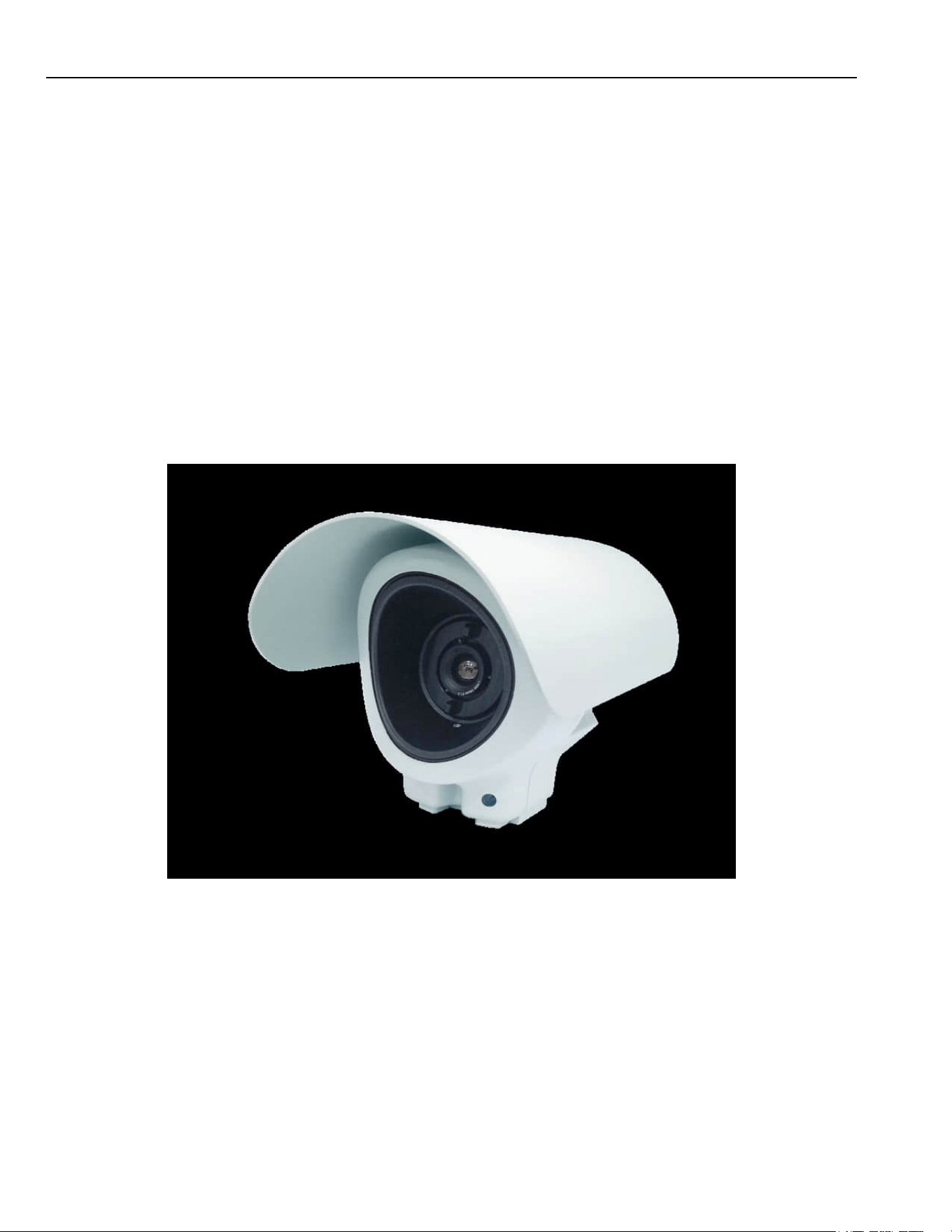
Figure 2-1: Sarix TI Camera General View
2.2 Features
Both visible and Video Graphics Array (VGA) thermal channels
ONVIF Profile S compliant
Easy installation
Advanced optics
Low cost of ownership
Best support for analytics
Rugged design
Enhanced image processing
Chapter 2: Overview Sarix TI Series Camera User Manual
2-15
2.3 Physical Description of the Camera
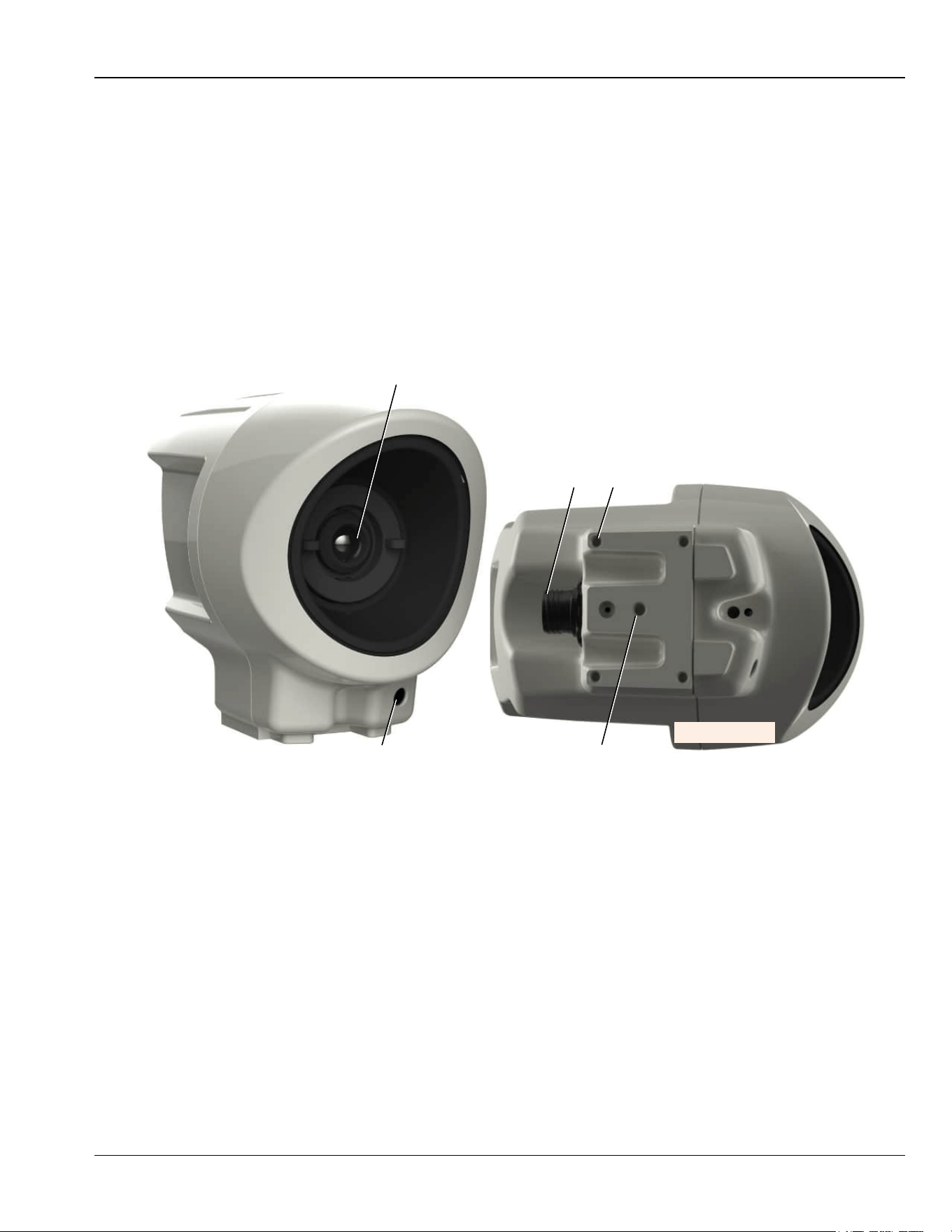
The Sarix TI Camera outer components include (see Figure 2-2):
1. Infrared (IR) Camera Lens
2. Main Connector (Power and Ethernet)
3. Camera-to-Pole Mount Adapter fastening screws (x4)
4. Tripod mount fastening screw
5. Complementary Metal-Oxide Semiconductor (CMOS) Camera Lens (module depended).
Figure 2-2: Physical Description of the Camera
1
5
2
3 (x4)
4
Bottom View
Sarix TI Series Camera User Manual Chapter 2: Overview
2.4 Marking
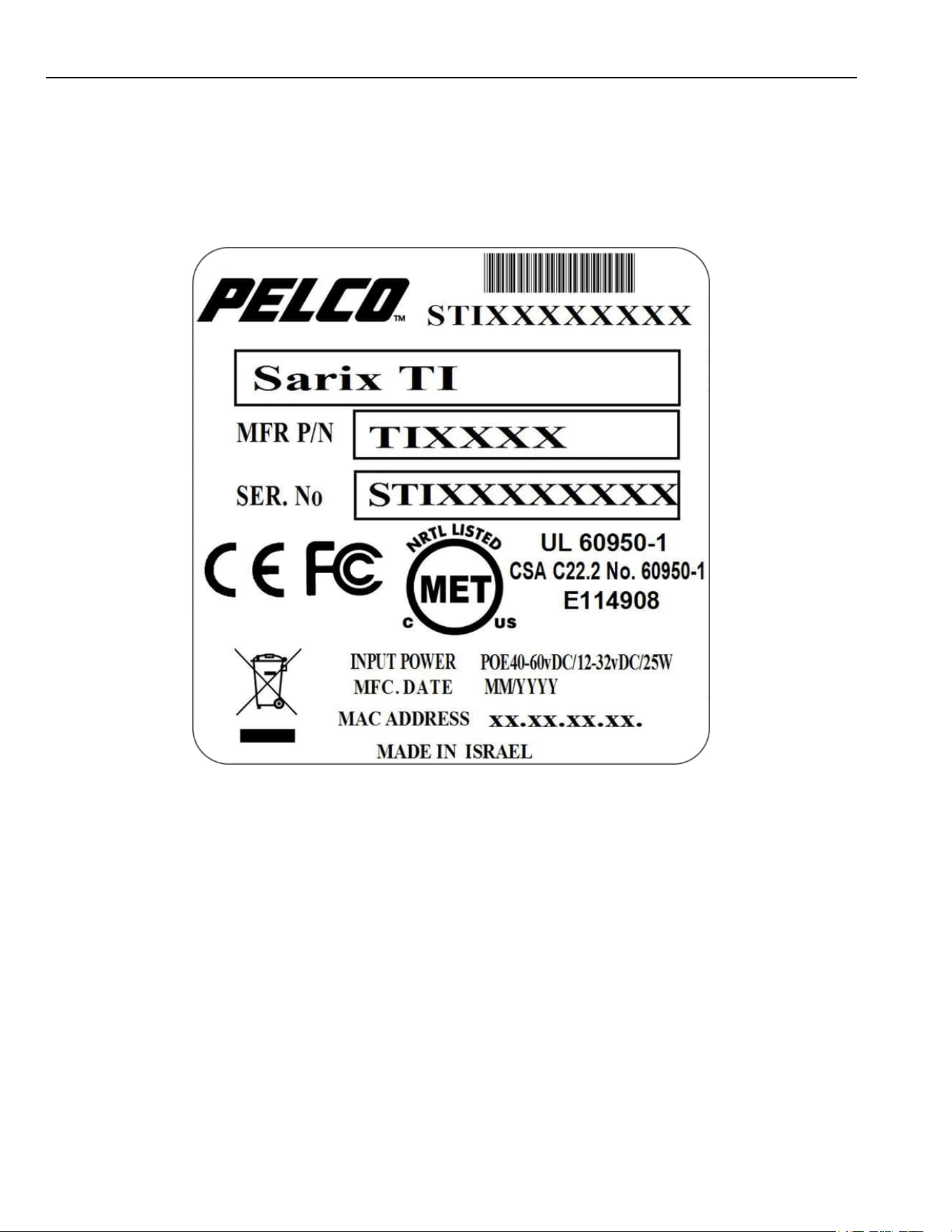
The camera us marked with a label as shown below:
Figure 2-3: Sarix TI Label
NOTE: For reference only
Chapter 2: Overview Sarix TI Series Camera User Manual
2-17
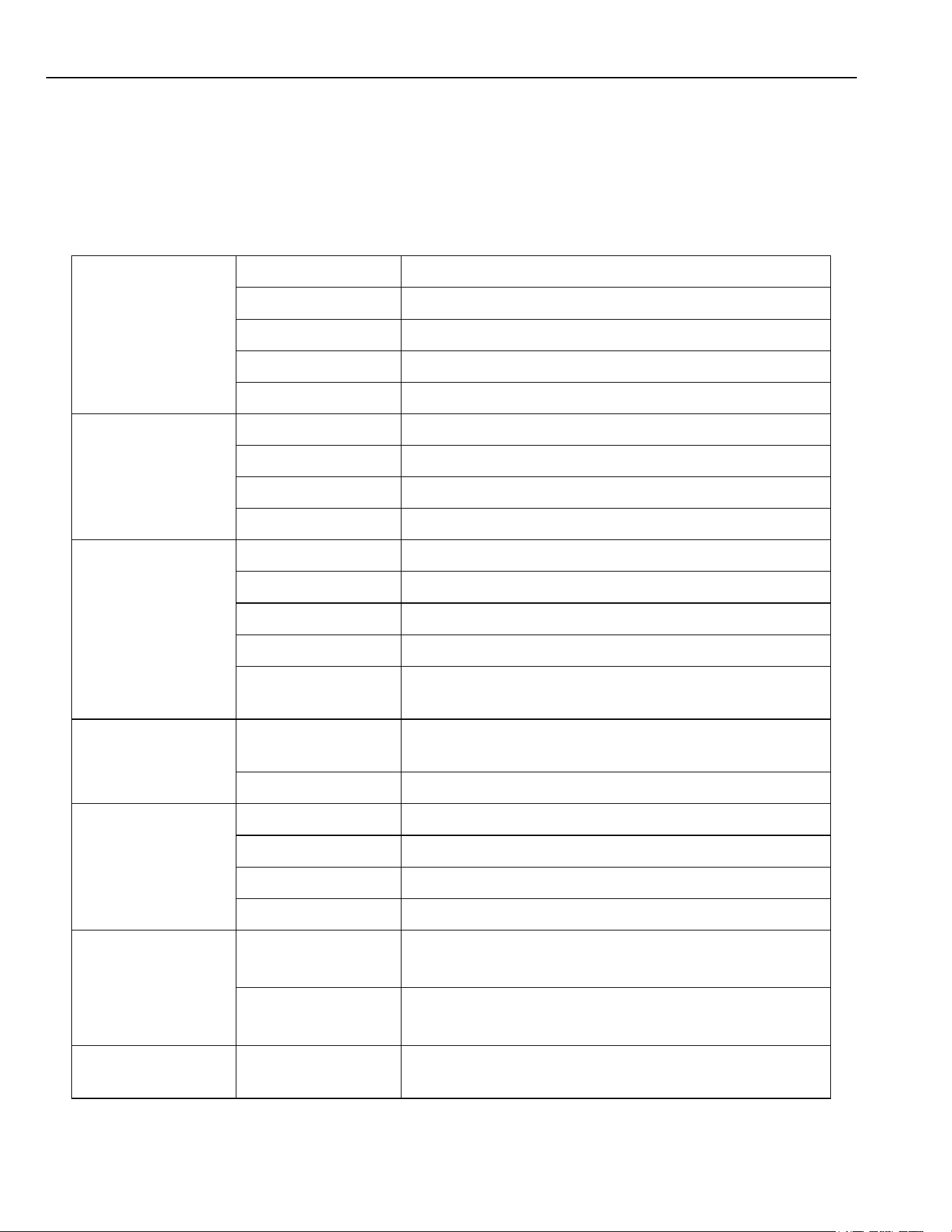
2.5 Sarix TI Web GUI
The operation of the Sarix TI Camera is performed via Web Graphical User Interface (GUI).
With the GUI you can:
Setup the camera operation.
Optimize the camera video.
Communicate with Video Management Systems (VMS).
Figure 2-4: Sarix TI Web GUI
Sarix TI Series Camera User Manual Chapter 2: Overview
2.6 Technical Data and Specifications
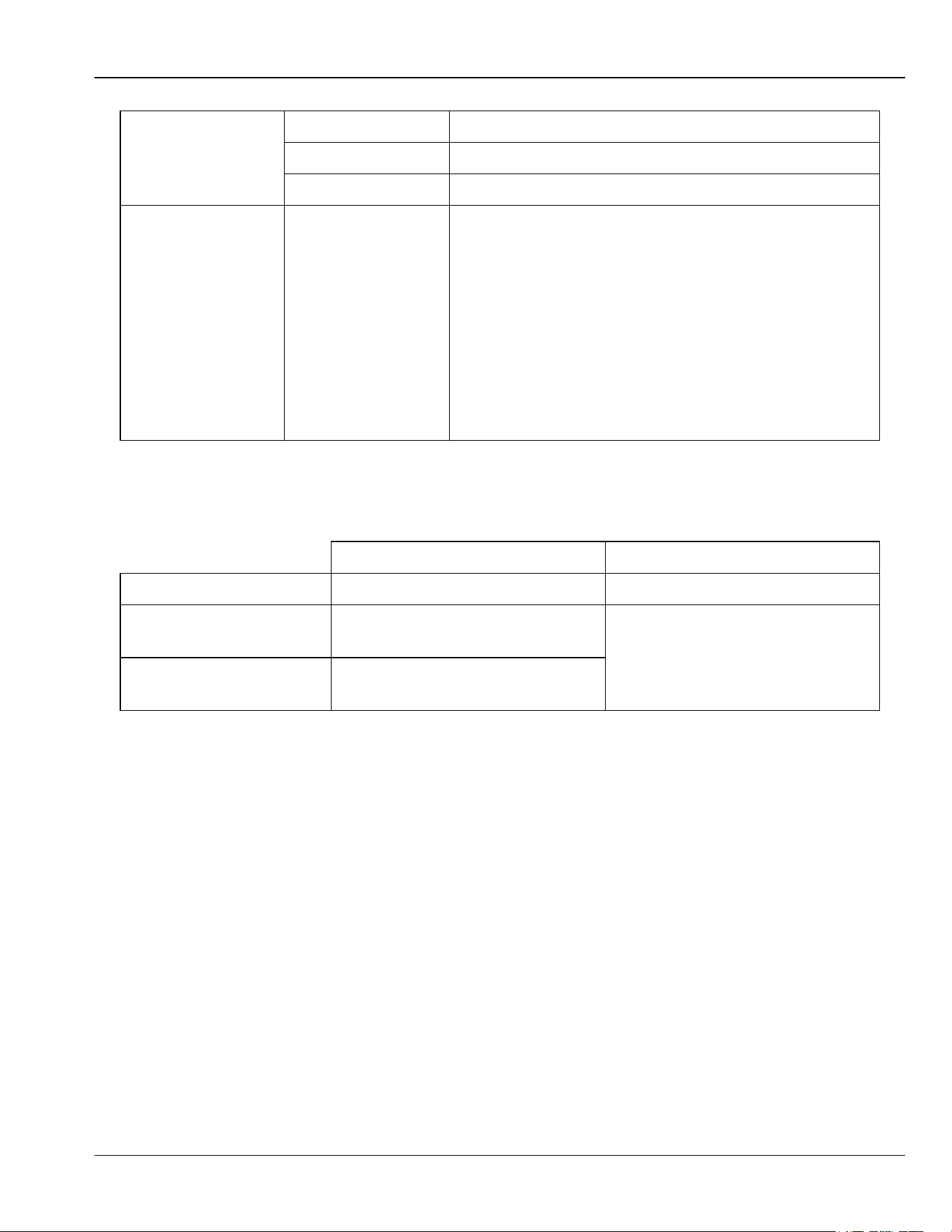
2.6.1 System Specifications
Applicable to models :Sarix TI 14.2mm, 35mm, and 50mm.
Table 2-1: Technical Data and Specifications - System Specifications
Thermal Camera: Imager Type: Uncooled ASi Microbolometer
Spectral Band: 7.5 - 14µ
Pixel Size: 17µ
Resolution: 640 x 480 (VGA) or 384 x 288 (QVGA)
NETD: VGA: < 40° mk, QVGA+: < 70° mk
Day Camera: Imager Type: ¼" CMOS
Resolutions: 640 x 480, 1024 x 768, or 1280 x 768
Field of View: 54° (H) x 42° (V) @ 1024 x 768
S/N Ratio: 36dB
Video: Dual Channel: 2 channels IP video
Compression: H.264, Motion JPEG
Frame Rate: 8.3Hz or 25Hz
Streaming: RTSP, Unicast, Multicast
Image Settings: Brightness, Sharpness, Contrast, Rotation: 0°, 90°,
180°, 270° Horizontal and Vertical Flip
Power
Requirements:
Power Input: 12 - 32VDC or Power over Ethernet (IEEE
802.3af/802.3at)
Consumption: 7W typical, 20W max. (based on DC voltage)
Environmental: Storage Temp: -40°C to +71°C (-40° F to +160° F)
Operating Temp: -40°C to +55°C (-40° F to +131° F)
Humidity: +40°C, 95% RH
Rating: IP66 (NEMA 4X equivalent)
Mechanical
Parameters:
Dimensions: - 135mm (w), 202mm (d), 169mm (h)
- 5.32" (w), 7.95" (d), 6.65" (h)
Weight: - 14 and 35mm: 2.2kg,
- 50mm: 2.4kg,
System
Integration:
Interfaces: ONVIF Profile S, Web GUI
Chapter 2: Overview Sarix TI Series Camera User Manual
2-19
Network: Default IP: 192.168.0.20
RTSP Port: 8554
Protocols: IPv4, HTTP, HTTPS, SSL/TLS, RTSP, DHCP
Certifications: - CE
- FCC
- IP66
- UL and cUL
EN 55032:12;
EN 55024:2010+A1:2015;
EN 50130-4:11+A1:14;
EN 61000-3-2:14;
EN 61000-3-3:13;
EN 60950-1:06+A11:09+A1:10+A12:11+A2:13
UL 60950-1 2nd edition;
CAN/CSA-C22.2 No. 60950-1:07+Amend 1:2011
IEC 60950-1:05+A1:09+A2:13;
IEC 60950-22:16
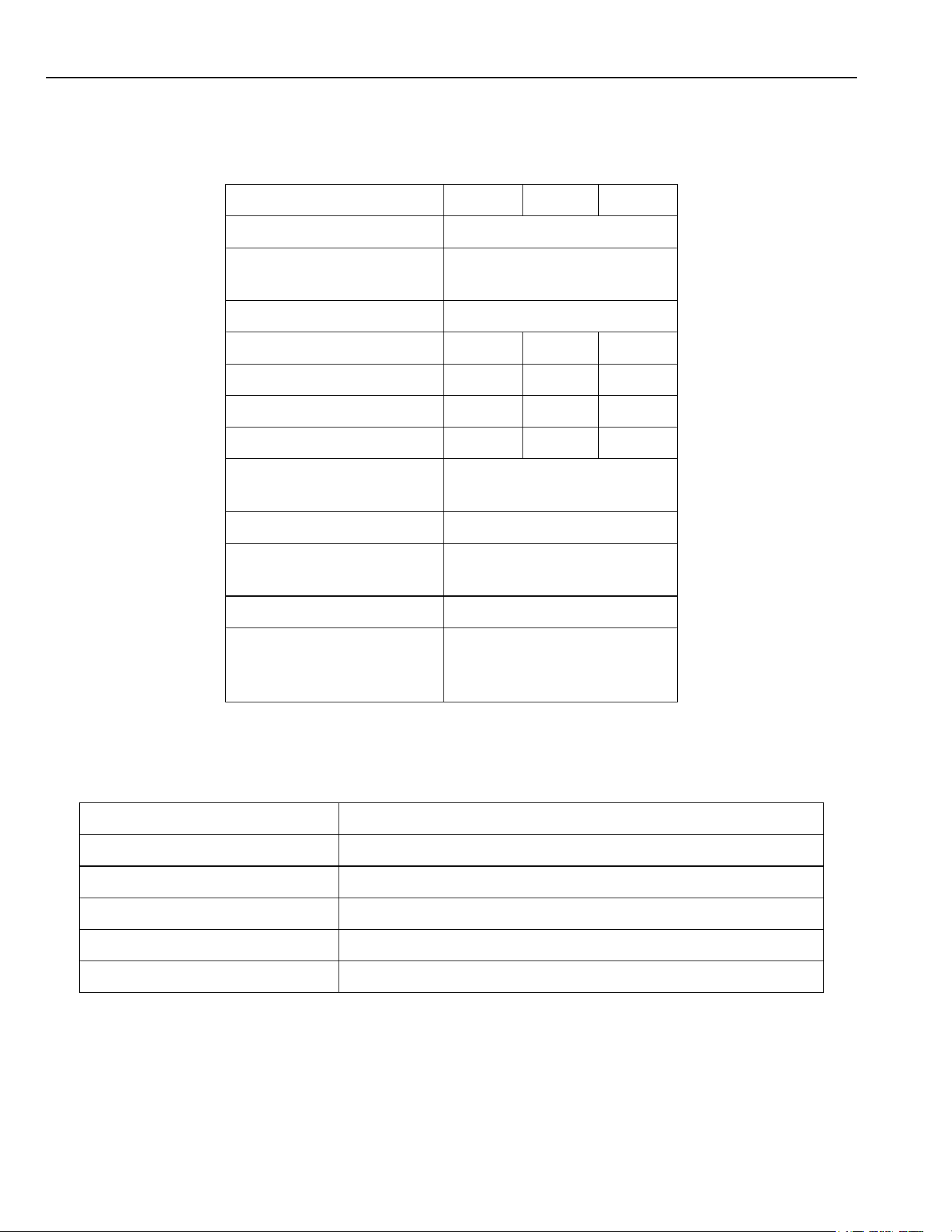
2.6.2 Configurations
Table 2-2: Technical Data and Specifications - Configurations
Day/Night Day
Configuration Type Thermal Camera & Lens Camera & Lens
VGA 17μ 640 x 480 Athermalized
Uncooled Thermal
¼" Colour HD CMOS 1280 x 720
Autofocus
QVGA+ 17μ 384 x 288 Athermalized
Uncooled Thermal
Sarix TI Series Camera User Manual Chapter 2: Overview
2.6.3 Thermal Camera
Table 2-3: Technical Data and Specifications - Thermal Camera
Configuration TI2X14 TI2X35 TI2X50
Thermal Type Uncooled
Thermal Core 17µ 640 x 480 (VGA) or
17µ 384 x 288 (QVGA+)
Lens Type Athermalized, Fixed Focus
Focal Length 14.2mm 35mm 50mm
Lens F # f/1.2 f/1.2 f/1.2
Horizontal FOV - VGA 42.1° 17.6° 12.4°
Horizontal FOV - QVGA+ 25.7° 10.6° 7.5°
Video Type H.264, Motion JPEG (25Hz
or 9Hz)
Spectral Band Spectral Band 7.5 - 14µ
NETD < 40° mk (VGA), < 70° mk
(QVGA+)
Digital Zoom 1x, 2x, 4x
Control Operation Polarity, NUC, Image Flip,
Image Rotation & Digital
Zoom
2.6.4 CMOS Camera
Table 2-4: Technical Data and Specifications - CMOS Camera
Imager Type: 1/4" Colour HD CMOS
Effective Pixels / Resolutions: 640 x 480 or 1024 x 768 or 1280 x 720
Lens Type: Autofocus
Imager FOV (H x V): 54° x 42°
S/N Ratio: 36dB
Additional Features: Configurable Resolutions, Digital Zoom
Chapter 3: Safety Sarix TI Series Camera User Manual
3-1
3. Safety
This chapter provides safety instructions that technicians should be aware of during the
installation, operation and maintenance of the Sarix TI Series Camera.
The chapter consists of the following sections:
Section 3.1: Safety Conventions
Section 3.2: Safety During Installation
Section 3.3: Safety During Maintenance
3.1 Safety Conventions
In this manual, safety information is presented as warnings, cautions, and notes.
WARNING
An operating procedure, practice, and so forth, which if not correctly
followed, could result in personal injury or loss of life.
CAUTION
An operating procedure, practice, and so forth, which if not strictly
observed, could result in damage to, or destruction of equipment.
NOTE
An operating procedure, practice, and so forth that is essential
to highlight.
All procedures in this manual must be performed in accordance with
the applicable local regulations.
All local safety regulations apply. If the instructions in any section of
this manual contradict those of the applicable local regulations, the
instructions of the applicable local regulations will prevail.

Sarix TI Series Camera User Manual Chapter 3: Safety
3-2
3.2 Safety During Installation
To avoid injuries, follow standard safety regulations if mounting the Sarix TI Camera on an
elevated location.
3.3 Safety During Maintenance
Warranty void if opening the Sarix TI camera.
Do not touch the Sarix TI Camera optics with bare hands.
Do not use any chemicals for cleaning the Sarix TI Camera. Use only wipes approved for
optical equipment. Failure to comply could result in damage to the Sarix TI Camera optical-
lens and/or its surfaces.
Chapter 4: Installation Sarix TI Series Camera User Manual
4-1
4. Installation
This chapter provides instructions for installing the Sarix TI Series Camera.
The chapter consists of the following sections:
Section 4.1: Unpacking
Section 4.2: Camera Installation
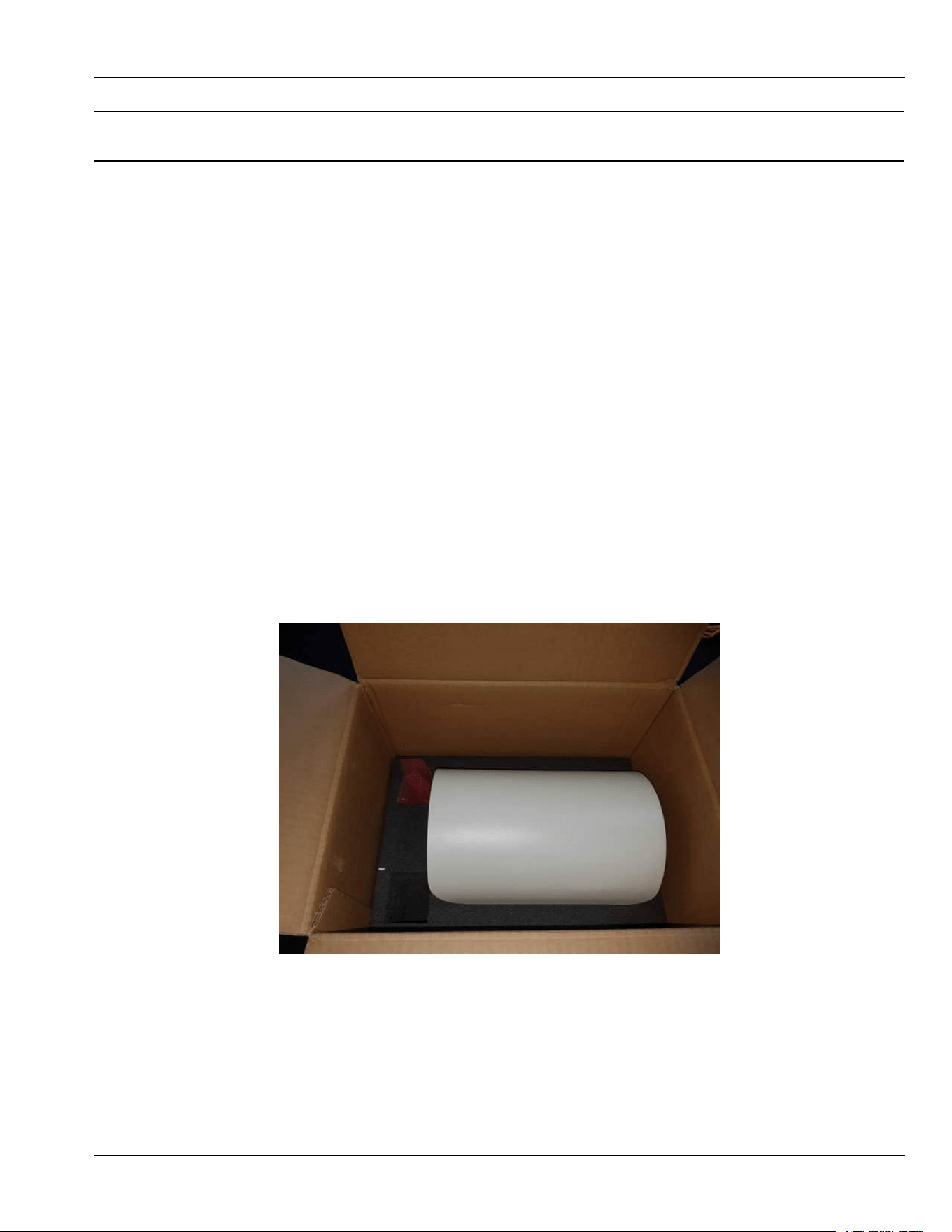
4.1 Unpacking
A standard package contains the following:
Sarix TI Camera
18-pin round female cable-connector
Ferrite
Washer Lock
Screw 6-32NCX1/4" SOC HD SS
Terminal lug ring 16AWG stub size 6
Package
Figure 4-1: Sarix TI Camera Package General View

Sarix TI Series Camera User Manual Chapter 4: Installation
4-2
4.2 Camera Installation
NOTE
Opening the Sarix TI Camera enclosure will void the product
warranty.
CAUTION
Avoid pointing the Sarix TI Camera at the sun.
4.2.1 Installation Guidelines and Preparation
Prepare your self-made IP PoE cable (cables are available for purchase, see
Table 7-3 for information).
4.2.1.1 Cable wires between camera and DC/PoE power supply should be 20-22AWG.
4.2.1.2 Both the camera ant the end-equipment connected to it should be permanently
connected to protective earth, using screw and washers. Wires should be made
of cupper. Minimal grounding cable is 14AWG.
4.2.1.3 In case of using DC power supply:
(1) The cables should be protected by fuse with maximal current of 3A
(2) The output current shall not exceed 3A after 60s
(3) The maximal output current of the power supply shall not exceed 7.5A
4.2.1.4 Power supply (either POE injector or DC power supply) should be safety
approved for local regulations.
4.2.1.5 Install the Ferrite on the operational cable as close as possible , max 5cm, from
the system.
Chapter 4: Installation Sarix TI Series Camera User Manual
4-3
4.2.2 Mechanical Interface Preparation
NOTE
It is recommended to check the functioning of the Sarix TI Camera
prior to the actual installation.
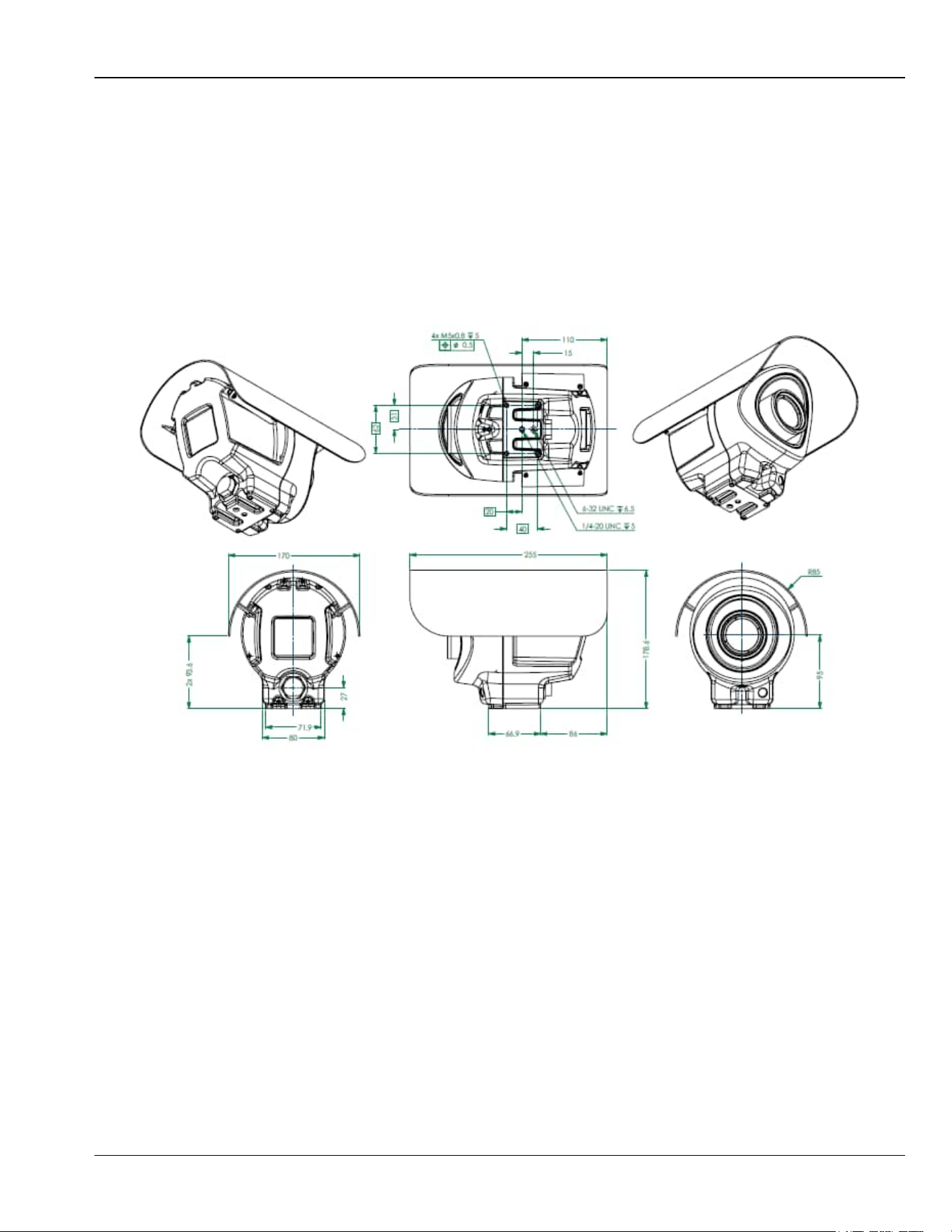
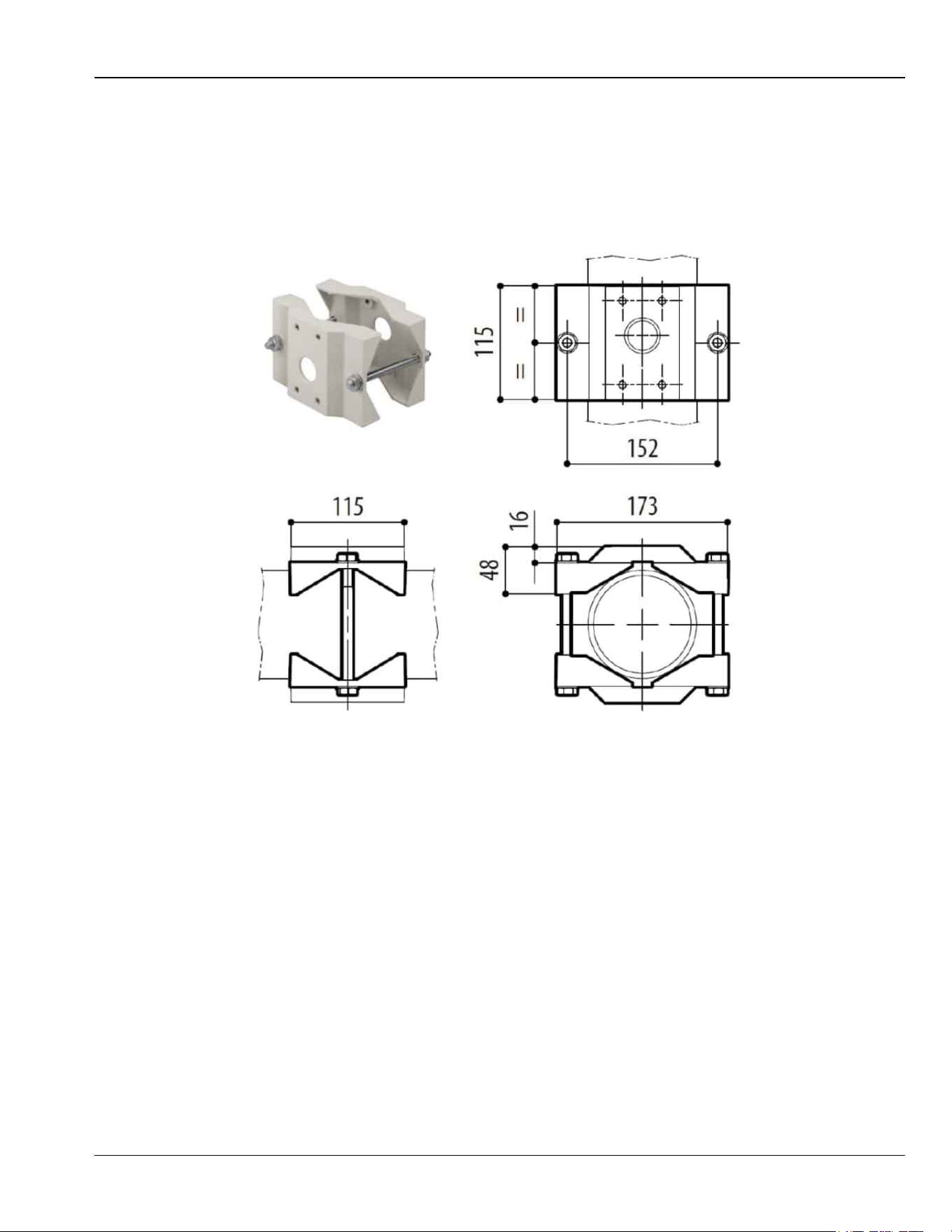
Figure 4-2 depicts the camera dimensions and mechanical interfaces.
Figure 4-2: Mechanical Interface Preparation - Camera Dimensions
Chapter 4: Installation Sarix TI Series Camera User Manual
4-5
4.2.4 Pole Mount Configuration
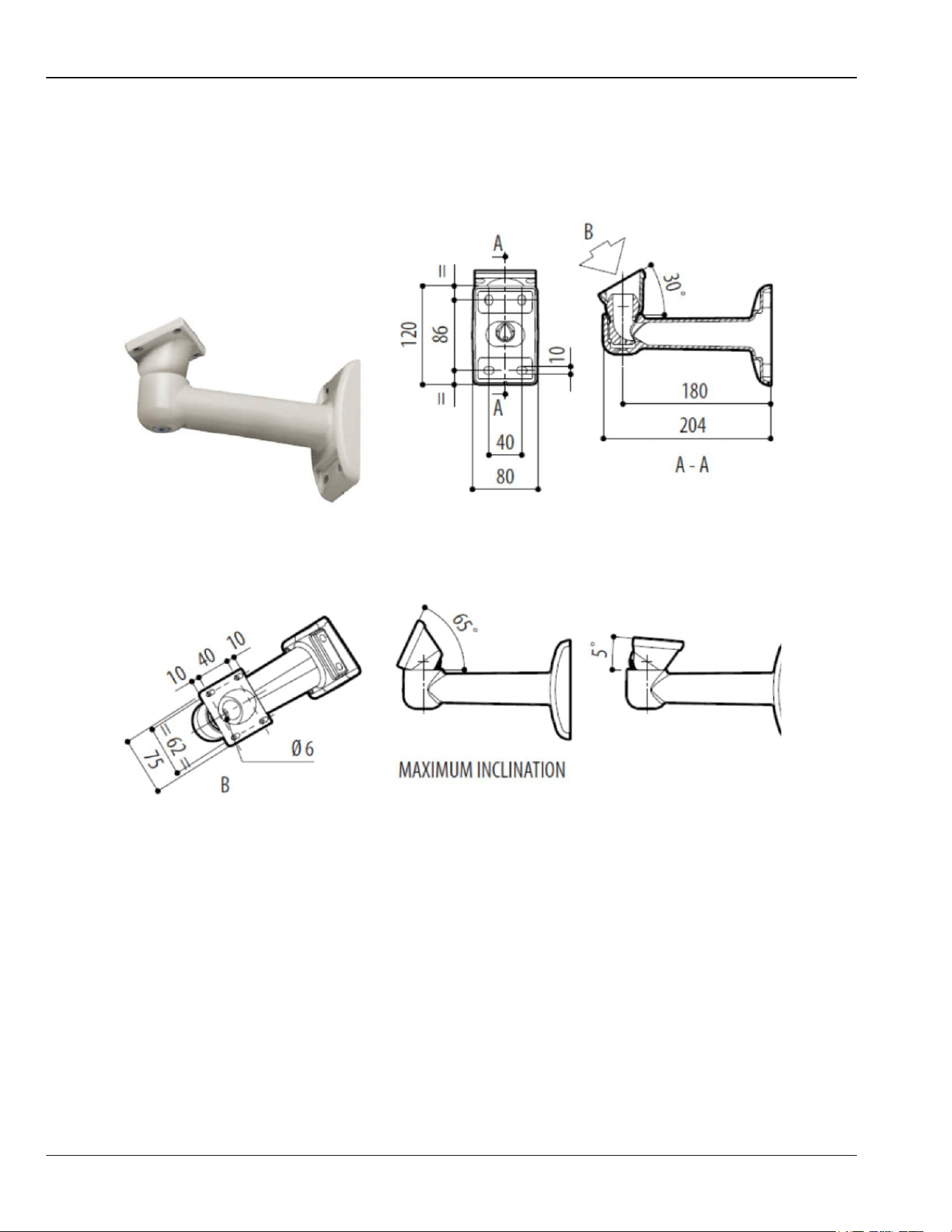
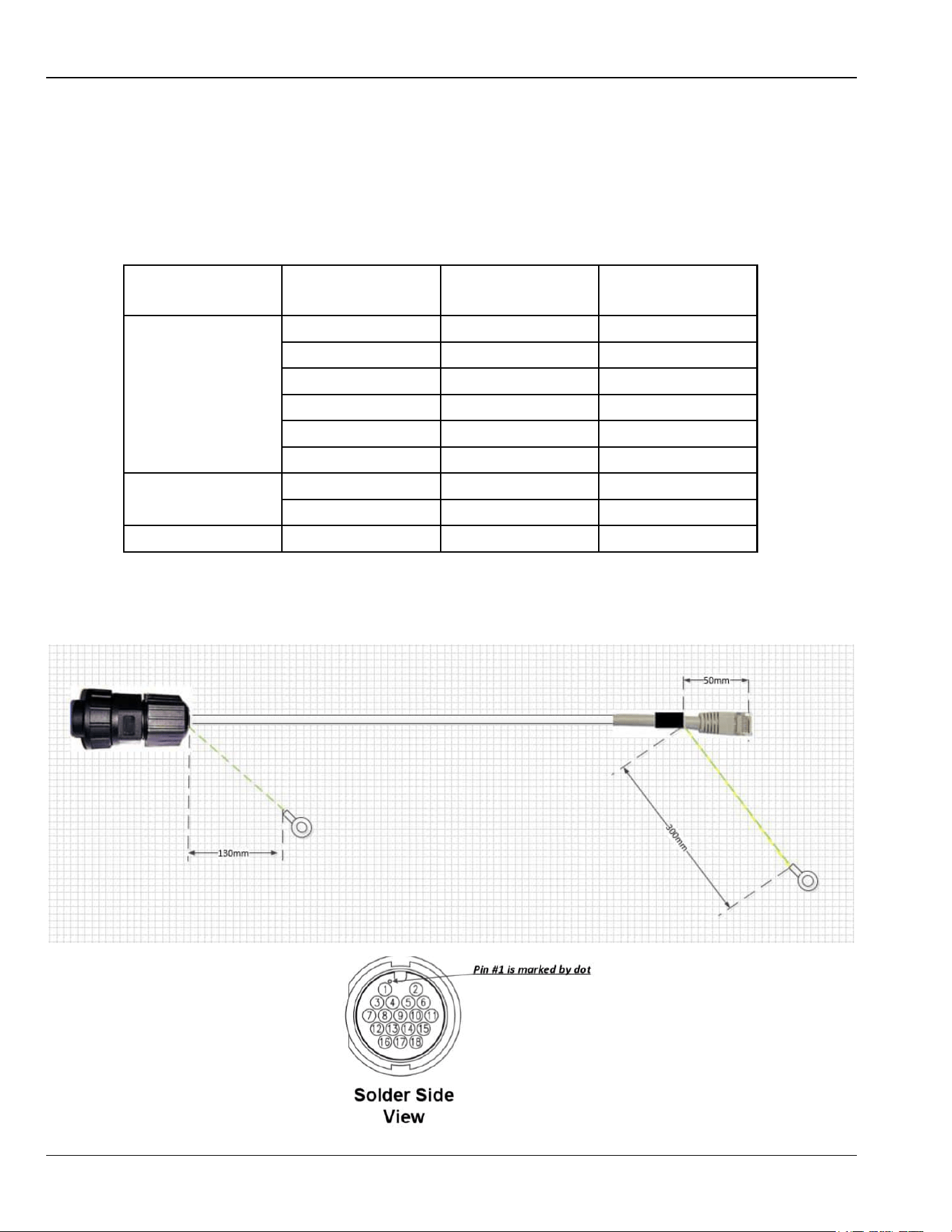
An adapter for pole-mount is available for purchase (see Table 7-3 for information).
The dimensions of the device are given in Figure 4-4 (note that the arm for wall-mount is
required, as well):
Figure 4-4: Camera Installation - Pole Mount Configuration
Sarix TI Series Camera User Manual Chapter 4: Installation
4-6
4.2.5 Electrical ICD IP PoE Cable
The cable is available for purchase (see Table 7-3 for information).
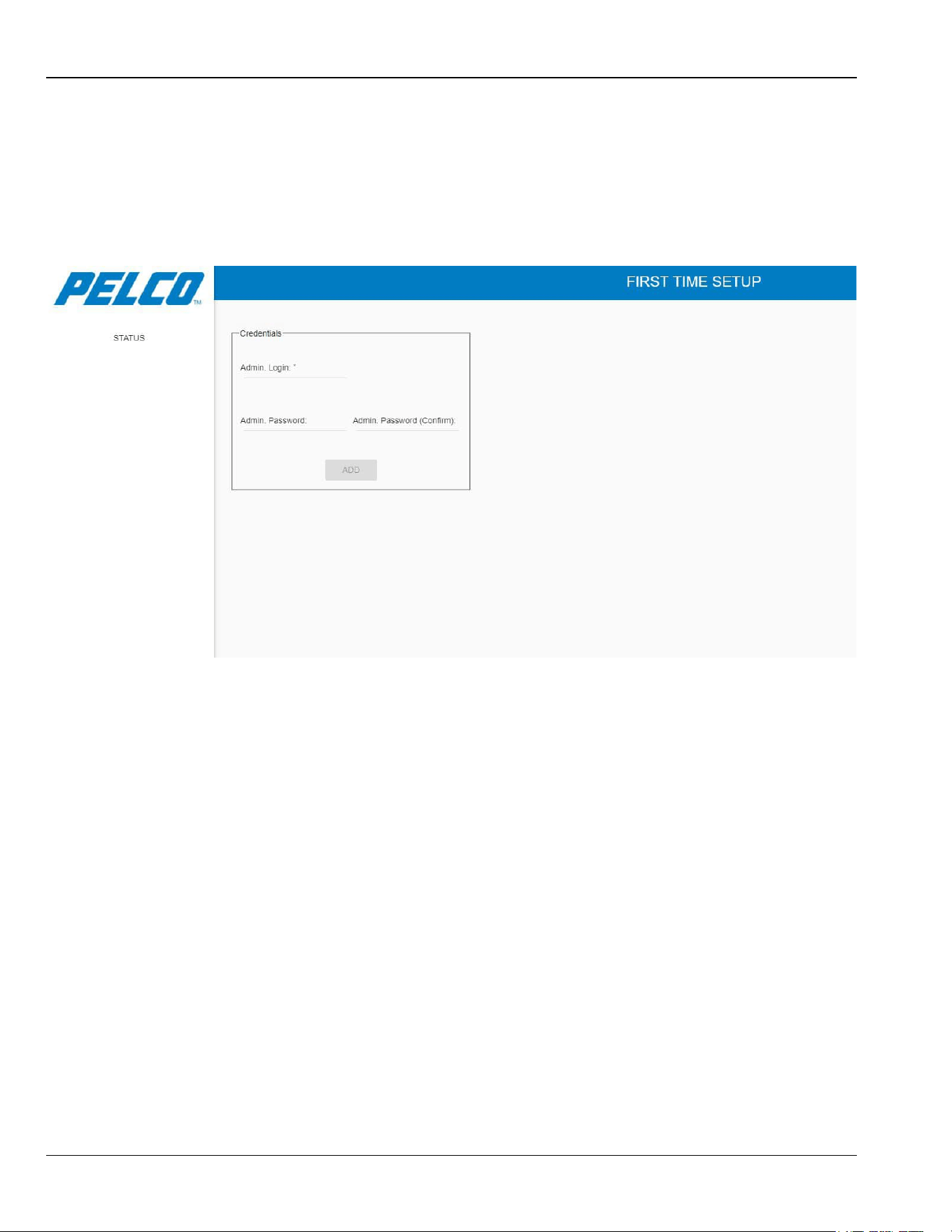
Cable Pinout (see Figure 4-5):
Table 4-1: Electrical ICD IP PoE Cable - Pinout
Connector Pin #
P1
Connector Pin #
P2 (RJ45)
Signal Name
Ethernet\POE
2
1
ETH RX+
6
2
ETH RX-
11
3
ETH TX+
15
6
ETH TX-
12
5,4
POE +
14
7,8
POE -
DC Power Input
8
P.S (-)
12-32vDC RTN
9
P.S (+)
12-32vDC
Shield
Camera body
GND Stud
Shield
Figure 4-5: Electrical ICD IP PoE Cable

Chapter 5: Operation Sarix TI Series Camera User Manual
5-1
5. Operation
This chapter provides operating instructions for the Sarix TI Series Camera web GUI.
The chapter consists of the following sections:
Section 5.1: First Time Credentials Setup
Section 5.2: Logging Into Sarix TI Camera Web GUI
Section 5.3: Changing Your Password
Section 5.4: Main Window Overview
Section 5.5: Live View Window
Section 5.6: Status Window
Section 5.7: Network Window
Section 5.8: Streaming Window
Section 5.9: Image Processing Window
Section 5.10: Analytics Window
Section 5.11: System Window
Section 5.12: Logging Out from the Web GUI
Sarix TI Series Camera User Manual Chapter 5: Operation
5-2
5.1 First Time Credentials Setup
1. Open your web browser.
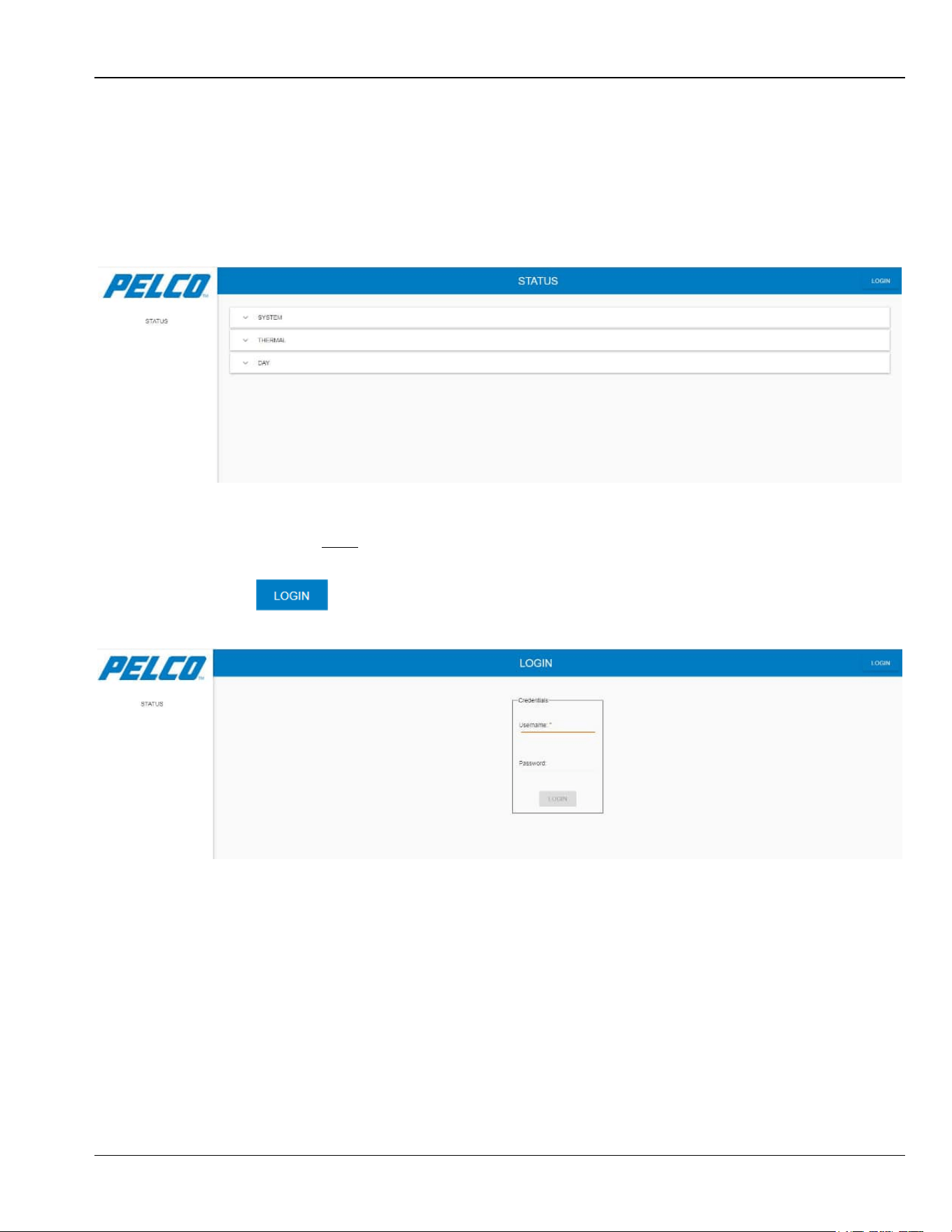
2. Type the Sarix TI Camera default IP address (192.168.0.20) in the address bar and click
Enter. The First Time Setup window opens (example):
Figure 5-1: Sarix TI Web GUI – First Time Setup
NOTE
The First Time Setup window appears the first time a user accesses
the camera’s IP address.
3. Define the administrator username in the Admin Login section.
4. Define the administrator password in the Admin Password section.
5. Retype the same password in the Admin Password (confirm) section.
6. Click ADD. The administrator credentials are defined.
NOTE
After defining the administrator credentials, the Status window
opens (see Section 5.2).
Chapter 5: Operation Sarix TI Series Camera User Manual
5-3
5.2 Logging Into Sarix TI Camera Web GUI
1. Open your web browser.
2. Type the Sarix TI Camera default IP address (192.168.0.20) in the address bar and click
Enter. The Status window opens (example):
Figure 5-2: Sarix TI Web GUI - Status Window (before Login)
3. You may now view some default settings of your Sarix TI Camera by expanding the
System, Thermal or Day tabs.
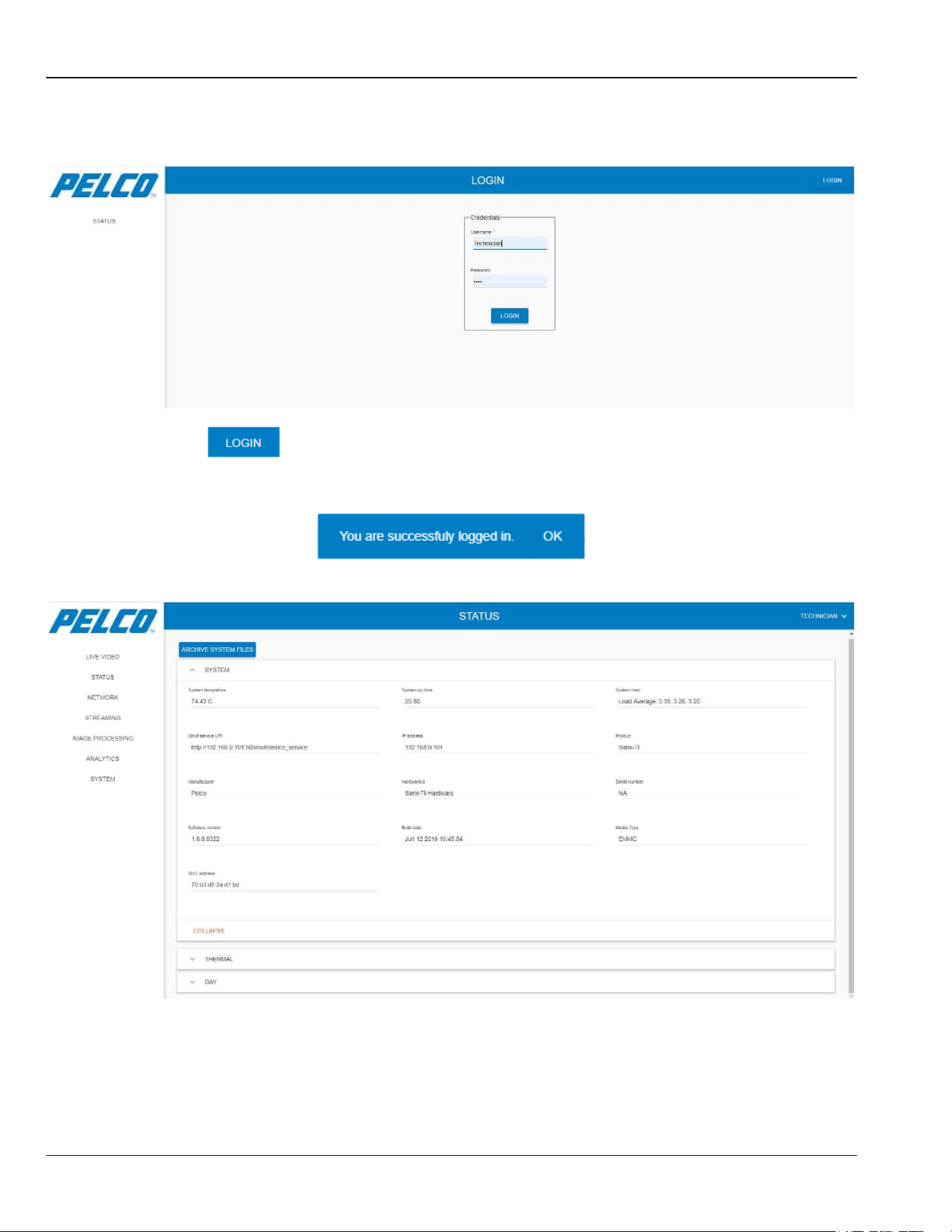
4. Click . The Login window opens:
Figure 5-3: Login Window
NOTE
A user is able to login only after they set up their credentials for the
first time (see Section 5.1).
Sarix TI Series Camera User Manual Chapter 5: Operation
5-4
5. Enter your Username and Password:
Figure 5-4: Login Window – Entering Username and Password
6. Click . The following message is displayed on the lower-left corner of the screen
for three seconds, stating that you have successfully logged in. In addition, the Status
window opens:
Figure 5-5: Sarix TI Web GUI - Status Window (after Login)
You can now use the Sarix TI Web GUI.
Chapter 5: Operation Sarix TI Series Camera User Manual
5-5
5.3 Changing Your Password
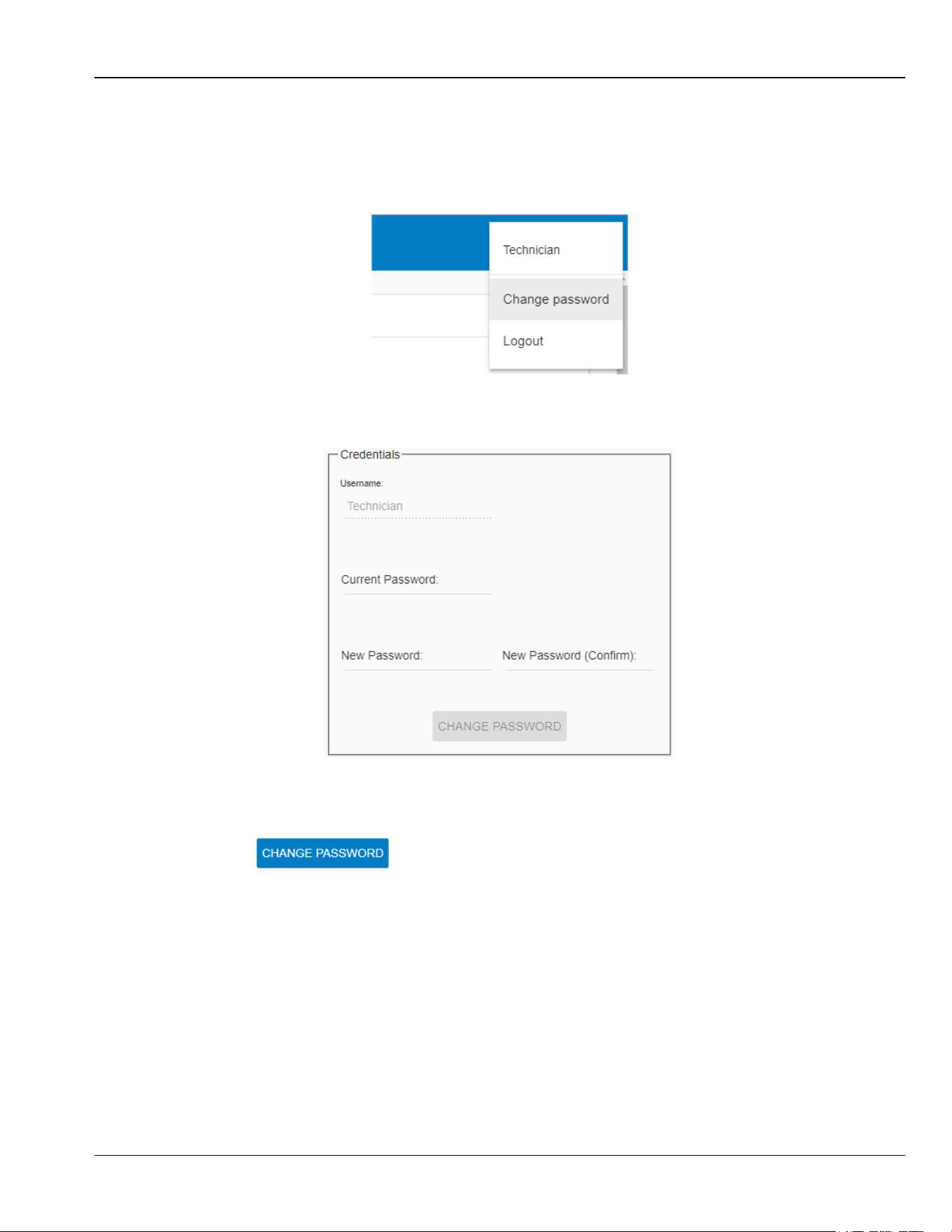
1. From the upper-right drop-down menu select Change Password:
Figure 5-6: Changing Your Password - Drop Down Menu
The following opens:
Figure 5-7: Sarix TI Web GUI - Changing Your Password
2. Enter your Current Password.
3. Enter the New Password and re-enter in the New Password (Confirm) field.
4. Click . The system automatically logs out and the Login window reopen
(see Figure 5-3).
5. Log in using the new password. The Status window re-opens (see Figure 5-5).
Sarix TI Series Camera User Manual Chapter 5: Operation
5-6
5.4 Main Window Overview
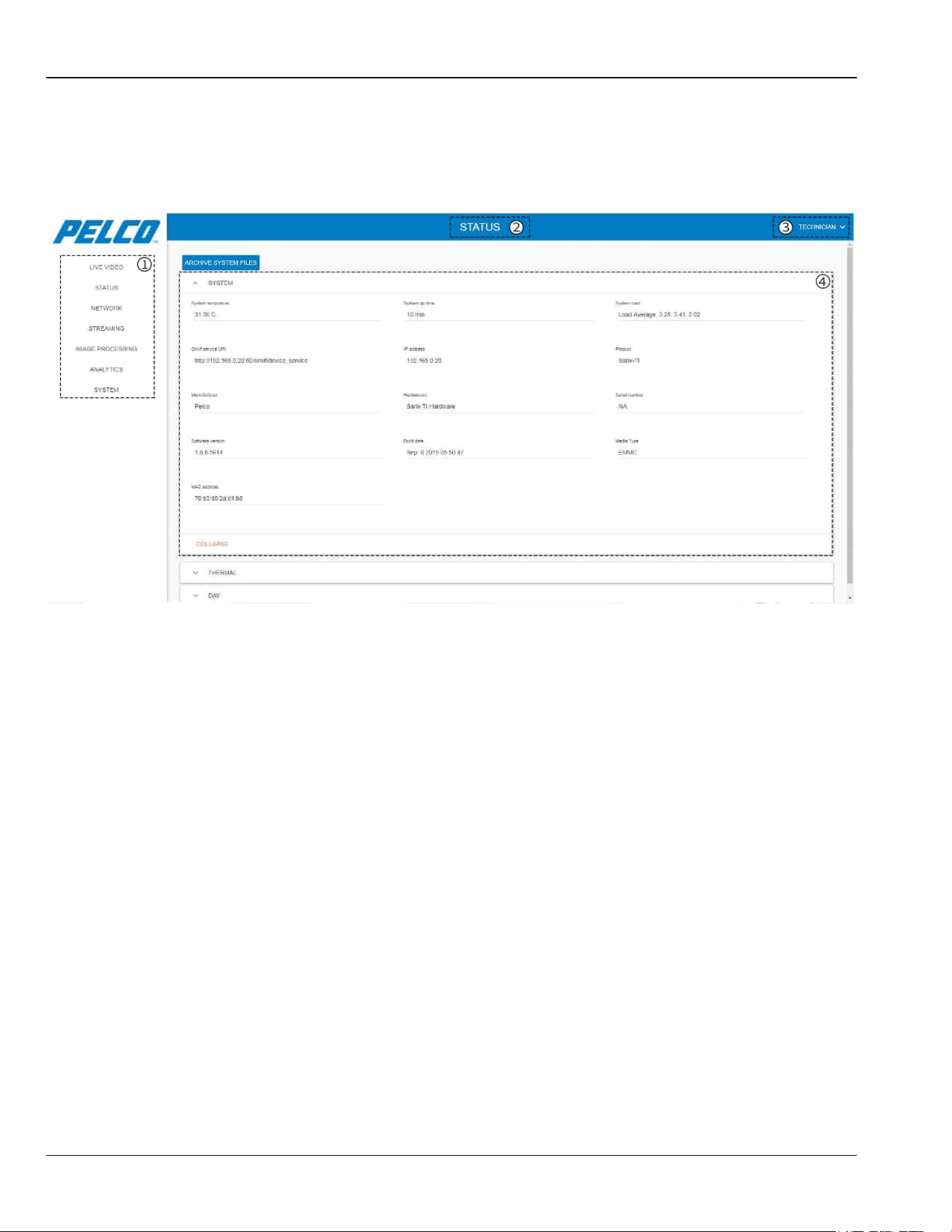
The main areas in every window consist of the following:
Figure 5-8: Main Window Overview - Main Areas
Legend
:
1. Menu: maneuvering between the GUI main features/tabs.
2. The name of the currently opened feature/tab.
3. Available only after logging in; a drop-down menu, enables to change your password or log
out from the program.
4. The area where you can view and/or set the feature parameters.
Chapter 5: Operation Sarix TI Series Camera User Manual
5-7
5.5 Live View Window
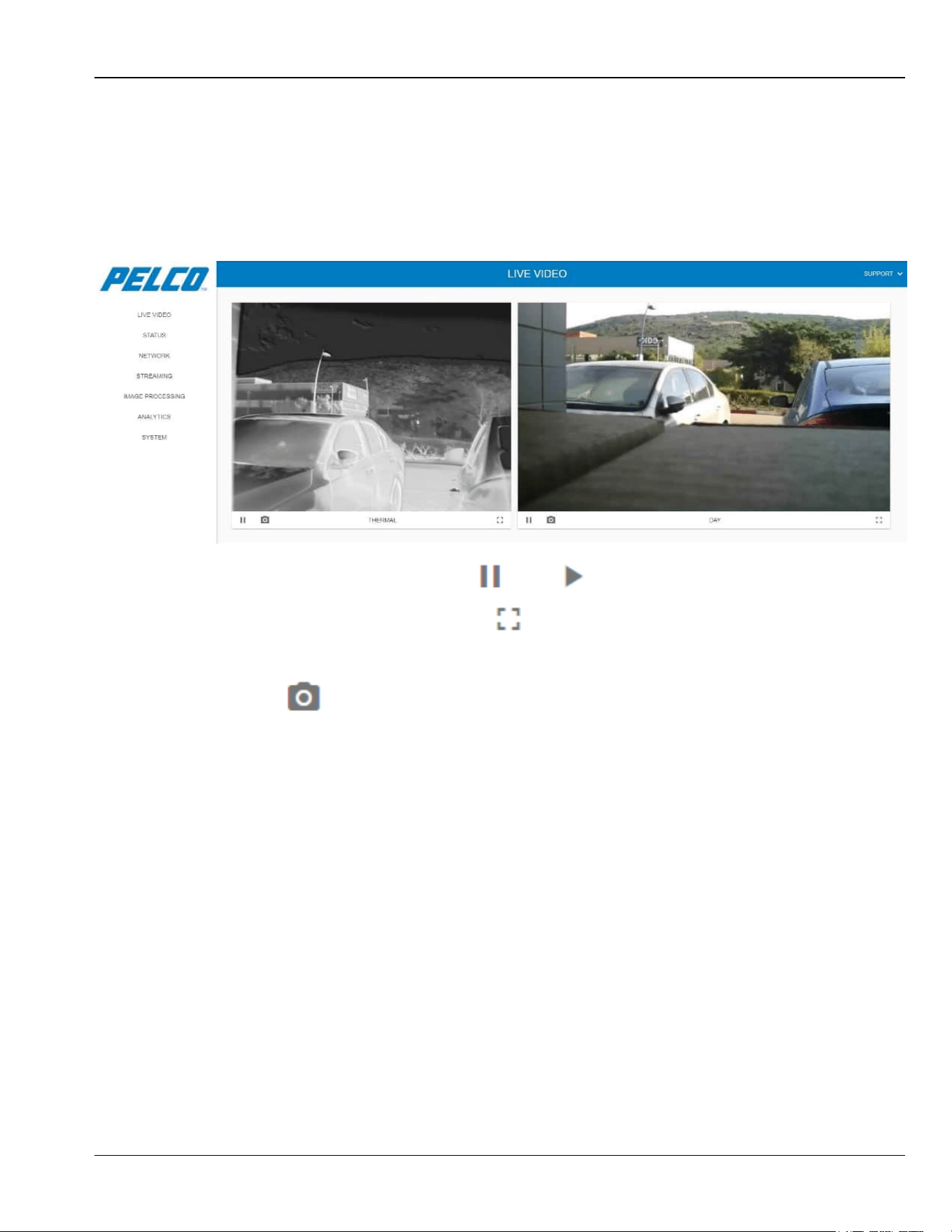
The Live View window allows viewing the Sarix TI Camera live video.
1. Click Live View. The Live View window opens, containing a live video display of both
thermal and visual cameras (example):
Figure 5-9: Live View Window (example)
2. To freeze the live-view video click . Click to resume the live-view video.
3. To view the video in full screen click . Click the keyboard Esc key to resume.
4. To take a snapshot of the video and save elsewhere:
a. Click . A *.jpg file is created and downloaded into your PC. The file is saved in
your \Downloads folder.
- the file name of the thermal camera snapshot: proxycam-ir-Snapshot.
- the file name of the visual camera snapshot: proxycam-vis-Snapshot.
b. You can now move the file elsewhere.
Sarix TI Series Camera User Manual Chapter 5: Operation
5-8
5.6 Status Window
The Status window allows viewing some of the Sarix TI Camera parameters and settings.
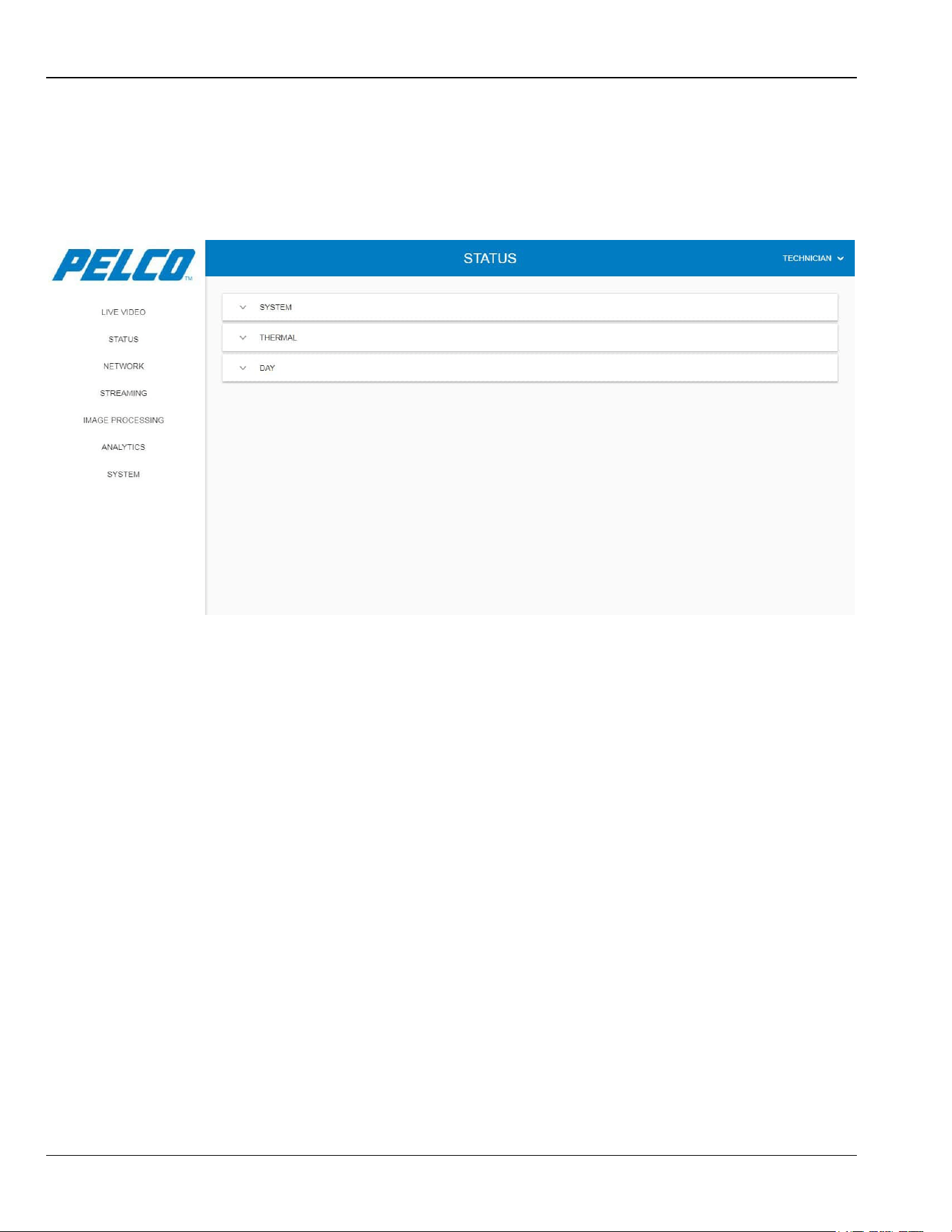
1. Click Status. The Status window opens (all collapsed):
Figure 5-10: Status Window (all collapsed)
The Status window is comprised of three tabs:
System Tab: allows viewing general parameters related to the camera settings and its
software/firmware (see Section 5.6.1).
Thermal Tab: allows viewing parameters related to the thermal camera settings and its
software/firmware (see Section 5.6.2).
Day Tab: allows viewing parameters related to the visual camera settings and its
software/firmware (see Section 5.6.3).
Disabling / Enabling a Camera: allows disabling the thermal camera and/or the visual
camera and enable them (see Section 5.6.4).
Chapter 5: Operation Sarix TI Series Camera User Manual
5-9
5.6.1 System Tab
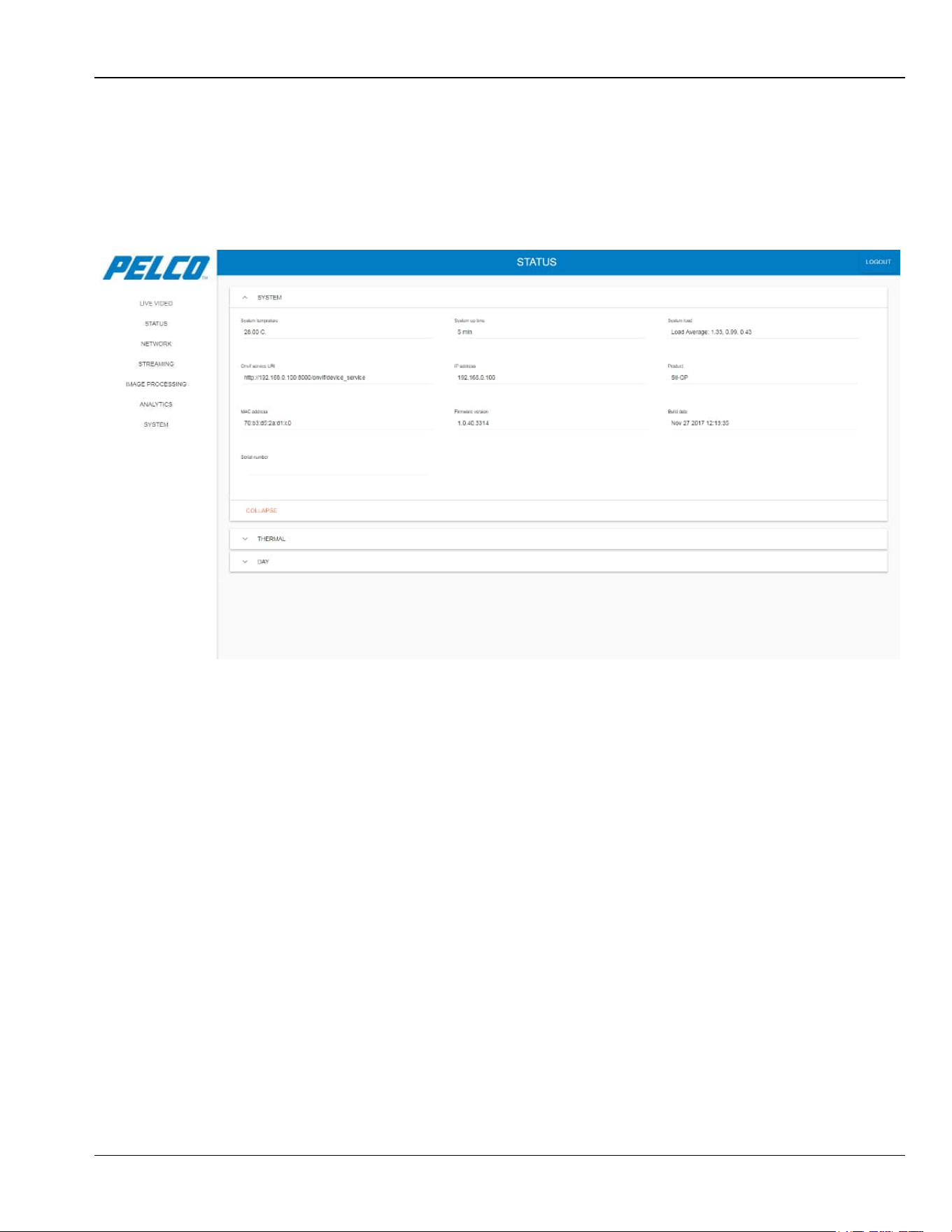
The System tab allows viewing general parameters related to the camera settings and its
software/firmware.
Expand the System tab. The following opens:
Figure 5-11: Status Window - System Tab
The System tab consists of the following parameters:
System temperature: the "System On Chip" temperature.
System up time: the operating time since the last camera startup.
System load: a coded indication on how the system is busy.
ONVIF service URI: the Uniform Resource Indicator (URI), e.g., the ONVIF device web
service address.
IP address: the camera IP address.
Product: the camera name.
Serial number: the system Serial Number (S/N).
Firmware version: the version of the installed Firmware (FM).
Build date: the date of the FM creation.
MAC address: the camera unique Media Access Control (MAC) address.
Sarix TI Series Camera User Manual Chapter 5: Operation
5-10
5.6.2 Thermal Tab
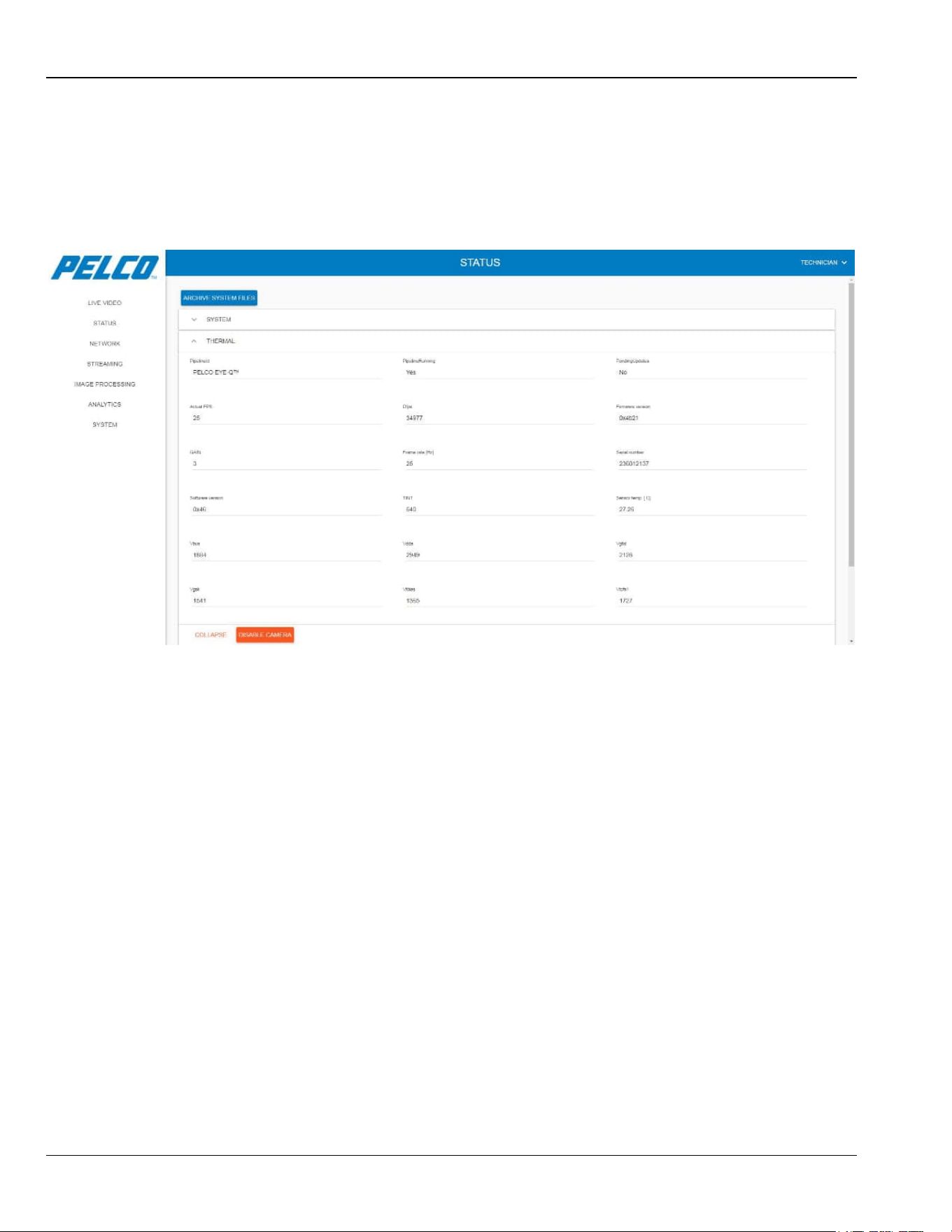
The Thermal tab allows viewing parameters related to the thermal camera settings and its
software/firmware.
Expand the Thermal tab. The following opens:
Figure 5-12: Status Window - Thermal Tab

Chapter 5: Operation Sarix TI Series Camera User Manual
5-11
The Thermal tab consists of the following parameters:
Pipeline ID: the current name of the pipeline (data processing elements, connected in series,
where the output of one element is the input of the next one).
Pipeline Running: is the pipeline running?
Pending Updates: does the pipeline requires initialization?
Actual FPS: the current frame-rate where the pipeline is running.
DFPA: indication from the thermal camera.
Firmware version: indication from the thermal camera.
Gain: indication from the thermal camera.
Frame rate [Hz]: indication from the thermal camera.
Serial number: indication from the thermal camera.
Software version: indication from the thermal camera.
TINT: indication from the thermal camera.
Sensor temp [°C]: indication from the thermal camera.
V bus: indication from the thermal camera.
VDDA: indication from the thermal camera.
VGFID: indication from the thermal camera.
VGSK: indication from the thermal camera.
VT bias: indication from the thermal camera.
VTOFS1: indication from the thermal camera.
VTOFS2: indication from the thermal camera.
Sarix TI Series Camera User Manual Chapter 5: Operation
5-12
5.6.3 Day Tab
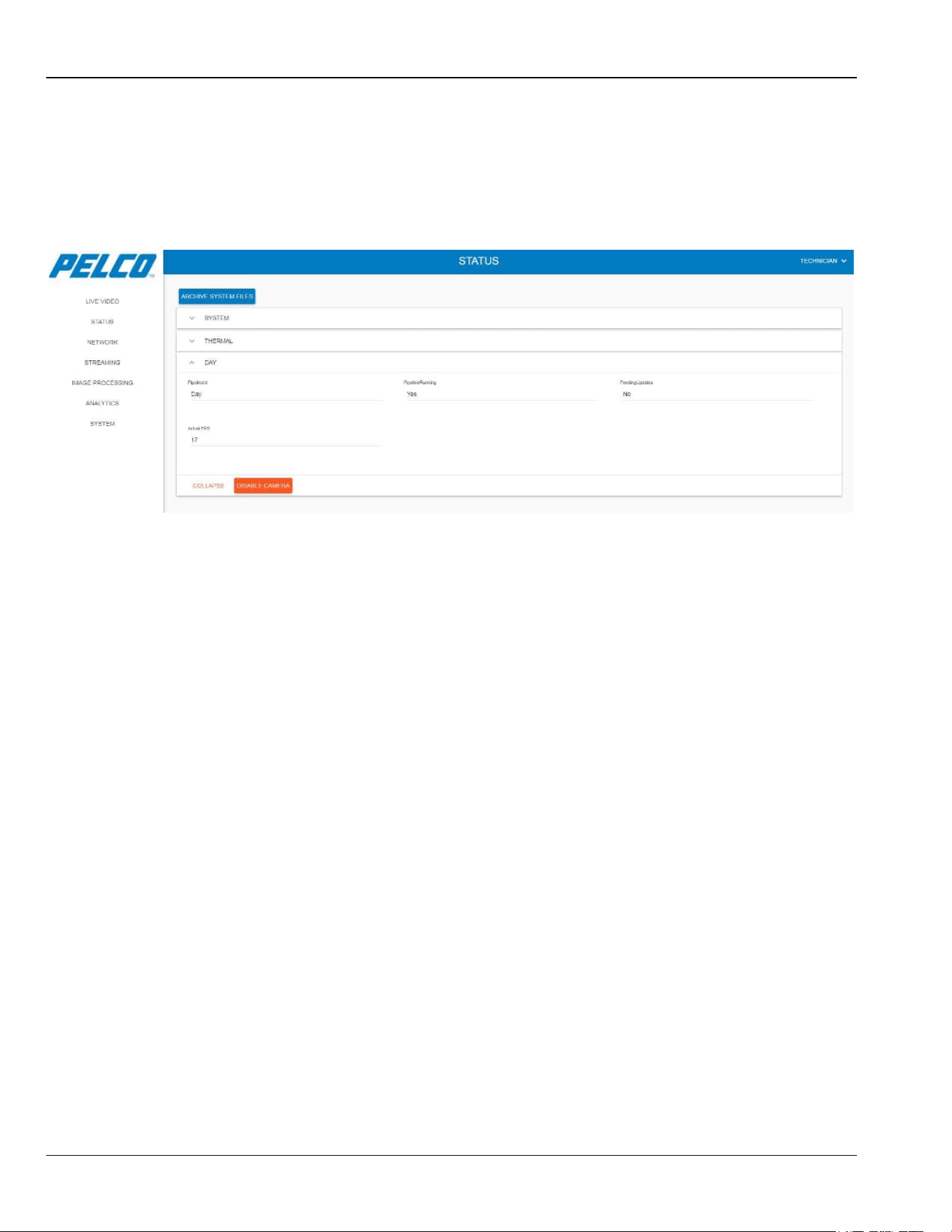
The Day tab allows viewing parameters related to the thermal camera settings and its
software/firmware.
Expand the Day tab. The following opens:
Figure 5-13: Status Window - Day Tab
The Day tab consists of the following parameters:
Pipeline ID: the current name of the pipeline.
Pipeline Running: is the pipeline running?
Pending Updates: does the pipeline requires initialization?
Actual FPS: the current frame-rate where the pipeline is running.
Chapter 5: Operation Sarix TI Series Camera User Manual
5-13
5.6.4 Disabling / Enabling a Camera
This option allows to disable the thermal camera and/or the CMOS camera and re-enable them.
5.6.4.1 Disabling the Camera
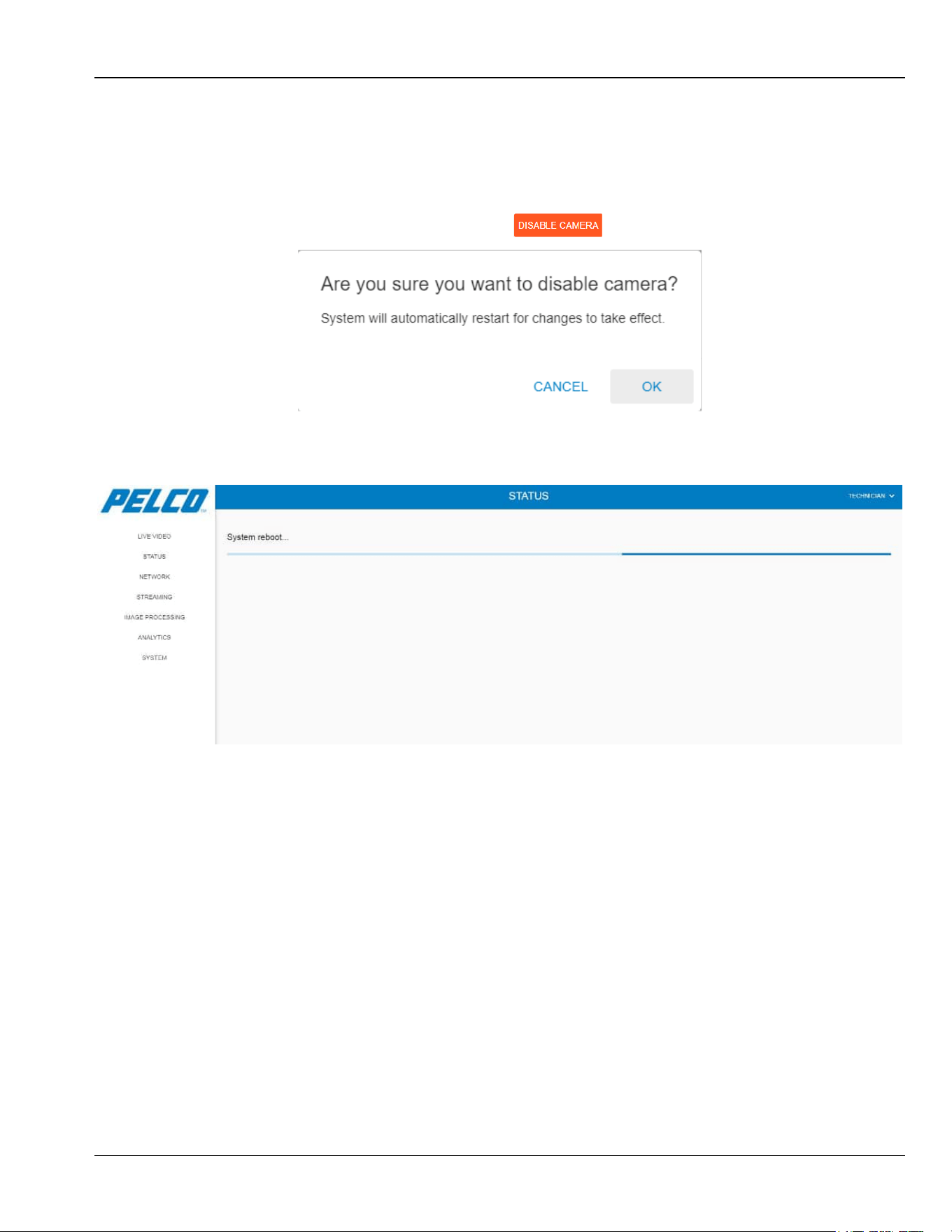
1. Expand the Thermal / Day tab and click . The following opens:
2. Click OK to approve. The following opens while the system re-boots:
Figure 5-14: Disabling / Enabling a Camera - System Reboot
Sarix TI Series Camera User Manual Chapter 5: Operation
5-14
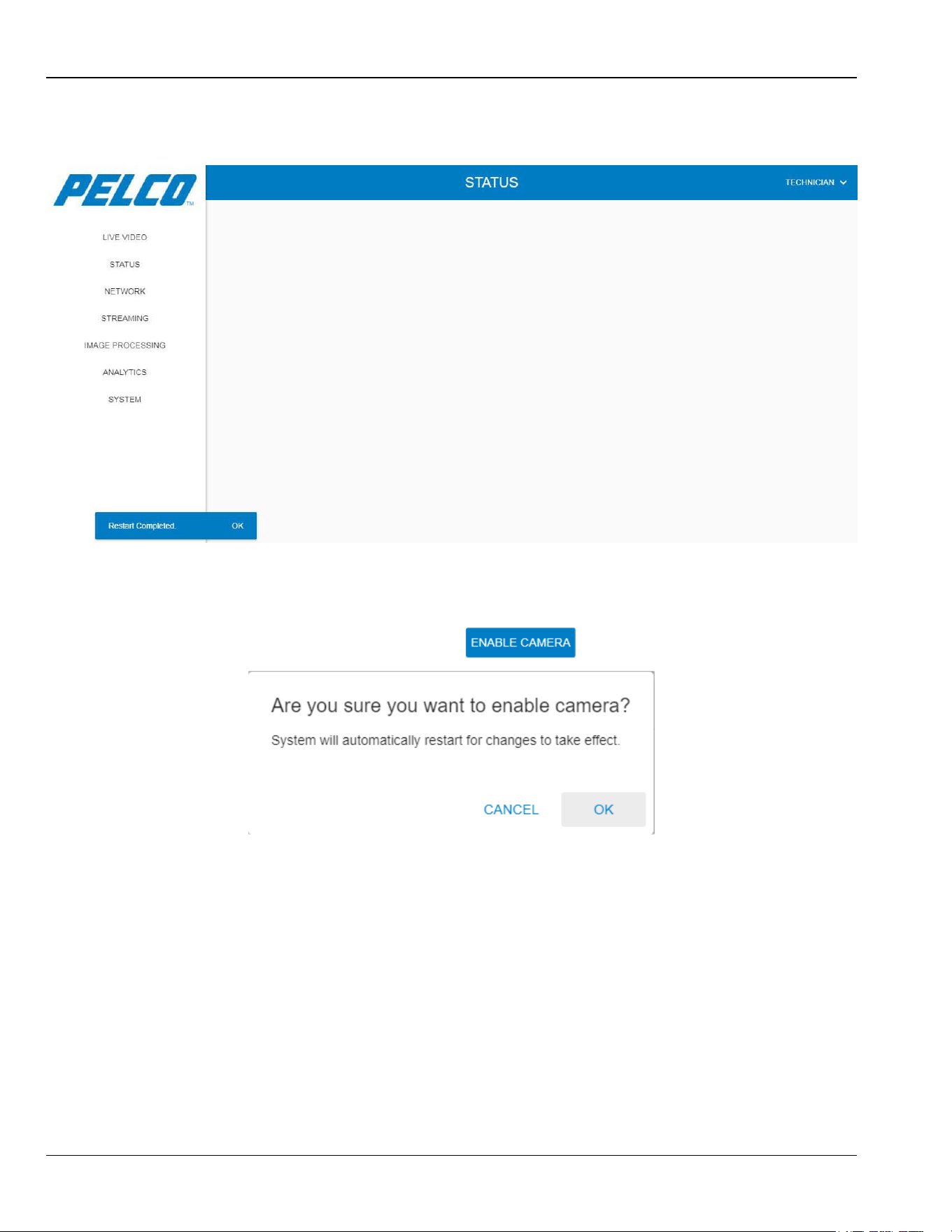
On completion, the following opens stating that the corresponding camera is disabled:
Figure 5-15: Disabling / Enabling a Camera - System Reboot Approval
The camera view does not appear anymore on the Live View window.
5.6.4.2 Enabling the Camera
1. Expand the Thermal / Day tab and click . The following opens:
2. Click OK to approve. The system re-boots (see Figure 5-14).
On completion, a message is displayed stating that the system has restarted
(see Figure 5-15).
The camera view is now available on the Live View window.
Chapter 5: Operation Sarix TI Series Camera User Manual
5-15
5.7 Network Window
The Network window allows configuring the HOST-to-Camera Ethernet communication
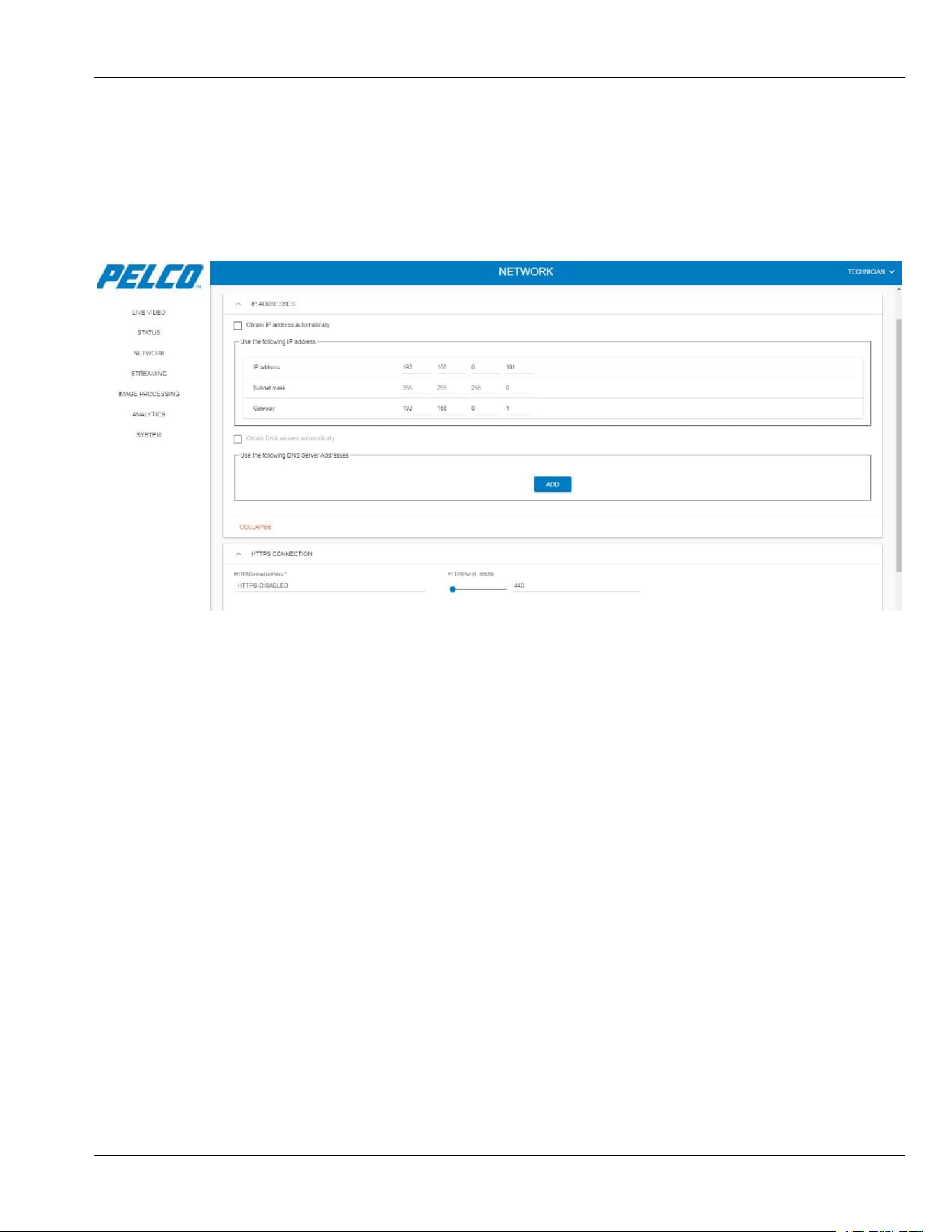
method.
1. Click Network. The Ethernet window - Basic Settings tab opens:
Figure 5-16: Network Window - Basic Settings Tab
Sarix TI Series Camera User Manual Chapter 5: Operation
5-16
5.7.1 Setting of IP Address
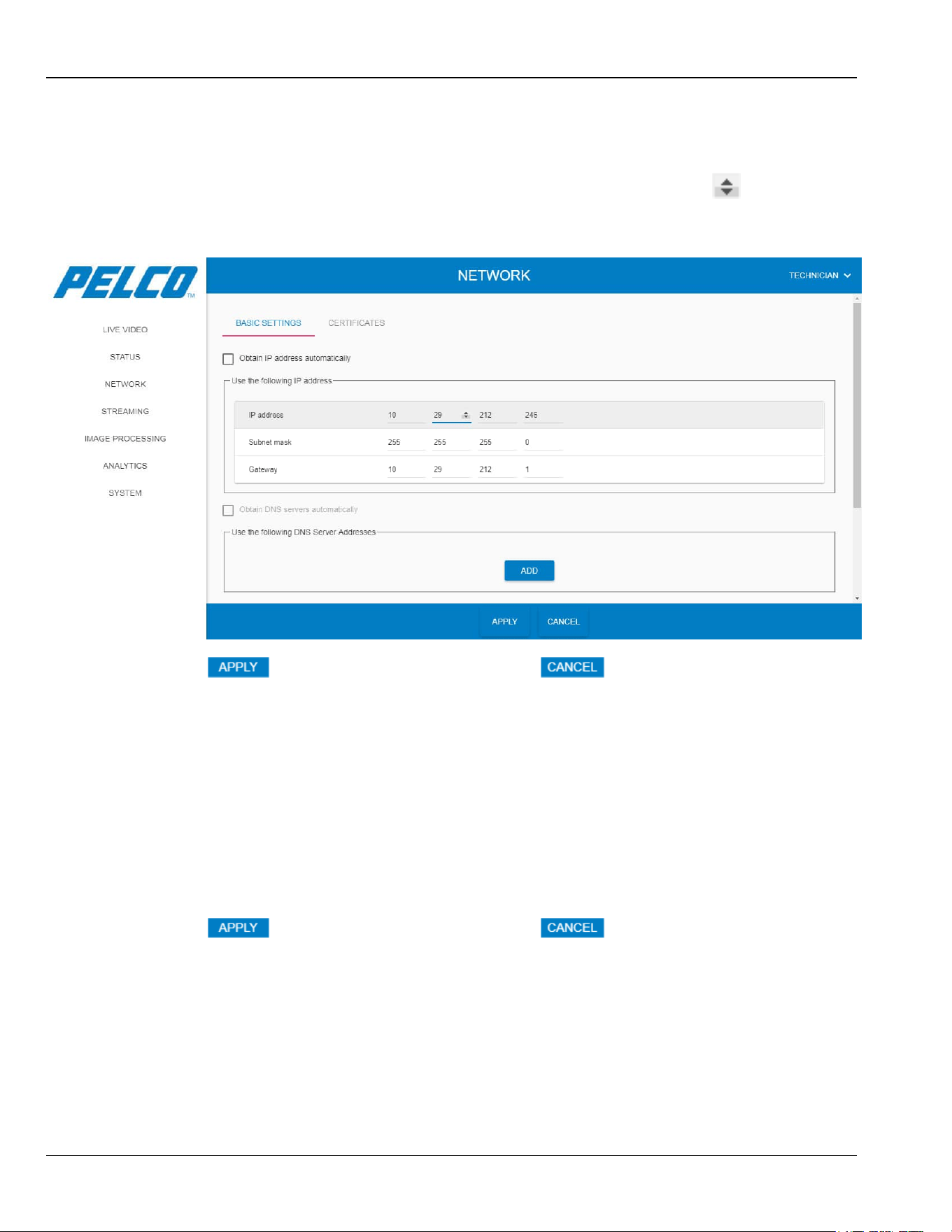
To change the IP address, Subnet mask or Gateway values:
1. Click on the corresponding address and change the value either using the button or type
the IP address using the keyboard. An example is shown in Figure 5-17:
Figure 5-17: Network Window - Changing an Address
2. Click for the changes to take effect (click to revert your
changes).
5.7.2 Setting an Auto IP Address (DHCP)
To set a dynamically assigned IP address:
1. Select the Obtain IP address automatically checkbox. Results:
- The address area turns invalid.
- the DNS area become valid.
2. To let the system to select an auto DNS server address: enable the DNS area by selecting
the Obtain IP address automatically checkbox. The Obtain DNS servers automatically
checkbox is automatically selected.
3. Click for the changes to take effect (click to revert your changes).
Chapter 5: Operation Sarix TI Series Camera User Manual
5-17
5.7.3 Setting a Manual DNS Server Address
This option is applicable when you wish to synchronize the time and date with a DNS server
(see Section 5.11.3.2).
To manually select a DNS server address:
1. Enable the DNS area by selecting the Obtain IP address automatically checkbox. The
Obtain DNS servers automatically checkbox is automatically selected.
2. Clear the Obtain DNS servers automatically checkbox.
3. Click . An empty DNS line is added.
4. Determine the address.
5. Click for the changes to take effect (click to revert your changes).
5.7.4 Settings of HTTPS Connection
This option is applicable when selecting either a self-signed certificate or uploading an existing
certificate (see Section 5.7.7).
To set the HTTPS connection:
1. Set the HTTPS Port bar to the required value (1 to 65535).
2. Click for the changes to take effect (click to revert your changes).
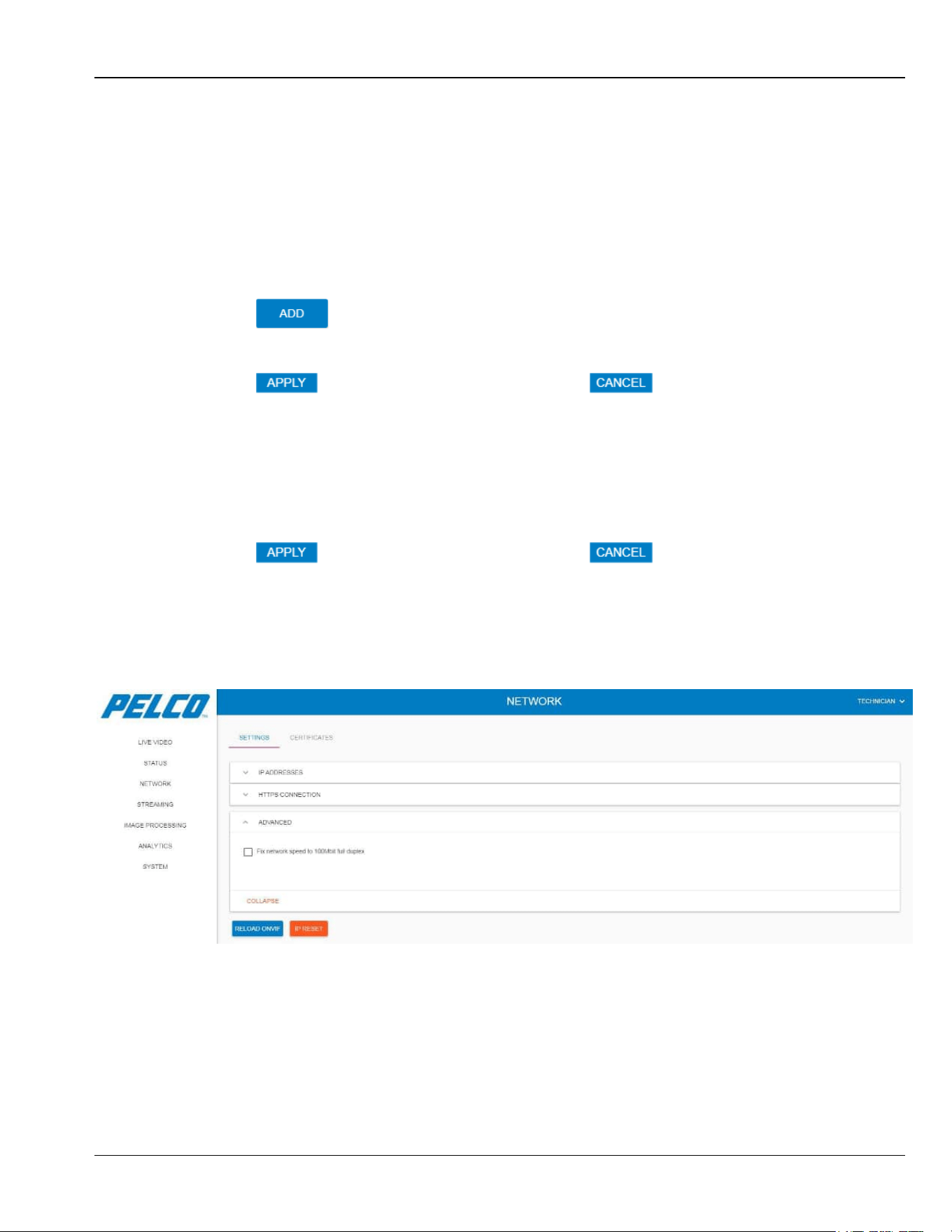
5.7.5 Setting the Network Interface
To have the network interface permanently set to 100 Mbps:
1. Select the Advanced tab. The following opens:
Figure 5-18: Network Window - Setting Network Interface
2. Select the Fix network speed to 100Mbit full duplex checkbox.
Sarix TI Series Camera User Manual Chapter 5: Operation
5-18
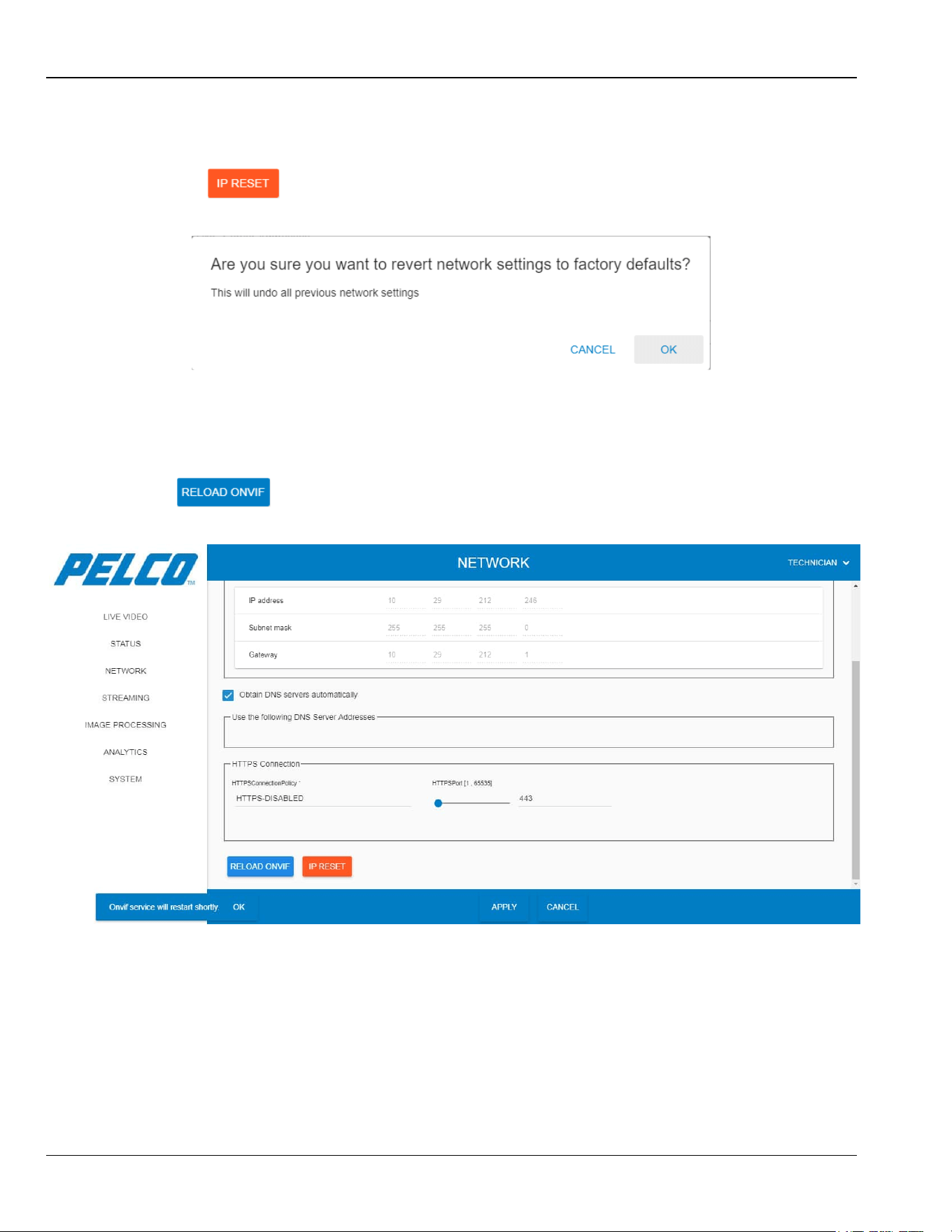
5.7.6 Resetting Network Settings
To revert network settings back to factory defaults:
1. Click . The following opens:
Figure 5-19: Network Window - Resetting IP Address Approval
2. Click OK to revert network settings back to factory defaults.
5.7.7 Restarting ONVIF Service
To restart the system and reload ONVIF service:
Click . The following opens while the system re-starts:
Figure 5-20: Network Window - ONVIF Reload
NOTE
The HTTPS Port default value is 443.
Chapter 5: Operation Sarix TI Series Camera User Manual
5-19
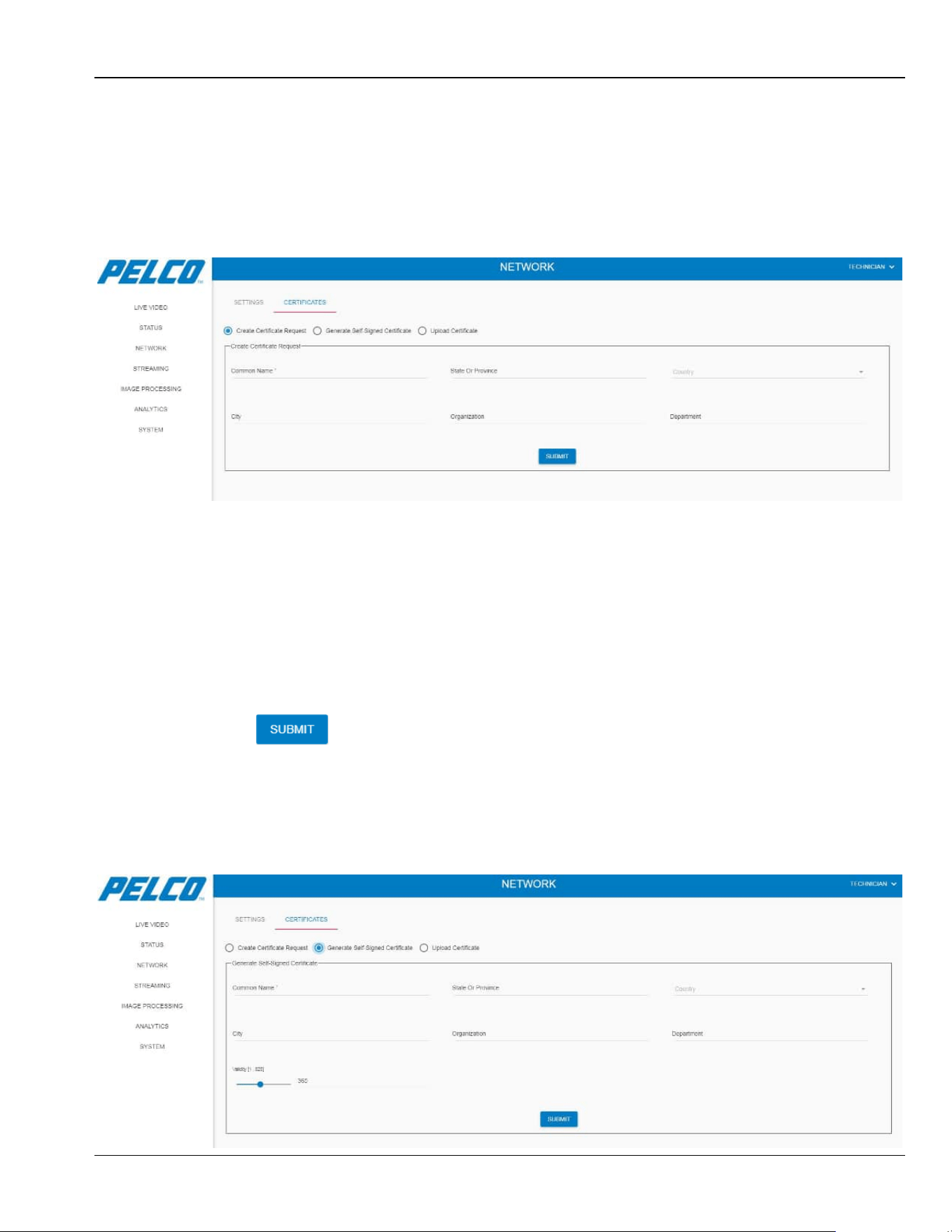
5.7.8 Certificates
5.7.8.1 Creating a Certificate Request
This option allows retrieval of a Secure Sockets Layer (SSL) certificate.
1. Select the Certificates tab. The following opens:
Figure 5-21: Certificates - Creating a Certificate Request
2. Enter/select the following details:
• Common Name (compulsory; an IP address or system Host name).
• State or Province
• Country (select from the drop-down list)
• City
• Organization
• Department
3. Click . Your request is submitted for approvals.
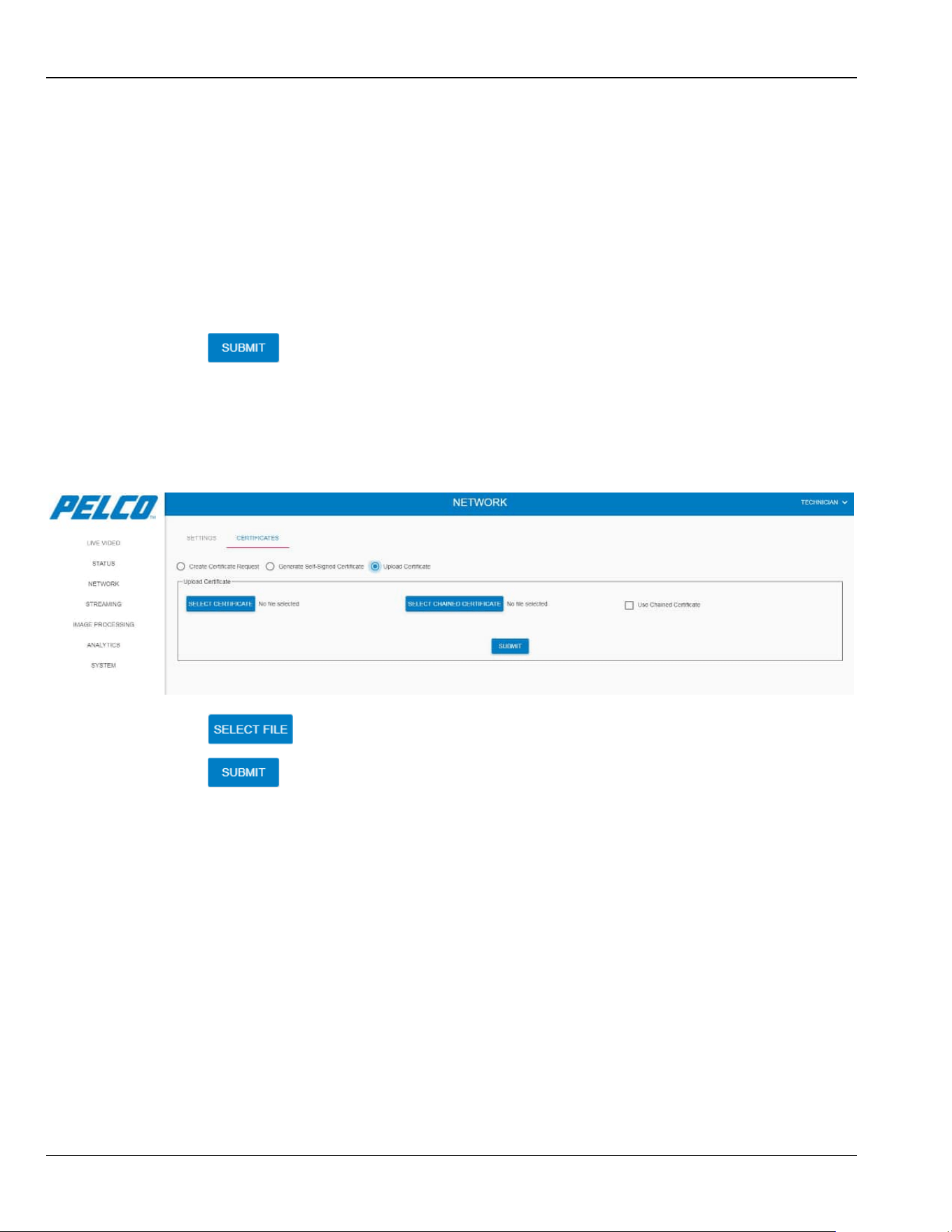
5.7.8.2 Generating a Self-Signed Certificate
This option allows producing a self-made certificate.
1. Select the Generate Self-Signed Certificate option. The following opens:
Figure 5-22: Certificates - Generating a Self-Signed Certificate
Sarix TI Series Camera User Manual Chapter 5: Operation
5-20
2. Enter/select the following details:
• Common Name (compulsory; an IP address or system Host name).
• State or Province
• Country (select from the drop-down list)
• City
• Organization
• Department
• Validity (in days)
3. Click . Your self-signed certificate is submitted for approvals.
5.7.8.3 Uploading a Certificate
This option allows loading an existing certificate, originated by another source.
1. Select the Upload Certificate option. The following opens:
Figure 5-23: Certificates - Uploading a Certificate
2. Click and browse to select the certificate file (*.pem format).
3. Click . Your uploaded certificate is submitted.
Chapter 5: Operation Sarix TI Series Camera User Manual
5-21
5.8 Streaming Window
The Streaming window allows configuring the video flow-rate and the video encoding method.
5.8.1 Thermal Tab
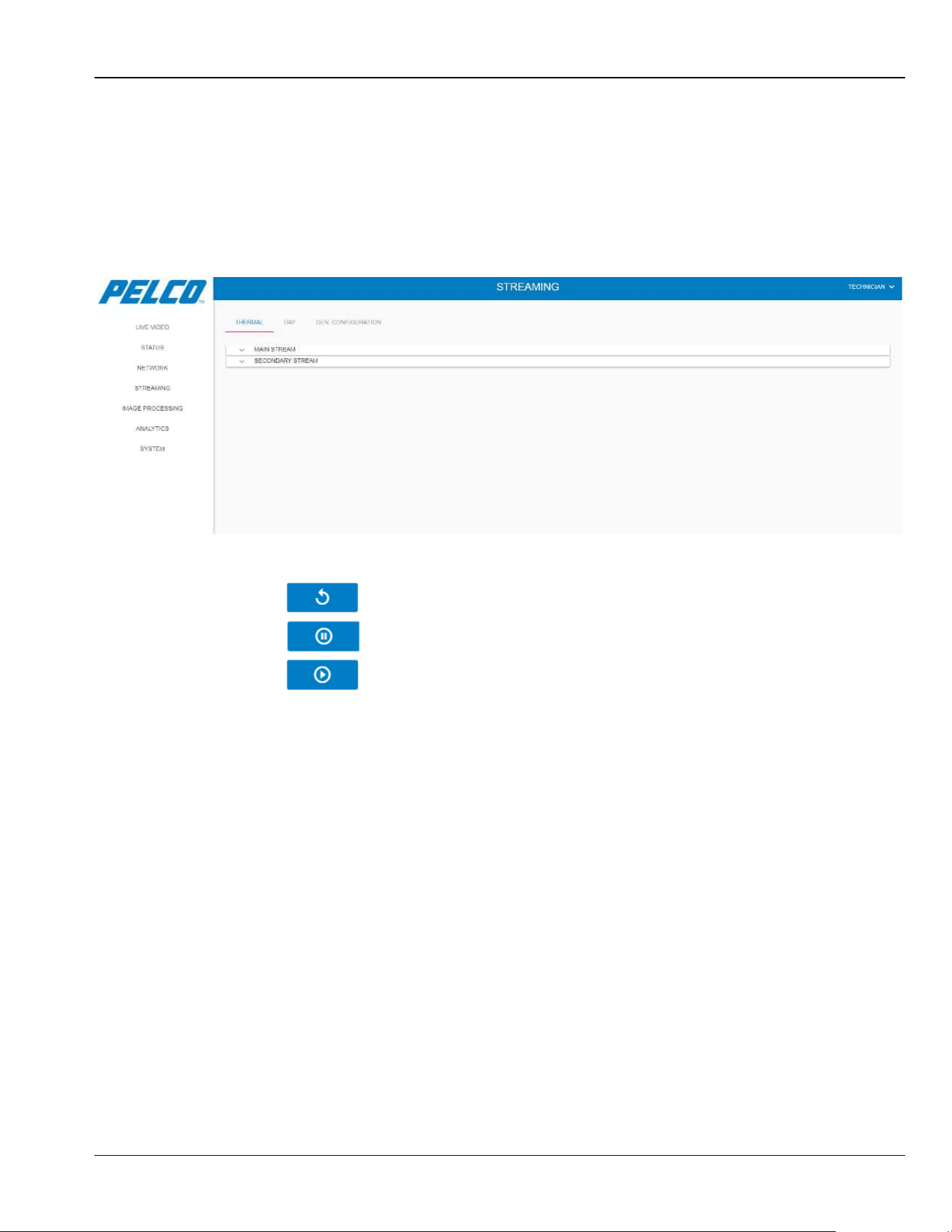
1. Click Streaming. The Streaming - Thermal Tab opens:
Figure 5-24: Streaming Window - Thermal Tab
2. Under each option in the Thermal Tab you can:
• Click to restart the video streaming.
• Click to stop the video streaming.
• Click to re-start the video streaming.
Sarix TI Series Camera User Manual Chapter 5: Operation
5-22
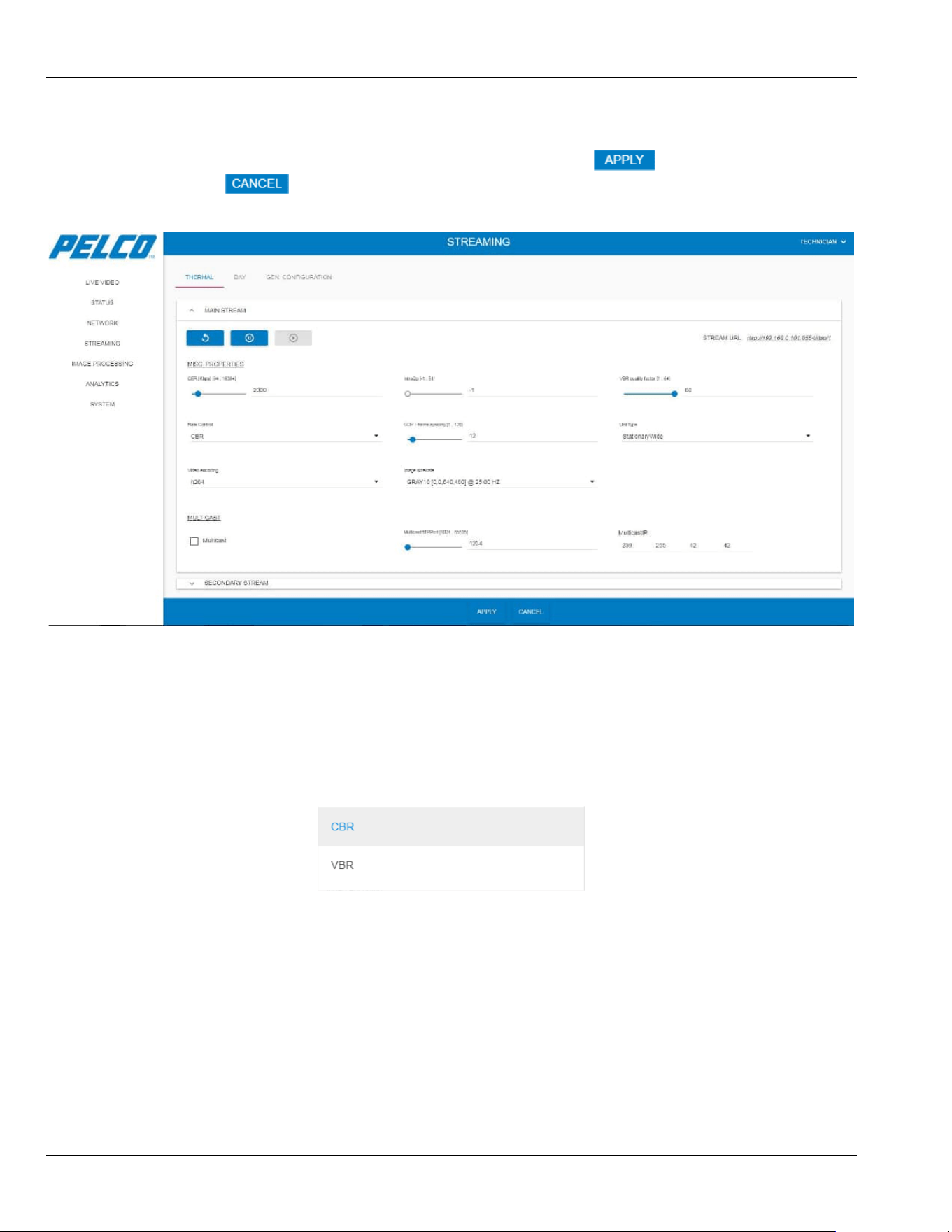
5.8.1.1 Main Stream
Expand the Main Stream option. The following opens (click for the changes to take
effect; click to revert your changes):
Figure 5-25: Streaming Window - Thermal Tab - Main Stream
The main stream option consists of the following parameters:
Misc Properties parameters:
• CBR: the video flow-rate (Kb/Sec).
• IntraQp: an auto calculation of the I-level quality-level (default: -1).
• VBR quality factor: 1 is the lowest level (applies only for VBR).
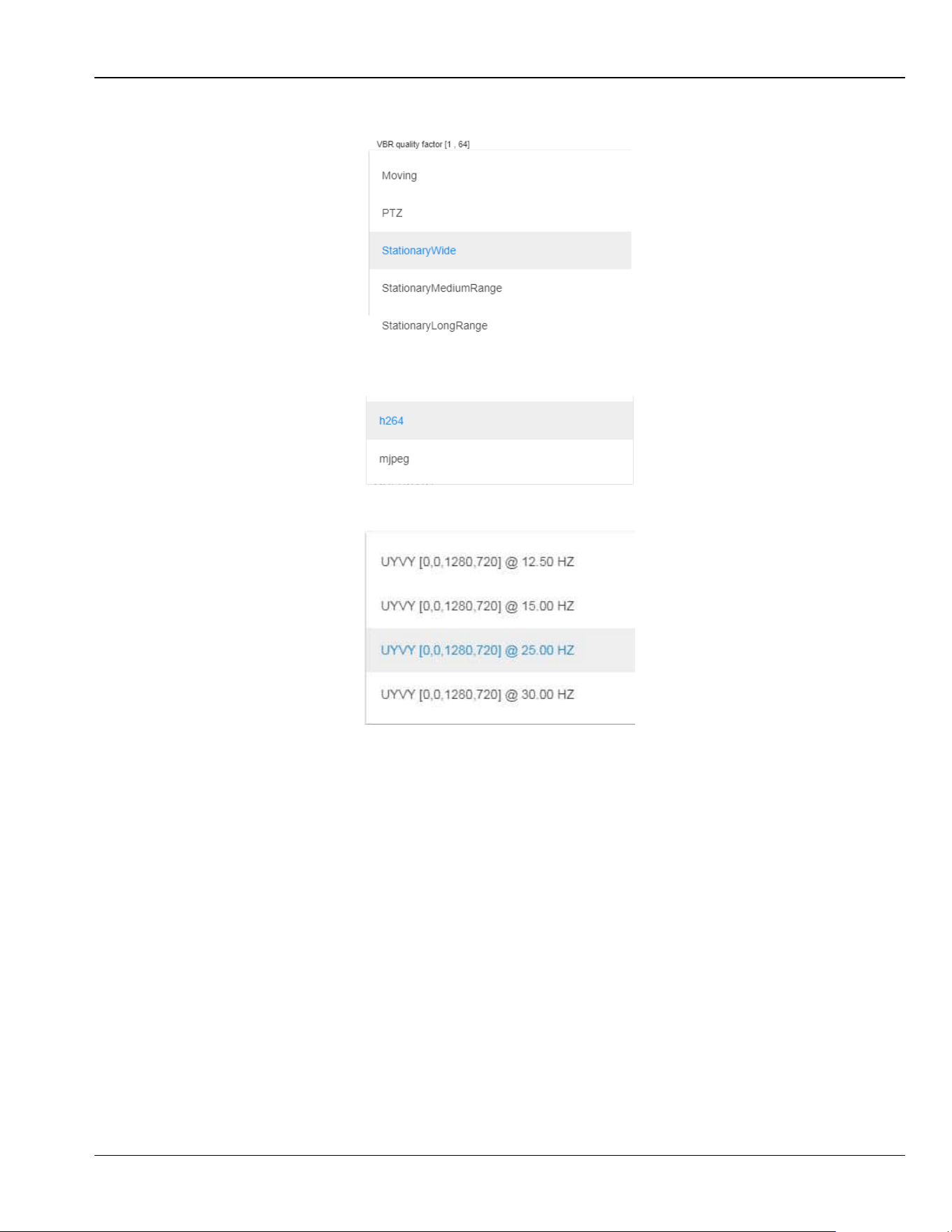
• Rate Control: Constant Bit Rate (CBR) or Variable Bit Rate (VBR).
• GOP: Group Of Pictures; how many frames will include an Intra-Frame.
Chapter 5: Operation Sarix TI Series Camera User Manual
5-23
• Unit Type: selection of the installed camera/lens type and the installation method.
• Video Encoding: selection of the video coding (mjpeg requires a system restart).
• Image Size/Rate: selection of the video that will be taken from the camera.
Sarix TI Series Camera User Manual Chapter 5: Operation
5-24
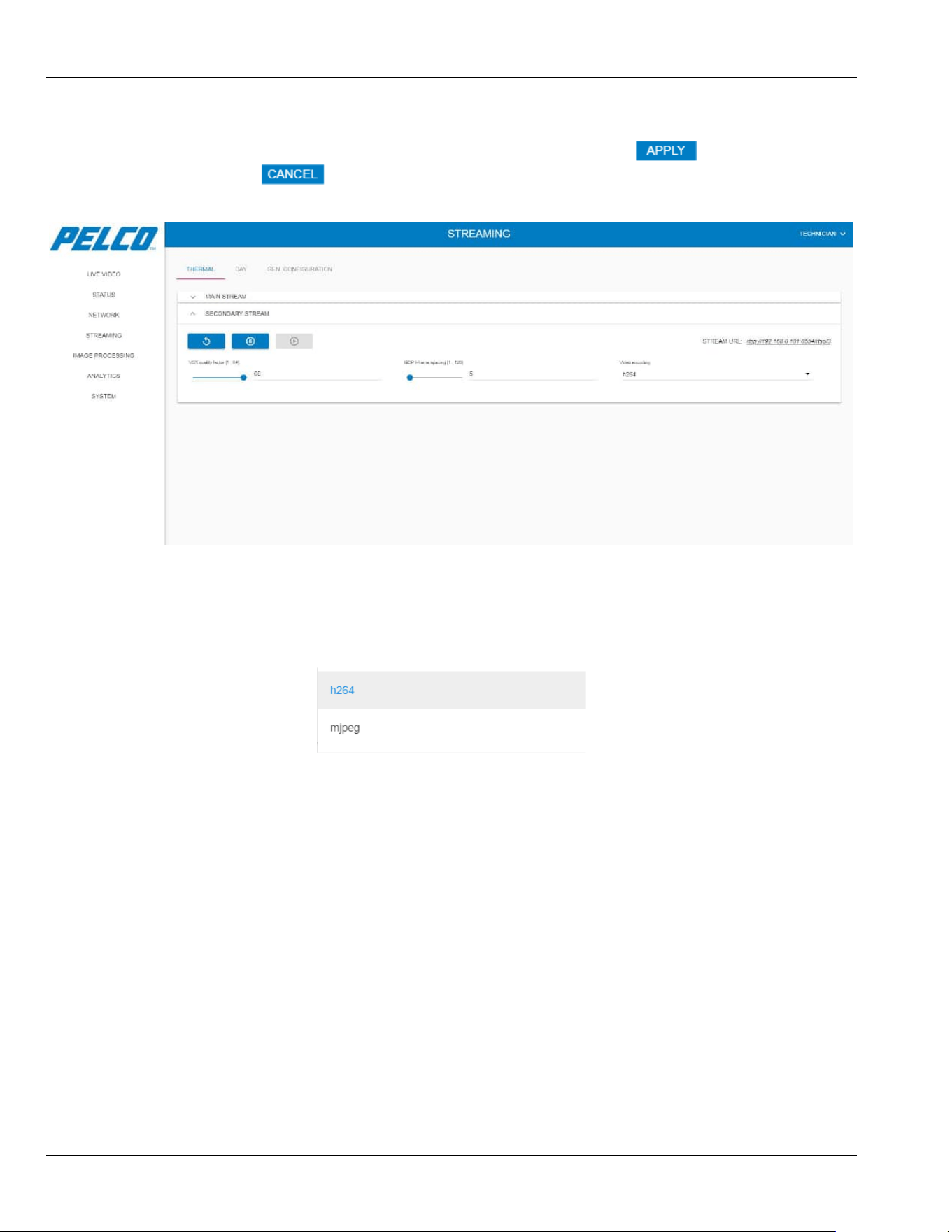
5.8.1.2 Secondary Stream
Expand the Secondary Stream option. The following opens (click for the changes to
take effect; click to revert your changes):
Figure 5-26: Streaming Window - Thermal Tab - Secondary Stream
The secondary stream option consists of the following parameters:
VBR quality factor: 1 is the lowest level.
GOP I-frame spacing: Group Of Pictures; how many frames will include an Intra-Frame.
Video encoding: selection of the video coding (mjpeg requires a system restart).
Chapter 5: Operation Sarix TI Series Camera User Manual
5-25
5.8.2 Day Tab
Under each option in the Day Tab you can:
• Click to restart the video streaming.
• Click to stop the video streaming.
• Click to re-start the video streaming.
5.8.2.1 Main Stream
Expand the Main Stream option. The following opens (click for the changes to take
effect; click to revert your changes):
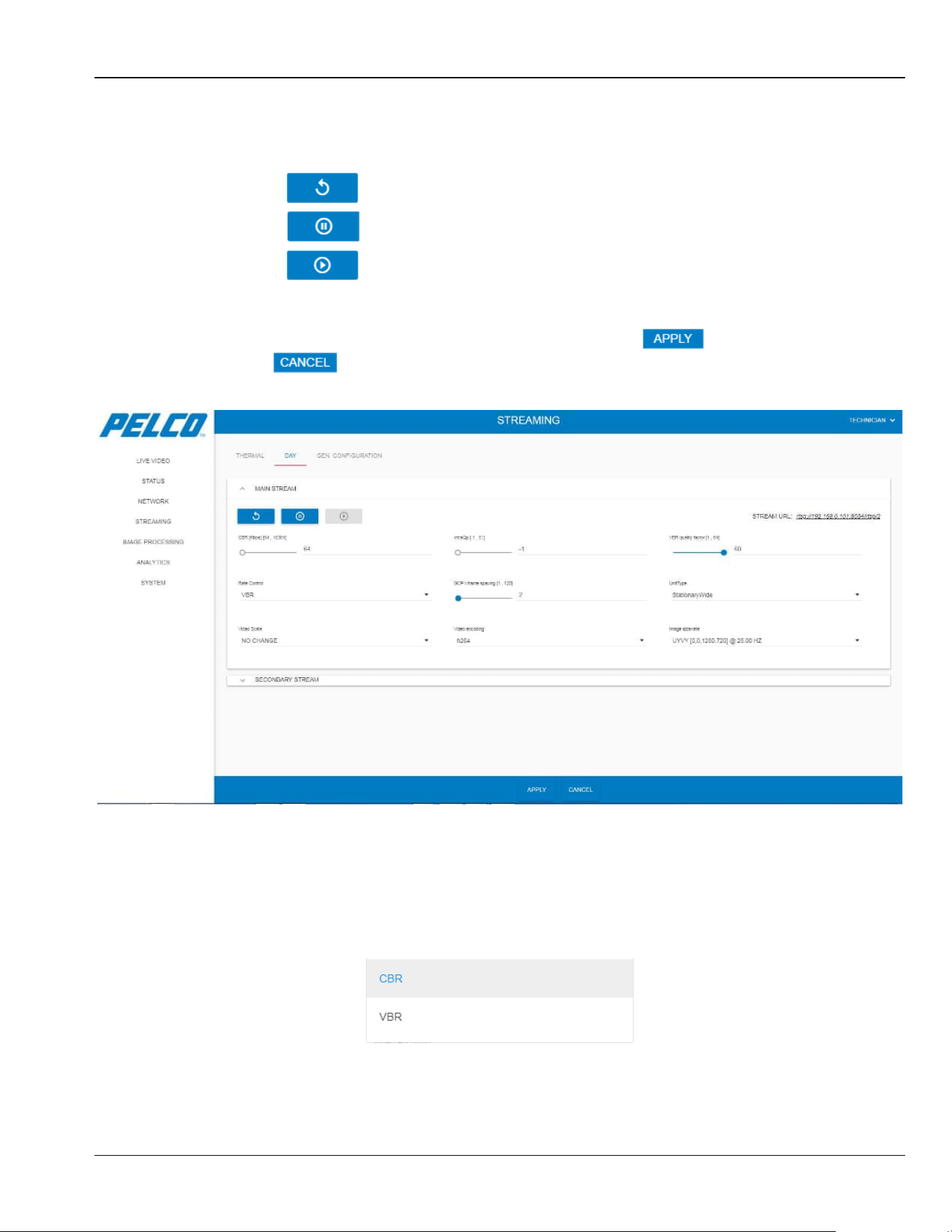
Figure 5-27: Streaming Window - Day Tab - Main Stream
The main stream option consists of the following parameters:
• CBR: the video flow-rate (Kb/Sec).
• IntraQp: an auto calculation of the I-level quality-level (default: -1).
• VBR quality factor: 1 is the lowest level (applies only for VBR).
• Rate Control: CBR or VBR.
• GOP: Group Of Pictures; how many frames will include an Intra-Frame.
Sarix TI Series Camera User Manual Chapter 5: Operation
5-26
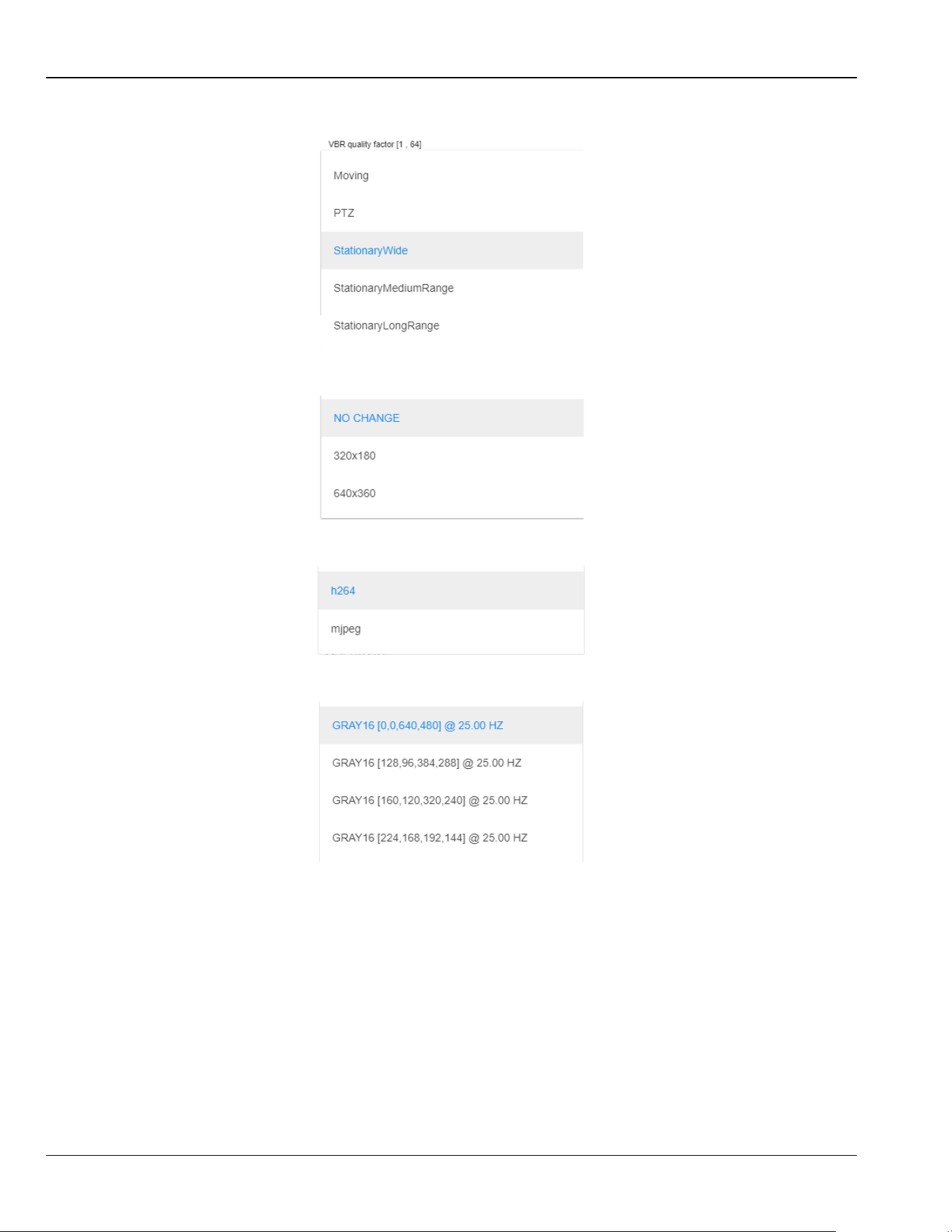
• Unit Type: selection of the installed camera/lens type and the installation method.
• Video Scale: the video resolution; "NO CHANGE": 1280 x 720 (HD).
• Video Encoding: selection of the video coding (mjpeg requires a system restart).
• Image Size/Rate: selection of the video that will be taken from the camera.
Chapter 5: Operation Sarix TI Series Camera User Manual
5-27
5.8.2.2 Secondary Stream
Expand the Secondary Stream option. The following opens (click for the changes to
take effect; click to revert your changes):
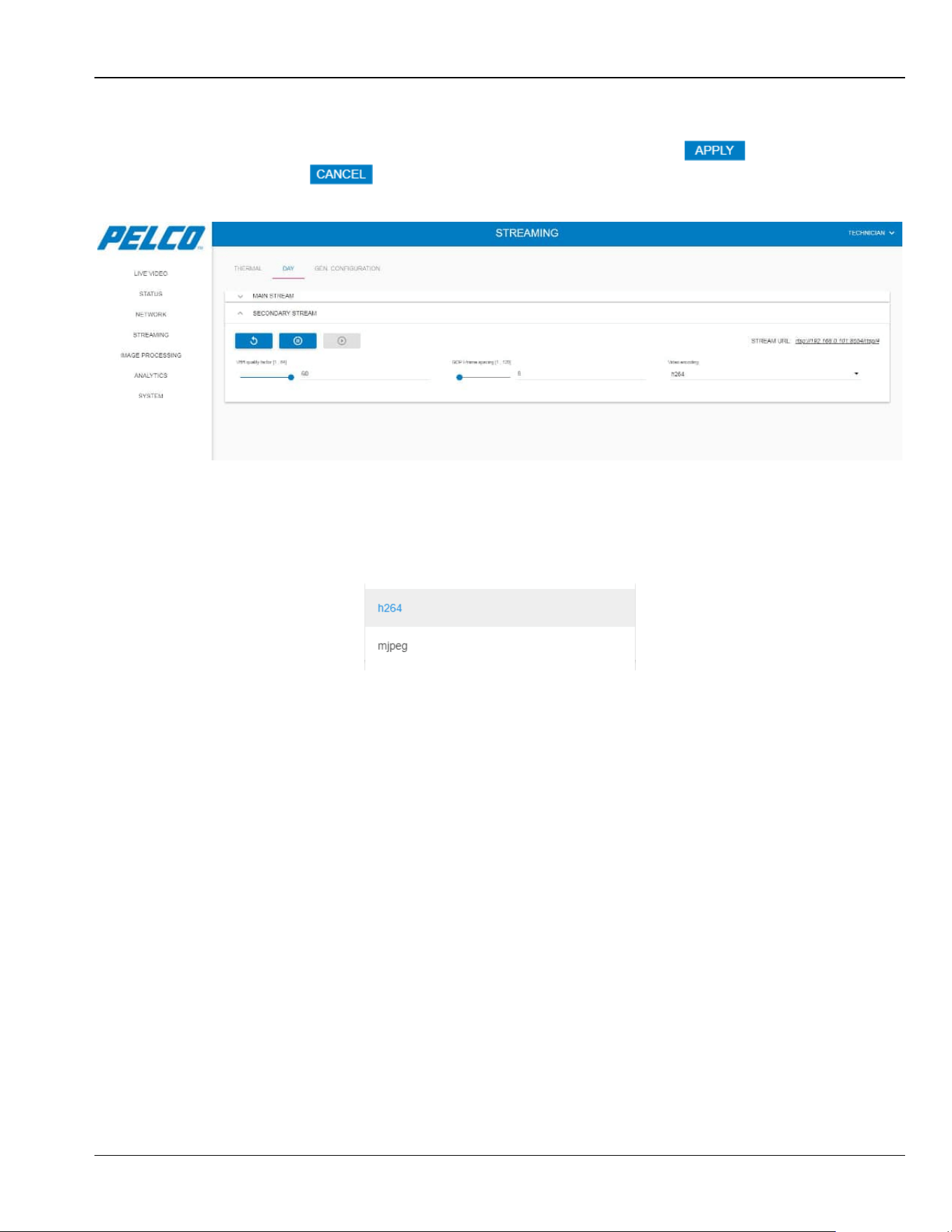
Figure 5-28: Streaming Window - Day Tab - Secondary Stream
The secondary stream option consists of the following parameters:
VBR quality factor: 1 is the lowest level.
GOP I-frame spacing: Group Of Pictures; how many frames will include an Intra-Frame.
Video encoding: selection of the video coding (mjpeg requires a system restart).
Sarix TI Series Camera User Manual Chapter 5: Operation
5-28
5.8.3 General Configuration Tab
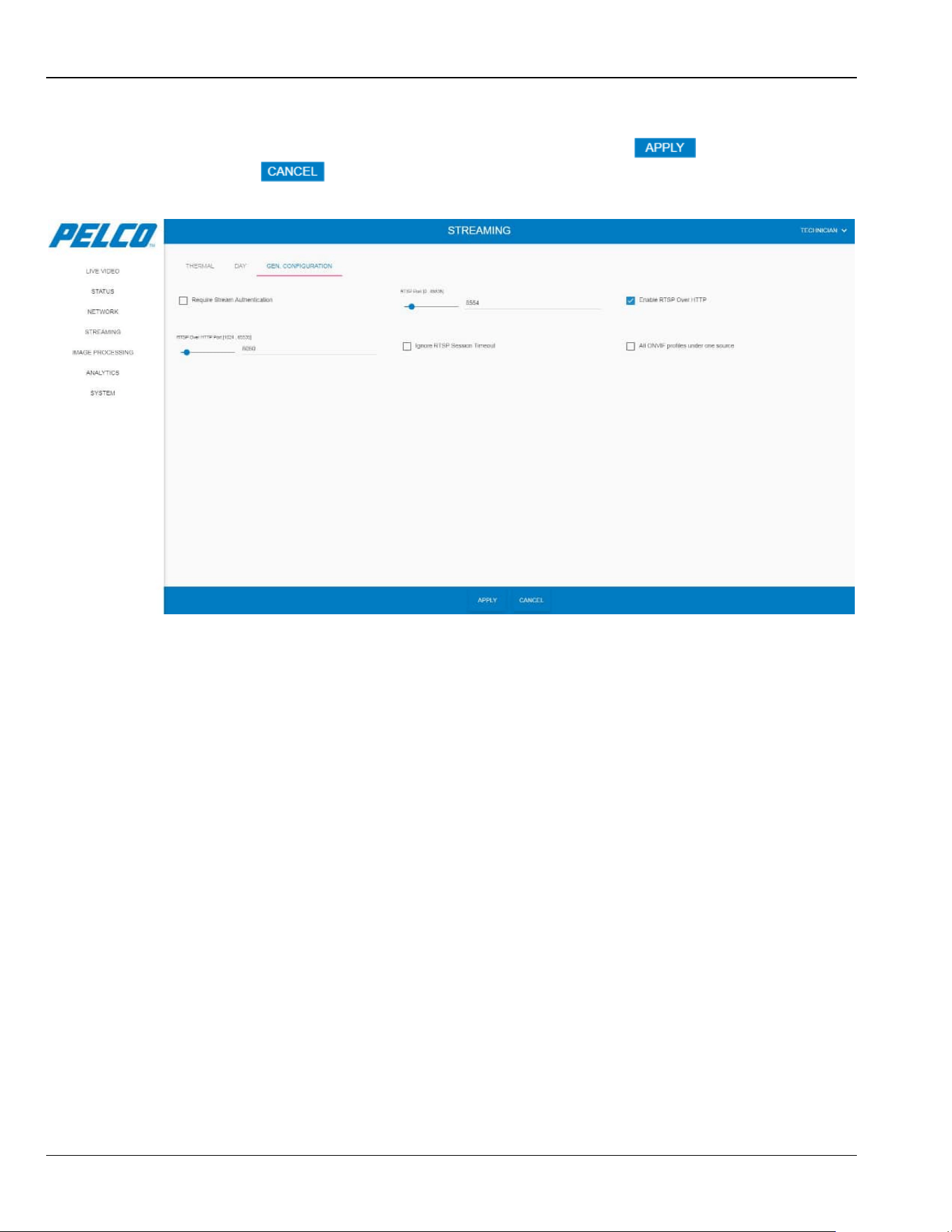
Select the General Configuration tab. The following opens (click for the changes to
take effect; click to revert your changes):
Figure 5-29: Streaming Window - General Configuration Tab
The General Configuration tab consists of the following parameters:
Enable Authentication: user/password enabled.
RTSP Port: the RTSP port.
RTSP Over HTTP Enabled
RTSP Over HTTP Port
Chapter 5: Operation Sarix TI Series Camera User Manual
5-29
5.9 Image Processing Window
The Image Processing window allows changing the video display method, orientation and
quality.
Click Image Processing. The Image Processing - Thermal tab opens.
5.9.1 Thermal Tab
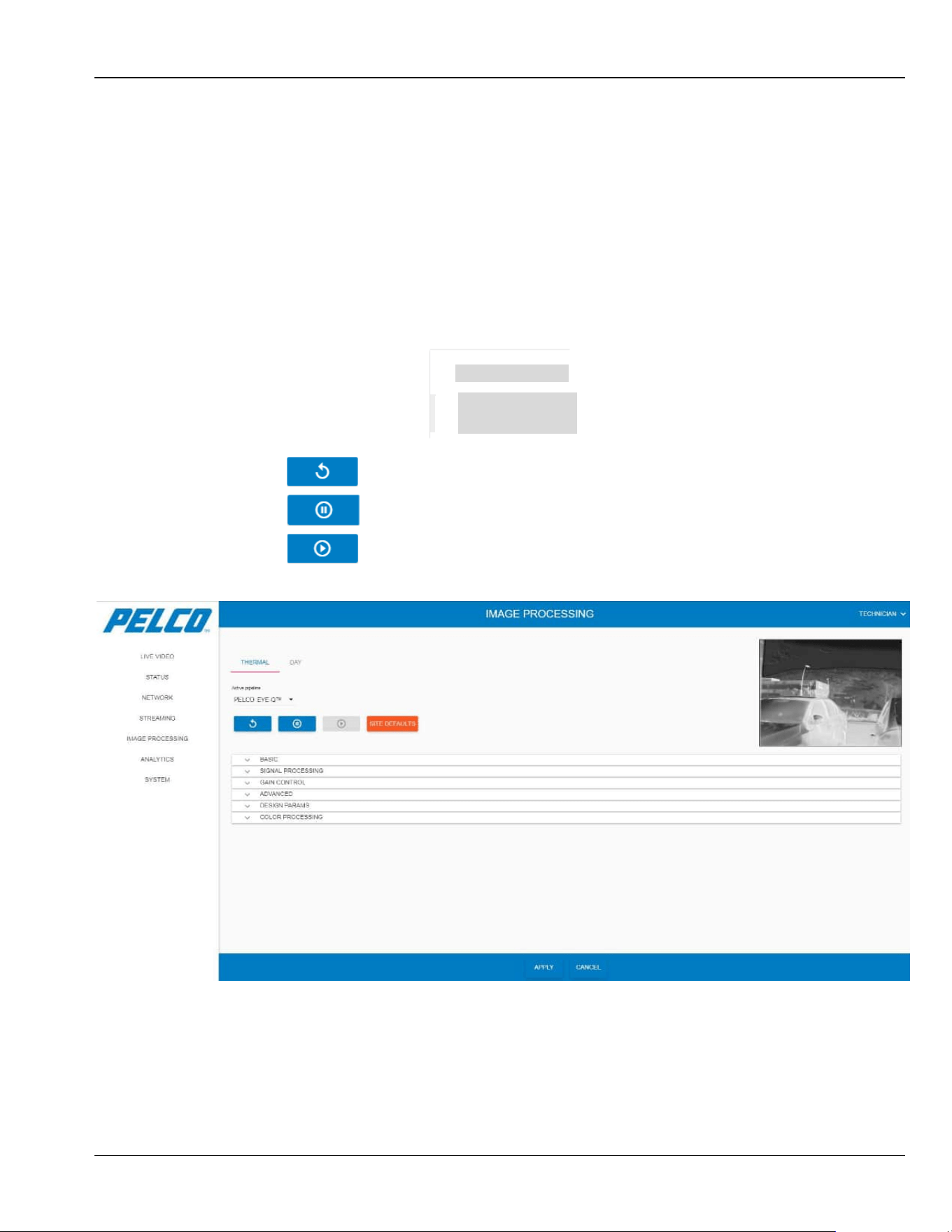
1. You can:
• From the Active Pipeline drop-down list select the pipeline name that is currently
active (either Night Vision - NV or EyeQ):
• Click to restart the video streaming.
• Click to stop the video streaming.
• Click to re-start the video streaming.
Figure 5-30: Image Processing Window - Thermal Tab
NV
EYE-Q™
Sarix TI Series Camera User Manual Chapter 5: Operation
5-30
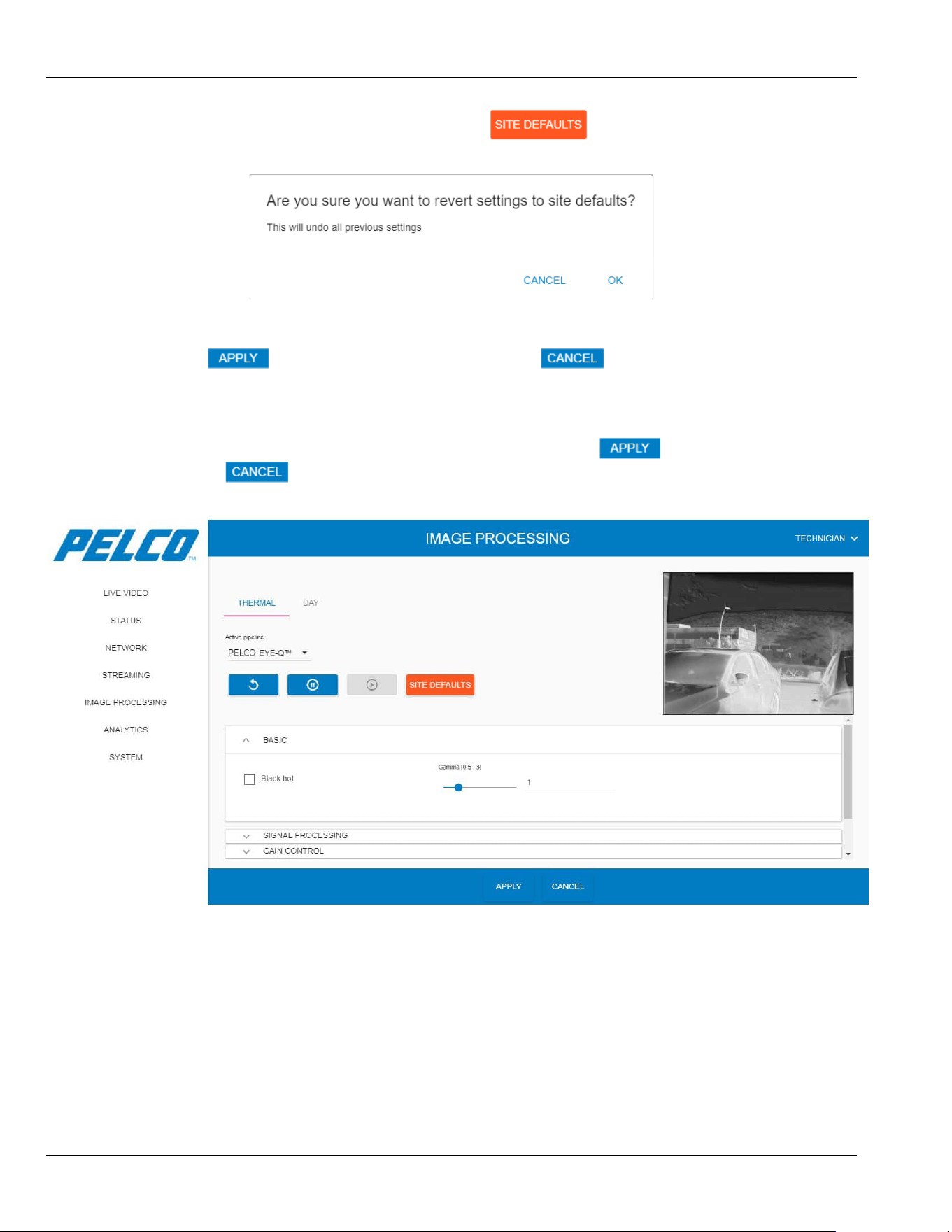
2. Applicable for video processing only: click to revert the entire
settings to your local site settings. The following opens:
3. Click OK to approve.
4. Click for the changes to take effect (click to revert your
changes).
5.9.1.1 Basic Settings
Expand the Basic Settings option. The following opens (click for the changes to take
effect; click to revert your changes):
Figure 5-31: Image Processing Window - Thermal Tab - Basic Settings
Chapter 5: Operation Sarix TI Series Camera User Manual
5-31
The Basic Settings option consists of the following parameters:
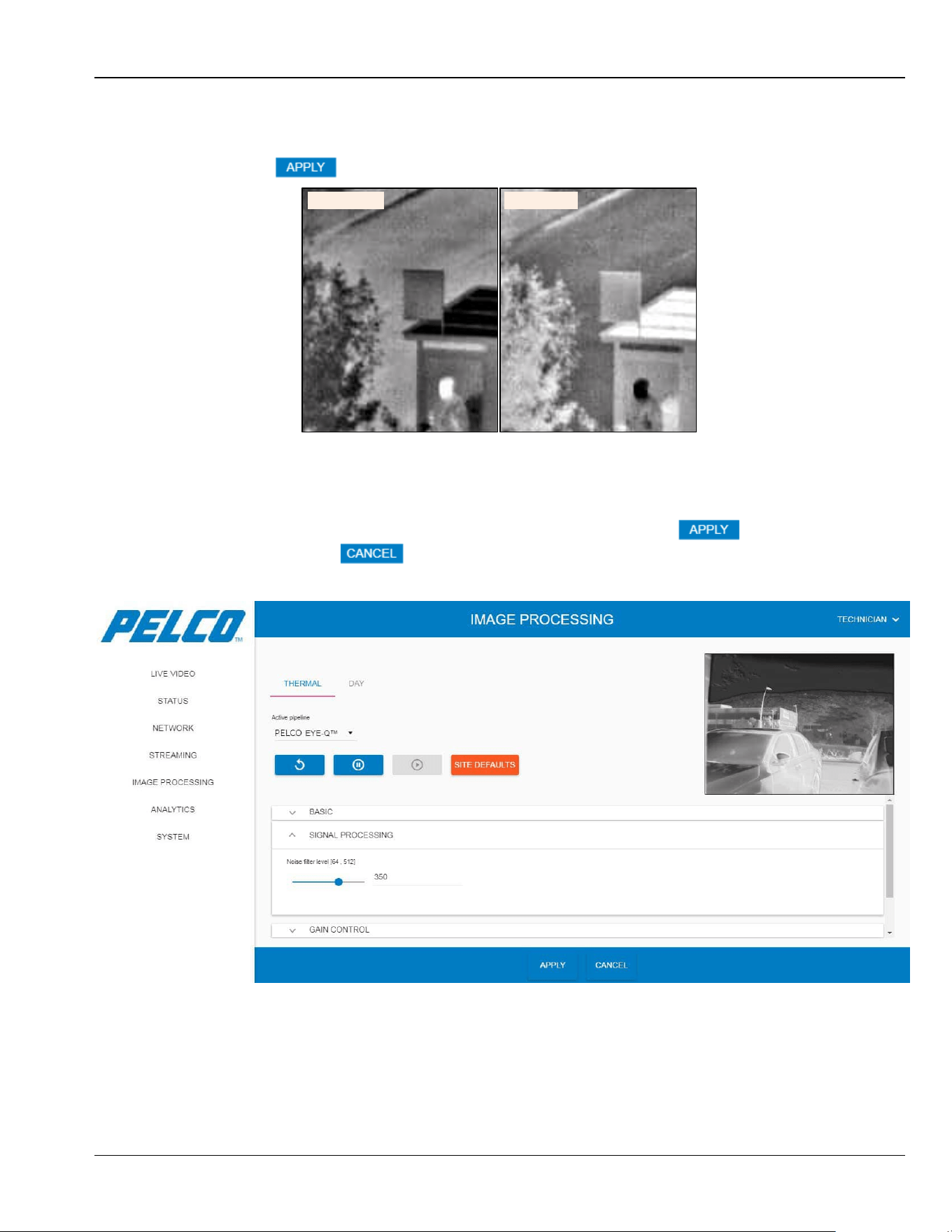
Black hot: select ("Black Hot") or Clear ("White Hot") the Black Hot checkbox. After
clicking , the video image display is changing accordantly (example):
White Hot
Black Hot
Gamma: Gamma level corrections.
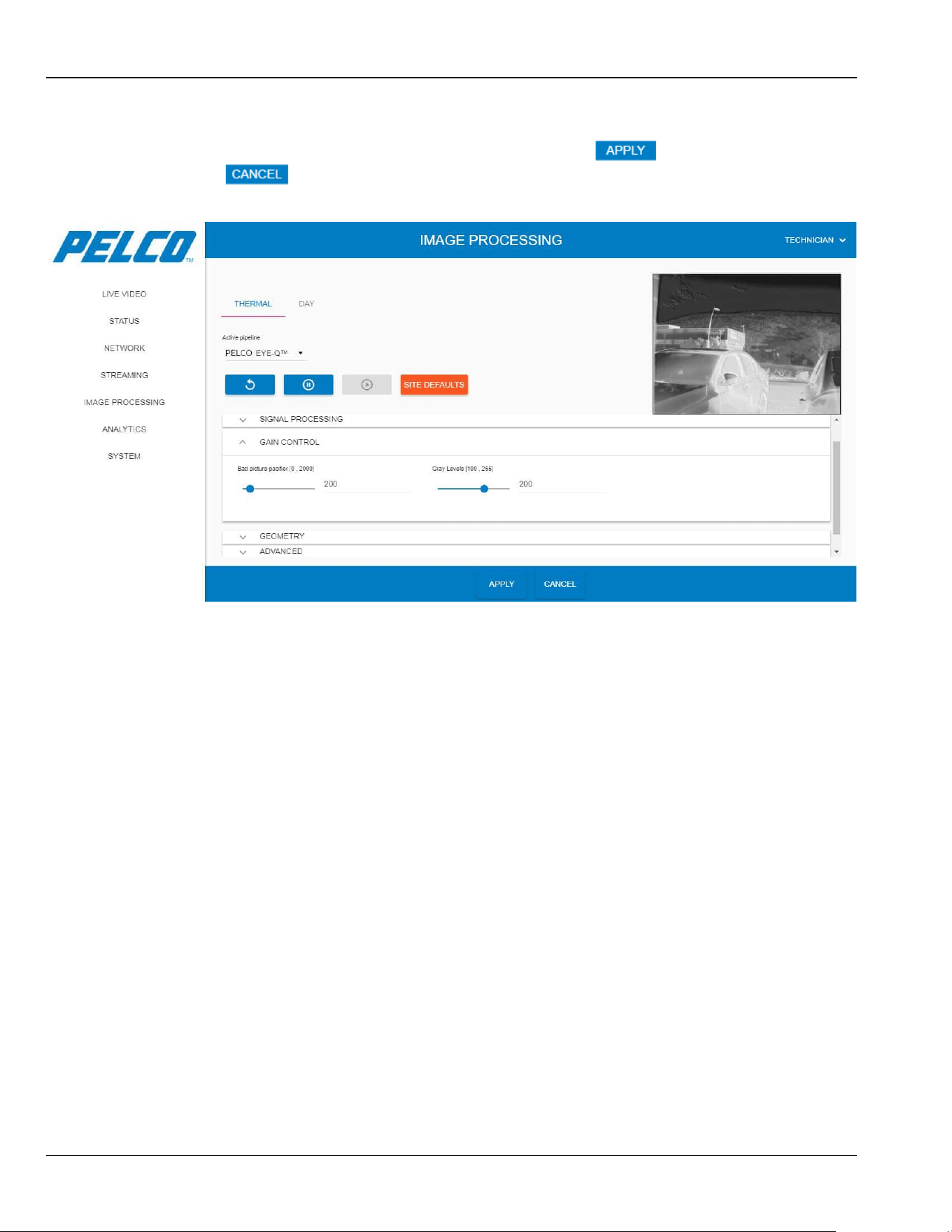
5.9.1.2 Signal Processing Settings
1. Expand the Basic Settings option. The following opens (click for the changes to
take effect; click to revert your changes):
Figure 5-32: Image Processing Window - Thermal Tab - Signal Processing Settings
2. Set the Noise filter level: filtering noises. It is recommended to remain with
the default value (high-value filtering will result in movement smudge).
Sarix TI Series Camera User Manual Chapter 5: Operation
5-32
5.9.1.3 Gain Control Settings
Expand the Gain Control option. The following opens (click for the changes to take
effect; click to revert your changes):
Figure 5-33: Image Processing Window - Thermal Tab - Gain Control Settings
The Gain Control option consists of the following parameters:
Bad picture pacifier: noise-level deductions. It is recommended to remain with the default
value.
Gray Levels: the quantity of the gray-levels (up to 200).
Chapter 5: Operation Sarix TI Series Camera User Manual
5-33
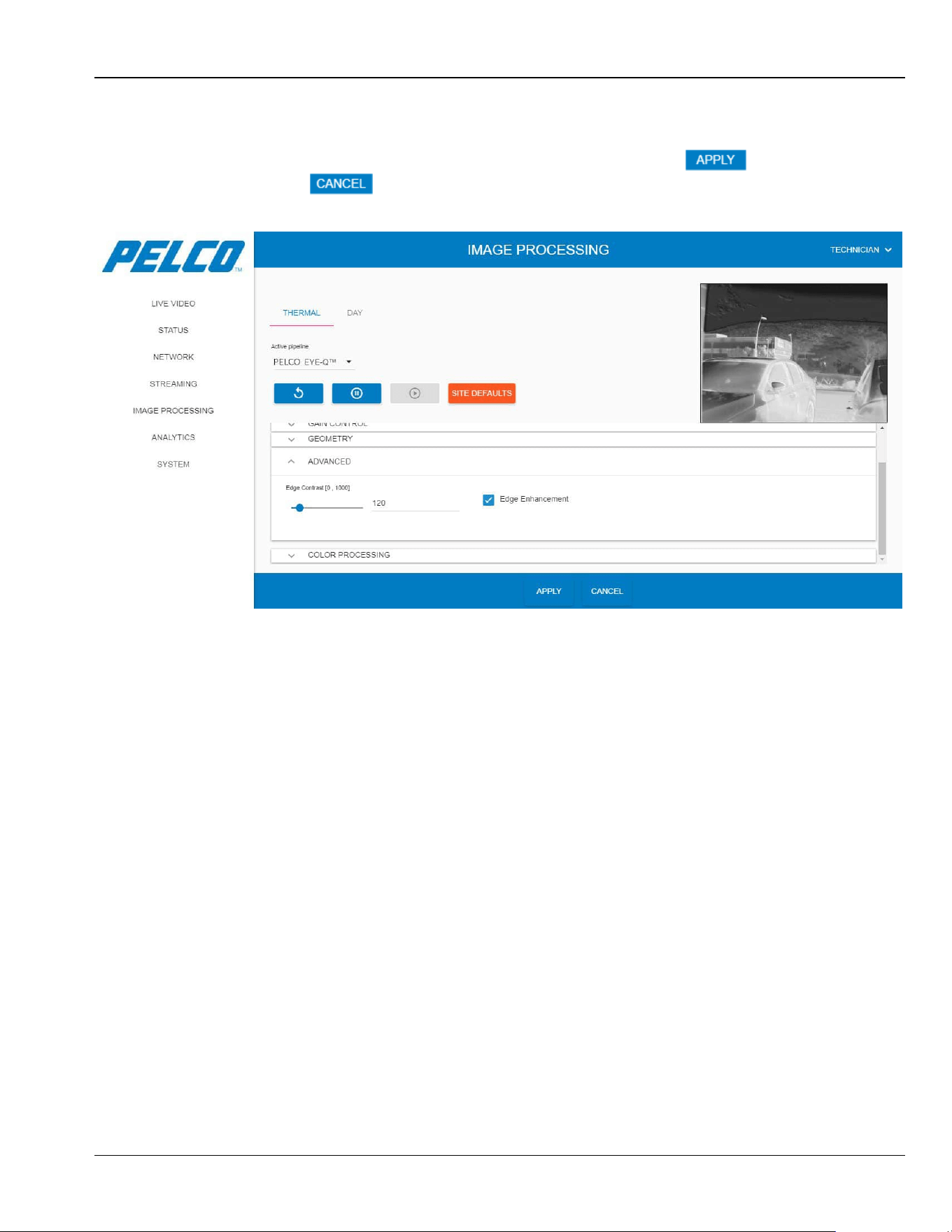
5.9.1.4 Advanced Settings
Expand the Advanced Settings option. The following opens (click for the changes to
take effect; click to revert your changes):
Figure 5-34: Image Processing Window - Thermal Tab - Advanced Settings
The Advanced Settings option consists of the following parameters:
Edge Contrast: enhancement of the image contrast.
Edge Enhancement: enhancement of the image edges.
Sarix TI Series Camera User Manual Chapter 5: Operation
5-34
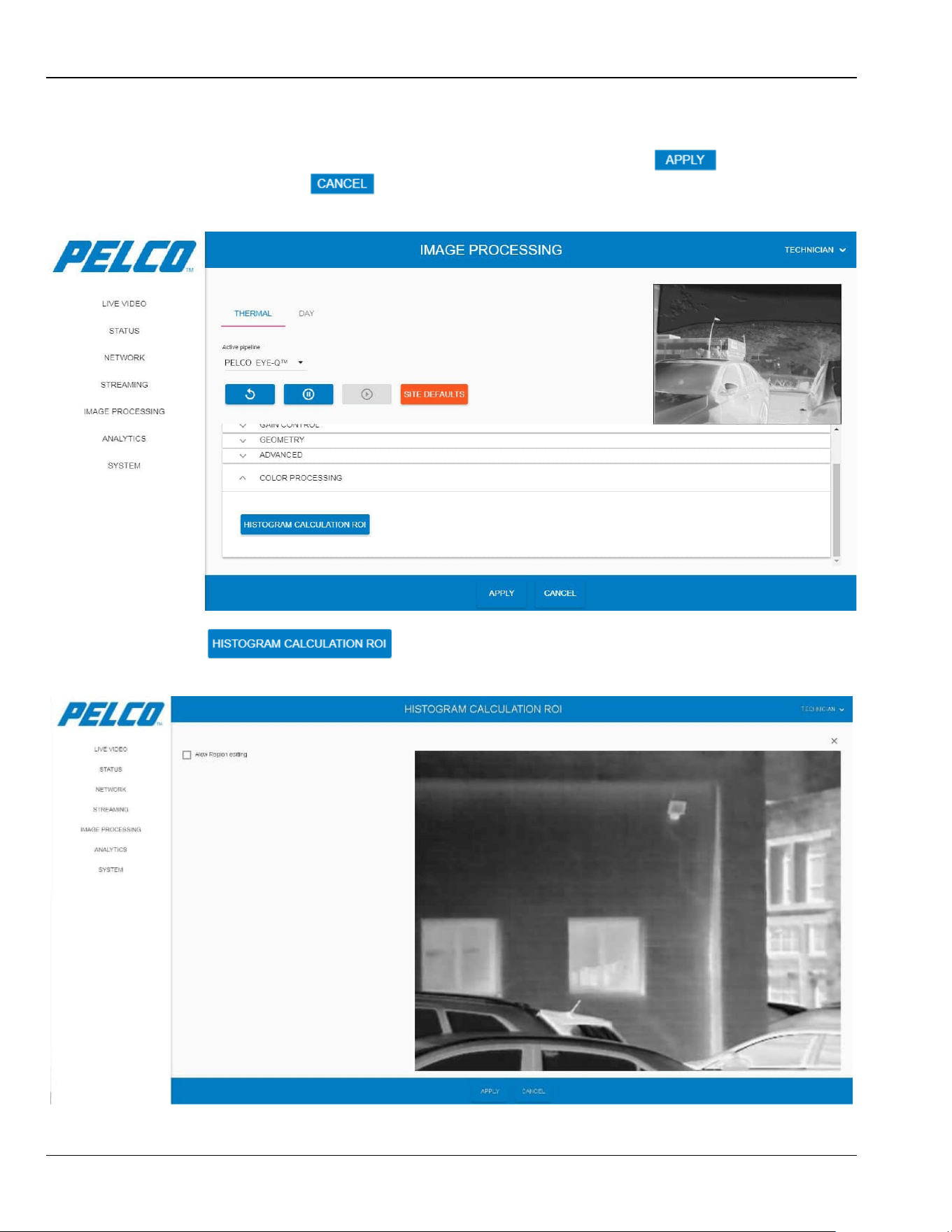
5.9.1.5 Color Processing Settings
1. Expand the Color Processing option. The following opens (click for the changes
to take effect; click to revert your changes):
Figure 5-35: Image Processing Window - Thermal Tab - Color Processing Settings
2. Click . The following opens (example):
Figure 5-36: Image Processing Window - Histogram Calculation ROI (1 of 3)
Chapter 5: Operation Sarix TI Series Camera User Manual
5-35
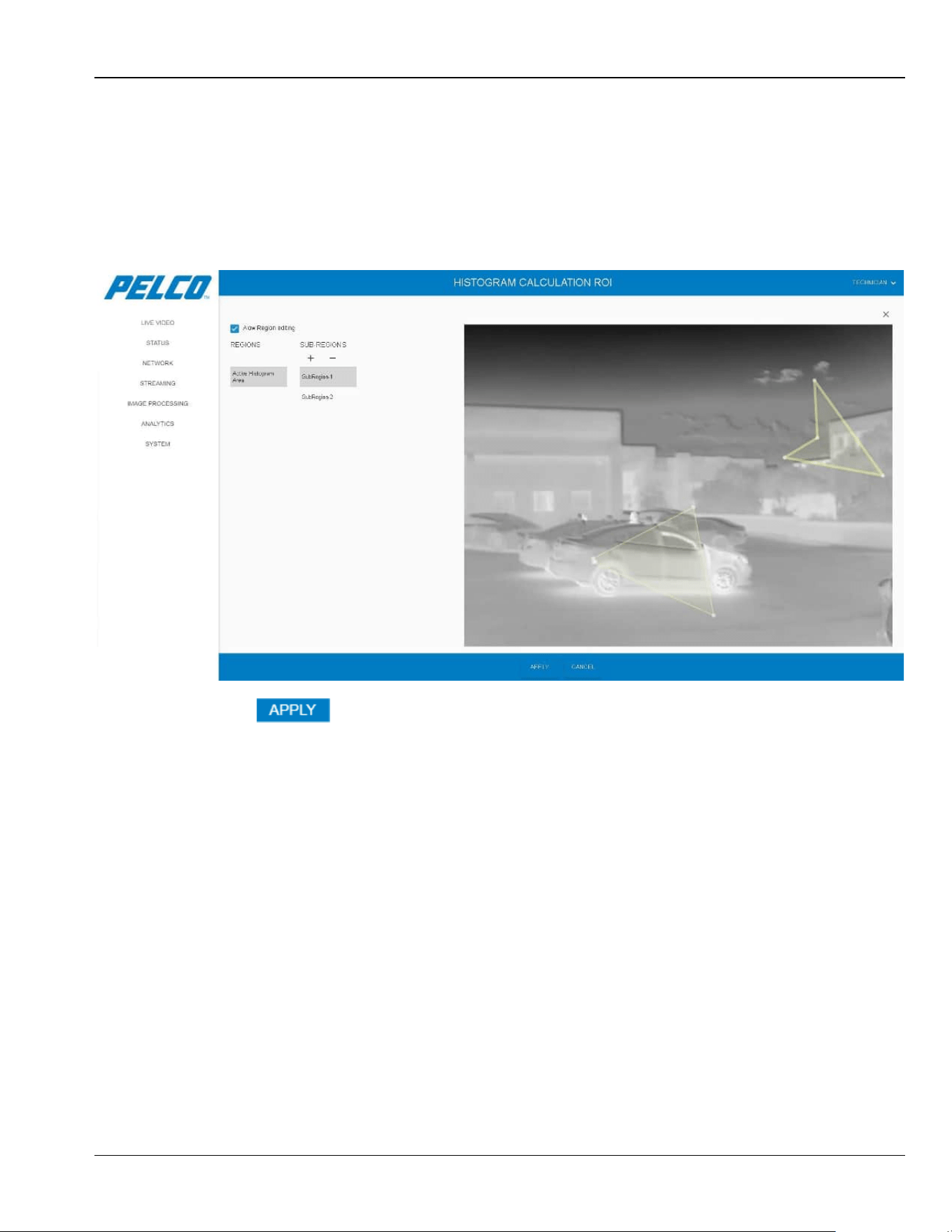
3. Select the Allow Region Editing checkbox allowing to define an ROI on the
image. The Regions and Sub-Regions areas are enabled.
4. Click the + sign to enable more than one sub-region.
5. Select SubRegion-1 and mark an ROI on the image using the mouse
(example):
Figure 5-37: Image Processing Window - Histogram Calculation ROI (2 of 3)
6. Click . The Sub Region area is highlighted on the image and the
histogram is automatically calculated and saved (the image processing only
focuses on the pixels on the pixels within the ROI).
Sarix TI Series Camera User Manual Chapter 5: Operation
5-36
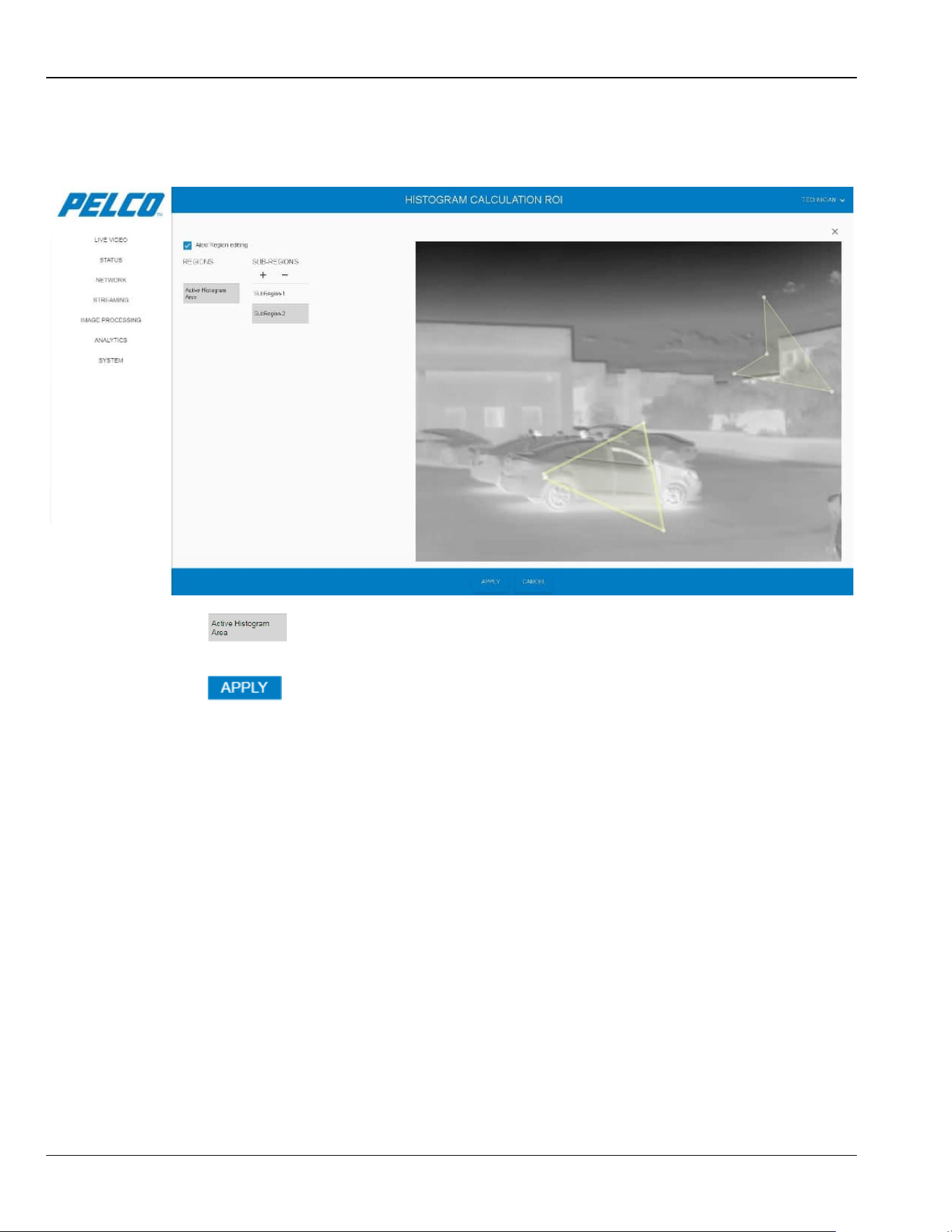
7. If more than one SubRegion is defined: select SubRegion-2 and mark an
ROI on the image using the mouse (example):
Figure 5-38: Image Processing Window - Histogram Calculation ROI (3 of 3)
8. Click to define the selected area as the reference for the
calculation.
9. Click . The Sub Region area is highlighted on the image and the
histogram is automatically calculated and saved.
10. To delete a Sub Region definitions: select the Sub Region (SubRegion-1 or
SubRegion-2 in the example) and click the - sign.
11. Clear the Allow Region Editing checkbox. The image is cleared from the
ROI markings and the buttons are disabled.
Chapter 5: Operation Sarix TI Series Camera User Manual
5-37
5.9.2 Day Tab
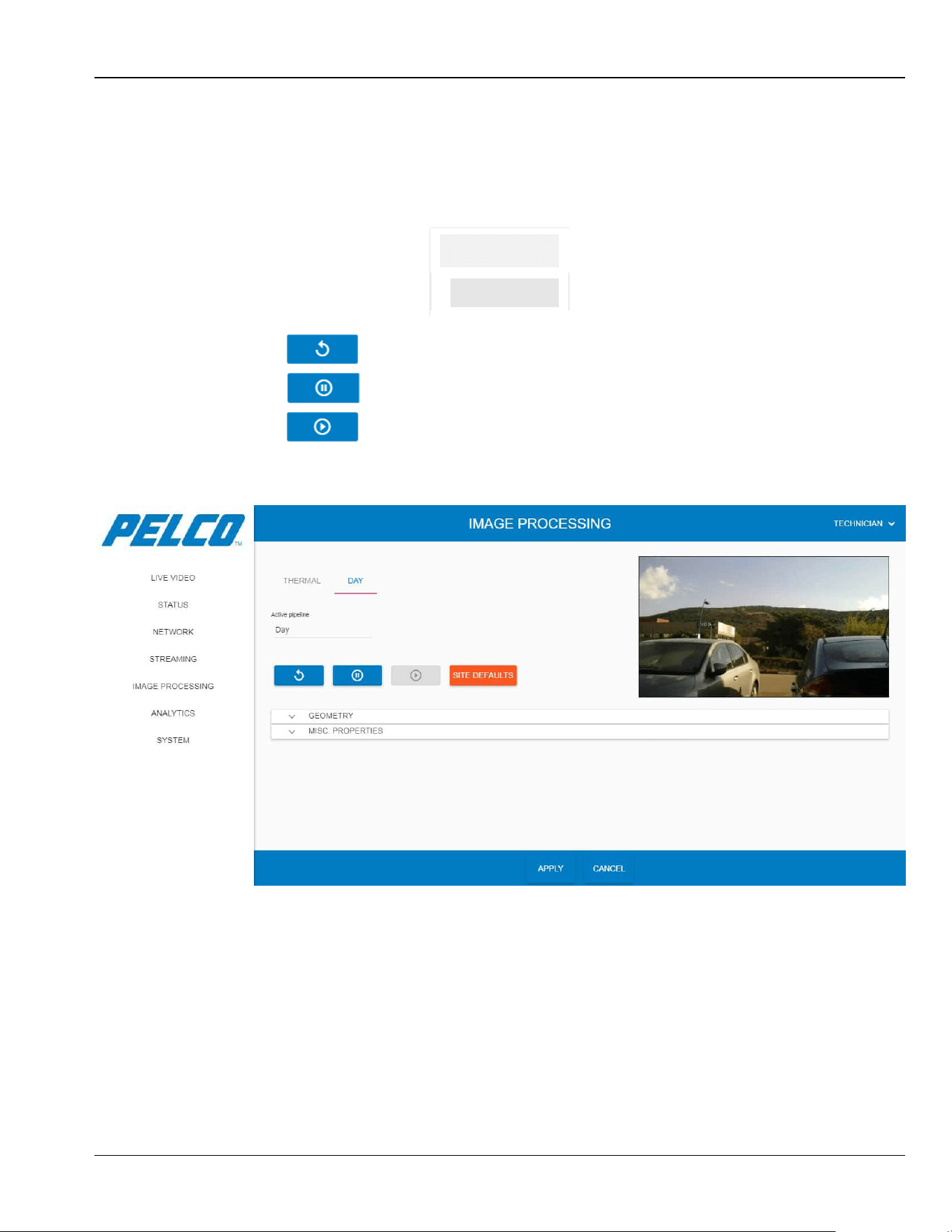
1. You can:
• From the Active Pipeline drop-down list select the pipeline name that is currently
active (Night Vision - NV, or EyeQ):
• Click to restart the video streaming.
• Click to stop the video streaming.
• Click to re-start the video streaming.
Figure 5-39: Image Processing Window - Day Tab
NV
EYE-Q™
Sarix TI Series Camera User Manual Chapter 5: Operation
5-38
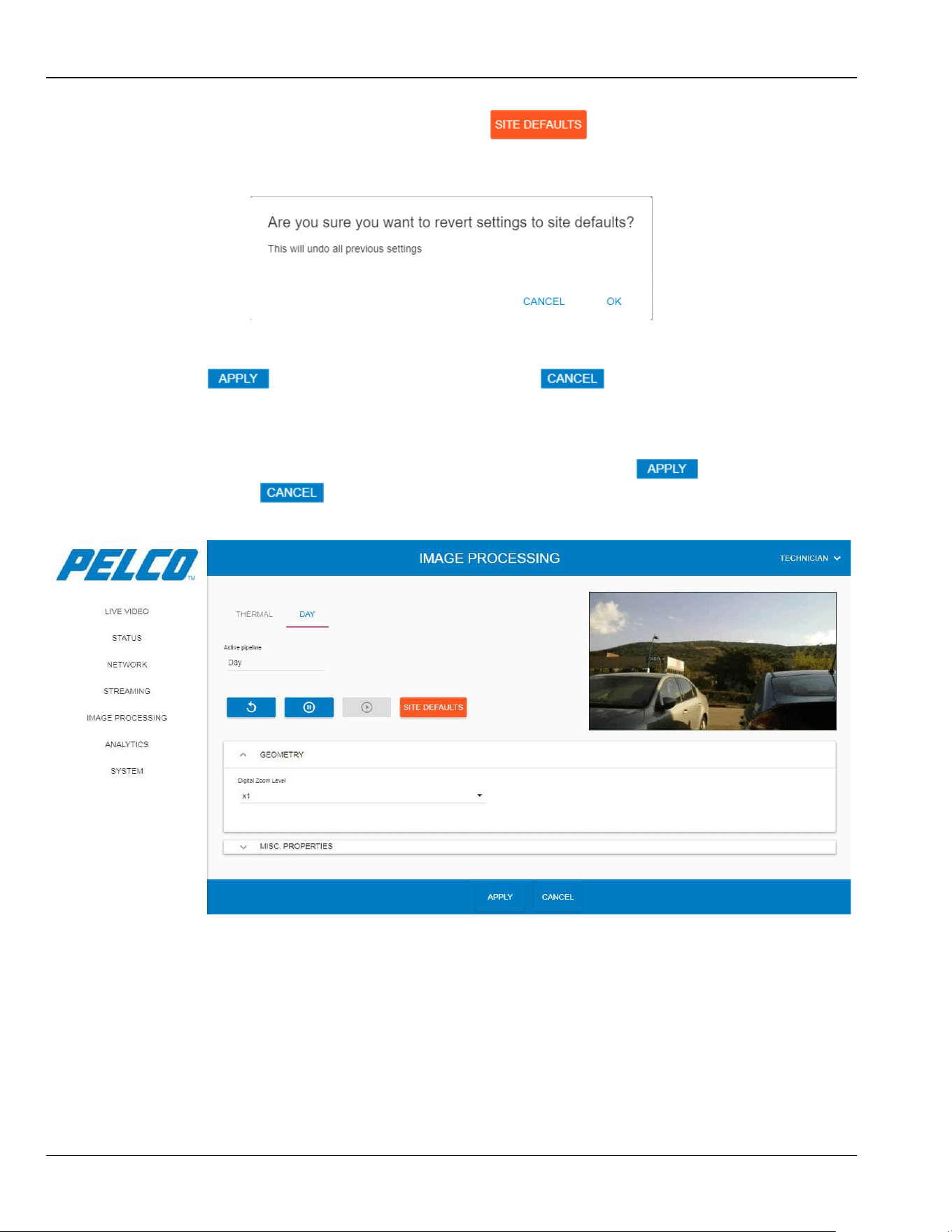
2. Applicable for video processing only: click to revert the entire
settings to your local site settings (saved during Section 5.11.1.4: Save As
Site). The following opens:
3. Click OK to approve.
4. Click for the changes to take effect (click to revert your
changes).
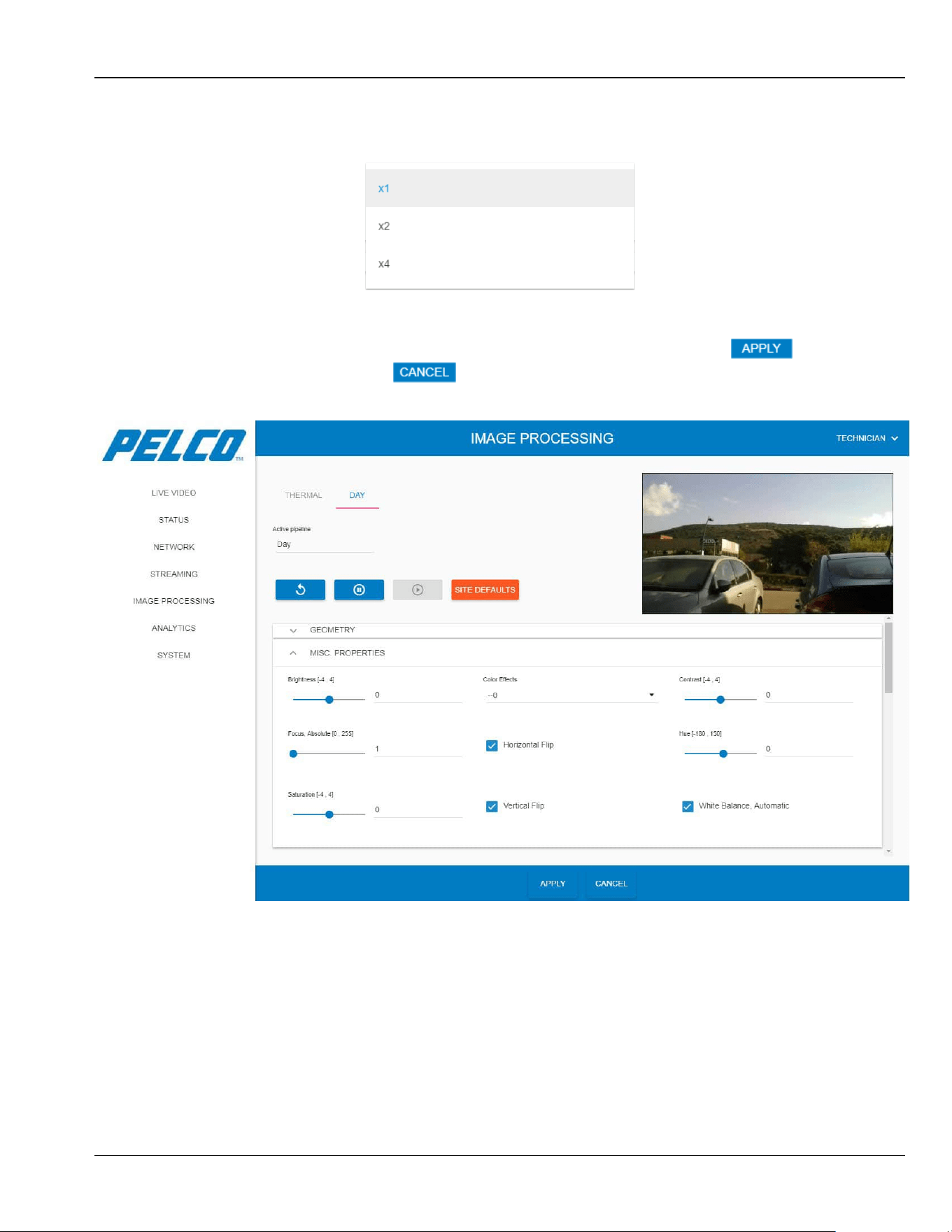
5.9.2.1 Geometry Settings
Expand the Geometry Settings option. The following opens (click for the changes to
take effect, click to revert your changes):
Figure 5-40: Image Processing Window - Day Tab - Geometry Settings
Chapter 5: Operation Sarix TI Series Camera User Manual
5-39
The Geometry Settings option consists of the following parameter:
Digital Zoom Level:
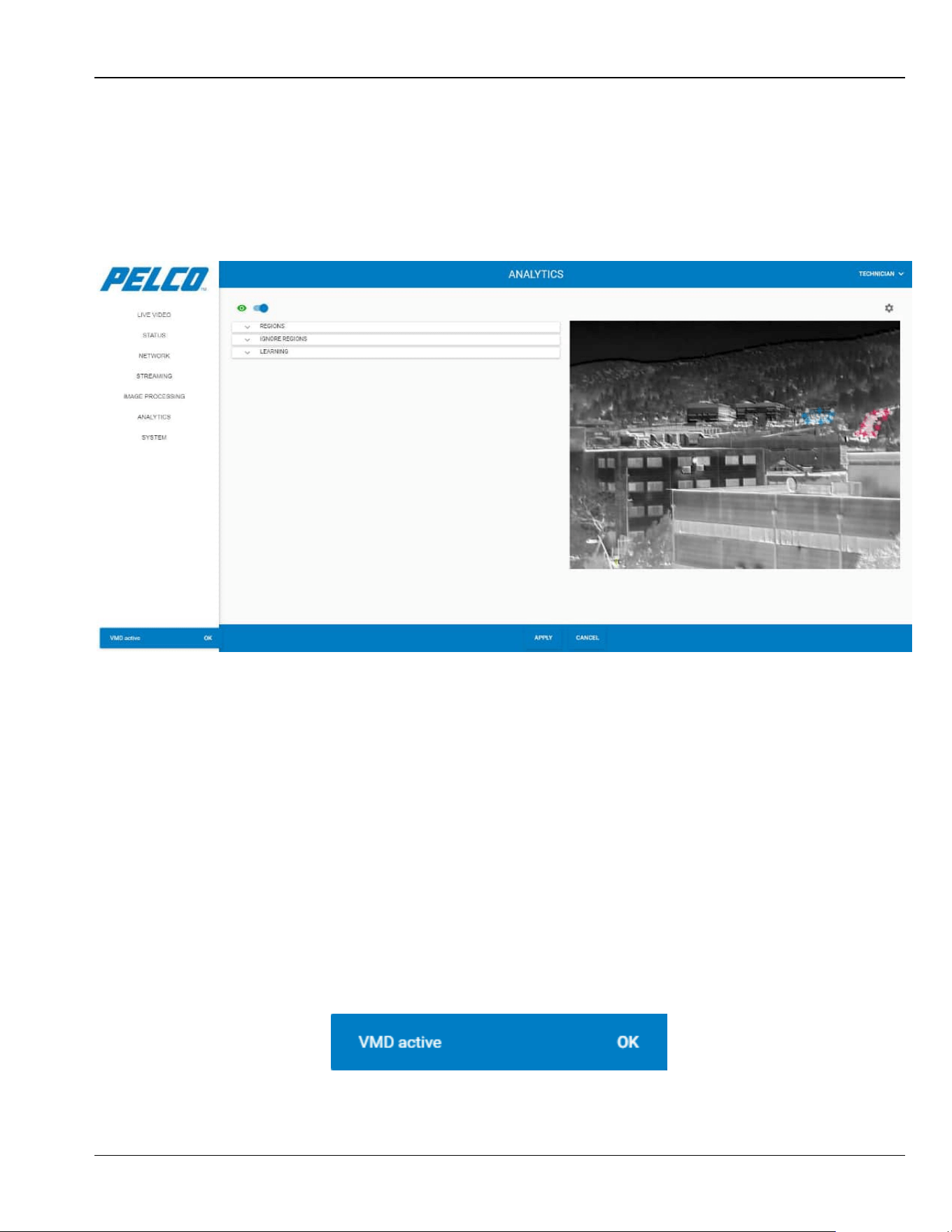
5.9.2.2 Misc. Properties Settings
Expand the Misc Properties Settings option. The following opens (click for the
changes to take effect, click to revert your changes):
Figure 5-41: Image Processing Window - Day Tab - Misc Properties Settings

Sarix TI Series Camera User Manual Chapter 5: Operation
5-40
The Misc. Properties Settings option consists of the following detector parameters:
Brightness
Color Effects
Contrast
Focus, Absolute: 0: Automatic, 1: infinity (recommended).
Horizontal Flip
Hue
Saturation
Vertical Flip
White Balance, Automatic: not active.
Chapter 5: Operation Sarix TI Series Camera User Manual
5-41
5.10 Analytics Window
The Analytics Window enables detecting and tracking movement within predefined ROIs, as
well as for teaching the system where movement typically occurs.
1. Click Analytics. The Analytics window opens (all collapsed):
Figure 5-42: Analytics Window (all collapsed)
The Analytics window is comprised of three tabs:
Regions Tab: enables marking of regios to detect movement (see Section 5.10.1).
Ignore Regions Tab: enables marking of regions in which movement is ignored (see Section
5.10.2).
Learning Tab: enables the system to learn the viewed scene and where movement typically
occurs (see Section 5.10.3).
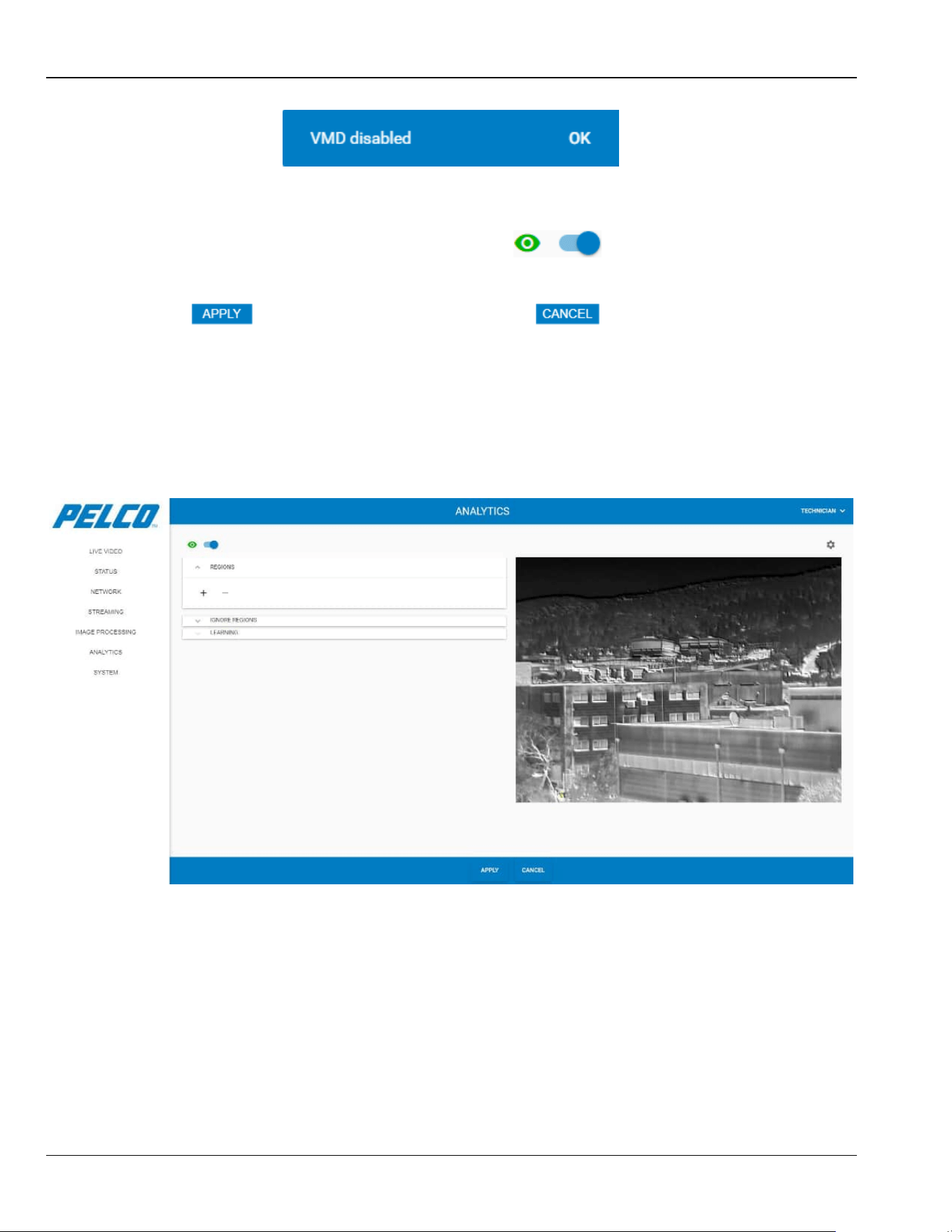
NOTE
When entering the Analytics window, either of the following
messages is displayed on the lower-left corner of the screen,
depending on whether VMD is active or disabled. Click OK to close
these messages.
Sarix TI Series Camera User Manual Chapter 5: Operation
5-42
NOTE
To enable/disable viewing analytics, click in the top-left
corner of the screen to toggle between enable and disable. Click
for the changes to take effect (click to revert your
changes).
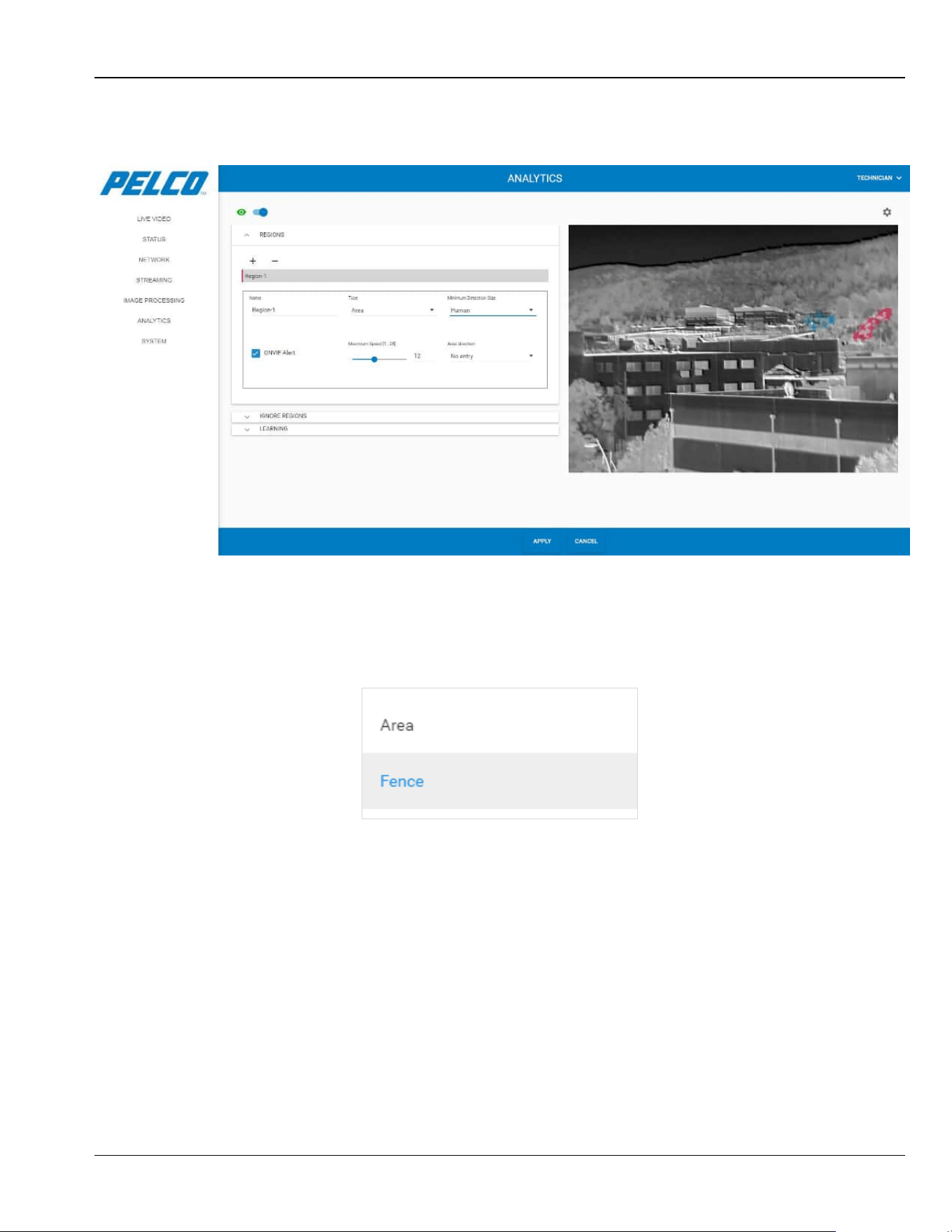
5.10.1 Regions Tab
The Regions tab enables marking regions to detect movement.
1. Expand the Regions tab. The following opens:
Figure 5-43: Analytics Window - Regions Tab
Chapter 5: Operation Sarix TI Series Camera User Manual
5-43
2. Click the + sign. The following opens (example):
Figure 5-44: Analytics Window - Regions Tab - Region Options
3. Click in the Name field and enter a region name.
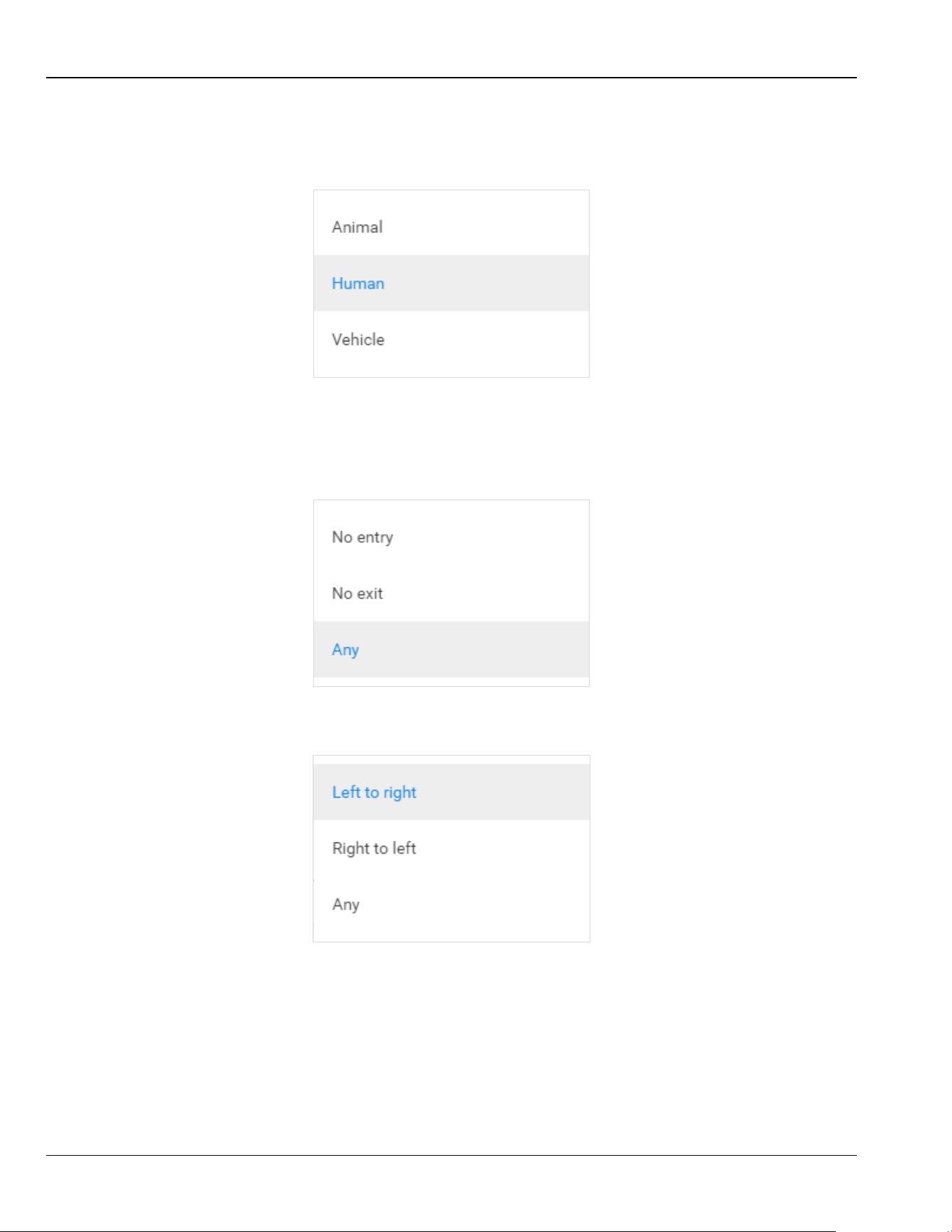
4. Select region type from the following options:
Area – detection is done within a close frame.
Fence – detection is done for objects moving towards a predefined line.
NOTE
Some region options change depending on the type of region
selected.
Sarix TI Series Camera User Manual Chapter 5: Operation
5-44
5. Select the following parameters:
• Minimum Detection Size: determines the size and characters of the object to be
detected.
• ONVIF Alert: enabling receiving alerts which conform to ONVIF protocol.
• Maximum Speed: fastest speed that will be detected, in m/sec (default: 1 m/sec)
• Area Direction: determines the type of object movement (in relation to the region) that
will be detected (this option is available when Area type region is selected)
• Fence direction: determines the type of object movement (in relation to the fence line)
that will be detected (this option is available when Fence type region is selected)
Chapter 5: Operation Sarix TI Series Camera User Manual
5-45
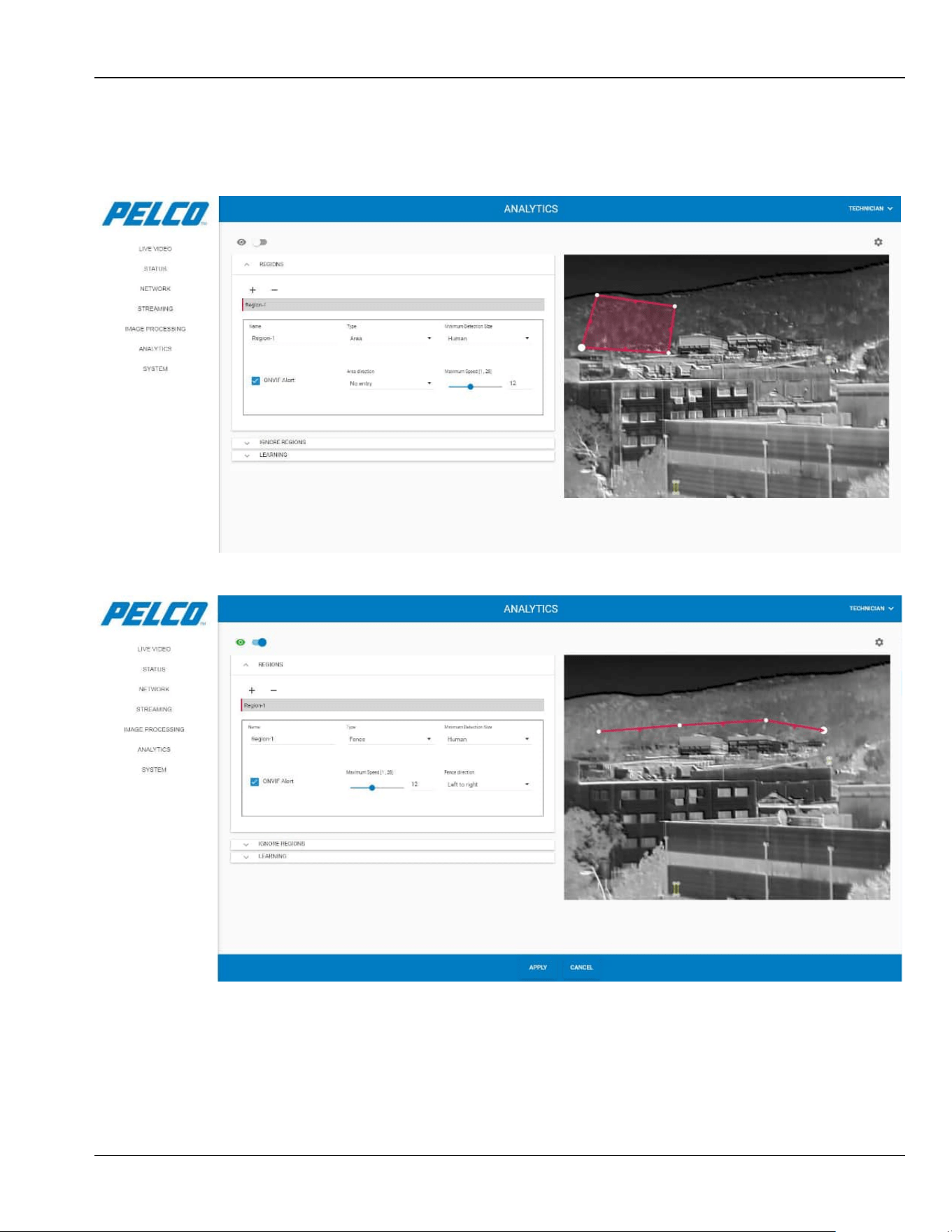
6. Click the live image to mark the region frame points.
7. Double click the region starting point to end the region marking.
Figure 5-45: Analytics Window - Regions Tab - Area ROI
Figure 5-46: Analytics Window - Regions Tab - Fence ROI
NOTE
The color next to the region name corresponds with the color of the
region marked on the image.
Sarix TI Series Camera User Manual Chapter 5: Operation
5-46
8. To delete a region definition: select the region (Region-1 or Region-2 in the
example) and click the - sign.
9. Click for the changes to take effect (click to revert your
changes).
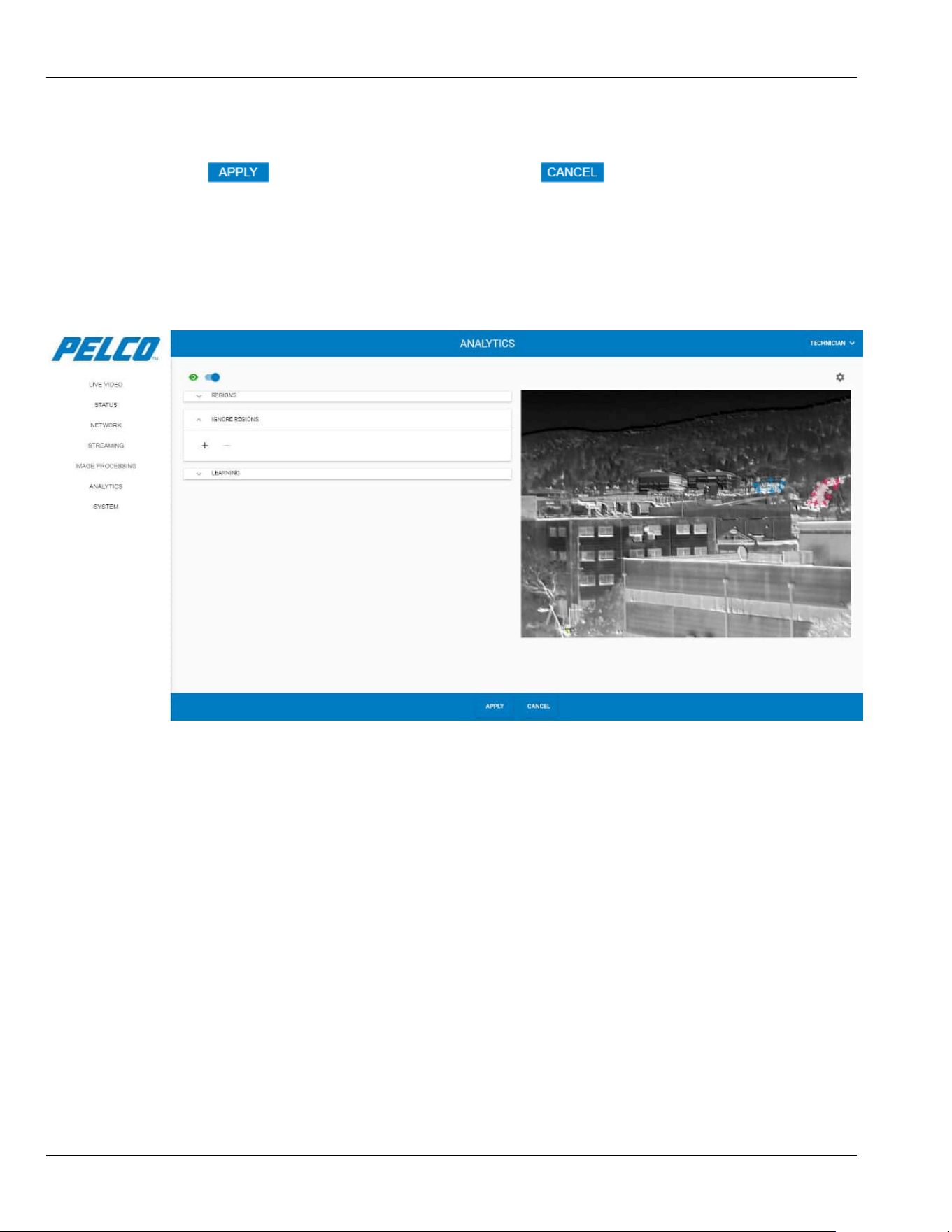
5.10.2 Ignore Regions Tab
The Ignore Regions tab enables marking regions in which movement is ignored.
Expand the Ignore Regions tab. The following opens:
Figure 5-47: Analytics Window - Ignore Regions Tab
Chapter 5: Operation Sarix TI Series Camera User Manual
5-47
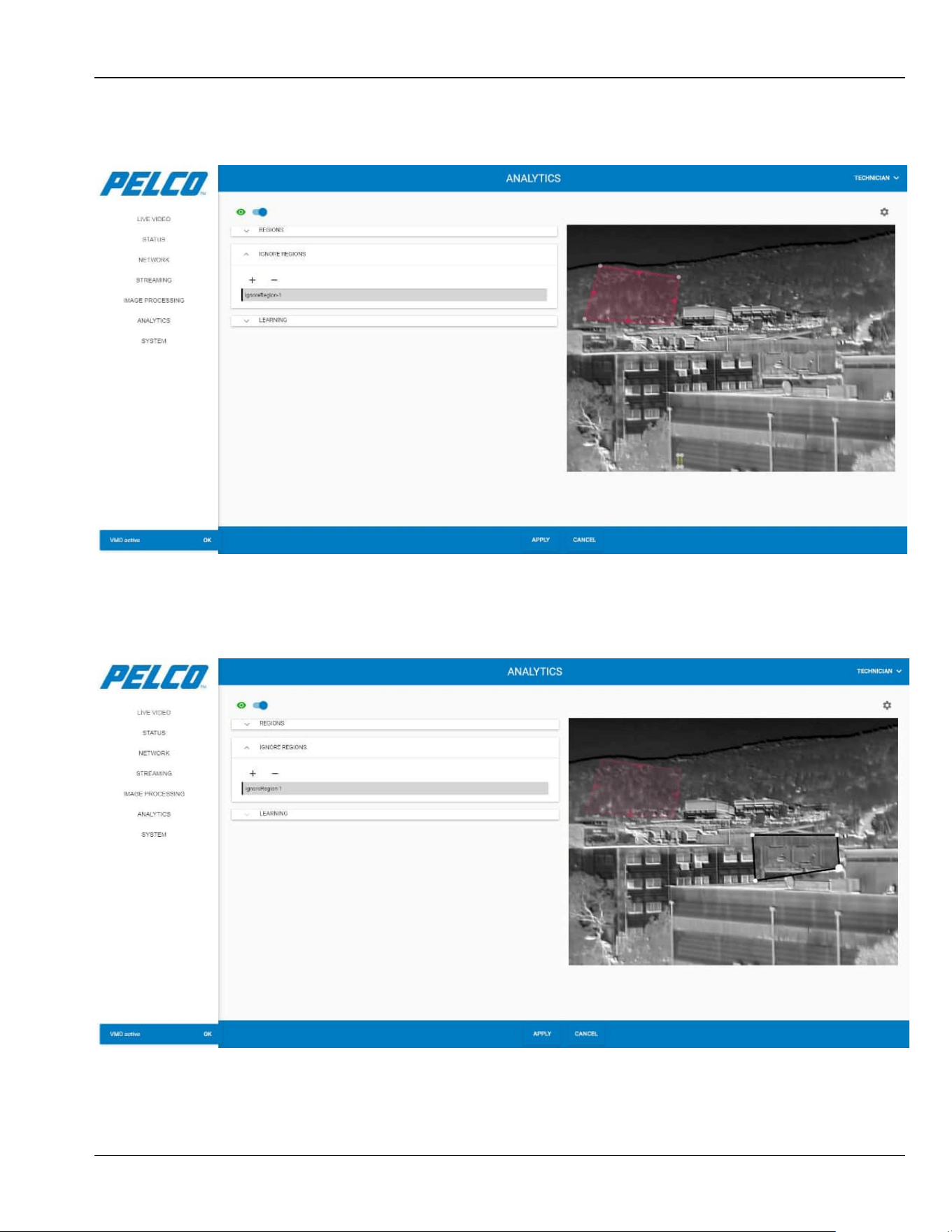
1. Click the + sign. The following opens (example):
Figure 5-48: Analytics Window - Ignore Regions Tab – Ignore Regions ROI (1 of 2)
2. Click the live image to mark the Ignore Region frame points.
3. Double click the region starting point to end the Ignore Region marking.
Figure 5-49: Analytics Window - Ignore Regions Tab – Ignore Regions ROI (2 of 2)
Sarix TI Series Camera User Manual Chapter 5: Operation
5-48
4. To delete an Ignore Region definition: select the ignore region
(IgnoreRegion-1 or IgnoreRegion-2 in the example) and click the - sign.
5. Click for the changes to take effect (click to revert your
changes).
5.10.3 Learning Tab
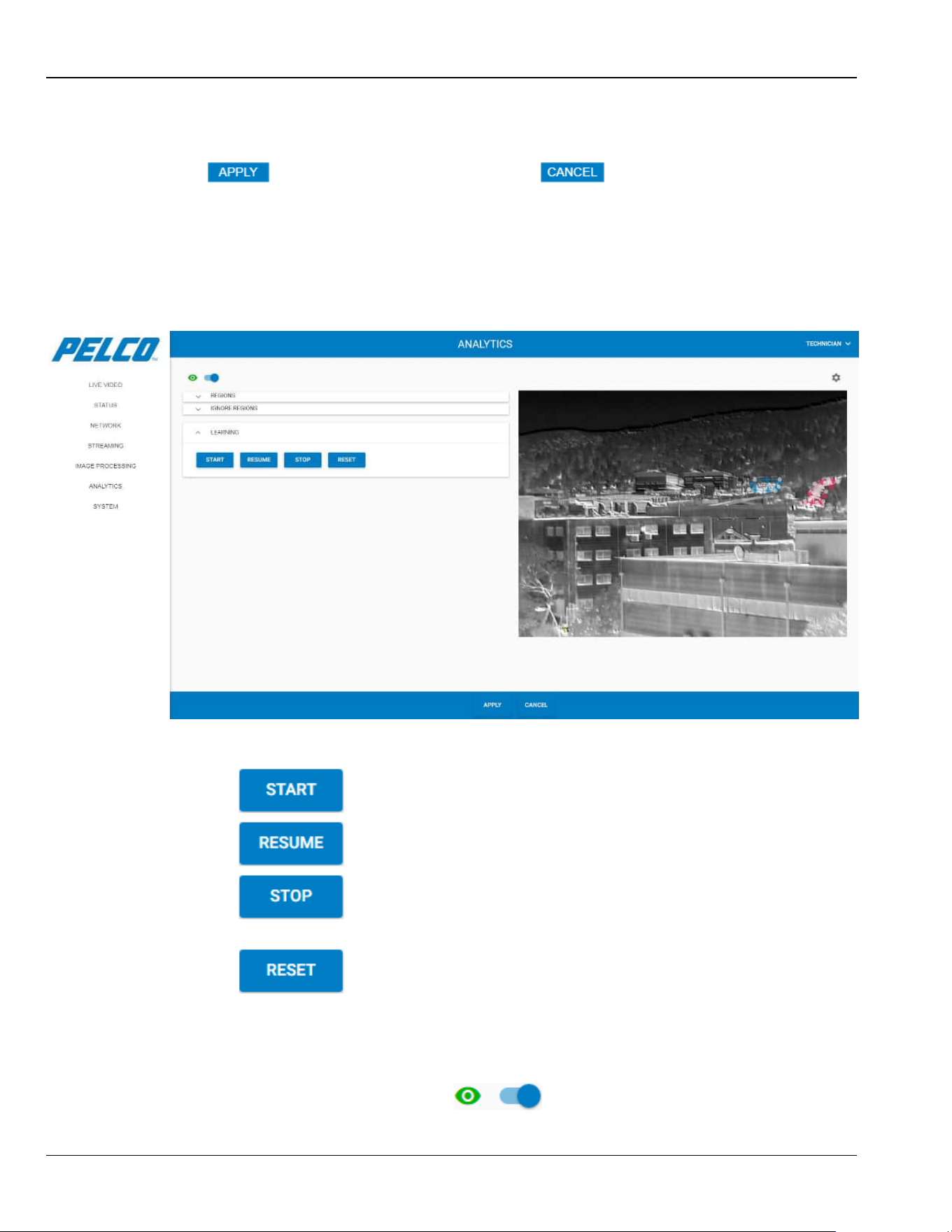
The Learning tab enables the system to learn the scene and where movement typically occurs.
Expand the Learning tab. The following opens:
Figure 5-50: Analytics Window - Learning Tab
1. Click either of the following buttons:
• Click to start the learning session.
• Click to resume the learning session after the Stop button was activated.
• Click to stop the learning session (if, for example, unusual activity is
occurring).
• Click to delete the learning session in progress.
NOTE
VMD must be active (i.e., the toggle button in the top-left corner of
the screen must appear like this: ) to start the learning
session.
Chapter 5: Operation Sarix TI Series Camera User Manual
5-49
NOTE
When the Start button is pressed, the following message is displayed
on the lower-left corner of the screen. Click OK to close this
message.
5.10.4 Analytics Settings
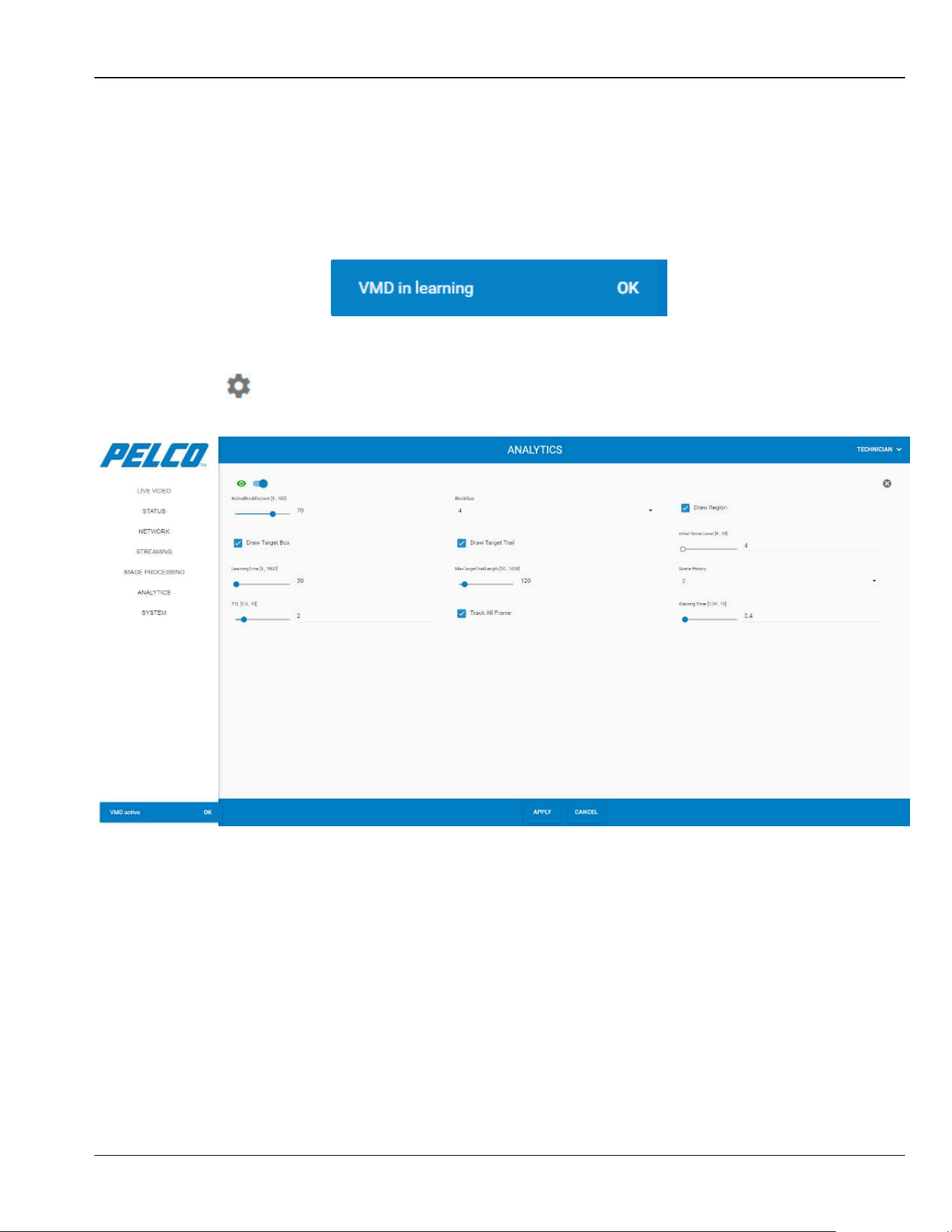
Click in the upper-right corner of the screen. The following opens:
Figure 5-51: Analytics Window - Analytics Settings

Sarix TI Series Camera User Manual Chapter 5: Operation
5-50
The Analytics Settings window consists of the following parameters:
ActiveBlockPercent: Percentage of the block area that should be active in order to detect
movement (default: 70%)
BlockSize: minimum block size (default: 8)
Draw Region: enabling drawing of region
Draw Target Box: enabling frame overlay around the moving target
Draw Target Trail: enabling trail showing the path the moving target has taken. The
maximum trail length is determined by “MaxTargetTrailLength”
Initial Noise Level: higher level reduces the effect of noise in a scene, but also reduces
detection sensitivity (default: 6)
LearningTime: length of time, in seconds, the learning session will run (default: 30 seconds)
MaxTargetTrailLength: trail length, in FPS (default: 120 FPS). Will not display if “Draw
Target Trail” is not enabled
Scene History: minimum number of frames that are used for movement detection (default:
2)
TTL: length of time, in seconds, a target will continue to be considered a target after it
hasn’t been seen (default: 2 seconds)
Track All Frame: enabling tracking of target in entire image frame, not just in the ROI the
object was detected in
Warning Time: elapsed time, in seconds, until the system defines the identified object as a
target (default: 0.4 seconds)
NOTE
To close the Analytics Settings screen, click in the upper-right
corner of the screen. Any changes that were made are retained.
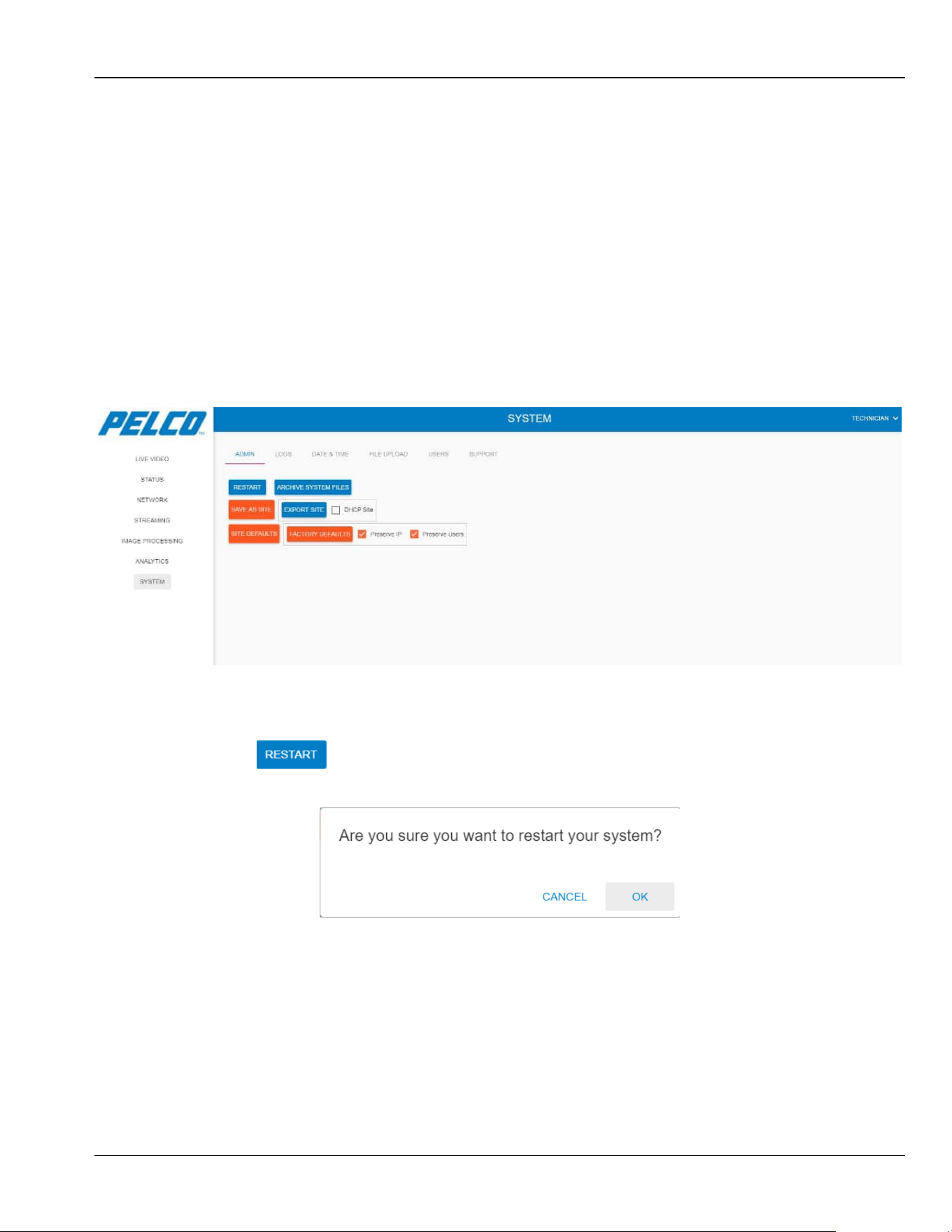
Chapter 5: Operation Sarix TI Series Camera User Manual
5-51
5.11 System Window
The System Window consists of five tabs:
Admin Tab (see Section 5.11.1)
Logs Tab (see Section 5.11.2)
Date and Time Tab (see Section 5.11.3)
File Upload Tab (see Section 5.11.4)
User Management Tab (see Section 5.11.5)
5.11.1 Admin Tab
Click ADMIN. The following opens:
Figure 5-52: System Window - Admin Tab
5.11.1.1 Restart
To completely restart the entire system:
1. Click . The following opens:
Figure 5-53: System Window - Admin Tab - Restart Aproval
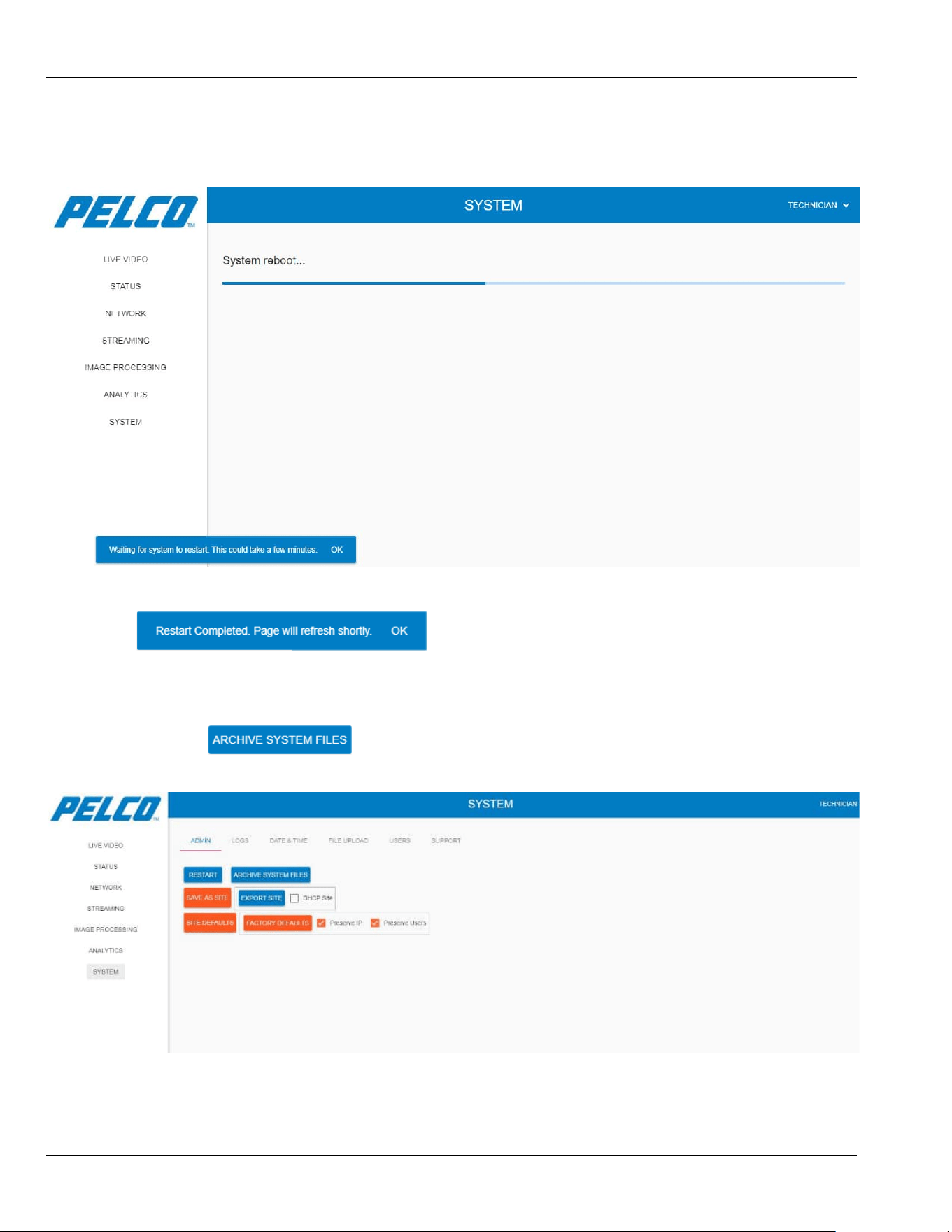
Sarix TI Series Camera User Manual Chapter 5: Operation
5-52
2. Click OK to approve the system restart. The following opens, stating that the
restart process could take a few minutes:
Figure 5-54: System Window - Admin Tab - Restart
On completion, the following opens prompting that the restart is completed:
5.11.1.2 Archive System Files
To archive the entire system files:
1. Click . The following opens, prompting that the archiving is in process:
Figure 5-55: System Window - Admin Tab - Archive System Files
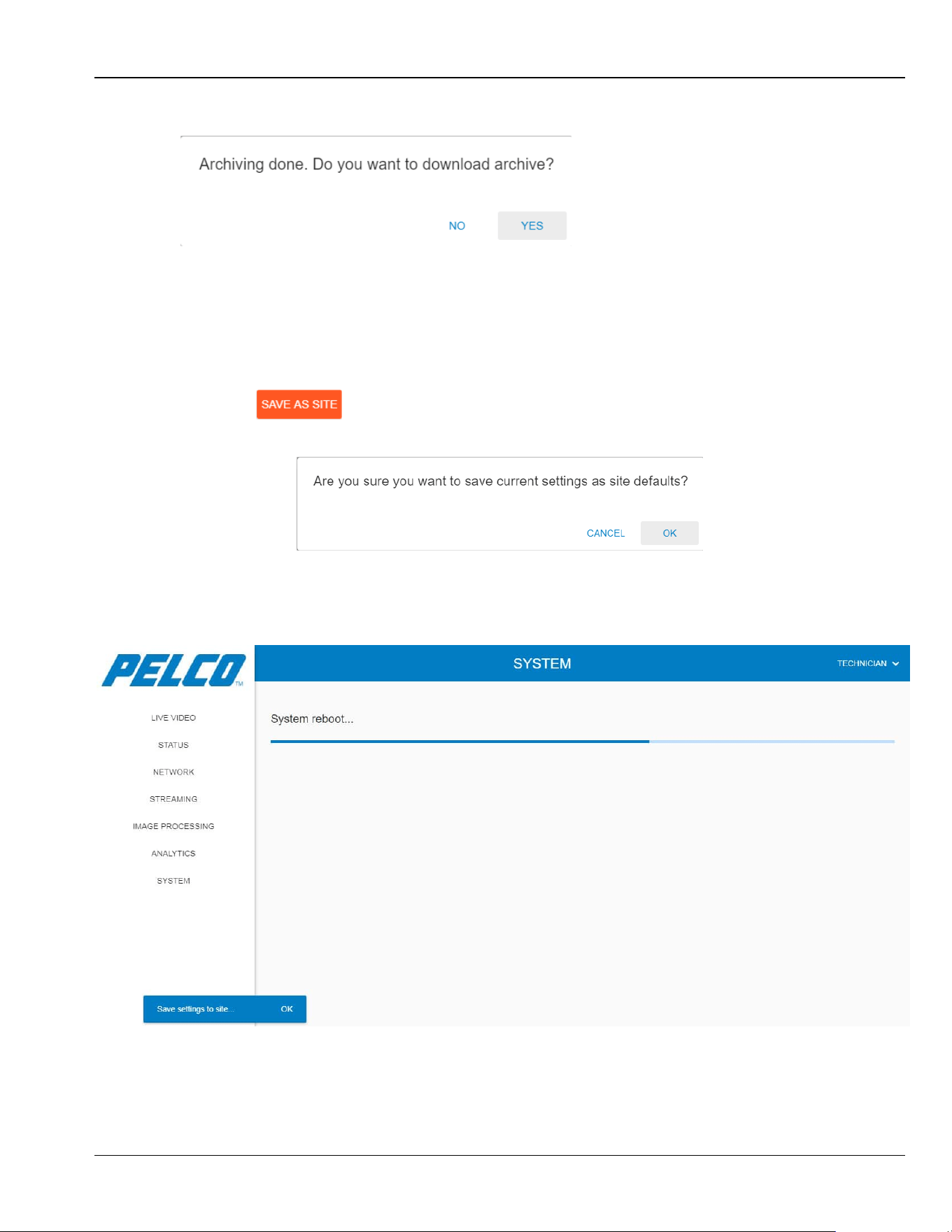
Chapter 5: Operation Sarix TI Series Camera User Manual
5-53
On completion, the following opens prompting to approve the download of the archived file:
2. Click Yes to download the file. The file is downloaded and saved in your
\Downloads folder. File name: System-files.tgzx.
5.11.1.3 Save As Site
To save the current settings of the camera and the GUI as site defaults:
1. Click . The following opens:
Figure 5-56: System Window - Admin Tab - Save As Site Approval
2. Click OK to proceed. The following opens, prompting that site defaults save
is in process:
Figure 5-57: System Window - Admin Tab - Save As Site
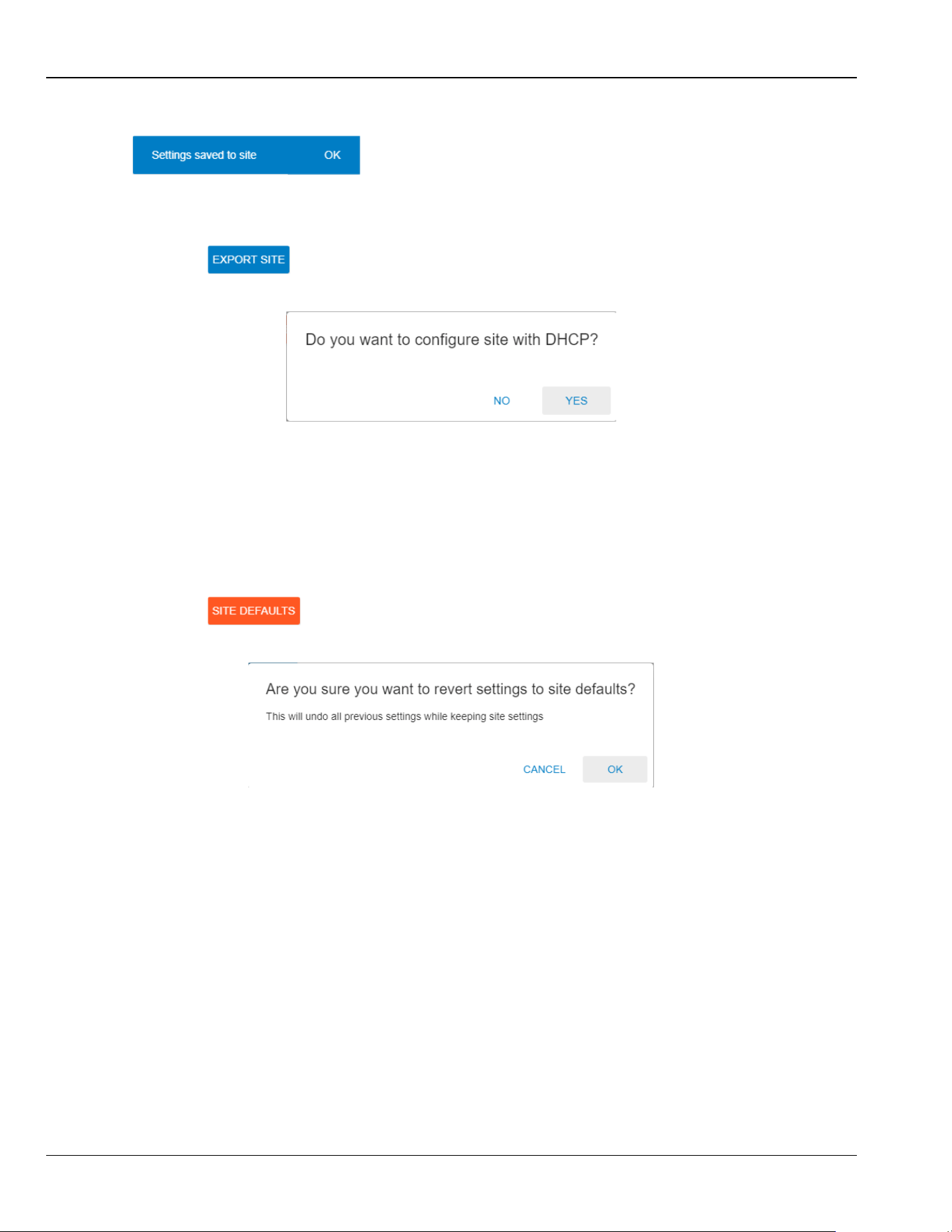
Sarix TI Series Camera User Manual Chapter 5: Operation
5-54
On completion, the following opens prompting that the site defaults are saved:
5.11.1.4 Export Site
To download an archived file that contain the site defaults:
1. Click . The following opens prompting to approve the site defaults download:
Figure 5-58: System Window - Admin Tab - Export Site Approval
2. Click Yes to download the file with DHCP, OR :
Click No to download the file with a constant IP address.
The file is downloaded and saved in your \Downloads folder. File name:
site-defaults.tgzx.
5.11.1.5 Site Defaults
To revert system settings back to the site defaults settings:
1. Click . The following opens prompting to approve the revert process:
Figure 5-59: System Window - Admin Tab - Site Defaults Approval
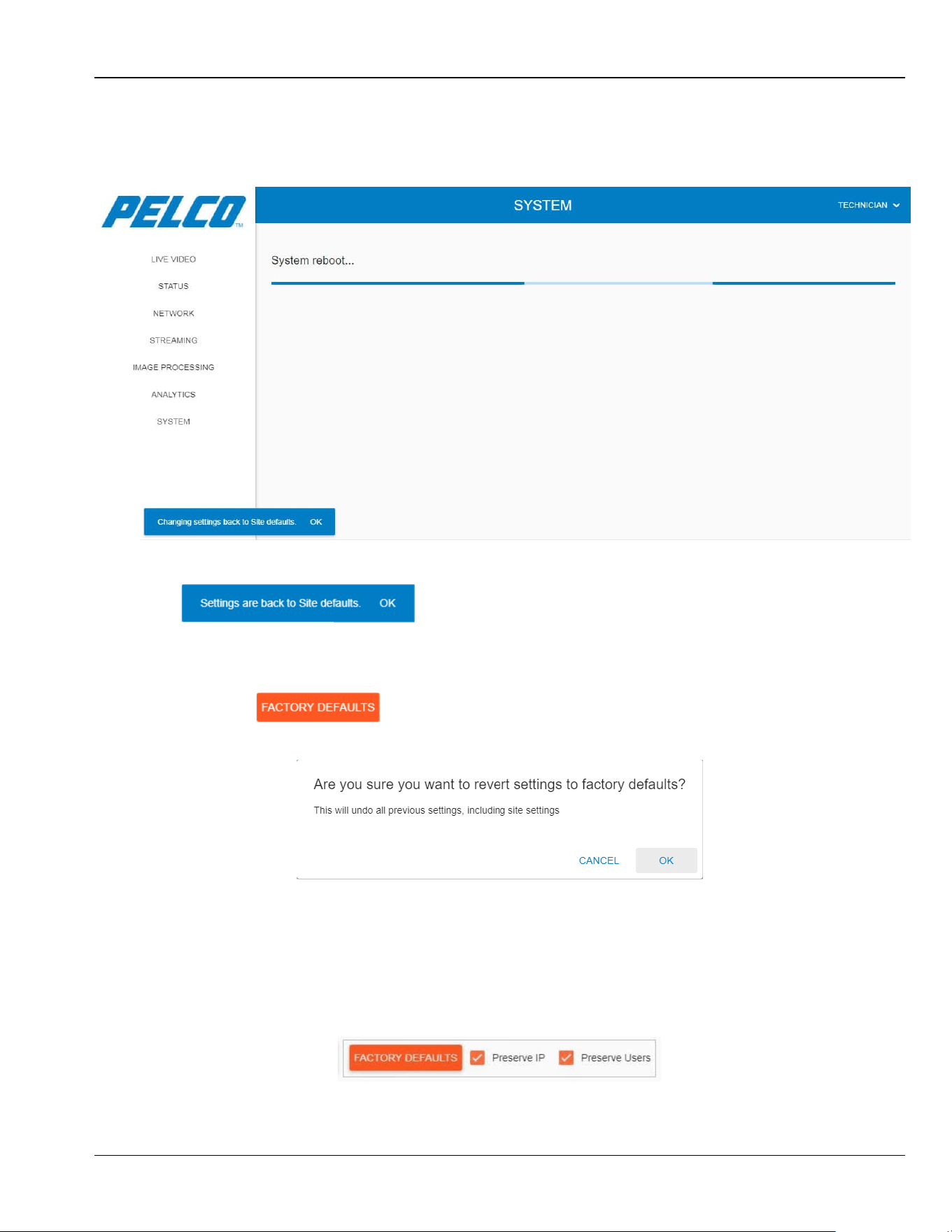
Chapter 5: Operation Sarix TI Series Camera User Manual
5-55
2. Click OK. The following opens, prompting that the site defaults restoration
is in process:
Figure 5-60: System Window - Admin Tab - Site Defaults
On completion, the following opens prompting that the site defaults are saved:
5.11.1.6 Factory Defaults
To revert settings to factory defaults:
1. Click . The following opens prompting to approve the revert process:
Figure 5-61: System Window - Admin Tab - Factory Defaults Approval
NOTE
If Preserve IP is unchecked, the system will restart with the default
IP.
If Preserve Users is unchecked, all users will be deleted upon
system restart.
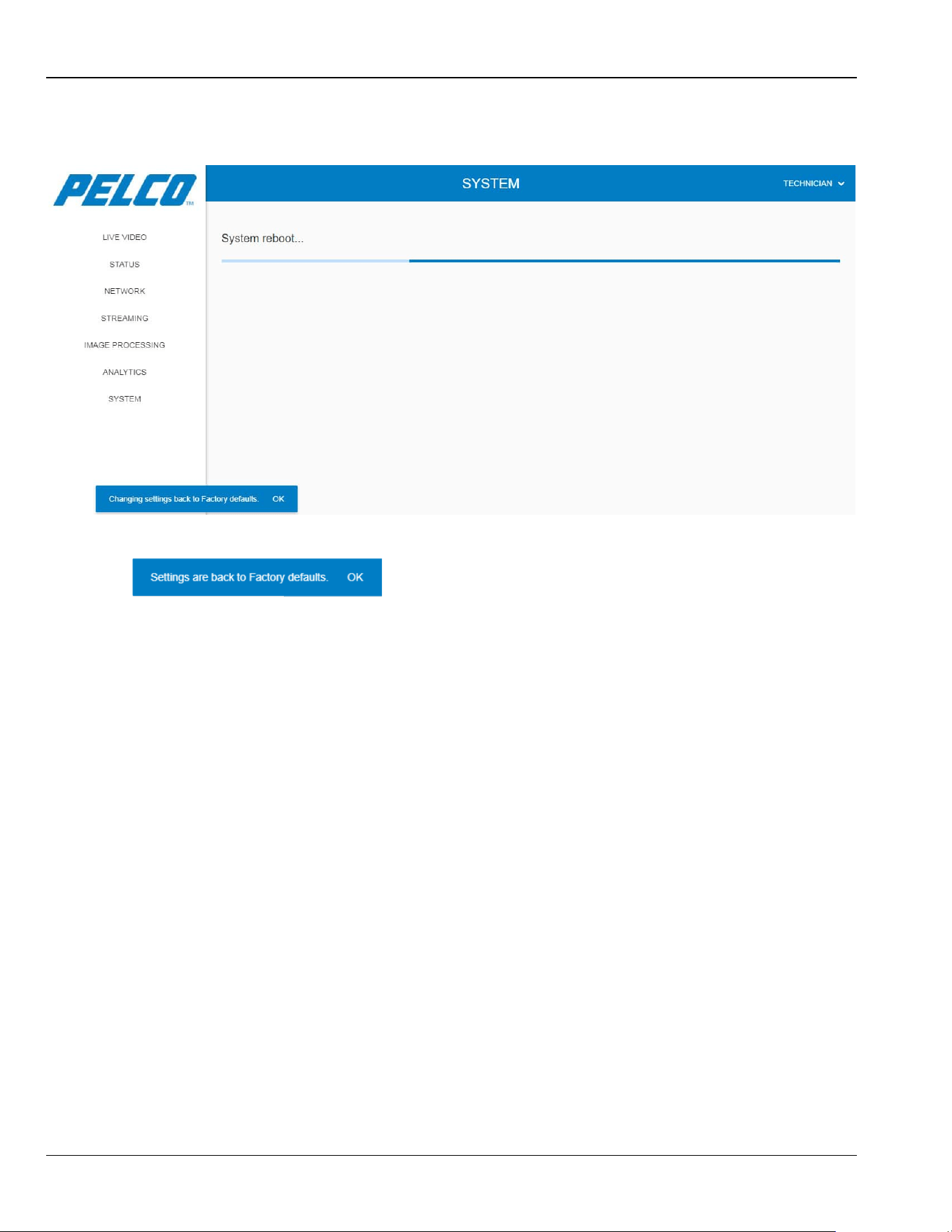
Sarix TI Series Camera User Manual Chapter 5: Operation
5-56
2. Click OK. The following opens, prompting that the factory defaults restoration is in process:
Figure 5-62: System Window - Admin Tab - Factory Defaults
On completion, the following opens prompting that the factory defaults are saved:
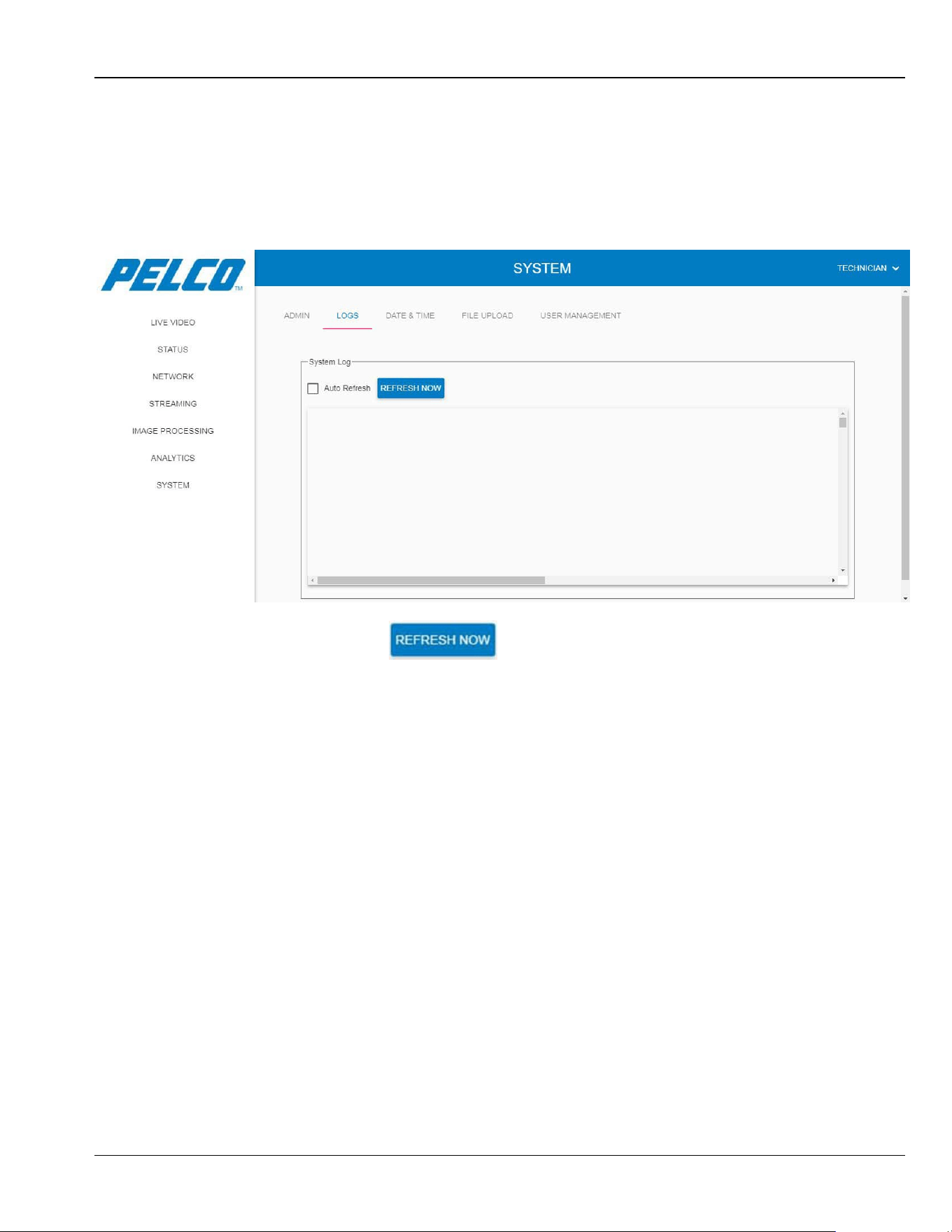
Chapter 5: Operation Sarix TI Series Camera User Manual
5-57
5.11.2 Logs Tab
The Status tab allows downloading data files from the Sarix TI Camera. This is mainly useful
when troubleshooting possible Sarix TI Camera malfunctions by Pelco’s technical support team.
1. Click System and select Log Files. The Status tab displays a list of logs (example):
Figure 5-63: System Window - Logs Tab
2. To refresh the list click .
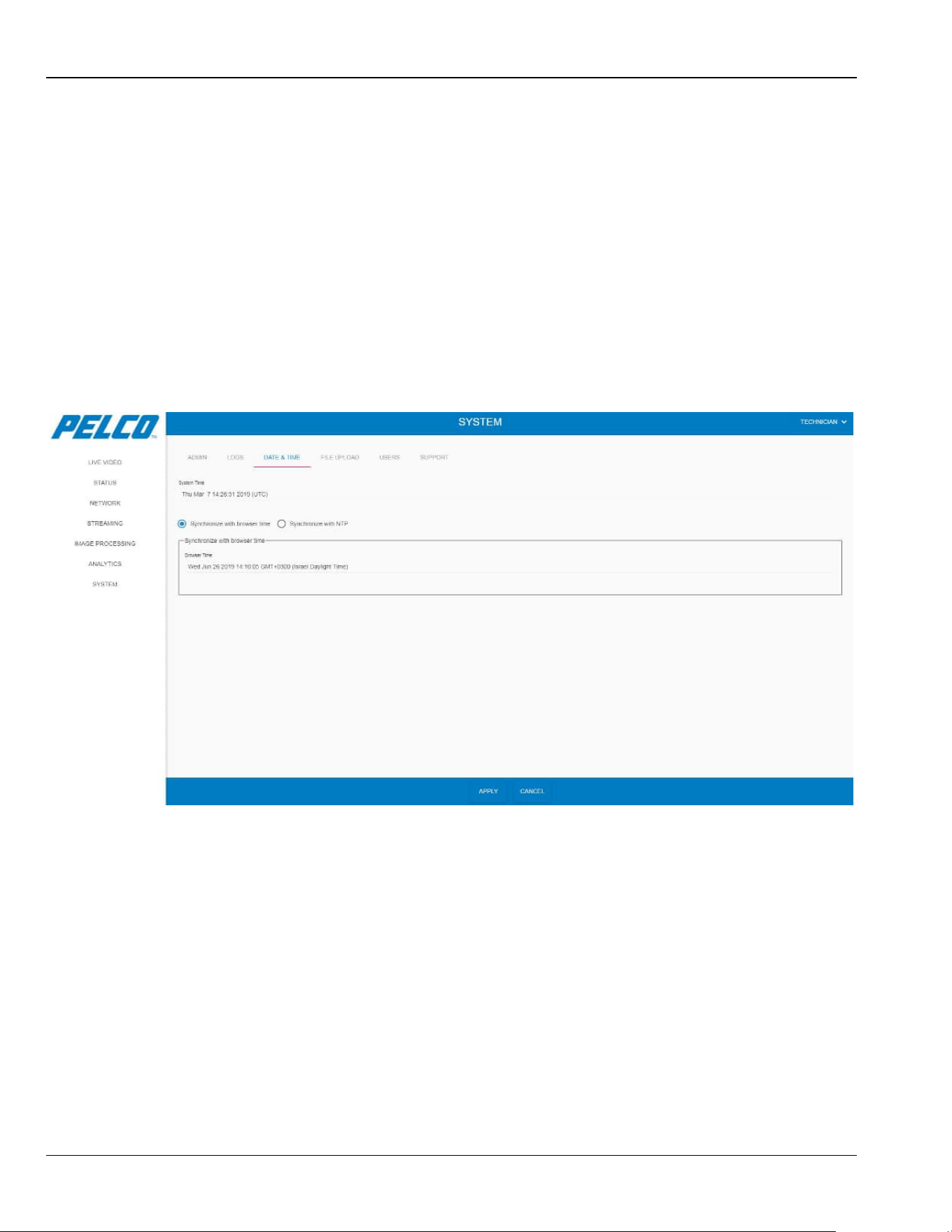
Sarix TI Series Camera User Manual Chapter 5: Operation
5-58
5.11.3 Date and Time Tab
CAUTION
Time synchronization is extremely important for the ONVIF
handshake. If the time is not correctly synchronized, the camera may
not connect over ONVIF.
The Date and Time tab allows synchronizing of the Sarix TI Camera time and date according to
several methods:
Click System and select the DATE & TIME tab. The Date & Time tab opens:
Figure 5-64: System Window - Date and Time Tab
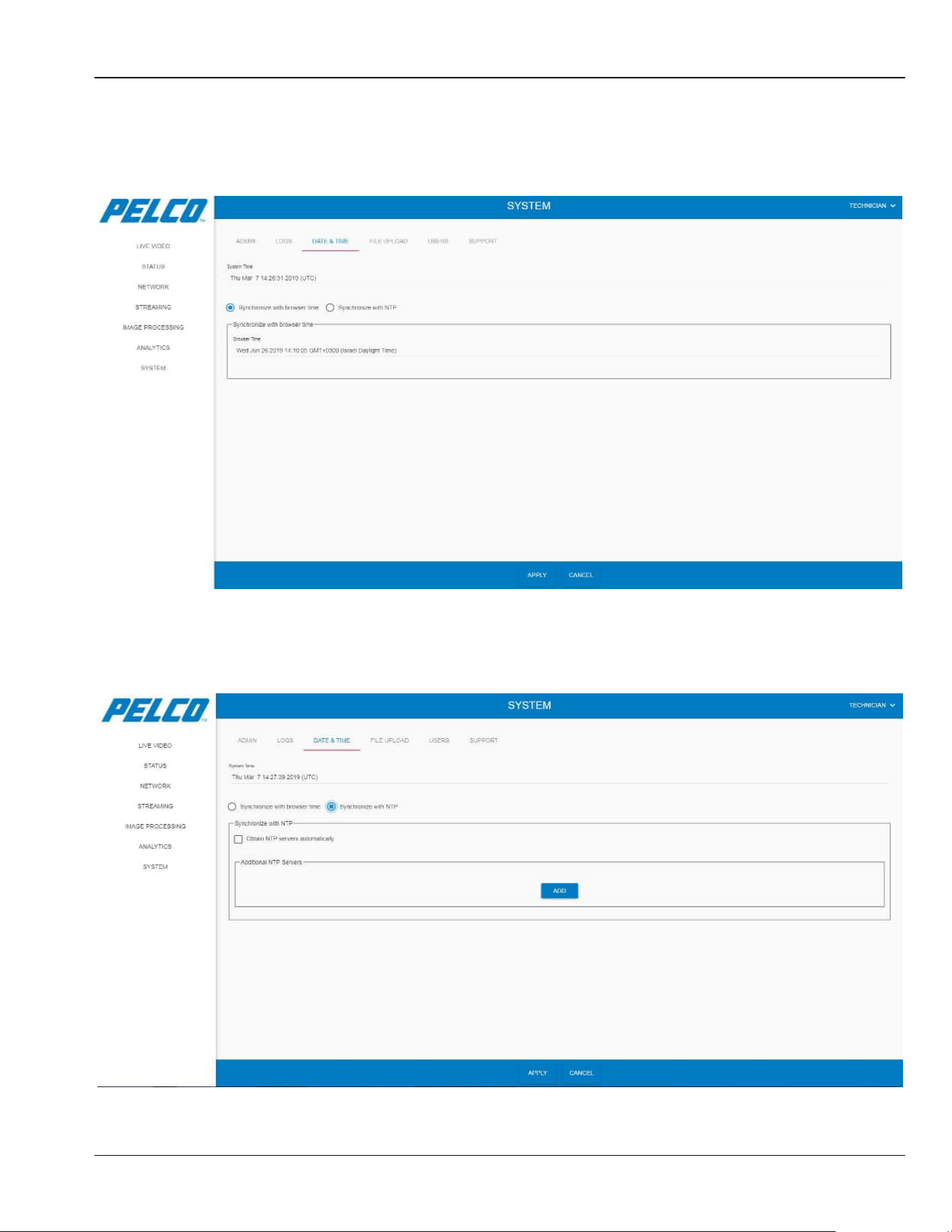
Chapter 5: Operation Sarix TI Series Camera User Manual
5-59
5.11.3.1 Synchronizing with Browser Time
Select the Synchronize with browser time option. The following opens:
Figure 5-65: System Window - Date and Time Tab - Synchronizing with Browser Time
5.11.3.2 Synchronizing with NTP
Select the Synchronize with NTP option. The following opens:
Figure 5-66: System Window - Date and Time Tab - Synchronizing with NTP
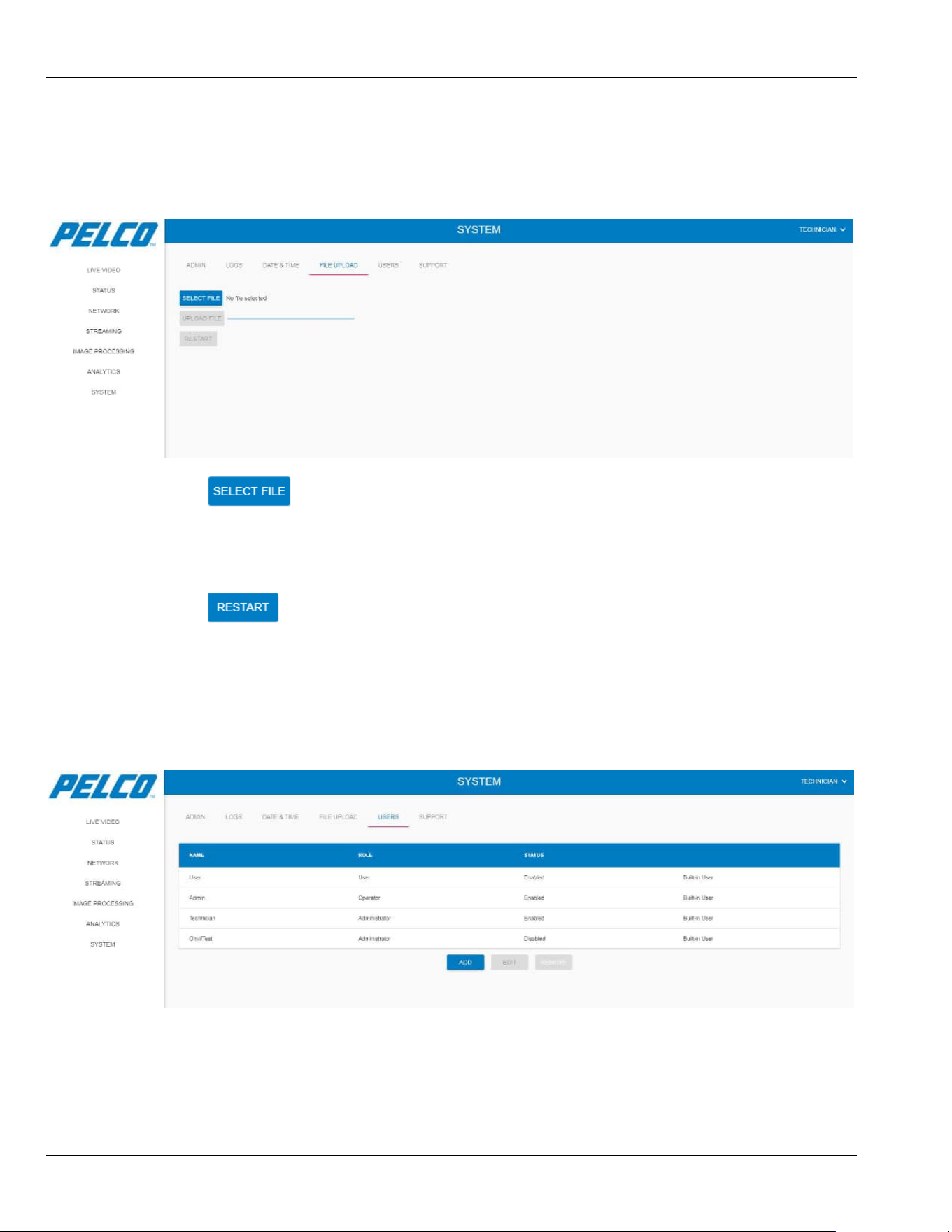
Sarix TI Series Camera User Manual Chapter 5: Operation
5-60
5.11.4 File Upload Tab
The File Upload tab allows updating your Sarix TI Camera with FM/SW.
1. Click System and select the FILE UPLOAD tab. The File Upload tab opens:
Figure 5-67: System Window - File Upload Tab
2. Click to browse and select the required FM/SW file (*.tgzx file
format).
3. Click UPLOAD FILE. The uploading process is started. On completion, the
RESTART button is valid.
4. Click to validate the Sarix TI Camera with the FM/SW uploading
process.
5.11.5 User Management Tab
The User Management tab is used to manage user’s login permissions.
Click System and select the User Management tab. The User Management tab opens:
Figure 5-68: System Window - User Management Tab
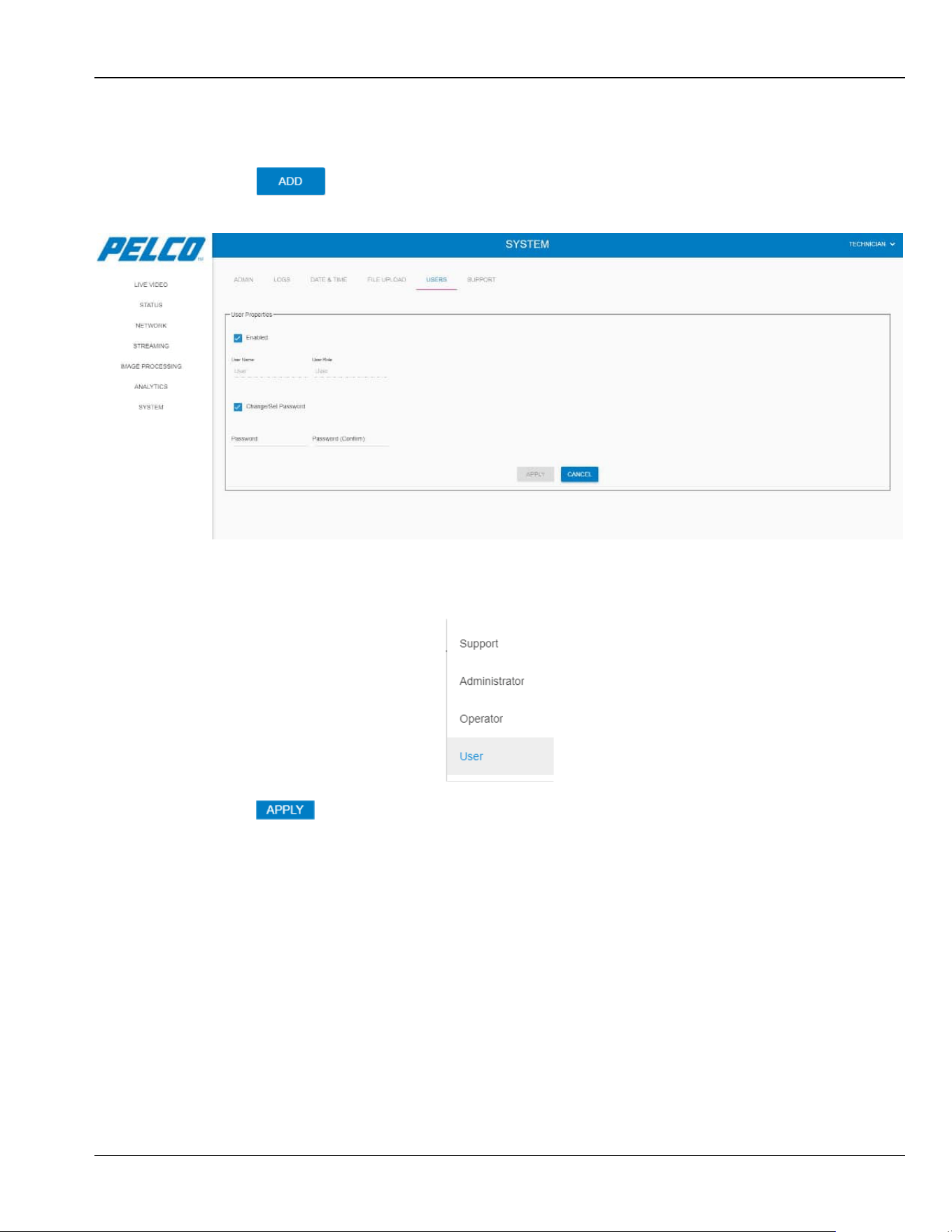
Chapter 5: Operation Sarix TI Series Camera User Manual
5-61
5.11.5.1 Adding a User
To add a new user:
1. Click . The following opens:
Figure 5-69: System Window - User Management Tab - Adding a User
2. Enter the User Name.
3. From the User Role drop-down list select the usage-level of the user:
4. Click to validate the changes.
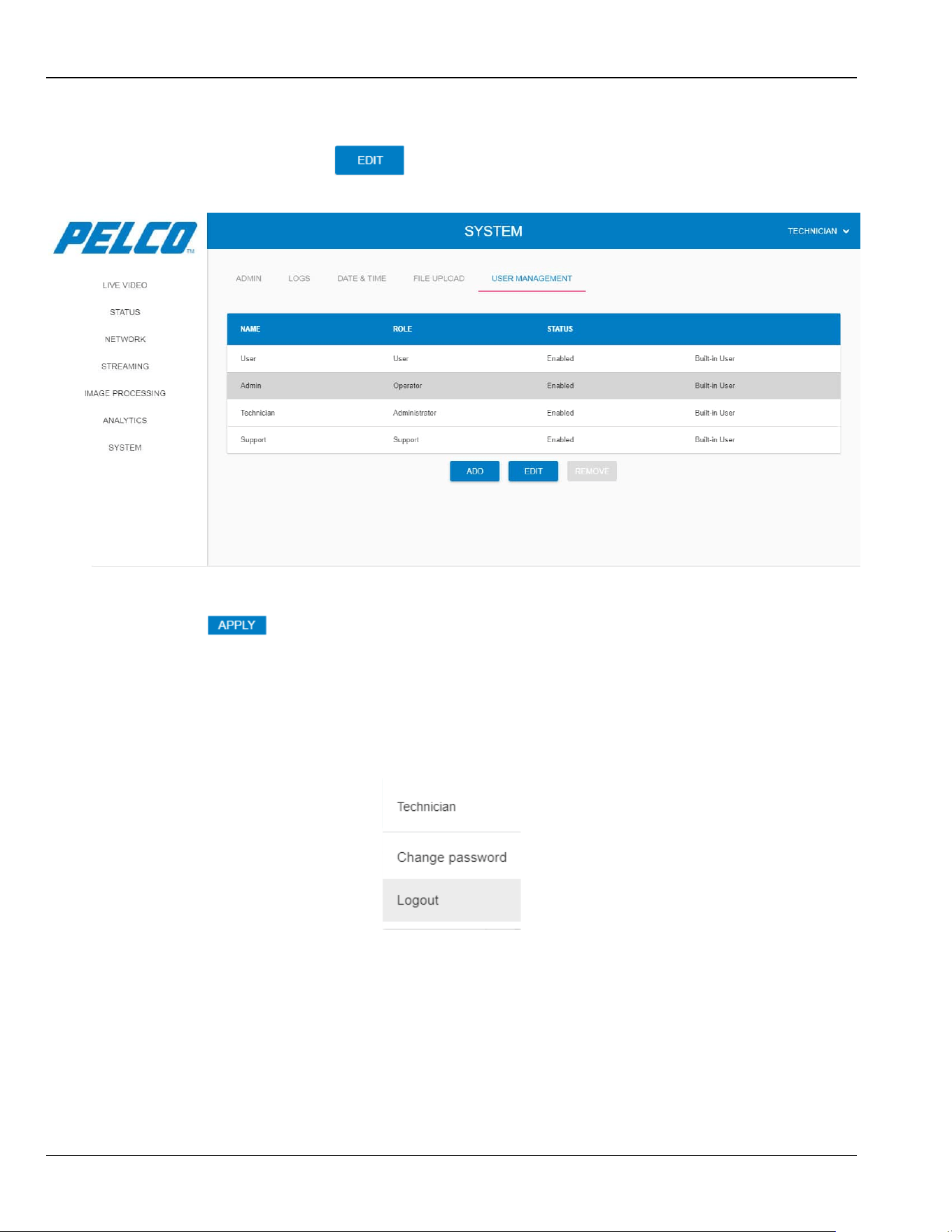
Sarix TI Series Camera User Manual Chapter 5: Operation
5-62
5.11.5.2 Editing User Details
1. Select a user and click .
Figure 5-70: System Window - User Management Tab - Editing User Details
2. Change the user details.
3. Click to validate the changes.
5.12 Logging Out from the Web GUI
4. Stop any action, currently in process.
5. From the upper-right drop-down menu select Logout:
Figure 5-71: Logging Out from the Web GUI - Drop Down Menu
The user is logged out from the program and the Status window re-opens (see Figure 5-2).

Chapter 6: Maintenance Sarix TI Series Camera User Manual
6-63
6. Maintenance
This chapter provides the Sarix TI Series Camera preventive maintenance instructions.
The chapter consists of the following sections:
Section 6.1: Visual Inspection
Section 6.2: Cleaning
6.1 Visual Inspection
1. Visually inspect the camera and check the physical condition of the camera’s chassis and
lens.
2. Check the physical condition of the cable (torn, over-bending, damaged isolation, bent or
immersed pins).
6.2 Cleaning
CAUTION
Do not use any chemicals for cleaning the Sarix TI Camera. Failure
to comply could result in damage to the Sarix TI Camera optical-lens
and/or its surfaces.
1. Clean the Sarix TI Camera using wipes approved for optical equipment.
2. Clean any stains using a cotton-cloth, slightly dumped in tap water.
Sarix TI Series Camera User Manual Chapter 7: Ordering Information
7-64
7. Ordering Information
This chapter provides information for purchasing the Sarix TI Series Camera and accessories.
The chapter consists of the following sections:
7.1 Ordering Information
Table 7-1: Ordering Information for 03 Hz Camera
Lens Type Part Number
17μ 640x480 14.2mm f/1.2, Athermalized, Fixed Focus TI2614
35mm f/1.2, Athermalized, Fixed Focus TI2635
50mm f/1.2, Athermalized, Fixed Focus TI2650
17μ 384x288 14.2mm f/1.2,Athermalized, Fixed Focus TI2314
35mm f/1.2,Athermalized, Fixed Focus TI2335
50mm f/1.2,Athermalized, Fixed Focus TI2350
Table 7-2: Ordering Information for 9Hz Camera
Lens Type Part Number
17μ 640x480 14.2mm f/1.2, Athermalized, Fixed Focus TI2614-1
35mm f/1.2, Athermalized, Fixed Focus TI2635-1
50mm f/1.2, Athermalized, Fixed Focus TI2650-1
17μ 384x288 14.2mm f/1.2,Athermalized, Fixed Focus TI2314-1
35mm f/1.2,Athermalized, Fixed Focus TI2335-1
50mm f/1.2,Athermalized, Fixed Focus TI2350-1
7.2 Ordering Accessories
Table 7-3: Ordering Accessories
Part Number
Accessories:
SARIX TI POW cable 50 FT TICAB-P50
Wall Mount Accessories:
SARIX TI Wall Mount TIWM
SARIX TI Pole Adapter REQ Wall MNT TIPA

Chapter 8: Index Sarix TI Series Camera User Manual
8-65
8. Index
This chapter provides a list, arranged in alphabetical order, of keywords found throughout this
manual.
A
Abbreviations · 1-11
C
Certificates
Request · 5-19
Self-Signed Request · 5-19
Uploading a Certificate · 5-20
Cleaning · 6-63
D
Day Tab · 5-12, 5-25
Main Stream · 5-25
Secondary Stream · 5-27
Disable Camera · 5-13
E
Enable Camera · 5-14
F
Features · 2-14
G
General Configuration Tab · 5-28
Getting Started
Changing Password · 5-5
Image Processing Window · 5-29
Live View Window · 5-7
Logging Into GUI · 5-3
Logging Out · 5-62
Main Window · 5-6
Network Window · 5-15
Status Window · 5-8
Streaming Window · 5-21
System Window · 5-51
GUI · 2-17
I
Image Processing Window · 5-29
Day Tab · 5-37
Day Tab Geometry Settings · 5-38
Day Tab Misc Properties Settings · 5-39
Thermal Tab · 5-29
Thermal Tab Advanced Settings · 5-33
Thermal Tab Basic Settings · 5-30
Thermal Tab Color Processing Settings · 5-34
Thermal Tab Gain Control Settings · 5-32
Thermal Tab Signal Processing Settings · 5-31
Installation · 4-1
Camera Installation · 4-2
Unpacking · 4-1
Installing Camera · 4-2
IP PoE Cable · 4-6
Mechanical Interface Preparation · 4-2, 4-3
Pole Mount Configuration · 4-5
Wall Mount Configuration · 4-4
L
Live View Window · 5-7
LOF ·
1-7
Logging Out · 5-62
Login · 5-3
LOT · 1-7
M
Main Window Overview · 5-6

Sarix TI Series Camera User Manual Chapter 8: Index
8-66
Maintenance · 6-63
Cleaning · 6-63
Visual Inspection · 6-63
N
Network Window · 5-15
Certificates · 5-19
HTTPS Connection · 5-17
IP Address · 5-16
IP Address - Auto · 5-16
Manual DNS Server Address · 5-17
ONVIF Service · 5-18
Resetting Network Settings · 5-18
O
Operation · 5-1
Ordering Info · 7-64
Overview · 2-13, 2-14
Features · 2-14
GUI · 2-17
Physical Description · 2-15
Specifications · 2-18
P
Password Change · 5-5
Physical Description · 2-15
R
Revisions · 1-1
S
Safety · 3-1
Safety Conventions · 3-1
Safety During Installation · 3-2
Safety During Maintenance · 3-2
Safety Instructions
Conventions · 3-1
Installation · 3-2
Maintenance · 3-2
Scope · 1-12
Specifications · 2-18
CMOS Camera · 2-20
Configurations · 2-19
System Specifications · 2-18
Thermal Camera · 2-20
Status Window · 5-8
Status Window Overview
Day Tab · 5-12
Disable Camera · 5-13
Enable Camera · 5-14
System Tab · 5-9
Thermal Tab · 5-10
Streaming Window · 5-21
Day Tab · 5-25
General Configuration Tab · 5-28
Thermal Tab · 5-21
System Tab · 5-9
System Window · 5-51
Admin Tab · 5-51
Admin Tab - Archive System Files · 5-52
Admin Tab - Export Site · 5-54
Admin Tab - Factory Defaults · 5-55
Admin Tab - Restart · 5-51
Admin Tab - Save As Site · 5-53
Admin Tab - Site Defaults · 5-54
Date & Time Tab · 5-58
Date & Time Tab - Sync with Browser · 5-59
Date & Time Tab - Sync with NTP · 5-59
File Upload Tab · 5-60
Logs Tab · 5-57
User Management Tab · 5-60
User Management Tab - Adding a User · 5-61
User Management Tab - Editing a User · 5-62
T
Thermal Tab · 5-10, 5-21

Chapter 8: Index Sarix TI Series Camera User Manual
8-67
Main Stream · 5-22
Secondary Stream · 5-24
TOC · 1-2
U
Unpacking · 4-1
V
Visual Inspection · 6-63

Sarix TI Series Camera User Manual Chapter 8: Index
8-68
Pelco, Inc.
625 W. Alluvial Ave.
Fresno, CA 93711
Tel. +1 559-292-1981
www.pelco.com
Pelco, the Pelco logo, and other trademarks associated with Pelco products referred to in this publication
are trademarks of Pelco, Inc. or its affiliates. ONVIF and the ONVIF logo are trademarks of ONVIF Inc.
All other product names and services are the property of their respective companies.
Product specifications and availability are subject to change without notice.
© Copyright 2019, Pelco, Inc. All rights reserved.