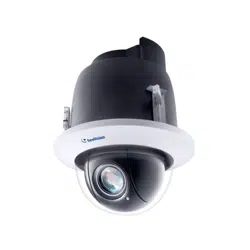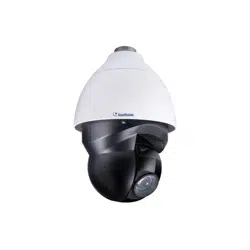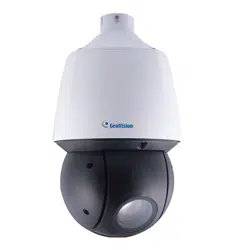

© 2021 GeoVision, Inc. All rights reserved.
Under the copyright laws, this manual may not be copied, in whole or in part,
without the written consent of GeoVision.
Every effort has been made to ensure that the information in this manual is
accurate. GeoVision, Inc. makes no expressed or implied warranty of any kind
and assumes no responsibility for errors or omissions. No liability is assumed
for incidental or consequential damages arising from the use of the information
or products contained herein. Features and specifications are subject to
change without notice.
GeoVision, Inc.
9F, No. 246, Sec. 1, Neihu Rd.,
Neihu District, Taipei, Taiwan
Tel: +886-2-8797-8377
Fax: +886-2-8797-8335
http://www.geovision.com.tw
Trademarks used in this manual: GeoVision, the GeoVision logo and GV
series products are trademarks of GeoVision, Inc. Windows is the registered
trademark of Microsoft Corporation.
November 2021
Scan the following QR codes for product warranty and technical support
policy:
[Warranty] [Technical Support Policy]

i
Preface
Welcome to the GV-IP Speed Dome User’s Manual.
The features described in the manual vary among camera models and versions. Some
features may not be available in your camera.
This Manual is designed for the following models and firmware versions:
Model
Model Number
Firmware Version
IP Speed Dome
GV-SD2322-IR
V1.0
GV-SD2722-IR / GV-SD3732-IR
V1.03
GV-SD4825-IR / GV-SD4834-IR
V1.0

ii
Contents
Naming Definition ....................................................................vi
Note for Connecting to GV-VMS / DVR / NVR .......................vi
Note for Recording ..................................................................vi
Note for Installing Camera Outdoor .....................................vii
Note for Face Detection ........................................................viii
Note for People Counting .......................................................ix
Chapter 1 Introduction ..........................................................1
1.1 Packing List ........................................................................................................... 2
1.2 System Requirements ............................................................................................ 3
1.3 Optional Accessories ............................................................................................. 4
1.4 Physical Description............................................................................................... 6
1.5 Accessory Installation (Wall Pendant Mount) ......................................................... 7
1.6 Connecting the Camera ........................................................................................11
Chapter 2 Accessing the Camera .......................................14
2.1 Installing on a Network ..........................................................................................14
2.1.1 Checking the Dynamic IP Address ............................................................15
2.1.2 Assigning an IP Address ...........................................................................16
2.2 Accessing Live View .............................................................................................17
2.2.1 The Live View Window ............................................................................18
Chapter 3 PTZ Control Panel ..............................................22
3.1 Assessing the PTZ Control Panel .........................................................................22
3.1.1 Setting Presets .........................................................................................24
3.1.2 Setting Patrol ............................................................................................25
3.2 Setting Home Position ..........................................................................................30

iii
Chapter 4 Administrator Mode ...........................................31
4.1 Common ...............................................................................................................34
4.1.1 Navigation / Basic Info .............................................................................34
4.1.2 Local Settings ..........................................................................................35
4.2 Network ................................................................................................................37
4.2.1 Network ....................................................................................................37
4.2.2 DNS ..........................................................................................................39
4.2.3 Port ...........................................................................................................39
4.2.4 Port Mapping ............................................................................................40
4.2.5 DDNS .......................................................................................................41
4.2.6 E-mail .......................................................................................................42
4.2.7 SNMP .......................................................................................................44
4.2.8 802.1x .......................................................................................................45
4.2.9 QoS ..........................................................................................................46
4.3 Video & Audio .......................................................................................................47
4.3.1 Video ........................................................................................................47
4.3.2 Audio ........................................................................................................49
4.3.3 Snapshot ..................................................................................................50
4.3.4 ROI ...........................................................................................................51
4.3.5 Media Stream ...........................................................................................52
4.4 PTZ .......................................................................................................................54
4.4.1 Basic Settings ...........................................................................................54
4.4.2 Home Position ..........................................................................................54
4.4.3 PTZ Limit ..................................................................................................55
4.4.4 Remote Control.........................................................................................56
4.4.5 Patrol ........................................................................................................57
4.4.6 Orientation ................................................................................................58
4.5 Image ...................................................................................................................59
4.5.1 Image .......................................................................................................59
4.5.2 OSD ..........................................................................................................66
4.5.3 Privacy Mask ...........................................................................................68
4.5.4 Quick Focus ............................................................................................69
4.6 Intelligent ..............................................................................................................70
4.6.1 Smart Settings ..........................................................................................70
4.6.2 Cross Line ................................................................................................71
4.6.3 Enter / Leave Area ....................................................................................73
4.6.4 Intrusion ....................................................................................................74
4.6.5 Object Removed .......................................................................................75

iv
4.6.6 Object Left Behind ....................................................................................76
4.6.7 Face Detection..........................................................................................77
4.6.8 People Counting .......................................................................................79
4.6.9 Auto Tracking ...........................................................................................81
4.6.10 Attribute Collection ..................................................................................83
4.6.11 Advanced Settings ..................................................................................83
4.7 Events...................................................................................................................86
4.7.1 Motion Detection .......................................................................................86
4.7.2 Tampering Alarm ......................................................................................88
4.7.3 Audio Detection ........................................................................................89
4.7.4 Alarm Input ...............................................................................................90
4.7.5 Alarm Output ............................................................................................91
4.7.6 Capture .....................................................................................................92
4.7.7 Temperature Alarm ...................................................................................92
4.7.8 One-Key Shielding Linkage ......................................................................92
4.8 Storage .................................................................................................................89
4.8.1 Storage .....................................................................................................93
4.8.2 Recording Download ................................................................................95
4.8.3 FTP ...........................................................................................................96
4.8.4 Backing Up Storage ..................................................................................99
4.9 Security ............................................................................................................... 100
4.9.1 User ........................................................................................................ 100
4.9.2 Network Security ..................................................................................... 100
4.10 System .............................................................................................................. 104
4.10.1 Time ..................................................................................................... 104
4.10.2 Server ................................................................................................... 105
4.10.3 DST ...................................................................................................... 105
4.10.4 Maintenance ......................................................................................... 106
4.10.5 Ports and Device .................................................................................. 108
4.10.6 Log ....................................................................................................... 109
Chapter 5 Recording and Playback .................................110
5.1 Recording ........................................................................................................... 110
5.2 Playback from the Memory Card ......................................................................... 111

v
Chapter 6 Advanced Applications ...................................113
6.1 Upgrading System Firmware ............................................................................... 113
6.1.1 Using the Web Interface ......................................................................... 114
6.1.2 Using the GV-IP Device Utility ................................................................ 115
6.2 Restoring to Factory Default Settings .................................................................. 116
6.2.1 Using the Web Interface ......................................................................... 116
6.2.2 Directly on the Camera ........................................................................... 117
Chapter 7 VMS / DVR / NVR Configurations ....................119
7.1 Setting up IP Cameras on GV-DVR / NVR .......................................................... 120
7.1.1 Customizing the Basic Settings on GV-DVR / NVR ................................. 122
7.2 Setting Up IP Cameras on GV-VMS ................................................................... 123
Appendix ...............................................................................125
A RTSP Multicast Protocol Support .......................................................................... 125
vi
Naming Definition
GV-DVR / NVR
GeoVision Analog and Digital Video Recording Software. The
GV-DVR also refers to GV-Multicam System or GV-Hybrid DVR.
GV-VMS
GeoVision Video Management System for IP cameras.
Note for Connecting to GV-VMS / DVR / NVR
The GV-IP Speed Dome is designed to work with and record on GV-VMS / DVR / NVR, a
video management system.
Once the camera is connected to the GV-VMS / DVR / NVR, the resolution set on the GV-
VMS / DVR / NVR will override the resolution set on the camera’s Web interface. You can
only change the resolution settings through the Web interface when the connection to the
GV-VMS / DVR / NVR is interrupted.
Note for Recording
By default, the images are recorded to the memory card inserted in the GV-IP Speed Dome.
Mind the following when using a memory card for recording:
⚫ Recorded data on the memory card can be damaged or lost if the data are accessed
while the camera is under physical shock, power interruption, memory card detachment
or when the memory card reaches the end of its lifespan. No guarantee is provided for
such causes.
⚫ The stored data can be lost if the memory card is not accessed for a long period of time.
Back up your data periodically if you seldom access the memory card.
⚫ Memory cards are expendable and their durability varies according to the conditions of
the installed site and how they are used. Back up your data regularly and replace the
memory card annually.
⚫ To avoid power outage, it is highly recommended to apply a battery backup (UPS).
⚫ For better performance, it is highly recommended to use Micro SD card or SD card of
MLC NAND flash, Class 10.
⚫ Replace the memory card when its read/write speed is lower than 6 MB/s or when the
memory card is frequently undetected by the camera.

vii
Note for Installing Camera Outdoor
When installing the camera outdoor, be sure that:
1. The camera is set up above the junction box to prevent water from entering the camera
along the cables.
2. Any power, audio and I/O cables are waterproofed using waterproof silicon rubber or the
like.
3. The screws are tightened and the cover is in place after opening the camera cover.

viii
Note for Face Detection
To use the camera’s built-in face detection feature (see 4.6.7 Face Detection), not supported
by GV-SD2322-IR, it is recommended to install the camera according to the criteria listed
below:
Surveillance Condition
• The camera shall be installed at a site with uniform, sufficient lighting, where the
face(s) to be detected are fully illuminated.
Example of Recommended Scene
Example of Non-recommended Scene
Camera Position
• The camera shall be mounted at a recommended height of 2.5 ~ 3 m (8.2 ~ 9.84).
• The camera shall be mounted with a recommended depression angle of around 10°.
• The camera shall be positioned so that the face(s) to be detected are directly aligned
with the lens of the camera, with a horizontal deviation of no greater than 30°, a
vertical deviation of no greater than 15° and a face size of at least 120 pixels.
Surveillance
area width
Horizontal line
Depression angle
α
Optical axis of
the camera
Pedestrian walking direction
(straight along the center of
the ground)
Horizontal surveillance distance
Device mounting height

ix
Note for People Counting
To use the camera’s built-in people counting feature (see 4.6.8 People Counting), not
supported by GV-SD2322-IR, it is recommended to install the camera according to the
criteria listed below:
Surveillance Condition
• The camera shall be installed at a site with uniform, sufficient lighting, where the
person(s) to be counted are fully illuminated.
• The camera shall be installed at an entrance or exit with an ideal width of 1 ~ 4 m
(3.28 ~ 13.12), where the persons(s) to be counted move toward the lens of the
camera in single file.
Example of Recommended Scene
Example of Non-recommended Scene
Camera Position
• The camera shall be mounted at a recommended height of 3 ~ 5 m (9.84 ~ 16.4 ft).
• The camera shall be mounted with a recommended depression angle of 70 ~ 80°.
• The camera shall be positioned so that the person(s) to be counted face toward the
lens of the camera and are displayed on the image with a shoulder size of between
120 ~ 160 pixels.
Surveillance
area width
Horizontal line
Depression angle
α
Optical axis of
the camera
Pedestrian walking direction
(straight along the center of
the ground)
Horizontal surveillance distance
Device mounting height

Introduction
1
1
Chapter 1 Introduction
GV-IP IR Speed Dome Series is an outdoor network PTZ camera that offers 22x / 25x / 33x
optical zoom and unlimited digital zoom, capable of showing smooth live view with great
details. This camera can simultaneously deliver three video streams in resolutions up to 1920
x 1080 at 30 fps (GV-SD2322-IR), 1920 x 1080 at 60 fps (GV-SD2722-IR), 2048 x 1536 at 30
fps and 1920 x 1080 at 60 fps (GV-SD3732-IR) or 2688 x 1520 at 30 fps (GV-SD4825-IR /
GV-SD4834-IR). In low-light environments, night vision is enhanced with its high-power LEDs,
which allow up to 100 m (330 ft, GV-SD4825-IR), 150 m (492 ft, GV-SD2722-IR / SD3732-IR
/ SD4834-IR) or 200 m (656 ft, GV-SD2722-IR) effective IR distance.
Wide surveillance coverage is made possible with 360° endless panning and -15 ~ 90° tilting
capacity. PTZ functions such as Preset, Auto Pan and Patrol can be programmed and
activated by schedule. GV-IP IR Speed Dome supports pan/tilt speeds ranging from a fast
patrol of 200° ~ 240° per second to a slow ramble of 0.1°per second with 0.1° ~ 0.2° pan
accuracy for fast and accurate tracking ability.
For GV-SD2722-IR / 3732-IR / 4825-IR / 4834-IR, with the built-in WDR Pro, it can process
scenes with contrasting intensity of lights and produce clear image. The camera supports
H.265 video codec to achieve better compression ratio while maintaining high quality pictures
at reduced network bandwidths.

2
1.1 Packing List
• IR IP Speed Dome
• 24V AC Power Adapter (only for GV-SD2322-
IR / SD2722-IR / SD3732-IR)
• M4 Hex Key
• Waterproof Rubber Set
• Waterproof Guidelines
• Download Guide

Introduction
3
1
1.2 System Requirements
CPU
Intel Core i5-4670, 3.40 GHz
Memory
DDR3 8 GB RAM
On Board Graphics
Intel HD Graphics 4600 (Versions of driver from year 2014 or later
required)
Web Browsers
⚫ Internet Explorer 11.0 or above
⚫ Google Chrome
⚫ Mozilla Firefox
⚫ Safari
Note: Some functions are not available on non-IE browsers.

4
1.3 Optional Accessories
Optional accessories can expand the capabilities and versatility of your GV-IP Speed Dome.
Contact your dealer for more information.
Model Number
Name
Details
GV-Mount104
Straight Tube Kit
Dimensions: 219 x 125 x 332 mm
(8.6” x 4.9” x 13.1”)
Weight: 1.8 kg (3.97 lb)
GV-Mount105
Straight Tube and
Junction Box Kit
Dimensions: 256 x 256 x 297 mm
(10.1” x 10.1” x 11.7”)
Weight: 6.2 kg (13.67 lb)
GV-Mount208-3
Swan Neck Mount
Dimensions: 1043 x 519 x 256 mm
(41.06” x 20.43” x 10.08”)
Weight: 10.6 kg (23.37 lb)
GV-Mount210
Pendant Tube
Dimensions: 200 x 140 x 249 mm
(7.9” x 5.5” x 9.80”)
Weight: 1.1 kg (2.43 lb)

Introduction
5
1
GV-Mount300-1
Convex Corner
Adapter Kit
Dimensions: 238.6 x 395.2 x 210 mm
(9.4’’ x 15.5” x 8.2”)
Weight: 4.27 kg (9.41 lb)
GV-Mount310-1
Concave Corner
Adapter Kit
Dimensions: 111.2 x 369.9 x 210 mm
(4.37’’ x 14.5” x 8.2”)
Weight: 2.96 kg (6.53 lb)
GV-Mount400-1
Pole Mount Bracket
Kit
(Ø 4" ~ 6")
Dimensions:
Bracket: 68.4 x 240 x 163 mm
(2.69” x 9.44’’ x 6.41”)
Weight: 1.70 kg (3.75 lb)
Steel Strap Diameter: Ø 4” ~ 6”
GV-Mount410-1
Pole Mount Bracket
Kit
(Ø 6" ~ 7.5")
Dimensions:
Bracket: 68.4 x 240 x 163 mm
(2.69” x 9.44’’ x 6.41”)
Weight: 1.70 kg (3.75 lb)
Steel Strap Diameter: Ø 6” ~ 7.5”
GV-Mount501
Convex Corner Box
Mount
Dimensions: 136 x 256 x 256 mm
(5.4” x 10.1” x 10.1”)
Weight: 4.8 kg (10.6 lb)
GV-Mount702
Extension Tube
Four options are available.
Dimensions: Ø 5.4 x 10 or 20 or 30 or 50 cm
(Ø 2.1” x 3.9” or 7.9” or 11.8” or 19.7”)
Weight: 180 g or 390 g or 550 g or 800 g
(0.4 lb or 0.86 lb or 1.21 lb or 1.76 lb)
Power Adapter
Contact our sales representatives for the
countries and areas supported.

6
1.4 Physical Description
2
1
GV-SD2322-IR / SD2722-IR / SD3732-IR
1
1
2
2
1
GV-SD4825-IR
GV-SD4834-IR
Figure 1-1
No.
Name
Function
1.
Default Button
Resets all configurations to default factory settings. See
6.2 Restoring to Factory Default Settings.
2.
Micro SD Card Slot
Inserts a micro SD card to store recording data.
Introduction
7
1
1.5 Accessory Installation (Wall Pendant Mount)
You can separately purchase optional mounting accessories to mount your GV-IP Speed
Dome on a wall, ceiling or pole. Make sure the wall is strong enough to support the camera
and the mount.
Required Items
• GV-Mount210 (purchased required)
• Wall screws x 4 (user-prepared)
Note: GV-SD2722-IR / SD3732-IR / SD4825-IR / SD4834-IR supports a series of Intelligent
functions, which work best when the installation abides by specific requirements. See 4.6.1
Smart Settings, Note for Face Detection, and Note for People Counting at the beginning of
the manual for details.
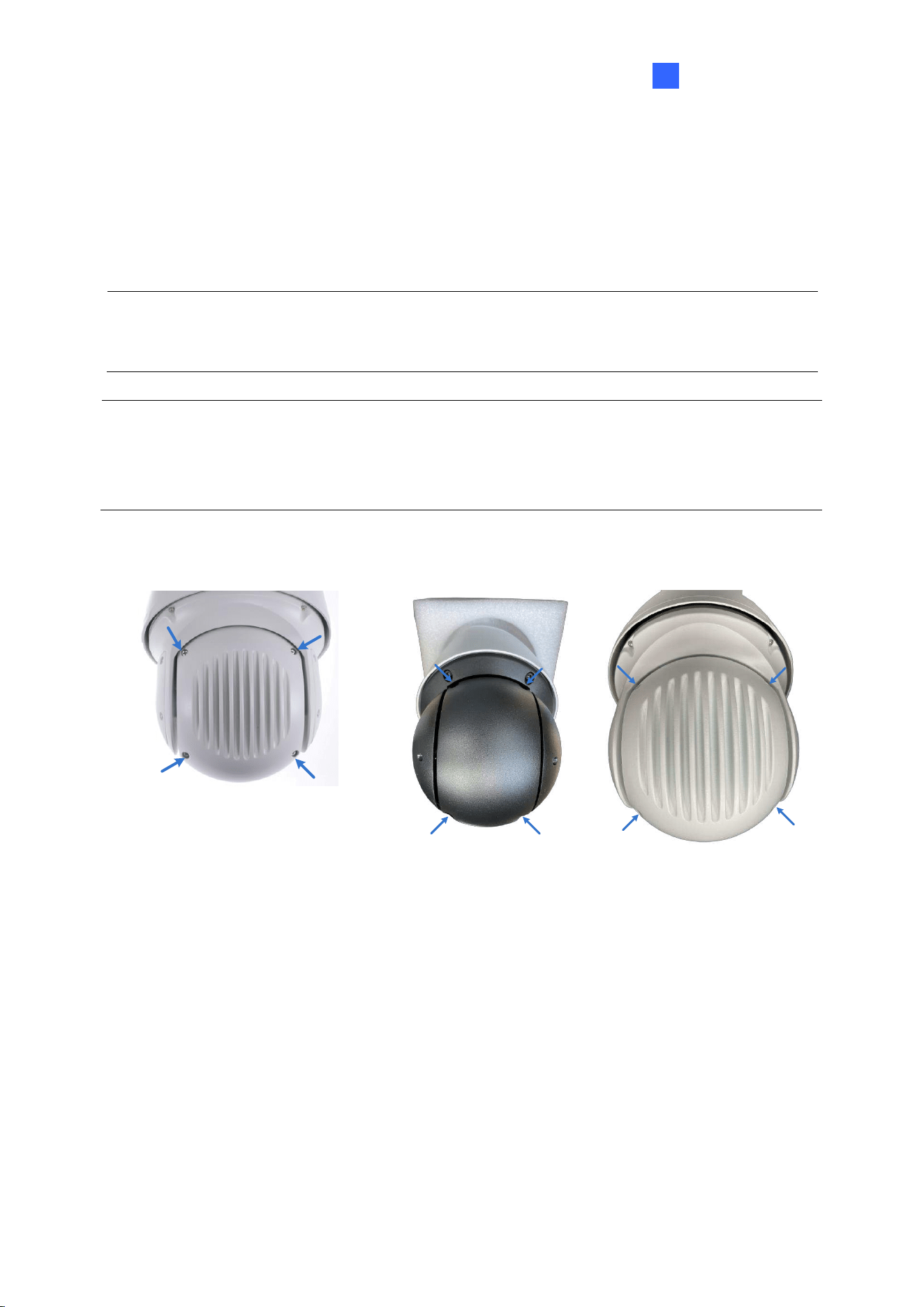
1. Unscrew the back cover of the camera.
For GV-SD2322-IR / SD2722-IR /
SD3732-IR / SD4834-IR
For GV-SD4825-IR
For GV-SD4834-IR
Figure 1-2
Figure 1-3
Figure 1-4
8
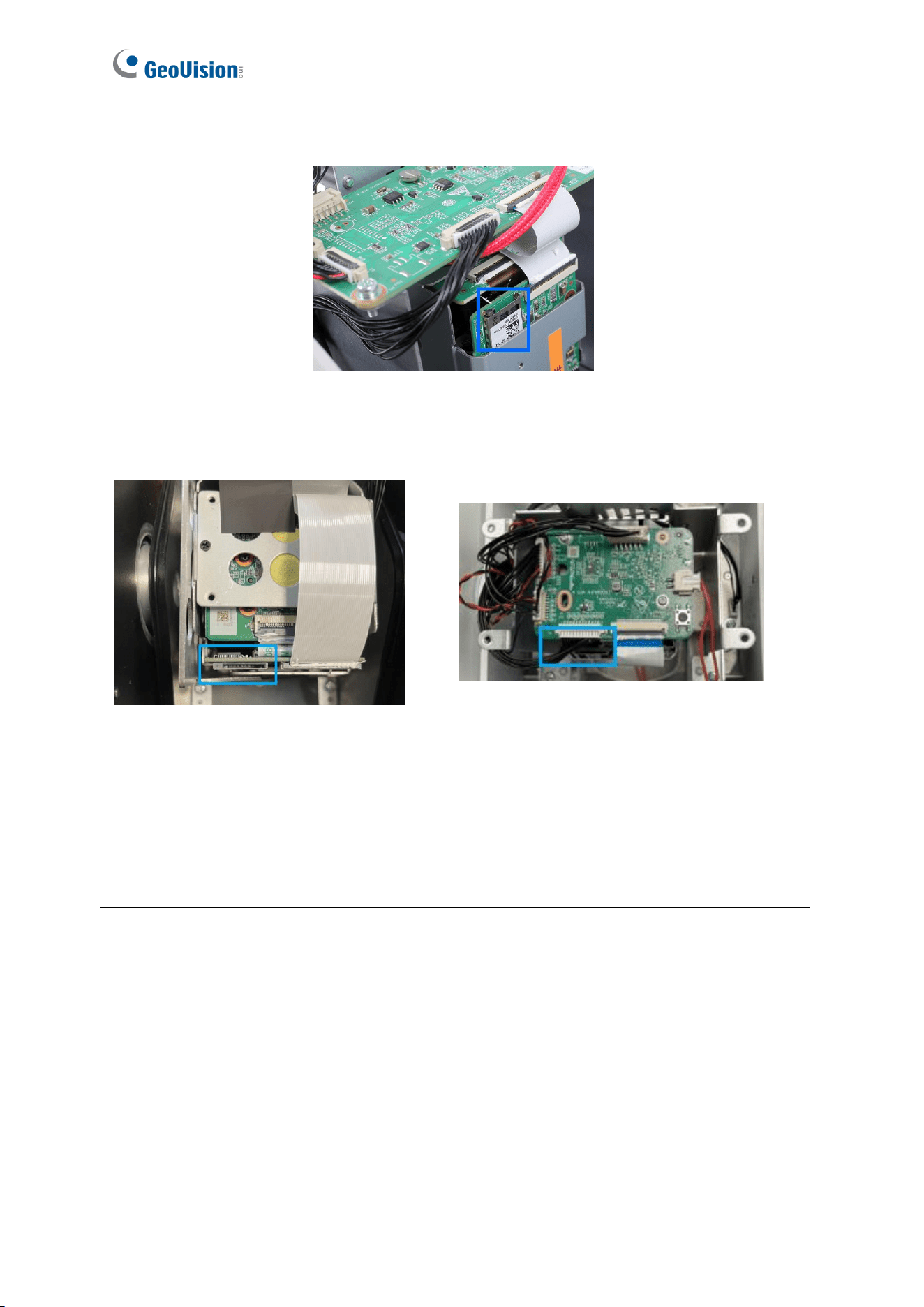
2. Insert the micro SD card into the slot, and secure the back cover of the camera.
For GV-SD2322-IR / SD2722-IR / SD3732-IR
Figure 1-5
For GV-SD4825-IR
For GV-SD4834-IR
Figure 1-6
Figure 1-7
Note: Be sure to format the memory card on the camera’s Web interface. See 4.8 Storage
for details.

Introduction
9
1
3. Place the pendant tube on the wall, and mark the position of the screw holes.
Figure 1-8
4. Drill holes on the wall, and secure the pendant tube to the wall with 4 self-prepared
screws.
5. Attach the safety lock of the camera to the pendant tube.
Figure 1-9
6. Thread the data cable through the pendant tube.
Figure 1-10

10
7. Attach the camera to the pendant tube, rotate the camera until it is locked into
position, and secure the indicated screws.
Figure 1-11
8. Insert the pendant mount screws and tighten with the supplied M4 hex key.
Figure 1-12
9. Thread the Ethernet cable through the waterproof rubber set as shown below.
Figure 1-13
Note: The size of RJ-45 connector must be within 14 mm to go through the waterproof
rubber set.
Unfit size of RJ45 Connector

Introduction
11
1
1.6 Connecting the Camera
The camera comes with a data cable that allows you to connect the camera to the power
adapter, microphone, speaker, and I/O devices.
Audio In
Ethernet
Audio Out
Alarm In
Alarm Out
RS-485 (not available for GV-SD2322-IR)
Video Out (BNC)
Power (not applicable for GV-SD4825-IR)
Power adapter (only applicable for GV-SD4825-IR)
Figure 1-14
1. Connect the power adapter to the 3-pin terminal block, or connect the Ethernet cable to
the PoE port. Either of the red or black cables can be used for anode (+) and the
cathode (-).
Power Adaptor
Figure 1-15
2. Connect a standard network cable to the Ethernet cable of the camera.
3. Optionally connect the TV-out (BNC) cable to a monitor. The TV-out function can be
used during installation to adjust the camera image.
4. Optionally connect I/O devices, speaker and microphone to the camera. You can
connect up to 2 alarm inputs and 1 output device. See Wire Definition section below.
Each time the camera is powered on, it will perform a self-test to check the Pan/Tilt/Zoom
(PTZ) function. After the self-test, you can operate the camera.
Note: If you are using your own power adapter, you may need to ground the camera using
the yellow cable (GND) on the 3-pin terminal block.

12
Wire Definition
GV-SD2322-IR / SD2722-IR / SD3732-IR
No.
Wire
Definition
1
Brown
Audio In
2
Brown / White
GND
3
Green
Audio Out
4
Green / White
GND
5
Gray
Alarm In 1
6
Purple
Alarm In 2
7
Black
GND
8
Orange
Alarm In -
9
Orange / White
Alarm Out +
10
Yellow
RS-485 – (GV-SD2722-IR / SD3732-IR)
11
Yellow / Black
RS-485 + (GV-SD2722-IR / SD3732-IR)
GV-SD4825-IR / SD4834-IR
No.
Wire
Definition
1
Brown
Audio In
2
Green
Audio Out
3
Green / White
GND (GV-SD4825-IR)
4
Brown / White
GND (GV-SD4834-IR)
5
Gray
Alarm In 1
6
Purple
Alarm In 2
7
Black
GND
8
Orange
Alarm Out –
9
Orange / White
Alarm Out +
10
Yellow
RS-485 –
11
Yellow / Black
RS-485 +
12
Yellow & Green
GND (GV-SD4834-IR)
13
Black
AC 24V / DC 24V- (GV-SD4834-IR)
14
Red
AC 24V / DC 24V+ (GV-SD4834-IR)

Introduction
13
1
Power cable
The power loss in watts on the cable for different lengths and different core diameters is
listed below.
Core Diameter
(Unit: mm)
Distance
(Unit: m)
Power
(Unit: W)
0.80
1.00
1.25
2.00
30
28
45
72
183
40
21
34
54
137
50
17
27
43
110
60
-
22
36
91
70
-
19
31
78
80
-
-
27
68
90
-
-
24
61
100
-
-
21
55
Note: Data listed above is applicable to copper cables that use AC 24V / DC 24V power
supply.

14
Chapter 2 Accessing the Camera
Once installed, the IP Speed Dome is accessible on a network. Follow these steps to
configure the network settings and access your surveillance images.
2.1 Installing on a Network
These instructions describe the basic connections to install the camera on the network.
1. Using a standard network cable, connect the camera to your network.
2. Connect to power using the supplied power adapter.
3. You can now access the Web interface of the camera.
⚫ If the camera is installed in a LAN with DHCP server, use GV-IP Device Utility to look
up the camera’s dynamic IP address. See 2.1.1 Checking the Dynamic IP Address.
⚫ If the camera is installed in a LAN without DHCP server, the default IP address
192.168.0.10 is applied. To assign a different static IP address, see 2.1.2 Assigning
an IP Address.
Note: You must set your browser to allow ActiveX Controls and perform a one-time
installation of the ActiveX component onto your computer at your first login.
Accessing the Camera
15
2
2.1.1 Checking the Dynamic IP Address
1. Download and install the GV-IP Device Utility program from the company website.
Note:
1. The PC installed with GV-IP Device Utility must be under the same LAN as the
camera you wish to configure.
2. Multilingual Web interface is NOT supported by GV-SD2322-IR.
3. By default, the Administrator’s username is admin and cannot be modified.
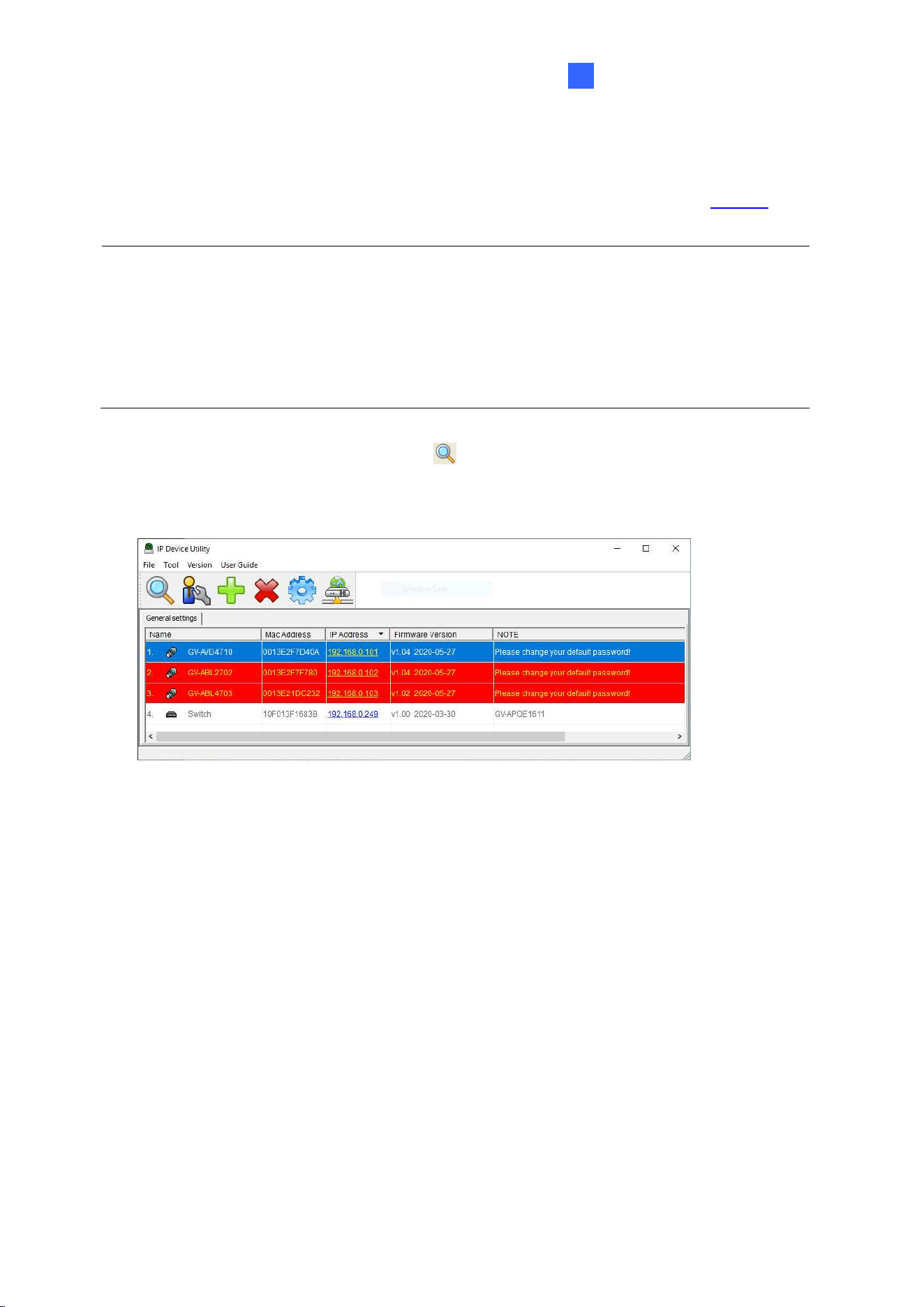
2. On the GV-IP Utility window, click the
button to search for the IP devices connected
in the same LAN. Click the Name or Mac Address column to sort.
3. Find the camera with its Mac Address, click on its IP address.
Figure 2-1
4. For the first-time users, you will be requested to set up a password.
5. Type a new password and click OK.
6. Type your username and password on the login page and click Login.
16
2.1.2 Assigning an IP Address
To assign a new static IP address, log in the Web interface to access the network setting
page.
Note: If your router does not support DHCP, the default IP address will be 192.168.0.10.
In this case, it is highly recommended that you modify the IP address to avoid IP address
conflict with other GV-IP devices on the same LAN.
1. Open your web browser, and type the default IP address 192.168.0.10.
2. Type your username and password. Click Login.
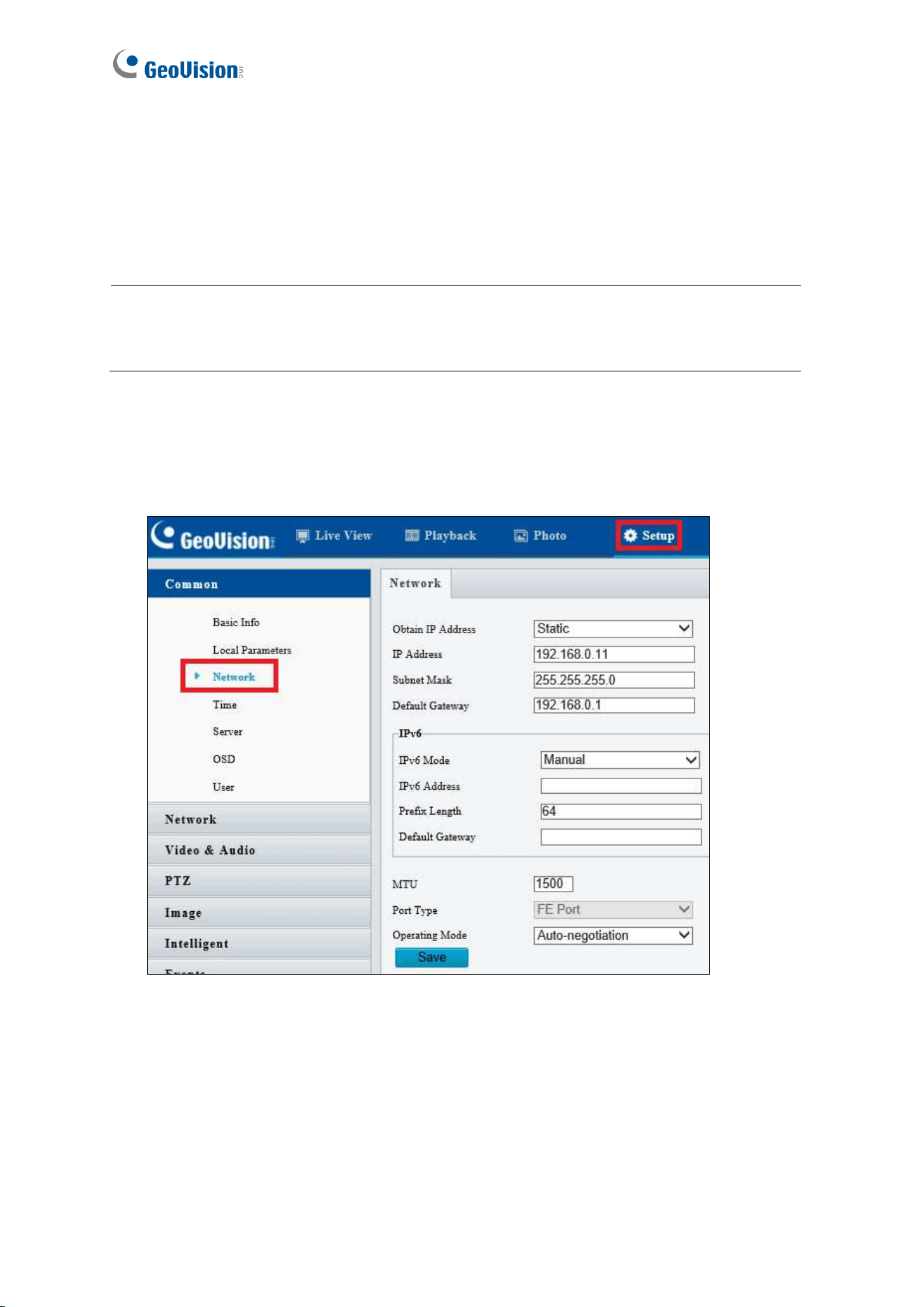
3. Click Setup, select Common in the left menu and select Network.
Figure 2-2
4. Select Static from the Obtain IP Address drop-down list.
5. Enter the IP address, subnet mask, and default gateway address. Make sure that the IP
address of the camera is unique in the network.
6. Click Save.

Accessing the Camera
17
2
2.2 Accessing Live View
After logging in to the speed dome, you will see the Home page as shown below:
Figure 2-3

18
2.2.1 The Live View Window
For GV-SD2322-IR
1
2
4
3
6
5
7
8
9
10
11
12
13
14
15
Figure 2-4
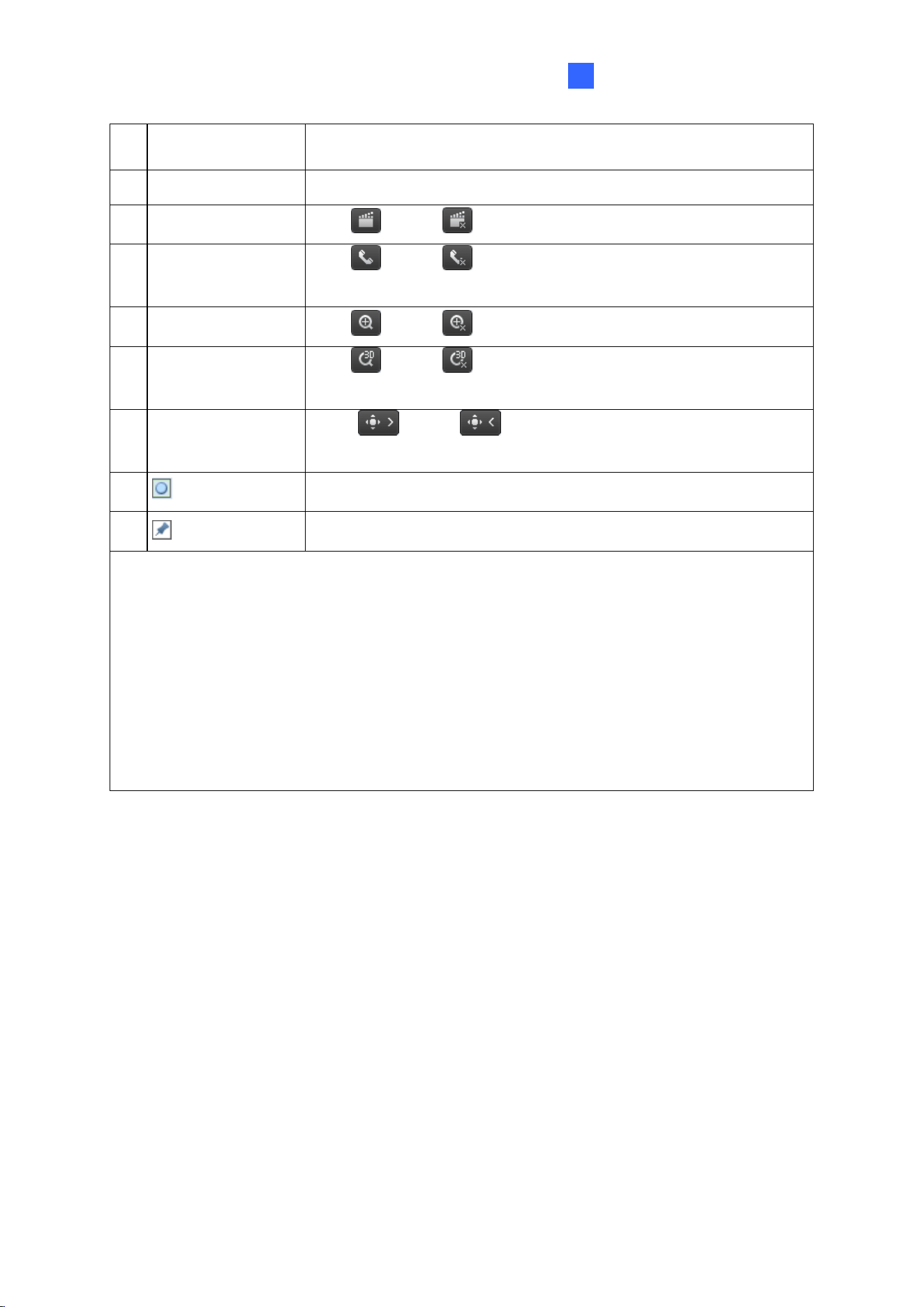
No.
Name
Function
1
Proportional
Set the display ratio of the image.
•
Scale: display images by 16:9.
•
Stretch: display images by window size.
•
Original: display images in its original size.
2
Live Stream
Select a live video stream: main stream, sub stream or third
stream.
3
Image
Open the image setting page. – See 4.5.1 Image.
4
Full Screen Mode
Display in full screen mode.
5
Play/Stop
Play or stop live video.
6
Volume
Adjust the audio output volume on the PC.
Accessing the Camera
19
2
7
Microphone
Adjust the microphone volume on the PC during audio
communication between the PC and the camera.
8
Snapshot
Take a snapshot of the current image displayed on the PC.
9
Local Recording
Start or stop local recording.
10
Audio
Communication
Start or stop audio communication between the PC and
the camera.
11
Digital Zoom
Start or stop digital zoom. -- See 2.2.1.1 Digital Zoom.
12
3D Positioning
Start or stop 3D positioning (optical zoom). -- See 2.2.1.2
3D Positioning.
13
PTZ control panel
Show or hide the PTZ control panel. -- See 3. PTZ
Control Panel.
14
Reset the packet loss rate to zero.
15
Display packet loss rate and bit rate information in the bottom.
Note:
1. The paths for saving snapshots and local recordings are set in System Configuration.
2. The buttons (No. 14 and No. 15) will appear on the floating toolbar after you move the
mouse cursor on a live view window.
3. Click the button (No. 15) to display the bottom information. Click this button again, the
bottom information is displayed if the mouse cursor is moved on a live view window or
on the bottom information, and it hides automatically if the mouse cursor remains on a
live view window for 3 seconds or leaves the window.
20
For GV-SD2722-IR / SD3732-IR / SD4825-IR / SD4834-IR
1
1
3
2
5
4
Figure 2-5
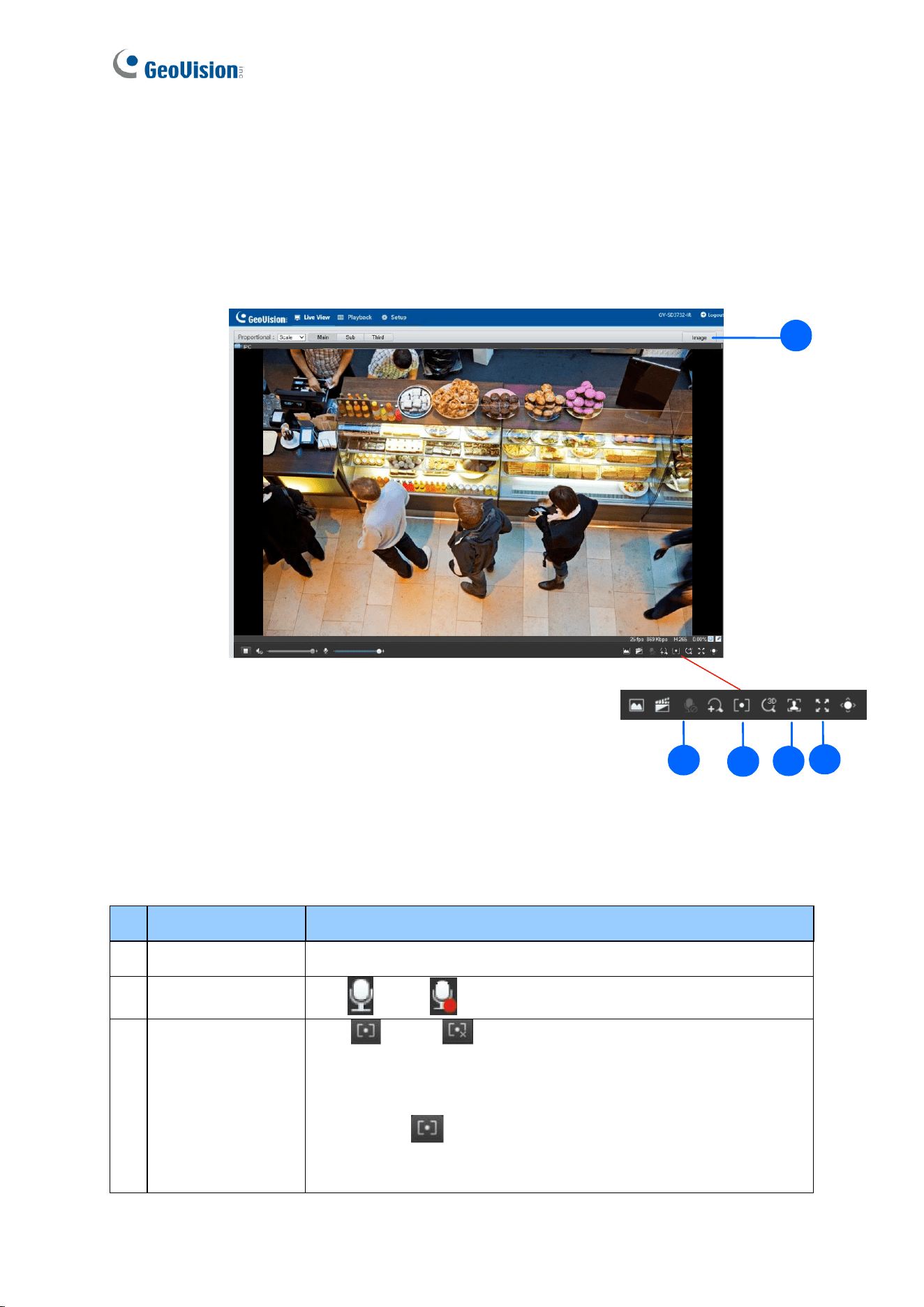
No.
Name
Function
1
Image
Open the image setting page. -- See 4.5.1 Image.
2
Two-way Audio
Start or stop two-way audio.
3
Area Focus
Start or stop area focus.
By activating this function, you can set the camera focus based on
a defined area of the live view. To activate Area Focus, follow the
steps below:
Step 1: Click
on the toolbar.
Step 2: Click and drag on the live view to specify an area. The
focus of the live view changes to the specified area.

Accessing the Camera
21
2
4
Face Snapshot
(only applicable to
GV-SD4825-IR /
SD4834-IR)
Start or stop face snapshot.
By activating this function, the camera takes face snapshots, and
displays them on the right of the live view window. Before
activating this function, you must enable Face Detection - See
4.6.7 Face Detection. To display face attributes detected, define
Attribute Collection and enable Display Attributes beforehand -
See 4.1.2 Local Setting and 4.6.10 Attribute Collection.
5
Full Screen Mode
Display in full screen mode.
For other functions in the live view window, refer to Figure 2-4.
2.2.1.1 Digital Zoom
To use the digital zoom function, follow these steps:
1. Click
(No. 11, Figure 2-4) on the toolbar.
2. Click and drag on the live view from top to down to specify an area.
3. To restore the original image size, click in the enlarged area, or drag from the bottom up.
4. To exit, click
(No. 11, Figure 2-4) on the toolbar.
2.2.1.2 3D Positioning (Optical Zoom)
1. Click (No. 12, Figure 2-4) on the toolbar.
2. Click and drag on the live view from top to down to specify an area.
3. To zoom out, drag from the bottom up.
4. To exit, click
(No. 12, Figure 2-4) on the toolbar.

22
Chapter 3 PTZ Control Panel
In this chapter, you will be guided through the various functions of PTZ Control Panel. The
PTZ Control Panel is accessed from the live view interface of the camera.
3.1 Assessing the PTZ Control Panel
1
1
2
3
4
5
6
7
8
9
Figure 3-1
No.
Item
Function
1
Auto Pan
Start or stop auto panning of the camera.
2
PTZ Control Panel
Control the direction of the camera and release the control.
3
PTZ Speed
Adjust the moving speed of the PTZ camera.
4
Zoom
Adjust the camera’s zoom (optical).
5
Focus
Adjust the camera’s focus.
6
Snow
Turn on or off the snow control. When enabled, the camera will
rotate to remove accumulated snow if detected by the camera.
7
Screen Lock
Lock or unlock the camera direction.

PTZ Control Panel
23
3
8
Preset
Select a preset and the camera goes to the selected preset.
-- See 3.1.1 Setting Presets.
9
Patrol
Select a patrol route. -- See 3.1.2 Setting Patrol.

24
3.1.1 Setting Presets
You can create and delete preset points by clicking Preset on the control panel of Live View.
Adding a Preset
1. Select Preset (No.7, Figure 3-1) on the control panel, and adjust the dome view to the
desired direction, zoom and focus.
4
Figure 3-2
2. Click the Add button to add it as a preset.
3. Type a number and name for the preset and click OK.
Going to a Preset
On the control panel, click for a preset. The PTZ camera goes to the selected preset.
Figure 3-3
Deleting a Preset
On the control panel, click for a preset and confirm the delete.
Figure 3-4

PTZ Control Panel
25
3
3.1.2 Setting Patrol
A patrol route is the track by which the camera follows when moving from a preset to the next.
The length of time that the camera stays at each preset is configurable. Multiple patrol routes
are allowed for the camera.
Patrol actions include going to a preset and staying at the preset for a certain amount of time
before going to the next. You can set the rotation direction, zoom, rotation speed, patrol time,
and stay time. You can also record a route and add it to the action list.
Note: To enable Preset Snapshot, see 4.4.5 Patrol.
To access the Patrol functions, click Patrol on the control panel of Live View.
Adding a Patrol Route
1. On the control panel, click the Add button to add a patrol route.
Figure 3-5
2. On the Add Patrol page, type the desired route ID and name.
3. Click Add to add a patrol action. Use the buttons to adjust the sequence of the actions
and click OK.

26
Note:
1. It is recommended that the first action type is Go to Preset.
2. If Keep Rotating is selected, the camera will rotate at the set speed and zoom in the set
direction or position for a certain amount of time.
Recording a Patrol Route
You can record the dome movements of the camera as a patrol route. The recorded
movements are added to the action list.
1. On the control panel, click the Record button
to start recording the patrol route.
Figure 3-6
2. Click
to finish recording. The patrol route is saved as a mode route automatically.
3. Click to start patrol or to delete the mode route.
Figure 3-7

PTZ Control Panel
27
3
Starting a Patrol Route
After you have added a patrol route, you can start patrolling by clicking on the control
panel.
Figure 3-8
28
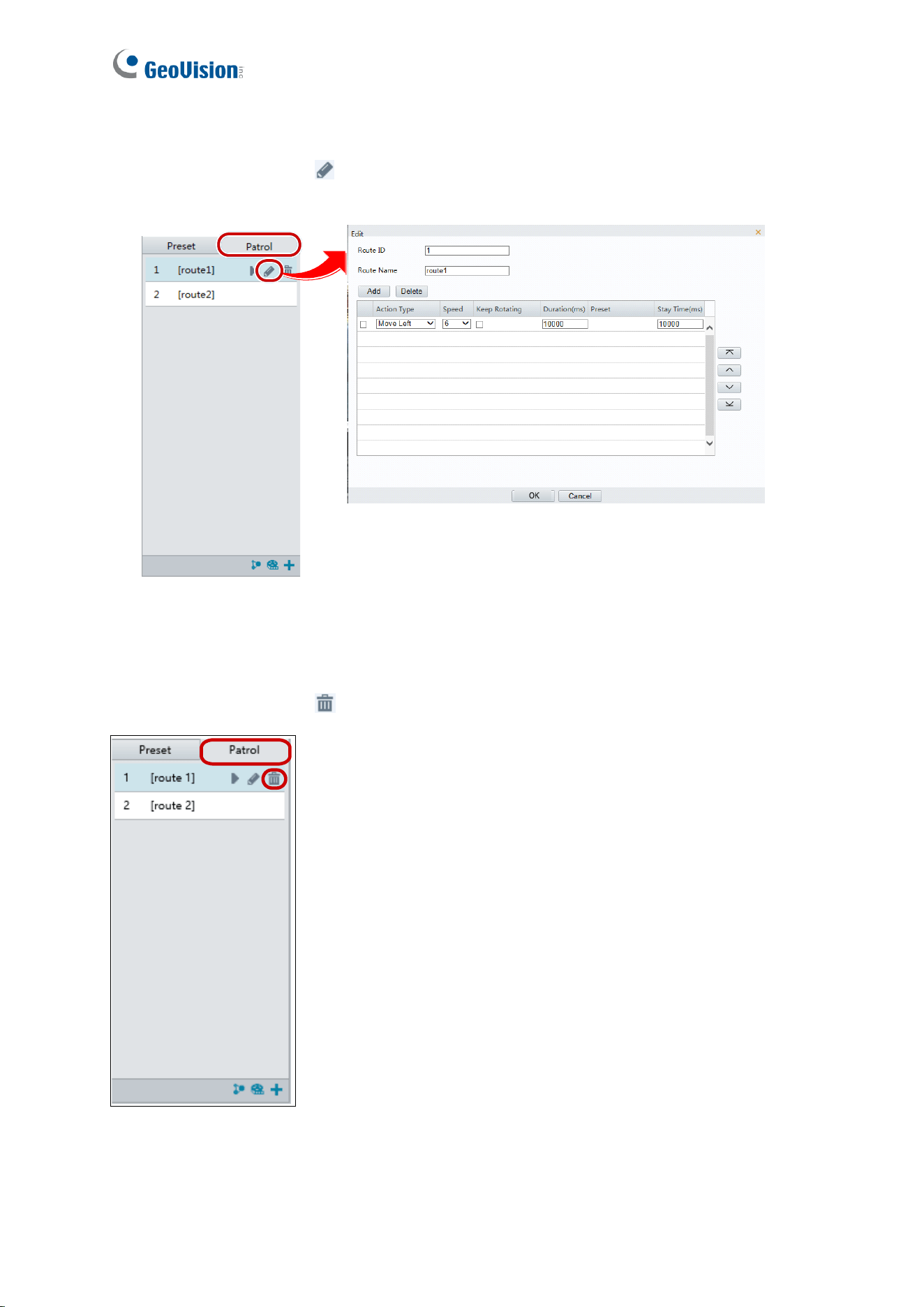
Editing a Patrol Route
On the control panel, click to modify the ID, name and dome movement of an existing
patrol route.
Figure 3-9
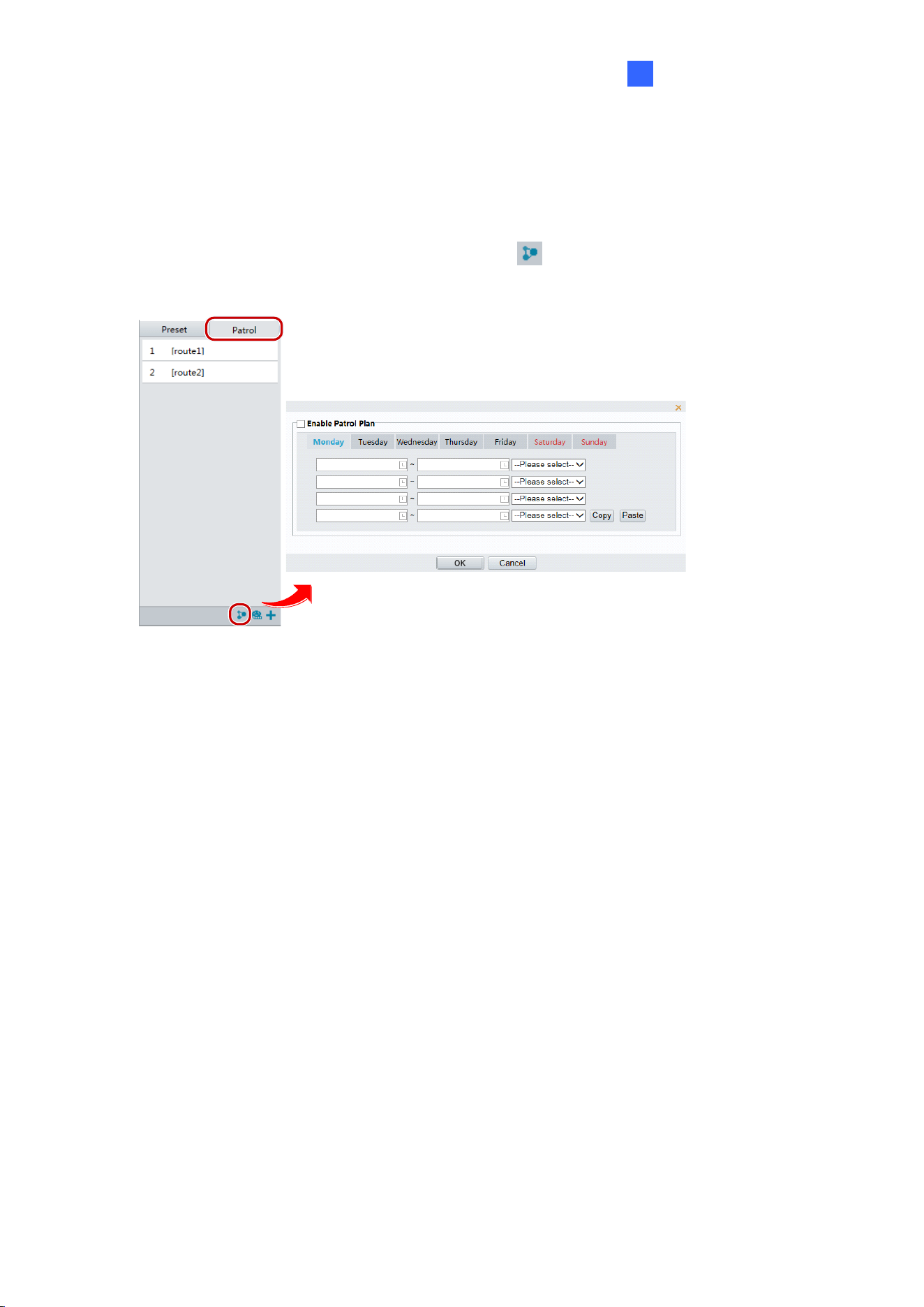
Delete a Patrol Route
On the control panel, click for a patrol route and confirm the delete.
Figure 3-10
PTZ Control Panel
29
3
Making a Patrol Plan
You can set up the camera to perform different patrol routes at different time periods
throughout the week by making a patrol plan.
1. On the control panel, click the Patrol Plan button
to set the correct patrol time and
route.
Figure 3-11
2. Select Enable Patrol Plan.
3. Click OK.

30
3.2 Setting Home Position
The PTZ camera will return to home position if no operation is made within a specified period.
1. On the Setup page, select PTZ in the left menu and select Home Position to access the
settings.
Figure 3-12
2. Select the desired preset as the home position and set the time.
Figure 3-13
3. Click Save.

Administrator Mode
31
4
Chapter 4 Administrator Mode
The Administrator can access and configure GV-IP Speed Domes through the network. Click
Setup at the top of the Web interface to access the following nine configuration tabs:
Common, Network, Video & Audio, PTZ, Image, Intelligent, Events, Storage, Security
and System. The configuration tabs may vary based on available models.
Figure 4-1
32
List of Options
See the table below for the settings available on the Web interface. Find the topic of interest
by referring to the section number prefixed to each option. The configuration tabs and
settings may vary with different models.
IMPORTANT: The available functions may vary among camera models and firmware
versions.
4.1 Common
4.1.1 Navigation / Basic Info
4.1.2 Local Settings
4.2 Network
4.2.1 Network
4.2.2 DNS
4.2.3 Port
4.2.4 Port Mapping
4.2.5 DDNS
4.2.6 E-mail
4.2.7 SNMP
4.2.8 802.1x
4.2.9 QoS
4.3 Video & Audio
4.3.1 Video
4.3.2 Audio
4.3.3 Snapshot
4.3.4 ROI
4.3.5 Media Stream
4.4 PTZ
4.4.1 Basic Settings
4.4.2 Home Position
4.4.3 PTZ Limit
4.4.4 Remote Control
4.4.5 Patrol
4.4.6 Orientation
4.5 Image
4.5.1 Image
4.5.2 OSD
4.5.3 Privacy Mask
4.5.4 Quick Focus

Administrator Mode
33
4
4.6 Intelligent
4.6.1 Smart Settings
4.6.2 Cross Line
4.6.3 Enter / Leave Area
4.6.4 Intrusion
4.6.5 Object Removed
4.6.6 Object Left Behind
4.6.7 Face Detection
4.6.8 People Counting
4.6.9 Auto Tracking
4.6.10 Attribute Collection
4.6.11 Advanced Settings
4.7 Events
4.7.1 Motion Detection
4.7.2 Tampering Alarm
4.7.3 Audio Detection
4.7.4 Alarm Input
4.7.5 Alarm Output
4.7.6 Capture
4.7.7 Temperature Alarm
4.7.8 One-Key Shielding Linkage
4.8 Storage
4.8.1 Storage
4.8.2 Recording Download
4.8.3 FTP
4.8.4 Backing Up Storage
4.9 Security
4.9.1 User
4.9.2 Network Security
4.10 System
4.10.1 Time
4.10.2 Server
4.10.3 DST
4.10.4 Maintenance
4.10.5 Ports and Device
4.10.6 Log

34
4.1 Common
Under the Common tab, the Administrator can find the general settings for the camera, as
well as shortcuts to the following setting pages.
◼ TCP/IP / Ethernet: See 4.2.1 Network for details.
◼ Time: See 4.10.1 Time for details.
◼ OSD: See 4.5.2 OSD for details
◼ User: See 4.9 Security for details
4.1.1 Navigation / Basic Info
You can view the current status of your camera. Click Refresh for the latest status
information. Under Common Configuration on the right, you can click on the icons to
quickly access the configuration pages.
Figure 4-2

Administrator Mode
35
4
4.1.2 Local Settings
You can set local parameters for your PCs.
Figure 4-3
[Intelligent Mark]
◼ Untriggered Target: Displays the detection lines / areas defined by Smart Settings on
Live View. You must set up Smart Settings first for this function to work, see 4.6
Intelligent. Note this function is not supported by GV-SD2322-IR.
◼ Display Attributes: When enabled, the attributes collected will be displayed in the live
view window. You must set up Attribute Collection for
this function to work (see 4.6.10
Attribute Collection). Note this function is only applicable for GV-SD4825-IR / SD4834-
IR.
◼ Display Human Body Snapshot: To display the snapshot of human body on the live
view window, make sure Human Body Snapshot is enabled in Face Detection (see
4.6.7 Face Detection).

36
[Video]
◼ Processing Mode (for GV-SD2722-IR / SD3732-IR)
Real Time Prior / Real Time Priority: Select this if the network is in good condition.
Fluent Prior / Fluency Priority: Select this if you want short time lag for live video.
Ultra-Low Delay / Ultra-Low Latency: Select this if you want the minimum time lag
for live video.
◼ Display Mode (for GV-SD4825-IR / SD4834-IR): Set the display mode according to the
network status, including Min. Delay, Balanced Delay, and Fluent Delay for low to
high delay. Or customize the display mode parameters by selecting Customize.
◼ Video Pixel Format: Select the video format for images at your local computer. It is
recommended to choose YUV420 if the graphic card of your PC supports it. This
function is only applicable to GV-SD2322-IR.
◼ Protocol: Select the protocol used to transmit media streams to be decoded by the PC.
[Audio Param] The audio codec and sampling rate used are shown here.
[Recording and Snapshot]
◼ Recording
Subsection By Time: Set a maximum time length of each recording file. If you
select 5 minutes, a 30-minute event will be chopped into six 5-minute event files.
Subsection by Size: Set a maximum size limit of each recording file.
◼ When Storage Full
Overwrite Recording: When the assigned storage space on the computer is used
up, the camera deletes the existing recording files to make room for the new
recording file.
Stop Recording: When the assigned storage space on the computer is full,
recording stops automatically.
◼ Total Capacity: Set a capacity limit to the assigned storage space on the computer.
◼ Recording Folder / Files Folder: Click Browse to set a folder to store the recorded
videos at your local computer.
◼ Snapshot Folder: Click Browse to set a folder to store the captured snapshots at your
local computer. To assign the snapshot-storing location for GV-SD2722-IR / SD3732-IR,
go to Storage in the left menu and select FTP.

Administrator Mode
37
4
4.2 Network
The network section allows you to configure the network settings, modify ports, configure
FTP server, and set up e-mail for notification.
4.2.1 Network
Figure 4-4
◼ IP Obtain Mode / Obtain IP Address: Select Static IP, PPPoE or DHCP according to
your network environment.

38
Static IP address: Assign a static IP or fixed IP to the camera. Type the camera’s IP
address, Subnet Mask, Router/Gateway, Preferred DNS server and Alternate DNS
server.
Parameters
Default
IP address
192.168.0.10
Subnet Mask
255.255.255.0
Router/Gateway
192.168.0.1
Preferred DNS server
8.8.8.8
Alternate DNS server
8.8.4.4
PPPoE: The network environment is xDSL connection. Type the Username and
Password provided by ISP to establish the connection. If you use the xDSL
connection with dynamic IP addresses, first use the DDNS function to obtain a
domain name linking to the camera’s changing IP address. Note this function is NOT
applicable to GV-SD2322-IR.
DHCP: The network environment has a DHCP server which will automatically assign
a dynamic IP address to the camera. You can look up the current IP address using
GV-IP Device Utility.
◼ IPv6: Type the camera’s IPv6 Address and Default Gateway. Optionally change the
Prefix Length according to your network settings. Note this function is NOT applicable
to GV-SD2322-IR.
Note: To enable IPv6, make sure your network environment and hardware specifications
support IPv6.
◼ Operating Mode: Select a mode to control the bandwidth.

Administrator Mode
39
4
4.2.2 DNS
Type the camera’s Preferred DNS Server and Alternate DNS Server. For GV-SD2322-IR,
you can find the same setting in TCP / IP of the left menu.
Figure 4-5
4.2.3 Port
You can modify the default HTTP port, HTTPS port and RTSP port if necessary.
Figure 4-6
40
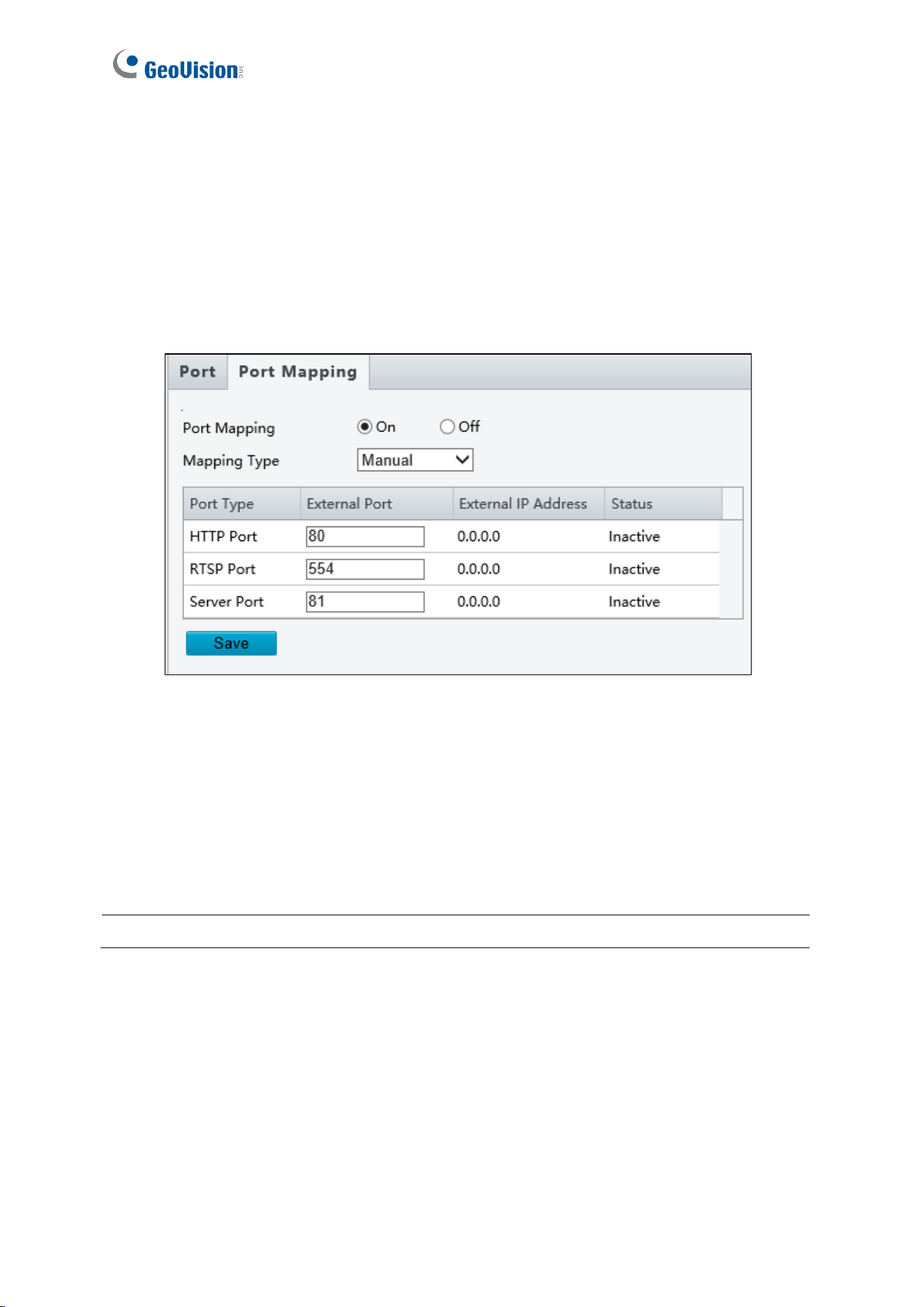
4.2.4 Port Mapping
Note this function is NOT applicable to GV-SD2322-IR.
This function can automatically forward and open certain ports on your router, allowing
connection to your camera from the Internet.
Figure 4-7
1. Enable Port Mapping, and select Mapping Type.
2. If you select Automatic, external ports will be automatically configured by the router.
3. If you select Manual, configure the external ports. External IP is applied to the camera
automatically. If the configured port is occupied, the Status will show inactive.
4. Click Save.
Note: For this function, your router needs to support port forwarding.

Administrator Mode
41
4
4.2.5 DDNS
Note this function is NOT applicable to GV-SD2322-IR.
DDNS (Dynamic Domain Name System) provides a convenient way of accessing the camera
when using a dynamic IP. DDNS assigns a domain name to the camera, so that the
Administrator does not need to go through the trouble of checking if the IP address assigned
by DHCP Server or ISP (in xDSL connection) has changed.
Before enabling the DDNS function, the Administrator should apply for a Host Name from the
DDNS service provider’s website. There are 2 providers listed in the camera: GeoVision
GVDIP, GeoVision DDNS Server and DynDNS.org.
Figure 4-8
1. Click On to enable DDNS Service.
2. Select the DDNS service provider you have registered with. If you chose DynDNS, skip to
Step 5.
3. Copy the website address http://ns.gvdip.com/register.aspx to a browser to access
Geovision DDNS service.
Figure 4-9

42
4. In the Geovision DDNS Server page, type a desired Hostname and Password. Re-type
Password and type the verification letters shown in the image. Click Send.
5. In the Web interface of your camera, type Username. The username is the hostname
registered in DDNS Server.
6. Type Password, and Confirm Password.
7. Click Save.
After the DDNS is successfully configured, a notification bar will be displayed as shown in
Figure 4-10. Next time when you want to log in the camera, type the domain name like this:
(hostname).gvdip.com, for example, geovision.gvdip.com.
Figure 4-10
4.2.6 E-mail
After the configuration of the E-mail server, you will be able to send messages to the
specified e-mail address when alarms are triggered.
Figure 4-11

Administrator Mode
43
4
[Sender]
1. Type the Name and Address of the sender.
2. Type the SMTP Server.
3. Type the SMTP Port number.
4. To send the e-mail through TLS / SSL encryption, enable TLS / SSL.
5. Enable Attach Image to include 3 instant snapshots as attachment in the e-mail
according to the Snapshot Interval (s) specified.
6. If the SMTP Server needs authentication, enable Server Authentication and type a valid
username and password to log in the SMTP server.
[Recipient] Type the name and e-mail address of the recipient.
For GV-SD2722-IR / SD3732-IR / SD4825-IR / SD4834-IR, click the button next to the
address of a Recipient to test the validity of the e-mail address.
Note: To send snapshots to the specified e-mail address, make sure to enable Snapshot in
Video & Audio. For detailed instructions, refer to 4.3.3 Snapshot.

44
4.2.7 SNMP
Note this function is NOT applicable to GV-SD2322-IR.
Users can transfer the configurations of the device through SNMP protocol to communicate
with and/or integrate it into a central server.
Figure 4-12
◼ SNMP Type: Select the type of SNMP desired, between SNMPv3 and SNMPv2.
◼ Authentication Mode: Define a desired password for authentication between the device
and the central server.
◼ Encryption Mode: Define a desired password for encryption that needs to be matched
by the central server.
Click Save for the changes to take effect.

Administrator Mode
45
4
4.2.8 802.1x
Note this function is NOT applicable to GV-SD2322-IR.
IEEE 802.1x is an IEEE standard for port-based Network Access Control. It provides an
authentication mechanism to devices connecting to a LAN or WLAN.
Figure 4-13
1. Enable IEEE 802.1x.
2. Type the Username and Password. Type the password again for confirmation.
3. Click Save.
Note: For this function, your network environment needs to support 802.1x.

46
4.2.9 QoS
Note this function is NOT applicable to GV-SD2322-IR.
QoS is the prioritization of network traffic used to ensure resource reservation under
abundant data flow.
Figure 4-14
◼ Audio & Video: Optionally modify the priority of value of Audio & Video. The higher the
value, the higher the priority.
◼ Alarm Report: Optionally modify the priority of value for Alarm Report. The higher the
value, the higher the priority.
◼ Configuration Manager: Optionally modify the priority for Configuration Manager. The
higher the value, the higher the priority.
◼ FTP: Optionally modify the priority of value for FTP. The higher the value, the higher the
priority.
Click Save the apply the QoS settings configured.
Administrator Mode
47
4
4.3 Video & Audio
This section allows you to configure the three video streams, as well as audio settings.
4.3.1 Video
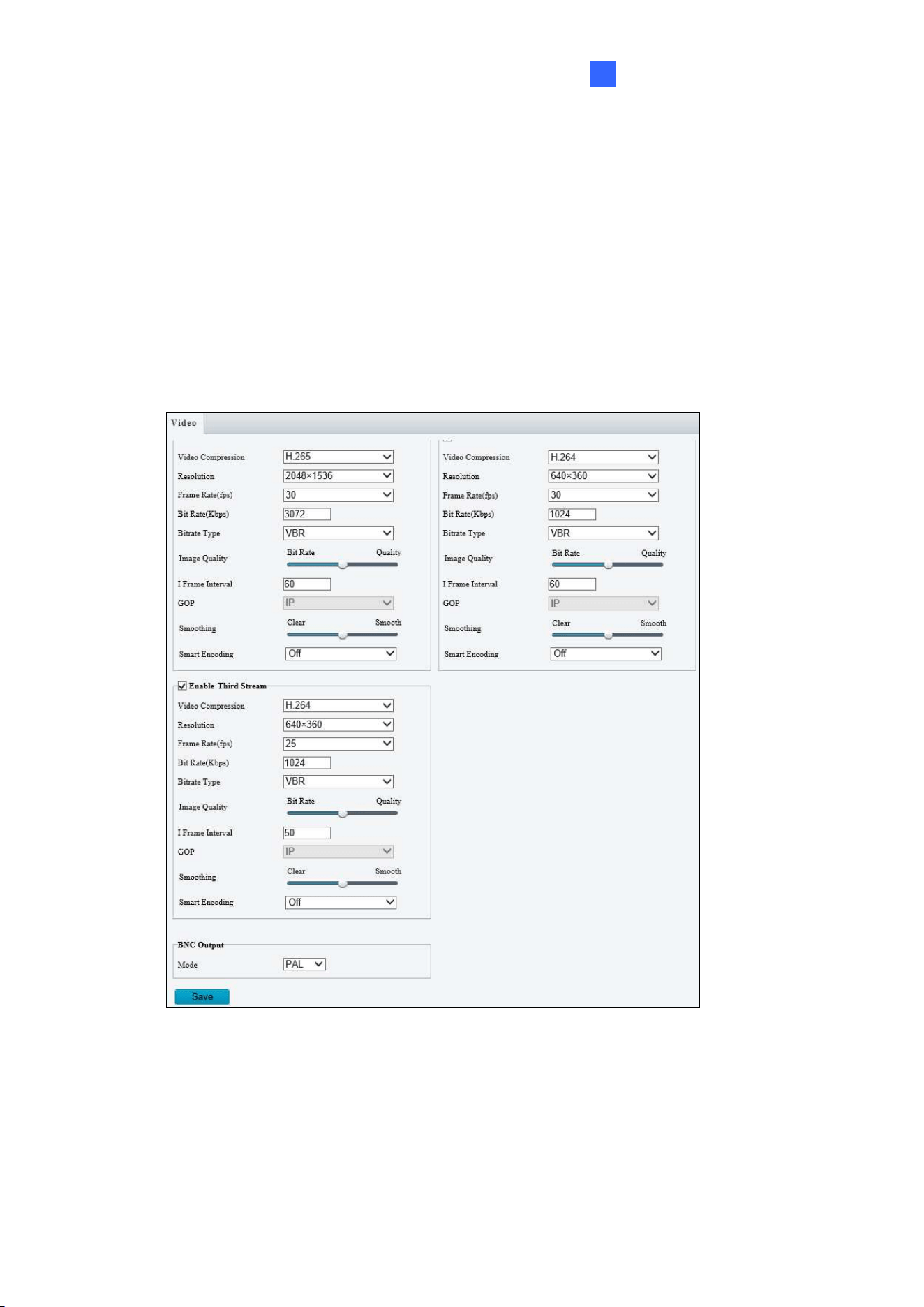
You can set video parameters that your camera supports and view the current status of BNC
output. You may also enable the sub-stream and third stream as needed.
Figure 4-15
The following options are available for the main, sub and third streams.
◼ Video Compression: Set the codec type to H.264 or MJPEG (for GV-SD2322-IR), or to
H.265, H.264 or MJPEG (for GV-SD2722-IR / SD3732-IR / SD4825-IR / SD4834-IR).
◼ Resolution: You may select the different resolutions for each stream.
◼ Frame Rate: Select a frame rate for encoding images. The unit is frame per second.

48
◼ Bit Rate:
◼ CBR: The camera transmits data at a constant data rate by varying the quality of the
stream
◼ VBR: The quality of the video stream is kept as constant as possible at the cost of a
varying bitrate.
◼ Image Quality: When VBR is selected for the encoding mode, you can move the slider
to adjust quality level for images. Moving the slider toward Bit Rate decreases the bit
rate and may affect image quality. Moving the slider toward Quality increases the bit
rate and improves image quality.
◼ I Frame Interval: Set the number of frames between each I frame (key frame). This
option is only available when H.265 or H.264 is selected for codec.
◼ GOP: The GOP is IP by default.
◼ Smoothing: Set the extent of smoothing. Choosing Clear disables Smoothing. Moving
the slider toward Smooth increases the level of smoothing but will affect image quality.
◼ Smart Encoding: Reduce the bitrate for smoother transmission. Choosing Basic Mode
disables I Frame Interval and Smoothing.
[BNC Output] The status of the BNC device is shown.
◼ Mode: Set the signal format of the video output to either NTSC or PAL.
Administrator Mode
49
4
4.3.2 Audio
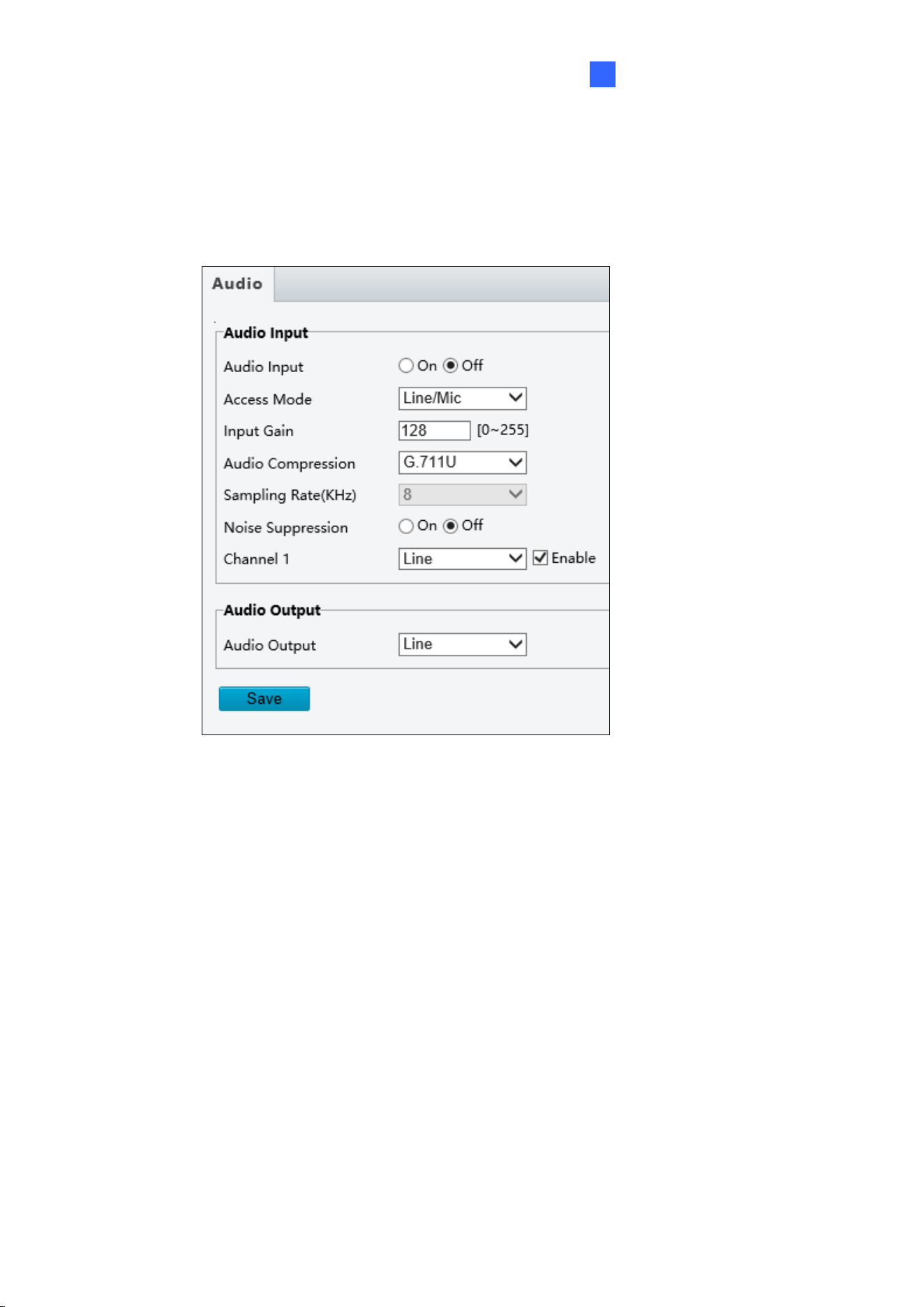
You can configure the audio settings of the camera.
Figure 4-16
The following options are available.
◼ Audio Input: Select ON to enable audio input.\
◼ Input Gain: Set the audio signal amplification for sampling. The greater the gain, the
greater amplification
◼ Audio Compression: Select an audio codec.
The functions below are NOT applicable to GV-SD2322-IR.
◼ Noise Suppression: Select On to reduce the noise of the audio.
◼ Channel 1: Click Enable to enable audio in through the camera’s built-in microphone.
◼ Audio Output: Select the source of audio output.
50
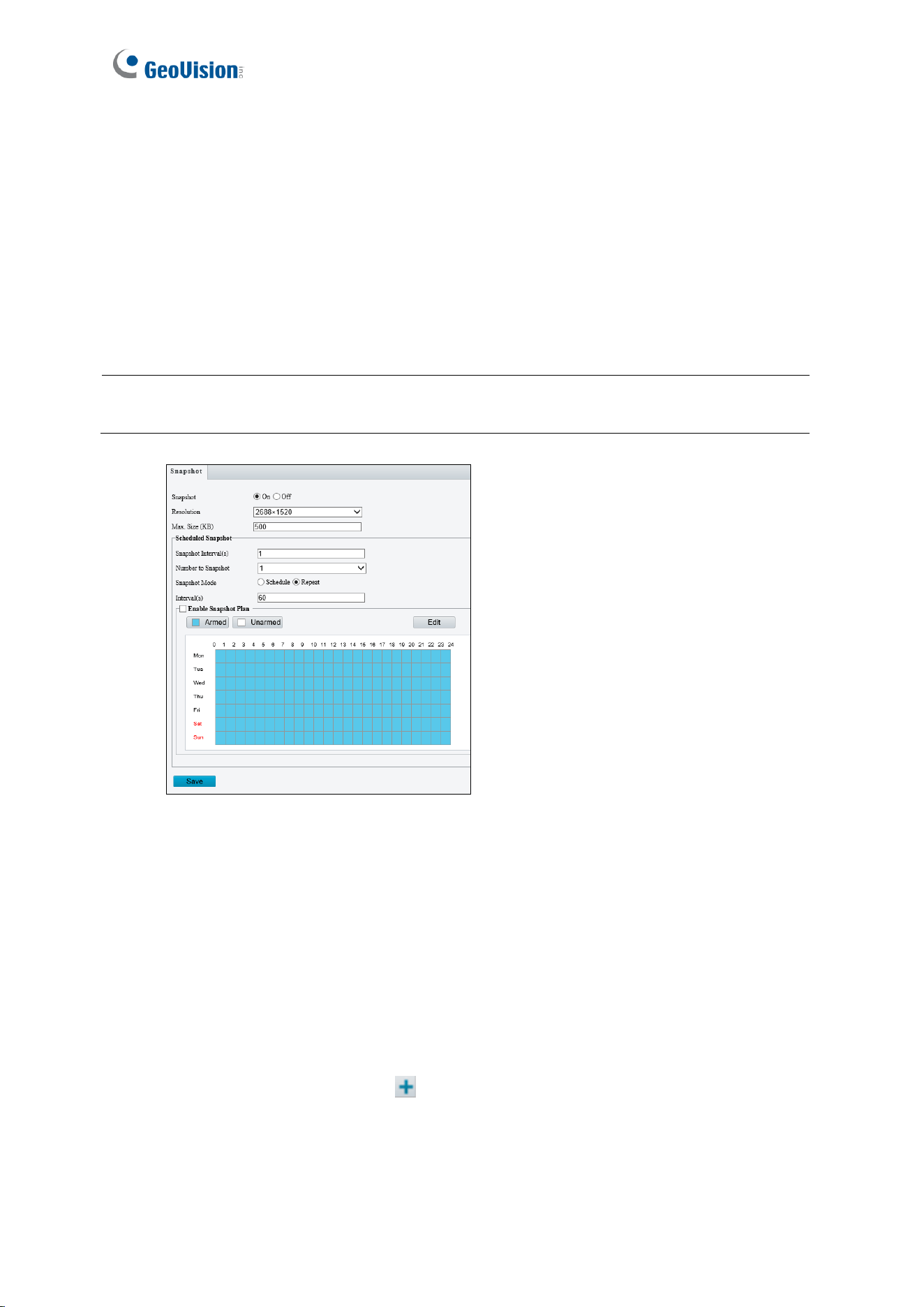
4.3.3 Snapshot
This function is NOT applicable to GV-SD2322-IR.
Using the Snapshot function, when an alarm is triggered, the camera will automatically
upload the captured snapshots to the FTP server or send snapshots to the specified e-mail
address.
Note: If Upload Images is selected in Figure 4-66, 4.8.3 FTP, the captured snapshots will
only be sent to the FTP server.
Figure 4-17
1. Select On to enable the Snapshot function.
2. Select Resolution.
3. Specify the maximum size (1~800 KB) of the snapshot image under Max. Size.
4. Specify the length of interval (1~60 sec) between snapshots under Snapshot
Interval(s).
5. Select Number to Snapshot to define the number of snapshots upon alarm trigger.
6. Select Schedule or Repeat to set up the Snapshot Mode.
If you select Schedule, click
to specify the desired time to take a snapshot.
If you select Repeat, type the interval, from 1 to 86400 seconds, to repeat the
process of taking snapshots and sending them to the FTP server or e-mail.
7. Click Save.

Administrator Mode
51
4
4.3.4 ROI
When Region of Interest (ROI) is enabled, the system ensures image quality for ROI first if
the bit rate is insufficient. Note this function is NOT applicable to GV-SD2322-IR.
Figure 4-18
1. Click to enable and add ROI.
2. Click and drag on the image to specify an area.
3. To add additional ROI areas, repeat steps 1 and 2. Up to eight ROI areas can be
specified.
4. To delete an ROI area, click
.
52
4.3.5 Media Stream
Note this function is NOT applicable to GV-SD2322-IR.
Media Stream
By configuring media stream, you can set the camera to transmit code streams by UDP or
TCP protocol to a specified IP address and port number. The settings can be saved and take
effect after the camera is restarted.
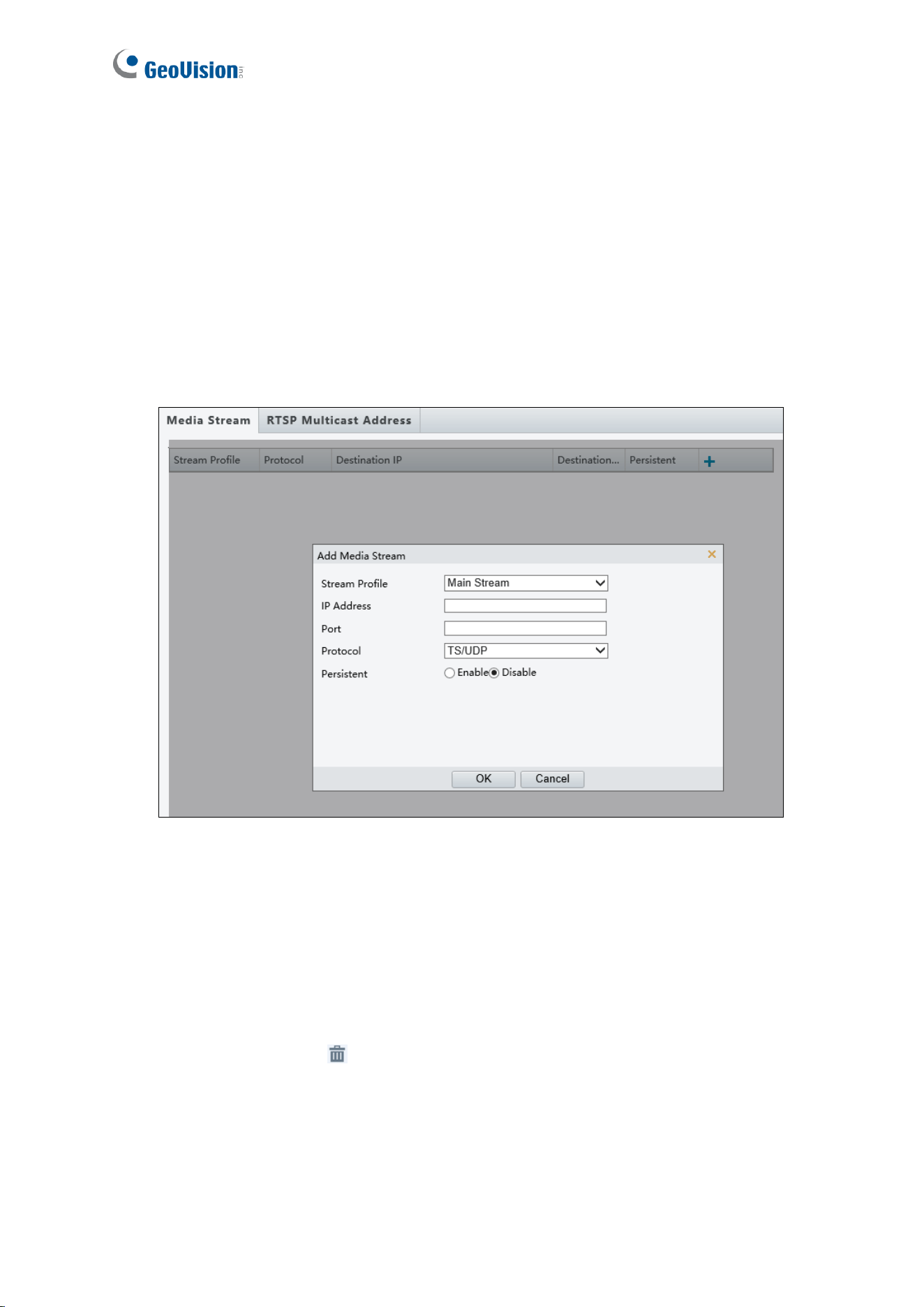
Figure 4-19
1. Click + and then select a type in the Stream Profile.
2. Type the IP Address and Port number of the unicast or multicast group for the decoding
device that receives audio and video streams from the camera.
3. If you want the device to establish the media stream that has been configured before
automatically after the restart, select Yes / Enable for Persistent.
4. To delete a stream, click
.
5. Click Submit to complete the settings.

Administrator Mode
53
4
RTSP Multicast Address
After an RTSP multicast address is configured, the third-party player can request the RTSP
multicast media stream from the camera through the RTP protocol.
Figure 4-20
1. Type the Multicast Address (224.0.0.0 to 239.255.255.255) and Port number (0 to
65535).
2. Click Save.
For RTSP Multicast command, see Appendix A.

54
4.4 PTZ
4.4.1 Basic Settings
Note this function is NOT applicable to GV-SD2322-IR.
Basic settings allows you to configure basic PTZ settings related to the camera’s preset,
memory card, timeout, and more.
Figure 4-21
4.4.2 Home Position
You can set the camera to return to home position if no operation is made within a specified
period. For detailed instructions, refer to 3.2 Setting Home Position.

Administrator Mode
55
4
4.4.3 PTZ Limit
Users can set PTZ limitations to prevent the camera from hitting obstacles such as walls.
Note this function is NOT applicable to GV-SD2322-IR.
Figure 4-22
1. Click Start PTZ Limit to enable the function.
2. Adjust the dome view in such a way that it reaches the PTZ limit you want to set.
3. Click to set the position relative to the current dome view as a limit. For example, click
the
at the top to set the upper limit.
4. Repeat Step 2 & 3 to set all limits as needed and click Save.

56
4.4.4 Remote Control
Note this function is NOT applicable to GV-SD2322-IR.
You can connect a third-party PTZ remote control program to your GV-IP Speed Dome once
this function is enabled.
Figure 4-23
1. Specify the Listener Port to which the third-party PTZ remote control program connects.
2. Assign an individual Address Code (between 0 ~ 255) to each PTZ remote control
program
3. Click Save.
Note: For this function, your router needs to support port forwarding.
Administrator Mode
57
4
4.4.5 Patrol
Note this function is NOT applicable to GV-SD2322-IR.
You can set the camera to take a snapshot and upload the image to the FTP server when
the camera goes to the preset during the patrol route.
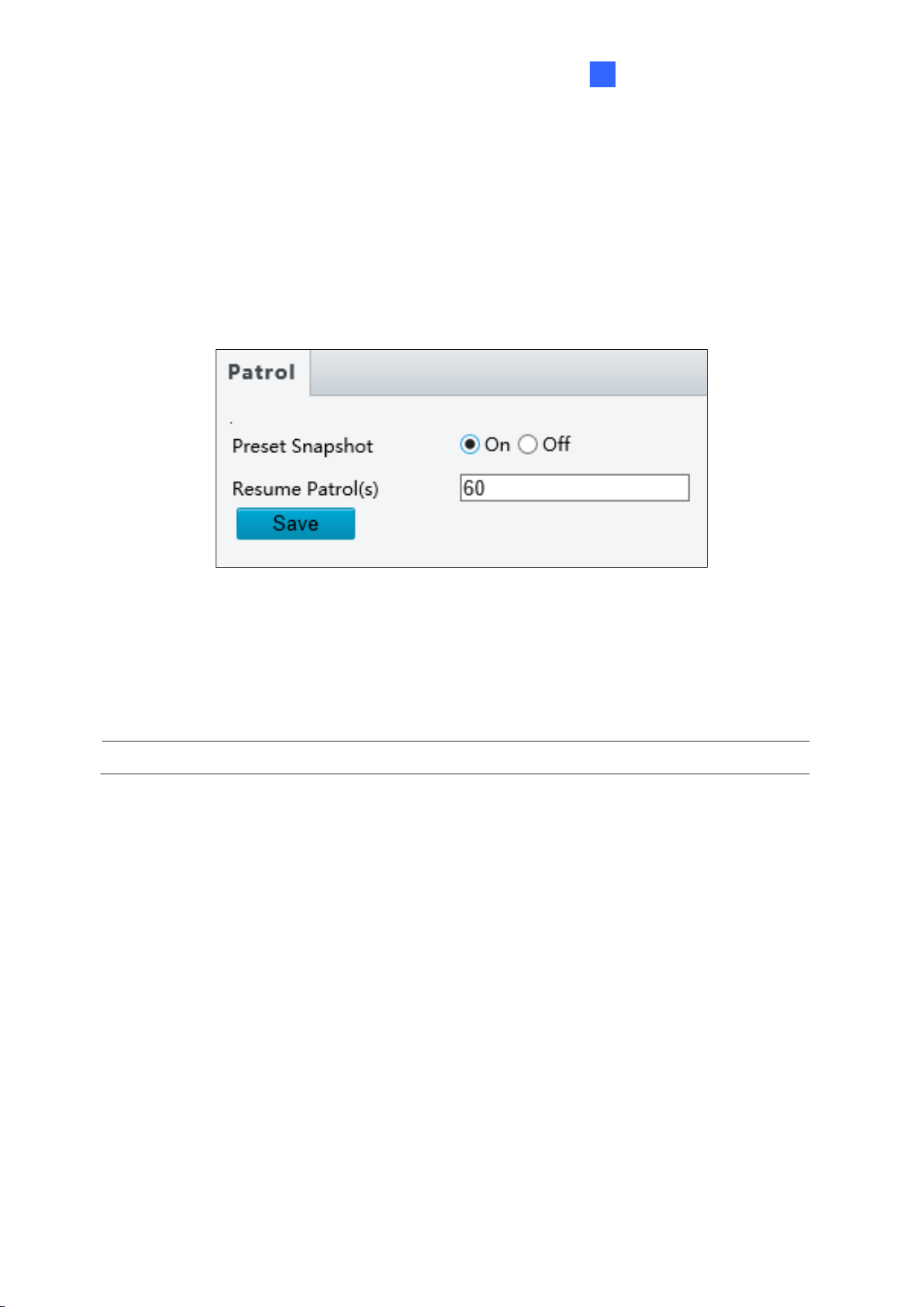
Figure 4-24
1. Enable Preset Snapshot.
2. Type the Resume Patrol(s) interval in seconds to upload snapshots.
3. Click Save.
Note: For this function, make sure to configure the settings in 4.8.3 FTP first.

58
4.4.6 Orientation
Note this function is only applicable to GV-SD4825-IR / 4834-IR.
You can manually set a north direction or home position for the camera.
Figure 4-25
[Orientation]
◼ Set as north: After the camera is positioned to a specific direction, the position will be
set as the north direction.
◼ Go to north: The camera will move to the specified north direction no matter which
direction it points to.
[Home Position]
◼ Orient: Click Orient to set a position as the home position.
◼ Call: Click Call to move the camera to the specified home position no matter which
direction it points to.
◼ Clear: Click Clear to delete the home position.
Administrator Mode
59
4
4.5 Image
This section introduces the Image Settings, On-screen Display, Privacy Mask, and Quick
Focus.
4.5.1 Image
This page allows you to adjust image settings such as brightness, exposure, IR illumination
and white balance.
Figure 4-26
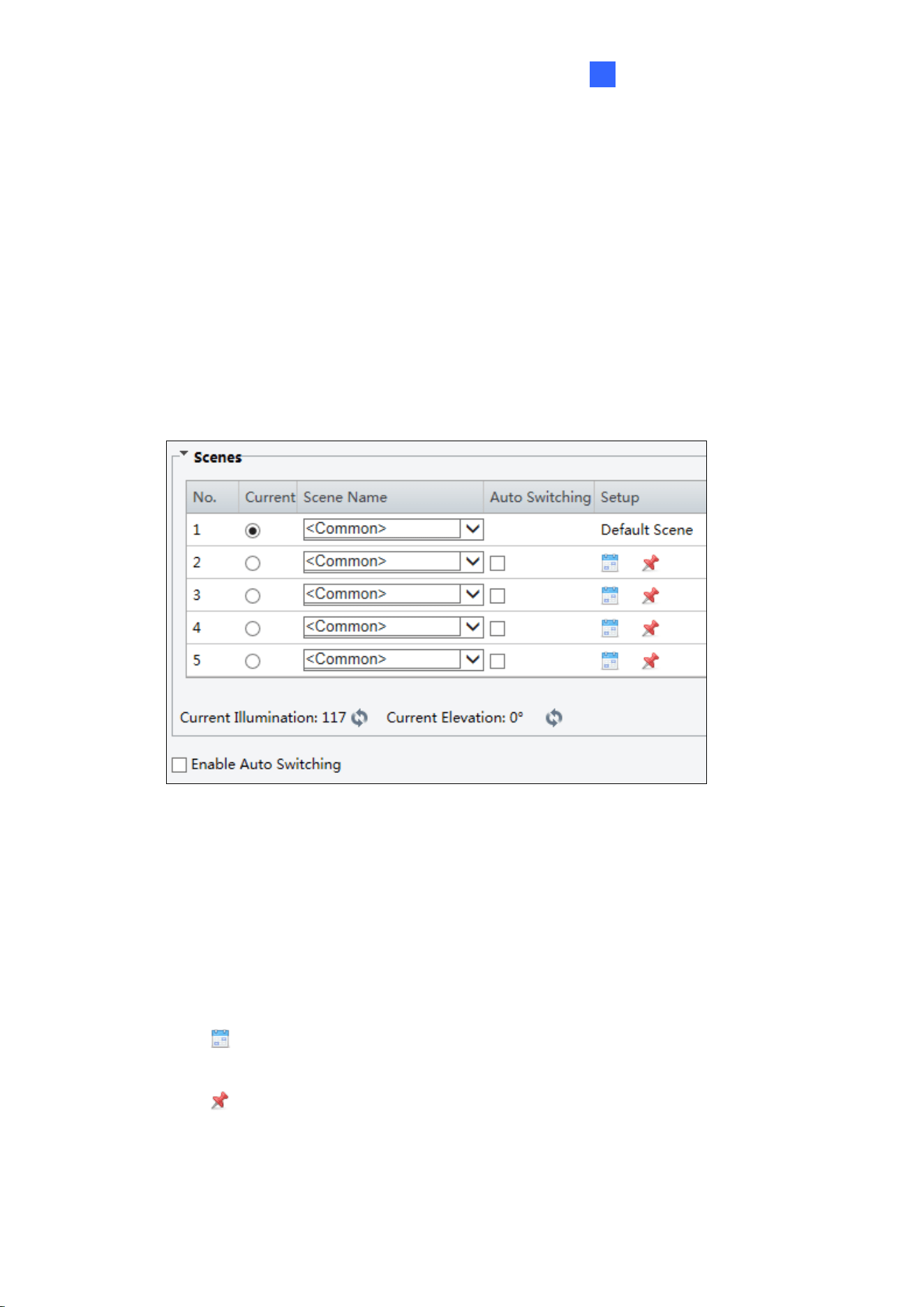
[Scene]
◼ Current: Indicates the scene that is being used.
◼ Screen Name: When you select a scene, the corresponding image parameters are
displayed. You can adjust image settings according to actual needs.
◼ Auto Switching: Indicates whether to add a scene to the auto-switching list.
◼ Setup:
Click to set a schedule for auto-switching, including schedule, illumination, and
current elevation (angle between the PTZ and the horizontal direction).
Click
to set a scene as the default scene.
◼ Enable Auto Switching: Allow the camera can switch to the scene automatically when
the condition for switching to a non-default scene is met.

60
Figure 4-27
[Image Enhancement]
◼ Brightness: Adjust the degree of brightness of the image.
◼ Saturation: Adjust the amount of a hue contained in a color.
◼ Contrast: Set the degree of difference between the blackest pixel and the whitest pixel.
◼ Sharpness: Adjust the sharpness of the image.
◼ 2D / 3D Noise Reduction: Reduce the noise of the image.
◼ Image Rotation: Change the rotation of the image.

Administrator Mode
61
4
Figure 4-28
[Exposure]
◼ Exposure Mode: Select the correct exposure mode to achieve the desired exposure
effect. The default setting is Outdoor with a frequency of 50 Hz.
◼ Shutter (s): The length of time that allows light to enter the lens. You can set a shutter
speed when Exposure Mode is set to Manual (Custom) or Shutter Priority.
Note: If Slow Shutter is set to Off, the reciprocal of the shutter speed must be greater than
the frame rate.
◼ Gain (dB): Control image signals so that the camera outputs standard video signals
according to the light condition. You can set this parameter only when Exposure Mode
is set to Manual (Custom) or Gain Priority.
◼ Iris: Sets the aperture size of the lens. This function is only applicable to GV-SD2322-IR.

62
◼ Slow Shutter: Improve image brightness in low light conditions. For GV-SD2322-IR,
you can only set this parameter when Exposure Mode is not set to Shutter Priority
and when Image Stabilizer is disabled.
◼ Slowest Shutter: Set the slowest shutter speed that the camera can use during
exposure.
◼ Compensation: Adjust the compensation value as required to achieve the desired
effects. You can set this parameter only when Exposure Mode is not set to
Manual (Custom).
◼ Metering Control: Set the way the camera measures the intensity of light. You can only
set this parameter when Exposure Mode is not set to Manual (Custom).
Center-Weighted Average Metering: Measure light mainly in the central part of
images.
Evaluative Metering (BLC): Measure light in the customized area of images.
Face Metering: Measure light where facial recognition is established.
Spot Metering: Measure light spot(s) in the specified area of the images.
Highlight compensation: Ignore the brightness of the overexposed area of images.
But selecting this setting will decrease the overall brightness of the image This
function is applicable only to GV-SD2322-IR.
◼ Day/Night Mode: Select Automatic for automatic switch between day mode and night
mode depending on the amount of light detected. Select Night to produce high-quality
black and white images using the existing light. Select Day to produce high-quality color
images using the existing light.
◼ Day/Night Sensitivity: Set the light threshold for switching between day mode and
night mode. A higher sensitivity means that the camera is more sensitive to the change
of light and becomes more easily to switch between day mode and night mode.
◼ Day/Night Switching(s): Set the length of time before the camera switches between
day mode and night mode after the conditions for switching are met.
◼ WDR: Enable WDR to distinguish the bright and dark areas in the same image.
◼ WDR Level: After enabling the WDR function, you can improve the image by adjusting
the WDR level.
◼ Suppress WDR Stripes: Enable Suppress WDR Stripes to automatically adjust shutter
frequency based on the frequency of light measured.

Administrator Mode
63
4
Figure 4-29
[Smart Illumination]
◼ Smart Illumination: Select Enable to adjust the IR illumination settings.
◼ Control Mode:
Global Mode: (The function is only applicable to GV-SD2322-IR.) Adjust IR
illumination and exposure to achieve balanced image effects. Some areas might be
overexposed if you select this option. This option is recommended if monitored
range and image brightness are your first priority.
Overexposure Restrain: (The function is only applicable to GV-SD2322-IR.) Adjust
IR illumination and exposure to avoid regional overexposure. Some areas might be
dark if you select this option. This option is recommended if clarity of the central part
of the image and overexposure control are your first priority.
Illumination Preset-Road / Road: Offer strong illumination in whole and is
recommended for monitoring wide-ranging scenes, for example, road.
Illumination Preset-Park / Park: Offer uniform light and is recommended for
monitoring small range scenes with many obstacles, for example, industrial parks.
Manual: (The function is only applicable to GV-SD2322-IR.) Allow you to manually
control the intensity of IR illumination.
◼ Illumination Level: Set the intensity level of the IR light. The greater the value, the
higher the intensity. 0 means that the IR light is turned off. When Control Mode is set to
Manual, you can set the intensity level of the IR light.
64
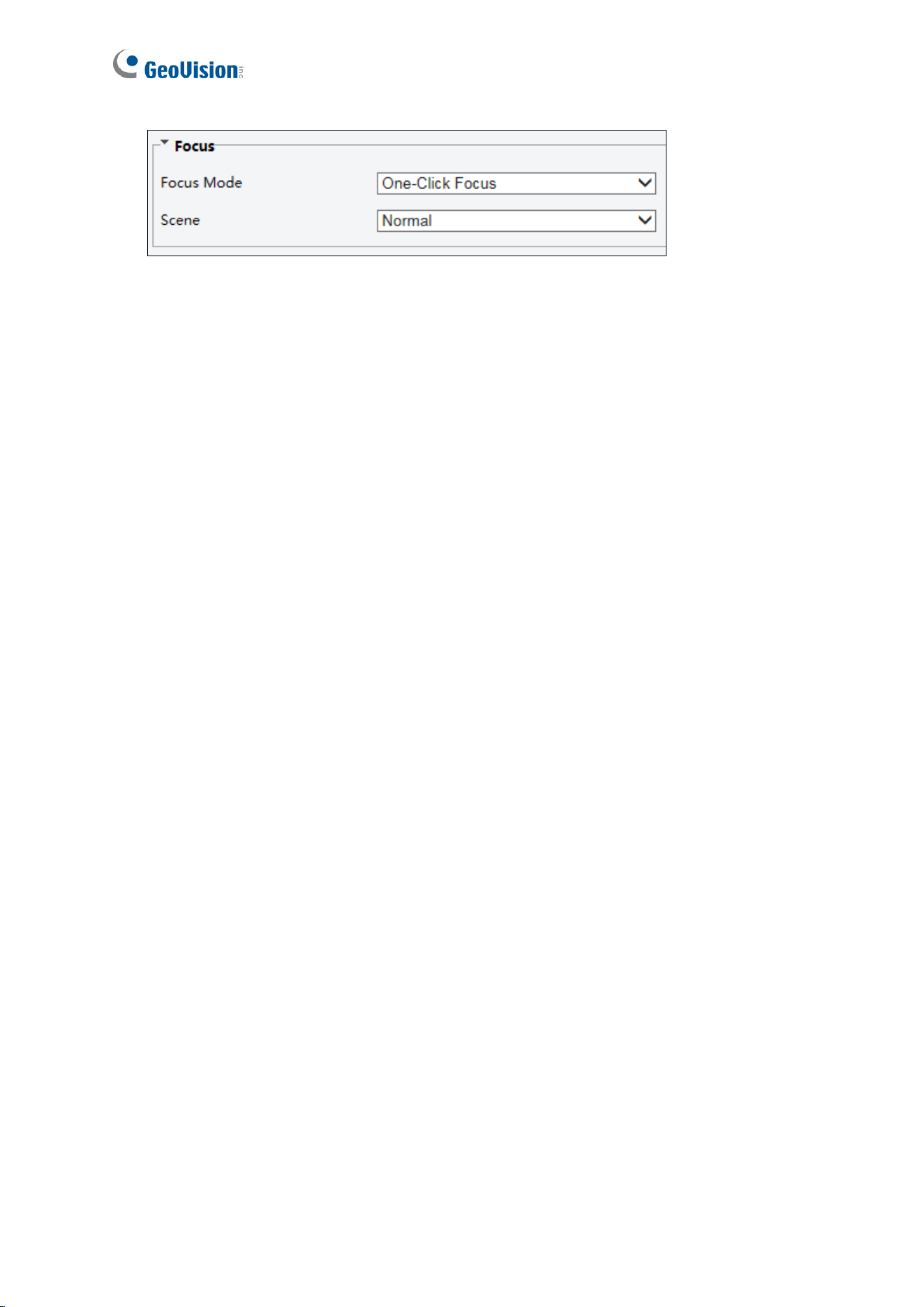
Figure 4-30
[Focus]
◼ Focus Mode:
Auto Focus: Focuses automatically according to the current light condition.
Manual Focus: Manually adjust camera focus as required.
One-Click Focus: The camera is triggered to focus once when rotating, zooming or
going to a preset.
One-Click Focus (IR): In a low light condition such as during night hours or in a dark
house, this focus mode achieves better effects with the IR light turned on.
◼ Scene:
Normal: Used for common scenes, such as road and industrial park.
Long distance: Used for long-distance monitoring on a road.

Administrator Mode
65
4
Figure 4-31
[White Balance]
◼ White Balance: Adjust the red or blue offset of the image.
Auto: Adjust the red and blue offset automatically according to the light condition
(the color tends to be blue).
Outdoor: (The function is NOT applicable to GV-SD2322-IR). It is recommended for
outdoor scenes with a wide range of color temperature variation.
Fine tune: Allow you to adjust the red and blue offset manually.
Sodium Lamp: Adjust the red and blue offset automatically according to the light
condition (the color tends to be red).\
Locked: (The function is NOT applicable to GV-SD2322-IR). Lock the current color
temperature settings without adjustment.
Figure 4-32
[Advanced]
◼ Defog: Select Digital (for GV-SD2322-IR) or ON (for GV-SD3732-IR) to activate the
slider for adjusting the Defog Intensity for images.
◼ Image Stabilizer: Enable EIS (Digital Image Stabilization).

66
4.5.2 OSD
On Screen Display (OSD) is the text displayed on the screen with video images and may
include time and other customized contents.
For GV-SD2322-IR
Figure 4-33
1. Click under Position to select an Area #, and then click Overlay OSD Content to select
the content to display on screen.
Figure 4-34
2. Adjust the position of the Area 1/2/3 boxes on the live view either by dragging directly or
by specifying the coordinates under Overlay Area.

Administrator Mode
67
4
3. Under Display Style, customize the text style and date/time format.
4. Under Orientation, use the Direction drop-down list to select a direction, turn the
camera toward the corresponding direction, and click Demarcate.
After you have set the position and OSD content, the symbol appears in the Status
column, which means that the OSD is set successfully. You may set multiple lines of
contents for each area and use and to adjust the sequence of display.
For GV-SD2722-IR / SD3732-IR / SD4825-IR / SD4834-IR
area 1
area 2
area 3
Figure 4-35
1. Enable a No. to select an area #, and click the Overlay OSD Content column to select
the content to display on screen.
2. Adjust the position of the Area boxes on the live view either by dragging directly or by
specifying the coordinates under the X-Axis / Y-Axis column.
3. Under Display Style, customize the text style and date/time format.
4. Under Orientation, use the Direction drop-down list to select a direction, turn the
camera toward the corresponding direction, and click Orient.
After you have set the position and OSD content, the
symbol appears in the Status
column, which means that the OSD is set successfully.

68
4.5.3 Privacy Mask
On certain occasions, you may need to set a mask area to block out parts of the camera
image to protect privacy, for example, the keyboard of an ATM machine. When PTZ changes
its position or zooms, the Privacy Mask will be adjusted accordingly to protect the area all
along.
Figure 4-36
1. Click
to add a privacy mask.
2. Click the box (with Mask displayed on it) to activate the mask.
3. Drag the box to the intended position and adjust the size of the box. Alternatively, you
can also use the mouse to draw a box on the area you want to mask.
4. To delete a mask, click
.
To quickly locate a mask on the camera view, select a mask and click Preset to turn the
camera toward the masked area. If the masked area is small, you can zoom in to the
appropriate level, and click Set as Max to mark the zoom level for future reference.

Administrator Mode
69
4
4.5.4 Quick Focus
Note this function is only applicable to GV-SD4825-IR / SD4834-IR.
Quick Focus allows you to calibrate your lens with demarcate lines within a specified area.
Figure 4-37

70
4.6 Intelligent
Note this function is NOT applicable to GV-SD2322-IR.
The Intelligent functions allow the camera to track moving people and/or object in a
predefined area and trigger alarms, such as when the person trespasses a detection
threshold, or attempts to breach into a detection zone set.
Enabling the Auto Tracking function causes other Intelligent functions to be disabled and
vice versa.
4.6.1 Smart Settings
To achieve optimal tracking results, it is recommended to firmly install the camera at a
certain height in an open space. It is also essential to arrange proper lighting conditions to
avoid high contrast and backlighting that obscures the target.

Administrator Mode
71
4
4.6.2 Cross Line
Cross line detection generates an alarm when an object moves past the detection threshold
in the direction you defined. Up to 4 detection lines can be added. Note that when adding
multiple detection lines, make sure they do NOT intersect as it may affect the detection
results. Select the checkbox next to Cross Line to enable and click
to configure.
Figure 4-38
1. Once enabled, click
to add a detection line. Repeat to add another detection line.
2. Drag the ends of the detection line to the intended position to mark the detection
boundary.
3. Select the Trigger Direction, which will define the direction to trigger an alarm. For
example, if you choose A -> B, people moving from direction A to B will trigger an alarm.
4. You can move the slider to adjust the detection Sensitivity.
5. Trigger Actions
:
Figure 4-39

72
Select Upload to FTP and/or Send E-mail under Trigger Actions to automatically
upload snapshots to the specified FTP server and/or send snapshots to the specified
e-mail address upon the video analytic events.
Select A -> 1 to trigger an output device after alarm output is triggered by a motion
detection alarm, temperature alarm or input alarm.
Select Recording Edge Storage or Image Edge Storage. Snapshots captured will
automatically be stored in the selected storage(s).
Select Trigger Tracking to track the object until the object is out of view.
6. Optionally select Enable Plan under Plan to set the start and end times during which the
video analytic monitoring is enabled. You can directly drag the mouse to draw a plan or
click Edit to edit time periods in the table. You can set up to four periods for each day,
and the time periods cannot overlap. The camera reports alarms during the specified
period only.
Figure 4-40

Administrator Mode
73
4
4.6.3 Enter / Leave Area
Enter Area detection detects objects that enter a specified area, while Leave Area detection
detects objects that leave a specified area. Alarms are triggered when such an event is
detected. Note this function is only applicable to GV-SD4825-IR / SD4834-IR.
Figure 4-41
1. Once enabled, click
to add a new detection area. To delete a detection area, click .
2. Drag the borders of the box to set the intended position and range.
3. You can use the following functions to reduce false alarm.
Sensitivity: Move the slider to adjust the detection.
Level: Set the priority of detection to judge the trigger sequence when
multiple
detection rules are triggered at the same time.
Detection object: Set the type of detection object to judge whether to trigger
detection.
Filter Type: Set the type and size of the object to trigger the detection.
4. For Trigger Actions and Plan,
follow Step 5 ~ 6, 4.6.2 Cross Line.

74
4.6.4 Intrusion
With Intrusion Detection, an alarm is generated when an object enters the boundaries of the
detection area. Up to 4 detection areas can be added. Note that it is recommended NOT to
overlap the detection areas when adding multiple detection areas. Select the checkbox next
to Intrusion to enable and click
to configure.
Figure 4-42
1. Once enabled, click
to mark the live view with a detection area. Repeat this step to
add another detection area.
2. Drag the nodes of the detection area to mark the boundary for detection.
3. You can use the following functions to reduce false alarm.
Time Threshold: The minimum period of time for a person to stay within the
detection area before an alarm is triggered.
Sensitivity: Move the slider to adjust the detection
Percentage: Type the minimum size of the person compared to the detection area
for the person to be detected. (for GV-SD2722-IR / SD3732-IR)
Level: Set the priority of detection to judge the trigger sequence when multiple
detection rules are triggered at the same time.
Detection object: Set the type of detection object to judge whether to trigger
detection.

Administrator Mode
75
4
Filter Type: Set the type and size of the object to trigger the detection.
4. For Trigger Actions and Plan,
follow Step 5 ~ 6, 4.6.2 Cross Line.
4.6.5 Object Removed
Object Removed can generate an alarm when an object is removed from the specified area.
Up to 4 detection areas can be added. Note that it is recommended NOT to overlap the
detection areas when adding multiple detection areas. Select the checkbox next to Object
Removed to enable and click
to configure. Note this function is only applicable to GV-
SD2722-IR / SD3732-IR.
Figure 4-43
1. Once enabled, click
to mark the live view with a detection area. Repeat this step to
add another detection area.
2. Drag the nodes of the detection area to mark the boundary for detection.
3. You can use the following functions to reduce false alarm.
Time Threshold: The minimum period of time for an object to be absent from the
detection area before an alarm is triggered.
Sensitivity: Move the slider to adjust the detection
4. For Trigger Actions and Plan, follow Step 5 ~ 6, 4.6.2 Cross Line.

76
4.6.6 Object Left Behind
With Object Left Behind, an alarm can be generated when an object which remained in the
detection area for the specified period of time, leaves the specified region. Up to 4 detection
areas can be added. Note that it is recommended NOT to overlap the detection areas when
adding multiple detection areas. Select the checkbox next to Object Left Behind to enable
and click
to configure. Note this function is only applicable to GV-SD2722-IR / SD3732-IR.
Figure 4-44
1. Once enabled, click
to mark the live view with a detection area. Repeat this step to
add another detection area.
2. Drag the nodes of the detection area to mark the boundary for detection.
3. You can use the following functions to reduce false alarm.
Time Threshold: The minimum period of time for a moving object to stay within
the detection area before an alarm is triggered.
Sensitivity: Move the slider to adjust the detection
4. For Trigger Actions and Plan, follow Step 5 ~ 6, 4.6.2 Cross Line.

Administrator Mode
77
4
4.6.7 Face Detection
The Face Detection function can detect for and capture faces to be sent to an FTP server.
Select the checkbox next to Face to enable and click
to configure.
Figure 4-45
1. Once enabled, define the detection area, either by selecting Specified Area and
drawing a desired area on the image, or select Full Screen to set the entire image as
detection area.
2. Configure the following functions as needed:
[Face Detection]
Snapshot Sensitivity: Drag the slider to adjust the detection sensitivity.
Snapshot Mode:
i. For GV-SD2722-IR / SD3732-IR, Select Intelligent Recognition to set the
maximum of repeated face snapshots (1~30) for
Max. Same Thumbnail Image.
ii. For GV-SD4825-IR / SD4834-IR, Select Intelligent Recognition for the
camera to detect and take snapshots of the object automatically.
Human Body Snapshot: To take a snapshot of human body in the detection area,
enable this function. (Only for GV-SD4825-IR / SD4834-IR)

78
Min. Pupillary Distance (px): Click Draw and draw in the live view window.
Counting: To count the number of people entering / exiting in the detection area,
enable this function. To display the counting results in the live view window, select
People Counting in OSD settings. Refer to 4.5.2 OSD for details.
Face Overlay: Enable to include the camera’s text overlay on the snapshot(s)
captured. (Only for GV-SD2722-IR / SD3732-IR)
[Face Selection]
Selection Mode: Select Effect Priority for the best image quality of the captured
snapshots, Speed Priority for optimal snapshots from the moment of detection
until the specified timeout is up, and Period Selection for a snapshot captured in
every selection period. For example, if Period Selection is set to 500 millisecond
(ms), the camera selects a face snapshot every 500 ms.)
Number of Selected Photos: Set 1 ~ 3 selected photos for different selection
modes.
Filter by Angle: Enable this function to set the desired face angle for detection.
3. Under Trigger Actions, select Upload Image (Original) to upload a snapshot of the
entire image and a snapshot of the face detected upon face detection. Select Upload
Image (Target) to upload only the snapshot of the face detected.
4. For Plan, follow Step 6, 4.6.2 Cross Line.

Administrator Mode
79
4
4.6.8 People Counting
The People Counting function can count the number of person(s) entering and leaving the
vicinity, which is useful at an entrance/exit setting. Select the checkbox next to People
Counting to enable and click
to configure.
For GV-SD2722-IR / SD3732-IR
Figure 4-46
1. Once enabled, draw a detection area and entrance direction on the image by clicking
Draw Detection Area and Draw Entrance Direction, respectively.
2. Select the desired Counting Type, from Total, People Entered or People Left.
3. Select a Detection Mode, between Indoor and Outdoor, depending on your environment.
4. Under Filter by Object Size, set the Max. and Min. Size of the objects to be counted.
5. Optionally select Reset Counter at to set a time within a day when to reset the counter.
6. You can adjust the detection sensitivity by dragging the Sensitivity slider.
7. For Plan, follow Step 6, 4.6.2 Cross Line.
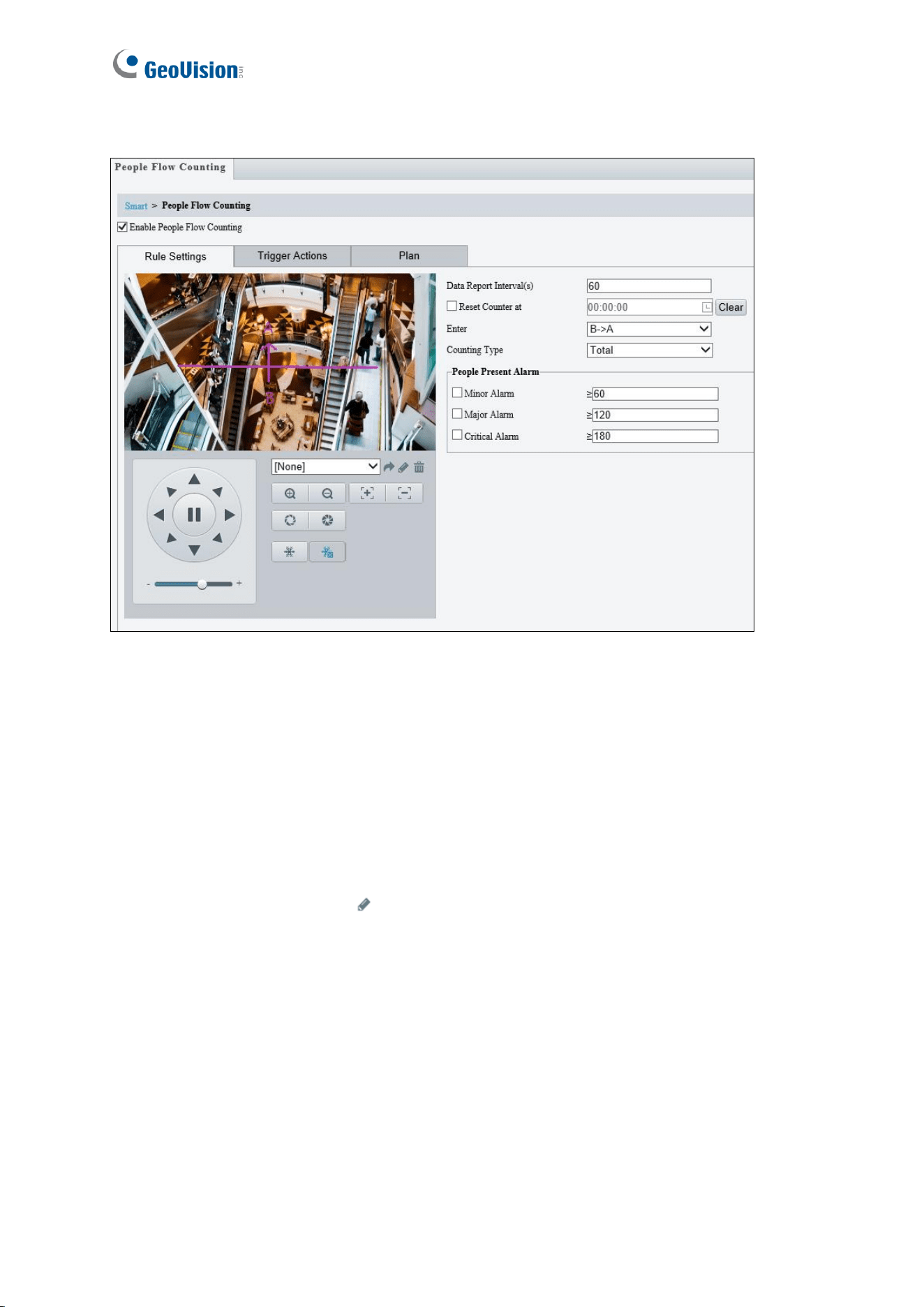
80
For GV-SD4825-IR / SD4834-IR
Figure 4-47
1. Once enabled, draw a detection line and define the entrance direction. Select the
entrance direction from the Enter drop-down list.
2. Select the desired Counting Type, from Total, People Entered or People Left. When any
of the People Present Alarms is enabled, this function will not be available.
3. Under People Present Alarm, set the Minor Alarm, Major Alarm, or Critical Alarm.
When the number of people present reaches a set threshold, an alarm will be triggered.
4. Optionally select Reset Counter at to set a time within a day when to reset the counter.
5. For Trigger Actions, select
to edit the desired trigger actions under each alarm. See
4.6.2 Cross Line for details.
6. For Plan, follow Step 6, 4.6.2 Cross Line.

Administrator Mode
81
4
4.6.9 Auto Tracking
Auto Tracking allows you to track moving objects for as long as 300 seconds.
There are certain limitations that cause ineffective tracking:
• Number of the targets: The camera can only track one person at a time. When more
than one people walks into the detection area, only the first person entering the scene
is tracked. When the specified tracking time is over, the camera then continues to
track the second person.
• Obstructions: When the target is blocked behind other objects while walking through
the detection zone during tracking, the target will be lost.
For GV-SD2722-IR / SD3732-IR
Figure 4-48
1. Enable Auto Tracking.
2. Enable Continuously Track for round-the-clock tracking.
3. Type the amount of time for the camera to keep tracking moving objects in the Tracking
Timeout(s) field.
4. Select one of the following for Zoom.
Auto: The camera automatically zooms in on the moving objects upon tracking.
Current Zoom: The camera remains in its current zoom level when tracking moving
objects.

82
For GV-SD4825-IR / SD4834-IR
Figure 4-49
1. Enable Auto Tracking.
2. Set Tracking Object, Filter Type, Max. Size, and Min. Size.
3. Click Tracking for other setting options, see 4.6.11 Advanced Settings for details.

Administrator Mode
83
4
4.6.10 Attribute Collection
Note this function is only applicable to GV-SD4825-IR / 4834-IR.
Attribute Collection allows you to define the face attributes for the camera to collect, including
gender, age range, glasses or mask.
Figure 4-50
Note: To display the attributes on the live view window, make sure to enable Display
Attributes in Local Parameters.
4.6.11 Advanced Settings
This section allows you to configure the clarity of the snapshots captured by face detection
events and choose the detection modes used for all video-analytic events.
Photo Parameters
Figure 4-51
◼ Target Overlay: Not available.
◼ Thumbnail Image Clarity: Drag the slider to adjust the clarity of the snapshots
captured by face detection events.

84
Note: Make sure to turn off Face Detection before setting Photo Parameters.
Detection Parameters
For GV-SD2722-IR / SD3732-IR
Figure 4-52
◼ Detection Mode: Choose between Normal Mode, which detects for moving targets
continuously, and Filter Repeat Motion Mode, which ignores repeated motions.
For GV-SD4825-IR / SD4834-IR
Figure 4-53
◼ Static Object Detection: Select On for the camera to detect both static and moving
targets and Off to detect moving targets only.
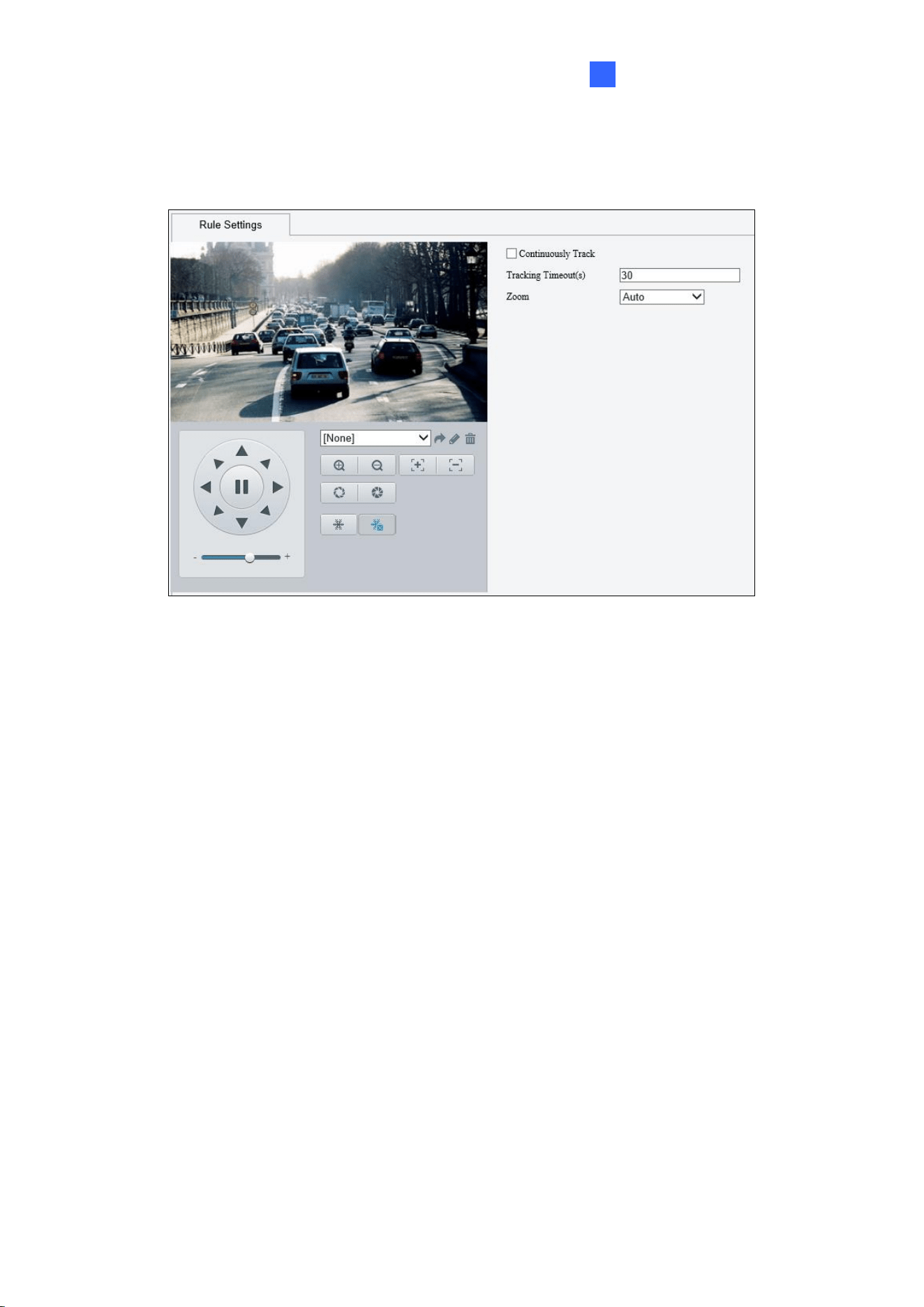
Administrator Mode
85
4
Tracking
Note this function is only applicable to GV-SD4825-IR / 4834-IR.
Figure 4-54
◼ Continuously Track: Enable this function for round-the-clock tracking.
◼ Tracking Timeout(s): Type the amount of time for the camera to keep tracking moving
objects.
◼ Zoom: Select Auto for the camera to automatically zoom in on the moving objects upon
tracking and Current Zoom for the camera to remain in its current zoom level when
tracking moving objects.
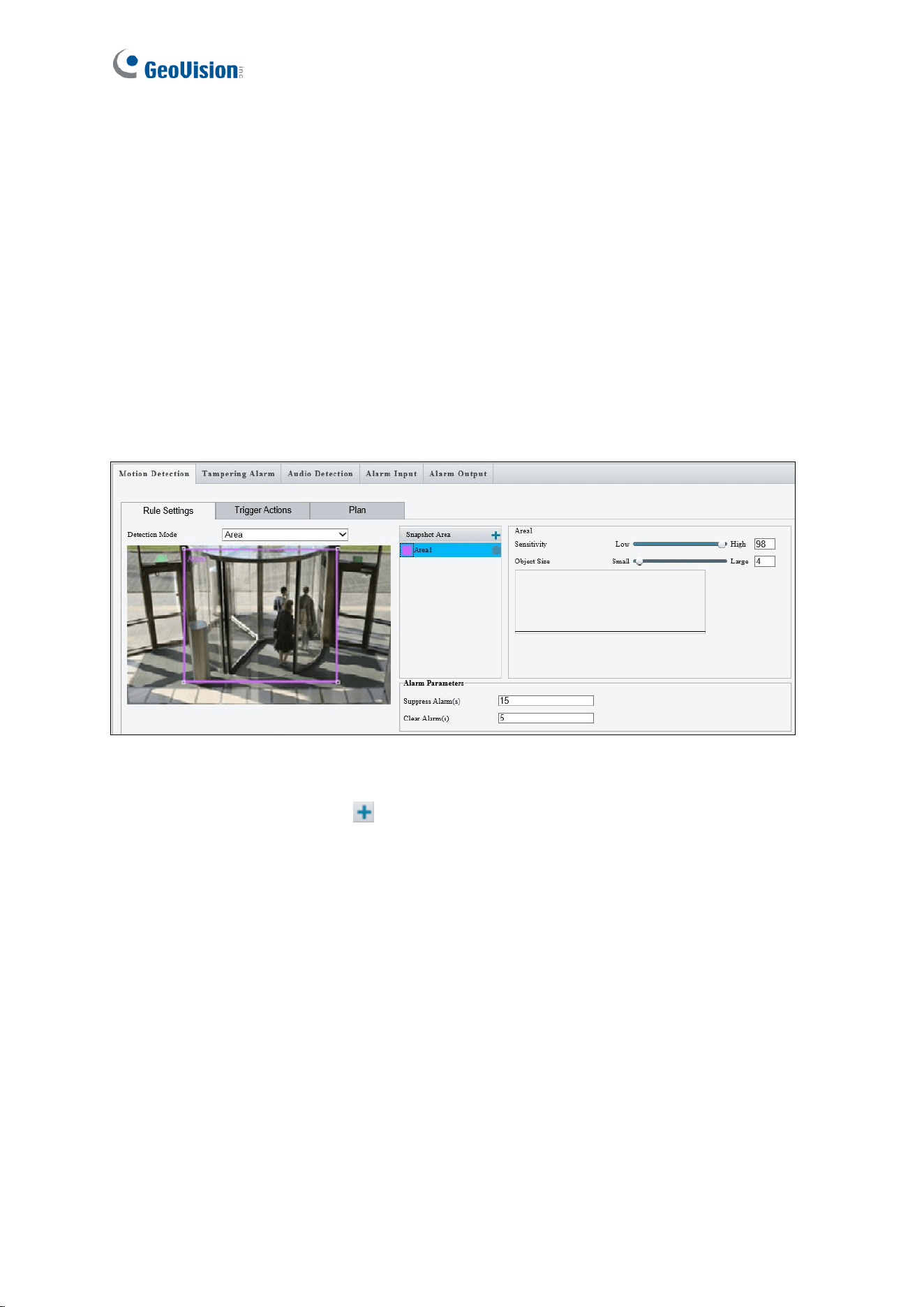
86
4.7 Events
You can set the camera to generate an alarm upon motion detection, temperature alarm,
audio alarm, and input trigger.
4.7.1 Motion Detection
Motion detection is used to generate an alarm whenever movement occurs in the specified
area.
Figure 4-55
1. In the Detection Area, click
to create a new detection area.
2. Click and drag the detection area to a desired location.
3. Alternatively, select Grid as the Detection Mode to define the area for detection.
4. You can use the following functions to reduce false alarm.
5. You can use the following functions to reduce false alarm.
Sensitivity: Move the slider to adjust the detection sensitivity.
Object Size: When the extent of motion within the detection area exceeds the set
object size, motion detection alarm is triggered.
[Alarm Parameters]
◼ Suppress alarm: After an alarm is triggered, the same alarm will not be reported within
the set time.

Administrator Mode
87
4
◼ Clear alarm: After an alarm is triggered,
⚫ If the same alarm is not triggered within the set time, the alarm will be cleared and
the same alarm can be reported again.
⚫ If the same alarm is triggered within the set time, the alarm will not be cleared until
the suppress alarm time expires. Then the same alarm can be reported again.
6. For Trigger Actions and Plan, follow Step 5 ~ 6, 3.5.1.1 Cross Line.
Note:
1. For the Upload to FTP function, make sure to configure the settings in 4.8.3 FTP and
4.3.3 Snapshot first.
2. For the Trigger e-mail function, make sure to configure the settings in 4.2.6 E-mail and
4.3.3 Snapshot first.
3. For the Trigger storage function, make sure to configure the settings in 4.8.1 Storage.
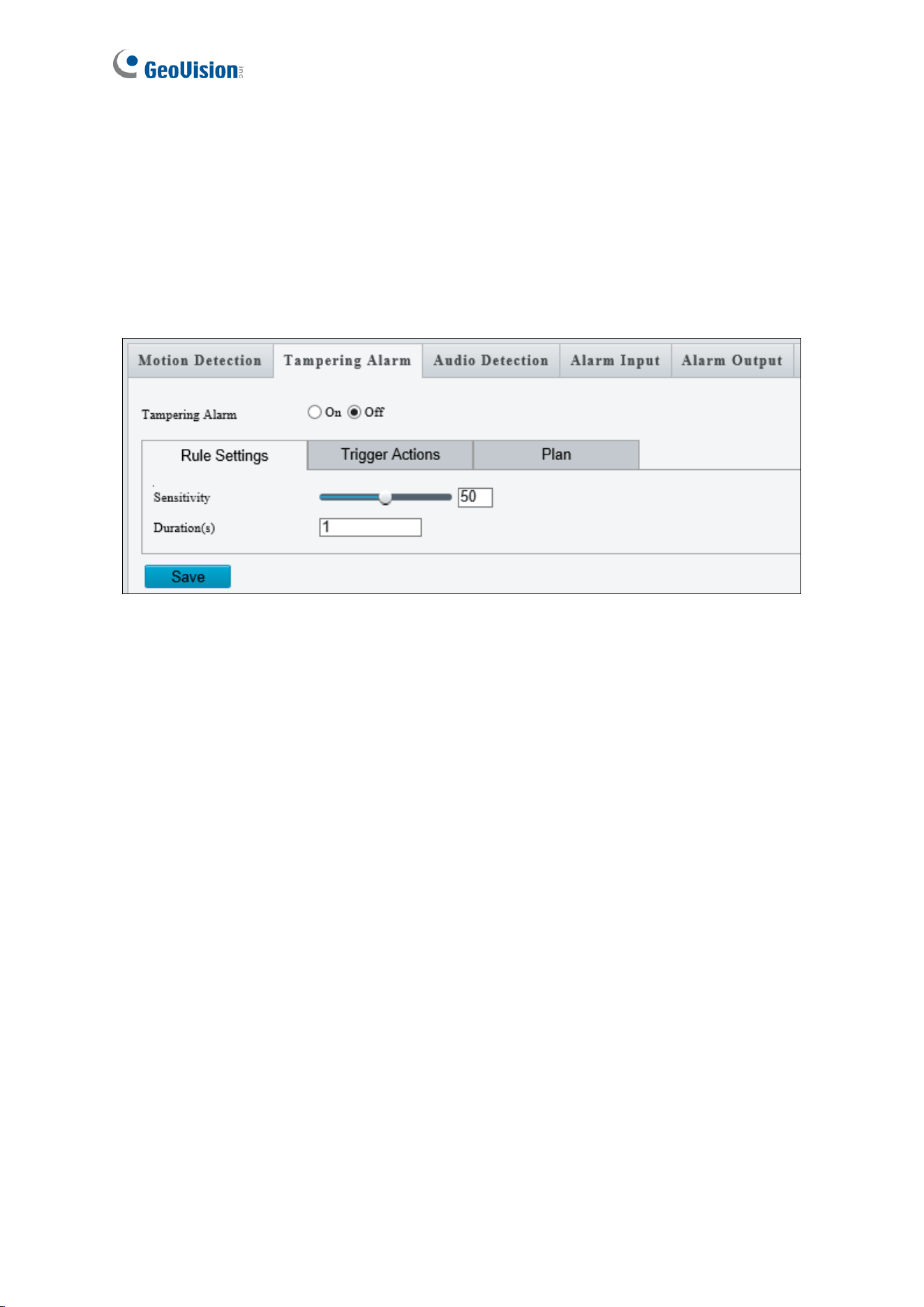
88
4.7.2 Tampering Alarm
Note this function is only applicable to GV-SD2722-IR / 3732-IR.
Tampering alarm is used to detect when the camera is being physically tampered with. An
alarm can be generated when the camera is moved, covered up, or out of focus.
Figure 4-56
1. Select On to enable Tampering Alarm.
2. You can use the following functions to adjust the alarm settings.
Sensitivity: Move the slider to increase or decrease detection sensitivity.
Duration: Specify the duration of the alarm after which the triggered output device
will be turned off.
3. For Trigger Actions and Plan, follow Step 5 ~ 6, 4.6.2 Cross Line.

Administrator Mode
89
4
4.7.3 Audio Detection
The camera can detect for abnormal audio volume. When the rise or fall of volume exceeds
the set limit, or when the input volume reaches the threshold, the camera reports an alarm
and triggers the set actions. Make sure an audio input device is correctly connected to the
camera and audio input is enabled.
Note: To add an audio input, see 4.7.4 Alarm Input.
Figure 4-57
1. Select Enable to activate Audio Detection.
2. Select a Detection Type.
◼ Sudden Rise: An alarm is reported when the rise of volume exceeds the difference.
◼ Sudden Fall: An alarm is reported when the fall of volume exceeds the difference.
◼ Sudden Change: An alarm is reported when the rise or fall of volume exceeds the
difference.
◼ Threshold: An alarm is reported when the volume exceeds a threshold.
3. Set a Threshold or Difference.
◼ Threshold: After a volume is set as the threshold, an alarm is reported when the
threshold is exceeded.
◼ Difference: the difference between two volumes. When the rise or fall of volume
exceeds the difference, an alarm is reported.
4. For Trigger Actions and Plan, follow Step 5 ~ 6, 4.6.2 Cross Line.

90
4.7.4 Alarm Input
The camera can receive alarm information from an input device.
Figure 4-58
1. Select Alarm Input 1 or Alarm Input 2 from the drop-down list.
2. Type an Alarm Name, and set an alarm ID.
3. Select Normally Open / N.O or Normally Closed / N.C according to the type of the
alarm input device.
4. Select ON next to Alarm Input.
5. For Trigger Actions and Plan, follow Step 5 ~ 6, 4.6.2 Cross Line.
6. Click Save.

Administrator Mode
91
4
4.7.5 Alarm Output
After alarm output is triggered by a motion detection alarm, temperature alarm or input alarm,
the camera can trigger an output device.
Figure 4-59
1. Type and Alarm Name for the output device.
2. Set the status to Normally Open (default setting).
3. Set the alarm duration.
4. Set relay mode to trigger the output device as alarm lights. Select Monostable to trigger
by pulse or Bistable by low or high level.
5. Set a schedule plan in Output Schedule by following Step 6, 4.6.2 Cross Line.
6. Click Save.

92
4.7.6 Capture
Note this function is only for GV-SD2322-IR.
Using the Capture function, when an alarm is triggered, the camera will automatically upload
the captured snapshots to the FTP server or send snapshots to the specified email address.
For more detailed instructions, refer to 4.3.3 Snapshot under Video & Audio.
4.7.7 Temperature Alarm
Note this function is only for GV-SD2322-IR.
You can set the camera to trigger the alarm output or move to a preset point when the
camera temperature exceeds the maximum temperature or falls below the minimum
temperature.
Figure 4-60
4.7.8 One-Key Shielding Linkage
Note this function is only applicable to GV-SD4825-IR / 4834-IR.
You can disable input / output or e-mail alerts trigger over appointed period of time.
Figure 4-61

Administrator Mode
93
4
4.8 Storage
This section allows you to configure memory card settings and download recorded videos.
4.8.1 Storage
After inserting a memory card, you need to reboot the camera and refresh the Web interface.
You can configure the storage settings on the Storage page.
[Storage]
Figure 4-62
◼ Storage Medium: Click the Format button to format the memory card before you start
recording and Enable the memory card.
[Allocate Capacity]
Figure 4-63
◼ Video: Set the storage capacity used to store recorded videos. The remaining capacity
is used for captured snapshots.
◼ Common Snapshot: The storage capacity used to store captured snapshots.
◼ Face Snapshot: The storage capacity used to store captured face snapshots.
[Video Storage Info]
Figure 4-64

94
◼ Storage Policy: Choose the Storage Policy from the three options.
Manual and Alarm Recording: Manually start recording and upon input-triggered
events.
Scheduled and Alarm Recording: Start recording by schedule and upon input-
triggered events.
Alarm Recording Only: Start recording upon input-triggered events.
Note: The file size of more than 500 MB is required to create one recording file.
◼ Stream: Select the stream you want to use for recording.
◼ When Storage Full:
Overwrite: If there is no free space in the memory card, new data will overwrite the
existing date repeatedly.
Stop: If there is no free space in the memory card, new data will not be saved to the
memory card.
◼ Post Record(s): When an alarm is raised, the camera is triggered to record live video
and continues recording for the specified post-record time after the alarm is cleared.

Administrator Mode
95
4
4.8.2 Recording Download
You can search and download the recorded videos stored in the memory card.
1. Select a time period to search for video, and click Search. The search results are
shown.
Figure 4-65
2. To download the videos, select the files and click Download.
3. To open the folder for storing recordings, click Open.
Note: Currently, the downloaded files will not include audio data. Audio data for recordings
downloaded will be supported in future firmware versions.

96
4.8.3 FTP
After the configuration of FTP, you will be able to upload snapshots from the camera to the
specified FTP server.
General
Figure 4-66
1. Type the Server IP address.
2. Change the Port No. of the FTP server if needed.
3. Type the Username and Password of the upload account.
4. Enable Upload Images.
Step 5, 6 and 7 are applicable only to GV-SD2722-IR / SD3732-IR:
5. select Overwrite Storage to overwrite the oldest images when the storage is full. You
can set the number of images in Overwrite At (Image). When the defined image
threshold is reached, the oldest images will be overwritten.
6. Save To Root Directory: Select a directory in which to save the images, or select
Custom to name a storage folder on the FTP server.
7. Under File Name, select a Separator and a combination of Naming Element(s) to name
the snapshots captured. A template of the file name is shown.
8. Click Save.

Administrator Mode
97
4
Note:
1. To upload snapshots, make sure to enable Snapshot in Video & Audio. For more
detailed instructions, refer to 4.3.3 Snapshot.
2. If Overwrite Storage is not selected and the storage is full, snapshots can no longer be
taken.
Intelligent
This function is used to store snapshots taken for smart functions such as face detection.
Figure 4-67
1. Type the Server IP address.
2. Change the Port No. of the FTP server if needed.
3. Type the Username and Password of the upload account.
4. Under Save To Root Directory, select a directory in which to save the images, or select
Custom to name a storage folder on the FTP server.
5. Under File Name, select a Separator and a combination of Naming Element(s) to name
the snapshots captured. A template of the file name is shown.

98
Video
Note this function is only applicable to GV-SD4825-IR / SD4834-IR.
This function is used to store recordings shot for smart functions such as face detection.
Figure 4-68
1. For functions under Server Parameters, refer to Step 1~3, Intelligent above for details.
2. Under Save To Root Directory, select a directory in which to save the recordings, or
select Custom to name a storage folder on the FTP server.

Administrator Mode
99
4
4.8.4 Backing Up Storage
Note this function is only applicable to Internet Explorer browsers.
In the Photo setting, you can back up the existing videos and snapshots to your local PC.
Figure 4-69
1. Select Photo at the top of the Web interface and click Refresh.
2. Click Ascending Order or Descending Order to sort the folders.
3. Click
to view more folders and select or deselect the folders to back up.
4. Click Export and select a destination to store the selected folders.
5. Click Delete to delete the selected folders.

100
4.9 Security
Note these functions are NOT for GV-SD2322-IR.
This section allows you to create user accounts and set the network security settings.
4.9.1 User
There are two types of accounts: Administrator and Common User.
◼ Administrator: The default name of the administrator is admin, which cannot be
modified. Admin has full permission and can manage all users and devices. Only one
admin account is allowed in the system.
◼ Common Users: User only has permission to play live and recorded video. Up to 31
common users are allowed in the system.
The administrator can create new account for a common user. After the user is added
successfully, the administrator can change the password by entering the new password or
delete the user by clearing the username.
Figure 4-70
Note: Changing the username or password for a user when the user is still logged in will
force the user to log out. The user must use the new username or password to log in.
4.9.2 Network Security
There are five network security settings: HTTPS, RTSP Authentication, ARP Binding, IP
Address Filtering, and Access Policy.

Administrator Mode
101
4
HTTPS
You can enable the Hypertext Transfer Protocol Secure (HTTPS) settings to access the
camera through a secure protocol. Click Enable and click Save.
Figure 4-71
RTSP Authentication
RTSP (Real Time Streaming Protocol) is an application layer protocol for transmitting audio
and video. Set the authentication mode for RTSP streaming.
Figure 4-72
ARP Binding / ARP Protection
This function can protect the camera from ARP attacks. When the camera visits an IP of
another network segment via a gateway, it can only communicate with the MAC address
binding to the gateway address in the same segment.
Figure 4-73
1. Enable ARP Binding.
2. Type MAC Address.
3. Click Save.

102
IP Address Filtering
You can allow or deny the access from the specified IP address to your camera.
Figure 4-74
1. Enable IP Address Filtering.
2. Choose a Filtering Mode: Allow Access / Whitelist or Deny Access.
3. Click + to add an IP address.
4. Click Save.
Access Policy
Friendly Password
You can log in with a weaker password by adjusting the password strength. When this option
is disabled, the camera prompts you to set up a stronger password if you attempt to log in
with a weaker password.
Figure 4-75

Administrator Mode
103
4
For GV-SD4825-IR / SD4834-IR
Illegal Login Lock
By enabling Illegal Login Lock, the camera will apply a 5-minute account lockout duration
after 5 failed login attempts.
Figure 4-76
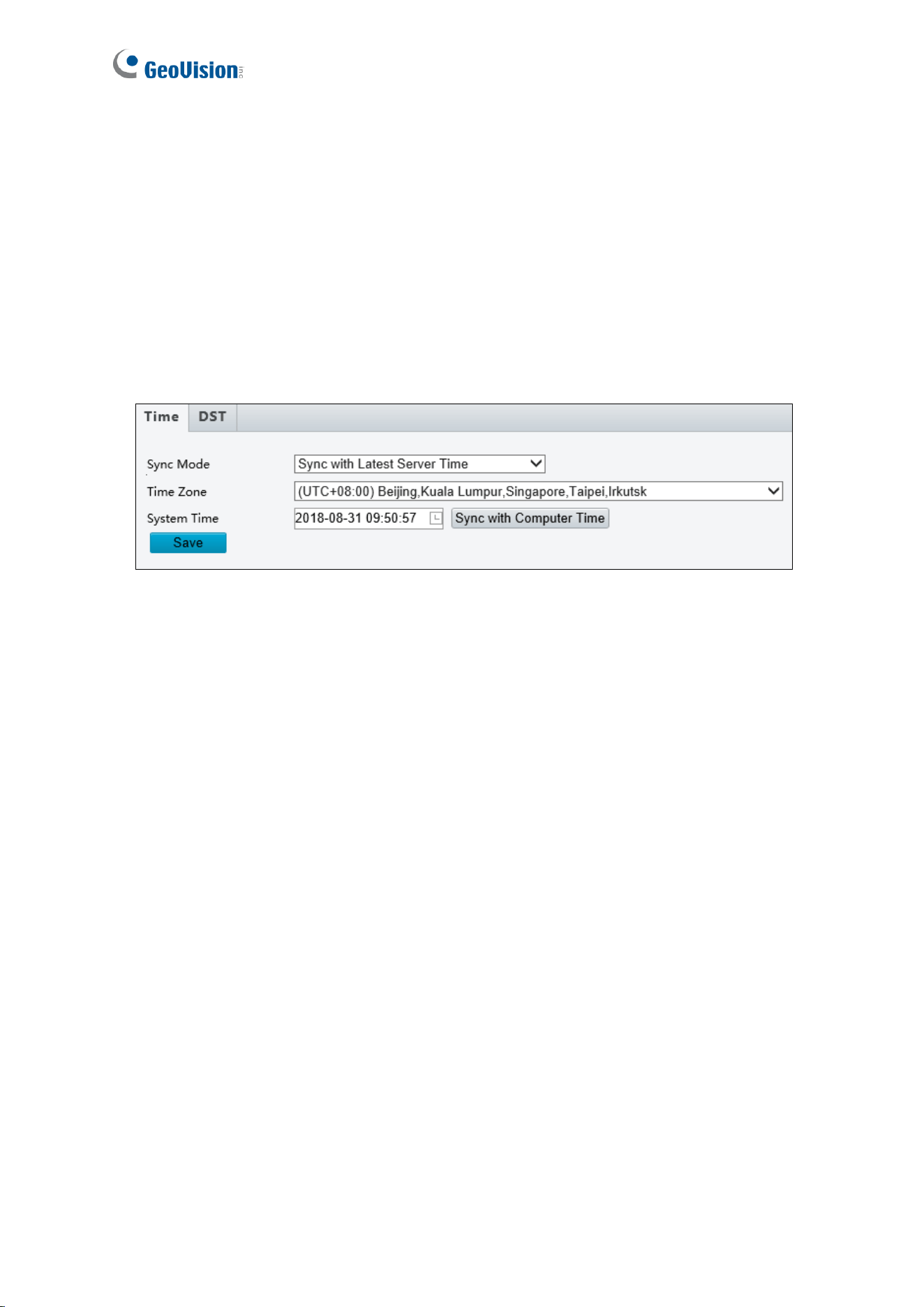
104
4.10 System
This section allows you to create user accounts, set the camera time, and update the
firmware.
4.10.1 Time
You can use the following methods to adjust the system time of your camera.
Figure 4-77
To manually set a time or synchronize with the computer time:
1. Enable Time Sync (For GV-SD2322-IR Only)
2. Select a Sync Mode.
Sync with System Configuration: Select a Time Zone, manually set a time by
clicking on the System Time, or synchronize with the computer time.
Sync with NTP Server: To synchronize with a network time server, type the IP
address of the network time server next to NTP Server Address and specify the
Update Interval.
Sync with Management Server (ONVIF): The device time is synchronized with
Management Server (ONVIF).
Sync with Latest Server Time: The device time is synchronized with the latest
updated time, either on ONVIF or the Web interface.
3. Select a Time Zone.
4. Next to System Time, manually set the camera’s time or click Sync with Computer
Time to synchronize with the time of your PC.
5. Click Save.
To synchronize with a network time server (For GV-SD2722-IR / SD3732-IR only):

Administrator Mode
105
4
1. Enable NTP.
2. Type the IP address of the network time server next to NTP Server IP.
3. Click Save.
4.10.2 Server
Note this function is NOT applicable to GV-SD2322-IR.
Server allows you to quickly access the FTP setting page. Click the FTP button to go to the
FTP settings page and complete the storage settings. See 4.8.3 FTP for details.
Figure 4-78
4.10.3 DST
To adjust the camera’s time for daylight saving time:
1. Click the DST tab at the top.
Figure 4-79
2. Select Enable DST / ON.
3. Set a Start Time and End Time for the daylight saving time.
4. Select a time period for DST Bias.
5. Click Save.

106
4.10.4 Maintenance
This section allows you to upgrade firmware, restart the camera, and backup/import camera
configurations.
Figure 4-80
[Firmware Upgrade / Software Upgrade].
For detailed instructions, refer to 6.1 Upgrading System Firmware and 6.1.1 Using the Web
Interface.
[Config Management] Export the current configurations of the camera and save them to the
PC or an external storage medium. You can also quickly restore configurations by importing
backup configurations stored on the PC or an external storage medium back to the camera.
[Diagnosis Info] Includes logs and system configurations. You can export diagnostic
information to your PC. Click Browse to select the destination folder, and click Download to
save the diagnostic information to the specified folder.
[Mounting Info] Type the actual height from the installed infrared dome to the ground, so
that the camera will be able to automatically adjust its infrared lamp.

Administrator Mode
107
4
[Focus] The device can adjust the speed of auto-focus according to the minimum focus
distance. It is recommended that the minimum focus distance is set shorter than the
distance between the objects and lens. For example, if the minimum focus distance is 3 m,
then the objects within 3 m from lens will be out of focus. For GV-SD2722-IR / SD3732-IR /
SD4825-IR / SD4834-IR, you can adjust zoom ratio to see the clear image when zooming in
according to the maximum zoom ratio.
Figure 4-81
[Device Restart] Click Restart to restart the device after you confirm the operation.

108
4.10.5 Ports and Device
Note this function is NOT applicable to GV-SD2322-IR.
Use the RS485 serial port to transmit data to a third-party device.
Figure 4-82
1. Select Trans-Channel / OSD / Local PTZ Control / Trans-Channel via ONVIF from the
Port Mode drop-down list.
◼ Transparent Channel (Trans-Channel) / Transparent Channel (via ONVIF):
Achieve transparent data transmission between two devices by using RS485 serial
port or ONVIF.
◼ OSD: Display information from the third-party device on the OSD.
◼ Local PTZ Control: Control a PTZ camera through a third-party device.
2. Select Enable Trans-Channel if Trans-Channel is selected.
3. Click Save.
Note:
1. If the OSD port mode is selected, the camera receives information from the third-party
device through the RS485 serial port, translates the received information, and then
displays it on the OSD.
2. If the Local PTZ Control port mode is selected, by sending PELCO-D compliant PTZ
control commands through the RS485 port, you can control the PTZ camera without
using the PTZ control panel.
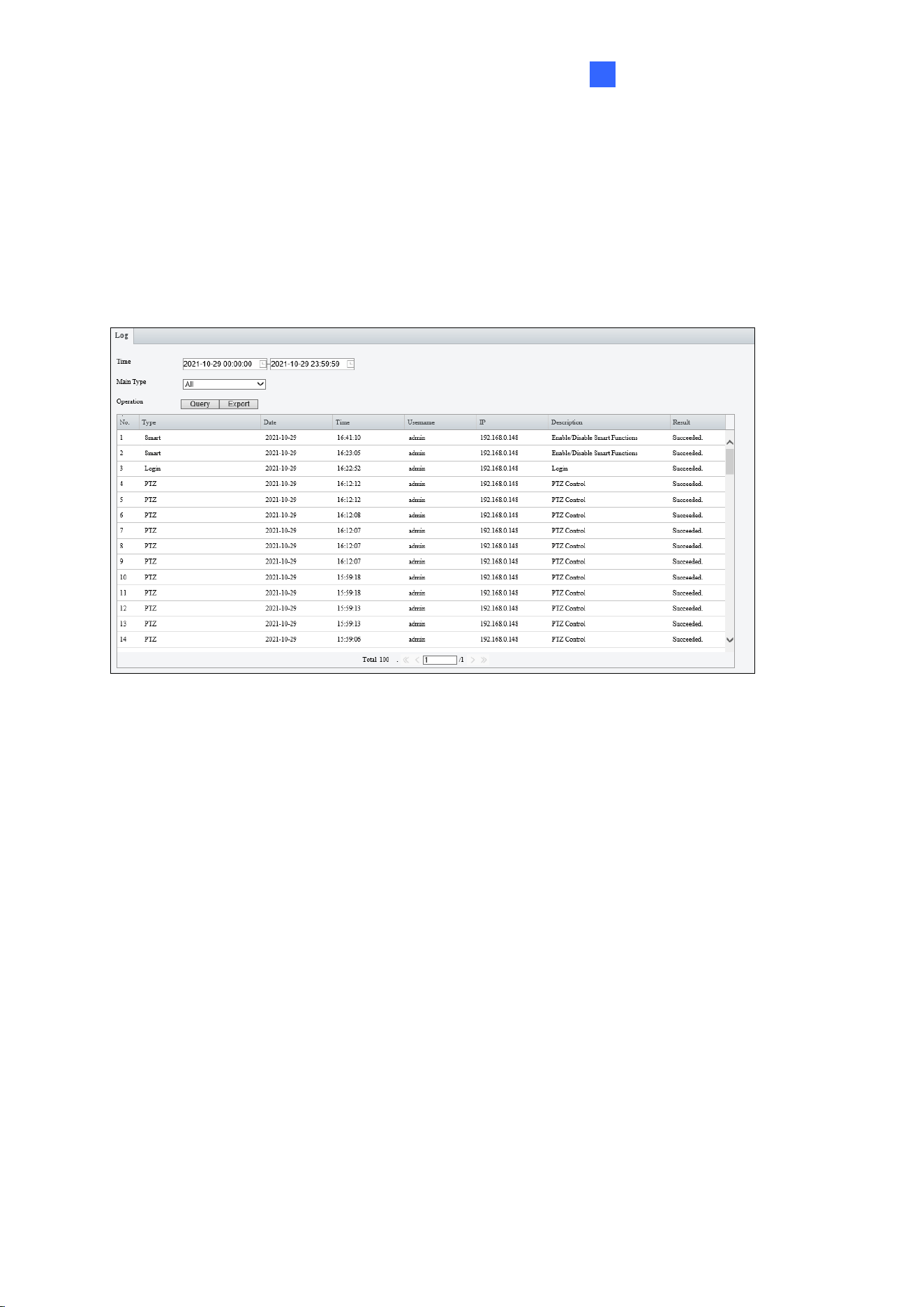
Administrator Mode
109
4
4.10.6 Log
Note this function is only applicable to GV-SD4825-IR / 4834-IR.
Log allows you to inquire configurations made on the camera and export the information to
the local PC.
Figure 4-83
1. Set the start time and end time of the logs you want to query.
2. Set the main log type, and click Query.
3. To export all the search results to your local PC, click Export.

110
Chapter 5 Recording and Playback
The camera can record video and audio directly to the memory card.
Note: See Note for Recording at the beginning of the manual.
5.1 Recording
To configure the recording function, refer to the following sections
• Insert the memory card into the camera -- See
1.5 Accessory Installation.
• Format the memory card, create a recording schedule, set up post-recording or select
the stream for recording -- See 4.8.1 Storage.
• Set up recording upon motion detection -- See 4.7.1 Motion Detection.
• Set up recording upon audio detection -- See 4.7.3 Audio Detection.
• Set up recording upon input trigger -- See 4.7.4 Alarm Input.

Recording and Playback
111
5
5.2 Playback from the Memory Card
You can play back the files recorded at the memory card of the camera from the Web
interface.
1. Click Playback at the top. This page appears.
Figure 5-1
2. On the right, select a date and click Query (for GV-SD2322-IR / SD2722-IR / 3732-IR)
or Search (for GV-SD4825-IR / SD4834-IR).
Figure 5-2

112
3. Double-click a search result to play back the recorded file, or select the desired time on
the Timeline at the bottom to play back the video from. You can also adjust the audio
volume at the bottom-left corner if needed.
Figure 5-3
The following functions are available:
◼ Snapshot
: Click to capture a snapshot of the recorded video.
◼ Digital Zoom
: Click the icon and draw a box on the camera view to digitally zoom in.

Advanced Applications
113
6
Chapter 6 Advanced Applications
This chapter introduces more advanced applications.
6.1 Upgrading System Firmware
GeoVision periodically releases updated firmware on the company website. The new
firmware can be loaded into the camera using the Web interface or the
GV-IP Device Utility.
Important Notes before You Start
Before you start updating the firmware, please read these important notes:
1. If you use the GV-IP Device Utility for firmware upgrade, the computer used to upgrade
firmware must be under the same network of the camera.
2. Stop monitoring of the camera.
3. Stop the device’s connection to GV-VMS / DVR / NVR and all remote connections.
4. While the firmware is being updated, the power supply must not be interrupted.
WARNING: The interruption of power supply during updating causes not only update
failures but also damages to your camera. In this case, please contact our sales
representative and send your device back to GeoVision for repair.
5. Do not turn the power off within 10 minutes after the firmware is updated.
6. If firmware upgrade fails, you will need to restore the camera to the default settings. For
details, see 6.2 Restoring to Factory Default Settings.

114
6.1.1 Using the Web Interface
Log into the Web interface and follow the steps below to update the firmware.
1. At the top, click Setup.
2. In the left menu, select System and select Maintenance. This page appears.
Figure 6-1
3. Click the Browse button to locate the firmware file (.zip) saved at your local computer.
4. Optionally select Upgrade Boot Program to reboot the camera after a successful
upgrade.
5. Click the Upgrade button to process the upgrade.

Advanced Applications
115
6
6.1.2 Using the GV-IP Device Utility
You can upgrade the camera firmware using the GV-IP Device Utility. Note the computer
used to upgrade firmware must be under the same network of the camera.
1. Download GV-IP Device Utility from the company
website. Then follow the onscreen
instructions to install the program.
2. Double-click the GV IP Device Utility icon created on your desktop.
3. Click the camera in the list and select Configure.
Figure 6-2
4. Type the camera’s user name and password to login.
5. Click the Firmware Upgrade tab. This dialog box appears.
Figure 6-3
6. Click the Browse button to locate the firmware file (.zip) saved at your local computer.
7. Click Upgrade to start upgrading the firmware.
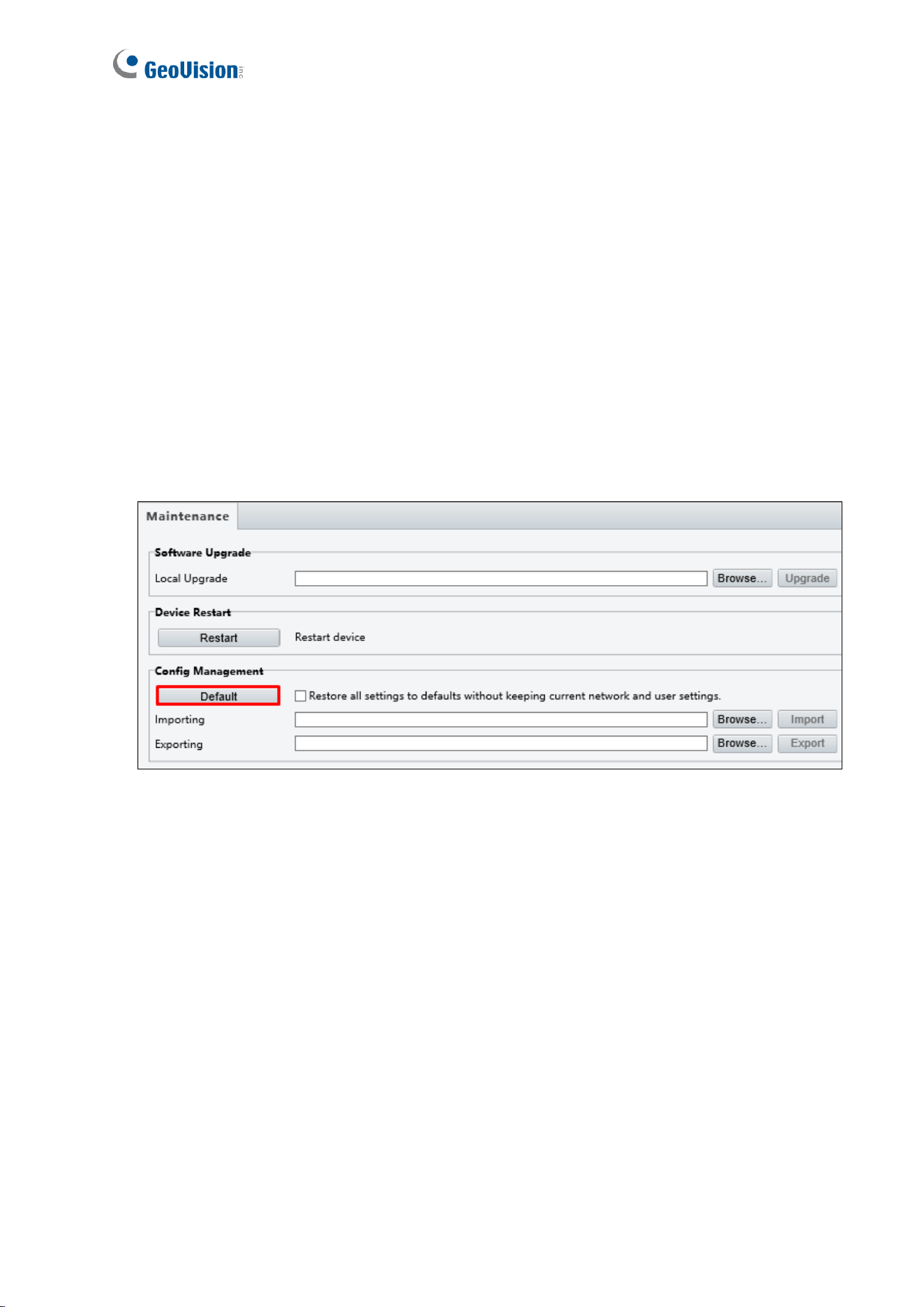
116
6.2 Restoring to Factory Default Settings
If for any reason the camera is not responding correctly, you can restore the camera back
to its factory default settings using the Web interface or the Default Button on the camera.
6.2.1 Using the Web Interface
To restore to default settings using the Web interface:
1. At the top, click Setup.
2. In the left menu, select System and select Maintenance.
3. Under the Config Management section, click the Default button.
Figure 6-4

Advanced Applications
117
6
6.2.2 Directly on the Camera
1. Unscrew the back cover of the camera.
For GV-SD2322-IR / SD2722-IR /
SD3732-IR / SD4834-IR
For GV-SD4825-IR
For GV-SD4834-IR
Figure 6-5
Figure 6-6
Figure 6-7
2. Press and hold the default button for about 30 seconds.
For GV-SD2322-IR / SD2722-IR / SD3732-IR
Figure 6-8
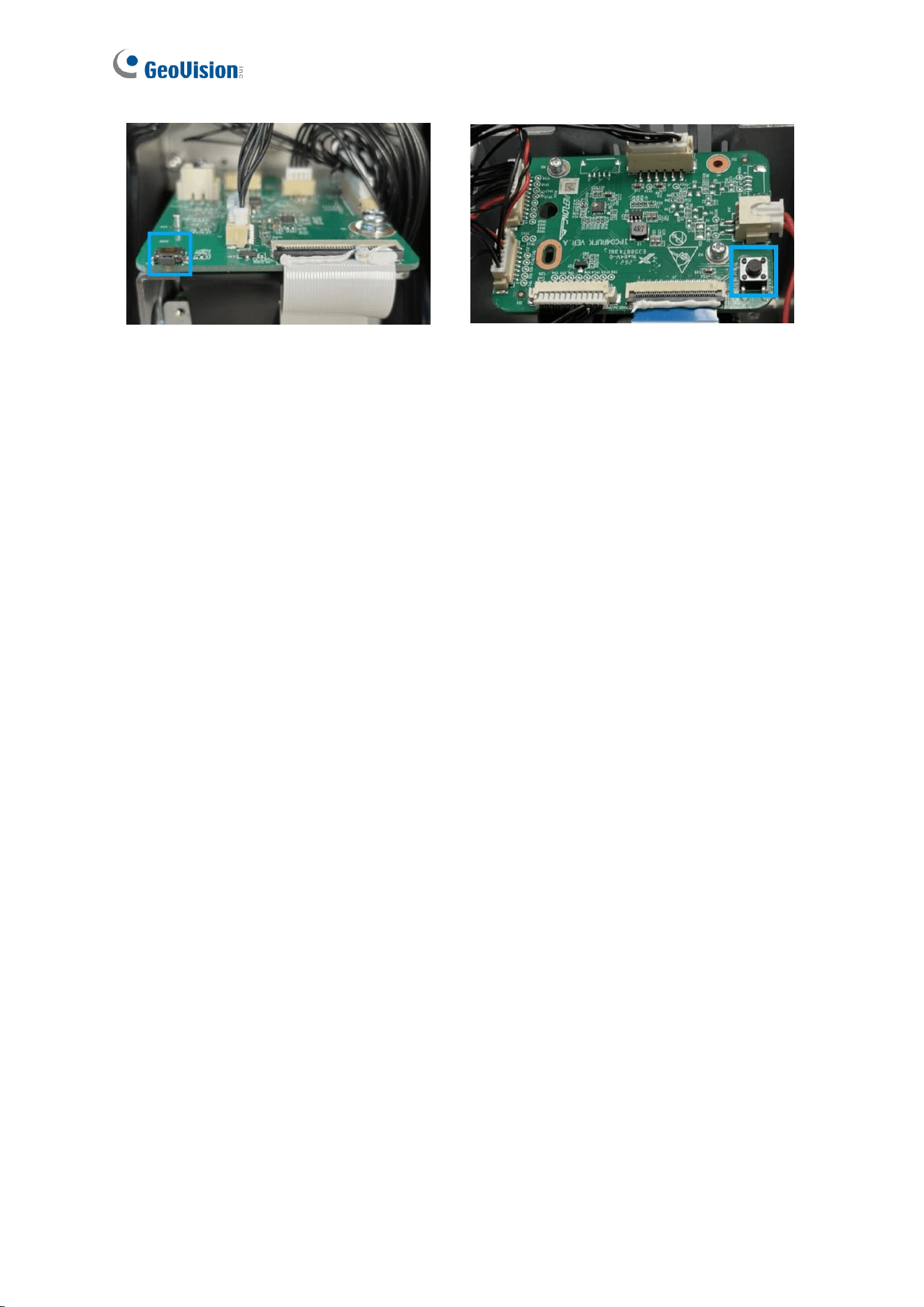
118
For GV-SD4825-IR
For GV-SD4834-IR
Figure 6-9
Figure 6-10
3. When the camera rotates twice, the process of loading default is completed and the
camera robots automatically.

VMS / DVR / NVR Configurations
119
7
Chapter 7 VMS / DVR / NVR
Configurations
The GV-VMS / DVR / NVR provides a complete video management solution, including video
viewing, recording, playback, alert settings, and more. The integration specifications are
listed below:
• The compatible GV-VMS / DVR / NVR versions are listed below:
Camera Model
Compatible GV-DVR / NVR
Compatible GV-VMS
GV-SD2322-IR
V8.7.0.0 or later
V15.10.1.0 with patch files or later
GV-SD2722-IR
V8.7.4.0 with patch files or later
V17.1.0.100 or later
GV-SD3732-IR
V8.7.1.0 with patch files or later
V15.11.1.0 with patch files or later
GV-SD4825-IR
V8.9.1 with patch files or later
V17.4.3 / 18.2.1 with patch files or
later
GV-SD4834-IR
V8.9.1 with patch files or later
V17.4.3 / 18.2.1 with patch files or
later
• When connecting to other applications, an IP camera supports remote connections of up
to 40 Mbps in throughout and a maximum of 20 streams.
• When a GV-IP Speed Dome is connected to IE browser or any other applications, it
takes up 1 stream; when it is connected to GV-VMS / DVR / NVR, it takes up 2 streams.

120
7.1 Setting up IP Cameras on GV-DVR / NVR
To set up the camera on the GV- DVR / NVR, follow these steps:
1. On the main screen, click the Configure button, select System Configure, select
Camera Install and click IP Camera Install. This dialog box appears.
Figure 7-1
2. To automatically set up the camera, click Scan Camera to detect any camera on the
LAN.
3. Double-click the camera and type the user name and password of the camera.
Figure 7-2

VMS / DVR / NVR Configurations
121
7
4. Click OK. This dialog box appears.
Figure 7-3
5. Click OK. The camera is added to the connection list.
6. Click the listed camera and select Display position to map the camera to a channel on
the GV-DVR / NVR.
Figure 7-4
7. The Statue column should display “Connected”. Click OK.

122
7.1.1 Customizing the Basic Settings on GV-DVR / NVR
After the camera is connected and assigned with a display position, you can configure the
camera’s settings such as frame rate, codec type and resolution. Right-click the desired
camera to see the following list of options:
Figure 7-5
◼ Network Time Out: When network disconnection exceeds the specified time period, the
camera status will be displayed as Connection Lost.
◼ On-Demand Display: Enables automatic switching between main stream and sub
stream based on the size of camera image on screen.
◼ Live-view frame rate control (Sub / Main): Sets the frame rate of the stream to help
reduce the CPU usage. If you have set the codec to be MJPEG, select the number of
frames to allow in a second. If the codec selected is H.265 or H.264, select one of the
following options:
Maximum Live-view Frame Rate: View the video at the maximum frame rate
possible.
Live-view Key Frame only: You can choose to view the key frames of the videos
only instead of all frames on the live view. This option is related to the GOP setting
of the IP camera. For example, if the GOP value is set to 30, there is only one key
frame among 30 frames.
◼ Frames to keep in live view buffer: Specifies the number of frames to keep in the live
view buffer.
◼ Recording Codec Format: Select the codec to record in.
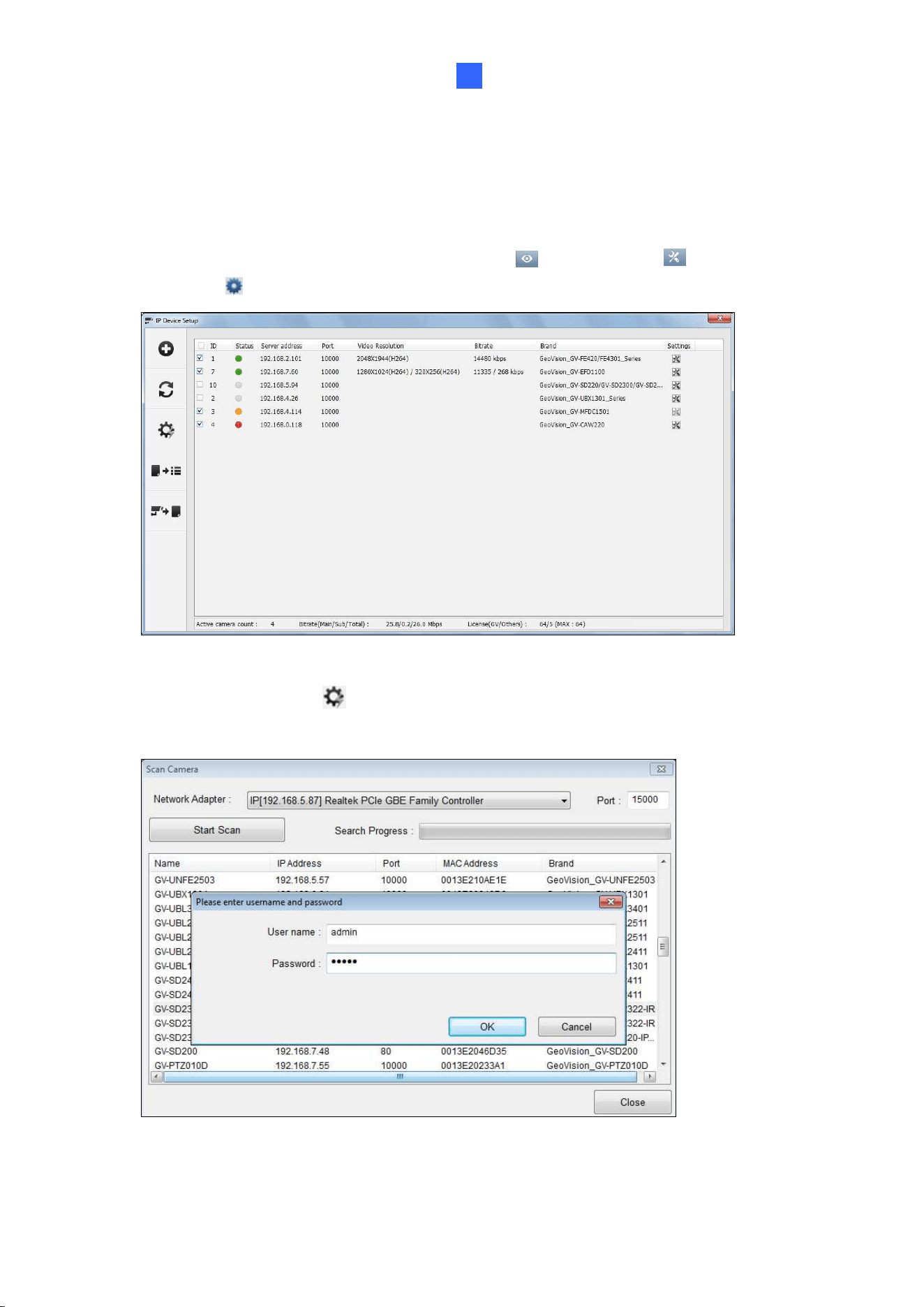
VMS / DVR / NVR Configurations
123
7
7.2 Setting Up IP Cameras on GV-VMS
Follow the steps below to manually connect your camera to GV-VMS.
1. To access the IP Device Setup page, click Home
, select Toolbar , click
Configure
and select Camera Install.
Figure 7-6
2. Click Automatic Setup
.
3. Double-click the camera and type the user name and password of the camera.
Figure 7-7

124
4. Click OK. This dialog box appears.
Figure 7-8
5. Click OK to add the camera to the list.
6. To connect the added camera, click the box besides the ID column. Upon successful
connection, the Status icon shows green, with the video resolution and bit rate being
displayed in the corresponding columns.
Figure 7-9

VMS / DVR / NVR Configurations
125
7
Appendix
A. RTSP Multicast Protocol Support
The camera can support RTSP multicast protocol for both video and audio streaming.
You can use the following RTSP multicast command to access the camera image:
Stream 1: rtsp://<IP of the camera>/multicast/video1
Stream 2: rtsp://<IP of the camera>/multicast/video2
For example, rtsp://
192.168.4.115/multicast/video1