User
’
s Manual
2024/06 (v2.4)
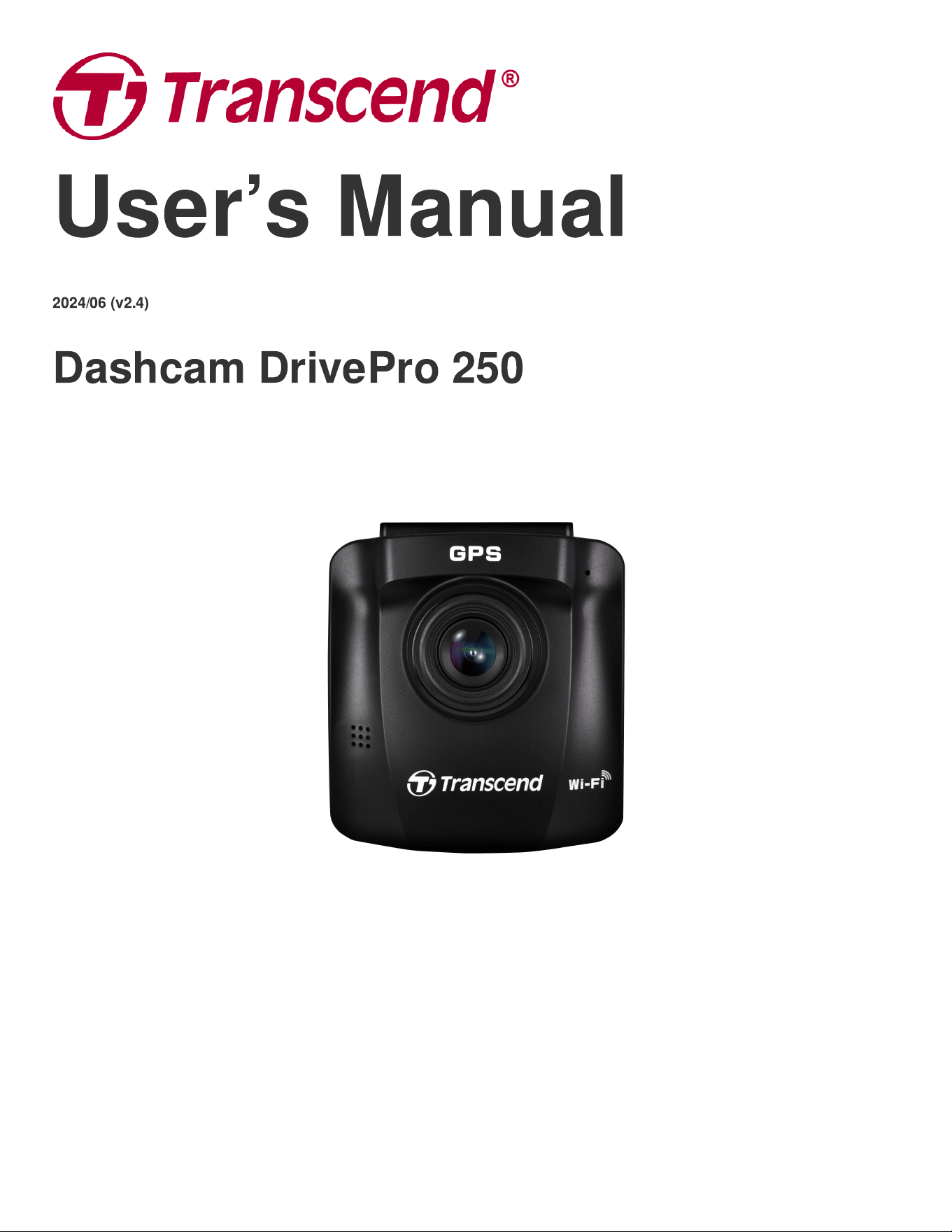
Dashcam DrivePro 250
Table of Contents
1. Package Contents
2. Getting Started
2-1 Overview
2-2 Inserting a microSD Memory Card
2-3 Mounting the Dashcam
2-4 Connecting to Power
2-5 Function Buttons
2-6 LED Indicator
2-7 Setting the Date and Time
2-8 Setting UTC Timezone
3. Recording Videos
3-1 Recording Screen
3-2 Emergency Recording
3-3 Parking Mode Recording
4. Browsing Photos and Playing Videos
4-1 Playing Videos / Browsing Photos
4-2 Deleting Videos
4-3 Protecting Videos
5. Settings
5-1 Menu Options
5-2 Firmware Upgrade
6. Using the DrivePro App
6-1 Downloading and Installing the DrivePro App
6-2 Connecting to the DrivePro
7. DrivePro Toolbox Software
8. Transferring Files to a Computer
9. Troubleshooting
10. Safety Cautions
11. Speci
fi
cations
12. EU Compliance Statement
13. Recycling and Environmental Protection
14. Federal Communications Commission (FCC) Statement
15. Warranty Policy
16. GNU General Public License (GPL) Disclosure
17. End-User License Agreement (EULA)

1. Package Contents
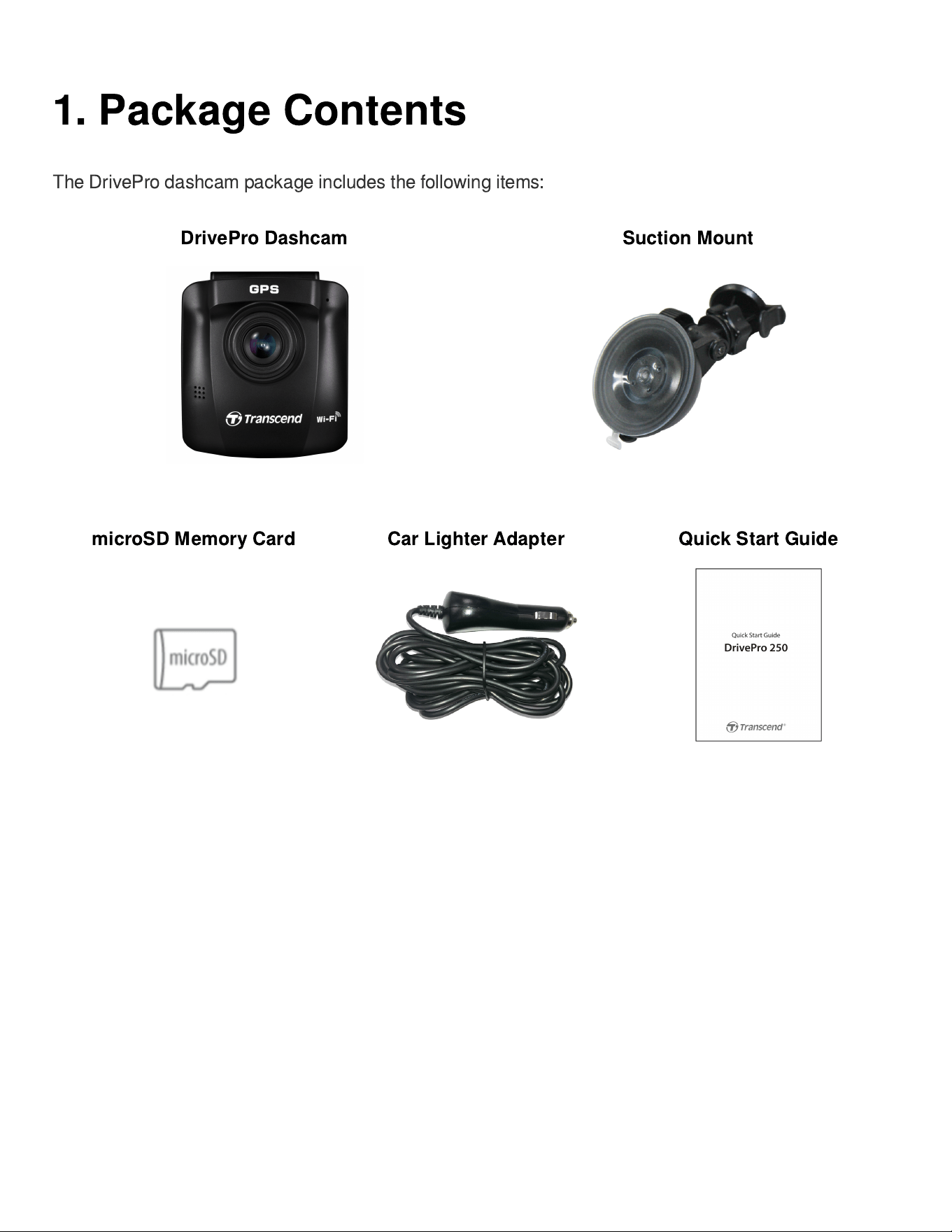
The DrivePro dashcam package includes the following items:
DrivePro Dashcam Suction Mount
microSD Memory Card Car Lighter Adapter Quick Start Guide
2. Getting Started
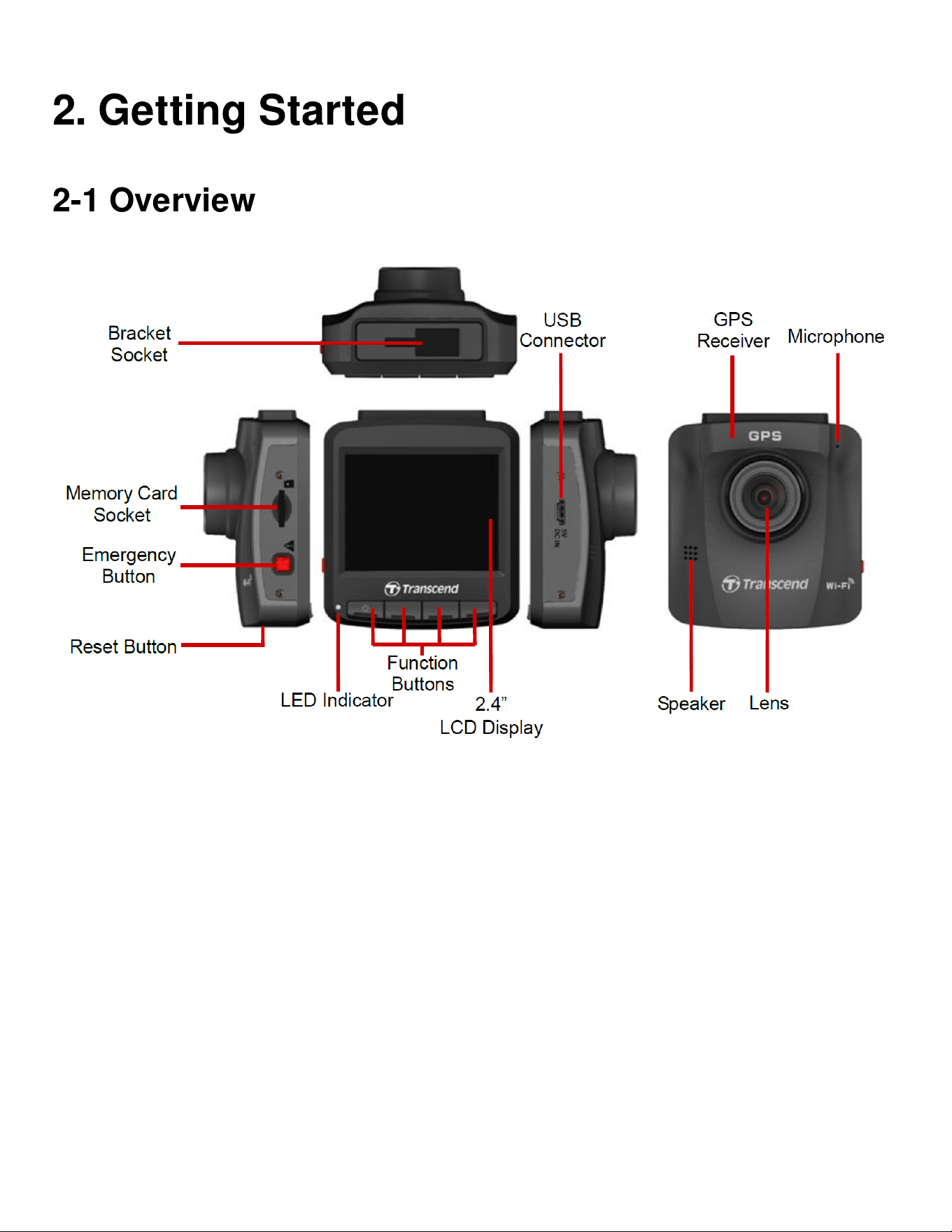
2-1 Overview
2-2 Inserting a microSD Memory Card
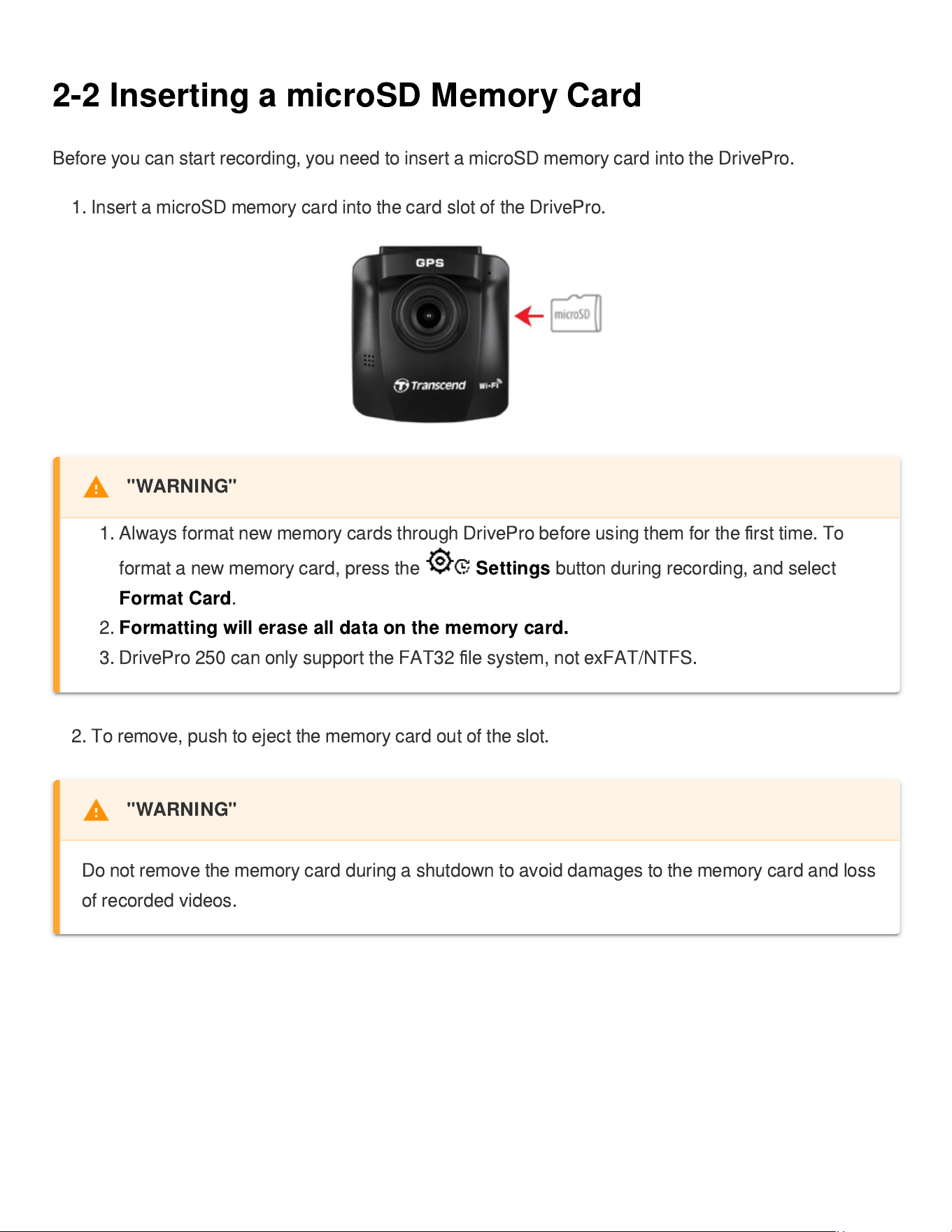
Before you can start recording, you need to insert a microSD memory card into the DrivePro.
1. Insert a microSD memory card into the card slot of the DrivePro.
2. To remove, push to eject the memory card out of the slot.
"WARNING"
1. Always format new memory cards through DrivePro before using them for the
fi
rst time. To
format a new memory card, press the
Settings
button during recording, and select
Format Card
.
2.
Formatting will erase all data on the memory card.
3. DrivePro 250 can only support the FAT32
fi
le system, not exFAT/NTFS.
"WARNING"
Do not remove the memory card during a shutdown to avoid damages to the memory card and loss
of recorded videos.
We recommend Transcend
’
s High Endurance microSD cards or MLC-based memory cards to
ensure the best recording performance.
High Endurance microSDHC card
High Endurance microSDXC 350V card
For models produced before 2023.04, please use a microSD card with 8GB, 16GB, 32GB, 64GB, or
128GB capacity (Class 10 or above).
For more details on the approximate recording time according to card capacity, go to FAQ on our
o
ffi
cial website.
2-3 Mounting the Dashcam
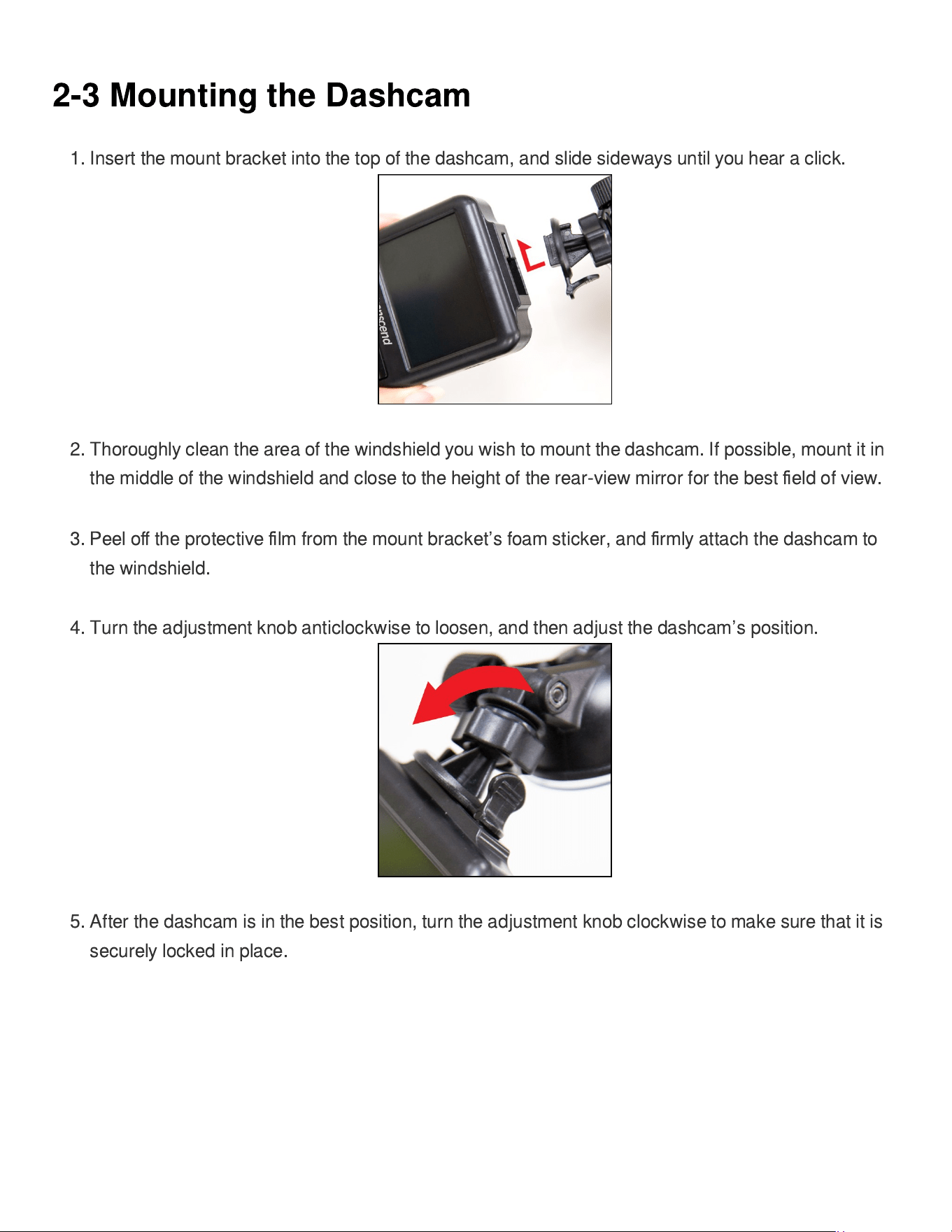
1. Insert the mount bracket into the top of the dashcam, and slide sideways until you hear a click.
2. Thoroughly clean the area of the windshield you wish to mount the dashcam. If possible, mount it in
the middle of the windshield and close to the height of the rear-view mirror for the best
fi
eld of view.
3. Peel o
ff
the protective
fi
lm from the mount bracket
’
s foam sticker, and
fi
rmly attach the dashcam to
the windshield.
4. Turn the adjustment knob anticlockwise to loosen, and then adjust the dashcam
’
s position.
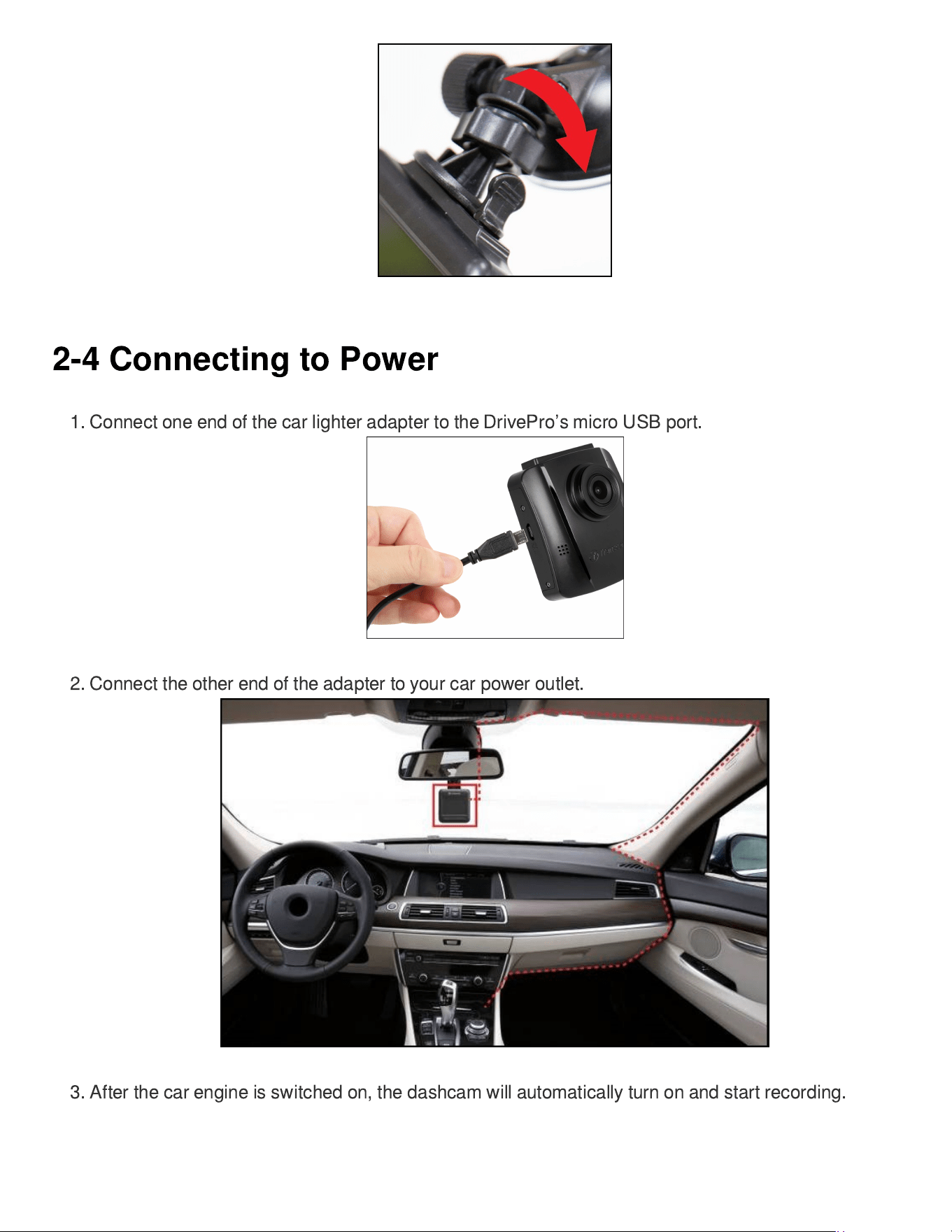
5. After the dashcam is in the best position, turn the adjustment knob clockwise to make sure that it is
securely locked in place.
2-4 Connecting to Power
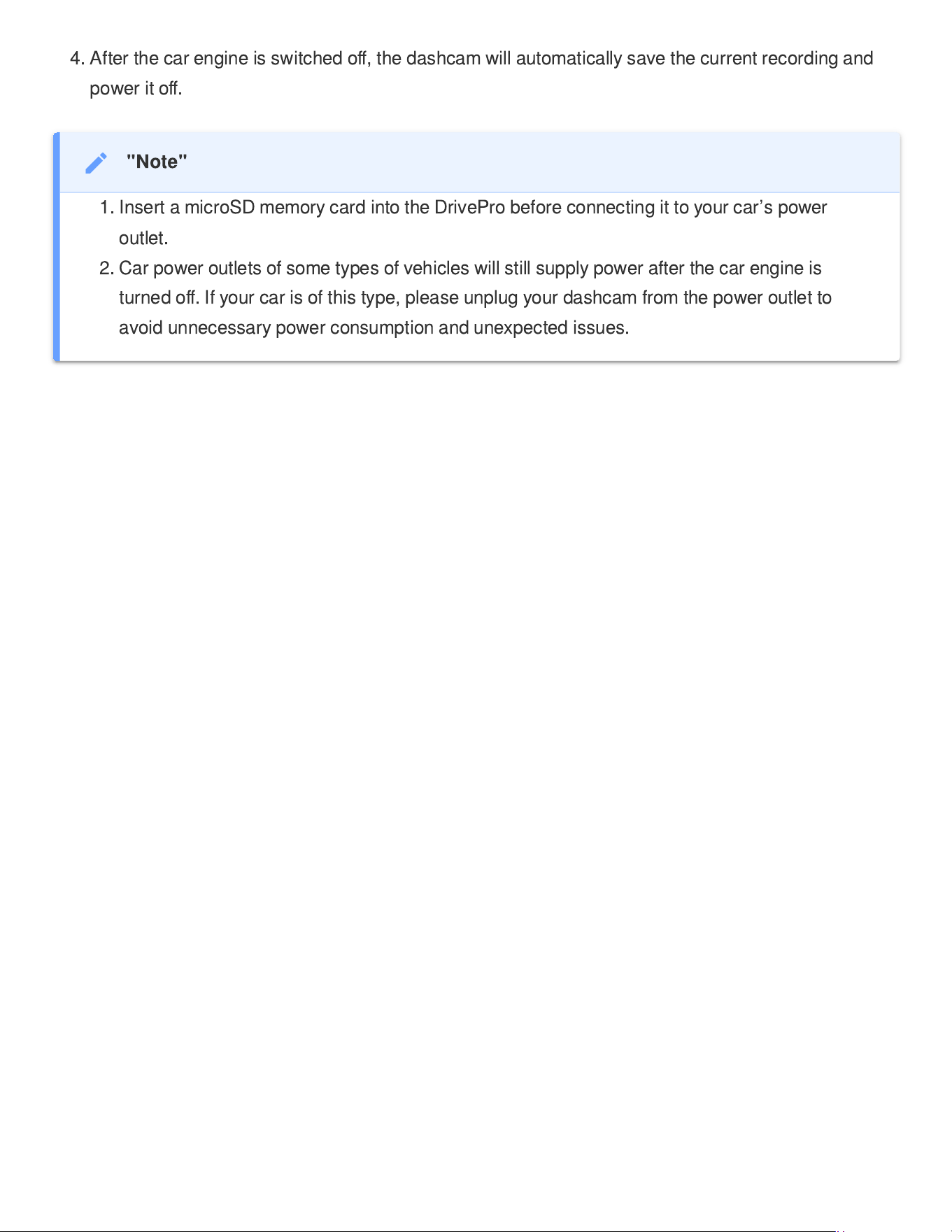
1. Connect one end of the car lighter adapter to the DrivePro
’
s micro USB port.
2. Connect the other end of the adapter to your car power outlet.
3. After the car engine is switched on, the dashcam will automatically turn on and start recording.
4. After the car engine is switched o
ff
, the dashcam will automatically save the current recording and
power it o
ff
.
"Note"
1. Insert a microSD memory card into the DrivePro before connecting it to your car
’
s power
outlet.
2. Car power outlets of some types of vehicles will still supply power after the car engine is
turned o
ff
. If your car is of this type, please unplug your dashcam from the power outlet to
avoid unnecessary power consumption and unexpected issues.
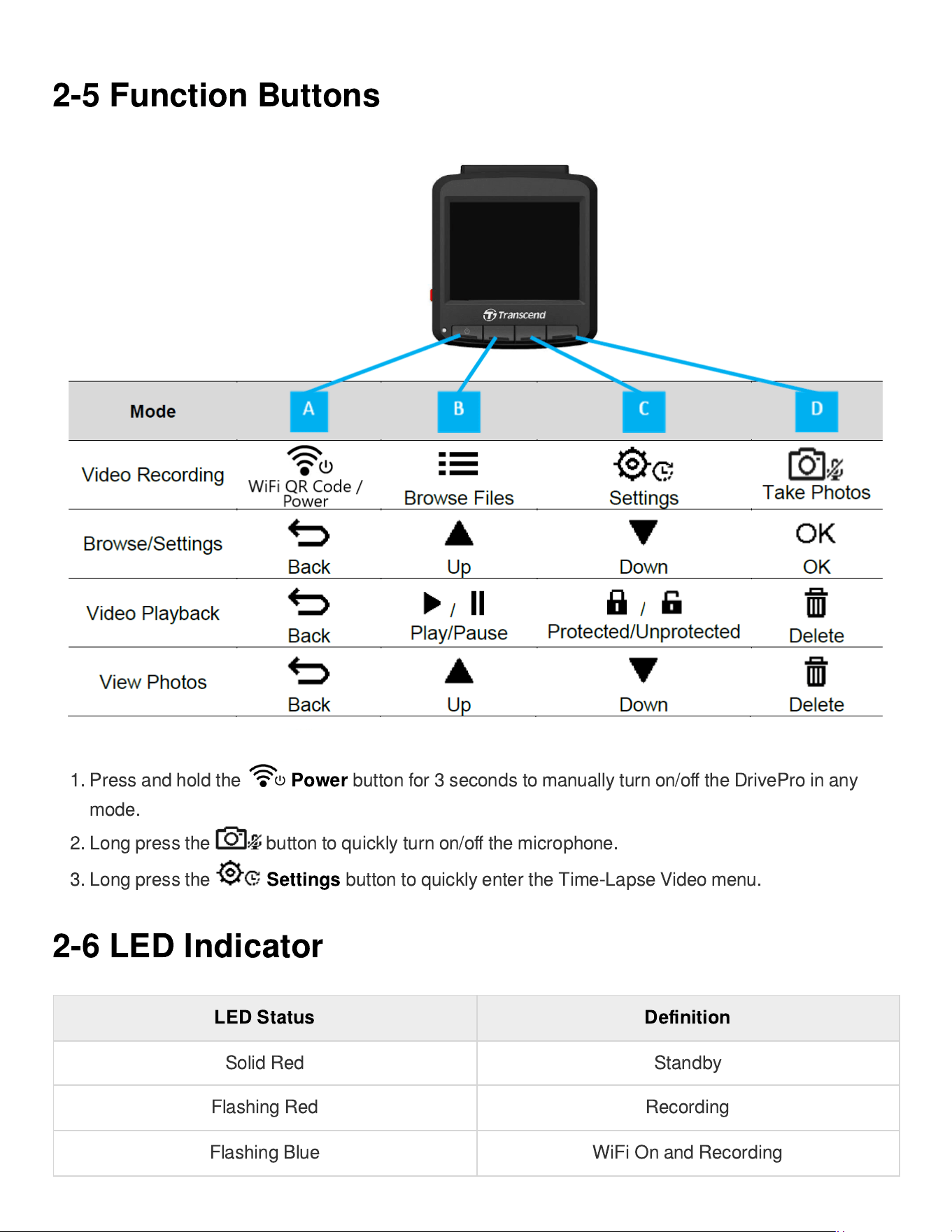
2-5 Function Buttons
1.
Press and hold the
Power
button for 3 seconds to manually turn on/o
ff
the DrivePro in any
mode.
2. Long press the button to quickly turn on/o
ff
the microphone.
3.
Long press the
Settings
button to quickly enter the Time-Lapse Video menu.
2-6 LED Indicator
LED Status De
fi
nition
Solid Red Standby
Flashing Red Recording
Flashing Blue WiFi On and Recording
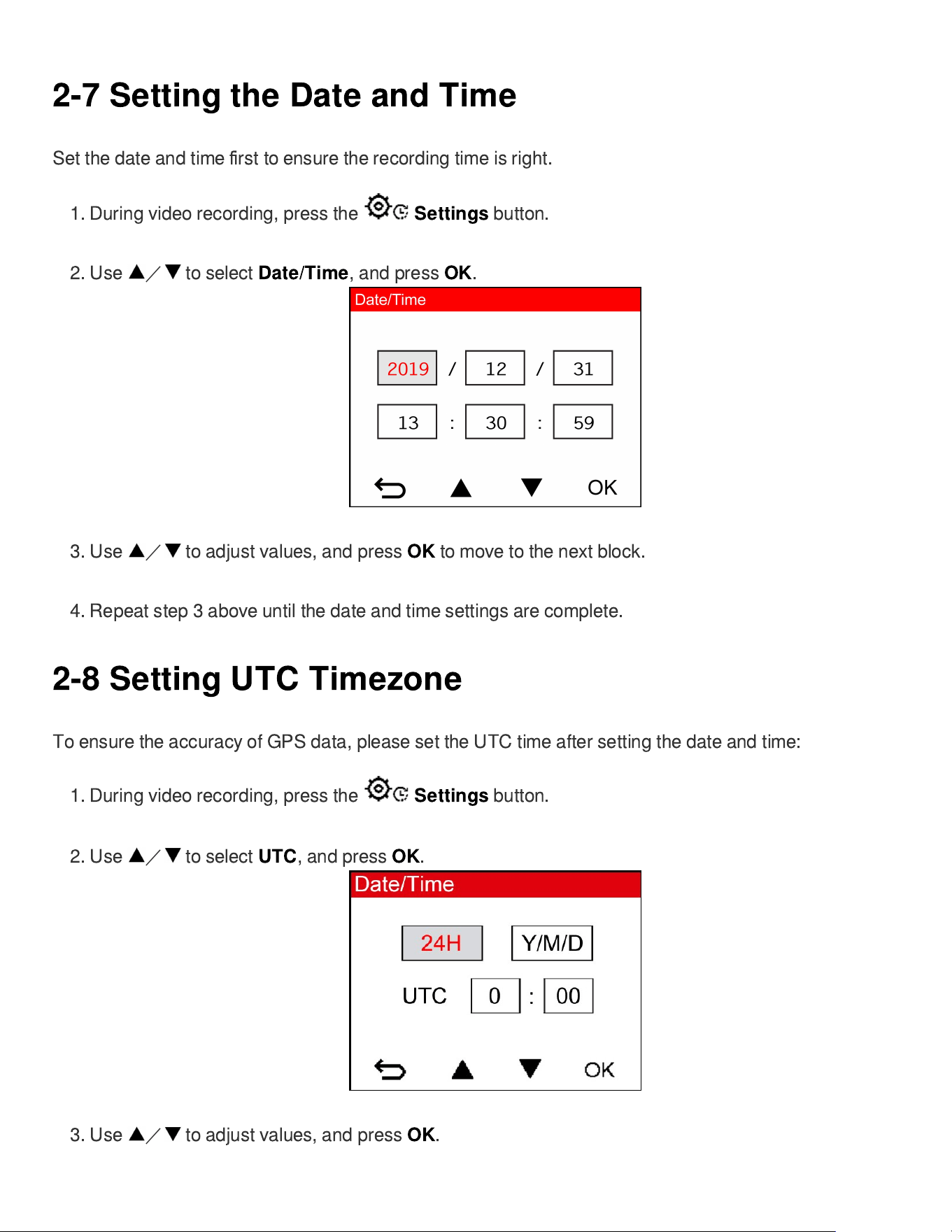
2-7 Setting the Date and Time
Set the date and time
fi
rst to ensure the recording time is right.
1.
During video recording, press the
Settings
button.
2. Use
/
to select
Date/Time
, and press
OK
.
3. Use
/
to adjust values, and press
OK
to move to the next block.
4. Repeat step 3 above until the date and time settings are complete.
2-8 Setting UTC Timezone
To ensure the accuracy of GPS data, please set the UTC time after setting the date and time:
1.
During video recording, press the
Settings
button.
2. Use
/
to select
UTC
, and press
OK
.
3. Use
/
to adjust values, and press
OK
.
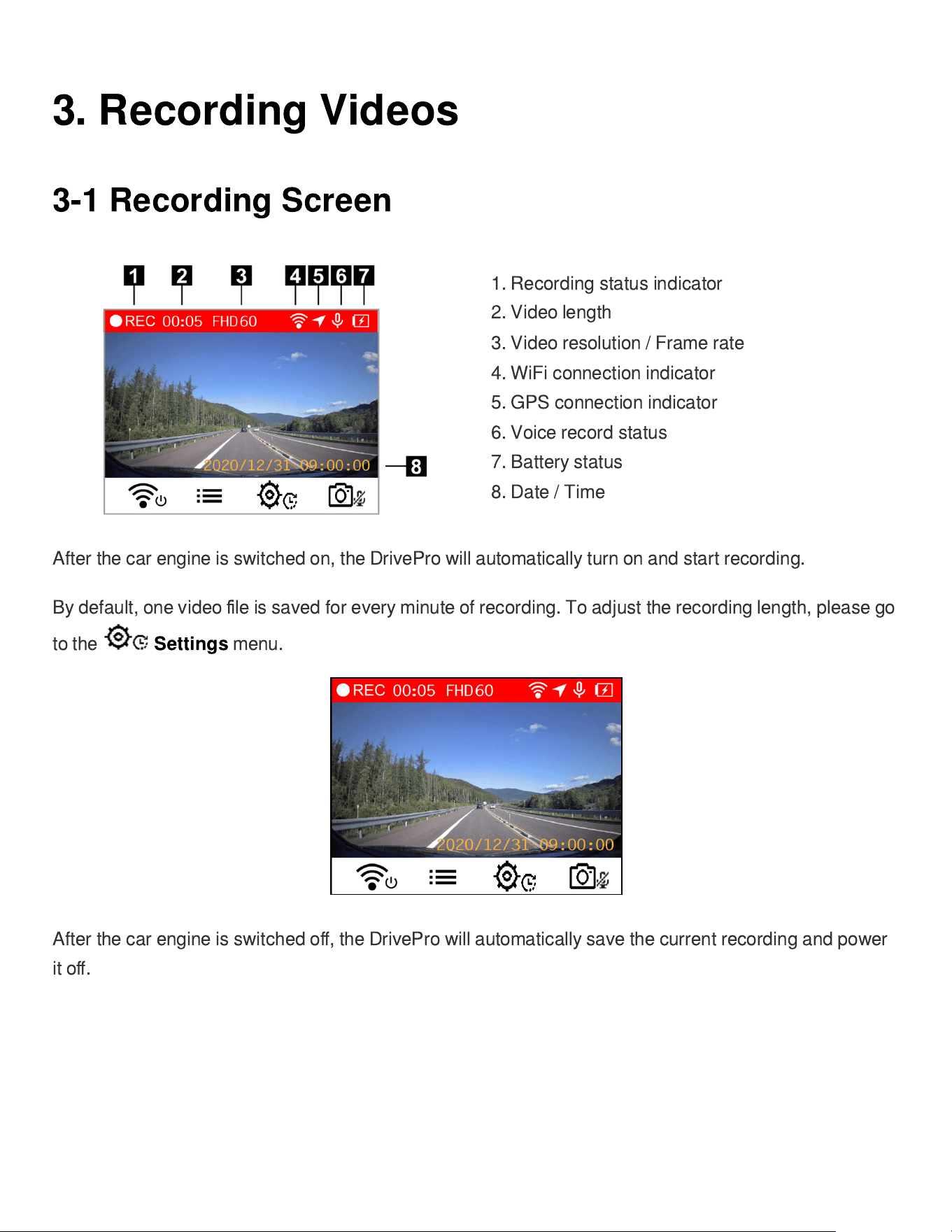
3. Recording Videos
3-1 Recording Screen
1. Recording status indicator
2. Video length
3. Video resolution / Frame rate
4. WiFi connection indicator
5. GPS connection indicator
6. Voice record status
7. Battery status
8. Date / Time
After the car engine is switched on, the DrivePro will automatically turn on and start recording.
By default, one video
fi
le is saved for every minute of recording. To adjust the recording length, please go
to the
Settings
menu.
After the car engine is switched o
ff
, the DrivePro will automatically save the current recording and power
it o
ff
.
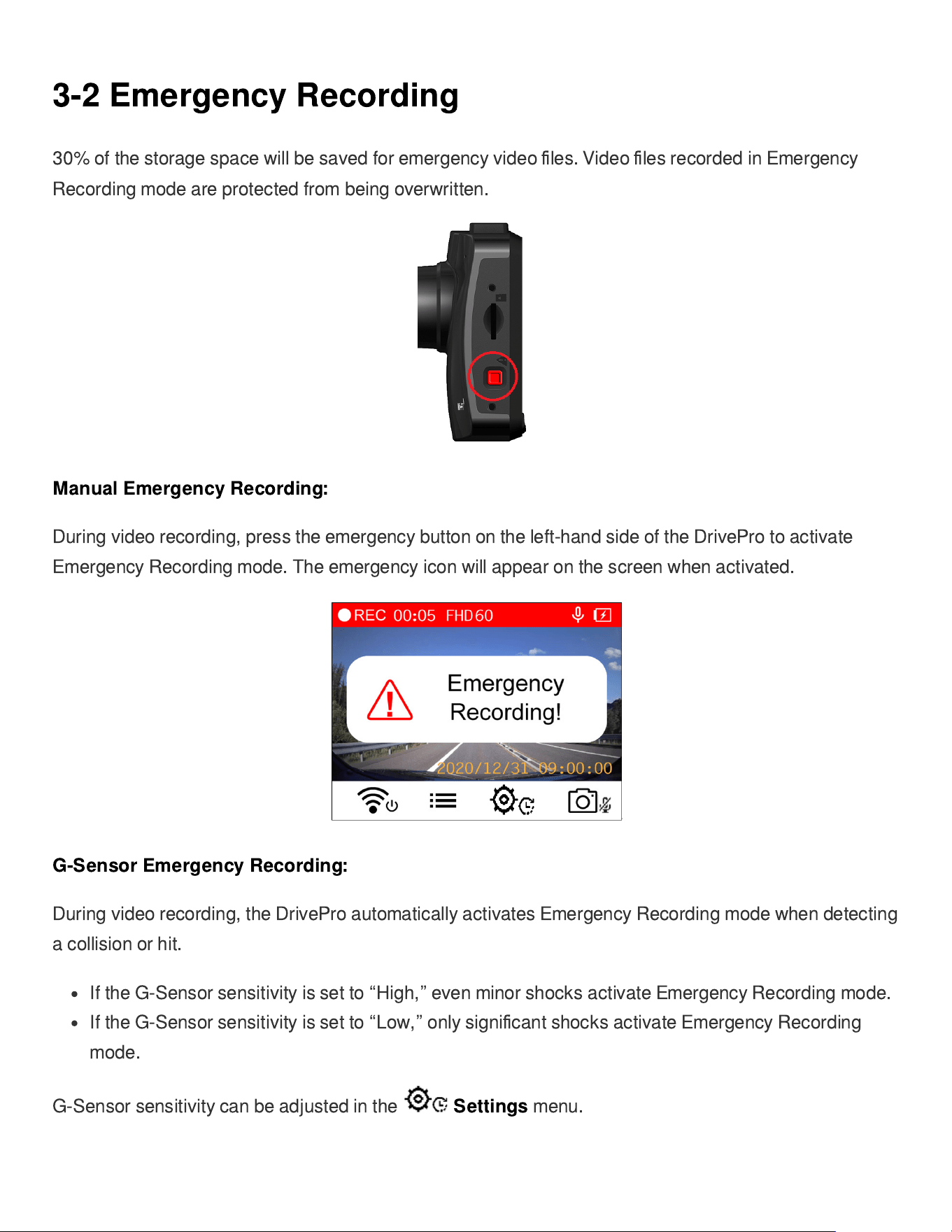
3-2 Emergency Recording
30% of the storage space will be saved for emergency video
fi
les. Video
fi
les recorded in Emergency
Recording mode are protected from being overwritten.
Manual Emergency Recording:
During video recording, press the emergency button on the left-hand side of the DrivePro to activate
Emergency Recording mode. The emergency icon will appear on the screen when activated.
G-Sensor Emergency Recording:
During video recording, the DrivePro automatically activates Emergency Recording mode when detecting
a collision or hit.
If the G-Sensor sensitivity is set to
“
High,
”
even minor shocks activate Emergency Recording mode.
If the G-Sensor sensitivity is set to
“
Low,
”
only signi
fi
cant shocks activate Emergency Recording
mode.
G-Sensor sensitivity can be adjusted in the
Settings
menu.
3-3 Parking Mode Recording
After the car engine is switched o
ff
, the DrivePro can automatically enter Parking mode and record
footage when collision or motion is detected. Parking mode is disabled by default and can be enabled in
Settings
menu.
During Parking mode, the LCD display will turn o
ff
and the LED indicator will remain solid red on standby.
If the DrivePro detects a collision or motion of the vehicle, it will record footage for about 15 seconds, and
the display will turn on while the LED
fl
ashes red. If no more motion is detected within approximately 15
seconds, the display will turn o
ff
again. When the engine is switched on (and the device is connected to
power), the DrivePro will resume Normal Recording mode.
Transcend
’
s car lighter adapter does not supply power after the engine is switched o
ff
. If long-term
recording in Parking mode is required, please use an external power supply. Enter the Parking mode
manually by long-pressing the
Power
button during video recording. To power o
ff
the DrivePro,
long-press the
Power
button again.
"Note"
Loop recording is enabled by default. The earliest emergency
fi
les will be overwritten by the latest
emergency
fi
les recorded.
"Note"
After switching o
ff
the car engine, enabling Parking mode may drain the DrivePro
’
s built-in battery.
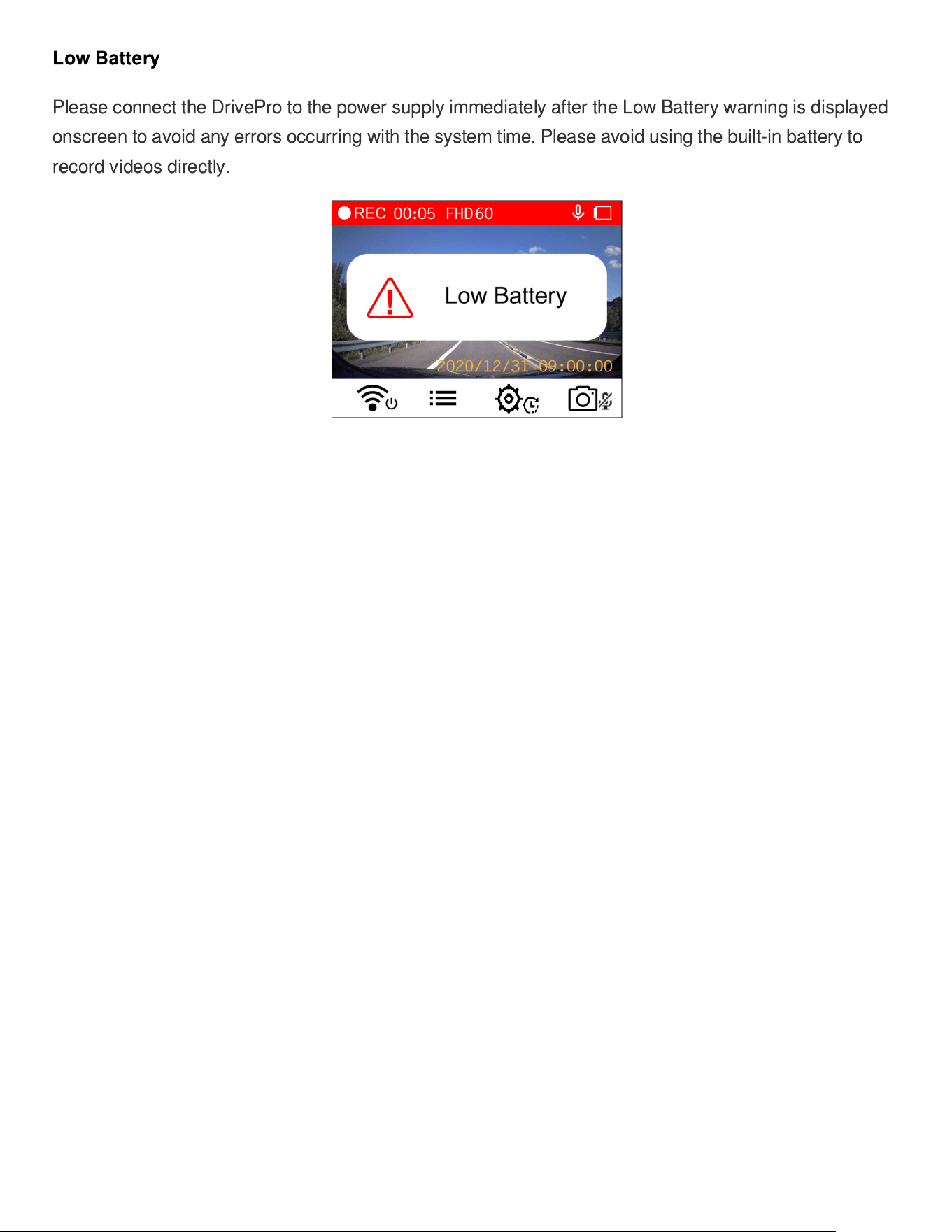
Low Battery
Please connect the DrivePro to the power supply immediately after the Low Battery warning is displayed
onscreen to avoid any errors occurring with the system time. Please avoid using the built-in battery to
record videos directly.
4. Browsing Photos and Playing Videos
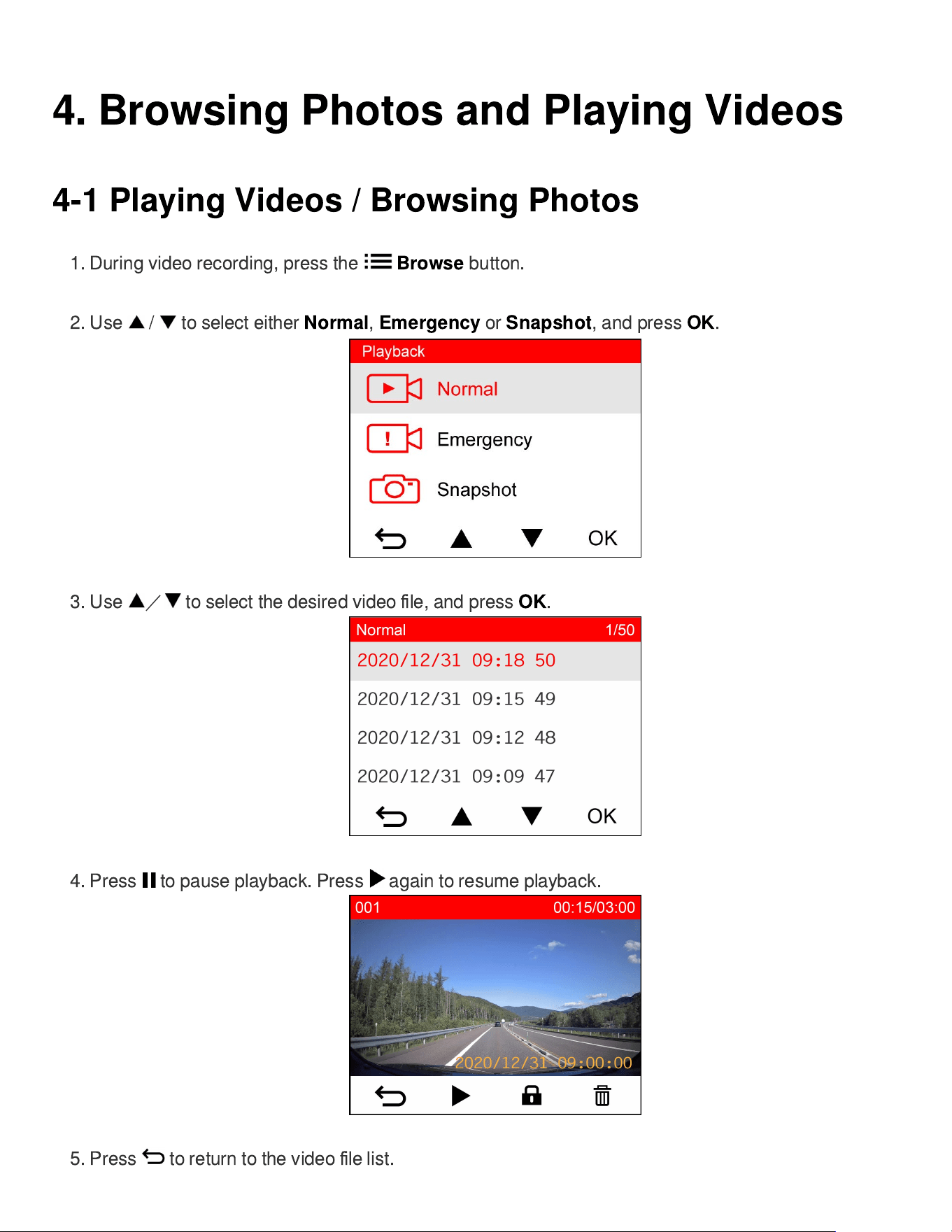
4-1 Playing Videos / Browsing Photos
1. During video recording, press the
Browse
button.
2. Use / to select either
Normal
,
Emergency
or
Snapshot
, and press
OK
.
3. Use
/
to select the desired video
fi
le, and press
OK
.
4. Press to pause playback. Press again to resume playback.
5. Press to return to the video
fi
le list.
4-2 Deleting Videos
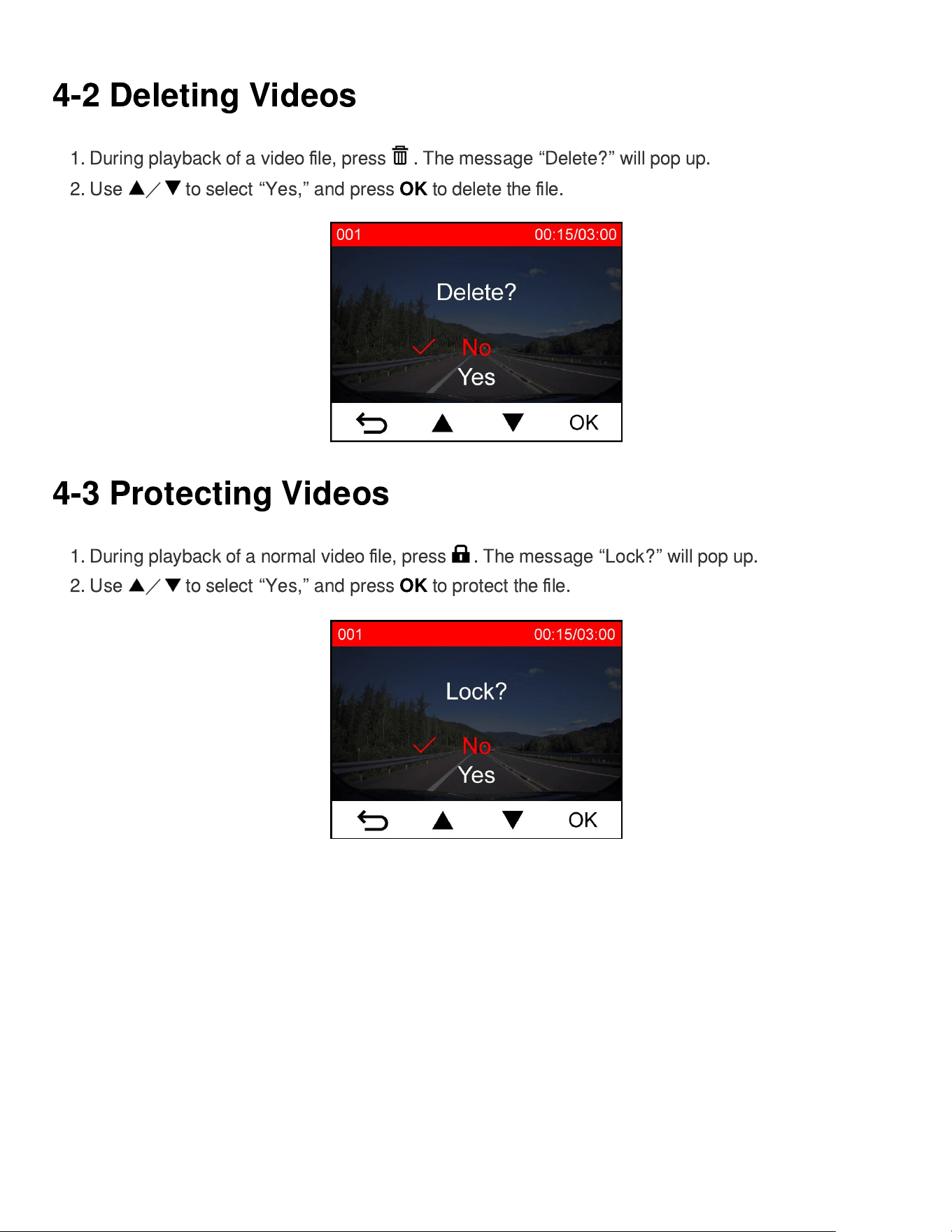
1. During playback of a video
fi
le, press . The message
“
Delete?
”
will pop up.
2. Use
/
to select
“
Yes,
”
and press
OK
to delete the
fi
le.
4-3 Protecting Videos
1. During playback of a normal video
fi
le, press . The message
“
Lock?
”
will pop up.
2. Use
/
to select
“
Yes,
”
and press
OK
to protect the
fi
le.
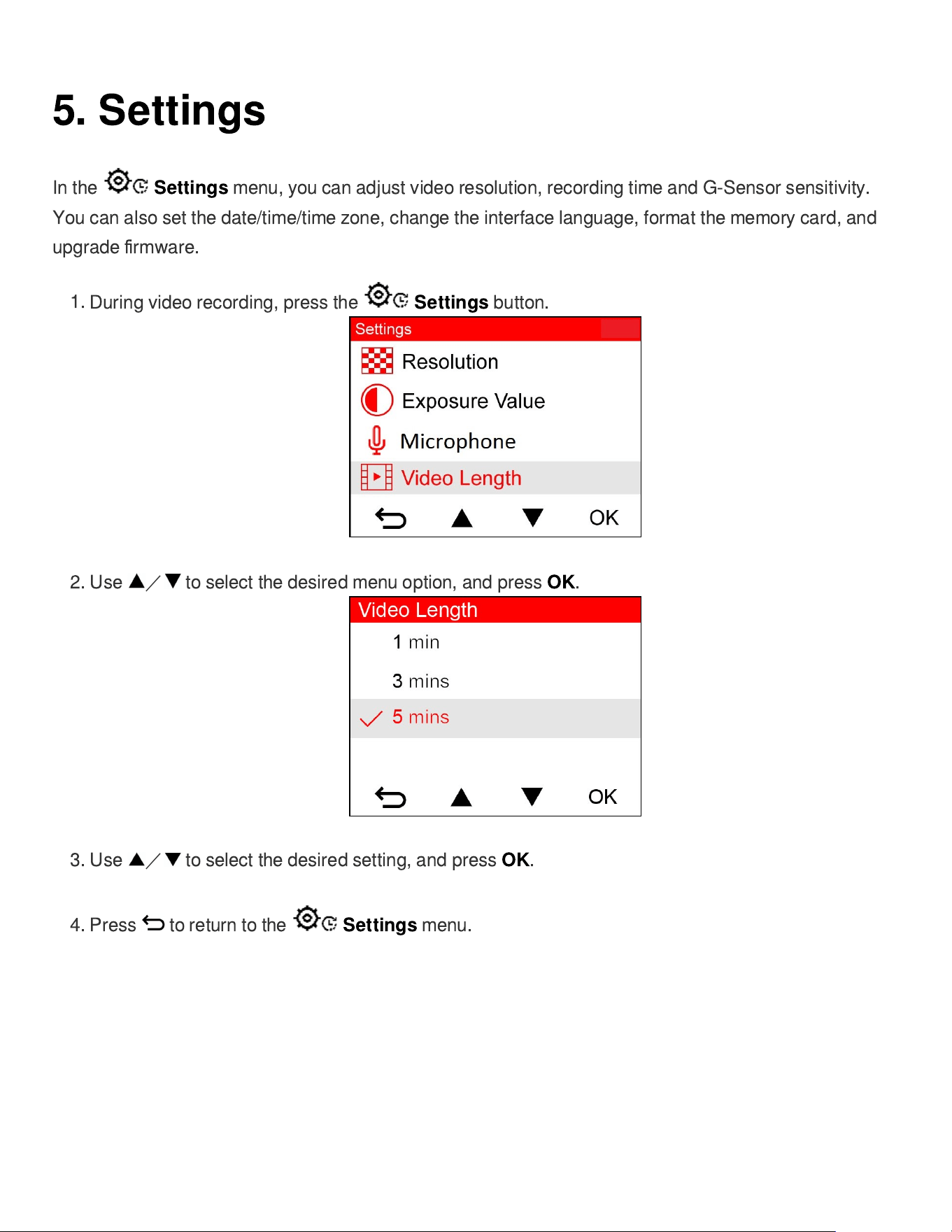
5. Settings
In the
Settings
menu, you can adjust video resolution, recording time and G-Sensor sensitivity.
You can also set the date/time/time zone, change the interface language, format the memory card, and
upgrade
fi
rmware.
1.
During video recording, press the
Settings
button.
2. Use
/
to select the desired menu option, and press
OK
.
3. Use
/
to select the desired setting, and press
OK
.
4.
Press to return to the
Settings
menu.
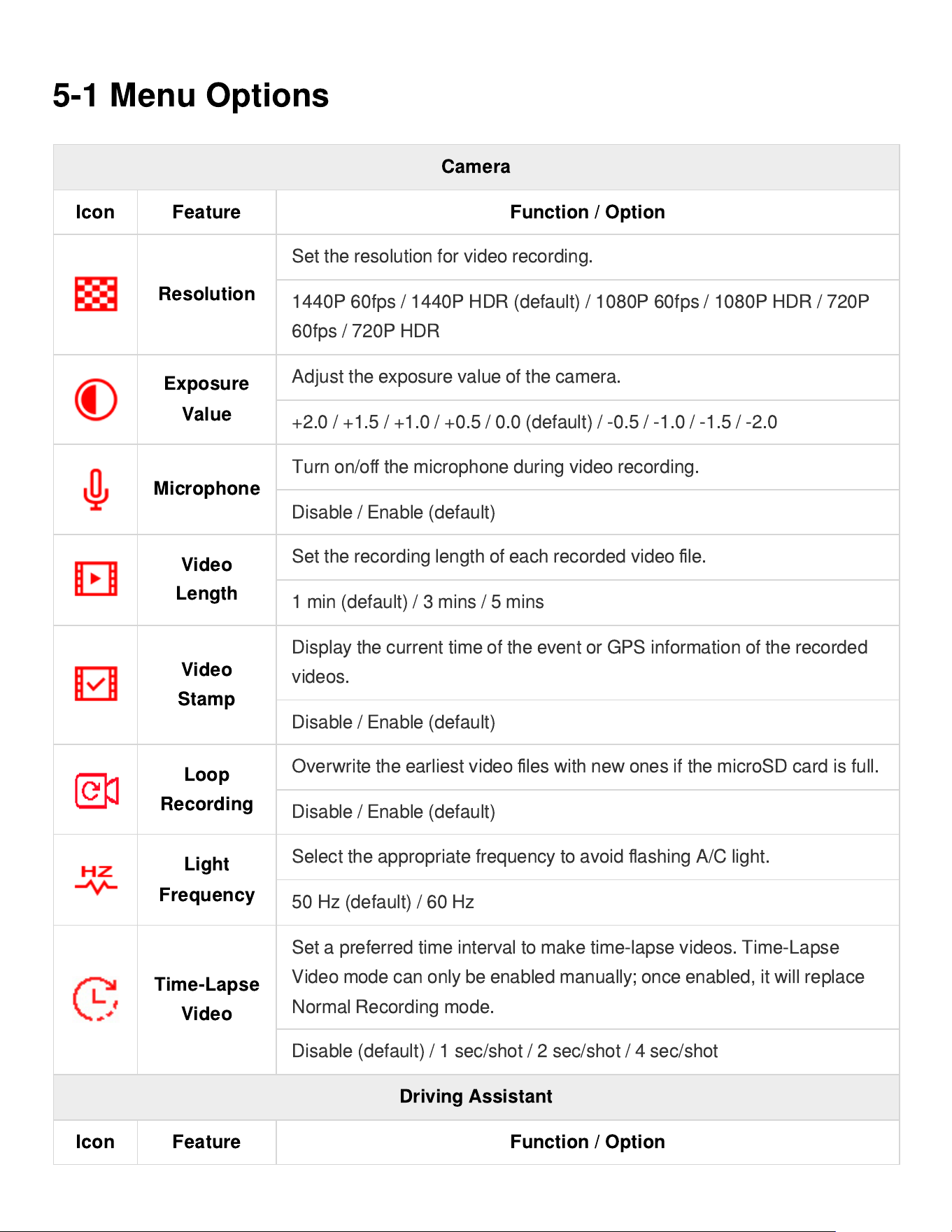
5-1 Menu Options
Camera
Icon Feature Function / Option
Resolution
Set the resolution for video recording.
1440P 60fps / 1440P HDR (default) / 1080P 60fps / 1080P HDR / 720P
60fps / 720P HDR
Exposure
Value
Adjust the exposure value of the camera.
+2.0 / +1.5 / +1.0 / +0.5 / 0.0 (default) / -0.5 / -1.0 / -1.5 / -2.0
Microphone
Turn on/o
ff
the microphone during video recording.
Disable / Enable (default)
Video
Length
Set the recording length of each recorded video
fi
le.
1 min (default) / 3 mins / 5 mins
Video
Stamp
Display the current time of the event or GPS information of the recorded
videos.
Disable / Enable (default)
Loop
Recording
Overwrite the earliest video
fi
les with new ones if the microSD card is full.
Disable / Enable (default)
Light
Frequency
Select the appropriate frequency to avoid
fl
ashing A/C light.
50 Hz (default) / 60 Hz
Time-Lapse
Video
Set a preferred time interval to make time-lapse videos. Time-Lapse
Video mode can only be enabled manually; once enabled, it will replace
Normal Recording mode.
Disable (default) / 1 sec/shot / 2 sec/shot / 4 sec/shot
Driving Assistant
Icon Feature Function / Option
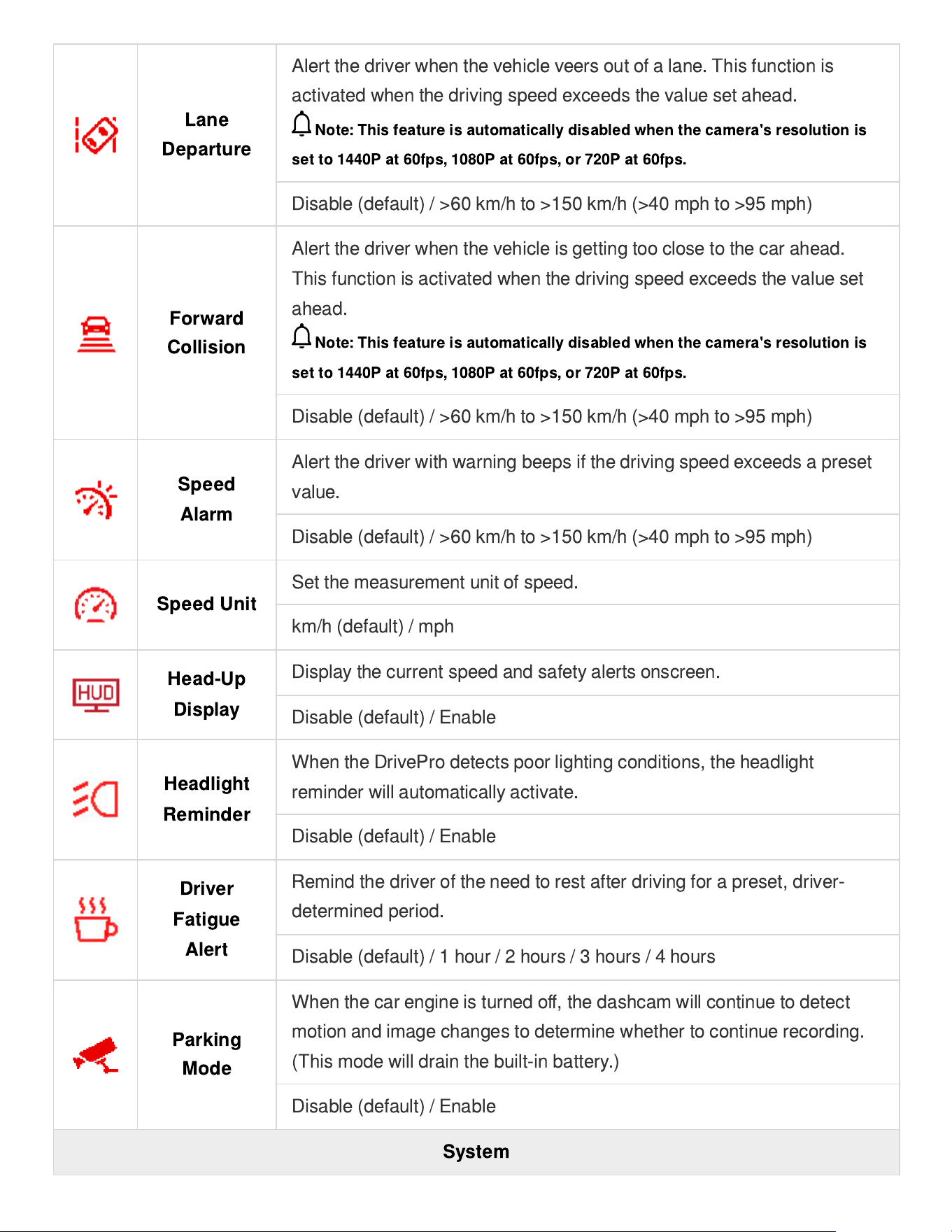
Lane
Departure
Alert the driver when the vehicle veers out of a lane. This function is
activated when the driving speed exceeds the value set ahead.
Note: This feature is automatically disabled when the camera's resolution is
set to 1440P at 60fps, 1080P at 60fps, or 720P at 60fps.
Disable (default) / >60 km/h to >150 km/h (>40 mph to >95 mph)
Forward
Collision
Alert the driver when the vehicle is getting too close to the car ahead.
This function is activated when the driving speed exceeds the value set
ahead.
Note: This feature is automatically disabled when the camera's resolution is
set to 1440P at 60fps, 1080P at 60fps, or 720P at 60fps.
Disable (default) / >60 km/h to >150 km/h (>40 mph to >95 mph)
Speed
Alarm
Alert the driver with warning beeps if the driving speed exceeds a preset
value.
Disable (default) / >60 km/h to >150 km/h (>40 mph to >95 mph)
Speed Unit
Set the measurement unit of speed.
km/h (default) / mph
Head-Up
Display
Display the current speed and safety alerts onscreen.
Disable (default) / Enable
Headlight
Reminder
When the DrivePro detects poor lighting conditions, the headlight
reminder will automatically activate.
Disable (default) / Enable
Driver
Fatigue
Alert
Remind the driver of the need to rest after driving for a preset, driver-
determined period.
Disable (default) / 1 hour / 2 hours / 3 hours / 4 hours
Parking
Mode
When the car engine is turned o
ff
, the dashcam will continue to detect
motion and image changes to determine whether to continue recording.
(This mode will drain the built-in battery.)
Disable (default) / Enable
System
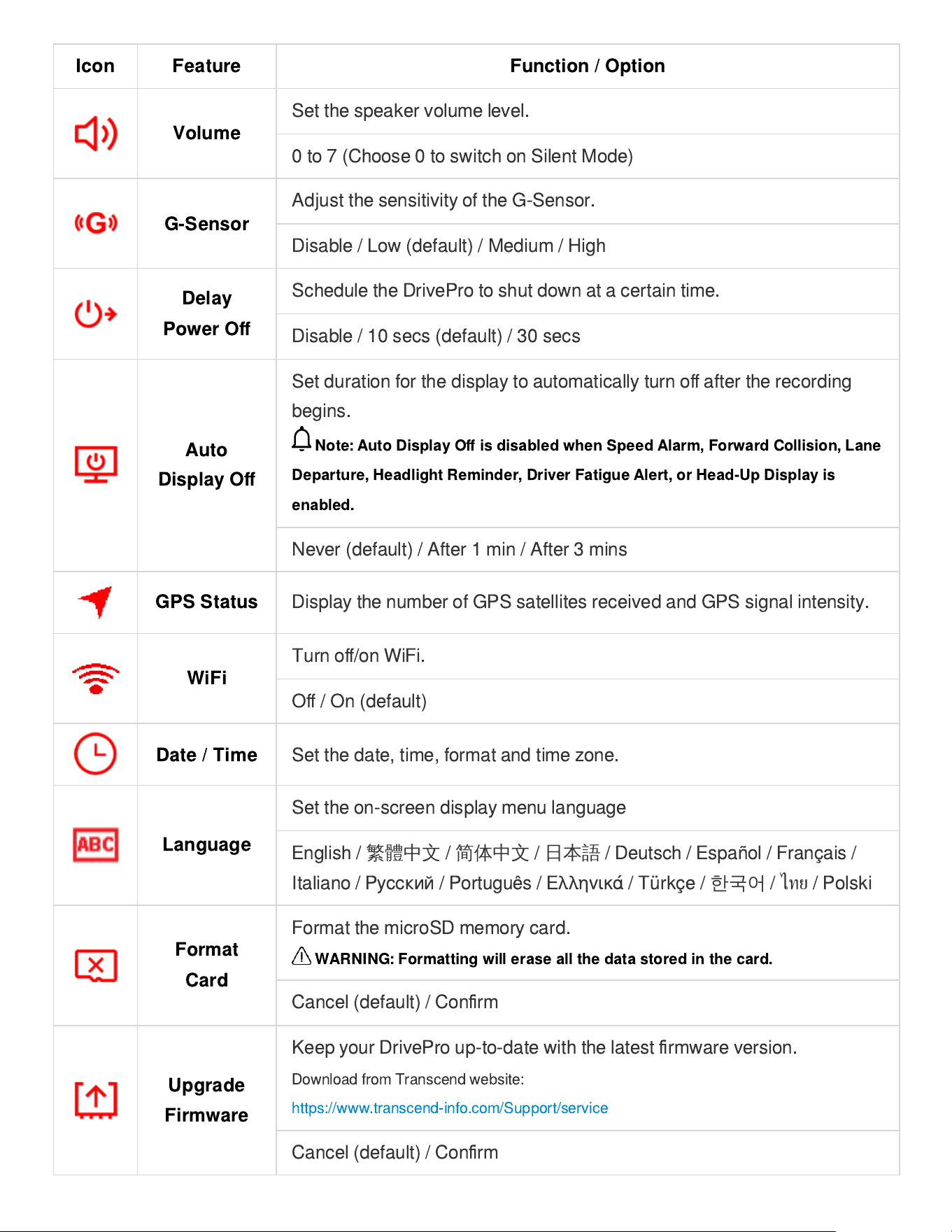
Icon Feature Function / Option
Volume
Set the speaker volume level.
0 to 7 (Choose 0 to switch on Silent Mode)
G-Sensor
Adjust the sensitivity of the G-Sensor.
Disable / Low (default) / Medium / High
Delay
Power O
ff
Schedule the DrivePro to shut down at a certain time.
Disable / 10 secs (default) / 30 secs
Auto
Display O
ff
Set duration for the display to automatically turn o
ff
after the recording
begins.
Note: Auto Display O
ff
is disabled when Speed Alarm, Forward Collision, Lane
Departure, Headlight Reminder, Driver Fatigue Alert, or Head-Up Display is
enabled.
Never (default) / After 1 min / After 3 mins
GPS Status
Display the number of GPS satellites received and GPS signal intensity.
WiFi
Turn o
ff
/on WiFi.
O
ff
/ On (default)
Date / Time
Set the date, time, format and time zone.
Language
Set the on-screen display menu language
English /
繁體中文
/
简体中文
/
日本語
/ Deutsch / Español / Français /
Italiano /
Русский
/ Português /
Ελληνικά
/ Türkçe /
한국어
/
ไ
ทย
/ Polski
Format
Card
Format the microSD memory card.
WARNING: Formatting will erase all the data stored in the card.
Cancel (default) / Con
fi
rm
Upgrade
Firmware
Keep your DrivePro up-to-date with the latest
fi
rmware version.
Download from Transcend website:
https://www.transcend-info.com/Support/service
Cancel (default) / Con
fi
rm
Restore
Defaults
Reset all settings to their factory defaults.
Cancel (default) / Con
fi
rm
Screen
Adjustment
Adjust the position of the recording screen.
Information
Display the DrivePro
’
s current
fi
rmware version, card capacity, WiFi
SSID, password, and model name/number.
5-2 Firmware Upgrade
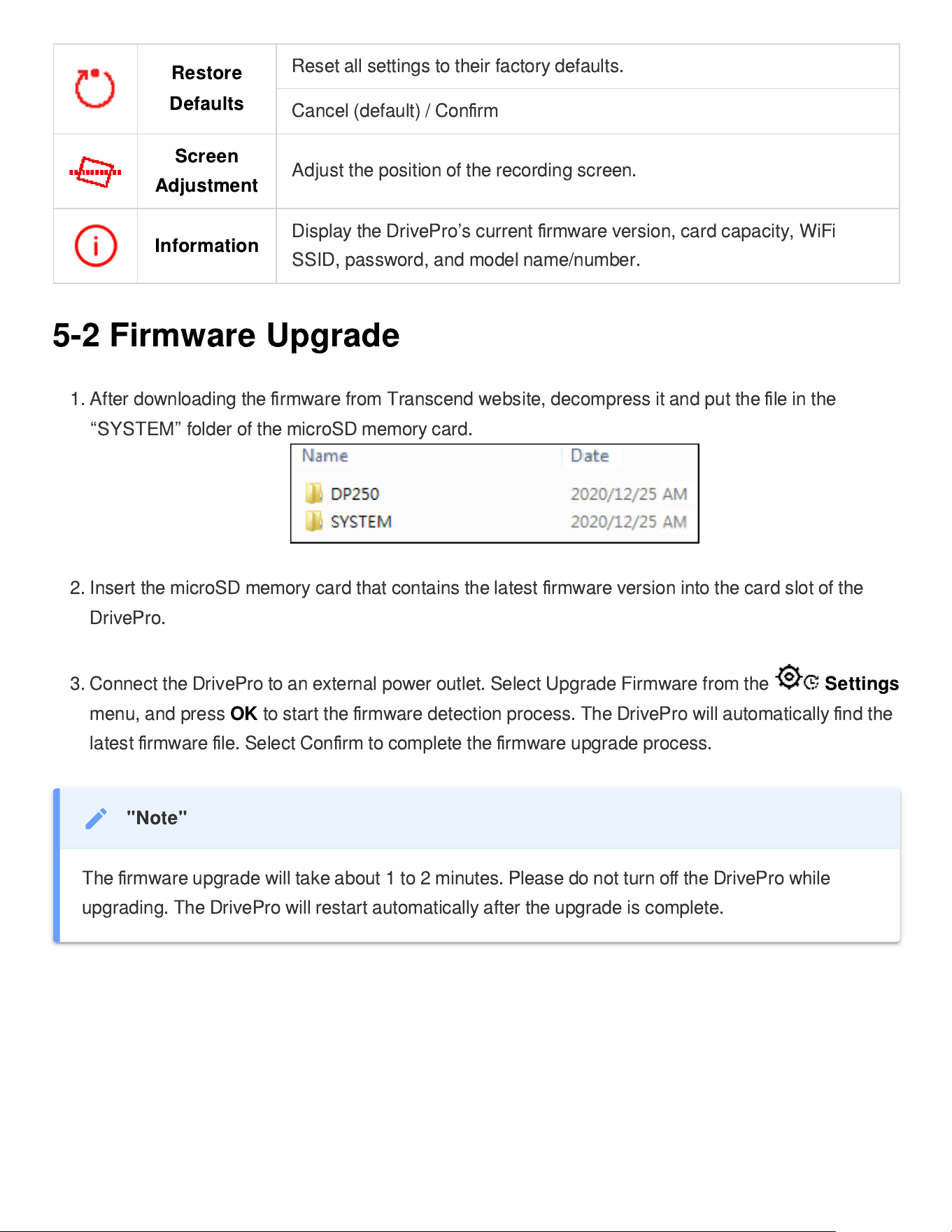
1. After downloading the
fi
rmware from Transcend website, decompress it and put the
fi
le in the
“
SYSTEM
”
folder of the microSD memory card.
2. Insert the microSD memory card that contains the latest
fi
rmware version into the card slot of the
DrivePro.
3.
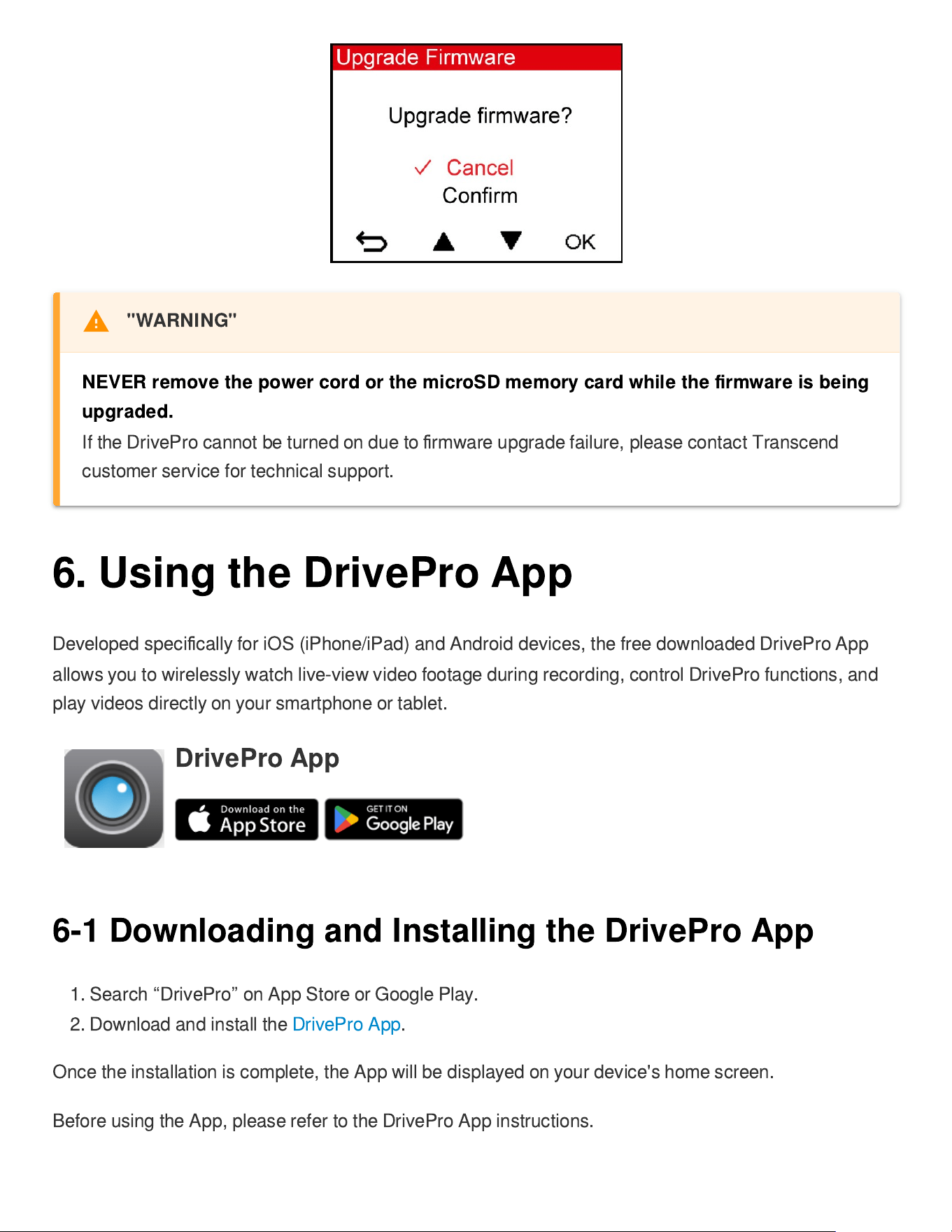
Connect the DrivePro to an external power outlet. Select Upgrade Firmware from the
Settings
menu, and press
OK
to start the
fi
rmware detection process. The DrivePro will automatically
fi
nd the
latest
fi
rmware
fi
le. Select Con
fi
rm to complete the
fi
rmware upgrade process.
"Note"
The
fi
rmware upgrade will take about 1 to 2 minutes. Please do not turn o
ff
the DrivePro while
upgrading. The DrivePro will restart automatically after the upgrade is complete.
6. Using the DrivePro App
Developed speci
fi
cally for iOS (iPhone/iPad) and Android devices, the free downloaded DrivePro App
allows you to wirelessly watch live-view video footage during recording, control DrivePro functions, and
play videos directly on your smartphone or tablet.
DrivePro App
6-1 Downloading and Installing the DrivePro App
1. Search
“
DrivePro
”
on App Store or Google Play.
2. Download and install the DrivePro App.
Once the installation is complete, the App will be displayed on your device's home screen.
Before using the App, please refer to the DrivePro App instructions.
"WARNING"
NEVER remove the power cord or the microSD memory card while the
fi
rmware is being
upgraded.
If the DrivePro cannot be turned on due to
fi
rmware upgrade failure, please contact Transcend
customer service for technical support.
6-2 Connecting to the DrivePro
1. Please connect your mobile device to the DrivePro using one of the following methods:
Option 1: Scan the WiFi QR code on the dashcam.
Press the
Power
button on the DrivePro.
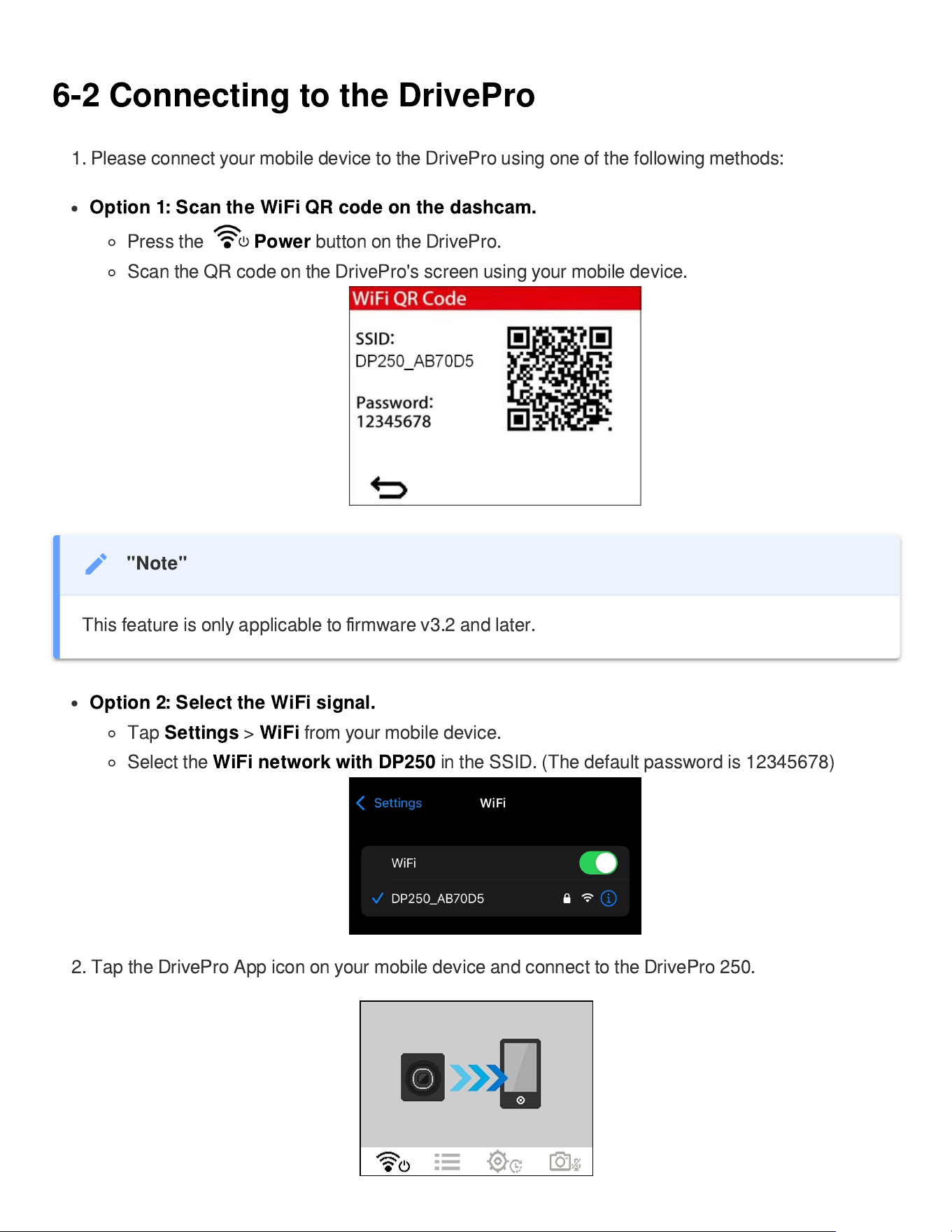
Scan the QR code on the DrivePro's screen using your mobile device.
Option 2: Select the WiFi signal.
Tap
Settings
>
WiFi
from your mobile device.
Select the
WiFi network with DP250
in the SSID. (The default password is 12345678)
2. Tap the DrivePro App icon on your mobile device and connect to the DrivePro 250.
"Note"
This feature is only applicable to
fi
rmware v3.2 and later.
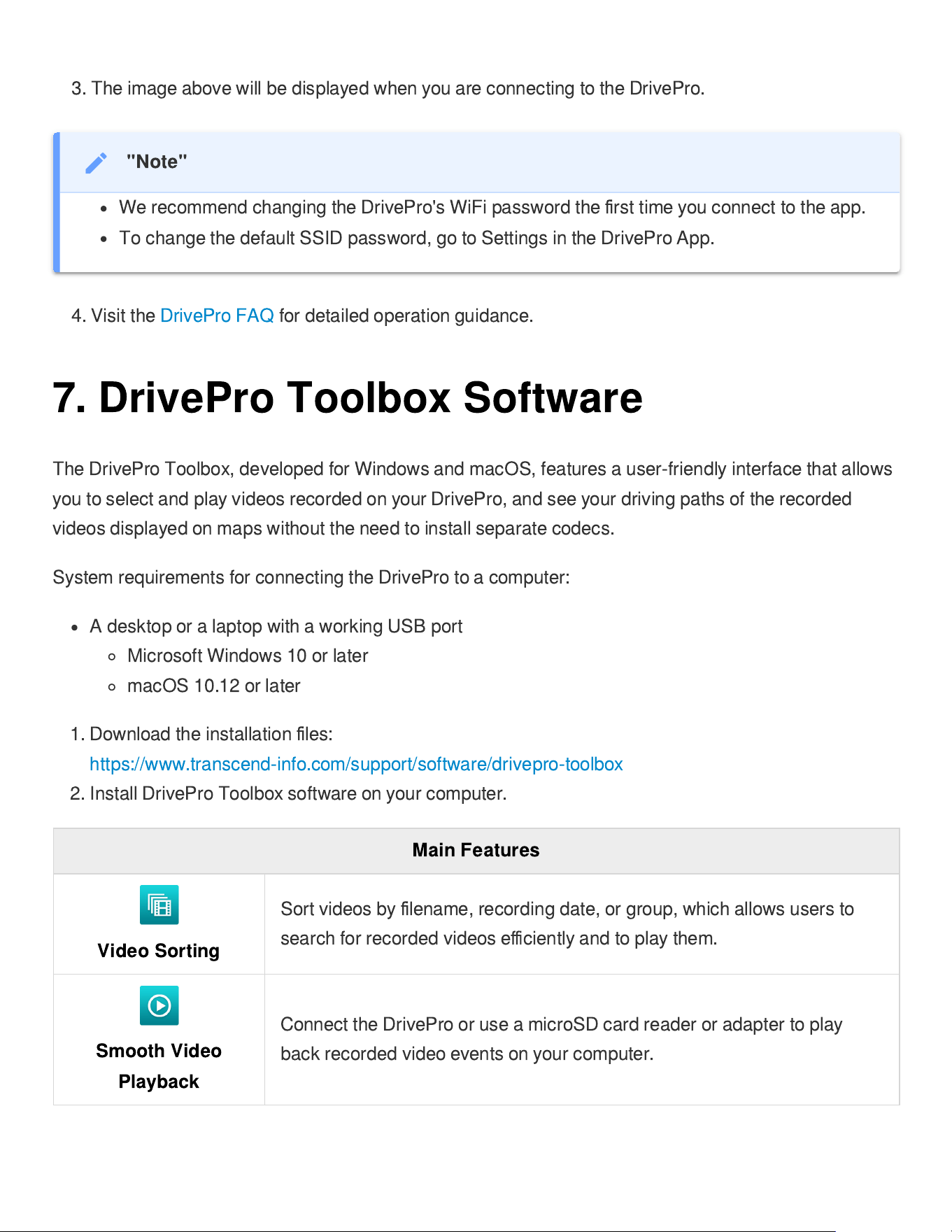
3. The image above will be displayed when you are connecting to the DrivePro.
4. Visit the DrivePro FAQ for detailed operation guidance.
7. DrivePro Toolbox Software
The DrivePro Toolbox, developed for Windows and macOS, features a user-friendly interface that allows
you to select and play videos recorded on your DrivePro, and see your driving paths of the recorded
videos displayed on maps without the need to install separate codecs.
System requirements for connecting the DrivePro to a computer:
A desktop or a laptop with a working USB port
Microsoft Windows 10 or later
macOS 10.12 or later
1. Download the installation
fi
les:
https://www.transcend-info.com/support/software/drivepro-toolbox
2. Install DrivePro Toolbox software on your computer.
Main Features
Video Sorting
Sort videos by
fi
lename, recording date, or group, which allows users to
search for recorded videos e
ffi
ciently and to play them.
Smooth Video
Playback
Connect the DrivePro or use a microSD card reader or adapter to play
back recorded video events on your computer.
"Note"
We recommend changing the DrivePro's WiFi password the
fi
rst time you connect to the app.
To change the default SSID password, go to Settings in the DrivePro App.
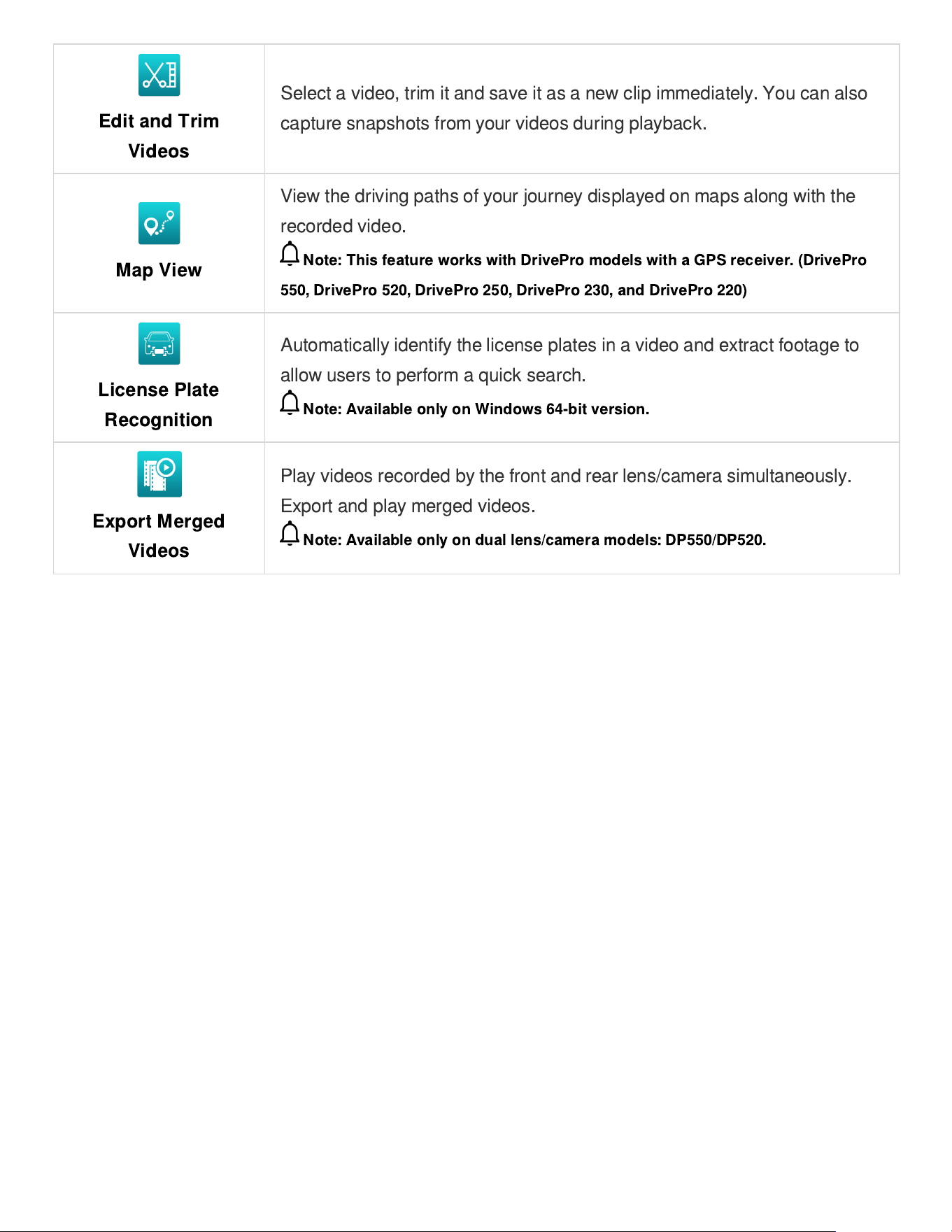
Edit and Trim
Videos
Select a video, trim it and save it as a new clip immediately. You can also
capture snapshots from your videos during playback.
Map View
View the driving paths of your journey displayed on maps along with the
recorded video.
Note: This feature works with DrivePro models with a GPS receiver. (DrivePro
550, DrivePro 520, DrivePro 250, DrivePro 230, and DrivePro 220)
License Plate
Recognition
Automatically identify the license plates in a video and extract footage to
allow users to perform a quick search.
Note: Available only on Windows 64-bit version.
Export Merged
Videos
Play videos recorded by the front and rear lens/camera simultaneously.
Export and play merged videos.
Note: Available only on dual lens/camera models: DP550/DP520.
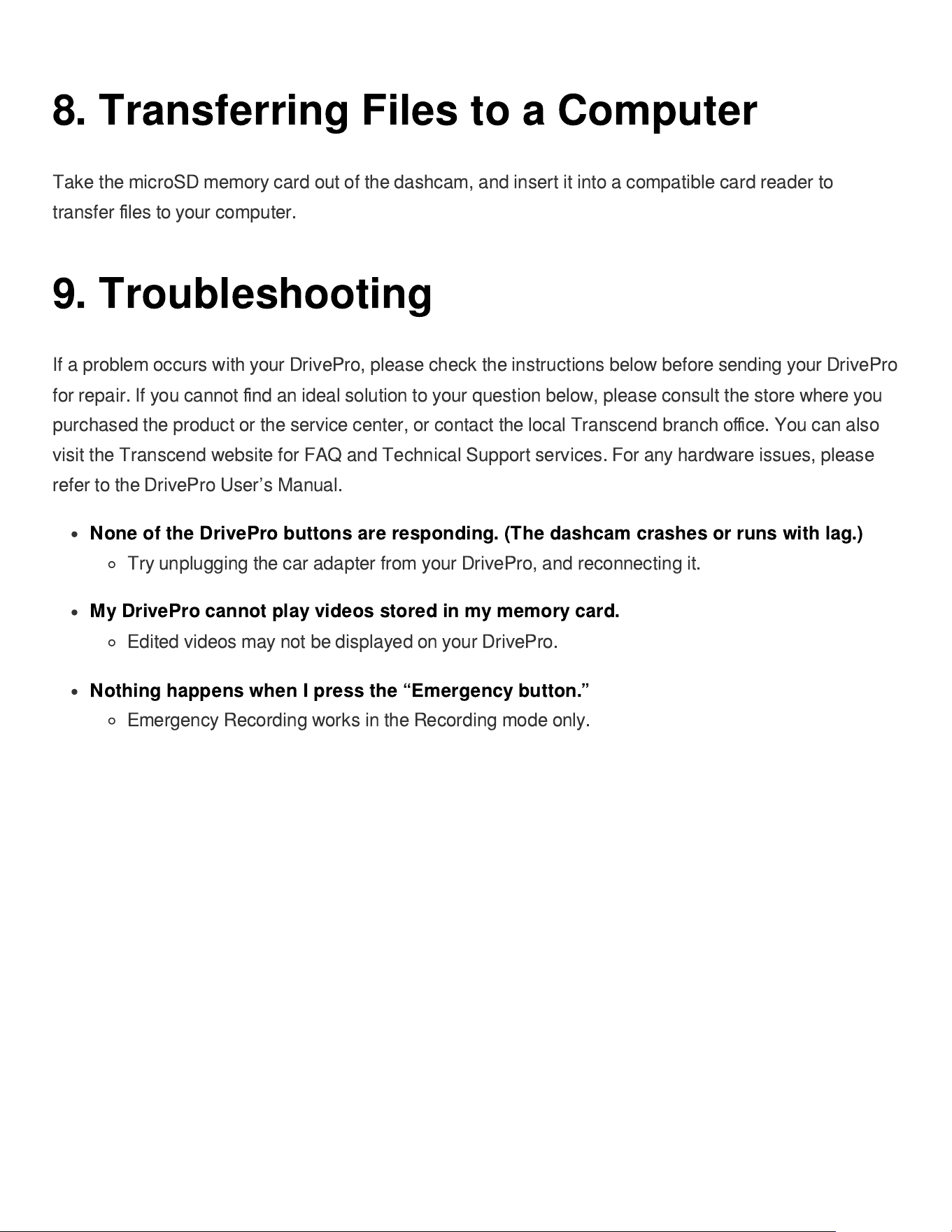
8. Transferring Files to a Computer
Take the microSD memory card out of the dashcam, and insert it into a compatible card reader to
transfer
fi
les to your computer.
9. Troubleshooting
If a problem occurs with your DrivePro, please check the instructions below before sending your DrivePro
for repair. If you cannot
fi
nd an ideal solution to your question below, please consult the store where you
purchased the product or the service center, or contact the local Transcend branch o
ffi
ce. You can also
visit the Transcend website for FAQ and Technical Support services. For any hardware issues, please
refer to the DrivePro User
’
s Manual.
None of the DrivePro buttons are responding. (The dashcam crashes or runs with lag.)
Try unplugging the car adapter from your DrivePro, and reconnecting it.
My DrivePro cannot play videos stored in my memory card.
Edited videos may not be displayed on your DrivePro.
Nothing happens when I press the
“
Emergency button.
”
Emergency Recording works in the Recording mode only.
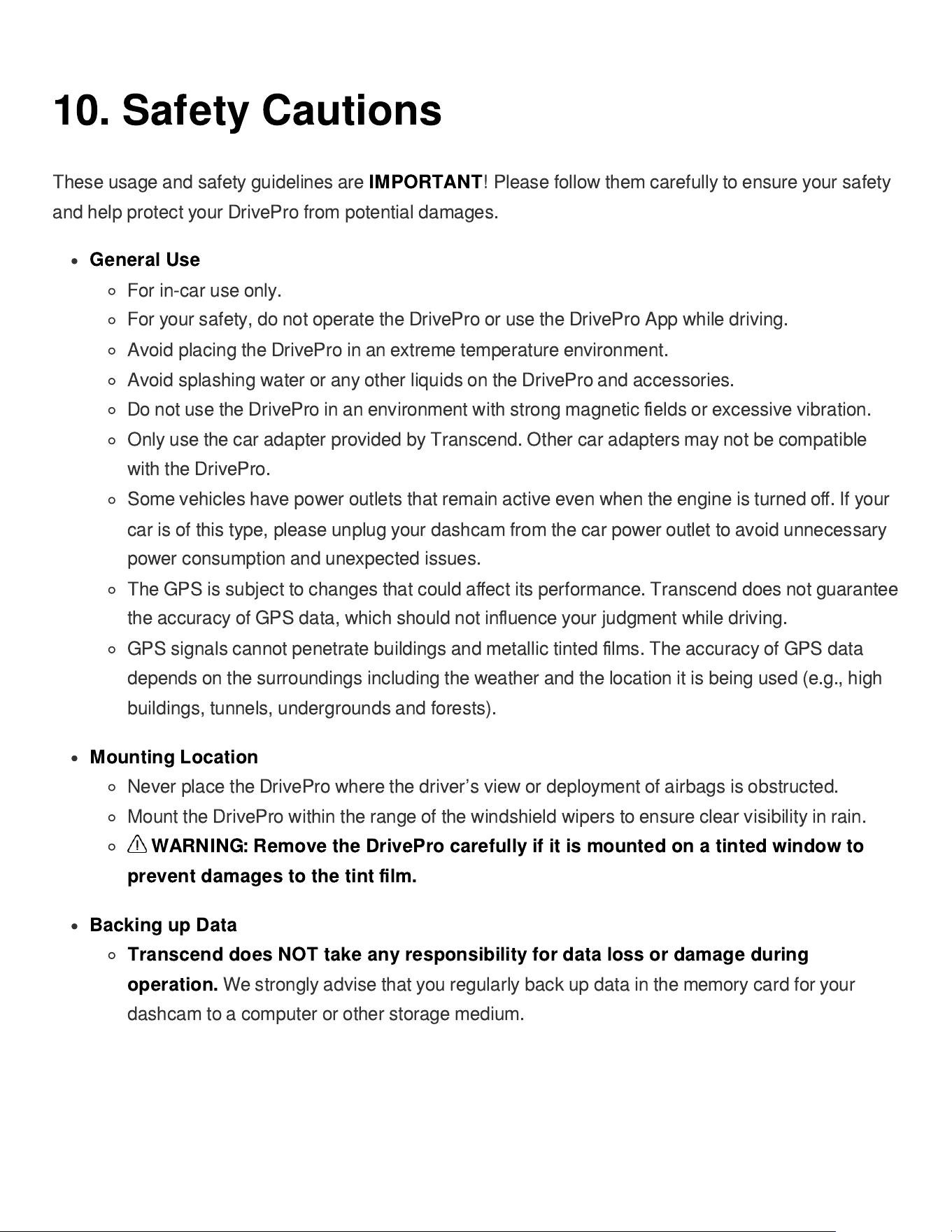
10. Safety Cautions
These usage and safety guidelines are
IMPORTANT
! Please follow them carefully to ensure your safety
and help protect your DrivePro from potential damages.
General Use
For in-car use only.
For your safety, do not operate the DrivePro or use the DrivePro App while driving.
Avoid placing the DrivePro in an extreme temperature environment.
Avoid splashing water or any other liquids on the DrivePro and accessories.
Do not use the DrivePro in an environment with strong magnetic
fi
elds or excessive vibration.
Only use the car adapter provided by Transcend. Other car adapters may not be compatible
with the DrivePro.
Some vehicles have power outlets that remain active even when the engine is turned o
ff
. If your
car is of this type, please unplug your dashcam from the car power outlet to avoid unnecessary
power consumption and unexpected issues.
The GPS is subject to changes that could a
ff
ect its performance. Transcend does not guarantee
the accuracy of GPS data, which should not in
fl
uence your judgment while driving.
GPS signals cannot penetrate buildings and metallic tinted
fi
lms. The accuracy of GPS data
depends on the surroundings including the weather and the location it is being used (e.g., high
buildings, tunnels, undergrounds and forests).
Mounting Location
Never place the DrivePro where the driver
’
s view or deployment of airbags is obstructed.
Mount the DrivePro within the range of the windshield wipers to ensure clear visibility in rain.
WARNING: Remove the DrivePro carefully if it is mounted on a tinted window to
prevent damages to the tint
fi
lm.
Backing up Data
Transcend does NOT take any responsibility for data loss or damage during
operation.
We strongly advise that you regularly back up data in the memory card for your
dashcam to a computer or other storage medium.
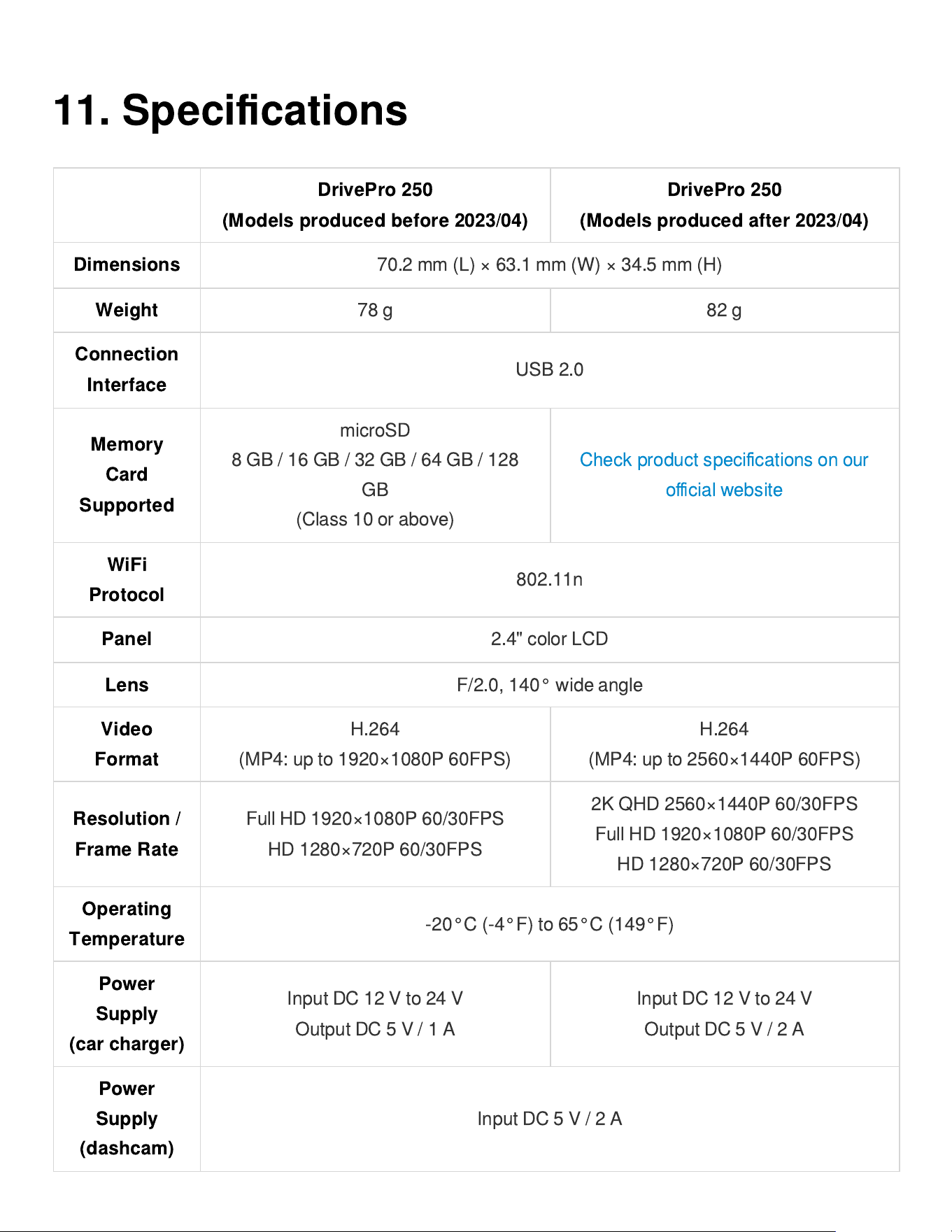
11. Speci
fi
cations
DrivePro 250
(Models produced before 2023/04)
DrivePro 250
(Models produced after 2023/04)
Dimensions
70.2 mm (L) × 63.1 mm (W) × 34.5 mm (H)
Weight
78 g 82 g
Connection
Interface
USB 2.0
Memory
Card
Supported
microSD
8 GB / 16 GB / 32 GB / 64 GB / 128
GB
(Class 10 or above)
Check product speci
fi
cations on our
o
ffi
cial website
WiFi
Protocol
802.11n
Panel
2.4" color LCD
Lens
F/2.0, 140° wide angle
Video
Format
H.264
(MP4: up to 1920×1080P 60FPS)
H.264
(MP4: up to 2560×1440P 60FPS)
Resolution /
Frame Rate
Full HD 1920×1080P 60/30FPS
HD 1280×720P 60/30FPS
2K QHD 2560×1440P 60/30FPS
Full HD 1920×1080P 60/30FPS
HD 1280×720P 60/30FPS
Operating
Temperature
-20°C (-4°F) to 65°C (149°F)
Power
Supply
(car charger)
Input DC 12 V to 24 V
Output DC 5 V / 1 A
Input DC 12 V to 24 V
Output DC 5 V / 2 A
Power
Supply
(dashcam)
Input DC 5 V / 2 A
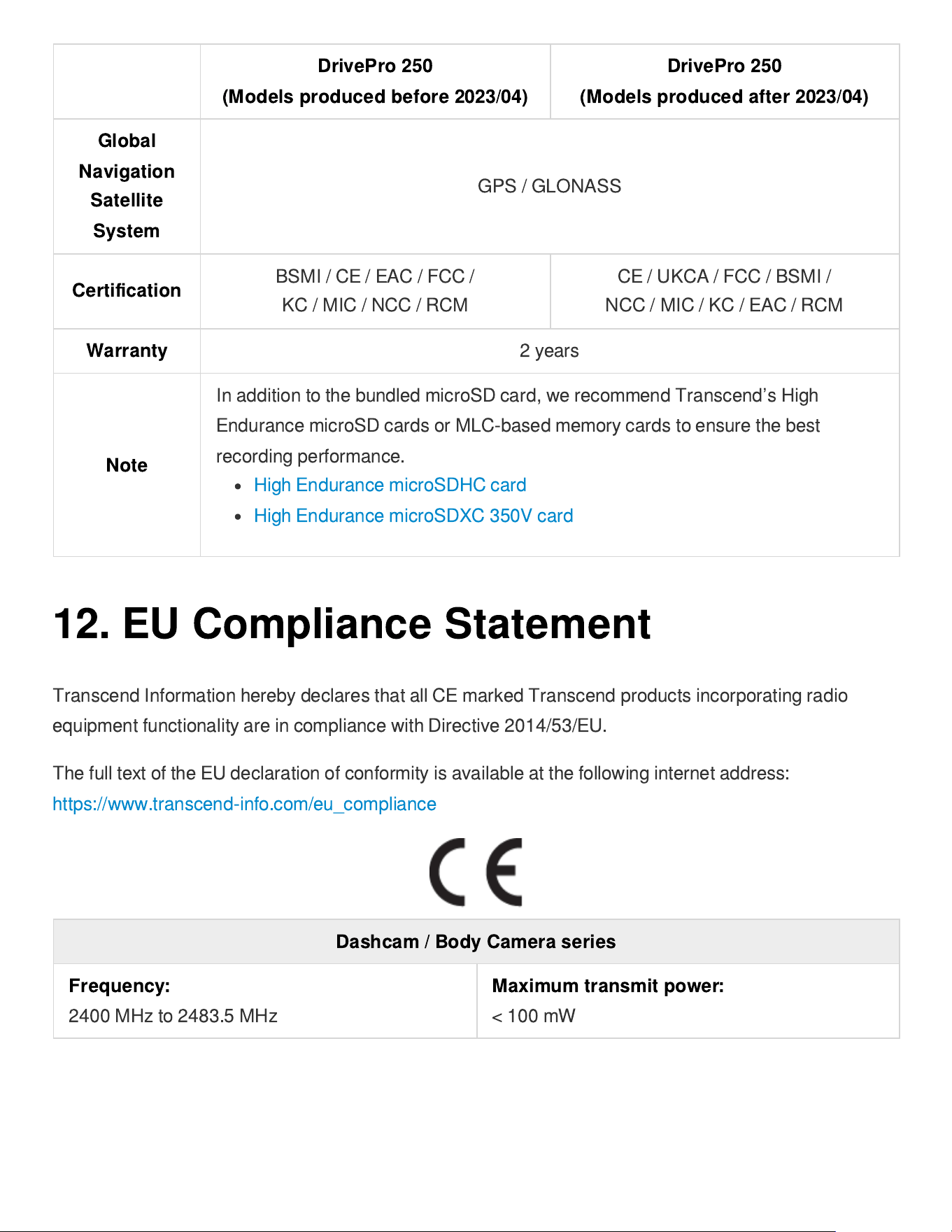
DrivePro 250
(Models produced before 2023/04)
DrivePro 250
(Models produced after 2023/04)
Global
Navigation
Satellite
System
GPS / GLONASS
Certi
fi
cation
BSMI / CE / EAC / FCC /
KC / MIC / NCC / RCM
CE / UKCA / FCC / BSMI /
NCC / MIC / KC / EAC / RCM
Warranty
2 years
Note
In addition to the bundled microSD card, we recommend Transcend
’
s High
Endurance microSD cards or MLC-based memory cards to ensure the best
recording performance.
High Endurance microSDHC card
High Endurance microSDXC 350V card
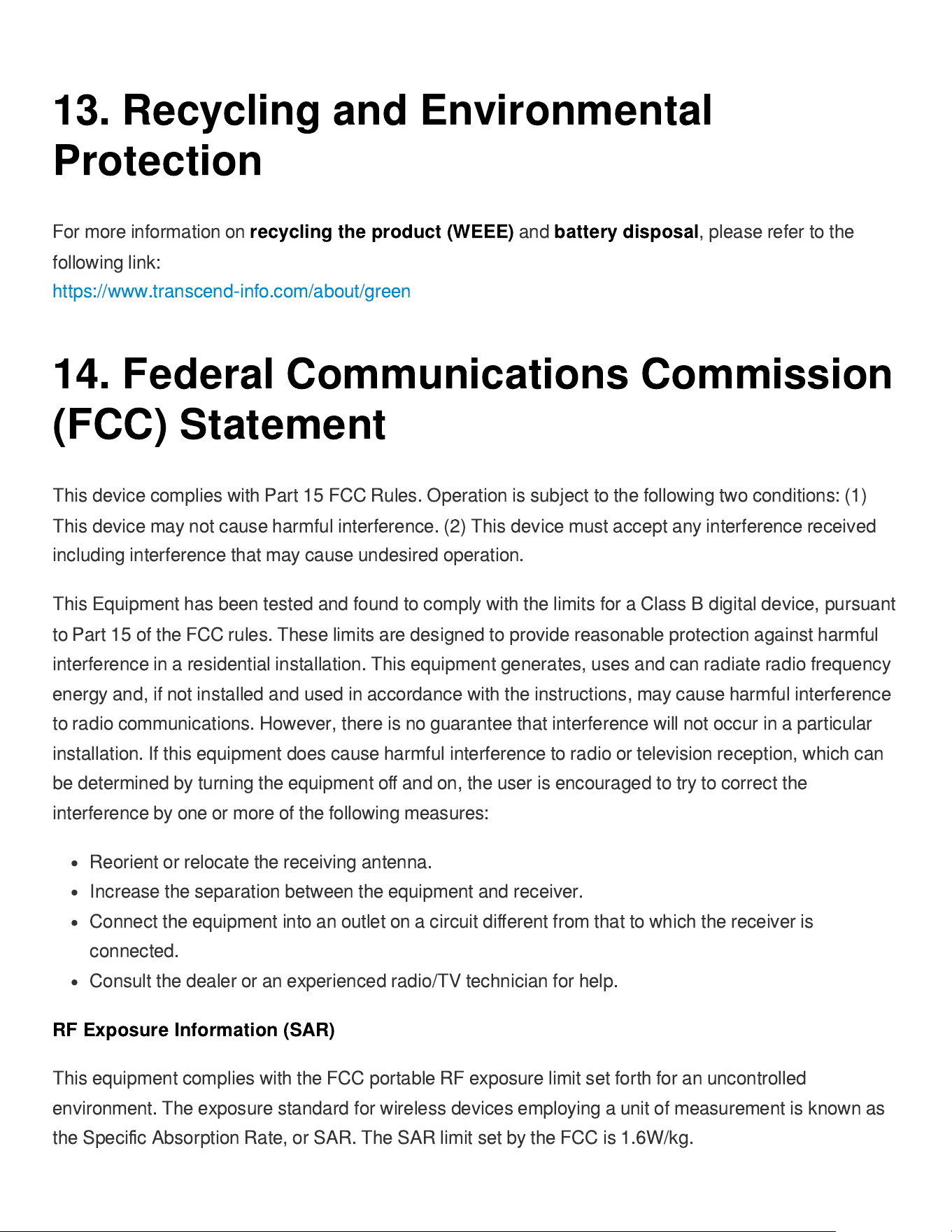
12. EU Compliance Statement
Transcend Information hereby declares that all CE marked Transcend products incorporating radio
equipment functionality are in compliance with Directive 2014/53/EU.
The full text of the EU declaration of conformity is available at the following internet address:
https://www.transcend-info.com/eu_compliance
Dashcam / Body Camera series
Frequency:
2400 MHz to 2483.5 MHz
Maximum transmit power:
< 100 mW
13. Recycling and Environmental
Protection
For more information on
recycling the product (WEEE)
and
battery disposal
, please refer to the
following link:
https://www.transcend-info.com/about/green
14. Federal Communications Commission
(FCC) Statement
This device complies with Part 15 FCC Rules. Operation is subject to the following two conditions: (1)
This device may not cause harmful interference. (2) This device must accept any interference received
including interference that may cause undesired operation.
This Equipment has been tested and found to comply with the limits for a Class B digital device, pursuant
to Part 15 of the FCC rules. These limits are designed to provide reasonable protection against harmful
interference in a residential installation. This equipment generates, uses and can radiate radio frequency
energy and, if not installed and used in accordance with the instructions, may cause harmful interference
to radio communications. However, there is no guarantee that interference will not occur in a particular
installation. If this equipment does cause harmful interference to radio or television reception, which can
be determined by turning the equipment o
ff
and on, the user is encouraged to try to correct the
interference by one or more of the following measures:
Reorient or relocate the receiving antenna.
Increase the separation between the equipment and receiver.
Connect the equipment into an outlet on a circuit di
ff
erent from that to which the receiver is
connected.
Consult the dealer or an experienced radio/TV technician for help.
RF Exposure Information (SAR)
This equipment complies with the FCC portable RF exposure limit set forth for an uncontrolled
environment. The exposure standard for wireless devices employing a unit of measurement is known as
the Speci
fi
c Absorption Rate, or SAR. The SAR limit set by the FCC is 1.6W/kg.
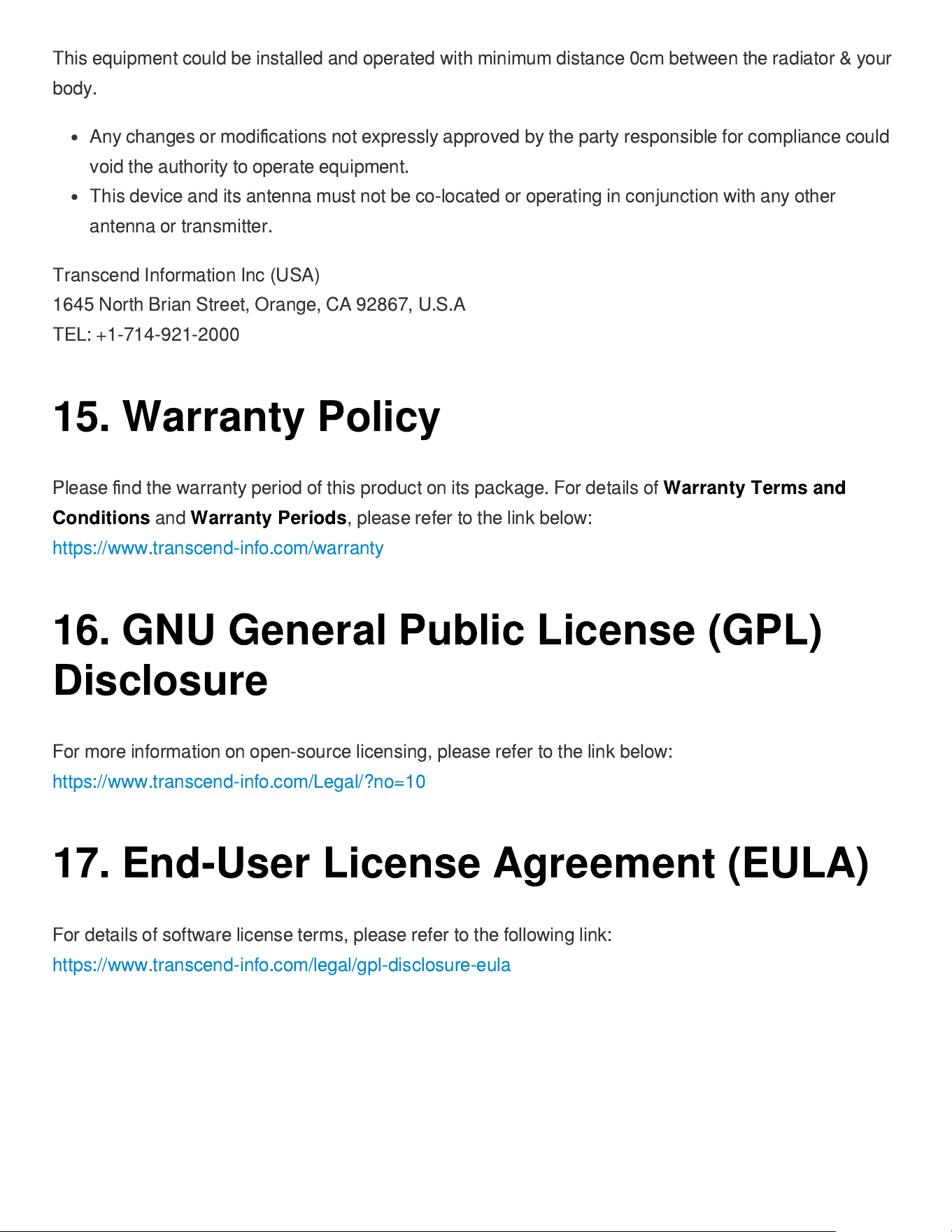
This equipment could be installed and operated with minimum distance 0cm between the radiator & your
body.
Any changes or modi
fi
cations not expressly approved by the party responsible for compliance could
void the authority to operate equipment.
This device and its antenna must not be co-located or operating in conjunction with any other
antenna or transmitter.
Transcend Information Inc (USA)
1645 North Brian Street, Orange, CA 92867, U.S.A
TEL: +1-714-921-2000
15. Warranty Policy
Please
fi
nd the warranty period of this product on its package. For details of
Warranty Terms and
Conditions
and
Warranty Periods
, please refer to the link below:
https://www.transcend-info.com/warranty
16. GNU General Public License (GPL)
Disclosure
For more information on open-source licensing, please refer to the link below:
https://www.transcend-info.com/Legal/?no=10
17. End-User License Agreement (EULA)
For details of software license terms, please refer to the following link:
https://www.transcend-info.com/legal/gpl-disclosure-eula

18. Eurasian Conformity Mark (EAC)