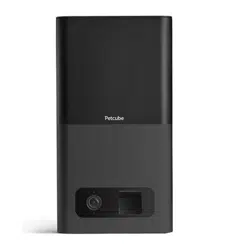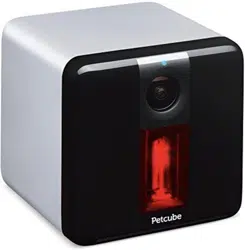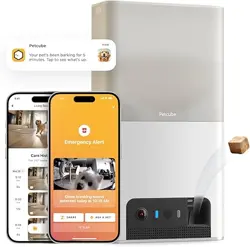
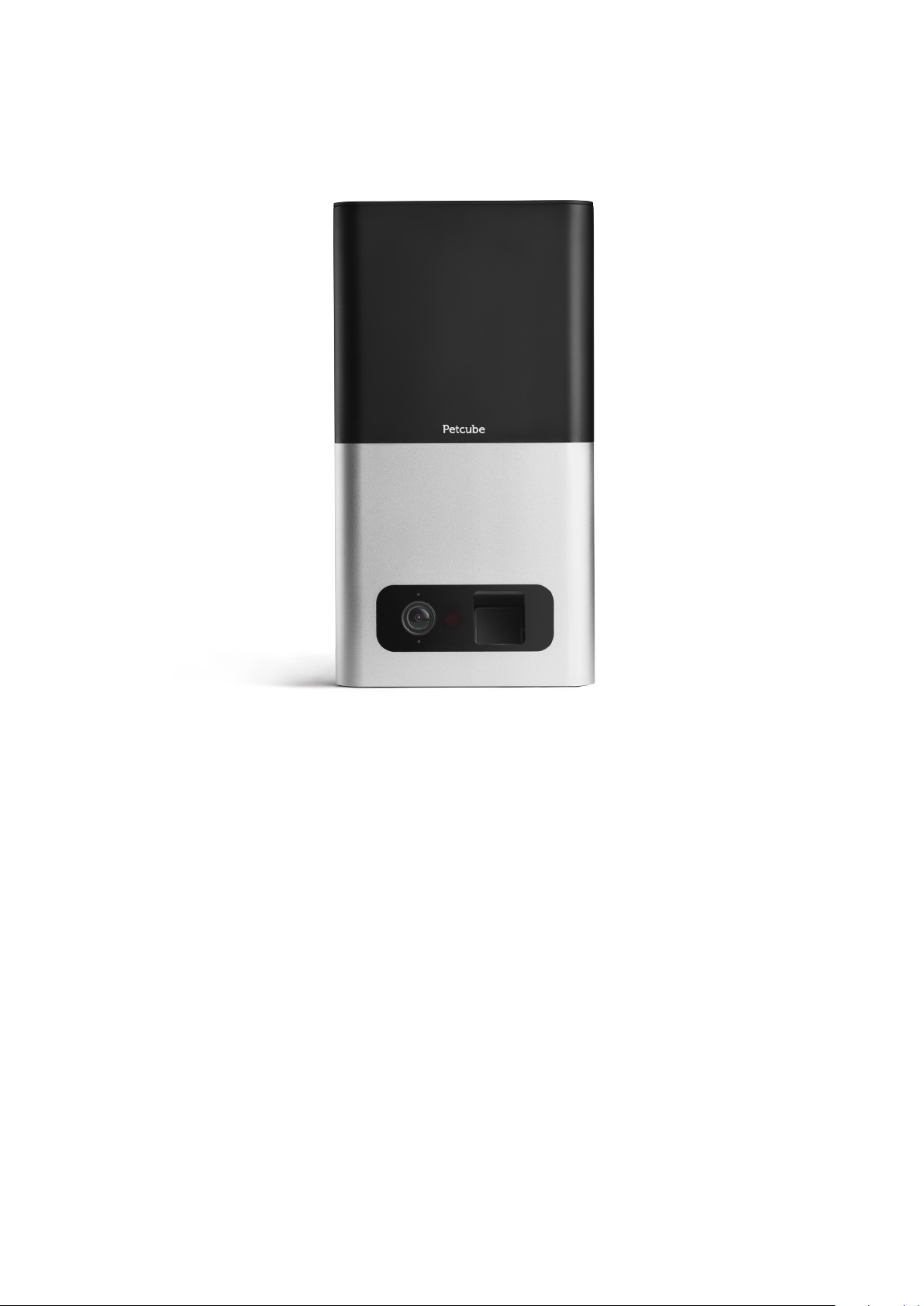
MEET YOUR
Petcube Bites

PETCUBE BITES SPECS
AND SYSTEM REQUIREMENTS
Petcube Bites features:
• 138° wide angle view
• 1080p HD video
• Treat dispenser
• 2-way audio
• Night vision
• 3x digital zoom
• Sound and motion alerts
Petcube Bites requires:
• Wi-Fi 802.11b/g/n, 2.4GHz, password protected
• Bluetooth Low Energy (BLE)
• iOS 8.4 and higher or Android 4.3 and higher
• Min 1 Mbps Upload speed on the Petcube
(recommended 2Mbps)
• Min 1 Mbit Download speed on the mobile device
(recommended 2Mbps)
1

SAFETY AND HANDLING
To avoid injuries or causing harm, read all safety information and operating
instructions prior to using Petcube.
• Don’t drop, hit, shake, or tumble your Petcube Bites camera.
• Don’t stain, scratch, or otherwise damage the front panel.
• Treats dispensed by Petcube Bites should not replace your pet’s
normal meals.
• Petcube Bites should not be used to dispense medication to your pet.
• Please keep in mind treat expiration dates and ensure you are only providing
your pets with fresh treats.
• To prevent mechanical problems, use only compatible treats.
• Be aware that using treats with your pet exposes them to choking hazards.
Ensure your pet is familiar with the treats you are using and, that you monitor
the consumption. You are not required to use any specific treats with
Petcube Bites.
• Petcube Bites should not be used by minors without supervision from
an adult.
• Don’t expose to liquid, moisture, dust, excessive heat, or naked flame.
• To avoid overheating, don’t leave Petcube Bites in direct sunlight.
• Protect the power cord from being walked on, pinched or chewed on by pets.
2

WHERE TO PLACE YOUR PETCUBE BITES
• Consider placing Petcube Bites in a location that allows for maximum
coverage through the camera’s 138° wide angle lens. It’s always a good idea
to point the Petcube Bites in the direction where your pets tend to spend
most of their time.
• If you want to place Petcube Bites on a table or shelf, we recommend you
set it up at least 3 feet above the floor. Petcube Bites has a non-slip rubber
bottom, which provides a secure grip on flat surfaces. The camera should
be placed closer to the edge of the surface for better viewing angle.
• If you decide to mount Petcube Bites securely on the wall, select your
preferred viewing height. Then, use the included mounting guide to mark
where to drill holes and two drywall anchor screws to affix the device.
3

GETTING STARTED
1. Setting up your Petcube Play camera on iOS device
To setup your Petcube, download Petcube application to your iOS device.
The Petcube app requires iOS 8.4 or greater and can be downloaded
in the App Store or at the link below:
www.petcu.be/ios-app-download
Connect your Petcube to a power source and wait up to a minute until the
LED light starts pulsing green. Open the Petcube app on your iOS device,
log in or sign up for a Petcube account using your email or Facebook
account. Go to the ‘Home’ tab, select ‘connect your device’ and pick your
Petcube from the list of options. Keep in mind that you may be asked
to turn on Bluetooth.
When the LED light on the camera is pulsing green, hit Next. To identify
the device, press ‘Select’ below the image of Petcube and hit ‘Next’ again
when the LED starts pulsing green rapidly. Wait for the app to exchange
data with the Petcube and scan for available Wi-Fi networks, then select
your home Wi-Fi network from the list, put in your network password and
hit ‘Join’. If you don’t see your home network on the list or if you’re using
a hidden network, connect to your home Wi-Fi by entering the name of your
network and password manually and then hit ‘Join’ (keep in mind that it is
case sensitive).
Once the LED light on your Petcube changes to solid white, you are ready
to play with your Petcube.
4

2. Setting up your Petcube Bites camera on Android device
To set up your Petcube, please download the Petcube App to your Android
device. The Petcube App requires Android 4.3 or greater and can be downloaded
in the Google Play Store or at the link below:
www.petcu.be/android-app-download
Connect your Petcube to a power source and wait up to a minute until the LED
light starts pulsing green. Open Petcube App on your Android device, log in or
sign up for a Petcube account using your email or Facebook account. Go to the
‘Home’ menu in the top left corner of the app, select ‘Add Camera’, and pick your
Petcube from the list of options. Keep in mind that you may be asked to turn on
Bluetooth.
When the LED light on the camera is pulsing green, hit Next. To identify the
device, press ‘Select’ below the image of Petcube and hit ‘Next’ again when the
LED starts pulsing green rapidly. Wait for the app to exchange data with the
Petcube and scan for available Wi-Fi networks, then select your home Wi-Fi
network from the list, put in your network password and hit ‘Join’. If you don’t
see your home network on the list or if you’re using a hidden network, connect
to your home Wi-Fi by entering the name of your network and password
manually and then hit ‘Join’ (keep in mind that it is case sensitive)
Once the LED light on your Petcube changes to solid white, you are ready to play
with your Petcube.
3. Playing with your Petcube Bites
If you successfully registered your Petcube Bites and the LED light on it glows
white, go to the ‘Home’ tab in the Petcube App and press the ‘Play’ icon at
the top. To fling treats, use the bone icon in the bottom right corner of the app
while in play mode, then hold down the bone icon in the middle of the screen

and swipe up to select how far you want to fling the treats: you can select
close, medium and long shots. To enable audio, select the ‘Settings’ icon in
the top right corner of the screen.
4. Where to place your Petcube Bites
Consider placing Petcube Bites in a location that allows for maximum
coverage through the camera’s 138° wide angle lens. It’s always a good idea
to point the Petcube Bites in the direction where your pets tend to spend
most of their time.
If you want to place Petcube Bites on a table or shelf, we recommend you
set it up at least 3 feet above the floor. Petcube Bites has a non-slip rubber
bottom, which provides a secure grip on flat surfaces. The camera should
be placed closer to the edge of the surface for better viewing angle.
If you decide to mount Petcube Bites securely on the wall, select your
preferred viewing height. Then, use the included mounting guide to mark
where to drill holes and two drywall anchor screws to affix the device.
5. How to acclimate your pet to Petcube Bites
Some pets may need an adjustment period to get used to Petcube Bites.
Follow these simple steps to successfully introduce Bites to your pet:
• Take time to positively introduce Bites to your pet. Let them smell
and inspect the device before you start operating it.
• Introduce them to the idea that treats will come out and give your pet
a positive association with the device. Toss treats to your pet as though
they’re coming from the device. Put a treat into the dispensing hole and
let them smell and see it.
• Disable the sound in settings to avoid your pet being alarmed by
the speaker.

• Stay in the room with your pet the first time you launch treats to provide
encouragement and comfort.
• Make sure your pet is not directly in front of the launcher.
It is recommended to setup the device on a counter/shelf or wall mount it.
6. Treat recommendations
• Treats should be uniform in size (ideally spherical), no smaller than 0.3
inches and no larger than 1 inch in length. The treat hopper can fit up to 2
lbs of treats.
• Treats must be dry and hard.
• Treats should not be greasy, soft, sticky or crumbly.
• Use treats that are all the same size and shape.
• For smaller size treats, multiple treats may be dispensed at once.
Close the container lid for an airtight seal to keep treats fresh and so
no odors get out.
7. Cleaning made simple
The detachable treat container is dishwasher safe on lower temperature/
delicate cleaning settings (up to 130’F), or you can wash it by hand.
Do not use abrasive cleaners on the container, only liquid detergents
and soft sponges.
To detach the treat container, push the back release button to the right
and pull up and away from the base.
8. Amazon Dash Service
Petcube Bites is integrated with Amazon Dash Replenishment Service (DRS)
to allow for automatic treat refillment from Amazon when supplies run

low. Control this option through the Petcube app and enjoy convenient
reordering and shipment of your treats from Amazon.
9. Taking screenshots and recording video
In order to take a snapshot of the live stream from your Petcube, you need
to tap the Photo Camera icon on the bottom left while in play mode. You’ll
get two options: ‘Share’ and ‘Done’. When selecting ‘Done,’ the screenshot
will be automatically saved to your phone’s storage. By selecting ‘Share,’
you will have the option of sharing it via Facebook, Instagram or Twitter.
To start recording a live stream, tap the Video Camera icon at the bottom
right while in play mode. To stop recording, tap the ‘Stop’ icon and
the video will automatically be saved to your phone’s storage. Sound
recording is currently unavailable.
10. Using Zoom feature
Petcube app now comes with the 3x digital zoom feature. Just connect
to your Petcube in the app, pinch-to-zoom in the image during the game,
and pan around to see the whole scene.
11. Using Night Vision
Petcube comes with the infrared sensor capable of streaming clear black
and white video in pitch dark. When the sensor detects a low level
of ambient light, your Petcube camera will automatically activate the Night
Vision mode.
12. Volume control
To configure the volume level on your Petcube, open the Petcube App
on your device, go to the camera ‘Settings’ in the upper right corner, and

adjust the volume level under ‘Camera Volume’.
Keep in mind that in order to be able to change the settings on your Petcube,
it needs to be in standby mode (steady white light).
13. Sound alert at the start of a call
To attract your pet’s attention and be aware of when someone connects to your
Petcube in accordance with your sharing settings, at the start of every call your
Petcube will play a sound alert. This can be easily switched off in the ‘Settings’
menu in the Petcube App.
14. Sharing access to your Petcube Bites
By default, only you can access your Petcube video stream, but you can share
access to your Petcube with your family, friends and anyone who installs
the Petcube App on their smartphone.
While family members will have full control of your camera, friends can only see
it as a publicly shared Petcube on the ‘Play’ tab at specifically scheduled times
and days. You can also configure whether they have access to treat controls
and 2-way audio.
To share access to family members or friends, open the Petcube App, go to
the ‘Home’ tab, select ‘Sharing’ in the upper right corner, select the sharing
option you want and add the user you want to either ‘Family’ or ‘Friend.’
To delete a user from your ‘Family’ or ‘Friends’ list, go to ‘Sharing’ settings again,
find their username and swipe it left to ‘Delete’ or ‘Unfriend’.
You can also share your Petcube with any Petcube app user by choosing
the ‘Public’ sharing option. Configure treat controls and sound availability
and schedule sharing time according to your needs.

15. Using motion and sound detection
If you are not using Petcube Care cloud-based video storage service, the Petcube
App can send push notifications to your smartphone whenever motion or sound
is detected on your Petcube Bites. To enable push notifications, open
the Petcube App, go to the ‘Home’ tab, select ‘Settings’ in the upper right corner
and switch on ‘Motion Detection’ and ‘Sound Detection’.
Keep in mind that in order to be able to change the settings on your Petcube,
it needs to be in standby mode (steady white light).
If you are using Petcube Care, the Petcube App will record videos triggered by
motion and sound detection and you can configure push notifications to be sent
as soon as new video recordings are available.
16. Setting up multiple Petcube cameras to one account
To register multiple cameras in a single account, launch the Petcube app
and swipe left at the top of the ‘Home’ tab. Then, press the ‘Tap to connect your
device’ icon. Select your Petcube in the list and follow the instructions.
To register each additional device, repeat this process.
17. Registering Petcube to a different account
Be aware that a Petcube can only be registered to one user. You cannot register
it under multiple accounts, but you can share access to it with other users using
various sharing options.
If you need to register a Petcube to a different account, simply delete the camera
from the account it is currently registered to, open the Petcube App, go to
the ‘Home’ tab, select ‘Settings’ and tap ‘Disconnect camera’.

18. Deleting the Petcube device
To delete the Petcube from your account, open the Petcube App, go
to the ‘Home’ tab, select ‘Settings,’ and tap ‘Disconnect camera.’ Confirm
by choosing ‘Delete’.
19. Resetting user account password
If you forgot your password, open the Petcube App on your mobile device,
tap ‘Log In,’ enter your email address, and tap on ‘Forgot password’
at the bottom of the screen. Check your email and follow the instructions
to reset your password.
20. Changing your account name, username or password
To change your account details such as your name, username or password, open
the Petcube App, go to the ‘Profile’ tab, then ‘Settings’, and tap the values you
want to change.
21. Connecting Petcube without using Wi-Fi
The Petcube has no Internet access and can be connected to the Internet only
through a Wi-Fi network. Minimum Internet speed requirements are:
• 1 Mbps Upload speed on the Petcube
• 1 Mbps Download speed on the mobile device
Recommended:
• 2 Mbps Upload speed on the Petcube
• 2 Mbps Download speed on the mobile device

22. Moving your Petcube Bites to a different location
As long as the Petcube Bites is within range of your wireless network, you can
reposition it according to your needs.
However, if you’re trying to use it in a different Wi-Fi environment or want to
connect the camera to a different wireless network, you need to change the Wi-Fi
settings in the Petcube App.
To do that, open the Petcube App, go to the ‘Home’ tab, select ‘Settings’, then
‘Wi-Fi’. Power up your Petcube Bites, wait 1 minute until it starts up, find a reset
pin that came with your Petcube, find the small hole below the USB port on
the left side of the Petcube Bites, insert the reset pin into it, hold it down for 3
seconds until the light turns green and follow the steps on your screen.
23. Changing Wi-Fi settings or connecting Petcube to a different network
If you need to either change the Wi-Fi settings on your Petcube Bites or connect
it to a different network, open the Petcube App, go to the ‘Home’ tab, select
‘Settings’, then ‘Wi-Fi’. Power up your Petcube Bites, wait 1 minute until it starts
up, find a reset pin that came with your Petcube, find the small hole below
the USB port on the left side of the Petcube Bites, insert the reset pin into it,
hold it down for 3 seconds until the light turns green and follow the steps
on your screen.
24. Turning your Petcube Bites off remotely
Currently, there is no option to turn off the camera remotely from the Petcube
App. But if you’re sharing access to it, you can disable it in the ‘Settings’ menu.
To disable sharing, go to the ‘Home’ tab, then tap the ‘Settings’ icon in the upper
right corner, and select ‘Sharing’. To disable sharing for friends, simply switch it
off. To stop public sharing, just tap ‘Stop sharing’. To disable family sharing, just
remove users from your family list by swiping their usernames to the left.

25. What is Facebook Live?
Facebook Live is a feature available to iOS Petcube app users that allows them
to live stream video from a Petcube camera device directly to their personal
or business Facebook feed.
Petcube is the first HD pet camera to broadcast live on Facebook.
26. How does Facebook Live work?
To enable live streaming to Facebook, connect to your or a shared Petcube
camera device’s live video feed in the Petcube App, hit the Facebook icon
in the bottom right corner and follow the prompts. You can choose to stream
to your personal or business Facebook feed.
Once the ‘Live’ red icon appears in the bottom right corner, your live stream
is on. To stop live streaming, tap the ‘Stop’ icon and the video will be saved
to the Facebook profile you are streaming to.
Keep in mind, if you have a shared access to your Petcube camera device, other
members of the Petcube community can stream videos from your camera
directly to their Facebook pages.
27. Can I take photos and save videos to my phone during Facebook live
streaming?
You can take a photo snapshot of your Petcube camera device’s video feed
during live streaming to Facebook. In order to do that, you need to tap the Photo
Camera icon on the bottom left of the screen.
While you are live streaming to Facebook, video recording to your own device
is disabled.

28. I don’t see an option for Facebook Live
The Facebook Live feature is currently available for iOS Petcube users only.
To use Facebook Live, you need to have the most recent version of the Petcube
App and the most recent firmware version on your Petcube camera device.
If your app’s version is current, please contact our support team to request
a firmware update.

1. What is Amazon Dash Replenishment Service
Amazon Dash Replenishment Service is an optional subscription-based service
that enables connected devices (like Petcube Bites treat camera) to automatically
order refills from Amazon when supplies run low.
Control the DRS option through the Petcube App and enjoy convenient
reordering and shipment of your treats from Amazon.
2. How does Amazon Dash Replenishment Service work with Petcube Bites
Through the Petcube App, you pair Petcube Bites to your Amazon account with
an easy one-time setup process. Note that DRS is a completely optional feature.
Petcube Bites treat camera has built-in sensors to monitor treat supply. Amazon
then processes and ships you a new order of treats when supply runs low. You
can monitor your reorder status and settings through your Amazon account,
and get support from Amazon’s customer care team.
For Petcube Bites’ sensors to accurately capture the treat level, please fill
the container as much as possible with treats.
3. What if I can’t find the treats I want through Amazon DRS via
the Petcube App
With the initial launch, we have a limited number of Wellness varietal treats
compatible with the Petcube Bites treat camera. We will continue to add new dog
and cat treat options in the near future. If you have a specific request for a brand
or make of treats, please let our support team know. Better yet, tell us what you
think by filling out a short survey on our website or contacting us
WHAT IS AMAZON DASH REPLENISHMENT
SERVICE AND HOW DOES IT WORK WITH
PETCUBE BITES
5

To start, a complimentary pack of Wellness® dog treats comes with each Petcube
Bites treat cam. Through our partnership with Wellness, you can reorder
the same brand of treats and varietal pack via Petcube App (linked with DRS).
Petcube Bites owners always have the flexibility to buy their preferred brands
and products.
4. How do I setup automatic treat reordering with Amazon Dash
Replenishment Service via the Petcube App
1. Click on the treat icon on the Petcube Bites camera screen
2. Enable automatic treat reordering or make a one-time order
3. Amazon will process your order and deliver your treats
Setting up Amazon Dash Replenishment Service through the Petcube App is
a one-time process. You can manage your account anytime through Settings >
Treat Reordering.
For Petcube Bites’ sensors to accurately capture the treat level, please fill
the container as much as possible with treats.
You can’t order more treats until you receive any current/pending orders from
Amazon, in accordance with Amazon Dash Replenishment rules.
5. Can I order treats through Amazon Dash Replenishment Service
for Petcube Bites on a one-off or manual basis
Yes, you can make a one-off or manual order of treats with Amazon Dash
Replenishment Service for Petcube Bites.
Click on the treat icon on the Petcube Bites camera screen.

Click “Reorder” to make a one-off order.
Amazon will process your order and deliver your treats.
Setting up Amazon DRS through the Petcube App is a one-time process. Manage
your account anytime through Settings > Treat Reordering.
You can’t order more treats until you receive any current/pending orders from
Amazon, in accordance with Amazon Dash Replenishment rules.
6. How do I stop automatic treat reordering through Amazon Dash
Replenishment Service for Petcube Bites
1. Click on the treat icon on the Petcube Bites camera screen
2. Click on Manage Subscription
3. Follow the steps on screen to cancel your automatic treat reordering
Manage your account anytime through Settings > Treat Reordering.
If you have any current/pending orders you would like to change, contact
Amazon customer support.
7. How do I check the status of my Amazon Dash Replenishment Service
order for Petcube Bites
Via the Petcube App, click on the treat icon on the Petcube Bites camera screen
Your order status should show up in the pop-up screen.
You can also check the status of your order through your Amazon account.
Manage your account anytime in the App through Settings > Treat Reordering.
If you have any current/pending orders you would like to change, contact
Amazon customer support.

1. What is Amazon Alexa
Alexa is a smart voice-enabled personal assistant developed by Amazon. It was
first used in Amazon’s Echo and Echo Dot devices, but is now available in a range
of other smart home gadgets. Alexa can be used to control other compatible
smart devices such as Petcube’s pet cameras Petcube Bites, Petcube Play and
Petcube Camera.
For more information on how to setup the Petcube skill for Alexa, please search
for ‘Petcube’ in ‘Alexa Skills’ department on Amazon.com.
2. How do I setup Amazon Alexa to work with Petcube Bites
1. Sign into your Amazon Alexa account using Alexa app on your phone.
2. Search for and download the Petcube Skill for Alexa
3. Link your Petcube account using your Petcube username through your Alexa
App or Amazon account
4. Start using Alexa to give voice commands to Petcube cameras
Setting up the Petcube Skill for Amazon Alexa is a one-time process. No changes
are necessary from within the Petcube App or your Petcube account.
If you are unable to set up Amazon Alexa integration, a firmware update may
be necessary. Please contact our support team at [email protected]
for assistance.
WHAT IS AMAZON ALEXA AND HOW DOES
IT WORK WITH PETCUBE BITES
6

3. How do Amazon Alexa voice commands for Petcube cameras work?
After you’ve downloaded and installed the skill, use the following voice
commands with Alexa on your Petcube Bites camera:
• Alexa, ask Petcube to treat [your pet’s name]
• Alexa, ask Petcube to treat my pet
• Alexa, ask Petube to fling treats
• Alexa, order more treats
Note: After You say an Alexa Skill phrase (above), Alexa will respond with
a phrase like “Here you go!, Yummy!, etc.”
Note that using the Petcube Skill for Amazon Alexa is completely optional
and your Petcube cameras will work without Alexa via the Petcube App.
Amazon, Kindle, Echo, Alexa, Dash, Fire and all related logos are trademarks
of Amazon.com, Inc. or its affiliates.

1. What is Petcube Care
Petcube Care is our cloud based video storage service that gives owners peace
of mind when it comes to their pets and their property. Customers can use
the benefits of a free 4-hour subscription or subscribe monthly or annually
to get access to 10 or 30 days of video history, depending on the subscription
option, advanced motion and sound detection capabilities and notification alerts.
Petcube Care extends security benefits to pet owners, as we have tailored
the service to their needs.
2. How much does Petcube Care cost
Petcube Care offers five different subscriptions to fit the needs of pet owners
of all stripes:
• 4-Hour Video History: FREE FOREVER
• 10-Day Video History: $10/month
• 10-Day Video History: $100/year
(save $20 with an annual plan)
• 30-Day Video History: $30/month
• 30-Day Video History: $300/year
(save $60 with an annual plan)
For multiple cameras, save 50% on each additional subscription:
• 10-Day Video History: $5/month
• 10-Day Video History: $50/year
(save $10 with an annual plan)
• 30-Day Video History: $15/month
• 30-Day Video History: $150/year
(save $30 with an annual plan)
PETCUBE CARE™
7

3. How does Petcube Care work
Whenever motion or sound is detected by the Petcube camera, Petcube Care
will automatically start recording a video, which will be available for playback
later from the Petcube App. Camera owners will also get a push notification once
recording stops. User interactions will be recorded too and will have an orange
‘play’ icon (triangle).
4. How to activate Petcube Care
To start using Petcube Care, you need to have a Petcube camera and a Petcube
Care subscription. New Petcube camera owners receive a free 7-day trial with 7
days of video history.
To subscribe, go to https://petcube.com/, sign in with your Petcube account
or go to the Petcube Care product page and select the most suitable subscription
option for you. You will also be able to subscribe from the ‘Home’ page in
the Petcube App on both iOS and Android devices.
If you are not a Petcube camera owner yet but wish to buy one, you will also
be able to subscribe for Petcube Care when you make your purchase.
5. How to Turn Off Petcube Care Video History
Petcube Care’s video history feature is turned on by default. You can easily
deactivate it by launching the Petcube App, tapping on ‘Care awake’ in the
camera menu in the lower right, then after the Care screen launches, moving
the slider to the far right to ‘Sleep’ mode.
In Sleep mode, Petcube Care is disabled. It will not detect and record events.
Nothing will be added to your video history timeline. You will still have access
to recorded videos if any were taken when Care was active and your subscription
plan allows.

Use Awake mode, when you are not around and want Petcube Care to be active.
You will get noise & motion notifications. These moments will be stored on your
timeline.
Quiet mode is for when you do not want to be disturbed. Moments will be
stored on your timeline if triggered by noise & motion, but you will not receive
notifications.
If you turned on Sleep mode, but later purchase a Petcube Care subscription,
Awake mode will be turned on automatically and your video timeline will begin
to populate.
6. What is the Petcube Care free trial and how it works
A free 7-day Petcube Care trial with 7 days of video history is included when
you purchase a Petcube camera. The trial starts when your Petcube camera
is activated and will end after 7 days. You’ll need to subscribe to Petcube Care
to retain access to the subscription features.
After your trial period ends, you will have a 4-hour video snapshot available
to you, but you will lose access to the rest of your video history.
If you purchase a Petcube Care subscription at the same time as you buy
a camera, your free trial will start when you activate the camera and your billing
cycle will begin when your trial ends.
You can view your subscription settings at any time by launching the Petcube
App, go to ‘Home’ tab, select ‘Settings’ in the upper right corner and look
for ‘Manage Subscription’ under Care settings.
If you do not wish to use the free trial of Petcube Care, all you have to do is open
the Petcube App, tap on ‘Care Awake’ in the camera menu in the lower right
and move the slider to the far right to ‘Sleep’ mode.

7. Petcube Care modes explained
There are three modes in Petcube Care: Awake, Quiet and Sleep.
• Use Awake mode when you are not around and want Petcube Care
to be active. You will get noise & motion notifications. These moments will
be stored on your timeline.
• Use Quiet mode when you do not want to be disturbed. Moments will
be stored on your timeline if triggered by motion or sound, but you will
not receive notifications.
• Sleep mode disables Petcube Care. It will not detect and record events.
Nothing will be added to your timeline.
Keep in mind that your Petcube camera needs to be online to record the videos.
If you don’t wish to use Petcube Care video recording service but would like
to receive motion and sound detection notifications, you can easily switch them
on in the App’s Settings menu.
8. How to view your video history in Petcube Care
It’s very easy to access your video history with Petcube Care! Launch the Petcube
App on your phone. Today’s videos will populate automatically on your home
screen. You can scroll down to get earlier videos.
Tap on the date to move back or forward in time.
Tap on the ‘...’ next to each video to get options to Delete, Share, or Save
the video.
Remember, Petcube Care records videos to the timeline automatically by default.
If you would like to deactivate this feature, please review these instructions
in the article ‘How to Turn Off Petcube Care Video History’.

If your Petcube Care is currently set to Sleep mode, you will need to change it
to Awake or Quiet in order for videos to be recorded to your timeline. To do this
within the Petcube App, tap on ‘Care Sleep’ in the lower right corner
of the Petcube Care controls and tap Awake or Quiet mode.
9. How to save a video recording to your phone’s internal storage
While you will be able to view video history for the past 4 hours (free
subscription), 10 or 30 days, depending on your subscription plan from
the cloud via Petcube Care, you will always be able to store video recordings
to your phone’s internal storage. Just pick the necessary video clip, press
the three dots ‘…’ located on the left hand side of the video and select ‘Save’.
10. Video recording length
Currently, video recording length can be no longer than 30 secs. So, for instance,
if there’s a motion that lasts for 2 minutes 15 seconds, the app will cut it into
5 scenes.
11. Sound in Petcube Care videos
At the moment, sound recording is only available on recordings that were
triggered by motion or sound detection and is unavailable on camera play
sessions.
12. How can I use Petcube Care on multiple Petcube devices
Separate Petcube Care subscriptions are required for each Petcube camera. With
multiple cameras, you can purchase additional subscriptions at a 50% discount
to receive 24/7 cloud video recording coverage. Without a subscription, each
Petcube camera includes a limited free 4-hour video history snapshot.
To purchase additional subscriptions, go to https://petcube.com/, sign in with
your Petcube account or go to the Petcube Care product page and select
the most suitable subscription option for you.

You will also be able to upgrade your subscription for each additional camera
from the Petcube App by going to the ‘Home’ screen of the camera.
13. How to add or update your payment information for Petcube Care
If you need to add or update your payment information for Petcube Care service,
log in with your Petcube account at https://petcube.com/ by clicking on
the Home icon in the upper right corner. Once logged in, go to ‘Billing’
tab to update your information.

1. LED doesn’t light up
If the LED light on your Petcube camera is off while the camera is plugged into
the power source, try unplugging it and plugging it back in. Make sure that you
are using the original power adapter that came with your Petcube and that
the power cord is undamaged. If you no longer have the original power adapter,
make sure to only use the ones that provide 5V/2A power.
2. LED light doesn’t turn pulsing green
When you plug in your Petcube before starting the registration process, it should
glow solid yellow for a minute (although it may look light green). Wait up to 1
minute until it starts pulsing green. If the light remains solid yellow, contact our
support team.
3. The LED is pulsing yellow and doesn’t turn white after setup
This problem may occur if you have entered an incorrect password for your
home Wi-Fi network during registration. To change it, open the Petcube App, go
to the ‘Home’ tab, select ‘Settings’, then ‘Wi-Fi’. Power up your Petcube Bites, wait
1 minute until it starts up, find a reset pin that came with your Petcube, find the
small hole below the USB port on the left side of the Petcube Bites, insert the
reset pin into it, hold it down for 3 seconds until the light turns green and follow
the steps on your screen.
If that doesn’t help, below are a few other possible reasons this could be
happening:
TROUBLESHOOTING
8

1. You are using either a FIOS or Xfinity router or your router might be set up
to transmit in WEP encryption mode, which is not supported by Petcube
due to security reasons. Petcube works with newer WPA/WPA2 encryption
technology that aims to provide stronger wireless data encryption than WEP.
We recommend changing security encryption to WPA/WPA2, which won’t
require you to reconnect the devices back to the network or change your
password. To access your router settings, you may either call your ISP or look
at the bottom of your router, it usually has the login and password for
the router settings, or call the Petcube Customer Care Team for assistance
at 1-844-747-2823 (toll-free within the US and Canada).
2. Your router may have some security settings such as a firewall or MAC
address filtering that don’t allow Petcube to connect to the Internet. Call your
ISP or the Petcube Customer Care Team for assistance.
3. You have a WPS pin on your router, which works like a secondary Wi-Fi
password that is not supported by Petcube due to security reasons as it is
considered to be a vulnerability on the network. You may call your ISP
or the Petcube Customer Care team to resolve this.
4. The LED is pulsing orange and doesn’t turn white after setup
Flashing orange LED light normally means that the device was connected to your
wi-fi router but the router doesn’t allow the Petcube to connect to the Internet.
This can be because of certain security settings on your router, such as firewall
or MAC address filtering. Call your ISP or the Petcube Customer Care Team
for assistance.
5. Petcube cannot be found by setup
In case you are having a problem setting up your Petcube via Bluetooth, there’s
an alternative setup approach we suggest to try. Follow the steps below to set up
your device via Wi-Fi access point:

Power your Petcube Camera off and back on and start the setup process over
again. Keep in mind that when you first power on your Petcube camera it glows
solid yellow for up to a minute (although it may look light green) so wait 1 minute
until it starts blinking green. If it doesn’t start blinking, take a reset pin that came
with your Petcube, find a reset pin that came with your Petcube, find the small
hole below the USB port on the left side of the Petcube Bites, insert the reset pin
into it and hold it down for 3 seconds until it changes to green.
• If you’re using an iOS device, open Petcube application, go to ‘Home’ tab
and select ‘connect your device’, select Petcube Camera in the list of options
instead of Petcube Bites. Follow the steps on the screen. On step 3, open
‘Settings’ on your phone, go to ‘Wi-Fi settings’, connect to Petcube Bites Wi-Fi
and return to the Petcube app.
Wait for the app to exchange data with the Petcube and scan for available
Wi-Fi networks, then select your home Wi-Fi network from the list, put in
your network password and hit ‘Join’. If you don’t see your home network on
the list or if you’re using a hidden network, connect to your home Wi-Fi by
entering the name of your network and password manually and then hit ‘Join’
(keep in mind that it is case sensitive).
Once the LED light on your Petcube Camera changes to solid white, you are
ready to play with your Petcube Camera.
• If you’re using an Android device, open ‘Settings’ on your phone and
temporarily disable cellular data (mobile data) so that you are only using Wi-
Fi during setup. Then open Petcube application, go to ‘Home’ tab and select
‘connect your device’, then tap and hold down your finger on the Petcube
Bites icon on the next step for about 10-15 seconds until it takes you to
the next step (make sure you don’t move your finger while you’re holding it
down).
Now, slide left to step 2 in the Petcube app and make sure the light on
the camera blinking green. Slide left again to step 3 in the Petcube app
and press ‘Connect to Petcube network’.

Wait for the app to exchange data with the Petcube Camera and scan
for available Wi-Fi networks, then select your home Wi-Fi network from
the list, put in your network password and hit ‘Connect’. If you don’t see your
home network on the list or if you’re using a hidden network, connect to your
home Wi-Fi by pressing ‘Connect manually’, then enter your network name
and password and hit ‘Connect’ (keep in mind that it is case sensitive).
Once the LED light on your Petcube Camera changes to solid white, you
are ready to play with your Petcube Camera.
6. Oh bummer setup error
If during the setup you’re getting an ‘Oh Bummer’ error message, turn your
Petcube off and back on, wait up to 1 minute until it boots up and starts blinking
and start the setup process over again.
7. I don’t see my home Wi-Fi network
This problem can occur if you are trying to connect your Petcube to either
a 5GHz frequency range network or a hidden network.
Unfortunately, Petcube doesn’t work with 5GHz networks, but since most routers
support both 5GHz and 2.4GHz frequencies at the same time, you should not
have any problem adding the 2.4GHz channel.
If you have a hidden network, you will be prompted to enter your network SSID
and password manually.
If you use an unhidden 2.4GHz network but it still doesn’t show up in the list
of options, turn your Petcube off and back on, wait up to 1 minute until it boots
up and starts blinking and start the setup process over again.
8. No Wi-Fi network shows up during setup
If you have an empty list of available Wi-Fi networks in the Petcube App when
you need to select your home Wi-Fi network, turn your Petcube off and back
on, wait up to 1 minute until it boots up and starts blinking and start the setup

process over again. If the problem persists, contact our support team
to determine if your Petcube needs to be updated.
9. Petcube Bites makes a clicking noise
If you experience a problem with the Petcube Bites camera making a clicking
noise, please contact our support team at any convenient time in order
to receive the latest firmware update that solves this problem.
10. Petcube app shows ‘no treats’ message
In case the Petcube app is showing an error message that says your Petcube
Bites has no treats despite the container being filled with treats, simply ignore
this error message and try to still fling a treat from your phone using the Petcube
app.
In case it doesn’t work, reboot your Petcube by unplugging it from the power
source and plugging it back in.
11. No sound comes out of my Petcube
For the two-way audio to work, Petcube requires access to the microphone
on your mobile device. To grant access to it, open the ‘Settings’ menu on your
phone, then go to ‘Privacy’ and then ‘Microphone,’ and make sure you have
allowed the Petcube App to use your phone’s mic.
12. Poor video quality or poor network conditions
Video quality is often impacted by router performance. It can improve by placing
Petcube closer to your home Wi-Fi router or by arranging it so there are not any
obstacles between it and your router (i.e. walls, floors, etc.).
For best results, Petcube also requires at least 1 Mbps (2 Mbps is recommended)

Internet connection upload and download speed. If your Internet connection
speed is less than 1 Mbps, we recommend upgrading for the best experience
and highest video quality. To check your internet speed, we recommend
performing a free online speed test. If you are not getting the full speed you
subscribed for, contact your Internet Service Provider.
13. I can’t connect to my Petcube / Petcube is offline in the app
If you cannot connect to your Petcube from your smartphone, try the following:
• Make sure that the LED light on the front of your Petcube is steady white.
• If the LED light on the front of your Petcube isn’t steady white, see ‘LED light
notifications’ to determine the issue.
• If your network is secured with a firewall or proxy, please make sure it isn’t
blocking the Petcube.
• Unplug and plug your Petcube back in to reboot it.
Keep in mind that some connection issues may be caused by poor Wi-Fi signal
strength at your home, which can depend on the router range, distance
to the router and obstacles in the way from the camera to the router, such as
walls or radio frequency interferences, i.e. cordless phones, microwaves, etc.
If you are still having an issue with your Petcube being offline, contact our
support team for further investigation.
14. Petcube is Disconnected in the app
If your Petcube camera status shows as ‘Disconnected’ in the Petcube app, it
usually means that your phone is not connected to the Internet at the moment
or the network you are connected to has certain restrictions. Try to switch to any
other wi-fi network or connect to your camera using cellular data (LTE, 3G).

15. Petcube goes offline / turns off
This issue may occur if you’re using a non-original or a less powerful A/C adapter.
Please make sure to use only 5V / 2A power adapters.
If you’re using the original adapter, but the problem persists, contact our support
team to determine the problem.
16. Petcube Bites factory reset instructions
If you have a problem with your Petcube and need to reset it, follow these easy
steps:
First, if you have previously set up your Petcube, open the Petcube App, go to
‘Home’ tab, then select ‘Settings’ and choose ‘Disconnect Camera’. Power up your
Petcube Bites, wait 1 minute until it starts up, find a reset pin that came with
your Petcube, find the small hole below the USB port on the left side of
the Petcube Bites, insert the reset pin into it, hold it down for 8 seconds until
the Petcube plays a sound. Release it and wait until the camera boots up and
starts blinking green. Open Petcube app, go to the ‘Home’ tab, select ‘connect
your device’, pick your Petcube from the list of options and follow the steps
on the screen.
17. How to perform a manual firmware update on your Petcube
In order to perform the manual update of your Petcube Bites, follow
the directions on our Support page at
https://petcube.com/support
18. Stuck on software update screen
If your Petcube is stuck on the software update screen for more than 4 hours

and doesn’t switch to white LED mode (online) it may indicate that the device
needs to be updated manually. In this case, contact our support team noting
the LED color on the Petcube, your username in the Petcube application
and the serial number of your Petcube which is located on the package sleeve.
19. How to nd Petcube’s MAC address
If your router uses MAC filtering, you need to temporarily disable it to find
the MAC address of your own Petcube. This can be viewed in the list of
connected devices in your router settings. Once you have its MAC address,
you can safely add your Petcube as an exception and turn filtering back on.
You can also contact our support team to get help finding the MAC address
of your Petcube by performing a camera test.
20. What ports do I need to open for Petcube on my rewall
If you have a firewall on your wi-fi network or you have a block on some ports,
below is the list of ports that need to be open for Petcube:
1. 67.228.165.226:3335/tcp
2. 67.228.165.226:16384-32384/udp
3. cube_ext_ip:7000-7100/udp (optionally, NAT)
4. 52.0.95.32:443/tcp
5. 34.195.161.50:443/tcp
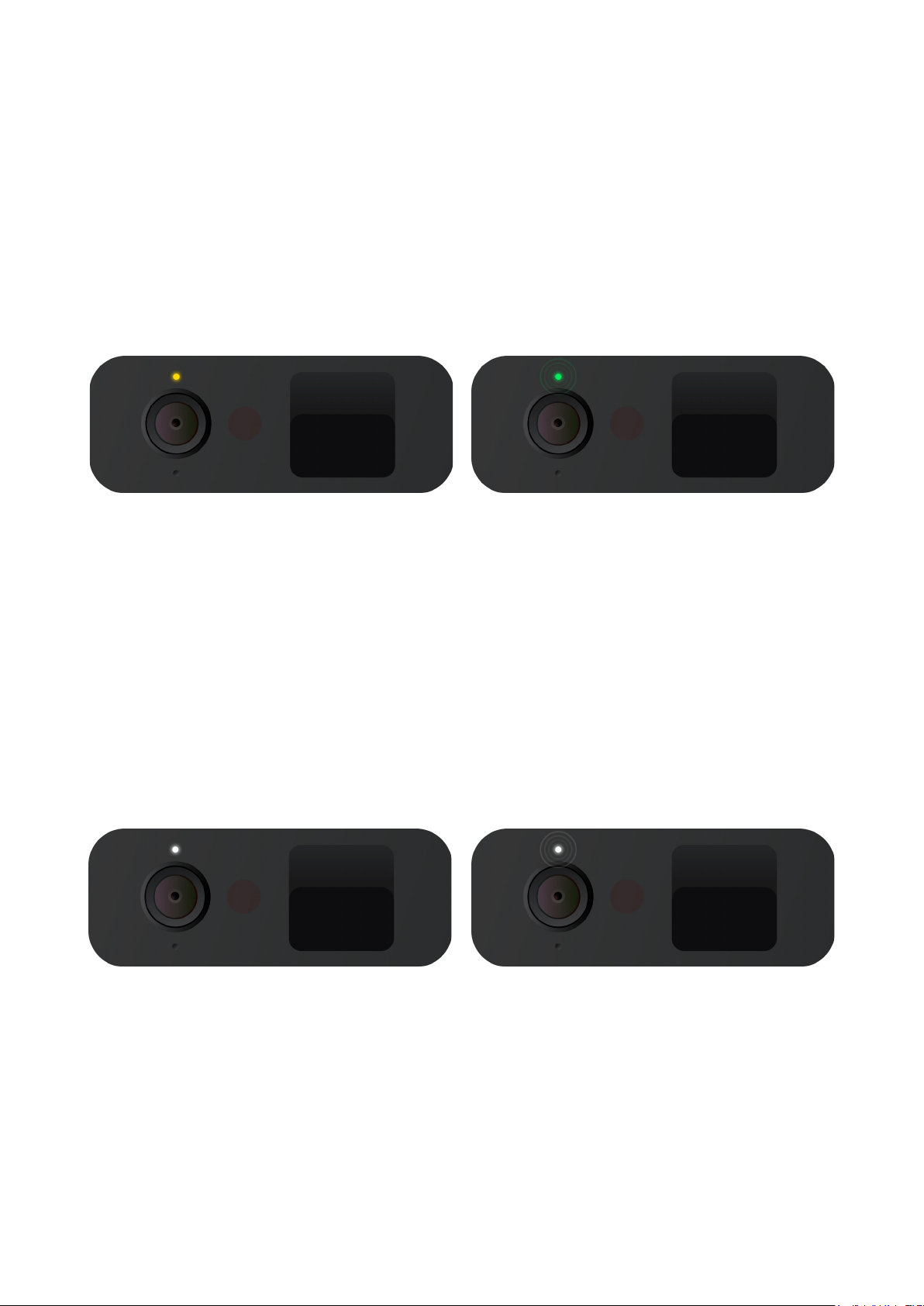
LED LIGHT NOTIFICATIONS
The LED light on the front of your Petcube Bites tells you about its status.
Steady Yellow
If you just powered your Petcube up,
it will show this color while it boots
up for up to 30 seconds. If it’s steady
yellow during the setup, it usually takes
up to a minute to complete
the registration.
Steady White
Online, standby mode.
Pulsing Green
Setup mode
Pulsing White
Petcube Care™ is active, saving
video to your timeline
9
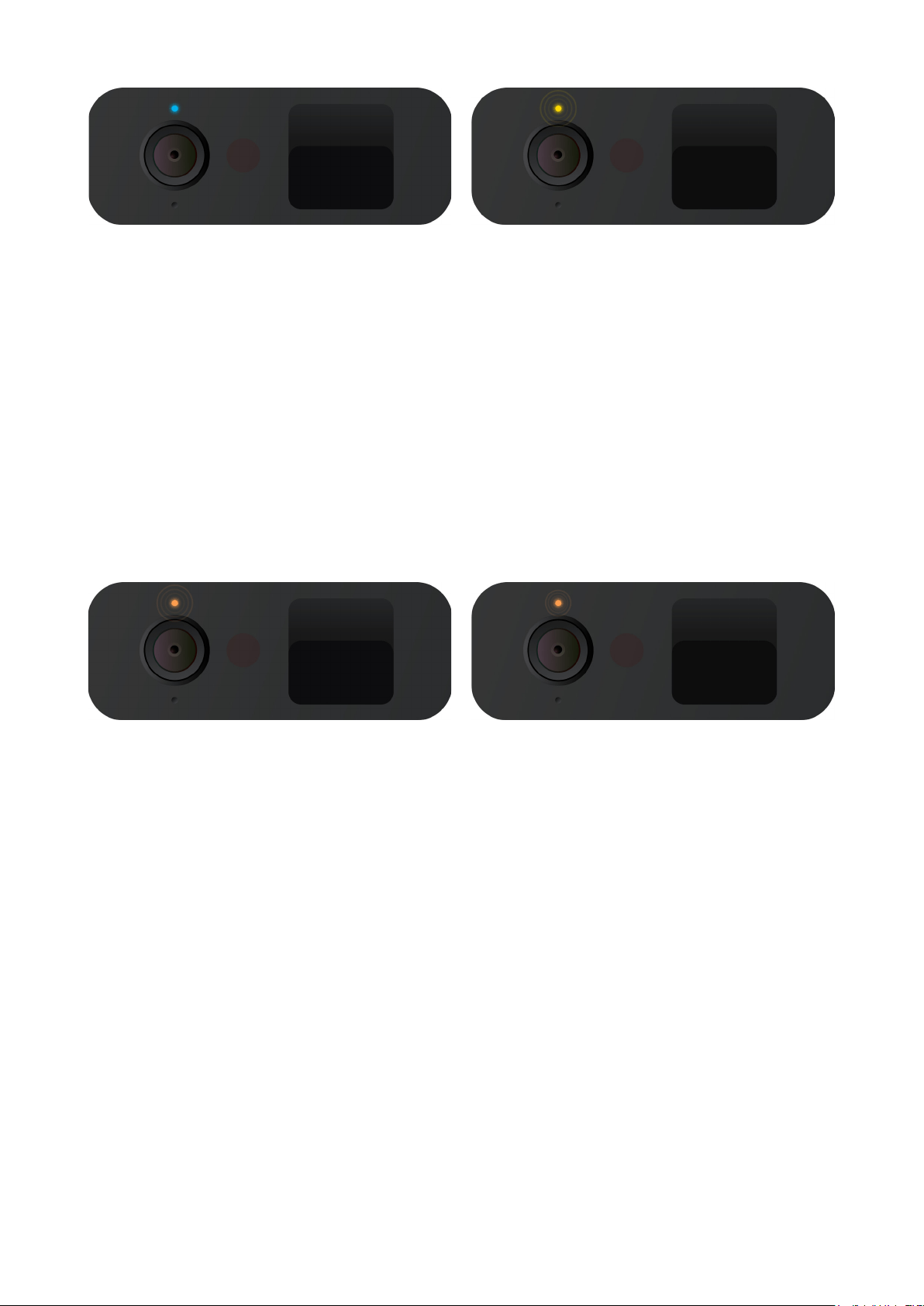
Steady Blue
Play mode. Be aware, mind your
privacy! Petcube Camera is streaming
live video at the moment.
Pulsing Orange
Your Petcube is connected to
a wireless access point but cannot
connect to the Internet because of
the security settings on your network.
Please make sure your router is not
blocking the Petcube with a firewall,
MAC address filtering or other
security settings.
Pulsing Yellow
Your Petcube cannot connect to your
Wi-Fi network because of an incorrect
password.
To change your Wi-Fi password, open
‘Settings,’ go to ‘Wi-Fi and’ follow the
steps on the screen.
Fast Pulsing Orange
Your Petcube is downloading the most
current software update, which usually
takes about 5 minutes.