
1
MEET YOUR
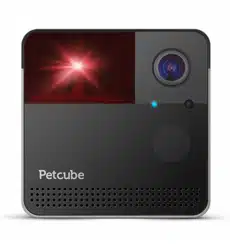
Petcube Cam

2
PETCUBE CAM SPECS
AND SYSTEM REQUIREMENTS
Petcube Cam features:
• 110º wide angle view;
• 1080p HD video;
• 2-way audio;
• Night vision;
• 4x digital zoom;
• Sound and motion alerts.
Petcube Cam requires:
• Wi-Fi 802.11b/g/n, 2.4 Ghz, password protected;
• iOS 14 and higher or Android 7.1.2 and higher;
• Min 2 Mbps Upload speed on the Petcube (4 Mbps recommended);
• Min 2 Mbps Download speed on the mobile device (4 Mbps recommended).
1

3
SAFETY
AND HANDLING
2
To avoid injuries or causing harm, read all safety information and operating instructions
prior to using Petcube.
• Don’t drop, hit, shake, or tumble your Petcube Cam;
• Don’t stain, scratch, or otherwise damage the front panel;
• Petcube is not to be used by minors unless under the direct supervision of an adult;
• Don’t expose to liquid, moisture, dust, excessive heat, or naked flame;
• Don’t leave in direct sunlight;
• Prevent the power cord from being walked on or pinched.

4
GETTING
STARTED
3
1. Setting up your Petcube Cam on iOS device
Fig. 3.1.1
Fig. 3.1.3 Fig. 3.1.4
Step 1. To set up your Petcube,
download Petcube application (fig 3.1.1)
to your iOS device. The Petcube app
requires iOS 14 or greater and can
be downloaded in the App Store
or at the link below:
www.petcu.be/ios-app-download
Step 2. Connect your Petcube
to a power source and wait up
to a minute until the LED light starts
blinking yellow or blue (fig 3.1.2).
Step 3. Open the Petcube app on your
iOS device, log in or sign up for
a Petcube account (fig 3.1.3).
Step 4. Tap the plus icon in the right
upper corner of the screen (fig 3.1.4)
and pick Petcube Cam from the list
of options (fig 3.1.5).
During the setup, Petcube Cam will
automatically detect the Wi-Fi network
your phone is currently connected to,
so it’s a good idea to make sure you’re
connected to the same network you
want to hook up the camera to, and
have the Wi-Fi password handy
as you’ll be asked to enter it shortly.
Make sure it is a 2.4 ghz WI-FI network.
Step 5. As long as the LED light
is flashing on your camera, you’re ready
Fig. 3.1.2

5
to enable the setup mode. To do that,
press setup button at the bottom of the
camera until you hear a short jingle and
a message saying “Ready to Connect”,
and tap ‘I heard “Ready to Connect”
on the screen.’ (fig 3.1.6).
Step 6. At the top, you’ll see
the network that you’ll be connecting
the camera to, enter your Wi-Fi
password or tap on ‘Wi-fi network
name’ to change network then tap
‘Connect’ to continue the setup
(figure 3.1.7).
Keep in mind that only 2.4 Ghz wifi
networks are supported by Petcube
Cam. Please make sure you are
connecting to 2.4 Ghz wifi network
Step 7. A QR code will be generated
on your phone screen. Hold your
camera at the 5-inch distance with the
lens facing the QR code until you hear
a message saying “QR code scanned”,
check the box, tap ‘Next’ (figure 3.1.8).
Step 8. Your Petcube device is almost
set! Please wait until it connects
(figs 3.1.9 & 3.1.10) and the light
on the front panel turns blue.
Step 9. Once the LED light on your
Petcube changes to solid blue
(fig 3.1.11), you are ready to play with
your Petcube (fig 3.1.12).
Fig. 3.1.5
Fig. 3.1.7
Fig. 3.1.6
Fig. 3.1.8

6
Reminder: It is likely that your Petcube
will need a firmware update right after
it is connected. The firmware update
will be downloaded to your camera
within 24 hours.
Fig. 3.1.9
Fig. 3.1.11
Fig. 3.1.10
Fig. 3.1.12

7
2. Setting up your Petcube Cam on Android device
Step 1. To set up your Petcube,
download the Petcube app to your
Android device (fig 3.2.1). The Petcube
app requires Android 7.1.2 or greater
and can be downloaded in the Google
Play Store or at the link below:
www.petcu.be/android-app-download
Step 2. Connect your Petcube
to a power source and wait up
to a minute until the LED light starts
pulsing yellow or blue (fig 3.2.2).
Step 3. Open Petcube app on your
Android device and log in or sign up
for a Petcube account (fig 3.2.3).
Step 4. Tap the plus icon in the right
upper corner of the screen (fig 3.2.4)
and pick Petcube Сam from the list
of options (fig 3.2.5). During the setup,
Petcube Cam will automatically
detect the Wi-Fi network your phone
is currently connected to, so it’s a good
idea to make sure you’re connected
to the same network you want to hook
up the camera to, and have the Wi-Fi
password handy as you’ll be asked
to enter it shortly.
Step 5. As long as the LED light
is flashing on your camera, you’re ready
to enable the setup mode. To do that,
press the start button at the bottom
Fig. 3.2.1
Fig. 3.2.3
Fig. 3.2.4
Fig. 3.2.2

8
of the camera until you hear a short
jingle and a message saying “Ready
to Connect”, and tap ‘I heard “Ready
to Connect” on the screen.’ (fig 3.2.6).
Step 6. Choose Wifi network to
connect your Petcube Cam to and enter
wifi password. Keep in mind that only
2.4 Ghz wifi networks are supported
by Petcube Cam. Please make sure you
are connecting to 2.4 Ghz wifi network
(figs 3.2.7 & 3.2.8).
Step 7. A QR code will be generated
on your phone screen. Hold your
camera at the 5-inch distance with the
lens facing the QR code until you hear
a message saying “QR code scanned”,
check the box, tap ‘Next’. (fig 3.2.9)
Step 8. Your Petcube device is almost
set! Please wait until it connects and
the light on the front panel turns blue
(figs 3.2.10 & 3.2.11).
Step 9. Once the LED light on your
Petcube changes to solid blue
(figs 3.2.12), you are ready to play
with your Petcube (figs 3.2.13).
Reminder: It is likely that your Petcube
will need a firmware update right after
it is connected. The firmware update
will be downloaded to your camera
within 24 hours.
Fig. 3.2.5 Fig. 3.2.6
Fig. 3.2.8
Fig. 3.2.7

9
Fig. 3.2.11
Fig. 3.2.13
Fig. 3.2.10Fig. 3.2.9
Fig. 3.2.12

10
3. Playing with your Petcube
Fig. 3.3.2
When you successfully registered your
Petcube and the LED light on the back
glows blue, tap on the camera profile
on the homescreen to access camera
page (fig 3.3.1).
Petcube Cam Live Stream Controls
(fig 3.3.2):
1 — Game Settings Menu;
2 — Take a photo to be saved
on your device;
3 — Start video to be saved
on your device;
4 — Tap to talk to your pet;
5 — Tap to listen;
6 — Switch to portrait mode.
To exit the live stream (fig 3.3.3),
first exit the landscape mode
by pressing the 2 arrows icon
in the upper left corner. To return
back to the Petcube homepage,
tap the camera video while in portrait
mode and press the ‘back’ icon
in the upper left corner (fig 3.3.4).
Fig. 3.3.1

11
Fig. 3.3.4
Fig. 3.3.3
4. Where to place your Petcube Cam
Consider placing Petcube in a location that allows for maximum coverage through
the camera’s wide angle lens. It’s always a good idea to point the Petcube
in the direction where your pets tend to spend most of their time.
If you want to place Petcube on a table or shelf, we recommend you set it up at least
3 feet above the floor. Petcube has a non-slip rubber bottom, which provides a secure
grip on flat surfaces. The camera should be placed closer to the edge of the surface
for better viewing angle.
5. Taking screenshots and recording video
In order to take a snapshot of the live stream from your Petcube, you need to tap
the Photo Camera icon on the bottom left while in play mode (fig 3.5.1).

12
Fig. 3.5.1
To start recording a live stream, tap
the Video Camera icon at the bottom right
while in play mode. To stop recording,
tap the ‘Stop’ icon and the video will
automatically be saved to your
phone’s storage.
6. Using Zoom feature
Petcube app now comes with
the 4x digital zoom feature. Just connect
to your Petcube in the app, pinch-to-zoom
in the image during the game, and pan
around to see the whole scene.
7. Using Night Vision
Petcube comes with the infrared sensor
capable of streaming clear black and
white video in pitch dark. When the sensor
detects a low level of ambient light, your
Petcube Cam will automatically activate
the NightVision mode.
Petcube app also allows you to turn night
vision on and off during a live stream:
1. While in the live stream, tap
the ‘Settings’ wheel in the upper
right corner;
2. Find Night Vision settings and choose
between Auto Shift, Always Off,
or Always On (fig 3.7.1 & 3.7.2);
Fig. 3.7.1 Fig. 3.7.2

13
8. Volume control
To configure the volume level
on your Petcube:
1. Open the Petcube app;
2. Go to the camera profile;
3. Tap the ‘Settings’ wheel in the upper
right corner (fig 3.9.2);
4. Go to Video & Audio settings menu
(fig 3.9.3);
5. Adjust the volume level under
‘Camera speaker volume’ (fig 3.9.4).
Keep in mind that in order to be able
to change the settings on your Petcube,
it needs to be in online standby mode
(steady blue light).
9. Sound alert at the start of a call
To attract your pet’s attention and
be aware of when someone connects
to your Petcube in accordance with
your sharing settings, at the start
of every call your Petcube will play
a sound alert.
To disable the sound alert:
1. Open the Petcube app;
2. Go to the camera profile,
tap the ‘Settings’ wheel
in the upper right corner;
3. Go to Video & Audio settings;
Fig. 3.9.1
Fig. 3.9.3
Fig. 3.9.2
Fig. 3.9.4

14
4. Find “When the Live Stream Starts”
section and toggle ‘Let camera play
a sound’ OFF (fig 3.10.1).
10. Sharing access to your Petcube
By default, only you can access your
Petcube video stream, but you can
share access to your Petcube with your
family and friends.
Family members will have almost
full control of your camera, being able
to connect to your Petcube anytime
and access recorded videos
on Petcube Care timeline.
Friend sharing allows you to configure
friend sharing access at specifically
scheduled times and days as well
as configure permission access for
the laser and 2-way audio controls.
To share access to family members
or friends:
1. Open the Petcube app;
2. Go to the camera profile (fig 3.10.2);
3. Tap the ‘Settings’ wheel in the upper
right corner (fig 3.12.3);
4. Tap ‘Sharing’ (fig 3.10.4), select
the preferable sharing option and
Fig. 3.10.1 Fig. 3.10.2
Fig. 3.10.3 Fig. 3.10.4

15
add the new user to either ‘Family’
or ‘Friend’ list (fig 3.10.5).
To delete a user from your ‘Family’
or ‘Friends’ list: To delete a user from
your ‘Family’ or ‘Friends’ list:
1. Go to ‘Sharing’ settings again;
2. Find their username and swipe it left
to ‘Delete’ or ‘Unfriend’
(figs 3.10.6 & 3.10.7).
Fig. 3.10.5 Fig. 3.10.6
Fig. 3.10.7

16
11. Using motion and sound detection
If you are using Petcube Care cloud-
based video storage service, the
Petcube app can send push
notifications to your smartphone
whenever motion or sound is detected
on your Petcube.
To enable push notifications:
1. Open the Petcube app;
2. Go to the camera profile, tap
the ‘Settings’ wheel in the upper
right corner (fig 3.11.2);
3. Select ‘Notifications’ (fig 3.11.3);
4. Turn ‘Motion Detection’ and ‘Sound
Detection’ options ON (fig 3.11.4).
You can also adjust the sensitivity
of the motion and sound detection
sensors by moving the slider.
Keep in mind that in order to be able
to change the settings on your
Petcube, it needs to be in online
standby mode (steady blue light).
If you are using Petcube Care cloud
history service, the Petcube app will
record videos triggered by motion and
sound detection and you can configure
push notifications to be sent as soon
as new video recordings are available.
Fig. 3.11.3 Fig. 3.11.4
Fig. 3.11.1 Fig. 3.11.2

17
12. Setting up multiple Petcube Cams to one account
To register multiple cameras in a single account:
1. Launch the Petcube app;
2. Сlick Plus icon in the right
top corner;
3. Select your Petcube in the list and follow the instructions.
Repeat this process to register additional devices.
13. Registering Petcube to a different account
Be aware that a Petcube can only be registered to one user. You cannot register
it under multiple accounts, but you can share access to it with other users using various
sharing options.
If you need to register a Petcube to a different account, simply delete the camera from
the account it is currently registered to:
1. Open the Petcube app;
2. Tap the ‘Settings’ wheel in the upper right corner and tap ‘Disconnect camera’;
3. Now login to a different Petcube account and add Petcube Cam to this account.

18
14. Deleting the Petcube device
To delete the Petcube from your
account:
1. Open the Petcube app;
2. Tap the ‘Settings’ wheel in the upper
right corner and tap ‘Disconnect
camera’ (fig 3.14.1);
3. Confirm by choosing ‘Delete’.
15. Resetting user account password
If you forgot your password:
1. Open the Petcube app on your
mobile device;
2. Tap ‘Log In’ at the bottom
of the screen (fig 3.15.1);
3. Tap ‘Forgot password’ (fig 3.15.2);
4. Enter your Petcube account
email address;
5. Hit ‘Restore Password’
at the bottom. (fig 3.15.3);
6. Check your email and follow
the instructions to reset
your password.
Fig. 3.14.1
Fig. 3.15.2
Fig. 3.15.1
Fig. 3.15.3

19
16. Changing your account name, username, password or camera name
To change your account details such
as your name, username or password:
1. Open the Petcube app;
2. Go to the user profile by tapping
your user icon (fig 3.16.1);
3. Tap the ‘Settings’ wheel in the upper
right corner (fig 3.16.2);
4. Hit ‘Edit profile’ (fig 3.16.3) and tap
the values you want to change.
To change your Petcube Cam name
or change the camera background:
1. Open camera profile (fig 3.16.4);
2. Tap the ‘Settings’ wheel in the upper
right corner (fig 3.16.5);
3. Hit the arrow next to your Petcube
name and status (fig 3.16.6) and
change the necessary values.
Fig. 3.16.3
Fig. 3.16.5
Fig. 3.16.2
Fig. 3.16.4
Fig. 3.16.6
Fig. 3.16.1

20
17. Moving your Petcube to a different location or changing Wi-Fi settings
As long as the Petcube is within range
of your wireless network, you can
reposition it according to your needs.
However, if you’re trying to use it
in a different Wi-Fi environment
or want to connect the camera
to a different wireless network, you
need to change the Wi-Fi settings
in the Petcube app.
To do that:
1. Open the Petcube app;
2. Go to the camera profile;
3. Tap the ‘Settings’ wheel in the upper
right corner (fig 3.17.2);
4. Tap ‘Change Wi-Fi’ (fig 3.17.3);
5. Click setup button at the bottom
of the device and follow the steps
on your screen.
Fig. 3.17.3
Fig. 3.17.1 Fig. 3.17.2

21
1. What is Petcube Care
PETCUBE CARE™
4
Petcube Care is an optional subscription service that adds features to a Petcube Cam
and gives owners additional peace of mind when it comes to their pets and their
property.
Depending on the subscription plan, Petcube Care provides Petcube users with access
to extended cloud-based video history for 3 or 90 days, longer 30-second video clips,
10 or unlimited video downloads and smart alerts.
2. How much does Petcube Care cost
Petcube Care offers two different subscription plans, Optimal and Premium,
to fit the needs of pet owners of all stripes. Choose a monthly or annual rate.
For more information on the plans, check out the Petcube Care subscription options
on petcube.com/care/
3. How does Petcube Care work
Petcube Care watches after your pets and home when everyone is away, capturing
action videos, triggered by sound or motion. 30-second clips are saved securely in the
cloud and are accessible in the interactive timeline in the Petcube app to review and
download for 3 or 90 days (depending on the subscription plan). The 3-second look
back lets you see what event set off the recording.
Using powerful AI technology, Care understands what pets are doing, registering
important events like cat, dog or human movements, barks or meows, and sends
you real-time smart alerts.
Without Care, Petcube users only have access to the live video streaming.

22
4. How to activate Petcube Care
To start using Petcube Care, you need to have a Petcube Cam and a Petcube Care
subscription.
To subscribe:
1. Go to petcube.com;
2. Sign in with your Petcube account or go to the Petcube Care product page and
select the most suitable subscription option for you. You will also be able
to subscribe from the ‘Home’ page in the Petcube app on both iOS and Android
devices.
If you are not a Petcube Cam owner yet but wish to buy one, you will also be able
to subscribe to Petcube Care when you make your purchase.
5. How to Turn Off Petcube Care Video History
Petcube Care’s video history feature is turned on by default.
To deactivate it:
1. Open Petcube app;
2. Go to the camera profile in Home menu;
3. Move the slider to ‘Sleep’ mode in the lower right corner of the Petcube Cam
controls.
In Sleep mode, Petcube Care is disabled. It will not detect and record events. Nothing
will be added to your video history timeline. You will still have access to recorded videos
if any were taken when Care was active and your subscription plan allows.
Use Awake mode, when you are not around and want Petcube Care to be active. You
will get noise & motion notifications. These moments will be stored on your timeline.

23
6. How to view your video history in Petcube Care
It’s very easy to access your video history with Petcube Care! Launch the Petcube app
on your phone. Tap on the camera icon. Most recent videos will populate below.
Tap on ‘Show Older Videos’ to move back or forward in time.
Tap on the ‘...’ next to each video to get options to Delete, Share, or Save the video.
You can also access your video history if you log into your Petcube account on
petcube.com in the upper right corner.
The website doesn’t offer live streaming or alerts, but you can scroll through, filter,
and play back the recorded Care videos.
Remember, Petcube Care records videos to the timeline automatically by default. If you
would like to deactivate this feature, review these instructions in the article ‘How to Turn
Off Petcube Care Video History’.
If your Petcube Care is currently set to Sleep mode, you will need to change it to Awake
mode in order for videos to be recorded to your timeline. To do this:
1. Open Petcube app;
2. Go to the camera profile in Home menu;
3. Move the slider to ‘Awake’ mode.
7. How to save a video recording to your phone’s internal storage
While you will be able to view video history for the past days, depending on your
subscription plan from the cloud via Petcube Care, you will always be able to store
video recordings to your phone’s internal storage. Just pick the necessary video clip,
press the three dots ‘…’ located on the left hand side
of the video and select ‘Save’.

24
8. Video recording length
Currently, video recording length can be no longer than 30 secs. So, for instance,
if there’s a motion that lasts for 2 minutes 15 seconds, the app will cut it into 5 scenes.
9. How can I use Petcube Care on multiple Petcube devices
Only Premium subscription plan activates Petcube Care service on all the cameras
connected to the account.
Optimal plan subscribers will need to purchase a separate plan for each new camera
connected to an account.
10. How to add or update your payment information for Petcube Care
If you need to add or update your payment information for Petcube Care service:
1. Log into your Petcube account at petcube.com by clicking on the Home icon
in the upper right corner;
2. Once logged in, go to ‘Billing’ tab to update your information.
11. How do I cancel Petcube Care subscription
In order to cancel your Petcube Care subscription:
1. Open Petcube app;
2. Go to camera profile on which you wish to cancel the subscription;
3. Tap the ‘Settings’ wheel in the upper right corner;
4. Select Care Settings;
5. Click on the current subscription at the top;
6. Hit Cancel subscription at the very bottom of the page;
Alternatively, you can go to petcube.com, select the Home icon in the upper right
corner, go to Petcube Care tab, select your subscription and hit Cancel Subscription.

25
1. What are Smart Alerts & How do they work?
PETCUBE SMART ALERTS
5
Smart alerts bring AI-powered recognition technology to the pet space. Your Petcube
Cam will be able to give you better intel on what’s happening at home when you’re
away, with audio detection of dog barks and cat meows, and visual detection of cats,
dogs and people. Get push notifications on your phone when something is detected and
setup automatic video recording so you can later replay what happened.
2. How well does it work?
Smart alerts improve the accuracy of your notifications, giving you less false positives.
The feature is powered by artificial intelligence algorithms that learn and improve over
time - this means that it will actually get smarter and smarter.
3. Can I use smart alerts?
Petcube launched smart alerts in November 2018 for subscribers to select Petcube Care
tiers. To find out if smart alerts are available for your subscription plan or to start a new
subscription, please view the Petcube Care page.
4. Can I choose which smart alerts I receive?
Yes! Smart alerts are triggered by four new types of events that your Petcube Cam can
recognize:
• Dogs barking;
• Cats meowing;
• Pets in view of the camera;
• People in view of the camera.
You’re in full control of which notifications you get - choose one or get them all —
it’s up to you.

26
5. How can I get smart alerts for my pets?
If you don’t have a Petcube Cam yet:
1. Get a Petcube pet camera! :)
2. Download the Petcube App for your phone or tablet from the App Store or Google
Play Store;
3. Sign up for history subscription to Petcube Care;
4. Enable Smart Alerts in the Petcube App under Camera Notifications.
If you already have a Petcube Cam, but don’t have Petcube Care:
1. Sign up for a video history subscription to Petcube Care;
2. Enable Smart Alerts in the Petcube App under Camera Notifications.
If you have a Petcube Cam and Petcube Care:
Easy! Enable Smart Alerts in the Petcube App under Camera Notifications.

27
1. LED light doesn’t light up
2. Petcube blinks blue/yellow and doesn’t turn blinking blue
TROUBLESHOOTING
6
If the LED light on your Petcube Cam is off while the camera is plugged into the power
source, try unplugging it and plugging it back in. Make sure that you are using the
original power adapter that came with your Petcube and that the power cord
is undamaged. If you no longer have the original power adapter, make sure to only use
the ones that provide 5V/2A power.
It might be that Petcube Cam is located
out of reach of wifi assigned, or wifi
is not being broadcasted, or there is not
internet available. Make sure it is in wifi
range and internet is available.
When you plug in your Petcube before
starting the registration process, it
should glow solid yellow for a minute.
Wait up to 1 minute until it starts
blinking blue/yellow.
1. Find setup button on the bottom
of your Petcube Cam, press it down
once until you hear “Ready
to connect” (Fig. 6.2.1);
2. Open Petcube app, go to the ‘Home’
tab, tap Plus icon in the top right
corner of the screen, pick your
Petcube from the list of options and
follow the steps on the screen.
3. Incorrect Wi-Fi password
If Petcube app is showing the ‘Incorrect
Wi-Fi password’ error message after
the setup, here are a few possible
Fig. 6.2.1

28
reasons behind that:
1. Case sensitivity: check the entered
password for uppercase
or lowercase characters.
Keep in mind that ‘Password’ and
‘password’ would be two different
passwords because the “P”
is uppercase in the first example and
lowercase in the second example;
2. Password length: check the entered
password length and keep in mind
that normally the password length
is 8+ characters long;
3. Keyboard language: check
the onscreen keyboard language
and make sure you enter password
in the correct keyboard layout.
To reset the Wi-Fi password:
1. Open the Petcube app;
2. Go to the camera profile, tap
the ‘Settings’ wheel in the upper
right corner (fig 6.3.2);
3. Tap ‘Change Wi-Fi’ (fig 6.3.3);
4. Power up your Petcube, wait
1 minute until it starts up;
5. Find setup button on the bottom
of your Petcube Cam (fig 6.2.1),
press it once, until you hear
“Ready to connect”;
6. Open Petcube app, go to the ‘Home’
tab, Tap the plus icon in the right
upper corner of the screen, pick
Fig. 6.3.1
Fig. 6.3.3
Fig. 6.3.2

29
your Petcube from the list of options and follow the steps on the screen.
In case none of the above tips help, contact Petcube Customer Care Team at petcube.
com/support/.
5. Petcube can’t register on your Wi-Fi network
You may see this message when there Petcube cannot receive the IP address
automatically using DHCP. Normally, the router should assign the IP address to your
Petcube automatically but if this didn’t happen, you can enter your router settings and
assign the IP address to your Petcube manually. You can also contact your ISP
or Petcube Customer Care team for help.
6. Petcube can’t establish the cloud connection / No Internet connection
If you get this error message, firstly, make sure you have Internet access on your
Wi-Fi by trying to open a few websites on a few devices. If you have Internet access
but Petcube still can’t be connected, try to reset the device by following these easy
steps:
1. First, if you have previously set up your Petcube, open the Petcube app, go to ‘Home’
tab, then select ‘Settings’ and choose ‘Disconnect Camera’;
2. Power up your Petcube, wait 1 minute until it starts up;
3. Find setup button on the bottom of your Petcube Cam (fig 6.2.1), hold it down
for 1 seconds until you hear “Ready to connect”;
4. Open Petcube app, go to the ‘Home’ tab, select ‘connect your device’, pick your
Petcube from the list of options and follow the steps on the screen.
If you want to have the firewall on, you need to open the following ports:
a) TCP port 3335; 34.194.225.22
b) TCP port 443; 35.212.7.2135.207.1.22 (You may not need the UDP ports because
they’re rarely blocked, but UDP range should be from 7000 to 7100) WPS pin code
should be disabled (please note that not all the routers have it). MAC filtering
should be disabled. If enabled, a MAC address can be found at the back of the cube.

30
7. Oh bummer setup error
If during the setup you’re getting an ‘Oh Bummer’ error message, turn your Petcube
off and back on, wait up to 1 minute until it boots up and starts blinking and start the
setup process over again.
8. Poor video quality or poor network conditions
Like with most video streaming services and products, video quality is affected
by router performance and/or your Internet connection. This can be improved if you
place Petcube closer to your home Wi-Fi router or by arranging it in a way so there
aren’t any obstacles between it and your router (i.e. walls, floors, radio interference etc.).
Petcube also requires at least 2 Mbps Internet connection upload and download speed
(4 Mbps is recommended). If your Internet connection speed is less than 2 Mbps, we
recommend upgrading for the best experience and highest video quality. To check your
Internet speed, we recommend performing online speed test. If you are not getting the
full speed you subscribed for, contact your Internet Service Provider.
9. I can’t connect to my Petcube / Petcube is offline in the app
If you cannot connect to your Petcube from your mobile phone, try the following:
- Make sure that the LED light on the front of your Petcube is steady blue. If the LED
light on the front of your Petcube isn’t steady blue, see ‘LED light notifications’
to determine the issue. In most cases rebooting the Petcube by unplugging and
plugging it back in should help but if you’re facing this issue too often, below are a few
ideas why it could be happening:
1. Your Petcube needs a firmware update. To get the most recent firmware update,
contact our support team at support@petcube.com;
2. Sometimes the issue may be caused by restrictions of the Wi-Fi network your phone
is connected to, especially if it’s a public or office Wi-Fi. Try to temporarily disable
Wi-Fi on your phone and connect to your Petcube while using mobile data or or try
connecting to other Public Petcube Cam in the feed to make sure it’s not
a network restriction issue;
31
3. This issue may occur if you’re using a non-original or a less powerful A/C adapter.
Please make sure to use only 5V / 2A power adapters;
4. You are using a mesh network or your 5Ghz and 2.4Ghz channels have the same
SSID. It has been observed on multiple occasions that sometimes Petcube cannot
maintain a reliable connection on a mesh/merged network or different network
channels (5Ghz and 2.4Ghz) with the same network name (SSID). It is recommended
to change any of the two channels names to avoid connection issues;
5. It’s possible that Petcube doesn’t have strong Wi-Fi connection. Keep in mind that
some connection issues may be caused by poor Wi-Fi signal, which can depend
on the router range, distance to the router and obstacles between Petcube and
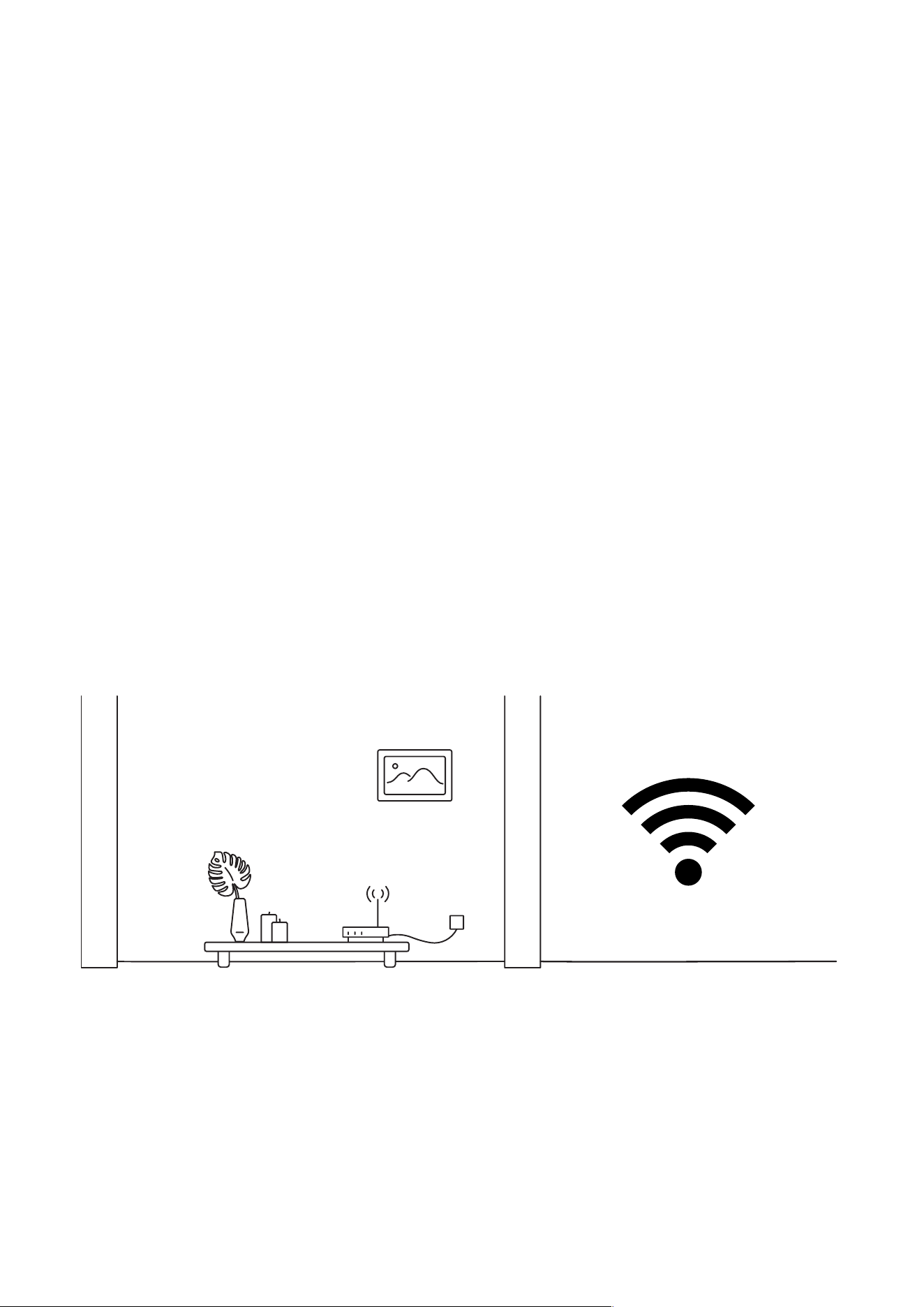
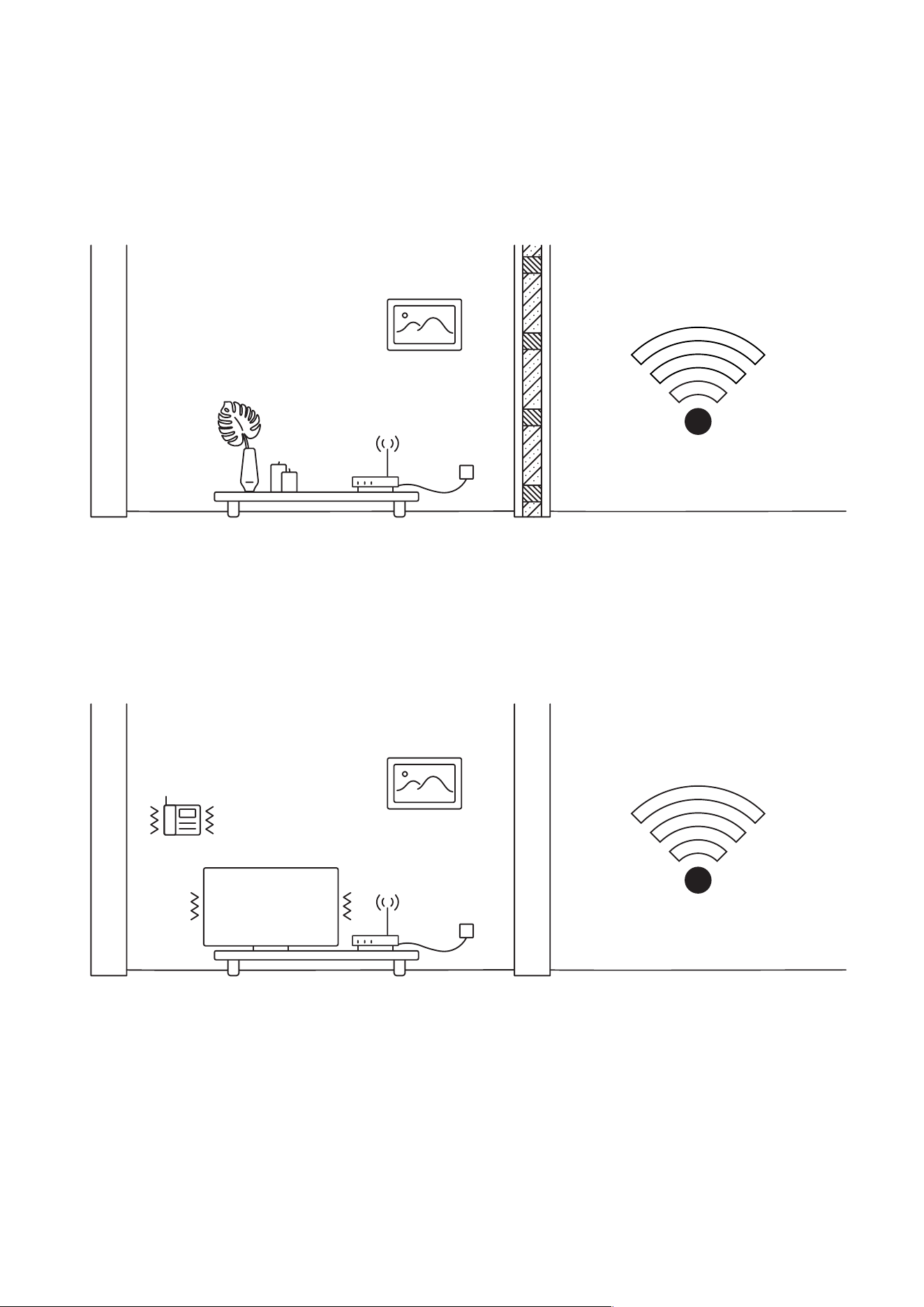
router, such as walls or radio frequency interferences. Here are a few examples how
electronic appliances or bearing walls can impact your Wi-Fi signal.
Example 1 (fig 6.10.1) shows no electronic or radio devices and no bearing walls between
two rooms so the signal in the other room is very good.
Example 2 (fig 6.10.2) shows a bearing wall between two rooms which causes poor
Wi-Fi signal in the other room.
Fig. 6.10.1
32
Example 3 (fig 6.10.3) shows interference caused by radio (phone) or electronic
appliances (TV). Poor Wi-Fi signal can be also impacted by microwaves, refrigerators,
cordless phones, baby monitors etc.
10. Petcube is Disconnected in the app
If your Petcube Cam status shows as ‘Disconnected’ in the Petcube app, it usually means
that your phone is not connected to the Internet at the moment or the network you are
connected to has certain restrictions. Try to switch to any other Wi-Fi network
or connect to your camera using cellular data (LTE, 3G).
Fig. 6.10.2
Fig. 6.10.3

33
11. Petcube goes offline / turns off
This issue may occur if you’re using a non-original or a less powerful A/C adapter.
Please make sure to use only 5V / 2A power adapters.
If you’re using the original adapter, but the problem persists, contact Petcube Customer
Care Team to determine the problem.
12. How to find Petcube’s MAC address
Petcube Cam’s MAC address is specified on the back of the device.

34
LED LIGHT NOTIFICATIONS
7
Steady Yellow
If you just powered your Petcube up, it
will show this color while it boots up for
up to 30 seconds.
Steady Blue
Online, standby mode.
Fast Pulsing Yellow
Setup mode.
Pulsed Blue Once
Petcube Care™ is active, saving video
to your timeline.
Fig. 7.1
Fig. 7.3
Fig. 7.2
Fig. 7.4
The LED light on the back of your Petcube tells you about its status.

35
Slowly Pulsing Blue
Play mode. Be aware, mind your
privacy! Petcube is streaming live video
at the moment.
Pulsing Yellow/Blue
Your Petcube cannot connect to your
Wi-Fi network because of an incorrect
password, no wifi in range,
or no internet connection.
Fig. 7.5 Fig. 7.6