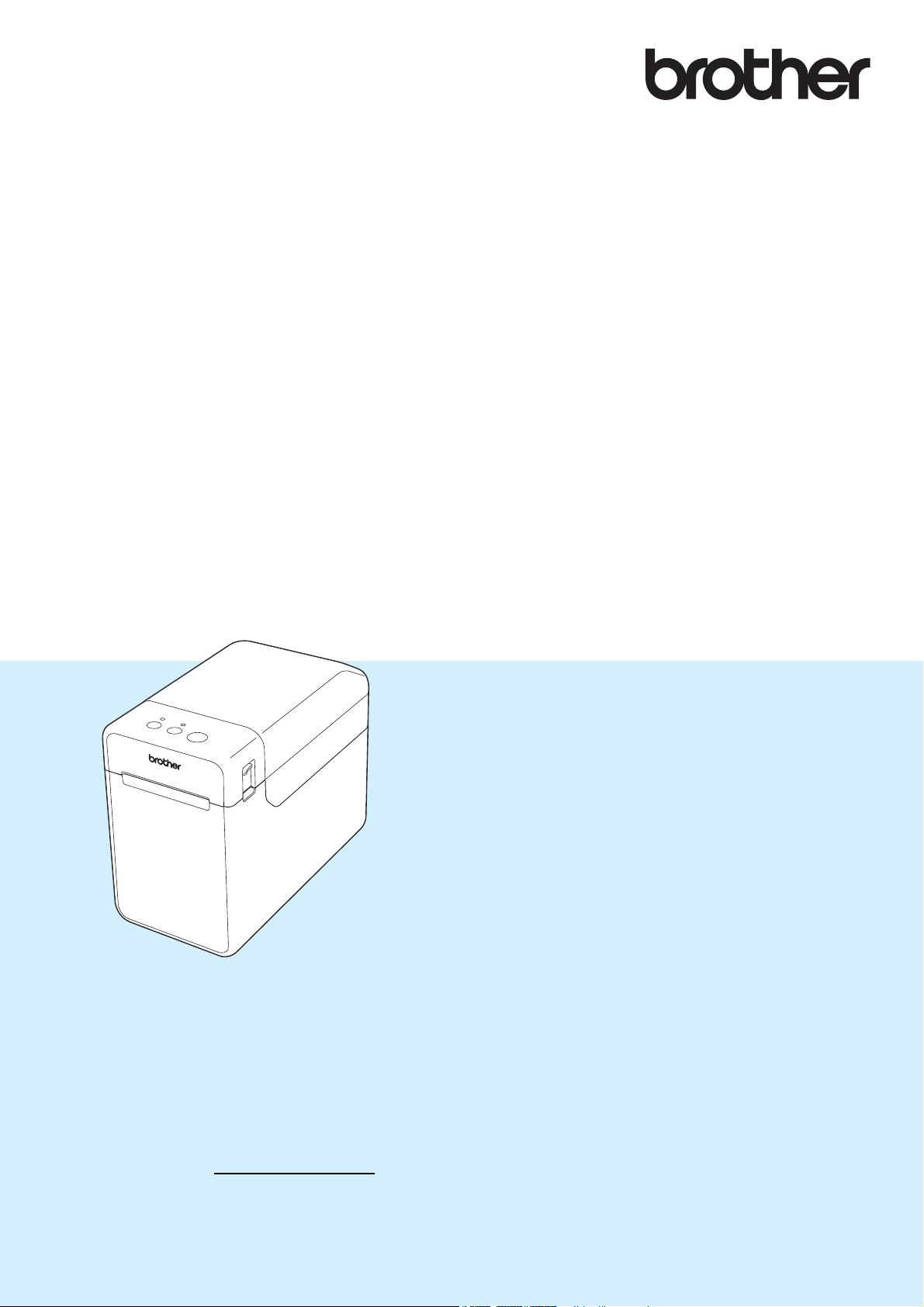
TD-2020A
TD-2125N
TD-2135N
TD-2125NWB
TD-2135NWB
Before using this printer, be sure to read this User's
Guide.
We suggest that you keep this manual in a handy
place for future reference.
Please visit us at support.brother.com
, where you
can get product support and answers to frequently
asked questions (FAQs).
Version 01
US ENG
USER’S GUIDE
i
Introduction
Thank you for purchasing the Brother TD-2020A/2125N/2135N/2125NWB/2135NWB.
The TD-2020A/2125N/2135N/2125NWB/2135NWB (hereafter referred to as “the printer”) is
a powered desktop thermal printer. Be sure to read the User’s Guide, Product Safety Guide,
Quick Reference Guide, Software User’s Guide, and Network User’s Guide (TD-2125N/2135N/
2125NWB/2135NWB only) before using the printer. We suggest that you keep these documents
in a secure place for future reference.
The following documents are available from our support site (support.brother.com
):
User's Guide
Software User's Guide
Network User's Guide (TD-2125N/2135N/2125NWB/2135NWB only)
Symbols Used in This Document
The following symbols are used throughout this document.
CAUTION
This symbol indicates instructions that may result in injuries or damage if they are ignored or
incorrectly followed.
NOTE
This symbol indicates notes that provide information or directions that can help you better
understand and use the product more efficiently.
IMPORTANT NOTICE
For Windows 11 Users:
This printer supports Microsoft Windows 11.
All features in Windows 8.1 and Windows 10 are available in the Windows 11 environment and
work in a similar way.
This symbol indicates information or directions that should be followed.
Ignoring them may result in damage or failed operations.

ii
Trademarks
Apple, iPad, iPhone, and Safari are trademarks of Apple Inc., registered in the United States and
other countries.
Wi-Fi
®
and Wi-Fi Alliance
®
are registered trademarks of Wi-Fi Alliance
®
.
WPA™, WPA2™, WPA3™, and Wi-Fi Protected Setup™ are trademarks of Wi-Fi Alliance
®
.
Android and Google Chrome are trademarks of Google LLC.
The Bluetooth
®
word mark is a registered trademark owned by Bluetooth SIG, Inc. and any use
of such marks by Brother Industries, Ltd. is under license. Other trademarks and trade names are
those of their respective owners.
Any trade names and product names of companies appearing on Brother products, related
documents and any other materials are all trademarks or registered trademarks of those
respective companies.

iii
Table of Contents
1 Getting Started 1
General Description ...............................................................................................1
Power Supply.........................................................................................................3
Connecting to an AC Power Outlet..................................................................3
Installing the Printer Driver and Software ..............................................................3
Registering Paper Size Information With the Printer .............................................4
2Printing 5
Operation Panel.....................................................................................................5
LED Indicators .................................................................................................5
Button Functions..............................................................................................6
Inserting the Media Roll .........................................................................................7
Checking the Sensor Position .........................................................................9
Cutting Roll Paper .........................................................................................10
Printing the Printer Setup Information..................................................................11
Connecting the Computer and Printer .................................................................13
USB Cable Connection..................................................................................13
Wired LAN Connection (TD-2125N/TD-2135N/TD-2125NWB/
TD-2135NWB only) ...................................................................................13
Wireless LAN Connection..............................................................................14
Without Using a Wi-Fi Router/Access Point (Wireless Direct).......................15
Using Infrastructure Mode and Wireless Direct Simultaneously....................16
Using Wi-Fi Protected Setup™ (WPS) ..........................................................16
Connect the Printer to a Computer Using a Bluetooth Connection ...............17
Printing.................................................................................................................18
Making Prints Lighter or Darker.....................................................................18
Printer Driver Options ..........................................................................................19
3 Printer Setting Tool 20
About the Printer Setting Tool..............................................................................20
Before Using the Printer Setting Tool ............................................................20
Using the Printer Setting Tool..............................................................................20
Communication Settings (TD-2125N/TD-2135N/TD-2125NWB/
TD-2135NWB only)...........................................................................................22
Settings Dialog Box .......................................................................................22
Menu Bar .......................................................................................................23
General Tab...................................................................................................24
Wired LAN/Wireless LAN Tabs (TD-2125NWB/TD-2135NWB only).............24
Wireless Direct Tab (TD-2125NWB/TD-2135NWB only)...............................26
Bluetooth Tab (TD-2125NWB/TD-2135NWB only) .......................................27
Applying Setting Changes to Multiple Printers ..............................................27
Device Settings....................................................................................................28
Settings Tabs.................................................................................................29
Menu Bar .......................................................................................................34

iv
P-touch Template Settings ..................................................................................35
P-touch Template ..........................................................................................35
P-touch Template Settings Dialog Box..........................................................36
Paper Size Setup.................................................................................................38
Paper Size Setup Dialog Box ........................................................................38
Distributing Paper Formats............................................................................41
4 Other Functions 42
Mass Storage Functions......................................................................................42
Mass Storage Feature...................................................................................42
Using the Mass Storage Feature...................................................................42
Change Printer Settings Using Web Based Management...................................43
Software Development Kit ...................................................................................44
5 Maintaining the Printer 45
Print Head Maintenance ......................................................................................45
Platen Roller Maintenance...................................................................................45
Media Exit Maintenance ......................................................................................46
Label Peeler (Optional) Maintenance (TD-2125N/TD-2135N/TD-2125NWB/
TD-2135NWB only) ..........................................................................................46
6 LED Indicators 47
LED Indicators .....................................................................................................47
7 Troubleshooting 49
Overview..............................................................................................................49
Troubleshooting Tips .....................................................................................49
Error Messages for Touchpanel Display (Optional)
(TD-2125N/TD-2135N/TD-2125NWB/TD-2135NWB Only).......................57
8 Specifications 59
Product Specifications .........................................................................................59
Product Dimension ..............................................................................................61
9 Using the RJ25 to DB9M Serial Adapter
(Optional: PA-SCA-001) 63
Connecting the Computer and Printer With the RJ25 to DB9M Serial Adapter .... 63
Product Specifications .........................................................................................63
10 Using the Touchpanel Display (Optional: PA-TDU-001)
(TD-2125N/TD-2135N/TD-2125NWB/TD-2135NWB only) 64
General Description.............................................................................................64
LCD .....................................................................................................................64
Main Screen ..................................................................................................64

v
Touchpanel ..........................................................................................................65
Information About Replacing the Touchpanel ...............................................66
Printing With the Touchpanel Display..................................................................67
Touchpanel Display Settings ...............................................................................68
Specifying Settings From the Touchpanel.....................................................68
Creating a Label Layout.......................................................................................72
Creating a Template ......................................................................................72
Linking a Database to a Template.................................................................74
Transferring the Label Layout to the Printer ........................................................76
Selecting the Touchpanel ..............................................................................77
Selecting the Data Assigned to Keys on the One-touchpanel.......................78
Creating a One-touchpanel ...........................................................................79
Printing the Label.................................................................................................79
Printing Using the Basic Control Panel..........................................................79
Printing Using the One-touchpanel................................................................81
Printing a Different Date/Time Than the Printer's Internal Clock ...................82
Printing Using a Barcode Reader ..................................................................83
Label Layouts on the Printer (Checking, Deleting and Log) ................................83
Replacing the Time/Date Battery.........................................................................84
Frequently Asked Questions................................................................................85
Product Specifications .........................................................................................86
11 Using the Label Peeler (Optional: PA-LP-001)
(TD-2125N/TD-2135N/TD-2125NWB/TD-2135NWB only) 87
Inserting the Media Roll .......................................................................................87
Printer Driver Settings ...................................................................................90
After Printing..................................................................................................91
Product Specifications .........................................................................................91
1
1
1
General Description 1
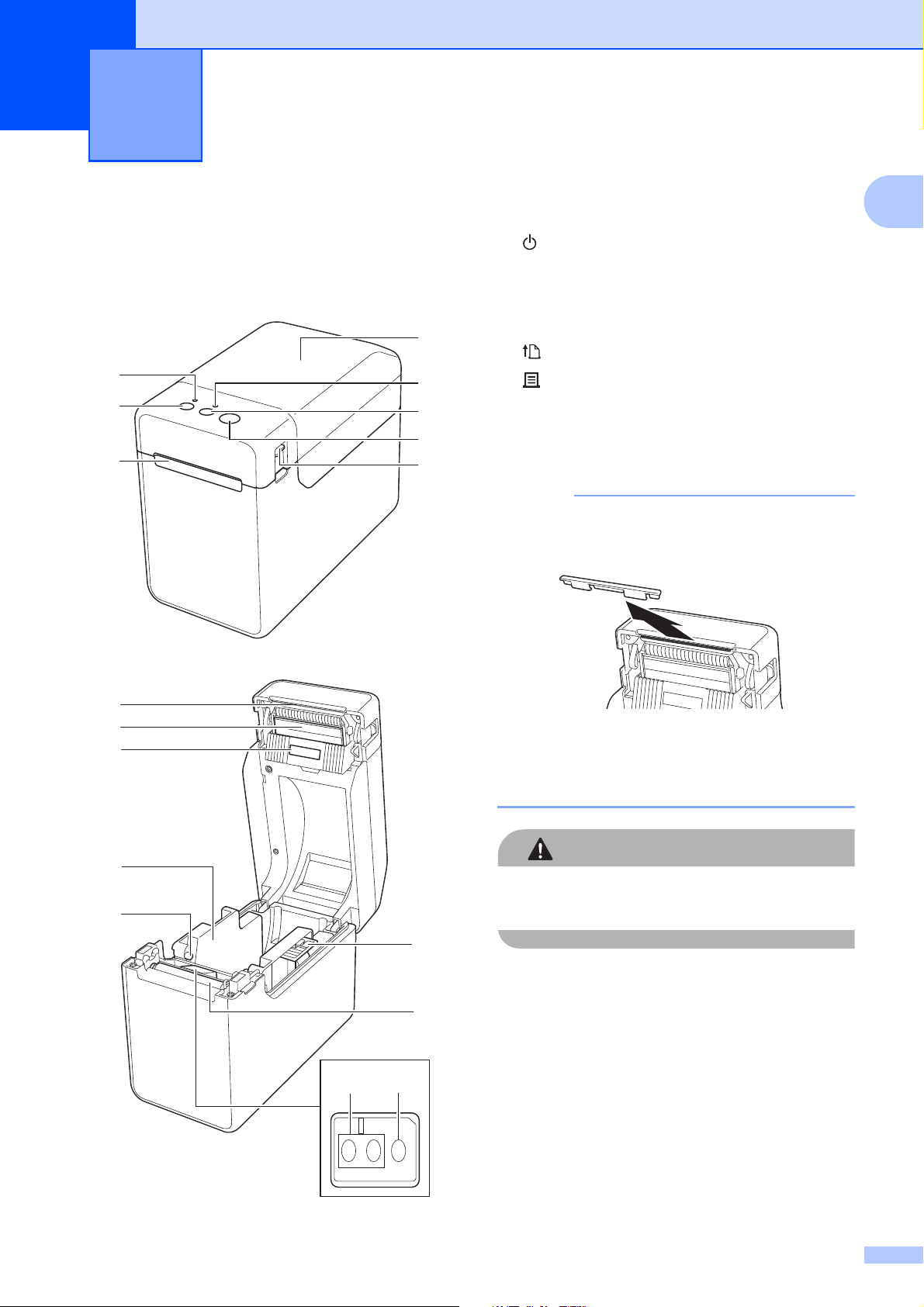
Front 1
1 POWER indicator
2 (Power) button
3 Media exit
4 Media Roll compartment top cover
5 STATUS indicator
6 (Feed) button
7 (Print) button
8 Cover release lever
9Tear bar
• The Tear Bar Cover is attached to the printer.
NOTE
• Before using the printer, remove the Tear Bar
cover, as illustrated.
• Do not dispose of the removed cover.
To avoid injuries when the printer is not being
used, attach the cover to the Tear Bar.
CAUTION
The tear bar is sharp. To avoid injury, do not
touch the tear bar.
10 Print head
11 Transmissive/gap sensor
12 Media guide
13 Media tip guide
14 Media guide adjustment lever
15 Platen roller
16 Reflective/black mark sensor
Getting Started 1
1
2
3
4
5
6
7
8
9
10
11
12
13
14
15
1116
Chapter 1
2
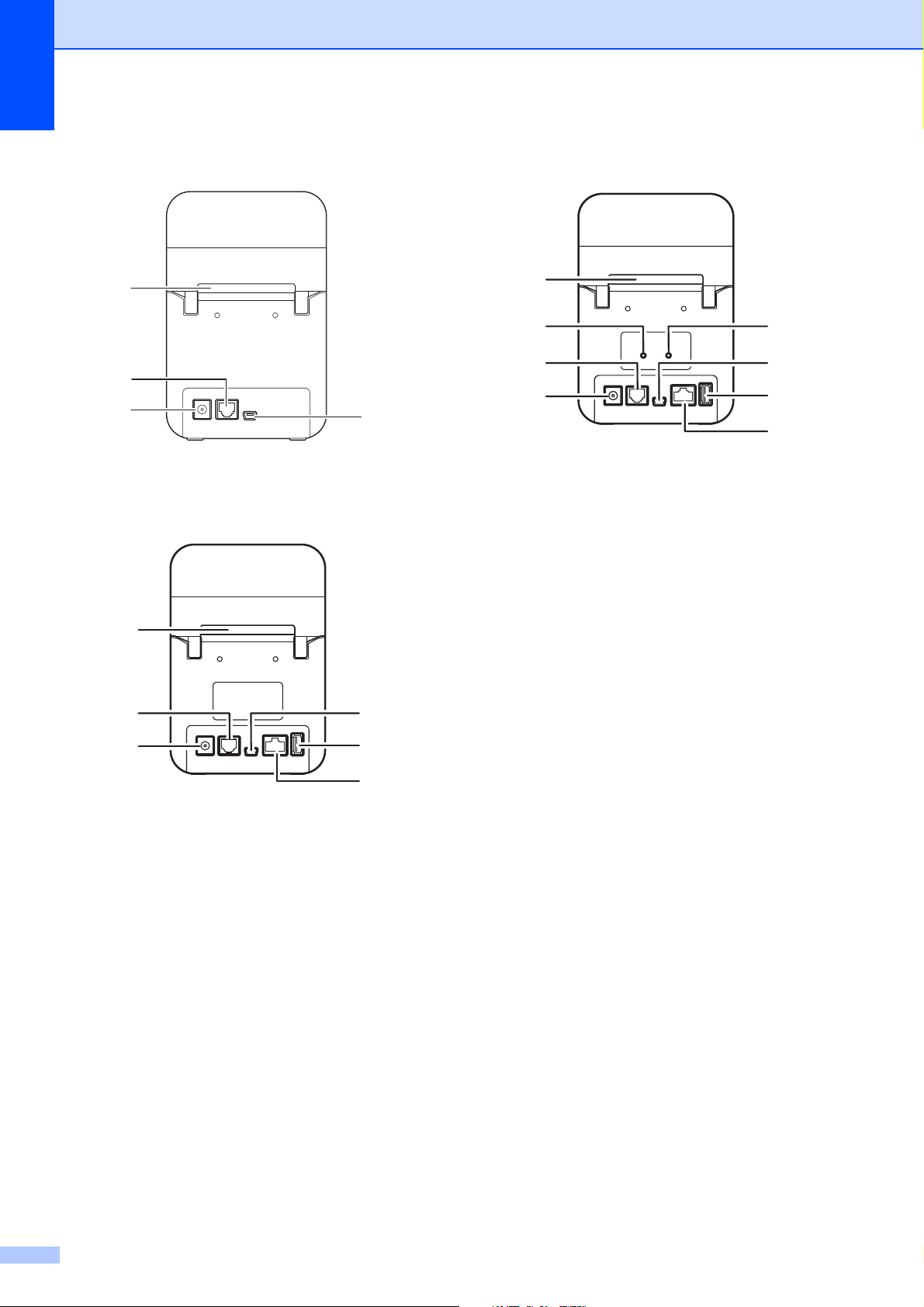
Back - TD-2020A 1
Back - TD-2125N/TD-2135N 1
Back - TD-2125NWB/TD-2135NWB 1
1 External media feed slot
2 Serial port
3 Power connector
4 Mini-USB port
5 USB host port (TD-2125N/2135N/2125NWB/
2135NWB only)
6 Ethernet network port (TD-2125N/2135N/
2125NWB/2135NWB only)
7Wi-Fi
®
indicator (TD-2125NWB/2135NWB
only)
8 Bluetooth
®
indicator (TD-2125NWB/
2135NWB only)
Optional Accessory: 1
RJ25 to DB9M serial adapter
(PA-SCA-001)
Optional Accessories:
(TD-2125N/2135N/2125NWB/
2135NWB only)
1
Touchpanel display (PA-TDU-001)
Label peeler (PA-LP-001)
1
3
2
4
2
3
4
5
6
1
2
7
3
4
8
5
6
1
Getting Started
3
1
Power Supply
1
This printer operates using the AC Adapter
(included).
The AC Adapter supplies power directly to
the printer, making it suitable for high-volume
printing.
Connecting to an AC Power
Outlet 1
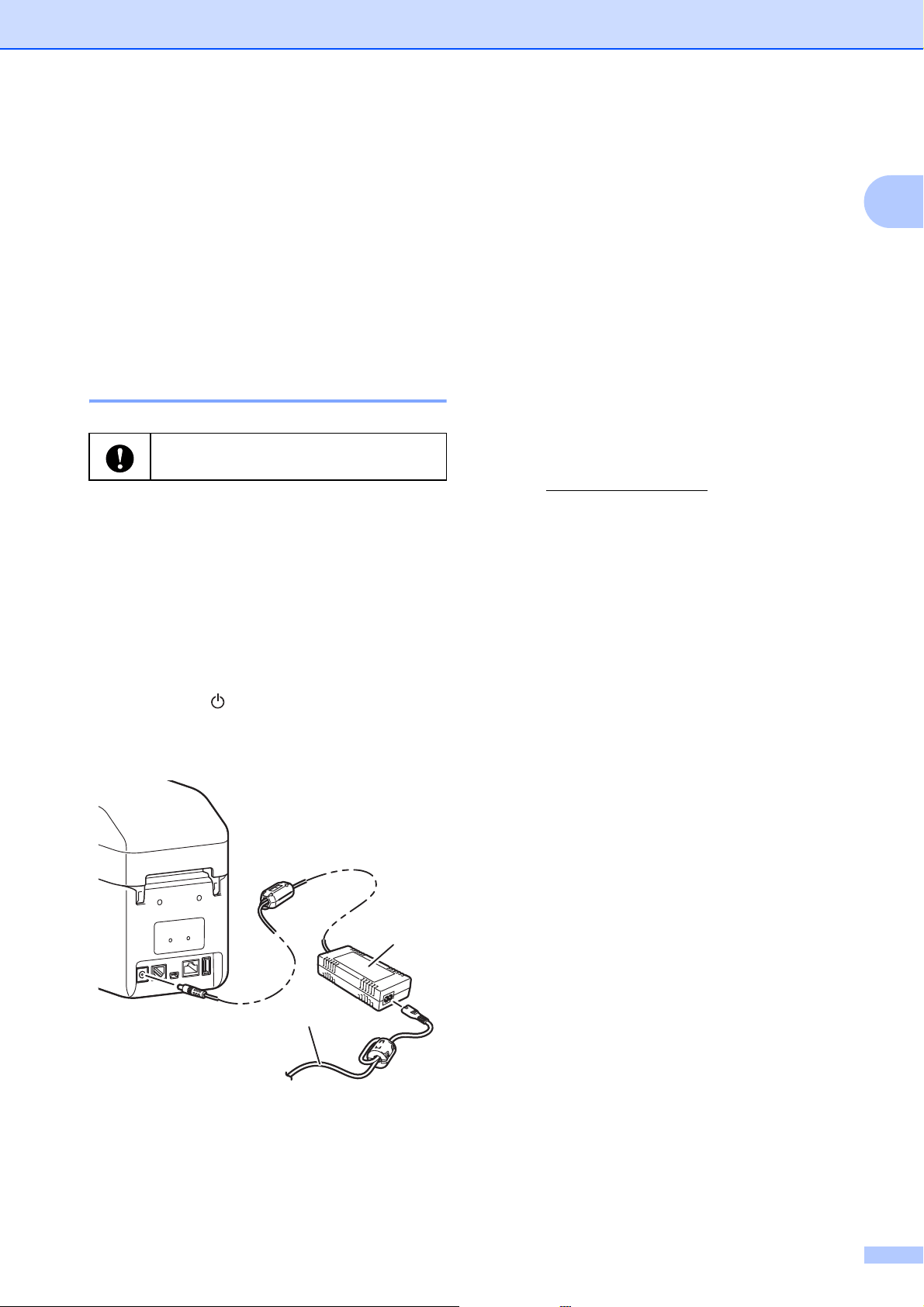
a Connect the AC Adapter to the printer.
b Connect the AC power cord to the
AC Adapter.
c Connect the AC power cord to a nearby
AC power outlet (100 - 240 V,
50/60 Hz).
d Press the (Power) button to turn the
printer on. The POWER indicator lights
in green, and the printer is in standby.
1AC Adapter
2AC power cord
Installing the Printer
Driver and Software
1
Install the printer driver and software using
any of the following methods:
USB cable connection
Wired LAN connection (TD-2125N/
2135N/2125NWB/2135NWB only)
Wireless LAN connection
(TD-2125NWB/2135NWB only)
Bluetooth Connection
(TD-2125NWB/2135NWB only)
Go to support.brother.com
to download
printer drivers, software, and manuals for
your printer, and to view FAQs.
Double-click the downloaded file and follow
the on-screen instructions to proceed with the
installation.
Be sure to unwrap all cords before
connecting them.
1
2

Chapter 1
4
Registering Paper Size
Information With the
Printer
1
The “Printer Setting Tool” allows you to
register the paper size information for
printing.
a Make sure the printer driver is installed
and you can print.
b Connect the computer to the printer with
a USB cable. This step is necessary
only initially to download the settings to
the printer.
c Go to the Printer Setting Tool and
select the [Paper Size Setup] option.
Specify the size information (label width
and length, label spacing, etc.) for the
media to be used, and then add the
paper format.
Settings can also be adjusted for
[Printing Reference Point
Adjustment] and [Energy Rank], and
[Import] or [Export] can be clicked to
perform the corresponding operations
with the added paper size information
list.
d To register the paper size information
with the printer, in the Paper Size Setup
dialog box, click the Option button, and
then select Register Paper Size With
Printer. For more information, see
Paper Size Setup on page 38.
5
2
2
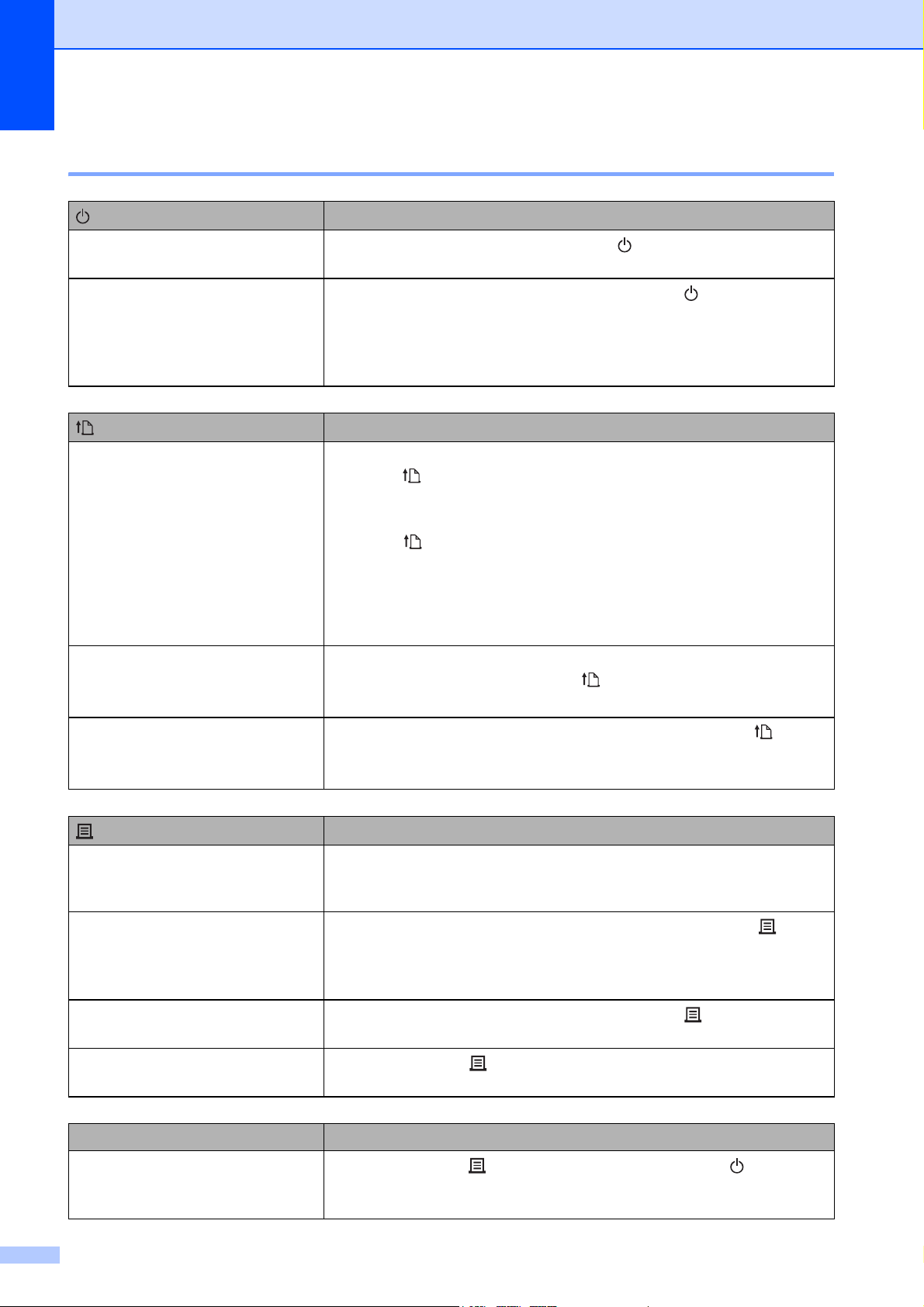
Operation Panel 2
The operation panel consists of the following buttons and indicators:
1 POWER indicator
2 (Power) button
3 (Feed) button
4 (Print) button
5 STATUS indicator
6 Wi-Fi indicator
7 Bluetooth indicator
LED Indicators 2
The LED indicators light and blink to indicate the printer’s status. Each LED indicator may light or
blink in green, red, blue, or orange. For more information, see LED Indicators on page 47.
Printing 2
1
234
5
67
Chapter 2
6
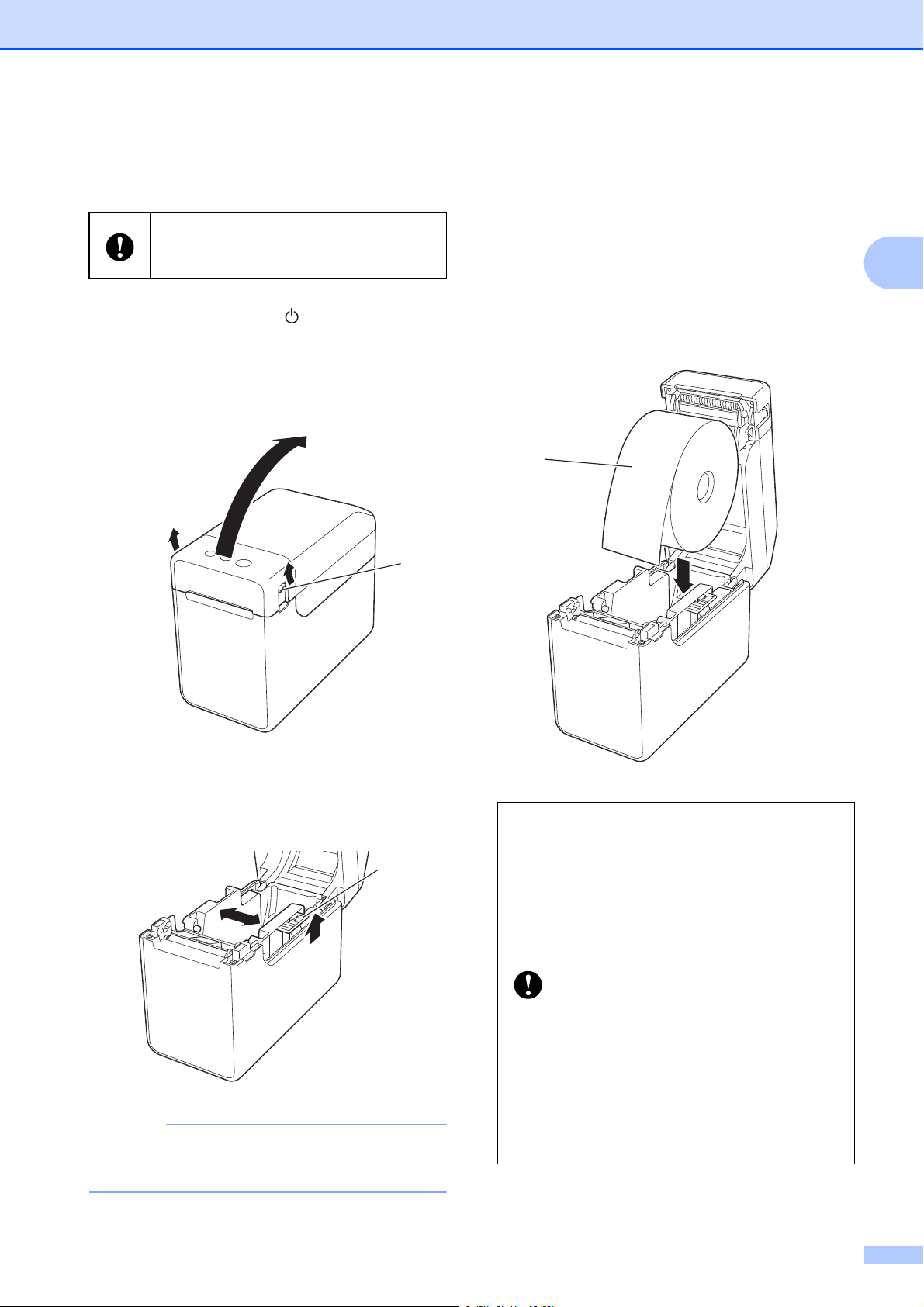
Button Functions 2
(Power)
Operation
Turn the printer on
While the printer is turned off, press the (Power) button. The
POWER indicator turns on.
Turn the printer off
While the printer is turned on, press and hold the (Power) button
until the POWER indicator turns off. (If the [Auto Power Off] function
is enabled in [Device settings] of the “Printer Setting Tool > Device
settings > Auto Power Off”, the printer turns off automatically after
the specified period of inactivity.)
(Feed)
Operation
Feed the paper When the paper type is set to [Die-cut Label] or [Media With Marks]:
Press the (Feed) button to automatically feed the paper to the print
position.
When the paper type is set to [Continuous Length Tape]:
Press the (Feed) button to feed the paper about 1" (25.4 mm).
The default setting is [Continuous Length Tape].
Use [Paper Size Setup] in the “Printer Setting Tool” to register the
paper size information with the printer. For more information, see
Registering Paper Size Information With the Printer on page 4.
(TD-2125NWB/2135NWB only)
Switch the Wi-Fi, Bluetooth, or
both connections
To enable or disable the wireless LAN, Bluetooth, or both connection
enable/disable, press and hold the (Feed) button for five seconds.
(TD-2125NWB/2135NWB only)
Setting up Wi-Fi Protected Setup
(WPS)
To enable Wi-Fi Protected Setup (WPS), press and hold the (Feed)
button for ten seconds.
(Print)
Operation
Perform the specified operation With the printer idle, press this button to perform the operation
specified in [Device settings] of the “Printer Setting Tool”. For more
information, see Print Key Function on page 30.
Print the printer setup information
Make sure that a roll is installed, and then press and hold the (Print)
button for at least one second to begin printing the printer setup
information. For more information, see Printing the Printer Setup
Information on page 11.
Execute a file stored in the mass
storage area
With the printer in mass storage mode, press the (Print) button to
execute a command file stored in the mass storage area.
Reset the incrementing field
Press and hold the (Print) button for at least five seconds, until the
POWER and STATUS indicators blink three times in orange.
Multiple buttons Operation
Start the printer in mass storage
mode
While pressing the (Print) button, press and hold the (Power)
button to start the printer in mass storage mode. For more information,
see Mass Storage Functions on page 42.
Printing
7
2
Inserting the Media Roll
2
a Press and hold the (Power) button to
turn the printer off.
Press the cover release lever (1) on
either side and lift to open the Media Roll
compartment top cover.
b Open the media guides by lifting the
media guide adjustment lever (1) and
pulling the media guides outwards.
NOTE
The media guides are shipped fully open
from the factory.
c Insert the Media Roll into the Media Roll
compartment, and then close the Media
Roll compartment top cover.
For Media Roll
1 Insert the Media Roll so that the
labels feed with the side to be
printed on facing up (1), as
shown.
We recommend using genuine Brother
Media Roll. Genuine Brother fanfold
media is not available at this time.
1
1
Use Media Rolls with an outer roll
dimension of 5" (127 mm) or less.
Use Media Rolls designed for TD
series printers. Regardless of the
size, some Media Rolls may not be
compatible.
Insert the Media Roll facing the
correct direction. If the Media Roll is
not inserted correctly, the printer will
not print on the correct side of the
paper or label.
When using media with the labels
rolled up on the inside, insert the roll
in the opposite direction of that
shown in sub-step 1 of step c so
that the print side of the labels will
face up.
1
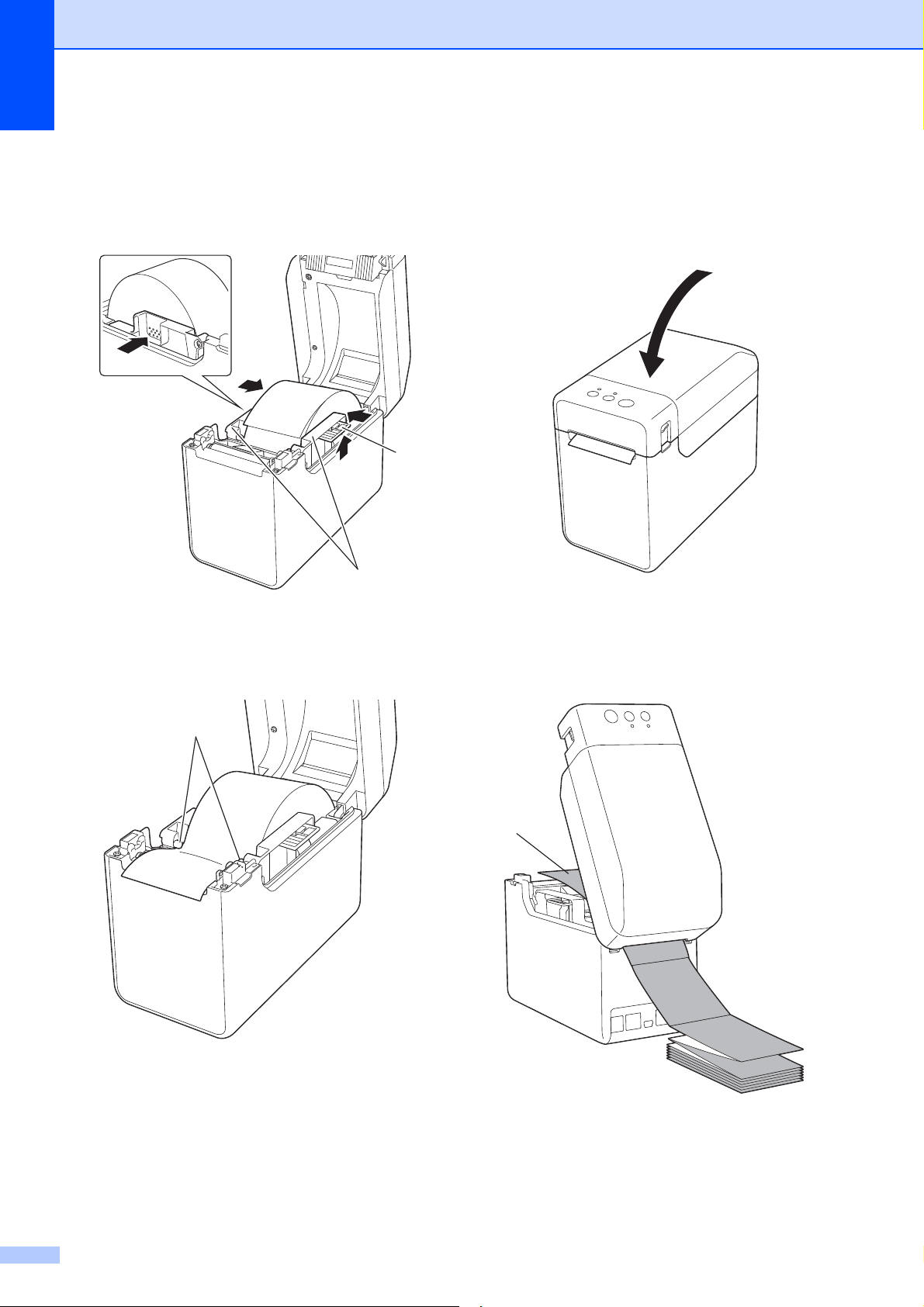
Chapter 2
8
2 While lifting the media guide
adjustment lever (1), push in
both media guides (2) to fit the
width of the paper.
3 Feed the end of the Media Roll
under the media tip guides (1).
4 Position the end of the paper
centered over the platen roller
and slightly out of the media
exit.
5 Close the Media Roll
compartment top cover by
pressing it in the center.
Press down until it locks into
place.
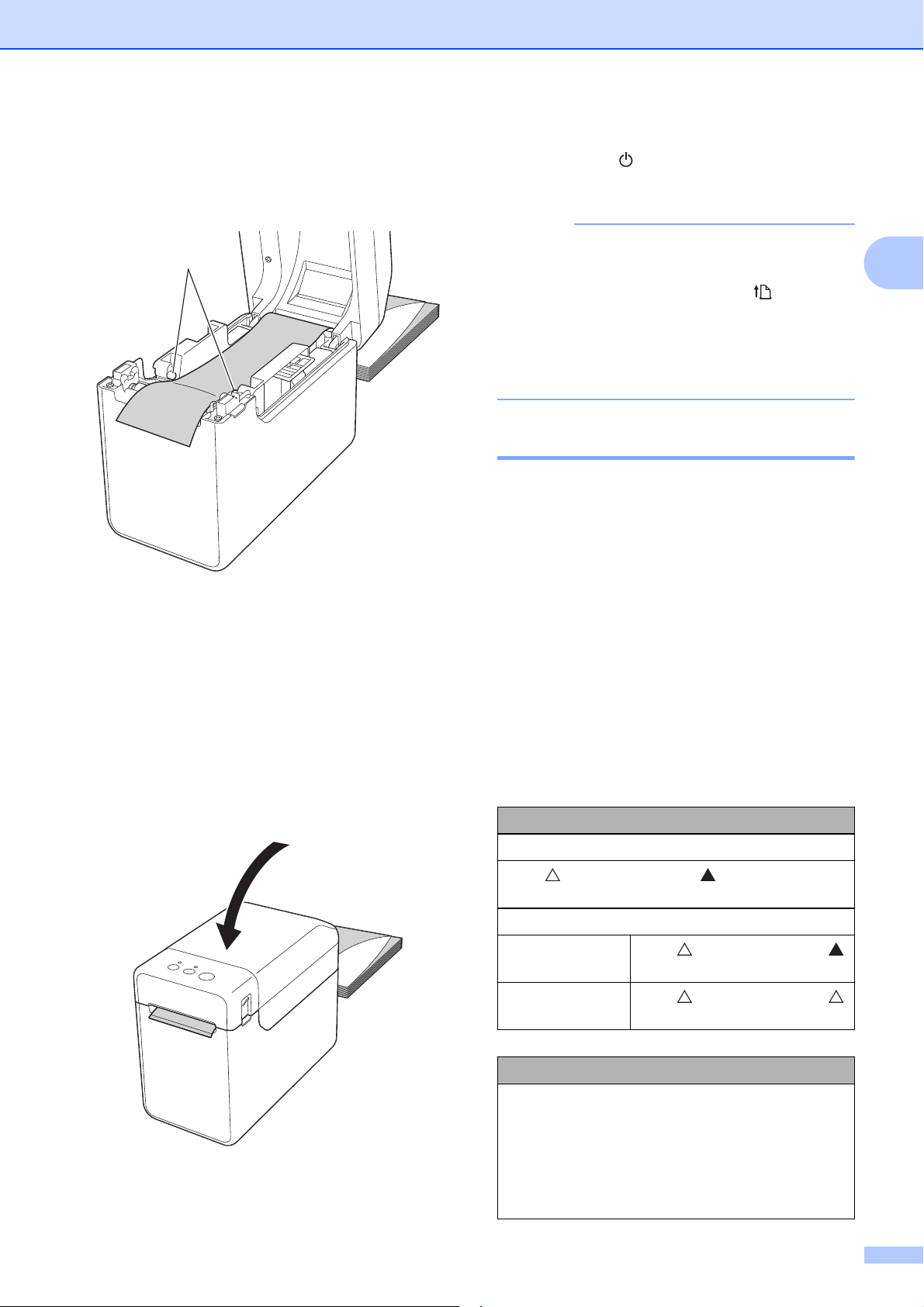
For fanfold paper
1 Insert the fanfold paper in the
direction shown.
1 Print side
1
2
1
1
Printing
9
2
2 Feed the end of the fanfold
paper under the media tip
guides (1).
3 Position the end of the paper
centered over the platen roller
and slightly out of the media
exit.
4 Close the Media Roll
compartment top cover by
pressing it in the center.
Press down until it locks into
place.
d Press the (Power) button to turn the
printer on.
NOTE
If the paper size information for the die-cut
labels being used has been registered
with the printer, pressing the (Feed)
button will position the label at the correct
starting position. For more information,
see Registering Paper Size Information
With the Printer on page 4.
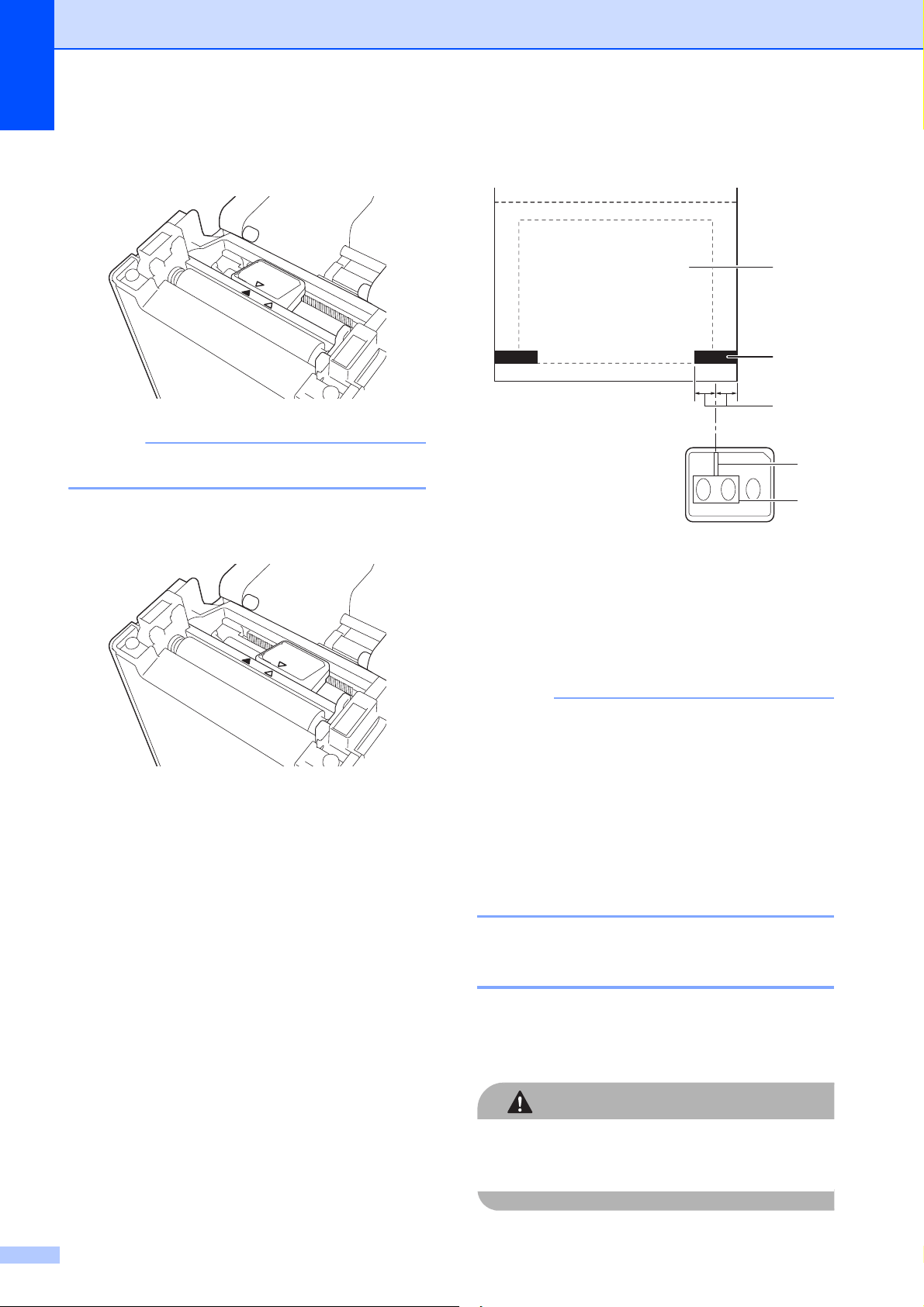
Checking the Sensor Position2
Check the sensor position for the type of
paper being used.
With die-cut labels that have no black
mark, the transmissive/gap sensor
detects the beginning of the label and
feeds the label to the correct position.
With receipt paper that has no black mark,
the reflective/black mark sensor detects if
paper has run out.
With media that has a black mark, the
reflective/black mark sensor detects the
mark and feeds the media to the correct
position.
1
With no black mark
Die-cut labels
Align on the sensor with on the printer.
(See Figure 1.)
Receipt paper
Width of 0.985"
(25 mm) or more
Align on the sensor with
on the printer. (See Figure 1.)
Width less than
0.985" (25 mm)
Align on the sensor with
on the printer. (See Figure 2.)
With a black mark
Align the black mark on the paper with the
centerline of the reflective/black mark sensor.
(See Figure 3.)
Make sure that there is at least 0.16" (4 mm) of
the black mark on the left and right of the
centerline for the reflective/black mark sensor.
Chapter 2
10
Figure 1 2
NOTE
This is the sensor's default position.
Figure 2 2
Figure 3 2
1 Back of media
2 Black mark
3 0.16" (4 mm) or more
4Centerline
5 Reflective/black mark sensor
NOTE
When using receipt paper with the
maximum width of 2.4" (63 mm), make
a black mark at least 0.35" (9 mm) long
in from either the left or right edge of the
paper so that the reflective/black mark
sensor can detect the black mark. If the
black mark is too short, it cannot be
detected by the reflective/black mark
sensor.
Cutting Roll Paper 2
Roll paper can be cut using the printer’s tear
bar. Pull one edge of the ejected paper up
and diagonally toward the other edge.
CAUTION
The tear bar is sharp. To avoid injury, do not
touch the tear bar.
1
2
3
4
5

Printing
11
2
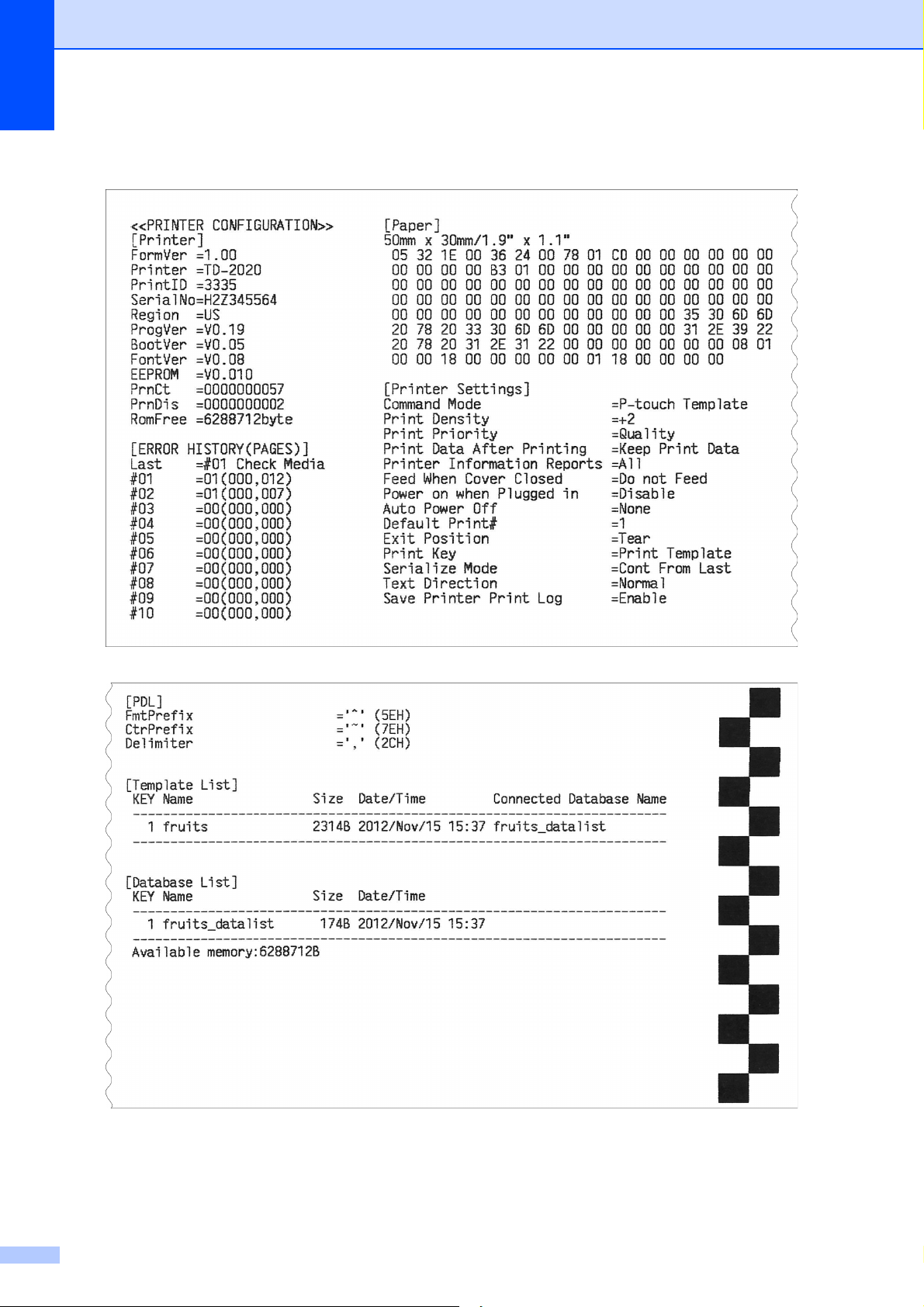
Printing the Printer Setup Information
2
Press the (Print) button to print a report that lists the following printer settings:
Program version
Printer usage history
Missing dot test pattern
List of transferred data
Communication settings
NOTE
• You can use [Device settings] of the “Printer Setting Tool” to set, in advance, which items
will be printed. For more information, see Printer Information Report on page 30.
• The node name will also appear in the communication settings. The default node name is
“BRWxxxxxxxxxxxx”. (“xxxxxxxxxxxx” is based on your printer’s MAC address/Ethernet
address.)
a Make sure that a roll of 2.25" (57 mm) receipt paper has been loaded, and the Media Roll
compartment top cover is closed.
b Turn on the printer.
c Hold down (for at least 1 second) the (Print) button until the POWER indicator starts
blinking in green and the printer setup information is printed.
NOTE
• For printing the printer setup information, we recommend using 2.25" (57 mm) receipt paper.
The length required for printing differs depending on the information to be printed.
• The printer setup information can also be printed from [Device settings] of the “Printer
Setting Tool”. For more information, see Print Information Report on page 34.
Chapter 2
12
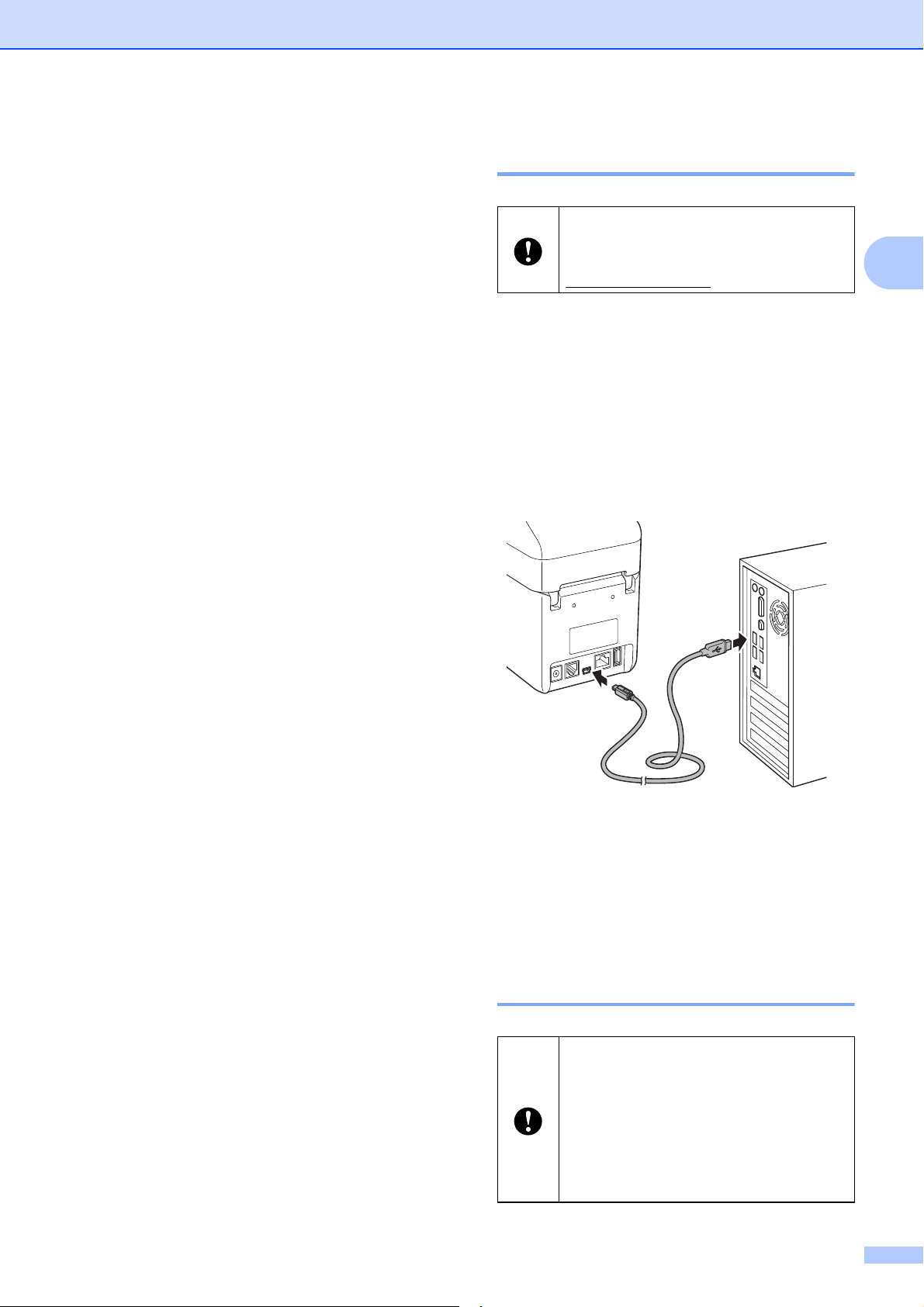
Printer Setup Information Printing Sample 2
This printing sample is for illustrative purposes only.
Printing
13
2
Connecting the
Computer and Printer
2
Connect the printer to your computer using
any of the methods listed below.
USB cable connection
Wired LAN connection (TD-2125N/
2135N/2125NWB/2135NWB only)
Serial cable connection
Wireless LAN connection (TD-2125NWB/
2135NWB only)
Bluetooth connection (TD-2125NWB/
2135NWB only)
USB Cable Connection 2
a Before connecting the USB cable, make
sure that the printer is turned off.
b Connect the printer end of the USB
cable to the mini-USB port on the back
of the printer.
c Connect the other end of the USB cable
to the USB port on the computer.
d Turn on the printer.
Wired LAN Connection
(TD-2125N/TD-2135N/
TD-2125NWB/TD-2135NWB
only) 2
Before connecting the printer to the
computer, install the printer driver from
your model's Downloads page at
support.brother.com
.
To use a static IP address to
communicate through a wired LAN
connection you must first install the
printer driver and the Printer Setting
Tool and specify the wired LAN
connection settings. For more
information, see Installing the Printer
Driver and Software on page 3.

Chapter 2
14
a Make sure the printer is turned off before
connecting the LAN cable.
b Connect the LAN cable to the ethernet
network port on the back of the printer,
and then turn on the printer.
NOTE
• Change the printer's communication
settings in the Printer Setting Tool under
Communication settings. For more
information, see Communication Settings
(TD-2125N/TD-2135N/TD-2125NWB/
TD-2135NWB only) on page 22.
•The Printer Setting Tool allows you to
change and apply [Communication
settings] to multiple printers. For more
information, see Applying Setting
Changes to Multiple Printers on page 27.
Wireless LAN Connection 2
Use any of the following Wi-Fi connection
methods:
Using a Wi-Fi Router/Access Point
(Infrastructure Mode)
Without Using a Wi-Fi Router/Access
Point (Wireless Direct)
Using Infrastructure Mode and Wireless
Direct Simultaneously
Using Wi-Fi Protected Setup (WPS)
Using a Wi-Fi Router/Access Point
(Infrastructure Mode)
2
Infrastructure Mode allows you to connect the
printer to a computer or mobile device using
a Wi-Fi router/access point.
Before You Begin
Configure the printer's Wi-Fi settings to
communicate with your Wi-Fi router/
access point. After the printer is
configured, the computers and mobile
devices on your network will have access
to the printer.
• Before connecting the printer to your
network, contact your system
administrator to confirm your Wi-Fi
network settings.
• To reconfigure the Wi-Fi settings or if
the printer's Wi-Fi connection status is
unknown, reset the printer's Wi-Fi
settings:
a Press and hold the (Feed)
button and the (Power) button
simultaneously until the POWER
indicator lights in orange and the
STATUS indicator blinks in green.
b While continuing to press the
(Power) button, press the
(Feed) button twice.
c Release the (Power) button.
• For the best print results, place the
printer as close to the Wi-Fi router/
access point as possible with minimal
obstructions between them. Large
objects or walls between the two
devices, as well as interference from
other electronic devices, can affect the
transfer speed of print data.
Connect the printer to your Wi-Fi
router/access point
Configure the printer's Wi-Fi settings to
communicate with your Wi-Fi router/
access point. After the printer is configured,
the computers and mobile devices on your
network will have access to it.
a Make sure that the printer is turned
off.
b Write down the SSID (Network
Name) and Password (Network Key)
of your Wi-Fi router/access point.
c Connect the printer and computer
using a USB cable.

Printing
15
2
d On the printer, simultaneously press
and hold the (Print), (Feed),
and (Power) buttons until the
POWER indicator and STATUS
indicator blink in green alternately.
e Release the (Feed) and (Print)
buttons (keep pressing the
(Power) button).
f Change the connection mode by
pressing the (Print) button (keep
pressing the (Power) button). The
flashing indicator changes each time
you press the (Print) button,
toggling between connection mode.
g Release the (Power) button when
both the POWER and Wi-Fi
indicators are lit in green:
• Using a Windows computer:
a. Launch the “Printer Setting
Tool” on your computer, and
click the Communication
Settings button.
b. Click the General tab, and in
the Selected Interface
section, select Wireless LAN.
c. Click the Wireless LAN tab
and in the Wireless Settings
section, select Infrastructure.
h Launch the Printer Setting Tool on
your Windows computer, and click
the Communication Settings
button. Click the Wireless LAN tab
and select Wireless Settings. Type
the SSID that you wrote down in
step 2, or click Search and select the
SSID from the list that appears.
i In the Passphrase field, type the
Password (Network Key).
NOTE
The information required here depends on
the authentication method and encryption
mode you are using; enter only the
information relevant to your network
environment.
j Click Apply.
Both the POWER and the Wi-Fi indicators
will light in green when the connection
between the printer and your Wi-Fi router/
access point is established.
NOTE
To change any other network settings, use
the “Printer Setting Tool”.
Without Using a Wi-Fi Router/
Access Point (Wireless Direct)2
Wireless Direct allows you to connect the
printer to your computer or mobile device
directly, without a Wi-Fi router/access point.
The printer serves as a Wi-Fi access point.
a Make sure that the printer is turned off.
b Confirm the Wireless Direct settings of
the Printer.
• Using a Windows computer:
a. Connect the printer and computer
using a USB cable.
b. Launch the “Printer Setting
Tool” on your computer, and click
the Communication Settings
button.
c. Click the General tab and in the
Selected Interface section,
confirm that Wireless Direct is
selected.

Chapter 2
16
c On the printer, simultaneously press
and hold the (Print), (Feed), and
(Power) buttons until the POWER
indicator and STATUS indicator blink in
green alternately.
d Release the (Feed) and the (Print)
buttons (keep pressing the (Power)
button).
e You can change the connection mode
by pressing the (Print) button (keep
pressing the (Power) button). The
flashing indicator changes each time
you press the (Print) button and it
toggles between the connection modes.
f Release the (Power) button when the
Power and Wi-Fi indicators are both lit in
green.
g Use your computer or mobile device to
select the SSID of the printer (“DIRECT-
*****_TD-2135NWB”). If required, type
the Password (“213*****”, where***** is
the last five digits of the printer's serial
number).
NOTE
• The serial number label is located on the
base of the printer. If necessary, confirm
the serial number by printing the printer
information.
•Use the “Printer Setting Tool” to change
the printer's network settings.
•Use the “Printer Setting Tool” to apply
network settings to multiple printers at the
same time.
• You cannot connect to the Internet via
Wi-Fi while using Wireless Direct. To use
the Internet, connect using a Wi-Fi router/
access point (Infrastructure Mode).
• We recommend setting a new Wireless
Direct password using the “Printer
Setting Tool” to protect your printer from
unauthorized access.
Using Infrastructure Mode
and Wireless Direct
Simultaneously 2
Wireless Direct allows you to connect the
printer to your computer or mobile device
directly, without a Wi-Fi router /access point.
The printer serves as a Wi-Fi access point.
a Set the printer to Infrastructure Mode
and Wireless Direct.
• Using a Windows computer:
a. Launch the “Printer Setting
Tool” on your computer.
b. Click the Communication
Settings button.
c. Click General > Communication
Settings.
d. Confirm that the Infrastructure
and Wireless Direct option is
selected for the Selected
Interface setting.
Using Wi-Fi Protected
Setup™ (WPS) 2
a Confirm that your Wi-Fi router/access
point has the WPS symbol. If this symbol
is not visible, you must use a different
connection method.
b Place the printer within the range of your
Wi-Fi router/access point. The range
may differ depending on your
environment. See the instructions
provided with your Wi-Fi router/access
point.
c Press and hold (Feed) button for ten
seconds until STATUS indicator blinks
in green.

Printing
17
2
d Press the WPS button on your Wi-Fi
router/access point. When the
connection is established, the STATUS
indicator is lit in green.
For more information, see the instructions
provided with your Wi-Fi router/access point.
Both the POWER and the Wi-Fi indicators will
light in green when the connection is
established.
Computers and mobile devices that are on
the same network as the printer will have
access to the printer.
NOTE
If your computer or mobile device
supports the PIN authentication method,
select [PIN Code] for better security.
Connect the Printer to a
Computer Using a Bluetooth
Connection 2
Follow the manufacturer's recommendations
for your Bluetooth-equipped devices
(computers and mobile devices) or Bluetooth
adapter, and install any necessary hardware
and software.
a Make sure that the printer is turned off.
b Simultaneously press and hold the
(Print), (Feed), and (Power)
buttons until the POWER indicator and
STATUS indicators blink in green
alternately.
c Release the (Feed) and (Print)
button (keep pressing the (Power)
button).
d You can change the connection mode
by pressing the (Print) button (keep
pressing the (Power) button).
e To set Bluetooth mode, release the
(Power) button when the STATUS
indicator is lit in green and the Bluetooth
indicator is lit in blue.
f Use your Bluetooth management
software to discover the printer. Select
the printer name (where XXXX is the last
four digits of the printer's serial number).
You can find the serial number label on
the base of the printer.
NOTE
• You can also change the printer’s
communication settings using the “Printer
Setting Tool”.
• If the passcode appears on the LCD while
connecting, check that it is the same as
that of the computer or mobile device, and
then press the OK button.
• We recommend setting a new Bluetooth
PIN code using the “Printer Setting Tool”
to protect your printer from unauthorized
access.

Chapter 2
18
Printing
2
There are various methods for printing with
this printer. The following describes the
procedure for printing from a computer.
a Start the P-touch Editor application, and
then open the document to be printed.
For more information on using P-touch
Editor, refer to the Software User’s
Guide on your model's Manuals page at
support.brother.com/manuals
.
b Make sure the printer is connected to an
AC power outlet.
c Turn on the printer. The POWER
indicator lights in green.
1 POWER indicator
2 (Power) button
d Connect the printer to a computer.
For more information on the connection
methods and procedures, see
Connecting the Computer and Printer
on page 13.
e Insert the Media Roll.
For more information, see Inserting the
Media Roll on page 7.
We recommend to use genuine Brother
Media Roll.
f If necessary, change the print settings
using either the printer driver or the
Printer Setting Tool instructions starting
on page 20.
g Click [Print] in the computer program’s
menu.
The POWER indicator blinks in green to
indicate that the printer is receiving data,
and the document prints.
Making Prints Lighter or
Darker 2
You can make prints lighter or darker by
adjusting the print density setting in the printer
driver’s dialog box or the “Printer Setting
Tool”. (See Print Density on page 30)
1
2

Printing
19
2
Printer Driver Options
2
You can configure various settings in the
printer driver’s dialog box, such as paper
size, number of copies, print quality, etc.
NOTE
You can also use the “Printer Setting
Tool” to configure more advanced
settings.
For more information, see Printer Setting
Tool on page 20.
20
3
About the Printer
Setting Tool
3
Use the Printer Setting Tool to specify the
printer’s communication settings, device
settings, P-touch Template settings, and
paper size settings from your computer.
NOTE
The Printer Setting Tool is automatically
installed when you download and install
other software, including the printer driver,
from our support website.
Before Using the Printer
Setting Tool 3
Make sure the printer is connected to an
AC power outlet.
Make sure that the printer driver has been
installed and is functional.
Connect this printer to a computer using a
USB cable.
With this tool, settings cannot be specified
using a wired LAN, wireless LAN, or
Bluetooth connection.
Using the Printer
Setting Tool
3
a Connect the printer you want to
configure to your computer.
b Launch the Printer Setting Tool.
For Windows 10:
From the Start menu, click Brother >
Printer Setting Tool.
For Windows 8.1:
Click the Printer Setting Tool icon in
the Apps screen.
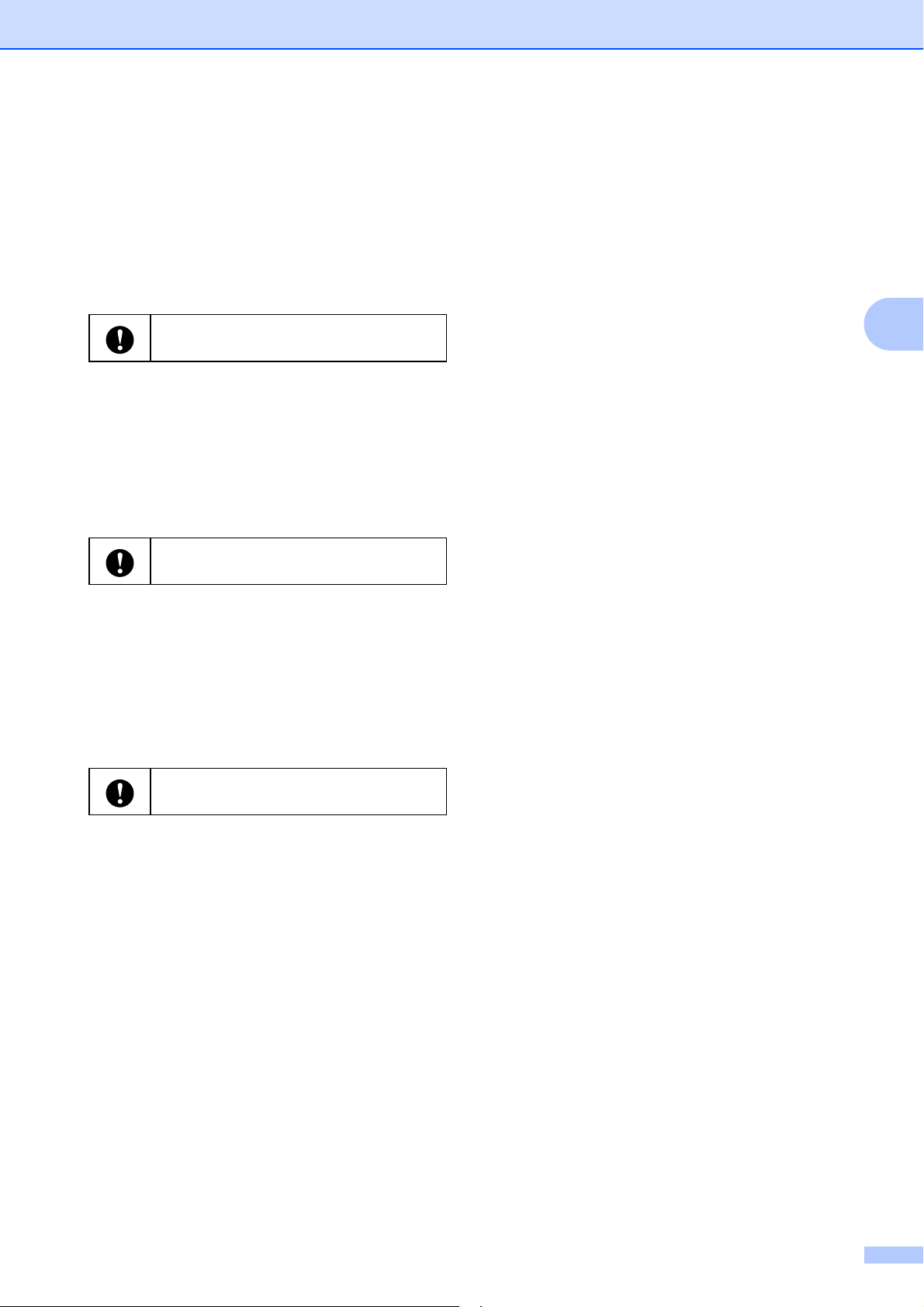
1Printer
Select the printer you want to configured.
If only one printer is connected, it is
unnecessary to make a selection since
only that printer will appear.
Printer Setting Tool 3
The Printer Setting Tool is available
only with compatible Brother printers.
Use the Printer Setting Tool to
configure the printer only when the
printer is in standby. The printer may
malfunction if you attempt to configure it
while printing.
3
2
4
5
6
1
Printer Setting Tool
21
3
2 Communication settings
For TD-2125N / TD-2135N /
TD-2125NWB / TD-2135NWB only:
Specify wired LAN settings.
For TD-2125NWB / TD-2135NWB only:
Specify wireless LAN, or Bluetooth
communication settings.
3 Device settings
Specify printer device settings, such as
power settings and print settings.
For TD-2125N / TD-2135N /
TD-2125NWB / TD-2135NWB only,
settings can also be specified using the
touchpanel.
4 P-touch Template settings
Specify P-touch Template settings.
5 Paper Size Setup
Add media information and settings to
the printer driver in order to use paper
sizes that may not be included in the
printer driver.
6Exit
Closes the window.
c Check that the printer to be configured
appears beside [Printer]. If a different
printer is displayed, select the desired
printer from the drop-down list.
d Make the settings changes you want.
For more information on settings, see
Communication Settings (TD-2125N/
TD-2135N/TD-2125NWB/
TD-2135NWB only) on page 22, Device
Settings on page 28, P-touch Template
Settings on page 35 or Paper Size
Setup on page 38.
e When finished, click Apply to apply the
new printer settings, and then click Exit.
f Click Exit in the main window to save
the printer settings.
You must log on as an administrator to
access [Communication settings].
You must log on as an administrator to
access [Device settings].
You must log on as an administrator to
access [Paper Size Setup].
Chapter 3
22
Communication
Settings (TD-2125N/
TD-2135N/
TD-2125NWB/
TD-2135NWB only)
3
Use [Communication settings] in the “Printer
Setting Tool” to specify or change printer
communication information when connecting
the printer and computer with a USB cable.
You can change the communication settings
for one printer and easily apply the same
settings to multiple printers.
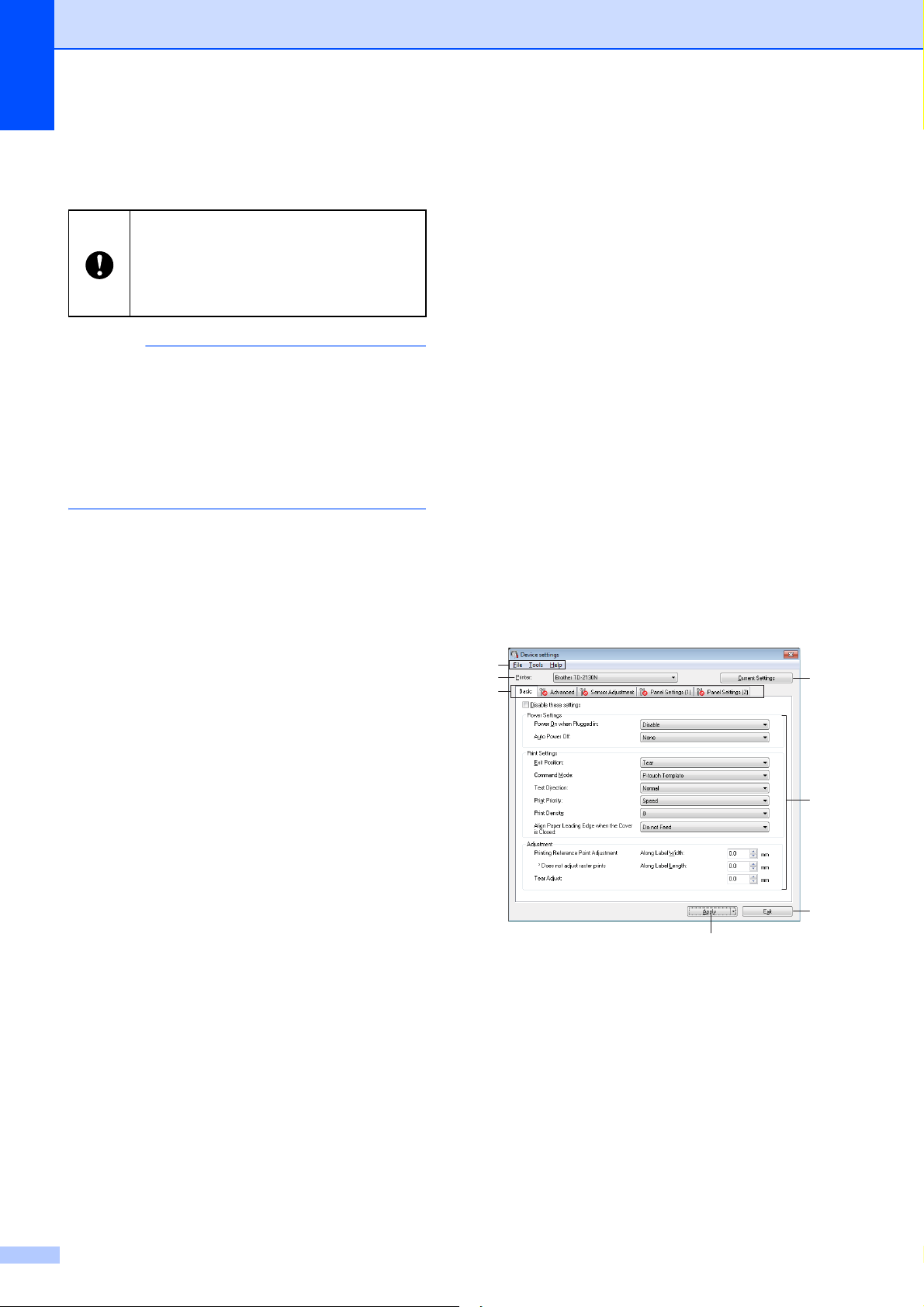
Settings Dialog Box 3
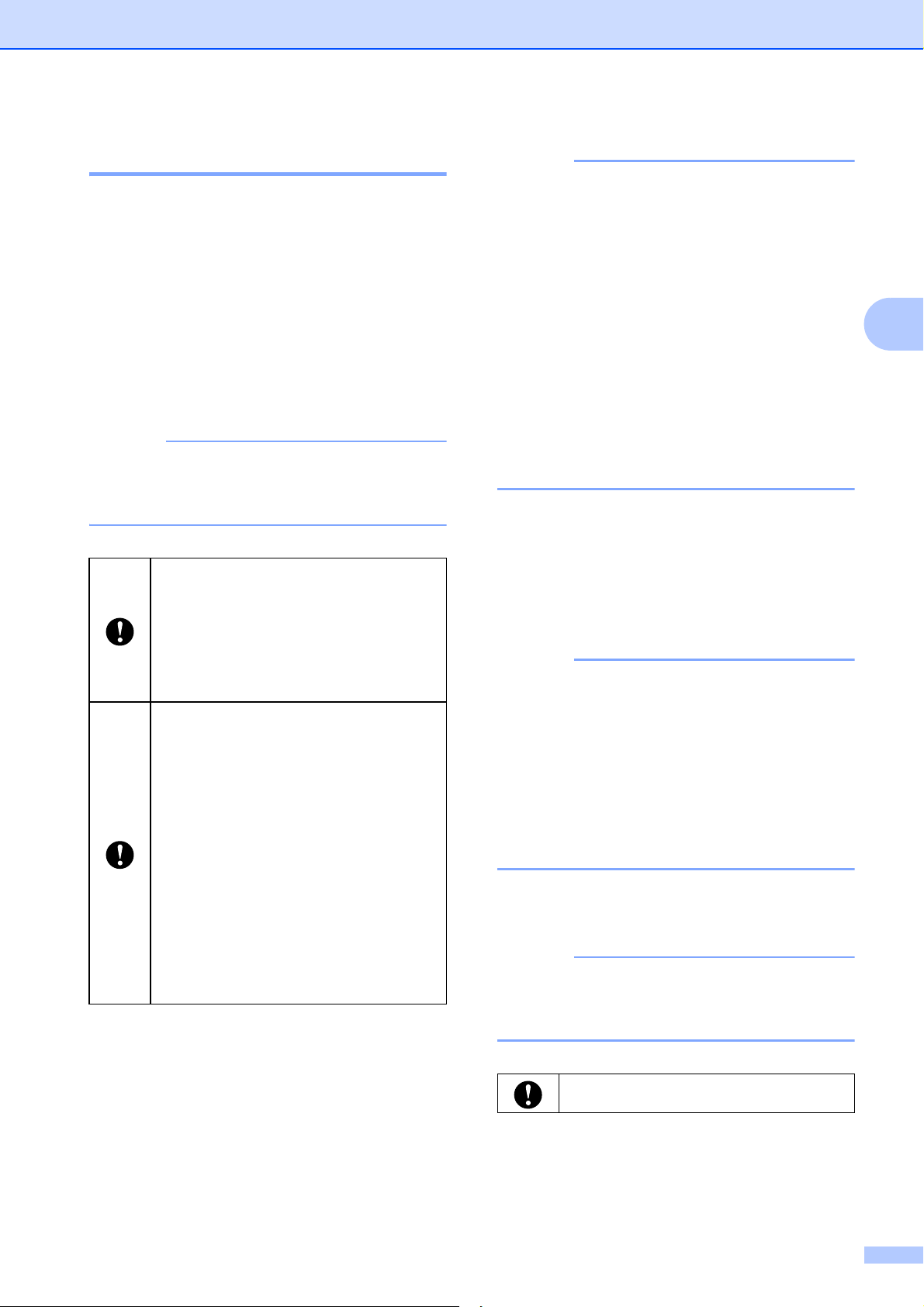
1 Menu Bar
Provides access to various commands grouped
under each menu title (the
File
,
Tools
, and
Help
menus) according to their functions.
2 Node Name
Displays the node name. The node name can
also be changed. (See Change Node Name/
Bluetooth Device Name on page 24)
3 Settings Display/Change Area
Displays the current settings for the selected
item.
4Refresh
Update the displayed settings with the most
recent information.
5Exit
Exits [
Communication settings
], and returns to
the main window of the “
Printer Setting Tool
”.
6 Apply
Apply the settings to the printer.
To save the specified settings in a command
file, select [Save in Command File] from the
drop-down menu. The saved command file can
be used with the mass storage feature to apply
the settings to a printer. (See Mass Storage
Functions on page 42)
7Items
When [Current Status] is selected, the current
settings appear in the settings display/change
area.
Select the item for the settings that you want to
change.
8 Disable these settings
When this check box is selected,
appears in the tab, and the settings can no
longer be specified or changed.
Settings in a tab where appears are not
applied to the printer even when you click
[
Apply
]. In addition, the settings in the tab are not
saved or exported when the [
Save in Command
File
] or [
Export
] command is executed.
To apply the settings to the printer or save or
export them, be sure to clear this check box.
9 Settings Tabs
Contains settings that may be specified or
changed.
If appears in the tab, the settings are not
applied to the printer.
10 Printer
Lists the connected printers.
Settings changes will not be applied
without clicking the [
Apply
] button. After
changing settings, be sure to click
[
Apply
] before clicking [
Exit
].
Clicking [Apply] applies all changes
made in all tabs.
If the [Disable these settings] check
box is selected, the settings in that tab
will not be applied.
Printer Setting Tool
23
3
Menu Bar 3
File Menu Options
• Apply Settings to the Printer
Applies the settings to the printer.
• Save Settings in Command File
Saves the specified settings in a command file.
The file extension is “.bin”.
The saved command file can be used with the
mass storage feature to apply the settings to a
printer. (See Mass Storage Functions
on page 42)
NOTE
If the [Disable these settings] check box is
selected, the settings in the tab will not be
saved.
•Import
Import from the current computer
wireless settings (TD-2125NWB/
2135NWB only)
Imports the settings from the computer.
NOTE
• Only personal security authentication settings
(open system, public key authentication, and
WPA/WPA2-PSK/WPA3-SAE) can be
imported. Enterprise security authentication
such as EAP-FAST settings cannot be
imported.
• If multiple wireless LANs are enabled for the
computer you use, the first detected wireless
settings (only personal settings) that are
detected will be considered for the import data.
• Only settings (communication mode, SSID,
authentication method, encryption mode, and
authentication key) from the [Wireless
Settings] pane in the [Wireless LAN] tab can
be imported.
Select a Profile to import
Imports the exported file and applies the
settings to a printer.
Click [Browse] and select the file you want
to import. The settings in the selected file
appear in the settings display/change area.
NOTE
• All settings except for node names can be
imported.
• Only profiles that are compatible with the
selected printer can be imported.
• If the imported profile’s IP address is set to
[STATIC], change the IP address of the
imported profile so that it does not duplicate the
IP address of an existing printer on the
network.
•Export
Saves the current settings in a file.
NOTE
If the [Disable these settings] check box is
selected, the settings in the tab will not be
saved.
The following information is not
saved with the settings commands:
• Node name
• IP address, subnet mask, and
default gateway (when the IP
address is set to [STATIC])
The saved communication settings
commands are intended to be used
only for applying settings to a
printer. The settings cannot be
applied by importing this command
file.
Saved command files contain
authentication keys and passwords.
Take necessary measures to
protect saved command files, such
as by saving them in a location that
cannot be accessed by other users.
Do not send the command file to a
different printer model.
Exported files are not encrypted.

Chapter 3
24
Tools Menu Options
• Automatically restart the printer after
applying new settings
If you select this check box, the printer
automatically restarts after communication
settings are applied.
If you clear this check box, you must restart the
printer manually.
NOTE
When configuring multiple printers, you can
reduce the time required to change settings by
clearing this check box. In this case, we
recommend selecting this check box when
configuring the first printer so that you can
confirm that each setting is operating as
intended.
• Automatically detects the connected
printer, and retrieves the current settings.
If this check box is selected and a printer is
connected to the computer, the printer is
automatically detected and the printer’s current
settings are displayed in the [Current Status]
pane.
NOTE
If the connected printer is different from the
printer shown in the Printer drop-down list the
settings available on all tabs change to match
the connected printer.
• Change Node Name/Bluetooth Device
Name
Allows each node name to be changed.
• Reset to Default Communication Settings
Returns the communication settings to their
factory defaults.
Help Menu Options
3
• Display Help
Displays Help and information about
communication settings.
General Tab 3
Communication Settings 3
• Network Settings on Power On
(TD-2125NWB/2135NWB only)
Specify the conditions for connecting via
network when the printer is turned on. Select
the Wireless LAN by Default, Wired LAN by
Default, or Keep Current State option.
• Selected Interface
(TD-2125NWB/2135NWB only)
Select the Infrastructure, Infrastructure and
Wireless Direct, or Wireless Direct option.
• Bluetooth on Power On (TD-2125NWB/
2135NWB only)
Specify the conditions for connecting via
Bluetooth when the printer is turned on. Select
the On by Default, Off by Default, or Keep
Current State option.
IPv6
3
• IPv6 usage
Select Enable or Disable.
• Priority on IPv6 address
Select to give priority to an IPv6 address.
Wired LAN/Wireless LAN Tabs
(TD-2125NWB/TD-2135NWB
only) 3
TCP/IP TCP/IP (Wireless) 3
• Boot Method
Select the AUTO, BOOTP, DHCP, RARP, or
STATIC option.
• IP Address/Subnet Mask/Gateway
Specify the various networking values. You
can enter these settings only when the IP
address is set to STATIC.
• DNS Server Method
Select the AUTO or STATIC option.
• Primary DNS Server IP Address/Secondary
DNS Server IP Address
Enter these settings only when the DNS server
is set to STATIC.
Printer Setting Tool
25
3
IPv6 3
• Static IPv6 Address
Specify a permanent IPv6 address.
• Enable this address
Enables the specified static IPv6 address.
• Primary DNS Server IPv6 Address/
Secondary DNS Server IPv6 Address
Specify the DNS server IPv6 addresses.
• IPv6 Address List
Displays the list of IPv6 addresses.
Wired 802.1x Authentication
3
Configure IEEE 802.1x authentication.
• Wired 802.1x Status
Enable or disable IEEE 802.1x authentication
for wired networks.
• Authentication Method
Select the authentication method.
• User ID/Password
With EAP-TLS, it is not necessary to register a
password, but you must register a client
certificate. To register a certificate, connect to
the printer from a web browser, and then
specify the certificate. You can also install the
authentication certificate in the Printer Setting
Tool using the menu bar: File > Install
Certificates.
Wireless Settings
3
• Communication Mode
Displays the available communications modes.
•SSID (Network Name)
Click Search to display available SSIDs.
• Channel
Displays the automatically selected channel.
• Authentication Method/Encryption Mode
The supported encryption modes for the
authentication methods are shown in the table
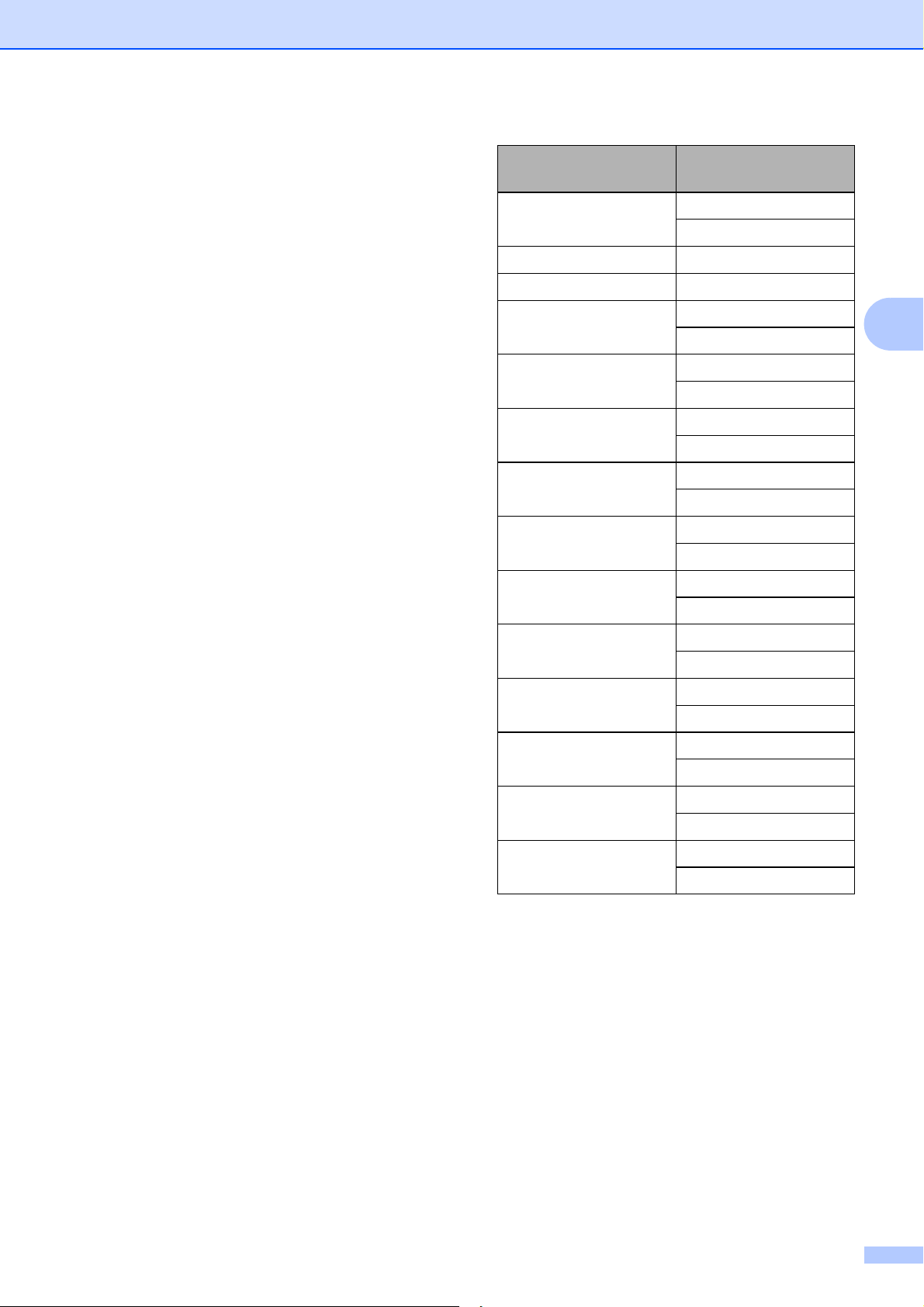
below.
Authentication
Method
Encryption Mode
Open System None
WEP
Shared Key WEP
WPA3-SAE AES
WPA/WPA2-PSK/
WPA3-SAE
TKIP + AES
AES
EAP-FAST/NONE TKIP
AES
EAP-FAST/
MS-CHAPv2
TKIP
AES
EAP-FAST/GTC TKIP
AES
PEAP/MS-CHAPv2 TKIP
AES
PEAP/GTC TKIP
AES
EAP-TTLS/CHAP TKIP
AES
EAP-TTLS/MS-CHAP TKIP
AES
EAP-TTLS/MS-
CHAPv2
TKIP
AES
EAP-TTLS/PAP TKIP
AES
EAP-TLS TKIP
AES

Chapter 3
26
• WEP Key
Specify a setting only when WEP is selected as
the encryption mode.
• Passphrase
Specify a setting only when WPA3-SAE or
WPA/WPA2-PSK/WPA3-SAE is selected as
the authentication method.
• User ID/Password
Specify these settings only when EAP-FAST,
PEAP, EAP-TTLS, or EAP-TLS is selected as
the authentication method.
With EAP-TLS, it is not necessary to register a
password, but a client certificate must be
registered. To register a certificate, connect to
the printer from a web browser, and then
specify the certificate.
• Display the key and password on-screen
If you select this check box, keys and
passwords are displayed in plain (non-
encrypted) text.
Wireless Direct Tab
(TD-2125NWB/TD-2135NWB
only) 3
Wireless Direct Settings 3
• SSID/Network Key Generation
Select the AUTO or STATIC option.
• SSID (Network Name)/Network Key
Specify the SSID (25 ASCII characters or
fewer) and the Network Key (63 characters or
fewer) you want to use in the Wireless Direct
mode.
NOTE
- The default SSID and Password are as
follows:
• SSID: “DIRECT-*****_TD-2125NWB /
DIRECT-*****_TD-2135NWB” where
***** is the last five digits of the printer's
serial number.
• Password: 212***** (for TD-2125NWB)
213***** (for TD-2135NWB) where
***** is the last five digits of the printer's
serial number.
- The serial number label is located on the
base of the printer.
• Channel
Specify the channel to use for the Wireless
Direct mode.
To perform higher level security
settings:
When performing certificate verification
with EAP-FAST, PEAP, EAP-TTLS, or
EAP-TLS authentication methods, you
cannot specify the certificate from the
Network Setting Tool. After the printer is
set up to connect to the network, specify
the certificate by accessing the printer
from a web browser.
For more information on using a web
browser, see Change Printer Settings
Using Web Based Management
on page 43.

Printer Setting Tool
27
3
Bluetooth Tab (TD-2125NWB/
TD-2135NWB only) 3
Bluetooth Settings
Bluetooth Mode
3
Select the control mode when Bluetooth is enabled.
Classic
3
• Visible to Other Devices
Allow the printer to be “discovered” by other
Bluetooth devices.
• Change PIN code
Change the PIN.
• Display the PIN code on-screen
Display the PIN on your computer.
• Pairing requires user confirmation on the
printer
If you select this check box, when using
Classic Bluetooth mode, you must perform
additional printer button operations to pair with
devices running Bluetooth 2.1 or later.
• Auto re-pairing
Set whether to automatically reconnect to a
previously connected Apple device (iPad,
iPhone, or iPod touch).
Low Energy
3
• Minimum Security Mode
Select the minimum security level when using
the Low Energy Only mode.
• Pairing requires user confirmation on the
printer
If you select this check box, when using the
Low Energy Only mode, you must perform
additional printer button operations to pair with
Low Energy compatible devices.
Applying Setting Changes to
Multiple Printers 3
a After applying settings to the first printer,
disconnect the printer from the
computer, and then connect the second
printer to the computer.
b Select the newly connected printer from
the [Printer] drop-down box.
NOTE
If the [Automatically detects the
connected printer, and retrieves the
current settings.] check box in the
[Option Settings] dialog box is selected,
the printer connected with the USB cable
is automatically selected.
For details, see Automatically detects the
connected printer, and retrieves the
current settings. on page 24.
c Click the [Apply] button.
The same settings that were applied to
the first printer are applied to the second
printer.
NOTE
If the [Automatically restart the printer
after applying new settings] check box
is cleared, the printers will not be restarted
after the settings are changed, reducing
the time required to configure the printers.
However, we recommend selecting the
[Automatically restart the printer after
applying new settings] check box when
configuring the first printer so that you can
confirm that a connection with the access
point can be correctly established with the
settings. For details, see Automatically
restart the printer after applying new
settings on page 24.
Chapter 3
28
d Repeat steps a – c for all the printers
whose settings you wish to change.
NOTE
To save the current settings in a file, click
[File] - [Export].
The same settings can be applied to
another printer by clicking [File] - [Import],
then selecting the exported settings file.
(See Import on page 23)
Device Settings
3
With [Device settings] in the “Printer
Setting Tool”, default printer settings as well
as settings for the touch panel display
(optional, TD-2125N/2135N/2125NWB/
2135NWB only) can be changed.
When printing from a computer application,
various printing settings can be specified
from the printer driver; however, by using
[Device settings] in the “Printer Setting
Tool”, more advanced settings can be
specified.
When [Device settings] is opened, the
printer’s current settings are retrieved and
displayed. If the current settings could not be
retrieved, the previous settings are displayed.
If the current settings could not be retrieved
and previous settings have not been
specified, this tool’s default settings are
displayed.
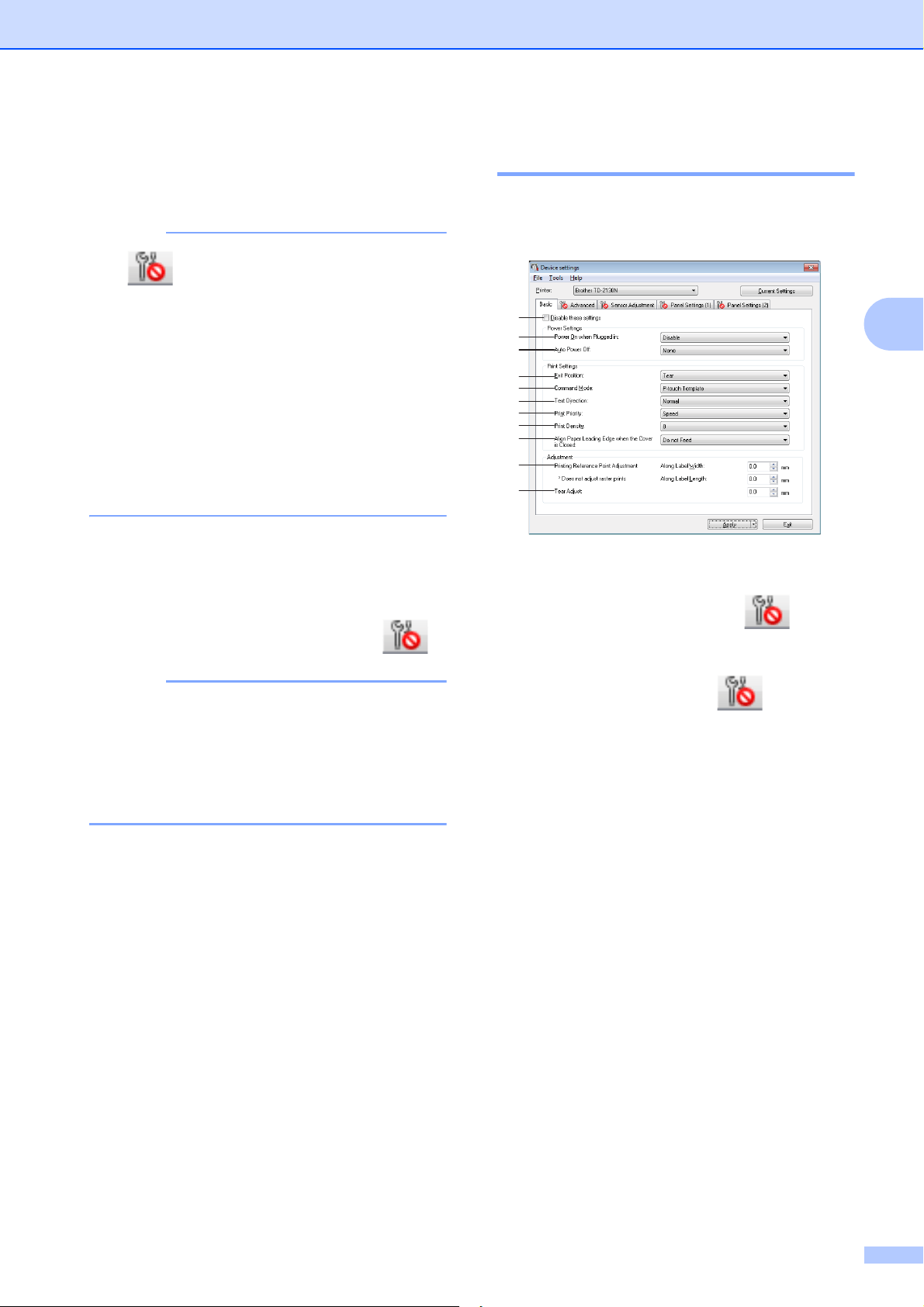
1 Menu Bar
Select a command contained in each menu
from the list.
2Printer
Select the printer whose device settings are to
be specified.
If only one printer is connected, it is
unnecessary to make a selection since only
that printer will appear.
If the IP address is set to [STATIC], the
printer’s IP address will also be
changed to the same address as the
first printer.
Change the IP address if necessary.
4
6
7
1
2
3
5
Printer Setting Tool
29
3
3 Settings Tabs
Click the tab containing the settings to be
specified or changed.
NOTE
• If appears in the tab, the settings in that
tab cannot be specified or changed. In
addition, the settings in the tab will not be
applied to the printer even if [Apply] is clicked.
The settings in the tab will also not be saved or
exported when the [Save in Command File] or
[Export] command is executed.
•“Panel Settings (1)” and “Panel Settings (2)”
appear only if TD-2125N/2135N/2125NWB/
2135NWB is selected for [Printer]. Specify the
settings when the touch panel display
(optional) is used.
4 Current Settings
Click this button to retrieve the settings from
the currently connected printer and display
them in the dialog box. Settings will also be
retrieved for parameters on tabs with .
NOTE
When the [Current Date/Time] button is
clicked, the current time is retrieved from the
computer and displayed for [Set Clock] in the
“Panel Settings (2)” tab. (In order to specify
the clock settings, the touch panel display must
be attached.)
5 Parameters
Displays the current settings. Change the
settings as necessary using the drop-down
menus, direct entry or other appropriate
methods.
6Exit
Exits [Device settings], and returns to the
main window of the “Printer Setting Tool”.
7 Apply
Click [
Apply
] to apply the settings to the printer.
To save the specified settings in a command
file, select [Save in Command File] from the
drop-down menu.
The saved command file can be used with the
mass storage feature to apply the settings to a
printer. (See Mass Storage Functions
on page 42)
Settings Tabs 3
Basic Tab 3
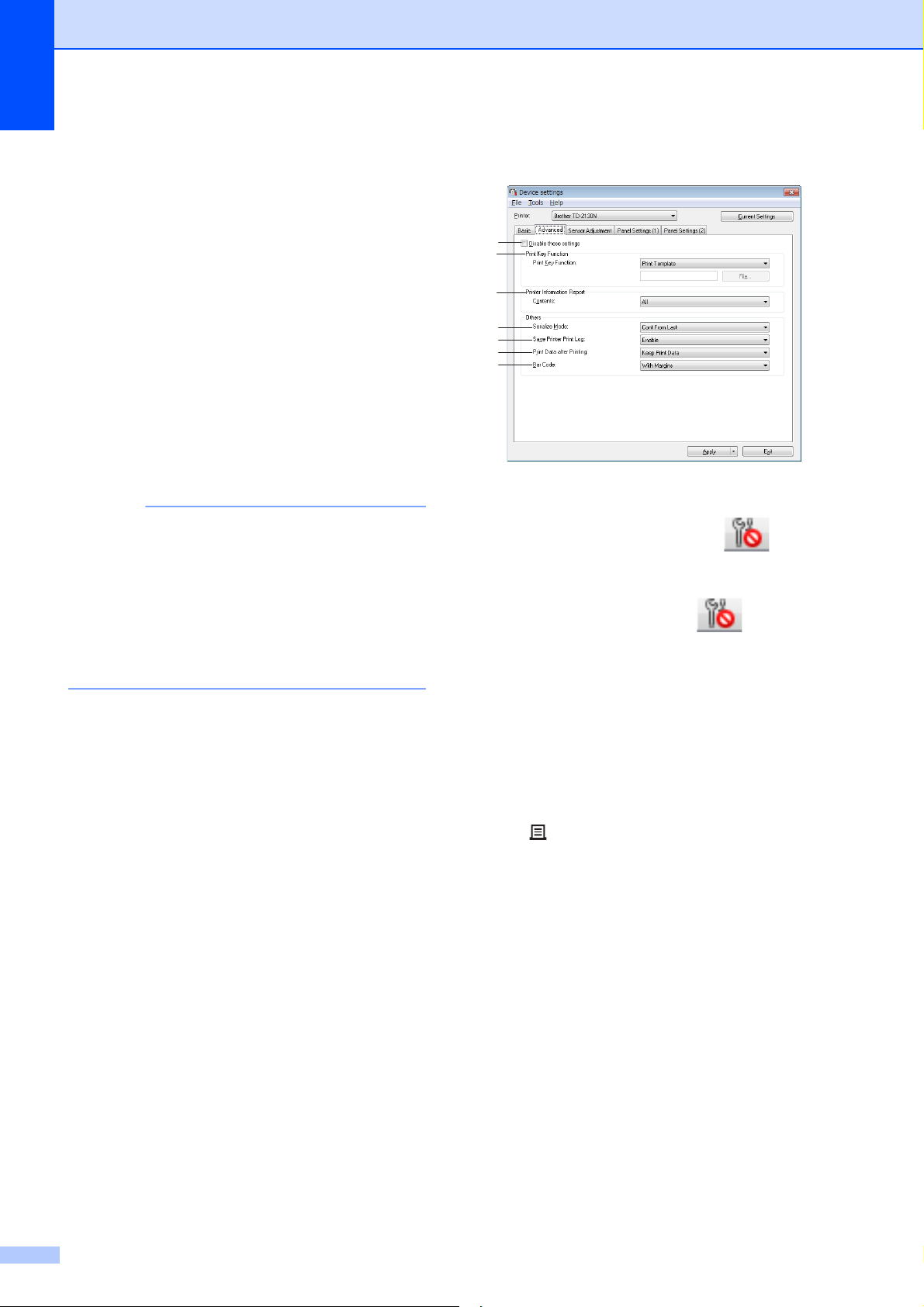
1 Disable these settings
When this check box is clicked, appears
in the tab, and the settings can no longer be
specified or changed.
The settings in a tab where appears will
not be applied to the printer even if [Apply] is
clicked. In addition, the settings in the tab will
not be saved or exported when the [Save in
Command File] or [Export] command is
executed.
To apply the settings to the printer or save or
export them, be sure to clear the check box.
2 Power On when Plugged in
Select whether or not the printer turns on
automatically when the AC power cord is
plugged into an AC power outlet.
Available settings: [Enable], [Disable]
3 Auto Power Off
Specify the amount of time that passes before
the printer turns off automatically.
Available settings: [None], 10 min. to 60 min.
(10 min. increments)
4 Exit Position (TD-2125N/2135N/2125NWB/
2135NWB only)
Select the media output location.
Available settings: [Tear], [Peeler]
1
2
3
4
5
7
8
9
10
11
6
Chapter 3
30
5 Command Mode
Select the printer’s command format.
Available settings: [Raster], [ESC/P], [P-touch
Template]
6 Text Direction
Select the printing orientation.
Available settings: [Normal], [Inverted 180
Degrees]
This setting is applied only if the printer driver
is not used. If the printer driver is used, the
setting specified in the printer driver will be
applied.
7 Print Priority
Select the printer’s print quality.
Available settings: [Quality], [Speed]
NOTE
[Print Priority] can also be changed using the
printer driver, however, the setting will be
erased when the printer is turned off. If the
setting is changed using this tool, it will be
retained even when the printer is turned off.
Therefore, if you plan on printing without using
the printer driver, use this tool to change this
setting.
8 Print Density
Adjust the printer’s printing density.
Available settings: -5–+5
9 Align Paper Leading Edge when the Cover
is Closed
Select whether or not the paper is
automatically fed when the cover is closed.
Available settings: [Feed], [Do not Feed]
10 Printing Reference Point Adjustment
Adjust the position of the reference point (point
of origin for printing). This corrects printing
misalignments resulting from differences in
printer models or from the fixed margins of
some applications.
The reference point cannot be adjusted for
raster printing.
11 Tear Adjust
Adjust the tear bar tear off position for paper
media.
Available settings: -0.39" to 0.39" (-10.0 mm to
10.0 mm)
Advanced Tab 3
1 Disable these settings
When this check box is clicked, appears
in the tab, and the settings can no longer be
specified or changed.
The settings in a tab where appears will
not be applied to the printer even if [Apply] is
clicked. In addition, the settings in the tab will
not be saved or exported when the [Save in
Command File] or [Export] command is
executed.
To apply the settings to the printer or save or
export them, be sure to clear the check box.
2 Print Key Function
Select the operation that is performed when
the (Print) button is pressed.
If [Program Settings] is selected, click the
[File] button and select the command file.
Available settings: [Print Template], [Printer
Information Report], [Disable Key],
[Program Settings]
3 Printer Information Report
Select which sections are printed when printing
the printer setup information.
Available settings: [All], [Usage Log], [Printer
Settings], [Printer Transfer Data]
(See Printing the Printer Setup Information
on page 11)
4 Serialize Mode
Select whether or not to serialize from the last
number printed.
Available settings: [Cont From Last],
[From Starting#]
1
2
3
4
5
6
7
Printer Setting Tool
31
3
5 Save Printer Print Log
Select whether nor not to save the printer’s
print log. If [Disable] is selected, [Tools] -
[Save Print Log in File] cannot be performed.
Available settings: [Enable], [Disable]
6 Print Data after Printing
Select whether or not print data is erased
automatically after it is printed.
Available settings: [Erase All Print Data],
[Keep Print Data]
7 Bar Code*
Select whether or not margins are added
around barcodes.
Available settings: [With Margins],
[No Margins]
* If this parameter does not appear in the tab,
update the printer driver to the newest version.
The newest version can be downloaded from
the support website.
support.brother.com
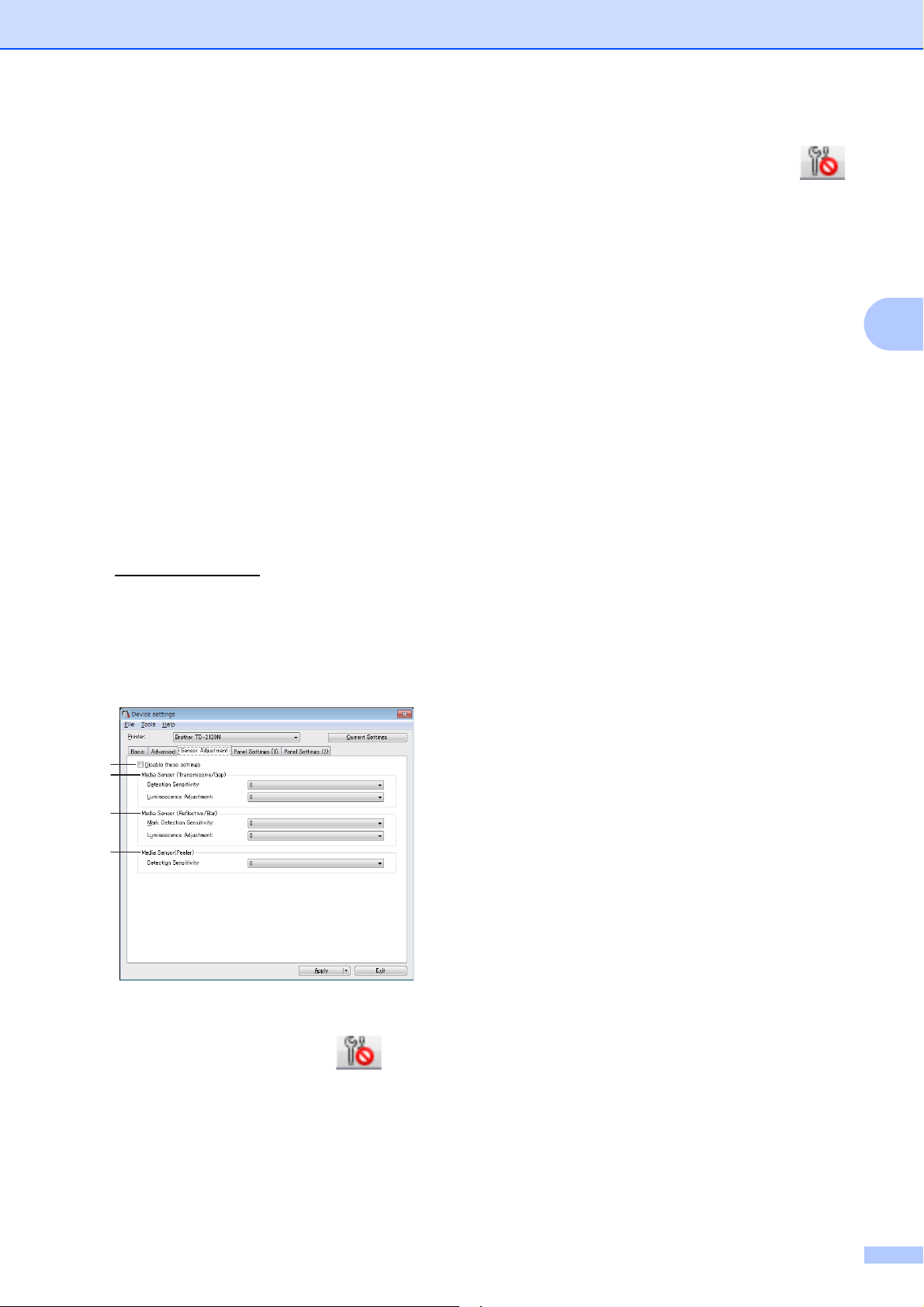
Sensor Adjustment Tab 3
If Media Rolls are being used, it is
unnecessary to adjust the sensors.
1 Disable these settings
When this check box is clicked, appears
in the tab, and the settings can no longer be
specified or changed.
In addition, the settings in a tab where
appears will not be applied to the printer even
if [Apply] is clicked. To apply the specified or
changed settings to the printer, be sure to clear
the check box.
2 Media Sensor (Transmissive/Gap)
The following transmissive/gap sensor
parameters can be adjusted.
[Detection Sensitivity]
Adjust the precision of the sensor that detects
the gaps (spacing) for die-cut labels.
Available settings: -2–+2
[Luminescence Adjustment]
Adjust the amount of light emitted by the
transmissive/gap sensor.
Available settings: -2–+2
3 Media Sensor (Reflective/Bar)
The following reflective/black mark sensor
parameters can be adjusted.
[Mark Detection Sensitivity]
Adjust the precision of the sensor that detects
the black marks.
Available settings: -2–+2
[Luminescence Adjustment]
Adjust the amount of light emitted by the
reflective/black mark sensor.
Available settings: -2–+2
4 Media Sensor (Peeler) (TD-2125N/2135N/
2125NWB/2135NWB only)
This appears only if TD-2125N/2135N/
2125NWB/2135NWB is selected for [Printer].
Specify the settings when the label peeler
(optional) is used.
Adjust the precision of the sensor that detects
whether the label has been peeled.
Available settings: -2–+2
1
2
3
4
Chapter 3
32
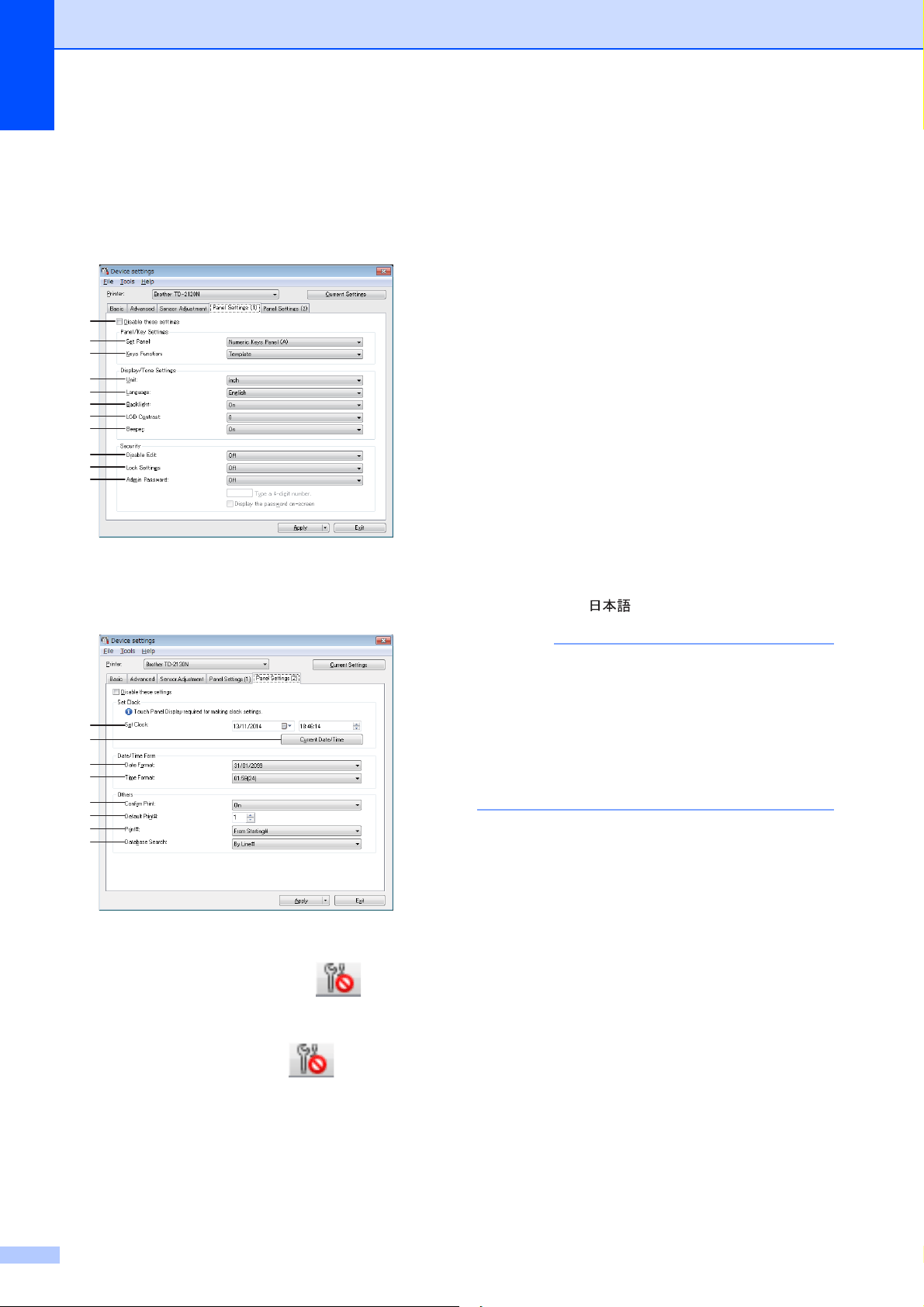
Panel Settings (1) 3
Specify the settings when the touch panel
display (optional) is used (TD-2125N/2135N/
2125NWB/2135NWB only).
Panel Settings (2) 3
1 Disable these settings
When this check box is clicked, appears
in the tab, and the settings can no longer be
specified or changed.
The settings in a tab where appears will
not be applied to the printer even if [Apply] is
clicked. In addition, the settings in the tab will
not be saved or exported when the [Save in
Command File] or [Export] command is
executed. To apply the settings to the printer or
save or export them, be sure to clear the check
box.
2Set Panel
Select the touch panel to be used.
Available settings: [Numeric Keys Panel (A)],
[One Touch Keys Panel (B)]
3 Keys Function
Select the type of data assigned to keys in the
one-touch panel.
To assign templates, select [Template].
To assign databases linked to a single
template, select [Database].
Available settings: [Template], [Database]
4Unit
Select the measurement units for displayed
settings.
Available settings: [mm], [inch]
5 Language
Select the language of the touch panel display.
Available settings: [Dansk], [Deutsch],
[English], [Español], [Français], [Italiano],
[Nederlands], [Norsk], [Português], [Suomi],
[Svenska], [ ]
NOTE
The possible display languages differ
depending on the printer model being used. If
the selected language cannot be used for the
touch panel display, the display language will
not be changed.
Make sure that the touch panel display can
display the selected language.
6 Backlight
Select whether the LCD display backlight is
turned on.
Available settings: [On], [Off]
7 LCD Contrast
Select the LCD display contrast.
Available settings: -2–+2
8Beeper
Select whether the printer beeps when a touch
panel key is pressed.
Available settings: [On], [Off]
9 Disable Edit
Select whether or not label layouts can be
edited.
Available settings: [On], [Off]
1
2
3
4
5
6
7
8
9
10
11
12
13
14
15
16
17
18
19

Printer Setting Tool
33
3
10 Lock Settings
Select whether or not settings selected by
pressing [ ] (settings key) on the touch panel
display can be changed.
Available settings: [On], [Off]
11 Admin Password
Set a password for accessing basic settings
specified by pressing [ ] (admin key) on the
touch panel display. Set a 4-digit password. If
the [Display the password on-screen] check
box is selected, specified passwords will be
displayed in computer windows.
12 Set Clock
Set the date and time for the touch panel
display.
In order to specify the time settings, the touch
panel display must be attached.
13 Current Date/Time
Click to retrieve the current date and time from
the computer and display them.
14 Date Format
Select the date format for the clock.
15 Time Format
Select the time format for the clock.
16 Confirm Print
Select whether a message appears before
printing so that the number of copies can be
confirmed.
Available settings: [On], [Off]
17 Default Print#
Specify the default number of copies that
appears when printing.
Available settings: 1–999
18 Print#*
Select whether or not the number of copies set
from the TDU, remains set after the copies are
printed.
This TDU setting is applied until the printer is
turned off.
Available settings: [From Starting#], [Cont
from Last]
19 Database Search*
When using a template with a linked database,
select whether to search for database records
by their line number or by their data.
Available settings: [By Line#], [By Data]
* If this parameter does not appear in the tab,
update the printer driver to the newest version.
The newest version can be downloaded from
the support website.
support.brother.com
Chapter 3
34
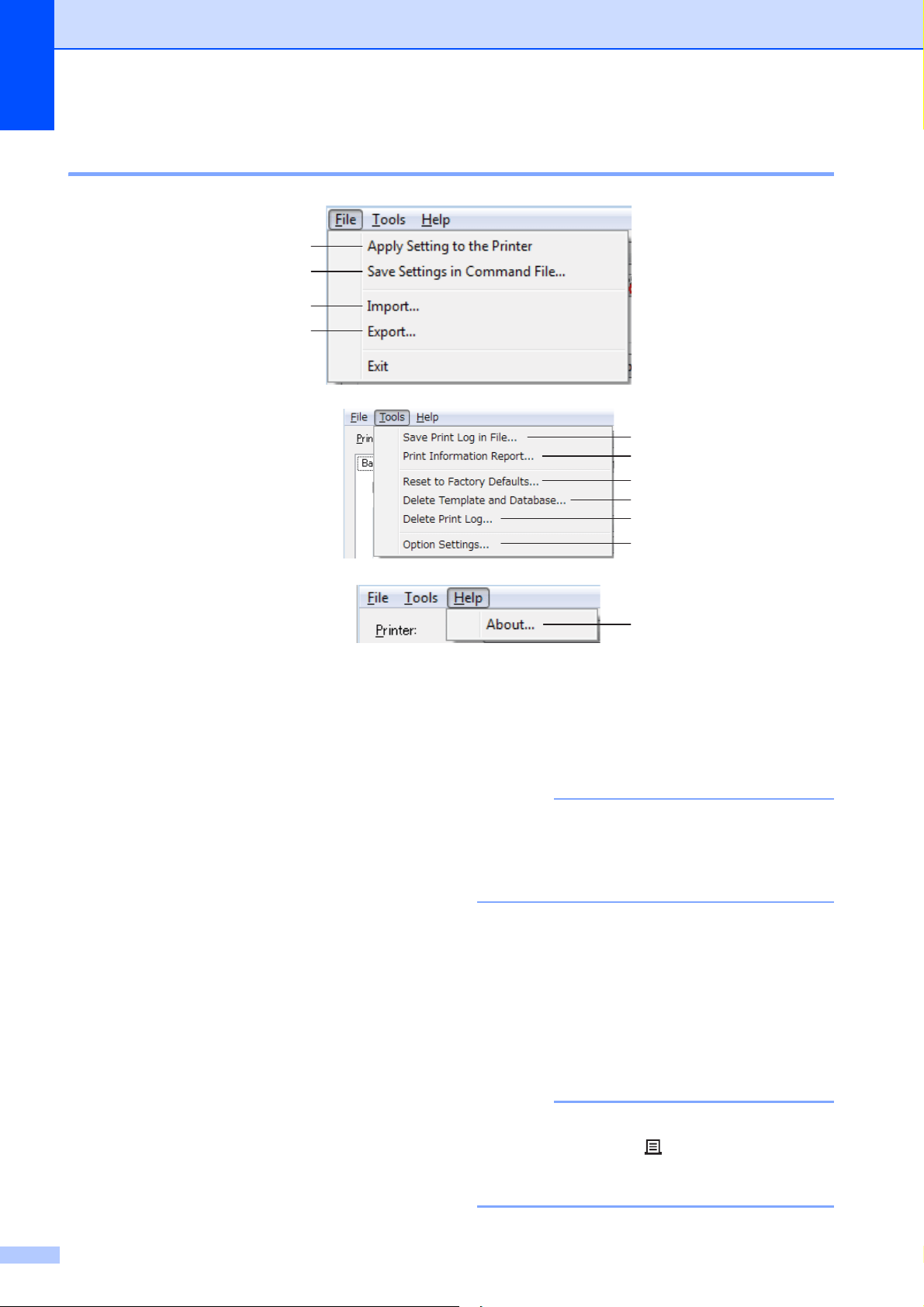
Menu Bar 3
1 Apply Settings to the Printer
Applies the settings to the printer.
Performs the same operation as when the
[Apply] button is clicked.
2 Save Settings in Command File
Saves the specified settings in a command file.
Performs the same operation as when [Save in
Command File] is selected from the [Apply]
drop-down list.
3 Import
Imports the exported file and applies the
settings to this tool.
4 Export
Saves the current settings in a file.
5 Save Print Log in File
Saves the print log in a file in the CSV format.
The following information is included in the
print log:
Printing time/date (only when using the
touch panel display. The time when printing
finished is recorded for the time.)
Key number*
Template name*
Name of database linked to template*
Number of records in database*
Number of copies printed
Error information
* Only when printing templates saved on the
printer
NOTE
The print log cannot be saved in a file if [Save
Printer Print Log] in the [Advanced] tab has
been set to [Disable] and the setting has
already been applied to the printer.
6 Print Information Report
The following printer settings will be printed.
Program version
Printer usage history
Missing dot test pattern
List of transferred data
Communication settings
NOTE
The printer setup information can also be
printed by using the (Print) button. For more
information, see Printing the Printer Setup
Information on page 11.
5
6
7
10
11
8
9
1
2
3
4

Printer Setting Tool
35
3
7 Reset to Factory Defaults
Returns all printer settings, including the
communication settings, to their factory
defaults. However, templates and databases
stored in the printer and the print log are not
deleted.
8 Delete Template and Database
Deletes the templates and databases stored in
the printer.
9 Delete Print Log
Deletes the print log stored in the printer.
10 Option Settings
If the [Do not display an error message if the
current settings cannot be retrieved at
startup.] check box is selected, a message will
not be displayed next time.
11 About
Displays the version information.
P-touch Template
Settings
3
P-touch Template mode provides functions
for inserting data from a device, such as a
barcode reader connected to the printer, into
text and barcode objects in layouts saved on
the printer. This is useful for easily printing
labels and barcodes.
With [P-touch Template settings] in the
“Printer Setting Tool”, settings for using the
P-touch Template functions can be specified
or changed.
P-touch Template 3
The following are the P-touch Template
functions.
Basic operations 3
Preset template printing
If frequently used label layouts are stored
in the printer, labels can be reprinted by
simply scanning the barcode for each
label layout.
Barcode printing
A barcode scanned with the barcode
reader can be printed with the protocol
and size of a previously created template.
Database-assisted label printing
By linking objects in a label layout to a
database, then scanning the key
barcodes for the database, labels can be
printed with objects in the template
replaced with database data.
Advanced operations 3
Numbering function (serialized number)
printing
Labels can be printed while automatically
incrementing a number or barcode in the
label.
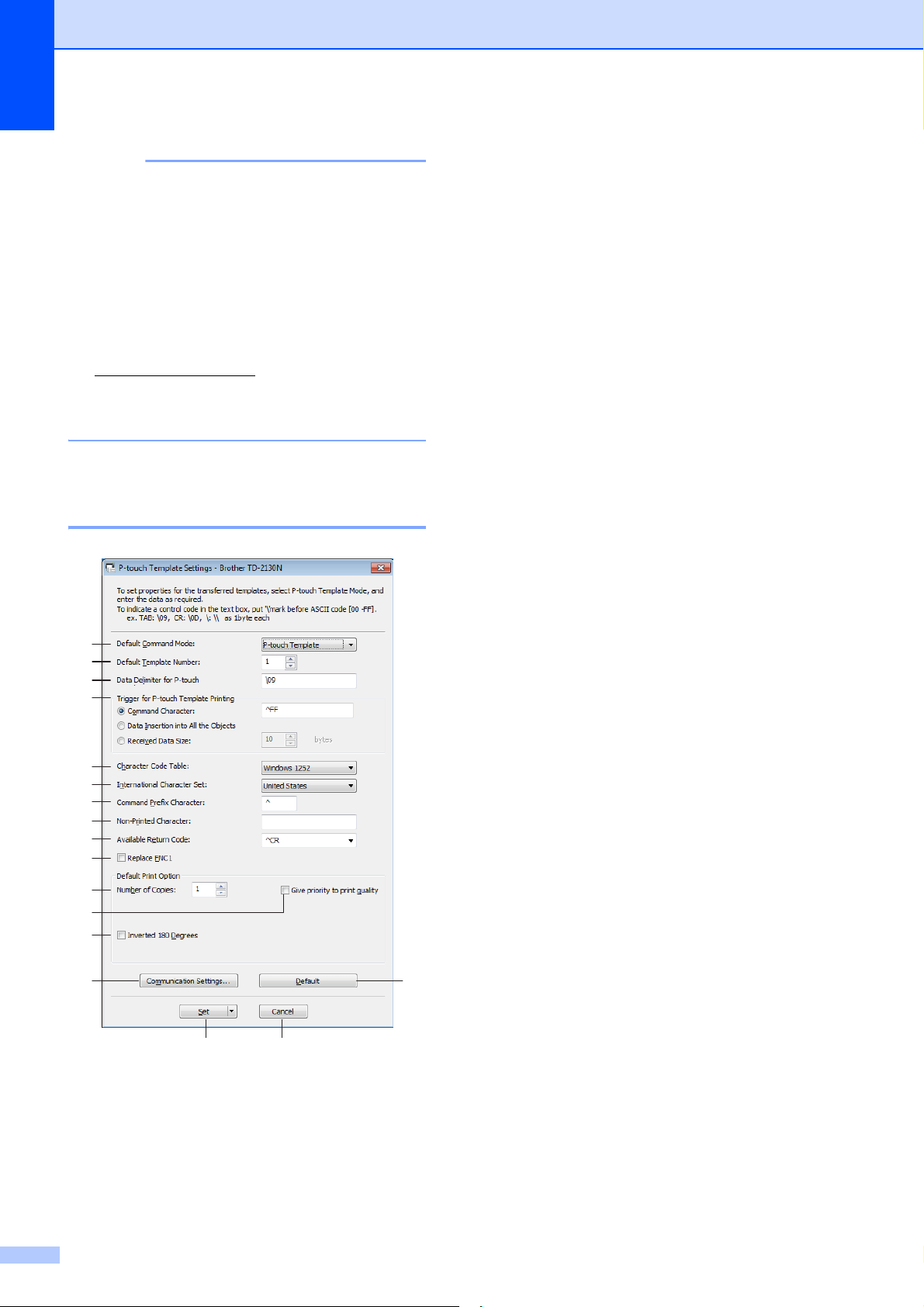
Chapter 3
36
NOTE
For more information on using the P-touch
Template functions, see the Software
User’s Guide which can be downloaded
from our support website. In addition,
if command reference is used, see the
P-touch Template Command Reference.
The latest versions can be downloaded
from the support website.
support.brother.com
Select the product, and then select
[Manuals].
P-touch Template Settings
Dialog Box 3
1 Default Command Mode
In order to use P-touch Templates, select the
[P-touch Template] mode.
Available settings: [P-touch Template],
[ESC/P], [Raster]
2 Default Template Number
Specify the template number selected as the
default when the printer is turned on.
However, if any template has been set to not
be transferred to the printer, the number of that
template cannot be specified.
3 Data Delimiter for P-touch
A delimiter is the symbol used to indicate when
to move to the next object in the data that is
being sent. Between 1 and 20 characters can
be specified.
4 Trigger for P-touch Template Printing
Select one of the following three options for the
print start trigger.
[Command Character]: Printing starts when
the command character specified here is
received.
[Data Insertion into All the Objects]: Printing
starts when the delimiter for the last object is
received.
[Received Data Size]: Printing starts when the
number of characters specified here is
received. However, delimiters are not counted
in the number of characters.
5 Character Code Table
Select one of the Character code sets.
6 International Character Set
Select one of the following countries for the
character set.
Available settings: [United States], [France],
[Germany], [Britain], [Denmark I], [Sweden],
[Italy], [Spain I], [Japan], [Norway], [Denmark
II], [Spain II], [Latin America], [South Korea],
[Legal]
The following 12 codes are switched
depending on the country selected from those
listed above.
23h 24h 40h 5Bh 5Ch 5Dh 5Eh 60h 7Bh 7Ch
7Dh 7Eh
For the characters that are switched, see the
P-touch Template Command Reference
(which can be downloaded from the Brother
support website).
3
2
4
5
6
7
8
9
10
11
12
13
17
14
15 16
1

Printer Setting Tool
37
3
7 Command Prefix Character
Change the prefix character code. Set a single
character code.
The prefix character is a code to identify
commands used in P-touch Template mode.
8 Non-Printed Character
The characters specified here are not printed
when data is received. Specify 1 to 20
characters.
9 Available Return Code
The line feed code is used when feeding data
to indicate that the following data should be
moved to the next line in a text object. One of
the following four line feed codes can be
selected, or 1 to 20 characters can be specified
as the line feed code.
Available settings: [^CR], [\0D\0A], [\0A], [\0D]
10 Replace FNC1
Select whether or not GS codes, which are
included in barcode protocols such as GS1-
128 (UCC/EAN-128), are replaced with FNC1
codes.
If this check box is selected, a received GS
code is replaced with the FNC1 code. If this
check box is cleared, a received GS code is
outputted as is.
11 Number of Copies
Set the number of copies. A number between 1
and 99 can be specified.
12 Give priority to print quality
Select the print quality setting. If this check box
is selected, priority is given to the print quality.
If this check box is cleared, priority is given to
the print speed.
13 Inverted 180 Degrees
If this check box is selected, the data will be
printed after it has been rotated 180 degrees.
14 Communication Settings
Sets the following parameters for serial
communication:
Baud Rate, Bit Length, Parity and Busy
Control.
15 Set
After the [Set] button (in the main dialog box or
the Communications Settings dialog box) is
clicked, the settings are saved as an .ini file
when the dialog box is closed.
To save the specified settings in a command
file, select [Save in Command File] from the
drop-down menu. The saved command file can
be used with the mass storage feature to apply
the settings to a printer. (See Mass Storage
Functions on page 42)
16 Cancel
Cancels the settings and closes the dialog box.
The settings will remain unchanged.
17 Default
Click this button to return the settings
(including those in the [Communication
Settings] dialog box) to their factory defaults.
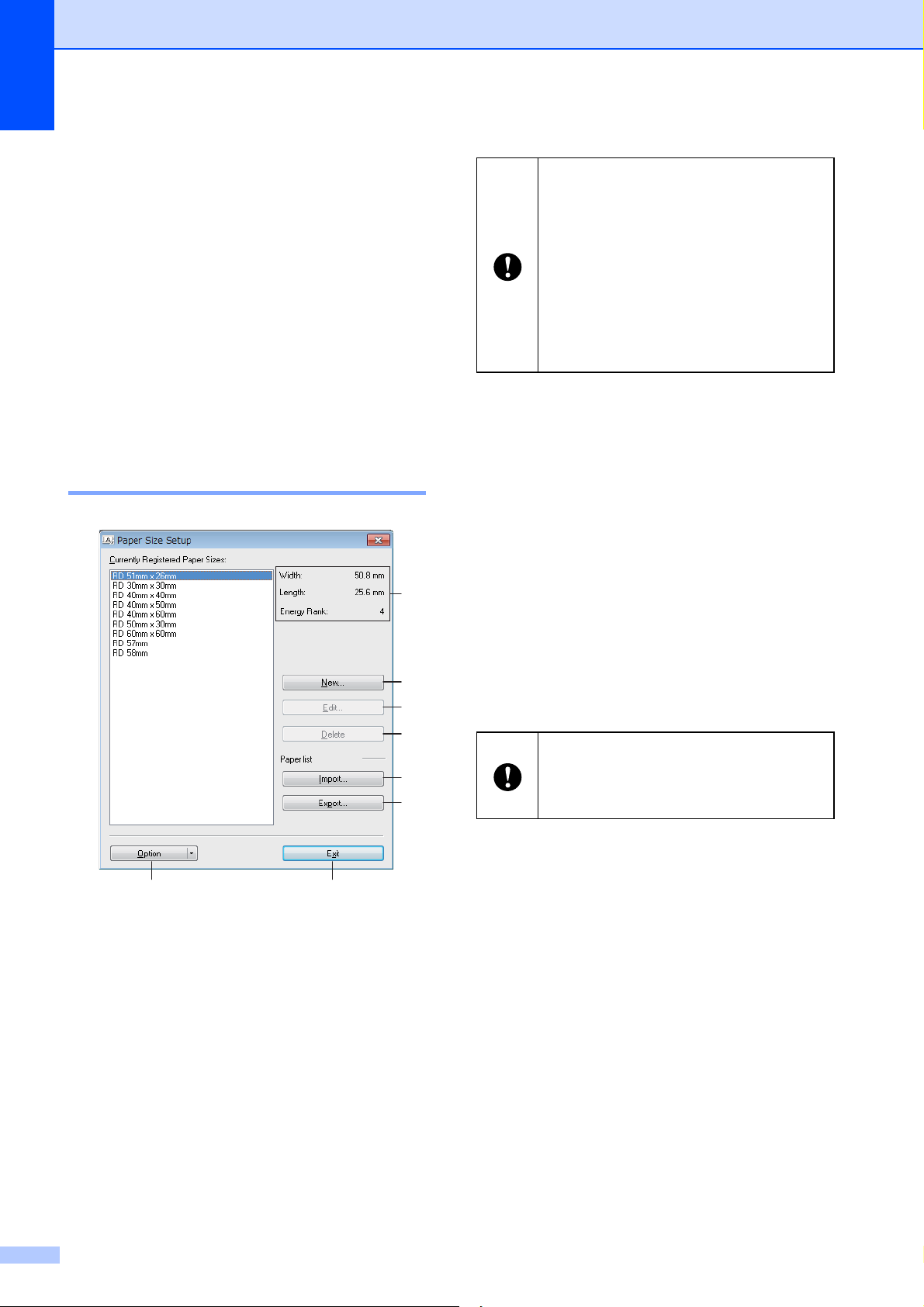
Chapter 3
38
Paper Size Setup
3
With [Paper Size Setup] in the “Printer
Setting Tool”, paper sizes not available in
the [Paper Size] list of the printer driver can
be added.
As opposed to specifying paper settings for a
normal printer, the paper format must be sent
to the printer in order to add the paper size to
the printer.
Printing with a paper format not registered
with the printer may not provide the intended
print results.
Paper Size Setup Dialog Box 3
1 Current settings
Displays the current settings for the selected
paper format.
2New
Click this button to display the [New] dialog box
and register a new paper format. For more
information, see New Dialog Box on page 39.
3Edit
Edits the settings for the selected paper format.
To save the selected paper format with the new
settings, click [Overwrite]. To add a paper
format with the new settings, change the name
in the [Paper Size Name] box, and then click
[Add].
Preset Media Roll formats cannot be edited.
4 Delete
Deletes the selected paper format. A deleted
paper format cannot be restored.
5Import
Reads the text file containing the paper format
settings, and uses it to replace the contents of
the [Currently Registered Paper Sizes] list.
6 Export
Exports the paper formats in the [Currently
Registered Paper Sizes] list to a file. The
exported formats can then be distributed to
other computers. For more information, see
Distributing Paper Formats on page 41.
7Exit
Exits [Paper Size Setup], and returns to the
main window of the “Printer Setting Tool”.
3
2
4
5
6
78
1
Do not register a paper size if the same
paper size has already been registered.
It may cause an unintended result.
If you wish to use paper of the same
size as one that is currently registered,
select the desired size from the
[Currently Registered Paper Sizes]
list in the [Paper Size Setup] dialog
box, and then change the settings from
the [Edit] dialog box.
When the list is imported, the entire
contents of the [Currently Registered
Paper Sizes] list will be replaced with
the imported paper formats.
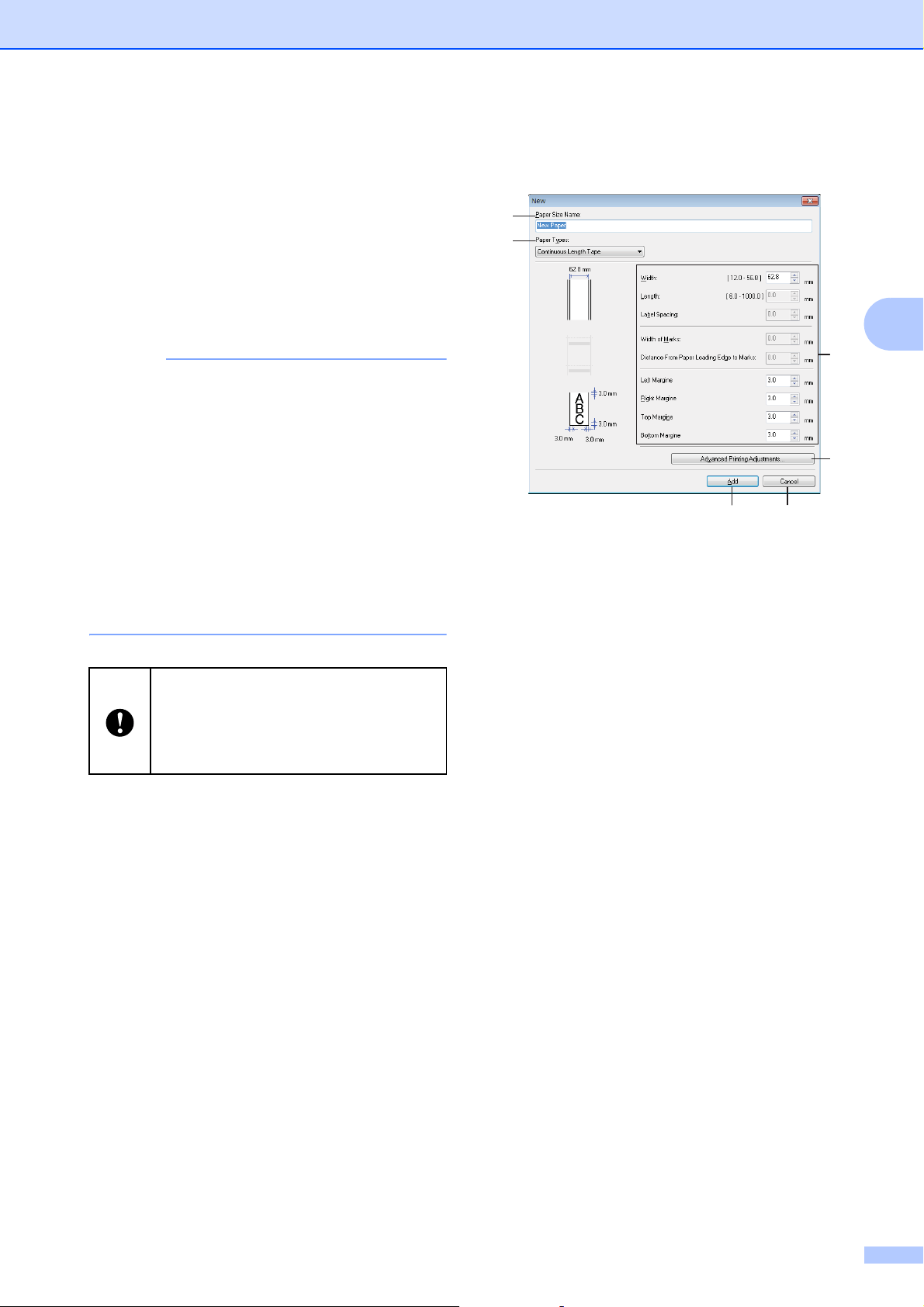
Printer Setting Tool
39
3
8Option
Click the b button, and then select an
operation.
Click [Register Paper Size With Printer] to
register the settings for the selected paper
format in printer.
Click [Save in Command File] to export the
paper settings as a command file. (The file
extension is “.bin”.)
NOTE
• When the paper format is registered with the
printer and [Exit] is clicked, the [Paper Size
Setup] dialog box appears with the added
paper size in the [Currently Registered Paper
Sizes] list. If the application is running, exit the
application, restart it in order for the new paper
format to appear in the list.
• If the following functions are being used, you
can easily apply their settings to the printer.
• Mass storage feature (page 42)
• Bluetooth (Object Push Profile (OPP))
•Wi-Fi
®
(File Transfer Profile (FTP))
New Dialog Box 3
1 Paper Size Name
Type in the name of the paper format to be
added.
2 Paper Types
Select the paper type.
Available settings: [Continuous Length
Tape], [Media With Marks], [Die-cut Label]
3 Detailed settings
Specify details for the paper format to be
added.
4 Advanced Printing Adjustments
Click this button to display the [Advanced
Printing Adjustments] dialog box and make
advanced printing adjustments for each paper
format. For more information, see Advanced
Printing Adjustments Dialog Box on page 40.
5 Cancel
Cancels the settings and closes the dialog box.
The settings will remain unchanged.
6Add
Click this button to add the paper format.
These settings commands are only
intended to be used for applying
settings to a printer. These commands
cannot be imported into [Paper Size
Setup].
3
2
4
56
1
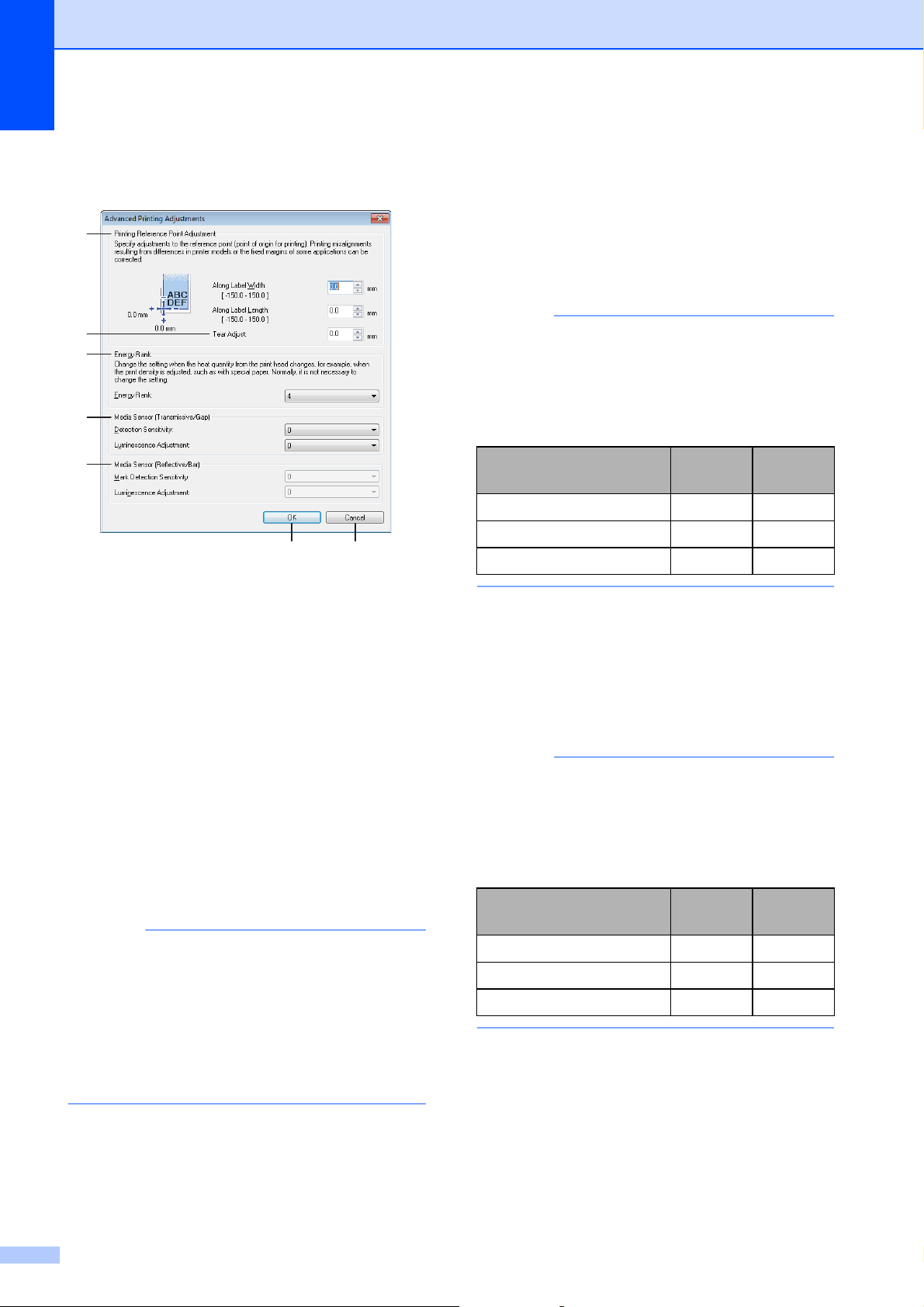
Chapter 3
40
Advanced Printing Adjustments
Dialog Box
3
1 Printing Reference Point Adjustment
Adjust the position of the reference point (point
of origin for printing). This corrects printing
misalignments resulting from differences in
printer models or from the fixed margins of
some applications.
2 Tear Adjust
Adjust the tear bar tear off position for paper
media.
Available settings: -0.39" to 0.39" (-10.0 mm to
10.0 mm)
3 Energy Rank
Select a setting when it is necessary to adjust
the amount of heat (energy) from the print
head, for example, with special paper.
NOTE
• Advanced Printing Adjustments
When using “Standard Receipt Paper”*, set
[Energy Rank] to [6].
* Available paper types vary by country.
• There may be contrast variations in the print
result due to the operating environment and
media used. Change the setting if necessary.
4 Media Sensor (Transmissive/Gap)
Adjust the precision with which the
transmissive/gap sensor detects the gaps
(spacing) for die-cut labels and the amount of
light emitted by the sensor.
Settings can be specified when [Paper Types]
is set to [Die-cut Label].
NOTE
Since the settings for [Media Sensor
(Transmissive/Gap)] (page 31) in the [Device
settings] dialog box will have an effect, specify
appropriate values.
Example of the settings:
5 Media Sensor (Reflective/Bar)
Adjust the precision with which the reflective/
black mark sensor detects black marks and the
amount of light emitted by the sensor.
Settings can be specified when [Paper Types]
is set to [Media With Marks].
NOTE
Since the settings for [Media Sensor
(Reflective/Bar)] (page 31) in the [Device
settings] dialog box will have an effect, specify
appropriate values.
Example of the settings:
6OK
Saves the settings and returns to the [New]
dialog box.
7Cancel
Cancels the settings and closes the dialog box.
The settings will remain unchanged.
3
2
4
76
1
5
Setting
EX1
Setting
EX2
Device settings 2-2
Paper Size Setup 22
Actual effect 40
Setting
EX1
Setting
EX2
Device settings 2-2
Paper Size Setup 22
Actual effect 40

Printer Setting Tool
41
3
Distributing Paper Formats 3
The paper formats exported from the
[Currently Registered Paper Sizes] list can
be distributed to other computers.
Distributing Paper Formats 3
If the printer driver has been installed on the
recipient’s computer, the paper formats need
to be distributed.
a At the sender’s computer, specify the
paper format settings, and then click
[Export]. (For more information, see
Paper Size Setup on page 38.)
The following files are created.
TD-2020A:
bst202ed.txt, bst202ed.ptd, pdt3335.bin
TD-2125N:
bst212ned.txt, bst212ned.ptd,
pdt4535.bin
TD-2135N:
bst213ned.txt, bst213ned.ptd,
pdt4735.bin
TD-2125NWB:
bst212nwbed.txt, bst212nwbed.ptd,
pdt4635.bin
TD-2135NWB:
bst213nwbed.txt, bst213nwbed.ptd,
pdt4835.bin
b Save bst202ed.txt, bst212ned.txt,
bst213ned.txt, bst212nwbed.txt or
bst213nwbed.txt at any location on the
recipient’s computer.
c At the recipient’s computer, click
[Import].
The paper formats are replaced with the
imported ones.

42
4
Mass Storage
Functions
4
Mass Storage Feature 4
The mass storage feature allows you to
execute commands by sending data from a
computer or other device to the printer via
USB. Files that have been copied to the
printer’s mass storage area are processed
when you press the (Print) button.
This feature is useful in the following
situations.
When you want templates (.blf format) and
settings stored in a command file (.bin
format) and distributed by the
administrator to be applied to a printer
without using a customized tool
When you want to execute commands
without installing the printer driver
When you want to print and transmit data
from a device that has an operating
system (including non-Windows operating
systems) with a USB host feature
Using the Mass Storage
Feature 4
a Make sure that the printer is turned off.
b Simultaneously press and hold the
(Print) button, press and the
(Power) button.
The printer starts up in mass storage
mode, and the POWER indicator lights
in orange.
c Connect the computer or device to the
printer with a USB cable.
The printer’s mass storage area is
displayed on the screen of the computer
or device.
NOTE
If the mass storage area is not displayed
automatically, refer to the instructions for
the operating system of the computer or
device for information about displaying the
mass storage area.
d Drag and drop the file that you want to
copy to the mass storage area.
e Press the (Print) button.
The command file is executed.
While the file is being executed, the
POWER indicator lights in orange and
the STATUS indicator blinks in green.
f After the file has been executed, the
STATUS indicator turns off.
g To turn off mass storage mode, turn the
printer off.
The printer will start up in its normal
operating mode.
Other Functions 4
Other Functions
43
4
Change Printer
Settings Using Web
Based Management
4
You can use a standard web browser to
change your printer's settings in Web Based
Management using the Hyper Text Transfer
Protocol (HTTP) or Hyper Text Transfer
Protocol over Secure Socket Layer (HTTPS).
To use Web Based Management, your
network must use TCP/IP, and the printer and
computer must have valid IP addresses.
Use Web Based Management to manage the
following:
Displaying your printer status information
Changing network settings, including
TCP/IP information
Displaying the printer's software version
information
Changing network and printer
configuration details
NOTE
• We recommend Microsoft Edge for
Windows, Google Chrome™ for Android™,
and Google Chrome™/Safari for iOS.
Make sure that JavaScript and Cookies are
always enabled in whichever browser you
use.
• The default login password to manage
printer settings is located on your printer
and marked “Pwd”.
We recommend changing the default
password to protect your printer from
unauthorized access. For more
information, see Network User's Guide.
a Start your web browser.
b Type “https://printer's IP address” in
your browser's address bar.
For example:
http://192.168.1.2/
When the printer is turned off, mass
storage mode is deactivated and
any files in the mass storage area
are deleted.
This feature supports .bin and .blf
files. Do not use other file formats
with this feature.
Do not create folders in the mass
storage area. If a folder is created,
files in the folder will not be
executed.
The capacity of the mass storage
area is 16 MB. Use of files larger
than 16 MB cannot be guaranteed.
If multiple files are copied, the order
in which the files will be executed
cannot be guaranteed.
Wired or wireless LAN connections,
Bluetooth connections or RJ25 to
DB9M serial adapter connections
are not available while the printer is
running in mass storage mode.
Do not access other files in the
mass storage area while a copied
file is being executed.

Chapter 4
44
NOTE
If you are using a Domain Name System
or enable a NetBIOS name, you can type
another name, such as “SharedPrinter”
instead of the IP address.
For example:
https://SharedPrinter
If you enable a NetBIOS name, you can
also use the node name.
For example:
https://brnxxxxxxxxxxxx
c If required, type the password in the
Login field, and then click Login.
d Change the printer settings as needed.
Every time you access Web Based
Management, type the password in the Login
field, and then click Login.
After configuring the settings, click Logout.
Software Development
Kit
4
A Software Development Kit (SDK) is
available. Visit the Brother Developer Center
(https://support.brother.com/g/s/es/dev/en/
index.html?navi=offall).
You can also download the b-PAC SDK and
SDKs for mobile devices (Windows Mobile,
Android, iPhone, and iPad). Note that the
SDKs that you can downloaded are subject to
change without notice.
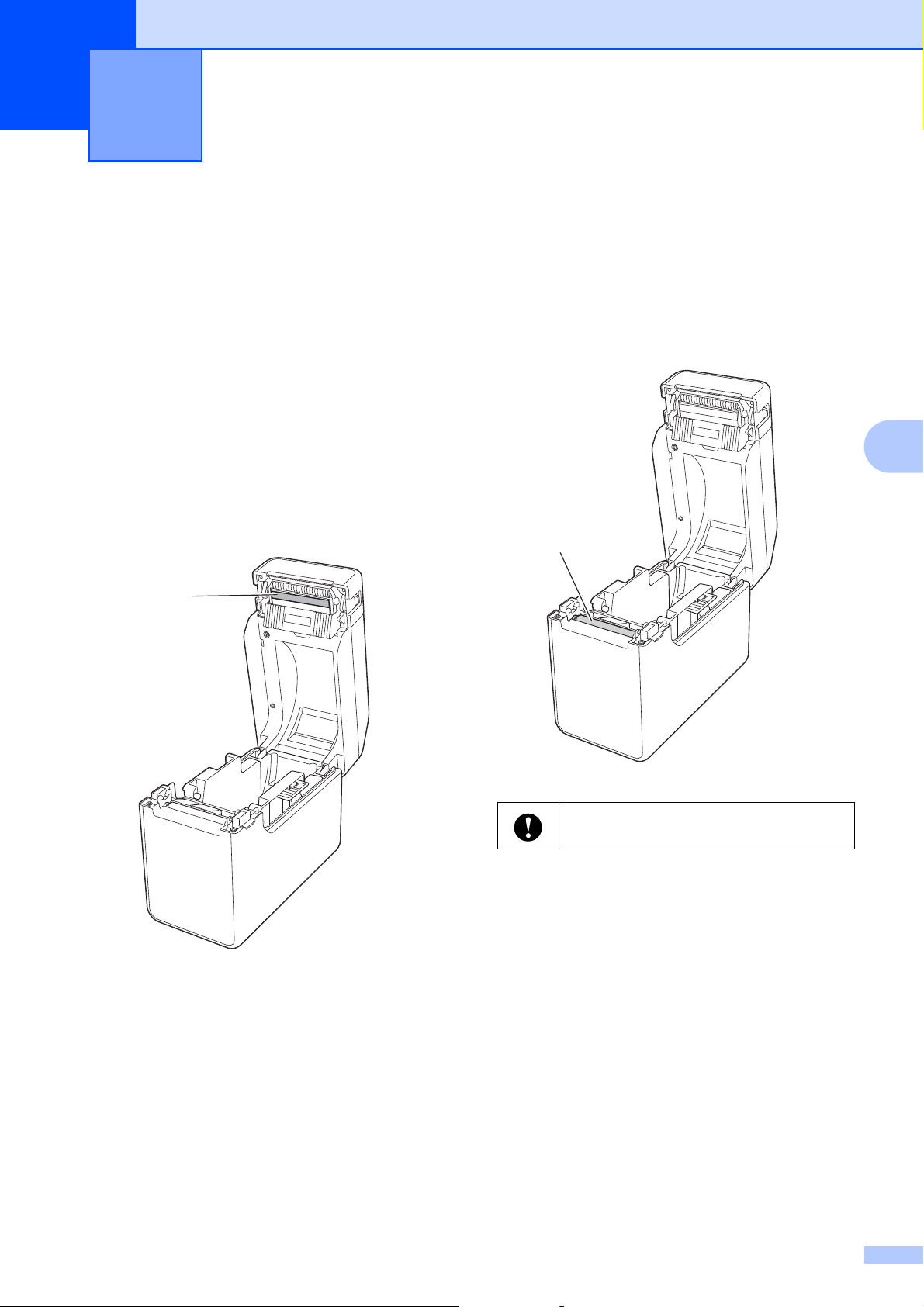
45
5
5
Maintenance of the printer may be carried out
as required. However, some environments
require that maintenance must be done more
frequently (for example, in dusty conditions).
If dirt or dust is not removed, the printed
labels may contain white streaks, or media
may become jammed.
Print Head
Maintenance
5
Use a dry cotton swab to wipe the print
head (1).
Platen Roller
Maintenance
5
Use a piece of cellophane tape to remove dirt
from the platen roller (1).
Maintaining the Printer 5
1
Do not use organic solvents such as
benzene.
1
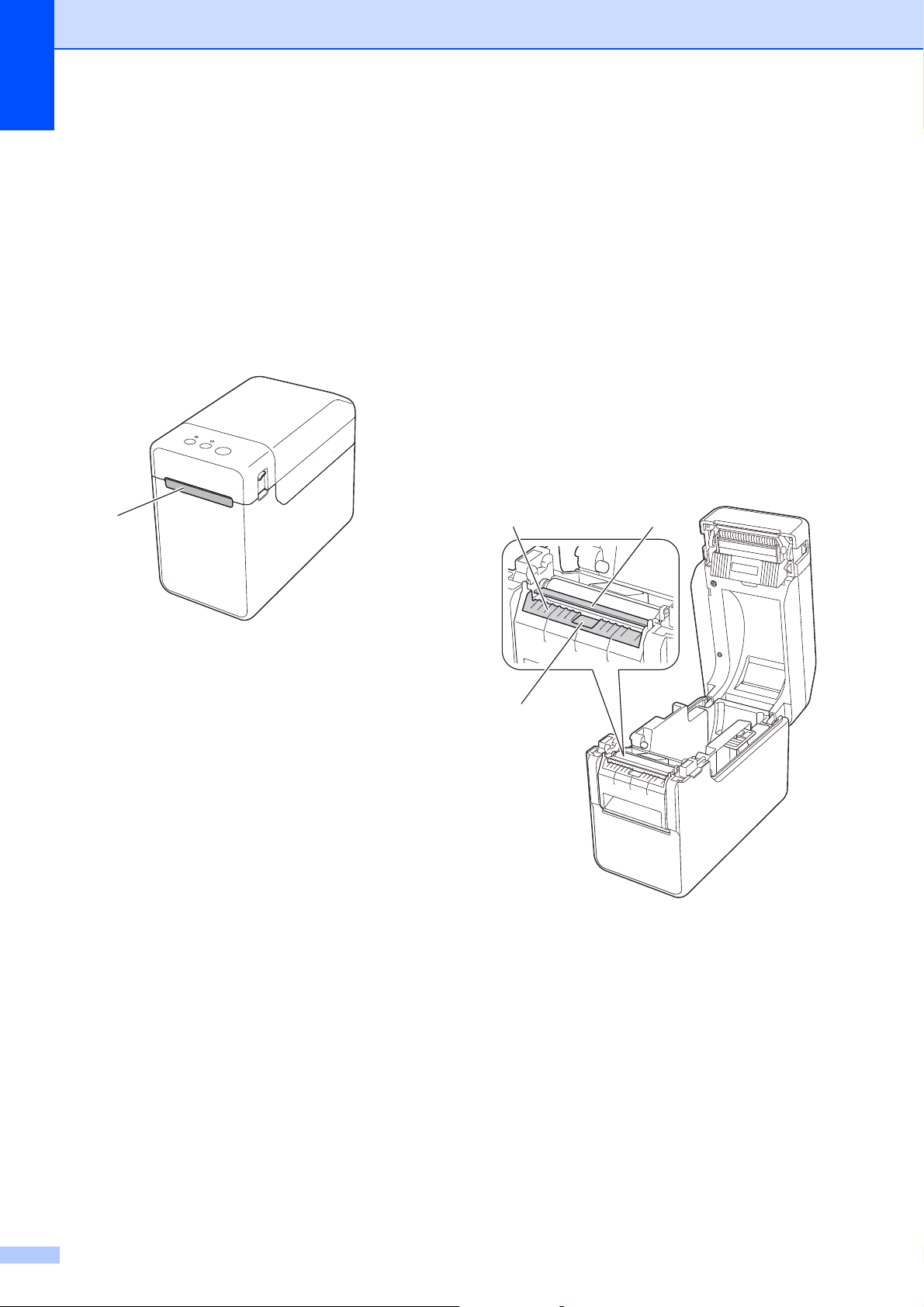
Chapter 5
46
Media Exit
Maintenance
5
If adhesive accumulates at the media exit (1)
and media becomes jammed, disconnect the
printer from the AC power outlet, and then
clean the media exit with a cloth slightly
moistened with isopropyl alcohol.
Label Peeler (Optional)
Maintenance
(TD-2125N/TD-2135N/
TD-2125NWB/
TD-2135NWB only)
5
If adhesive accumulates at the media exit (1),
peeler separator (2) or peeler sensor (3) and
media becomes jammed, disconnect the
printer from the AC power outlet, and then
clean each part with a cloth slightly
moistened with isopropyl alcohol.
1
12
3
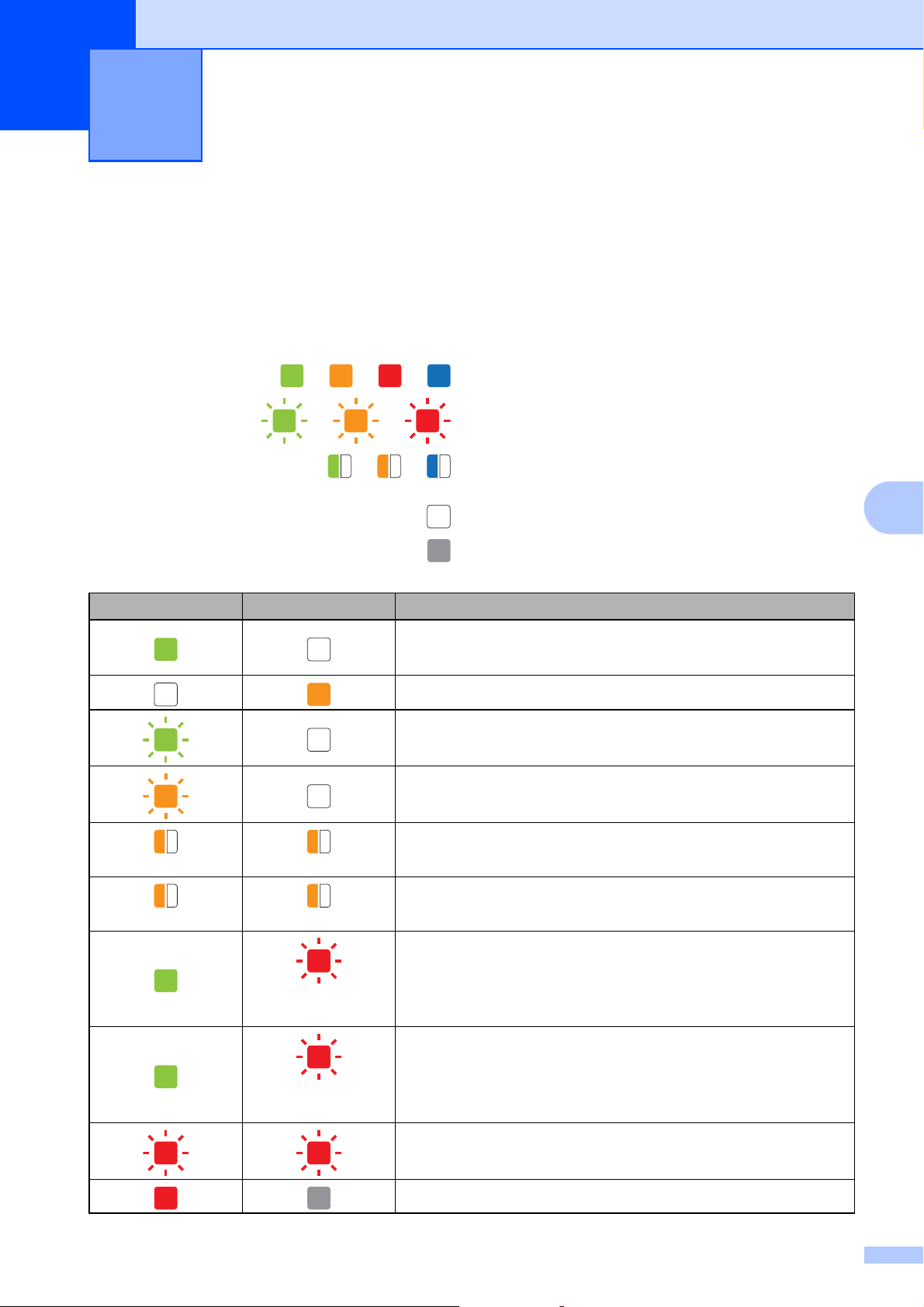
47
6
6
LED Indicators 6
The indicators light and blink to indicate the printer’s status. The following symbols are used in this
section to show the different indicator colors and patterns.
For more information on error causes and solutions, see Troubleshooting on page 49.
LED Indicators 6
or or or
Indicators are lit in the color shown
or or
Indicators are blinking in the color shown
or or
Indicators blink one to three times in the color
shown, then turn off
Indicator is lit or blinking in any color or pattern
Indicator is off
POWER STATUS Description
Printer turned on
Initializing
Media Roll Compartment Top Cover open
Receiving data
Transferring/importing data
Printer cooling off
(three times) (three times)
Resetting the incrementing field
(one time) (one time)
Initialization complete
(Once every
1.8 seconds)
Error 1
See Troubleshooting on page 49.
(Twice every
1.8 seconds)
Error 2
See Troubleshooting on page 49.
System error
Printer in boot mode
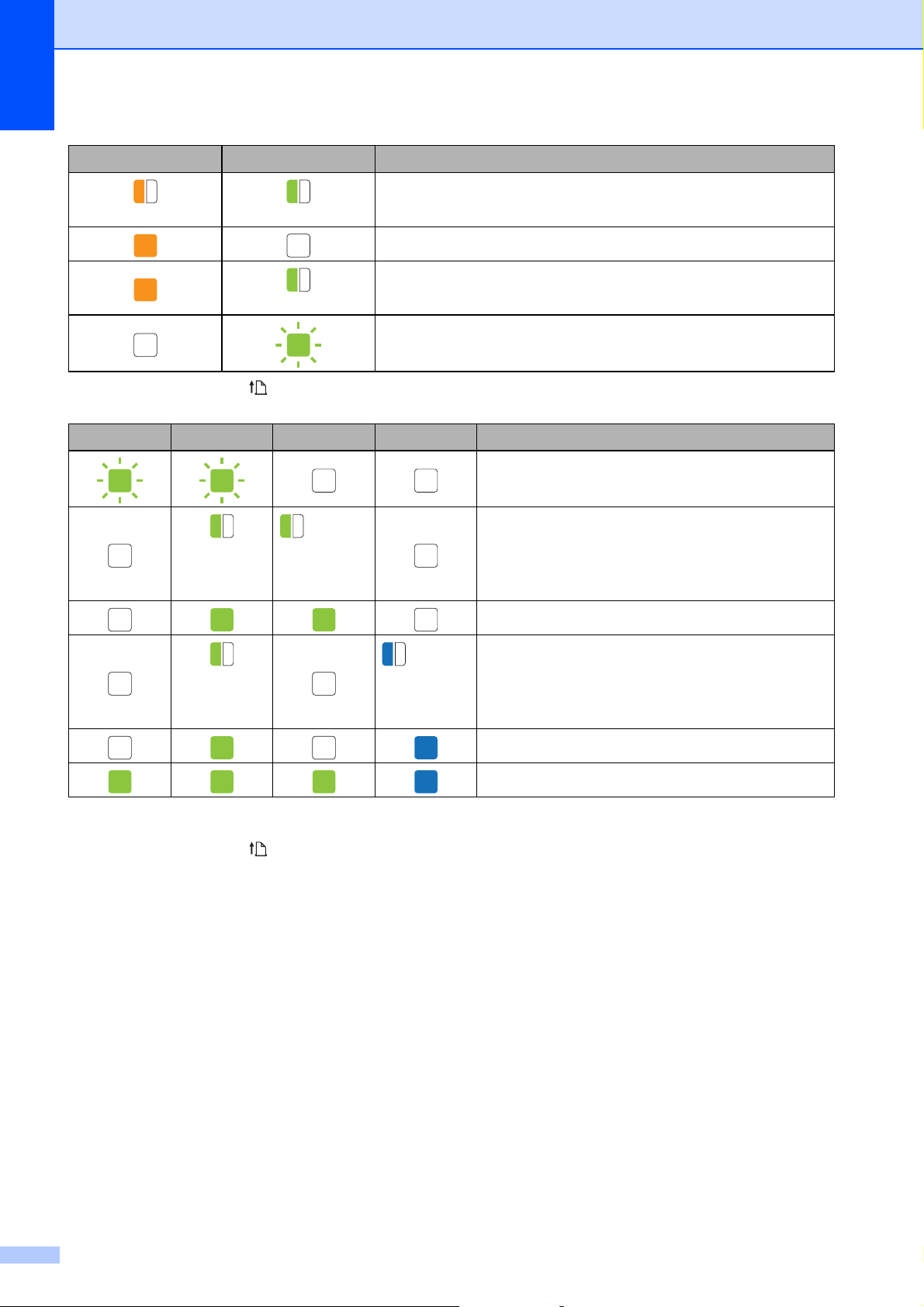
Chapter 6
48
1
Press and hold the (Feed) button for 10 seconds to enable a WPS connection.
2
POWER indicator and STATUS indicator blink in green alternately.
3
Press and hold the (Feed) button for five seconds to enable or disable Wi-Fi, Bluetooth,
or both.
(three times) (three times)
Printer resetting
Printer in mass storage mode
(one time)
Processing file in mass storage mode
Setting up WPS
1
Pairing with Bluetooth
POWER STATUS Wi-Fi Bluetooth Description
Ready to change modes
2
(Once every
three
seconds)
(Once every
three
seconds)
Wi-Fi on, not connected
Wi-Fi on, connected
3
(Once every
three
seconds)
(Once every
three
seconds)
Bluetooth on, not connected
Bluetooth on, connected
3
Wi-Fi on, connected/Bluetooth, on connected
3
POWER STATUS Description
49
7
7
Overview 7
If you have any problems with the printer, first make sure that you have performed the following
tasks correctly:
Is the appropriate printer driver selected and installed?
See Installing the Printer Driver and Software on page 3.
Is the printer connected to a computer?
See Connecting the Computer and Printer on page 13.
If you still have problems, read the troubleshooting tips in this chapter for help.
NOTE
TD-2125N/2135N/2125NWB/2135NWB models:
For more information on the error messages that appear on the touchpanel display (optional),
see Error Messages for Touchpanel Display (Optional) (TD-2125N/TD-2135N/TD-2125NWB/
TD-2135NWB Only) on page 57.
Troubleshooting Tips
7
Troubleshooting 7
Problem Solution
The POWER indicator is not lit. Is the AC power cord inserted correctly?
Check that the AC power cord is inserted correctly. If it is,
try plugging it into another AC power outlet.
Be sure to use the Brother adapter provided with the printer.
If the POWER indicator still does not light up, contact
Brother Customer Service.
The indicators show that the printer is in
boot mode.
The AC Adapter was unplugged while the firmware was
being updated, and the printer started up in boot mode
when it was turned back on.
Contact your reseller or Brother Customer Service for
assistance.

Chapter 7
50
The indicators show that the printer is
cooling down.
The print head or motor is too hot.
Print head:
If the print head becomes too hot, it may produce imaging
on the paper in areas not intended to be printed. This
condition is normal when printing a large number of
documents with a high print density. The printer will stop,
and resume printing after the print head has cooled down.
To avoid or delay the onset of this condition:
• Print using a lighter density setting and reduce the
number of black areas being printed (for example,
remove background shading and colors in graphs and
presentation documents).
• Make sure that the printer has adequate ventilation and
is not located in an enclosed space.
Motor:
If the printer is used continuously, the motor will become too
hot. In this case, the printer will stop and resume printing
after the motor has cooled down.
NOTE
This condition may occur more often when the printer is
used at a high altitude (above 3,048 m (10,000 feet)) due to
the lower air density available to cool the printer.
The indicators show that a system error
has occurred.
Turn the printer off, and then contact your reseller or Brother
Customer Service.
The printer does not print. Is a cable loose?
Check that the cables are connected securely.
Is the STATUS indicator is flashing?
An error occurred. Check the descriptions in the LED
Indicators on page 47, and then see If the STATUS
indicator blinks in red on page 55.
Problem Solution

Troubleshooting
51
7
Media is not fed correctly. Is the print head or platen roller dirty?
Although the print head generally remains clean under
normal use, dust or dirt from the platen roller may stick to
the print head.
If this occurs, clean the print head or platen roller.
For more information, see Print Head Maintenance or
Platen Roller Maintenance on page 45.
Are the sensors in the correct position?
Check that the sensors are correctly positioned. For more
information, see Checking the Sensor Position on page 9.
Has the paper size information been registered with the
printer?
If the paper size information has not been registered with
the printer, the media will not be fed correctly.
For more information, see Registering Paper Size
Information With the Printer on page 4.
A data transmission error appears on
your computer.
Is the correct port selected?
Check that the correct port is selected.
Is the printer in cooling mode (the POWER indicator is
flashing in orange)?
Wait until the indicator stops flashing, and then try printing
again.
Is someone printing via the network?
If you try to print while other users are printing large
amounts of data, the printer will be unable to accept your
print job until ongoing printing is finished. In such a
situation, execute the print job again after the other jobs are
completed.
Problem Solution
Chapter 7
52
Media is jammed.
Media is not ejected correctly after
printing.
Is there dust or dirt on the print head or platen roller
preventing it from turning freely?
For more information, see Print Head Maintenance or
Platen Roller Maintenance on page 45.
Check that the media exit path is not blocked.
Is there adhesive on the media exit, or has a media misfeed
occurred?
For more information, see Media Exit Maintenance
on page 46.
Remove the Media Roll, and then reinstall it.
For more information, see Inserting the Media Roll
on page 7.
Check that the Media Roll compartment top cover is firmly
closed.
If the label peeler (optional) is being used, check that the
printer driver settings for the peeler function have been
specified correctly. For more information, see Printer Driver
Settings on page 90.
The print quality is poor.
Printed labels contain white streaks.
Adjust the printing density. The print density can be
specified in the printer driver’s dialog box or the “Printer
Setting Tool”. For more information, see Print Density
on page 30.
Is there dust or dirt on the print head or platen roller
preventing it from turning freely?
Clean the print head or platen roller. For more information,
see Print Head Maintenance or Platen Roller Maintenance
on page 45.
Printed barcodes cannot be read. Print labels so that barcodes are aligned with the print head
as shown below.
1 Print head
2 Barcode
3 Printing orientation
We recommend printing the barcodes with [Give priority to
quality] selected from the [Quality] options.
Try using another scanner.
Problem Solution
1
2
3
Troubleshooting
53
7
I want to reset the printer.
I want to delete the data transferred from
the computer.
To reset the printer, perform the following procedure:
1 Press and hold the (Power) button to turn the printer off.
2 Simultaneously, press and hold the (Feed) button and
the (Power) button until the POWER indicator lights in
orange and the STATUS indicator blinks in green.
3 While pressing the (Power) button, press the (Feed)
button six times.
4 Release the (Power) button.
All of the transferred data from the computer will be deleted,
and the printer will be reset to its factory settings.
I want to cancel the current print job. Make sure that this printer is turned on, and then press the
(Power) button.
I want to reset the incrementing field.
Press and hold the (Print) button for at least five seconds,
until the POWER and STATUS indicators blink in orange three
times.
The media cannot be fed to the beginning
of a label.
If a feed error occurred, use the Custom Label Tool to apply
the correct paper settings to the printer.
Are the media sensors in the correct position?
Check that the sensors are correctly positioned. For more
information, see Checking the Sensor Position on page 9.
Data is being sent to the printer, but the
POWER indicator is not flashing green.
Make sure that the USB cable is connected securely. Try using
another USB cable.
(TD-2125NWB/2135NWB only)
For WLAN or Bluetooth connection, check that the appropriate
LED indicator is lit.
The labels are not peeling correctly
(when using the optional Label Peeler).
Make sure that the paper is correctly fed through the label
peeler.
Has the peeler option setting been specified in the printer
driver and with the “Printer Setting Tool”?
For more information, see Printer Driver Settings
on page 90 or Media Sensor (Peeler) (TD-2125N/2135N/
2125NWB/2135NWB only) on page 31.
The media is not ejected correctly (when
using the optional label peeler).
Has the label peeler sensor been exposed to direct sunlight?
If so, loaded media may not be detected correctly. Move the
printer in a location not exposed to direct sunlight.
Problem Solution

Chapter 7
54
The printer does not operate correctly
(when using the optional touchpanel).
Does the touchpanel name (A or B) printed in the top right
corner of the touchpanel match the specified touchpanel
name, which appears in the bottom right corner of the LCD?
If they do not match, select [Set Panel] on the touchpanel,
and then select the correct setting. For more information,
see Specifying Settings From the Touchpanel on page 68.
Has the type of data assigned to one-touch keys been
correctly specified?
If the correct setting has not been specified, select [Keys
Function] from the touchpanel, and then correctly select
[Template] or [Database]. For more information, see
Selecting the Data Assigned to Keys on the
One-touchpanel on page 78.
No key on the touchpanel was pressed,
but data was unintentionally entered
(when using the optional touchpanel).
Since foreign material, such as dust, caught between the
touch panel, protective sheet, and touch panel holder may
cause a malfunction. Make sure that no foreign material is
attached.
Has the touch panel been folded? When a folded touch
panel is used, the fold may press on the touch panel holder.
Therefore, do not use a touch panel that has been folded.
The data that was entered is different
than the data for the touchpanel key that
was pressed (when using the optional
touch panel display).
Foreign matter, such as dust, between the touchpanel,
protective sheet, and touchpanel holder may cause a
malfunction. Make sure there is no foreign matter on or near
the touchpanel.
Has the touchpanel been folded? When a folded
touchpanel is used, the fold may press on the touchpanel
holder. Do not use a folded touchpanel.
Problem Solution
Troubleshooting
55
7
If the STATUS indicator blinks in red 7
If the STATUS indicator is blinking red, complete the following steps to clear the error:
Press the (Power) button once.
If the error is still not cleared, turn the printer off, and then turn it on again.
If you still cannot clear the error, contact Brother Customer Service.
Problem Solution
The STATUS indicator is blinking. Check the error details in the LED Indicators section
on page 47, and then see below.
The indicators show that error 1 has
occurred.
Is the correct Media Roll installed?
Check that the correct media, type (die-cut label or
continuous length tape), and die-cut label size are installed.
Is the Media Roll installed correctly?
If not, remove the Media Roll, and then reinstall it.
For more information, see Inserting the Media Roll
on page 7.
If the label peeler (optional) is being used, see Inserting the
Media Roll on page 87.
Are the media guides not touching the sides of the Media
Roll?
Move the media guides against the sides of the Media Roll.
For more information, see Inserting the Media Roll
on page 7.
Is there enough of the roll remaining?
If not, install a new Media Roll.
Is the Media Roll compartment top cover open?
Check that the Media Roll compartment top cover is closed.
(TD-2125NWB/2135NWB only)
An access point could not be found, or two or more access
points have been found after approximately 2 minutes.

Chapter 7
56
The indicators show that error 1 has
occurred. (continued)
If error 1 persists, check for the following:
- Make sure your media is longer than 39.37" (1 m).
- Make sure the file formats are compatible.
When sending a template as a BLF file, an error is indicated
if the model name in the file is different to the model name
of the printer receiving the file.
When trying to print a template, an error is displayed if the
specified template does not exist.
LED indicators shows an error if the search for a template
with a linked database fails.
LED indicators shows an error if the transferred, data
causes the capacity of the user storage area to be
exceeded.
If you get such errors, turn the printer off, and then turn it on
again.
If error 1 is not cleared, contact Brother Customer Service.
The indicators show that error 2 has
occurred.
Is the connected device supported by the USB port?
An overcurrent or unsupported device was detected by the
USB port. Turn the printer off, and then check the
connected device.
If a USB hub is connected, the printer will automatically turn
off after a certain length of time has passed.
Is the printer in mass storage mode?
An error is displayed if the file system becomes corrupted
or a file is copied while a mass storage file is being
processed. Turn the printer off.
Has the wireless LAN or Bluetooth connection been
interrupted? (TD-2125NWB/2135NWB only).
The wireless LAN or Bluetooth connection established
while the printer is on was interrupted. Turn the printer off,
and then turn it on again.
Problem Solution
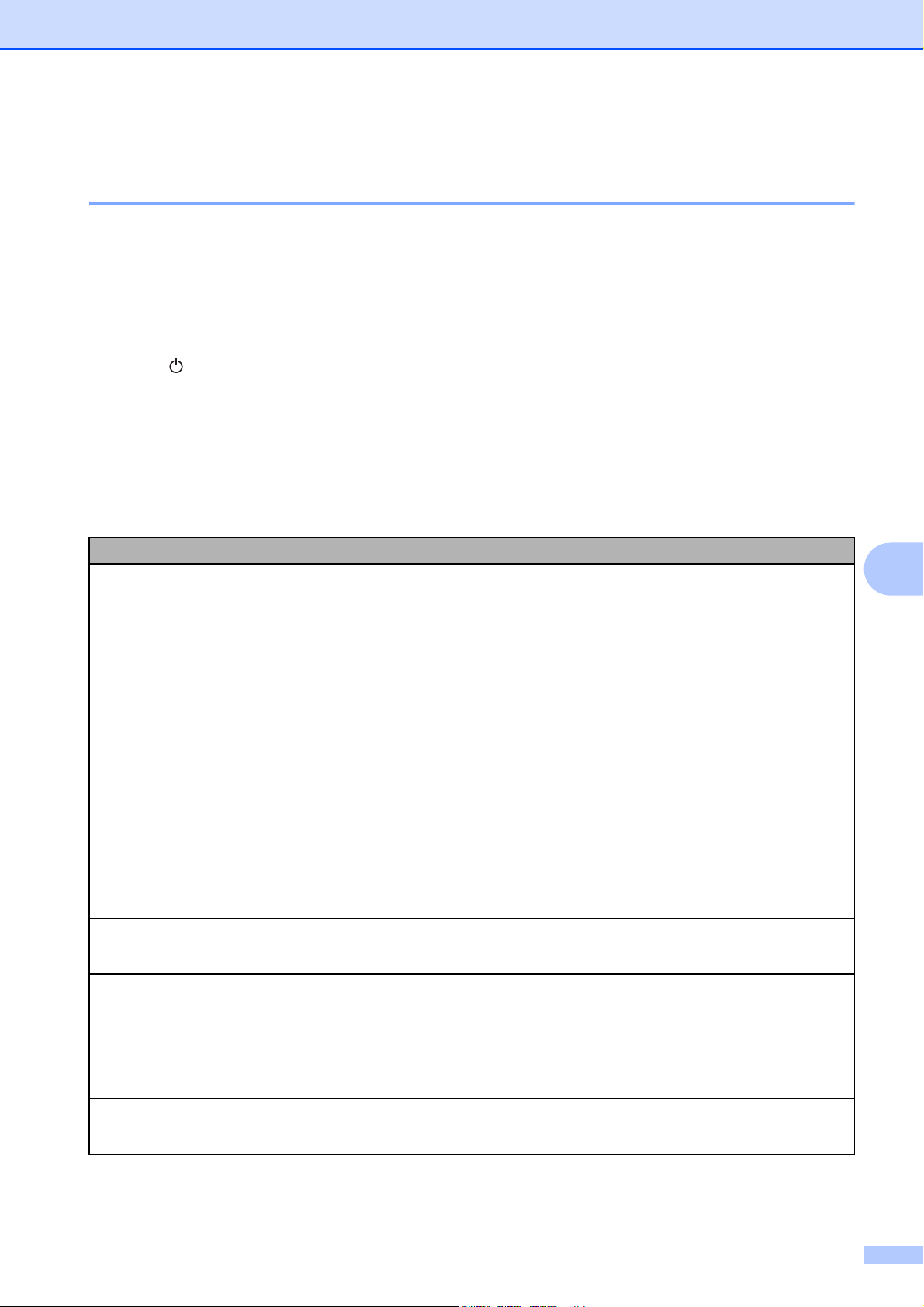
Troubleshooting
57
7
Error Messages for Touchpanel Display (Optional) (TD-2125N/
TD-2135N/TD-2125NWB/TD-2135NWB Only) 7
(TD-2125N/2135N/2125NWB/2135NWB only)
If an error message appears on the touchpanel LCD, (optional) check for a solution in the following
table.
To clear an error message that appeared, perform the following procedures.
If the STATUS indicator on the printer is blinking red:
Press the (Power) button once. If the error is still not cleared, turn the printer off, then on again.
If the STATUS indicator on the printer is not blinking red:
Press any key in the touchpanel once. If the error is still not cleared, turn the printer off, then on
again.
If the error message is still displayed, even after performing the procedures described above,
contact Brother Customer Service.
Error message Solution
Check Media! Is the correct Media Roll installed?
Check that the correct media, for example, type (die-cut label or continuous
length tape) and die-cut label size, is installed.
Is the Media Roll installed correctly?
If not, remove the Media Roll, and then reinstall it.
For more information, see Inserting the Media Roll on page 7.
If the label peeler (optional) is being used, see Inserting the Media Roll
on page 87.
Are the media guides not touching the sides of the Media Roll?
Move the media guides against the sides of the Media Roll.
For more information, see Inserting the Media Roll on page 7.
Is enough of the roll remaining?
If not, install a new Media Roll.
Close Cover! Is the Media Roll compartment top cover open?
Check that the Media Roll compartment top cover is closed.
Communication
Error!
Transfer of the data failed. When sending a template as a BLF file, an error is
indicated if the model name in the file is different.
Has the wireless LAN or Bluetooth connection been interrupted?
The wireless LAN or Bluetooth connection established while the printer is on
was interrupted. Turn the printer off, and then turn it on again.
Database Record
Problem!
There is no database with the specified number. Specify a correct number.
An error is indicated if the search of a template with a linked database fails.
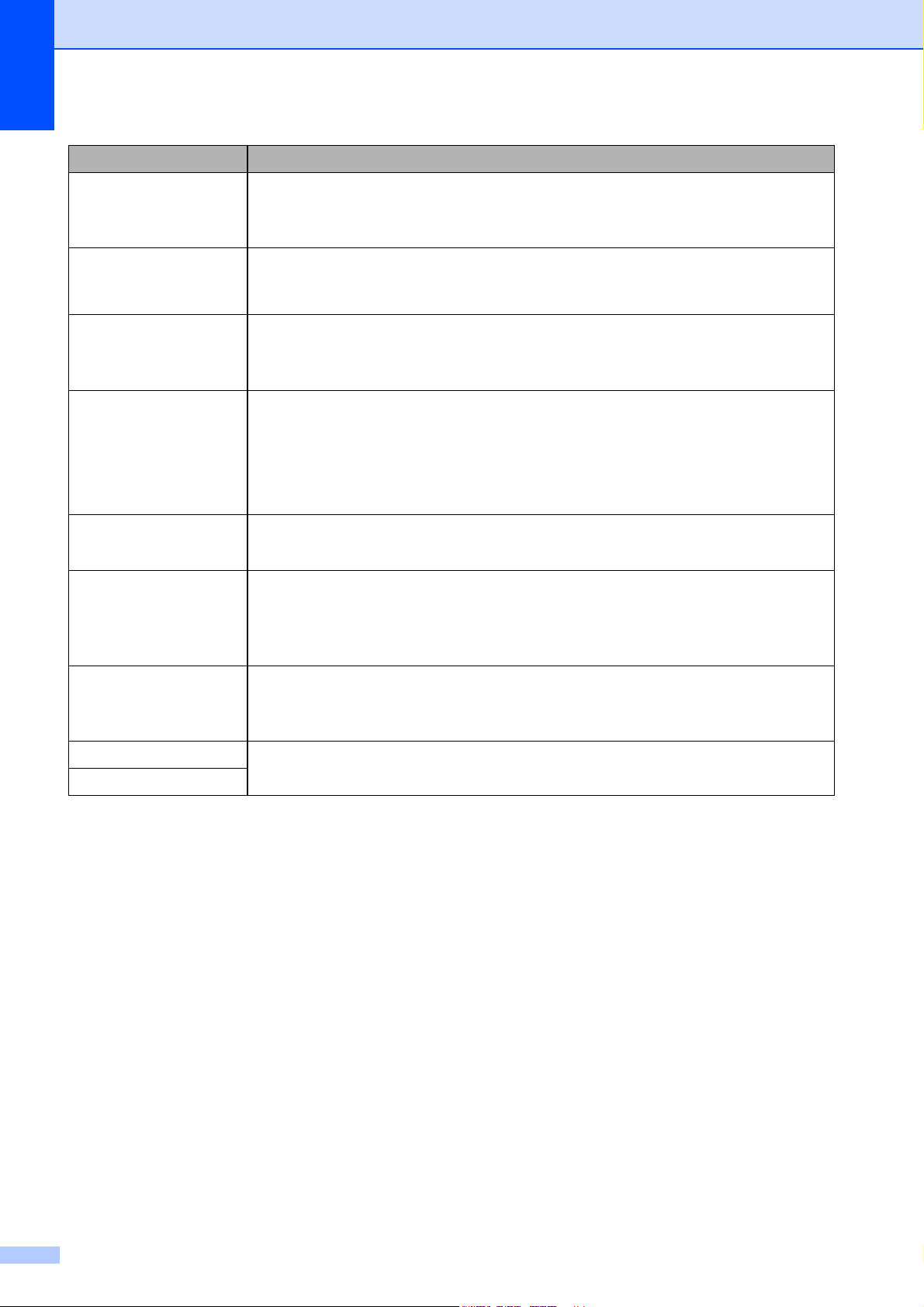
Chapter 7
58
No Template
Selected!
There is no template with the specified number. Specify a correct number.
When printing a template, an error is indicated if the specified template does
not exist.
Setting Wireless
LAN Unsuccessful!
Try again
The access point could not be found.
An access point for establishing a connection could not be specified.
Memory Full! Tape exceeding 39.37" (1 m) or incompatible files cannot be printed.
An error is indicated if data is transferred, causing the capacity of the user
storage area to be exceeded.
Wrong Password! Is the administrator password correct?
Type in the correct password.
If you do not remember the password, use [Device settings] of the “Printer
Setting Tool” to reset the password. For more information, see Admin
Password on page 33.
Incorrect Value! Has a value outside of the allowable range been entered?
Type in a value within the allowable range.
Noncompliant USB
device. Remove
Device!
Has a device been connected that is not supported by the USB host port?
An overcurrent was detected by the USB host port, or connection of an
unsupported device was detected. Turn off the printer, and then check the
connected device.
Mass Storage
Operation error!
Is the printer in mass storage mode?
An error is indicated if the file system becomes corrupted or a file is copied while
a mass storage file is being processed. Turn off the printer.
System Error! 01 If the error message is displayed, contact Brother Customer Service.
System Error! 02
Error message Solution
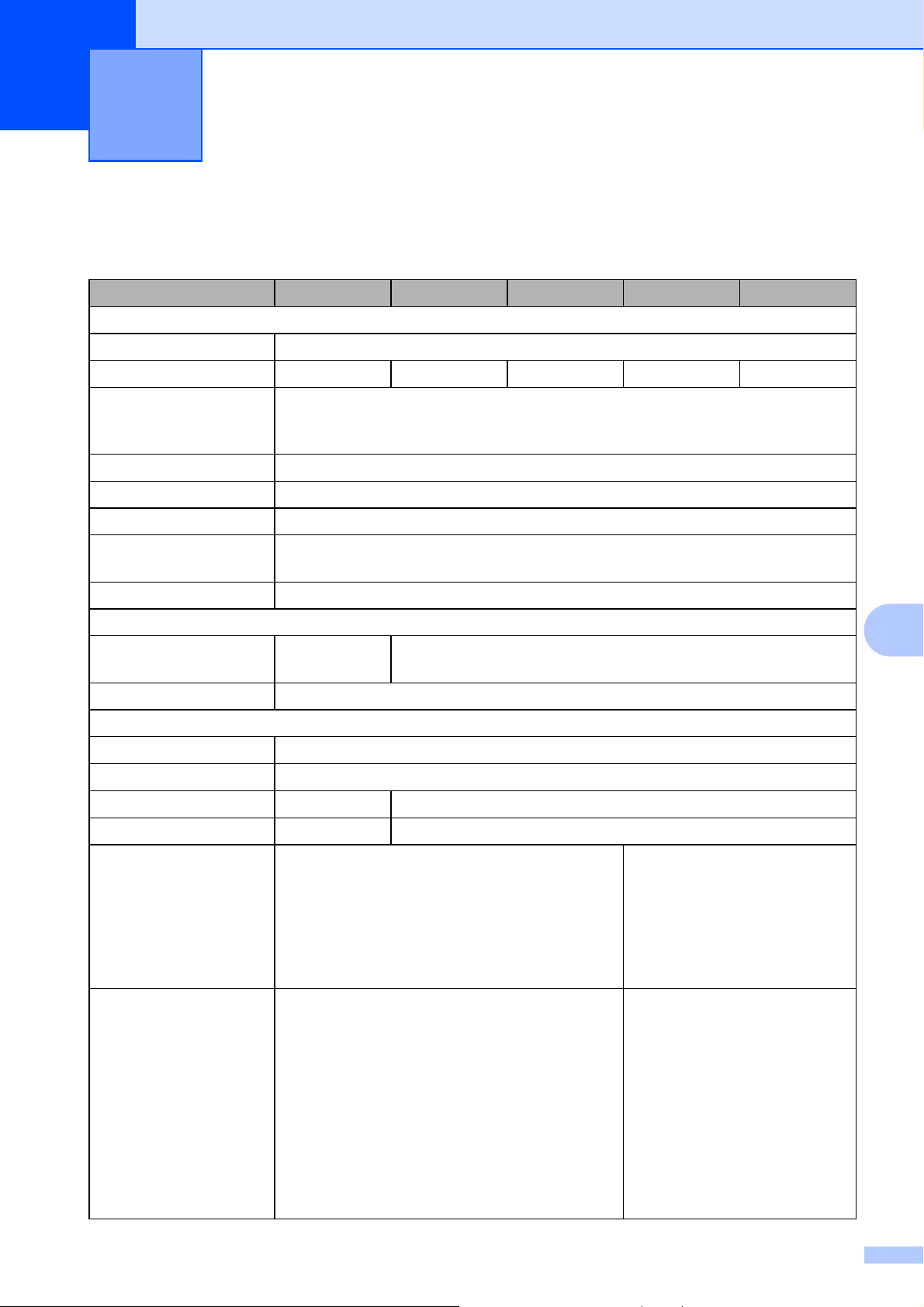
59
8
8
Product Specifications 8
Specifications 8
Model Name TD-2020A TD-2125N TD-2135N TD-2125NWB TD-2135NWB
Printing
Printing Technology Direct Thermal
Printing Resolution 203 dpi 203 dpi 300 dpi 203 dpi 300 dpi
Print Speed
(Depends on the media
used.)
6 ips (152.4 mm/sec)
Maximum Print Width 2.2" (56 mm)
Maximum Print Length 39.3" (1,000 mm)
Minimum Print Length 0.23" (6 mm)
Printer Control
Commands
P-touch Template 2.0, ZPLII compatible, Raster, ESC/P, CPCL compatible
AC Power Supply AC Adapter (100 - 240 V 50/60 Hz)
Size
Weight 2.9 lb
(1.32 kg)
3.0 lb (1.34 kg)
Dimensions (W × D × H) 4.3" × 8.4" × 6.7" (110 mm × 215 mm × 172 mm)
Interface
USB USB Ver.2.0 (Full Speed) (mini-B, Peripheral)
Serial Original serial cable (Option: PA-SCA-001)
Wired LAN Not supported 10/100BASE-TX
USB Host Port Not supported Supported
Bluetooth Not supported Bluetooth Ver.5.2
(Classic + LE)
SPP, OPP, HCRP (Bluetooth
Classic), GATT (Bluetooth
Low Energy)
Supported protocol: iAP
WLAN Not supported Wireless LAN (2.4 GHz)
IEEE 802.11 b/g/n
(Infrastructure Mode)
IEEE 802.11 g/n (Wireless
Direct Mode)
Wireless LAN (5 GHz)
IEEE 802.11 a/n
(Infrastructure Mode)
*Ad-hoc is unsupported

Chapter 8
60
Operating Environment
Windows Operating
System
Windows 8.1 /
10 / 11
Win 8.1, 10, 11, Server 2012, 2012 R2, 2016, 2019, 2022
Operating Temperature 41°F to 104°F (5°C to 40°C)
Operating Humidity 20% to 80% (No condensation, Maximum wet bulb temperature: 80.6°F (27°C))
Storage Temperature -4°F to 140°F (-20°C to 60°C)
Storage Humidity 20% to 80% (No condensation, Maximum wet bulb temperature: 113°F (45°C))
Media Specifications
Media Type Receipt (Non-coated & Coated)
Die cut label
Tag
Wristband
Thickness
(The media material
may affect print quality.)
Receipt: 0.0023" to 0.0035" (0.058 mm to 0.090 mm)
Label: 0.003" to 0.007" (0.080 mm to 0.170 mm)
Tag: 0.0035" to 0.0053" (0.090 mm to 0.0035 mm)
Wristband: 0.011" (0.279 mm)
Outer Diameter 5" (127 mm)
Core Diameter 1" (25.4 mm)
Max. Media Width 2.48" (63 mm)
Model Name TD-2020A TD-2125N TD-2135N TD-2125NWB TD-2135NWB
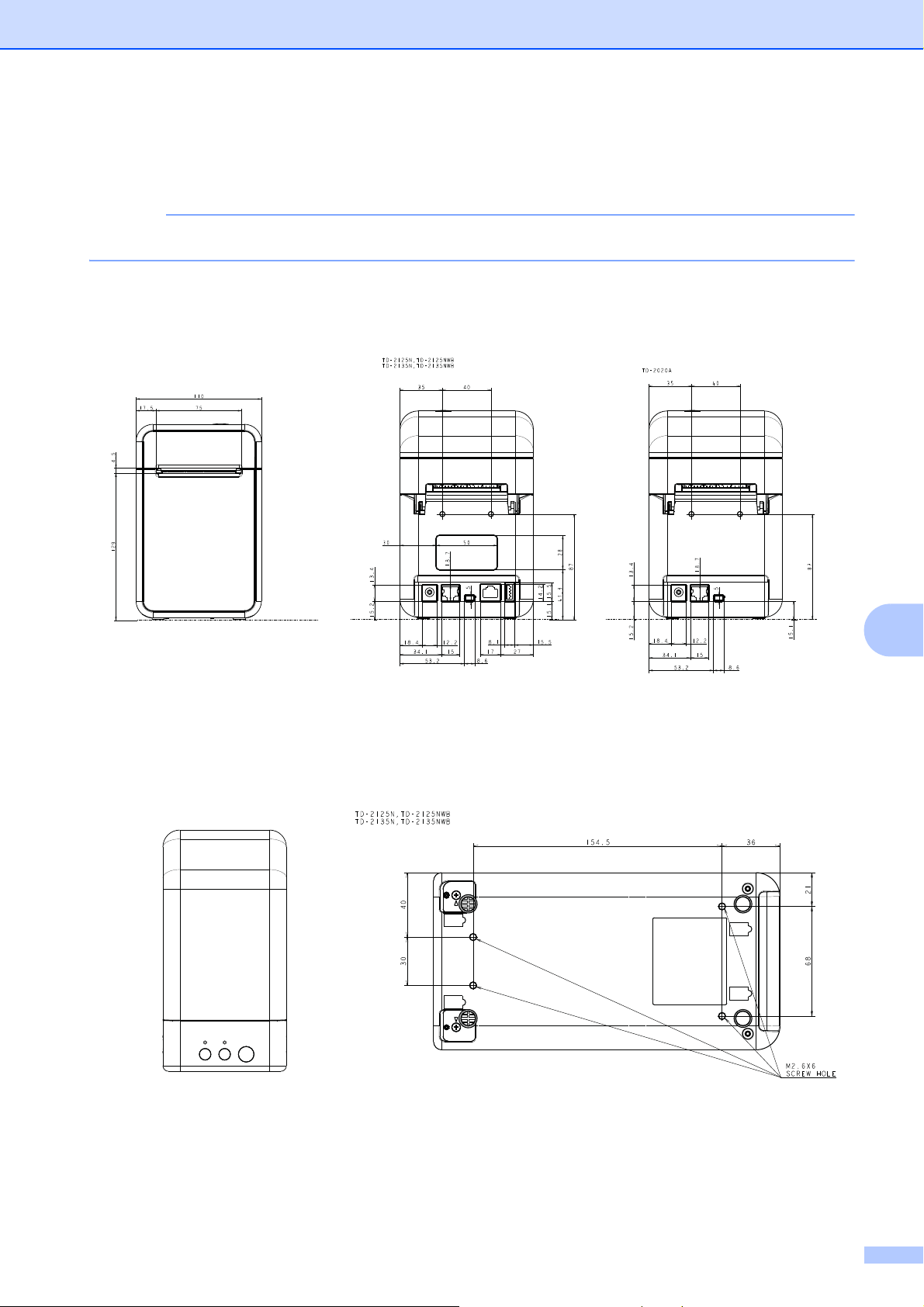
Specifications
61
8
Product Dimension
8
NOTE
All measured values are in millimeters.
Front view/Back view 8
Top view/Bottom view 8
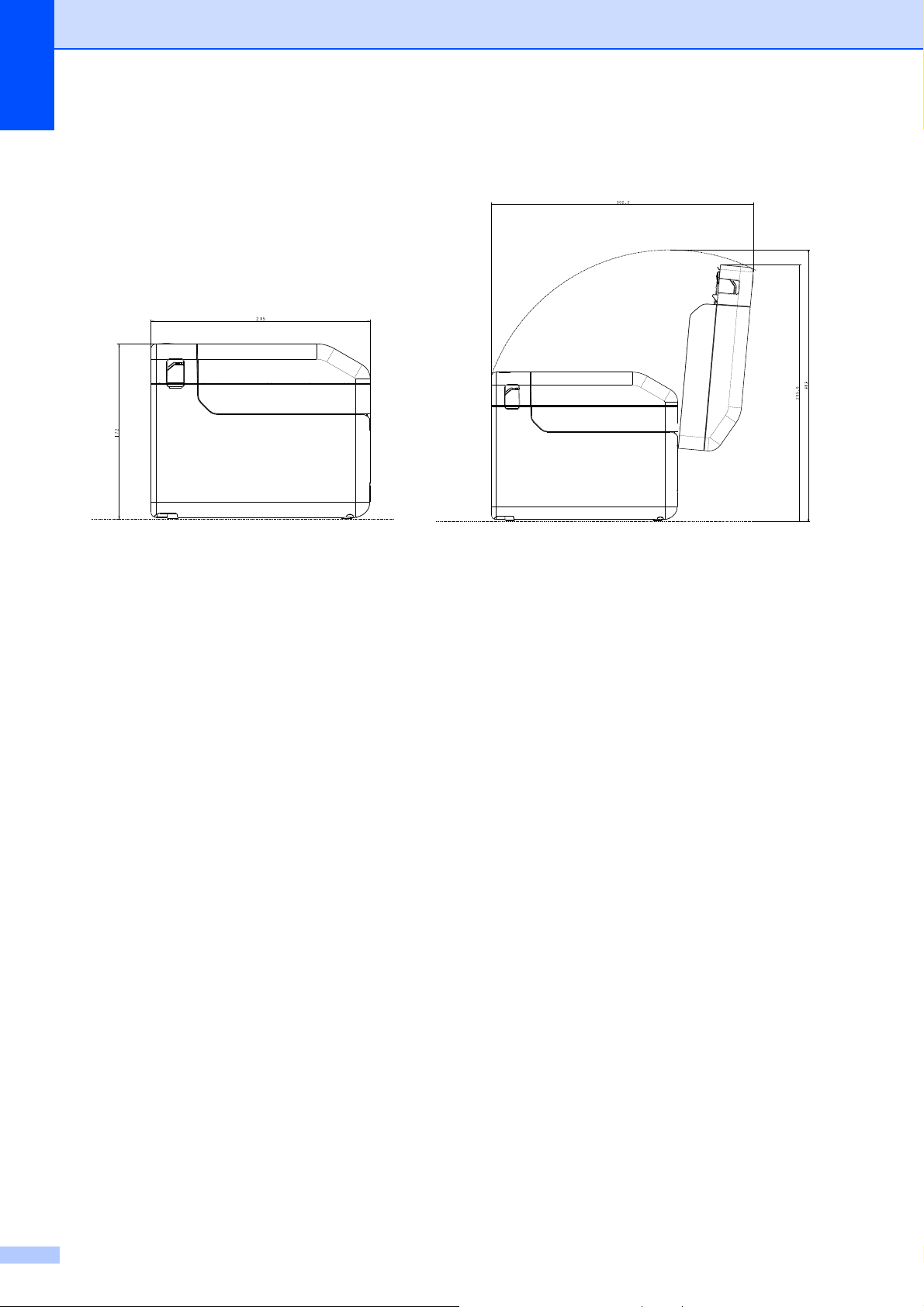
Chapter 8
62
Side view 8
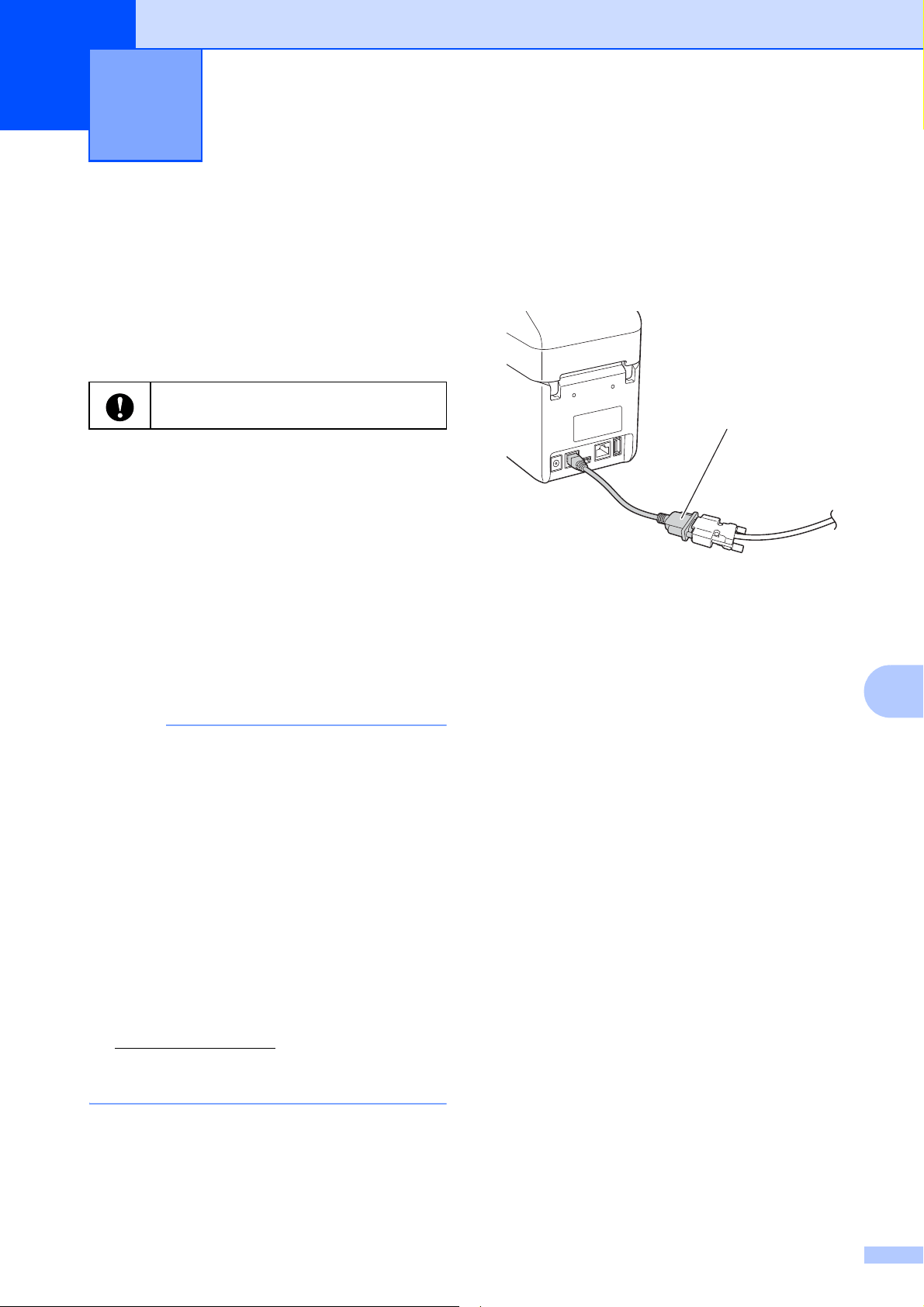
63
9
9
Connecting the
Computer and Printer
With the RJ25 to DB9M
Serial Adapter
9
a Before connecting the serial cable,
make sure that the printer and the
computer are turned off.
b Connect the RJ25 side of the adapter to
the printer.
c Connect the printer end of the serial
cable to the DB9M side of this adapter.
d Connect the other end of the serial cable
to the serial port on the computer.
NOTE
• The default communication settings are
as follows:
Baud rate: 9600bps
Parity: None
Bit length: 8 bits
Flow control: Hardware
• To change the communication settings,
use [P-touch Template settings] in the
“Printer Setting Tool” - [Communication
settings]. For more information, see the
P-touch Template Command Reference.
The latest versions can be downloaded
from the support website.
support.brother.com
Select the product, and then select
[Manuals].
Product Specifications 9
Converts to a D-sub 9-pin male connector.
1 RJ25 to DB9M Serial Adapter
Using the RJ25 to DB9M Serial
Adapter (Optional: PA-SCA-001)
9
Be sure to use the cable designed for
your Brother optional product.
1
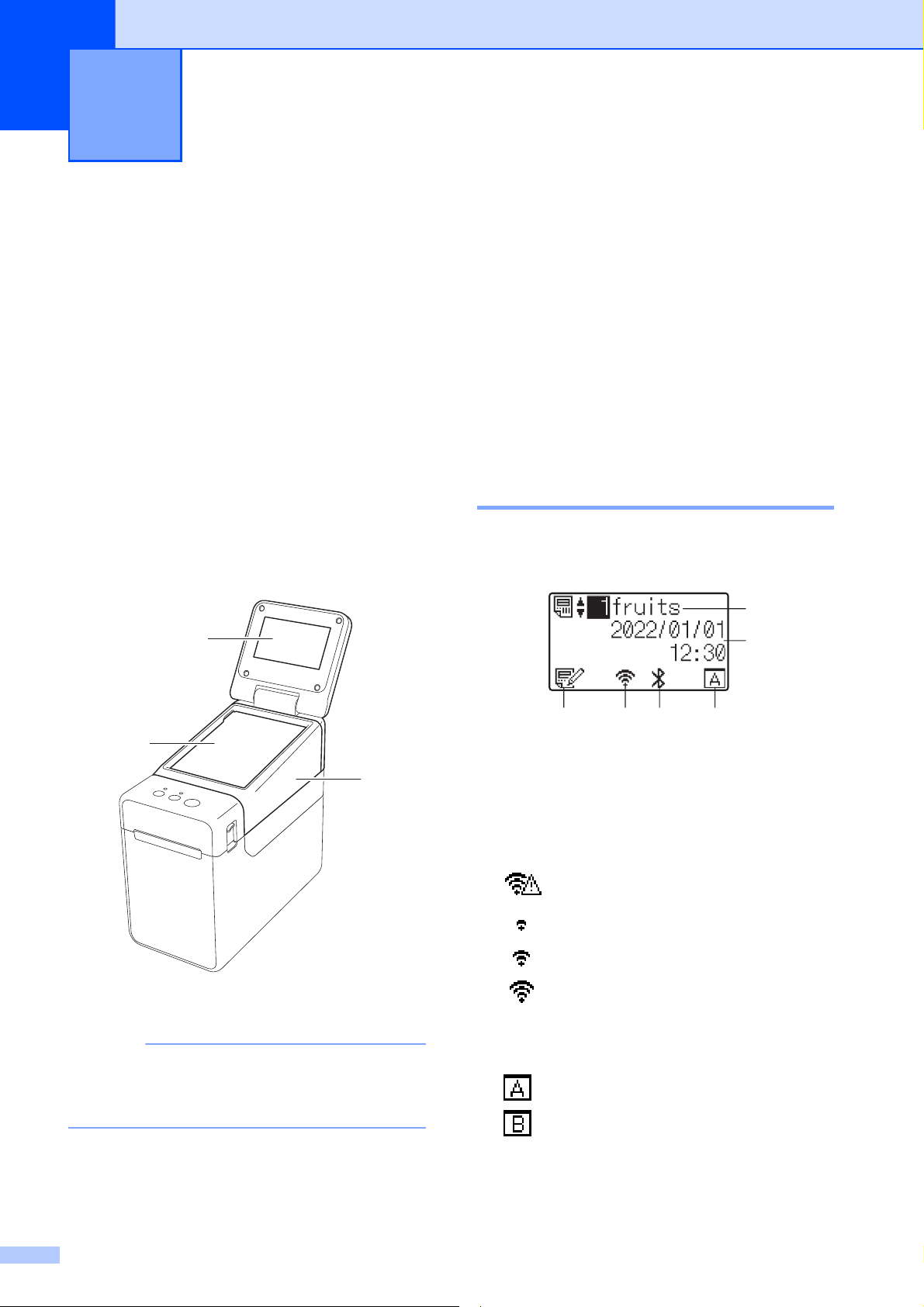
64
10
The (optional) Touchpanel Display (TDU) is a
touchpanel operating unit designed to attach
to the printer. Since touchpanel keys can be
pressed to perform operations, labels can be
printed and various settings can be specified
without a computer connection.
For more information on attaching the
touchpanel display, refer to the touchpanel's
Quick Setup Guide.
General Description 10
1LCD
NOTE
A protective clear plastic sticker is placed over
the LCD during manufacturing and shipping.
This sticker should be removed prior to use.
2 Touchpanel
3 TDU Panel cover
LCD 10
Lift and adjust the LCD so that the screen is
visible. Turn on the backlight if the screen is
dark and difficult to read. For more
information, see Specifying Settings From the
Touchpanel on page 68.
Main Screen 10
When the printer is turned on, the main
screen appears.
1 Template name and number
2 Time and date
3 Template editing indicator
4 Wireless LAN (Infrastructure mode)
5 Bluetooth
6 Touchpanel setting
: Basic control panel (A)
: One-touchpanel (B)
Using the Touchpanel Display
(Optional: PA-TDU-001)
(TD-2125N/TD-2135N/
TD-2125NWB/TD-2135NWB only)
10
2
1
3
: Enabled (not connected)
: Enabled (weak radio wave)
: Enabled (middle radio wave)
: Enabled (strong radio wave)
1
2
3 4 5 6
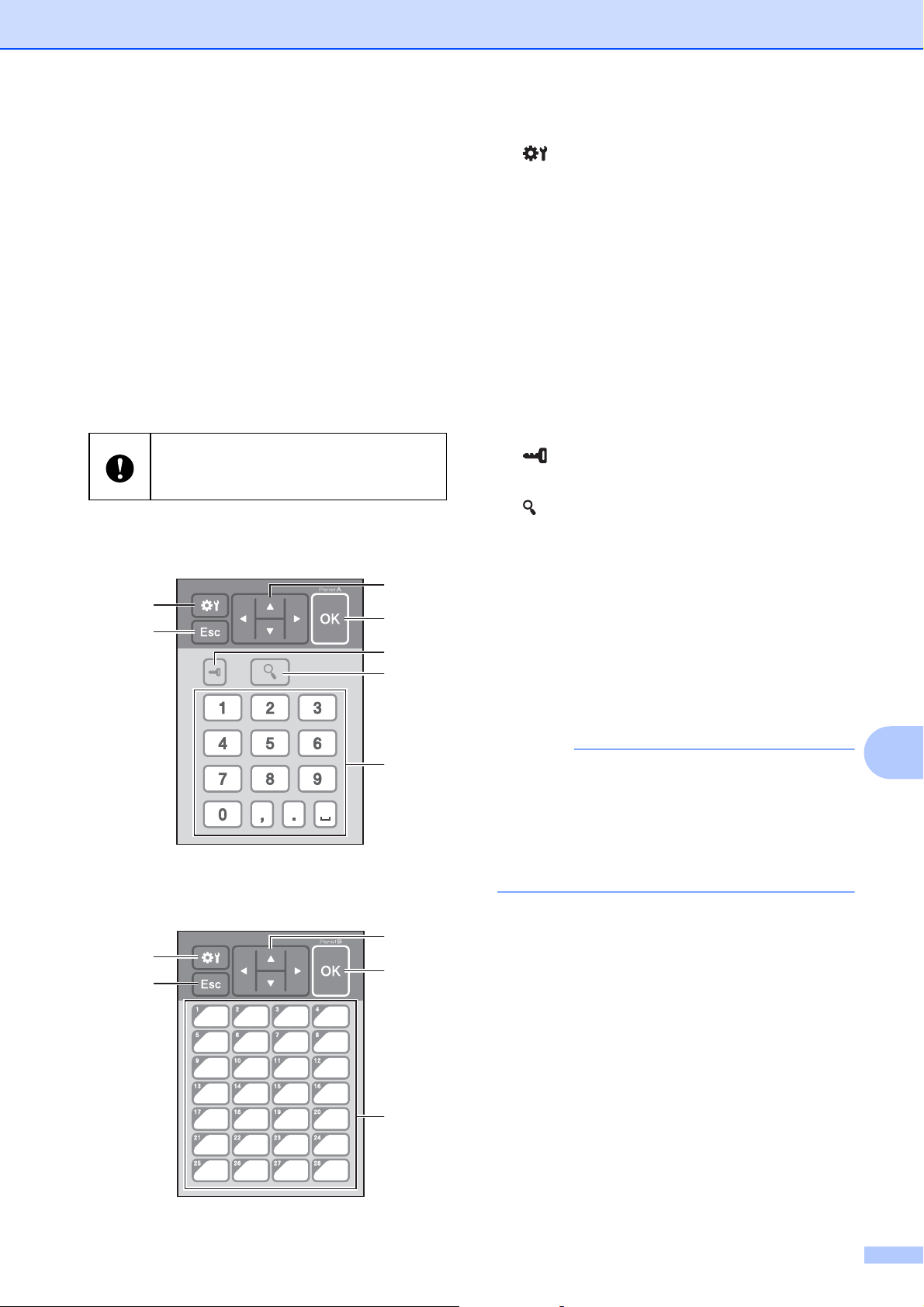
Using the Touchpanel Display (Optional: PA-TDU-001) (TD-2125N/TD-2135N/TD-2125NWB/TD-2135NWB only)
65
10
Touchpanel
10
There are two touchpanels: the basic control
panel (A) and the one-touchpanel (B). Either
can be selected for use.
Press a key on the touchpanel to perform an
operation.
If a label layout has been assigned in
advance to a key on the one-touchpanel, a
label can easily be printed simply by pressing
the key of the corresponding label.
Basic control panel (A) 10
One-touchpanel (B) 10
1 (Settings key)
Specify settings for the various parameters.
2 Esc (Escape key)
Tap to the previous operation or press and hold
for at least one second to return to the main
screen.
3 a / b / d / c
Changes what is displayed or increases/
decreases values. Holding down this key
quickly changes what is displayed or
increases/decreases values by 10.
4OK key
Apply the operation or setting.
5 (Admin key)
Specify basic settings for using the touchpanel.
6 (Search key)
Press to display the contents of the selected
template. You can also check the contents of
the database linked to the template.
7 Numeric keys
Type the template number or database record
number. These can also be used to edit values
in the label layout.
8 One-touch keys
Use to select the label to be printed.
NOTE
The touchpanel name (A or B) is printed in the
upper-right corner of the touch panel. Make
sure that the specified touchpanel name, which
appears in the main screen on the LCD,
matches the name of the touchpanel you are
using.
Do not press on the touchpanel with a
sharp object. Otherwise, the touchpanel
may be damaged.
1
2
6
7
3
4
5
8
4
3
1
2
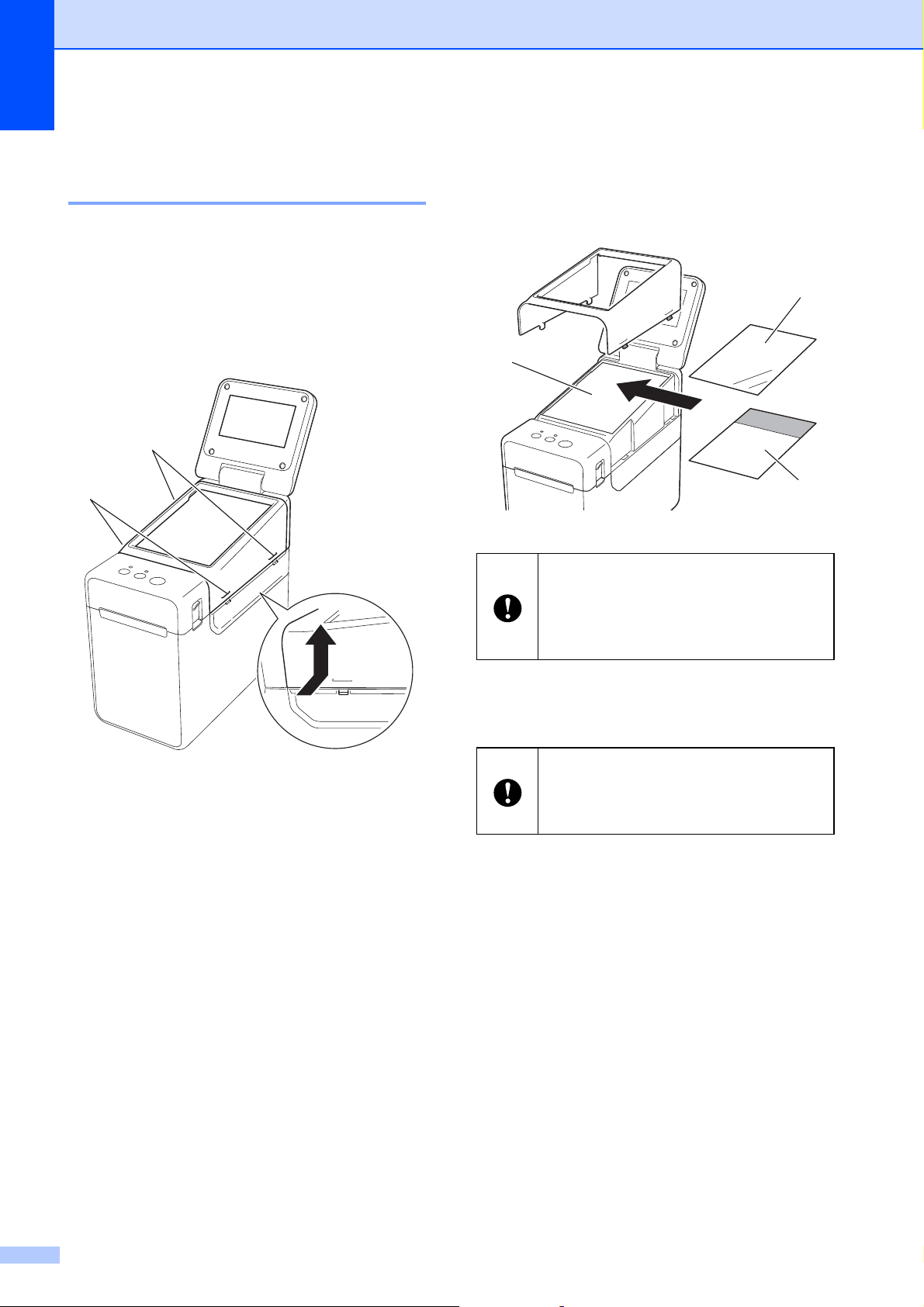
Chapter 10
66
Information About Replacing
the Touchpanel 10
a The TDU panel cover is attached with
four tabs. While pressing the two tabs
(1) at the front, slide the cover up and
unhook the tabs. Then, press the two
tabs (2) at the back to unhook the tabs
in the same way.
b Remove the TDU panel cover, and
place the touchpanel (1) to be used,
then the clear protective sheet (2) on the
touchpanel holder (3).
c Attach the TDU panel cover in its
original position.
1
2
Since foreign material, such as dust,
caught between the touchpanel,
protective sheet and touchpanel holder
may cause a malfunction. Make sure
that no foreign material is attached.
When the touchpanel is replaced, the
setting for the touchpanel display must
be changed. For more information, see
Selecting the Touchpanel on page 77.
1
2
3
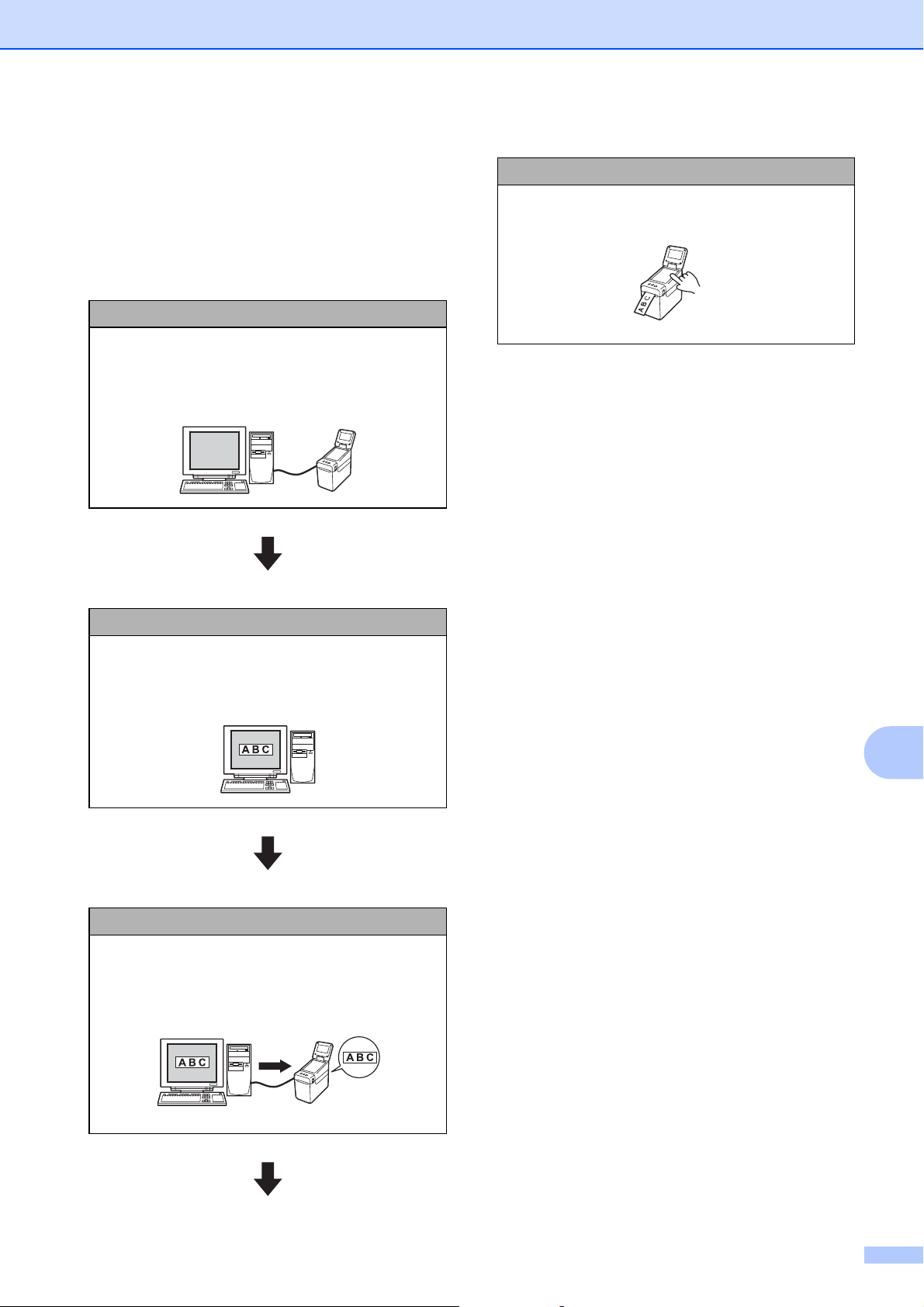
Using the Touchpanel Display (Optional: PA-TDU-001) (TD-2125N/TD-2135N/TD-2125NWB/TD-2135NWB only)
67
10
Printing With the
Touchpanel Display
10
Follow the procedure below to print by using
the touchpanel display.
1. Preparation
Connect the printer to the computer, and then
install the printer driver and software. (page 3)
Install media in the printer. (page 7)
2. Create a label layout.
From the computer, use P-touch Editor, which
can be downloaded from our support website, to
create a label layout. (page 72)
3. Transfer the label layout to the printer.
Use P-touch Transfer Manager to transfer the
created label layout from the computer to the
printer. (page 76)
4. Print the label.
Use the touchpanel to print the label. (page 79)
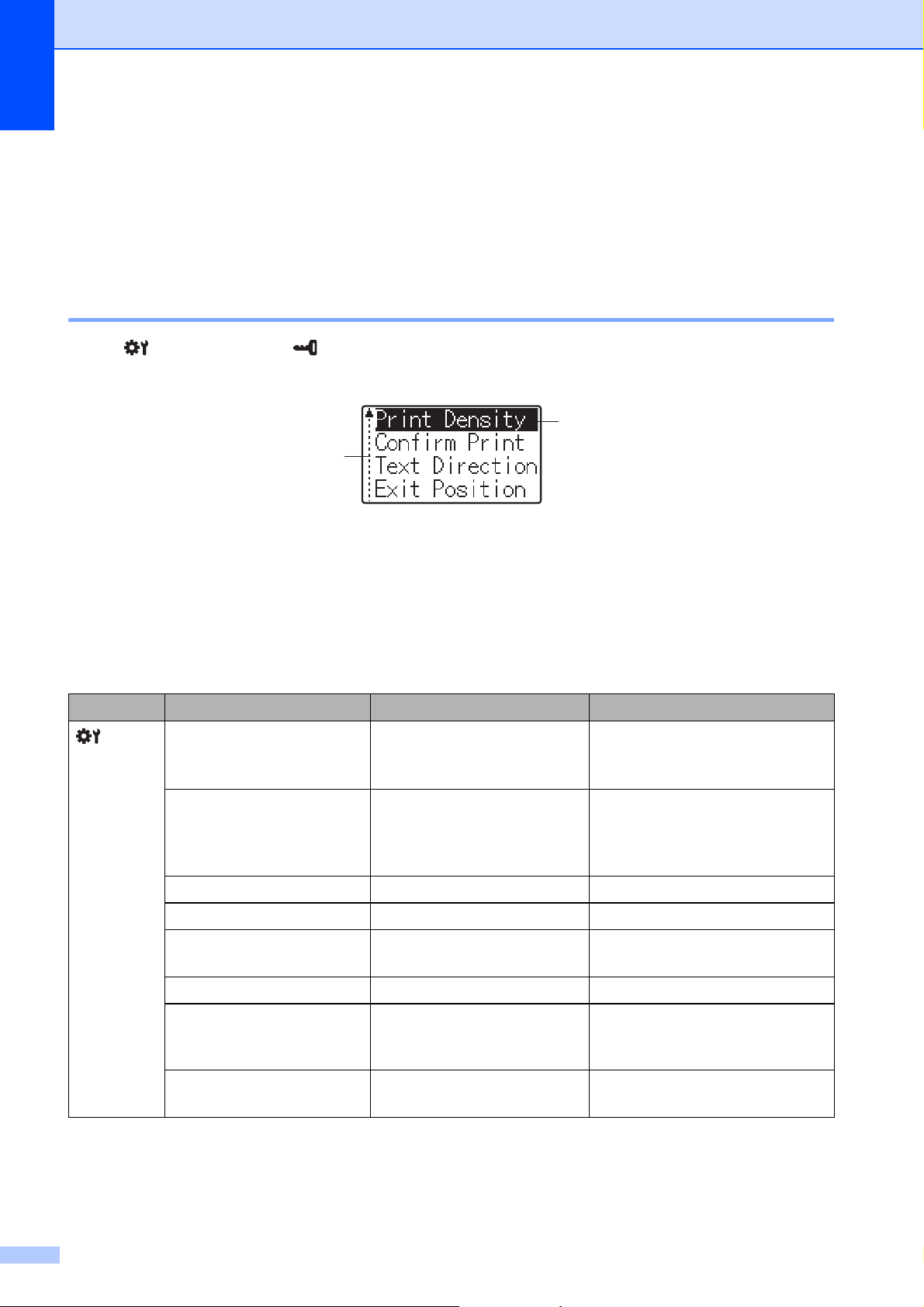
Chapter 10
68
Touchpanel Display Settings
10
The settings for the touchpanel display can be specified either by using the touchpanel, or by
using a tool on a computer connected to the printer. For more information on connecting a
computer and specifying settings, see Device Settings on page 28.
Specifying Settings From the Touchpanel 10
Press [ ] (settings key) or [ ] (admin key) to display the menu screen. Press [a] or [b] to select
a parameter, and then press [OK].
1
The scroll bar indicates the first parameter with the up arrow, and the last parameter with the down arrow. If the last
parameter is selected, pressing [b] scrolls to the first parameter. If the first parameter is selected, pressing [a] scrolls
to the last parameter.
2
The currently selected parameter is highlighted.
With the touchpanel display attached to the printer, the following settings can be specified.
Key Parameter Settings Description
(settings
key)
Print Density -5/-4/-3/-2/-1/0/+1/+2/
+3/+4/+5
Adjust the printer’s printing
density.
Confirm Print On/Off Select whether a message
appears before printing so that
the number of copies can be
confirmed.
Text Direction Normal/Inverted 180° Select the printing orientation.
Exit Position Tear/Peeler Select the media exit location.
Backlight On/Off Select whether the LCD
backlight is turned on.
LCD Contrast +2/+1/0/-1/-2 Select the LCD contrast.
Beeper On/Off Select whether the printer beeps
when a touchpanel key is
pressed.
Set Panel A/B Select which touchpanel will be
used.
2
1
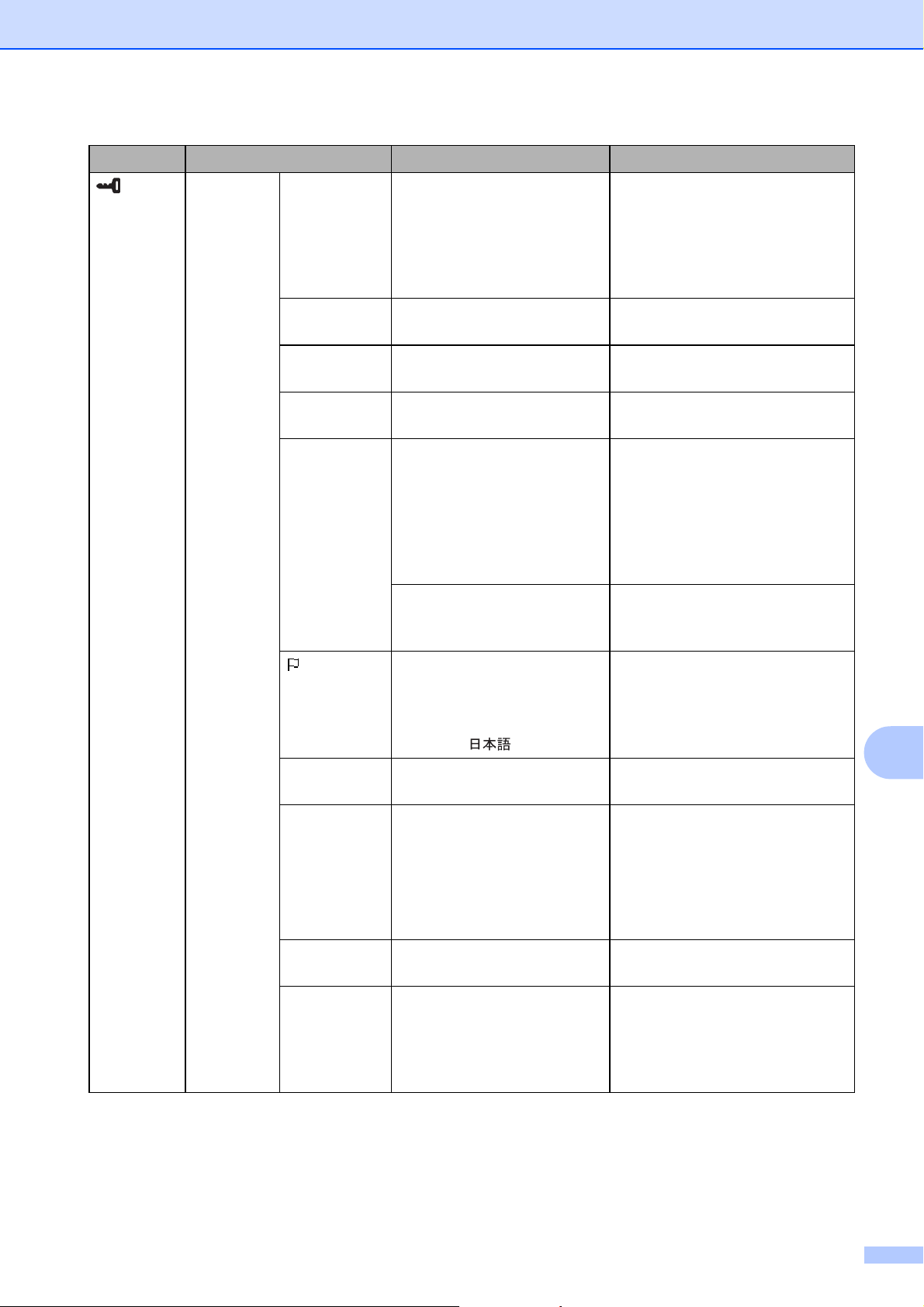
Using the Touchpanel Display (Optional: PA-TDU-001) (TD-2125N/TD-2135N/TD-2125NWB/TD-2135NWB only)
69
10
(admin
key)
1
Setup Keys
Function
Template/
Database
Select the type of data assigned
to keys on the one-touchpanel.
To assign templates, select
[Template]. To assign
databases linked to a single
template, select [Database].
Serialize
Mode
Cont From Last/From
Starting#
Select whether or not to serialize
from the last number printed.
Default
Print#
1–999 Set the default number of copies
that appears when printing.
Set Clock Default:
2013/01/01 24h 00:00
Set the time and date for the
touch panel display.
Time&Date
Form
Date Format:
1/31/2099, 01/31/2099,
31/1/2099, 31/01/2099,
31.1.2099, 31.01.2099,
31-1-2099, 31-01-2099,
2099/1/31, 2099/01/31,
2099-1-31, 2099-01-31
Select the date format for the
clock.
Time Format:
01:59(24), 1:59(24),
1:59AM, 01:59AM
Select the time format for the
clock.
Language
Dansk/Deutsch/English/
Español/Français/
Italiano/Nederlands/
Norsk/Português/Suomi/
Svenska/
Select the language of the
touchpanel.
Unit inch/
mm Select the measurement units
for displayed settings.
Print#
2
From Starting#/Cont
From Last
Select whether or not the
number of copies set from the
TDU, remains set after the
copies are printed.
This TDU setting is applied until
the printer is turned off.
Bar Code
2
With Margins/No
Margins
Select whether or not margins
are added around barcodes.
DB search
2
By Line#/By Data When using a template with a
linked database, select whether
to search for database records
by their line number or by their
data.
Key Parameter Settings Description
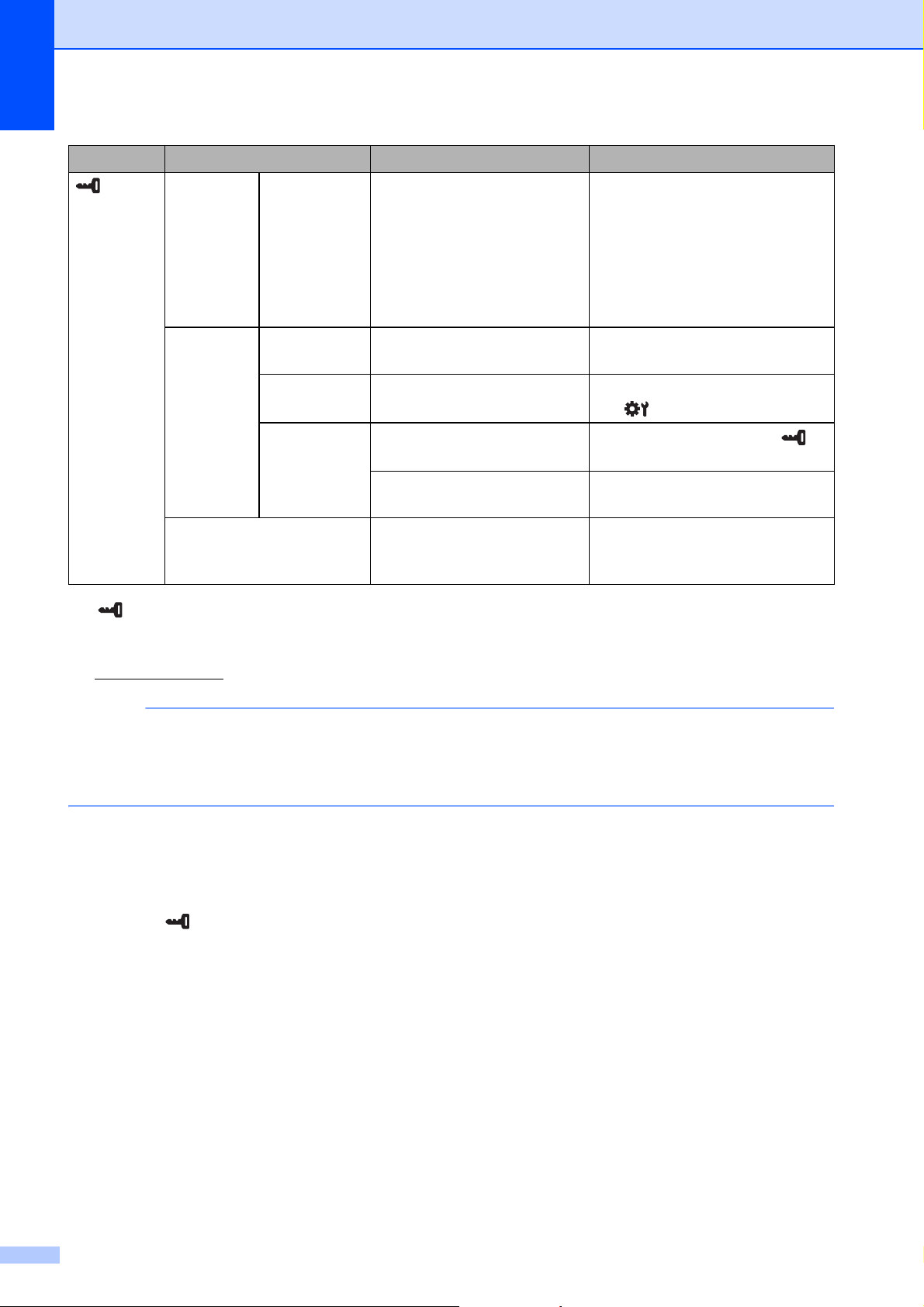
Chapter 10
70
1
[ ] (admin key) can be accessed only when touchpanel A (basic control panel) is set.
2
This function is available with firmware version 1.04 or later.
The newest version can be downloaded from the support website.
support.brother.com
NOTE
• Some settings may differ depending on the firmware (printer software).
• If you want to reset the settings, use [Device settings] in the “Printer Setting Tool” to return
all settings to their factory defaults. For more information, see Device Settings on page 28.
Setting the Time and Date 10
Adjust the clock to the current time and date. This time and date is displayed in the main screen.
a Press [ ] (admin key).
b Press [b], select [Setup], and then press [OK].
c Press [b], select [Set Clock], and then press [OK]. The clock setting screen appears.
d Press the number keys to specify the last two digits of the year, two digits for the month and
two digits for the day.
For December 1, 2013, press [1] [3] [1] [2] [0] [1].
e Press [a] or [b] to select AM, PM or 24, and then press the number keys to specify two digits
each for the hour and minutes.
To enter 2:45 in the AM/PM format, press [b] to select [PM], and then press [c], then [0] [2]
[4] [5].
(admin
key)
1
(Continued)
Setup
(Continued)
Set Temp
Time
2
Default Time/Cont From
Last
When directly entering the date/
time to be printed, select
whether or not the entered date/
time remains set after the copies
are printed.
This setting is applied until the
printer is turned off.
Security Disable
Edit
On/Off Select whether or not label
layouts can be edited.
Lock
Settings
On/Off Allow or disable setting changes
for [ ] (settings key).
Admin
Password
On/Off
Set password access for [ ]
(admin key).
Enter Password:
**** (4 digits)
Type in the 4-digit password.
Configuration
Printer/ProgVer/
FontVer/Memory
Displays the model name,
firmware version, font version
and amount of built-in memory.
Key Parameter Settings Description

Using the Touchpanel Display (Optional: PA-TDU-001) (TD-2125N/TD-2135N/TD-2125NWB/TD-2135NWB only)
71
10
f Press [OK]. The main screen appears, and the specified time and date are displayed.
NOTE
The format for the time and date can be changed. Press [ ] (admin key), select [Setup], then
[Time&Date Form] from the parameters, and then specify settings for [Date Format] and
[Time Format].
Setting the Administrator Password 10
A password can be set so that basic settings specified by pressing [ ] (admin key) cannot easily
be accessed. If a password is set, each time [ ] (admin key) is pressed, a password must be
entered. Access to these parameters can be restricted by setting a password.
a Press [ ] (admin key).
b Press [b], select [Admin Password], and then press [OK].
c Press [b], select [On], and then press [OK].
The password input screen appears.
d Type in the 4-digit password, and then press [OK].
The password is set.
NOTE
• This parameter can be accessed only when touchpanel A (basic control panel) is set.
• After a password has been set, the password input screen appears when [ ] (admin key) is
pressed. Type in the specified 4-digit password, and then press [OK].
• To cancel the password settings, press [ ] (admin key), type in the password to display the
parameters, and then set [Admin Password] to [Off].
• If you do not remember the password, use [Device settings] in the “Printer Setting Tool” to
return all settings to their factory defaults or specify the password again and apply it. For more
information, see Device Settings on page 28.
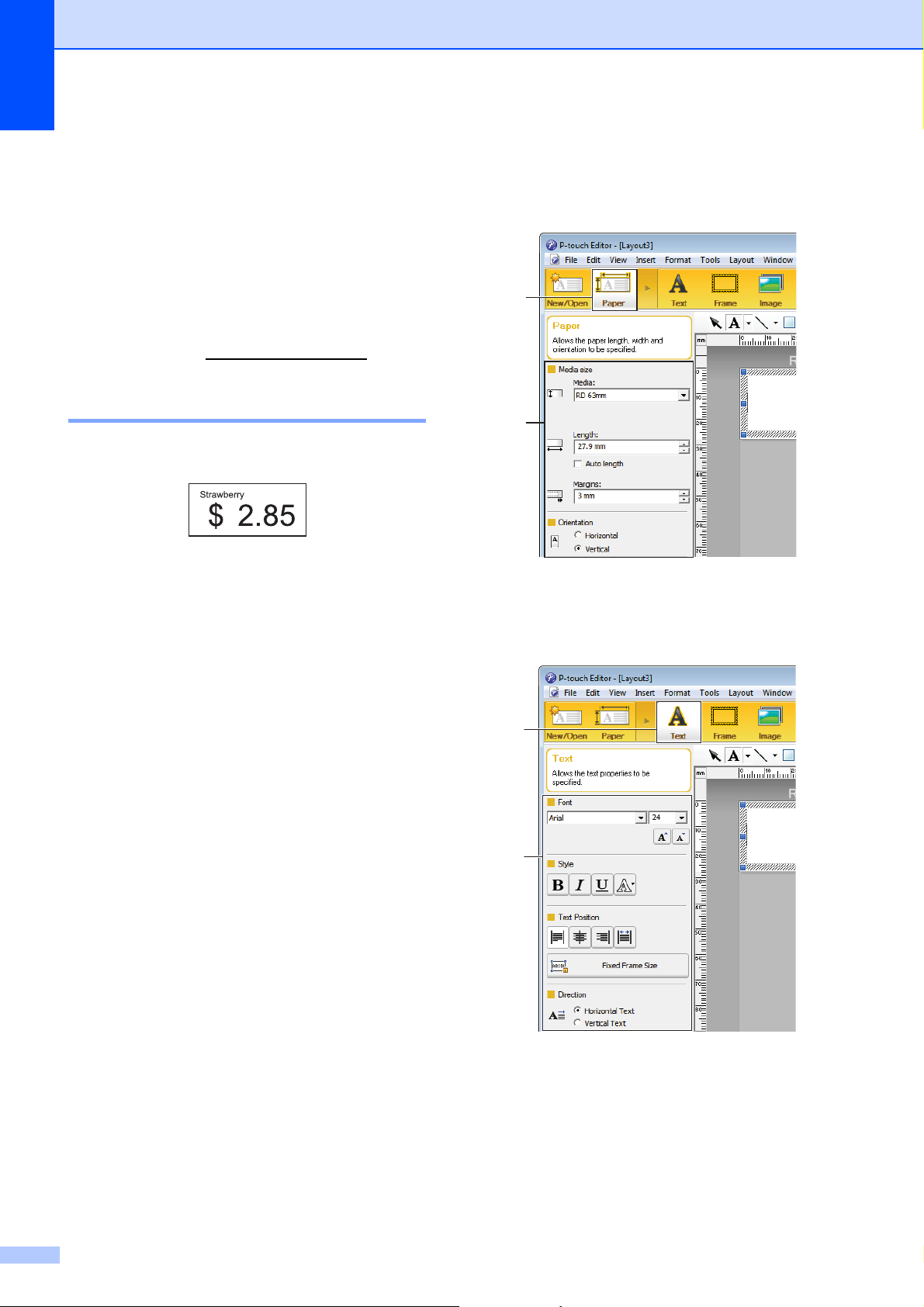
Chapter 10
72
Creating a Label
Layout
10
From the computer, use P-touch Editor,
which is available downloading from Brother
support website, to create a label layout. For
more information on use, see the Software
User’s Guide downloading from Brother
support website (support.brother.com
).
Creating a Template 10
Label sample
a For Windows 10:
From the Start menu, click [Brother
P-touch] - [P-touch Editor].
For Windows 8.1:
Click [P-touch Editor] in the [Start] or
[Apps] screen, or double-click [P-touch
Editor] on the desktop.
b When P-touch Editor starts, select
whether you want to create a new layout
or open an existing layout.
c Click [Paper] (1), and then specify the
media and length (2). (This window
appears in [Express] mode.)
d Click [Text] (1), and then specify the font
and style (2).
1
2
1
2
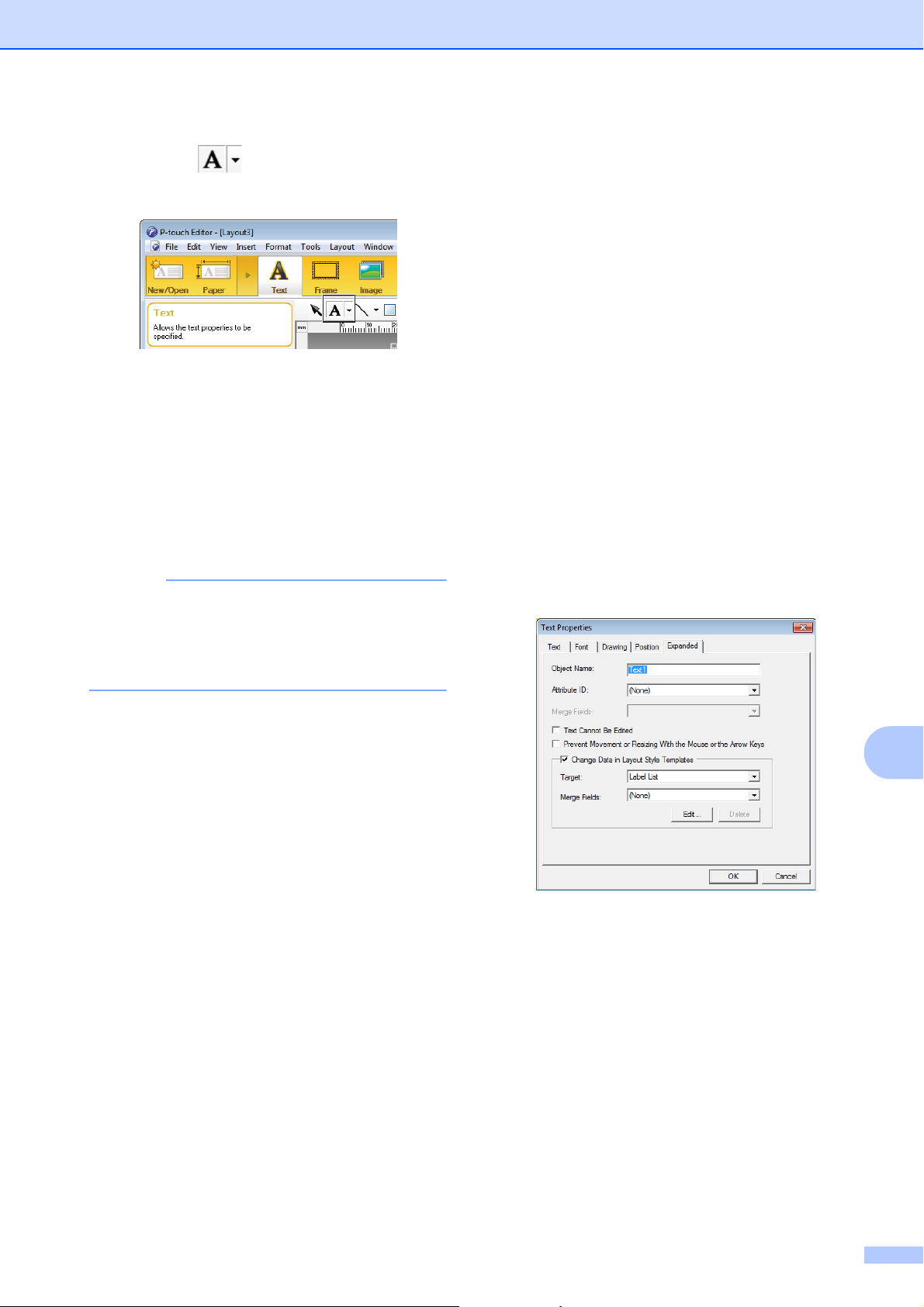
Using the Touchpanel Display (Optional: PA-TDU-001) (TD-2125N/TD-2135N/TD-2125NWB/TD-2135NWB only)
73
10
e Clicking displays the cursor so
text can be typed in.
f After inserting the text, click the text box
to move it within the template.
g Repeat steps e and f to enter text and
arrange the layout.
After entering text, click [File] - [Save
as] on the menu bar, and then specify
the file name for saving the data.
NOTE
The first ten characters of the file name
will appear on the LCD as the template
name when the touch panel display is
used.
Setting the Text and Order for
Displaying on the LCD
10
Using P-touch Editor, the text displayed on
the LCD and its display order can be set.
a In P-touch Editor, open the label layout
to be edited.
b Select the text box for text to be
displayed on the LCD, right-click it, and
then click [Properties] to display the
[Text Properties] dialog box. In the
[Object Name] box on the [Expanded]
tab, set the desired number (for
example, “Text1”, “Text2” or “Text3”).
The text will be displayed on the LCD in
the order of the set numbers.
To set that text not be displayed on the
LCD, select the [Text Cannot Be
Edited] check box on the [Expanded]
tab.
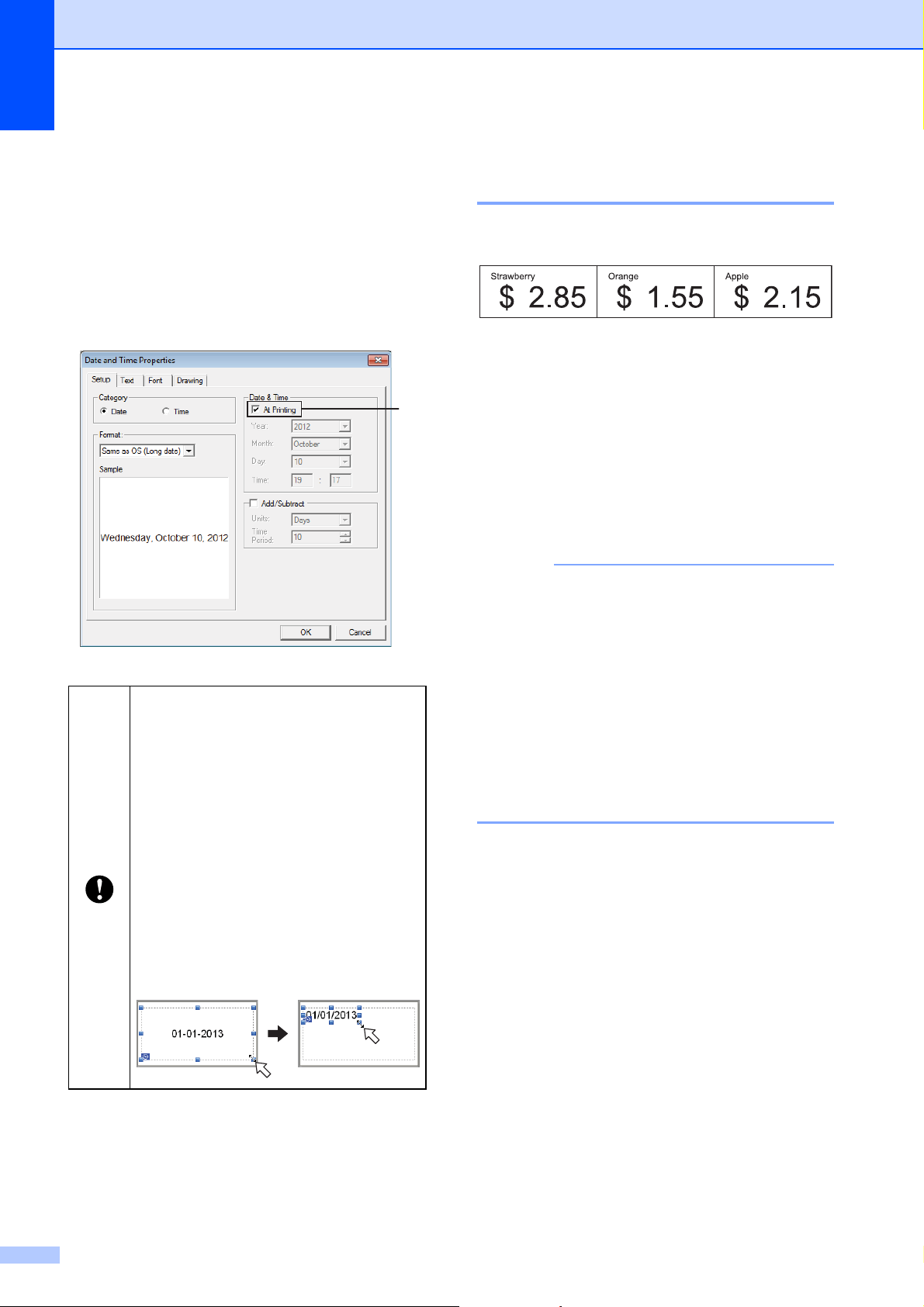
Chapter 10
74
Inserting the Date and Time in a Label10
a In P-touch Editor, open the label layout
to be edited.
b On the menu bar, click [Insert] - [Date/
Time] to display the [Date and Time
Properties] dialog box. Select settings
for the format of the text to be inserted.
Linking a Database to a
Template 10
Label sample
A database can be linked to the template that
was created. Since the text in the template
can be replaced with text from the database,
multiple labels can be printed simply by
creating a single template.
For more information on specifying database
settings, see [P-touch Editor Help].
a Prepare a database file in advance.
NOTE
• Files saved as XLS, MDB, CSV and TXT
formats can be used as databases.
• Only one database can be linked to a
single template. A maximum of 65,000
records can be created in that database.
(The total size of templates and databases
is limited to 20 MB.)
• The data entered in the database can
be displayed on the LCD. Only the first
13 characters can be displayed.
b In P-touch Editor, open the template to
be linked to the database.
If the [At Printing] check box (1) is
selected, the date and time of
printing will be inserted. If the check
box is cleared, the current date and
time will be inserted and will not be
updated.
The date and time inserted into the
label will be printed in the printer’s
built-in character size. Since the
character size is determined by the
size of the date and time object,
adjust the object to the desired size
in P-touch Editor before transferring
the label layout to the printer.
1
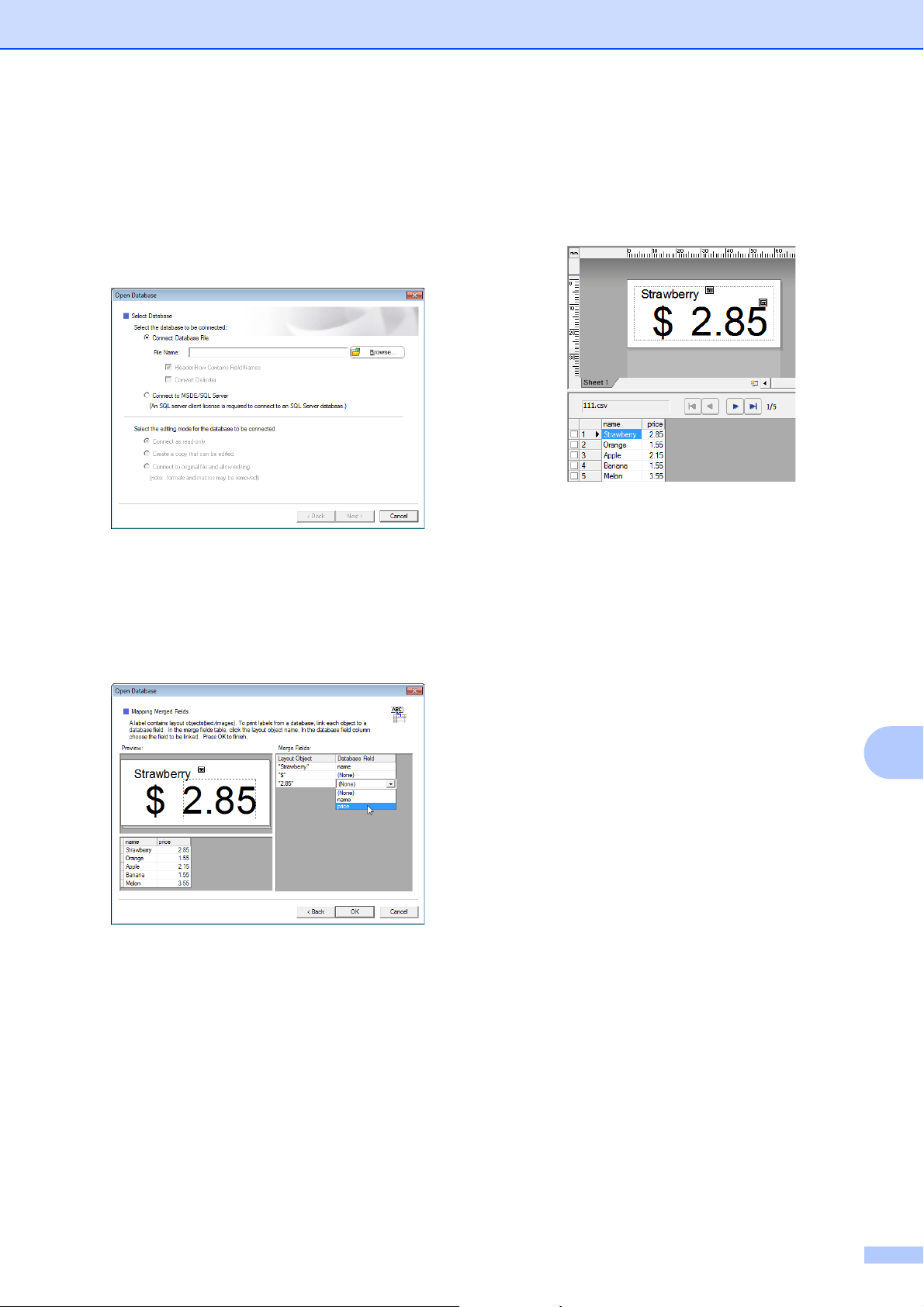
Using the Touchpanel Display (Optional: PA-TDU-001) (TD-2125N/TD-2135N/TD-2125NWB/TD-2135NWB only)
75
10
c On the menu bar, click [File] -
[Database] - [Connect] to display the
[Open Database] dialog box. Select
[Connect Database File], click
[Browse], and then select the database
to be linked.
d Click [Next] to display a settings dialog
box. With [Database Field] under
[Merge Fields], specify which database
column will be linked to which object,
and then click [OK].
e The template and database will link, and
the main window appears. Click the
database row to be checked in order to
display the label with the text replaced.
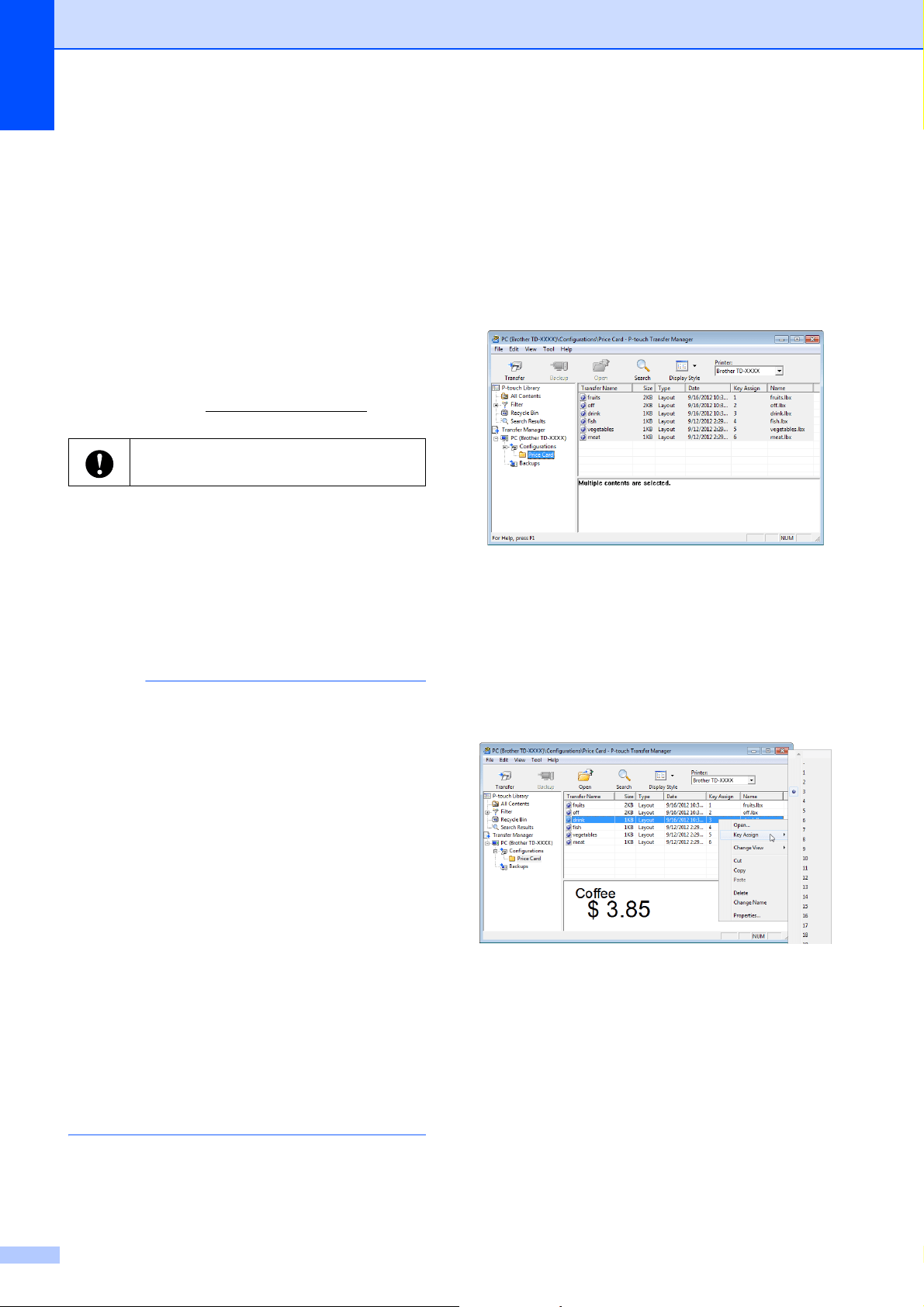
Chapter 10
76
Transferring the Label
Layout to the Printer
10
By transferring the created label layout from a
computer to the printer, you can easily use
the touchpanel display to print as many labels
as required.
Use P-touch Transfer Manager to transfer
data. For more information, see the Software
User's Guide downloading from Brother
support website (support.brother.com
).
a Connect the printer to the computer with
a USB cable, and then turn on the
printer.
b In P-touch Editor, open the label layout
to be transferred, and then click [File] -
[Transfer Template] - [Transfer].
NOTE
• If [Transfer Template] cannot be selected
in P-touch Editor, make sure that the
layout window in P-touch Editor is the
active window.
• If the label layout has already been
transferred to P-touch Transfer Manager,
you can start the application.
• For Windows 10:
From the Start menu, click [All
Programs] - [Brother P-touch] -
[P-touch Tools] - [P-touch Transfer
Manager].
P-touch Transfer Manager starts up.
• For Windows 8.1:
Click [P-touch Transfer Manager] in
the [Start] or [Apps] screen.
P-touch Transfer Manager starts up.
c Select this printer from the [Printer] list.
Right-click [Configurations], click
[New], and then create a new folder with
the desired name. (In this example, the
folder [Price Card] is created.)
Click [Configurations] or [All
contents], and then drag the data to be
transferred to the [Price Card] folder.
d A key number (number of the template
to be registered on the printer) is
assigned to the file in the [Price Card]
folder. To change the number, right-click
the file, click [Key Assign], and then
select the desired number between 1
and 99.
Before transferring data, make sure that
the main screen appears on the LCD.
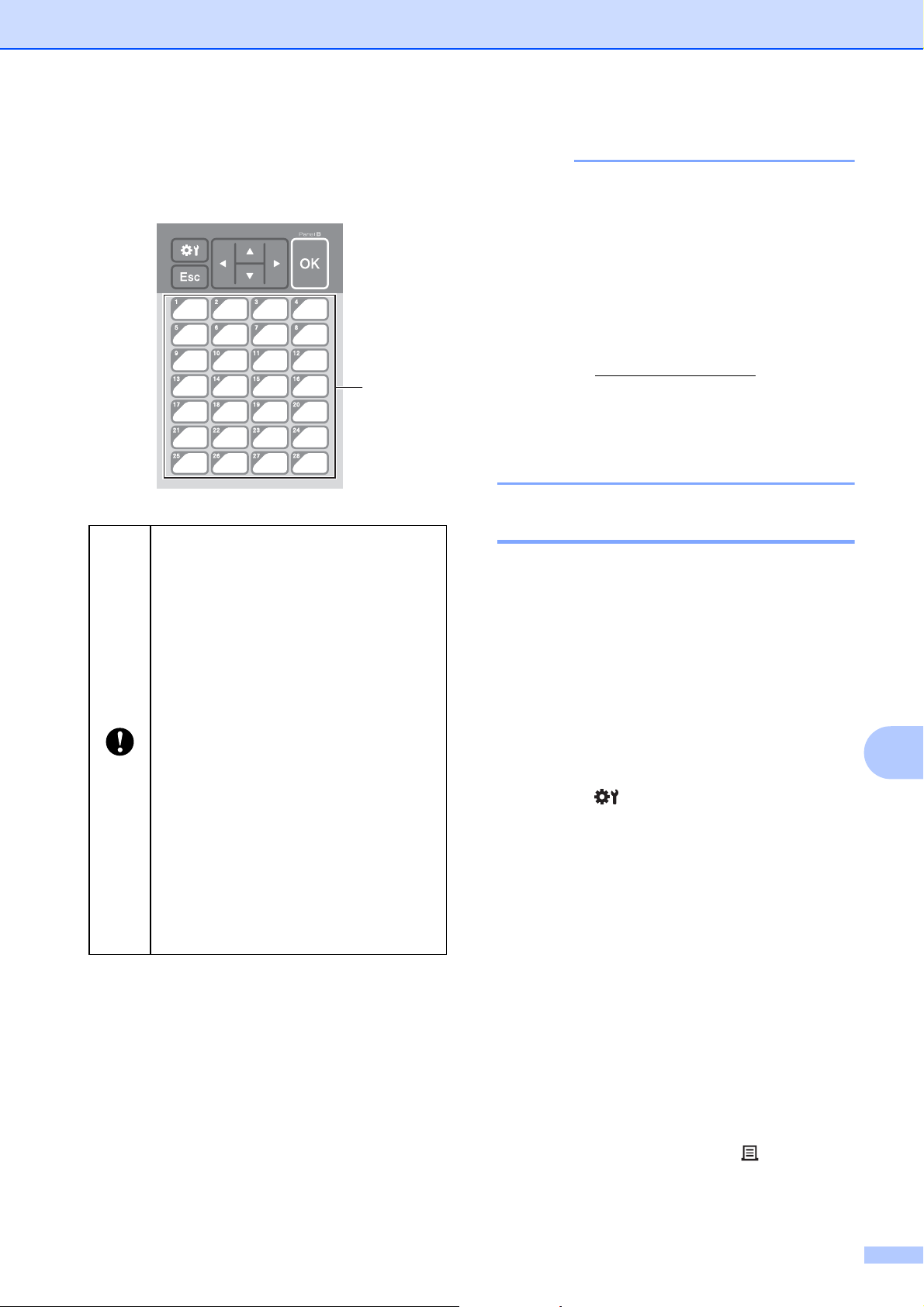
Using the Touchpanel Display (Optional: PA-TDU-001) (TD-2125N/TD-2135N/TD-2125NWB/TD-2135NWB only)
77
10
The data registered with keys 1 to 28 (1)
of the one-touch panel is determined by
the key number.
e Select the [Price Card] folder, and then
click [Transfer]. If a confirmation
message appears, click [OK].
Transferring begins.
NOTE
• Up to 99 templates can be registered with
this printer.
• There are various methods for transferring
multiple templates together to the printer,
depending on whether the printer driver is
installed. For more information, see
“Creating Labels” in the Software User’s
Guide downloading from Brother support
website (support.brother.com
).
• If a new template is transferred with the
same key number as another template
already registered on the printer, the new
template will overwrite the old one.
Selecting the Touchpanel 10
Two touchpanels, basic control panel (A) and
one-touchpanel (B) can be selected for the
touchpanel display.
If the one-touch panel (B) will be used, the
data to be assigned to the one-touch panel
keys must be specified. For more information
on specifying the settings, see Selecting the
Data Assigned to Keys on the
One-touchpanel on page 78.
a Press [ ] (settings key).
b Press [b], select [Set Panel], and then
press [OK].
c Press [a] or [b], select [A] or [B], and then
press [OK].
d Follow the on-screen instructions to
replace the touchpanel. (For more
information on replacing it, see
Information About Replacing the
Touchpanel on page 66.)
e Make sure that the specified touchpanel
name shown in the screen matches the
name of the touchpanel that is being
used, and then press the (Print)
button.
If the one-touch panel will be used, the
number must be specified before the
data is transferred.
If templates are assigned to one-
touch keys:
Templates with key numbers 1 to 28
are registered with the one-touch
key of the same number.
If databases are assigned to one-
touch keys:
When a template with a linked
database is selected, databases
with numbers 1 to 28 are registered
with the one-touch key of the same
number.
For more information on specifying the
data assigned to one-touch keys, see
Selecting the Data Assigned to Keys on
the One-touchpanel on page 78.
1
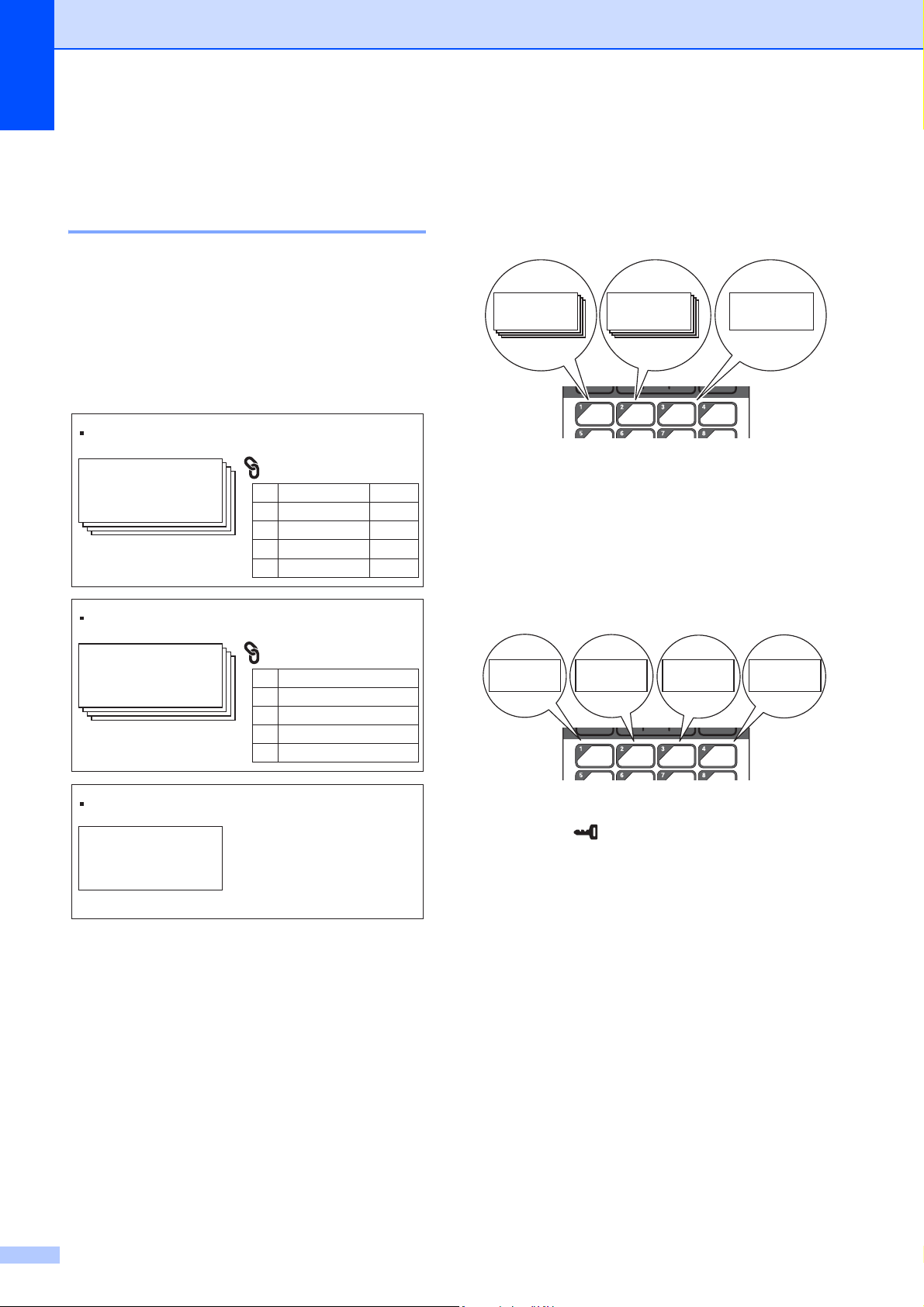
Chapter 10
78
Selecting the Data Assigned
to Keys on the
One-touchpanel 10
The type of data assigned to one-touch keys
when the one-touchpanel is used with the
touchpanel display can be specified. The type
of data can be either templates or databases.
Sample label layout registered in the
printer:
If [Template] was set, starting with
template number 1, templates are
registered with the one-touch key of the
same number.
If [Database] was set, starting with
database number 1, the databases of the
selected template are registered with the
one-touch key of the same number. (The
illustration shows when template number
1 is selected.)
a Press [ ] (admin key).
b Select [Setup], and then press [OK].
c Select [Keys Function], and then
press [OK].
d Press [a] or [b], select [Template] or
[Database], and then press [OK].
Name Price
No.
Strawberry
Orange
Apple
Banana
2.85
1.55
2.15
1.554
3
2
1
Template No.1 (fruits.lbx)
Database
$ 2.85
Strawberry
Price
No.
10%
15%
30%
50%4
3
2
1
Template No.2 (off.lbx)
Database
10%OFF
Price Down !!
Template No.3 (drink.lbx)
$ 3.85
Coffee
$ 2.85
Strawberry
10%OFF
Price Down !!
$ 3.85
Coffee
$ 2.85
Strawberry
$ 1.55
Orange
$ 2.15
Apple
$ 1.55
Banana
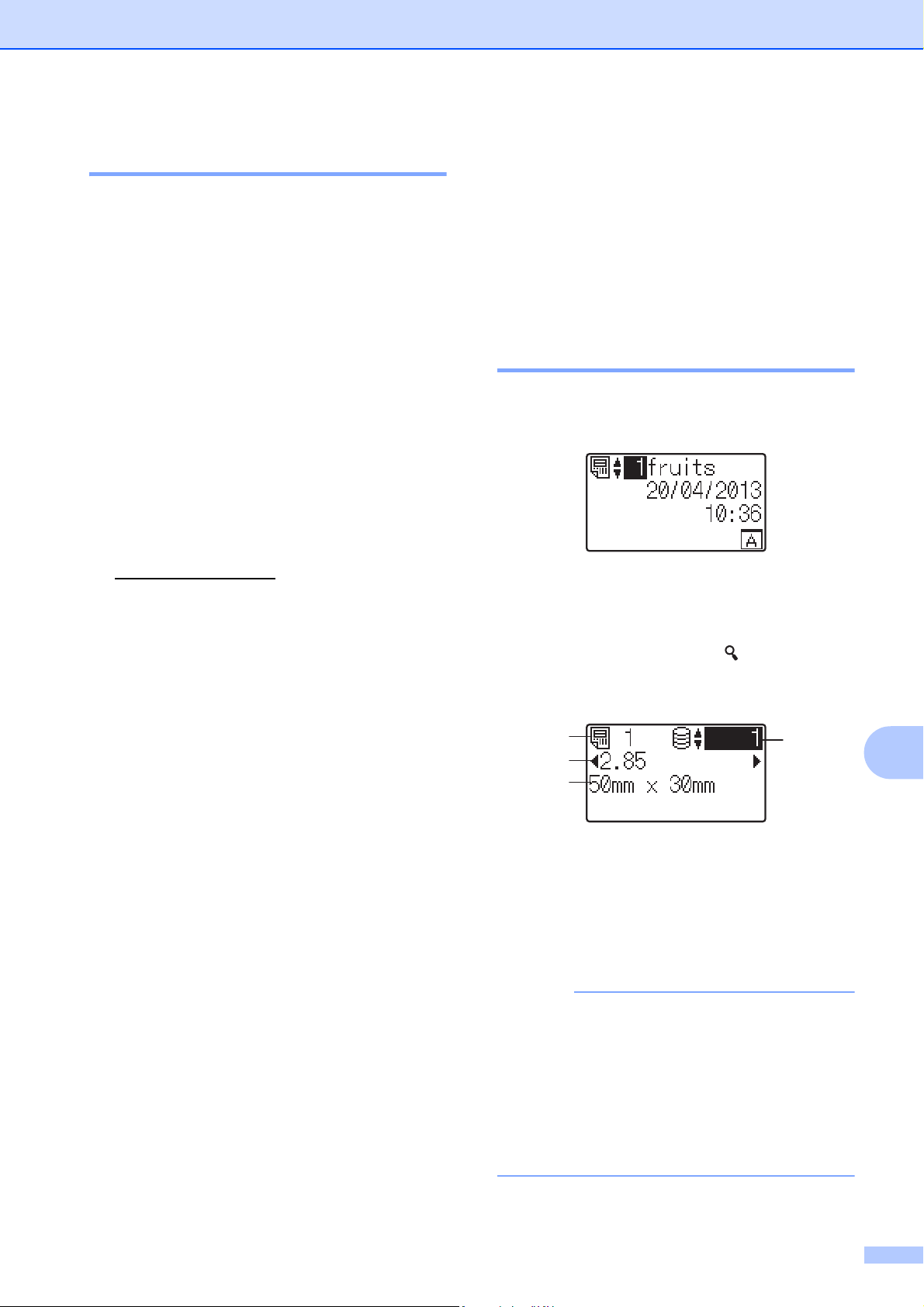
Using the Touchpanel Display (Optional: PA-TDU-001) (TD-2125N/TD-2135N/TD-2125NWB/TD-2135NWB only)
79
10
Creating a One-touchpanel 10
A one-touchpanel can be created using any
of the following methods.
Using stickers or in handwriting, note the
names of keys directly on the included
one-touchpanel.
The actual panel figure can be found on
the last page before the back cover in the
Quick Setup Guide for the touchpanel
display. This figure can be used by
copying it onto plain paper.
Panel size: 5.213" (length) × 3.634"
(width) (132.4 mm (length) × 92.3 mm
(width))
A panel format can be downloaded from
the following website.
support.brother.com
[Select your region/country] - Choose
your product - [Downloads]
This can be used by typing in the key
names, then printing out the data on plain
paper.
Printing the Label
10
A label layout transferred to the printer can
easily be printed or edited using the
touchpanel display, without a computer
connection.
Printing Using the Basic
Control Panel 10
a Turn on the printer. The main screen
appears.
b Press [a] or [b] to select the number of
the template to be printed, or press the
number keys to type in the number, and
then press [OK]. Press [ ] (search key)
to display the template details in the
screen.
1 Template number
2 Text in template
3 Paper size
4 Database record number (only if a
database is linked)
NOTE
• All text in the template can be checked by
pressing [d] or [c].
• The text displayed on the LCD and its
display order are set by using P-touch
Editor. For more information, see Setting
the Text and Order for Displaying on the
LCD on page 73.
4
1
2
3
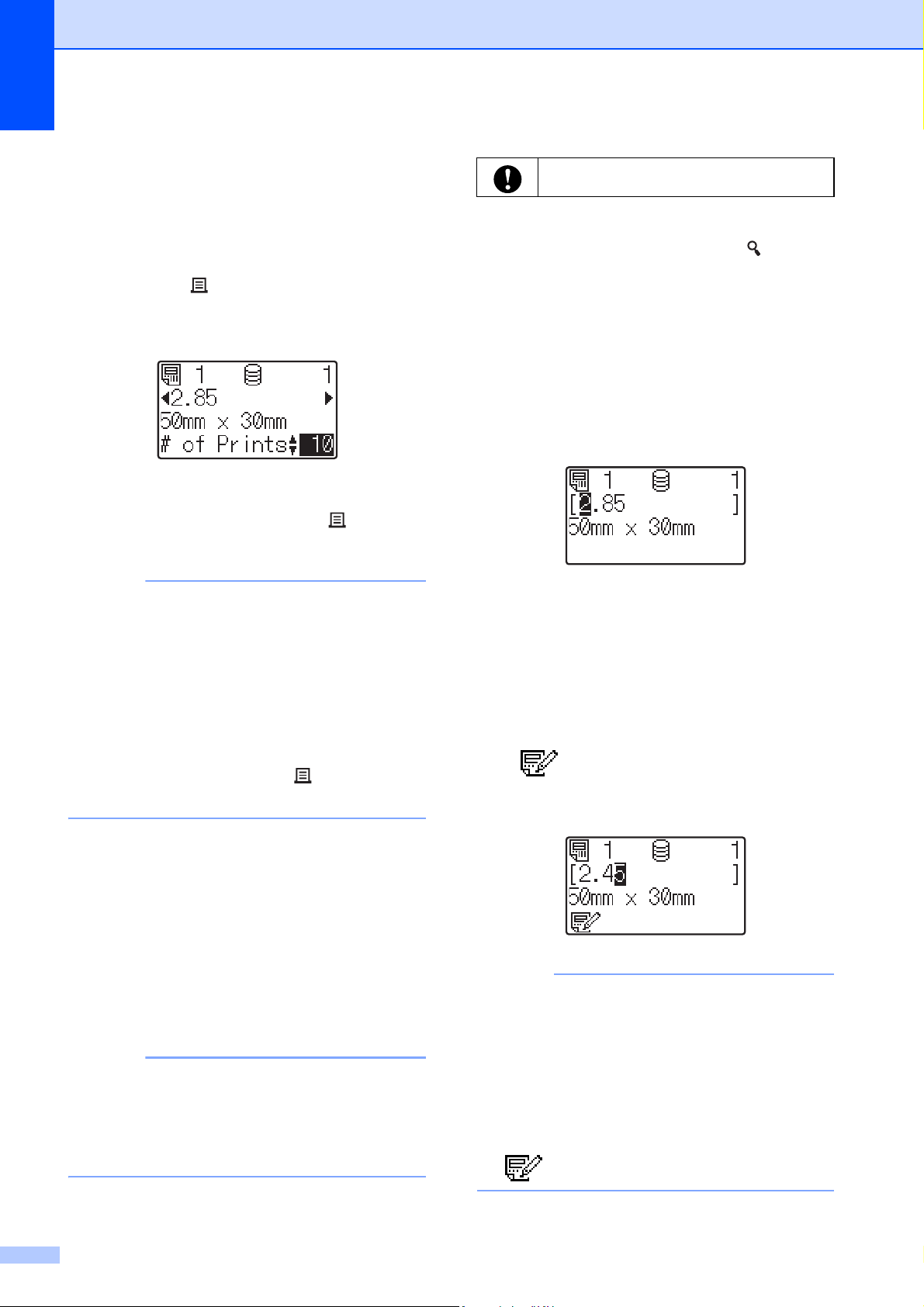
Chapter 10
80
c If a database is linked:
Press [a] or [b] to select the number of
the database record to be printed, or
press the number keys to type in the
number, and then press [OK].
d Press the (Print) button. A message
to confirm the number of copies
appears.
e Type in the number of copies to be
printed, and then press the (Print)
button or [OK]. The labels are printed.
NOTE
• The number of copies to be printed can be
set between 1 and 999.
• If the template contains a serialized
number, the labels will be printed with the
serialized field incremented by the
specified number of times.
• If [Confirm Print] is set to [Off],
printing begins when the (Print) button
is pressed in step d.
Editing Label Contents Before
Printing
10
To change the contents of a template that has
already been transferred to the printer, the
touchpanel can be used to directly edit the
data. This saves you the trouble of editing the
data from the computer and transferring it to
the printer.
NOTE
• Only numbers can be edited.
• Edited template cannot be saved. When a
different template or database is selected,
the edited data reverts to the original data.
a In the main screen, select the template
to be edited, and then press [ ] (search
key).
If the contents of a database record is to
be edited, select the appropriate
database record.
b Press [d] or [c] to display the item to be
edited, and then press [OK].
Editing mode is entered, and the
editable number is highlighted.
c Press [d] or [c] to highlight the number to
be edited. Press the number key of the
new number to overwrite the old
number. (In this example, [2.85] will be
changed to [2.45]. Press [c] to highlight
[8], and then press [4] on the number
keys.)
appears in the lower-left corner of
the screen to indicate that the template
was edited.
NOTE
• To return the currently displayed item to its
original number, press [Esc] to exit the
editing mode.
• Holding down [Esc] for at least 1 second
returns the currently displayed item to its
original number and returns to the main
screen. If any other item has been edited,
appears.
Use the basic control panel to edit data.
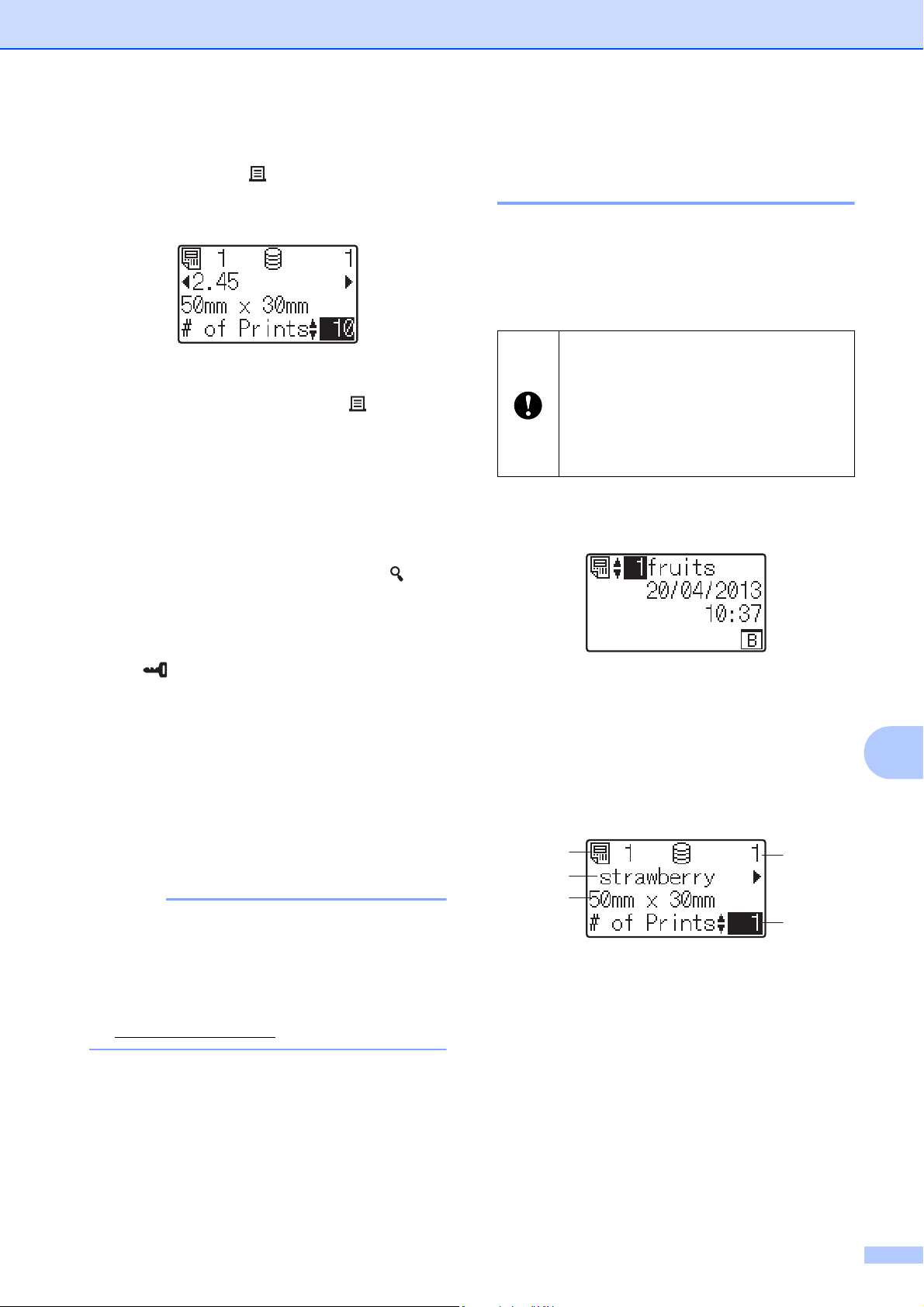
Using the Touchpanel Display (Optional: PA-TDU-001) (TD-2125N/TD-2135N/TD-2125NWB/TD-2135NWB only)
81
10
d Press [OK] to apply the edited text, and
then press the (Print) button. A
message to confirm the number of
copies appears.
e Type in the number of copies to be
printed, and then press the (Print)
button or [OK]. The labels are printed.
Searching for Records in a Database
Linked to a Template
10
After a template with a linked database is
transferred to the printer, you can search for
a record in the database by pressing [ ]
(search key) on the basic control panel.
To select whether to search for database
records by their line number or by their data,
press [ ] (admin key) on the basic control
panel, and then select the desired setting for
[DB search].
By Line#: Select this setting to search
for database records by their line number.
By Data: Select this setting to search for
database records by their data (only
numbers up to 13 digits) entered into the
first data field (ex: Column A).
NOTE
This function is available with firmware
version 1.04 or later.
The newest version can be downloaded
from the support website.
support.brother.com
Printing Using the
One-touchpanel 10
If a label layout has been assigned to a key
on the one-touchpanel, a label can easily be
printed simply by pressing the key of the
corresponding label.
a Turn on the printer. The main screen
appears.
b If databases are assigned to one-touch
keys:
Press [a] or [b] to select a template.
c Press the one-touch key for the label to
be printed. The label details appear in
the screen.
1 Template number
2 Text in label layout
3 Paper size
4 Database record number (only if a
database is linked)
5 Number of prints
The data registered with each one-
touch key, is determined by the
database number or the key number
when the data was transferred from the
computer to the printer. For more
information, see Transferring the Label
Layout to the Printer on page 76.
4
5
1
2
3
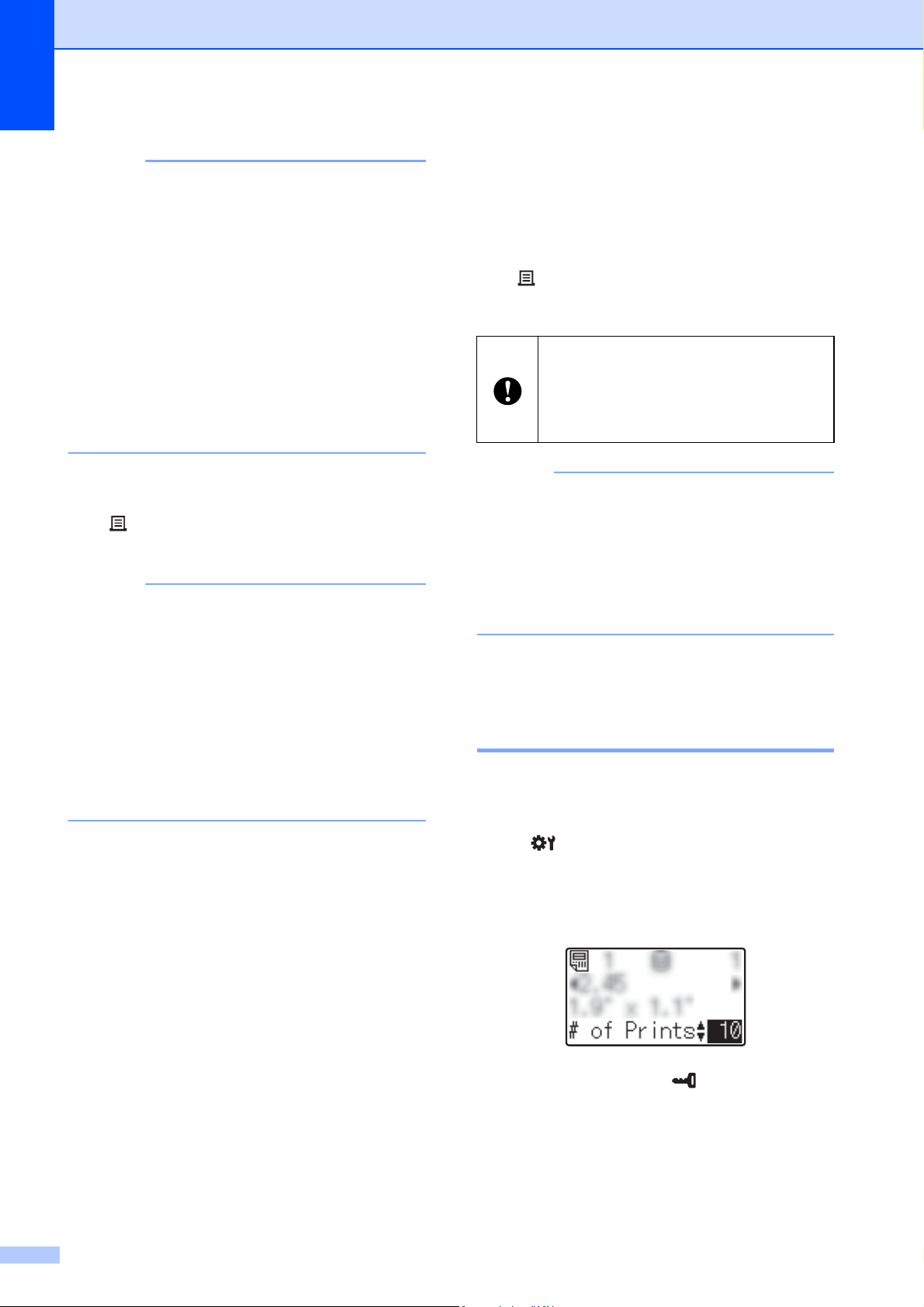
Chapter 10
82
NOTE
•Press [d] or [c] to check all of the text in the
label layout. If the one-touchpanel (B) is
being used, the data cannot be edited.
Use the basic control panel (A) to edit the
data. For more information, see Editing
Label Contents Before Printing
on page 80.
• The text displayed on the LCD and its
display order are set by using P-touch
Editor. For more information, see Setting
the Text and Order for Displaying on the
LCD on page 73.
d With [a] or [b], type in the number of
copies to be printed, and then press the
(Print) button or [OK]. The labels are
printed.
NOTE
• The number of copies to be printed can be
set between 1 and 999.
• If the template contains a serialized
number, the labels will be printed with the
serialized field incremented by the
specified number of times.
• If [Confirm Print] is set to [Off],
printing begins when the one-touch key is
pressed in step c.
If a Template With a Linked Database
Is Registered with a One-Touch Key
10
If you register a template with a linked
database to a one-touch key, the displayed
contents are for the database record
corresponding to the number of times that
you press the key. For example, with a
template that has 3 database records,
pressing the one-touch key once will display
the contents of the first database record.
Pressing it twice displays the contents of the
second record, and pressing it three times will
display the contents of the third record.
Pressing the key four times will return to
displaying the contents of the first database
record.
a Press the one-touch key for the label to
be printed until the contents of the
desired database record appears.
b With [a] or [b], type in the number of
copies to be printed, and then press the
(Print) button or [OK]. The labels are
printed.
NOTE
• The number of copies to be printed can be
set between 1 and 999.
• If the template contains a serialized
number, the labels will be printed with the
serialized field incremented by the
specified number of times.
Printing a Different Date/Time
Than the Printer's Internal
Clock 10
The date/time can be temporarily changed
before printing. When the following screen is
displayed immediately before printing begins,
press [ ] (settings key) to display a screen
where the date/time can be directly entered.
Printing can be continued after the date/time
is entered.
In addition, by pressing [ ] (admin key),
then setting [Set Temp Time] to [Cont
From Last], the date/time that was directly
entered will be printed until the printer is
turned off.
If a template with a linked database is
assigned to a one-touch key, be sure
that [Confirm Print] is set to [On]. If
[Off] is selected, only the first database
can be selected.

Using the Touchpanel Display (Optional: PA-TDU-001) (TD-2125N/TD-2135N/TD-2125NWB/TD-2135NWB only)
83
10
NOTE
• If settings have been specified to add/
subtract a period of time to the date/time in
a template, the specified time period will
be added to (or subtracted from) the
directly entered date/time.
• This function is available with firmware
version 1.04 or later.
The newest version can be downloaded
from the support website.
support.brother.com
Printing Using a Barcode
Reader 10
Using P-touch Template functions, you can
scan barcodes to display a template
transferred to the printer, replace the text if
necessary, then print labels. At this time, the
contents of the displayed template or the text
to be replaced can be checked on the LCD.
For more information on the P-touch
Template functions, see the Software User’s
Guide downloading from Brother support
website (support.brother.com
).
To check the text in the template, select the
template number in the main screen so that
the template details are displayed, and then
press [d] or [c]. To edit the text, display the
text to be edited, and then press [OK]. Editing
mode is entered, and the editable text is
highlighted.
Since the contents of the label layout can be
checked before being printed, you can be
sure to avoid printing the wrong label.
Label Layouts on the
Printer (Checking,
Deleting and Log)
10
With the following procedures, label layouts
on the printer can be checked or deleted, or
their print log can be viewed.
Checking the Contents of a Label
Layout
10
To display template details in the screen and
check the contents, press [ ] (search key) on
the touchpanel. For more information, see
Printing Using the Basic Control Panel
on page 79.
Deleting a Label Layout 10
[Device settings] of the “Printer Setting
Tool” can be used to delete a label layout
from the printer. On the menu bar, click
[Tools] - [Delete Template and Database] to
delete a template or database registered on
the printer. For more information, see Menu
Bar on page 34.
To check the label layouts on the printer and
select the data to be deleted, connect the
printer to a computer and use P-touch
Transfer Manager. For more information,
see the Software User’s Guide downloading
from Brother support website
(support.brother.com
).
Checking the Print Log for Label
Layouts
10
[Device settings] of the “Printer Setting
Tool” can be used to check the print log. If
[Save Printer Print Log] on the [Advanced]
tab is set to [Enable], a print log will be saved
on the printer. To export the print log and
save it as a .csv file, click [Tools] - [Save
Print Log in File]. For more information, see
Device Settings on page 28.
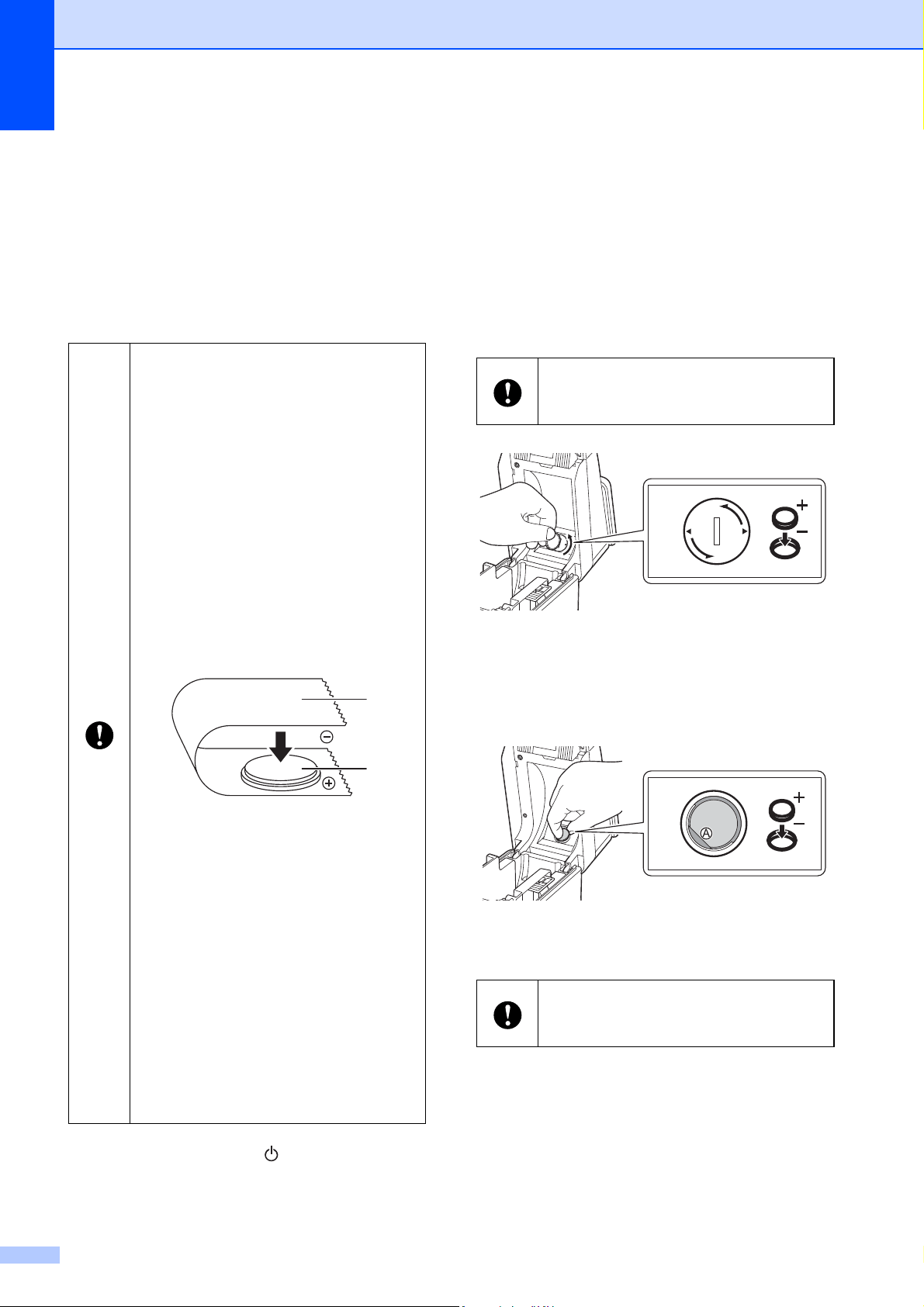
Chapter 10
84
Replacing the Time/
Date Battery
10
A time/date battery is provided in order to
maintain the settings for the internal clock.
The battery will be consumed even if the
printer is not used for a long period of time.
a Press and hold the (Power) button to
turn the printer off, and then disconnect
the printer from the AC power outlet.
b Press the cover release lever on either
side and lift to open the Media Roll
compartment top cover.
c Using a coin or similar object, slowly turn
the time/date battery cover in the
direction of the arrow on the battery
cover until it stops, and then remove the
time/date battery cover.
d Remove the battery.
As shown below, press part A of the
battery to release it so that it can easily
be removed.
e Insert the new battery.
Only use recommended batteries in
the printer. Other batteries may
cause damage to the printer.
Dispose of the battery at an
appropriate collection point, not in
the general waste stream. In
addition, be sure to observe all
applicable federal, state, and local
regulations.
When storing or discarding the
battery, wrap it (for example with
cellophane tape), to prevent it from
short-circuiting.
(Battery insulation example)
1 Cellophane tape
2 Time/date battery
We recommend replacing the
battery every two years.
If the clock is reset while power is
supplied to the printer, replace this
battery. When replacing the lithium
battery, purchase a CR2032 battery
(recommended manufacturers:
Hitachi Maxell, Ltd., FDK
Corporation, Panasonic
Corporation, Sony Corporation,
Toshiba Corporation and VARTA
Microbattery Inc.).
1
2
If the time/date battery cover is forcibly
turned past the stop position, it may be
damaged.
Be sure to insert the new battery with
the + and – sides facing the correct
direction.
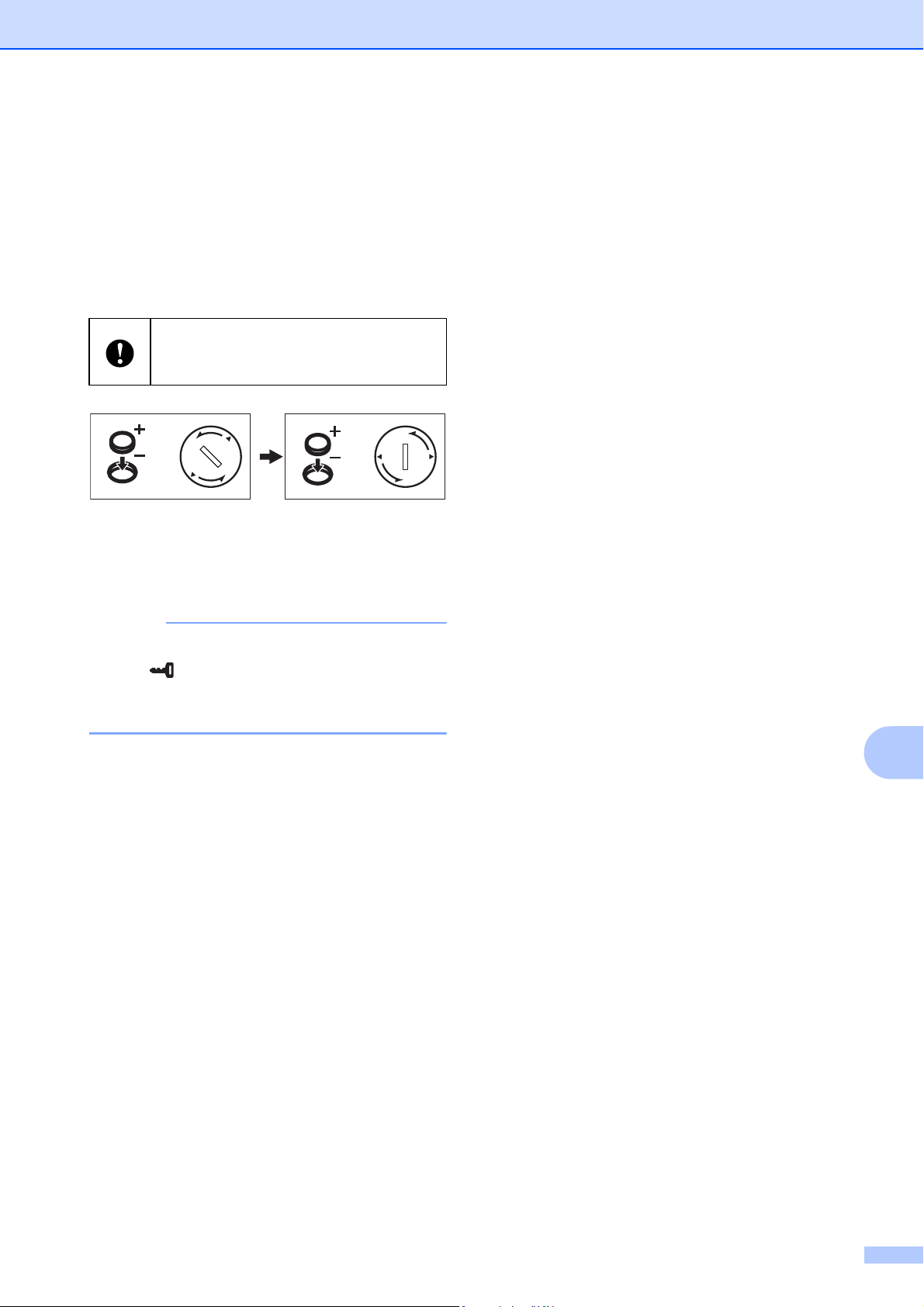
Using the Touchpanel Display (Optional: PA-TDU-001) (TD-2125N/TD-2135N/TD-2125NWB/TD-2135NWB only)
85
10
f Return the time/date battery cover to its
original position, and then use a coin or
similar object to slowly turn the time/
date battery cover in the opposite
direction of the arrow on the battery
cover until it stops in order to install the
time/date battery cover.
g Close the Media Roll compartment top
cover. Press down until it locks into
place.
NOTE
The time and date can be configured from
the [ ] (admin key) on the touchpanel.
For more information, see Setting the
Time and Date on page 70.
Frequently Asked
Questions
10
Q.
How much memory is available?
A. The printer has 20 MB of built-in memory
available, allowing a maximum of
99 templates to be saved. When there is no
more of the built-in memory available or when
99 templates have been registered,
templates can no longer be transferred to
(be registered with) the printer. Delete
unnecessary templates from the printer.
Q. Why does the file size change when
a template is transferred to the printer?
A. Since the format of a template file added
to P-touch Transfer Manager is different from
the format of a file after it has been
transferred to the printer, the file size
changes.
Q. How can I check the number of templates
that can be registered on the printer and the
key numbers that are being used?
A. Follow the procedure below to check the
information:
1 Connect the printer to the computer with a
USB cable, and then turn on the printer.
2 For Windows 10:
From the Start menu, click [Brother
P-touch] - [P-touch Transfer Manager].
For Windows 8.1:
Click [P-touch Transfer Manager] in the
[Start] or [Apps] screen.
If the time/date battery cover is forcibly
turned past the stop position, it may be
damaged.
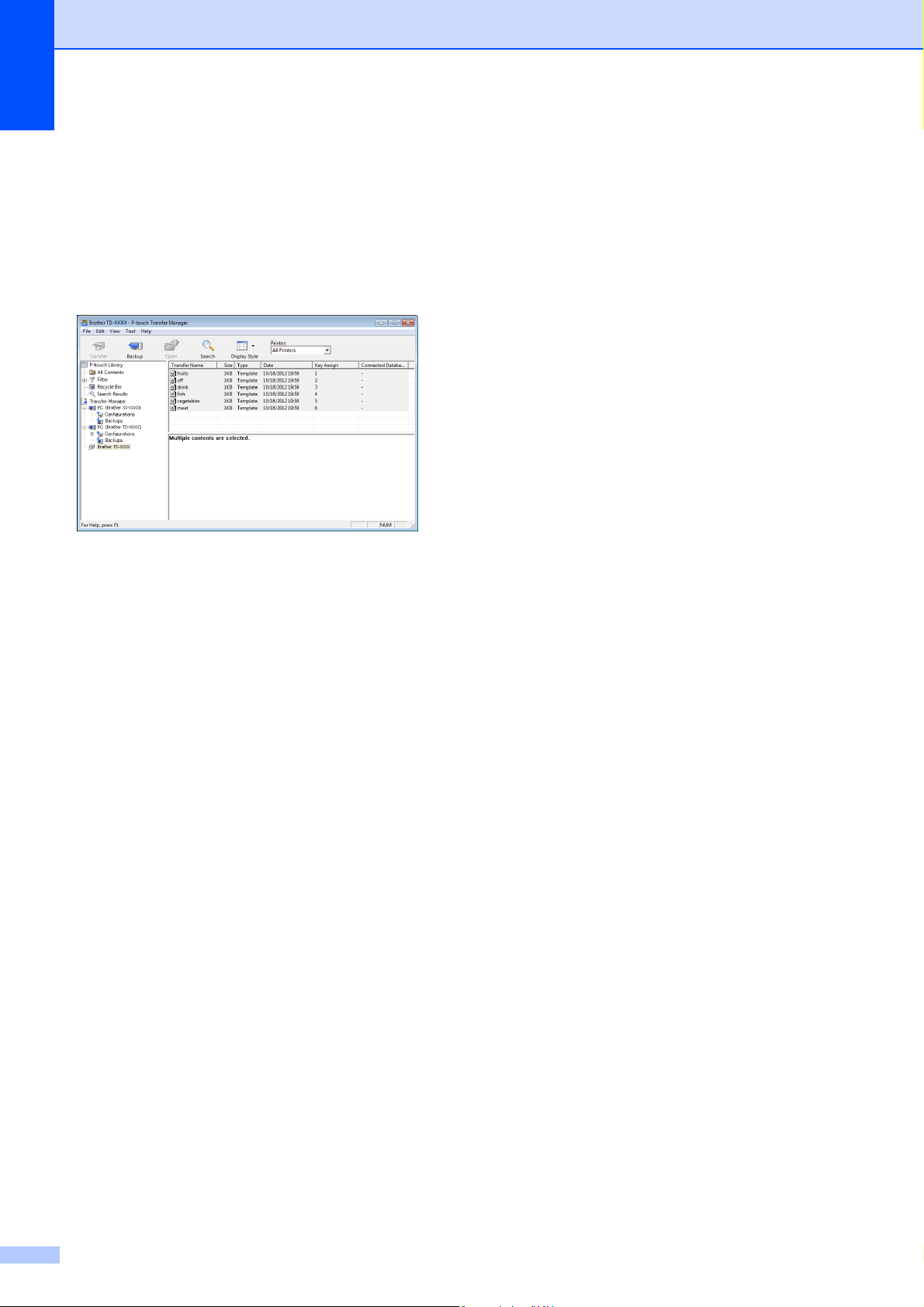
Chapter 10
86
3 Click “Brother TD-XXXX” (where
“TD-XXXX” is the model name of your
printer) in the pane on the left side to
display the templates registered with the
printer in the pane on the right side. The
number of templates and the key numbers
that are being used can be checked.
Q. Why can’t a template be transferred to
the printer (it was transferred, but the date
was not automatically updated)?
A. The printer driver may not be correctly
installed. Re-install the printer driver, and
then try transferring again.
If the date was not updated, check that the [At
Printing] check box is selected in the [Date
and Time Properties] dialog box for the
template.
For more information, see Inserting the Date
and Time in a Label on page 74.
Product Specifications
10
Size: Approximately 4.37" (W) × 6.70" (D) ×
3.07" (H) (111 mm (W) × 170 mm (D) ×
78 mm (H))
Weight: 0.76 lb (0.342 kg)

87
11
11
Use the (optional) Label Peeler to print labels
automatically and peel off the label backing
before they are fed out of the media exit slot.
Follow the procedure below to load the
correct paper.
For more information on attaching the label
peeler (optional), see its instruction manual.
Inserting the Media Roll11
When using the peeling function of the
label peeler to peel off labels while
printing:
a Press and hold the (Power) button to
turn the printer off.
Press the cover release lever (1) on
either side and lift to open the Media Roll
compartment top cover.
b Open the media guides by lifting the
media guide adjustment lever (1) and
pulling the media guides outwards.
NOTE
The media guides are shipped fully open
from the factory.
Using the Label Peeler
(Optional: PA-LP-001)
(TD-2125N/TD-2135N/
TD-2125NWB/TD-2135NWB only)
11
Before using the label peeler, the
setting for using the label peeler must
be specified in the printer driver. For
more information, see Printer Driver
Settings on page 90.
We recommend to use genuine
Brother roll media.
Be sure to use die-cut labels. Do not
use any other labels.
1
1
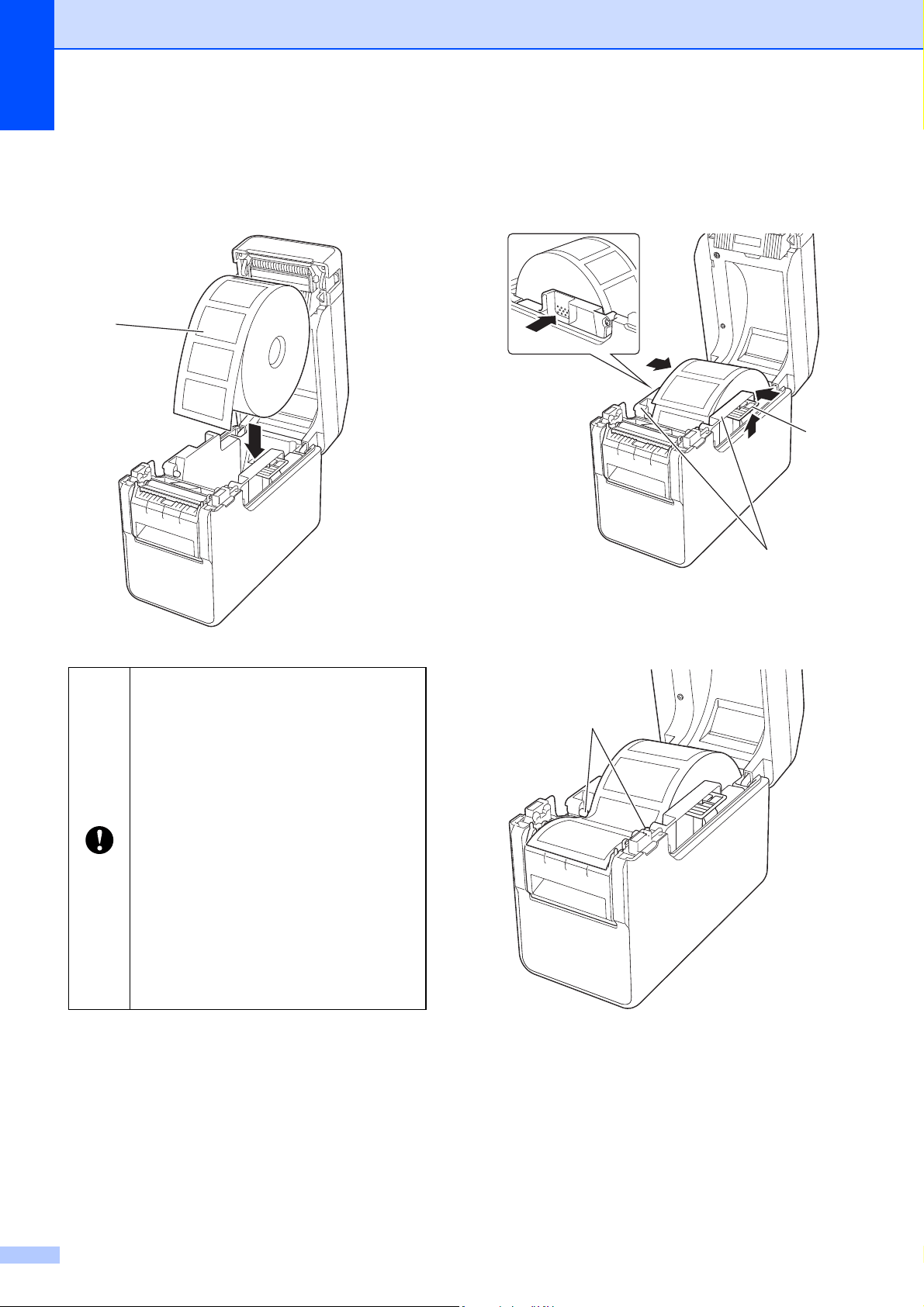
Chapter 11
88
c Insert the Media Roll so that the labels
feed with the side to be printed on facing
up (1), as shown.
d While lifting the media guide adjustment
lever (1), push in both media guides (2)
to fit the width of the paper.
e Feed the end of the Media Roll under
the media tip guides (1).
Use Media Rolls with a maximum
outer dimension of 5" (127 mm) or
less. Use Media Rolls designed for
TD series printers. Regardless of
the size, some Media Rolls may not
be usable.
Insert the Media Roll facing the
correct direction. If the Media Roll is
not inserted correctly, the printer will
not print on the correct side of the
paper or label.
When using media with the labels
rolled up on the inside, insert the roll
in the opposite direction of that
shown in step c so that the print
side of the labels will face up.
1
1
2
1
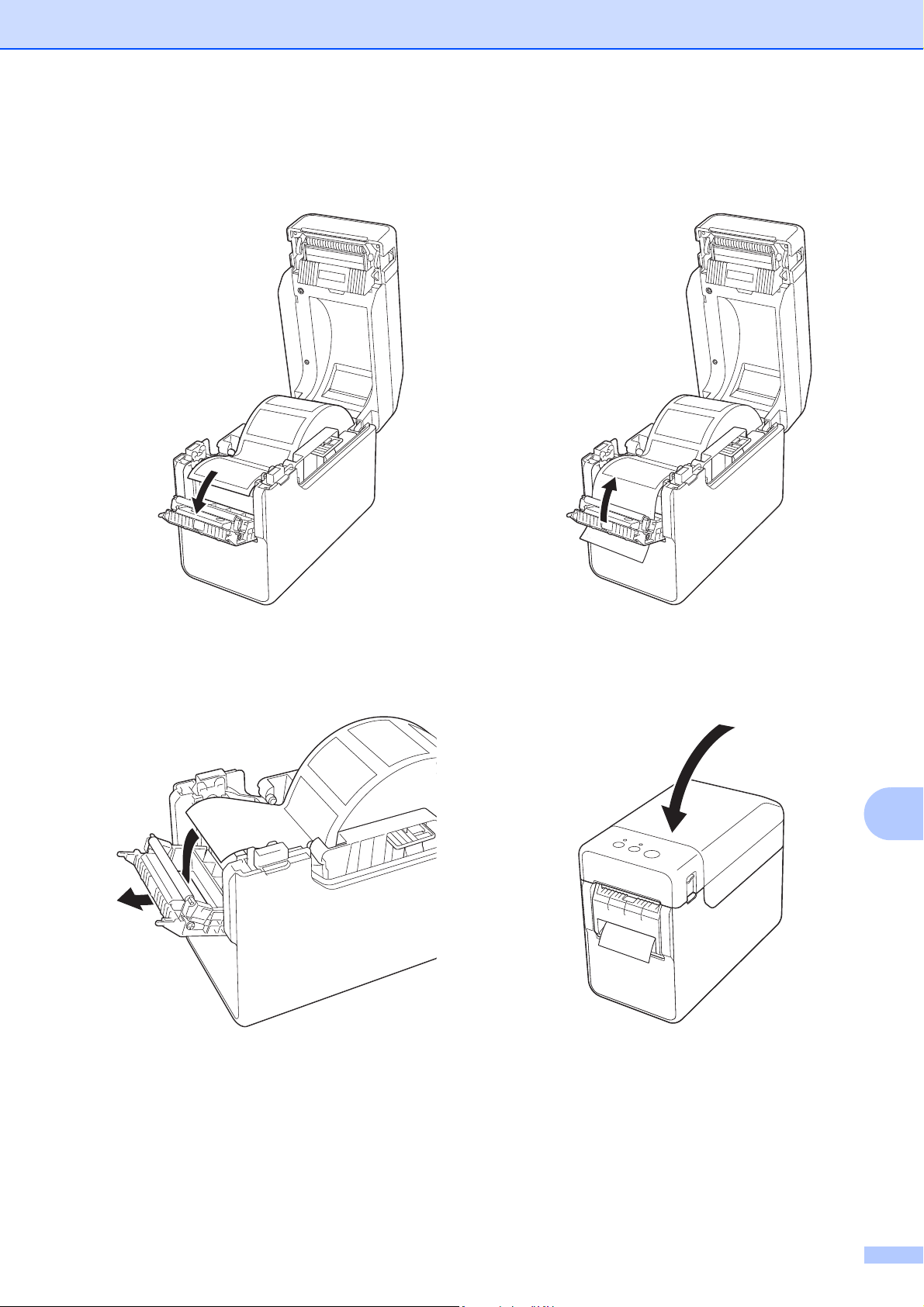
Using the Label Peeler (Optional: PA-LP-001) (TD-2125N/TD-2135N/TD-2125NWB/TD-2135NWB only)
89
11
f Hold the liner exit of the label peeler and
open the peeler door.
g
Peel the backing paper from the label
and feed it through the liner exit.
h Close the peeler door.
Close it so that it locks into place.
i Close the Media Roll compartment top
cover by pressing it in the center.
Press down until it locks into place.
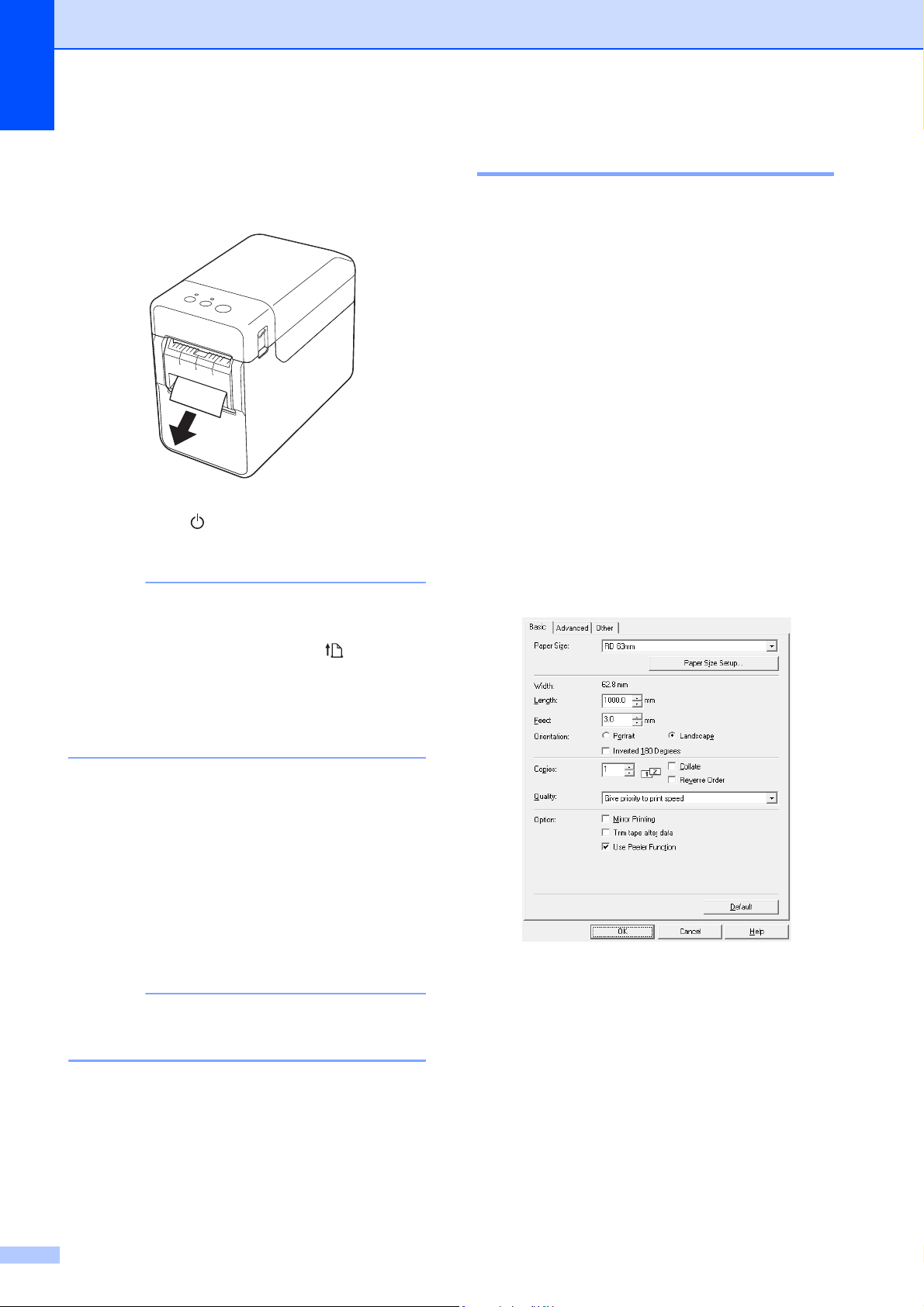
Chapter 11
90
j In order to remove any slack in the roll,
lightly pull on the paper fed out of the
liner exit until no more can be pulled out.
k Press the (Power) button to turn the
printer on.
NOTE
If the paper size information for the die-cut
labels being used has been registered
with the printer, pressing the (Feed)
button will position the label at the correct
starting position. For more information,
see Registering Paper Size Information
With the Printer on page 4.
When printing without using the peeling
function
Receipt paper can be installed normally,
and printing can be performed without
using the peeling function, even if the label
peeler is installed.
For more information on loading paper,
see Inserting the Media Roll on page 7.
NOTE
When inserting receipt paper, do not feed
the paper through the liner exit.
Printer Driver Settings 11
a Display the printer’s [Printing
Preferences] dialog box.
Windows 10
Go to [Control Panel], right-click the
printer whose settings are to be
changed, and then click [Printing
Preferences].
Windows 8.1
Click [Control Panel] in the [Apps]
screen - [Hardware and Sound] -
[Devices and Printers], right-click
the printer whose settings are to be
changed, and then click [Printing
Preferences].
b Select the [Use Peeler function] check
box on the [Basic] tab.
c Click [OK] to close the dialog box.

Using the Label Peeler (Optional: PA-LP-001) (TD-2125N/TD-2135N/TD-2125NWB/TD-2135NWB only)
91
11
After Printing 11
Printed labels can be automatically peeled off
their backing paper before they are fed out of
the media exit. Be sure to remove the printed
label. If a label remains in the media exit, the
next label will not be printed.
Use scissors to cut off the backing paper that
is fed out.
NOTE
With the label peeler, a sensor detects
whether or not the label has been peeled
off, and controls the appropriate
operation. The detection sensitivity of the
sensor can be adjusted. For more
information, see Sensor Adjustment Tab
on page 31.
Product Specifications
11
Size: 4.26" (W) × 5.12" (D) × 1.11" (H)
(108 mm (W) × 130 mm (D) × 28 mm (H))
Weight: 0.14 lb (0.062 kg)