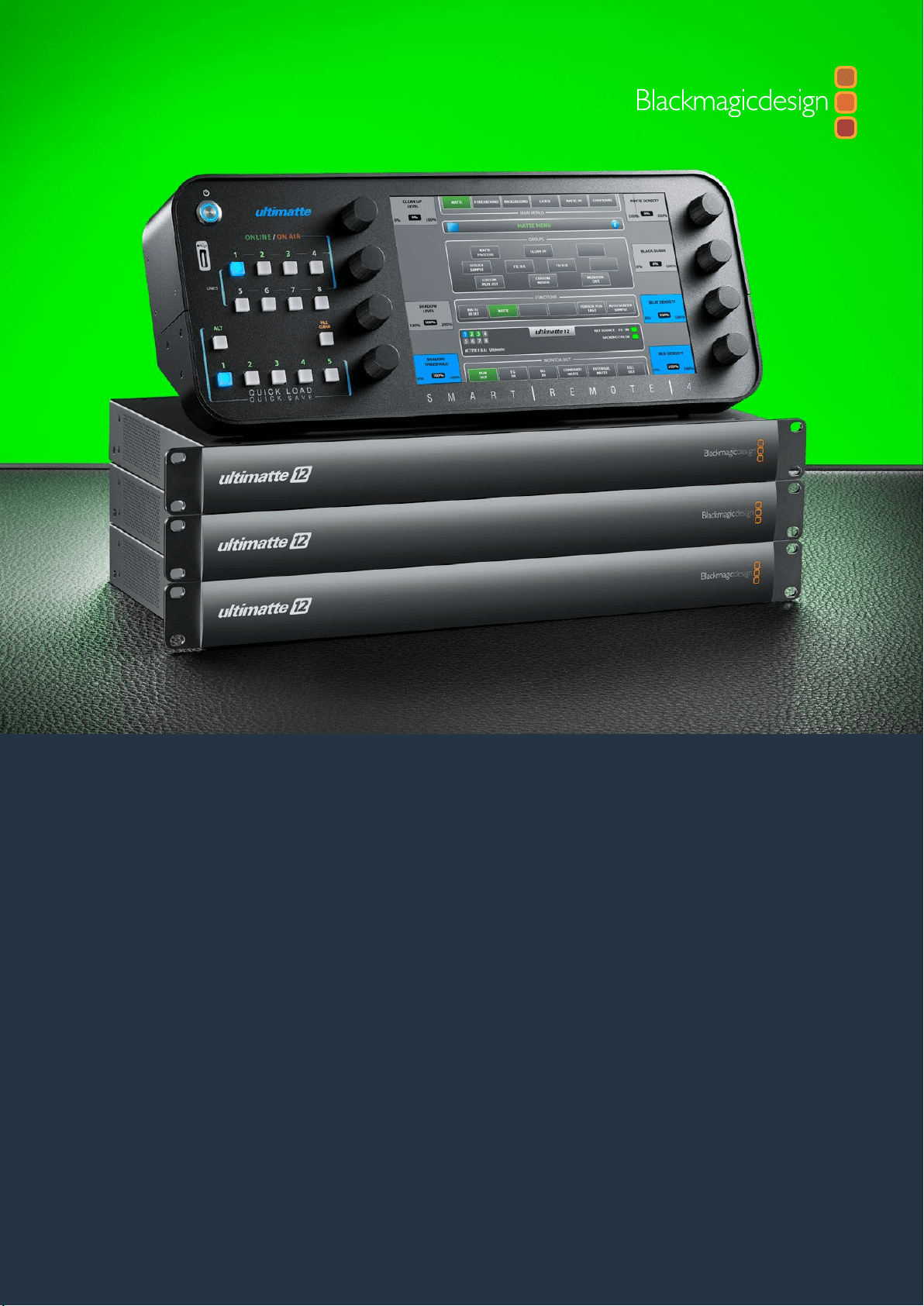


Updating your Smart Remote 4
If you have SR4 software 1.0.5 or earlier installed, you will need to first uninstall the SR4
software from your smart remote using the built in Ultimatte maintenance tool.
Uninstalling Ultimatte SR4 v1.0.5
The first step to uninstalling the SR4 software is to ensure the application is not running.
To quit the SR4 software:
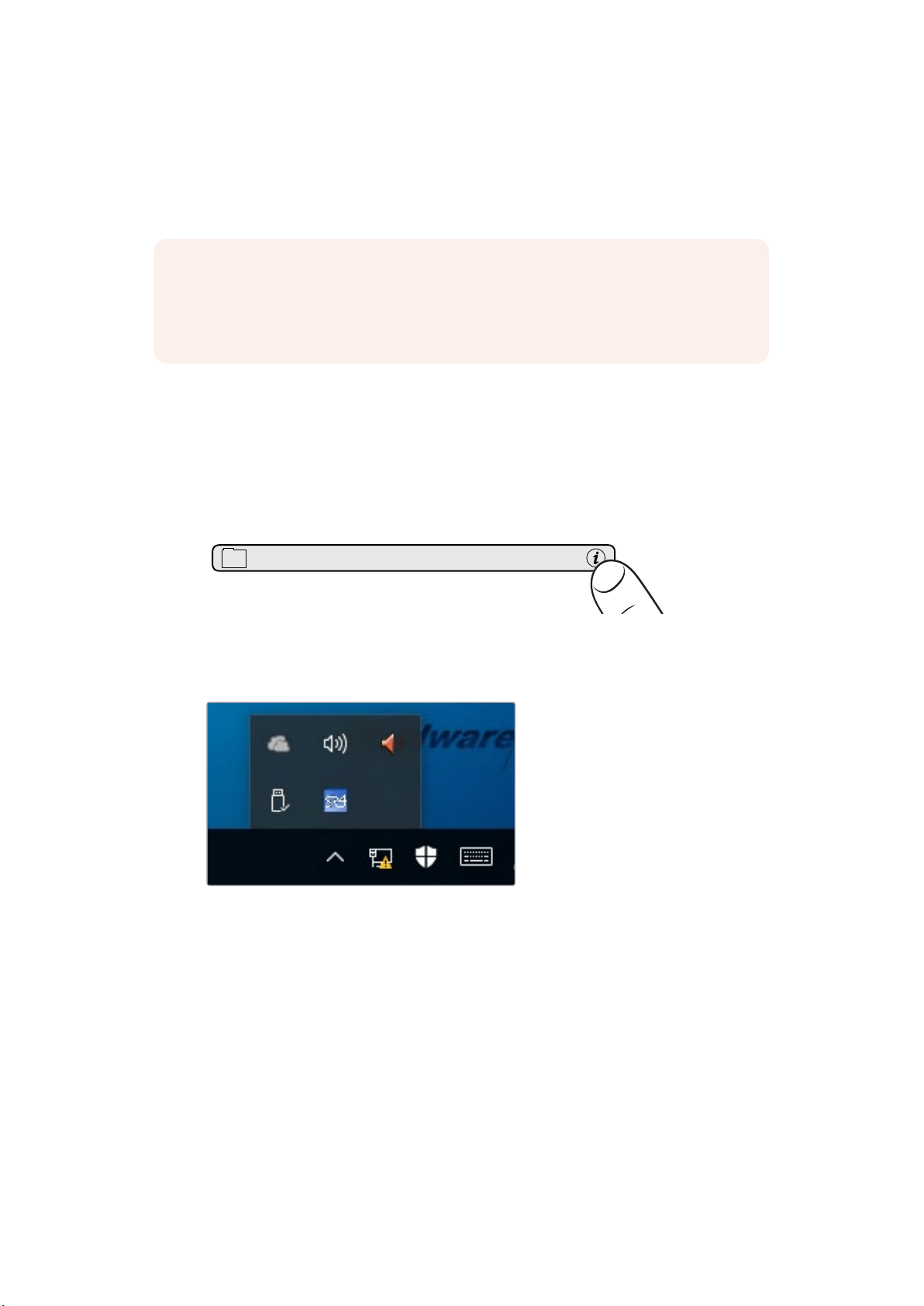
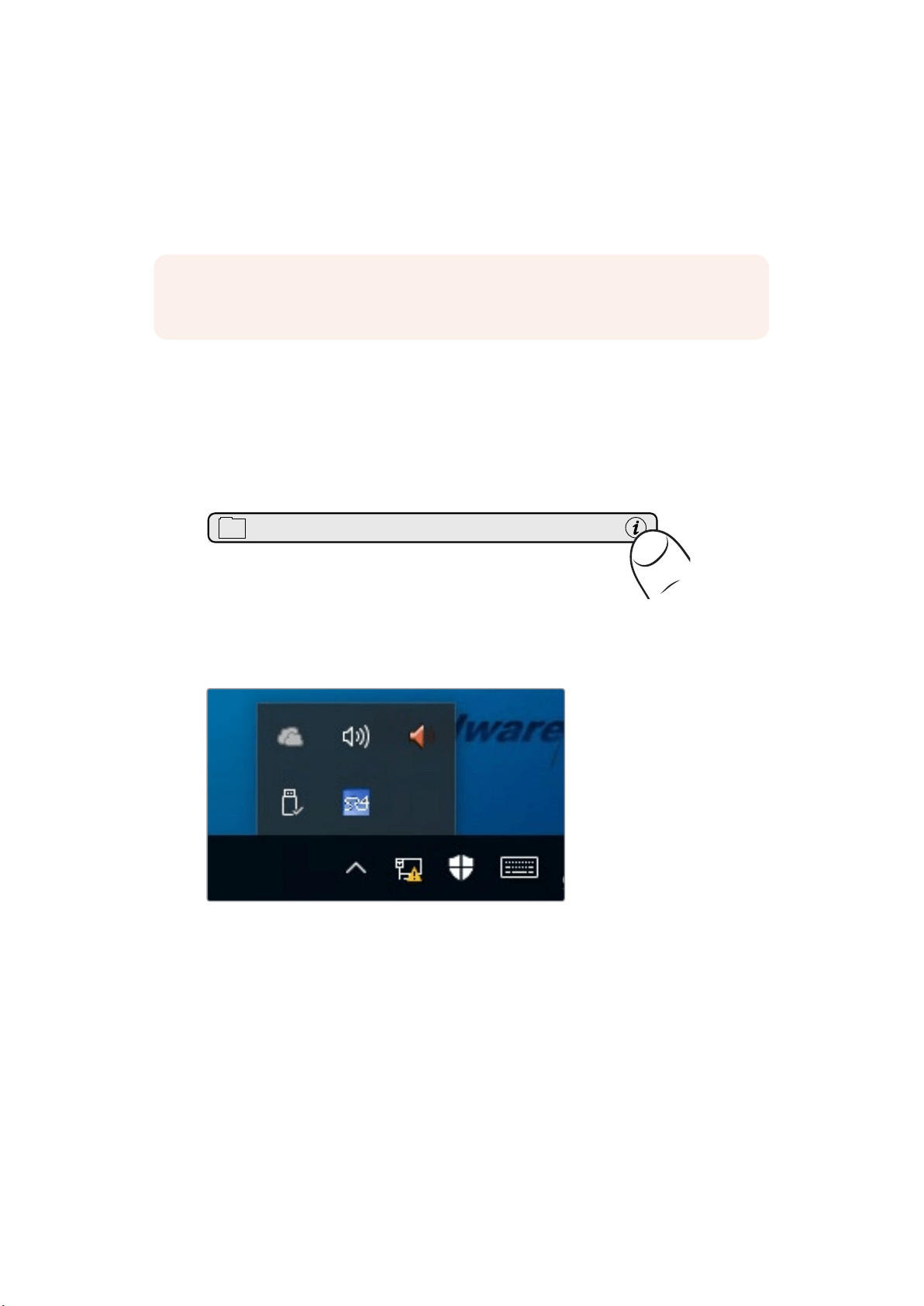
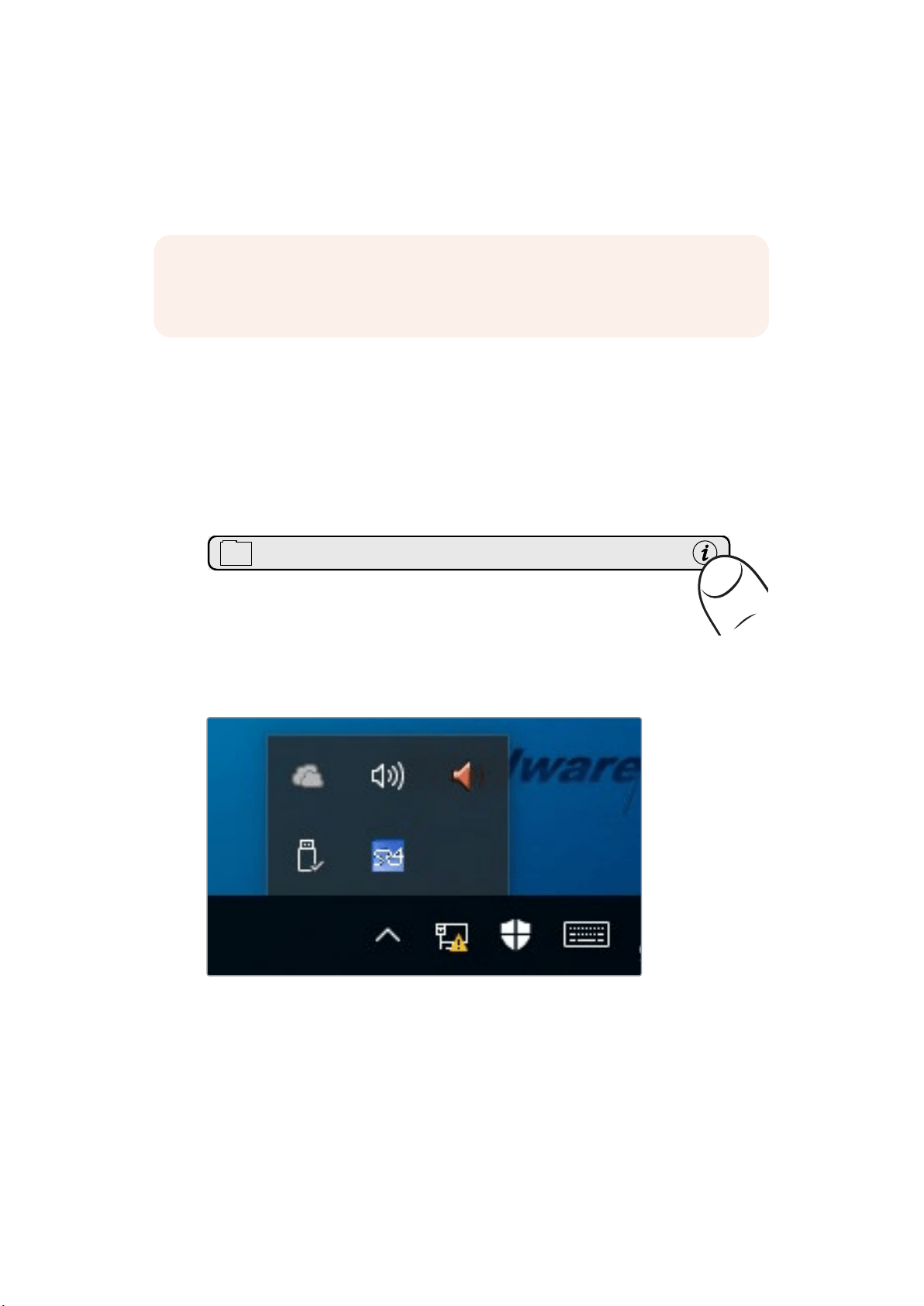
1 Tap on the ‘info’ icon in the Smart Remote 4 file control section of the control panel.
2 In the ‘options’ tab, tap on the ‘exit to desktop’ button.
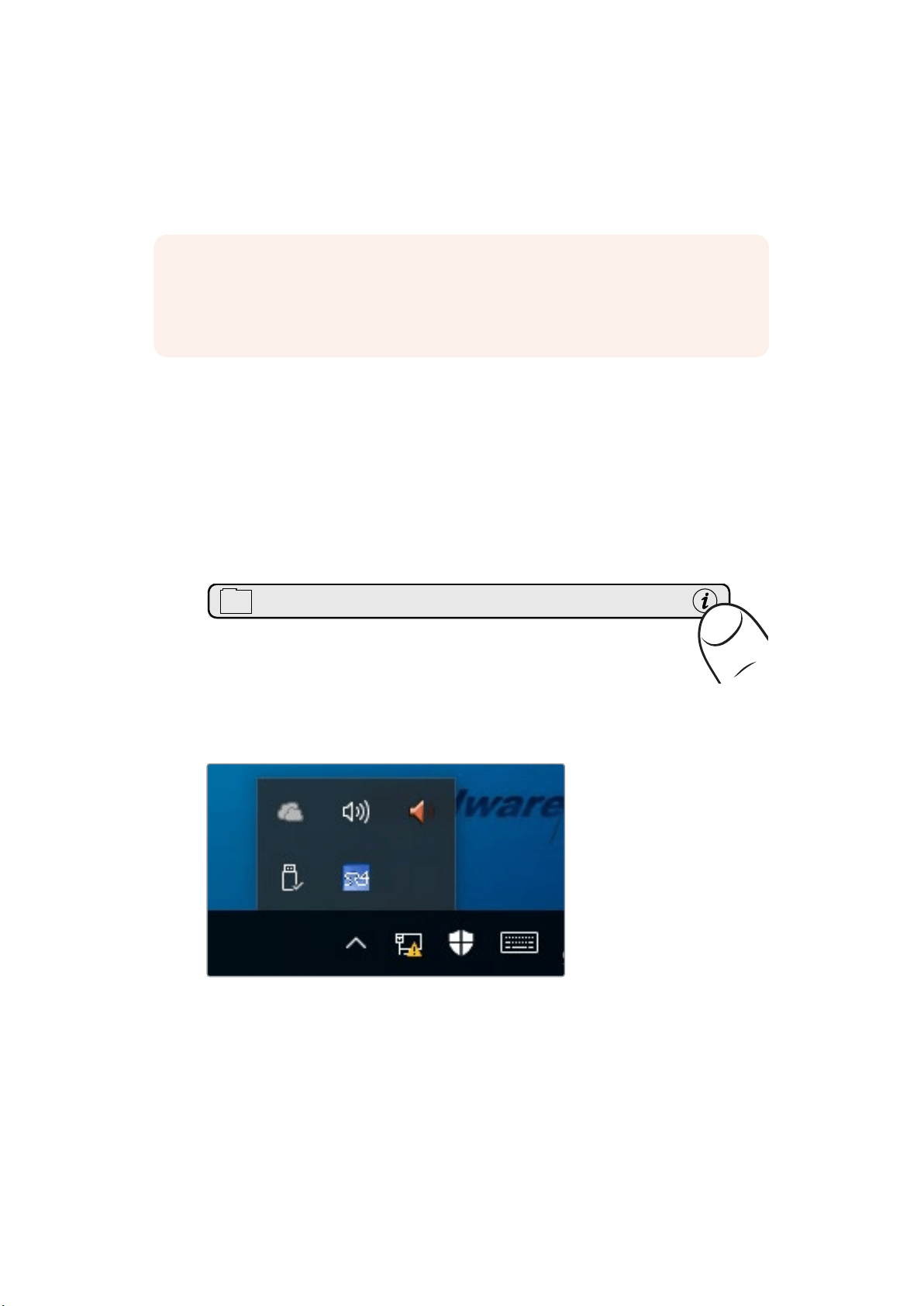
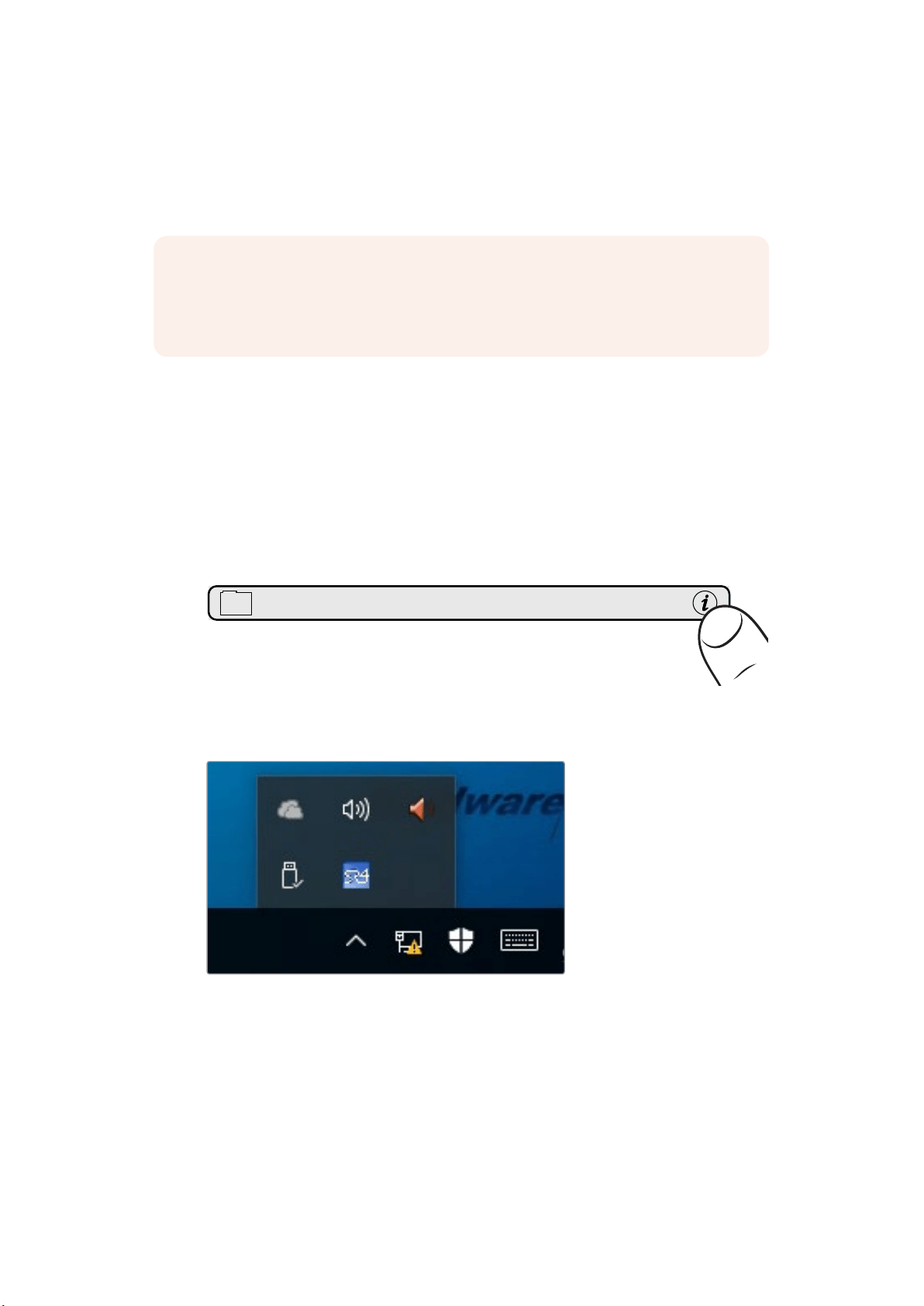
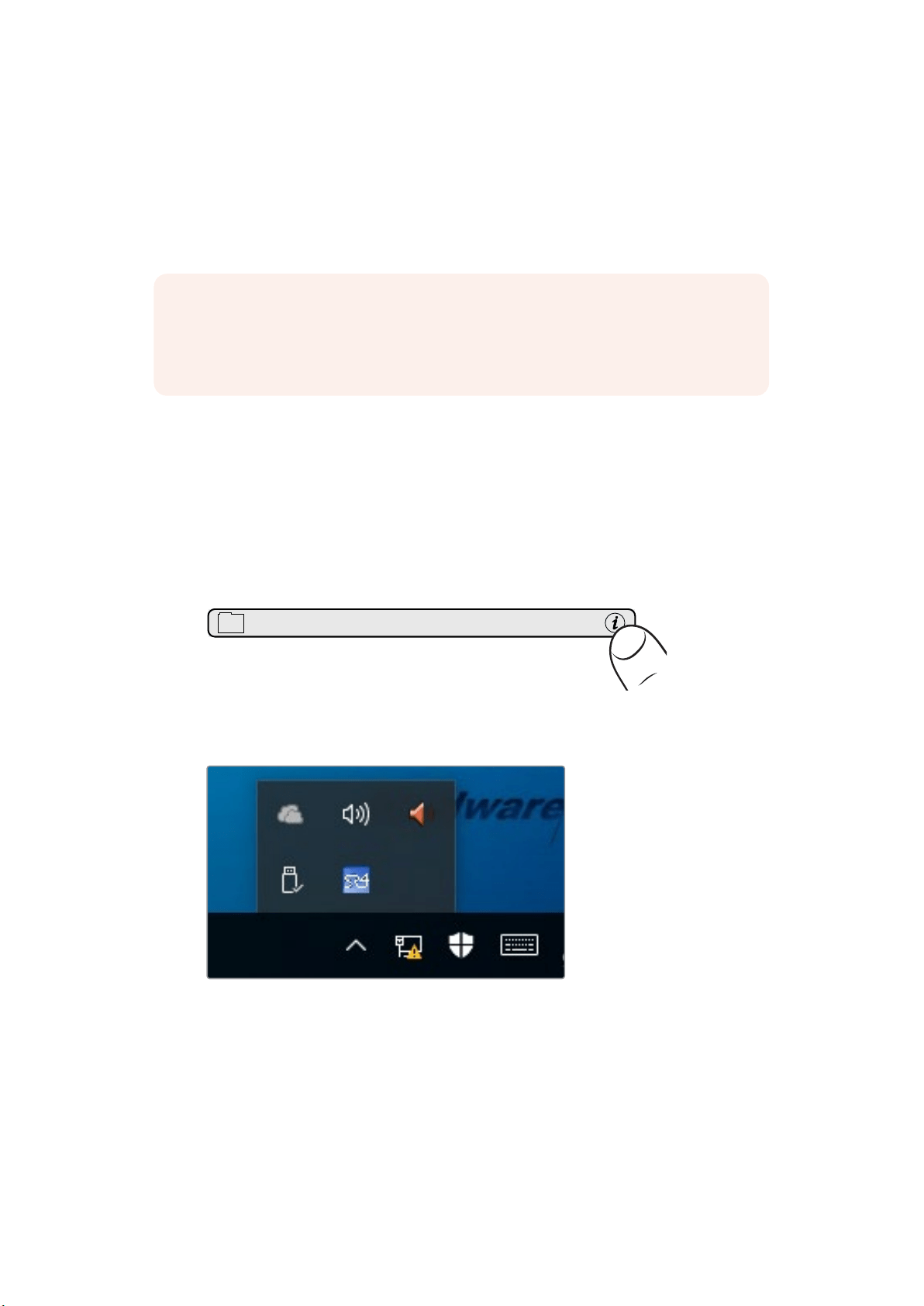
3 Now that the desktop is visible, tap on the ‘up’ arrow in the Windows tray.
4 Tap and hold the Ultimatte SR4 icon for 2 seconds then release. The ‘quit’ icon will
appear. Simply tap on the ‘quit’ icon to close the application.
NOTE If you have previously installed Smart Remote 4 software using the Ultimatte
Smart Remote Setup installer from the Blackmagic Design support center, then you can
skip this uninstall process and go straight to the ‘installing Ultimatte Smart Remote
Setup’ section.
MATTE MENU
4Uninstalling Ultimatte SR-4 v1.0.5
To uninstall SR4 v1.0.5 or earlier:
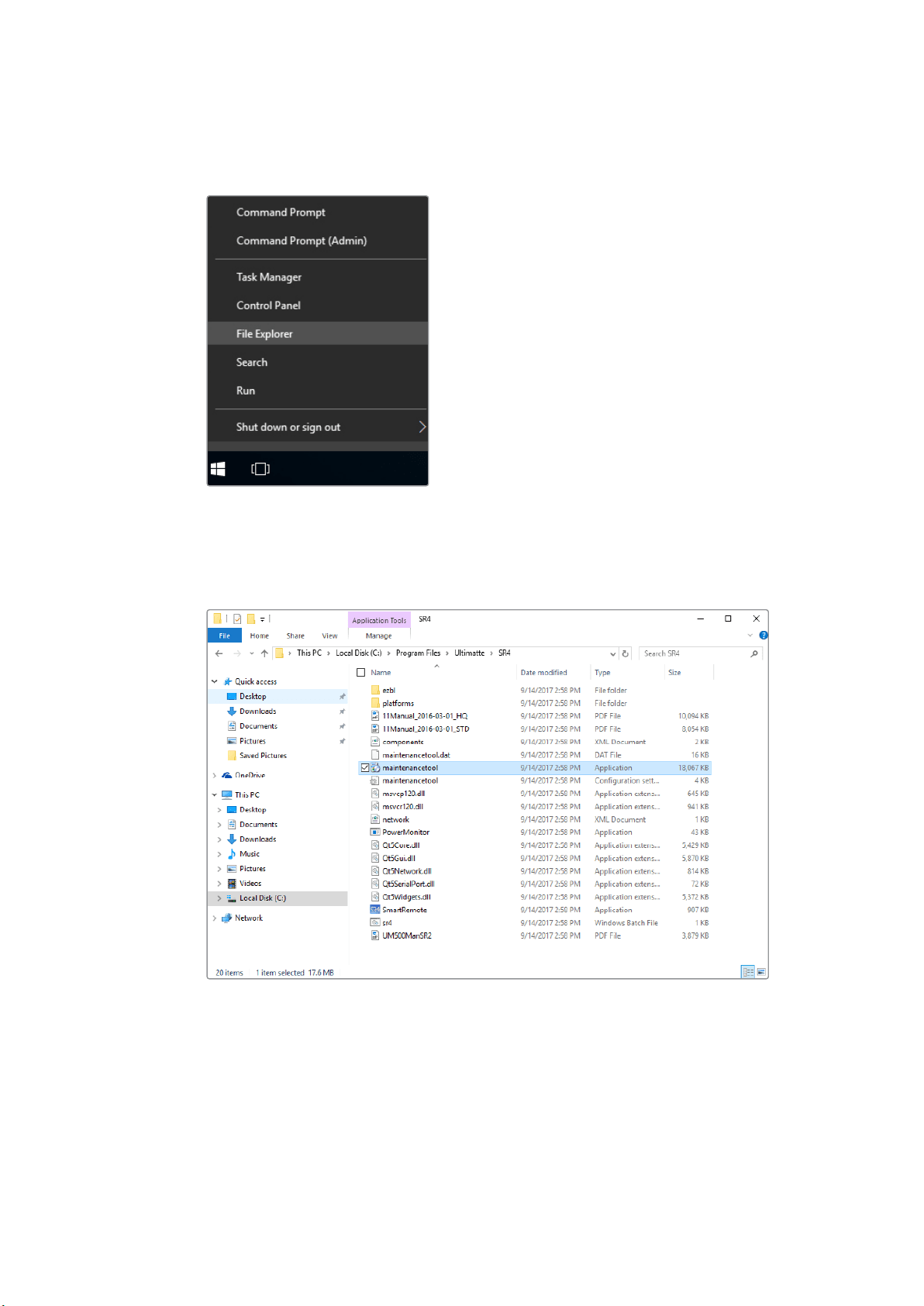
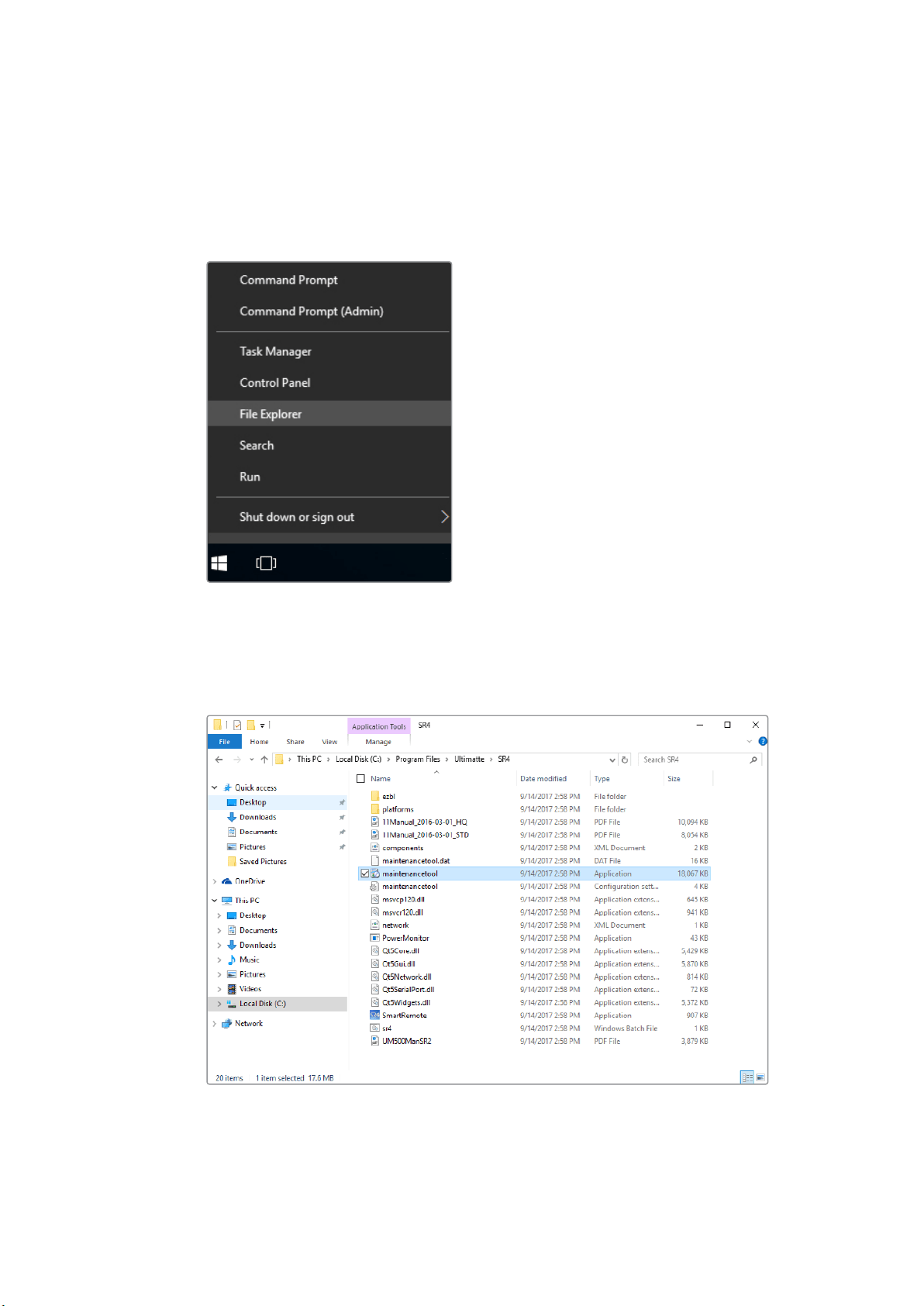
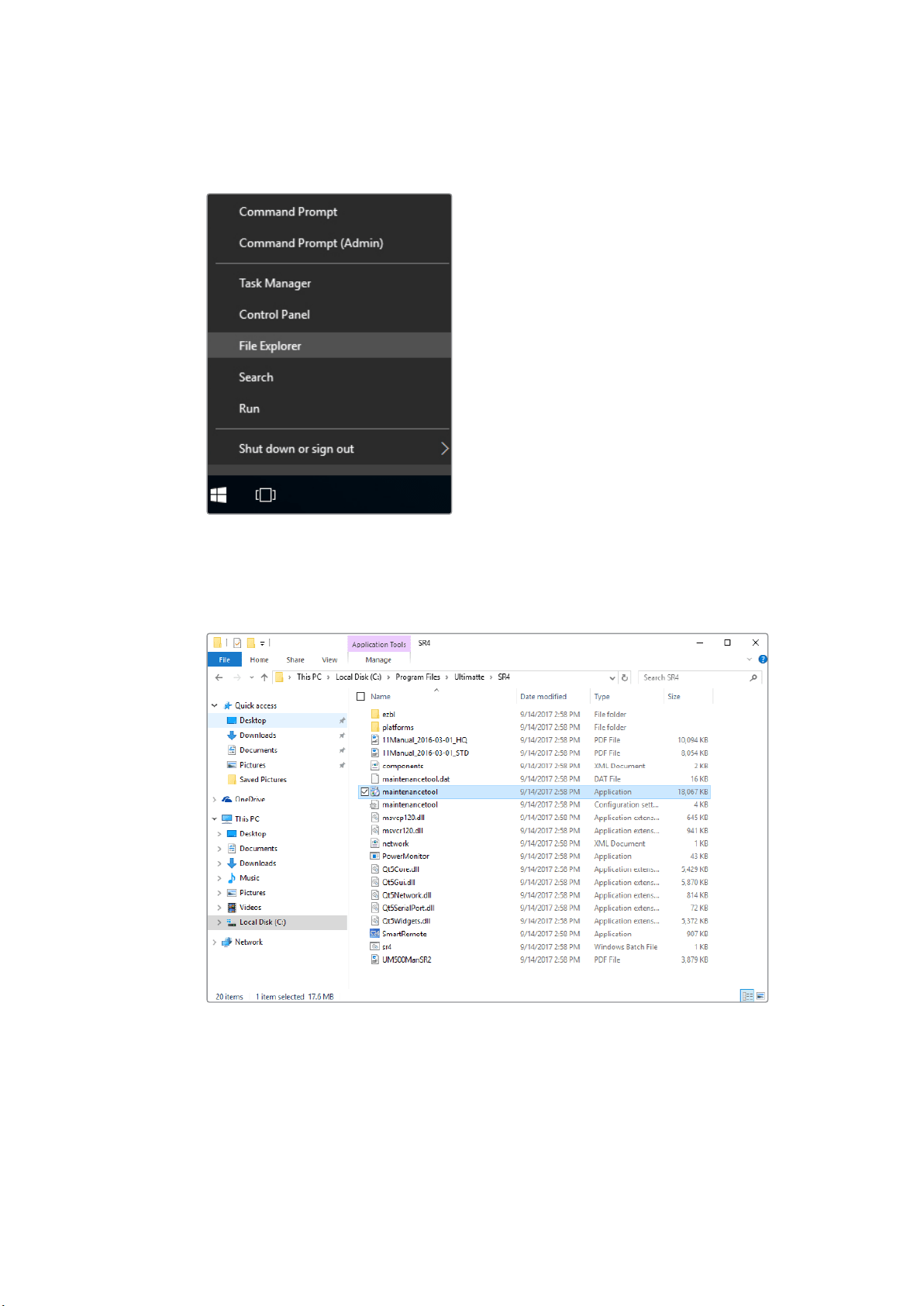
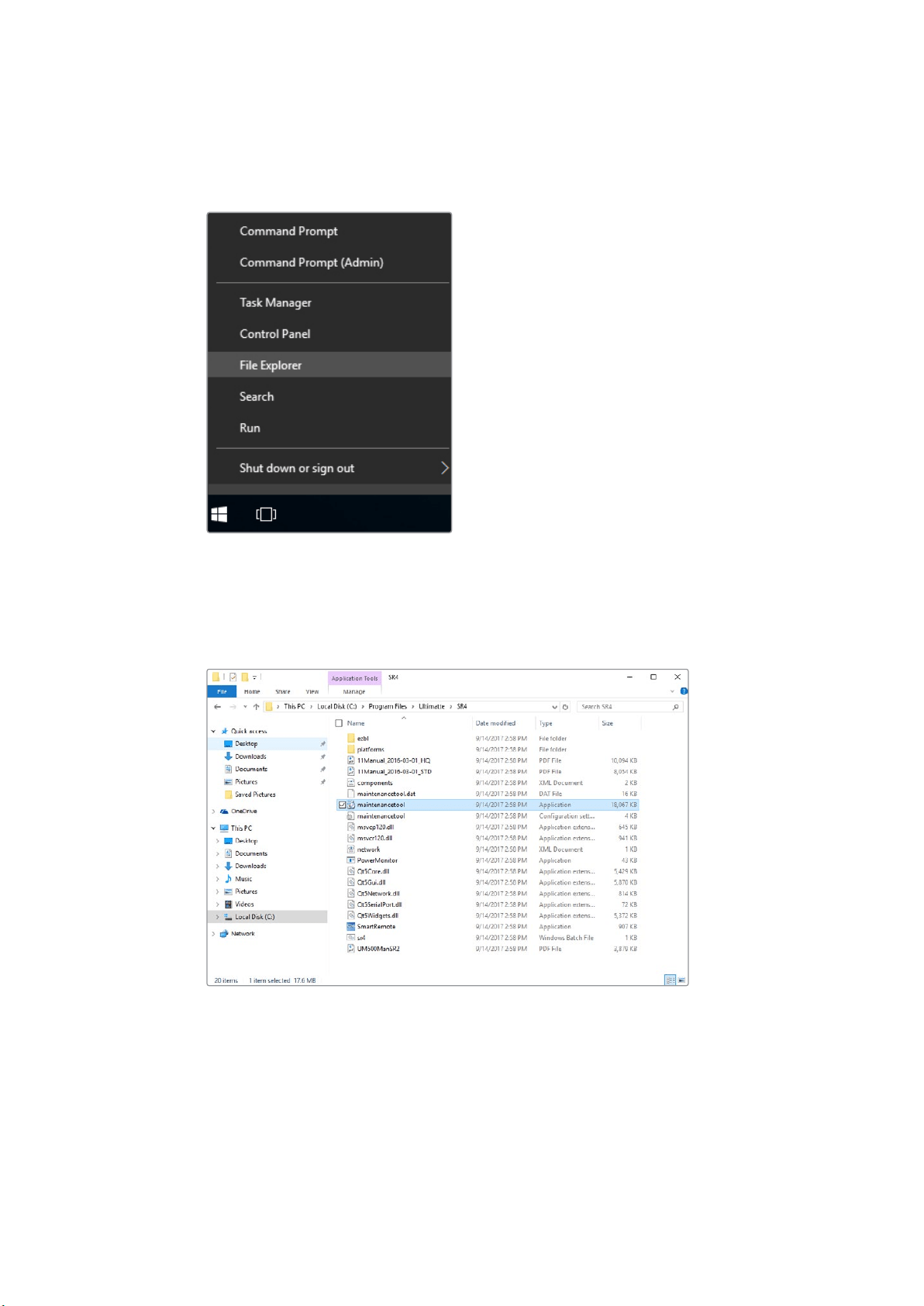
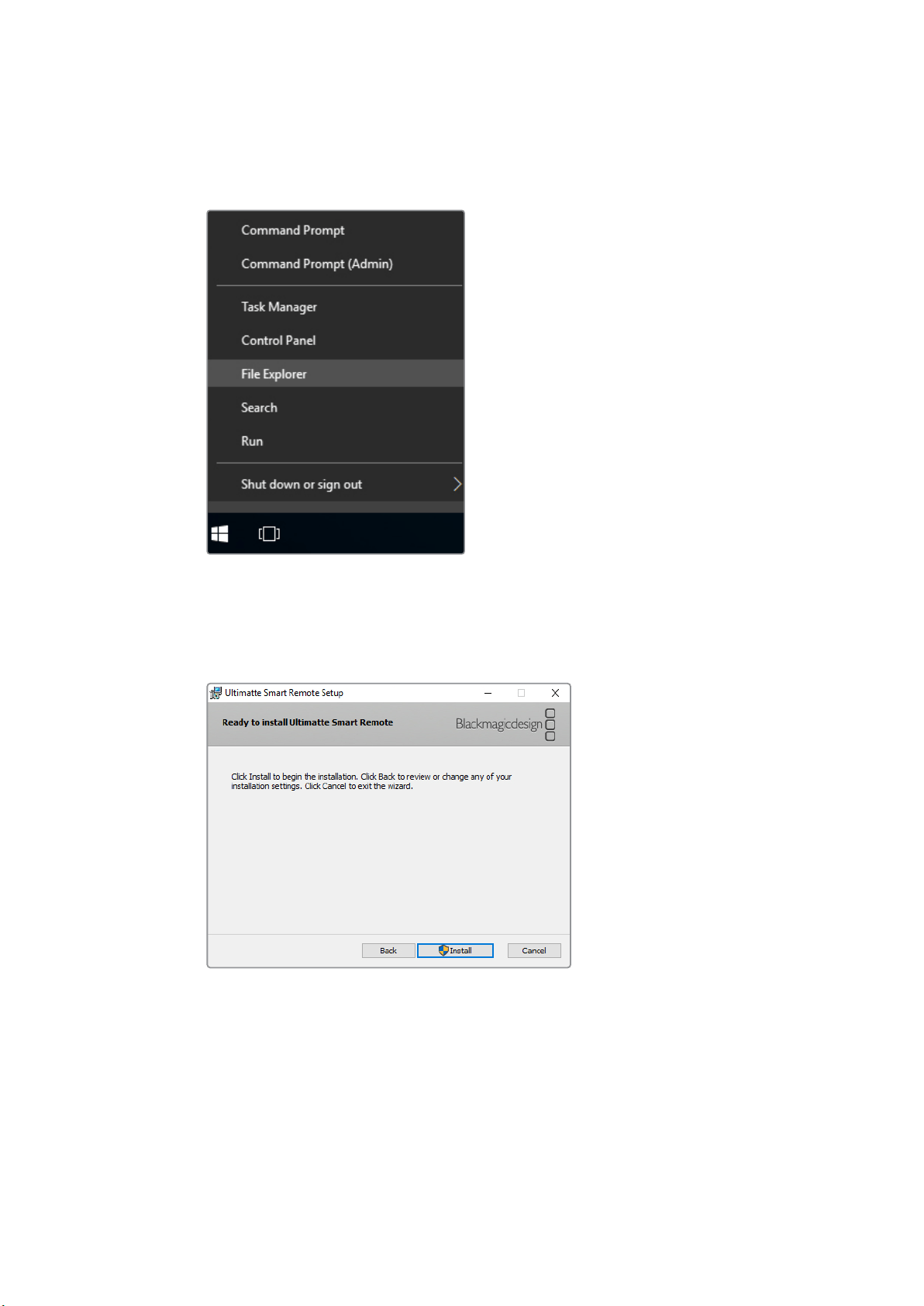
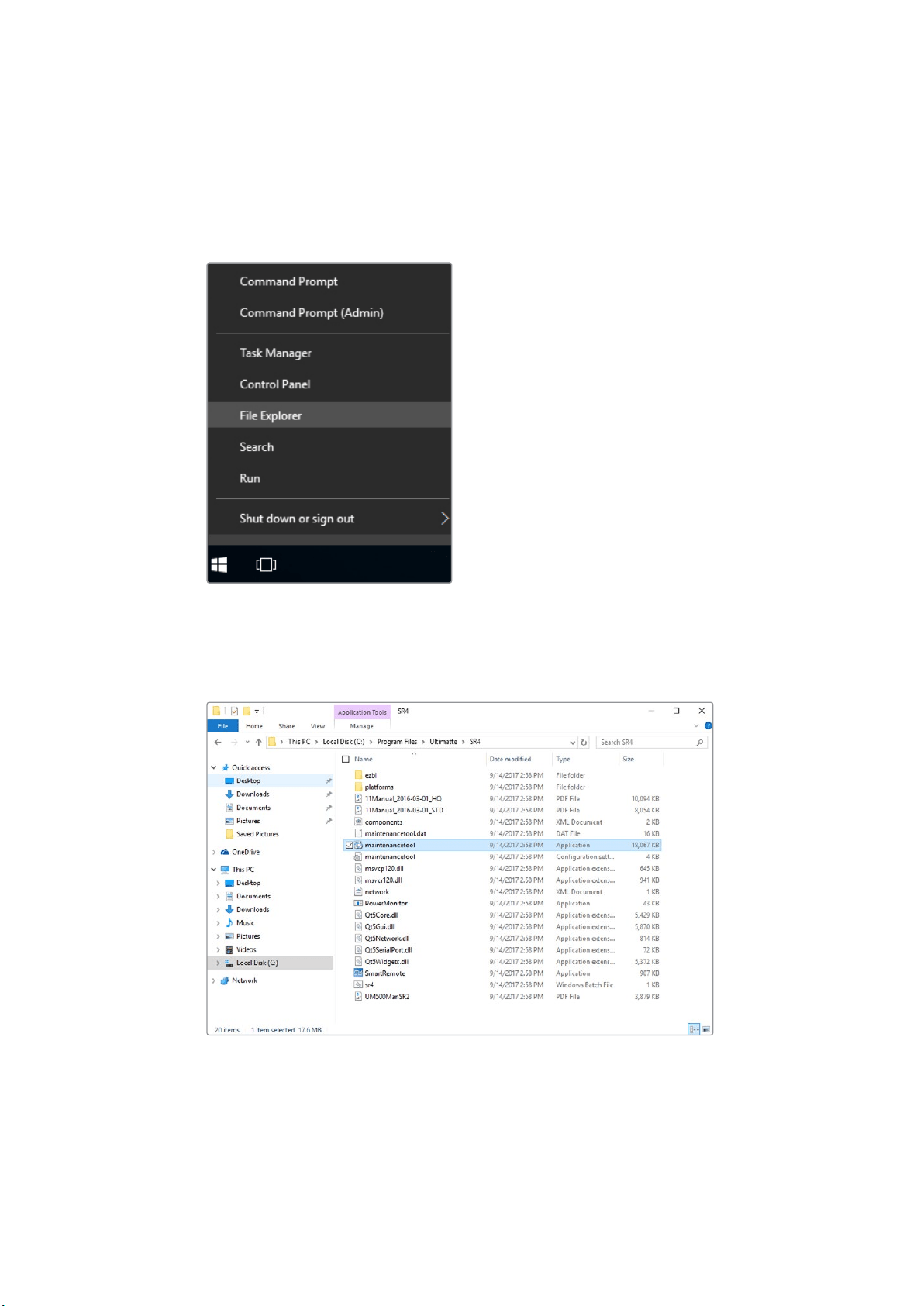
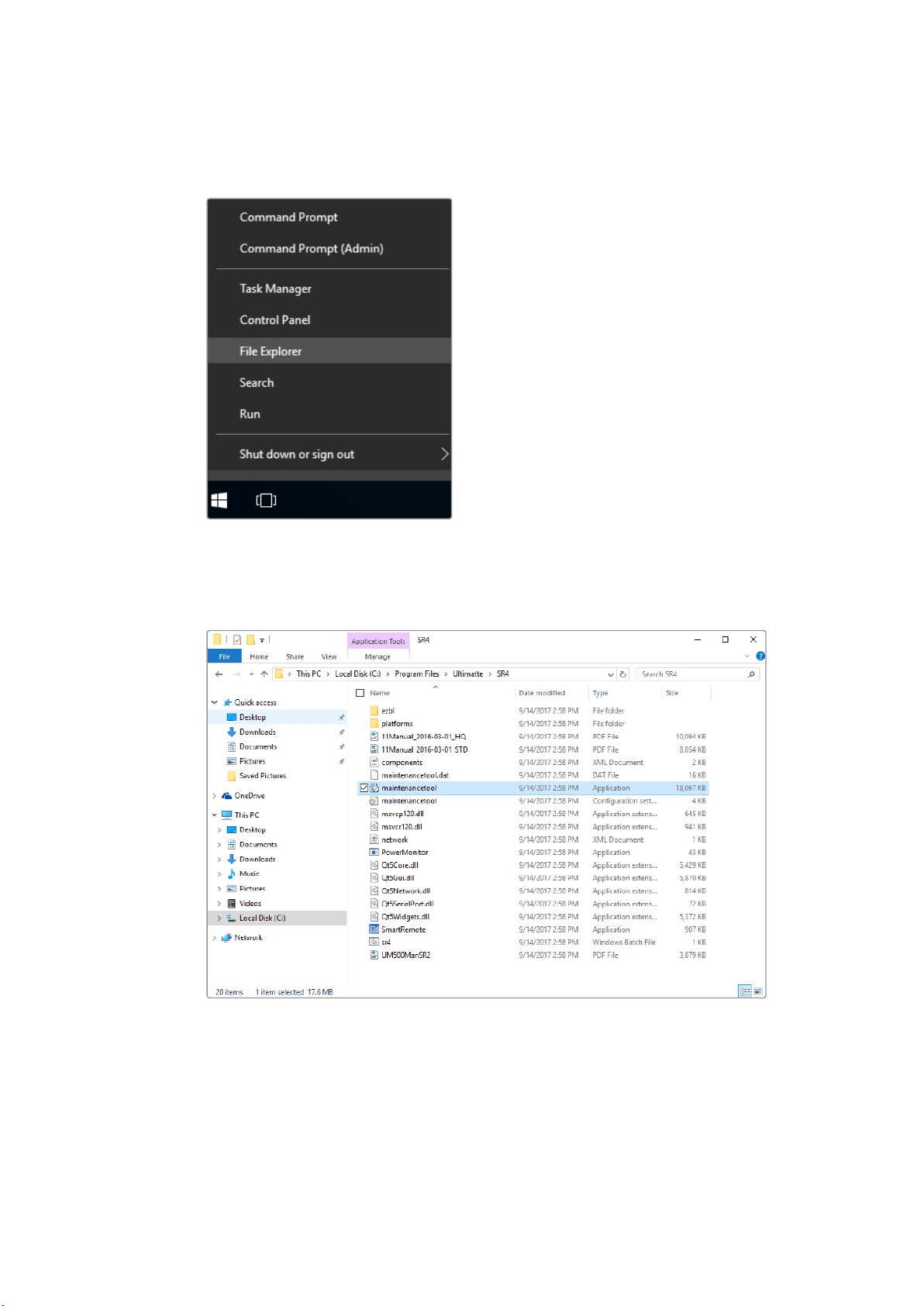
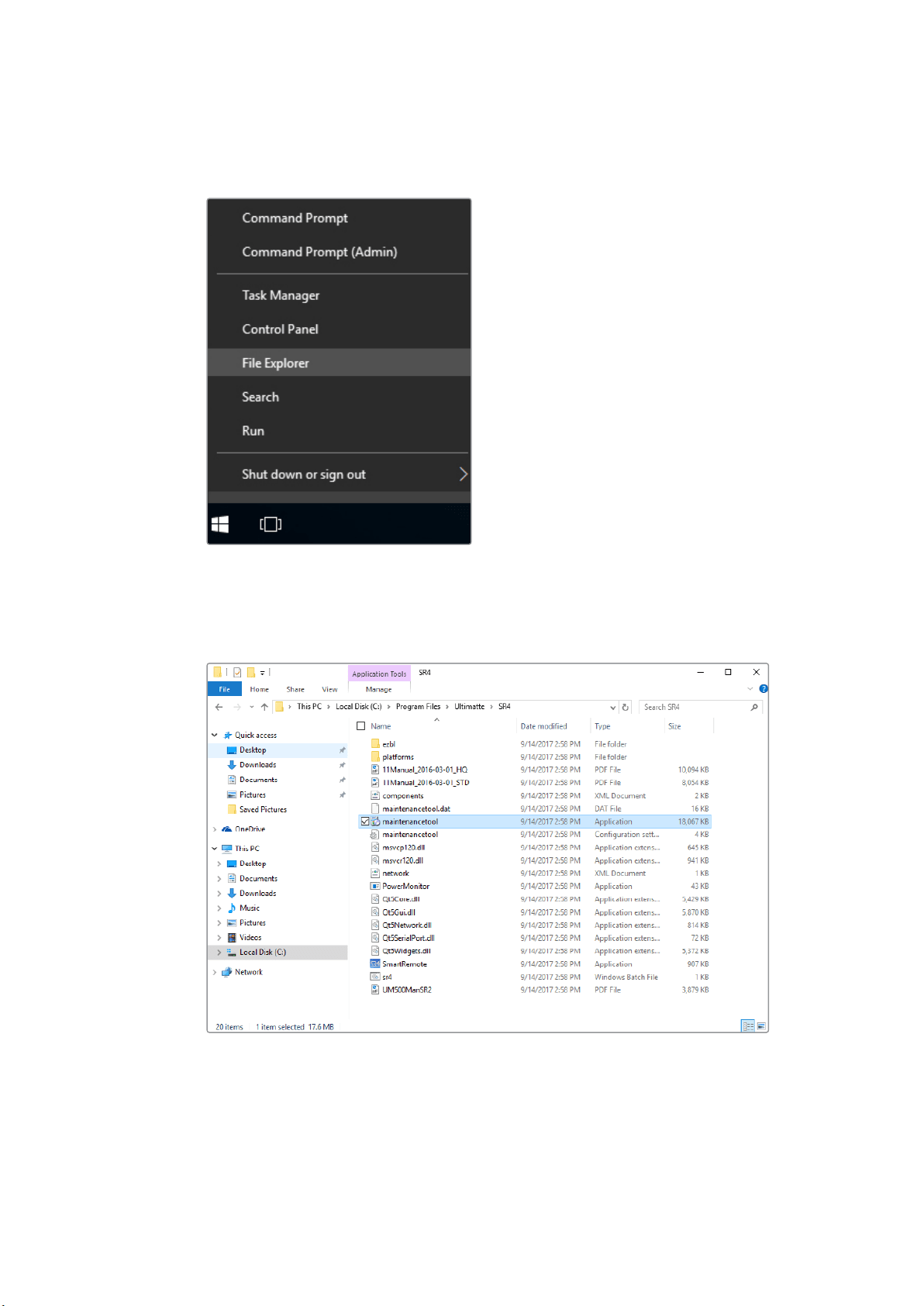
1 Tap and hold the Windows logo in the bottom left corner, then tap on ‘file explorer’.
Tap and hold on the Windows logo,
then tap file explorer
2 In file explorer, navigate to: C:\Program Files\Ultimatte\SR4, and double tap on the
maintenance application labelled, ‘maintenancetool.exe’
Browse ‘local disk C:\’ and double tap on the required folders to open their contents
5Uninstalling Ultimatte SR-4 v1.0.5

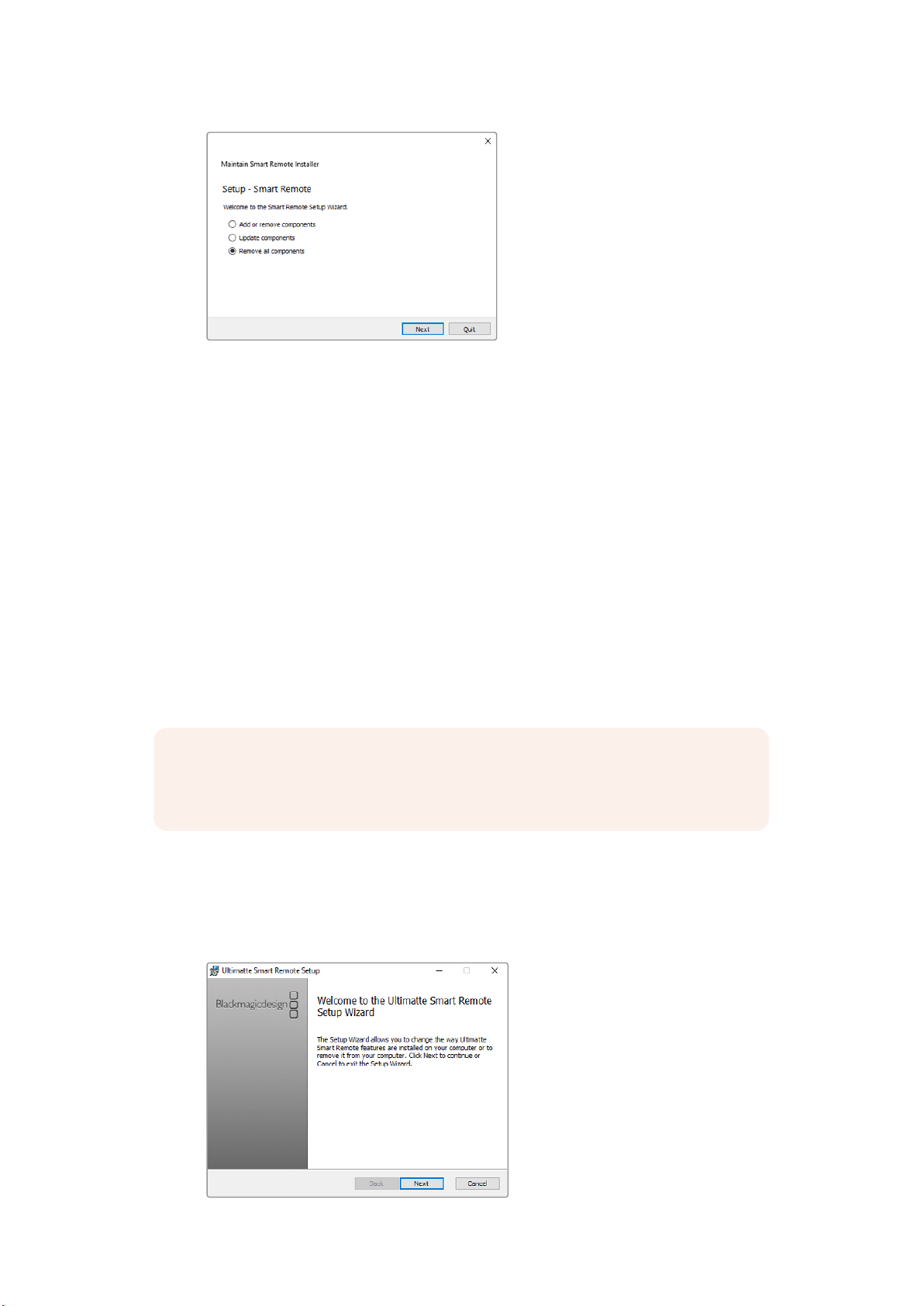
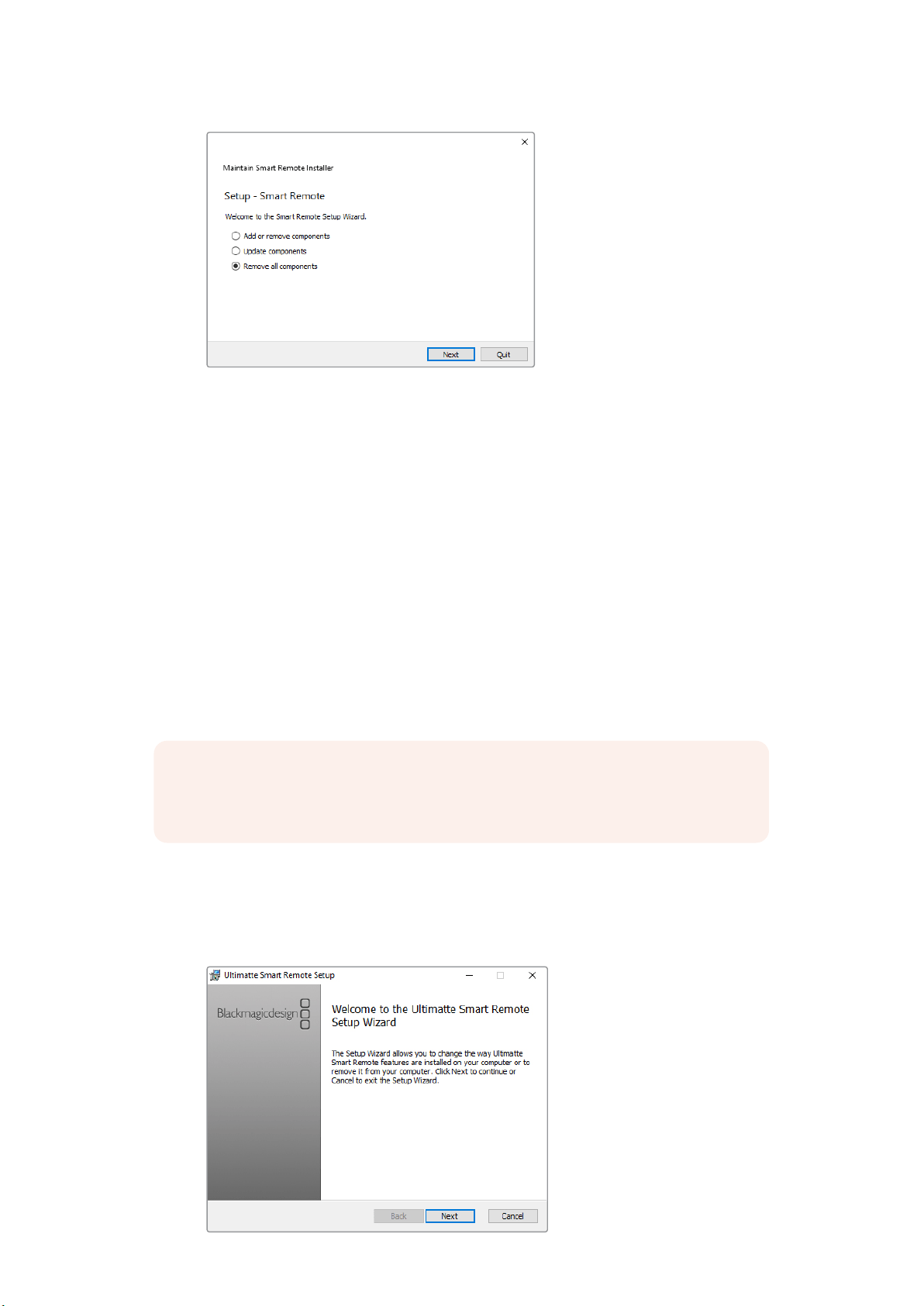
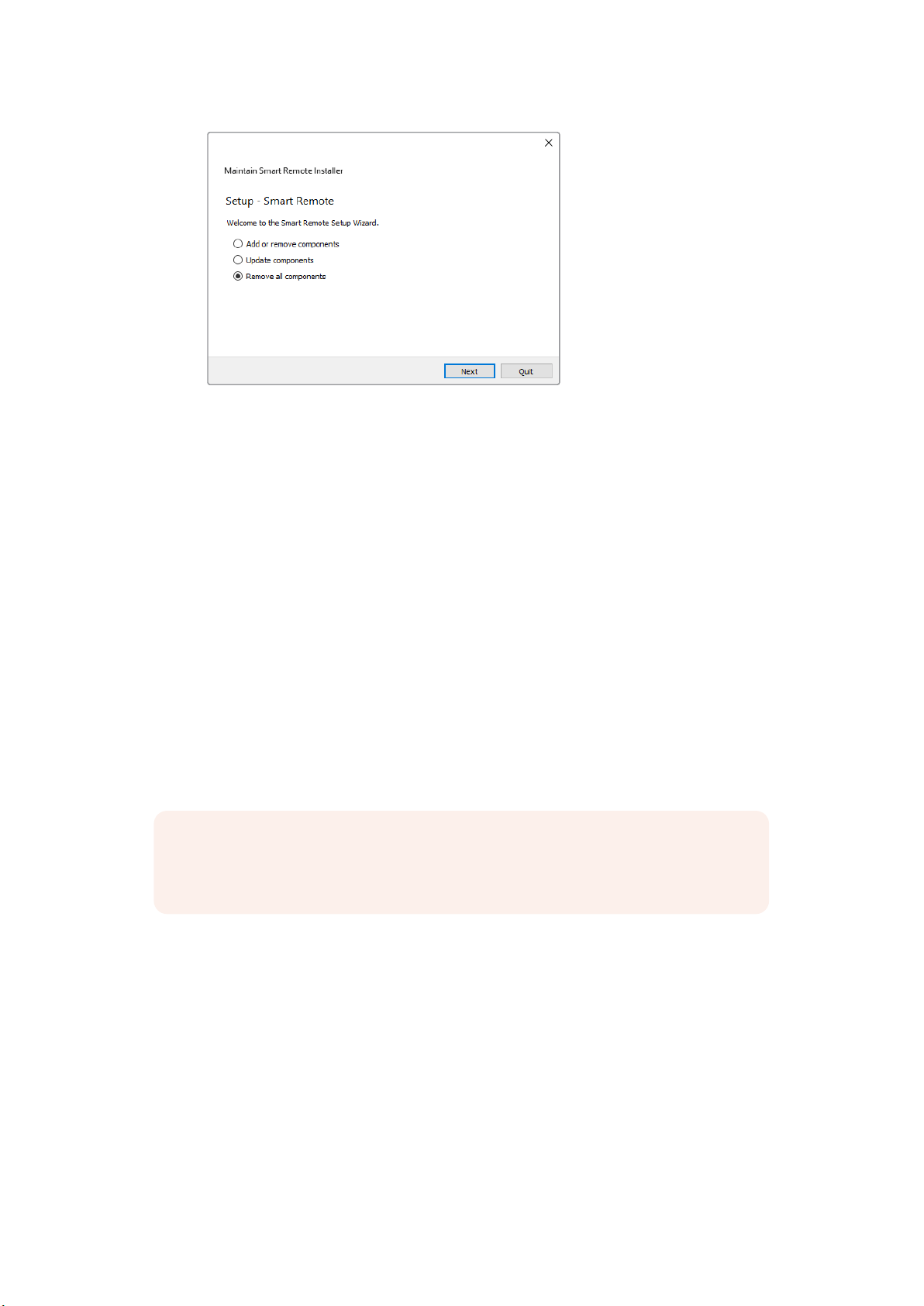
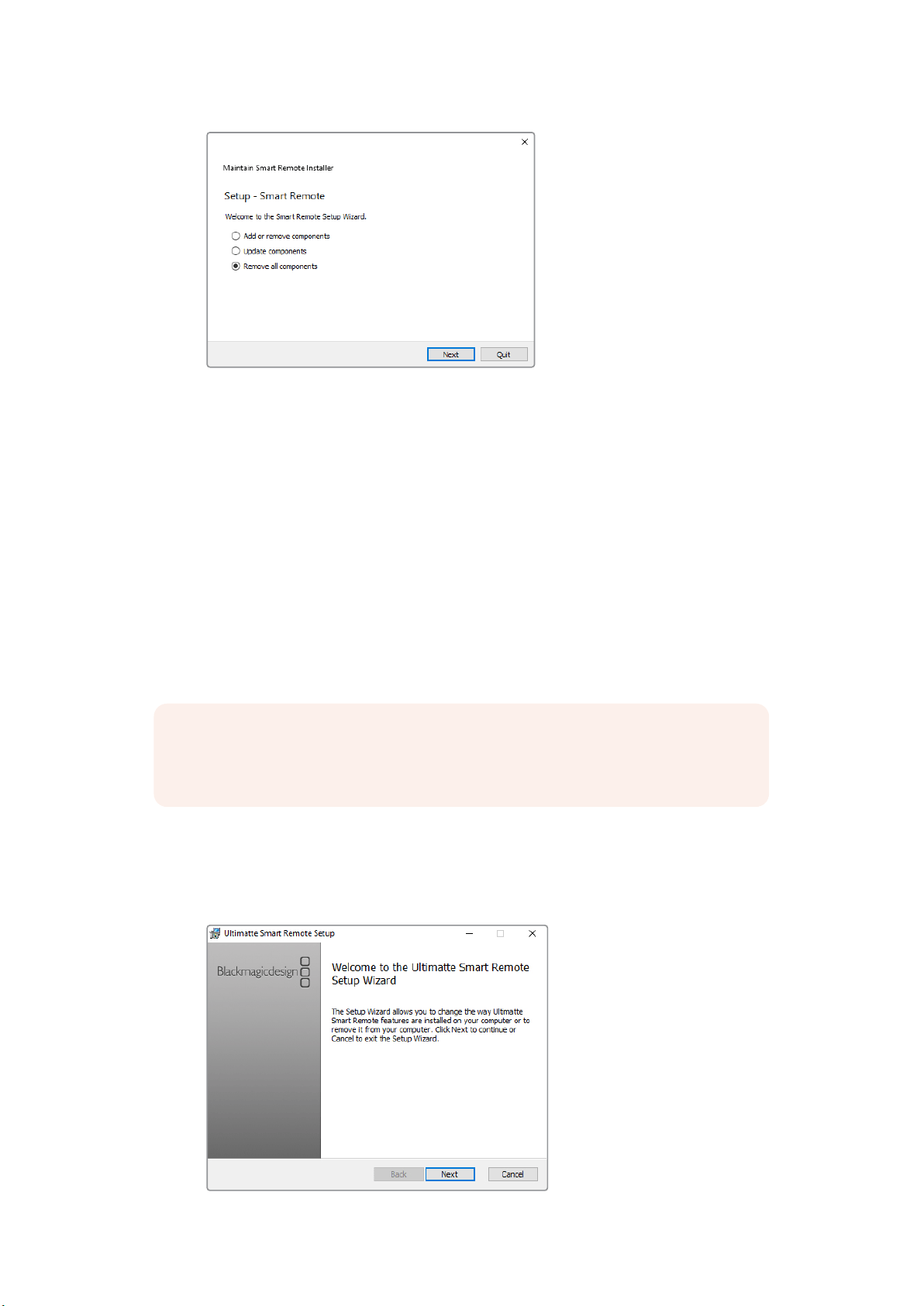
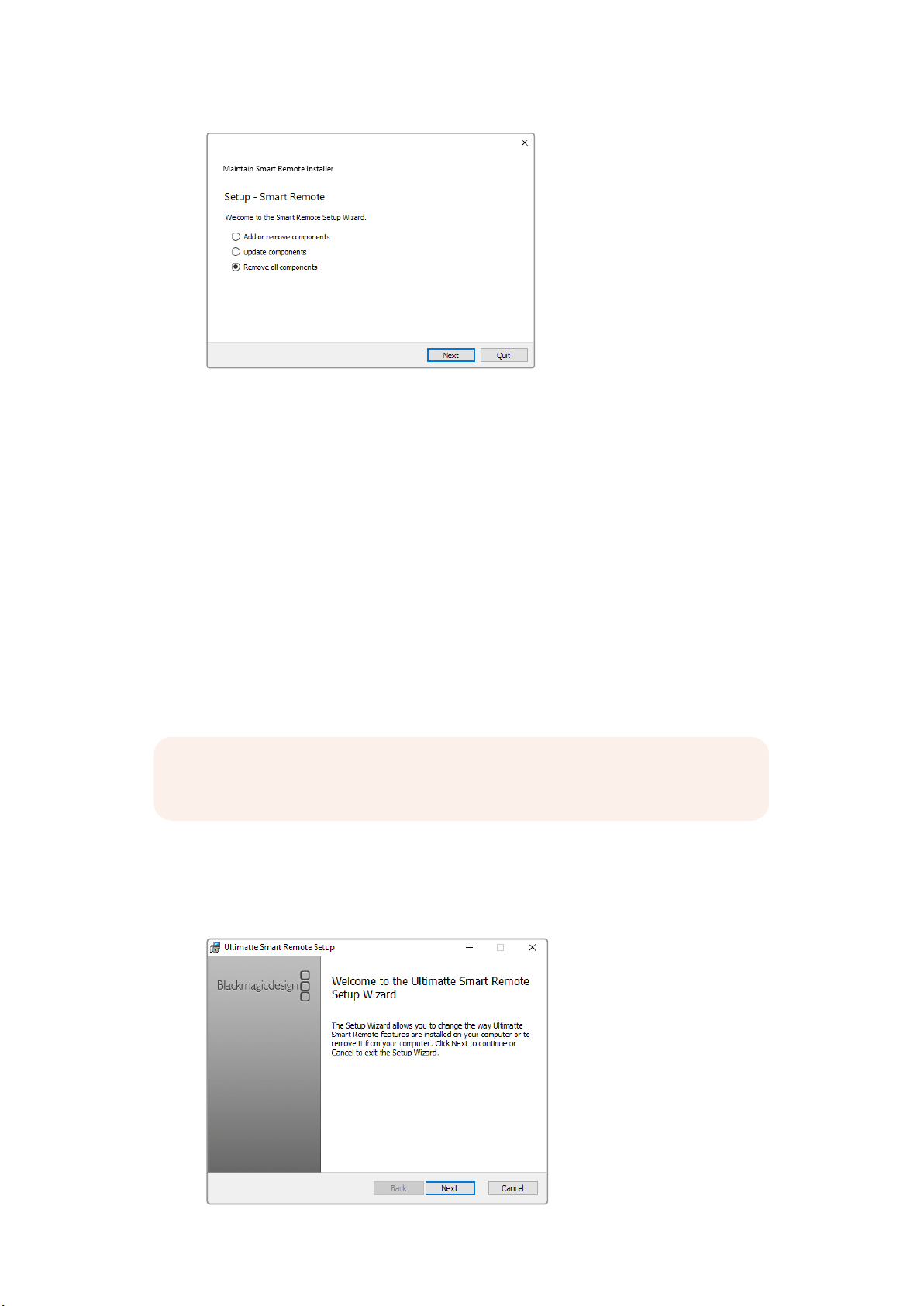
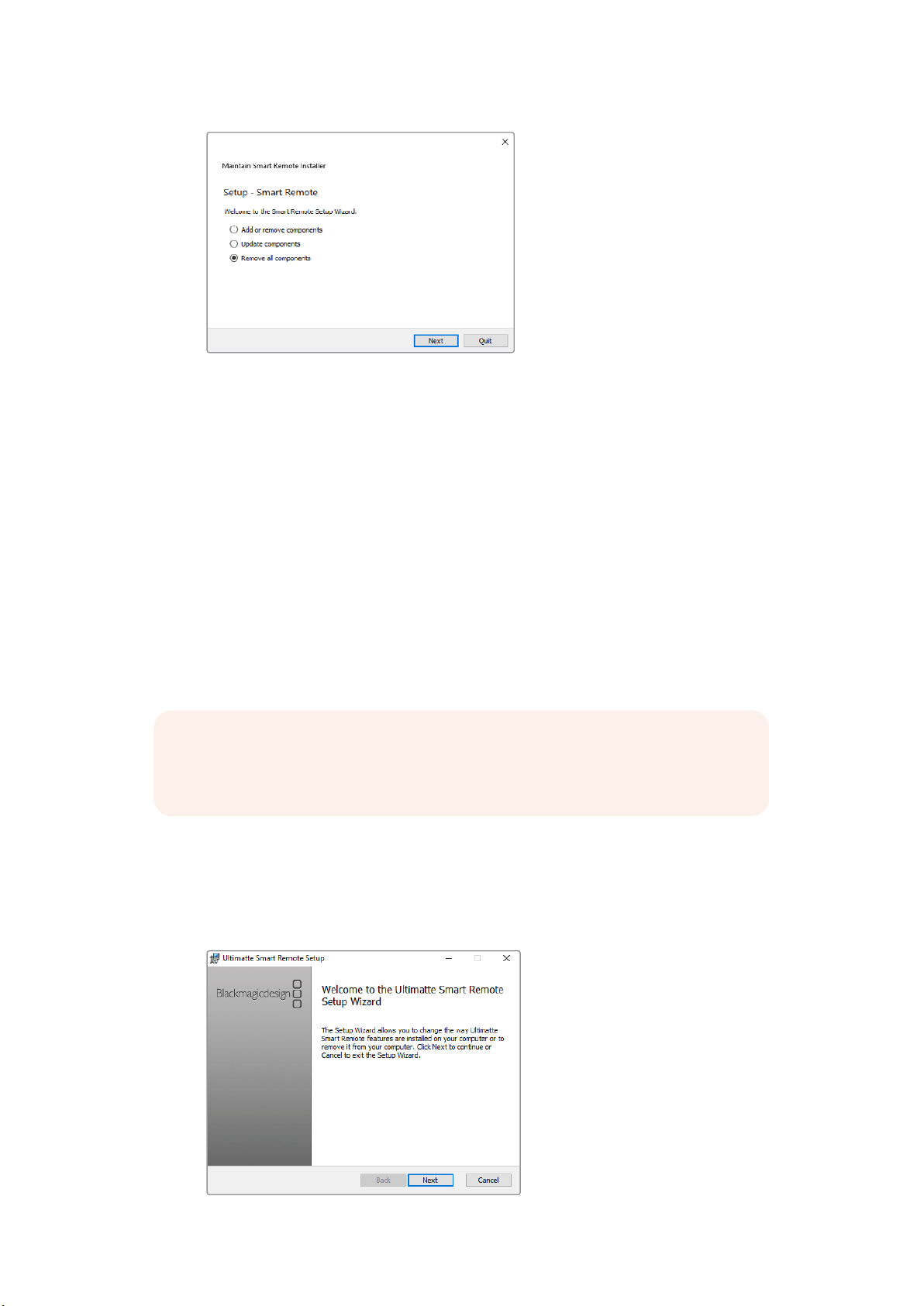
3 In the maintenance application window, select ‘remove all components’ and tap ‘next’.
Select ‘remove all components’ and tap ‘next’
4 The maintenance application will now let you know it is ready to uninstall. Tap ‘uninstall’
and allow the application to make changes to your Smart Remote 4 by tapping ‘yes’.
5 Tap ‘finish’ on the ‘completing the smart remote wizard’ window.
The Ultimatte Smart Remote 4 software has now been uninstalled.
Installing Ultimatte Smart Remote Setup
The first step is to download the latest Ultimatte Smart Remote 4 Setup software from the
Blackmagic Design support center at www.blackmagicdesign.com/support. Copy and paste the
Smart Remote 4 Setup installer onto a portable USB storage unit, for example a USB flash drive.
Plug the USB drive into the USB port on the front of your Smart Remote 4. Smart Remote 4 will
automatically read the USB drive and open the file explorer.
To install the software:
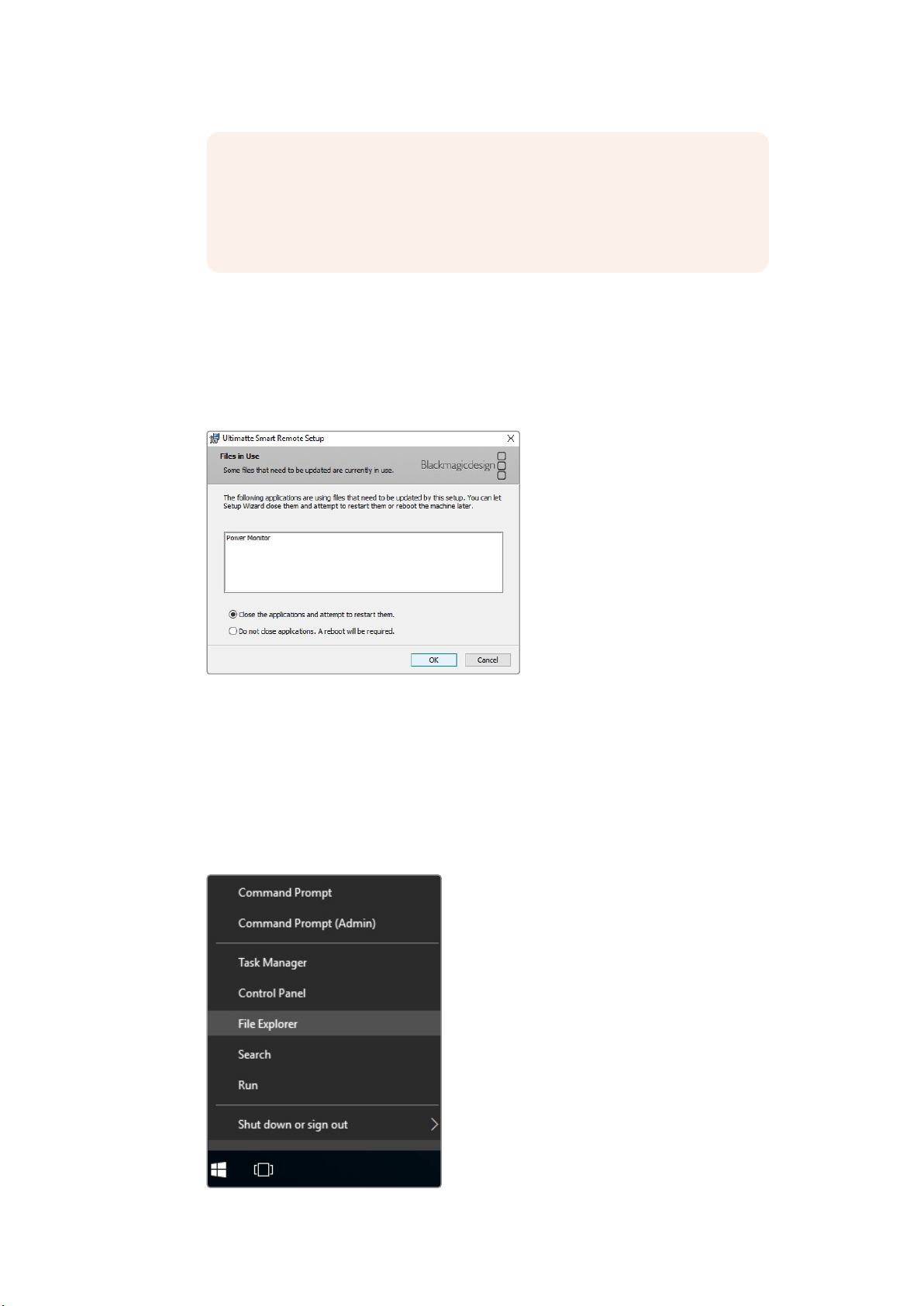
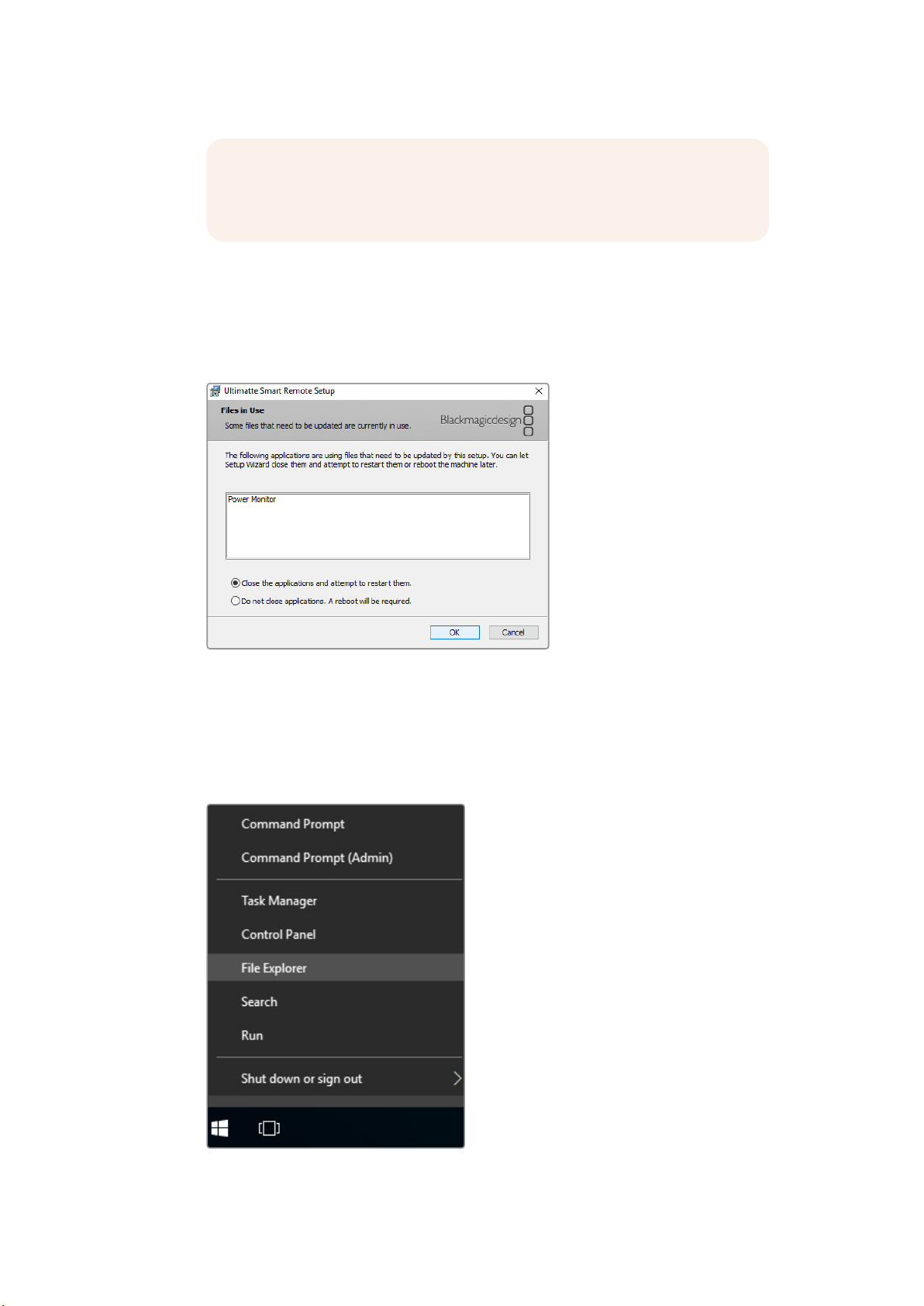
1 Double tap on the smart remote setup installer icon in the storage drive.
2 Tap ‘next’ in the setup wizard and follow the prompts until you reach the ‘install’ option.
NOTE The portable storage drive used to install the software on your smart remote
must be formatted as the master boot record using one single partition. Your Smart
Remote 4 recognizes NTFS, exFAT and FAT32 formats.
6Installing Ultimatte Smart Remote Setup
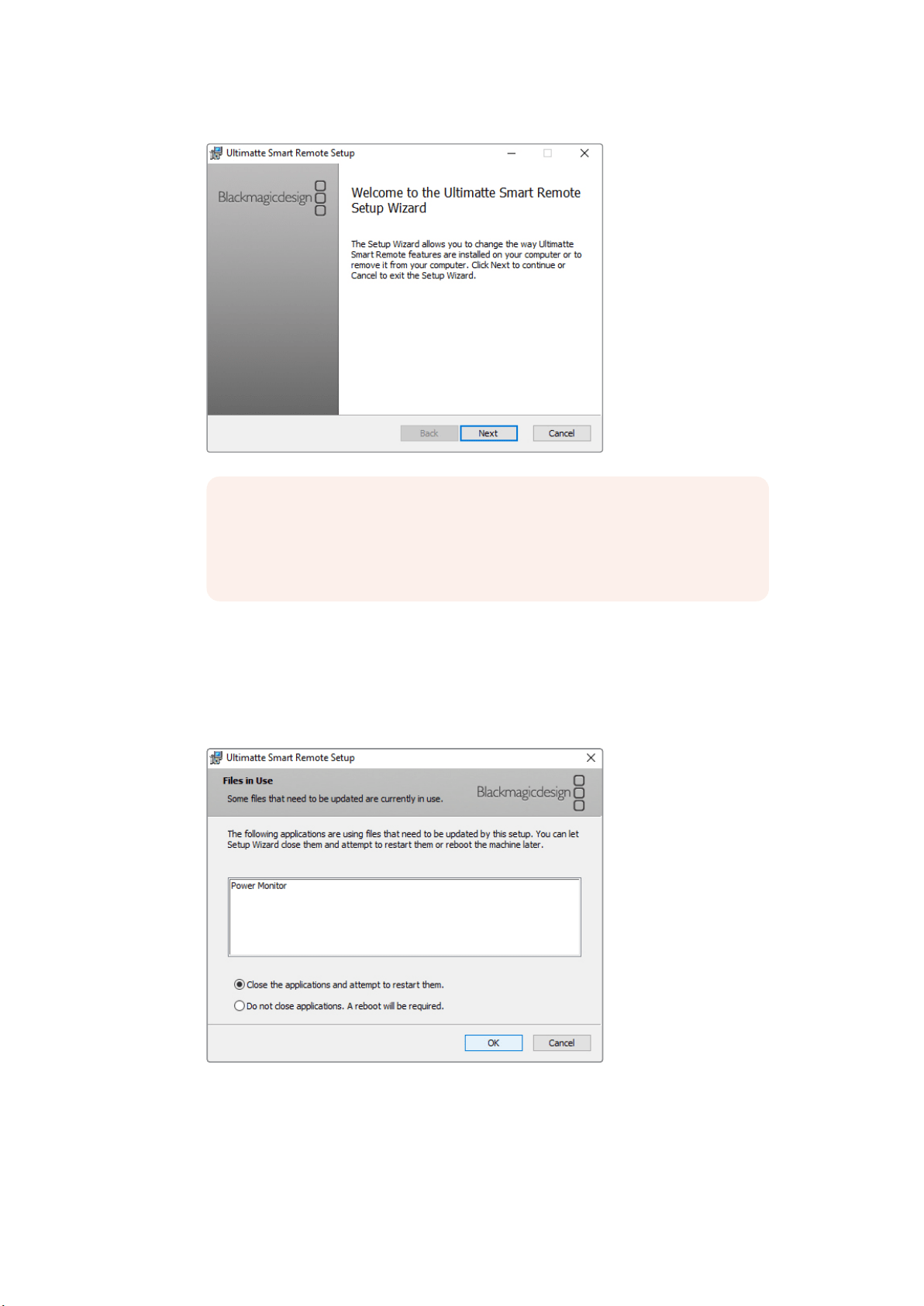
3 Select ‘remove’ to uninstall the smart remote software. Tap ‘remove’ again when
prompted. A progress bar will briefly appear as the uninstall process begins.
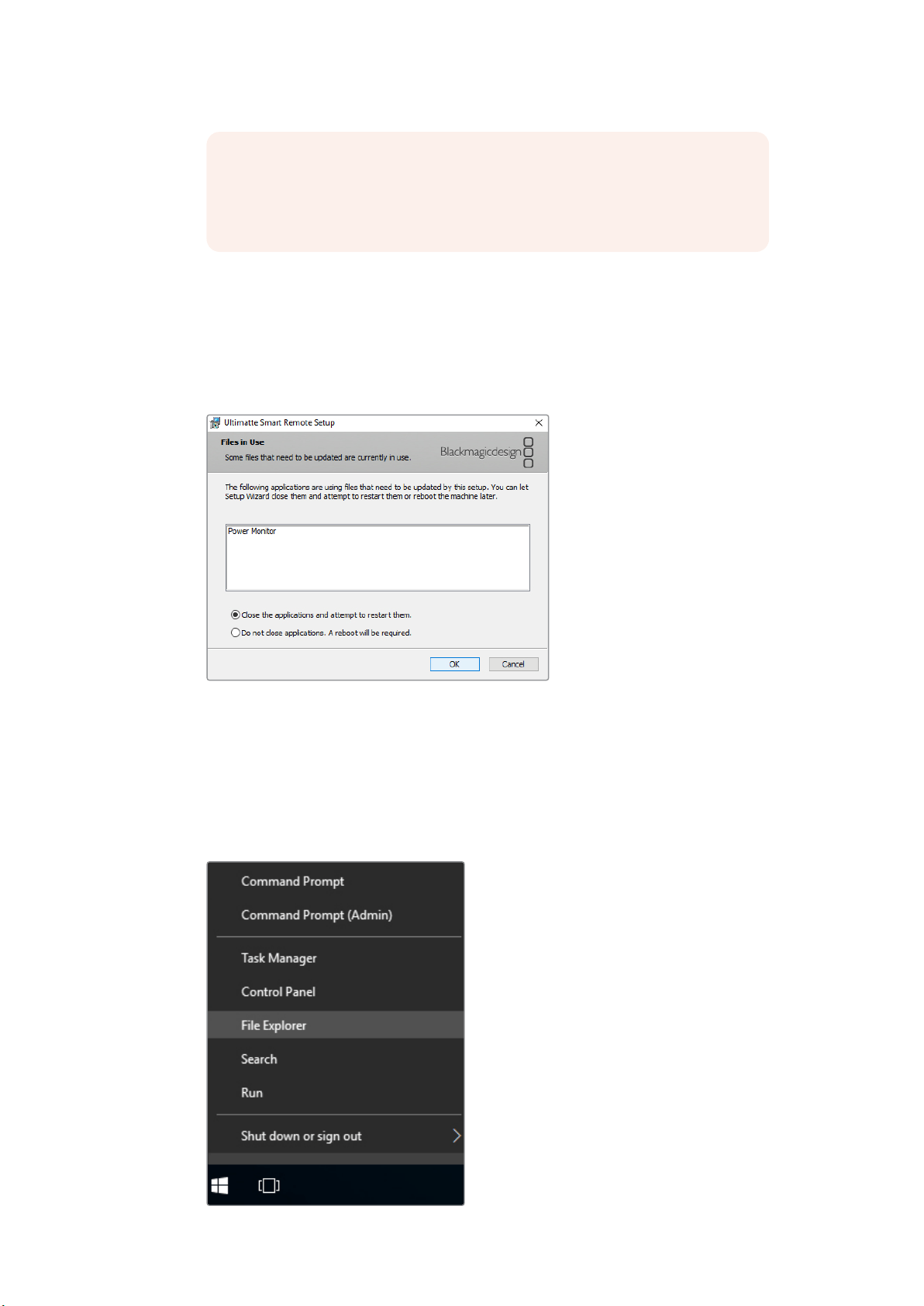
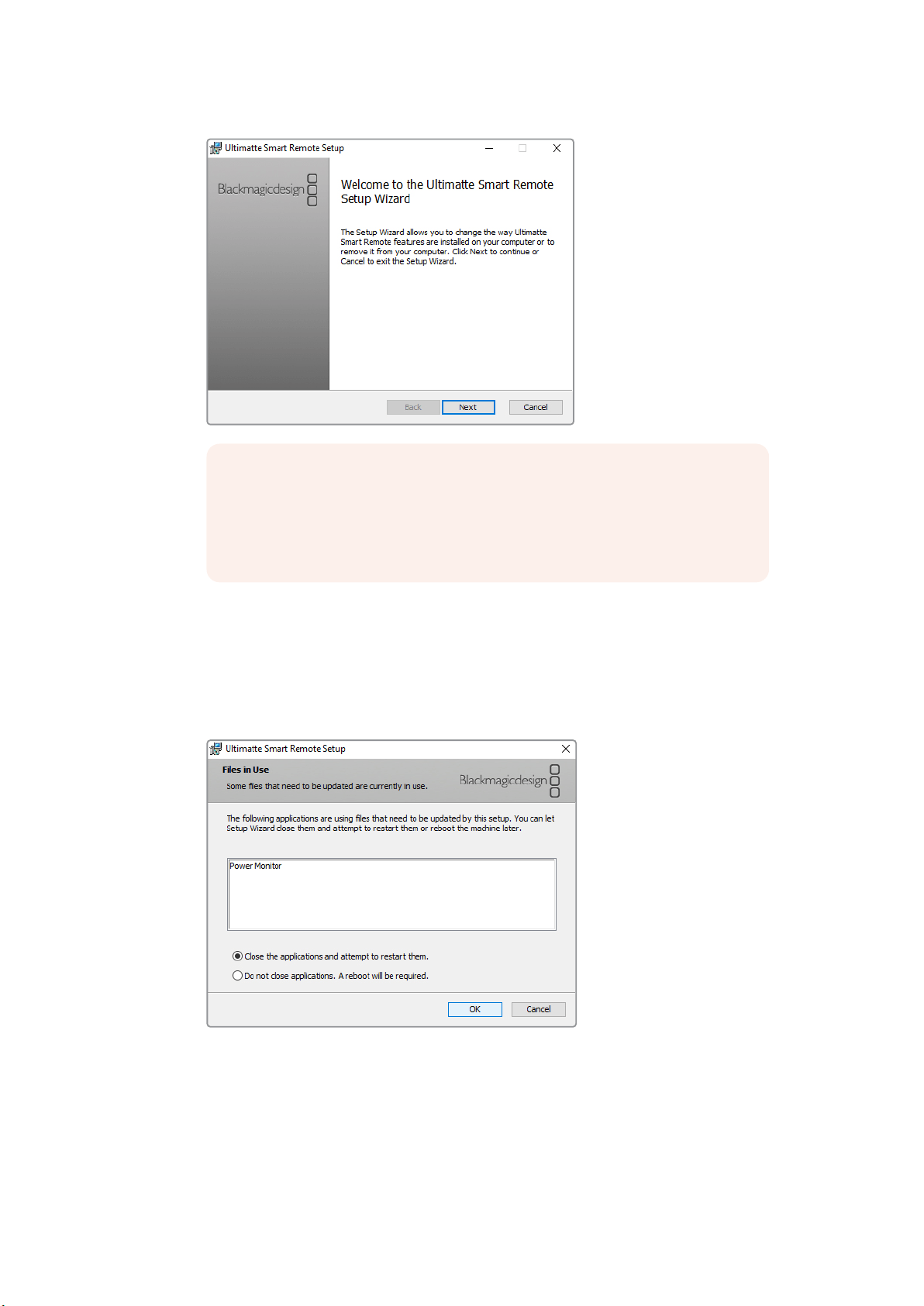
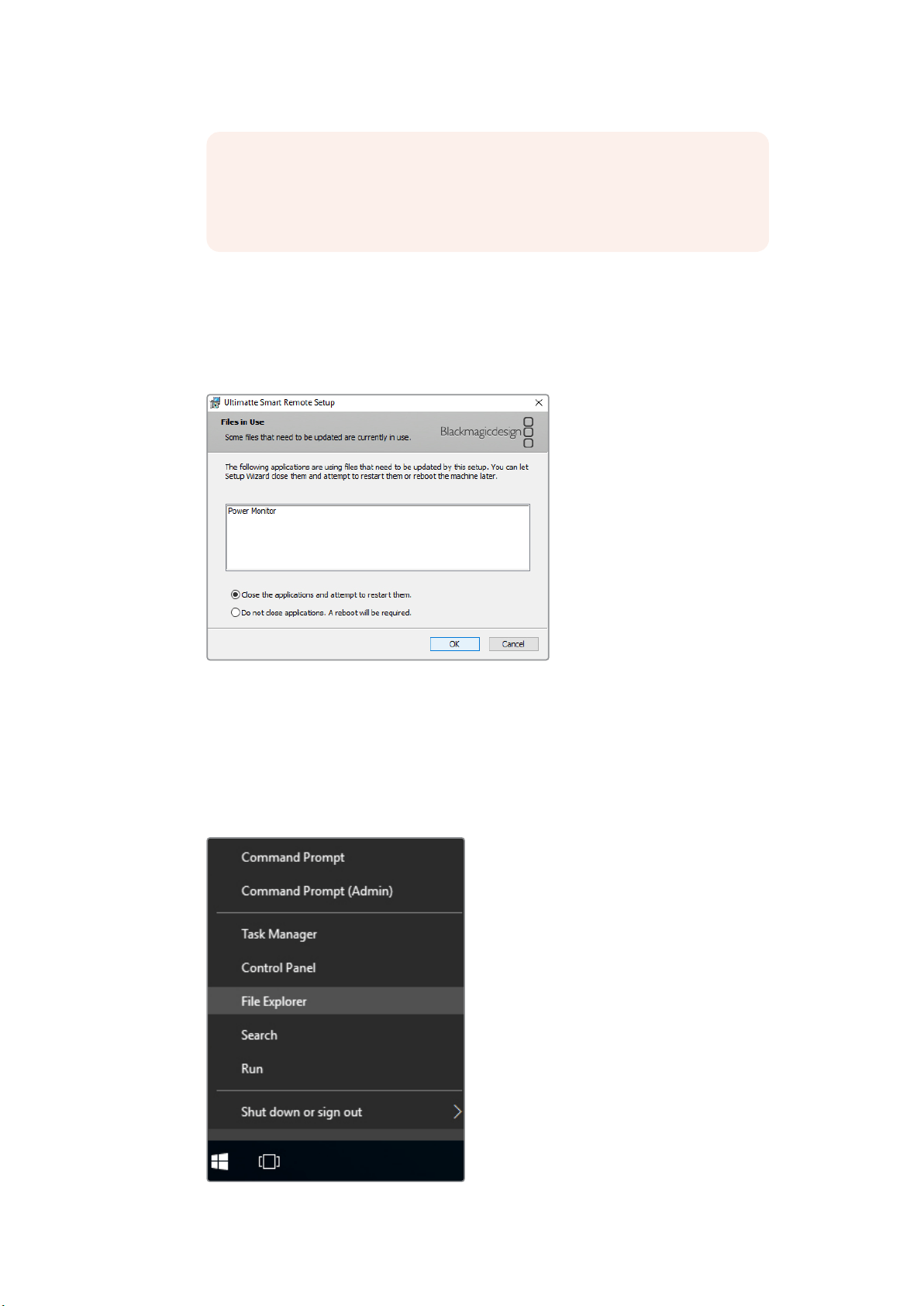
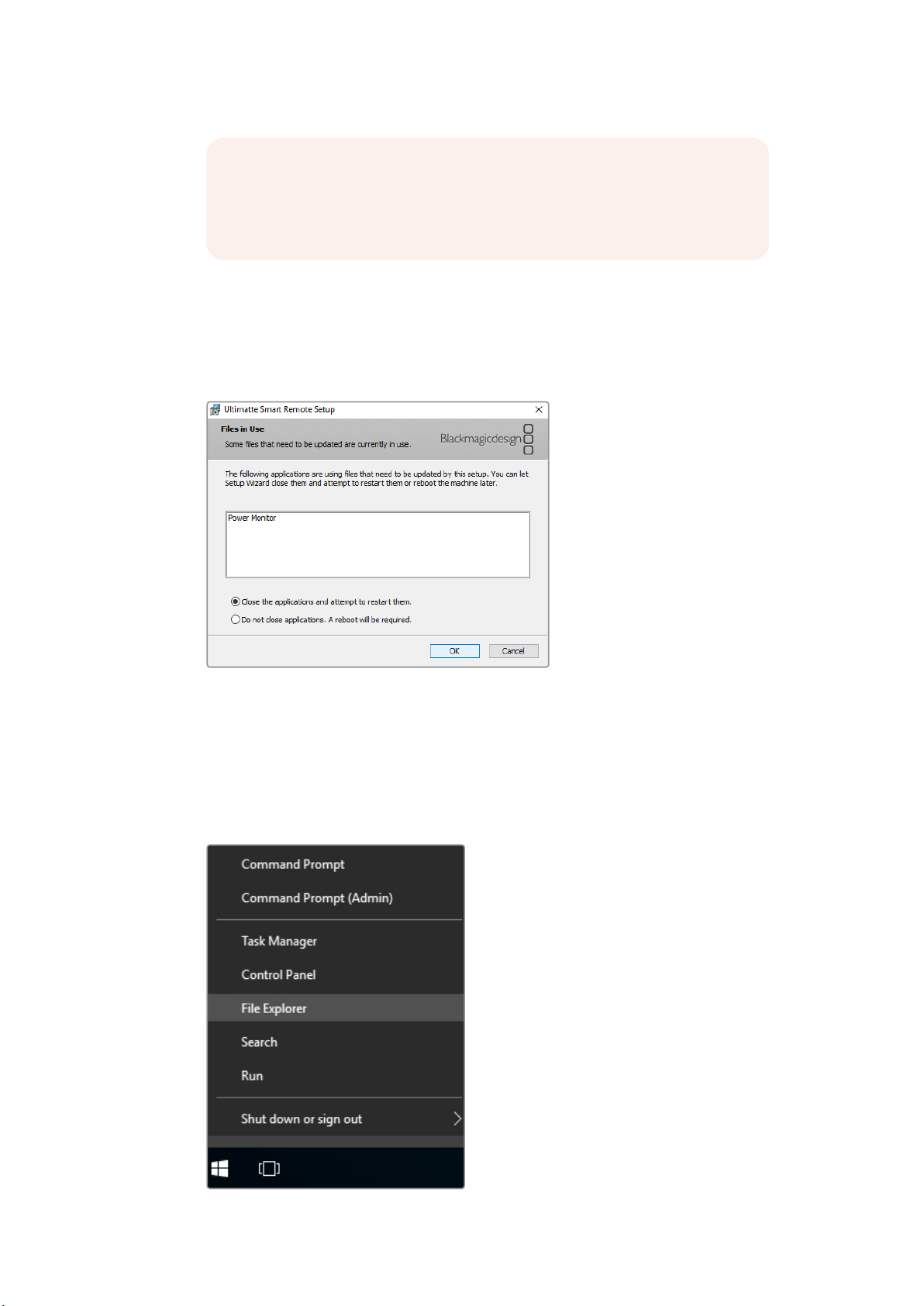
4 When prompted, ensure the radio button labelled ‘close the applications and attempt to
restart them’ is enabled, and tap ‘OK’.
5 When asked if you want to allow the application to make changes to your device,
tap ‘yes’.
6 A progress bar will appear as the uninstallation process completes. Tap ‘finish’ and then
tap ‘yes’ to restart your Smart Remote 4.
NOTE If you are updating from a previous version of Ultimatte Smart Remote
Setup from the Blackmagic Design support center, you will see ‘remove’ and
‘repair’ options. In this case, keep following steps 3 onwards. If updating after
uninstalling SR4 1.0.5, skip to step 9.
7Installing Ultimatte Smart Remote Setup
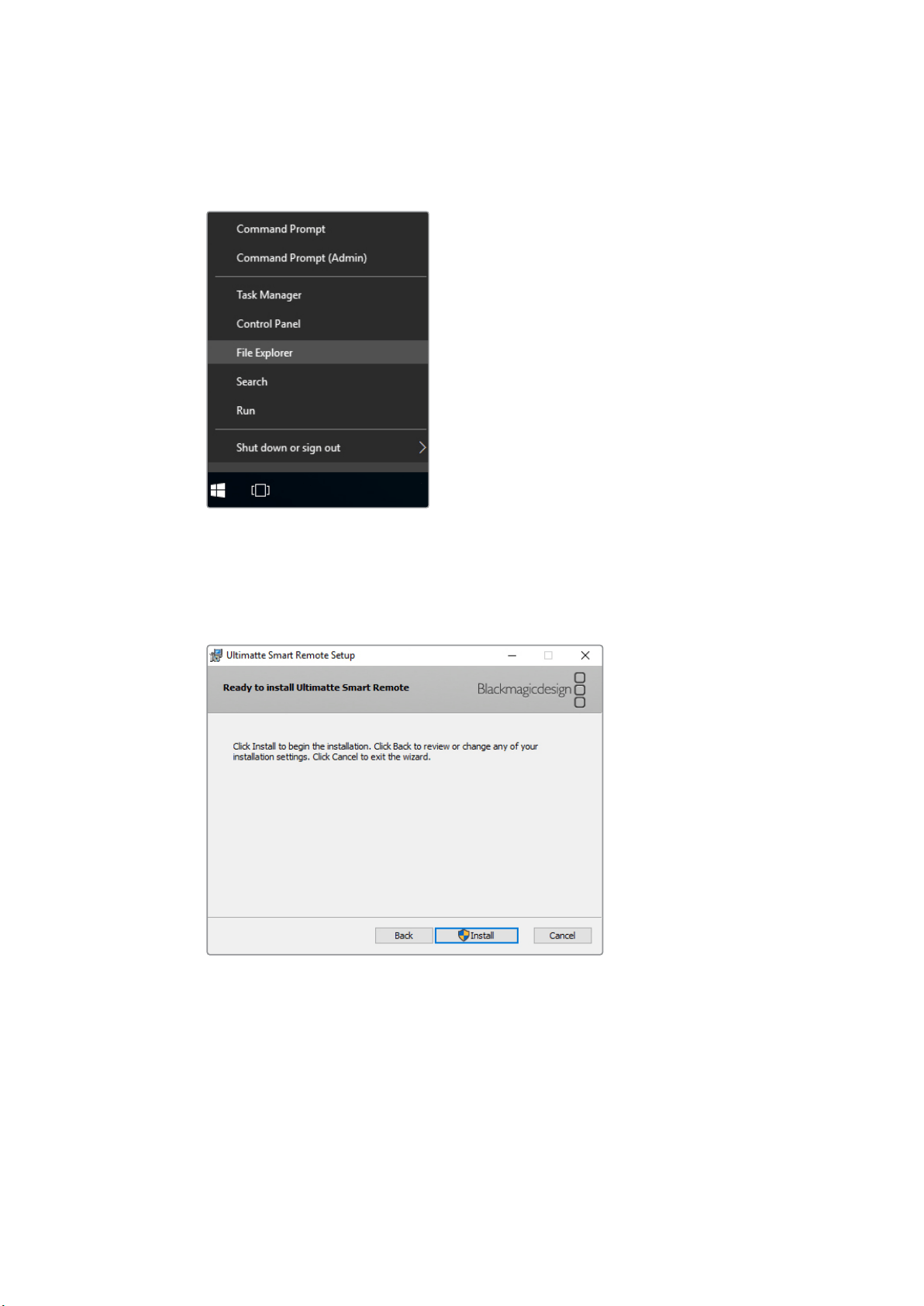
7 When Smart Remote 4 has restarted, tap and hold the Windows icon at the bottom
left of the desktop, and open the ‘file explorer’. Navigate to the Smart Remote 4 Setup
installer on your USB drive and launch the installer.
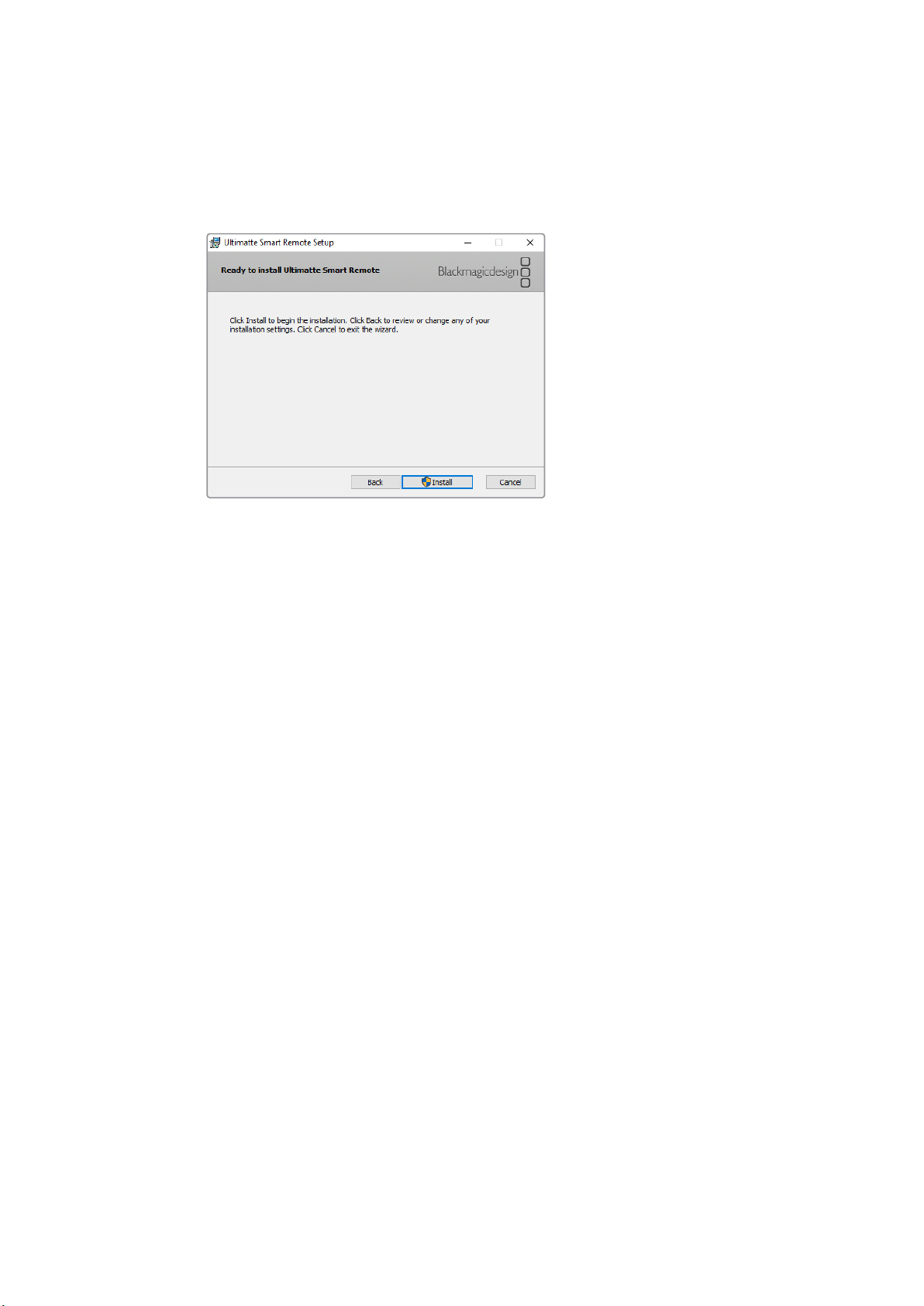
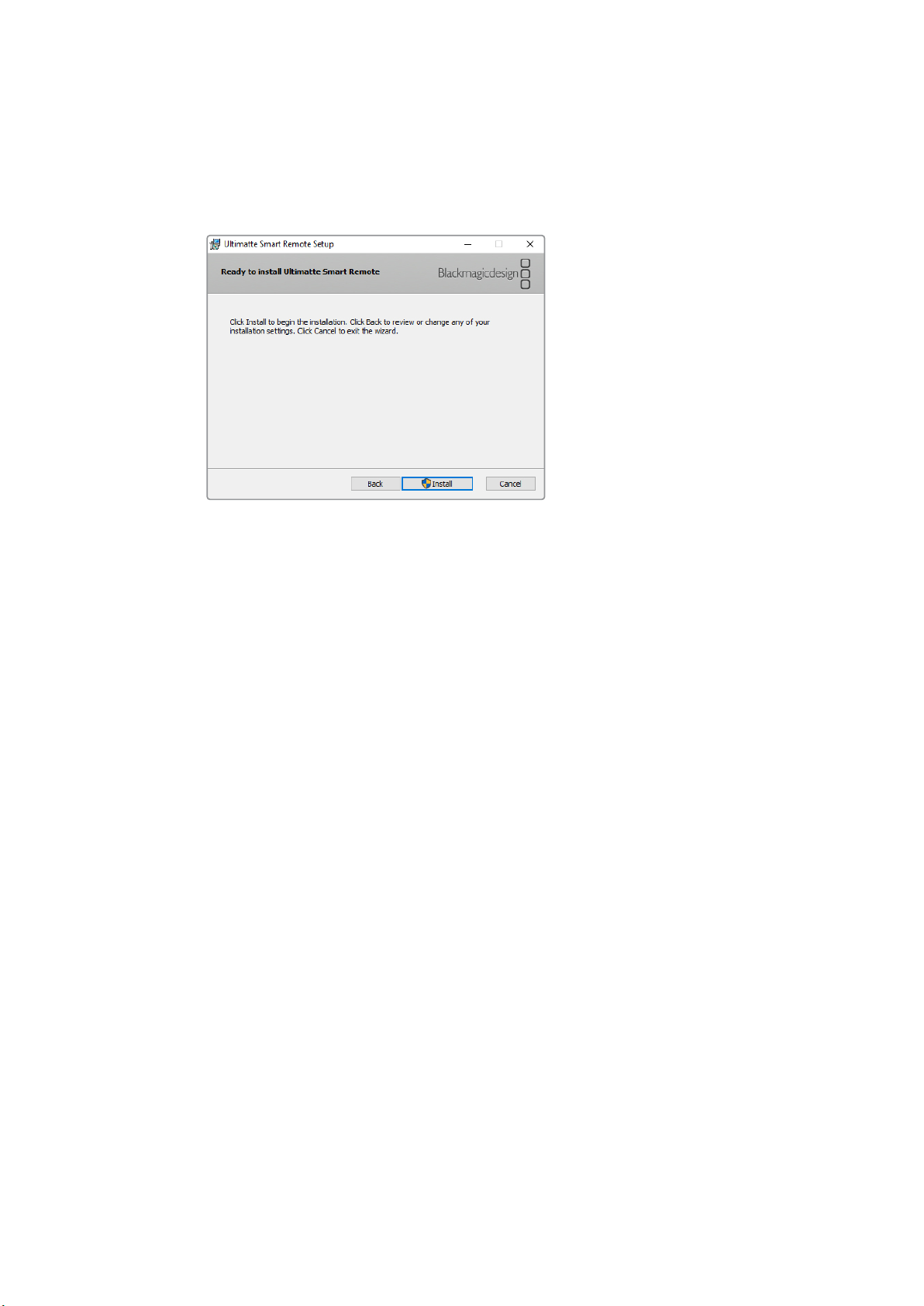
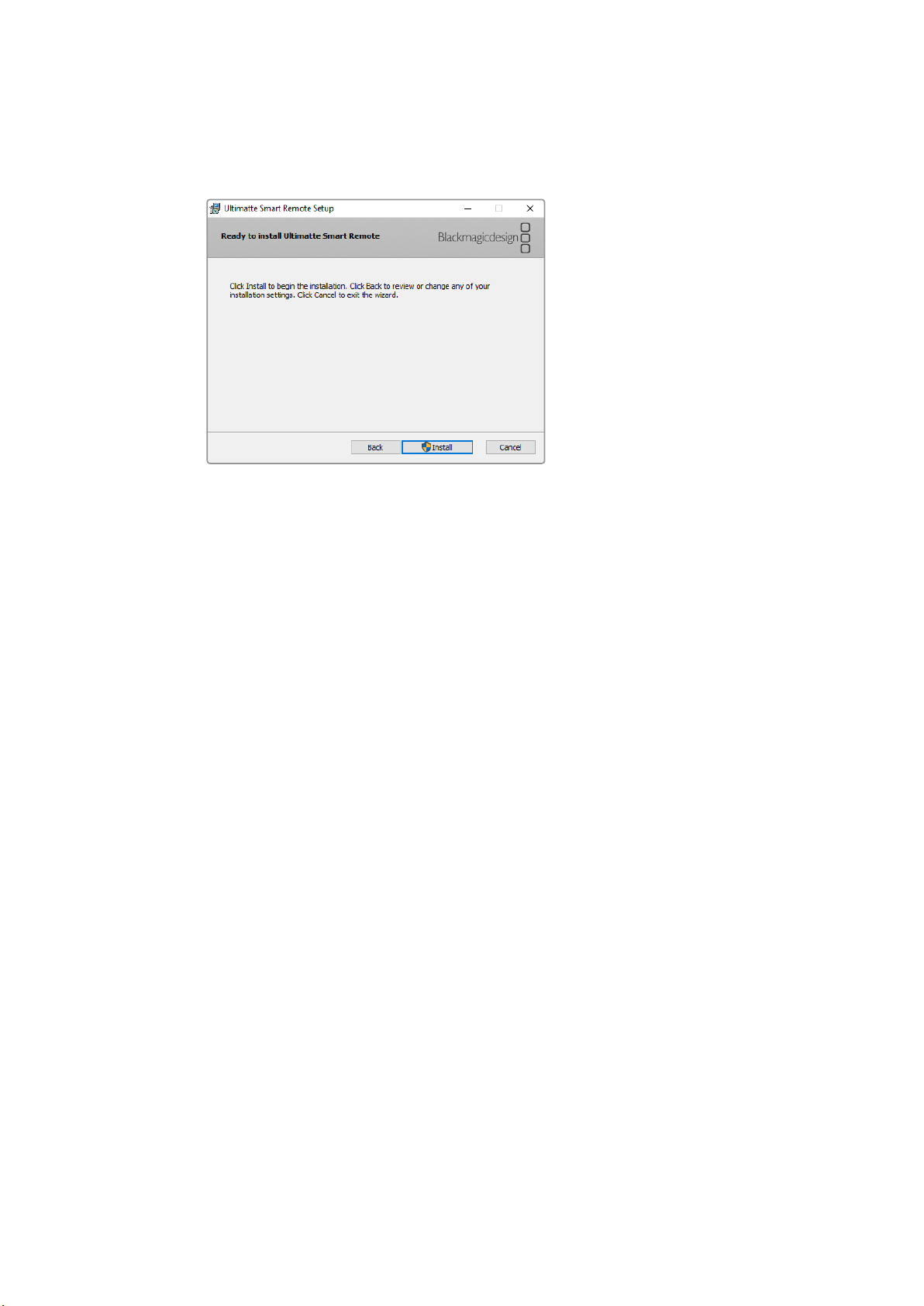
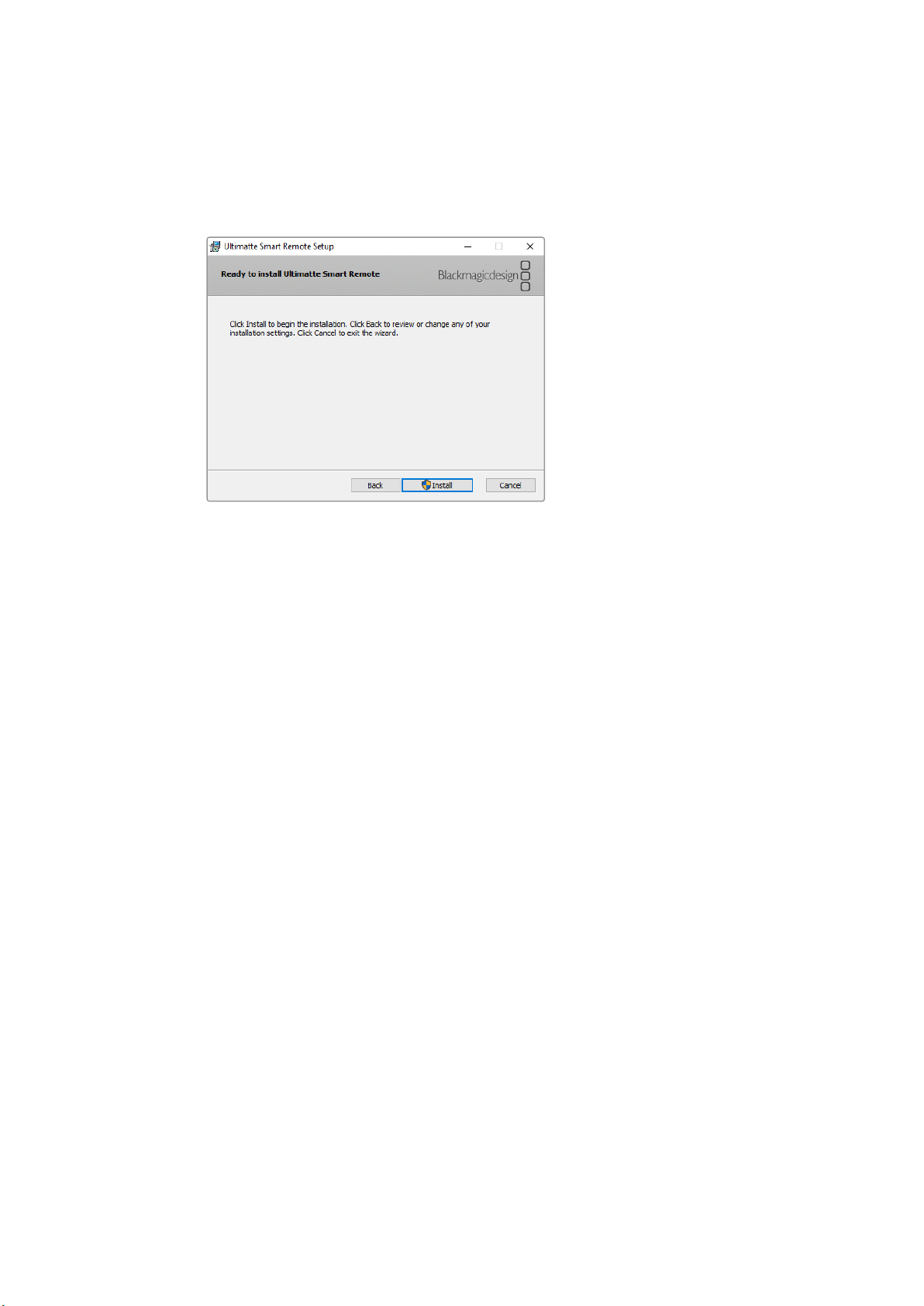
8 When the installation wizard appears, tap ‘next’ and follow the prompts until you reach
the ‘install’ button.
9 Tap ‘install’ and allow the installer to make changes to your Smart Remote 4 by tapping
‘yes’ when prompted.
10 Tap ‘finish’ to complete the installation and ‘yes’ to restart your Smart Remote 4.
Your Smart Remote 4 will restart and automatically launch the latest version of the Ultimatte
Smart Remote 4 control panel.
8Installing Ultimatte Smart Remote Setup

Help
Help
Getting Help
The fastest way to obtain help is to go to the Blackmagic Design online support pages and
check the latest support material available for your Blackmagic Ultimatte 12 or Smart Remote 4.
Blackmagic Design online support pages
The latest manual, software and support notes can be found at the Blackmagic Design support
center at www.blackmagicdesign.com/support.
Contacting Blackmagic Design support
If you can’t find the help you need in our support material, please use the “Send us an email”
button on the support page to email a support request. Alternatively, click on the “Find your
local support team” button on the support page and call your nearest Blackmagic Design
support office.
Checking the version currently installed
To check which version of Blackmagic Ultimatte Setup software is installed on your computer,
launch Blackmagic Ultimatte Setup and click on the ‘about’ tab. The software version number
will be displayed in the ‘software information’ section.
You can also check the version of Smart Remote 4 software installed on the smart remote by
tapping on the file icon in the files and information section of the touchscreen control panel.
The ‘about’ tab will let you know which version you have installed on your smart remote.
How to get the latest updates
After checking the version of Blackmagic Ultimatte Setup software installed on your computer,
please visit the Blackmagic Design support center at www.blackmagicdesign.com/support to
check for the latest updates. While it is usually a good idea to run the latest updates, it is a wise
practice to avoid updating any software if you are in the middle of an important project.
99
Regulatory Notices and Safety Information
Regulatory Notices
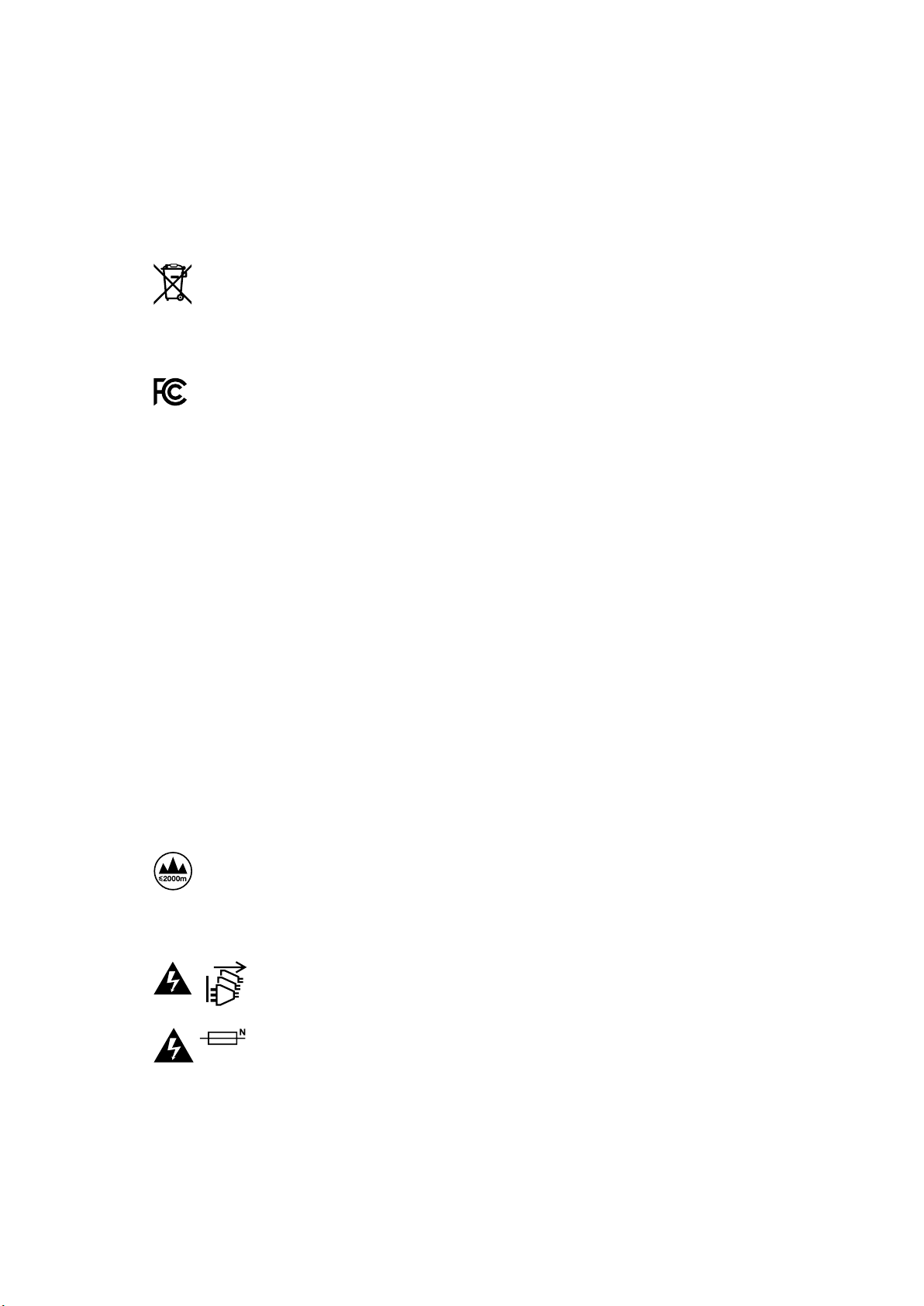
Disposal of waste of electrical and electronic equipment within the European union.
The symbol on the product indicates that this equipment must not be disposed of with
other waste materials. In order to dispose of your waste equipment, it must be handed
over to a designated collection point for recycling. The separate collection and
recycling of your waste equipment at the time of disposal will help conserve natural
resources and ensure that it is recycled in a manner that protects human health and
the environment. For more information about where you can drop off your waste
equipment for recycling, please contact your local city recycling office or the dealer
from whom you purchased the product.
This equipment has been tested and found to comply with the limits for a Class A
digital device, pursuant to Part 15 of the FCC rules. These limits are designed to
provide reasonable protection against harmful interference when the equipment is
operated in a commercial environment. This equipment generates, uses, and can
radiate radio frequency energy and , if not installed and used in accordance with the
instructions, may cause harmful interference to radio communications. Operation of
this product in a residential area is likely to cause harmful interference, in which case
the user will be required to correct the interference at personal expense.
Operation is subject to the following two conditions:
1 This device may not cause harmful interference.
2 This device must accept any interference received, including interference that may
cause undesired operation.
Safety Information
This equipment must be connected to a mains socket outlet with a
protectiveearthconnection.
To reduce the risk of electric shock, do not expose this equipment to
drippingorsplashing.
This equipment is suitable for use in tropical locations with an ambient temperature
ofup to 40ºC.
Ensure that adequate ventilation is provided around the product and is not restricted.
When rack mounting, ensure the ventilation is not restricted by adjacent equipment.
No operator serviceable parts inside. Refer servicing to your local Blackmagic Design
service centre.
Use only at altitudes not more than 2000m above sea level.
Warnings for Authorized Service Personnel
Disconnect power from both power inlets before servicing!
Caution - Double Pole/ Neutral Fusing
The power supply contained in this equipment has a fuse in both line
andneutral conductors and is suitable for connection to the IT power
distributionsystemin Norway.
10Regulatory Notices and Safety Information

Warranty
12 Month Limited Warranty
Blackmagic Design warrants that this product will be free from defects in materials and
workmanship for a period of 12 months from the date of purchase. If a product proves to be
defective during this warranty period, Blackmagic Design, at its option, either will repair the
defective product without charge for parts and labor, or will provide a replacement in exchange
for the defective product.
In order to obtain service under this warranty, you the Customer, must notify Blackmagic Design
of the defect before the expiration of the warranty period and make suitable arrangements for
the performance of service. The Customer shall be responsible for packaging and shipping the
defective product to a designated service center nominated by Blackmagic Design, with
shipping charges pre paid. Customer shall be responsible for paying all shipping charges,
insurance, duties, taxes, and any other charges for products returned to us for any reason.
This warranty shall not apply to any defect, failure or damage caused by improper use or
improper or inadequate maintenance and care. Blackmagic Design shall not be obligated to
furnish service under this warranty: a) to repair damage resulting from attempts by personnel
other than Blackmagic Design representatives to install, repair or service the product,
b) to repair damage resulting from improper use or connection to incompatible equipment,
c) to repair any damage or malfunction caused by the use of non Blackmagic Design parts or
supplies, or d) to service a product that has been modified or integrated with other products
when the effect of such a modification or integration increases the time or difficulty of servicing
the product. THIS WARRANTY IS GIVEN BY BLACKMAGIC DESIGN IN LIEU OF ANY OTHER
WARRANTIES, EXPRESS OR IMPLIED. BLACKMAGIC DESIGN AND ITS VENDORS DISCLAIM
ANY IMPLIED WARRANTIES OF MERCHANTABILITY OR FITNESS FOR A PARTICULAR
PURPOSE. BLACKMAGIC DESIGN’S RESPONSIBILITY TO REPAIR OR REPLACE DEFECTIVE
PRODUCTS IS THE WHOLE AND EXCLUSIVE REMEDY PROVIDED TO THE CUSTOMER FOR
ANY INDIRECT, SPECIAL, INCIDENTAL OR CONSEQUENTIAL DAMAGES IRRESPECTIVE OF
WHETHER BLACKMAGIC DESIGN OR THE VENDOR HAS ADVANCE NOTICE OF THE
POSSIBILITY OF SUCH DAMAGES. BLACKMAGIC DESIGN IS NOT LIABLE FOR ANY ILLEGAL
USE OF EQUIPMENT BY CUSTOMER. BLACKMAGIC IS NOT LIABLE FOR ANY DAMAGES
RESULTING FROM USE OF THIS PRODUCT. USER OPERATES THIS PRODUCT AT OWN RISK.
© Copyright 2017 Blackmagic Design. All rights reserved. ‘Blackmagic Design’, ‘DeckLink’, ‘HDLink’, ‘Workgroup Videohub’,
‘Multibridge Pro’, ‘Multibridge Extreme’, ‘Intensity’ and ‘Leading the creative video revolution’ are registered trademarks in the
US and other countries. All other company and product names may be trade marks of their respective companies with which
they are associated.
Thunderbolt and the Thunderbolt logo are trademarks of Intel Corporation in the U.S. and/or other countries.
11Warranty

Smart
Remote
4
のアップデート
SR4
1.0.5
以前のバージョンがインストールされている場合、内蔵の
Ultimatte
のメンテナンスツールを 使
用して、
Smart
Remote
から
SR4
ソフトウェアをアンインストールする 必 要 が あります。
Ultimatte
SR4
v1.0.5
のアンインストール
Smart
Remote
4
のソフトウェアのアンインストールは、アプリケーションが 起 動していないことを必ず
確 認 して か ら 行 な ってくだ さ い 。
Smart
Remote
4
のソフトウェアを終了する:
1
Smart
Remote
4
のコントロールのセクションにある、インフォメーションのアイコンをタップ
します。
2
「
Options
」の タ ブ で「
Exit
to
Desktop
」を タ ッ プ し ま す 。
3
Windows
のデスクトップが 表示されたら、システムトレイの上向きの矢印をタップします。
メモ以前に
Blackmagic
Design
サポートセンターからダウンロードした
Ultimatte
Smart
Remote
Setup
インストーラーを使用して
Smart
Remote
4
をインストールしている場 合、このアンインス
トールのプロセスを行う必要はないため、「
Ultimatte
Smart
Remote
Setup
のインストール」セク
ションに 進 んでください 。
MATTE MENU
14Ultimatte
SR-4
v1.0.5
のアンインストール
4
Ultimatte
SR4
のアイコンを タップして、
2
秒 間 ホ ー ル ド し て か ら 指 を 離 し ま す 。「
Quit
」ア イ コ ン
が 表 示 さ れ ま す 。「
Quit
」アイコンをタップしてアプリケーションを終了します。
SR4
v1.0.5
以 前 のソ フトウェ アの ア ン インスト ー ル:
1
左下の角にある
Windows
の ロ ゴ を タ ッ プ & ホ ー ル ド し て 、そ の 後 「
File
Explorer
」を タ ッ プ
します。
Windows
のロゴをタップ&ホールドして、
そ の 後「
File
Explorer
」を タ ッ プ
2
File
Explorer
で
C:
\
Program
Files
\
Ultimatte
\
SR4
ま で 進 み 、「
maintenancetool.exe
」と い う 名 前
のメンテナンスアプリケーションをダブルタップします。
「
Local
Disk
C:
\ 」にあるフォル ダーをタップして必 要なコンテンツを開く
3
メンテナンスアプリケーションのウィンドウで「
Remove
all
components
(すべてのコンポーネ
ン ト を 削 除 )」を 選 択 し て「
Next
」を タ ッ プ し ま す 。
15Ultimatte
SR-4
v1.0.5
のアンインストール
「
Remove
all
components
」を 選 択 し て「
Next
」を タ ッ プ
4
アンインストールの準備ができるとメッセージが表示されます。「
Uninstall
( ア ン イ ン ス ト ー ル )」
を タ ッ プ し て 、そ の 後「
Yes
」を タ ッ プ す る と
Smart
Remote
4
がアプリケーションの変 更を開 始
します。
5
「
Completing
the
Smart
Remote
wizard
(
Smart
Remote
の終了)」ウィンドウで「
Finish
」
をタップします。
Ultimatte
Smart
Remote
4
ソフトウェアのアンインストールが 完了しました。
Ultimatte
Smart
Remote
Setup
のインストール
まず最新の
Ultimatte
Smart
Remote
4
Setup
ソフトウェアを
Blackmagic
Design
サポートセンター
(
www.blackmagicdesign.com/jp/support
)で ダ ウ ン ロ ー ド し ま す 。
USB
フラッシュドライブなどの
USB
ストレージ に
Smart
Remote
4
Setup
インストーラーをコピー&ペーストします。
Smart
Remote
4
の前面の
USB
ポートに
USB
ドライブ を差し 込 みま す。
Smart
Remote
4
は自動的に
USB
ド
ライブを読み込み、
File
Explorer
が 開 きます。
ソフトウェ アの インスト ー ル:
1
ストレージの
Smart
Remote
4
Setup
インストーラー のアイコンを ダ ブル タップします。
2
セ ットア ッ プ ウ ィ ザ ー ド で「
Next
」 を タ ッ プ し て 、「
Install
(インストール)」のオプションが表示
されるまで画面の指示に従って、先に進みます。
メモ
Smart
Remote
にソフトウェアをインストールする際に使 用する小型ストレージドライブは 、
必ず 単 一パー ティションを 使ってマスターブートレコードとしてフォーマットしてください 。
Smart
Remote
4
は、
NTFS
、
exFAT
、
FAT32
に対 応しています。
16Ultimatte
Smart
Remote
Setup
のインストール
3
「
Remove
( 削 除 )」を 選 択 し て 、
Smart
Remote
のソフトウェアをアンインストールします。指示
が出たら再度「
Remove
」をタップします。アンインストールの進行状況を示すプログレスバー
が一時的に表示されます。
4
「
Close
the
applications
and
attempt
to
restart
them.
(アプリケーションを閉じて再起動)」
の ボ タ ン が 有 効 に な っ て い る こ と を 確 認 し て「
OK
」を タ ッ プ し ま す 。
5
アプリケーションがデバイスに変更を加える許可を確認するメッセージが表示されたら「
Yes
」
をタップします。
6
アンインストールの状況を示すプログレスバーが表示されます。「
Finish
」をタップし、その後
「
Yes
」を タ ッ プ し て
Smart
Remote
4
を再 起 動します。
7
Smart
Remote
4
が再起動したら、デスクトップの左下の角にある
Windows
のロゴをタップ&ホー
ルドして
File
Explorer
を開きま す。
USB
ドライブの
Smart
Remote
4
Setup
インストーラーまで 進 み 、
インストーラーを 起 動します。
メモ以前に
Blackmagic
Design
サポートセンターからダウンロードした
Ultimatte
Smart
Remote
Setup
の 古 い バ ー ジ ョ ン を ア ッ プ デ ー ト し て い る 場 合 、「
Remove
( 削 除 )」と
「
Repair
(修復)」が表示されます。この場合、ステップ
3
以降の手順に従ってください。
SR4
1.0.5
をアンインストールした後にアップデートする場 合は、ステップ
9
は飛ば
してください 。
17Ultimatte
Smart
Remote
Setup
のインストール
8
イ ン ス ト ー ル の ウ ィ ザ ー ド が 表 示 さ れ た ら 、「
Next
」を タ ッ プ し て「
Install
( イ ン ス ト ー ル )」の オ
プションが表示されるまで画面の指示に従って、先に進みます。
9
「
Install
( イ ン ス ト ー ル )」を タ ッ プ し て 、そ の 後 「
Yes
」を タ ッ プ す る と イ ン ス ト ー ラ ー が
Smart
Remote
4
の 変 更 を 開 始します。
10
「
Finish
」をタップしてインストールを終了し、その後「
Yes
」を タ ッ プ し て
Smart
Remote
4
を再起
動します。
Smart
Remote
4
は再起動し、自動的に最新バージョンの
Ultimatte
Smart
Remote
4
コントロールパネ
ル を起 動します。
18Ultimatte
Smart
Remote
Setup
のインストール

ヘルプ
ヘ ルプ
ヘ ルプライン
すぐに情 報 が必 要な 方は 、
Blackmagic
Design
オンラインサポートページで、
Blackmagic
Ultimatte
12
ま
たは
Smart
Remote
4
の 最 新 サ ポート情 報を確 認で きま す。
Blackmagic
Design
オンラインサポートページ
最新のマニュアル、ソフトウェア、サポートノートは 、
www.blackmagicdesign.com/jp/support
の
Blackmagic
サポートセンターで 確認できます。
Blackmagic
Design
サポートに連 絡する
サポートページで必 要な情報を得られなかった場 合は 、サポートページの「メールを送 信」ボタンを使 用
して、サポートのリクエストをメール 送 信してください。あるいは 、サポートページの「お住まいの地 域の
サポートオフィス」をクリックして、お住まいの地 域の
Blackmagic
Design
サポートオフィスに電話でお
問い合わせください。
現在インストールされているバージョンを確認する
コンピューターにインストールされている
Blackmagic
Ultimatte
Setup
ソフトウェアのバージョンを 確 認
するには、
Blackmagic
Ultimatte
Setup
を 起 動 し て「
About
」 タ ブ を ク リ ッ ク し ま す 。「
Software
Information
」
セクションにソフトウェアのバージョンが 表 示されます。
Smart
Remote
にインストールされている
Smart
Remote
4
ソフトウェアのバージョンを確認するには、タッ
チスクリーンのステータス情 報およびファイルのコントロールのセクションにある、ファイルのアイコンを
タ ッ プ し ま す 。「
About
」タ ブ に
Smart
Remote
にインストールされているソフトウェアのバージョ
ン が 表 示 され ます。
最新のソフトウェアを入手する
コンピューターにインストールされた
Blackmagic
Ultimatte
Setup
のバージョンを確認した後、
Blackmagic
サ ポ ー ト セ ン タ ー(
www.blackmagicdesign.com/jp/support
)で 最 新のソフトウェア・アップデートをチェッ
クしてください。常に最新のソフトウェアを使用することを推奨しますが、重要なプロジェクトの実行中は、
ソフトウェアのアップデートは行わない方がよいでしょう。
1919
規制に関する警告および安全情報
規制に関する警告
欧州連合内での電気機器および電子機器の廃棄処分
製 品 に記 載 されている記 号 は 、当 該 の 機 器 を 他 の廃 棄 物と共 に処 分しては ならな いことを示して
い ま す 。機 器 を 廃 棄 す る に は 、必 ず リ サ イク ル の た め に 指 定 の 回 収 場 所 に 引 き 渡 し てく だ さ い 。機 器
の廃棄において個別回収とリサイクルが行われることで、天然資 源の保護につながり、健康と環境
を守る方法でリサイクルが 確実に行われるようになります。廃棄する機器のリサイクルのための回
収場所に関しては、お住いの地方自治体のリサイクル部門、または製品を購入した販売業
者にご連絡ください。
この機器は、
FCC
規定の第
15
部 に 準 拠 し 、ク ラ ス
A
デジタル機器の制限に適合していることが確認
されています。これらの制限は、商用環境で機器を使用している場合に有害な干渉に対する妥当
な保護を提 供するためのものです。この機器は無線 周波エネルギーを生成、使 用、放出する可能性
があります。また、指示に従ってインストールおよび使 用しない場合、無線 通信に有害な干渉を引
き起こす恐れがあります。住宅地 域で当製品を使 用すると有害な干渉を引き起こす可能性があり、
その場合はユーザーが自己責任で干渉に対処する必要があります。
動作は次の
2
つを条件とします:
1
本 機 は 、有 害 な 干 渉 を 起 こ さ な い 。
2
本機は希望しない動作を発生しかねない干渉を含む、いかなる受信干渉も受
け入れる必要がある。
安全情報
この機器は、必ず保護接地のあるコンセントに接続してください。
感電のリスクを減らすため、水が 跳 ねたり、滴るような場所には置かないでください。
この機器は、周囲温度が最高
40
度までの熱帯地区での使用に対応しています。
通気 が妨げられ ないように、当製品の周 囲は通 気に十分なスペースを開けるようにしてください。
ラックマウントする場 合は、隣 接する機器により通気 が妨げられないようにしてください。
ユーザーが保守できる部品はありません。サービスに関しては、お近くの
Blackmagic
Design
のサー
ビスセンターにお問い合わせください。
海抜
2000m
以上では使用しないでください。
正 規サービススタッフへの注 意
サービス前に、電源を電源インレットから外してください。
警告
–
二極
/
中性ヒューズ
この機器の電源供給には、電圧線と中性線の両方にヒューズが使われており、ノル
ウェーの
IT
電 力 分 配 システムへ の 接 続 にも適しています。
20
規制に関する警告および安全情報

保証
12
ヶ月限 定保 証
Blackmagic
Design
は、お買い上げの日から
12
ヶ月間、本製品の部品および仕上がりについて瑕疵がない
ことを保証します。この保証期間内に製品に瑕疵が見つかった場合、
Blackmagic
Design
は弊社の裁量
において部品代および人件費無料で該当製品の修理、あるいは製品の交換のいずれかで対応いたします。
この保証に基づいたサービスを受ける際、お客様は必ず保証期限終了前に
Blackmagic
Design
に瑕疵を
通知し、適応する保証サービスの手続きを行ってください。お客 様の責任において不良品を梱包し、
Blackmagic
Design
が指定するサポートセンターへ配送料前払で送付いただきますようお願い致します。
理 由の如 何 を問 わず、
Blackmagic
Design
への製品返送のための配送料、保険、関税、税金、その他すべ
ての 費 用 は お 客 様 の自己 負 担となります。
不適切な使用、または不十分なメンテナンスや取扱いによる不具合、故障、損傷に対しては、この保証は
適用されません。
Blackmagic
Design
はこの保証で、以下に関してサービス提供義務を負わないものと
します。
a
)製品のインストールや修理、サービスを行う
Blackmagic
Design
販 売 代 理 人 以 外 の 者 に よって
生じた損傷の修理、
b
)不適切なインストールや使用、互換性のない機器への接続によって生じた損傷の
修理、
c
)
Blackmagic
Design
の部品や供給品ではない物を使用して生じたすべての損傷や故障の修理、
d
)改造や他製品との統合により時間増加や製品の機能低下が生じた場合のサービス。この保証は
Blackmagic
Design
が保証するもので、明示または黙示を問わず他の保証すべてに代わるものです。
Blackmagic
Design
とその販売社は、商品性と特定目的に対する適合性のあらゆる黙示保証を拒否します。
Blackmagic
Design
の不良品の修理あるいは交換の責任が、特別に、間接的、偶発的、または結果的に
生じる損 害 に対して、
Blackmagic
Design
あるいは販売社がそのような損害の可能性についての事前通
知を得ているか否かに関わらず、お 客 様に提 供される完 全 唯 一の救 済手段となります。
Blackmagic
Design
はお客様による機器のあらゆる不法使用に対して責任を負いません。
Blackmagic
Design
は本製品の使
用により生じるあらゆる損害に対して責任を負いません。使用者は自己の責任において本製品を使
用するものとします。
©
Copyright
2017
Blackmagic
Design
著 作 権 所 有 、 無 断 複 写 ・ 転 載 を 禁 じ ま す 。「
Blackmagic
Design
」 、「
DeckLink
」 、「
HDLink
」、
「
Workgroup
Videohub
」 、「
Multibridge
Pro
」 、「
Multibridge
Extreme
」 、「
Intensity
」 、「
Leading
the
creative
video
revolution
」は 、
米国ならびにその他諸国での登録商標です。その他の企業名ならびに製品名全てはそれぞれ関連する会社の登録商標である可能
性 が ありま す。
Thunderbolt
および
Thunderbolt
のロゴは、米国またはその他諸国の
Intel
Corporation
の 登 録 商 標 で す。
21
保証

Mise à jour du Smart Remote 4
Si le logiciel SR4 1.0.5 ou une version plus récente est installé, vous devrez d’abord désinstaller le
logiciel SR4 de votre Smart Remote à l’aide de l’outil de maintenance intégré à Ultimatte.
Désinstaller la version 1.0.5
de Ultimatte SR4
La première étape pour désinstaller le logiciel SR4 est de vous assurer qu’il n’est pas en cours
d’utilisation.
Pour quitter le logiciel SR4 :
1 Touchez l’icône Information sur le panneau de contrôle du Smart Remote 4.
2 Dans l’onglet Options, touchez le bouton Exit to Desktop.
3 Maintenant que le bureau est visible, touchez la flèche vers le haut de la barre Windows.
4 Touchez l’icône Ultimatte SR4 pendant 2 secondes puis relâchez. L’icône Quit apparaît.
Touchez cette icône pour fermer l’application.
REMARQUE Si vous avez déjà installé le logiciel Smart Remote 4 à l’aide du programme
d'installation Ultimatte Smart Remote Setup sur la page d’assistance de Blackmagic Design,
vous pouvez aller directement à la section «Installer le logiciel Smart Remote Setup» de
ce manuel.
MATTE MENU
24Désinstaller la version 1.0.5 de Ultimatte SR4
Pour désinstaller la version 1.0.5 de SR4 ou une version plus ancienne :
1 Touchez longuement le logo Windows au coin à gauche, puis touchez File Explorer.
Touchez longuement le logo Windows au coin à gauche, puis touchez File Explorer.
2 Dans File Explorer, naviguez sur : C:\Program Files\Ultimatte\SR4, et double-touchez
maintenancetool.exe
Naviguez sur local disk C:\ et double-touchez les dossiers nécessaires afin d’ouvrir leur contenu.
3 Dans la fenêtre de l’application de maintenance, sélectionnez Remove all components et
touchez Next.
25Désinstaller la version 1.0.5 de Ultimatte SR4
Sélectionnez Remove all components et touchez Next.
4 L’application de maintenance est maintenant prête à être désinstallée. Touchez Uninstall
et autorisez l’application à apporter des changements à votre Smart Remote 4 en
touchant Yes.
5 Touchez Finish dans la fenêtre Completing the Smart Remote Wizard.
Le logiciel Ultimatte Smart Remote 4 est à présent installé.
Installer le logiciel Smart Remote Setup
La première étape consiste à télécharger la dernière version du logiciel Ultimatte Smart Remote 4
Setup Software sur la page d’assistance de Blackmagic Design : www.blackmagicdesign.com/fr/support.
Ensuite, copiez et collez le programme d’installation Smart Remote 4 Setup sur un dispositif de
stockage USB portable, tel qu’un lecteur flash USB.
Branchez le lecteur USB au port USB situé à l’avant du Smart Remote 4. Le Smart Remote 4 lira
automatiquement le lecteur USB et ouvrira l’explorateur de fichiers.
Pour installer le logiciel :
1 Double-touchez l’icône du Smart Remote Setup Installer sur le dispositif de stockage.
2 Touchez Next sur l’assistant et suivez les instructions jusqu’à l’option Install.
REMARQUE Le dispositif de stockage utilisé pour installer le logiciel sur votre Smart
Remote doit être formaté en tant qu’enregistrement de démarrage principal à l’aide d’une
seule partition. Le Smart Remote 4 reconnaît les formats NTFS, exFAT et FAT32.
26Installer le logiciel Smart Remote Setup
3 Sélectionnez Remove pour désinstaller le logiciel Smart Remote. Lorsqu’on vous le
demandera, touchez à nouveau Remove. Une barre de progression apparaît brièvement
lorsque la désinstallation commence.
4 Assurez-vous que la case Close the applications and attempt to restart them est activée,
puis touchez OK.
5 Lorsqu’on vous demande si vous autorisez l’application à apporter des changements à
votre appareil, touchez Yes.
6 Une barre de progression apparaît lorsque la désinstallation est terminée. Touchez Finish,
puis Yes pour redémarrer votre Smart Remote 4.
7 Une fois le Smart Remote 4 redémarré, appuyez longuement sur l’icône Windows en bas à
gauche du bureau, et ouvrez File Explorer. Allez sur le Smart Remote 4 Setup Installer sur le
lecteur USB et lancez le programme d'installation.
REMARQUE Si vous mettez à jour une ancienne version du Smart Remote Setup à
partir de la page d’assistance de Blackmagic Design, vous verrez les options
Remove et Repair. Dans ce cas, commencez à l’étape 3. Si vous mettez le logiciel à
jour après avoir désinstallé SR4 1.0.5, commencez à l’étape 9.
27Installer le logiciel Smart Remote Setup

8 Lorsque l’assistant installation apparaît, touchez Next et suivez les instructions jusqu’à
l’option Install.
9 Touchez Install et autorisez le programme d'installation à apporter des changements à
votre Smart Remote 4 en touchant Yes.
10 Touchez Finish pour terminer l’installation, puis Yes pour redémarrer votre Smart Remote 4.
Le Smart Remote 4 redémarrera et ouvrira automatiquement la dernière version du panneau de
contrôle Ultimatte Smart Remote 4.
28Installer le logiciel Smart Remote Setup

Assistance
Assistance
Obtenir de l'assistance
Le moyen le plus rapide d'obtenir de l'aide est de consulter la page d'assistance en ligne de
Blackmagic Design et de consulter les informations les plus récentes concernant votre Blackmagic
Ultimatte 12 ou Smart Remote 4.
Pages d'assistance en ligne de Blackmagic Design
Les dernières versions du manuel, du logiciel et des notes d'assistance peuvent être consultées sur
la page d'assistance technique de Blackmagic Design : www.blackmagicdesign.com/fr/support.
Contacter le service d'assistance de Blackmagic Design
Si vous ne parvenez pas à trouver l'aide dont vous avez besoin dans nos pages d'aide, veuillez
utiliser l'option « Envoyer un email », accessible sur la page d'assistance pour envoyer une demande
d'assistance par email. Vous pouvez également cliquer sur le bouton « Trouver un support technique »
situé sur la page d'assistance et ainsi contacter le centre d'assistance technique Blackmagic Design
le plus proche de chez vous.
Vérification du logiciel actuel
Pour vérifier quelle version du logiciel Blackmagic Ultimatte Setup est installée sur votre ordinateur,
lancez le Blackmagic Ultimatte Setup et cliquez sur l’onglet About. Le numéro de version du logiciel
sera affiché dans la section Software Information.
Vous pouvez également vérifier la version du logiciel Smart Remote 4 installée sur le panneau de
contrôle en touchant l’icône Information dans la section Information et contrôle des fichiers de
l’écran tactile. L’onglet About affichera la version installée sur le Smart Remote.
Comment obtenir les dernières mises à jour
Après avoir vérifié quelle version du logiciel Blackmagic Ultimatte Setup est installée sur votre
ordinateur, veuillez vous rendre sur la page d’assistance de Blackmagic Design à l’adresse suivante :
www.blackmagicdesign.com/fr/support pour vérifier s’il existe des mises à jour plus récentes. Même
s'il est généralement conseillé d'exécuter les dernières mises à jour, il est prudent d’éviter
d’effectuer une mise à jour logicielle au milieu d'un projet important.
2929

Avertissements et informations de sécurité
Avertissements
Élimination des déchets d'équipements électriques et électroniques au sein de l'Union européenne.
Le symbole imprimé sur ce produit indique qu’il ne doit pas être jeté avec les autres
déchets. Cet appareil doit être déposé dans un point de collecte agréé pour être recyclé.
La collecte individuelle et le recyclage de votre équipement permettra de préserver les
ressources naturelles et garantit un recyclage approprié afin d’éviter la contamination de
l’environnement par des substances dangereuses pour la santé. Pour obtenir plus
d’informations sur les points de collecte pour recycler votre appareil, veuillez contacter
l’organisme responsable du recyclage dans votre région ou le revendeur du produit.
Cet équipement a été testé et déclaré conforme aux limites imposées aux appareils
numériques de classe A, en vertu du chapitre 15 des règles de la FCC. Ces limites ont pour
objectif d’assurer une protection suffisante contre les interférences nuisibles lorsque
l’équipement est utilisé dans un environnement commercial. Cet équipement génère, utilise
et peut dégager de l’énergie de radiofréquence et, s’il n’est pas installé et utilisé
conformément aux manuel d’utilisation, peut provoquer un brouillage préjudiciable aux
communications radio. L’utilisation de cet équipement en zone résidentielle est susceptible
de provoquer des interférences nuisibles, auquel cas il sera demandé à l’utilisateur de
corriger ces interférences à ses frais.
L'utilisation de cet appareil est soumise aux deux conditions suivantes :
1 Cet appareil ne doit pas causer d’interférences nuisibles.
2 Cet appareil doit accepter toute interférence reçue, notamment celles pouvant
entraîner un dysfonctionnement.
Informations de sécurité
Cet appareil doit être connecté à une prise secteur équipée d'un conducteur de protection.
Afin de réduire le risque de décharge électrique, ne pas éclabousser ou renverser de
liquide sur cet appareil.
Cet appareil peut être utilisé dans un climat tropical lorsque la température ambiante
n'excède pas 40ºC.
Veillez à ce que l'espace autour du produit soit suffisant afin de ne pas compromettre la
ventilation.
Lorsque vous installez l'appareil sur rack, veillez à ce que la ventilation ne soit pas
compromise par les autres équipements.
Les pièces de cet appareil ne sont pas réparables par l'opérateur. Toute réparation/
opération d'entretien doit être effectuée par un centre de service Blackmagic Design.
Cet appareil ne peut être utilisé qu'à une altitude inférieure à 2000 mètres.
Avertissement destiné aux techniciens agréés
Assurez-vous que le courant des deux prises est bien coupé avant toute opération
d’entretien.
Attention - Système de fusibles bipolaire/neutre
La source d’alimentation de cet appareil comporte un fusible dans les
conducteurs de ligne et neutre. Elle est compatible avec le réseau de
distribution d’électricité en Norvège.
30Avertissements et informations de sécurité

Garantie
Garantie limitée à 12 mois
Par la présente, Blackmagic Design garantit que ce produit sera exempt de défauts matériels et de
fabrication pendant une durée de un an à compter de la date d'achat. Si un produit s’avère
défectueux pendant la période de garantie, Blackmagic Design peut, à sa seule discrétion, réparer
le produit défectueux sans frais pour les pièces et la main d’œuvre, ou le remplacer.
Pour se prévaloir du service offert en vertu de la présente garantie, il vous incombe d’informer
Blackmagic Design de l’existence du défaut avant expiration de la période de garantie, et de
prendre les mesures nécessaires pour l’exécution des dispositions de ce service. Le consommateur
a la responsabilité de s’occuper de l’emballage et de l'expédition du produit défectueux au centre
de service nommément désigné par Blackmagic Design, en frais de port prépayé. Il incombe au
Consommateur de payer tous les frais de transport, d’assurance, droits de douane et taxes et toutes
autres charges relatives aux produits qui nous auront été retournés et ce quelle que soit la raison.
La présente garantie ne saurait en aucun cas s’appliquer à des défauts, pannes ou dommages
causés par une utilisation inappropriée ou un entretien inadéquat ou incorrect. Blackmagic Design
n’a en aucun cas l’obligation de fournir un service en vertu de la présente garantie : a) pour réparer
les dommages résultant de tentatives de réparations, d’installations ou tous services effectués par
du personnel non qualifié par Blackmagic Design, b) pour réparer tout dommage résultant d'une
utilisation inadéquate ou d'une connexion à du matériel incompatible, c) pour réparer tout dommage
ou dysfonctionnement causé par l’utilisation de pièces ou de fournitures n’appartenant pas à la
marque de Blackmagic Design, d) pour examiner un produit qui a été modifié ou intégré à d’autres
produits quand l’impact d’une telle modification ou intégration augmente les délais ou la difficulté
d’examiner ce produit. CETTE GARANTIE REMPLACE TOUTE GARANTIE EXPLICITE OU IMPLICITE.
BLACKMAGIC DESIGN ET SES REVENDEURS DÉCLINENT EXPRESSÉMENT TOUTE GARANTIE
IMPLICITE DE COMMERCIALISATION OU D'ADAPTATION DANS QUELQUE BUT QUE CE SOIT. LA
RESPONSABILITÉ DE BLACKMAGIC DESIGN POUR RÉPARER OU REMPLACER UN PRODUIT
S'AVÉRANT DÉFECTUEUX CONSTITUE LA TOTALITÉ ET LE SEUL RECOURS EXCLUSIF PRÉVU ET
FOURNI AU CONSOMMATEUR POUR TOUT DOMMAGE INDIRECT, SPÉCIFIQUE, ACCIDENTEL OU
CONSÉCUTIF, PEU IMPORTE QUE BLACKMAGIC DESIGN OU SES REVENDEURS AIENT ÉTÉ
INFORMÉS OU SE SOIENT RENDUS COMPTE AU PRÉALABLE DE L'ÉVENTUALITÉ DE CES
DOMMAGES. BLACKMAGIC DESIGN NE PEUT ÊTRE TENU POUR RESPONSABLE DE TOUTE
UTILISATION ILLICITE OU ABUSIVE DU MATÉRIEL PAR LE CONSOMMATEUR. BLACKMAGIC
DESIGN N'EST PAS RESPONSABLE DES DOMMAGES RÉSULTANT DE L'UTILISATION DE CE
PRODUIT. LE CONSOMMATEUR UTILISE CE PRODUIT À SES SEULS RISQUES.
© Copyright 2017 Blackmagic Design. Tous droits réservés. 'Blackmagic Design’, ‘DeckLink’, ‘HDLink’, ‘Workgroup Videohub’,
‘Multibridge Pro’, ‘Multibridge Extreme’, ‘Intensity’ et ‘Leading the creative video revolution’ sont des marques déposées aux USA et
dans d'autres pays. Tous les autres noms de société et de produits peuvent être des marques déposées de leurs sociétés respectives
auxquelles ils sont associés.
Thunderbolt et le logo Thunderbolt sont des marques d'Intel Corporation aux USA et/ou dans d'autres pays.
31Garantie

Aktualisieren Ihrer
UltimatteSmartRemote 4
Läuft auf Ihrer Fernbedienkonsole die SR4 Softwareversion 1.0.5 oder niedriger, deinstallieren
Sie zunächst die überholte Version mit dem internen Ultimatte Wartungstool.
Deinstallieren von Ultimatte SR4 v1.0.5
Vergewissern Sie sich vor der Installation der SR4 Software, dass die Anwendung aktuell nicht
geöffnet ist.
So beenden Sie die SR4 Software:
1 Tippen Sie auf dem Touchscreen der Ultimatte Smart Remote 4 in der Zeile mit den
Menünamen auf das Info-Icon.
2 Tippen Sie unter dem „Options“-Tab auf den „Exit to Desktop“-Button.
3 Tippen Sie im jetzt sichtbaren Desktop auf den Aufwärtspfeil in der Windows-Taskleiste.
4 Tippen Sie auf das Ultimatte SR4 Icon und halten Sie es 2 Sekunden lang gedrückt. Nun
erscheint der „Quit“-Button. Um die Anwendung zu schließen, tippen Sie einfach auf den
„Quit“-Button.
HINWEIS Wenn Sie die Smart Remote 4 Software bereits mit Ultimatte Smart Remote Setup
vom Blackmagic Design Support-Center installiert haben, überspringen Sie die
Deinstallation. Gehen Sie direkt zum Abschnitt „Installieren von Ultimatte Smart
Remote Setup“.
MATTE MENU
34Deinstallieren von SR4 v1.05
So deinstallieren Sie SR4 v1.0.5 oder frühere Versionen:
1 Tippen Sie unten links auf das Windows-Logo und halten Sie es gedrückt. Tippen Sie dann
auf den „File Explorer“.
Tippen Sie auf das Windows-Logo, halten Sie es gedrückt
und tippen Sie dann auf den Dateibrowser
2 Navigieren Sie im File Explorer zu: C:\Program Files\Ultimatte\SR4. Doppeltippen Sie auf die
Wartungsanwendung namens „maintenancetool.exe“.
Navigieren Sie zu „Local Disk (C:\) und öffnen Sie die benötigten Ordner durch doppeltes Antippen
3 Wählen Sie im Wartungsfenster „Remove all components“ aus und tippen Sie auf „Next“.
35Deinstallieren von SR4 v1.05
Wählen Sie „Remove all components“ aus und tippen Sie auf „Next“
4 Die Wartungsanwendung zeigt Ihnen nun an, dass sie für die Deinstallation bereit ist.
Tippen Sie auf „Uninstall“. Um der Anwendung zu erlauben, Änderungen an Ihrer Smart
Remote 4 vorzunehmen, tippen Sie auf „Yes“.
5 Tippen Sie im Fenster „Completing the Smart Remote Wizard“ auf „Finish“.
Die Software der Ultimatte Smart Remote 4 ist jetzt deinstalliert.
Installieren von
UltimatteSmartRemoteSetup
Laden Sie zunächst die aktuellste Version von Ultimatte Smart Remote 4 Setup herunter. Die Software
steht auf der Blackmagic Design Support-Seite unter www.blackmagicdesign.com/de/support bereit.
Kopieren Sie das Ultimatte Smart Remote 4 Setup Installationsprogramm auf ein tragbares USB-
Speichermedium, beispielsweise ein USB-Flash-Laufwerk.
Stecken Sie den USB-Datenträger in den USB-Port vorne an Ihrer Ultimatte Smart Remote 4.
Die Smart Remote 4 liest das USB-Laufwerk automatisch und öffnet den File Explorer.
So installieren Sie die Software:
1 Doppeltippen Sie im Speicherlaufwerk auf das Icon „Smart Remote Setup Installer“.
2 Tippen Sie im Setup-Wizard auf „Next“ und folgen Sie den Eingabeaufforderungen bis zur
„Install“-Option.
HINWEIS Der für die Installation der Software Ihrer Fernbedienkonsole benutzte portable
Speicherträger muss als Master-Boot-Record mit einer einzigen Laufwerkspartitionierung
formatiert sein. Ihre Smart Remote 4 erkennt die Formate NTFS, exFAT und FAT32.
36Installieren von Ultimatte Smart Remote Setup
3 Um die Smart Remote Software zu deinstallieren, wählen Sie „Remove“ aus. Tippen Sie,
wenn aufgefordert, erneut auf „Remove“. Zu Beginn des Deinstallationsvorgangs wird kurz
ein Fortschrittsbalken angezeigt.
4 Vergewissern Sie sich, wenn aufgefordert, dass das Optionsfeld „Close the application and
attempt to restart them“ aktiviert ist. Tippen Sie auf OK.
5 Bejahen Sie die Frage, ob die Anwendung Änderungen an Ihrem Gerät vornehmen darf,
indem Sie auf „Yes“ tippen.
6 Während der Deinstallation wird ein Fortschrittsbalken angezeigt. Tippen Sie auf „Finish“.
Um Ihre Smart Remote 4 neu zu starten, tippen Sie auf „Yes“.
HINWEIS Wenn Sie eine frühere Version von Ultimatte Smart Remote Setup vom
Blackmagic Design Support-Center aktualisieren, werden Ihnen die Optionen
„Remove“ und „Repair“ angezeigt. Folgen Sie in diesem Fall den Schritten 3 usw.
Wenn Sie nach erfolgter Deinstallation von SR4 1.0.5 aktualisieren, fahren Sie mit
Schritt 9 fort.
37Installieren von Ultimatte Smart Remote Setup
7 Halten Sie nach erfolgtem Neustart der Smart Remote 4 das Windows-Icon unten rechts auf
dem Desktop gedrückt und öffnen Sie den „File Explorer“. Navigieren Sie auf Ihrem USB-
Laufwerk zum Smart Remote 4 Installationsprogramm und starten Sie es.
8 Wenn der Installationsassistent erscheint, tippen Sie auf „Next“. Folgen Sie den
Eingabeaufforderungen, bis Sie zum „Install“-Button gelangen.
9 Tippen Sie auf „Install“ und erlauben Sie dem Installationsprogramm, Änderungen an Ihrer
Ultimatte Smart Remote 4 vorzunehmen, indem Sie, wenn aufgefordert, auf „Yes“ tippen.
10 Um die Installation fertigzustellen, tippen Sie auf „Finish“. Um Ihre Smart Remote 4 neu zu
starten, tippen Sie auf „Yes“.
Beim Neustart wird die aktuellste Version der Ultimatte Smart Remote 4 Software automatisch
gestartet.
38Installieren von Ultimatte Smart Remote Setup

Hilfe
Hilfe
Hilfestellung
Am schnellsten erhalten Sie Hilfe online über die Support-Seiten der Website von Blackmagic
Design. Sehen Sie dort nach dem aktuellsten Support-Material für Ihren Blackmagic Ultimatte 12
oder Ihre Smart Remote 4.
Blackmagic Design Online-Support-Seiten
Die aktuellsten Versionen der Bedienungsanleitung, Produktsoftware und Support-Hinweise finden
Sie im Blackmagic Support Center unter www.blackmagicdesign.com/de/support.
Kontaktaufnahme mit Blackmagic Design Support
Wenn unser Support-Material Ihnen nicht wie gewünscht hilft, gehen Sie bitte auf unsere Support-
Seite, klicken Sie dort auf „Senden Sie uns eine E-Mail“ und schicken Sie uns Ihre Support-Anfrage.
Oder klicken Sie auf „Finden Sie Ihr lokales Support-Team“ und rufen Sie Ihre nächstgelegene
Blackmagic Design Support-Stelle an.
So überprüfen Sie die aktuell installierte Version
Um die Version der aktuell auf Ihrem Computer installierten Blackmagic Ultimatte Software zu
prüfen, starten Sie Blackmagic Ultimatte Setup und klicken Sie auf den „About“-Tab. Die
Versionsnummer wird dann im Bereich „Software information“ angezeigt.
Alternativ können Sie die Version der aktuell installierten Ultimatte Smart Remote 4 Software direkt
auf Ihrer Fernbedienkonsole prüfen. Tippen Sie auf dem Touchscreen in der Zeile mit den
Menünamen auf das Datei-Icon. Unter dem „About“-Tab wird Ihnen die aktuell auf Ihrer Ultimatte
Smart Remote 4 geladene Version angezeigt.
So holen Sie sich die aktuellsten Updates
Prüfen Sie zunächst die Versionsnummer der auf Ihrem Computer installierten Ultimatte Setup Software.
Sehen Sie dann im Blackmagic Design Support Center unter www.blackmagicdesign.com/de/support
nach den neuesten Aktualisierungen. Es empfiehlt sich in der Regel, die aktuellsten Updates zu
installieren. Nehmen Sie Ihre Softwareaktualisierungen jedoch vorsichtshalber nicht mitten in einem
wichtigen Projekt vor.
3939
Gesetzliche Vorschriften und
Sicherheitshinweise
Gesetzliche Vorschriften
Entsorgung von elektrischen und elektronischen Geräten innerhalb der Europäischen Union.
Das auf dem Produkt abgebildete Symbol weist darauf hin, dass dieses Gerät nicht
zusammen mit anderen Abfallstoffen entsorgt werden darf. Altgeräte müssen daher zur
Wiederverwertung an eine dafür vorgesehene Sammelstelle übergeben werden.
Mülltrennung und Wiederverwertung von Altgeräten tragen zum nachhaltigen Umgang mit
natürlichen Ressourcen bei. Gleichzeitig wird sichergestellt, dass die Wiederverwertung
nicht zulasten der menschlichen Gesundheit und der Umwelt geht. Weitere Informationen
zur Entsorgung von Altgeräten sowie zu den Standorten der zuständigen Sammelstellen
erhalten Sie von Ihren örtlichen Müllentsorgungsbetrieben sowie vom Händler, bei dem
Sie dieses Produkt erworben haben.
Dieses Gerät wurde geprüft und entspricht den Grenzwerten für Digitalgeräte der Klasse A
gemäß Abschnitt 15 der FCC-Bestimmungen für Funkentstörung. Diese Grenzwerte dienen
dem angemessenen Schutz gegen schädliche Störungen bei Betrieb des Geräts in einer
kommerziellen Einrichtung. Geräte dieser Art erzeugen und verwenden Hochfrequenzen
und können diese auch ausstrahlen. Bei Nichteinhaltung der Installations- und
Gebrauchsvorschriften können sie zu Störungen beim Rundfunkempfang führen. Der
Betrieb solcher Geräte im Wohnbereich führt mit großer Wahrscheinlichkeit zu
Funkstörungen. In diesem Fall kann vom Betreiber verlangt werden, selbst für die
Beseitigung solcher Störungen aufzukommen.
Der Betrieb unterliegt den folgenden zwei Bedingungen:
1 Dieses Gerät darf keine schädigenden Störungen hervorrufen.
2 Dieses Gerät muss alle Störungen annehmen, einschließlich Störungen, die einen
unerwünschten Betrieb zur Folge haben.
Sicherheitshinweise
Dieses Gerät muss an ein vorschriftsmäßig geerdetes Stromnetz angeschlossen werden.
Um das Risiko eines elektrischen Schlages zu verringern, setzen Sie das Gerät weder
Tropfen noch Spritzern aus.
Das Gerät eignet sich für den Einsatz in tropischen Gebieten mit einer
Umgebungstemperatur von bis zu 40ºC.
Achten Sie auf eine ausreichende Luftzufuhr um das Gerät herum, sodass die Belüftung
nicht eingeschränkt wird.
Achten Sie bei der Installation im Rack darauf, dass die Luftzufuhr nicht durch andere
Geräte eingeschränkt wird.
Es befinden sich keine durch den Anwender zu wartenden Teile im Inneren des Gehäuses.
Wenden Sie sich für die Wartung an ein Blackmagic Design Service Center in Ihrer Nähe.
Nicht in Höhen von über 2000m über dem Meeresspiegel einsetzen.
Warnhinweise für autorisiertes Wartungspersonal
Vergewissern Sie sich, dass die Verbindung zum Stromnetz vor Beginn der Wartung
getrennt wurde.
Vorsicht– Doppelpol/Neutrale Sicherung
Die in diesem Gerät enthaltenen Außen- und Neutralleiter sind beide durch
eine Sicherung geschützt. Daher ist das Gerät für den Anschluss an das
IT-Energieverteilungssystem in Norwegen geeignet.
40Gesetzliche Vorschriften und Sicherheitshinweise

Garantie
12 Monate eingeschränkte Garantie
Für dieses Produkt gewährt die Firma Blackmagic Design eine Garantie auf Material- und
Verarbeitungsfehler von 12 Monaten ab Kaufdatum. Sollte sich ein Produkt innerhalb dieser
Garantiezeit als fehlerhaft erweisen, wird die Firma Blackmagic Design nach ihrem Ermessen das
defekte Produkt entweder ohne Kostenerhebung für Teile und Arbeitszeit reparieren oder Ihnen
das defekte Produkt ersetzen.
Zur Inanspruchnahme der Garantieleistungen müssen Sie als Kunde Blackmagic Design über den
Defekt innerhalb der Garantiezeit in Kenntnis setzen und die entsprechenden Vorkehrungen für die
Leistungserbringung treffen. Es obliegt dem Kunden, für die Verpackung und den bezahlten Versand
des defekten Produkts an ein spezielles von Blackmagic Design benanntes Service Center zu
sorgen und hierfür aufzukommen. Sämtliche Versandkosten, Versicherungen, Zölle, Steuern und
sonstige Abgaben im Zusammenhang mit der Rücksendung von Waren an uns, ungeachtet des
Grundes, sind vom Kunden zu tragen.
Diese Garantie gilt nicht für Mängel, Fehler oder Schäden, die durch unsachgemäße Handhabung
oder unsachgemäße oder unzureichende Wartung und Pflege verursacht wurden.
Blackmagic Design ist im Rahmen dieser Garantie nicht verpflichtet, die folgenden Serviceleistungen
zu erbringen: a) Behebung von Schäden infolge von Versuchen Dritter, die Installation, Reparatur
oder Wartung des Produkts vorzunehmen, b) Behebung von Schäden aufgrund von unsachgemäßer
Handhabung oder Anschluss an nicht kompatible Geräte, c) Behebung von Schäden oder
Störungen, die durch die Verwendung von nicht Blackmagic-Design-Ersatzteilen oder
-Verbrauchsmaterialien entstanden sind, d) Service für ein Produkt, das verändert oder in andere
Produkte integriert wurde, sofern eine solche Änderung oder Integration zu einer Erhöhung des
Zeitaufwands oder zu Schwierigkeiten bei der Wartung des Produkts führt. ÜBER DIE IN DIESER
GARANTIEERKLÄRUNG AUSDRÜCKLICH AUFGEFÜHRTEN ANSPRÜCHE HINAUS ÜBERNIMMT
BLACKMAGIC DESIGN KEINE WEITEREN GARANTIEN, WEDER AUSDRÜCKLICH NOCH
STILLSCHWEIGEND. DIE FIRMA BLACKMAGIC DESIGN UND IHRE HÄNDLER LEHNEN JEGLICHE
STILLSCHWEIGENDEN GARANTIEN IN BEZUG AUF AUSSAGEN ZUR MARKTGÄNGIGKEIT UND
GEBRAUCHSTAUGLICHKEIT FÜR EINEN BESTIMMTEN ZWECK AB. DIE VERANTWORTUNG VON
BLACKMAGIC DESIGN, FEHLERHAFTE PRODUKTE ZU REPARIEREN ODER ZU ERSETZEN, IST DIE
EINZIGE UND AUSSCHLIESSLICHE ABHILFE, DIE GEGENÜBER DEM KUNDEN FÜR ALLE
INDIREKTEN, SPEZIELLEN, NEBEN- ODER FOLGESCHÄDEN ZUR VERFÜGUNG GESTELLT WIRD,
UNABHÄNGIG DAVON, OB BLACKMAGIC DESIGN ODER DER HÄNDLER VON DER MÖGLICHKEIT
SOLCHER SCHÄDEN ZUVOR IN KENNTNIS GESETZT WURDE. BLACKMAGIC DESIGN IST NICHT
HAFTBAR FÜR JEGLICHE WIDERRECHTLICHE VERWENDUNG DER GERÄTE DURCH DEN
KUNDEN. BLACKMAGIC HAFTET NICHT FÜR SCHÄDEN, DIE SICH AUS DER VERWENDUNG DES
PRODUKTS ERGEBEN. NUTZUNG DES PRODUKTS AUF EIGENE GEFAHR.
© Copyright 2017 Blackmagic Design. Alle Rechte vorbehalten. „Blackmagic Design“, „DeckLink“, „HDLink“, „Workgroup
Videohub“, „Multibridge Pro“, „Multibridge Extreme“, „Intensity“ und „Leading the creative video revolution“ sind eingetragene
Warenzeichen in den USA und in anderen Ländern. Alle anderen Unternehmens- und Produktnamen sind möglicherweise
Warenzeichen der jeweiligen Firmen, mit denen sie verbunden sind.
Thunderbolt und das Thunderbolt-Logo sind Warenzeichen der Firma Intel Corporation in den USA bzw. in anderen Ländern.
41Garantie

Actualizar Smart Remote 4
Si el dispositivo cuenta con la versión 1.0.5 del sistema operativo interno o una anterior, es necesario
desinstalarla mediante la herramienta de mantenimiento integrada antes de proceder a la
actualización.
Desinstalar Ultimatte SR4 v1.0.5
En primer lugar, compruebe que la aplicación no esté ejecutándose.
Para salir de la aplicación:
1 Pulse el ícono de información en la pantalla del panel de control.
2 En la pestaña Options, pulse el botón Exit To Desktop.
3 Pulse la flecha hacia arriba en la parte inferior de la pantalla.
NOTA: Si ya se ha actualizado el sistema operativo interno del dispositivo, consulte
directamente el apartado Instalar Ultimatte Smart Remote Setup.
MATTE MENU
44Desinstalar Ultimatte SR4 v1.0.5
4 Presione el ícono del panel de control durante dos segundos y a continuación pulse Quit
para salir de la aplicación.
Para desinstalar SR4 v1.0.5 o una versión anterior:
1 Pulse el logotipo de Windows en la parte inferior izquierda de la pantalla y manténgalo
presionado. A continuación, seleccione el explorador de archivos.
Pulse el logotipo de Windows y manténgalo presionado.
A continuación, seleccione el explorador de archivos.
2 En el explorador, seleccione la unidad C:, luego Program Files, a continuación Ultimatte y
finalmente SR4. Pulse dos veces la aplicación denominada maintenancetool.exe.
Acceda a la unidad local C: y pulse dos veces en las carpetas requeridas para acceder a su contenido.
3 En la ventana de la aplicación, seleccione la opción Remove all components y a
continuación pulse Next.
45Desinstalar Ultimatte SR4 v1.0.5
Marque la opción Remove all components y pulse el botón Next.
4 Aparecerá un mensaje indicándole que el sistema está listo para desinstalar la aplicación.
Pulse Uninstall y seleccione la opción Yes para que la aplicación realice los cambios
necesarios.
5 Al finalizar el procedimiento, pulse Finish.
La versión se ha desinstalado correctamente.
Instalar Ultimatte Smart Remote Setup
Visite la página de asistencia técnica de Blackmagic Design para descargar la versión más reciente
del programa. Copie el instalador en una unidad USB.
Conecte la unidad en el puerto USB del panel de control. El dispositivo leerá su contenido
automáticamente y abrirá el explorador de archivos.
Para instalar el programa:
1 Pulse dos veces el ícono correspondiente al instalador.
2 Pulse Next en la ventana emergente, siga las instrucciones y a continuación pulse el
botón Install.
NOTA: La unidad USB empleada para instalar el software en el panel de control debe
formatearse con un registro de arranque maestro mediante una sola partición. El panel es
compatible con los sistemas NTFS, exFAT y FAT32.
46Instalar Ultimatte Smart Remote Setup
3 Seleccione la opción Remove para desinstalar el programa. Pulse Remove nuevamente.
Verá una barra que indica el progreso del procedimiento.
4 Compruebe que la opción Close the applications and attempt to restart them esté
marcada y luego pulse OK.
5 Pulse Yes para permitir que la aplicación realice cambios en el equipo.
6 Verá una barra que indica el progreso del procedimiento. Pulse Finish y a continuación Yes
para reiniciar el panel de control.
7 Una vez que el dispositivo se haya reiniciado, mantenga presionado el logotipo de
Windows en la parte inferior izquierda de la pantalla para abrir el explorador de archivos.
Busque el instalador en la unidad USB y ejecute el programa.
NOTA: Al actualizar una versión anterior del programa, las opciones Remove y
Repair estarán disponibles. En este caso, siga las instrucciones a partir del tercer
paso. Si la actualización se lleva a cabo después de instalar el programa SR4 1.0.5,
ignore los pasos anteriores al 9.
47Instalar Ultimatte Smart Remote Setup
8 Pulse Next en la ventana emergente, siga las instrucciones y a continuación pulse el
botón Install.
9 Pulse Install y seleccione la opción Yes para que la aplicación realice los cambios
necesarios.
10 Pulse Finish para completar la instalación y a continuación Yes para reiniciar el dispositivo.
El panel de control se reiniciará automáticamente con la última versión del sistema operativo interno
instalada.
48Instalar Ultimatte Smart Remote Setup

Ayuda
Ayuda
Cómo obtener ayuda
Visite la página de soporte técnico en el sitio web de Blackmagic Design a fin de obtener ayuda
rápidamente y acceder al material de apoyo más reciente para los productos descritos en
este manual.
Página de soporte técnico
Las versiones más recientes del manual, el software y el material de apoyo están disponibles en el
centro de soporte técnico de Blackmagic Design.
Cómo ponerse en contacto con Blackmagic Design
Si no encuentra la ayuda que necesita, solicite asistencia mediante el botón Enviar correo
electrónico, situado en la parte inferior de nuestra página de soporte técnico. De manera
alternativa, haga clic en el botón Soporte técnico local para acceder al número telefónico del centro
de atención más cercano.
Cómo comprobar la versión del programa
Ejecute el programa Blackmagic Ultimatte Setup y haga clic en la pestaña About. El número de
versión figura debajo del apartado Software Information.
De manera alternativa, pulse el ícono de información en el módulo MAIN MENUS de la interfaz.
A continuación, seleccione la pestaña About para ver el número de versión.
Cómo obtener las actualizaciones más recientes
Una vez que haya comprobado la versión del programa instalada en el equipo informático, visite la
página de soporte técnico de Blackmagic Design para comprobar si existen actualizaciones
disponibles. Aunque generalmente es recomendable instalar las versiones más recientes, evite
realizar modificaciones al sistema operativo interno del dispositivo si se encuentra en medio de un
proyecto importante.
4949
Información sobre normativas y seguridad
Normativas
Tratamiento de desechos de equipos eléctricos y electrónicos en la Unión Europea:
Este símbolo indica que el dispositivo no debe tirarse a la basura junto con otros residuos
domésticos. A tales efectos, es preciso llevarlo a un centro de recolección para su
posterior reciclaje. Esto ayuda a preservar los recursos naturales y garantiza que dicho
procedimiento se realice protegiendo la salud y el medioambiente. Para obtener más
información al respecto, comuníquese con el distribuidor o el centro de reciclaje
más cercano.
Según las pruebas realizadas, este equipo cumple con los límites indicados para
dispositivos digitales Clase A, en conformidad con la sección 15 de las normas establecidas
por la Comisión Federal de Comunicaciones. Estos límites han sido implementados para
ofrecer una protección razonable contra interferencias nocivas al manejar el dispositivo en
un entorno comercial. Este equipo usa, genera y puede irradiar energía de radiofrecuencia,
y si no se instala o utiliza de acuerdo con el manual de instrucciones, podría ocasionar
interferencias nocivas para las comunicaciones radiales. Es probable que el
funcionamiento de este equipo en una zona residencial ocasione interferencias nocivas, en
cuyo caso el usuario deberá solucionar dicho inconveniente por cuenta propia.
El funcionamiento está sujeto a las siguientes dos condiciones:
1 El dispositivo no debe causar interferencias nocivas.
2 El dispositivo debe admitir cualquier interferencia recibida, incluidas aquellas que
pudieran provocar un funcionamiento incorrecto del mismo.
Seguridad
Este equipo debe enchufarse a una toma de corriente que disponga de una
conexión a tierra.
A fin de reducir el riesgo de descarga eléctrica, evite exponer el equipo a goteras o
salpicaduras.
Este equipo puede utilizarse en climas tropicales con una temperatura ambiente de
hasta 40 ºC.
Compruebe que haya suficiente ventilación en torno a la unidad.
Al instalar el equipo en un bastidor, verifique que el dispositivo contiguo no impida la
ventilación.
La reparación de los componentes internos del equipo no debe ser llevada a cabo por el
usuario. Comuníquese con nuestro centro de atención más cercano para obtener más
información al respecto.
Evite utilizar el equipo a una altura mayor de 2000 metros.
Advertencias para el personal técnico
Desconecte la alimentación de ambas tomas de entrada antes de reparar el
dispositivo.
Precaución: fusible doble (polo activo/neutro)
La fuente de alimentación en este equipo incluye fusibles tanto en el conductor
de línea como en el neutro y permite su conexión al sistema de distribución
eléctrico noruego.
50Información sobre normativas y seguridad

Garantía
12 meses de garantía limitada
Blackmagic Design garantiza que el producto adquirido no presentará defectos en los materiales o
en su fabricación por un período de 12 meses a partir de su fecha de compra. Si un producto resulta
defectuoso durante el período de validez de la garantía, Blackmagic Design podrá optar por
reemplazarlo o repararlo sin cargo alguno por concepto de piezas y/o mano de obra.
Para acceder al servicio proporcionado de acuerdo con los términos de esta garantía, el Cliente
deberá dar aviso del defecto a Blackmagic Design antes del vencimiento del período de garantía y
encargarse de los arreglos necesarios para la prestación del mismo. El Cliente será responsable del
empaque y el envío del producto defectuoso al centro de servicio técnico designado por
Blackmagic Design y deberá abonar las tarifas postales por adelantado. El Cliente será responsable
de todos los gastos de envío, seguros, aranceles, impuestos y cualquier otro importe que surja con
relación a la devolución de productos por cualquier motivo.
Esta garantía carecerá de validez ante defectos o daños causados por un uso indebido del producto
o por falta de cuidado y mantenimiento. Blackmagic Design no tendrá obligación de prestar el
servicio estipulado en esta garantía para (a) reparar daños provocados por intentos de personal
ajeno a Blackmagic Design de instalar el producto, repararlo o realizar un mantenimiento del mismo;
(b) reparar daños resultantes del uso de equipos incompatibles o conexiones a los mismos; (c)
reparar cualquier daño o mal funcionamiento provocado por el uso de piezas o repuestos no
suministrados por Blackmagic Design; o (d) brindar servicio técnico a un producto que haya sido
modificado o integrado con otros productos, cuando dicha modificación o integración tenga como
resultado un aumento de la dificultad o el tiempo necesario para reparar el producto.
ESTA GARANTÍA OFRECIDA POR BLACKMAGIC DESIGN REEMPLAZA CUALQUIER OTRA
GARANTÍA, EXPRESA O IMPLÍCITA. POR MEDIO DE LA PRESENTE, BLACKMAGIC DESIGN Y SUS
DISTRIBUIDORES RECHAZAN CUALQUIER GARANTÍA IMPLÍCITA DE COMERCIALIZACIÓN O
IDONEIDAD PARA UN PROPÓSITO PARTICULAR. LA RESPONSABILIDAD DE BLACKMAGIC
DESIGN EN CUANTO A LA REPARACIÓN O SUSTITUCIÓN DE PRODUCTOS DEFECTUOSOS
CONSTITUYE UNA COMPENSACIÓN COMPLETA Y EXCLUSIVA PROPORCIONADA AL CLIENTE
POR CUALQUIER DAÑO INDIRECTO, ESPECIAL, FORTUITO O EMERGENTE, AL MARGEN DE QUE
BLACKMAGIC DESIGN O SUS DISTRIBUIDORES HAYAN SIDO ADVERTIDOS CON ANTERIORIDAD
SOBRE LA POSIBILIDAD DE TALES DAÑOS. BLACKMAGIC DESIGN NO SE HACE RESPONSABLE
POR EL USO ILEGAL DE EQUIPOS POR PARTE DEL CLIENTE. BLACKMAGIC DESIGN NO SE HACE
RESPONSABLE POR DAÑOS CAUSADOS POR EL USO DE ESTE PRODUCTO. EL USUARIO UTILIZA
EL PRODUCTO BAJO SU PROPIA RESPONSABILIDAD.
© Copyright 2017 Blackmagic Design. Todos los derechos reservados. Blackmagic Design, DeckLink, HDLink, Videohub
Workgroup, Multibridge Pro, Multibridge Extreme, Intensity y «Leading the creative video revolution» son marcas registradas
en Estados Unidos y otros países. Todos los demás nombres de compañías y productos pueden ser marcas comerciales de las
respectivas empresas a las que estén asociadas.
El nombre Thunderbolt y el logotipo respectivo son marcas registradas de Intel Corporation en Estados Unidos y otros países.
51Garantía

更新
Smart
Remote
4
如果您安装了1.0.5或更早版本的SR4软件,请首先使用自带的Ultimatte维护工具从Smart Remote
上卸载SR4软件。
卸载
Ultimatte
SR4
v1.0.5
卸载SR4软件的第一步是确认应用程序没有运行。
要退出
SR4
软件:
1 点按控制面板上Smart Remote 4文件控制区块中的询问号图标。
2 在“Options”(选项)选项卡中,点按“Exit to Destop”(退到桌面)按钮。
3 现在可以看到桌面,点按Windows托盘中的“Up”(向上)箭头。
4
按住Ultimatte SR4图标两秒后放开,会出现“Quit”(退出)图标。点按“Quit”图标关闭
应用程 序。
备注 如果您曾经通过在Blackmagic Design支持中心下载的Ultimatte Smart Remote
Setup安装程序安装过Smart Remote 4软件,可以跳过该卸载流程,直接前往“Installing
Ultimatte Smart Remote Setup”部分。
MATTE MENU
54
卸载Ultimatte SR-4 v1.05 v1.0.5
要卸载
SR4
v1.0.5
或更早版本:
1 按住左下角的Windows标志,然点按“文件浏览器”。
按住Windows标志,然后点按文件浏览器。
2
在文件浏览器中前往:C:\Program Files\Ultimatte\SR4,双击名为“maintenancetool.
exe”的维护应用程序。
浏览“本地磁盘C:\”,双击所需的文件夹,打开其中的内容。
3 在维护应用程序窗口中,选择“删除所有组件”然后点按“下一步”。
55
卸载Ultimatte SR-4 v1.05 v1.0.5
选择“删除所有组件”然后点按“下一步”。
4
维护应用程序会通知您卸载准备就绪。 点按“Uninstall”(卸载),然后点按“Yes”允许应用
程序对Smart Remote 4做出修改。
5 在“Completing the Smart Remote Wizard”(完成Smart Remote安装向导)窗口中点按
“Finish”。
Ultimatte Smart Remote 4软件卸载完毕。
安装
Ultimatte
Smart
Remote
Setup
第一步是前往Blackmagic Design支持中心www.blackmagicdesign.com/cn/support下载最新版
本的Ultimatte Smart Remote 4 Setup软件。将Smart Remote 4 Setup安装程序复制粘贴到一个
便携式USB设备上,例如USB闪存盘。
将USB盘插入Smart Remote 4前方的USB端口。Smart Remote 4会自动读取USB
盘并打开文件浏览器。
要安装软件:
1 双击存储硬盘中的Smart Remote Setup安装程序图标。
2 在安装向导中点按“Next”(下一步),然后跟随提示直到抵达“Install”(安装)选项。
备注 用于在Smart Remote上安装软件的便携式存储硬盘必须被格式化为使用单分区的主
引导记录。Smart Remote 4能够识别NTFS、exFAT和FAT32格式。
56
安装Ultimatte Smart Remote Setup
3
选择“Remove”(移除)卸载Smart Remote软件。 提示出现时再次点按“Remove”。
卸载开始时进度条会短暂出现。
4 提示出现时,请启用标有“Close the application and attemtp to restart them”(关闭应
用并尝试重启)的单选按钮,然后点按“OK”。
5 当被问到是否允许应用程序对设备做出更改,点按“YES”。
6 卸载完成时会出现进度条。 点按“Finish”(完成)然后点按“Yes”重启Smart Remote 4。
7 重启Smart Remote 4后,按住桌面左下方的Windows图标,打开文件浏览器。找到USB盘
上的Smart Remote 4 Setup安装程序并启用。
备注 如果您目前正在使用从Blackmagic Design支持中心下载的旧版Ultimatte
Smart Remote Setup,升级时您将看到“Remove”(移除)和“Repair”(修复)选项。
这时请从第三步开始执行。如果卸载SR4 1.0.5后升级,跳转至第九步。
57
安装Ultimatte Smart Remote Setup
8 安装向导出现时,点按“Next”并跟随提示直到“Install”按钮出现。
9 点按“Install”,然后在提示出现时点按“Yes”允许安装程序对Smart Remote 4做出更改。
10 点按“Finish”完成安装,然后点按“Yes”重启Smart Remote 4。
Smart Remote 4会重新启动并自动启用最新版本的Ultimatte Smart Remote 4控制面板。
58
安装Ultimatte Smart Remote Setup

帮助
帮助
获得帮助
获得帮助最快捷的途径是登陆Blackmagic Design在线支持页面,并浏览有关Blackmagic Ultimatte
12或Smart Remote 4的最新支持信息和材料。
Blackmagic Design在线支持页面
请登陆Blackmagic Design支持中心www.blackmagicdesign.com/cn/support获得最新版操作手
册 、软 件 以 及 技 术 答 疑 文 章 。
联系Blackmagic Design支持中心
如果我们提供的支持信息无法解答您的疑问,请到支持页面下点击“给我们发送电子邮件”按钮即可
发送技术支持请求。或者,您也可以点击支持页面下的“查找您所在地区的支持团队”按钮,致电您所
在地区的Blackmagic Design支持中心获得帮助。
查看当前安装的版本
要查看您计算机上所安装的Blackmagic Ultimatte Setup软件版本,请运行Blackmagic Ultimatte
Setup并点击“About”选项卡。软件版本号码将显示在“Software Version”(软件版本)部分。
您还可以在Smart Remote上查看已安装的Smart Remote 4软件版本,只要点按控制面板触摸屏
上文件和信息区块的文件图标即可。Smart Remote上的“About”(关于)选项卡会列出现已安装的
版本信息。
如何获得更新
检查完您电脑上安装的Blackmagic Ultimatte Setup软件版本号之后,请登录网址
www.blackmagicdesign.com/cn/support访问Blackmagic Design支持中心查看最新版本。请定
期关注版本更新,但切勿在进行重要项目工作时进行软件升级,以免重要资料丢失。
5959
监管告知与安全信息
监管告知
在欧盟范围内处置电子垃圾和电子设备的注意事项。
根据产品所附的提示标志,本设备不得与其它废弃材料共同处置。处置废弃设备时,必
须交给指定收集点进行回收。对废弃设备进行单独收集并回收能够节省自然资源,且回
收方式不会损害环境和人体健康。获取更多关于废弃设备回收点的信息,请联系您所在
城市的回收站,或当时购买设备的经销商。
本设备经过测试,符合FCC规则的第15部分对A类数字设备的限制。这些限制旨在为运
行于商业环境中的设备提供合理保护,使其免受有害干扰的影响。本设备可生成、使用且
辐射射频能量,如果未按照安装手册来安装和使用本设备,则可能导致对无线电通信的
有害干扰。在住宅区运行本产品可能会产生有害干扰,在这种情况下将由用户自行
承担消除干扰的费用。
必须满足以下条件后方可操作:
1 设备不会造成有害干扰。
2 设备必须能够承受任何干扰,包括可能导致意外操作的干扰。
安全信息
设备必须连接在配有保护地线的电源插座。
为了降低触电风险,请勿将设备放在会滴水或溅水的地方。
设备适合在环境温度低于40ºC的热带地区使用。
确保设备四周留有足够的空间,不受阻碍。
安装在机架上时,确保相邻设备不会阻碍通风。
设备内部没有操作人员可维护的零件。维修服务请联系当地Blackmagic Design服务中心。
请在海平面高度为2000米以下的地区使用。
授权维修人员警告
请确保电源从插座拔出后方可进行维护。
注意 - 双极/中线熔断
设备电源配有火线和中性线,适合连接挪威的IT配电系统。
60
监管告知与安全信息

保修
12
个月有限保修
Blackmagic Design保证本产品自购买之日起12个月内不会有材料和工艺上的缺陷。若本产品在保
修期内出现质量问题,Blackmagic Design可选择为产品提供免费修理或更换零部件,或者更
换缺陷产品。
为确保消费者有权享受本保修条款中的服务,如遇产品质量问题请务必在保修期内联系Blackmagic
Design并妥善安排保修事宜。消费者应将缺陷产品包装并运送到Blackmagic Design的指定服务中
心进行维修,运费由消费者承担并预先支付。若消费者因任何原因退货,所有运费、保险费、关税等
各项税务以及其他费用均由消费者承担。
本保修条款不适用于任何因使用、维护不当或保养不周造成的缺陷、故障或损坏。根据本保修服务,
Blackmagic Design的保修服务范围不包括以下内容:1. 对由非Blackmagic Design专门人员进行
的安装、维修或保养所造成的损坏进行维修,2. 对因使用不当或连接到不兼容设备所造成的损坏进
行维修,3. 对因使用了非Blackmagic Design生产的零部件所导致的损坏或故障进行维修,及 4. 对经过
改装或和其他产品进行组装的产品进行保养维修(因为产品经改装或组装后会增加保养维修所需时
间或保养难度)。本保修条款由BLACKMAGIC DESIGN提供,它可取代所有其他明示或隐含的保修。
BLACKMAGIC DESIGN及其供应商对任何有关适销性及就特定用途的适用性等隐含保证不作任何
担保。BLACKMAGIC DESIGN负责为消费者提供缺陷产品的维修或更换服务是完整和排他性补救
措施,不论BLACKMAGIC DESIGN或其供应商是否事先获悉发生间接、特殊、偶然或必然损坏等损
坏的可能性。若消费者对本设备进行非法使用,BLACKMAGIC DESIGN概不负责。对因使用本产品
造成的损失,BLACKMAGIC DESIGN概不负责。本产品的操作风险由用户自行承担。
© Copyright 2017 Blackmagic Design 版权所有。 “Blackmagic Design”、“DeckLink”、“HDLink”、“Workgroup Videohub”、
“Multibridge Pro”、“Multibridge Extreme”、“Intensity”以及“Leading the creative video revolution”均为美国及其他国家的注册
商标。所有其他公司名称及产品名称可能是其他所有者的注册商标。
Thunderbolt及其商标为英特尔公司在美国和/或其他国家的商标。
61
保修


Smart
Remote
4
업데이트하기
SR4
소프트웨어
1.0.5
또는 이전 버전이 설치된 경우
,
먼저
Ultimatte
관리 도구를 사용해
Smart
Remote
에 설치된
SR4
소프트웨어를 삭제하세요
.
Ultimatte
SR4
v1.0.5
삭제하기
제일 먼저
SR4
소프트웨어를 삭제하여 이 프로그램이 사용되지 않도록 합니다
.
SR4
소프트웨어 중단하기
1
Smart
Remote
4
컨트롤 패널의 파일 컨트롤 섹션에 있는 정보 아이콘을 누르세요
2
Options
탭에서
Exit
to
Desktop
버튼을 선택하세요
.
3
이제 데스크톱이 나타나면
Windows
트레이에 있는 위쪽 화살표를 선택하세요
.
4
Ultimatte
SR4
아이콘을
2
초간 눌렀다 떼세요
.
Quit
아이콘이 나타납니다
.
정지 아이콘을
선택하면 프로그램이 종료됩니다
.
참고
Blackmagic
Design
고객 지원 페이지에서
Ultimatte
Smart
Remote
Setup
설치자를 통한
Smart
Remote
4
소프트웨어가 설치되어 있는 경우에는 프로그램 삭제
단계를 거치지 않고 바로
<Ultimatte
Smart
Remote
설치
>
부분으로 넘어가면 됩니다
.
MATTE MENU
Ultimatte
SR-4
v1.05
삭제하기
SR4
v1.0.5
혹은 이전 버전 삭제하기
1
좌측 하단에 있는 윈도우 로고를 선택한 다음
,
파일 탐색기를 선택합니다
.
윈도우 로고를 길게 누른 다음
,
File
Explorer
를 선택합니다
.
2
파일 탐색기에서
C:
\
Program
Files
\
Ultimatte
\
SR4
로 이동한 다음
,
‘
maintenancetool.exe
’라고
적힌 관리 프로그램을 두 번 누릅니다
.
‘
local
disk
C:
\’를 찾아
,
해당 폴더를 두 번 누르면 저장된 콘텐츠가 나타납니다
.
3
관리 프로그램 창에서
Remove
All
Components
를 선택한 다음
Next
를 누르세요
.
Ultimatte
SR-4
v1.05
삭제하기
Remove
All
Components
를 선택하고
Next
를 누르세요
.
4
프로그램 삭제 준비가 완료되면 관리 프로그램에서 알려줍니다
.
Uninstall
을 누르고
Yes
를 선택하여 관리 프로그램에서
Smart
Remote
4
설정을 변경할 수 있도록 합니다
.
5
Completing
the
Smart
Remote
Wizard
창에서
Finish
를 선택합니다
.
Ultimatte
Smart
Remote
4
소프트웨어가 성공적으로 삭제되었습니다
.
Ultimatte
Smart
Remote
Setup
설치하기
가장 먼저
Blackmagic
Design
고객 지원 페이지
(www.blackmagicdesign.com/support)
에서
Ultimatte
Smart
Remote
4
Setup
소프트웨어를 다운받으세요
.
Smart
Remote
4
Setup
설치자를
USB
메모리 같은 휴대용
USB
저장 장치에 복사하세요
.
USB
드라이브를
Smart
Remote
4
전면에 있는
USB
포트에 연결하세요
.
Smart
Remote
4
는
자동으로
USB
드라이브를 읽어 파일 탐색기를 엽니다
.
소프트웨어 설치하기
1
저장 드라이브에 있는
Smart
Remote
셋업 설치자 아이콘을 두 번 누르세요
.
2
설치 마법사에 있는
Next
를 누르고
Install
옵션에 이를 때 까지
나타나는 지시에 따릅니다
.
참고
Smart
Remote
소프트웨어 설치에 사용한 이 이동식 저장장치는 단일 분할을
사용하여 반드시 마스터 부트 레코드로 포맷해야 합니다
.
Smart
Remote
4
는
NTFS,
exFAT,
FAT32
포맷을 모두 인식합니다
.
Ultimatte
Smart
Remote
Setup
설치하기
3
Smart
Remote
소프트웨어를 삭제하려면
Remove
를 선택하세요
.
메시지가 나타나면
Remove
를 한 번 더 선택합니다
.
프로그램 삭제가 시작되면서 상태바가 잠시 나타납니다
.
4
메시지가 나타나면
[Close
the
applications
and
attempt
to
restart
them]
란이 선택되어
있는지 확인한 다음
OK
를 선택하세요
.
5
프로그램에서 장치 변경을 수행할 것을 묻는 메시지가 나타나면
Yes
를 선택하세요
.
6
프로그램 삭제가 진행되면서 상태바가 나타납니다
.
Finish
를 선택한 다음
,
Smart
Remote
4
재시작을 묻는 메시지에서
Yes
를 선택하세요
.
7
Smart
Remote
4
가 다시 시작되면 좌측 하단에 있는 윈도우 아이콘을 길게
누르고
File
Explorer
를 여세요
.
USB
드라이브에 있는
Smart
Remote
4
Setup
설치자를 찾아 실행합니다
.
참고
Blackmagic
Design
고객 지원 페이지에서 다운받은
Ultimatte
Smart
Remote
Setup
을 새로운 버전으로 업데이트할 시
Remove
와
Repair
옵션이
나타나는 것을 볼 수 있습니다
.
이 경우 아래와 같이
3
단계로 진행할 수 있습니다
.
SR4
1.0.5
를 삭제한 다음 업데이트를 진행할 경우 바로
9
단계로 넘어가세요
.
Ultimatte
Smart
Remote
Setup
설치하기
8
설치 마법사가 나타나면
Next
를 누르고
Install
옵션에 이를 때까지
나타나는 지시에 따릅니다
.
9
Install
을 누르고
Yes
를 선택하여 설치자에서
Smart
Remote
4
설정을 변경할
수 있도록 합니다
.
10
설치를 완료하려면
Finish
를
,
Smart
Remote
4
를 재시작하려면
Yes
를 선택하세요
.
Smart
Remote
4
가 다시 시작되고 최신 버전의
Ultimatte
Smart
Remote
4
컨트롤
패널이 실행됩니다
.
Ultimatte
Smart
Remote
Setup
설치하기

지원
지원
지원받기
가장 빠르게 지원받을 수 있는 방법은
Blackmagic
Design
온라인 고객지원 페이지에 접속하여
Blackmagic
Ultimatte
12
또는
Smart
Remote
4
관련 최신 지원정보를 확인하는 것입니다
.
Blackmagic
Design
온라인 고객 지원 페이지
Blackmagic
고객 지원 센터
(www.blackmagicdesign.com/kr/support)
에서 최신 사용 설명서와
소프트웨어
,
지원 노트를 확인할 수 있습니다
.
Blackmagic
Design
고객 지원에 문의하기
고객 지원 페이지에서 원하는 정보를 얻지 못한 경우에는
[
이메일 보내기
]
버튼을 클릭하여 지원
요청 이메일을 보내주세요
.
다른 방법으로는
,
고객지원 페이지의
[
지역별 고객 지원팀 찾기
]
버튼을 클릭하여 가장 가까운
Blackmagic
Design
고객지원 사무실에 문의하세요
.
현재 설치된 소프트웨어 버전 확인하기
컴퓨터에 설치된
Blackmagic
Ultimatte
Setup
소프트웨어 버전을 확인하려면
About
탭에서
Blackmagic
Ultimatte
Setup
을 실행하세요
.
Software
Information
부분에 소프트웨어 버전
숫자가 나타납니다
.
터치스크린 패널의 파일 및 정보 섹션에 있는 파일 아이콘을 선택하면
Smart
Remote
에 설치된
Smart
Remote
4
소프트웨어 버전을 확인할 수도 있습니다
.
About
탭에서는
Smart
Remote
에
어떤 버전이 설치되어 있는지 확인하실 수 있습니다
.
최신 버전으로 업데이트하기
컴퓨터에 설치된
Blackmagic
Ultimatte
Setup
소프트웨어 버전을 확인한 뒤
,
Blackmagic
Design
고객 지원 센터
(www.blackmagicdesign.com/kr/support)
에 방문하여 최신 업데이트를
확인하세요
.
최신 버전으로 업데이트하는 것을 권장하지만 중요한 프로젝트를 실행하는
도중에는 소프트웨어 업데이트를 하지 않는 것이 좋습니다
.
69

규제 사항 및 안전 정보
규제 사항
유럽 연합 국가 내의 전기 전자제품 폐기물 처리 기준
제품에 부착된 기호는 해당 제품을 다른 폐기물과는 별도로 처리되어야 함을
나타냅니다
.
제품을 폐기하려면 반드시 재활용 지정 수거 장소에 폐기해야 합니다
.
폐기물 제품을 분리수거 및 재활용으로 처리하는 것은 자연 자원을 보존하고 인간의
건강과 환경을 보호할 수 있도록 폐기물을 재활용할 수 있는 방법입니다
.
재활용을 위한
제품 폐기물 장소에 관한 자세한 정보는 해당 지역 시청의 재활용 센터 혹은 해당
제품을 구입한 상점에 문의하세요
.
본 제품은 테스트 결과
FCC
규정 제
15
항에 따라
A
급 디지털 기기 제한 사항을 준수하는 것으로 확인되었습니다
.
해당 제한 사항은 본
제품을 상업적 환경에서 사용할 시 발생할 수 있는 유해 혼선으로부터 적절한 보호를
제공하기 위함입니다
.
이 제품은 무선 주파수를 생성 및 사용
,
방출할 수 있습니다
.
따라서 설명서의 안내에 따라 제품을 설치 및 사용하지 않을 시 무선 통신을 방해하는
전파 혼선을 일으킬 수 있습니다
.
해당 제품을 주거 지역에서 작동할 경우 유해 전파
혼선이 발생할 가능성이 있으며
,
이 경우 사용자는 자체 비용으로 전파 혼선
문제를 해결해야 합니다
.
제품 작동은 다음 두 가지 조건을 전제로 합니다
.
1
본 기기는 유해 혼신을 일으키지 않습니다
.
2
본 기기는 원치 않는 동작을 유발할 수 있는 혼신을 포함한 수신되는 모든 혼신을
수용해야 합니다
.
안전 정보
본 제품은 반드시 보호 접지가 되어있는 메인 콘센트에 연결해야 합니다
.
감전사고 위험을 줄이기 위해서 본 제품을 물이 튀거나 젖는 곳에 두지 마십시오
.
본 제품은 주위 온도가 최대
40ºC
인 열대 지역에서 사용하기 적합합니다
.
공기가 잘 통할 수 있도록 제품을 통풍이 잘되는 곳에 둡니다
.
장비랙에 제품을 설치할 시
,
주변 장비가 제품 통풍에 방해가 되지 않도록 주의하세요
.
본 제품에는 사용자가 수리 가능한 부품이 포함되어 있지 않습니다
.
제품 수리는 해당
지역
Blackmagic
Design
서비스 센터에 문의하세요
.
최대 작동 고도는 해수면 기준
2000m
이하입니다
.
니다
.
70
규제 사항 및 안전 정보

보증
12
개월 한정 보증
Blackmagic
Design
은 본 제품의 부품 및 제조에 어떠한 결함도 없음을 제품 구매일로부터
12
개월 동안 보증합니다
.
보증 기간 내에 결함이 발견될 경우
,
Blackmagic
Design
은 당사의 결정에
따라 무상 수리 또는 새로운 제품으로 교환해드립니다
.
구매 고객은 반드시 보증 기간이 만료되기 전에 결함 사실을
Blackmagic
Design
에 통지해야
적절한 보증 서비스를 제공받을 수 있습니다
.
구매 고객은 지정된
Blackmagic
Design
서비스
센터로 결함 제품을 포장 및 운송할 책임이 있으며
,
운송 비용은 선불로 지급되어야 합니다
.
구매
고객은 또한 이유를 불문하고 제품 반송에 대한 운송료
,
보험
,
관세
,
세금
,
기타
비용을 부담해야 합니다
.
이 보증은 부적절한 사용
,
관리 및 취급으로 인한 파손
,
고장
,
결함에는 적용되지 않습니다
.
Blackmagic
Design
은 다음과 같은 경우에 보증 서비스를 제공할 의무가 없습니다
.
a)
Blackmagic
Design
판매 대리인이 아닌 개인에 의해 발생한 제품 손상
.
b)
부적절한 사용 및 호환하지 않는
장비와의 연결로 인한 제품 손상
.
c)
Blackmagic
Design
사의 부품 및 공급품이 아닌 것을
사용하여 발생한 손상 및 고장
.
d)
제품을 개조하거나 다른 제품과 통합하여 제품 작동 시간 증가
및 기능 저하가 발생한 경우
.
BLACKMAGIC
DESIGN
에서 제공하는 제품 보증은 다른 모든 명시적 또는 묵시적 보증을
대신합니다
.
BLACKMAGIC
DESIGN
사와 관련 판매 회사는 상품성 및 특정 목적의 적합성과
관련된 모든 묵시적 보증을 부인합니다
.
구매 고객에게 제공되는
BLACKMAGIC
DESIGN
의 결함
제품 수리 및 교환 관련 책임은
BLACKMAGIC
DESIGN
또는 판매 회사에서 관련 위험의
가능성에 대한 사전 통보의 여부와 관계없이 모든 간접적
,
특별
,
우발적
,
결과적 손해에 대한
유일한 배상 수단입니다
.
BLACKMAGIC
DESIGN
은 고객이 사용한 불법 장비에 대해서는 어떤
법적 책임도 지지 않습니다
.
BLACKMAGIC
은 본 제품의 사용으로 인해 발생하는 손해에
대해서는 어떤 법적 책임도 지지 않습니다
.
제품 사용으로 인해 발생할 수 있는 위험에 대한
책임은 본인에게 있습니다
.
©
저작권
2017
Blackmagic
Design.
모든 권리 보유
.
‘
Blackmagic
Design
’
,
‘
DeckLink
’
,
‘
HDLink
’
,
‘
Workgroup
Videohub
’
,
‘
Multibridge
Pro
’
,
‘
Multibridge
Extreme
’
,
‘
Intensity
’
,
‘
Leading
the
creative
video
revolution
’은 모두 미국 및 기타 국가에 등록된
상표입니다
.
다른 회사명 및 제품 이름은 관련 회사의 등록 상표일 수 있습니다
.
Thunderbolt
와
Thunderbolt
로고는 미국 및 기타 국가에서 등록된
Intel
Corporation
의 상표입니다
.
보증
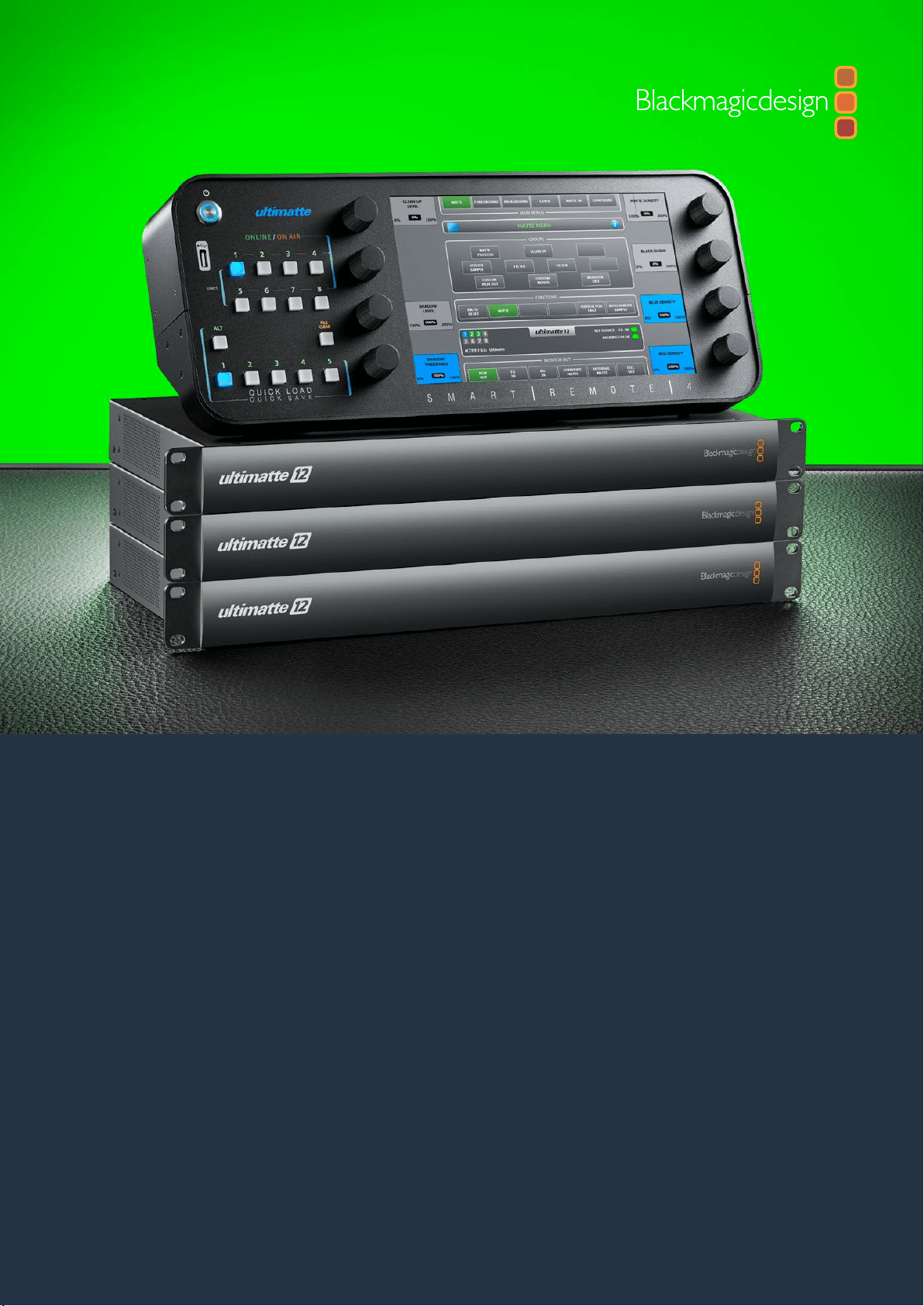

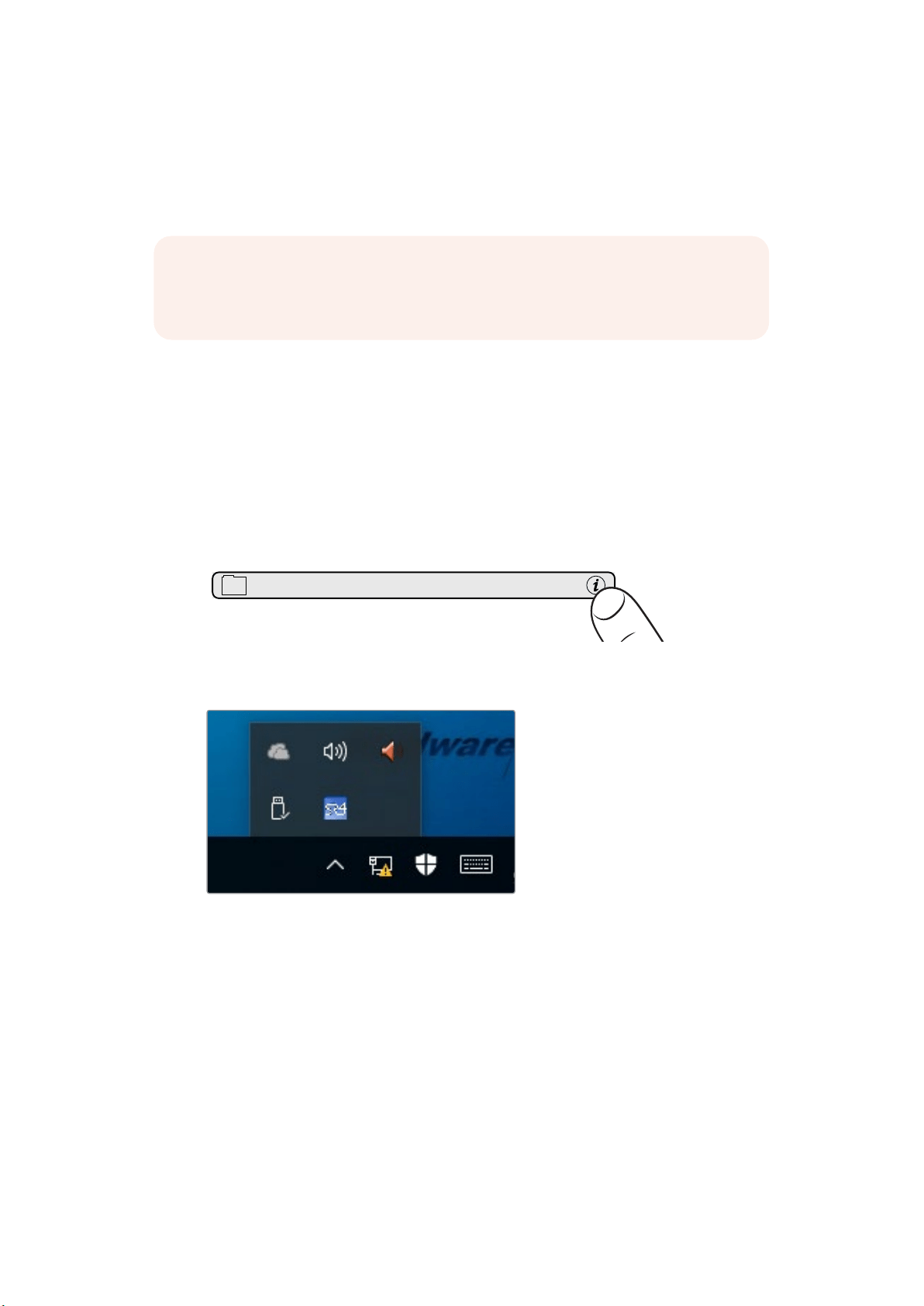
Обновление ПО для Smart Remote 4
Если на контрольной панели используется ПО 1.0.5 или более ранняя версия, сначала нужно
ее удалить.
Удаление ПО версии 1.0.5 на
SmartRemote4
Перед удалением ПО убедитесь втом, что оно не используется вданный момент.
Выход из программы
1 Нажмите на значок i вглавном меню.
2 На вкладке Options нажмите кнопку Exit to Desktop.
3 Когда появится рабочий стол, нажмите стрелку вобласти уведомлений Windows.
4 Нажмите на значок Smart Remote
4 иудерживайте его внажатом положении две
секунды. Появится значок выхода. Нажмите на него, чтобы закончить работу
сприложением.
ПРИМЕЧАНИЕ. Если вы уже установили ПО для Smart Remote 4, загруженное с
веб-сайта Blackmagic Design, удаление старой версии не требуется. Перейдите к
разделу «Установка утилиты Ultimatte Smart Remote Setup».
MATTE MENU
74Удаление Ultimatte SR-4 (версия 1.0.5)
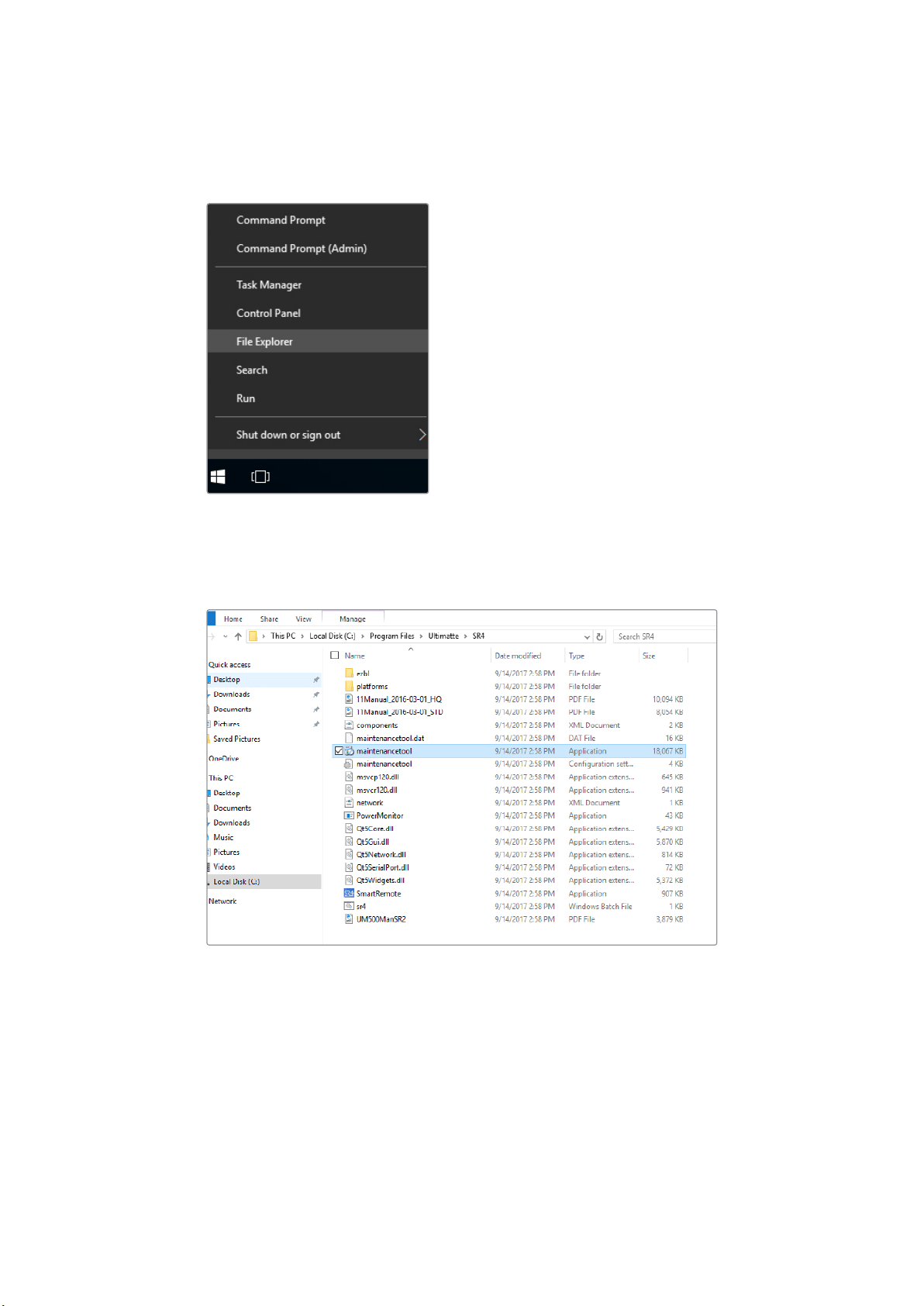
Порядок удаления ПО для версий до 1.0.5
1 Нажмите иудерживайте логотип Windows влевом нижнем углу, затем выберите
Проводник.
Нажмите иудерживайте логотип Windows влевом нижнем
углу, затем выберите Проводник
2 С помощью проводника найдите папку C:\Program Files\Ultimatte\SR4 идвойным
касанием запустите приложение maintenancetool.exe.
На диске C используйте двойное касание, чтобы открыть папку
3 В окне приложения выберите Remove all components инажмите Next.
75Удаление Ultimatte SR-4 (версия 1.0.5)
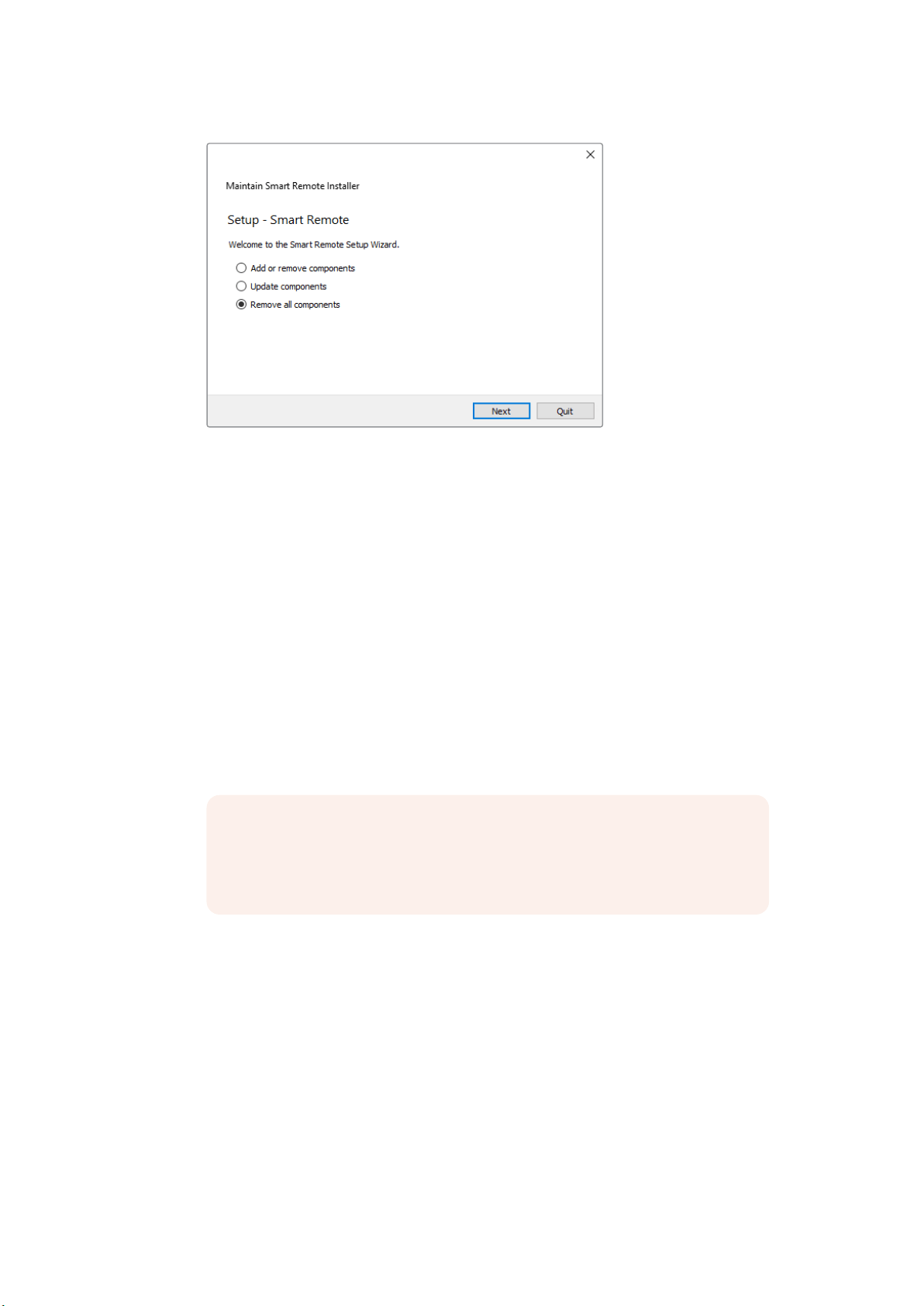
Выберите Remove all components инажмите Next
4 Чтобы выполнить необходимые действия, нажмите Uninstall, затем Yes.
5 В окне Completing the Smart Remote Wizard нажмите Finish.
ПО для панели управления Smart Remote
4 удалено.
Установка утилиты Ultimatte
SmartRemote Setup
Загрузите последнюю версию утилиты Ultimatte Smart Remote Setup, которая доступна
вразделе поддержки по адресу www.blackmagicdesign.com/ru/support. Скопируйте файл .msi
на съемный носитель, например накопитель USB.
Подключите накопитель USB через соответствующий порт на панели Smart Remote
4. После
его автоматического распознавания откроется проводник.
Установка программного обеспечения
1 Дважды нажмите на значок установщика впапке на накопителе.
2 В мастере установки выберите Next иследуйте инструкциям до этапа под
названием Install.
ПРИМЕЧАНИЕ. Съемный накопитель, скоторого устанавливается
программное обеспечение для панели управления, должен быть
отформатирован для использования как главная загрузочная запись содним
разделом. Smart Remote
4 поддерживает форматы NTFS, exFAT иFAT32.
76Установка утилиты Ultimatte Smart Remote Setup
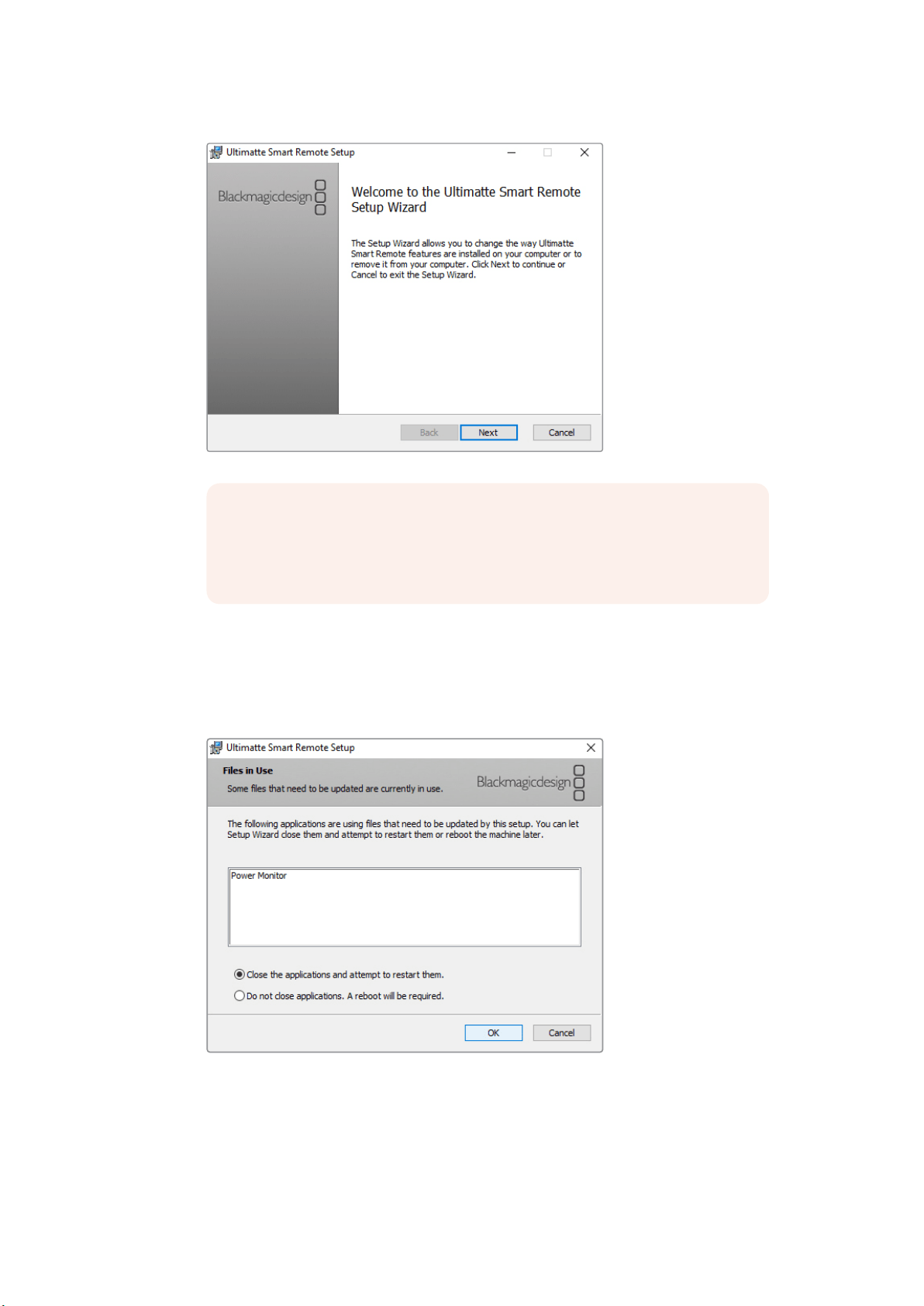
3 Выберите Remove, чтобы удалить ПО. При повторном запросе снова выберите
Remove. Вовремя удаления будет отображаться индикатор выполнения задачи.
4 Убедитесь втом, что на соответствующем экране поставлен флажок для опции Close
the applications and attempt to restart them.
5 При открытии диалогового окна сзапросом на внесение изменений выберите Yes.
6 Во время удаления будет отображаться индикатор выполнения задачи. Нажмите
Finish, затем Yes, чтобы перезапустить панель Smart Remote
4.
ПРИМЕЧАНИЕ.
При обновлении предыдущей версии утилиты Ultimatte
Smart Remote Setup, загруженной свеб-сайта Blackmagic Design, будут
доступны опции Remove иRepair. Bэтом случае начните сшага
3. При
обновлении после удаления версии SR
4 1.0.5 перейдите кшагу 9.
77Установка утилиты Ultimatte Smart Remote Setup
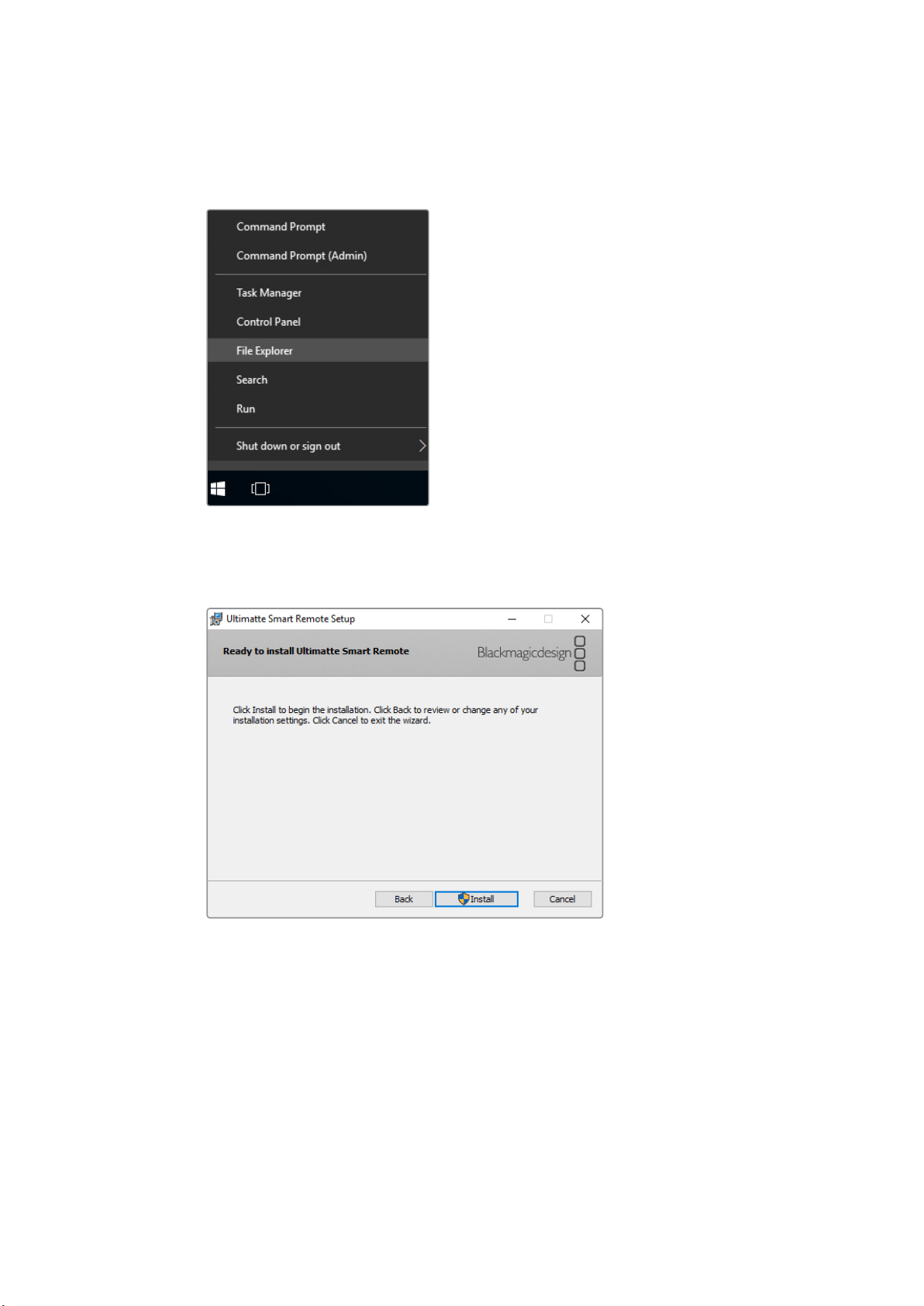
7 При повторном запуске панели Smart Remote 4 нажмите иудерживайте значок
Windows внижнем левом углу рабочего стола, затем откройте Проводник. Запустите
установщик на съемном накопителе USB.
8 В окне мастера установки нажмите Yes иследуйте инструкциям на экране до этапа
под названием Install.
9 Выберите Install, чтобы внести необходимые изменения, затем Yes.
10 Нажмите Finish, чтобы закончить установку, затем Yes, чтобы перезапустить панель
Smart Remote
4.
После этого будет выполнен повторный запуск панели Smart Remote
4 споследней версией
программного обеспечения.
78Установка утилиты Ultimatte Smart Remote Setup

Помощь
Помощь
Как получить помощь
Самый быстрый способ получить помощь — обратиться кстраницам поддержки на сайте
Blackmagic Design ипроверить наличие последних справочных материалов по Blackmagic
Ultimatte
12 или Smart Remote 4.
Страницы поддержки на сайте Blackmagic Design
Последние версии руководства по эксплуатации, программного обеспечения
идополнительную информацию можно найти вцентре поддержки Blackmagic Design на
странице www.blackmagicdesign.com/ru/support.
Обращение вСлужбу поддержки Blackmagic Design
Если спомощью доступных справочных материалов решить проблему не удалось,
воспользуйтесь формой «Отправить нам сообщение» на странице поддержки. Можно также
позвонить вближайшее представительство Blackmagic Design, телефон которого вы найдете
на нашем веб-сайте.
Как узнать используемую версию программного обеспечения
Чтобы узнать установленную версию Blackmagic Ultimatte Setup, запустите утилиту
иперейдите на вкладку About. Номер будет отображаться вразделе Software Information.
Загрузка последних версий ПО
Узнав установленную версию утилиты Blackmagic Ultimatte Setup, перейдите вцентр
поддержки Blackmagic на странице www.blackmagicdesign.com/ru/support, чтобы проверить
наличие обновлений. Рекомендуется всегда использовать последнюю версию программного
обеспечения, однако обновление лучше всего выполнять после завершения
текущего проекта.
7979
Соблюдение нормативных требований
иправилабезопасности
Соблюдение нормативных требований
Утилизация электрооборудования иэлектронной аппаратуры вЕвропейском Союзе
Изделие содержит маркировку, всоответствии скоторой его запрещается
утилизировать вместе сбытовыми отходами. Непригодное для эксплуатации
оборудование необходимо передать впункт вторичной переработки. Раздельный сбор
отходов иих повторное использование позволяют беречь природные ресурсы,
охранять окружающую среду изащищать здоровье человека. Чтобы получить
подробную информацию о порядке утилизации, обратитесь вместные муниципальные
органы или кдилеру, у которого вы приобрели это изделие.
Данное оборудование протестировано по требованиям для цифровых устройств класса
A (раздел 15 спецификаций FCC) ипризнано соответствующим всем предъявляемым
критериям. Соблюдение упомянутых нормативов обеспечивает достаточную защиту от
вредного излучения при работе оборудования внежилых помещениях. Так как это
изделие генерирует, использует иизлучает радиоволны, при неправильной установке
оно может становиться источником радиопомех. Если оборудование эксплуатируется
вжилых помещениях, высока вероятность возникновения помех, влияние которых
вэтом случае пользователь должен устранить самостоятельно.
До эксплуатации допускаются устройства, соответствующие двум главным требованиям.
1 Оборудование не должно быть источником вредных помех.
2 Оборудование должно быть устойчивым кпомехам, включая помехи, которые
могут вызвать сбой вработе.
Правила безопасности
Электрическая розетка для подключения этого оборудования ксети должна иметь
заземляющий контакт.
Чтобы минимизировать опасность поражения электрическим током, изделие
необходимо защищать от попадания брызг икапель воды.
Допускается эксплуатация вусловиях тропического климата стемпературой
окружающей среды до 40º C.
Для работы устройства необходимо обеспечить достаточную вентиляцию.
При установке встойку убедитесь втом, что не нарушен приток воздуха.
Внутри корпуса не содержатся детали, подлежащие обслуживанию. Для выполнения
ремонтных работ обратитесь вместный сервисный центр Blackmagic Design.
Допускается эксплуатация вместах не выше
2000 м над уровнем моря.
Предупреждение для технического персонала
Перед обслуживанием отключите питание на обоих силовых разъемах.
Осторожно: плавкий предохранитель двухполюсный/в нейтрали
Блок питания в этом устройстве имеет предохранитель в линейном
инейтральном проводах и подходит для подключения к системе
энергопитания типа IT в Норвегии.
80Соблюдение нормативных требований и правила безопасности

Гарантия
Ограниченная гарантия сроком 12 месяцев
Компания Blackmagic Design гарантирует отсутствие вданном изделии дефектов материала
ипроизводственного брака втечение 12 месяцев сдаты продажи. Если во время
гарантийного срока будут выявлены дефекты, Blackmagic Design по своему усмотрению
выполнит ремонт неисправного изделия без оплаты стоимости запчастей итрудозатрат или
заменит такое изделие новым.
Чтобы воспользоваться настоящей гарантией, потребитель обязан уведомить компанию
Blackmagic Design о дефекте до окончания гарантийного срока иобеспечить условия для
предоставления необходимых услуг. Потребитель несет ответственность за упаковку
идоставку неисправного изделия всоответствующий сервисный центр Blackmagic Design
соплатой почтовых расходов. Потребитель обязан оплатить все расходы по доставке
истрахованию, пошлины, налоги ииные сборы всвязи свозвратом изделия вне зависимости
от причины возврата.
Настоящая гарантия не распространяется на дефекты, отказы иповреждения, возникшие
из-за ненадлежащего использования, неправильного ухода или обслуживания. Компания
Blackmagic Design не обязана предоставлять услуги по настоящей гарантии: а) для
устранения повреждений, возникших врезультате действий по установке, ремонту или
обслуживанию изделия лицами, которые не являются персоналом Blackmagic Design; б) для
устранения повреждений, возникших врезультате ненадлежащего использования или
подключения кнесовместимому оборудованию; в)для устранения повреждений или
дефектов, вызванных использованием запчастей или материалов других производителей;
г)если изделие было модифицировано или интегрировано сдругим оборудованием, когда
такая модификация или интеграция увеличивает время или повышает сложность
обслуживания изделия. НАСТОЯЩАЯ ГАРАНТИЯ ПРЕДОСТАВЛЯЕТСЯ КОМПАНИЕЙ
BLACKMAGIC DESIGN ВМЕСТО ЛЮБЫХ ДРУГИХ ПРЯМО ВЫРАЖЕННЫХ ИЛИ
ПОДРАЗУМЕВАЕМЫХ ГАРАНТИЙ. КОМПАНИЯ BLACKMAGIC DESIGN иЕЕ ДИЛЕРЫ
ОТКАЗЫВАЮТСЯ ОТ ЛЮБЫХ ПОДРАЗУМЕВАЕМЫХ ГАРАНТИЙ КОММЕРЧЕСКОЙ ЦЕННОСТИ
ИЛИ ПРИГОДНОСТИ ДЛЯ КАКОЙ-ЛИБО ОПРЕДЕЛЕННОЙ ЦЕЛИ. ОТВЕТСТВЕННОСТЬ
BLACKMAGIC DESIGN ПО РЕМОНТУ ИЛИ ЗАМЕНЕ НЕИСПРАВНЫХ ИЗДЕЛИЙ ЯВЛЯЕТСЯ
ПОЛНЫМ иИСКЛЮЧИТЕЛЬНЫМ СРЕДСТВОМ ВОЗМЕЩЕНИЯ, ПРЕДОСТАВЛЯЕМЫМ
ПОТРЕБИТЕЛЮ вСВЯЗИ сКОСВЕННЫМИ, ФАКТИЧЕСКИМИ, СОПУТСТВУЮЩИМИ ИЛИ
ПОСЛЕДУЮЩИМИ УБЫТКАМИ, ВНЕ ЗАВИСИМОСТИ ОТ ТОГО, БЫЛА ИЛИ НЕТ КОМПАНИЯ
BLACKMAGIC DESIGN (ЛИБО ЕЕ ДИЛЕР) ПРЕДВАРИТЕЛЬНО ИЗВЕЩЕНА О ВОЗМОЖНОСТИ
ТАКИХ УБЫТКОВ. BLACKMAGIC DESIGN НЕ НЕСЕТ ОТВЕТСТВЕННОСТИ ЗА
ПРОТИВОПРАВНОЕ ИСПОЛЬЗОВАНИЕ ОБОРУДОВАНИЯ СО СТОРОНЫ ПОТРЕБИТЕЛЯ.
BLACKMAGIC DESIGN НЕ НЕСЕТ ОТВЕТСТВЕННОСТИ ЗА УБЫТКИ, ВОЗНИКАЮЩИЕ
ВСЛЕДСТВИЕ ИСПОЛЬЗОВАНИЯ ЭТОГО ИЗДЕЛИЯ. РИСКИ, СВЯЗАННЫЕ сЕГО
ЭКСПЛУАТАЦИЕЙ, ВОЗЛАГАЮТСЯ НА ПОТРЕБИТЕЛЯ.
© Copyright 2017 Blackmagic Design. Все права защищены. Blackmagic Design, DeckLink, HDLink, Workgroup Videohub,
Multibridge Pro, Multibridge Extreme, Intensity и"Leading the creative video revolution" зарегистрированы как товарные
знаки вСША идругих странах. Названия других компаний инаименования продуктов могут являться товарными
знаками соответствующих правообладателей.
Технология Thunderbolt илоготип Thunderbolt являются товарными знаками корпорации Intel вСША идругих странах.
81Гарантия
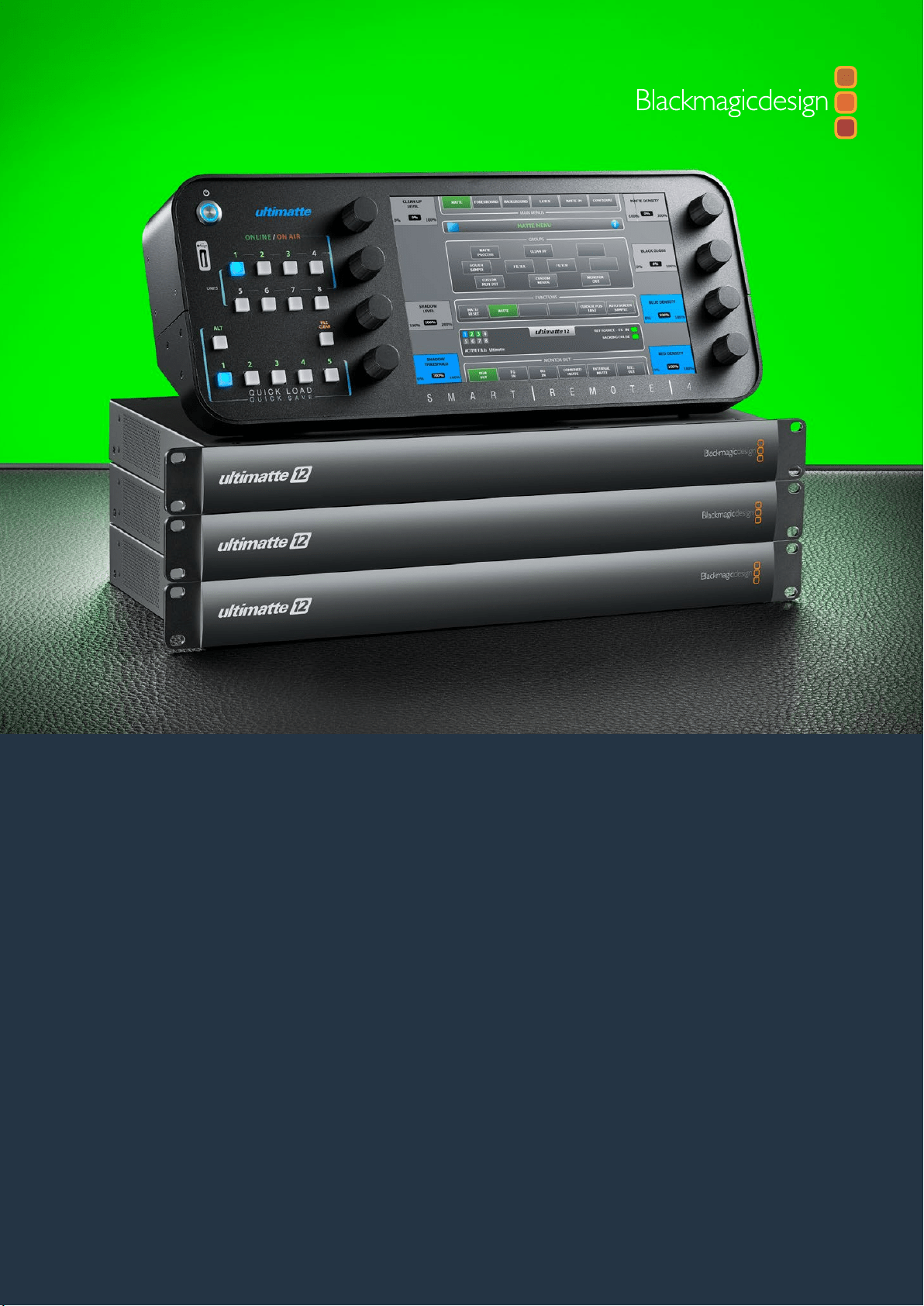

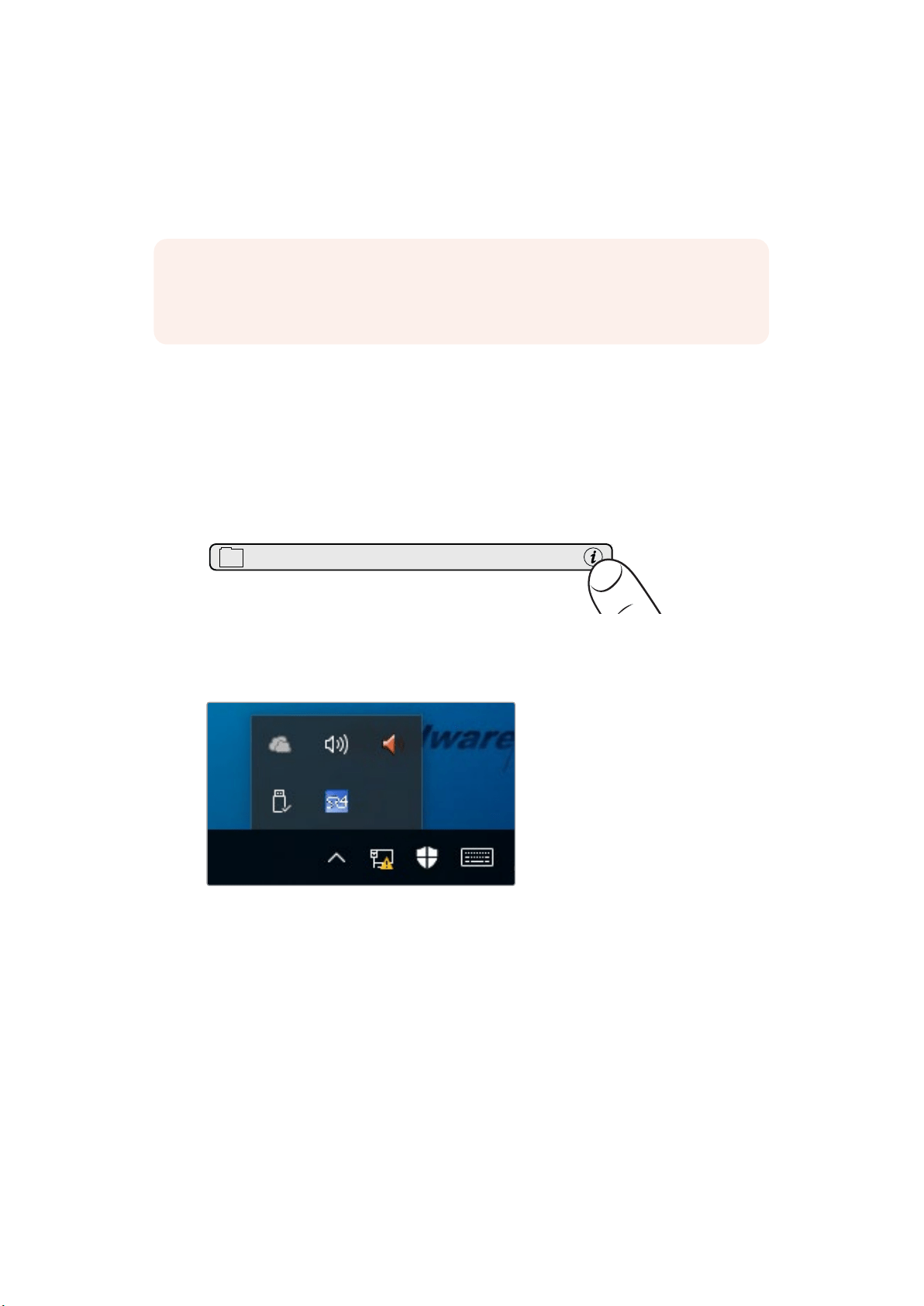
Aggiornare Smart Remote 4
Se Smart Remote 4 opera con la versione del software SR4 1.0.5 o precedente, è necessario
disinstallarla usando gli strumenti di gestione integrati.
Disinstallare Ultimatte SR4 1.0.5
Prima di tutto, chiudi il programma.
Per chiudere SR4:
1 Tocca l’icona delle informazioni i sull’interfaccia del pannello di controllo.
2 Nella tab Options, premi Exit to Desktop.
3 Premi la freccia verso l’alto nella barra Windows.
4 Tieni premuta l’icona di Ultimatte SR4 per due secondi e poi premi Quit per chiudere
il programma.
NOTA Se hai già installato il software più recente di Smart Remote 4, puoi saltare
il processo di disinstallazione e passare alla sezione “Installare Ultimatte Smart
Remote Setup”.
MATTE MENU
84Aggiornare Smart Remote 4
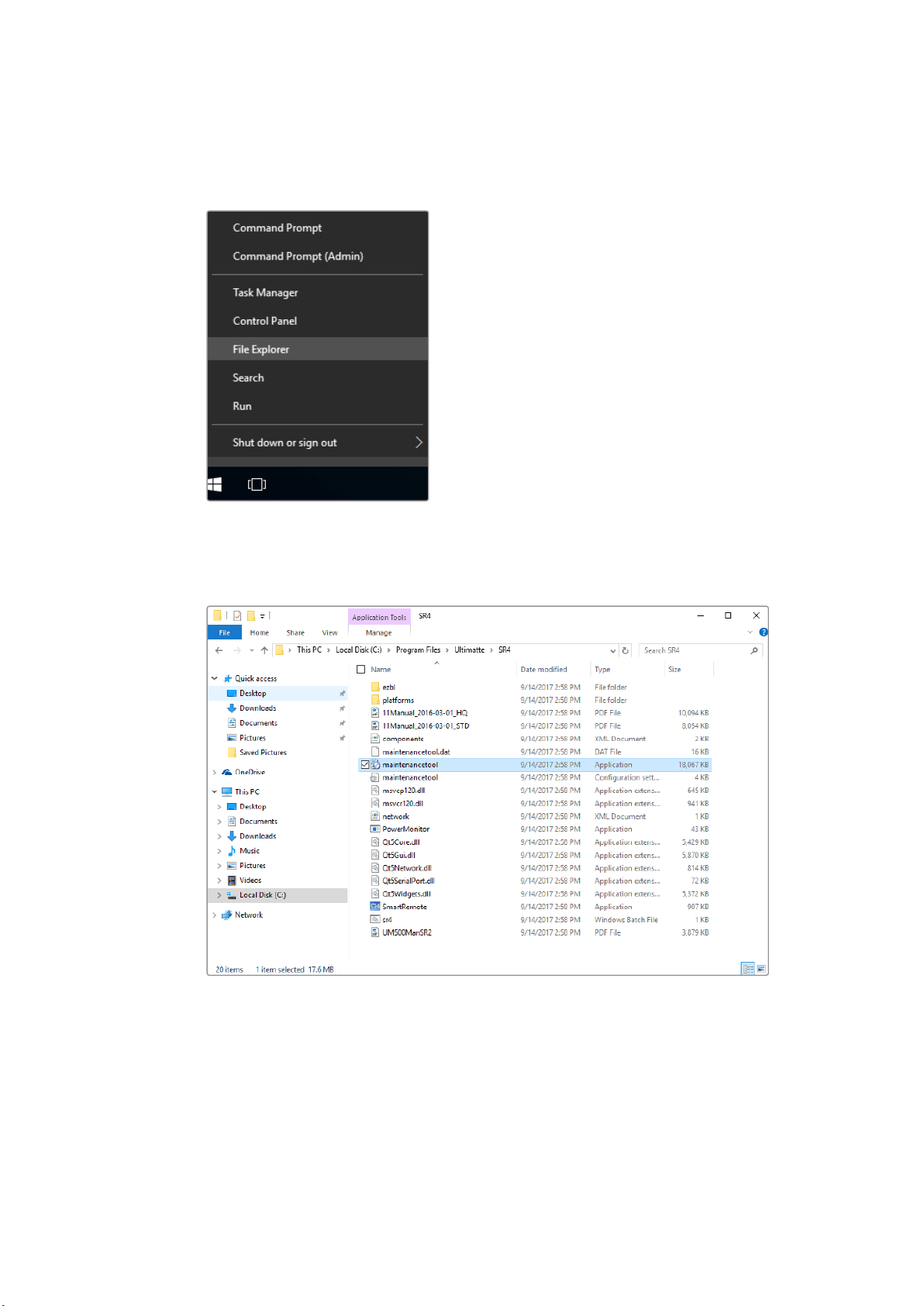
Per disinstallare la versione SR4 1.0.5 o precedente:
1 Tieni premuta l’icona Windows nella parte in basso a sinistra dell’interfaccia e poi
seleziona File Explorer.
Tieni premuta l’icona Windows e poi seleziona File Explorer
2 Nella finestra, accedi all’unità C e prosegui con Program Files > Ultimatte > SR4.
Poi premi due volte l’applicazione chiamata maintenancetool.exe.
Accedi all’unità C e premi due volte sulla cartella desiderata per accedere al contenuto
85Disinstallare Ultimatte SR4 1.0.5
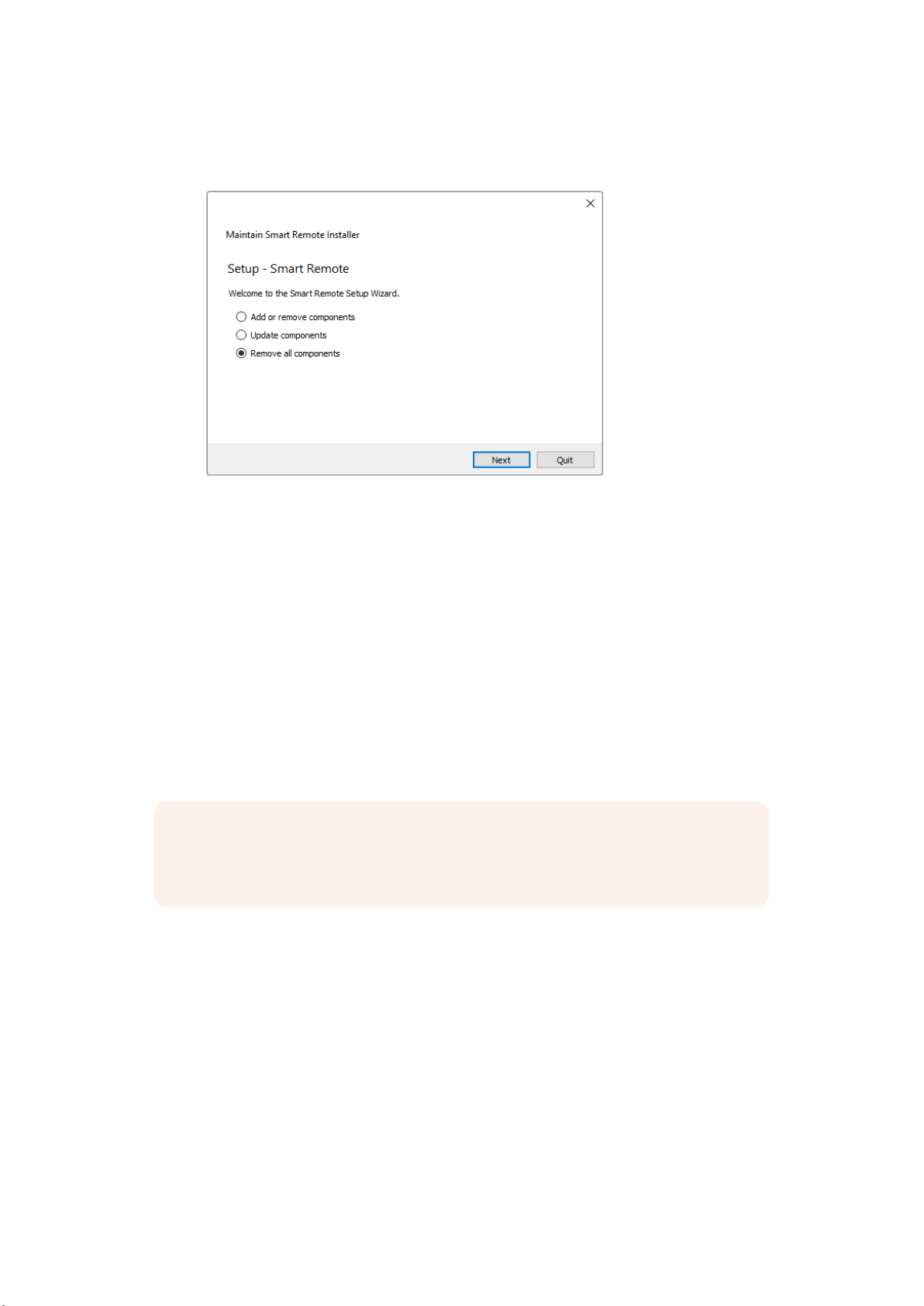
3 Nella finestra del programma, elimina tutti i contenuti con Remove all components e
prosegui con Next.
Spunta la casella Remove all components e prosegui con Next
4 Un messaggio conferma che il sistema è pronto per disinstallare il software. Premi
Uninstall e scegli Yes per autorizzare Smart Remote 4 a fare i cambiamenti necessari.
5 Premi Finish per concludere il processo.
Il software di Ultimatte Smart Remote 4 è stato disinstallato correttamente.
Installare Ultimatte Smart Remote Setup
Scarica la versione più recente del software Ultimatte Smart Remote 4 Setup dalla pagina
Supporto del sito Blackmagic Design. Copia e incolla l’installer su una unità USB.
Collega l’unità alla porta USB situata sul lato frontale di Smart Remote 4. Smart Remote 4 legge
il contenuto e apre automaticamente l’explorer.
Per installare il software:
1 Premi due volte l’icona dell’installer contenuta nell’unità USB.
2 Nella finestra, continua con Next, segui le istruzioni e premi Install.
NOTA L’unità di archiviazione portatile usata per installare il software su Smart Remote
deve essere formattata come master boot record e con un sola partizione. Smart
Remote 4 riconosce i formati NTFS, exFAT, e FAT32.
86Installare Ultimatte Smart Remote Setup
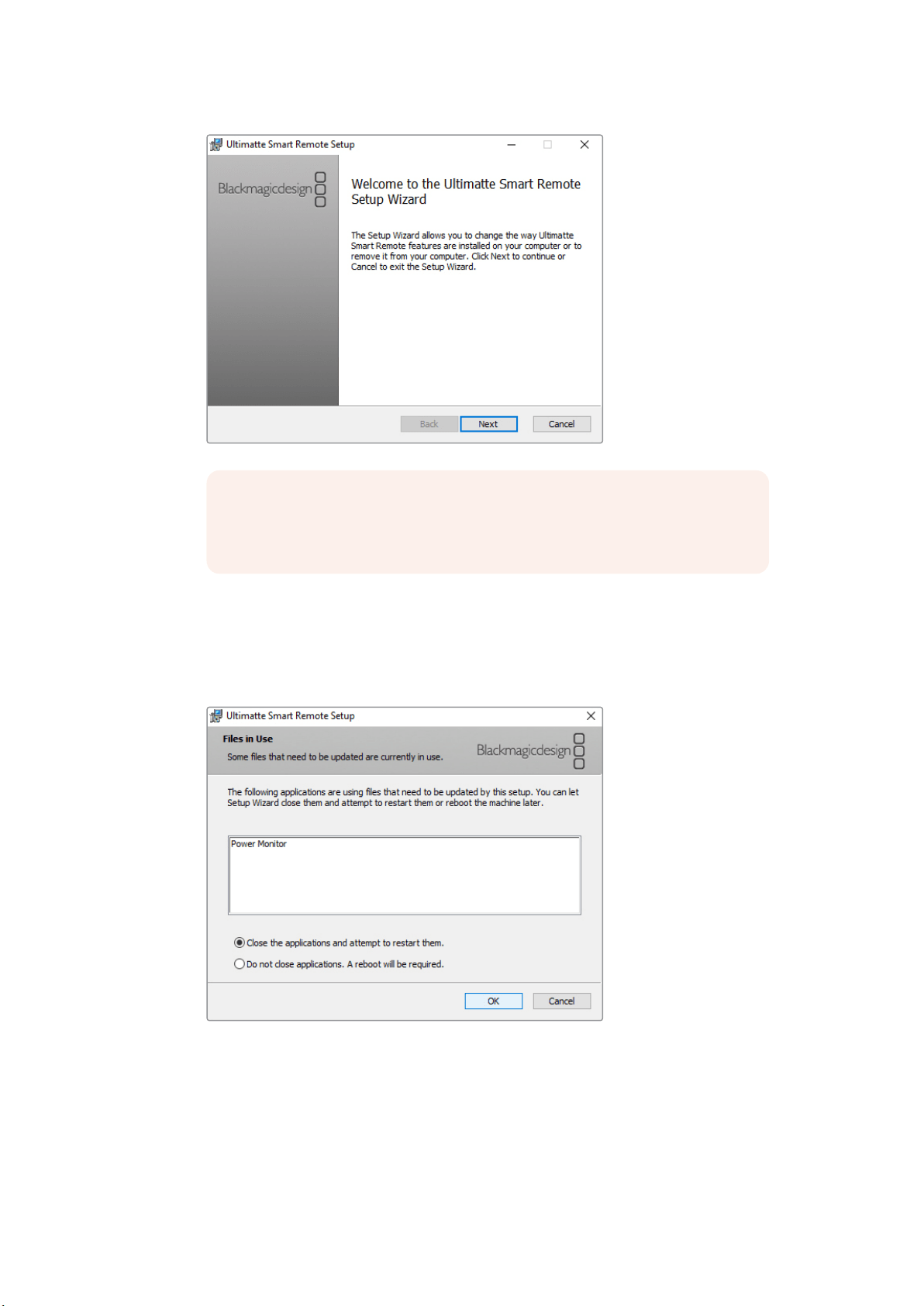
3 Seleziona l’opzione Remove per disinstallare il software. Conferma premendo di nuovo
Remove. Apparirà una barra di avanzamento.
4 Assicurati che la casella Close the applications and attempt to restart them sia
spuntata e procedi con OK.
5 Premi Yes per permettere all’applicazione di eseguire i cambiamenti necessari.
6 Apparirà una barra di avanzamento. Premi Finish e poi Yes per riavviare
Smart Remote 4.
NOTA Se aggiorni una versione precedente del software, vedrai apparire le
opzioni Remove e Repair. In questo caso, segui le istruzioni a partire dal punto
3. Se esegui l’aggiornamento dopo aver disinstallato SR4 1.0.5, vai al punto 9.
87Installare Ultimatte Smart Remote Setup
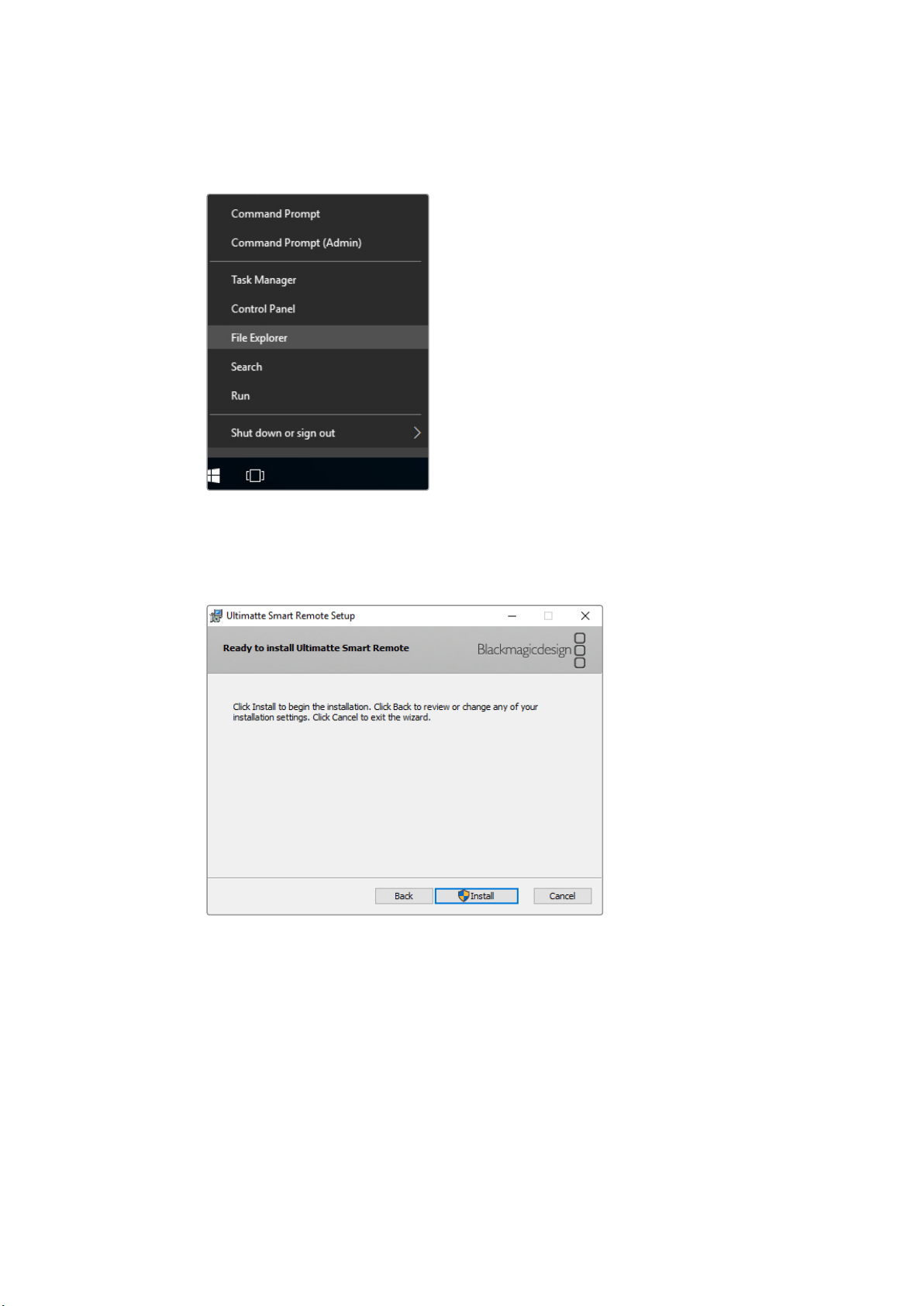
7 Al riavvio, tieni premuta l’icona Windows nella parte in basso a sinistra dell’interfaccia e
seleziona File Explorer. Lancia l’installer di Smart Remote 4 dall’unità USB.
8 Nella finestra, premi Next, poi segui le istruzioni e premi Install.
9 Premi Uninstall e scegli Yes per autorizzare l’applicazione a fare i cambiamenti
necessari.
10 Premi Finish per completare l’installazione e poi Yes per riavviare Smart Remote 4.
Smart Remote 4 si riavvia automaticamente con l’ultima versione del sistema operativo interno
installata.
88Installare Ultimatte Smart Remote Setup

Assistenza
Assistenza clienti
Il modo più veloce di ottenere assistenza è visitare la pagina Supporto del sito Blackmagic
Design, dove trovi sempre il materiale più aggiornato per Ultimatte 12 e Smart Remote 4.
Supporto online
Per il materiale più recente, inclusi software e note di supporto, visita la pagina Supporto del
sito Blackmagic Design.
Contattare Blackmagic Design
Se il materiale di supporto non risponde alle tue domande, clicca Inviaci una email, oppure
Trova un team di supporto per contattare direttamente il team Blackmagic Design più
vicino a te.
Scoprire la versione del software in uso
Per scoprire quale versione del software Blackmagic Ultimatte Setup è installata sul computer,
lancia Blackmagic Ultimatte Setup e clicca sulla tab About. La versione del sofftware appare
nella sezione Software Information.
Un altro modo per scoprire la versione del software installata sul computer è quello di premere
l’icona della cartella sull’interfaccia del pannello di controllo e consultare la tab About.
Come ottenere gli aggiornamenti software più recenti
Dopo aver scoperto quale versione del software Blackmagic Ultimatte Setup è installata sul
computer, visita la pagina Supporto del sito Blackmagic Design per scaricare gli aggiornamenti più
recenti. Consigliamo di non aggiornare il software se stai già lavorando a un progetto importante.
89Assistenza
Normative e sicurezza
Indicazioni sulle normative
Smaltimento di apparecchiature elettriche ed elettroniche nell'Unione Europea
Questo simbolo indica che il prodotto non deve essere scartato insieme agli altri rifiuti,
ma consegnato a uno degli appositi centri di raccolta e riciclaggio. La raccolta e lo
smaltimento differenziato corretto di questo tipo di apparecchiatura evita lo spreco di
risorse e contribuisce alla sostenibilità ambientale e umana. Per tutte le informazioni sui
centri di raccolta e riciclaggio, contatta gli uffici del tuo comune di residenza o il punto
vendita presso cui hai acquistato il prodotto.
Questo dispositivo è stato testato e dichiarato conforme ai limiti relativi ai dispositivi
digitali di Classe A, ai sensi dell'articolo 15 del regolamento FCC. Tali limiti sono stati
stabiliti con lo scopo di fornire protezione ragionevole da interferenze dannose in
ambienti commerciali. Questo dispositivo genera, usa e può irradiare energia a
radiofrequenza e, se non è installato o usato in conformità alle istruzioni, può causare
interferenze dannose che compromettono le comunicazioni radio. Operare questo
prodotto in ambienti residenziali può causare interferenze dannose, nella cui evenienza
l'utente dovrà porvi rimedio a proprie spese.
Il funzionamento è soggetto alle due condizioni seguenti:
1 Questo dispositivo non deve causare interferenze dannose.
2 Questo dispositivo deve accettare eventuali interferenze ricevute, incluse le
interferenze che possono causare un funzionamento indesiderato.
Informazioni di sicurezza
Questo dispositivo deve essere connesso a una presa di corrente con messa a terra.
Per ridurre il rischio di scosse elettriche, evitare di esporre il dispositivo a gocce o spruzzi.
Questo dispositivo è adatto all'uso nei luoghi tropicali con una temperatura ambiente
non superiore ai 40ºC.
Lasciare uno spazio adeguato intorno al prodotto per consentire sufficiente ventilazione.
Se il dispositivo è installato su rack, assicurarsi che i dispositivi adiacenti non ostacolino
la ventilazione.
Le parti all'interno del dispositivo non sono riparabili dall'utente. Contattare il personale
qualificato di un centro Blackmagic Design per le operazioni di manutenzione.
Usare il dispositivo a un'altitudine non superiore a 2000 m sopra il livello del mare.
Avvertenze per il personale autorizzato
Scollegare l’alimentazione da entrambe le prese prima di effettuare la
manutenzione!
Attenzione - Fusione bipolare/neutra
L'alimentatore all'interno di questo dispositivo ha un fusibile nei conduttori
di linea e di neutro, ed è idoneo alla connessione al sistema di distribuzione
di energia IT in Norvegia.
90Normative e sicurezza

Garanzia
Garanzia limitata di un anno
Blackmagic Design garantisce che questo prodotto è fornito privo di difetti nei materiali e
nella manifattura per un periodo di un anno a partire dalla data d'acquisto. Durante il periodo
di garanzia Blackmagic Design riparerà o, a sua scelta, sostituirà tutti i componenti che risultino
difettosi esonerando il/la Cliente da costi aggiuntivi, purché i componenti vengano restituiti
dal/la Cliente.
Per ottenere l'assistenza coperta dalla presente garanzia, il/la Cliente deve notificare Blackmagic
Design del difetto entro il periodo di garanzia, e organizzare il servizio di riparazione. Il/La Cliente
è responsabile del costo di imballaggio e di spedizione del prodotto al centro di assistenza
indicato da Blackmagic Design, con spese di spedizione prepagate. Il costo include spedizione,
assicurazione, tasse, dogana, e altre spese pertinenti alla resa del prodotto a Blackmagic Design.
Questa garanzia perde di validità per danni causati da utilizzo improprio, o da manutenzione e
cura inadeguate del prodotto. Blackmagic Design non ha obbligo di assistenza e riparazione sotto
garanzia per danni al prodotto risultanti da: a) precedenti tentativi di installazione, riparazione o
manutenzione da personale non autorizzato, ovvero al di fuori del personale Blackmagic Design,
b) precedenti usi impropri o tentativi di connessione ad attrezzatura incompatibile al prodotto,
c) precedente uso di parti o ricambi non originali Blackmagic Design, o d) precedenti modifiche o
integrazione del prodotto ad altri prodotti, con il risultato di rendere la riparazione più difficoltosa
o di allungare le tempistiche di eventuali ispezioni atte alla riparazione.
LA PRESENTE GARANZIA DI BLACKMAGIC DESIGN SOSTITUISCE QUALSIASI ALTRA
GARANZIA, ESPLICITA O IMPLICITA. BLACKMAGIC DESIGN E I SUOI FORNITORI ESCLUDONO
QUALSIASI ALTRA GARANZIA IMPLICITA DI COMMERCIABILITÀ O DI IDONEITÀ AD UN USO
SPECIFICO. L'INTERA RESPONSABILITÀ DI BLACKMAGIC DESIGN E L'UNICO ESCLUSIVO
RICORSO DELL'UTENTE PER QUALSIASI DANNO ARRECATO DI NATURA INDIRETTA,
SPECIFICA, ACCIDENTALE O CONSEQUENZIALE, ANCHE QUALORA BLACKMAGIC DESIGN
FOSSE STATA AVVERTITA DELLA POSSIBILITÀ DI TALI DANNI, È LA RIPARAZIONE O LA
SOSTITUZIONE DEI PRODOTTI DIFETTOSI. BLACKMAGIC DESIGN NON SI ASSUME ALCUNA
RESPONSABILITÀ PER QUALSIASI USO ILLEGALE DEL DISPOSITIVO DA PARTE DEL/LA
CLIENTE. BLACKMAGIC DESIGN NON SI ASSUME ALCUNA RESPONSABILITÀ PER DANNI
DERIVANTI DALL'USO DI QUESTO PRODOTTO. IL CLIENTE UTILIZZA QUESTO PRODOTTO A
PROPRIO RISCHIO.
© Copyright 2018 Blackmagic Design. Tutti i diritti riservati. ‘Blackmagic Design’, ‘DeckLink’, ‘HDLink’, ‘Workgroup Videohub’,
‘Multibridge Pro’, ‘Multibridge Extreme’, ‘Intensity’ and ‘Leading the creative video revolution’ sono marchi registrati negli Stati
Uniti e in altri Paesi. Altri nomi di prodotti e aziende qui contenuti possono essere marchi dei rispettivi proprietari.
Thunderbolt e il logo Thunderbolt sono marchi registrati di Intel Corporation negli Stati Uniti e/o altri Paesi.
91Garanzia
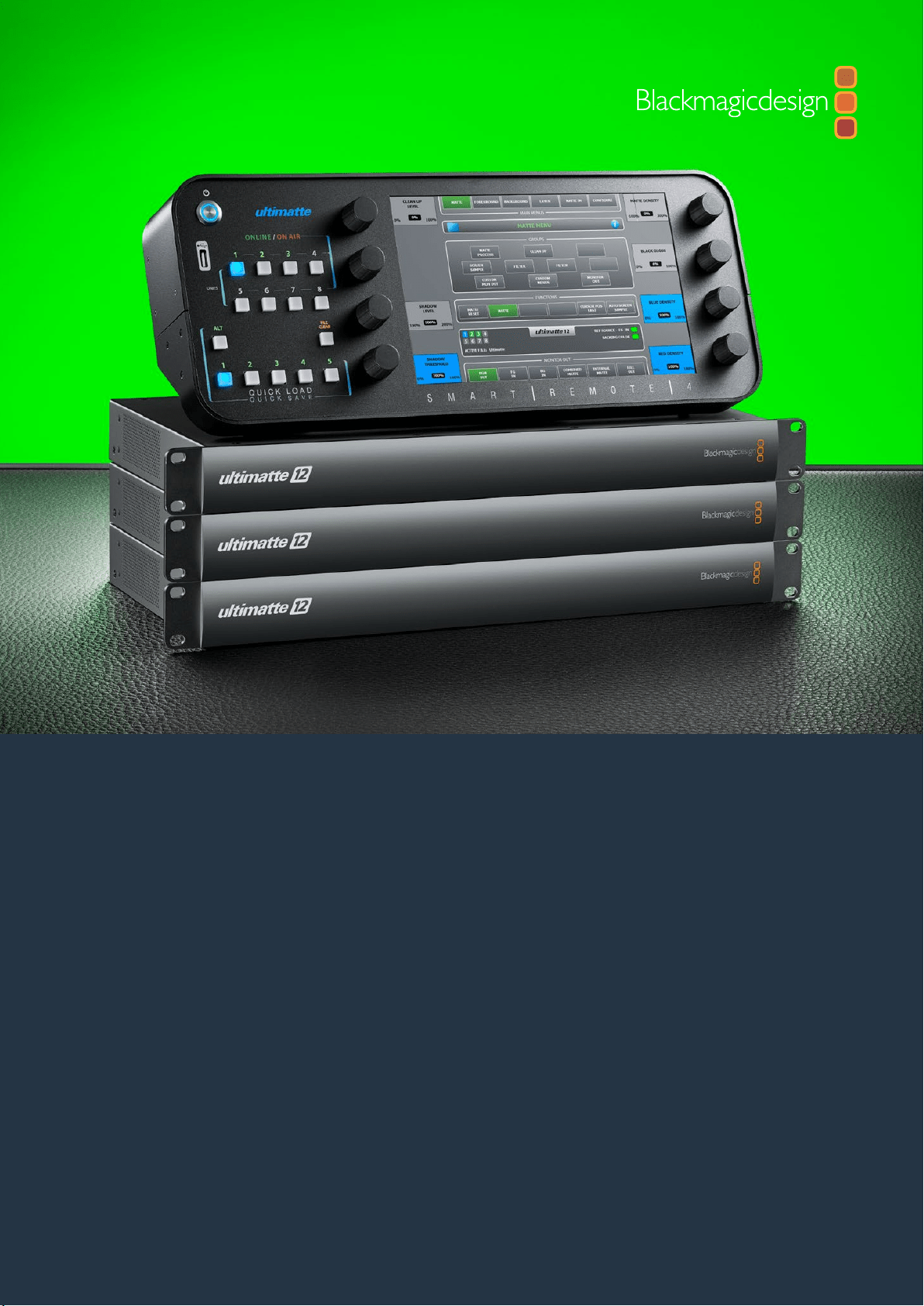

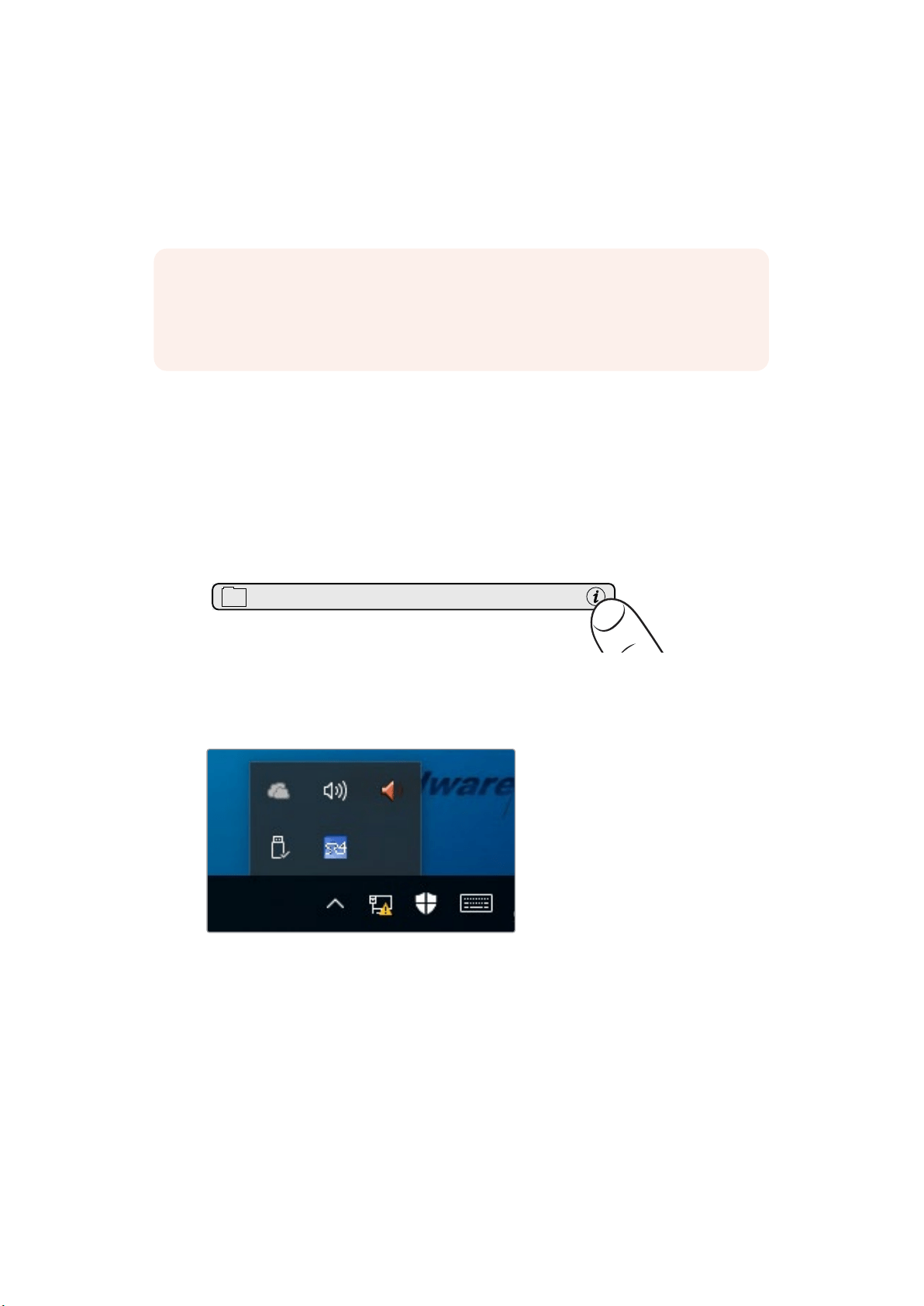
Atualizar o seu Smart Remote 4
Caso possua o software SR4 1.0.5 ou versões mais antigas instaladas, primeiro será necessário
desinstalar o programa SR4 do seu Smart Remote usando a ferramenta de manutenção integrada
do Ultimatte.
OBSERVAÇÃO Caso tenha instalado o software Smart Remote 4 anteriormente
usando o instalador Ultimatte Smart Remote Setup da Central de Suporte Técnico da
Blackmagic Design, você pode ignorar esse processo de desinstalação e ir direto para
a seção “Instalar o Ultimatte Smart Remote Setup”.
Desinstalar Ultimatte SR4 v1.0.5
O primeiro passo para desinstalar o programa SR4 é certificar-se de que o aplicativo não esteja
em execução.
Como encerrar o programa SR4:
1 Toque no ícone de informação na seção de controle de arquivo do Smart Remote 4 no
painel de controle.
MATTE MENU
2 Na aba “Options”, toque no botão “Exit to Desktop”.
3 Agora que a área de trabalho está visível, toque na seta “para cima” na bandeja
do Windows.
4 Toque e segure o ícone Ultimatte SR4 por 2 segundos e depois solte. O ícone “Quit”
aparecerá. Basta clicar no ícone “Quit” para fechar o aplicativo.
94Atualizar o seu Smart Remote 4
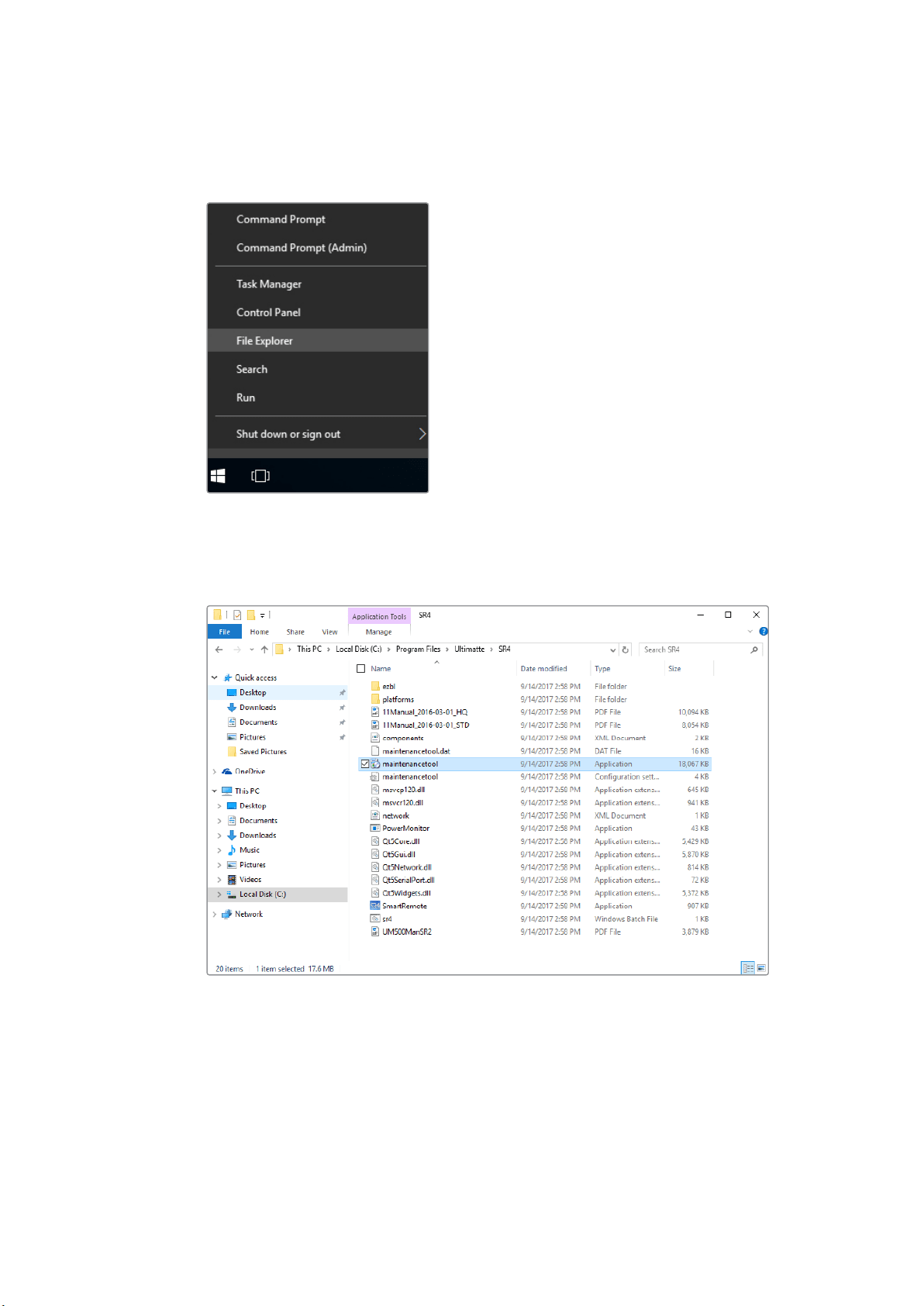
Como desinstalar SR4 v1.0.5 ou versões mais antigas:
1 Toque e segure o logotipo do Windows no canto inferior esquerdo e, depois, toque em
“File Explorer”.
Toque e segure o logotipo do Windows e,
depois, toque em “File Explorer”.
2 No “File Explorer”, navegue até: C:\Program Files\Ultimatte\SR4, e toque duas vezes no
aplicativo de manutenção rotulado “maintenancetool.exe”.
Navegue por ‘Disco local C:\’ e toque duas vezes nas pastas necessárias para abrir seus conteúdos.
95Desinstalar Ultimatte SR4 v1.0.5
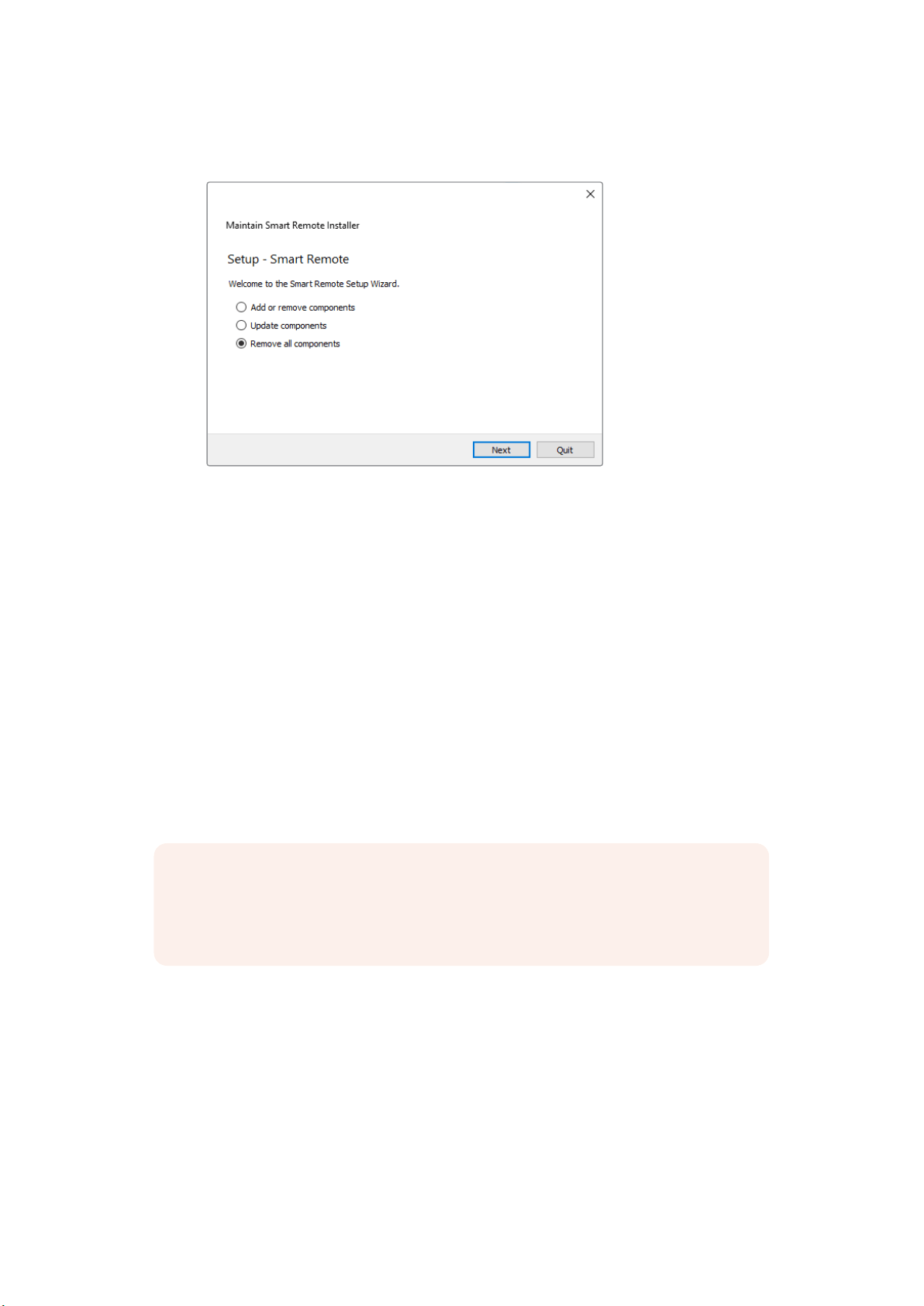
3 Na janela do aplicativo de manutenção, selecione “Remove All Components” e toque
em “Next”.
Selecione “Remove all components” e toque em “Next”.
4 O aplicativo de manutenção agora indicará que está pronto para a desinstalação.
Toque em “Uninstall” e permita que o aplicativo faça alterações no seu Smart Remote 4
tocando em “Yes”.
5 Toque em “Finish” na janela “Completing the Smart Remote Wizard”.
O programa Ultimatte Smart Remote 4 é desinstalado.
Instalar o Ultimatte Smart Remote Setup
O primeiro passo é baixar o Ultimatte Smart Remote 4 Setup mais recente a partir da Central de
Suporte Técnico da Blackmagic Design em www.blackmagicdesign.com/br/support. Copie e cole o
instalador do Smart Remote 4 Setup em uma unidade de armazenamento USB portátil, como, por
exemplo, uma unidade flash USB.
Conecte a unidade USB na porta USB frontal do seu Smart Remote 4. O Smart Remote 4 lerá
automaticamente a unidade USB e abrirá o explorador de arquivos.
OBSERVAÇÃO A unidade de armazenamento portátil usada para instalar o programa
no seu Smart Remote precisa ser formatada como o registro mestre de inicialização (MBR),
usando uma partição única. O seu Smart Remote 4 reconhece os formatos NTFS, exFAT
e FAT32.
Como instalar o programa:
1 Dê um toque duplo no ícone do instalador do Smart Remote Setup na unidade de
armazenamento.
2 Toque em “Next” no assistente de instalação e siga as solicitações até que você chegue à
opção “Install”.
96Instalar o Ultimatte Smart Remote Setup
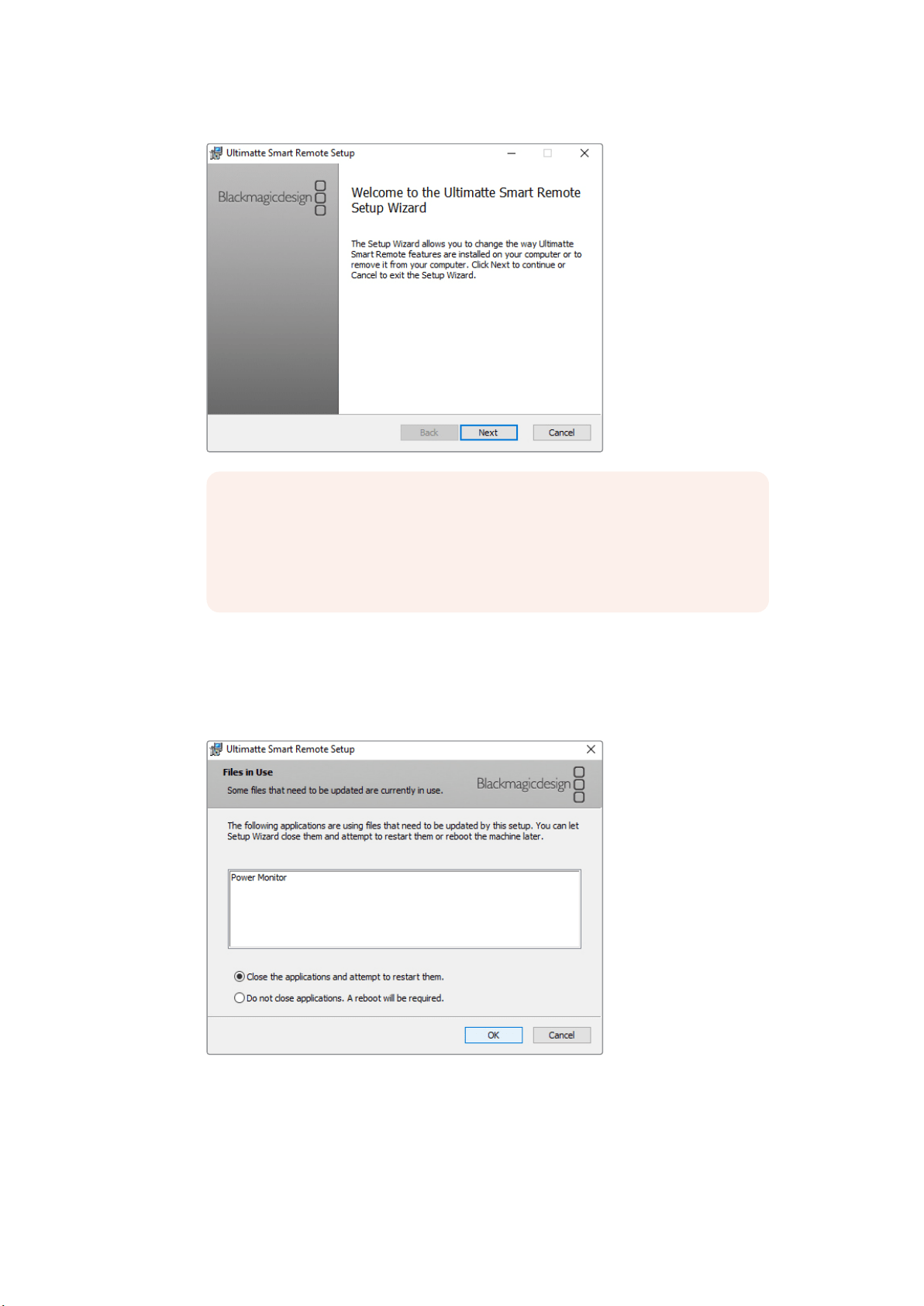
OBSERVAÇÃO Se você estiver fazendo a atualização a partir da versão anterior
do Ultimatte Smart Remote Setup através da Central de Suporte Técnico da
Blackmagic Design, você encontrará as opções “Remove” e “Repair”. Neste caso,
continue seguindo do passo 3 em diante. Caso esteja fazendo a atualização
depois de desinstalar SR4 1.0.5, vá ao passo 9.
3 Selecione “Remove” para desinstalar o programa Smart Remote. Toque em “Remove”
novamente quando solicitado. Uma barra de progresso aparecerá brevemente à medida
que o processo de desinstalação se inicia.
4 Quando solicitado, certifique-se de que o botão de opção rotulado como “Close the
applications and attempt to restart them” esteja habilitado e toque em “Ok”.
5 Quando solicitado a confirmar se deseja permitir que o aplicativo faça alterações no seu
dispositivo, toque em “Yes”.
6 A barra de progresso aparecerá à medida que o processo de desinstalação é concluído.
Toque em “Finish” e, depois, toque em “Yes” para reiniciar o seu Smart Remote 4.
97Instalar o Ultimatte Smart Remote Setup
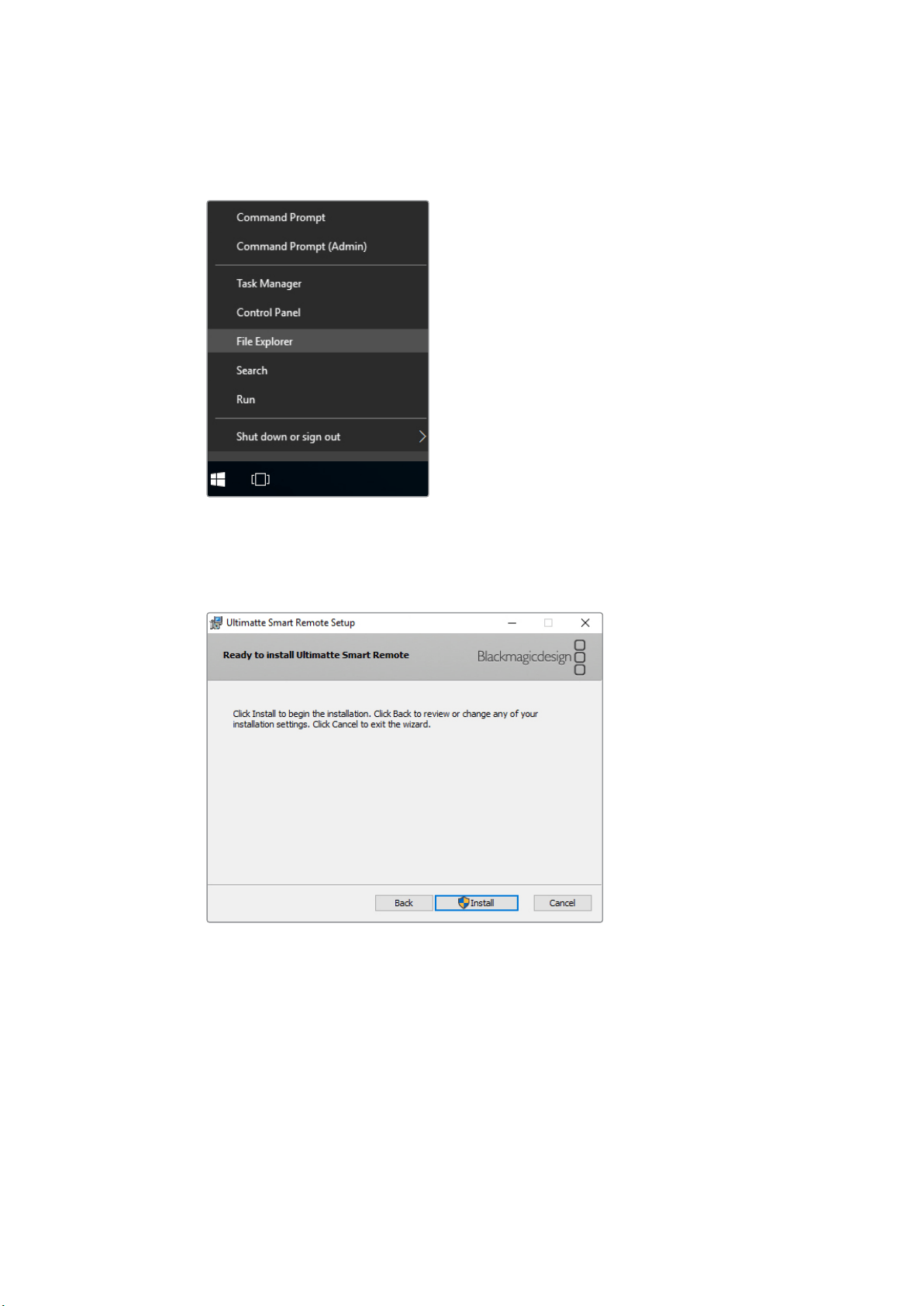
7 Quando o Smart Remote 4 é iniciado, toque e segure o ícone do Windows no botão
esquerdo da área de trabalho e abra o “File Explorer”. Navegue pelo instalador do Smart
Remote 4 Setup na sua unidade USB e inicie o instalador.
8 Quando o assistente de instalação aparecer, toque em “Next” e siga as solicitações até que
você chegue ao botão “Install”.
9 Toque em “Install” e permita que o instalador faça alterações no seu Smart Remote 4
tocando em “Yes” quando solicitado.
10 Toque em “Finish” para concluir a instalação e “Yes” para reiniciar o seu Smart Remote 4.
O seu Smart Remote 4 será reiniciado e iniciará automaticamente a versão mais recente do painel
de controle do Ultimatte Smart Remote 4.
98Instalar o Ultimatte Smart Remote Setup

Ajuda
Obtendo ajuda
A maneira mais rápida de obter ajuda é visitando as páginas de suporte online da
Blackmagic Design e consultando os materiais de suporte mais recentes disponíveis para seu
Blackmagic Ultimatte 12 ou Smart Remote 4.
Páginas de suporte online da Blackmagic Design
O manual, o programa e as notas de suporte mais recentes podem ser encontrados na Central de
Suporte Técnico da Blackmagic Design www.blackmagicdesign.com/br/support.
Como entrar em contato com o Suporte Técnico Blackmagic Design
Caso não encontre a ajuda necessária no nosso material de suporte ou no fórum, por favor, use o
botão “Envie-nos um Email” na página de suporte para nos encaminhar uma solicitação de suporte.
Ou, clique no botão “Encontre sua equipe de suporte local” na página de suporte e ligue para a
assistência técnica da Blackmagic Design mais próxima.
Verificando a versão atualmente instalada
Para verificar a versão do programa Blackmagic Ultimatte Setup instalada no seu computador, inicie
o Blackmagic Ultimatte Setup e clique na aba “About”. O número da versão do programa será
exibido na seção “Software Information”.
Você também pode verificar a versão do programa Smart Remote 4 instalada no Smart Remote
tocando no ícone de arquivo na seção de arquivos e informações do painel de controle da tela de
toque. A aba “About” notificará a versão instalada no seu Smart Remote.
Como obter as atualizações mais recentes
Depois que verificar a versão do programa Blackmagic Ultimatte Setup instalado no seu computador,
consulte a Central de Suporte Técnico da Blackmagic Design em www.blackmagicdesign.com/br/support
para conferir as últimas atualizações. Embora seja uma boa ideia executar as atualizações mais recentes,
é recomendável evitar atualizar qualquer software caso esteja no meio de um projeto importante.
99Ajuda
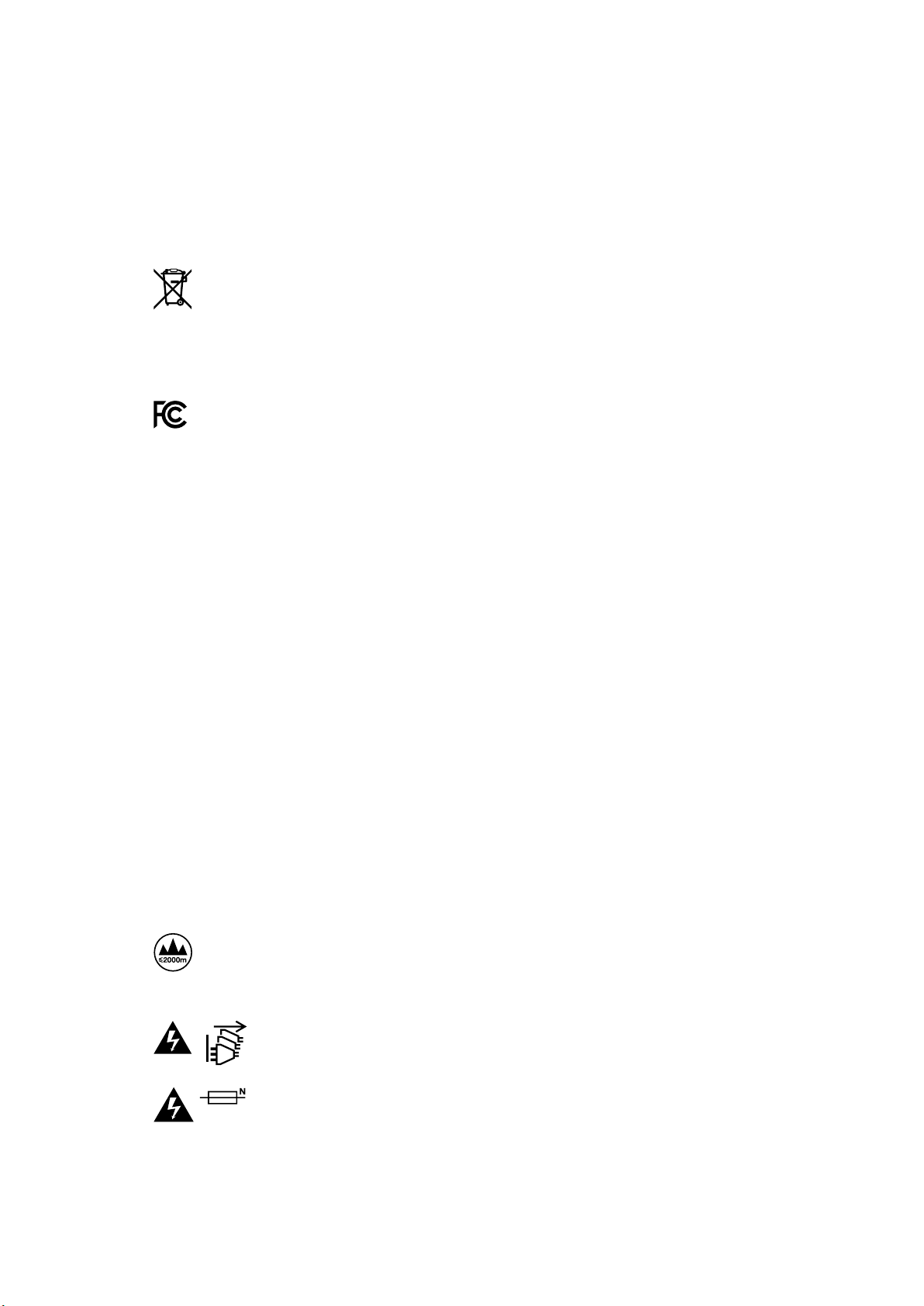
Informações Regulatórias e de Segurança
Informações Regulatórias
Descarte de resíduos de equipamentos elétricos e eletrônicos na União Europeia.
O símbolo no produto indica que este equipamento não pode ser descartado com outros
materiais residuais. Para descartar o equipamento usado, ele deve ser entregue em um ponto de
coleta designado para reciclagem. A coleta e a reciclagem seletivas de seu equipamento usado
no momento do descarte ajudarão a conservar os recursos naturais e a garantir que ele seja
reciclado de modo a proteger a saúde humana e o meio ambiente. Para mais informações sobre
onde você pode eliminar os resíduos do seu equipamento para reciclagem, por favor entre em
contato com a agência de reciclagem local da sua cidade ou o revendedor do produto adquirido.
Este equipamento foi testado e respeita os limites para um dispositivo digital Classe A, conforme
a Parte 15 das normas da FCC. Esses limites foram criados para fornecer proteção razoável
contra interferências nocivas quando o equipamento é operado em um ambiente comercial. Este
equipamento gera, usa e pode irradiar energia de radiofrequência e, se não for instalado ou
usado de acordo com as instruções, poderá causar interferências nocivas na comunicação
via rádio. A operação deste produto em uma área residencial pode causar interferência
nociva, nesse caso o usuário será solicitado a corrigir a interferência às suas próprias custas.
A operação está sujeita às duas condições a seguir:
1 Este dispositivo não poderá causar interferência nociva.
2 Este dispositivo deve aceitar qualquer interferência recebida, incluindo interferência
que possa causar uma operação indesejada.
Informações de segurança
Este equipamento deve ser conectado a uma tomada com conexão de aterramento
de proteção.
Para reduzir o risco de choque elétrico, não exponha este equipamento a gotas ou respingos.
Este equipamento é adequado para uso em regiões tropicais com uma temperatura
ambiente de até 40ºC.
Certifique-se de que seja fornecida ventilação adequada em torno do produto e que não
seja colocado em local com ventilação restrita.
Ao montar o produto em rack, certifique-se de que a ventilação não ficará reduzida em
função do equipamento adjacente.
Não há peças que possam ser reparadas pelo operador no interior do produto. Consulte o
serviço de assistência técnica local da Blackmagic Design.
Use apenas em altitudes inferiores a 2000 m acima do nível do mar.
Aviso para Pessoal de Assistência Autorizado
Desconecte a alimentação de ambas as entradas de alimentação antes de efetuar
operações de assistência!
Cuidado – Interruptor Bipolar/ Aterramento Neutro
A fonte de alimentação neste equipamento possui um fusível tanto nos condutores
de linha quanto neutro e é adequada para conexão com o sistema de distribuição
de alimentação IT na Noruega.
100Informações Regulatórias e de Segurança

Garantia
12 Meses de Garantia Limitada
A Blackmagic Design garante que este produto estará isento de quaisquer defeitos de materiais e fabricação
por um período de 12 meses a partir da data de compra. Se o produto se revelar defeituoso durante este
período de garantia, a Blackmagic Design, a seu critério, consertará o produto defeituoso sem cobrança
pelos componentes e mão-de-obra, ou fornecerá a substituição em troca pelo produto defeituoso.
Para obter o serviço sob esta garantia você, o Consumidor, deve notificar a Blackmagic Design do
defeito antes da expiração do período de garantia e tomar as providências necessárias para o
desempenho do serviço. O Consumidor é responsável pelo empacotamento e envio do produto
defeituoso para um centro de assistência designado pela Blackmagic Design com os custos de envio
pré-pagos. O Consumidor é responsável pelo pagamento de todos os custos de envio, seguro, taxas,
impostos e quaisquer outros custos para os produtos que nos forem devolvidos por qualquer razão.
Esta garantia não se aplica a defeitos, falhas ou danos causados por uso inadequado ou manutenção
e cuidado inadequado ou impróprio. A Blackmagic Design não é obrigada a fornecer serviços sob esta
garantia: a) para consertar danos causados por tentativas de instalar, consertar ou fornecer assistência
técnica ao produto por pessoas que não sejam representantes da Blackmagic Design, b) para consertar
danos causados por uso ou conexão imprópria a equipamentos não compatíveis, c) para consertar
danos ou falhas causadas pelo uso de componentes ou materiais que não são da Blackmagic Design,
d) para fornecer assistência técnica de um produto que foi modificado ou integrado a outros produtos
quando o efeito de tal modificação ou integração aumenta o tempo ou a dificuldade da assistência
técnica do serviço. ESTA GARANTIA É FORNECIDA PELA BLACKMAGIC DESIGN NO LUGAR DE
QUAISQUER OUTRAS GARANTIAS, EXPLÍCITAS OU IMPLÍCITAS. A BLACKMAGIC DESIGN E SEUS
FORNECEDORES NEGAM QUAISQUER GARANTIAS IMPLÍCITAS DE COMERCIALIZAÇÃO OU
ADEQUAÇÃO A UMA FINALIDADE ESPECÍFICA. A RESPONSABILIDADE DA BLACKMAGIC DESIGN
DE CONSERTAR OU SUBSTITUIR PRODUTOS DEFEITUOSOS É A ÚNICA E EXCLUSIVA MEDIDA
FORNECIDA AO CONSUMIDOR PARA QUAISQUER DANOS INDIRETOS, ESPECIAIS OU ACIDENTAIS
INDEPENDENTEMENTE DA BLACKMAGIC DESIGN OU DO FORNECEDOR TIVER INFORMAÇÃO
PRÉVIA SOBRE A POSSIBILIDADE DE TAIS DANOS. A BLACKMAGIC DESIGN NÃO É RESPONSÁVEL
POR QUAISQUER USOS ILEGAIS DO EQUIPAMENTO PELO CONSUMIDOR. A BLACKMAGIC NÃO É
RESPONSÁVEL POR QUAISQUER DANOS CAUSADOS PELO USO DESTE PRODUTO. O USUÁRIO
DEVE OPERAR ESTE PRODUTO POR CONTA E RISCO PRÓPRIOS.
© Direitos autorais 2017 Blackmagic Design. Todos os direitos reservados. ‘Blackmagic Design’, ‘DeckLink’, ‘HDLink’, ‘Workgroup
Videohub’, ‘Multibridge Pro’, ‘Multibridge Extreme’, ‘Intensity’ e ‘Leading the creative video revolution’ são marcas comerciais
registradas nos Estados Unidos e em outros países. Todos os outros nomes de empresas e produtos podem ser marcas comerciais
de suas respectivas empresas com as quais elas são associadas.
Thunderbolt e o logotipo Thunderbolt são marcas registradas da Intel Corporation nos Estados Unidos e/ou em outros países.
101Garantia

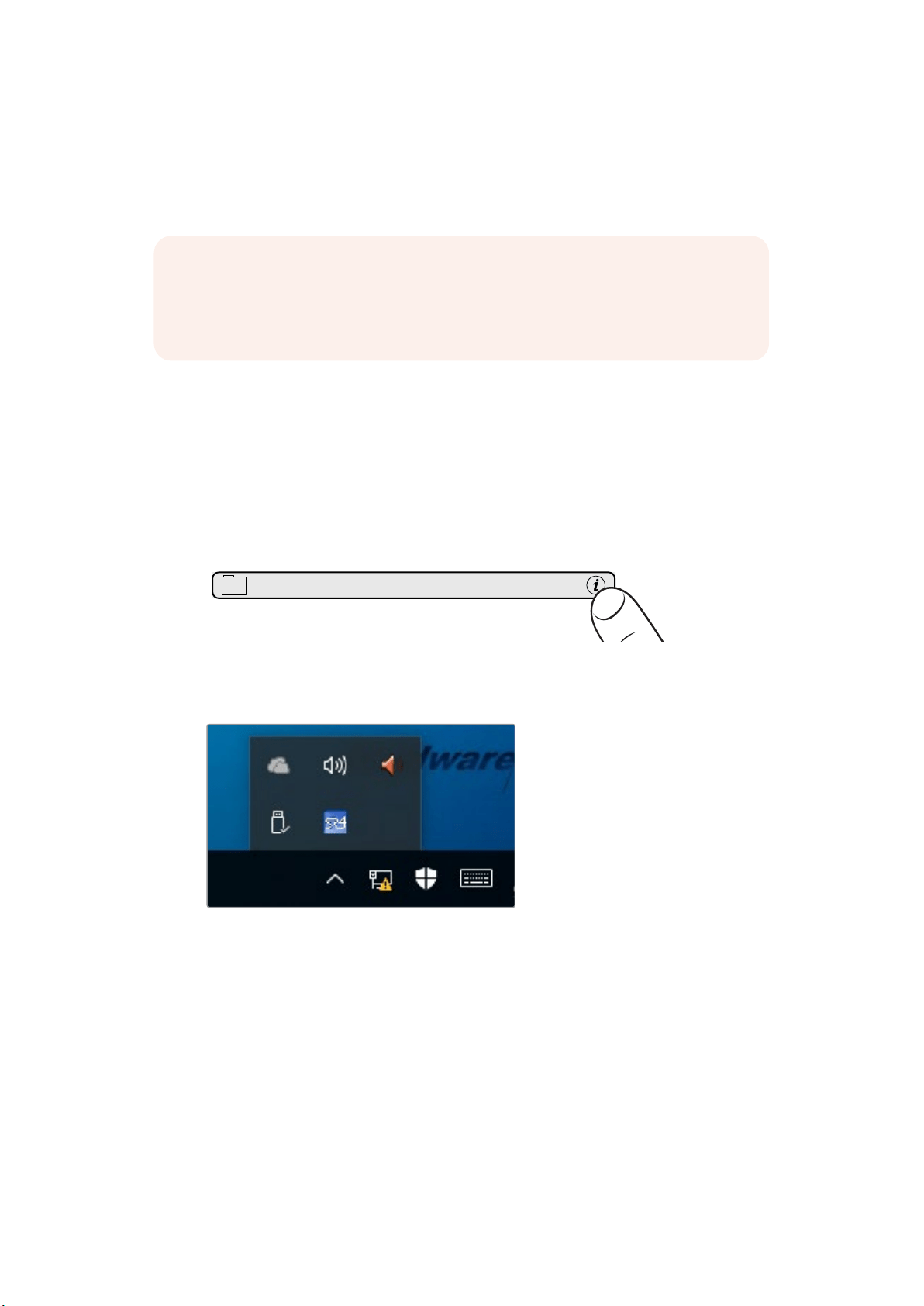
Smart Remote 4 Güncellemesi
SR4 yazılımı 1.0.5 veya daha önceki bir sürümünün yüklü olduğu durumlarda, dahili Ultimatte bakım
aracını (tool) kullanarak, önce smart remote cihazından SR4 yazılımını kaldırmanız gerekecektir.
Ultimatte SR4 v1.05 Yazılımının
Kaldırılması
SR4 yazılımını kaldırmanın ilk adımı, uygulamanın kapalı olduğundan emin olmaktır.
SR4 yazılımından çıkış yapmak için:
1 Kontrol panelinin Smart Remote 4 dosya kontrol bölümündeki ‘info’ ikonunu tıklayın.
2 ‘Options’ sekmesinde, ‘exit to desktop’ butonunu tıklayın.
3 Artık masaüstü ekranda göründüğünden, Windows tray’deki ‘up’ (yukarı) okunu tıklayın.
4 Ultimatte SR4 ikonunu tıklayıp 2 saniye basılı tutun ve sonra bırakın. ‘Quit’ ikonu belirecektir.
Uygulamayı kapatmak için, sadece ‘quit’ ikonu üzerine tıklayın.
Not Blackmagic Design destek merkezinden Ultimatte Smart Remote Setup yükleyicisini
kullanarak, daha önce Smart Remote 4 yazılımını yüklediyseniz, o zaman bu yazılım kaldırma
işlemini atlayabilir ve doğrudan ‘Ultimatte Smart Remote Setup’ın yüklenmesi’ bölümüne
geçebilirsiniz.
MATTE MENU
104Ultimatte SR-4 v1.05 v1.0.5 Kaldırma
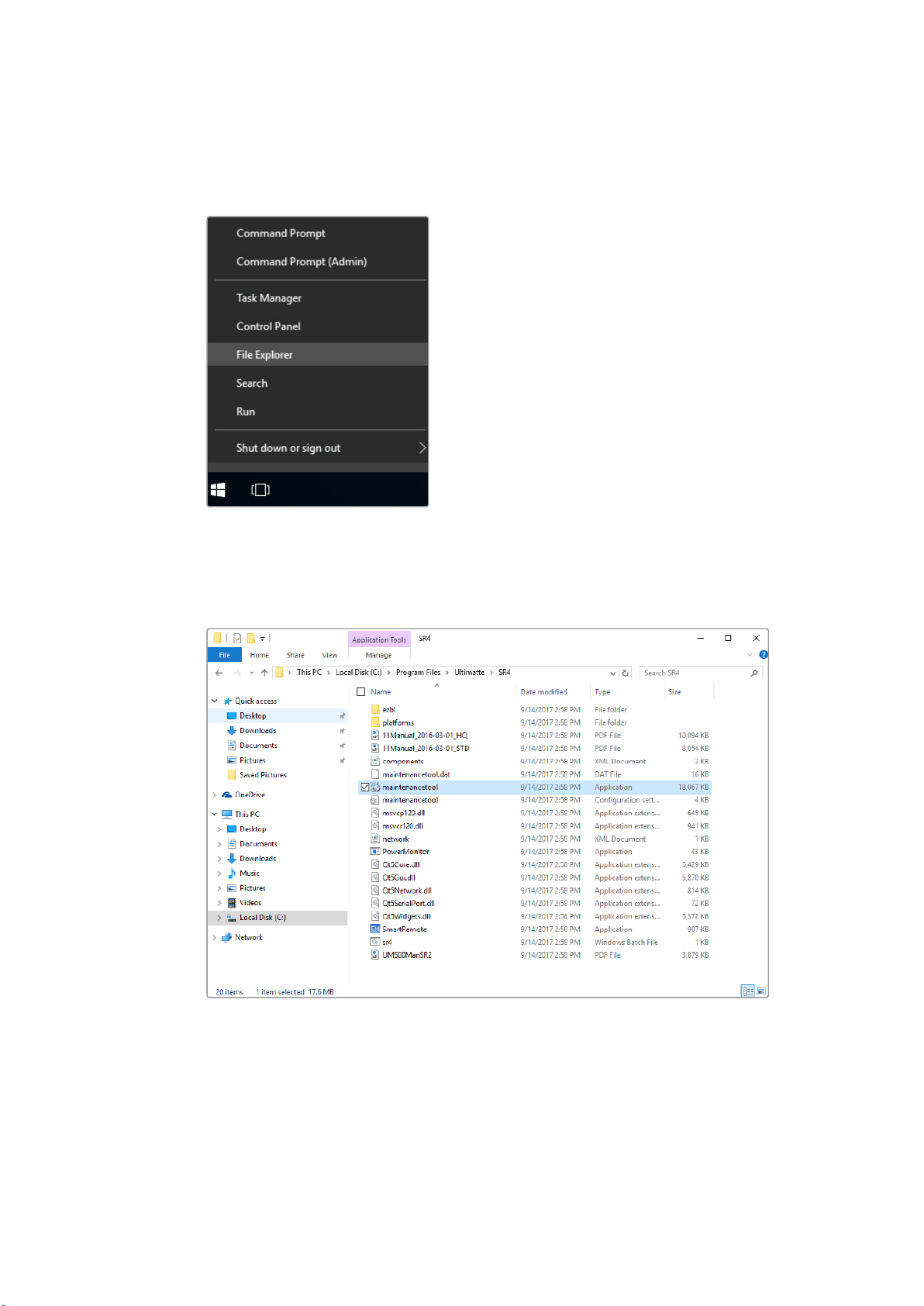
SR4 v1.0.5 veya daha önceki bir sürümünü kaldırmak için:
1 Sol alt köşedeki Windows logosunu tıklayın ve basılı tutun, sonra ‘file explorer’
üzerine tıklayın.
Windows logosunu tıklayın ve basılı tutun,
sonra file explorer üzerine tıklayın
2 File explorer penceresinden: C:\Program Files\Ultimatte\SR4 dosyasına girerek,
‘maintenancetool.exe’ etiketli bakım uygulamasını çift tıklayın.
‘local disk C:\’ diskine göz atarak, gereken dosyaları çift tıklayıp içeriklerini açın.
105Ultimatte SR-4 v1.05 v1.0.5 Kaldırma
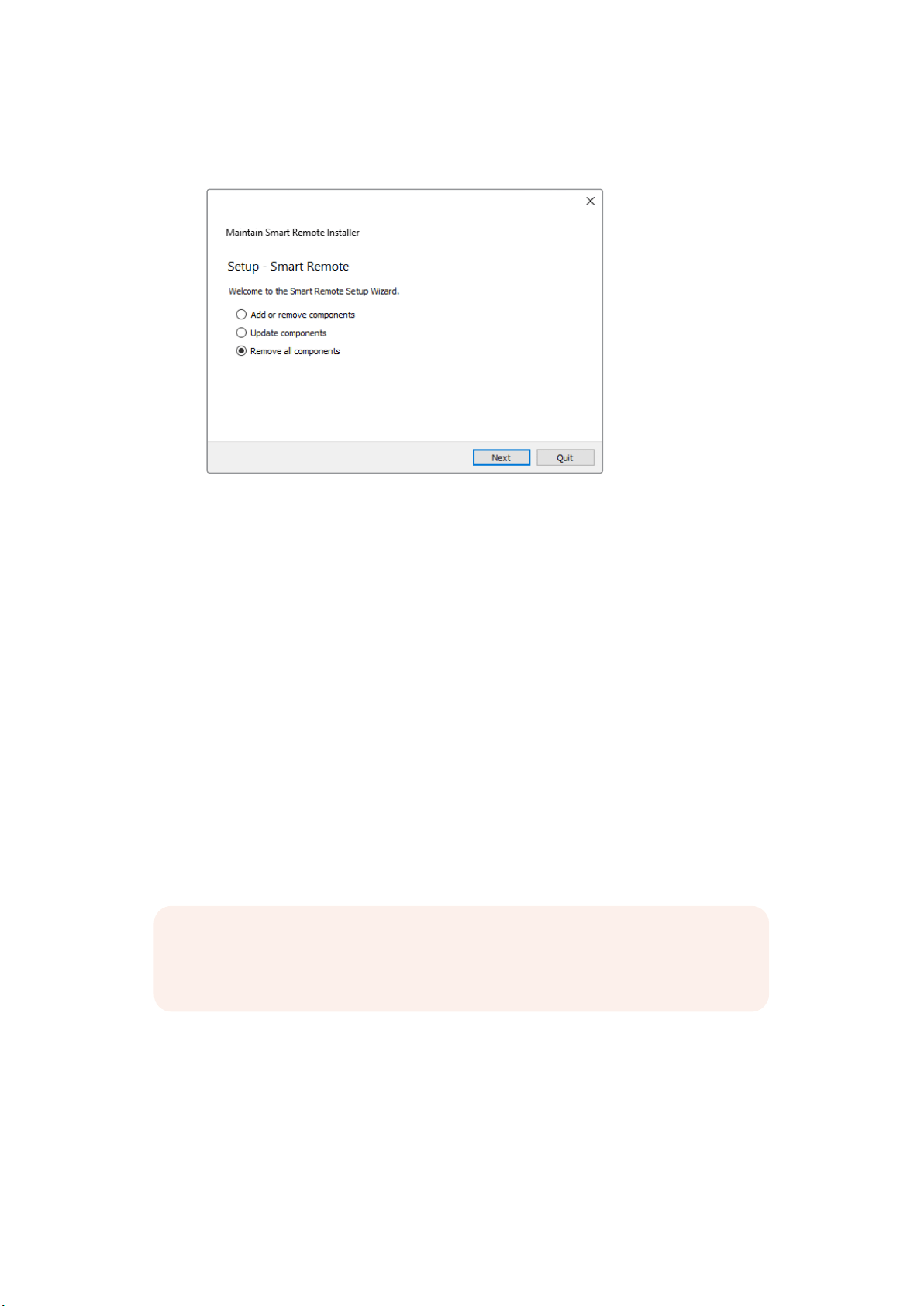
3 Bakım uygulaması penceresinde, ‘remove all components’ (tüm bileşenleri sil) ibaresini seçin
ve ‘next’ (sonra) üzerine tıklayın.
‘Remove all components’ ibaresini seçin ve ‘next’ üzerine tıklayın.
4 Bakım uygulaması bu aşamada, yazılımı kaldırmaya hazır olduğunu bildirecektir. ‘Uninstall’
ibaresini tıklayın ve ‘yes’ seçeneğini tıklayarak uygulamanın Smart Remote 4 cihazınıza
değişiklikler yapmasına onay verin.
5 ‘Completing the smart remote wizard’ (smart remote sihirbazını tamamlama) penceresindeki
‘finish’ (tamamla) seçeneğini tıklayın.
Ultimatte Smart Remote 4 yazılımı artık kaldırılmıştır.
Ultimatte Smart Remote Setup’ın
Kurulumu
İlk adım; en son Ultimatte Smart Remote 4 Setup yazılımını Blackmagic Design destek merkezi
sayfası olan www.blackmagicdesign.com/tr/support adresinden indirmektir. Smart Remote 4 Setup
yükleyiciyi, örneğin bir USB flash bellek gibi, portatif bir USB depolama ünitesine kopyalayıp
yapıştırın.
USB belleğini, Smart Remote 4 cihazının önündeki USB portuna takın. Smart Remote 4 otomatik
olarak USB belleği okuyacak ve file explorer uygulamasını açacaktır.
Yazılımı yüklemek için:
1 Depolama belleğindeki smart remote setup yükleyici ikonunu çift tıklayın.
2 Kurulum sihirbazı penceresindeki ‘next’ seçeneğini tıklayın ve ‘install’ (yükle) seçeneğine
ulaşıncaya kadar komutları takip edin.
Not Yazılımı Smart Remote cihazına yüklemek için kullanılan portatif depolama belleği,
mutlaka tek bir bölüntü kullanarak ana önyükleme kaydı olarak formatlanmalıdır. Smart
Remote 4 cihazı NTFS, exFAT ve FAT32 formatlarını okur.
106Ultimatte Smart Remote Setup Kurulumu

3 Smart remote yazılımını kaldırmak için ‘remove’ üzerine tıklayın. Komut istemi belirdiğinde
tekrar ‘remove’ üzerine tıklayın. Yazılımı kaldırma işlemi başladığında, kısa süreliğine bir
ilerleme çubuğu belirecektir.
4 Ekranda bir uyarı belirdiğinde, ‘close the applications and attempt to restart them’
(uygulamaları kapat ve yeniden başlatmaya çalış) etiketli seçenek düğmesinin etkinleştirilmiş
olduğundan emin olun ve ‘OK’ üzerine tıklayın.
5 Uygulamanın cihazınıza değişiklik yapmasına izin verip vermediğiniz sorulduğunda, ‘yes’
seçeneğini tıklayın.
6 Yazılımı kaldırma işlemi tamamlanırken, kısa süreliğine bir ilerleme çubuğu belirecektir.
‘Finish’ üzerine tıklayın ve sonra Smart Remote 4 cihazını yeniden başlatmak için ‘yes’
seçeneğini tıklayın.
Not Blackmagic Design destek merkezinden Ultimatte Smart Remote Setup
yazılımının daha önceki bir sürümünden güncelleme yapıyorsanız, ‘remove’ (çıkart)
ve ‘repair’ (onar) seçeneklerini göreceksiniz. Bu durumda, 3. basamaktan sonrasını
takip etmeye devam edin. SR4 1.0.5 sürümünü kaldırdıktan sonra güncelleme
yapıyorsanız 9. basamağa geçin.
107Ultimatte Smart Remote Setup Kurulumu
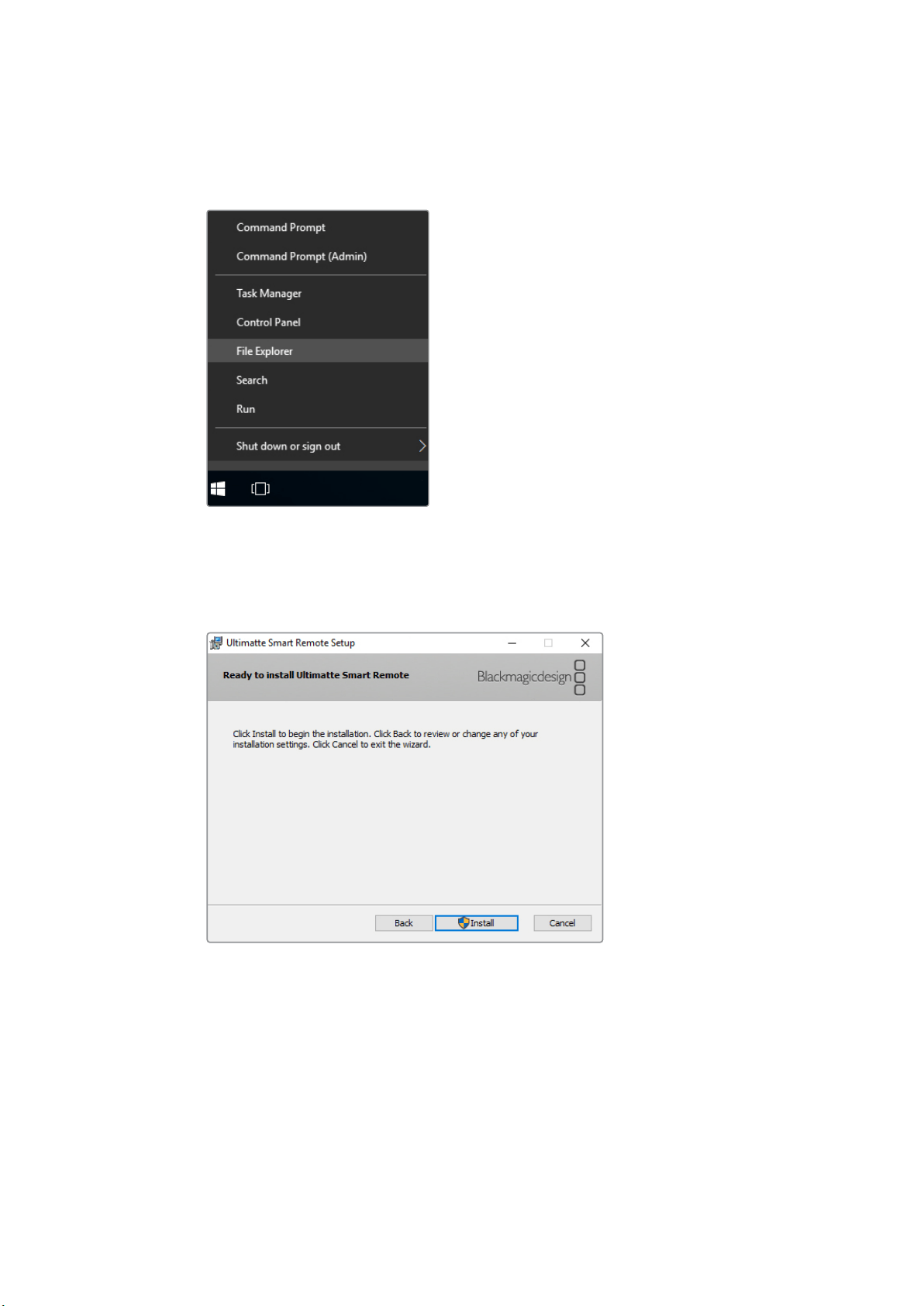
7 Smart Remote 4 yeniden başladıktan sonra, masaüstünün sol alt köşesindeki Windows
ikonunu tıklayıp basılı tutun ve ‘file explorer’ uygulamasını açın. USB belleğinizdeki Smart
Remote 4 Setup yükleyicisine gidin ve yükleyiciyi başlatın.
8 Kurulum sihirbazı ekranda belirdiğinde, ‘next’ seçeneğini tıklayın ve ‘install’ (yükle) butonuna
ulaşıncaya kadar komutları takip edin.
9 ‘Install’ üzerine tıklayın ve ‘yes’ seçeneğini tıklayarak yükleyicinin Smart Remote 4 cihazına
değişiklikler yapmasına onay verin.
10 Yükleme işlemini tamamlamak için ‘finish’ üzerine ve Smart Remote 4 cihazını yeniden
başlatmak için ‘yes’ üzerine tıklayın.
Smart Remote 4 cihazınız yeniden başlayacak ve Ultimatte Smart Remote 4 kontrol panelini otomatik
olarak başlatacaktır.
108Ultimatte Smart Remote Setup Kurulumu

Yardım
Yardım
Yardım İçin
Yardım almanın en hızlı yolu, Blackmagic Design online destek sayfalarına girip, Blackmagic Ultimatte
12 veya Smart Remote 4 ürünleriniz için mevcut olan en son destek kaynaklarını incelemenizdir.
Blackmagic Design online destek sayfaları
En güncel kılavuz, yazılım ve destek notlarına, www.blackmagicdesign.com/tr/support adresindeki
BlackmagicDesign destek merkezinden ulaşılabilinir.
Blackmagic Design destek hizmetiyle irtibat kurma
Aradığınız yardımı destek kaynaklarında bulamadığınız durumlarda, lütfen destek sayfamıza girin ve
“Bize e-posta gönderin” butonunu tıklayarak e-post yoluyla destek talebinde bulunun. Bunun yerine,
destek sayfasındaki "Yerel destek ekibini arayın" butonunu tıklayıp size en yakın olan Blackmagic
Design destek ofisini arayın.
Mevcut sürümün kontrol edilmesi
Bilgisayarınızda Blackmagic Ultimatte Setup yazılımının hangi sürümünün yüklü olduğunu kontrol
etmek için, Blackmagic Ultimatte Setup yazılımını başlatın ve ‘about’ sekmesini tıklayın. Yazılım sürüm
numarası, ‘software information’ (yazılım bilgileri) bölümünde belirtilecektir.
Dokunmatik ekranın kontrol panelinde bulunan dosyalar ve bilgiler bölümündeki dosya ikonunun
üzerine tıklayarak, smart remote cihazında yüklü bulunan Smart Remote 4 yazılımının sürümünü
kontrol edebilirsiniz. ‘About’ (hakkında) sekmesi, smart remote cihazına hangi sürümü
yüklediğinizi bildirir.
En son güncellemelere erişim
Bilgisayarınızda yüklü olan Blackmagic Ultimatte Setup yazılımının sürümünü kontrol ettikten sonra,
lütfen Blackmagic Design destek merkezine www.blackmagicdesign.com/tr/support adresinden
girerek en son güncellemeleri takip edin. En son güncellemelerin çalıştırılması önerilse de, önemli
bir projenin ortasındayken yazılım güncellenmesiden kaçınılmalıdır.
109109

Düzenleyici Bildirim ve Güvenlik Bilgileri
Düzenleyici Bildirimler
Avrupa Birliği genelinde elektrikli ve elektronik ekipman atıklarının bertaraf edilmesi.
Ürün üzerindeki sembol, bu ekipmanın başka atık malzemelerle bertaraf edilmemesi
gerektiğini belirtir. Atık ekipmanlarınızın bertaraf edilmesi için, geri dönüşümünü sağlamak
üzere belirlenmiş toplama noktasına teslim edilmeleri gerekmektedir. Atık ekipmanlarınızın,
bertaraf edilmek üzere ayrı olarak toplanması ve geri dönüşümü, doğal kaynakların
korunmasına yardımcı olacaktır ve insan sağlığını ve çevreyi koruyucu bir şekilde geri
dönüşümünü sağlayacaktır. Atık ekipmanlarınızı geri dönüşüm için nereye teslim
edebileceğiniz konusunda daha fazla bilgi için, lütfen yerel belediyenizin geri dönüşüm
şubesini ya da ürünü satın aldığınız satış bayisini arayınız. Bu ekipman test edilmiş ve
Federal İletişim Komisyonu (FCC) koşullarının 15. bölümü doğrultusunda A Sınıfı dijital
cihazların sınırlarıyla uyumlu olduğu tespit edilmiştir. İlgili sınırlar, bu ekipman ticari bir
ortamda çalıştırıldığında, zararlı müdahalelere karşı makul koruma sağlamaları amacıyla
tasarlanmıştır. Bu ekipman; radyo frekans enerjisi üretir, kullanır ve saçabilir. Talimatlar
doğrultusunda kurulmadığı ve kullanılmadığı takdirde, radyo komünikasyonlarına zararlı
etki yapabilir. Bu ürünün bir meskun bölgede çalıştırılması, zararlı müdahaleye yol açabilir.
Bu durumda, müdahalenin düzeltilmesi için ilgili maliyeti, kullanıcının kendisi karşılamak
zorunda kalacaktır.
Bu ürünün çalıştırılması aşağıdaki iki şarta bağlıdır:
1 Bu cihaz zararlı müdahaleye sebebiyet vermemelidir.
2 Bu cihaz, istenmeyen işleme yol açan müdahaleler de dahil olmak üzere, maruz kaldığı
her türlü müdahaleyi kabul etmelidir.
Güvenlik Bilgileri
Bu ekipman, koruyucu topraklama bağlantısı olan bir şebeke prizine takılmalıdır.
Elektrik çarpması riskine karşı, bu ekipman damlayan veya sıçrayan suya maruz
bırakılmamalıdır.
Bu ekipman, çevresel ısısı 40º C'ye kadar olan tropikal ortamlarda kullanılmaya uygundur.
Ürünün çevresinde yeterli hava akışını sağlayan boşluk bulunduğuna ve engellenmediğine
dikkat ediniz.
Rafa montajlarken havalandırmanın, bitişik ekipmanlardan dolayı kısıtlanmadığından
emin olunuz.
Ürünün içinde, kullanıcının tamir edebileceği hiçbir parça bulunmamaktadır. Gerekli
tamiratları yerel Blackmagic Design hizmet merkezine yönlendirin.
Deniz seviyesinden yüksekliğin 2000m'yi aşmadığı yerlerde kullanın.
110Düzenleyici Bildirim ve Güvenlik Bilgileri

Garanti
12 Ay Sınırlı Garanti
Blackmagic Design şirketi, bu ürünün satın alındığı tarihten itibaren 12 ay boyunca malzeme ve işçilik
bakımından kusursuz olacağını garantilemektedir. Bu garanti süresi içinde üründe bir arıza olursa,
Blackmagic Design, kendi seçimi doğrultusunda ya arızalı ürünü parça ve işçilik bedeli talep
etmeksizin tamir edecektir ya da arızalı ürünün yerine yenisini verecektir.
Bu garanti kapsamında hizmetten yararlanmak için, siz müşterilerin, Blackmagic Design'i garanti
süresi sona ermeden arızaya ilişkin bilgilendirmeniz ve söz konusu hizmetin sağlanması için uygun
düzenlemeleri yapmanız gereklidir. Blackmagic Design tarafından özel olarak belirlenmiş ve
yetkilendirilmiş bir hizmet merkezine, arızalı ürünün ambalajlanarak nakliyesi, Müşterinin
sorumluluğundadır ve nakliye ücretleri peşin ödenmiş olmalıdır. Bize herhangi bir sebepten dolayı
iade edilen ürünlerin tüm nakliye, sigorta, yasal bedel, vergi ve diğer tüm masrafları, müşterinin
sorumluluğundadır.
Bu garanti; yanlış kullanım ya da yanlış veya kusurlu tamir ve bakımdan kaynaklanan herhangi bir
arızayı, bozukluğu ya da hasarı kapsamaz. Blackmagic Design, burada açıklanan durumlarda bu
garanti kapsamında hizmet sağlamak zorunda değildir: a) Blackmagic Design temsilcileri haricindeki
başka personelin ürünü kurma, tamir etme ya da bakımını yapma girişimlerinden kaynaklanan hasarın
tamiri, b) uygun olmayan kullanım veya uyumlu olmayan ekipmanlara bağlamaktan kaynaklanan
hasarın tamiri, c) Blackmagic Design ürünü olmayan parçaların ya da malzemenin kullanımından
kaynaklanan hasarın ya da arızanın tamiri ya da d) Modifiye veya başka ürünlerle entegre edilmiş bir
ürünü; söz konusu modifikasyon ya da entegrasyonun, gereken tamiratın süresini uzattığı ya da ürün
bakımını zorlaştırdığı durumlarda tamir edilmesi. BU GARANTİ, BLACKMAGIC DESIGN TARAFINDAN,
AÇIK YA DA ZIMNİ, BAŞKA HERHANGİ BİR GARANTİNİN YERİNİ TUTAR. BLACKMAGIC DESIGN VE
SATICILARI, TİCARİ GARANTİ YA DA ÖZEL BİR AMACA UYGUNLUK GARANTİSİNİ KABUL ETMEZ.
BLACKMAGIC DESIGN'İN HATALI ÜRÜNLERİ TAMİR ETME YA DA DEĞİŞTİRME SORUMLULUĞU,
BLACKMAGIC DESIGN YA DA SATICILARININ SÖZ KONUSU HATA HAKKINDA ÖNCEDEN BİLGİSİ
OLMASINI GÖZETMEKSİZİN, ÜRÜNDE DOLAYLI, ÖZEL, DOĞRUDAN YA DA SONUÇ NİTELİĞİNDE
ORTAYA ÇIKAN HERHANGİ BİR HASAR İÇİN MÜŞTERİYE SUNACAĞI TAM VE MÜNHASIR
ÇÖZÜMDÜR. BLACKMAGIC DESIGN, EKİPMANIN MÜŞTERİLER TARAFINDAN YASAL OLMAYAN
HERHANGİ BİR KULLANIMINDAN SORUMLU DEĞİLDİR. BLACKMAGIC DESIGN, BU ÜRÜNÜN
KULLANIMINDAN KAYNAKLANAN HERHANGİ BİR HASARDAN SORUMLU DEĞİLDİR. BU ÜRÜNÜN
ÇALIŞTIRILMASINDAN DOĞAN RİSK, KULLANICININ KENDİSİNE AİTTİR.
© Telif Hakkı Saklıdır 2017 Blackmagic Design. Tüm Hakları Saklıdır. ‘Blackmagic Design’, ‘DeckLink’, ‘HDLink’, ‘Workgroup
Videohub’, ‘Multibridge Pro’, ‘Multibridge Extreme’, ‘Intensity’ ve ‘Leading the creative video revolution’ ABD ve diğer ülkelerde
tescil edilmiş ticari markalardır. Diğer tüm şirket ve ürün isimleri bağlantılı oldukları ilgili şirketler/firmaların ticari markaları olabilir.
Thunderbolt ve Thunderbolt logosu ABD ve/ya başka ülkelerdeki Intel Corporation'un ticari markalarıdır.
111Garanti