JVC
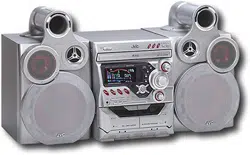
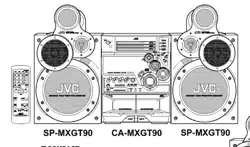
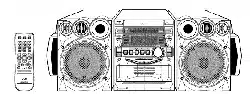
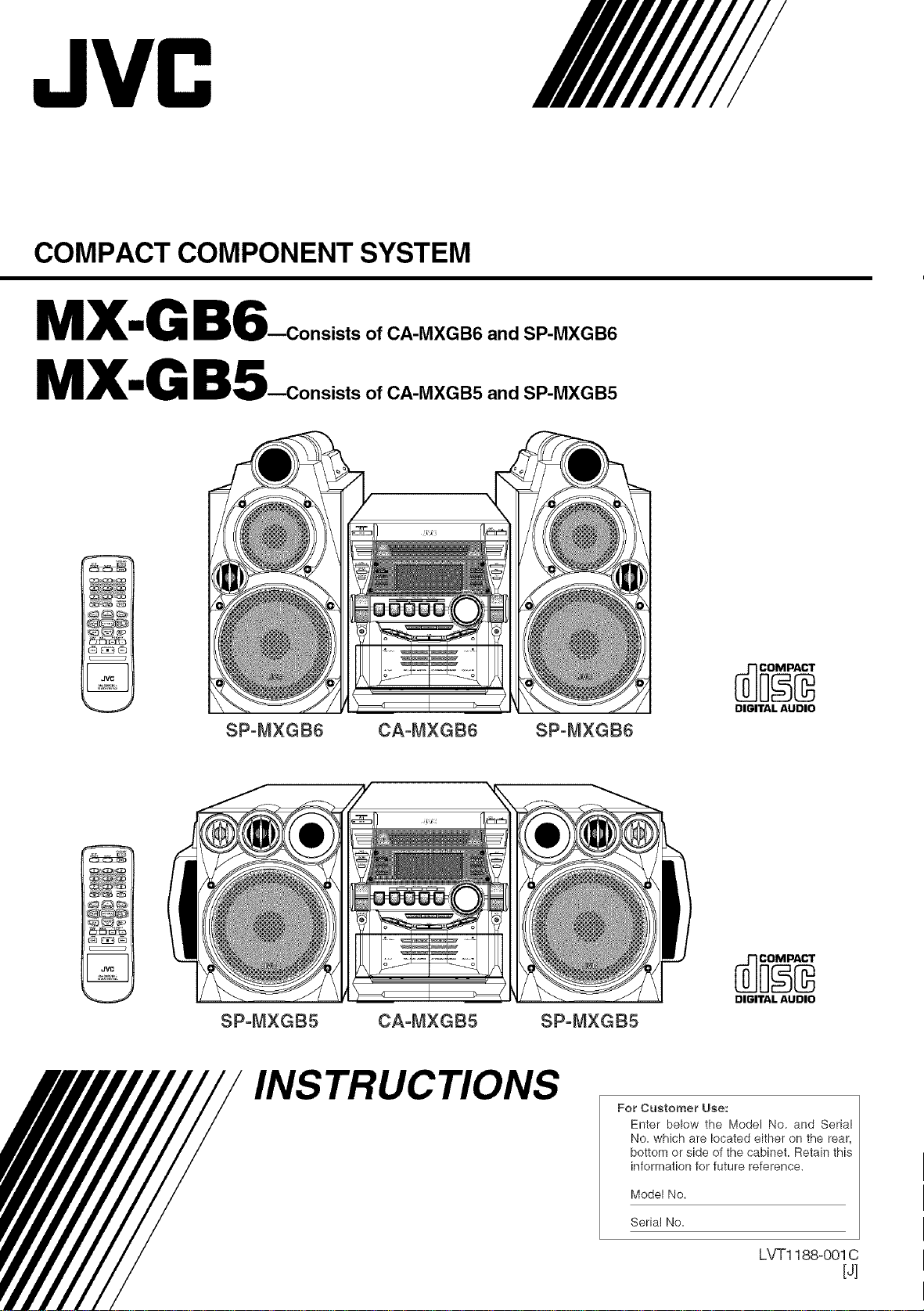
COMPACT COMPONENT SYSTEM
MX-G B6_onsists
MX-G BS_onsists
of CA-MXGB6 and SP-MXGB6
of CA-MXGB5 and SP-MXGB5
It
SP°MXGB6 CA-MXGB6 SP-MXGB6
DIGITALAUDIO
SP-MXG85 CA-MXGB5 SP-MXGB5
DIGITAL AUDIO
INSTRUCTIONS
For Customer Use:
Enter below the Model No. and Serial
No. which are located either on the rear,
bottom or side of the cabinet. Retain this
information for future reference.
Model No.
Serial No.
LVT1188o001C
[4
Warnings, Cautions and Others
Mises en garde, precautions et indications diverses
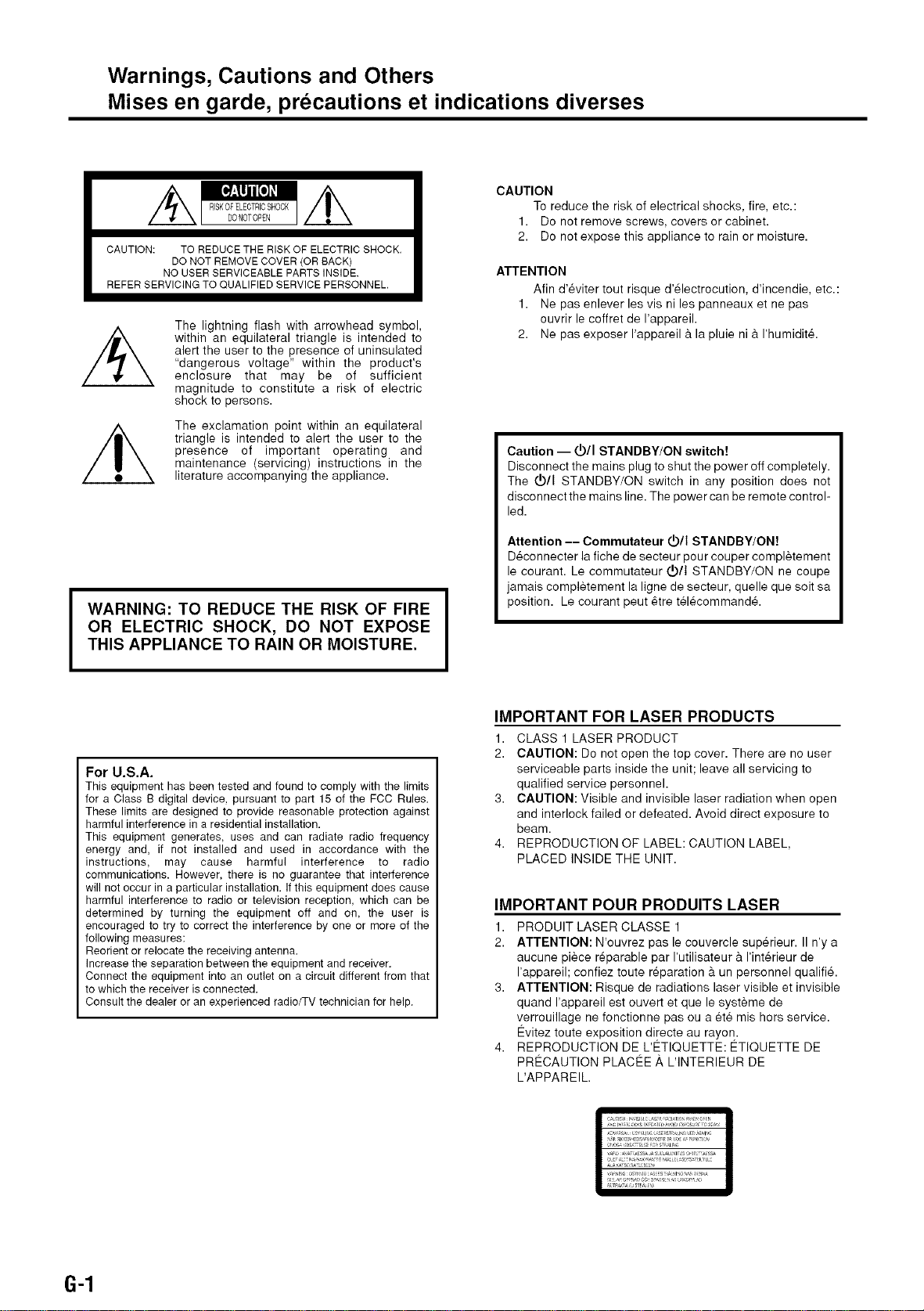
CAUTION: TO REDUCE THE RISK OF ELECTRIC SHOCK.
DO NOT REMOVE COVER (OR BACK)
NO USER SERVICEABLE PARTS INSIDE.
REFER SERVICING TO QUALIFIED SERVICE PERSONNEL.
The lightning flash with arrowhead symbol,
within an equilateral triangle is intended to
alert the user to the presence of uninsulated
"dangerous voltage" within the product's
enclosure that may be of sufficient
magnitude to constitute a risk of electric
shock to persons.
The exclamation point within an equilateral
triangle is intended to alert the user to the
presence of important operating and
maintenance (servicing) instructions in the
literature accompanying the appliance.
WARNING: TO REDUCE THE RISK OF FIRE
OR ELECTRIC SHOCK, DO NOT EXPOSE
THIS APPLIANCE TO RAIN OR MOISTURE.
CAUTION
To reduce the risk of electrical shocks, fire, etc.:
1. Do not remove screws, covers or cabinet.
2. Do not expose this appliance to rain or moisture.
ATTENTION
Afin d'eviter tout risque d'electrocution, d'incendie, etc.:
1. Ne pas enlever les vis ni les panneaux et ne pas
ouvrir le coffret de I'appareil.
2. Ne pas exposer I'appareil 9.la pluie ni 9.I'humidit&
Caution -- VII STANDBY/ON switch!
Disconnect the mains plug to shut the power off completely.
The _)/I STANDBY/ON switch in any position does not
disconnect the mains line. The power can be remote control-
led.
Attention -- Commutateur _/t STANDBY/ON!
Deconnecter la fiche de secteur pour couper completement
le courant. Le commutateur 4,_)/tSTANDBY/ON ne coupe
jamais completement la ligne de secteur, quelle que soit sa
position. Le courant peut 6tre t61ecommand&
For U.S.A.
This equipment has been tested and found to comply with the limits
for a Class B digital device, pursuant to part 15 of the FCC Rules.
These limits are designed to provide reasonable protection against
harmful interference in a residential installation.
This equipment generates, uses and can radiate radio frequency
energy and, if not installed and used in accordance with the
instructions, may cause harmful interference to radio
communications. However, there is no guarantee that interference
will notoccur in a particular installation. If this equipment does cause
harmful interference to radio or television reception, which can be
determined by turning the equipment off and on, the user is
encouraged to try to correct the interference by one or more of the
following measures:
Reorient or relocate the receiving antenna.
Increase the separation between the equipment and receiver.
Connect the equipment into an outlet on a circuit different from that
to which the receiver is connected.
Consult the dealer or an experienced radio/TV technician for help.
IMPORTANT FOR LASER PRODUCTS
1. CLASS 1 LASER PRODUCT
2. CAUTION: Do not open the top cover. There are no user
serviceable parts inside the unit; leave all servicing to
qualified service personnel.
3. CAUTION: Visible and invisible laser radiation when open
and interlock failed or defeated. Avoid direct exposure to
beam.
4. REPRODUCTION OF LABEL: CAUTION LABEL,
PLACED INSIDE THE UNIT.
IMPORTANT POUR PRODUITS LASER
1. PRODUIT LASER CLASSE 1
2. ATTENTION: N'ouvrez pas le couvercle sup@ieur. II n'y a
aucune piece reparable par I'utilisateur a I'interieur de
I'appareil; confiez toute reparation & un personnel qualifie.
3. ATTENTION: Risque de radiations laser visible et invisible
quand I'appareil est ouvert et que le systeme de
verrouillage ne fonctionne pas ou a ete mis hors service.
Evitez toute exposition directe au rayon.
4. REPRODUCTION DE L'ETIQUETTE: ETIQUETTE DE
PRECAUTION PLAC#:E ,&,L'INTERIEUR DE
L'APPAREIL.
6-1
For Canada/pour le Canada
CAUTION: TO PREVENT ELECTRIC SHOCK, MATCH WIDE
BLADE OF PLUG TO WIDE SLOT, FULLY INSERT.
ATTENTION: POUR EVITER LES CHOCS ELECTRIQUES,
INTRODUIRE LA LAME LA PLUS LARGE DE LA FICHE DANS
LA BORNE CORRESPONDANTE DE LA PRISE ET POUSSER
JUSQUAU FOND.
For Canada/pour le Canada
THIS DIGITAL APPARATUS DOES NOT EXCEED THE CLASS B
LIMITS FOR RADIO NOISE EMISSIONS FROM DIGITAL
APPARATUS AS SET OUT IN THE INTERFERENCE-CAUSING
EQUIPMENT STANDARD ENTITLED "DIGITAL APPARATUS,"
ICES-003 OF THE DEPARTMENT OF COMMUNICATIONS.
CET APPAREIL NUMERIQUE RESPECTE LES LIMITES DE
BRUITS RADIOELECTRIQUES APPLICABLES AUX APPAREILS
NUMIRIQUES DE CLASSE B PRESCRITES DANS LA NORME
SUR LE MATERIEL BROUILLEUR:"APPAREILS NUMERIQUES",
NMB-003 EDICTEE PAR LE MINISTRE DES
COMMUNICATIONS.
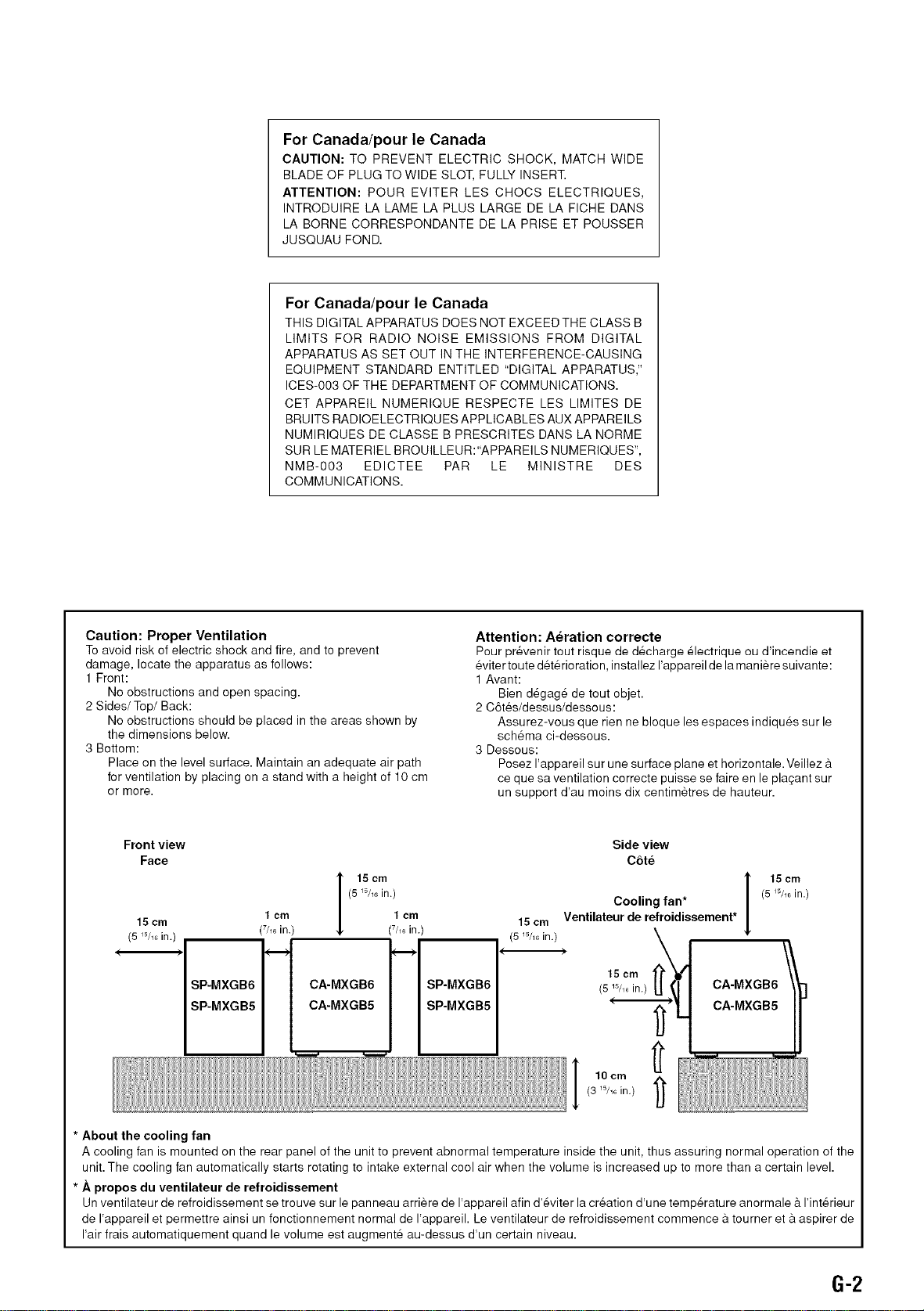
Caution: Proper Ventilation
To avoid risk of electric shock and fire, and to prevent
damage, locate the apparatus as follows:
1 Front:
No obstructions and open spacing.
2 Sides/Top/Back:
No obstructions should be placed in the areas shown by
the dimensions below.
3 Bottom:
Place on the level surface. Maintain an adequate air path
for ventilation by placing on a stand with a height of 10 cm
or more.
Attention: Aeration correcte
Pour pr#venir tout risque de d#charge 61ectrique ou d'incendie et
eviter toute det6rioration, installez I'appareil de la maniere suivante:
1 Avant:
Bien degage de tout objet.
2 C6tes/dessus/dessous:
Assurez-vous que rien ne bloque les espaces indiques sur le
schema ci-dessous.
3 Dessous:
Posez I'appareil sur une surface plane et horizontale. Veillez &
ce que sa ventilation correcte puisse se faire en le plaqant sur
un support d'au moins dix centimetres de hauteur.
Front view
Face
1 cm
15 cm
(5 _5/_in.) (7h_in.)
SP-MXGB6
SP-MXGB5
I 15 cm
(5 W_6in.)
1 cm
(7/_ in.)
CA-MXGB6
CA-MXGB5
SP-MXGB6
SP-MXGB5
15 cm
(5 W_ in.)
Side view
C6te
Cooling fan*
Ventilateur de retroidissement*
]
15 cm '
(5 _5/_in.)
I 15cm
(5W_6in.)
CA-MXGB6 1
CA-MXGB5
,oom i !I i1
(3 _5/_6in.) 1_
* About the cooling tan
A cooling fan is mounted on the rear panel of the unit to prevent abnormal temperature inside the unit, thus assuring normal operation of the
unit. The cooling fan automatically starts rotating to intake external cool air when the volume is increased up to more than a certain level.
* Apropos du ventilateur de retroidissement
Un ventilateur de refroidissement se trouve sur le panneau arriere de I'appareil afin d'eviter la creation d'une temperature anormale &I'interieur
de I'appareil et permettre ainsi un fonctionnement normal de I'appareil. Le ventilateur de refroidissement commence a tourner eta aspirer de
I'air frais automatiquement quand le volume est augmente au-dessus d'un certain niveau.
6-2
Introduction
We would like to thank you for purchasing one of our JVC products.
Before operating this unit, read this manual carefully and thoroughly to
obtain the best possible performance from your unit, and retain this manual
for future reference.
AboutThisManual
This manual is orgmlized as follows:
• The manual mainly explains operations using the
buttons and controls on the unit. You can also use the
buttons on the remote control if they have the same or
similar names (or marks) as those on the unit.
If operation using the remote control is different from
that using the unit, it is then explained.
• Basic trod common infommtion that is tile same for many
functions is grouped in one place, and is not repeated in
each procedure. For instance, we do not repeat the
information about turning on/off the unit, setting the
volume, chtmging the sound effects, and others, which are
explained in the section "Common Operations" on pages 9
toll.
• The following marks are used in this manual:
Gives you warnings mid cautions to prevent
damage or risk of fire/electric shock.
Also gives you information which is not good
for obtaining the best possible performance
from tile unit.
Gives you information mid hints you had better
know.
Precautions
Installation
• Do not grasp tile control knobs when moving or carrying
tile unit.
• Install in a place which is level, dry trod neither too hot nor
too cold--between 5°C (41°F) and 35°C (95°F).
• Install the unit in a location with adequate ventilation to
prevent internal heat built-up in the unit.
• Leave sufficient disttmce between the unit and the TV.
• Keep the speakers away from the TV to avoid interference
with TV.
I& DO NOT install the unit in a location near heat
sources, or in a place subject to direct sunlight,
excessive dust or vibration.
I
Power sources
• When unplugging from tile wall outlet, always pull tile
plug, not tile AC power cord.
DO NOT handle the AC power cord with wet
hands.
Moisturecondensation
Moisture may condense on tile lens inside tile unit in tile
following cases:
• After starting heating in tile room
• In a damp room
• If the unit is brought directly from a cold to a warm place
Should this occur, tile unit may malffmction. In this case,
leave tile unit turned on for a few hours until tile moisture
evaporates, unplug tile AC power cord, and then plug it in
again.
Others
• Should rely metallic object or liquid fall into tile unit,
unplug tile unit and consult your dealer before operating
any furHler.
• If you are not going to operate tile unit for an extended
period of time, unplug tile AC power cord from tile wall
outlet.
I
If tmything goes wrong, unplug tile AC power cord and
consult your dealer.
I
DO NOT disassemble the unit since there are no I
I
user serviceable parts inside.
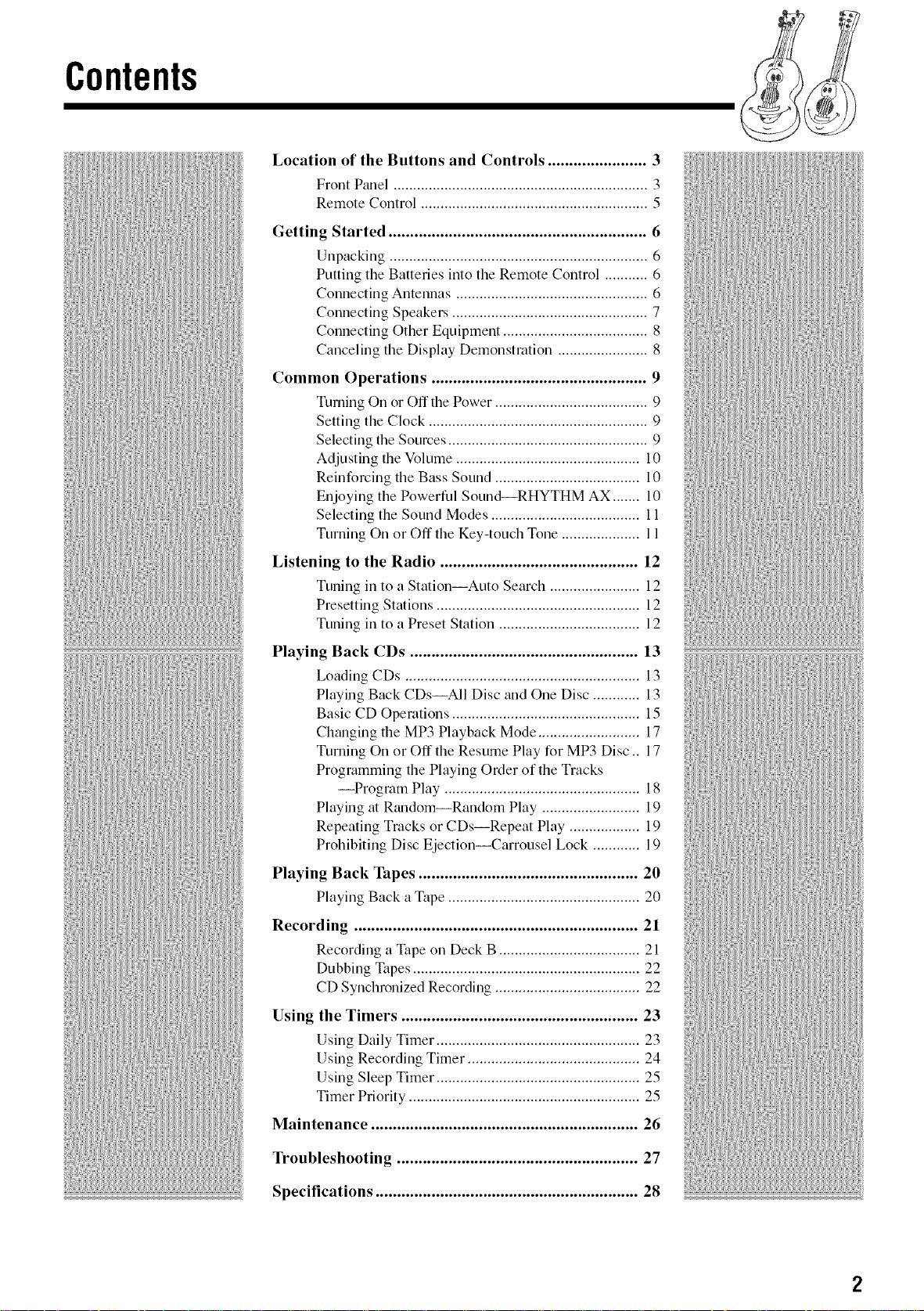
Contents
Location of the Buttons and Controls ....................... 3
Front Panel ................................................................. 3
Remote Control .......................................................... 5
Getting Started ............................................................ 6
Unpacking .................................................................. 6
Putting the Batteries into the Remote Control ........... 6
Connecting Antennas ................................................. 6
Connecting Speakers .................................................. 7
Connecting Other Equipment ..................................... 8
Canceling the Display Demonstration ....................... 8
Common Operations .................................................. 9
Turning On or Off the Power ....................................... 9
Setting the Clock ........................................................ 9
Selecting the Sources ................................................... 9
Adjusting the Volume ............................................... 10
Reinforcing the Bass Sound ..................................... 10
Enjoying the Powerful Sound--RHYTHM AX ....... 10
Selecting the Sound Modes ...................................... 11
Turning On or Off the Key-touch Tone .................... 11
Listening to the Radio .............................................. 12
Tuning in to a Station--Auto Search ....................... 12
Presetting Stations .................................................... 12
Tuning in to a Preset Station .................................... 12
Playing Back CDs ..................................................... 13
Loading CDs ............................................................ 13
Playing Back CDs--AII Disc and One Disc ............ 13
Basic CD Operations ................................................ 15
Changing the MP3 Playback Mode .......................... 17
Turning On or Off the Resume Play for MP3 Disc .. 17
Programming the Playing Order of the Tracks
--Program Play .................................................. 18
Playing at Rtmdom--Random Play ......................... 19
Repeating Tracks or CDs--Repeat Play .................. 19
Prohibiting Disc Ejection--Carrousel Lock ............ 19
Playing Back Tapes ................................................... 20
Playing Back a Tape ................................................. 20
Recording .................................................................. 21
Recording a Tape on Deck B .................................... 21
Dubbing Tapes .......................................................... 22
CD Synchronized Recording ..................................... 22
Using the Timers ....................................................... 23
Using Daily Timer .................................................... 23
Using Recording Timer ............................................ 24
Using Sleep Timer .................................................... 25
Timer Priority ........................................................... 25
Maintenance .............................................................. 26
Troubleshooting ........................................................ 27
Specifications ............................................................. 28
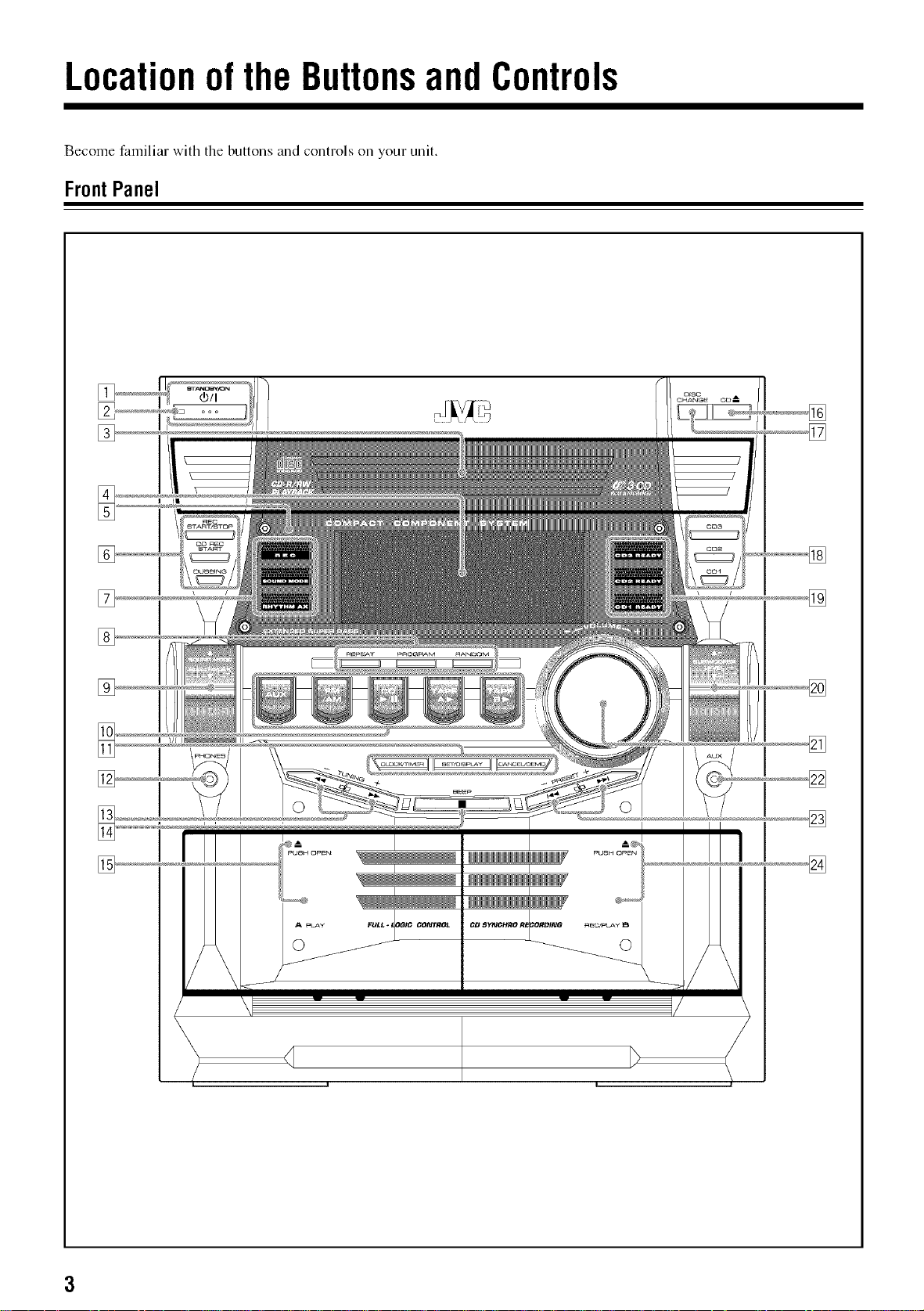
Locationofthe ButtonsandControls
Become familiar with the buttons and controls oil your unit.
FrontPanel
[]
[]
I I
I I
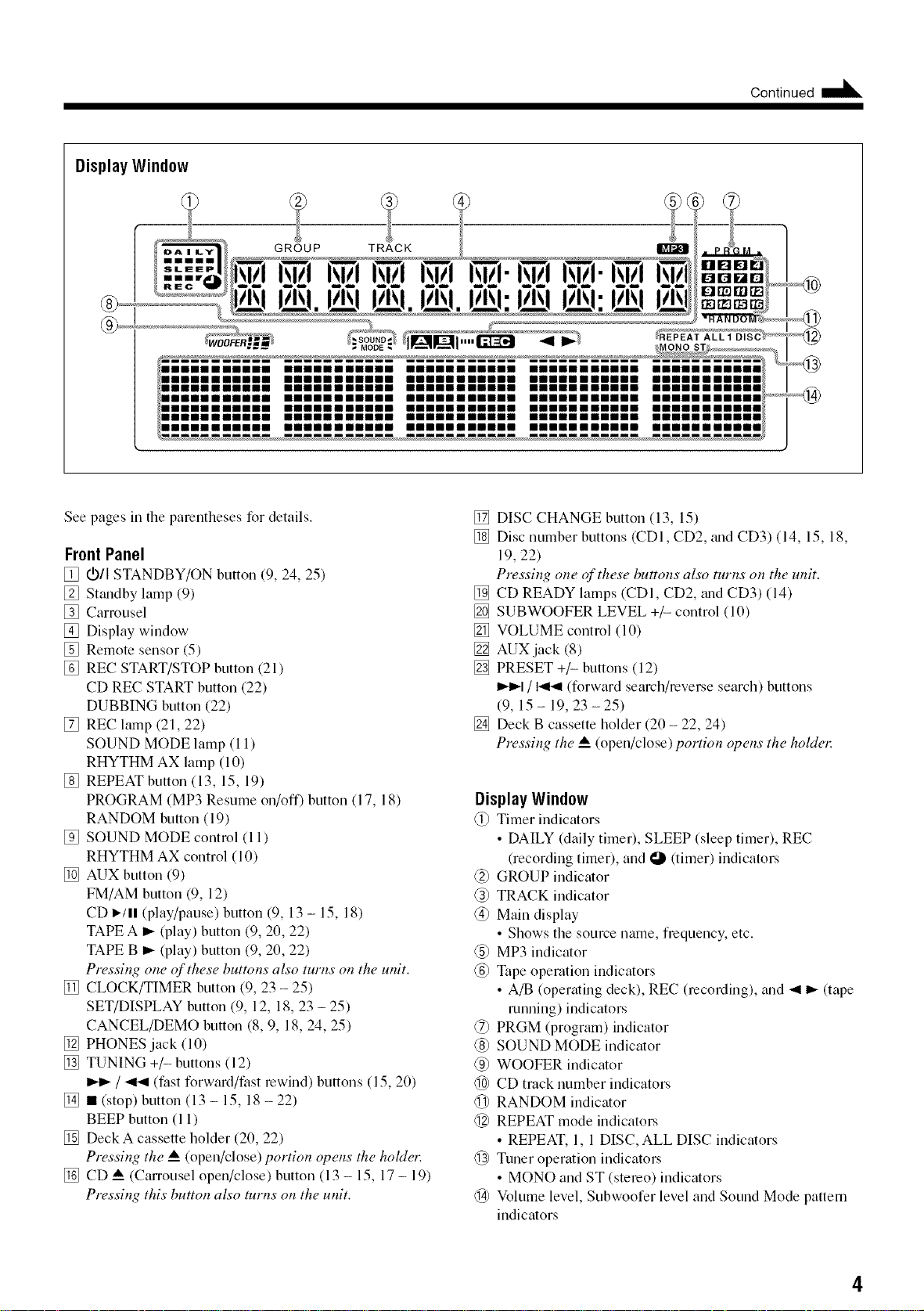
Continued
Display Window
®
See pages in the parentheses for details.
FrontPanel
[] VII STANDBY/ON button (9, 24, 25)
[] Sttmdby lamp (9)
[] Carrousel
[] Display window
[] Remote sensor (5)
[] REC START/STOP button (21)
CD REC START button (22)
DUBBING button (22)
[] REC lamp (21, 22)
SOUND MODE lamp (11)
RHYTHM AX lamp (10)
[] REPEAT button (13, 15, 19)
PROGRAM (MP3 Resume on/off) button (17, 18)
RANDOM button (19)
[] SOUND MODE control (11)
RHYTHM AX control (10)
[] AUK button (9)
FM/AM button (9, 12)
CD I_/II (play/pause) button (9, 13 - 15, 18)
TAPE A I_ (play) button (9, 20, 22)
TAPE B _ (play) button (9, 20, 22)
Pressing one qf these buttons also turns on the unit.
[] CLOCK/TIMER button (9, 23 - 25)
SET/DISPLAY button (9, 12, 18, 23 - 25)
CANCEL/DEMO button (8, 9, 18, 24, 25)
[] PHONES jack (10)
[] TUNING +/- buttons (12)
I_1_/ _ (fast forward/fast rewind) buttons (15, 20)
[] • (stop) button (13 - 15, 18 - 22)
BEEP button (11)
[] Deck A cassette holder (20, 22)
Pressing the A__(open/close) portion opens the holdel:
[] CD _ (Carrousel open/close) button (13 - 15, 17 - 19)
Pressing this button also turns on the unit.
[] DISC CHANGE button (13, 15)
[] Disc number buttons (CDI, CD2, trod CD3) (14, 15, 18,
19, 22)
Pressing one ofl these buttons also turns on the unit.
[] CD READY lamps (CDI, CD2, trod CD3) (14)
[] SUBWOOFER LEVEL +/- control (10)
[] VOLUME control (10)
[] AUX jack (8)
[] PRESET +/- buttons (12)
I_1 / 141_1(forward search/reverse search) buttons
(9, 15- 19,23-25)
[] Deck B cassette hokler (20 - 22, 24)
Pressing the _ (open/close) portion opens the holdel:
Display Window
@ Timer indicators
• DAILY (daily timer), SLEEP (sleep timer), REC
(recording timer), and O 0imer) indicators
@ GROUP indicmor
@ TRACK indicator
@ Main display
• Shows the source name, frequency, etc.
@ MP3 indicmor
@ Tape operation indicmors
• A/B (operming deck), REC (recording), and _1 _ (tape
running) indicators
@ PRGM (program) indicator
@ SOUND MODE indicmor
@ WOOFER indicmor
@ CD track number indicators
@ RANDOM indicmor
@ REPEAT mode indicators
• REPEAT, 1, 1 DISC, ALL DISC indicators
@ Tuner operation indicators
• MONO and ST (stereo) indicators
@ Volume level, Subwoofer level and Sound Mode pattern
indicators
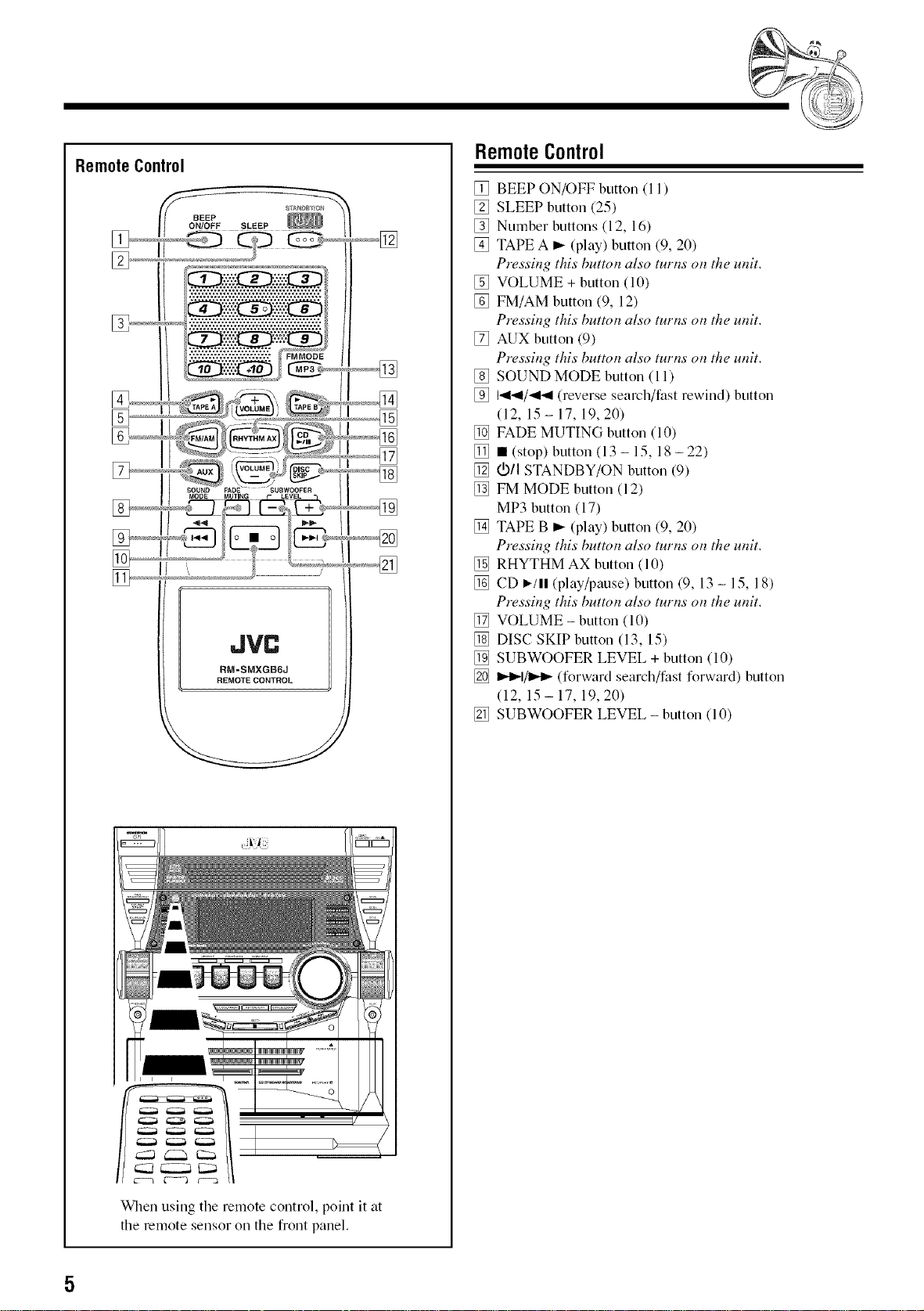
RemoteControl
BEEP
ON/OFF SLEEP
[]
JVC
RM=SMXGB6J
REMOTE CONTROL
When using the remote control, point it at
the remote sensor oil the front panel.
RemoteControl
[] BEEP ON/OFF button (11)
[] SLEEP button (25)
[] Number buttons (12, 16)
[] TAPE A _ (play) button (9, 20)
Pressil_g this bumm also tuttis ol_the umt.
[] VOLUME + button (10)
[] FM/AM button (9, 12)
Pressb_g this buttot_ also turl*s ot_the umt.
[] RUN button (9)
Pressb_g this buttgm also turl_s o_ the umt.
[] SOUND MODE button (11)
[] I._1_1/_141(reverse search/fast rewind) button
(12, 15 - 17, 19, 20)
[] FADE MUTING button (10)
[] • (stop) button (13- 15, 18-22)
[] (._/I STANDBY/ON button (9)
[] FM MODE button (12)
MP3 button (17)
[] TAPE B _- (play) button (9, 20)
Pressb_g this butto_ also turl_s o_ the umt.
[] RHYTHM AX button (10)
[] CD I,-/11(play/pause) button (9, 13 - 15, 18)
Pressb_g this buttol_ also turl_s ol_the umt.
[] VOLUME - button (10)
[] DISC SKIP button (13, 15)
[] SUBWOOFER LEVEL + button (10)
[] I_=,-I/1_=,-(forward search/fast forward) button
(12, 15 - 17, 19, 20)
[] SUBWOOFER LEVEL - button (10)
GettingStarted ooot,ouo ...=
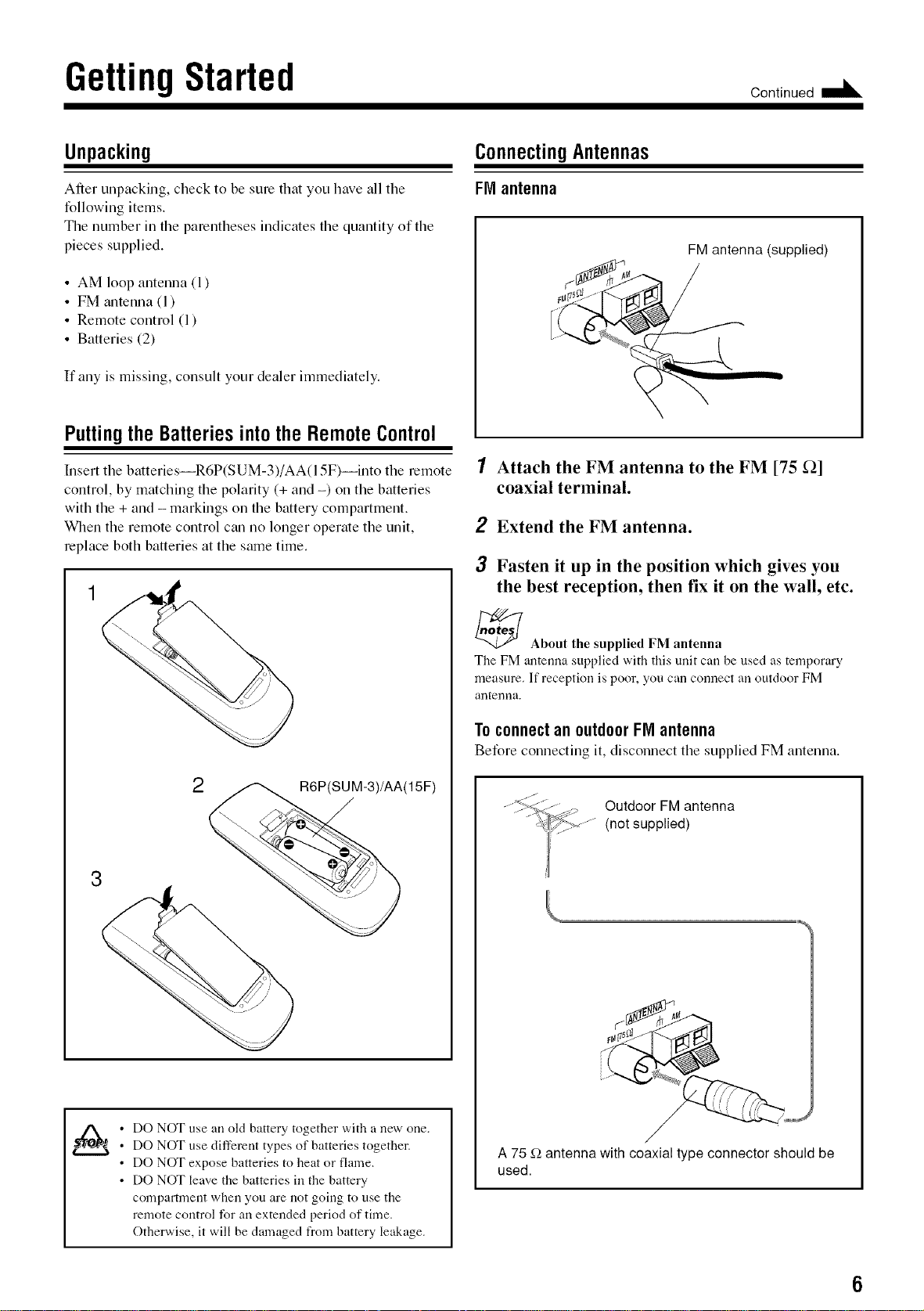
Unpacking
After unpacking, check to be sure that you have all the
following items.
The number in the parentheses indicates the quantity of the
pieces supplied.
• AM loop antenna (1)
• FM antenna (1)
• Remote control (1)
• Batteries (2)
If any is missing, consult your dealer immediately.
Putting the BatteriesintotheRemoteControl
Insert the batteries--R6P(SUM-3)/AA(l 5F)--into the remote
control, by matching the polarity (+ and -) on the batteries
with the + and - markings on the battery compartment.
When the remote control can no longer operate the unit,
replace both batteries at the same time.
2
R6P(SUM-3)/AA(15F)
• DO NOT use an old battery together with a new one.
• DO NOT use different types of batteries together.
• DO NOT expose batteries to heat or flame.
• DO NOT leave tile batteries in tile battery
compartment when you are not going to use the
remote control for an extended period of time.
Otherwise, it will be damaged from battery leakage.
ConnectingAntennas
FM antenna
FM antenna (supplied)
1 Attach the FM antenna to the FM [75 _]
coaxial terminal.
2 Extend the FM antenna.
3 Fasten it up in the position which gives you
the best reception, then fix it on the wall, etc.
_ About the supplied FM antenna
The FM antenna supplied with this unit carl be used as temporary
measure. If reception is poor, you carl connect an outdoor FM
antenrla.
Toconnectan outdoorFIVIantenna
Before connecting it, disconnect the supplied FM antenna.
iJ
Outdoor FM antenna
(not supplied)
A 75 f2 antenna with coaxial type connector should be
used.
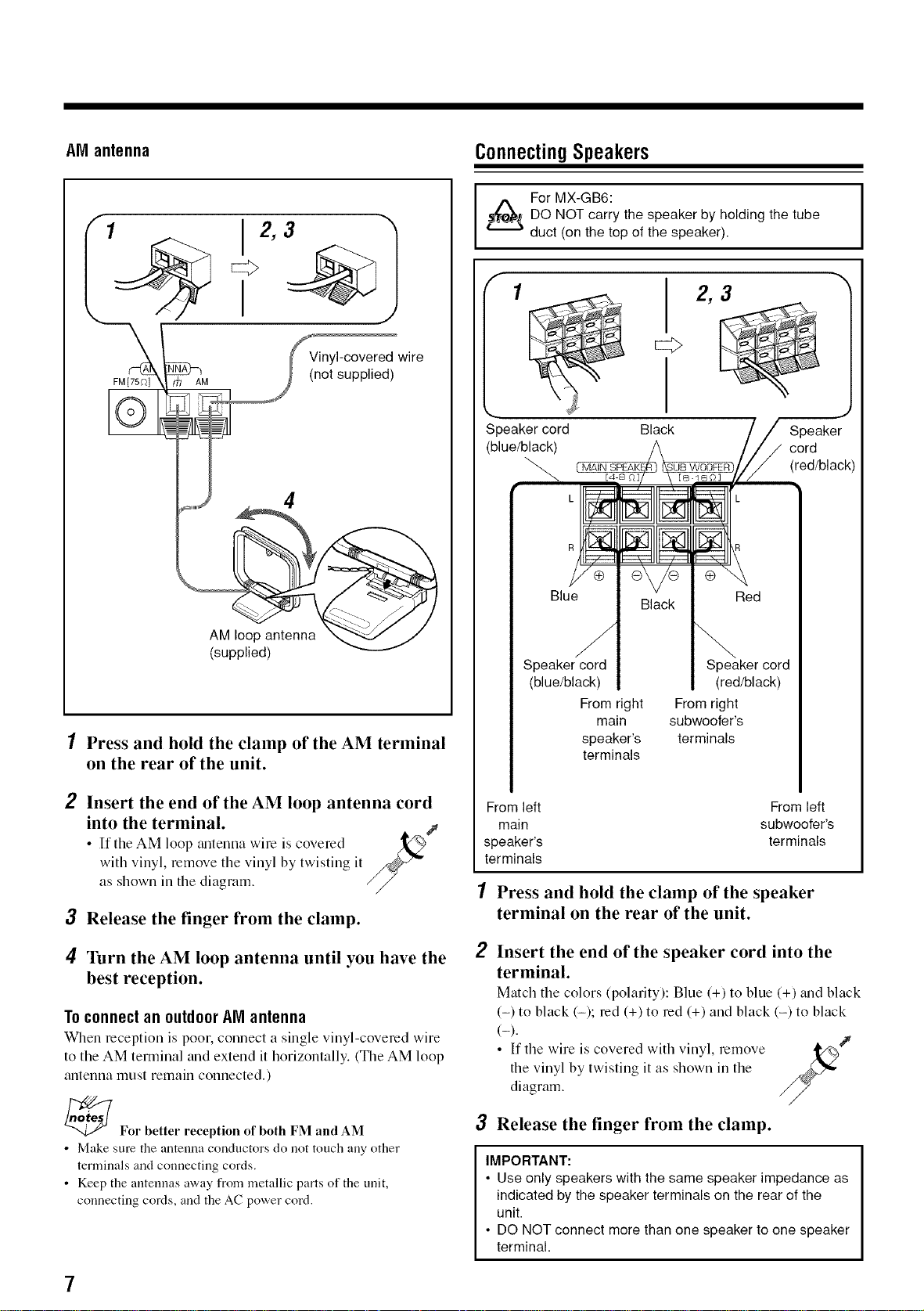
AM antenna
ConnectingSpeakers
1
FM[75f)] AM
Vinyl-covered wire
(not supplied)
4
AM loop antenna
(supplied)
1 Press and hold the clamp of the AM terminal
on the rear of the unit.
2 Insert the end of the AM loop antenna cord
into the terminal.
• If the AM loop tmtenna wire is covered
with vinyl, remove the vinyl by twisting it
as shown in the diagram. //
3 Release the finger from the clamp.
4 Turn the AM loop antenna until you have the
best reception.
Toconnectan outdoor AMantenna
When reception is poor, connect a single vinyl-covered wire
to the AM terminal and extend it horizontally. (The AM loop
antenna must remain connected.)
_For better reception of both FM and AM
• Make sure the antenna conductors do not touch any other
terminals and connecting cords.
• Keep the antennas away from metallic parts of the unit,
connecting cords, and the AC power cord.
For MX-GB6:
DO NOT carry the speaker by holding the tube
duct (on the top of the speaker).
1
Speaker cord
(blue/black)
CMAIN
Black
2,3
Speaker
cord
(red/black)
Black
Speaker cord Speaker cord
(blue/black) (red/black)
From right From right
main subwoofer's
speaker's terminals
terminals
From left From left
main subwoofer's
speaker's terminals
terminals
1 Press and hold the clamp of the speaker
terminal on the rear of the unit.
2
Insert the end of the speaker cord into the
terminal.
Match the colors (polarity): Blue (+) to blue (+) _md black
(-) to black (-); red (+) to red (+) and black (-) to black
(-).
• If the wire is covered with vinyl, remove _/%J
the vinyl by twisting it as shown in the
¢"
diagram.
3 Release the finger from the clamp.
IMPORTANT:
• Use only speakers with the same speaker impedance as
indicated by the speaker terminals on the rear of the
unit.
• DO NOT connect more than one speaker to one speaker
terminal.
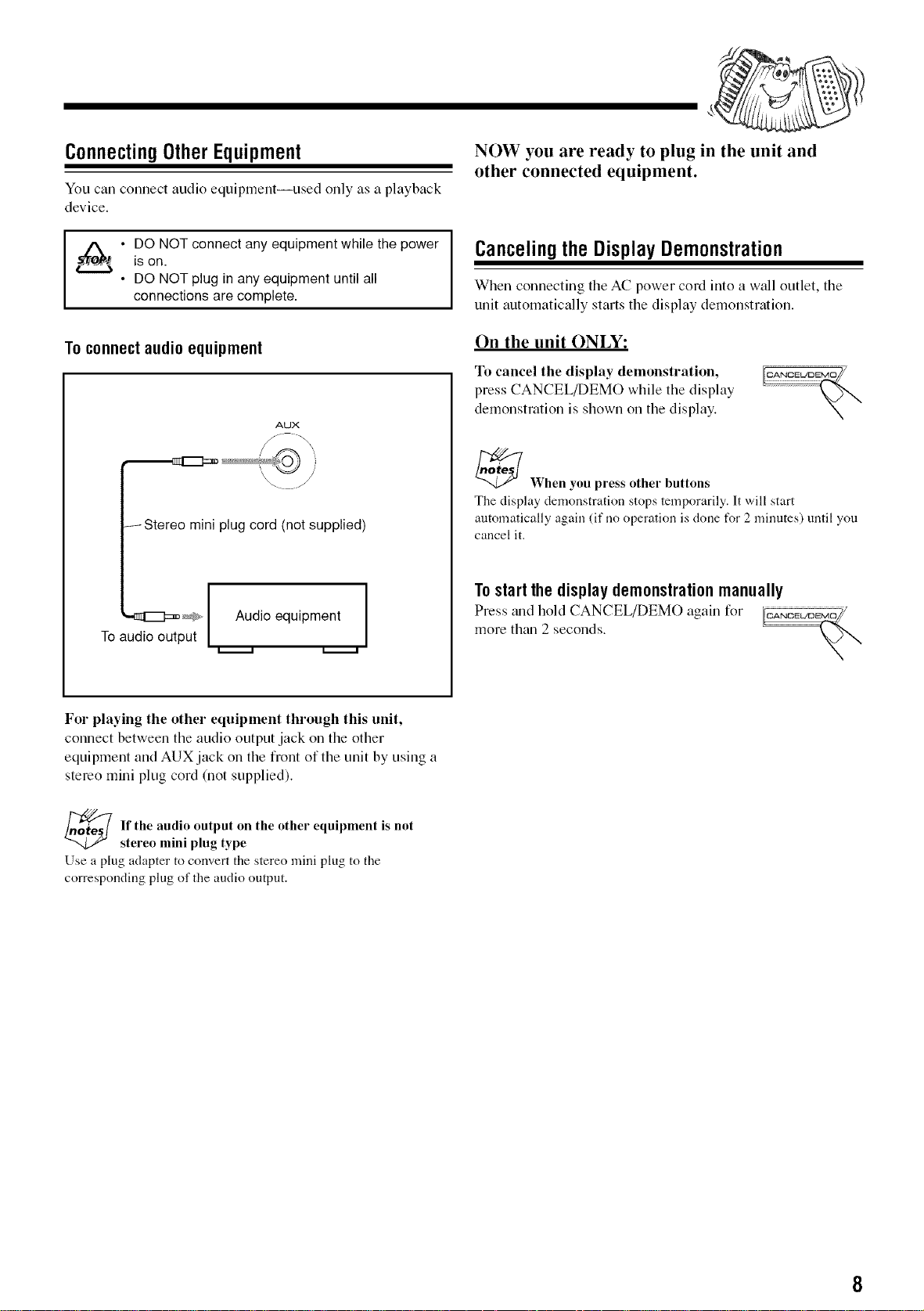
ConnectingOtherEquipment
You can cennect audio equipment--used enly as a playback
device.
• DO NOT connect any equipment while the power
is on.
• DO NOT plug in any equipment until all
connections are complete.
To connect audio equipment
AUX
/Stereo mini plug cord (not supplied)
'-_1_:=_ _#_ Audio equipment ]
To audio output
NOW you are ready to plug in the unit and
other connected equipment.
Canceling theDisplayDemonstration
When connecting the AC power cord into a wall outlet, the
unit automatically starts the display demonstration.
On the unit ONLY:
To cancel the display demonstration,
press CANCEL/DEMO while the display
demonstration is shown on the display.
_When you press other buttons
The display demonstration stops temporarily. It will start
automatically again (if no operation is done for 2 minutes) until you
cancel it.
Tostartthe displaydemonstrationmanually
Press trod held CANCEL/DEMO again fer
more than 2 seconds.
For playing the other equipment through this unit,
connect between the audio output jack on the other
equipment and AUX jack on the front of the unit by using a
stereo mini plug cord (not supplied).
_ f the audio output on the other equipment is not
stereo mini plug type
Use a plug adapter to convert the stereo mini plug to the
corresponding plug of the audio output.
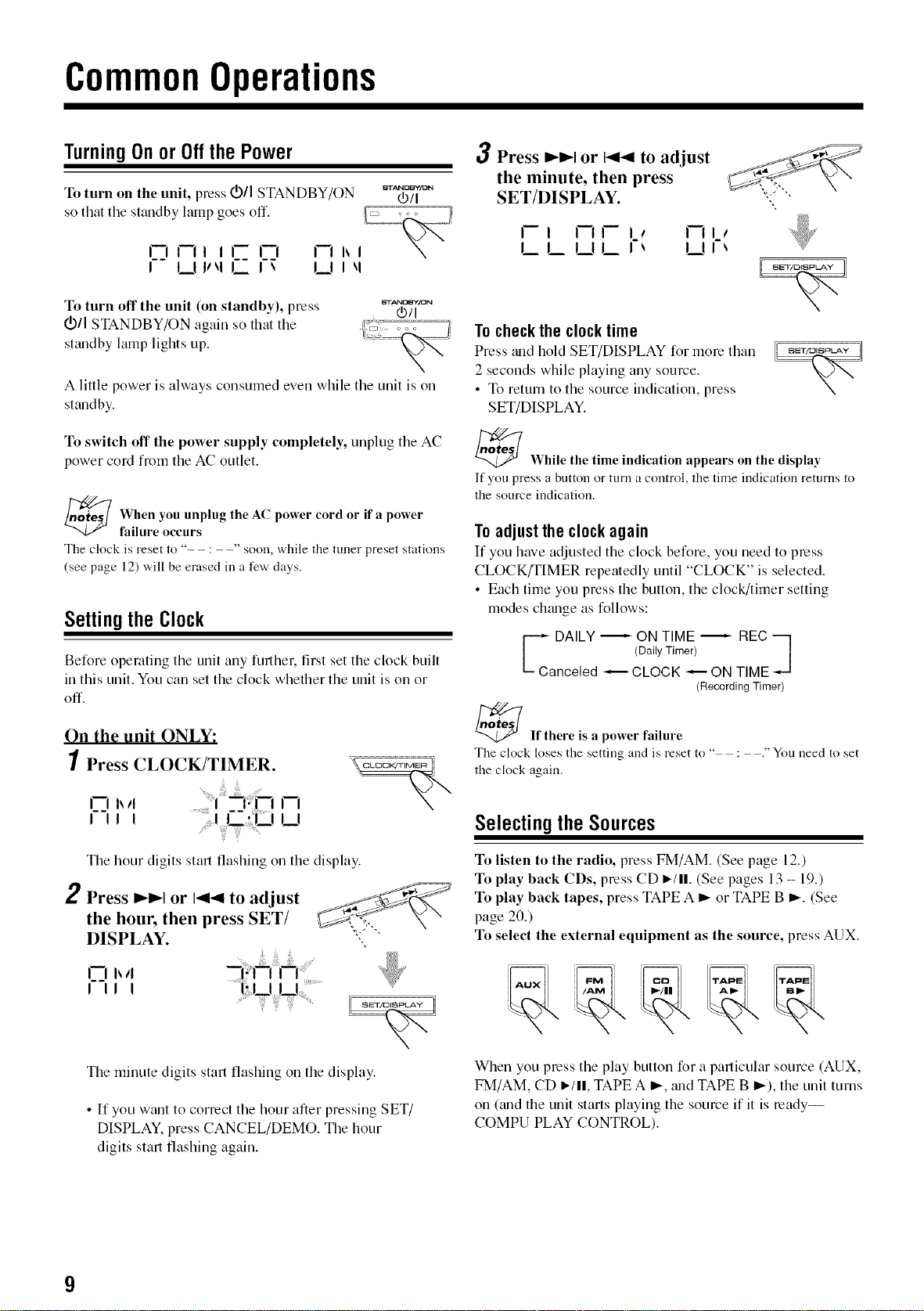
CommonOperations
TurningOnor Oilthe Power
To turn on the unit, press _,_/1STANDBY/ON _"_'_/_'="
so that the standby lamp goes off.
rlrll Jl- rl FJhl
I LIII_1 L I _ I__II _1
To turn off the unit (on standby), press
doll STANDBY/ON again so that the
sttmdby lamp lights up.
A little power is always consumed even while the unit is on
standby.
To switch off the power supply completely, unplug the AC
power cord from the AC outlet.
_When you unplug power or a power
the AC cord if
failure occurs
The clock is reset to " : " soon, while the tuner preset stations
(see page 12) will be erased in a few days.
Settingthe Clock
Before operating the unit any further, first set the clock built
in this unit. You can set the clock whether the unit is on or
off.
On the unit ONLY:
Press CLOCK/TIMER.
rl
L!
The hour digits start flashing on the display.
2 Press I_1_1 or 14141to adjust
the hour, then press SET/
DISPLAY.
I__ h4
I II I
The minute digits start flashing on the display.
• If you wtmt to correct the hour after pressing SET/
DISPLAY, press CANCEL/DEMO. The hour
digits start flashing again.
3 Press I_lP-Ior _ to adjust
the minute, then press
SET/DISPLAY.
rl rlrl_ rll_
LL UL I-_ UI-_
To check the clock time
Press _mdhold SET/DISPLAY for more than
2 seconds while playing any source.
• To return to the source indication, press
SET/DISPLAY.
_ While the time indication appears on the display
If you press a button or turn a control, the time indication returns to
the source indication.
Toadjustthe clockagain
If you have adjusted the clock before, you need to press
CLOCK/TIMER repeatedly until "CLOCK" is selected.
• Each time you press the button, the clock/timer setting
modes chmlge as follows:
G DAILY -- ON TIME -- REC ]
(Daily Timer)
Canceled -- CLOCK -- ON TIME
(Recording Timer)
_If there is a power failure
The clock loses the setting and is reset to " : ." You need to set
the clock again.
Selecting theSources
To listen to the radio, press FM/AM. (See page 12.)
To play back CDs, press CD I_/ll. (See pages 13 - 19.)
To play back tapes, press TAPE A _ or TAPE B _. (See
page 20.)
To select the external equipment as the source, press AUX.
When you press the play button for a particular source (AUX,
FM/AM, CD _/ll, TAPEA _, mid TAPE B _), the unit turns
on (and the unit starts playing the source if it is ready--
COMPU PLAY CONTROL).
Continued
AdjustingtheVolume
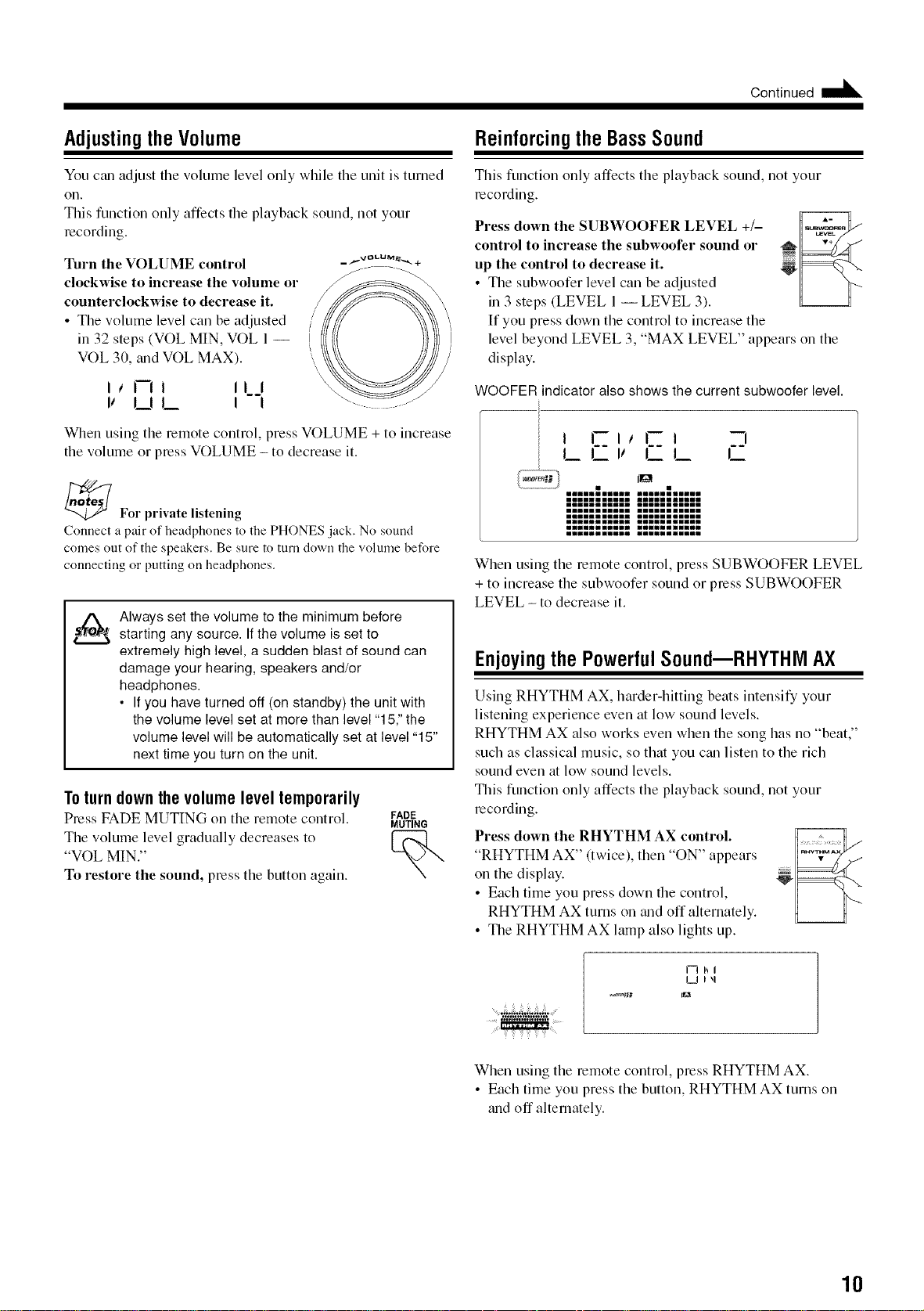
You c_madjust the volume level only while the unit is turned
on.
This function only affects the playback sound, not your
recording.
Turn the VOLUME control
clockwise to increase the volume or
counterclockwise to decrease it.
• The volume level can be adjusted
in 32 steps (VOL MIN, VOL 1 --
VOL 30, trod VOL MAX).
icrll 11_3
it u L ! !
When using the remote control, press VOLUME + to increase
the volume or press VOLUME - to decrease it.
_Fol" private listening
Connect a pair of headphones to the PHONES .jack. No sound
comes out of the speakers. Be sure to turn down the volume before
connecting or putting on headplaones.
_{ lways set the volume to the minimum before
starting any source. If the volume is set to
extremely high level, a sudden blast of sound can
damage your hearing, speakers and/or
headphones.
• If you have turned off (on standby) the unit with
the volume level set at more than level "15," the
volume level will be automatically set at level "15"
next time you turn on the unit.
Toturndownthevolume leveltemporarily
Press FADE MUTING on the remote control. FADE
MUTING
"voLThew_lumeMiN.,,levelgradually decreases to %
To restore the sound, press the button again.
Reinforcingthe BassSound
This function only affects the playback sound, not your
recording.
Press down the SUBWOOFER LEVEL +/-
control to increase the subwoofer sound or
up the control to decrease it.
• The subwoofer level can be adjusted
in 3 steps (LEVEL 1-- LEVEL 3).
If you press down the control to increase the
level beyond LEVEL 3, "MAX LEVEL" appears on the
display.
WOOFER indicator also shows the current subwoofer level.
I CI,CI --a
LL! LL L
When using the remote control, press SUBWOOFER LEVEL
+ to increase the subwoofer sound or press SUBWOOFER
LEVEL - to decrease it.
Enjoyingthe PowerfulSound--RHYTHM AX
Using RHYTHM AX, harder-hitting beats intensify your
listening experience even at low sound levels.
RHYTHM AX also works even when the song has no "beat,"
such as classical music, so that you ctm listen to the rich
sound even at low sound levels.
This function only affects the playback sound, not your
recording.
Press down the RHYTHM AX control.
"RHYTHM AX" (twice), then "ON" appears
on the display.
• Each time you press down the control,
RHYTHM AX turns on mid off alternately.
• The RHYTHM AX lamp also lights up.
I--I I_1
U Iq
When using the remote control, press RHYTHM AX.
• Each time you press the button, RHYTHM AX turns on
and off alternately.
10
SelectingtheSoundModes
This function only affects the playback sound, not your
recording.
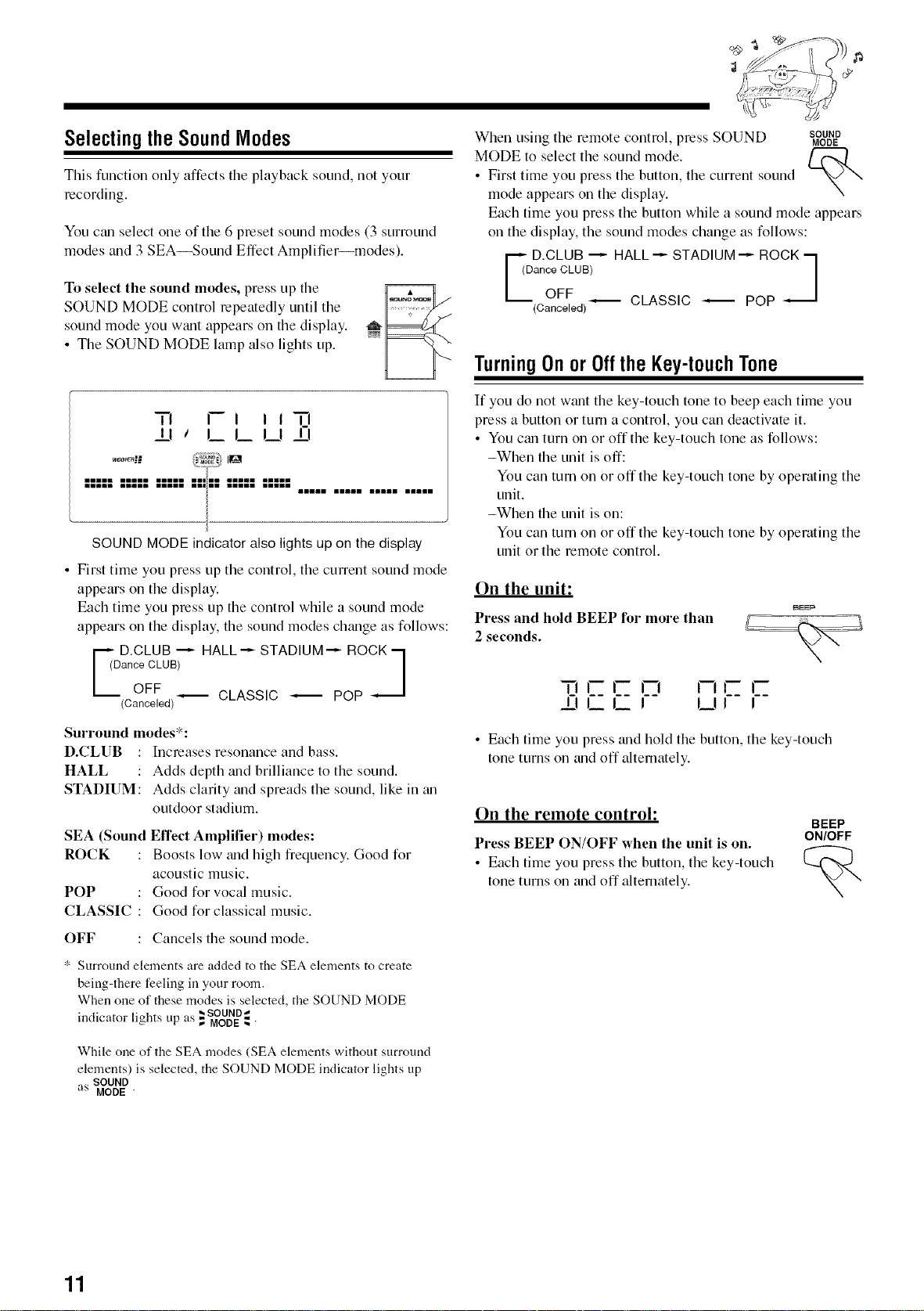
You ctm select one of the 6 preset sound modes (3 surround
modes and 3 SEA--SoMnd Effect Amplifier--modes).
To select the sound modes, press up the
SOUND MODE control repeatedly until the
sound mode you wtmt appears on the display.
• The SOUND MODE lamp also lights up.
When using the remote colltrol, press SOUND SOUND
MODE
MODE to select the sound mode.
• First time you press the button, the current sound
mode appears on the display.
Each time you press the button while a sound mode appears
on the display, the sound modes change as follows:
D.CLUB --"- HALL '-_ STADIUM '--- ROCK '7
ance CLUB) 1
OFF -- CLASSIC -- POP _J
(Canceled)
TurningOnor Offthe Key-touchTone
7"I I--i I ln
II I LLU I-i
==°°_9 llg
i
iiiii iiiii iiiii iii ii IIIII IIIII
IIIII IIIII iiiii iii ii iiiii iiiii
mmmml mlmml mmmml mmmml
SOUND MODE indicatoralsolightsup on thedisplay
• First time you press up the control, the current sound mode
appears on the display.
Each time you press up the control while a sound mode
appears on the display, the sound modes change as follows:
D.CLUB '--'- HALL "-_ STADIUM '--- ROCK --I
ance CLUB) 1
OFF -- CLASSIC -- POP _J
(Canceled)
If you do not want the key-touch tone to beep each time you
press a button or turn a control, you can deactivate it.
• You ctm turn on or off the key-touch tone as follows:
-When the unit is off:
You can turn on or off the key-touch tone by operating the
unit.
-When the unit is on:
You can turn on or off the key-touch tone by operating the
unit or the remote control.
On the unit:
Press and hold BEEP for more than
2 seconds.
BEEP
_T.IIr'-F- F'q F-IF-I--
LLI UI I
Surround modes*:
D.CLUB : Increases resonance and bass.
HALL : Adds depth and brilliance to the sound.
STADIUM: Adds clarity and spreads the sound, like in zm
outdoor stadium.
SEA (Sound Effect Amplifier) modes:
ROCK Boosts low trod high frequency. Good for
acoustic music.
POP Good for vocal music.
CLASSIC Good for classical music.
OFF Cancels the sound mode.
• Each time you press and hold the button, the key-touch
tone turns on trod off alternately.
On the remote control:
BEEP
Press BEEP ON/OFF when the unit is on. ON/OFF
• Each time you press the button, the key-touch
tone turns on and off alternately.
* Surround elements are added to the SEA elements to create
being-there feeling in your room.
When one of these modes is selected, the SOUND MODE
._SOUND
indicator lights up as ,,MODE"4,"
While one of the SEA modes (SEA elements without surround
elements) is selected, the SOUND MODE indicator lights up
• , SOUND
as MODE "
11
Listeningtothe Radio
Tuninginto a Station--AutoSearch
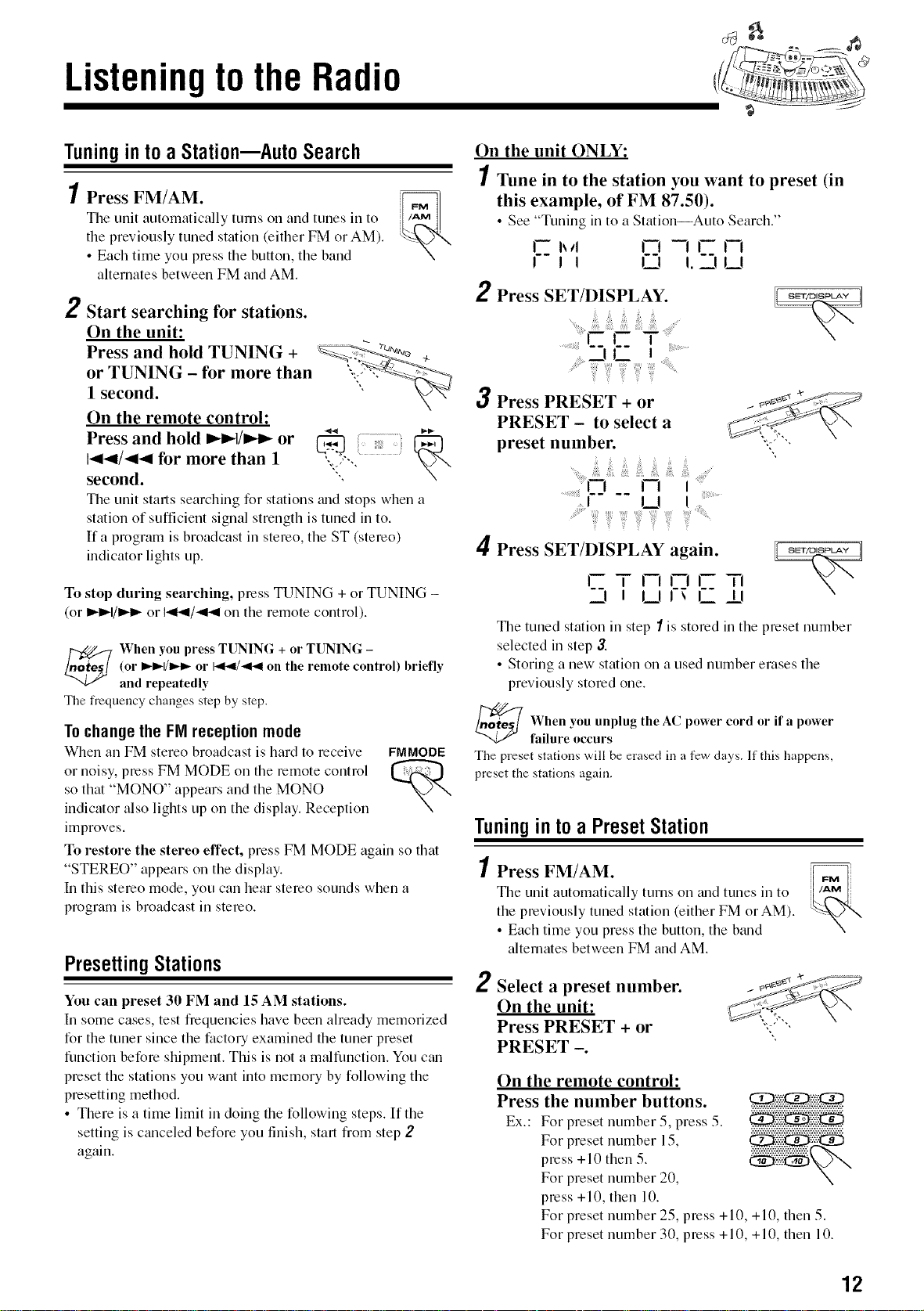
1Press FM/AM. i_
Tile unit automatically turns on and tunes ill to
tile previously tuned station (either FM or AM).
• Each time you press the button, the band
alternates between FM and AM.
2 Start searching for stations.
On the unit:
Press and hold TUNING +
or TUNING - for more than
1 second.
On the remote control:
Press and hold ,_1/_ or
1_4/_14 for more than 1
second.
Tile unit starts searching for stations mid stops when a
station of sufficient signal strength is tuned in to.
If a program is broadcast ill stereo, the ST (stereo)
indicator lights up.
To stop during searching, press TUNING + or TUNING -
(or D_I/I_I_ or 141_1/_ oil tile remote control).
When you press TUNING + o1"TUNING -
(or _t_ll_l/lln"t_or 14t_l/_ on the remote control) briefly
and repeatedly
The frequency changes step by step.
Tochangethe FlVlreceptionmode
When till FM stereo broadcast is hard to receive FMMODE
or noisy, press FM MODE oil tile remote control
so that "MONO" appears and tile MONO
indicator also lights up oil tlle display. Reception
improves.
To restore the stereo effect, press FM MODE again so that
"STEREO" appears oil tlle display.
Ill this stereo mode, you call hear stereo sounds when a
program is broadcast ill stereo.
Presetting Stations
You can preset 30 FM and 15 AM stations.
Ill some cases, test frequencies have been already memorized
for tlle tuner since tlle factory examined tlle tuner preset
function before shipment. This is not a malfunction. You ctm
preset tlle stations you want into memory by following tlle
presetting method.
• There is a time limit ill doing tile following steps. If the
setting is canceled before you finish, start from step 2
again.
On the unit ONLY:
Tune in to the station you want to preset (in
this example, of FM 87.50).
• See "Tuning in to a Station--Auto Search."
F i,,i n -7 i- n
F-Jl 0 L-IN
Press SET/DISPLAY.
J L I .........
........_'__:!iii)_':::iii!i:i"_iiii!iil_?'_i_!ii!i_;'_''_'.......
3 Press PRESET + or
PRESET - to select a
preset number.
4 Press SET/DISPLAY again.
I--T F-IF']I-- TI
j I UI_ L_II
Tile tuned station ill step I is stored in tile preset number
selected in step 3.
• Storing a new station oil a used number erases tile
previously stored one.
_When unplug the AC cord or if a
you power power
failure occurs
The preset stations will be erased in a few days. If this happens,
preset the stations again.
Tuningintoa PresetStation
1Press FM/AM.
Tile unit automatically turns oil trod tunes ill to
tile previously tuned station (either FM or AM).
• Each time you press tile button, tile btmd
alternates between FM and AM.
¢_e_ _........................
2 Select a preset number. _ _ ...... J-
On the unit: :_
Press PRESET + or '_" ",
PRESET -.
On the remote control:
Press the number buttons.
Ex.: For preset number 5, press 5.
For preset number 15,
press +10 then 5.
For preset number 20,
press +10, then 10.
For preset number 25, press +10,
For preset number 30, press +10,
+10, then 5.
+ 10, then 10.
12
PlayingBackCDs
Tfiis unit has been designed to playback the following CDs:
• Audio CD
• CD-R (CD-Recordable)
• CD-RW (CD-ReWritable)
• MP3 disc (MP3 tiles recorded on a CD-R or CD-RW)*
When playing a CD-R or CD-RW
• User-edited CD-Rs (CD-Recordable) and CD-RWs
(CD-ReWritable) can be played back when they are
already "finalized."
• Before playing back CD-Rs or CD-RWs, read their
instructions or cautions carefully.
• Some CD-Rs or CD-RWs may not be played back on this
unit because of their disc characteristics, damage or stain
on them, or if the player's lens is dirty.
Important notices:
• In general, you will have the best performance by keeping
your CDs and the mech_mism clean.
- Store CDs in their cases, and keep them in cabinets or on
shelves.
- Keep the unit's carrousel closed when not in use.
• Continuous use of irregular shaped discs (heart-shape,
octagonal, etc.) can damage the disc rotating mechanism.
x@ x@
• CD-RWs may require a longer readout time since the
reflectance of CD-RWs is lower than for regular CDs.
*For MP3 discs
• This unit manages tiles and folders on MP3 discs as
"tracks" and "albums."
• Playback order of the MP3 files (tracks) recorded on a disc
are determined by the writing (or encoding) application;
therefore, playback order may be different from the one
you have intended while recording the tiles and the tk_lders.
• Tfiis unit shows the tile (track) names and the ID3v 1/1.1
tags (only "Title" and "Artist") on the display after the tile
starts play; however, there is a limitation on available
characters and some tile names and ID3v 1/l. l tags are not
shown correctly.
_More about MP3 discs
• MP3 discs (either CD-R or CD-RW) require a longer readout
time. (It varies due to the complexity of the recording
configuration.)
• When making an MP3 disc, select ISO 9660 Level I or Level 2 as
the disc format,
• This unit does not support multisession recording.
• This unit can play MP3 files only with the following file
extensions ".MP3,"".Mp3,"".mP3," and ".rap3."
• Non-MP3 files are ignored. If non-MP3 files are recorded together
with MP3 files, this unit will take a longer time to scan the disc. It
may also cause the unit to malfunction.
• Some MP3 discs may not be played back because of their disc
characteristics or recording conditions.
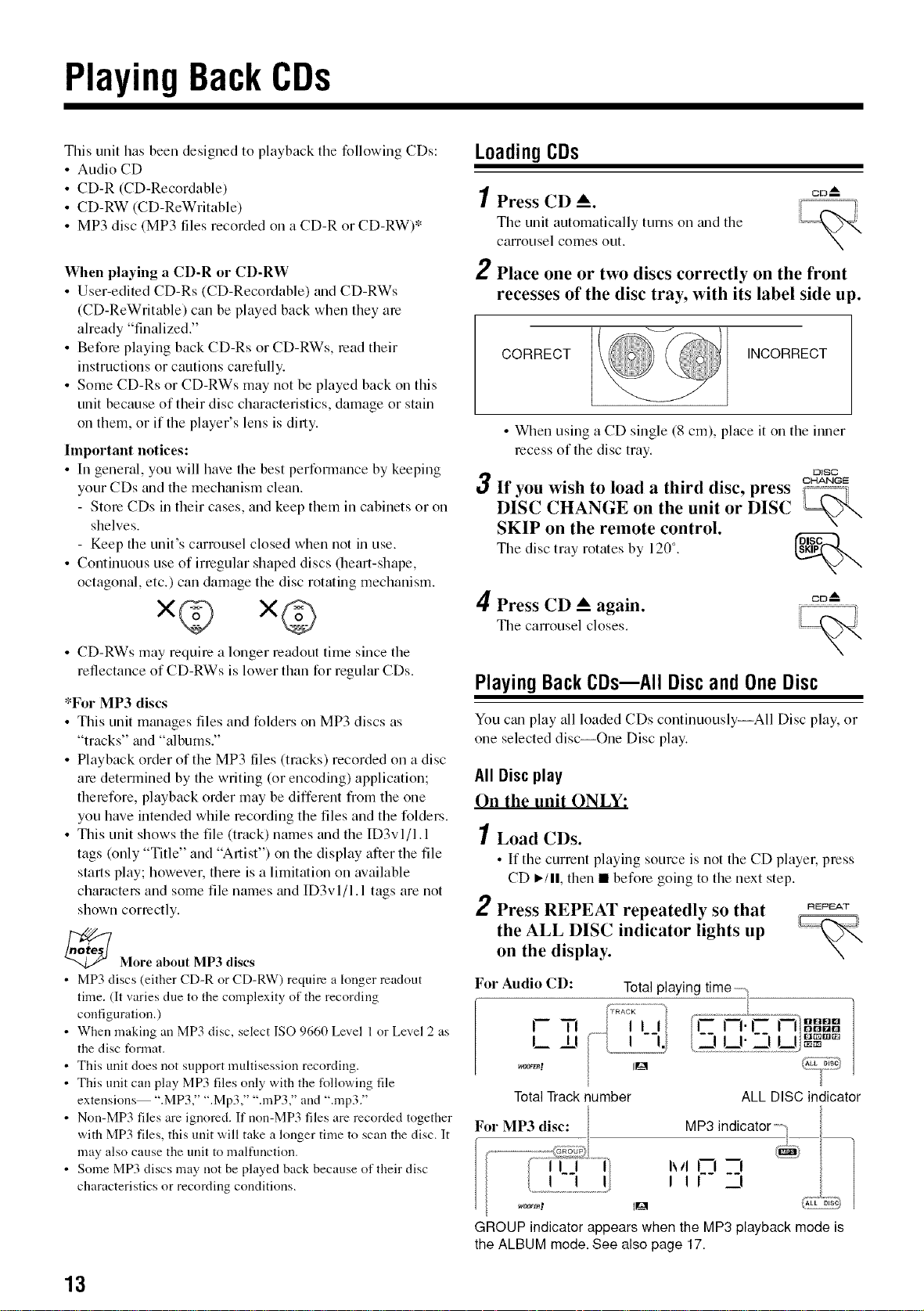
LoadingCDs
1Press CD _. _°--"
The unit automatically turns on trod the L_!K._I
carrousel comes out.
\-
2 Place one or two discs correctly on the front
recesses of the disc tray, with its label side up.
CORRECT INCORRECT
• When using a CD single (8 cm), place it on the inner
recess of the disc tray.
DISC
3 If you wish to load a third disc, press _'_
DISC CHANGE on the unit or DISC
SKIP on the remote control.
The disc tray rotates by 120 °.
4 Press CD A again.
The carrousel closes.
OD_
PlayingBackCDs--AII DiscandOneDisc
You can play all loaded CDs continuously--All Disc play, or
one selected disc--One Disc play.
All Disc play
On the unit ONLY:
1Load CDs.
• If the current playing source is not the CD player, press
CD I_/11, then • before going to the next step.
2 Press REPEAT repeatedly so that _
the ALL DISC indicator lights up '_-_
on the display.
\
For Audio CD:
I--TI
L!l
Total playing time,
_En]
Total Track number ALL DISC indicator
For MP3 disc:
MP3 indicator'"
i_tl N --I
I !!
woorr_l tlg
GROUP indicator appears when the MP3 playback mode is
the ALBUM mode. See also page 17.
13
Continued
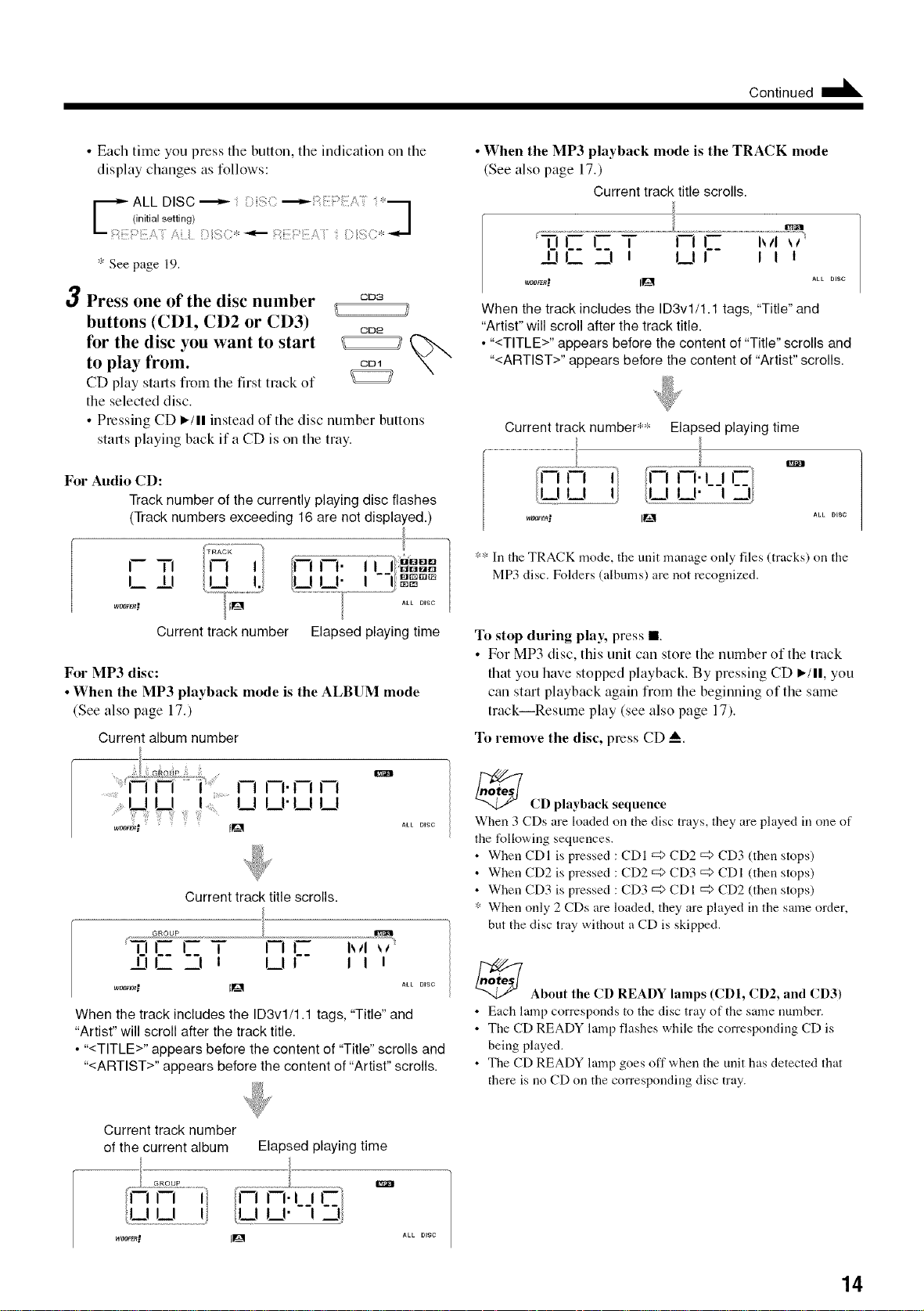
• Each time you press the button, the indication on the
display changes as follows:
E ALLDISC_ ' ; ; '_:: :;: 'i *'_1
..J
(initial setting)
* See page 19.
3 Press one of the disc number CD3
buttons (CD1, CD2 or CD3) cD_
for the disc you want to start _
to play froln, cD1
\"
CD play starts from the first track of
the selected disc.
• Pressing CD I_/ll instead of the disc number buttons
starts playing back if a CD is on the tray.
For Audio CD:
Track number of the currently playing disc flashes
(Track numbers exceeding 16 are not displayed.)
l-ml
L±I
Currenttracknumber Elapsedplayingtime
For MP3 disc:
• When the MP3 playback mode is the ALBUM mode
(See also page 17.)
Current album number
Current track title scrolls.
GROUP
741--i--7- i-i 1-_
It ,I _ UI
%
I I I
When the track includes the ID3v1/1.1 tags, "Title" and
"Artist" will scroll after the track title.
• "<TITLE>" appears before the content of "Title" scrolls and
"<ARTIST>" appears before the content of "Artist" scrolls.
• When the MP3 playback mode is the TRACK mode
(See also page 17.)
Current track title scrolls.
_o_Rt IIg ALL mSC
When the track includes the ID3v1/1.1 tags, "Title" and
"Artist" will scroll after the track title.
• "<TITLE>" appears before the content of "Title" scrolls and
"<ARTIST>" appears before the content of "Artist" scrolls.
Current track number** Elapsed playing time
m i
uu !,
WOOrER_ IIg ,_u. D_SC
** In the TRACK mode, tbe unit manage only files (tracks) on the
MP3 disc. Folders (albums) are not recognized.
To stop during play, press II.
• For MP3 disc, this unit can store the number of the track
that you have stopped playback. By pressing CD _/11, you
can start playback again from the beginning of the same
trackiResume play (see also page 17).
To remove the disc, press CD _.
_CD playback sequence
When 3 CDs are loaded on the disc trays, flaey are played in one of
the following sequences.
• When CDI is pressed : CDI =:>CD2 =5 CD3 (then stops)
• When CD2 is pressed : CD2 =:>CD3 =:>CDI (then stops)
• When CD3 is pressed : CD3 =:>CDI =5 CD2 (then stops)
* When only 2 CDs are loaded, they are played in the same order,
but tbe disc tray without a CD is skipped.
_ About the CD READY lamps (CDI, CD2, and CD31
• Eactl laml_ corresponds to tlae disc tray of ttle same number.
• The CD READY lamp flashes while the corresponding CD is
being played.
• Tbe CD READY lamp goes offwhen the unit has detected that
there is no CD on the corresponding disc tray.
Current track number
of the current album Elapsed playing time
i i ['-'1"1 II
!J IJ" ! _1
14
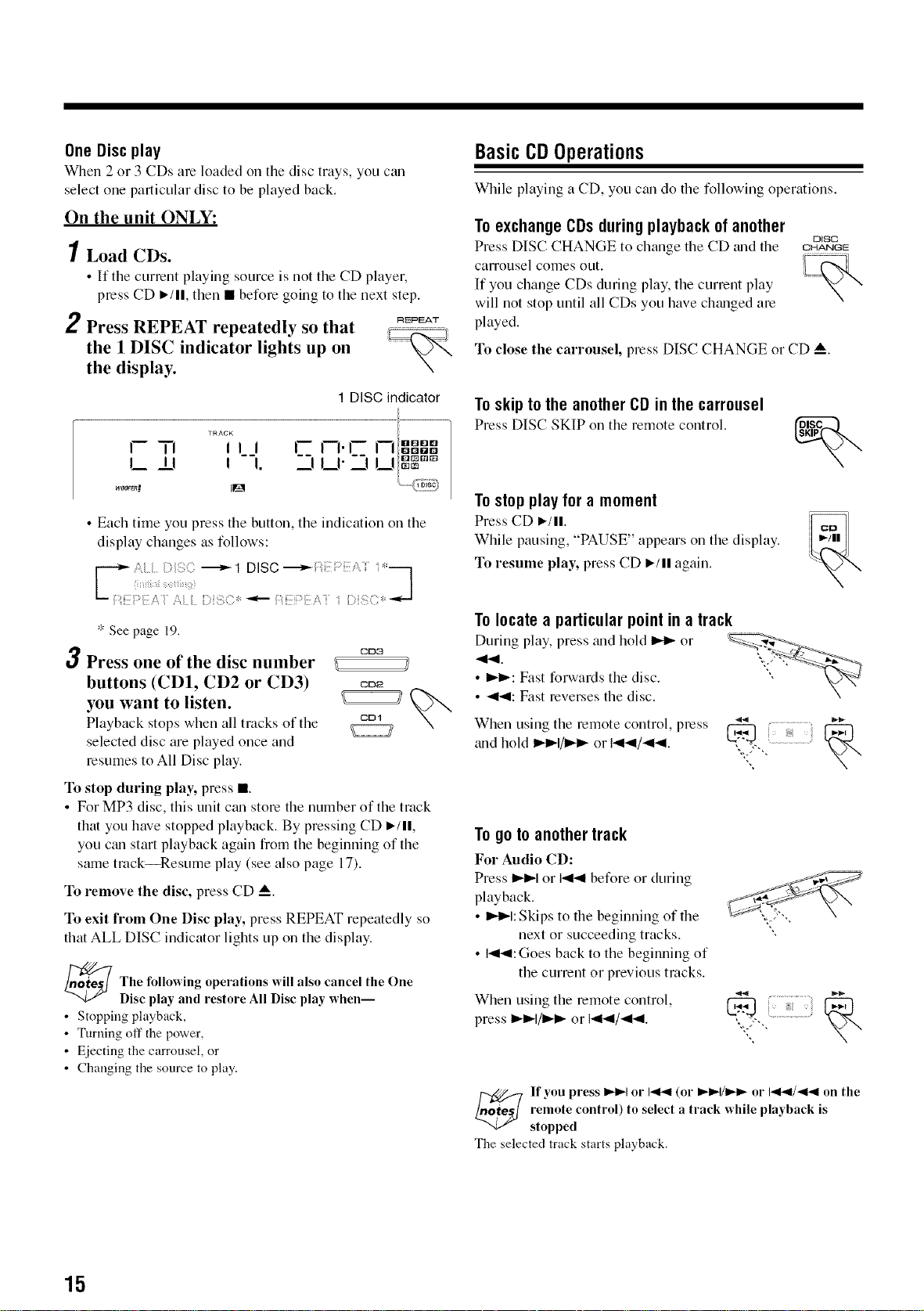
One Disc play
When 2 or 3 CDs are loaded on the disc trays, you c_m
select one particular disc to be played back.
On the unit ONLY:
1Load CDs.
• If the current playing source is not the CD player,
press CD i,>/ll, then • before going to the next step.
2 Press REPEAT repeatedly so that REPEAT
the 1 DISC indicator lights up on
the display.
1 DISC indicator
TRACK
-- i IBIQIEM_I
F 7"1 ii i F N.r i I,_D,,D
I__ _ t --I. 221U" 221!___!ggm_
w_r_.' tlg
• Each time you press the button, the indication on the
display changes as follows:
* See page 19.
3 Press one of the disc number co_
buttons (CD1, CD2 or CD3) cDa
you want to listen.
Playback stops when all tracks of the CD_
selected disc are played once and
resumes to All Disc play.
To stop during play, press l
• For MP3 disc, this unit can store the number of the track
that you have stopped playback. By pressing CD _/11,
you ctm start playback again from the begriming of the
same trackiResume play (see also page 17).
To remove the disc, press CD A.
To exit from One Disc play, press REPEAT repeatedly so
that ALL DISC indicator lights up on the display.
_The will also cancel the One
following operations
Disc play and restore All Disc play when--
• Stopping playback,
• Turning off the power,
• Ejecting the carrousel, or
• Changing the source to play.
BasicCDOperations
While playing a CD, you can do the following operations.
To exchange CDs during playback of another
DISO
Press DISC CHANGE to change the CD _md the CH_,NOE
carrousel comes OLIt.
If you change CDs during play, the current play
will not stop until all CDs you have ch_mged are
played.
To close the carrousel, press DISC CHANGE or CD _.
To skip to the another CD in the carrousel
Press DISC SKIP on the remote control.
%
To stop play for a moment
Press CD I_/11.
While pausing, "PAUSE" appears on the display.
To resume play, press CD i,>/ll again.
To locate a particular point in a track
a....................
_141,Duringplay, press _md hold _ or '
• I_,-: Fast forwards the disc.
• _4141:Fast reverses the disc.
When using the remote control, press " "[-_
ho,d or,-,,-,,/-,,-,,.
To go to another track
For Audio CD:
Press I_l_l or I_1_1before or during
playback.
• I_1_1:Skips to the beginning of the
next or succeeding tracks.
• I_l_l: Goes back to the beginning of
the current or previous tracks.
When rising the remote control,
press l,.i_l/l_i_ or l_l_l/_l.
":( ..i:::_!!!!L;i:ii
If you press i,,tl_l or I-,4c41(or l_-I_l/ll,.t_ or I-,4c_1/_1 on the
remote control) to select a track while playback is
stopped
The selected track starts playback,
15
Continued !
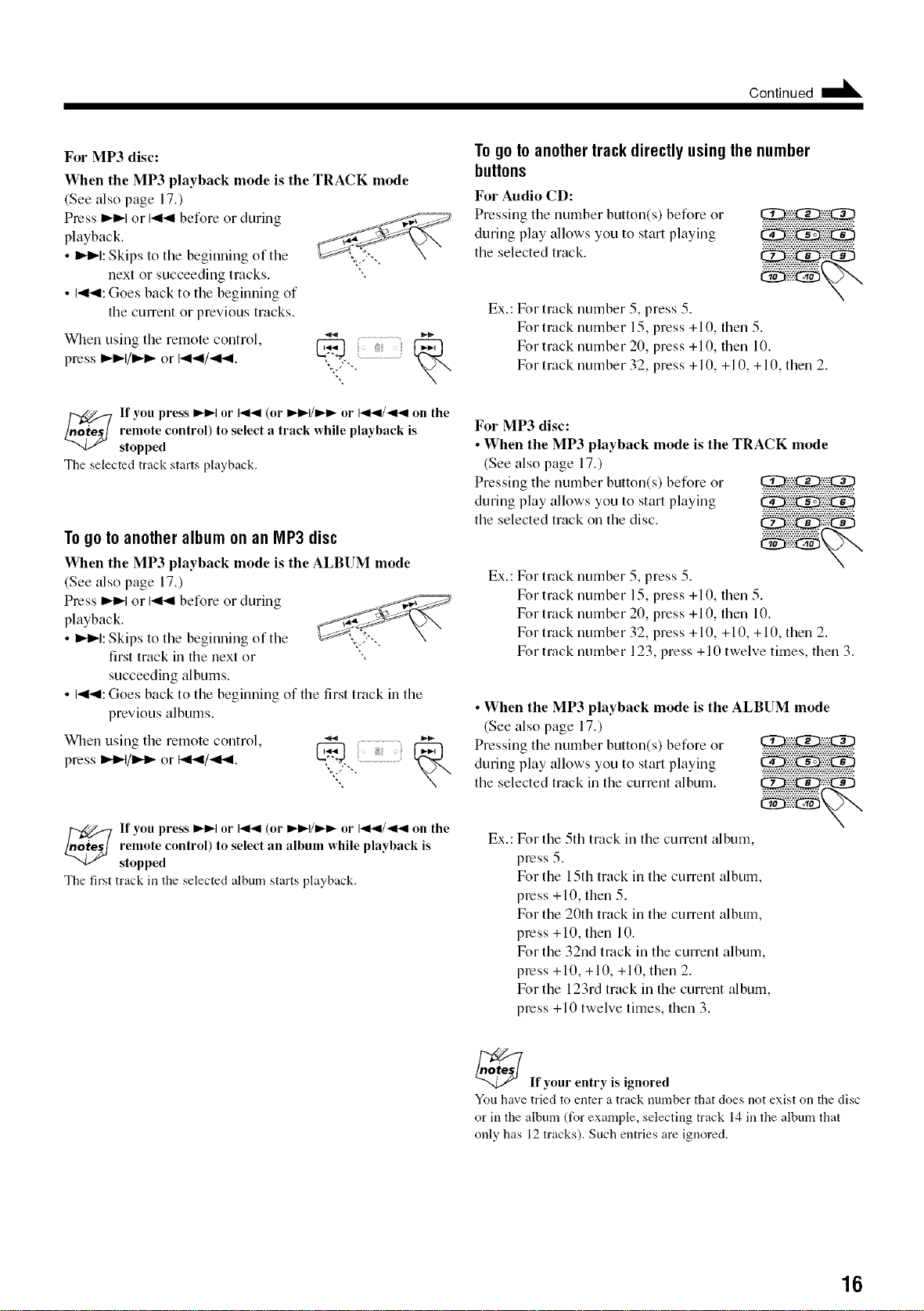
For MP3 disc:
When the MP3 playback mode is the TRACK mode
(See also page 17.)
Press I_1_1or I_1_1before or during
playback.
• I_l_l: Skips to tile beginning of tfie
next or succeeding tracks.
• 141_1:Goes back to tile beginning of
tile current or previous tracks.
Wfien using tile remote control, "( )'[-_
press I_1_1/1_1_or I_1_1/_41. _,
",...["" -.
lf you press ),-)),t or 14141(or II_t_l/ll_l_ or 14141/_141 on the
remote control) to select a track while playback is
stopped
Tile selected track starts playback.
To go to another album on an IVIP3disc
When the MP3 playback mode is the ALBUM mode
(See also page 17.)
Press I_1_1or 144 before or during
playback.
• I_1_1:Skips to tile beginning of tile
first track ill tile next or
succeeding albums.
................ ;t
• i_l_l: Goes back to tile beginning of tile first track ill tile
previous albums.
_!Vhen Llsing tile remote control, "*" )_
press I_1_1/1_t_or I_1_1/_141. _ [_
If you press ),-I)q or I-ql_l (or II_t_l/ll_l_ or I-ql_l/_141 on the
remote control) to select an album while playback is
stopped
Tile first track in tile selected albmn starts playback.
To go to another track directly using the number
buttons
For Audio CD:
Pressing tile number button(s) before or
during play allows you to start playing
the selected track.
Ex.: For tracknumber 5, press 5.
=======================
For track number 15, press + 10, then 5.
For track number 20, press + 10, tllen 10.
For track number 32, press + 10, +10, + 10, then 2.
For MP3 disc:
• When the MP3 playback mode is the TRACK mode
(See also page 17.)
Pressing tile number button(s) before or
during play allows you to start playing
the selected track on the disc.
Ex.: For tracknumber 5, press 5.
For track number 15, press +10, then 5.
For tracknumber 20, press +10, tllen 10.
For track number 32, press +10, +10, +10, then 2.
F()r track number 123, press + 10 twelve times, then 3.
• When the MP3 playback mode is the ALBUM mode
(See also page 17.)
Pressing tile number button(s) before or
during play allows you to start playing
the selected track ill the current album.
gx.:
For tile 5tfi track in tile current album,
press 5.
For the 15tfi track in the current album,
press +10, then 5.
For the 20tfi track ill the current album,
press +10, then 10.
For tile 32nd track in tile current album,
press +10, +10, +10, then 2.
For the 123rd track in the current album,
press +10 twelve times, then 3.
_ If your entry is ignored
You have tried to enter a track number that does not exist on the disc
or in the album (for example, selecting track 14 in the album that
only has 12 tracks). Such entries are ignored.
16
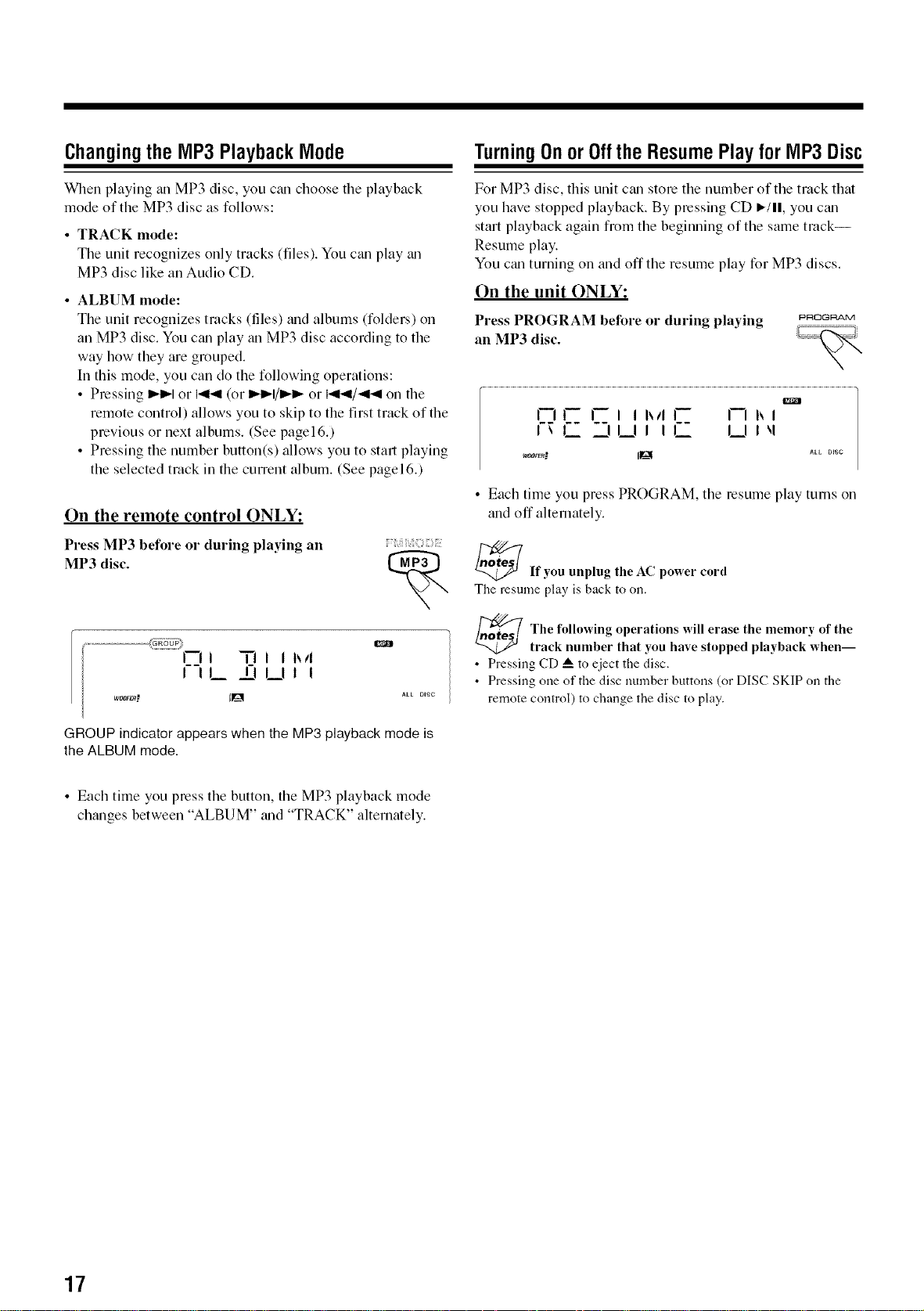
Changingthe MP3PlaybackMode
When playing an MP3 disc, you ctm choose the playback
mode of the MP3 disc as follows:
• TRACK mode:
The unit recognizes only tracks (files). You can play _m
MP3 disc like an Audio CD.
• ALBUM mode:
The unit recognizes tracks (files) trod albums (folders) on
an MP3 disc. You can play tm MP3 disc according to the
way how they are grouped.
In this mode, you can do the following operations:
• Pressing _-I or 141-,q(or _-I/m,q_ or 141-,q/<t_l o13the
remote control) allows you to skip to the first track of the
previous or next albums. (See pagel6.)
• Pressing the number button(s) allows you to start playing
the selected track in the current album. (See page l6.)
On the remote control ONLY:
Press MP3 before or during playing an
MP3 disc.
I--Ii "n i i l_Ii
FqL _UJ !
GROUP indicator appears when the MP3 playback mode is
the ALBUM mode.
TurningOnor OfftheResumePlayfor MP3Disc
For MP3 disc, this unit ctm store the uumber of the track that
you have stopped playback. By pressing CD I,,-/11,you ctm
start playback again from the beginning of the same track--
Resume play.
You ctm turning on and off the resume play for MP3 discs.
On the unit ONLY:
Press PROGRAM before or during playing
an MP3 disc.
PROGRAM
I--ii--I-- I I l_III-- I--II_i
I\ 1__ _Jl__l I I L I__1I_1
_m-" IIg ALL mSC
• Each time you press PROGRAM, the resume play turns on
and off alternately.
_ If you unplug the AC power cord
Tile resume play is back to oil.
The following operations will erase the memory of the
track number that you have stopped playback when--
• Pressing CD A to eject the disc,
• Pressing one of the disc number buttons (or DISC SKIP on the
remote control) to change the disc to play.
• Each time you press the button, the MP3 playback mode
changes between "ALBUM" trod "TRACK" alternately.
17
Continued
Programmingthe PlayingOrderoftheTracks
--Program Play
You can arrange the order in which the tracks play before you
start playing. You can program up to 32 tracks.
• To use Repeat play (see page 19) for Program play, press
REPEAT after starting Program play.
_ layback and recording for Program play are not
available to MP3 discs on this unit
There may be a malfunction ill case that you try to do such playback
or recording.
If a malfunction occurs, unplug the AC power cord and then plug it
back ill.
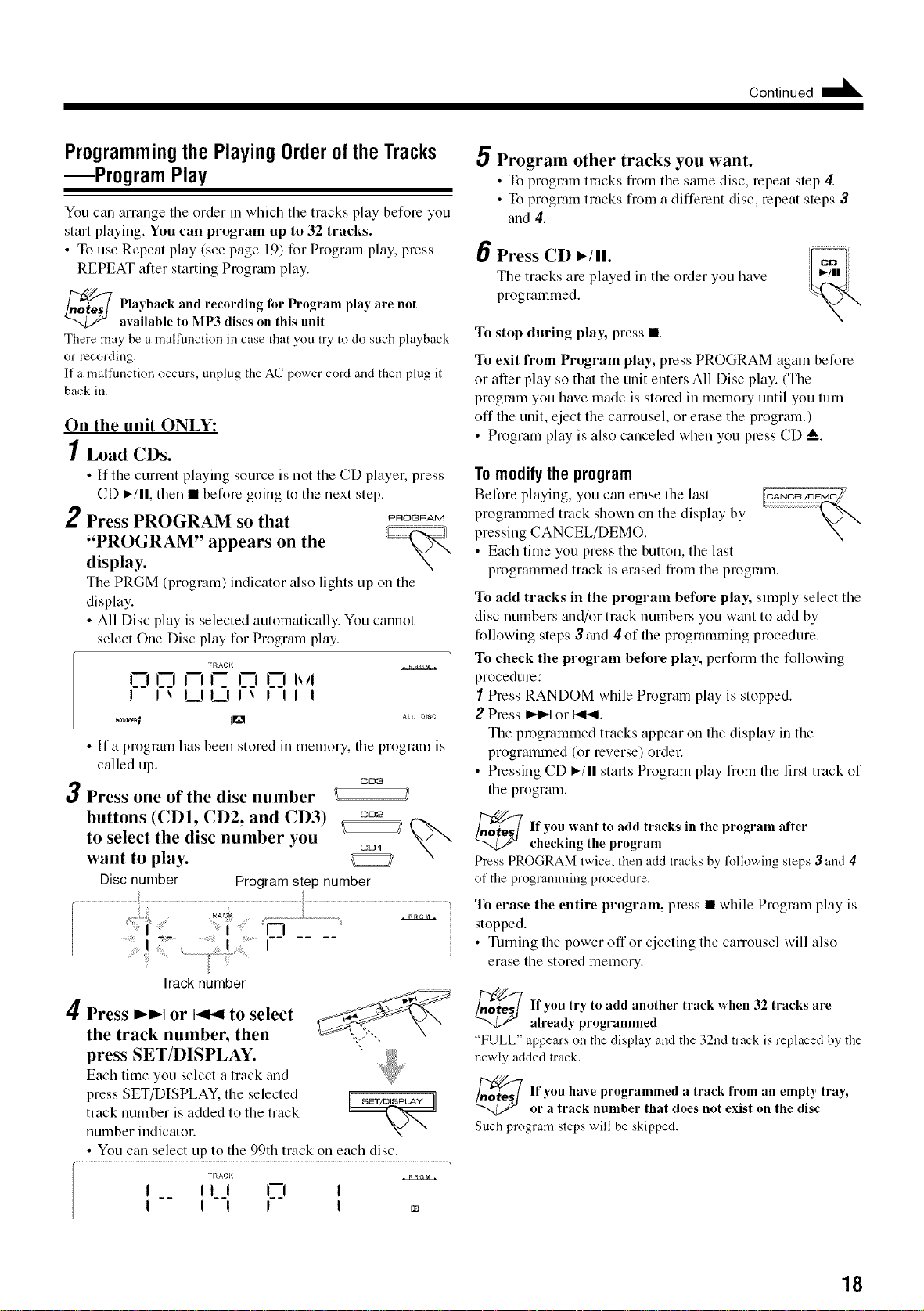
On the unit ONLY:
1 Load CDs.
• If the current playing source is not the CD player, press
CD ,/11, then • before going to the next step.
2 Press PROGRAM so that PRO_A_
"PROGRAM" appears on the
display.
The PRGM (program) indicator also lights up on the
display.
• All Disc play is selected automatically. You cannot
select One Disc play for Program play.
TRACK .I,*,P,,,P_ff_N,*L
I"-i i--i I--Ii-- I--I 1--1 h,'l
! ! _ I__11__1!_ I ! I !
w_or_! tlNI ALLD,SC
• If a program has been stored in memory, the program is
called up.
CID3
3 Press one of the disc number
buttons (CD1, CD2, and CD3) co2
to select the disc number you _
CD1
N
want to play.
Disc number Program step number
Track number
4 Press _m,,qor _ to select
the track number, then
press SET/DISPLAY.
Each time you select a track and
press SET/DISPLAY, the selected
track number is added to the track
number indicator.
• You can select up to the 99th track on each disc.
TRACK
I __ ILJ
I I!1
A..P--K.Ca.N-A
Program other tracks you want.
• To program tracks from the same disc, repeat step 4.
• To program tracks from a different disc, repeat steps 3
and 4.
6 Press CD I_/11. _
%
The tracks are played in the order you have
programmed.
To stop dm'ing play, press l
To exit from Program play, press PROGRAM again before
or after play so that the unit enters All Disc play. (The
program you have made is stored in memory until you turn
off the unit, eject the carrousel, or erase the program.)
• Program play is also canceled when you press CD _.
Tomodify the program
Before playing, you ctm erase the last IC_,NCELa:_EMO
programmed track shown on the display by
pressing CANCEL/DEMO.
• Each time you press the button, the last
programmed track is erased from the program.
To add tracks in the program before play, simply select the
disc numbers and/or track numbers you want to add by
following steps ,3mad 4 of the programming procedure.
To check the program before play, perfoml the following
procedure:
I Press RANDOM while Program play is stopped.
2 Press I_1_1or }.ql_l.
The programmed tracks appear on the display in the
programmed (or reverse) order.
• Pressing CD I_/ll starts Program play from the first track of
the program.
_ f you want to add tracks in the program after
checking the program
Press PROGRAM twice, then add tracks by following steps 3 and 4
of the programming procedure.
To erase the entire program, press • while Program play is
stopped.
• Turning the power off or ejecting the carrousel will also
erase the stored memory.
lf you try to add another track when 32 tracks are
ah'eady programmed
"FULL" appears on the display and the 32nd track is replaced by the
newly added track,
_ f you have programmed a track from an empty tray,
or a track numher that does not exist on the disc
Such program steps will be skipped.
18
PlayingatRandom--Random Play
The tracks of the selected CD will play at random.
• To use Rtmdom play, you have to cancel Program play.
On the unit ONLY:
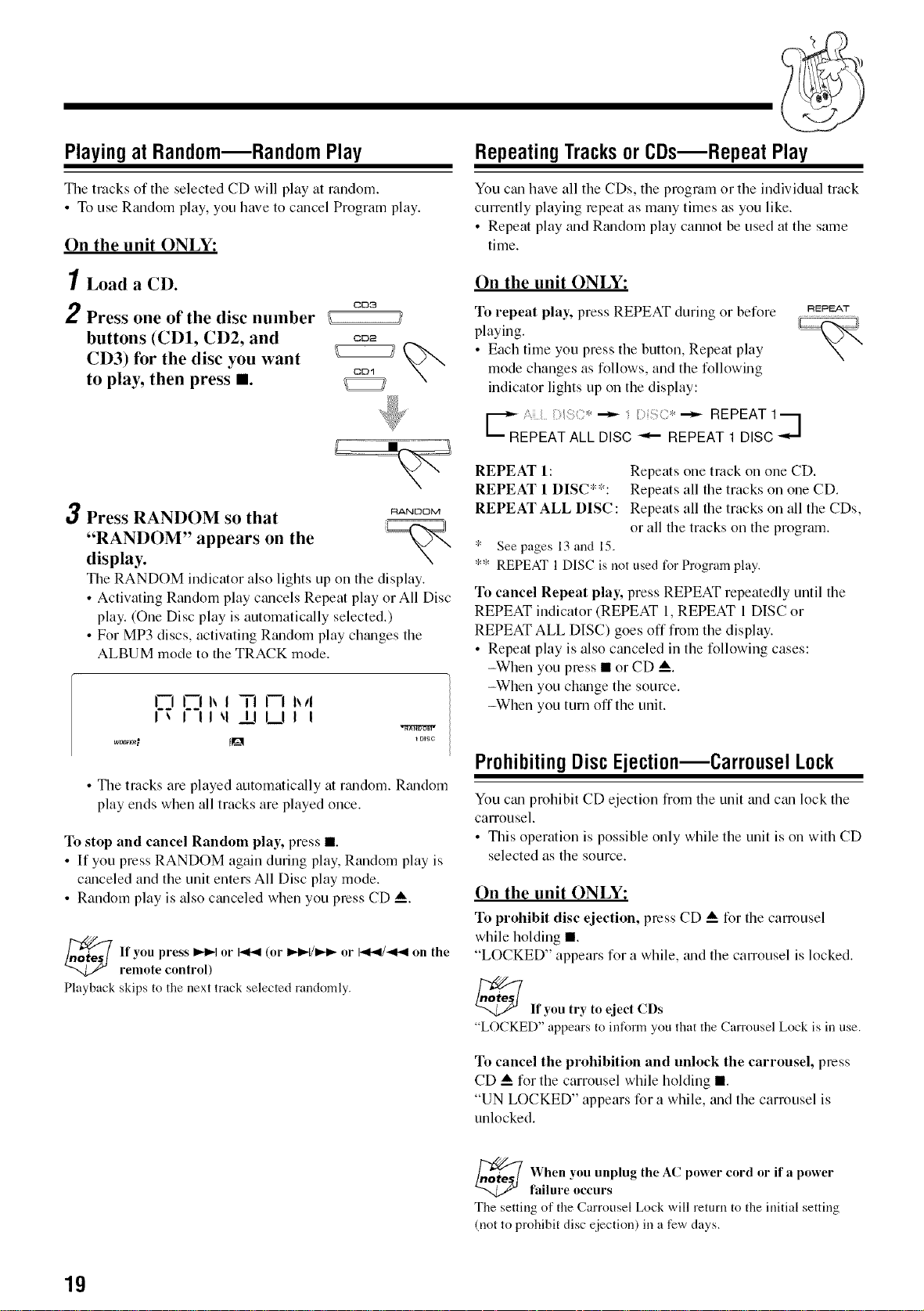
1 Load a CD.
2 Press one of the disc number /_ cD3
buttons (CD1, CD2, and co_
CD3) for the disc you want
CDq
to play, then press I.
3 Press RANDOM so that _ANOOM
"RANDOM" appears on the
display.
The RANDOM indicator also lights up on the display.
• ActNating Random play c_mcels Repeat play or All Disc
play. (One Disc play is automatically selected.)
• For MP3 discs, activating Random play changes the
ALBUM mode to the TRACK mode.
n i-i i_i "i'ln I_Ii
I_ I II_,II_IU I I
woofs..' Jig
DISC
• The tracks are played automatically at nmdom. Rtmdom
play ends when all tracks are played once.
To stop and cancel Random play, press l
• If you press RANDOM again during play, Random play is
canceled and the unit enters All Disc play mode.
• Random play is also ctmceled when you press CD _.
_ If you press I_1_t o1"I-,91_1(or II_t_l/ll_l_ 01"141_1/_41 on the
remote control)
Playback skips to tire next track selected randomly.
RepeatingTracksor CDs--Repeat Play
You can have all the CDs, the program or the individual track
currently playing repeat as mtmy times as you like.
• Repeat play and Random play cannot be used at the same
time.
On the unit ONLY:
To repeat play, press REPEAT during or before
playing.
• Each time you press the button, Repeat play
mode changes as follows, and the following
indicator lights up on the display:
)z:*
_RE;EAT ALL DISC ::*_€--REPEAT--REPEAT1DISCI'_
REPEAT
REPEAT 1: Repeats one track on one CD.
REPEAT 1 DISC**: Repeats all the tracks on one CD.
REPEAT ALL DISC : Repeats all the tracks on all the CDs,
or all the tracks on the program.
* See pages 13 and 15.
** REPEAT 1 DISC is not used for Program play.
To cancel Repeat play, press REPEAT repeatedly until the
REPEAT indicator (REPEAT 1, REPEAT 1 DISC or
REPEAT ALL DISC) goes off from the display.
• Repeat play is also canceled in the following cases:
-When you press • or CD _.
-When you chtmge the source.
-When you turn off the unit.
Prohibiting Disc Ejection--Carrousel Lock
You ctm prohibit CD ejection from the unit trod ctm lock the
carrousel.
• This operation is possible only while the unit is on with CD
selected as the source.
On the unit ONLY:
To prohibit disc ejection, press CD _ for the carrousel
while holding l
"LOCKED" appears for a while, zmd the carrousel is locked.
_ If you try to eject CDs
"LOCKED" appears to inform you that the Carrousel Lock is in use.
To cancel the prohibition and unlock the carrousel, press
CD _ for the carrousel while holding l
"UN LOCKED" appears for a while, _md the carrousel is
unlocked.
When you unplug the AC power cord or if a power
failure occurs
The setting of the Carrousel Lock will return to the initial setting
(not to prohibit disc ejection) in a few days.
19
PlayingBackTapes
PlayingBacka Tape
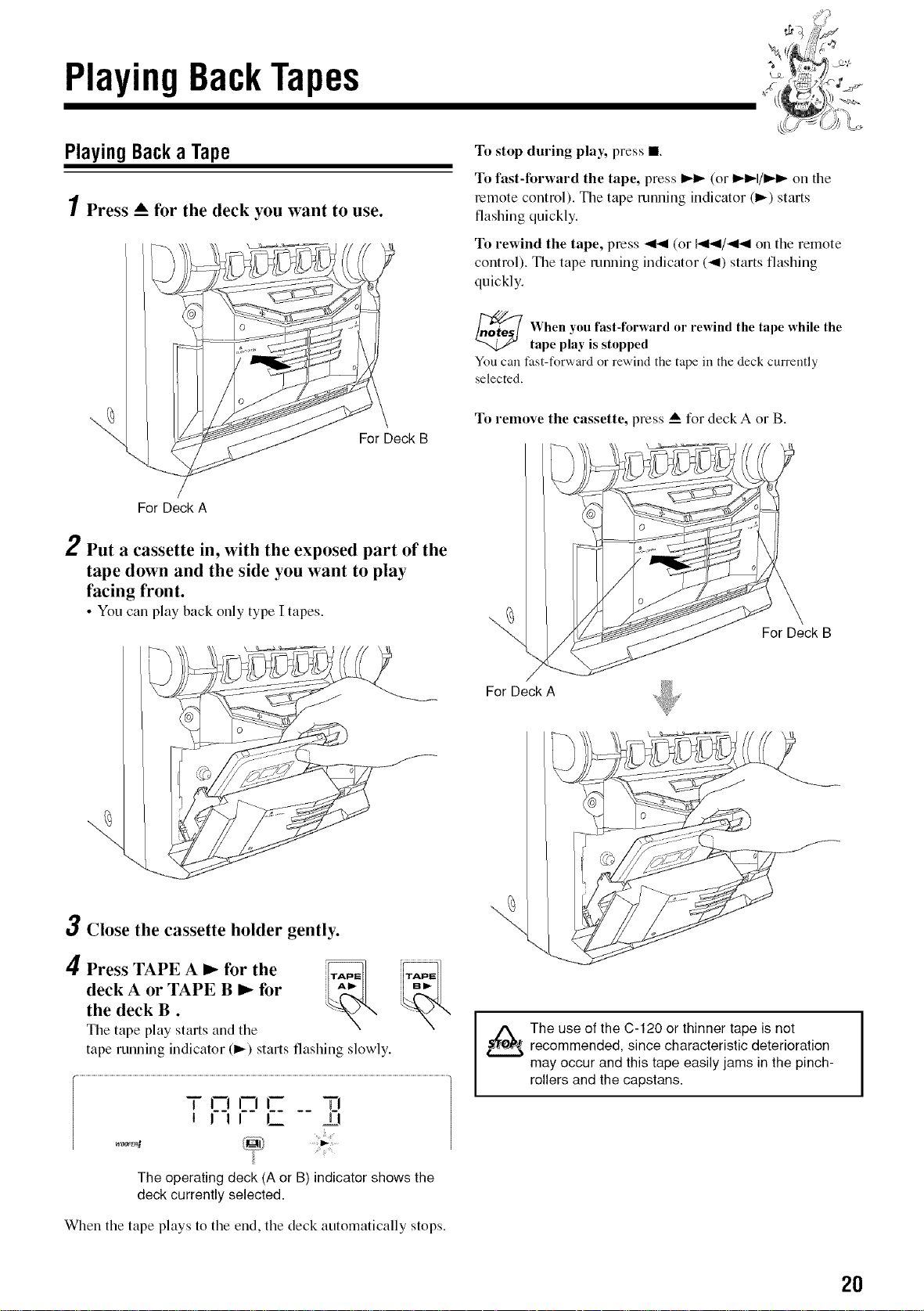
1Press_"for the deck you want to use.
For Deck B
To stop during play, press l
To fast-forward the tape, press I_ (or I_1/1_ on the
remote control). The tape running indicator (_) starts
flashing quickly.
To rewind the tape, press _ (or _4/_ on the remote
control). The tape running indicator (4) starts flashing
quickly.
When you fast-forward or rewind the tape while the
tape play is stopped
You can fast-forward or rewind the tape in the deck currently
selected.
To remove the cassette, press _ for deck A or B.
For Deck A
2 Put a cassette in, with the exposed part of the
tape down and the side you want to play
facing front.
• You can play back only type I tapes.
For Deck A
For Deck B
3 Close the cassette holder gently.
4 Press TAPE A I_ for the _
deck A or TAPE B 1_ for
the deck B.
The tape play starts and the
tape running indicator (_) starts flashing slowly.
woorEn_
T I--II--II-- 7"..I
i III L _=FI
The operating deck (A or B) indicator shows the
deck currently selected.
When the tape plays to the end, the deck automatically stops.
The use of the C-120 or thinner tape is not
recommended, since characteristic deterioration
may occur and this tape easily jams in the pinch-
rollers and the capstans.
20
Recording
IMPORTANT:
• It should be noted that it may be unlawful to re-record
pre-recorded tapes, records, or discs without the
consent of the owner of copyright in the sound or video
recording, broadcast or cable program and in any
literary, dramatic, musical, or artistic embodied
therein.
• The recording level is automatically set correctly, so it is
not affected by the VOLUME, the SUBWOOFER LEVEL,
the RHYTHM AX, trod the SOUND MODE controls. Thus,
during recording you can adjust the sound you are actually
listening to without affecting the recording level.
• If recordings you have made have excessive noise or static,
the unit may be too close to a TV. Place the unit away from
the TV.
• You can use type I tape for recording.
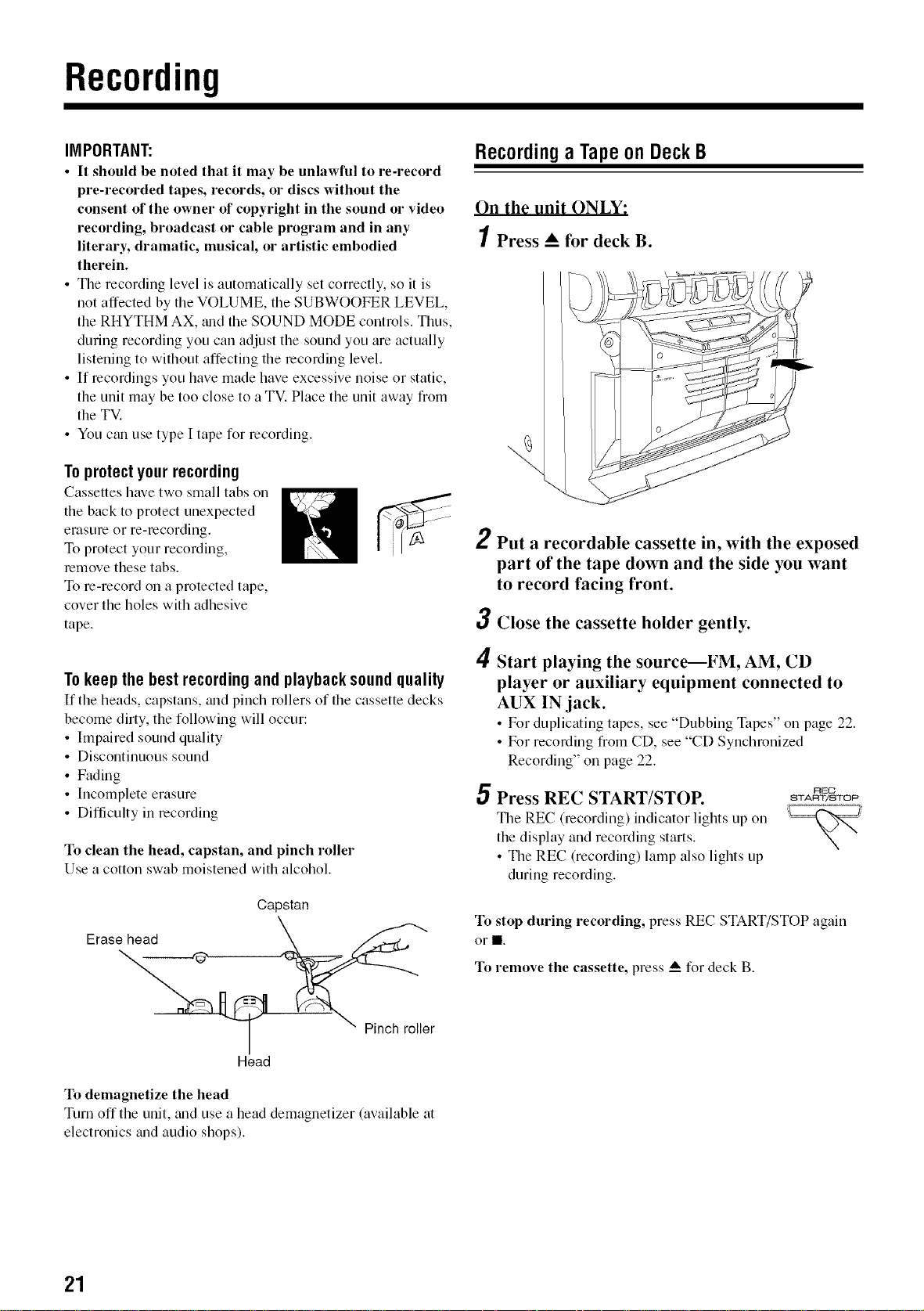
Toprotect yourrecording
Cassettes have two small tabs on
the back to protect unexpected
erasure or re-recording.
To protect your recording,
remove these tabs.
To re-record on a protected tape,
cover the holes with adhesive
tape.
Tokeepthe bestrecordingandplayback soundquality
If the heads, capstans, trod pinch rollers of the cassette decks
become dirty, the following will occur:
• hnpaired sound quality
• Discontinuous sound
• Fading
• Incomplete erasure
• Difficulty in recording
To clean the head, capstan, and pinch roller
Use a cotton swab moistened with alcohol.
Capstan
Erase head
Recordinga Tapeon DeckB
On the unit ONLY:
1 Press A for deck B.
2
Put a recordable cassette in, with the exposed
part of the tape down and the side you want
to record facing front.
3 Close the cassette holder gently.
4
Start playing the source--FM, AM, CD
player or auxiliary equipment connected to
AUX IN jack.
• For duplicating tapes, see "Dubbing Tapes" on page 22.
• For recording from CD, see "CD Synchronized
Recording" on page 22.
5 Press REC START/STOP.
The REC (recording) indicator lights up on
the display and recording starts.
• The REC (recording) lamp also lights up
during recording.
REO
START/STOP
To stop during recording, press REC START/STOP again
or II.
To remove the cassette, press _ for deck B.
Pinch roller
Head
To demagnetize the head
Turn off the unit, trod use a head demagnetizer (available at
electronics and audio shops).
21
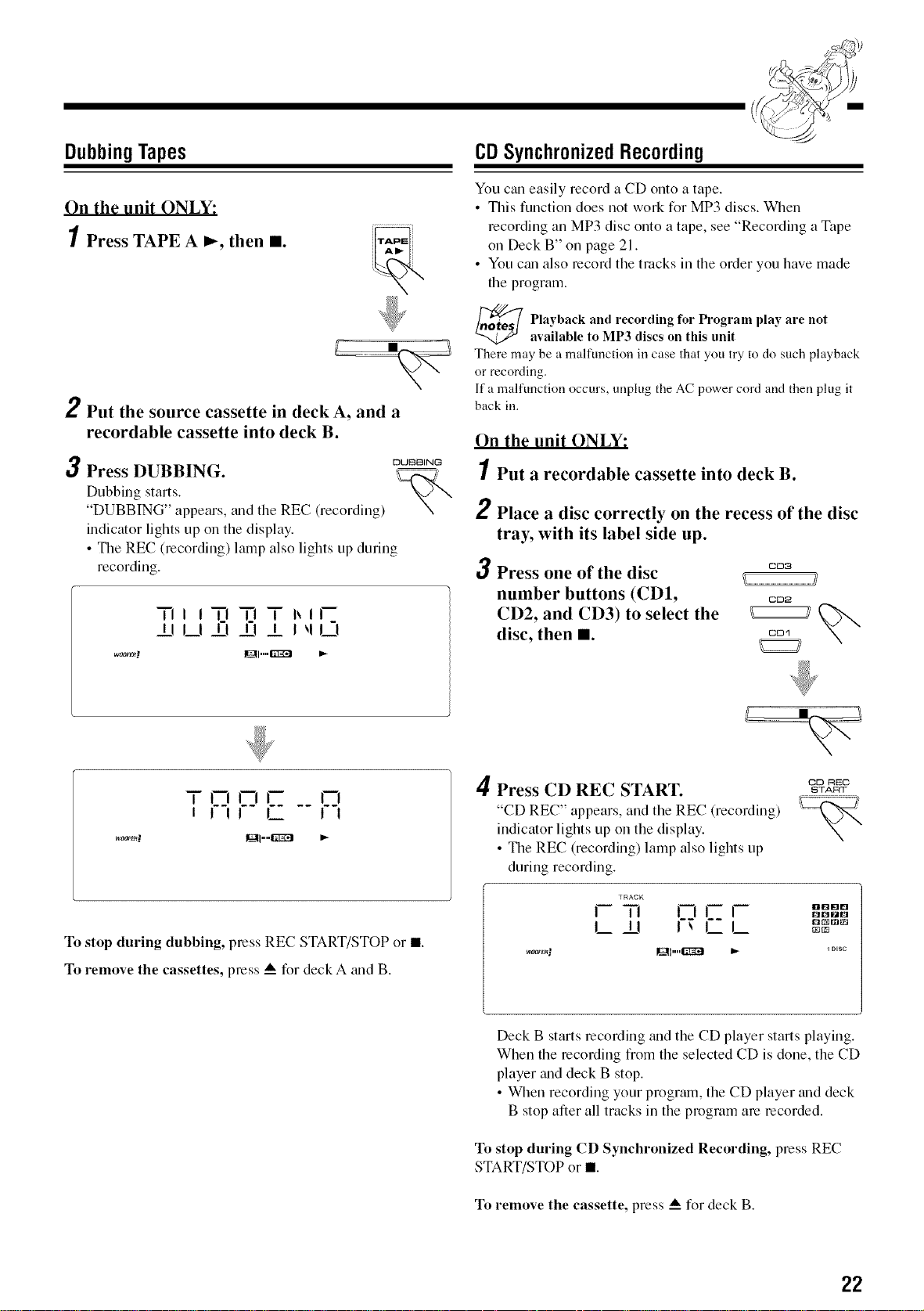
DubbingTapes
On the unit ONLY:
1 Press TAPE A _, then I1.
2 Put the source cassette in deck A, and a
recordable cassette into deck B.
DUBBING
3 Press DUBBING. _.......
Dubbing starts.
"DUBBING" appears, trod the REC (recording) 2
indicator lights up on the display.
• The REC (recording) lamp also lights up during
recording. 3
TiIi TI -iq T I_if
±! U £1 £! _ J _lL-I
CDSynchronizedRecording
You can easily record a CD onto a tape.
• This function does not work for MP3 discs. When
recording an MP3 disc onto a tape, see "Recording a Tape
on Deck B" on page 21.
• You ctm also record the tracks in the order you have made
the program.
_ layhack and recording for Program play are not
available to MP3 discs on this unit
There may be a malfunction in case that you try to do such playback
or recording.
If a malfunction occurs, unplug the AC power cord and then plug it
back in.
On the unit ONLY:
1 Put a recordable cassette into deck B.
Place a disc correctly on the recess of the disc
tray, with its label side up.
Press one of the disc cob
_j
number buttons (CD1, =D_
CD2, and CD3) to select the _
disc, then I1. \-
T r] rl r A
I 1 !1 I_ 1 !
To stop during dubbing, press REC START/STOP or l
To remove the cassettes, press _ for deck A trod B.
DD RED
4 Press CD REC START. BTAR_
"CD REC" appears, and the REC (recording) _'_
indicator lights up on the display.
\-
• The REC (recording) lamp also lights up
during recording.
TRACK
QI21161Q
_En.." Igl,,,,lgg_l _ _msc
Deck B starts recording trod the CD player starts playing.
When the recording from the selected CD is done, the CD
player trod deck B stop.
• When recording your program, the CD player and deck
B stop after all tracks in the program are recorded.
To stop during CD Synchronized Recording, press REC
START/STOP or I
To remove the cassette, press _ for deck B.
22
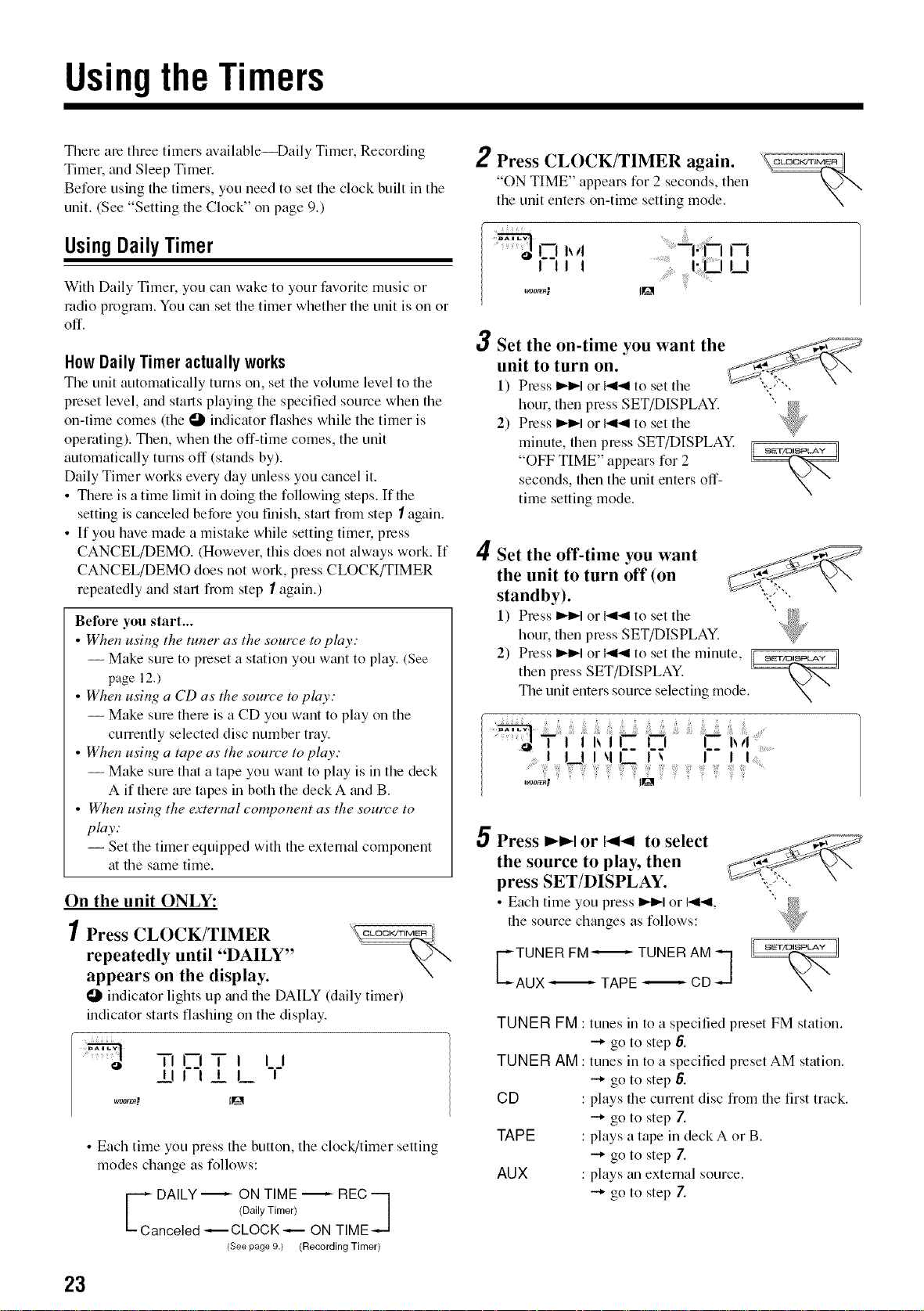
UsingtheTimers
There are three timers available--Daily Timer, Recording
Timer, trod Sleep Timer.
Before using the timers, you need to set the clock built in the
unit. (See "Setting the Clock" on page 9.)
UsingDailyTimer
With Daily Timer, you can wake to your favorite music or
radio program. You c_m set the timer whether the unit is oil or
off.
HowDaily Timeractuallyworks
The unit automatically turns on, set the w)lume level to the
preset level, and starts playing the specified source when the
on-time comes 0he O indicator flashes while the timer is
operating). Then, when the off-time comes, the unit
automatically turns off (stands by).
Daily Timer works every (lay unless you cancel it.
• There is a time limit in doing the following steps. If the
setting is canceled before you finish, stan from step I again.
• If you have made a mistake while setting timer, press
CANCEL/DEMO. (However, tlfis does not always work. If
CANCEL/DEMO does not work, press CLOCK/TIMER
repeatedly and starl from step I again.)
Before you start...
• When using the tuner as the somre to play:
-- Make sure to preset a station you wtmt to play. (See
page 12.)
• When using a CD as the sou*re to play:
-- Make sure there is a CD you want to play on the
currently selected disc number tray.
• When using a tape as the source to play:
-- Make sure that a tape you want to play is in the deck
A if there are tapes in both the deck A mad B.
• When using the external component as the somz_e to
play:
-- Set the timer equipped with the external component
at the same time.
On the unit ONLY:
1 Press CLOCK/TIMER \_
repeatedly until "DAILY"
appears on the display.
indicator lights up trod the DAILY (daily timer)
indicator starts flaslfing on the display.
TI ['71T I ii
_1!1 I!L T
• Each time you press the button, the clock/timer setting
modes change as follows:
E DAILY _'- ON TIME _-- REC
-1
(Daily Timer) l
Canceled _CLOCK _ ON TIME ---J
(See page 9.) (Recording Timer)
2 Press CLOCK/TIMER again.
"ON TIME" appears for 2 seconds, then
the unit enters on-time setting mode.
0 l ,J ....... n
I !1 I .................
O Set the on-time you want the
unit to turn on.
1) Press I_1_1or _ to set the ,--, -,
hour, then press SET/DISPLAY.
2) Press I_1_1or {41_1to set the
minute, then press SET/DISPLAY.
"OFF TIME" appears for 2
seconds, then the unit enters off-
time setting mode.
4 Set the off-time you want
the unit to turn off (on
standby).
1) Press I_1_1or 141_1to set the
hour, then press SET/DISPLAY.
2) Press _1 or _ to set the minute, [s__
then press SET/DISPLAY. _.'_
The unit enters source selecting mode. xN "
_i ¸¸¸i :;!iii__i:ii!_..... _:iil!ii _i:_ : i_
_1L ! _ I'- I .......
5 Press I_l_-Ior _ to select
the source to play, then
press SET/DISPLAY.
• Each time you press I_1_1or 141_1,
the source changes as follows:
E:;_ER FMTETUNER ;_ ]
%
TUNERFM:
TUNERAM:
CD
TAPE
AUX
tunes in to a specified preset FM station.
-+ go to step 6.
tunes in to a specified preset AM station.
-+ go to step 6.
: plays the current disc from the first track.
-+ go to step 7.
: plays a tape in deck A or B.
-+ go to step 7.
: plays _m external source.
-+ go to step 7.
23
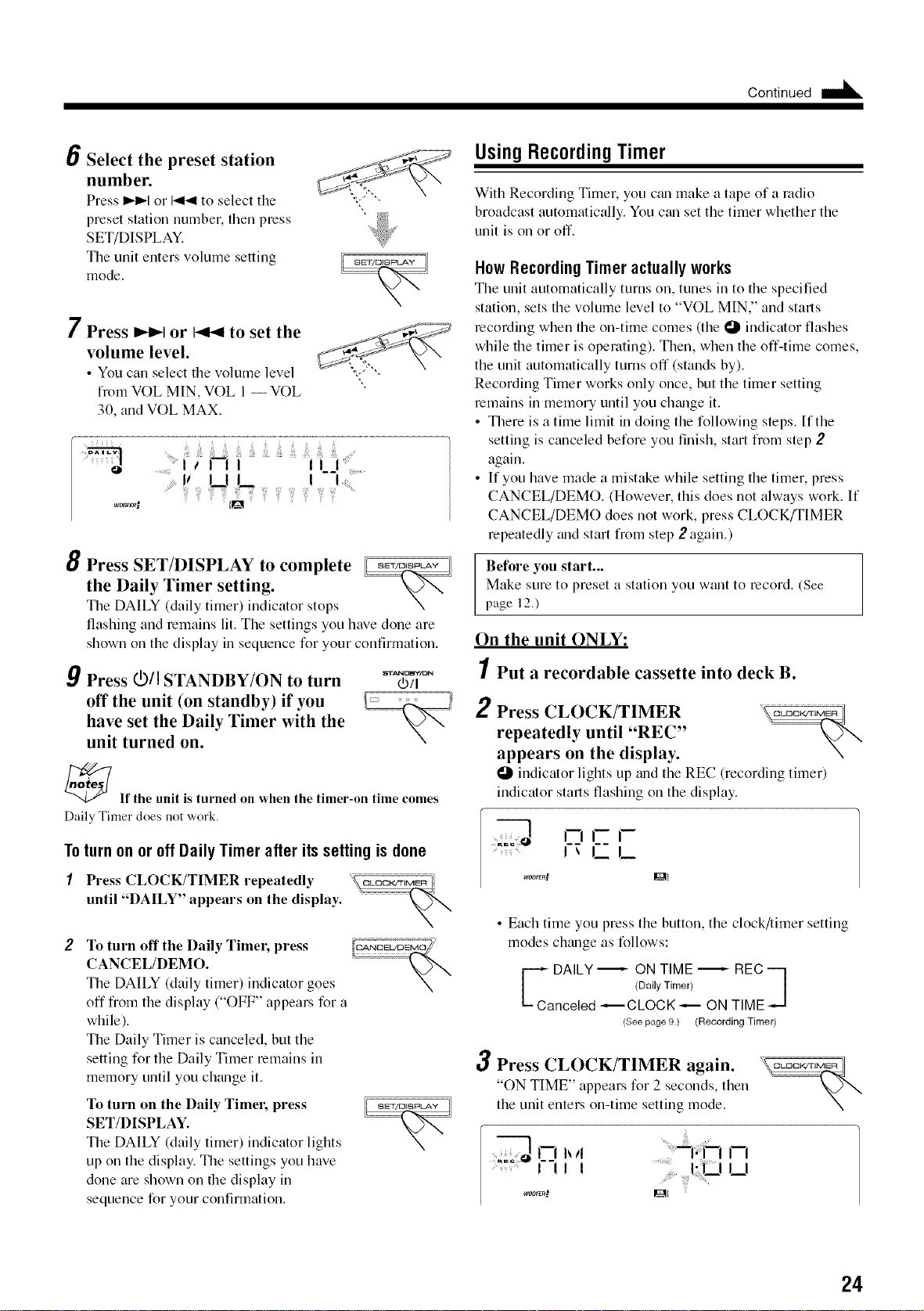
Continued
6 Select the preset station
number.
Press I_1_1 or _ to select the
preset station numbeh then press
SET/DISPLAY.
The unit enters volume setting
mode.
"7
/ Press I_1_1 or _ to set the
volume level.
• You can select the volume level
from VOL MIN, VOL 1-- VOL
30, and VOL MAX.
............7 ...........................................................................................:: ..................................................................................................................................................................................
_'_i_i_i_;!iili_'_"_,_'_,_;_,_'_'_'_ii!i_;_i!iiii_'_i!i!!ii
8 Press SET/DISPLAY to complete
the Daily Timer setting.
The DAILY (daily timer) indicator stops
flashing and remains lit. The settings you have done are
shown on the display in sequence for your confirmation.
9 Press _/I STANDBY/ON to turn _._/_'_,N
off the unit (on standby) if you
have set the Daily Timer with the
unit turned on.
_lf the unit is turned on when the timer-on time comes
Daily Timer does not work.
Toturn on or off Daily Timer after its setting is done
I Press CLOCK/TIMER repeatedly
until "DAILY" appears on the display.
2
To turn off the Daily Timel; press
CANCEL/DEMO.
The DAILY (daily timer) indicator goes
off from the display ("OFF" appears for a
while).
The Daily Timer is canceled, but the
setting for the Daily Timer remains in
memory until you chtmge it.
To turn on the Daily Timel; press
SET/DISPLAY.
The DAILY (daily timer) indicator lights
up on the display. The settings you have
done are shown on the display in
sequence for your confirmation.
UsingRecordingTimer
With Recording Timer, you ctm make a tape of a radio
broadcast automatically. You can set the timer whether the
unit is on or off.
HowRecordingTimeractuallyworks
The unit automatically turns on, tunes in to the specified
station, sets the volume level to "VOL MIN," and starls
recording when the on-time comes 0he t_ indicmor flashes
while the timer is operating). Then, when the off-time comes,
the unit automatically turns off (stands by).
Recording Timer works only once, but the timer setting
remains in memory until you ch_mge it.
• There is a time limit in doing the following steps. If the
setting is canceled before you finish, start from step 2
again.
• If you have made a mistake while setting the timer, press
CANCEL/DEMO. (However, this does not always work. If
CANCEL/DEMO does not work, press CLOCK/TIMER
repeatedly _mdstart from step 2 again.)
Before you start...
Make sure to preset a station you want to record. (See
page 12.)
On the unit ONLY:
1 Put a recordable cassette into deck B.
2
Press CLOCK/TIMER
repeatedly until "REC"
appears on the display.
indicator lights up trodthe REC (recording timer)
indicator starls flashing on the display.
rl r r
.... I_ LL
• Each time you press the button, the clock/timer setting
modes ch_mgeas follows:
E DAILY _ ON TIME _'_ REC---]
(Daily Timer) /
Canceled _ CLOCK _ ON TIME
(See page 9.) (Recording Timer)
3 Press CLOCK/TIMER again. _]
"ON TIME" appears for 2 seconds, then
the unit enters on-time setting mode.
rq,,,, -,,m n
: F-! J t .........!:U U
woorrR.' IEII
24
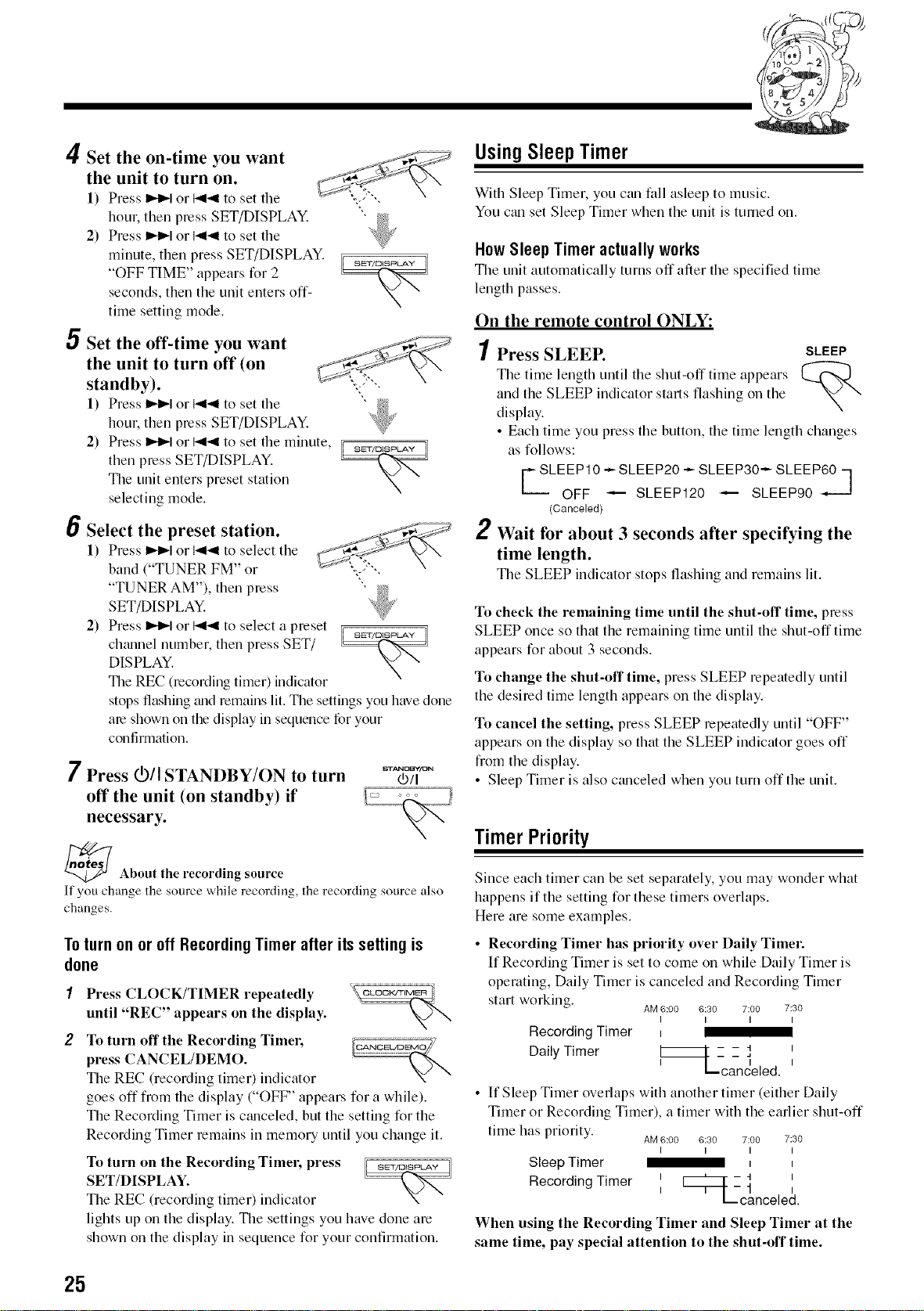
4 Set the on-time you wantthe unit to turn on.
1) Press I_l_lor _a to set the ,:-- ,,
hour, then press SET/DISPLAY. " _d
2) Press I_1_1or 141_1to set the Nix
minute, then press SET/DISPLAY.
"OFF TIME" appears for 2
seconds, then the unit enters off-
time setting mode.
Set the off-time you want __'
the unit to turn off (on _-_-- _)\
standby). ,,,. -,
1) Press I_1_1or 141_1to set the ' _f_;_
hour, then press SET/DISPLAY. W
2) Press I_1_1or I_1_1to set the minute, _[_-_,_
then press SET/DISPLAY.
The trait enters preset station
selecting mode.
Select the preset station .............. ---"
1) Press I_l_l or l-ql_lto select the
band ("TUNER FM" or ,;:-.,
"TUNER AM"), then press
SET/DISPLAY.
2) Press I_1_1or I_1_1to select a preset =c7_,_,_,==,_
chmmel number, then press SET/
DISPLAY.
The REC (recording timer) indicmor
stops flashing madremains lit. The settings you have done
are shown on the display in sequence for your
confirmation.
7 Press _/I STANDBY/ON to turn
off the unit (on standby) if
necessary.
STANDNY/13N
03/I
_ About the recording source
If you change the source while recording, the recording source also
changes.
Toturnonor off RecordingTimerafterits settingis
done
1
2
Press CLOCK/TIMER repeatedly \_
until "REC" appears on the display.
To turn off the Recording Timel;
press CANCEL/DEMO.
The REC (recording timer) indicator
goes off from the display ("OFF" appears for a while).
The Recording Timer is czmceled, but the setting for the
Recording Timer remains in memory until you change it.
To turn on the Recording Timel; press
SET/DISPLAY.
The REC (recording timer) indicator
lights up on the display. The settings you have done are
shown on the display in sequence for your confirmation.
UsingSleepTimer
B'
With Sleep Timer, you can fall asleep to music.
You c_mset Sleep Timer when the unit is turned on.
HowSleepTimer actuallyworks
The unit automatically turns off"after the specified time
length passes.
On the remote control ONLY:
1Press SLEEP. SLEEP
The time length until the shut-off time appears %
and the SLEEP indicator starts flashing on the
display.
• Each time you press the button, the time length changes
as follows:
CLEEPIO -- SLEEP20 -- SLEEP30-- SLEEP60 -]
OFF _'-- SLEEP120 _ SLEEP90 - '
(Oanceled)
2 Wait for about 3 seconds after specifying the
time length.
The SLEEP indicator stops flashing and remains lit.
To check the remaining time until the shut-off time, press
SLEEP once so that the remaining time tmtil the slmt-off time
appears for about 3 seconds.
To change the shut-off time, press SLEEP repeatedly until
the desired time length appears on the display.
To cancel the setting, press SLEEP repeatedly until "OFF"
appears on the display so that the SLEEP indicator goes off
from the display.
• Sleep Timer is also cmaceled when you turn off the unit.
TimerPriority
Since each timer can be set separately, you may wonder what
happens if the setting for these timers overlaps.
Here are some examples.
• Recording Timer has priority over Daily Timel:
If Recording Timer is set to come on while Daily Timer is
operating, Daily Timer is canceled and Recording Timer
start working. AM 6:00 @30 7:00 7:30
I I I I
Recording Timer
I
Daily Timer i[_hcan!eled ,
• If Sleep Timer overlaps with another timer (either Daily
Timer or Recording Timer), a timer with the earlier shut-off
time has priority. AM6:00 6:30 7:00 7:30
I I I I
Sleep Timer _
Rec°rding Timer I [_L-c!
ncele .
When using the Recording Timer and Sleep Timer at the
same time, pay special attention to the shut-off time.
25
Maintenance
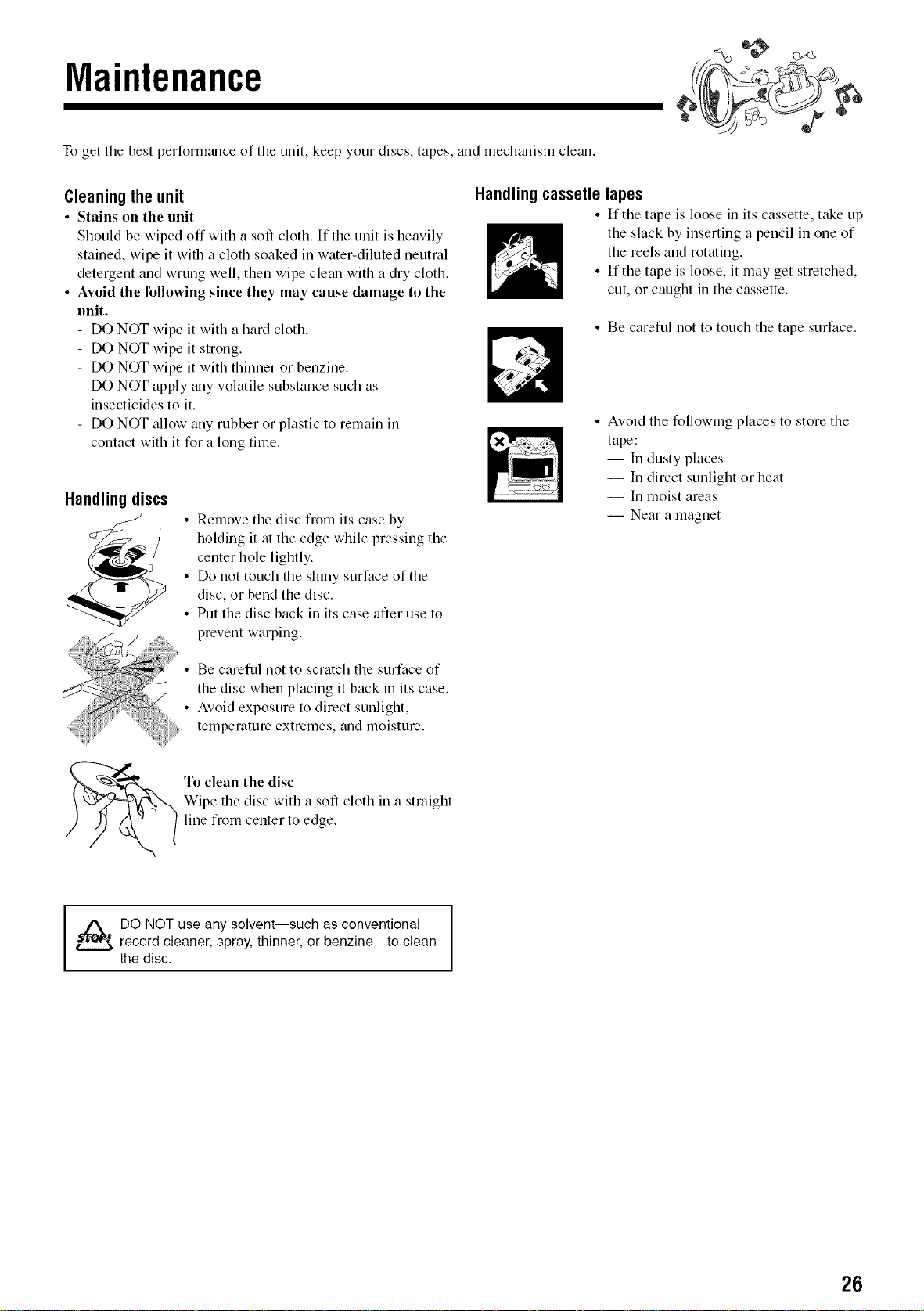
To get the best perform_mce of the unit, keep your discs, tapes, and mech_mism cle_m.
Cleaning theunit
• Stains on the unit
Should be wiped off with a soft cloth. If the unit is heavily
stained, wipe it with a cloth soaked in water-diluted neutral
detergent and wrung well, then wipe clean with a dry cloth.
• Avoid the following since they may cause damage to the
unit.
- DO NOT wipe it with a hard cloth.
- DO NOT wipe it strong.
- DO NOT wipe it with thinner or benzine.
- DO NOT apply troy volatile substance such as
insecticides to it.
- DO NOT allow any robber or plastic to remain in
contact with it I_r a long time.
Handlingdiscs
Remove the disc from its case by
holding it at the edge while pressing the
center hole lightly.
Do not touch the shiny surface of the
disc, or bend the disc.
Put the disc back in its case after use to
prevent warping.
Be careful not to scratch the surface of
the disc when placing it back in its case.
Avoid exposure to direct sunlight,
temperature extremes, trod moisture.
To clean the disc
Wipe the disc with a soft cloth in a straight
line from center to edge.
Handlingcassettetapes
• If the tape is loose in its cassette, take up
the slack by inserting a pencil in one of
the reels and rotating.
• If the tape is loose, it may get stretched,
cut, or caught in the cassette.
• Be careful not to touch the tape surface.
• Avoid the following places to store the
tape:
-- In dusty places
-- In direct sunlight or heat
-- In moist areas
-- Near a magnet
DO NOT use any solvent--such as conventional
record cleaner, spray, thinner, or benzine--to clean
the disc.
I
26
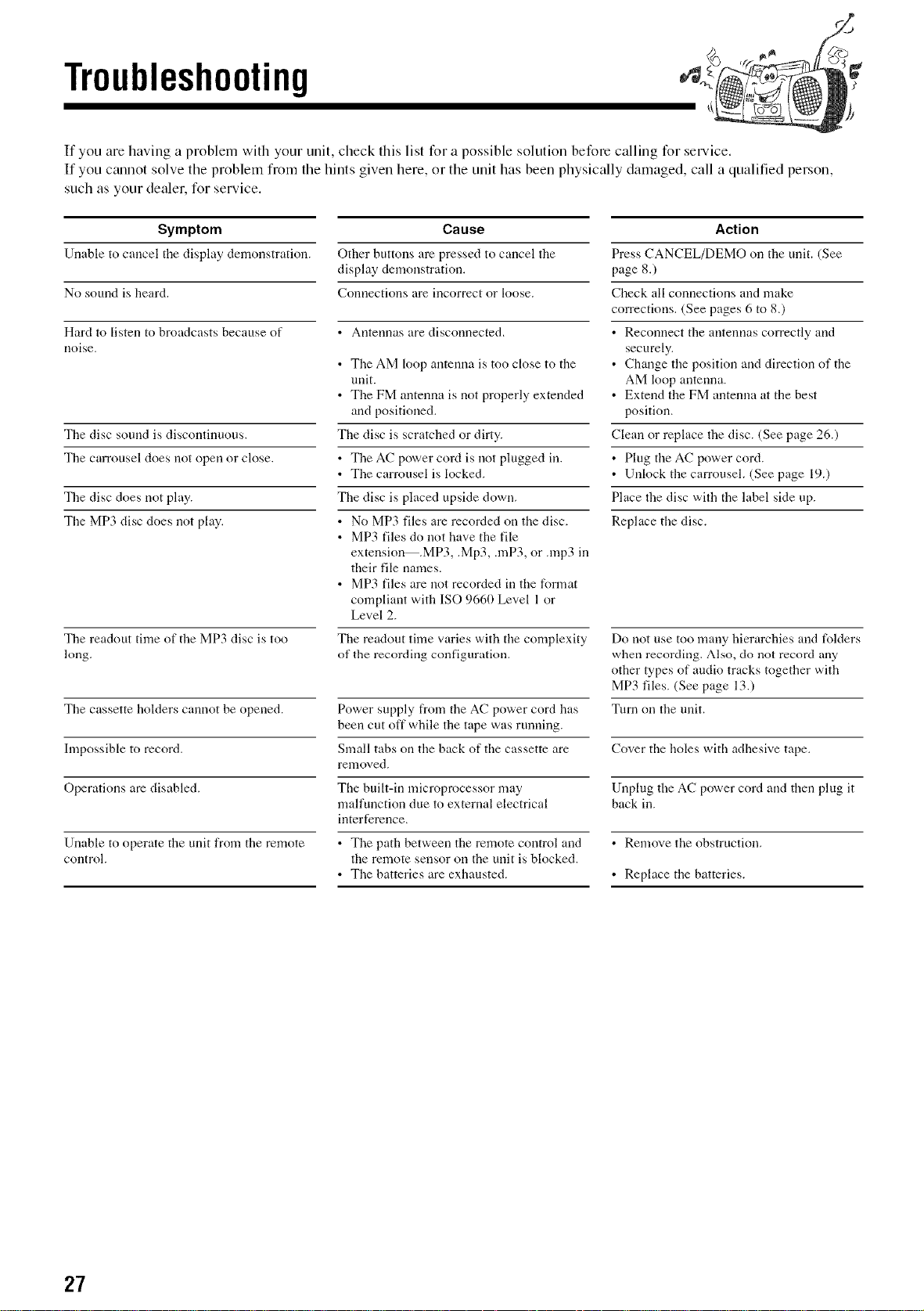
Troubleshooting
If you are having a problem with your unit, check this list for a possible solution before calling for service.
If you ctumot solve the problem from the hints given here, or the unit has been physically damaged, call a qualified person,
such as your dealer, for service.
Symptom
Unable to cancel tire display demonstration.
No sound is beard.
Hard to listen to broadcasts because of
noise.
The disc sound is discontinuous.
The carrousel does not open or close.
The disc does not play.
The MP3 disc does not play.
The readout time of the MP3 disc is too
long.
The cassette holders cannot be opened.
Impossible to record.
Operations are disabled.
Unable to operate the unit from the remote
corrtrol.
Cause
Other buttons are pressed to cancel the
display demonstration.
Connections are irrcorrect or loose.
• Antennas are disconnected,
• Tire AM loop arrtenna is too close to tire
unit.
• The FM antenna is not properly extended
arrd positioned.
The disc is scratched or dirty.
• The AC power cord is not plugged irr.
• The carrousel is locked.
The disc is placed upside down.
• No MP3 files are recorded on the disc.
• MP3 files do not have the file
extensior_.MP3, .Mp3, .raP3, or .rap3 in
their file names.
• MP3 files are not recorded in the format
compliant with ISO 9660 Level 1 or
Level 2.
The readout time varies with tire complexity
of tbe recording configuration.
Power supply from the AC power cord has
been cut off while the tape was running.
Small tabs on tire back of the cassette are
renloved.
The built-in microprocessor may
malfunction due to external electrical
irrterfcrence.
• The path between the remote corrtrol atrd
the remote sensor on the unit is blocked.
• The batteries are exhausted.
Action
Press CANCEL/DEMO on the unit, (See
page 8.)
Check all connections arrd make
corrections, (See pages 6 to 8.)
• Reconnect the arrtennas correctly arr(I
securely.
• Change the position arrd direction of the
AM loop arrtenna.
• Extend the FM arrtenna at tire best
position.
Clean or replace the disc. (See page 26.)
• Plug the AC power cord.
• Unlock the carrousel, (See page 19.)
Place the disc with the label side up.
Replace the disc.
Do not use too many hierarchies arrd folders
when recording. Also, do not record any
other types of audio tracks together with
MP3 files. (See page 13.)
Turn on the unit,
Cover the boles with adhesive tape.
Unplug the AC power cord arr(I then plug it
back irr.
• Remove tire obstruction,
• Replace tire batteries.
27
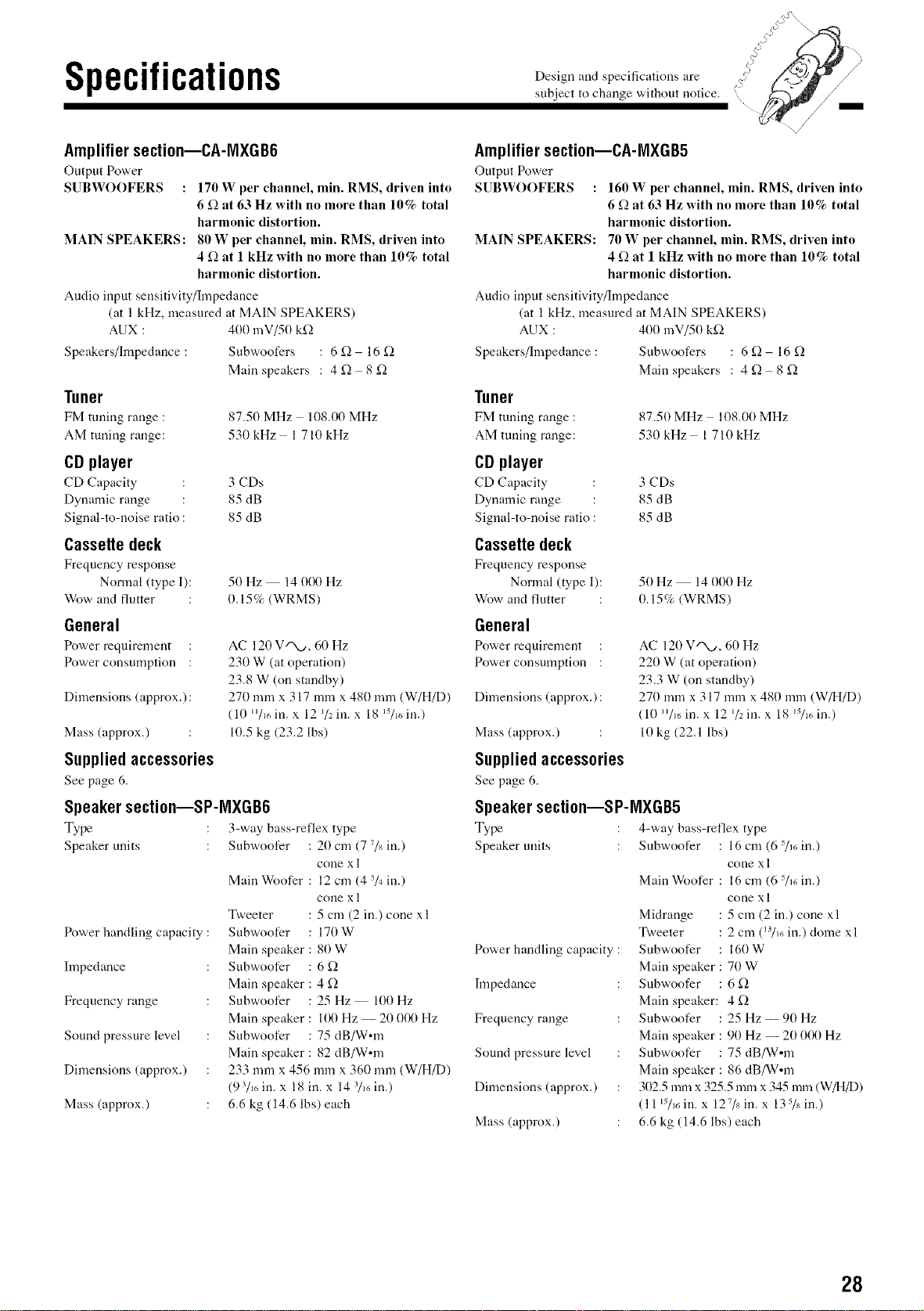
Specifications
subject to change without notice, i
I
Amplifier section--CA-IVlXGB6
Output Power
SUBWOOFERS : 170 W per channel, min. RMS, driven into
6 f+ at 63 Hz with no more than 10% total
harmonic distortion.
MAIN SPEAKERS: 80 W per channel, rain. RMS, driven into
4 f_ at 1 kHz with no more than 10% total
harmonic distortion.
Audio input sensitivity/hnpedance
(at 1 kHz, measured at MAIN SPEAKERS)
AUX : 400 mV/50 kf_
Speakers/Impedance Subwoofcrs : 6 f_ - 16 _
Main speakers : 4 f_ 8 _
Tuner
FM tuning range :
AM tuning range:
CDplayer
CD Capacity
Dynamic range
Signal-to-noise ratio :
Cassette deck
Frequency response
Normal (type I):
Wow and flutter
General
Power requirement :
Power consumption :
Dimensions (approx.):
87.50 MHz 108.00 MHz
530kHz 171(}kHz
3 CDs
85 dB
85 dB
50 Hz 14 000 Hz
(1.15% (WRMS)
AC 12(/V"N_, 60 Hz
230 W (at operation)
23.8 W (on standby)
270 mmx 317 mm x 480 mm (W/H/D)
(10 II/i6 ill. x 12 72in. x 18 I5/i6 in.)
10.5 kg (23.2 lbs)Mass (approx.)
Suppliedaccessories
See page 6.
Speakersection--SP-IVlXGB6
Type 3-way bass-reflex type
Speaker units Subwoofcr
: 20 cm (7 7/_ in.)
cone x 1
Main Woofer : 12 cm (4 "74in.)
cone x 1
Tweeter : 5 cm (2 in.) cone x l
Subwoofcr : 170 W
Main speaker : 80 W
Subwoofcr : 6 £-_
Main speaker : 4 £-2
Subwoofer : 25 Hz 100 Hz
Main speaker : 100 Hz -- 20 000 Hz
Subwoofer : 75 dB/W°m
Main speaker : 82 dB/W°m
233 mm x 456 mmx 360 mm (W/H/D)
(93/,_, in. x 18 in. x 14 -%6 in.)
6.6 kg (14.6 lbs) each
Power handling capacity
hnpedance
Frequency range
Sound pressure level
Dimensions (approx.)
Mass (approx.)
Amplifiersection--CA-IVlXGB5
Output Power
SUBWOOFERS : 160 W per channel, min. RMS, driven into
6 f) at 63 Hz with no nmre than 10% total
harmonic distortion.
MAIN SPEAKERS: 70 W per channel, rain. RMS, driven into
4 f) at I kHz with no nmre than 10% total
harmonic distortion.
Audio input sensitivity/hnpedance
(at 1 kHz, measured at MAIN SPEAKERS)
AUX : 400 mV/50 kf]
Speakers/Impedance : Subwoofers : 6 f] - 16 f]
Main speakers : 4 f_ 8 f_
Tuner
FM tuning range :
AM tuning range:
CDplayer
CD Capacity
Dynamic range
Signal-to-noise ratio :
Cassette deck
Frequency response
Normal (type l):
Wow and flutter
General
Power requirement
Power consmnption
Dimensions (approx.) :
87.50 MHz 108.00 MHz
530kHz 1710kHz
3 CDs
85 dB
85 dB
50 Hz 14 000 Hz
0.15% (WRMS)
Mass (approx.)
Suppliedaccessories
See page 6.
SpeakersectioniSP-IVlXGB5
Type : 4-way bass-reflex type
Speaker units : Subwoofer
Power handling capacity :
Impedance
Frequency range
Sound pressure level
Dimensions (approx.)
AC 120 V%, 60 Hz
220 W (at operation)
23.3 W (on standby)
270 mmx 317 mm x 480 mm (W/H/D)
(10 H/,_ in. x 12 7ein. x 18 I5/i6 in.)
10 kg (22.1 lbs)
Mass (approx.)
: 16 cm (6 5/16in.)
coue X 1
Main XNoofer : 16 cm (6 5/16in.)
coue XI
Midrange : 5 cm (2 in.) cone xl
Tweeter : 2 cm (J_/16 in.) dome xl
Subwoofer : 160 W
Main speaker : 70 W
Subwoofer : 6 _
Main speaker: 4 f)
Subwoofer : 25 Hz -- 90 Hz
Main speaker : 90 Hz -- 20 000 Hz
Subwoofer : 75 dB_V,m
Main speaker : 86 dB_V°m
302.5 mm x 325.5 mm x 345 mm (W/H/D)
(1115/16 ill. x 12v/a in. x 135/_ in.)
6.6 kg (14.6 lbs) each
28
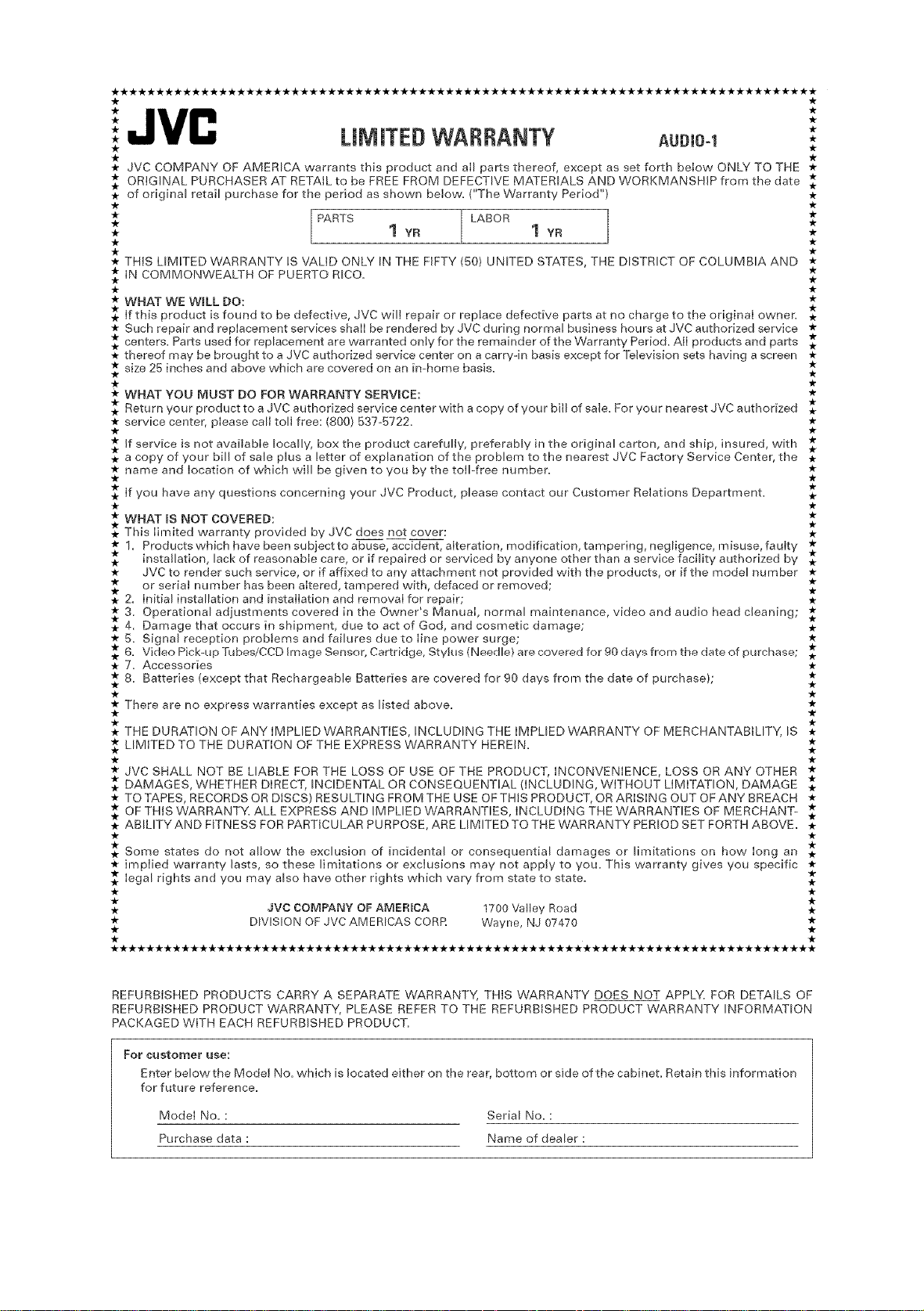
**********************_************************************_******************
:JVC "
: UNmTEDWARRANTY AUDIO4 *
• JVC COMPANY OF AMERICA warrants this product and alI parts thereof, except as set forth below ONLY TO THE *
._ ORIGINAL PURCHASER AT RETAIL to be FREE FROM DEFECTIVE MATERIALS AND WORKMANSHIP from the date
. of original retail purchase for the period as shown below. ("The Warranty Period") *
._ PARTS LABOR ._
. 1 YR 1 YR *
• THIS LIMITED WARRANTY IS VALID ONLY IN THE FIFTY (50) UNITED STATES, THE DISTRICT OF COLUMBIA AND *
IN COMMONWEALTH OF PUERTO RICO. *
• WHAT WE WILL DO: *
If this product is found to be defective, JVC will repair or replace defective parts at no charge to the original owner. *.
• Such repair and replacement services shall be rendered by JVC during normal business hours at JVC authorized service *
• centers. Parts used for replacement are warranted only for the remainder of the Warranty Period. AIi products and parts .
• thereof may be brought to a JVC authorized service center on a carryqn basis except for Television sets having a screen *
size 25 inches and above which are covered on an in-home basis.. *
• WHAT YOU MUST DO FOR WARRANTY SERVICE: *
. Return your product to a JVC authorized service center with a copy of your bill of sale. For your nearest JVC authorized *
• service center, please call toll free: (BOO)B37-5722. *
• if service is not available locally, box the product carefully, preferably in the original carton, and ship, insured, with *
. a copy of your bill of sale plus a letter of explanation of the problem to the nearest JVC Factory Service Center, the .
• narne and location of which will be given to you by the toll=free number. *
. If you have any questions concerning your JVC Product, please contact our Customer Relations Department. .
• WHAT mSNOT COVERED: *
. This limited warranty provided by JVC does not cover: .
• 1. Products which have been subject to abuse, accident, alteration, modification, tarnpering, negligence, misuse, faulty *
. installation, lack of reasonable care, or if repaired or serviced by anyone other than a service facility authorized by .*
• JVC to render such service, or if affixed to any attachment not provided with the products, or if the model number *
. or serial number has been altered, tampered with, defaced or removed; .
. 2. Initial installation and installation and removal for repair; .
• 3. Operational adiustments covered in the Owner's Manual, normal maintenance, video and audio head cleaning;
. 4. Damage that occurs in shipment, due to act of God, and cosmetic damage; .
• B. Signal reception problems and failures due to line power surge; *
• 6. Video Pick-up Ttlbes/CCD Image Sensor, Cartridge, StyJt_s (Needle} are covered for 90 days from the date of purchase;
• 7. Accessories *
• 8. Batteries (except that Rechargeable Batteries are covered for 90 days from the date of purchase); *
• There are no express warranties except as listed above. *
. THE DURATION OF ANY IMPLIED WARRANTIES, INCLUDING THE IMPLIED WARRANTY OF MERCHANTABILITY, IS
• LIMITED TO THE DURATION OF THE EXPRESS WARRANTY HEREIN. *
• JVC SHALL NOT BE LIABLE FOR THE LOSS OF USE OF THE PRODUCT, INCONVENIENCE, LOSS OR ANY OTHER *
DAMAGES, WHETHER DIRECT, INCIDENTAL OR CONSEQUENTIAL (INCLUDING, WITHOUT LIMITATION, DAMAGE *
• TO TAPES, RECORDS OR DISCS) RESULTING FROM THE USE OF THIS PRODUCT, OR ARISING OUT OF ANY BREACH *
.* OF THIS WARRANTY. ALL EXPRESS AND IMPLIED WARRANTIES, INCLUDING THE WARRANTIES OF MERCHANT- .
. ABILITY AND FITNESS FOR PARTICULAR PURPOSE, ARE LIMITED TO THE WARRANTY PERIOD SET FORTH ABOVE..
. Some states do not allow the exclusion of incidental or consequential darnages or limitations on how long an .
• implied warranty lasts, so these limitations or exciusions may not apply to you. This warranty gives you specific *
Iegal rights and you may also have other rights which vary from state to state.. *
. JVC COMPANY OFAMERICA 1700 Valley Road .
• DIVISION OF JVC AMERICAS CORR Wayne, NJ 07470 *
*******_r***1k*******************************************************************
REFURBISHED PRODUCTS CARRY A SEPARATE WARRANTY, THIS WARRANTY DOES NOT APPLY. FOR DETAILS OF
REFURBISHED PRODUCT WARRANTY, PLEASE REFER TO THE REFURBISHED PRODUCT WARRANTY INFORMATION
PACKAGED WiTH EACH REFURBISHED PRODUCT.
FOr CustorNet use:
Enter below the Model No. which is located either on the rear, bottom or side of the cabinet. Retain this information
for future reference.
Model No. : Serial No. :
Purchase data : Name of dealer :
JVl
QUALITY SERVICE
HOW TO LOCATE YOUR JVC SERVICE CENTER
TOLL FREE: 1 (800) 537-5722
http:i/www.jvc.com
Dear Customer,
In order to receive the most satisfaction from your purchase@base read the instruction booklet before
operating the unitJn the event that repairs are necessary, please caii 1 (800)537-5722 for your nearest
authorized servicer or visit our website at www.JVC.com
Remember to retain your Biii of Sale for Warranty Service.
Do not service the television yourself
Caution
To prevent ebctdcat shock,do not open the cabinet.There are no user serviceabb
parts inside.Please refer to qualified service personneJ for repairs.
Accessories
To purchase accessories for your JVC product,please catt tolt free:l (800)882-2345 or
on the web at www.JVC.com
B%51001-5
(0301}
JVC
VICTOR COMPANY OF JAPAN, LIMITED
X
!
W
X
!
¢}
W
O'1
0
0
0
-I
0
0
0
Z
m
z
-I
_0
00
-I
m
_EN
© 2004 VICTOR COMPANY OF JAPAN, LIMITED
0104TMMMDWSAM