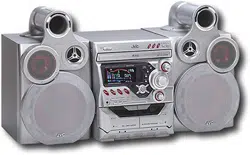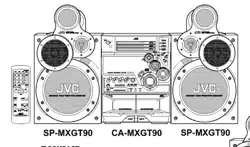
JVC
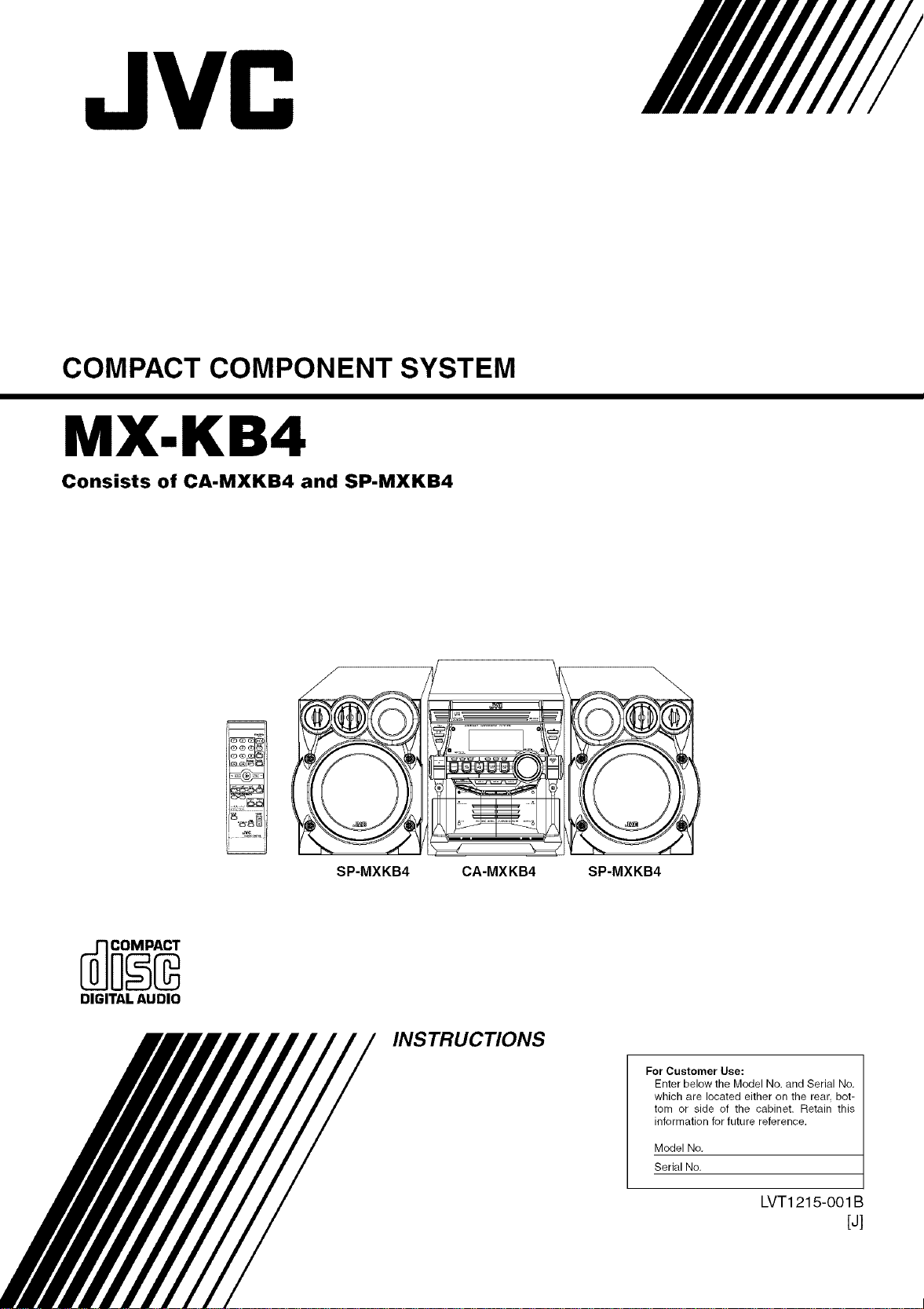
COMPACT COMPONENT SYSTEM
MX-KB4
Consists of CA-MXKB4 and SP-MXKB4
SP-MXKB4 CA-MXKB4 SP-MXKB4
DIGITAL AUDIO
INSTRUCTIONS
For Customer Use:
Enter below the Model No. and Serial No.
which are located either on the rear, bot-
tom or side of the cabinet. Retain this
information for future reference.
Model No.
Serial No.
LVT1215-001B
[J]
Warnings, Cautions and Others
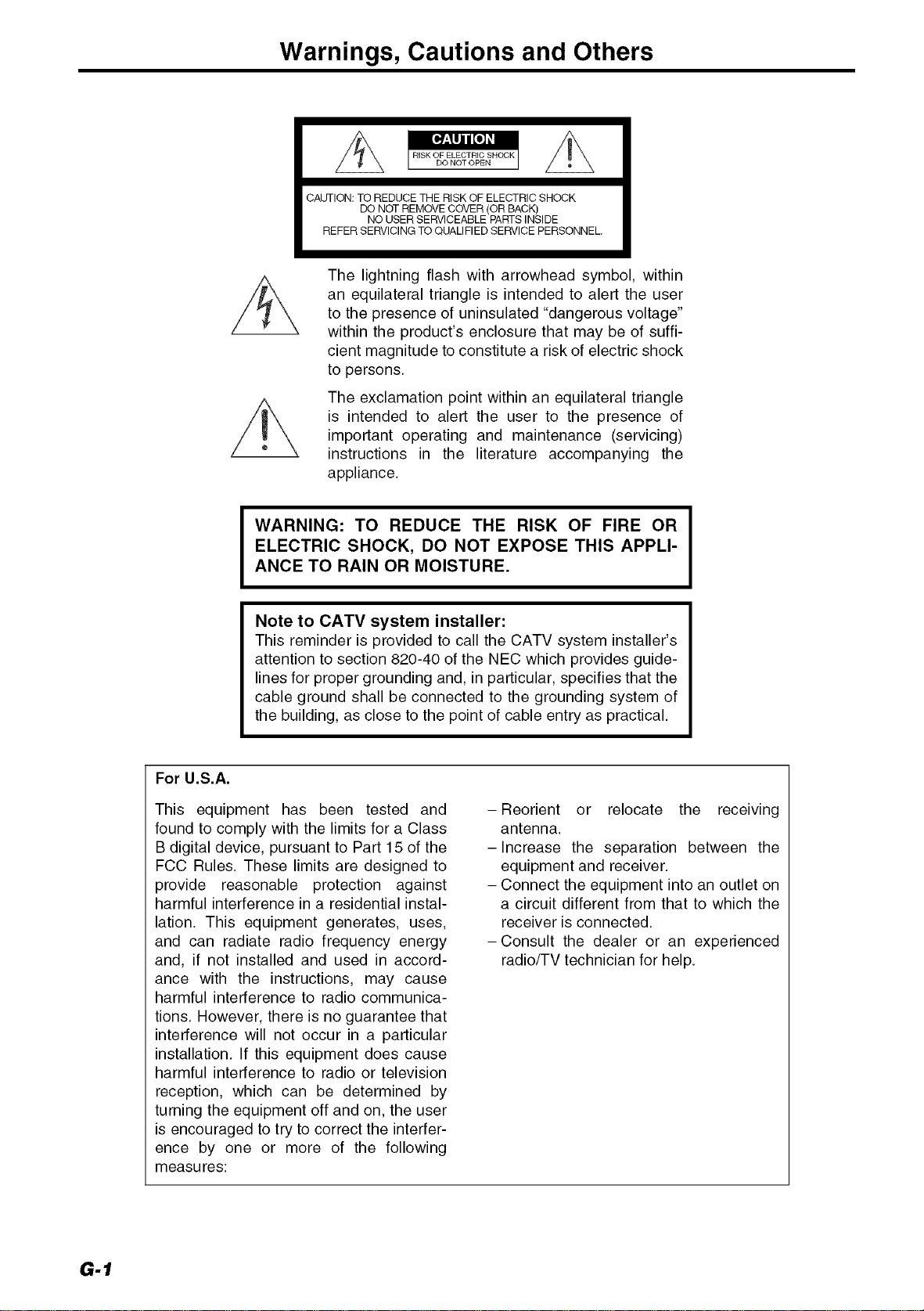
CAUTION: TO REDUCE THE RISK OF ELECTRIC SHOCK
DO NOT REMOVE COVER (OR BACK)
NO USER SERVICEABLE PARTS INSIDE
REFER SERVICING TO QUALIFIED SERVICE PERSONNEL.
The lightning flash with arrowhead symbol, within
an equilateral triangle is intended to alert the user
to the presence of uninsulated "dangerous voltage"
within the product's enclosure that may be of suffi-
cient magnitude to constitute a risk of electric shock
to persons.
The exclamation point within an equilateral triangle
is intended to alert the user to the presence of
important operating and maintenance (servicing)
instructions in the literature accompanying the
appliance.
WARNING: TO REDUCE THE RISK OF FIRE OR
ELECTRIC SHOCK, DO NOT EXPOSE THIS APPLI-
ANCE TO RAIN OR MOISTURE.
Note to CATV system installer:
This reminder is provided to call the CATV system installer's
attention to section 820-40 of the NEC which provides guide-
lines for proper grounding and, in particular, specifies that the
cable ground shall be connected to the grounding system of
the building, as close to the point of cable entry as practical.
For U.S.A.
This equipment has been tested and
found to comply with the limits for a Class
B digital device, pursuant to Part 15 of the
FCC Rules. These limits are designed to
provide reasonable protection against
harmful interference in a residential instal-
lation. This equipment generates, uses,
and can radiate radio frequency energy
and, if not installed and used in accord-
ance with the instructions, may cause
harmful interference to radio communica-
tions. However, there is no guarantee that
interference will not occur in a particular
installation. If this equipment does cause
harmful interference to radio or television
reception, which can be determined by
turning the equipment off and on, the user
is encouraged to try to correct the interfer-
ence by one or more of the following
measures:
- Reorient or relocate the receiving
antenna.
-Increase the separation between the
equipment and receiver.
- Connect the equipment into an outlet on
a circuit different from that to which the
receiver is connected.
-Consult the dealer or an experienced
radio/TV technician for help.
G-1
CLASS 1 LASER PRODUCT
DANGER
1. Invisible laser radiation when open and interlock failed or
defeated. Avoid direct exposure to beam.
CAUTION
1. Do not open the top cover. There are no user
serviceable parts inside the unit; leave all servicing to
qualified service personnel.
2. Use of controls, adjustments or performance of proce-
dures other than those specified herein may result in haz-
ardous radiation exposure.
CAUTION
To reduce the risk of electric shocks, fire, etc.:
1. Do not remove screws, covers or cabinets.
2. Do not expose this appliance to rain or moisture.
3.To prevent electric shock, match wide blade of plug to
wide slot, fully insert.
Caution -- POWER switch!
Disconnect the main plug to shut the power off com-
pletely. The POWER switch in any position does not
disconnect the main line. The power can be remote
controlled.
CAUTION
1. Do not block the ventilation openings or holes.
(If the ventilation openings or holes are blocked by a
newspaper or cloth, etc., the heat may net be able to get
out.)
2. Do not place any naked flame sources, such as lighted
candles, on the apparatus.
3.When discarding batteries, environmental problems must
be considered and local rules or laws governing the dis-
posal of these batteries must be followed strictly.
4. Do not expose this apparatus to rain, moisture, dripping
or splashing and that no objects filled with liquids, such as
vases, shall be placed on the apparatus.
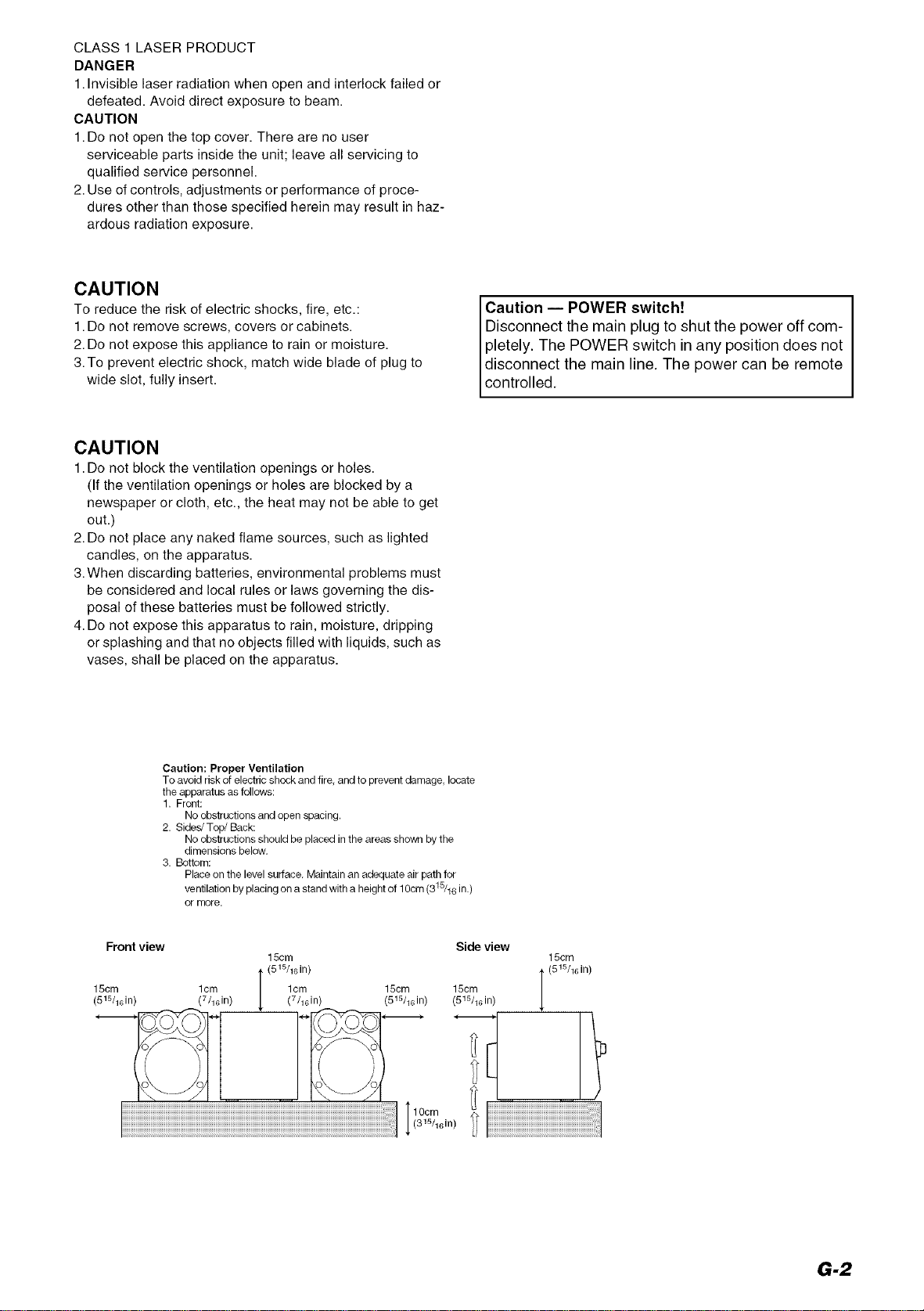
Caution: Proper Ventilation
To avoid risk of electric shock and fire and to prevent damage locate
the apparatus as follows:
1. Front:
No obstructions and open spacing,
2. Sides/Top/Back:
No obstructions should be placed in the areas shown by the
dimensions below,
3. Bottom:
Place on the level surface. Maintain an adequate air path for
ventilation by placing on a stand with a height of 10cm (315/16in.)
or more.
Front view
15cm
(515/16in)
15c m
(5W16in)
lcm lcm 15cm
(7/16in) (7/16in) (515/16in)
10cm ,
(315/161n)
Sideview
15cm
(515/16in)
15cm ]
(5W16in)
- t
G-2
Thank you for purchasing the JVC Compact Component System.
We hope it will be a valued addition to your home, giving you years of enjoyment.
Be sure to read this instruction manual carefillly before operating your new stereo system.
In it you will find all the information you need to set up and use the system.
If you have a query that is not answered by the manual, please contact your dealer.
Features
Here are some of the things that make your System both powerful and simple to use.
KAThe controls and operations have been redesigned to make them very easy to use, freeing you to just enjoy the
music.
• With JVC's COMPU PLAY you can turn on the System and automatically start the Radio, Cassette Deck, or
CD Player with a single touch.
KAThe great SEA (Sound Effect Amplifier) effects Rock, Pop and Classics are provided.
KAThe RHYTHM AX provides rich sound even at low sound levels.
KAA 45-station preset capability (30 FM and 15 AM) in addition to auto-seek and manual tuning.
KACD changer function can operate 3 discs.
• Discs can be changed during play using the Carrousel tray (rotational tray).
• Continuous, random or program play of 3 discs.
KATwo Decks enabling tape dnbbing.
KATimer flmctions; Daily Timer, REC (Recording) Timer, and Sleep Timer.
KAYou can connect various external units, such as an MD recorder.
KAThe CD Player can play back a CD-R and CD-RW.
How This Manual Is Organized
• Basic int_rmation that is the same for many different functions - e.g. setting the volume - is given in the section "Basic Operations",
and not repeated nnder each flmction.
• The names of buttons/controls and display messages are written in all capital letters: e.g. FM/AM, "NO DISC".
• If the button names on the Unit and the Remote Control are the same, the description on where the button is used will be omitted.
• System ftmctions are written with an initial capital letter only: e.g. Normal Play.
Use the table of contents to look up specific information you require.
We have enjoyed making this manual for you, and hope it serves you in enjoying the many featnres built into your System.
IMPORTANT CAUTIONS
1 Installation of the System
• Select a phtce which is level, dry and neither too hot nor too cold. (Between 5°C and 35°C or 41°F and 95°F.)
• Leave sufficient distance between the System and a TV.
• Do not use the System in a place subject to vibrations.
2 Power cord
• Do not handle the power cord with wet hands!
• Some power is always consumed as long as the power cord is connected to the wall outlet.
• When nnplugging the System from the wall outlet, always pull the plug, not the power cord.
3 Malfunctions, etc.
• There are no user ser_.iceable parts inside. In case of system f:tilure, unplug the power cord and consult your dealer.
• Do not insert any metallic object into the System.
Introduction ................................................................................................................... 1
Features .................................................................................................................................................... 1
How This Manual Is Organized ............................................................................................................... 1
IMPORTANT CAUTIONS ..................................................................................................................... 1
Table of Contents .......................................................................................................... 2
Getting Started .............................................................................................................. 3
Accessories .............................................................................................................................................. 3
How To Put Batteries [n the Remote Control .......................................................................................... 3
Using the Remote Control ....................................................................................................................... 3
Connecting the FM Antenna .................................................................................................................... 4
Connecting the AM Antenna ................................................................................................................... 5
Connecting the Speakers ......................................................................................................................... 5
Connecting External Equipment .............................................................................................................. 6
Connecting to the Wall Outlet ................................................................................................................. 6
DEMO Mode ........................................................................................................................................... 6
COMPU Play ........................................................................................................................................... 6
Basic Operations ........................................................................................................... 7
Turning the Power On and Off ................................................................................................................ 7
Adjusting the Volume .............................................................................................................................. 7
Fade-out Muting (FADE MUTING) ....................................................................................................... 8
Enjoying the Powerful Sound (RHYTHM AX) ...................................................................................... 8
Selecting the Sound Mode (SOUND MODE) ......................................................................................... 8
Entering the Number with the Remote Control (Nulneric Keys) ............................................................ 8
Using the Tuner ............................................................................................................. 9
Tuning In a Station .................................................................................................................................. 9
Presetting Stations ................................................................................................................................. 10
To Change the FM Reception Mode ..................................................................................................... 10
Using the CD Player .................................................................................................... 11
To Load CDs ......................................................................................................................................... 12
To Unload CDs ...................................................................................................................................... 12
Changing the MP3 Playback Mode ....................................................................................................... 12
Basics of Using the CD Player-Normal Play ......................................................................................... 13
Programlning the Playing Order of the Tracks ...................................................................................... 14
Random Play .......................................................................................................................................... 15
Repeating Tracks ................................................................................................................................... 15
Tray Lock Function ............................................................................................................................... 15
Using the Cassette DeeR (Listening to a Tape) ........................................................ 16
Playing a Tape ....................................................................................................................................... 16
Using the Cassette Deck (Recording) ...................................................................... 17
Standard Recording ............................................................................................................................... 18
CD Synchro Recording .......................................................................................................................... 18
Tape to Tape Recording (DUBBING) ................................................................................................... 18
Using an External Equipment .................................................................................... ]9
Listening to the External Equipment ..................................................................................................... 19
Using the Timers ......................................................................................................... 20
Setting the Clock ................................................................................................................................... 20
Fixing the Clock .................................................................................................................................... 20
Setting the Daily Tilner. ........................................................................................................................ 21
Setting the REC (Recording) Tilner. ..................................................................................................... 22
Setting the SLEEP Timer. ..................................................................................................................... 24
Timer Priority ........................................................................................................................................ 24
Care And Maintenance ................................................................................................ 25
Troubleshooting .......................................................................................................... 26
Specifications ............................................................................................... Back cover
2
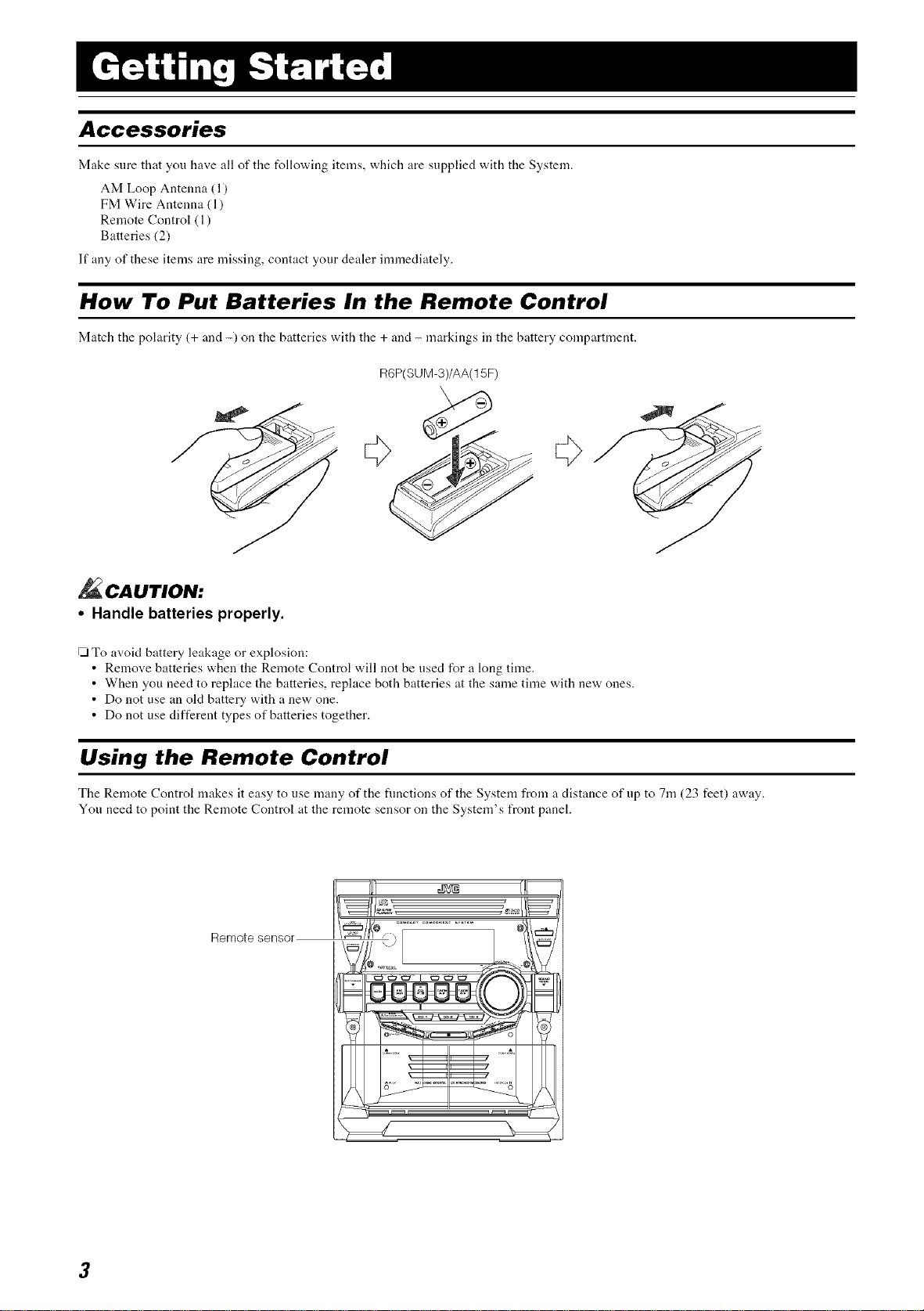
Accessories
Make sure that you have all of the tUllowing items, which are supplied with the System.
AM Loop Antenna (1)
FM Wire Antenna (1)
Remote Control (1)
Batteries (2)
]f any of these items are missing, contact your dealer immediately.
How To Put Batteries In the Remote Control
Match the polarity (+ and -) on the batteries with the + and - markings in the battery compartment.
R6P(SUM-S)/AA(15F)
\
• Handle batteries properly.
[_ To avoid battery leakage or explosion:
• Remove batteries when the Remote Control will not be used for a long time.
• When you need to replace the batteries, replace both batteries at the same time with new ones.
• Do not use an old battery with a new one.
• Do not use different types of batteries together.
Using the Remote Control
The Remote Control makes it easy to use many of the flmctions of the System from a distance of up to 7m (23 feet) away.
You need to point the Remote Control at the remote sensor on the System's front panel.
Remote sensor
3
Getting Started
• Make all connections before plugging the System into an AC power outlet.
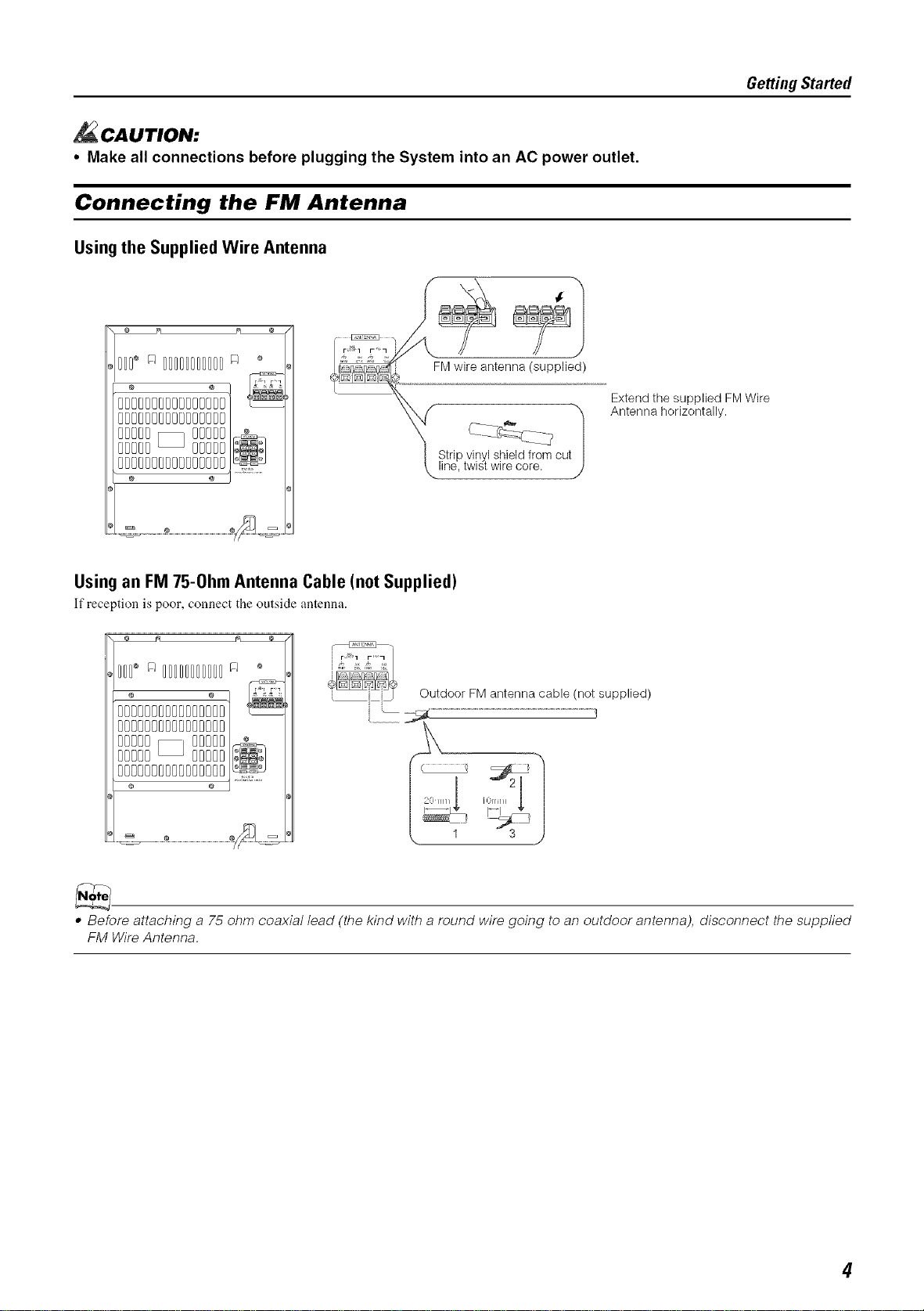
Connecting the FM Antenna
Using the Supplied Wire Antenna
FM wire antenna (supplied)
C23--_ 1
Strip vinyl shield from cut
line, twist wire core.
J
Extend the supplied FM Wire
Antenna horizontally.
Using an FM 75-0hm Antenna Cable (not Supplied)
If reception is poor, connect the outside antenna.
r_,l 2'"2
Outdoor FM antenna cable (not supplied)
• Before attaching a 75 ohm coaxial lead (the kind with a round wire going to an outdoor antenna), disconnect the supplied
FM Wire Antenna.
4
Getting Started
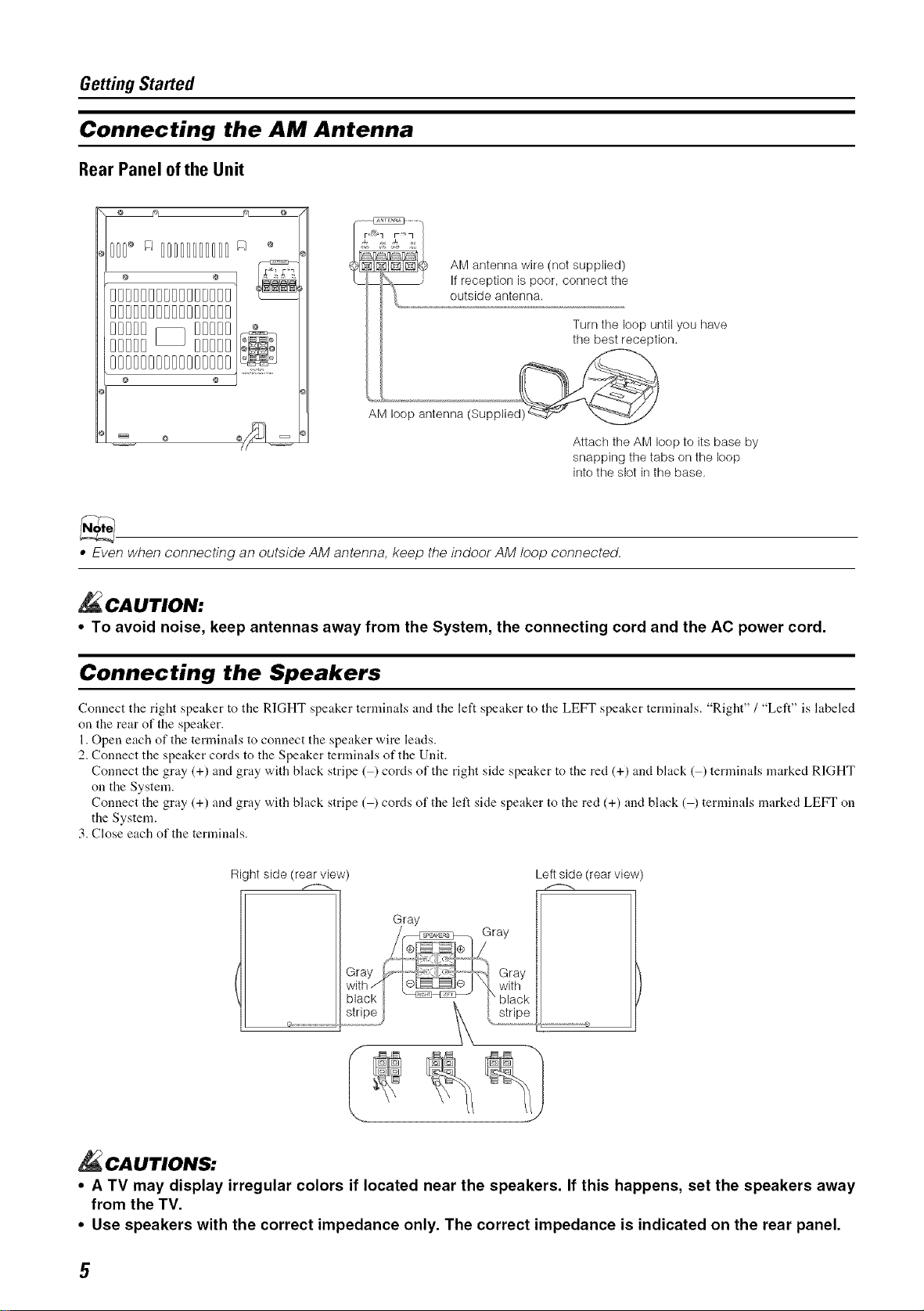
Connecting the AM Antenna
Rear Panel ofthe Unit
r_ 1 r_,7
_1 AM antenna wire (not supplied)
_ Ifreception is poor, connect the
outside antenna.
Turnthe loop until you have
/ the best reception.
AM loop antenna (S
Attach the AM loop to its base by
snapping the tabs on the loop
intothe slot in the base.
• Even when connecting an outside AM antenna, keep the indoor AM loop connected.
• To avoid noise, keep antennas away from the System, the connecting cord and the AC power cord.
Connecting the Speakers
Connect the right speaker to the RIGHT speaker terminals and the left speaker to the LEFT speaker terminals. "Right" / "Left" is labeled
on the rear of the speaker.
1. Open each of the terminals to connect the speaker wire leads.
2. Connect the speaker cords to the Speaker terminals of the Unit.
Connect the gray (+) and gray with black stripe ( ) cords of the right side speaker to the red (+) and black ( ) terminals marked RIGHT
on the System.
Connect the gray (+) and gray with black stripe (½ cords of the left side speaker to the red (+) and black (½ terminals marked LEFT on
the System.
3. Close each of the terminals.
Right side (rear view) Leftside (rearview)
Gray
• A TV may display irregular colors if located near the speakers. If this happens, set the speakers away
from the TV.
• Use speakers with the correct impedance only. The correct impedance is indicated on the rear panel.
Getting Started
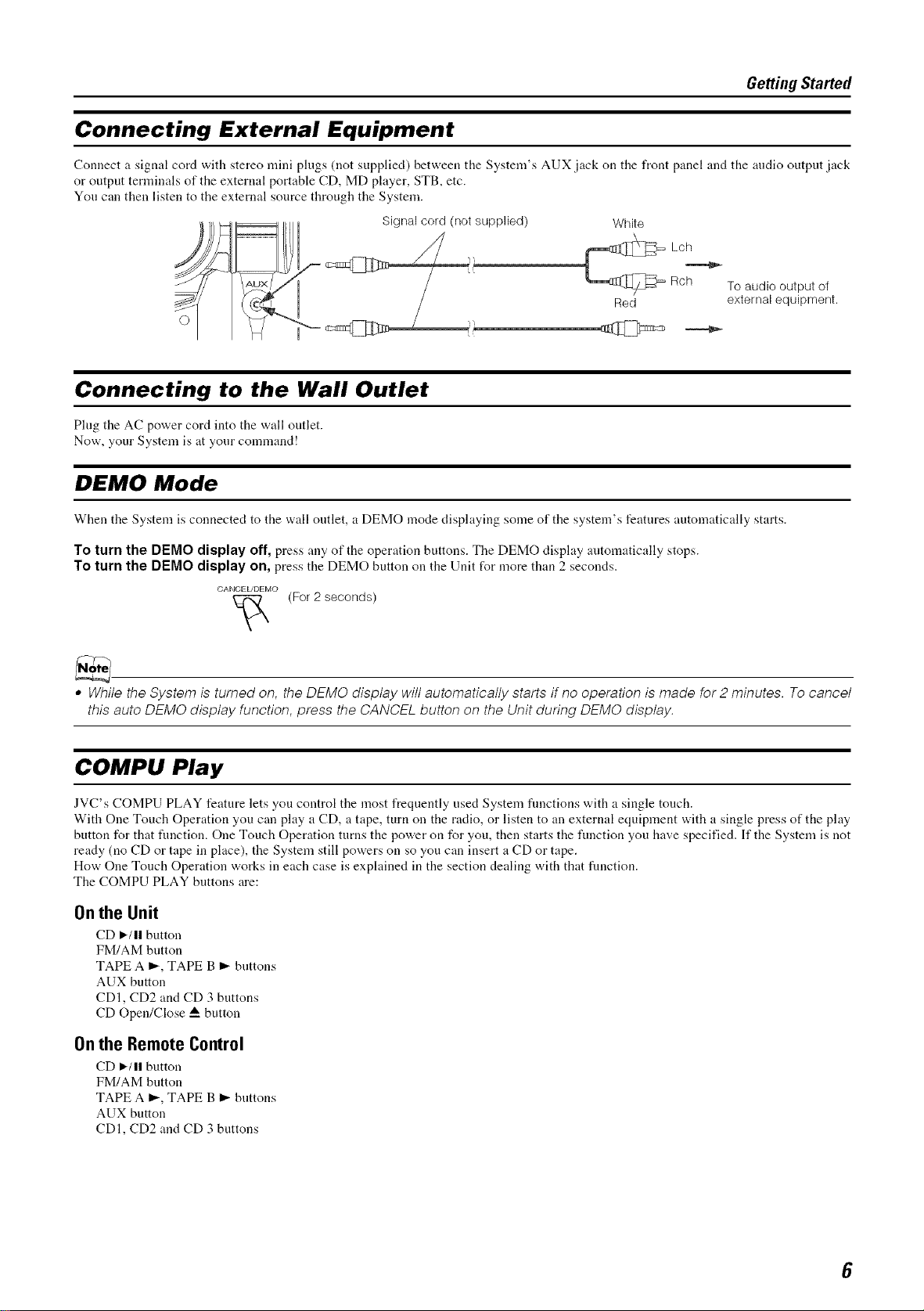
Connecting External Equipment
Connect a signal cord with stereo mini pings (not supplied) between the System's AUX jack on the front panel and the audio output jack
or output terminals of the external portable CD, MD player, STB, etc.
You can then listen to the external source through the System.
Signal cord (not supplied) White
Loh
Rch To audio output of
Red external equipment.
Connecting to the Wall Outlet
Plug the AC power cord into the wall outlet.
Now, your System is at your command!
DEMO Mode
When the System is connected to the wall outlet, a DEMO mode displaying some of the system's features automatically starts.
To turn the DEMO display off, press any of the operation buttons. The DEMO display automatically stops.
To turn the DEMO display on, press the DEMO button on the Unit for more than 2 seconds.
CANCEUDEMO
(For 2 seconds)
• While the System is turned on, the DEMO display will automatically starts if no operation is made for 2 minutes. To cancel
this auto DEMO display function, press the CANCEL button on the Unit during DEMO display.
COMPU Play
JVC's COMPU PLAY featnre lets yon control the most frequently used System fimctions with a single touch.
With One Touch Operation you can play a CD, a tape, turn on the radio, or listen to an external equipment with a single press of the play
button for that fimction. One Touch Operation turns the power on for you, then starts the function you have specified. If the System is not
ready (no CD or tape in place), the System still powers on so you can insert a CD or tape.
How One Touch Operation works in each case is explained in the section dealing with that fimction.
The COMPU PLAY buttons are:
On the Unit
CD I_/11button
FM/AM button
TAPE A _, TAPE B _ buttons
AUX button
CDI, CD2 and CD 3 buttons
CD Open/Close A button
On the Remote Control
CD I_/11button
FM/AM button
TAPE A _, TAPE B _ buttons
AUX button
CDI, CD2 and CD 3 buttons
6
Numeric
keys
SOUND
MODE
RHYTHM
AX
®®®@
® ®
col co2 eoa £_1
#
*_22 .....
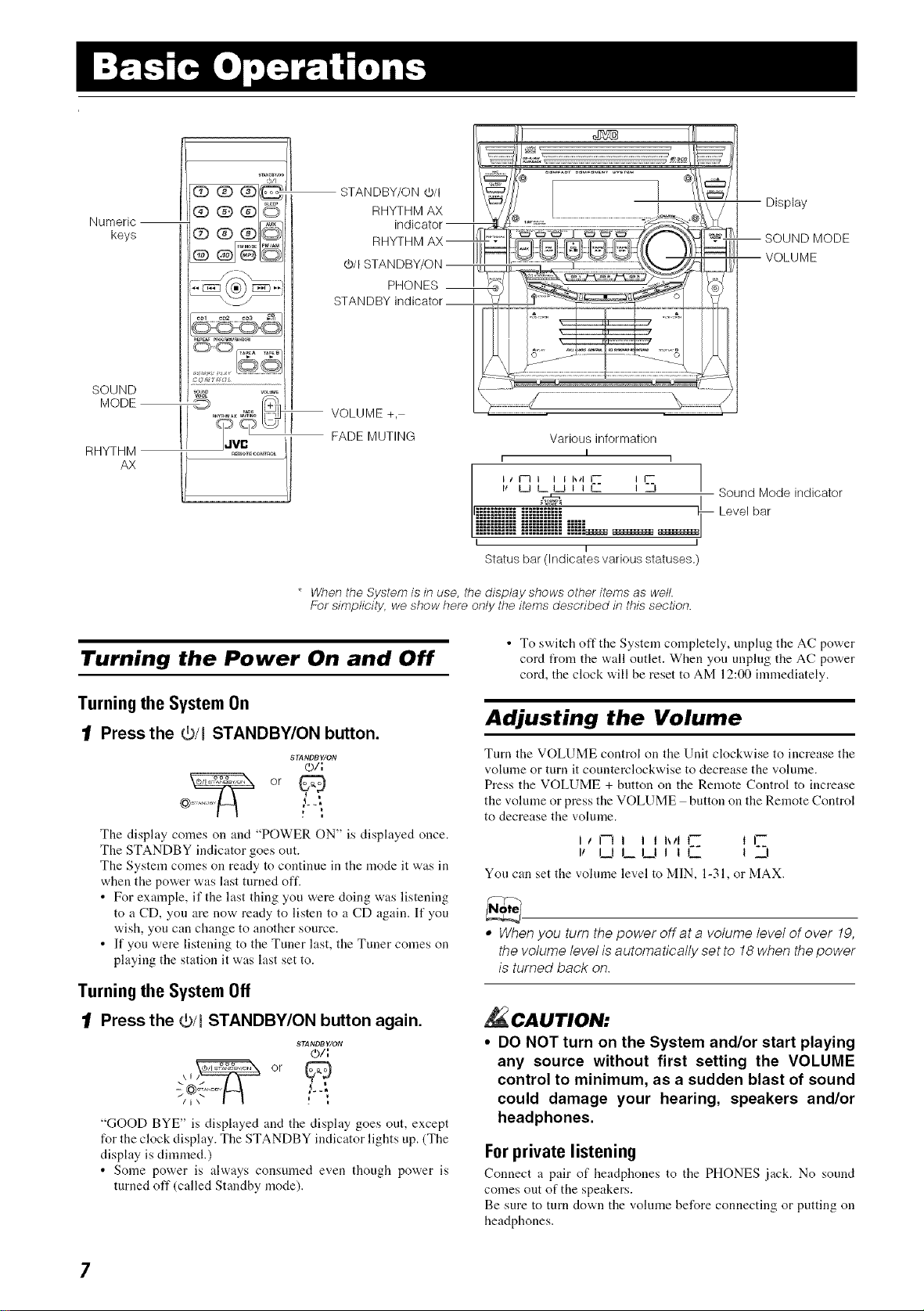
STANDBY/ON @/I
RHYTHM AX
@/I STANDBY/ON
PHONES __
STANDBY indicatol
VOLUME +,
FADE MUTING
Display
SOUND MODE
VOLUME
Various information
I
I I
I € f-'l I I I h _1 I-- I I--
I€ I I 1_71 I II-- I 23 Sound Mode indicator
i-mmi_H_,g _ Leve, bar
I I
I
Status bar (Indicates various statuses.)
* When the System is in use, the display shows other items as well.
For simplicity, we show here only the items described in this section.
Turning the Power On and Off
Turning the System On
1 Press the r@/l STANDBY/ON button.
STANDBY/ON
©/;
or
The display comes on and "POWER ON" is displayed once.
The STANDBY indicator goes out.
The System comes on ready to continue in the mode it was in
when the power was last turned oft'.
• For example, if the last thing you were doing was listening
to a CD, you are now ready to listen to a CD again. If you
wish, you can change to another source.
• If you were listening to the Tuner last, the Tuner comes on
playing the station it was last set to.
Turning the System Off
1 Press the _/I STANDBY/ON button again.
STANDBWON
©/1
__ or
"GOOD BYE" is displayed and the display goes out, except
for the clock display. The STANDBY indicator lights up. (The
display is dinnned.)
• Some power is always consumed even though power is
turned off (called Standby mode).
• To switch offthe System completely, unplug the AC power
cord from the wall outlet. When you unplug the AC power
cord, the clock will be reset to AM 12:00 immediately.
Adjusting the Volume
Turn the VOLUME control on the Unit clockwise to increase the
volume or turn it counterclockwise to decrease the volume.
Press the VOLUME + button on the Remote Control to increase
the volume or press the VOLUME button on the Remote Control
to decrease the volume.
I_ I--I I I I I_I I.-7 I I_-"7
I_ U LU I I L I _I
You can set the volume level to M]N, 1-31, or MAX.
• When you turn the power off at a volume level of over 19,
the volume level is automatically set to 18 when the power
is turned back on.
• DO NOT turn on the System and/or start playing
any source without first setting the VOLUME
control to minimum, as a sudden blast of sound
could damage your hearing, speakers and/or
headphones.
Forprivate listening
Connect a pair of headphones to the PHONES jack. No sound
comes out of the speakers.
Be sure to turn down the volume before connecting or putting on
headphones.
Basic Operations
Fade.out Muting (FADE MUTING)
You can mute the output with one touch operation.
To muting the output, press the FADE MUTING button on the
Remote Control. The output is faded out.
To release muting, press the FADE MUTING button once
again. The output is faded in to the previous level.
• Alter Fade-out Muting, turning the VOLUME control on the
unit or pressing the VOLUME button on the Remote Control
will increase the volume from the previous level.
Enjoying the Powerful Sound
(RHYTHM AX)
Using RHYTHM AX, harder-hitting beats intensify your listening
experience even at low sound levels.
RHYTHM AX also works even when the song has no "beat," such
as classical music, so that you can listen to the rich sound even at
low sound levels.
This flmction only affects the playback sound, not your recording.
Entering the Number with the
Remote Control (Numeric Keys)
You will use the number keys on the Remote Control to enter num-
bers for presetting stations, recalling the preset stations, or pro-
gramming the playing tracks on CDs.
How to enter the number with the number keys is explained here.
Examples:
• To enter number 5, press 5.
• To enter number 15, press +10, then 5.
• To enter number 20, press +10, then 10.
• To enter number 25, press +10, +10, then 5.
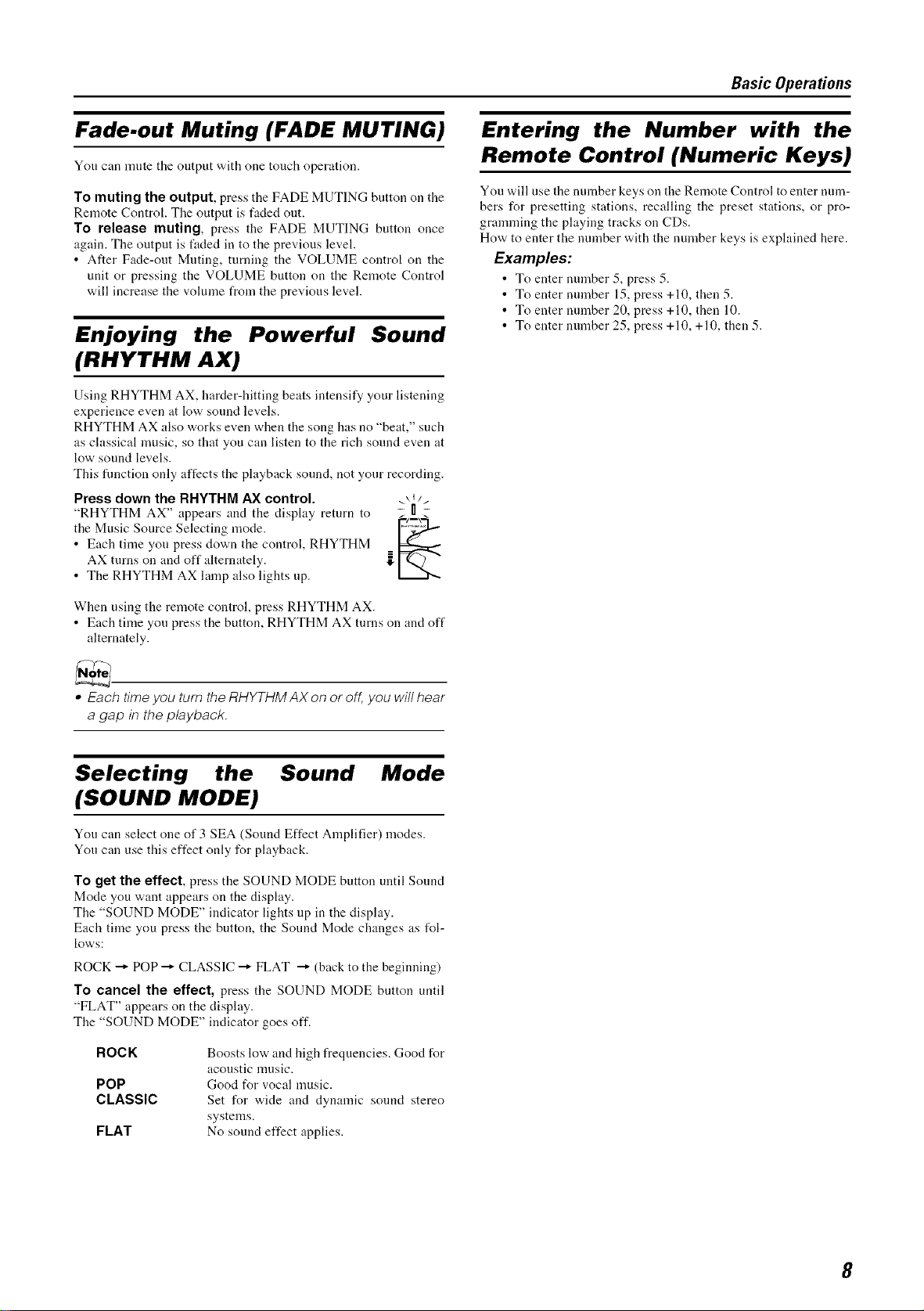
Press down the RHYTHM AX control. .\ _/_
"RHYTHM AX" appears and the display return to _._/n_,£
the Music Sonrce Selecting mode.
• Each time you press down the control, RHYTHM
i
AX turns on and off alternately.
• The RHYTHM AX lamp also lights up.
When using the remote control, press RHYTHM AX.
• Each time you press the button, RHYTHM AX turns on and off
alternately.
• Each time you turn the RHYTHM AX on or off, you will hear
a gap in the playback.
Selecting the Sound Mode
(SOUND MODE)
You can select one of 3 SEA (Sound Effect Amplifier) modes.
You can use this effect only for playback.
To get the effect, press the SOUND MODE button until Sonnd
Mode you want appears on the display.
The "SOUND MODE" indicator lights up in the display.
Each time you press the button, the Sonnd Mode changes as t_l-
lows:
ROCK -*"POP -*" CLASSIC -*"FLAT -*" (back to the beginning)
To cancel the effect, press the SOUND MODE button until
"FLAT" appears on the display.
The "SOUND MODE" indicator goes off.
ROCK
POP
CLASSIC
FLAT
Boosts low and high frequencies. Good for
acoustic nmsic.
Good for vocal music.
Set for wide and dynamic sound stereo
systems.
No sound effect applies.
8
Numeric
keys
414
®®®]Q
® ® @/5
I
eDl eD2 ¢DS _e_l
° 8
OO
JVC
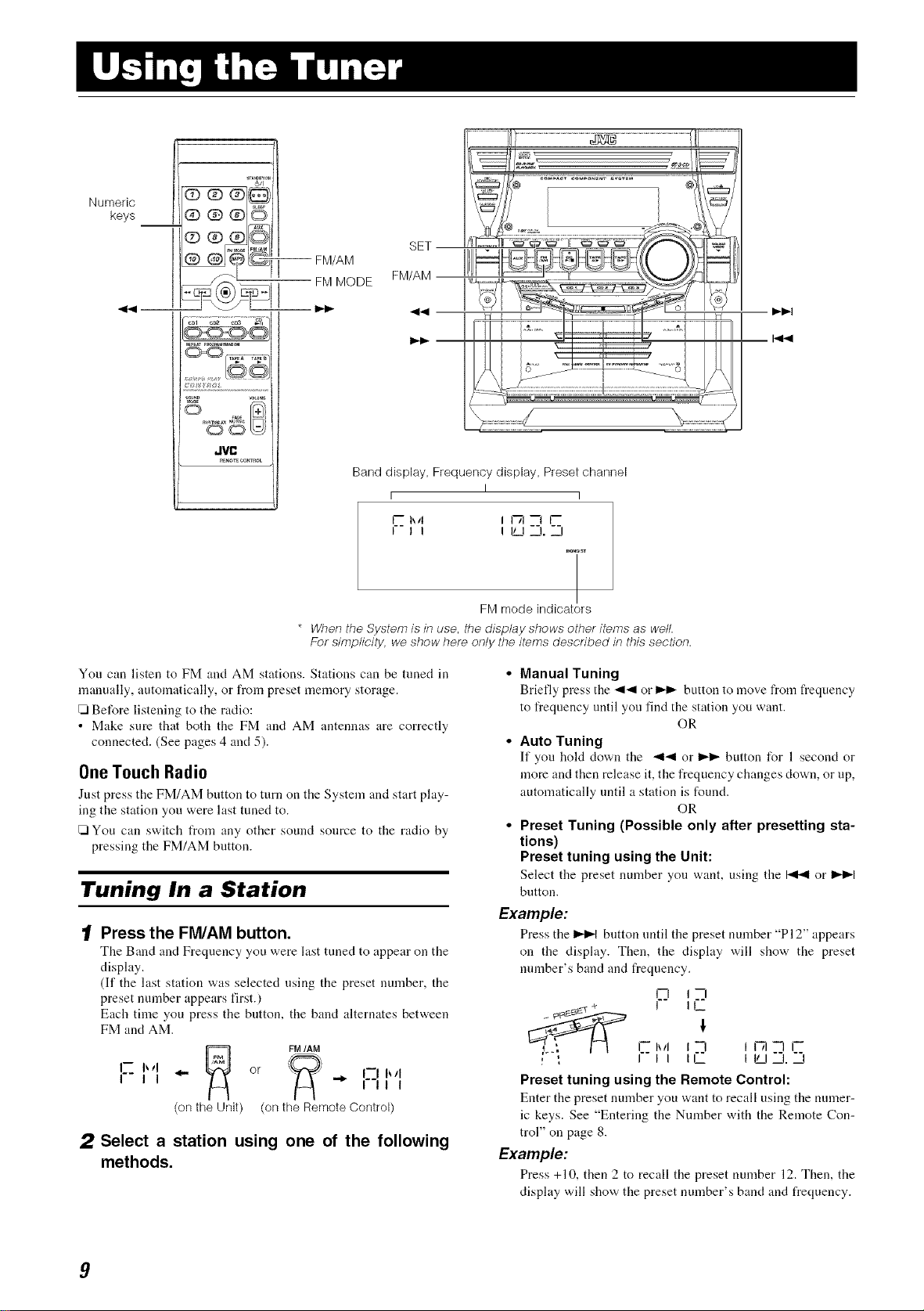
! FM/AM
j FM MODE
SET
FM/AM
414
Band display, Frequency display, Preset channel
I
I I
I--IwI I 1-TI --I I--
I--t I It_l _1, _J
FM mode indicators
* When the System is in use, the display shows other items as well.
For simplicity, we show here only the items described in this section.
You can listen to FM and AM stations. Stations can be tuned in
manually, automatically, or from preset memory storage.
[_ Before listening to the radio:
• Make sure that both the FM and AM antennas are correctly
connected. (See pages 4 and 5).
OneTouch Radio
Just press the FM/AM button to turn on the System and start play-
ing the station you were last tuned to.
[_ You can switch t'rom any other sound source to the radio by
pressing the FM/AM button.
Tuning In a Station
1 Press the FM/AM button.
The Band and Frequency you were last tuned to appear on the
display.
(If the last station was selected using the preset number, the
preset number appears first.)
Each time you press the button, the band alternates between
FM and AM.
!_ b '1 or ' '
I I _ _ I[I I_I1
I
I II t
(on the Unit) (on the Remote Control)
2 Select a station using one of the following
methods.
• Manual Tuning
Briefly press the _1_1 or _ button to move from frequency
to freqnency nntil you find the station you want.
OR
• Auto Tuning
It" you hold down the _1_1 or _1)- button for l second or
more and then release it, the frequency changes clown, or up,
automatically until a station is found.
OR
• Preset Tuning (Possible only after presetting sta-
tions)
Preset tuning using the Unit:
Select the preset number you want, using the I-,II41or I,.-I_1
button.
Example:
Press the I,.-I_1button until the preset number "PI 2" appears
on the display. Then. the display will show the preset
number's band and frequency.
_-+ I L
I-- I\tl -7 I 1-71--I I--
, F-II U ILI 23.23
Preset tuning using the Remote Control:
Enter the preset number you want to recall using the numer-
ic keys. See "Entering the Number with the Remote Con-
trol" on page 8.
Example:
Press +10, then 2 to recall the preset number 12. Then, the
display will show the preset number's band and frequency.
Using the Tuner
° tn AM broadcast, reception sensitivity will be changed by
turning the AM loop antenna. Turn the AM loop antenna
for best reception.
Presetting Stations
You can preset up to 30 FM stations and up to 15 AM stations.
• Preset numbers may have been set to factory test fre-
quencies prior to shipmenL This is not a malfunction. You
can preset the stations you want into memory by following
one of the presetting methods below.
• During presetting stations, if no button operation is made
for 5 seconds, the display returns to the band/frequency
display, tn this case, repeat steps from the beginning.
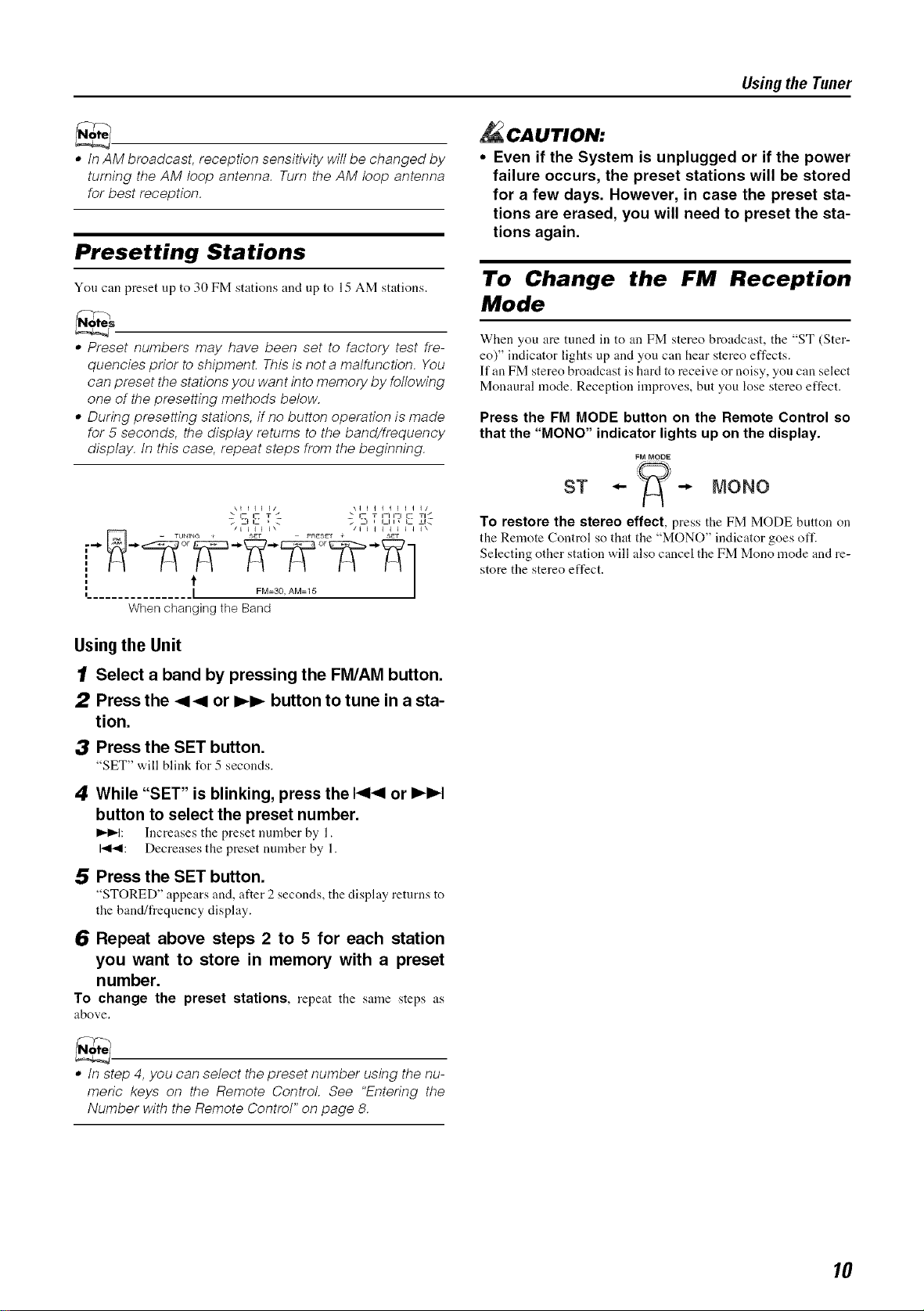
t
[ FM=30, AM=I 5
Whenchanging the Band
Using the Unit
1 Select a band by pressing the FM/AM button.
2 Press the _1_1 or I_1_ button to tune in a sta-
tion.
3 Press the SET button.
"SET" will blink for 5 seconds.
4 While "SET" is blinking, press the I_1_1or I_1_1
button to select the preset number.
_1_t: Increases the preset number by I.
I-,II4: Decreases the preset number by 1.
5 Press the SET button.
"STORED" appears and, after 2 seconds, tile display returns to
the band/frequency display.
6 Repeat above steps 2 to 5 for each station
you want to store in memory with a preset
number.
To change the preset stations, repeat the same steps as
above.
• Even if the System is unplugged or if the power
failure occurs, the preset stations will be stored
for a few days. However, in case the preset sta-
tions are erased, you will need to preset the sta-
tions again.
To Change the FM Reception
Mode
When you are tuned in to an FM stereo broadcast, the "ST (Ster-
eo)" indicator lights up and you can hear stereo effects.
If an FM stereo broadcast is hard to receive or noisy, you can select
Monaural mode. Reception improves, but you lose stereo effect.
Press the FM MODE button on the Remote Control so
that the "MONO" indicator lights up on the display.
FM MODE
ST *" _'* MONO
To restore the stereo effect, press the FM MODE button on
the Remote Control so that the "MONO" indicator goes off.
Selecting other station will also cancel the FM Mono mode and re-
store the stereo effect.
° tn step 4, you can select the preset number using the nu-
meric keys on the Remote Control. See "Entering the
Number with the Remote Control" on page 8.
I0
Numeric
keys
CD1-CD3
REPEAT
PROGRAM
/RANDOM
®®Go
I
- --CD
__ I_/11
1
I_, / j_] _;......................................
INB VIIMB
.IVC
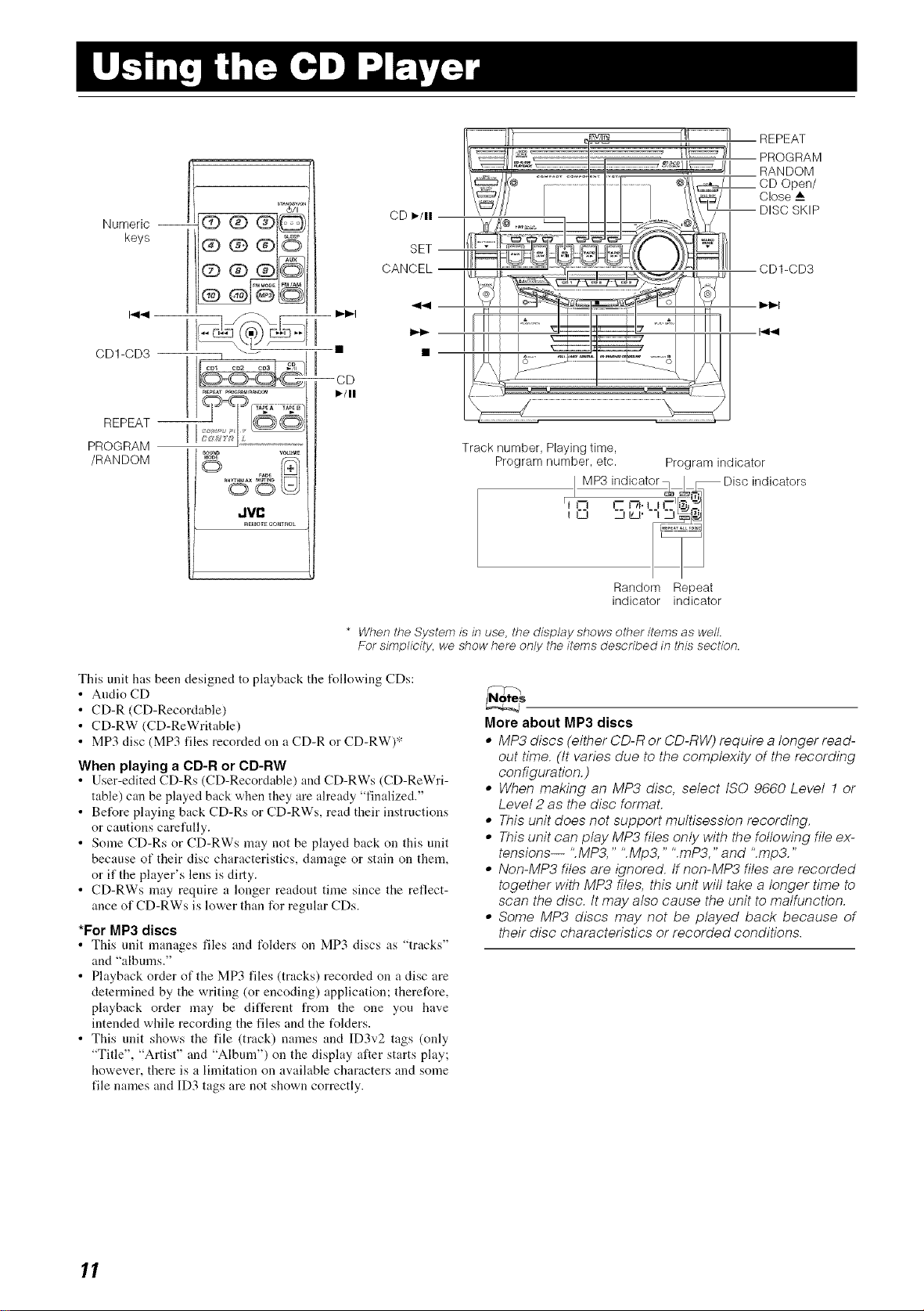
CD I,/11
SET
CANCEL
"914
fit )l REPEAT
PROGRAM
RANDOM
/ pen/
Close jA
I
IIIII
Track number, Playingtime,
Program number, etc. Program indicator
MP3indicator s/_ Disc indicators
',m ,-n,. r'!@_
........ .3"
,
u _ILl. IJ "-_l
Random Repeat
indicator indicator
* When the System is in use, the display shows other items as well.
For simplicity, we show here only the items described in this section.
This unit has been designed to playback the following CDs:
• Audio CO
• CD-R (CD-Recordable)
• CD-RW (CD-ReWritable)
• MP3 disc (MP3 files recorded on a CD-R or CD-RW)*
When playing a CD-R or CD-RW
• User-edited CD-Rs (CD-Recordable) and CD-RWs (CD-ReWri-
table) can be played back when they are already "finalized."
• Before playing back CD-Rs or CD-RWs, read their instructions
or cautions carefully.
• Some CD-Rs or CD-RWs may not be played back on this unit
because of their disc characteristics, damage or stain on them,
or if the player's lens is dirty.
• CD-RWs may require a longer readout time since the reflect-
ance of CD-RWs is lower than for regular CDs.
*For MP3 discs
• This nnit manages files and folders on MP3 discs as "tracks"
and "albums."
• Playback order of the MP3 files (tracks) recorded on a disc are
determined by the writing (or encoding) application; therefore,
playback order may be different from the one you have
intended while recording the files and the folders.
• This unit shows the file (track) names and ID3v2 tags (only
"Title", "Artist" and "Album") on the display after starts play;
however, there is a limitation on available characters and some
file names and ID3 tags are not shown correctly.
More about MP3 discs
o MP3 discs (either CD-R or CD-RW) require a longer read-
out time. (It varies due to the complexity of the recording
configuration.)
• When making an MP3 disc, select tSO 9660 Level 1 or
Level 2 as the disc format.
• This unit does not support mu/tisession recording.
• This unit can play MP3 flies only with the following file ex-
tensions- ".MP3," ".Mp3," ".raP3," and ".rap3."
• Non-MP3 files are ignored, tfnon-MP3 files are recorded
together with MP3 flies, this unit wi// take a longer time to
scan the disc. tt may a/so cause the unit to malfunction.
• Some MP3 discs may not be played back because of
their disc characteristics or recorded conditions.
11
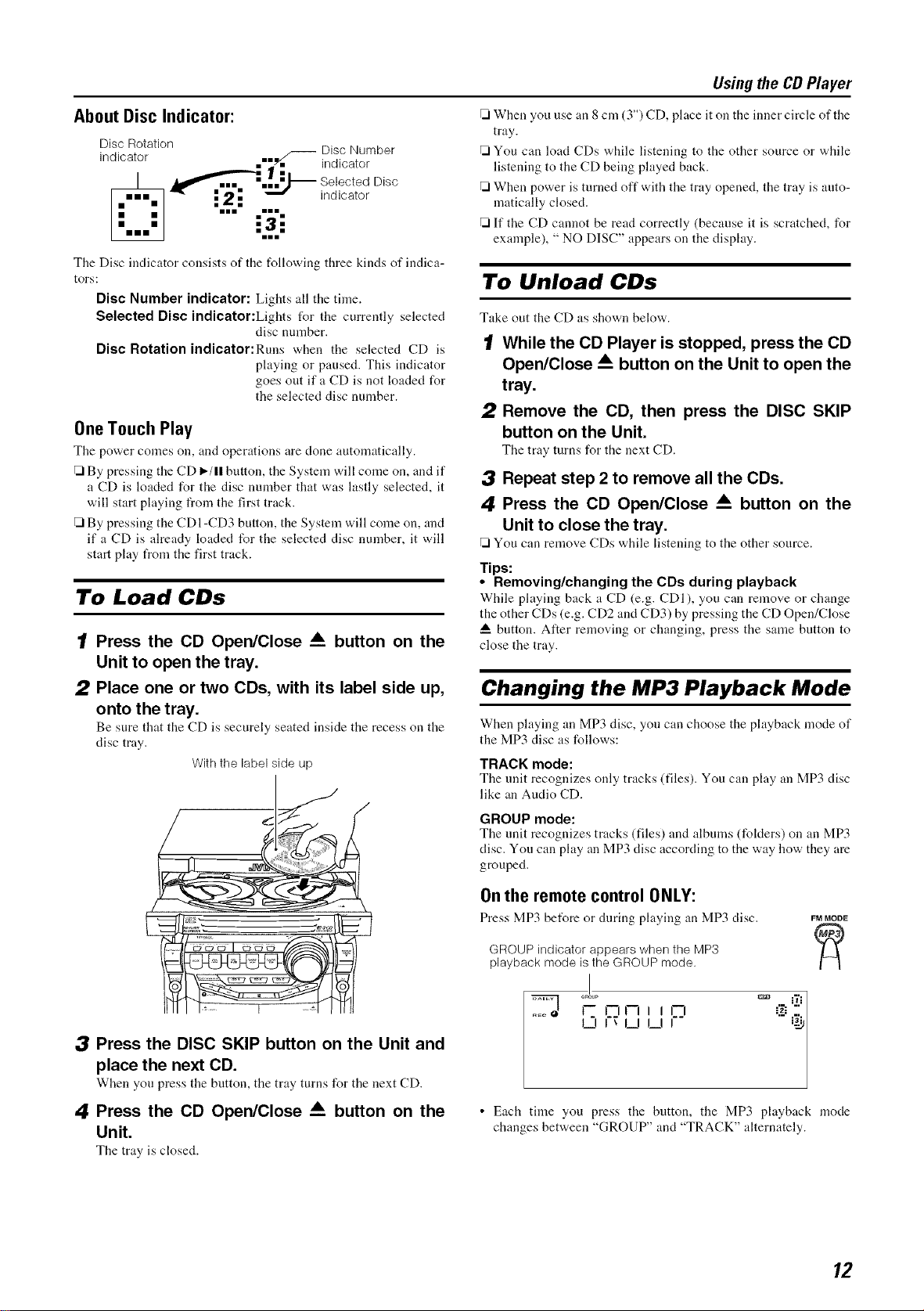
About Disc Indicator:
Disc Rotation
indicator
"'""'}'i
The Disc indicator consists of the following three kinds of indica-
tors:
Disc Number indicator: Lights all the time.
Selected Disc indicator:Lights for the currently selected
disc number.
Disc Rotation indicator:Runs when the selected CD is
playing or paused. This indicator
goes out if a CD is not loaded for
the selected disc number.
OneTouch Play
Tile power comes (m, and operations are done automatically.
By pressing the CD I_/11 button, the System will come on, and if
a CD is loaded for the disc number that was lastly selected, it
will start playing from the first track.
By pressing the CDI -CD3 button, the System will come on, and
if a CD is already loaded for the selected disc number, it will
start play from the first track.
To Load CDs
t Press the CD Open/Close _ button on the
Unit to open the tray.
2 Place one or two CDs, with its label side up,
onto the tray.
Be sure that the CD is securely seated inside tile recess on tile
disc tray.
With the label side up
3 Press the DISC SKIP button on the Unit and
place the next CD.
When you press tile button, the tray turns for tile next CD.
4 Press the CD Open/Close _ button on the
Unit.
The tray is closed.
Using the CD Player
[_ When you use an 8 cm (3") CD, place it on the inner circle of the
tray.
[_ You can load CDs while listening to the other source or while
listening to the CD being played back.
[_ When power is turned oft" with the tray opened, the tray is auto-
matically closed.
[_ If the CD cannot be read correctly (because it is scratched, for
example), " NO DISC" appears on the display.
To Unload CDs
Take out the CD as shown below.
1 While the CD Player is stopped, press the CD
Open/Close _ button on the Unit to open the
tray.
2 Remove the CD, then press the DISC SKIP
button on the Unit.
Tile tray turns for the next CD.
3 Repeat step 2 to remove all the CDs.
4 Press the CD Open/Close _ button on the
Unit to close the tray.
[_ You can remove CDs while listening to tile other source.
Tips:
• Removing/changing the CDs during playback
While playing back a CD (e.g. CDI ), you can remove or change
the other CDs (e.g. CD2 and CD3) by pressing the CD Open/Close
A button. After removing or changing, press the same button to
close the tray.
Changing the MP3 Playback Mode
When playing an MP3 disc, you can choose the playback mode of
the MP3 disc as follows:
TRACK mode:
The unit recognizes only tracks (files). You can play an MP3 disc
like an Audio CD.
GROUP mode:
The unit recognizes tracks (files) and albums (folders) on an MP3
disc. You can play an MP3 disc according to the way how they are
grouped.
Onthe remote control ONLY:
Press MP3 before or during playing :m MP3 disc.
GROUP indicator appears when the MP3
playback mode is the GROUP mode.
I
.oo t--i-i i-i i ii-J
LI I_l_l LI I
FM MODE
• Each time you press the button, the MP3 playback mode
changes between "GROUP" and "TRACK" alternately.
12
Using the CD Player
Basics of Using the CD Player.
Normal Play
To Play CDs
1 Load CDs.
2 Press one of the Disc button (CDI-CD3) you
want to play.
The selected disc number (e.g. "CD DISC 1" ) appears (m tile
display.
The first track of the selected CD begins playing. When the
first CD finishes playing, the next and the third CDs are con-
tinuously played back.
When the last CD has finished playing, the CD Player auto-
matically stops.
You can start to play the currently selected disc by simply press-
ing the CD I)/1! button.
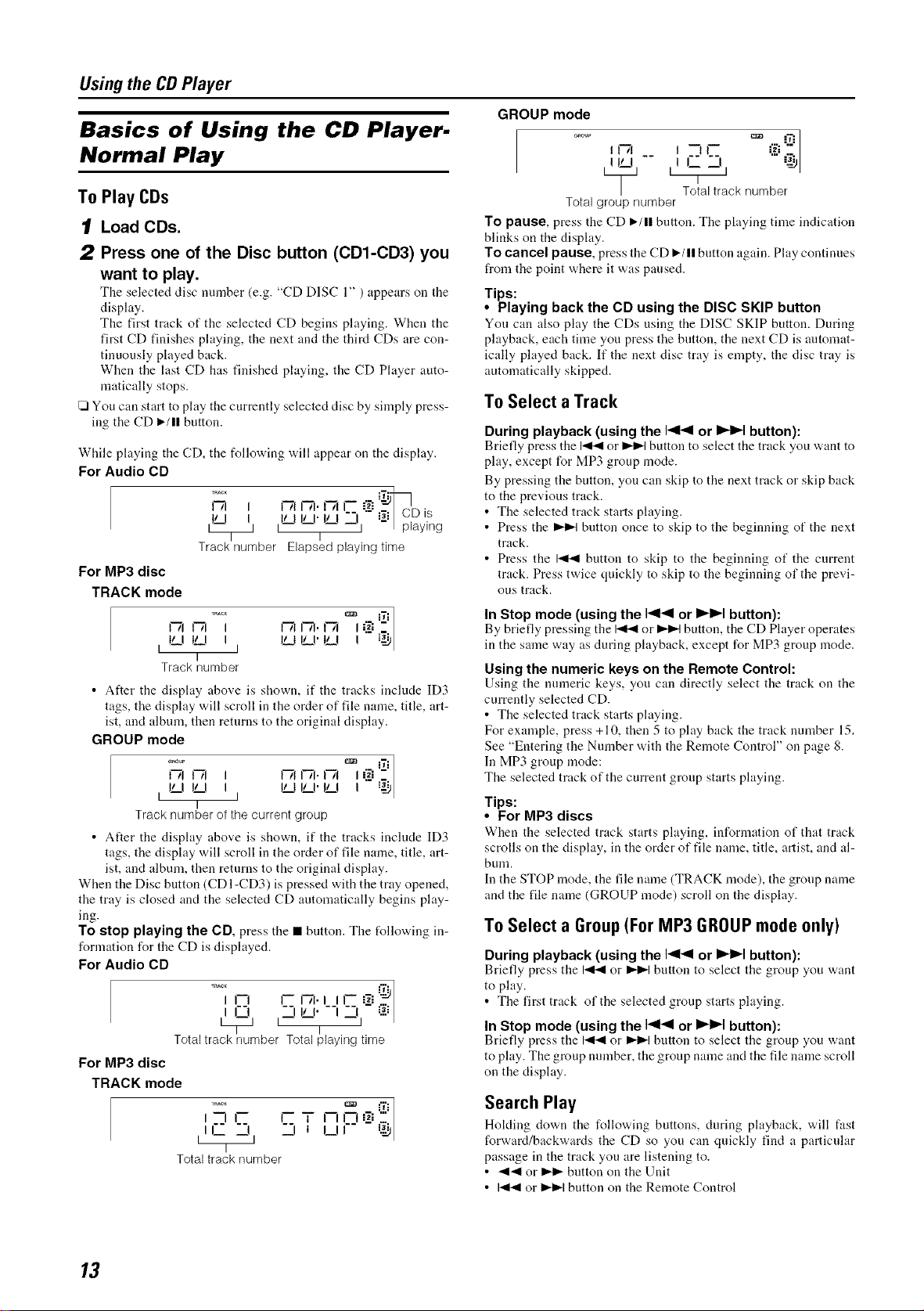
While playing the CD, the following will appear on the display.
For Audio CD
,- .__-_
1-71 I t'7t 1-71'I'71 L_I :..:l_il CD is
Eta5 IIL-IILJ"ILJ,--I - , playing
Track number Elapsed playing time
For MP3 disc
TRACK mode
1-711-71 I I-7tl-71'I-71 1"2"..-
ILl ILl I ILlILl'ILl l"i_
I I
I
Track number
• After the display above is shown, if the tracks include ID3
tags, the display will scroll in the order of file name title, art-
ist, and album, then returns to the original display.
GROUP mode
_1 771 I 77tl-71.771 i;2_ -
I_'II_'I I ILlI,'I'ILl I"_
I I
I
Track number of the current group
• After the display above is shown, if the tracks include ID3
tags, the display will scroll in the order of file name, title, art-
ist, and album, then returns to the original display.
When the Disc button (CD 1-CD3) is pressed with the tray opened,
the tray is closed and the selected CD automatically begins play-
ing.
To stop playing the CD,press the • button. The t_llowing in-
formation for the CD is displayed.
For Audio CD
I n I--I-71-II
__ I-- __21...
iB )L). I
I
Total track number Total playing time
For MP3 disc
TRACK mode
I --I I-- 1-- T I--I I--£Ii_.i Z
1
Total track number
GROUP mode
q
11-71__ I --II-- (B;.-'._
i
Total track number
Total group number
To pause, press tile CD I)/11 button. The playing time indication
blinks on the display.
To cancel pause, press the CD )_/11button again. Play continues
from the point where it was paused.
Tips:
• Playing back the CD using the DISC SKIP button
You can also play the CDs using the DISC SKIP button. During
playback, each time you press the button, the next CD is automat-
ically played back. If the next disc tray is empty, the disc tray is
automatically skipped.
To Select a Track
During playback (using the I<1<1 or I_1 button):
Briefly press the 14141or _ button to select tile track you want to
play, except for MP3 group mode.
By pressing the button, you can skip to the next track or skip back
to the previous track.
• The selected track starts playing.
• Press the _l)q button once to skip to the beginning of the next
track.
• Press the 1<141button to skip to the beginning of the current
track. Press twice quickly to skip to the beginning of the previ-
ous track.
in Stop mode (using the I<1<1 or I_1_1 button):
By briefly pressing the 1<141or _l)q button, the CD Player operates
in the same way as during playback, except for MP3 group mode.
Using the numeric keys on the Remote Control:
Using the numeric keys, you can directly select the track on the
currently selected CD.
• The selected track starts playing.
For example, press +10, then 5 to play back the track number 15.
See "Entering the Number with the Remote Control" on page 8.
In MP3 group mode:
The selected track of the current group starts playing.
Tips:
• For MP3 discs
When tile selected track starts phtying, iuformatiou of that track
scrolls on the display, in the order of file name, title, artist, and al-
bum.
In the STOP mode, the file name (TRACK mode), the group name
and the file name (GROUP mode) scroll on the display.
To Select a Group(For MP3 GROUPmode only)
During playback (using the 141_1 or I_1_1 button):
Briefly press tile 14141or _l)q button to select the group you want
to play.
• The first track of the selected group starts playing.
in Stop mode (using the 141_1 or I_1_1 button):
Briefly press tile 14141or _ button to select the group you want
to play. The group number, the group name and the file name scroll
on the display.
Search Play
Holding down the following buttons, during playback, will fast
forward/backwards the CD so you can quickly find a particular
passage in the track you are listening to.
• _1_1 or I_1_- button on the Unit
• 1<141or P,,-_Ibutton on the Remote Control
13
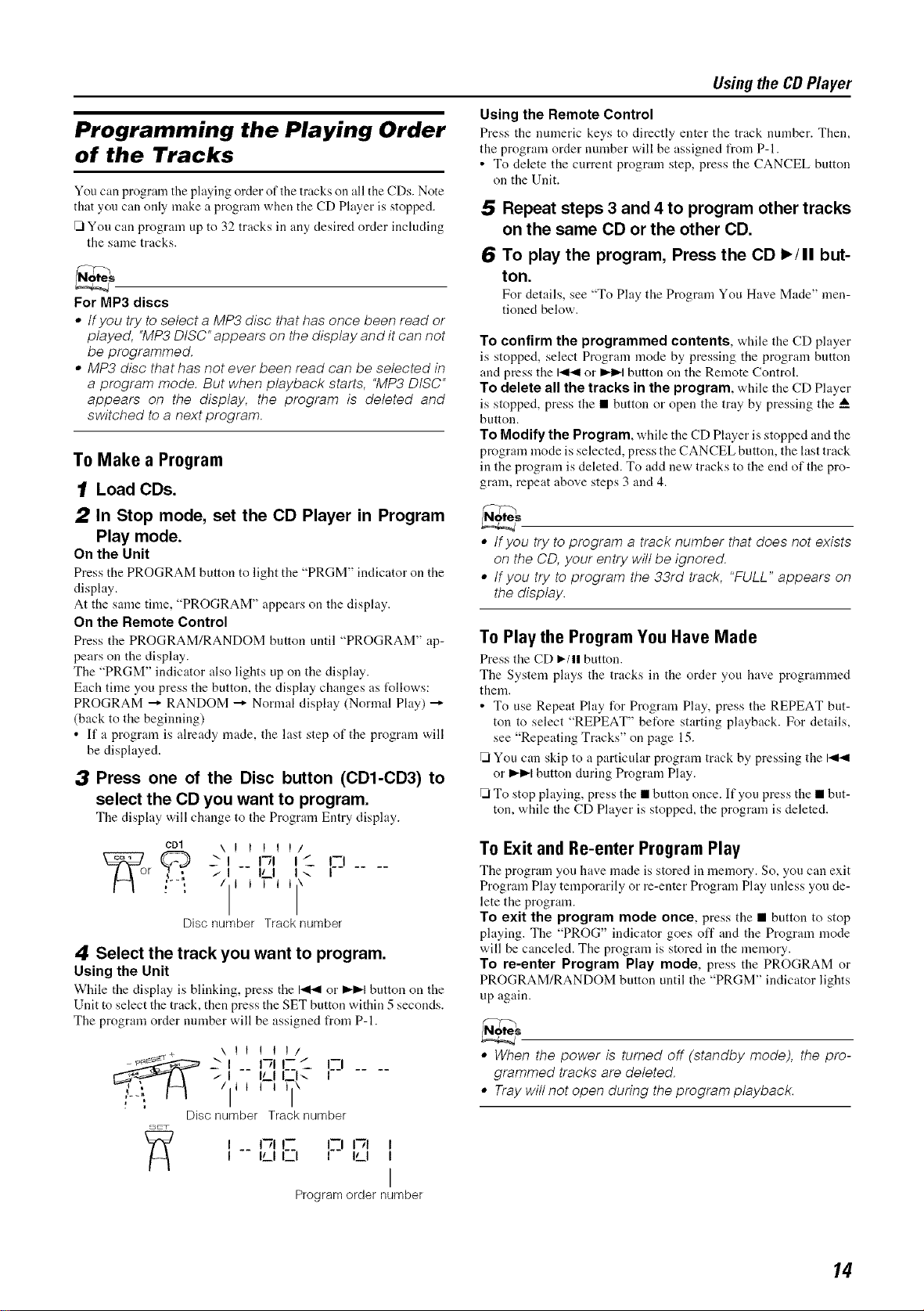
Programming the Playing Order
of the Tracks
You can program the playing order of the tracks on all the CDs. Note
that you can only make a program when the CD Player is stopped.
[_ You can program up to 32 tracks in any desired order including
the same tracks.
For MP3 discs
• tfyou try to select a MP3 disc that has once been read or
played, "MP3 DISC" appears on the display and it can not
be programmed.
• MP3 disc that has not ever been read can be selected in
a program mode. But when playback starts, "MP3 DISC"
appears on the display, the program is deleted and
switched to a next program.
To Make a Program
t Load CDs.
2 In Stop mode, set the CD Player in Program
Play mode.
On the Unit
Press the PROGRAM button to light tile "PRGM" indicator on the
display.
At the same time, "PROGRAM" appears on the display.
On the Remote Control
Press the PROGRAM/RANDOM button until "PROGRAM" ap-
pears on the display.
The "PRGM" indicator also lights up on the display.
Each time you press the button, the display changes as follows:
PROGRAM _ RANDOM _ Normal display (Normal Play)
(back to the beginning)
• If a program is already made, the last step of the program will
be displayed.
3 Press one of the Disc button (CD1-CD3) to
select the CD you want to program.
Tile display will change to tile Program Entry display.
CD1 \ I I I I )/
%°9 :I "-r'
r / -- I.'l I _ ....
_", I I I I i I \
Disc number Track number
4 Select the track you want to program.
Using the Unit
While the display is blinking, press the I-<1_ or I_1_1 button on the
Unit to select the track, then press the SET button within 5 seconds.
The program order number will be assigned from P-I.
_ 1"71 __l
/ -- l,'Il_l'-.
/ II I i I\
,,, I I
Disc number Track number
SET
I-- '-
LIo 1-1
1-71
Program order number
Using the CD Player
Using the Remote Control
Press the numeric keys to directly enter the track number. Then,
the program order number will be assigned from P-I.
• To delete the current program step, press the CANCEL button
on the Unit.
5 Repeat steps 3 and 4 to program other tracks
on the same CD or the other CD.
6 To play the program, Press the CD ),111 but-
ton.
For details, see "To Play tile Program You Have Made" men-
tioned below.
To confirm the programmed contents, while the CD player
is stopped, select Program mode by pressing the program button
and press the 1<14 or _ button on the Remote Control.
To delete all the tracks in the program, while the CD Player
is stopped, press tile • button or open tile tray by pressing tile A
button.
To Modify the Program, while the CD Player is stopped and the
program mode is selected, press the CANCEL button, the last track
in the program is deleted. To add new tracks to the end of the pro-
gram, repeat above steps 3 and 4.
° tfyou try to program a track number that does not exists
on the CD, your entry will be ignored.
• tf you try to program the 33rd track, "FULL" appears on
the display.
To Play the Program You Have Made
Press the CD I_/11 button.
The System plays the tracks in the order you have programmed
them.
• To use Repeat Play for Program Play, press the REPEAT but-
ton to select "REPEAT" before starting playback. For details,
see "Repeating Tracks" on page 15.
[_You can skip to a particular program track by pressing the 1<14
or ),"_I button during Program Play.
[_To stop playing, press the • button once. If you press the • but-
ton, while the CD Player is stopped, the program is deleted.
To Exit and Re-enter Program Play
The program you have made is stored in memory. So, you can exit
Program Play temporarily or re-enter Program Play unless you de-
lete the program.
To exit the program mode once, press the • button to stop
playing. The "PROG" indicator goes off and the Program mode
will be canceled. The program is stored in the memory.
To re-enter Program Play mode, press the PROGRAM or
PROGRAM/RANDOM button until the "PRGM" indicator lights
up again.
• When the power is tumed off (standby mode), the pro-
grammed tracks are deleted.
• Tray will not open during the program playback.
14
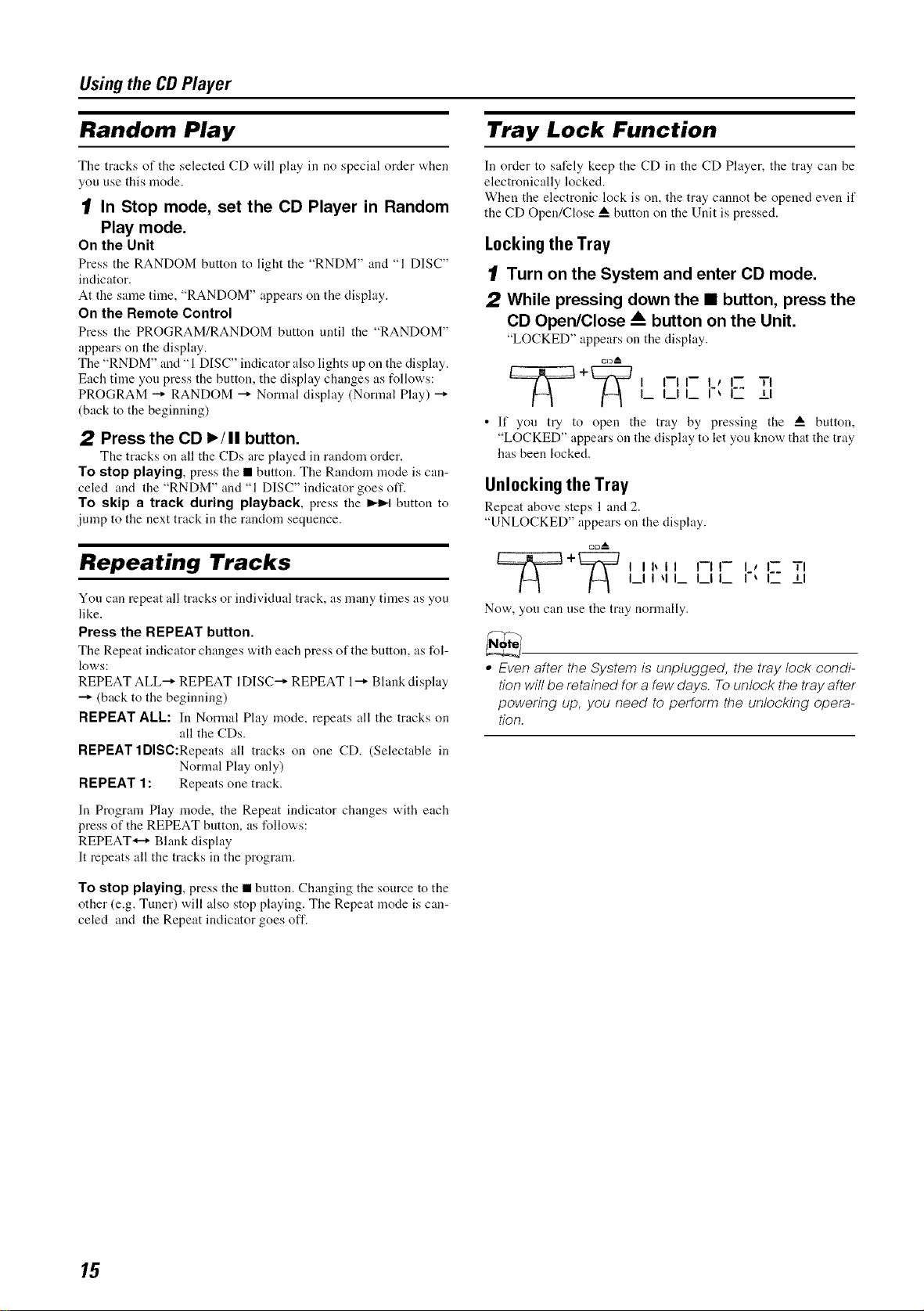
Using the CD Player
Random Play
The tracks of the selected CD will play in no special order when
you use this mode.
1 In Stop mode, set the CD Player in Random
Play mode.
On the Unit
Press tile RANDOM button to light tile "RNDM" and "1 DISC"
indicator.
At the same time, "RANDOM" appears on the display.
On the Remote Control
Press the PROGRAM/RANDOM buttcm until tile "RANDOM"
appears on the display.
The "RNDM" and "1 DISC" indicator also lights up on the display.
Each time yon press the button, the display changes as follows:
PROGRAM _ RANDOM _ Normal display (Normal Play)
(back to the beginning)
2 Press the CD _/11 button.
The tracks on all the CDs are played in rmMom order.
To stop playing, press the • button. The Random mode is can-
celed and the "RNDM" and "1 DISC" indicator goes oft'.
To skip a track during playback, press the _aDq button to
jump to the next track ill the random sequence.
Repeating Tracks
You can repeat all tracks or individual track, as many times as you
like.
Press the REPEAT button.
Tile Repeat indicator changes with each press of the button, as fol-
lows:
REPEAT ALL'-"*REPEAT 1DISC'-"* REPEAT 1"-"*Blank display
"* (back to the beginning)
REPEAT ALL: In Normal Play mode, repeats all the tracks on
all the CDs.
REPEAT1DISC:Repeats all tracks on one CD. (Selectable in
Normal Play only)
REPEAT 1: Repeats one track.
In Program Play mode, the Repeat indicator changes with each
press of the REPEAT button, as follows:
REPEAT _'* Blank display
It repeats all the tracks in the program.
To stop playing, press the • button. Changing the source to the
other (e.g. Tuner) will also stop playing. The Repeat mode is can-
celed and the Repeat indicator goes off.
Tray Lock Function
In order to safely keep the CD in the CD Player, the tray can be
electronically locked.
When the electronic lock is on, the tray cannot be opened even if
the CD Open/Close A button on the Unit is pressed.
Lockingthe Tray
1/ Turn on the System and enter CD mode.
2 While pressing down the • button, press the
CD Open/Close _ button on the Unit.
"LOCKED" appears on tile display.
CDI_
+_ I I--II-- I p I-- TII__ I__1I__ I% I-- /I
• If you try to open the tray by pressing the A button,
"LOCKED" appears on the display to let you know that the tray
has been locked.
Unlocking the Tray
Repeat above steps 1 and 2.
"UNLOCKED" appears on the display.
cca_
+_] I Ib Ii I--II-- I! 1_--. TI
I_11 q I_ I_1 I_ I% I-_" ILl
Now, you can use the tray normally.
• Even after the System is unplugged, the tray lock condi-
tion will be retained for a few days. To unlock the tray after
powering up, you need to perform the unlocking opera-
tion.
15
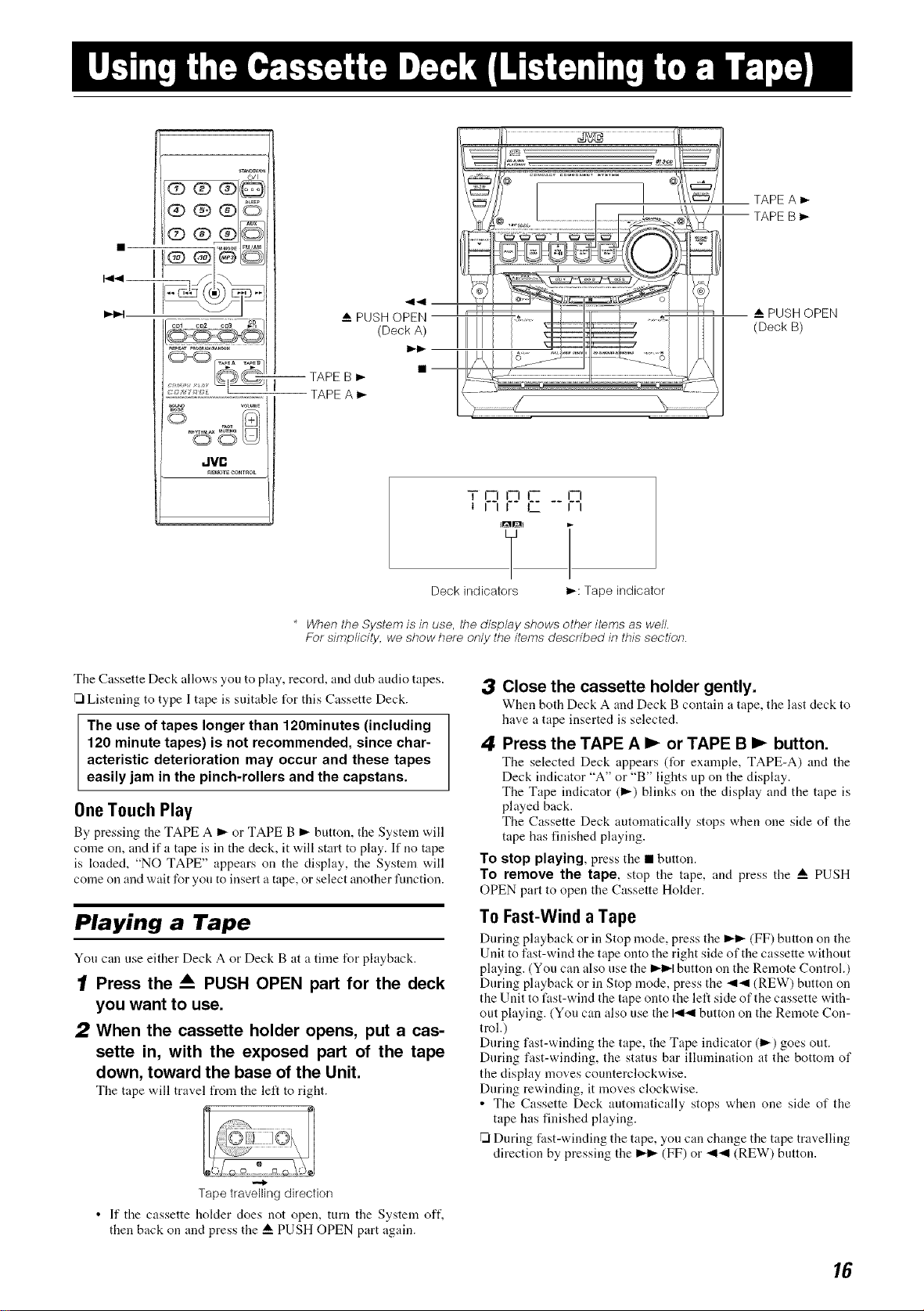
®®®1@
® ® ®1o
®
6
JVC
RE_TE¢ONT_OL
• PUSH OPEN
(Deck A)
-- TAPE B _-
TAPE A _-
TAPE A _-
TAPE B _-
• PUSH OPEN
(Deck B)
T rl rl r rl
i r-i r- t-_- --I-'1
T
Deck indicators _-: Tape indicator
* When the System is in use, the display shows other items as well.
For simplicity, we show here only the items described in this section.
The Cassette Deck allows you to play, record, and dub audio tapes.
F3Listening to type ] tape is suitable t_r this Cassette Deck.
The use of tapes longer than 120minutes (including
120 minute tapes) is not recommended, since char-
acteristic deterioration may occur and these tapes
easily jam in the pinch-rollers and the capstans.
OneTouch Play
By pressing the TAPE A I_ or TAPE B I_ button, the System will
come on, and ira tape is in the deck, it will start to play. If no rope
is loaded, "NO TAPE" appears on the display, the System will
come on and wait for you to insert a tape, or select another function.
Playing a Tape
You can use either Deck A or Deck B at a time for playback.
1 Press the _ PUSH OPEN part for the deck
you want to use.
2 When the cassette holder opens, put a cas-
sette in, with the exposed part of the tape
down, toward the base of the Unit.
The tape will travel from the left to right.
Tape travelling direction
• If the cassette holder does not open, turn the System off,
then back on and press the _ PUSH OPEN part again.
3 Close the cassette holder gently.
When both Deck A and Deck B contain a tape, the last deck to
have a tape inserted is selected.
4 Press the TAPE A I_ or TAPE B I_ button.
The selected Deck appears (for example, TAPE-A) and the
Deck indicator "A" or "B" lights up on the display.
The Tape indicator (1_) blinks on the display and the tape is
played back.
The Cassette Deck automatically stops when one side of the
tape has finished playing.
To stop playing, press the • button.
To remove the tape, stop the tape, and press the _ PUSH
OPEN part to open the Cassette Hokter.
To Fast-Wind a Tape
During playback or in Stop mode, press the _ (FF) button on the
Unit to fast-wind the tape onto the right side of the cassette without
playing. (You can also use the I_1 button on the Remote Control.)
During playback or in Stop mode, press the _1_1 (REW) button on
the Unit to fast-wind the tape onto the left side of the cassette with-
out playing. (You can also use the I-,_t_ button on the Remote Con-
trol.)
During fast-winding the tape, the Tape indicator (1_) goes out.
During fast-winding, the status bar illumination at the bottom of
the display moves counterclockwise.
During rewinding, it moves clockwise.
• The Cassette Deck automatically stops when one side of the
tape has finished playing.
[3 During fast-winding the tape, you can change the tape travelling
direction by pressing the I_1_-(FF) or _1_1 (REW) button.
16
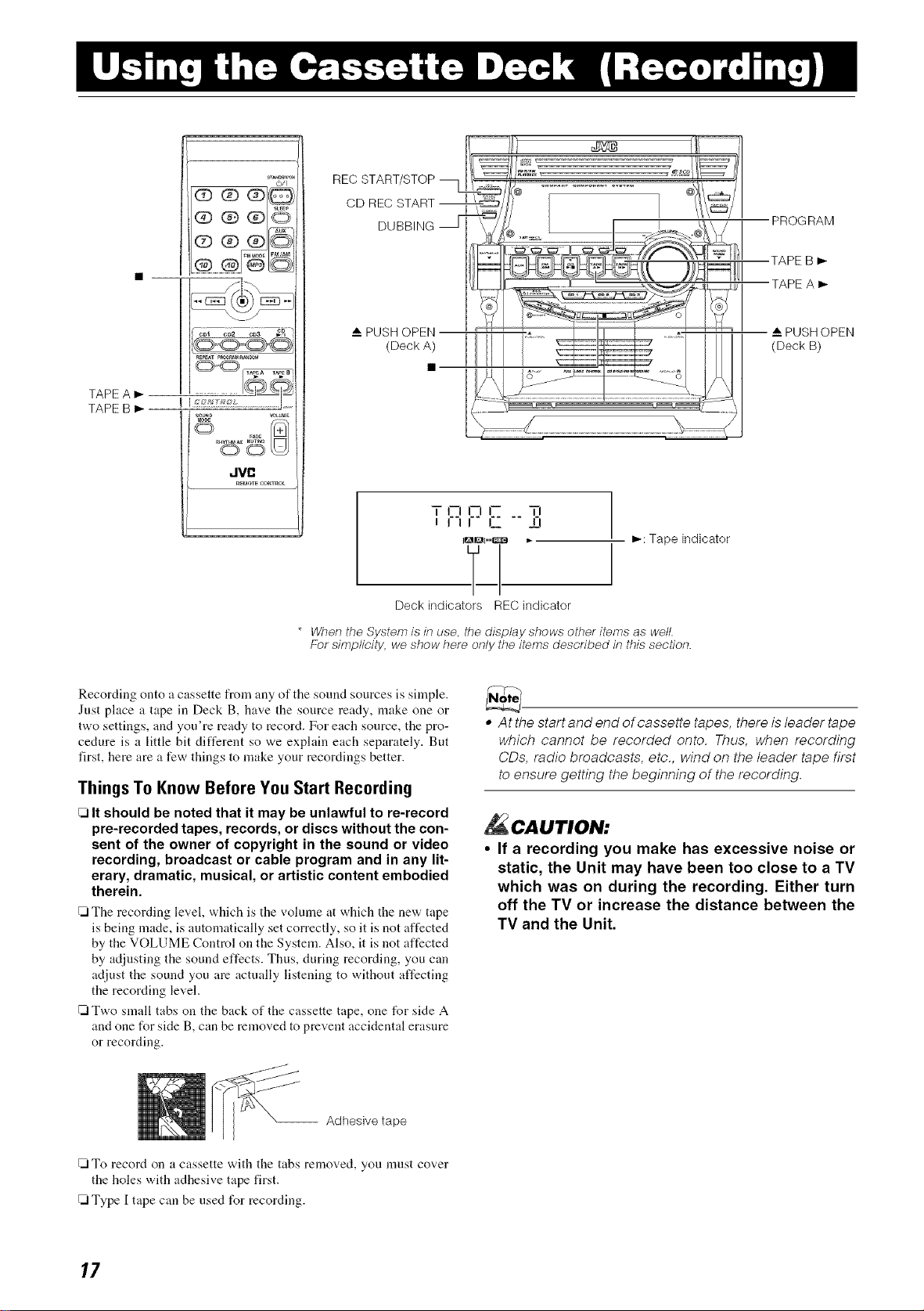
TAPE A
TAPE B
®®®1@
®
®®ml
CD1 CD2 CD3 CD
J l _;_f'_if_!_J........................I.......
_ou_D VOLU_E
O _aoE
JVll
nEMOTECONmOL
REC
CD REC START t
DUBBING
_APUSH OPEN
(Deck A)
Trl rl r TI
I III L i_'l
Deck indicators RED indicator
_-: Tape indicator
* When the System is in use, the display shows other items as well.
For simplicity, we show here only the items described in this section.
PROGRAM
TAPE B _-
TAPE A _-
jA PUSH OPEN
(Deck B)
Recording onto a cassette from any of the sound sources is simple.
Just place a tape in Deck B, have the source ready, make one or
two settings, and you're ready to record. For each source, the pro-
cedure is a little bit different so we explain each separately. But
first, here are a few things to make your recordings better.
Things To Know Before You Start Recording
[_ It should be noted that it may be unlawful to re-record
pre-recorded tapes, records, or discs without the con-
sent of the owner of copyright in the sound or video
recording, broadcast or cable program and in any lit-
erary, dramatic, musical or artistic content embodied
therein.
[_The recording level, which is the volume at which the new tape
is being made, is automatically set correctly, so it is not affected
by the VOLUME Control on the System. Also, it is not affected
by adjusting the sound effects. Thus, during recording, you can
adjust the sound you are actually listening to without affecting
the recording level.
[_ Two small tabs on the back of the cassette tape, one for side A
and one for side B, can be removed to prevent accidental erasure
or recording.
_<:__ Adhesive tape
[_ To record on a cassette with the tabs removed, you must cover
the holes with adhesive tape first.
[_ Type I tape can be used for recording.
• A t the start and end of cassette tapes, there is leader tape
which cannot be recorded onto, Thus, when recording
CDs, radio broadcasts, etc,, wind on the leader tape first
to ensure getting the beginning of the recording.
• If a recording you make has excessive noise or
static, the Unit may have been too close to a TV
which was on during the recording. Either turn
off the TV or increase the distance between the
TV and the Unit.
17
Using the Cassette Deck (Recording)
Standard Recording
This is the basic method for recording any source. The System also
has special ways for recording CD to tape, and tape to tape, which
save you time and effort, as well as give you some special effects.
However, when you need to add a selection to a tape you have
made, or are combining selections from several sources on one
tape, use the method described below; just substitute the source
you want into this procedure, such as a tape in Deck A, a CD, or
the Tuner. You can also record from an external equipment with
this procedure.
To Record Any Sound Source to Tape
Follow these steps to record from any sound source onto a tape in
Deck B.
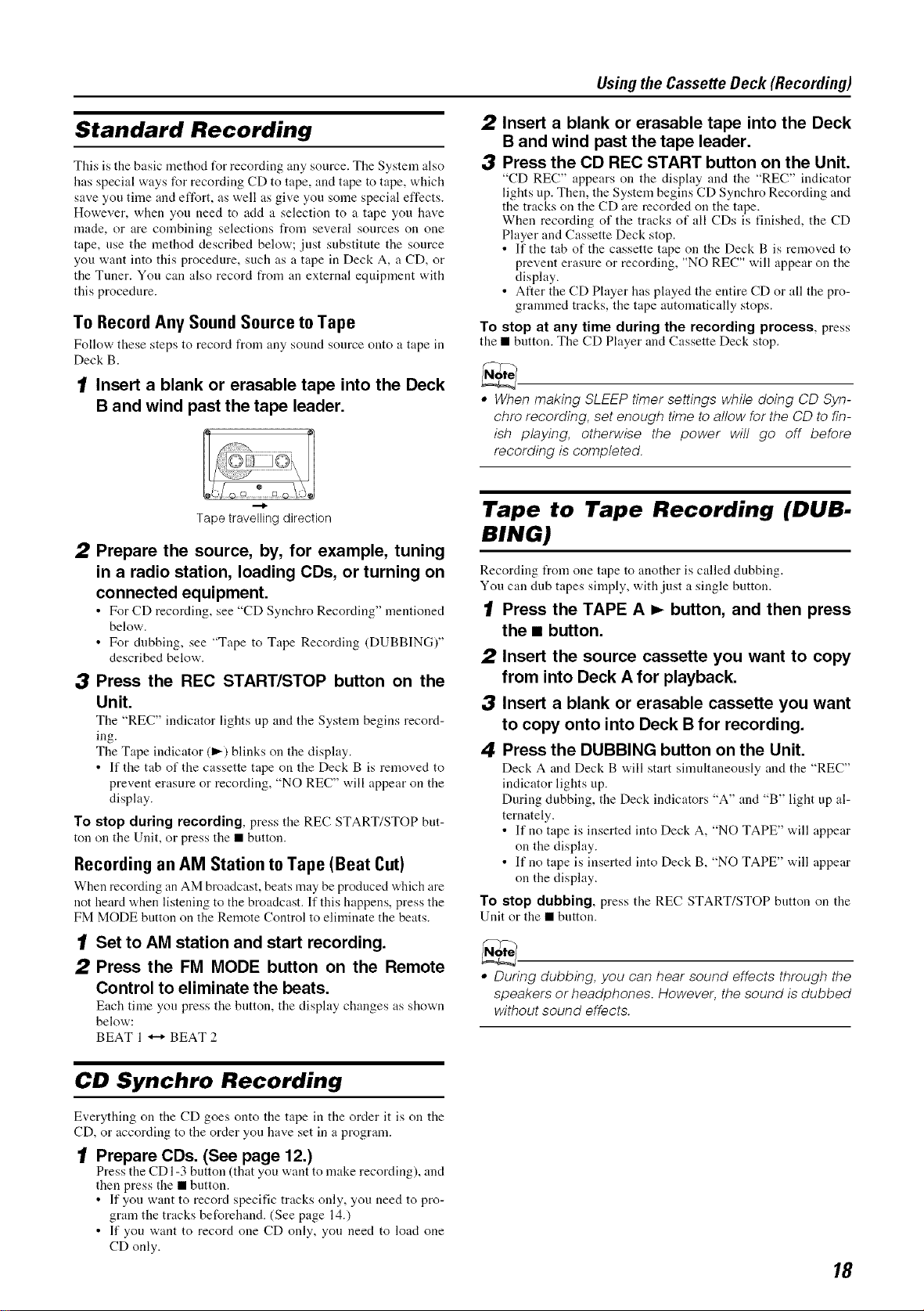
1 Insert a blank or erasable tape into the Deck
B and wind past the tape leader.
2 Insert a blank or erasable tape into the Deck
B and wind past the tape leader.
3 Press the CD REC START button on the Unit.
"CD RE(.'" appears on the display and the "REC" indicator
lights up. Then, the System begins CD Synchro Recording and
the tracks on the CD are recorded on the tape.
When recording of the tracks of all CDs is finished, the CD
Player and Cassette Deck stop.
• If the tab of the cassette tape on the Deck B is removed to
prevent erasure or recording, "NO REC" will appear on the
display.
• After the CD Player has played the entire CD or all the pro-
grammed tracks, the tape automatically stops.
To stop at any time during the recording process, press
the • button. Tile CD Player and Cassette Deck stop.
• When making SLEEP timer settings while doing CD Syn-
chro recording, set enough time to allow for the CD to fin-
ish playing, otherwise the power will go off before
recording is completed.
Tape travelling direction
2 Prepare the source, by, for example, tuning
in a radio station, loading CDs, or turning on
connected equipment.
• For CD recording, see "CD Synchro Recording" mentioued
below.
• For dubbing, see "Tape to Tape Recording (DUBBING)"
described below.
3 Press the REC START/STOP button on the
Unit.
Tile "REC" indicator lights up and tile System begins record-
ing.
The Tape indicator (_) blinks on the display.
• If the tab of the cassette tape on the Deck B is removed to
prevent erasure or recording, "NO REC" will appear on the
display.
To stop during recording, press the REC START/STOP but-
ton on the Unit, or press the • button.
Recording an AM Station to Tape (Beat Cut)
When recording an AM broadcast, beats may be produced which are
not heard when listening to the broadcast. If this happens, press the
FM MODE button on the Remote Control to eliminate the beats.
/ Set to AM station and start recording.
2 Press the FM MODE button on the Remote
Control to eliminate the beats.
Each time you press tile button, tile display changes as shown
below:
BEAT 1 _ BEAT 2
Tape to Tape Recording (DUB-
BING)
Recording from one tape to another is called dubbing.
You can dub tapes simply, with just a single button.
1 Press the TAPE A =,- button, and then press
the • button.
2 Insert the source cassette you want to copy
from into Deck A for playback.
3 Insert a blank or erasable cassette you want
to copy onto into Deck B for recording.
4 Press the DUBBING button on the Unit.
Deck A and Deck B will start simultaneously and tile "REC"
indicator lights up.
During clubbing, the Deck indicators "A" and "B" light up al-
ternately.
• If no tape is inserted into Deck A, "NO TAPE" will appear
on the display.
• If no tape is inserted into Deck B, "NO TAPE" will appear
on the display.
To stop dubbing, press the REC START/STOP button on the
Unit or the • button.
,, During dubbing, you can hear sound effects through the
speakers or headphones. However, the sound is dubbed
without sound effects.
CD Synchro Recording
Everything on the CD goes onto the tape in the order it is on the
CD, or according to the order you have set in a program.
1 Prepare CDs. (See page 12.)
Press the CD 1-3 button (that you want to make recording), and
then press the • button.
• If you want to record specific tracks only, you need to pro-
gram the tracks beforehand. (See page 14.)
• If you want to record one CD only, you need to load one
CD only.
18
® ® ®IQ
® ®®I_
_gg .....
O
O0
,Jvc
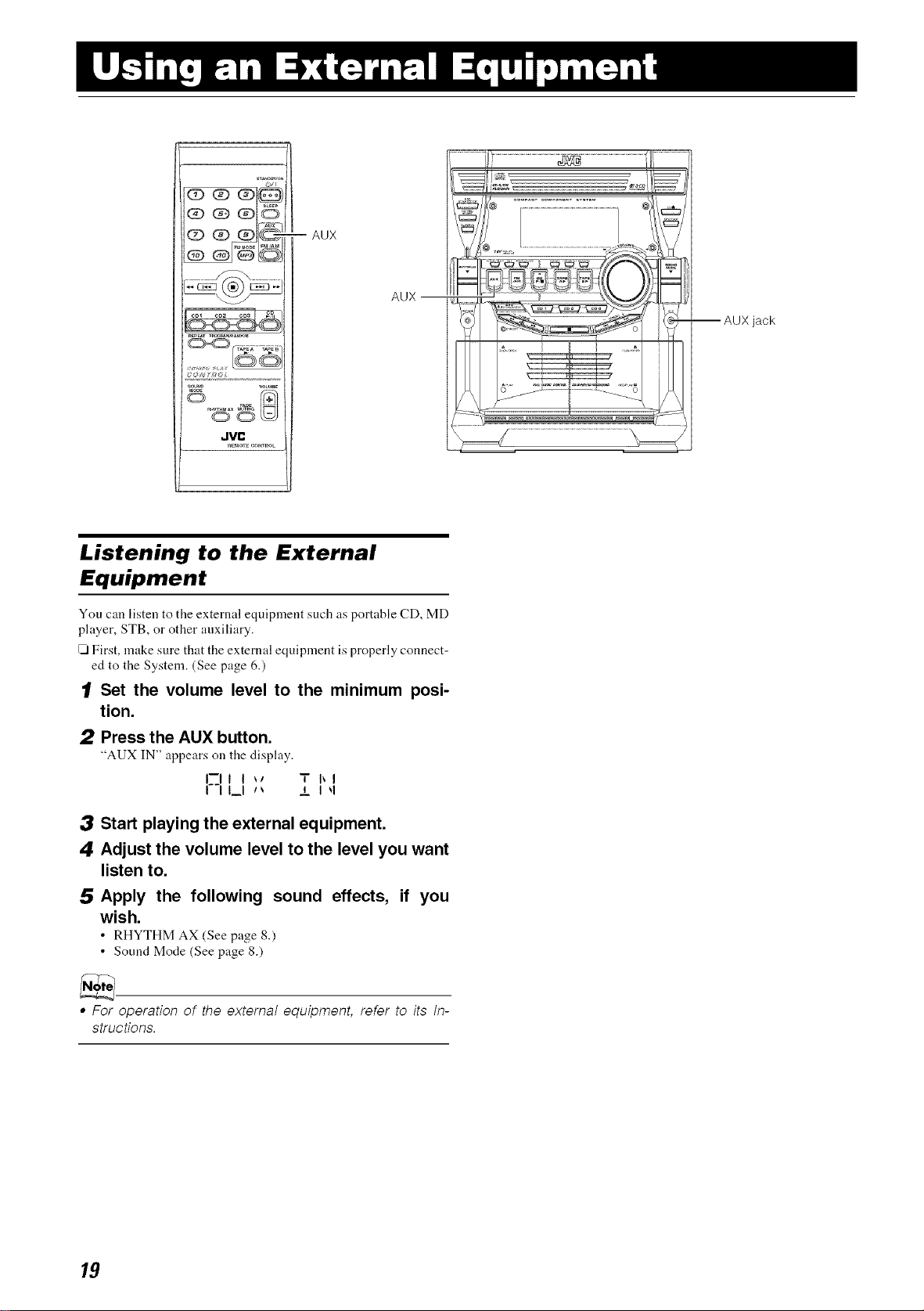
= AUX
AUX
-- AUX jack
Listening to the External
Equipment
You can listen to the external equipment such as portable CD, MD
player, STB, or other auxiliary.
[_ First, make sure that the external equipment is properly connect-
ed to the System. (See page 6.)
1 Set the volume level to the minimum posi-
tion.
2 Press the AUX button.
"AUX IN" appears on the display.
I--II I _/ T bl
I--I I_1 t_ ! I _1
3 Start playing the external equipment.
4 Adjust the volume level to the level you want
listen to.
5 Apply the following sound effects, if you
wish.
• RHYTHM AX (See page 8.)
• Sound Mode (See page 8.)
• For operation of the external equipment, refer to its In-
struc tions.
19
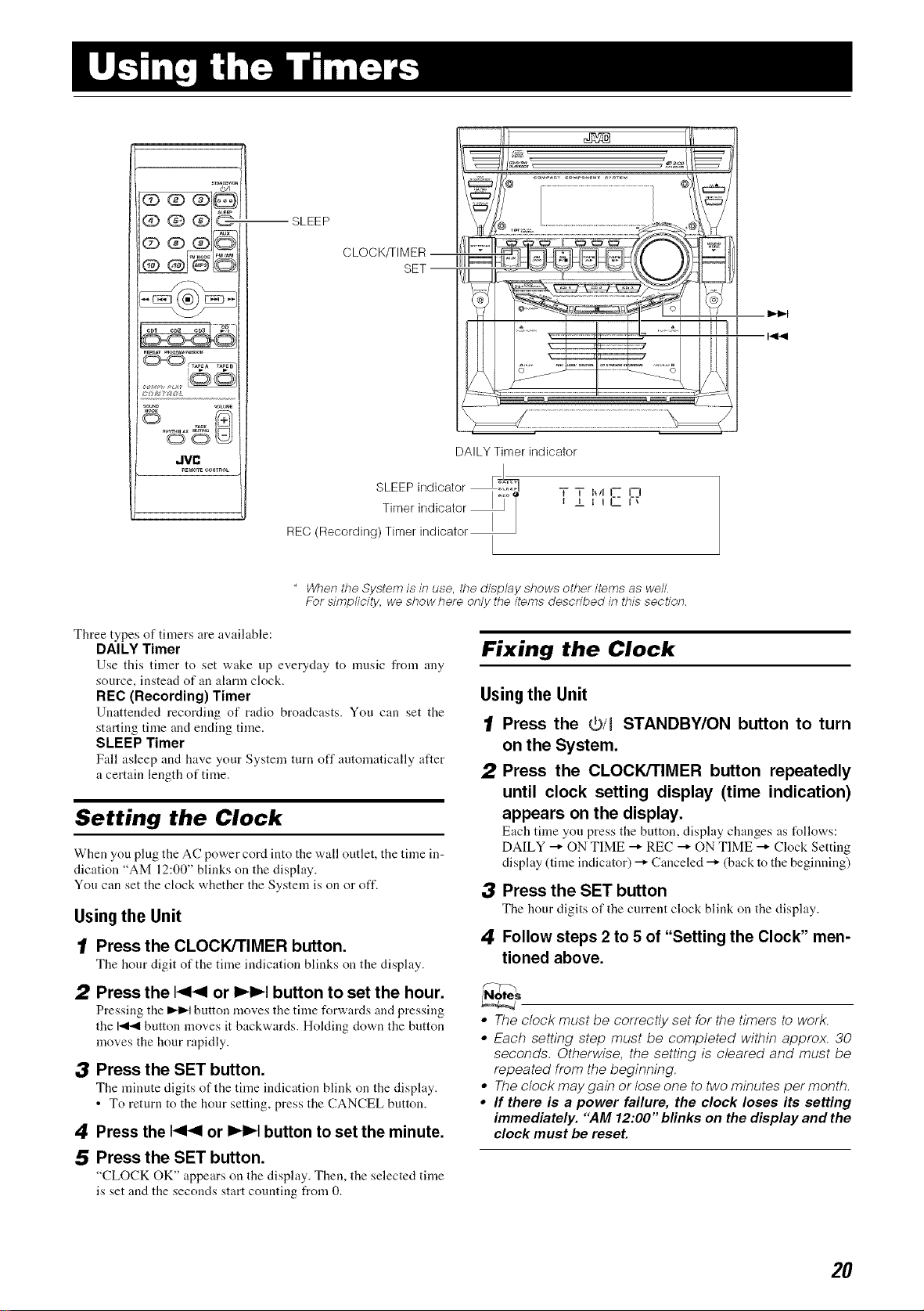
SLEEP
CLOCK/TIMER
SET
DAILY Timer indicator
F_I
SLEEP indicator _ T T M ii lil
• . .;:tt:rr _ _ , , LT_:,-'
REC (Reco rd, ng) ::::rr 'it;":'
Ii,q_l
* When the System is in use. the display shows other items as well.
For simplicity, we show here only the items described in this section•
Three types of timers are available:
DALLY Timer
Use this timer to set wake up everyday to music from any
source, instead of an alarm clock.
REC (Recording) Timer
Unattended recording of radio broadcasts. You can set tile
starting time and ending time.
SLEEP Timer
Fall asleep aad have your System turn oft" alltolnatically after
a certain length of time.
Setting the Clock
When you plug the AC power cord into the wall outlet, the time in-
dication "AM 12:00" blinks on the display.
You can set the clock whether the System is on or off.
Using the Unit
t Press the CLOCK/TIMER button.
The hour digit of the time indication blinks on the display.
2 Press the 1_141or l,q_l button to set the hour.
Pressing the _ button moves the time forwards and pressing
the 1<141button moves it backwards. Hokting down the button
moves the hour rapidly.
3 Press the SET button.
Tile minute digits of tile time indication blink on tile display.
• To return to the hour setting, press the CANCEL button.
4 Press the I<1<1or I_1_1button to set the minute.
5 Press the SET button.
"CLOCK OK" appears on the display. Then, the selected time
is set and the seconds start counting from O.
Fixing the Clock
Usingthe Unit
1 Press the _/I STANDBY/ON button to turn
on the System.
2 Press the CLOCK/TIMER button repeatedly
until clock setting display (time indication)
appears on the display.
Each time you press tile button, disphty changes as t_llows:
DAILY "-_ ON TIME "-" REC "-" ON TIME "-" Clock Setting
display (time indicator) "-_ Canceled "-_ (back to the beginning)
3 Press the SET button
The hour digits of the current clock blink on the disphty.
4 Follow steps 2 to 5 of "Setting the Clock" men-
tioned above.
• The clock must be correctly set for the timers to work.
• Each setting step must be completed within approx. 30
seconds. Otherwise, the setting is cleared and must be
repeated from the beginning.
• The clock may gain or lose one to two minutes per month.
• If there is a power failure, the clock loses its setting
immediately. "AM 12:00" blinks on the display and the
clock must be reseL
2O
Using the Timers
Setting the Daily Timer
Once you have set the Daily Timer, the timer will be activated at
the same time every clay.
The Timer indicator ( 0 ) and "DAILY" indicator on the display
shows that the Daily Timer you have set is in effect.
You can set the Daily Timer whether the System is turned on or
off.
• You can set the Daily Timer whether the System is on or off.
• Perform each setting within approx. 30 seconds. Other-
wise, setting will be cleared and the procedure must be
repeated from the beginning.
• tfyou have made a mistake while setting the timer, press
the CANCEL button on the Unit. However, this does not al-
ways cancel the current setting, tf the CANCEL button
does not work, press the CLOCK/TIMER button on the
Unit repeatedly until the display returns to the original dis-
play, and start from the first step.
Using the Unit
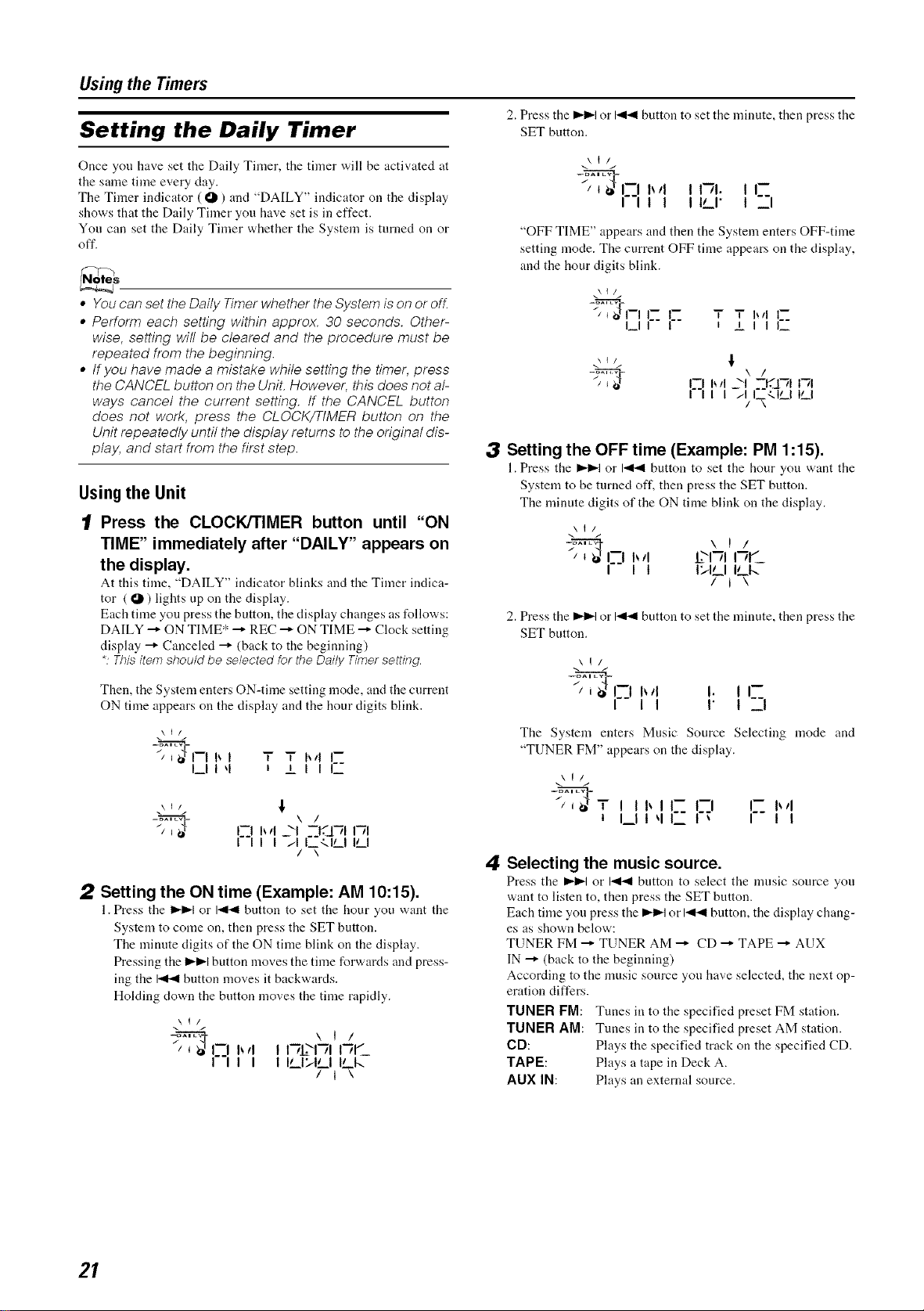
1 Press the CLOCK/TIMER button until "ON
TIME" immediately after "DAILY" appears on
the display.
At this time, "DALLY" indicator blinks and the Timer indica-
tor (0) lights up on the display.
Each time you press the button, the display changes as follows:
DAILY _ ON TIME* _ REC _ ON TIME _ Clock setting
display _ Canceled _ (back to the beginning)
*: This item should be selected for the Daily Timer setting.
Then, the System enters ON-time setting mode, and the current
ON time appears on the display and the hour digits blink.
\P!
n ,,,
I__[I q
I_II I--
,' _I I I C_:
\I/ i
I--I I_,I_'I --KJ'3"I I'-/I
I I I I /I I_¢.ILI I,'I
I \
2 Setting the ON time (Example: AM 10:15).
1. Press the i,,-I_l or I-,II41button to set the hour you want the
System to come on, then press the SET button.
The minute digits of the ON time blink on the display.
Pressing the i,,-I_l button moves the time forwards and press-
ing the I-,II41button moves it backwards.
Holding clown the bntton moves the time rapidly.
\t/
J
..... \ ! /
I I"" '
---- I I I ILI;-tLI ILK
/ i \
2. Press the _ or I-,II41button to set the minute, then press the
SET button.
\1/
--PAl LY
_£I_--_I I_II IFil, II--
I I I I fILl" I _I
"OFF TIME" appears and then the System enters OFF-time
setting mode. The current OFF time appears on the display,
and the hour digits blink.
",,al-II= I= ,' ,_, ,,_'""'=
CI I_Jl ___1--ft._l-J1 f'7!
I I I I M I_£1LI ILl
I \
3 Setting the OFF time (Example: PM 1:15).
1. Press the _!i,t or I-,II41button to set the hour you want the
System to be turned oft', then press the SET button.
The minute digits of the ON time blink on the display.
,,t/
J
.... \ I /
\ l-i I,,I L"i_i,";r'_
I I I>ILI ILK
/ I \
2. Press the _ or 14141button to set the minute, then press the
SET button.
\!/
/', JlZi I,,I 1. il-
l I r I_I
The System enters Music Source Selecting mode and
"TUNER FM" appears on the display.
\!/
&A,L_
_i_T I Ibll-- i_-';_l i---- I_/i
t I_11 q I-- I I
4
Selecting the music source.
Press the _ or I-,II41button to select the nmsic source you
want to listen to, then press the SET button.
Each time you press the m,Hi,t or I-,II41button, the display chang-
es as shown below:
TUNER FM _ TUNER AM _ CD _ TAPE _ AUX
IN _ (back to the beginning)
According to the music source yon have selected, the next op-
eration differs.
TUNER FM:
TUNER AM:
CD:
TAPE:
AUX IN:
Tunes in to the specified preset FM station.
Tunes in to the specified preset AM station.
Plays the specified track on the specified CD.
Plays a tape in Deck A.
Plays an external source.
21
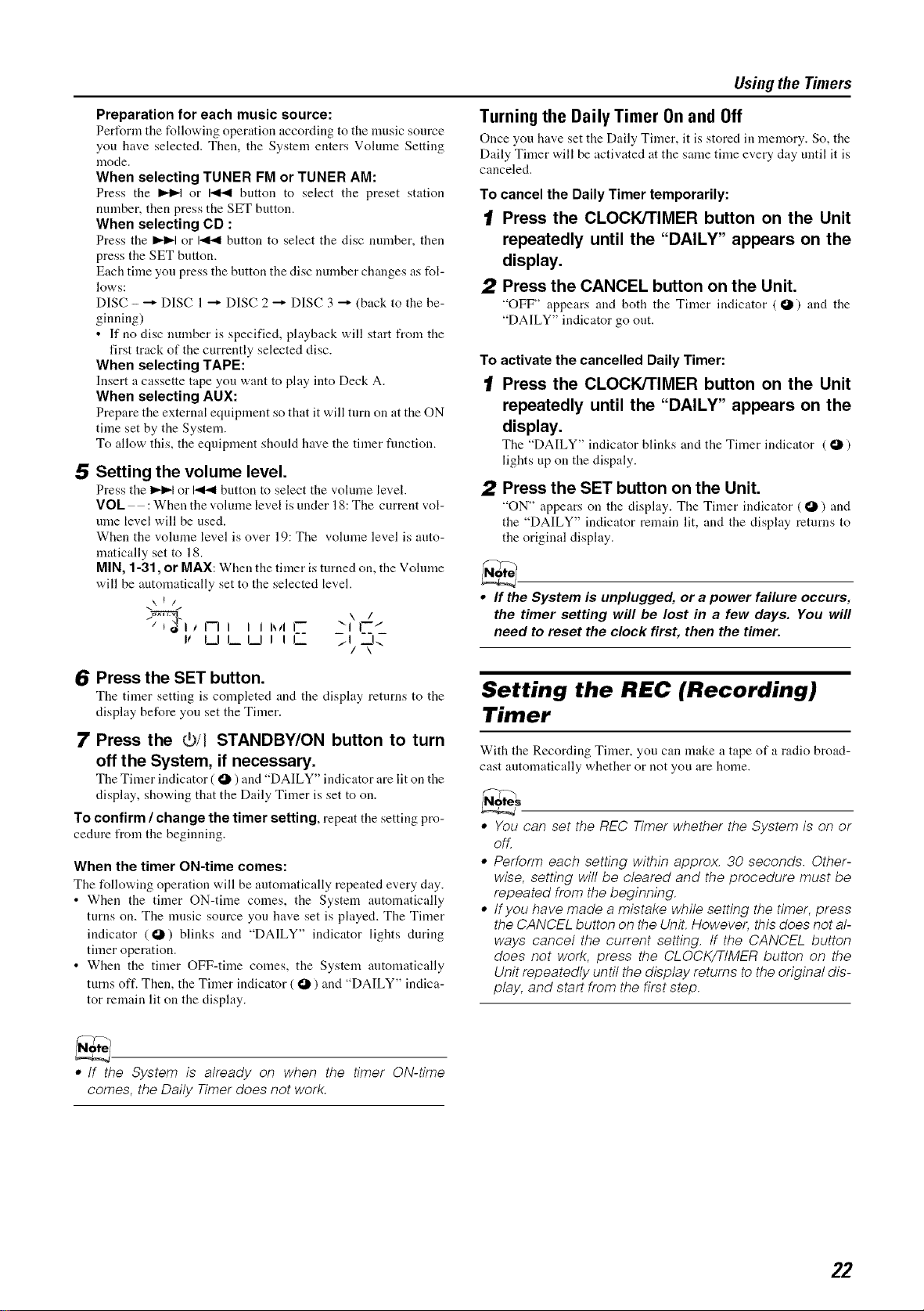
Preparation for each music source:
Perform the following operation according to the music source
you have selected. Then, the System enters Volmne Setting
mode.
When selecting TUNER FM or TUNER AM:
Press tile _ or I-,q4 button to select tile preset station
number, then press the SET bntton.
When selecting CD :
Press tile I_1_.tor I-,_1 bntton to select tile disc number, then
press the SET button.
Each time you press the button the disc number changes as fol-
lows:
DISC- _ DISC 1 _ DISC 2 _ DISC 3 _ (back to the be-
ginning)
• If no disc number is specified, playback will start from the
first track of the currently selected disc.
When selecting TAPE:
Insert a cassette tape you want to play into Deck A.
When selecting AUX:
Prepare the external equipment so that it will turn on at the ON
time set by the System.
To allow this, the equipment should have the timer Erection.
5 Setting the volume level.
Press the i,,-I_l or I-,_1 button to select the volume level.
VOL :When the volume level is under 18: The current vol-
ume level will be used.
When the volume level is over 19: The vohnne level is auto-
matically set to 18.
MIN, 1-31, or MAX: When the timer is turned on, the Vohnne
will be automatically set to the selected level.
_1 # I-7 I I I h#l 1_-7 ....
I1 lil li lil I I li il I \il'_
6 Press the SET button.
The timer setting is completed and the display returns to the
display before you set the Timer.
7 Press the 0/I STANDBY/ON button to turn
off the System, if necessary.
The Timer indicator ( l_ ) arid "DAILY" indicator are lit on the
display, showing that the Daily Timer is set to on.
To confirm / change the timer setting, repeat the setting pro-
cedure from the beginning.
When the timer ON-time comes:
The following operation will be automatically repeated every day.
• When the timer ON-time comes, the System automatically
turns on. The music source you have set is played. The Timer
indicator (ll)) blinks and "DALLY" indicator lights during
timer operation.
• When the timer OFF-time comes, the System antomatically
turns oft'. Then, the Timer indicator ( O ) and "DAILY" indica-
tor remain lit on the display.
Using the Timers
Turning the Daily Timer On and Off
Once you hax.e set the r)aily Timer, it is stored hi memory. So, the
Daily Timer will be activated at the same time every day until it is
canceled.
To cancel the Daily Timer temporarily:
1 Press the CLOCK/TIMER button on the Unit
repeatedly until the "DAILY" appears on the
display.
2 Press the CANCEL button on the Unit.
"OFF" appears and both the Timer indicator (O) and the
"DALLY" indicator go out.
To activate the cancelled Daily Timer:
1 Press the CLOCK/TIMER button on the Unit
repeatedly until the "DAILY" appears on the
display.
The "DAILY" indicator blinks and the Timer indicator ( O )
lights up on the dispaly.
2 Press the SET button on the Unit.
"ON" appears on the display. The Timer indicator (0) and
the "DAILY" indicator remain lit, and the display returns to
the original display.
• If the System is unplugged, or a power failure occurs,
the timer setting will be lost in a few days. You will
need to reset the clock first, then the timer.
Setting the REC (Recording)
Timer
With the Recording Timer, you can make a tape of a radio broad-
cast automatically whether or not you are home.
• You can set the REC Timer whether the System is on or
off.
• Perform each setting within approx. 30 seconds. Other-
wise, setting will be cleared and the procedure must be
repeated from the beginning.
• tfyou have made a mistake while setting the timer, press
the CANCEL button on the Unit. However, this does not al-
ways cancel the current setting, tf the CANCEL button
does not work, press the CLOCK/TIMER button on the
Unit repeatedly until the display returns to the original dis-
play, and start from the first step.
° If the System is already on when the timer ON-time
comes, the Daily Timer does not work.
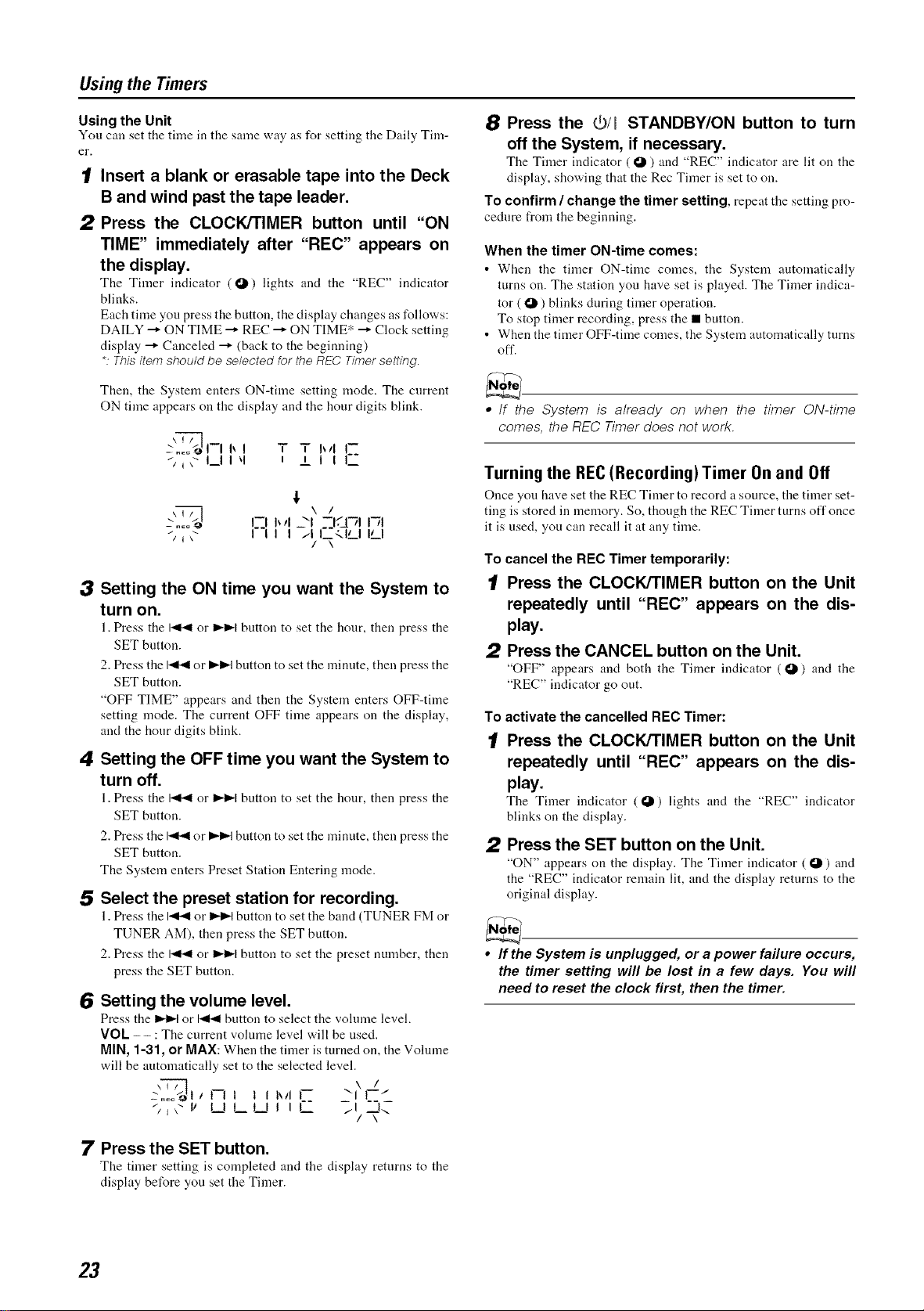
Using the Timers
Using the Unit
You can set the time in the same way as for setting the Daily Tim-
er.
t Insert a blank or erasable tape into the Deck
B and wind past the tape leader.
2 Press the CLOCK/TIMER button until "ON
TIME" immediately after "REC" appears on
the display.
The Timer indicator (O) lights and tile "REC" indicator
blinks.
Each time you press the button, the display changes as follows:
DAILY _ ON TIME _ REC _ ON TIME* _ Clock setting
display "-'*Canceled _ (back to the beginning)
*: This item should be selected for the REC Timer setting.
Then, the System enters ON-time setting mode. The current
ON time appears on the display and the hour digits blink.
,,-rZ]
-"._I--I b I T T bll l--
"/iC I_I I q i ± I I I'_"
i
._o I--I b Pl __1 --_-_[-71 I-/I
i i C I--I I I il I_<ILI ILl
/ \
3 Setting the ON time you want the System to
turn on.
1. Press the I-,i_l or ll,-I_l button to set the hour, then press the
SET button.
2. Press the I-,II4 or I_!i>tbutton to set the minute, then press the
SET button.
"OFF TIME" appears and then the System enters OFF-time
setting mode. The current OFF time appears on the display,
and the hour digits blink.
4 Setting the OFF time you want the System to
turn off.
1. Press the I-,i_l or ll,-I_l button to set the hour, then press the
SET button.
2. Press the I-,II4 or I_!i>tbutton to set the minute, then press the
SET button.
The System enters Preset Station Entering mode.
5 Select the preset station for recording.
1. Press the I-,II4 or il,-_l button to set the band (TUNER FM or
TUNER AM), then press the SET button.
2. Press the I-,II4 or i,,-I_l button to set the preset number, then
press the SET button.
6 Setting the volume level.
Press the i_l or I_li41button to select the volt]me level.
VO/-- : The current volume level will be used.
MIN, 1-31, or MAX: When the timer is turned on, the Volume
will be automatically set to the selected level.
\_--771_ ,i x /
2._o_t # t--I I I I t_ll t_--2 _ t_--2/_
"/i,,- II I__t I__I__1 t I t__ iI __tx
/ \
7 Press the SET button.
The timer setting is completed and the display returns to the
display before you set the Timer.
8 Press the (3/I STANDBY/ON button to turn
off the System, if necessary.
The Timer indicator ( O ) and "REC" indicator :ire lit on the
display, showing that the Rec Timer is set to on.
To confirm / change the timer setting, repeat the setting pro-
cedure from the beginning.
When the timer ON-time comes:
• When the timer ON-time comes, the System automatically
turns on. The station you have set is played. The Timer indica-
tor ( O ) blinks during timer operation.
To stop timer recording, press the • button.
• When the timer OFF-time comes, the System automatically turns
off.
° tf the System is already on when the timer ON-time
comes, the REC Timer does not work.
Turning the REC(Recording) Timer Onand Off
Once you have set the REC Timer to record a source, the timer set-
ting is stored in memory. So, though the REC Timer turns off once
it is used, you can recall it at any time.
To cancel the REC Timer temporarily:
1[ Press the CLOCK/TIMER button on the Unit
repeatedly until "REC" appears on the dis-
play.
2 Press the CANCEL button on the Unit.
"OFF" appears and both the Timer indicator (1_) and the
"REC" indicator go out.
To
t
2
activate the cancelled REC Timer:
Press the CLOCK/TIMER button on the Unit
repeatedly until "REC" appears on the dis-
play.
The Timer indicator (O) lights and the "REC" indicator
blinks on the display.
Press the SET button on the Unit.
"ON" appears on the display. The Timer indicator ( O ) and
the "REC" indicator remain lit, and the display returns to the
original display.
• If the System is unplugged, or a power failure occurs,
the timer setting will be lost in a few days. You will
need to reset the clock first, then the timer.
23
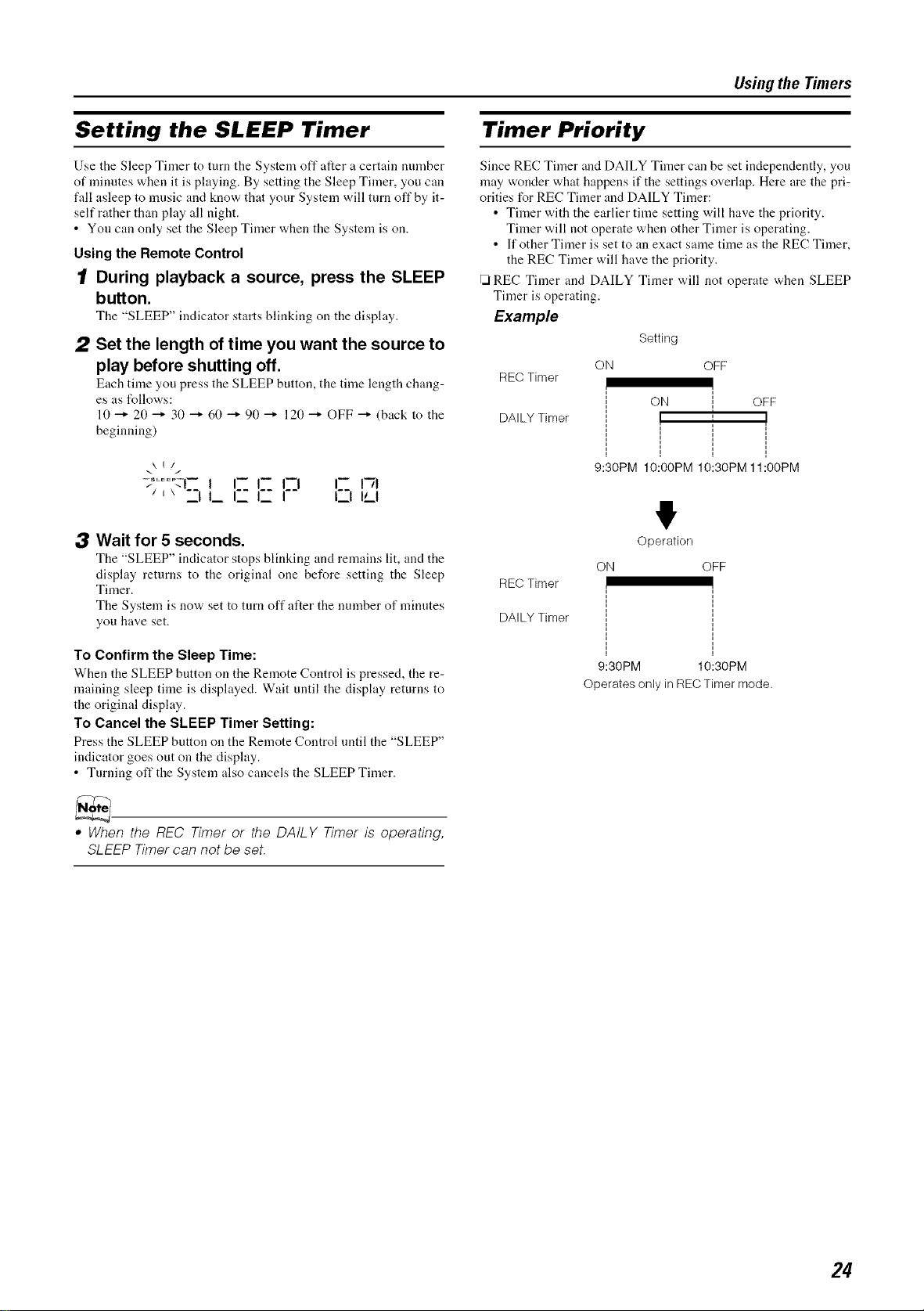
Using the Timers
Setting the SLEEP Timer
Use the Sleep Timer to turn the System off after a certain number
of minutes when it is playing. By setting the Sleep Timer, you can
fall asleep to music and know that your System will turn off by it-
self rather than play all night.
• Yon can only set the Sleep Timer when the System is on.
Using the Remote Control
t During playback a source, press the SLEEP
button.
TILe "SLEEP" indicator starts blinking on tile display.
2 Set the length of time you want the source to
play before shutting off.
Each time you press the SLEEP button, the time length chang-
es as follows:
10 _ 20 "* 30 "* 60 "* 90 "* 120 "* OFF "* (back to the
beginning)
\!/
\ /
I: FI 1- rT,/1\ 7211 I--
_ I_ _ I--1 LI
3 Wait for 5 seconds.
TILe "SLEEP" indicator stops bliuking and remains lit, and tile
display returns to the original one before setting the Sleep
Timer.
The System is now set to turn oft" after the number of minutes
you have set.
To Confirm the Sleep Time:
When the SLEEP button on the Remote Control is pressed, the re-
maining sleep time is displayed. Wait until the display returns to
the original display.
To Cancel the SLEEP Timer Setting:
Press tile SLEEP button on tile Remote Control until tile "SLEEP"
indicator goes out on the display.
• Turning off the System also cancels the SLEEP Timer.
Timer Priority
Since REC Timer and DAILY Timer can be set independently, you
may wonder what happens if the settings overlap. Here are the pri-
orities for REC Timer and DAILY Timer:
• Timer with the earlier time setting will have the priority.
Timer will not operate when other Timer is operating.
• If other Timer is set to an exact same time as the REC Timer,
the REC Timer will have the priority.
[_ REC Timer and DAILY Timer will not operate when SLEEP
Timer is operating.
Example
Setting
ON OFF
REC Timer
ON l OFF
DALLY Timer i
REC Timer
DALLY Timer
9:30PM IO:OOPM IO:30PM 11:00PM
,#
Operation
ON OFF
9:30PM 10:30PM
Operates only in REC Timer mode.
• When the REC Timer or the DALLY Timer is operating,
SLEEP Timer can not be set.
2#
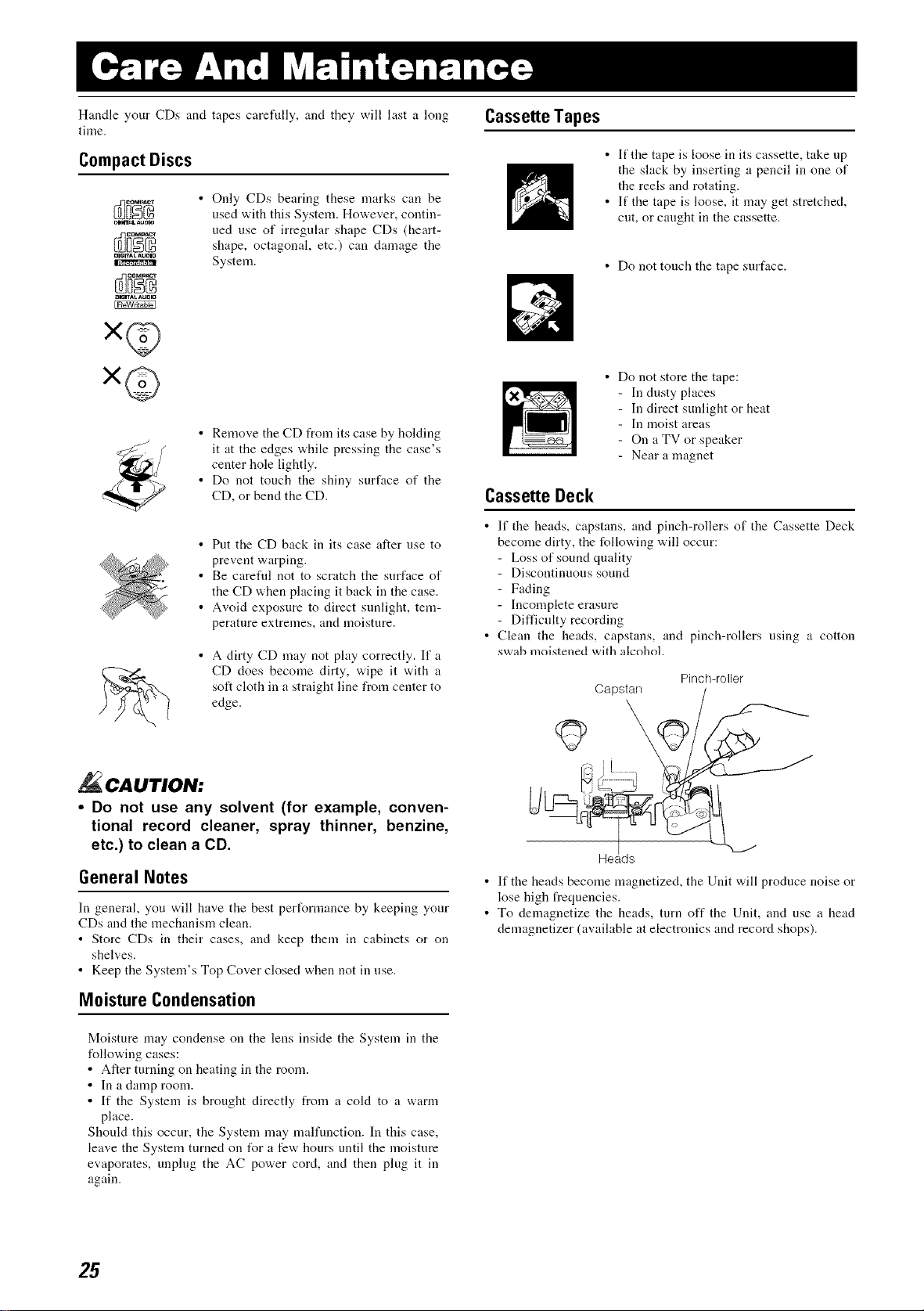
Handle your CDs and tapes carefully, and they will last a long
time.
Compact Discs
OlI6_'_L _olo
DIGITAL ALfDIQ
_A_ AUDm
x@
x@
• Only CDs bearing these marks can be
used with this System. However, contin-
ued use of irregular shape CDs (heart-
shape, octagonal, etc.) can damage the
System.
• Remove the CD from its case by holding
it at the edges while pressing the case's
center hole lightly.
• Do not touch the shiny surface of the
CD, or bend the CD.
• Put the CD back in its case alter use to
prevent warping.
• Be carefifl not to scratch the surface of
the CD when placing it back in the case.
• Avoid exposure to direct sunlight, tem-
perature extremes, and moisture.
A dirty CD may not play correctly. If a
CD does become dirty, wipe it with a
soft cloth in a straight line from center to
edge.
• Do not use any solvent (for example, conven-
tional record cleaner, spray thinner, benzine,
etc.) to clean a CD.
General Notes
In general, you will have the best performance by keeping your
CDs and the mechanism clean.
• Store CDs in their cases, and keep them in cabinets or on
shelves.
• Keep the System's Top Cover closed when not in use.
Moisture Condensation
Moisture may condense on the lens inside the System in the
following cases:
• After turning on heating in the mona.
• In a damp room.
• If the System is brought directly from a cold to a warm
place.
Should this occur, the System may malfunction. In this case,
leave the System turned on for a few hours until the moisture
evaporates, unplug the AC power cord, and then plug it in
again.
Casse_e Tapes
• If the tape is loose in its cassette, take up
the slack by inserting a pencil in one of
the reels and rotating.
• If the tape is loose, it may get stretched,
cut, or canght in the cassette.
• Do not touch the tape surface.
• Do not store the tape:
- In dusty places
- In direct sunlight or heat
- In moist areas
- On a TV or speaker
- Near a magnet
Cassette Deck
• If the heads, capstans, and pinch-rollers of the Cassette Deck
become dirty, the following will occur:
- Loss of sound quality
- Discontinuous sound
- Fading
- Incomplete erasure
- Difl'iculty recording
• Clean the heads, capstans, and pinch-rollers using it cotton
swab moistened with alcohol.
Pinch-roller
Capstan /
• If the heads become magnetized, the Unit will produce noise or
lose high frequencies.
• To demagnetize the heads, turn off the Unit, and use a head
demagnetizer (available at electronics and record shops).
25
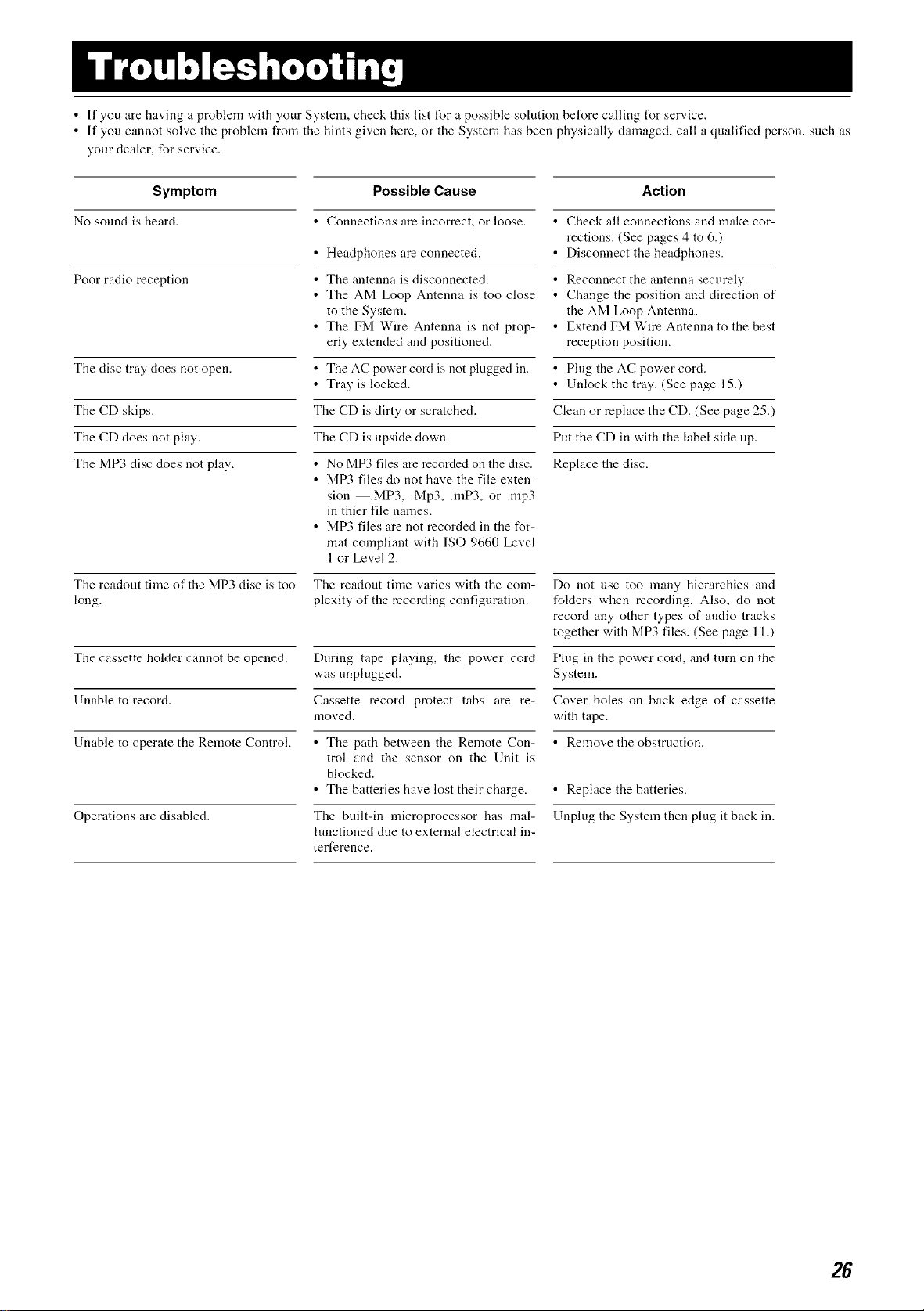
• If you are having a problem with your System, check this list for a possible solution before calling for service.
• If you cannot solve the problem from the hints given here, or the System has been physically damaged, call a qualified person, such as
your dealer, for service.
Symptom
No sound is heard.
Poor radio reception
The disc tray does not open.
The CD skips.
The CD does not play.
The MP3 disc does not play.
The readout time of the MP3 disc is too
long.
The cassette holder cannot be opened.
Unable to record.
Unable to operate the Remote Control.
Operations are disabled.
Possible Cause
• Connections are incorrect, or loose.
• Headphones are connected.
• The antenna is disconnected.
• The AM Loop Antenna is too close
to the System.
• The FM Wire Antenna is not prop-
erly extended and positioned.
• The AC power co_l is not plugged in.
• Tray is locked.
The CD is dirty or scratched.
The CD is upside down.
• No MP3 files are recol_led on the disc.
• MP3 files do not have the file exten-
sion .MP3, .Mp3, .mP3, or .mp3
in thier file names.
• MP3 files are not recorded in the t_r-
mat compliant with ISO 9660 Level
1 or Level 2.
The readout time varies with the com-
plexity of the recording configuration.
During tape playing, the power cord
was unplugged.
Cassette record protect tabs are re-
moved.
• The path between the Remote Con-
trol and the sensor on the Unit is
blocked.
• The batteries have lost their charge.
The built-in microprocessor has mal-
fimctioned due to external electrical in-
terference.
Action
• Check all connections and make cor-
rections. (See pages 4 to 6.)
• Disconnect the headphones.
• Reconnect the antenna securely.
• Change the position and direction of
the AM Loop Antenna.
• Extend FM Wire Antenna to the best
reception position.
• Plug the AC power cord.
• Unlock the tray. (See page 15.)
Clean or replace the CD. (See page 25.)
Put the CD in with the label side up.
Replace the disc.
Do not use too many hierarchies and
folders when recording. Also, do not
record any other types of andio tracks
together with MP3 files. (See page 11.)
Plug in the power cord, and turn on the
System.
Cover holes on back edge of cassette
with tape.
• Remove the obstruction.
• Replace the batteries.
Unplug the System then plug it back in.
28
JVC
QUALITY SERVICE
HOW TO LOCATE YOUR JVC SERWCE CENTER
TOLL FREE: 1 (800) 537-5722
http://www.jvc.com
Dear Customer,
in order to receive the most satisfaction from your purchase,please read the instruction booklet before
operating the unit.in the event that repairs are necessary, please caii 1 (800}537-5722 for your nearest
authorized servicer or visit our website at www.JVC.com
Remember to retain your Biii of Sale for Warranty Service.
Do not service the television yourself
Caution
To prevent ebctdcal shock,do not open the cabinet.There are no user serviceaMe
parts inside.Phase refer to qualified service personnel for repairs.
Accessories
To purchase accessories for your JVC product,please calt tolt free:l (800)882-2345 or
on the web at www.JVC.eom
BT-51 O01-5
(0301)
27
:JVC **
** LINmTEDWARRANTY AODmO-I *
* JVC COMPANY OF AMERICA warrants thb product and all parts thereof, except as set forth below ONLY TO THE *
ORIGINAL PURCHASER AT RETAIL to be FREE FROM DEFECTIVE MATERIALS AND WORKMANSHIP from the date
. of original retail purchase for the period as shown below. ("The Warranty Period") *
* PARTS LABOR *
. 1 w 1 w *
* THIS LIMITED WARRANTY IS VALID ONLY IN THE FIFTY {50) UNITED STATES, THE DISTRICT OF COLUMBIA AND *
IN COMMONWEALTH OF PUERTO RICO.. *
* WHAT WE WILL DO: *
._. If this product is found to be defective, JVC will repair or replace defective parts at no charge to the original owner..
* Such repair and replacement services shall be rendered by JVC during normal business hours at JVC authorized service *
* centers PartsusedforreplacementarewarrantedonlyfortheremainderoftheWarrantyPeriod AJl products and parts ._.
* thereof may be brotlght to a JVC authorized service center on a carryqn bas_s except for Telews_on sets having a screen
* size 25 inches and above which are covered on an in-home basis. *
* WHAT YOU MUST DO FOR WARRANTY SERVICE: *
Return your product to a JVC authorized service center with a copy of your bill of sale. For your nearest JVC authorized
* service center, please call toll free: (800) 537-5722. *
* if service is not available locally, box the product carefully, preferably in the original carton, and ship, insured, with
. a copy of your bil! of sale plus a letter of explanation of the problem to the nearest JVC Factory Service Center, the .
* name and location of which will be given to you by the toll-free number. *
. if you have any questions concerning your JVC Product, please contact our Customer Relations Department .
** WHAT IS NOT COVERED: *.
. This limited warranty provided by JVC does not cover: .
* 1. Products which have been subiect to abuse, accident, alteration, modification, tampering, negligence, misuse, fauky .
. installation, lack of reasonable care, or if repaired or serviced by anyone other than a service facility authorized by .
* JVC to render such service, or if affixed to any attachment not provided with the products, or if the model number *
* or serial number has been altered, tampered with, defaced or removed; *
* 2= Initial instalbtion and installation and removal for repair; .
* 3. Operational adiustments covered in the O_,'ner's Manual, normal maintenance, video and audio head cleaning; *
.4. Damage [hat occurs in shipment, due to act of God, and cosmetic damage; .
* 5. Signal reception problems and faihlres due to line power surge; *
* 6. Video Pick-up Tubes/CCD Image Sensor, Cartridge, Stylus (Needb} are covered for 90 days from the date of purchase;
* 7. Accessories *
* 8. Batteries (except that Rechargeable Batteries are covered for 90 days from the date of purchase); *
* There are no express warranties except as listed above. *
* THE DURATION OF ANY IMPLIED WARRANTIES, INCLUDING THE IMPLIED WARRANTY OF MERCHANTABILITY, IS *
* LIMITED TO THE DURATION OF THE EXPRESS WARRANTY HEREIN. *
* JVC SHALL NOT BE LIABLE FOR THE LOSS OF USE OF THE PRODUCT, INCONVENIENCE, LOSS OR ANY OTHER *
. DAMAGES, WHETHER DIRECT, INCIDENTAL OR CONSEQUENTIAL I INCLUDING, WITHOUT LIMITATION, DAMAGE _.
* TO TAPES, RECORDS OR DISCS) RESULTING FROM THE USE OFTHIS PRODUCT, OR ARISING OUTOFANY BREACH *
* OF THIS WARRANT'< ALL EXPRESS AND IMPLIED WARRANTIES, INCLUDING THE WARRANTIES OF MERCHAN%
. ABILITY AND FITNESS FOR PARTICULAR PURPOSE, ARE UMITED TO THE WARRANTY PERIOD SET FORTH ABOVE..
. Some states do not allo_,_,' the exclusion of incidental or consequential damages or limitations on how long an .
implied warranty lasts, so these limitations or exclusions may not apply to you. This warranty gives you specific *
legal rights and you may also have other rights which vary from state to state. *
. JVC COMPANY OF AMERICA 1700 Valley Road .
* DIVISION OF JVC AMERICAS CORR Wayne, NJ 07470 *
REFURBISHED PRODUCTS CARRY A SEPARATE WARRANTY, THIS WARRANTY DOES NOT APPL_t FOR DETAILS OF
REFURBISHED PRODUCT WARRANTY, PLEASE REFER TO THE REFURBISHED PRODUCT WARRANTY INFORMATION
PACKAGED WITH EACH REFURBISHED PRODUCT.
For customer use:
Enter below the Model No. which is located either on the rear, bottom or side of the cabinet. Retain this information
for future reference.
Model No. : Serial No. :
Purchase data : Name of dealer :
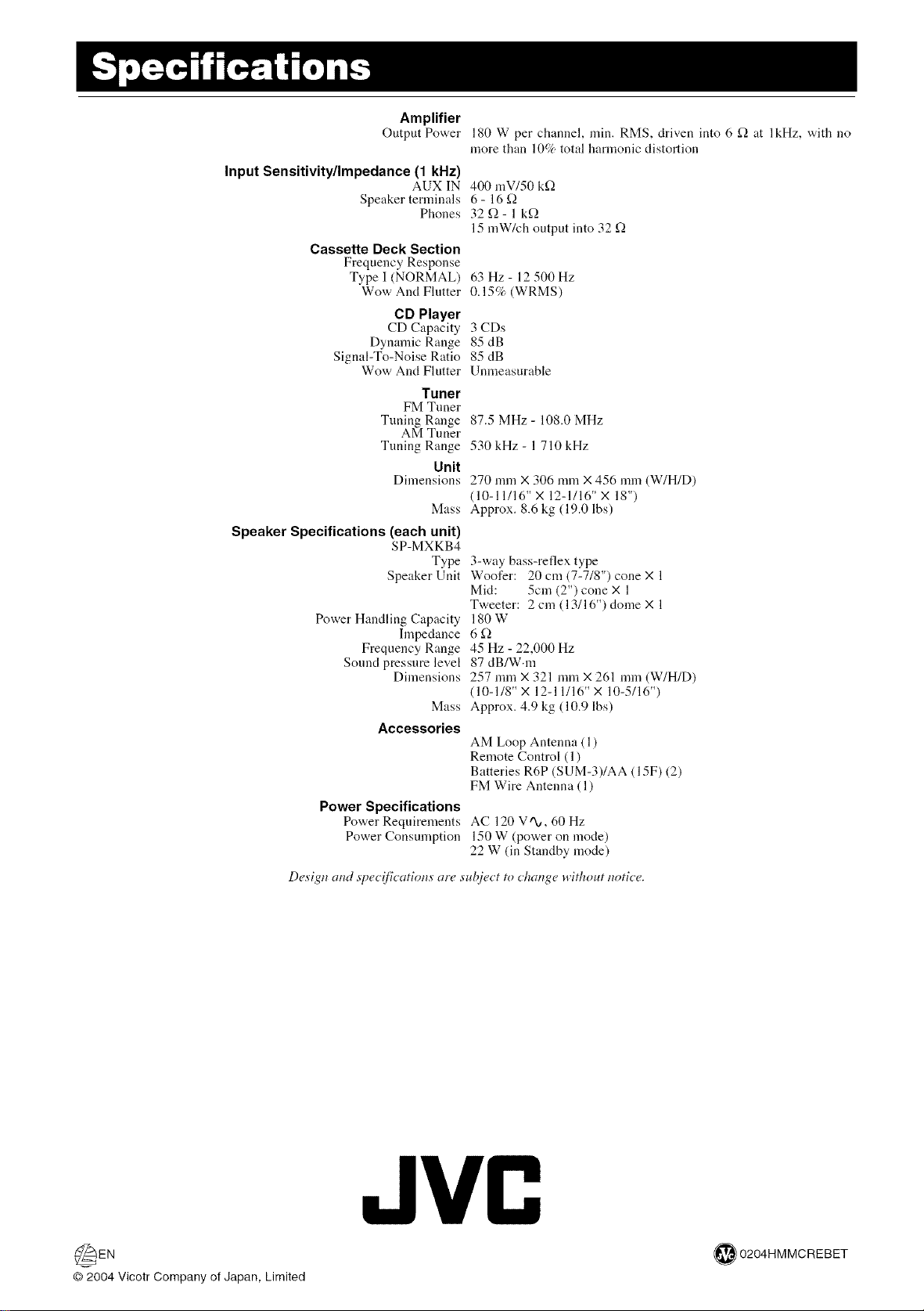
Amplifier
Output Power 180 W per c[lanuel, mill. RMS, driven into 6 _) tit lkHz, with uo
more than 10% total harmonic distortion
Input Sensitivity/Impedance (1 kHz)
AUX IN
Speaker terminals
Phones
Cassette Deck Section
Frequency Response
Type I (NORMAL)
Wow And Flutter
400 mV/50 kQ
6- 16£)
32 Q - 1 kQ
15 mW/ch output into 32 £)
63 Hz- 12 500 Hz
0.15% (WRMS)
CD Player
CD Capacity 3 CDs
Dynamic Range 85 dB
Signal-To-Noise Ratio 85 dB
Wow And Flutter Unmeasurable
Tuner
FM Tuner
Tuning Range
AM Tuner
Tuning Range
Unit
Dimensions
Mass
Speaker Specifications (each unit)
SP-MXKB4
Type
Speaker Unit
Power Handling Capacity
hnpedance
Frequency Range
Sound pressure level
Dimensions
Mass
Accessories
Power Specifications
Power Requirements
Power Consumption
87.5 MHz - 108.0 MHz
530 kHz- l 710 kHz
270 mm X 306 mm X 456 mm (W/H/D)
(10-11116" X 12-1116" X 18")
Approx. 8.6 kg (19.0 lbs)
3-way bass-reflex type
Woofer: 20 cm (7-718") cone X 1
Mid: 5cm (2") cone X 1
Tweeter: 2 cm (13116") dome X 1
180 W
45 Hz - 22,000 Hz
87 dB/W.m
257 mm X 321 mm X 261 mm (W/H/D)
(10-118" X 12-11116" X 10-5116")
Approx. 4.9 kg (10.9 lbs)
AM Loop Antenna (l)
Remote Control (l)
Batteries R6P (SUM-3)/AA (15F) (2)
FM Wire Antenna (1)
AC 120 V%, 60 Hz
150 W (power on mode)
22 W (in Standby mode)
Design and s!)eclificatious are std)]ect to change without notice.
EN
© 2004 Vicotr Company of Japan, Limited
JVC
_ 0204HMMCREBET