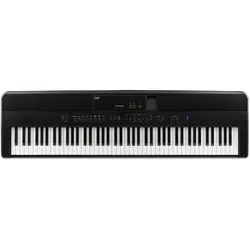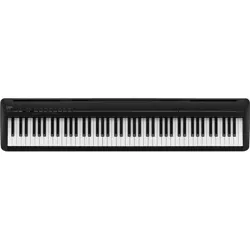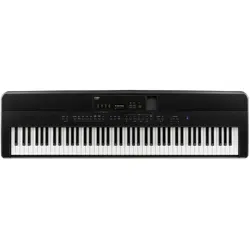
ES920
Owner’s Manual
Important Information
Preparation
Basic Operation
Adjustments & Settings
Appendix

3
Important Information
Important Safety Instructions
Important Safety Instructions
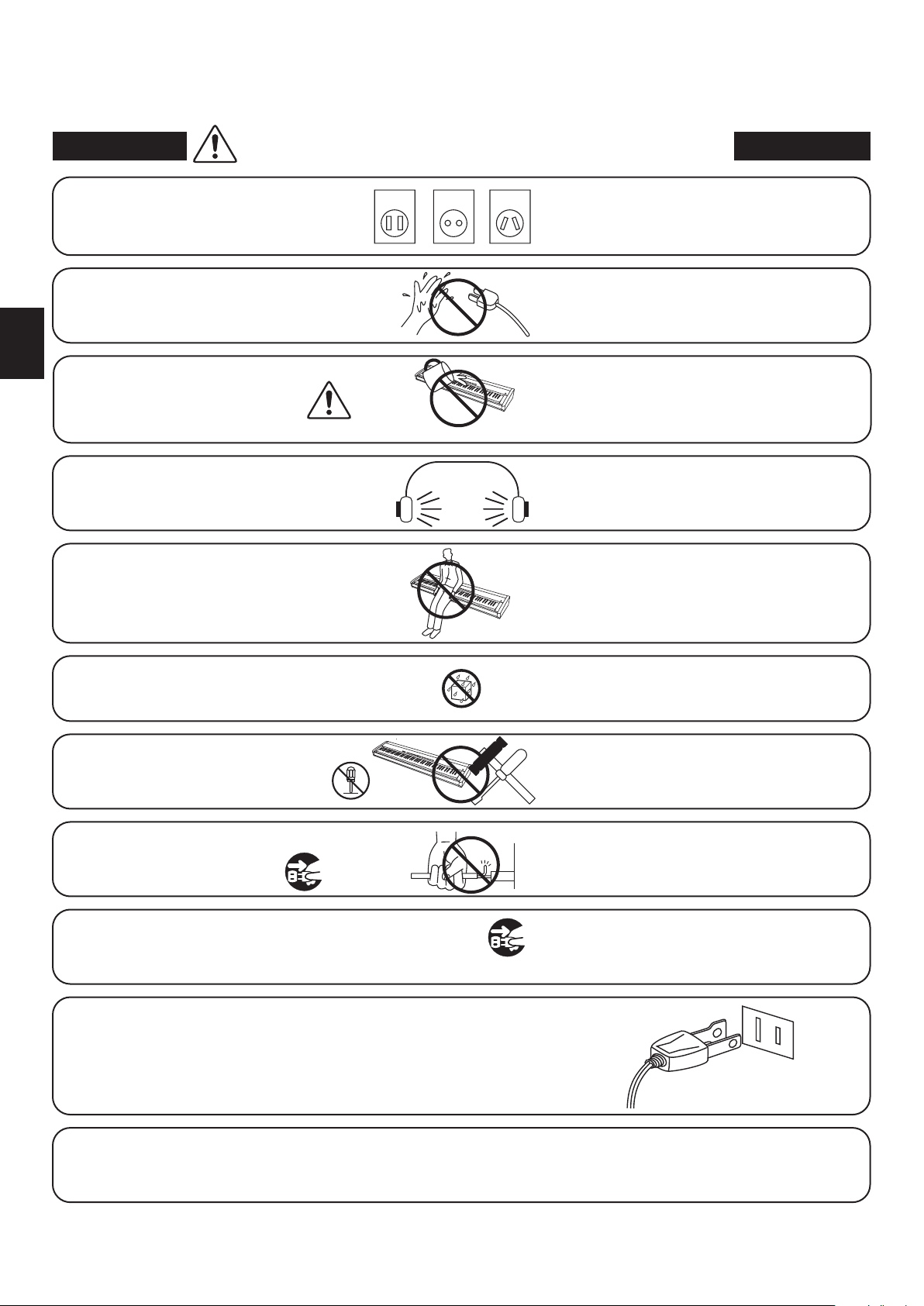
denotes that care should be taken.
The example instructs the user to take care not to allow ngers to be trapped.
denotes a prohibited operation.
The example instructs that disassembly of the product is prohibited.
denotes an operation that should be carried out.
The example instructs the user to remove the power cord plug from the AC outlet.
Examples of Picture Symbols
Read all the instructions before using the product.
CAUTION
RISK OF ELECTRIC SHOCK
DO NOT OPEN
AVIS : RISQUE DE CHOC ELECTRIQUE - NE PAS OUVRIR.
TO REDUCE THE RISK OF ELECTRIC SHOCK, DO NOT REMOVE COVER (OR BACK).
NO USER-SERVICEABLE PARTS INSIDE. REFER SERVICING TO QUALIFIED SERVICE PERSONNEL.
The lighting ash with arrowhead symbol, within
an equilateral triangle, is intended to alert the user
to the presence of uninsulated "dangerous
voltage" within the product's enclosure that may
be of sucient magnitude to constitute a risk of
electric shock to persons.
The exclamation point within an equilateral
triangle is intended to alert the user to the
presence of important operating and maintenance
(servicing) instructions in the leterature
accompanying the product.
WARNING
TO REDUCE THE RISK OF FIRE
OR ELECTRIC SHOCK, DO NOT
EXPOSE THIS PRODUCT TO
RAIN OR MOISTURE.
INSTRUCTIONS PERTAINING TO A RISK OF FIRE, ELECTRIC SHOCK, OR INJURY TO PERSONS
SAVE THESE INSTRUCTIONS
1) Read these instructions.
2) Keep these instructions.
3) Heed all warnings.
4) Follow all instructions.
5) Do not use this apparatus near water.
6) Clean only with dry cloth.
7) Do not block any ventilation openings. Install in
accordance with the manufacturer's instructions.
8) Do not install near any heat sources such as radiators,
heat registers, stoves, or other apparatus (including
ampliers) that produce heat.
9) Do not defeat the safety purpose of the polarized or
grounding-type plug. A polarized plug has two
blades with one wider than the other. A grounding
type plug has two blades and a third grounding
prong. The wide blade or the third prongs are
provided for your safety. If the provided plug does
not t into your outlet, consult an electrician for
replacement of the obsolete outlet.
1 0) Protect the power cord from being walked on or
pinched particularly at plugs, convenience
receptacles, and the point where they exit from the
apparatus.
11) Only use attachments/accessories specied by the
manufacturer.
1 2) Use only with the cart, stand, tripod, bracket, or table
specied by the manufacturer, or
sold with the apparatus. When a cart is used,
use caution when moving the cart/apparatus
combination to avoid injury from tip-over.
1 3) Unplug this apparatus during lightning storms or
when unused for long periods of time.
1 4) Refer all servicing to qualied service personnel.
Servicing is required when the apparatus has been
damaged in any way, such as power-supply cord or
plug is damaged, liquid has been spilled or object
have fallen into the apparatus, the apparatus has
been exposed to rain or moisture, does not operate
normally, or has been dropped.
4
Important Information
WARNING
Indicates a potential hazard that could result in death or
serious injury if the product is handled incorrectly.
WARNING - When using electric products, basic precautions should always be followed,including the following:
This product shall be near the AC outlet and the power cord plug in a position so that it can readily be
disconnected in an emergency because electricity is always charging while the plug is in the AC outlet even in a
power switch o condition.
This product may be equipped with a polarized line plug (one blade wider
than the other). This is a safety feature.
If you are unable to insert the plug into the outlet, contact an electrician to
replace your obsolete outlet.
Do not defeat the safety purpose of the plug.
● Failure to do so may cause re in case of
lightning.
● Failure to do so may over-heat the product,
resulting in re.
The product is not completely disconnected from the
power supply even when the power switch is turned
o. If the product will not be used for a long time,
unplug the AC power cord from the AC outlet.
When disconnecting the AC power cord's
plug, always hold the plug
and pull it to remove it.
● Pulling the AC power cord itself may damage
the cord, causing a re, electric shock or
short-circuit.
Do not disassemble, repair or modify
the product.
Doing so may result in product breakdown, electric
shock or short-circuit.
When using the headphones, do not
listen for long periods of
time at high volume levels.
Doing so may result in hearing problems.
Do not insert or disconnect the power
cord plug with wet hands.
Doing so may cause electric shock.
The product should be connected to
an AC outlet of the specied voltage.
● If you are going to use an AC power cord,
make sure that its has the correct plug shape
and conforms to the specied power voltage.
● Failure to do so may result in re.
120V 240V230V
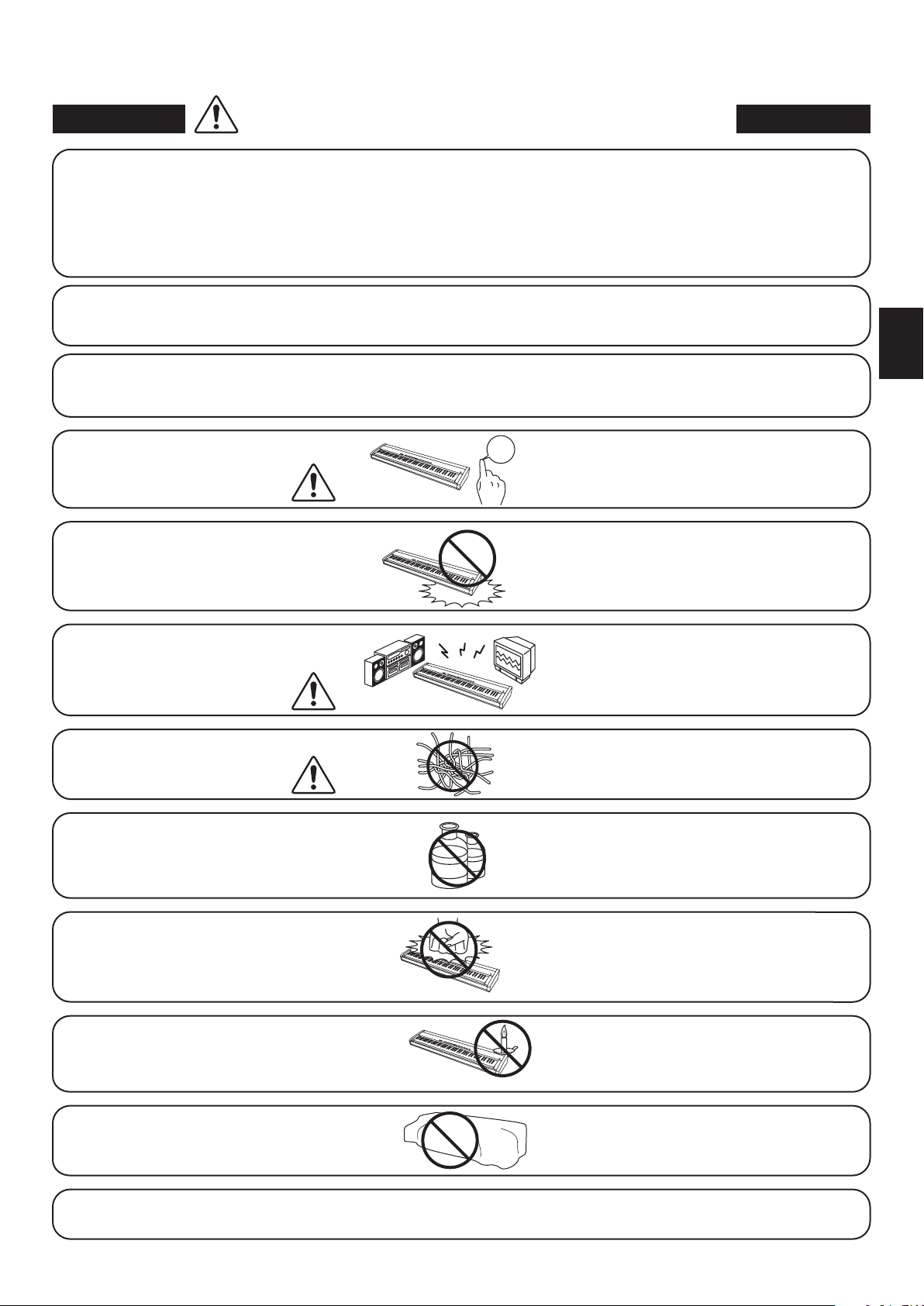
Doing so may cause the product to fall over,
resulting in injury.
Do not lean against the keyboard.
Entry of water, needles or hair pins may result
in breakdown or short-circuit.
The product shall not be exposed to dripping or
splashing. No objects lled with liquids, such as
vases, shall be placed on the product.
Take care not to allow any foreign
matter to enter the product.
Do not use the product in wet areas,
or areas close to water.
Doing so may cause a short circuit, leading to an
electric shock, or a fire.
5
Important Information
● Doing so may result in discoloration or deformation
of the product.
● When cleaning the product, put a soft cloth in
lukewarm water, squeeze it well, then wipe the
product.
Do not wipe the product with benzene
or thinner.
Failure to do so may damage them, resulting in
re, electric shock or short-circuit.
When connecting the AC power cord
and other cords, take care
not to get them tangled.
CAUTION
Indicates a potential hazard that could result in injury or
damage to the product or other property if the product
is handled incorrectly.
The product should be located so that its location or position does not interfere with its proper ventilation. Ensure a
minimum distance of 5cm around the product for sucient ventilation.
Failure to do so may cause breakdown of this
product and other devices.
Before connecting cords, make sure
that the power to this product
and other devices is turned
OFF.
OFF
● Doing so may cause the product to generate
noise.
● If the product generates noise, move the
product suciently away from the electrical
appliance or connect it to another AC outlet.
Do not place the product near electrical
appliances such as TVs and radios.
Failure to do so may over-heat the product,
resulting in re.
Ensure that the ventilation is not
impeded by covering the ventilation
openings with items, such as newspaper,
table-cloths, curtains, etc.
● Doing so may cause the product to become
deformed or fall over, resulting in breakdown
or injury.
Do not stand on the product or exert
excessive force.
Please lift up the product when moving it.
Please note that the product is heavy and must
be carried by more than two persons.
Dropping the product may result in breakdown.
Do not drag the product on the oor.
Take care not to drop the product.
Using the product in such areas may result in
product breakdown.
Use the product only in moderate climates (not
in tropical climates).
Do not use the product in the following areas.
● Areas, such as those near windows, where the product is
exposed to direct sunlight
● Extremely hot areas, such as near a heater
● Extremely cold areas, such as outside
● Extremely humid areas
● Areas where a large amount of sand or dust is present
● Areas where the product is exposed to excessive vibrations
Doing so may cause the illumination to fall over,
resulting in re.
Do not place naked ame, such as lighted
candles on the product.
Use only the AC adaptor included with this instrument to power the instrument.
● Do not use other AC adaptors to power this instrument.
● Do not use the included AC adaptor or AC power cord to power other equipment.
● Do not stand the main unit on its side for extended periods of time.
● Do not attempt to play the main unit at unusual angles.
Doing so may place stress on the keyboard action, resulting in breakdown of the product.
WARNING
Indicates a potential hazard that could result in death or
serious injury if the product is handled incorrectly.
WARNING - When using electric products, basic precautions should always be followed,including the following:
This product shall be near the AC outlet and the power cord plug in a position so that it can readily be
disconnected in an emergency because electricity is always charging while the plug is in the AC outlet even in a
power switch o condition.
This product may be equipped with a polarized line plug (one blade wider
than the other). This is a safety feature.
If you are unable to insert the plug into the outlet, contact an electrician to
replace your obsolete outlet.
Do not defeat the safety purpose of the plug.
● Failure to do so may cause re in case of
lightning.
● Failure to do so may over-heat the product,
resulting in re.
The product is not completely disconnected from the
power supply even when the power switch is turned
o. If the product will not be used for a long time,
unplug the AC power cord from the AC outlet.
When disconnecting the AC power cord's
plug, always hold the plug
and pull it to remove it.
● Pulling the AC power cord itself may damage
the cord, causing a re, electric shock or
short-circuit.
Do not disassemble, repair or modify
the product.
Doing so may result in product breakdown, electric
shock or short-circuit.
When using the headphones, do not
listen for long periods of
time at high volume levels.
Doing so may result in hearing problems.
Do not insert or disconnect the power
cord plug with wet hands.
Doing so may cause electric shock.
The product should be connected to
an AC outlet of the specied voltage.
● If you are going to use an AC power cord,
make sure that its has the correct plug shape
and conforms to the specied power voltage.
● Failure to do so may result in re.
120V 240V230V
Doing so may cause the product to fall over,
resulting in injury.
Do not lean against the keyboard.
Entry of water, needles or hair pins may result
in breakdown or short-circuit.
The product shall not be exposed to dripping or
splashing. No objects lled with liquids, such as
vases, shall be placed on the product.
Take care not to allow any foreign
matter to enter the product.
Do not use the product in wet areas,
or areas close to water.
Doing so may cause a short circuit, leading to an
electric shock, or a fire.
6
Important Information
The product should be serviced by qualied service personnel when:
● The power supply cord or the plug has been damaged.
● Objects have fallen, or liquid has been spilled into the product.
● The product has been exposed to rain.
● The product does not appear to operate normally or exhibits a marked change in performance.
●The product has been dropped, or the enclosure damaged.
Declaration of Conformity
Products : Electronic Piano
Model Number : ES920
Responsible Party Name : Kawai America Corporation
Address : 2055 East University Drive Rancho
Dominguez, CA 90220
Telephone 310-631-1771
This device complies with Part 15 of the FCC Rules. Operation is subject to the
following two conditions:
(1) this device may not cause harmful interference, and
(2) this device must accept any interference received, including interference that
may cause undesired operation.
This applies only to products distributed by Kawai America Corporation.
Notes on Repair
Should an abnormality occur in the product, immediately turn the power OFF, disconnect the power cord plug, and then
contact the shop from which the product was purchased.
CAUTION:
To prevent electric shock, match wide blade of plug to wide slot, fully insert.
ATTENTION:
Pour éviter les chocs électriques, introduire la lame la plus large de la che dans la borne correspondante de la prise et
pousser jusqu'au fond.
An information on Disposal for users
If your product is marked with this recycling symbol it means that, at the end of its life, you must dispose of it
separately by taking it to an appropriate collection point.
You should not mix it with general household waste. Disposing of this product correctly will prevent potential negative
eects on the environment and human health which could otherwise arise due to inappropriate waste handling.
For further details, please contact your local authority.
(European Union only)
Instruction for AC power cord (U.K.)
IMPORTANT
THE WIRES IN THIS MAINS LEAD ARE COLOURED IN ACCORDANCE WITH THE FOLLOWING CODE.
BLUE : NEUTRAL
BROWN : LIVE
As the colours of the wires in the mains lead of this apparatus may not correspond with the coloured markings identifying
the terminals in your plug, proceed as follows:
The wire which is coloured BLUE must be connected to the terminal which is marked with the letter N or coloured BLACK.
The wire which is coloured BROWN must be connected to the terminal which is marked with the letter Lor coloured RED.
Do not plug either terminal of the power cord to the the ground AC outlet on the wall.
Canadian Radio Interference Regulations
This instrument complies with the limits for a class B digital apparatus, pursuant to the Radio Interference Regulations,
C.R.C., c. 1374.
FCC Information (U.S.A)
CAUTION : Changes or modications not expressly approved by the party responsible for compliance could void the user’s
authority to operate the equipment.
NOTE : This equipment has been tested and found to comply with the limits for a Class B digital device, pursuant to Part 15 of
the FCC Rules. These limits are designed to provide reasonable protection against harmful interference in a residential
installation. This equipment generates, uses and can radiate radio frequency energy and, if not installed and used in
accordance with the instructions, may cause harmful interference to radio communications. However, there is no guarantee
that interference will not occur in a particular installation. If this equipment does cause harmful interference to radio or
television reception, which can be determined by turning the equipment o and on, the user is encouraged to try to correct
the interference by one or more of the following measures:
Reorient or relocate the receiving antenna.
Increase the separation between the equipment and receiver.
Connect the equipment into an outlet on a circuit dierent from that to which the receiver is connected.
Consult the dealer or an experienced radio/TV technician for help.
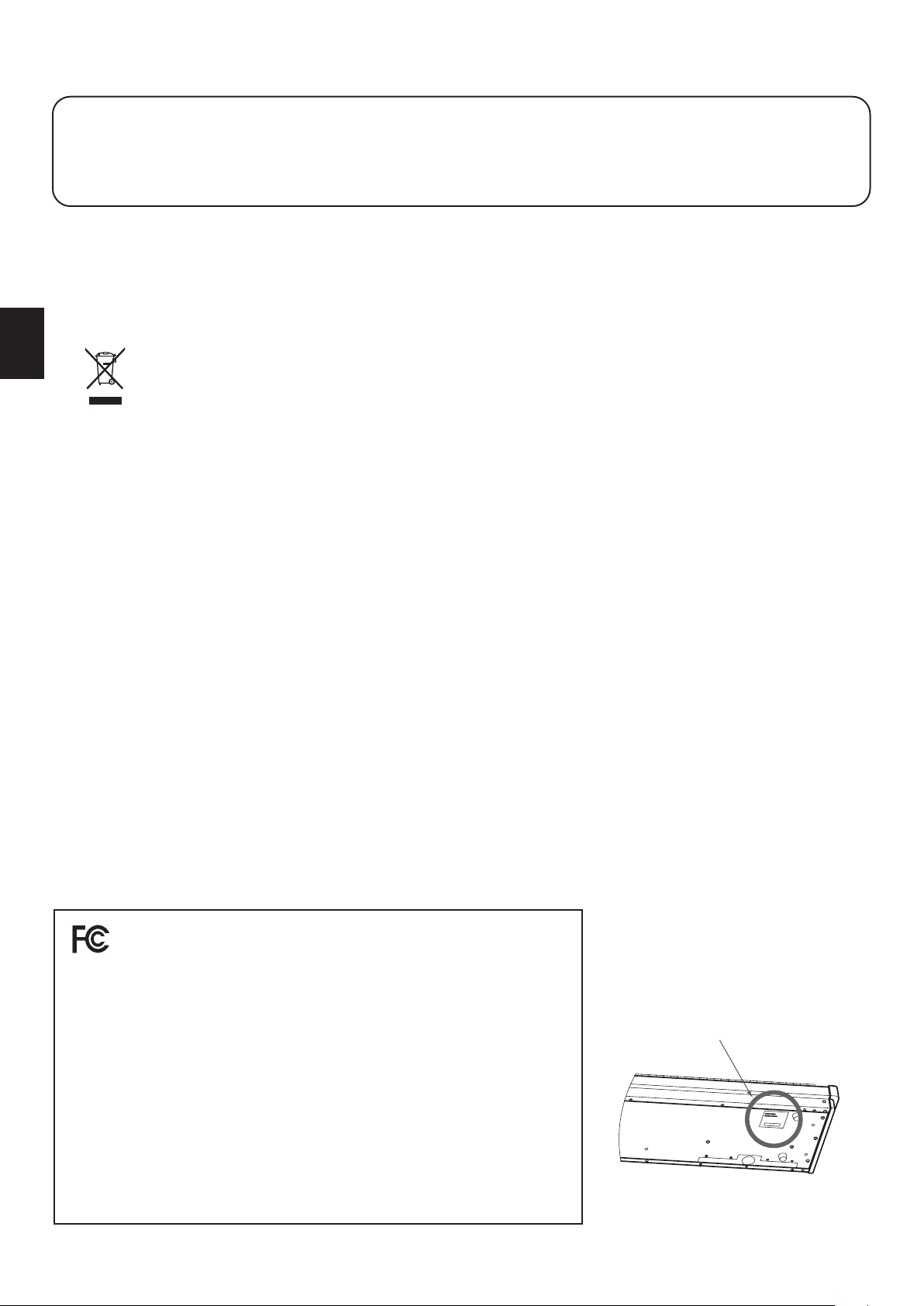
Nameplate
The nameplate label is located on
the underside of the instrument,
as indicated below.
7
Important Information
Displayed Icons
The product should be serviced by qualied service personnel when:
● The power supply cord or the plug has been damaged.
● Objects have fallen, or liquid has been spilled into the product.
● The product has been exposed to rain.
● The product does not appear to operate normally or exhibits a marked change in performance.
●The product has been dropped, or the enclosure damaged.
Declaration of Conformity
Products : Electronic Piano
Model Number : ES920
Responsible Party Name : Kawai America Corporation
Address : 2055 East University Drive Rancho
Dominguez, CA 90220
Telephone 310-631-1771
This device complies with Part 15 of the FCC Rules. Operation is subject to the
following two conditions:
(1) this device may not cause harmful interference, and
(2) this device must accept any interference received, including interference that
may cause undesired operation.
This applies only to products distributed by Kawai America Corporation.
Notes on Repair
Should an abnormality occur in the product, immediately turn the power OFF, disconnect the power cord plug, and then
contact the shop from which the product was purchased.
CAUTION:
To prevent electric shock, match wide blade of plug to wide slot, fully insert.
ATTENTION:
Pour éviter les chocs électriques, introduire la lame la plus large de la che dans la borne correspondante de la prise et
pousser jusqu'au fond.
An information on Disposal for users
If your product is marked with this recycling symbol it means that, at the end of its life, you must dispose of it
separately by taking it to an appropriate collection point.
You should not mix it with general household waste. Disposing of this product correctly will prevent potential negative
eects on the environment and human health which could otherwise arise due to inappropriate waste handling.
For further details, please contact your local authority.
(European Union only)
Instruction for AC power cord (U.K.)
IMPORTANT
THE WIRES IN THIS MAINS LEAD ARE COLOURED IN ACCORDANCE WITH THE FOLLOWING CODE.
BLUE : NEUTRAL
BROWN : LIVE
As the colours of the wires in the mains lead of this apparatus may not correspond with the coloured markings identifying
the terminals in your plug, proceed as follows:
The wire which is coloured BLUE must be connected to the terminal which is marked with the letter N or coloured BLACK.
The wire which is coloured BROWN must be connected to the terminal which is marked with the letter Lor coloured RED.
Do not plug either terminal of the power cord to the the ground AC outlet on the wall.
Canadian Radio Interference Regulations
This instrument complies with the limits for a class B digital apparatus, pursuant to the Radio Interference Regulations,
C.R.C., c. 1374.
FCC Information (U.S.A)
CAUTION : Changes or modications not expressly approved by the party responsible for compliance could void the user’s
authority to operate the equipment.
NOTE : This equipment has been tested and found to comply with the limits for a Class B digital device, pursuant to Part 15 of
the FCC Rules. These limits are designed to provide reasonable protection against harmful interference in a residential
installation. This equipment generates, uses and can radiate radio frequency energy and, if not installed and used in
accordance with the instructions, may cause harmful interference to radio communications. However, there is no guarantee
that interference will not occur in a particular installation. If this equipment does cause harmful interference to radio or
television reception, which can be determined by turning the equipment o and on, the user is encouraged to try to correct
the interference by one or more of the following measures:
Reorient or relocate the receiving antenna.
Increase the separation between the equipment and receiver.
Connect the equipment into an outlet on a circuit dierent from that to which the receiver is connected.
Consult the dealer or an experienced radio/TV technician for help.
Nameplate
The nameplate label is located on
the underside of the instrument,
as indicated below.
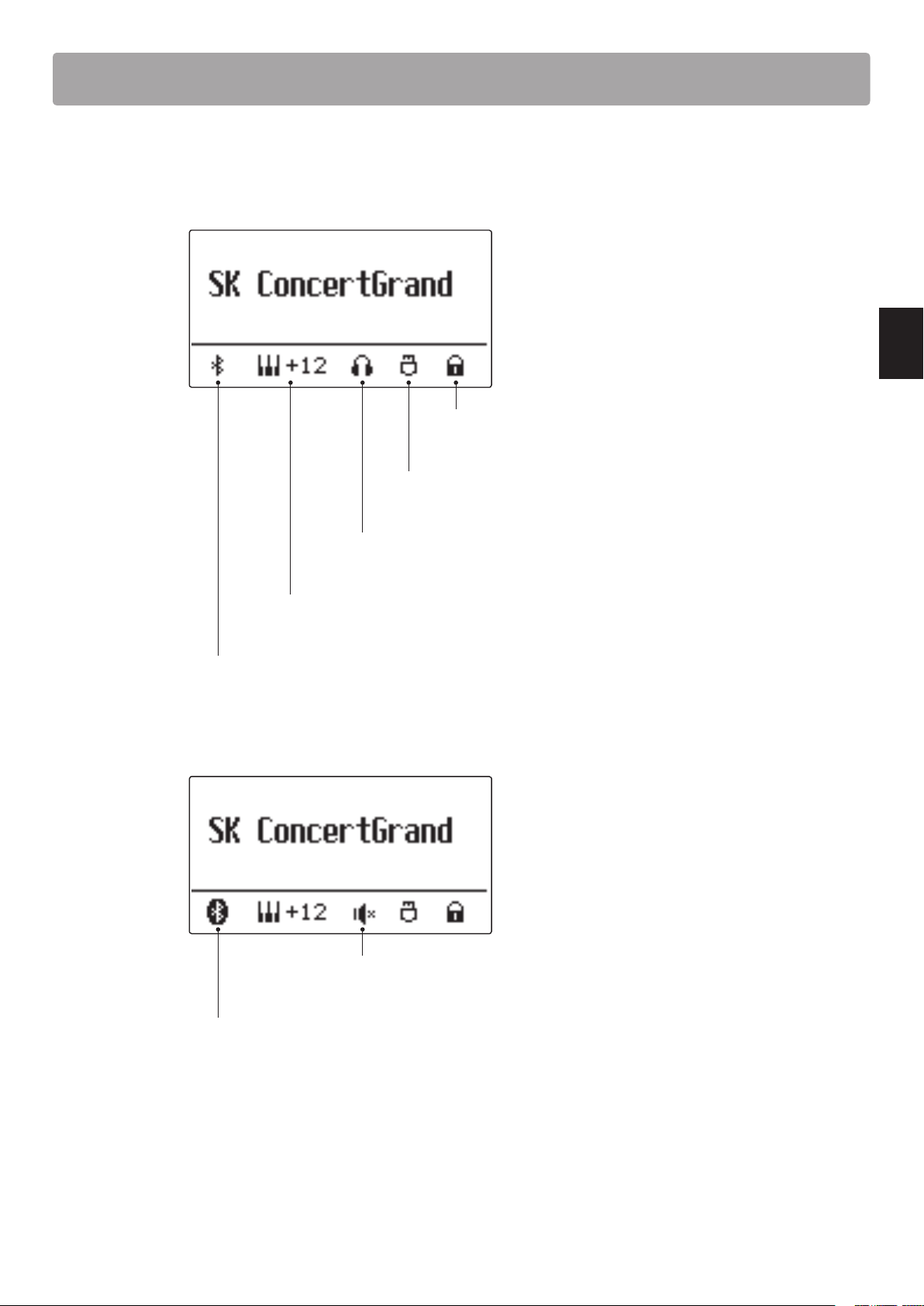
Panel lock icon
Displayed when panel lock is on.
USB icon
Displayed when a USB memory device is connected.
Headphone icon
Displayed when a pair of headphones is connected.
Transpose icon
Displayed when key TRANSPOSE is on.
Bluetooth icon
Displayed when Bluetooth Audio or Bluetooth MIDI is on.
* Displayed when the SPEAKER switch is o.
(Headphone icon is displayed when a pair of headphones is connected)
* Displayed when a Bluetooth connection is made.

Table of ContentsTable of Contents
8
Important Information
Table of Contents
Important Information
Important Safety Instructions ....................... 3
Displayed Icons ...................................... 7
Table of Contents. . . . . . . . . . . . . . . . . . . . . . . . . . . . . . . . . . . . . 8
Welcome to the Kawai ES920 .......................10
1. Package Contents ............................10
2. Feature Highlights ............................11
Part Names and Functions ..........................12
Preparation
Setting Up the Piano ................................14
Basic Operation .....................................15
Basic Operation
Selecting Sounds .................................... 16
Demo Songs .........................................17
Dual Mode ........................................... 18
Split Mode ...........................................20
Four Hands Mode ...................................22
Enhancing the Sound ...............................24
1. Reverb ........................................24
2. Eects ........................................26
3. Amp Simulator. . . . . . . . . . . . . . . . . . . . . . . . . . . . . . . . 29
4. Equaliser ......................................30
Panel Lock ...........................................31
Transpose ...........................................32
Metronome .......................................... 34
Registration Memories ..............................36
Rhythm Section Basic Operation ...................38
Rhythm Section Style .............................40
Rhythm Section Parts .............................41
Song Recorder
(Internal memory) ........................42
1. Recording a Song .............................42
2. Playing a Song ................................44
3. Recording a Song with the Rhythm Section ...46
4. Erasing a Part/Song ...........................47
Audio Record/Playback (USB memory) ..................48
1. Recording an Audio le .......................48
2. Playing an Audio le ..........................50
3. Overdubbing an Audio le ...................52
4. Playing a MIDI le ............................. 54
5. Converting a MIDI le to an Audio le ........56
6. Recording an Audio le
with the Rhythm Section .....................58
7. Converting a Song to an Audio le ...........59
8. Deleting an Audio/MIDI le ................... 60
USB Menu ...........................................61
1. Load Internal Song ...........................62
2. Load Registration .............................63
3. Load Startup Setting ..........................64
4. Save SMF Song ...............................65
5. Save Internal Song ............................66
6. Save Registration .............................67
7. Save Startup Setting ..........................68
8. Rename File ...................................69
9. Delete File ....................................70
10. Format USB ...................................71
Adjustments & Settings
Settings Menus ...................................... 72
Basic Settings .......................................73
1-1. Tone Control ..................................74
Brilliance ......................................74
User EQ .......................................75
1-2. Wall EQ .......................................76
1-3. Speaker Volume ..............................76
1-4. Low Volume Balance .......................... 77
1-5. Line Out Volume ..............................78
1-6. Audio Recorder Gain ..........................78
1-7. Tuning ........................................79
1-8. Damper Hold .................................79
1-9. GFP-3 Mode ..................................80
1-10. Four Hands ..................................81

Table of Contents
9
Important Information
Table of Contents
1-11. Startup Setting ..............................82
1-12. Factory Reset ................................83
1-13. Auto Display O ............................. 84
1-14. Auto Power O ..............................85
Virtual Technician ...................................86
2-1. Touch Curve ..................................88
2-2. Voicing ........................................90
User Voicing ..................................91
2-3. Damper Resonance ...........................92
2-4. Damper Noise ................................92
2-5. String Resonance .............................93
2-6. Undamped String Resonance ................94
2-7. Cabinet Resonance ...........................95
2-8. Key-o Eect .................................96
2-9. Fall-back Noise ................................97
2-10. Hammer Noise ..............................97
2-11. Hammer Delay ..............................98
2-12. Topboard ....................................99
2-13. Decay Time .................................100
2-14. Release Time ...............................100
2-15. Minimum Touch ............................101
2-16. Temperament ..............................102
Stretch Tuning ...............................103
Stretch Curve ................................104
User Tuning ..................................104
Temperament Key ...........................105
User Temperament ..........................105
2-17. User Key Volume ...........................106
2-18. Half-Pedal Adjust ...........................107
2-19. Soft Pedal Depth ...........................107
Key Settings ........................................108
3-1. Lower Octave Shift. . . . . . . . . . . . . . . . . . . . . . . . . . . 109
3-2. Lower Pedal ..................................110
3-3. Split Balance .................................110
3-4. Layer Octave Shift ...........................111
3-5. Layer Dynamics ..............................112
3-6. Dual Balance .................................112
Rhythm Section Settings ...........................113
4-1. Rhythm Volume. . . . . . . . . . . . . . . . . . . . . . . . . . . . . . 114
4-2. Auto Fill-in ...................................114
4-3. One Finger Ad-lib ............................115
4-4. ACC Mode ...................................116
4-5. Bass Inversion ................................118
4-6. Preset Chord .................................119
Phones Settings ....................................120
5-1. SHS Mode ....................................121
5-2. Phones Type .................................122
5-3. Phones Volume ..............................123
MIDI Settings .......................................124
Bluetooth Settings .................................124
7-1. Bluetooth Audio .............................125
7-2. Bluetooth Audio Volume ....................126
7-3. Bluetooth MIDI ..............................127
Appendix
Connecting to Other Devices ......................128
Rear Connectors .................................129
Upper Connectors ...............................129
Front Connectors ................................129
USB MIDI
(USB to Host Connector) ........................130
Information about Bluetooth® .....................131
Troubleshooting ...................................132
Demo Song List ....................................133
Rhythm Section Style List ..........................134
Rhythm Section Chord Types ......................135
Rhythm Section Preset Chord Sequences .........139
EU Declaration of Conformity ......................141
Kawai ES920 Specications ........................142
Owner’s Manual Conventions ......................143
Welcome to the Kawai ES920Welcome to the Kawai ES920
10
Important Information
Welcome to the Kawai ES920
Thank you for purchasing this Kawai ES920 digital piano.
This owner’s manual contains important information regarding the usage and operation of the ES920 digital piano.
Please read all sections carefully, keeping this manual handy for future reference.
1
Package Contents
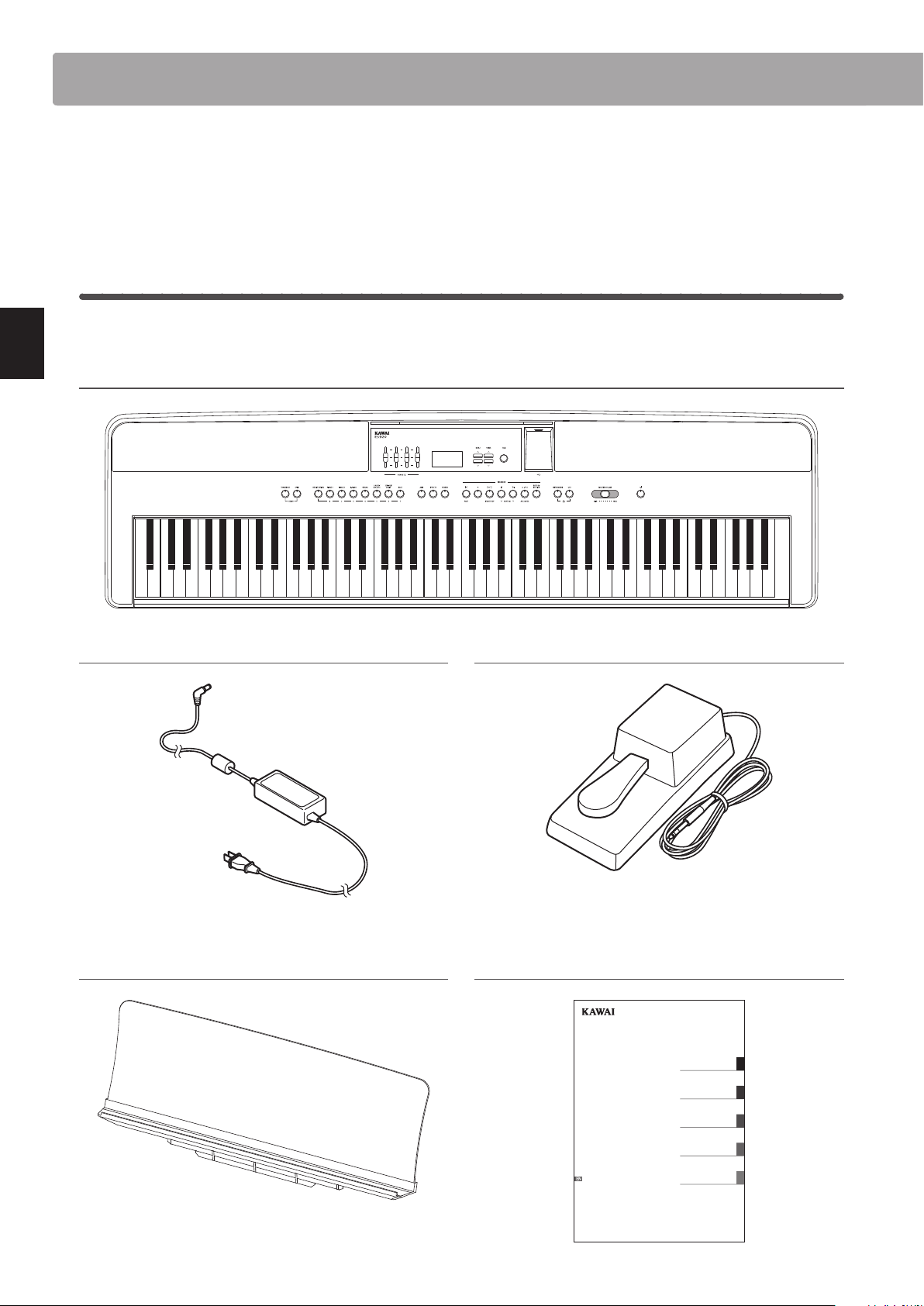
The Kawai ES920 digital piano package contains the following items:
ES920 digital piano
AC power adaptor (PS-154)
Foot pedal (F-10H)
Music rack/rest
Owner’s manual
ES920
Owner’s Manual
Important Information
Preparation
Basic Operation
Adjustments & Settings
Appendix

Welcome to the Kawai ES920
11
Important Information
2
Feature Highlights
“Responsive Hammer III” weighted-key action, with Ivory Touch key surfaces and Let-o simulation
The new Responsive Hammer III (RHIII) action recreates the distinctive touch of an acoustic grand piano, with its realistic
movement and accurate 3-sensor technology providing a smooth, natural, and highly responsive piano playing experience.
The weight of the keyboard is appropriately graded to mirror the heavier bass hammers and lighter treble hammers of an
acoustic piano, while structural reinforcements within the action assembly ensure greater stability during fortissimo and
staccato passages.
The ES920 digital piano also features Kawai’s Ivory Touch key surfaces that gently absorb nger moisture to assist the player’s
performance, while, let-o simulation recreates the subtle “notch” sensation felt when softly playing the keys of a grand
piano, satisfying the expectations of the most discerning pianists.
Shigeru Kawai SK-EX, SK-5, and Kawai EX instruments reproduced with Harmonic Imaging sound technology
The ES920 digital piano captures the rich, expressive sound of the Kawai SK-EX, SK-5, and EX grand pianos, with all 88 keys
of these exceptional instruments meticulously recorded, analysed and faithfully reproduced using Harmonic Imaging™
sound technology. This unique process accurately recreates the broad dynamic range of the original grand pianos, aording
pianists an extraordinary level of expressiveness ranging from the softest pianissimo to the strongest, boldest fortissimo.
The instrument’s built-in Virtual Technician feature allows various characteristics of these acoustic piano sounds to be shaped
at the touch of a button, with settings to adjust string and damper resonance, in addition to subtle hammer, damper, and key
release noises. This personalised piano sound is further enhanced with atmospheric reverberation eects, delivering a rich,
vibrant piano tone with breathtaking realism and authenticity.
Strong selection of additional instrument sounds
Supplementing the realistic acoustic piano voices, the ES920 digital piano also features a strong selection of additional
instrument sounds, ranging from electric pianos and drawbar and church organs, to string, choir, and mallet instruments,
inviting musicians to add greater variety to their performances.
Furthermore, the Dual playing mode also allows two dierent sounds, such as grand piano and strings, to be layered together,
while the Split and Four Hands modes divide the keyboard into two independent sections. The volume balances for each
playing mode can also be adjusted quickly and easily using the real-time panel controls.
USB to Device functionality, with MP3/WAV le recording and playback
The ES920 digital piano is equipped with USB connectors that not only allow the instrument to be connected to a computer
for MIDI use, but also to load and save data to USB memory devices directly. This USB to Device feature allows registration
memories and songs recorded and stored in internal memory to be saved to USB for posterity, or standard MIDI les (SMF)
downloaded from the internet to be conveniently played back without additional hardware.
USB memory devices can also be used to play back MP3 or WAV audio les, allowing musicians to learn the chords or melody
for a new piece, or to simply play along with their favourite songs. It is even possible to save performances as MP3 or WAV
les for emailing to friends and family, listening to on a smartphone, or for further editing using an audio workstation.
Wide range of connectivity options
The ES920 digital piano features a variety of standard connectivity options, with Line-level output jacks that allow the
instrument to be enjoyed in larger settings such as churches and schools. Standard MIDI and USB to Host connectors ensure
exibility when using computers and other electronic instruments, while the Line-in stereo jack provides a convenient
method of mixing in audio from a laptop, tablet, or other digital device.
Integrated Bluetooth® MIDI connectivity
In addition to standard MIDI jacks for connecting to other instruments, the ES920 digital piano also boasts integrated
Bluetooth MIDI and Audio technology that allows the instrument to communicate with supported smart devices wirelessly.
Once connected to a phone, tablet, or laptop, ES920 digital piano owners can enjoy a wide variety of exciting music-related
apps that enhance their learning and playing experience, or stream audio from songs and videos through the instrument’s
speakers without additional cables.
* Availability of Bluetooth function dependent on market location.
Welcome to the Kawai ES920
Part Names and FunctionsPart Names and Functions
12
Important Information
Part Names and Functions
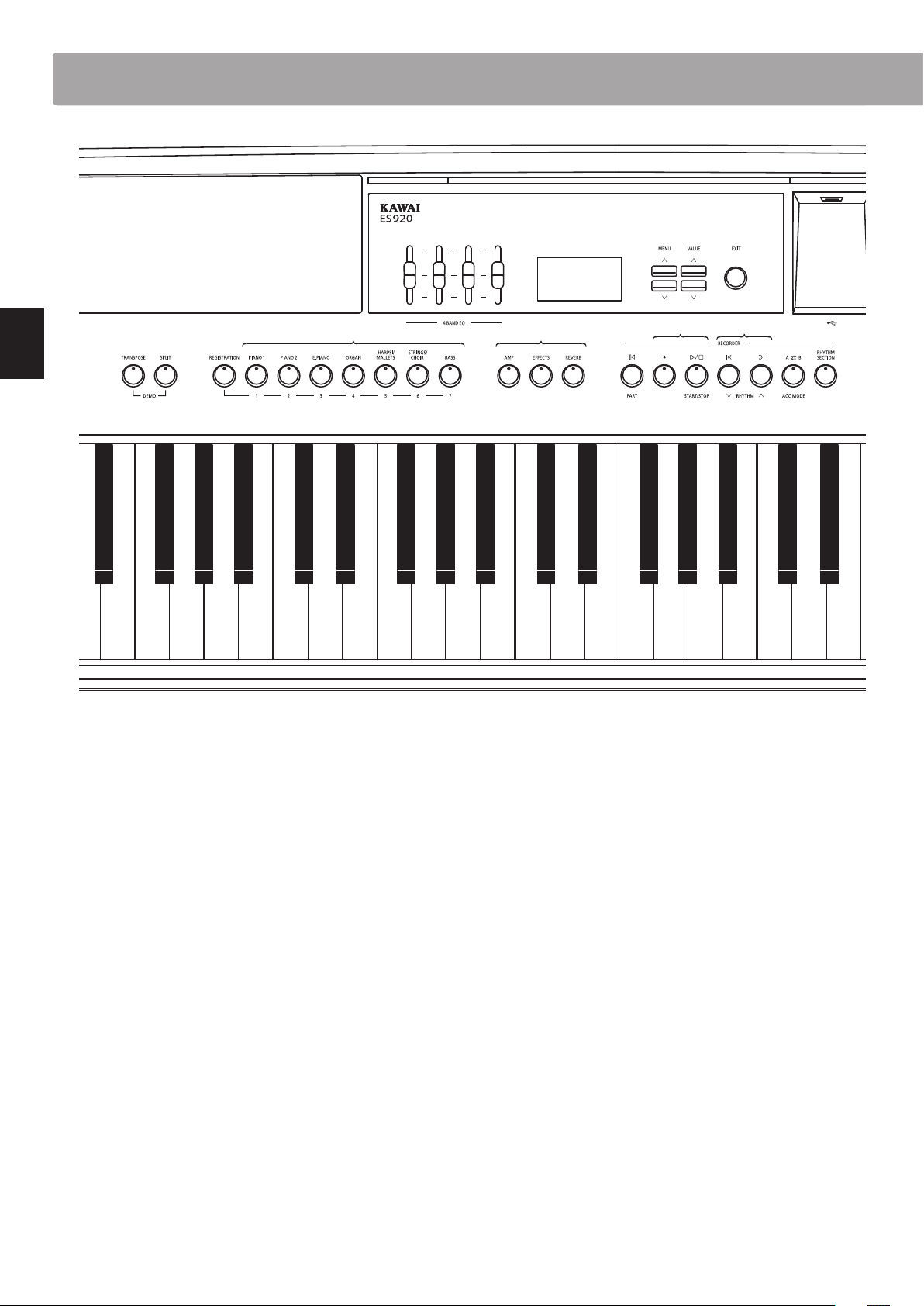
a 4-band equaliser
The equaliser is used to adjust the volume of the low, mid-low,
mid-high, and high frequency bands.
b Display
The display provides important information relating to the
currently selected sound, style, function, and setting.
* A protective plastic lm is attached to the display during production.
Please remove this lm before attempting to play the instrument.
c MENU buttons
These buttons are used to navigate through the instrument’s
various function and settings menus.
d VALUE buttons
These buttons are used to adjust values, and change settings etc.
e EXIT button
This button is used to exit the current function, or return to the
previous screen.
f USB to Device port (Type A)
This port is used to connect a FAT or FAT32 formatted USB
memory device to the instrument in order to load/save recorded
song data, registration memories, and MP3/WAV/SMF les etc.
* Use this port for connecting USB memory devices only.
* Connect the USB memory device directly, without using a USB extension
cable.
a c
g h j
m
on
p q
b
i
d e
f
k
l
g TRANSPOSE button
This button is used to adjust the pitch of the instrument’s
keyboard in semi-tone steps.
h SPLIT button
This button is used to select and adjust the instrument’s Split/
Four Hands mode functions.
i DEMO button
When pressed simultaneously, the TRANSPOSE and SPLIT
buttons are also used to select the instrument’s Demo mode.
j REGISTRATION button
This button is used to store and recall one of the 28 dierent
Registration memories. Each Registration can store sound,
Rhythm Section, reverb/eects, and Virtual Technician settings,
as well as various other panel and menu options.
k SOUND buttons
These buttons are used to select the sound(s) that will be heard
when playing the instrument’s keyboard.
These buttons are also used to select Registration memories.
l AMP/EFFECTS/REVERB buttons
These buttons are used to turn the instrument’s amp, reverb,
and eects functions on/o, and to adjust their various settings.
Part Names and Functions
13
Important Information
Part Names and Functions
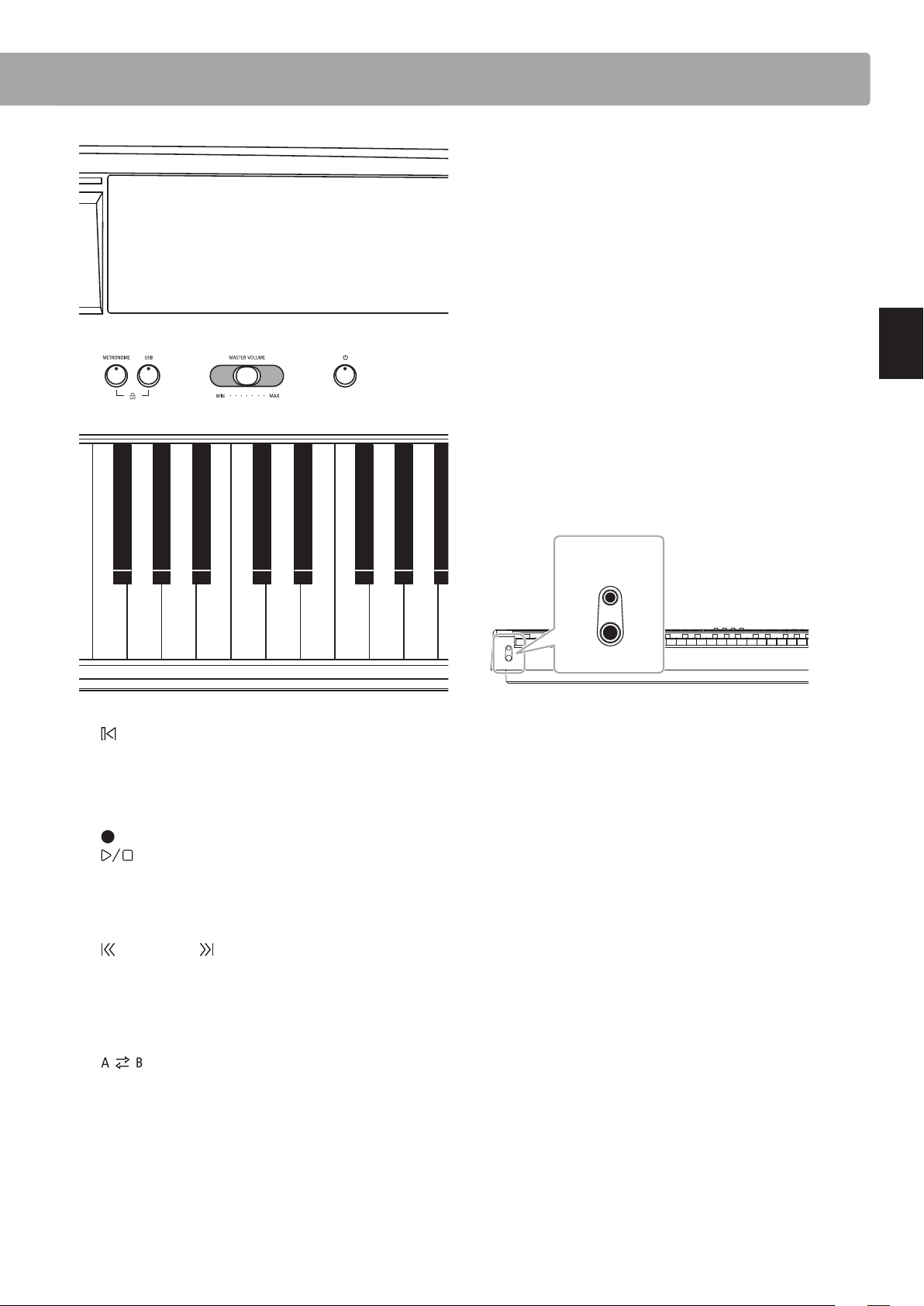
m (RESET/PART) button
This button is used to reset the instrument’s song recorder, and
to rewind songs and MP3/WAV/SMF les to the beginning.
This button is also used to select the Rhythm Section part.
n (REC) and
(PLAYBACK / START/STOP) buttons
These buttons are used to record and playback songs stored in
the instrument’s internal memory, or MP3/WAV/SMF les saved
to a USB memory device.
o (REW) and (FWD) buttons
These buttons are used to move the playing position of the
current recorder song or MP3/WAV/SMF backward or forward.
These buttons are also used to select the recorder song and
Rhythm Section style.
p (LOOP) button
This button is used to enable the instrument’s A-B Loop function,
allowing passages of a recorder song or MP3/WAV/SMF le to be
played back repeatedly.
This button is also used to select the Rhythm Section ACC mode.
q RHYTHM SECTION button
This button is used to select the instrument’s Rhythm Section
function, featuring drum rhythms and accompaniment styles.
r s t u
v
r METRONOME button
This button is used to turn the instrument’s metronome function
on/o, and to adjust metronome settings.
s USB button
This button is used to access the instrument’s USB functions.
When pressed simultaneously, the METRONOME and USB
buttons are used to toggle the instrument’s Panel Lock feature.
t MASTER VOLUME slider
This slider controls the master volume level of the instrument’s
built-in speakers or headphones, if connected.
* This slider aects the LINE OUT level. For information about adjusting
the LINE OUT level, please refer to page 78.
u POWER button
This button is used to turn the instrument on and o. Be sure to
turn o the instrument after use.
* The ES920 digital piano features a power saving mode that can turn o
the instrument automatically after a specied period of inactivity. For
more information, please refer to the Auto Power O setting on page
85.
v PHONES jacks
These jacks are used to connect stereo headphones to the
instrument. Two pairs of headphones can be connected and
used simultaneously.
* For more information about connectors/jacks, please refer to page 128.
Setting Up the Piano
14
Preparation
Setting Up the Piano
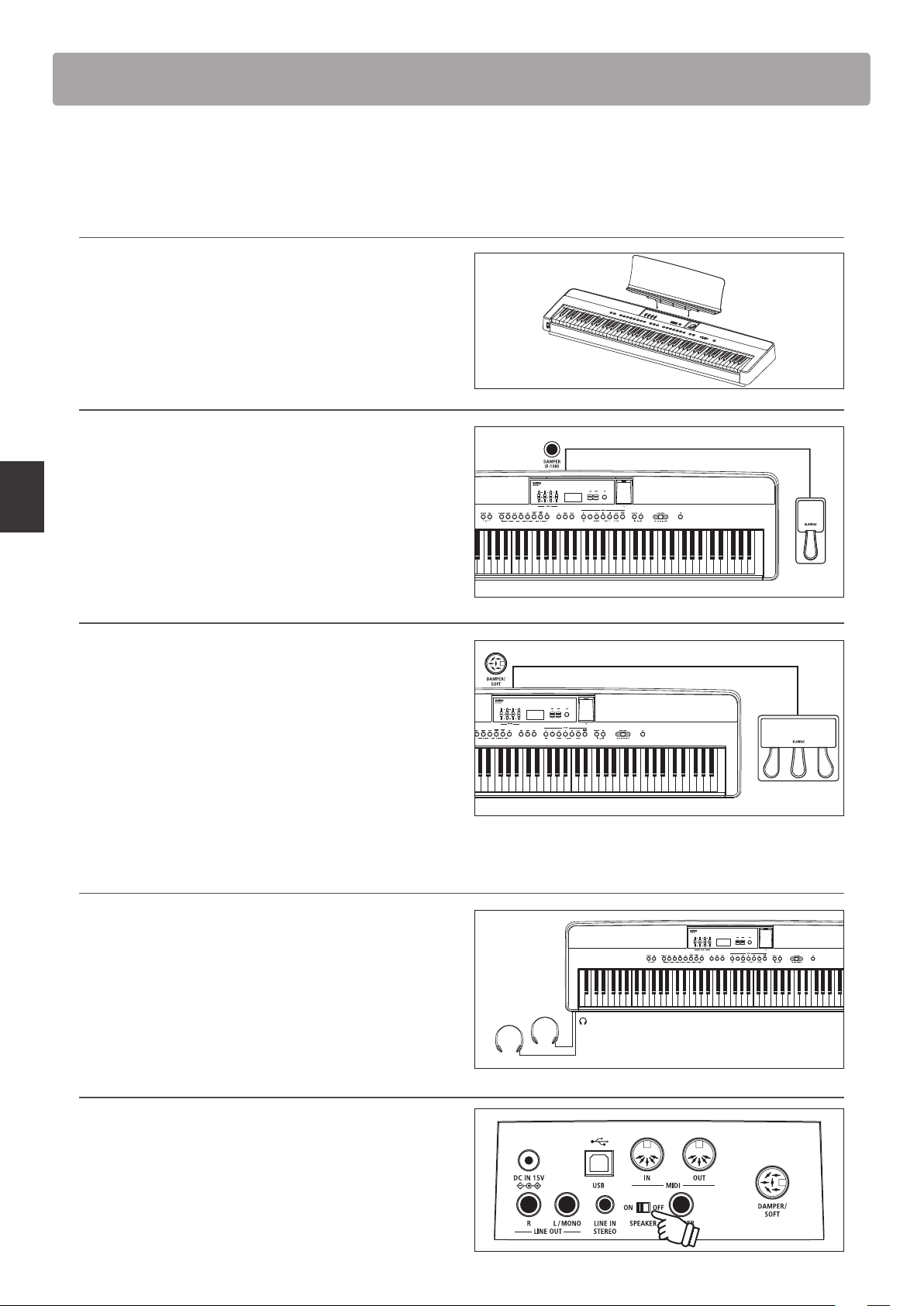
Upon unboxing the instrument, please follow the instructions below which explain how to attach the music rest,
connect the F-10H (or optional GFP-3) foot pedal, and if desired, connect a pair of headphones.
Attaching the music rest
Insert the base of the music rest into the groove located at the
rear of the ES920 digital piano, taking care not to scratch the rear
of the instrument.
To prevent possible damage, avoid applying excessive force
when attaching/detaching the music rest from the instrument.
Connecting the F-10H foot pedal
Connect the included Kawai F-10H foot pedal to the DAMPER
pedal jack located on the rear panel of the instrument.
The foot pedal will function as a damper pedal, sustaining the
sound after hands are lifted from the keyboard. This pedal is
capable of responding to “half pedaling”.
Connecting the optional GFP-3 triple pedal
Connect the optional Kawai GFP-3 triple pedal to the DAMPER/
SOFT pedal jack located on the rear panel of the instrument.
The right pedal will function as a damper pedal, sustaining the
sound after hands are lifted from the keyboard. This pedal is also
capable of responding to “half pedaling”.
The centre pedal will function as a sostenuto pedal, and the left
pedal will function as a soft pedal.
* When “Jazz Organ”, “Drawbar Organ” or “Ballad Organ” sounds are
selected, the soft pedal can also be used to alternate the speed of the
rotary speaker eect between “Slow” and “Fast” modes.
Connecting headphones
Use the jacks located on either side of the keyboard to connect
stereo headphones to the ES920 digital piano.
There are one standard jack and one mini jack so up to two pairs
of headphones can be connected. When a pair of headphones is
connected, sound will not be produced by the built-in speakers.
Turning built-in speakers on/o
Set the SPEAKER switch located on the rear panel to the O
position to disable the instrument’s built-in speakers. Set the
switch to the On position to enable the speakers.
* When a pair of headphones is connected, sound will not be producedfrom
the built-in speakers regardless of the status of the SPEAKER switch.
15
Preparation
Basic Operation
The following instructions explain how to connect the instrument to the power outlet, turn on the power, adjust the
volume to a comfortable level, and begin playing the piano.
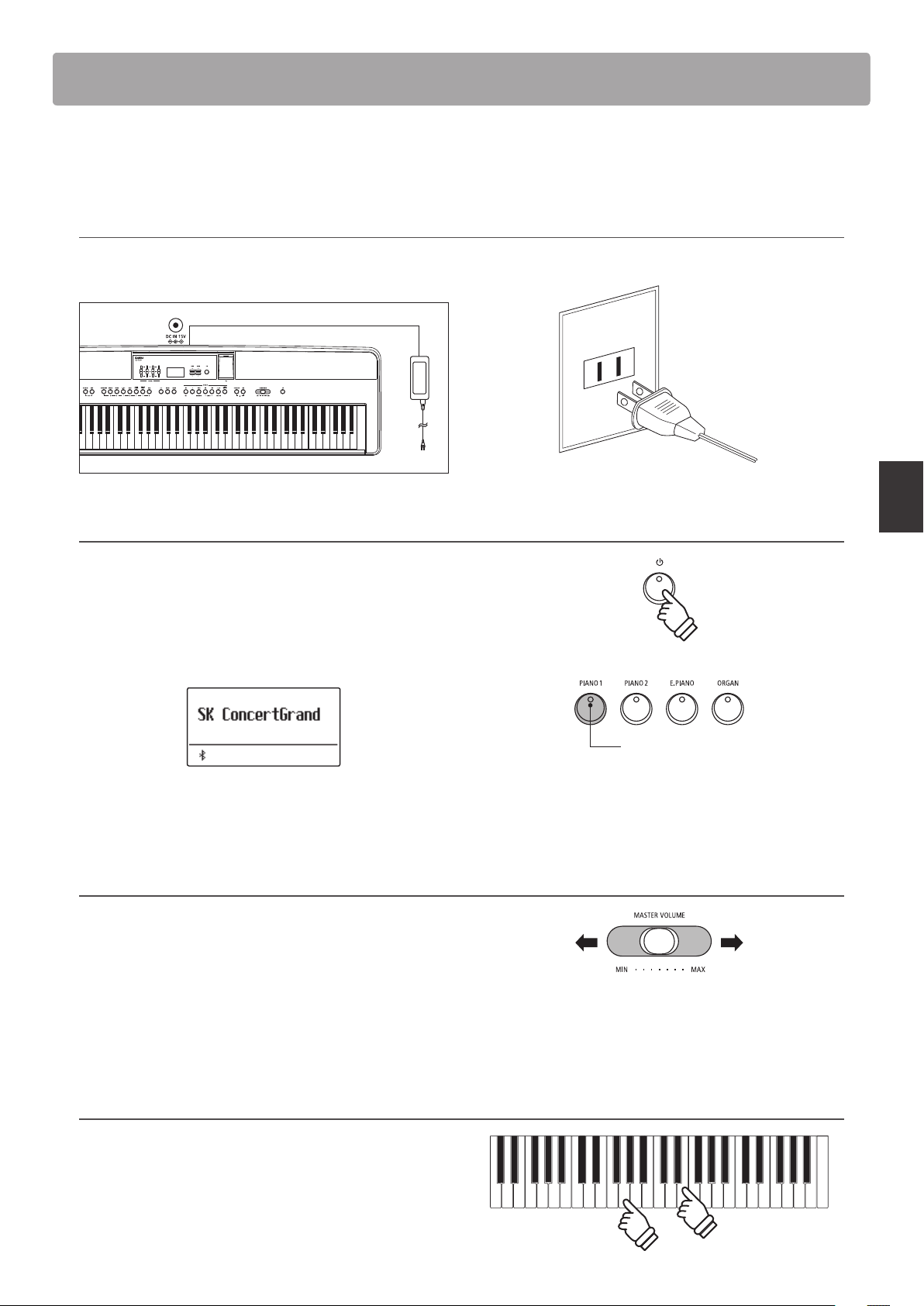
1. Connecting the power adaptor
Connect the included AC power adaptor to the “DC IN” jack
located on the rear panel of the instrument, indicated below.
Connect the AC power adaptor to an AC outlet.
2. Turning on the instrument’s power
Press the POWER button located on the right side of the
instrument’s control panel.
The instrument will turn on, and the words “SK ConcertGrand”
will be shown in the display, indicating that the SK ConcertGrand
sound is selected. The LED indicator for the PIANO 1 button will
also turn on.
* The ES920 digital piano features a power saving mode that can turn o the
instrument automatically after a specied period of inactivity. For more
information, please refer to the Auto Power O setting on page 85.
3. Adjusting the volume
The MASTER VOLUME slider controls the volume level of the
instrument’s speakers, or headphones if connected.
Move the slider to the right to increase the volume, and to the
left to decrease the volume.
Use this slider to set the volume to a comfortable listening level
- the middle is often a good starting point.
4. Play the piano
Begin playing the piano.
The rich sound of a Kawai SK-EX Concert Grand Piano will be
heard as the keys are pressed.
LED indicator on:
Sound category is selected.
Right:
Increase
volume
Left:
Decrease
volume
* This slider aects the LINE OUT level. For information about adjusting
the LINE OUT level, please refer to page 78.
Selecting Sounds
16
Basic Operation
Selecting Sounds
The ES920 digital piano features a wide selection of realistic instrument sounds suitable for various musical styles.
Sounds are arranged into seven categories, with multiple sounds assigned to each category button.
By default, the “SK ConcertGrand” sound will be selected automatically when the instrument is turned on.
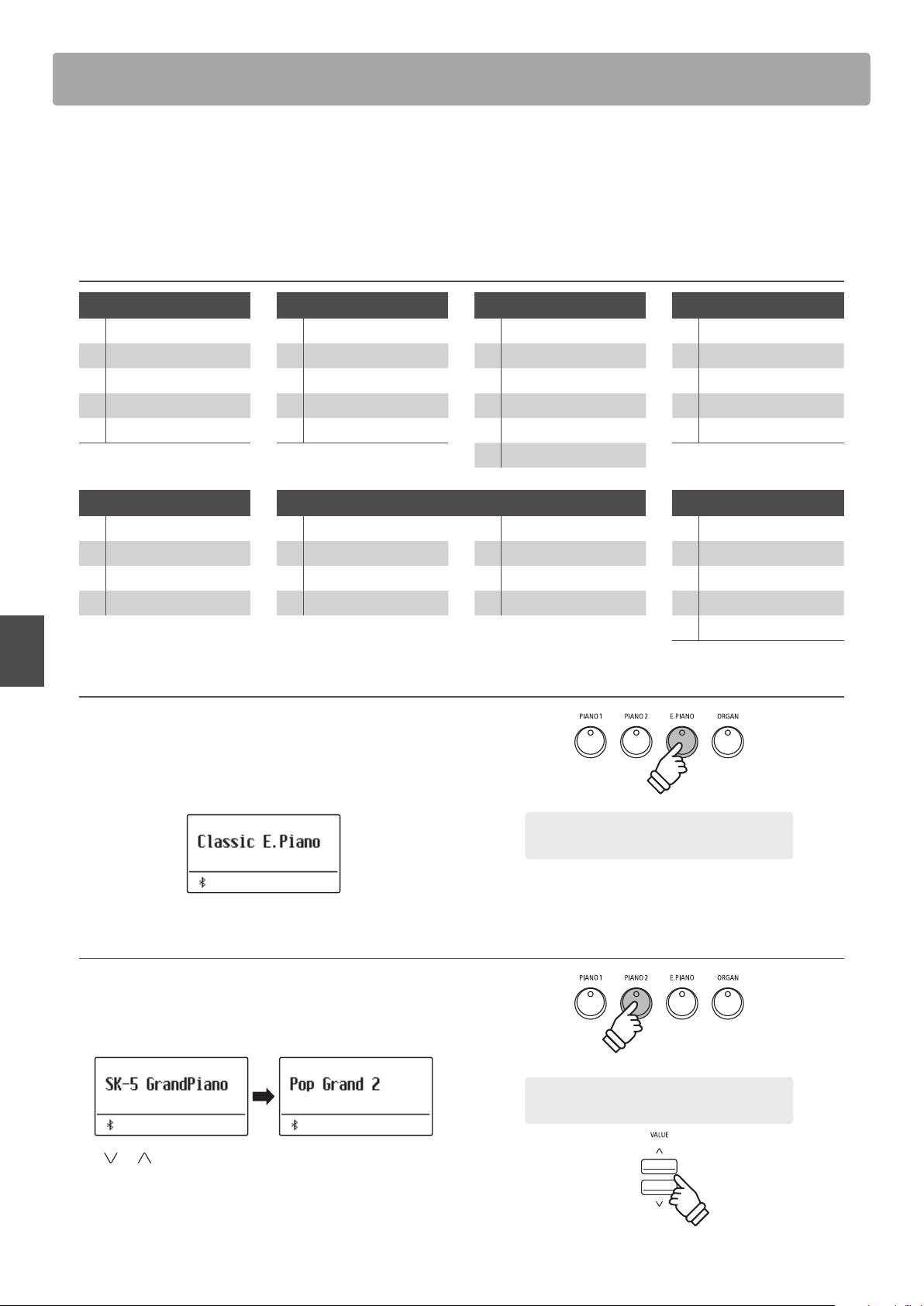
Sound categories and variations
PIANO 1
1 SK ConcertGrand
2 EX ConcertGrand
3 Jazz Clean
4 Warm Grand
5 Pop Grand
PIANO 2
1 SK-5 GrandPiano
2 Upright Piano
3 Pop Grand 2
4 Modern Piano
5 Rock Piano
E. PIANO
1 Classic E.Piano
2 Classic E.P. 2
3 Classic E.P. 3
4 60’s E.Piano
5 60’s E.Piano 2
6 Modern E.Piano
ORGAN
1 Jazz Organ
2 Drawbar Organ
3 Ballad Organ
4 Principal Oct.
5 Church Organ
HARPSI / MALLETS
1 Harpsichord
2 Vibraphone
3 Clavi
4 Marimba
STRINGS / CHOIR
1 String Ensemble 5 Choir Ooh/Aah
2 Slow Strings 6 Pop Ensemble
3 String Pad 7 Square Pad
4 Warm Strings 8 New Age Pad
BASS
1 Electric Bass
2 Electric Bass 2
3 Electric Bass 3
4 Wood Bass
5 W. Bass & Ride
1. Selecting a sound category
Press the desired SOUND button.
The LED indicator for the button will turn on to indicate that this
category has been selected, and the name of the sound will be
shown in the display.
2. Changing the selected sound variation
Several sound variations are assigned to each category button.
Press a SOUND button repeatedly to cycle through the dierent
sound variations.
The or VALUE buttons can also be used to select sounds,
and cycle through the dierent sound variations.
Example: To select the E.PIANO category, press the
E.PIANO button.
Example: To select the “Pop Grand 2” sound, press
the PIANO2 button three times.
× 3
17
Basic Operation
The Demo function provides an excellent introduction to the varied capabilities of the ES920 digital piano.
There are 25 dierent demonstration songs available, highlighting the instrument’s rich selection of high quality
sounds, convenient Rhythm Section feature, and powerful speaker system.
For a complete listing of the available demonstration songs, please refer to page 133 of this owner’s manual.
* Kawai regrets that sheet music for Kawai original demo songs is not available.
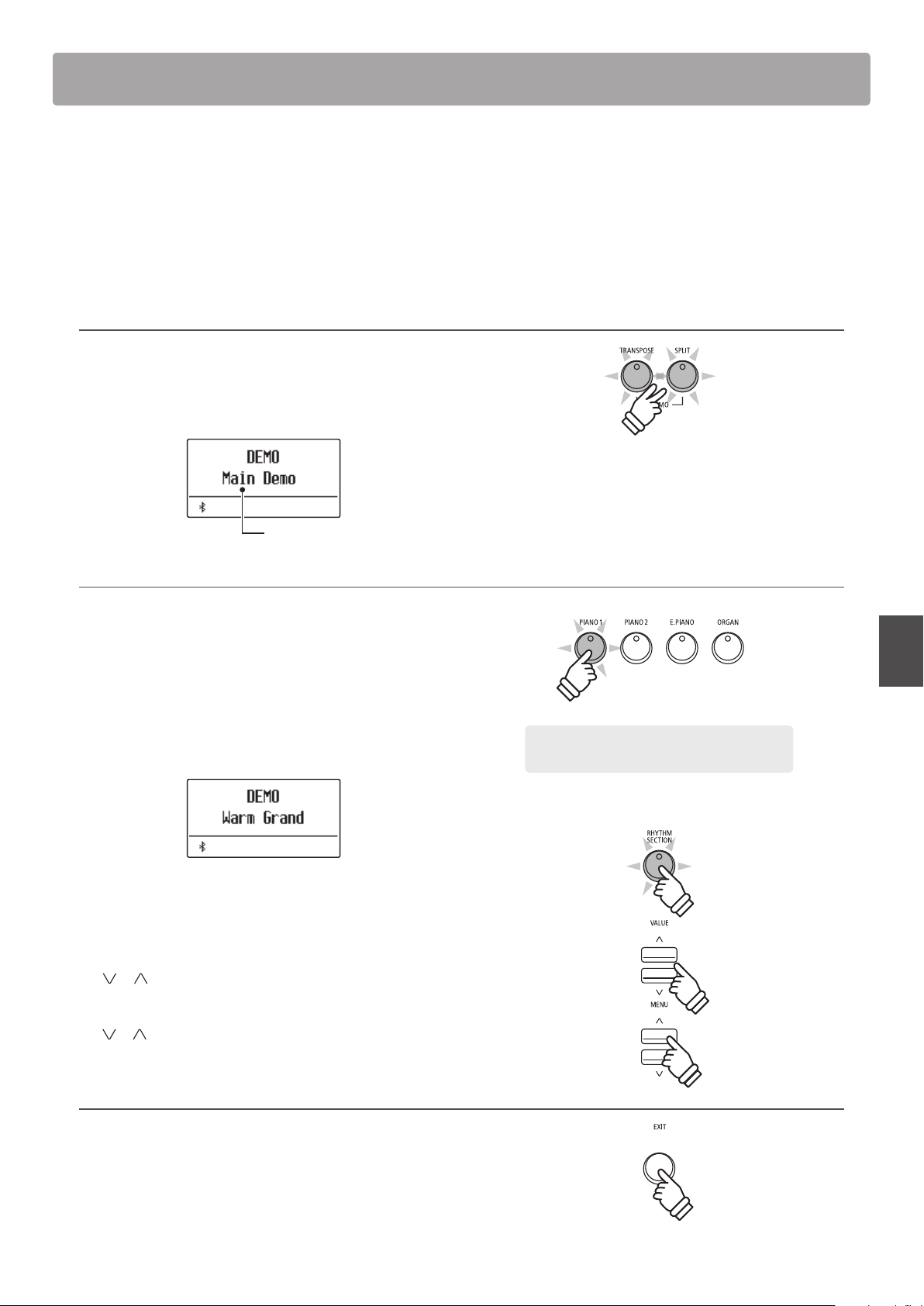
1. Entering demo mode
Press the TRANSPOSE and SPLIT buttons simultaneously.
The LED indicators for both buttons will start to ash to indicate
that demo mode is in use, and the Main Demo song will start to
play.
Demo song name
2. Selecting a demo song
While Demo mode is selected and the demo songs are playing:
Press the desired SOUND button.
The LED indicator for the button will start to ash, and the rst
demo in the selected sound category will start to play.
Press the selected sound category button repeatedly to cycle
through the dierent demo songs in that category.
In addition, press the RHYTHM SECTION button to play the
Rhythm Section demo song.
* When the Rhythm Section song has nished, the Main Demo song will
be re-selected, and will start to play.
The or VALUE buttons can also be used to cycle through all
of the dierent demo songs.
The or MENU buttons can be used to switch for each group.
3. Stopping the demo song and exiting demo mode
While Demo mode is selected and the demo songs are playing:
Press the EXIT button.
The LED indicators will stop ashing, the demo songs will stop
playing, and the instrument will return to normal playing mode.
* When the Main Demo song has nished, a sound demo song will be
selected at random, and will start to play.
* During demo mode, pedals connected to the ES920 will not be
eective.
Example: To select the Warm Grand demo song,
press the PIANO1 button four times.
× 4
Demo Songs
Dual ModeDual Mode
18
Basic Operation
Dual Mode
The Dual Mode function allows two sounds to be layered together, creating a more complex sound.
For example, a piano sound layered with strings, or a church organ combined with a choir, etc.
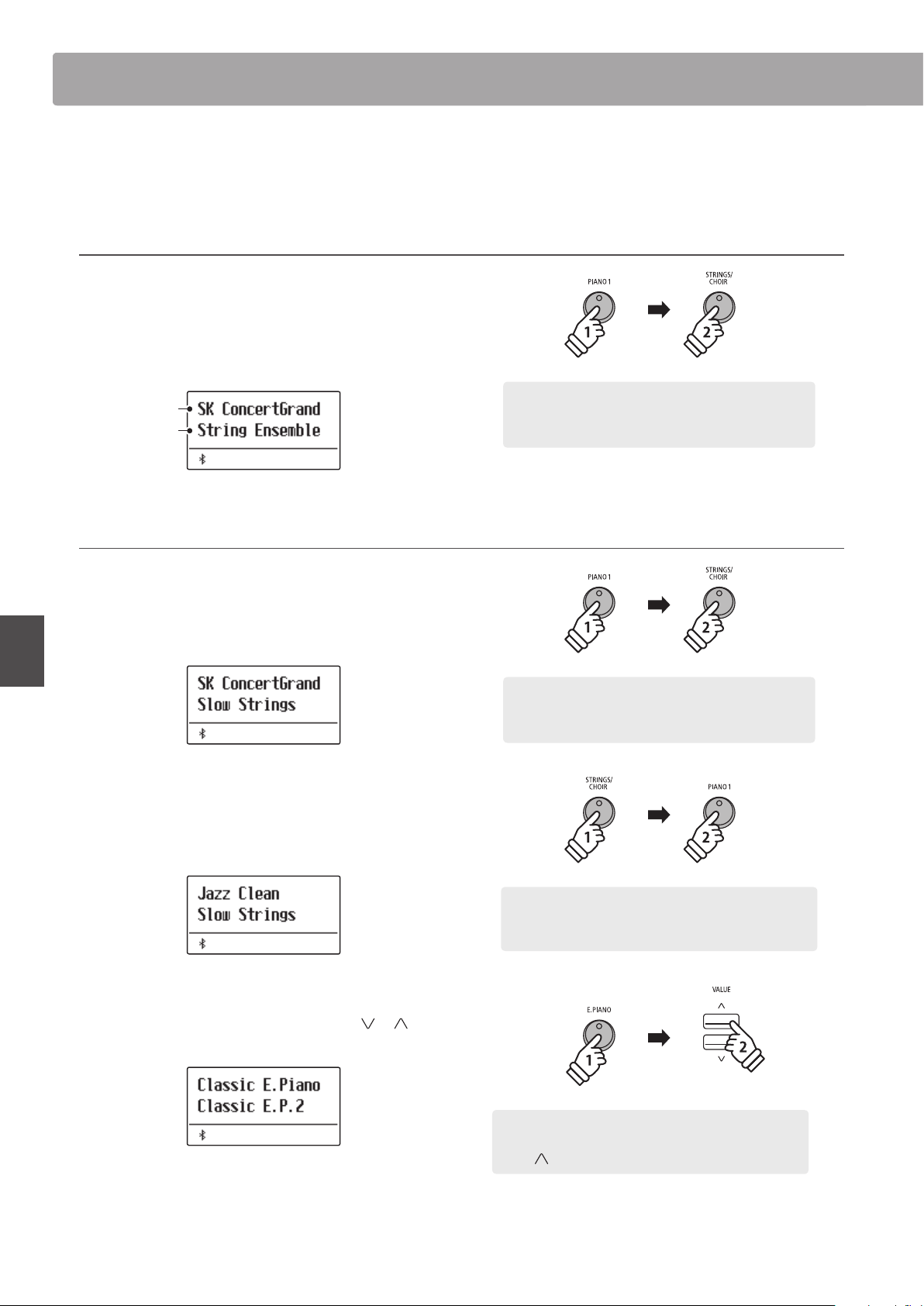
1. Entering Dual mode
Press and hold a SOUND button to select the main sound, then
press another SOUND button to select the layered sound.
The LED indicators for both SOUND buttons will turn on to
indicate that Dual mode is in use, and the respective sound
names will be shown in the display.
Main sound
Layered sound
2. Changing the main/layered sounds
To select a dierent variation for the layered sound:
Press and hold the main SOUND button, then press the layered
SOUND button repeatedly to cycle through the dierent sound
variations.
To select a dierent variation for the main sound:
Press and hold the layered SOUND button, then press the main
SOUND button repeatedly to cycle through the dierent sound
variations.
To layer two variations assigned to the same SOUND button:
Press and hold a SOUND button, then press the
or VALUE
buttons to select the layered sound variation.
* Preferred Dual mode sound combinations can be stored to a
Registration memory for convenient recall. Please refer to page 36
for more information.
hold
Example: To layer the “Slow Strings” sound with the “SK
ConcertGrand” sound, press and hold the PIANO1 button,
then press the STRINGS/CHOIR button.
hold
Example: To change the layered “String Ensemble” sound to
the “Slow Strings” sound, press and hold the PIANO1 button,
then press the STRINGS/CHOIR button.
hold
× 2
Example: To change the main “SK ConcertGrand” sound to
the “Jazz Clean” sound, press and hold the STRINGS/CHOIR
button, then press the PIANO1 button twice.
hold
× 2
Example: To layer the “Classic E.P.” and “60’s E.Piano” sounds
together, press and hold the E.PIANO button, then press the
VALUE button twice.
Dual Mode
19
Basic Operation
3. Adjusting the main/layered sound volume balance
While Dual mode is in use:
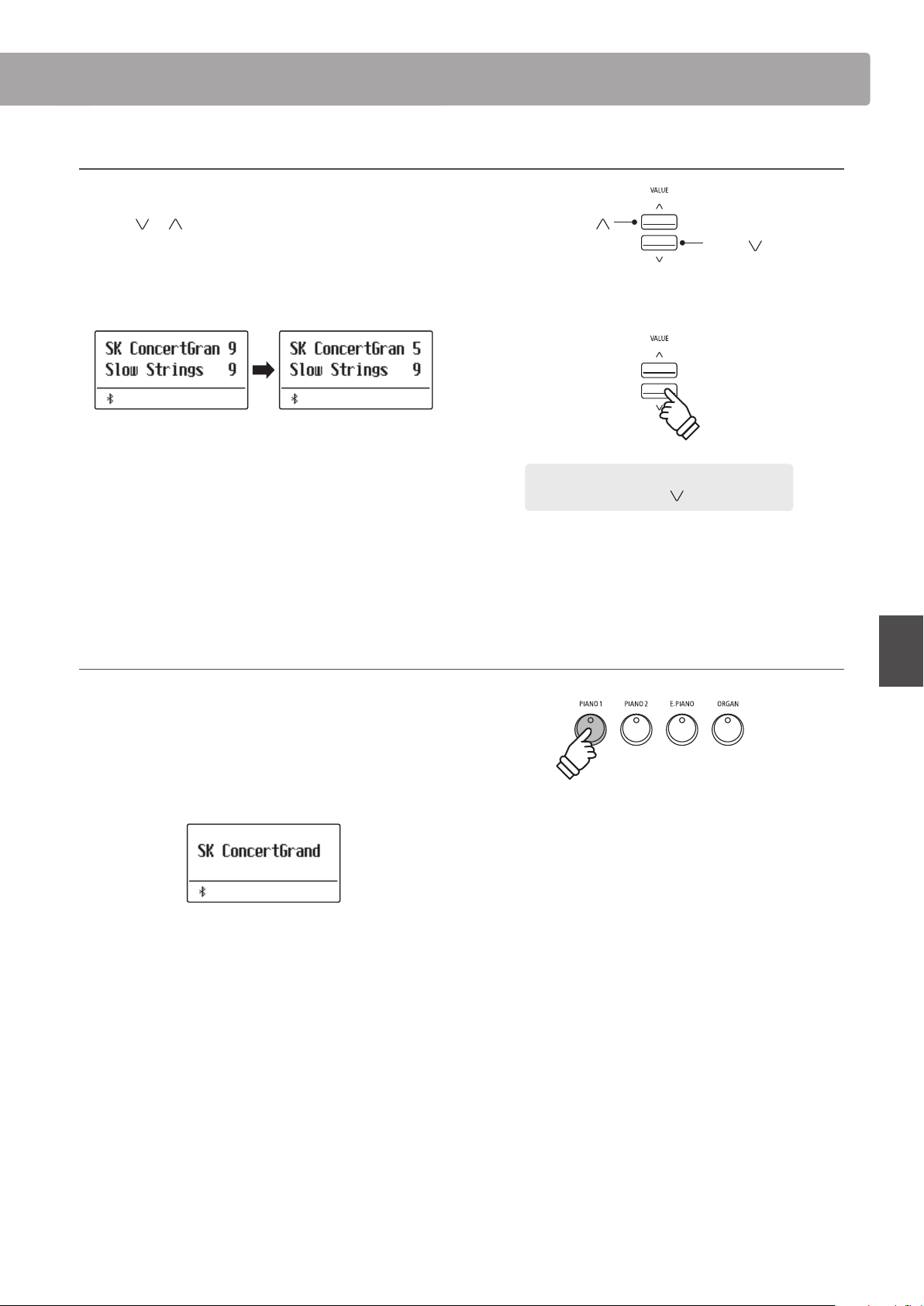
Press the
or VALUE buttons to adjust the volume balance
between the main and layered sounds.
The volume balance will briey be shown in the display.
* The default Dual mode volume balance is 9-9.
* The preferred Dual mode volume balance can also be stored to a
Registration memory for convenient recall. Please refer to page 36
for more information.
* The Layer Octave Shift setting can be used to adjust the octave range
of the layered sound. Please refer to page 111 for more information.
* The Layer Dynamics setting can be used to adjust the dynamic
sensitivity of the layered sound. Please refer to page 112 for more
information.
4. Exiting Dual mode
While Dual mode is in use:
Press a single SOUND button.
The LED indicator for the button will turn on, the name of the
selected sound will be shown in the display, and the instrument
will return to normal (single voice mode) operation.
VALUE
Increase layered
sound volume/
decrease main
sound volume.
VALUE
Increase main
sound volume/
decrease layered
sound volume.
Example: To decrease the volume of the main
sound to 5, press the VALUE button ve times.
× 5
Dual Mode
Split ModeSplit Mode
20
Basic Operation
Split Mode
The Split Mode function divides the keyboard into two sections, allowing each section to be played with a dierent
sound. For example, a bass sound in the lower section, and a piano sound in the upper section.
1. Entering Split mode
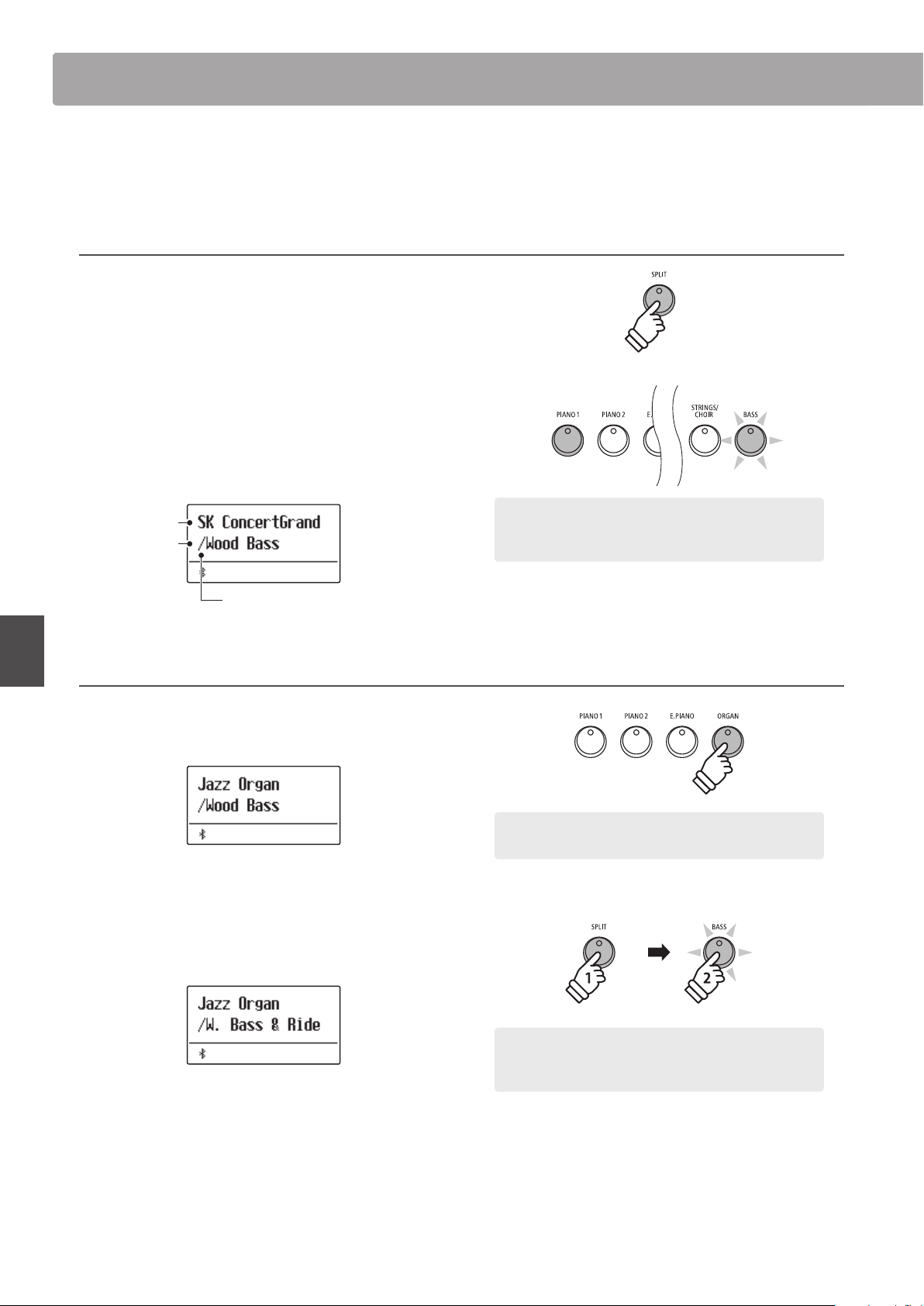
Press the SPLIT button.
The LED indicator for the SPLIT button will turn on and the
keyboard is split at the point between F#3 and G3.
G3 where the upper section begins, is called the split point.
The default split point is G3.
The LED indicator for the upper section sound button will turn
on, and the LED indicator for the lower section sound button will
start to ash. The respective sound names will also be shown in
the display.
Split enabled
Upper section
sound
Lower section
sound
2. Changing the upper/lower section sounds
To select a dierent sound for the upper section:
Press the desired SOUND button.
To select a dierent sound for the lower section:
Press and hold the SPLIT button, then press the desired SOUND
button.
* The Lower Octave Shift setting can be used to adjust the octave range
of the lower section. Please refer to page 109 for more information.
* The Lower Pedal setting can be used to enable/disable the damper
pedal for the lower section. Please refer to page 110 for more
information.
* Preferred Split mode upper/lower sound combinations can be stored
to a Registration memory for convenient recall. Please refer to page
36 for more information.
Default Split mode:
The previously selected sound is used for the upper section, and
the “Wood Bass” sound is selected for the lower section.
Example: To select the “Jazz Organ” sound for the upper
section, press the ORGAN button.
hold
Example: To select the “W. Bass & Ride” sound for the lower
section, press and hold the SPLIT button, then press the BASS
button.
Split Mode
21
Basic Operation
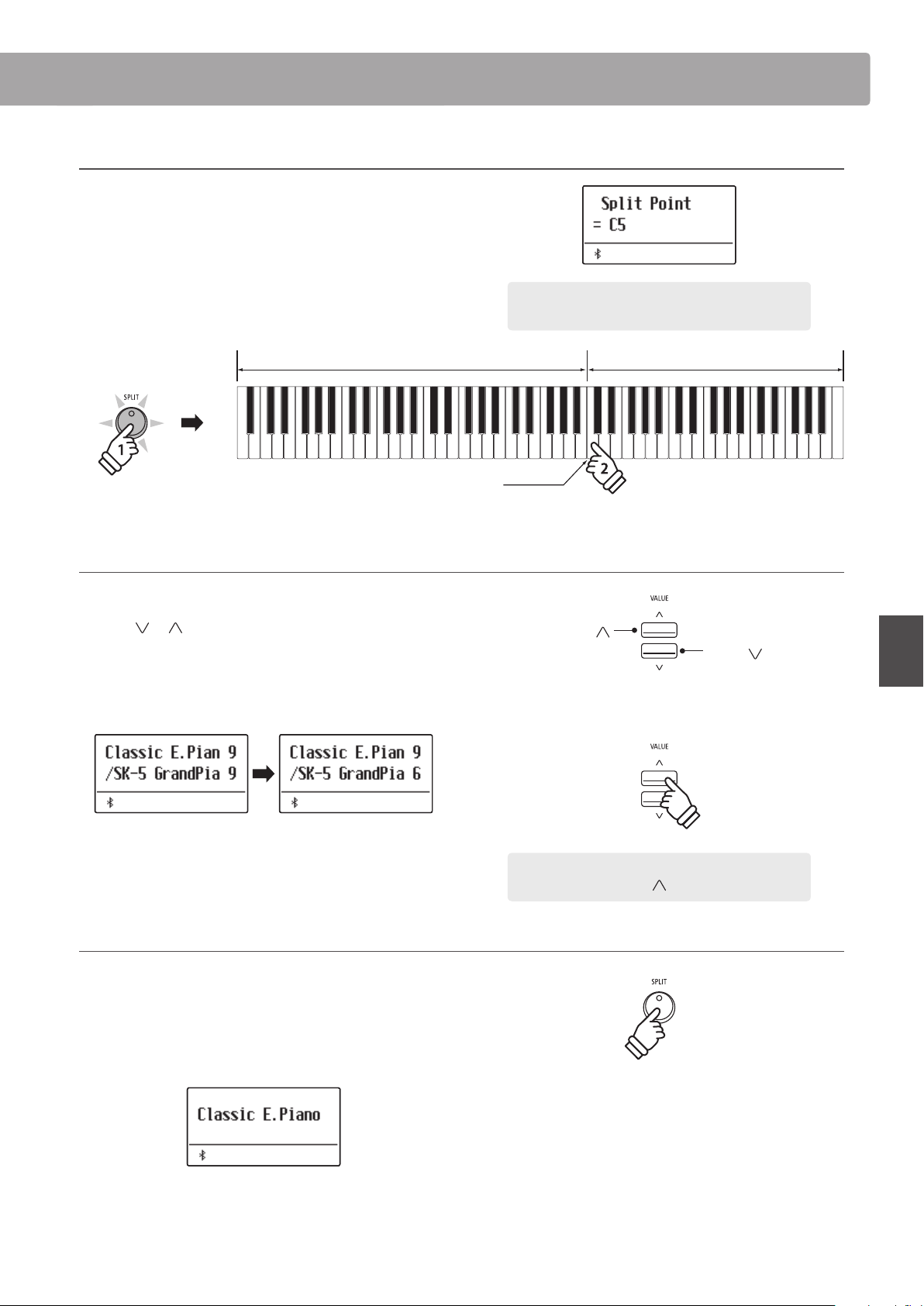
3. Changing the split point
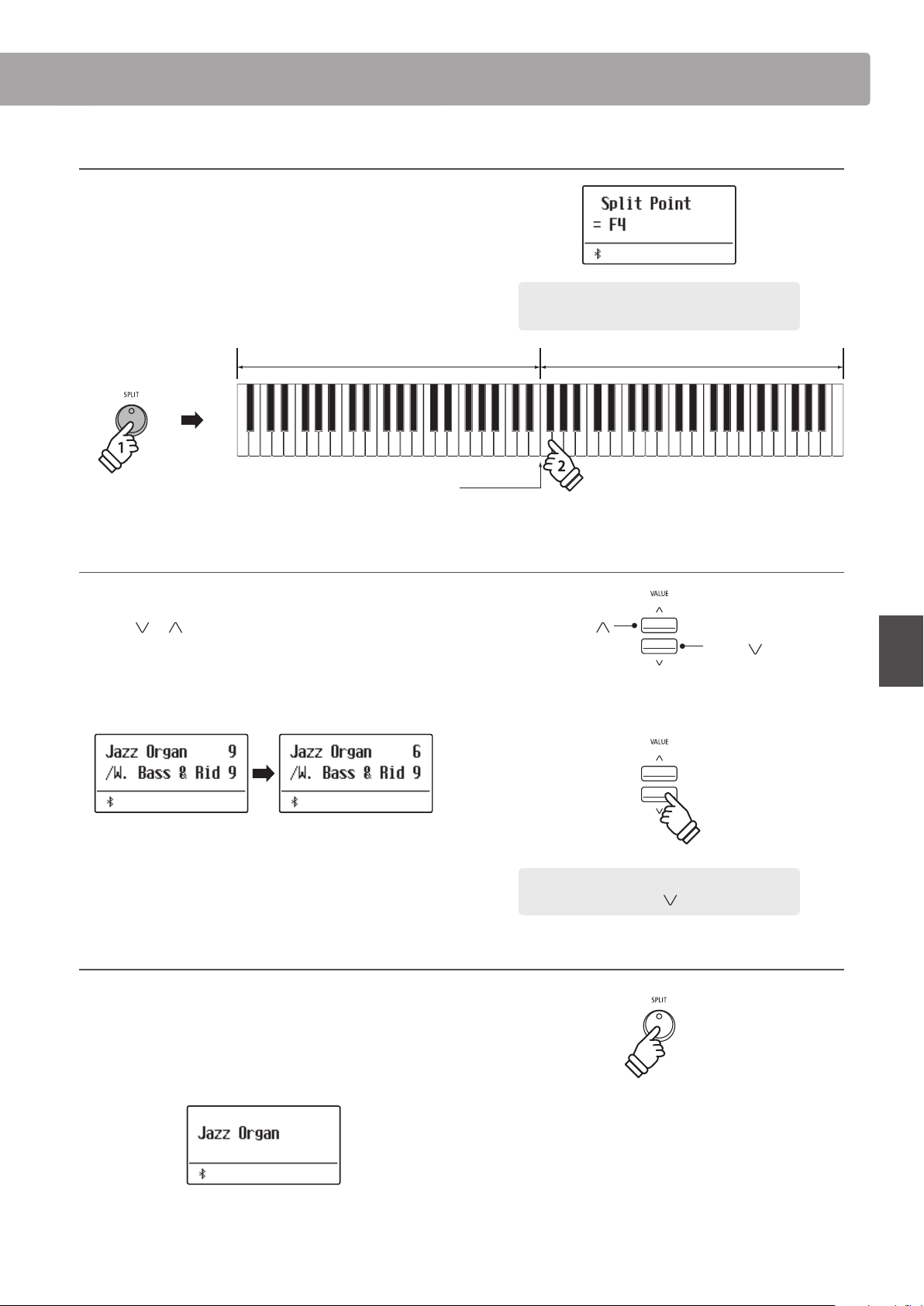
Press and hold the SPLIT button, then press the desired split key
on the keyboard.
The name of the pressed key will briey be shown in the display,
and will become the new split point.
* Split Mode and the Rhythm Section share the same split point.
Upper sectionLower section
New split point
hold
4. Adjusting the upper/lower sound volume balance
While Split mode is in use:
Press the
or VALUE buttons to adjust the volume balance
between the upper and lower sections.
The volume balance will briey be shown in the display.
* The default Split mode volume balance is 9-9.
* The preferred Split mode upper/lower volume balance can also be
stored to a Registration memory for convenient recall. Please refer to
page 36 for more information.
5. Exiting Split mode
While Split mode is in use:
Press the SPLIT button.
The LED indicator for the SPLIT button will turn o, and the
instrument will return to normal (full keyboard) operation.
Example: To set the split point to key F4, press and
hold the SPLIT button, then press the F4 key.
VALUE
Increase lower
section volume/
decrease upper
section volume.
VALUE
Increase upper
section volume/
decrease lower
section volume.
× 4
Example: To decrease the volume of the upper section
sound to 6, press the VALUE button four times.
Split Mode
Four Hands ModeFour Hands Mode
22
Basic Operation
Four Hands Mode
The Four Hands Mode function divides the keyboard into two sections in a similar way to that of the Split Mode
function. However, with Four Hands Mode enabled, the octave/pitch of each section is automatically adjusted to
create two separate 44-key instruments with the same playing range. This function is intended to allow two people
to practise together or perform piano duets using a single instrument.
1. Entering Four Hands mode
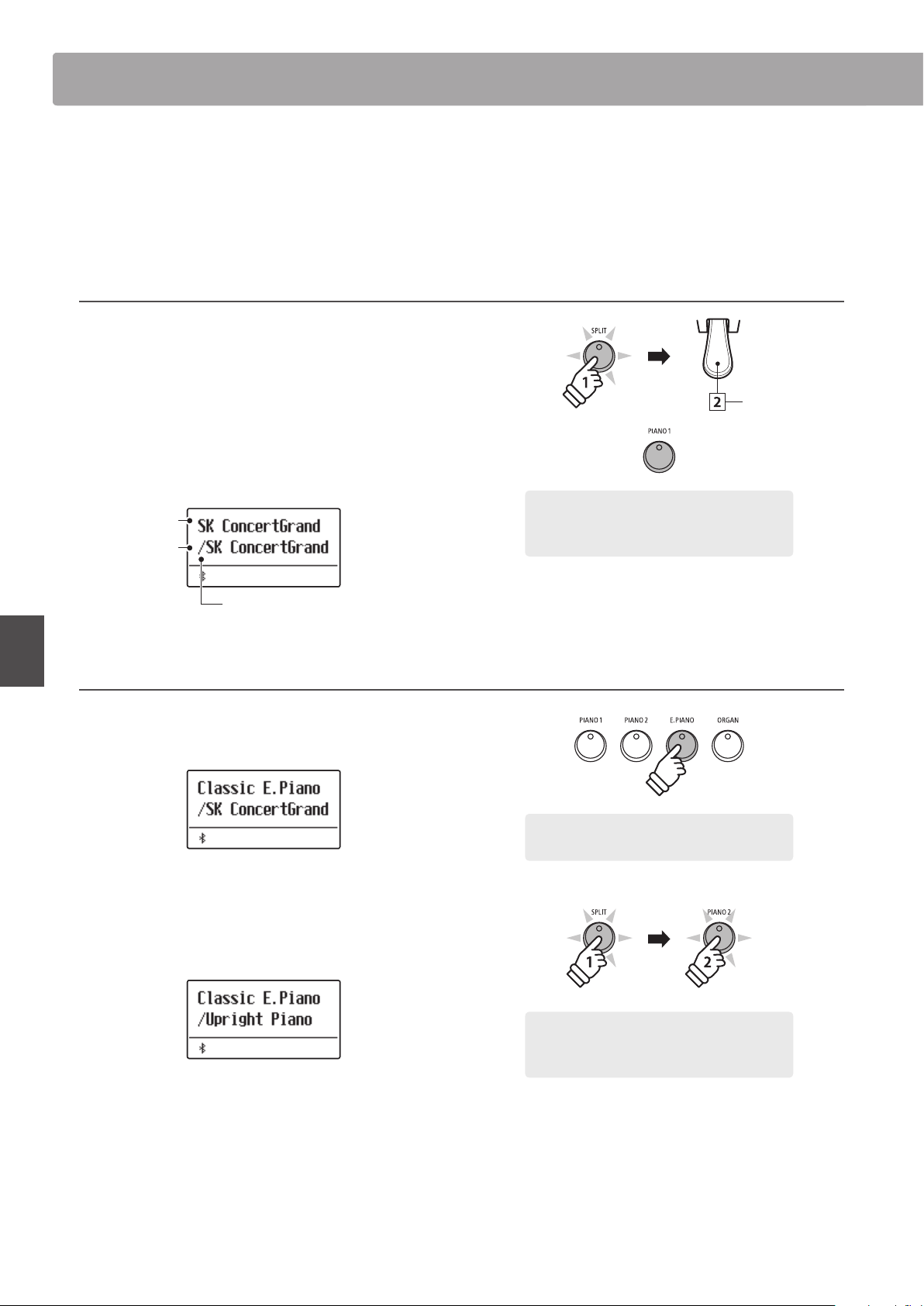
Press and hold the SPLIT button, then press the damper pedal.
The LED indicator for the SPLIT button will start to ash to
indicate that Four Hands mode is in use.
* The default four hands mode split point is set between keys E4 and F4.
The LED indicator for the PIANO1 button will turn on, and the “SK
ConcertGrand” sound will automatically be selected for both the
upper and lower sections.
Four Hands enabled
Upper section
sound
Lower section
sound
2. Changing the upper/lower section sounds
To select a dierent sound for the upper section:
Press the desired SOUND button.
To select a dierent sound for the lower section:
Press and hold the SPLIT button, then press the desired SOUND
button.
* If the included F-10H foot pedal is connected to the instrument, the
pedal will function as a damper pedal for the upper section only.
However, if the optional GFP-3 or F-302 triple pedal is connected,
the right (sustain) and left (soft) pedals will function as independent
damper pedals for the upper and lower sections respectively.
* Preferred Four Hands mode upper/lower sound combinations can be
stored to a Registration memory for convenient recall. Please refer to
page 36 for more information.
Press the
damper pedal
hold
Default Four Hands mode:
The “SK ConcertGrand” sound is selected for both
the upper and lower sections.
Example: To select the “Classic E.P.” sound for the
upper section, press the E.PIANO button.
hold
× 2
Example: To select the “Upright Piano” sound for
the lower section, press and hold the SPLIT button,
then press the PIANO2 button twice.
Four Hands Mode
23
Basic Operation
3. Changing the Four Hands mode split point
Press and hold the SPLIT button, then press the desired split key
on the keyboard.
The name of the pressed key will briey be shown in the display,
and will become the new Four Hands mode split point.
Upper sectionLower section
New split point
hold
4. Adjusting the upper/lower sound volume balance
While Four Hands mode is in use:
Press the
or VALUE buttons to adjust the volume balance
between the upper and lower sections.
The volume balance will briey be shown in the display.
* The default Four Hands mode volume balance is 9-9.
* The preferred Four Hands mode upper/lower volume balance can also
be stored to a Registration memory for convenient recall. Please refer
to page 36 for more information.
5. Exiting Four Hands mode
While Four Hands mode is in use:
Press the SPLIT button.
The LED indicator for the SPLIT button will stop ashing, and the
instrument will return to normal (full keyboard) operation.
Example: To set the split point to key C5, press and hold
the SPLIT button, then press the C5 key.
VALUE
Increase lower
section volume/
decrease upper
section volume.
VALUE
Increase upper
section volume/
decrease lower
section volume.
Example: To decrease the volume of the lower section
sound to 6, press the VALUE button four times.
× 4
Four Hands Mode
Enhancing the SoundEnhancing the Sound
24
Basic Operation
Enhancing the Sound
The ES920 digital piano oers a variety of features to adjust and enhance the character of a particular sound. Some
of these features (e.g. Reverb), are enabled automatically when a sound is selected, however players may also wish
to change the strength or type of enhancement to suit their personal preferences or dierent styles of music.
1
Reverb
Reverb adds reverberation to the sound, simulating the acoustic environment of a recital room, stage, or concert
hall. Some sound types, such as acoustic piano, enable reverb automatically in order to improve acoustic realism.
The ES920 digital piano features six dierent reverb types.
Reverb types
Reverb type Description
Room Simulates the ambiance of a small rehearsal room.
Lounge Simulates the ambience of piano lounge.
Small Hall Simulates the ambiance of a small hall.
Concert Hall Simulates the ambiance of a concert hall or theater.
Live Hall Simulates the ambiance of a live hall or stage.
Cathedral Simulates the ambiance of a large cathedral.
1. Turning Reverb on/o
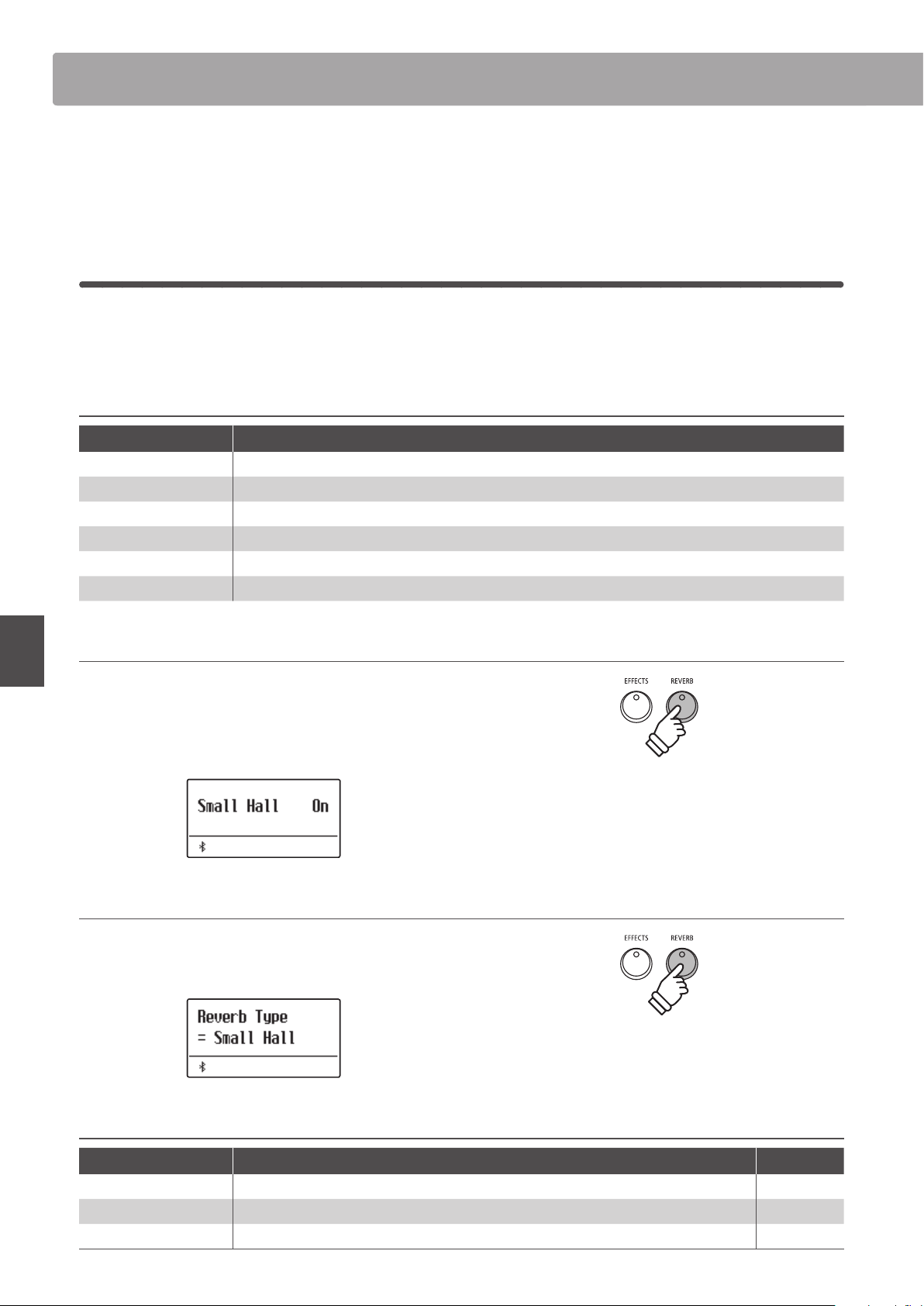
Press the REVERB button to turn reverb on/o.
The LED indicator for the REVERB button will turn on to indicate
when reverb is in use, and the current status will briey be
shown in the display.
2. Entering the Reverb settings menu
Press and hold the REVERB button.
The reverb settings menu will be shown in the display.
Reverb settings
Reverb setting Description Range
Type Changes the type of environment. –
Depth Adjusts the depth of the environment (i.e. amount of reverberation to apply). 1~10
Time Adjusts the decay length/speed of the reverberation. 1~10
hold
Enhancing the Sound
25
Basic Operation
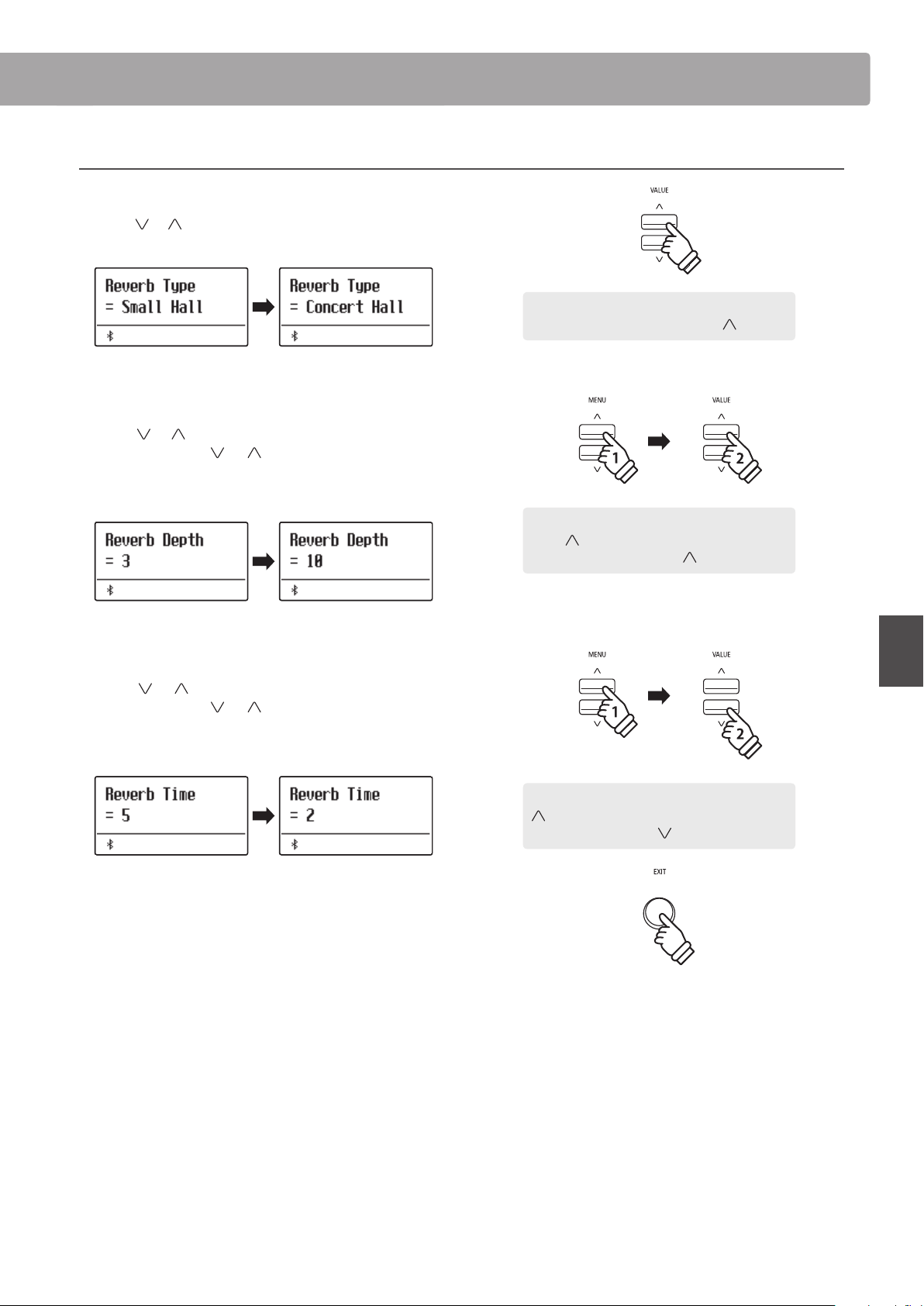
3. Adjusting the Reverb settings (type/depth/time)
While the reverb settings menu is shown, to change the reverb type:
Press the
or VALUE buttons to cycle through the dierent
reverb types.
To change the reverb depth:
Press the
or MENU buttons to select the “Reverb Depth”
page, then press the
or VALUE buttons to decrease or
increase the reverb depth setting.
* The reverb depth setting can be adjusted within the range of 1~10.
To change the reverb time:
Press the
or MENU buttons to select the “Reverb Time”
page, then press the
or VALUE buttons to decrease or
increase the reverb time setting.
* The reverb time setting can be adjusted within the range of 1~10.
To exit the reverb settings menu and return to normal playing
mode, press the EXIT button or wait 10 seconds.
* Reverb settings are independent for each sound variation.
* Any changes made to the reverb type, settings, or on/o status will
remain until the power is turned o.
* Preferred reverb settings can be stored to a Registration memory for
convenient recall. Please refer to page 36 for more information.
Example: To change the reverb type from “Small
Hall” to “Concert Hall”, press the VALUE button.
Example: To increase the reverb depth, press the
MENU button to select the “Reverb Depth” page,
then press and hold the VALUE button.
hold
Example: To reduce the reverb time, press the MENU
button to select the “Reverb Time” page, then
press and hold the VALUE button.
hold
Enhancing the Sound
Enhancing the SoundEnhancing the Sound
26
Basic Operation
2
Eects
In addition to reverb, various other eects can be applied to the selected sound, altering the tonal character and
feeling of the instrument. As with reverb, some sound types enable certain eects automatically in order to enhance
tonal quality. The ES920 digital piano features 16 dierent eect types.
Eect types
Eect type Description
Mono Delay Adds an echo eect to the sound, playing through both speakers (stereo) simultaneously.
Ping Delay Adds a “ping pong” echo eect to the sound, giving the impression that it is “bouncing” from left to right.
Triple Delay Similar in principle to Ping Delay, but with an additional centre echo.
Chorus Layers a slightly detuned version of the sound over the original, thus enriching its tonal character.
Classic Chorus Similar in principle to Chorus, but intended for vintage electric piano sounds.
Ensemble Enriches the sound by adding three voiced chorus.
Tremolo Adds a tremor to the sound by varying the volume constantly.
Classic Tremolo Similar in principle to Tremolo, but intended for vintage electric piano sounds.
Vibrato Tremolo Adds vibrato to tremolo.
Auto Pan Alternates the sound output from left to right across the stereo eld using a sine wave.
Classic Auto Pan Similar in principle to Auto Pan, but intended for vintage electric piano sounds.
Phaser Applies a cyclic phase change to the sound, giving the impression that the sound is moving.
Classic Phaser Adds an eect produced by digital signal processing of classic chorus.
Compressor Increases the acoustic pressure.
Rotary 1
Simulates the sound of a rotary speaker commonly used with vintage electronic organs.
* Pressing the and MENU buttons simultaneously alternates the speed of the rotary simulation between “Slow”
and “Fast” eect modes. If the optional GFP-3 or F-302 pedal is connected, the left (soft) pedal can also be used.
Rotary2 Adds vibrato to the rotary speaker eect.
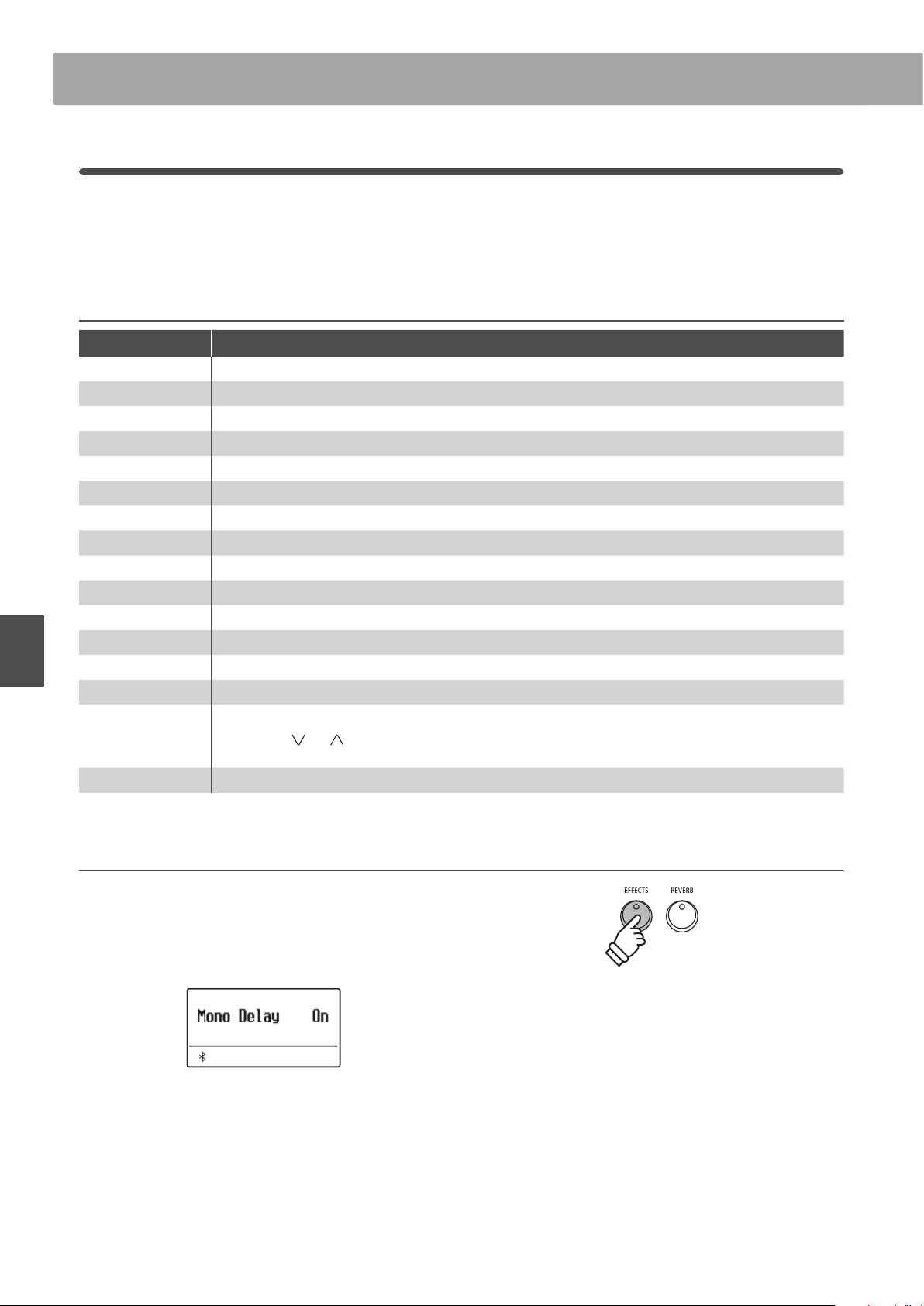
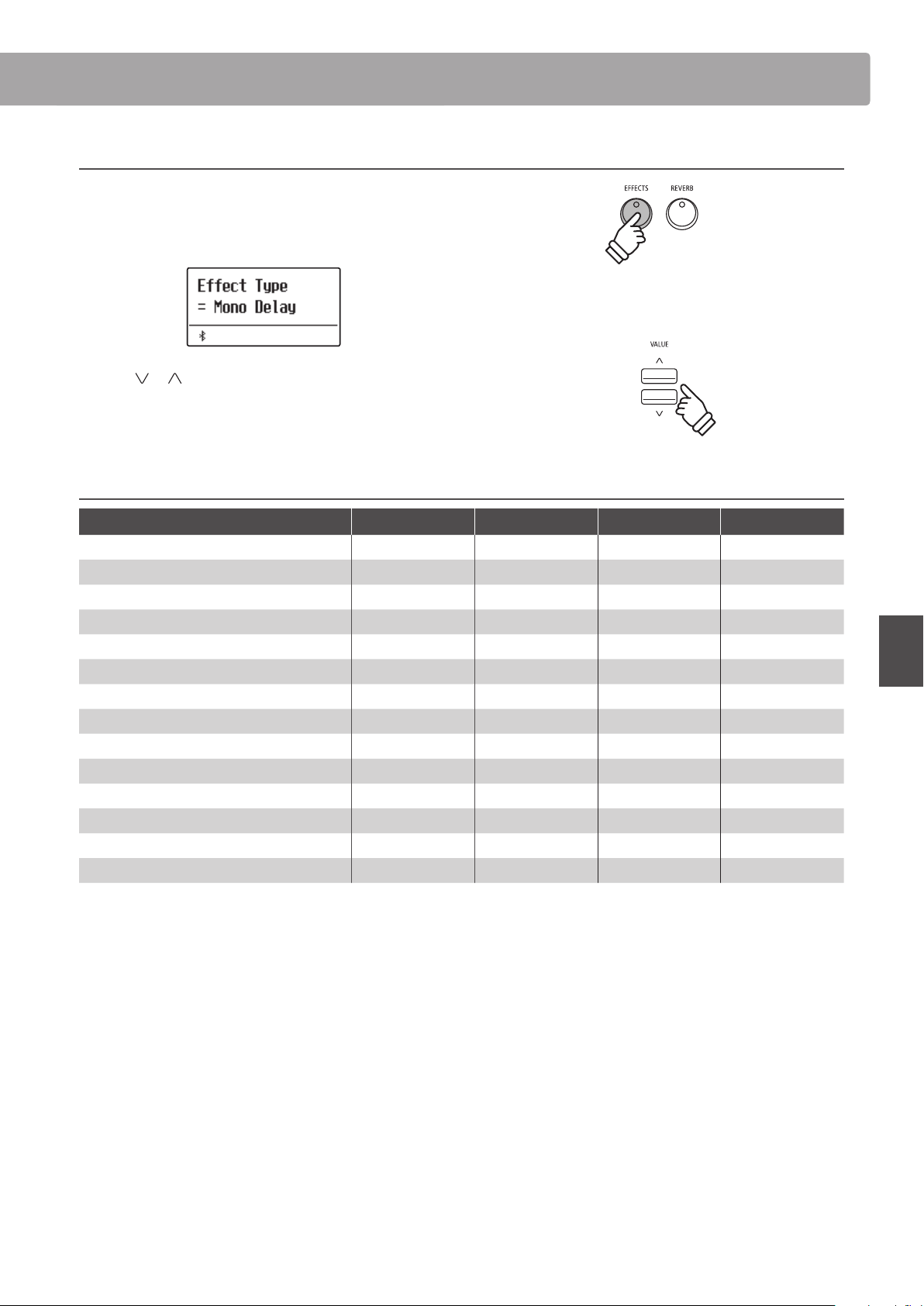
1. Turning Eects on/o
Press the EFFECTS button to turn eects on/o.
The LED indicator for the EFFECTS button will turn on to indicate
when eects are in use, and the current status will briey be
shown in the display.
Enhancing the Sound
27
Basic Operation
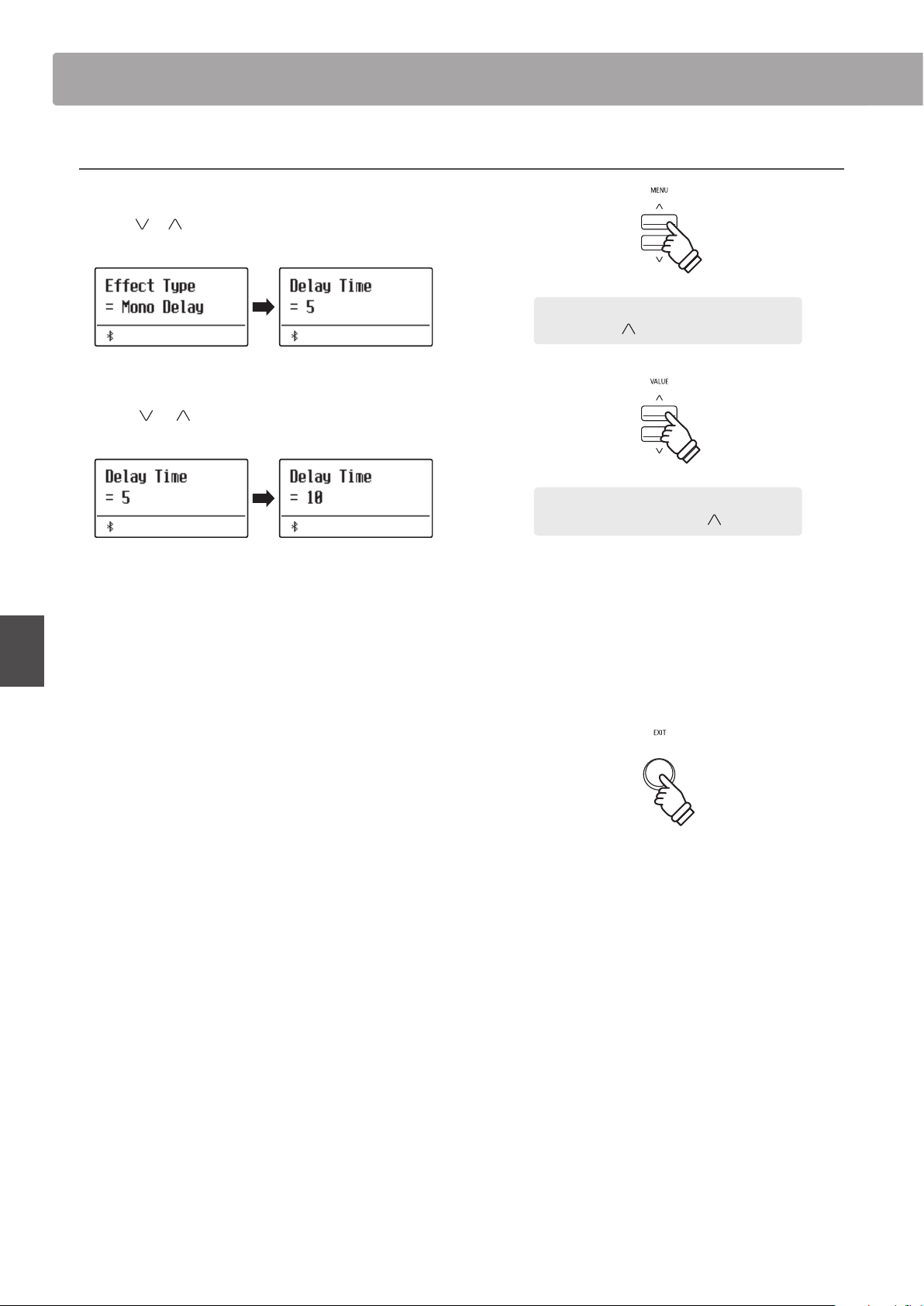
2. Entering the Eects settings menu, selecting the Eect type
Press and hold the EFFECTS button.
The rst page of the eects settings menu will be shown in the
display.
Press the or VALUE buttons to cycle through the dierent
eect types.
Eect settings
Eect type Setting 1 Setting 2 Setting 3 Setting 4
Mono Delay / Ping Delay / Triple Delay Dry / Wet Time Feedback High Damp
Chorus Dry / Wet Speed Feedback Depth
Classic Chorus Mono / Stereo Speed – –
Ensemble Dry / Wet Speed – –
Tremolo Dry / Wet Speed – –
Classic Tremolo Dry / Wet Speed – –
Vibrato Tremolo Dry / Wet Speed – –
Auto Pan Dry / Wet Speed – –
Classic Auto Pan Dry / Wet Speed – –
Phaser Dry / Wet Speed Feedback Depth
Classic Phaser Dry / Wet Speed Feedback Depth
Compressor Gain Ratio Threshold Attack
Rotary 1 Accel. Speed Rotary Speed Lower Slow Speed Upper Slow Speed
Rotary 2 Accel. Speed Rotary Speed Vibrato/Chorus Spread
hold
Enhancing the SoundEnhancing the Sound
28
Basic Operation
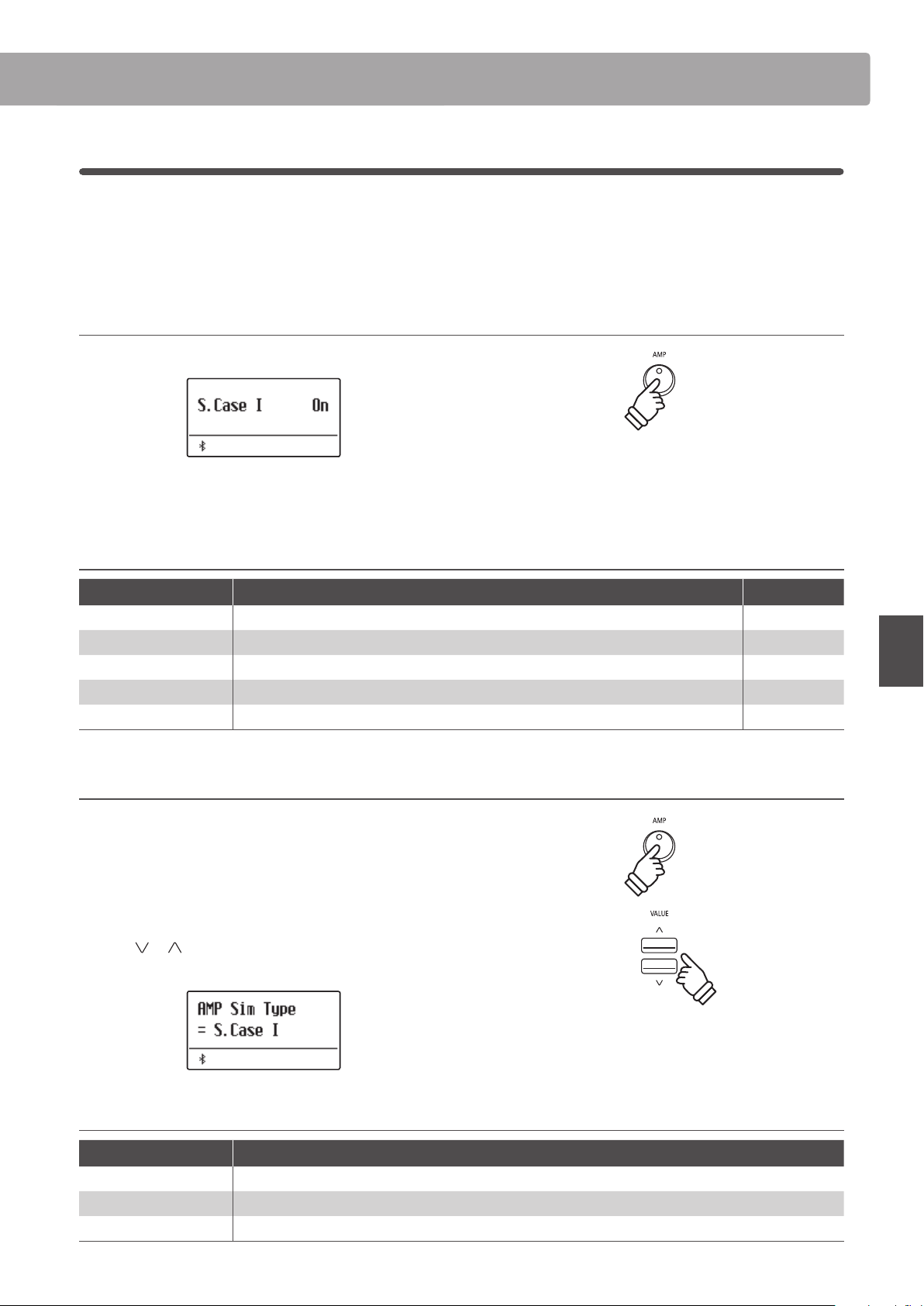
3. Selecting and adjusting the Eect settings
While the eects settings menu is shown in the display:
Press the
or MENU buttons to cycle through the dierent
eects settings pages.
Press the or VALUE buttons to adjust the value of the
selected eects setting.
* Eect settings can be adjusted within the range from 1 to 10 except
Compressor and Rotary 2(Vibrato/Chorus).
* Compressor settings are as follows.
Gain (1 - 128)
Ratio (1:1 - 64.5:1)
Threshold (1 - 128)
Attack (1 - 128)
* Rotary 2(Vibrato/Chorus) settings are as follows.
Vibrato (V-1 ~ V-3)
Chorus (C-1 ~ C-3)
To exit the eects settings menu and return to normal playing
mode, press the EXIT button or wait 4 seconds.
* Eects settings are independent for each sound variation.
* Any changes made to the eect type, settings, or on/o status will
remain until the power is turned o.
* Preferred eects settings can be stored to a Registration memory for
convenient recall. Please refer to page 36 for more information.
Example: To select the “Delay Time” eects setting,
press the MENU button twice.
× 2
Example: To increase the “Delay Time” effects
setting, press and hold the VALUE button.
hold
Enhancing the Sound
29
Basic Operation
3
Amp Simulator
The ES920’s Amp Simulator (Amp Sim) attempts to reproduce the sound, response, and overdrive characteristics of
a typical amp/speaker combination, giving electric piano and drawbar organ sounds an authentic vintage quality.
Once enabled, the amplier type can be selected, with adjustable drive, level, and Low/Hi EQ settings. As with the
Reverb and Eects functions, selecting certain sounds will enable the Amp Sim automatically.
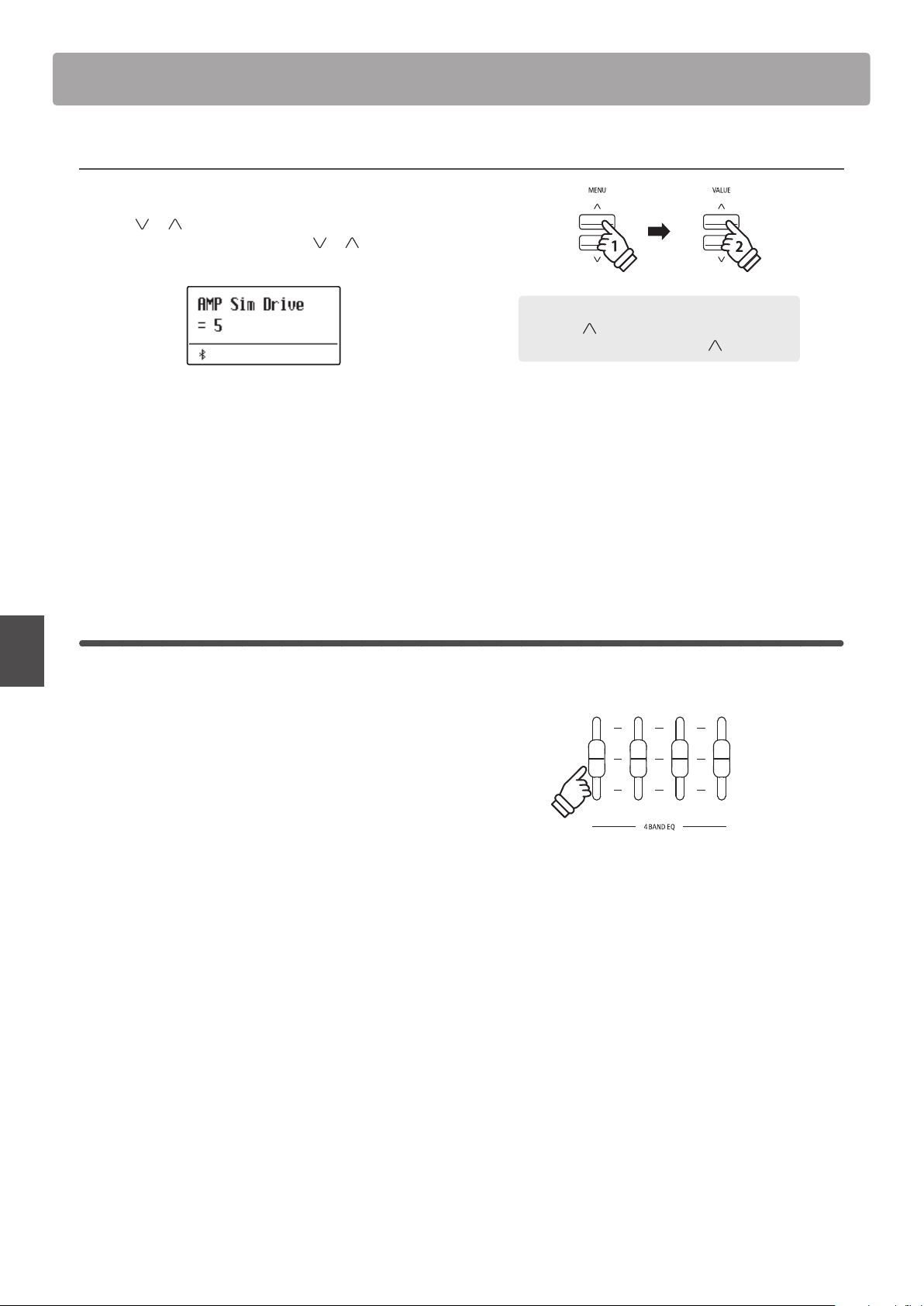
1. Turning the Amp Sim on/o
Press the AMP button to turn the Amp Sim on/o.
* If Dual or Split/Four Hands modes are selected, the Amp Sim will not
aect the layered or lower section sounds.
Amp Sim settings
Amp Sim setting Description Range
Type Selects the amplier/speaker type. See below
Drive Adjusts the drive (overdrive) level of the selected amplier. 1~10
Level Adjusts the volume level of the selected amplier. 1~10
EQ Low Adjusts the low frequency EQ level of the selected amplier. –6 dB~+6 dB
EQ High Adjusts the high frequency EQ level of the selected amplier. –6 dB~+6 dB
2. Changing the Amp Sim type
While the Amp Sim settings menu is shown in the display:
Press and hold the AMP button. The Amp Sim settings menu will
be shown in the display.
Press the
or VALUE buttons to cycle through the dierent
Amp Sim types.
Amp Sim types
Amp Sim type Description
S. Case I A distantly miked suitcase type speaker, suitable for vintage electric piano sounds.
S. Case II A closely miked suitcase type speaker, suitable for vintage electric piano sounds.
L. Cabinet A speaker enclosed within a wooden cabinet, suitable for vintage drawbar organ sounds.
hold
Enhancing the Sound
30
Basic Operation
3. Adjusting the Amp Sim settings (drive/level/eq low/eq high)
While the Amp Sim settings menu is shown in the display:
Press the
or MENU buttons to cycle through the dierent
Amp Sim settings pages, then press the
or VALUE buttons
to adjust the value of the selected Amp Sim setting.
To exit the Amp Sim settings menu and return to normal playing
mode, press the EXIT button or wait 4 seconds.
* Amp Sim settings are independent for each sound variation.
* Any changes made to the Amp Sim type, settings, or on/o status will
remain until the power is turned o.
* Preferred Amp Sim settings can be stored to a Registration memory for
convenient recall. Please refer to page 36 for more information.
4
Equaliser
The Equaliser allows the volume of Low, Mid-low, Mid-high, and High frequency bands to be adjusted in real-time.
From the leftmost slider, volume of “Low”, “Mid-low”, “Mid-high”,
and “High” frequencies can be adjusted.
The 4-band equalizer can be set by Tone Control. (page 74)
Tone Control oers 8 preset types and user EQ. Settings made in
Tone Control have eects on 4 sliders on the panel.
The volume range is from -6dB to +6dB; therefore, the volume
may not change even when the slider is moved in some cases
depending on the Tone Control settings.
For example, if the volume is set to +6dB in Tone Control, the
volume does not increase when the slider is moved above the
middle. Meanwhile, the volume decreases if the slider is moved
below the middle.
The volume set in Tone Control applies when the slider is at the
middle.
Example: To increase the drive of the Amp Sim, press
the MENU button to select the “Amp Sim Drive”
page, then press and hold the VALUE button.
hold
31
Basic Operation
Panel Lock
The Panel Lock function allows the state of all panel buttons to be temporarily locked, preventing sounds and other
settings from being changed. This function may prove useful in teaching environments, ensuring that students are
not distracted by changing sounds etc.
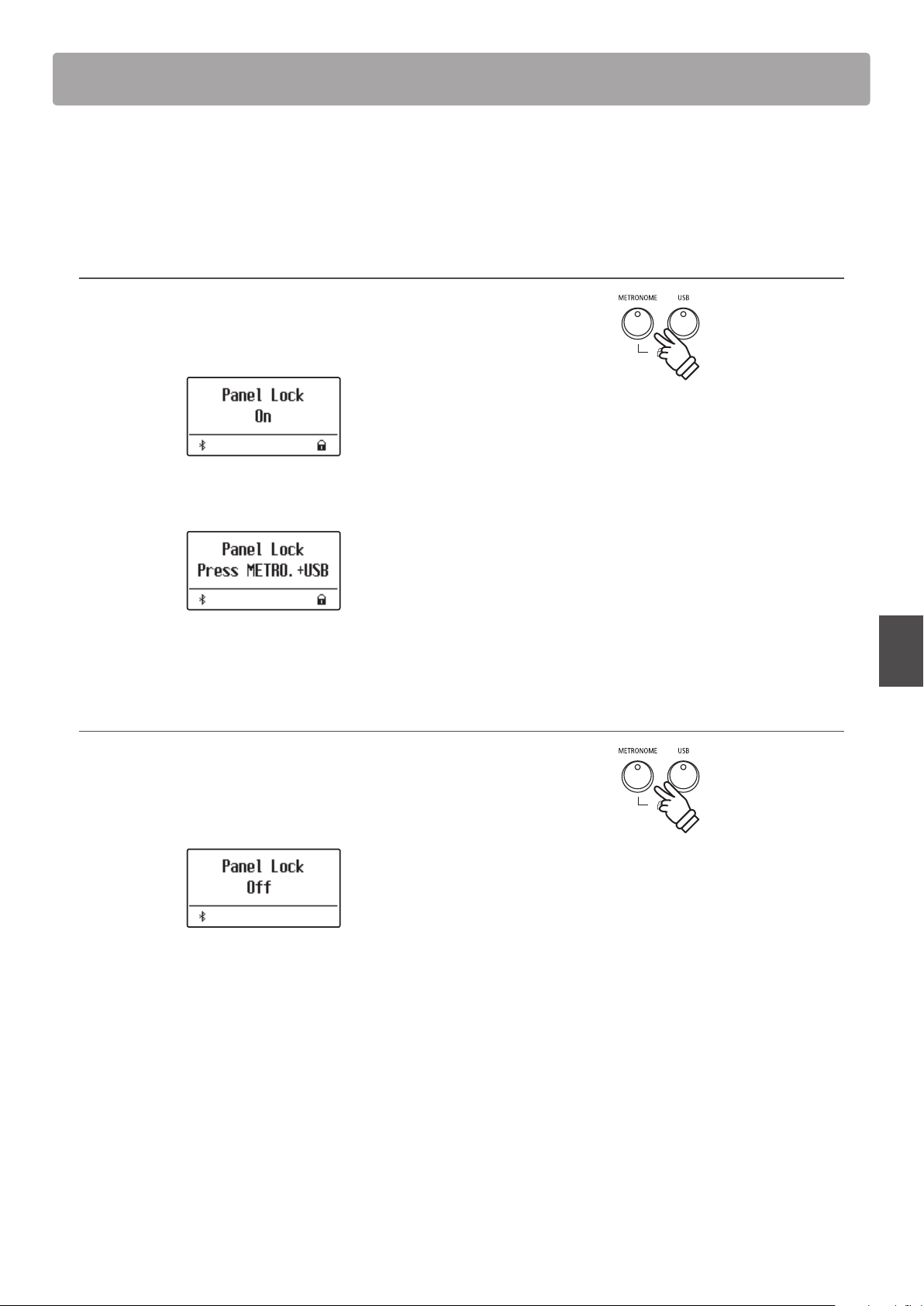
1. Activating the Panel Lock
Press the METRONOME and USB buttons simultaneously.
The Panel Lock screen will be shown in the display, and the
instrument will stop responding to panel button presses.
If panel buttons are pressed while the Panel Lock is activated, a
reminder message will briey be shown in the display.
* When activated, the Panel Lock will remain even after the power is
turned o/on.
2. Deactivating the Panel Lock
Press the METRONOME and USB buttons simultaneously again.
A message will be shown in the display to indicate that the Panel
Lock has been deactivated, and the instrument will resume
responding to panel button presses as normal.
TransposeTranspose
32
Basic Operation
The Transpose function allows the pitch of the ES920 digital piano’s keyboard to be raised or lowered in semi-tone
intervals. This is particularly useful when accompanying instruments tuned for dierent keys, or when a song learned
in one key must be played in another key.
* Changes are applied to all built-in sounds.
* Any changes made by this operation will remain until the power is turned o.
Preferred settings can be stored in a Registration memory or Startup Setting. Please refer to page 36 and 82 for more information.
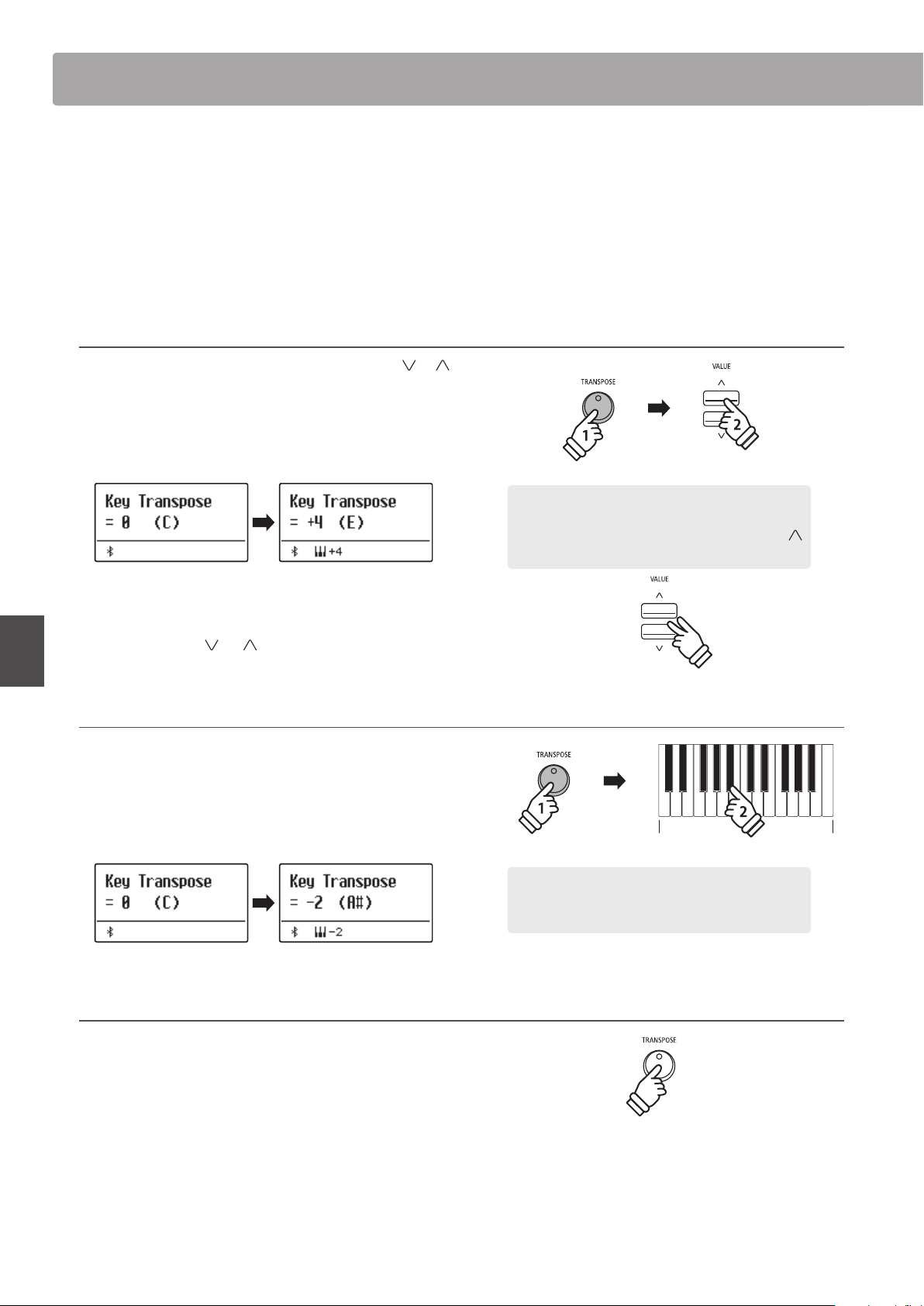
Adjusting the Key Transpose value: Method 1
Press and hold the TRANSPOSE button, then press the or
VALUE buttons to adjust the key transpose value.
The LED indicator for the TRANSPOSE button will turn on to
indicate that the transpose function is in use, and the key
transpose value will briey be shown in the display.
* The keyboard pitch can be raised or lowered by up to 12 semi-tones.
* To reset the key transpose value to 0, press and hold the TRANSPOSE
button, then press the
and VALUE buttons simultaneously.
Adjusting the Key Transpose value: Method 2
Press and hold the TRANSPOSE button, then press a key within
the range of C3 to C5 to specify the value between -12 and +12.
The LED indicator for the TRANSPOSE button will turn on to
indicate that the transpose function is in use, and the key
transpose value will briey be shown in the display.
Turning Key Transpose on/o
Press the TRANSPOSE button to turn the key transpose function on/o.
* The specied key transpose setting will be retained even after the key
transpose function is turned o. This allows the key transpose function
to be turned on and o freely, without the need to adjust the value
each time.
* The specied key transpose setting will return to the default value of 0
after the power is turned o.
* Preferred key transpose settings can be stored to a Registration
memory for convenient recall. Please refer to page 36 for more
information.
hold
× 4
Example: To increase the key transpose value from 0 (o)
to +4 (i.e. raise the keyboard pitch by 4 semi-tones), press
and hold the TRANSPOSE button, then press the VALUE
button four times.
C3 C5
hold
Example: To change the key transpose from C (o) to A (i.e.
lower the keyboard pitch by three semi-tones), press and
hold the TRANSPOSE button, then press the A
#
key.
Transpose
Transpose
33
Basic Operation
Transpose
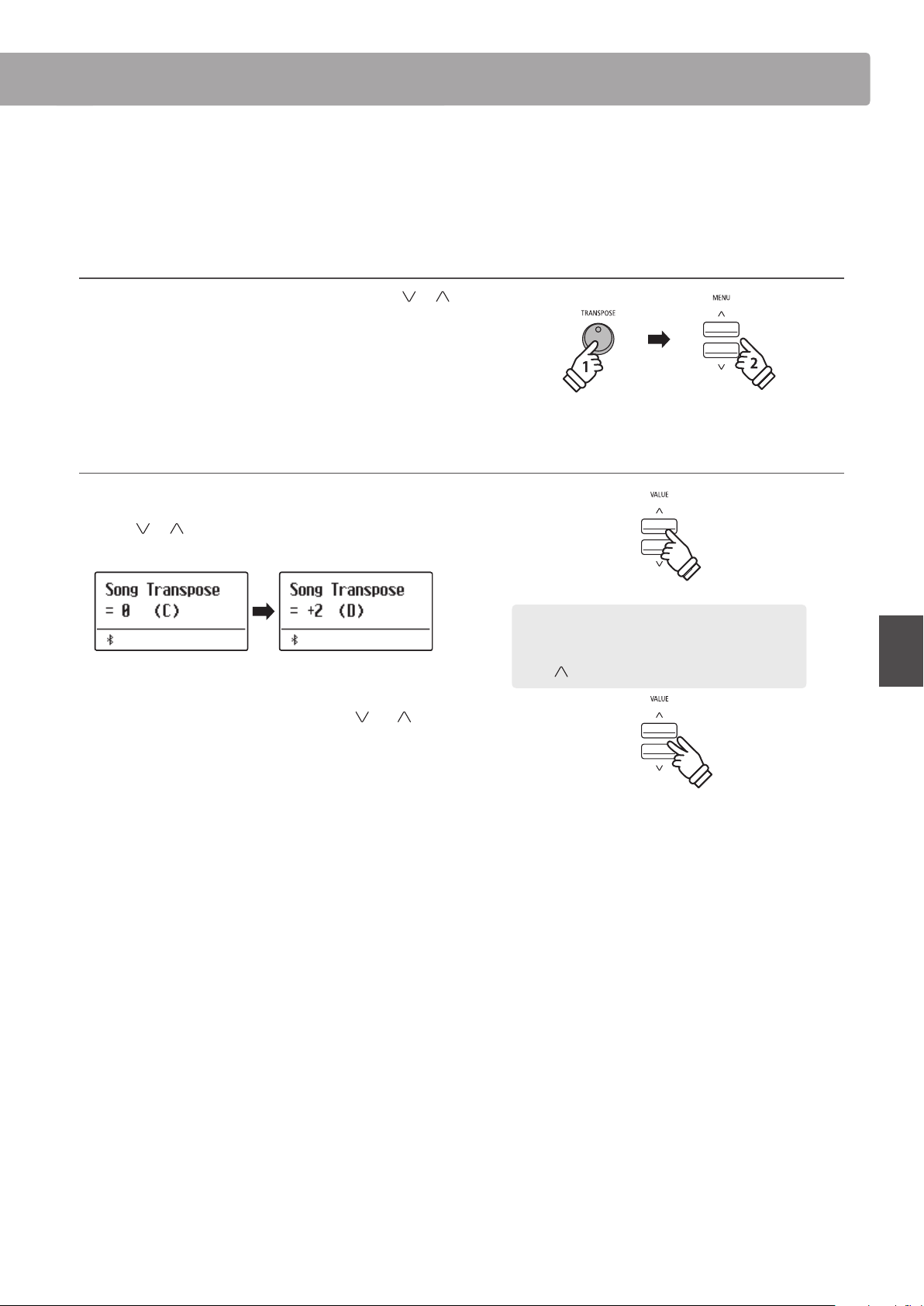
Using the Song Transpose function it is also possible to transpose recorder songs stored in internal memory, and
SMF song les stored on a USB memory device. This allows the pitch of the song to be adjusted without aecting
the pitch of the keyboard.
Selecting the Song Transpose/Key Transpose settings
Press and hold the TRANSPOSE button, then press the or
MENU buttons to alternate between the key transpose and song
transpose settings.
Adjusting the Song Transpose value
While the Song Transpose screen is shown in the display:
Press the
or VALUE buttons to adjust the song transpose
value.
* The song pitch can be raised or lowered by up to 12 semi-tones.
* To reset the song transpose value to 0, press the
and VALUE
buttons simultaneously.
* The song transpose value will automatically reset to 0 when a dierent
song is selected.
hold
Example: To increase the song transpose value from
0 (off) to +2 (i.e. raise the song pitch by 2 semi-tones),
press and hold the TRANSPOSE button, then press the
VALUE button twice.
× 2
MetronomeMetronome
34
Basic Operation
Metronome
The Metronome function provides a steady beat to aid practicing the piano at a consistent tempo.
The time signature, volume, and tempo of the metronome can all be freely adjusted.
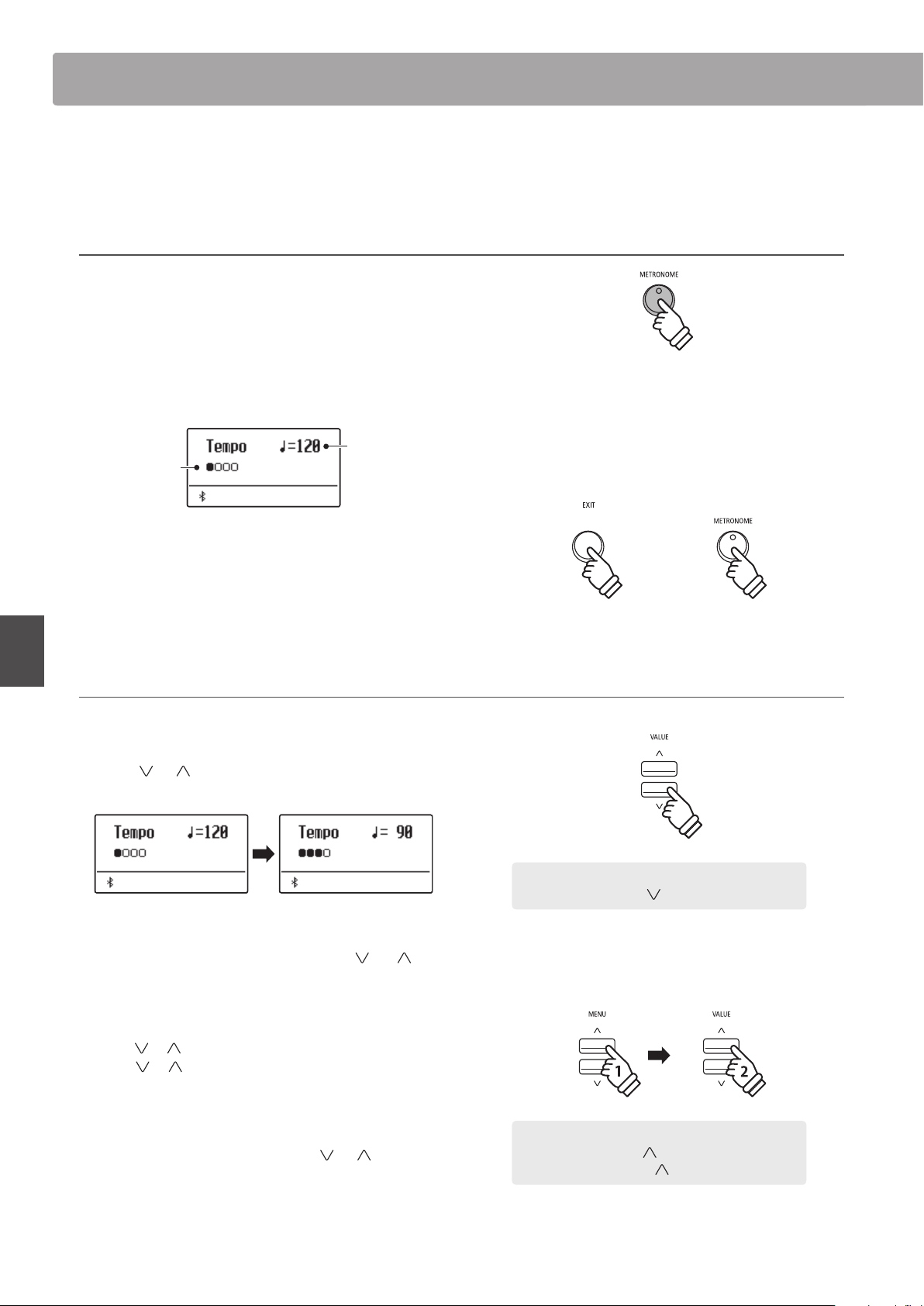
1. Turning the Metronome on/o
Press the METRONOME button.
The LED indicator for the METRONOME button will turn on to
indicate that the metronome function is in use, and a 4/4 beat
will start to count.
The current metronome tempo in beats per minute (BPM) and
beat of the bar will also be shown in the display.
Current beat
Metronome
tempo
Press the EXIT or METRONOME button again to stop the metronome.
The LED indicator for the METRONOME button will turn o, the
beat will stop counting, and the display will return to the normal
playing mode screen.
2. Adjusting the Metronome settings (tempo/beat)
While the Metronome tempo screen is shown in the display, to
adjust the metronome tempo:
Press the or VALUE buttons to adjust the value of the
metronome tempo.
* The metronome tempo can be adjusted within the range of 10~400
beats per minute (BPM).
* To reset the metronome tempo to 120, press the
and VALUE
buttons simultaneously.
To adjust the metronome beat (time signature):
Press the
or MENU buttons to select the “Beat” page, then
press the
or VALUE buttons to cycle through the dierent
metronome beat (time signature) types.
* There are ten dierent types of beat (time signature) available:
1/4, 2/4, 3/4, 4/4, 5/4, 3/8, 6/8, 7/8, 9/8, and 12/8.
* To reset the metronome beat to 4/4, press the
and VALUE buttons
simultaneously.
or
hold
Example: To decrease the tempo of the metronome,
press and hold the VALUE button.
Example: To change the beat (time signature) from 1/4
to 3/4, press the MENU button to select the “Beat”
page, then press the VALUE button twice.
× 2
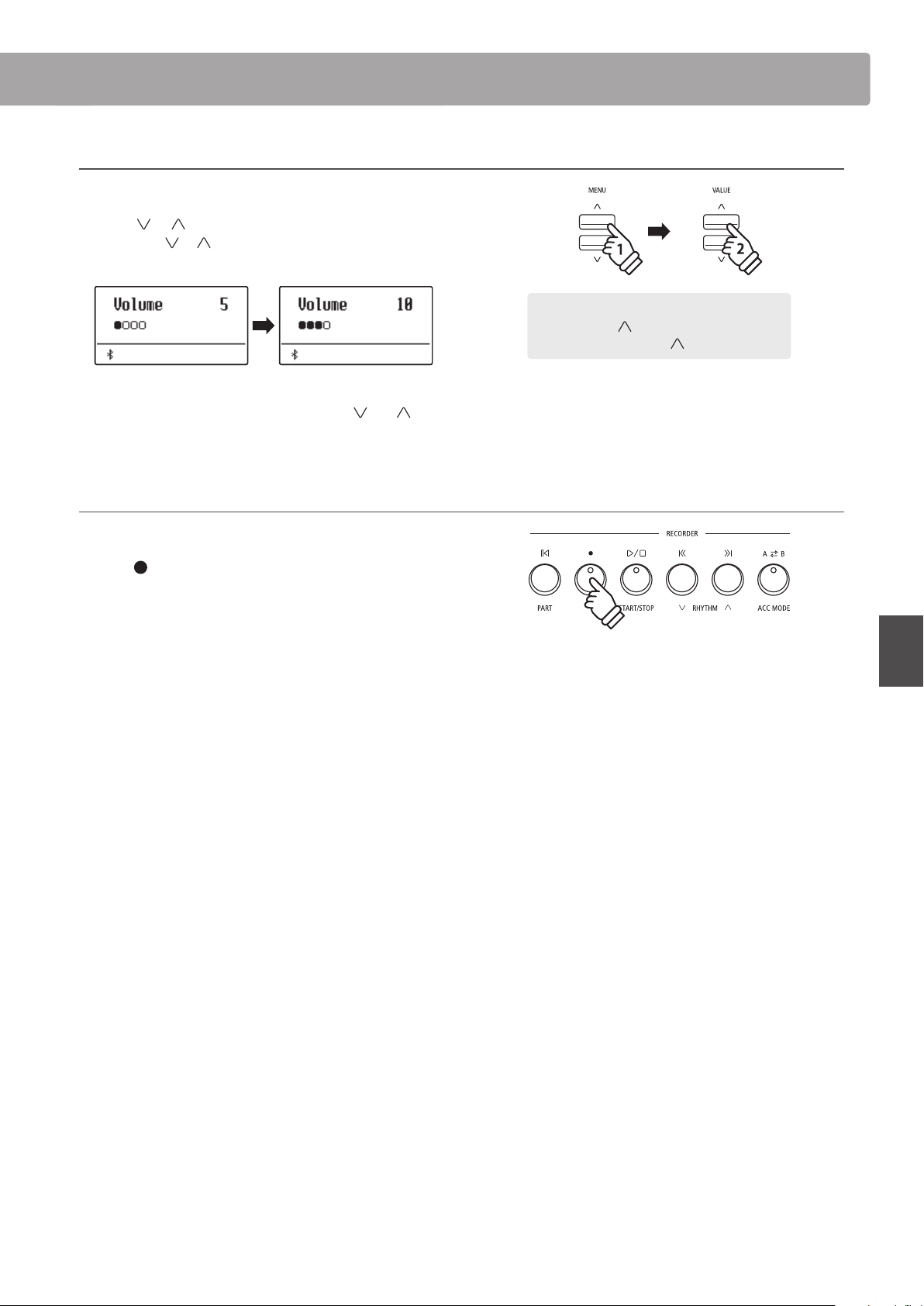
Metronome
35
Basic Operation
Metronome
2. Adjusting the Metronome settings (volume)
To adjust the metronome volume:
Press the
or MENU buttons to select the “Volume” page,
then press the
or VALUE buttons to adjust the value of the
metronome volume.
* The metronome volume can be adjusted within the range of 0~10.
* To reset the metronome volume to 5, press the
and VALUE
buttons simultaneously.
Jump to Recorder shortcut
While the Metronome function is in use:
Press the
(REC) button.
The Recorder standby screen will be shown in the display, and
the metronome will count. A one bar count-in will also be played
before the recording begins.
* Please refer to page 42 for more information about the instrument’s
Recorder functions.
Example: To increase the volume of the tempo,
press the MENU button to select the “Volume”
page, then press the VALUE button.
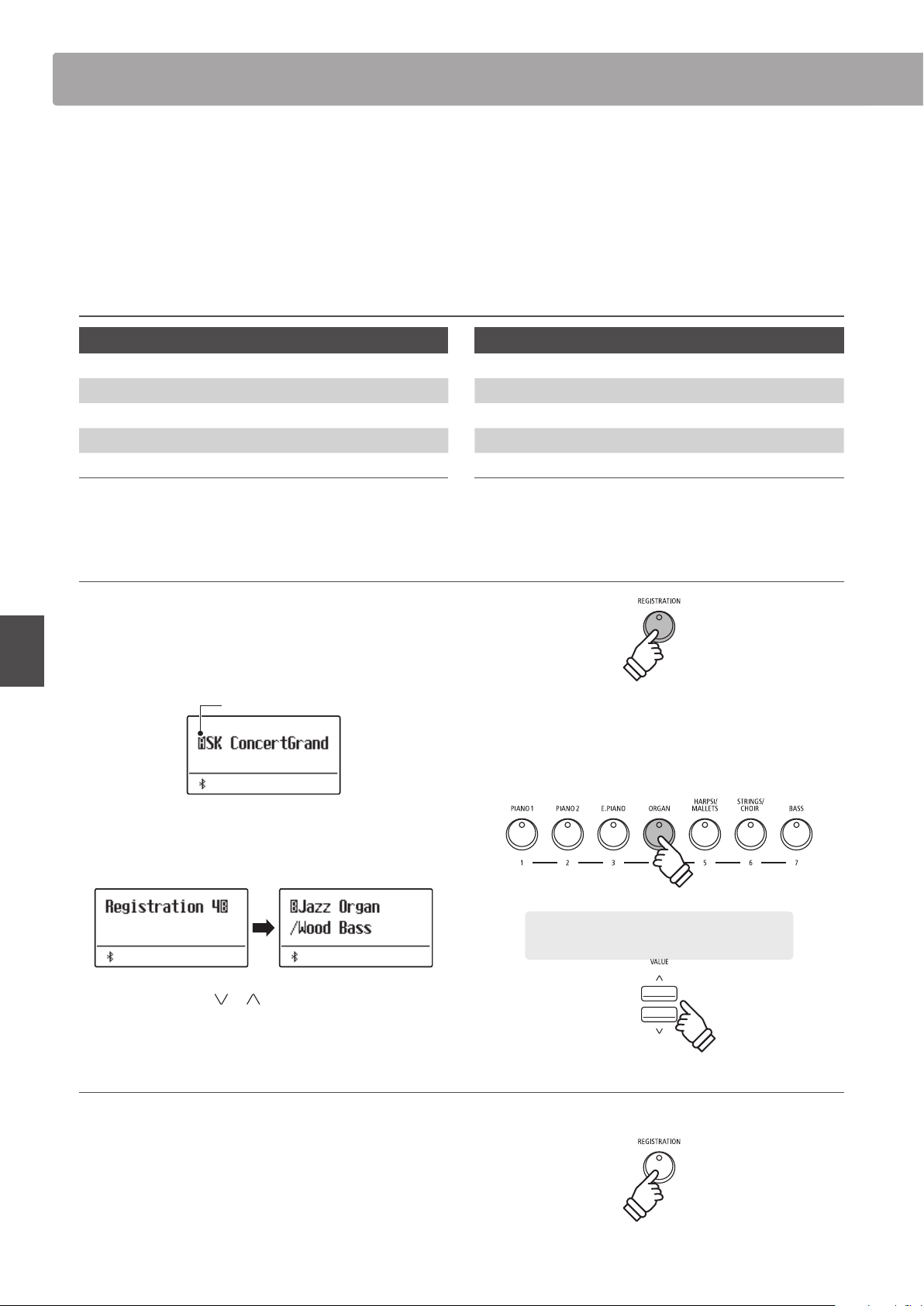
Registration MemoriesRegistration Memories
36
Basic Operation
Registration Memories
The Registration function allows the current instrument setup (sound/style selection, all settings, etc.) to be stored
to a registration memory, and conveniently recalled at the touch of a button. Each of the seven registration buttons
contain four banks (A, B, C, and D), allowing up to 28 dierent registration memories to be stored.
Registrations can also be loaded from/saved to USB memory devices. Please refer to page 61 for more information.
Settings stored in Registration memories
General
Selected sound
Dual Mode / Split Mode
(sounds, volume balance, split point)
Reverb, Eects, Amp Simulator (type, settings)
Transpose (Key Transpose only)
Metronome (Beat, Tempo, Volume)
Settings
Basic Settings*
Virtual Technician
Rhythm Settings
Key Settings
MIDI Settings
* Wall EQ, Speaker Volume, Low Volume Balance, Line Out Volume, Audio Recorder Gain, Auto Display O, and Auto Power O will not be stored to
Registration memories.
Selecting a Registration memory
Press the REGISTRATION button.
The LED indicator for the REGISTRATION button will turn on
to indicate that the registration function is in use, and the
registration selection screen will be shown in the display.
Bank (A, B, C, or D)
Press the SOUND buttons to select the desired registration
memory. Press the same SOUND button repeatedly to cycle
through the four banks (A, B, C, and D).
Alternatively, press the or VALUE buttons to cycle through
all 28 dierent registration memories.
Exiting Registration mode (restore previous settings)
To return to normal playing mode without selecting the registration
(i.e. restore the previous panel settings):
Press the REGISTRATION button.
The LED indicator for the REGISTRATION button will turn o, and
the instrument will return to normal playing mode.
Example: To select registration memory 4B, press
the ORGAN button (memory #4) twice.
× 2
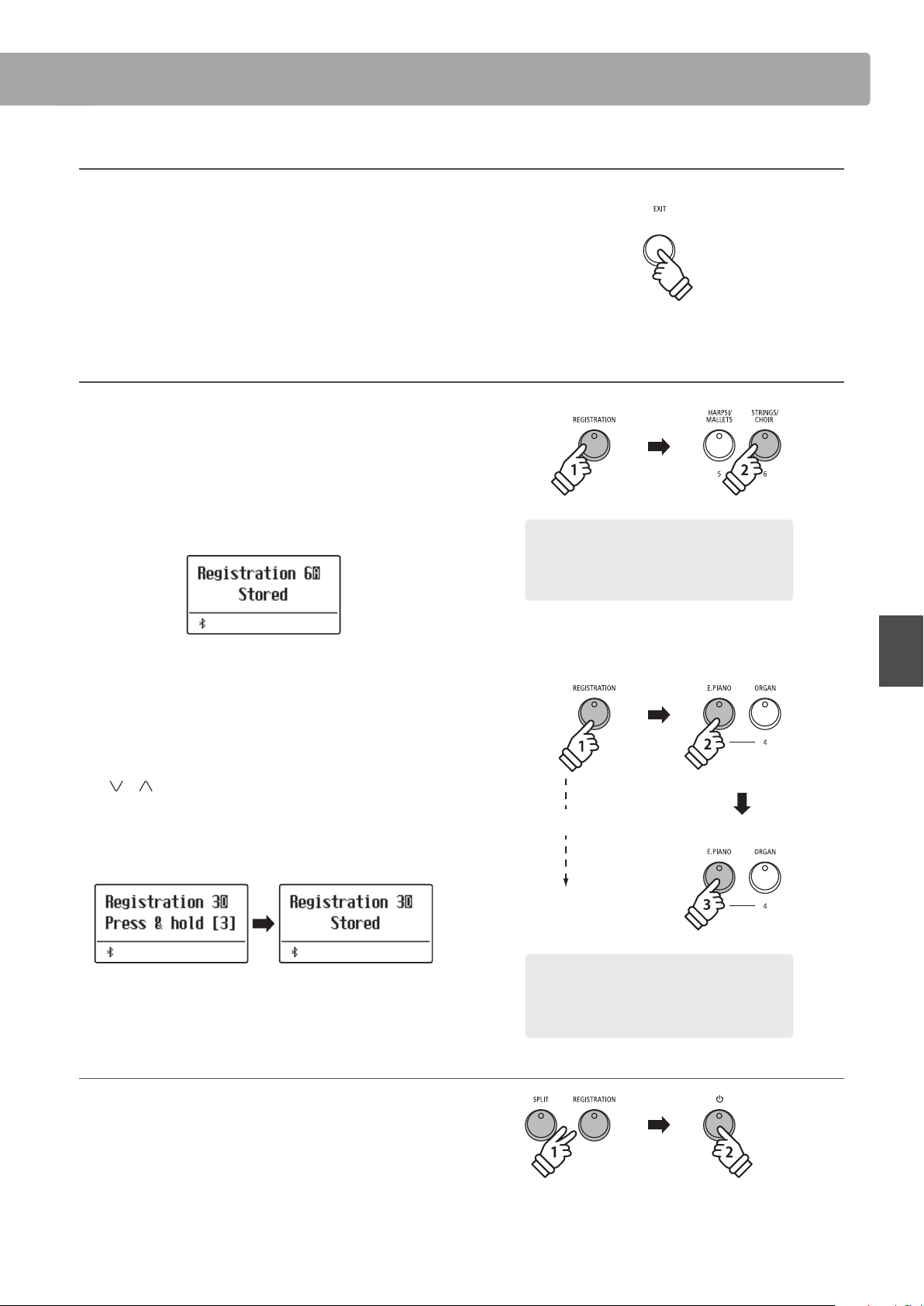
Registration Memories
37
Basic Operation
Registration Memories
Exiting Registration mode (retain new settings)
To return to normal playing mode with the current registration
memory settings selected:
Press the EXIT button.
The LED indicator for the REGISTRATION button will turn o, and
the instrument will return to normal playing mode.
Storing a Registration memory
To store a registration memory to the current banks (e.g. bank A):
Press and hold the REGISTRATION button, then press and hold a
SOUND button.
The current instrument setup will be stored to the registration
memory assigned to the pressed SOUND button, and a
conrmation message will briey be shown in the display.
To store a registration memory to a dierent banks (e.g. bank D):
Press and hold the REGISTRATION button, press the same
SOUND button repeatedly to cycle through the four banks (A, B,
C, and D), then press and hold the SOUND button.
* The or VALUE buttons can also be used to change the bank.
The current instrument setup will be stored to the registration
memory and bank specied, and a conrmation message will be
briey shown in the display.
Resetting all Registration memories
Press and hold the SPLIT and REGISTRATION buttons, then turn
the instrument’s power o/on.
All registration memories will be reset to the factory default
settings.
hold
Example: To store the current instrument setup
to memory 6A, press and hold the REGISTRATION
button, then press and hold the STRINGS/CHOIR
button.
hold
hold
Example: To store the current instrument setup
to memory 3D, press and hold the REGISTRATION
button, press the E.PIANO button four times, then
press and hold the same E.PIANO button.
hold
hold
× 4
hold
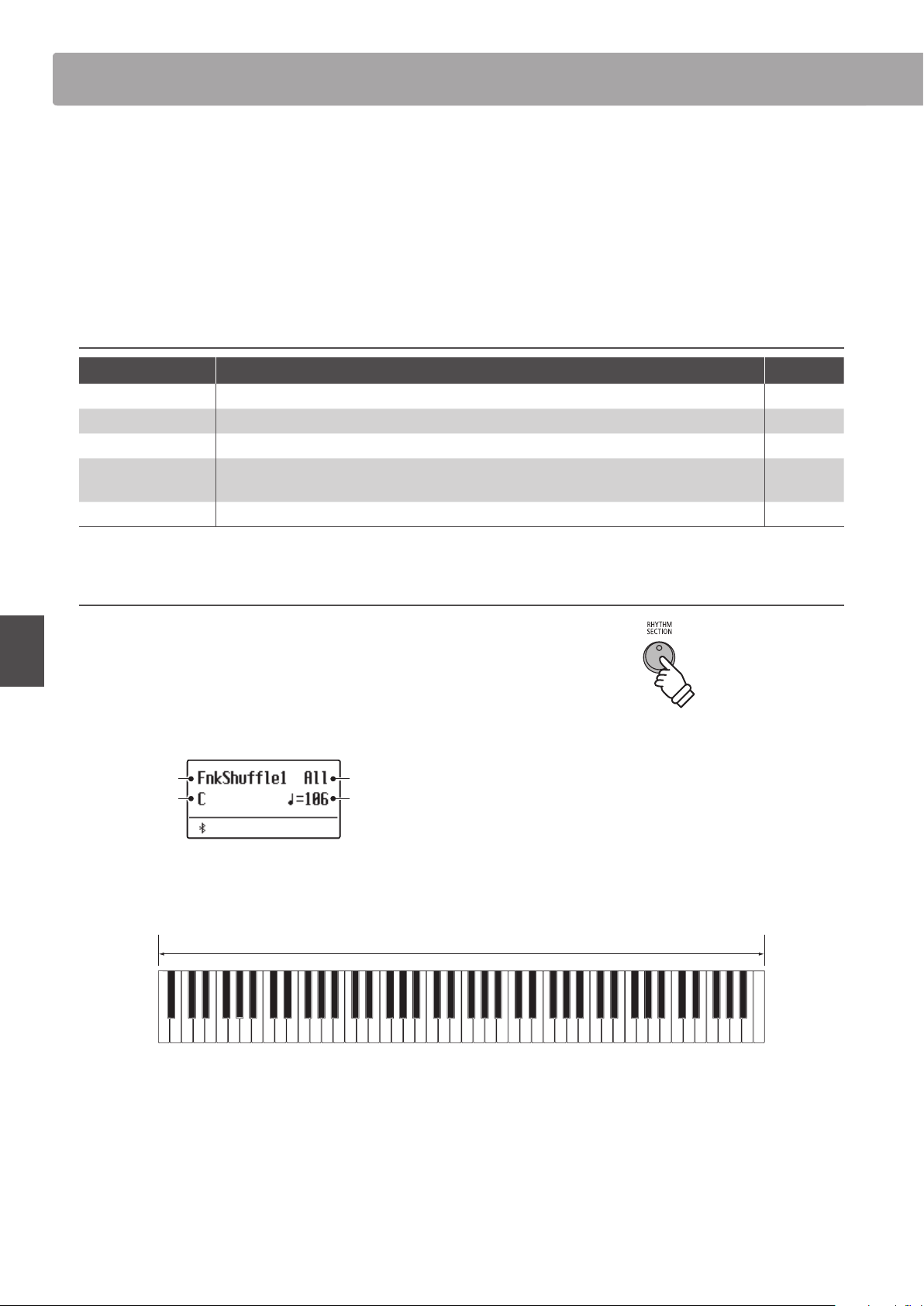
Rhythm Section Basic OperationRhythm Section Basic Operation
38
Basic Operation
Rhythm Section Basic Operation
The ES920’s Rhythm Section feature contains 100 built-in accompaniment styles, covering a wide range of musical
genres. Each style can be used simply as a drum or percussion track, or as a full musical accompaniment with bass,
guitar, organ, brass, etc. parts. In addition, each style includes separate introduction, ll-in, variation, and ending
passages, allowing musicians to enliven their performances at the touch of a button.
For a complete listing of the available Rhythm Section styles, please refer to page 134 of this owner’s manual.
Rhythm Section pattern types
Pattern type Description No. of bars
Count-in (drums only) A short introduction pattern used to count-in the Basic/Variation pattern. 1 or 2
Basic A simple, unobtrusive backing accompaniment pattern. 4 or 8
Variation A more complicated version of the basic pattern, with additional phrases etc. 4 or 8
Fill-in
A short pattern that can be used when repeating phrases or as a bridge between the Basic
and Variation patterns.
1
Ending A short pattern used to bring the currently playing accompaniment style to an end. 1
1. Entering the Rhythm Section
Press the RHYTHM SECTION button.
The LED indicator for the RHYTHM SECTION button will turn on
to indicate that the Rhythm Section is in use.
Information about the currently selected style will also be shown
in the display.
Style part(s)
Style tempo
Selected style
Chord name
The entire keyboard can be used to play the melody, with the ES920 detecting and changing the Rhythm Section chord/key
automatically.
Full keyboard:
Used to control the accompaniment, and play the melody.
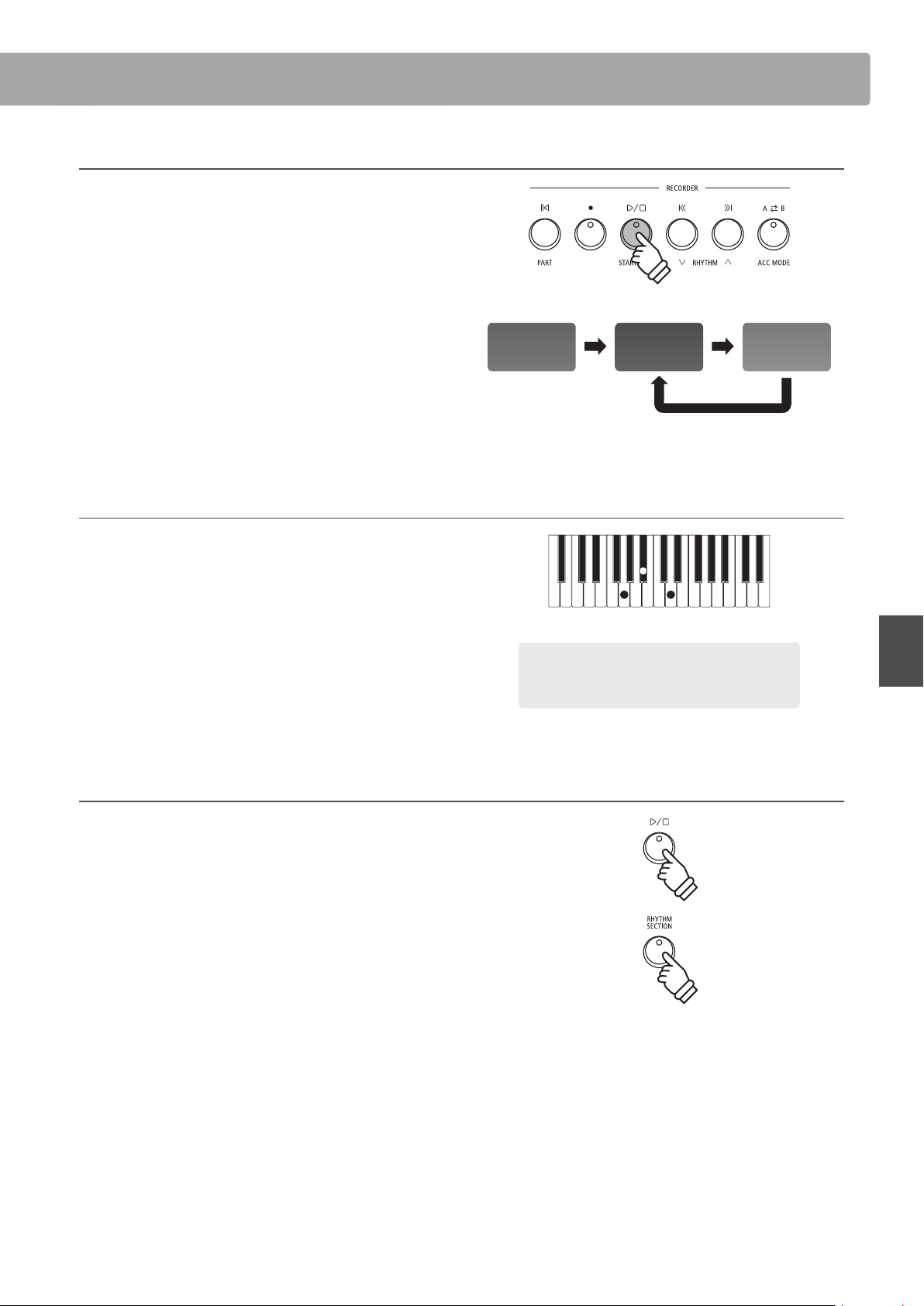
Rhythm Section Basic Operation
39
Basic Operation
Rhythm Section Basic Operation
2. Playing with the Rhythm Section
Press the PLAY/STOP button.
The LED indicator for the PLAY/STOP button will turn on, and the
count-in drum pattern will start to play.
After the Count-in, the Rhythm Section will change to the Basic
pattern. During this time, playing full ngered chords will also
change the accompaniment’s chords, while single notes play the
melody.
After 8 bars of the Basic pattern have been played, the Rhythm
Section will automatically play the Fill-in pattern.
* Please refer to page 114 for more information about the Rhythm
Section’s Auto Fill-in function.
3. Adding the full backing accompaniment
The full backing accompaniment will begin to play in the key
specied, and the name of the chord will be shown in the display.
* The Rhythm Section recognises 15 dierent chords types, including
most inversions. Please refer to page 135 for more information.
* When the Bass Inv. setting is set to “On”, the On-Bass chord can be
recognised when playing bass notes with the left hand. Please refer to
page 118.
* When the ACC Mode setting is set to “1 Finger Chord”, the Rhythm
Section accompaniment can be changed by playing single notes’s.
Please refer to page 116.
4. Stopping and exiting the Rhythm Section
Press the PLAY/STOP button again.
The Rhythm Section will play the ending pattern, the backing
accompaniment will stop, and the LED indicator for the PLAY/
STOP button will turn o.
Press the RHYTHM SECTION button again to return to normal
playing mode.
Basic Fill-inCount-in
Example: To play the backing accompaniment in the
key of G minor, press the G, B
and D keys in the lower
section simultaneously.
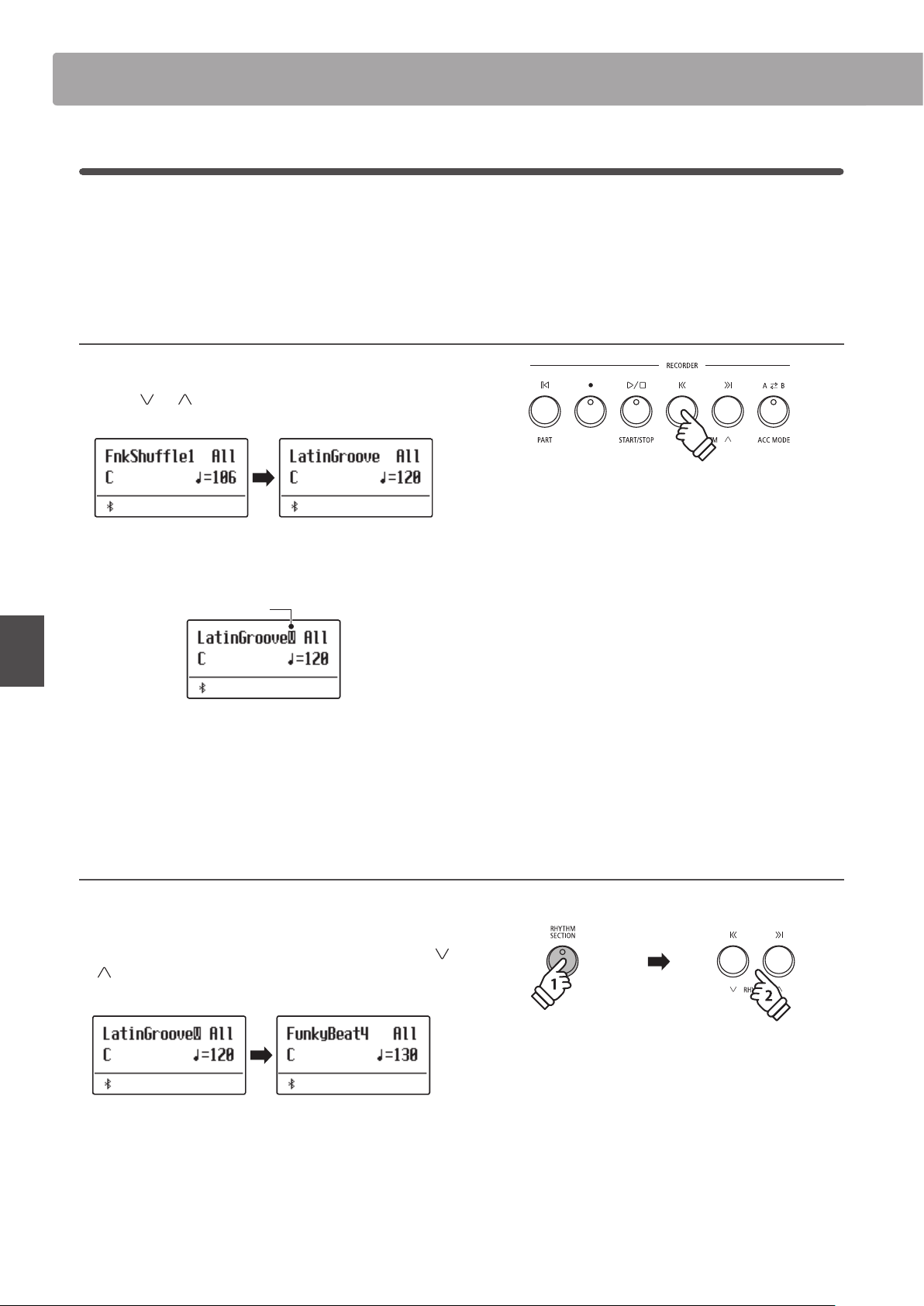
Rhythm Section Basic OperationRhythm Section Basic Operation
40
Basic Operation
Rhythm Section Style
The ES920 digital piano features 100 dierent accompaniment styles, ranging from Pop, Rock, Ballads, and Jazz, to
Funk, Dance, Latin, and World Music styles.
For a complete listing of the available Rhythm Section styles, please refer to page 134 of this owner’s manual.
Selecting the Rhythm Section style
While the main Rhythm Section screen is shown in the display:
Press the
or RHYTHM (REW or FWD) buttons to cycle
through the dierent Rhythm Section styles.
Each style features both a “basic” and “variation” pattern. If the
“variation” pattern is selected, a
≈
symbol will be shown in the
display.
Variation pattern
* The selected Rhythm Section style setting will remain until the power
is turned o.
* The preferred Rhythm Section style can be stored to a Registration
memory for convenient recall. Please refer to page 36 for more
information.
Jump to Rhythm Section genre
It is also possible to cycle through the dierent Rhythm Section
genres, instead of individual styles.
Press and hold the RHYTHM SECTION button, then press the
or
RHYTHM (REW or FWD) buttons to cycle through the
dierent Rhythm Section genres.
hold
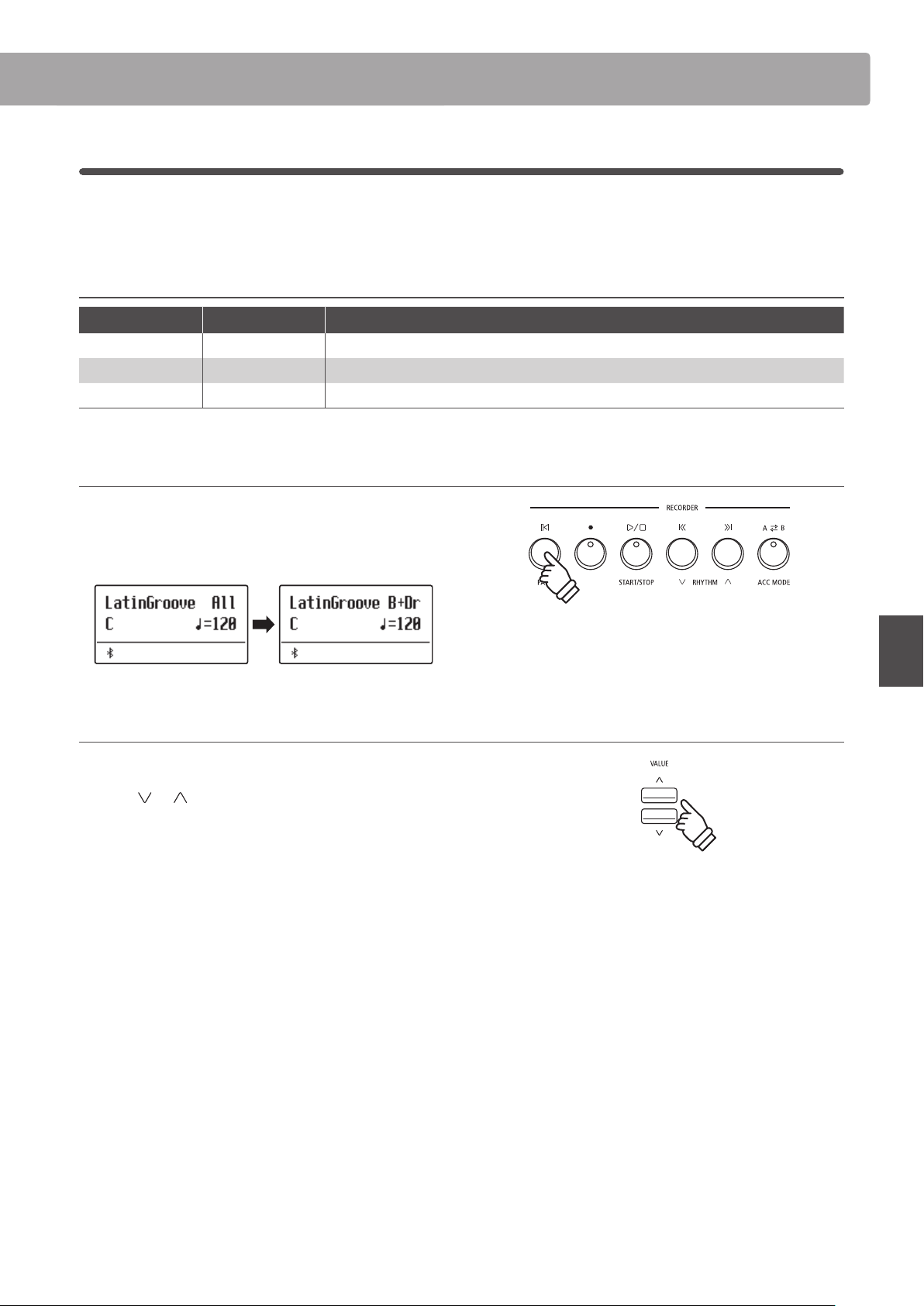
Rhythm Section Basic Operation
41
Basic Operation
Rhythm Section Parts
Each Rhythm Section style consists of several dierent instrument parts. It is possible to specify whether the Rhythm
Section should play drums only, bass and drums, or a full backing accompaniment.
Rhythm Section parts
R.S. Parts display Description
Drums Drum The Rhythm Section will play a drum track only.
Bass & Drums B+Dr The Rhythm Section will play both bass and drum tracks.
All Parts
(default) All The Rhythm Section will play a full backing accompaniment (drums, bass, guitar, etc.)
Changing the Rhythm Section parts
While the main Rhythm Section screen is shown in the display:
Press the PART (RESET) button to cycle through the dierent
Rhythm Section part settings.
Adjusting the Rhythm Section tempo
While the main Rhythm Section screen is shown in the display:
Press the
or VALUE buttons to decrease or increase the
tempo of the Rhythm Section.
* The Rhythm Section and Metronome share the same tempo setting.
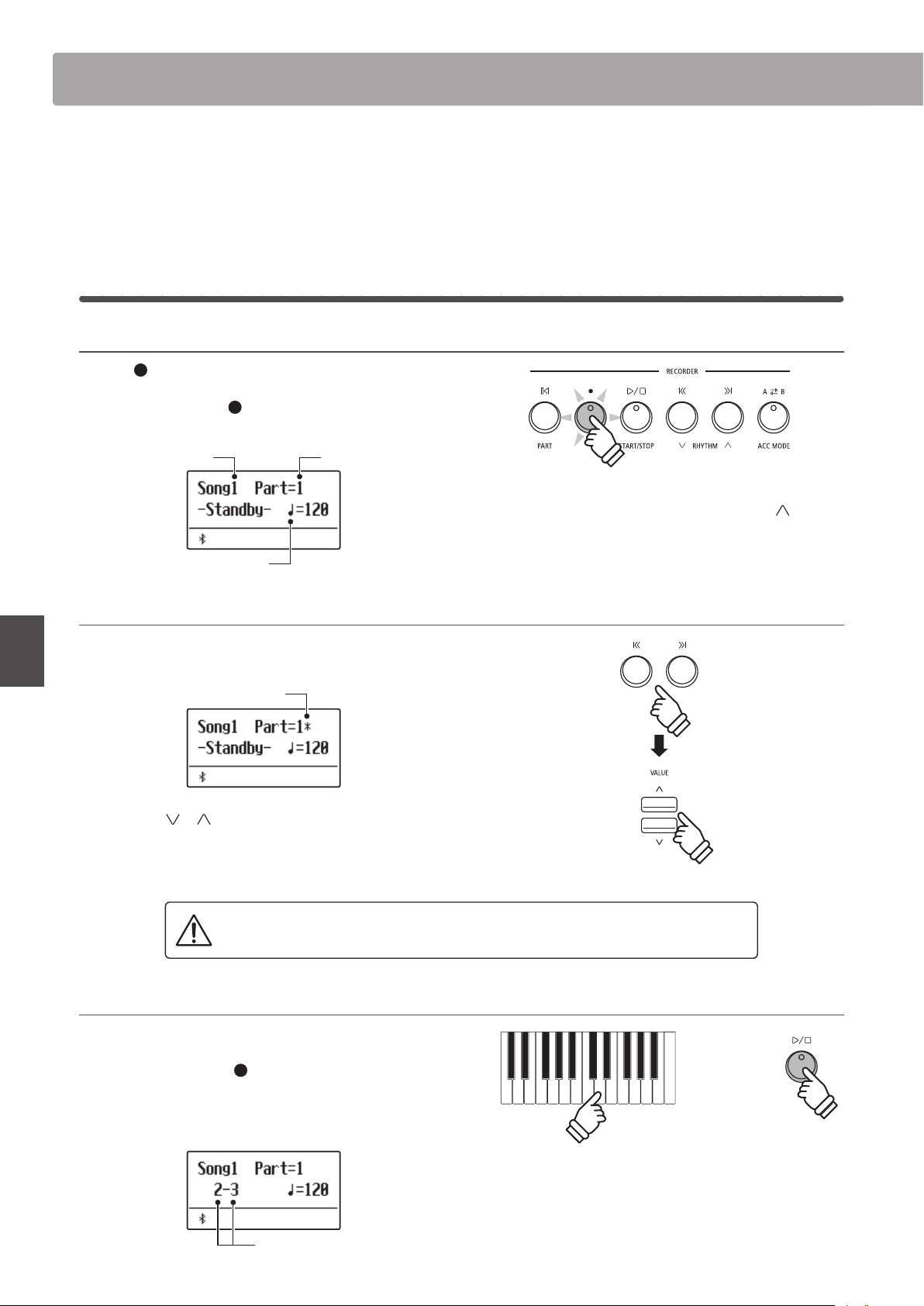
Song Recorder (Internal memory)Song Recorder (Internal memory)
42
Basic Operation
Song Recorder (Internal memory)
The ES920 digital piano allows up to 10 dierent songs to be recorded, stored in internal memory, and played back
at the touch of a button. Each song consists of two separate tracks - referred to as “parts” - that can be recorded and
played back independently. This allows the left-hand part of a song to be recorded rst on one track, and the right-
hand part to be recorded later on the other track.
1
Recording a Song
1. Entering song recorder mode
Press the (REC) button.
The LED indicator for the
(REC) button will start to ash, and
the Internal Song Recorder screen will be shown in the display.
Part No.Song No.
Song tempo
2. Selecting the song/part to be recorded
Press the REW or FWD buttons to select the internal song
memory (1~10) to be recorded to.
Part has been recorded
Then press the or VALUE buttons to select the part number
(1 or 2) to be recorded.
* If a part has already been recorded, a
*
symbol will be shown.
When recording part 1 and part 2 separately, select the song and part number
carefully in order to prevent accidentally overwriting a previously recorded part.
3. Starting the song recorder
Recording starts when the instrument is played.
The LED indicators for the
(REC) and PLAY/STOP buttons will
turn on, and recording will start.
The current bar and beat will also be shown in the display.
Bar and beat no.
* If a USB memory device is connected, press the MENU button to
select the “Int. Recorder” function.
* The Recorder shares the song tempo setting with the Metronome and
Rhythm Section functions.
or
* Recording can also be started by pressing the PLAY/STOP button,
allowing a rest period or empty bar to be inserted at the beginning of
the song.
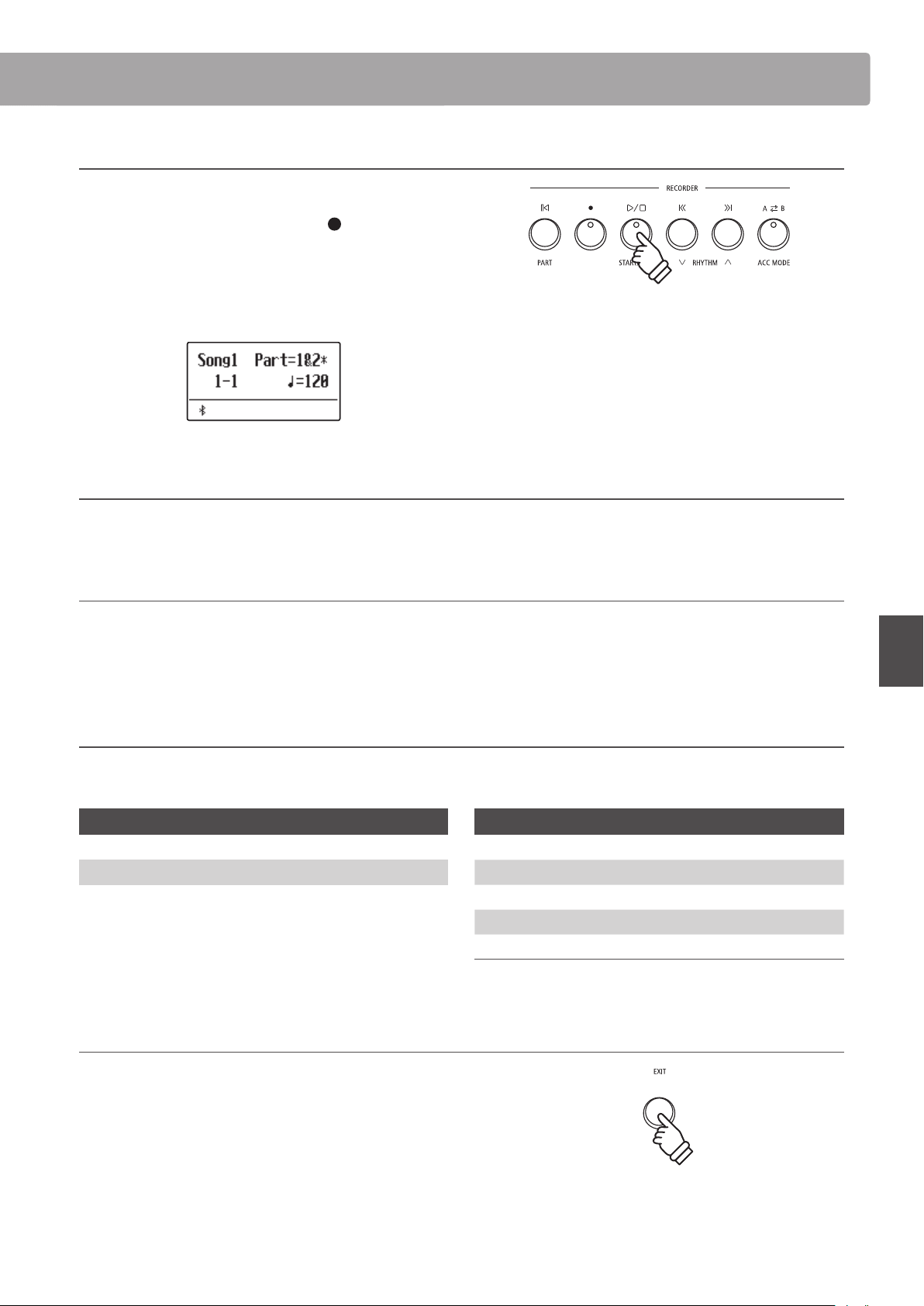
Song Recorder (Internal memory)
43
Basic Operation
Song Recorder (Internal memory)
4. Stopping the song recorder
Press the PLAY/STOP button.
The LED indicators for the PLAY/STOP and
(REC) buttons will
turn o, the recorder will stop, and the part/song will be stored
in internal memory.
After a few seconds, the Internal Song Player screen will be shown
in the display, indicating that the song is ready for playback.
Recording a second part
To record a second part, repeat the above instructions, selecting the part that has not been recorded to.
Recording with the metronome
It is also possible to record songs with the metronome activated. This is useful when recording parts separately, or wishing to maintain
correct timing throughout complex passages. Note that the metronome will not be heard when the song is played back.
* Please refer to page 34 for more information about using the instrument’s Metronome function with the Recorder.
Changing panel settings while recording
In some cases, it may be desirable to make changes to the selected sound or style while recording a song. The tables below list the
various functions which will and will not be remembered during recording.
Panel operations remembered during recording
Changes made to the sound type. (SOUND buttons etc.)
Switching between dual/split modes.
Panel operations NOT remembered during recording*
Changes made to the reverb settings.
Changes made to the eects settings.
Changes made to the tempo.
Changes made to the volume balance in dual/split mode.
Changes made to transpose, tuning, touch, etc.
* Make changes to desired eects, reverb, and tempo settings etc.
before recording a new song.
5. Exiting song recorder mode
Press the EXIT button to exit the Internal Song Recorder.
The instrument will return to normal playing mode.
* The maximum recording capacity is approximately 90,000 notes, with
button and pedal presses also counted as one note.
* If the maximum recording capacity is reached during recording, the
recorder will stop automatically.
* Recorder songs will remain in memory after the power is turned o.
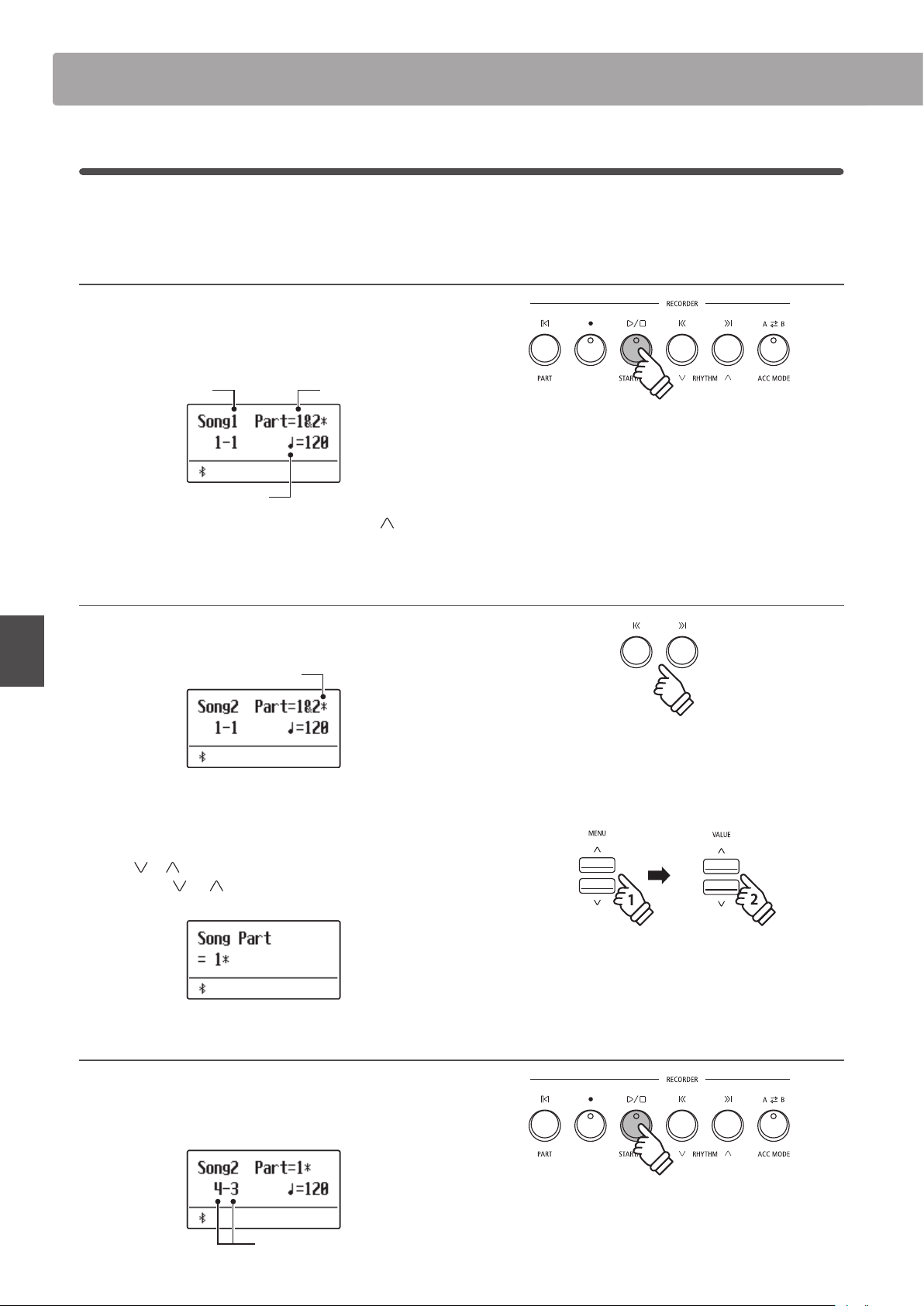
Song Recorder (Internal memory)Song Recorder (Internal memory)
44
Basic Operation
2
Playing a Song
This function is used to playback songs stored in the internal recorder. To playback a song/part immediately after
recording, start this process from step 2.
1. Entering song play mode
Press the PLAY/STOP button.
The LED indicator for the PLAY/STOP button will turn on, and the
Internal Song Player screen will be shown in the display.
Part No.Song No.
Song tempo
* If a USB memory device is connected, press the MENU button to
select the “Int. Recorder” function.
2. Selecting the song/part to be played back
Press the REW or FWD buttons to select the internal song
memory (1~10) to be played back.
Part has been recorded
* If a part has already been recorded, a
*
symbol will be shown.
To select the part(s) of the song to be played back:
Press the
or MENU buttons to select the Song Part setting,
then press the
or VALUE buttons to select the desired
part(s).
3. Starting song playback
Press the PLAY/STOP button.
The selected song/part(s) will start to play, and the current bar
and beat will also be shown in the display.
Bar and beat no.
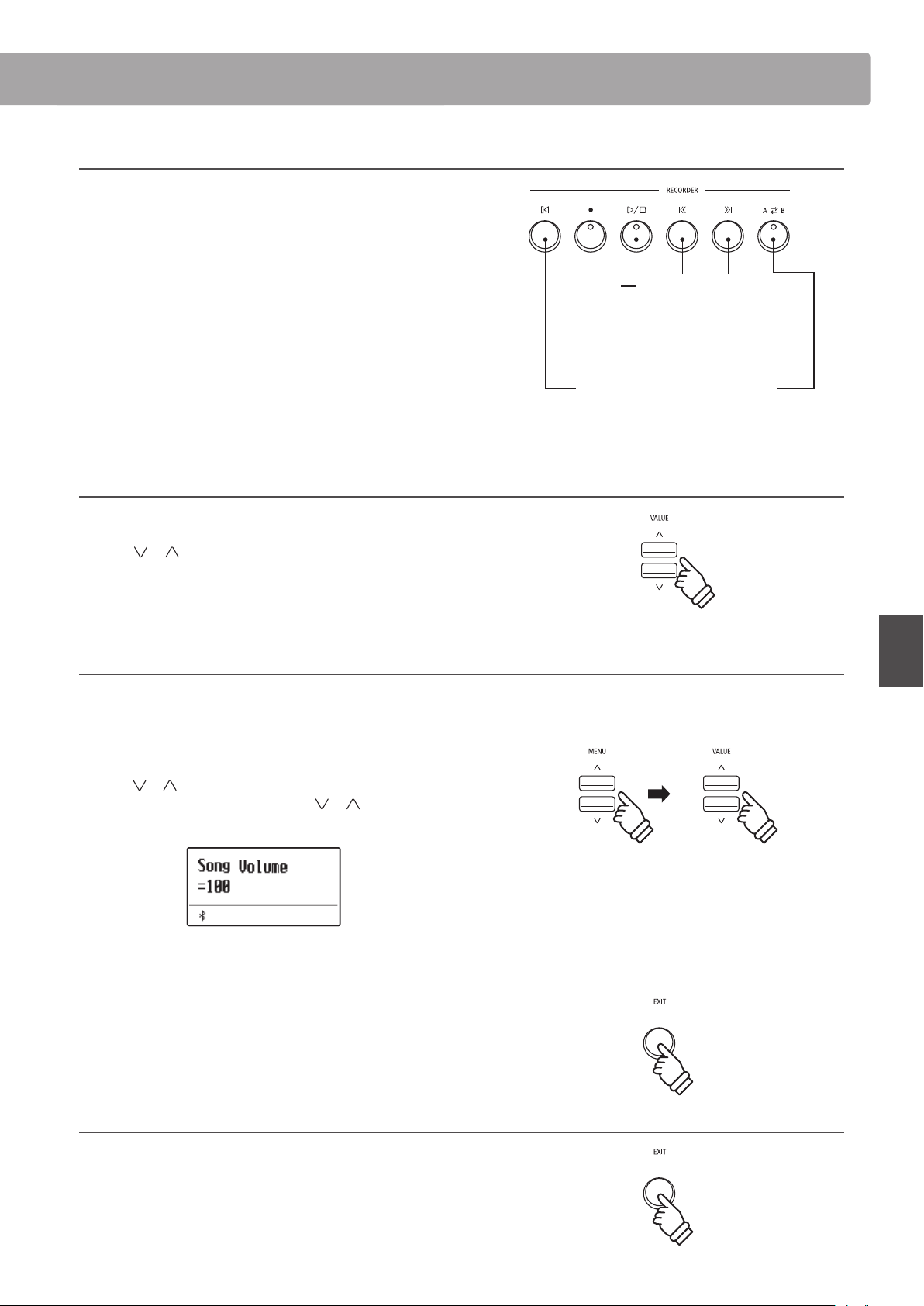
Song Recorder (Internal memory)
45
Basic Operation
Controlling song playback
While the song is playing:
Press the REW or FWD buttons to rewind or advance the playing
position of the song. When the playing position is reset, these
buttons allow the song memory to be selected.
Press the A-B LOOP button twice to set the start and end points
of the loop.
* Pressing the A-B LOOP button for a third time will turn o the loop.
Press the PLAY/STOP button to pause and resume song playback.
Press the RESET button to return to the beginning of the song.
Adjusting the playback tempo
While the song is playing:
Press the
or VALUE buttons to adjust the playback tempo.
* The playback tempo can be adjusted within the range of 10~400 beats
per minute (BPM).
Adjusting playback settings (playback menu)
The playback menu features settings to adjust the song volume,
and pitch (transpose), and change the selected playing part(s).
While the song is playing:
Press the
or MENU buttons to enter the playback menu and
select the desired setting, then press the
or VALUE buttons
to adjust the setting value.
* The song volume setting can be adjusted within the range of 1~100.
* The song pitch can be raised or lowered by up to 12 semi-tones.
* The song part setting cycles through part 1, part 2, and parts 1&2.
Press the EXIT button to return to the Internal Song Play screen.
4. Exiting song play mode
Press the EXIT button to exit the Internal Song Player.
The instrument will return to normal playing mode.
* Press the EXIT button twice if a USB memory device is connected.
REW and FWD
Rewind/advance
playing position, or
select song memory
when song is reset.
PLAY/STOP
Pause/resume
song playback.
A-B LOOP
Set start/end points
of loop.
RESET
Reset song to
beginning.
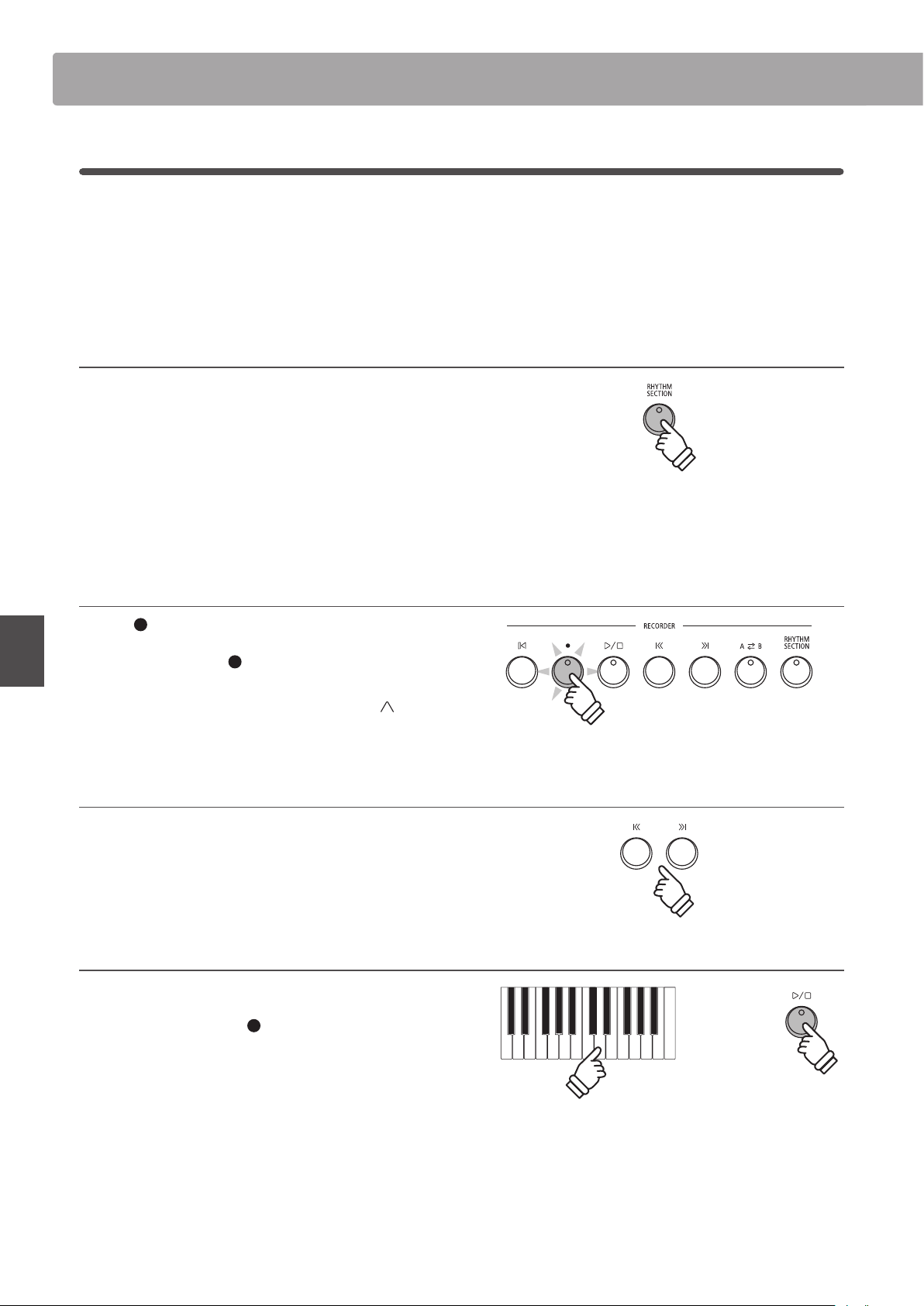
Song Recorder (Internal memory)Song Recorder (Internal memory)
46
Basic Operation
3
Recording a Song with the Rhythm Section
It is also possible to record songs while using the Rhythm Section. This feature can be used to record backing
accompaniments (including chord changes) for favourite songs, allowing the player to concentrate on the melody
or improvised solos using the full keyboard.
The Rhythm Section can only be recorded to Part 1 of each song memory.
1. Entering the Rhythm Section
Press the RHYTHM SECTION button.
The LED indicator for the RHYTHM SECTION button will turn on
to indicate that the Rhythm Section is in use.
Make any changes to the Rhythm Section settings (style, volume,
tempo, parts, ACC mode etc.)
* Please refer to page 113 for more information.
2. Entering song recorder mode
Press the (REC) button.
The LED indicator for the
(REC) button will start to ash, and
the Internal Song Recorder screen will be shown in the display.
* If a USB memory device is connected, press the MENU button to
select the “Int. Recorder” function.
3. Selecting the song to be recorded
Press the REW or FWD buttons to select the internal song
memory (1~10) to be recorded to.
* Part 1 must be selected in order to record the Rhythm Section. The
Rhythm Section will not be recorded if Part 2 is selected.
4. Starting the song recorder
Press a key on the keyboard, or press the PLAY/STOP button.
The LED indicators for the
(REC) and PLAY/STOP buttons
will turn on, and recording will start with the Rhythm Section
playing.
Press the PLAY/STOP button to stop the recording.
or
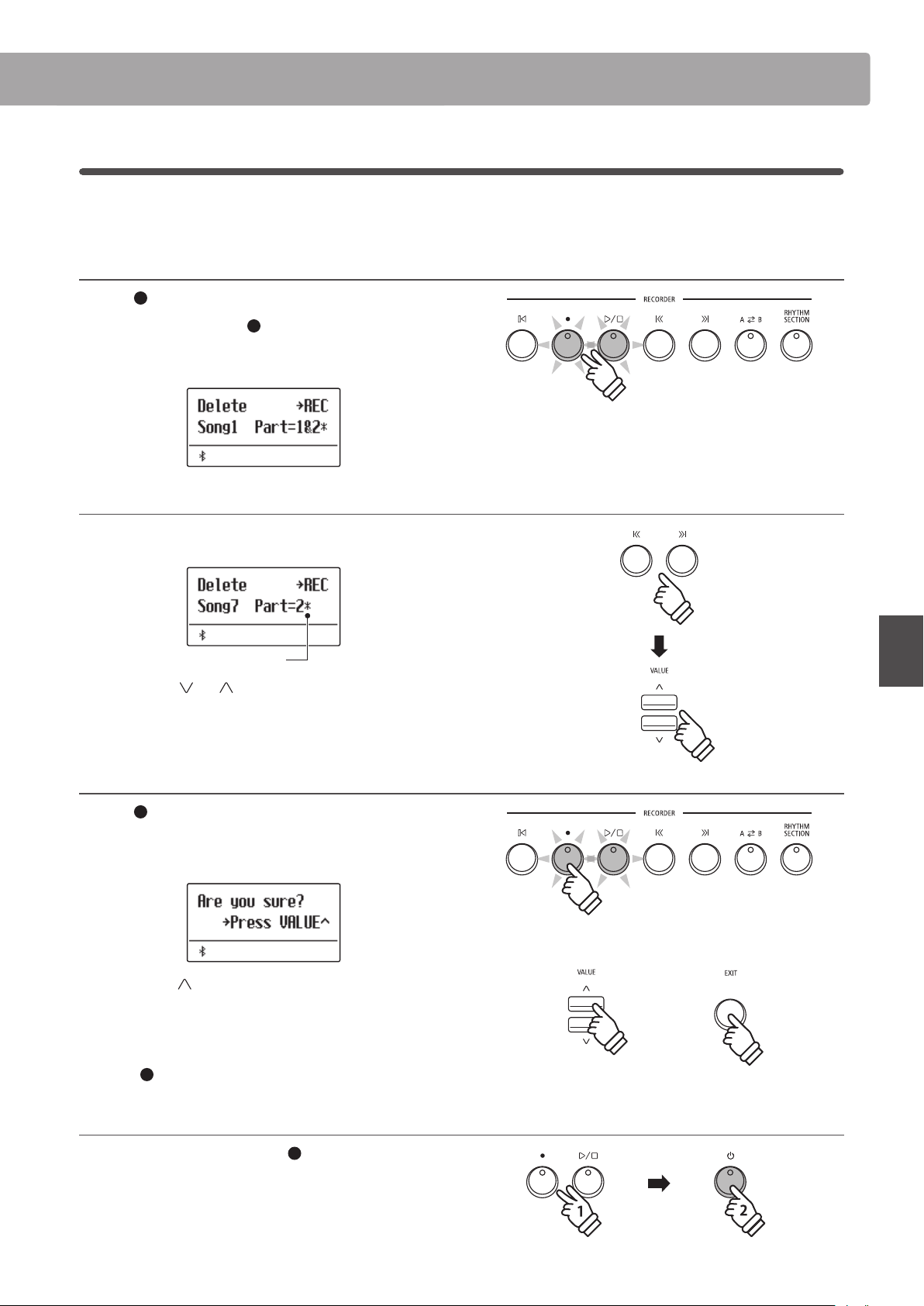
Song Recorder (Internal memory)
47
Basic Operation
4
Erasing a Part/Song
This function is used to erase recorder parts that have been recorded incorrectly or songs that are no longer listened
to. Once a part/song has been erased from memory it cannot be recovered.
1. Entering song erase mode
Press the (REC) and PLAY/STOP buttons simultaneously.
The LED indicators for the (REC) and PLAY/STOP buttons
will start to ash, and the Erase Song screen with the currently
selected song and part number will be shown in the display.
2. Selecting a song and part(s) to be erased
Press the REW or FWD buttons to select the internal song
memory (1~10) to be erased.
Parts have been recorded
Then press the or VALUE buttons to select the part
number(s) (1, 2, or 1&2) of the selected song to be erased.
* If a part has already been recorded, a
*
symbol will be shown.
3. Erasing the selected song and part(s)
Press the (REC) button.
A conrmation message will be shown in the display, prompting
to conrm or cancel the erase operation.
Press the VALUE button to conrm the erase operation and
return to the Internal Song Player screen.
Press the EXIT button to cancel the erase operation.
* If cancelled, press the PLAY/STOP button to return to the Play Internal
screen, or (REC) button to return to the Record Internal screen.
Erasing all recorder songs from memory
Press and hold the PLAY/STOP and (REC) buttons, then turn
the instrument’s power o/on.
All recorder songs stored in memory will be erased.
or
hold
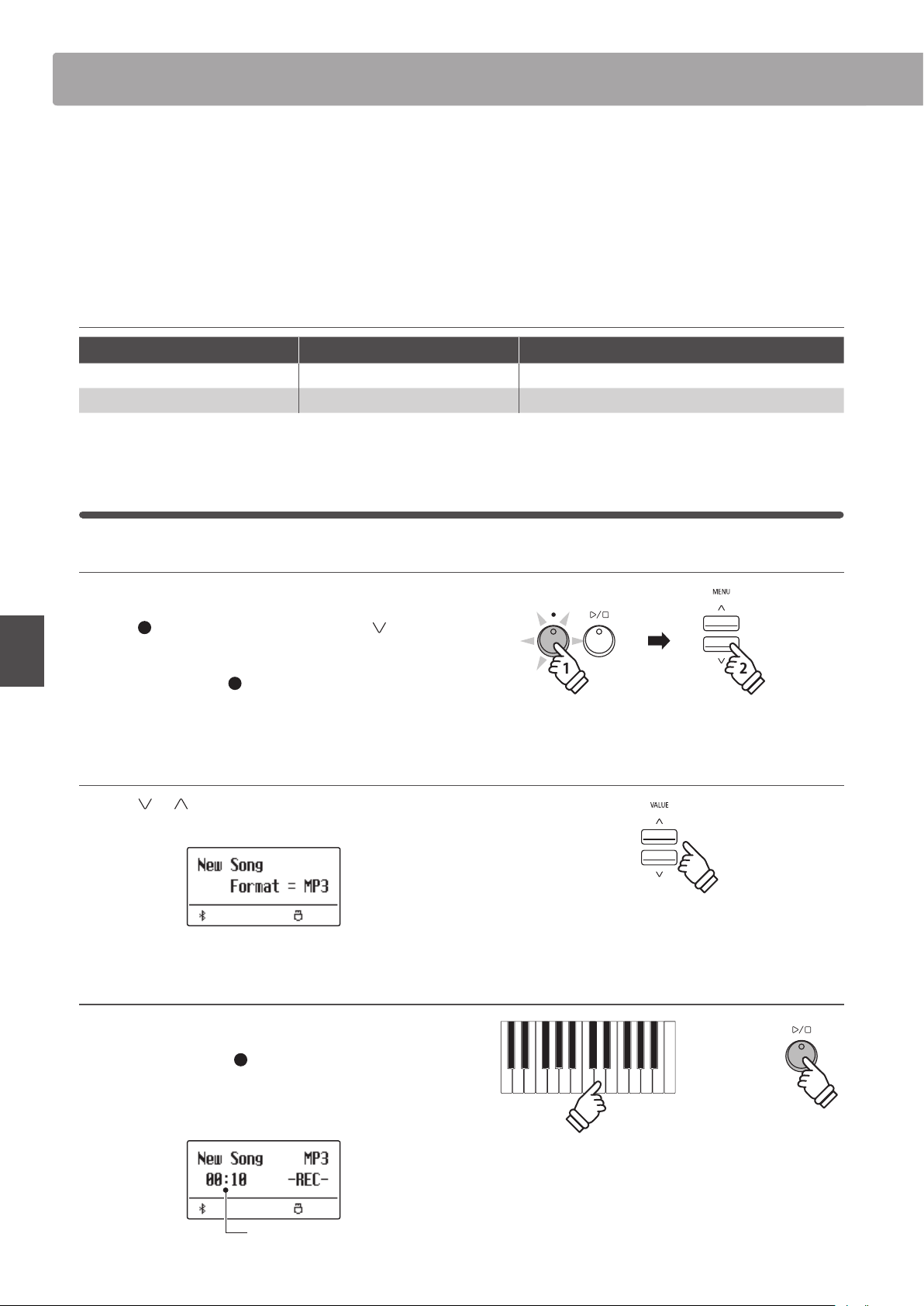
Audio Record/Playback (USB memory)Audio Record/Playback (USB memory)
48
Basic Operation
Audio Record/Playback (USB memory)
The ES920 digital piano is also capable of recording performances as digital audio - saving the data to a USB memory
device in either MP3 or WAV format. This useful function allows professional quality recordings to be produced
directly on the instrument - without the need for additional sound equipment - then emailed to band members,
listened to away from the instrument, or edited and remixed further using an audio workstation.
* USB devices should be formatted to use the FAT or FAT32 le systems.
Audio Recorder format specications
Audio Format Specications Bitrate
MP3 44.1 kHz, 16 bit, Stereo 256 kbit/s (xed)
WAV 44.1 kHz, 16 bit, Stereo 1,411 kbit/s (uncompressed)
1
Recording an Audio le
1. Entering USB recorder mode
Connect a USB memory device to the USB port.
Press the
(REC) button, then press the MENU button to
select the “USB Recorder” function.
The LED indicator for the (REC) button will start to ash, and
the USB Recorder screen will be shown in the display.
2. Selecting the audio recorder le format
Press the or VALUE buttons to select the desired audio
recorder le format (MP3 or WAV).
3. Starting the audio recorder
Press a key on the keyboard.
The LED indicators for the
(REC) and PLAY/STOP buttons will
turn on, and recording will start.
The recording status will also be shown in the display.
Recording time
* MP3 audio les require less storage space than WAV audio les.
* A 1 GB USB memory device can store over 12 hours of MP3 audio data.
or
* Recording can also be started by pressing the PLAY/STOP button,
allowing a rest period or empty bar to be inserted at the beginning of
the song.
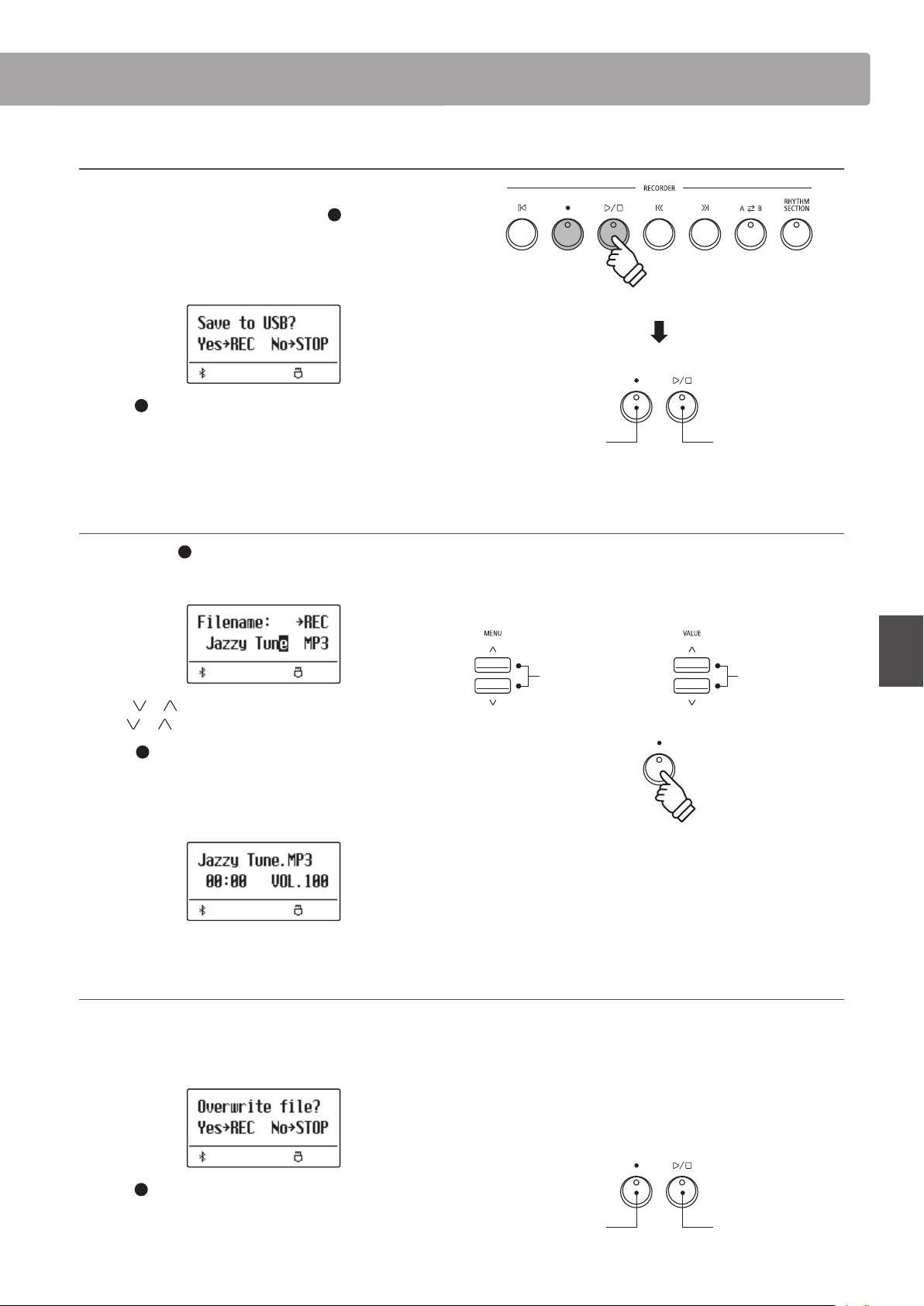
Audio Record/Playback (USB memory)
49
Basic Operation
Audio Record/Playback (USB memory)
4. Stopping the audio recorder, saving to USB
Press the PLAY/STOP button.
The LED indicators for the PLAY/STOP and (REC) buttons will
turn o, and recording will stop.
A conrmation message will be shown in the display, prompting
to save the recorded audio le.
Press the (REC) button to continue, or the PLAY/STOP button
to cancel the save operation.
* If cancelled, the audio recorder will return to the previous screen.
5. Naming the recorded audio le, conrming save
After pressing the (REC) button to continue the save:
The lename entry screen will be shown in the display.
Press the or VALUE buttons to cycle through the characters,
and the
or MENU buttons to move the cursor.
Press the (REC) button again to save the recorded audio le
with the specied lename.
After a few seconds, the Audio Player screen will be shown in the
display, indicating that the song is ready for playback.
Overwriting a le
If the specied lename already exists:
A conrmation message will be shown in the display, prompting
to conrm or cancel the overwrite operation.
Press the (REC) button to conrm the overwrite, or the PLAY/
STOP button to cancel.
* If cancelled, the audio recorder will return to the saving screen (step 4).
REC
Continue (Yes)
PLAY/STOP
Cancel (No)
Move cursor.
Select character.
* “Audio-000.MP3” or “Audio-000.WAV” will be used as the default name
for the recorded audio les, with the number increasing automatically.
* Saved les are limited to a maximum name length of 11 characters.
* The saved audio le will be stored in the root folder of the USB memory
device. It is not possible to store the le in a dierent folder.
* The audio recorder will only record sounds produced by the instrument.
Devices connected via the LINE IN jacks will not be recorded.
REC
Continue (Yes)
PLAY/STOP
Cancel (No)
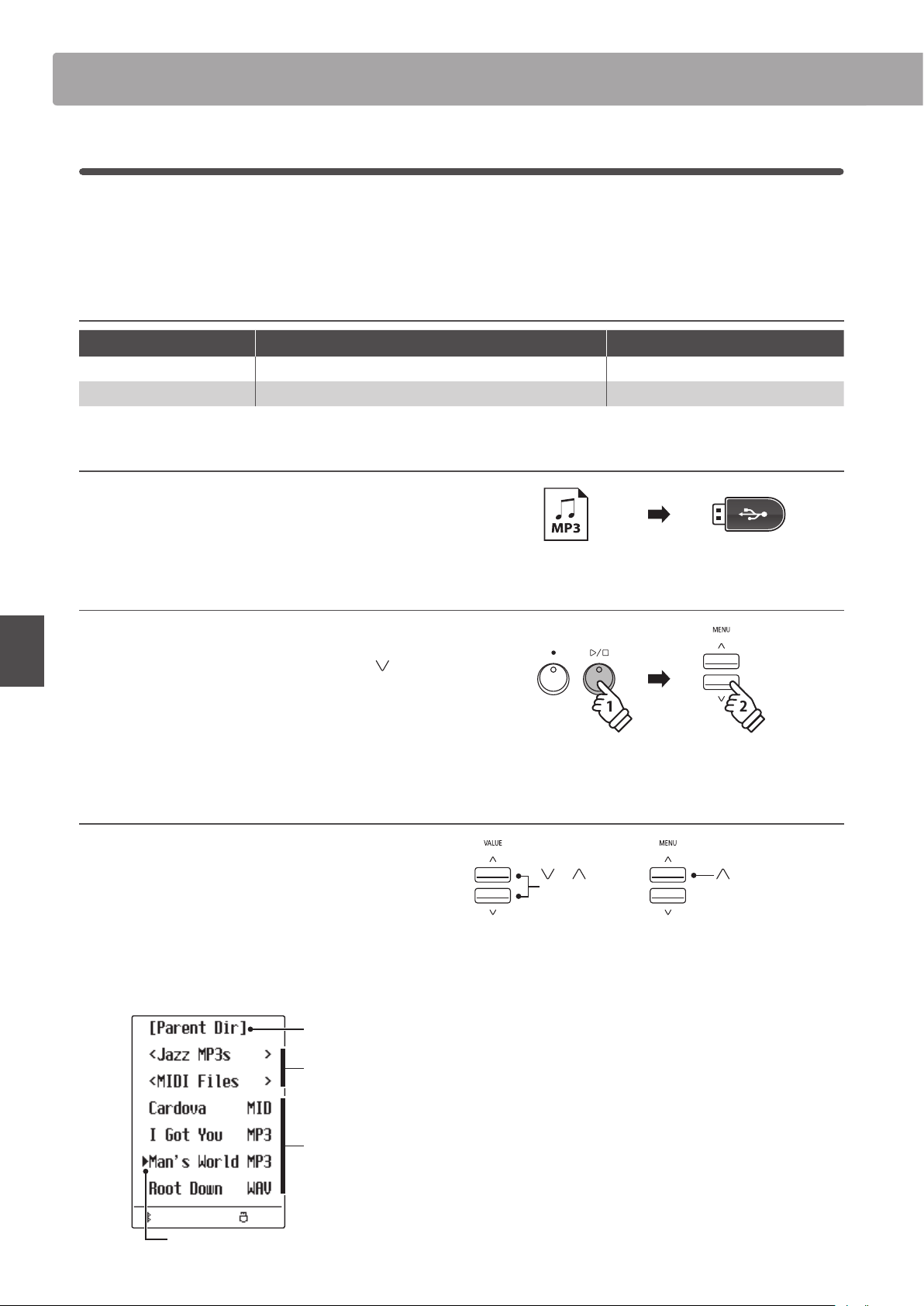
Audio Record/Playback (USB memory)Audio Record/Playback (USB memory)
50
Basic Operation
2
Playing an Audio le
The ES920 digital piano is also capable of playing MP3 and WAV audio les stored on a USB memory device directly
through the instrument’s speaker system. This function is particularly useful when attempting to learn the chords
or melody to a new piece, or to simply play along with one’s favourite song.
Audio Player supported format specications
Audio Format Specications Bitrate
MP3 32 kHz/44.1 kHz/48 kHz, Mono/Stereo 8~320 kbit/s (xed & variable)
WAV 32 kHz/44.1 kHz/48 kHz, Mono/Stereo, 16 bit -
Preparing the USB memory device
First, prepare a selection of MP3 or WAV audio les, copying the
data to a USB memory device.
1. Entering USB playback mode
Connect a USB memory device to the USB port.
Press the PLAY/STOP button, then press the MENU
button to
select the “USB Recorder” function.
The LED indicator for the PLAY/STOP button will turn on, and the
le selection screen will be shown in the display.
File selection screen
The le selection screen provides a listing of relevant les and
folders stored on the connected USB device.
The
‚
symbol is used to indicate the selected le/folder.
The
<
>
symbols are used to indicate a folder.
An example of a typical le/folder listing screen is shown below.
The visible screen height has been extended for the purpose of
this illustration.
Selection cursor
Previous folder
Files
Folders
or VALUE
Move cursor.
MENU
Select le/folder.
* Files and folders will be listed in alphabetical order, with folders shown
at the top of the screen.
* When the USB Recorder function is selected, MP3, WAV, MID, and KSO
les will be shown.
* The display is capable of showing lenames with a maximum length
of 11 characters (+3 character sux). Filenames longer than 11
characters will be truncated automatically.
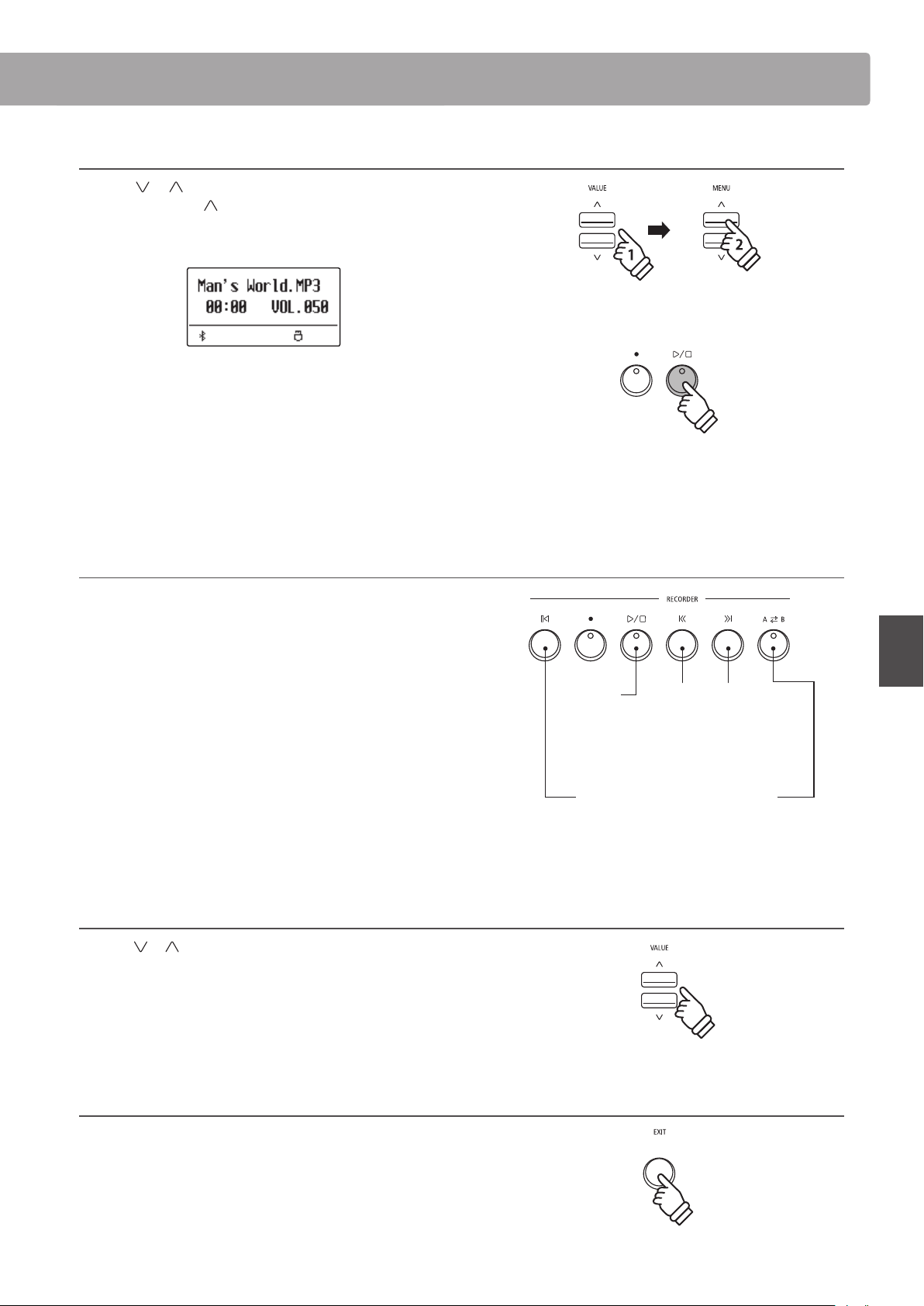
Audio Record/Playback (USB memory)
51
Basic Operation
2. Selecting and playing an audio le
Press the or VALUE buttons to move the selection cursor,
then press the MENU
button to select the le.
The audio play screen will be shown in the display.
Press the PLAY/STOP button.
The LED indicator for the PLAY/STOP button will turn on and the
selected audio le will start to play.
* To activate the “Chain Play” mode, press and hold the PLAY/STOP
button when selecting the le. The contents of the current folder will
be played in alphabetical order after the initial le has nished playing.
Controlling audio le playback
While the audio le is playing:
Press the REW or FWD buttons to rewind or advance the playing
position of the audio le. When the playing position is reset,
these button allow the le/folder to be selected.
Press the A-B LOOP button twice to set the start and end points
of the loop.
* Pressing the A-B LOOP button for a third time will turn o the loop.
Press the PLAY/STOP button to pause and resume playback.
Press the RESET button to return to the beginning of the audio
le.
Adjusting the audio le playback volume
Press the or VALUE buttons to adjust the playback volume.
* The playback volume can be adjusted within the range of 1~100.
* There may be a noticeable dierence in volume between audio le
playback and the ES920 keyboard sound. When playing back MP3/
WAV audio data, please adjust the volume of the audio le as desired.
3. Exiting USB playback mode
Press the EXIT button to exit the USB Recorder.
The instrument will return to normal playing mode.
* If the selected audio le contains embedded metadata (e.g. ID3 tags)
such as artist name and song title, this information will be shown
beside the lename, on the top line of the display.
REW and FWD
Rewind/advance
playing position,
or select le/folder
when song is reset.
PLAY/STOP
Pause/resume
audio playback.
A-B LOOP
Set start/end points
of loop.
RESET
Reset audio to
beginning.
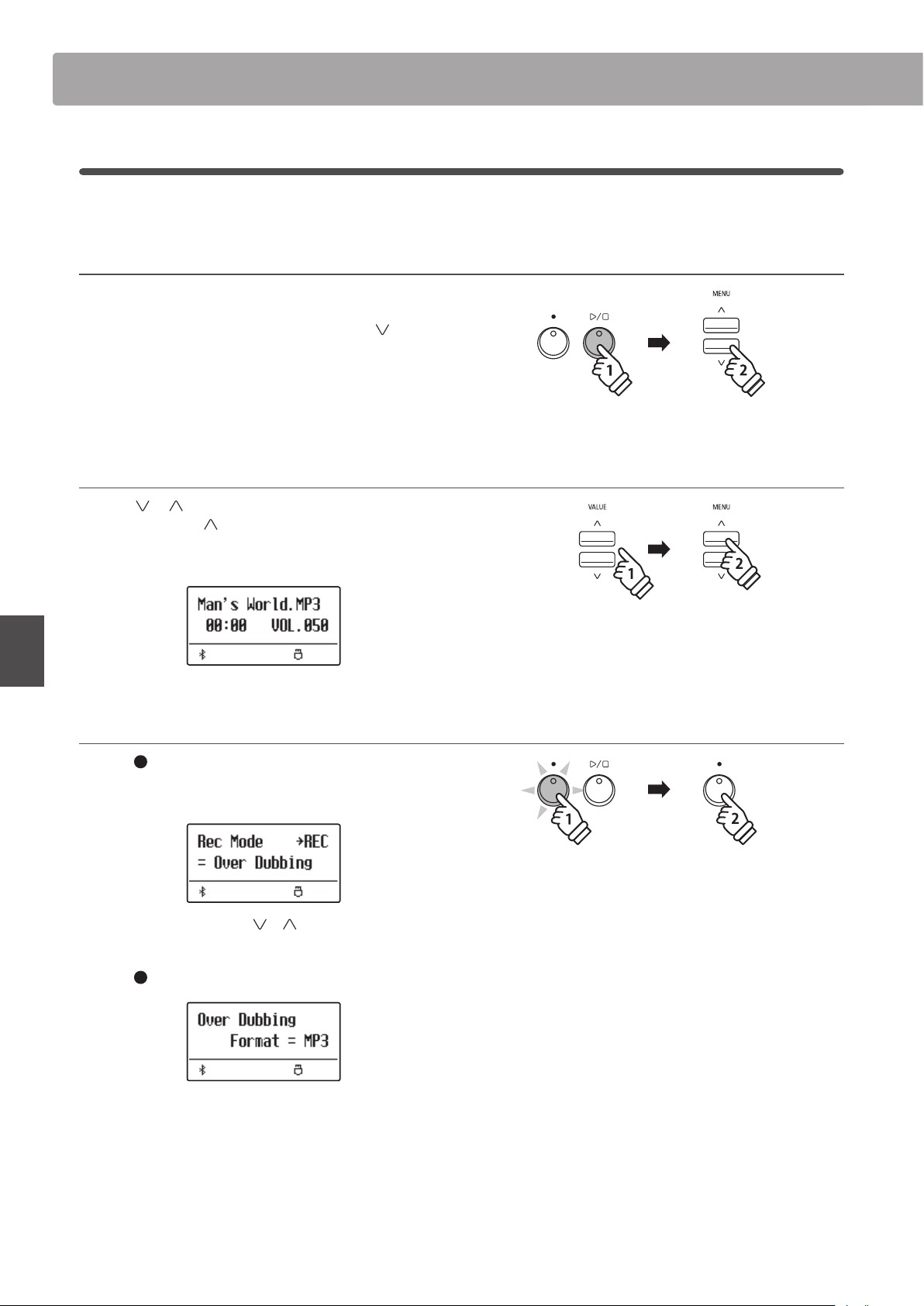
Audio Record/Playback (USB memory)Audio Record/Playback (USB memory)
52
Basic Operation
3
Overdubbing an Audio le
This function allows the sound of the ES920 to be recorded (overdubbed) to an existing MP3 or WAV audio le.
1. Entering USB recorder mode
Connect a USB memory device to the USB port.
Press the PLAY/STOP button, then press the MENU
button to
select the “USB Recorder” function.
The LED indicator for the PLAY/STOP button will turn on, and the
le selection screen will be shown in the display.
2. Selecting an audio le
Press the or VALUE buttons to move the selection cursor,
then press the MENU
button to select the le.
The audio play screen will be shown in the display.
3. Selecting Overdubbing mode
Press the (REC) button.
Overdubbing mode will be selected automatically.
* To record a new song, press the or VALUE buttons to select New
Song mode.
Press the (REC) button again.
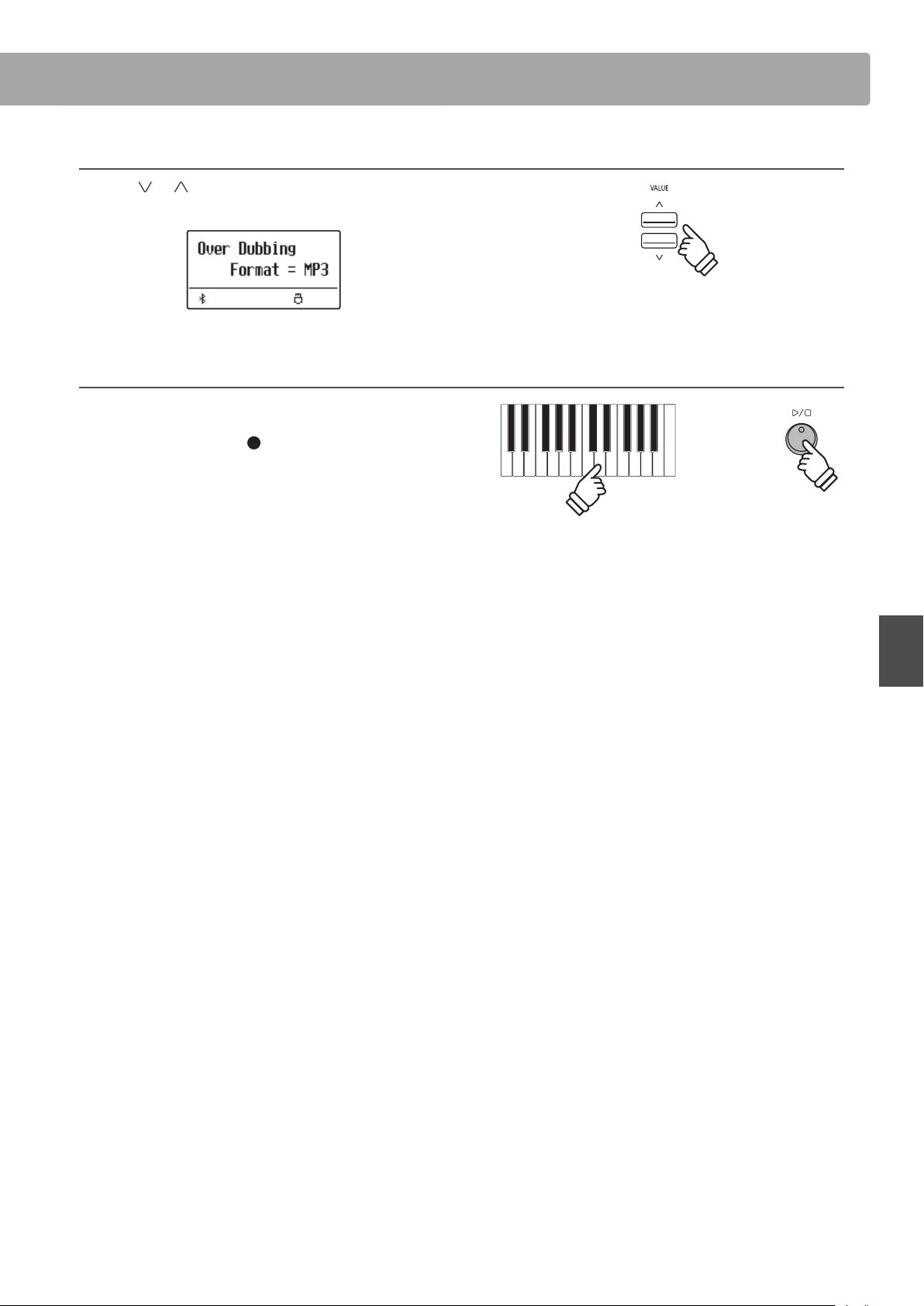
Audio Record/Playback (USB memory)
53
Basic Operation
4. Selecting the audio recorder le format
Press the or VALUE buttons to select the desired audio
recorder le format (MP3 or WAV).
5. Starting the audio recorder
Press a key on the keyboard, or press the PLAY/STOP button.
The LED indicators for the
(REC) and PLAY/STOP buttons
will turn on, the selected audio le will begin to play, and
overdubbing will start.
* The name of the selected audio le will be used as the default name for
the overdubbed audio le.
* Saved les are limited to a maximum name length of 11 characters.
or
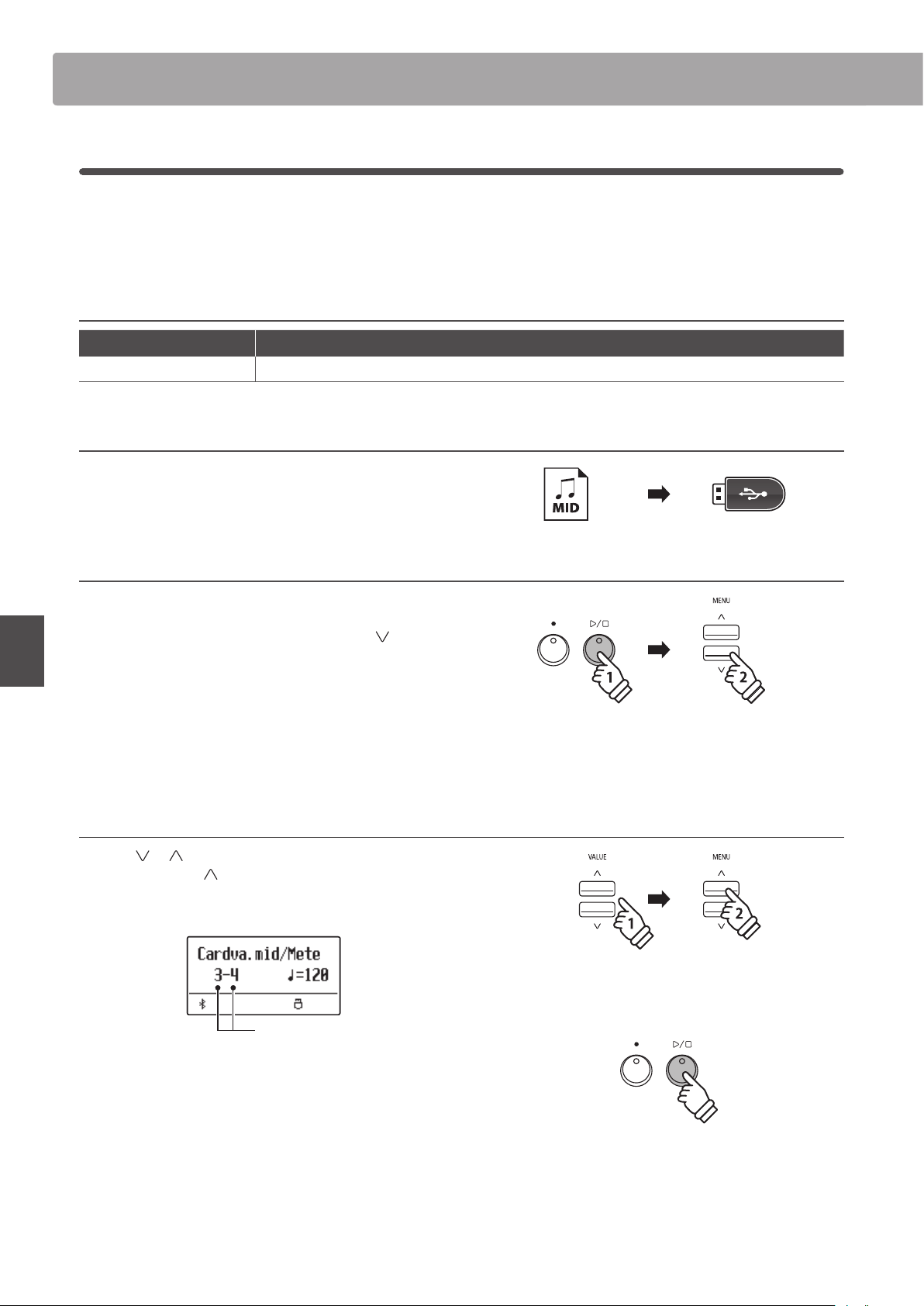
Audio Record/Playback (USB memory)Audio Record/Playback (USB memory)
54
Basic Operation
4
Playing a MIDI le
The ES920 digital piano also supports the playback of Standard MIDI File (SMF) song les stored on a USB memory
device, allowing a vast selection of widely accessible music to be heard through the instrument’s exquisite Harmonic
Imaging XL sound engine.
Song Player supported format specications
Song Format Specications
MID Format 0, Format 1
Preparing the USB memory device
First, prepare a selection of MID (SMF) song les, copying the
data to a USB memory device.
1. Entering USB playback mode
Connect a USB memory device to the USB port.
Press the PLAY/STOP button, then press the MENU
button to
select the “USB Recorder” function.
The LED indicator for the PLAY/STOP button will turn on, and the
le selection screen will be shown in the display.
* Please refer to page 50 for information about the le selection
screen.
2. Selecting and playing a MIDI le.
Press the or VALUE buttons to move the selection cursor,
then press the MENU
button to select the MIDI le.
The MIDI player screen will be shown in the display.
Bar and beat no.
Press the PLAY/STOP button.
The LED indicator for the PLAY/STOP button will turn on and the
selected MIDI le will start to play.
* To activate the “Chain Play” mode, press and hold the PLAY/STOP
button when selecting the le. The contents of the current folder will
be played in alphabetical order after the initial le has nished playing.
* The ES920 digital piano does not contain the full General MIDI/GM2
sound bank selection. Consequently, some SMF song les may not be
reproduced entirely accurately when played through the instrument.
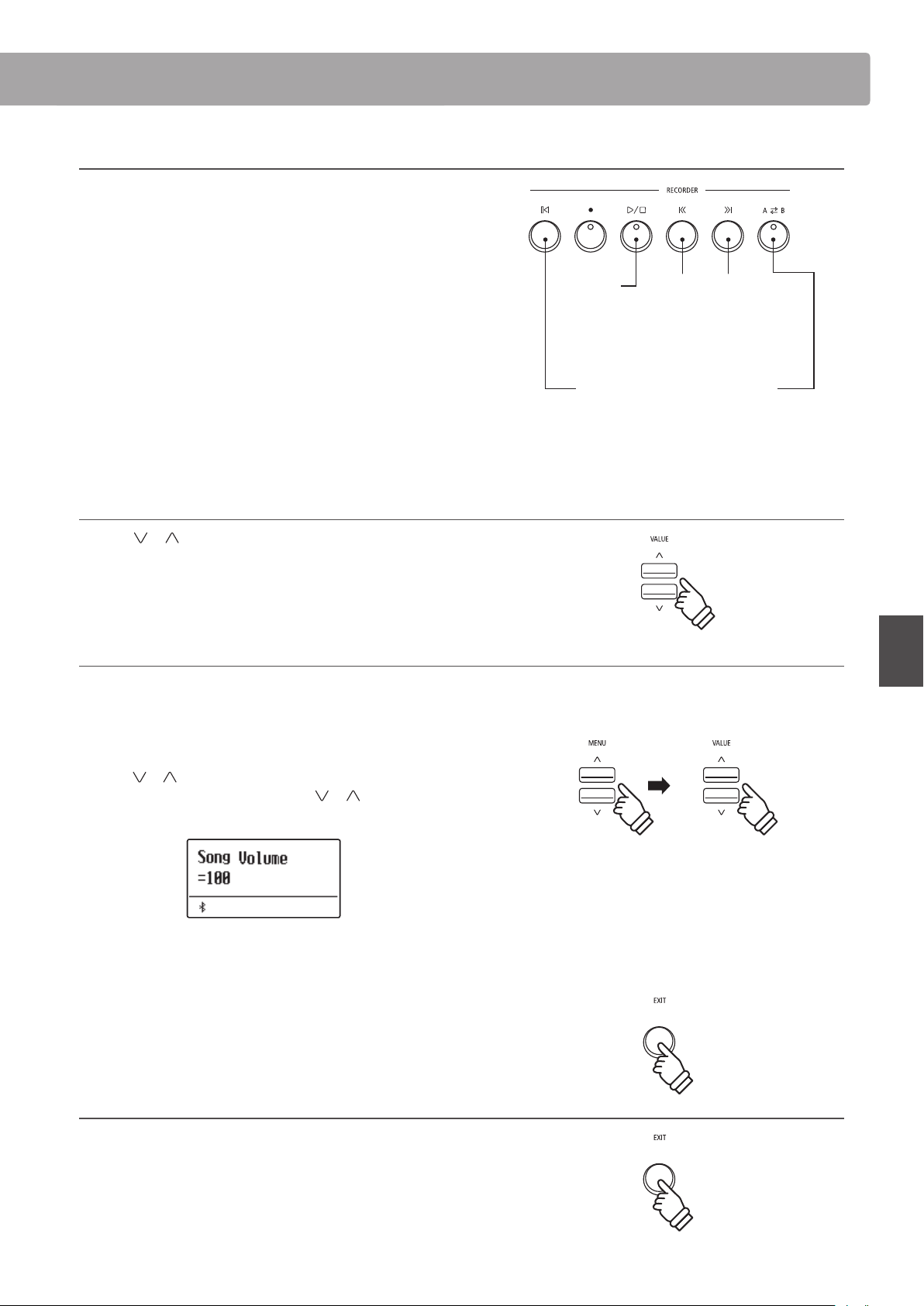
Audio Record/Playback (USB memory)
55
Basic Operation
Controlling MIDI le playback
While the MIDI le is playing:
Press the REW or FWD buttons to rewind or advance the playing
position of the MIDI le. When the playing position is reset,
these button allow the le/folder to be selected.
Press the A-B LOOP button twice to set the start and end points
of the loop.
* Pressing the A-B LOOP button for a third time will turn o the loop.
Press the PLAY/STOP button to pause and resume playback.
Press the RESET button to return to the beginning of the MIDI
le.
Adjusting the MIDI le playback tempo
Press the or VALUE buttons to adjust the playback tempo.
* The playback tempo can be adjusted within the range of 10~400.
Adjusting playback settings (playback menu)
The playback menu features settings to adjust the MIDI le’s volume,
and pitch (transpose), and select the “Minus One” part.
While the MIDI le is playing:
Press the
or MENU buttons to enter the playback menu and
select the desired setting, then press the
or VALUE buttons
to adjust the setting value.
* The song volume setting can be adjusted within the range of 1~100.
* The song pitch can be raised or lowered by up to 12 semi-tones.
* The minus one part setting can be set to channels 1~16 or set to O.
Press the EXIT button to return to the song player screen.
3. Exiting USB playback mode
Press the EXIT button to exit the USB Recorder.
The instrument will return to normal playing mode.
REW and FWD
Rewind/advance
playing position,
or select le/folder
when song is reset.
PLAY/STOP
Pause/resume
audio playback.
A-B LOOP
Set start/end points
of loop.
RESET
Reset audio to
beginning.
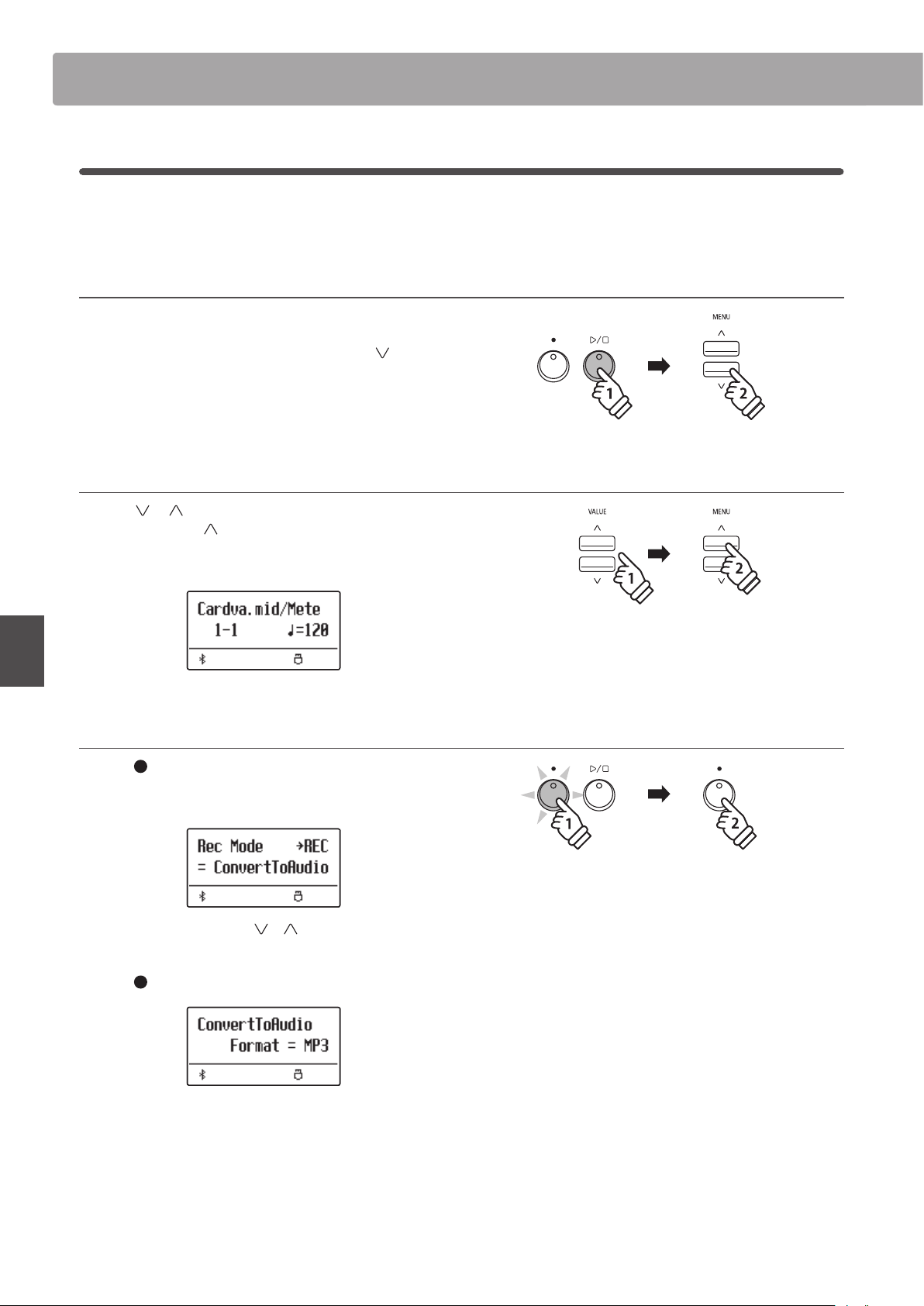
Audio Record/Playback (USB memory)Audio Record/Playback (USB memory)
56
Basic Operation
5
Converting a MIDI le to an Audio le
This function allows MIDI les or ES920 recorder songs stored on a USB memory device to be played back and saved
(converted) as an audio le (to the USB device) in either MP3 or WAV format.
1. Entering USB recorder mode
Connect a USB memory device to the USB port.
Press the PLAY/STOP button, then press the MENU
button to
select the “USB Recorder” function.
The le selection screen will be shown in the display.
2. Selecting a MIDI le
Press the or VALUE buttons to move the selection cursor,
then press the MENU
button to select the MIDI le.
The MIDI player screen will be shown in the display.
3. Selecting Convert To Audio mode
Press the (REC) button.
ConvertToAudio mode will be selected automatically.
* To record a new song, press the or VALUE buttons to select New
Song mode.
Press the (REC) button again.
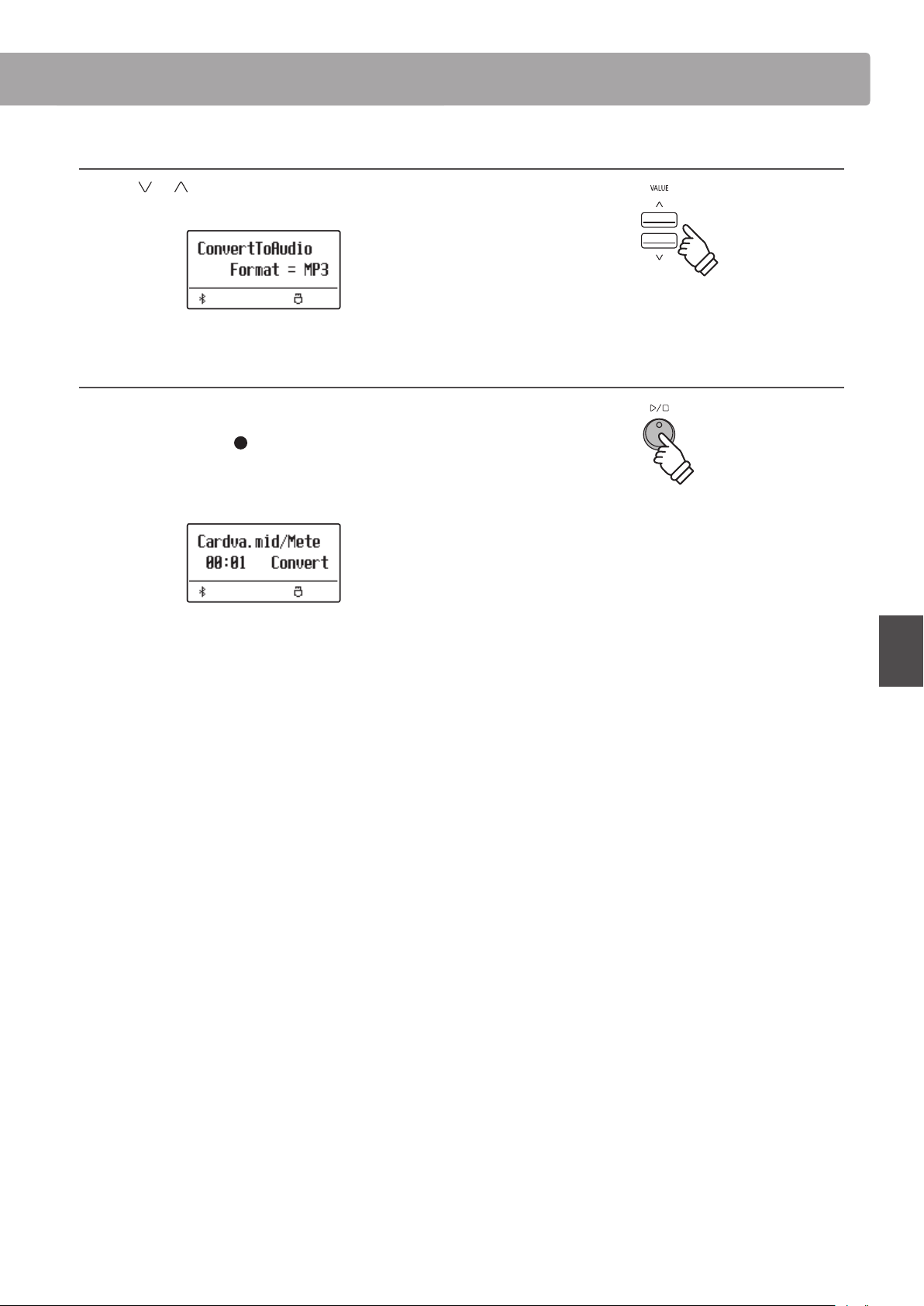
Audio Record/Playback (USB memory)
57
Basic Operation
4. Selecting the audio recorder le format
Press the or VALUE buttons to select the desired audio
recorder le format (MP3 or WAV).
5. Starting the Conversion
Press the PLAY/STOP button.
The LED indicators for the
(REC) and PLAY/STOP buttons will
turn on, and conversion will start.
The conversion status will also be shown in the display.
* Notes played on the keyboard will also be recorded to the audio le.
* When the end of the song is reached, the conversion will stop and the
save conrmation screen will be shown automatically.
* The name of the selected MIDI le will be used as the default name for
the recorded audio le.
* Saved les are limited to a maximum name length of 11 characters.
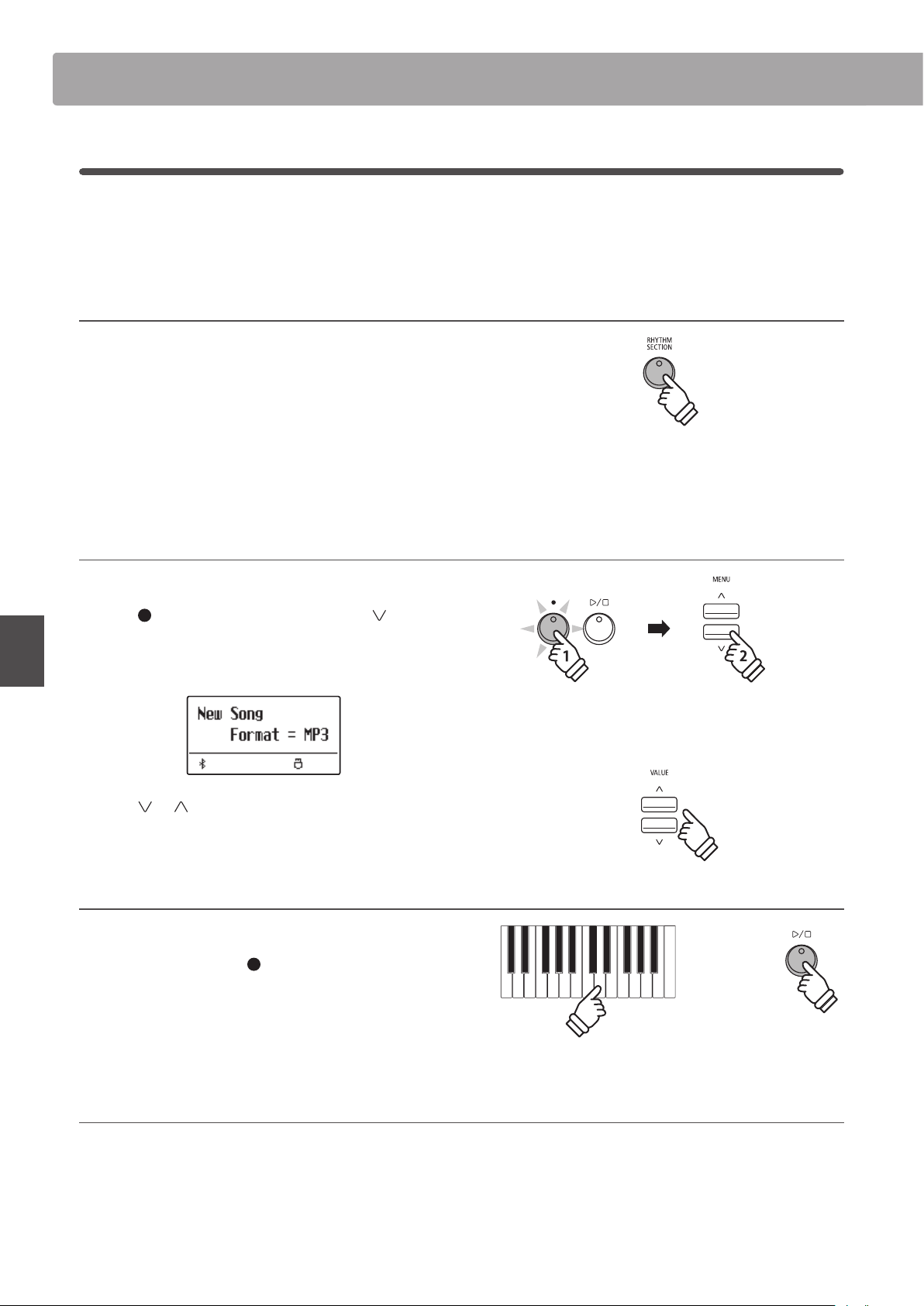
Audio Record/Playback (USB memory)Audio Record/Playback (USB memory)
58
Basic Operation
6
Recording an Audio le with the Rhythm Section
The ES920 digital piano also allows MP3 or WAV audio les to be recorded while using the Rhythm Section. This
feature can be used to produce high quality digital audio recordings with full accompaniment backing, which can
then be shared with friends and family.
1. Entering the Rhythm Section
Press the RHYTHM SECTION button.
The LED indicator for the RHYTHM SECTION button will turn on
to indicate that the Rhythm Section is in use.
Make any changes to the Rhythm Section settings (style, volume,
tempo, parts, ACC mode etc.)
* Please refer to page 113 for more information.
2. Entering USB recorder mode, selecting the audio le format
Connect a USB memory device to the USB port.
Press the
(REC) button, then press the MENU button to
select the “USB Recorder” function.
The USB Recorder screen will be shown in the display.
Press the or VALUE buttons to select the desired audio
recorder le format (MP3 or WAV).
3. Starting the audio recorder
Press a key on the keyboard, or press the PLAY/STOP button.
The LED indicators for the
(REC) and PLAY/STOP buttons
will turn on, and recording will start with the Rhythm Section
playing.
Press the PLAY/STOP button to stop the recording.
4. Naming and saving the recorded audio le
Please follow the “Recording an Audio File” instructions on page 49 from step 4.
or
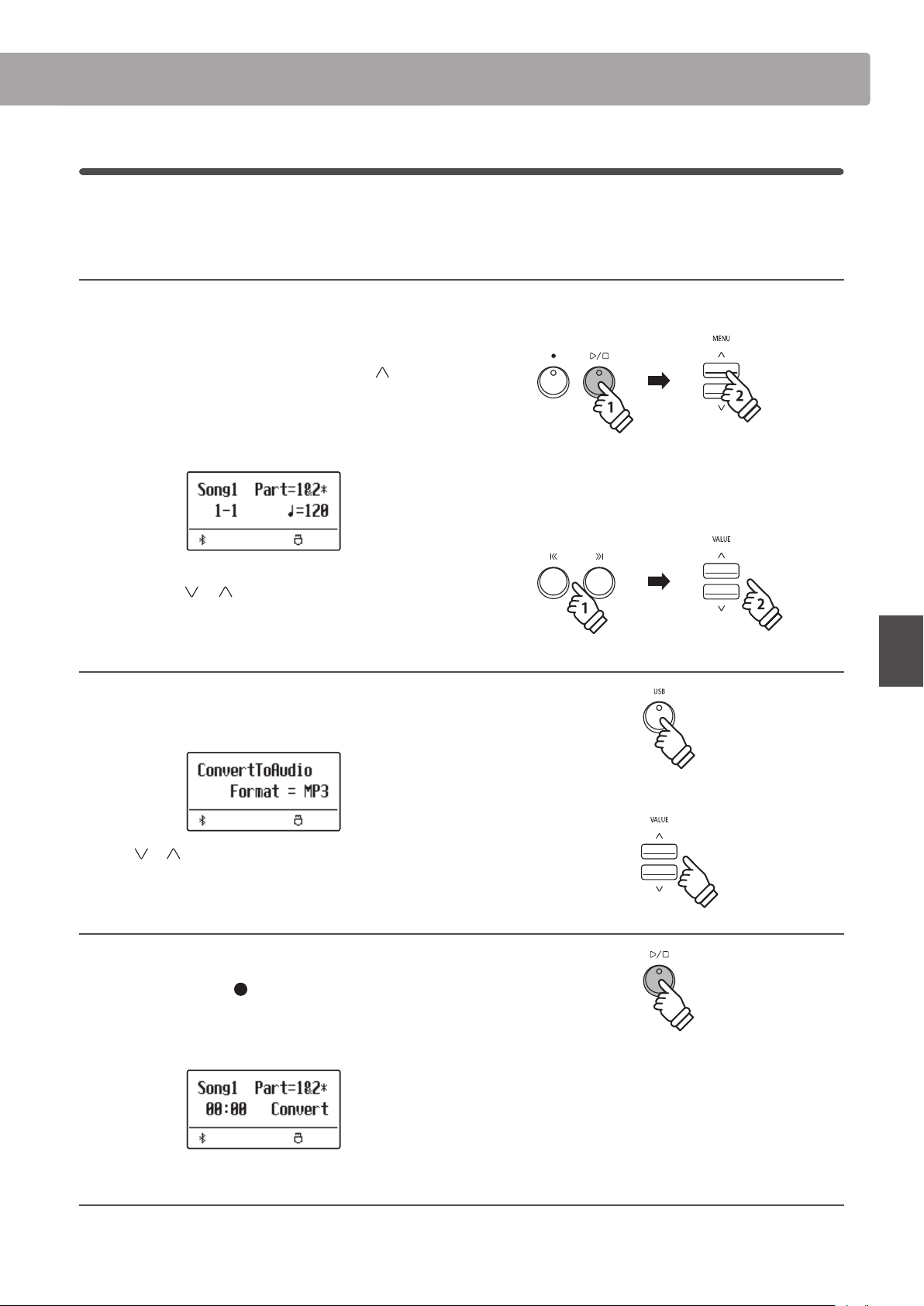
Audio Record/Playback (USB memory)
59
Basic Operation
7
Converting a Song to an Audio le
The ES920 digital piano allows recorder songs stored in internal memory to be played back and saved (converted) as
an audio le to a USB device in either MP3 or WAV format.
1. Selecting a song
After recording a song to internal memory:
Connect a USB memory device to the USB port.
Press the PLAY/STOP button, then press the MENU
button to
select the “Int. Recorder” function.
The LED indicator for the PLAY/STOP button will turn on and the
Internal Song Player screen will be shown in the display.
Press the REW or FWD buttons to select the desired internal song
memory, and the
or VALUE buttons to select the desired
part(s).
2. Selecting the Convert to Audio function
Press the USB button.
The Convert to Audio function will be shown in the display.
Press the or VALUE buttons to select the desired audio le
format for the converted song.
3. Starting the conversion
Press the PLAY/STOP button.
The LED indicators for the
(REC) and PLAY/STOP buttons will
turn on, and conversion will start.
The conversion status will also be shown in the display.
4. Naming and saving the converted audio le
Please follow the “Recording an Audio File” instructions on page 49 from step 4.
* Notes played on the keyboard will also be recorded to the audio le.
* When the end of the song is reached, the conversion will stop and the
save conrmation screen will be shown automatically.
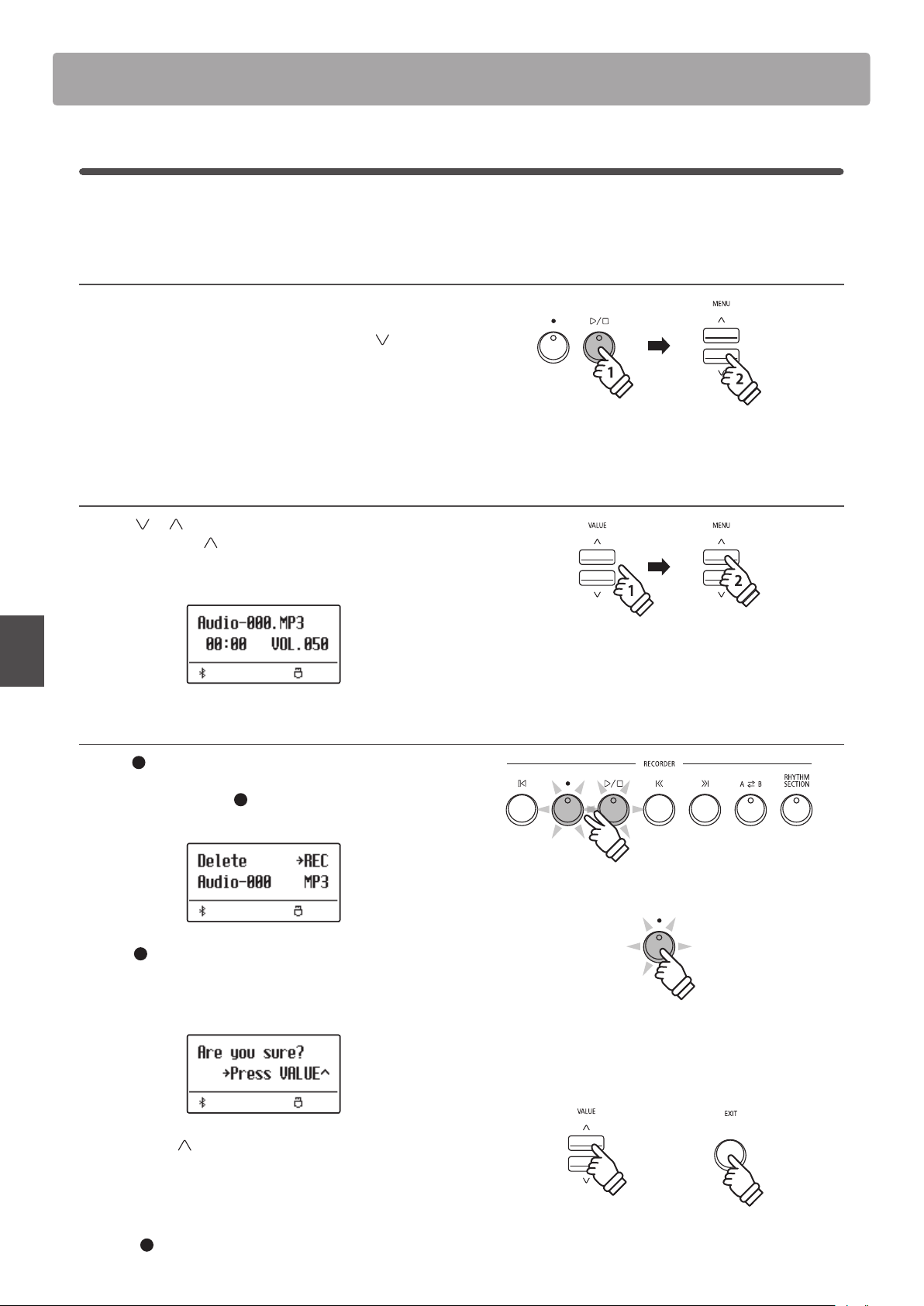
Audio Record/Playback (USB memory)
60
Basic Operation
8
Deleting an Audio/MIDI le
This function is used to delete MP3/WAV audio les or MIDI song les stored on a USB device.
Once a le has been deleted from the USB device it cannot be recovered.
1. Entering USB playback mode
Connect a USB memory device to the USB port.
Press the PLAY/STOP button, then press the MENU
button to
select the “USB Recorder” function.
The LED indicator for the PLAY/STOP button will turn on, and the
le selection screen will be shown in the display.
* Please refer to page 50 for information about the le selection screen.
2. Selecting the audio/MIDI le to be deleted.
Press the or VALUE buttons to move the selection cursor,
then press the MENU
button to select the audio/MIDI le.
The USB player screen will be shown in the display.
3. Deleting the selected audio/MIDI le
Press the (REC) button and PLAY/STOP buttons simultaneously.
The LED indicators for the
(REC) and PLAY/STOP buttons will
start to ash, and the Delete screen will be shown in the display.
Press the (REC) button.
A conrmation message will be shown in the display, prompting
to conrm or cancel the erase operation.
Press the VALUE button to conrm the erase operation and
return to the Internal Song Player screen.
Press the EXIT button to cancel the erase operation.
* If cancelled, press the PLAY/STOP button to return to the Play Internal
screen, or (REC) button to return to the Record Internal screen.
or
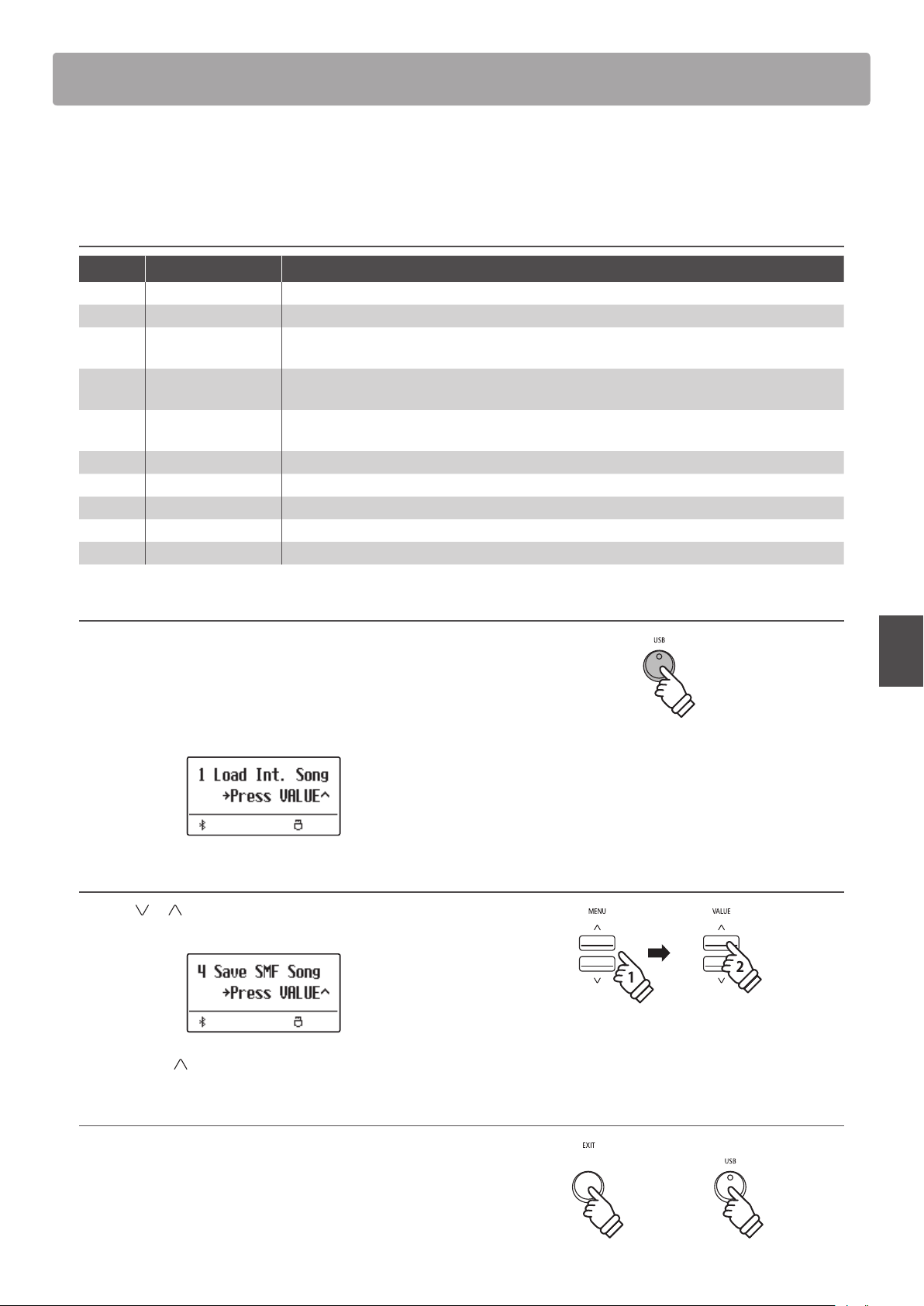
61
Basic Operation
USB Menu
The USB Menu contains functions to load/save registration memories and recorder songs from/to a USB memory
device. This menu also allows les to be renamed and deleted, and for the USB memory device to be formatted.
USB Menu functions
Page no. Function Description
1 Load Int. Song Load a song le (KSO le) from a USB memory device into the instrument’s internal memory.
2 Load Regist Load the registration le from a USB memory device into the instrument.
3 Load Startup Setting
Load a startup setting le (KM1 le) from a USB memory device into the instrument’s internal
memory.
4 Save SMF Song
Save the song recorded in the instrument’s internal memory to a USB memory device in SMF
le format.
5 Save INT Song
Save the song recorded in the instrument’s internal memory to a USB memory device in KSO
le format.
6 Save Regist Save the registration set on the instrument to a USB memory device.
7 Save Startup Setting Save the startup setting set on the instrument to a USB memory device in KM1 le format.
8 Rename File Rename the name of a le stored in a USB memory device.
9 Delete File Delete a le in a USB memory device.
10 Format USB Format a USB memory device.
1. Entering the USB Menu
Connect a USB memory device to the USB port.
Press the USB button.
The LED indicator for the USB button will turn on, and the rst
page of the USB Menu will be shown in the display.
2. Selecting the desired USB Menu function
Press the or MENU buttons to cycle through the dierent
USB Menu function pages.
Press the VALUE button to select the function.
3. Exiting the USB Menu
Press the EXIT or USB button to exit the USB Menu.
The LED indicator for the USB button will turn o, and the
instrument will return to normal playing mode.
or
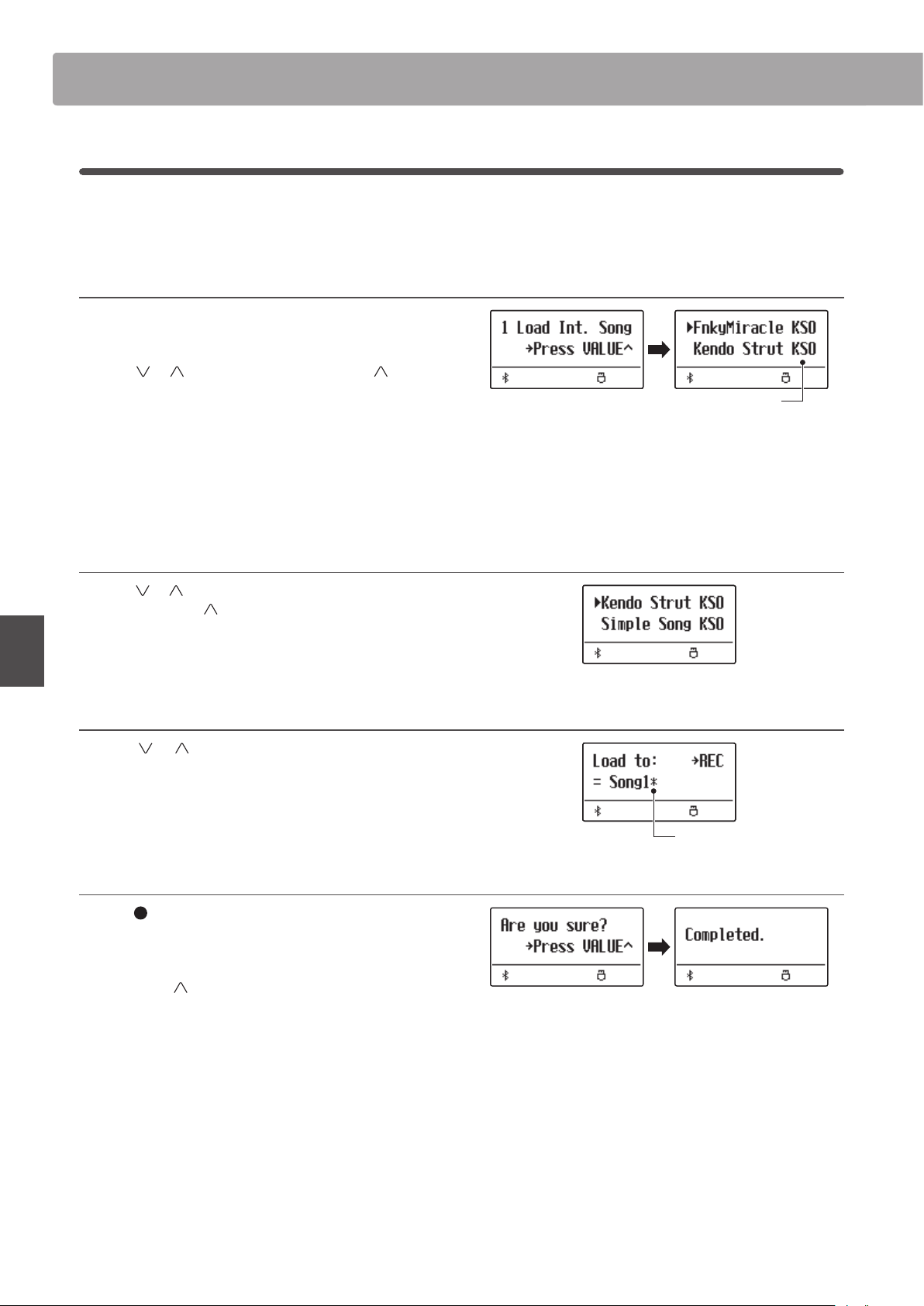
USB MenuUSB Menu
62
Basic Operation
1
Load Internal Song
The Load Internal Song function is used to load recorder songs stored on a USB memory device into the instrument’s
internal memory.
1. Selecting the Load Int. Song function
Connect a USB memory device, then press the USB button to
enter the USB Menu.
Press the or MENU buttons then the VALUE button to
select the Load Int. Song function.
The le selection screen will be shown in the display, listing song
les stored on the USB memory device.
* Please refer to page 50 for information about the le selection
screen.
2. Selecting the song le to be loaded
Press the or VALUE buttons to move the selection cursor,
then press the MENU
button to select the song le.
The memory selection screen will be shown in the display.
3. Selecting the song memory
Press the or VALUE buttons to select the internal song
memory for the song to be loaded into.
* If a song memory contains song data, a
*
symbol will be shown.
4. Loading the selected song
Press the (REC) button to load the selected song.
A conrmation message will be shown in the display.
Press the VALUE
button to conrm the load operation.
Press the EXIT button to cancel the load operation.
To play back the loaded song, please refer to the “Playing a Song”
instructions on page 44.
Recorder song
Contains song data
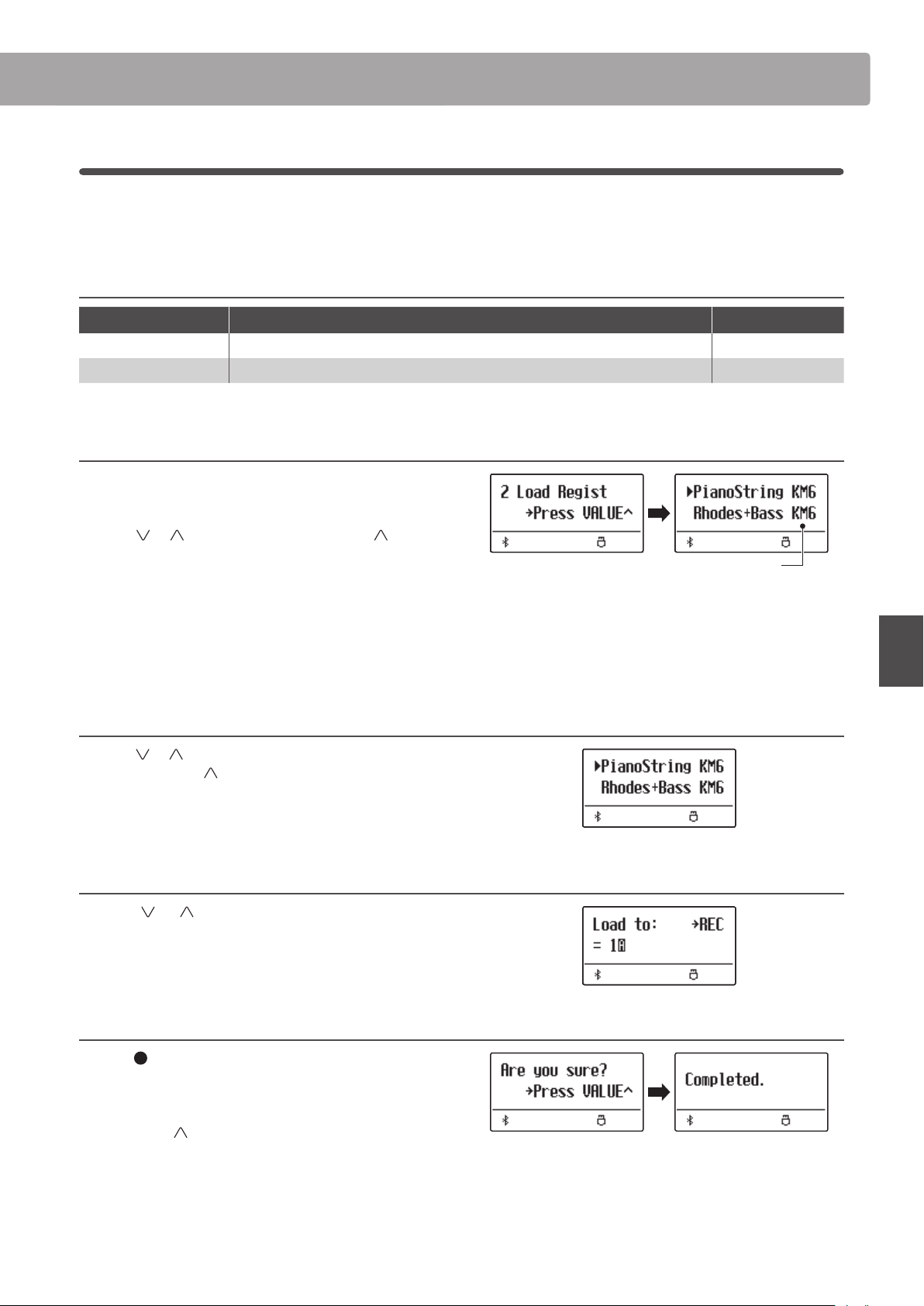
USB Menu
63
Basic Operation
2
Load Registration
The Load Registration function is used to load registration memories stored on a USB memory device into the
instrument’s internal memory. There are two types of registration le: “Single” and “All”.
Registration le types
Registration type Description File extension
Single A le containing a single registration memory. KM6
All A le containing all 28 registration memories. KM3
1. Selecting the Load Regist function
Connect a USB memory device, then press the USB button to
enter the USB Menu.
Press the or MENU buttons then the VALUE button to
select the Load Regist function.
The le selection screen will be shown in the display, listing the
registration les stored on the USB memory device.
* Please refer to page 50 for information about the le selection
screen.
2. Selecting the registration le to be loaded
Press the or VALUE buttons to move the selection cursor,
then press the MENU
button to select the registration le.
The memory selection screen will be shown in the display.
3. Selecting the registration memory
Press the or VALUE buttons to select the registration
memory for the registration to be loaded into.
* If an “All Registration” le is selected, this step will be skipped.
4. Loading the selected registration
Press the (REC) button to load the selected registration.
A conrmation message will be shown in the display.
Press the VALUE
button to conrm the load operation.
Press the EXIT button to cancel the load operation.
To use the loaded registration, please refer to the Registration
instructions on page 36.
Registration le
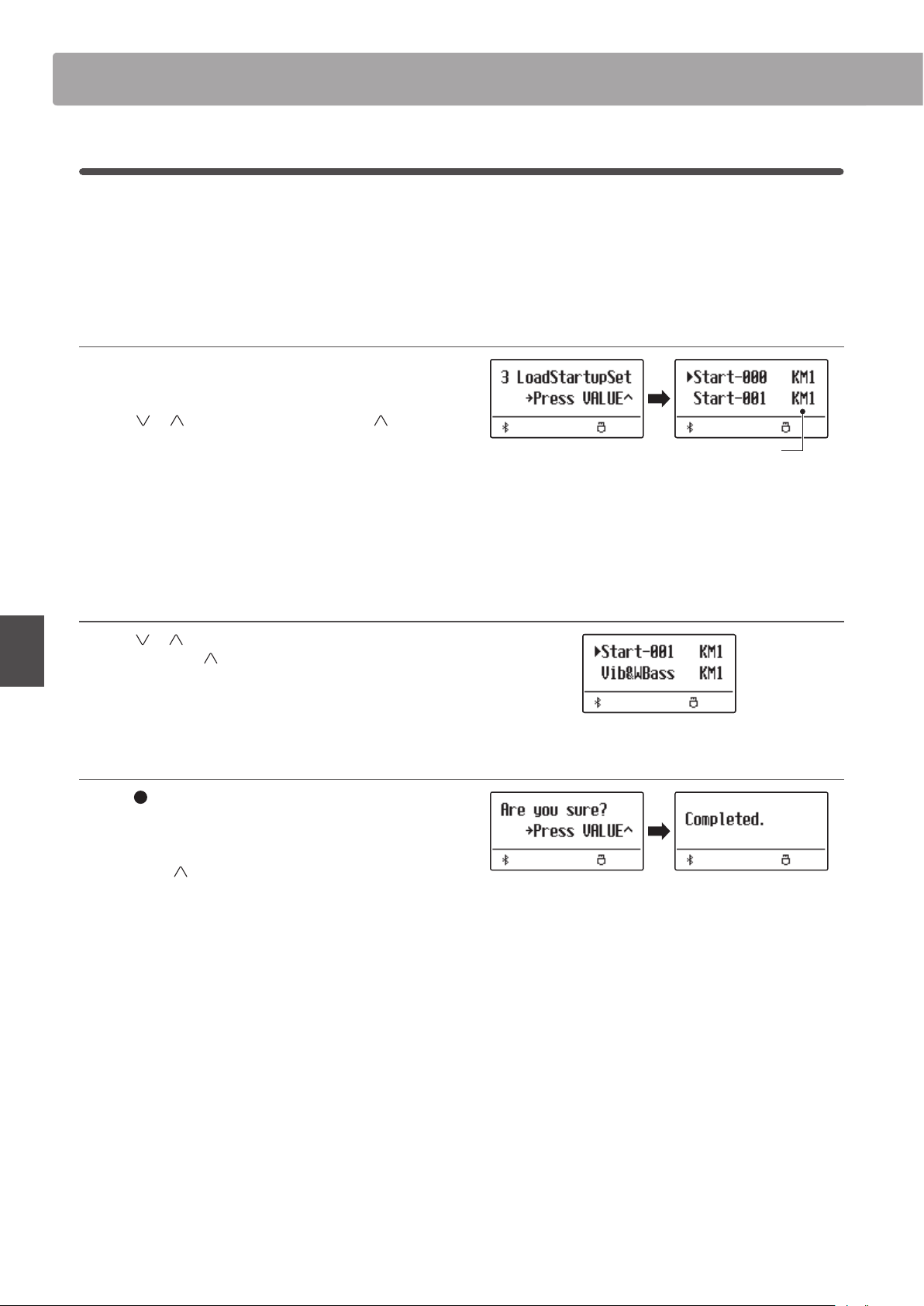
USB MenuUSB Menu
64
Basic Operation
3
Load Startup Setting
The Load Startup Setting function is used to load a ES920 startup setting le stored on a USB memory device into
the instrument’s startup memory. The loaded settings will be used as the default settings every time the ES920
digital piano is turned on.
* This function will overwrite the previously stored Startup Settings memory.
1. Selecting the Load Startup Setting function
Connect a USB memory device, then press the USB button to
enter the USB Menu.
Press the or MENU buttons then the VALUE button to
select the Load Startup Setting function.
The le selection screen will be shown in the display, listing the
startup setting les stored on the USB memory device.
* Please refer to page 50 for information about the le selection
screen.
2. Selecting the startup setting le to be loaded
Press the or VALUE buttons to move the selection cursor,
then press the MENU
button to select the startup setting le.
The memory selection screen will be shown in the display.
3. Loading the selected startup setting
Press the (REC) button to load the selected startup setting.
A conrmation message will be shown in the display.
Press the VALUE
button to conrm the load operation.
Press the EXIT button to cancel the load operation.
Startup Setting le
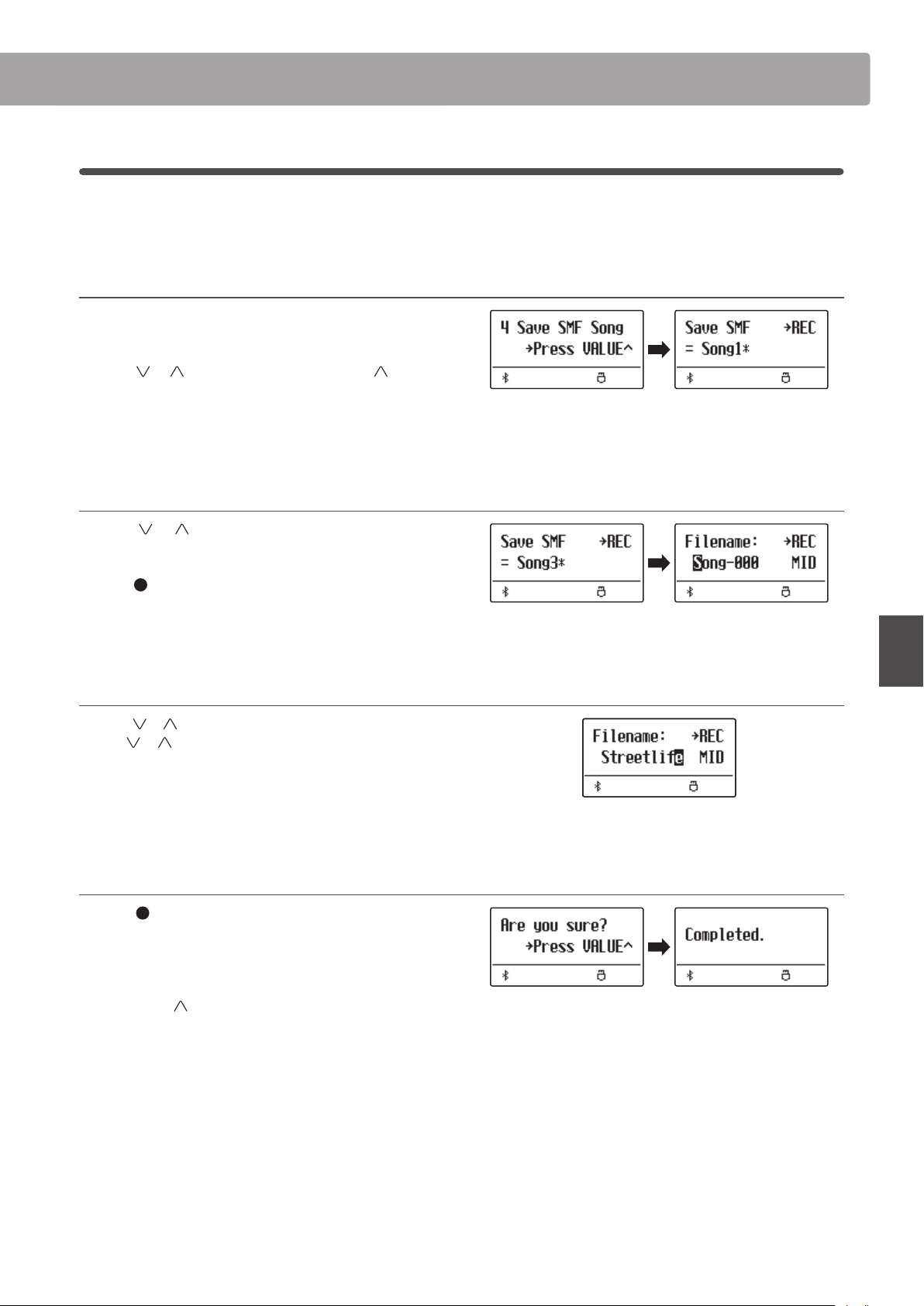
USB Menu
65
Basic Operation
4
Save SMF Song
The Save SMF Song function is used to save recorder songs stored in the instrument’s internal memory to a USB
memory device as a Standard MIDI File (SMF).
1. Selecting the Save SMF Song function
Connect a USB memory device, then press the USB button to
enter the USB Menu.
Press the or MENU buttons then the VALUE button to
select the Save SMF Song function.
The song selection screen will be shown in the display.
2. Selecting the song to be saved
Press the or VALUE buttons to select the internal song
memory to be saved.
Press the (REC) button to continue.
The lename entry screen will be shown in the display.
3. Naming the SMF song
Press the or VALUE buttons to cycle through the characters,
and the
or MENU buttons to move the cursor.
* Saved les are limited to a maximum name length of 11 characters.
* The saved SMF le will be stored in the root folder of the USB memory
device. It is not possible to store the le in a dierent folder.
4. Saving the SMF song
Press the (REC) button again to save the SMF song with the
specied lename.
A conrmation message will be shown in the display.
Press the VALUE
button to conrm the save operation.
Press the EXIT button to cancel the save operation.
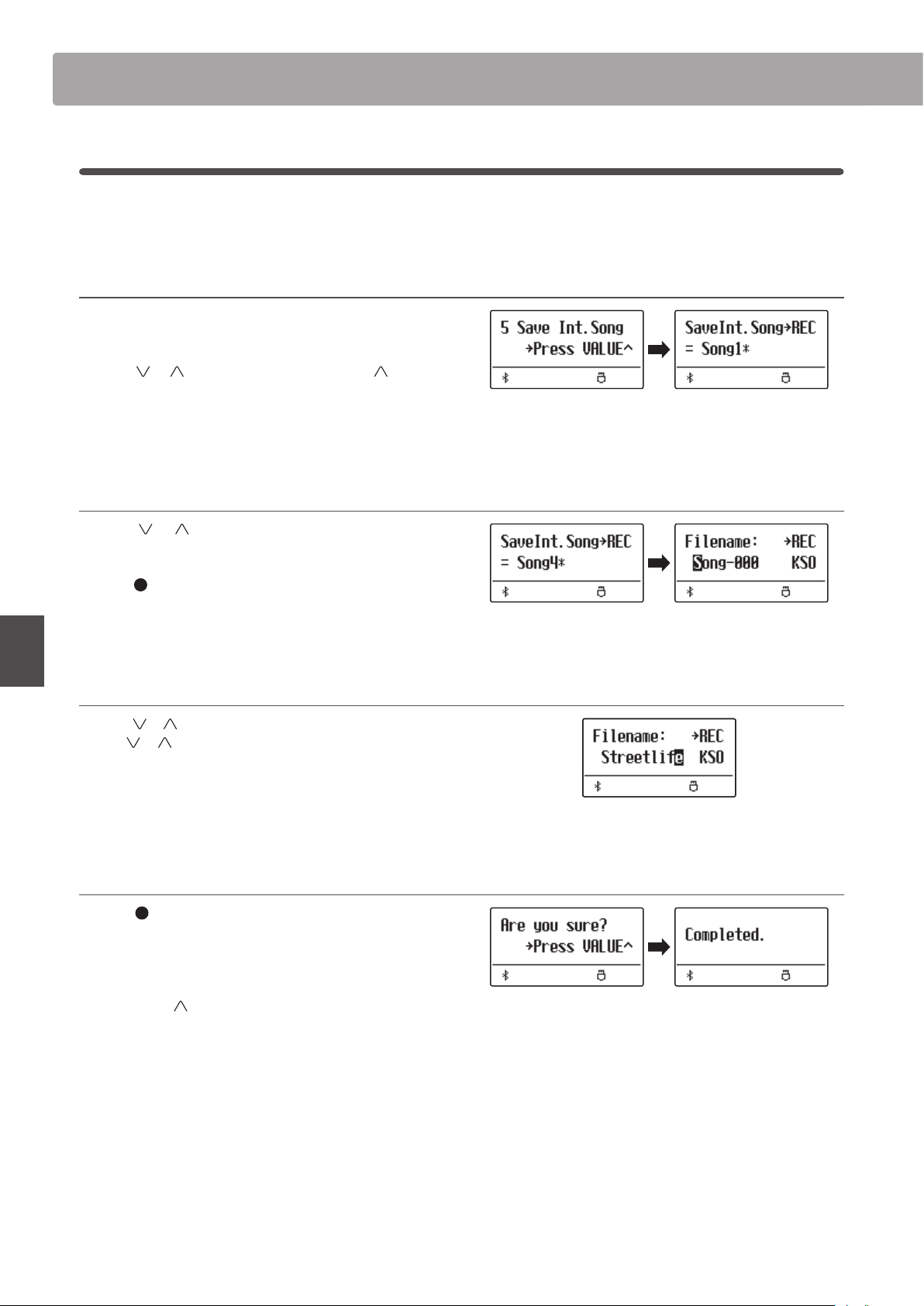
USB MenuUSB Menu
66
Basic Operation
5
Save Internal Song
The Save Internal Song function is used to save recorder songs stored in the instrument’s internal memory to a USB
memory device in the ES920’s native song format.
1. Selecting the Save Int. Song function
Connect a USB memory device, then press the USB button to
enter the USB Menu.
Press the or MENU buttons then the VALUE button to
select the Save Int. Song function.
The song selection screen will be shown in the display.
2. Selecting the song to be saved
Press the or VALUE buttons to select the internal song
memory to be saved.
Press the (REC) button to continue.
The lename entry screen will be shown in the display.
3. Naming the song
Press the or VALUE buttons to cycle through the characters,
and the
or MENU buttons to move the cursor.
* Saved les are limited to a maximum name length of 11 characters.
* The saved song will be stored in the root folder of the USB memory
device. It is not possible to store the le in a dierent folder.
4. Saving the song
Press the (REC) button again to save the recorded song with
the specied lename.
A conrmation message will be shown in the display.
Press the VALUE
button to conrm the save operation.
Press the EXIT button to cancel the save operation.
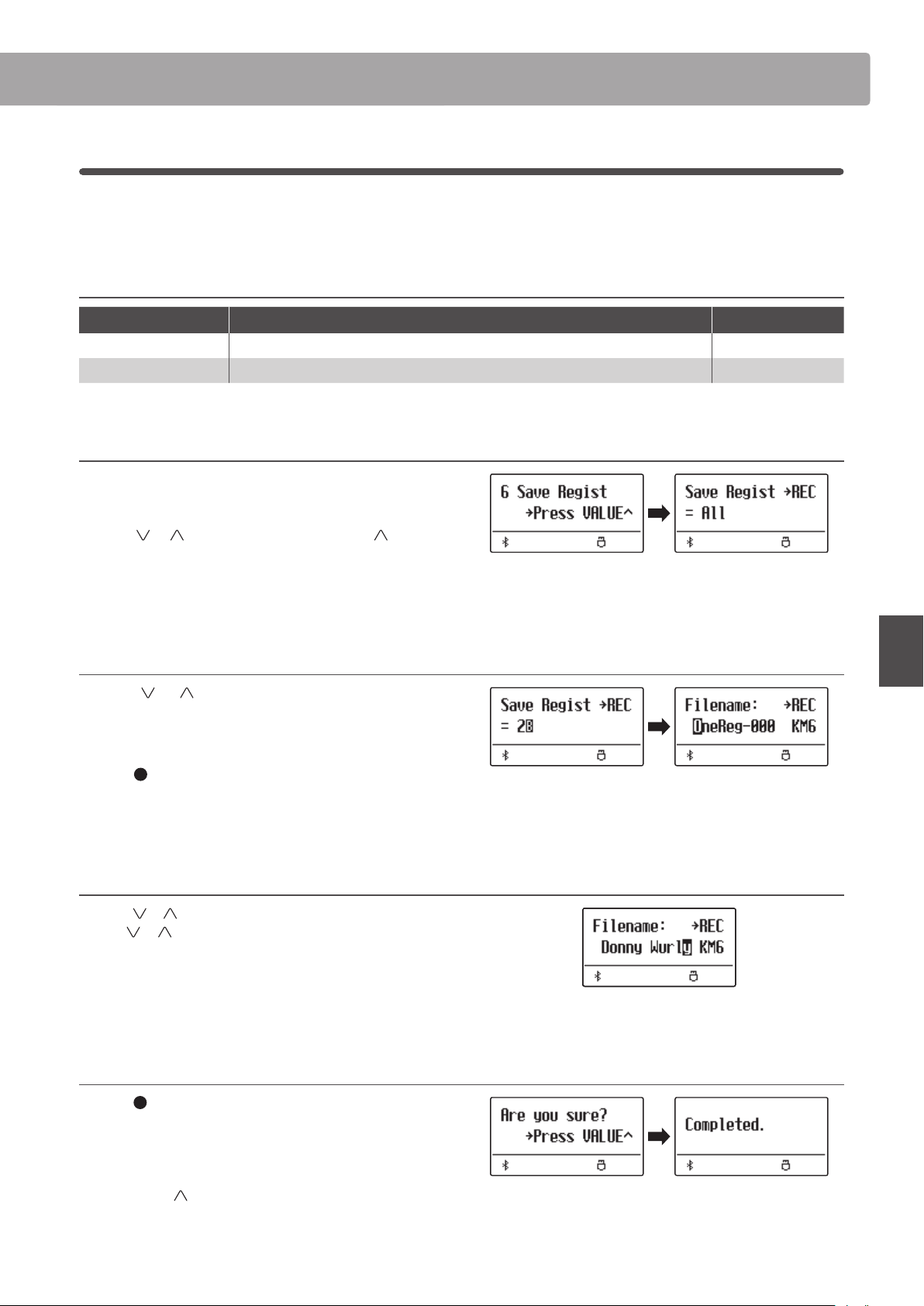
USB Menu
67
Basic Operation
6
Save Registration
The Save Registration function is used to save registration memories stored in the instrument to a USB memory
device. There are two types of registration le: “Single” and “All”.
Registration le types
Registration type Description File extension
Single A le containing a single registration memory. KM6
All A le containing all 28 registration memories. KM3
1. Selecting the Save Regist function
Connect a USB memory device, then press the USB button to
enter the USB Menu.
Press the or MENU buttons then the VALUE button to
select the Save Regist function.
The memory selection screen will be shown in the display.
2. Selecting the registration memory to be saved
Press the or VALUE buttons to select the registration
memory to be saved.
* The “All” option will save all registration memories to a single le.
Press the (REC) button to continue.
The lename entry screen will be shown in the display.
3. Naming the registration le
Press the or VALUE buttons to cycle through the characters,
and the
or MENU buttons to move the cursor.
* Saved les are limited to a maximum name length of 11 characters.
* The saved registration will be stored in the root folder of the USB
memory device. It is not possible to store the le in a dierent folder.
4. Saving the registration le
Press the (REC) button again to save the recorded registration
with the specied lename.
A conrmation message will be shown in the display.
Press the VALUE
button to conrm the save operation.
Press the EXIT button to cancel the save operation.
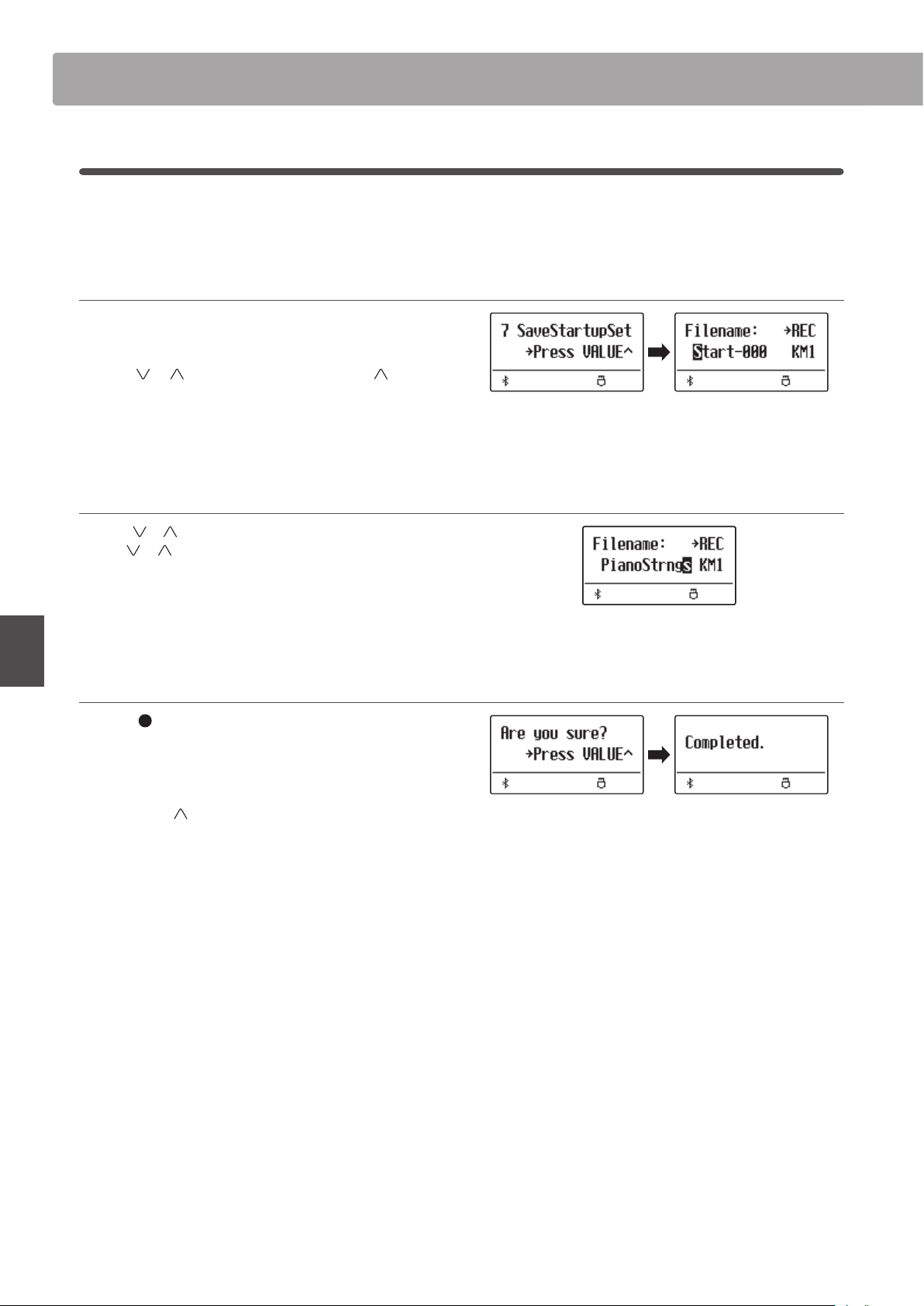
USB MenuUSB Menu
68
Basic Operation
7
Save Startup Setting
The Save Startup Setting function is used to save the current ES920 Startup Settings to a USB memory device.
* For more information about the instrument’s “Startup Setting” feature, please refer to page 82.
1. Selecting the Save Startup Setting function
Connect a USB memory device, then press the USB button to
enter the USB Menu.
Press the or MENU buttons then the VALUE button to
select the Save Startup Setting function.
The memory selection screen will be shown in the display.
2. Naming the startup setting le
Press the or VALUE buttons to cycle through the characters,
and the
or MENU buttons to move the cursor.
* Saved les are limited to a maximum name length of 11 characters.
* The saved startup setting will be stored in the root folder of the USB
memory device. It is not possible to store the le in a dierent folder.
3. Saving the startup setting le
Press the (REC) button again to save the recorded startup
setting with the specied lename.
A conrmation message will be shown in the display.
Press the VALUE
button to conrm the save operation.
Press the EXIT button to cancel the save operation.
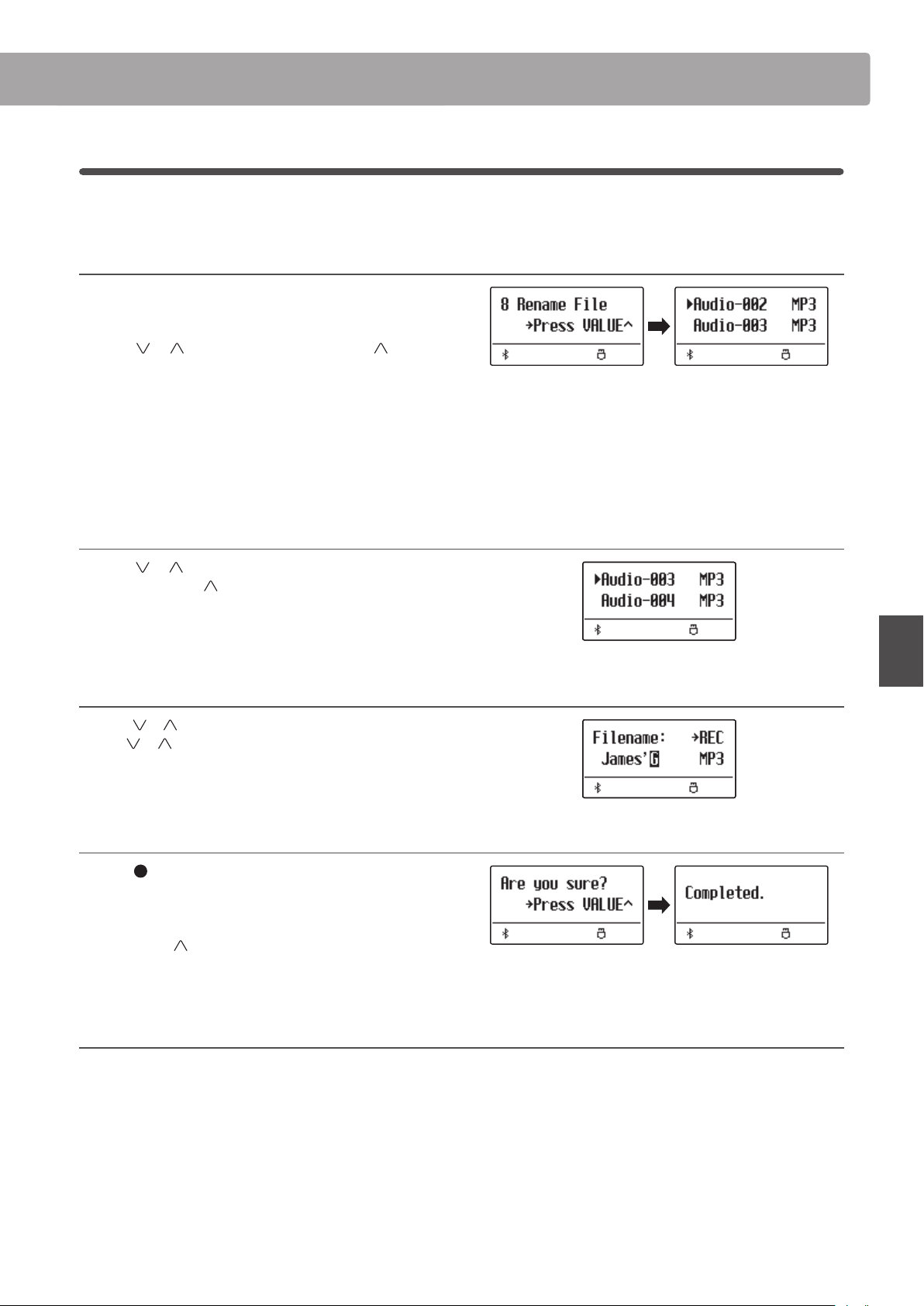
USB Menu
69
Basic Operation
8
Rename File
The Rename File function is used to rename song, audio, and registration les stored on a USB memory device.
1. Selecting the Rename File function
Connect a USB memory device, then press the USB button to
enter the USB Menu.
Press the or MENU buttons then the VALUE button to
select the Rename File function.
The le selection screen will be shown in the display, listing song,
audio, and registration les stored on the USB memory device.
* Please refer to page 50 for information about the le selection
screen.
2. Selecting the le to be renamed
Press the or VALUE buttons to move the selection cursor,
then press the MENU
button to select the le.
The lename entry screen will be shown in the display.
3. Renaming the selected le
Press the or VALUE buttons to cycle through the characters,
and the
or MENU buttons to move the cursor.
* Files are limited to a maximum name length of 11 characters.
4. Conrming the rename
Press the (REC) button to rename the le.
A conrmation message will be shown in the display.
Press the VALUE
button to conrm the rename operation.
Press the EXIT button to cancel the rename operation.
5. Exiting the Rename File function
Press the EXIT button to exit the Rename File function.
The LED indicator for the USB button will turn o, and the
instrument will return to normal playing mode.
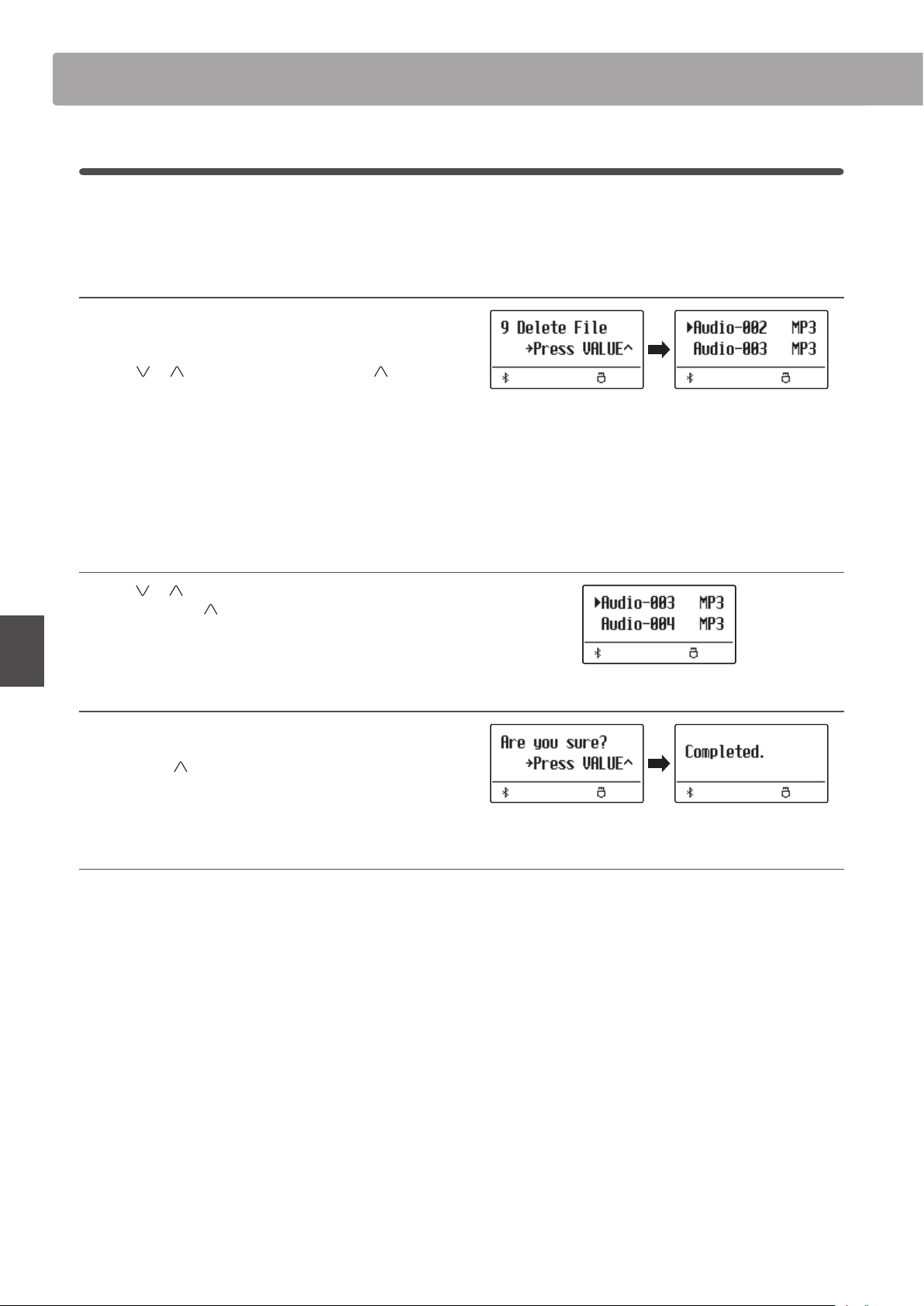
USB MenuUSB Menu
70
Basic Operation
9
Delete File
The Delete File function is used to delete song, audio, and registration les stored on a USB memory device.
Once a le has been deleted from the USB device it cannot be recovered.
1. Selecting the Delete File function
Connect a USB memory device, then press the USB button to
enter the USB Menu.
Press the or MENU buttons then the VALUE button to
select the Delete File function.
The le selection screen will be shown in the display, listing song,
audio, and registration les stored on the USB memory device.
* Please refer to page 50 for information about the le selection
screen.
2. Selecting the le to be deleted
Press the or VALUE buttons to move the selection cursor,
then press the MENU
button to select the le.
3. Conrming the delete
A conrmation message will be shown in the display.
Press the VALUE
button to conrm the delete operation.
Press the EXIT button to cancel the delete operation.
4. Exiting the Delete File function
Press the EXIT button to exit the Delete File function.
The LED indicator for the USB button will turn o, and the
instrument will return to normal playing mode.
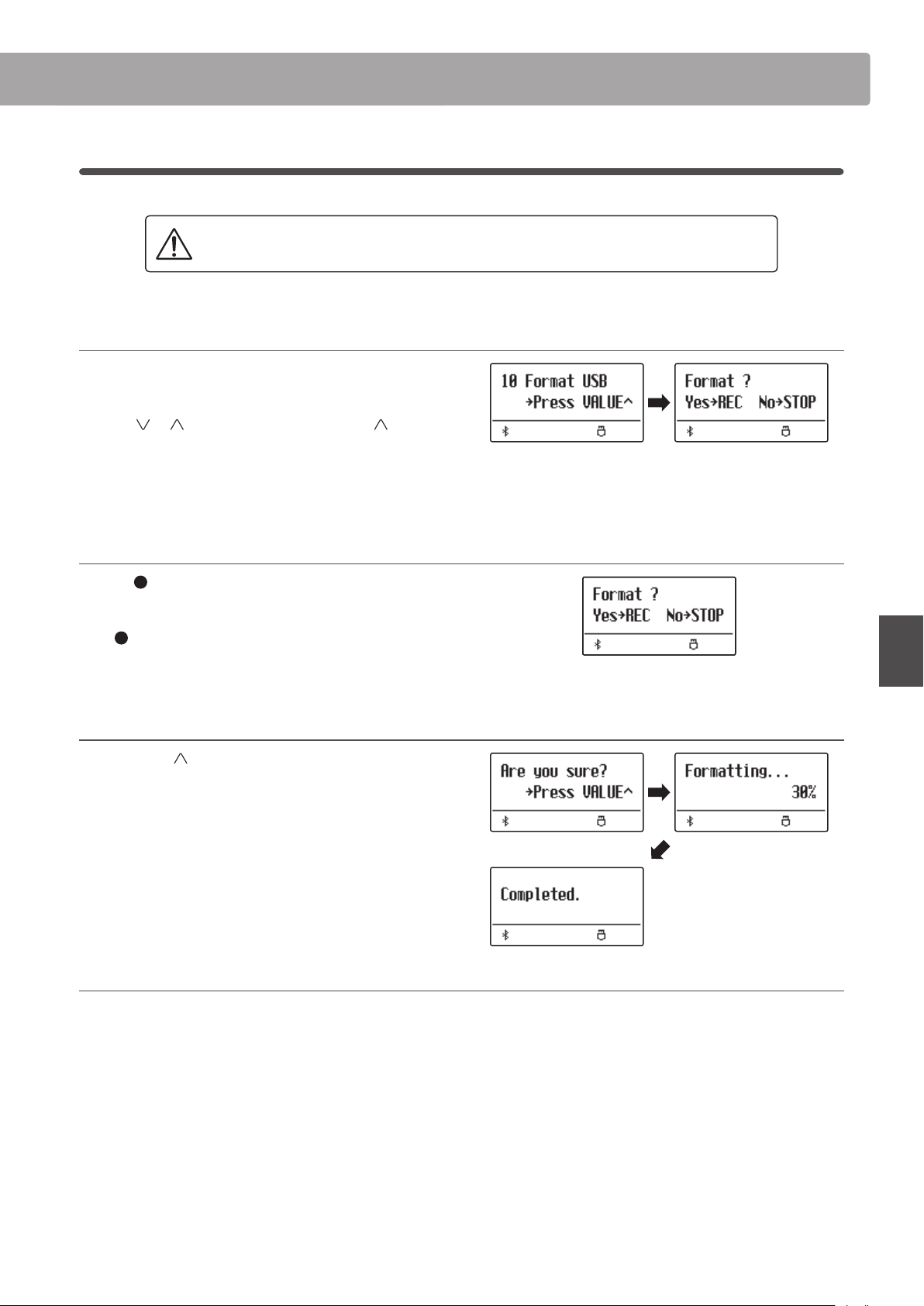
USB Menu
71
Basic Operation
10
Format USB
The Format USB function is used to format the connected USB memory device, erasing all stored data.
The USB Format function will erase all data stored on the connected USB memory device.
Exercise caution when using this function in order to prevent accidental data loss.
1. Selecting the Format USB function
Connect a USB memory device, then press the USB button to
enter the USB Menu.
Press the or MENU buttons then the VALUE button to
select the Format USB function.
An initial conrmation message will be shown in the display.
2. Conrming the format operation (initial conrmation)
Press the (REC) button to conrm the format operation.
Press the PLAY/STOP button to cancel the format operation.
If the (REC) button is pressed, a nal conrmation message
will be shown in the display.
3. Conrming the format operation (nal conrmation)
Press the VALUE button to conrm the format operation.
Press the EXIT button to cancel the format operation.
4. Exiting the Format USB function
Press the EXIT button to exit the Format USB function.
The LED indicator for the USB button will turn o, and the
instrument will return to normal playing mode.
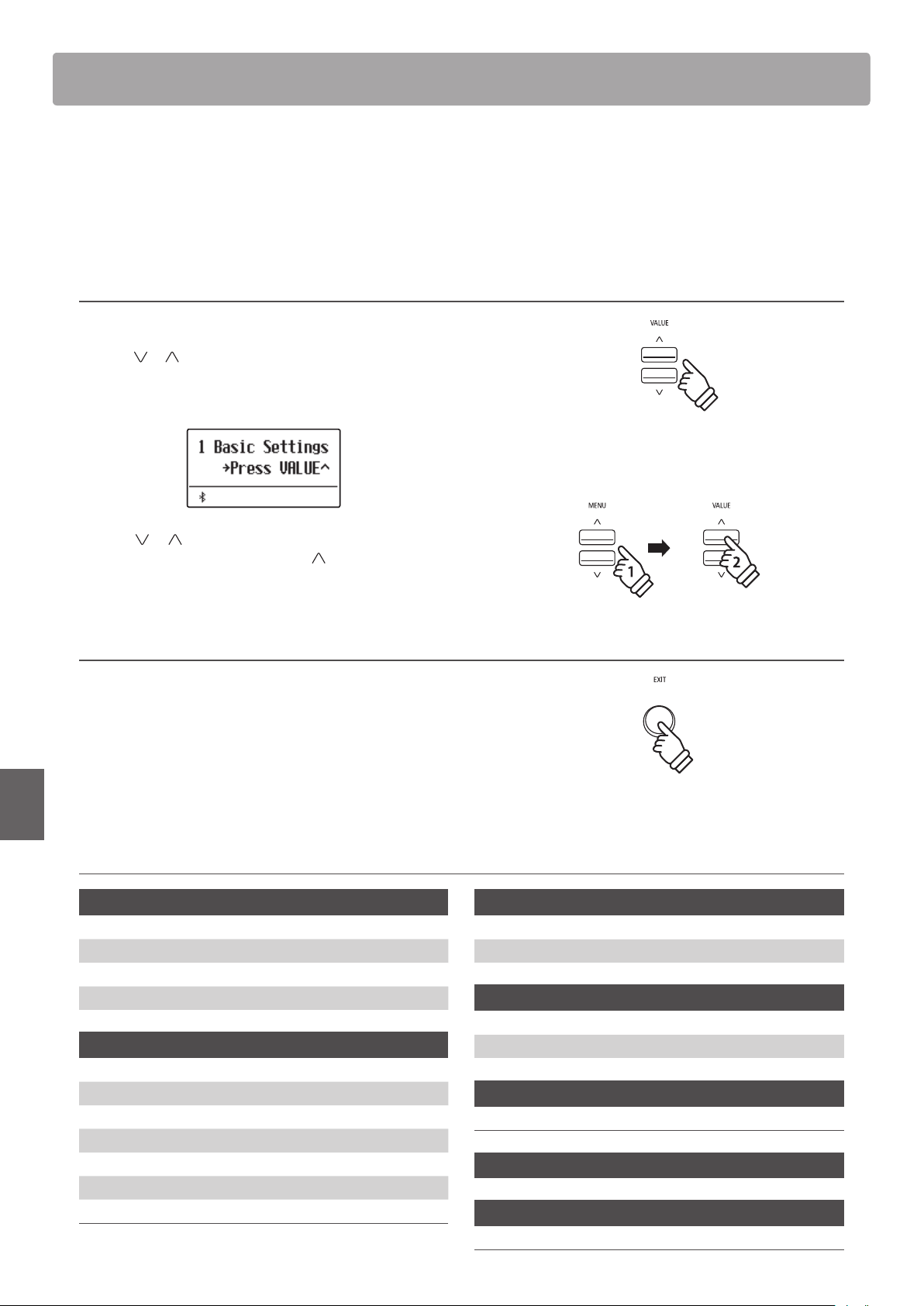
Settings Menus
72
Adjustments & Settings
Settings Menus
The Settings menus contain a variety of options to adjust the ES920’s operation and sound. Settings are grouped
by category, providing convenient access to relevant controls. Once adjusted, settings can be stored to one of
the instrument’s 28 registration memories, or selected as the default power-on settings with the Startup Setting
function.
Entering the Settings menus
While the normal playing mode screen is shown in the display:
Press the
or MENU buttons.
The rst settings menu (Basic Settings) will be shown in the
display.
Press the or MENU buttons to cycle through the dierent
settings menus, then press the VALUE
button to enter the
selected menu.
Exiting the Settings menus
Press the EXIT button to return to the main settings menu.
Press the EXIT button again to return to normal playing mode.
Overview of Settings menus
1. Basic Settings
Tone Control, Wall EQ, Speaker Volume, Low Volume Balance,
Line Out Volume, Audio Rec Gain, Tuning, Damper Hold, GFP-3 Mode,
Four Hands, Startup Setting, Factory Reset, Auto Display O,
Auto Power O
2. Virtual Technician
Touch Curve, Voicing, User Voicing, Damper Resonance,
Damper Noise, String Resonance, Undamped String Resonance,
Cabinet Resonance, Key-o Eect, Fall-back Noise, Hammer Noise,
Hammer Delay, Topboard, Decay Time, Release Time,
Minimum Touch, Temperament, Stretch Tuning, Stretch Curve,
User Tuning, Temperament Key, User Temperament, User Key Volume,
Half-Pedal Adjust, Soft Pedal Depth
3. Key Settings
Lower Octave Shift, Lower Pedal On/O, Split Balance,
Layer Octave Shift, Layer Dynamics, Dual Balance
4. Rhythm Settings
Rhythm Volume, Auto Fill-in, One Finger Ad-lib, ACC Mode,
Bass Inversion, Preset Chord
5. Phones Settings
SHS Mode, Phones Type, Phones Volume
6. MIDI Settings
7. Bluetooth Settings
Bluetooth Audio, Bluetooth Audio Volume, Bluetooth MIDI
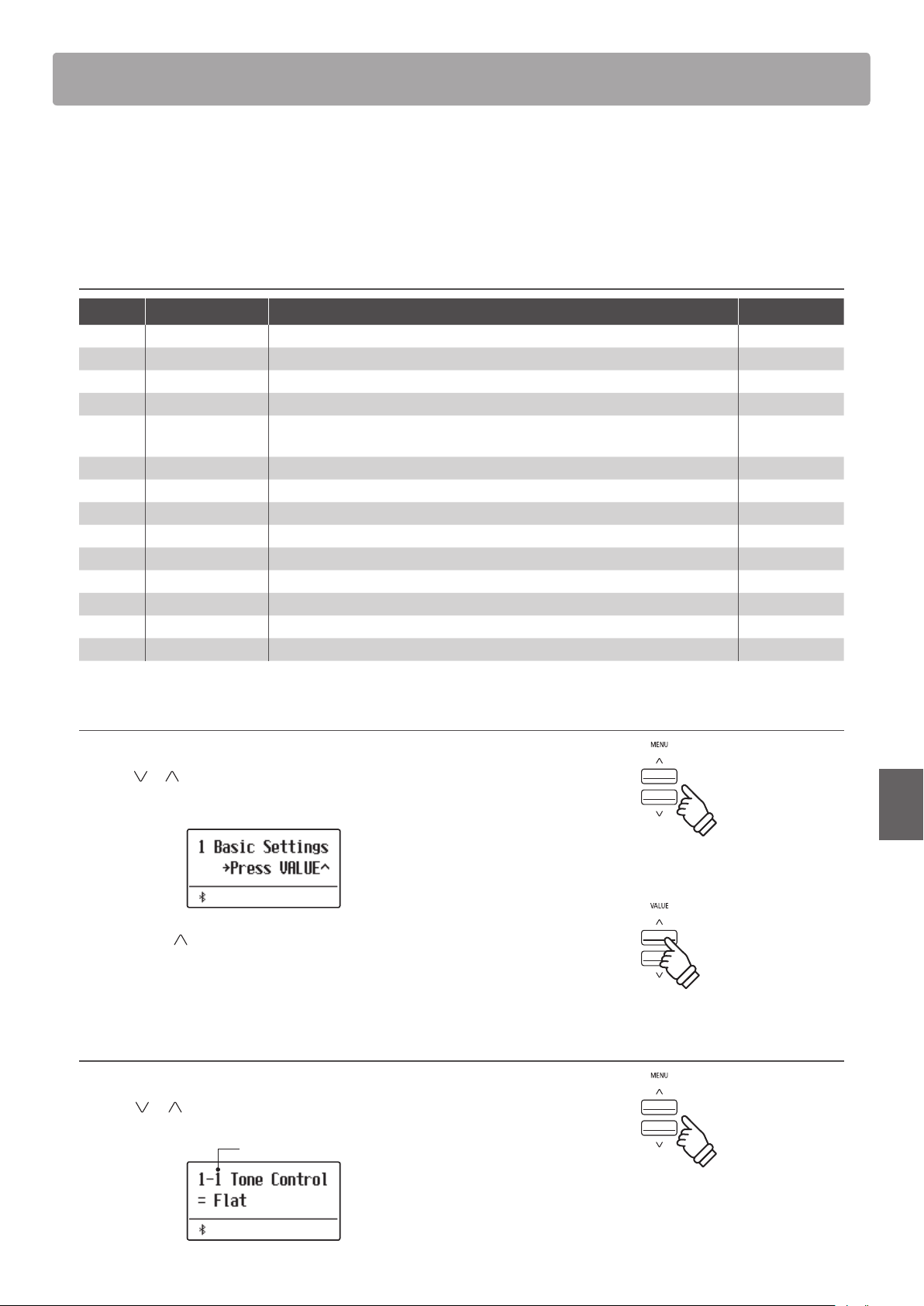
73
Adjustments & Settings
The Basic settings menu contains settings to adjust the pitch, tuning, and general sound of the instrument.
This menu also allows favourite panel settings to be stored, or reset back to the original factory conguration.
* Any changes made by this operation will remain until the power is turned o.
Preferred settings can be stored in a Registration memory or Startup Setting. Please refer to page 36 and 82 for more information.
Basic Settings
Page no. Setting Description Default setting
1-1 Tone Control Change the EQ settings of the instrument’s sound. Flat
1-2 Wall EQ Optimise the instrument’s speaker system based on instrument placement. O
1-3 Speaker Volume Change the maximum volume level of the speaker output. Normal
1-4
Low Volume Balance
Change the dierence in volume between pianissimo and fortissimo playing. 3
1-5 Line Out Volume
Specify whether the Line Out volume can be adjusted using the Master
Volume slider.
Adjust by M.V.
1-6 Audio Rec Gain Increase or decrease the recording level of the MP3/WAV audio recorder. +9 dB
1-7 Tuning Increase or decrease the pitch of the instrument in 0.5 Hz steps. 440.0 Hz
1-8 Damper Hold Change the eect of pressing the sustain pedal on organ, string, etc. sounds. Preset
1-9 GFP-3 Mode Change the function of the optional GFP-3 or F-302 triple pedal. Sostenuto/Soft
1-10 Four Hands Enable the “Four Hands Mode” function. O
1-11 Startup Setting Store current panel settings as the default (power-on) conguration. -
1-12 Factory Reset Restore all panel settings to the original factory conguration. -
1-13 Auto Display O Turn o the display automatically after a period of time without any operations. 5 min.
1-14 Auto Power O
Turn o the instrument automatically after a period of time without any operations.
-
Entering the Basic Settings menu
While the normal playing mode screen is shown in the display:
Press the or MENU buttons.
The Basic Settings page will be shown in the display.
Press the VALUE button to enter the Basic Settings menu.
The rst page of the Basic Settings menu will be shown in the
display
Selecting the desired setting
After entering the Basic Settings menu:
Press the or MENU buttons to cycle through the dierent
settings pages.
Settings page no.
Basic Settings
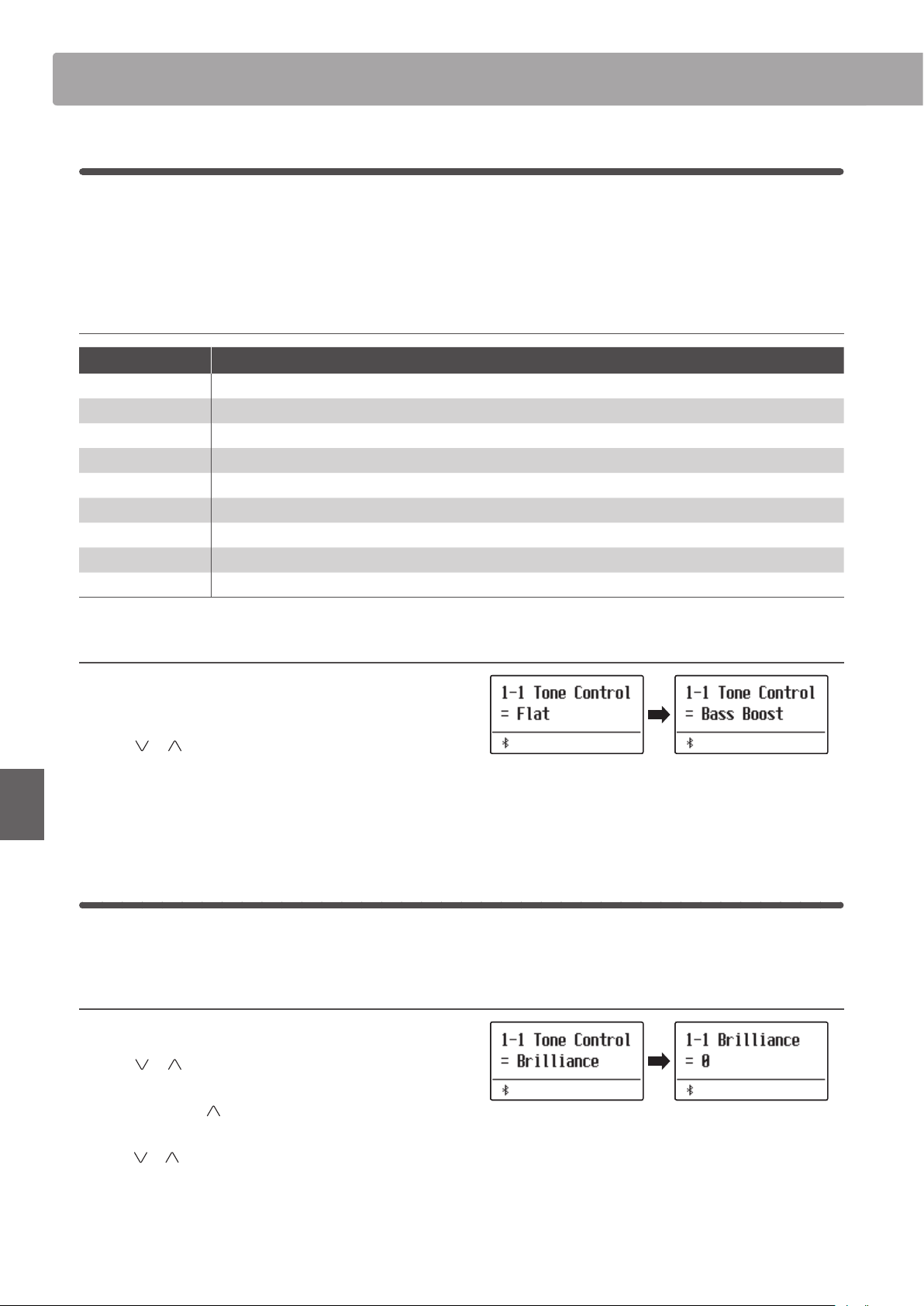
Basic SettingsBasic Settings
74
Adjustments & Settings
1-1
Tone Control
The Tone Control function allows the overall sound character of the ES920 digital piano to be adjusted to ensure the
best sound quality within the area that the instrument is located. There are six dierent preset Tone Control types
available, with an additional “User” setting allowing ner control over the dierent frequency bands.
* The tone (volume) set in this function is applied to the middle position of the sliders of 4-band equalizer on the panel.
Tone Control types
Tone Control type Description
Flat (default) The Tone Control is turned o, and the sound character is unchanged.
Brilliance Adjust the overall brightness of the sound, independently of the “Voicing” Virtual Technician setting.
Bass Boost Emphasises low-range frequencies, creating a deeper sound.
Bass Cut Reduces bass-range frequencies.
Mid Boost Emphasises mid-range frequencies, creating a slightly hard sound.
Loudness Emphasises frequencies to retain the instrument’s sound character when playing at low volume levels.
Bright Emphasises dazzling brightness of the sound.
Mellow Emphasises calm softness of the sound.
User EQ Allows the low, mid, and high-range frequency bands to be adjusted separately.
Changing the Tone Control type
After entering the Basic Settings menu (page 73):
The Tone Control setting will be selected automatically.
Press the
or VALUE buttons to cycle through the dierent
Tone Control types.
Press the EXIT button to exit the Tone Control setting and return
to the main settings menu.
Brilliance
The Brilliance setting allows the overall brightness of the ES920 digital piano’s sound to be adjusted, independently
of the “Voicing” Virtual Technician setting.
Adjusting the Brilliance setting
After entering the Tone Control menu:
Press the
or VALUE buttons to select the Brilliance setting
mode.
Then press the MENU
button, Brilliance setting screen will be
shown in the display.
Press the
or VALUE buttons to adjust the Brilliance setting.
* Brilliance can be adjusted within the range of -10~+10.
Press the EXIT button to exit the Brilliance setting and return to
the main settings menu.
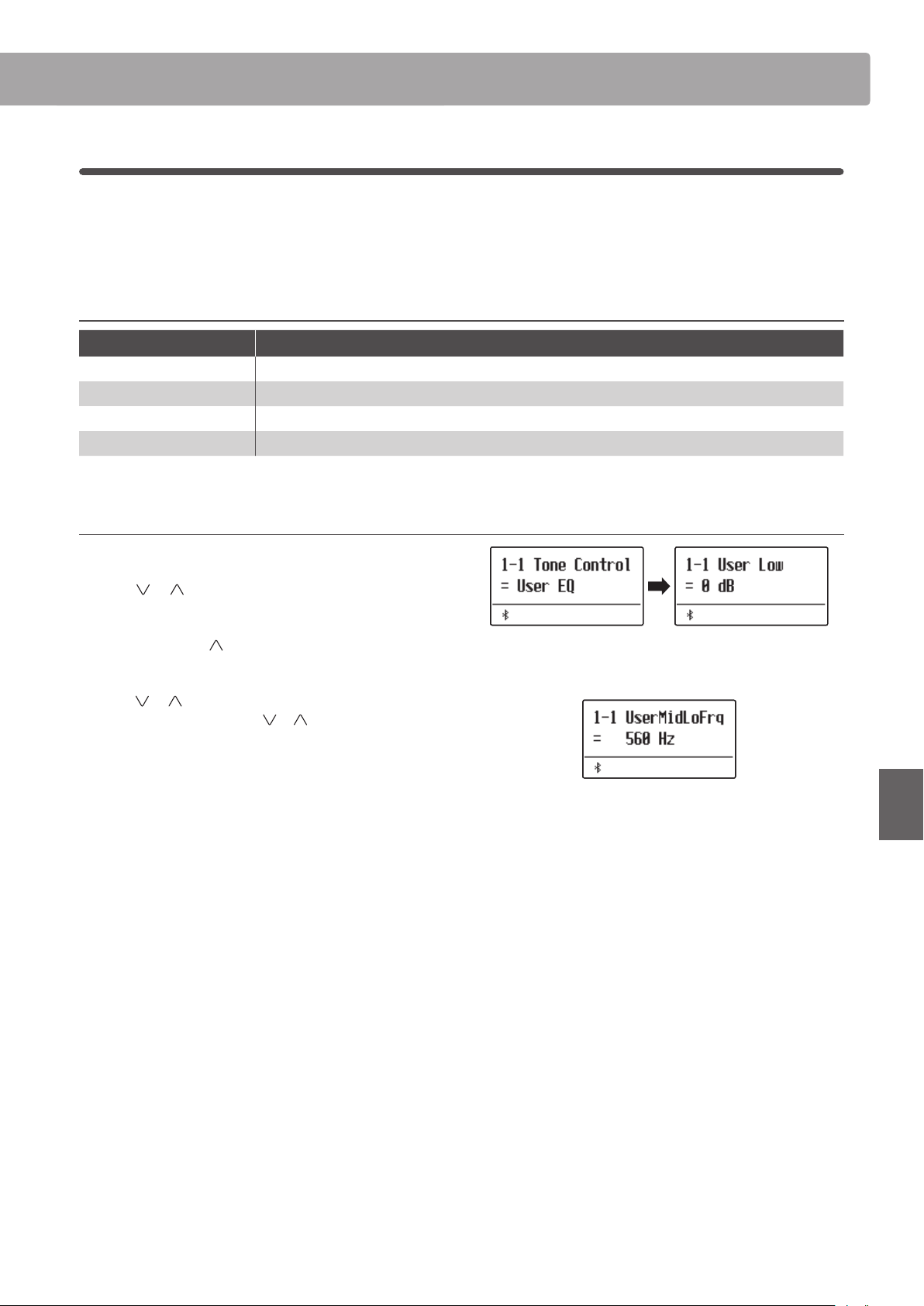
Basic Settings
75
Adjustments & Settings
User EQ
The User EQ option allows ner control over the instrument’s sound character, allowing the volume of four frequency
bands to be adjusted individually. It is also possible to adjust the frequency range of the mid-low and mid-high
frequency bands.
User EQ setting
User EQ Description
Low Adjusts the volume of the low range frequency band (20~100 Hz).
Mid-low Frequency Adjusts the frequency of the mid-low band (200~8000 Hz).
Mid-high Frequency Adjusts the frequency of the mid-high band (200~8000 Hz).
High Adjusts the volume of the high range frequency band (5000~20000 Hz).
Adjusting the User EQ bands (low/mid/high)
After entering the Tone Control menu:
Press the
or VALUE buttons to select the User EQ setting
mode.
Then press the MENU button, User EQ setting screen will be
shown in the display.
Press the or MENU buttons to cycle through the dierent
User EQ settings, then press the
or VALUE buttons to adjust
the value of the selected setting.
* Frequencies set for Mid-low and Mid-high bands are applied to the
second and third band equalisers from the left on the panel.
* The volume set in this function is applied to the middle position of the
sliders of 4-band equalizer.
The volume settable for each band on this instrument is from -6dB to
+6dB.
When the volume is set to +6dB in User EQ, +6dB is applied at the
middle of the slider on the panel; therefore, the volume will not
increase even if the slider is moved above the middle.
Press the EXIT button to exit the User EQ setting and return to
the main settings menu.
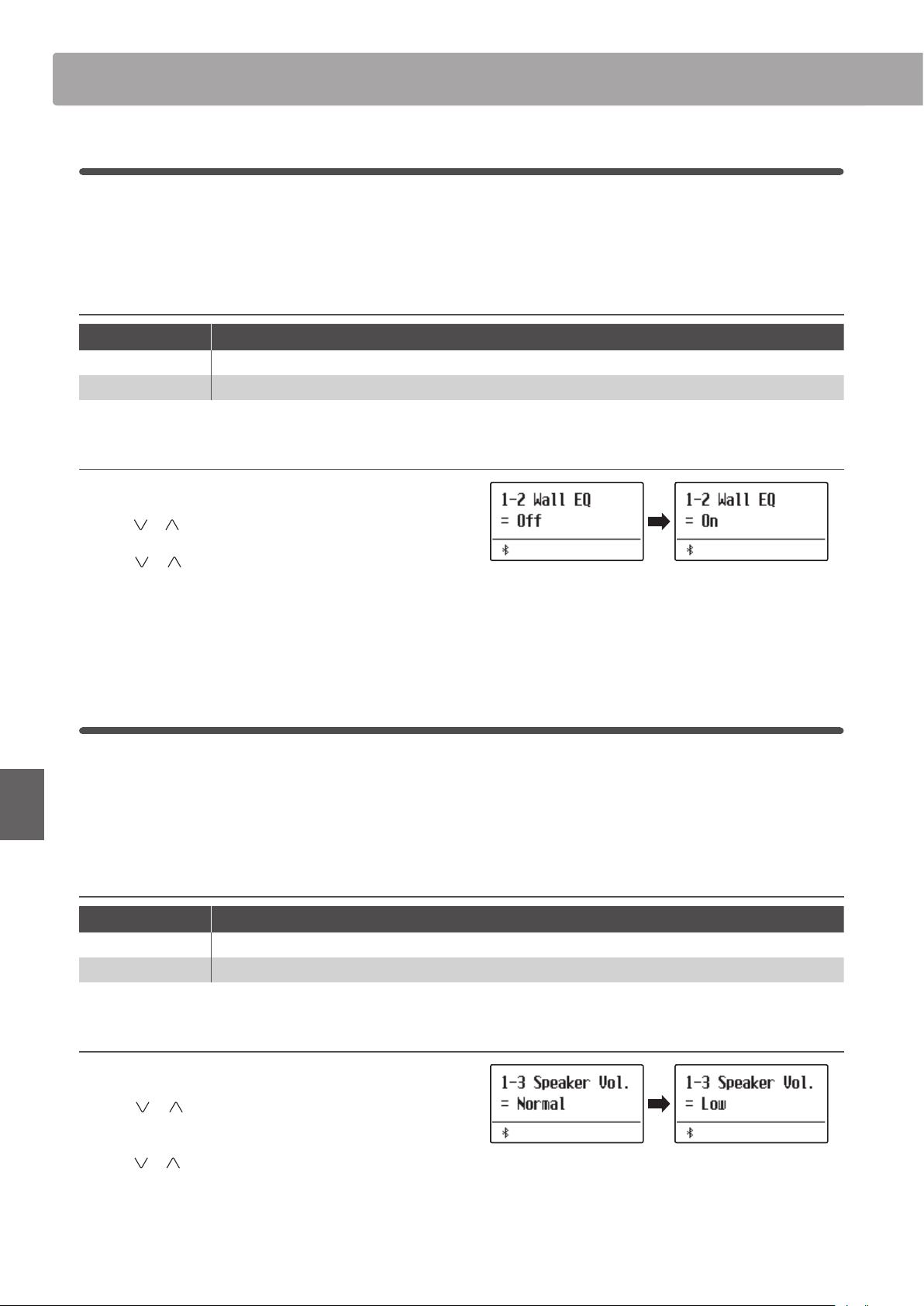
Basic SettingsBasic Settings
76
Adjustments & Settings
1-2
Wall EQ
The Wall EQ setting optimises the ES920 digital piano’s speaker system depending on whether the instrument is
placed beside a wall, or in an area away from a wall.
* This setting does not aect the headphones or Line Out output.
Wall EQ settings
Wall EQ Description
O (default) Optimise the speaker system for placing the ES920 digital piano in an area away from a wall.
On Optimise the speaker for placing the ES920 digital piano beside a wall.
Changing the Wall EQ setting
After entering the Basic Settings menu (page 73):
Press the
or MENU buttons to select the Wall EQ setting.
Press the
or VALUE buttons to turn the Wall EQ setting on
or o.
Press the EXIT button to exit the Wall EQ setting and return to
the main settings menu.
1-3
Speaker Volume
The Speaker Volume setting allows the maximum volume level of the ES920 digital piano’s speaker output to be
reduced, providing ner adjustment control over the master volume. This setting can also function as a volume
limiter, preventing the instrument from being played too loudly in the home or classroom etc.
* This setting does not aect the headphones or Line Out volume.
Speaker Volume settings
Speaker Volume Description
Normal (default) The instrument’s speakers will output sound at the normal volume level.
Low The instrument’s speakers will output sound at a reduced volume level.
Changing the Speaker Volume setting
After entering the Basic Settings menu (page 73):
Press the
or MENU buttons to select the Speaker Volume
setting.
Press the or VALUE buttons to alternate between “Normal”
and “Low” speaker volume settings.
Press the EXIT button to exit the Speaker Volume setting and
return to the main settings menu.
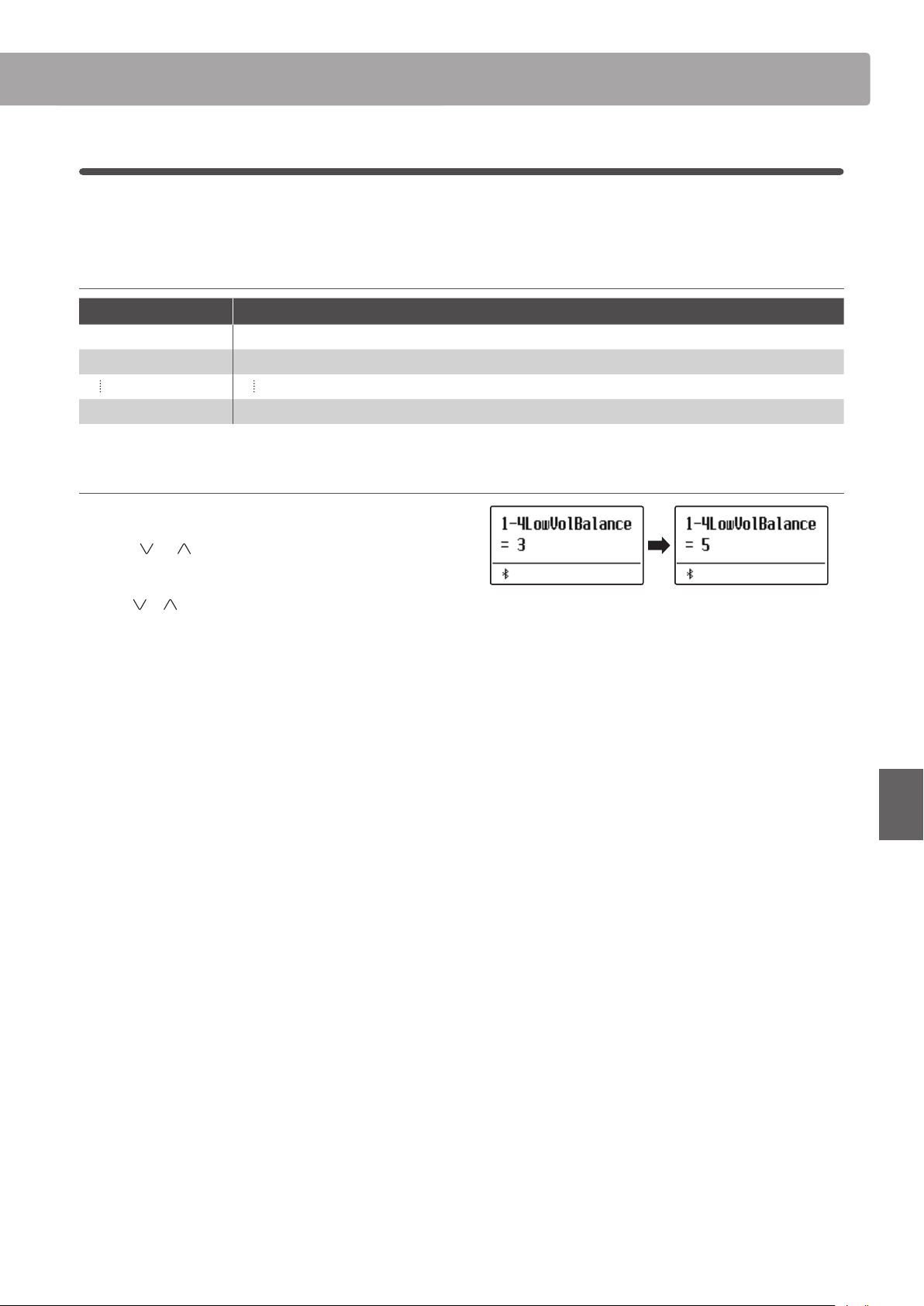
Basic Settings
77
Adjustments & Settings
1-4
Low Volume Balance
The Low Volume Balance setting reduces the dierence in volume between pianissimo and fortissimo touches,
allowing the piano to continue to be played at low volume without the sound of pianissimo notes being lost.
Low Volume Balance settings
Low Volume Balance Description
O Low Volume Balance adjustment is not applied.
1 A small amount of Low Volume Balance adjustment will be applied.
5 A large amount of Low Volume Balance adjustment will be applied.
Changing the Low Volume Balance setting
After entering the Basic Settings menu (page 73):
Press the
or MENU buttons to select the Low Volume
Balance setting.
Press the or VALUE buttons to turn Low Volume Balance o,
or select the setting value.
Press the EXIT button to exit the Low Volume Balance setting
and return to the main settings menu.
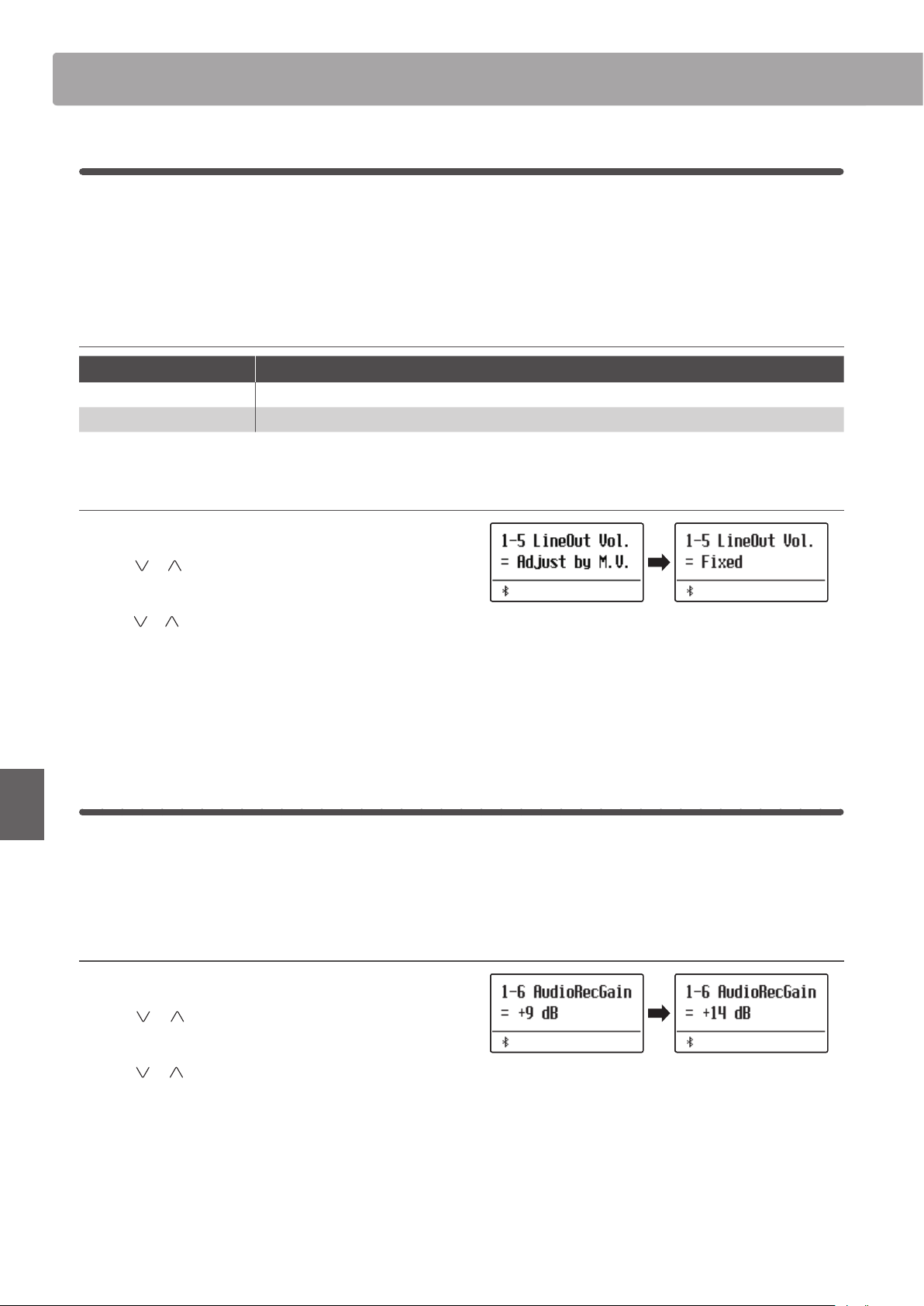
Basic SettingsBasic Settings
78
Adjustments & Settings
1-5
Line Out Volume
The Line Out Volume setting is used to determine whether the Line Out level can be adjusted using the Master
Volume slider, or whether the Line Out level should be xed. This setting may be useful when connecting the ES920
digital piano to a mixing console or PA system, while using the instrument’s built-in speakers as local monitors.
* This setting does not aect the speaker or headphone volume.
Line Out Volume settings
Line Out Volume Description
Adjust by M.V. (default) The Line Out level can be adjusted using the Master Volume slider.
Fixed The Line Out level is xed and cannot be adjusted using the Master Volume slider.
Changing the Line Out Volume setting
After entering the Basic Settings menu (page 73):
Press the
or MENU buttons to select the Line Out Volume
setting.
Press the or VALUE buttons to select from In Adjust by M.V.
or Fixed.
Press the EXIT button to exit the Line Out Volume setting and
return to the main settings menu.
1-6
Audio Recorder Gain
The Audio Recorder Gain setting allows the recording level of MP3/WAV audio les to be adjusted. While the
instrument’s default audio recorder level is optimised to capture the broad dynamic range of a grand piano, there
may be occasions where it is desirable to increase or decrease this gain setting for certain types of music.
Adjusting the Audio Recorder Gain setting
After entering the Basic Settings menu (page 73):
Press the
or MENU buttons to select the Audio Recorder
Gain setting.
Press the or VALUE buttons to adjust the Audio Recorder
Gain setting.
* The Audio Recorder Gain can be adjusted within the range of 0 dB~+15
dB.
* Increasing the Audio Recorder Gain may result in distorted recordings
when playing loud/fortissimo passages.
Press the EXIT button to exit the Audio Recorder Gain setting
and return to the main settings menu.
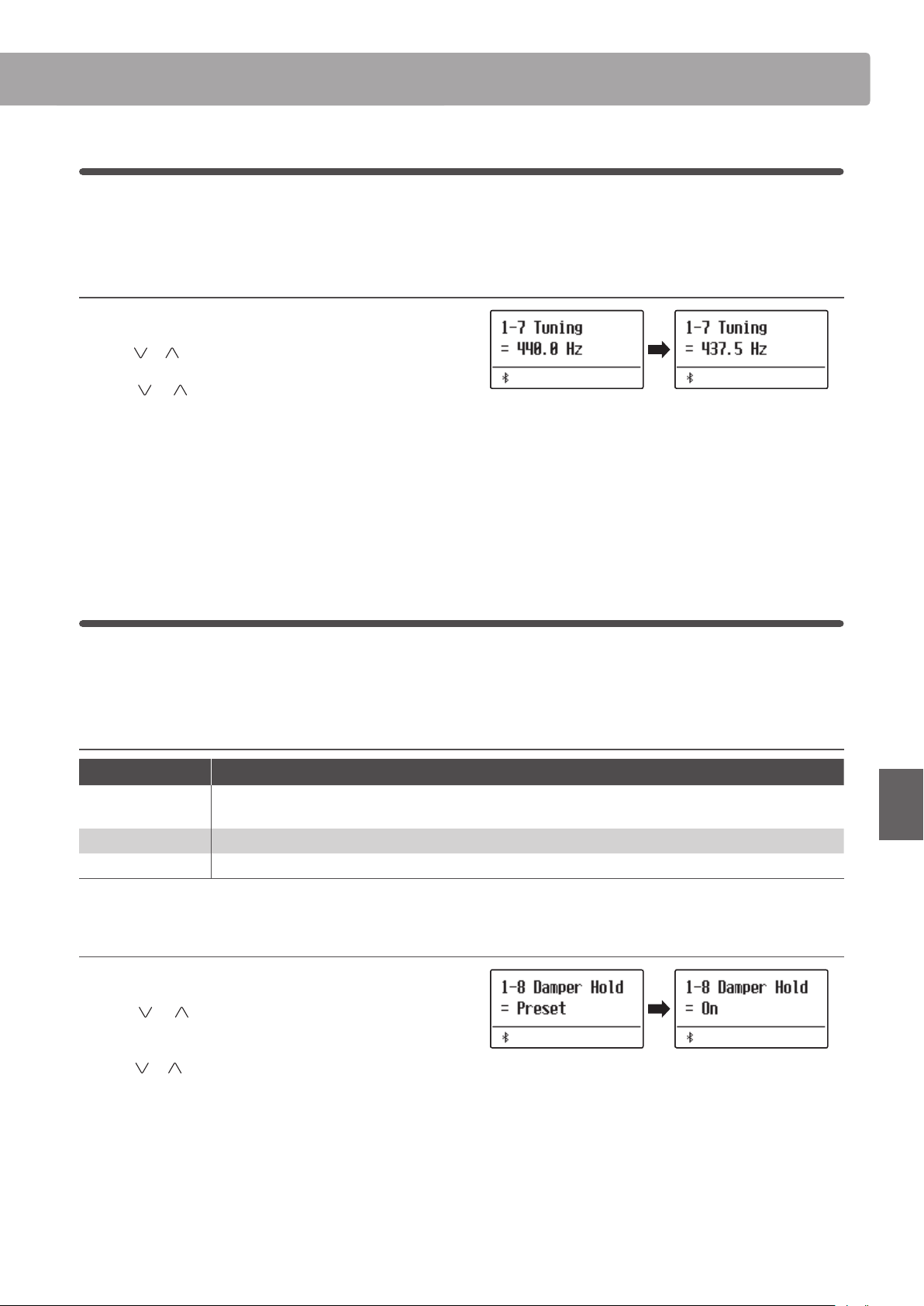
Basic Settings
79
Adjustments & Settings
1-7
Tuning
The Tuning setting allows the overall pitch of the ES920 digital piano to be raised and lowered in 0.5 Hz steps, and
may therefore prove useful when playing with other pitched instruments.
Adjusting the Tuning setting
After entering the Basic Settings menu (page 73):
Press the
or MENU buttons to select the Tuning setting.
Press the
or VALUE buttons to decrease or increase the
value of the Tuning setting in 0.5 Hz steps.
* The Tuning setting can be adjusted within the range of 427.0 Hz~453.0
Hz.
Press the EXIT button to exit the Tuning setting and return to the
main settings menu.
1-8
Damper Hold
The Damper Hold setting is used to determine whether sounds such as organ or strings should be sustained
continuously when the sustain (damper) pedal is pressed, or whether these sounds should decay, naturally.
Damper Hold settings
Damper Hold Description
Preset (default)
Organ sounds will gradually decay, even while the sustain pedal is pressed, but other String, etc. sounds
will be sustained coutinuously while the suatain pedal is pressed.
On Organ, string, etc. sounds will be sustained coutinuously while the suatain pedal is pressed.
O Organ, string, etc. sounds will gradually decay, even while the sustain pedal is pressed.
Changing the Damper Hold setting
After entering the Basic Settings menu (page 73):
Press the
or MENU buttons to select the Damper Hold
setting.
Press the or VALUE buttons to cycle through the dierent
Damper Hold types.
Press the EXIT button to exit the Damper Hold setting and return
to the main settings menu.
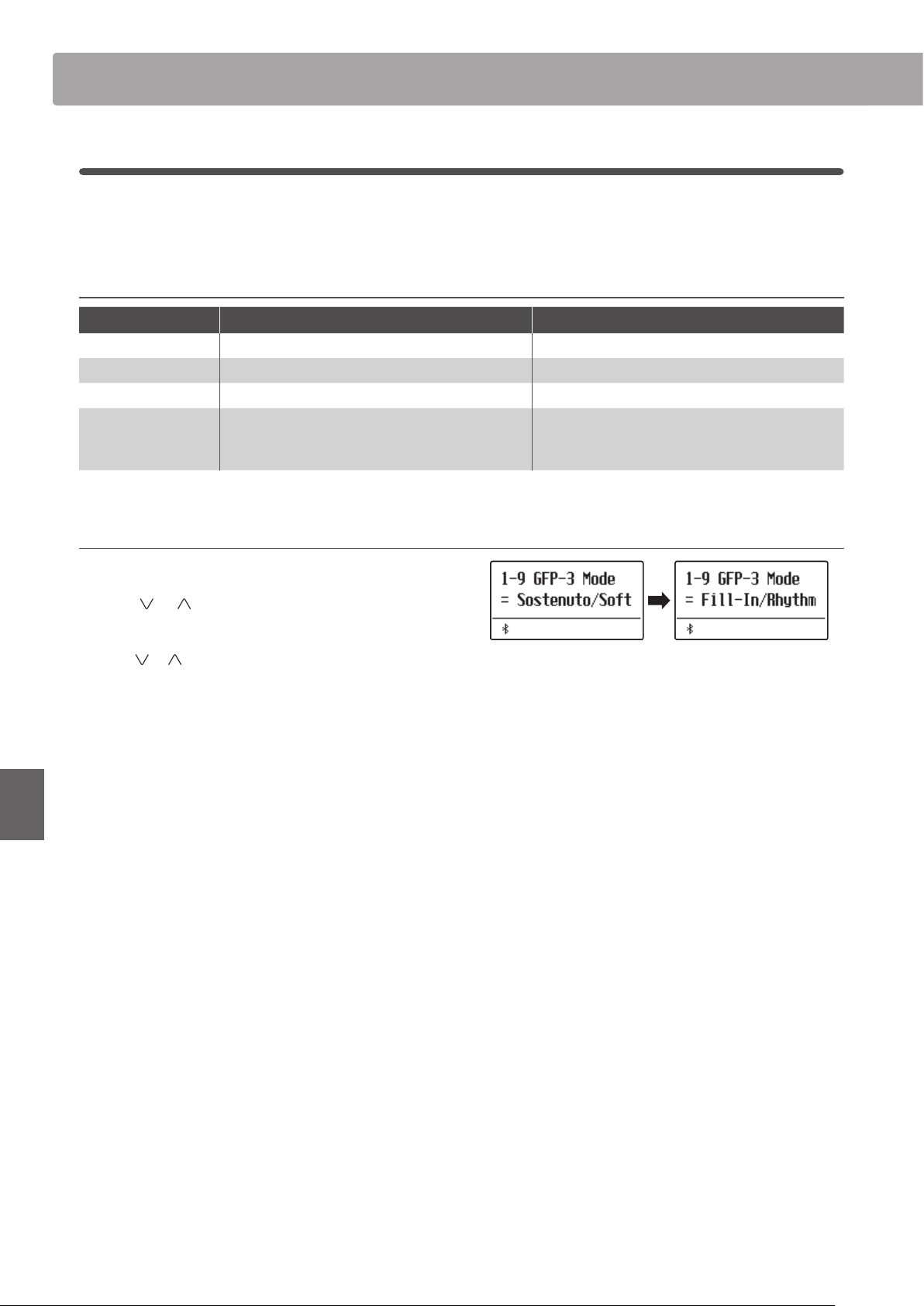
Basic SettingsBasic Settings
80
Adjustments & Settings
1-9
GFP-3 Mode
This function is used to assign a function such as starting and stopping Rhythm Section to the center and left pedals
of the optional triple pedal GFP-3 or F-302.
GFP-3 Mode
GFP-3 Mode Function assigned to the Sostenuto pedal. Function assigned to the Soft pedal.
Default setting Sostenuto Soft
Fill-in/Rhythm Fill-in Rhythm Start/Stop
Part/Rhythm
Part toggle (All
Drum
B+Dr)
Rhythm Start/Stop
Vari./Rhythm
Variation toggle
Fill-in when the pedal is pressed, and then toggle
the variation of rhythm patterns.
Rhythm Start/Stop
Changing the GFP-3 mode
After entering the Basic Settings menu (page 73):
Press the
or MENU buttons to select the GFP-3 Mode
setting.
Press the or VALUE buttons to cycle through the dierent
GFP-3 modes.
* When FGP-3 mode is set to other than Sostenuto/Soft, the rotary speed
cannot be switched between slow and fast using the left pedal.
Press the EXIT button to exit the GFP-3 Mode setting and return
to the main settings menu.
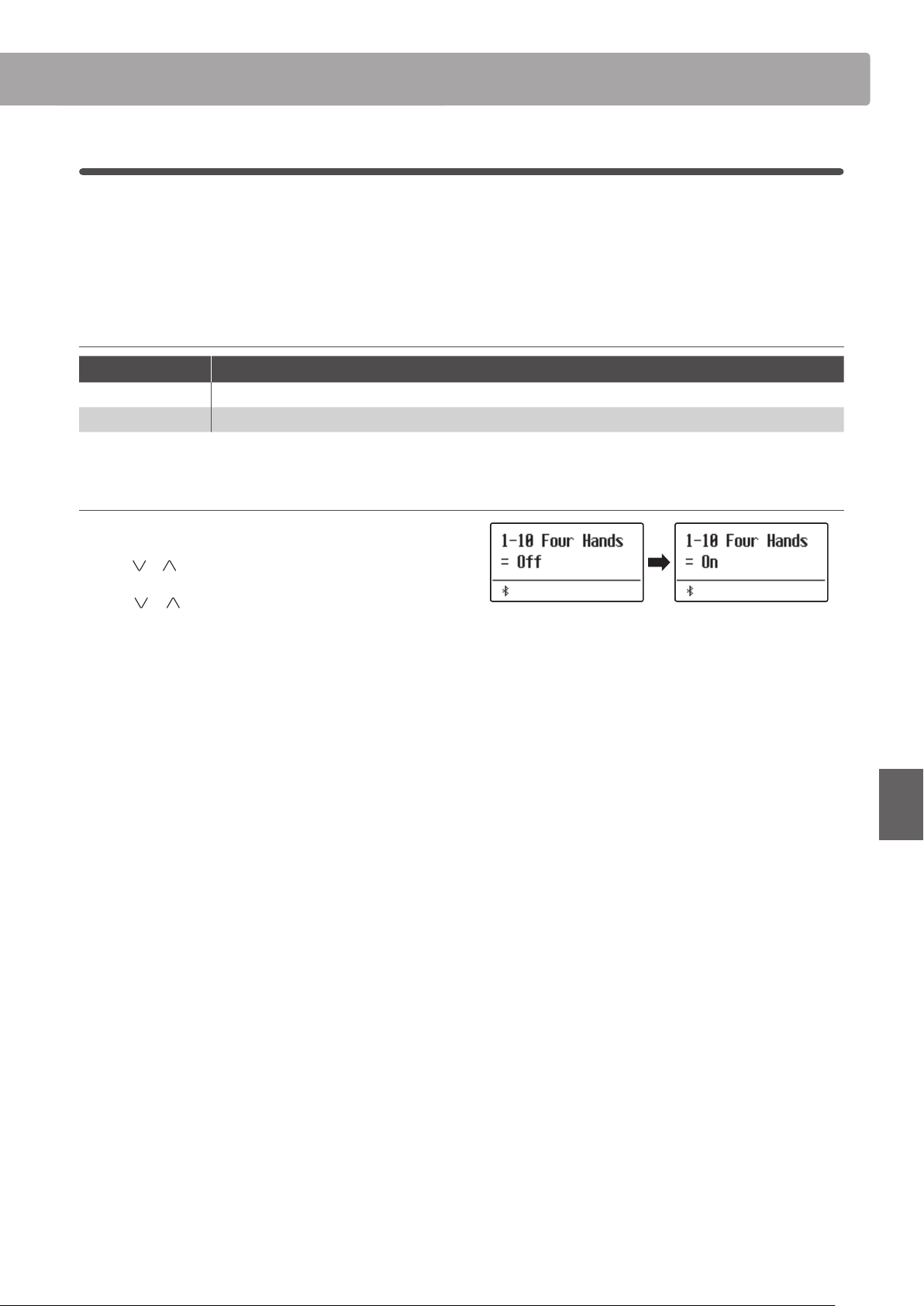
Basic Settings
81
Adjustments & Settings
1-10
Four Hands
The Four Hands setting provides an alternative method to enabling the Four Hands Mode function, and may prove
useful in teaching environments or situations where this function should be enabled automatically every time the
ES920 digital piano is turned on.
* Please refer to page 22 for information about the Four Hands Mode function.
Four Hands settings
Four Hands Description
O (default) Four Hands Mode will be turned o by default.
On Four Hands Mode will be turned on by default.
Changing the Four Hands setting
After entering the Basic Settings menu (page 73):
Press the
or MENU buttons to select the Four Hands setting.
Press the
or VALUE buttons to turn the Four Hands setting
on or o.
* When enabled, the LED indicators for the SPLIT and SOUND buttons
will start to ash.
Press the EXIT button to exit the Four Hands setting and return
to the main settings menu.
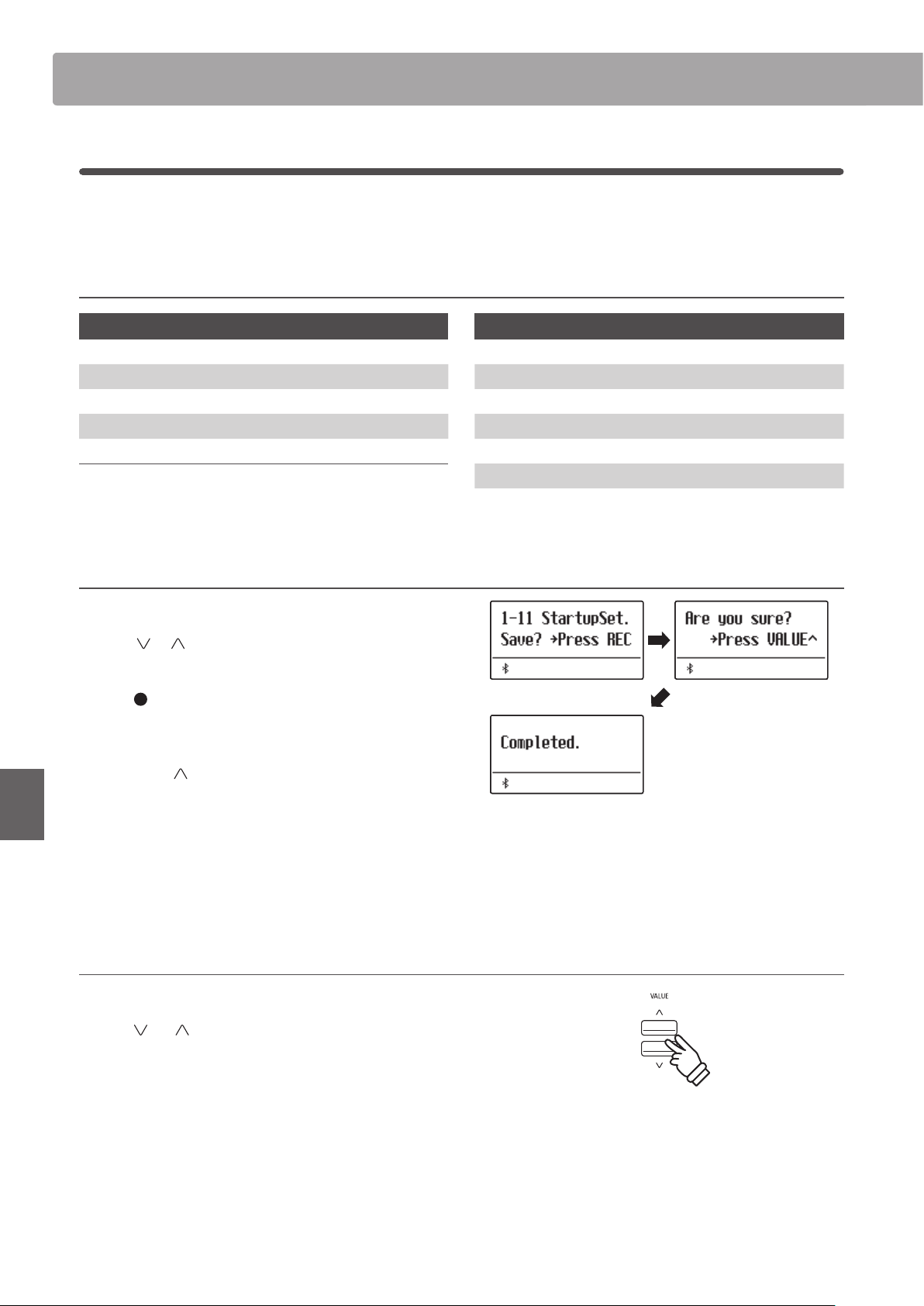
Basic SettingsBasic Settings
82
Adjustments & Settings
1-11
Startup Setting
The Startup Setting function allows preferred panel settings to be stored in the instrument’s memory, and
automatically recalled as the default settings every time the ES920 digital piano is turned on.
Settings stored in Startup Setting memory
General
Selected sound
Dual Mode / Split Mode
(sounds, volume balance, split point)
Reverb, Eects, Amp Simulator (type, settings)
Transpose (Key Transpose only)
Metronome (Beat, Tempo, Volume)
Settings
Basic Settings
Virtual Technician
Key Settings
Rhythm Settings
MIDI Settings
Phones Settings
* Auto Power O setting and Bluetooth setting are stored to Startup Setting automatically.
Storing current settings to Startup Setting memory
After entering the Basic Settings menu (page 73):
Press the
or MENU buttons to select the Startup Setting
function.
Press the (REC) button.
A conrmation message will be shown in the display.
Press the VALUE
button to conrm the store operation.
Press the EXIT button to cancel the store operation.
* After storing the Startup Setting, the instrument will exit the settings
menu and return to normal playing mode.
Press the EXIT button to exit the Startup Setting function and
return to the main settings menu.
Recalling individual Startup Setting values
After selecting a setting:
Press the
and VALUE buttons simultaneously.
The selected setting will be restored to the default (power on)
value.
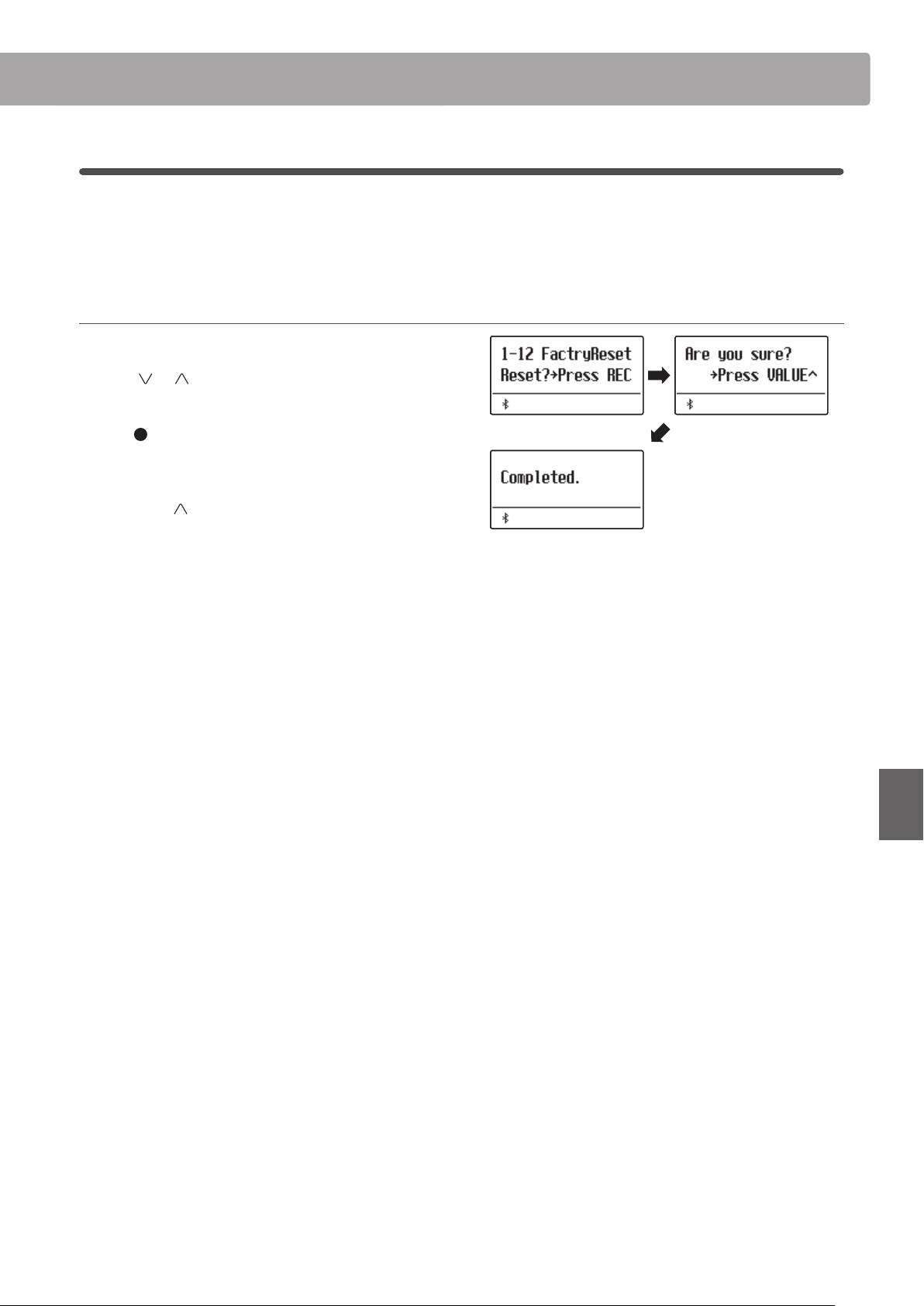
Basic Settings
83
Adjustments & Settings
1-12
Factory Reset
The Factory Reset function clears any settings stored using the Startup Setting function above, restoring the ES920
digital piano back to its factory default settings.
* This function does not clear registration memories or recorder songs stored in internal memory.
Restoring factory settings
After entering the Basic Settings menu (page 73):
Press the
or MENU buttons to select the Factory Reset
function.
Press the (REC) button.
A conrmation message will be shown in the display.
Press the VALUE
button to conrm the reset operation.
Press the EXIT button to cancel the reset operation.
* After performing a factory reset, the instrument will exit the settings
menu and return to normal playing mode.
Press the EXIT button to exit the Factory Reset function and
return to the main settings menu.
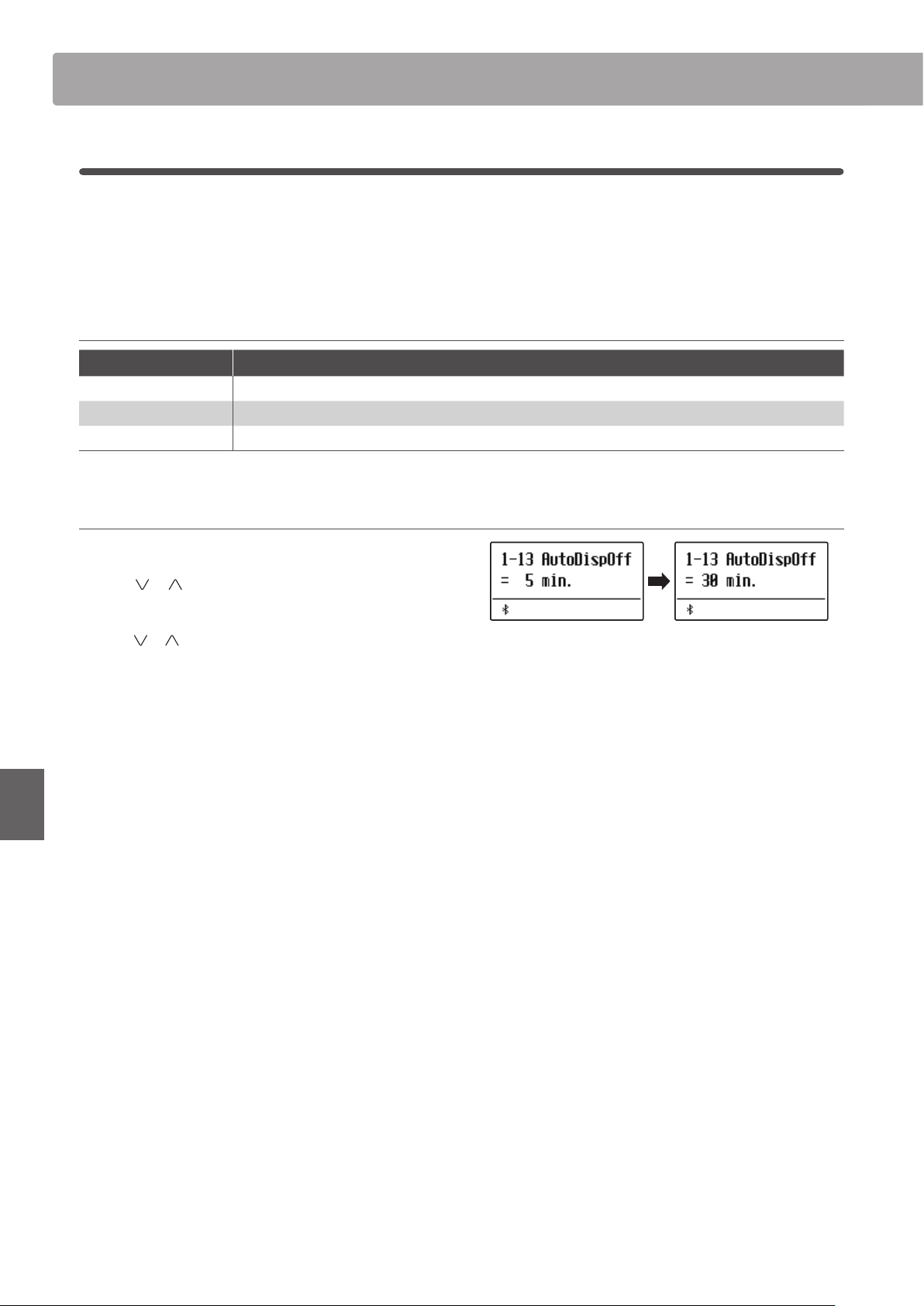
Basic SettingsBasic Settings
84
Adjustments & Settings
1-13
Auto Display O
The Auto Display O setting can be used to automatically turn o the display when the control panel is not being
operated.
* To prevent the ES920 digital piano’s display from “burn in” as a result of showing the same screen for an extended period of time, this setting is
enabled by default.
Auto Display O settings
Auto Display O Description
15 sec. The display will turn o automatically after 15 seconds of inactivity.
5 min.
(default) The display will turn o automatically after 5 minutes of inactivity.
30 min. The display will turn o automatically after 30 minutes of inactivity.
Changing the Auto Display O setting
After entering the Basic Settings menu (page 73):
Press the
or MENU buttons to select the Auto Display O
setting.
Press the or VALUE buttons to change the Auto Display O
setting.
Press the EXIT button to exit the Auto Power O setting and
return to the main settings menu.
* When the display turns o automatically, pressing any control panel
button will turn it on again.
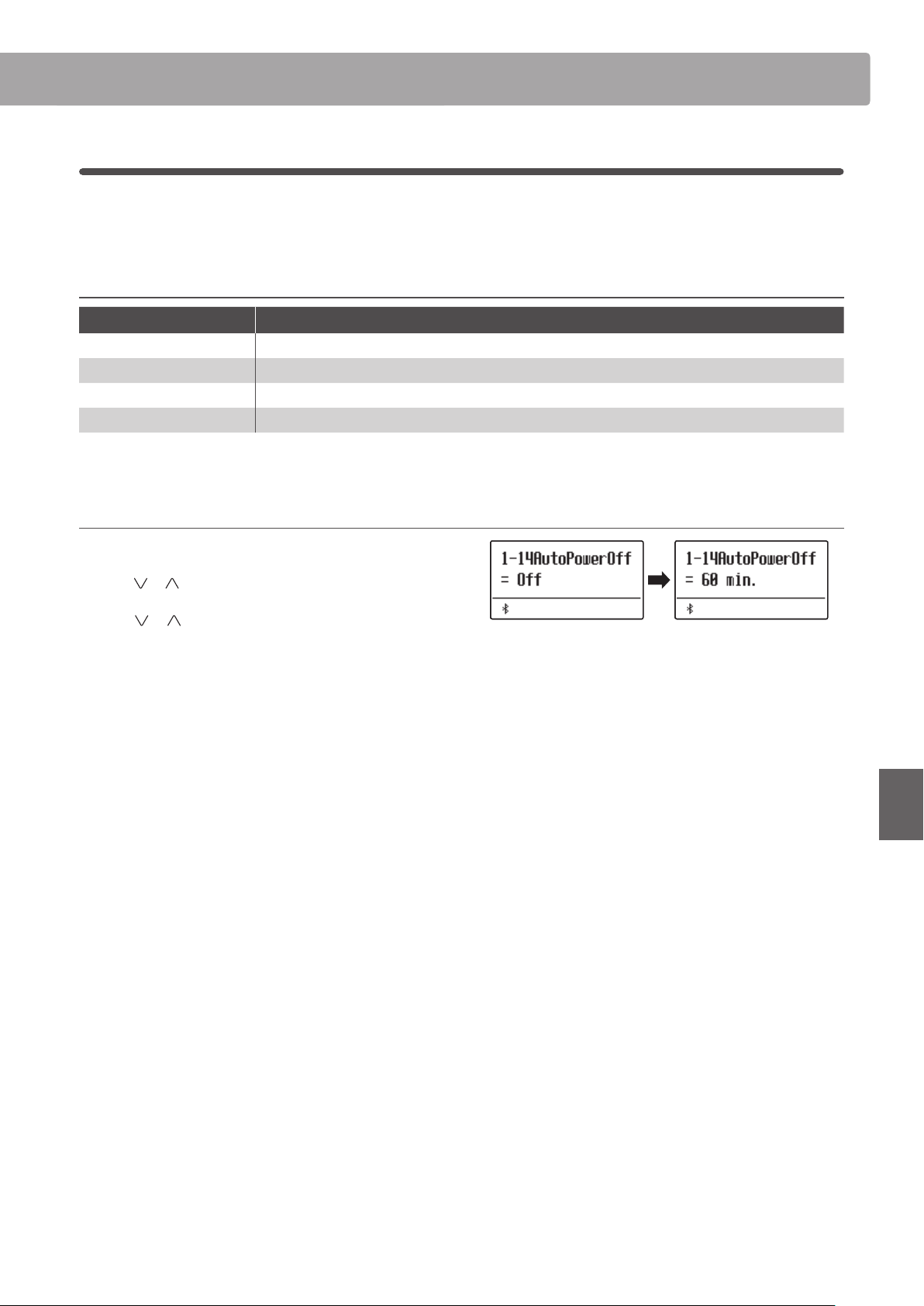
Basic Settings
85
Adjustments & Settings
1-14
Auto Power O
The Auto Power O setting can be used to automatically turn o the instrument after a specied period of inactivity.
This function may be enabled by default, depending on the market location.
Auto Power O settings
Auto Power O Description
O The Auto Power O function is disabled.
15 min. The instrument will turn o automatically after 15 minutes of inactivity.
60 min. The instrument will turn o automatically after 60 minutes of inactivity.
120 min. The instrument will turn o automatically after 120 minutes of inactivity.
* The default Auto Power O setting varies depending on market location.
Changing the Auto Power O setting
After entering the Basic Settings menu (page 73):
Press the
or MENU to select the Auto Power O setting.
Press the
or VALUE buttons to change the Auto Power O
setting.
Press the EXIT button to exit the Auto Power O setting and
return to the main settings menu.
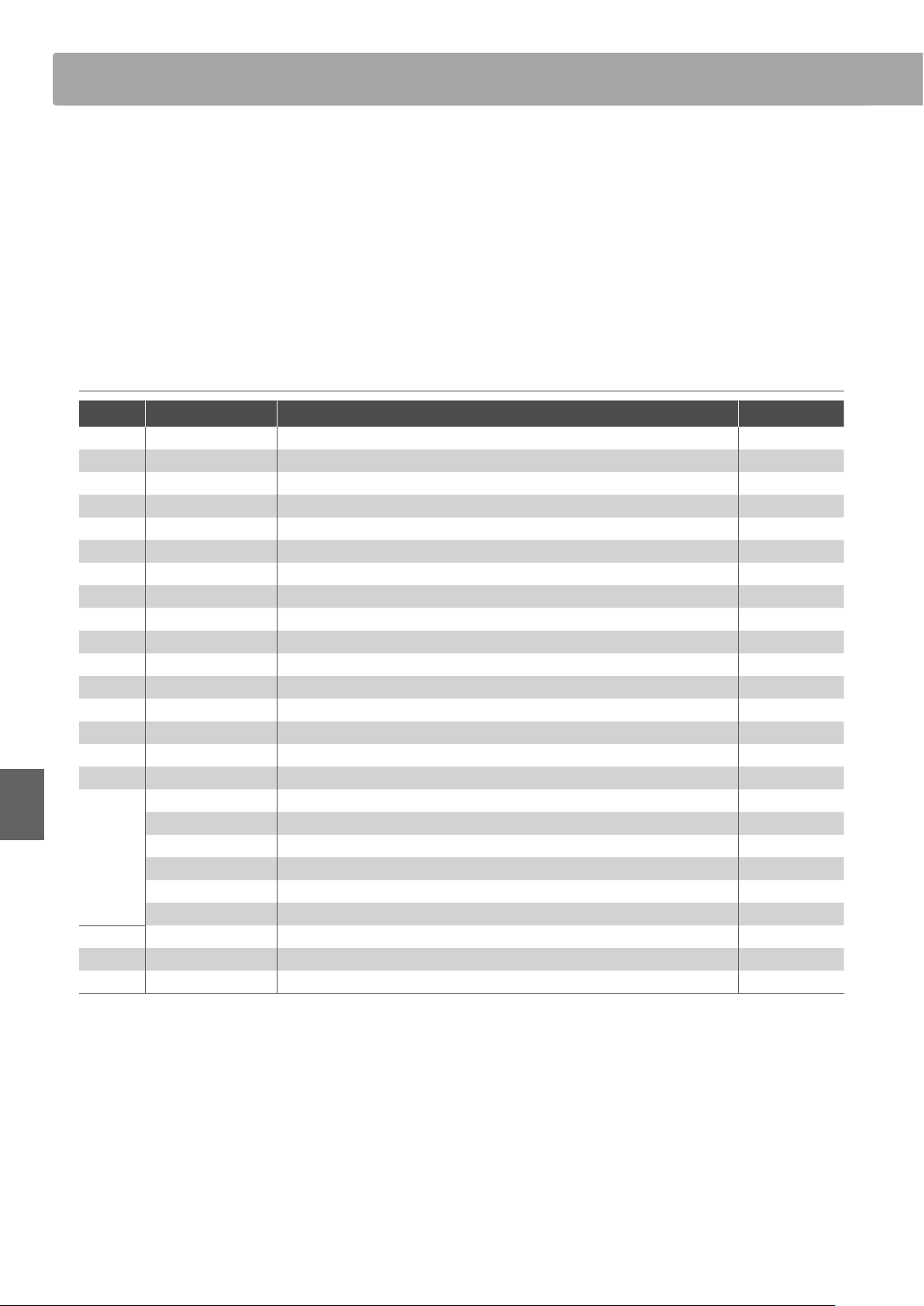
Virtual TechnicianVirtual Technician
86
Adjustments & Settings
Virtual Technician
An experienced piano technician is essential to fully realise the potential of a ne acoustic piano. In addition to
meticulously tuning each note, the technician also performs numerous regulation and voicing adjustments that
allow the instrument to truly sing.
The Virtual Technician settings of the ES920 digital piano simulate these renements digitally, allowing performers
to shape various aspects of the instrument’s character to suit their personal preferences.
* Any changes made by this operation will remain until the power is turned o.
Preferred settings can be stored in a Registration memory or Startup Setting. Please refer to page 36 and 82 for more information.
Virtual Technician
Page no. Setting Description Default setting
2-1 Touch Curve Adjust the touch sensitivity of the keyboard. Normal
2-2 Voicing Adjust the tonal character of the instrument. Normal
User Voicing Adjust the individual voicing of each of the 88 keys. 0
2-3 Damper Resonance Adjust the resonance that is heard when pressing the damper pedal. 5
2-4 Damper Noise Adjust the volume of the sound that is heard when pressing the damper pedal. 5
2-5 String Resonance Adjust the resonance that is heard when notes are held. 5
2-6 Undamped Str. Res. Adjust the resonance produced by the topmost undamped strings. 5
2-7 Cabinet Resonance Adjust the resonance produced by the piano cabinet itself. 1
2-8 Key-o Eect Adjust the volume of the sound that is heard when keys are released. 5
2-9 Fall-back Noise Adjust the volume of the sound that is heard when the key action falls back. 5
2-10 Hammer Noise Adjust the volume of the sound that is heard when hammers strike strings. 5
2-11 Hammer Delay Adjust the delay of the hammer striking strings when playing pianissimo. O
2-12 Topboard Adjust the position of the grand piano topboard. Open 3
2-13 Decay Time Adjust the decay time of the piano sound while the keys are pressed. 5
2-14 Release Time Adjust the decay time of the piano sound when the keys are released. 5
2-15 Minimum Touch Adjust the minimum key velocity required to produce a sound. 1
2-16 Temperament Adjust the tuning system to suit Renaissance and Baroque periods etc. Equal Temp.
Stretch Tuning Select how stretch tuning is applied to piano sounds and other sounds. Piano Only
Stretch Curve Adjust the level of stretch tuning for equal temperaments. Normal
User Tuning Adjust the individual tuning of each of the 88 keys. 0
Temperament Key Set the temperament key when not using equal temperament. C
User Temperament Adjust the tuning of each note in the scale to a custom temperament. 0
2-17 User Key Volume Adjust the individual volume of each of the 88 keys. Normal
2-18 Half-Pedal Adjust Adjust the point at which the damper pedal begins to sustain the sounds. 5
2-19 Soft Pedal Depth Adjust the depth/eectiveness of the soft pedal. 5
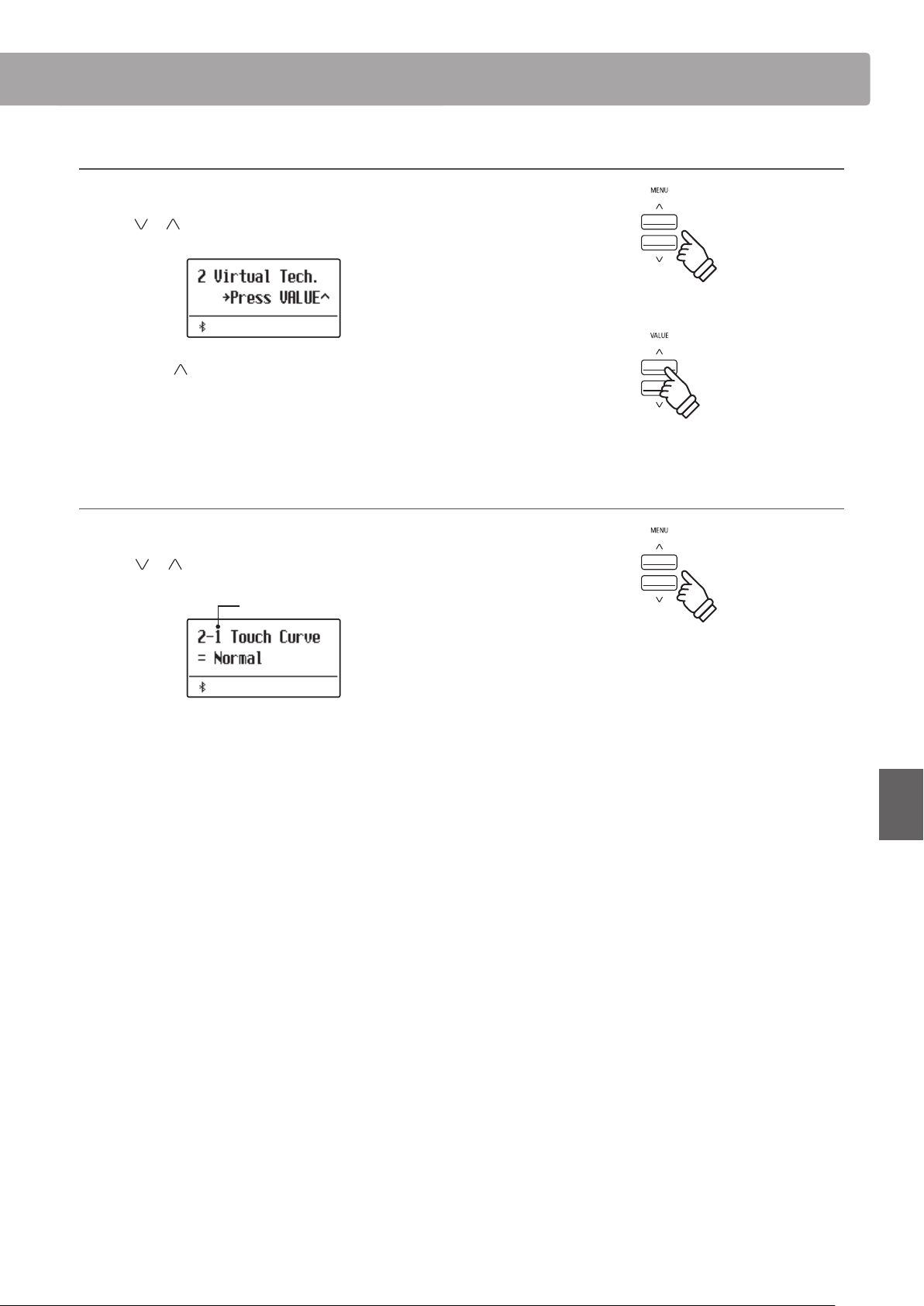
Virtual Technician
87
Adjustments & Settings
Entering the Virtual Technician menu
While the normal playing mode screen is shown in the display:
Press the
or MENU buttons to select the Virtual Technician
menu.
Press the VALUE button to enter the Virtual Technician menu.
The rst page of the Virtual Technician menu will be shown in
the display
Selecting the desired setting
After entering the Virtual Technician menu:
Press the
or MENU buttons to cycle through the dierent
settings pages.
Settings page no.
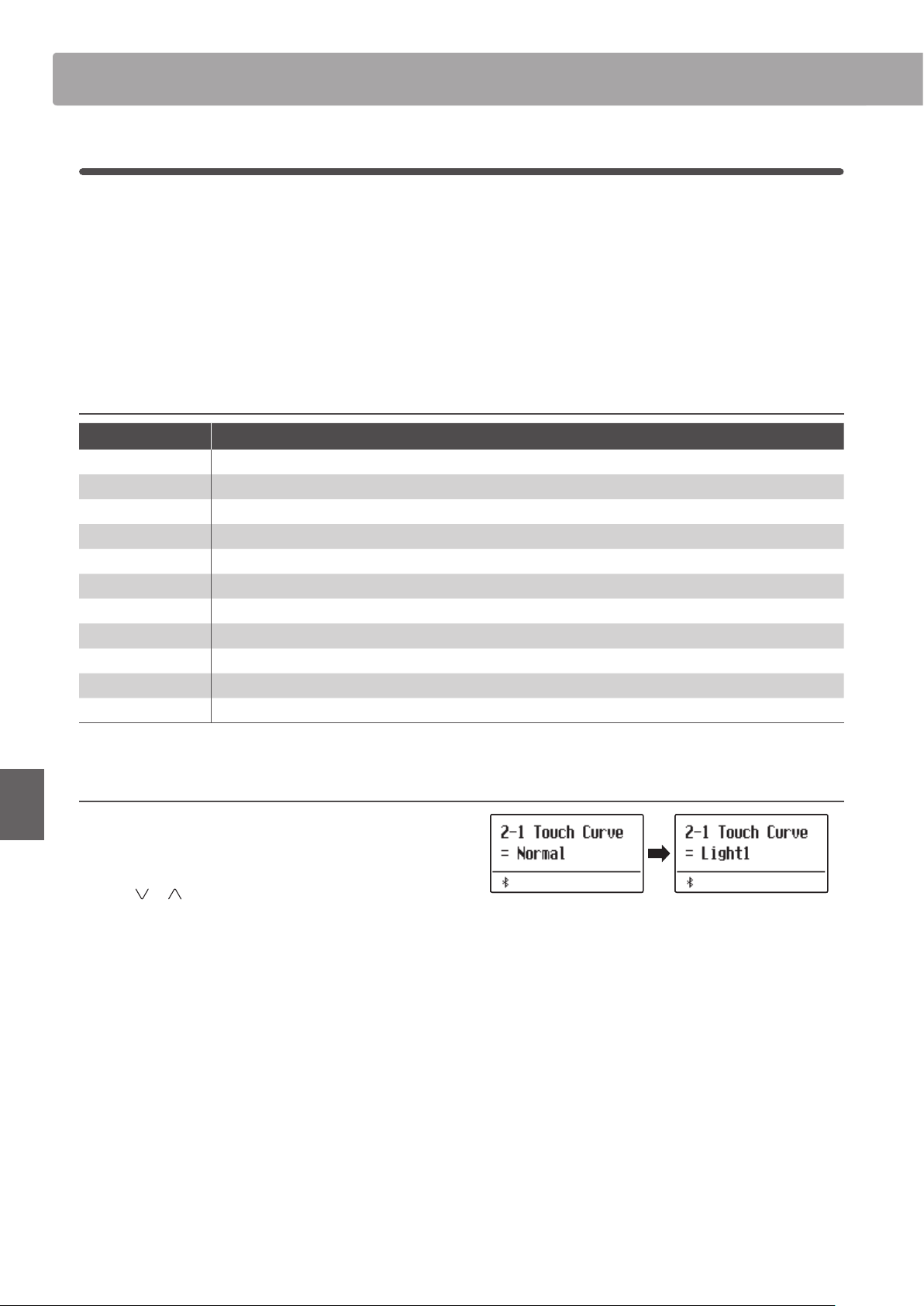
Virtual TechnicianVirtual Technician
88
Adjustments & Settings
2-1
Touch Curve
As with an acoustic piano, the ES920 digital piano produces a louder sound when the keys are struck with force, and
a softer sound when the keys are played gently. The volume and tonal character change in relation to the strength
and speed of playing – on a digital piano this system is referred to as “touch sensitivity”.
The Touch Curve setting allows the touch sensitivity of the keyboard to be conveniently adjusted. There are six
dierent preset touch curve settings available, with two additional “User” settings allowing performers to customise
the instrument’s responsiveness to suit their individual playing style.
Touch Curve types
Touch Curve Description
Heavy 4 Soft sound can be produced more evenly.
Heavy 3 Soft sound can be produced evenly.
Heavy 2 Suitable for dynamic performance with accents.
Heavy 1 Suitable for contrasting soft sound from quiet performance and bright sound from strong performance.
Normal
(default) Volume varies like acoustic pianos would responding to the touch.
Light 1 Bright sound can be produced by light touch.
Light 2 Bright sound can be produced by even lighter touch.
Light 3 Even sound can be produced by light touch.
Light 4 Suitable for young children and organ players.
O The same volume is sustained regardless of the strength of the touch.
User 1 / User 2 A touch curve is created to suit the user’s touch.
Changing the Touch Curve type
After entering the Virtual Technician menu (page 87):
The Touch setting will be selected automatically.
Press the
or VALUE buttons to cycle through the dierent
touch curve types.
Press the EXIT button to exit the Touch Curve setting and return
to the main settings menu.
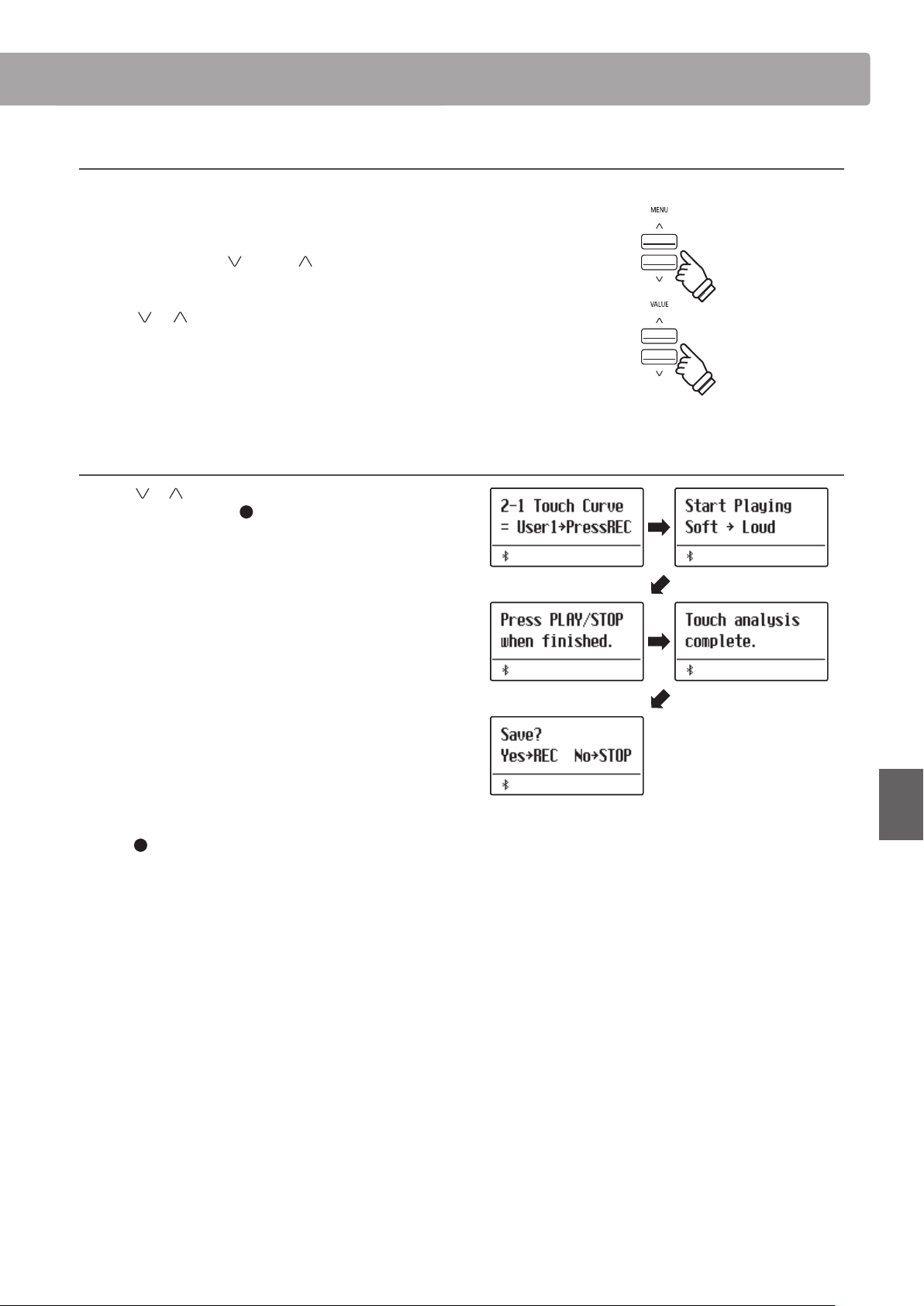
Virtual Technician
89
Adjustments & Settings
Jump to Touch Curve setting shortcut
It is also possible to access the Touch Curve setting directly while
a piano sound is selected in Single Mode (i.e. not Dual Mode, Split
Mode, Four Hands Mode, or Rhythm Section Mode):
Press and hold the MENU
or MENU buttons.
The Touch Curve setting will be shown in the display.
Press the or VALUE buttons to change the Touch Curve
setting.
To exit the Touch Curve setting and return to the previous screen,
press the EXIT button twice.
Creating a User Touch Curve
Press the or VALUE buttons to select the User 1 or User 2
touch curve, then press the
(REC) button.
A message will be shown in the display, prompting for the
keyboard to be played.
Play the piano dynamically from very soft to very loud, allowing
the instrument to examine the personal playing technique.
* More than one attempt may be required in order to create an accurate
User Touch Curve.
* Reducing the master volume fader to the lowest position before
creating the User Touch Curve may help to reduce user distractions,
thus improving accuracy.
Press the PLAY/STOP button.
A conrmation message will be shown in the display.
Press the
(REC) button to conrm the store operation.
Press the PLAY/STOP button to cancel the store operation.
* The user touch curve will be stored to the “User1” or “User2” touch
types and selected automatically.
hold
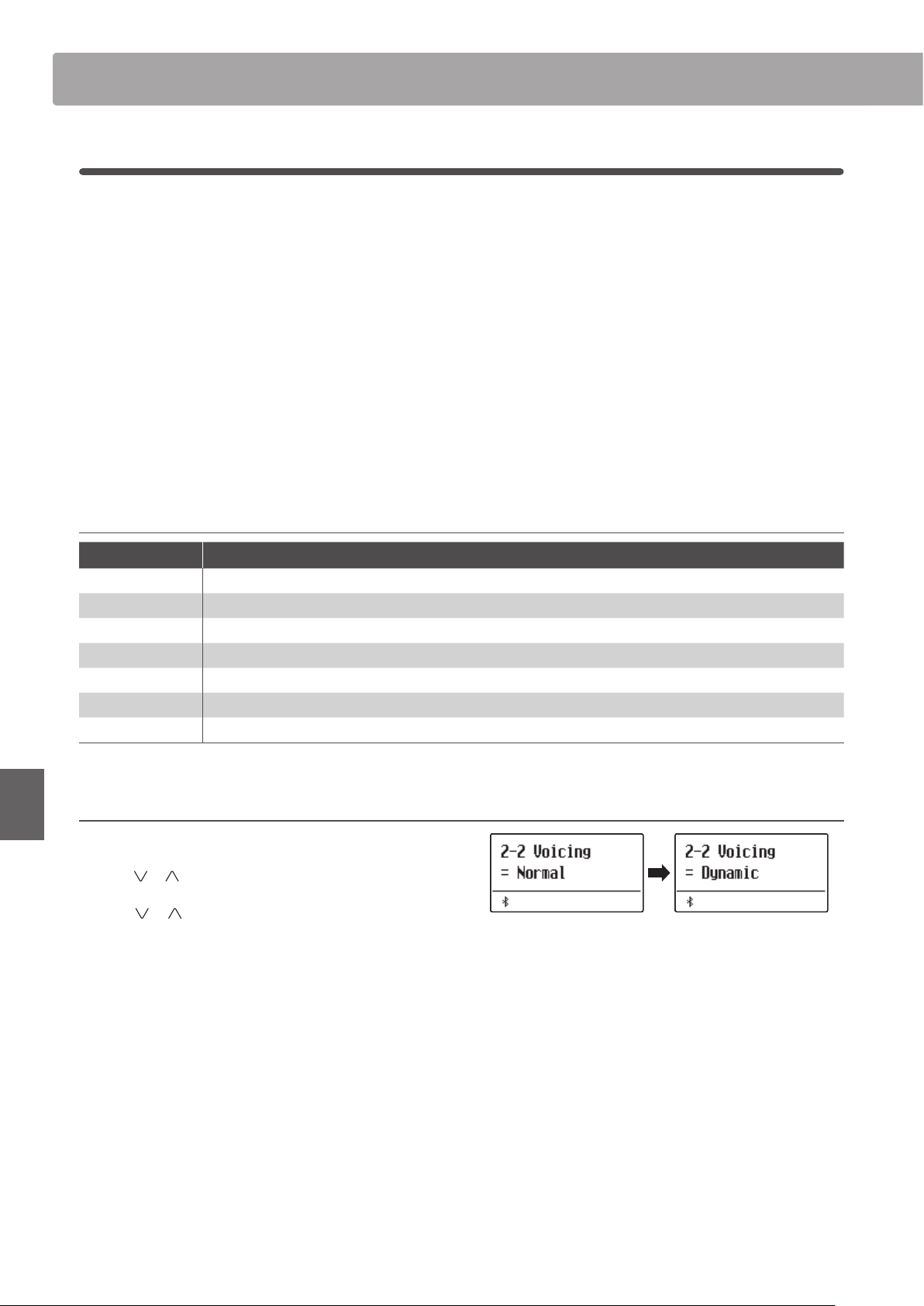
Virtual TechnicianVirtual Technician
90
Adjustments & Settings
2-2
Voicing
On an acoustic piano, the shape, density, and texture of the hammers all inuence the tonal character of the
instrument’s sound. Technicians utilise a variety of tools such as needles, les, and brushes to manipulate these
hammer felts, with the ultimate goal of achieving a balanced tonal character across the keyboard.
The Voicing setting recreates various hammer properties, allowing the overall tonal character of the ES920 digital
piano to be adjusted. There are six dierent preset voicing settings available (applied uniformly to all keys), with an
additional four “User” settings that allow players to perform custom adjustments on each individual key.
While the default “Normal” voicing setting should be appropriate for a broad range of musical genres, it may be
desirable to select a softer, more mellow tonal character for romantic pieces, or a brighter, more aggressive tone for
modern styles.
* This Virtual Technician setting will aect all sounds.
Voicing types
Voicing type Description
Normal (default) The normal tonal character of an acoustic piano throughout the entire dynamic range.
Mellow 1 A softer, more mellow tonal character throughout the entire dynamic range.
Mellow 2 An even soften tonal character than Mellow 1.
Dynamic A tonal character that changes dramatically from mellow to bright, depending on the strength of key strike.
Bright 1 A bright tonal character throughout the entire dynamic range.
Bright 2 An even brighter tonal character than Bright 1.
User 1~4 A custom tonal character, allowing each key to be individually voiced.
Changing the Voicing type
After entering the Virtual Technician menu (page 87):
Press the
or MENU buttons to select the Voicing setting.
Press the
or VALUE buttons to cycle through the dierent
voicing types.
Press the EXIT button to exit the Voicing setting and return to the
main settings menu.
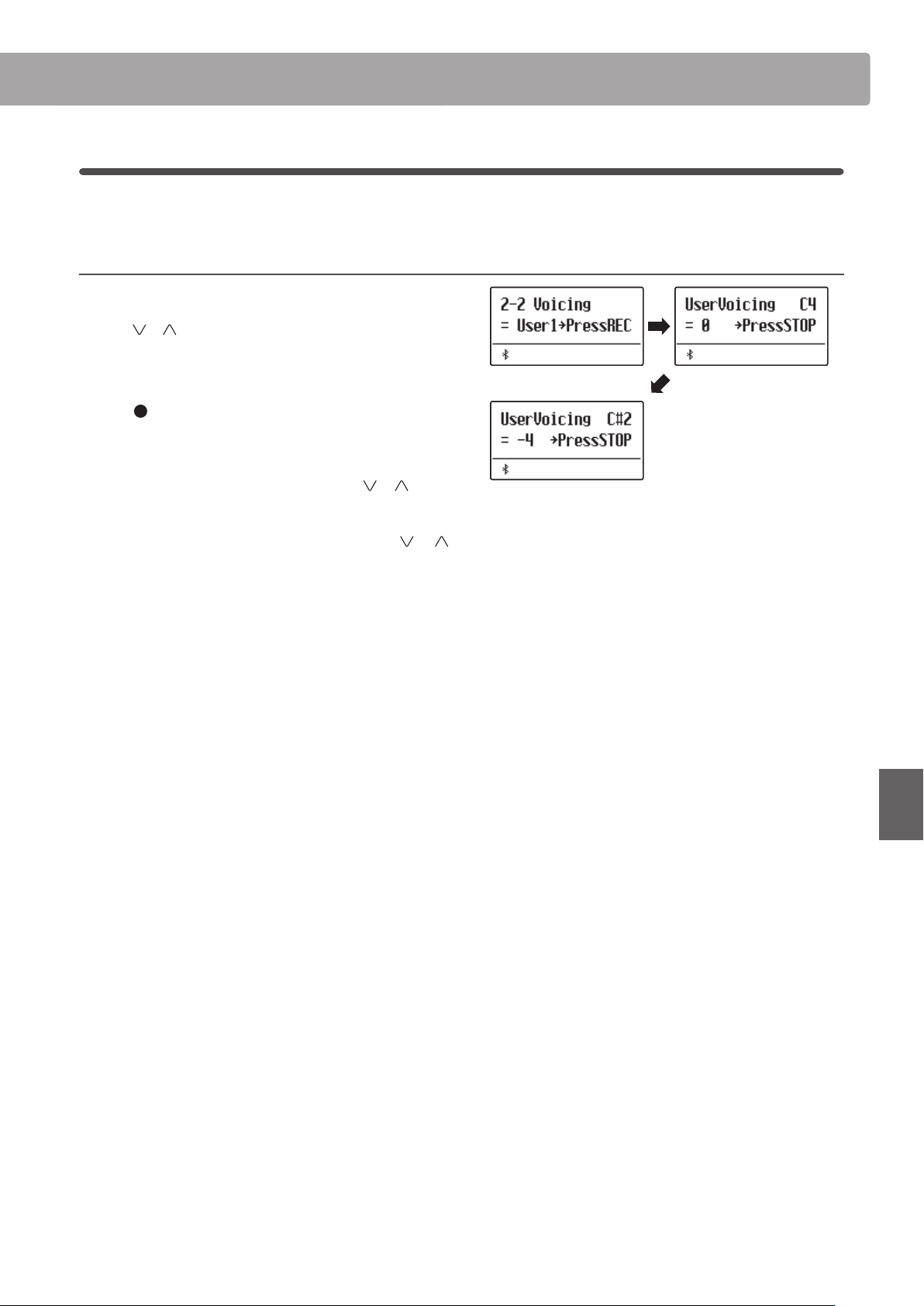
Virtual Technician
91
Adjustments & Settings
User Voicing
The User Voicing function allows each of the 88 keys to be voiced individually.
Selecting the note, adjusting the user voicing value
After selecting the Voicing setting (page 90):
Press the
or VALUE buttons to select one of the User Voicing
memories.
* Up to four dierent User Voicing memories can be created and stored.
Press the (REC) button.
The User Voicing screen will be shown in the display.
Press the desired key to be tuned, then press the
or VALUE
buttons to set the desired voicing value.
The desired key can also be selected by pressing the or
MENU buttons.
* The User Voicing value can be adjusted within the range of -5~+5, with
lower values creating a mellower sound and higher values creating a
brighter sound.
Press the STOP button to exit the User Voicing setting and return
to the Voicing setting.
* User Voicing settings are automatically saved and the settings are still
eective after restarting the instrument.
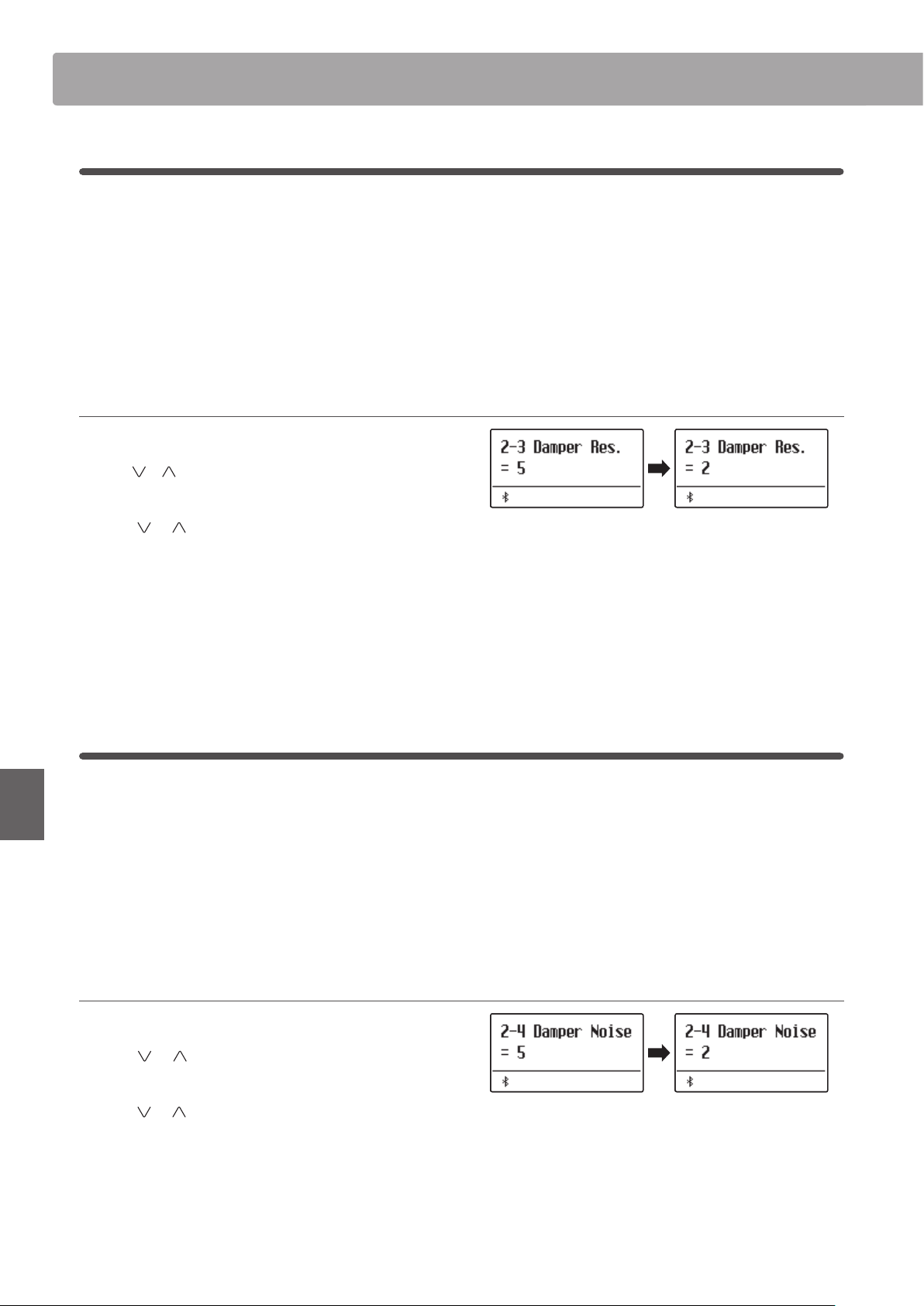
Virtual TechnicianVirtual Technician
92
Adjustments & Settings
2-3
Damper Resonance
Pressing the damper pedal of an acoustic piano raises all dampers, allowing the strings to vibrate freely. When a
note or chord is played on the piano with the sustain pedal pressed, not only will the strings of the notes played
vibrate, but also the strings of other notes, vibrating in sympathetic resonance.
The ES920 digital piano recreates this phenomenon, with the Damper Resonance setting allowing the volume of this
resonance sound to be adjusted.
* This Virtual Technician setting will aect acoustic piano sounds only.
Adjusting the Damper Resonance volume
After entering the Virtual Technician menu (page 87):
Press the
or MENU buttons to select the Damper Resonance
setting.
Press the or VALUE buttons to adjust the volume of the
Damper Resonance setting.
* The Damper Resonance volume can be adjusted within the range
of O, 1~10, with higher values resulting in a more pronounced
resonance.
Press the EXIT button to exit the Damper Resonance setting and
return to the main settings menu.
2-4
Damper Noise
When the damper pedal of an acoustic piano is pressed and released, it is often possible to hear the sound of the
damper head touching and releasing the strings.
The ES920 digital piano reproduces this sound, with the Damper Noise setting allowing the volume of this sound
to be adjusted. The speed at which the damper pedal is pressed will also inuence the prominence of the damper
noise, with fast pedalling creating a very pronounced sound.
* This Virtual Technician setting will aect acoustic piano sounds only.
Adjusting the Damper Noise volume
After entering the Virtual Technician menu (page 87):
Press the
or MENU buttons to select the Damper Noise
setting.
Press the or VALUE buttons to adjust the volume of the
Damper Noise setting.
* The Damper Noise volume can be adjusted within the range of O,
1~10, with higher values resulting in a more pronounced noise.
Press the EXIT button to exit the Damper Noise setting and
return to the main settings menu.
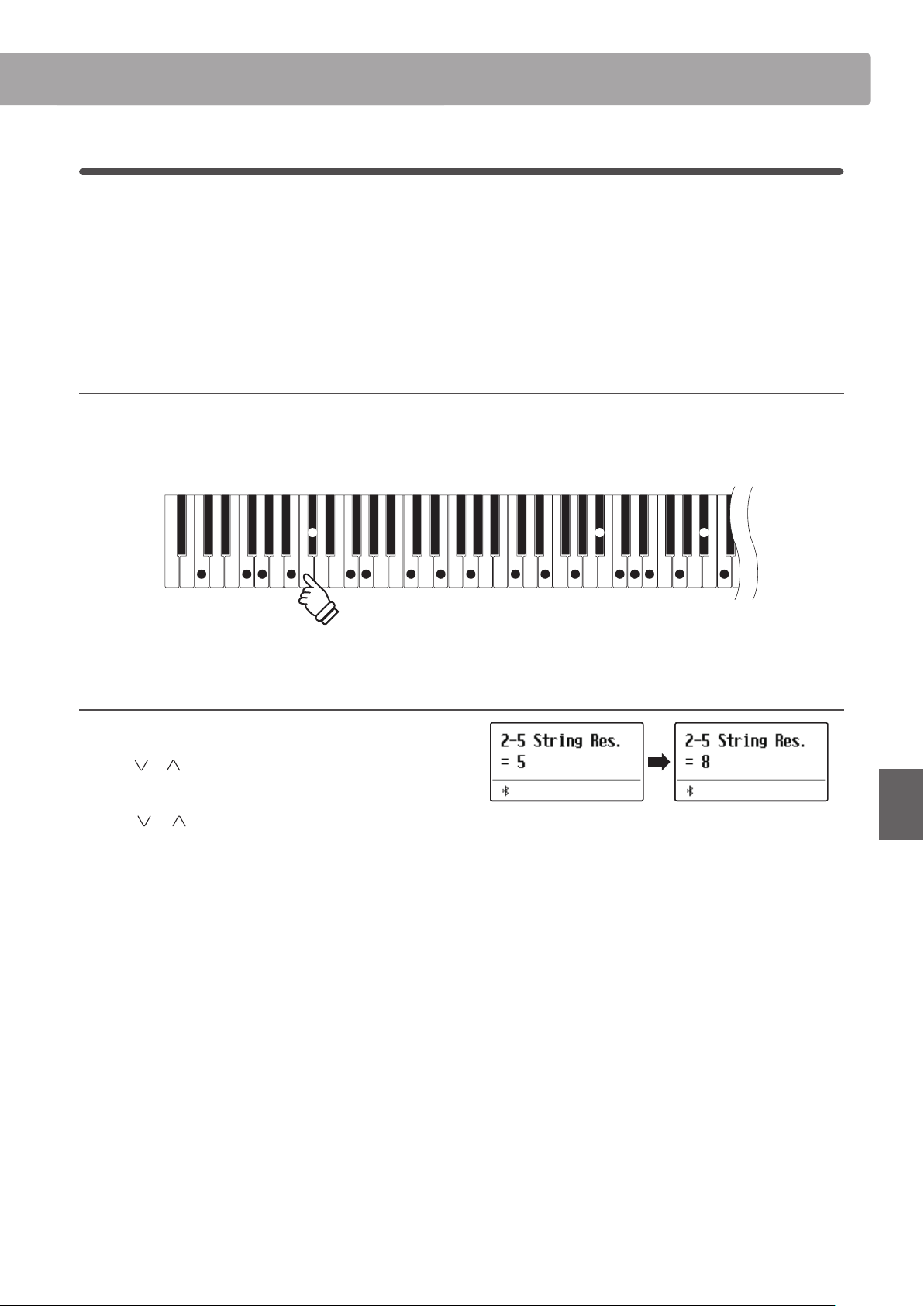
Virtual Technician
93
Adjustments & Settings
2-5
String Resonance
String Resonance refers to a phenomenon that exists in acoustic pianos whereby the strings of held notes resonate
“sympathetically” with other notes of the same harmonic overtone series.
The ES920 digital piano recreates this phenomenon, with the String Resonance setting allowing the volume of this
resonance to be adjusted.
* This Virtual Technician setting will aect acoustic piano sounds only.
Demonstrating String Resonance
To experience the string resonance phenomenon, gently hold down the “C” key as shown in the illustration below, then press any of
the keys marked with a
symbol. In addition to the sound of each note played, it should also be possible to hear the strings of the
rst “C” key resonating “sympathetically”, thus demonstrating String Resonance.
F GC B F G C G C EE G C D E G C
C
#
A
#
A
#
hold
Adjusting the String Resonance volume
After entering the Virtual Technician menu (page 87):
Press the
or MENU buttons to select the String Resonance
setting.
Press the or VALUE buttons to adjust the volume of the
String Resonance setting.
* The String Resonance volume can be adjusted within the range of O,
1~10, with higher values resulting in a more pronounced resonance.
Press the EXIT button to exit the String Resonance setting and
return to the main settings menu.
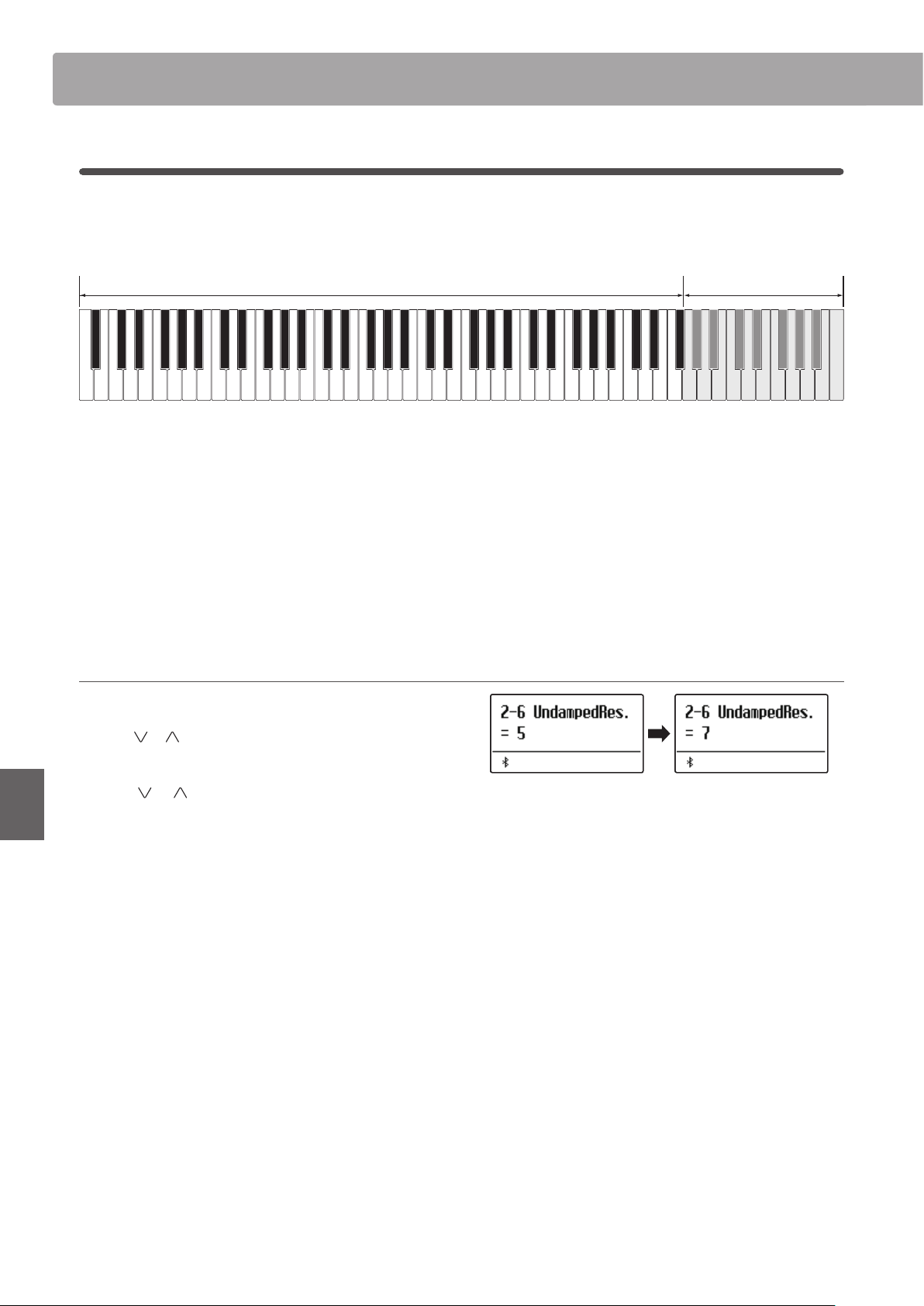
Virtual TechnicianVirtual Technician
94
Adjustments & Settings
2-6
Undamped String Resonance
The dampers of an acoustic piano span almost the full width of the keyboard. However, the topmost 18 keys
(approximately 1.5 octaves) do not incorporate dampers, as the shorter strings for these treble notes decay quickly
and therefore do not need to be dampened.
Undamped StringsDamped Strings
A0 C8G6
As a result, the strings of these “undamped” treble notes are free to vibrate in sympathetic resonance with those of
lower keys – independently of the damper pedal position – helping to enrich the sound with additional harmonics
and tonal colour.
The ES920 digital piano recreates this phenomenon, with the Undamped String Resonance setting allowing the
volume of this resonance sound to be adjusted.
* This Virtual Technician setting will aect acoustic piano sounds only.
Adjusting the Undamped String Resonance volume
After entering the Virtual Technician menu (page 87):
Press the
or MENU buttons to select the Undamped String
Resonance setting.
Press the or VALUE buttons to increase or decrease the
volume of the Undamped String Resonance setting.
* The Undamped String Resonance volume can be adjusted within the
range of O, 1~10, with higher values resulting in a more pronounced
resonance.
Press the EXIT button to exit the Undamped String Resonance
setting and return to the main settings menu.
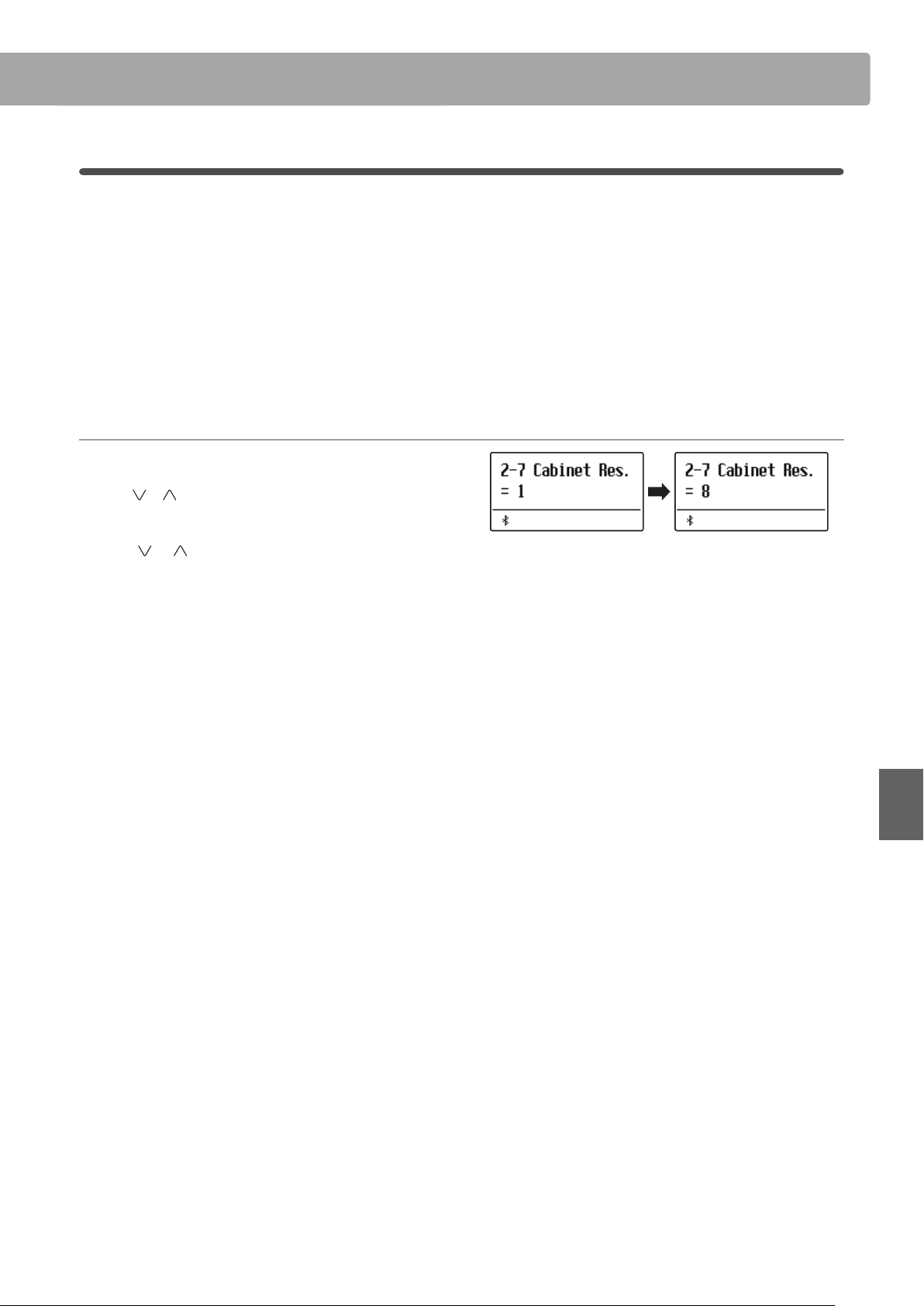
Virtual Technician
95
Adjustments & Settings
2-7
Cabinet Resonance
While the fundamental sound of an acoustic piano is produced by vibrating strings, transmitting energy through a
spruce soundboard, the cabinet of the instrument itself also contributes a variety of subtle tonal characteristics that
enrich the playing and listening experience. The keybed, inner and outer rim, iron plate, and beams all play a role in
disseminating sound energy, which in turn gives the piano a living, breathing quality.
The ES920 digital piano recreates these natural acoustic characteristics, with the Cabinet Resonance setting allowing
the volume of this resonance sound to be adjusted.
* This Virtual Technician setting will aect acoustic piano sounds only.
Adjusting the Cabinet Resonance volume
After entering the Virtual Technician menu (page 87):
Press the
or MENU buttons to select the Cabinet Resonance
setting.
Press the or VALUE buttons to increase or decrease the
volume of the Cabinet Resonance setting.
* The Cabinet Resonance volume can be adjusted within the range of O,
1~10, with higher values resulting in a more pronounced resonance.
Press the EXIT button to exit the Cabinet Resonance setting and
return to the main settings menu.
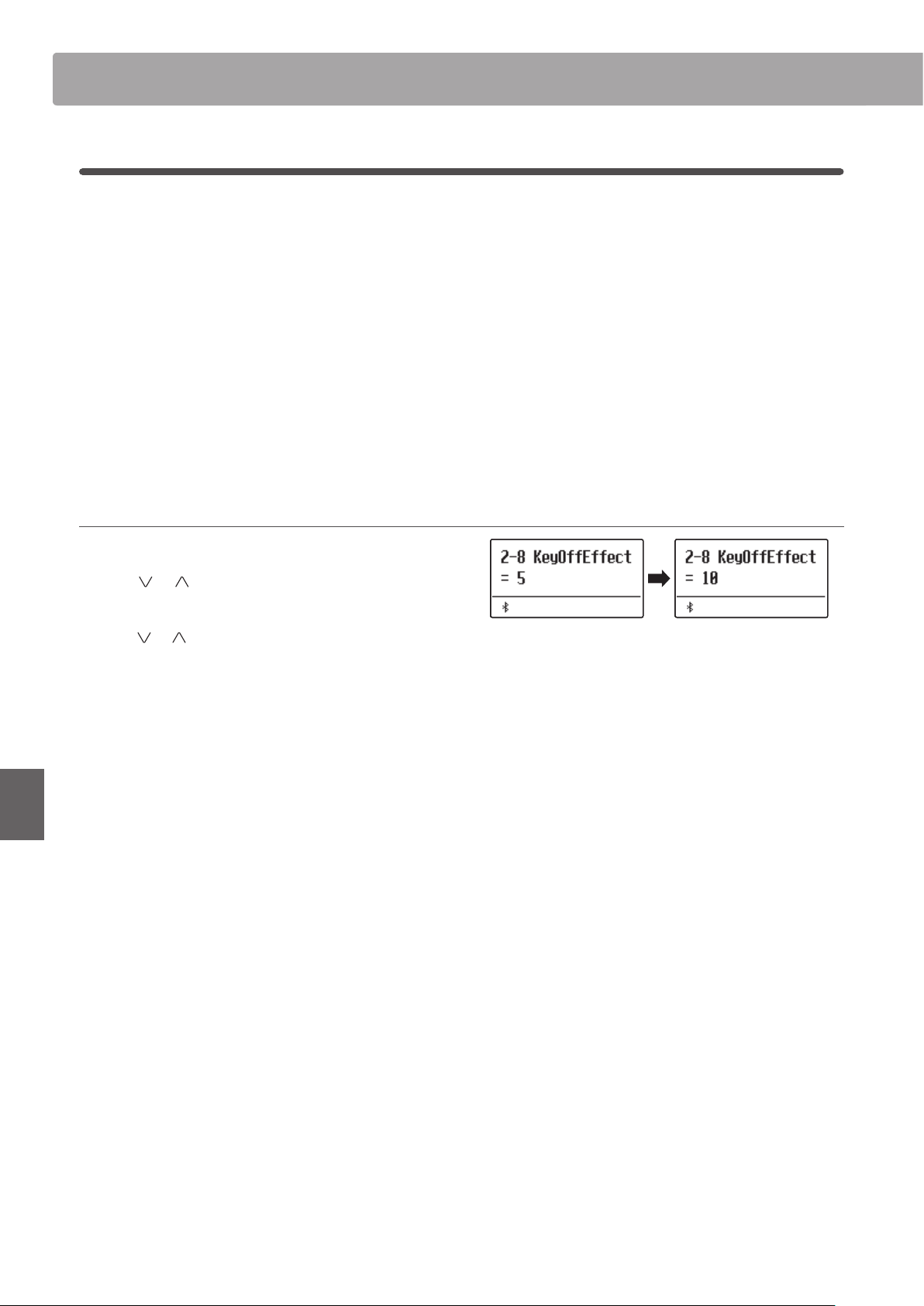
Virtual TechnicianVirtual Technician
96
Adjustments & Settings
2-8
Key-o Eect
When playing an acoustic piano – particularly in the bass region of the keyboard – if a key is played with force and
released quickly, it is often possible to hear the faint sound of the damper touching the strings immediately before
the vibrations are stopped.
In addition, the speed at which keys are lifted will also aect the character of the sound. For example, when lifting
the keys quickly (e.g. staccato playing) the “release” portion of the sound will be noticeably shorter than when lifting
the keys slowly (e.g. legato playing).
The ES920 digital piano reproduces both characteristics, with the Key-o Eect setting allowing the volume of the
key-o sound to be adjusted, and the key-o release speed detection to be turned on or o.
* This Virtual Technician setting will aect acoustic piano, Classic E.P., Classic E.P.2, Classic E.P.3, 60’s E.P., 60’s E.P.2, Harpsichord, Clavi, Wood Bass, and
W. Bass & Ride sounds.
Adjusting the Key-o Eect volume
After entering the Virtual Technician menu (page 87):
Press the
or MENU buttons to select the Key-o Eect
setting.
Press the or VALUE buttons to adjust the volume of the
Key-o Eect setting.
* The Key-o Eect volume can be adjusted within the range of O,
1~10, with higher values resulting in a more pronounced eect.
* When the Key-o Eect setting is set to O, the key-o release speed
detection will also be disabled, and the speed at which keys are lifted
will not aect the character of the sound.
Press the EXIT button to exit the Key-o Eect setting and return
to the main settings menu.
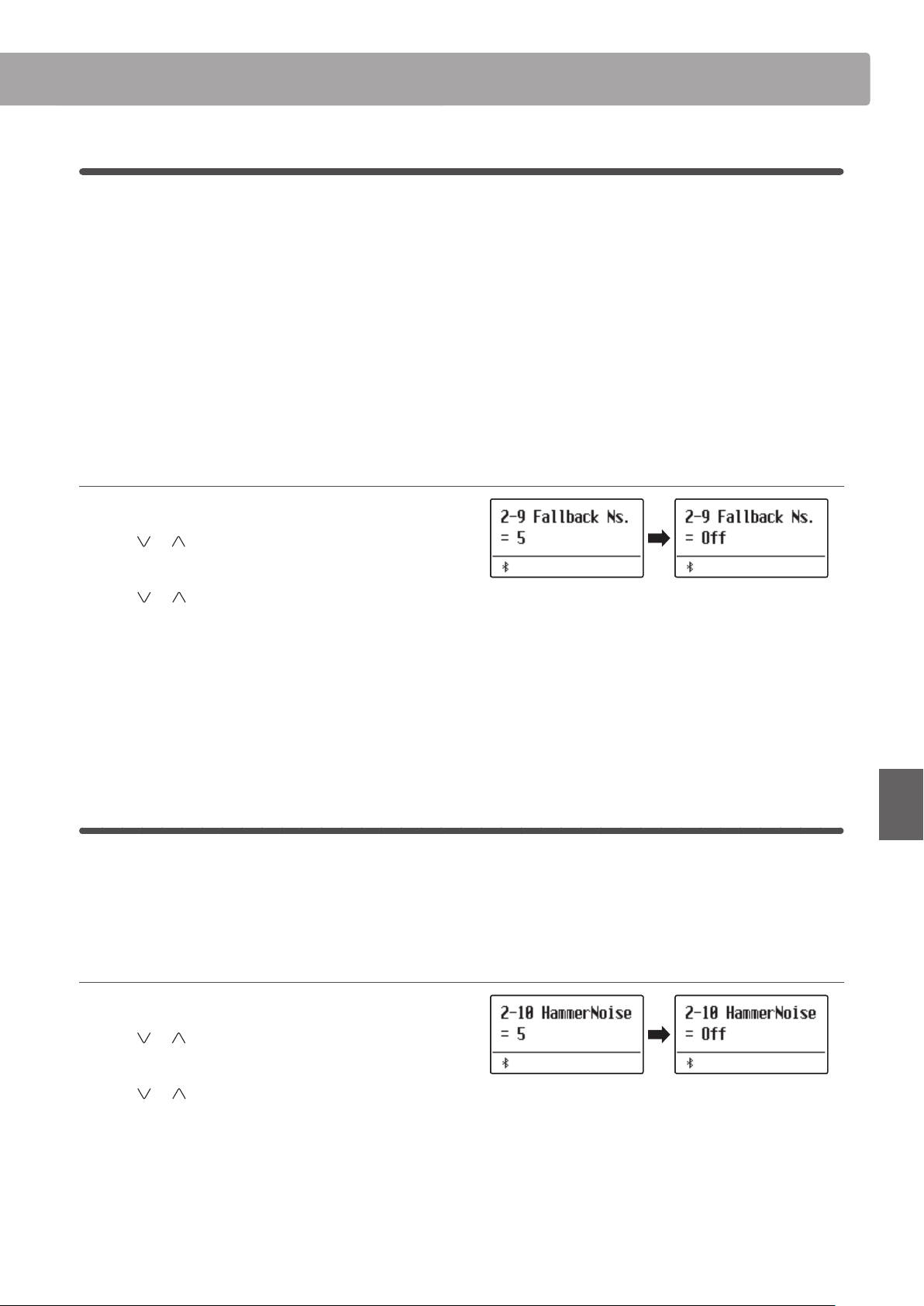
Virtual Technician
97
Adjustments & Settings
2-9
Fall-back Noise
When playing an acoustic piano, it is often possible to hear the faint sound of the keyboard action returning (i.e.
“falling back”) to the neutral position after a key is released.
The ES920 digital piano reproduces this sound, with the Fall-back Noise setting allowing the volume of this sound
to be adjusted.
While the default value is intended to simulate the natural volume level of the keys as they return to their neutral
position, it may occasionally be desirable to adjust the volume of this sound. For example, reducing the volume
when playing very soft pieces, where the fall-back noise may become too prominent.
* This Virtual Technician setting will aect acoustic piano sounds only.
Adjusting the Fall-back Noise volume
After entering the Virtual Technician menu (page 87):
Press the
or MENU buttons to select the Fall-back Noise
setting.
Press the or VALUE buttons to adjust the volume of the
Fall-back Noise setting.
* The Fall-back Noise volume can be adjusted within the range of O,
1~10, with higher values resulting in a more pronounced noise.
Press the EXIT button to exit the Fall-back Noise setting and
return to the main settings menu.
2-10
Hammer Noise
Acoustic pianos produce the sound when the hummers are hitting strings and the keys are hitting the key bed.
This function is used to adjust the volume of these sounds.
* This Virtual Technician setting will aect acoustic piano sounds only.
Adjusting the Hammer Noise volume
After entering the Virtual Technician menu (page 87):
Press the
or MENU buttons to select the Hammer Noise
setting.
Press the or VALUE buttons to adjust the volume of the
Hammer Noise setting.
* The Hammer Noise volume can be adjusted within the range of O,
1~10, with higher values resulting in a more pronounced noise.
Press the EXIT button to exit the Hammer Noise setting and
return to the main settings menu.
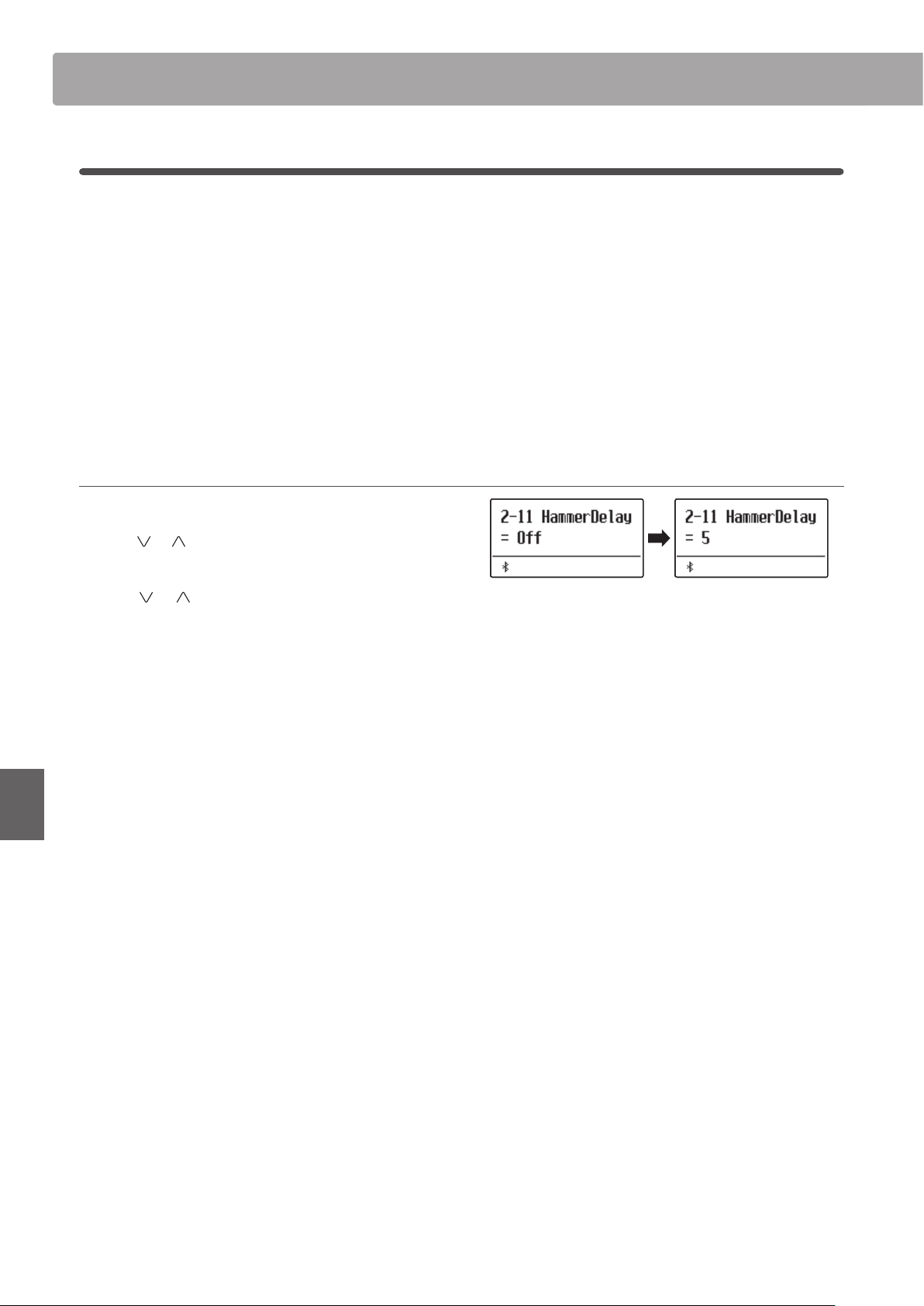
Virtual TechnicianVirtual Technician
98
Adjustments & Settings
2-11
Hammer Delay
When playing pianissimo passages using an acoustic piano, there may be a perceived delay between a key being
pressed and the hammer striking the strings.
If desired, the ES920 digital piano can recreate this delay, with the Hammer Delay setting allowing the delay length
to be adjusted.
While the default value of “O” is intended to replicate a well-regulated concert grand piano, with an immediate
connection between the keyboard and hammers, some players may nd it desirable to introduce a minor delay, in
order to mimic dierent types of piano or instruments with a slightly worn keyboard action.
* This Virtual Technician setting will aect acoustic piano sounds only.
Adjusting the Hammer Delay value
After entering the Virtual Technician menu (page 87):
Press the
or MENU buttons to select the Hammer Delay
setting.
Press the or VALUE buttons to adjust the value of the
Hammer Delay setting.
* The Hammer Delay value can be adjusted within the range of O,
1~10, with higher values resulting in an increased delay.
Press the EXIT button to exit the Hammer Delay setting and
return to the main settings menu.
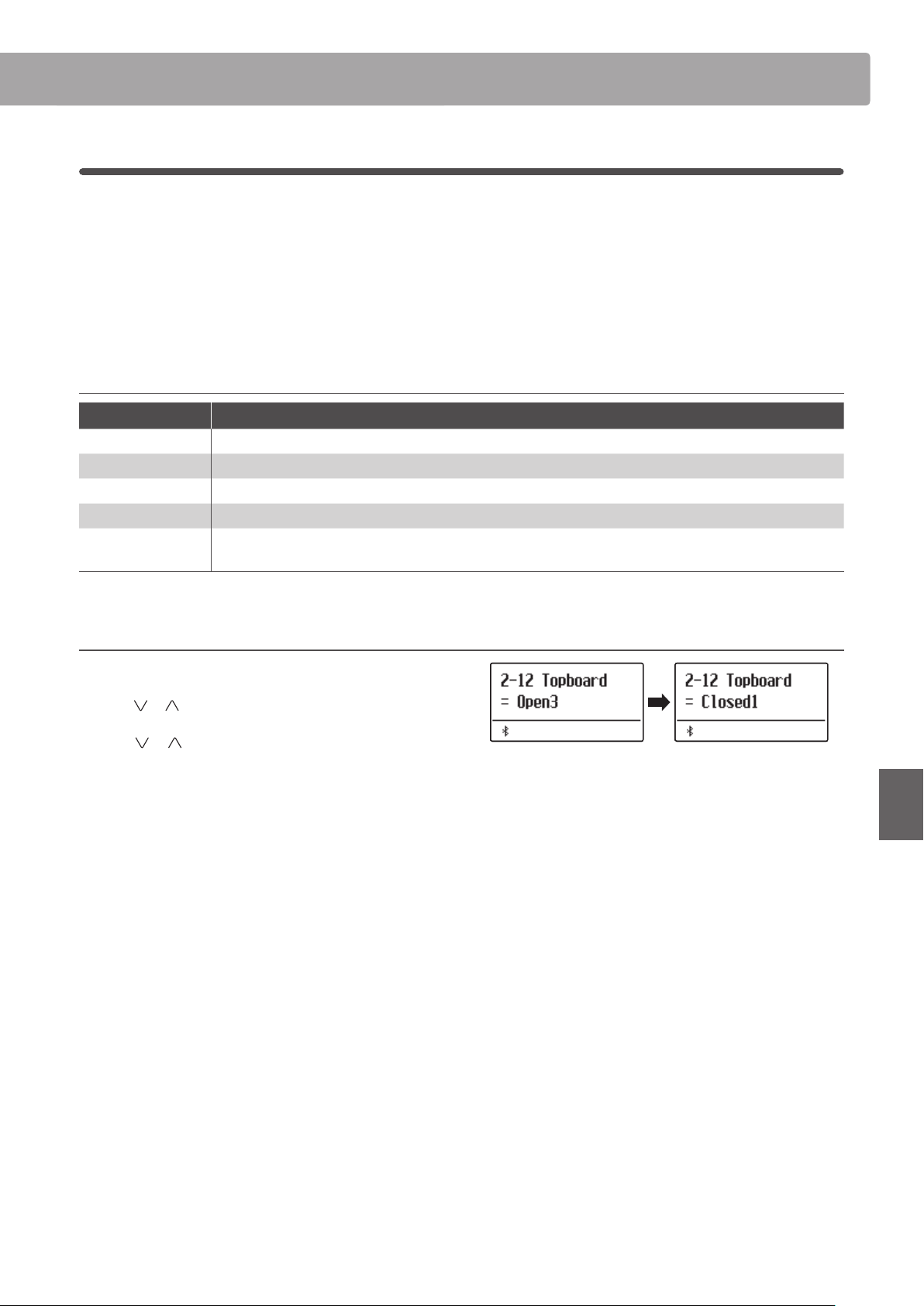
Virtual Technician
99
Adjustments & Settings
2-12
Topboard
When playing an acoustic grand piano, the position of the instrument’s topboard (lid) aects both the volume and
“openness” of the tone produced. A fully open topboard allows sound waves to reect o the polished lid surface
and project into the room, while a closed lid has the opposite eect, resulting in a darker, more opaque tone.
The ES920 digital piano attempts to simulate these characteristics, with four dierent topboard positions.
* This Virtual Technician setting will aect acoustic piano sounds only.
Topboard positions
Topboard position Description
Open3 (default) Simulates the character of a fully open topboard, with maximum sound projection.
Open2 Simulates the character of a half open topboard, with reduced sound projection.
Open1 Simulates the character of a partially open topboard, with limited sound projection.
Closed1 Simulates the character of a closed rear topboard, but open front topboard, with limited sound projection.
Closed2
Simulates the character of a closed rear topboard and closed front topboard, with minimum sound
projection.
Changing the Topboard position
After entering the Virtual Technician menu (page 87):
Press the
or MENU buttons to select the Topboard setting.
Press the
or VALUE buttons to cycle through the dierent
Topboard types.
Press the EXIT button to exit the Topboard setting and return to
the main settings menu.
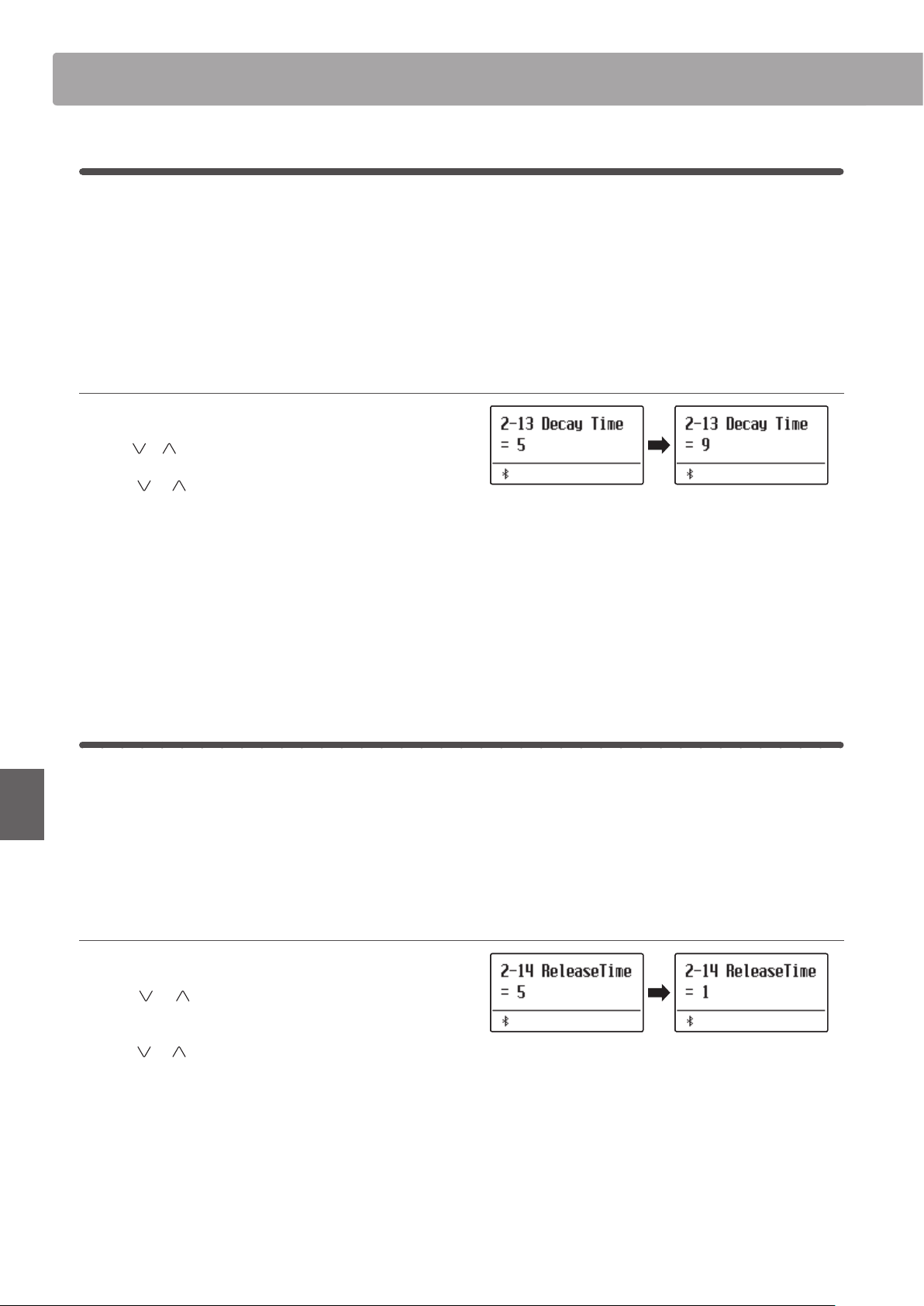
Virtual TechnicianVirtual Technician
100
Adjustments & Settings
2-13
Decay Time
When playing an acoustic grand piano, the length of the instrument inuences the speed at which held notes decay,
with longer grand pianos (i.e. longer strings) characterised by longer decay times.
The ES920 digital piano attempts to simulate this characteristic, with the Decay Time setting allowing the length of
decay while keys are pressed to be adjusted.
* This Virtual Technician setting will aect all sounds.
Adjusting the Decay Time volume
After entering the Virtual Technician menu (page 87):
Press the
or MENU buttons to select the Decay Time setting.
Press the
or VALUE buttons to adjust the volume of the
Decay Time setting.
* The Decay Time volume can be adjusted within the range of 1~10, with
larger values resulting in increased decay times.
* The Decay Time setting can be set independently for each sound.
Press the EXIT button to exit the Decay Time setting and return
to the main settings menu.
2-14
Release Time
When playing an acoustic grand piano, the length of the instrument also inuences the speed at which played (and
released) notes decay, with longer grand pianos (i.e. longer strings) characterised by longer release times.
The digital piano simulates this characteristic, with the Release Time setting allowing the length of decay after keys
are released to be adjusted.
Adjusting the Release Time volume
After entering the Virtual Technician menu (page 87):
Press the
or MENU buttons to select the Release Time
setting.
Press the or VALUE buttons to adjust the volume of the
Release Time setting.
Press the EXIT button to exit the Release Time setting and return
to the main settings menu.
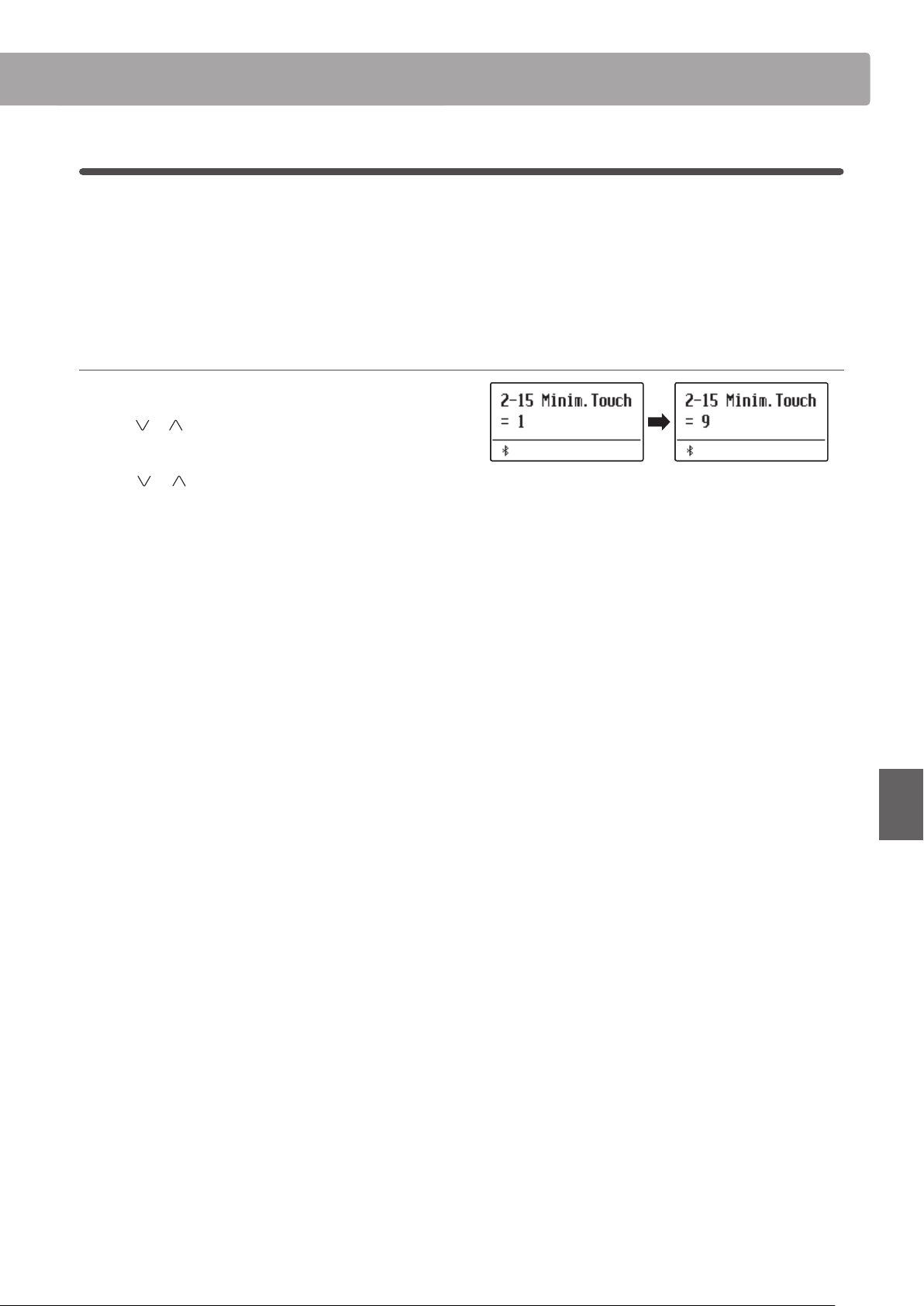
Virtual Technician
101
Adjustments & Settings
2-15
Minimum Touch
The Minimum Touch setting allows the minimum key velocity required to produce a sound to be adjusted. By
default, this setting attempts to recreate the extremely ne touch sensitivity of a concert grand piano, allowing
a very soft sound to be produced with the slightest of key touches. However, it may be desirable to reduce this
sensitivity, when wishing to recreate the feeling of a small grand piano or an upright piano.
* This Virtual Technician setting will aect acoustic piano sounds and E.PIANO (excluding Modern E.P.)
Adjusting the Minimum Touch volume
After entering the Virtual Technician menu (page 87):
Press the
or MENU buttons to select the Minimum Touch
setting.
Press the or VALUE buttons to adjust the volume of the
Minimum Touch setting.
* The Minimum Touch volume can be adjusted within the range of 1~20,
with larger values requiring greater key force in order to produce
a sound. For example, a value of 10 will require the keyboard to be
played with a velocity of 10 or above in order to produce a sound.
Press the EXIT button to exit the Minimum Touch setting and
return to the main settings menu.
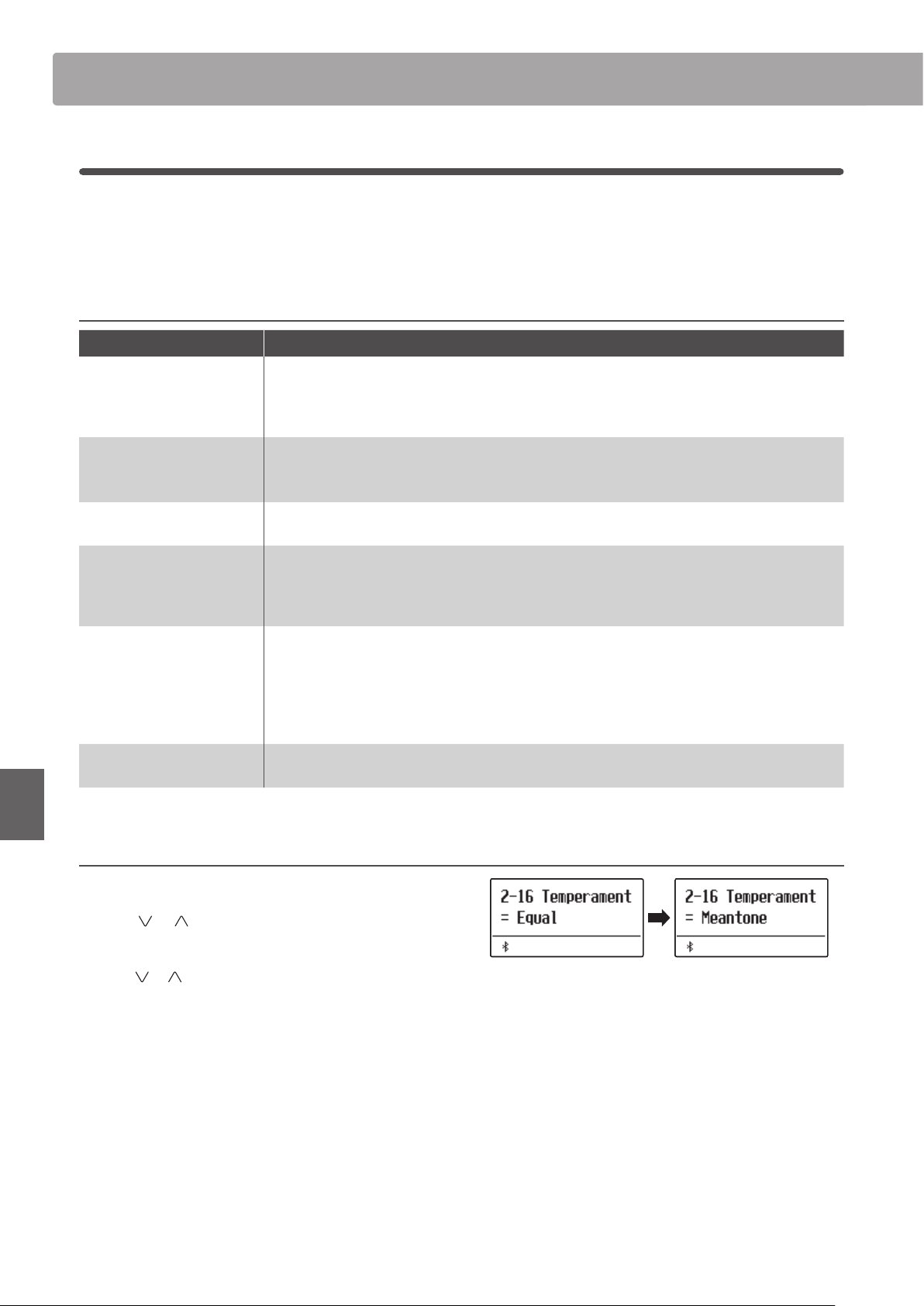
Virtual TechnicianVirtual Technician
102
Adjustments & Settings
2-16
Temperament
The Temperament setting allows the tuning system used by the ES920 digital piano to be changed from the modern
“Equal Temperament” standard to one of the various temperaments popularised during the Renaissance and
Baroque periods. It is also possible to create customised temperaments using the User Temperaments function.
Temperament types
Temperament type Description
Equal Temperament (default)
(Equal)
This temperament is the most popular tuning method, and divides the scale into twelve equal
semi-tones. This produces the same chordal intervals in all twelve keys, and has the advantage of
limitless modulation of the key. However, the tonality of each key becomes less characteristic and
no chord is in pure consonance.
Pure Temperament
(Pure Major/Pure Minor)
This temperament, which eliminates dissonances for thirds and fths, is still popular in choral
music because of its perfect harmony. Any key modulation will result in dissonances.
* The key of the temperament, and major/minor setting must be correctly matched.
Pythagorean Temperament
(Pythagorean)
This temperament, which uses mathematical ratios to eliminate dissonance for fths, is very
limited for use with chords, but produces very characteristic melodic lines.
Meantone Temperament
(Meantone)
This temperament, which uses a mean between a major and minor whole tone to eliminate
dissonance for thirds, was devised to eliminate the lack of consonances experienced with certain
fths for the Mersenne pure temperament.
It produces chords that are more beautiful than those played with equal temperament.
Werckmeister Temperament
(Werckmeister)
Kirnberger Temperament
(Kirnberger)
These two temperaments are placed in between Meantone and Pythagorean. For music with
few accidentals, this temperament produces the beautiful chords of the mean tone, but as
accidentals increase, the temperament produces the characteristic melodies of the Pythagorean
temperament.
It is used primarily for classical music written in the Baroque era to revive the original
characteristics.
User Temperament
(User)
A custom temperament, created by raising or lowering the pitch of each note in the scale.
Changing the Temperament type
After entering the Virtual Technician menu (page 87):
Press the
or MENU buttons to select the Temperament
setting.
Press the or VALUE buttons to cycle through the dierent
temperament types.
Press the EXIT button to exit the Temperament setting and
return to the main settings menu.
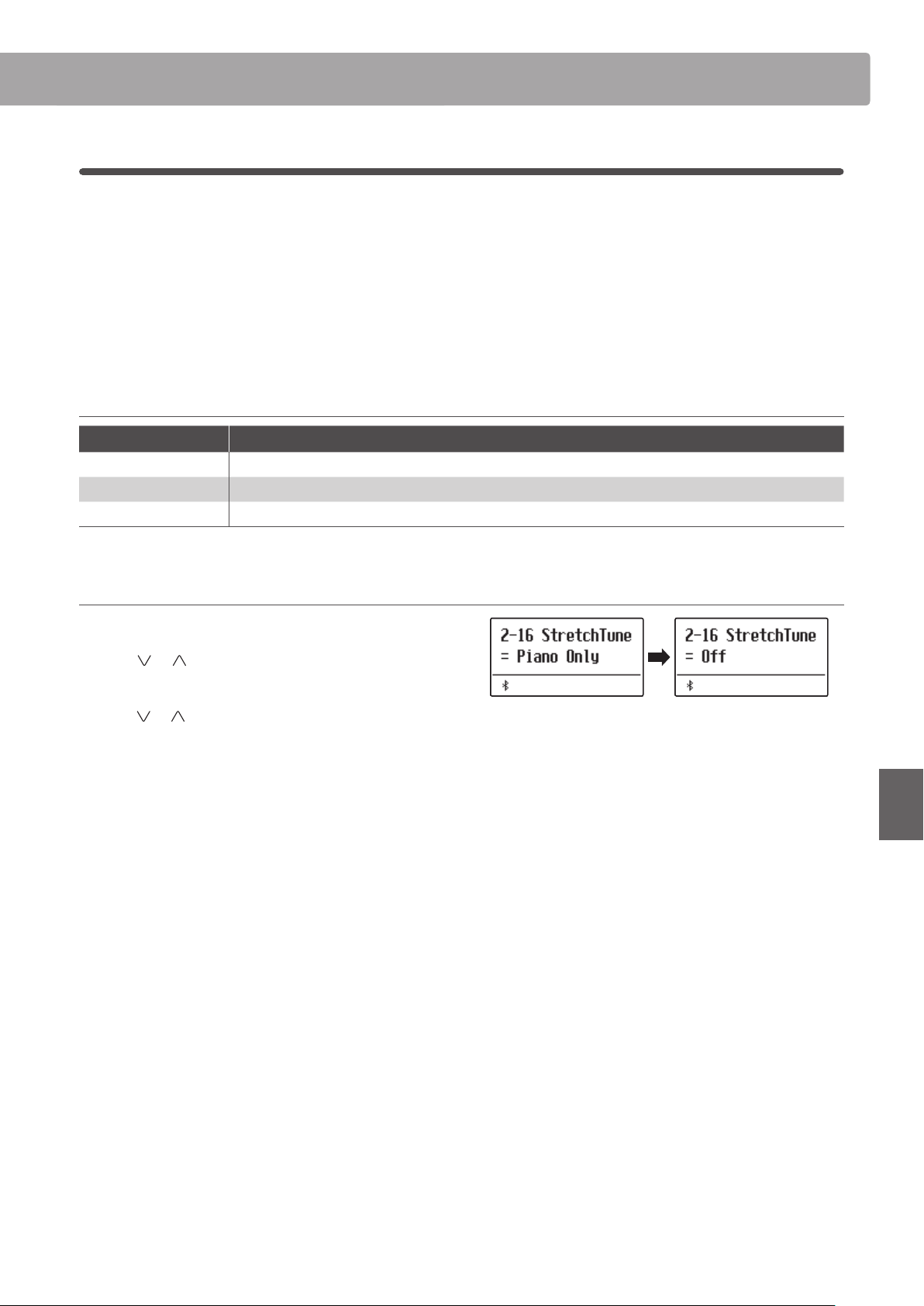
Virtual Technician
103
Adjustments & Settings
Stretch Tuning
The Stretch Tuning setting species whether stretch tuning should be applied for acoustic piano sounds only, all
sounds, or disabled entirely.
Stretch tuning is a piano-specic tuning method used by acoustic piano technicians in which the lower octaves are
tuned slightly atter and the upper octaves are tuned slightly sharper to match the natural harmonics of an acoustic
piano.
* This setting is only eective when Temperament is set to Equal Temperament.
Stretch Tuning setting
Stretch Tuning Description
Piano Only (default) Stretch tuning is applied to acoustic piano sounds only.
O Stretch tuning is disabled.
On Stretch tuning is applied to all sounds.
Selecting the Stretch Tuning type
After selecting the Equal Temperament type (page 102):
Press the
or MENU buttons to select the Stretch Tuning
setting.
Press the or VALUE buttons to cycle through the Stretch
Tuning setting.
Press the EXIT button to exit the Stretch Tuning setting and
return to the main settings menu.
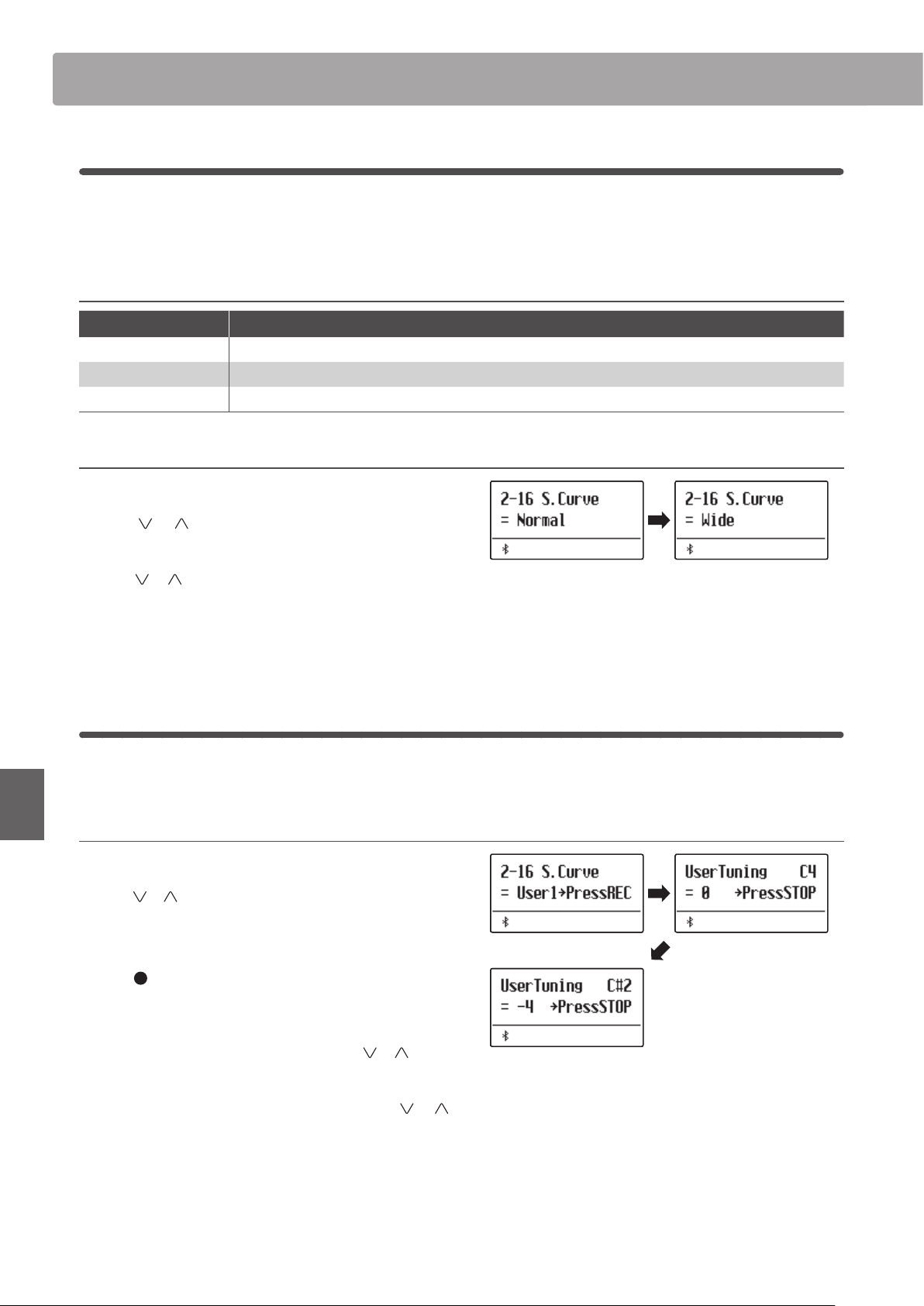
Virtual TechnicianVirtual Technician
104
Adjustments & Settings
Stretch Curve
The Stretch Curve setting species the degree of stretch tuning to be applied to the sound. It is also possible to
create custom tuning methods using one of the four User Tuning types.
* This setting is only eective when Stretch Tuning is set to On/Piano Only, and Temperament is set to Equal Temperament.
Stretch Curve setting
Stretch Curve Description
Normal (default) Normal stretch tuning.
Wide Wide stretch tuning.
User 1~4 User dened tuning methods.
Selecting the Stretch Curve type
After entering the Virtual Technician menu (page 87):
Press the
or MENU buttons to select the Stretch Curve
setting.
Press the or VALUE buttons to cycle through the dierent
Stretch Curve types.
Press the EXIT button to exit the Stretch Curve setting and return
to the main settings menu.
User Tuning
The User Tuning function allows each of the 88-keys to be tuned individually.
* This function is only eective when Stretch Tuning is set to On/Piano Only, Temperament is set to Equal Temperament, and Stretch Curve is set to User 1~4.
Selecting the note, adjusting the user tuning value
After selecting the Stretch Curve setting (page 104):
Press the
or VALUE buttons to select one of the User Tuning
memories.
* Up to four dierent User Tuning memories can be created and stored.
Press the (REC) button.
The User Tuning screen will be shown in the display.
Press the desired key to be tuned, then press the
or VALUE
buttons to set the desired tuning value.
The desired key can also be selected by pressing the or
MENU buttons.
* The User Tuning value can be adjusted within the range of –50~+50.
Press the STOP button to exit the User Tuning setting and return
to the Stretch Curve setting.
* The User Tuning settings are saved automatically.
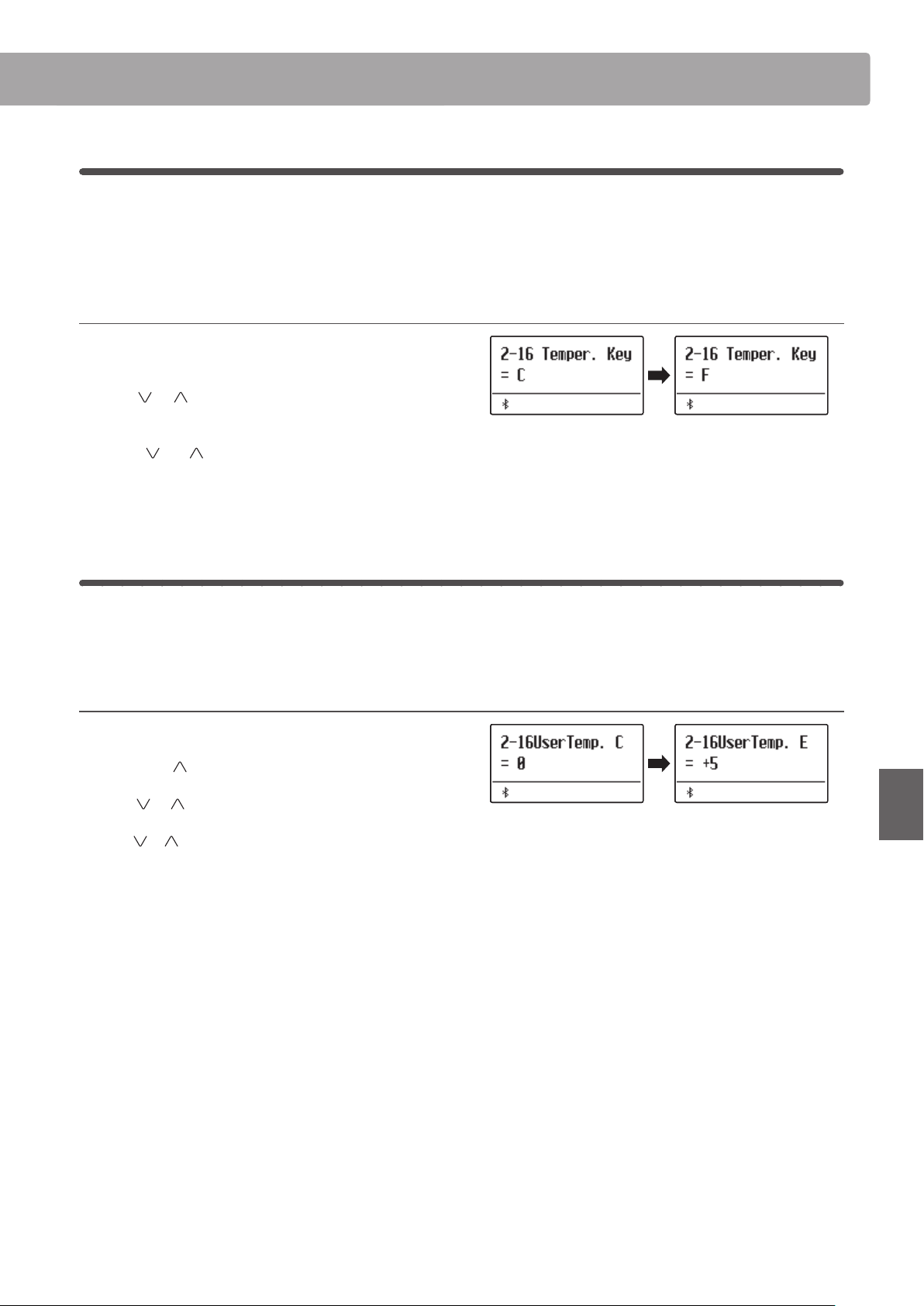
Virtual Technician
105
Adjustments & Settings
Temperament Key
The Temperament Key setting allows the key of the selected temperament to be specied. When using a temperament
other than Equal temperament, use this setting to specify the key signature of the piece.
* This setting will only aect the “balance” of the tuning system, the pitch of the keyboard will remain unchanged.
Changing the Temperament Key setting
After selecting a temperament other than Equal temperament
types:
Press the or MENU buttons to select Temperament Key
setting.
Press the or VALUE buttons to select the desired
temperament key.
* The temperament key can be set within the range of C to B.
User Temperament
The User Temperament setting allows custom temperaments to be created.
* This setting is only available when User Temperament is selected.
Selecting the note, adjusting the user temperament value
After selecting the User Temperament type (page 104):
Press the MENU
button.
Press the
or MENU buttons to select the desired note to
be adjusted.
Press the
or VALUE to adjust the cent value for the selected
note.
* The User Temperament value can be adjusted within the range of
–50~+50.
Press the EXIT button to exit the User Temperament setting and
return to the main settings menu.
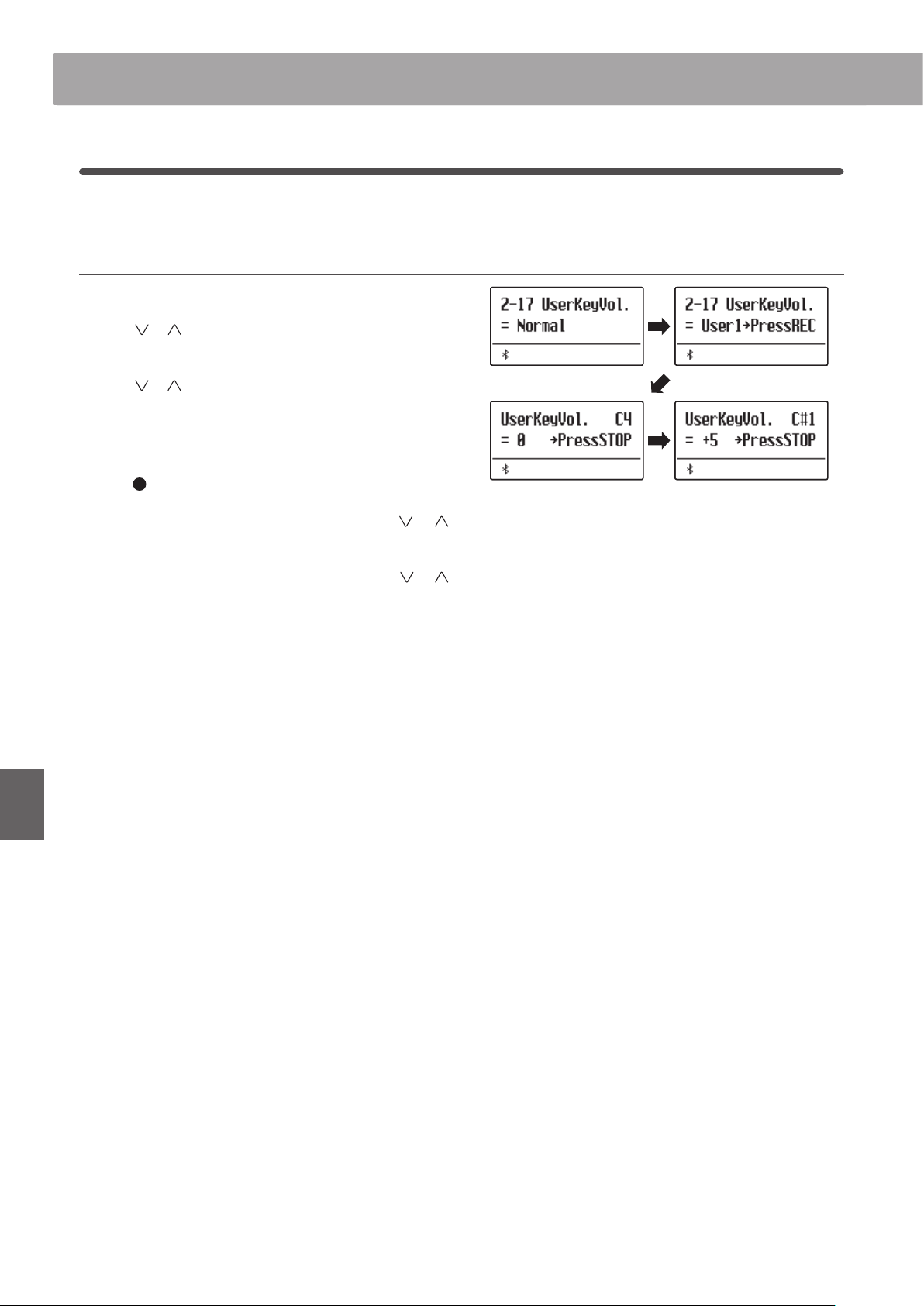
Virtual TechnicianVirtual Technician
106
Adjustments & Settings
2-17
User Key Volume
The User Key Volume settings allows the volume of each of the 88-keys to be adjusted individually.
Selecting the note, adjusting the User Key Volume
After entering the Virtual Technician menu (page 87):
Press the
or MENU buttons to select the User Key Volume
setting.
Press the or VALUE buttons to select the User Key Volume
memories.
* Up to four dierent User Key Volume memories can be created and
stored.
Press the (REC) button to adjust the User Key Volume memory.
Press the desired key to be adjusted, then press the or
VALUE buttons to select the desired volume value.
The desired key can also be selected by pressing the or
MENU buttons.
* The User Key Volume setting can be set independently for each sound.
Press the STOP button to exit the User Key Volume setting and
return to the User Key Volume memories selection.
* The User Key Volume settings are saved automatically.
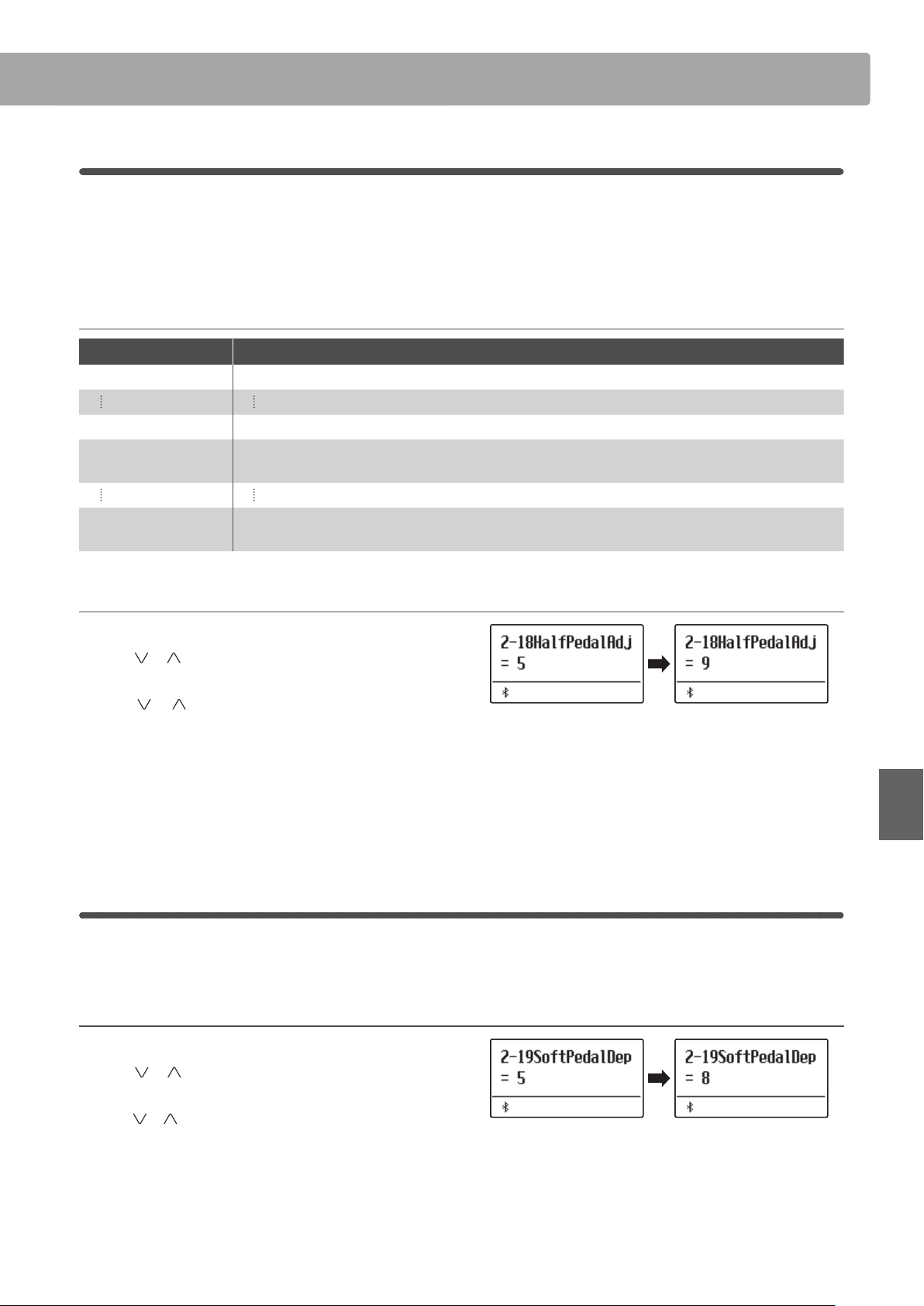
Virtual Technician
107
Adjustments & Settings
2-18
Half-Pedal Adjust
The Half-Pedal Adjust setting allows the point at which the damper/sustain pedal becomes eective (i.e. when the
dampers of the piano begin to lift from the strings) to be adjusted. This setting may be useful for pianists that
habitually rest their right foot on the damper/sustain pedal, but do not necessarily wish to sustain the sound.
* This Virtual Technician setting will aect all sounds.
Half-Pedal Adjust settings
Half-Pedal Adjust Description
1 This setting allows the half-pedal to start at the earliest point.
7 This setting allows the half-pedal to start at the latest point.
8
This setting allows the damper pedal to be used as the controller.
Control can be done when the pedal is pressed slightly.
10
This setting allows the damper pedal to be used as the controller.
Control can be done in the widest range.
Adjusting the Half-Pedal Adjust volume
After entering the Virtual Technician menu (page 87):
Press the or MENU buttons to select the Half-Pedal Adjust
setting.
Press the
or VALUE buttons to adjust the volume of the
Half-Pedal Adjust setting.
* The Half-Pedal Adjust volume can be adjusted within the range of
1~10.
Press the EXIT button to exit the Half-Pedal Adjust setting and
return to the main settings menu.
2-19
Soft Pedal Depth
The Soft Pedal Depth setting adjusts the eectiveness (i.e. depth/strength) of the soft pedal.
* This Virtual Technician setting will aect all sounds.
Adjusting the Soft Pedal Depth volume
After entering the Virtual Technician menu (page 87):
Press the or MENU buttons to select the Soft Pedal Depth
setting.
Press the
or VALUE buttons to adjust the volume of the Soft
Pedal Depth setting.
* The Soft Pedal Depth volume can be adjusted within the range of
1~10, with higher values resulting in a softer sound.
Press the EXIT button to exit the Soft Pedal Depth setting and
return to the main settings menu.
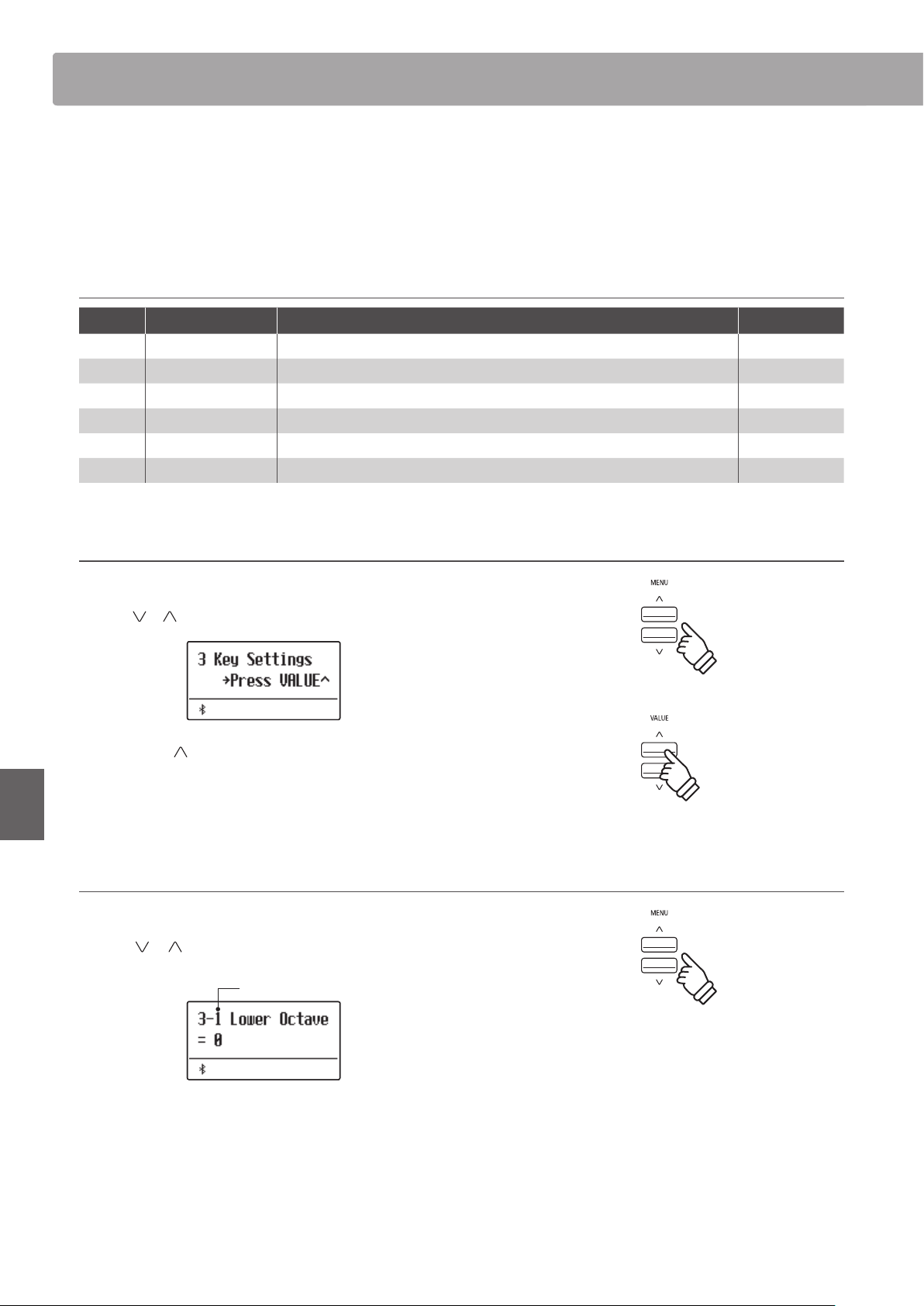
Key SettingsKey Settings
108
Adjustments & Settings
The Key Settings menu contains settings to adjust the instrument’s operation when using the Dual or Split playing
modes.
* Any changes made by this operation will remain until the power is turned o.
Preferred settings can be stored in a Registration memory or Startup Setting. Please refer to page 36 and 82 for more information.
Key Settings
Page no. Setting Description Default setting
3-1 Lower Octave Raise the pitch of the lower section in octave steps when using Split mode. 0
3-2 Lower Pedal Enable/disable sustain pedal for the lower section when using Split mode. O
3-3 Split Balance Adjust the volume balance between the upper and lower sections. 9 : 9
3-4 Layer Octave Raise the pitch of the layered sound in octave steps when using Dual mode. 0
3-5 Layer Dynamics Adjust the dynamic sensitivity of the layered sound when using Dual mode. 10
3-6 Dual Balance Adjust the volume balance between the main and layered sounds. 9 : 9
Entering the Key Settings menu
While the normal playing mode screen is shown in the display:
Press the
or MENU buttons to select the Key Settings menu.
Press the VALUE button to enter the Key Settings menu.
The rst page of the Key Settings menu will be shown in the
display
Selecting the desired setting
After entering the Key Settings menu:
Press the
or MENU buttons to cycle through the dierent
settings pages.
Settings page no.
Key Settings
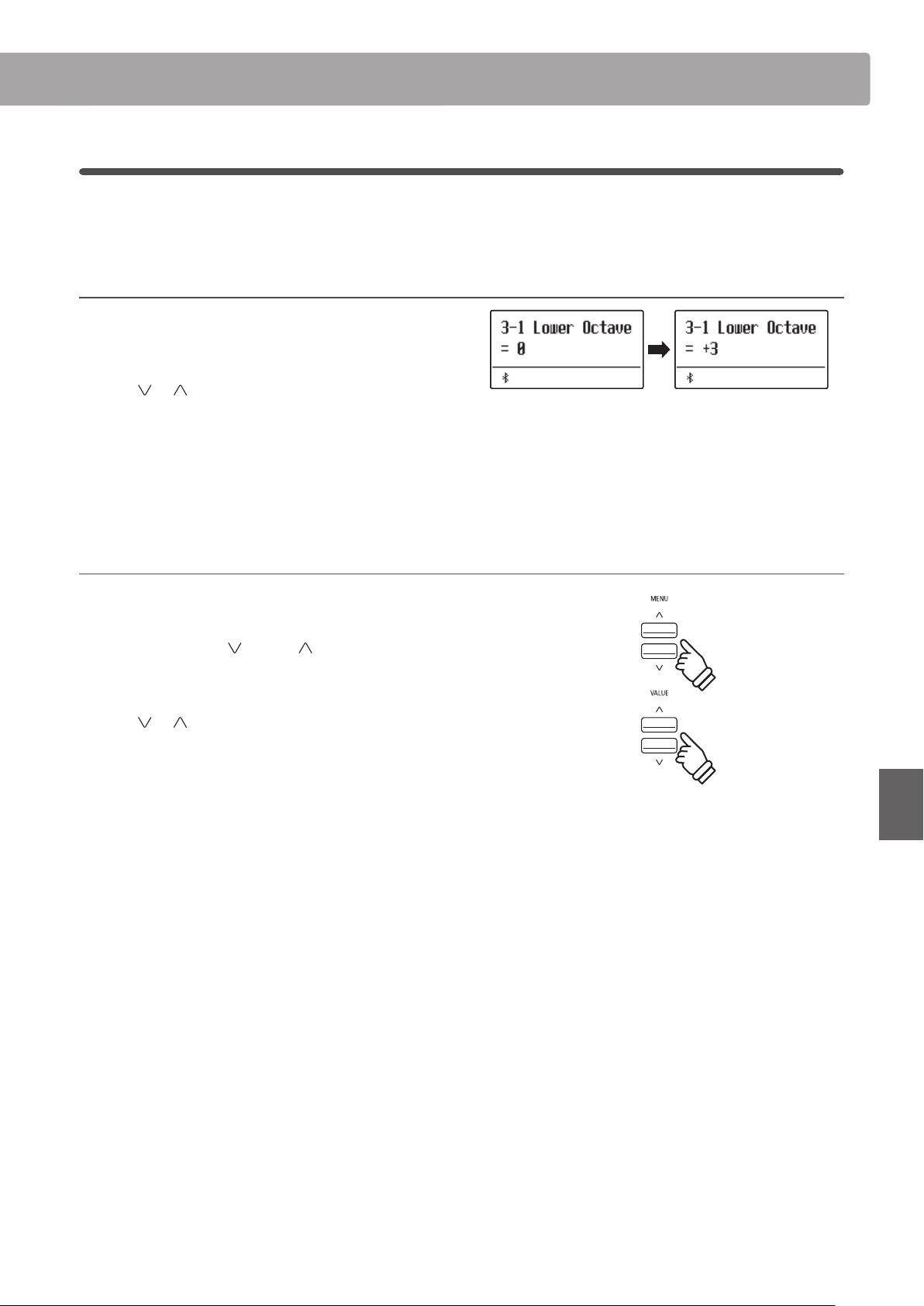
Key Settings
109
Adjustments & Settings
Key Settings
3-1
Lower Octave Shift
The Lower Octave Shift setting allows the pitch of the lower section when using Split mode to be raised in octave
steps.
Changing the Lower Octave Shift value
After entering the Key Settings menu (page 108):
The Lower Octave Shift setting will be selected automatically.
Press the
or VALUE buttons to decrease or increase the
value of the Lower Octave Shift setting.
* The pitch of the lower section can be raised by up to 3 octaves.
Press the EXIT button to exit the Lower Octave Shift setting and
return to the main settings menu.
Jump to Lower Octave Shift setting shortcut
It is also possible to access the Lower Octave Shift setting directly
while Split Mode or Four Hands Mode are in use:.
Press and hold the MENU or MENU buttons.
The Lower Octave Shift setting will be shown in the display.
Press the
or VALUE buttons to adjust the Lower Octave
Shift setting.
To exit the Lower Octave Shift setting and return to the previous
screen, press the EXIT button twice.
hold
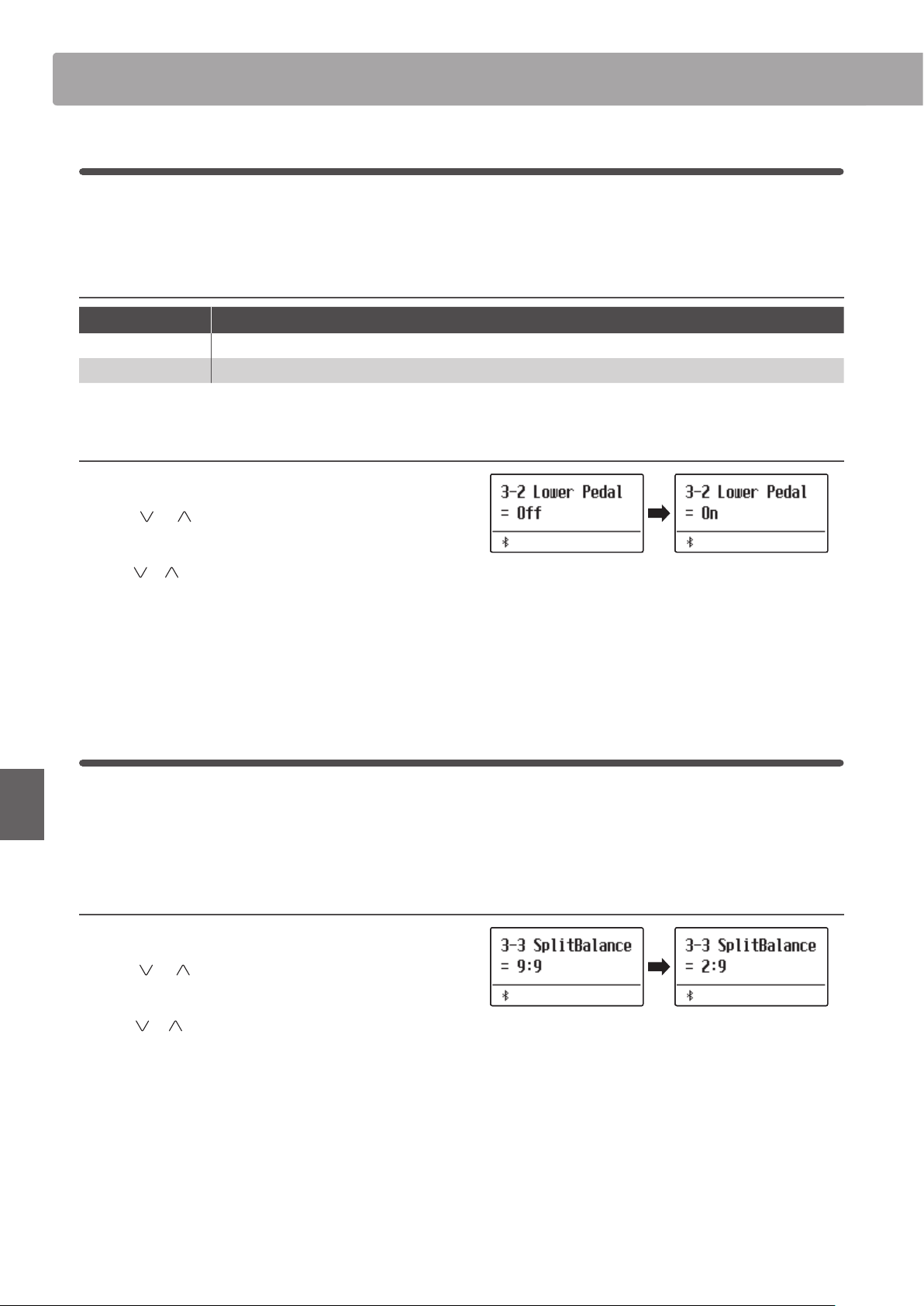
Key SettingsKey Settings
110
Adjustments & Settings
3-2
Lower Pedal
The Lower Pedal setting determines whether or not the sustain pedal will aect (i.e. sustain) the lower sound when
using Split mode.
Lower Pedal settings
Lower Pedal Description
O (default) In Split mode, lower section sounds will not be sustained when the sustain pedal is pressed.
On In Split mode, lower section sounds will be sustained when the sustain pedal is pressed.
Changing the Lower Pedal setting
After entering the Key Settings menu (page 108):
Press the
or MENU buttons to select the Lower Pedal
setting.
Press the or VALUE buttons to turn the Lower Pedal setting
on or o.
Press the EXIT button to exit the Lower Pedal setting and return
to the main settings menu.
3-3
Split Balance
The Split Balance setting allows the volume balance between the upper and lower sections when using Split mode
to be adjusted.
* The Split Balance setting can also be used adjusted directly while Split mode is in use. Please refer to page 21 for more information.
Adjusting the Split Balance setting
After entering the Key Settings menu (page 108):
Press the
or MENU buttons to select the Split Balance
setting.
Press the or VALUE buttons to adjust the volume balance
between the upper and lower sections.
After increasing to the maximum volume (9) of one section, the
volume of the other section will start to decrease.
Press the EXIT button to exit the Split Balance setting and return
to the main settings menu.
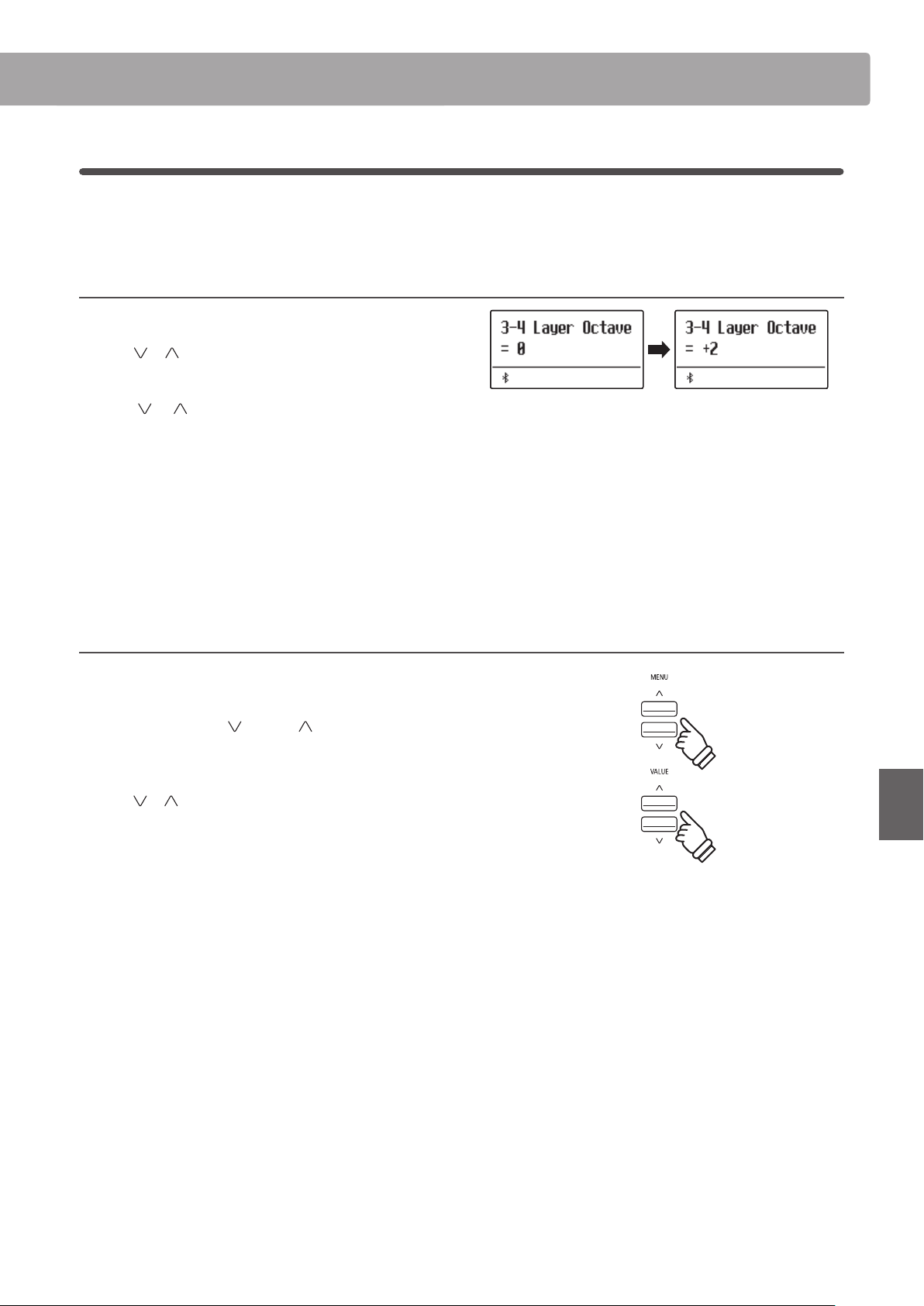
Key Settings
111
Adjustments & Settings
3-4
Layer Octave Shift
The Layer Octave Shift setting allows the pitch of the layered sound when using Dual mode to be raised or lowered
in octave steps.
Changing the Layer Octave Shift value
After entering the Key Settings menu (page 108):
Press the
or MENU buttons to select the Layer Octave Shift
setting.
Press the or VALUE buttons to decrease or increase the
value of the Layer Octave Shift setting.
* The pitch of the layered sound can be raised or lowered by up to 2
octaves.
* Some layered sounds may not produce a tone when the octave range
is raised beyond a certain value.
Press the EXIT button to exit the Layer Octave Shift setting and
return to the main settings menu.
Jump to Layer Octave Shift setting shortcut
It is also possible to access the Layer Octave Shift setting directly
while Dual Mode is in use.
Press and hold the MENU or MENU buttons.
The Layer Octave Shift setting will be shown in the display.
Press the
or VALUE buttons to adjust the Layer Octave Shift
setting.
To exit the Layer Octave Shift setting and return to the previous
screen, press the EXIT button twice.
hold
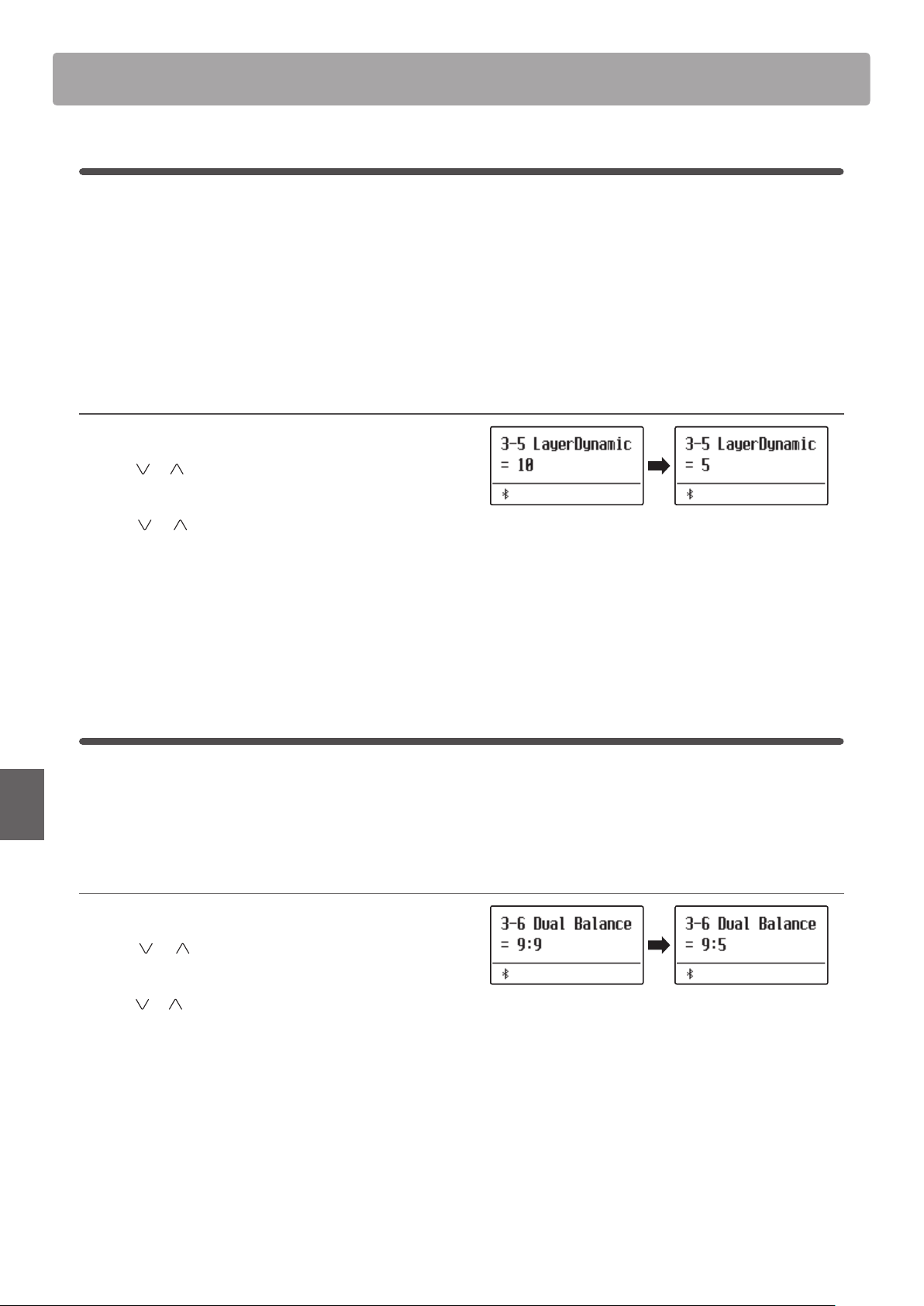
Key Settings
112
Adjustments & Settings
3-5
Layer Dynamics
When using Dual mode, sometimes simply adjusting the volume balance between the two layered sounds is not
enough to create the desired sound character, especially if both sounds are very dynamic. Layering two equally
dynamic sounds can prove dicult to control and play comfortably.
The Layer Dynamics Function allows the dynamic sensitivity of the layered sound to be reduced, in order to improve
the blend between the two combined sounds. In addition to reducing the volume of the layered sound, limiting its
dynamic sensitivity also allows the layered sound to be controlled more easily in relation to the main sound.
Adjusting the Layer Dynamics setting
After entering the Key Settings menu (page 108):
Press the
or MENU buttons to select the Layer Dynamics
setting.
Press the or VALUE buttons to decrease or increase the
value of the Layer Dynamics setting.
* The layer dynamics value can be adjusted within the range of o, 1~10.
Press the EXIT button to exit the Layer Dynamics setting and
return to the main settings menu.
3-6
Dual Balance
The Dual Balance setting allows the volume balance between the main and layered sounds when using Dual mode
to be adjusted.
* The Dual Balance setting can also be used adjusted directly while Dual mode is in use. Please refer to page 19 for more information.
Adjusting the Dual Balance setting
After entering the Key Settings menu (page 108):
Press the
or MENU buttons to select the Dual Balance
setting.
Press the or VALUE buttons to adjust the volume balance
between the main and layered sections.
After increasing to the maximum volume (9) of one sound, the
volume of the other sound will start to decrease.
Press the EXIT button to exit the Dual Balance setting and return
to the main settings menu.
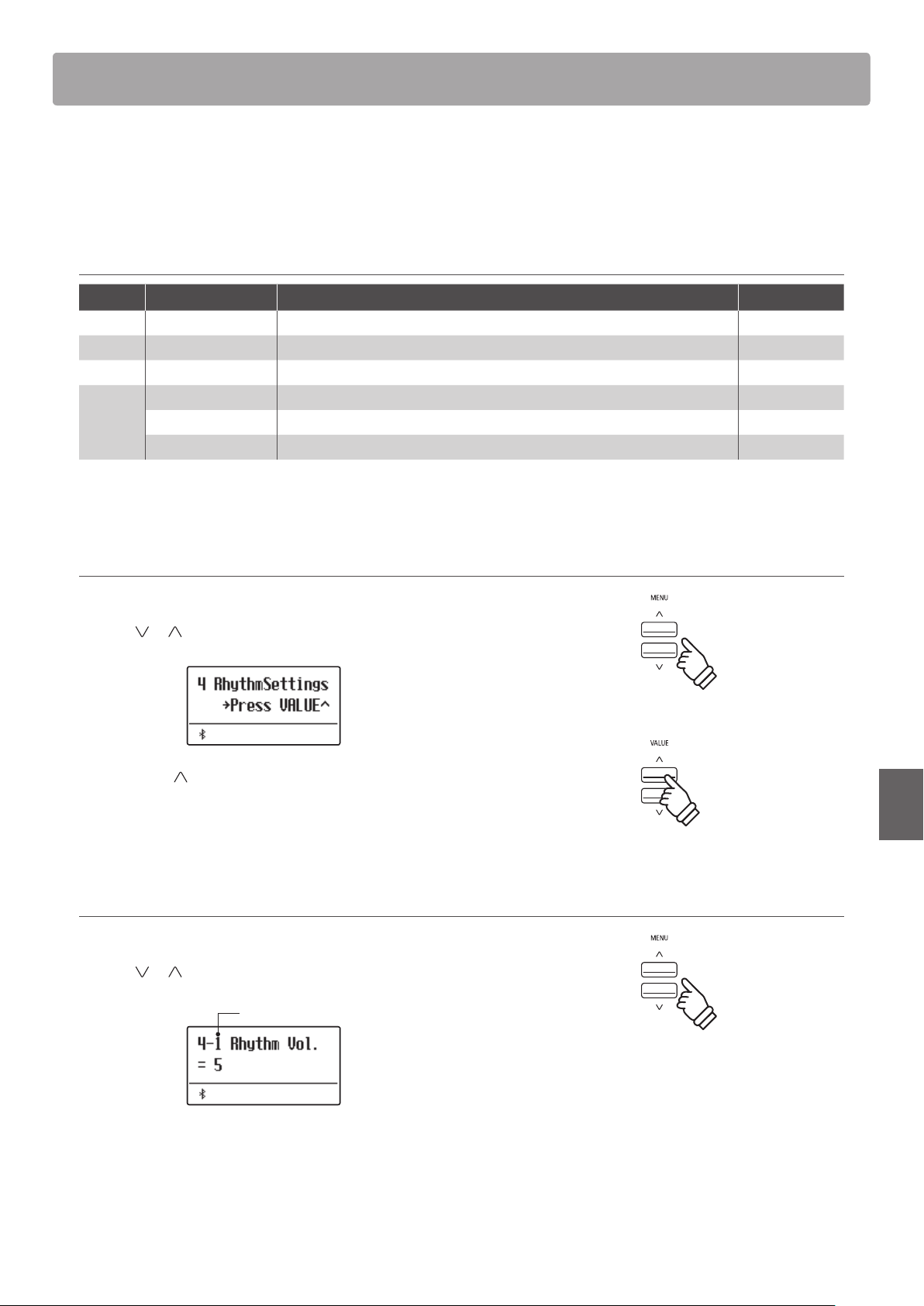
113
Adjustments & Settings
Rhythm Section Settings
The Rhythm Section Settings menu contains settings to adjust the Rhythm Section function.
* Any changes made by this operation will remain until the power is turned o.
Preferred settings can be stored in a Registration memory or Startup Setting. Please refer to page 36 and 82 for more information.
Rhythm Section settings
Page no. Setting Description Default setting
4-1 Rhythm Volume Adjust the volume of the Rhythm Section 5
4-2 Auto Fill-in Specify how frequently an Auto Fill-in will be played. 8 bars
4-3 O.F. Ad-lib Turn the “One Finger Ad-lib” feature on or o. O
4-4 ACC Mode Specify the chord input mode used for the Rhythm Section accompaniment. Normal
Bass Inv. Turn the “Bass Inv.” (On-Bass chord detection) function on or o. O
Preset Chord Select the preset chord progression type. Chord 1
* The Bass Inv. page will only appear when ACC Mode is set to “Normal”.
* The Preset Chord page will only appear when ACC Mode is set to “Preset Chord”.
Entering the Rhythm Settings menu
While the normal playing mode screen is shown in the display:
Press the
or MENU buttons to select the Rhythm Settings
menu.
Press the VALUE button to enter the Rhythm Settings menu.
The rst page of the Rhythm Settings menu will be shown in the
display
Selecting the desired setting
After entering the Rhythm Settings menu:
Press the
or MENU buttons to cycle through the dierent
settings pages.
Settings page no.
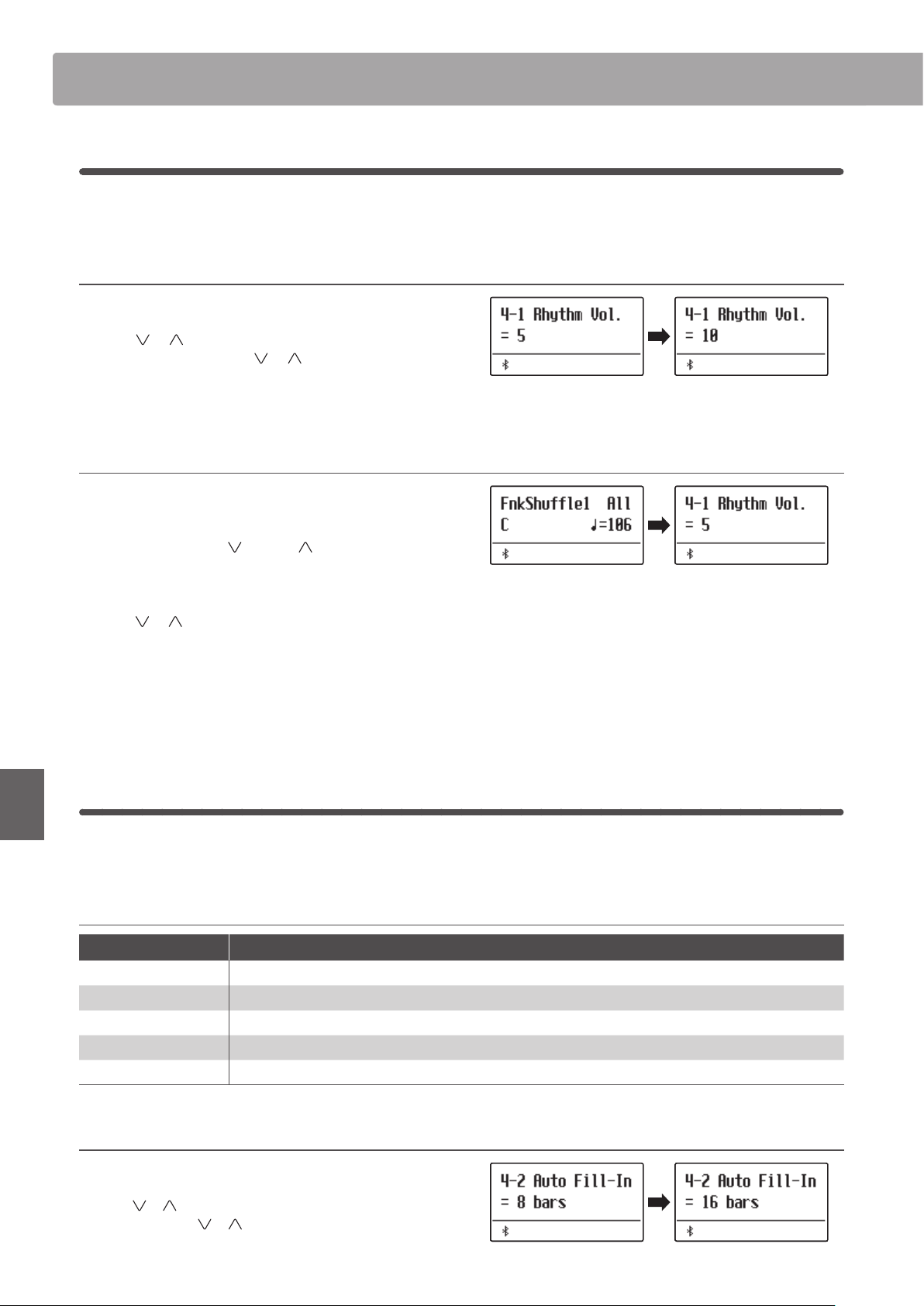
Rhythm Section SettingsRhythm Section Settings
114
Adjustments & Settings
4-1
Rhythm Volume
The Rhythm Volume setting is used to adjust the volume level of the Rhythm Section accompaniment, relative to the
main keyboard sound.
Adjust the Rhythm Volume setting
After entering the Rhythm Settings menu (page 113):
Press the
or MENU buttons to select the Rhythm Volume
settings page, then press the
or VALUE buttons to adjust
the volume level of the Rhythm Section.
* The Rhythm Volume setting can be adjusted within the range of 1~10.
Jump to Rhythm Volume setting shortcut
It is also possible to access the Rhythm Volume setting directly while
the Rhythm Section is in use.
Press and hold the MENU
or MENU buttons.
The Rhythm Volume setting will be shown in the display.
Press the
or VALUE buttons to adjust the Rhythm Volume
setting.
To exit the Rhythm Volume setting and return to the previous
screen, press the EXIT button twice.
4-2
Auto Fill-in
The Auto Fill-in setting is used to specify how many bars of the Rhythm Section should be played before a ll-in
passage is automatically added. This function can be turned o if the Auto Fill-in feature is not required.
Auto Fill-in settings
Auto Fill-in setting Description
O The Rhythm Section will not play a ll-in passage automatically.
4 bars The Rhythm Section will play an automatic ll-in passage after every 4 bars.
8 bars
(default) The Rhythm Section will play an automatic ll-in passage after every 8 bars.
12 bars The Rhythm Section will play an automatic ll-in passage after every 12 bars.
16 bars The Rhythm Section will play an automatic ll-in passage after every 16 bars.
Changing the Auto Fill-in setting
After entering the Rhythm Settings menu (page 113):
Press the
or MENU buttons to select the Auto Fill-in settings
page, then press the
or VALUE buttons to change the value.
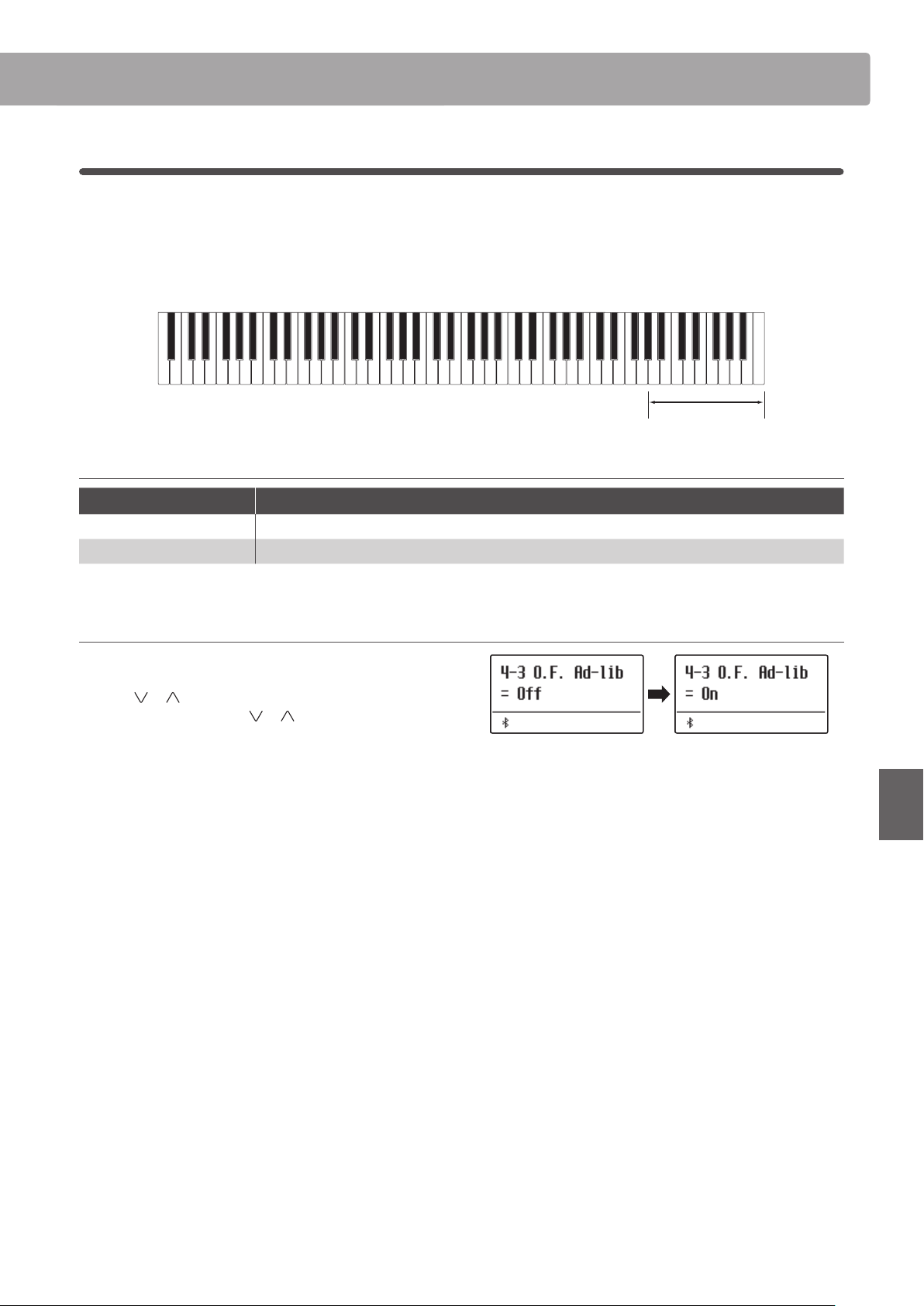
Rhythm Section Settings
115
Adjustments & Settings
4-3
One Finger Ad-lib
The One Finger Ad-lib setting is used to turn the Rhythm Section’s One Finger Ad-lib function on or o.
When turned on, One Finger Ad-lib allows various musical phrases to be performed at any time by pressing one of
the topmost 17 keys on the keyboard. Each phrase will play for one bar, and will match the key/chord currently used
by the Rhythm Section accompaniment.
Topmost 17 keys:
One Finger Ad-lib
One Finger Ad-lib settings
One Finger Ad-lib setting Description
O (default) A One Finger Ad-lib phrase will not be played.
On A One Finger Ad-lib phrase will be played when pressing one of the topmost 17 keys.
Changing the One Finger Ad-lib setting
After entering the Rhythm Settings menu (page 113):
Press the
or MENU buttons to select the One Finger Ad-lib
settings page, then press the
or VALUE buttons to turn the
One Finger Ad-lib feature on or o.
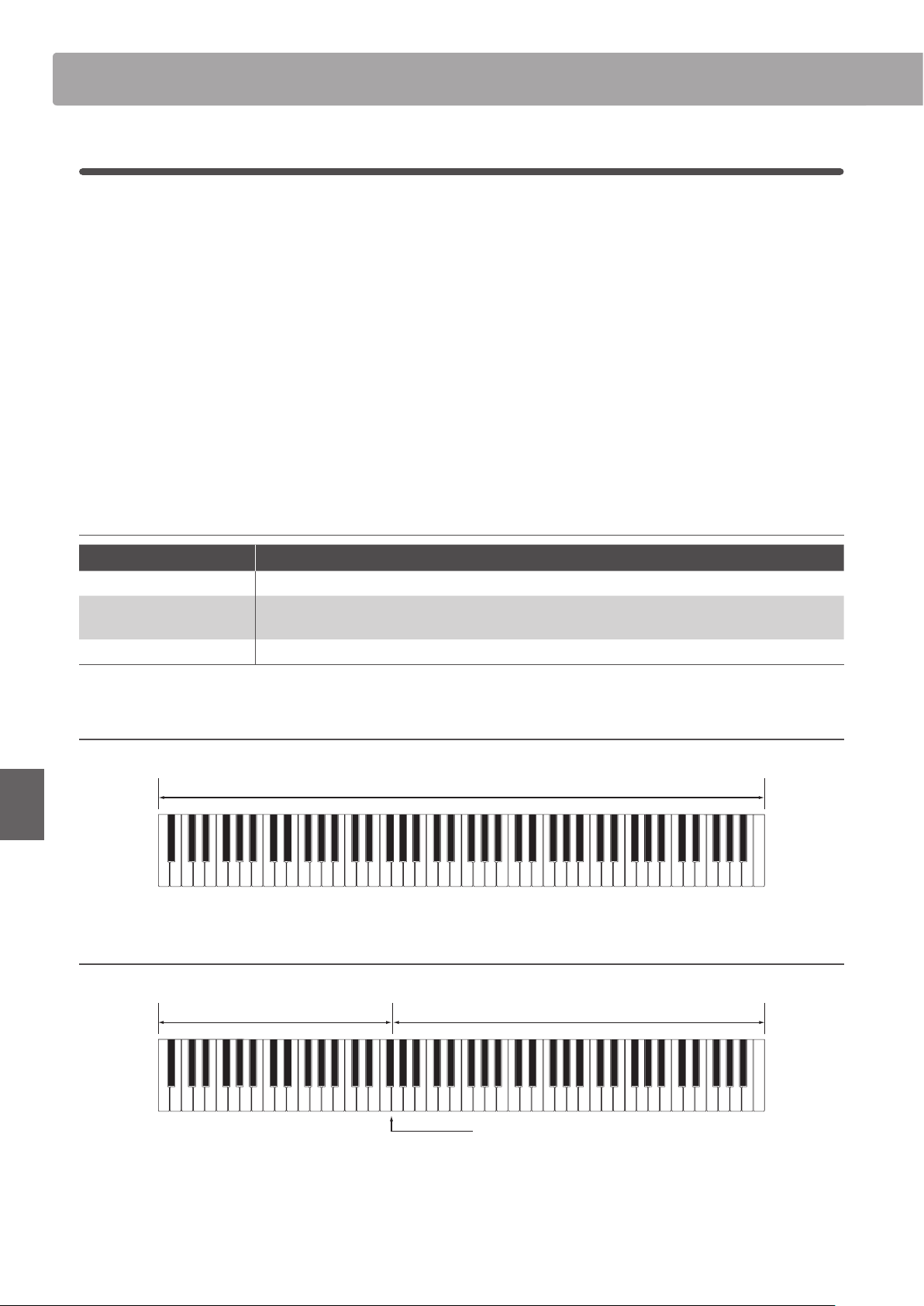
Rhythm Section SettingsRhythm Section Settings
116
Adjustments & Settings
4-4
ACC Mode
The ACC Mode setting is used to select the Rhythm Section’s chord input method.
By default, the entire keyboard can be used to play the melody, with the ES920 detecting and changing the Rhythm
Section chord/key automatically. However, selecting the “1 Finger Chord” mode allows the Rhythm Section chord/
key to be changed by playing single notes in the lower section, with the upper section reserved for playing the
melody.
Finally, when the “Preset Chord” mode is selected, the Rhythm Section will follow the preset chord sequence specied
on the Preset Chord settings page. For a complete listing of the available Rhythm Section Preset Chord sequences,
please refer to page 139 of this owner’s manual.
* The default split point is set between keys F
#
3 and G3.
* The Rhythm Section and Split Mode share the same split point. Please refer to page 21 for information about changing the split point.
ACC Mode settings
ACC Mode setting Rhythm Section play/control mode
Normal (default) Full keyboard plays melody, and controls Rhythm Section key.
1 Finger Chord
Upper section plays melody, lower section controls Rhythm Section key.
Playing single notes in the lower section can change the accompaniment’s chords easily.
Preset Chord Full keyboard plays melody, Rhythm Section changes key automatically.
Normal
Full keyboard:
Used to control the accompaniment, and play the melody.
1 Finger Chord
Lower section:
Used to control the accompaniment.
Upper section:
Used to play the melody.
Split point: adjustable, please refer to page 21.
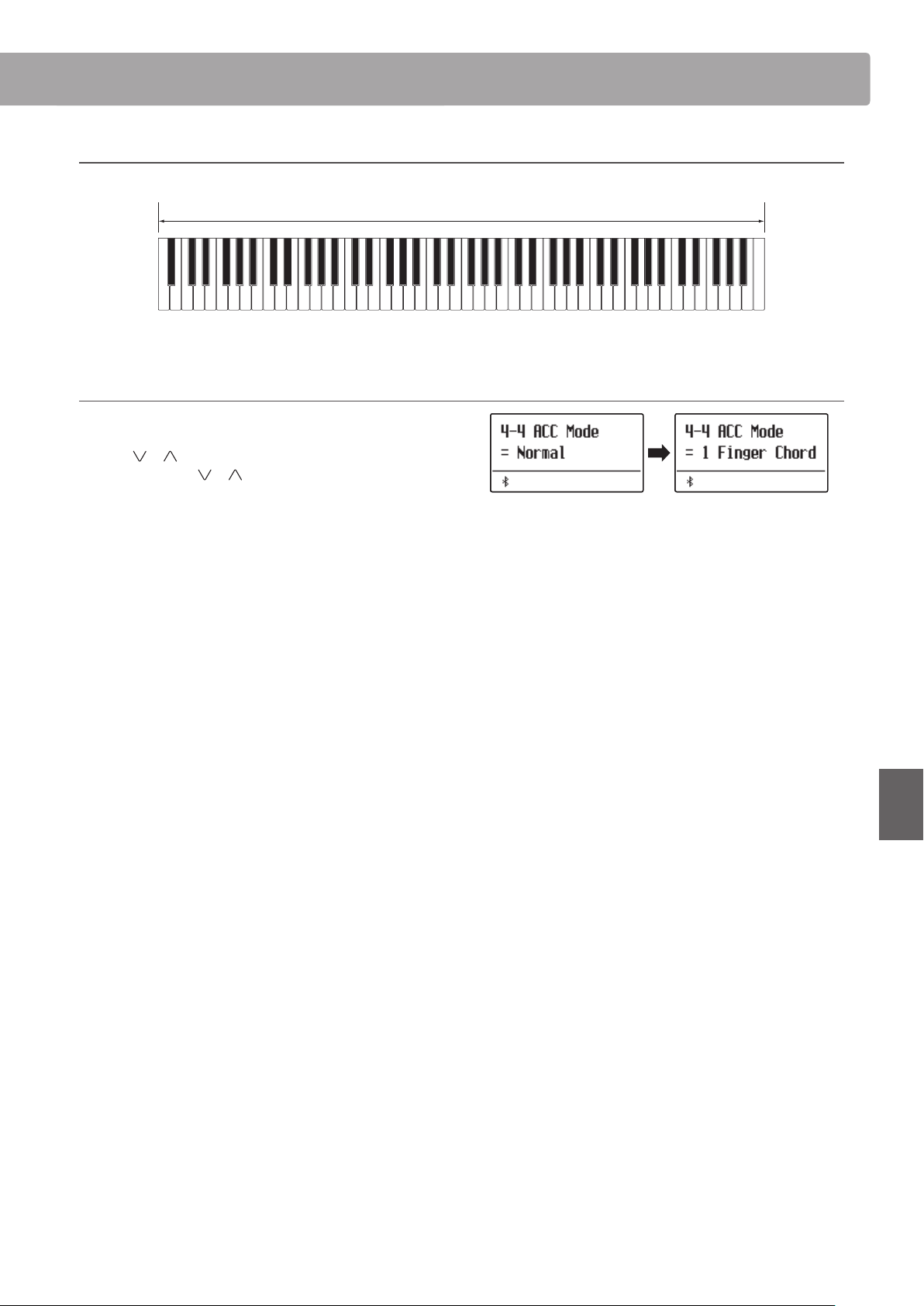
Rhythm Section Settings
117
Adjustments & Settings
Preset Chord
Full keyboard:
Used to play the melody only. The accompaniment is controlled automatically.
Changing the ACC Mode setting
After entering the Rhythm Settings menu (page 113):
Press the
or MENU buttons to select the ACC Mode settings
page, then press the
or VALUE buttons to cycle through the
dierent chord recognition methods.
* The Auto Fill-in feature will be disabled when the “Preset Chord”
method is selected. However, the Rhythm Section will automatically
play a fill-in pattern at the end of the final bar of the specied Preset
Chord sequence.
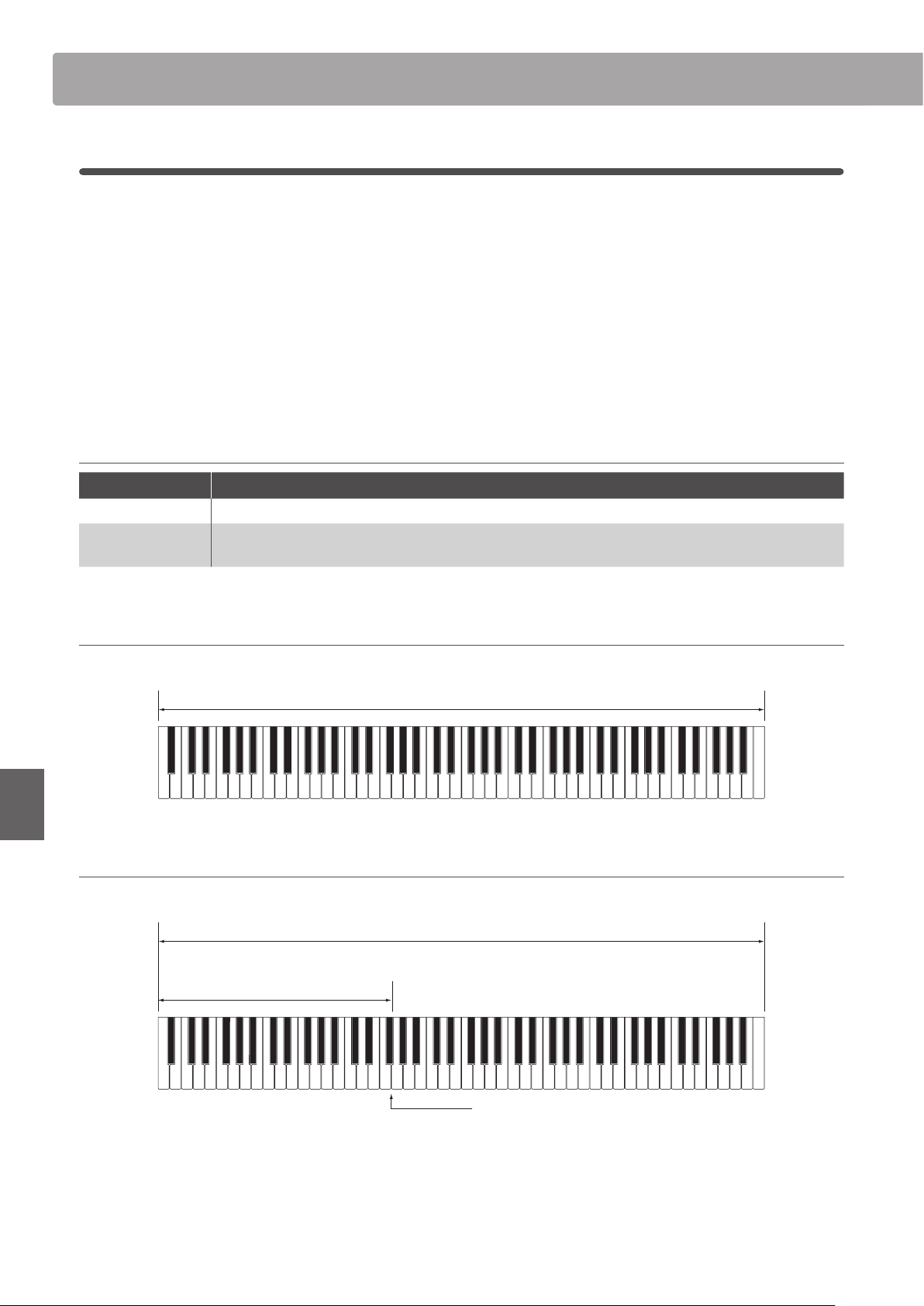
Rhythm Section SettingsRhythm Section Settings
118
Adjustments & Settings
4-5
Bass Inversion
The Bass Inversion setting is used to play “On-Bass” chords or bass lines with the left hand.
By default, the bass part of the Rhythm Section will follow the detected chord’s root. However, when the Bass
Inversion setting is set to “On”, the bass part of the Rhythm Section will follow the lowest key played on the keyboard,
allowing “On-Bass” chords to be played.
An “On-Bass” chord is chord that has a dierent bass note to the chord’s root. This is typically indicated by the
addition of slash and the letter of the bass after the root note letter. For example, a C chord over a G bass will be
shown as “C/G”, while a B
7 chord over a C bass will be shown as “B
/ C ”.
* This setting will only appear when the ACC Mode setting is set to “Normal”. Please refer to page 116 for more information.
Bass Inv. settings
Bass Inv. setting Description
O (default) The bass part of the Rhythm Section will follow the detected chord’s root.
On
On-Bass chord recognition is enabled, and the bass part of the Rhythm Section will follow the lowest key
played on the keyboard.
O
Full keyboard:
Used to control the accompaniment, and play the melody.
On
Lower section:
Used to specify the bass note.
Split point: adjustable, please refer to page 21.
Full keyboard:
Used to control the accompaniment, and play the melody.
The lowest key played on the keyboard will be recognised as the bass note. However, when the lowest key is played in the upper
section of the keyboard, or when three other keys are played around the lowest key, the notes will be detected as a chord, and the
On-Bass note will not be specifed.
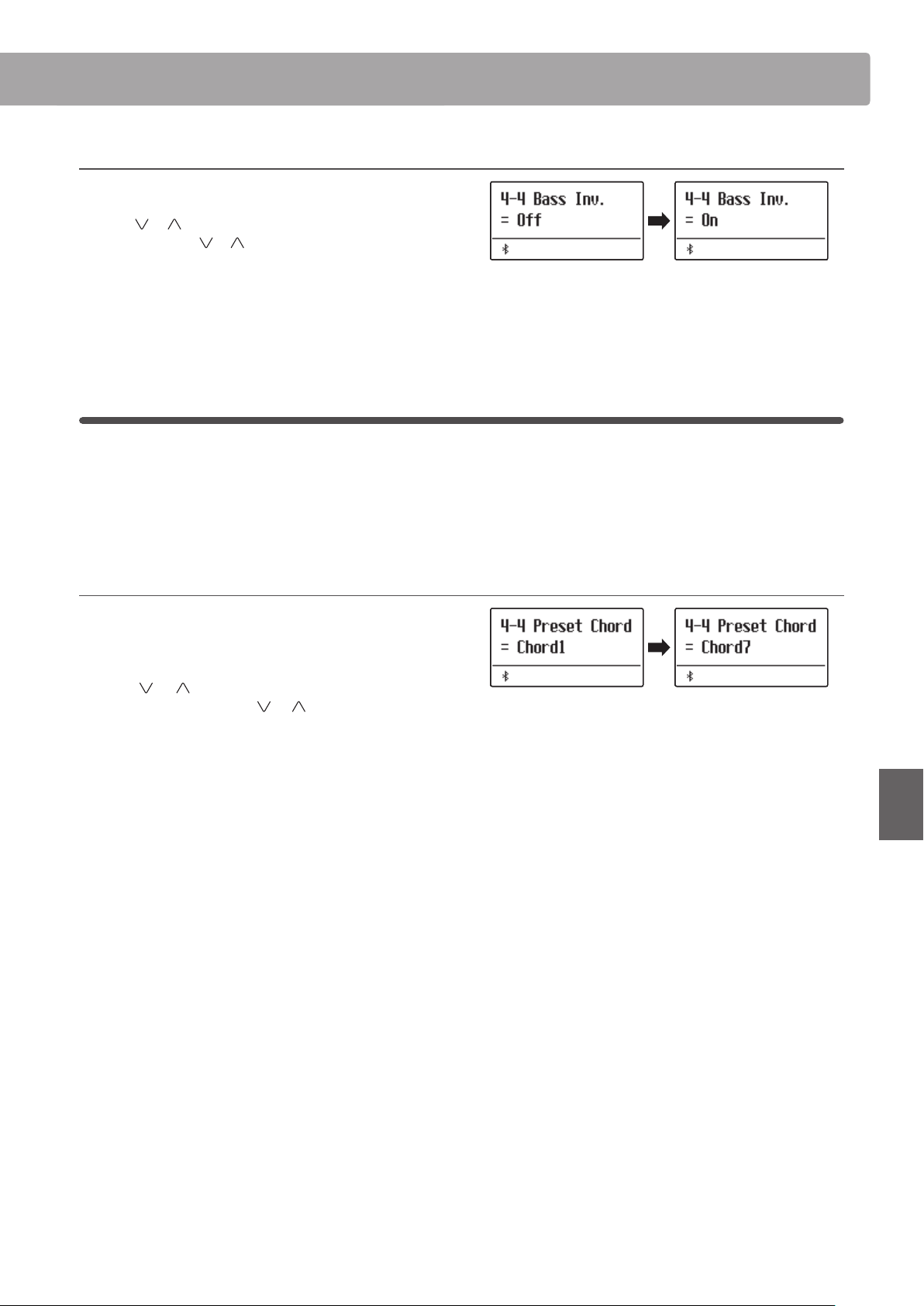
Rhythm Section Settings
119
Adjustments & Settings
Changing the Bass Inv. setting
After entering the Rhythm Settings menu (page 113):
Press the
or MENU buttons to select the Bass Inv. settings
page, then press the
or VALUE buttons to turn the Bass Inv.
setting on or o.
* This setting will only appear when the ACC Mode setting is set to
“Normal”. Please refer to page 116 for more information.
4-6
Preset Chord
The Preset Chord setting is used to specify which preset chord sequences the Rhythm Section will follow.
For a complete listing of the available Rhythm Section Preset Chord sequences, please refer to page 139 of this
owner’s manual.
* This setting will only appear when the ACC Mode setting is set to “Preset Chord”. Please refer to page 116 for more information.
Changing the Preset Chord setting
Set the Preset Chord in ACC Mode.
After entering the Rhythm Settings menu (page 113):
Press the
or MENU buttons to select the Preset Chord
settings page, then press the
or VALUE buttons to cycle
through the dierent Preset Chord sequences.
* The A-B LOOP button can also be used to quickly turn the Preset Chord
function on/o without entering the ACC Mode settings page.
* When selecting a dierent style, the Preset Chord setting will reset to
the default Preset Chord sequence for that style.
* The preferred Preset Chord setting can be stored to a Registration
memory for convenient recall. Please refer to page 36 for more
information.
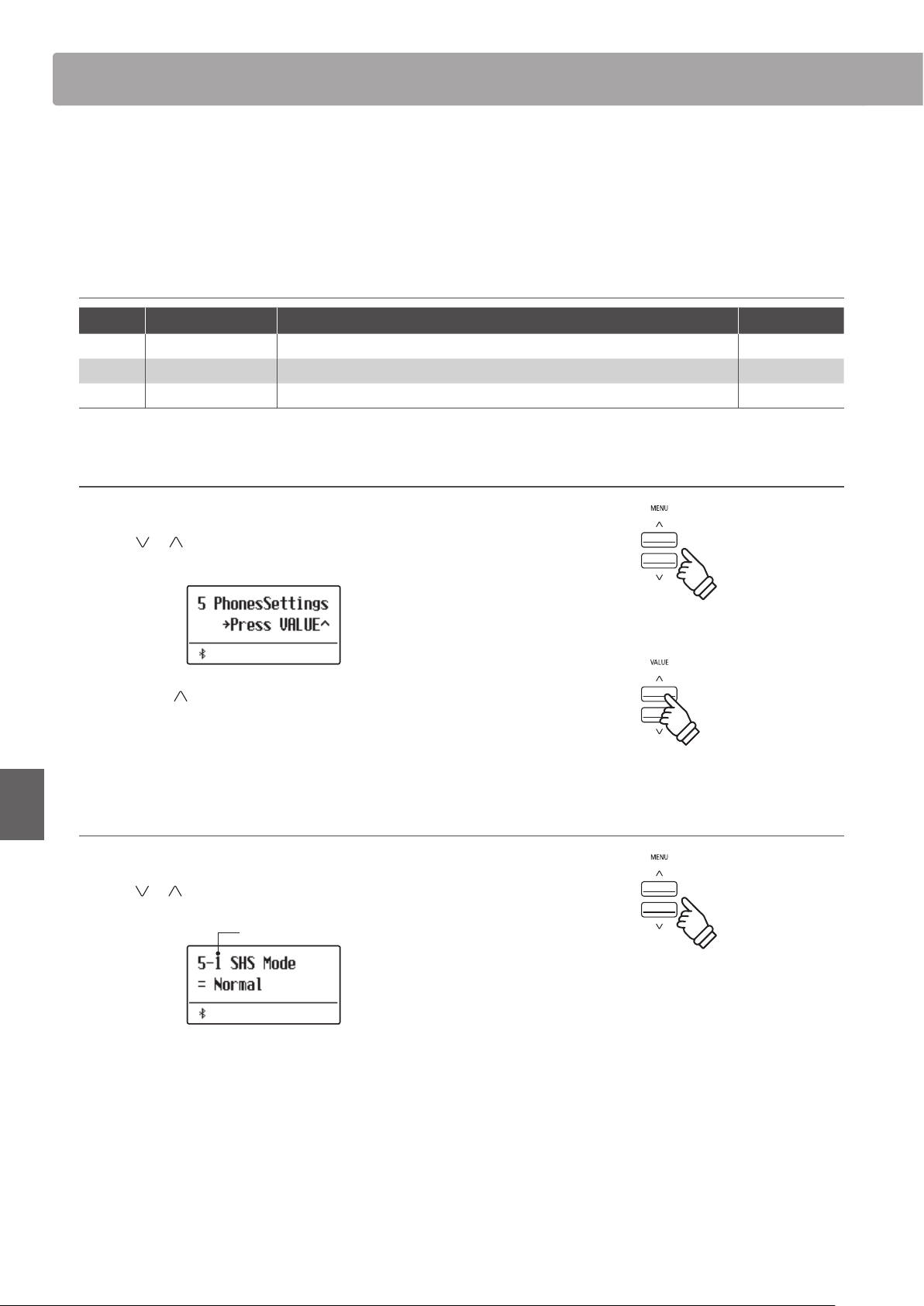
Phones Settings
120
Adjustments & Settings
Phones Settings
The Phones Settings menu contains settings to select the SHS (Spatial Headphone Sound) mode, the type of
headphones to be used, and the output volume of the connected headphones.
* Any changes made by this operation will remain until the power is turned o.
Preferred settings can be stored in a Registration memory or Startup Setting. Please refer to page 36 and 82 for more information.
Phones Settings
Page no. Setting Description Default setting
5-1 SHS Mode Select the desired SHS (Spatial Headphone Sound) mode. Normal
5-2 Phones Type Select the type of headphones to be used with the instrument. Normal
5-3 Phones Volume Change the maximum volume level of the headphones output. Normal
Entering the Phones Settings menu
While the normal playing mode screen is shown in the display:
Press the
or MENU buttons to select the Phones Settings
menu.
Press the VALUE button to enter the Phones Settings menu.
The rst page of the Phones Settings menu will be shown in the
display
Selecting the desired setting
After entering the Phones Settings menu:
Press the
or MENU buttons to cycle through the dierent
settings pages.
Settings page no.
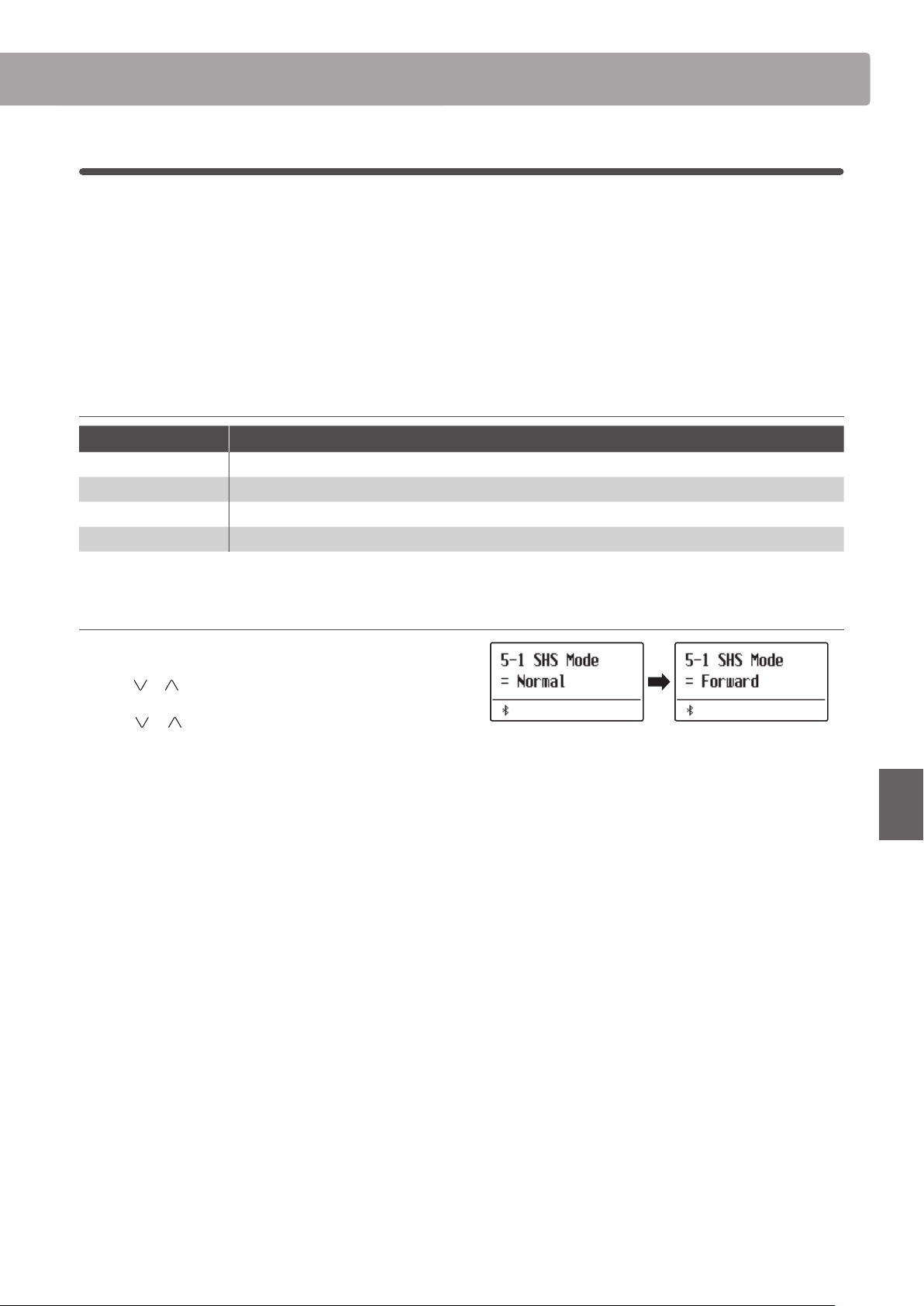
121
Adjustments & Settings
Phones Settings
5-1
SHS Mode
Spatial Headphone Sound (SHS) is a special feature of the ES920 digital piano that enhances the depth and realism
of the acoustic piano sound when listening through headphones or earphones.
The SHS Mode setting allows the player to select from one of three dierent acoustic presets that adjust the spatial
positioning of the sound, while also helping to reduce auditory fatigue when using earphones or headphones for
extended periods of time.
* This setting does not aect the speaker or Line Out sound.
SHS Mode setting
SHS Mode Description
O Disable the Spatial Headphone Sound feature.
Forward Front focused, somewhat narrow spatial positioning.
Normal
(default) Naturally balanced spatial positioning that is neither forward nor wide.
Wide Wide, very open spatial positioning.
Changing the SHS Mode setting
After entering the Phones Settings menu (page 120):
Press the
or MENU buttons to select the SHS Mode setting.
Press the
or VALUE buttons to cycle through the dierent
SHS Mode types types.
Press the EXIT button to exit the SHS Mode setting and return to
the main settings menu.
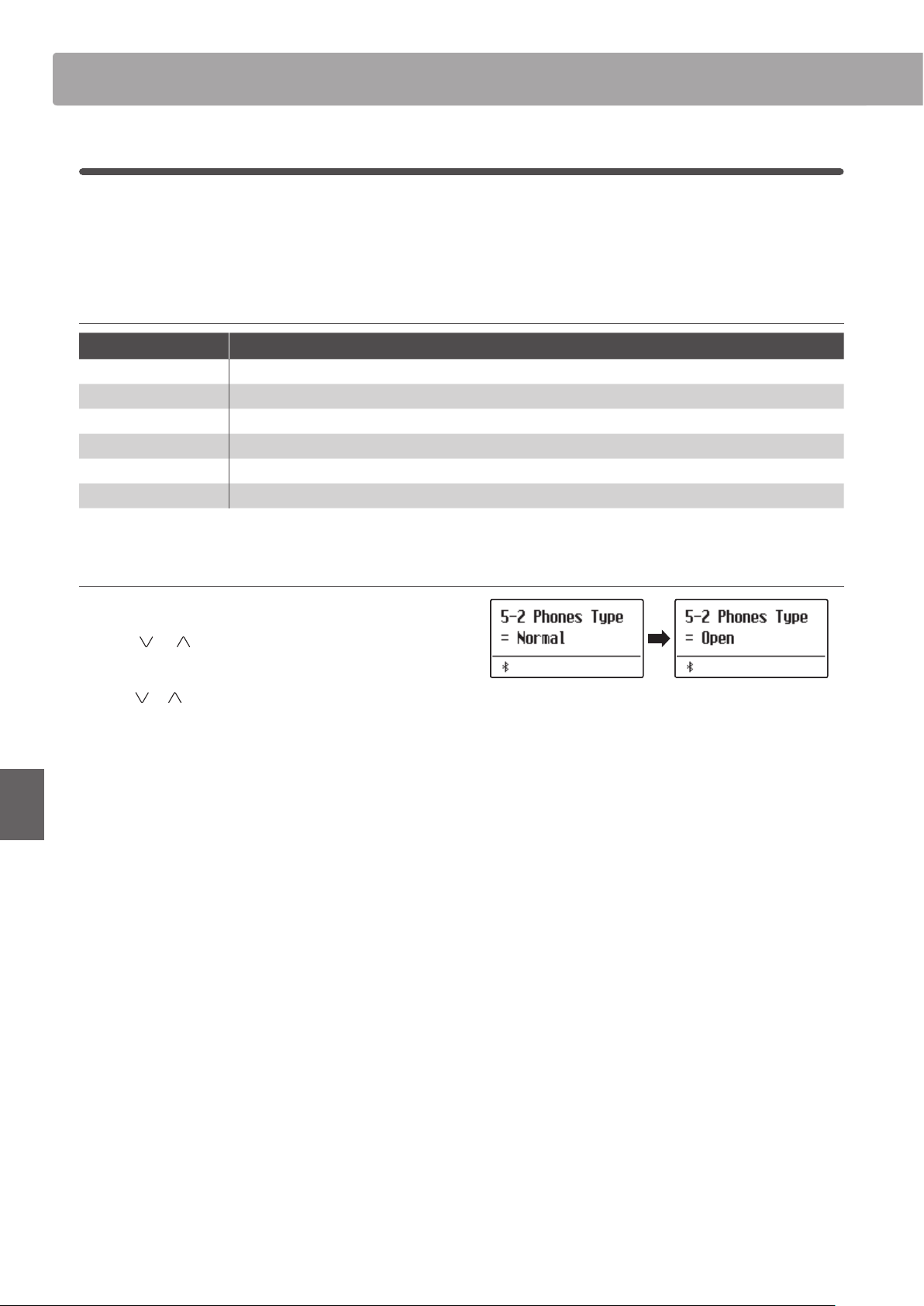
Phones SettingsPhones Settings
122
Adjustments & Settings
5-2
Phones Type
The Phones Type setting optimises the sound of the ES920 digital piano when listening through dierent types of
headphones or earphones.
* This setting does not aect the speaker or Line Out sound.
Phones Type setting
Phones Type Description
Normal (default) Disables headphone optimisation.
Open Optimises the sound for open type headphones.
Semi-open Optimises the sound for semi-open type headphones.
Closed Optimises the sound for closed type headphones.
Inner-ear Optimises the sound for inner-ear type headphones.
Canal Optimises the sound for canal-type headphones.
Changing the Phones Type setting
After entering the Phones Settings menu (page 120):
Press the
or MENU buttons to select the Phones Type
setting.
Press the or VALUE buttons to cycle through the dierent
earphone/headphone types.
Press the EXIT button to exit the Phones Type setting and return
to the main settings menu.
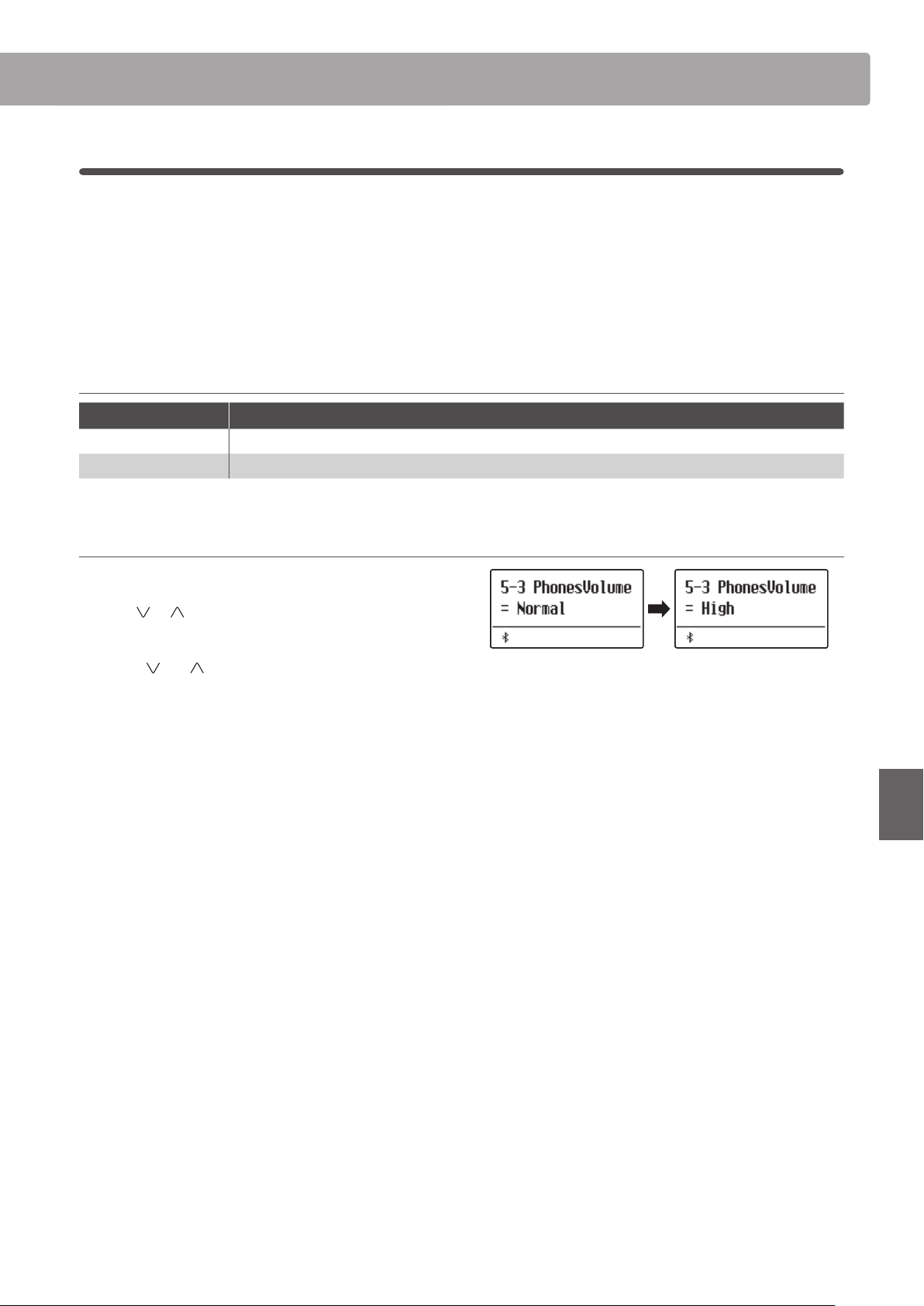
Phones Settings
123
Adjustments & Settings
5-3
Phones Volume
The Phones Volume setting allows the maximum volume level of the headphones output to be increased.
The default setting for Phones Volume is “Normal” in order to protect an individual’s ears from excessive volume
levels. The “High” setting may be selected when using headphones with a high impedance, or in situations where it
is desirable to increase the maximum volume level of the headphones output.
* This setting does not aect the speaker or Line Out sound.
Phones Volume setting
Phones Volume Description
Normal (default) The instrument’s headphone connectors will output sound at the normal volume level.
High The instrument’s headphone connectors will output sound at an increased volume level.
Changing the Phones Volume type
After entering the Phones Settings menu (page 120):
Press the
or MENU buttons to select the Phones Volume
setting.
Press the or VALUE buttons to alternate between
“Normal”and “High” Phones Volume settings.
Press the EXIT button to exit the Phones Volume setting and
return to the main settings menu.
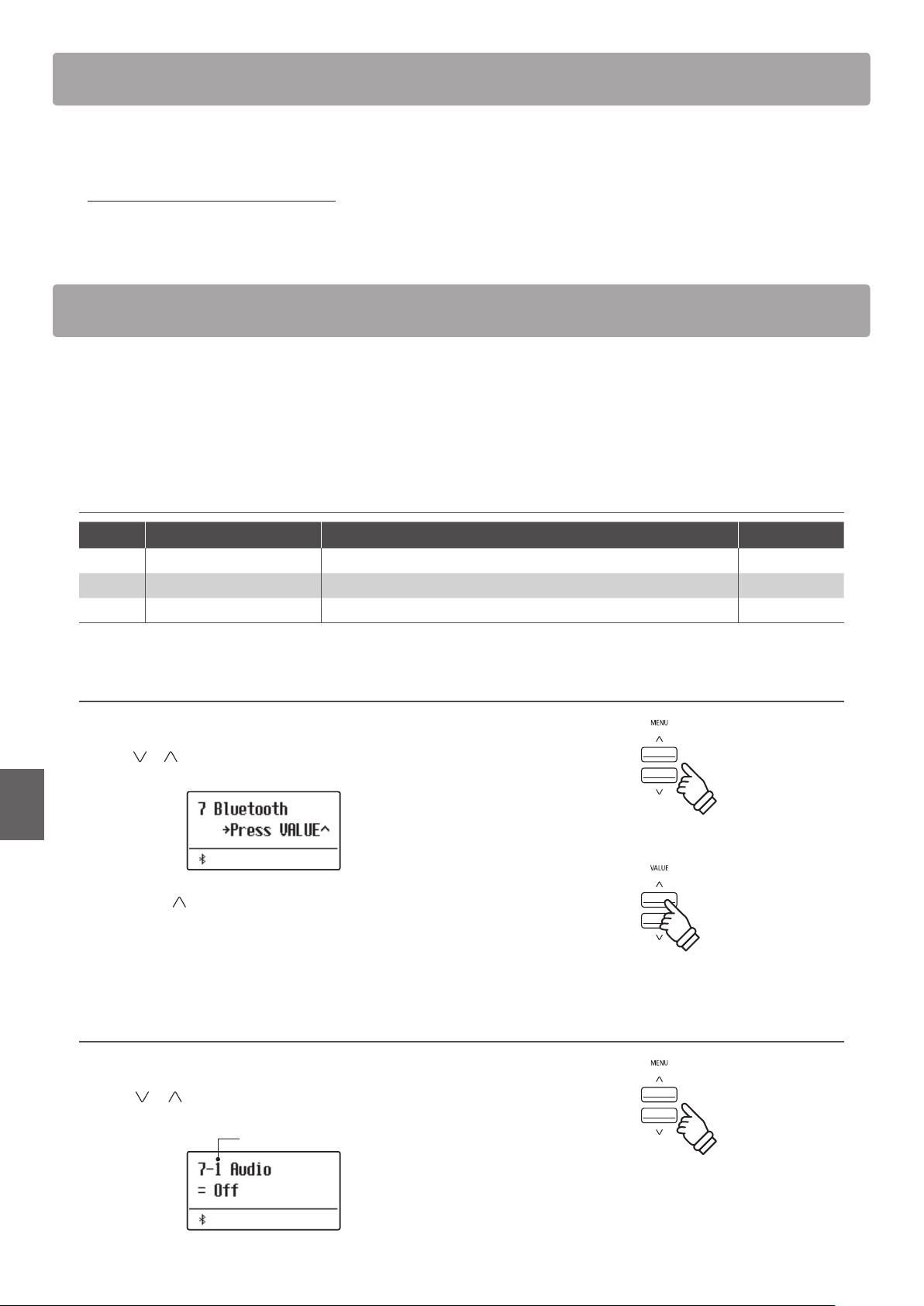
MIDI Settings
124
Adjustments & Settings
MIDI Settings
The MIDI Settings menu contains various functions and settings related to MIDI.
* For information regarding MIDI functions and settings, please download the supplementary PDF manual from the Kawai Global website:
https://www.kawai-global.com/support/manual
Bluetooth Settings
The Bluetooth Settings menu contains settings to enable/disable Bluetooth MIDI and Bluetooth Audio, and adjust
the volume of the Bluetooth Audio input.
* Availability of Bluetooth MIDI function dependent on market location.
Bluetooth Settings
Page no. Setting Description Default setting
7-1 Bluetooth Audio Enable/disable the instrument’s Bluetooth Audio function. O
7-2 Bluetooth Audio Volume Adjust the volume of Bluetooth Audio input. 0
7-3 Bluetooth MIDI Enable/disable the instrument’s Bluetooth MIDI function. On
Entering the Bluetooth Settings menu
While the normal playing mode screen is shown in the display:
Press the
or MENU buttons to select the Bluetooth Settings
menu.
Press the VALUE button to enter the Bluetooth Settings menu.
The rst page of the Bluetooth Settings menu will be shown in
the display
Selecting the desired setting
After entering the Bluetooth Settings menu:
Press the
or MENU buttons to cycle through the dierent
settings pages.
Settings page no.
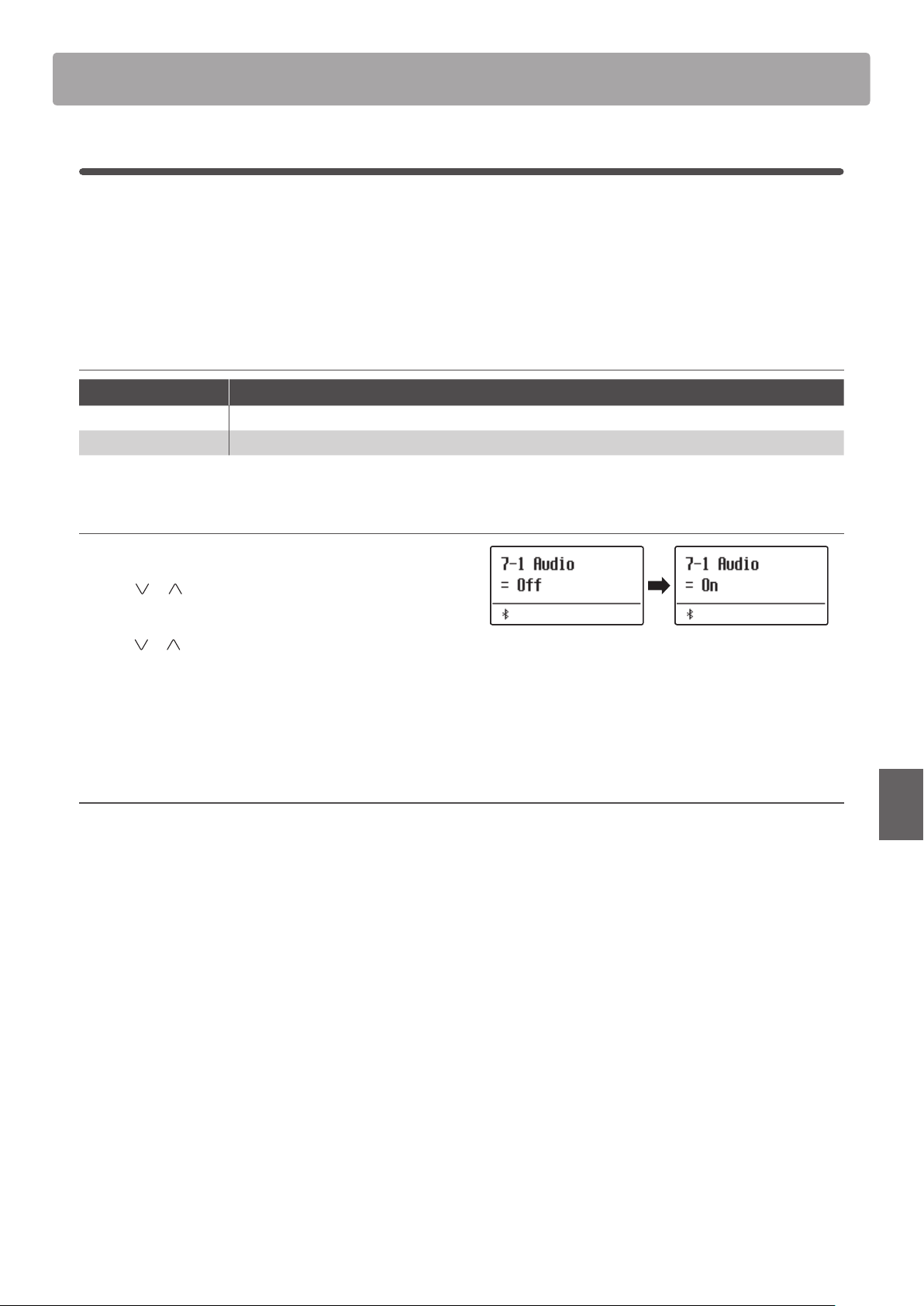
125
Adjustments & Settings
Bluetooth Settings
7-1
Bluetooth Audio
The Bluetooth Audio setting is used to enable/disable the ES920 digital piano’s Bluetooth Audio function. When
enabled, the ES920 digital piano can be connected to smart phones, tablets, and other smart devices to facilitate
wireless audio communication, allowing music stored on a device to played through the instrument’s speaker
system/headphones.
* This setting will be stored automatically, and recalled every time the instrument is turned on.
Bluetooth Audio setting
Bluetooth Audio Description
O (default) The instrument’s Bluetooth Audio function will be turned o.
On The instrument’s Bluetooth Audio function will be turned on.
Changing the Bluetooth Audio setting
After entering the Bluetooth Settings menu (page 124):
Press the
or MENU buttons to select the Bluetooth Audio
setting.
Press the or VALUE to turn the Bluetooth Audio setting on
or o.
Press the EXIT button to exit the Bluetooth Audio setting and
return to the main settings menu.
Connecting the ES920 digital piano to a smart device using Bluetooth Audio
After enabling the Bluetooth Audio function of the ES920 digital piano, enable Bluetooth communications on the smart device.
After a few seconds “ES920 Audio” should appear in the smart device’s Bluetooth settings device list. Tap the “ES920 Audio” entry to
connect the instrument to the smart device. It should now be possible for audio produced by the smart device to be heard through
the instrument’s speaker system/headphones.
* If loss of audio/connectivity or noise occurs, please check for Bluetooth Audio compatibility with the smart device manufacturer.
* For a list of potential issues and recommended solutions when using Bluetooth communications, please refer to page 132 of this owner’s manual.
* The Auto Power O setting will still be observed when playing audio via Bluetooth Audio.
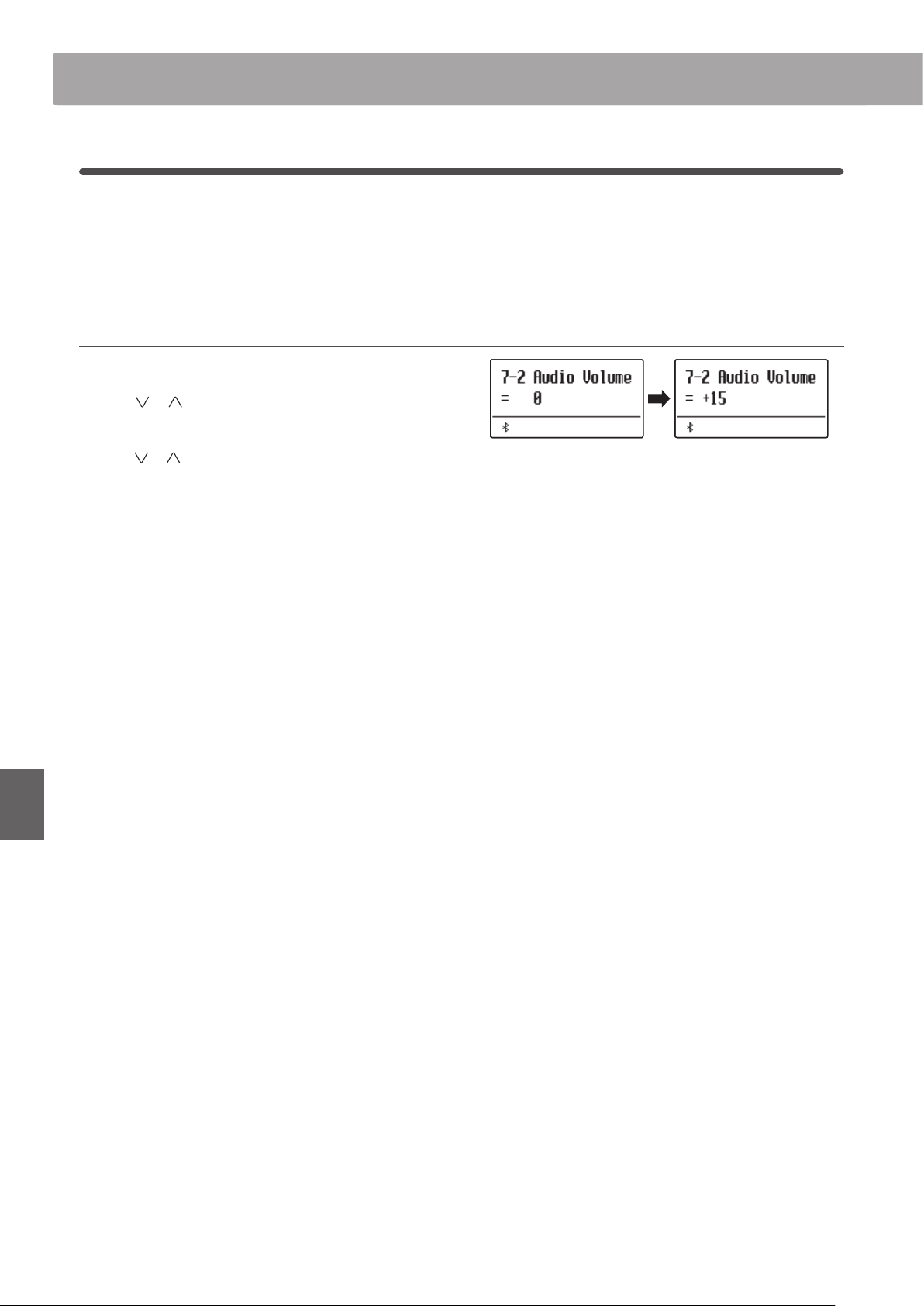
Bluetooth SettingsBluetooth Settings
126
Adjustments & Settings
7-2
Bluetooth Audio Volume
The Bluetooth Audio Volume setting is used to increase or decrease the volume level of Bluetooth Audio playback.
While it’s generally preferable to adjust the audio volume level on the smart device itself, this setting may still be
useful in certain situations.
* This setting will be stored automatically, and recalled every time the instrument is turned on.
Adjusting the volume setting of the Bluetooth Audio Volume
After entering the Bluetooth Settings menu (page 124):
Press the
or MENU buttons to select the Bluetooth Audio
Volume setting.
Press the or VALUE to increase or decrease the level of the
Bluetooth Audio Volume setting.
* The Bluetooth Audio Volume setting can be adjusted within the range
of -16~+15.
* To reset the Bluetooth Audio Volume setting to the default value, press
Press the EXIT button to exit the Bluetooth Audio Volume setting
and return to the main settings menu.
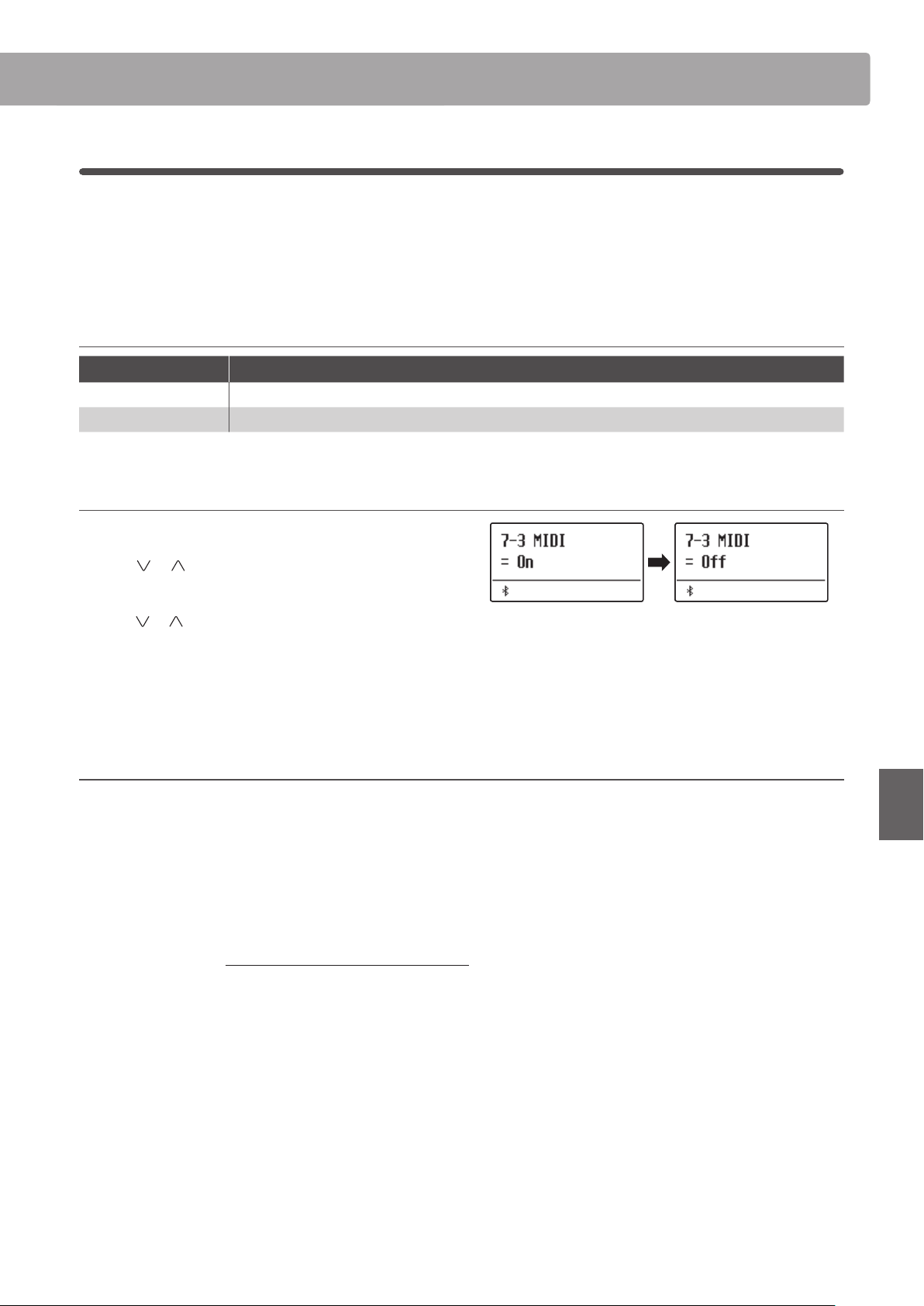
Bluetooth Settings
127
Adjustments & Settings
7-3
Bluetooth MIDI
The Bluetooth MIDI setting is used to enable/disable the ES920 digital piano’s Bluetooth MIDI function. When
enabled, the ES920 digital piano can be connected to smart phones, tablets, and other smart devices to facilitate
wireless MIDI communication, allowing a wide range of music-related apps to be enjoyed using the instrument.
* This setting will be stored automatically, and recalled every time the instrument is turned on.
Bluetooth MIDI setting
Bluetooth MIDI Description
O The instrument’s Bluetooth MIDI function will be turned o.
On
(default) The instrument’s Bluetooth MIDI function will be turned on.
Changing the Bluetooth MIDI setting
After entering the Bluetooth Settings menu (page 124):
Press the
or MENU buttons to select the Bluetooth MIDI
setting.
Press the or VALUE to turn the Bluetooth MIDI setting on
or o.
Press the EXIT button to exit the Bluetooth MIDI setting and
return to the main settings menu.
Connecting the ES920 digital piano to a smart device using Bluetooth MIDI
After enabling the Bluetooth MIDI function of the ES920 digital piano, enable Bluetooth communications on the smart device, then
open the desired MIDI app. After a few seconds “ES920” should appear in the app’s device list. Tap the “ES920” entry to connect the
instrument to the smart device. It should now be possible for MIDI apps to communicate wirelessly with the ES920 digital piano.
* When the ES920 digital piano is connected to a smart device via Bluetooth MIDI, the USB MIDI and MIDI IN/OUT connectors will be disabled.
* Please check for Bluetooth MIDI compatibility with the smart device manufacturer and app developer.
* For a list of potential issues and recommended solutions when using Bluetooth communications, please refer to page 132 of this owner’s manual.
* For more detailed instructions regarding Bluetooth pairing, please refer to the supplementary Bluetooth® Connectivity Guide manual, available from
the Kawai Global website: http://www.kawai-global.com/support/manual
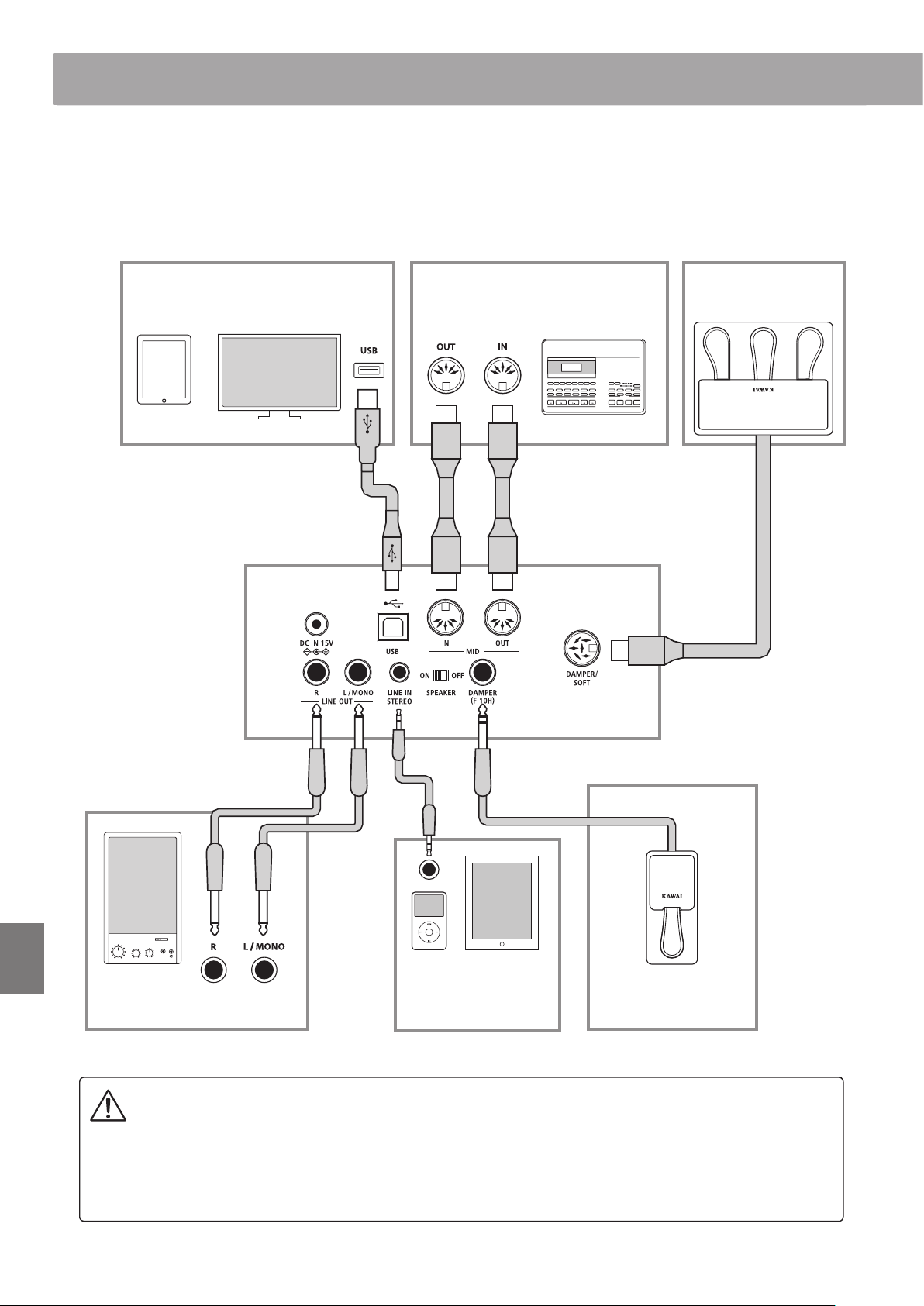
Connecting to Other DevicesConnecting to Other Devices
128
Appendix
The rear side of the ES920 digital piano features a variety of jacks that allow the instrument be connected to
MIDI devices, computers, speakers, and mixers. It is also possible to connect external audio sources, such as an
MP3 player, tablet, or a secondary keyboard, to the ES920’s amplier and speaker system. The illustration below
provides a visual overview of the instrument’s connectors and typical applications.
Before connecting the ES920 digital piano to other devices, ensure that the power to both the instrument and the
other device is turned o. If connections are established while the power is turned on, extraneous noise that can
damage the ES920 digital piano may activate the instrument’s amplier protection circuit, preventing any sound
from being produced. If this occurs, turn the power o and then on again to reset the amplier protection circuit.
Do not connect the LINE IN STEREO and LINE OUT jacks of the ES920 digital piano together with the same cable. An
audio loop (oscillation sound) will occur, resulting in damage to the unit.
Connecting to Other Devices
Connect the instrument to a computer or
smart device to send or receive MIDI data.
ComputerSmart device
USB type “B”
USB type “A”
Connect the instrument to external
speakers, ampliers, mixers, etc.
Connect the instrument to other MIDI
instruments, modules, devices, etc.
Connect the audio from
other devices to the
instrument’s speakers.
Connect the F-10H foot
pedal to the instrument.
Connect the GFP-3 triple
pedal to the instrument.

Connecting to Other Devices
129
Appendix
Rear Connectors
LINE OUT jacks (1/4” phone jack)
These jacks are used to connect the stereo output of the
instrument’s sound to external speakers, ampliers, mixers,
recording devices, and similar equipment. Mono signals will be
output only if a cable is connected to the L/MONO jack.
* The Line Out Volume setting can be used to adjust the level of the LINE
OUT signal. Please refer to page 78 for more information.
LINE IN STEREO jacks (1/8” mini jack)
This jack is used to connect the stereo output from an external
audio device, such as a CD or MP3 player, to the instrument’s
amplier (incl. LINE OUT) and speaker system. To adjust the LINE
IN level, please use the volume controls on the device itself.
MIDI IN/OUT jacks
These jacks are used to connect the ES920 digital piano to
external MIDI devices, and also to a computer with a MIDI
interface as an alternative to the “USB to Host” port.
* Please refer to page 124 for more information about MIDI.
SPEAKER ON/OFF switch
This switch is used to turn the ES920’s built-in speakers on or
o, and may be useful when connecting the instrument to
external speakers or an amplication system via the LINE OUT
jacks. Please note that when headphones are connected, sound
will not be produced by the built-in speakers, regardless of the
SPEAKER switch position.
DAMPER & DAMPER/SOFT jacks
These jacks are used to connect either the F-10H foot pedal,
GFP-3 or F-302 triple pedal unit to the instrument.
* Please refer to page 14 for more information about pedal functions.
USB to Host port (“B” type)
This USB port is used to connect the ES920 digital piano to a
computer using an inexpensive USB cable. When connected, the
instrument can be used as a standard MIDI device, allowing it to
send a receive MIDI data. Connect a “B” type USB connector to
the instrument, and an “A” type USB connector to the computer.
With additional conversion adaptors, this port may also be used
to connect the ES920 digital piano to tablets such as the Apple
iPad and other mobile devices.
* Please refer to page 130 for more information about USB MIDI.
Upper Connectors
USB to Device port (“A” type)
This USB port is used to connect a USB memory device to the
ES920 digital piano. This allows MP3/WAV audio les, and SMF
song les to be played directly. It is also possible to record
performances to MP3/WAV audio les, and save recorder songs
stored in internal memory for posterity.
* Only connect USB memory devices to the USB to Device port.
* Connect the USB memory device directly, without using a USB extension
cable.
USB device information
It may be necessary to format the USB memory device before
it can be used with the ES920 digital piano. If so, please
refer to the USB Format function instructions on page 71.
Formatting the device will erase all data.
Other USB devices, such as computer mice, keyboards, or
battery chargers etc. cannot be used with this instrument.
The “USB to Device” functionality of the ES920 digital piano
conforms to USB2.0 Hi-Speed standards. Older USB devices
can still be used, however data transfer speed will be limited
to the maximum transfer speed of the device.
Avoid removing the USB memory device while data is being
loaded or saved, les are being renamed or deleted, or the
device is being formatted.
Front Connectors
PHONES jacks (1/4” & 1/8” phone jacks)
These jacks are used to connect stereo headphones to the ES920
digital piano. Two pairs of headphones can be connected and
used simultaneously. When a pair of headphones is connected,
sound will not be produced by the speakers.
130
Appendix
USB MIDI (USB to Host Connector)
The ES920 digital piano features a “USB to Host” type connector, allowing the instrument to be connected to a
computer using an inexpensive USB cable and utilised as a MIDI device. Depending on the type of computer and
operating system installed, additional driver software may be required for USB MIDI communication to function
correctly.
For more information regarding the USB MIDI driver, please visit the following website:
https://www.kawai-global.com/support/downloads/
USB MIDI information
Ensure that the instrument is turned OFF before attempting to
connect the USB MIDI cable.
When connecting the instrument to a computer using the USB
MIDI port, there may be a short delay before communications
begin.
If the instrument is connected to a computer via a USB hub
and USB MIDI communication becomes unreliable/unstable,
please connect the USB MIDI cable directly to the one of the
computer’s USB ports.
Disconnecting the USB MIDI cable suddenly, or turning the
instrument on/o while using USB MIDI may cause computer
instability in the following situations:
– while installing the USB MIDI driver
– while starting up the computer
– while MIDI applications are performing tasks
– while the computer is in energy saver mode
If there are any further problems experienced with USB MIDI
communication while the instrument is connected, please
double-check all connections and relevant MIDI settings in
the computer’s operating system.
Intellectual property rights
“Windows” is a registered trademark of Microsoft Corporation.
“Mac” is a registered trademark of Apple Computer, Inc.
Some samples © PREMIER Engineering Inc.
The Bluetooth® word mark and logos are registered trademarks owned by the Bluetooth SIG, Inc. and any use of such marks by
Kawai Musical Instruments Mfg. Co., Ltd. is under license.
Qualcomm aptX is a product of Qualcomm Technologies, Inc. and/or its subsidiaries.
Qualcomm is a trademark of Qualcomm Incorporated, registered in the United States and other countries.
aptX is a trademark of Qualcomm Technologies International, Ltd., registered in the United States and other countries.
Other company names and product names mentioned or referenced herein are registered trademarks or trademarks of respective
owners.
Kawai Musical Instruments Mfg. Co., Ltd. shall have no liability for any acts in violation of the Copyright Act made by any users of this
product.
131
Appendix
Information about Bluetooth®
Please refer to the following information about Bluetooth.
About Bluetooth
The Bluetooth® word mark and logos are registered trademarks owned by the Bluetooth SIG, Inc. and any use of such marks by Kawai
Musical Instruments Mfg. Co., Ltd. is under license.
Frequency Band of Radio: 2400~2483.5 MHz Maximum Transmit Power: 2.5 mW (Bluetooth Low Energy), 4.5mW (A2DP)
Availability of Bluetooth function dependent on market location.
For Korea
▮
For USA, Canada
It is strictly forbidden to use antenna except designated.
This equipment must not be co-located or operated in
conjunction with any other antenna or transmitter.
Please refer to the following information about Bluetooth.
Information about Bluetooth®
▮
About Bluetooth
・The Bluetooth® word mark and logos are registered trademarks owned by the Bluetooth SIG, Inc. and any use of such marks by Kawai
Musical Instruments Mfg. Co., Ltd. is under license.
・Frequency Band of Radio: 2400~2483.5 MHz Maximum Transmit Power: 2.5 mW (Bluetooth Low Energy), 4.5mW (A2DP)
・Availability of Bluetooth function dependent on market location.
▮
For Canada
・This device complies with Industry Canada’s licence-exempt
RSSs. Operation is subject to the following two conditions:
(1) This device may not cause interference; and
(2) This device must accept any interference, including
interference that may cause undesired operation of the device.
・Le présent appareil est conforme aux CNR d’Industrie Canada
applicables aux appareils radio exempts de licence. L’exploitation
est autorisée aux deux conditions suivantes :
(1) l’appareil ne doit pas produire de brouillage;
(2) l’utilisateur de l’appareil doit accepter tout brouillage
radioélectrique subi,même si le brouillage est susceptible d’en
compromettre le fonctionnement.
▮
For Taiwan
第十二條 經型式認證合格之低功率射頻電機,非經許可,公司、商號或使
用者均不得擅自變更頻率、加大功率或變更原設計之特性及功能。
第十四條 低功率射頻電機之使用不得影響飛航安全及干擾合法通信;經發
現有干擾現象時,應立即停用,並改善至無干擾時方得繼續使用。 前項合法
通信,指依電信法規定作業之無線電通信。 低功率射頻電機
須忍受合法通
信或工業、科學及醫療用電波輻射性電機設備之干擾。
▮
For Argentina
Marca : KAWAI, Bluegiga
Modelo : MBH7BLZ07, WT32i
▮
For Mexico
PIANO DIGITAL
MARCA : KAWAI
MODELO : MBH7BLZ07, RCPKAMB16-1764
: WT32i, RCPKAWT17-1556
La operación de este equipo está sujeta a las siguientes dos
condiciones:
(1) es posible que este equipo o dispositivo no cause interferencia
perjudicialy
(2) este equipo o dispositivo debe aceptar cualquier interferencia,
▮
For Brazil
Este equipamento opera em caráter secundário, isto é, não
tem direito a proteção contra interferência prejudicial, mesmo
de estações do mesmo tipo e não pode causar interferência a
sistemas operando em caráter primário. Para consultas, visite:
www.anatel.gov.br
▮
For Korea
・
해당 무선설비는 전파혼신 가능성이 있으므로 인명안전과 관련된 서비스는 할 수 없습니다
・
B 급 기기 ( 가정용 방송통신기자재 ) 이 기기는 가정용 (B 급 ) 전자파적합기기로서 주로 가정에서 사용하는 것을 목적으로 하며 , 모든 지역에서 사용할 수 있습니다 .
・
모델명 MBH7BLZ07 WT32i-A
・
인증을받은 상표 이름제조자 Kawai Musical Instruments Manufacturing Co., Ltd. Bluegiga Technologies Oy
・
원산지 일본 핀란드
・
기자재 명칭 정소출력 무선기기 ( 무선데이터통신시스템용 무선기기 )
・
제조년 월 제품에 붙어있는 라벨을 확인하시기 바랍니다
.
▮
For South Africa
C-17079
C-21199
TA-2016/2398
APPROVED
TA-2018/509
APPROVED
04349-16-10021
02414-18-01395
For USA, Canada
▮
For USA, Canada
It is strictly forbidden to use antenna except designated.
This equipment must not be co-located or operated in
conjunction with any other antenna or transmitter.
Please refer to the following information about Bluetooth.
Information about Bluetooth®
▮
About Bluetooth
・The Bluetooth® word mark and logos are registered trademarks owned by the Bluetooth SIG, Inc. and any use of such marks by Kawai
Musical Instruments Mfg. Co., Ltd. is under license.
・Frequency Band of Radio: 2400~2483.5 MHz Maximum Transmit Power: 2.5 mW (Bluetooth Low Energy), 4.5mW (A2DP)
・Availability of Bluetooth function dependent on market location.
▮
For Canada
・This device complies with Industry Canada’s licence-exempt
RSSs. Operation is subject to the following two conditions:
(1) This device may not cause interference; and
(2) This device must accept any interference, including
interference that may cause undesired operation of the device.
・Le présent appareil est conforme aux CNR d’Industrie Canada
applicables aux appareils radio exempts de licence. L’exploitation
est autorisée aux deux conditions suivantes :
(1) l’appareil ne doit pas produire de brouillage;
(2) l’utilisateur de l’appareil doit accepter tout brouillage
radioélectrique subi,même si le brouillage est susceptible d’en
compromettre le fonctionnement.
▮
For Taiwan
第十二條 經型式認證合格之低功率射頻電機,非經許可,公司、商號或使
用者均不得擅自變更頻率、加大功率或變更原設計之特性及功能。
第十四條 低功率射頻電機之使用不得影響飛航安全及干擾合法通信;經發
現有干擾現象時,應立即停用,並改善至無干擾時方得繼續使用。 前項合法
通信,指依電信法規定作業之無線電通信。 低功率射頻電機
須忍受合法通
信或工業、科學及醫療用電波輻射性電機設備之干擾。
▮
For Argentina
Marca : KAWAI, Bluegiga
Modelo : MBH7BLZ07, WT32i
▮
For Mexico
PIANO DIGITAL
MARCA : KAWAI
MODELO : MBH7BLZ07, RCPKAMB16-1764
: WT32i, RCPKAWT17-1556
La operación de este equipo está sujeta a las siguientes dos
condiciones:
(1) es posible que este equipo o dispositivo no cause interferencia
perjudicialy
(2) este equipo o dispositivo debe aceptar cualquier interferencia,
▮
For Brazil
Este equipamento opera em caráter secundário, isto é, não
tem direito a proteção contra interferência prejudicial, mesmo
de estações do mesmo tipo e não pode causar interferência a
sistemas operando em caráter primário. Para consultas, visite:
www.anatel.gov.br
▮
For Korea
・
해당 무선설비는 전파혼신 가능성이 있으므로 인명안전과 관련된 서비스는 할 수 없습니다
・
B 급 기기 ( 가정용 방송통신기자재 ) 이 기기는 가정용 (B 급 ) 전자파적합기기로서 주로 가정에서 사용하는 것을 목적으로 하며 , 모든 지역에서 사용할 수 있습니다 .
・
모델명 MBH7BLZ07 WT32i-A
・
인증을받은 상표 이름제조자 Kawai Musical Instruments Manufacturing Co., Ltd. Bluegiga Technologies Oy
・
원산지 일본 핀란드
・
기자재 명칭 정소출력 무선기기 ( 무선데이터통신시스템용 무선기기 )
・
제조년 월 제품에 붙어있는 라벨을 확인하시기 바랍니다
.
▮
For South Africa
C-17079
C-21199
TA-2016/2398
APPROVED
TA-2018/509
APPROVED
04349-16-10021
02414-18-01395
For Canada
▮
For USA, Canada
It is strictly forbidden to use antenna except designated.
This equipment must not be co-located or operated in
conjunction with any other antenna or transmitter.
Please refer to the following information about Bluetooth.
Information about Bluetooth®
▮
About Bluetooth
・The Bluetooth® word mark and logos are registered trademarks owned by the Bluetooth SIG, Inc. and any use of such marks by Kawai
Musical Instruments Mfg. Co., Ltd. is under license.
・Frequency Band of Radio: 2400~2483.5 MHz Maximum Transmit Power: 2.5 mW (Bluetooth Low Energy), 4.5mW (A2DP)
・Availability of Bluetooth function dependent on market location.
▮
For Canada
・This device complies with Industry Canada’s licence-exempt
RSSs. Operation is subject to the following two conditions:
(1) This device may not cause interference; and
(2) This device must accept any interference, including
interference that may cause undesired operation of the device.
・Le présent appareil est conforme aux CNR d’Industrie Canada
applicables aux appareils radio exempts de licence. L’exploitation
est autorisée aux deux conditions suivantes :
(1) l’appareil ne doit pas produire de brouillage;
(2) l’utilisateur de l’appareil doit accepter tout brouillage
radioélectrique subi,même si le brouillage est susceptible d’en
compromettre le fonctionnement.
▮
For Taiwan
第十二條 經型式認證合格之低功率射頻電機,非經許可,公司、商號或使
用者均不得擅自變更頻率、加大功率或變更原設計之特性及功能。
第十四條 低功率射頻電機之使用不得影響飛航安全及干擾合法通信;經發
現有干擾現象時,應立即停用,並改善至無干擾時方得繼續使用。 前項合法
通信,指依電信法規定作業之無線電通信。 低功率射頻電機
須忍受合法通
信或工業、科學及醫療用電波輻射性電機設備之干擾。
▮
For Argentina
Marca : KAWAI, Bluegiga
Modelo : MBH7BLZ07, WT32i
▮
For Mexico
PIANO DIGITAL
MARCA : KAWAI
MODELO : MBH7BLZ07, RCPKAMB16-1764
: WT32i, RCPKAWT17-1556
La operación de este equipo está sujeta a las siguientes dos
condiciones:
(1) es posible que este equipo o dispositivo no cause interferencia
perjudicialy
(2) este equipo o dispositivo debe aceptar cualquier interferencia,
▮
For Brazil
Este equipamento opera em caráter secundário, isto é, não
tem direito a proteção contra interferência prejudicial, mesmo
de estações do mesmo tipo e não pode causar interferência a
sistemas operando em caráter primário. Para consultas, visite:
www.anatel.gov.br
▮
For Korea
・
해당 무선설비는 전파혼신 가능성이 있으므로 인명안전과 관련된 서비스는 할 수 없습니다
・
B 급 기기 ( 가정용 방송통신기자재 ) 이 기기는 가정용 (B 급 ) 전자파적합기기로서 주로 가정에서 사용하는 것을 목적으로 하며 , 모든 지역에서 사용할 수 있습니다 .
・
모델명 MBH7BLZ07 WT32i-A
・
인증을받은 상표 이름제조자 Kawai Musical Instruments Manufacturing Co., Ltd. Bluegiga Technologies Oy
・
원산지 일본 핀란드
・
기자재 명칭 정소출력 무선기기 ( 무선데이터통신시스템용 무선기기 )
・
제조년 월 제품에 붙어있는 라벨을 확인하시기 바랍니다
.
▮
For South Africa
C-17079
C-21199
TA-2016/2398
APPROVED
TA-2018/509
APPROVED
04349-16-10021
02414-18-01395
For South Africa
▮
For USA, Canada
It is strictly forbidden to use antenna except designated.
This equipment must not be co-located or operated in
conjunction with any other antenna or transmitter.
Please refer to the following information about Bluetooth.
Information about Bluetooth®
▮
About Bluetooth
・The Bluetooth® word mark and logos are registered trademarks owned by the Bluetooth SIG, Inc. and any use of such marks by Kawai
Musical Instruments Mfg. Co., Ltd. is under license.
・Frequency Band of Radio: 2400~2483.5 MHz Maximum Transmit Power: 2.5 mW (Bluetooth Low Energy), 4.5mW (A2DP)
・Availability of Bluetooth function dependent on market location.
▮
For Canada
・This device complies with Industry Canada’s licence-exempt
RSSs. Operation is subject to the following two conditions:
(1) This device may not cause interference; and
(2) This device must accept any interference, including
interference that may cause undesired operation of the device.
・Le présent appareil est conforme aux CNR d’Industrie Canada
applicables aux appareils radio exempts de licence. L’exploitation
est autorisée aux deux conditions suivantes :
(1) l’appareil ne doit pas produire de brouillage;
(2) l’utilisateur de l’appareil doit accepter tout brouillage
radioélectrique subi,même si le brouillage est susceptible d’en
compromettre le fonctionnement.
▮
For Taiwan
第十二條 經型式認證合格之低功率射頻電機,非經許可,公司、商號或使
用者均不得擅自變更頻率、加大功率或變更原設計之特性及功能。
第十四條 低功率射頻電機之使用不得影響飛航安全及干擾合法通信;經發
現有干擾現象時,應立即停用,並改善至無干擾時方得繼續使用。 前項合法
通信,指依電信法規定作業之無線電通信。 低功率射頻電機
須忍受合法通
信或工業、科學及醫療用電波輻射性電機設備之干擾。
▮
For Argentina
Marca : KAWAI, Bluegiga
Modelo : MBH7BLZ07, WT32i
▮
For Mexico
PIANO DIGITAL
MARCA : KAWAI
MODELO : MBH7BLZ07, RCPKAMB16-1764
: WT32i, RCPKAWT17-1556
La operación de este equipo está sujeta a las siguientes dos
condiciones:
(1) es posible que este equipo o dispositivo no cause interferencia
perjudicialy
(2) este equipo o dispositivo debe aceptar cualquier interferencia,
▮
For Brazil
Este equipamento opera em caráter secundário, isto é, não
tem direito a proteção contra interferência prejudicial, mesmo
de estações do mesmo tipo e não pode causar interferência a
sistemas operando em caráter primário. Para consultas, visite:
www.anatel.gov.br
▮
For Korea
・
해당 무선설비는 전파혼신 가능성이 있으므로 인명안전과 관련된 서비스는 할 수 없습니다
・
B 급 기기 ( 가정용 방송통신기자재 ) 이 기기는 가정용 (B 급 ) 전자파적합기기로서 주로 가정에서 사용하는 것을 목적으로 하며 , 모든 지역에서 사용할 수 있습니다 .
・
모델명 MBH7BLZ07 WT32i-A
・
인증을받은 상표 이름제조자 Kawai Musical Instruments Manufacturing Co., Ltd. Bluegiga Technologies Oy
・
원산지 일본 핀란드
・
기자재 명칭 정소출력 무선기기 ( 무선데이터통신시스템용 무선기기 )
・
제조년 월 제품에 붙어있는 라벨을 확인하시기 바랍니다
.
▮
For South Africa
C-17079
C-21199
TA-2016/2398
APPROVED
TA-2018/509
APPROVED
04349-16-10021
02414-18-01395
For Argentina
▮
For USA, Canada
It is strictly forbidden to use antenna except designated.
This equipment must not be co-located or operated in
conjunction with any other antenna or transmitter.
Please refer to the following information about Bluetooth.
Information about Bluetooth®
▮
About Bluetooth
・The Bluetooth® word mark and logos are registered trademarks owned by the Bluetooth SIG, Inc. and any use of such marks by Kawai
Musical Instruments Mfg. Co., Ltd. is under license.
・Frequency Band of Radio: 2400~2483.5 MHz Maximum Transmit Power: 2.5 mW (Bluetooth Low Energy), 4.5mW (A2DP)
・Availability of Bluetooth function dependent on market location.
▮
For Canada
・This device complies with Industry Canada’s licence-exempt
RSSs. Operation is subject to the following two conditions:
(1) This device may not cause interference; and
(2) This device must accept any interference, including
interference that may cause undesired operation of the device.
・Le présent appareil est conforme aux CNR d’Industrie Canada
applicables aux appareils radio exempts de licence. L’exploitation
est autorisée aux deux conditions suivantes :
(1) l’appareil ne doit pas produire de brouillage;
(2) l’utilisateur de l’appareil doit accepter tout brouillage
radioélectrique subi,même si le brouillage est susceptible d’en
compromettre le fonctionnement.
▮
For Taiwan
第十二條 經型式認證合格之低功率射頻電機,非經許可,公司、商號或使
用者均不得擅自變更頻率、加大功率或變更原設計之特性及功能。
第十四條 低功率射頻電機之使用不得影響飛航安全及干擾合法通信;經發
現有干擾現象時,應立即停用,並改善至無干擾時方得繼續使用。 前項合法
通信,指依電信法規定作業之無線電通信。 低功率射頻電機
須忍受合法通
信或工業、科學及醫療用電波輻射性電機設備之干擾。
▮
For Argentina
Marca : KAWAI, Bluegiga
Modelo : MBH7BLZ07, WT32i
▮
For Mexico
PIANO DIGITAL
MARCA : KAWAI
MODELO : MBH7BLZ07, RCPKAMB16-1764
: WT32i, RCPKAWT17-1556
La operación de este equipo está sujeta a las siguientes dos
condiciones:
(1) es posible que este equipo o dispositivo no cause interferencia
perjudicialy
(2) este equipo o dispositivo debe aceptar cualquier interferencia,
▮
For Brazil
Este equipamento opera em caráter secundário, isto é, não
tem direito a proteção contra interferência prejudicial, mesmo
de estações do mesmo tipo e não pode causar interferência a
sistemas operando em caráter primário. Para consultas, visite:
www.anatel.gov.br
▮
For Korea
・
해당 무선설비는 전파혼신 가능성이 있으므로 인명안전과 관련된 서비스는 할 수 없습니다
・
B 급 기기 ( 가정용 방송통신기자재 ) 이 기기는 가정용 (B 급 ) 전자파적합기기로서 주로 가정에서 사용하는 것을 목적으로 하며 , 모든 지역에서 사용할 수 있습니다 .
・
모델명 MBH7BLZ07 WT32i-A
・
인증을받은 상표 이름제조자 Kawai Musical Instruments Manufacturing Co., Ltd. Bluegiga Technologies Oy
・
원산지 일본 핀란드
・
기자재 명칭 정소출력 무선기기 ( 무선데이터통신시스템용 무선기기 )
・
제조년 월 제품에 붙어있는 라벨을 확인하시기 바랍니다
.
▮
For South Africa
C-17079
C-21199
TA-2016/2398
APPROVED
TA-2018/509
APPROVED
04349-16-10021
02414-18-01395
For Mexico
▮
For USA, Canada
It is strictly forbidden to use antenna except designated.
This equipment must not be co-located or operated in
conjunction with any other antenna or transmitter.
Please refer to the following information about Bluetooth.
Information about Bluetooth®
▮
About Bluetooth
・The Bluetooth® word mark and logos are registered trademarks owned by the Bluetooth SIG, Inc. and any use of such marks by Kawai
Musical Instruments Mfg. Co., Ltd. is under license.
・Frequency Band of Radio: 2400~2483.5 MHz Maximum Transmit Power: 2.5 mW (Bluetooth Low Energy), 4.5mW (A2DP)
・Availability of Bluetooth function dependent on market location.
▮
For Canada
・This device complies with Industry Canada’s licence-exempt
RSSs. Operation is subject to the following two conditions:
(1) This device may not cause interference; and
(2) This device must accept any interference, including
interference that may cause undesired operation of the device.
・Le présent appareil est conforme aux CNR d’Industrie Canada
applicables aux appareils radio exempts de licence. L’exploitation
est autorisée aux deux conditions suivantes :
(1) l’appareil ne doit pas produire de brouillage;
(2) l’utilisateur de l’appareil doit accepter tout brouillage
radioélectrique subi,même si le brouillage est susceptible d’en
compromettre le fonctionnement.
▮
For Taiwan
第十二條 經型式認證合格之低功率射頻電機,非經許可,公司、商號或使
用者均不得擅自變更頻率、加大功率或變更原設計之特性及功能。
第十四條 低功率射頻電機之使用不得影響飛航安全及干擾合法通信;經發
現有干擾現象時,應立即停用,並改善至無干擾時方得繼續使用。 前項合法
通信,指依電信法規定作業之無線電通信。 低功率射頻電機
須忍受合法通
信或工業、科學及醫療用電波輻射性電機設備之干擾。
▮
For Argentina
Marca : KAWAI, Bluegiga
Modelo : MBH7BLZ07, WT32i
▮
For Mexico
PIANO DIGITAL
MARCA : KAWAI
MODELO : MBH7BLZ07, RCPKAMB16-1764
: WT32i, RCPKAWT17-1556
La operación de este equipo está sujeta a las siguientes dos
condiciones:
(1) es posible que este equipo o dispositivo no cause interfere
ncia
perjudicialy
(2) este equipo o dispositivo debe aceptar cualquier interferencia,
▮
For Brazil
Este equipamento opera em caráter secundário, isto é, não
tem direito a proteção contra interferência prejudicial, mesmo
de estações do mesmo tipo e não pode causar interferência a
sistemas operando em caráter primário. Para consultas, visite:
www.anatel.gov.br
▮
For Korea
・
해당 무선설비는 전파혼신 가능성이 있으므로 인명안전과 관련된 서비스는 할 수 없습니다
・
B 급 기기 ( 가정용 방송통신기자재 ) 이 기기는 가정용 (B 급 ) 전자파적합기기로서 주로 가정에서 사용하는 것을 목적으로 하며 , 모든 지역에서 사용할 수 있습니다 .
・
모델명 MBH7BLZ07 WT32i-A
・
인증을받은 상표 이름제조자 Kawai Musical Instruments Manufacturing Co., Ltd. Bluegiga Technologies Oy
・
원산지 일본 핀란드
・
기자재 명칭 정소출력 무선기기 ( 무선데이터통신시스템용 무선기기 )
・
제조년 월 제품에 붙어있는 라벨을 확인하시기 바랍니다
.
▮
For South Africa
C-17079
C-21199
TA-2016/2398
APPROVED
TA-2018/509
APPROVED
04349-16-10021
02414-18-01395
For Brazil
▮
For USA, Canada
It is strictly forbidden to use antenna except designated.
This equipment must not be co-located or operated in
conjunction with any other antenna or transmitter.
Please refer to the following information about Bluetooth.
Information about Bluetooth®
▮
About Bluetooth
・The Bluetooth® word mark and logos are registered trademarks owned by the Bluetooth SIG, Inc. and any use of such marks by Kawai
Musical Instruments Mfg. Co., Ltd. is under license.
・Frequency Band of Radio: 2400~2483.5 MHz Maximum Transmit Power: 2.5 mW (Bluetooth Low Energy), 4.5mW (A2DP)
・Availability of Bluetooth function dependent on market location.
▮
For Canada
・This device complies with Industry Canada’s licence-exempt
RSSs. Operation is subject to the following two conditions:
(1) This device may not cause interference; and
(2) This device must accept any interference, including
interference that may cause undesired operation of the device.
・Le présent appareil est conforme aux CNR d’Industrie Canada
applicables aux appareils radio exempts de licence. L’exploitation
est autorisée aux deux conditions suivantes :
(1) l’appareil ne doit pas produire de brouillage;
(2) l’utilisateur de l’appareil doit accepter tout brouillage
radioélectrique subi,même si le brouillage est susceptible d’en
compromettre le fonctionnement.
▮
For Taiwan
第十二條 經型式認證合格之低功率射頻電機,非經許可,公司、商號或使
用者均不得擅自變更頻率、加大功率或變更原設計之特性及功能。
第十四條 低功率射頻電機之使用不得影響飛航安全及干擾合法通信;經發
現有干擾現象時,應立即停用,並改善至無干擾時方得繼續使用。 前項合法
通信,指依電信法規定作業之無線電通信。 低功率射頻電機
須忍受合法通
信或工業、科學及醫療用電波輻射性電機設備之干擾。
▮
For Argentina
Marca : KAWAI, Bluegiga
Modelo : MBH7BLZ07, WT32i
▮
For Mexico
PIANO DIGITAL
MARCA : KAWAI
MODELO : MBH7BLZ07, RCPKAMB16-1764
: WT32i, RCPKAWT17-1556
La operación de este equipo está sujeta a las siguientes dos
condiciones:
(1) es posible que este equipo o dispositivo no cause interferencia
perjudicialy
(2) este equipo o dispositivo debe aceptar cualquier interferencia,
▮
For Brazil
Este equipamento opera em caráter secundário, isto é, não
tem direito a proteção contra interferência prejudicial, mesmo
de estações do mesmo tipo e não pode causar interferência a
sistemas operando em caráter primário. Para consultas, visite:
www.anatel.gov.br
▮
For Korea
・
해당 무선설비는 전파혼신 가능성이 있으므로 인명안전과 관련된 서비스는 할 수 없습니다
・
B 급 기기 ( 가정용 방송통신기자재 ) 이 기기는 가정용 (B 급 ) 전자파적합기기로서 주로 가정에서 사용하는 것을 목적으로 하며 , 모든 지역에서 사용할 수 있습니다 .
・
모델명 MBH7BLZ07 WT32i-A
・
인증을받은 상표 이름제조자 Kawai Musical Instruments Manufacturing Co., Ltd. Bluegiga Technologies Oy
・
원산지 일본 핀란드
・
기자재 명칭 정소출력 무선기기 ( 무선데이터통신시스템용 무선기기 )
・
제조년 월 제품에 붙어있는 라벨을 확인하시기 바랍니다
.
▮
For South Africa
C-17079
C-21199
TA-2016/2398
APPROVED
TA-2018/509
APPROVED
04349-16-10021
02414-18-01395
For Taiwan
▮
For USA, Canada
It is strictly forbidden to use antenna except designated.
This equipment must not be co-located or operated in
conjunction with any other antenna or transmitter.
Please refer to the following information about Bluetooth.
Information about Bluetooth®
▮
About Bluetooth
・The Bluetooth® word mark and logos are registered trademarks owned by the Bluetooth SIG, Inc. and any use of such marks by Kawai
Musical Instruments Mfg. Co., Ltd. is under license.
・Frequency Band of Radio: 2400~2483.5 MHz Maximum Transmit Power: 2.5 mW (Bluetooth Low Energy), 4.5mW (A2DP)
・Availability of Bluetooth function dependent on market location.
▮
For Canada
・This device complies with Industry Canada’s licence-exempt
RSSs. Operation is subject to the following two conditions:
(1) This device may not cause interference; and
(2) This device must accept any interference, including
interference that may cause undesired operation of the device.
・Le présent appareil est conforme aux CNR d’Industrie Canada
applicables aux appareils radio exempts de licence. L’exploitation
est autorisée aux deux conditions suivantes :
(1) l’appareil ne doit pas produire de brouillage;
(2) l’utilisateur de l’appareil doit accepter tout brouillage
radioélectrique subi,même si le brouillage est susceptible d’en
compromettre le fonctionnement.
▮
For Taiwan
第十二條 經型式認證合格之低功率射頻電機,非經許可,公司、商號或使
用者均不得擅自變更頻率、加大功率或變更原設計之特性及功能。
第十四條 低功率射頻電機之使用不得影響飛航安全及干擾合法通信;經發
現有干擾現象時,應立即停用,並改善至無干擾時方得繼續使用。 前項合法
通信,指依電信法規定作業之無線電通信。 低功率射頻電機
須忍受合法通
信或工業、科學及醫療用電波輻射性電機設備之干擾。
▮
For Argentina
Marca : KAWAI, Bluegiga
Modelo : MBH7BLZ07, WT32i
▮
For Mexico
PIANO DIGITAL
MARCA : KAWAI
MODELO : MBH7BLZ07, RCPKAMB16-1764
: WT32i, RCPKAWT17-1556
La operación de este equipo está sujeta a las siguientes dos
condiciones:
(1) es posible que este equipo o dispositivo no cause interferencia
perjudicialy
(2) este equipo o dispositivo debe aceptar cualquier interferencia,
▮
For Brazil
Este equipamento opera em caráter secundário, isto é, não
tem direito a proteção contra interferência prejudicial, mesmo
de estações do mesmo tipo e não pode causar interferência a
sistemas operando em caráter primário. Para consultas, visite:
www.anatel.gov.br
▮
For Korea
・
해당 무선설비는 전파혼신 가능성이 있으므로 인명안전과 관련된 서비스는 할 수 없습니다
・
B 급 기기 ( 가정용 방송통신기자재 ) 이 기기는 가정용 (B 급 ) 전자파적합기기로서 주로 가정에서 사용하는 것을 목적으로 하며 , 모든 지역에서 사용할 수 있습니다 .
・
모델명 MBH7BLZ07 WT32i-A
・
인증을받은 상표 이름제조자 Kawai Musical Instruments Manufacturing Co., Ltd. Bluegiga Technologies Oy
・
원산지 일본 핀란드
・
기자재 명칭 정소출력 무선기기 ( 무선데이터통신시스템용 무선기기 )
・
제조년 월 제품에 붙어있는 라벨을 확인하시기 바랍니다
.
▮
For South Africa
C-17079
C-21199
TA-2016/2398
APPROVED
TA-2018/509
APPROVED
04349-16-10021
02414-18-01395
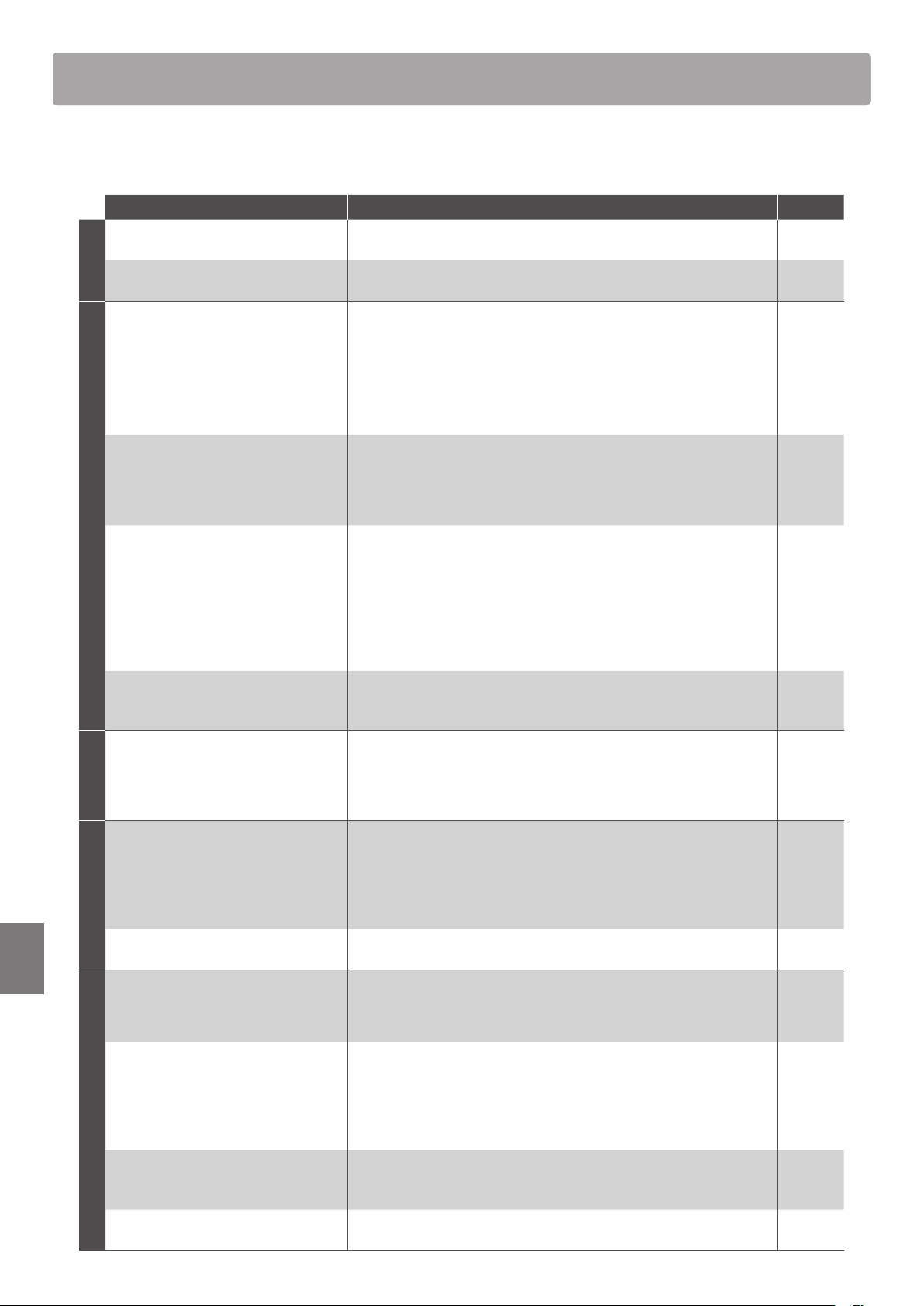
Troubleshooting
132
Appendix
Troubleshooting
The table below summarises issues that may be experienced with the ES920 digital piano, explaining the typical
cause(s), and recommended solution(s).
Issue Possible Cause and Solution Page no.
Power
The instrument does not turn on.
Check that the AC power adaptor is rmly attached to the instrument, and
connected to an AC outlet.
p. 15
The instrument turns itself o after a
period of inactivity.
Check that the “Auto Power O” setting is not enabled. p. 85
Sound
The instrument is turned on, however
no sound is produced when the keys are
pressed.
Check that the MASTER VOLUME slider is not set to the lowest position.
Check that a pair of headphones (or headphone adaptor plug) are not
connected to the PHONES jacks.
Check that the SPEAKER ON/OFF switch (rear connectors) is not set to O.
Check that the Local Control setting in the MIDI Settings menu is set to On.
p. 15
p. 14
p. 129
p. 124
The sound distorts when playing at very
loud volume levels.
Check that the MASTER VOLUME slider is set to an appropriate level,
reducing the volume if excessive distortion is heard.
If connecting the instrument to an amplier/mixer using the Line Out jacks,
reduce the value of the “Line Out Volume” setting in the Basic Settings menu.
p. 15
p. 78
Strange sounds or noises are heard when
playing with piano sounds.
The ES920 digital piano attempts to reproduce the rich variety of tones
created by an acoustic grand piano as accurately as possible. This includes
string resonances and damper noises, and other subtle characteristics that
contribute to the overall piano playing experience.
While these additional tones are intended to enhance the realism of the
instrument, it is possible to reduce their prominence, or disable the eects
altogether using the settings in the Virtual Technician menu.
p. 86
The top 18 notes of the keyboard sustain
far longer than neighbouring notes, even
when the damper pedal is not pressed.
This is the correct behaviour, and intended to reproduce the undamped
notes (typically the top two octaves) of an acoustic grand piano.
–
Phones
The headphone volume is too low.
Check the technical specications of the headphones.
If the “Nominal Impedance” specication of the headphones is less than 100
(ohms), set the “Phones Volume” setting in the “Phones Settings” menu to
“High”.
p. 123
USB
A USB memory device is not detected,
cannot be saved to, or does not appear to
function when connected to the “USB to
Device” port.
Check that the USB memory device is formatted to use the FAT/FAT32
lesystem, and not set to “Write Protect” mode.
Disconnect the USB device, turn the instrument o then on, then reconnect
the USB device. If the USB device still does not function, it may be damaged
or incompatible. Please try using a dierent USB device.
p. 129
The instrument pauses briey when
connecting a USB memory device.
This is recognised behaviour when using very large capacity USB memory
devices.
p. 129
MP3/WAV/SMF Audio
No sound can be heard when playing
an MP3/WAV audio le stored on a USB
memory device.
Check that the audio player volume is not set to 0.
Check that the format of the audio le is supported and listed in the “Audio
Player supported format specications” table.
p. 51
p. 50
An MP3/WAV audio le stored on a USB
memory device sounds strange, or does
not play back correctly.
Check that the format of the audio le is supported and listed in the “Audio
Player supported format specications” table.
The le transfer speed of the USB memory device may be too slow to play
the audio le. Please try using a dierent USB memory device, ensuring that
it conforms to USB2.0 Hi-Speed standards.
p. 50
An SMF MIDI le stored on a USB memory
device sounds strange when played back.
The ES920 digital piano does not contain the full General MIDI sound bank
selection. Consequently, some SMF song les may not be reproduced
entirely accurately when played through the instrument.
p. 54
When recording MP3/WAV audio les, the
volume is too low/too high (distorted).
Adjust the “Audio Recorder Gain” setting in the “Basic Settings” menu. p. 78
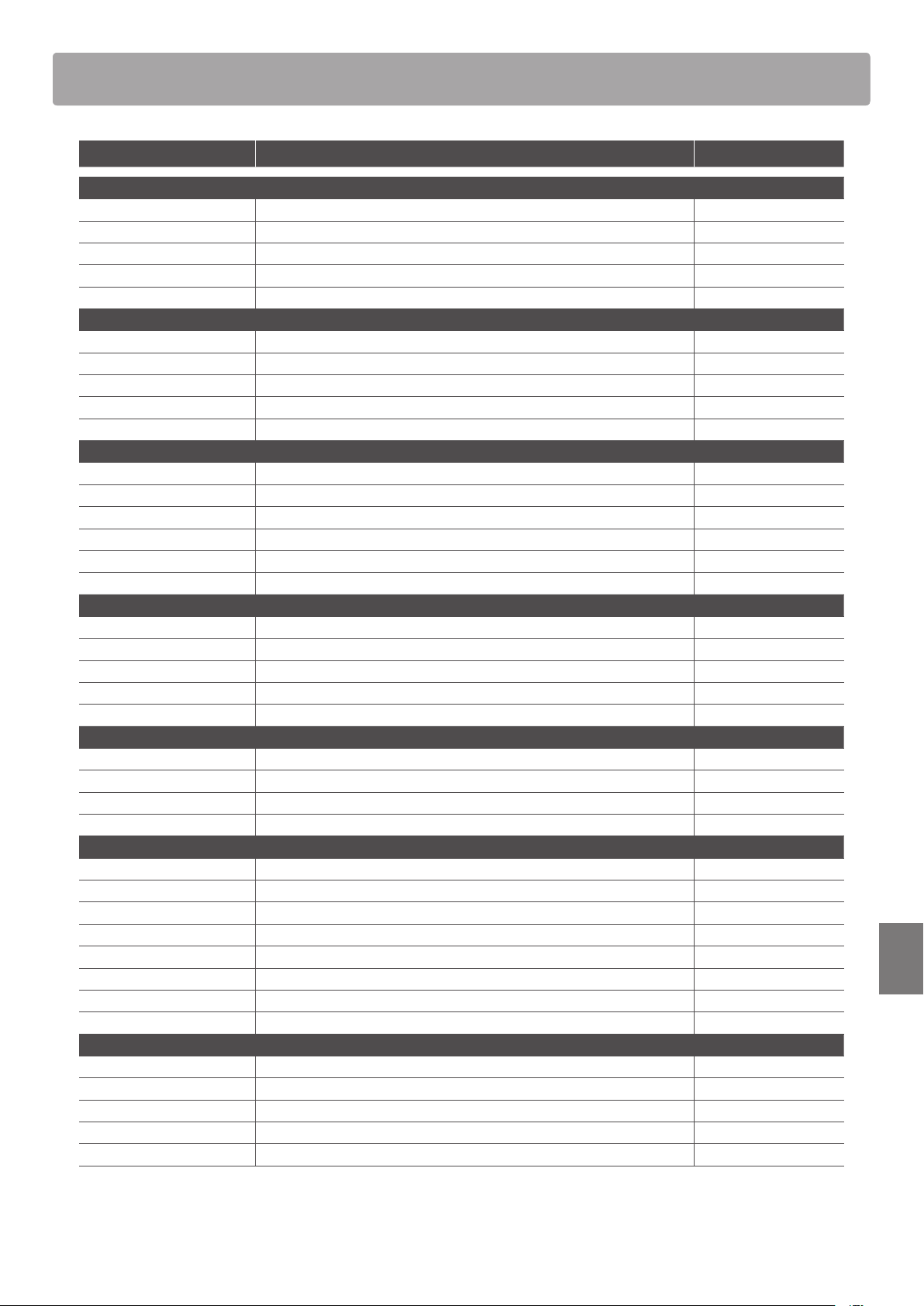
133
Appendix
Demo Song List
Sound Name Song Title Composer
PIANO1
SK ConcertGrand Polonaise Brillante Op.22 Chopin
EX ConcertGrand Polonaise-Fantaisie Chopin
Jazz Clean Original Kawai
Warm Grand Sonata No.30 Op.109 Beethoven
Pop Grand Original Kawai
PIANO2
SK-5 GrandPiano Lieder Ohne Worte No.18 “Duetto” Mendelssohn
Upright Piano Alpenglühen Op.193 Oesten
Pop Grand 2 – –
Modern Piano Original Kawai
Rock Piano Original Kawai
E.PIANO
Classic E.Piano (*) Original Kawai
Classic E.P. 2 – –
Classic E.P. 3 – –
60’s E.Piano – –
60’s E.Piano 2 – –
Modern E.Piano Original Kawai
ORGAN
Jazz Organ (*) Original Kawai
Drawbar Organ (*) Original Kawai
Ballad Organ – –
Principal Oct. – –
Church Organ Chorale Prelude “Wachet auf, ruft uns die Stimme” J. S. Bach
HARPSI/MALLETS
Harpsichord (*) French Suite No. 6 J. S. Bach
Vibraphone Original Kawai
Clavi Original Kawai
Marimba – –
STRINGS/CHOIR
String Ensemble Le quattro stagioni: La primavera A. Vivaldi
Slow Strings Original Kawai
String Pad Original Kawai
Warm Strings – –
Choir Ooh/Aah Original Kawai
Pop Ensemble – –
Square Pad – –
New Age Pad Original Kawai
BASS
Electric Bass Original Kawai
Electric Bass 2 (*) – –
Electric Bass 3 (*) – –
Wood Bass Original Kawai
W. Bass & Ride Original Kawai
(*) PREMIER Sound
Copyright©PREMIER Engineering Inc.2018
PREMIER SOUND FACTORY
** Kawai regret that sheet music for Kawai original demo songs is not available.

Rhythm Section Style List
134
Appendix
Rhythm Section Style List
Genre Style Name
16th Swing Funk Shue 1
Funk Shue 2
Hip Hop 1
Hip Hop 2
Hip Hop 3
Hip Hop 4
16 Shue 1
16 Shue 2
16 Shue 3
16th Funk Funky Beat 1
Funky Beat 2
Funky Beat 3
Funk 1
Funk 2
Funk 3
16th Straight Jazz Funk
16 Beat 1
16 Beat 2
16 Beat 3
16 Beat 4
Rim Beat
Roll Beat
Light Ride 1
Dixie Rock
16th Latin Surdo Samba
Latin Groove
Light Samba
Songo
Samba
Merenge
16th Dance/Techno Funky Beat 4
16 Beat 5
Disco 1
Disco 2
Techno 1
Techno 2
Techno 3
Heavy Techno
16th Ballad Ballad 1
Ballad 2
Ballad 3
Ballad 4
Ballad 5
Light Ride 2
Electro Pop 1
Electro Pop 2
16 Shue 4
8th Ballad Slow Jam
Slow Rock
R&B Ballad
Triplet 50’s Ballad
Triplet R&B Ballad
Genre Style Name
8th Straight 8 Beat 1
8 Beat 2
Smooth Beat
Pop 1
Pop 2
Ride Beat
Slip Beat
8th Rock Jazz Rock
8 Beat 3
Rock Beat 1
Rock Beat 2
Rock Beat 3
Rock Beat 4
Blues/Rock
Heavy Beat
Hard Rock
Surf Rock
R&B
8th Swing Motown 1
8th Fast Shue
Motown 2
Gospel Shue
Ragtime
Country 2 Beat
Triplet/Waltz Triplet Rock 1
Triplet Rock 2
Bembe
Rock Shue
Boogie
Triplet 1
Triplet 2
Reggae
Gospel Ballad
Waltz
Jazz H.H. Swing
Ride Swing
Fast 4 Beat
Afro Cuban
Jazz Waltz 1
Jazz Waltz 2
5/4 Swing
Latin H.H. Bossa Nova
Ride Bossa Nova
Beguine
Mambo
Cha Cha
Tango
Habanera
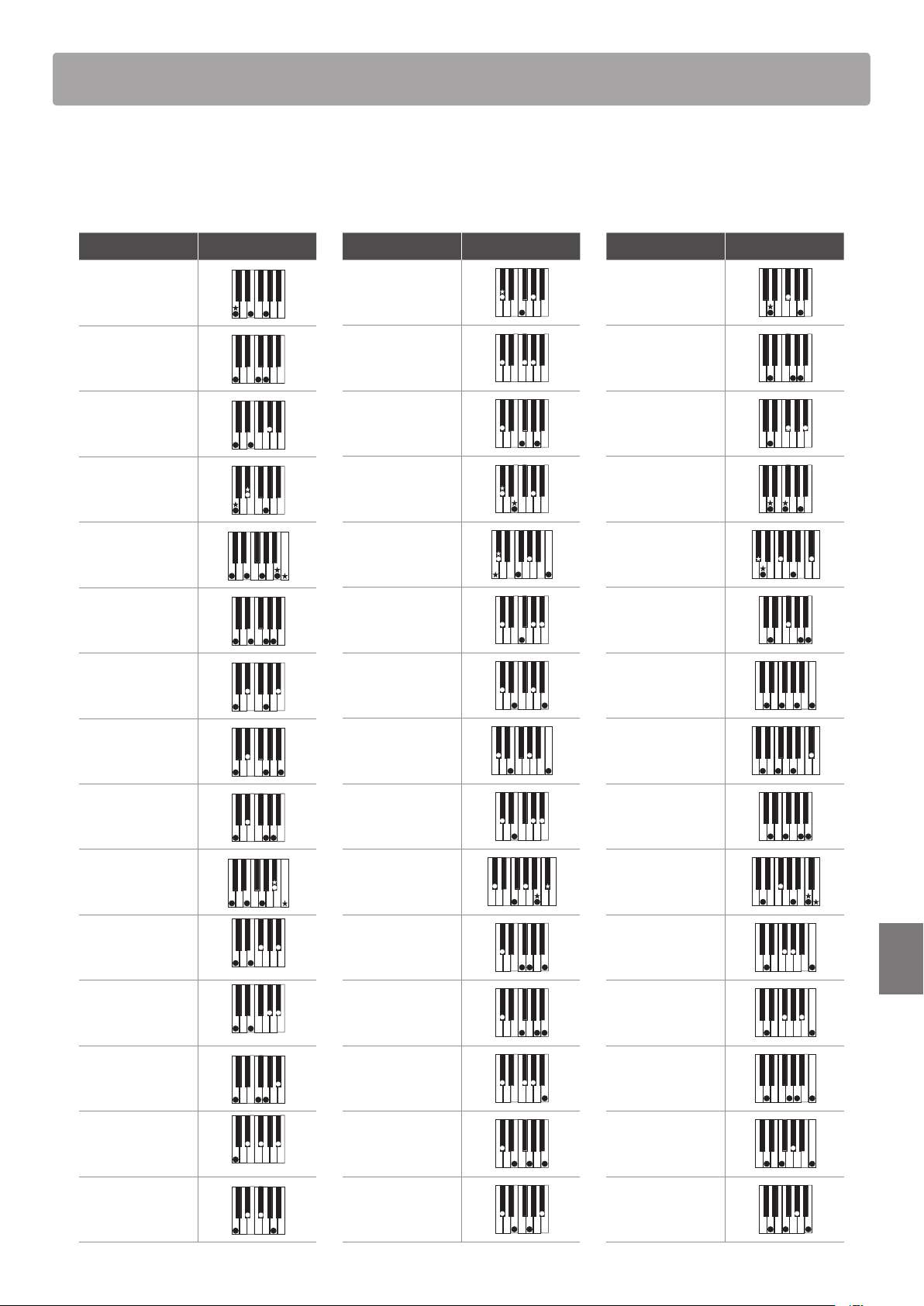
135
Appendix
The tables below list chord types recognised by the ES920 digital piano’s Rhythm Section. Each chord can be played
by pressing the notes marked with a symbol in the diagrams below. When the ACC Mode setting is set to “1 Finger
Chord”, the common Major, Minor, M7, and 7, chord types can also be played by pressing just the notes marked with
a symbol.
Chord Name Notes
C Maj
C sus4
C aug
C min
C M7
C 6
C m7
C mM7
C m6
C 7
C 7
(
5)
C 7
(
#
5)
C 7sus4
C m7
(
5)
C dim
Chord Name Notes
D
Maj
(C
#
)
D
sus4
(C
#
)
D
aug
(C
#
)
D
min
(C
#
)
D
M7
(C
#
)
D
6
(C
#
)
D
m7
(C
#
)
D
mM7
(C
#
)
D
m6
(C
#
)
D
7
(C
#
)
D
7
(
5)
(C
#
)
D
7
(
#
5)
(C
#
)
D
7sus4
(C
#
)
D
m7
(
5)
(C
#
)
D
dim
(C
#
)
Chord Name Notes
D Maj
D sus4
D aug
D min
D M7
D 6
D m7
D mM7
D m6
D 7
D 7
(
5)
D 7
(
#
5)
D 7sus4
D m7
(
5)
D dim
Rhythm Section Chord Types
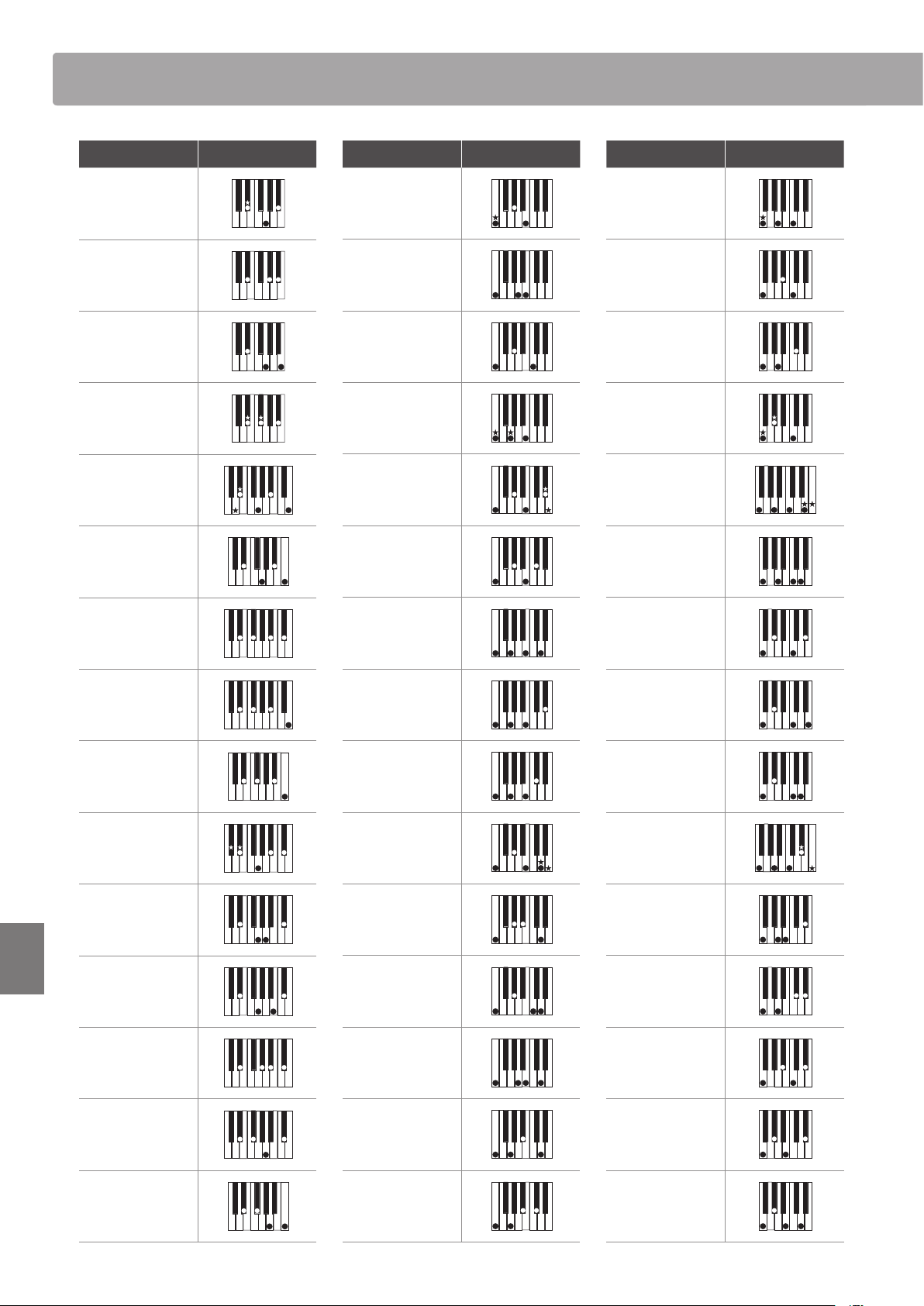
Rhythm Section Chord TypesRhythm Section Chord Types
136
Appendix
Chord Name Notes
E
Maj
(D
#
)
E
sus4
(D
#
)
E
aug
(D
#
)
E
min
(D
#
)
E
M7
(D
#
)
E
6
(D
#
)
E
m7
(D
#
)
E
mM7
(D
#
)
E
m6
(D
#
)
E
7
(D
#
)
E
7
(
5)
(D
#
)
E
7
(
#
5)
(D
#
)
E
7sus4
(D
#
)
E
m7
(
5)
(D
#
)
E
dim
(D
#
)
Chord Name Notes
E Maj
E sus4
E aug
E min
E M7
E 6
E m7
E mM7
E m6
E 7
E 7
(
5)
E 7
(
#
5)
E 7sus4
E m7
(
5)
E dim
Chord Name Notes
F Maj
F sus4
F aug
F min
F M7
F 6
F m7
F mM7
F m6
F 7
F 7
(
5)
F 7
(
#
5)
F 7sus4
F m7
(
5)
F dim
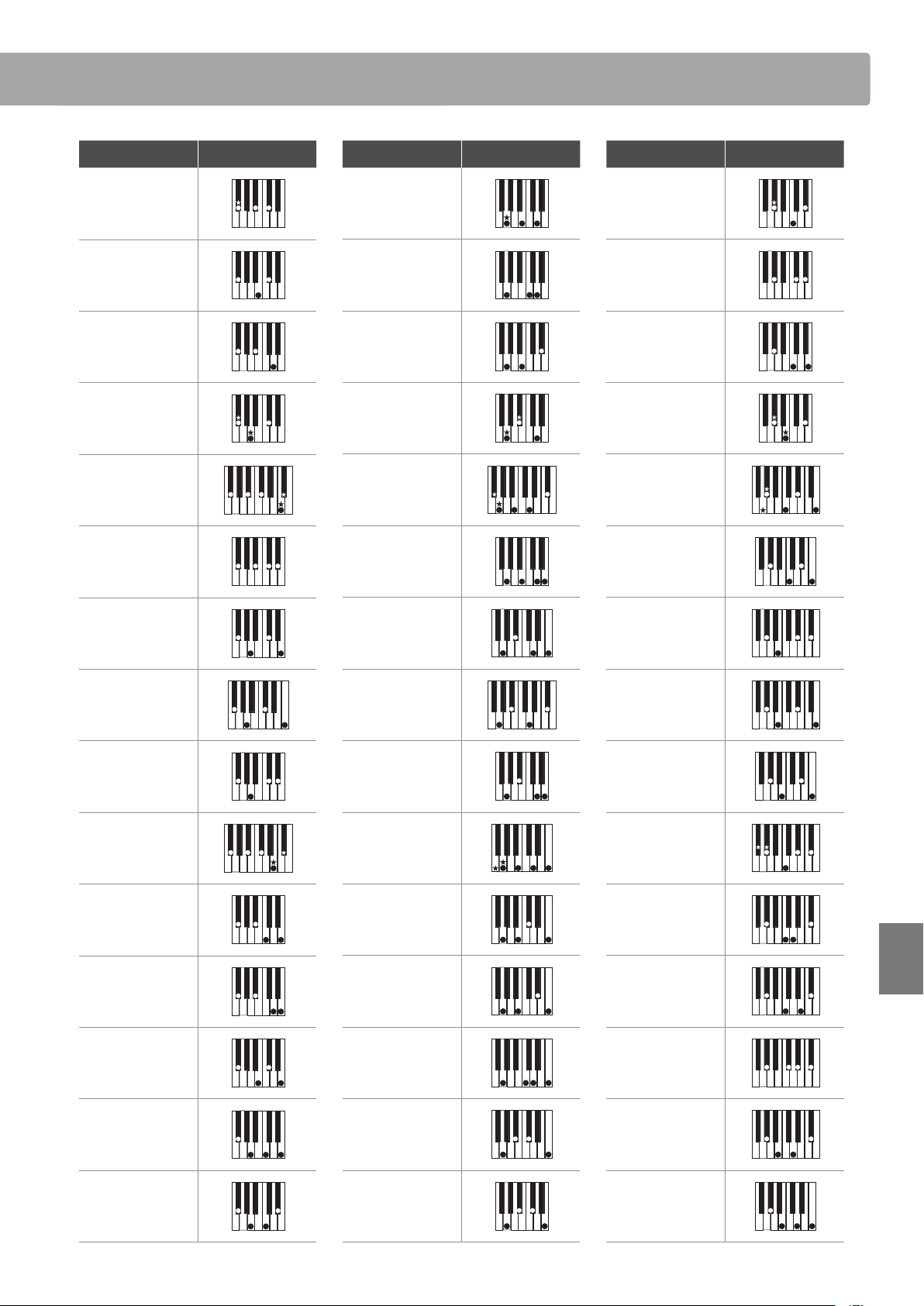
Rhythm Section Chord Types
137
Appendix
Chord Name Notes
G
Maj
(F
#
)
G
sus4
(F
#
)
G
aug
(F
#
)
G
min
(F
#
)
G
M7
(F
#
)
G
6
(F
#
)
G
m7
(F
#
)
G
mM7
(F
#
)
G
m6
(F
#
)
G
7
(F
#
)
G
7
(
5)
(F
#
)
G
7
(
#
5)
(F
#
)
G
7sus4
(F
#
)
G
m7
(
5)
(F
#
)
G
dim
(F
#
)
Chord Name Notes
G Maj
G sus4
G aug
G min
G M7
G 6
G m7
G mM7
G m6
G 7
G 7
(
5)
G 7
(
#
5)
G 7sus4
G m7
(
5)
G dim
Chord Name Notes
A
Maj
(G
#
)
A
sus4
(G
#
)
A
aug
(G
#
)
A
min
(G
#
)
A
M7
(G
#
)
A
6
(G
#
)
A
m7
(G
#
)
A
mM7
(G
#
)
A
m6
(G
#
)
A
7
(G
#
)
A
7
(
5)
(G
#
)
A
7
(
#
5)
(G
#
)
A
7sus4
(G
#
)
A
m7
(
5)
(G
#
)
A
dim
(G
#
)
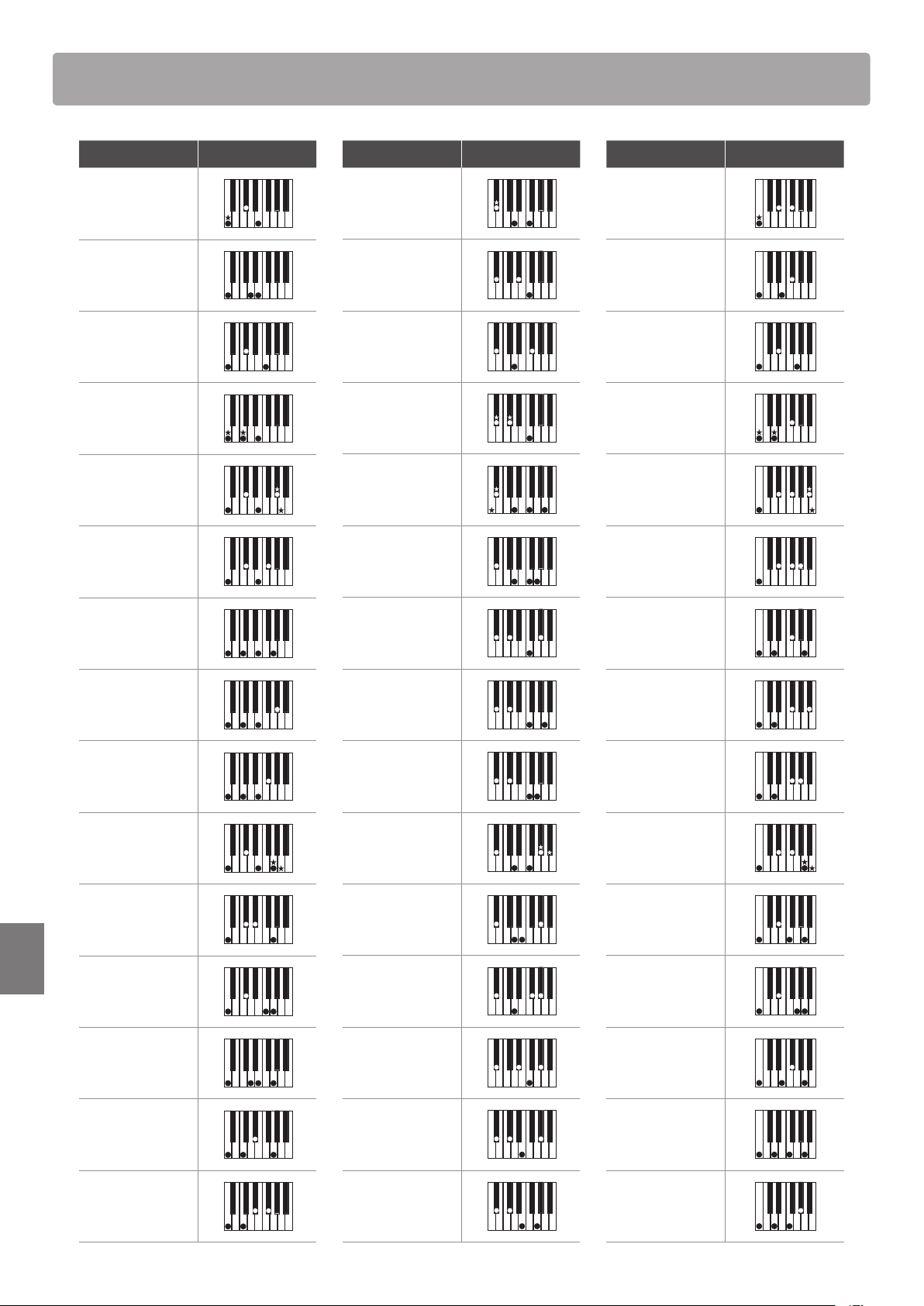
Rhythm Section Chord Types
138
Appendix
Chord Name Notes
A Maj
A sus4
A aug
A min
A M7
A 6
A m7
A mM7
A m6
A 7
A 7
(
5)
A 7
(
#
5)
A 7sus4
A m7
(
5)
A dim
Chord Name Notes
B
Maj
(A
#
)
B
sus4
(A
#
)
B
aug
(A
#
)
B
min
(A
#
)
B
M7
(A
#
)
B
6
(A
#
)
B
m7
(A
#
)
B
mM7
(A
#
)
B
m6
(A
#
)
B
7
(A
#
)
B
7
(
5)
(A
#
)
B
7
(
#
5)
(A
#
)
B
7sus4
(A
#
)
B
m7
(
5)
(A
#
)
B
dim
(A
#
)
Chord Name Notes
B Maj
B sus4
B aug
B min
B M7
B 6
B m7
B mM7
B m6
B 7
B 7
(
5)
B 7
(
#
5)
B 7sus4
B m7
(
5)
B dim
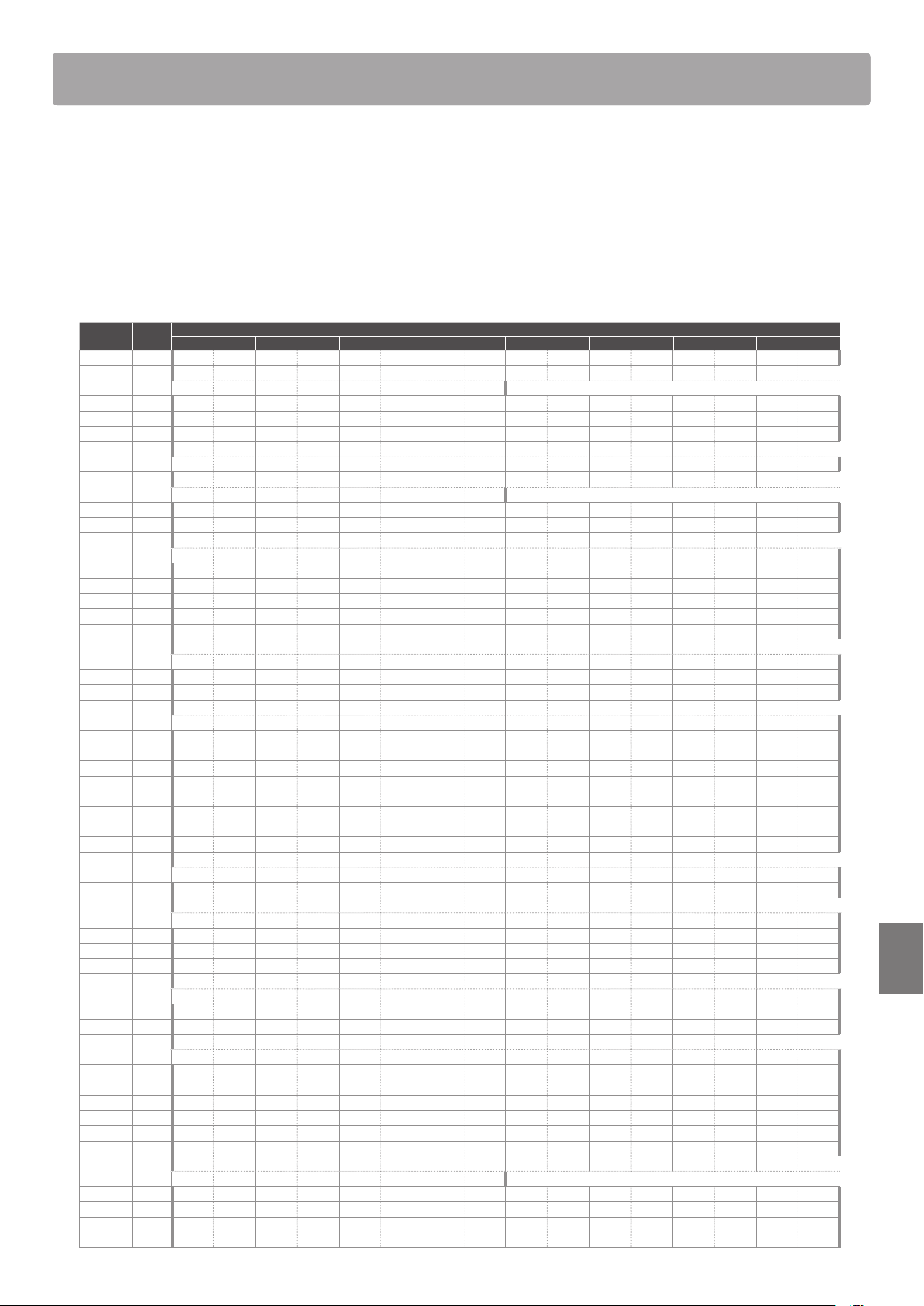
139
Appendix
Rhythm Section Preset Chord Sequences
The table below lists Preset Chord sequences utilised by the ES920 digital piano’s Rhythm Section when the “ACC
Mode” setting is set to “Preset Chord”.
The Preset Chord sequences can last for 8, 12, or 16 bars, with the bar number and chord name written in the spaces
below. If a chord name is not written, the previous chord will continued to be played. The more complicated chord
names, such as “F#m7(b5)”, may appear in a simplied form when shown in the display. If two chords are listed (e.g.
“D/C”), the rst letter indicates the key of the chord, while the second letter indicates the key of the bass part.
Preset Chord No. of bars
Chord pattern
1 (9) 2 (10) 3 (11) 4 (12) 5 (13) 6 (14) 7 (15) 8 (16)
Chord1 8 CM7 Bm7(
5) B
7 Am7 Gm7 C7 FM7 Em7 A7 Dm7 G7sus4 G7
Chord2 12
F
#
m7(
5) B7 Em7 A7 F
#
m7(
5) B7 Em7 A7
Dm7 G7sus4
Chord3 8 C F
Chord4 8 C7 F7 B
7 G7 C7
Chord5 8 C7 A
7 B
7 C7 A
7 G7
Chord6 16
Cm7 G7sus4 Cm7 G7(
#
5)
E
M7 D7(
#
5) G7sus4 G7 Cm7 F7 B
M7 G7(
#
5)
Chord7 12
CM7 Am7 Dm7 G7sus4 CM7 Am7 Dm7 G7sus4 CM7 Am7 Dm7 G7sus4 CM7 Am7 Dm7 G7sus4
Em7 Am7 Em7 Am7 Dm7 G7sus4
Chord8 8 CM7 Dm7 CM7 Dm7 G7 Gm7 C7 FM7 Fm7 B
7 CM7
Chord9 8 C7 B
7 C7 G7 F7
Chord10 16
C7 E
7 F7 C7
C7 E
7 F7 G7
Chord11 8 C7 F7 C7 C7 F7 G7
Chord12 8 Cm7 F7 Cm7 F7
Chord13 8 A
M7 D
M7 Gm7 C7 A
M7 Gm7 F
#
dim G7(
#
5)
Chord14 8 A
7 G7(
#
5) Cm7 F7 A
7 G7(
#
5) F7
Chord15 8 C7 E
7 F7 C7
Chord16 16
A
M7 Gm7 A
M7 Gm7 C7sus4 C7
A
M7 Gm7 A
M7 G7sus4 G7
Chord17 8 C CM7 C7 FM7 FmM7 CM7 F
#
m7(
5) G7sus4 G7
Chord18 8 Cm7 Dm7 Gaug Cm7 Dm7 Gaug
Chord19 16
A
M7 B
7 E
M7 A7 A
M7 Gaug Cm7 F7
A
M7 B
7 Gm7 C7 A
M7 G7(
#
5) F7
Chord20 8 C D/C B
/C F/C
Chord21 8 C G B
F A
E
Dm7 G7
Chord22 8 CM7 B7(
#
5) B7 B
6 A7 A
M7 Dm7 G7 CM7 Am7 Dm7 G7
Chord23 8 A
/B
CM7 A
/B
E
M7 BM7 B
7 F/A
Dm7(
5)/A
G7 G7(
#
5)
Chord24 8 C7 G7 C7
Chord25 8 F7 C7 F7 G7
Chord26 8 CM7 G7(
#
5) Gm7 C7 FM7 Fm7 B
7 CM7 Am7 D7 G7
Chord27 8 C7sus4 B
7sus4
Chord28 16
CM7 C7 CM7 C7
F
#
m7(
5) B7 Em7 A7 F
#
m7(
5) B7 Em7
Chord29 8 Cm CmM7 Cm7 Am7(
5) A
M7 G7(
#
5) Cm CmM7 Cm7 Am7(
5) A
M7 G7(
#
5)
Chord30 16
Fm7 B
7 E
M7 A
M7 Dm7(
5) G7(
#
5) Gm7(
5) C7
Fm7 B
7 E
M7 A
M7 Dm7(
5) G7(
#
5) Cm7
Chord31 8 C Dm G F C A7 Dm G F C
Chord32 8 C G7 Am Am7/G F D7 G7
Chord33 8 C G7 F D7 G7 Am
Chord34 16
C7 F7 C7 F7
G7 F7 G7 F7 C7
Chord35 8 C A
M7 B
Gm7 C A
M7 B
Gm7
Chord36 8 A
M7 E
M7 A
M7 E
M7 D7 D
M7
Chord37 16
C Em7 Fm7 C Em7 Fm7 C
Am7 Em7 Am7 G7 Am7 Em7 G7sus4 G7
Chord38 8 Em7 Dm7 Em7 Dm7
Chord39 8 C7 B
7sus4
Chord40 8 C7 B
m7 B
7 C7 B
m7 D
7
Chord41 8 C7 B
/C A
/B
B
C7 B
/C A
/B
B
Chord42 8 C7 Cm7 Gm7/C F/C A
/C Gsus4/C
Chord43 8 C7 E
7 D7 F7 E7 A7
Chord44 12
FM7 Bm7(
5) Em7 E
M7
Dm7 G7 C6
Chord45 8 C Am F C G C Am F G7
Chord46 8 Em7 Am7 Dm7 G7 Em7 A7 Dm7 G7
Chord47 8 FM7 Em7 FM7 Am7 Fm7 B
7 E
M7 A
M7 Dm7 G7sus4
Chord48 8 FM7 Em7 FM7 Em7 C7sus4 FM7 Em7 FM7 E7 Dm7 G7sus4
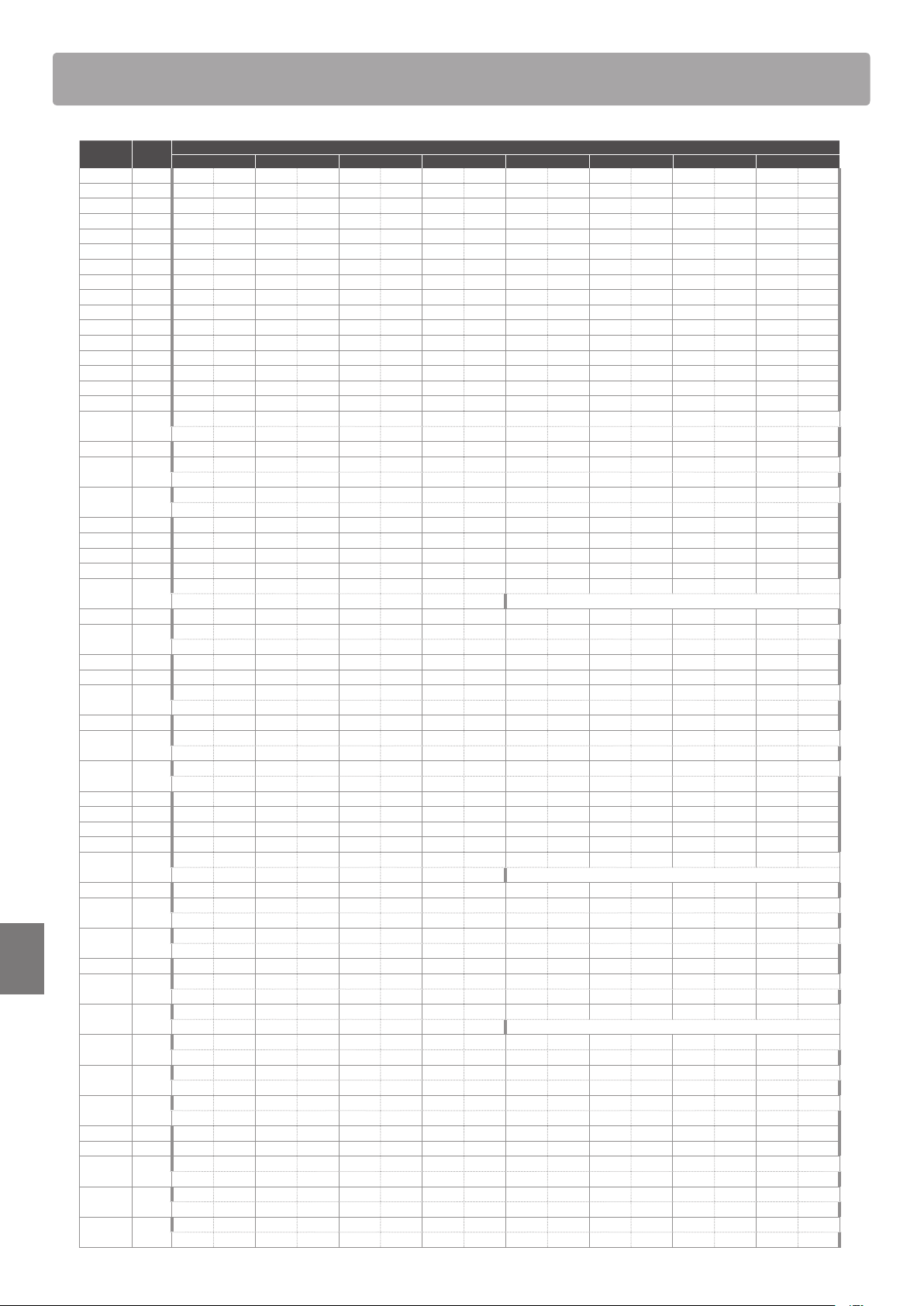
Rhythm Section Preset Chord Sequences
140
Appendix
Preset Chord No. of bars
Chord pattern
1 (9) 2 (10) 3 (11) 4 (12) 5 (13) 6 (14) 7 (15) 8 (16)
Chord49 8 CM7 FM7 CM7 FM7 Bm7 E7 AM7 GM7 FM7 G7sus4
Chord50 8 A
M7 Gm7 B
m7 A
M7 A
7 D
M7 Cm7 Dm7(
5) G7
Chord51 8 C G/B Gm/B
F/A A
6 C/G F
#
m7(
5) G7
Chord52 8 F F
#
dim C/G E7/G
#
Am7 D7 Dm7 G7sus4 G7
Chord53 8 CM7 B
M7 CM7 B
M7 Am7 D7 Dm7 G7 G7(
#
5)
Chord54 8 F
#
m7(
5) F7 Em7 A7 A7(
#
5) Dm7 G7 G7(
#
5) CM7 Gm7 C7
Chord55 8 FM7 FmM7 Em7 E7 Am7 Dm7 G7sus4 CM7
Chord56 8 CM7 FM7 Bm7(
5) E7 Am7 C7 FM7 Em7 Am7 Dm7 G7sus4 G7
Chord57 8 C G/B F/A C/G F C/E D7/F
#
G7 C G/B F/A C/G D7/F
#
D7 G7sus4 G7
Chord58 8 CM7 FM7 Dm7 G7sus4 G7 FM7 G7 Em7 Am7 Dm7 G7sus4 G7
Chord59 8 FM7 CM7 FM7 CM7 Em7(
5) A7 Dm7 Fm7 G7sus4 G7
Chord60 8 C F C F Am Dm G
Chord61 8 C F C F G Am F G C
Chord62 8 C Am Dm G C Am Dm G Em Am Dm G7 Em Am Dm G7
Chord63 8 Cm7 Gm7 Cm7 Gm7 Cm7 Gm7 Cm7 Gm7 Fm7 G7 A
7 G7
Chord64 8 C CM7 C7 F Dm7 Am7 D7 G7
Chord65 16
Cm7 F7 Cm7 F7
Fm7 B
7 Cm7 C7 Fm7 F
#
dim G7(
#
5)
Chord66 8 C Am Dm G C
Chord67 16
Am7 D7 G7sus4 C Am7 D7 G7sus4 C
Fm7 E7 Am7 D7 G7sus4 C
Chord68 16
C7 F7
C7 G7 F7
Chord69 8 Cm7 B
7sus4
Chord70 8 Dm7 E
7sus4 Dm7 E
7sus4 E
sus4
Chord71 8 C7 F7 B
7 G7 C7 F7
Chord72 8 C7 E
7 B
F C G7
Chord73 12
C F C G F
C F C F
Chord74 8 Cm B
A
7 Cm D
7
Chord75 16
C F7 C B
C
G7 C7 G7 C7
Chord76 8 C7 B
7 C7 B
7 F7
Chord77 8 C G7 C7 F7 C F G7 C F C
G7
Chord78 16
C CM7 C7 F
Dm7 G7 Em7 Am7 Dm7 G7 C
Chord79 8 C7 F7 C7 F7 D7 G7 D7 G7
Chord80 16
C G7 C G7 C
F C G7 C C7 F C D7 G7
Chord81 16
C C7 F C G7
C C7 F C G7 C
Chord82 8 C7 F7 C7 F7 Dm7 G7 F7
Chord83 8 C E
D F A
G
Chord84 8 C7sus4 C7 C7sus4 B
7sus4 B
7 B
7sus4 A
7sus4 A
7 A
7sus4 G7sus4 G7 G7sus4
Chord85 8 C G F B
C G
Chord86 12
C6 C7 F7 C6
G7 F7 C6
Chord87 8 C G Em7 Am7 Dm7 D7 G7 C G Em7 A7 Dm7 G7 C
Chord88 16
C CM7 C7 F Fm6 Em7 A7 Dm7 G7
C CM7 C7 F Fm6 Em7 A7 Dm7 G7 C Fm6 C
Chord89 16
F G7 Em7 Am7 Dm7 G7 C CM7 C7
F Fm6 Em7 A7 D7sus4 D7 G7sus4 G7
Chord90 8 C F C G7 C F C G7 C
Chord91 16
C G B
Am
F C D7 G7
Chord92 12
C9 F13 C9 F13 C9 A7(
13)
Dm9 G13 C9 A7(
13) Dm9 G13
Chord93 16
C CM7 C7 FM7 Dm DmM7 Dm7 G7
C CM7 Em7(
5) A7 Dm7 Fm7 Em7 A7 Dm7 G7
Chord94 16
Fm7 B
7 E
M7 E
6 E
m7 A
7 D
M7 D
6
C
#
m7 F
#
7 Bm7 E7 Am7 D7 Dm7 G7
Chord95 16
Cm7 Fm7 B
7 E
M7 A7 A
M7 Dm7(
5) G7 G7(
#
5) Cm7 C7
Fm7 B
7 Gm7 C7 C7(
#
5) Fm7 B
7 E
6 G7 G7(
#
5)
Chord96 8 Cm7
Chord97 8 A
m7 D
7 G
M7 C
M7 A
m7 D
7 G
M7 Fm7 B
7 E
M7 A
M7 Fm7 B
7 G7 G7(
#
5)
Chord98 16
Cm7 Cdim B
M7 Cm7 Cdim B
M7 Gm7 C7 C7(
#
5) Fm7 Fm7(
5)
E
M7 Dm7 D
M7 Cm7 E
M7 Dm7 D
M7 Cm7 G7 G7(
#
5) Cm6 Cm7
Chord99 16
C D7 Dm7 G7 C C D7 Dm7 G7 C
C CM7 C7 F Fm C C A7 D7 Dm7 G7 C
Chord100 16
Cm G7 Cm G7 Cm
Fm Cm G7 Cm C7 Fm Cm D7 G7
141
Appendix
EU Declaration of Conformity
SV
FÖRENKLAD EU-FÖRSÄKRAN OM ÖVERENSSTÄMMELSE
Swedish
Härmed försäkrar Kawai Europa GmbH att denna typ av radioutrustning [ ES920 ] överensstämmer med direktiv 2014/53/EU.
Den fullständiga texten till EU-försäkran om överensstämmelse finns på följande webbadress:
https://www.kawai-global.com/
Slovenian
Kawai Europa GmbH potrjuje, da je tip radijske opreme [ ES920 ] skladen z Direktivo 2014/53/EU.
Celotno besedilo izjave EU o skladnosti je na voljo na naslednjem spletnem naslovu:
FI
YKSINKERTAISTETTU EU-VAATIMUSTENMUKAISUUSVAKUUTUS
Finnish
Kawai Europa GmbH vakuuttaa, että radiolaitetyyppi [ ES920 ] on direktiivin 2014/53/EU mukainen.
EU-vaatimustenmukaisuusvakuutuksen täysimittainen teksti on saatavilla seuraavassa internetosoitteessa:
SK
ZJEDNODUŠENÉ EÚ VYHLÁSENIE O ZHODE
Slovak
Kawai Europa GmbH týmto vyhlasuje, že rádiové zariadenie typu [ ES920 ] je v súlade so smernicou 2014/53/EÚ.
Úplné EÚ vyhlásenie o zhode je k dispozícii na tejto internetovej adrese:
SL
POENOSTAVLJENA IZJAVA EU O SKLADNOSTI
Portuguese
O(a) abaixo assinado(a) Kawai Europa GmbH declara que o presente tipo de equipamento de rádio [ ES920 ] está em conformidade com a Diretiva 2014/53/UE.
O texto integral da declaração de conformidade está disponível no seguinte endereço de Internet:
RO
DECLARAȚIA UE DE CONFORMITATE SIMPLIFICATĂ
Romanian
Prin prezenta, Kawai Europa GmbH declară că tipul de echipamente radio [ ES920 ] este în conformitate cu Directiva 2014/53/UE.
Textul integral al declarației UE de conformitate este disponibil la următoarea adresă internet:
PL
UPROSZCZONA DEKLARACJA ZGODNOŚCI UE
Polish
Kawai Europa GmbH niniejszym oświadcza, że typ urządzenia radiowego [ ES920 ] jest zgodny z dyrektywą 2014/53/UE.
Pełny tekst deklaracji zgodności UE jest dostępny pod następującym adresem internetowym:
PT
DECLARAÇÃO UE DE CONFORMIDADE SIMPLIFICADA
Maltese
B'dan, Kawai Europa GmbH, niddikjara li dan it-tip ta' tagħmir tar-radju [ ES920 ] huwa konformi mad-Direttiva 2014/53/UE.
It-test kollu tad-dikjarazzjoni ta' konformità tal-UE huwa disponibbli f'dan l-indirizz tal-Internet li ġej:
NL
VEREENVOUDIGDE EU-CONFORMITEITSVERKLARING
Dutch
Hierbij verklaar ik, Kawai Europa GmbH, dat het type radioapparatuur [ ES920 ] conform is met Richtlijn 2014/53/EU.
De volledige tekst van de EU-conformiteitsverklaring kan worden geraadpleegd op het volgende internetadres:
HU
EGYSZERŰSÍTETT EU-MEGFELELŐSÉGI NYILATKOZAT
Hungarian
Kawai Europa GmbH igazolja, hogy a [ ES920 ] típusú rádióberendezés megfelel a 2014/53/EU irányelvnek.
Az EU-megfelelőségi nyilatkozat teljes szövege elérhető a következő internetes címen:
MT
DIKJARAZZJONI SSIMPLIFIKATA TA' KONFORMITÀ TAL-UE
Latvian
Ar šo Kawai Europa GmbH deklarē, ka radioiekārta [ ES920 ] atbilst Direktīvai 2014/53/ES.
Pilns ES atbilstības deklarācijas teksts ir pieejams šādā interneta vietnē:
LT
SUPAPRASTINTA ES ATITIKTIES DEKLARACIJA
Lithuanian
Aš, Kawai Europa GmbH, patvirtinu, kad radijo įrenginių tipas [ ES920 ] atitinka Direktyvą 2014/53/ES.
Visas ES atitikties deklaracijos tekstas prieinamas šiuo interneto adresu:
IT
DICHIARAZIONE DI CONFORMITÀ UE SEMPLIFICATA
Italian
Il fabbricante, Kawai Europa GmbH, dichiara che il tipo di apparecchiatura radio [ ES920 ] è conforme alla direttiva 2014/53/UE.
Il testo completo della dichiarazione di conformità UE è disponibile al seguente indirizzo Internet:
LV
VIENKĀRŠOTA ES ATBILSTĪBAS DEKLARĀCIJA
French
Le soussigné, Kawai Europa GmbH, déclare que l'équipement radioélectrique du type [ ES920 ] est conforme à la directive 2014/53/UE.
Le texte complet de la déclaration UE de conformité est disponible à l'adresse internet suivante:
HR
POJEDNOSTAVLJENA EU IZJAVA O SUKLADNOSTI
Croatian
Kawai Europa GmbH ovime izjavljuje da je radijska oprema tipa [ ES920 ] u skladu s Direktivom 2014/53/EU.
Cjeloviti tekst EU izjave o sukladnosti dostupan je na sljede?oj internetskoj a
dresi:
EN
SIMPLIFIED EU DECLARATION OF CONFORMITY
English
Hereby, Kawai Europa GmbH declares that the radio equipment type [ ES920 ] is in compliance with Directive 2014/53/EU.
The full text of the EU declaration of conformity is available at the following internet address:
FR
DECLARATION UE DE CONFORMITE SIMPLIFIEE
Estonian
Käesolevaga deklareerib Kawai Europa GmbH, et käesolev raadioseadme tüüp [ ES920 ] vastab direktiivi 2014/53/EL nõuetele.
ELi vastavusdeklaratsiooni täielik tekst on kättesaadav järgmisel internetiaadressil:
EL
ΑΠΛΟΥΣΤΕΥΜΕΝΗ ΔΗΛΩΣΗ ΣΥΜΜΟΡΦΩΣΗΣ ΕΕ
Greek
Με την παρούσα ο/η Kawai Europa GmbH, δηλώνει ότι ο ραδιοεξοπλισμός [ ES920 ] πληροί την οδηγία 2014/53/ΕΕ.
Το πλήρες κείμενο της δήλωσης συμμόρφωσης ΕΕ διατίθεται στην ακόλουθη ιστοσελίδα στο διαδίκτυο:
DE
VEREINFACHTE EU-KONFORMITÄTSERKLÄRUNG
German
Hiermit erklärt Kawai Europa GmbH, dass der Funkanlagentyp [ ES920 ] der Richtlinie 2014/53/EU entspricht.
Der vollständige Text der EU-Konformitätserklärung ist unter der folgenden Internetadresse verfügbar:
ET
LIHTSUSTATUD ELI VASTAVUSDEKLARATSIOON
Czech
Tímto Kawai Europa GmbH prohlašuje, že typ rádiového zařízení [ ES920 ] je v souladu se směrnicí 2014/53/EU.
Úplné znění EU prohlášení o shodě je k dispozici na této internetové adrese:
DA
FORENKLET EU-OVERENSSTEMMELSESERKLÆRING
Danish
Hermed erklærer Kawai Europa GmbH, at radioudstyrstypen [ ES920 ] er i overensstemmelse med direktiv 2014/53/EU.
EU-overensstemmelseserklæringens fulde tekst kan findes på følgende internetadresse:
ES
DECLARACIÓN UE DE CONFORMIDAD SIMPLIFICADA
Spanish
Por la presente, Kawai Europa GmbH declara que el tipo de equipo radioeléctrico [ ES920 ] es conforme con la Directiva 2014/53/UE.
El texto completo de la declaración UE de conformidad está disponible en la dirección Internet siguiente:
CS
ZJEDNODUŠENÉ EU PROHLÁŠENÍ O SHODĚ
EU Declaration of Conformity
BG
ОПРОСТЕНА ЕС ДЕКЛАРАЦИЯ ЗА СЪОТВЕТСТВИЕ
Bulgarian
С настоящото Kawai Europa GmbH декларира, че този тип радиосъоръжение [ ES920 ] е в съответствие с Директива 2014/53/ЕС.
Цялостният текст на ЕС декларацията за съответствие може да се намери на следния интернет адрес:
Kawai ES920 Specications
142
Appendix
Kawai ES920 Specications
Keyboard Responsive Hammer III (RHIII) action with Let-O
88 weighted keys with Ivory Touch key surfaces
Sound Source Harmonic Imaging XL™ (HI-XL), 88-key piano sampling
Internal Sounds 38 voices PIANO: 10 sounds, E.PIANO: 6 sounds, ORGAN: 5 sounds HARPSI/MALLETS: 4 sounds,
STRINGS/CHOIR: 8 sounds, BASS: 5 sounds,
MIDI only (Rhythm Section): 38 sounds + 4 drum kits
Polyphony max. 256 notes
Keyboard Modes Dual Mode, Split Mode, Four Hands Mode (Volume/Balance adjustable)
Reverb Type: Room, Lounge, Small Hall, Concert Hall, Live Hall, Cathedral
Parameters: Reverb Depth, Reverb Time
Eects Type: Mono Delay, Ping Delay, Triple Delay, Chorus, Classic Chorus, Ensemble, Tremolo,
Classic Tremolo, Vibrato Tremolo, Auto Pan, Classic Auto Pan, Phaser, Classic Phaser,
Compressor, Rotary 1, Rotary2
Parameters: Dry/Wet, Time, Speed, Feedback, HighDamp, Depth.
Parameters dependent on eect type.
Amp Simulator Type: S.Case I, S.Case II, L.Cabinet
Parameters: Drive, Level, EQ Low, EQ High
Virtual Technician Touch Curve, Voicing, Damper Resonance, Damper Noise, String Resonance, Undamped String Resonance,
Cabinet Resonance, Key-o Eect, Fall-back Noise, Hammer Noise, Hammer Delay, Topboard, Decay Time,
Release Time, Minimum Touch, Stretch Tuning/Stretch Curve/User Tuning, Temperament,
Temperament Key, User Key Volume, Half-Pedal Adjust, Soft Pedal Depth
Internal Recorder 10 song, 2 track recorder – approximately 90,000 note memory capacity
USB Functions Playback: MP3, WAV, SMF
Record: MP3, WAV
Other: Overdubbing, Convert Song to Audio, Load Internal Song, Save Internal Song,
Save SMF Song, Load Registration, Save Registration, Load Startup Setting,
Save Startup Setting, Rename File, Delete File, Format USB
Metronome 1/4, 2/4, 3/4, 4/4, 5/4, 3/8, 6/8, 7/8, 9/8, 12/8 (Volume/Tempo adjustable)
Rhythm Section Styles: 100 rhythms (x 2 variations), 4-part accompaniment, 100 preset chord sequences
Settings: Rhythm Volume, Auto Fill-in, One Finger Ad-lib, ACC Mode, Preset Chord,
Rhythm Parts Select
Demo Songs Main demo song, Rhythm Section demo song, 25 sound demo songs
Registrations 28 memories (7 x 4)
Other Functions Key/Song Transpose, Tone Control (incl. Brilliance, UserEQ), Wall EQ, Speaker Volume, Low Volume Balance,
Phones Volume, Line Out Volume, Audio Recorder Gain, Tuning, Damper Hold, GFP-3 Mode, Four Hands,
Startup Setting, Factory Reset, Auto Power O, Lower Octave Shift, Lower Pedal On/O, Split Balance,
Layer Octave Shift, Layer Dynamics, Dual Balance, SHS Mode, Phones Type, MIDI Channel, Send PGM#,
Local Control, Transmit PGM#, Multi-timbral Mode, Channel Mute, Auto Power O, Speakers On/O
Display 128 x 64 pixel OLED
Pedal F-10H damper pedal (with half-pedal support)
Bluetooth* Bluetooth (Ver. 4.1; GATT compatible)
Bluetooth Low Energy MIDI Specication compliant, Bluetooth Audio
Connectors LINE IN (⁄” STEREO), LINE OUT (⁄” L/MONO, R [unbalanced]), Headphones x 2 (⁄”, ⁄”), MIDI (IN/OUT),
USB to Host, USB to Device, DAMPER (for F-10H), DAMPER/SOFT/SOSTENUTO (for GFP-3), PEDAL (for F-302)
Speaker System Speakers: (8 x 12 cm) x 2
Output Power: 20 W x 2
Power Consumption 18 W (PS-154 AC adaptor)
Dimensions 1340 (W) x 372 (D) x 144 (H) mm / 52 ¾” (W) x 14 ⁄” (D) x 5 ⁄” (H)
Weight 17.0 kg / 37.5 lbs.
Specications are subject to change without notice.
* Availability of Bluetooth function dependent on market location.
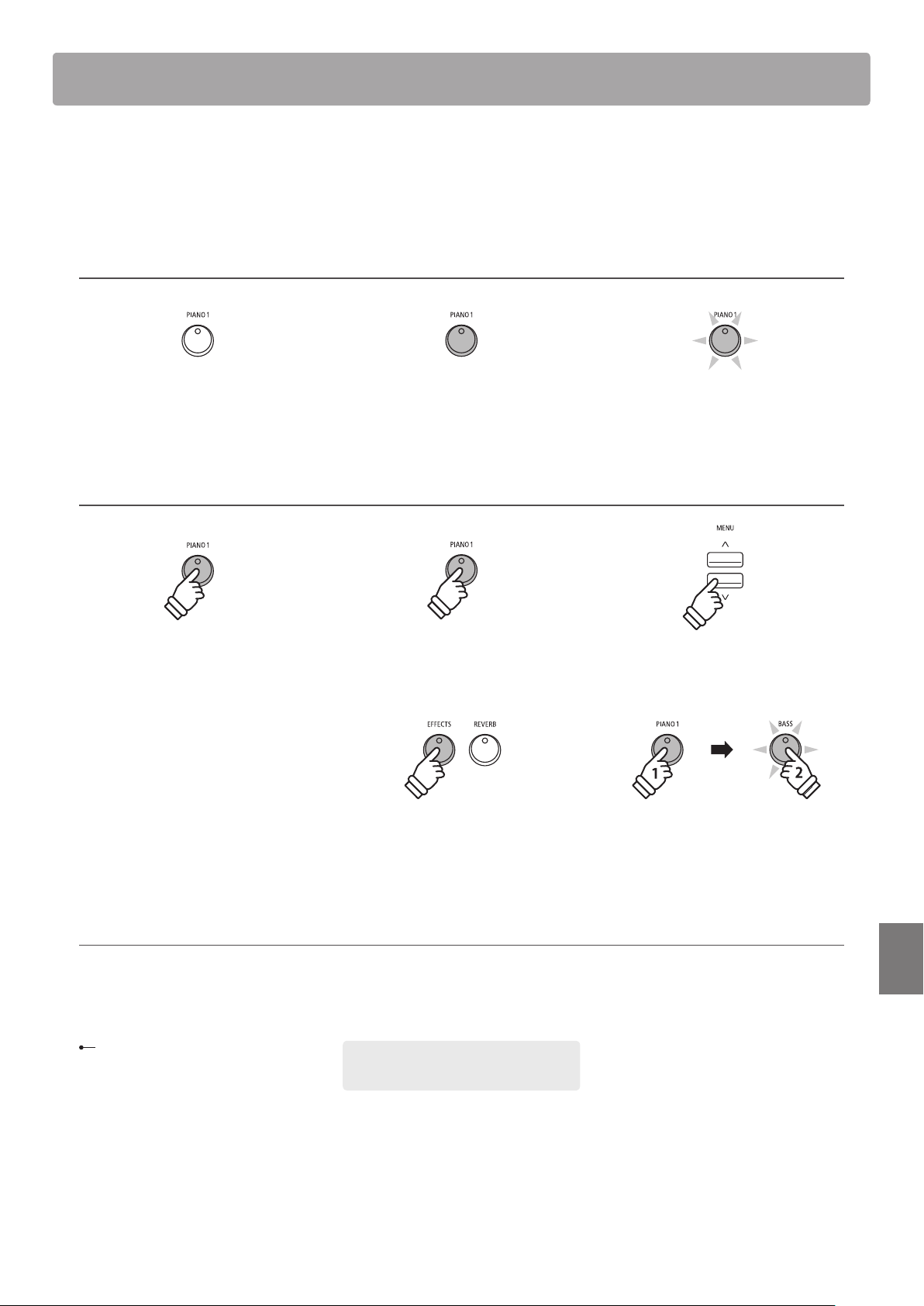
143
Appendix
This owner’s manual utilises a number of illustrative conventions in order to explain the ES920’s various functions.
The examples below provide an overview of the button LED indicator states and press types, and the appearance of
dierence kinds of text.
Button LED indicator states
LED indicator o:
Sound/Function is not selected.
LED indicator on:
Sound/Function is selected.
LED indicator ashing:
Sound/Function is selected in a
temporary state.
Button press types
Normal press:
Select a sound or function.
Press twice:
Select a sound or function.
Press multiple times:
Cycle through sounds or settings.
× 2
× 4
Press and hold:
Select a function’s settings.
Press and hold, then press X:
Combine two sounds, or store
registration memories etc.
hold
hold
Text appearance
Normal instruction and explanation text
is written in regular type at 9 pt. size.
* Notes about functions are marked with an
asterisk and written in 8 pt. size.
Reminders about previous operations are
written in italic type at 9 pt. size.
Example operations are written in italic type
at 8 pt. size, and enclosed within a grey box.
Captions explaining the display or
button functions, are written in bold
type at 8.5 pt. size.
Owner’s Manual Conventions





Copyright © 2020 Kawai Musical Instruments Mfg. Co.,Ltd. All Rights Reserved.
ES920 Owner’s Manual
3000002862
SP00000243 R101
OW1133E-S2002
Printed in Indonesia