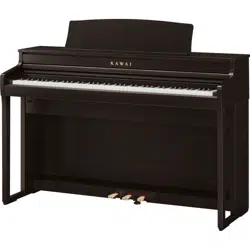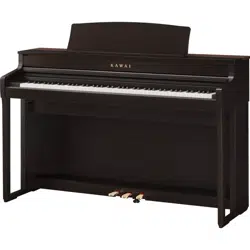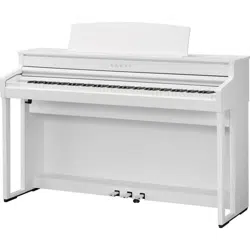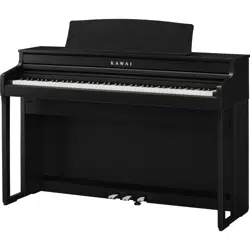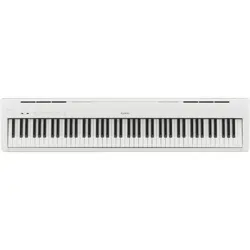
ES110
Owner’s Manual
Preparation Before Use
Playing the Piano
Internal Songs
Recorder
Settings
Appendix


Thank you for purchasing this Kawai ES110 digital piano.
This owner’s manual contains important information regarding the instrument’s usage and operation.
Please read all sections carefully, keeping this manual handy for future reference.
Important Safety Instructions
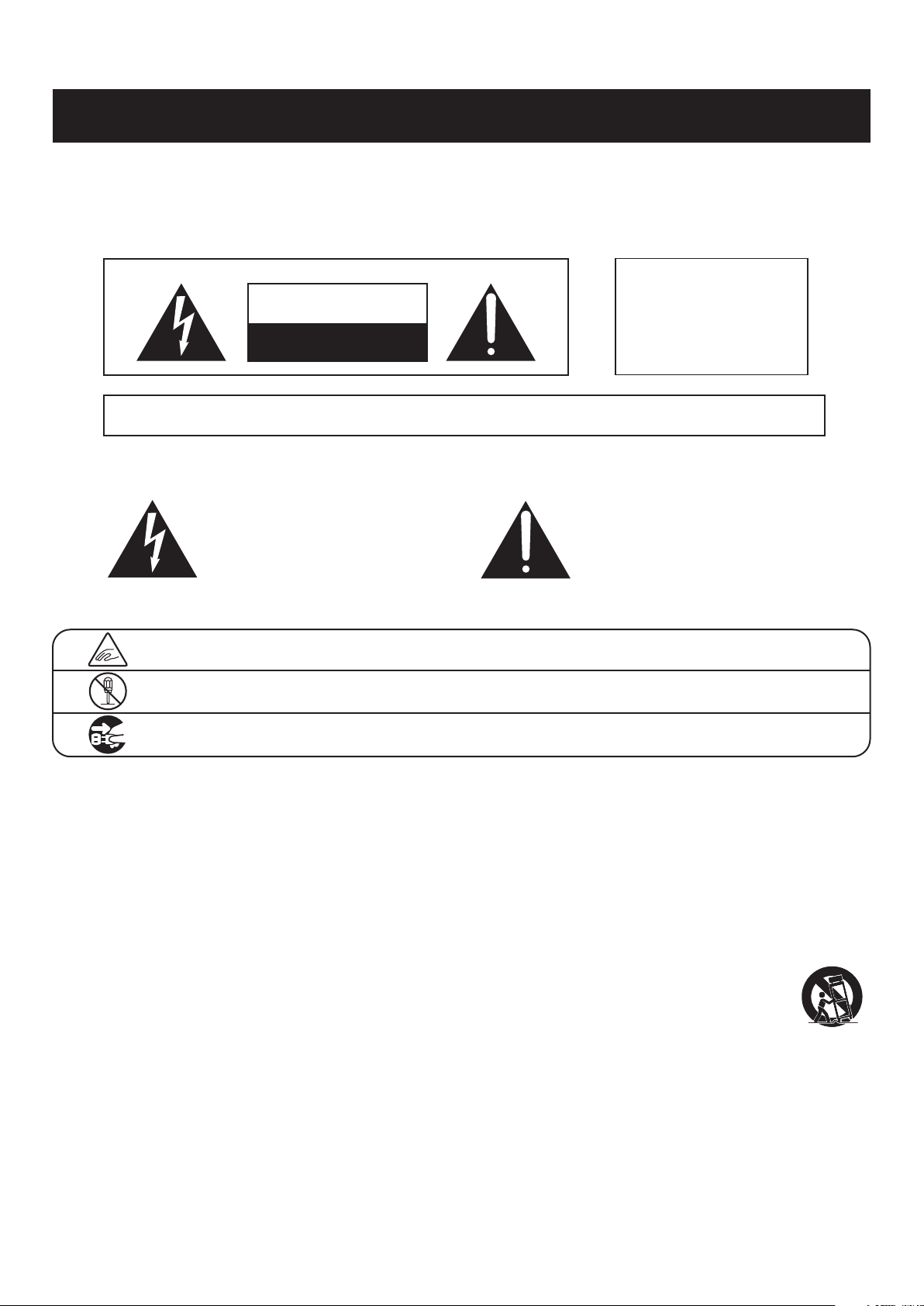
Important Safety Instructions
denotes that care should be taken.
The example instructs the user to take care not to allow ngers to be trapped.
denotes a prohibited operation.
The example instructs that disassembly of the product is prohibited.
denotes an operation that should be carried out.
The example instructs the user to remove the power cord plug from the AC outlet.
Examples of Picture Symbols
Read all the instructions before using the product.
CAUTION
RISK OF ELECTRIC SHOCK
DO NOT OPEN
AVIS : RISQUE DE CHOC ELECTRIQUE - NE PAS OUVRIR.
TO REDUCE THE RISK OF ELECTRIC SHOCK, DO NOT REMOVE COVER (OR BACK).
NO USER-SERVICEABLE PARTS INSIDE. REFER SERVICING TO QUALIFIED SERVICE PERSONNEL.
The lighting ash with arrowhead symbol, within
an equilateral triangle, is intended to alert the user
to the presence of uninsulated "dangerous
voltage" within the product's enclosure that may
be of sucient magnitude to constitute a risk of
electric shock to persons.
The exclamation point within an equilateral
triangle is intended to alert the user to the
presence of important operating and maintenance
(servicing) instructions in the leterature
accompanying the product.
WARNING
TO REDUCE THE RISK OF FIRE
OR ELECTRIC SHOCK, DO NOT
EXPOSE THIS PRODUCT TO
RAIN OR MOISTURE.
INSTRUCTIONS PERTAINING TO A RISK OF FIRE, ELECTRIC SHOCK, OR INJURY TO PERSONS
SAVE THESE INSTRUCTIONS
1) Read these instructions.
2) Keep these instructions.
3) Heed all warnings.
4) Follow all instructions.
5) Do not use this apparatus near water.
6) Clean only with dry cloth.
7) Do not block any ventilation openings. Install in
accordance with the manufacturer's instructions.
8) Do not install near any heat sources such as radiators,
heat registers, stoves, or other apparatus (including
ampliers) that produce heat.
9) Do not defeat the safety purpose of the polarized or
grounding-type plug. A polarized plug has two
blades with one wider than the other. A grounding
type plug has two blades and a third grounding
prong. The wide blade or the third prongs are
provided for your safety. If the provided plug does
not t into your outlet, consult an electrician for
replacement of the obsolete outlet.
10) Protect the power cord from being walked on or
pinched particularly at plugs, convenience
receptacles, and the point where they exit from the
apparatus.
11) Only use attachments/accessories specied by the
manufacturer.
12) Use only with the cart, stand, tripod, bracket, or table
specied by the manufacturer, or
sold with the apparatus. When a cart is used,
use caution when moving the cart/apparatus
combination to avoid injury from tip-over.
13) Unplug this apparatus during lightning storms or
when unused for long periods of time.
14) Refer all servicing to qualied service personnel.
Servicing is required when the apparatus has been
damaged in any way, such as power-supply cord or
plug is damaged, liquid has been spilled or object
have fallen into the apparatus, the apparatus has
been exposed to rain or moisture, does not operate
normally, or has been dropped.
WARNING
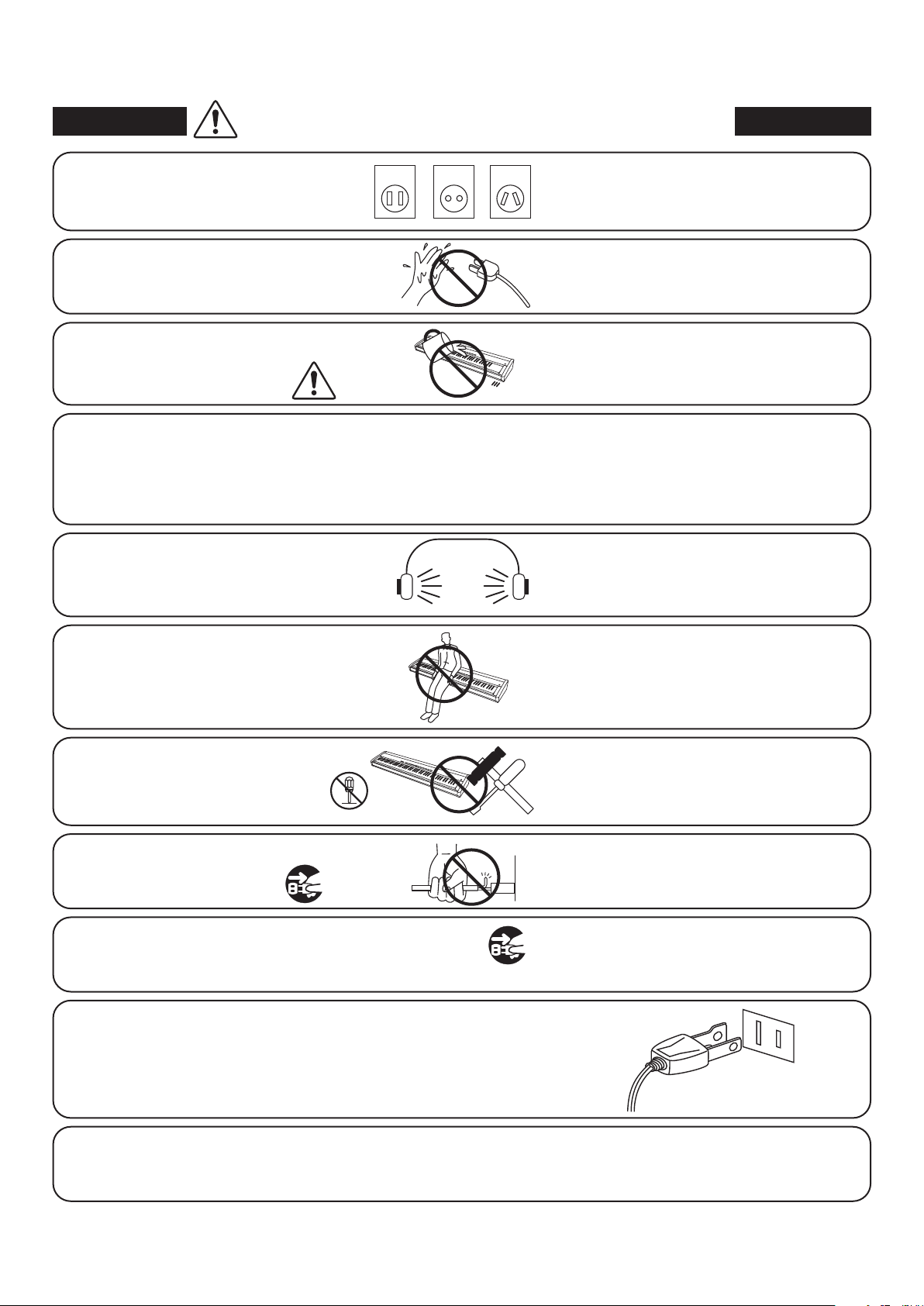
The product should be connected to
an AC outlet of the specied voltage.
● If you are going to use an AC power cord,
make sure that its has the correct plug shape
and conforms to the specied power voltage.
● Failure to do so may result in re.
120V 240V230V
Indicates a potential hazard that could result in death or
serious injury if the product is handled incorrectly.
Do not insert or disconnect the power
cord plug with wet hands.
Doing so may cause electric shock.
WARNING - When using electric products, basic precautions should always be followed, including the following.
The product is not completely disconnected from the
power supply even when the power switch is turned
o. If the product will not be used for a long time,
unplug the AC power cord from the AC outlet.
● Failure to do so may cause re in case of
lightning.
● Failure to do so may over-heat the product,
resulting in re.
Do not disassemble, repair or modify
the product.
Doing so may result in product breakdown, electric
shock or short-circuit.
This product may be equipped with a polarized line plug (one blade wider
than the other). This is a safety feature.
If you are unable to insert the plug into the outlet, contact an electrician to
replace your obsolete outlet.
Do not defeat the safety purpose of the plug.
When disconnecting the AC power cord's
plug, always hold the plug
and pull it to remove it.
● Pulling the AC power cord itself may damage
the cord, causing a re, electric shock or
short-circuit.
Doing so may cause the product to fall over,
resulting in injury.
Do not lean against the keyboard.
When using the headphones, do not
listen for long periods of
time at high volume levels.
Doing so may result in hearing problems.
It is a good practice to have the instrument near the AC outlet and the power cord plug in a position
so that it can readily be disconnected in an emergency because electricity is always charging
while the plug is in the AC outlet even in a power switch o condition.
The chair must be used properly (it must be
used only when playing the product).
● Do not play with it or stand on it.
● Only one person is allowed to sit on it.
● Do not sit on it when opening the lid.
● Re-tighten the bolts occasionally.
Doing so may cause the chair to fall over or your
ngers to be trapped, resulting in injury.
Entry of water, needles or hair pins may result
in breakdown or short-circuit.
The product shall not be exposed to dripping or
splashing. No objects lled with liquids, such as
vases, shall be placed on the product.
Take care not to allow any foreign
matter to enter the product.
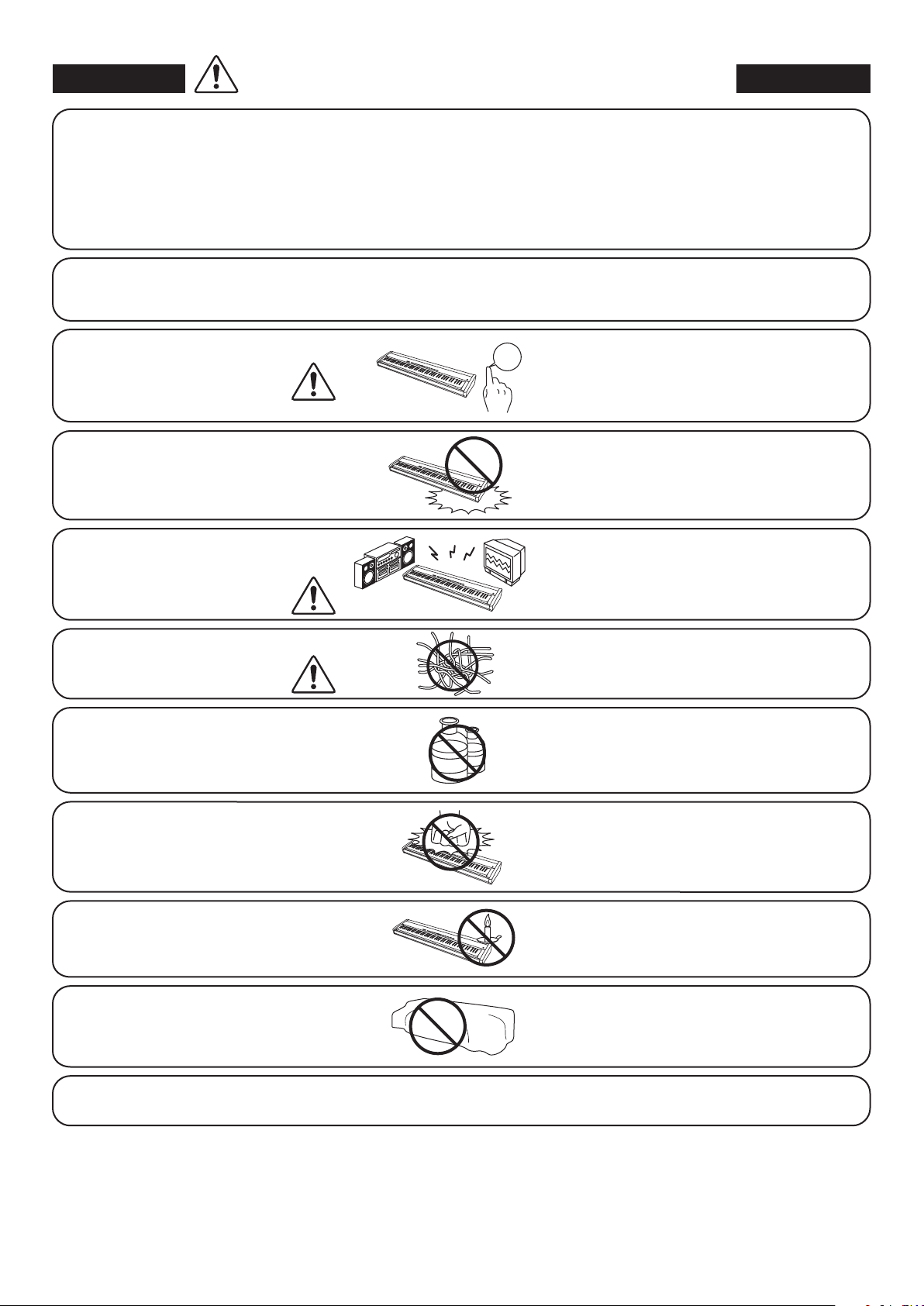
● Doing so may cause the product to become
deformed or fall over, resulting in breakdown
or injury.
Do not stand on the product or exert
excessive force.
● Doing so may result in discoloration or deformation
of the product.
● When cleaning the product, put a soft cloth in
lukewarm water, squeeze it well, then wipe the
product.
Do not wipe the product with benzene
or thinner.
Failure to do so may damage them, resulting in
re, electric shock or short-circuit.
When connecting the AC power cord
and other cords, take care
not to get them tangled.
● Doing so may cause the product to generate
noise.
● If the product generates noise, move the
product suciently away from the electrical
appliance or connect it to another AC outlet.
Do not place the product near electrical
appliances such as TVs and radios.
Please lift up the product when moving it.
Please note that the product is heavy and must
be carried by more than two persons.
Dropping the product may result in breakdown.
Do not drag the product on the oor.
Take care not to drop the product.
Doing so may cause the illumination to fall over,
resulting in re.
Do not place naked ame, such as lighted
candles on the product.
CAUTION
Indicates a potential hazard that could result in injury or
damage to the product or other property if the product
is handled incorrectly.
Using the product in such areas may result in
product breakdown.
Use the product only in moderate climates (not
in tropical climates).
Do not use the product in the following areas.
● Areas, such as those near windows, where the product is
exposed to direct sunlight
● Extremely hot areas, such as near a heater
● Extremely cold areas, such as outside
● Extremely humid areas
● Areas where a large amount of sand or dust is present
● Areas where the product is exposed to excessive
vibrations
Failure to do so may cause breakdown of this
product and other devices.
Before connecting cords, make sure
that the power to this product
and other devices is turned
OFF.
The product should be located so that its location or position does not interfere with its proper ventilation. Ensure a
minimum distance of 5cm around the product for sucient ventilation.
Failure to do so may over-heat the product,
resulting in re.
Ensure that the ventilation is not
impeded by covering the ventilation
openings with items, such as newspaper,
table-cloths, curtains, etc.
Use only the AC adaptor included with this instrument to power the instrument.
● Do not use other AC adaptors to power this instrument.
● Do not use the included AC adaptor or AC power cord to power other equipment.
OFF
The product should be serviced by qualied service personnel when:
• The power supply cord or the plug has been damaged.
• Objects have fallen, or liquid has been spilled into the product.
• The product has been exposed to rain.
• The product does not appear to operate normally or exhibits a marked change in performance.
• The product has been dropped, or the enclosure damaged.
Notes on Repair
Should an abnormality occur in the product, immediately turn the power OFF, disconnect the power cord plug, and then contact the
shop from which the product was purchased.
CAUTION:
To prevent electric shock, match wide blade of plug to wide slot, fully insert.
ATTENTION:
Pour éviter les chocs électriques, introduire la lame la plus large de la che dans la borne correspondante de la prise et pousser jusqu'au fond.
An information on Disposal for users
If your product is marked with this recycling symbol it means that, at the end of its life, you must dispose of it separately by
taking it to an appropriate collection point.
You should not mix it with general household waste. Disposing of this product correctly will prevent potential negative eects on
the environment and human health which could otherwise arise due to inappropriate waste handling.
For further details, please contact your local authority.
(European Union only)
Instruction for AC power cord (U.K.)
IMPORTANT
THE WIRES IN THIS MAINS LEAD ARE COLOURED IN ACCORDANCE WITH THE FOLLOWING CODE.
BLUE : NEUTRAL
BROWN : LIVE
As the colours of the wires in the mains lead of this apparatus may not correspond with the coloured markings identifying the terminals
in your plug, proceed as follows:
The wire which is coloured BLUE must be connected to the terminal which is marked with the letter N or coloured BLACK.
The wire which is coloured BROWN must be connected to the terminal which is marked with the letter L or coloured RED.
Do not plug either terminal of the power cord to the the ground od AC outlet on the wall.
FCC Information (U.S.A)
CAUTION : Changes or modications not expressly approved by the party responsible for compliance could void the user’s authority to
operate the equipment.
NOTE : This equipment has been tested and found to comply with the limits for a Class B digital device, pursuant to Part 15 of the FCC Rules.
These limits are designed to provide reasonable protection against harmful interference in a residential installation. This equipment
generates, uses and can radiate radio frequency energy and, if not installed and used in accordance with the instructions, may cause harmful
interference to radio communications. However, there is no guarantee that interference will not occur in a particular installation. If this
equipment does cause harmful interference to radio or television reception, which can be determined by turning the equipment o and on,
the user is encouraged to try to correct the interference by one or more of the following measures:
• Reorient or relocate the receiving antenna.
• Increase the separation between the equipment and receiver.
• Connect the equipment into an outlet on a circuit dierent from that to which the receiver is connected.
• Consult the dealer or an experienced radio/TV technician for help.
Declaration of Conformity
Products : Electronic Piano
Model Number : ES110
Responsible Party Name : Kawai America Corporation
Address : 2055 East University Drive Rancho
Dominguez, CA 90220
Telephone 310-631-1771
This device complies with Part 15 of the FCC Rules.
Operation is subject to the following two conditions:
(1) this device may not cause harmful interference, and
(2) this device must accept any interference received,
including interference that may cause undesired operation.
This applies only to products distributed by Kawai America Corporation.
About Bluetooth
• The Bluetooth® word mark and logos are registered trademarks owned by the Bluetooth SIG, Inc. and any
use of such marks by Kawai Musical Instruments Mfg. Co., Ltd. is under license. Other trademarks and trade
names are those of their respective owners.
• Frequency Band of Radio: 2400~2483.5 MHz Maximum Transmit Power: 2.5 mW
• Availability of Bluetooth function dependent on market location.
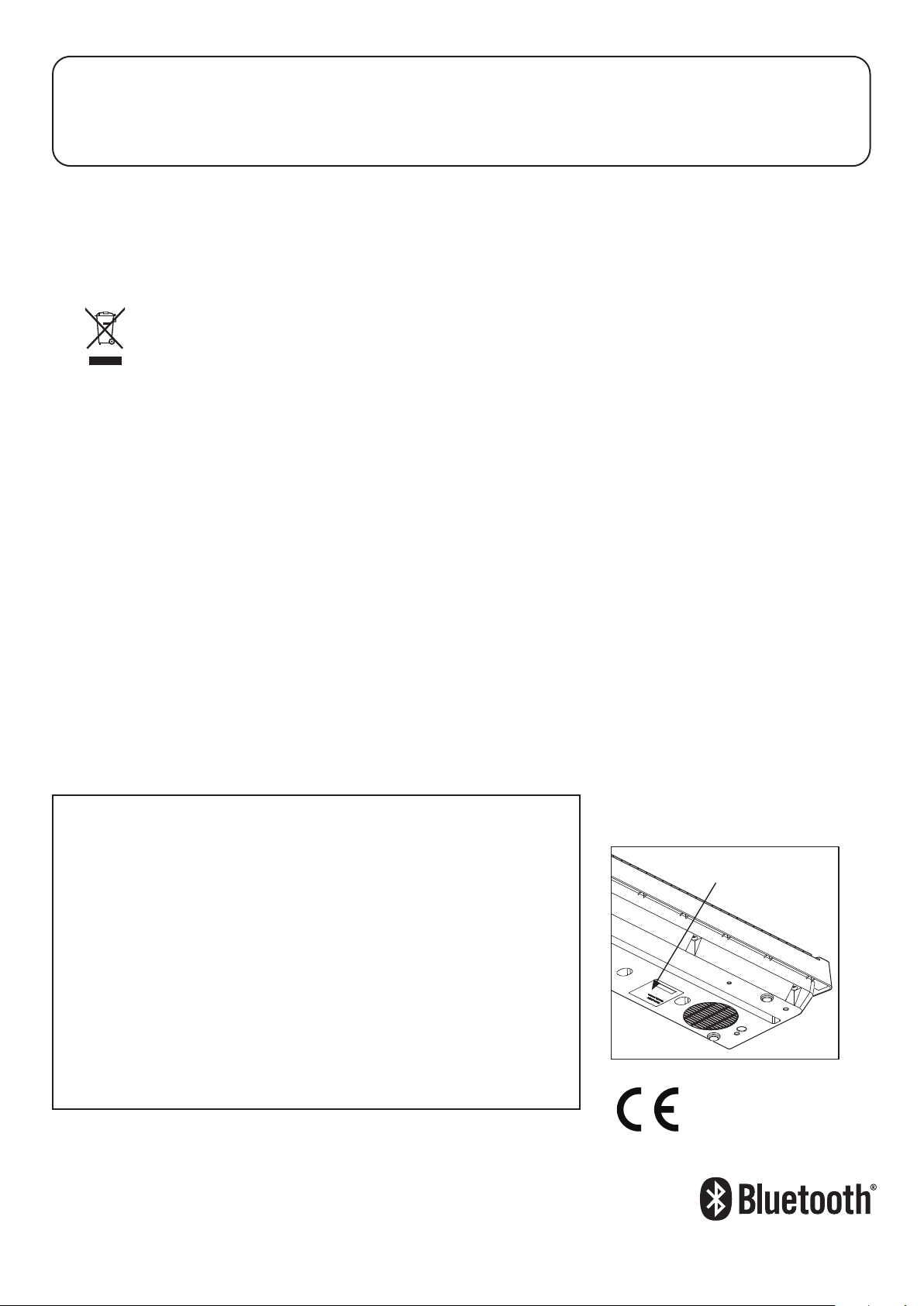
Nameplate
The nameplate label is located on
the underside of the instrument, as
indicated below.

8
Table of Contents
Important Safety Instructions ................4
Table of Contents ...........................8
Preface .....................................9
Preparation Before Use
Part Names and Functions ..................10
Setting Up the Piano .......................11
Basic Operation ............................12
Playing the Piano
Selecting Sounds ..........................13
Dual Mode .................................15
Split Mode .................................16
Metronome / Drum Rhythms ...............17
Registration Memories .....................19
Internal Songs
Demo Songs ...............................20
Lesson Function ...........................21
1. Selecting a lesson book/song ..................21
2. Listening to the selected lesson song ......... 22
3. Practicing left and right-hand parts separately ... 23
Recorder
Recorder ..................................24
1. Recording a song ..............................24
2. Playing back a song .......................... 25
3. Erasing recorded songs ....................... 25
Settings
Keyboard and Sound Settings ..............26
1. Reverb ....................................... 27
2. Damper Resonance. . . . . . . . . . . . . . . . . . . . . . . . . . . 28
3. Voicing. . . . . . . . . . . . . . . . . . . . . . . . . . . . . . . . . . . . . . . 29
4. Fall-back Noise ............................... 30
5. Damper Noise .................................31
6. Transpose .................................... 32
7. Brilliance ..................................... 33
8. Touch ........................................ 34
9. Tuning ....................................... 35
10. Temperament ............................... 36
11. Temperament Key ............................37
12. Eect On/O ................................ 38
MIDI Settings ..............................39
1. Transmit MIDI Program Change ................41
2. MIDI Channel (transmit/receive) ...............42
3. Local Control ................................. 43
4. Multi-timbral Mode .......................... 44
Speaker Settings ...........................45
1. Speaker EQ ................................... 45
2. Speakers On/O .............................. 46
Other Settings .............................47
1. Auto Power O ................................47
2. Bluetooth® MIDI .............................. 48
Memory Functions .........................49
1. Startup Setting ............................... 49
2. Factory Reset. . . . . . . . . . . . . . . . . . . . . . . . . . . . . . . . . 49
Appendix
Connecting to Other Devices ...............50
Rear Connectors .................................51
Front Connectors ................................51
Troubleshooting ...........................52
Settings List ...............................53
Demo Song Lists ...........................54
Drum Rhythm List ..........................55
Lesson Function Song Lists .................56
Specications ..............................58
MIDI Implementation Chart .................59
Operation Guide ...........................61

9
Preface
About this Owner’s Manual
Before attempting to play this instrument, please read the Preparation Before Use section from page 10 of this owner’s manual.
This section explains the name and function of each part, how to connect the power cable, and how to turn on the power.
The Playing the Piano section (page 13) provides an overview of the instrument’s most commonly used functions, allowing
the ES110 digital piano to be enjoyed almost immediately after being connected, while the Internal Songs section (page 20)
includes information regarding the built-in demonstration songs, and Lesson function.
The Recorder section (page 24) provides instructions on how to record and play back pieces stored in the instrument’s internal
memory, and the Settings section (page 26) details the settings that can be used to adjust a number of sound and keyboard
characteristics, as well as basic MIDI functionality.
Finally, the Appendix section (page 50) includes listings for all demo, and Lesson function songs, a troubleshooting guide, MIDI
reference information, and full specication details.
ES110 Feature Highlights
Responsive Hammer Compact (RHC) weighted-key keyboard action
The new Responsive Hammer Compact (RHC) action has been developed to reproduce the distinctive touch of an acoustic
grand piano. The weight of the keyboard is appropriately graded to mirror the heavier bass and lighter treble hammers
of acoustic pianos, with a smooth matte texture applied to each black and white key for enhanced playability. As with
all Kawai digital piano keyboard actions, Responsive Hammer Compact utilises hammer velocity sensors, and features a
springless mechanism that delivers a smooth and natural piano playing experience.
Despite its lightweight, compact design, the RHC action allows experienced pianists to perform with condence, playing
fortissimo with power and certainty, while delicately controlling the softest, most gentle pianissimo passages.
Harmonic Imaging™ (HI) sound technology, 88-key piano sampling
The ES110 digital piano captures the beautiful sound of Kawai’s highly acclaimed hand-built concert grand piano, with
all 88 keys of this exceptional instrument meticulously recorded, analysed and faithfully reproduced using proprietary
Harmonic Imaging ™ technology. This unique process accurately recreates the broad dynamic range of the original grand
piano, aording pianists an extraordinary level of expressiveness ranging from the softest pianissimo to the strongest,
boldest fortissimo.
Additional reverberation eects that simulate the acoustic environment of a recital room, small room, or concert hall are
also applied, resulting in a rich, vibrant piano tone that delivers breathtaking realism and authenticity.
Internal Song recorder, Built-in Lesson Function
The ES110 digital piano features a three song recorder, allowing performances to be recorded to internal memory and
played back at the touch of a button. In addition, the convenient lesson feature allows aspiring pianists to learn the piano
using a built-in collection of etudes from Burgmüller and songs from the popular Alfred course books. The left and right
hand parts for each piece can be practiced separately, while adjusting the tempo allows more dicult passages to be
perfected.
Integrated Bluetooth® MIDI connectivity
In addition to standard MIDI jacks for connecting to other instruments, the ES110 digital piano also boasts integrated
Bluetooth MIDI technology that allows the instrument to communicate with supported smart devices wirelessly. Once
connected to a phone, tablet, or laptop, ES110 digital piano owners can enjoy a wide variety of exciting music-related
apps that enhance their learning and playing experience without additional cables.
* Availability of Bluetooth function dependent on market location.
10
Preparation Before Use
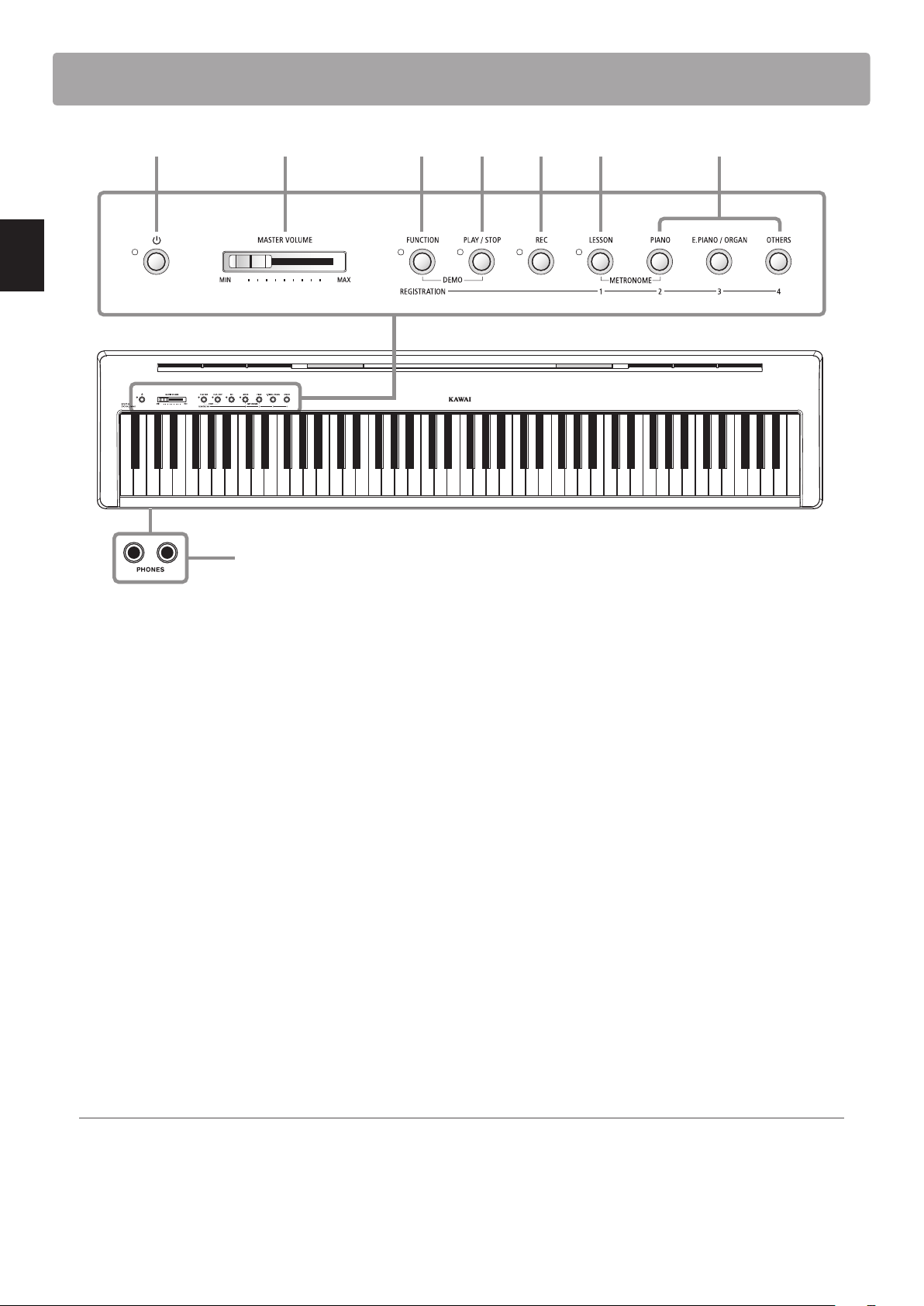
Part Names and Functions
a POWER button
This button is used to turn the instrument on/o.
* The ES110 digital piano features a power saving mode that can turn
o the instrument automatically after a specied period of inactivity.
For more information, please refer to the Auto Power O setting on
page 47.
b MASTER VOLUME slider
This slider controls the master volume level of the instrument’s
built-in speakers or headphones, if connected. This slider will
also adjust the LINE OUT level.
c FUNCTION button
This button allows various settings of the ES110 digital piano
to be adjusted.
d PLAY / STOP button
This button is used to start/stop the playback of Recorder
songs stored in memory and the ES110 digital piano’s built-in
Lessons songs.
e REC button
This button is used to record performances to the ES110 digital
piano’s internal memory.
f LESSON button
This button is used to select the ES110 digital piano’s built-in
Lesson songs.
g SOUND buttons
These buttons are used to select the sound(s) that will be
heard when playing the instrument’s keyboard.
These buttons are also used to select Registration memories.
h PHONES jacks
These jacks are used to connect stereo headphones to the
ES110 digital piano. Two pairs of headphones can be connected
and used simultaneously.
* For more information about connectors/jacks, please refer to page 51.
Operation Guide
The separate Operation Guide provides a convenient overview of the ES110 digital piano’s various button and keyboard controls.
This sheet is also reprinted in the Appendix section of this owner’s manual.
a b c d e f g
h
Preparation Before Use
11
Preparation Before Use
Setting Up the Piano
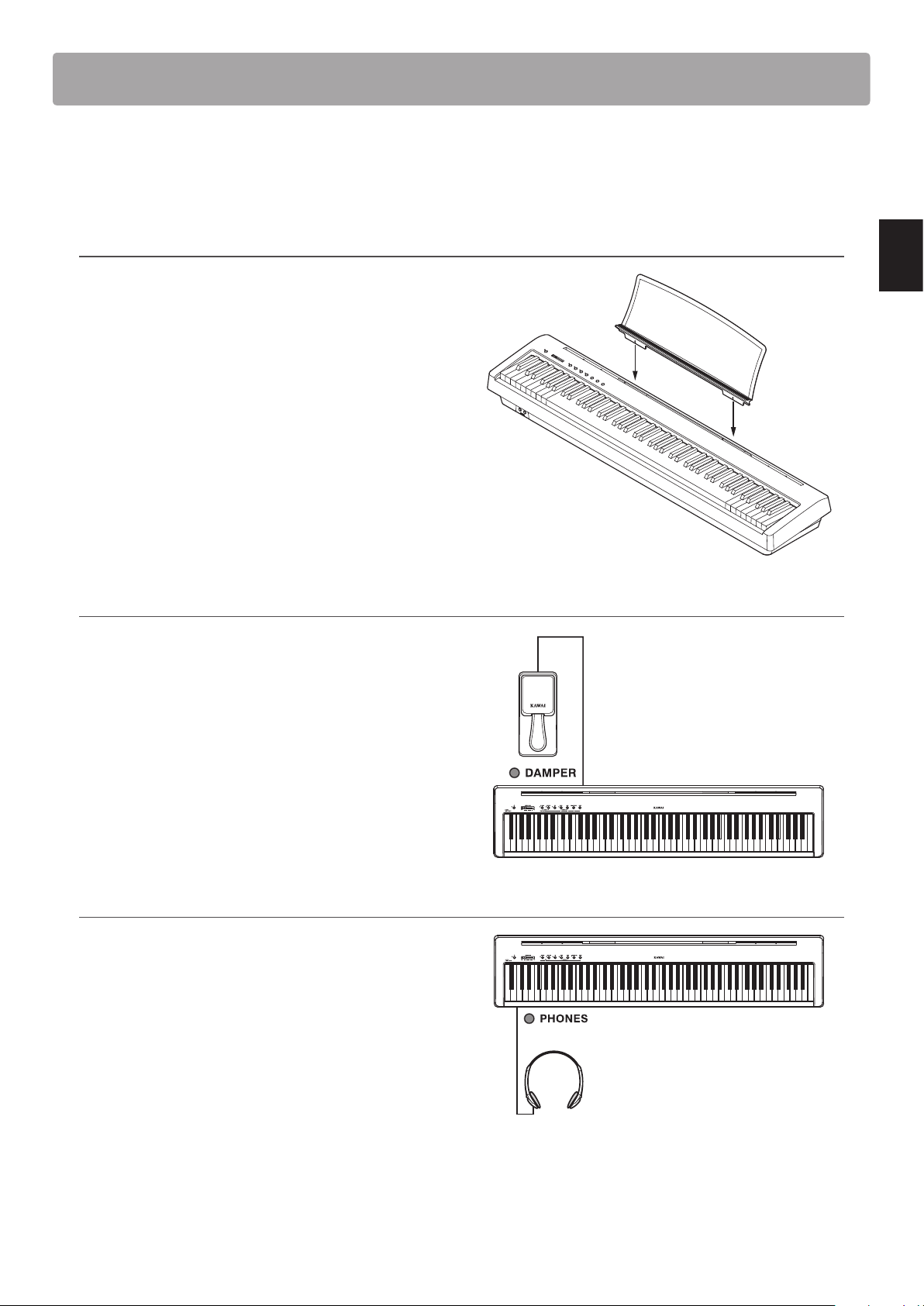
Upon unboxing the instrument, please follow the instructions below which explain how to attach the music
rest, connect the F-10H foot pedal, and if desired, connect a pair of headphones.
Attaching the music rest
Insert the legs of the music rest into the holes located at the
rear of the ES110 digital piano, taking care not to scratch the
rear of the instrument.
To prevent possible damage, avoid applying excessive force
when attaching/detaching the music rest from the instrument.
Connecting the F-10H foot pedal
Connect the included Kawai F-10H foot pedal to the DAMPER
pedal jack located on the rear panel of the instrument.
The foot pedal will function as a damper pedal, sustaining the
sound after hands are lifted from the keyboard. This pedal is
capable of responding to ‘half pedaling’.
Connecting headphones
Use the Phones jacks located on the left side of the keyboard
to connect stereo headphones to the ES110 digital piano.
Two pairs of headphones can be connected and used
simultaneously. When a pair of headphones is connected,
sound will not be produced by the built-in speakers.
* The built-in speakers can also be disabled by using the Speakers On/O
setting. For more information, please refer to page 46.
12
Preparation Before Use
Basic Operation
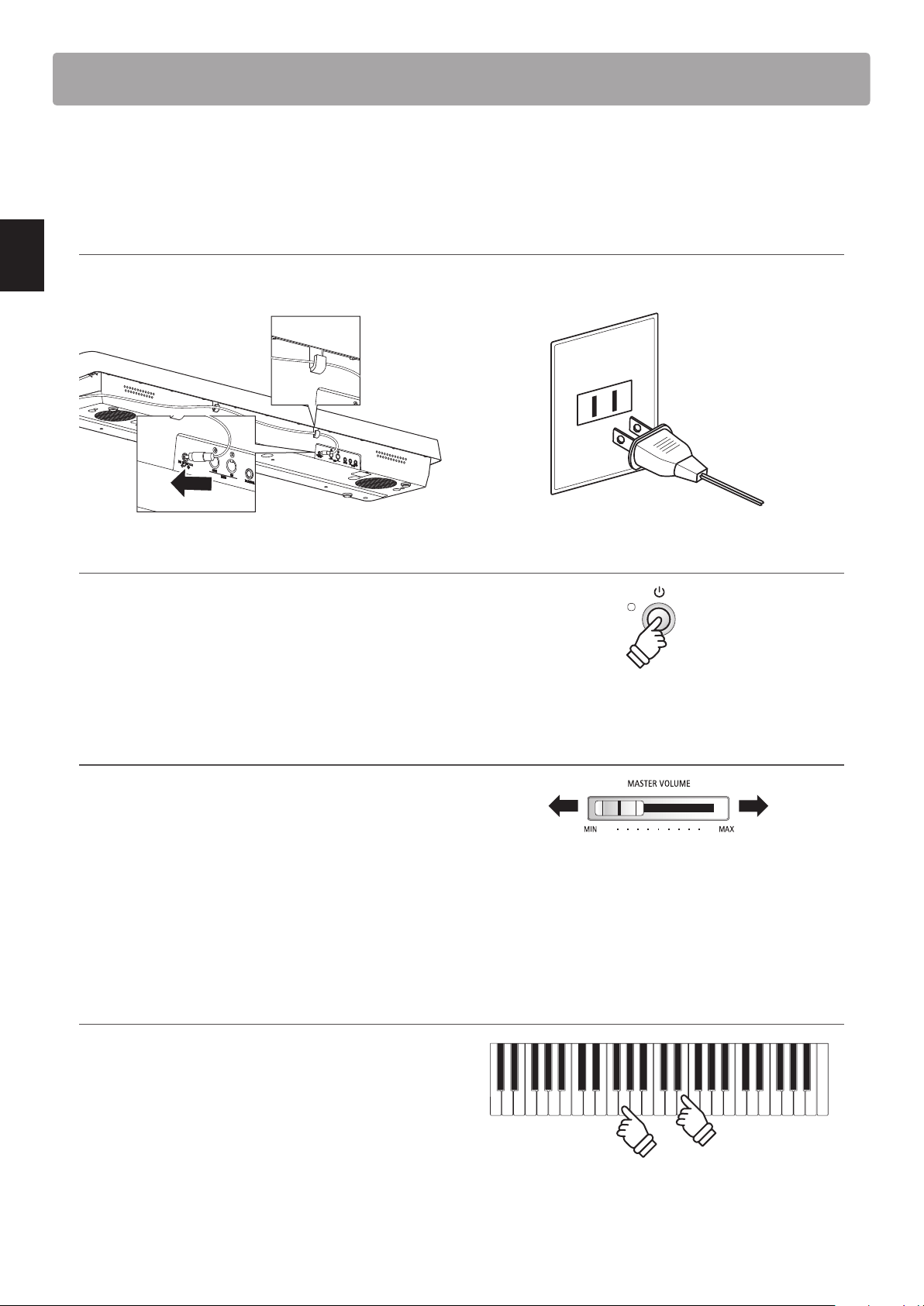
The following instructions explain how to connect the instrument to the power outlet, turn on the power,
adjust the volume to a comfortable level, and begin playing the piano.
1. Connecting the power adaptor
Connect the included AC power adaptor to the ‘DC IN’ jack
located on the rear panel of the instrument, indicated below.
2. Turning on the instrument’s power
Press the POWER button located on the left side of the
instrument’s control panel.
* The ES110 digital piano features a power saving mode that can turn o the
instrument automatically after a specied period of inactivity. For more
information, please refer to the Auto Power O setting on page 47.
3. Adjusting the volume
The MASTER VOLUME slider controls the volume level of the
instrument’s speakers, or headphones if connected. This slider
will also adjust the LINE OUT level.
Move the slider to the right to increase the volume, and to the
left to decrease the volume.
Use this slider to set the volume to a comfortable listening level
- the middle is often a good starting point.
4. Play the piano
Begin playing the piano.
The rich sound of a Kawai EX Concert Grand Piano will be
heard as the keys are pressed.
Connect the AC power adaptor to an AC outlet.
Left:
Decrease
volume
Right:
Increase
volume
13
Playing the Piano
Selecting Sounds
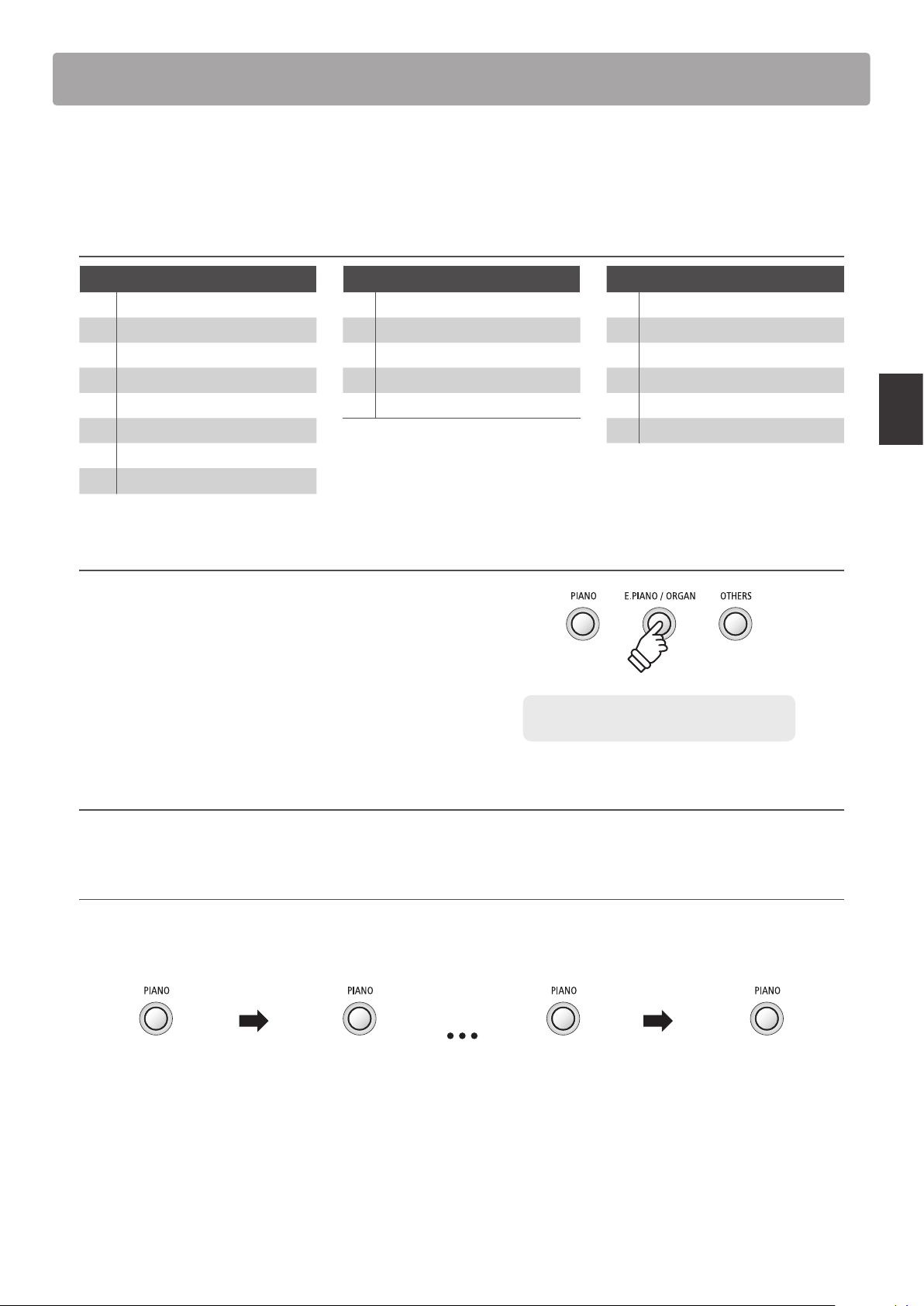
The ES110 digital piano features 19 dierent instrument sounds, which can be selected in one of two ways.
By default the ‘Concert Grand’ sound will be selected automatically when the instrument is turned on.
Instrument Sounds
PIANO E.PIANO / ORGAN OTHERS
1 Concert Grand 1 Classic E.Piano 1 Slow Strings
2 Concert Grand 2 2 60’s E.Piano 2 String Ensemble
3 Studio Grand 3 Modern E.Piano 3 Wood Bass
4 Studio Grand 2 4 Jazz Organ 4 Electric Bass
5 Mellow Grand 5 Church Organ 5 Harpsichord
6 Mellow Grand 2 6 Vibraphone
7 Modern Piano
8 Rock Piano
* When the Jazz Organ sound is selected, the fast/slow speed of the applied Rotary eect can be
changed by pressing the FUNCTION and REC buttons simultaneously.
1. Selecting a sound category
Press the desired SOUND button.
2. Selecting a sound
The ES110 digital piano allows two methods of selecting sounds.
Selecting a sound: Method 1
Press a SOUND button repeatedly to cycle through the instrument sounds.
[Power On]
Press once Press another
5 times
Press once again
Concert Grand Rock PianoConcert Grand 2 Modern Piano
Playing the Piano
Example: To select the E.PIANO category, press
the E.PIANO button.
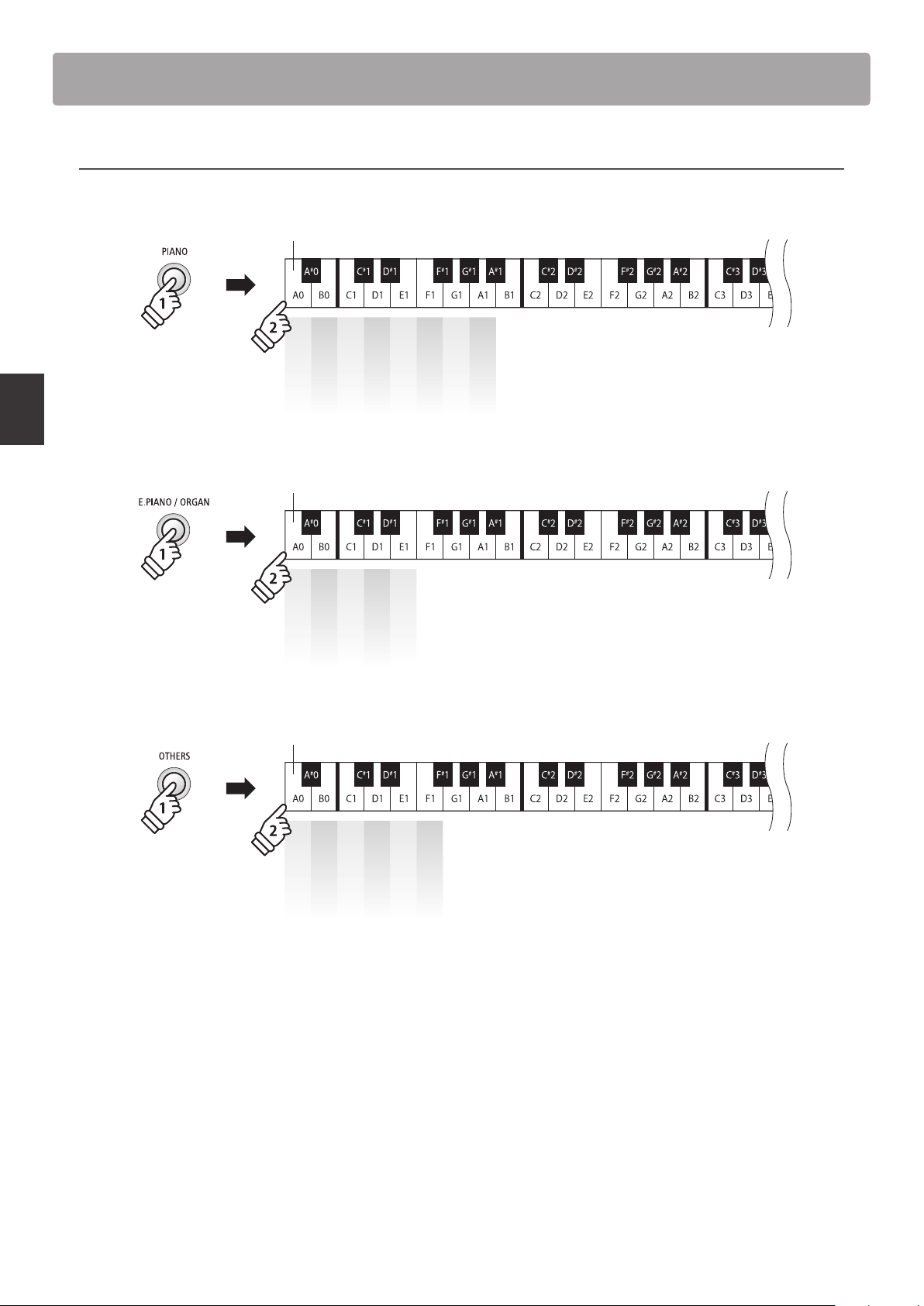
14
Playing the Piano
Selecting Sounds
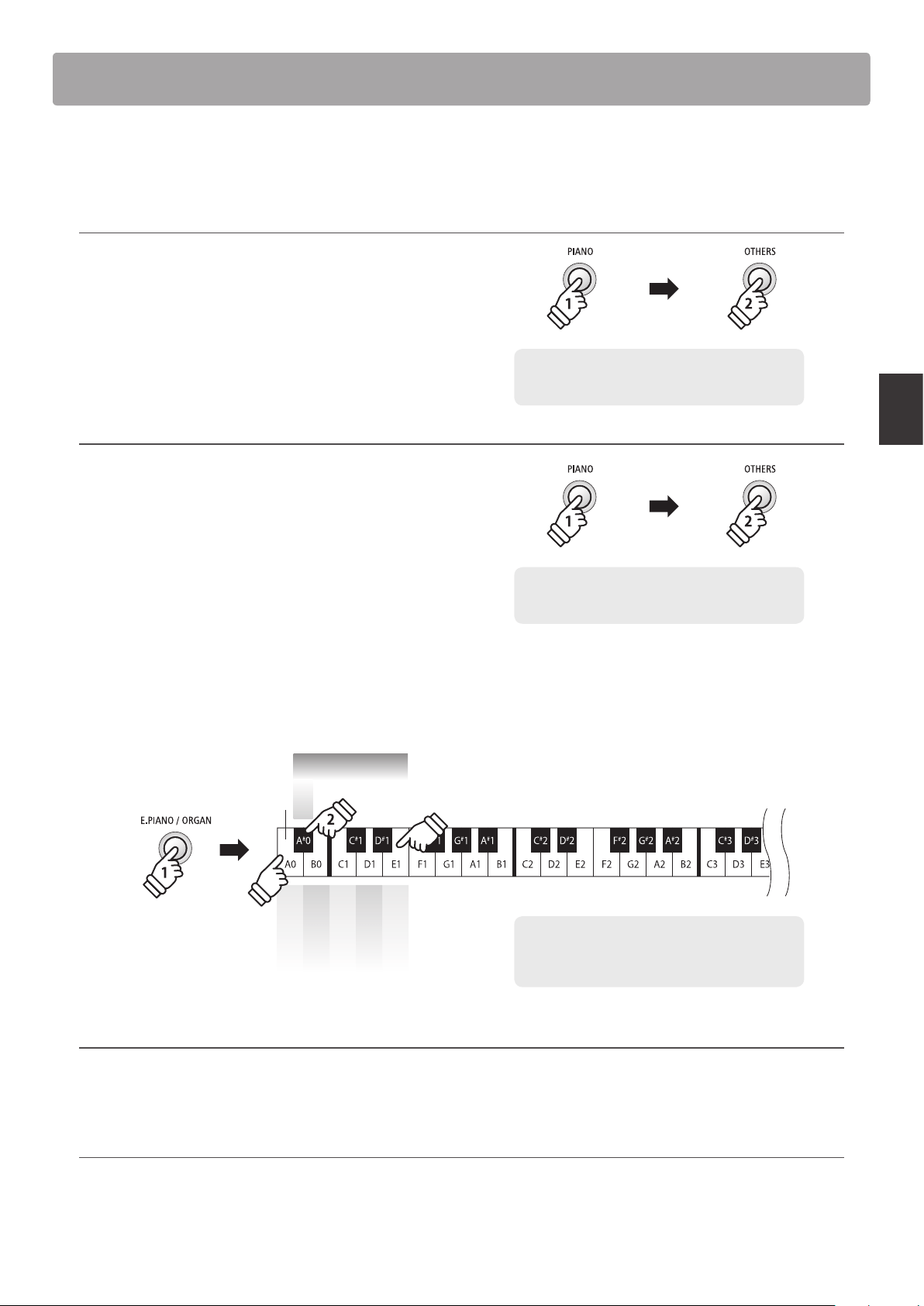
Selecting a sound: Method 2
Press and hold a SOUND button, then press one of the lowest white keys to select the desired instrument sound.
PIANO sounds
Concert Grand
Concert Grand 2
Studio Grand
Studio Grand 2
Mellow Grand
Mellow Grand 2
Modern Piano
Rock Piano
Lowest key
hold
E.PIANO / ORGAN sounds
Classic E.Piano
60’s E.Piano
Modern E.Piano
Jazz Organ
Church Organ
Lowest key
hold
OTHERS sounds
Slow Strings
String Ensemble
Wood Bass
Electric Bass
Harpsichord
Vibraphone
Lowest key
hold
15
Playing the Piano
The Dual Mode function allows two sounds to be layered together, creating a more complex sound.
For example, a piano sound layered with strings, or an electric piano combined with a harpsichord, etc.
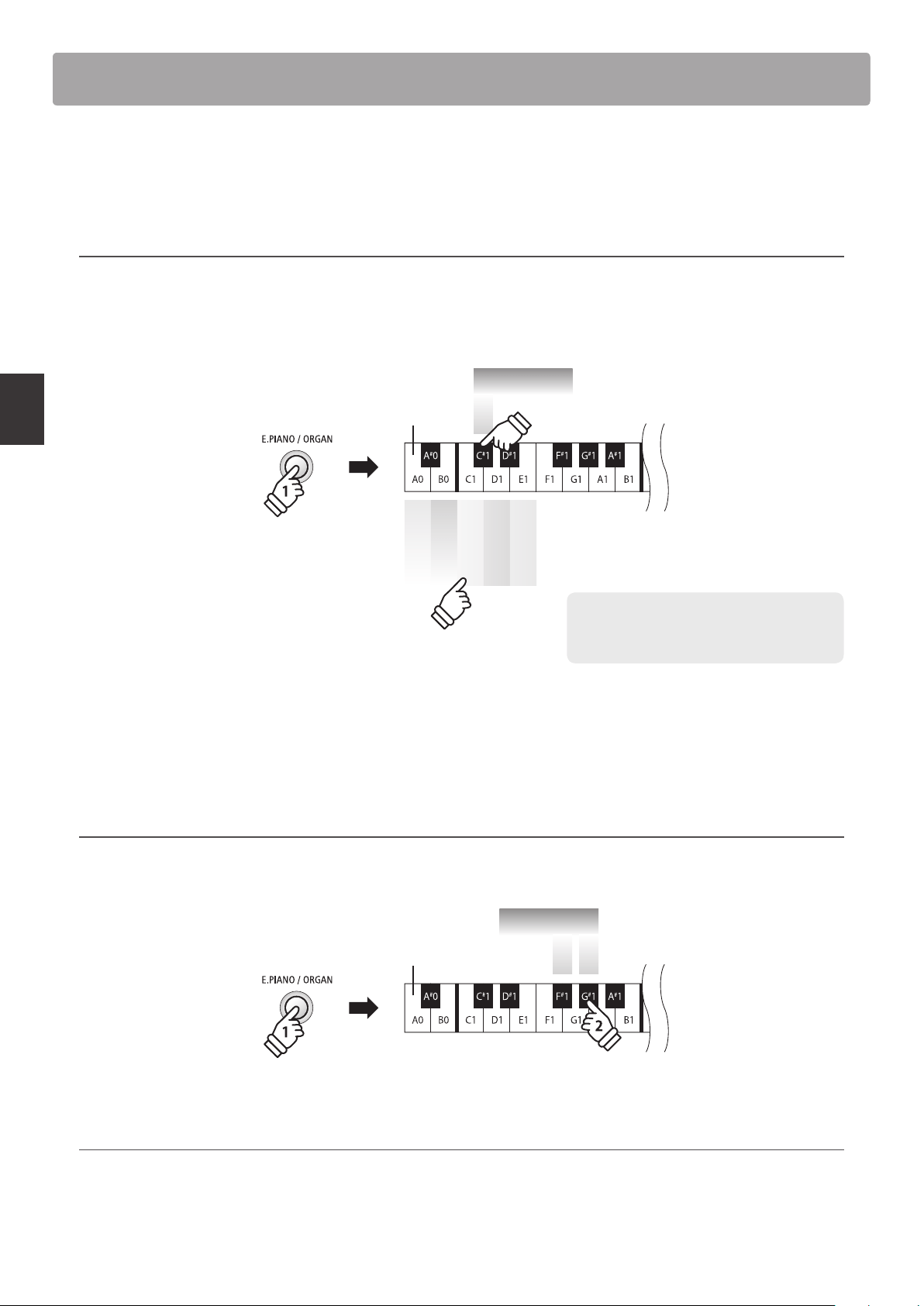
1. Entering Dual mode
Press and hold a SOUND button to select the main sound, then
press another SOUND button to select the layered sound.
* Preferred Dual mode sound combinations can be stored to a
Registration memory for convenient recall. Please refer to page 19
for more information.
2. Changing the main/layered sounds
To select a dierent variation for the layered sound:
Press and hold the main SOUND button, then press the layered
SOUND button repeatedly to cycle through the dierent
sound variations.
To layer two variations assigned to the same SOUND button:
Press and hold a SOUND button, then press the A#0 key to
enter Dual mode, then press two white keys to select the
desired instrument sounds.
Dual
Classic E.Piano
60’s E.Piano
Modern E.Piano
Jazz Organ
Church Organ
Lowest key
4
3
hold
Adjusting the volume balance
Press and hold a SOUND button, then press the F#1 or G#1 keys repeatedly to decrease or increase the volume balance
between the two sounds.
Exiting Dual Mode
Press a SOUND button.
The previously selected sound will be re-selected automatically and the instrument will return to normal operation.
Dual Mode
Example: To layer the ‘Slow Strings’ sound with the
‘Concert Grand’ sound, press and hold the PIANO
button, then press the OTHERS button.
Example: To change the layered ‘Slow Strings’ sound
to the ‘String Ensemble’ sound, press and hold the
PIANO button, then press the OTHERS button twice.
Example: To layer the ‘Classic E.Piano’ sound with the
‘Church Organ’ sound, press and hold the E.PIANO/
ORGAN button, then press the A#0 key, then the A0
and E1 keys.
hold
hold
×2
16
Playing the Piano
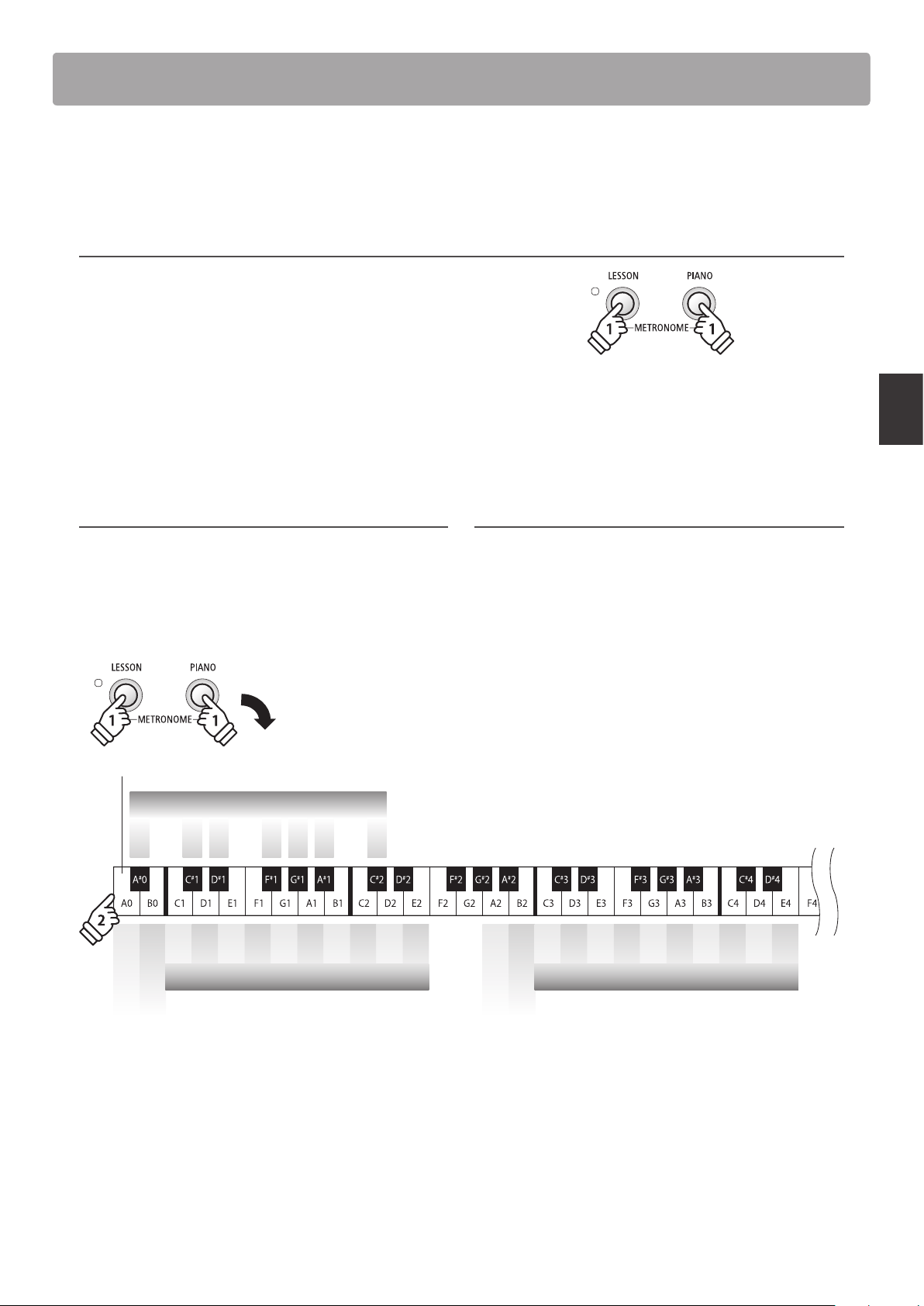
The Split Mode function divides the keyboard into two sections, allowing each section to be played with a
dierent sound. For example, a bass sound in the lower section, and a piano sound in the upper section.
Selecting Split sounds
After selecting the main (upper section) sound:
Press and hold a SOUND button, then press the C#1 key to enter Split mode, then press a white key to select the desired lower
section sound.
Classic E.Piano
60’s E.Piano
Modern E.Piano
Jazz Organ
Church Organ
Lowest key
hold
Split
3
hold
2
* The split point is xed between keys F#3 and G3.
* If a lower section sound is not specied, the ‘Wood Bass’ sound will be selected automatically.
* Preferred Split mode sound combinations can be stored to a Registration memory for convenient recall. Please refer to page 19 for more information.
Adjusting the volume balance
Press and hold a SOUND button, then press the F#1 or G#1 keys repeatedly to decrease or increase the volume balance between
the two sounds.
Lowest key
hold
Split Balance
+–
Exiting Split Mode
Press a SOUND button.
The previously selected sound will be re-selected automatically and the instrument will return to normal operation.
Split Mode
Example: To select the Modern E.Piano sound as
the lower section split sound, press and hold the
E.PIANO/ORGAN button, then press the C#1 key,
followed by the C1 key.
17
Playing the Piano
Metronome / Drum Rhythms
The Metronome function provides a steady beat to aid practicing the piano at a consistent tempo.
The time signature, volume, and tempo of the metronome can be freely adjusted.
Turning the metronome on/o
Press and hold the LESSON button, then press the PIANO button.
The metronome will start to count.
* By default the metronome will count with a 4/4 beat at 120 bpm.
Press and hold the LESSON button, then press the PIANO
button again to stop the metronome.
Changing the metronome time signature
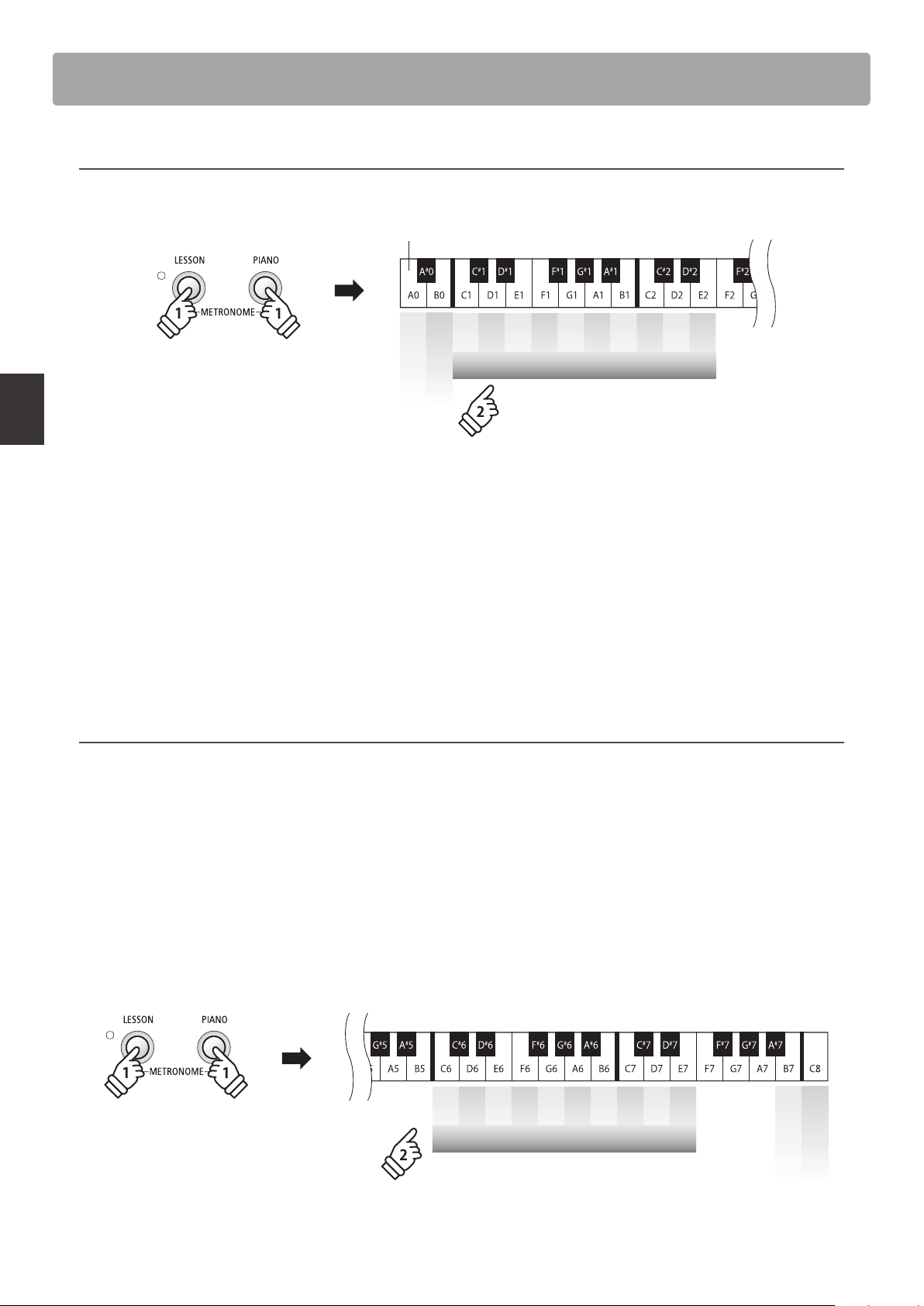
Press and hold the LESSON and PIANO buttons, then press one
of the 7 lowest black keys, as shown in the illustration below.
* The metronome can be set to one of seven time signatures:
1/4, 2/4, 3/4, 4/4, 5/4, 3/8, and 6/8.
Adjusting the metronome volume
Press and hold the LESSON and PIANO buttons, then press the
keys marked 1~10 in the illustration below.
* The - / + keys can also be used to decrease or increase the metronome
volume within the range of 1~10.
Tempo –
Tempo +
Volume –
Volume +
Time Signature
5/44/43/42/41/4 6/83/8
Lowest key
1 2 3 4 5 6 7 8 9 0
Metronome Tempo (2 or 3 digits)
1 2 3 4 5 6 7 8 9 10
Metronome Volume
hold
hold
18
Playing the Piano
Metronome / Drum Rhythms
Adjusting the metronome tempo
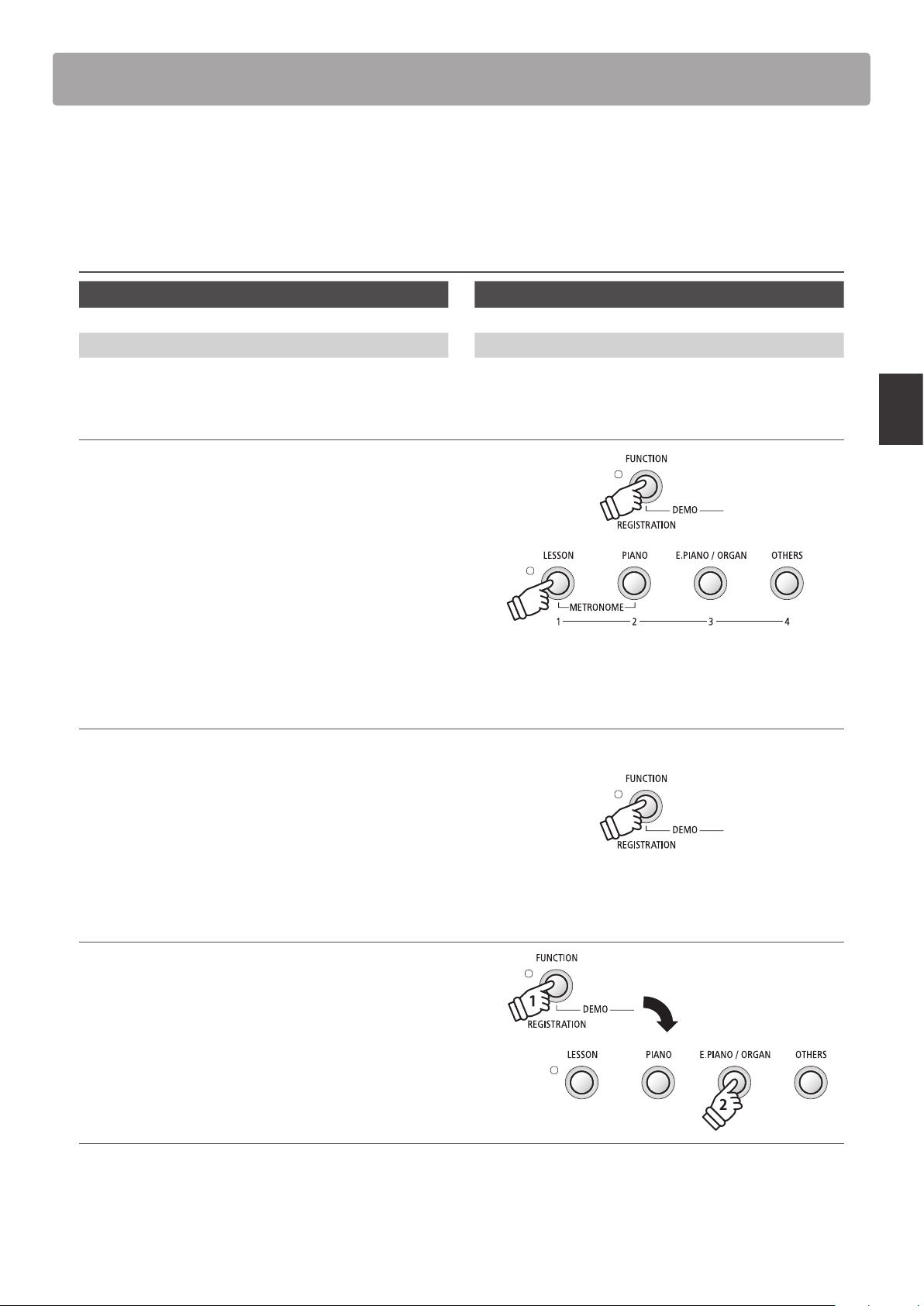
Press and hold the LESSON and PIANO buttons, enter the desired tempo using the lowest 12 keys marked below.
1 2 3 4 5 6 7 8 9 0
Metronome Tempo (2 or 3 digits)
Lowest key
Tempo –
Tempo +
hold
hold
* The metronome tempo can be adjusted within the range of 10~300 bpm.
* The metronome tempo can be entered precisely, or decreased and increased gradually.
Method 1:
While pressing the LESSON and PIANO buttons, press keys 1, 5, and 0 to set the tempo to 150 bpm, or keys 8 and 5 to set the tempo
to 85bpm.
* The tempo will change when the 3rd digit is entered, or when the LESSON and PIANO buttons are released.
Method 2:
While pressing the LESSON and PIANO buttons, press the - / + keys repeatedly to gradually decrease or increase the tempo in 2 bpm
increments.
Drum rhythms
As an alternative to the simple metronome count, it is also possible to select a drum pattern from one of 100 dierent rhythm
styles.
Method 1:
While pressing the LESSON and PIANO buttons, press keys 1, 5, to select rhythm no. 15.
* The drum pattern will change when the 3rd digit is entered, or when the LESSON and PIANO buttons are released.
Method 2:
While pressing the LESSON and PIANO buttons, press the - / + keys to cycle through the available beats until reaching the ‘8 Beat 1’
drum rhythm.
* For a complete listing of available drum rhythms, please refer to page 55 of this owner’s manual.
1 2 3 4 5 6 7 8 9 0
Rhythm Selection (2 or 3 digits)
Rhythm –
Rhythm +
hold
hold
19
Playing the Piano
Registration Memories
The Registration function allows the current instrument setup (sound, certain settings, etc.) to be stored to
a registration memory, and conveniently recalled at the touch of a button. Up to 4 dierent registration
memories can be stored.
Settings stored in Registration memories
General Settings
Selected sound Keyboard and Sound Settings *
Dual Mode / Split Mode (Sounds, Volume balance) Speaker EQ
* The Transpose setting will not be stored to Registration memories.
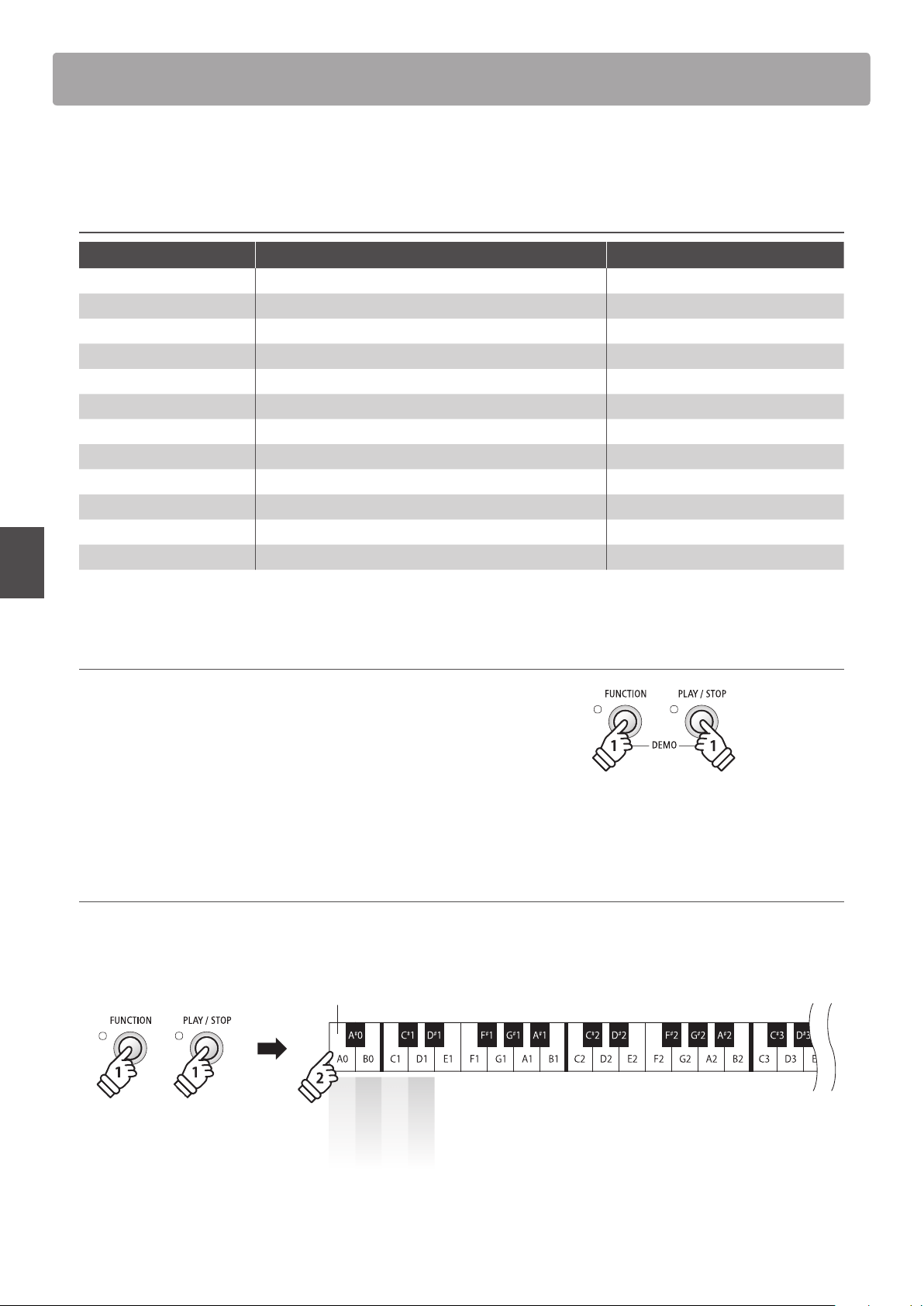
Selecting a Registration memory
Press the REGISTRATION button.
The LED indicator for the REGISTRATION button will turn on to
indicate that the registration function is in use.
Press the LESSON or SOUND buttons to select the desired
registration memory.
* The Metronome function will be disabled when using Registration mode.
Exiting Registration mode (restore previous settings)
To return to normal playing mode without selecting the
registration (i.e. restore the previous panel settings):
Press the REGISTRATION button.
The LED indicator for the REGISTRATION button will turn o,
and the instrument will return to normal playing mode.
Storing a Registration memory
Press and hold the REGISTRATION button, then press the
LESSON or a SOUND button.
The current instrument setup will be stored to the registration
memory assigned to the pressed LESSON or a SOUND button.
Resetting all Registration memories
Press and hold the FUNCTION and LESSON buttons, then turn
the instrument’s power o/on.
All registration memories will be reset to the factory default
settings.
hold
20
Internal Songs
Demo Songs
Internal Songs
The ES110 digital piano includes a selection of demonstration songs to introduce each internal sound.
Demo songs
Sound name Song name Composer
Concert Grand Suite Bergamasque I. Prélude C. Debussy
Concert Grand 2 Petit Chien F. F. Chopin
Studio Grand Original Kawai
Mellow Grand Sonata No.30 Op.109 L. v. Beethoven
Classic E.Piano Original Kawai
Modern E.Piano Original Kawai
Jazz Organ Original Kawai
Church Organ Chorale Prelude “Wachet auf, ruft uns die Stimme” J. S. Bach
Slow Strings Original Kawai
Electric Bass Original Kawai
Harpsichord French Suite No. 6 J. S. Bach
Vibraphone Original Kawai
* Kawai regrets that sheet music for Kawai original demo songs is not available.
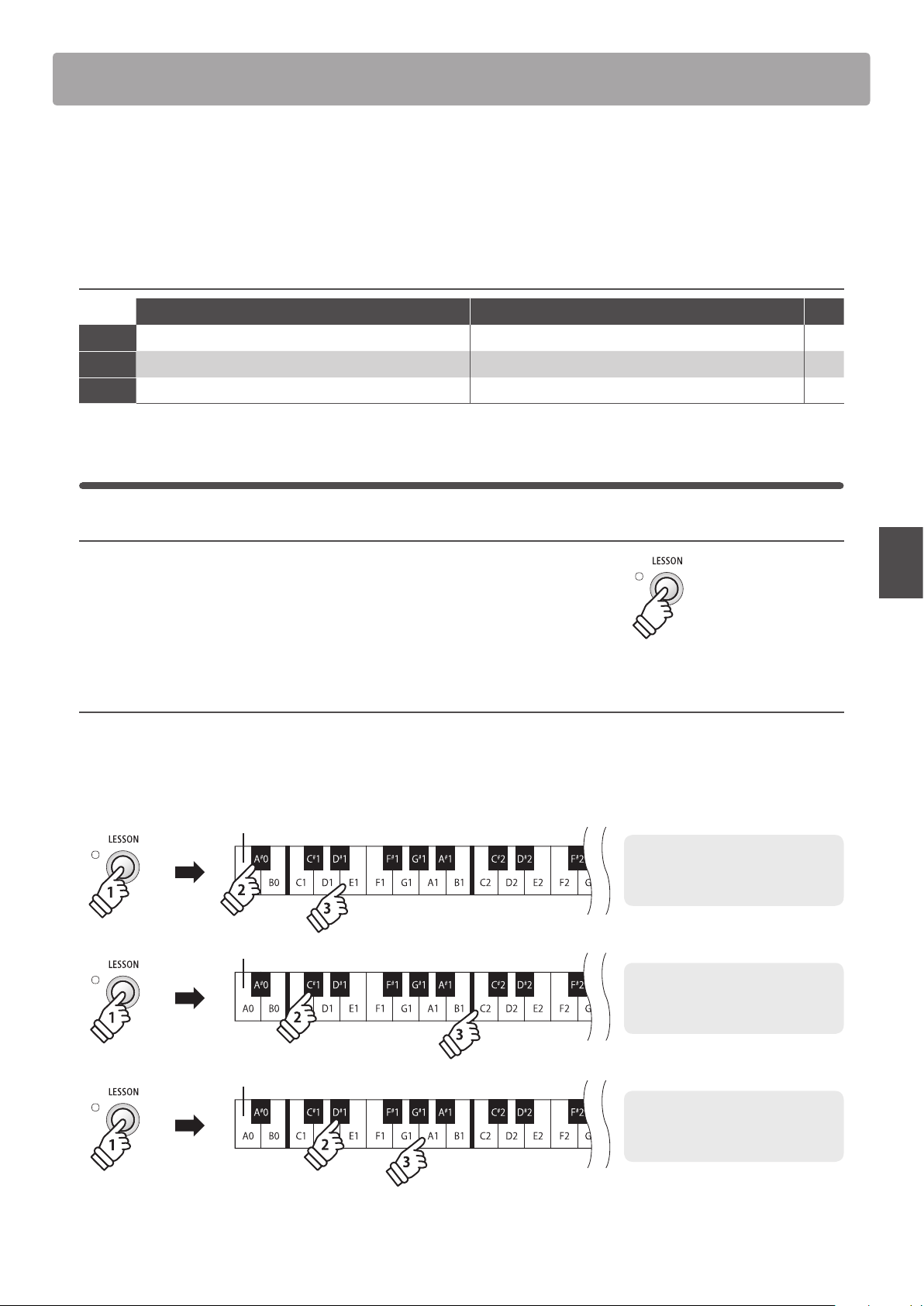
1. Playing the demo songs
Press the FUNCTION and PLAY / STOP buttons.
The LED indicators for the FUNCTION and PLAY / STOP buttons
will start to ash and the Concert Grand demo song will start
to play.
Press the FUNCTION and PLAY / STOP buttons again to stop
the demo.
2. Selecting a demo song
While the demo is playing:
Press and hold the FUNCTION and PLAY / STOP buttons, then press the white key assigned to the desired demo song.
Concert Grand
Concert Grand 2
Studio Grand
Mellow Grand
……
Lowest key
hold
hold
* It is also possible to cycle through the dierent demo songs in each category by pressing a SOUND button.
21
Internal Songs
The Lesson function allows budding pianists to practice the piano using a selection of built-in song books.
The left and right hand parts for each piece can be practiced separately, while adjusting the tempo allows
dicult passages to be perfected.
* For a complete listing of available Lesson Function songs, please refer to page 56 of this owner’s manual.
Built-in lesson function song books
US, Canada, Australasia Rest of the World Key
Book 1
Alfred’s Basic Piano Library Lesson Book Level 1A Burgmüller 25 (25 Etudes Faciles, Opus 100) A#0
Book 2
Alfred’s Basic Piano Library Lesson Book Level 1B Alfred’s Basic Piano Library Lesson Book Level 1A C#1
Book 3
Burgmüller 25 (25 Etudes Faciles, Opus 100) Alfred’s Basic Piano Library Lesson Book Level 1B D#1
1
Selecting a lesson book/song
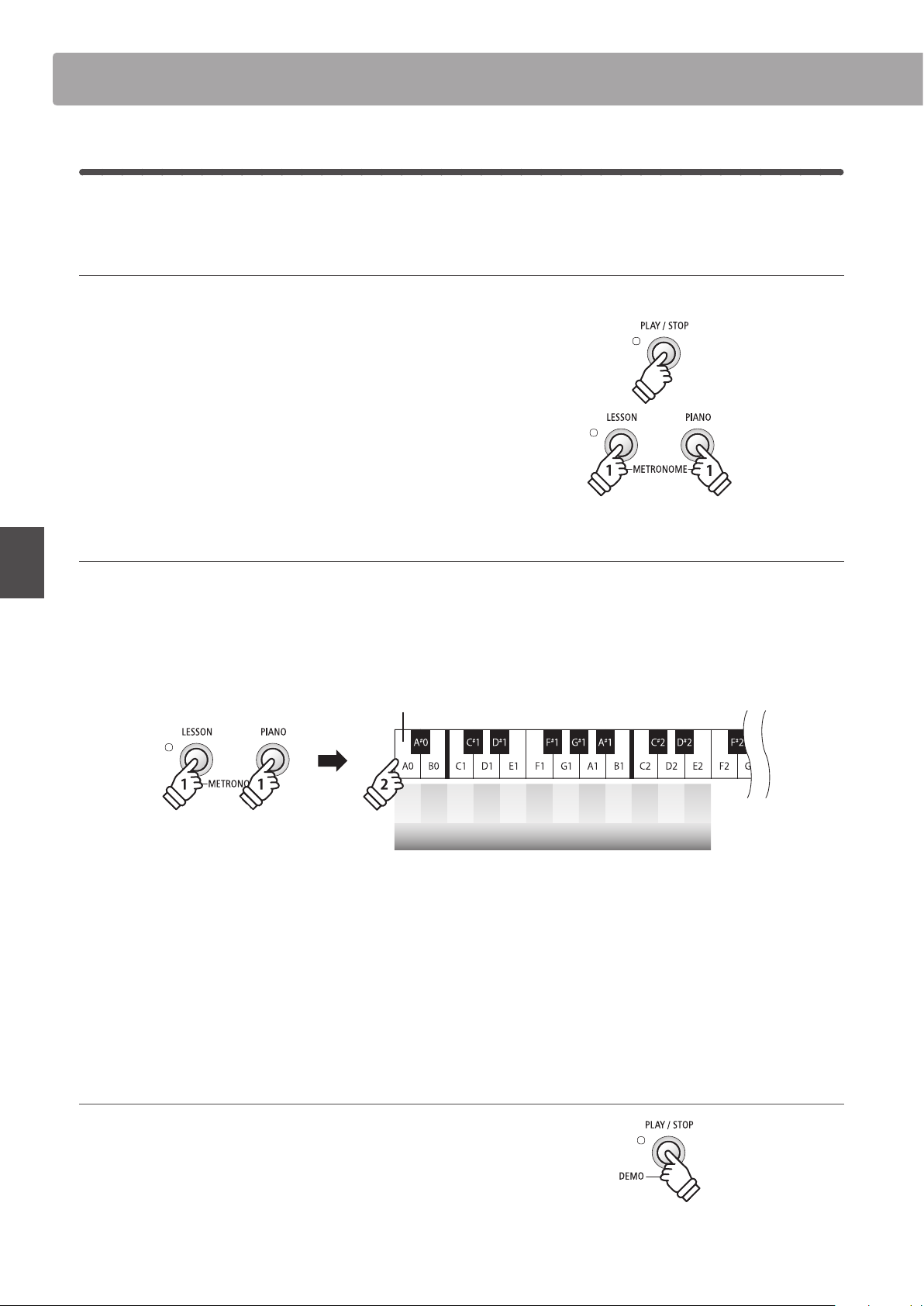
1. Entering lesson mode
Press the LESSON button.
The LED indicator for the LESSON button will turn on, indicating
that lesson mode is enabled, and the Concert Grand sound will
be selected automatically.
2. Selecting the lesson book and song
While lesson mode is selected:
Press and hold the LESSON button, then press the black key assigned to the desired lesson book, and nally press the white key
assigned to the desired lesson song.
Lesson Function
Lowest key
hold
Lowest key
hold
Lowest key
hold
Example: To select lesson song 5 from
book 1, press and hold the LESSON
button, then press the A#0 key, and
nally press the E1 key.
Example: To select lesson song 10 from
book 2, press and hold the LESSON
button, then press the C#1 key, and
nally press the C2 key.
Example: To select lesson song 8 from
book 3, press and hold the LESSON
button, then press the D#1 key, and
nally press the A1 key.
22
Internal Songs
Lesson Function
2
Listening to the selected lesson song
This page will explain how to play and stop the selected lesson song, and adjust the tempo.
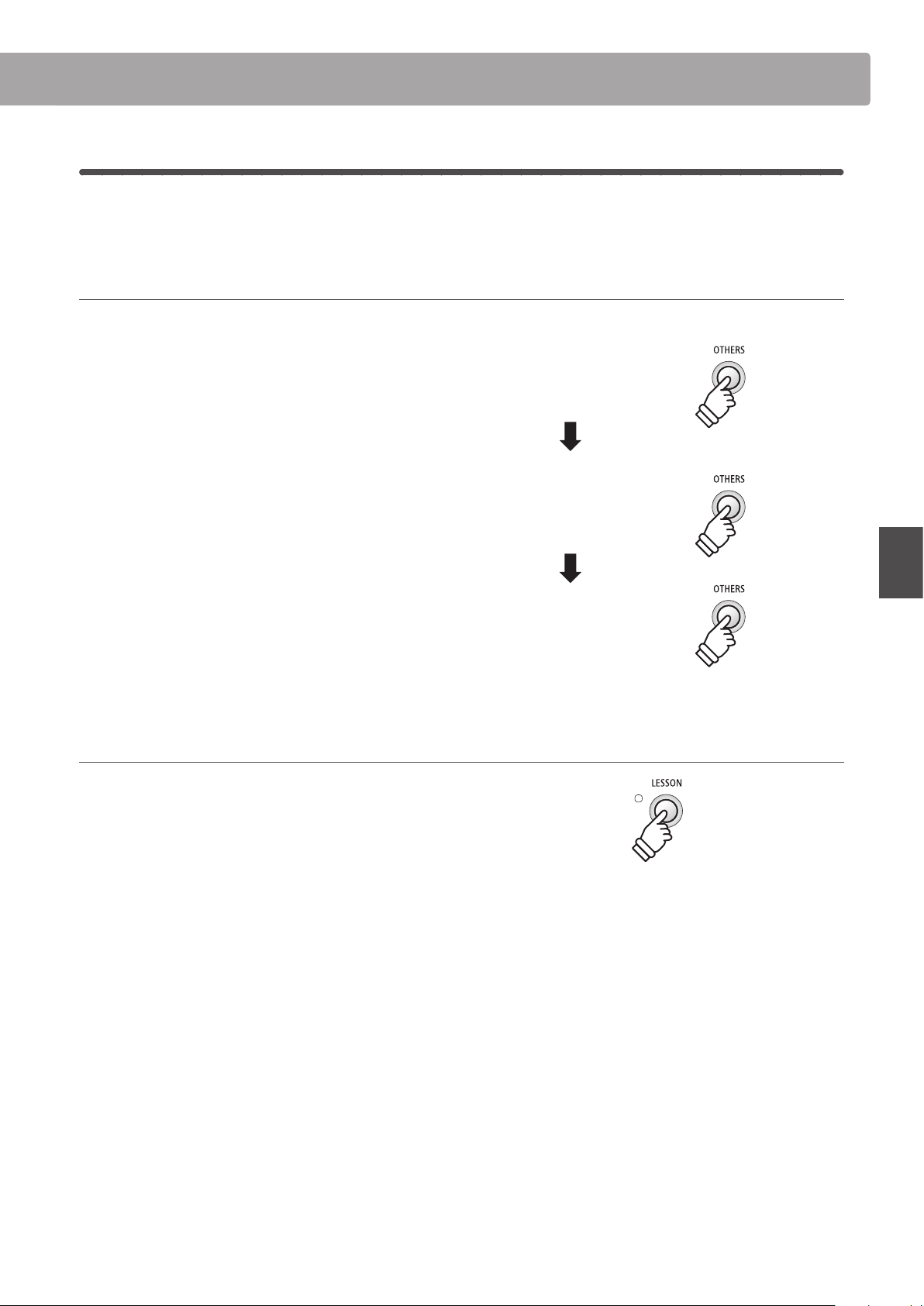
Playing the lesson song
After selecting a lesson book and song:
Press the PLAY / STOP button.
The LED indicator for the PLAY / STOP button will turn on, and
a one bar count-in will be heard before the song starts to play.
While the lesson song is playing, press the LESSON and PIANO
buttons to turn the metronome on/o.
* The metronome time signature and tempo will automatically be set to
that of the currently selected lesson song.
Adjusting tempo of the lesson song
While the lesson song is playing:
Press and hold the LESSON and PIANO buttons, enter the desired tempo using the lowest 12 white keys marked below.
* The lesson song tempo can be adjusted within the range of 10~300 bpm.
* The lesson song tempo can be entered precisely, or decreased and increased gradually.
– + 1 2 3 4 5 6 7 8 9 0
Lesson Song Tempo (2 or 3 digits)
Lowest key
hold
hold
Method 1:
While pressing the LESSON and PIANO buttons, press keys 1, 5, and 0 to set the tempo to 150 bpm, or keys 8 and 5 to set the tempo
to 85bpm.
* The tempo will change when the 3rd digit is entered, or when the LESSON and PIANO buttons are released.
Method 2:
While pressing the LESSON and PIANO buttons, press the - / + keys repeatedly to gradually decrease or increase the tempo in
2bpm increments.
Stopping the lesson song
While the lesson song is playing:
Press the PLAY / STOP button again to stop the lesson song.
The LED indicator for the PLAY / STOP button will turn o.
23
Internal Songs
Lesson Function
3
Practicing left and right-hand parts separately
This page will explain how to mute/activate the left and right-hand parts of the selected lesson song, allowing
each part to be practiced separately.
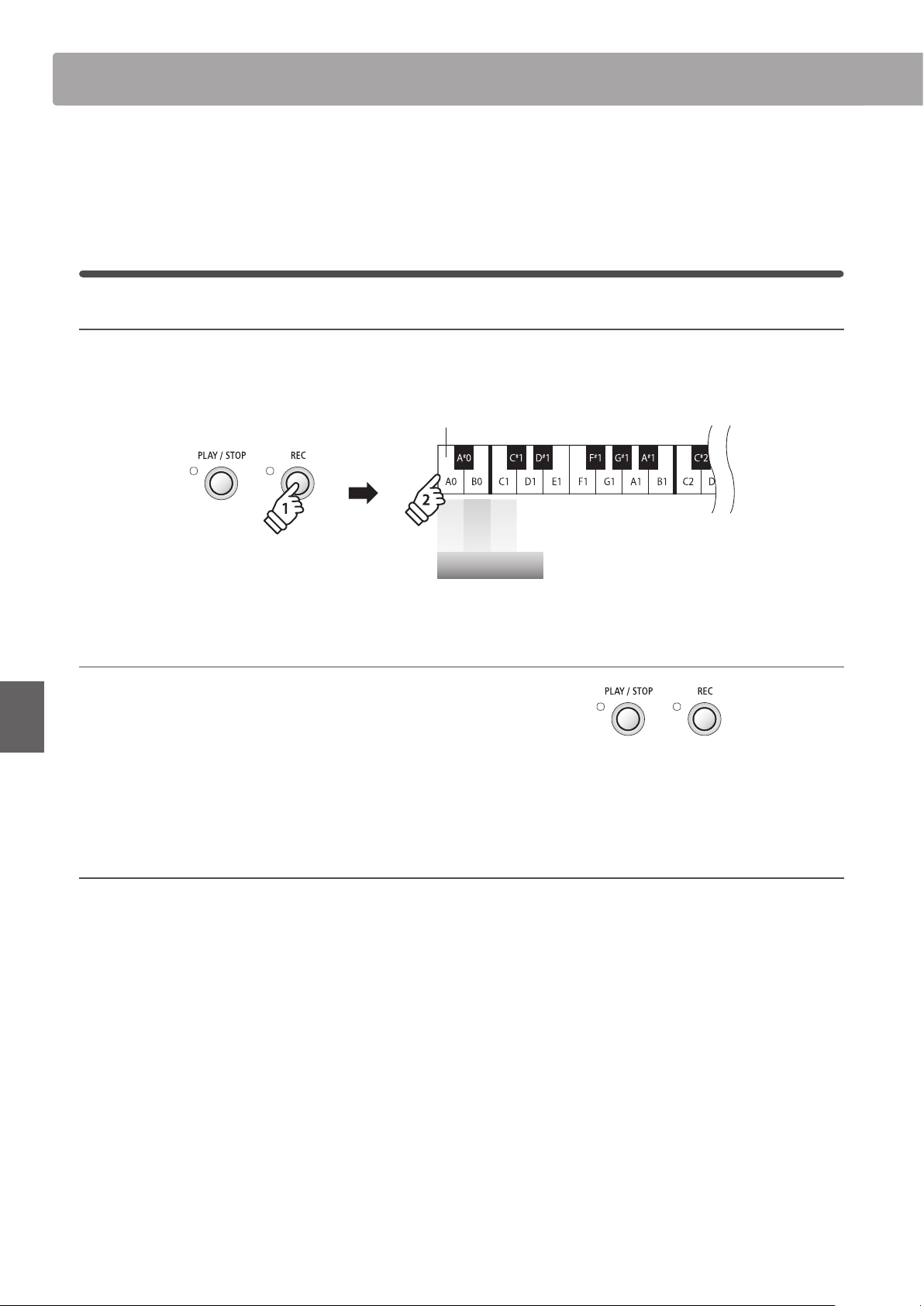
Muting/activating lesson song parts
After selecting a lesson book and song:
Press the OTHERS button.
Press the OTHERS button again.
Press the OTHERS button once again.
Exiting lesson mode
Press the LESSON button.
The LED indicator for the LESSON button will turn o, and the
instrument will return to normal operation.
Press once:
Left-hand only
Press twice:
Right-hand only
Press 3 times:
Left and Right-hand
24
Recorder
Recorder
The ES110 digital piano allows up to 3 dierent songs to be recorded, stored in internal memory, and played
back at the touch of a button.
1
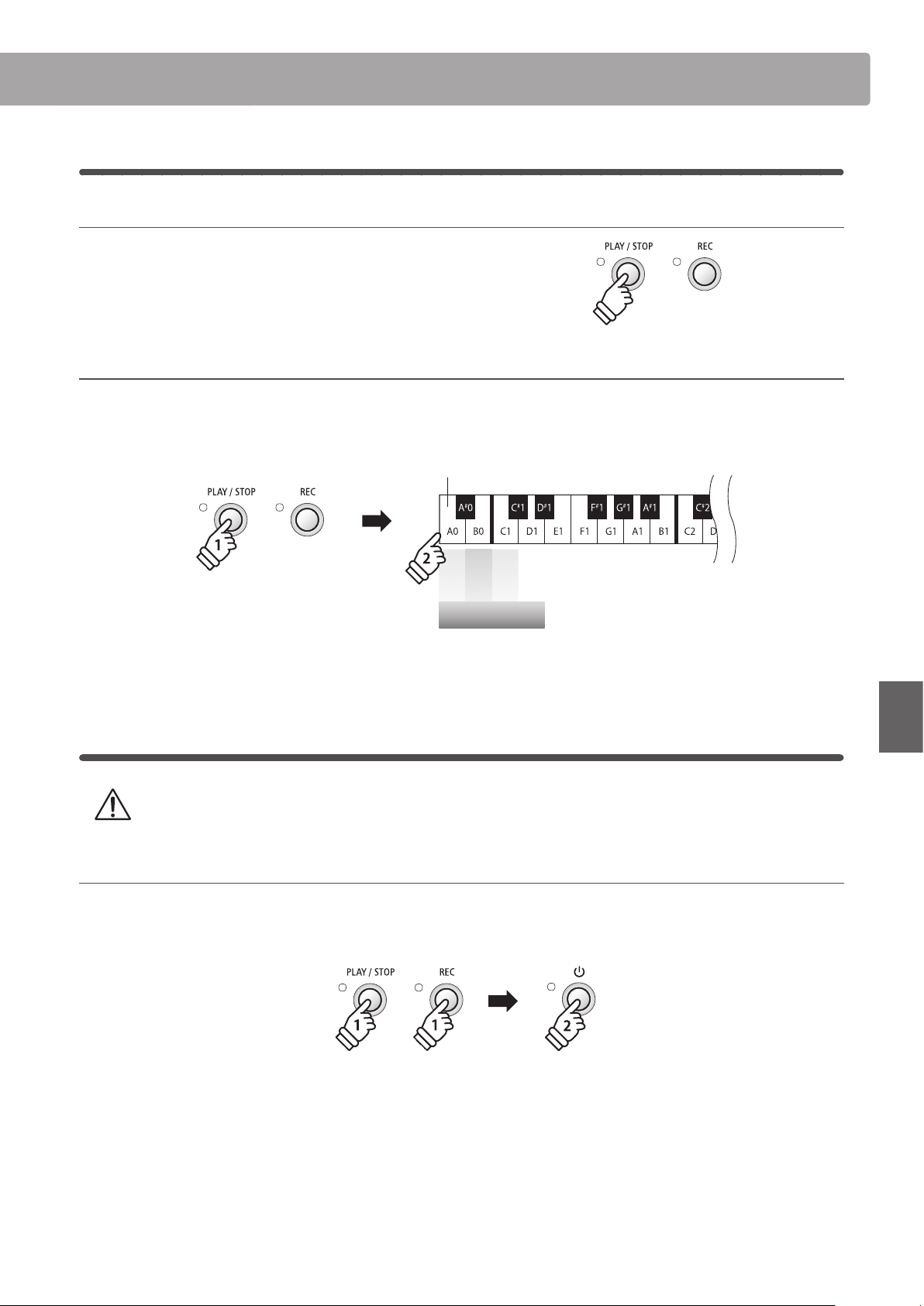
Recording a song
1. Selecting a song memory
Press and hold the REC button, then press one of the lowest three white keys to select the desired song memory.
* Selecting a song memory that has already been used to record a song will automatically erase the previously recorded song.
Song 1
Song 2
Song 3
Song Memory
Lowest key
hold
2. Starting the song recorder
Press a key on the keyboard.
The LED indicators for the REC and PLAY / STOP buttons will
turn on, and recording will start.
* Recording can also be started by pressing the PLAY / STOP button,
allowing a rest period or empty bar to be inserted at the beginning of
the song.
3. Stopping the song recorder
Press the PLAY / STOP button.
The LED indicators for the PLAY / STOP and REC buttons will ash briey, and the song will be stored in internal memory.
* Do not turn the power o while the song is saving to memory.
* The maximum recording capacity is approximately 15,000 notes, with button and pedal presses also counted as one note.
If the maximum recording capacity is reached during recording, the recorder will stop automatically.
* Recorder songs will remain in memory after the power is turned o.
Recorder
25
Recorder
Recorder
Recorder
2
Playing back a song
1. Playing the recorded song
Press the PLAY / STOP button.
The LED indicator for the PLAY / STOP button will turn on, and
the recorded song will start to play.
2. Playing a song stored in another memory
Press and hold the PLAY / STOP button, then press one of the lowest three white keys to play the desired song memory.
* The selected song will start to play when the PLAY / STOP button is released.
Song 1
Song 2
Song 3
Song Memory
Lowest key
hold
3
Erasing recorded songs
Warning: This process will erase all three songs stored in internal memory, and cannot be undone.
Erasing the recorder songs
Press and hold the PLAY / STOP and REC buttons simultaneously, then turn the instrument’s power o/on.
All recorder songs stored in memory will be erased.
hold
hold
26
Settings
Keyboard and Sound Settings
The ES110’s keyboard and sound settings allow various aspects of the instrument to be adjusted.
Keyboard and Sound Settings
Setting name Explanation Default setting
Reverb Change the type of reverberation added to the sound. Room
Damper Resonance Adjust the resonance that is heard when depressing the damper pedal. Medium
Voicing Adjust the tonal character of the instrument. Normal
Fall-back Noise Adjust the sound that is heard when the key action falls back. Normal
Damper Noise Adjust the sound that is heard when pressing the damper pedal. Normal
Transpose Increase or decrease the pitch of the keyboard in semi-tone steps. 0
Brilliance Adjust the brightness of the sound. O
Touch Change the touch sensitivity of the keyboard. Normal
Tuning Increase or decrease the pitch of the keyboard in 0.5 Hz steps. 440.0 Hz
Temperament Adjust the tuning system to suit Renaissance and Baroque periods etc. Equal Temp.
Temperament Key Adjust the key of the selected tuning system. C
Eect On/O Enable or disable the eect applied to the sound. On
Changing Settings
Press and hold a SOUND button, then press the key(s) assigned to the desired setting.
Highest key
hold
Settings
27
Settings
Keyboard and Sound Settings
1
Reverb
The Reverb setting adds reverberation to the sound, simulating the acoustic environment of a recital room,
small hall, or concert hall. The most suitable reverb type is applied automatically when selecting each sound,
however it is also possible to select a dierent reverb type manually if desired.
* This setting will aect all sounds.
Reverb type
Reverb type Description Key
O Disables the reverb. A2
Room Simulates the ambiance of a small rehearsal room. E2
Small Hall Simulates the ambiance of a small hall. F2
Concert Hall Simulates the ambiance of a concert hall or theater. G2
Changing the Reverb type
Press and hold a SOUND button, then press the key assigned to the desired Reverb type.
Room
Small Hall
Concert Hall
O
Reverb
Lowest key
hold
* To disable Reverb, press the key assigned to the ‘O’ setting.
If Reverb is disabled, it will be turned on automatically upon selecting a reverb type.
* Any changes made to the Reverb setting will remain until the power is turned o.
* Preferred Reverb settings can be stored to a Registration memory for convenient recall, or to the Startup Setting memory for automatic selection
when the instrument is turned on. Please refer to pages 19 and 49 for more information.
28
Settings
Keyboard and Sound Settings
2
Damper Resonance
Depressing the sustain pedal of an acoustic piano raises all dampers, allowing the strings to vibrate freely.
When a note or chord is played on the piano with the sustain pedal depressed, not only will the strings of the
notes played vibrate, but also the strings of other notes, vibrating in sympathetic resonance.
The ES110 digital piano recreates this phenomenon, with the Damper Resonance setting allowing the volume
of this resonance to be changed.
* This setting will aect PIANO sounds only.
Damper Resonance volume
Damper Resonance volume Description Key
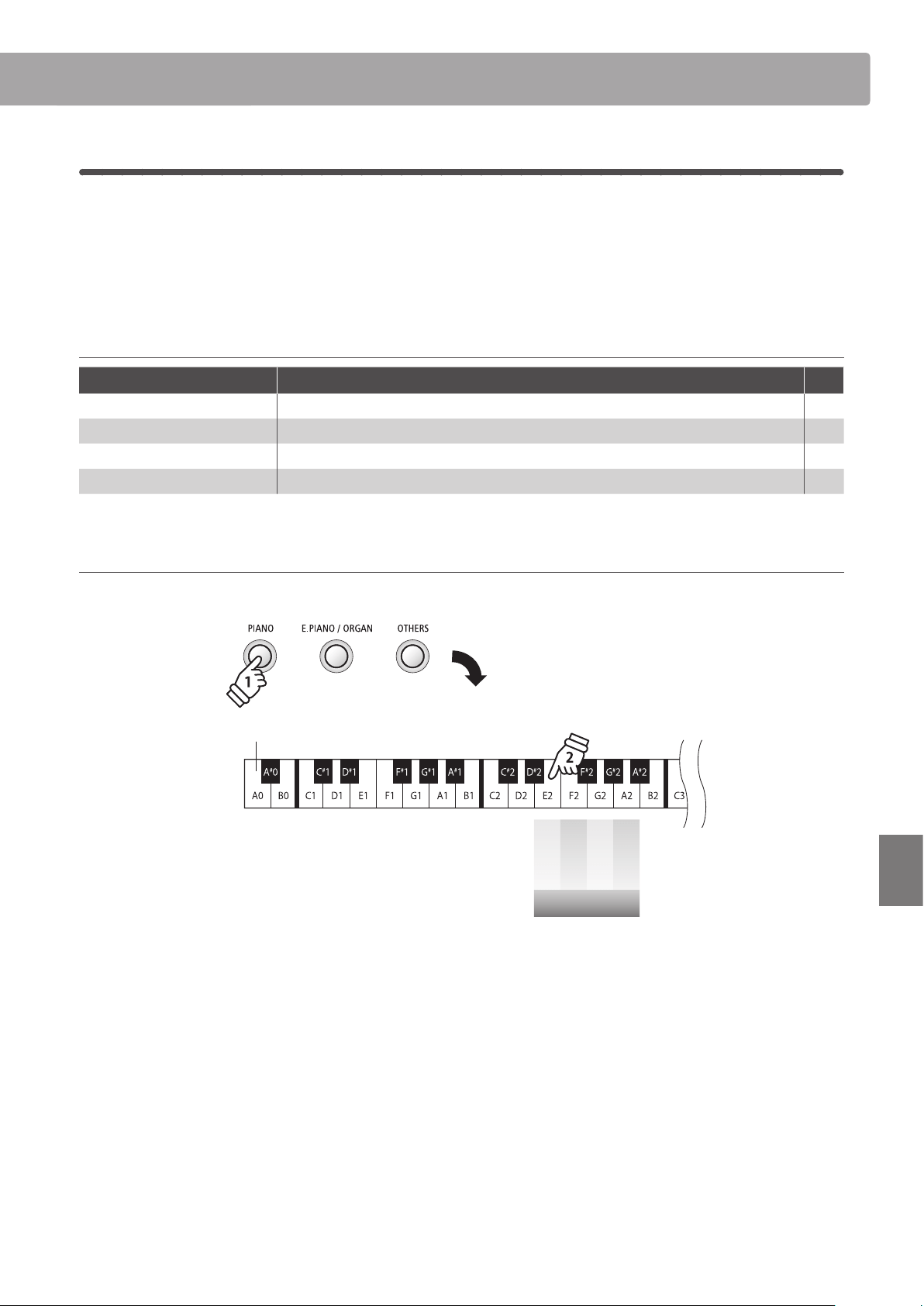
O Disables the damper resonance. F3
Small Piano sounds will produce a small amount of damper resonance. C3
Medium
(default) Piano sounds will produce a medium amount of damper resonance. D3
Large Piano sounds will produce a large amount of damper resonance. E3
Changing the Damper Resonance volume
Press and hold the PIANO button, then press the key assigned to the desired Damper Resonance volume.
Lowest key
Small
Medium
Large
O
Damper Resonance
hold
* To disable Damper Resonance, press the key assigned to the ‘O’ setting.
If Damper Resonance is disabled, it will be turned on automatically upon selecting a damper resonance type.
* Any changes made to the Damper Resonance setting will remain until the power is turned o.
* Preferred Damper Resonance settings can be stored to a Registration memory for convenient recall, or to the Startup Setting memory for automatic
selection when the instrument is turned on. Please refer to pages 19 and 49 for more information.
29
Settings
Keyboard and Sound Settings
3
Voicing
On an acoustic piano, the shape, density, and texture of the hammers all inuence the tonal character of the
instrument’s sound. Technicians utilise a variety of tools such as needles, les, and brushes to manipulate
these hammer felts, with the ultimate goal of achieving a balanced tonal character across the keyboard.
The Voicing setting recreates various hammer properties, allowing the overall tonal character of the ES110
digital piano to be set to one of four dierent types.
While the default ‘Normal’ voicing setting should be appropriate for a broad range of musical genres, it may
be desirable to select a softer, more mellow tonal character for romantic pieces, or a brighter, more aggressive
tone for modern styles.
* This setting will aect all sounds.
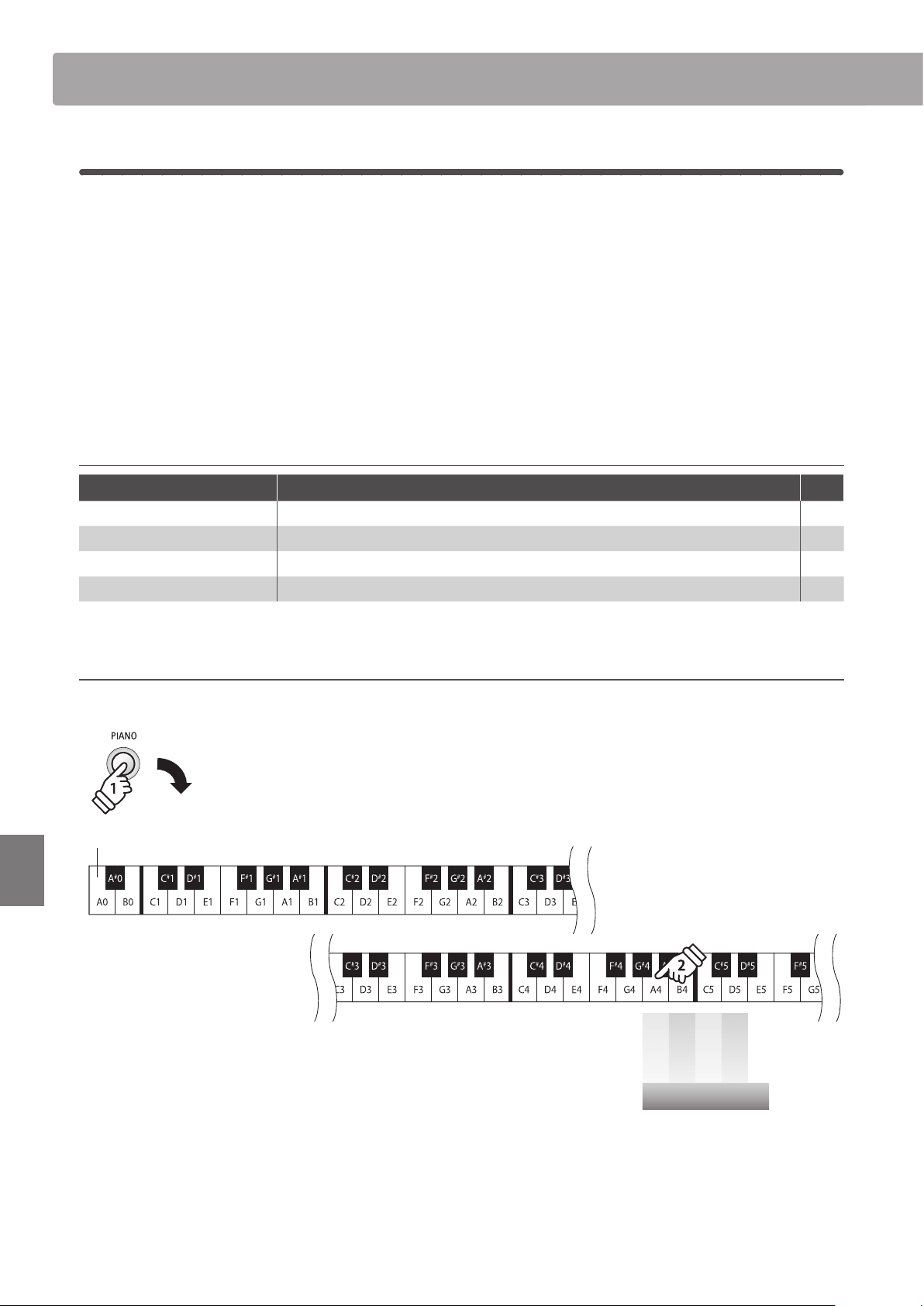
Voicing type
Voicing type Description Key
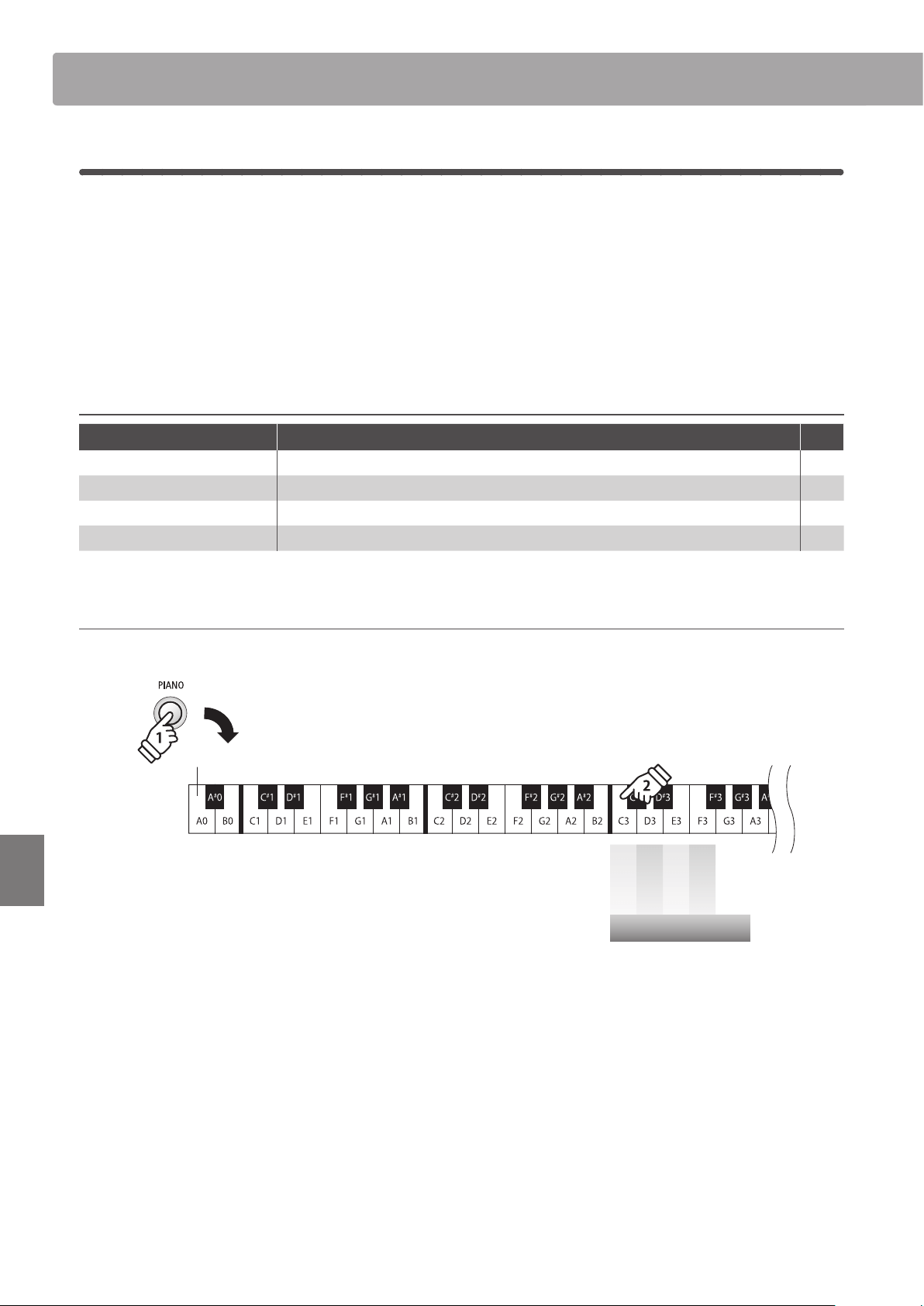
Normal (default) The normal tonal character of an acoustic piano throughout the entire dynamic range. C4
Mellow A softer, more mellow tonal character throughout the entire dynamic range. D4
Dynamic
A tonal character that changes dramatically from mellow to bright, depending on the
strength of key strike.
E4
Bright A bright tonal character throughout the entire dynamic range. F4
Changing the Voicing type
Press and hold a SOUND button, then press the key assigned to the desired Voicing type.
Lowest key
Normal
Mellow
Dynamic
Bright
Voicing
hold
* Any changes made to the Voicing setting will remain until the power is turned o.
* Preferred Voicing settings can be stored to a Registration memory for convenient recall, or to the Startup Setting memory for automatic selection
when the instrument is turned on. Please refer to pages 19 and 49 for more information.
30
Settings
Keyboard and Sound Settings
4
Fall-back Noise
When playing an acoustic piano, it is often possible to hear the faint sound of the keyboard action returning
(i.e. ‘falling back’) to the neutral position after a key is released.
The ES110 digital piano reproduces this sound, with the Fall-back Noise setting allowing the volume of this
sound to be changed.
While the default value is intended to simulate the natural volume level of the keys as they return to their
neutral position, it may occasionally be desirable to adjust the volume of this sound. For example, reducing
the volume when playing very soft pieces, where the fall-back noise may become too prominent.
* This setting will aect PIANO sounds only.
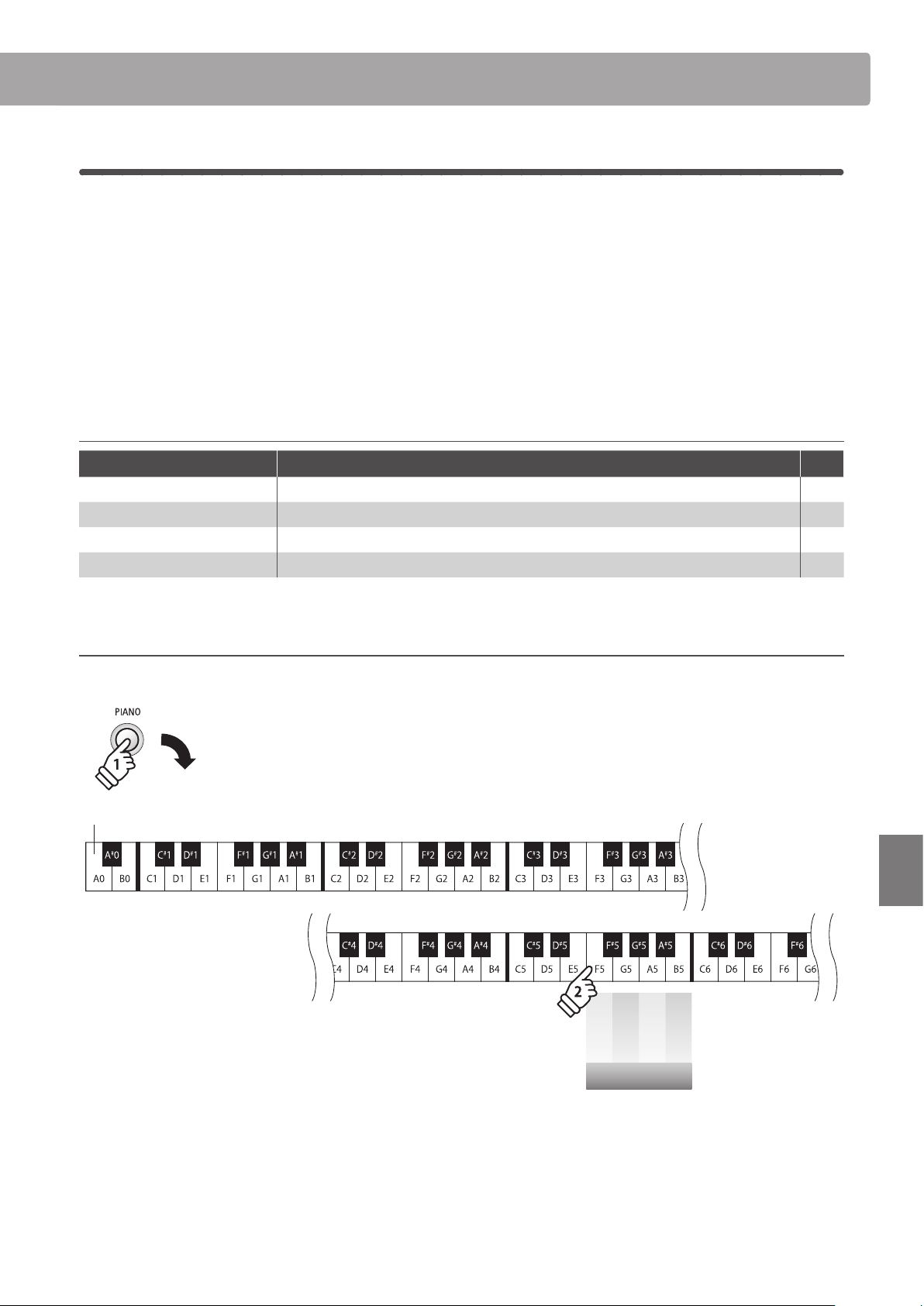
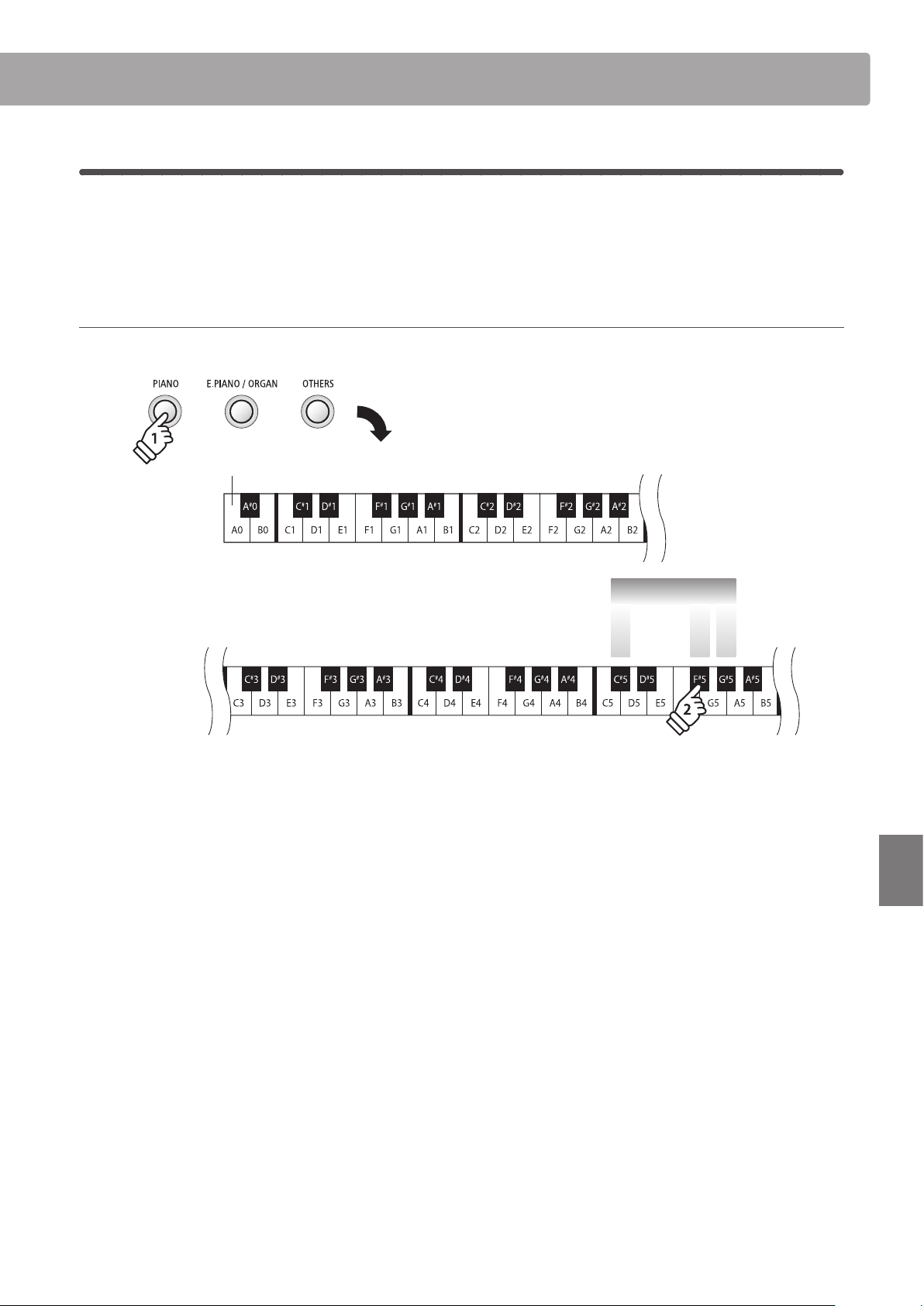
Fall-back Noise volume
Fall-back Noise volume Description Key
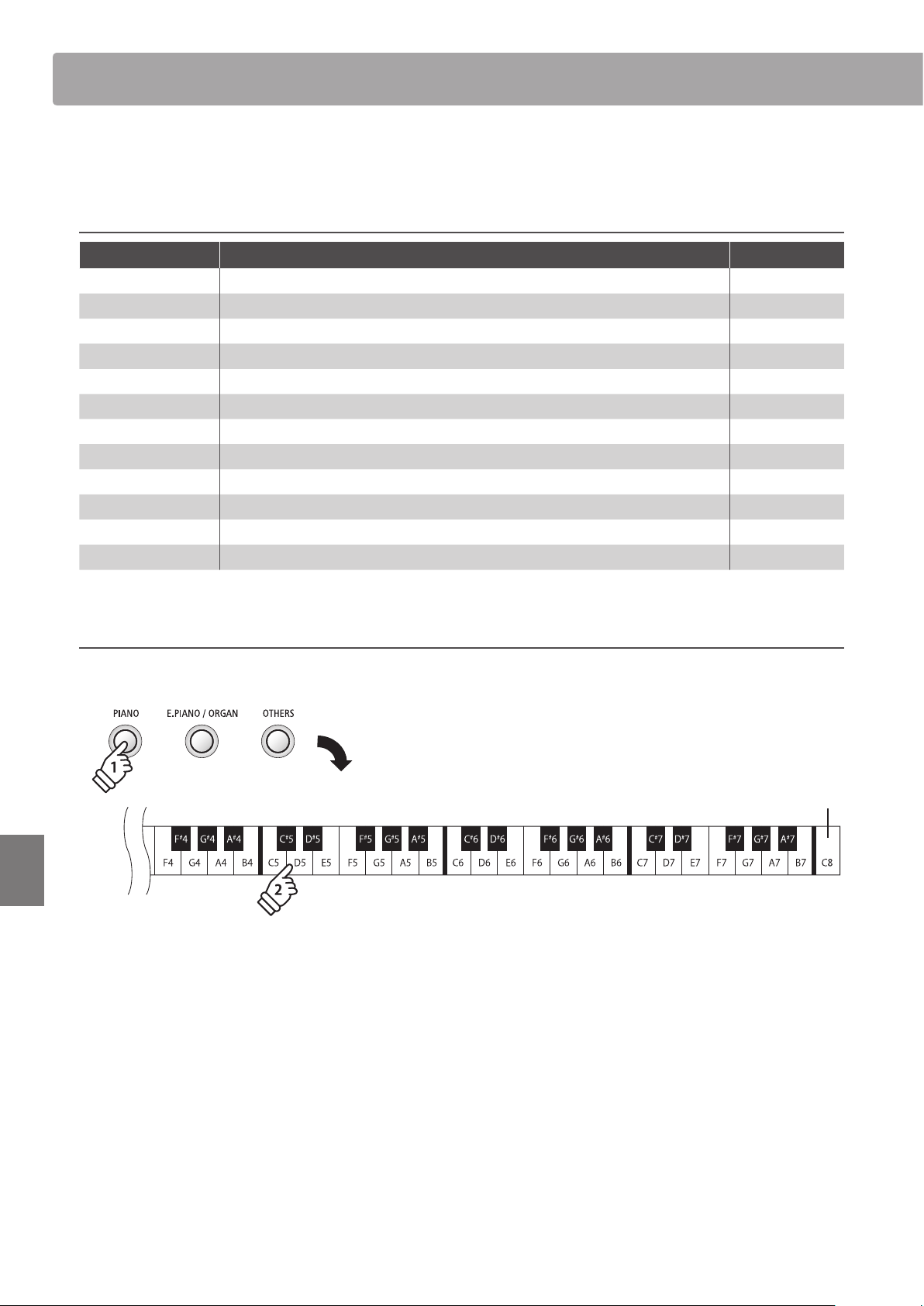
O Disables the fall-back noise. D5
Small Piano sounds will produce a small amount of fall-back noise. B4
Normal
(default) Piano sounds will produce a normal amount of fall-back noise. A4
Large Piano sounds will produce a large amount of fall-back noise. C5
Changing the Fall-back Noise volume
Press and hold the PIANO button, then press the key assigned to the desired Fall-back Noise volume.
Lowest key
Normal
Small
Large
O
Fall-back Noise
hold
* To disable the Fall-back Noise, press the key assigned to the ‘O’ setting.
If Fall-back Noise is disabled, it will be turned on automatically upon selecting a fall-back noise type.
* Any changes made to the Fall-back Noise setting will remain until the power is turned o.
* Preferred Fall-back Noise settings can be stored to a Registration memory for convenient recall, or to the Startup Setting memory for automatic
selection when the instrument is turned on. Please refer to pages 19 and 49 for more information.
31
Settings
Keyboard and Sound Settings
5
Damper Noise
When the damper pedal of an acoustic piano is pressed and released, it is often possible to hear the sound of
the damper head touching and releasing the strings.
The ES110 digital piano reproduces this sound, with the Damper Noise setting allowing the volume of this
sound to be changed.
The speed at which the damper pedal is pressed will also inuence the prominence of the damper noise, with
fast pedalling creating a very pronounced sound.
* This setting will aect PIANO sounds only.
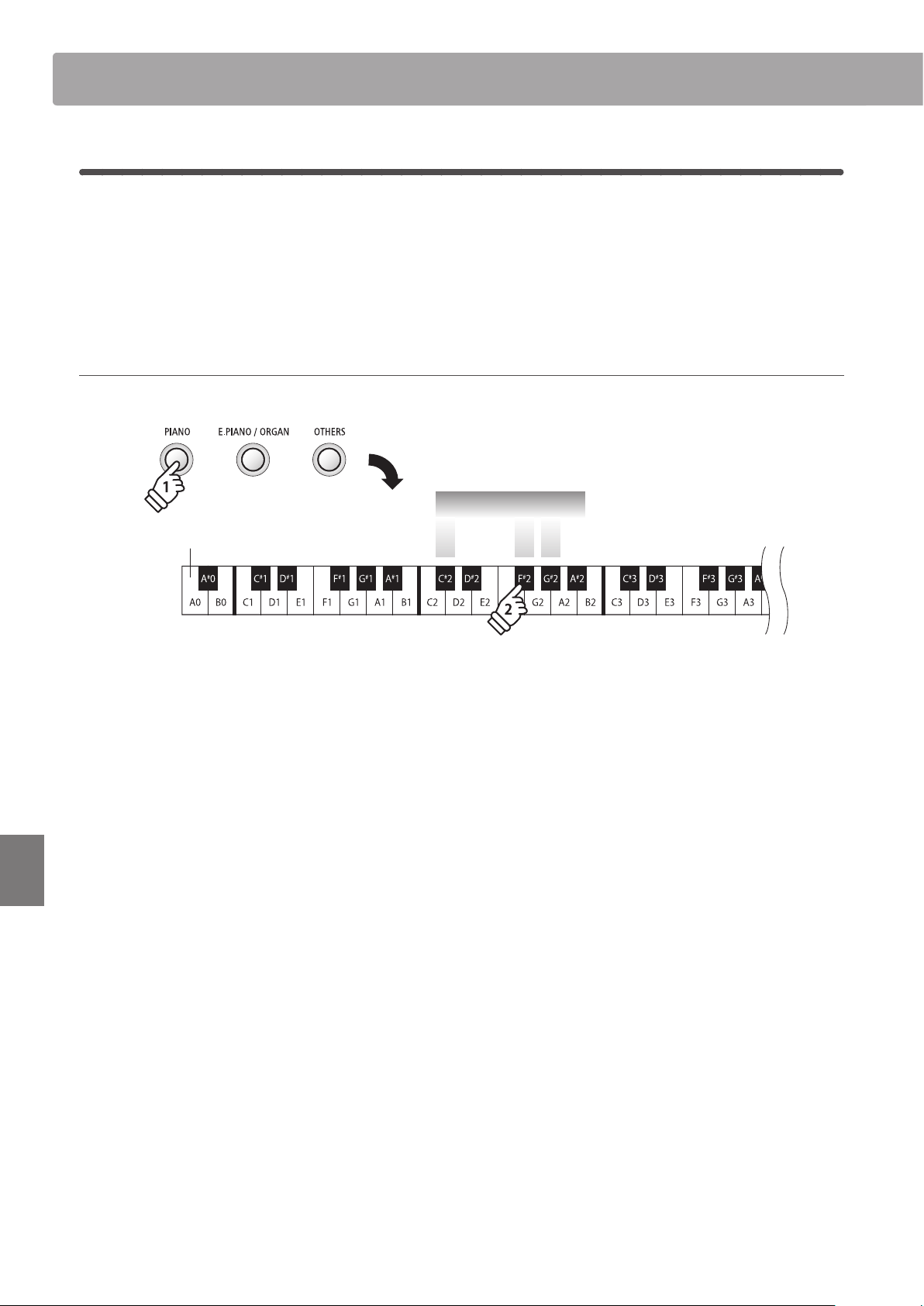
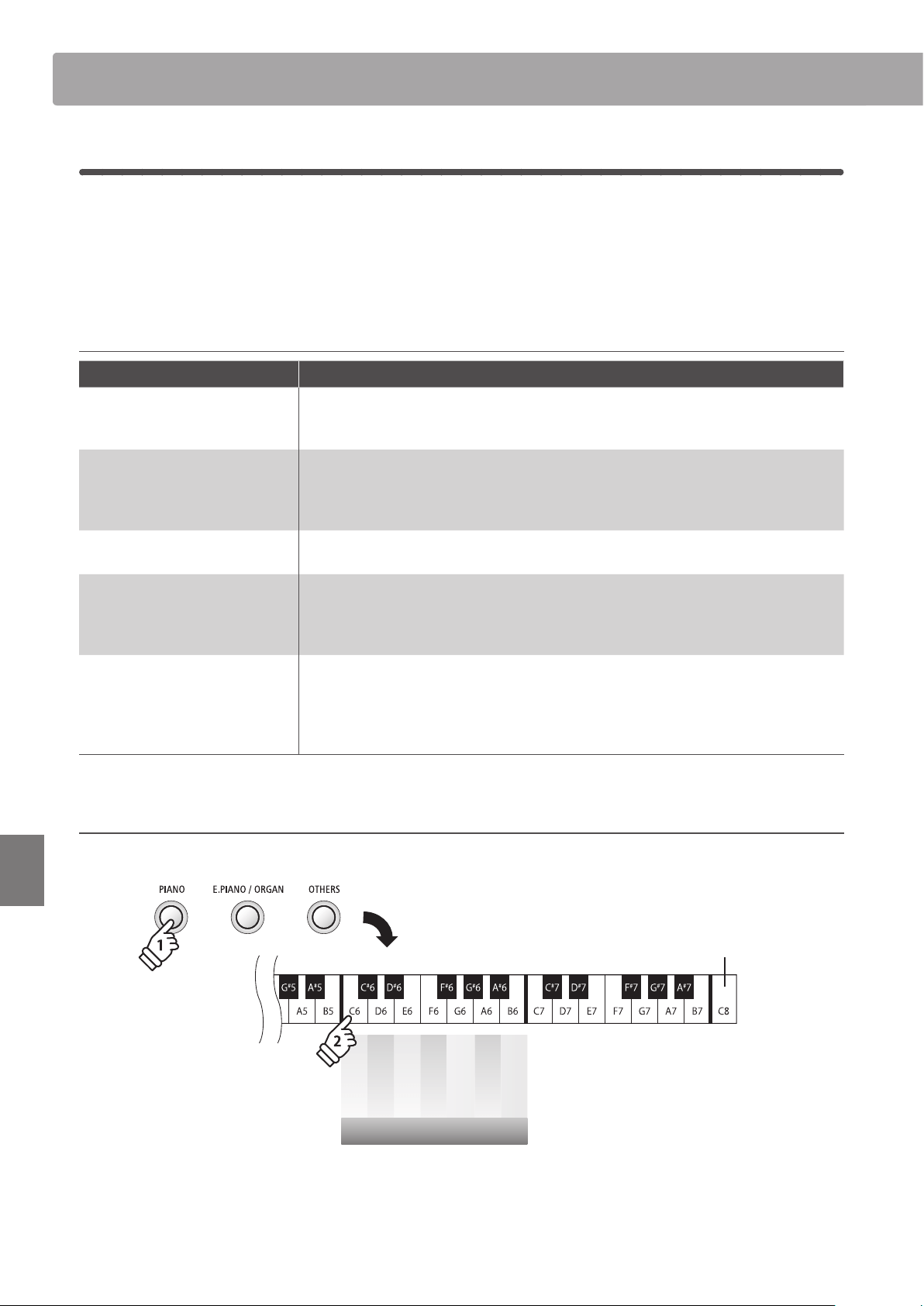
Damper Noise volume
Damper Noise volume Description Key
O Disables the damper noise. B5
Small Piano sounds will produce a small amount of damper noise. G5
Normal
(default) Piano sounds will produce a normal amount of damper noise. F5
Large Piano sounds will produce a large amount of damper noise. A5
Changing the Damper Noise volume
Press and hold the PIANO button, then press the key assigned to the desired Damper Noise volume.
Lowest key
Normal
Small
Large
O
Damper Noise
hold
* To disable the Damper Noise, press the key assigned to the ‘O’ setting.
If Damper Noise is disabled, it will be turned on automatically upon selecting a damper noise type.
* Any changes made to the Damper Noise setting will remain until the power is turned o.
* Preferred Damper Noise settings can be stored to a Registration memory for convenient recall, or to the Startup Setting memory for automatic
selection when the instrument is turned on. Please refer to pages 19 and 49 for more information.
32
Settings
Keyboard and Sound Settings
6
Transpose
The Key Transpose setting allows the pitch of the ES110 digital piano keyboard to be raised or lowered in
semi-tone steps. This is particularly useful when accompanying instruments with dierent tones, or when
a song learned in one key must be played in another key. When transposed, the song can be played in the
original key, yet heard in a dierent key.
* This setting will aect all sounds.
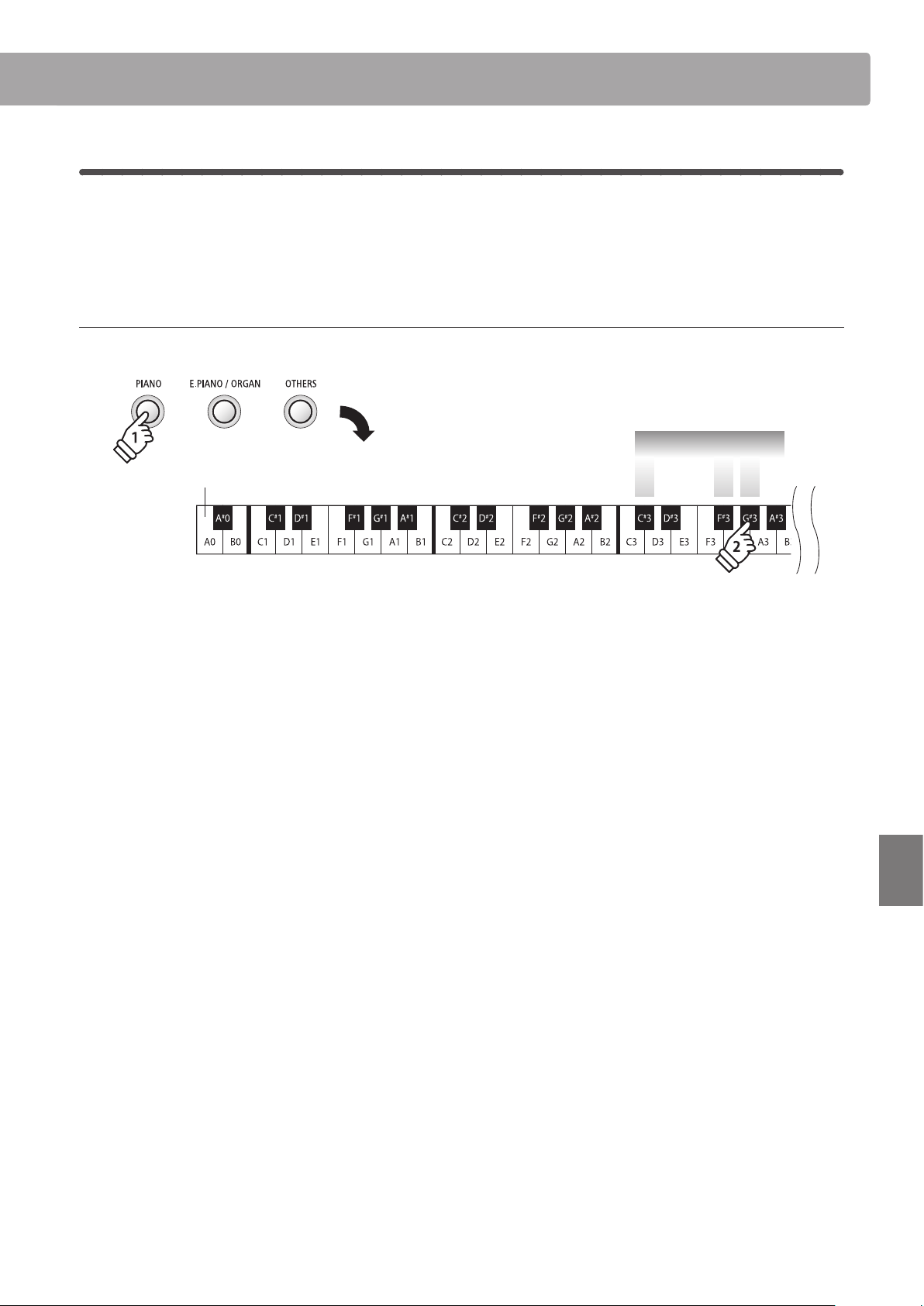
Adjusting the Transpose setting
Press and hold a SOUND button, then press the keys assigned -/+ to lower or raise the keyboard pitch in semi-tone steps.
Lowest key
Transpose
O
– +
hold
* The keyboard pitch can be raised or lowered by up to 12 semi-tones.
* To disable the Transpose setting, press the key assigned to the ‘O’ setting.
* Any changes made to the Transpose setting will remain until the power is turned o.
* The Transpose setting cannot be stored to Registration or Startup Setting memory.
33
Settings
Keyboard and Sound Settings
7
Brilliance
The Brilliance setting allows the brightness of the ES110 digital piano’s sound to be adjusted independently
of the ‘Voicing’ setting.
* This setting will aect all sounds.
Adjusting the Brilliance setting
Press and hold a SOUND button, then press the keys assigned -/+ to adjust the brightness of the sound.
Lowest key
Brilliance
O
– +
hold
* The Brilliance setting can be adjusted within the range of -10~+10, with +10 being the brightest setting.
* To disable the Brilliance setting, press the key assigned to the ‘O’ setting.
* Any changes made to the Brilliance setting will remain until the power is turned o.
* Preferred Brilliance settings can be stored to a Registration memory for convenient recall, or to the Startup Setting memory for automatic selection
when the instrument is turned on. Please refer to pages 19 and 49 for more information.
34
Settings
Keyboard and Sound Settings
8
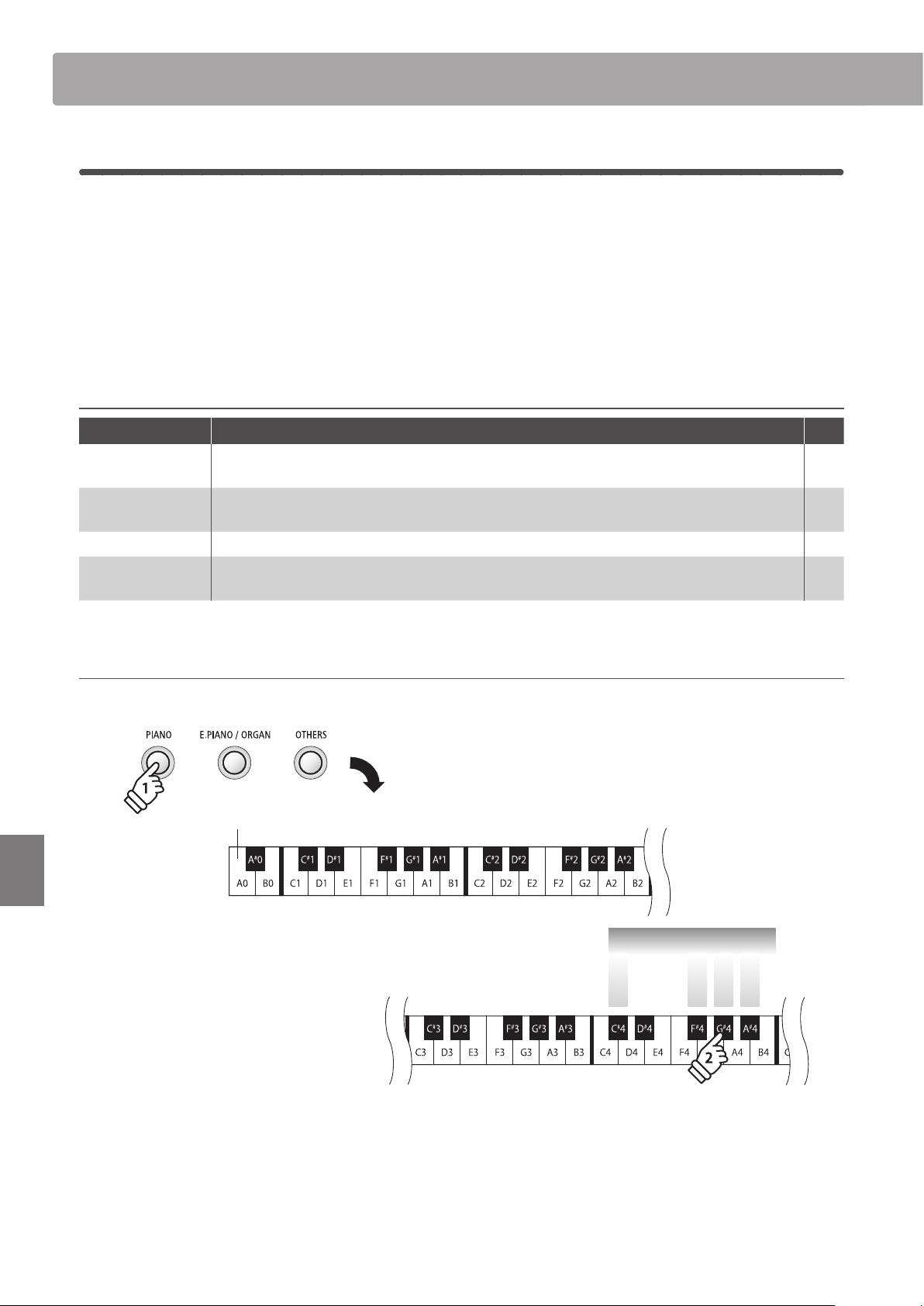
Touch
As with an acoustic piano, the ES110 digital piano produces a louder sound when the keys are struck with
force, and a softer sound when the keys are played gently. The volume and tonal character change in relation
to the strength and speed of playing – on a digital piano this system is referred to as ‘touch sensitivity’.
The Touch setting allows the touch sensitivity of the keyboard to be conveniently changed. There are four
dierent preset touch settings available.
* This setting will aect all sounds.
Touch type
Touch type Description Key
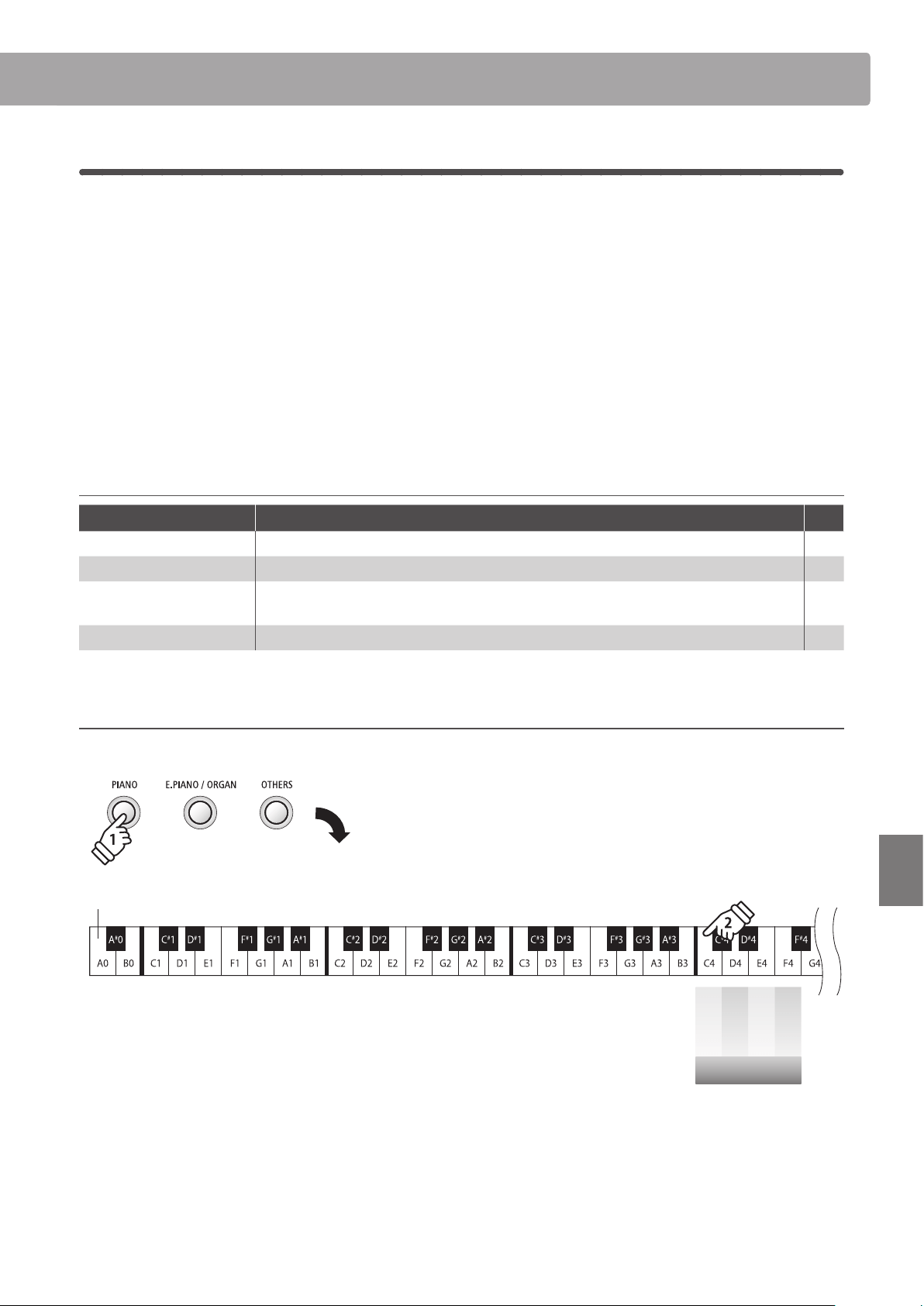
O
A constant volume is produced regardless of how hard the keys are struck.
This setting is recommended for sounds that have a xed dynamic range such as organ and harpsichord.
C#4
Light
A louder volume is produced even when playing with a soft touch.
This setting is recommended for children and organ players, or for those still developing nger strength.
G#4
Normal
(default) Reproduces the standard touch sensitivity of an acoustic piano. F#4
Heavy
Requires a heavier touch to produce a loud volume.
This setting is recommended to those with stronger ngers.
A#4
Changing the Touch type
Press and hold a SOUND button, then press the key assigned to the desired touch type.
Touch Curve
O
Light
Heavy
Normal
hold
Lowest key
* Any changes made to the Touch setting will remain until the power is turned o.
* Preferred Touch settings can be stored to a Registration memory for convenient recall, or to the Startup Setting memory for automatic selection
when the instrument is turned on. Please refer to pages 19 and 49 for more information.
35
Settings
Keyboard and Sound Settings
9
Tuning
The Tuning setting allows the overall pitch of the ES110 digital piano to be raised and lowered in 0.5 Hz steps,
and may therefore prove useful when playing with other instruments.
* This setting will aect all sounds.
Adjusting the Tuning setting
Press and hold a SOUND button, then press the keys assigned -/+ to lower or raise the keyboard pitch in 0.5 Hz steps.
Tuning
+0.5 Hz
-0.5 Hz
440.0 Hz
Lowest key
hold
* The keyboard pitch can be adjusted within the range of 427~453 Hz.
* To reset the pitch to 440.0 Hz, press the Reset key indicated above.
* Any changes made to the Tuning setting will remain until the power is turned o.
* Preferred Tuning settings can be stored to a Registration memory for convenient recall, or to the Startup Setting memory for automatic selection
when the instrument is turned on. Please refer to pages 19 and 49 for more information.
36
Settings
Keyboard and Sound Settings
10
Temperament
The Temperament setting allows the tuning system used by the ES110 digital piano to be changed from
the modern ‘Equal Temperament’ standard to one of the various temperaments popularised during the
Renaissance and Baroque periods.
* This setting will aect all sounds.
Temperament types
Temperament type Description
Equal Temperament (piano)
This is the default temperament. When a piano sound is selected, the tuning will be
stretched like an acoustic piano (equal temperament).
* If any other type of sound is selected, the tuning will be set to equal temperament (at).
Pure Temperament
(Pure Major/Pure Minor)
This temperament, which eliminates dissonances for thirds and fths, is still popular
in choral music because of its perfect harmony. Any key modulation will result in
dissonances.
* The key of the temperament, and major/minor setting must be correctly matched.
Pythagorean Temperament
This temperament, which uses mathematical ratios to eliminate dissonance for fths, is
very limited for use with chords, but produces very characteristic melodic lines.
Meantone Temperament
This temperament, which uses a mean between a major and minor whole tone to
eliminate dissonance for thirds, was devised to eliminate the lack of consonances
experienced with certain fths for the Mersenne pure temperament. It produces chords
that are more beautiful than those played with equal temperament.
Werckmeister III Temperament
Kirnberger III Temperament
These two temperaments are placed in between Meantone and Pythagorean. For music
with few accidentals, this temperament produces the beautiful chords of the mean tone,
but as accidentals increase, the temperament produces the characteristic melodies of the
Pythagorean temperament. It is used primarily for classical music written in the Baroque
era to revive the original characteristics.
Changing the Temperament type
Press and hold a SOUND button, then press the key assigned to the desired Temperament type.
Highest key
Equal
Pure Major
Pure Minor
Pythagorean
Meantone
Werkmeister
Kirnberger
Temperament
hold
* Any changes made to the Temperament setting will remain until the power is turned o.
* Preferred Temperament settings can be stored to a Registration memory for convenient recall, or to the Startup Setting memory for automatic
selection when the instrument is turned on. Please refer to pages 19 and 49 for more information.
37
Settings
Keyboard and Sound Settings
11
Temperament Key
The Temperament Key setting allows the key of the selected temperament to be specied. When using a
temperament other than Equal temperament, use this setting to specify the key signature of the piece.
* This setting will aect all sounds.
Changing the Temperament Key
Press and hold a SOUND button, then press the key assigned to the desired Temperament key.
A#G#F#D#C#
Highest key
hold
C D E F G A B
Temperament Key
* Any changes made to the Temperament Key setting will remain until the power is turned o.
* Preferred Temperament Key settings can be stored to a Registration memory for convenient recall, or to the Startup Setting memory for automatic
selection when the instrument is turned on. Please refer to pages 19 and 49 for more information.
38
Settings
Keyboard and Sound Settings
12
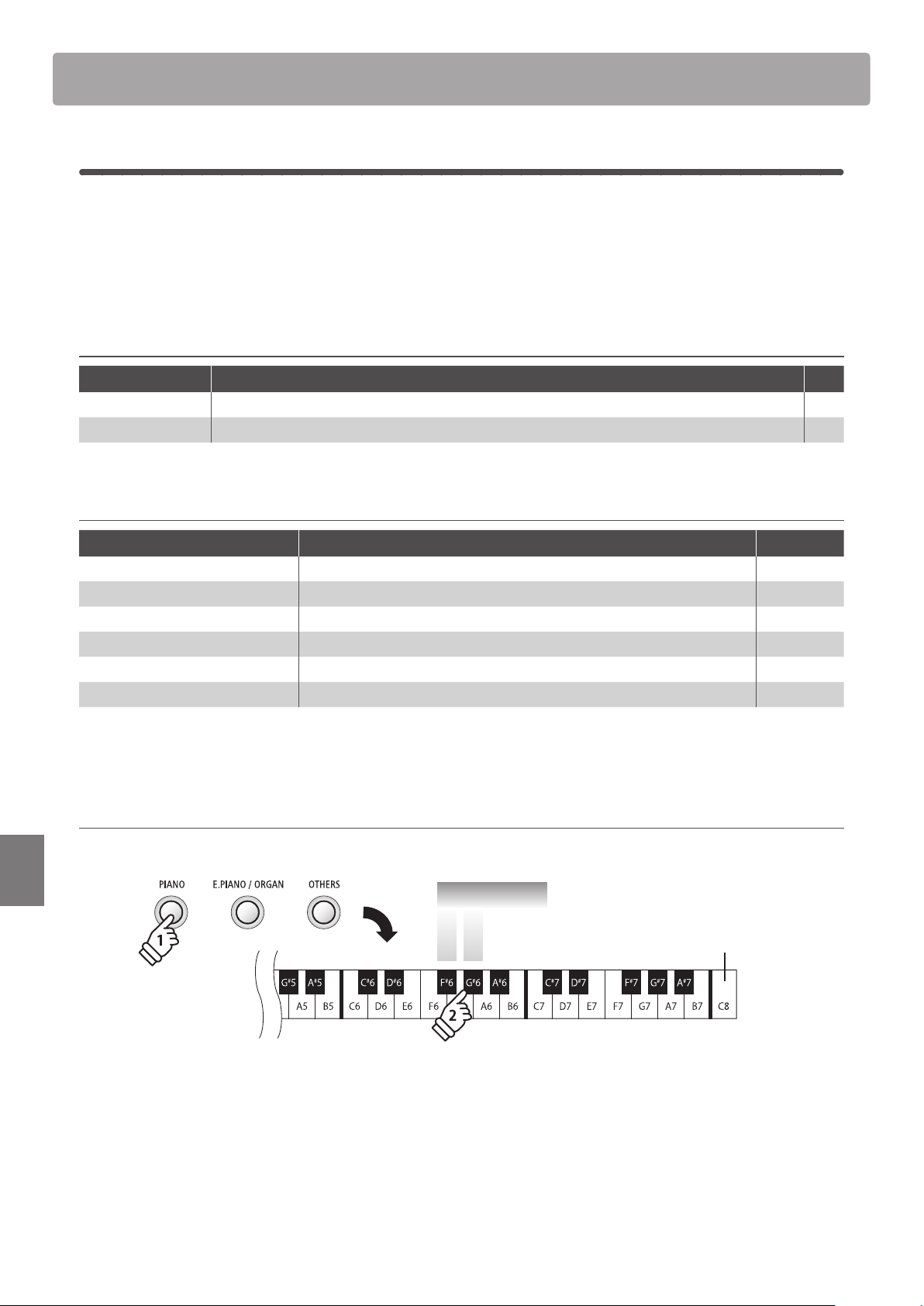
Eect On/O
As with reverb, selecting certain sounds automatically applies additional eects intended to enhance tonal
quality. However, it may sometimes be desirable to disable/enable these eects manually, depending on the
style of music or song being played.
The Eect On/O setting allows eects applied to certain sounds to be enabled/disabled.
Eect On/O
Eect On/O Description Key
O Disables the additional eects applied to the sound. G#6
On Enables the additional eects applied to the sound. F#6
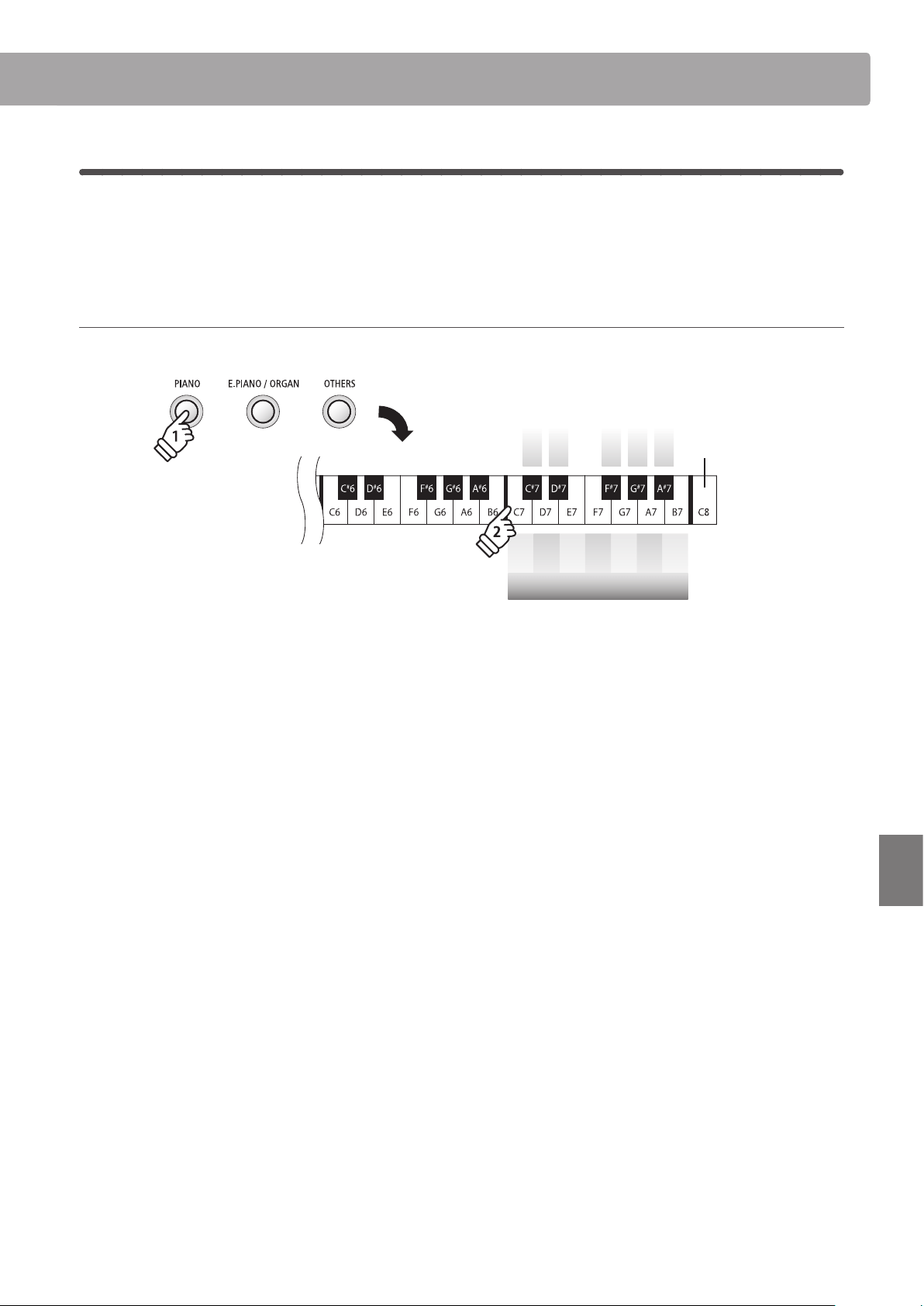
Sounds & Eect types
Sound Eect applied Default
Classic E.Piano Auto Pan On
60’s E.Piano Classic Tremolo On
Modern E.Piano Classic Chorus On
Jazz Organ Rotary On
Vibraphone Classic Tremolo On
All other sounds Classic Chorus O
* When the Jazz Organ sound is selected, the fast/slow speed of the applied Rotary eect can be changed by pressing the FUNCTION and REC
buttons simultaneously.
Changing the Eect On/O setting
Press and hold a SOUND button, then press the keys assigned to enable/disable the eect.
Eect On/O
O
On
Highest key
hold
* The Eect On/O setting can be changed independently for each sound.
* Any changes made to the Eect On/O setting will remain until the power is turned o.
* Preferred Eect On/O settings can be stored to a Registration memory for convenient recall, or to the Startup Setting memory for automatic
selection when the instrument is turned on. Please refer to pages 19 and 49 for more information.
39
Settings
MIDI Settings
The term MIDI is an acronym for Musical Instrument Digital Interface, an international standard for connecting
musical instruments, computers, and other devices to allow the exchange of performance data.
MIDI terminals
MIDI terminal Function
MIDI IN Receiving note, program change, and other data.
MIDI OUT Sending note, program change, and other data.
MIDI channels
MIDI uses channels to exchange data back and forth between MIDI devices. There are receive (MIDI IN) and transmit (MIDI OUT)
channels. Most musical instruments or devices with MIDI functions are equipped with both MIDI IN and OUT jacks and are capable
of transmitting and receiving data via MIDI. The receive channels are used to receive data from another MIDI device and the
transmit channels are used to transmit data to another MIDI device.
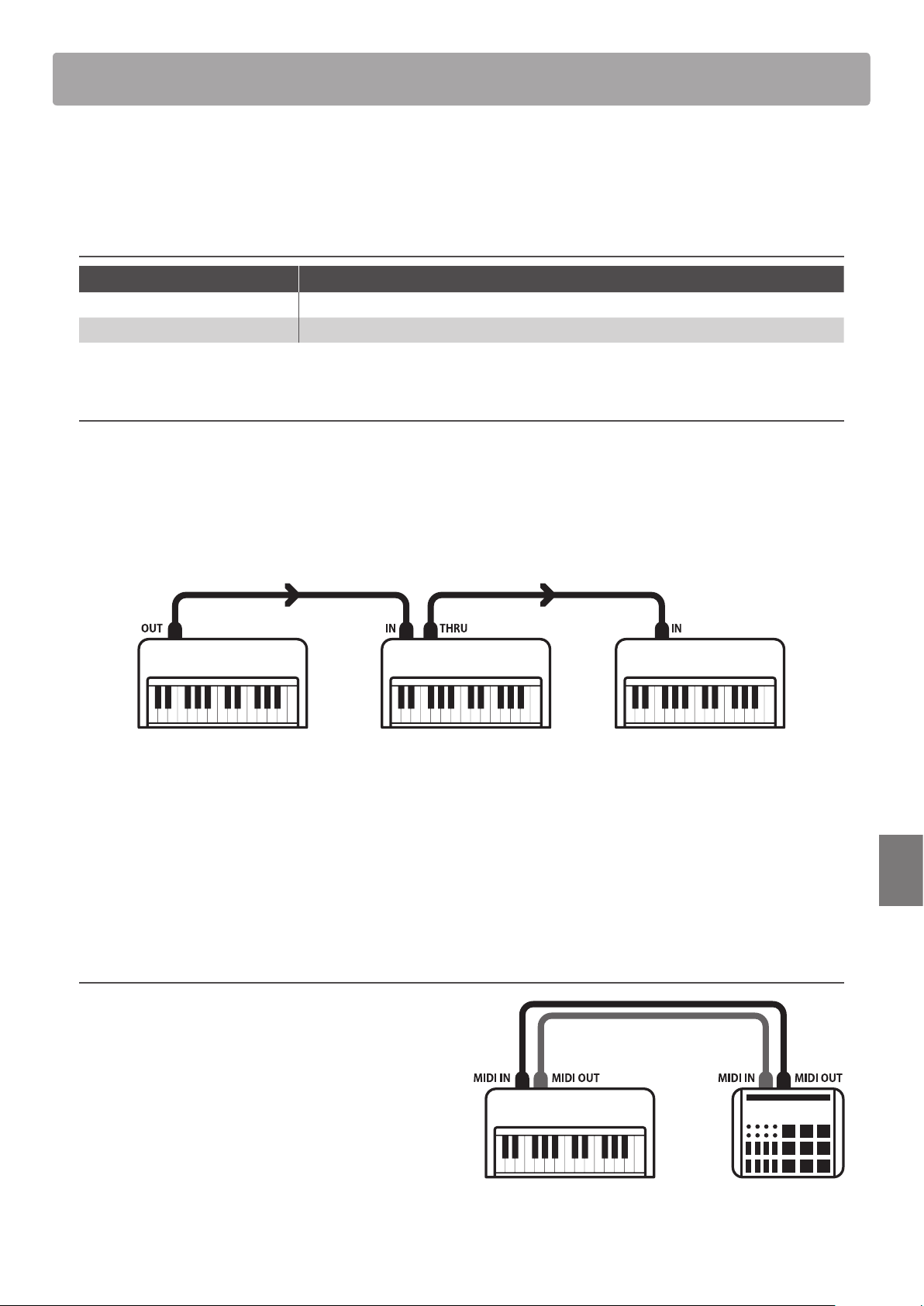
The illustration below shows three musical instruments, connected together using MIDI.
Transmitting instrument a Receiving instrument b Receiving instrument c
Transmitting instrument a sends transmit channel and keyboard information to receiving instruments b/c.
The information arrives at the receiving instruments b/c.
Receiving instruments b/c will respond to MIDI data that is sent if their receive channel is the same as the transmit channel of
the transmitting instrument a.
If the channels do not match, then the receiving instruments b/c will not respond to any data that is sent.
For both receiving and transmitting, channels 1~16 can be used.
Recording/playing with a sequencer
When connected to a sequencer, the ES110 digital piano can be
used to record and playback multi-track songs, with separate
sounds playing simultaneously on each channel.
Sequencer
40
Settings
MIDI Settings
MIDI settings
Function name Explanation Default setting
Transmit MIDI
Program Change
Specify whether or not program change information is sent when sounds are changed.
Send a MIDI program change number from 1 to 128.
On
MIDI Channel Specify the channel used to transmit/receive MIDI information. 1ch
Local Control Specify whether or not internal sounds will be heard when the keyboard is pressed. On
Multi-timbral Mode Specify whether or not MIDI information can be received on more than one channel. O
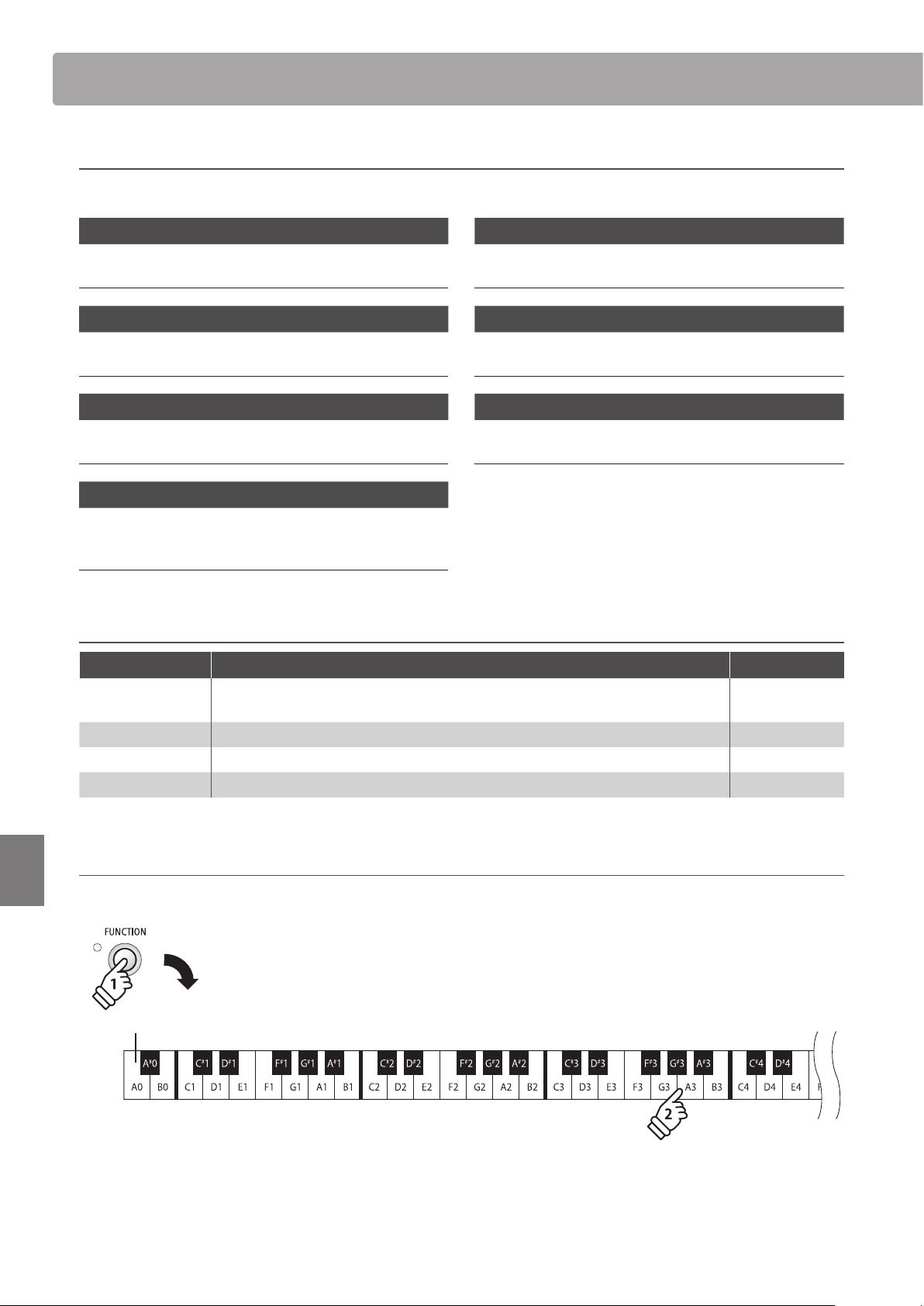
Changing MIDI settings
Press and hold the FUNCTION button, then press the key(s) assigned to the desired functions.
Lowest key
hold
MIDI functions
The ES110 digital piano supports the following MIDI functions:
Transmit/receive note information
Transmit/receive note information from a MIDI-connected
musical instrument or device.
Transmit/receive channel settings
Specify transmit/receive channels within the range of 1~16.
Transmit/receive exclusive data
Transmit/receive front panel or menu function settings as
exclusive data.
Multi-timbral mode setting
Receive multiple channel MIDI data from a MIDI-connected
musical instrument or device.
* Multi-timbral mode setting must be enabled.
Transmit/receive Program Change number
Transmit/receive program change data to/from a MIDI-
connected musical instrument or device.
Transmit/receive pedal data
Transmit/receive sustain, sostenuto, and soft pedal data
from a MIDI-connected musical instrument or device.
Receive volume data
Receive MIDI volume data sent from a MIDI-connected
musical instrument or device.
* Please refer to the ‘MIDI Implementation Chart’ on page 59 for further
information regarding the MIDI capabilities of the ES110 digital piano.
41
Settings
MIDI Settings
1
Transmit MIDI Program Change
The Send Program Change Number setting determines whether or not the ES110 digital piano will transmit
program change information when sounds are changes. It is also possible to transmit a program change
number (ranging from 1 to 128) in order to change the sound of an external MIDI device.
Transmit MIDI Program Change settings
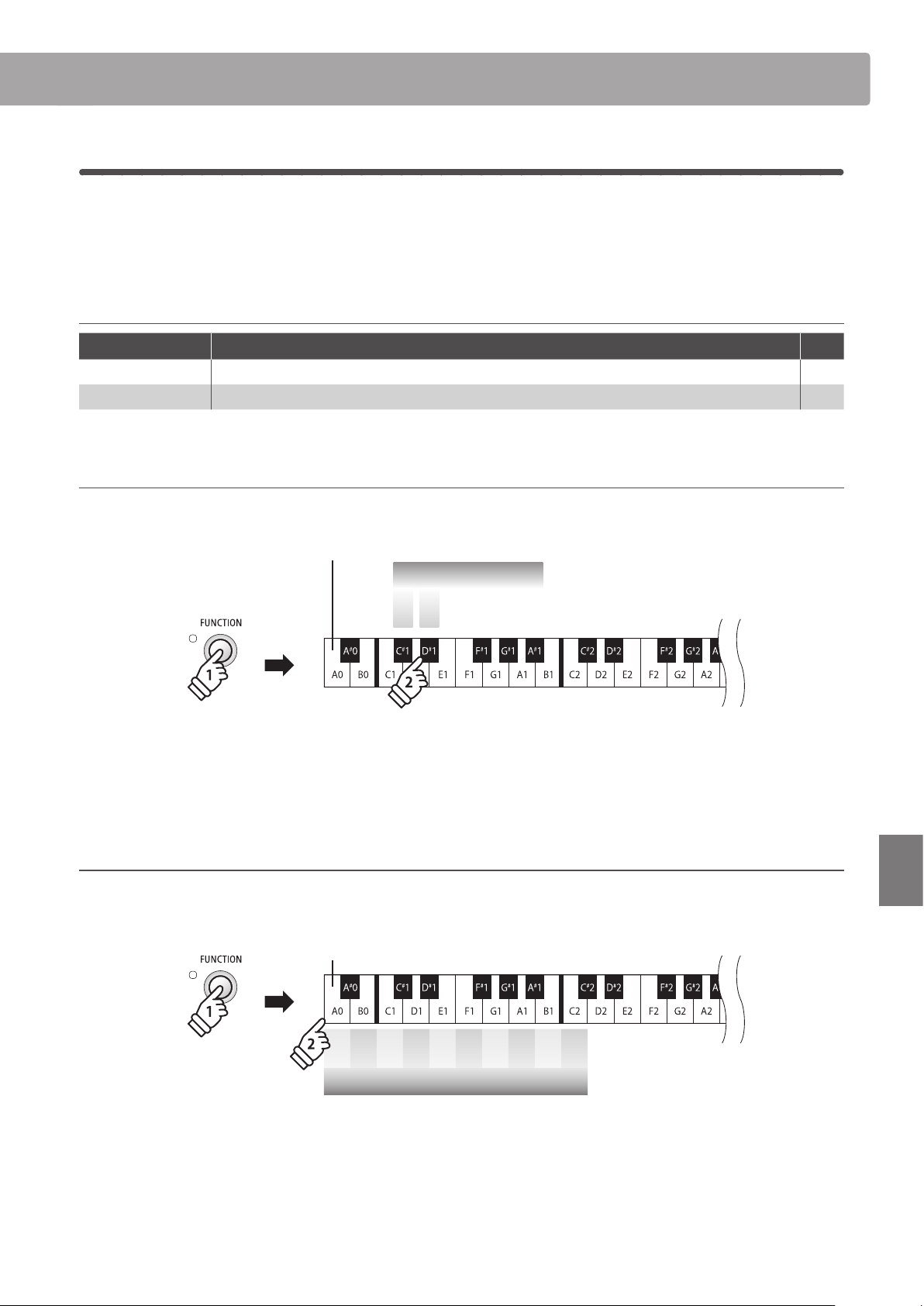
Transmit PGM# Explanation Key
O The instrument will NOT transmit program change numbers when changing sounds. C#1
On
(default) The instrument will transmit program change numbers when changing sounds. D#1
Changing the Transmit MIDI Program Change setting
Press and hold the FUNCTION button, then press the key assigned to the desired Transmit MIDI Program Change setting.
Lowest key
Transmit PGM#
On
O
hold
* Any changes made to the Transmit MIDI Program Change setting will remain until the power is turned o.
* Preferred Transmit MIDI Program Change settings can be stored to the Startup Setting memory for automatic selection when the instrument is
turned on. Please refer to page 49 for more information.
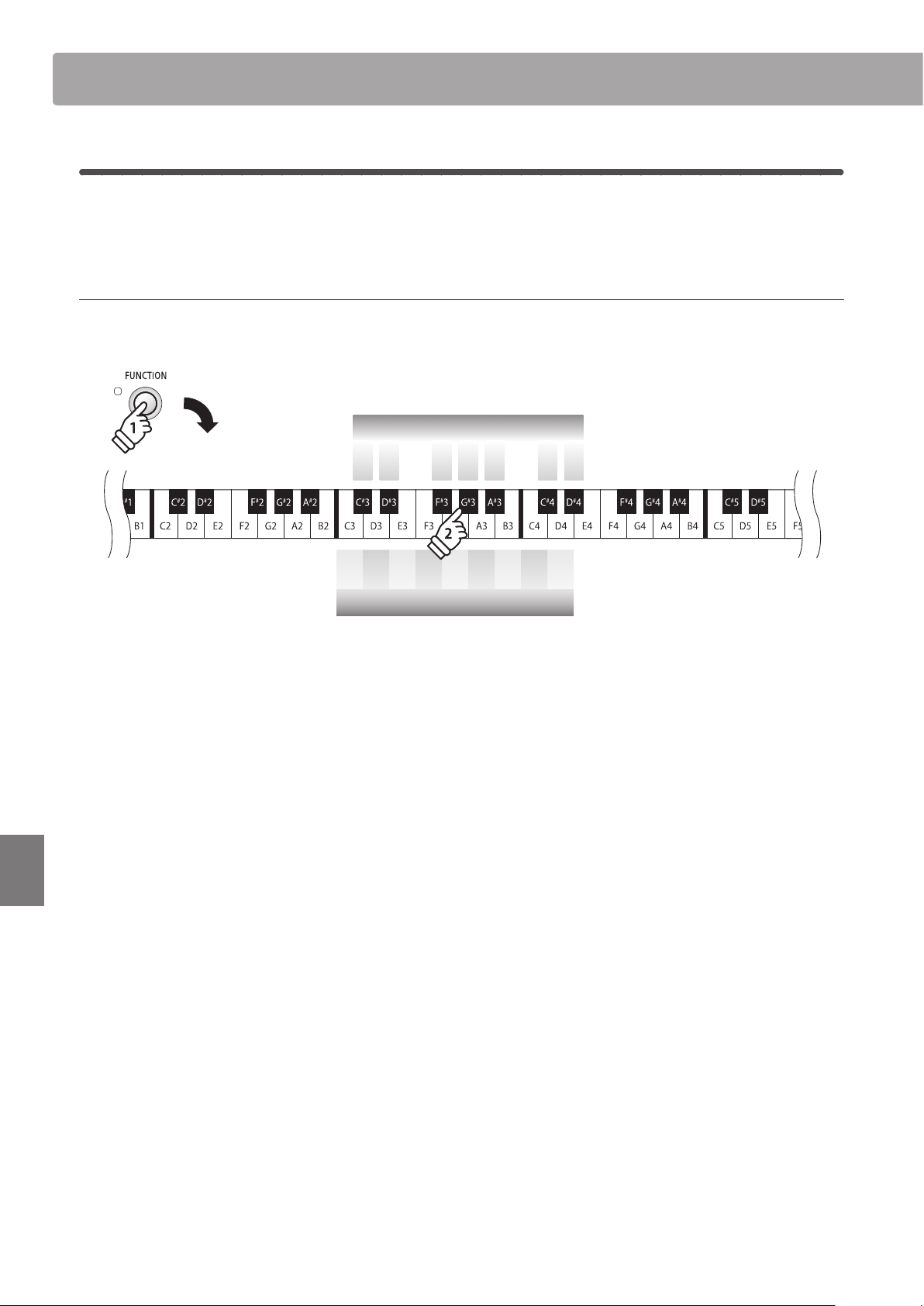
Sending a Program Change number
Press and hold the FUNCTION button, then enter the desired program change number to send using the number keys indicated
below.
Example: Transmit PGM#064
Enter 0, 6, then 4
1 2 3 4 5 6 7 8 9 0
Program Change # (3 digits)
Lowest key
hold
* Program change numbers are specied as three digits within the range of 001~128.
* The program change number will be transmitted automatically when the key for the third digit number is pressed.
42
Settings
MIDI Settings
2
MIDI Channel (transmit/receive)
The MIDI Channel setting allows the transmit/receive channel to be specied. The selected channel will
function as both the transmit and receive channel (separate transmit/receive channels cannot be specied).
Changing the MIDI Channel setting
Press and hold the FUNCTION button, then press the key assigned to the desired MIDI channel.
1 3 5 6 8 10 12 13 15
MIDI Channel
MIDI Channel
119742 1614
hold
* The MIDI channel can be specied within the range of 1~16.
* The MIDI channel is automatically set to ‘1’ when the instrument is turned on (default setting).
* Preferred MIDI Channel settings can be stored to the Startup Setting memory for automatic selection when the instrument is turned on. Please
refer to page 49 for more information.
43
Settings
MIDI Settings
3
Local Control
The Local Control setting determines whether the instrument will play an internal sound when the keys are
pressed. This setting may be useful when using the ES110 digital piano to control an external MIDI device.
Local Control settings
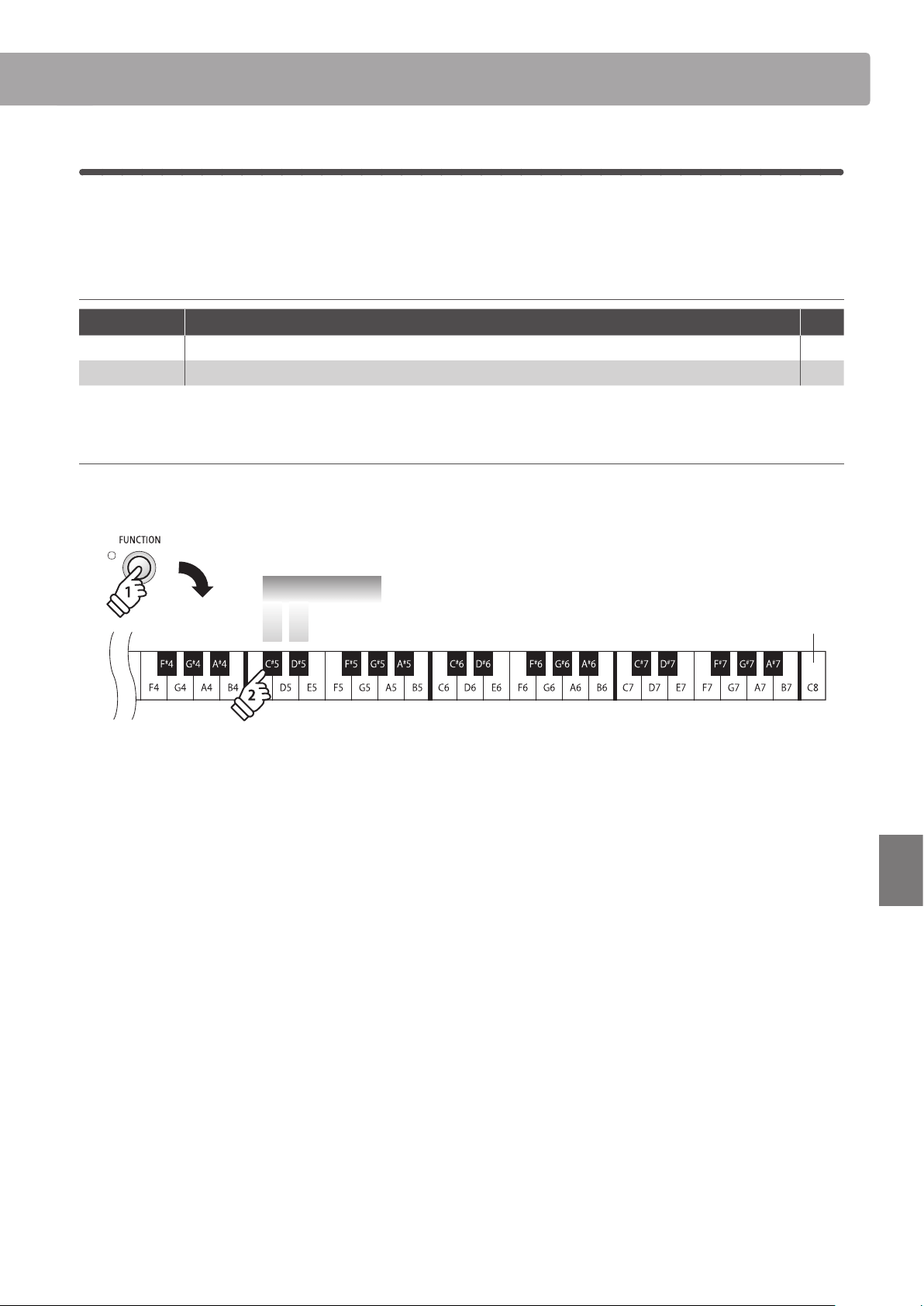
Local Control Explanation Key
O The instrument will transmit information to an external MIDI device only. C#5
On
(default) The instrument will play an internal sound and transmit information to an external MIDI device. D#5
Changing the Local Control setting
Press and hold the FUNCTION button, then press the key assigned to the desired Local Control setting.
Local Control
On
O
Highest key
hold
* Any changes made to the Local Control setting will remain until the power is turned o.
* Preferred Local Control settings can be stored to the Startup Setting memory for automatic selection when the instrument is turned on. Please
refer to page 49 for more information.
44
Settings
MIDI Settings
4
Multi-timbral Mode
The Multi-timbral mode setting determines whether or not the ES110 digital piano is able to receive MIDI
information on more than one MIDI channel simultaneously. This allows the instrument to play back multi-
track, multi-timbral performance data sent from an external MIDI device.
Multi-timbre settings
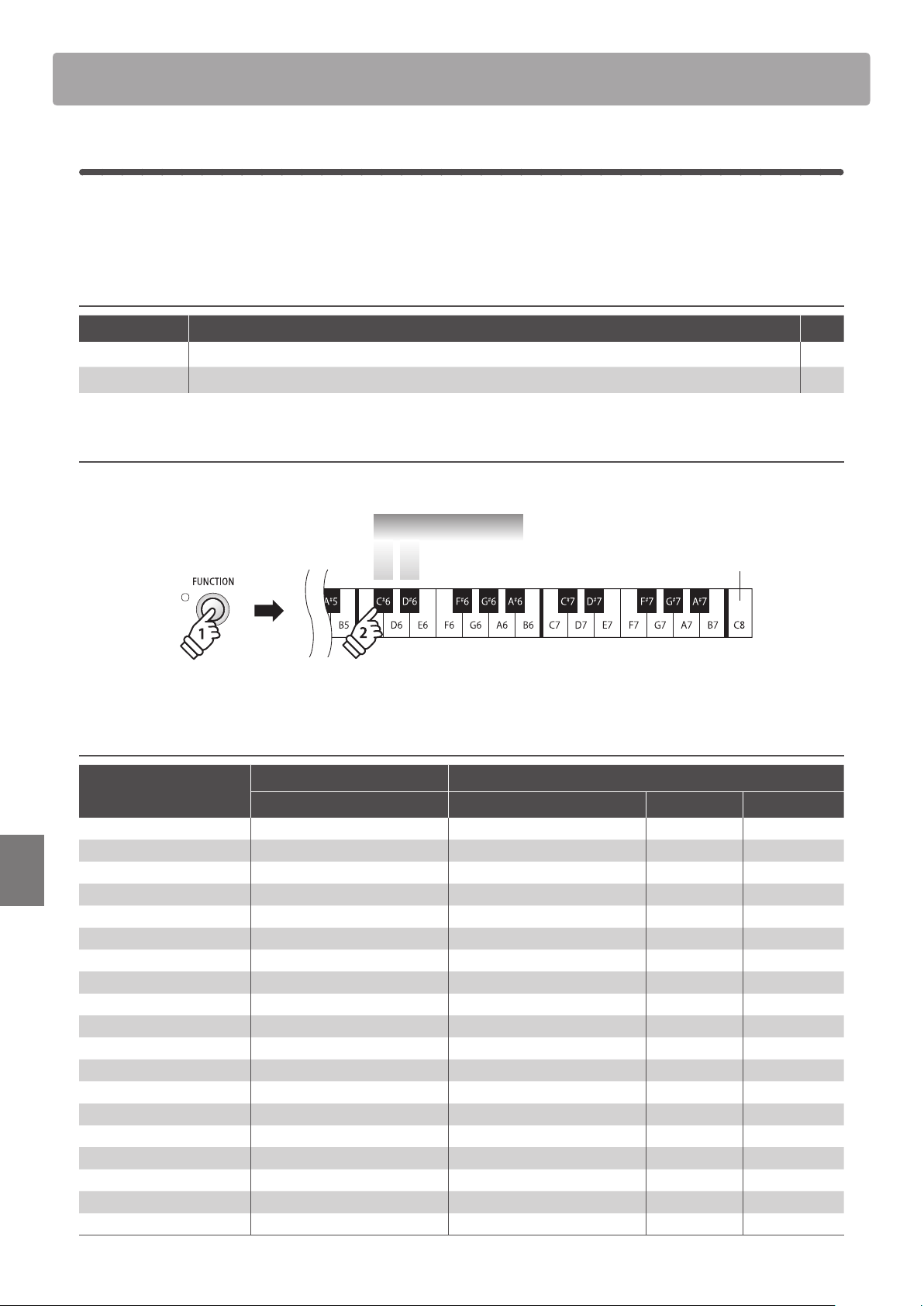
Multi-timbre Explanation Key
O (default) Multi-timbral mode disabled C#6
On Multi-timbral mode enabled* D#6
* Please refer to the ‘Program Change Number List’ below.
Changing the Multi-timbral mode setting
Press and hold the FUNCTION button, then press the key assigned to the desired Multi-timbre setting.
Highest key
Multi-timbral mode
On
O
hold
* MIDI data received through channel 10 will not be performed when Multi-timbre is enabled.
Program Change Number List
Sound name
Multi-timbral mode O Multi-timbral mode On
Program number Program number Bank MSB Bank LSB
Concert Grand 1 1 121 0
Concert Grand 2 2 1 95 16
Studio Grand 3 1 121 1
Studio Grand 2 4 1 95 17
Mellow Grand 5 1 121 2
Mellow Grand 2 6 1 95 18
Modern Piano 7 2 121 0
Rock Piano 8 2 121 1
Classic E.Piano 9 5 121 0
60’s E.Piano 10 5 121 3
Modern E.Piano 11 6 121 0
Jazz Organ 12 18 121 0
Church Organ 13 20 121 0
Slow Strings 14 45 95 1
String Ensemble 15 49 121 0
Wood Bass 16 33 121 0
Electric Bass 17 34 121 0
Harpsichord 18 7 121 0
Vibraphone 19 12 121 0
45
Settings
Speaker Settings
1
Speaker EQ
The Speaker EQ setting optimises the sound character of the ES110 digital piano’s speaker system, depending
on whether the instrument is placed on a table, or on a stand. It is also possible to disable speaker EQ to
ensure optimum sound quality when using the instrument’s Line Out connectors.
* This setting does not aect the sound heard when listening with headphones.
Speaker EQ settings
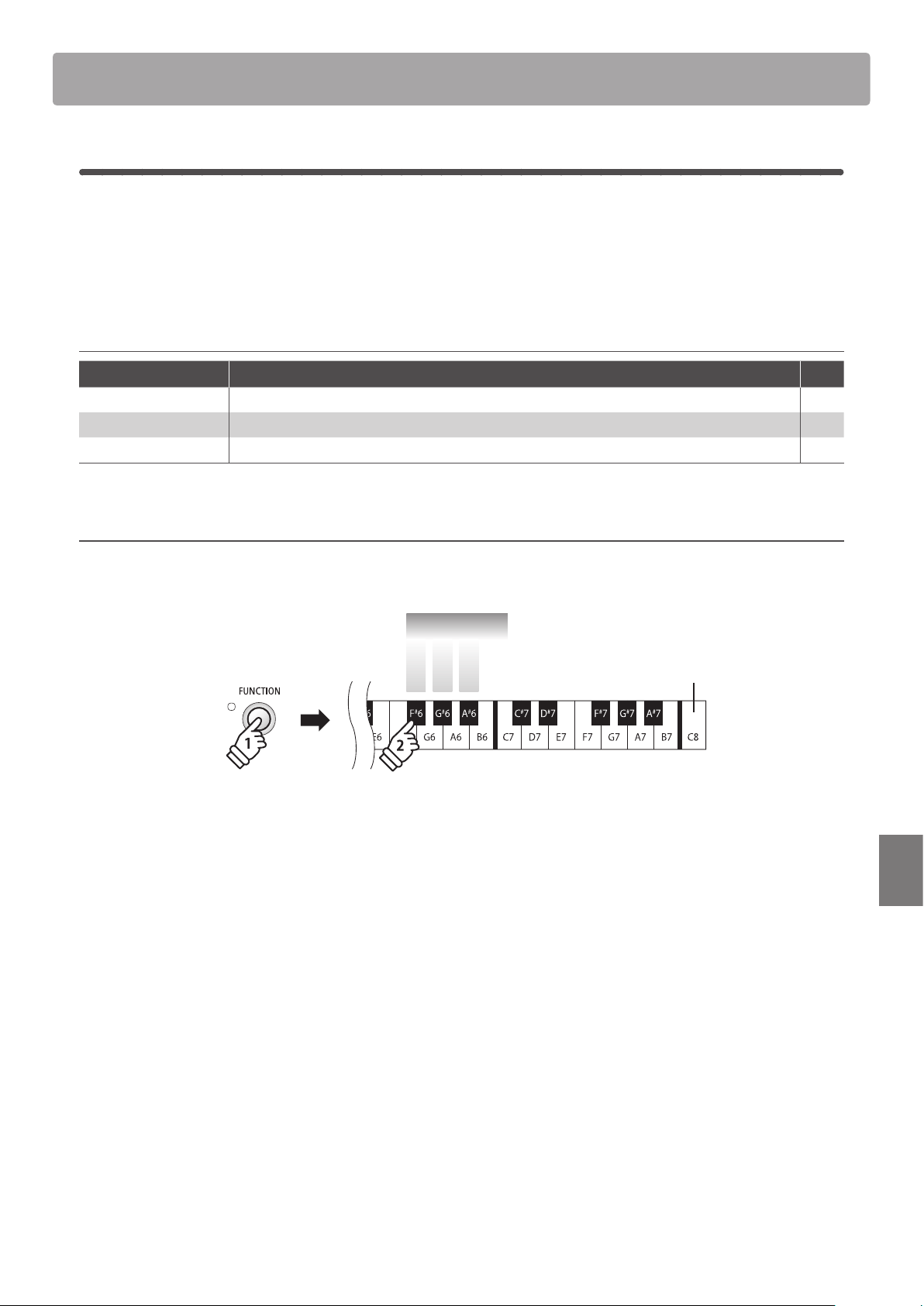
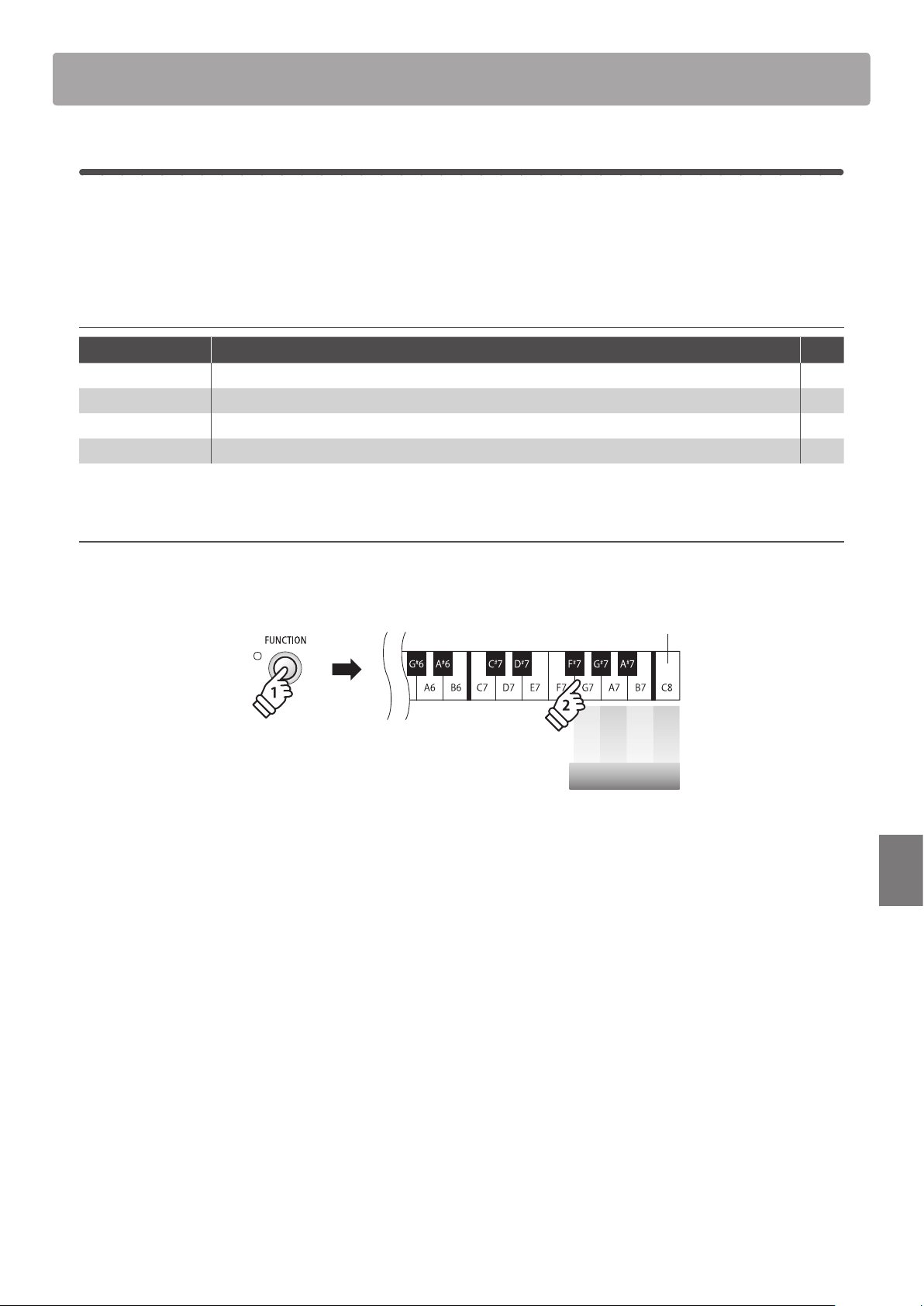
Speaker EQ Description Key
Normal (default) Optimise the speaker EQ for placing the ES110 digital piano on a stand. F#6
Table Optimise the speaker EQ for placing the ES110 digital piano on a table. G#6
O Disable the speaker EQ for optimum results when using the Line Out connectors. A#6
Changing the Speaker EQ setting
Press and hold the FUNCTION button, then press the key assigned to the desired the Speaker EQ setting.
Speaker EQ
Normal
Highest key
Table
O
hold
* Any changes made to the Speaker EQ setting will remain until the power is turned o.
* Preferred Speaker EQ settings can be stored to a Registration memory for convenient recall, or to the Startup Setting memory for automatic
selection when the instrument is turned on. Please refer to pages 19 and 49 for more information.
46
Settings
Speaker Settings
2
Speakers On/O
The Speaker On/O setting is used to enable or disable the ES110 digital piano’s built-in speakers. This
function may be useful when connecting the instrument to external speakers or an amplication system via
the Line Out jacks, and the built-in speakers are not required.
* The instrument’s built-in speakers can also be muted by connecting a pair of headphones to the Phones connectors.
Speakers On/O settings
Speakers On/O Explanation Key
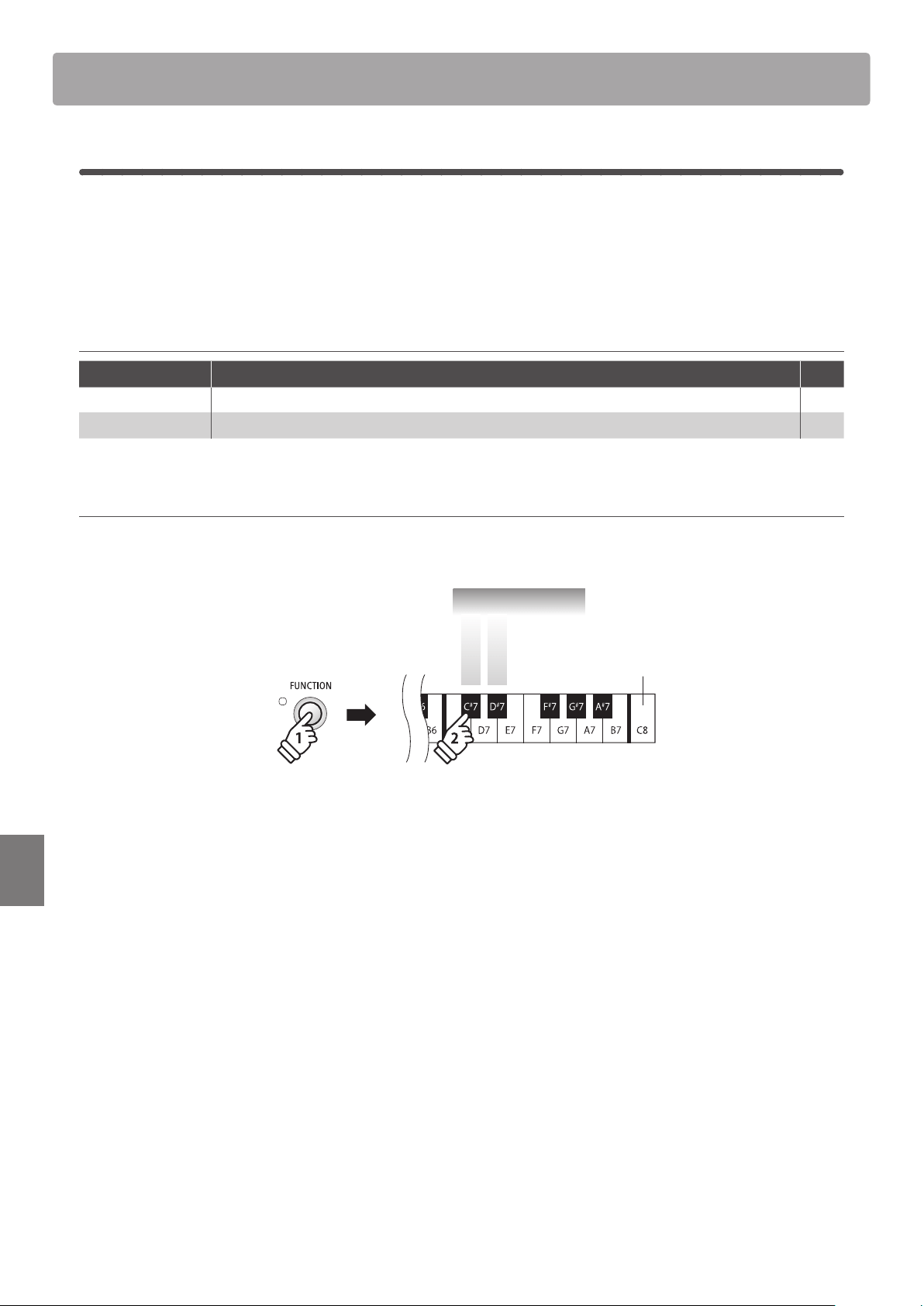
O Disables the instrument’s built-in speakers. C#7
On
(default) Enables the instrument’s built-in speakers. D#7
Changing the Speaker On/O setting
Press and hold the FUNCTION button, then press the key assigned to the desired Speakers On/O setting.
Speakers On/O
Speakers O
Highest key
Speakers On
hold
* Any changes made to the Speakers On/O setting will remain until the power is turned o.
* Preferred Speakers On/O settings can be stored to the Startup Setting memory for automatic selection when the instrument is turned on. Please
refer to page 49 for more information.
47
Settings
1
Auto Power O
The ES110 digital piano features a power saving function that can be used to automatically turn o the
instrument after a specied period of inactivity.
* This setting will be stored automatically, and recalled every time the instrument is turned on.
Auto Power O settings
Auto Power O Explanation Key
O The Auto Power O function is disabled. G7
30 min. The instrument will turn o automatically after 30 minutes of inactivity. A7
60 min. The instrument will turn o automatically after 60 minutes of inactivity. B7
120 min. The instrument will turn o automatically after 120 minutes of inactivity. C8
Selecting the Auto Power O setting
Press and hold the FUNCTION button, then press the key assigned to the desired Auto Power O setting.
hold
Highest key
O
30 min.
60 min.
120 min.
Auto Power O
* The Auto Power O setting will be stored automatically, and recalled when the instrument is turned on.
Other Settings
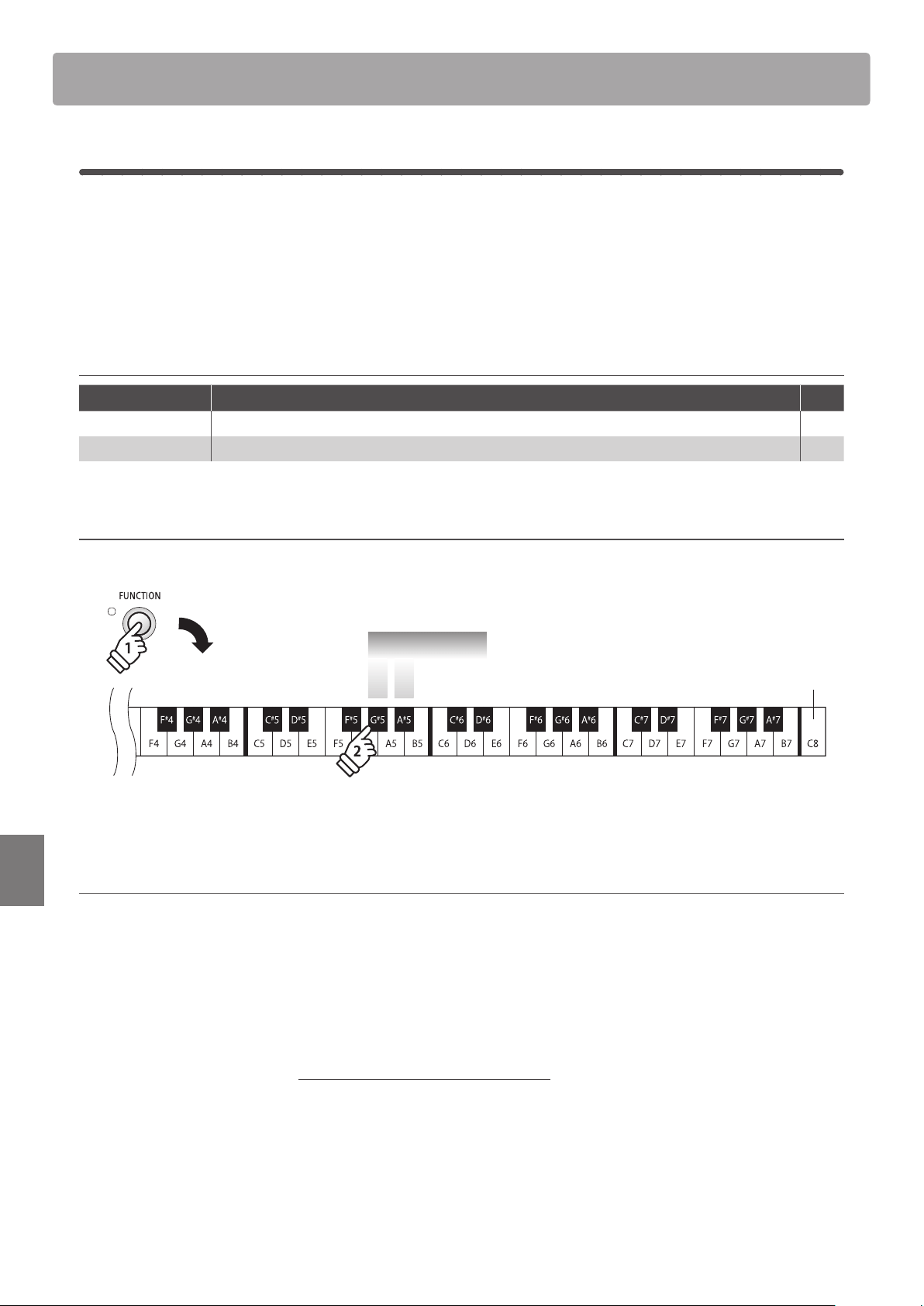
48
Settings
Other Settings
2
Bluetooth® MIDI
The Bluetooth MIDI setting is used to enable/disable the ES110 digital piano’s Bluetooth MIDI function. When
enabled, the ES110 digital piano can be connected to smart phones, tablets, and other smart devices to
facilitate wireless MIDI communication, allowing a wide range of music-related apps to be enjoyed using the
instrument.
* Availability of Bluetooth function dependent on market location.
Bluetooth MIDI settings
Bluetooth MIDI Explanation Key
O Disables the instrument’s Bluetooth MIDI function. G#5
On
(default) Enables the instrument’s Bluetooth MIDI function. A#5
Changing the Bluetooth MIDI setting
Press and hold the FUNCTION button, then press the key assigned to the desired Bluetooth MIDI setting.
Bluetooth MIDI
On
O
Highest key
hold
* Any changes made to the Bluetooth MIDI setting will remain until the power is turned o.
Connecting the ES110 digital piano to a smart device using Bluetooth MIDI
After enabling the Bluetooth MIDI function of the ES110 digital piano, enable Bluetooth communications on the smart device.
After a few moments the ES110 should appear in the device list. Tap the ES110 entry to connect the instrument to the smart device.
It should now be possible for MIDI apps to communicate with the ES110 digital piano.
* When the ES110 digital piano is connected to a smart device via Bluetooth MIDI, the MIDI IN/OUT connectors will be disabled.
* Please check for Bluetooth MIDI compatibility with the smart device manufacturer and app developer.
* For a list of potential issues and recommended solutions when using Bluetooth communications, please refer to page 52 of this owner’s manual.
* For more detailed instructions regarding Bluetooth pairing, please refer to the supplementary Bluetooth® Connectivity Guide PDF manual,
available from the Kawai Japan website: http://www.kawai-global.com/support/manual/
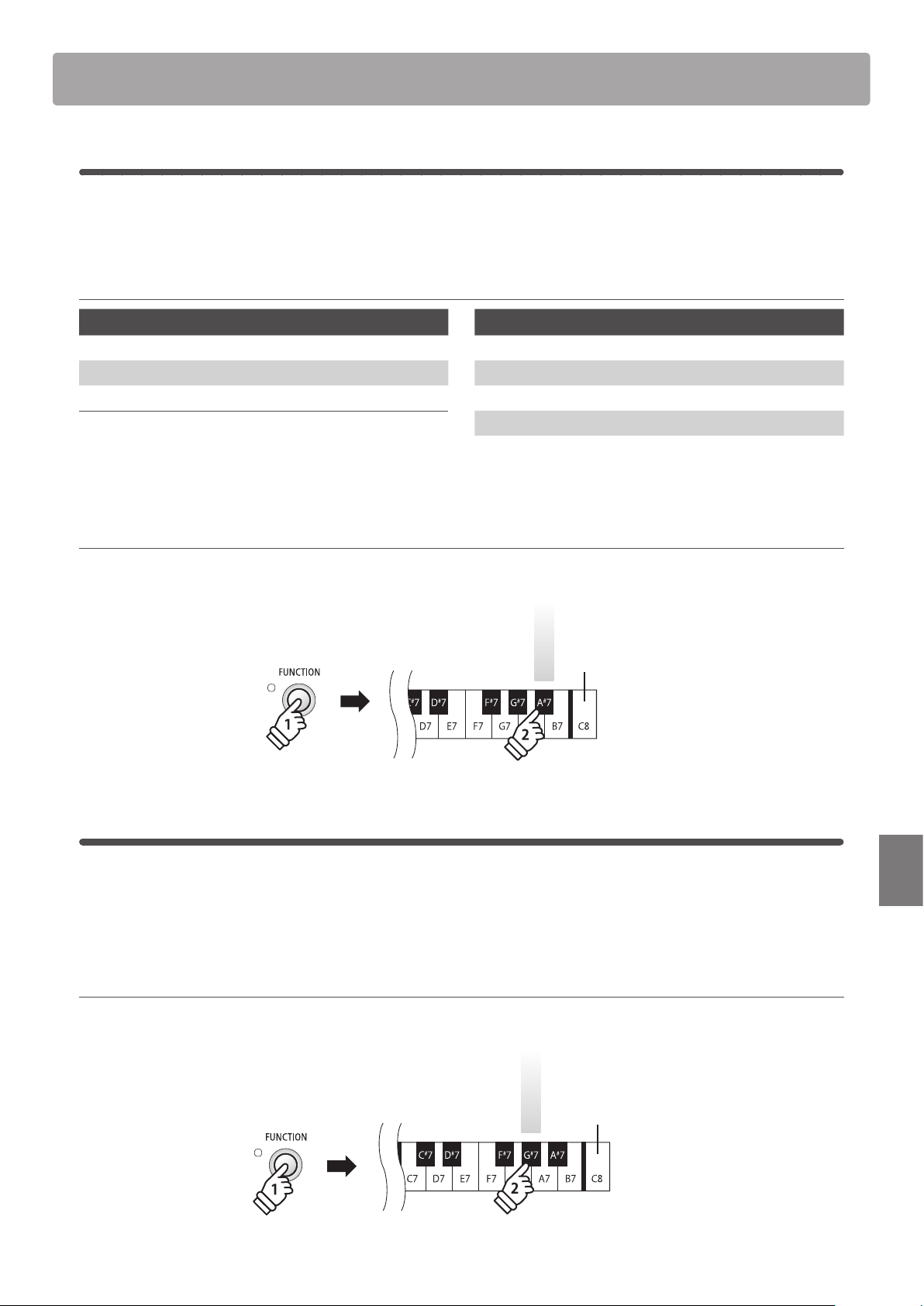
49
Settings
Memory Functions
1
Startup Setting
The Startup Setting function allows preferred panel settings to be stored in the instrument’s memory, and
automatically recalled as the default settings every time the ES110 digital piano is turned on.
Settings stored in Startup Setting memory
General Settings
Selected sound Keyboard and Sound Settings *
Dual Mode / Split Mode (Sounds, Volume balance) MIDI Settings
Metronome (Beat, Tempo, Volume) Speaker Settings
Other Settings
* The Transpose setting will not be stored to Startup Setting memory.
* The Auto Power O setting will be stored to Startup Setting memory automatically.
Storing current settings to Startup Setting memory
Press and hold the FUNCTION button, then press the key assigned to the Startup Setting function.
Startup Setting
Highest key
hold
2
Factory Reset
The Factory Reset function clears any settings stored using the Startup Setting function, restoring the ES110
digital piano back to its factory default settings.
* This function does not clear Registration memories or recorder songs stored in internal memory.
Restoring factory settings
Press and hold the FUNCTION button, then press the key assigned to the Factory Reset function.
Factory Reset
Highest key
hold
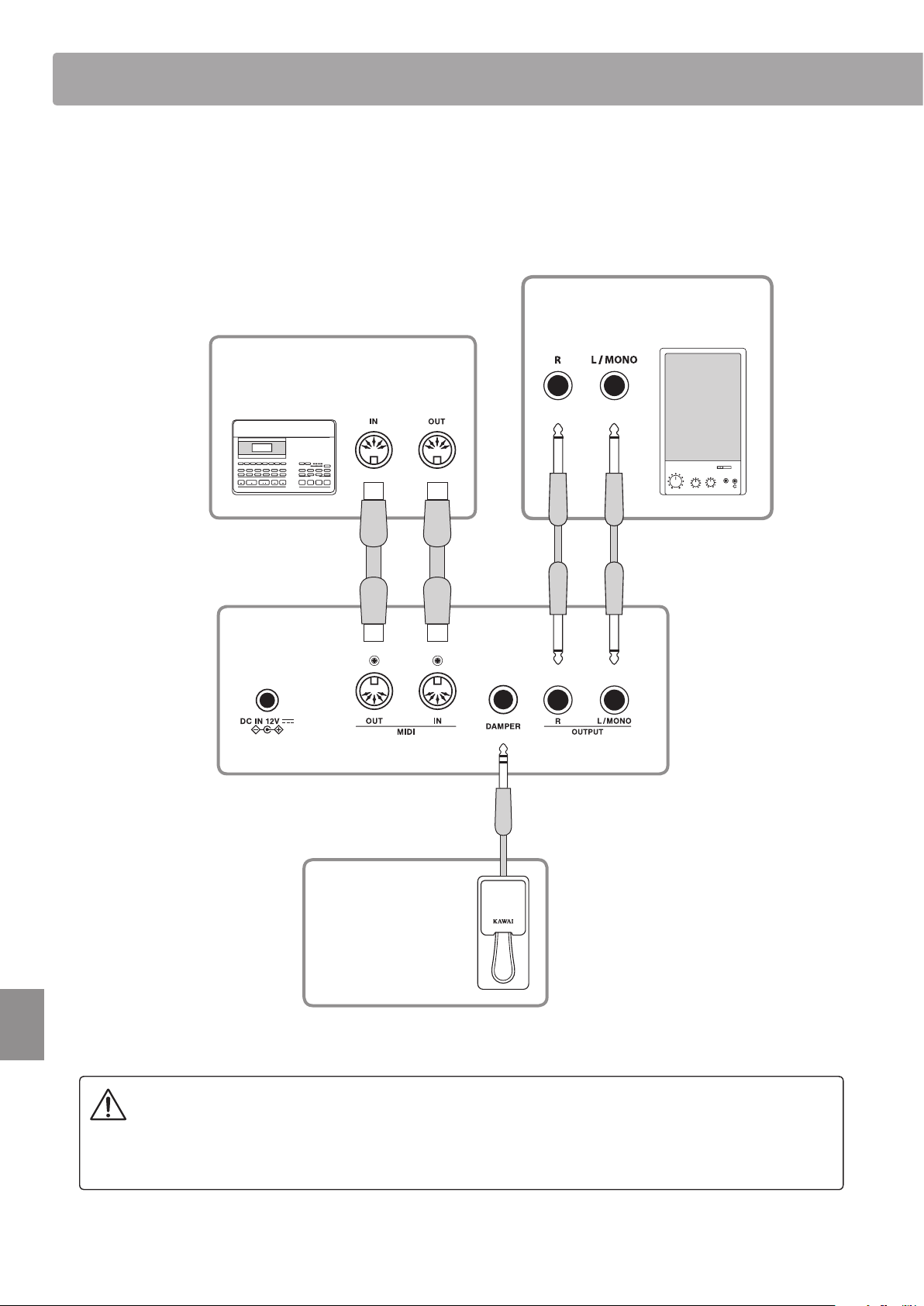
50
Appendix
Connecting to Other Devices
Appendix
Before connecting the ES110 digital piano to other devices, ensure that the power to both the instrument
and the other device is turned off. If connections are established while the power is turned on, extraneous
noise that can damage the ES110 digital piano may activate the instrument’s amplifier protection circuit,
preventing any sound from being produced. If this occurs, turn the power off and then on again to reset the
amplifier protection circuit.
The rear side of the ES110 digital piano features a variety of jacks that allow the instrument be connected
to MIDI devices, computers, speakers, and mixers. The illustration below provides a visual overview of the
instrument’s connectors and typical applications.
Connect the instrument to other MIDI
instruments, modules, devices, etc.
Connect the F-10H foot
pedal to the instrument.
Connect the instrument to external
speakers, ampliers, mixers, etc.

51
Appendix
Connecting to Other Devices
Appendix
Rear Connectors
DAMPER jack
This jack is used to connect the included F-10H foot pedal to the instrument.
* Please refer to page 11 for more information about pedal functions.
MIDI IN/OUT jacks
These jacks are used to connect the ES110 digital piano to external MIDI devices, and also to a computer with a MIDI interface.
* When the ES110 digital piano is connected to a smart device via Bluetooth MIDI, the MIDI IN/OUT connectors will be disabled.
* Please refer to page 39 for more information about MIDI.
LINE OUT jacks (1/4” phone jacks)
These jacks are used to connect the stereo output of the instrument’s sound to external speakers, ampliers, mixers, recording
devices, and similar equipment. Mono signals will be output only if a cable is connected to the L/MONO jack. The MASTER VOLUME
slider will aect the output level of the LINE OUT jacks.
* When using the LINE OUT jacks, it may also be desirable to disable both the instrument’s built-in speakers and speaker EQ to ensure optimum
sound quality.
* Please refer to pages 45 and 46 for more information about the Speakers On/O and Speaker EQ settings.
Front Connectors
PHONES jacks (1/4” phone jack)
These jacks are used to connect stereo headphones to the ES110 digital piano. Two pairs of headphones can be connected and
used simultaneously. When a pair of headphones is connected, sound will not be produced by the built-in speakers.
The built-in speaker can also be disabled by using the Speakers On/O setting.
* Please refer to page 46 for more information about the Speakers On/O setting.

52
Appendix
Trou bleshooting
The table below summarises issues that may be experienced with the ES110 digital piano, explaining the
typical cause(s), and recommended solution(s).
Issue Possible Cause and Solution Page no.
Power
The instrument does not turn on. Check that the AC power adaptor is rmly attached to the
instrument, and connected to an AC outlet.
p. 12
The instrument turns itself o after a
period of inactivity.
Check that the ‘Auto Power O’ setting is not enabled. p. 47
Sound
The instrument is turned on, however
no sound is produced when the keys
are pressed.
Check that the MASTER VOLUME slider is not set to the lowest
position.
Check that a pair of headphones (or headphone adaptor
plug) are not connected to the PHONES jacks.
Check that the Local Control setting in the MIDI Settings
menu is set to On.
Check that the built-in speakers have not been disabled using
the Speakers On/O setting.
p. 12
p. 11
p. 43
p. 46
The sound distorts when playing at
very loud volume levels.
Check that the MASTER VOLUME slider is set to an appropriate
level, reducing the volume if excessive distortion is heard.
p. 12
Strange sounds or noises are heard
when playing with piano sounds.
The ES110 digital piano attempts to reproduce the rich variety
of tones created by an acoustic grand piano as accurately as
possible. This includes damper resonances, damper noises,
and other subtle characteristics that contribute to the overall
piano playing experience.
While these additional tones are intended to enhance the
realism of the instrument, it is possible to reduce their
prominence.
p. 26
The top 18 notes of the keyboard
sustain far longer than neighbouring
notes, even when the damper pedal
is not pressed.
This is the correct behaviour, and intended to reproduce
the undamped notes (typically the top two octaves) of an
acoustic grand piano.
–
MIDI
MIDI data is not sent/received by the
MIDI IN/OUT jacks.
Check that the MIDI channel is set correctly.
Check that the MIDI IN/OUT jacks are connected correctly.
Check that the ES110 digital piano is not connected to a smart
device using Bluetooth MIDI.
p. 42
p. 48
Bluetooth MIDI
The instrument cannot connect with
the smart device/app.
Ensure that the instrument’s Bluetooth MIDI function is
turned On.
Ensure that the smart device/app’s Bluetooth function is
turned On.
Try deleting the instrument’s Bluetooth connection using the
smart device’s ‘Forget Device’ function.
Try turning the instrument O and then On, and/or restarting
the smart device.
* Please check for Bluetooth MIDI compatibility with the smart device
manufacturer and app developer.
p. 48
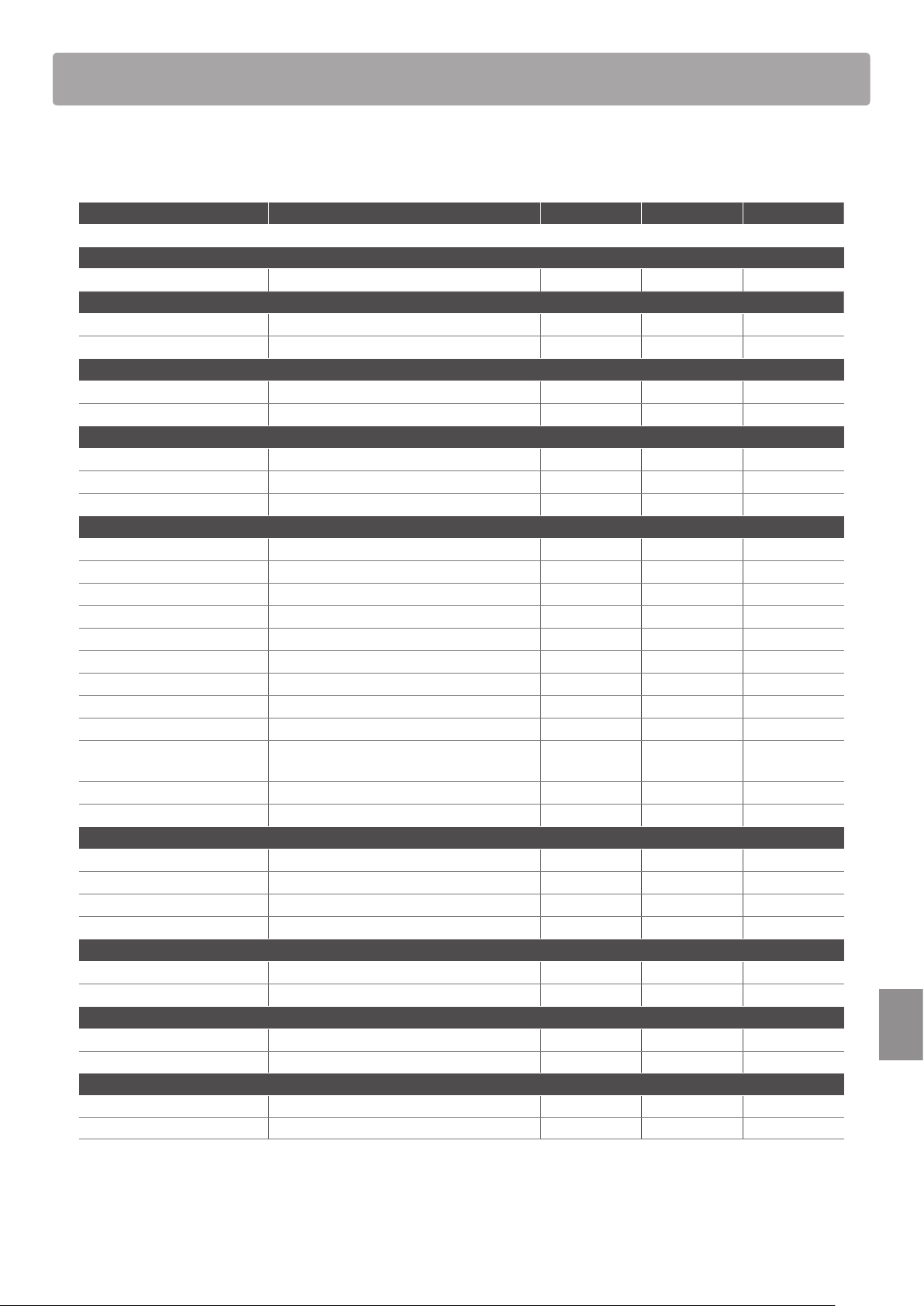
53
Appendix
Settings List
The table below lists settings/functions that can be adjusted from the ES110 digital piano’s panel interface,
in addition to available ranges/types, default settings, and Registration/Startup Setting storing capabilities.
Setting Name Range / Type Default Setting Registration Startup Setting
Normal Mode
Sound n/a Concert Grand
Dual Mode
Sound combination n/a n/a
–
Volume balance 0~8 4
Split Mode
Sound combination n/a n/a
–
Volume balance 0~8 4
Metronome
Time signature / Beat 1/4, 2/4, 3/4, 4/4, 5/4, 3/8, 6/8, Drum Rhythm 4/4
Volume 1~10 5
Tempo 10~300 bpm 120 bpm
Keyboard and Sound Settings
Reverb O, Room, Small Hall, Concert Hall Room
Damper Resonance O, Small, Medium, Large Medium
Voicing Normal, Mellow, Dynamic, Bright Normal
Fall-back Noise O, Small, Normal, Large Normal
Damper Noise O, Small, Normal, Large Normal
Transpose +/– 12 semi-tones 0 – –
Brilliance O, –10~+10 O
Touch O, Light, Normal, Heavy Normal
Tuning 427~453 Hz 440.0 Hz
Temperament
Equal, Pure Major, Pure Minor, Pythagorean,
Meantone, Werchmeister, Kirnberger
Equal
Temperament Key C~B C
Eect On/O O, On See page 38
MIDI Settings
Transmit PGM Change No. O, On On –
MIDI Channel 1ch~16ch 1ch –
Local Control O, On On –
Multi-timbral Mode O, On O –
Speaker Settings
Speaker EQ Normal, Table, O Normal
Speakers On/O O, On On –
Other Settings
Auto Power O O, 30 min., 60 min., 120 min. O / 30min.* –
**
Bluetooth On/O * O, On O – –
Memory Functions
Startup Setting n/a n/a – –
Factory Reset n/a n/a – –
* Dependent on market location.
** Auto Power O setting is stored to Startup Setting memory automatically.

54
Appendix
Demo Song Lists
Key Sound name Song name Composer
A0 Concert Grand Suite Bergamasque I. Prélude C. Debussy
B0 Concert Grand 2 Petit Chien F. F. Chopin
C1 Studio Grand Original Kawai
D1 Mellow Grand Sonata No.30 Op.109 L. v. Beethoven
E1 Classic E.Piano Original Kawai
F1 Modern E.Piano Original Kawai
G1 Jazz Organ Original Kawai
A1 Church Organ Chorale Prelude “Wachet auf, ruft uns die Stimme” J. S. Bach
B1 Slow Strings Original Kawai
C2 Electric Bass Original Kawai
D2 Harpsichord French Suite No. 6 J. S. Bach
E2 Vibraphone Original Kawai

55
Appendix
Drum Rhythm List
No. Rhythm Name
1 8 Beat 1
2 8 Beat 2
3 8 Beat 3
4 16 Beat 1
5 16 Beat 2
6 16 Beat 3
7 16 Beat 4
8 16 Beat 5
9 16 Beat 6
10 Rock Beat 1
11 Rock Beat 2
12 Rock Beat 3
13 Hard Rock
14 Heavy Beat
15 Surf Rock
16 2nd Line
17 50 Ways
18 Ballad 1
19 Ballad 2
20 Ballad 3
21 Ballad 4
22 Ballad 5
23 Light Ride 1
24 Light Ride 2
25 Smooth Beat
26 Rim Beat
27 Slow Jam
28 Pop 1
29 Pop 2
30 Electro Pop 1
31 Electro Pop 2
32 Ride Beat 1
33 Ride Beat 2
34 Ride Beat 3
35 Ride Beat 4
36 Slip Beat
37 Jazz Rock
38 Funky Beat 1
39 Funky Beat 2
40 Funky Beat 3
41 Funk 1
42 Funk 2
43 Funk 3
44 Funk Shue 1
45 Funk Shue 2
46 Buzz Beat
47 Disco 1
48 Disco 2
49 Hip Hop 1
50 Hip Hop 2
No. Rhythm Name
51 Hip Hop 3
52 Hip Hop 4
53 Techno 1
54 Techno 2
55 Techno 3
56 Heavy Techno
57 8 Shue 1
58 8 Shue 2
59 8 Shue 3
60 Boogie
61 16 Shue 1
62 16 Shue 2
63 16 Shue 3
64 T Shue
65 Triplet 1
66 Triplet 2
67 Triplet 3
68 Triplet 4
69 Triplet Ballad 1
70 Triplet Ballad 2
71 Triplet Ballad 3
72 Motown 1
73 Motown 2
74 Ride Swing
75 H.H. Swing
76 Jazz Waltz 1
77 Jazz Waltz 2
78 5/4 Swing
79 Fast 4 Beat
80 H.H. Bossa Nova
81 Ride Bossa Nova
82 Beguine
83 Mambo
84 Cha Cha
85 Samba
86 Light Samba
87 Surdo Samba
88 Latin Groove
89 Afro Cuban
90 Songo
91 Bembe
92 Merenge
93 Reggae
94 Tango
95 Habanera
96 Waltz
97 Ragtime
98 Country & Western
99 March
100 6/8 March

56
Appendix
Lesson Function Song Lists
Alfred’s Basic Piano Library Lesson Book Level 1A
A0 Right & Left
B0 Left & Right
C1 Merrily We Roll Along/O’er the Deep Blue Sea
D1 Hand-Bells
E1 Jolly Old Saint Nicholas
F1 Old MacDonald
G1 Batter Up!
A1 My Clever Pup
B1 The Zoo
C2 Playing in a New Position
D2 Sailing
E2 Skating
F2 Wishing Well
G2 Rain, Rain!
A2 A Happy Song
B2 Position C
C3 A Happy Song
D3 See-Saws
E3 Just a Second!
F3 Balloons
G3 Who’s on Third?
A3 Mexican Hat Dance
B3 Rock Song
C4 Rockets
D4 Sea Divers
E4 Play a Fourth
F4 July the Fourth!
G4 Old Uncle Bill
A4 Love Somebody
B4 My Fifth
C5 The Donkey
D5 Position G
E5 Jingle Bells!
F5 Willie & Tillie
G5 A Friend Like You
A5 My Robot
B5 Rockin’ Tune
C6 Indian Song
D6 Raindrops
E6 It’s Halloween!
F6 Horse Sense
Alfred’s Basic Piano Library Lesson Book Level 1B
A0 Step Right Up!
B0 The Carousel
C1 Hail to Thee, America!
D1 Brother John
E1 Good Sounds
F1 The Cuckoo
G1 Money Can’t Buy Ev’rything!
A1 Ping-Pong
B1 Grandpa’s Clock
C2 When the Saints Go Marching In
D2 G’s in the “BAG”
E2 Join the Fun
F2 Oom-Pa-pa!
G2 The Clown
A2 Thumbs on C!
B2 Waltz Time
C3 Good King Wenceslas
D3 The Rainbow
E3 Good Morning to You!
F3 Happy Birthday to You!
G3 Yankee Doodle
A3 The Windmill
B3 Indians
C4 New Position G
D4 Pedal Play
E4 Harp Song
F4 Concert Time
G4 Music Box Rock
A4 A Cowboy’s Song
B4 The Magic Man
C5 The Greatest Show on Earth!
D5 The Whirlwind
E5 The Planets
F5 C Major Scale Piece
G5 G Major Scale Piece
A5 Carol in G Major
B5 The Same Carol in C Major
C6 French Lullaby
D6 Sonatina
E6 When Our Band Goes Marching By!

57
Appendix
Burgmüller 25 (25 Etudes Faciles, Opus 100)
A0 La candeur
B0 Arabesque
C1 Pastorale
D1 Petite réunion
E1 Innocence
F1 Progrès
G1 Courant Limpide
A1 La gracieuse
B1 La chasse
C2 Tendre eur
D2 La bergeronnette
E2 Adieu
F2 Consolation
G2 La styrienne
A2 Ballade
B2 Douce plainte
C3 Babillarde
D3 Inquiétude
E3 Ave Maria
F3 Tarentelle
G3 Harmonie des anges
A3 Barcarolle
B3 Retour
C4 L’hirondelle
D4 La chevaleresque
Lesson Function song book availability
Alfred’s Basic Piano Library, Burgmüller: Etudes Faciles, lesson song books are sold separately.
Please check your local dealer for more information. Alfred’s international oces may also be contacted directly:
USA / Canada Australia
Alfred Music Publishing Alfred Publishing Australia
PO Box 10003
PO Box 2355
Van Nuys, CA 91410
Taren Point NSW 2229
Tel: +1 (800) 292-6122
Tel: +61 (02) 9524 0033
Email: sales@alfred.com
Email: [email protected].au
Website: http://www.alfred.com
Lesson Function Song Lists
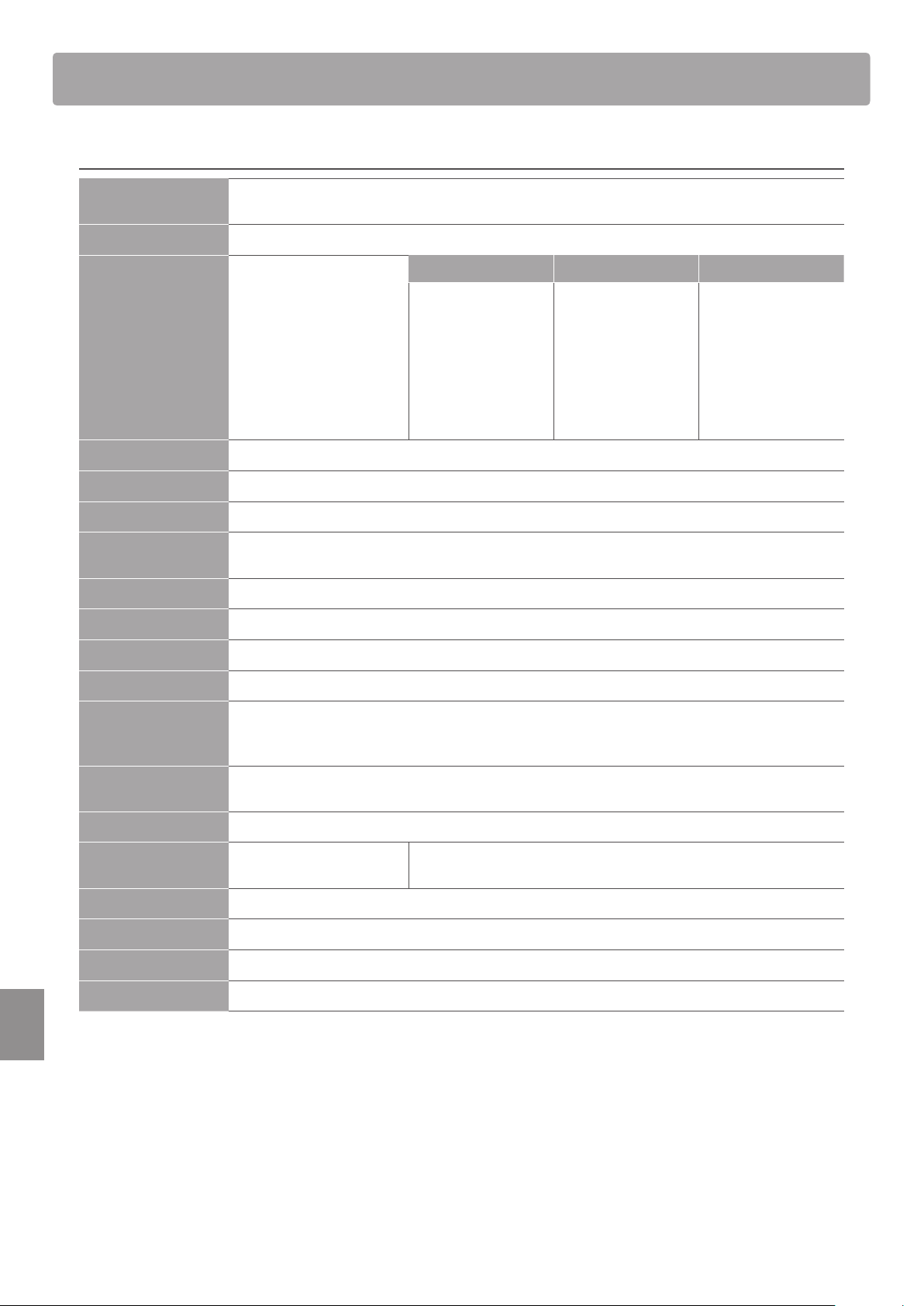
58
Appendix
Specications
Kawai ES110 digital piano
Keyboard 88 weighted keys
Responsive Hammer Compact (RHC) weighted-key keyboard action
Sound Source Harmonic Imaging™ (HI), 88-key piano sampling
Internal Sounds 19 voices PIANO E.PIANO / ORGAN OTHERS
Concert Grand
Concert Grand2
Studio Grand
Studio Grand 2
Mellow Grand
Mellow Grand2
Modern Piano
Rock Piano
Classic E.Piano
60’s E.Piano
Modern E.Piano
Jazz Organ
Church Organ
Slow Strings
String Ensemble
Wood Bass
Electric Bass
Harpsichord
Vibraphone
Polyphony max. 192 notes
Keyboard Modes Dual Mode, Split Mode
Reverb Room, Small Hall, Concert Hall
Settings Touch Curve, Voicing, Damper Resonance, Damper Noise, Fall-back Noise, Temperament,
Temperament Key, Eect On/O
Internal Recorder 3 song, recorder – approximately 15,000 note memory capacity
Metronome 1/4, 2/4, 3/4, 4/4, 5/4, 3/8, 6/8 (Volume/Tempo adjustable)
Rhythm 100 rhythms
Demo Songs 12 sound demo songs
Other Functions Transpose, Tuning, Split Balance, Dual Balance, MIDI Channel, Local Control, Transmit PGM#,
Multi-timbral Mode, Speaker EQ, Speakers On/O, Auto Power O, Bluetooth MIDI, Startup Setting,
Factory Reset
Bluetooth Bluetooth (Ver. 4.0; GATT compatible)
Bluetooth Low Energy MIDI Specication compliant
Connectors MIDI (IN/OUT), LINE OUT (L/MONO, R), DAMPER (for F-10H), Headphones x 2
Speaker System Speakers:
Output Power:
12 cm x 2
7 W x 2
Power Consumption 9 W
Dimensions 1312 (W) x 286 (D) x 148 (H) mm
Weight 12.0 kg
Finish Black, White
Specications are subject to change without notice.
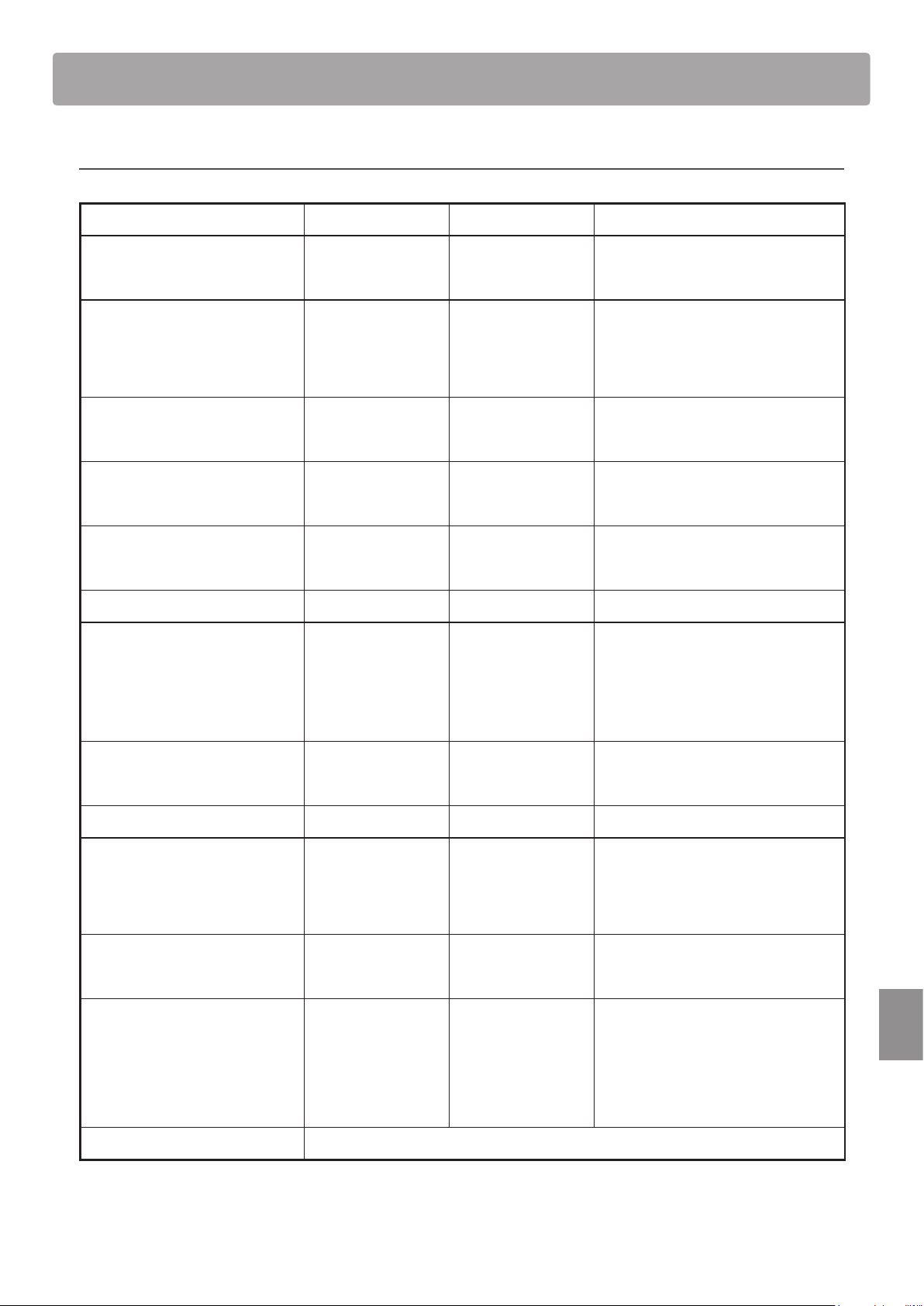
59
Appendix
MIDI Implementation Chart
Kawai ES110 digital piano
Date : July 2016 Version : 1.0
Function Transmit Receive Remarks
Basic
channel
At power-up 1 1
Settable 1 - 16 1 - 16
Mode
At power-up Mode 3 Mode 1 ** Omni mode is on at power-
up. Omni mode can be turned off
through MIDI channel setting
operations.
Message X Mode 1, 3**
Alternative ***** X
Note
number
9 - 120* 0 - 127
* 9 - 120, including transpose
Range ***** 0 - 127
Velocity
Note on O O
Note off O O
After touch
Key specic X X
Channel specic
X X
Pitch bend X X
Control
change
0, 32
7
64
66
67
O
X
O (Right pedal)
O (Middle pedal)
O (Left pedal)
O
O
O
O
O
Bank select
Volume
Sustain pedal
Sostenuto pedal
Soft pedal
Program change
settable range
O (0 - 127) O (0 - 127)
*****
Exclusive O O Transmission can be selected
Common
Song position X X
Song select X X
Tune X X
Real time
Clock X X
Commands X X
Other
functions
Local On / Off X O
All notes Off X O
Active sensing X O
Reset X X
Remarks
Mode 1: omni mode On, Poly Mode 2: omni mode On, Mono O : Yes
Mode 3: omni mode Off, Poly Mode 4: omni mode Off, Mono X : No

60
Appendix
Notes
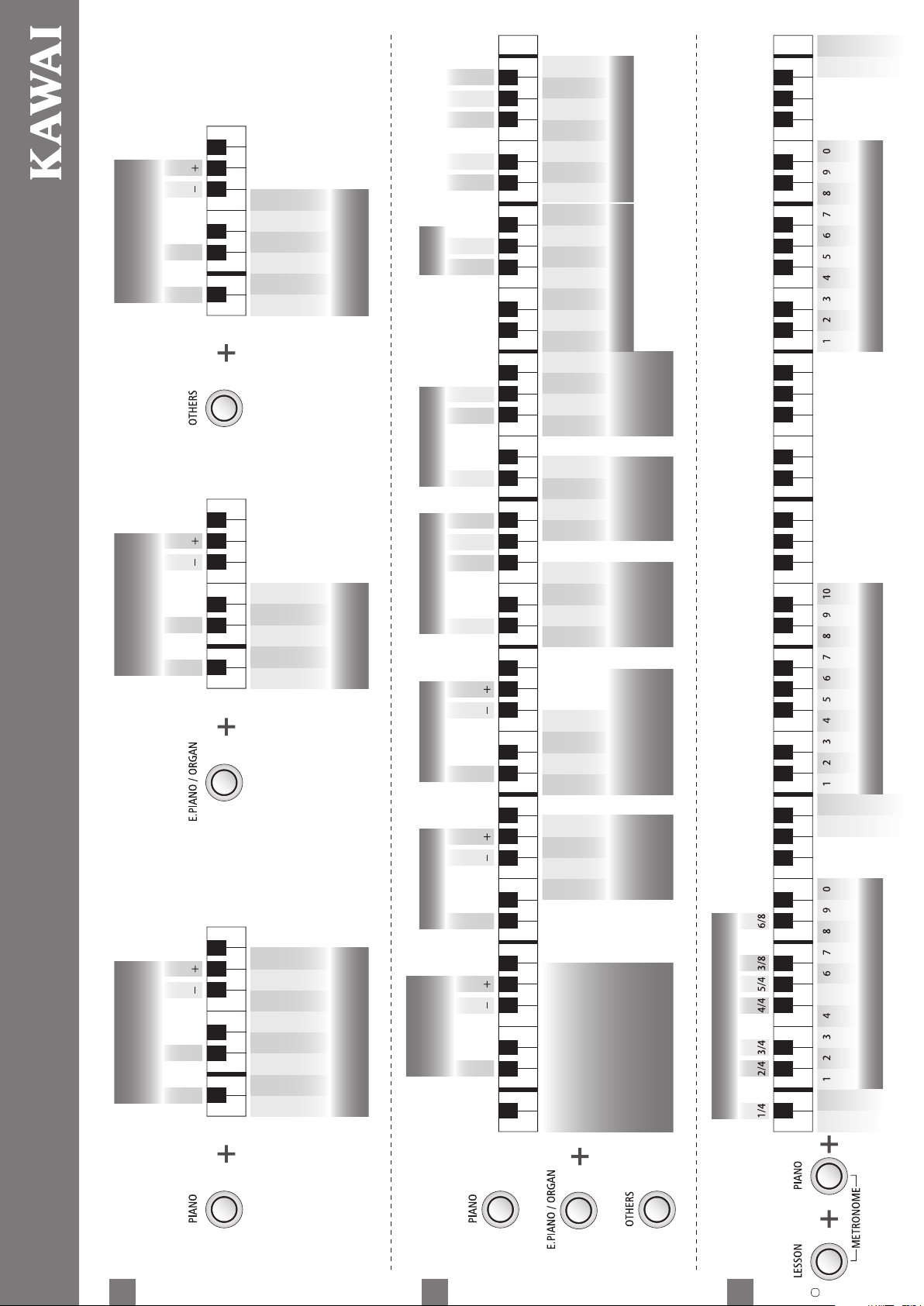
Church Organ
Modern E.Piano
Classic E.Piano
String Ensemble
Metronome Tempo (2 or 3 digits)
Sound Select Reverb
DamperResonance
(Forpianosoundonly)
Voicing
(Forpiano
soundonly)
Fall-back
Noise
(Forpiano
soundonly)
Damper
Noise
(Forpiano
soundonly)
Temperament
Rhythm Selection (2 or 3 digits)Metronome Volume
Transpose
Dual / Split
Balance
Dual / Split
Balance
Dual / Split
Balance
Dual / Split
Balance
Bliliance Touch Tuning
Eect
TemperamentKey
Time Signature
Split
Dual
Split
Dual
Split
Dual
Split
Rock Piano
Modern Piano
Mellow Grand 2
Mellow Grand
Studio Grand 2
Studio Grand
Concert Grand 2
Concert Grand
Jazz Organ
60's E.Piano
O
Concert Hall
Small Hall
Room
Vibraphone
Harpsichord
Electric Bass
Wood Bass
Slow Strings
O
Large
Medium
Small
Blight
Dynamic
Mellow
Normal
O
Large
Small
Normal
O
Large
Small
Normal
Pythagorean
Pure Minor
Pure Major
Equal
Kirnberger
Werkmeister
Rhythm +
Rhythm –
Meantone
Selecting a Registration memory
Press 1~4button.Enter
1 or2or3or4
Storing a Registration
Press 1~4button.Pressandhold the
registrationbutton.
1 or2or3or4
Press3times: BothLeftandRighthands
Presstwice: Right‐handonly
Pressonce: Left‐handonly
Auto Power O
FUNCTION
Speaker EQ
Mode
Bluetooth
MIDI
Speaker
On/O
120 min
60 min
30 min
O
Nomal
O
Table
O
On
Speaker O
Speaker On
Factory Reset
Startup Setting
SOUND EDIT
METRONOME
SOUND SELECT
Starting a demo song.
440.0 Hz
-0.5 Hz
+0.5 Hz
On
O
*Press this key before selecting the song to select Book 1~3.
DEMO
LESSON
RECORDER
REGISTRATION
SoundSelect SoundSelect SoundSelect
Volume +
Volume –
Selecting a demo song.
Listening to the song Selecting a Lesson book and song
Record a song Play a song Erase all songs
Tempo +
Tempo –
Select a song memory Start recording
Selecting the part to practice
O
O
O
Normal
Light
Heavy
C
#
C D E F G A B
D
#
F
#
G
#
A
#
Hold both buttons Turn the power on
A
#
0 C
#
1 D
#
1 F
#
1 G
#
1 A
#
1 C
#
2 D
#
2 F
#
2 G
#
2 A
#
2
A0 B0 C1 D1 E1 F1 G1 A1 B1 C2 D2 E2 F2 G2 A2 B2
C
#
3 D
#
3 F
#
3 G
#
3 A
#
3
C3 D3 E3 F3 G3 A3 B3
C
#
4 D
#
4 F
#
4 G
#
4 A
#
4
C4 D4 E4 F4 G4 A4 B4
C
#
5 D
#
5 F
#
5 G
#
5 A
#
5
C5 D5 E5 F5 G5 A5 B5
C
#
6 D
#
6 F
#
6 G
#
6 A
#
6
C6 D6 E6 F6 G6 A6 B6
C
#
7 D
#
7 F
#
7 G
#
7 A
#
7
C7 C8D7 E7 F7 G7 A7 B7
A
#
0 C
#
1 D
#
1 F
#
1 G
#
1 A
#
1 C
#
2 D
#
2 F
#
2 G
#
2 A
#
2
A0 B0 C1 D1 E1 F1 G1 A1 B1 C2 D2 E2 F2 G2 A2 B2
C
#
3 D
#
3 F
#
3 G
#
3 A
#
3
C3 D3 E3 F3 G3 A3 B3
C
#
4 D
#
4 F
#
4 G
#
4 A
#
4
C4 D4 E4 F4 G4 A4 B4
C
#
5 D
#
5 F
#
5 G
#
5 A
#
5
C5 D5 E5 F5 G5 A5 B5
C
#
6 D
#
6 F
#
6 G
#
6 A
#
6
C6 D6 E6 F6 G6 A6 B6
C
#
7 D
#
7 F
#
7 G
#
7 A
#
7
C7 C8D7 E7 F7 G7 A7 B7
A
#
0 C
#
1 D
#
1 F
#
1 G
#
1 A
#
1
A0 B0 C1 D1 E1 F1 G1 A1 B1
A
#
0 C
#
1 D
#
1 F
#
1 G
#
1 A
#
1
A0 B0 C1 D1 E1 F1 G1 A1 B1
A
#
0 C
#
1 D
#
1 F
#
1 G
#
1 A
#
1
A0 B0 C1 D1 E1 F1 G1 A1 B1
A
#
0 C
#
1 D
#
1 F
#
1 G
#
1 A
#
1 C
#
2 D
#
2
A0 B0 C1 D1 E1 F1 G1 A1 B1 C2 D2 E2
A
#
0 C
#
1 D
#
1
A0 B0 C1 D1 E1
A
#
0 C
#
1 D
#
1
A0 B0 C1 D1 E1
F
#
5 G
#
5 A
#
5
F5 G5 A5 B5
C
#
6 D
#
6 F
#
6 G
#
6 A
#
6
C6 D6 E6 F6 G6 A6 B6
C
#
7 D
#
7 F
#
7 G
#
7 A
#
7
C7 C8D7 E7 F7 G7 A7 B7
or
or
or
or
hold
hold
* For more details and MIDI settings, please refer to owner's manual.
Copyright © Kawai Musical Instruments Mfg. Co., Ltd. All Rights
Book 2 *
Book 1 *
Book 3 *
ES110
Operation Guide
ES110
Operation Guide
Operation Guide
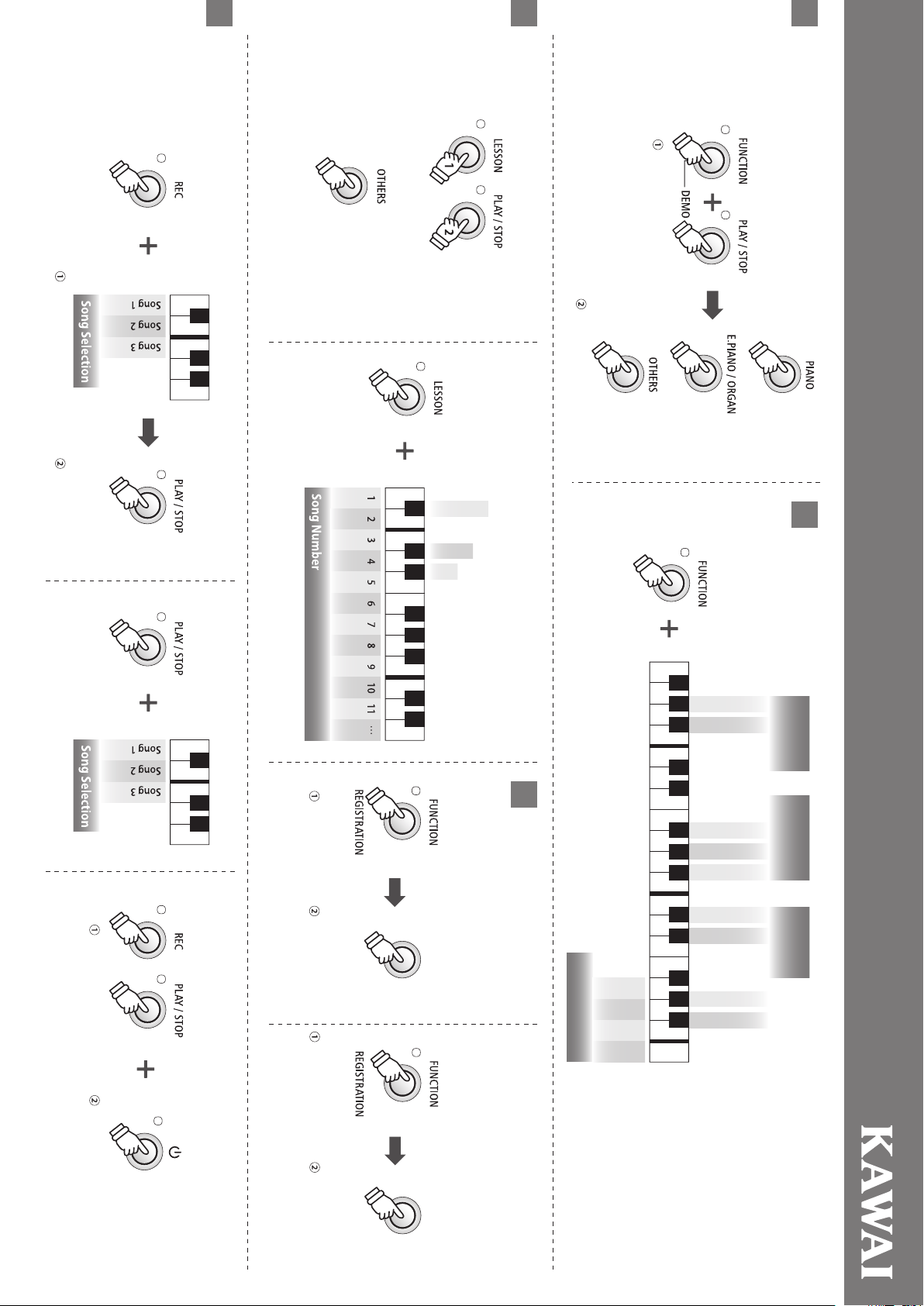
Church Organ
Modern E.Piano
Classic E.Piano
String Ensemble
Metronome Tempo (2 or 3 digits)
Sound Select Reverb
DamperResonance
(Forpianosoundonly)
Voicing
(Forpiano
soundonly)
Fall-back
Noise
(Forpiano
soundonly)
Damper
Noise
(Forpiano
soundonly)
Temperament
Rhythm Selection (2 or 3 digits)Metronome Volume
Transpose
Dual / Split
Balance
Dual / Split
Balance
Dual / Split
Balance
Dual / Split
Balance
Bliliance Touch Tuning
Eect
TemperamentKey
Time Signature
Split
Dual
Split
Dual
Split
Dual
Split
Rock Piano
Modern Piano
Mellow Grand 2
Mellow Grand
Studio Grand 2
Studio Grand
Concert Grand 2
Concert Grand
Jazz Organ
60's E.Piano
O
Concert Hall
Small Hall
Room
Vibraphone
Harpsichord
Electric Bass
Wood Bass
Slow Strings
O
Large
Medium
Small
Blight
Dynamic
Mellow
Normal
O
Large
Small
Normal
O
Large
Small
Normal
Pythagorean
Pure Minor
Pure Major
Equal
Kirnberger
Werkmeister
Rhythm +
Rhythm –
Meantone
Selecting a Registration memory
Press 1~4button.Enter
1 or2or3or4
Storing a Registration
Press 1~4button.Pressandhold the
registrationbutton.
1 or2or3or4
Press3times: BothLeftandRighthands
Presstwice: Right‐handonly
Pressonce: Left‐handonly
Auto Power O
FUNCTION
Speaker EQ
Mode
Bluetooth
MIDI
Speaker
On/O
120 min
60 min
30 min
O
Nomal
O
Table
O
On
Speaker O
Speaker On
Factory Reset
Startup Setting
SOUND EDIT
METRONOME
SOUND SELECT
Starting a demo song.
440.0 Hz
-0.5 Hz
+0.5 Hz
On
O
*Press this key before selecting the song to select Book 1~3.
DEMO
LESSON
RECORDER
REGISTRATION
SoundSelect SoundSelect SoundSelect
Volume +
Volume –
Selecting a demo song.
Listening to the song Selecting a Lesson book and song
Record a song Play a song Erase all songs
Tempo +
Tempo –
Select a song memory Start recording
Selecting the part to practice
O
O
O
Normal
Light
Heavy
C
#
C D E F G A B
D
#
F
#
G
#
A
#
Hold both buttons Turn the power on
A
#
0 C
#
1 D
#
1 F
#
1 G
#
1 A
#
1 C
#
2 D
#
2 F
#
2 G
#
2 A
#
2
A0 B0 C1 D1 E1 F1 G1 A1 B1 C2 D2 E2 F2 G2 A2 B2
C
#
3 D
#
3 F
#
3 G
#
3 A
#
3
C3 D3 E3 F3 G3 A3 B3
C
#
4 D
#
4 F
#
4 G
#
4 A
#
4
C4 D4 E4 F4 G4 A4 B4
C
#
5 D
#
5 F
#
5 G
#
5 A
#
5
C5 D5 E5 F5 G5 A5 B5
C
#
6 D
#
6 F
#
6 G
#
6 A
#
6
C6 D6 E6 F6 G6 A6 B6
C
#
7 D
#
7 F
#
7 G
#
7 A
#
7
C7 C8D7 E7 F7 G7 A7 B7
A
#
0 C
#
1 D
#
1 F
#
1 G
#
1 A
#
1 C
#
2 D
#
2 F
#
2 G
#
2 A
#
2
A0 B0 C1 D1 E1 F1 G1 A1 B1 C2 D2 E2 F2 G2 A2 B2
C
#
3 D
#
3 F
#
3 G
#
3 A
#
3
C3 D3 E3 F3 G3 A3 B3
C
#
4 D
#
4 F
#
4 G
#
4 A
#
4
C4 D4 E4 F4 G4 A4 B4
C
#
5 D
#
5 F
#
5 G
#
5 A
#
5
C5 D5 E5 F5 G5 A5 B5
C
#
6 D
#
6 F
#
6 G
#
6 A
#
6
C6 D6 E6 F6 G6 A6 B6
C
#
7 D
#
7 F
#
7 G
#
7 A
#
7
C7 C8D7 E7 F7 G7 A7 B7
A
#
0 C
#
1 D
#
1 F
#
1 G
#
1 A
#
1
A0 B0 C1 D1 E1 F1 G1 A1 B1
A
#
0 C
#
1 D
#
1 F
#
1 G
#
1 A
#
1
A0 B0 C1 D1 E1 F1 G1 A1 B1
A
#
0 C
#
1 D
#
1 F
#
1 G
#
1 A
#
1
A0 B0 C1 D1 E1 F1 G1 A1 B1
A
#
0 C
#
1 D
#
1 F
#
1 G
#
1 A
#
1 C
#
2 D
#
2
A0 B0 C1 D1 E1 F1 G1 A1 B1 C2 D2 E2
A
#
0 C
#
1 D
#
1
A0 B0 C1 D1 E1
A
#
0 C
#
1 D
#
1
A0 B0 C1 D1 E1
F
#
5 G
#
5 A
#
5
F5 G5 A5 B5
C
#
6 D
#
6 F
#
6 G
#
6 A
#
6
C6 D6 E6 F6 G6 A6 B6
C
#
7 D
#
7 F
#
7 G
#
7 A
#
7
C7 C8D7 E7 F7 G7 A7 B7
or
or
or
or
hold
hold
* For more details and MIDI settings, please refer to owner's manual.
Copyright © Kawai Musical Instruments Mfg. Co., Ltd. All Rights
Book 2 *
Book 1 *
Book 3 *
ES110
Operation Guide
ES110
Operation Guide


Copyright © 2016 Kawai Musical Instruments Mfg. Co.,Ltd. All Rights Reserved.
ES110 Owner’s Manual
818457
KPSZ-0833 R102
OW1098E-J1610
Printed in China