User’s Manual
E654
E554
E464
E424
E324

English-1
www.necdisplaysolutions.com
Index
Precautions And Reminders ���������������������������������������������������������������� English-1
Important Safety Instructions ��������������������������������������������������������������� English-2
Important Information �������������������������������������������������������������������������� English-5
Declaration Of Conformity ������������������������������������������������������������������English-11
Contents �������������������������������������������������������������������������������������������� English-13
Preparation ���������������������������������������������������������������������������������������� English-14
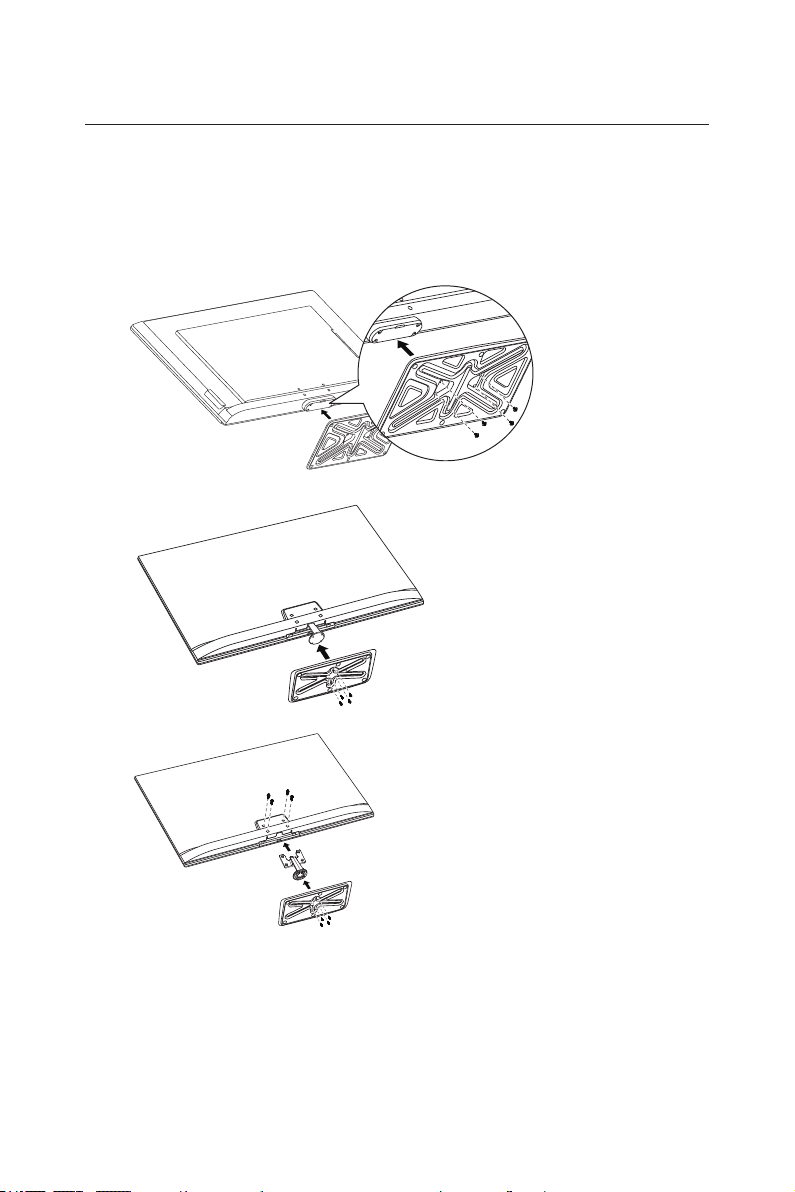
Attaching the Base ������������������������������������������������������������������ English-14
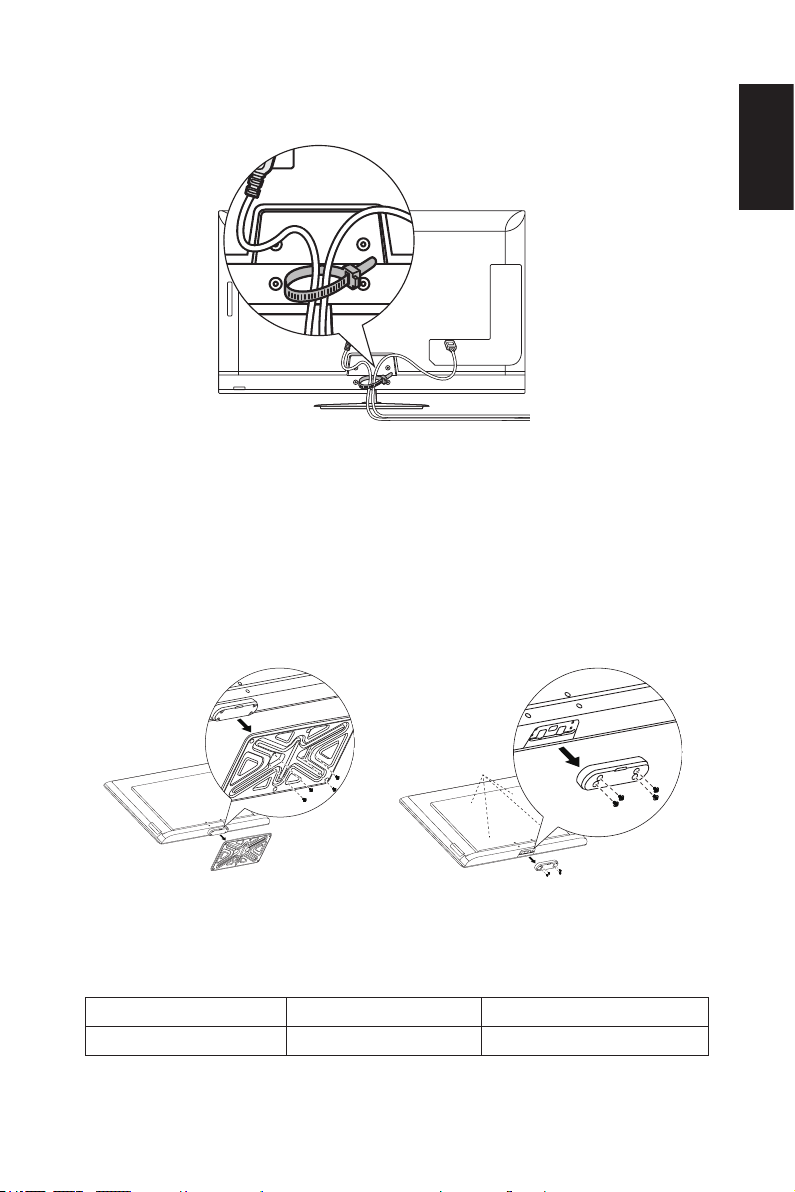
Using Cable Clamper �������������������������������������������������������������� English-15
Preparing Your LCD TV For Wall Mounting (optional) ������������� English-15
Prohibit Portrait Condition Use ������������������������������������������������ English-16
Place The TV On A Solid Surface ������������������������������������������� English-17
Antenna Connection ���������������������������������������������������������������� English-17
Battery Installation and Replacement�������������������������������������� English-18
Connect To The Power Source ����������������������������������������������� English-18
Power On/Off Your New LCD TV �������������������������������������������� English-19
Power Mode Status ����������������������������������������������������������������� English-19
Source Connection Guide ������������������������������������������������������� English-20
Operating Instructions ����������������������������������������������������������������������� English-24
Using The Side Panel Controls ����������������������������������������������� English-24
Using The Remote Control ������������������������������������������������������ English-25
Operating Range for the Remote Control�������������������������������� English-26
Timing Table ���������������������������������������������������������������������������� English-27
Navigating The On-Screen Menu ������������������������������������������������������ English-28
Video Menu ����������������������������������������������������������������������������� English-28
Audio Menu ����������������������������������������������������������������������������� English-29
Channels Menu ����������������������������������������������������������������������� English-29
Setup Menu ����������������������������������������������������������������������������� English-30
Photos Menu ��������������������������������������������������������������������������� English-31
Maintenance and Recycling �������������������������������������������������������������� English-33
Care Of The Screen ���������������������������������������������������������������� English-33
Mobile Telephone Warning ������������������������������������������������������ English-33
End Of Life Directives�������������������������������������������������������������� English-33
Manufacturer’s Recycling and Energy Information ���������������������������� English-34
Disposing of your old NEC product ����������������������������������������� English-34
Energy Saving ������������������������������������������������������������������������� English-34
Product Specication ������������������������������������������������������������������������� English-35
RS-232C Port Specications ��������������������������������������������������� English-41
Before Calling Service ����������������������������������������������������������������������� English-42
Glossary �������������������������������������������������������������������������������������������� English-43
Limited Warranty ������������������������������������������������������������������������������� English-44
References ���������������������������������������������������������������������������������������� English-46
English-1
English
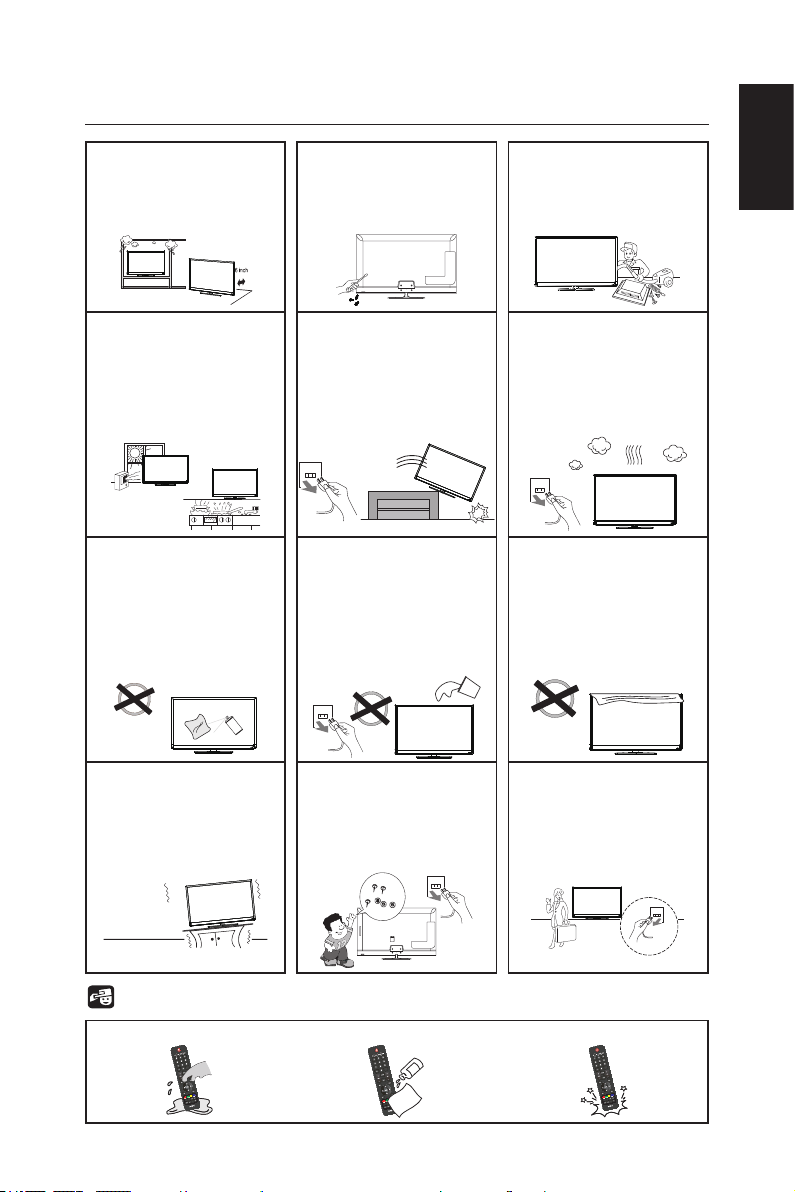
Precautions And Reminders
Do not place the TV in
conned spaces or in a
box when in use� Maintain
ample ventilation for the
TV when in use�
Do not open the TV
cabinet�
Call a NEC certied
service personnel for any
internal service needed for
your TV�
Keep the TV away from
direct sunlight, dust,
humidity, and smoke�
Unplug immediately if the
TV falls�
Unplug immediately if
there is a TV malfunction
such as a loss of audio /
video, the presence of
smoke, or a bad odor
coming from the TV�
Unplug the AC cord from
the AC outlet before
cleaning� Do not use
liquid cleaners or aerosol
cleaners to clean the TV�
Do not place the TV near
water such as a bathtub,
washbasin, sink, laundry
tub, swimming pool, or a
damp basement�
Unplug immediately if the
TV has been exposed to
rain or water�
Do not cover or block
any vents or openings�
Inadequate ventilation may
shorten the life of the TV
and cause overheating�
Place the unit on a sturdy,
even surface�
Do not insert any foreign
objects into the TV
cabinet�
Unplug immediately if
objects have fallen into the
monitor�
Unplug the power cord
from the outlet when the
TV is not in use for long
periods of time (days)�
Notice for Remote Controller
Avoid Liquids
PRE CH
Ch-List
Avoid Aerosol Cleaners
PRE CH
Ch-List
Avoid Dropping
PRE CH
Ch-List

English-3English-2
Important Safety Instructions
Read before operating equipment
Follow all warnings and instructions marked on this TV�
1� Read these instructions�
2� Keep these instructions�
3� Heed all warnings�
4� Follow all instructions�
5� Do not use this apparatus near water�
6� Clean only with dry cloth�
7� Do not block any ventilation openings� Install in accordance with the
manufacturer's instructions�
8� Do not install near any heat sources such as radiators, heat registers,
stoves, or other apparatus (including ampliers) that produce heat.
9� Do not defeat the safety purpose of the polarized or grounding-type
plug� A polarized plug has two blades with one wider than the other� A
grounding type plug has two blades and a third grounding prong� The
wide blade or the third prong are provided for your safety� If the provided
plug does not t into your outlet, consult an electrician for replacement of
the obsolete outlet�
10� Protect the power cord from being walked on or pinched particularly at
plugs, convenience receptacles, and the point where they exit from the
apparatus�
11� Only use attachments / accessories specied by the manufacturer.
12� Use only with the cart, stand, tripod, bracket, or table specied by the
manufacturer, or sold with the apparatus� When a cart is used, use
caution when moving the cart/apparatus combination to avoid injury from
tip-over�
S3125A
13� Unplug this apparatus during lightning storms or when unused for long
periods of time�
14� Refer all servicing to qualied service personnel. Servicing is required
when the apparatus has been damaged in any way, such as power-
supply cord or plug is damaged, liquid has been spilled or objects have
fallen into the apparatus, the apparatus has been exposed to rain or
moisture, does not operate normally, or has been dropped� Unplug
immediately if the monitor faces above condition�
15� The TV complies with the recommended safety standards for stability�
Do not put excessive force on the front or top of the cabinet� This could
cause the product to tip over and cause damage and / or personal injury�
16� If monitor or glass is broken, do not come in contact with the liquid crystal
and handle with care�
English-3English-2
English
17� Follow instructions for wall, shelf or ceiling mounting as recommended by
the manufacturer�
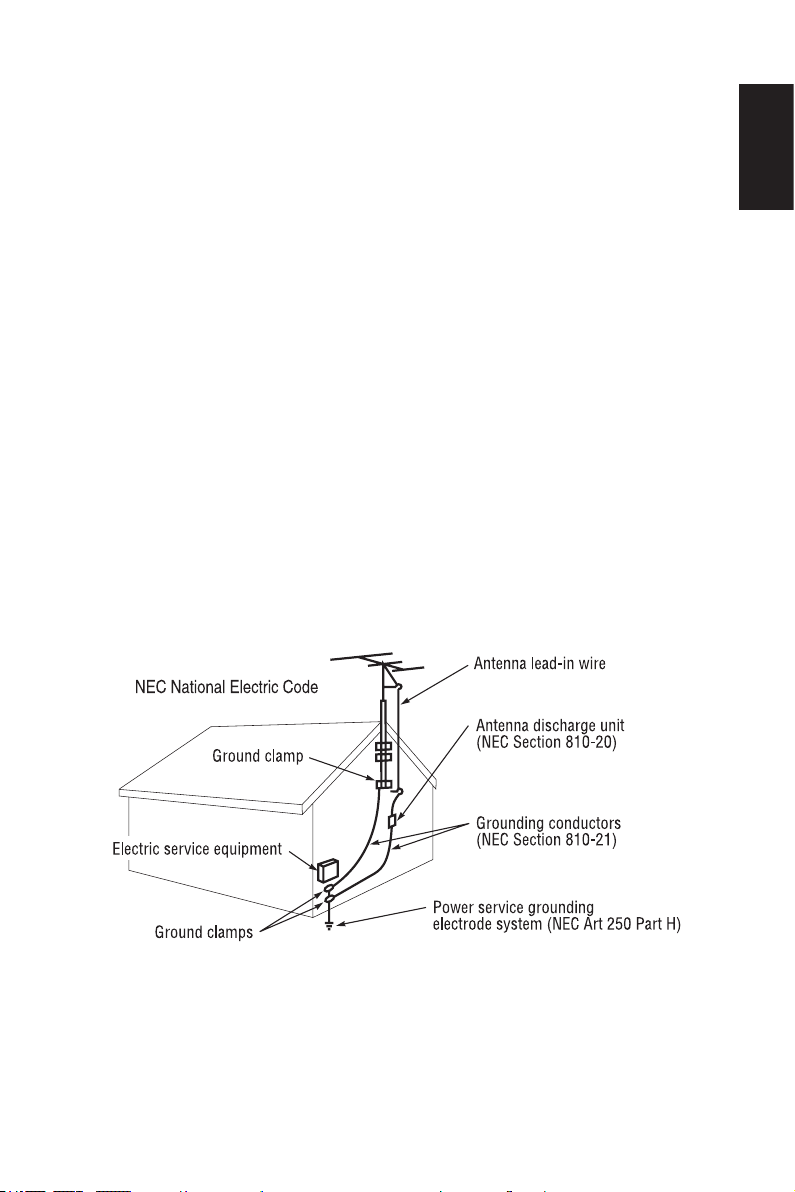
18� An outdoor antenna should not be located near overhead power lines or
any electrical circuits�
19� If an outside antenna is connected to the receiver, conrm that the
antenna system is grounded to protect against voltage surges and built
up static charges� Section 810 of the National Electric Code, ANSI /
NFPA No� 70-1984, provides information with respect to proper grounding
for the mast and supporting structure, grounding of the lead-in wire to an
antenna discharge unit, size of grounding connectors, location of antenna
discharge unit, connection to grounding electrodes and requirements for
the grounding electrode�
20� Rest your eyes periodically by focusing on an object at least 5 feet away�
Blink often�
21� Do not place any heavy objects on the power cord�
Damage to the cord may cause shock or re.
22� Do not use monitor in high temperature, humid, dusty, or oily areas�
23� Do not bend, crimp or otherwise damage the power cord�
24� Apparatus shall not be exposed to dripping or splashing and no objects
lled with liquids, such as vases, shall be placed on the apparatus.
NOTE: To the TV system installer: This reminder is provided to call attention
to Article 820-44 of the National Electric Code that provides guidelines for
proper grounding and, in particular, species that the cable ground shall be
connected to the grounding system of the facility, as reasonably close to the
point of cable entry as possible
English-5English-4
WARNING: To prevent the apread of re, keep candles or other
open ames away fram this product at all times.
IMPORTANT INFORMATION
If a television is not positioned in a sufciently stable location, it can be
potentially hazardous due to falling� Many injuries, particularly to children,
can be avoided by taking simple precautions such as:
• Using cabinets or stands recommended by the manufacturer of the
television�
• Only using furniture that can safely support the television�
• Ensuring the television is not overhanging the edge of the supporting
furniture�
• Not placing the television on tall furniture (for example, cupboards or
bookcases) without anchoring both the furniture and the television to a
suitable support�
• Not standing the televisions on cloth or other materials placed between
the television and supporting furniture�
• Educating children about the dangers of climbing on furniture to reach
the television or its controls�
English-5English-4
English
Important Information
WARNING
TO PREVENT FIRE OR SHOCK HAZARDS, DO NOT EXPOSE THIS
UNIT TO RAIN OR MOISTURE� ALSO, DO NOT USE THIS UNIT’S
POLARIZED PLUG WITH AN EXTENSION CORD RECEPTACLE OR
OTHER OUTLETS UNLESS THE PRONGS CAN BE FULLY INSERTED�
REFRAIN FROM OPENING THE CABINET AS THERE ARE HIGH
VOLTAGE COMPONENTS INSIDE�
REFER SERVICING TO QUALIFIED SERVICE PERSONNEL�
CAUTION
CAUTION:
TO REDUCE THE RISK OF ELECTRIC SHOCK, MAKE SURE
POWER CORD IS UNPLUGGED FROM WALL SOCKET�
TO FULLY DISENGAGE THE POWER TO THE UNIT,
PLEASE DISCONNECT THE POWER CORD FROM THE AC
OUTLET� DO NOT REMOVE COVER (OR BACK)� NO USER
SERVICEABLE PARTS INSIDE� REFER SERVICING TO
QUALIFIED SERVICE PERSONNEL�
This symbol warns user that uninsulated voltage within the
unit may have sufcient magnitude to cause electric shock.
Therefore, it is dangerous to make any kind of contact with any
part inside this unit�
This symbol alerts the user that important literature concerning
the operation and maintenance of this unit has been included�
Therefore, it should be read carefully in order to avoid any
problems�
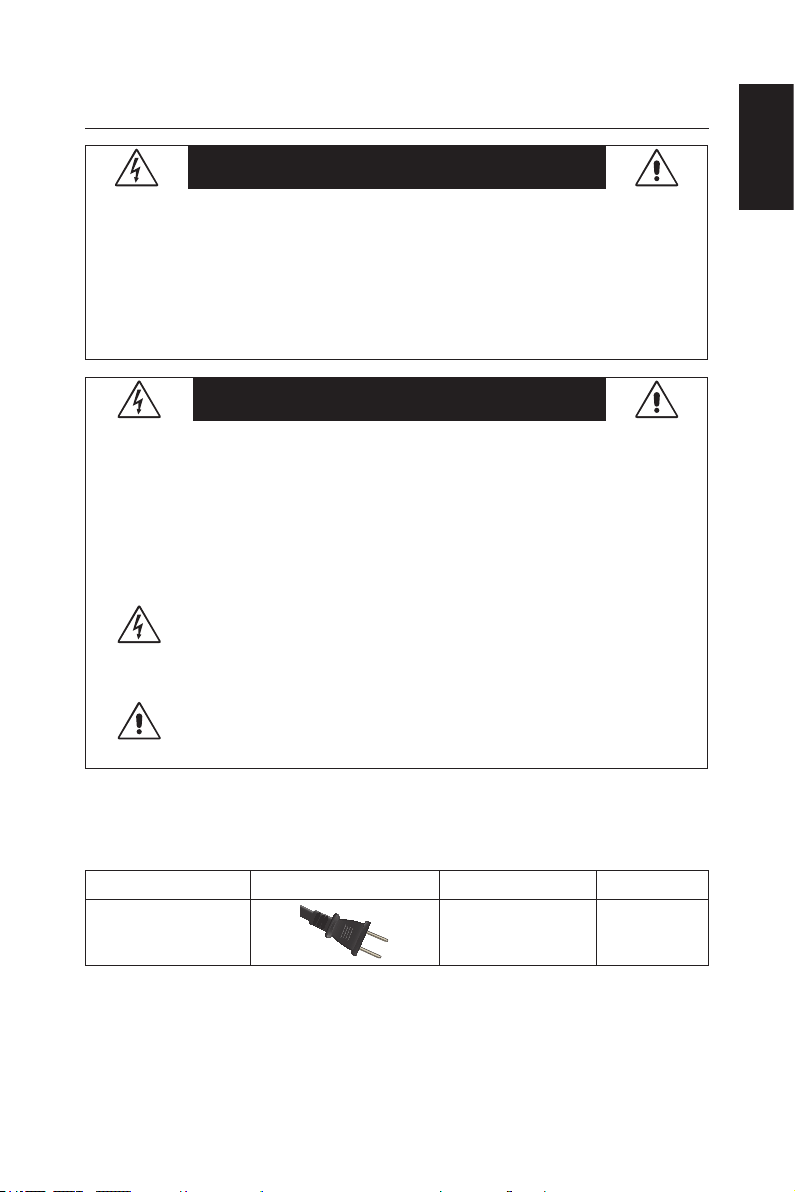
CAUTION: Please use the power cord provided with this TV in accordance
with the table below� If a power cord is not supplied with this equipment,
please contact your supplier�
Plug Type Plug Shape Region Voltage
North America U.S.A./Canada AC 120 V

English-7English-6
Power source
This LCD TV operates on 120 volts 60 Hz, AC current� Insert the power cord
into a 120 volts 60 Hz outlet� The mains plug is used as the disconnect device
and shall remain readily operable�
To prevent electric shock from the TV, do not use with an extension cord,
receptacle, or other outlet unless the blades and ground terminal can be fully
inserted to prevent blade exposure�
Never connect the LCD TV to 50 Hz, direct current, or anything other than the
specied voltage.
CAUTION: Never remove the back cover of the LCD TV as this can expose
you to very high voltages and other hazards� If the TV does not operate
properly, unplug the LCD TV and call your authorized dealer or service
center�
Adjust only those controls that are covered in the instructions, as improper
changes or modications not expressly approved by NEC could void the
user’s warranty�
Batteries installed warning
CAUTION: Incorrect usage of batteries can result in leaks or bursting�
NEC recommends the following battery use:
• Do not mix battery brands�
• Danger of explosion if battery is incorrectly replaced� Replace only with
the same or equivalent type�
• Do not combine new and old batteries� This can shorten the battery life
or cause liquid leakage of the batteries�
• Remove dead batteries immediately to prevent battery acid from leaking
into the battery compartment�
• Do not touch exposed battery acid as it may injure skin�
• Remove the batteries if you do not intend to use the remote control for a
long period of time�
• The batteries shall not be exposed to excessive heat such as sunshine,
re or the like.

English-7English-6
English
Image persistence
• Please be aware that LCD Technology may experience a phenomenon
known as Image Persistence�
Image Persistence occurs when a residual or “ghost” image of a
previous image remains visible on the screen�
Unlike CRT monitors, LCD monitors’ image persistence is not
permanent, but constant images being displayed for a long period of
time should be avoided�
To alleviate image persistence, turn off the monitor for as long as the
previous image was displayed�
For example, if an image was on the monitor for one hour and a residual
image remains, the monitor should be turned off for one hour to erase
the image�
NOTE: As with all personal display devices, NEC DISPLAY SOLUTIONS
recommends displaying moving images and using a moving screen saver at
regular intervals whenever the screen is idle or turning off the monitor when
not in use�
CAUTION:
These servicing instructions are for use by qualied service personnel only.
To reduce the risk of electric shock, do not perform any servicing other than
that contained in the operating instructions unless you are qualied to do so.
Ventilation
The slots and openings in the TV are provided for necessary ventilation� To
ensure reliable operation of the TV and to protect it from overheating, these
slots and openings must never be blocked or covered�
Unless proper ventilation is provided, the TV may gather dust and get dirty�
For proper ventilation, observe the following:
• Do not install the TV face up, down or sideways�
• Do not install the TV turned over or upside down�
• Never cover the slots and openings with a cloth or other materials�
• Never block the slots and openings by placing the TV on a bed, sofa,
rug or other similar surface�
• Never place the TV in a conned space, such as a bookcase or built-in
cabinet, unless proper ventilation is provided�
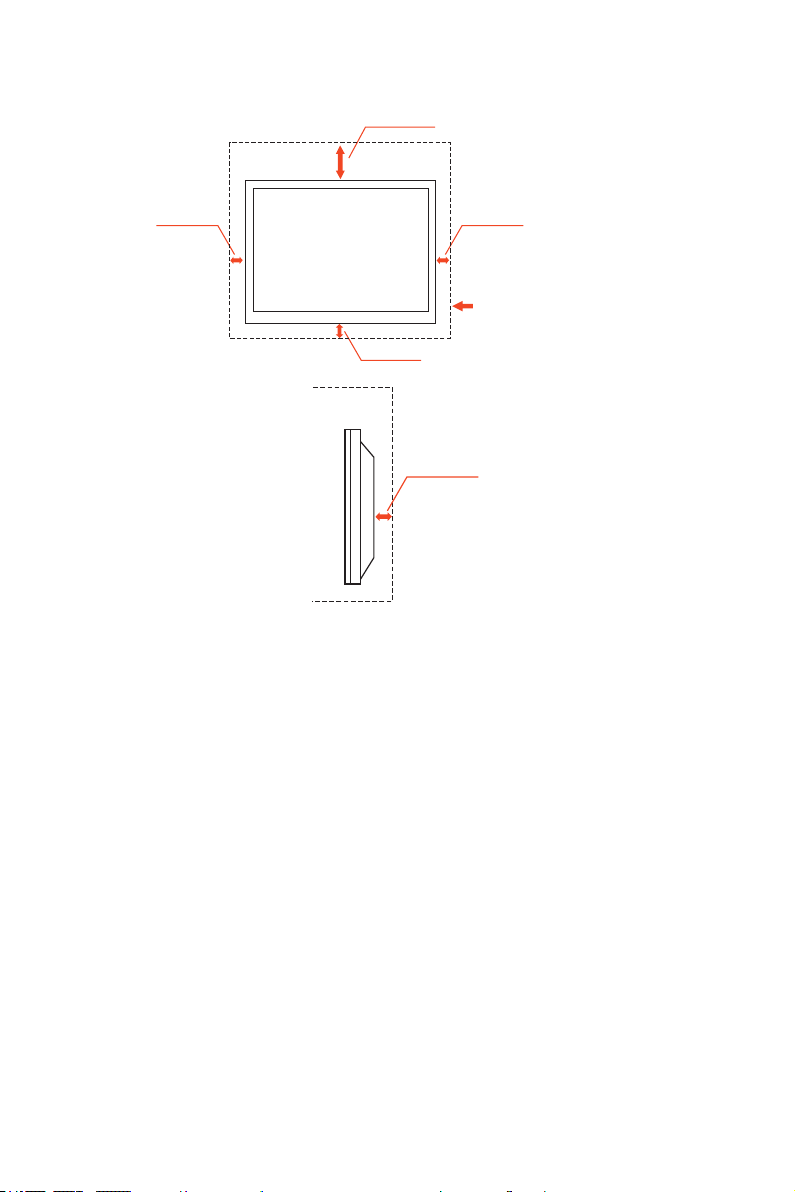
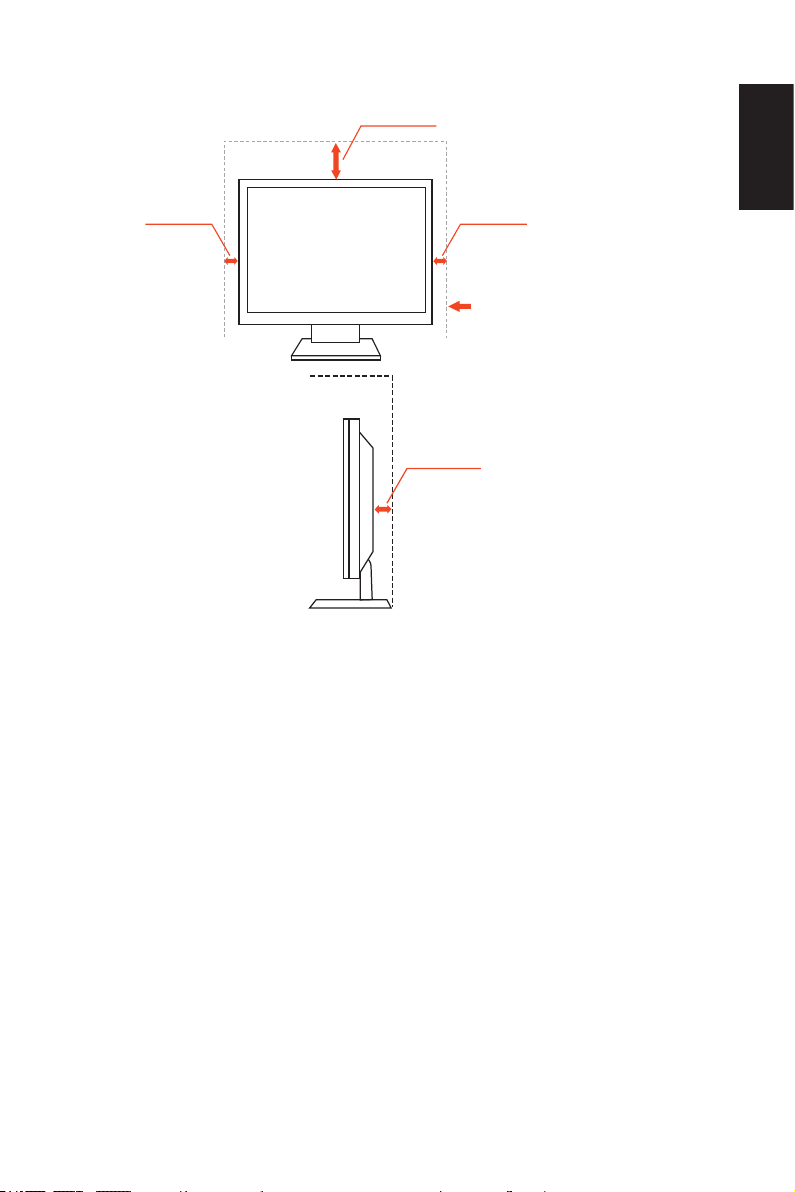
Leave some space around the TV set as shown below� Otherwise, air-
circulation may be inadequate and will cause overheating, which may cause
a re or damage to the TV set.
English-9English-8
Install on the wall
4 inches
10 cm
4 inches
10 cm
4 inches
10 cm
Leave at least this space
around the set.
11 7/8 inches
30 cm
2.36 inches
6 cm
For use only with UL Listed Wall Mount Bracket with minimum weight / load:
Please refer to the Specication on page 36 and page 39 �
Unit without base weight: The equipment and its associated mounting means
still remain secure during the test�
Used wall mounting kit, VESA-compatible wall bracket distance, diameter of
Screw dimension: Please refer to the Specication on page 36 and
page 39 �
English-9English-8
English
Installed with stand
4 inches
10 cm
4 inches
10 cm
Leave at least this space
around the set.
11 7/8 inches
30 cm
4 inches
10 cm
Never install the TV set where air-circulation is blocked�
Objects and ventilation holes
Never push objects of any kind into the TV through the cabinet slots as they
may touch dangerous voltage points or short out parts that could result in a
re or an electric shock. Do not place any objects on the TV.
English-11English-10
License Notice and Trademark
Acknowledgement
Windows is a registered trademark of Microsoft Corporation�
NEC is a registered trademark of NEC Corporation�
All other brands and product names are trademarks or registered
trademarks of their respective owners�
®
HDMI, the HDMI logo and High-Denition
Multimedia Interface are trademarks or
registered trademarks of HDMI Licensing
LLC in the United States and other
countries�
(Only for E554/E464/E424/E324)
Please keep the factory default settings
as shipped, in which the product can meet
ENERGY STAR
®
requirements�
Manufactured under license from Dolby
Labortories� Dolby and the double-D
symbol are trademarks of Dolby
Laboratories�
English-11English-10
English
Declaration Of Conformity
This device complies with Part 15 of FCC Rules� Operation is subject to the
following two conditions� (1) This device may not cause harmful interference,
and (2) this device must accept any interference received, including
interference that may cause undesired operation�
U.S. Responsible Party: NEC Display Solutions of America, Inc.
Address: 500 Park Boulevard, Suite 1100
Itasca, Illinois 60143
Tel. No.: (630) 467-3000
Type of Product: LCD TV
Equipment Classication: Class B Peripheral
Model: E654
E554
E464
E424
E324
We hereby declare that the equipment specied above
conforms to the technical standards as specied in the FCC Rules.
Canadian Department of Communications Compliance Statement
DOC: This Class B digital apparatus meets all requirements of the
Canadian Interference-Causing Equipment Regulations�
C-UL: Bears the C-UL Mark and is in compliance with Canadian Safety
Regulations according to CAN/CSA C22�2 No� 60065-03�

English-13English-12
FCC Information:
1� Use the attached specied cables with the E654/E554/E464/E424/E324
color monitor so as not to interfere with radio and television reception�
(1) Please use the supplied power cord or equivalent to ensure FCC
compliance�
(2) Please use the supplied shielded video signal cable, Mini D-SUB 15
pin to Mini D-SUB 15 pin�
2� This equipment has been tested and found to comply with the limits for
a Class B digital device, pursuant to part 15 of the FCC Rules� These
limits are designed to provide reasonable protection against harmful
interference in a residential installation� This equipment generates, uses
and can radiate radio frequency energy and, if not installed and used in
accordance with the instructions, may cause harmful interference to radio
communications� However, there is no guarantee that interference will
not occur in a particular installation� If this equipment does cause harmful
interference to radio or television reception, which can be determined by
turning the equipment off and on, the user is encouraged to try to correct
the interference by one or more of the following measures:
• Reorient or relocate the receiving antenna�
• Increase the separation between the equipment and receiver�
• Connect the equipment into an outlet on a circuit different from that to
which the receiver is connected�
• Consult the dealer or an experienced radio / TV technician for help�
FCC CAUTION
To assure continued compliance and possible undesirable interference,
ferrite cores may be used when connecting this LCD TV to video equipment;
and maintain at least 400mm spacing to other peripheral device�
FCC warning
Changes or modications not expressly approved by the party responsible for
compliance with the FCC Rules could void the user’s authority to operate this
equipment�
Cables
Connections to this device must be made with shielded cables with metallic
RF / EMI connector hoods to maintain compliance with FCC Rules and
Regulations�
Canadian notice
CAN ICES-3 (B) / NMB-3(B)
Standard Television Receiving Apparatus-Appareil de réception télévision
ordinaire, Canada, BETS-7/NTMR-7
If necessary, the user should contact the dealer or an experienced radio/
television technician for additional suggestions. The user may nd the
following booklet, prepared by the Federal Communications Commission,
helpful: “How to Identify and Resolve Radio-display Interference Problems�”
This booklet is available from the U.S. Government Printing Ofce,
Washington, D�C�, 20402, Stock No� 004-000-00345-4�
English-13English-12
English
Contents
Your new NEC monitor box
*1
should contain the following:
• Monitor (1)
• TV Stand base (1)
• Stand Screw (4)
• Stand Neck (1) (Only E324)
• Neck Screw (4) (Only E324)
• Remote control (1)
• 1�5 V AAA batteries (2)
• Power cord (1)
• D-sub cable (1)
• User’s manual (1)
Power Cord
User’s Manual
User’s Manual
Wireless Remote Control
and AAA Batteries
E554 / E464 / E424 / E324
E654
E654:M6 (16mm)
E554/E464/E424:
M4 (10mm)
E324:M4 (8mm)
Stand Screw x 4
Only E324:
M4 (12mm)
Neck Screw x 4
Only E324
Stand Neck
Video Signal Cable
(Mini D-SUB 15 pin to
Mini D-SUB 15 pin)
Stand Base
(E654)
(E554) (E464/E424/E324)
NOTE:
*1: Remember to save your original box and packing material to transport or
ship the monitor�
English-15English-14
Preparation
IM PORTANT: Do not apply pressure to the TV screen display area which
may compromise the integrity of the display� The manufacturer’s warranty
does not cover user abuse or improper installations�
Attaching the Base
E654
Stand Screw x 4
E654:M6 (16mm)
E554 / E464 / E424
Stand Screw x 4
E554/E464/E424:M4 (10mm)
E324
Stand Screw x 4
E324:M4 (8mm)
Neck Screw x 4
E324:M4 (12mm)
1� Place the TV face down on a soft and at surface to prevent scratching
and damage�
2� Carefully align the base to the stand and fasten the screws with a cross-
head screwdriver�
CAUTION: The base of the stand is very heavy� Install with care to avoid
injury such as dropping the base onto one's foot�
English-15English-14
English
Using Cable Clamper
Tie the cables together using the cable clamper�
Preparing Your LCD TV For Wall Mounting (optional)
We suggest that you keep your TV at least 2�36 inches (60 mm) from the wall
to prevent cable interference� Before mounting your TV on the wall, you need
to remove the base� For your safety, only mount with a UL listed wall mount
bracket that supports the weight of the TV�(Please see page 36 and
page 39 )
To attach a wall mount bracket to your TV:
E654
step 1 step 2
Neck Screw
VESA Hole
1� Loosen the screws at the bottom of the base, and remove the base�
2� Loosen the screws at the bottom of the stand to remove the stand�
3� Secure the wall mount bracket to the back of your TV using four M6
screws�
screen size (inches) required pitch (mm) VESA Hole depth
65 400
×
400 4
×
M6 (30mm)
CAUTION: If you skip the step 1 and loosen the screws for stand directly,
please be sure to hold the base tightly to avoid dropping the base�
English-17English-16
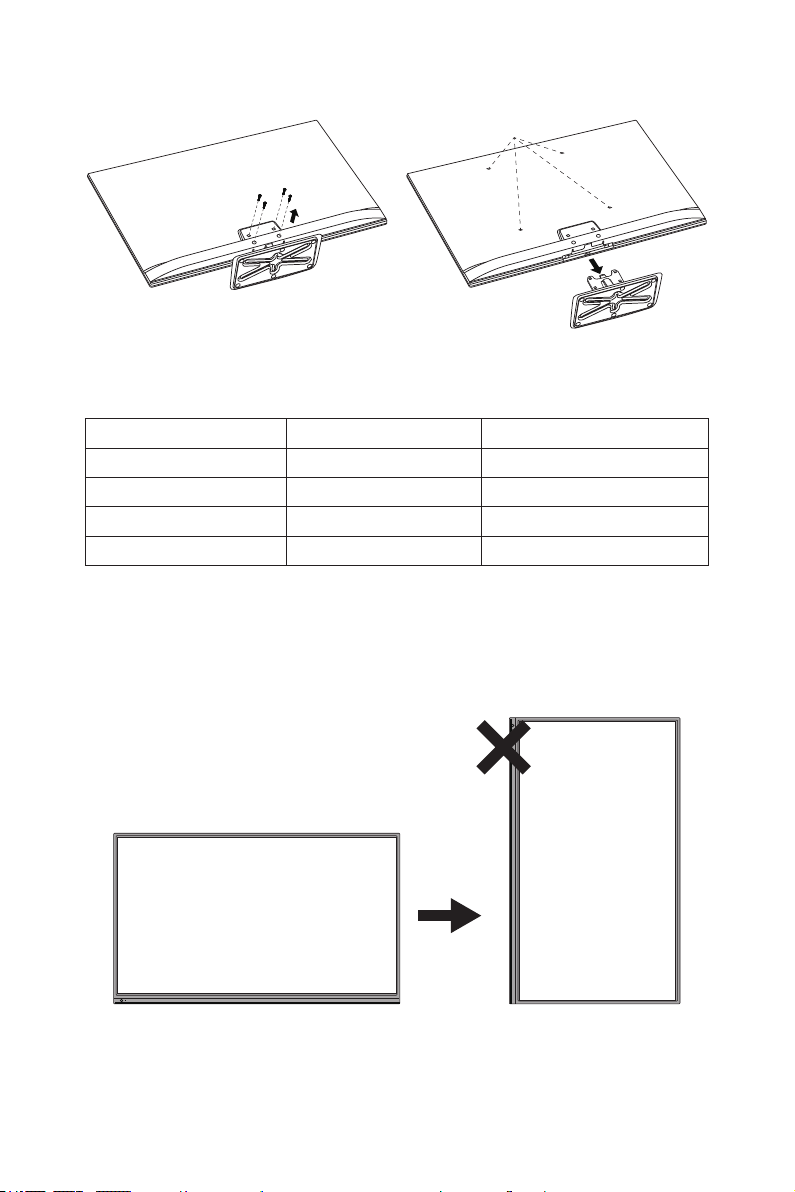
E554/E464/E424/E324
Neck Screw
VESA Hole
1� Loosen the screws on the back of the stand-base, and remove the base�
2� Secure the wall mount bracket to the back of your TV using four M4
screws (for 32" only) or M6 screws (for 42"/46"/55" only)�
screen size (inches) required pitch (mm) VESA Hole depth
55 400
×
400 4
×
M6 (24mm)
46 400
×
400 4
×
M6 (19mm)
42 400
×
400 4
×
M6 (21mm)
32 100
×
100 4
×
M4 (22mm)
NOTE:
Wall mounting solution is not included with the unit and is sold separately�
Contact your NEC representative for details� It is necessary to provide screw
of appropriate length (Wall mount bracket thickness + VESA Hole depth)�
Prohibit Portrait Condition Use
CAUTION:
Do not rotate the diplay from landscape to portrait�
English-17English-16
English
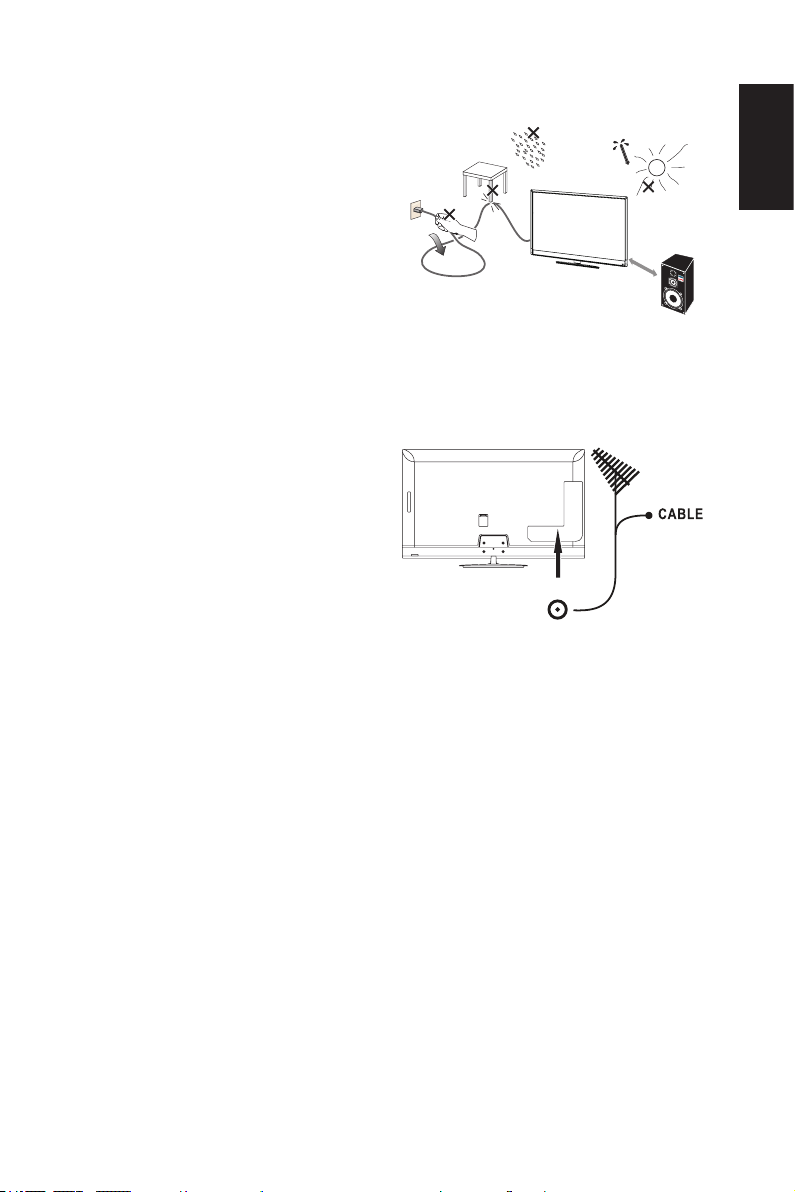
Place The TV On A Solid Surface
Ensure that the LCD TV is placed in a
position to allow free ow of air.
Do not cover the ventilation openings
on the back cover�
Do not place the TV near any open
ames.
Do not allow the TV to be placed in an
environment where it can be exposed
to heat, direct sunlight, or rain and
water�
Do not expose the equipment to any
liquid�
Min
1 m
Antenna Connection
Unless your LCD TV is connected to
a cable TV system or to a centralized
antenna system, a good outdoor color
TV antenna is recommended for best
television performance� However, if
you are located in an exceptionally
good signal area that is free from
interference and multiple image
ghosts, an indoor antenna may be
sufcient.
When using a 75-Ohm coaxial cable system, connect the CATV coaxial
cable to the AIR/CABLE (75-Ohm) terminal� Or if you have an antenna,
connect the coaxial cable to the same AIR/CABLE terminal�
English-19English-18
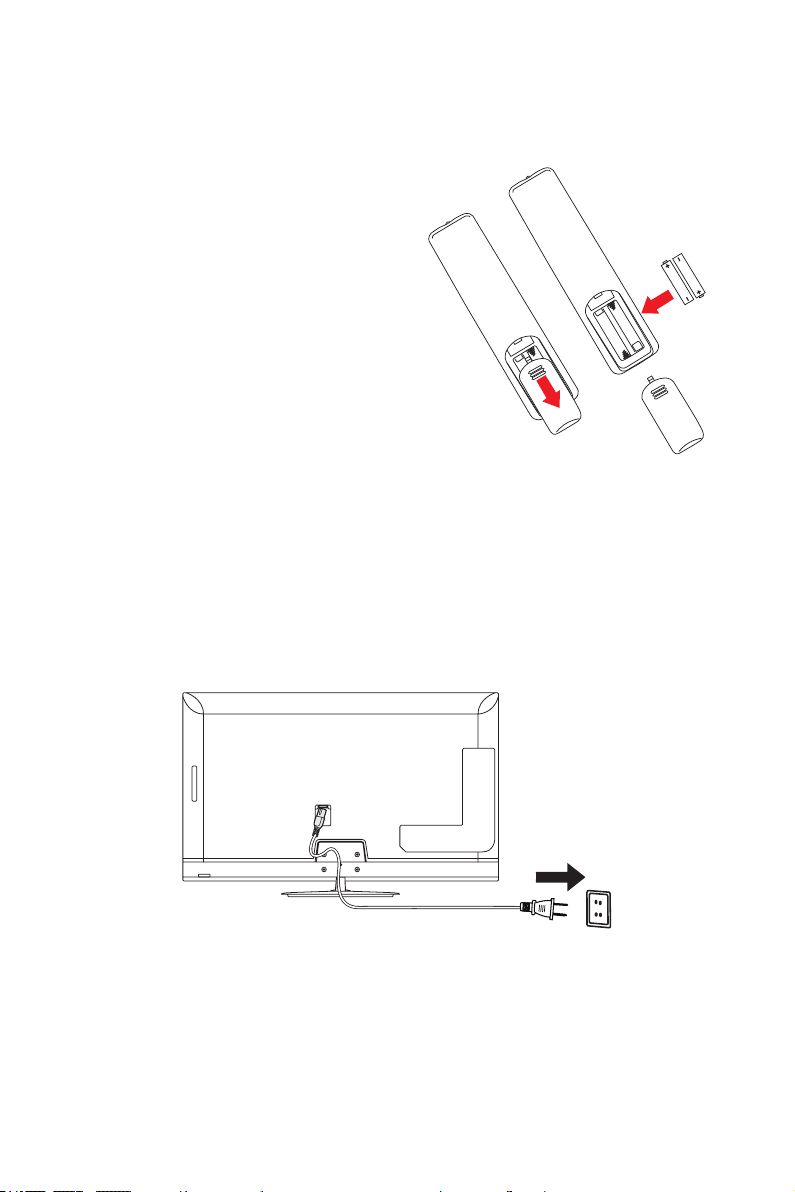
Battery Installation and Replacement
The remote control is powered by two 1�5V AAA batteries� To install or
replace batteries:
1� Open the battery cover of the remote
control by pushing and pulling it in
the direction of the arrow�
2� Insert two new “AAA” size batteries
for the remote control� When
replacing old batteries, push them
towards the springs and lift them out�
3� Match the batteries to the (+) and (-)
marks in the battery compartment�
4� Insert the bottom of the battery, the
(-) side, into the battery compartment
rst, push towards the springs and
insert the top of the battery, the (+)
side, into place� Do not force the
battery into the battery compartment�
5� Close the battery cover making sure
the tabs rest in the corresponding
holes and push down the cover until
it clicks shut�
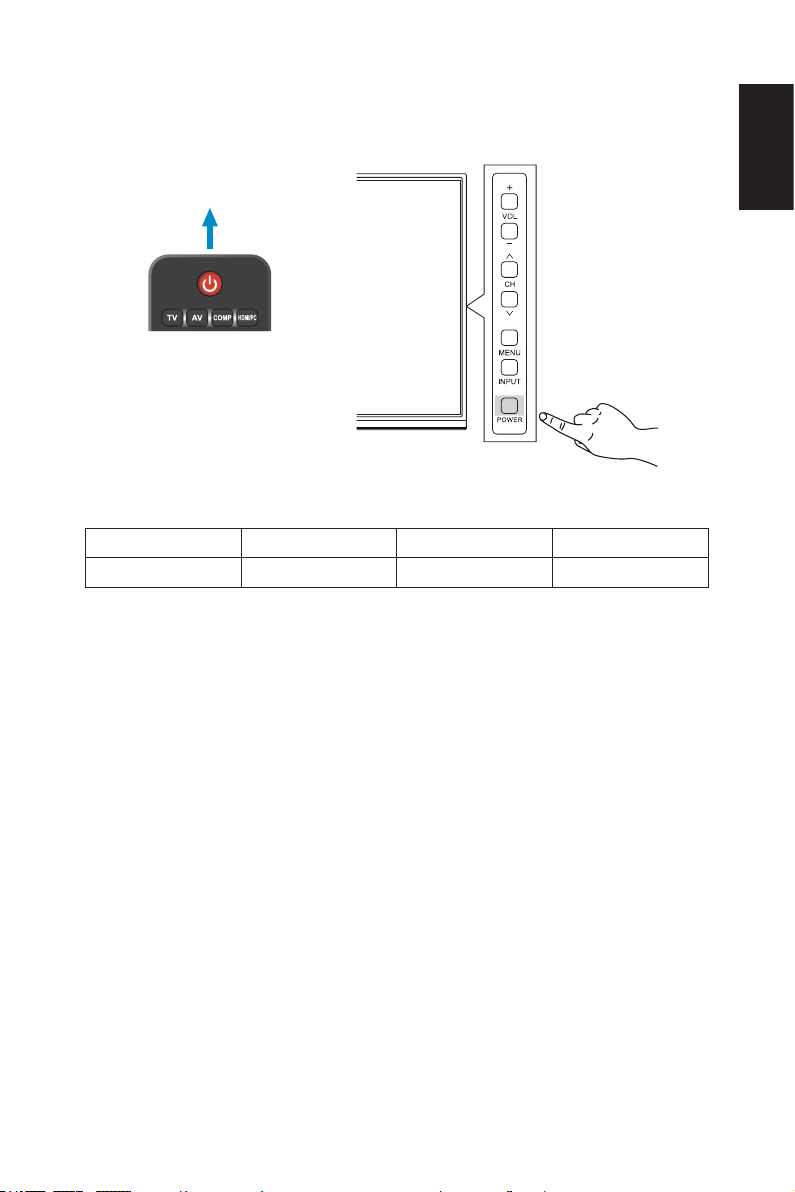
Connect To The Power Source
The TV should be installed close to an easily accessible power outlet� Fully
insert the prongs into the power outlet socket� A loose connection may cause
image degradation�
If there is power to the TV, the front LED at the bottom of the TV will be either
none or red� A red LED means the TV is in standby mode�
English-19English-18
English
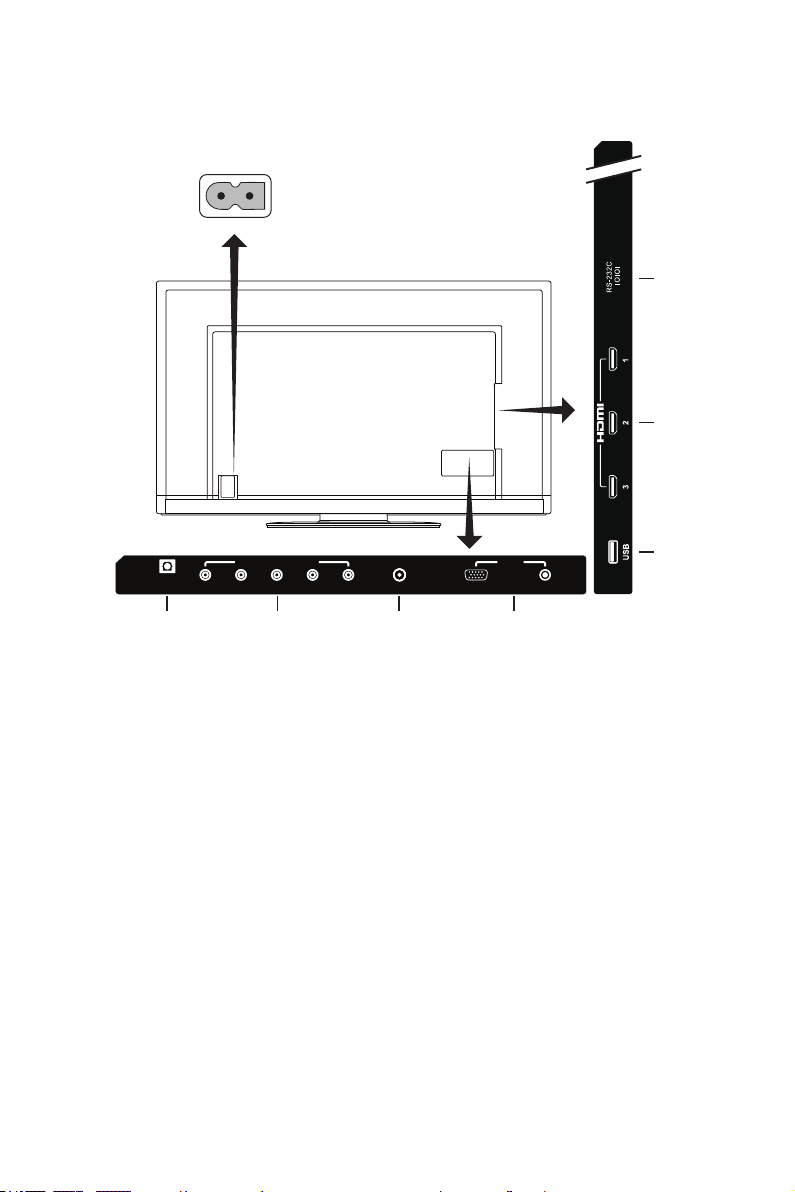
Power On/Off Your New LCD TV
Press the power button on the remote control or press the power button
located on the side of the TV� The TV will power on�
Power button
or
Power Mode Status
Mode On Standby Warming up
LED Status None Red Blinking Red
Warming up mode can automatically turn the Monitor power on when signal
appears�
Press the power button on remote control or on side keypad can power on
the Monitor in standby mode�
English-21English-20
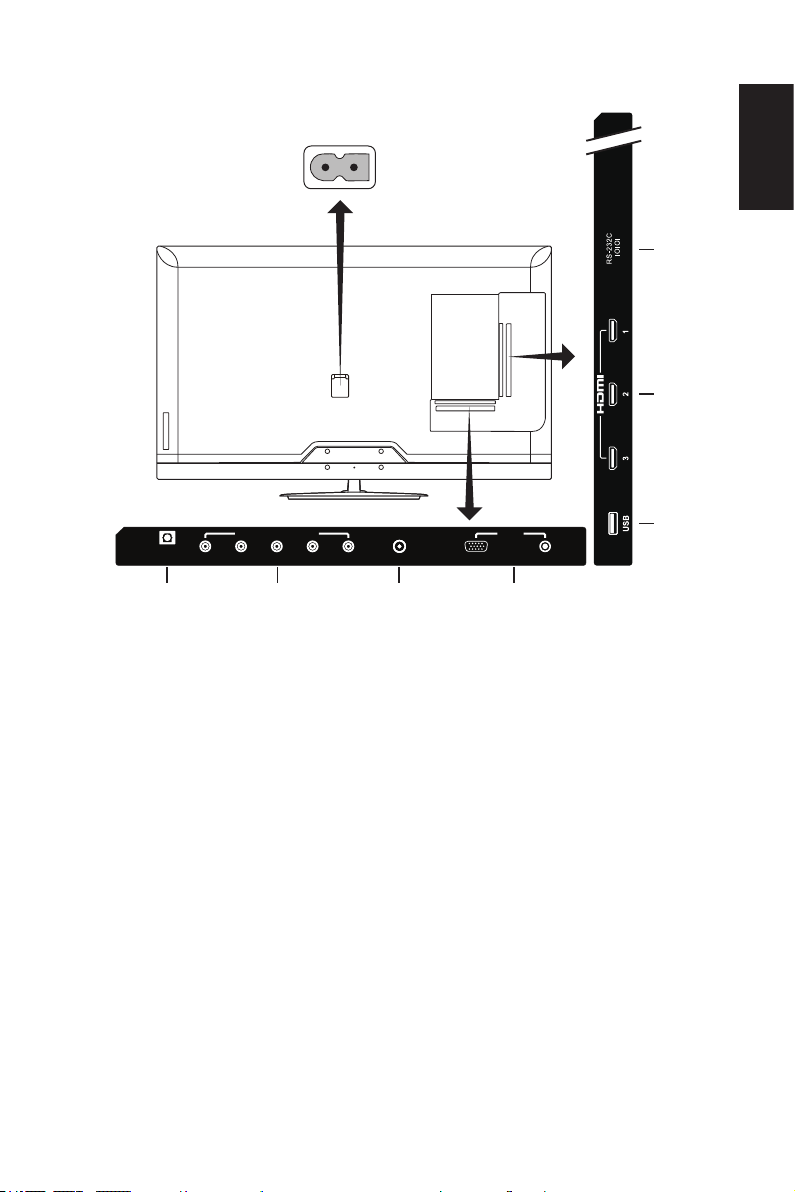
Source Connection Guide
E654
❶
❷
❸
❹
❺❻❼
AC POWER
L
R
Y/AV
AUDIO
PC IN
COMPONENT/AV IN
VGA
SPDIF
OUT
ANT/CABLE
Pb/Cb Pr/Cr
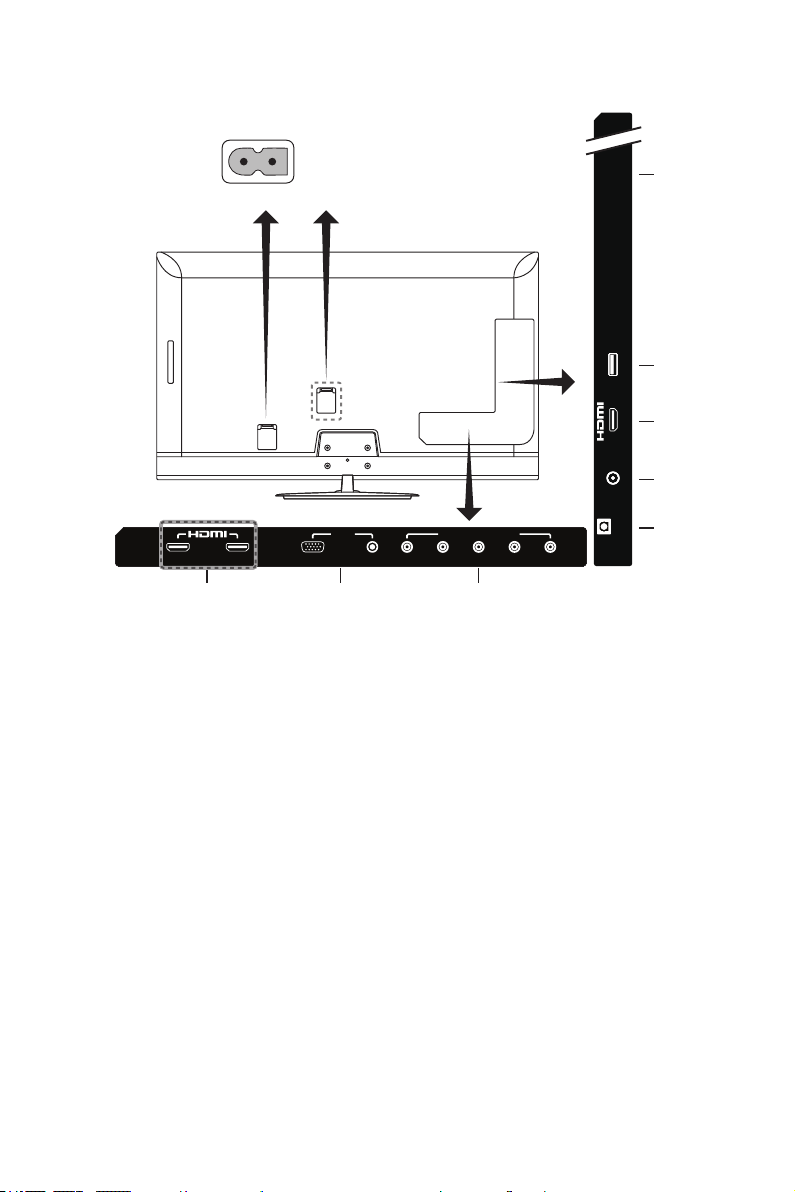
1� RS-232C – Input from external equipment such as a PC or AV control
system in order to control RS-232C functions�
2� HDMI (HDMI1, HDMI2, HDMI3) – Connect your HDMI devices�
3� USB port – Used for accessing JPEG photo les.
4� PC IN (VGA / AUDIO) – Connect your PC video and audio�
5� ANT / CABLE – Connect an RF antenna or Analog Cable system�
6� COMPONENT / AV IN –
• Component: Connect digital video equipment to the Video Green (Y),
Blue (Pb), Red (Pr) jacks, and matching Audio White (L) and Red (R)
jacks�
• Composite: Connect digital video equipment to the Video Green (AV),
jacks, and matching Audio White (L) and Red (R) jacks�
7� SPDIF OUT- Use a digital audio cable to connect stereo home theater
system�
English-21English-20
English
E554
❶
❷
❸
❹
❺❻❼
AC POWER
L
R
Y/AV
AUDIO
PC IN
COMPONENT/AV IN
VGA
SPDIF
OUT
ANT/CABLE
Pb/Cb Pr/Cr
1� RS-232C – Input from external equipment such as a PC or AV control
system in order to control RS-232C functions�
2� HDMI (HDMI1, HDMI2, HDMI3) – Connect your HDMI devices�
3� USB port – Used for accessing JPEG photo les.
4� PC IN (VGA / AUDIO) – Connect your PC video and audio�
5� ANT / CABLE – Connect an RF antenna or Analog Cable system�
6� COMPONENT / AV IN –
• Component: Connect digital video equipment to the Video Green (Y),
Blue (Pb), Red (Pr) jacks, and matching Audio White (L) and Red (R)
jacks�
• Composite: Connect digital video equipment to the Video Green (AV),
jacks, and matching Audio White (L) and Red (R) jacks�
7� SPDIF OUT- Use a digital audio cable to connect stereo home theater
system�
English-23English-22
E464 / E424 / E324
❶
❷
❸
❹
❺
❻
❼❸
E324 E464 / E424
AC POWER
AN
T
/CABLE
1
US
B
S
P
DIF
O
UT
RS-232C
IOIOI
Pb/Cb Pr/Cr L RY/AVAUDIO2
3
PCIN COMP ONENT/AVIN
VGA
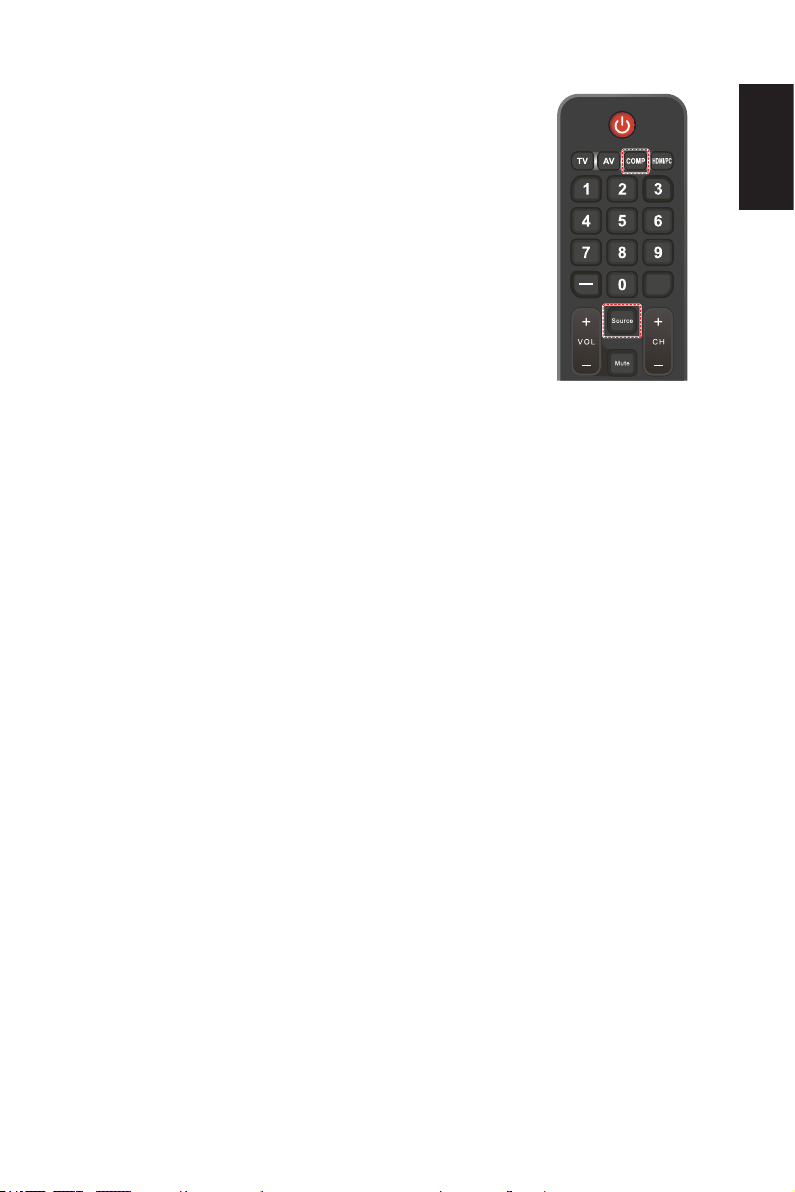
1� RS-232C – Input from external equipment such as a PC or AV control
system in order to control RS-232C functions�
2� USB port – Used for accessing JPEG photo les.
3� HDMI (HDMI1, HDMI2, HDMI3) – Connect your HDMI devices�
4� ANT / CABLE – Connect an RF antenna or Analog Cable system�
5� SPDIF OUT- Use a digital audio cable to connectstereo home theater
system�
6� COMPONENT / AV IN –
• Component: Connect digital video equipment to the Video Green (Y),
Blue (Pb), Red (Pr) jacks, and matching Audio White (L) and Red (R)
jacks�
• Composite: Connect digital video equipment to the Video Green (AV),
jacks, and matching Audio White (L) and Red (R) jacks�
7� PC IN (VGA / AUDIO) – Connect your PC video and audio�
English-23English-22
English
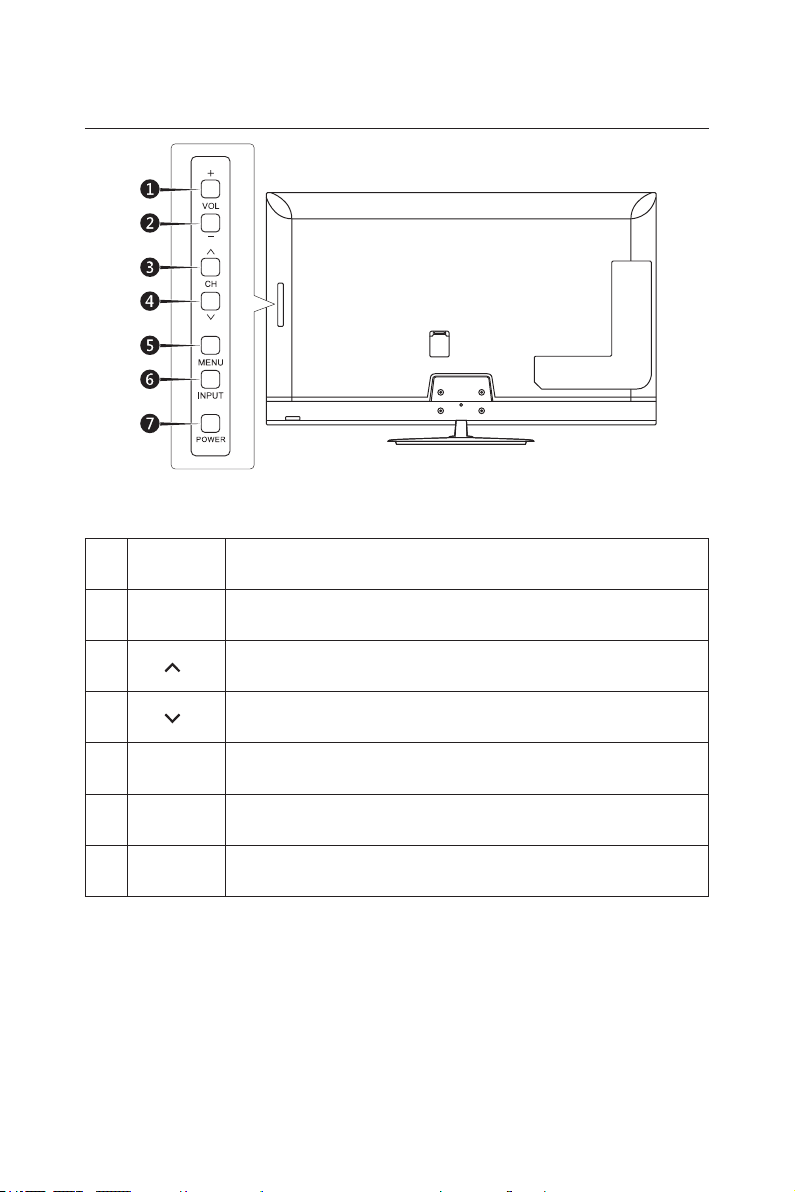
Once your AV device is connected, press the Source
button on the remote control to select the relevant
source to view� (ex: Press COMP button to select
“Component” if you have connected a source to the
Component input�)
PRE CH
English-25English-24
Operating Instructions
Using The Side Panel Controls
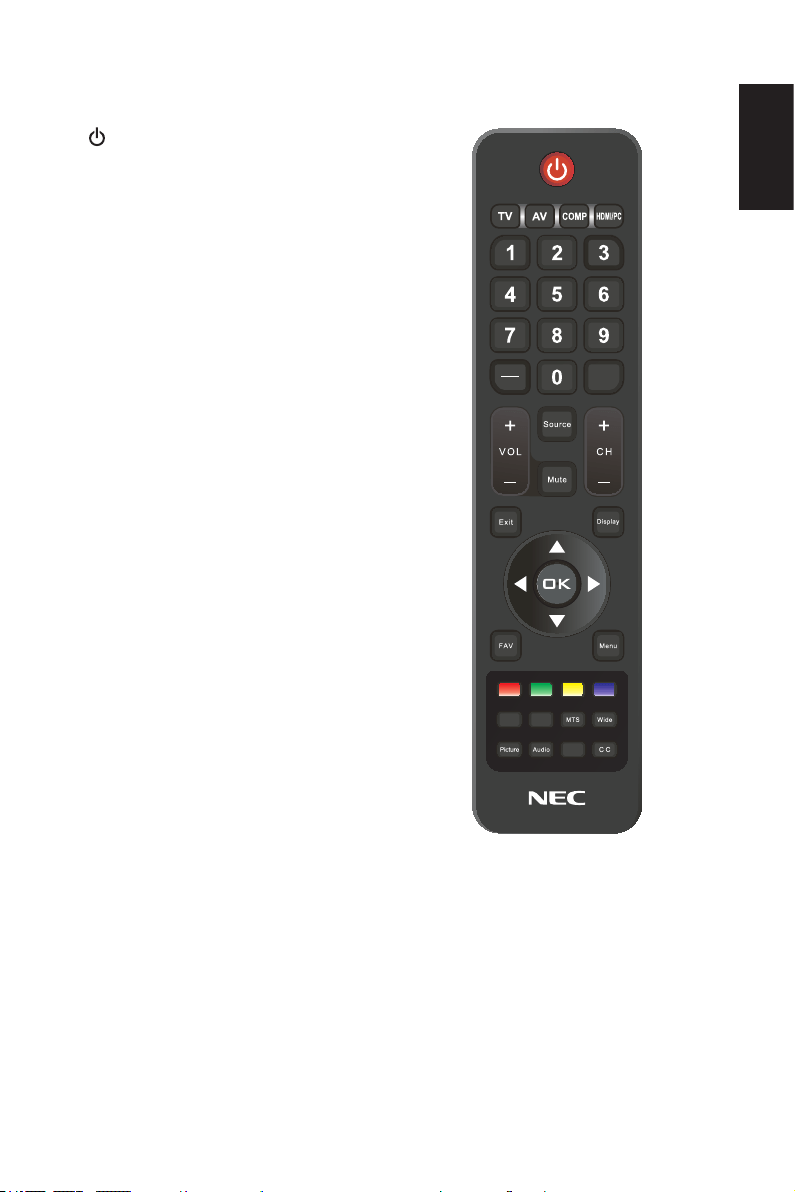
1� VOL +
Press to increase the volume�
Press this button to shift Right in the OSD menu�
2� VOL -
Press to decrease the volume�
Press this button to shift Left in the OSD menu�
3� CH
Press to change channels�
Press this button to shift up in the OSD menu�
4� CH
Press to change channels�
Press this button to shift down in the OSD menu�
5� MENU Press to open or exit the OSD (On-Screen Display) menu�
6� INPUT Press to select the input source�
7�
POWER
Press to turn on / off (standby) the TV�
English-25English-24
English
Using The Remote Control
(Power)
Press to turn On/Off (standby) the
power� (NOTE: To completely turn
off the power, unplug the power cord
from the power outlet�)
TV
Press to choose ATSC/NTSC tuner
source mode�
AV
Press to choose Composite source
mode�
COMP
Press to choose Component source
mode�
HDMI/PC
Press repeatedly to choose PC IN or
HDMI source mode�
0 ~ 9 / ─
Press to select channel (Press "─" to
choose the sub-channel)�
PRE CH
Press to display the previous
channel�
Source
Press repeatedly to choose the
various input sources�
Mute
Switch the sound On / Off�
VOL + / VOL ─
Press + or ─ to adjust the volume�
CH + / CH ─
Press + or ─ to browse through the
channels�
Exit
Press to exit the OSD menu�
Display
Press to show the information about
the input source and tuner channel�
FAV
Press to display the Favorite List�
PRE CH
CH-List
Menu
Press to open the OSD menu�
▲, ▼, ◄, ►, OK
Press to select or conrm the various
function items on the menu�
Color buttons
No function�
English-27English-26
MTS
Press to activate the NTSC tuner
sounds such as Stereo, SAP, Mono-
tone, and languages of the digital
tuner�
Wide
Press to choose the display aspect
ratio: Normal / Zoom / Wide / Cinema
/ Auto (Ratio availability varies by
video inputs�)
Picture
Press to choose the picture mode:
Dynamic / Standard / Energy
Savings / Theater / Game (Only for
E654/E554 model) / Custom�
Audio
Press to choose sound mode:
Standard / Movie / Music / News /
Custom�
CH-List
Press to display the Channel List�
C C
Press to activate the Closed Caption�
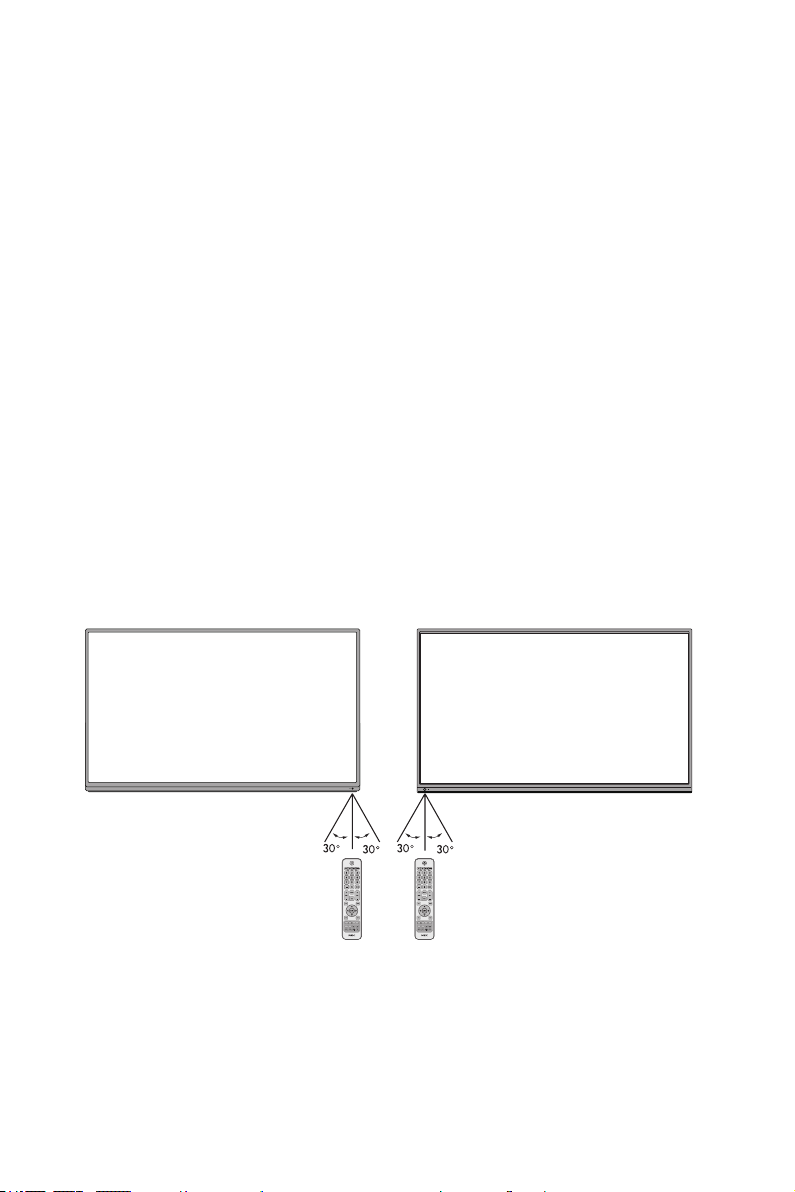
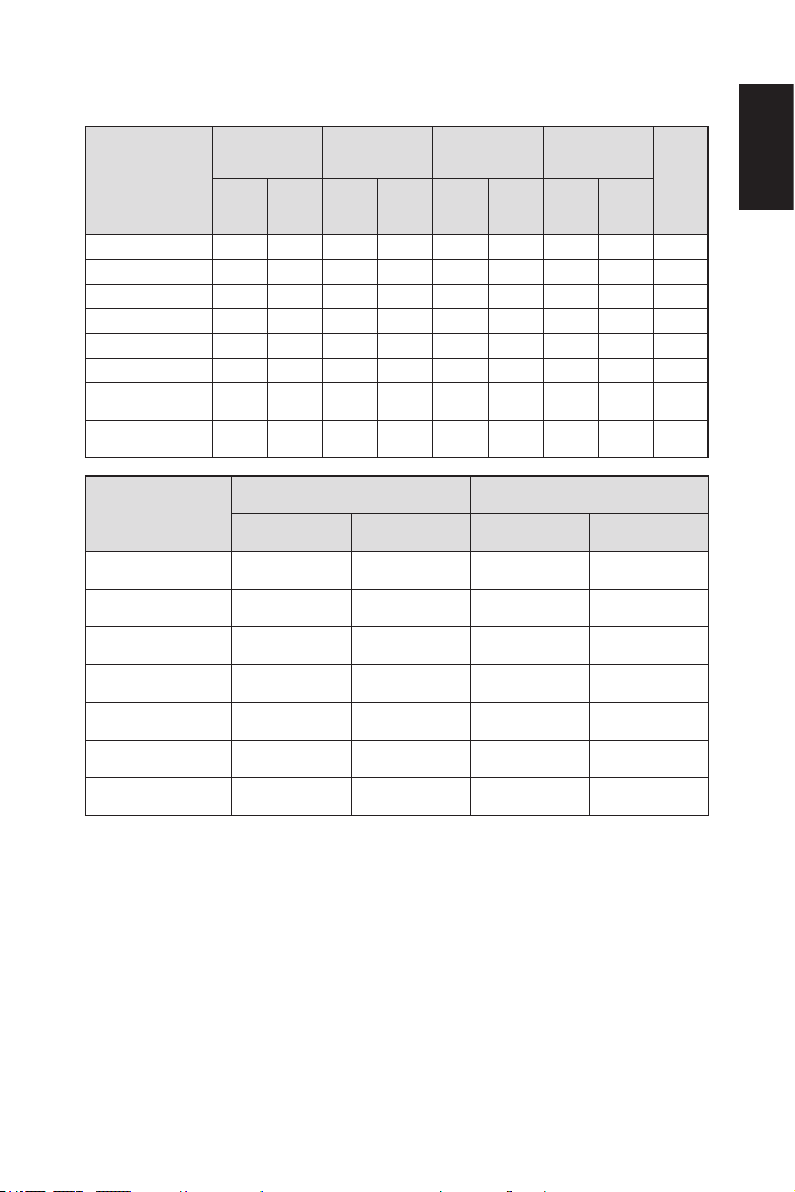
Operating Range for the Remote Control
Point the top of the remote control toward the LCD TV’s remote sensor during
button operation�
Use the remote control within a distance of about 7 m (23 ft�) from remote
control sensor or at a horizontal and vertical angle of within 30° within a
distance of about 3�5 m (10 ft�)�
E654 E554 / E464 / E424 / E324
CAUTION:
Important, the remote control system may not function when direct sunlight
or strong illumination strikes the remote control sensor or when there is an
object in the path�
English-27English-26
English
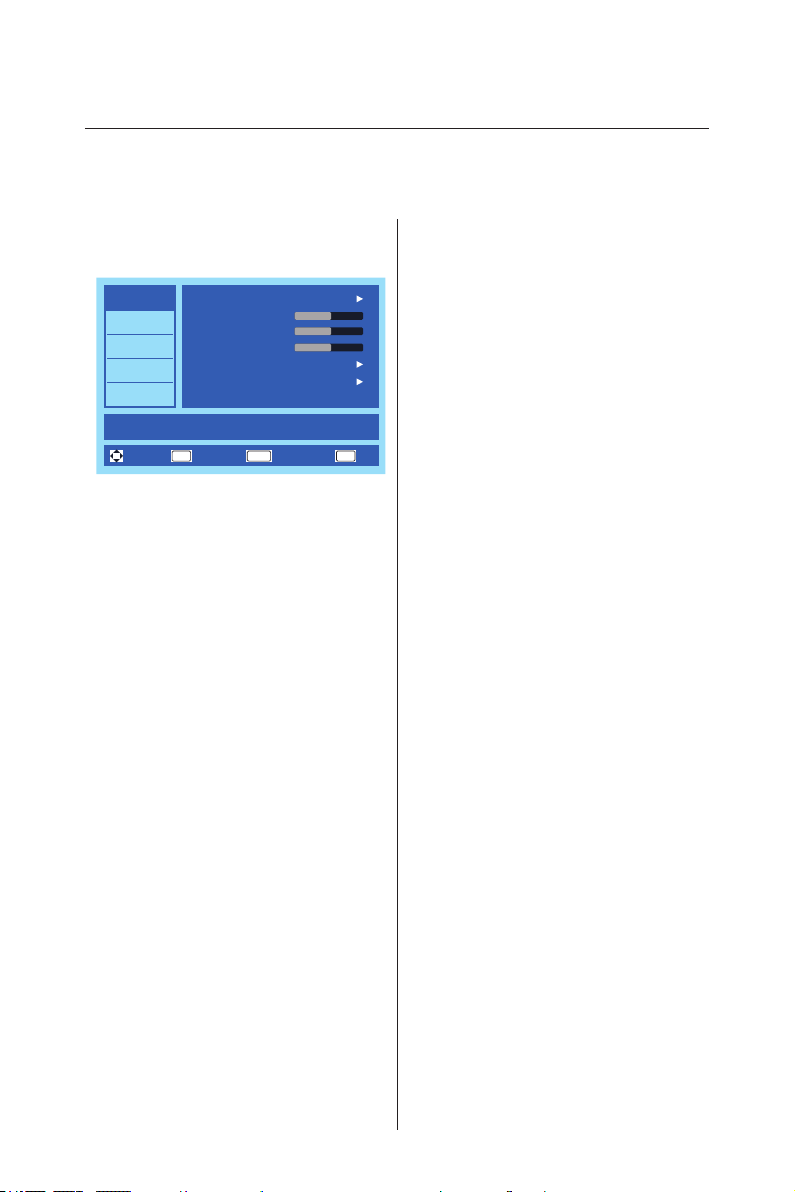
Timing Table
Resolution
WXGA
(E324)
FHD
(E654/E554/E464/
E424)
Horizontal Vertical
Nominal
Pixel
Clock
(MHz)
VGA DVI VGA DVI
Nominal
Freq.
(kHz)
Sync
Polarity
Nominal
Freq.
(Hz)
Sync
Polarity
640 × 480@60Hz ● ● ● ● 31�469 – 59�94 – 25�175
720 × 400@70Hz ● ● ● ● 31�469 – 70�087 + 28�322
800 × 600@60Hz ● ● ● ● 37� 879 + 60�317 + 40
1024 × 768@60Hz ● ● ● ● 48�363 – 60�004 – 65
1280 × 720@60Hz ● ● ● ● 45 – 60 + 74�25
1280 × 800@60Hz ▲ ▲ ● ● 49�702 – 59�81 + 83�5
1366 × 768@60Hz
●
(Native)
●
(Native)
Not
support
● 47�712 + 59�79 + 85�5
1920 × 1080@60Hz ▲ ▲
●
(Native)
●
(Native)
67�5 + 60 + 148�5
Resolution
WXGA
(E324)
FHD
(E654/E554/E464/E424)
HDMI Component HDMI Component
480i 60Hz ● ● ● ●
480p 60Hz ● ● ● ●
720p 60Hz ● ● ● ●
1080i 60Hz ▲ ▲ ● ●
1080p 24Hz ▲ Not support ● Not support
1080p 30Hz ▲ Not support ● Not support
1080p 60Hz ▲ Not support ● Not support
NOTE:
▲: Use Down-scaling function. Image quality is limited.
English-29English-28
Navigating The On-Screen Menu
Press the Menu button to display and Exit button to close the main menu�
Use the Navigation Ring to navigate, select, adjust or conrm an item on the
OSD (On-Screen Display) menu�
NOTE: Some features may only be available in a particular source mode�
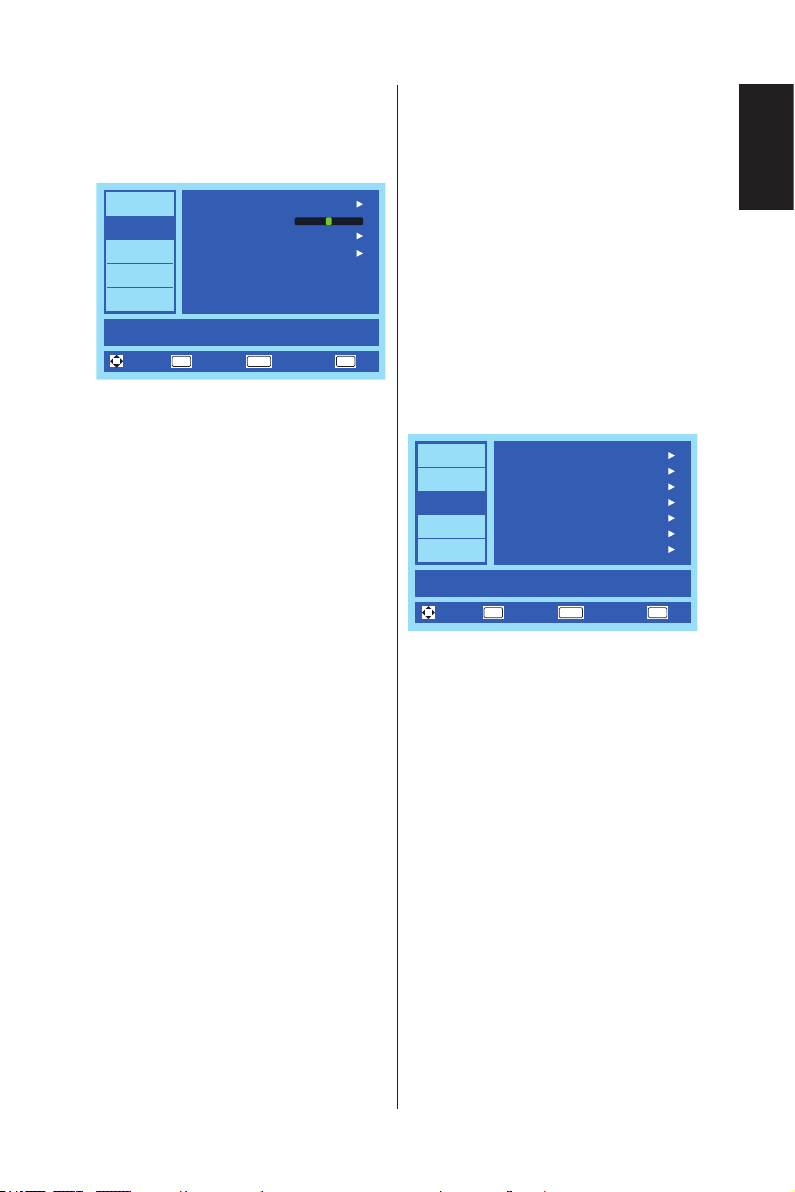
Video Menu
Video Menu adjusts video items�
EXIT
OK
MENU
Video
Audio
Channels
Setup
Photos
Picture Mode
MOVE EXIT
Adjust picture settings and customize picture quality
Energy Savings
Brightness
50
60
55
Contrast
Color
Advanced Video
Reset Video Settings
MOVE SELECT RETURN
1� Picture Mode
Enter this menu to select
from preset picture settings to
optimize your TV’s performance�
Dynamic / Standard /
Energy Savings / Theater /
Game (Only for E654/E554
model) / Custom�
2� Brightness
Adjust picture brightness from
0 ─ 100.
3� Contrast
Adjust picture contrast from
0 ─ 100.
4� Color
Adjust picture color from
0 ─ 100.
5� Advanced Video
Select advanced video settings�
[Dynamic Backlight] (DCR)
Enhance the contrasts between
darkness and brightness to
optimization the picture�
[Color Temperature]
Select a choice from Cool,
Normal, or Warm�
[Noise Reduction]
Set to reduce the video noise�
[Tint]
Adjust the hue (Red, Green,
Blue) of the picture from
R50 ─ G50.
[Sharpness]
Adjust object edges to optimize
picture detail from 0 ─ 100.
[Adaptive Contrast]
Set to automatically adjust the
picture detail and brightness�
[Aspect Ratio]
Adjust how the picture lls the
screen�
Normal / Zoom / Wide / Cinema
/ Auto
[Overscan (On/Off)]
Some video formats may require
different scanning modes in
order to best display the image�
On: Image size is larger than
what can be displayed� The
image edge will appear cropped�
Approximately 95% of the image
will be shown on the screen�
Off: Image size stays within the
display area� The whole image is
displayed on the screen�
NOTE: When you use a
computer with HDMI out, please
set “OFF”�
[Motion 120Hz]
(Only for E654/E554 model)
Eliminate motion blur with clear
detail and smooth motion�
[Backlight]
Set the backlight brightness from
0 ─ 50.
6� Reset Video Settings
Reset video settings to factory
default settings�
English-29English-28
English
Audio Menu
Audio Menu provides an audio
adjustment for user to modify the
audio setting�
EXIT
OK
MENU
Video
Audio
Channels
Setup
Photos
Sound Mode
Adjust settings to affect sound quality.
Standard
Balance
0
Advanced Audio
Reset Audio Settings
MOVE SELECT RETURN EXIT
1� Sound Mode
Select preset audio modes�
Standard / Movie / Music /
News / Custom�
2� Balance
Adjust the audio balance for
the TV's internal left and right
speakers from L50 ─ R50.
3� Advanced Audio
Select advanced audio settings�
[Bass]
Enhance the low frequencies�
[Treble]
Enhance the high frequencies�
[Internal Speakers]
Select Off to turn off the internal
speakers�
[Digital Output]
Select optical output options:
RAW or PCM (Only available for
digital channels or HDMI input
source)
[Audio Source]
Select audio sources in analog
channels�
Mono / Stereo / SAP
(Only available for analog
channels)
[Audio Language ]
Select language options in digital
channels� (Only available for
digital channels)
4� Reset Audio Settings
Reset Audio settings to factory
default settings�
Channels Menu
Channel Menu allows you to set your
signal source options� According
to various requirements in different
source modes, certain features could
be hidden (disabled) on the menu�
EXIT
OK
MENU
Video
Audio
Channels
Setup
Photos
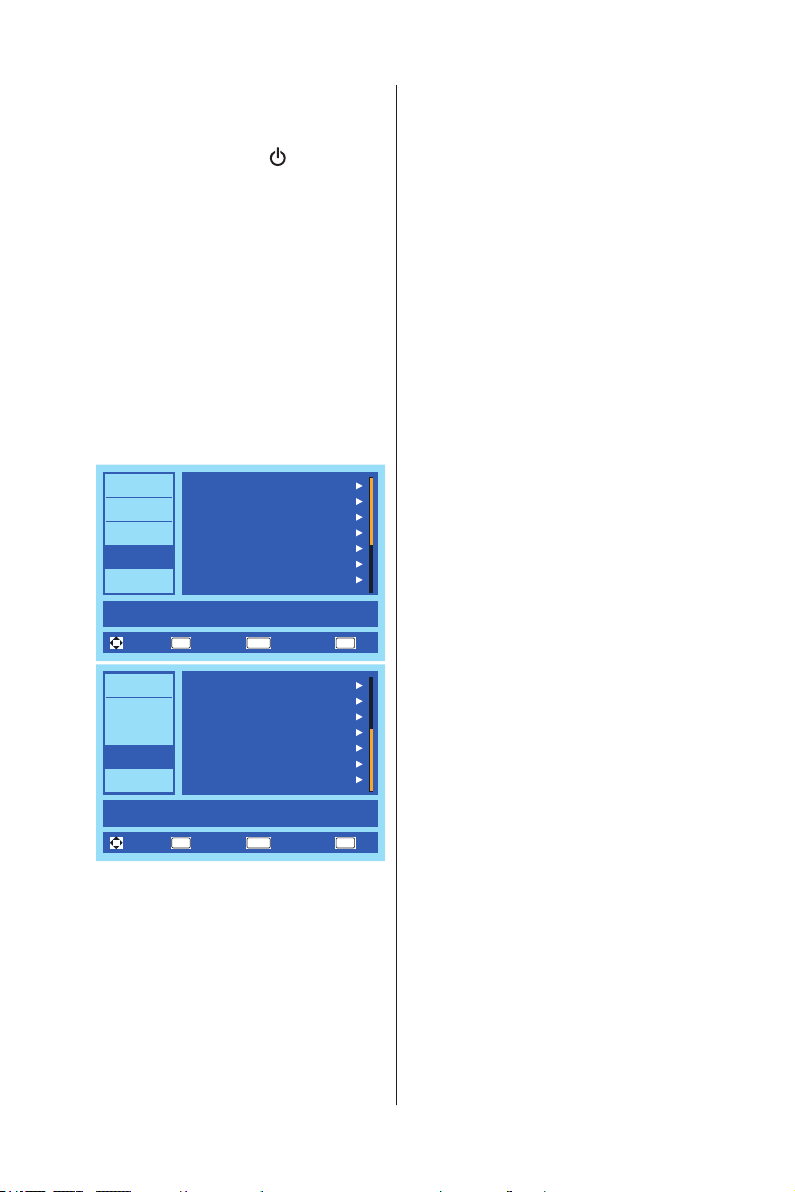
Auto Channel Scan
Adjust channel options.
On
Off
Signal Strength
Add/Skip Channels
Favorite Channels
Audio Only
Channel Labels
Auto Aspect
MOVE SELECT RETURN EXIT
1� Auto Channel Scan
Automatically search the
available channels�
2� Signal Strength
Access signal strength meter
to help you adjust your antenna
installation to optimize signal
reception� (Only available for
digital channels)
3� Add/Skip Channels
Manually add or skip channels to
the channel list�
4� Favorite Channels
Add channels to your favorite
channel list�
5� Channel Labels
Create labels to any channel�
English-31English-30
6� Audio Only
Play the audio only when picture
is turned off� Any press of the
button except the (Power)
button on the remote control will
turn on the picture�
7� Auto Aspect
Automatically adjust the picture
aspect ratio according to the TV
program�
Setup Menu
Setup Menu in TV mode is shown
below� According to various
requirements in different source
modes, certain features could be
hidden (disabled) on the menu�
EXIT
OK
MENU
Video
Audio
Channels
Setup
Photos
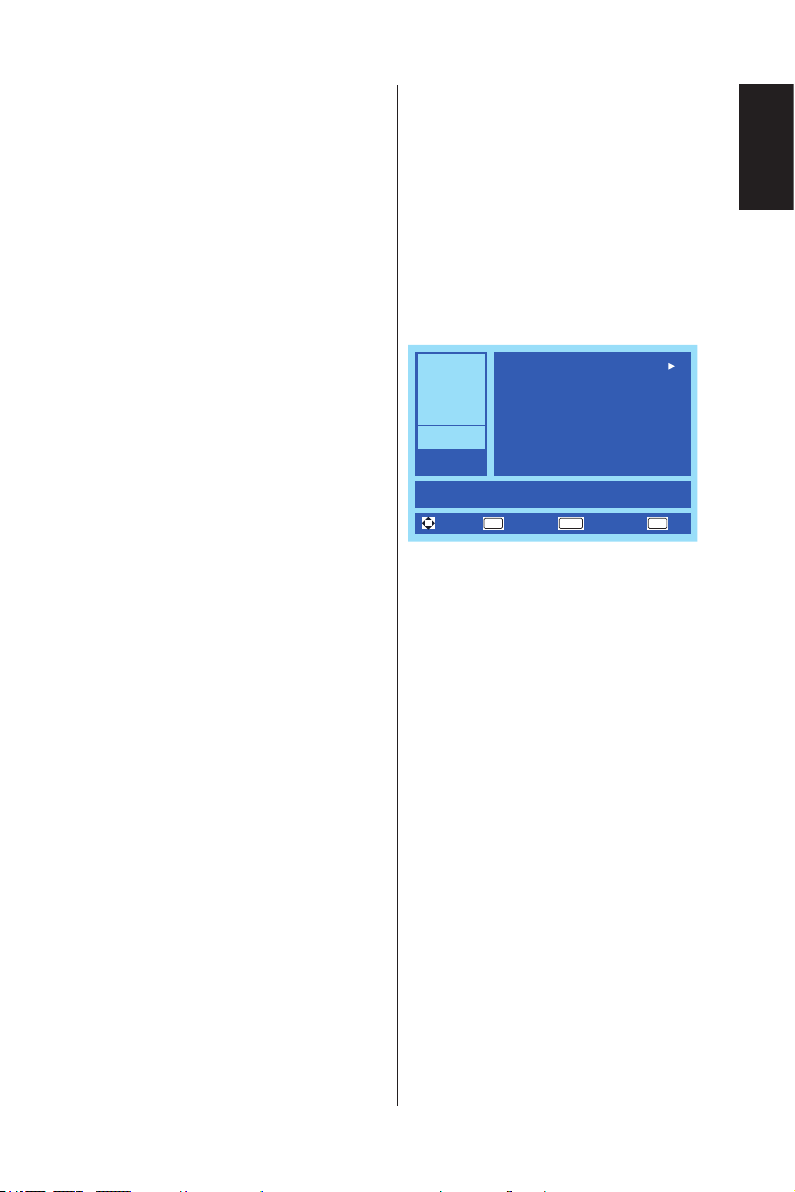
Menu Language
Set various TV options.
English
Off
Parental Controls
Closed Caption
Sleep Timer
RGB Options
Input Labels
System Info
MOVE SELECT RETURN EXIT
EXIT
OK
MENU
Video
Audio
Channels
Setup
Photos
Set various TV options.
OffSleep Timer
Input Labels
RGB Options
Energy Options Home
Monitor ID
System Info
Reset AV & Setup
MOVE SELECT RETURN EXIT
1� Menu Language
Select the menu display
language�
English / Français / Español
2� Parental Controls
Set TV parental controls� This
function blocks out the picture
and sound of the selected rating
levels�
The factory preset password to
enter Parental Controls feature
is a 4-digit number 0000�
[Panel Lock]
Lock or unlock all buttons on the
TV's panel�
[Block Unrated TV]
Block or unblock the unrated
programs�
[US]
Set the parental control level
using Movie Rating memu or TV
Rating memu�
[Canadian]
Set the parental control level
using Canadian English memu
or Canadian French memu�
[Change Password]
Change the 4-digit password�
You will have to enter the new
password rst, then enter again
the new password to conrm.
Make sure to keep your new
password�
[Region 5]
Use Region 5 to block various
types of movies and television
programs based on ratings
systems used in the USA that
you feel may be inappropriate
due to its content�
The Region 5 option will operate
for Digital Channels (ATSC) only�
[Reset Region 5]
Clear the downloaded RRT5
rating information and restore to
the factory default settings�
English-31English-30
English
3� Closed Caption
Adjust the Closed Caption
settings�
Caption Display / Analog
Captions / Digital Captions /
Digital Caption Options
4� Sleep Timer
Select how long the TV will take
to automatically turn intself off�
Off / 5 / 10 / 15 / 30 / 60 / 90 /
120 / 180 / 240 (minutes)
5� Input Labels
Create labels for the devices
connected to your TV� (Only
available for Non TV input
source)
6� RGB Options
(Only available for VGA input,
and when there is VGA signal
input)
[Auto Adjust]
Automatically adjust the image
settings such as position�
[H-Position]
Adjust horizontal position�
[V-Position]
Adjust vertical position�
[Clock]
Set to the minimum level if noise
occurs�
[Phase]
Eliminate icker and distortion.
[Reset RGB Options]
Reset RGB options to factory
default settings�
7� System Info
Indicate the display information�
8� Energy Options
Select the power saving modes�
Home mode is intended for
home use, and will save much
energy�
Retail mode sets the TV to a
more energy consuming mode�
9� Monitor ID
Set the monitor ID number from
1─100, All, or Group A─J.
10� Reset AV & Setup
Reset all Audio, Video, and
Setup settings to factory default
settings.
Photos Menu
You could easily browse images from
USB device�
EXIT
OK
MENU
Video
Audio
Channels
Setup
Photos
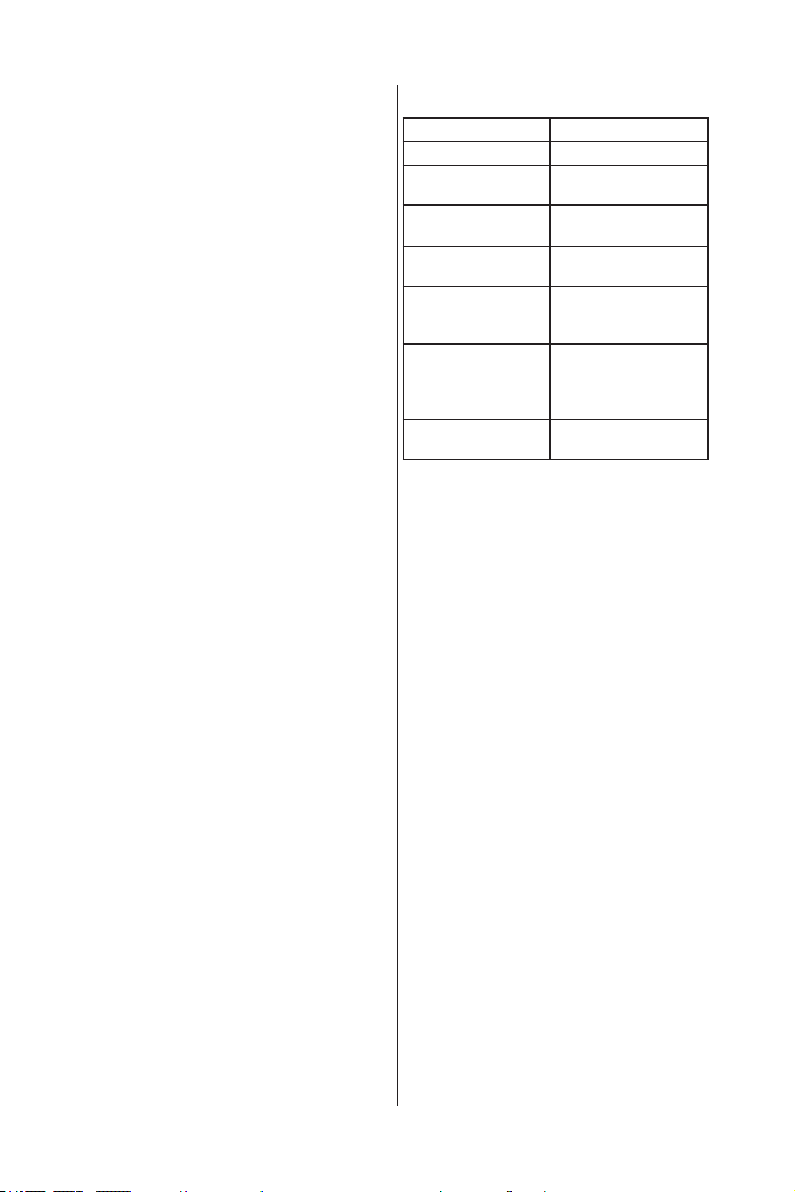
Photos
View files from a USB flash drive that is connected to the TV.
MOVE SELECT RETURN EXIT
If no USB device is detected, TV will
display the message: Please Insert
USB ash driver.
1� Browse Photos
Browse photos in the USB ash
drive�
2� Favorite Photos
Only display your favorite photos�
3� View Slideshow
View your photos in a slideshow
manner�
4� Settings
Change the slidwshow settings�
Repeat / Shufe / Speed /
Transition
English-33English-32
To control while in photo folder:
• Press ▲, ▼, ◄, ► button to
browse the photo les.
• Press OK button to open a folder
or a photo le which will be viewed
on the full screen�
• Press Menu button to return to
USB Main Menu�
• Press FAV button to add a photo
le to favorite list or delete from
favorite list�
To control while in full-screen
photo show:
• Press ► button to go to the next
image. Press ◄ button to go to
the previous image�
• Press OK button to rotate the
image clockwise�
• Press Wide to zoom the image�
The zoom function will switch
between the 4 styles by cycle and
"x1" "x2" "x4" "Fill" info bar will
appear on the right / down corner
of screen (If the image resolution
size is over panel native resolution
size, you cannot selet aspect
"x1")�
• Press Menu button to return to the
Folder / Photo List View�
To control while in photo
slideshow:
• Press OK button to play or pause
slideshow�
• Press Menu button to stop the
slideshow and return to photo
browser�
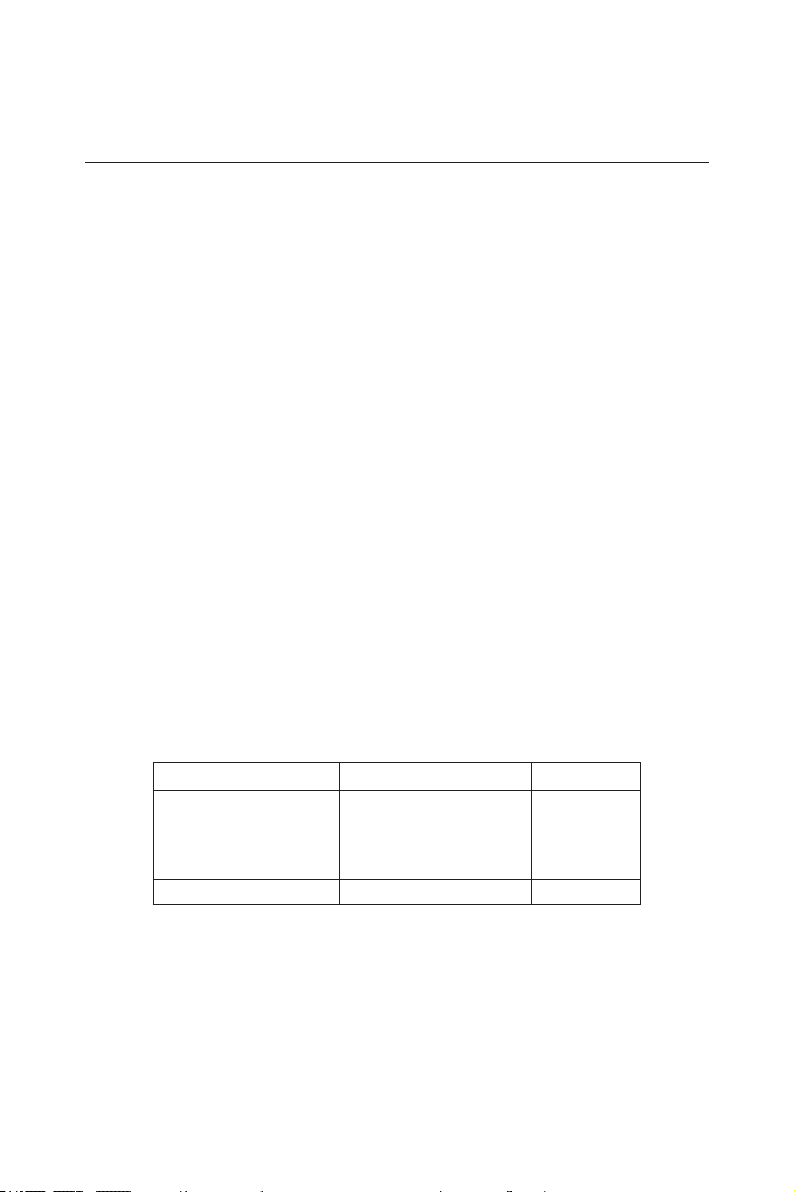
Data Format for USB Photo Viewer
Data format
JPEG, JPG, JPE
Max. folder layer
9
Max. number of
photos
700
Max. number of
favorite photos
200
Min. image
resolution
75 × 75 pixels
Max. image
resolution
(Progressive DCT)
1,024 × 768 pixels
Max. image
resolution
(Baseline
Sequential DCT)
15,360 × 8,640
pixels
Supported le
system
FAT32
CAUTION:
• USB photo viewer only supports
USB Mass storage class devices�
• A JPEG image modied with PC
may not be displayed�
• Partly degraded les might be
displayed at a reduced resolution�
• Not guaranteed to support all USB
devices�
• Do not use a USB Hub�
• Do not support multi-partition
USB�
NOTE:
• The folder and le names may be
different depending on the digital
camera used�
• Support USB 2�0 Type A
connector (DC5V, max� 500mA)�
For USB device over 500mA, we
suggest to use adaptor or external
power�

English-33English-32
English
Maintenance and Recycling
Care Of The Screen
Do not rub or strike the screen with anything hard as this may scratch, mar,
or even damage the screen permanently� Unplug the power cord before
cleaning the screen� Dust the TV by wiping the screen and the cabinet with a
soft, clean cloth� If the screen requires additional cleaning, use a clean, damp
cloth� Do not use liquid cleaners, aerosol cleaners, or solvents of any kind�
Mobile Telephone Warning
Keep your mobile telephone away from your TV to avoid disturbances in the
picture or sound, possibly causing permanent damage to your TV�
End Of Life Directives
In an effort to produce environmentally friendly products, your new TV
contains materials that can be recycled and reused� At the end of your TV's
life, specialized companies can minimize display waste by separating the
reusable materials from non-reusable materials� Please ensure you dispose
of your TV according to local regulations�
English-35English-34
Manufacturer’s Recycling and Energy
Information
NEC DISPLAY SOLUTIONS is strongly committed to environmental
protection and sees recycling as one of the company’s top priorities in trying
to minimize the burden placed on the environment� We are engaged in
developing environmentally-friendly products, and always strive to help dene
and comply with the latest independent standards from agencies such as ISO
(International Organisation for Standardization) and TCO (Swedish Trades
Union)�
Disposing of your old NEC product
The aim of recycling is to gain an environmental benet by means of re-use,
upgrading, reconditioning or reclamation of material� Dedicated recycling
sites ensure that environmentally harmful components are properly handled
and securely disposed� To ensure the best recycling of our products, NEC
DISPLAY SOLUTIONS offers a variety of recycling procedures and gives
advice on how to handle the product in an environmentally sensitive way,
once it has reached the end of its life�
All required information concerning the disposal of the product and country-
specic information on recycling facilities can be found on our following
websites:
http://www.nec-display-solutions.com/greencompany/ (in Europe),
http://www.nec-display.com (in Japan) or
http://www.necdisplay.com (in USA)�
Energy Saving
This TV features an advanced energy saving capability� When a VESA
Display Power Management Signalling (DPMS) Standard signal is sent to
the TV, the Energy Saving mode is activated� The TV enters a single Energy
Saving mode�
Mode Power consumption LED colour
On Mode
(with USB, with Audio)
Approx� 260 W (E654)
Approx� 122 W (E554)
Approx� 100 W (E464)
Approx� 85W (E424)
Approx� 55 W (E324)
None
Standby Mode Less than 0�5 W Red
English-35English-34
English
Product Specification
This model complies with the specications listed below.
Reorient or relocate the receiving display�
Designs and specications are subject to change without notice.
This model may not be compatible with features and/or specications that
may be added in the future�
Model Name E654 E554
DISPL AY
Viewable 65” 55”
Resolution 1,920
×
1,080
Color Over 16 million colors (depending on video card used)
Frequency
Horizontal:
31 ─ 83 KHz (Analog input)
15�625/15�734KHz, 31 - 83KHz
(HDMI input)
Vertical:
60 ─ 75 Hz (Analog input)
24Hz, 30Hz, 50Hz, 60Hz - 75Hz
(HDMI input)
Pixel Clock 25 ─ 156 MHz
Television System NTSC Standard, ATSC Standard (8-VSB, Clear-QAM)
Channel Coverage
VHF: 2 through 13
UHF: 14 through 69
Cable TV: Mild band (A - 8 through A - 1, A through I),
Super band (J through W),
Hyper band (AA through ZZ, AAA, BBB),
Ultra band (65 through 94, 100 through 125)
CONNECTIONS (Downward)
SPDIF OUT PCM, Fibre optic
COMPONENT /
AV IN
AV
(shared with
component Y)
RCA PIN Type
1�0 V[p-p] / 75 ohm
AUDIO L / R
RCA PIN Type
0�5Vrms
Y
Pb/Cb, Pr/Cr
Y: 1�0 V [p-p]
Pb/Cb, Pr/Cr: 0�7V p-p 75 ohm
ANT / CABLE VHF/UHF
PC IN
VGA Analog RGB (D-sub15 pin)
AUDIO Stereo mini jack
English-37English-36
Model Name E654 E554
CONNECTIONS (Side)
RS-232C 9 Pin D-sub
HDMI 1 / 2 / 3 Type A Connectors
USB USB2�0 DC 5V, Max� 500mA
WEIGHT & DIMENSION
Dimensions w/ Stand and Base
(W
×
H
×
D) (inch)
57�7 7
×
36�38
×
14�17 48�86
×
31�1
×
10�8
Dimensions w/o Stand and Base
(W
×
H
×
D) (inch)
57�7 7
×
34�34
×
3�94 48�86
×
28�94
×
2�47
Weight w/ Stand and Base (lbs) 7 7�1 lbs 51�35 lbs
Weight w/o Stand and Base (lbs) 66�3 lbs 44�52 lbs
WALL MOUNTING
VESA-compatible wall bracket
(W
×
H)
400
×
400 mm 400
×
400 mm
Screw type Metric 6 Metric 6
POWER
Power Consumption 260 W 122 W
Standby < 0�5 W
Current Rating 2�2 A @ AC 120V, 60Hz 1�0 A @ AC 120V, 60Hz
AUDIO
Speaker Output
10 W + 10 W
(16 ohm)
10 W + 10 W
(16 ohm)
Analog Audio Stereo L/R 0�5Vrms
Digital Audio PCM / Dolby Digital, Fibre optic
OPERATING ENVIRONMENT
Temperature 0°C ─ 40°C / 32°F ─ 104°F
Humidity 10% ─ 80%
Height 0 ─ 2,000m
English-37English-36
English
Model Name E654 E554
STORAGE ENVIRONMENT
Temperature -10°C ─ 60°C / 14°F ─ 140°F
Relative Humidity 5% ─ 85%
Absolute Air Humidity 1─25 g/m
3
Max� Change of Temp� 0�5°C/min (max� 10°C / 30min)
Air Pressure 795 ─ 1,060 mbar (79.5─106Kpa)
Radiation Solar Heat
700 W/m
2
PACKAGE CONTENTS
Supplied Accessories
Monitor (1)
TV Stand base (1)
Stand Screw (4)
Remote control (1)
1�5 V AAA batteries (2)
Power cord (1)
D-sub cable (1)
User’s manual (1)
All specications, weights, and dimensions are subject to change without
prior notice. Please access www.necdisplay.com for detailed specications
and dimensions for custom installations�
NOTE:
Model Name E654 E554
TV Base stand Screw M6 x 16mm M4 x 10mm
Neck Screw M6 x 16mm M4 x 14mm
VESA Hole Depth M6 (30mm) M6 (24mm)
English-39English-38
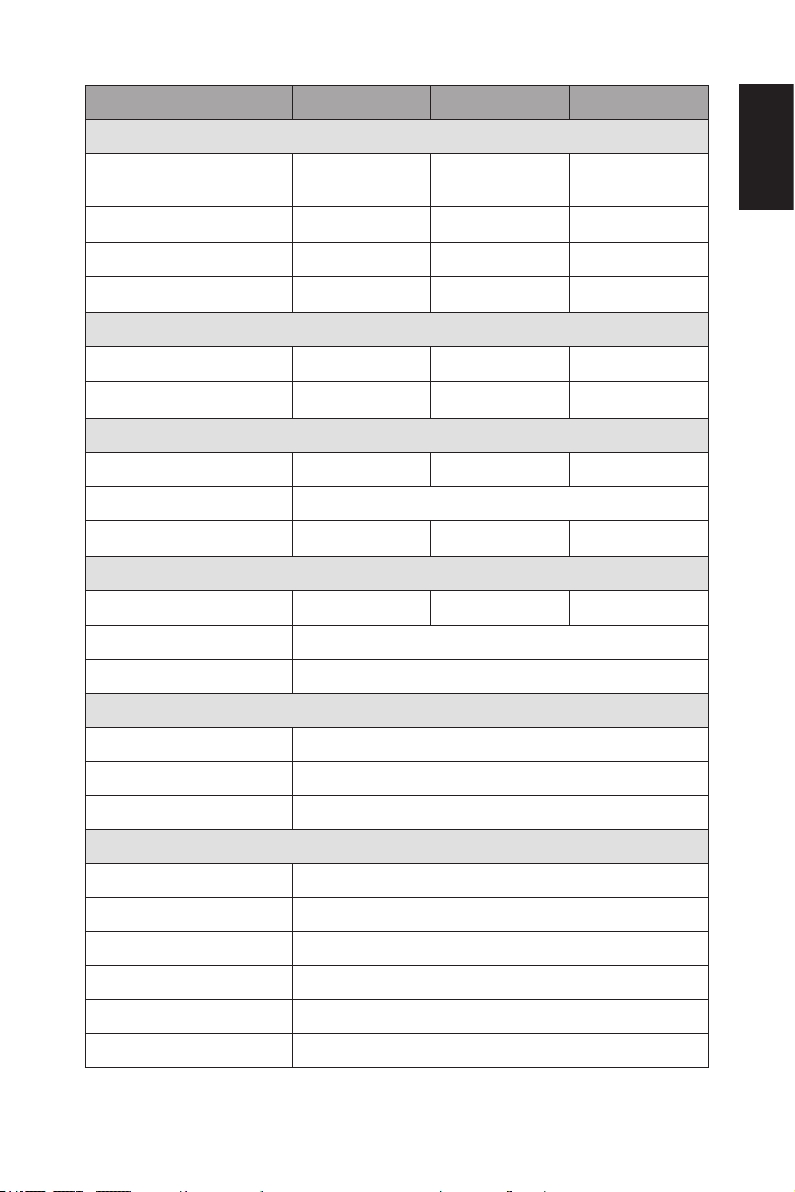
Model Name E464 E424 E324
DISPL AY
Viewable 46” 42” 32”
Resolution 1,920
×
1,080 1,366
×
768
Color Over 16 million colors (depending on video card used)
Frequency
Horizontal:
31 ─ 83 KHz (Analog input)
15�625/15�734KHz, 31 - 83KHz
(HDMI input)
Vertical:
60 ─ 75 Hz (Analog input)
24Hz, 30Hz, 50Hz, 60Hz - 75Hz
(HDMI input)
Pixel Clock 25 ─ 156 MHz
Channel Coverage
VHF: 2 through 13
UHF: 14 through 69
Cable TV: Mild band (A - 8 through A - 1, A through I),
Super band (J through W),
Hyper band (AA through ZZ, AAA, BBB),
Ultra band (65 through 94, 100 through 125)
CONNECTIONS (Downward)
HDMI 2 / 3 Type A Connectors
PC IN
VGA Analog RGB (D-sub15 pin)
AUDIO Stereo mini jack
COMPONENT
/ AV IN
AV
(shared with
component
Y)
RCA PIN Type
1�0 V[p-p] / 75 ohm
AUDIO L / R
RCA PIN Type
0�5Vrms
Y
Pb/Cb, Pr/Cr
Y: 1�0 V [p-p]
Pb/Cb, Pr/Cr: 0�7V p-p 75 ohm
CONNECTIONS (Side)
RS-232C 9 Pin D-sub
USB USB2�0 DC 5V, Max� 500mA
HDMI 1 Type A Connectors
ANT / CABLE VHF / UHF
SPDIF OUT PCM, Fibre optic
English-39English-38
English
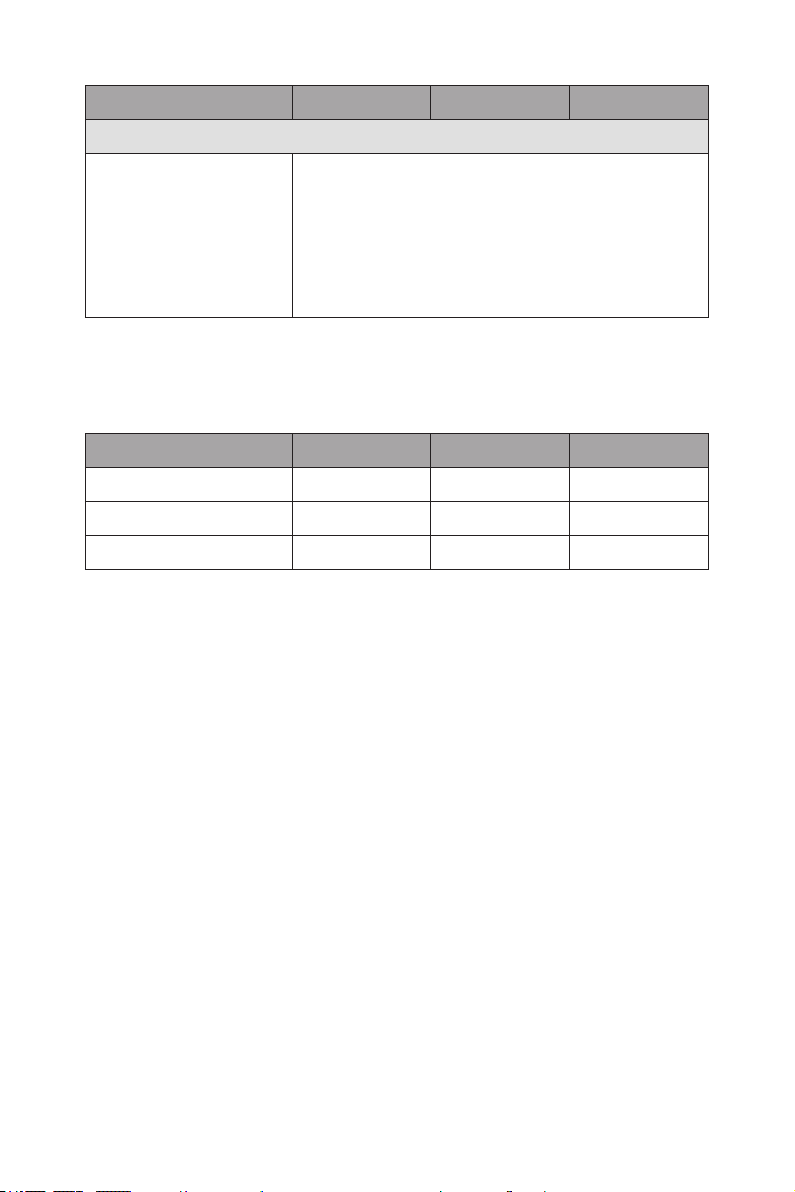
Model Name E464 E424 E324
WEIGHT & DIMENSION
Dimensions w/ Stand and Base
(W
×
H
×
D) (inch)
41�18
×
26�54
×
8�43 37�6 8
×
24�69
×
8�43
28�57 × 19�5 × 8�43
Dimensions w/o Stand and
Base (W
×
H
×
D) (inch)
41�18
×
24�52
×
2�47 37�6 8
×
22�56
×
2�47 28�57 × 17�43 × 2�47
Weight w/ Stand and Base (lbs) 34�51 lbs 28�48 lbs 18�51 lbs
Weight w/o Stand and Base
(lbs)
32�02 lbs 25�99 lbs 14�77 lbs
WALL MOUNTING
VESA-compatible wall bracket
(W
×
H)
400
×
400 mm 400
×
400 mm 100
×
100 mm
Screw type Metric 6 Metric 6 Metric 4
POWER
Power Consumption
100 W 85W 55 W
Standby < 0�5 W
Current Rating
0�85 A @ AC 120V,
60Hz
0�72 A @ AC 120V,
60Hz
0�8 A @ AC 120V,
60Hz
AUDIO
Speaker Output
10 W + 10 W
(16 ohm)
10 W + 10 W
(16 ohm)
10 W + 10 W
(16 ohm)
Analog Audio Stereo L/R 0�5Vrms
Digital Audio PCM / Dolby Digital, Fibre optic
OPERATING ENVIRONMENT
Temperature 0°C ─ 40°C / 32°F ─ 104°F
Humidity 10% ─ 80%
Height 0 ─ 2,000m
STORAGE ENVIRONMENT
Temperature -10°C ─ 60°C / 14°F ─ 140°F
Relative Humidity 5% ─ 85%
Absolute Air Humidity 1─25 g/m
3
Max� Change of Temp� 0�5°C/min (max� 10°C / 30min)
Air Pressure 795 ─ 1,060 mbar (79.5─106Kpa)
Radiation Solar Heat 700 W/m
2
English- 41English-40
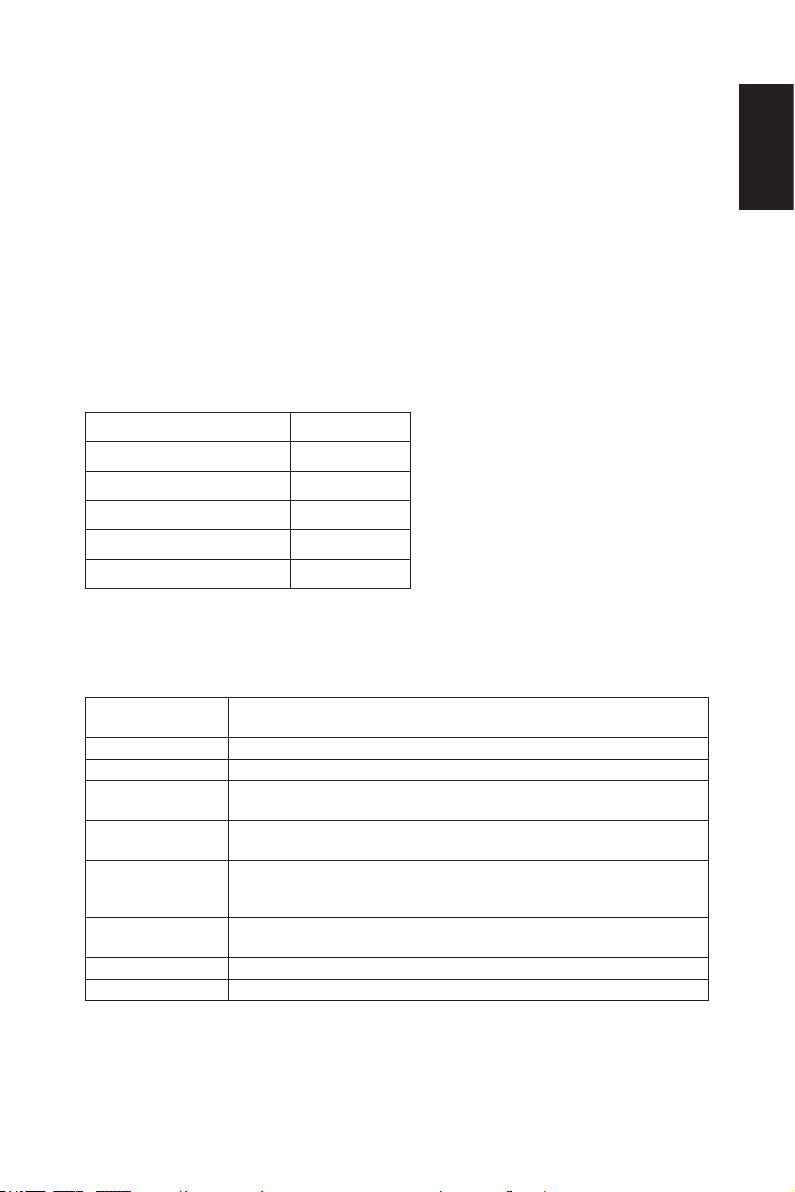
Model Name E464 E424 E324
PACKAGE CONTENTS
Supplied Accessories
Monitor (1)
TV Stand base (1)
Stand Screw (4)
Stand Neck (1) (Only E324)
Neck Screw (4) (Only E324)
Remote control (1)
1�5 V AAA batteries (2)
Power cord (1)
D-sub cable (1)
User’s manual (1)
All specications, weights, and dimensions are subject to change without
prior notice. Please access www.necdisplay.com for detailed specications
and dimensions for custom installations�
NOTE:
Model Name E464 E424 E324
TV Base stand Screw M4 x 10mm M4 x 10mm M4 x 8mm
Neck Screw M4 x 10mm M4 x 10mm M4 x 12mm
VESA Hole Depth M6 (19mm) M6 (21mm) M4 (22mm)
English- 41English-40
English
RS-232C Port Specifications
PC control of the TV
Attach an RS-232C cable cross-type (commercially available) to the supplied
RS-232C for the connections�
NOTE:
This operation system should be used by a person who is accustomed to
using computers�
Communication procedure
Send the control commands from the PC via the RS-232C connector�
The TV operates according to the received command and sends a response
message to the PC�
Do not send multiple commands at the same time� Wait until the PC receives
the response before sending the next command�
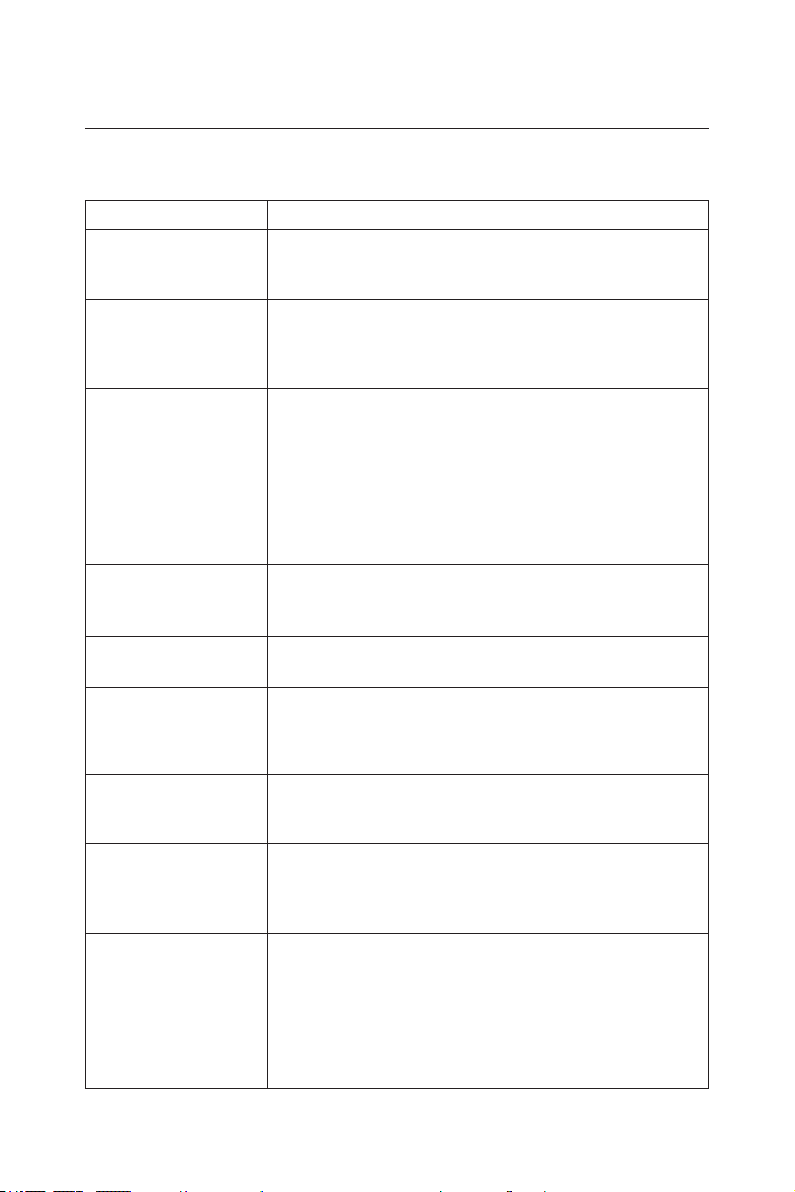
Interface
Protocol RS-232C
Baud rate 9,600 bps
Data length 8 bits
Parity bit None
Stop bit 1 bit
Communication code ASCII
This LCD TV uses RXD, TXD and GND lines for RS-232C control�
The reverse type cable (null modem cable) (not include) should be used for
RS-232C control�
Control command diagram
Function
(Monitor ID = 1)
Code Data
Power ON 01 30 41 30 41 30 43 02 43 32 30 33 44 36 30 30 30 31 03 73 0d
Power OFF 01 30 41 30 41 30 43 02 43 32 30 33 44 36 30 30 30 34 03 76 0d
Input Source
Select VGA
01 30 41 30 45 30 41 02 30 30 36 30 30 30 30 31 03 73 0d
Input Source
Select HDMI
01 30 41 30 45 30 41 02 30 30 36 30 30 30 31 31 03 72 0d
Input Source
Select
Component
01 30 41 30 45 30 41 02 30 30 36 30 30 30 30 43 03 01 0d
Input Source
Select Composite
01 30 41 30 45 30 41 02 30 30 36 30 30 30 30 35 03 77 0d
Sound Mute ON 01 30 41 30 45 30 41 02 30 30 38 44 30 30 30 31 03 09 0d
Sound Mute OFF 01 30 41 30 45 30 41 02 30 30 38 44 30 30 30 32 03 0a 0d
English-43English-42
Before Calling Service
Please make these simple checks before calling service� These tips may
save you time and money as charges for receiver installation and adjustments
of customer controls are not covered under your warranty�
Symptoms Items To Check And Actions To Follow
“Ghost ” or double
image when using
the tuner
• This may be caused by an obstruction to the
antenna due to high rise buildings or hills� Using a
highly directional antenna may improve the picture�
No power
• Check to see if the TV’s AC power cord is plugged
into the outlet�
• Unplug the TV and after 60 seconds reinsert the
plug into the outlet and power on the TV�
No picture
• At the rear of the TV make sure the antenna
connection is properly attached�
• Check to see if there is a station broadcast problem
by trying multiple channels�
• Adjust the contrast and brightness settings�
• Check the Closed Caption settings as some text
modes may block the visibility of the images on the
TV�
Good picture but no
sound
• Increase the volume�
• Conrm that the TV is not muted by pressing the
Mute button on the remote control�
Good sound but poor
color
• Adjust the contrast, color and brightness settings�
Poor picture
• Poor picture quality may occur when an activated
S-VHS camera or camcorder is connected to your
TV and another peripheral at the same time� Switch
off one of the peripherals�
Snowy picture and
noise when using the
tuner
• Check the antenna connection and signal�
Presence of a
horizontal dotted line
• This may be caused by electrical interference (e�g�
hairdryer, nearby neon lights, etc�)�
• Power cycle the equipment by turning off and then
turning back on�
TV not responding
via the remote
control
• Determine if the batteries are working and replace
batteries if necessary�
• Clean the remote control sensor lens on the TV�
• If necessary, utilize the buttons located on the side
of the TV�
• Select the TV mode to ensure your remote control
is set in the TV mode�

English-43English-42
English
Glossary
HDTV
HDTV displays are technically dened as being capable of displaying a
minimum of 720p or 1080i active scan lines�
HDMI Inputs
High-Denition Multimedia Interface Audio / Video Inputs are located on the
receiver� These connectors are used for the input of audio and video signals�
Designed to receive higher picture resolution and offer sound connection
options�
Menu
An on-screen listing of features shown on the TV screen is made available for
user adjustments�
MPAA
Motion Picture Association of America
Multichannel Television sound (MTS)
The broadcasting standard, which allows stereo sounds to be transmitted
with the display picture�
RF
Radio Frequency or modulated signal design used by the carrier for television
broadcasts�
Second Audio Program (SAP)
Another or additional audio channel provided for in the Multichannel
Television Sound (MTS) broadcast standard� A monaural soundtrack included
within the recorded or video signal (usually containing a second language
translation for the displayed program)�
Sleep Timer
You can set a time period for which the TV will automatically turn off�

English-45English-44
Limited Warranty
NEC Display Solutions of America, Inc� (hereinafter “NEC DISPLAY
SOLUTIONS”) warrants this Product to be free from defects in material
and workmanship and, subject to the conditions set forth below, agrees to
repair or replace (at NEC DISPLAY SOLUTIONS’ sole option) any part of the
enclosed unit which proves defective for a period of three (3) years from the
date of rst consumer purchase. Spare parts are warranted for ninety (90)
days, Replacement parts of unit may be new or refurbished and will meet
specications of the original parts or unit. This warranty gives you specic
legal rights and you may also have other rights, which vary from state to
state, this warranty is limited to the original purchaser of the Product and is
not transferable�
This warranty covers only NEC DISPLAY SOLUTIONS supplied components�
Service required as a result of third party components is not covered under
this warranty� In order to be covered under this warranty, the Product must
have been purchased in the U�S�A� or Canada by the original purchaser� This
warranty only covers Product distribution in the U�S�A� or Canada by NEC
DISPLAY SOLUTIONS� No warranty service is provided outside of the U�S�A�
or Canada, Proof of Purchase will be required by NEC DISPLAY SOLUTIONS
to substantiate date of purchase� Such proof of purchase must be an original
bill of sale or receipt containing name and address of seller, purchaser, and
the serial number of the product�
It shall be your obligation and expense to have the Product shipped, freight
prepaid, or delivered to the authorized reseller from whom it was purchased
or other facility authorized by NEC DISPLAY SOLUTIONS to render the
services provided hereunder in either the original package or a similar
package affording an equal degree of protection� All Products returned to
NEC DISPLAY SOLUTIONS for service MUST have prior approval, which
may be obtained by calling 1-800-632-4662� The Product shall not have
been previously altered, repaired, or serviced by anyone other than a service
facility authorized by NEC DISPLAY SOLUTIONS to render such service�
The serial number of the product shall not have been altered or removed�
In order to be covered by this warranty the Product shall not have been
subjected to displaying of xed images for long periods of time resulting
in image persistence (afterimage effects), accident, misuse or abuse or
operated contrary to the instructions contained in the User’s Manual� Any
such conditions will void this warranty�
NEC DISPLAY SOLUTIONS SHALL NOT BE LIABLE FOR DIRECT,
INDIRECT, INCIDENTAL, CONSEQUENTIAL, OR OTHER TYPES
OF DAMAGES RESULTING FROM THE USE OF ANY NEC DISPLAY
SOLUTIONS PRODUCT OTHER THAN THE LIABILITY STATED ABOVE�
THESE WARRANTIES ARE IN LIEU OF ALL OTHER WARRANTIES
EXPRESS OR IMPLIED, INCLUDING, BUT NOT LIMITED TO, THE IMPLIED
WARRANTIES OF MERCHANTABILITY OR FITNESS FOR A PARTICULAR
PURPOSE� SOME STATES DO NOT ALLOW THE EXCLUSION OF IMPLIED
WARRANTIES OR THE LIMITATION OR EXCLUSION OF LIABILITY FOR
INCIDENTAL OR WARRANTIES OR THE LIMITATION OR EXCLUSION OF
LIABILITY FOR INCIDENTAL OR CONSEQUENTIAL DAMAGES SO THE
ABOVE EXCLUSIONS OR LIMITATIONS MAY NOT APPLY TO YOU�

English-45English-44
English
This Product is warranted in accordance with the terms of this limited
warranty� Consumers are cautioned that Product performance is affected
by system conguration, software, the application, customer data, and
operator control of the system, among other factors, While NEC DISPLAY
SOLUTIONS Products are considered to be compatible with many systems,
specic functional implementation by the customers of the Product may
very. Therefore, suitability of a Product for a specic purpose or application
must be determined by consumer and is not warranted by NEC DISPLAY
SOLUTIONS�
For the name of your nearest authorized NEC Display Solutions of America,
Inc� service facility, contact NEC Display Solutions of America, Inc� at 1-800-
632-4662�

English-46English-46
References
NEC Monitor Customer Service & Support
Customer Service and Technical Support
Parts and Accessories
(800) 632-4662 (888) 634-4662
Fax (800) 695-3044
Warranty Information
www�necdisplay�com
Online Technical Support
www�necdisplay�com
Sales and Product Information
Sales information Line
(888) 632-6487
Canadian Customers
(866) 771-0266, Ext#: 4037
Government Sales
(800) 284-6320
Government Sales email
gov@necdisplay�com
Electronic Channels
http://www�necdisplay�com
Product Registration
http://www�necdisplay�com
Drivers and Downloads
http://www�necdisplay�com