Owner’s Manual (this document)
Read this rst. It explains the basic things you need to know in order to use the
E-A7.
PDF Manual (download from the Web)
5 Reference Manual
This explains all functions of the E-A7.
5 MIDI Implementation
This is detailed information about MIDI messages.
To obtain the PDF manual
1. Enter the following URL in your computer.
http://www.roland.com/manuals/
I
2. Choose “E-A7” as the product name.
Before using this unit, carefully read “USING THE UNIT SAFELY” (p. 52) and “IMPORTANT NOTES” (p. 54). After reading, keep the document(s) including those sections
where it will be available for immediate reference.
Copyright © 2015 ROLAND CORPORATION
Owner’s Manual

2
Playing with Automatic Accompaniments . . . . . . . . . . . . . . . . 21
About the Styles . . . . . . . . . . . . . . . . . . . . . . . . . . . . . . . . . . . . . . . . . 21
Using Styles. . . . . . . . . . . . . . . . . . . . . . . . . . . . . . . . . . . . . . . . . . . . . 21
Selecting Styles . . . . . . . . . . . . . . . . . . . . . . . . . . . . . . . . . . . . . . . . . 22
Adjusting the Volume and the ON/OFF Status of Style Parts . . . 23
Performing Along with a Style Accompaniment . . . . . . . . . . . . . 23
Changing the Style’s Tempo . . . . . . . . . . . . . . . . . . . . . . . . . . . . . . . 24
Muting a Specic Track (Track Mute) . . . . . . . . . . . . . . . . . . . . . . . 24
Selecting the Track to Mute . . . . . . . . . . . . . . . . . . . . . . . . . . 25
Selecting Tones Appropriate for a Style
(One Touch Memories) . . . . . . . . . . . . . . . . . . . . . . . . . . . . . . . . . . . . 26
Selecting a One Touch Memory . . . . . . . . . . . . . . . . . . . . . . . . . . . 26
Canceling the One Touch Memories . . . . . . . . . . . . . . . . . . . . . . . 26
Locking One Touch Memories Settings (One Touch Lock) . . . . . 26
Creating Your Own One Touch Memories (One Touch Settings) 26
Editing and Saving the One Touch Settings of a Style . . . 26
Copying a User Program or One Touch Memory to
another One Touch Memory . . . . . . . . . . . . . . . . . . . . . . . . . 27
Creating Sounds . . . . . . . . . . . . . . . . . . . . . . . . . . . . . . . . . . . . . . . . . . 28
Overall Workow . . . . . . . . . . . . . . . . . . . . . . . . . . . . . . . . . . . . . . . . 28
Obtaining Waveforms . . . . . . . . . . . . . . . . . . . . . . . . . . . . . . . . . . . . 28
Connecting an External Device . . . . . . . . . . . . . . . . . . . . . . . . . . . 28
Sampling . . . . . . . . . . . . . . . . . . . . . . . . . . . . . . . . . . . . . . . . . . . . . . . 29
Importing Samples . . . . . . . . . . . . . . . . . . . . . . . . . . . . . . . . . . . . . . 29
Sample Editing . . . . . . . . . . . . . . . . . . . . . . . . . . . . . . . . . . . . . . . . . . 29
Deleting a Sample . . . . . . . . . . . . . . . . . . . . . . . . . . . . . . . . . . . . . . . 30
Creating a Multisample (Create Multisample) . . . . . . . . . . . . . . . 30
Multisample Editing . . . . . . . . . . . . . . . . . . . . . . . . . . . . . . . . . . . . . 31
Deleting a Multisample . . . . . . . . . . . . . . . . . . . . . . . . . . . . . . . . . . 31
Creating a User Tone . . . . . . . . . . . . . . . . . . . . . . . . . . . . . . . . . . . . . 31
Deleting a User Tone . . . . . . . . . . . . . . . . . . . . . . . . . . . . . . . . . . . . . 32
Exporting User Tones to a USB Flash Drive (UST Export) . . . . . . 32
Loading Exported User Tones . . . . . . . . . . . . . . . . . . . . . . . . . . . . . 33
Creating a User Drum Kit . . . . . . . . . . . . . . . . . . . . . . . . . . . . . . . . . 33
Deleting a User Drum Kit . . . . . . . . . . . . . . . . . . . . . . . . . . . . . . . . . 34
Exporting User Drum Kits to a USB Flash Drive (UDK Export) . . 34
Loading Exported User Drum Kits . . . . . . . . . . . . . . . . . . . . . . . . . 34
Increasing the Amount of Free Sample Memory . . . . . . . . . . . . . 35
Truncating a Sample . . . . . . . . . . . . . . . . . . . . . . . . . . . . . . . . 35
Sample Clean Up . . . . . . . . . . . . . . . . . . . . . . . . . . . . . . . . . . . 35
Optimizing Sample Memory . . . . . . . . . . . . . . . . . . . . . . . . . 35
Using the Pads . . . . . . . . . . . . . . . . . . . . . . . . . . . . . . . . . . . . . . . . . . . . 36
Playing the Pads . . . . . . . . . . . . . . . . . . . . . . . . . . . . . . . . . . . . . . . . . 36
Playing the Pads . . . . . . . . . . . . . . . . . . . . . . . . . . . . . . . . . . . 36
Stopping the Pad Sound . . . . . . . . . . . . . . . . . . . . . . . . . . . . 36
Pad Settings . . . . . . . . . . . . . . . . . . . . . . . . . . . . . . . . . . . . . . . . . . . . 36
Viewing the Pad Settings . . . . . . . . . . . . . . . . . . . . . . . . . . . . 36
Editing the Pad Settings . . . . . . . . . . . . . . . . . . . . . . . . . . . . 36
Saving the Pad Settings . . . . . . . . . . . . . . . . . . . . . . . . . . . . . 37
Creating a Phrase to Play from a Pad (Phrase Recording) . . . . . . 37
An Overview of the E-A7 . . . . . . . . . . . . . . . . . . . . . . . . . . . . . . . . . . 4
Basic Structure . . . . . . . . . . . . . . . . . . . . . . . . . . . . . . . . . . . . . . . . . . 4
Units of Sound . . . . . . . . . . . . . . . . . . . . . . . . . . . . . . . . . . . . . . . . . . 4
About the Memory . . . . . . . . . . . . . . . . . . . . . . . . . . . . . . . . . . . . . . 5
Eects . . . . . . . . . . . . . . . . . . . . . . . . . . . . . . . . . . . . . . . . . . . . . . . . . 5
Panel Descriptions . . . . . . . . . . . . . . . . . . . . . . . . . . . . . . . . . . . . . . . . 6
Top Panel . . . . . . . . . . . . . . . . . . . . . . . . . . . . . . . . . . . . . . . . . . . . . . . 6
Shortcut . . . . . . . . . . . . . . . . . . . . . . . . . . . . . . . . . . . . . . . . . . . . . . . . 8
Rear Panel . . . . . . . . . . . . . . . . . . . . . . . . . . . . . . . . . . . . . . . . . . . . . . 9
Connecting Your Equipment . . . . . . . . . . . . . . . . . . . . . . . . . . . . . . 10
Connecting External Audio Equipment . . . . . . . . . . . . . . . . . . . . . 10
Connecting a Microphone or External Audio Device to
the INPUT Jacks . . . . . . . . . . . . . . . . . . . . . . . . . . . . . . . . . . . . 10
Connecting an External Audio Device to the EXT IN Jack 10
Connecting MIDI Equipment . . . . . . . . . . . . . . . . . . . . . . . . . . . . . . 10
Connecting the E-A7 to a Computer . . . . . . . . . . . . . . . . . . . . . . . 11
Connecting a Separately Sold Footswitch or Hold Pedal . . . . . . 11
Installing the Music Rest . . . . . . . . . . . . . . . . . . . . . . . . . . . . . . . . . . 11
Placing the E-A7 on a Stand . . . . . . . . . . . . . . . . . . . . . . . . . . . . . . . 11
Before You Start Using E-A7 . . . . . . . . . . . . . . . . . . . . . . . . . . . . . . 12
Turning On/O the Power . . . . . . . . . . . . . . . . . . . . . . . . . . . . . . . . 12
Turning On the Power . . . . . . . . . . . . . . . . . . . . . . . . . . . . . . 12
Turning O the Power . . . . . . . . . . . . . . . . . . . . . . . . . . . . . . 12
Adjusting the Overall Volume . . . . . . . . . . . . . . . . . . . . . . . . . . . . . 12
Optimizing the Acoustic Character for the Internal Speakers . . 13
Demo of the E-A7. . . . . . . . . . . . . . . . . . . . . . . . . . . . . . . . . . . . . . . . 13
Making the Power Automatically Turn O After a Time
(Auto O) . . . . . . . . . . . . . . . . . . . . . . . . . . . . . . . . . . . . . . . . . . . . . . 13
Basic Operation of the E-A7 . . . . . . . . . . . . . . . . . . . . . . . . . . . . . . . 14
Basic Screens . . . . . . . . . . . . . . . . . . . . . . . . . . . . . . . . . . . . . . . . . . . 14
Basic Buttons . . . . . . . . . . . . . . . . . . . . . . . . . . . . . . . . . . . . . . . . . . . 14
[Balance/Value] knob . . . . . . . . . . . . . . . . . . . . . . . . . . . . . . . . . . . . 15
Adjusting the Volume Balance Between the Keyboard
Parts and the Style/Song . . . . . . . . . . . . . . . . . . . . . . . . . . . . 15
Using the Knob for the Value [-] [+] Button and Tempo [-]
[+] Button Functions . . . . . . . . . . . . . . . . . . . . . . . . . . . . . . . . 15
Adjusting the Volume of Keyboard Parts and Style Parts . . . . . . 15
Assigning Names . . . . . . . . . . . . . . . . . . . . . . . . . . . . . . . . . . . . . . . . 16
Performing . . . . . . . . . . . . . . . . . . . . . . . . . . . . . . . . . . . . . . . . . . . . . . . 17
Selecting a Tone and Playing it on the Keyboard . . . . . . . . . . . . . 17
Changing the Tone of a Keyboard Part . . . . . . . . . . . . . . . . 17
Turning Each Keyboard Part On/O and Adjusting the
Volume . . . . . . . . . . . . . . . . . . . . . . . . . . . . . . . . . . . . . . . . . . . 18
Playing Dierent Tones in the Right and Left Hands (Split) . . . . 18
Changing the Split Point . . . . . . . . . . . . . . . . . . . . . . . . . . . . 18
Specifying Lower Hold . . . . . . . . . . . . . . . . . . . . . . . . . . . . . . 18
Transposing Your Performance (Transpose) . . . . . . . . . . . . . . . . . 18
Changing the Pitch (Octave Shift) . . . . . . . . . . . . . . . . . . . . . . . . . . 19
Using the Metronome . . . . . . . . . . . . . . . . . . . . . . . . . . . . . . . . . . . . 19
Making Metronome Settings . . . . . . . . . . . . . . . . . . . . . . . . 19
Using Favorite Tones . . . . . . . . . . . . . . . . . . . . . . . . . . . . . . . . . . . . . . 20
Recalling a Favorite Tone . . . . . . . . . . . . . . . . . . . . . . . . . . . . . . . . . 20
Registering Favorite Tones . . . . . . . . . . . . . . . . . . . . . . . . . . . . . . . . 20
Contents

3
Contents
Using the E-A7 as a Song Player . . . . . . . . . . . . . . . . . . . . . . . . . . 38
Preparing to Use the E-A7 as a Song Player . . . . . . . . . . . . . . . . . 38
Selecting a Song . . . . . . . . . . . . . . . . . . . . . . . . . . . . . . . . . . . . . . . . 38
Playing Back a Song . . . . . . . . . . . . . . . . . . . . . . . . . . . . . . . . . . . . . 38
Changing the Song’s Tempo . . . . . . . . . . . . . . . . . . . . . . . . . . . . . . 39
Muting a Selected Track (Track Mute) . . . . . . . . . . . . . . . . . . . . . . 39
Playing Back All Songs Consecutively . . . . . . . . . . . . . . . . . . . . . . 39
Loop Function . . . . . . . . . . . . . . . . . . . . . . . . . . . . . . . . . . . . . . . . . . 40
Using the Mark and Jump Function (SMF Songs Only) . . . . . . . . 40
Creating/Deleting Markers . . . . . . . . . . . . . . . . . . . . . . . . . . 40
Saving a Song that Contains Markers . . . . . . . . . . . . . . . . . 41
Using Markers to Perform . . . . . . . . . . . . . . . . . . . . . . . . . . . 41
Center Cancel . . . . . . . . . . . . . . . . . . . . . . . . . . . . . . . . . . . . . . . . . . . 41
Recording and Playing Back a Performance . . . . . . . . . . . . . . 42
Recording Audio (WAV Format) . . . . . . . . . . . . . . . . . . . . . . . . . . . 42
Saving the Song . . . . . . . . . . . . . . . . . . . . . . . . . . . . . . . . . . . 42
Discarding the Recorded Content . . . . . . . . . . . . . . . . . . . . 42
Listening to the Recorded Content . . . . . . . . . . . . . . . . . . . . . . . . 42
Using File Utility . . . . . . . . . . . . . . . . . . . . . . . . . . . . . . . . . . . . . . . . . . 43
Displaying the File List . . . . . . . . . . . . . . . . . . . . . . . . . . . . . . . . . . . 43
Renaming a File or Folder (Rename). . . . . . . . . . . . . . . . . . . . . . . . 43
Copying a File or Folder (Copy) . . . . . . . . . . . . . . . . . . . . . . . . . . . . 43
Deleting a File or Folder (Delete) . . . . . . . . . . . . . . . . . . . . . . . . . . 43
Creating a New Folder (Create Folder) . . . . . . . . . . . . . . . . . . . . . . 43
Searching for a Song/Style (Finder) . . . . . . . . . . . . . . . . . . . . . . . 44
Searching for a Song/Style . . . . . . . . . . . . . . . . . . . . . . . . . . . . . . . . 44
User Program (UPG) . . . . . . . . . . . . . . . . . . . . . . . . . . . . . . . . . . . . . . 45
User Programs (UPG) and User Program Sets (UPS) . . . . . . . . . . . 45
Loading a UPS . . . . . . . . . . . . . . . . . . . . . . . . . . . . . . . . . . . . . . . . . . 45
Recalling the UPG . . . . . . . . . . . . . . . . . . . . . . . . . . . . . . . . . . . . . . . 45
Direct Selection with the UPG Buttons . . . . . . . . . . . . . . . . 45
Selecting from the UPG List Screen . . . . . . . . . . . . . . . . . . . 45
Saving Settings as a User Program . . . . . . . . . . . . . . . . . . . . 46
Recalling My Setup . . . . . . . . . . . . . . . . . . . . . . . . . . . . . . . . . . . . . . 46
Saving Settings as My Setup . . . . . . . . . . . . . . . . . . . . . . . . . 46
Other Functions Related to the UPS List . . . . . . . . . . . . . . . . . . . . 46
Renaming a User Program Set (UPS) (Rename UPS) . . . . . 46
Deleting a User Program Set (UPS) (Delete UPS) . . . . . . . . 46
Creating a New User Program Set (UPS) (Make New UPS) 46
Copying a User Program Set (UPS) (Copy UPS) . . . . . . . . . 46
Using a UPS File Created by the Roland BK Series . . . . . . . 47
Other Functions Related to the UPG List . . . . . . . . . . . . . . . . . . . . 47
Deleting a User Program (UPG) (Delete UPG) . . . . . . . . . . 47
Moving a User Program (UPG) (Move UPG) . . . . . . . . . . . . 47
Renaming a User Program (UPG) (Rename UPG) . . . . . . . 47
Copying a User Program (UPG) (Copy UPGs) . . . . . . . . . . . 48
Saving an Edited User Program Set (Save UPS) . . . . . . . . . 48
Locking the UPG Settings . . . . . . . . . . . . . . . . . . . . . . . . . . . . . . . . . 48
Various Settings (Menu) . . . . . . . . . . . . . . . . . . . . . . . . . . . . . . . . . . 49
Main Specications . . . . . . . . . . . . . . . . . . . . . . . . . . . . . . . . . . . . . . . 50
Index . . . . . . . . . . . . . . . . . . . . . . . . . . . . . . . . . . . . . . . . . . . . . . . . . . . . . 51
USING THE UNIT SAFELY . . . . . . . . . . . . . . . . . . . . . . . . . . . . . . . . . . 52
IMPORTANT NOTES . . . . . . . . . . . . . . . . . . . . . . . . . . . . . . . . . . . . . . . 54

4
An Overview of the E-A7
Basic Structure
Broadly speaking, the E-A7 consists of a controller section, a sound generator section, an arranger/song player section, and a sampler section.
Controller Section
The controller section is what you perform on. For example, the performer’s actions such as “playing the keyboard” are sent from the controller
section to the sound generator section, causing it to produce sound.
The controller section includes the keyboard, assignable lever, the panel sliders and buttons, and the pedals connected to the rear panel.
Sound Generator Section
This section produces the sound. It receives performance data from the controller section, the arranger/song player section, and external MIDI
devices, and produces a variety of sounds in response to this data.
Arranger/Song Player Section
The arranger detects chords by analyzing the operations from the keyboard controller, and plays the appropriate style data.
The song player plays back audio les or sends MIDI messages from SMF data to the sound generator.
Sampler Section
The sampler captures sounds from an audio device or mic connected to the input jacks, or audio les (WAV les) from a USB ash drive, and saves
them as User Samples.
You can use these user samples to create user sounds (User Tones, User Drum Kits).
Units of Sound
Tone
Tones are the units of sound with which you perform.
Tones that you created by editing the built-in tones, or by loading a waveform (User Sample) you created using the sampling function, are called
“User Tones.”
Drum Kit
A drum kit is a group of percussion instrument sounds.
In a drum kit, a dierent percussion instrument sound is played by each key (note number) you press.
The sounds (mainly percussion instrument sounds) that are assigned to each note of the internal drum kits are called Drum Inst.
The drum inst of the internal drum kits or waveforms (user samples) that you captured using the sampling function can be freely assigned to the
keyboard to create your own original drum kit.
A drum kit created by the user in this way is called a “User Drum Kit.”
User Sample
A waveform captured by the sampling function is called a “User Sample.”
User samples are the material from which you can create user sample tones and user drum kits.
User Program (UPG)
A User Program (UPG) contains tone settings for the four parts that are assigned as the Keyboard Parts (Upper1, Upper2, Upper3, Lower). The style
and song settings, as well as all settings that are loaded with them (for example, the intro and ending status, and settings for the selected variation),
are also handled together within the user program (UPG).
You can store one hundred UPGs as a User Program Set (UPS).

5
An Overview of the E-A7
About the Memory
The state of the E-A7’s parameters and the data that you create are held in memory.
This memory is divided into three categories: “temporary memory,” “rewritable memory,” and “non-rewritable memory.”
Temporary memory (Temporary area)
A user program (UPG) that you load during a performance, and the panel settings that you modify while performing, are held in temporary memory
(the temporary area).
When you edit a User Tone or user drum kit, this data is also held in the temporary area during that time.
Settings in the temporary area are temporary, and will be lost when you turn o the power or recall other settings. If you want to keep the settings
that are in the temporary area, you must save them to rewritable memory.
Rewritable memory
Internal Storage
The memory that lets you store data inside the E-A7 is called Internal Storage.
This holds user programs sets (UPS), user styles, User Tone settings, and user drum kit settings.
External Storage
You can insert a USB ash drive and store data outside the E-A7. Such external memory (a USB ash drive) is called External Storage, and can be used
in the same way as internal storage.
External storage can also be used as an audio recording destination, or to back up data.
System Memory
System Memory is located inside the E-A7, and stores system settings that determine the overall operation of the E-A7.
User Sample Memory
This is memory that stores user samples that were captured by sampling or that were imported by the sample import function.
Non-rewritable memory
Preset Memory
This memory holds parameters for the internal sounds, internal styles, and Music Assistant. Its data cannot be rewritten.
Preset Wave Memory
This memory contains waveform data used by the internal sounds. Its data cannot be rewritten.
Eects
The E-A7 contains the following eects units. You can make settings independently for each of them.
MFX (Multi Eects)
This is a general-purpose multi-eect that modies the sound itself, potentially giving it a completely dierent tonal character.
A wide variety of types are provided, and you can choose the type that’s most appropriate for your purpose.
There are a total of three MFX units: one unit dedicated to the keyboard part, and two units for backing.
Chorus
Chorus is an eect that adds depth and spaciousness to the sound. You can choose whether to use this eect unit as chorus or as delay.
The depth of chorus can be adjusted individually for each part.
Reverb
Reverb is an eect that gives the sound a spatial ambience that’s characteristic of a performance in a hall.
Several types are provided, and you can choose the type that’s most appropriate for your purpose.
The depth of reverb can be adjusted individually for each part.
Input EFX
This unit can apply reverb or other eects to the sound from the input jacks.
Mastering Tools
The mastering tools consist of a mastering compressor and equalizer that are applied to all parts.
6
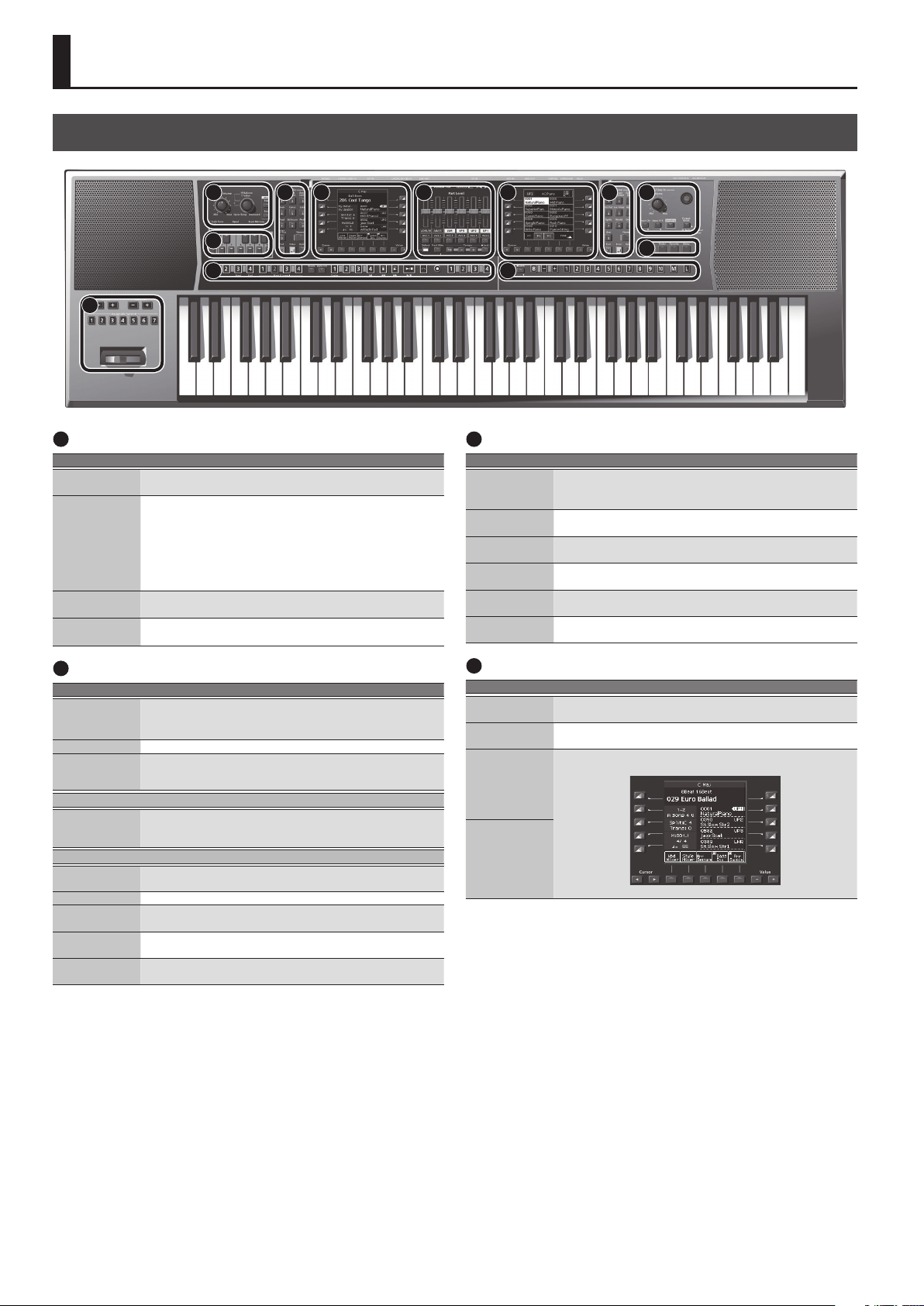
Panel Descriptions
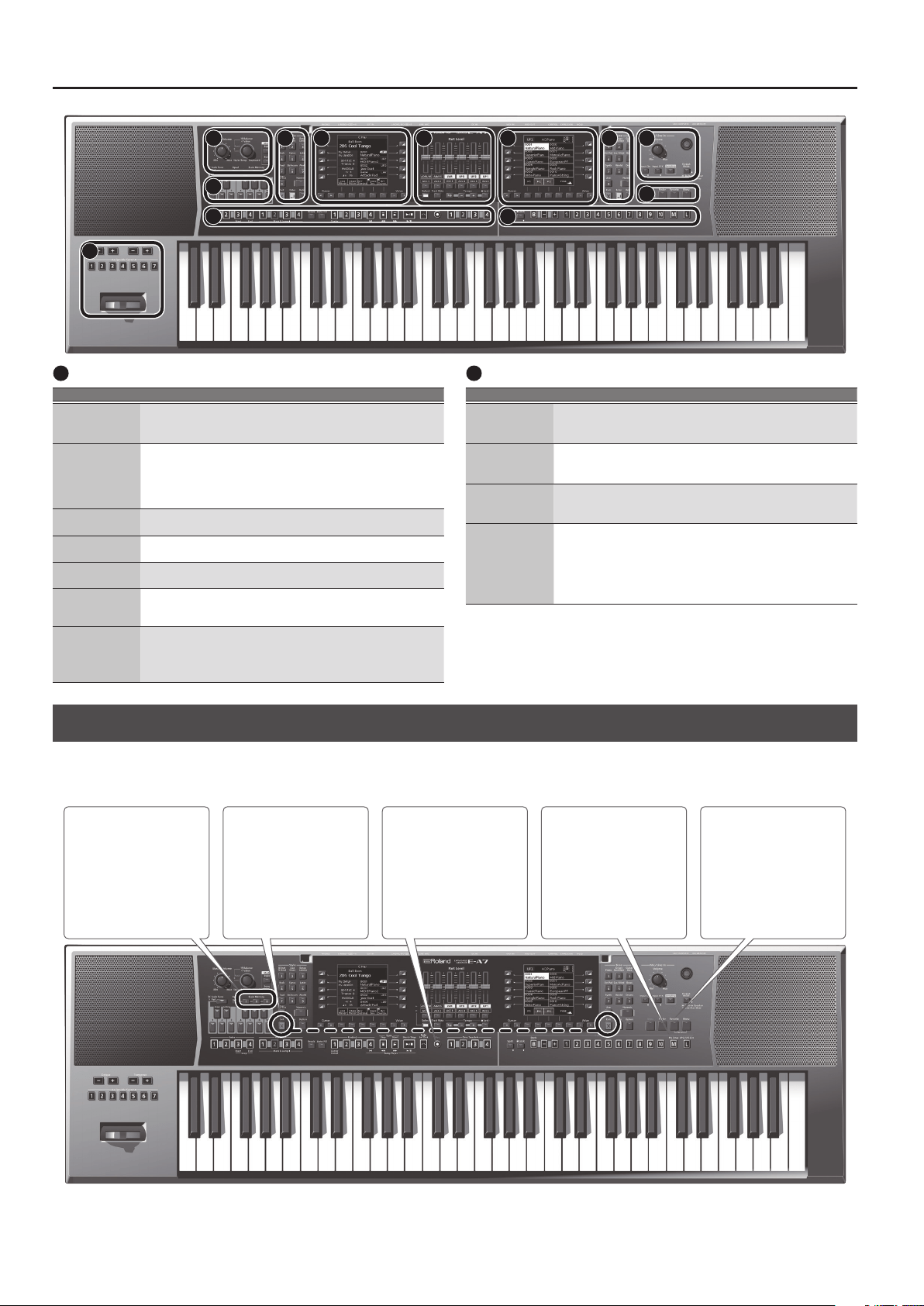
1
Master Volume/ Balance
Controller Explanation
[Master Volume]
knob
Adjusts the overall volume (the sound that is output from the
speakers and the PHONES/OUTPUT jacks).
[Balance/Value]
knob
Press this knob to switch it between the Balance function (lit) and
the Value function (unlit).
Balance function (lit):
This knob adjusts the volume balance between your keyboard
performance and the backing performance (e.g., Style or Song).
Value function (unlit):
This knob edits the value in the right screen, left screen or tempo.
Mode [Style]
button
Selects Style mode.
If Style mode is selected, the button is lit (Style Mode).
Mode [Song]
button
Selects Song mode.
If Song mode is selected, the button is lit (Song Mode).
2
Scale Tune/Pad, Keyboard Buttons
Controller Explanation
[Scale Tune/Pad]
button
Switches the function of the keyboard buttons.
Scale Tune function (lit)
Pad function (unlit)
[Equal] button Sets the Scale Tune to equal temperament.
Scale Memory [
I ]–[III] buttons
Sets the Scale Tune to “Scale Memory I–III.”
* Long-press this button to save the Scale Tune settings that are specied
for the keyboard buttons.
Scale Tune (PDF)
Keyboard
buttons
You can use the keyboard buttons to edit the Scale Tuning as
desired.
* Long-press these buttons to access the Scale Tune edit screen.
Pad (p. 36)
Pad [1]–[6]
buttons
These play phrases or sound eects (p. 36).
Pad [Stop] button Stops the sound of all Pads.
Pad [View]
button
This lets you audition the phrases or sound eects that are
assigned to the pads.
Pad [Setting]
button
Accesses the setting screen for each pad.
Pad [Sync Start]
button
Turns on/o the setting (Sync Start) that makes the pads play in
synchronization with the start of a style or song.
3
Style
Controller Explanation
Style [0]–[9]
buttons
Use these buttons to select the Style category (p. 22).
When you press a button, the styles included in that category are
displayed.
Style [User]
button
Press this button to select the user styles.
Left side
[Numeric] button
After pressing this button, you can use the Style [0]–[9] buttons to
enter a numeric value (p. 14).
Left side [Exit]
button
Returns to the next higher level of screen (left screen).
* Long-press this button to return to the main screen.
Left side [Enter]
button
Use this button to conrm a value or execute an operation (left
screen).
Left side [Option]
button
Displays a context menu for the page that is currently open in the
left screen.
4
Left Display
Controller Explanation
Left side Cursor
[
K
] [
J
] buttons
Move the cursor position (left screen).
Left side Value [-]
[+] buttons
Edit the parameter value at the cursor location (left screen).
Left side direct
buttons ([L1]–
[L5] [R1]–[R5]
buttons)
These buttons are assigned to the items or functions shown in the
screen.
[L1]
[F1]
[R1]
[L2]
[F2]
[R2]
[L4]
[F4]
[R4]
[L3]
[F3]
[R3]
[L5]
[F5]
[R5]
Left side function
buttons ([F1]–
[F5] buttons)
Top Panel
6 7 8
9
10 11
12
4 1
2
5 3
For details on each functions, refer to “Reference Manual (English)” (PDF).
7
Panel Descriptions
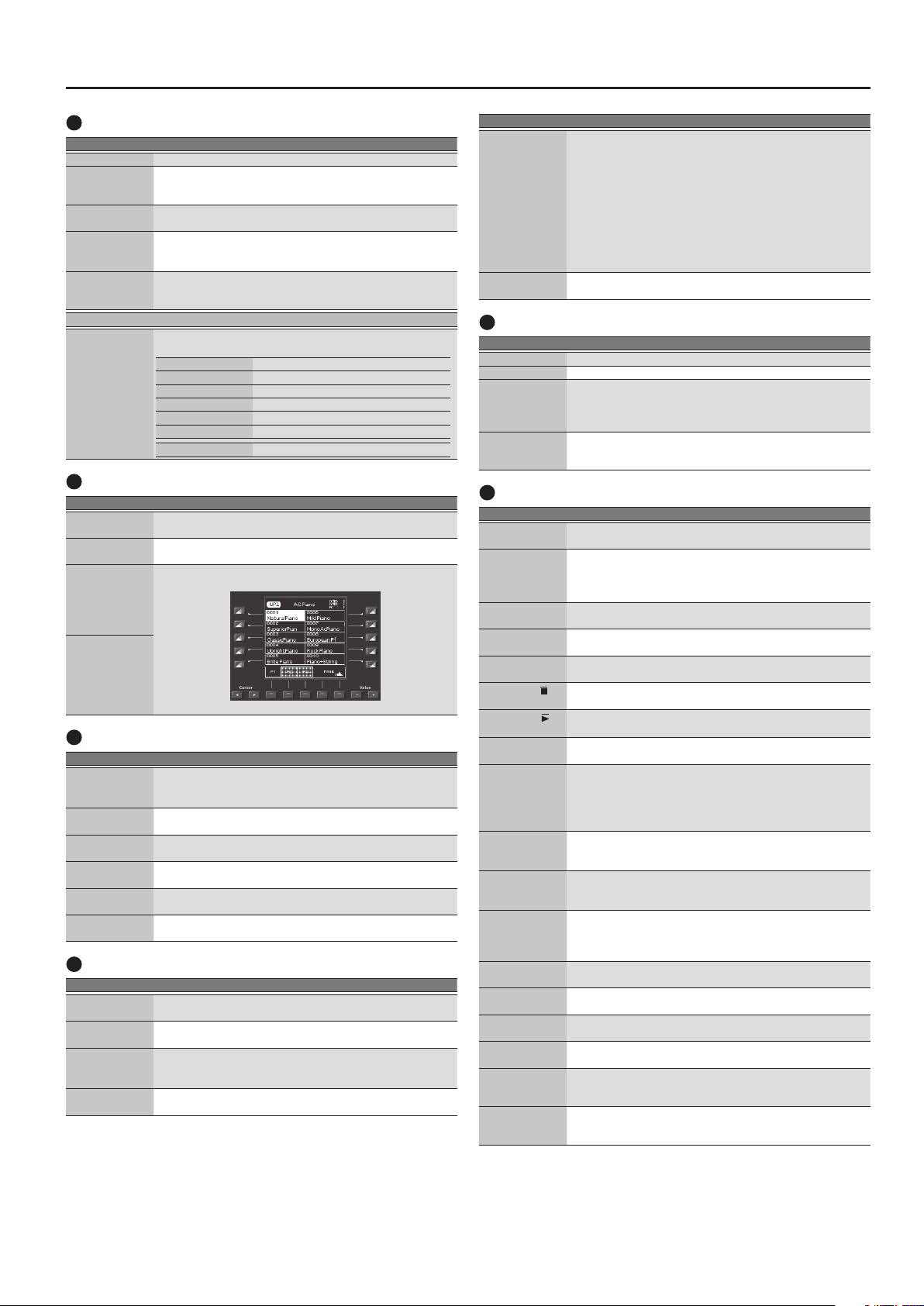
5
Part Level
Controller Explanation
[Select] button Switches the function of the Part Level sliders and buttons.
[Track Mute]
button
Use this to mute specic tracks of the selected Style or song.
* Long-press this button to access a screen where you can select the mute
track of the SMF or Style.
Tempo [Tap]
button
You can change the tempo of the current Style or song by
repeatedly pressing this button at the desired interval.
Tempo [-] [+]
buttons
Change the tempo of the currently selected Style or song.
If you press the two buttons simultaneously, the original tempo
specied for the Style or song is restored.
Tempo [Lock]
button
Press this button to lock the current tempo setting. The tempo
does not change even if you select another style (of a dierent
tempo).
Part Level
Part sliders/Part
buttons
Adjust the volume of the parts (Parts sliders).
Turn the parts on/o (Part buttons).
[A DRUM] Accompaniment drum part
[A BASS] Accompaniment bass part
[LWR] Lower part
[UP3] Upper 3 part
[UP2] Upper 2 part
[UP1] Upper 1 part
[ACC1]–[ACC6] Accompaniment part 1–6
6
Right Display
Controller Explanation
Right side Cursor
[
K
] [
J
] buttons
Move the cursor position (right screen).
Right side Value
[-] [+] buttons
Edit the parameter value at the cursor location (right screen).
Right side direct
buttons ([L1]–
[L5] [R1]–[R5]
buttons)
These buttons are assigned to the items or functions shown in the
screen.
[L1]
[F1]
[R1]
[L2]
[F2]
[R2]
[L4]
[F4]
[R4]
[L3]
[F3]
[R3]
[L5]
[F5]
[R5]
Right side
function buttons
([F1]–[F5]
buttons)
7
Tone
Controller Explanation
Tone [0]–[9]
buttons
Use these to select tones.
When you press a button, the tones in that category are shown
(p. 17).
Tone [User]
button
Use this to select User Tones (PDF).
Right side
[Numeric] button
After pressing this button, you can use the Tone [0]–[9] buttons to
enter a numeric value (p. 14).
Right side [Exit]
button
Returns to the previous screen (right screen).
* Long-press this button to return to the Main screen.
Right side [Enter]
button
Use this button to conrm a value or execute an operation (right
display).
Right side
[Option] button
Displays a context menu for the page that is currently open in the
right display.
8
Input/Sampling
Controller Explanation
Mic/Line In
[Volume] knob
Adjusts the volume of the signal being input to the INPUT jacks.
[Input On]
button
Turns on/o the signal from the INPUT jacks.
* Long-press this button to access a screen of input-related settings.
[Input EFX]
button
Turns on/o the eect that’s applied to the signal from the INPUT
jacks.
* Long-press this button to access a screen of input-related settings.
[Sampling]
button
Displays the sampling menu screen (p. 29).
Controller Explanation
[Output Mode]
button
Switches the acoustical character of the sound that is output from
the Phones jack/Output jacks and the E-A7’s speakers.
When the button is lit: Settings are optimized for the response of
the E-A7’s speakers.
When the button is unlit: The Mastering Tools function’s
Compressor and Equalizer settings will be
enabled. The factory settings (Type: Standard)
or the User settings are applied.
* The “Standard” compressor and equalizer type settings are optimal for
use when the Phones jack or Output jacks are connected to an external
speaker or PA system.
[
L
] (power)
button
Turns the power on (p. 12).
* Long-press this button to turn the power o (p. 12).
9
Menu/Utility
Controller Explanation
[Write] button Saves settings.
[Finder] button Use this button to search for a User Style or Song (p. 44).
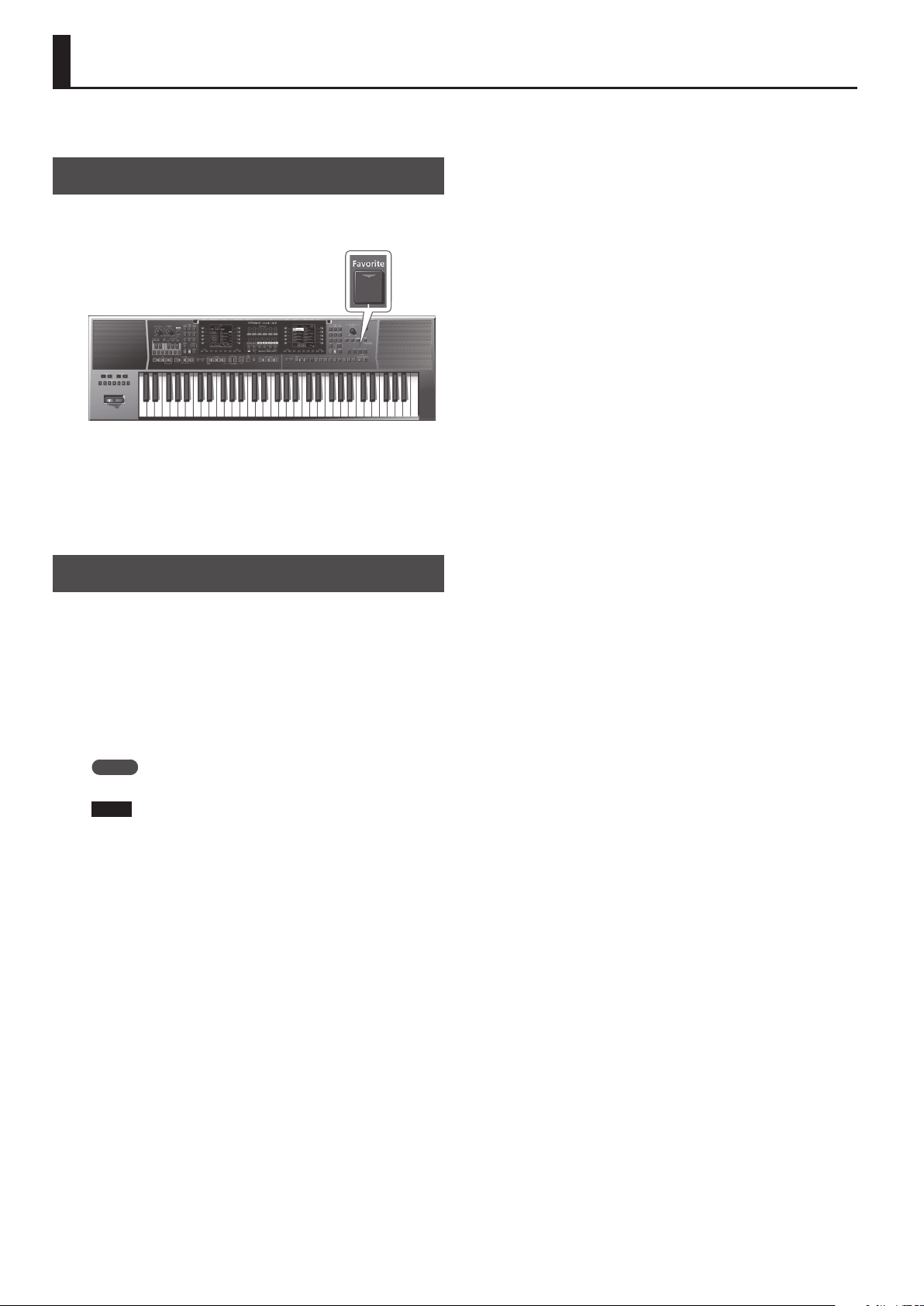
[Favorite] button
Displays the Favorite screen.
Here you can recall Favorite tones (p. 20).
* To play the demo songs, hold down the [Menu] button and press the
[Favorite] button.
[Menu] button
Displays a menu screen.
* To play the demo songs, hold down the [Menu] button and press the
[Favorite] button.
10
Style/Song Control
Controller Explanation
Intro [1]–[4]
buttons
Use these to select the Style’s intro (Each Style can have up to four
dierent intros).
Variation [1]–[4]
buttons
Use these to select the Style’s variation (Each Style can have up to
four dierent variations).
You can use these when you want the arrangement of the
selected Style to be simpler or more complex.
[Break] button
Mutes the Style’s playback until the end of the currently-playing
measure.
[Auto Fill] button
Turns on the Auto Fill-in function. If this is on, a ll-in plays before
the new Style variation is played back.
Ending [1]–[4]
buttons
Select the Style’s ending (Each Style can have up to four endings).
Sync [Stop] (
)
button
If the Synchro Stop function is on, style playback will stop when
you play and release a single note or chord.
Sync [Start] (
)
button
If the Synchro Start function is on, Style playback starts when you
play a single note or chord.
[Start/Stop]
button
Plays/stops the Style.
If a song is selected, pressing this button plays or pauses the song.
[Fade In/Out]
button
If the Style is stopped, pressing this button starts the Style and
gradually raises the volume from 0 (Fade In).
If the Style is playing, pressing this button gradually lowers the
volume and then automatically stops the song or Style playback
when the volume reaches 0 (Fade Out).
[Loop Start]
button
If a song is selected, this button species the loop start point for
the loop play function. If the loop point is already specied, this
button turns loop play on/o (p. 40).
[Loop End]
button
If a song is selected, this button species the loop end point for
the loop play function. If the loop point is already specied, this
button clears the loop point.
Mark & Jump [1]–
[4] buttons
When playing an SMF in which marks have been assigned, these
buttons jump to the assigned playback point (p. 40).
* If you long-press one of these buttons, the Mark & Jump function setting
screen appears.
[Center Cancel]
button
Minimizes the vocal or other sound that is panned to the center of
an audio le (WAV or MP3).
Song Player [
u
]
button
Returns the playback position to the beginning of the song.
Song Player [
x
]
button
Rewinds the song.
Song Player [
y
]
button
Fast-forwards the song.
[Rec] button
Records a style or song (audio).
* In the record-ready condition (indicator blinking), long-pressing this
button cancels record-ready.
One Touch [1]–[4]
buttons
Use these buttons to recall One Touch memories (p. 26).
* You can long-press one of these buttons to access a screen where you can
edit and save One Touch memories.
8
Panel Descriptions
11
User Program
Controller Explanation
[Split] button
Divides the keyboard into left and right, allowing you to play
dierent tones in each region (p. 18).
* If you long-press this button, the split setting screen appears.
UPG [Lock]
button
Allows you to prevent settings from changing (lock) when you
switch user programs.
&
“Locking the UPG Settings” (p. 48)
* If you long-press this button, the User Program Lock setting screen
appears.
UPG Bank [B]
button
Press this button if you want to use User Program [1]–[10] buttons
to specify the bank.
UPG Bank [-] [+]
buttons
Switch the user program bank.
UPG [1]–[10]
buttons
Switch the user program.
My Setup [M]
button
Switches to My Setup (p. 46).
* If you long-press this button, the Write screen appears, allowing you to
save the current settings in My Setup.
UPG/UPS List [
L
]
button
Displays the UPS list or UPG list.
The UPS or UPG list switches each time you press this button.
* User Programs are abbreviated as UPG.
* User Program Sets are abbreviated as UPS.
12
Octave/Transpose/Assignable
Controller Explanation
Octave [-] [+]
buttons
Shift the pitch of the keyboard part in units of one octave (p. 19).
Press these two buttons simultaneously to return to the original
octave settings.
Transpose [-] [+]
buttons
Transpose the Style, song, and keyboard parts.
Press these two buttons simultaneously to return the transpose
setting to 0.
Assignable
Switch [1]–[7]
buttons
These buttons perform the functions that you’ve assigned.
* If you long-press one of these buttons, the assignable settings screen
appears, allowing you to assign various functions to the buttons.
Assignable lever
With the factory settings, moving the lever to the left while you
play the keyboard lowers the pitch, and moving the lever to the
right raises the pitch. Moving the lever away from yourself applies
vibrato.
A variety of functions can be assigned to this lever as well.
&
[Menu]
0
“Global”
Shortcut
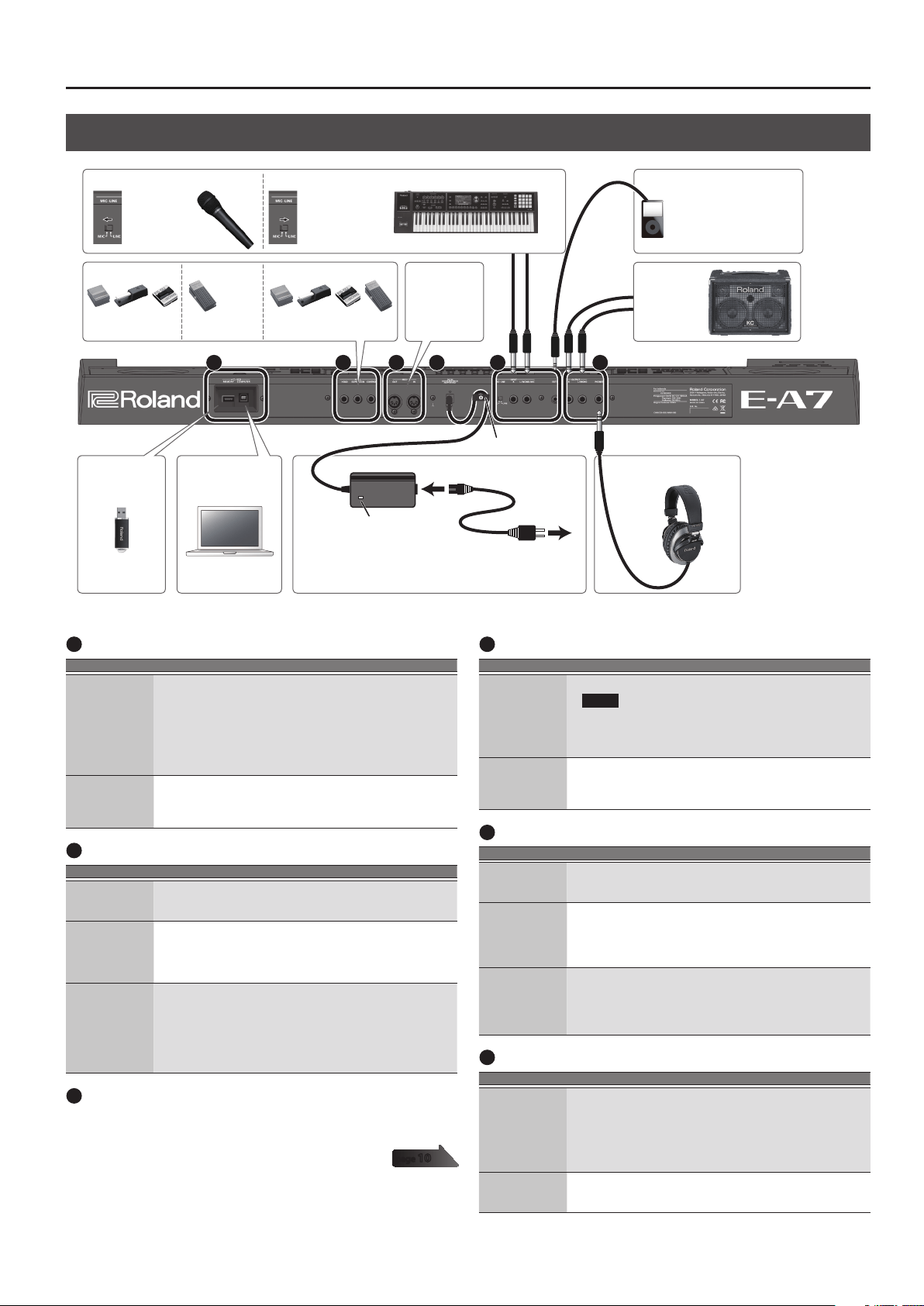
You can also long-press any panel button marked with a diamond symbol (
;
) to jump to the corresponding parameter screen for that button.
You can also reach the parameter screen via the menu.
As noted below, you can access a save screen or other screen by long-pressing certain buttons.
Long-press [Exit] button
If a screen within the menu
hierarchy is displayed, takes
you back to the main screen.
The right [Exit] button does
the same.
Long-press [My Setup]
button
Displays the My Setup save
screen.
Long-press [Favorite]
button
Displays the Favorite save
screen.
Long-press Scale Memory
[ I ]–[III] buttons
Saves the current scale tune
state in a Scale Memory
[ I ]–[III].
Long-press [Rec] button
If you long-press this button
while in the record-ready
state (indicator blinking),
record-ready is canceled. (If
you decide not to record, you
can use this button to cancel.)
6 7 8
9
10 11
12
4 1
2
5 3
9
Panel Descriptions
Rear Panel
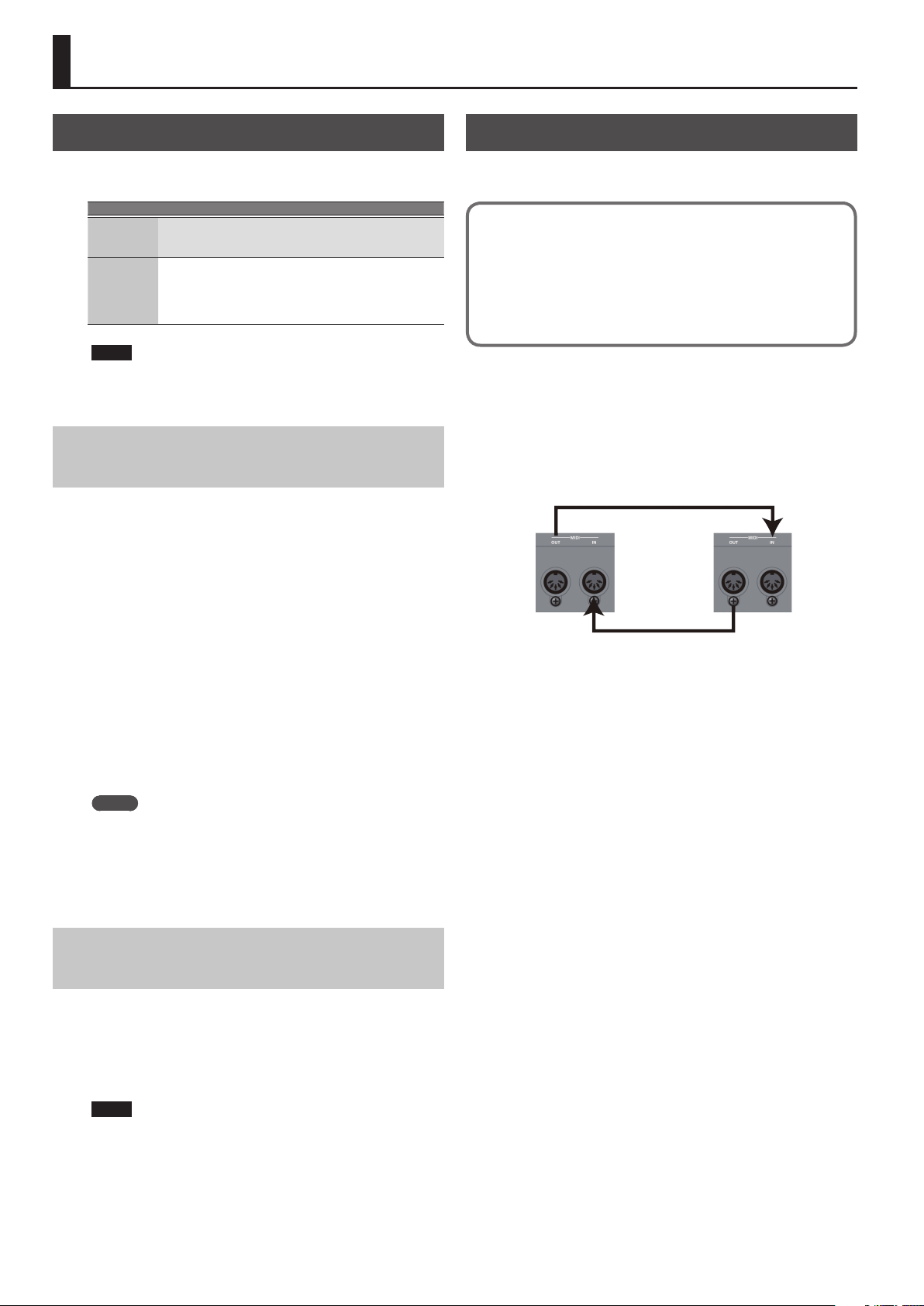
A B C D E F
* To prevent malfunction and equipment failure, always turn down the volume, and turn o all the units before making any connections.
Headphones
* Place the AC adaptor so the side with the indicator (see illustration)
faces upwards and the side with textual information faces downwards.
The indicator will light when you plug the AC adaptor into an AC
outlet.
AC adaptor
Indicator
Power Cord
AC Outlet
Connect MIDI
equipment
(p. 10).
Use a stereo mini-plug to
connect an audio player
or similar device.
Connect an
amplied
speaker.
Cord hook
ComputerUSB ash drive
Option: EV-5
EXPRESSION
Option: DP series,
BOSS FS-5U, EV-5
CONTROL
Option: DP series,
BOSS FS-5U
HOLD
If connecting a microphone
Set the MIC-
LINE select
switch to MIC.
If connecting an audio device, synthesizer, or similar device
Set the MIC-LINE
select switch to
LINE.
A
USB port
Jack Explanation
USB MEMORY
port
Connect a USB ash drive (separately sold) for use as external
storage.
* Carefully insert the USB ash drives all the way in—until it is rmly in
place.
* Use a USB ash drive sold by Roland. We cannot guarantee operation if
any other USB ash drive is used.
* We do not recommend using a USB hub, regardless of whether it is an
active or a passive hub. Connect only one USB ash drive to this port.
USB COMPUTER
port
If you use a commercially available USB cable to connect the
E-A7’s USB COMPUTER port to a USB port on your computer, you’ll
be able to produce and edit music using the E-A7 in conjunction
with MIDI-enabled software.
B
Foot Pedal jack
Jack Explanation
Pedal HOLD jack
If a separately sold pedal switch (Roland DP series) is connected to
this jack, you can use it to sustain the sound of the keyboard part.
This function is called “sustain” or “damper.”
Pedal
EXPRESSION jack
Connect a separately sold expression pedal (Roland EV-5) to this
jack.
* Use only the specied expression pedal (EV-5; sold separately). By
connecting any other expression pedals, you risk causing malfunction
and/or damage to the unit.
Pedal CONTROL
jack
Connect a separately sold pedal switch (Roland DP series) or
separately sold expression pedal (Roland EV-5) to this jack.
You can assign a function suitable for the pedal that’s connected.
&
“Reference Manual” (PDF)
* Use only the specied expression pedal (EV-5; sold separately). By
connecting any other expression pedals, you risk causing malfunction
and/or damage to the unit.
C
MIDI port
These connectors can be connected to other MIDI devices to receive and
transmit MIDI messages.
D
DC IN jack
Jack Explanation
DC IN jack
Connect the included AC adaptor here.
NOTE
5 Use only the AC adaptor that is included with the product.
5 If you won’t be using the E-A7 for an extended period of time,
disconnect the AC adaptor from the AC outlet.
Cord hook
To prevent the inadvertent disruption of power to your unit
(should the plug be pulled out accidentally), and to avoid
applying undue stress to the jack, anchor the power cord using
the cord hook, as shown in the illustration.
E
INPUT jack
Jack Explanation
MIC-LINE select
switch
Set this switch to the appropriate position depending on whether
you connect a microphone (MIC) or a line-level device such as an
instrument (LINE).
INPUT
L/MONO, MIC,
R jacks
Connect a microphone, or the outputs of your audio equipment,
synthesizer, or similar device.
* If you connect a microphone, connect it to the L/MONO, MIC jack.
Condenser microphones are not supported.
* If you want to input in monaural, connect to the L/MONO, MIC jack.
EXT IN jack
This is an audio input jack. If you use a stereo mini-plug to connect
your audio player or similar device, the sound of the connected
device is heard from the E-A7.
* Eects are not applied to the sound that is input from the EXT IN jack.
* Adjust the volume on the connected device (e.g., audio player).
F
Output jack
Jack Explanation
OUTPUT L/
MONO, R jacks
Connect speakers.
5 If you want to output in monaural, connect your system to the
L/MONO jack.
5 If you’ve connected the output jacks to external speakers or a
PA system, we recommend that you leave the [Output Mode]
button o (button unlit).
PHONES jack
Connect separately sold headphones (Roland RH series).
If a cable is connected to this jack, the internal speakers are
automatically muted.
page
10
10
Connecting Your Equipment
Connecting External Audio Equipment
The E-A7 is equipped with two types of input jack: the INPUT jacks
and the EXT IN jack. Use whichever is suitable for your needs.
Jack Explanation
INPUT jacks
Eects such as reverb can be applied to the audio input.
Use this jack if you want to sing along with your performance,
or record a sample.
EXT IN jack
The audio input of this jack is output without change from
the OUTPUT jacks or the speakers. It is not possible to apply
eects or adjust the volume.
Use this jack if you want to perform while playing back an
audio player.
NOTE
To prevent malfunction and equipment failure, always turn
down the volume, and turn o all the units before making any
connections.
Connecting a Microphone or External Audio
Device to the INPUT Jacks
Connect your microphone or device (e.g., synthesizer) to the INPUT
jacks.
You can sample the audio from these external audio inputs.
1. Turn the [Mic/Line In] knob all the way to the left,
minimizing the volume.
2. Connect your microphone or the outputs of your audio
device (e.g., synthesizer) to the E-A7’s INPUT jacks.
3. Set the INPUT-MIC select switch to MIC if connecting a
microphone, or to LINE if connecting a synthesizer or
other audio device.
4. Press the [Input On] button to make it light; the input
turns on.
5. Turn the [Mic/Line In] knob to adjust the input level.
6. If you want to apply an eect such as reverb to the
audio input, press the [Input EFX] button to turn Input
EFX on.
MEMO
5 If you long-press the [Input EFX] button, the Input EFX screen
appears, allowing you to make settings for Input EFX.
For more about the input eects, refer to “Reference Manual”
(PDF).
5 If you connect a mic, connect it to the L/MONO, MIC jack.
Condenser microphones are not supported.
Connecting an External Audio Device to the EXT
IN Jack
You can connect an audio player or similar device to the EXT IN jack.
1. Minimize the volume of your external audio device.
2. Connect your audio player to the E-A7’s EXT IN jack.
3. Adjust the volume using the controls of the connected
audio device.
NOTE
5 The sound that’s input from this jack cannot be sampled.
5 Noise may occur if you connect or disconnect a cable at the
EXT IN jack while the E-A7 is powered-on, but this is not a
malfunction.
Connecting MIDI Equipment
If MIDI equipment is connected, it can exchange performance
information with the E-A7.
What is MIDI?
MIDI, short for “Musical Instrument Digital Interface,” was developed
as a universal standard for the exchange of performance data among
electronic musical instruments and computers.
The E-A7 is equipped with MIDI connectors to let it exchange
performance data with external devices. These connectors can be used to
connect the unit to an external device for even greater versatility.
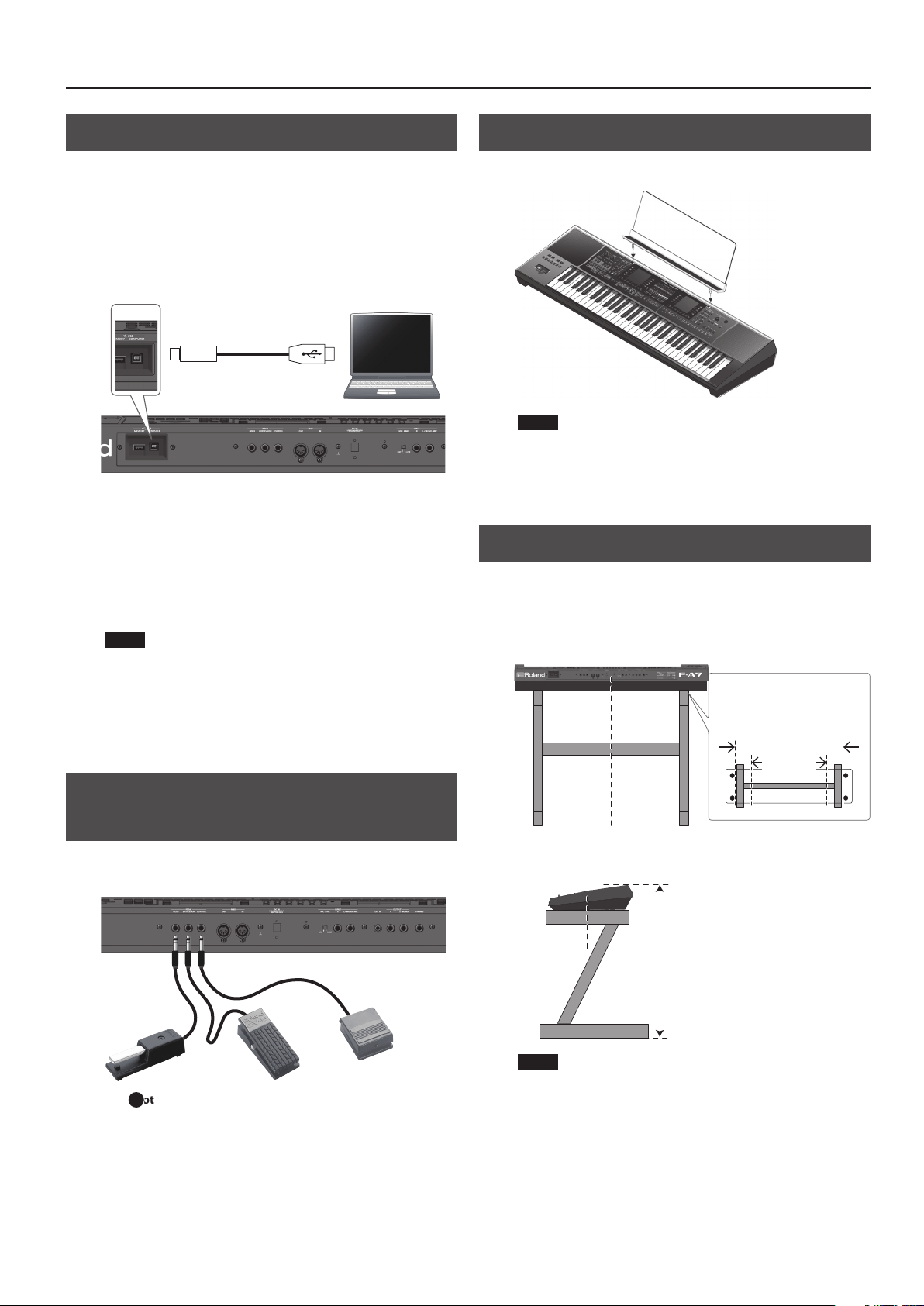
Connection example
If you use a MIDI cable to connect the E-A7’s MIDI OUT connector to
the MIDI IN connector of your external MIDI device, you’ll be able to
produce sound on your external MIDI device by playing the E-A7’s
keyboard. As necessary, set the receive channel of your external MIDI
device to match the E-A7’s transmit channel.
E-A7
MIDI sound module /
sequencer
The MIDI sequencer plays the sounds of the E-A7.
Use the E-A7 to play the MIDI sound module.
MIDI channels
MIDI uses sixteen channels: 1–16. Even if two MIDI devices are
connected, they won’t be able to select or play each other’s sounds if
the two devices are set to dierent MIDI channels.
The E-A7 can receive all channels 1 through 16.
&
For details on MIDI settings, refer to “Reference Manual
(English)” (PDF).
11
Connecting Your Equipment
Connecting the E-A7 to a Computer
If a USB cable (sold separately) is connected between the E-A7’s rear
panel USB COMPUTER port and a USB port of your computer, you’ll
be able to do the following things.
5 Use the E-A7 as a sound module.
5 Produce and edit music by transferring MIDI data between the E-A7
and your sequencer.
1. Use a standard USB cable (sold separately: A
0
B type
cable) to connect the E-A7 to your computer.
If the computer does not recognize the E-A7
When connecting the E-A7 to your computer, there is normally no
need to install a driver. If you experience problems, or if the speed is
too slow, you may be able to solve the problem by installing Roland’s
dedicated driver.
For details on downloading and installing the dedicated driver, refer
to the Roland website.
http://www.roland.com/support/
NOTE
5 Only MIDI data is transmitted and received via the USB cable.
The audio data cannot be transmitted or received via USB.
5 Power-on the E-A7 before you start the MIDI application on
your computer. Never power-on or power-o the E-A7 while
the MIDI application is running.
&
For details on USB settings, refer to “Reference Manual
(English)” (PDF).
Connecting a Separately Sold Footswitch
or Hold Pedal
You can connect a pedal switch (sold separately: DP series) or
expression pedal (sold separately: EV-5) to the E-A7’s PEDAL jacks.
&
“ Foot Pedal jack” (p. 9)
Installing the Music Rest
1. Install the music rest as shown in the illustration.
NOTE
5 When moving the E-A7, be sure to remove the music rest as a
safety precaution.
5 Do not apply excessive force to the music rest.
5 The music rest is not designed to accept the placement of
laptops or other heavy objects.
Placing the E-A7 on a Stand
If you want to place the E-A7 on a stand, use the Roland KS-18Z.
Be careful not to pinch your ngers when setting up the stand.
Place the instrument on the stand as follows.
Rear view
Place the E-A7
so that it is in
the center of
the stand
Adjust the outer width of the stand
within the range shown below.
800 mm–between the rubber feet
of the E-A7
Top view
Between the rubber feet
800 mm or
more
Side view
Place the E-A7
so that it is in
the center of
the stand
Adjust so that the height does not
exceed 1 meter (Adjust the stand
to a level no higher than the third
level from the bottom).
NOTE
5 When placing the E-A7 on a stand, take care not to pinch your
ngers between the instrument and the stand.
5 Using any other combination of instrument and stand
could produce an unstable situation, possibly causing the
instrument to fall or tip over and cause injury.
5 If the instrument is not placed correctly, it will be unstable,
possibly causing the instrument to fall or tip over and cause
injury.
5 For details on assembling the stand, refer to the owner’s
manual of the stand.
B
12
Before You Start Using E-A7
Turning On/O the Power
Once everything is properly connected (p. 9), be sure to follow the
procedure below to turn on their power. If you turn on equipment in
the wrong order, you risk causing malfunction or equipment failure.
Turning On the Power
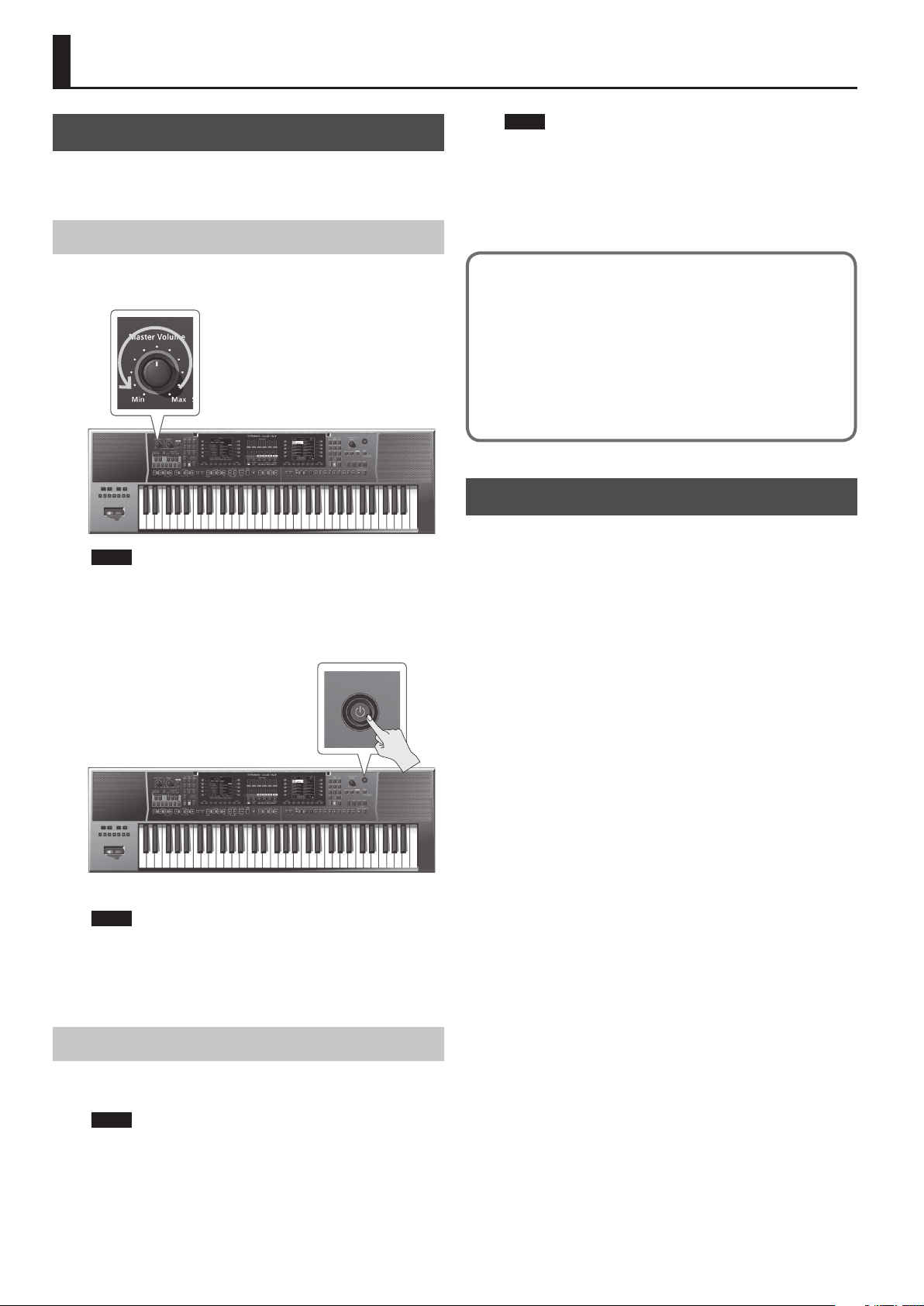
1. Turn the [Master Volume] knob all the way to the left,
minimizing the volume.
NOTE
Before turning the unit on/o, always be sure to turn the volume
down. Even with the volume turned down, you might hear some
sound when switching the unit on/o. However, this is normal
and does not indicate a malfunction.
2. Press the [
L
] (power) switch to turn on the power.
3. Use the [Master Volume] knob to adjust the volume.
NOTE
5 This unit is equipped with a protection circuit. A brief interval (a
few seconds) after turning the unit on is required before it will
operate normally.
5 To ensure proper operation of the assignable lever, make sure not
to touch the lever when turning the E-A7’s power on.
Turning O the Power
1. Turn the [Master Volume] knob all the way to the left,
minimizing the volume.
NOTE
Never power-o the E-A7 during playback or recording or while
data is being read or written on a USB ash drive.
2. Continue holding down the [
L
] button until the screen
indicates “POWER OFF.”
Release the button, and the power turns o.
NOTE
5 When you turn o the power of the E-A7, the contents of the
loaded (currently edited) UPS (User Program Set) are lost. Save
any important data before you turn o the power.
5 If you need to turn o the power completely, press the [
L
]
(power) switch; after the unit’s power switch has been turned
o, disconnect the plug from the AC outlet.
If you don’t want the power to turn o automatically,
change the “ Auto O ” setting to “O ”
The power to this unit will be turned o automatically after a predetermined
amount of time has passed since it was last used for playing music, or its
buttons or controls were operated (Auto O function).
If you do not want the power to be turned o automatically, disengage the
Auto O function (p. 13).
* Any settings that you are in the process of editing will be lost when the power is turned
o. If you have any settings that you want to keep, you should save them beforehand.
* To restore power, turn the power on again.
Adjusting the Overall Volume
Here’s how to adjust the volume of your keyboard playing or the
playback volume of an internal song.
If headphones are connected, use the [Master Volume] knob to
adjust the headphone volume.
1. Turn the [Master Volume] knob to adjust the overall
volume.
Adjust the volume while you play the keyboard to produce sound.
Turning the knob toward the right will increase the volume, and
turning it toward the left will decrease the volume.
13
Before You Start Using E-A7
Optimizing the Acoustic Character for the
Internal Speakers
If you turn on the [Output Mode] button, the output sound is
adjusted optimally for the response of the E-A7’s built-in speakers.
1. Press the [Output Mode] button to make it light.
MEMO
You can specify whether the [Output Mode] button will be on or
o when the E-A7 starts.
&
“Reference Manual” (PDF)
2. To turn the [Output Mode] button o, press the [Output
Mode] button once again (the button goes dark).
The Mastering Tools’ Equalizer and Compressor settings will be
enabled.
MEMO
With the factory settings, Mastering Tools’ Type is set to
“Standard.” The Type “Standard” settings are optimal when
connecting the Phones/Output jacks to external speakers or a PA
system.
You can also change the settings that are used when the [Output
Mode] button is o.
&
“Reference Manual” (PDF)
0
“Mastering Tools Function”
Demo of the E-A7
Your E-A7 contains a demo that introduces all of its highlights. It
might be a good idea to try it out now. The demo is self-explanatory,
so we’ll just show you how to start and stop it.
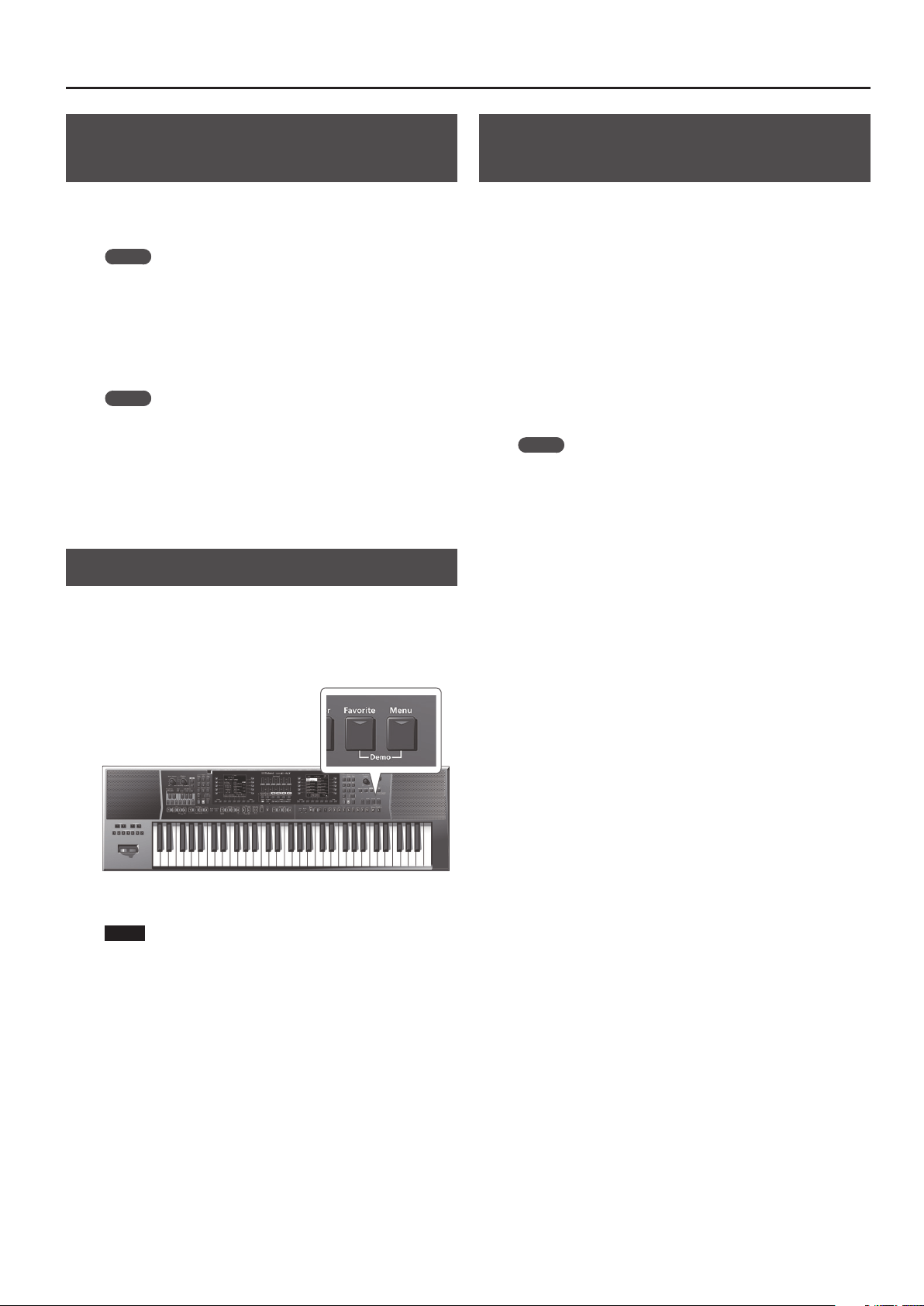
1. Press the [Favorite] button and [Menu] button
simultaneously.
Playback starts automatically with the demo song.
2. Press the [Exit] button to leave the demo function.
NOTE
5 No data for the music that is played will be output from the
MIDI OUT connector and the USB COMPUTER port.
5 All rights reserved. Unauthorized use of this material for
purposes other than private, personal enjoyment is a violation
of applicable laws.
Making the Power Automatically Turn O
After a Time (Auto O)
The power to this unit will be turned o automatically after a
predetermined amount of time has passed since it was last used
for playing music, or its buttons or controls were operated (factory
setting).
If you don’t need the power to turn o automatically, set “Auto O”
to the “OFF” setting as described below.
1. Press the [Menu] button to make it light.
The Menu screen appears.
2. Use the direct buttons to select “Global.”
3. Use the function buttons to move the pages.
4. Use the direct buttons to select “Auto O.”
5. Use the Value [-] [+] buttons to select “OFF.”
6. Press the [Exit] button to return to the previous screen.
MEMO
The settings are automatically saved in the Global parameters
when you exit the screen.
14
Basic Operation of the E-A7
Basic Screens
In keeping with its emphasis on smooth realtime operability during
live performance, the E-A7 features dual displays in the left and right
sides of the panel. The left display shows style-related information,
and the right display shows mainly tone-related information.
This means that even if you are switching styles in the left
destination while switching tones in the right destination, you won’t
need to switch screens within a display.
* The explanations in this manual include illustrations that depict
what should typically be shown by the display. Note, however,
that your unit may incorporate a newer, enhanced version of the
system (e.g., includes newer sounds), so what you actually see in
the display may not always match what appears in the manual.
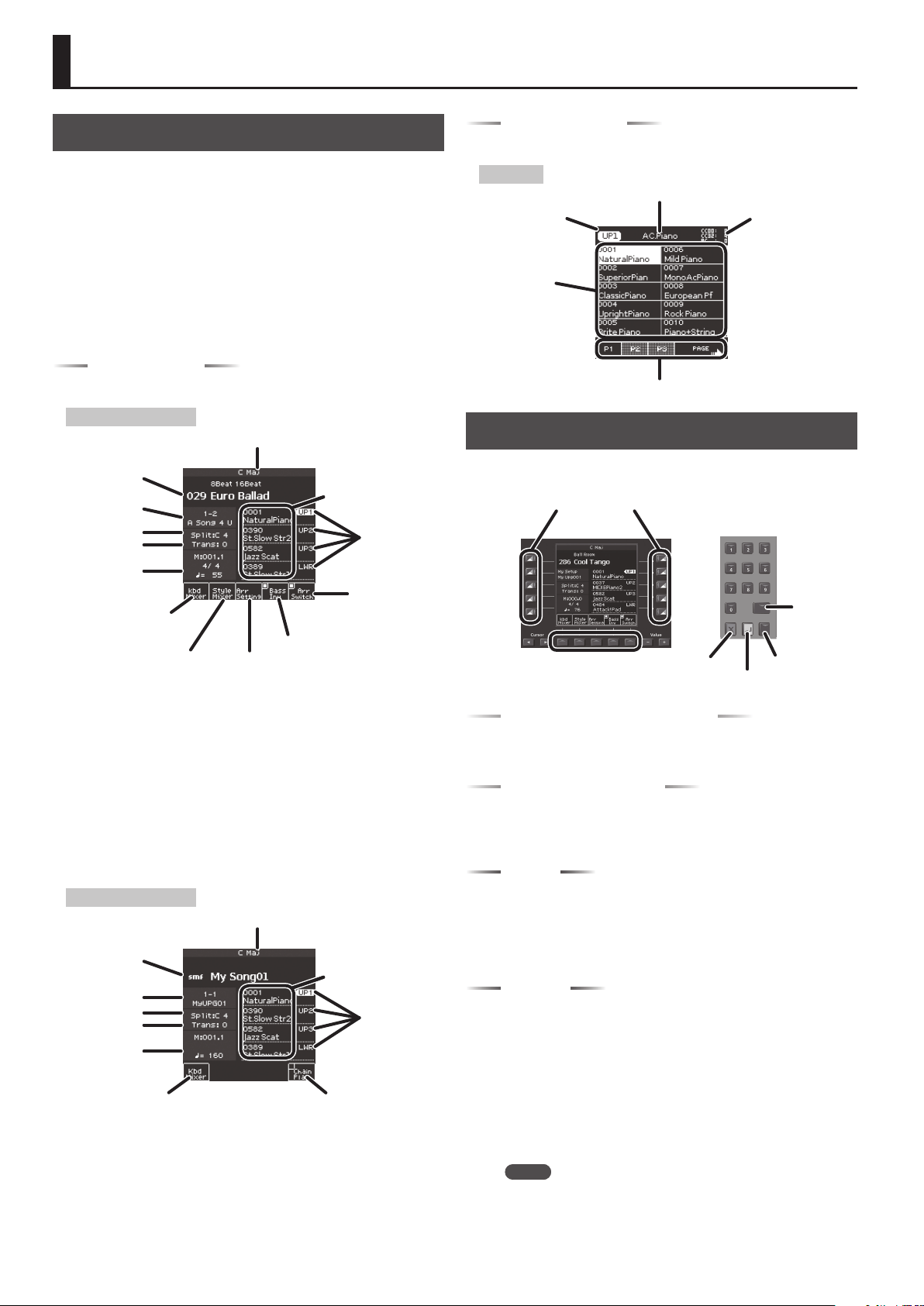
Main page (left)
The display diers between Style mode and Song mode.
Main page (in Style Mode)
Current performance
position (measure
and beat or
remaining time), tempo
Name of the last chord you played
Transpose
Split Point
Bank, number, and
name of the selected
UPG
Tone number and
name selected for each
keyboard part
Arranger Switch
on/o
Bass Inversion on/o
Displays the Arranger Setting screen.
Displays the Style Part Mixer
screen.
Displays the Keyboard Part
Mixer screen.
Indicates the
keyboard part. Use
the direct buttons
to select a part.
Name, number, and category
of the selected Style
Bass Inv (Bass Inversion) Function
Turns the bass inversion function on/o.
If Bass Inv is o, the style’s bass part always sounds the note played
by the performer or the root note of the chord.
Example: When you play the chord E-G-C (C maj), the bass part
sounds the “C” note.
If Bass Inv is on, the rhythm’s bass part sounds the lowest note that
you play on the keyboard.
Example: When you play the chord E-G-C (C maj), the bass part
sounds the “E” note.
Main page (in Song Mode)
Chain Play on/oDisplays the Keyboard Part
Mixer screen.
Current performance
position (measure
and beat or
remaining time), tempo
Name of the last chord you played
Transpose
Split Point
Bank, number, and
name of the selected
UPG
Tone number and name
selected for each keyboard
part
Indicates the
keyboard part. Use
the direct buttons
to select a part.
Name and le type of the
selected song
Main page (right)
The main screen in the right display shows a tone list.
Right page
Tone sub-category name
Tone list
Switch pages
Name of the selected
part
Control change
number and program
change number
assigned to the
selected tone
Basic Buttons
There are two each of these basic buttons, just as there are two
displays at the left and right.
[L1]
[F1]
[R1]
[L2]
[F2]
[R2]
[L4]
[F4]
[R4]
[L3]
[F3]
[R3]
[L5]
[F5]
[R5]
Function buttons
Direct buttons
[Numeric]
[Option]
[Enter]
[Exit]
Direct buttons, Function buttons
Around the display are placed direct buttons and function buttons
that are linked with the contents of the display.
Cursor, Value, Enter, Exit
These buttons are provided for each of the left and right displays,
allowing you to perform basic operations in each display such as
moving the cursor, editing values, and conrming or canceling.
Option
The Option buttons are also placed by the left and right displays.
The Option button is used to select functions that are related to the
functions and operations shown in each display.
This means that their function will depend on the screen that’s
shown.
Numeric
You can use the numeric buttons to select tones, or styles by
entering a number.
This method is convenient if you remember the number that you
want to select.
Here’s how to select a tone by number.
1. Press the Tone [Numeric] button to open the Numeric
window.
Tone [0]–[9] buttons light.
2. Use the Tone [0]–[9] buttons to enter a number.
MEMO
If you decide to cancel, press the [Exit] button.
3. Press the [Enter] button to conrm.
The Numeric screen closes, and the page of the selected tone or style
appears.
15
Basic Operation of the E-A7
[Balance/Value] knob
The [Balance/Value] knob has the two functions of Balance and
Value.
These functions alternate each time you press the [Balance/Value]
knob.
MEMO
If the Balance function is active, the LED at the left of the
[Balance/Value] knob is lit.
Adjusting the Volume Balance Between the
Keyboard Parts and the Style/Song
1. Make sure that the Balance LED beside the [Balance/
Value] knob is lit.
If it’s not lit, press the [Balance/Value] knob once.
2. Turn the [Balance/Value] knob.
The Balance screen opens.
You can view the current setting while you adjust it.
MEMO
After a time, the screen closes automatically.
Using the Knob for the Value [-] [+] Button and
Tempo [-] [+] Button Functions
When using the Value [-] [+] buttons to edit a value in a parameter
screen or an edit screen, you can also use this knob to edit the value.
When the Tempo screen is open, you can use the knob to change the
tempo.
1. Make sure that the Balance LED beside the [Balance/
Value] knob is unlit.
If it’s lit, press the [Balance/Value] knob once.
2. Turn the [Balance/Value] knob.
Adjusting the Volume of Keyboard Parts
and Style Parts
If the volume of the Style or song is too loud or too soft in
comparison to your performance, you can adjust the volume balance
as follows.
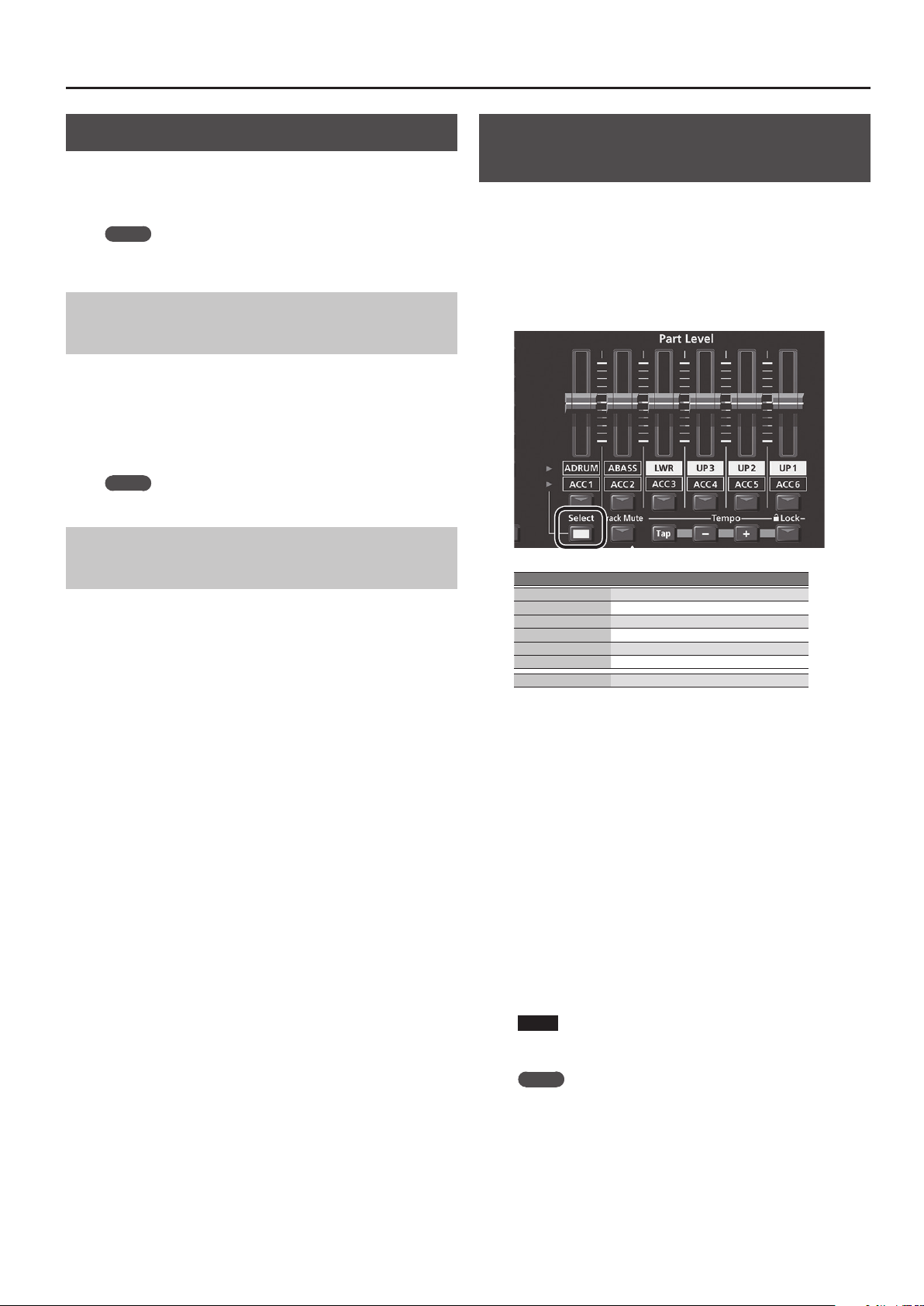
You can use the Part Level sliders to easily adjust the volume of each
keyboard part and style part.
1. Each time you press the [Select] button, the parts
assigned to the sliders and buttons will change in the
following combinations.
Button Part
[A DRUM] Accompaniment drum part
[A BASS] Accompaniment bass part
[LWR] Keyboard lower part
[UP3] Keyboard upper 3 part
[UP2] Keyboard upper 2 part
[UP1] Keyboard upper 1 part
[ACC1]–[ACC6] Accompaniment part 1–6
2. Move the slider for each part.
5 Moving the [UP1] [UP2] [UP3] or [LWR] sliders adjusts the
volume of the corresponding Keyboard Part.
5 Moving the [A BASS] slider adjusts the volume of the Style
performance’s Bass part.
5 Moving the [A DRUM] slider adjusts the volume of the Style
performance’s Drum part.
5 Moving the [ACC1]–[ACC6] sliders adjusts the volume of the Style
performance’s ACC1–6 parts.
3. Turn each part’s button on/o.
5 Pressing the [UP1] [UP2] [UP3] or [LWR] buttons turns the
corresponding Keyboard Part on/o.
5 Pressing the [A BASS] button turns the Style performance’s Bass
part on/o.
5 Pressing the [A DRUM] button turns the Style performance’s
Drum part on/o.
5 Pressing the [ACC1]–[ACC6] buttons turns each of the Style
performance’s ACC1–6 parts on/o.
NOTE
You can’t use the Style Part [A DRUM] [A BASS] and [ACC1]–
[ACC6] sliders or buttons while a song is selected.
MEMO
5 You can also make this setting in the Mixer screen.
&
Keyboard Part (p. 18)
&
Style Part (p. 23)
5 Slider settings are remembered even if you switch styles or One
Touch. They are reset if you switch the UPG.
16
Basic Operation of the E-A7
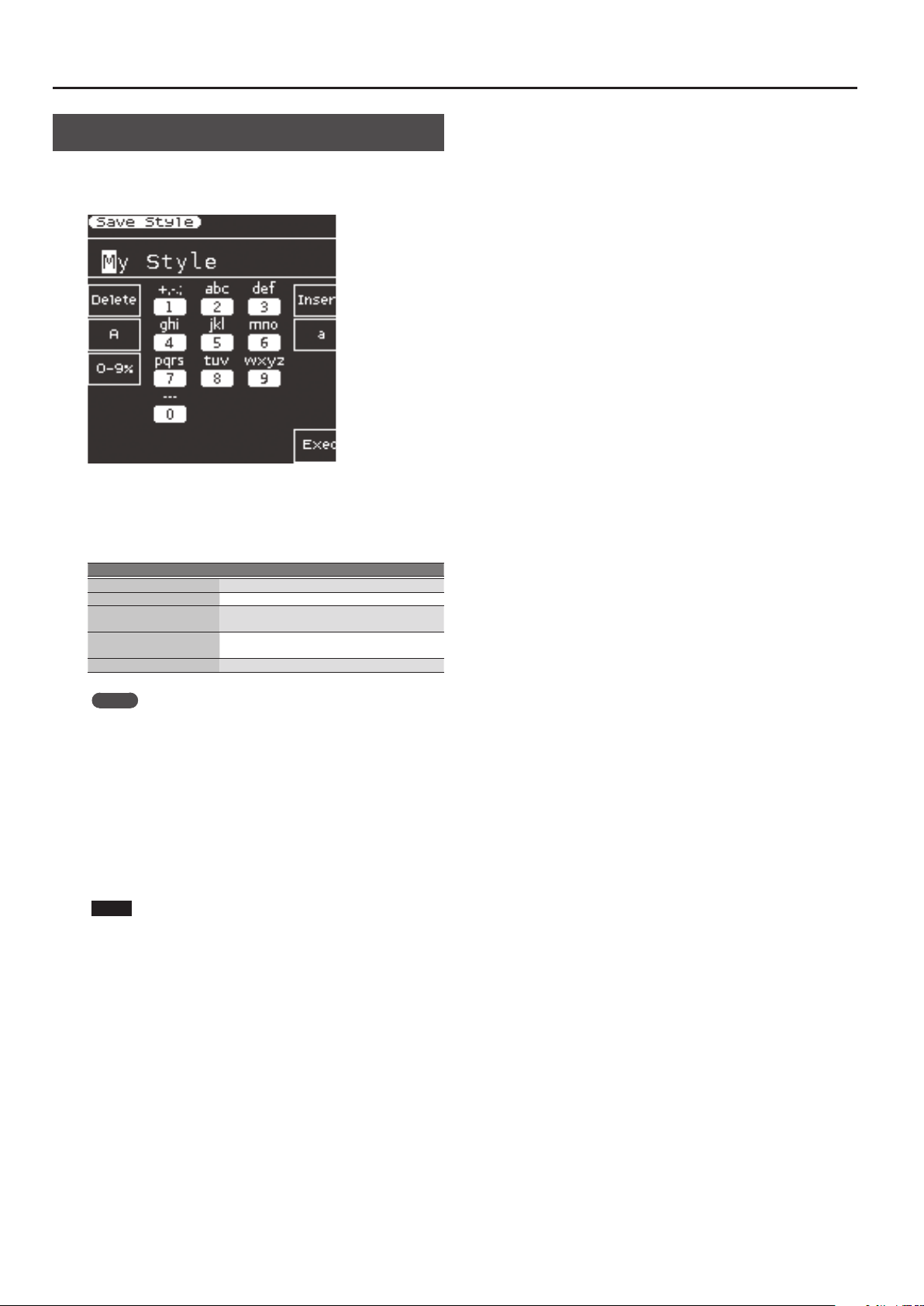
Assigning Names
The E-A7 lets you assign a name to a style or user program when you
save it.
Regardless of what you’re naming, the procedure is the same.
1. Use the Cursor [
K
] [
J
] buttons to move the cursor to the
position where you want to input a character.
2. Use the Value [-] [+] buttons to specify the character
that you want to input.
Button Explanation
Direct button [L2] Deletes one character
Direct button [R2] Inserts one space
Direct button [L3]
Selects uppercase alphabetical characters for
input
Direct button [R3]
Selects lowercase alphabetical characters for
input
Direct button [L4] Selects symbols/numerals for input
MEMO
You can also specify characters using the Style or Tone category
buttons (numeric keypad).
Use the category buttons to input the characters that are
assigned to the numeric keypad display in the center of the
screen.
For example each time you press the category button
corresponding to the icon marked “ABC,” the character switches
in the order of “A”
0
“B”
0
“C”
0
“A”...
3. Use the function buttons to select “Exec.”
A conrmation message appears.
4. If you decide to cancel the input, press the [Exit] button.
NOTE
Depending on what you’re saving, there may be limitations on
the number of type of characters that you can use.
17
Performing
Selecting a Tone and Playing it on the
Keyboard
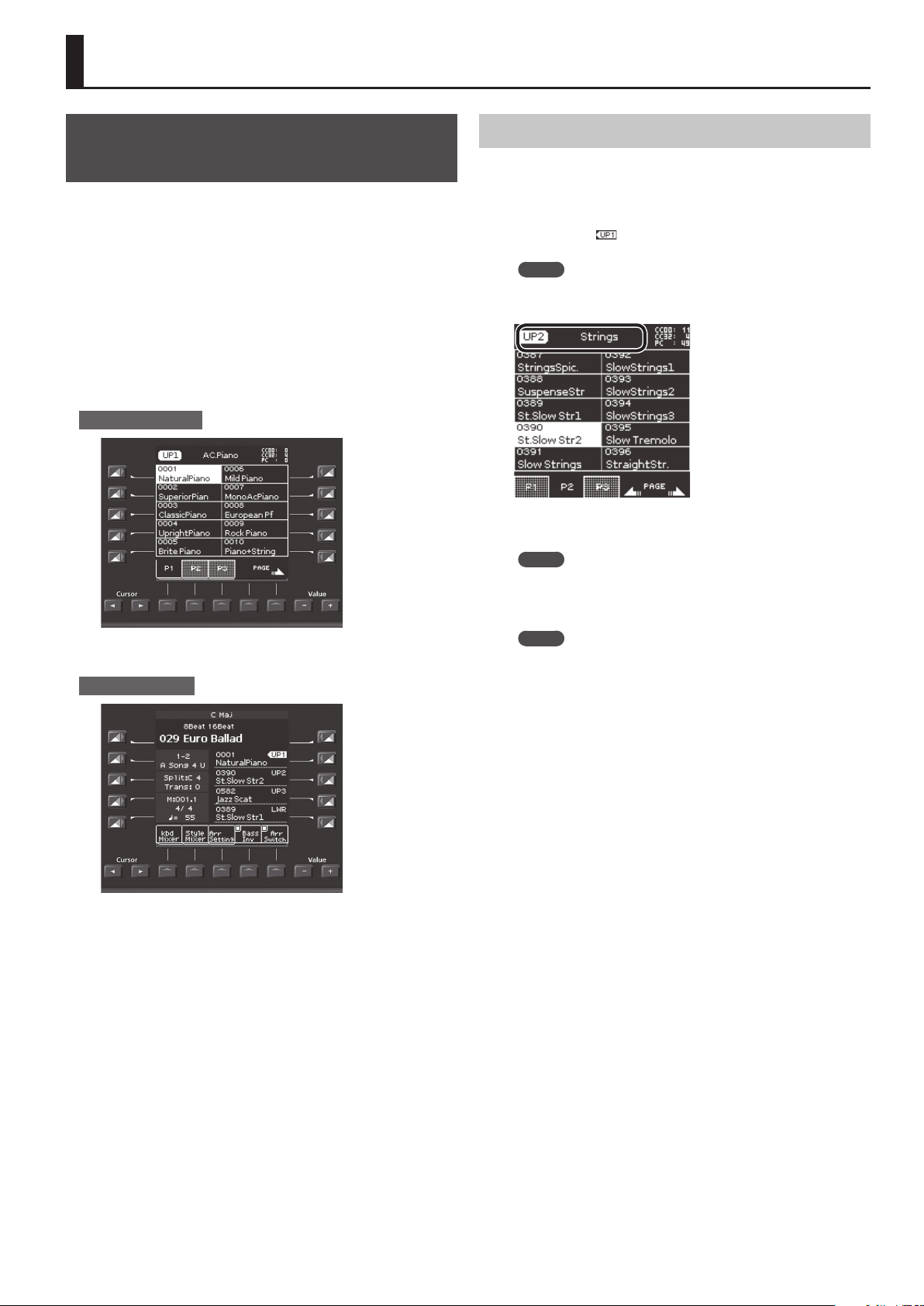
On the E-A7, the sounds that can be assigned to each part are
called “tones.” Tones are assigned to the tone buttons according to
category, and each tone button is also divided into sub-categories.
For example the [Piano] button lets you select piano tones and
electric piano tones, and the [World] button lets you select tones
that are suitable for the music of various countries and regions. To
select a sub-category, press the same tone button two or more times.
The [User] button lets you switch between User Tone (p. 31) and User
Drum Kit (p. 33) tones.
The E-A7 has four keyboard parts (UP1, UP2, UP3, LWR), and one tone
can be assigned to each part.
The currently selected Part name is shown in the upper left of the
Tone screen located in the right side of the panel. Operations in the
Tone screen change the tone for that Part.
Main screen (right)
To switch the Part so that you can change the tone of a dierent part,
use the main screen at the left to switch Parts.
Main screen (left)
The main screen shows the tone names of the four keyboard parts.
You can use the direct buttons to switch parts. The selected part
number is highlighted.
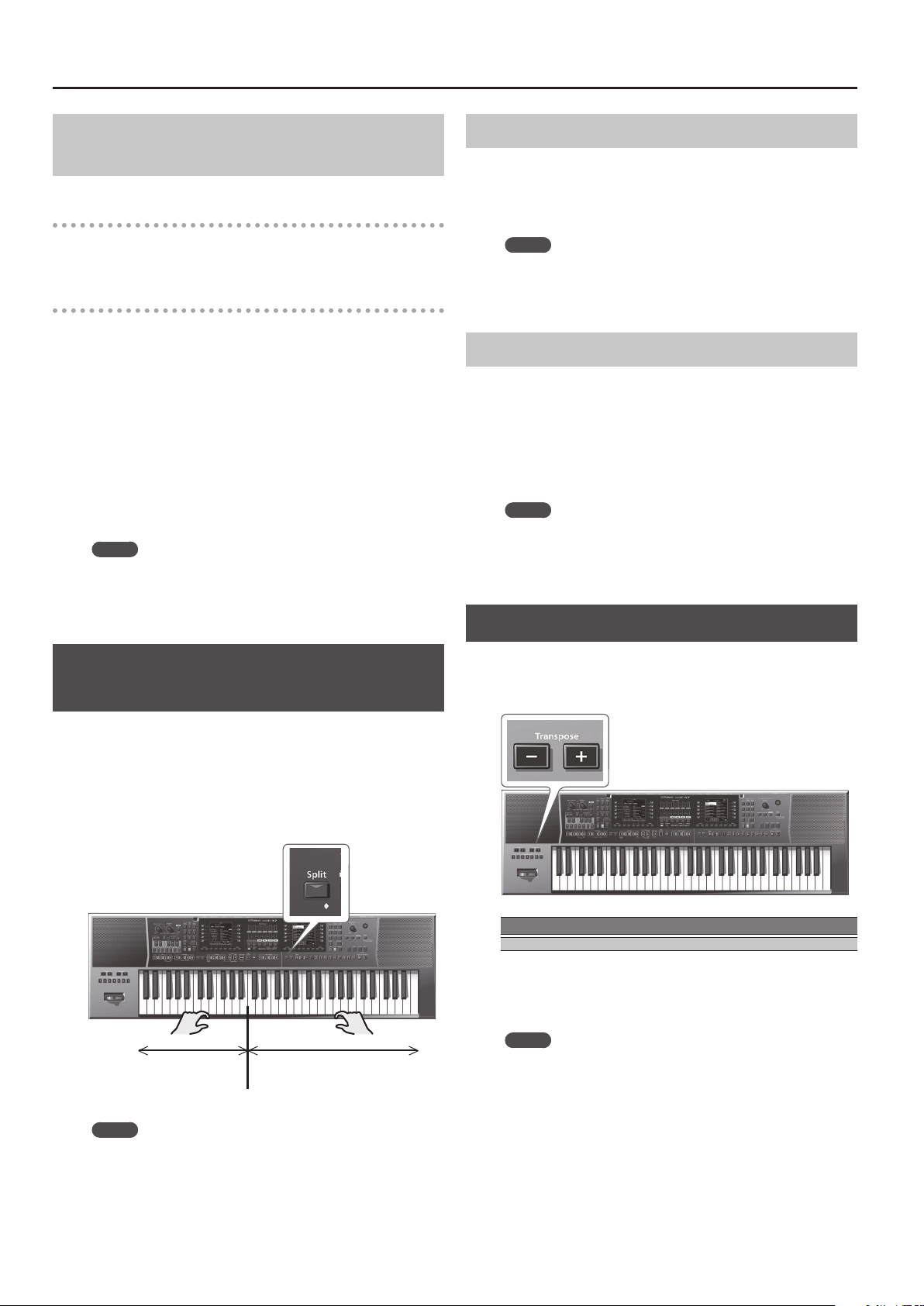
Changing the Tone of a Keyboard Part
To select each part (Upper1, Upper2, Upper3, Lower), press the direct
buttons ([R2]–[R5] buttons) corresponding to the keyboard parts.
1. Select a part by pressing one of the direct buttons
([R2]–[R5] buttons) in the left Main screen.
The indication “ ” is shown at the selected keyboard part.
The Main screen (right) shows a tone list for the selected part.
MEMO
The name of the selected part is shown at the top of the Tone
screen.
2. Use the Tone [0]–[9] buttons to select a tone category.
The selected tone category page appears.
MEMO
By continuing to press the same Tone category button, you can
step through the rst sound in each sub-category of the category.
3. Press a direct button to select a tone.
MEMO
5 The selected tone is highlighted.
5 Use the function buttons to switch pages.
5 You can also select from favorite tones (p. 20).
5 Depending on the Part Switch or Part Level settings, you
might not hear any sound (p. 15).
5 You can also select a tone by pressing the [Numeric] button
and specifying a number (p. 14).
4. Play the keyboard.
You’ll hear the sound of the selected instrument.
18
Performing
Turning Each Keyboard Part On/O and
Adjusting the Volume
Using the Part Level Sliders/Buttons
&
“Adjusting the Volume of Keyboard Parts and Style Parts”
(p. 15)
Using the Mixer Screen
If you display the Keyboard Part Mixer screen, you will also be able
to adjust the “Reverb Send,” “Chorus Send,” and “Panpot” of the
Keyboard Parts (UP1, UP2, UP3, LWR) as well as the “Volume” and
“Part Switch.”
1. Display the Main screen.
2. Press the [F1] (Keyboard Part Mixer) button.
The Keyboard Part Mixer screen appears.
3. Use the Cursor [
K
] [
J
] buttons or the direct buttons to
navigate to the parameter that you want to edit.
4. Use the Value [-] [+] buttons to edit the value.
For details on the parameters that you can edit, refer to the reference
manual.
MEMO
5 You can also edit the setting by [Menu]
0
“User Program Edit”
0
“Keyboard Part Mixer.”
5 These parameters are saved in the UPG.
&
“Saving Settings as a User Program” (p. 46)
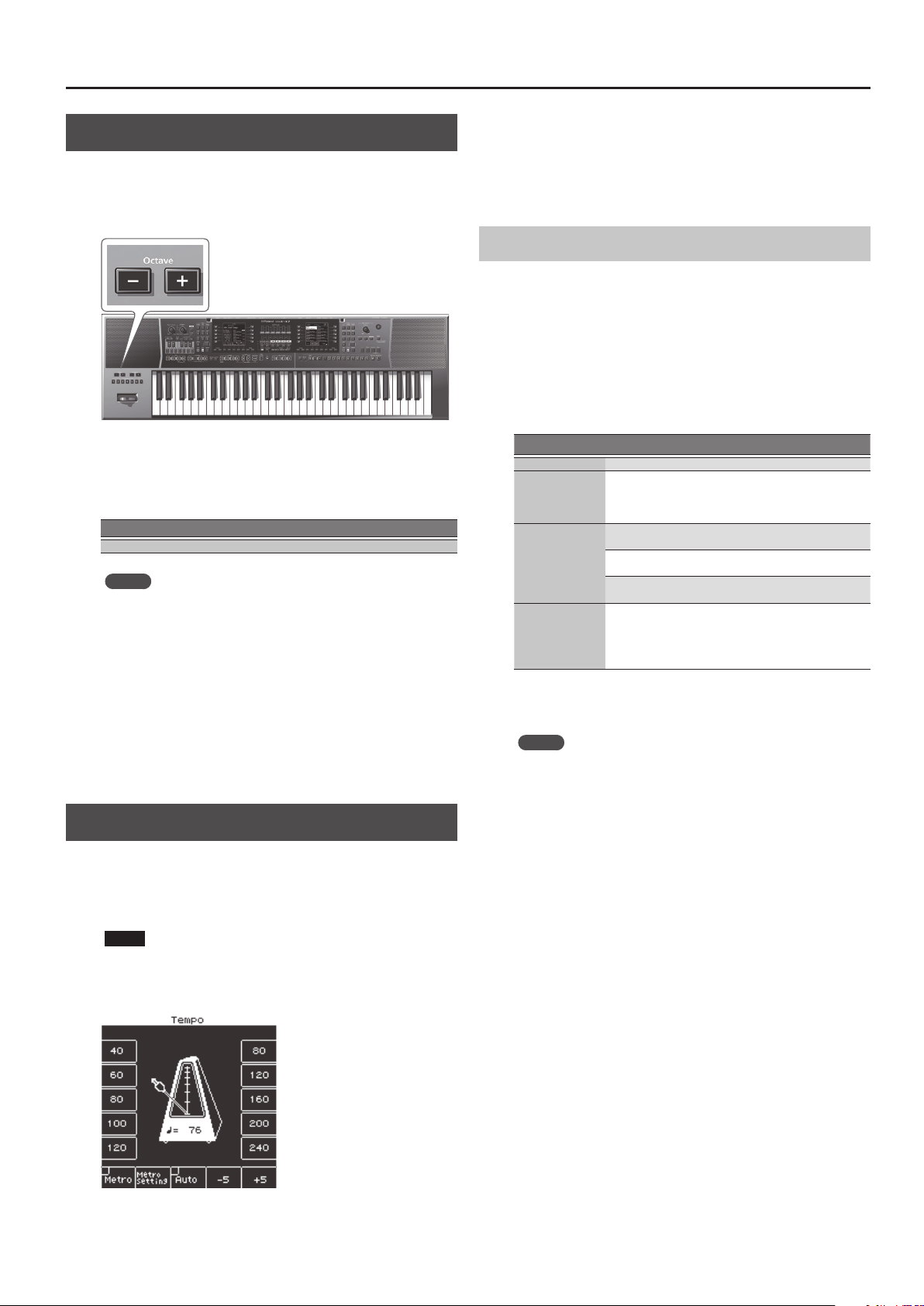
Playing Dierent Tones in the Right and
Left Hands (Split)
1. Press the [Split] button.
The [Split] button lights, and the keyboard is divided at middle C
(C4) into left and right areas.
Use the left-hand area to specify the chord for Style performance, or
to play the tone of the Lower part.
Use the right-hand area to play a melody using the tone of the
Upper1, Upper2, and Upper3 part.
C4
(Factory setting)
Lower
Upper
Split point
MEMO
When you choose the Split setting, the Arranger Setting “Type”
parameter is automatically set to “Intelligent.”
Changing the Split Point
You can change the keyboard split point.
1. Long-press the [SPLIT] button.
The Split setting screen appears.
2. Use the Value [-] [+] buttons to specify the split point.
MEMO
5 You can also specify the split point by pressing a note on the
keyboard.
5 You can also make this setting by [Menu]
0
“User Program
Edit”
0
“Split.”
Specifying Lower Hold
This function makes the lower note continue sounding until you
press a dierent key in the left-hand keyboard area.
This function is enabled only if the [Split] button is lit.
1. Long-press the [SPLIT] button.
The Split setting screen appears.
2. Press the function button that corresponds to Lower
Hold; a check mark appears in the check box.
MEMO
5 You can also make this setting by [Menu]
0
“User Program
Edit”
0
“Split.”
5 This parameter is saved in the UPG.
&
“Saving Settings as a User Program” (p. 46)
Transposing Your Performance (Transpose)
You can transpose the keyboard in semitone steps.
1. Use the Transpose [-] [+] buttons to specify the desired
key.
Value
-6–0–+5 (semitone steps)
If you’ve specied a key other than “0,” the Transpose [-] [+] button
indicator is lit.
The Transpose screen disappears after several seconds. If you want to
close the screen immediately, press the [Exit] button.
MEMO
5 If you press both Transpose [-] [+] buttons simultaneously, the
value returns to 0.
5 If you transpose the keyboard part, the Style that’s playing is also
transposed in the same way.
5 You can select or clear the function button “Song” and
“Keyboard” check boxes to specify what is aected by
transposition, for example transposing only the song or only the
keyboard.
5 The transpose setting is saved in the UPG.
&
“Saving Settings as a User Program” (p. 46)
19
Performing
Changing the Pitch (Octave Shift)
This function shifts the pitch of the keyboard parts in units of an
octave.
1. Use the Octave [-] [+] buttons to select the desired
octave setting.
The Octave screen appears.
This shows the Octave Shift setting of each keyboard part.
The Octave screen disappears after several seconds. If you want to
close it immediately, press the [Exit] button.
Value
-4–0–+4 (octave steps)
MEMO
5 While the screen is displayed, you can use the Cursor [
K
] [
J
]
buttons to select a part, and use the Value [-] [+] buttons to set
the octave settings individually for each part.
5 While the screen is displayed, you can select or clear the check
boxes corresponding to the function buttons to specify what is
octave-shifted when you press the Octave [-] [+] buttons.
5 Press both of the Octave [-] [+] buttons simultaneously to return
to the setting that is saved in the UPG.
5 You can also edit the octave setting by [Menu]
0
“User
Program Edit”
0
“Tone Part Mixer”
0
“Octave Shift.”
5 The octave setting is saved in the UPG.
&
“Saving Settings as a User Program” (p. 46)
Using the Metronome
You can sound the metronome while you perform. You can adjust
the tempo and time signature of the metronome. Use the tempo
screen to turn the metronome on/o.
If a Style or SMF song is playing, the metronome sounds at the
tempo and time signature of that song.
NOTE
You can’t use the metronome if an audio le is selected.
1. Press the Tempo [-] [+] buttons.
The Tempo screen appears.
2. Use the function buttons to turn “Metro” (metronome)
on.
The metronome starts sounding.
To stop the metronome, use the function buttons to turn “Metro”
o.
3. Use the Tempo [-] [+] buttons to adjust the metronome
tempo.
For details on how to change the tempo, refer to “Changing the
Style’s Tempo” (p. 24).
Making Metronome Settings
You can specify the metronome’s time signature and volume.
1. Press a Tempo [-] [+] button.
The tempo screen appears.
2. Use the function buttons to select “Metronome
Setting.”
The Metronome Setting screen appears in the right display.
You can also access the metronome settings via [Menu]
0
“Global”
0
“Metronome.”
You can set the following parameters.
Parameter Value Explanation
Volume 0–127 Species the metronome volume.
Time Signature
1/16–32/16,
1/8–32/8,
1/4–32/4,
1/2–32/2
Species the metronome time signature.
Mode
Always
The metronome continues sounding even
when playback is stopped.
Play
The metronome sounds only while the
Style or song is playing.
Rec
The metronome sounds only while the
Style or song is being recorded.
Count In
O, 1 bar,
2 bar
Species whether a count-in is sounded.
If the count-in function is on (1 measure
or 2 measures), the specied number of
measures are counted before the Style or
SMF plays.
3. Use the direct buttons to select a parameter.
4. Use the Value [-] [+] buttons to edit the value.
MEMO
The settings are saved in Global parameters when you exit the
screen.
20
Using Favorite Tones
You can register up to 50 frequently-used sounds as favorites for
quick recall while you perform.
Recalling a Favorite Tone
1. Press the [Favorite] button so it’s lit.
The Favorite Tone screen appears.
2. To select a tone in the list, press the direct button.
You can use the function buttons to switch between pages 1–5.
A favorite Tone is recalled.
3. Press the [Favorite] button once again to return to the
Main screen.
The [Favorite] button goes dark.
Registering Favorite Tones
1. Select the tone that you want to register as a Favorite
Tone (p. 17).
2. Hold down the [Favorite] button.
The Write Favorite Tone screen appears.
3. Use the direct buttons to enter the number in which you
want to register the favorite tone.
If you decide to cancel, press the [Exit] button.
4. Press the [Enter] button to register the tone.
MEMO
The tone of the currently selected part is registered.
NOTE
If you edit a tone that you’ve registered as a favorite, your
changes also apply to the sound that you recall as a Favorite.
21
Playing with Automatic Accompaniments
The E-A7 contains a function that plays back automatic
accompaniments called “styles.” This section explains how to take
advantage of the E-A7’s accompaniments.
About the Styles
The E-A7 can generate interactive accompaniments based on the
style you select.
Styles are assigned to the Style buttons by category, and each Style
button is also divided into sub-categories.
In addition to using the internal styles, you can also create your own
original styles.
&
“Reference Manual” (PDF).
Style data is a collection of accompaniment patterns (called
“divisions”) each consisting of up to eight parts. Based on four
accompaniment variations for dierent energy levels of the main
song, they include divisions such as intros, endings, and lls.
By using the panel buttons to switch between these divisions, you
can freely create the structure of the song while you perform.
As you perform, the accompaniment changes according to the
chords that you play on the keyboard.
Using Styles
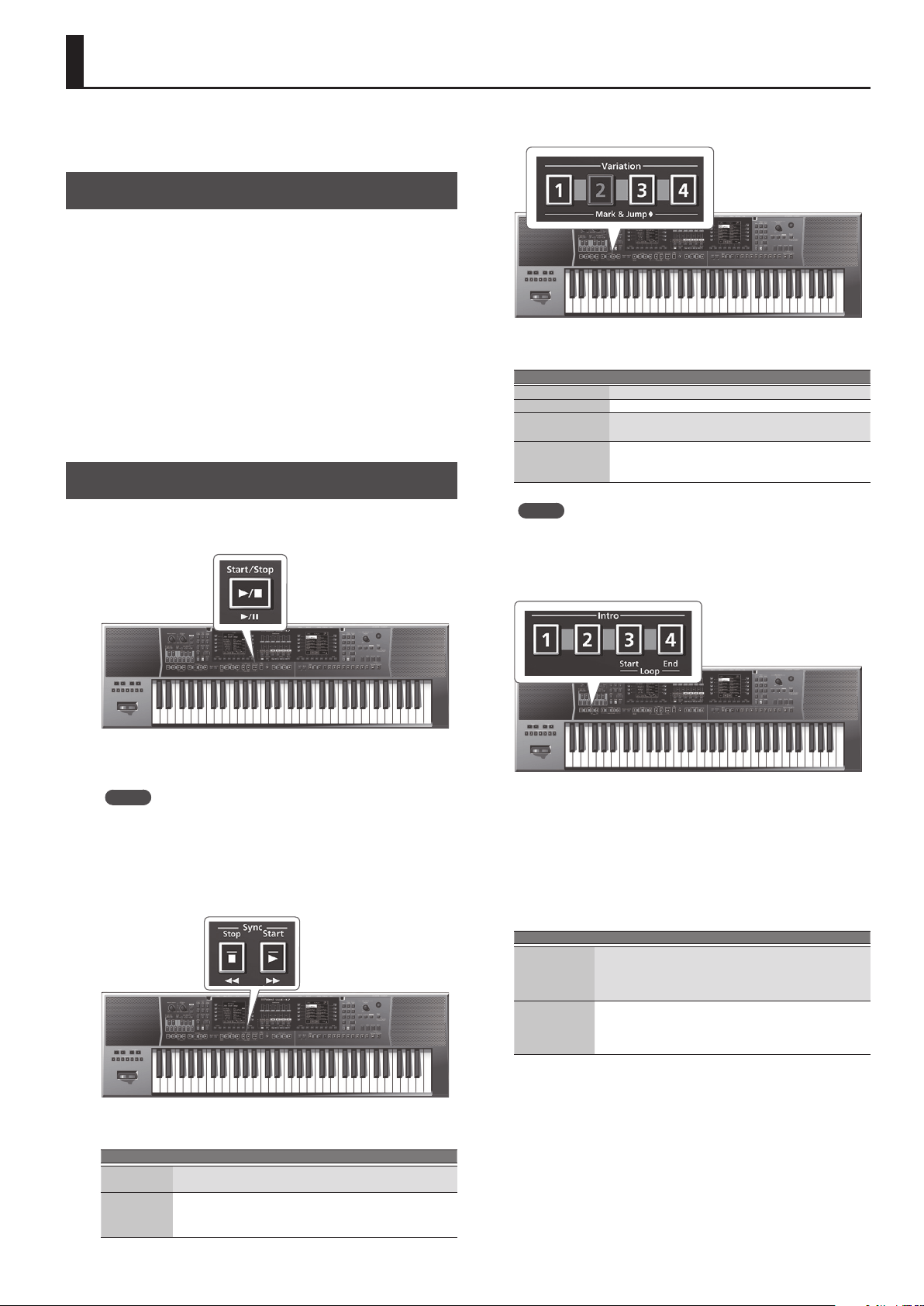
[Start/Stop] (
s
) button
This button is used to start and stop style playback. While a style is
running, the button’s indicator ashes red on the rst beat of each
bar, and green on the remaining beats.
MEMO
5 You can also start/stop the Style playback simply by playing
the keyboard. Refer to the following section.
5 You can also start/stop playback by using a separately sold
footswitch (p. 9).
Sync [Stop] (
q
) [Start] (
p
) button
These buttons activate and switch o the “Sync Start/Stop”
function.
Function Explanation
Sync Start
The style starts playing when you play the keyboard within
the keyboard chord detection range.
Sync Stop
The style stops playing when you take your hand o the
keyboard within the chord detection range.
This setting is ideal for songs that require a break.
Variation [1]–[4] buttons
These buttons are used to select the complexity (number of parts) of
the style arrangement:
Variation buttons Explanation
[1] This is the simplest arrangement.
[2] This arrangement is slightly more complex than [1].
[3]
This arrangement is even more complex than [2].
Use this for a break or for a climax.
[4]
This is the most complex arrangement. Consider
selecting it for the bridge or the nal chorus sections of
a song.
MEMO
The VARIATION patterns are repeated (played back in a loop) until
a dierent pattern is selected or style playback is stopped.
Intro [1]–[4] buttons
Selects an introduction, which is usually used at the beginning of
a song. You can, however, also select this pattern for other song
sections.
There are four types of intros, which you can select by using the Intro
[1], [2], [3], and [4] buttons.
Here too, the complexity of the intro arrangement depends on the
Intro [1]–[4] that you select.
The behavior of the Intro pattern depends on when you press the
[INTRO] button:
Intro buttons Explanation
Pressed before
starting style
playback
The indicator lights.
When you start style playback, the E-A7 rst plays a musical
introduction.
This pattern is played back only once.
Pressed during
style playback
The indicator ashes to signal that the INTRO pattern will
begin on the next downbeat.
When the intro is nished, the E-A7 returns to the previously
selected VARIATION pattern.
–
–
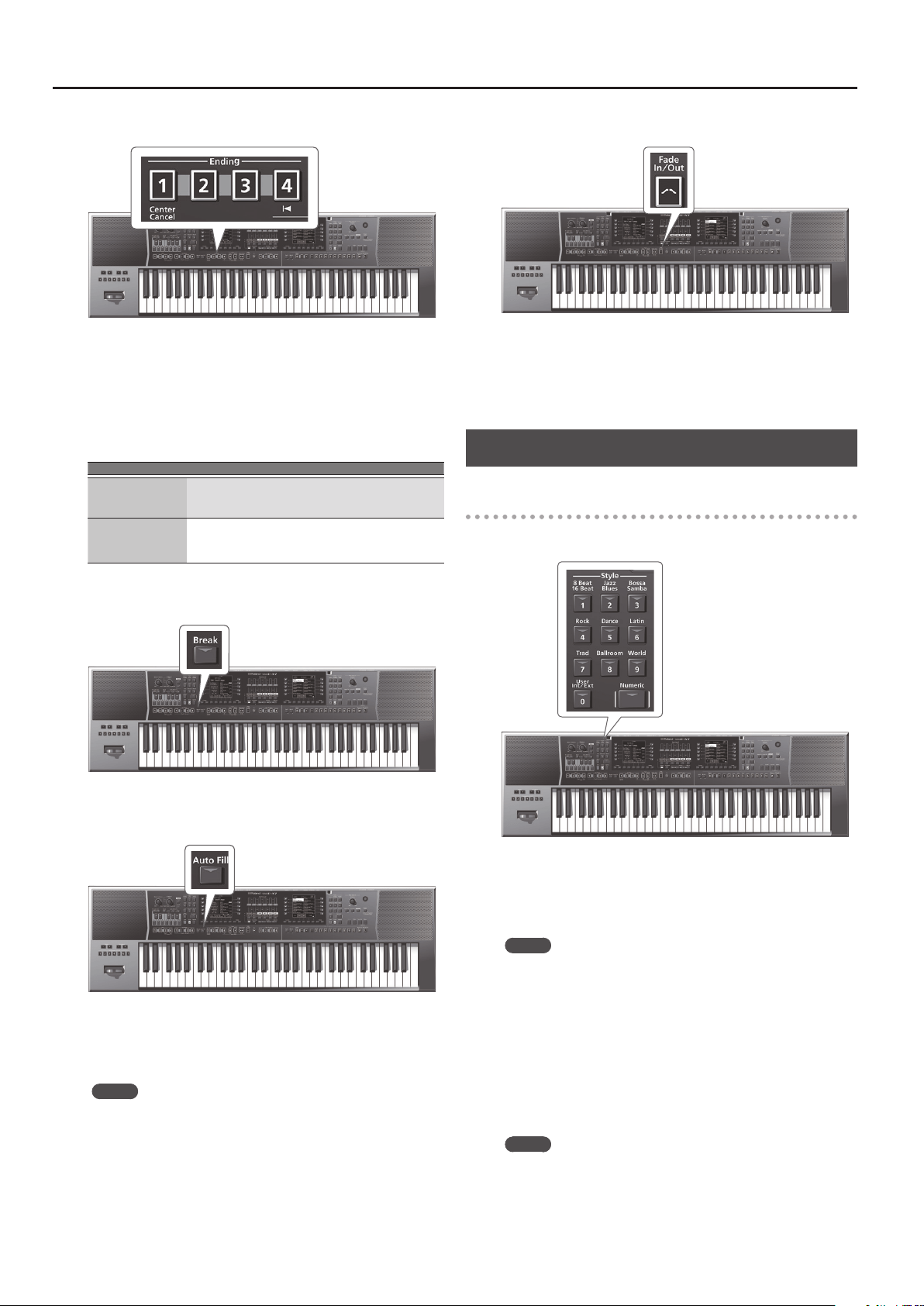
22
Playing with Automatic Accompaniments
Ending [1]–[4] buttons
This button allows you to end your songs with a suitable closing
section if you don’t want to simply stop playback.
There are four types of endings, which you can select by using the
Ending [1], [2], [3], and [4] buttons.
Here too, the complexity of the ending arrangement depends on the
Ending [1]–[4] that you select.
The behavior of the Ending pattern depends on when you press the
[ENDING] button:
Ending buttons Explanation
Pressed before
starting style
playback
The indicator lights.
When you start style playback, the E-A7 plays a musical
ending. At the end of the phrase, playback stops.
Pressed during style
playback
The indicator ashes to signal that the ENDING pattern
will begin on the next downbeat.
When the ending is nished, style playback stops.
[Break] button
This button mutes the remaining measures that are playing.
[Auto Fill] button
If you press this button to make it light, a ll-in plays before the E-A7
switches to the next variation.
Example: if the VARIATION [1] pattern is running, pressing the [4]
button will not switch to that pattern right away—the E-A7 rst plays
a ll-in to announce the new song section.
MEMO
The duration of the ll-ins (transitions) can be halved if you like.
See “Fill In Half Bar” (Reference Manual PDF). You can also speed
up or slow down playback during a ll-in. See “Fill Ritardando”
(Reference Manual PDF).
[Fade In/Out] button
If you press this button to make it light while the Style is stopped,
and then start the Style, the volume gradually rises from zero (Fade
In).
If you press this while the Style is playing, the volume gradually
decreases to 0. When the volume reaches 0, the song or Style
automatically stops (Fade Out).
Selecting Styles
Selecting an internal style
1. Press a Style [1]–[9] button to select the Style category.
A list of the Styles included in that category appears.
2. Using the function buttons to switch pages, nd the
Style that you want.
If you want to select a Style of a dierent category, press a dierent
Style button and proceed in the same way.
MEMO
When selecting a Style, the lit status of each Style button has the
following meaning.
5 The button of the currently selected Style is lit.
5 If the currently displayed Style list screen diers from the
button of the currently selected style, the button of the
currently displayed screen is blinking.
5 By repeatedly pressing the same style button, you can step
through the rst page in each sub-category in the style list
screen.
3. Press a direct button to select a style.
The Style is selected, and its name is highlighted.
MEMO
You can also select a Style by pressing the [Numeric] button and
specifying a number (p. 14).
4. Press [EXIT] to leave the Style selection page.
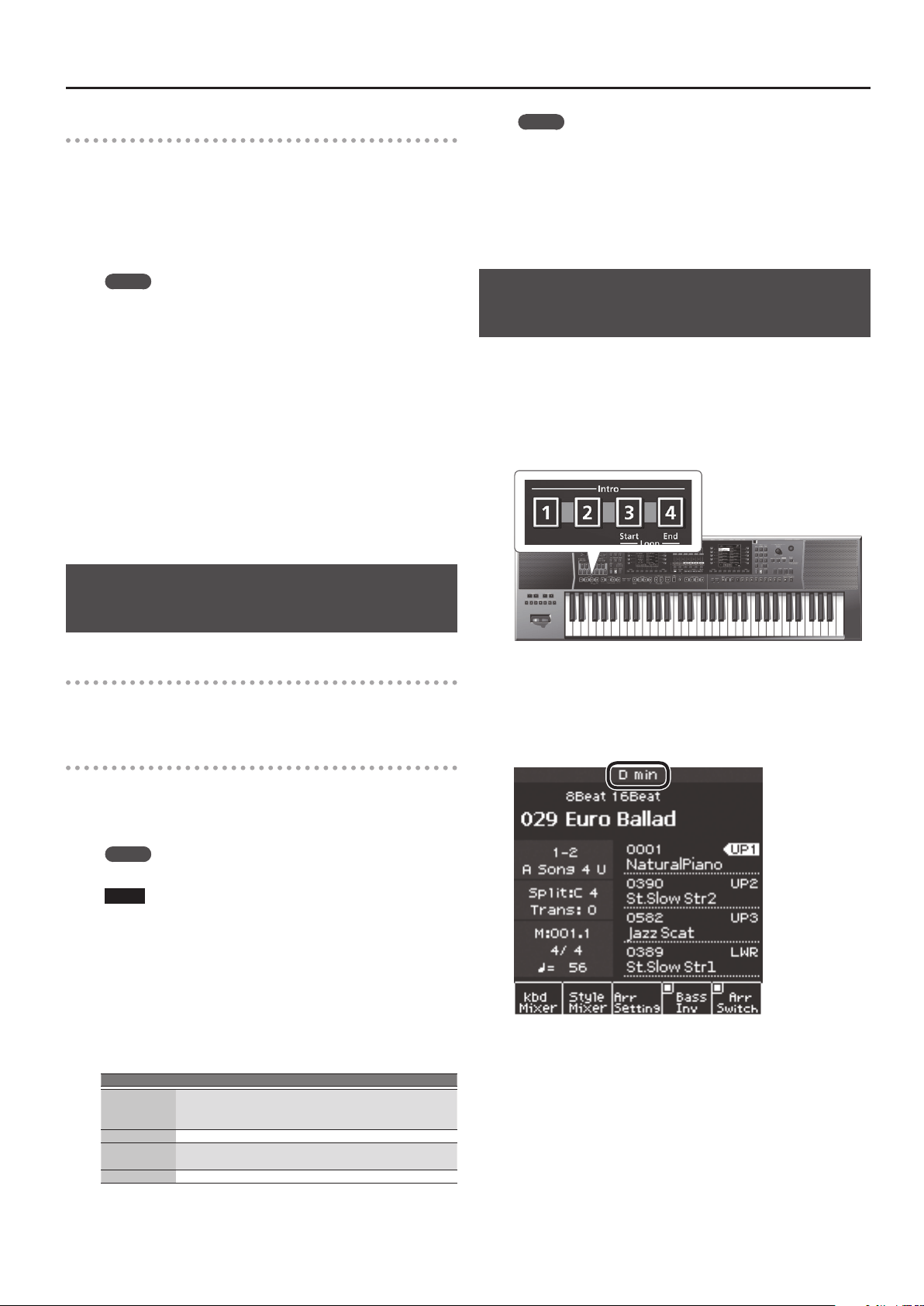
23
Playing with Automatic Accompaniments
Selecting a user style
On the E-A7 you can use Make Up Tool to edit and save style settings,
or use Style Composer to create new styles.
For more about Make Up Tool and Style Composer, refer to
“Reference Manual” (PDF).
Here we explain how to select a style that you created.
1. Press the Style [User Int/Ext] button.
The User Style List screen appears.
MEMO
Each time you press the Style [User Int/Ext] button, the contents
of the list will alternate between Internal Storage and External
Storage (USB ash drive).
2. Using the function buttons to switch pages, nd the
desired style.
If you use the direct buttons to select a folder, you’ll enter that
folder.
To exit a folder, press the upper left [UP] folder button ( [L1]
button).
3. When you’ve decided the style that you want to select,
press the direct button that corresponds to that list
item.
The style is selected, and the style name is highlighted.
4. When you’re nished selecting a style, press the [Exit]
button.
Adjusting the Volume and the ON/OFF
Status of Style Parts
Using the Part Level Sliders/Buttons
&
“Adjusting the Volume of Keyboard Parts and Style Parts”
(p. 15)
Using the Mixer Screen
If you display the Style Part Mixer screen, you’ll be able to adjust not
only the “Volume” and “Part Switch” of the Style Parts (A DRUM, A
BASS, ACC1–ACC6) but also use “Solo” settings to hear just a specic
part.
MEMO
The ACMP part (ACP part) controls ACC1–ACC6 simultaneously.
NOTE
The Style Part Mixer cannot be used when a song is selected.
1. Access the Main screen.
2. Press the [F2] (Style Part Mixer) button.
The Style Part Mixer screen appears.
3. Use the Cursor [
K
] [
J
] buttons or the direct buttons to
move the cursor to the parameter that you want to edit.
4. Use the Value [-] [+] buttons to edit the value.
You can edit the following parameters.
Parameter Value Explanation
Solo O, On
Only parts whose check box is selected will
play.
All other parts are o.
Part Switch O, On Parts whose check box is cleared are muted.
Expression
Pedal
O, On
Species whether the Expression Pedal
adjusts the volume of each part.
Volume 0–127 Species the volume.
MEMO
5 You can also access this via [Menu]
0
“User Program Edit”
0
“Style Part Mixer.”
5 If you press the function button corresponding to Expression
Pedal All O, the Expression Pedal check boxes of all parts is
cleared.
5 If you press the function button corresponding to Expression
Pedal All On, the Expression Pedal check boxes of all parts is
selected.
Performing Along with a Style
Accompaniment
1. Select a Style.
2. Press one of the Variation [1]–[4] buttons to select the
arrangement.
For example, you might press the Variation [2] button here.
3. Press one of the Intro [1]–[4] buttons to select the
variation of the intro.
For example if you press the Intro [3] button here, the button lights,
indicating that intro [3] is selected.
The Variation [2] button that you pressed in step 2 blinks, indicating
that when the intro ends variation [2] will play.
4. Play a chord.
The E-A7 detects the chord and displays the chord name.
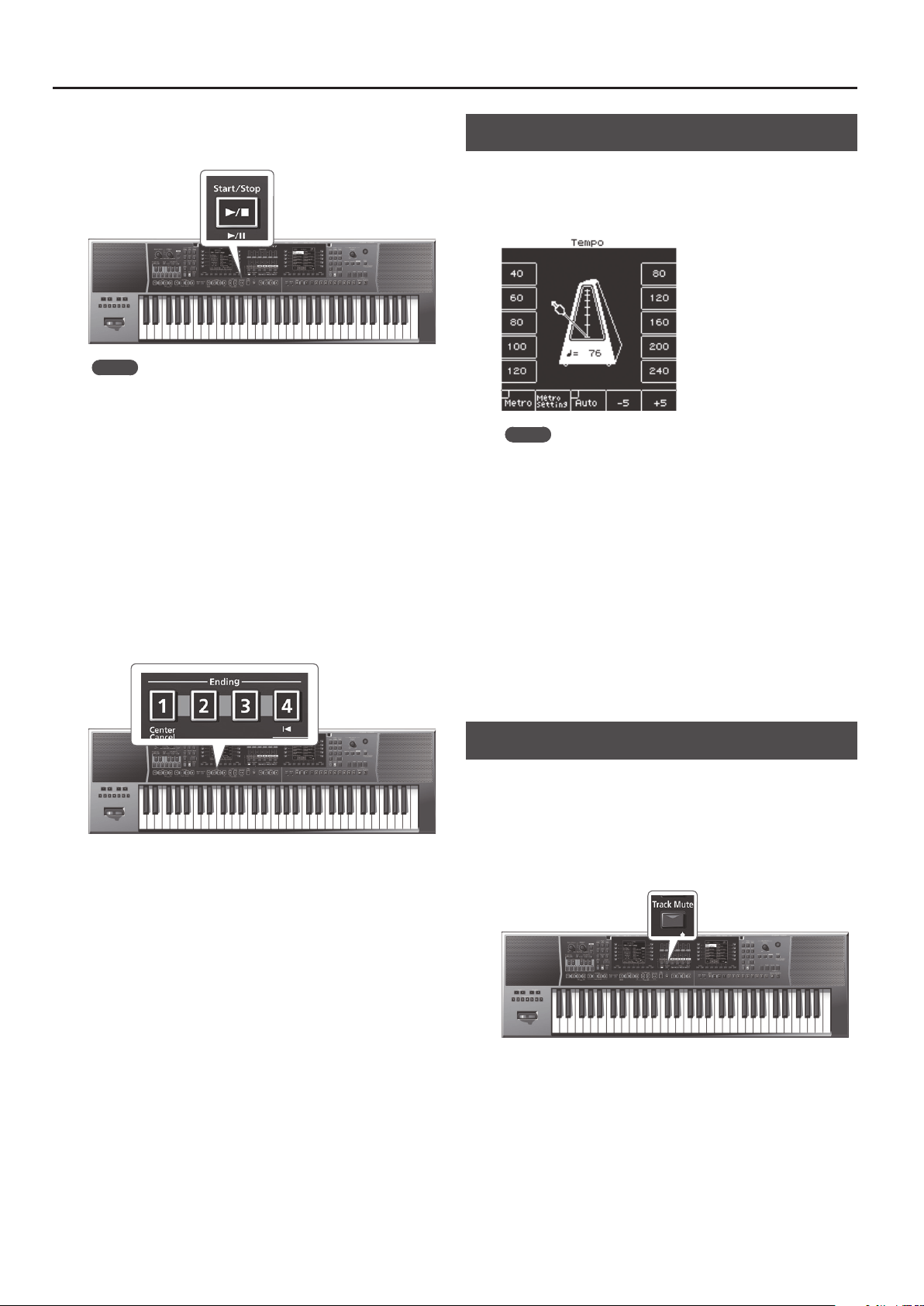
24
Playing with Automatic Accompaniments
5. Press the [Start/Stop] (
s
) button to play the Style.
The [Start/Stop] (
s
) button indicator blinks in time with the
tempo, and the intro starts.
MEMO
If Sync Start is on, the Style begins playing the moment you play
a chord in step 4.
6. Try playing other chords on the keyboard and see how
the Style changes.
7. Press one of the Variation [1]–[4] buttons to select the
variation of the arrangement.
During Style playback, the way in which the ll-in starts depends on
the timing at which you press this button.
5 The ll-in starts immediately if you press the button before the
last beat of the measure.
5 If you press the button during the last beat of the measure, the
ll-in start at the rst beat of the next measure.
8. Press one of the Ending [1]–[4] buttons to play the
ending.
When the ending has nished playing, Style playback stops
automatically.
You can also stop the Style by pressing the [Start/Stop] (
s
)
button.
Alternatively, you can use the Sync [Stop] (
q
) button (p. 21) to make
the Style stop when you take all your ngers o the chord detection
region of the keyboard.
Changing the Style’s Tempo
You can change the tempo of the Style.
1. Press a Tempo [-] [+] button.
The tempo screen appears, allowing you to increase or decrease the
tempo while viewing the current tempo setting.
MEMO
5 If the Balance LED located beside the [Balance/Value] knob
is unlit, you can use the [Balance/Value] knob to change the
tempo while the Tempo screen is open (p. 19).
5 You can specify the tempo by pressing the [Tap] button at the
desired tempo (Tap Tempo). Press the button three or more times
at quarter-note intervals of the tempo that you want to specify.
5 You can specify the tempo using the direct buttons located
beside the tempo value shown in both sides of the tempo screen.
5 To return to the original tempo specied for the Style, press both
of the Tempo [-] [+] buttons simultaneously.
5 By using the function buttons that correspond to “-5” and “+5”
you can change the tempo in steps of ±5.
5 If the Tempo [Lock] button is on, you can perform without
changing the tempo even when the Style or the UPG is switched.
5 If you use the function buttons to turn “Auto” ON, the Tempo
[Lock] button turns ON only while a style is playing.
Muting a Specic Track (Track Mute)
You can mute the Style tracks (Track Mute).
With the factory settings, the parts ACC1–ACC6 are muted, but you
can change this if you want.
1. Select a Style (p. 22).
2. Press the [Start/Stop] (
s
) button to start playback.
3. Press the [Track Mute] button to make the button light.
The Track Mute function turns on.
4. Press the [Track Mute] button once again to make the
button go dark.
This cancels Track Mute.
–
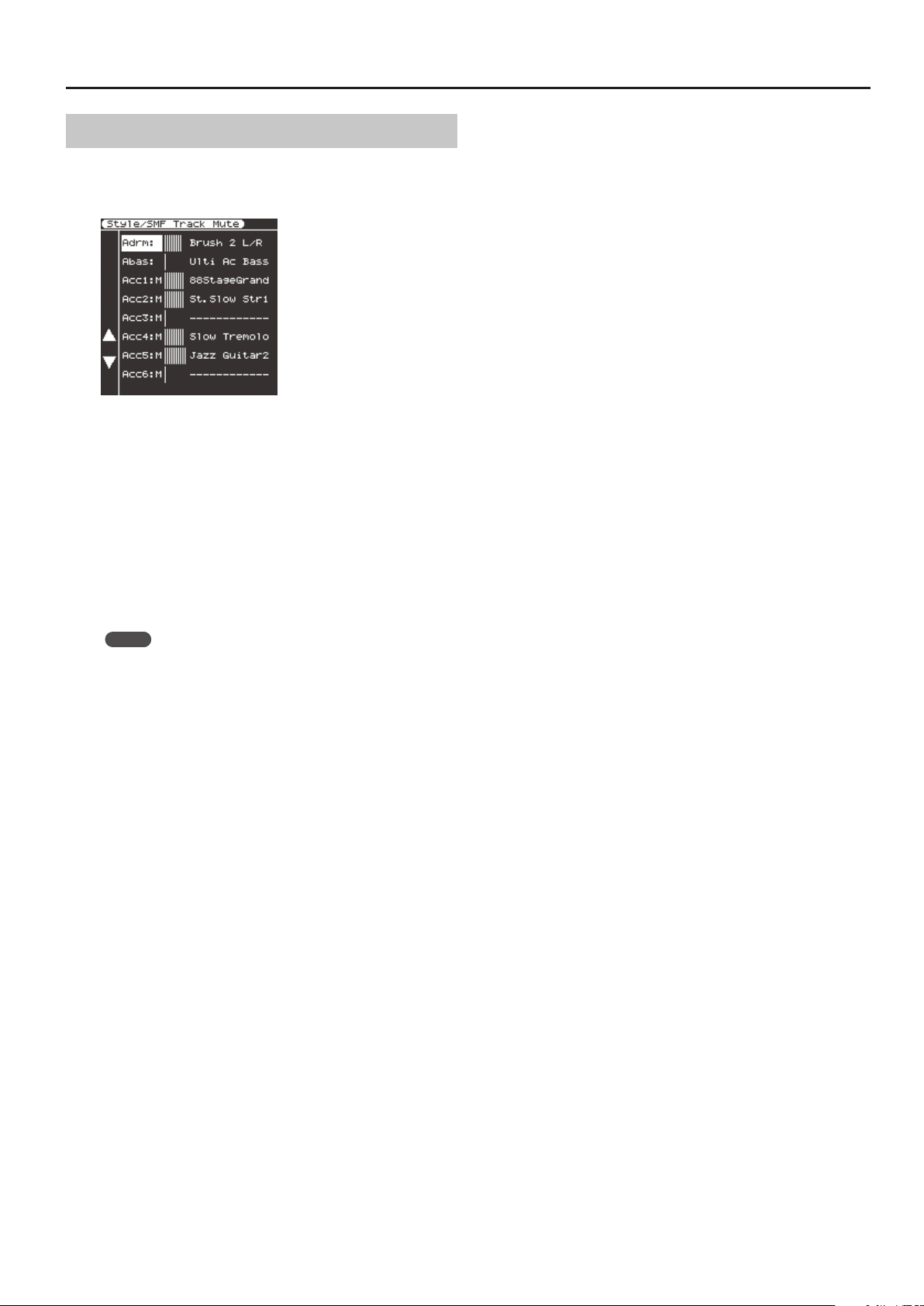
25
Playing with Automatic Accompaniments
Selecting the Track to Mute
Here’s how to specify the track that you want to mute.
1. Long-press the [Track Mute] button.
The Track Mute screen appears.
You can also select this function by [Menu]
0
“Global”
0
“Style/
SMF Track Mute.”
2. Use the direct buttons ([L4] [L5]) to select the track that
you want to mute.
The name of the tone assigned to the track is shown at the right of
the track.
3. Use the Value [-] [+] buttons to change the setting.
Tracks with the indication “M” are muted only when Track Mute is
on.
When you start playback, the bar graph of tracks that are producing
sound moves like a level meter. The bar graph of muted tracks does
not move.
4. Press the [Exit] button to return to the previous screen.
MEMO
The settings are automatically saved in the Global parameters
when you exit the screen.
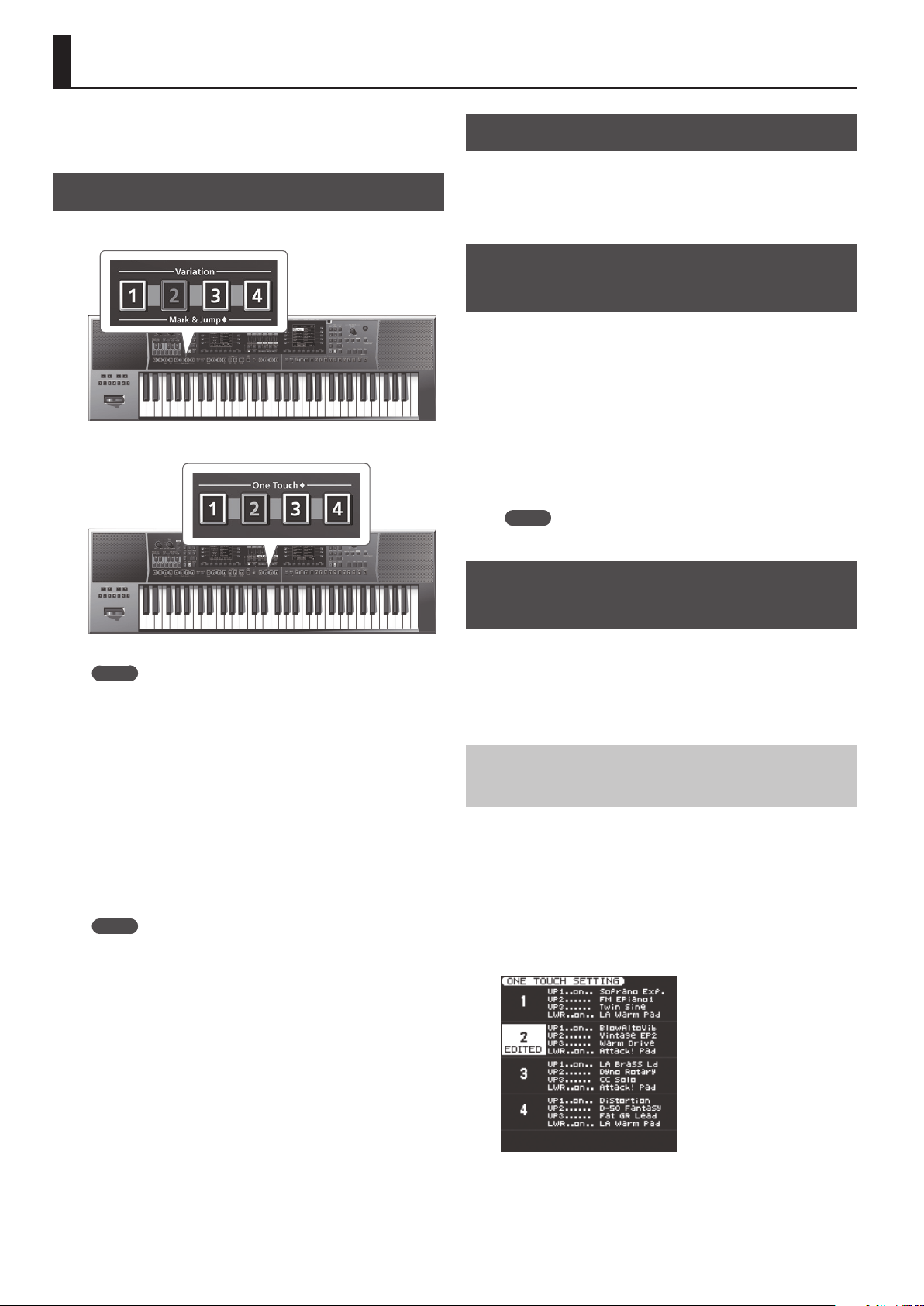
26
Selecting Tones Appropriate for a Style (One Touch Memories)
By using One Touch memories you can quickly select performance
settings that are appropriate for the atmosphere of the current style.
There are four One Touch memories for each Style.
Selecting a One Touch Memory
1. Select the desired Style (p. 22).
2. Press the One Touch [1]–[4] buttons.
The selected button lights.
MEMO
If you have not yet selected a One Touch memory since you
powered-on the E-A7, the One Touch [1]–[4] buttons are unlit.
If you have selected a One Touch memory even once, the One
Touch memory of the number you selected is automatically
recalled even if you change styles.
3. Play back the Style (p. 23).
4. Play a melody on the keyboard.
5. Press a dierent One Touch [1]–[4] button.
6. Once again, play a melody on the keyboard.
A dierent tone is selected according to the newly selected One
Touch memory. When you select a One Touch memory, Style settings
are also selected as well as a tone.
MEMO
5 By long-pressing a One Touch [1]–[4] button, you can check
the keyboard part tone and part switch settings of One Touch
memories 1–4.
5 The E-A7 has a function that lets you lock specic settings
when you select a dierent One Touch memory. For details,
refer to “Locking One Touch Memories Settings (One Touch
Lock)” (p. 26).
Canceling the One Touch Memories
1. Press the lit One Touch [1]–[4] button to make it go
dark.
The One Touch function is canceled, and you return to the settings
prior to using the One Touch memory.
Locking One Touch Memories Settings
(One Touch Lock)
Several settings can be locked so that they do not change when you
select a One Touch memory.
1. Press the [Menu] button.
2. Use the direct buttons to select “Global.”
3. Use the direct buttons to select “One Touch Lock
Setting.”
The One Touch Lock Setting screen appears.
4. Use the direct buttons to select the items that you want
to lock.
Use the Value [-] [+] buttons to turn the item on/o.
MEMO
This setting is automatically saved when you exit the screen.
Creating Your Own One Touch Memories
(One Touch Settings)
One Touch memories are saved in the style.
Changes that you made to a One Touch memory can be saved as a
user style.
For preset styles as well, if you’ve edited the One Touch memory, you
can save the settings to internal storage or external storage as a user
style.
Editing and Saving the One Touch Settings of a
Style
1. Select the desired Style (p. 22).
2. Press the One Touch [1]–[4] button whose settings you
want to edit.
3. Edit the settings.
One Touch memories can store the state of the panel buttons and
the state of the style.
4. Long-press a One Touch [1]–[4] button.
The screen changes as follows.
You can also access this page via [Menu]
0
“One Touch Setting.”
If the left display shows the Style main page, you can also access this
page by pressing the [Option] button and then pressing the [L2]
(One Touch Setting) button.
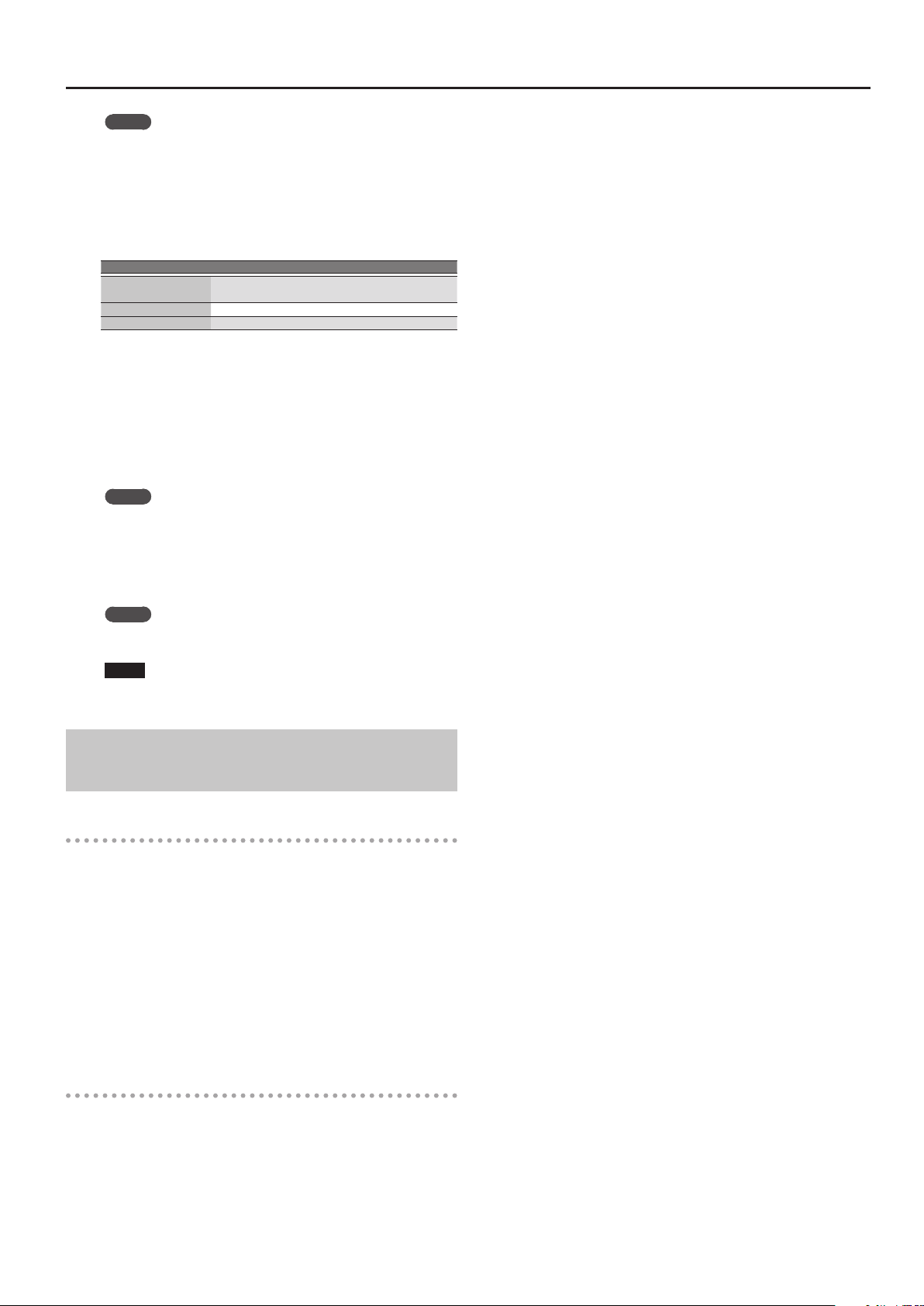
27
Selecting Tones Appropriate for a Style (One Touch Memories)
MEMO
When you edit the One Touch settings, the screen indicates
“EDITED” to indicate this.
5. Press the [Option] button.
6. Use the direct buttons to select “Save Style.”
7. Use the direct buttons and the function buttons to
select the writing destination.
Button Explanation
[R1] (Int/Ext)
Switches between Internal Storage and External
Storage.
[F4] [F5] (Page) Switch pages.
[L1] Up folder Exits the folder.
Normally, the My Styles folder in Internal Storage is selected.
8. Press the [Enter] button.
Assign a name.
&
For details on how to assign a name, refer to “Assigning Names”
(p. 16).
If you decide to cancel, press the [Exit] button.
9. Press the [F5] (Exec) button.
The style is saved.
MEMO
If there is a le with the same name as the name you entered, a
screen asks you to conrm the overwrite.
If you want to save, select “YES” to replace it with the le you
renamed.
If you decide to rename the le, select “NO” and return to the
page where you can rename the le.
MEMO
After the settings are saved, the user Style that you saved is
selected as the Style.
NOTE
If you recall a dierent One Touch memory while editing a One
Touch memory, the state of your editing is lost.
Copying a User Program or One Touch Memory
to another One Touch Memory
Copying a User Program to a One Touch memory
Here’s how to copy user program settings to a One Touch memory.
1. With no One Touch memory selected (i.e., when all of
the One Touch [1]–[4] buttons are unlit), open the One
Touch Setting screen.
2. Press one of the [L1] [L2] [L4] [L5] buttons to move the
cursor to the One Touch memory to which you want to
copy the user program.
3. Save the Style via [Option]
0
“Save Style.”
The current user program settings are copied to the One Touch
memory that’s selected by the cursor.
Copying One Touch settings to another One Touch
memory
Here’s how to copy One Touch settings to another One Touch
memory.
1. Press a One Touch [1]–[4] button to select the copy-
destination One Touch memory.
2. The One Touch Setting screen opens.
3. Press one of the [L1] [L2] [L4] [L5] buttons to move the
cursor to the copy-destination One Touch memory.
4. Save the Style via [Option]
0
“Save Style.”
The current (copy-source) One Touch settings are copied to the One
Touch memory that’s selected by the cursor.
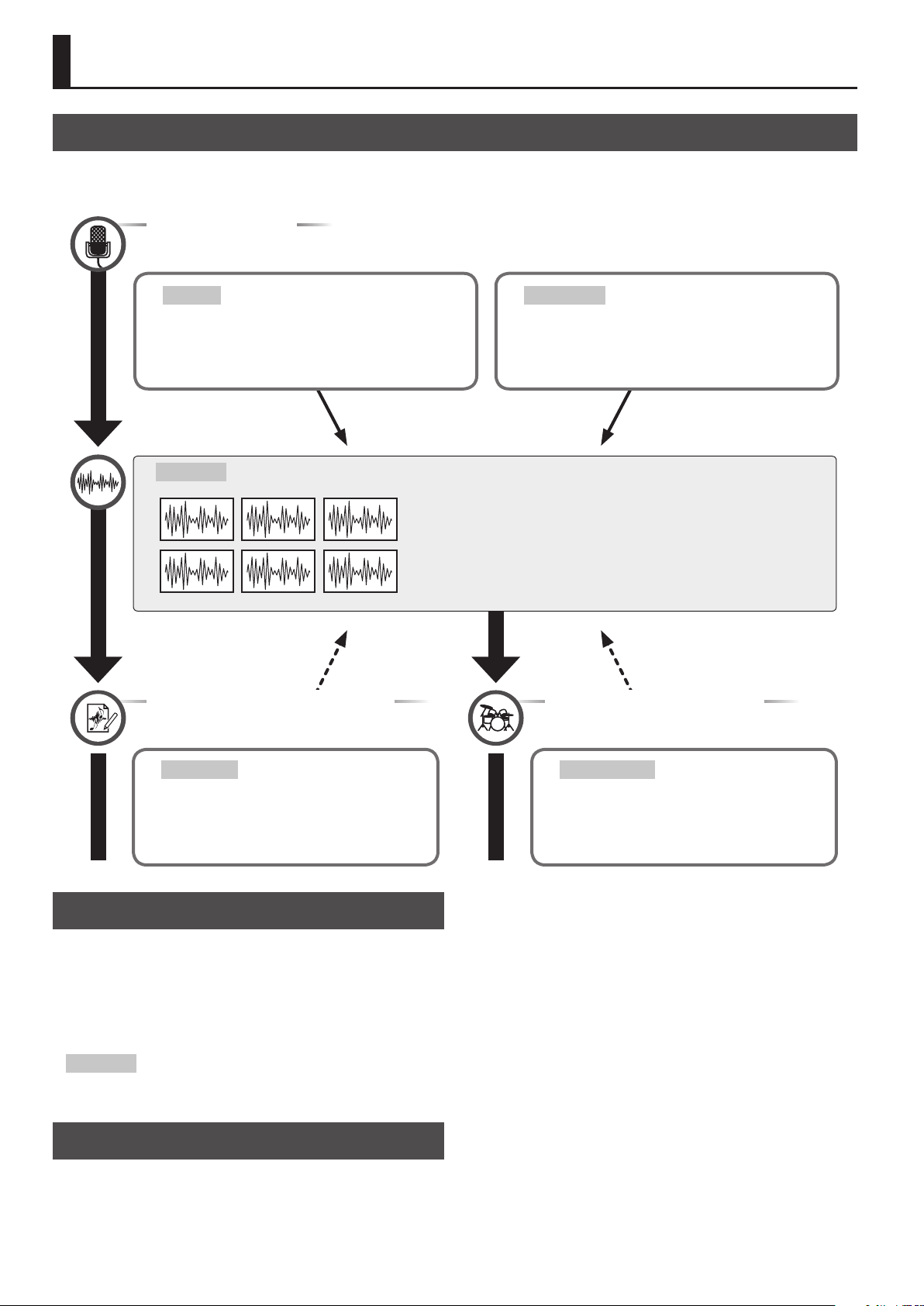
28
Creating Sounds
Overall Workow
The E-A7 lets you add new waveforms and play them from the keyboard as pitched sounds.
You can also freely add the sounds of specic ethnic instruments and local instruments.
The following diagram shows the overall workow for creating new sounds.
User Sample
Sampling
You can sample audio waveform data from a mic or audio playback
device via the E-A7’s INPUT jacks directly into a user sample.
Sample import
You can import WAV format waveform data (44.1 kHz, 16 bit, WAV
format only) from external storage (USB ash drive).
&
“Importing Samples” (p. 29)
Creating a Tone from the User Sample
&
“Creating a User Tone” (p. 31)
User Tone Edit
You can assign a pitch to the additional waveform (user
sample) and edit it so that it can be played from the
keyboard. You can also make your keyboard playing
dynamics aect the color of the sound, and you can edit
other tone parameters.
Creating a personalized Drum Kit
&
“Creating a User Drum Kit” (p. 33)
User Drum Kit Edit
You can create an original drum kit by editing the drum inst
that are assigned to the drum kit, or by assigning an another
user sample.
Obtaining Waveforms
The waveform data that you sample or import is saved as a user
sample.
A “multisample” is a set of dierent samples assigned to each note of
the keyboard (p. 30).
Save
Reference
Save
Reference
Obtaining Waveforms
Here’s how you can directly sample audio waveform data from a mic
or external audio playback device connected to the E-A7’s INPUT
jacks.
Alternatively, you can import a WAV format le from a USB ash drive
into User Sample Memory.
You can use the sampled waveform data to create a tone or drum kit
(p. 31, p. 33).
User Sample
A user sample is waveform data that was obtained by sampling or by
importing a sample.
Connecting an External Device
* Before you connect an external device, set the Mic/Line In
[Volume] knob to the minimum position, and turn the [Input
ON] button o (unlit).
1. Set the rear panel input switch.
LINE: If connecting an audio device or keyboard
MIC: If connecting a mic
* If the switch is set to the Mic position, the signal that’s input to
the Input R jack is ignored. The same signal is input to both the R
and L sides.
2. Connect your external device to the INPUT jacks.
* If connecting a mic, connect it to the L/MONO, MIC jack.
Condenser mics are not supported.
3. Press the [Input On] button to turn on external input.
The button lights. To turn it o, press the button once again to make
it go dark.
4. Use the Mic/Line In [Volume] knob to adjust the volume
of the input.
5. If you want to apply an eect to the input, press the
[Input EFX] button to turn it on.
The button lights. For more about the input eects, refer to
“Reference Manual” (PDF).
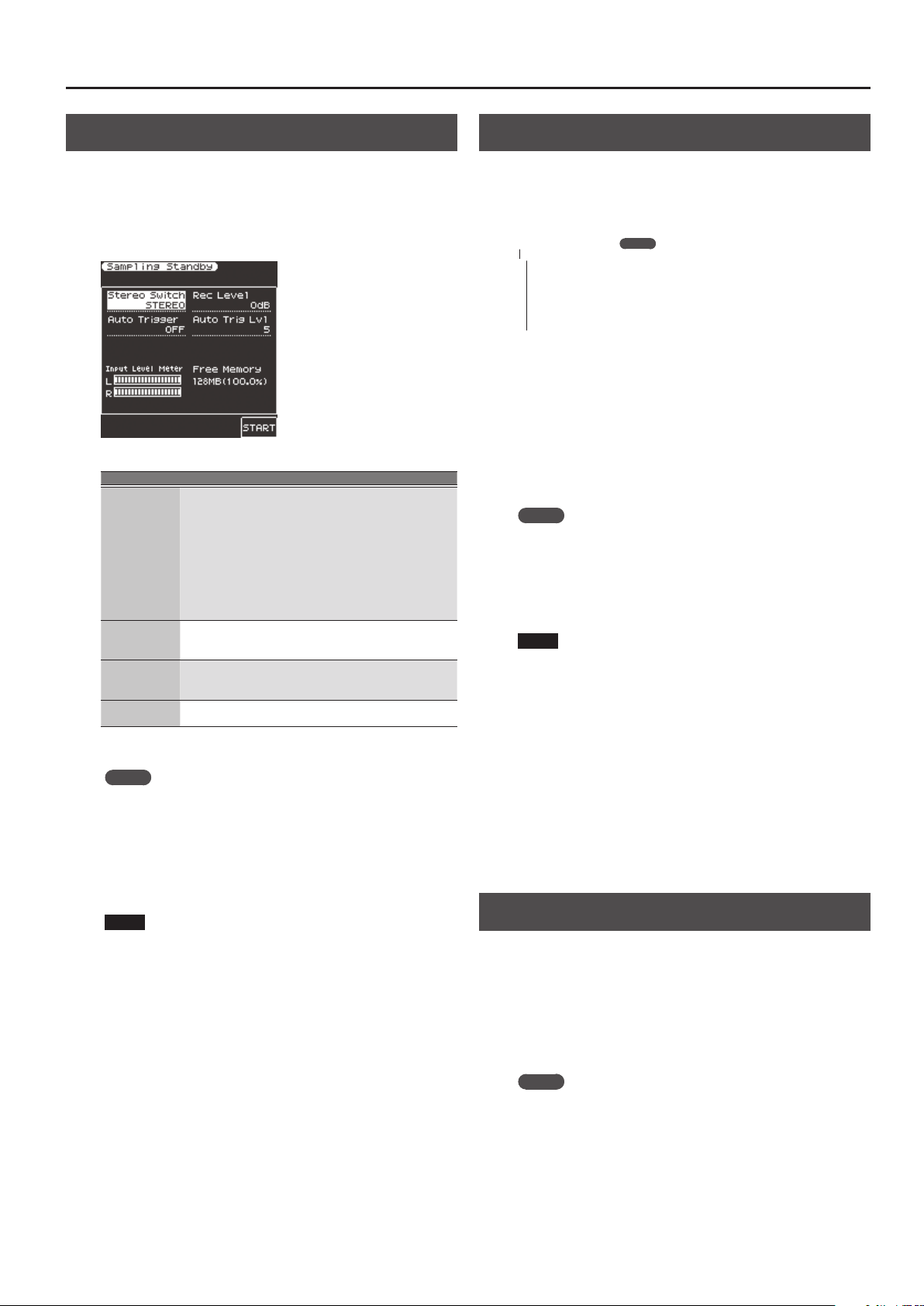
29
Creating Sounds
Sampling
1. Press the [Sampling] button.
The Sampling Menu screen appears (you can also access this via the
Menu).
2. Press the [L1] (Sampling) button.
The Sampling Stanby screen appears.
Input Level Meter
The input level is shown. Use the
input volume to adjust the input
level so that the sound does not
distort.
Free memory capacity
The display shows the amount of
free memory in which samples can
be saved. If the memory capacity is
used up during sampling, sampling
ends.
Parameter Value Explanation
Stereo Switch Mono, Stereo
Specify whether sampling is done in stereo
or monaural.
Mono sampling takes only half the amount
of memory.
MONO: The sound is sampled as a single
waveform. The left and right
channels of stereo sound are
mixed.
STEREO: The sound is sampled as two
waveforms, L and R.
Auto Trigger ON, OFF
If Auto Trigger is ON, sampling starts
automatically when sound input is
detected.
Auto Trig Level 1–10
If Auto Trig is ON, specify the volume at
which sampling starts.
0–7 (0 is the minimum)
Rec Level
-24, -18, -12, -6,
+0 dB
Rec level
3. Press the [F5] (Start) button to start sampling.
MEMO
5 If Auto Trigger is ON, sampling starts automatically when input is
detected.
5 Depending on the Auto Trigger Level setting, the beginning of
the sound might be cut o. In this case, lower the Auto Trigger
Level setting.
4. Press the [F5] (Stop) button to stop sampling.
The Sample Edit screen appears (p. 29).
NOTE
5 The sampled data is discarded if you select another sample
without saving the sampled data. Be sure to save important
samples.
5 When you compare the original sampled or imported sound
to the sound that’s played back by the E-A7, you may notice a
dierence in the character of the sound.
This is due to the settings of the E-A7; the character of the sound
may be aected by settings such as the eect settings of each
part, or the compressor and EQ settings of the Mastering Tools.
Importing Samples
Audio les (WAV format, 44.1 kHz/16-bit only) can be imported from
a USB ash drive into the E-A7.
1. Place the audio les on your USB ash drive in the
following folder structure.
MEMO
Create a folder named “IMPORT” and place the les to be
imported in that folder.
If you use the E-A7 to format a USB ash drive, an “IMPORT” folder
is created.
(Raiz)
– IMPORT
– TEST1.wav
– TEST2.wav
– TEST3.wav
– TEST4.wav
– TEST5.wav
2. Connect the USB ash drive to the E-A7.
3. Press the [Sampling] button.
The Sampling Menu screen appears (you can also access this via the
Menu).
4. Press the [L2] (Sample Import) button.
The audio les inside the IMPORT folder are listed.
5. Use the direct buttons to select the le that you want to
import.
MEMO
You can select multiple les.
If you select [F1] (Select All), all of the les are selected. Press the
button again to clear the selection of all les.
6. Press the [Enter] button.
The E-A7 imports the selected le(s). When import is completed, the
Sample List screen appears.
NOTE
5 Import may take several minutes if you’re importing multiple les
or if the le size is large. Never turn o the power while the screen
indicates “Executing...”
5 Import is not possible if sample memory is full.
5 If there is insucient free memory for Sample Import, a message
asks whether you want to Optimize.
5 When you compare the original sampled or imported sound
to the sound that’s played back by the E-A7, you may notice a
dierence in the character of the sound.
This is due to the settings of the E-A7; the character of the sound
may be aected by settings such as the eect settings of each
part, or the compressor and EQ settings of the Mastering Tools.
5 In order for an imported sound to be played from the keyboard, it
must rst be edited.
Sample Editing
1. Press the [Sampling] button.
The Sampling Menu screen appears (you can also access this via the
Menu).
2. Press the [R1] (Sample List) button.
The Sample List screen appears.
3. Use the direct buttons to select the sample that you
want to edit.
MEMO
By using the direct buttons to select a sample and pressing the
[F3] (Preview) button, you can audition that sample.
4. Press the [Option] button.
The Sample Option screen appears.
5. Use the direct buttons to select “Edit.”
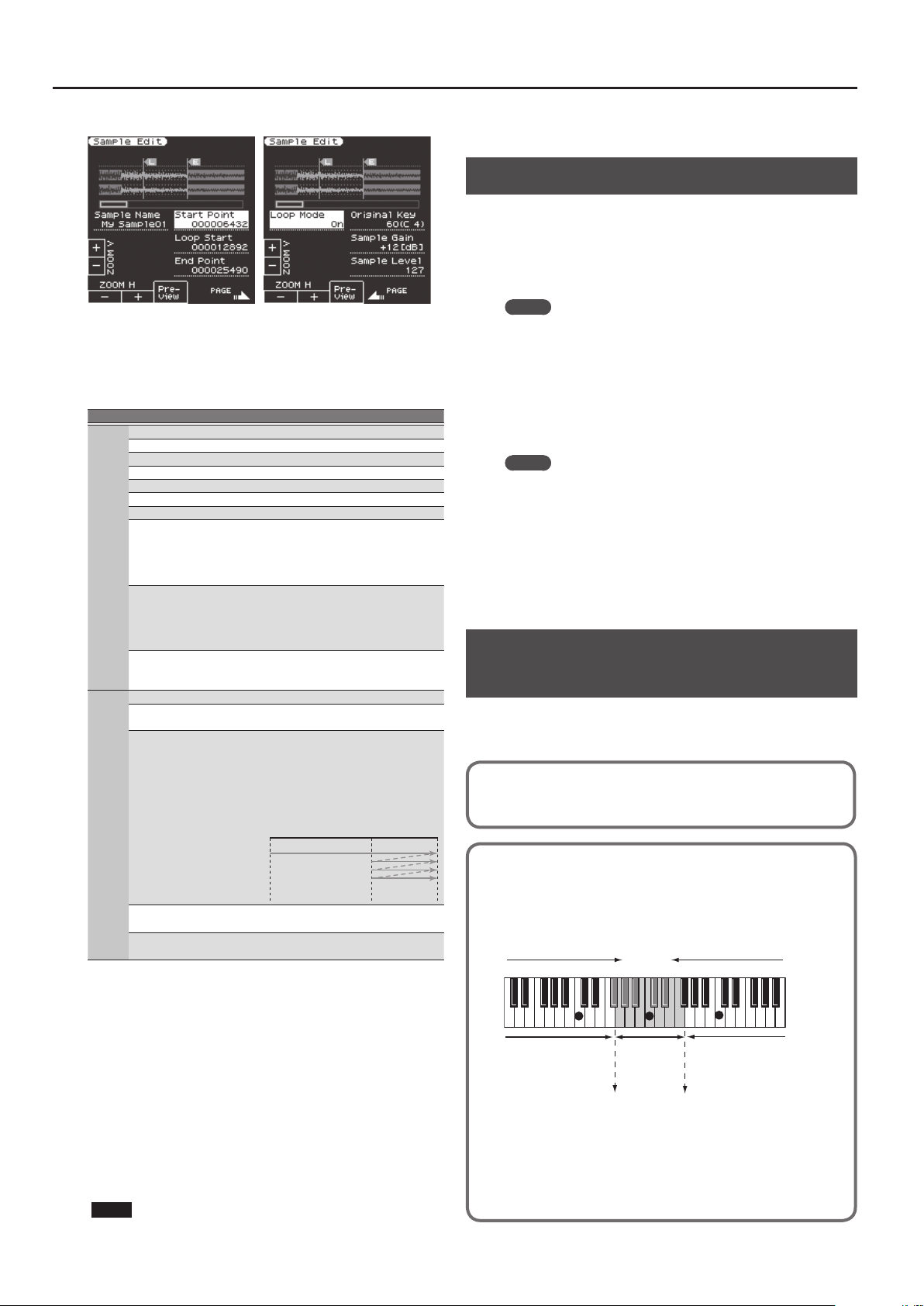
30
Creating Sounds
The Sample Edit screen appears.
6. Edit the sample.
Use the direct buttons to select the parameter that you want to edit.
Use the Value [-] [+] buttons to edit the value. Alternatively, you can
use the [Balance/Value] knob (when the Value function is active /
LED unlit) to edit the value.
Page Button Explanation
1
[F1] (Zoom H -) Zooms-out horizontally.
[F2] (Zoom H +) Zooms-in horizontally.
[F3] (Preview) Auditions the currently-edited sample.
[F5] (Page+) Moves to the next page.
[L3] (Sample Number) Displays the sample number.
[L4] (Zoom V +) Zooms-in vertically.
[L5] (Zoom V -) Zooms-out vertically.
[R3] (Start Point)
This is the playback start point. By
editing this you can skip an unwanted
portion at the beginning of the
waveform so that the sample starts at
the right moment.
[R4] (Loop Start)
This is the point at which repeated
playback (the second and subsequent
plays) will start. Set this if you want to
loop from a point that is dierent than
the start point.
[R5] (End Point)
This is the playback end point. By
editing this you can omit an unwanted
portion at the end of the sample.
2
[F5] (Page -) Moves to the previous page.
[R3] (Original Key)
Species the note number that plays
the sample at its original pitch. C0–B8
[L3] (Loop Mode)
Turns loop playback on/o.
If the loop start position has been
specied
After the Sample played back from
START to END, it will then be repeatedly
played back in the forward direction,
from the LOOP to END.
START LOOP END
[R4] (Sample Gain)
Adjusts the gain of the sample.
0, +6, +12 dB
[R5] (Sample Level)
Adjusts the volume of the sample.
0–127
7. To save the sample, press the [Write] button.
A screen appears in which you can name the sample.
&
“Assigning Names” (p. 16)
If you decide to cancel, press the [Exit] button.
8. Press the [F5] (Exec) button.
9. Use the direct buttons and function buttons to select
the save-destination.
10. Press the [Enter] button.
A conrmation message appears.
11. To save, select “ Ye s .”
If you want to change the save-destination, select “No” to return to
the page where you can specify the save-destination.
NOTE
If a sample already exists in the save-destination, the previous
sample is deleted.
If you want to keep that sample, use the UST Export or UDK
Export function to save it (p. 32, p. 34).
Deleting a Sample
1. Press the [Sampling] button.
The Sampling Menu screen appears (you can also access this via the
Menu).
2. Press the [R1] (Sample List) button.
The Sample List screen appears.
MEMO
By using the direct buttons to select a sample and pressing the
[F3] (Preview) button, you can audition that sample.
3. Press the [Option] button.
The Sample Option screen appears.
4. Use the direct buttons to select “Delete.”
5. Use the direct buttons to select the sample that you
want to delete.
MEMO
You can select multiple samples.
If you choose [F1] (Select All), all samples are selected. Press the
button again to clear the selection.
6. Press the [Enter] button.
A conrmation message appears.
7. Use the function buttons to select “YES.”
The sample is deleted.
If you decide not to delete, select “NO.”
Creating a Multisample
(Create Multisample)
A “multisample” is a set of dierent samples assigned to each note
of the keyboard. One multisample lets you assign up to 128 samples
that are split (divided) across the notes of the keyboard.
You can’t listen to a multisample unless it’s assigned to a tone. When creating a
multisample, you start by selecting multiple samples to create the multisample,
and then assign the multisample to a tone for use.
If, for example, only one note (e.g., the sound of the C4 key) is sampled from
a wide-ranging instrument such as a piano, and assigned to the entire range
of keys, it will sound unnatural when played signicantly below or above its
original pitch. If the instrument is sampled at several dierent pitches and
assigned to dierent ranges of the keyboard, this unnatural eect can be
minimized.
128 split
(128 key)
sample No.0001
original key
C3
sample
No.0002
original key
C4
sample No.0003
original key
C5
7
: original key
split point split point
In the Create Multisample function, the split points are automatically
determined according to the original key of each sample.
Before you begin this process, you should set the original key of each sample to
the range where you want it to be assigned.
31
Creating Sounds
1. Press the [Sampling] button.
The Sampling Menu screen appears (you can also access this via the
Menu).
2. Press the [R1] (Sample List) button.
The Sample List screen appears.
MEMO
By using the direct buttons to select a sample and pressing the
[F3] (Preview) button, you can audition that sample.
3. Press the [Option] button.
The Sample Option screen appears.
4. Use the direct buttons to select “Create Multisample.”
5. Use the direct buttons to select samples.
MEMO
You can select multiple samples.
If you choose [F1] (Select All), all samples are selected. Press the
button again to clear the selection.
6. Press the [Enter] button.
The multisample is created.
A screen appears in which you can name the multisample.
&
“Assigning Names” (p. 16)
If you decide to cancel, press the [Exit] button.
7. Press the [F5] (Exec) button.
8. Use the direct buttons and function buttons to select
the save-destination.
9. Press the [Enter] button.
A conrmation message appears.
10. To save, select “ Ye s .”
If you want to change the save-destination, select “No” to return to
the page where you can specify the save-destination.
NOTE
If there is a multisample in the save-destination, the original
multisample is overwritten.
The multisample is created, and the multisample list appears.
Use the multisample to create a user tone or user drum kit
(p. 31, p. 33).
MEMO
You can access the multisample list via the Sampling Menu
screen.
Multisample Editing
1. Press the [Sampling] button.
The Sampling Menu screen appears (you can also access this via the
Menu).
2. Press the [R2] (Multisample List) button.
The Multisample List screen appears.
3. Use the direct buttons to select the sample that you
want to edit.
4. Press the [Option] button.
The Multisample Option screen appears.
5. Use the direct buttons to select “Edit.”
The Multisample Edit screen appears.
6. Use the keyboard or the cursor buttons to select the
Sample (Key) that you want to edit.
You can perform the following operations.
Operation Explanation
Split
K J
Changes the split point.
Operation Explanation
Org Key
Changes the original key.
A window appears, allowing you to change the original key.
Use the Value [-] [+] buttons to change the setting.
If you change the original key, the change is saved in the
sample when you write the multisample. If you exit without
saving, the setting reverts to the previous key.
Note that if the same sample is used by other multisamples,
they will also be aected by the change.
Erase
Deletes the selected sample from the multisample.
* Although the sample will no longer be referenced by the
multisample, the sample itself will remain.
Assign
Assigns the sample to the selected key.
Select the sample to be assigned from the sample list.
Select You can specify a region by pressing two keys.
7. To save the multisample, press the [Write] button.
A screen appears in which you can name the multisample.
&
“Assigning Names” (p. 16)
If you decide to cancel, press the [Exit] button.
8. Press the [F5] (Exec) button.
9. Use the direct buttons and function buttons to select
the save-destination.
10. Press the [Enter] button.
A conrmation message appears.
11. To save, select “ Ye s .”
If you want to change the save-destination, select “No” to return to
the page where you can specify the save-destination.
NOTE
If a multisample already exists in the save-destination, the
previous multisample is deleted.
If you want to keep that sample, use the UST Export or UDK
Export function to save it (p. 32, p. 34).
Deleting a Multisample
1. Press the [Sampling] button.
The Sampling Menu screen appears (you can also access this via the
Menu).
2. Press the [R2] (Multisample List) button.
The Multisample List screen appears.
3. Press the [Option] button.
The Multisample Option screen appears.
4. Use the direct buttons to select “Delete.”
5. Use the direct buttons to select the multisample that
you want to delete.
MEMO
You can select multiple multisamples. If you press [F1] (Select All),
all multisamples are selected. Press the button again to clear the
selection.
6. Press the [Enter] button.
A conrmation message appears.
7. Use the function buttons to select “YES.”
The multisample is deleted.
If you decide not to delete, select “NO.”
Although the sample will no longer be referenced by the
multisample, the sample itself will remain.
Creating a User Tone
On the E-A7, you can use user samples and multisamples to create
your own original sound (User Tone). Here’s how to create a new User
Tone.
* User Tone is sometimes abbreviated as UST.
1. In the Tone section, press the [User] button.
The User Tone list appears.
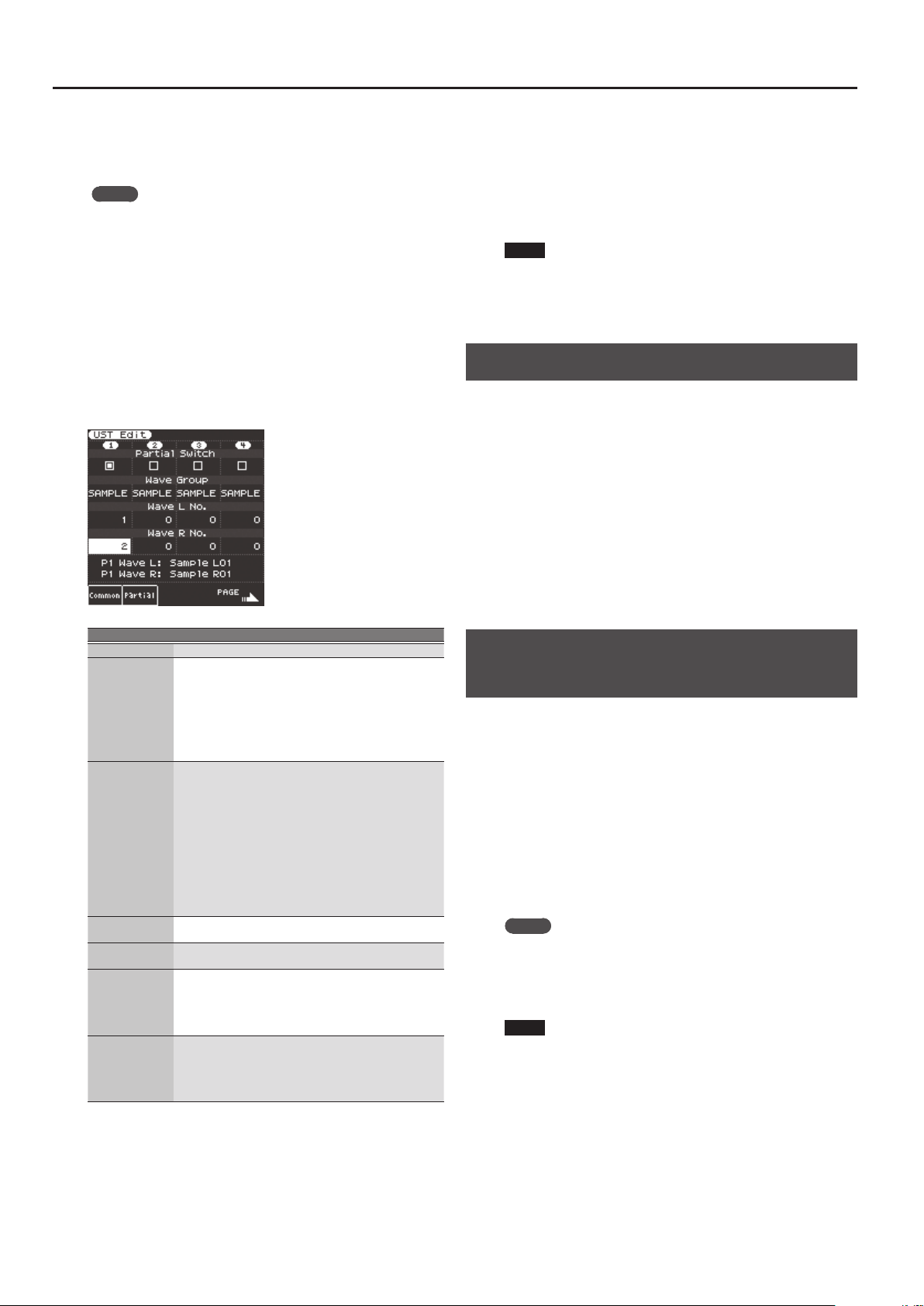
32
Creating Sounds
5 Each time you press the [User] button, the contents of the list
switch between UST and UDK.
2. Use the direct buttons to select the Tone that you want
to edit.
MEMO
If you want to create a new user tone, select “Empty.”
3. Press the [Option] button.
The UST Option screen appears.
4. Use the direct buttons to select “Edit.”
The UST Edit screen appears.
On the E-A7, one tone consists of four elements of sound (Partial
1–4).
For each of these partials, you can change the waveform (Wave) and
specify the keyboard region in which it will produce sound.
Use the cursor buttons or direct buttons to select the parameter that
you want to edit, and use the Value [-] [+] buttons to edit the value.
Alternatively, you can edit the value by using the [Balance/Value]
knob (when the Value function is active / LED unlit).
Parameter Value Explanation
Partial Switch ON, OFF Partial on/o
Wave Group
INT, SAMP,
MSAMP
Group of the waveform (Wave) to assign
to the partial
INT: Internal tone waveforms
SAMP: Sample waveforms
MSAMP: Multisample waveforms
* If you select samples, the pitch won’t
change for keys more than two octaves
away from the original key.
Wave No. L
(Mono)
Wave No. R
OFF, 1 -
Selects the waveform. Along with
the wave number, the wave name is
also shown in the lower part of the
screen. (The name is not shown for INT
waveforms.)
If you want to use mono, specify only
the left side (L). If you want to use
stereo, specify the right side (R) as well.
* If you use a multisample in stereo, specify
the same number for L and R.
* If you use a sample in stereo, you should
likewise specify the same wave for L and R.
Key Range Lower C-1–UPPER
For each partial, species the lowest key
of the range in which it will sound.
Key Range Upper LOWER–G9
For each partial, species the highest
key of the range in which it will sound.
Velocity Range
Lower
1–UPPER
Species the lowest keyboard playing
strength that will sound the partial.
Make this setting if you want to use
keyboard playing strength to switch
between partials.
Velocity Range
Upper
LOWER–127
Species the highest keyboard playing
strength that will sound the partial.
Make this setting if you want to use
keyboard playing strength to switch
between partials.
For other parameters, refer to “Reference Manual” (PDF).
5. To save the User Tone, press the [Write] button.
A screen appears in which you can name the user tone.
&
“Assigning Names” (p. 16)
If you decide to cancel, press the [Exit] button.
6. Press the [F5] (Exec) button.
7. Use the direct buttons and function buttons to select
the save-destination.
8. Press the [Enter] button.
A conrmation message appears.
9. To save, select “ Ye s .”
If you want to change the save-destination, select “No” to return to
the page where you can specify the save-destination.
NOTE
5 If there is a user tone in the save-destination, the original user
tone is overwritten.
5 The edited content is lost when you exit the UST Edit screen. Save
the changes if necessary.
Deleting a User Tone
1. In the Tone section, press the [User] button.
The User Tone list appears.
2. Use the direct buttons to select the tone that you want
to delete.
3. Press the [Option] button.
The UST Option screen appears.
4. Use the direct buttons to select “Delete.”
A conrmation message appears.
5. Use the function buttons to select “YES.”
The User Tone is deleted.
If you decide not to delete, select “NO.”
* Samples and multisamples are not deleted.
Exporting User Tones to a USB Flash Drive
(UST Export)
1. In the Tone section, press the [User] button.
The User Tone list appears.
2. Use the direct buttons to select the tone that you want
to export.
3. Press the [Option] button.
The UST Option screen appears.
4. Use the direct buttons to select “Export.”
A screen appears in which you can name the tone.
&
“Assigning Names” (p. 16)
If you decide to cancel, press the [Exit] button.
5. Press the [F5] (Exec) button.
MEMO
The exported tone is placed in the “My UST” folder of the
USB ash drive. The tone is exported with its user samples and
multisamples.
It may take some time for the export to be completed if the data
size is large.
NOTE
5 It is possible to change the le name when executing UST Export/
UDK Export.
However, this changes only the le name; it does not change the
name of the tone.
This means that if you import a UST or UDK whose le name was
changed, the original tone names are displayed. Since you won’t
be able to tell the original tone names, we recommend that you
not change the le name when exporting.
5 When you export, the samples and multisamples remain in the
E-A7. (The data is copied and saved on the USB ash drive.)
If you want to increase the amount of free memory, export the
data, then delete unneeded user tones, and execute sample clean
up (p. 35).
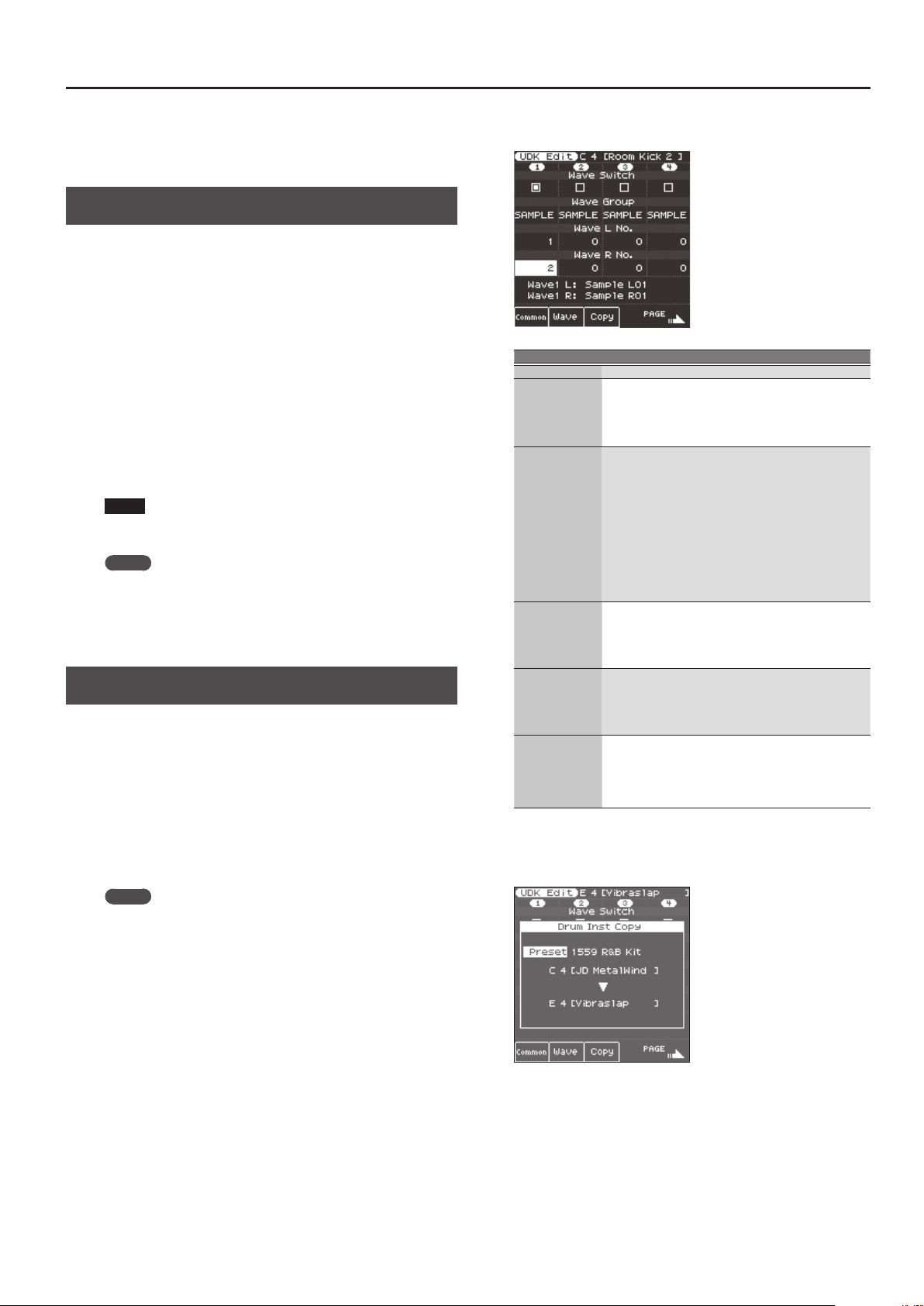
33
Creating Sounds
If more than one User Tone uses the same user samples or
multisamples, the user samples are not deleted until all related
User Tones are deleted (i.e., the amount of free memory will not
increase).
Loading Exported User Tones
1. In the Tone section, press the [User] button.
The User Tone list appears.
2. Use the direct buttons or function buttons to select the
import destination.
3. Press the [Option] button.
The UST Option screen appears.
4. Use the direct buttons to select “Import.”
Files that can be imported from the USB ash drive are shown.
5. Use the direct buttons to select the le that you want to
import.
A conrmation message appears.
6. To import the data, select “ Ye s .”
If you want to change the import destination, select “No” to return
to the page where you can change the import destination.
NOTE
If the user sample memory is full, you can’t import user tones.
Increase the amount of free memory and then import once again.
MEMO
Place the les you want to import in the “My UST” folder of the
USB ash drive.
If there is no “My UST” folder in External Storage (USB ash
drive), you can either use the E-A7 to format the USB ash drive,
or create a folder named “My UST.”
Creating a User Drum Kit
The E-A7 lets you create your own original drum kit (User Drum Kit)
from user samples and multisamples. Here’s how to create a new
user drum kit.
* User Drum Kit is sometimes abbreviated as UDK.
1. In the Tone section, press the [User] button.
The User Tone list appears.
Each time you press the [User] button, you’ll switch between the UST
and UDK lists.
2. Use the direct buttons to select the UDK that you want
to edit.
MEMO
If you want to create a new UDK, select “Empty.”
3. In the User Drum Kit list page, press the [Option]
button.
The UDK Option screen appears.
4. Use the direct buttons to select “Edit.”
The UDK Edit screen appears.
In a drum kit, you can assign a dierent drum sound (Drum inst) to
each note of the keyboard.
A single drum tone consists of four elements of sound (Wave 1–4).
For each wave, you can change the waveform and edit the
parameters.
5. From the keyboard, select the drum inst (key) that you
want to edit.
The screen indicates the number (key position) and name of the
selected drum inst.
* The name of the Drum Inst shows the name of the waveform
that’s assigned to No.L of Wave1.
Use the cursor buttons or direct buttons to select the parameter that
you want to edit, and use the Value [-] [+] buttons to edit the value.
Alternatively, you can use the [Balance/Value] knob to edit the value
(when the Value function is active / LED unlit).
Parameter Parameter Explanation
Wave Switch ON, OFF Wave on/o
Wave Group
INT, SAMP,
MSAMP
Group of the waveform (wave) that you
want to assign.
INT: Internal sound waveforms
SAMP: Sample waveforms
MSAMP: Multisample waveforms
Wave No. L
(Mono)
Wave No. R
OFF, 1 -
Selects the waveform. Along with
the wave number, the wave name
is also shown at the bottom of the
screen. (The name is not shown for INT
waveforms.)
If you want to use mono, specify only
the left side (L). If you want to use
stereo, specify the right side (R) as well.
* If you want to use a multisample in stereo,
specify the same number for L and R.
* If you use a sample in stereo, you should
likewise specify the same wave for L and R.
Velocity Range
Lower
1–UPPER
Species the lowest keyboard playing
strength that will sound the wave.
Make this setting if you want to use
keyboard playing strength to switch
between waves.
Velocity Range
Upper
LOWER–127
Species the highest keyboard playing
strength that will sound the wave.
Make this setting if you want to use
keyboard playing strength to switch
between waves.
Inst Coarse Tune C-1–G9
Selects the pitch of the note that will
sound the drum inst.
* The default value is 60 (C4). If you’ve
selected a sample or a multisample, edit
this value if you want to play a dierent
key of the multisample.
For details on other parameters, refer to “Reference Manual” (PDF).
6. If you want to copy a drum inst from a dierent drum
kit, press the [F3] (Copy) button.
Use the direct buttons to move the cursor, and use the Value [-] [+]
buttons to change the value.
5 Select the drum instrument (key position) of the copy-source
drum kit. The copy-source drum kit can be selected from
“Current” (the currently-edited drum kit), “Preset” (internal
drum kits), or “User” (user drum kits). After selecting one of
these, use the direct buttons to move the cursor, and use the
Value buttons to select the drum kit number and name. After
selecting the drum kit, move the cursor and change the drum
instrument (key position).
34
Creating Sounds
5 The copy-destination drum kit will be the currently-edited drum
kit. Move the cursor and change the copy-destination drum
instrument (key position). You can also use the keyboard to
specify the key position.
Select the copy-source and copy-destination, and then press the
[Enter] button.
To execute, select [F5] (Yes).
Press the [Exit] button to exit the Copy screen.
MEMO
If you want to rename the drum instrument, press the [Option]
button in the UDK Edit page, and then press the [L1](Drum Kit
Name) button. Edit the name, and then press the [F5] (Exec)
button.
7. To save the user drum kit, press the [Write] button.
A screen appears in which you can name the UDK.
&
“Assigning Names” (p. 16)
If you decide to cancel, press the [Exit] button.
8. Press the [F5] (Exec) button.
9. Use the direct buttons and function buttons to select
the save-destination.
10. Press the [Enter] button.
A conrmation message appears.
11. To save, select “ Ye s .”
If you want to change the save-destination, select “No” to return to
the page where you can specify the save-destination.
NOTE
The changes you made are lost when you exit the UDK Create
screen. If you want to keep the changes you made, save them.
You can also edit the built-in drum kits. In the Tone section, press the
[Drums] button. Then in the Drum List screen, select the drum kit
that you want to edit, press the [Option] button, and use the direct
buttons to select “Edit.”
The currently selected drum kit can be edited.
If you’ve edited a built-in drum kit and save it, it is saved as a user
drum kit.
&
“Reference Manual” (PDF)
Deleting a User Drum Kit
1. In the Tone section, press the [User] button.
The User Tone list appears. Press the “User” button several times to
access the User Drum Kit list.
2. Use the direct buttons to select the drum kit that you
want to delete.
3. Press the [Option] button.
The UDK Option screen appears.
4. Use the direct buttons to select “Delete.”
A conrmation message appears.
5. Use the function buttons to select “YES.”
The user drum kit is deleted.
If you decide not to delete, select “NO.”
* Samples and multisamples are not deleted.
Exporting User Drum Kits to a USB Flash
Drive (UDK Export)
1. In the Tone section, press the [User] button.
The User Tone list appears. Press the [F2] (UDK) button to access the
User Drum Kit list.
2. Use the direct buttons to select the drum kit that you
want to export.
3. Press the [Option] button.
The UDK Option screen appears.
4. Use the direct buttons to select “Export.”
A screen appears in which you can name the UDK.
&
“Assigning Names” (p. 16)
If you decide to cancel, press the [Exit] button.
5. Press the [F5] (Exec) button.
MEMO
The exported drum kit is placed in the “My UDK” folder of
the USB ash drive. It is exported with its user samples and
multisamples.
It may take some time for the export to be completed if the data
size is large.
NOTE
5 It is possible to change the le name when executing UST Export/
UDK Export.
However, this changes only the le name; it does not change the
name of the tone.
This means that if you import a UST or UDK whose le name was
changed, the original tone names are displayed. Since you won’t
be able to tell the original tone names, we recommend that you
not change the le name when exporting.
5 When you export, the samples and multisamples remain in the
E-A7. (The data is copied and saved on the USB ash drive.)
If you want to increase the amount of free memory, export the
data, then delete unneeded user drum kits, and execute sample
Clean Up.
If multiple user drum kits use the same drum insts, user samples,
or multisamples, the user samples are not deleted until all related
user drum kits are deleted (i.e., the amount of free memory will
not increase).
Loading Exported User Drum Kits
1. In the Tone section, press the [User] button.
The User Tone list appears. Press the [F2] (UDK) button to access the
User Drum Kit list.
2. Use the direct buttons or function buttons to select the
import destination.
3. Press the [Option] button.
The UDK Option screen appears.
4. Use the direct buttons to select “Import.”
Files that can be imported from the USB ash drive are shown.
5. Use the direct buttons to select the le that you want to
import.
A conrmation message appears.
6. To import the data, select “ Ye s .”
If you want to change the import destination, select “No” to return
to the page where you can change the import destination.
NOTE
If the user sample memory is full, you can’t import user drum kits.
Increase the amount of free memory and then import once again.
MEMO
Place the les that you want to import in the “My UDK” folder of
the USB ash drive.
If there is no “My UDK” folder in External Storage (USB ash
drive), you can either use the E-A7 to format the USB ash drive,
or create a folder named “My UDK.”
35
Creating Sounds
Increasing the Amount of Free Sample
Memory
If sample memory is full, you can increase the amount of free sample
memory as follows.
Truncating a Sample
Truncate is an operation that removes data that is outside the Start/
End points.
1. Press the [Sampling] button.
The Sampling Menu screen appears (you can also access this via the
Menu).
2. Press the [R1] (Sample List) button.
The Sample List screen appears.
3. Press the [Option] button.
The Sample Option screen appears.
4. Use the direct buttons to select “Truncate.”
5. Use the direct buttons to select the sample that you
want to truncate.
MEMO
You can select multiple samples.
If you choose [F1] (Select All), all samples are selected. Press the
button again to clear the selection.
6. Press the [Enter] button.
A conrmation message appears.
7. Use the function buttons to select “YES.”
The sample is truncated.
If you decide not to truncate, select “NO.”
MEMO
5 When you execute Truncate, data that is outside the Start/End
points is deleted, so you will no longer be able to move the Start
Point backward or the End Point forward.
5 Perform the Optimize operation after truncating.
Sample Clean Up
Clean Up is an operation that deletes samples that are not used by
user tones or user drum kits.
Simply deleting a user tone or user drum kit does not delete its
samples; you’ll need to execute Clean Up.
1. Press the [Sampling] button.
The Sampling Menu screen appears (you can also access this via the
Menu).
2. Press the [L3] (Clean Up) button.
A conrmation message appears.
3. Use the function buttons to select “YES.”
Clean Up is executed.
If you decide not to execute Clean Up, select “NO.”
NOTE
It will take several tens of minutes to execute Clean Up. Never
turn o the power while the screen indicates “Executing...”
Optimizing Sample Memory
Optimize is an operation that rearranges the vacant areas that are
fragmented in memory, allowing the memory to be used optimally.
1. Press the [Sampling] button.
The Sampling Menu screen appears (you can also access this via the
Menu).
2. Press the [L4] (Optimize) button.
A conrmation message appears.
3. Use the function buttons to select “YES.”
Optimize is executed.
If you decide not to execute Optimize, select “NO.”
NOTE
It will take several tens of minutes to execute Optimize. Never
turn o the power while the screen indicates “Executing...”
MEMO
If there is still insucient free memory after executing Optimize,
you can delete unneeded user tones and user drum kits, and then
execute the sample Clean Up and Optimize operations.
Before deleting the data, you can export the user tones and user
tracks, and save them on external storage (USB ash drive).
Notes Regarding User Tones and User Drum Kits
If a UST or UDK is referenced by a user program or style, editing the
reference-source UST or UDK will also aect the sound that is recalled
by the user program or style.
The user program or style references the number in the UST or UDK
list, so if you delete the UST or UDK, or if it is overwritten by imported
data, you might hear no sound or a completely dierent sound.
When you perform a user data backup, data such as the UDKs,
USTs, and user samples, as well as the user programs and styles in
internal storage, are all saved together. By restoring this data, you can
reproduce the same state.
&
For details on backup/restore, refer to the reference manual.
However, user programs and user styles in external storage (USB ash
drive) are not backed up.
We recommend that user backup les be saved together with the
necessary user programs (.UST le) and styles.
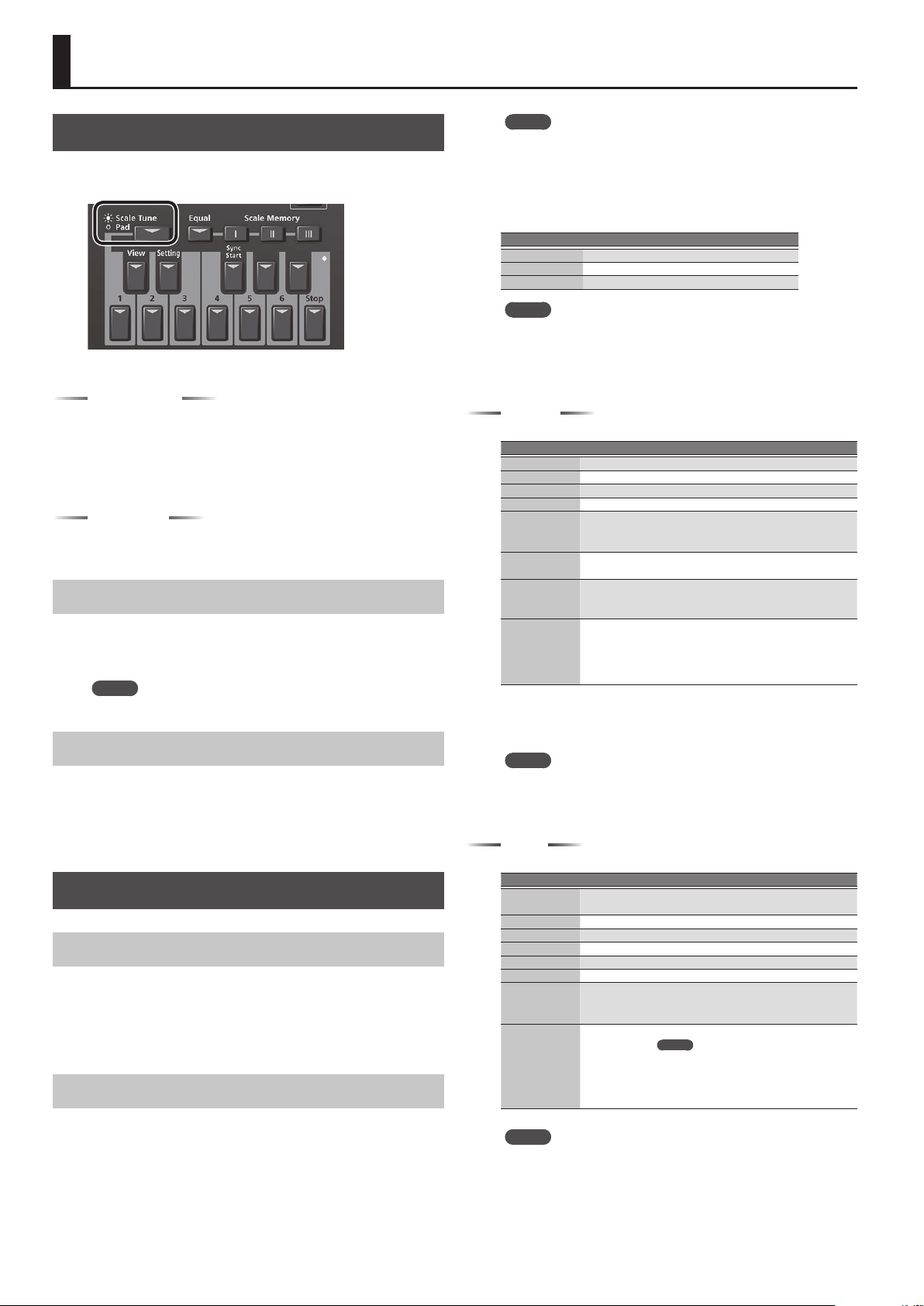
36
Using the Pads
Playing the Pads
When the [Scale Tune/Pad] button is unlit, the keyboard buttons
perform the Pad function.
You can use the Pad function to do the following two things.
Play Phrases
Phrases are sequence data for a single part such as guitar strumming
or a shaker.
Phrases are tempo-synchronized with the Style or SMF, and also
support chord detection.
* Phrases will not synchronize with WAV or MP3 songs.
Play Tones
You can play a specic note number (keyboard location) of a tone.
This is a convenient way to play sound eects or drum sounds.
Playing the Pads
1. Press any one of the Pad [1]–[6] buttons.
A sound or phrase is heard according to the settings of Pad Setting 1.
&
“Editing the Pad Settings” (p. 36)
MEMO
You can play up to six pads simultaneously.
Stopping the Pad Sound
1. Press the Pad [Stop] button to stop all sound.
If multiple pads are sounding, pressing one of the sounding pad
buttons stops the sound of only that pad button.
If you press a pad button while a tone is sounding, the tone begins
sounding again.
Pad Settings
Viewing the Pad Settings
1. With the [Scale Tune/Pad] button unlit, press the View
button.
The Pad Assign View screen appears.
In this screen you can view the phrases or tones that are assigned to
each pad.
Editing the Pad Settings
1. With the [Scale Tune/Pad] button unlit, press [Setting]
button.
The Pad Setting screen for the selected pad appears.
If you want to switch the Pad number, select “Pad number” with
direct button, then use the Value [-] [+] buttons.
MEMO
You can also access this via [Menu]
0
“User Program Edit”
0
“Pad Setting.” You can also access from “Pad Assign View”
screen.
2. Use the direct buttons to select Pad Type.
3. Use the Value [-] [+] buttons to edit the Pad Type.
Pad Type Explanation
O No assign
Phrase A phrase is assigned to Pad
Tone A tone is assigned to Pad
MEMO
5 The setting items dier depending on the Pad Type.
5 If you specify O, pressing that pad does not produce sound.
4. Use the direct buttons to make other settings.
The following items are available for each Pad Type.
Phrase
Parameter Value Explanation
Phrase Phrase Name Select a Phrase.
Volume 0–127 Volume of the phrase.
Reverb Send 0–127 Adjusts the reverb send amount.
Chorus Send 0–127 Adjusts the chorus send amount.
MFX O, Mfx, A, B
Select the routing to Eect
Mfx: Eect used on Keyboard Parts
A or B: Eect used on Acomp Parts
Loop O, On
If this is On, the phrase continues playing
repeatedly.
Sync Switch O, On
If this is On, the phrase starts at the
beginning of measure divisions in the
Arranger or SMF.
Sync Start O, On
If this parameter set ON, Style and SMF
playback start then also begins to ring
Phrase at the same time.
While Style and SMF stop, Pads what this
param set ON is blinking.
Selecting a Phrase
If you select the Phrase parameter, the Phrase List screen appears.
Use the direct buttons to select a phrase.
MEMO
You can switch Sync Start setting On/O, when you hold down
the Pad [Sync Start] button and press the Pad [1]–[6] button.
* Valid only when the Pad Type is set to Phrase.
Tone
Parameter Value Explanation
Tone
Tone Num,
Name
Tone number, name
Note 0 (C-)–127 (G9) Note number
Velocity 1–127 Velocity
Volume 0–127 Tone volume
Reverb Send 0–127 Adjusts the reverb send amount.
Chorus Send 0–127 Adjusts the chorus send amount.
MFX O, Mfx, A, B
Select the routing to Eect
Mfx: Eect used on Keyboard Parts
A or B: Eect used on Acomp Parts
Hold On, O
Holds the sound.
MEMO
A sample that is set to Loop On can be played
continuously (Sample Loop setting: p. 30). A
short audio phrase or a drum pattern can be
imported as a sample, and then assigned to a
tone so that you can play it from the pads.
MEMO
In the case of a tone, you can’t specify Loop or Sync.
Selecting a Tone
If the Pad Type is set to Tone, the Tone List screen appears in the right
display.
Use the direct buttons of the right display to select a Tone.
37
Using the Pads
You can also select a user tone or user drum kit.
However you might not hear any sound if the sample has been
deleted or if the user tone number has changed.
5. When you have nished making settings, press the
[Exit] button several times to return to the previous
screen.
Saving the Pad Settings
Pad settings are saved in a user program or in a One Touch memory.
&
“Saving Settings as a User Program” (p. 46)
&
“Creating Your Own One Touch Memories (One Touch
Settings)” (p. 26)
Normally, when the Write operation is executed, it will be saved as a
User Program parameters.
NOTE
If one of the One Touch settings is selected (one of the One Touch
[1]–[4] buttons lit), writing a user program will save the One
Touch settings to the user program (the Pad settings are also
included).
If you want to save it as a One Touch memory parameters, execute
the save operation in the following procedure.
1. Call the One Touch you want to change the Pad setting
by One Touch [1]–[4] button.
2. Change the Pad Setting.
3. When nished making changes, enter the One Touch
Setting screen.
&
“Editing and Saving the One Touch Settings of a Style” (p. 26)
Edit mark is attached to the One Touch that is currently selected.
4. Press the [Option] button.
5. Use the direct buttons to select “Save Style.”
&
“Editing and Saving the One Touch Settings of a Style” (p. 26)
0
“Step 7”
NOTE
5 If you want to save the Pad setting in One Touch, rst call the One
Touch you want to change. If you recall a dierent One Touch
memory while editing a One Touch memory, the state of your
editing is lost.
5 If a phrase or tone is assigned in the pad settings, the UPG or One
Touch remembers only the link to that phrase or le.
This means that if the link-destination le cannot be found, for
example because you renamed, deleted, or moved the user
phrase, or disconnected the external storage, no sound is heard.
Creating a Phrase to Play from a Pad
(Phrase Recording)
You can create your own original phrases.
To create an original phrase, use the Phrase Recording function.
Here’s how to use the Phrase Recording function.
1. Press the Setting button.
The Pad Setting screen appears.
Select the Pad (Pad Number) to which you want to assign the
recorded phrase.
If Pad Type is not set to “Phrase,” select “Phrase.”
2. Press the [Rec] button.
Phrase Recording Standby screen appears.
If you decide to cancel, press the [Rec] button once again.
3. Use the direct buttons to make settings.
Parameter Value Explanation
Phrase Type
Drum, Bass,
Accomp
Species the type of phrase that will be
recorded. In the case of Drum, you can’t
select the “Key” parameter.
Rec Mode
New New recording
Mix Mix recording
Parameter Value Explanation
Tempo 20–250
Species the tempo at which the phrase is
recorded.
Octave –4–+4
Species the octave of the recorded part,
shifting it to the region in which you want
to perform.
Key
C, C#, D, Eb, E,
F, F#, G, Ab, A,
Bb, B
Sets the KEY in which the phrase is
performed while recording. The key of
Drum Kit parts cannot be set.
Tone Tone Name Tone name
Time Signature 1/16, 1/4–4/4...
Sets the time signature. (selectable only if
Rec Mode is set to New)
Measure
Length
O, 1–16
Species the number of measures in the
phrase.
If this is O, the measure length is set
automatically according to the length that
you record, up to 16 measures.
Count In
O, 1Meas,
2Meas, Wait
Note
Species how long the count-in should be
before recording starts.
Wait Note: Recording starts as soon as you
play a note on the keyboard. (There will be
no count-in.)
Input Quantize
O, 1/4, 1/8,
1/8T, 1/16,
1/16T, 1/32,
1/32T, 1/64
Corrects minor timing problems.
It shifts the notes whose timing is not
exactly right to the nearest “correct” unit.
Always select a resolution value that is ne
enough to accept all note values you play.
Selecting a Tone
When you select a tone, the Tone List screen of the part selected for
the pad is shown in the right display.
Use the Tone [0]–[9] buttons and the direct buttons of the right
display to select a tone.
4. Press the [Start/Stop] button to start recording.
5. Perform a phrase.
6. Press the [Start/Stop] button once again to stop
recording.
The phrase save screen appears.
MEMO
If Measure Length is specied, recording stops automatically at
the measure length that you specied.
If you use Mix recording, loop recording occurs.
7. Use the [R1] (Int/Ext) button to switch the copy-
destination between Internal Storage and External
Storage.
MEMO
The Phrase le is placed in the “My Phrases” folder. If this folder
does not exist, it is created automatically. The “My Phrases”
folder exists in both internal storage and external storage.
8. Press the [Enter] button.
Assign a name.
&
For details on assigning a name, refer to “Assigning Names” (p.
16).
If you decide to cancel, press the [Exit] button.
9. Press the [F5] (Exec) button.
The phrase is saved.
MEMO
If there is already a le with the same name as the name you
entered, a screen asks you to conrm the overwrite.
If you want to save, select “YES” to replace it with the le you
renamed.
If you decide to rename the le, select “NO” and return to the
page where you can rename the le.
NOTE
The phrase does not play if the Arranger Switch is O, nor if
Arranger Hold is O.
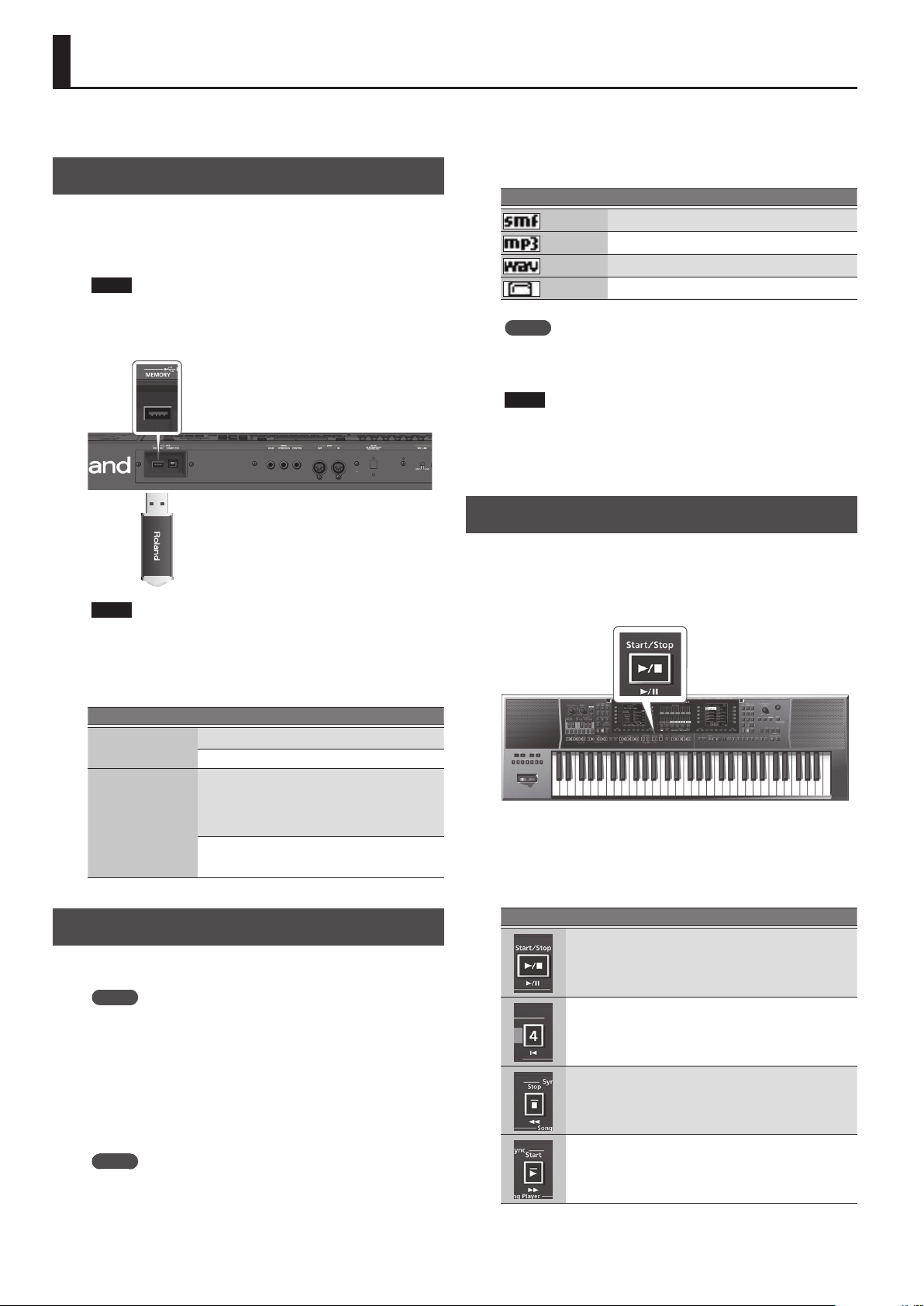
38
Using the E-A7 as a Song Player
Here we explain how to play back songs in the SMF, WAV, or MP3
formats supported by the E-A7.
Preparing to Use the E-A7 as a Song Player
When shipped from the factory, the E-A7 does not contain songs.
You’ll need to copy songs from your computer or other source.
1. Using your computer, copy the songs to a USB ash
drive (sold separately).
NOTE
Use a USB ash drive sold by Roland. Operation is not guaranteed
if any other USB ash drive is used.
2. Connect the USB ash drive to the E-A7.
NOTE
Carefully insert the USB ash drives all the way in—until it is
rmly in place.
File types supported by the E-A7
File type Extension Format
SMF
.mid 0 or 1
.kar
Audio le
.mp3
MPEG-1 Audio Layer 3
Sampling rate 44.1kHz
Bit rate 32/40/48/56/64/80/96/112/128
/160/192/224/256/320 kbps
VBR (Variable Bit Rate)
.wav
16-bit linear
Sampling frequency 44.1 kHz
Stereo/mono
Selecting a Song
Here we explain how to select a song that’s saved on a USB ash
drive.
MEMO
By using the File Utility function Copy (p. 43), SMF les from a USB
ash drive can be copied to internal storage.
1. Connect your USB ash drive (sold separately) to the
E-A7.
After several seconds, the contents of the USB ash drive are
recognized in the screen as external storage.
2. Press the Mode [Song] button.
The Song List screen appears.
MEMO
Each time you press the Mode [Song] button, the contents of the
list switch between Internal Storage and External Storage.
For this example, make the display show External Storage.
3. Use the direct buttons to select the song that you want
to play back.
As necessary, use the function buttons to switch pages.
The icon at the left of the name indicates the le type.
Icon Explanation
SMF
Audio (mp3)
Audio (WAV)
Folder
MEMO
When you use a direct button to select a folder, you’ll enter that
folder.
To exit a folder, press “Up” folder ([L1] button).
NOTE
If the le name uses double-byte characters, the name might be
displayed incorrectly or the le might not be recognized. In this
case, rename the le using single-byte alphanumeric characters.
4. Press the [Exit] button to return to the main screen.
Playing Back a Song
1. Select a song (p. 38).
2. Press the [Start/Stop] (
s
) button to start playback.
The [Start/Stop] (
s
) button indicator blinks, and the song starts
playing.
3. Press the [Start/Stop] (
s
) button once again to pause
song playback.
The [Start/Stop] (
s
) button goes dark.
To resume playback, press the [Start/Stop] (
s
) button once again.
You can use the following buttons to control the playback.
Button Explanation
Starts/pauses song playback.
Stops song playback and returns to the beginning of the song.
Rewinds the song.
Fast-forwards the song.
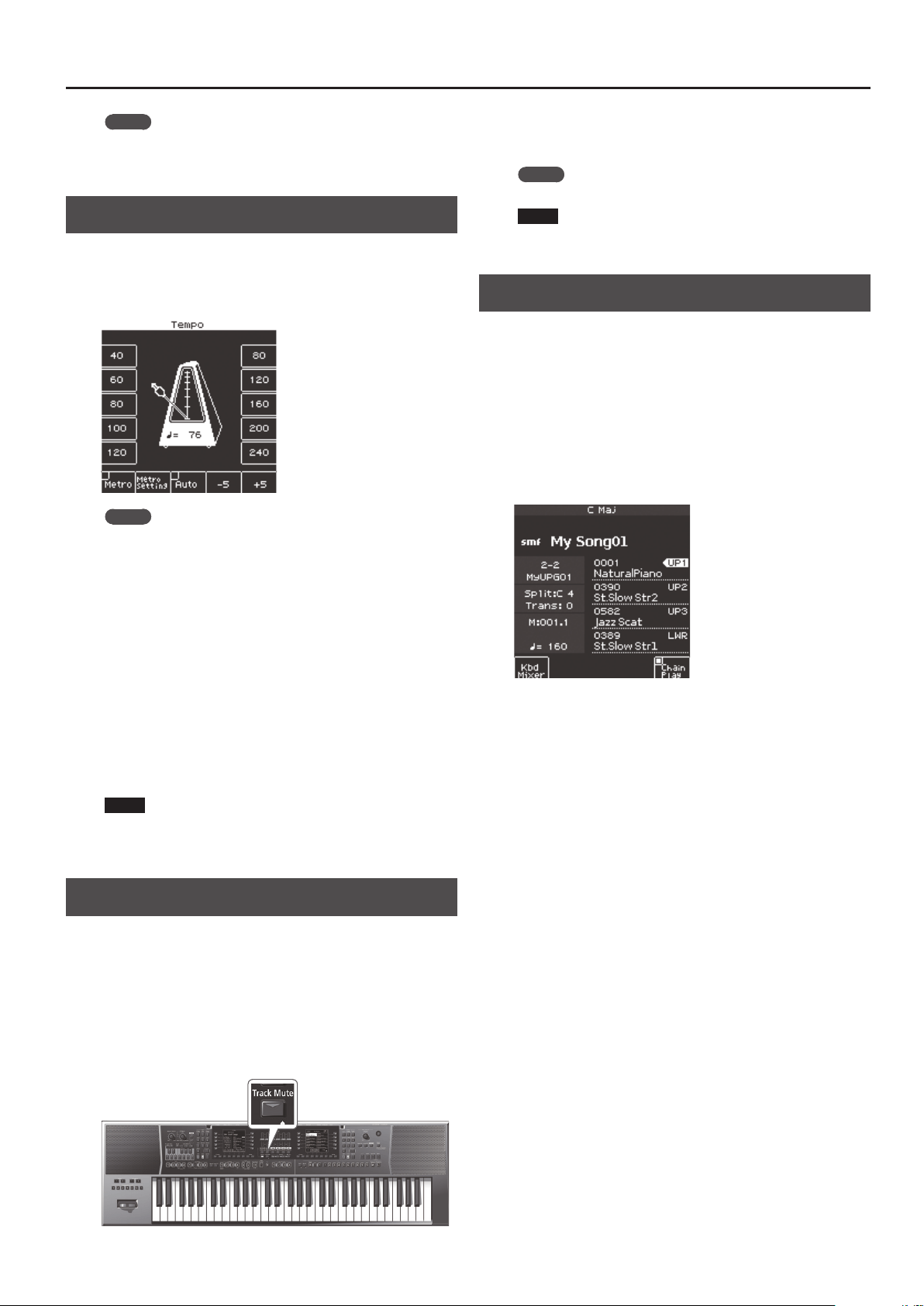
39
Using the E-A7 as a Song Player
MEMO
If you select the next song during playback, the [Enter] button
lights.
Press the [Enter] button to start the next song.
Changing the Song’s Tempo
Here’s how to change the tempo of the song.
1. Use the Tempo [-] [+] buttons.
The tempo screen appears, allowing you to watch the current tempo
setting while you increase or decrease it.
MEMO
5 If the Balance LED located beside the [Balance/Value] knob
is unlit, you can use the [Balance/Value] knob to change the
tempo while the Tempo screen is open (p. 15).
5 You can specify the tempo by pressing the [Tap] button at the
desired tempo (Tap Tempo). Press the button three or more times
at quarter-note intervals of the tempo that you want to specify.
* You can’t use this when playing back an audio le.
5 You can specify the tempo using the direct buttons located
beside the tempo value shown in both sides of the tempo screen.
5 To return to the original tempo specied for the Song, press both
of the Tempo [-] [+] buttons simultaneously.
5 By using the function buttons that correspond to “-5” and “+5”
you can change the tempo in steps of ±5.
5 If you’re playing an audio le (WAV, MP3), you can change the
tempo (playback speed) in a range of 75%–125%.
5 In the case of a song, Tempo [Lock] cannot be used.
NOTE
If you change the playback speed of a WAV or MP3 le to a tempo
that’s close to the upper or lower limit, the sound quality may be
adversely aected.
Muting a Selected Track (Track Mute)
You can mute a specic track of an SMF (Track Mute).
With the factory settings, track 4 (channel 4) is muted, but you are
free to change this.
&
“Selecting the Track to Mute” (p. 25)
1. Select an SMF song (p. 38).
2. Press the [Start/Stop] (
s
) button to start playback.
3. Press the [Track Mute] button to make the indicator
light.
The Track Mute function turns on.
4. Press the [Track Mute] button once again to make the
button go dark.
This cancels Track Mute.
MEMO
You can also use the Ending [1] button for Track Mute.
NOTE
You can’t use the Track Mute function with an audio song (WAV,
MP3).
Playing Back All Songs Consecutively
Here’s how to consecutively play all the songs in the selected folder.
Using the Chain Play function
1. Use the direct buttons to select the folder that contains
the songs you want to hear.
2. Use the direct buttons to select the song that you want
to play rst.
3. Press the [Exit] button to return to the main screen.
4. Press the [F5] (Chain Play) button to add a check mark.
5. Press the [Start/Stop] (
s
) button to start consecutive
playback.
The selected song and the following songs will all play back.
Press the [Enter] button to select the next song immediately.
Exiting the Chain Play function
1. If the main screen is not shown, long-press the [Exit]
button.
2. Press the [F5] (Chain Play) button to clear the check
mark.
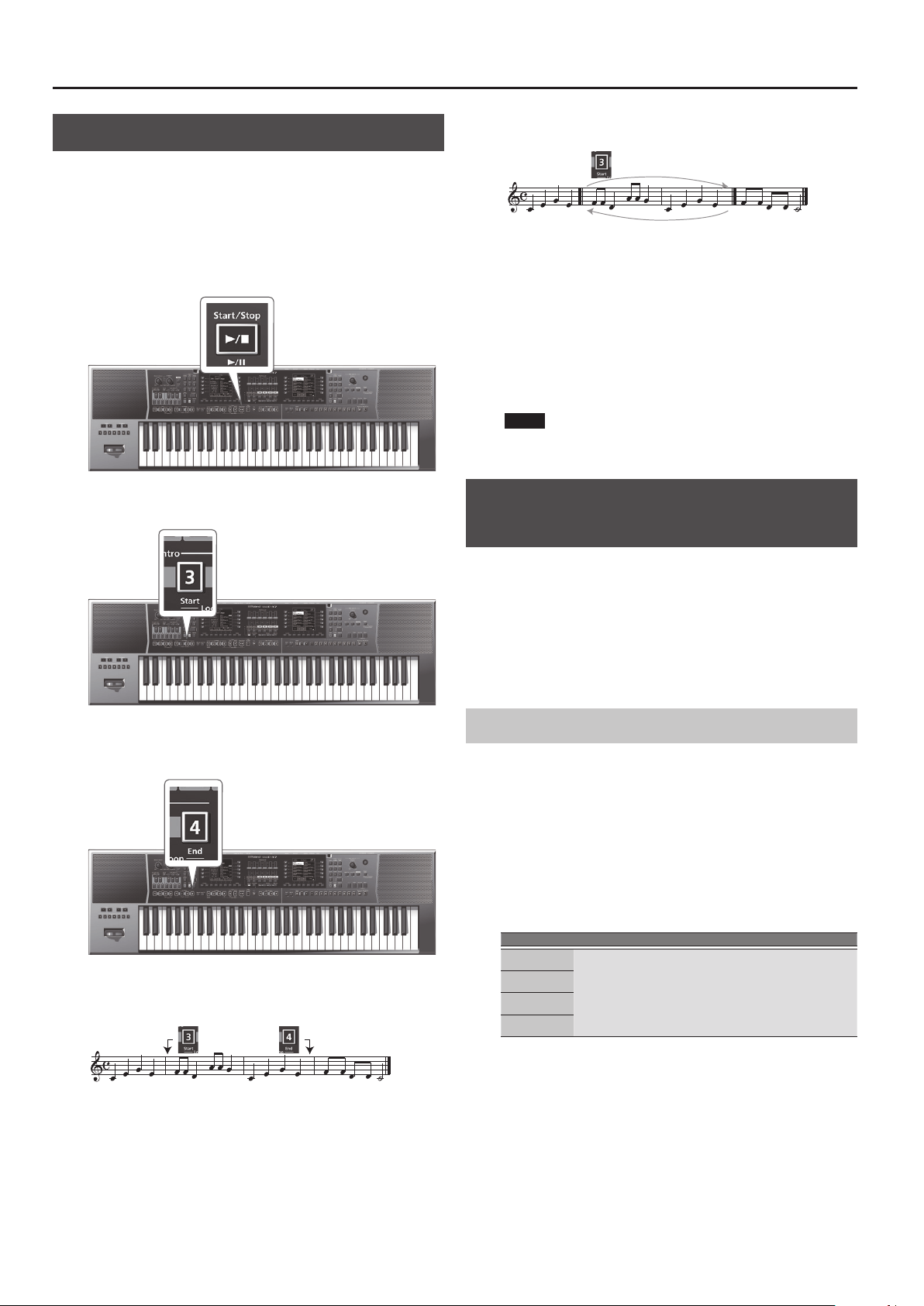
40
Using the E-A7 as a Song Player
Loop Function
The Loop function lets you specify a region of a song and play it back
repeatedly. You can use this function for both SMF and audio les.
This is also a convenient way to practice dicult phrases in a song.
Specifying the loop region
1. Select the song that you want to play back (p. 38).
2. Press the [Start/Stop] (
s
) button to start playback.
3. At the point where you want to start loop playback,
press the Intro [3] (Loop Start) button.
The Variation [3] button blinks, and the start position is set.
4. When you reach the point at which you want to end
loop playback, press the Intro [4] (Loop End) button.
The Intro [4] button is lit. (The Intro [3] button continues blinking.)
The loop region has now been set.
For example, the loop region might be as follows.
[3] [4]
: :
[3]
Blinking Lit
5. To turn loop playback on, press the Intro [3] button to
make it light.
With these settings, the region you’ve specied above will play
repeatedly.
[3] [4]
: :
[3]
Lit
6. Press the Intro [3] button once again to make it blink,
turning loop playback o.
In this state, the specied loop region has not been erased. The song
plays to the end as usual.
If you press the Intro [3] button once again in this state, the button
lights and loop playback is re-enabled.
7. If you want to delete the markers for the specied
region, press the Intro [4] button.
The Intro [3] and [4] buttons go dark, and the specied loop
region is deleted.
NOTE
The specied loop region is deleted if you play back a dierent
song or power-o the E-A7.
Using the Mark and Jump Function
(SMF Songs Only)
The E-A7 lets you “mark” up to four (storable) locations in the
current song (SMF) and then “jump” to a stored location.
Use the Variation [1]–[4] buttons to select the four “mark and jump”
locations.
When you select a song that contains markers, the Variation [1]–[4]
buttons are lit.
If you select a song that does not contain markers, the Variation [1]–
[4] buttons are unlit.
Here’s how to specify the mark and jump locations.
Creating/Deleting Markers
1. Load an SMF song.
&
“Selecting a Song” (p. 38)
2. Open the “SMF Mark & Jump”:
You have two ways to do it:
a. Long-press the VARIATION [1]–[4] button.
b. Press [MENU] button and by the dial select the “Smf Mark
Jump Edit” page.
As you can see there are four markers:
Parameter Value Explanation
Mark 1
OFF, 1–measures
in the song
5 OFF
No markers (Variation [1]–[4] buttons
unlit)
5 Number of measures in the song
Measure to which you want to jump
Mark 2
Mark 3
Mark 4
The following operation can be performed whether the song is
playback or not.
3. Use the Variation [1]–[4] buttons or the direct buttons
to select the marker that you want to assign.
4. Press the [
s
] button to play back the song, and listen
until you reach the location at which you want to assign
a marker.
5. Use the direct button to press the “Mark Set.”
A mark is assigned to the current measure number.
The indicator of the corresponding button (Variation [1]–[4]) lights,
and the following mark is selected.
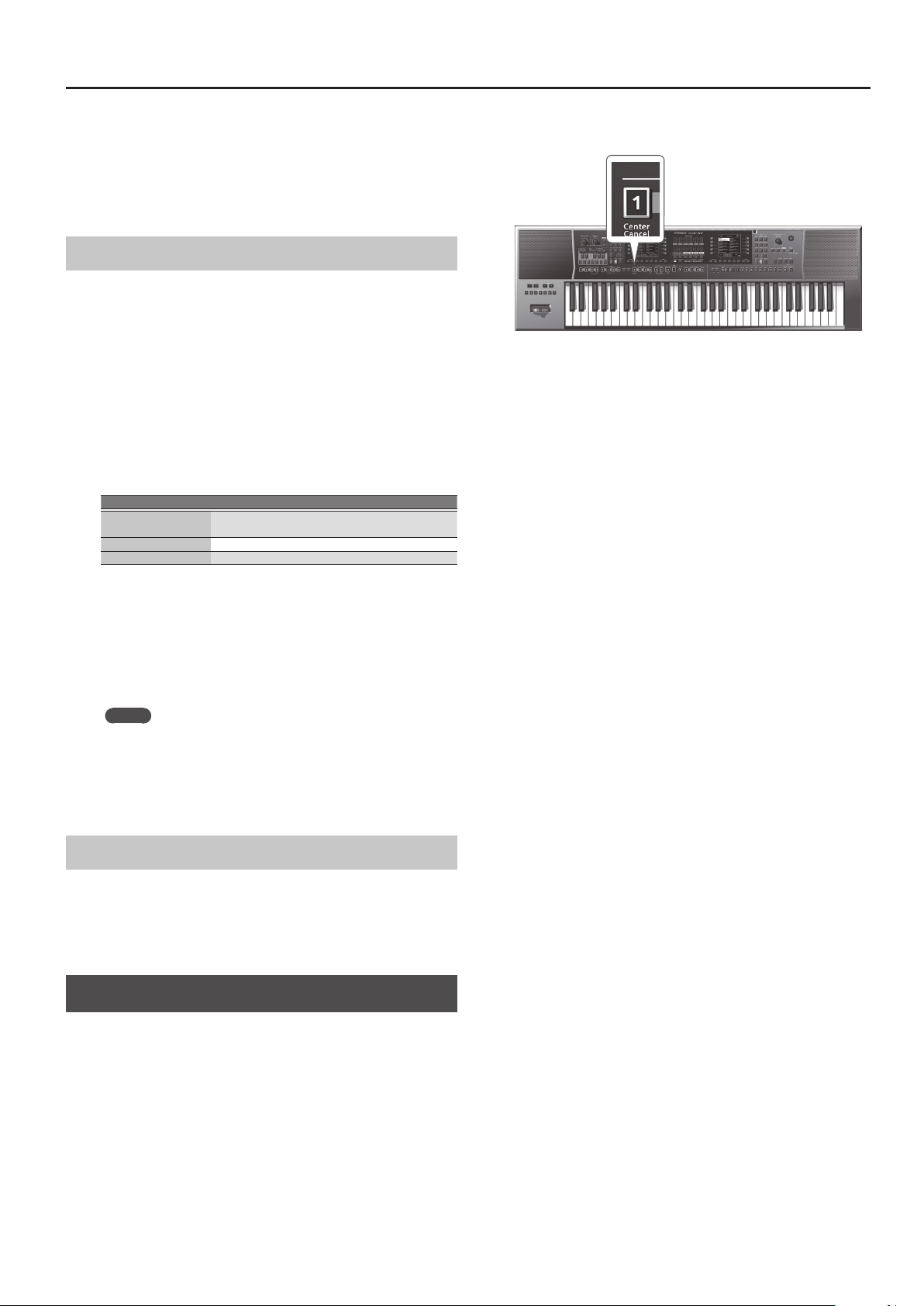
41
Using the E-A7 as a Song Player
6. To assign the next marker, repeat steps 3–5.
7. Press the [
s
] button to stop song playback.
8. To delete a marker, use the function buttons to select
“Mark O.”
The indicator of the corresponding button (Variation [1]–[4]) goes
dark.
Saving a Song that Contains Markers
1. Specify a marker location in the song.
&
“Creating/Deleting Markers” (p. 40)
2. Open the “Smf Mark Jump Edit” page.
There are two ways to do this.
a. Long-press a VARIATION [1]–[4] button.
b. From “MENU,” select the “Smf Mark Jump Edit” page.
3. Press the [Option] button.
4. Use the direct buttons to select the “Save Song.”
5. Use the direct buttons and function buttons to select
the save-destination.
Button Explanation
[R1] (Int/Ext)
Switches between Internal Storage and External
Storage.
[F4] [F5] (Page) Switch pages.
[L1] Up folder Exits the folder.
6. Press the [Enter] button.
Assign a name.
&
For details on how to assign a name, refer to “Assigning Names”
(p. 16).
If you decide to cancel, press the [Exit] button.
7. Press the [F5] (Exec) button.
The song is saved.
MEMO
If there is a le with the same name as the name you entered, a
screen asks you to conrm the overwrite.
If you want to save, select “YES” to replace it with the le you
renamed.
If you decide to rename the le, select “NO” and return to the
page where you can rename the le.
Using Markers to Perform
1. Load an SMF song that contains markers.
&
“Selecting a Song” (p. 38)
2. Press the [
s
] button to play back the song.
3. Press a Variation [1]–[4] button to jump to the marker.
Center Cancel
Here’s how you can minimize the vocal or other sound that is heard
from the center position of an audio le (Center Cancel).
1. Select a song (p. 38).
2. Press the [Start/Stop] (
s
) button to start playback.
3. Press the Ending [1] (Center Cancel) button to make it
light.
The Center Cancel function turns on.
4. Press the Ending [1] (Center Cancel) button once again
to make the button go dark.
This turns Center Cancel o.
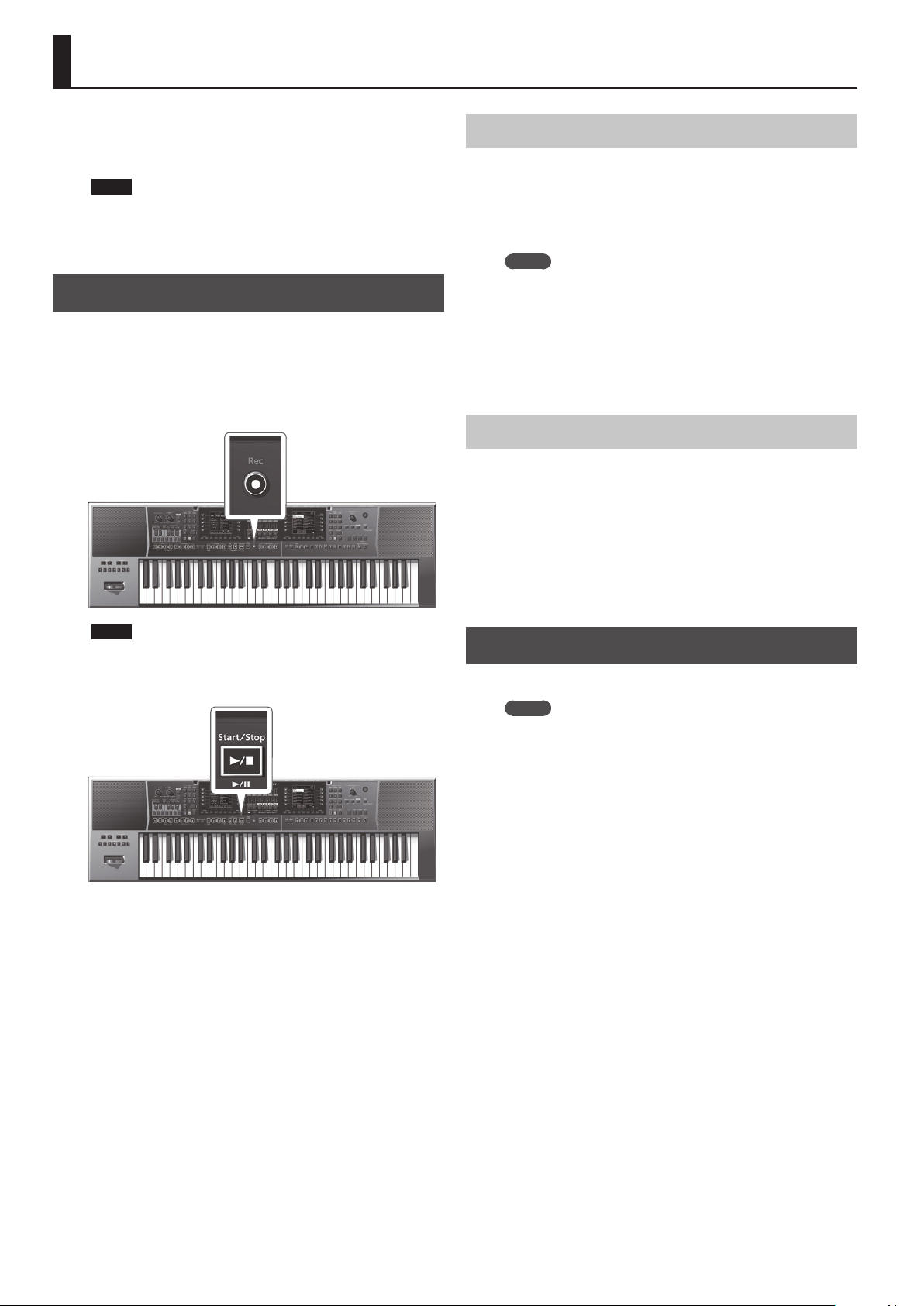
42
Recording and Playing Back a Performance
The E-A7 lets you record your performance on a USB ash drive (sold
separately).
The resulting audio le is saved in the “My Recordings” folder.
The recording format is WAV (not mp3).
NOTE
5 In order to record your performance, you’ll need a USB ash
drive.
5 Use a USB ash drive sold by Roland. We cannot guarantee
operation if you use any other USB ash drive.
Recording Audio (WAV Format)
1. Connect a USB ash drive to the E-A7.
2. Make preparations for recording.
5 Select the style or song that you want to use as accompaniment.
5 Make settings for the volume and eects.
3. Press the [Rec] button so it’s blink.
NOTE
If you pressed the [Rec] button by mistake, you can cancel by
long-pressing the button until it once again goes dark.
4. Press the [Start/Stop] (
s
) button.
The [Rec] button and [Start/Stop] (
s
) button light, the style or
song plays, and recording begins. Your playing on the keyboard is
recorded.
The main screen shows the recording time.
5. Press the [Rec] button or [Start/Stop] (
s
) button to
stop recording.
The style or song stops playing, and recording also stops. A screen
allowing you to assign a name appears.
Saving the Song
a. Assign a name as necessary.
&
For details on how to assign a name, refer to “Assigning
Names” (p. 16).
b. Use the function buttons to select “Exec.”
The recorded result is saved.
MEMO
5 If a le of the same name already exists on the USB ash drive,
you’ll be asked whether you want to overwrite it.
5 In this case, the older le is overwritten if you use the function
buttons to select “YES” (the older le disappears).
5 If you don’t want to overwrite the older le, select “NO” and
return to step a.
5 The audio le is saved on the USB ash drive in the “My
Recordings” folder.
Discarding the Recorded Content
If you are not satised with the recording, you can discard it without
saving.
a. In the screen at which you assign the name, press the [Exit]
button.
A conrmation screen asks whether you want to discard the
recording.
b. Use the function buttons to select “YES.”
The recorded content is discarded.
If you select “NO” at this point, you return to the naming screen.
Listening to the Recorded Content
1. Press the [Start/Stop] (
s
) button.
MEMO
5 You can change the volume of the recorded audio. Before
recording, adjust the “Rec Audio Level” value ([Menu]
0
“Global”
0
“Rec Audio Level”).
5 If you don’t want the start and end of recording to synchronize
with the accompaniment play/stop, turn o “Rec Audio Sync”
([Menu]
0
“Global”
0
“Rec Audio Sync”). If this is o, use the
[Rec] button to control recording start/stop.
5 It is not possible to overdub onto a WAV le.
5 If the USB ash drive is full, the message “Disk Full” appears and
recording stops. In this case, the data that had recorded up to
that point is not saved.
43
Using File Utility
Here you can perform operations for the les saved in the E-A7’s
internal storage and external storage (USB ash drive).
Displaying the File List
1. Press the [Menu] button.
2. Use the direct buttons to select “File Utility.”
The File List screen appears.
Button Explanation
[R1] (Int/Ext)
Switches between Internal Storage and External
Storage.
[F4] [F5] (Page) Switch pages.
[L1] (Up folder) Moves to the folder one level above.
3. Press the [Option] button.
The screen shows the functions that can be executed.
Function Explanation
Rename Renames a le or folder.
Copy Copies a le or folder.
Delete Deletes a le or folder.
Create Folder Creates a new folder.
4. Use the function buttons to select the function that you
want to execute.
Renaming a File or Folder (Rename)
1. In the File List screen ([Menu]
0
“File Utility”), press
the [Option] button.
2. Use the direct buttons to select “Rename.”
3. Use the direct buttons to select the le or folder that
you want to rename.
4. Press the [Enter] button.
5. Assign a name.
&
“Assigning Names” (p. 16)
6. Use the function buttons to select “Exec.”
The le is renamed.
Copying a File or Folder (Copy)
1. In the File List screen ([Menu]
0
“File Utility”), press
the [Option] button.
2. Use the direct buttons to select “Cop y.”
3. Use the direct buttons to select the le or folder that
you want to copy.
MEMO
By selecting multiple les or folders, you can copy them in a
single operation.
If you select [F1] (Select All), all les in the list are selected. Press
the button again to clear the selection.
4. Press the [Enter] button.
5. Use the direct buttons to select the copy-destination
folder.
6. Press the [Enter] button.
The copy is executed.
MEMO
If the copy-destination contains an identically named le or
folder, a conrmation message appears.
5 If you want to replace the le, select “ Ye s .”
5 If you decide to cancel, select “ No.”
Deleting a File or Folder (Delete)
1. In the File List screen ([Menu]
0
“File Utility”), press
the [Option] button.
2. Use the direct buttons to select “Delete.”
3. Use the direct buttons to mark the les or folders that
you want to delete.
MEMO
You can select multiple les.
If you choose [F1] (Select All), all les are selected. Press the
button again to clear the selection.
4. Press the [Enter] button.
A conrmation message appears.
5. To execute, use the function buttons to select “ Ye s .”
The deletion is executed.
If you decide to cancel, select “ No.”
Creating a New Folder (Create Folder)
1. In the File List screen ([Menu]
0
“File Utility”), press
the [Option] button.
2. Use the direct buttons to select “Create Folder.”
3. Assign a name to the newly created folder.
&
“Assigning Names” (p. 16)
4. Use the function buttons to select “Exec.”
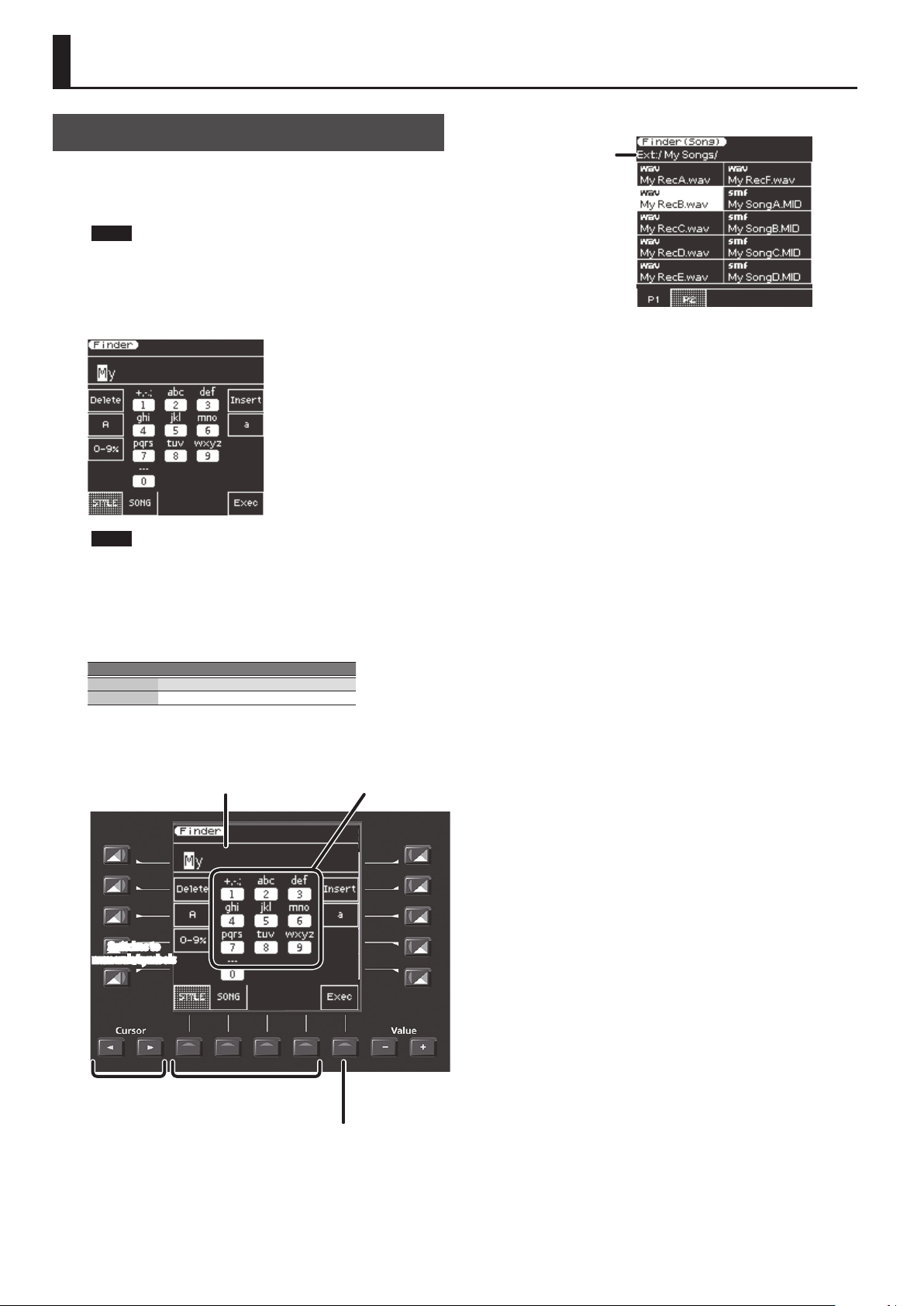
44
Searching for a Song/Style (Finder)
Searching for a Song/Style
The E-A7 has a search function that lets you search for songs or styles
in internal storage or external storage (USB ash drive). Since you can
search for songs or styles even while performing on the E-A7, you
can prepare for the next song without making the audience wait.
NOTE
You can’t search for preset styles or songs.
&
For more about preset styles and songs, refer to “Reference
Manual” (PDF).
1. Press the [Finder] button.
The Finder screen appears.
NOTE
If the le name contains double-byte characters or single-byte
“kana” characters (i.e., Japanese), the le name might not be
displayed correctly, or the le might not be recognized. In this
case, rename the le using single-byte alphanumeric characters.
2. Use the function buttons to select what you are
searching for.
Button Search target
[F1] button Style
[F2] button Song
3. Enter the characters you’re searching for.
Select the search targetMove the cursor
Switches to
uppercase characters
Switches to
numerals/symbols
Switches to lowercase
characters
Inserts one
character
Deletes one
character
Change the
character at the
cursor position
Indicates the characters
that can be entered
using the Tone buttons.
Executes
search
Enter the characters
you’re searching for.
4. Press the [F5] (Exec) button.
Files matching the character string you entered are shown.
Indicates the path of the
le at the cursor
INT: / (internal memory)
EXT: / (USB ash drive)
When searching for songs, the SMF, WAV, and MP3 icons indicate the type
of le.
5. Use the direct buttons to select a le.
Switch pages as necessary.
6. If you press the [Start/Stop] (
s
) button, the selected
song (style) plays.
7. To close the list, press the [Exit] button.
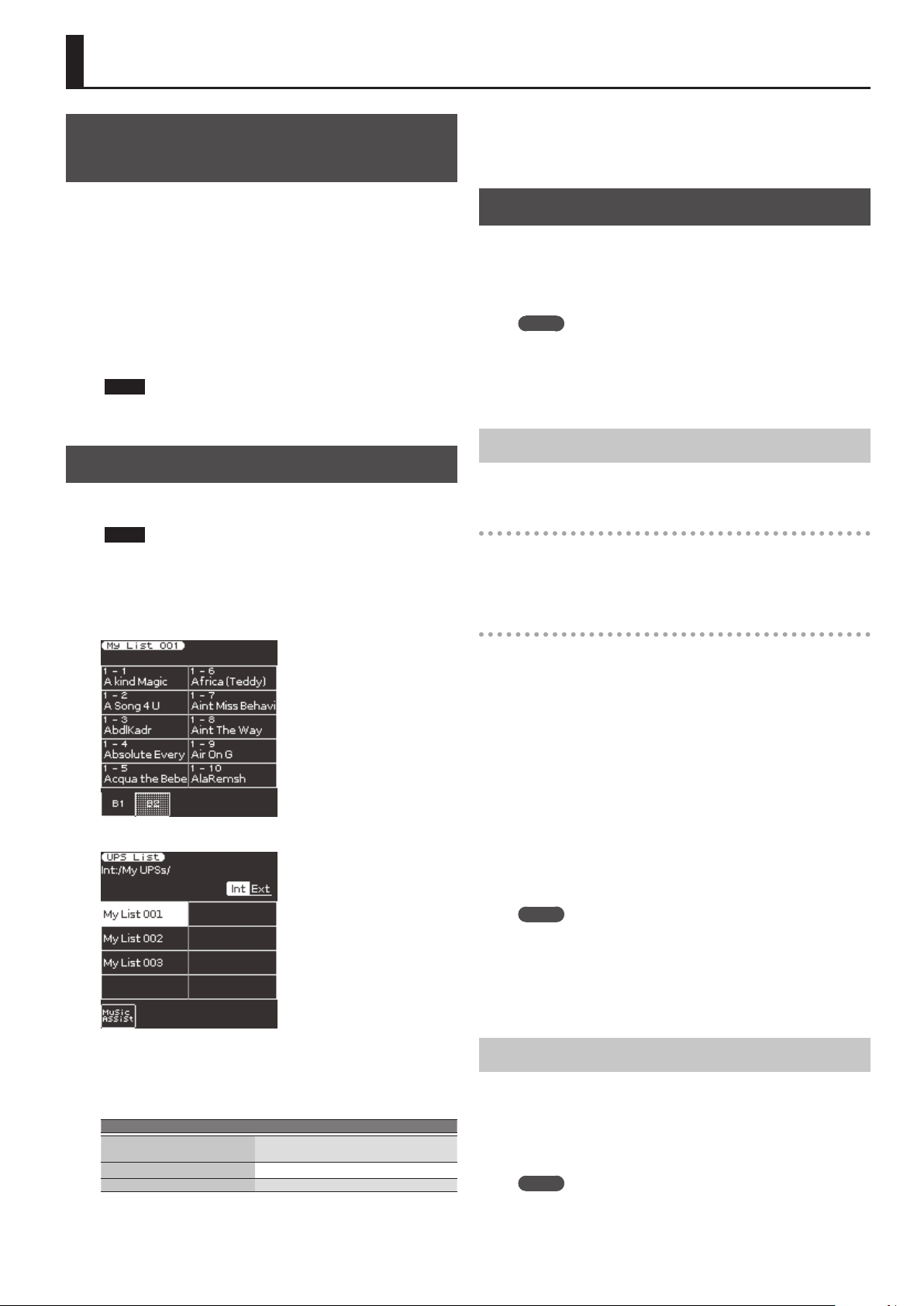
45
User Program (UPG)
User Programs (UPG) and User Program
Sets (UPS)
Style and song reference data, and all settings that are loaded
together with this data (such as the intro and ending status, and
the settings of the selected variation) are handled together as a unit
called a User Program (subsequently abbreviated as UPG).
Additionally, up to 100 UPGs that you create can be saved in a User
Program Set (UPS).
The E-A7 can load a UPS when it starts up, so that you’ll always be
able to use the User Program button to easily recall up to 100 UPGs.
If you accumulate more than 100 UPGs, you can create a new UPS
and save it in internal storage or external storage.
This means that by using a dierent UPS, you can have an unlimited
number of UPGs.
NOTE
The E-A7 has a user program set called “Music Assistant.”
This set cannot be erased or edited.
Loading a UPS
By loading a UPS, you can then use the E-A7’s User Program buttons
and direct buttons to recall UPGs.
NOTE
When you load a UPS, any changes that you had made to the
previously loaded UPS will be lost. If you want to keep the
changes you made, save the UPS (p. 48).
1. Press the UPG/UPS List [L ] button.
The UPGs in the currently loaded UPS are shown in the list.
Press this again to see the UPS list.
Subsequently, the UPG list screen and UPS list screen will alternate
each time you press the button.
2. In the UPS list screen, select the UPS that you want to
load.
Button Explanation
[R1] (INT/EXT)
Switches between Internal Storage and
External Storage (USB ash drive).
[F1] (Music Assistant) Loads Music Assistant.
[F4] [F5] Switch pages.
3. Use the direct buttons to select a UPS.
The UPS is loaded.
When loading is completed, the UPG list screen is shown, allowing
you to select a UPG.
You can also use the User Program [1]–[10] buttons to select UPGs
from the loaded UPS.
Recalling the UPG
Up to 100 UPGs can be stored in a UPS.
These UPGs are organized by Bank and Number. There are ten banks,
1–10, and each bank contains numbers 1–10.
This means that you’ll recall a UPG by specifying it in the range from
1-1 through 10-10.
MEMO
As the sole exception to this, Music Assistant contains more than
100 UPGs.
You can select a UPG either by using the User Program buttons
directly, or by making a selection in the screen.
Direct Selection with the UPG Buttons
Selecting a UPG of a dierent number from the same
bank
Press the UPG [1]–[10] button corresponding to the number that
you want to select.
The number button of the selected UPG is lit.
Selecting a UPG from a dierent bank
Using the Bank [-] [+] buttons to switch banks
1. Use the Bank [-] [+] buttons to switch banks.
The UPG is not recalled until you enter the number.
2. Use the UPG [1]–[10] buttons to enter the number.
The UPG is recalled when you enter the number.
Using the Bank [B] button to directly specify the bank
1. Press the Bank [B] button.
Bank [B] lights, and the UPG [0]–[9] buttons are in Bank Input mode.
If you decide to cancel, press the Bank [B] button once again.
2. Use the UPG [1]–[10] buttons to enter the bank.
The bank is entered, and Bank Input mode ends.
3. Use the UPG [1]–[10] buttons to enter the number.
The UPG is recalled.
MEMO
5 In the case of Music Assistant, use the Bank [-] [+] buttons to
switch banks. If you’re specifying the bank directly, you can switch
banks as far as bank 10.
5 If you want to change the bank or number of the UPG that will be
recalled, use “Move UPG” or “Copy UPG” to change the order of
the UPGs within the list.
Selecting from the UPG List Screen
1. Press the UPG/UPS List [L ] button.
The UPG list screen appears.
2. Use the direct buttons to select the UPG.
When you select a UPG, the cursor moves and the UPG is recalled
immediately.
MEMO
You can use the function buttons to switch banks.
46
User Program (UPG)
Saving Settings as a User Program
Here’s how to save the current settings as a user program (UPG).
1. Select a style or song, and make the desired settings.
For example, you can assign a sound of your choice to the keyboard
part, turn on the Intro [1] button, or change the User Program Edit
settings.
2. Press the [Write] button.
If there is a UPG of the same name, a message asks whether you want
to overwrite it.
Choose “YES” to overwrite, or choose “No” to see the naming
screen.
3. Assign a name to the UPG that you’re saving.
&
“Assigning Names” (p. 16)
4. Use the function buttons to select “Exec.”
This UPG is added to the end of the UPG list.
MEMO
If the number of UPGs exceeds 100, a new UPS is created
automatically. If you modify a Music Assistant UPG and then save,
a new UPS is always created automatically.
NOTE
If you write a user program when One Touch is selected (One
Touch [1]–[4] button lit), the One Touch settings are saved in the
user program (including the Pad settings).
Recalling My Setup
When you turn on the power, a special UPG called My Setup is always
recalled.
You can also use the [My Setup] button to instantly return to the
settings immediately after startup.
It is convenient to store your most frequently-used settings in My
Setup.
Saving Settings as My Setup
Here’s how to save the current settings as My Setup.
1. Select a style or song, and make the desired settings.
For example, assign the desired tones to the keyboard part, turn on
the Intro [1] button, or modify the User Program Edit settings.
2. Long-press the My Setup [M] button.
A screen where you can save My Setup appears.
5 To save, select “YES.”
5 If you decide not to save, select “NO.”
NOTE
When you execute the save operation, the previous My Setup is
overwritten and lost. If you don’t want to lose it, save the UPG
while My Setup is recalled.
Other Functions Related to the UPS List
1. Press the UPG/UPS List [L ] button to access the UPS list.
The UPS List screen appears.
If the UPS list is not displayed, press the button once again.
2. Press the [Option] button.
The screen changes, and the functions that can be executed are
shown.
Function Explanation
Rename UPS Renames the UPS.
Delete UPS Deletes the UPS.
Make New UPS Creates a new (empty) User Program Set (UPS) le.
Copy UPS Copies the UPS.
3. Use the direct buttons to select a function.
Subsequent steps dier depending on the function that you select.
Renaming a User Program Set
(UPS) (Rename UPS)
1. Press the [Option] button.
2. Use the direct buttons to select “Rename UPS.”
3. Use the direct buttons to select the UPS that you want
to rename.
4. Assign a name to the UPG that you want to save.
&
“Assigning Names” (p. 16)
5. Use the function buttons to select “Exec.”
A conrmation message appears.
MEMO
If there is an identically-named le, you will be asked whether you
want to overwrite it.
5 If you want to overwrite it, select “YES.”
5 If you don’t want to overwrite it, select “NO,” and you’ll return
to the rename page.
Deleting a User Program Set (UPS) (Delete UPS)
1. Press the [Option] button.
2. Use the direct buttons to select “Delete UPS.”
3. Use the direct buttons to select the UPS that you want
to delete.
A conrmation message appears.
4. Use the function buttons to select “YES.”
The user program set (UPS) is deleted.
If you decide not to delete it, select “NO.”
MEMO
When a UPS is edited, an “*” appears at the left of the name.
If you want to save the edited UPS, refer to “Saving an Edited
User Program Set (Save UPS)” (p. 48).
Creating a New User Program Set
(UPS) (Make New UPS)
Here’s how to create a new (empty) UPS le.
1. In step 3 of “Other Functions Related to the UPS List”
(p. 46), select “Make New UPS.”
A screen where you can assign a name for the new UPS appears.
If you want to change the name, refer to “Assigning Names” (p. 16).
2. Use the function buttons to select “Exec.”
MEMO
If there is an identically-named le, you will be asked whether you
want to overwrite it.
5 If you want to overwrite it, select “YES.”
5 If you don’t want to overwrite it, select “NO,” and you’ll return
to the rename page.
NOTE
The UPS le is placed in the “My UPSs” folder. If this folder does
not exist, it is created automatically. The “My UPSs” folder exists
in both internal storage and external storage.
Copying a User Program Set (UPS) (Copy UPS)
1. Press the [Option] button.
2. Use the direct buttons to select “Copy UPS.”
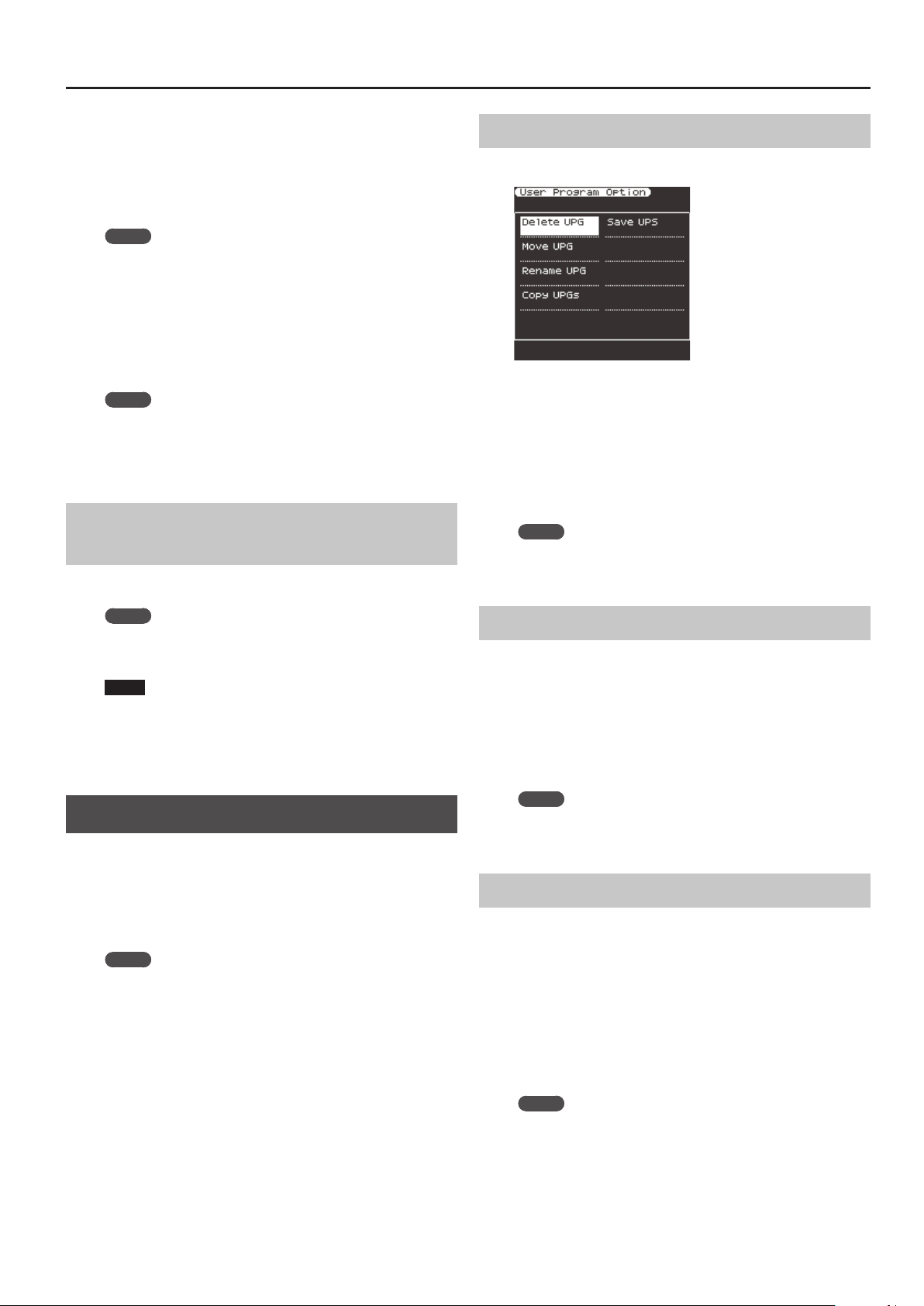
47
User Program (UPG)
3. Use the direct buttons to select the UPS that you want
to copy.
4. Press the [Enter] button.
5. Use the [R1] (Int/Ext) button to switch the copy-
destination between Internal Storage and External
Storage.
MEMO
The UPS le is placed in the “My UPSs” folder. If this folder does
not exist, it is created automatically. The “My UPSs” folder exists
in both internal storage and external storage.
6. Press the [Enter] button.
A conrmation message appears.
7. To execute, use the function buttons to select “ Ye s .”
The copy is executed.
If you decide to cancel, select the “ No.”
MEMO
If there is an identically-named le, you will be asked whether you
want to overwrite it.
5 If you want to overwrite it, select “YES.”
5 If you don’t want to overwrite it, select “NO,” and you’ll return
to the rename page.
Using a UPS File Created by the Roland BK
Series
UPS les created by the Roland BK series can be used by the E-A7. To
use such a le, place the UPS le in the “My UPSs” folder.
MEMO
If there is no “My UPSs” folder on the external storage (USB ash
drive), you should either format the USB ash drive on the E-A7,
or create a folder named “My UPSs.”
NOTE
5 If the loaded UPS contains more than 100 UPGs, only the rst 100
UPGs can be selected on the E-A7.
5 Once a UPS le has been used by the E-A7, it can no longer be
used by the BK series. We recommend that you make a backup of
the le.
Other Functions Related to the UPG List
You can use the following functions on UPGs.
5 Delete UPG
5 Move UPG
5 Rename UPG
5 Copy UPGs
5 Save UPS
MEMO
For UPGs when Music Assistant is loaded, only the Copy UPGs
function can be used.
Deleting a User Program (UPG) (Delete UPG)
1. Press the [Option] button.
2. Use the direct buttons to select “Delete UPG.”
3. In the UPG list, use the direct buttons to select the user
program (UPG) that you want to delete, and then press
the [ENTER] button.
A conrmation message appears.
4. Use the function buttons to select “YES.” (If you decide
not to delete, select “NO.”)
The user program (UPG) is deleted.
MEMO
When a UPS is edited, an “*” appears at the left of the name.
If you want to save the edited UPS, refer to “Saving an Edited
User Program Set (Save UPS)” (p. 48).
Moving a User Program (UPG) (Move UPG)
1. Press the [Option] button.
2. Use the direct buttons to select “Move UPG.”
3. In the UPG list, select the user program (UPG) that you
want to move, and press the [ENTER] button.
4. Use the direct buttons and the function buttons to
move the user program (UPG) to the desired location,
and then press the [Enter] button.
MEMO
When a UPS is edited, an “*” appears at the left of the name.
If you want to save the edited UPS, refer to “Saving an Edited
User Program Set (Save UPS)” (p. 48).
Renaming a User Program (UPG) (Rename UPG)
1. Press the [Option] button.
2. Use the direct buttons to select “Rename UPG.”
3. In the UPG list, select the user program (UPG) that you
want to rename, and press the [ENTER] button.
The rename screen appears.
4. Assign a name.
&
“Assigning Names” (p. 16)
5. Use the function buttons to select “Exec.”
The UPG is renamed.
MEMO
When a UPS is edited, an “*” appears at the left of the name.
If you want to save the edited UPS, refer to “Saving an Edited
User Program Set (Save UPS)” (p. 48).
48
User Program (UPG)
Copying a User Program (UPG) (Copy UPGs)
1. In the UPG list screen, press the [Option] button.
2. Use the direct buttons to select “Copy UPGs.”
A screen appears in which you can select the copy-source UPG.
3. Use the direct buttons and function buttons to select
the UPG that you want to copy.
MEMO
5 You can select multiple UPGs and copy them in a single
operation.
If you select [F1] (Mark All), all UPGs in the list are selected. If you
press this button again, all selections are cleared.
5 In the case of Music Assistant, the rst 100 UPGs are selected.
4. Press the [Enter] button.
You can also copy a UPG to a dierent UPS.
In this case, perform the copy operation and then press the UPG/UPS
List [L ] button to access the UPS list; then load the copy-destination
UPS as described in “Loading a UPS” (p. 45).
5. Press the [Option] button.
6. Use the direct buttons to select “Paste.”
7. Use the direct buttons to select the location where you
want to paste.
The program is pasted in the UPG location that you select. If you
want to paste the program at the end of the list, execute this
operation without selecting a paste location (without selecting a
UPG).
8. Press the [Enter] button.
The selected UPG(s) are pasted.
MEMO
5 If the copy-destination contains more than 100 UPGs, you won’t
be able to paste. Either reorganize the les, or paste to a dierent
UPS.
5 When a UPS is edited, an “*” appears at the left of the name.
If you want to save the edited UPS, refer to “Saving an Edited
User Program Set (Save UPS)” (p. 48).
Saving an Edited User Program Set (Save UPS)
1. In the UPG list screen, press the [Option] button.
2. Use the function buttons to select “Save UPS.”
A message will conrm that the data has been saved.
MEMO
If you decide not to save the edited UPS, and you exit the
screen by pressing the [Exit] button or in some other way, a
conrmation screen asks whether you want to save the changes
you made.
5 Use the function buttons to select “YES,” and save the
modied content.
5 If you don’t want to save, select “NO.”
Locking the UPG Settings
The E-A7 lets you lock several settings so that they will not be
changed even if you select a dierent UPG.
1. Press the UPG [Lock] button to make it light.
To cancel, press the UPG [Lock] button once again to make it go
dark.
Parameters that can be locked
1. Long-press the UPG [Lock] button.
The UPG Lock Setting screen appears.
2. Use the direct buttons to select the items that you want
to lock.
3. Use the Value [-] [+] buttons to turn the item on/o.
NOTE
Each style has its specied tempo, but if the tempo setting is
locked, the tempo will not change even if another style (of a
dierent tempo) is selected.
If the E-A7’s Tempo Lock is turned on, the tempo is maintained
even if the UPG’s Tempo lock is o.
MEMO
These settings are automatically saved in the Global parameters
when you exit the screen.
49
Various Settings (Menu)
By pressing the E-A7’s [Menu] button you can access various settings
and functions.
The menu contains the following items.
For details on the items in the menu, refer to the reference manual.
1. Press the [Menu] button to make it light.
The Menu screen appears.
2. Use the direct buttons to select a function or parameter
group.
Switch pages as necessary.
Group Explanation
Global Make settings for the entire E-A7 or for the system.
User Program Edit Make User Program settings.
One Touch Setting Access the One Touch Setting screen.
Sampling Menu Access sampling-related items.
Style Composer
Access items related to Style Composer.
Style Composer is a function that creates user styles.
Makeup Tools
Access items related to Makeup Tools.
Makeup Tools are functions for easily editing a style or
SMF.
SMF Mark&Jump
Access the SMF Mark&Jump function setting screen
(p. 40).
Lyrics
Allow lyric data to be displayed on the E-A7 (limited to
SMF or mp3 les that contain lyric data).
Mastering Tools
Adjust the compressor and equalizer that are applied
to the output.
MIDI Make MIDI-related settings.
File Utility
Perform operations on the les that are saved in the
E-A7’s internal storage and external storage (p. 43).
Utility
Perform operations for the entire E-A7 (such as
initialization and backup).
3. In the screen that appears after you make the selection,
edit the parameters or execute the command.
MEMO
5 Press the [Exit] button once to return to the next higher level.
5 Long-press the [Exit] button to return to the Main screen.
50
Main Specications
Roland E-A7: Arranger Keyboard
Key 61 keys (with velocity)
Power Supply AC adaptor
Current Draw 1,500 mA
Rated Power
Output
2 x 12 W
Dimensions
1,045 (W) x 318 (D) x 136 (H) mm
41-3/16 (W) x 12-9/16 (D) x 5-3/8 (H) inches
Weight
7.9 kg
17 lbs 7 oz
Accessories
Owner’s manual
Music rest
AC adaptor
Power cord (for AC adaptor)
Options
Keyboard Stand (*1): KS-18Z
Pedal Switch: DP series, FS-5U
Expression Pedal: EV-5
USB Flash Memory (*2)
*1 When using the KS-18Z, ensure that the height of the unit is
one meter or lower.
*2 Use USB Flash Memory (supports USB 2.0 Hi-Speed Flash
Memory) sold by Roland. We cannot guarantee operation if
other products are used.
* In the interest of product improvement, the specications and/or appearance of this unit are subject to change without prior notice.

51
Index
A
AC adaptor . . . . . . . . . . . . . . . . . . . . . . . 9
Accompaniment . . . . . . . . . . . . . . . . . 21
Arranger Setting . . . . . . . . . . . . . . . . . 14
Audio
Recording . . . . . . . . . . . . . . . . . . .
42
Audio le . . . . . . . . . . . . . . . . . . . . . . . . 38
Auto O . . . . . . . . . . . . . . . . . . . . . 12, 13
B
Balance . . . . . . . . . . . . . . . . . . . . . . . . . . . 6
C
Center Cancel . . . . . . . . . . . . . . . . . . . . 41
Chain Play . . . . . . . . . . . . . . . . . . . . . . . 39
Chorus . . . . . . . . . . . . . . . . . . . . . . . . . . . 5
Computer . . . . . . . . . . . . . . . . . . . . 9, 11
Control . . . . . . . . . . . . . . . . . . . . . . . . . . . 9
Copy
File . . . . . . . . . . . . . . . . . . . . . . . . . .
43
Folder . . . . . . . . . . . . . . . . . . . . . . . 43
User Program . . . . . . . . . . . . . . . . 48
User Program Set. . . . . . . . . . . . . 46
Cord hook . . . . . . . . . . . . . . . . . . . . . . . . 9
Create
Marker . . . . . . . . . . . . . . . . . . . . . . .
40
Multisample . . . . . . . . . . . . . . . . . 30
Sound . . . . . . . . . . . . . . . . . . . . . . . 28
User Drum Kit . . . . . . . . . . . . . . . . 33
User Program Set. . . . . . . . . . . . . 46
User Tone . . . . . . . . . . . . . . . . . . . . 31
Create Folder . . . . . . . . . . . . . . . . . . . . 43
Create Multisample . . . . . . . . . . . . . . 30
D
DC IN jack . . . . . . . . . . . . . . . . . . . . . . . . 9
Delete
File . . . . . . . . . . . . . . . . . . . . . . . . . .
43
Folder . . . . . . . . . . . . . . . . . . . . . . . 43
Marker . . . . . . . . . . . . . . . . . . . . . . . 40
Multisample . . . . . . . . . . . . . . . . . 31
Sample . . . . . . . . . . . . . . . . . . . . . . 30
User Drum Kit . . . . . . . . . . . . . . . . 34
User Program . . . . . . . . . . . . . . . . 47
User Program Set. . . . . . . . . . . . . 46
User Tone . . . . . . . . . . . . . . . . . . . . 32
Demo . . . . . . . . . . . . . . . . . . . . . . . . . . . 13
Drum Inst . . . . . . . . . . . . . . . . . . . . . . . . . 4
Drum Kit . . . . . . . . . . . . . . . . . . . . . . . . . . 4
E
Edit
Multisample . . . . . . . . . . . . . . . . .
31
Sample . . . . . . . . . . . . . . . . . . . . . . 29
Eects . . . . . . . . . . . . . . . . . . . . . . . . . . . . 5
Export
User Drum Kit . . . . . . . . . . . . . . . .
34
User Tone . . . . . . . . . . . . . . . . . . . . 32
Expression . . . . . . . . . . . . . . . . . . . . . . . . 9
Expression Pedal . . . . . . . . . . . . . . . . . 11
External Storage . . . . . . . . . . . . . . . . . . 5
EXT IN jack . . . . . . . . . . . . . . . . . . . . . . . . 9
F
Favorite . . . . . . . . . . . . . . . . . . . . . . . . . . 20
File
Copy. . . . . . . . . . . . . . . . . . . . . . . . .
43
Delete . . . . . . . . . . . . . . . . . . . . . . . 43
Rename. . . . . . . . . . . . . . . . . . . . . . 43
File List . . . . . . . . . . . . . . . . . . . . . . . . . . 43
File Utility . . . . . . . . . . . . . . . . . . . . 43, 49
Finder . . . . . . . . . . . . . . . . . . . . . . . . . . . 44
Folder
Copy. . . . . . . . . . . . . . . . . . . . . . . . .
43
Create . . . . . . . . . . . . . . . . . . . . . . . 43
Delete . . . . . . . . . . . . . . . . . . . . . . . 43
Rename. . . . . . . . . . . . . . . . . . . . . . 43
G
Global . . . . . . . . . . . . . . . . . . . . . . . . . . . 49
H
Headphones . . . . . . . . . . . . . . . . . . . . . . 9
Hold . . . . . . . . . . . . . . . . . . . . . . . . . . . . . . 9
Hold Pedal . . . . . . . . . . . . . . . . . . . . . . . 11
I
Import
Sample . . . . . . . . . . . . . . . . . . . . . .
29
Input . . . . . . . . . . . . . . . . . . . . . . . . . . . 7, 9
Input EFX . . . . . . . . . . . . . . . . . . . . . . . . . 5
INPUT
L/MONO, MIC,
R jacks . . . . . . . . . . . . . . . . . . . . . . . . . . . .
9
Internal Storage . . . . . . . . . . . . . . . . . . . 5
K
Keyboard . . . . . . . . . . . . . . . . . . . . . . . . . 6
Keyboard Part
Volume . . . . . . . . . . . . . . . . . . . . . .
15
Keyboard Part Mixer screen . . . . . . 18
L
Left Display . . . . . . . . . . . . . . . . . . . . . . . 6
Load
UPS . . . . . . . . . . . . . . . . . . . . . . . . . .
45
User Drum Kit . . . . . . . . . . . . . . . . 34
User Tone . . . . . . . . . . . . . . . . . . . . 33
Lock
UPG Setting . . . . . . . . . . . . . . . . . .
48
Loop . . . . . . . . . . . . . . . . . . . . . . . . . . . . 40
Lower Hold . . . . . . . . . . . . . . . . . . . . . . 18
Lower part . . . . . . . . . . . . . . . . . . . . . . . 18
Lyrics . . . . . . . . . . . . . . . . . . . . . . . . . . . . 49
M
Makeup Tools . . . . . . . . . . . . . . . . . . . . 49
Mark and Jump . . . . . . . . . . . . . . . . . . 40
Marker . . . . . . . . . . . . . . . . . . . . . . . . . . . 40
Mastering Tools . . . . . . . . . . . . . . . 5, 49
Master Volume . . . . . . . . . . . . . . . . . . . . 6
Memory . . . . . . . . . . . . . . . . . . . . . . . . . . 5
Menu . . . . . . . . . . . . . . . . . . . . . . . . . 7, 49
Metronome . . . . . . . . . . . . . . . . . . . . . . 19
MFX (Multi Eects) . . . . . . . . . . . . . . . . 5
MIC-LINE select switch . . . . . . . . . . . . 9
Microphone . . . . . . . . . . . . . . . . . . 9, 10
MIDI . . . . . . . . . . . . . . . . . . . . . . . . . . . . . 49
MIDI Equipment . . . . . . . . . . . . . . . . . 10
MIDI port . . . . . . . . . . . . . . . . . . . . . . . . . 9
Move
User Program . . . . . . . . . . . . . . . .
47
Multisample
Create . . . . . . . . . . . . . . . . . . . . . . .
30
Delete . . . . . . . . . . . . . . . . . . . . . . . 31
Edit . . . . . . . . . . . . . . . . . . . . . . . . . . 31
Music Rest . . . . . . . . . . . . . . . . . . . . . . . 11
Mute
Track . . . . . . . . . . . . . . . . . . . .
24, 39
My Setup
Recall . . . . . . . . . . . . . . . . . . . . . . . .
46
Save . . . . . . . . . . . . . . . . . . . . . . . . . 46
N
Name . . . . . . . . . . . . . . . . . . . . . . . . . . . . 16
O
Octave Shift . . . . . . . . . . . . . . . . . . . . . 19
One Touch Lock . . . . . . . . . . . . . . . . . . 26
One Touch Memory . . . . . . . . . . . . . . 26
One Touch Setting . . . . . . . . . . . 26, 49
Save . . . . . . . . . . . . . . . . . . . . . . . . . 26
OUTPUT L/MONO, R jacks . . . . . . . . . 9
P
Pad . . . . . . . . . . . . . . . . . . . . . . . . . . . 6, 36
Pad Setting
Save . . . . . . . . . . . . . . . . . . . . . . . . .
37
Part Level . . . . . . . . . . . . . . . . . . . . . . . . . 7
Pedal CONTROL jack . . . . . . . . . . . . . . 9
Pedal EXPRESSION jack . . . . . . . . . . . . 9
Pedal HOLD jack . . . . . . . . . . . . . . . . . . 9
PHONES jack . . . . . . . . . . . . . . . . . . . . . . 9
Phrase . . . . . . . . . . . . . . . . . . . . . . . . . . . 36
Phrase Recording . . . . . . . . . . . . . . . . 37
Play back
Song. . . . . . . . . . . . . . . . . . . . . . . . .
38
Power . . . . . . . . . . . . . . . . . . . . . . . . . . . 12
Preset Memory. . . . . . . . . . . . . . . . . . . . 5
Preset Wave Memory . . . . . . . . . . . . . . 5
R
Recall
My Setup . . . . . . . . . . . . . . . . . . . .
46
UPG . . . . . . . . . . . . . . . . . . . . . . . . . 45
Recording
Audio . . . . . . . . . . . . . . . . . . . . . . . .
42
Rename
File . . . . . . . . . . . . . . . . . . . . . . . . . .
43
Folder . . . . . . . . . . . . . . . . . . . . . . . 43
User Program . . . . . . . . . . . . . . . . 47
User Program Set. . . . . . . . . . . . . 46
Reverb . . . . . . . . . . . . . . . . . . . . . . . . . . . . 5
Right Display . . . . . . . . . . . . . . . . . . . . . 7
S
Sample
Clean up . . . . . . . . . . . . . . . . . . . . .
35
Delete . . . . . . . . . . . . . . . . . . . . . . . 30
Edit . . . . . . . . . . . . . . . . . . . . . . . . . . 29
Import . . . . . . . . . . . . . . . . . . . . . . . 29
Truncate . . . . . . . . . . . . . . . . . . . . . 35
Sample Memory
Optimize . . . . . . . . . . . . . . . . . . . . .
35
Sampling . . . . . . . . . . . . . . . . . . . . . 7, 29
Sampling Menu . . . . . . . . . . . . . . . . . . 49
Save
My Setup . . . . . . . . . . . . . . . . . . . .
46
One Touch Setting . . . . . . . . . . . 26
Pad Setting . . . . . . . . . . . . . . . . . . 37
Song. . . . . . . . . . . . . . . . . . . . . . . . . 42
User Program Set. . . . . . . . . . . . . 48
Scale Tune . . . . . . . . . . . . . . . . . . . . . . . . 6
Screens . . . . . . . . . . . . . . . . . . . . . . . . . . 14
Search
Song. . . . . . . . . . . . . . . . . . . . . . . . .
44
Style . . . . . . . . . . . . . . . . . . . . . . . . . 44
Select
Song. . . . . . . . . . . . . . . . . . . . . . . . .
38
Style . . . . . . . . . . . . . . . . . . . . . . . . . 22
SMF . . . . . . . . . . . . . . . . . . . . . . . . . . . . . 38
SMF Mark&Jump . . . . . . . . . . . . . . . . . 49
Sold Footswitch . . . . . . . . . . . . . . . . . . 11
Song
Play back . . . . . . . . . . . . . . . . . . . .
38
Save . . . . . . . . . . . . . . . . . . . . . . . . . 42
Search . . . . . . . . . . . . . . . . . . . . . . . 44
Select . . . . . . . . . . . . . . . . . . . . . . . . 38
Tempo . . . . . . . . . . . . . . . . . . . . . . . 39
Song Control . . . . . . . . . . . . . . . . . . . . . 7
Song Player . . . . . . . . . . . . . . . . . . . . . . 38
Sound
Create . . . . . . . . . . . . . . . . . . . . . . .
28
Speakers . . . . . . . . . . . . . . . . . . . . . . . . . 13
Split . . . . . . . . . . . . . . . . . . . . . . . . . . . . . 18
Split Point . . . . . . . . . . . . . . . . . . . . . . . 18
Stand . . . . . . . . . . . . . . . . . . . . . . . . . . . . 11
Style . . . . . . . . . . . . . . . . . . . . . . . . . . 6, 21
Search . . . . . . . . . . . . . . . . . . . . . . . 44
Select . . . . . . . . . . . . . . . . . . . . . . . . 22
Tempo . . . . . . . . . . . . . . . . . . . . . . . 24
Style Composer . . . . . . . . . . . . . . . . . . 49
Style Control . . . . . . . . . . . . . . . . . . . . . . 7
Style Part
Volume . . . . . . . . . . . . . . . . . . . . . .
15
Style Part Mixer screen . . . . . . . . . . . 23
System Memory . . . . . . . . . . . . . . . . . . 5
T
Tempo
Song. . . . . . . . . . . . . . . . . . . . . . . . .
39
Style . . . . . . . . . . . . . . . . . . . . . . . . . 24
Tone . . . . . . . . . . . . . . . . . . . . . . . . . . . . 4, 7
Track
Mute . . . . . . . . . . . . . . . . . . . . . . . .
39
Track Mute . . . . . . . . . . . . . . . . . . . 24, 39
Transpose . . . . . . . . . . . . . . . . . . . . . . . 18
U
UPG Setting
Lock . . . . . . . . . . . . . . . . . . . . . . . . .
48
Upper part . . . . . . . . . . . . . . . . . . . . . . . 18
USB COMPUTER port . . . . . . . . . . . . . . 9
USB ash drive . . . . . . . . . . . . . . . . . . . . 9
USB MEMORY port . . . . . . . . . . . . . . . . 9
User Drum Kit (UDK) . . . . . . . . . . . . . . 4
Create . . . . . . . . . . . . . . . . . . . . . . . 33
Delete . . . . . . . . . . . . . . . . . . . . . . . 34
Export . . . . . . . . . . . . . . . . . . . . . . . 34
Load . . . . . . . . . . . . . . . . . . . . . . . . . 34
User Program Edit . . . . . . . . . . . . . . . . 49
User Program Set (UPS). . . . . . . . . . . 45
Copy. . . . . . . . . . . . . . . . . . . . . . . . . 46
Create . . . . . . . . . . . . . . . . . . . . . . . 46
Delete . . . . . . . . . . . . . . . . . . . . . . . 46
Load . . . . . . . . . . . . . . . . . . . . . . . . . 45
Rename. . . . . . . . . . . . . . . . . . . . . . 46
Save . . . . . . . . . . . . . . . . . . . . . . . . . 48
User Program (UPG) . . . . . . . . 4, 8, 45
Copy. . . . . . . . . . . . . . . . . . . . . . . . . 48
Delete . . . . . . . . . . . . . . . . . . . . . . . 47
Move . . . . . . . . . . . . . . . . . . . . . . . . 47
Recall . . . . . . . . . . . . . . . . . . . . . . . . 45
Rename. . . . . . . . . . . . . . . . . . . . . . 47
User Sample . . . . . . . . . . . . . . . . . . . . . . 4
User Sample Memory . . . . . . . . . . . . . 5
User Tone (UST)
Create . . . . . . . . . . . . . . . . . . . . . . .
31
Delete . . . . . . . . . . . . . . . . . . . . . . . 32
Export . . . . . . . . . . . . . . . . . . . . . . . 32
Load . . . . . . . . . . . . . . . . . . . . . . . . . 33
Utility . . . . . . . . . . . . . . . . . . . . . . . . . 7, 49
V
Volume . . . . . . . . . . . . . . . . . . . . . . . . . . 12
Keyboard Part . . . . . . . . . . . . . . . . 15
Style Part . . . . . . . . . . . . . . . . . . . . 15
Volume Balance . . . . . . . . . . . . . . . . . . 15
52
USING THE UNIT SAFELY
Used for instructions intended to alert the
user to the risk of injury or material
damage should the unit be used
improperly.
* Material damage refers to damage or
other adverse effects caused with
respect to the home and all its
furnishings, as well to domestic animals
or pets.
Used for instructions intended to alert the
user to the risk of death or severe injury
should the unit be used improperly.
The symbol alerts the user to things that must be
carried out. The specific thing that must be done is
indicated by the design contained within the circle. In the
case of the symbol at left, it means that the power-cord
plug must be unplugged from the outlet.
The symbol alerts the user to important instructions or
warnings.The specific meaning of the symbol is
determined by the design contained within the triangle. In
the case of the symbol at left, it is used for general
cautions, warnings, or alerts to danger.
The symbol alerts the user to items that must never be
carried out (are forbidden). The specific thing that must
not be done is indicated by the design contained within
the circle. In the case of the symbol at left, it means that
the unit must never be disassembled.
About WARNING and CAUTION Notices
About the Symbols
ALWAYS OBSERVE THE FOLLOWING
WARNING
To completely turn o power to the unit, pull out
the plug from the outlet
Even with the power switch turned o, this
unit is not completely separated from its
main source of power. When the power
needs to be completely turned o, turn o
the power switch on the unit, then pull out the plug
from the outlet. For this reason, the outlet into which
you choose to connect the power cord’s plug should
be one that is within easy reach and readily accessible.
Concerning the Auto O function
The power to this unit will be turned
o automatically after a predetermined
amount of time has passed since it was
last used for playing music, or its buttons
or controls were operated (Auto O function). If you
do not want the power to be turned o automatically,
disengage the Auto O function (p. 13).
Do not disassemble or modify by yourself
Do not carry out anything unless you are
instructed to do so in the owner’s manual.
Otherwise, you risk causing malfunction.
Do not repair or replace parts by yourself
Refer all servicing to your retailer, the
nearest Roland Service Center, or an
authorized Roland distributor, as listed on
the “Information.”
Do not use or store in the following types of
locations
• Subject to temperature extremes (e.g.,
direct sunlight in an enclosed vehicle,
near a heating duct, on top of heat-
generating equipment); or are
• Damp (e.g., baths, washrooms, on wet
oors); or are
• Exposed to steam or smoke; or are
• Subject to salt exposure; or are
• Exposed to rain; or are
• Dusty or sandy; or are
• Subject to high levels of vibration and shakiness; or
are
• Placed in a poorly ventilated location.
WARNING
Use only the stand that is recommended
This unit should be used only with a stand
that is recommended by Roland.
Do not place in a location that is unstable
When using the unit with a stand
recommended by Roland, the stand must
be carefully placed so it is level and sure
to remain stable. If not using a stand, you
still need to make sure that any location you choose
for placing the unit provides a level surface that will
properly support the unit, and keep it from wobbling.
Precautions regarding placement of this unit on a
stand
Be sure to follow the instructions in the
Owner’s Manual carefully when placing
this unit on a stand (p. 11).
If it is not set up properly, you risk creating
an unstable situation which could lead to the unit
falling or the stand toppling, and may result in injury.
Use only the supplied AC adaptor and the correct
voltage
Be sure to use only the AC adaptor
supplied with the unit. Also, make sure the
line voltage at the installation matches the
input voltage specied on the AC adaptor’s
body. Other AC adaptors may use a dierent polarity,
or be designed for a dierent voltage, so their use
could result in damage, malfunction, or electric shock.
Use only the supplied power cord
Use only the attached power cord. Also,
the supplied power cord must not be used
with any other device.
Do not bend the power cord or place heavy objects
on it
Otherwise, re or electric shock may result.
WARNING
Avoid extended use at high volume
Use of the unit at high volume for extended
periods of time may cause hearing loss. If
you ever experience any hearing loss or
ringing in the ears, you should immediately
stop using the unit and consult a specialized physician.
Do not allow foreign objects or liquids to enter
unit; never place containers with liquid on unit
Do not place containers containing liquid
(e.g., ower vases) on this product. Never
allow foreign objects (e.g., ammable
objects, coins, wires) or liquids (e.g., water
or juice) to enter this product. Doing so
may cause short circuits, faulty operation,
or other malfunctions.
Turn o the unit if an abnormality or malfunction
occurs
Immediately turn the unit o, remove the
AC adaptor from the outlet, and request
servicing by your retailer, the nearest
Roland Service Center, or an authorized
Roland distributor, as listed on the “Information” when:
• The AC adaptor or the power cord has been
damaged; or
• If smoke or unusual odor occurs; or
• Objects have fallen into, or liquid has been spilled
onto the unit; or
• The unit has been exposed to rain (or otherwise has
become wet); or
• The unit does not appear to operate normally or
exhibits a marked change in performance.
Be cautious to protect children from injury
Always make sure that an adult is on hand
to provide supervision and guidance when
using the unit in places where children are
present, or when a child will be using the
unit.
Do not drop or subject to strong impact
Otherwise, you risk causing damage or
malfunction.
53
USING THE UNIT SAFELY
WARNING
Do not share an outlet with an unreasonable
number of other devices
Otherwise, you risk overheating or re.
Do not use overseas
Before using the unit in overseas, consult
with your retailer, the nearest Roland
Service Center, or an authorized Roland
distributor, as listed on the “Information.”
CAUTION
Use only the specied stand(s)
This unit is designed to be used in
combination with specic stands (KS-
18Z) manufactured by Roland. If used
in combination with other stands, you
risk sustaining injuries as the result of this product
dropping down or toppling over due to a lack of
stability.
Evaluate safety issues before using stands
Even if you observe the cautions given
in the owner’s manual, certain types of
handling may allow this product to fall
from the stand, or cause the stand to
overturn. Please be mindful of any safety issues before
using this product.
When disconnecting the power cord, grasp it by the
plug
To prevent conductor damage, always
grasp the power cord by its plug when
disconnecting it from this unit or from a
power outlet.
Periodically clean the power plug
An accumulation of dust or foreign objects
between the power plug and the power
outlet can lead to re or electric shock.
At regular intervals, be sure to pull out the
power plug, and using a dry cloth, wipe away any dust
or foreign objects that may have accumulated.
Disconnect the power plug whenever the unit will
not be used for an extended period of time
Fire may result in the unlikely event that a
breakdown occurs.
Route all power cords and cables in such a way as to
prevent them from getting entangled
Injury could result if someone were to trip
on a cable and cause the unit to fall or
topple.
Avoid climbing on top of the unit, or placing heavy
objects on it
Otherwise, you risk injury as the result of
the unit toppling over or dropping down.
Never connect/disconnect a power plug if your
hands are wet
Otherwise, you could receive an electric
shock.
CAUTION
Disconnect all cords/cables before moving the unit
Before moving the unit, disconnect the
power plug from the outlet, and pull out all
cords from external devices.
Before cleaning the unit, disconnect the power
plug from the outlet
If the power plug is not removed from the
outlet, you risk receiving an electric shock.
Whenever there is a threat of lightning, disconnect
the power plug from the outlet
If the power plug is not removed from the
outlet, you risk receiving an electric shock.
Handle the ground terminal carefully
If you remove the screw from the ground
terminal, be sure to replace it; don’t leave
it lying around where it could accidently
be swallowed by small children. When
refastening the screw, make that it is rmly fastened,
so it won’t come loose.
54
IMPORTANT NOTES
Power Supply
• Do not connect this unit to same electrical outlet
that is being used by an electrical appliance that
is controlled by an inverter or a motor (such as a
refrigerator, washing machine, microwave oven, or
air conditioner). Depending on the way in which
the electrical appliance is used, power supply noise
may cause this unit to malfunction or may produce
audible noise. If it is not practical to use a separate
electrical outlet, connect a power supply noise lter
between this unit and the electrical outlet.
• The AC adaptor will begin to generate heat after
long hours of consecutive use. This is normal, and is
not a cause for concern.
Placement
• Using the unit near power ampliers (or other
equipment containing large power transformers)
may induce hum. To alleviate the problem, change
the orientation of this unit; or move it farther away
from the source of interference.
• This unit may interfere with radio and television
reception. Do not use this unit in the vicinity of such
receivers.
• Noise may be produced if wireless communications
devices, such as cell phones, are operated in the
vicinity of this unit. Such noise could occur when
receiving or initiating a call, or while conversing.
Should you experience such problems, you should
relocate such wireless devices so they are at a
greater distance from this unit, or switch them o.
• When moved from one location to another where
the temperature and/or humidity is very dierent,
water droplets (condensation) may form inside
the unit. Damage or malfunction may result if you
attempt to use the unit in this condition. Therefore,
before using the unit, you must allow it to stand
for several hours, until the condensation has
completely evaporated.
• Do not allow objects to remain on top of the
keyboard. This can be the cause of malfunction,
such as keys ceasing to produce sound.
• Depending on the material and temperature of the
surface on which you place the unit, its rubber feet
may discolor or mar the surface.
• Do not place containers or anything else containing
liquid on top of this unit. Also, whenever any liquid
has been spilled on the surface of this unit, be sure
to promptly wipe it away using a soft, dry cloth.
Maintenance
• Never use benzine, thinners, alcohol or solvents of
any kind, to avoid the possibility of discoloration
and/or deformation.
Repairs and Data
• Before sending the unit away for repairs, be sure to
make a backup of the data stored within it; or you
may prefer to write down the needed information.
Although we will do our utmost to preserve the
data stored in your unit when we carry out repairs,
in some cases, such as when the memory section
is physically damaged, restoration of the stored
content may be impossible. Roland assumes no
liability concerning the restoration of any stored
content that has been lost.
Additional Precautions
• Any data stored within the unit can be lost as the
result of equipment failure, incorrect operation, etc.
To protect yourself against the irretrievable loss of
data, try to make a habit of creating regular backups
of the data you’ve stored in the unit.
• Roland assumes no liability concerning the
restoration of any stored content that has been lost.
• Use a reasonable amount of care when using the
unit’s buttons, sliders, or other controls; and when
using its jacks and connectors. Rough handling can
lead to malfunctions.
• Never strike or apply strong pressure to the display.
• When disconnecting all cables, grasp the connector
itself—never pull on the cable. This way you will
avoid causing shorts, or damage to the cable’s
internal elements.
• To avoid disturbing others nearby, try to keep the
unit’s volume at reasonable levels.
• The sound of keys being struck and vibrations
produced by playing an instrument can be
transmitted through a oor or wall to an
unexpected extent. Please take care not to cause
annoyance to others nearby.
• Do not apply undue force to the music stand while
it is in use.
• Use only the specied expression pedal (EV-5; sold
separately). By connecting any other expression
pedals, you risk causing malfunction and/or
damage to the unit.
• Continuous playing may cause dis-coloration of the
pad, but this will not aect the pad’s function.
• Do not use connection cables that contain a built-in
resistor.
Using External Memories
• Please observe the following precautions when
handling external memory devices. Also, make sure
to carefully observe all the precautions that were
supplied with the external memory device.
• Do not remove the device while reading/writing
is in progress.
• To prevent damage from static electricity,
discharge all static electricity from your person
before handling the device.
Ground Terminal
• Depending on the circumstances of a particular
setup, you may experience a discomforting
sensation, or perceive that the surface feels
gritty to the touch when you touch this device,
microphones connected to it, or the metal portions
of other objects, such as guitars. This is due to an
innitesimal electrical charge, which is absolutely
harmless. However, if you are concerned about this,
connect the ground terminal (see gure) with an
external ground. When the unit is grounded, a slight
hum may occur, depending on the particulars of
your installation. If you are unsure of the connection
method, contact the nearest Roland Service Center,
or an authorized Roland distributor, as listed on the
“Information” page.
Unsuitable places for connection
• Water pipes (may result in shock or electrocution)
• Gas pipes (may result in re or explosion)
• Telephone-line ground or lightning rod (may be
dangerous in the event of lightning)
Intellectual Property Right
• It is forbidden by law to make an audio recording,
video recording, copy or revision of a third party’s
copyrighted work (musical work, video work,
broadcast, live performance, or other work),
whether in whole or in part, and distribute,
sell, lease, perform, or broadcast it without the
permission of the copyright owner.
• Do not use this product for purposes that could
infringe on a copyright held by a third party. We
assume no responsibility whatsoever with regard to
any infringements of third-party copyrights arising
through your use of this product.
• The copyright of content in this product (the
sound waveform data, style data, accompaniment
patterns, phrase data, audio loops and image data)
is reserved by Roland Corporation.
• Purchasers of this product are permitted to utilize
said content (except song data such as Demo
Songs) for the creating, performing, recording and
distributing original musical works.
• Purchasers of this product are NOT permitted to
extract said content in original or modied form,
for the purpose of distributing recorded medium
of said content or making them available on a
computer network.
• MMP (Moore Microprocessor Portfolio) refers to a
patent portfolio concerned with microprocessor
architecture, which was developed by Technology
Properties Limited (TPL). Roland has licensed this
technology from the TPL Group.
• MPEG Layer-3 audio compression technology
is licensed from Fraunhofer IIS Corporation and
THOMSON Multimedia Corporation.
• Copyright (c) 2003 by Bitstream, Inc. All Rights
Reserved. Bitstream Vera is a trademark of Bitstream,
Inc.
• Roland and BOSS are either registered trademarks
or trademarks of Roland Corporation in the United
States and/or other countries.
• Company names and product names appearing
in this document are registered trademarks or
trademarks of their respective owners.

55
MEMO

56
MEMO
57
For the USA
FEDERAL COMMUNICATIONS COMMISSION
RADIO FREQUENCY INTERFERENCE STATEMENT
This equipment has been tested and found to comply with the limits for a Class B digital device, pursuant to Part 15 of the FCC Rules.
These limits are designed to provide reasonable protection against harmful interference in a residential installation. This equipment
generates, uses, and can radiate radio frequency energy and, if not installed and used in accordance with the instructions, may cause
harmful interference to radio communications. However, there is no guarantee that interference will not occur in a particular
installation. If this equipment does cause harmful interference to radio or television reception, which can be determined by turning
the equipment o and on, the user is encouraged to try to correct the interference by one or more of the following measures:
– Reorient or relocate the receiving antenna.
– Increase the separation between the equipment and receiver.
– Connect the equipment into an outlet on a circuit dierent from that to which the receiver is connected.
– Consult the dealer or an experienced radio/TV technician for help.
This device complies with Part 15 of the FCC Rules. Operation is subject to the following two conditions:
(1) this device may not cause harmful interference, and
(2) this device must accept any interference received, including interference that may cause undesired operation.
This equipment requires shielded interface cables in order to meet FCC class B limit.
Any unauthorized changes or modications not expressly approved by the party responsible for compliance could void the user’s
authority to operate the equipment.
For Canada
CAN ICES-3 (B)/NMB-3 (B)
Roland Corporation
2036-1 Nakagawa, Hosoe-cho, Kita-ku, Hamamatsu, Shizuoka 431-1304, JAPAN
Roland Corporation
ENA 23 Zone 1 nr. 1620 Klaus-Michael Kuehnelaan 13, 2440 Geel, BELGIUM
Importer:
Manufacturer:
For EU Countries
IMPORTANT: THE WIRES IN THIS MAINS LEAD ARE COLOURED IN ACCORDANCE WITH THE FOLLOWING CODE.
BLUE:
BROWN:
As the colours of the wires in the mains lead of this apparatus may not correspond with the coloured markings identifying
the terminals in your plug, proceed as follows:
The wire which is coloured BLUE must be connected to the terminal which is marked with the letter N or coloured BLACK.
The wire which is coloured BROWN must be connected to the terminal which is marked with the letter L or coloured RED.
Under no circumstances must either of the above wires be connected to the earth terminal of a three pin plug.
NEUTRAL
LIVE
For the U.K.
58
GR
SK
CZ
SI
LV
LT
EE
PL
HU
FI
SE
NO
DK
NL
PT
ES
IT
DE
FR
UK
For EU Countries
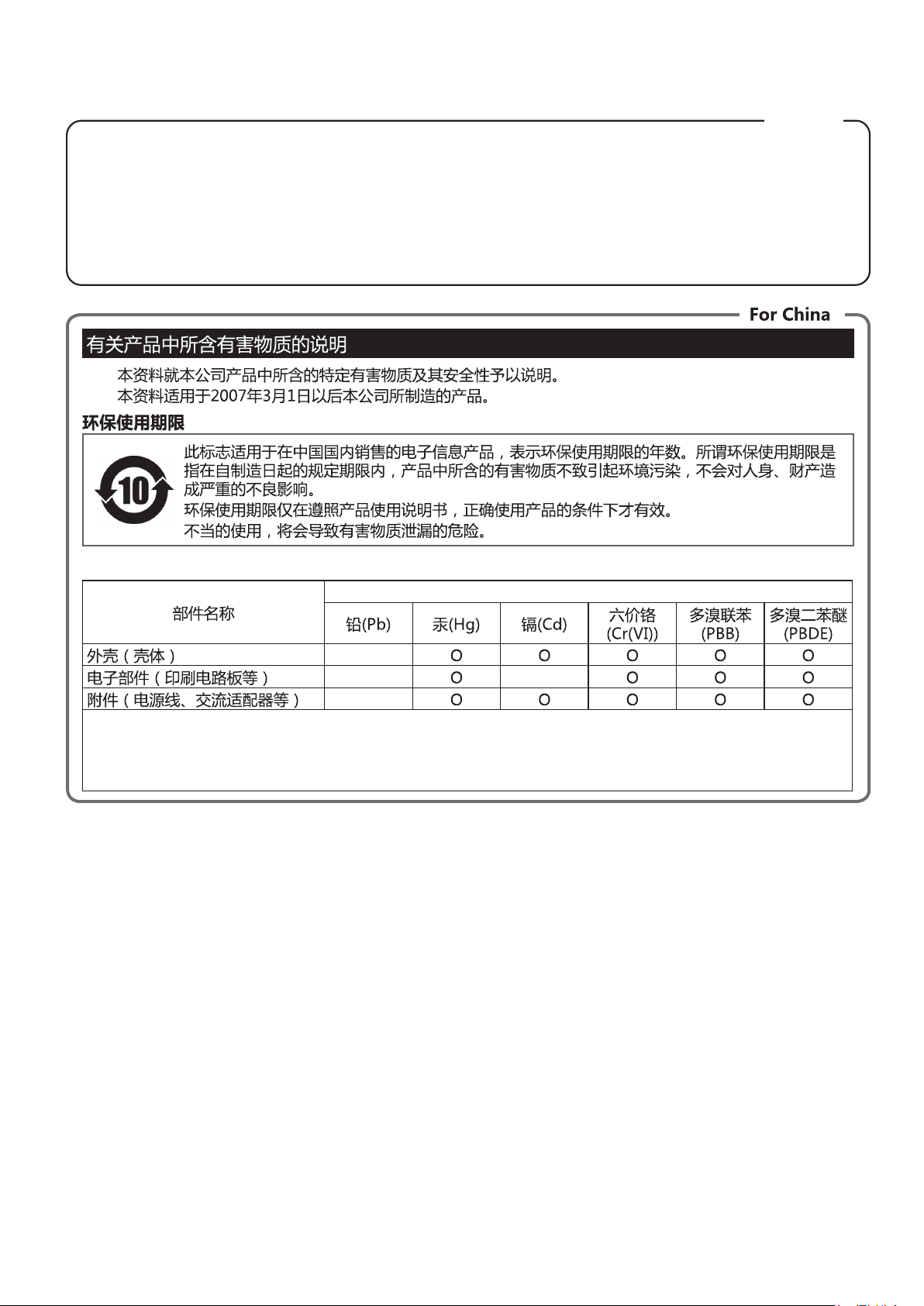
59
For the USA
SUPPLIER’S DECLARATION OF CONFORMITY
Compliance Information Statement
Model Name :
Type of Equipment :
Responsible Party :
Address :
Telephone :
E-A7
Arranger Keyboard
Roland Corporation U.S.
5100 S. Eastern Avenue Los Angeles, CA 90040-2938
(323) 890-3700
产品中有害物质的名称及含量
有害物质
本表格依据SJ/T 11364的规定编制。
表示该有害物质在该部件所有均质材料中的含量均在GB/T 26572 规定的限量要求以下。
表示该有害物质至少在该部件的某一均质材料中的含量超出GB/T 26572的限量要求。
(企业可在此处,根据实际情况对上表中打“×”的技术原因进行进一步说明。)
О:
×:
×
×
×
×

* 5 1 0 0 0 4 6 3 7 1 - 0 4 *
When you need repair service, access this URL and nd your nearest Roland Service Center or authorized Roland distributor in
your country.
http://roland.cm/service
Roland Service Centers and Distributors
Roland Service Centers and Distributors