1M
MAN0010068
Operating
System 1.1
Système
Opérationnel
Version 1.1
Betriebs-
system
Version 1.1
Sistema
Operativo
Versione 1.1


1
KORG Pa600 – Operating System release 1.1
New functions of OS Version 1.1
KORG Pa600 – Operating System release 1.1
New functions of OS Version 1.1
The following functions are added by upgrading to Operating
System Version 1.1.
If new, your instrument might already include the new Operat-
ing System. To check, please go to the Media > Utility page, and
read the version number in the lower area of the display.
To load the new Operating System, please read the instructions
supplied with the installation file in our web site
(www.korg.com).
When upgrading to the new Operating System from a version
prior to 1.1, you also have to update the Musical Resources by
using the Media > Utility > Factory Restore command. Musical
Resources are loaded with the Operating System, but must be
updated using this command.
Warning: Before updating the Musical Resources, please save
all your old data to a storage device, or they will be lost for-
ever. To save the existing Musical Resources, use a Media > Save
operation.
Hint: After loading the new OS, you might need to re-calibrate the
TouchView display (Global > Touch Panel Calibration) and the
pedal/footswitch (Global > Controllers > Pedal/Switch).
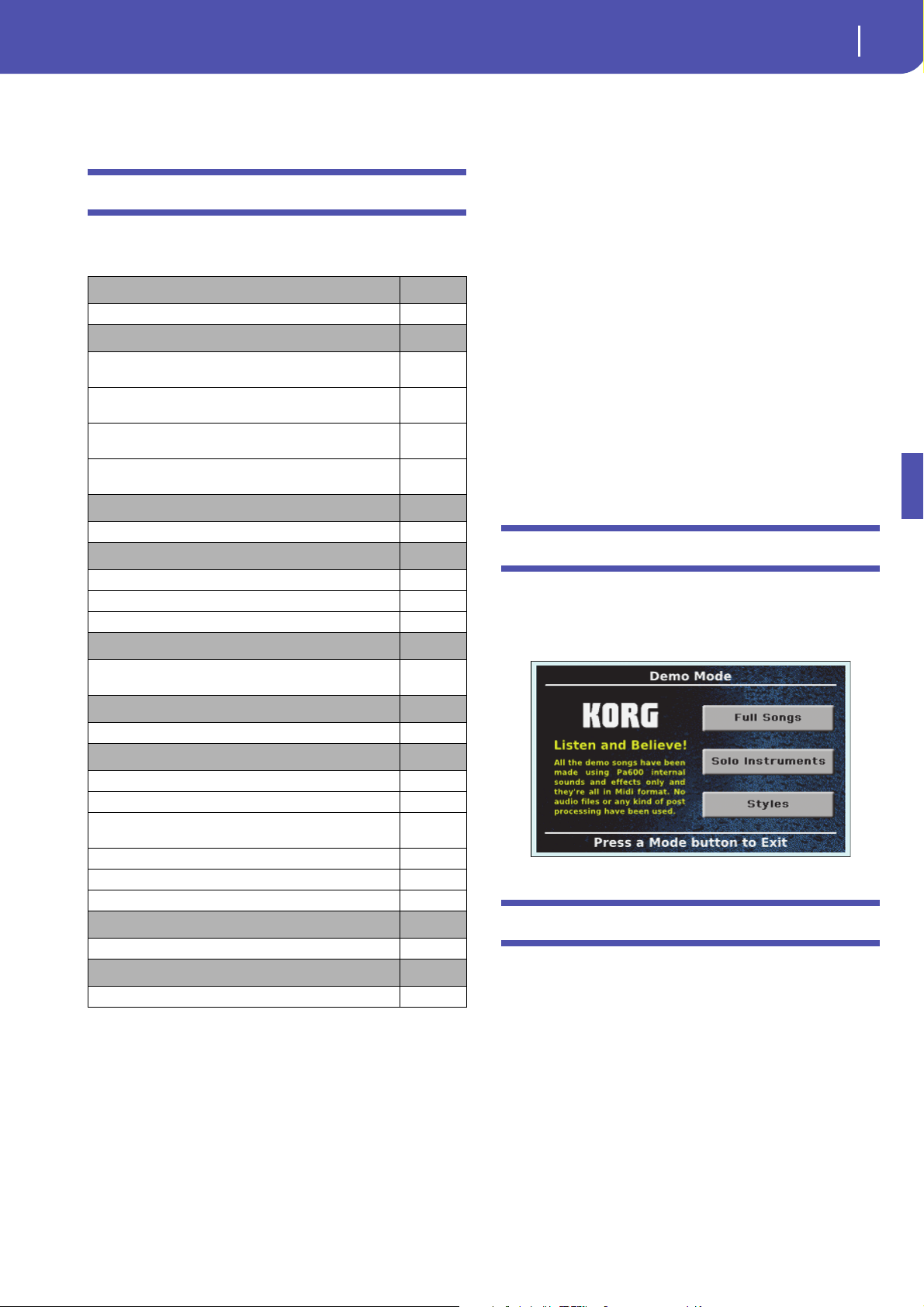
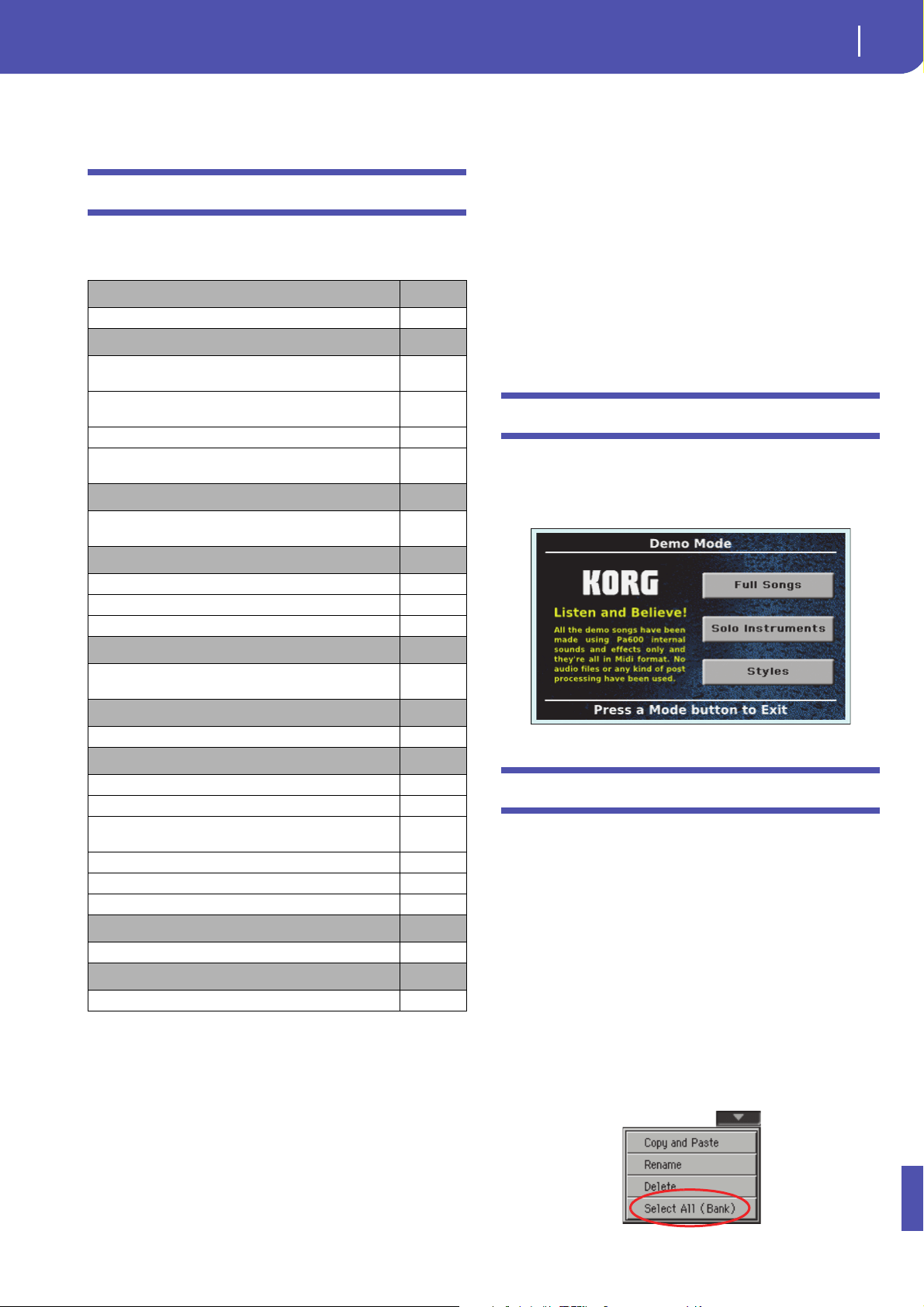
Demo Mode
New page look [1.1]
The Demo mode pages have a new look.
Various Modes
Long press to write Performances, STSs, Styles
and SongBook Entries [1.1]
By keeping any of the PERFORMANCE, STS, STYLE or SONG-
BOOK buttons pressed for about one second, the corresponding
Write dialog box appears. You can then write the current settings
to memory.
Select All (Bank) command added to various
Select windows [1.1]
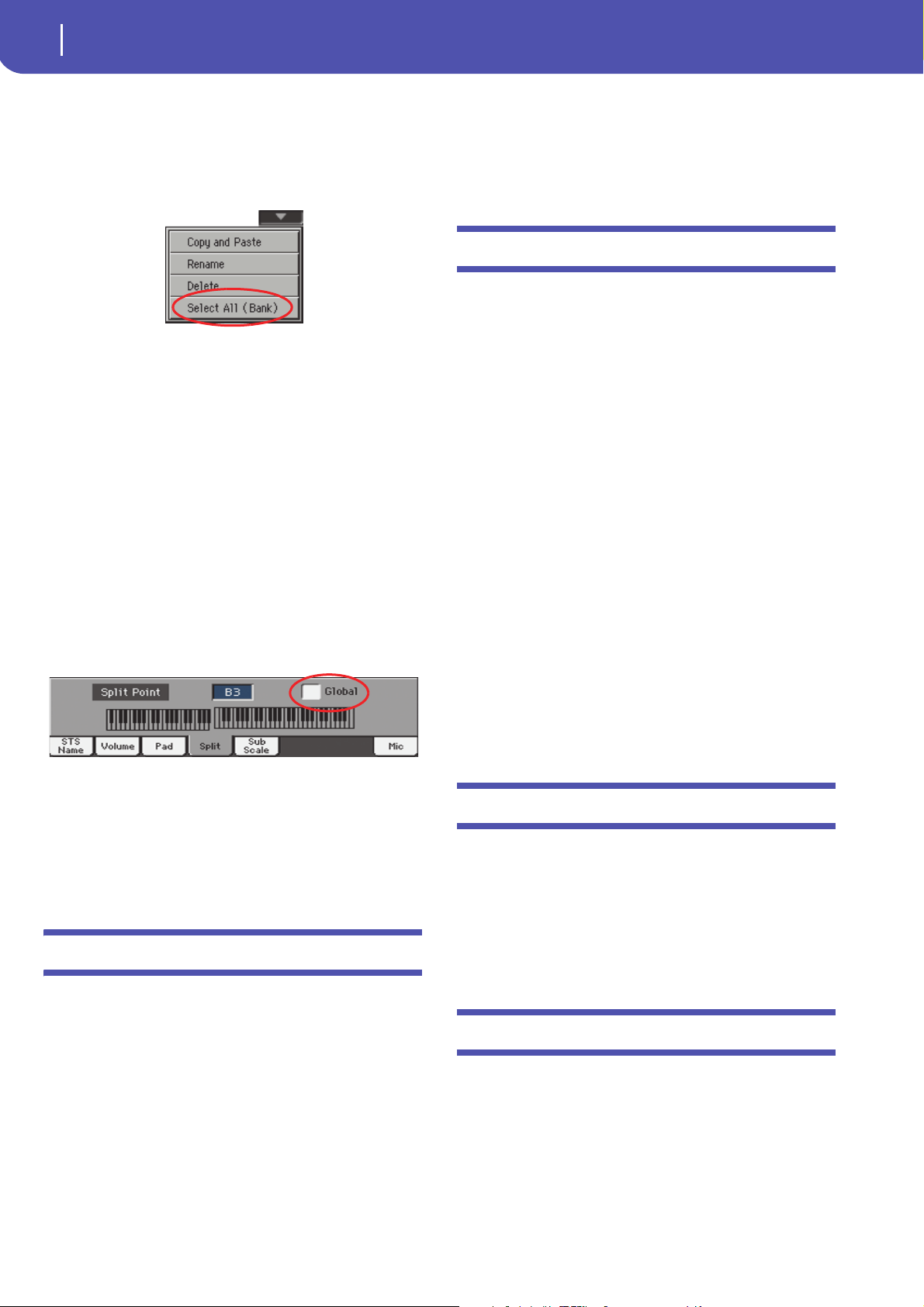
The “Select All (Bank)” command has been added to the page
menu of the Style, Performance, Sound and Pad Select windows.
Select All (Bank)
Choose this command to select all items in the current bank.
You can deselect one of the selected items by touching it while
keeping the SHIFT button pressed. You can deselect all by touch-
ing any single item.
Demo Mode
See page
New page look 1
Various Modes
Long press to write Performances, STSs, Styles and SongBook
Entries
1
Select All (Bank) command added to various Select windows 1
Global Split Point only editable in Global mode 2
Single “local” Split Point saved with Styles and SongBook
Entries
2
Style Play & Song Play Modes
Pads stop when pressing them a second time 2
SongBook
Book Edit pages slightly modified 2
Init SongBook command added 2
SongBook settings automatically saved 2
Lyrics, Score and Marker
Lyrics, Score and Markers settings automatically saved 2
Global Mode
Show Column Media preferences added 2
Media Mode
Loading Factory Styles and Pads 3
Saving Factory Styles and Pads 3
Factory Restore and Resource Restore of selected data types 3
New Backup file format 3
Renamed Resource Restore command 3
Media mode settings automatically saved 4
Musical Resources
Revised Musical Resources 4
Shortcuts
Shortcuts revised 4
2
KORG Pa600 – Operating System release 1.1
Style Play & Song Play Modes
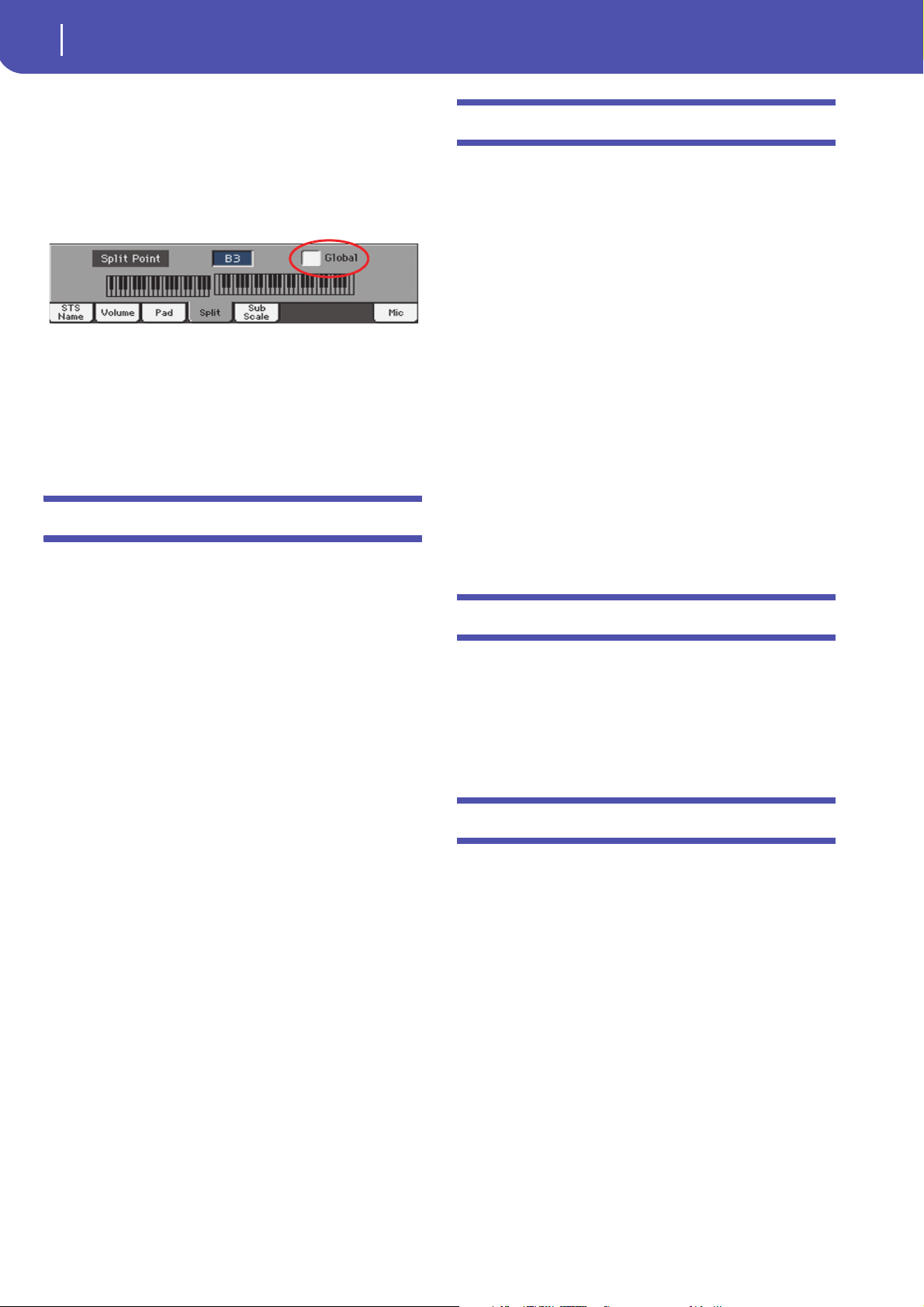
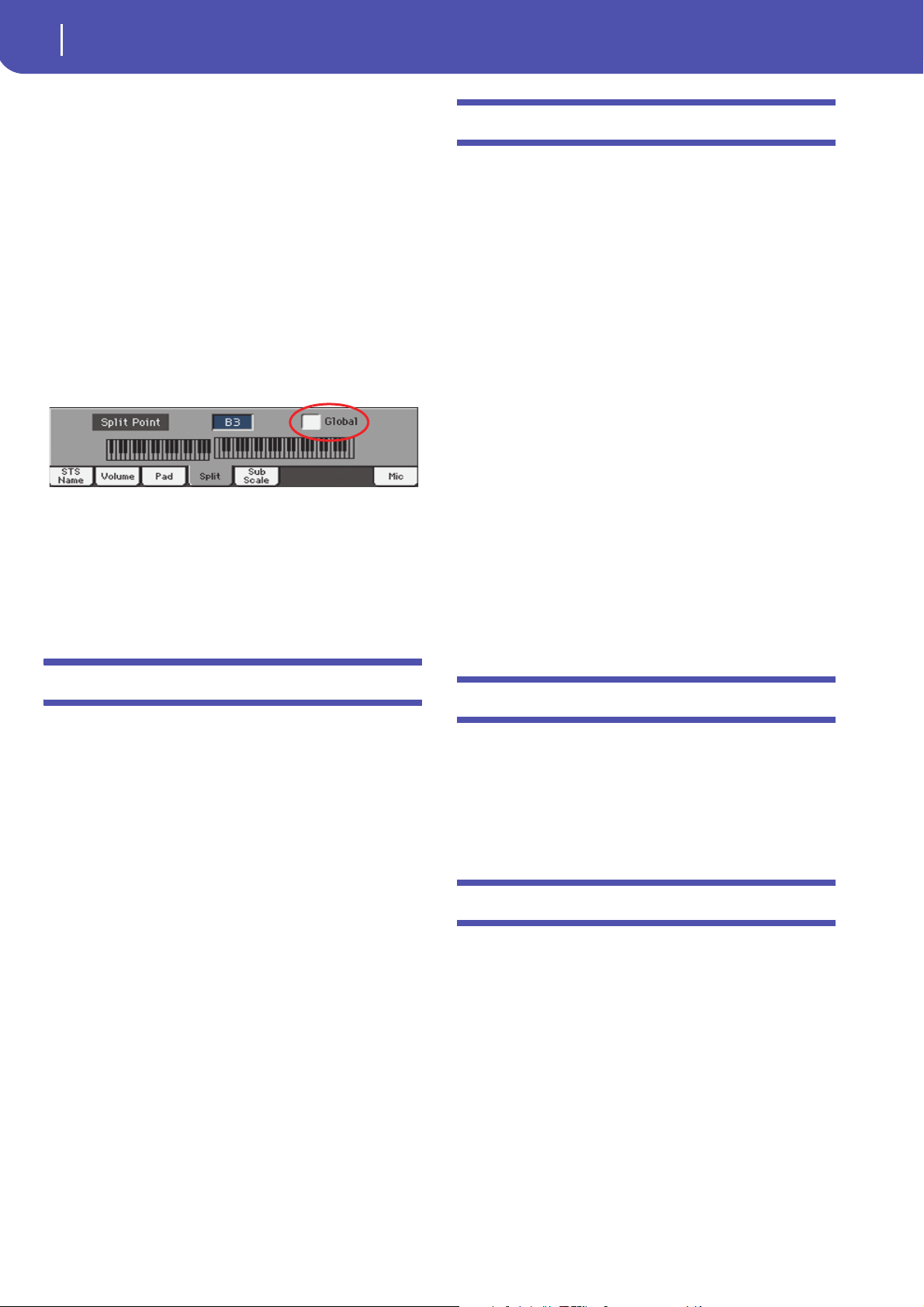
Global Split Point only editable in Global
mode [1.1]
To make things easier, the global Split Point can only be edited in
the Global > Mode Preferences > Style page. If you start editing
the Split Point while in the main page of the Style Play or Song
Play mode, the “Global” parameters is automatically unchecked,
and you can edit the “local” Split Point.
Single “local” Split Point saved with Styles
and SongBook Entries [1.1]
To make things easier, only a single “local” Split Point can be
saved with each Style or SongBook Entry. No separate Split Point
can be saved for each STS.
Style Play & Song Play Modes
Pads stop when pressing them a second time
[1.1]
You can stop all Pad sequences at the same time, or just some of
them:
• Press STOP (in the PAD section) to stop all sequences at
once.
• Press a single PAD button to stop the corresponding
sequence.
• Press the INTRO 1 buttons to stop the Pad sequences
(assuming they are not of Drum or Percussion type).
• Press one of the ENDING buttons to stop the Pad
sequences (the Ending will continue to play up to the end).
SongBook
Book Edit pages slightly modified [1.1]
All Book Edit pages have been slightly reorganized. All functions
remain the same.
Init SongBook command added [1.1]
A new, blank Book list can now be created with a single com-
mand (available from the page menu).
Init SongBook
Select this command to erase the Book list and any Custom lists,
and start with a new, blank SongBook file.
Warni ng: Before initializing the SongBook, save the older one with
one of the Media > Save operations.
SongBook settings automatically saved [1.1]
All settings in the SongBook pages (selected column, ordering
type, genre/artist display, number/key display) are now automat-
ically saved after editing.
Lyrics, Score and Marker
Lyrics, Score and Markers settings automati-
cally saved [1.1]
All settings in these pages are now automatically saved after edit-
ing.
Global Mode
Show Column Media preferences added [1.1]
Size
When checked, the Size column is shown in the File Selector
when using Media operations.
Date
When checked, the Date column is shown in the File Selector
when using Media operations.
3
KORG Pa600 – Operating System release 1.1
Media Mode
Media Mode
Loading Factory Styles and Pads [1.1]
If the “Factory Style and Pad Protect” parameter is not checked
in Global > Mode Preferences > Media, when loading data to the
internal memory you can also choose Factory Style and Factory
Pad locations as a target.
When loading single Styles or Pads (or a bank of Styles or Pads),
open the target banks until you find the desired locations; Fac-
tory locations will be treated exactly as if they were Favorite/User
locations.
When loading a “.SET” folder, all Factory Style or Pad it contains
are loaded into the corresponding Factory locations in memory.
Warning: After confirming, any data existing at the target location
will be deleted.
Saving Factory Styles and Pads [1.1]
If the “Factory Style and Pad Protect” parameter is not checked
in Global > Mode Preferences > Media, when saving data from
the internal memory you can also choose Factory Style and Fac-
tory Pad data.
When saving single Styles or Pads (or a bank of Styles or Pads),
open the source folders until you find the desired item; Factory
data will be treated exactly as if they were Favorite/User data.
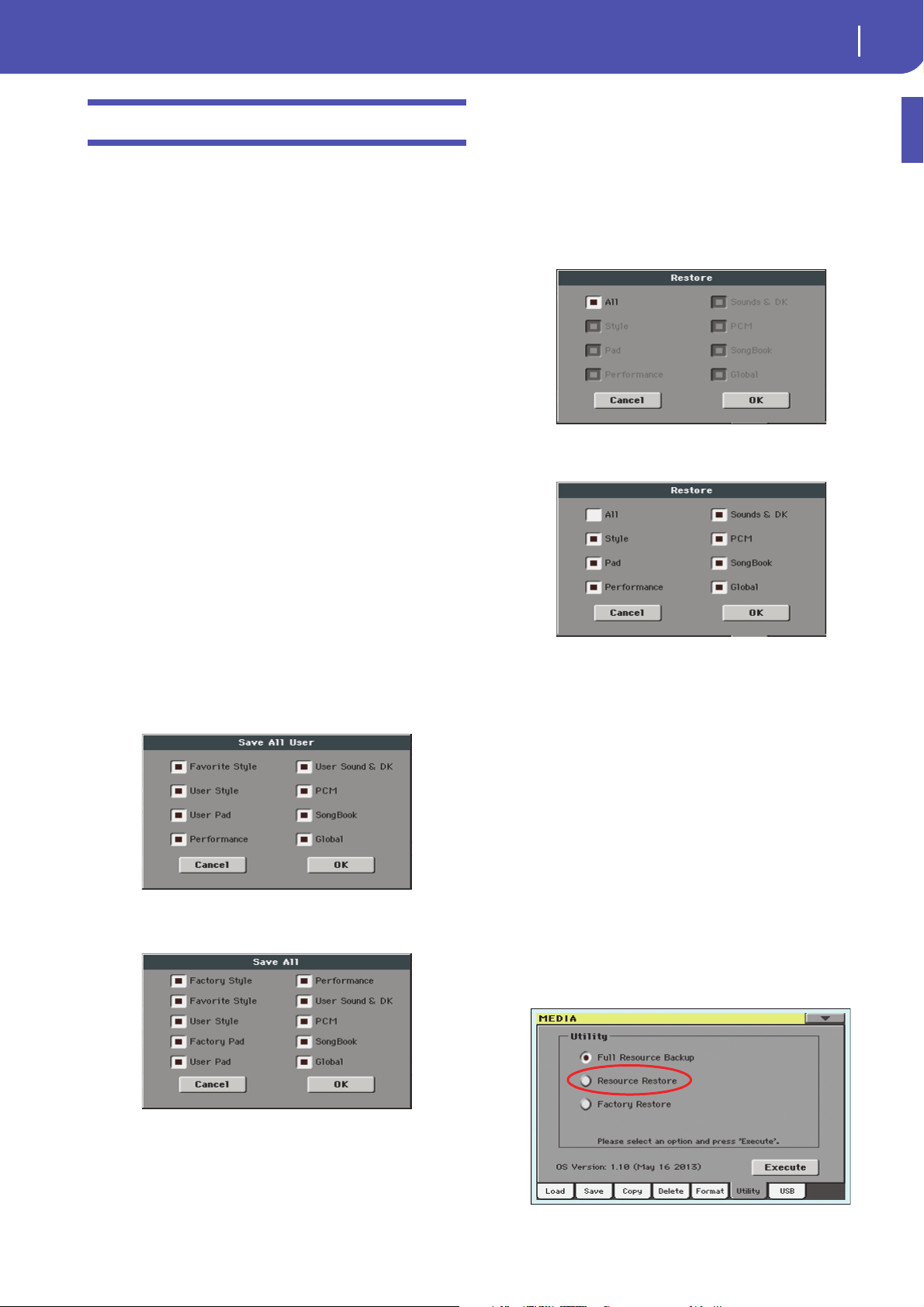
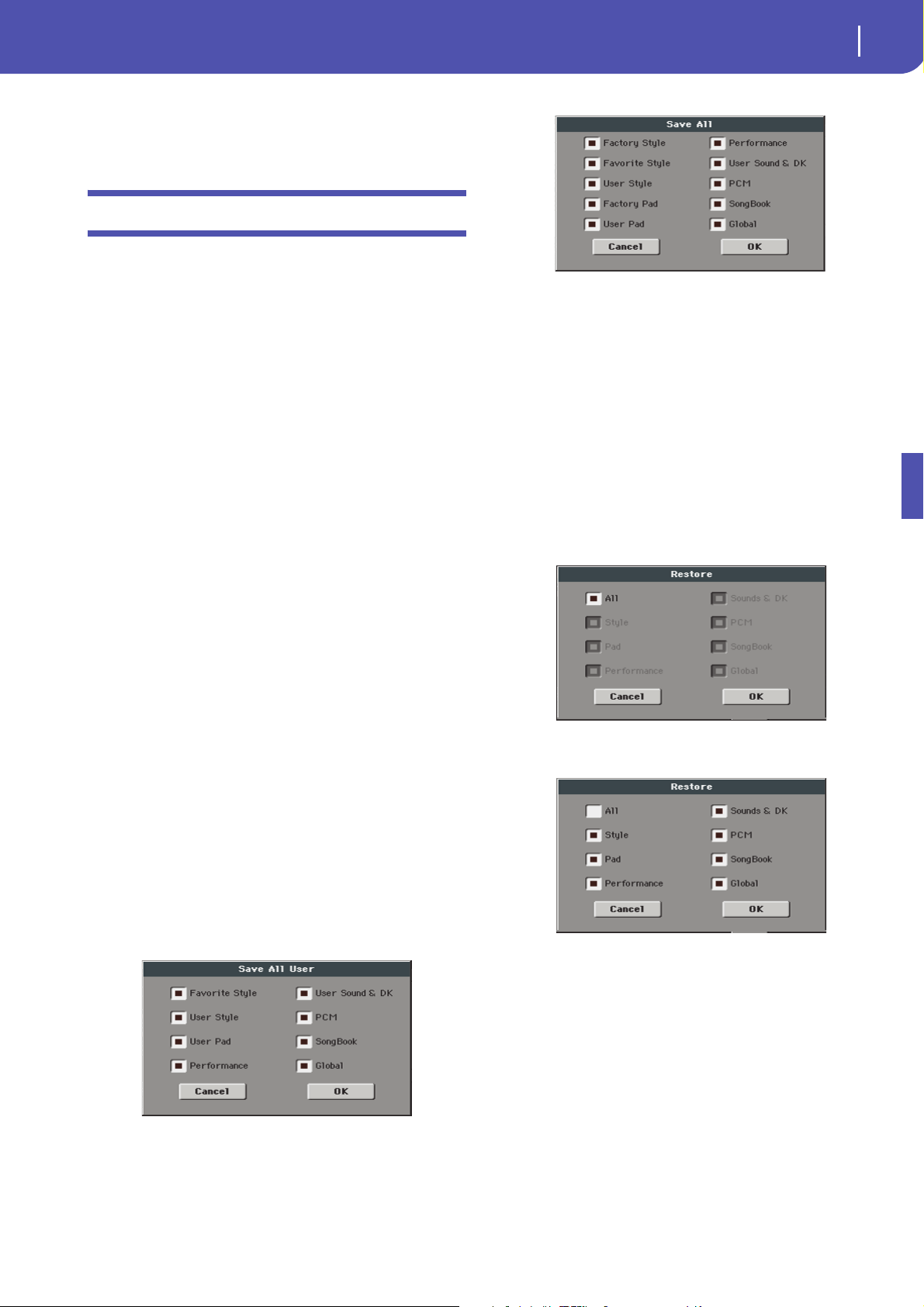
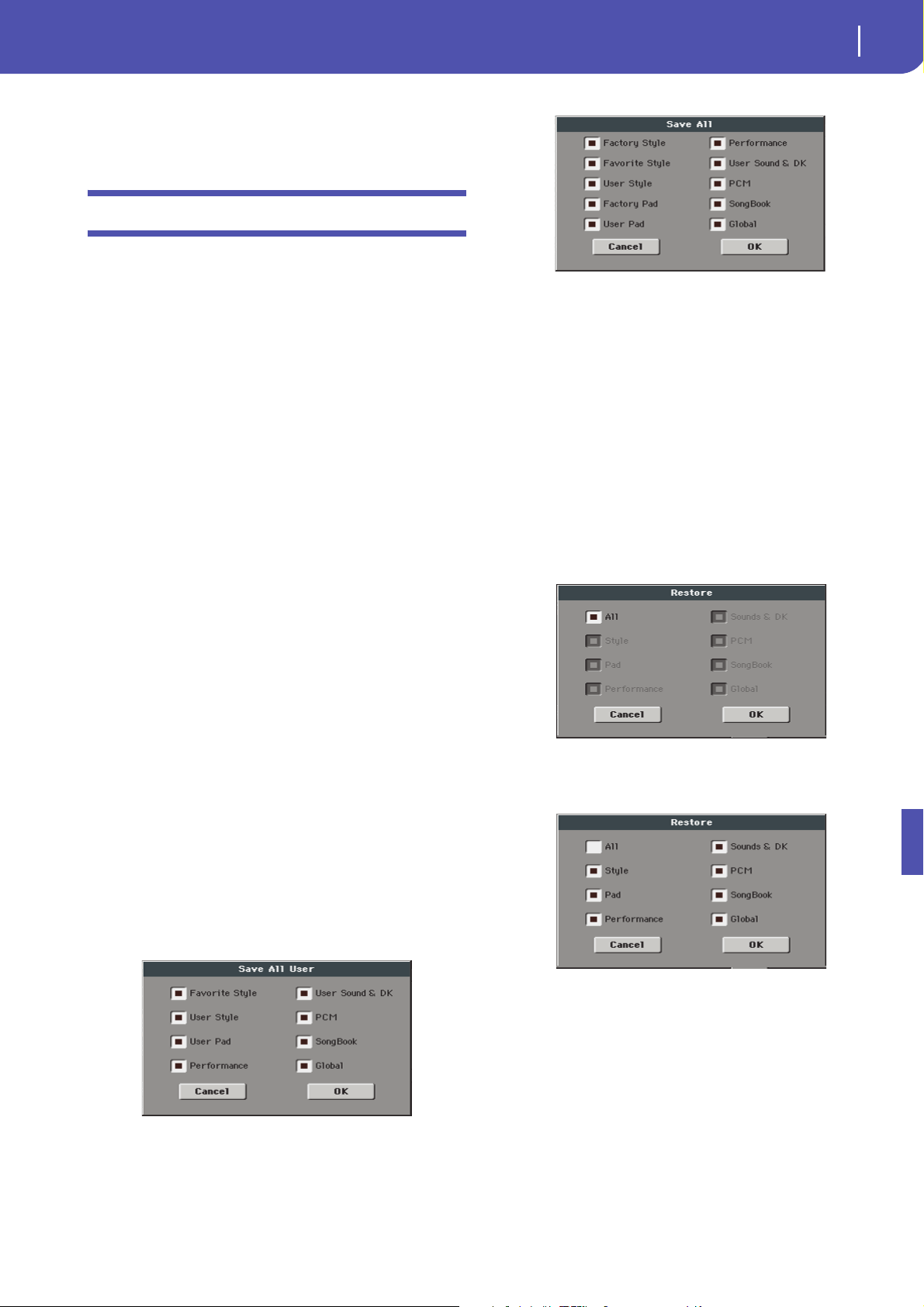
When saving all the memory content, you can choose to also
save Factory Styles and Pads. After you have selected the full
content (“All”) of the internal memory, and have confirmed a
new or existing “.SET” folder into which to save your data, you
are asked to choose the type of data you want to save:
Save All dialog with the Factory Style and
Pad Protect option turned on
Save All dialog with the Factory Style and
Pad Protect option turned off
After confirming, the Factory Styles and Pads are saved into the
“.SET ” folder.
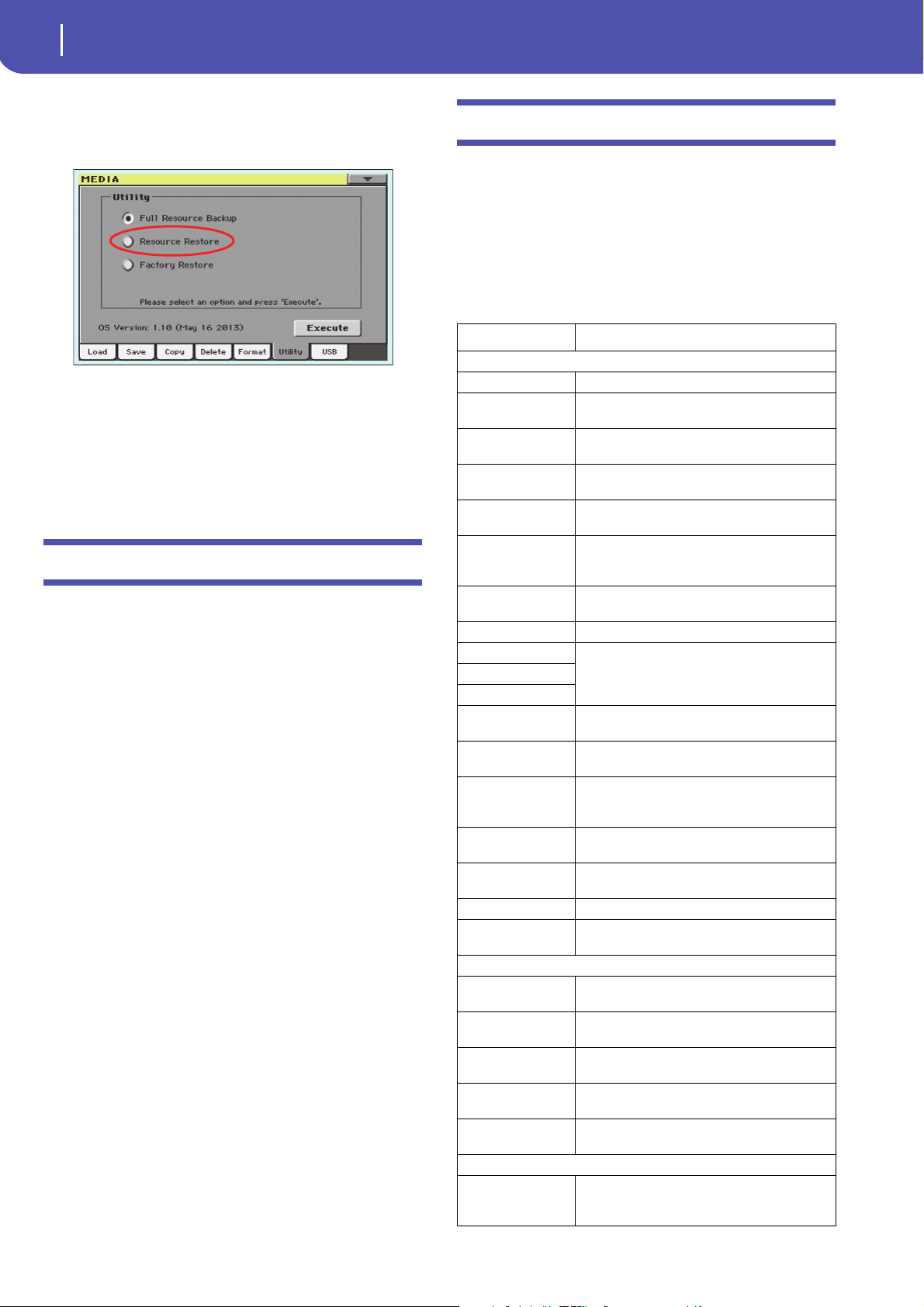
Factory Restore and Resource Restore of
selected data types [1.1]
Now, you can choose the type of data to be restored to the origi-
nal Factory status or from a Backup archive.
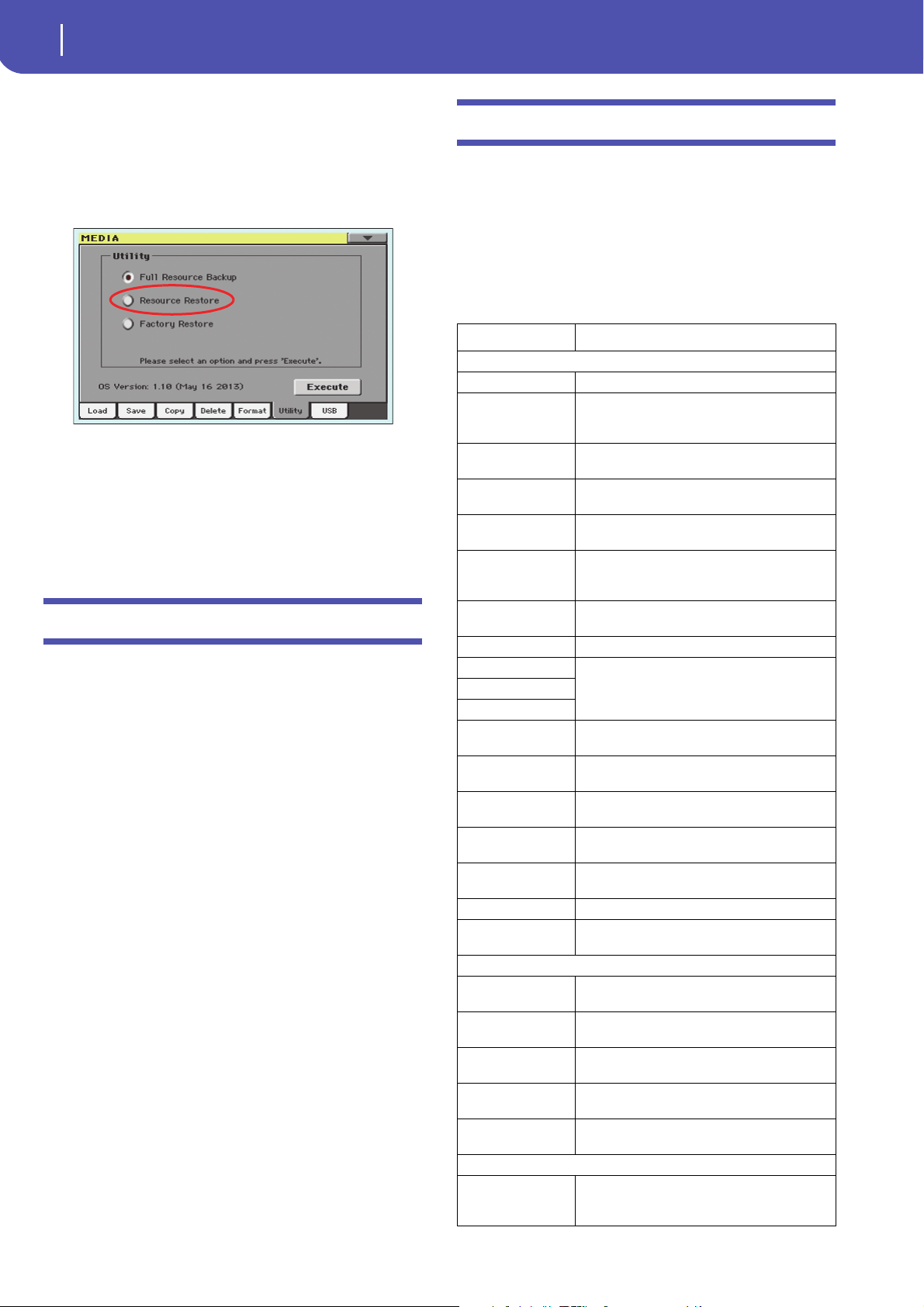
After having executed the Factory Restore or Resource Restore
command from the Media > Utility page, a dialog box will
appear, with a list of types of data to be restored. Only check the
types of data you want to restore.
You can choose individual types of data by touching “All” to
deselect it, and select the individual types:
Warning: This command will delete from the internal memory all
the types of data selected in this dialog box (including your custom
data).
When done, a message will appear, asking to restart the instru-
ment (“Data Restored. Please switch off”). Set the instrument to
standby mode, then turn it on again.
New Backup file format [1.1]
The file format for the backup archive created when choosing
the “Backup Resources” command from the Media > Utility page
is new. Therefore, you cannot load backup archives created with
this OS version to Pa600 models still using an OS older than ver-
sion 1.1.
Renamed Resource Restore command [1.1]
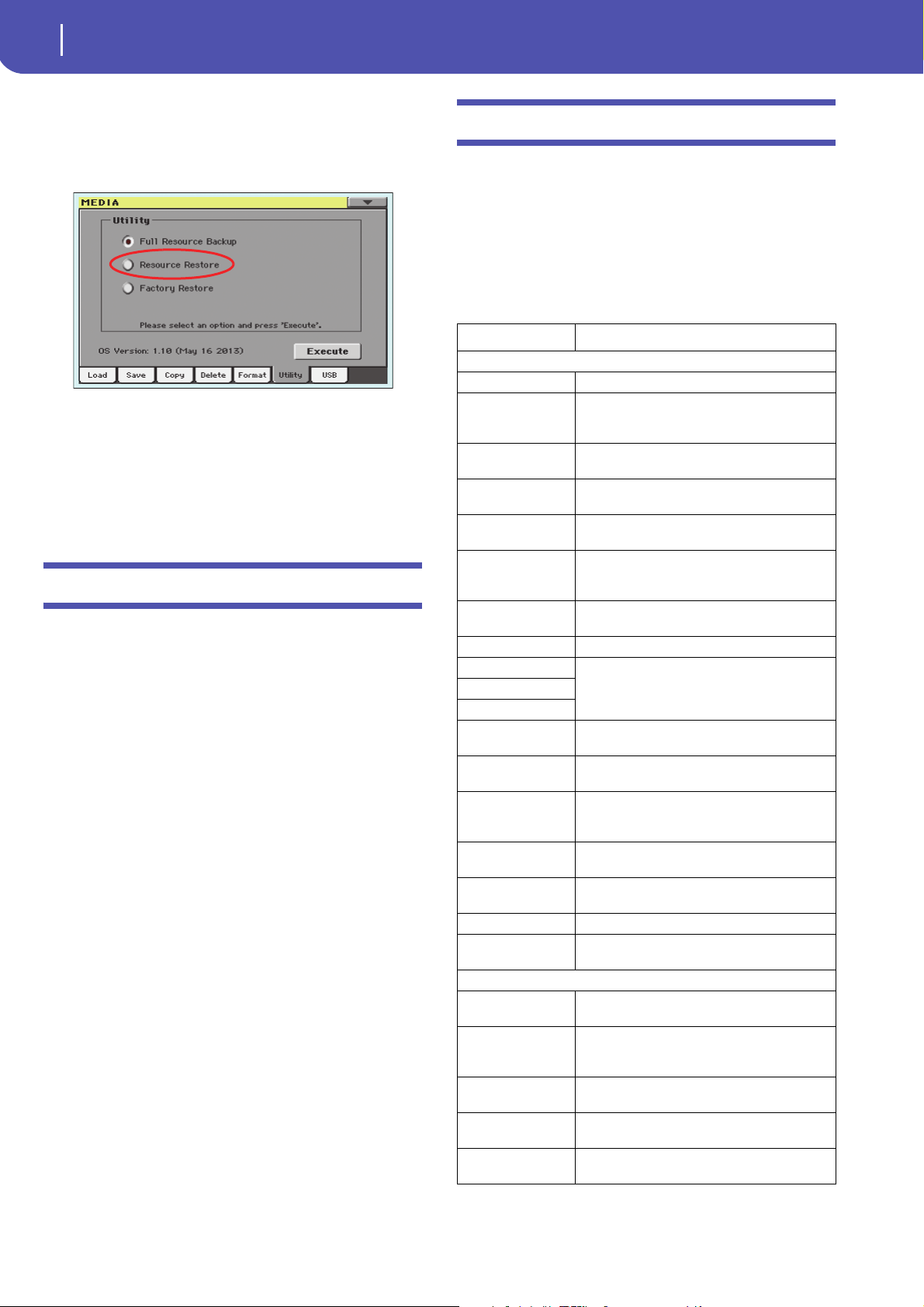
The “Full Resource Restore” command in the Media > Utility
page has been renamed to “Resource Restore”.
4
KORG Pa600 – Operating System release 1.1
Musical Resources
Media mode settings automatically saved
[1.1]
All settings in the Media pages (selected column, ordering
mode…) are now automatically saved after editing.
Musical Resources
When upgrading to the new Operating System from a version
prior to 1.1, you also have to update the Musical Resources by
using the Media > Utility > Factory Restore command. Musical
Resources are loaded with the Operating System, but must be
updated using this command.
Warning: Before updating the Musical Resources, please save
all your old data to a storage device, or they will be lost for-
ever. To save the existing Musical Resources, use a Media > Save
operation.
Revised Musical Resources [1.1]
The existing Musical Resources have been revised and opti-
mized.
Shortcuts
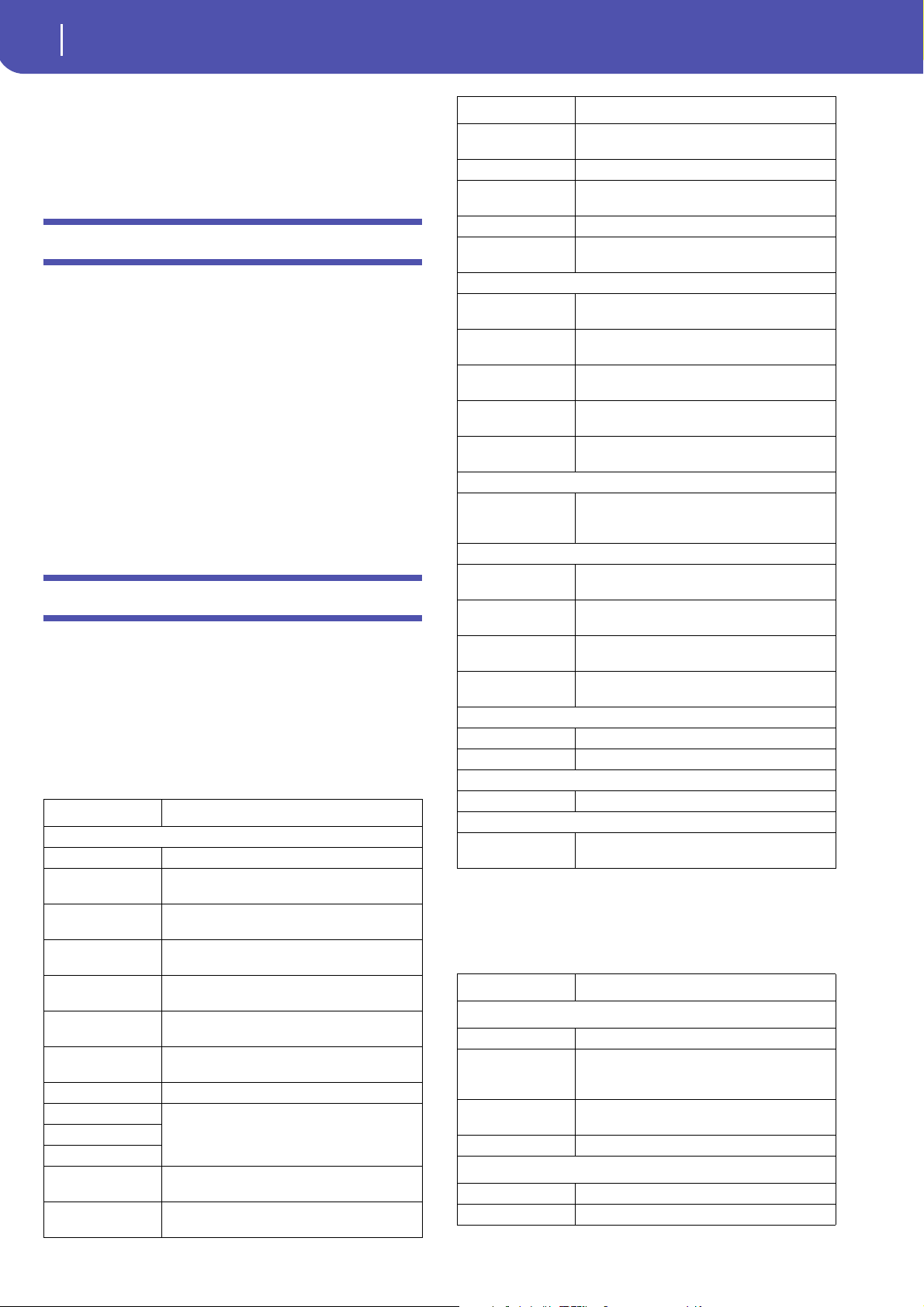
Several shortcuts have been changed. Please find below all the
available shortcuts.
Shift functions
You can keep the SHIFT button pressed, and press another but-
ton on the control panel to directly jump to an edit page or dia-
log box.
Long keypress
You can keep a button pressed for about one second to directly
jump to an edit page or dialog box.
Shift + Functions
Various modes
Dial Tempo Change
Scroll Arrows When a list is shown: Goes to Next/Previous alpha-
betical section of the currently selected column
Song Play Selects the Global > Mode Preferences > Song &
Seq page
Sequencer Selects the Global > Mode Preferences > Song &
Seq page
Sound Edit Sends the Sound assigned to the selected track to
the Sound mode
Global Selects the Global > MIDI > General Controls page.
This is a quick way to jump to MIDI editing pages.
Media Selects the Global > Mode Preferences > Media
page
Start/Stop Panic
Style Play Selects the Global > Mode Preferences > Style page
Accomp.
Memory
Fade In/Out Selects the Fade In/Out parameter in the Global >
General Controls > Basic page
Synchro Selects the Clock Source parameter in the Global >
MIDI > General Controls page
Tempo +/- With a track selected, proportionally adjusts the
volume level of all the tracks of the same type
Tempo Lock Selects the Global > General Controls > Lock page
Metro Selects the Metronome section of the Global >
General Controls > Basic page
SongBook Selects the SongBook > Custom List page
Transpose (either) Selects the Global > Tuning > Transpose Controls
page
Style Play mode
Variation Selects the corresponding Variation in the Style
Play > Controls > Drum Map page
Ensemble Selects the Ensemble Type parameter in the Style
Play > Keyboard/Ensemble > Ensemble page
Pad (any) Selects the Style Play > Pad/Assignable Switches >
Pad page
Assignable Switch
(any)
Selects the Style Play > Pad/Assignable Switches >
Switch page
Upper Octave (either) Selects the Style Play > Mixer/Tuning > Tuning
page
Style Record mode
Tempo+/- When the Sound/Expression page is shown: Propor-
tionally adjusts the Expression level of the Style
tracks
Song Play mode
Ensemble Selects the Ensemble Type parameter in the Song
Play > Keyboard/Ensemble > Ensemble page
Pad (any) Selects the Song Play > Pad/Assignable Switches >
Pad page
Assignable Switch
(any)
Selects the Song Play > Pad/Assignable Switches >
Switch page
Upper Octave (either) Selects the Song Play > Mixer/Tuning > Tuning
page
JukeBox
>> Play the next Song in the JukeBox list
<< Play the previous Song in the JukeBox list
Lyrics
Display Load a TXT file
Sequencer mode
Upper Octave (either) Selects the Sequencer > Mixer/Tuning > Tuning
page
Long keypress Functions
Various modes
Global Touch Panel Calibration
SongBook Create a new SongBook Entry and open the "Write
Song" window (only if pressed outside the Song-
Book)
Split Opens the Split Point dialog box. Play a note to set
the new Split Point.
My Setting Opens the “Write My Setting” window
Style Play mode
Style Opens the “Write Current Style Settings” window
Performance Opens the “Write Performance” window
Shift + Functions

5
KORG Pa600 – Operating System release 1.1
Shortcuts
Special functions
Other available shortcuts are the following ones.
STS Opens the “Write STS” window
Song Play mode
Performance Opens the “Write Performance” window
Style Play mode
Tempo +/– (together) Original Tempo
Transpose #/b
(together)
Set the Master Transpose to 0
Upper Octave +/-
(together)
Set the Upper Octave to the saved setting
Long keypress Functions

6
Improvements and bug fixes
Improvements and bug fixes
Bug fixes in OS 1.10
Area Bug fix
Various Modes A wrong One Finger chord could be recognized when
Master Transpose was different than ‘0’.
Starting from B6 (#95), notes received from MIDI IN
could sometimes not play.
Style Play Mode Wrong Sounds could be selected when choosing a
Style.
Changes to the Style Settings (Style track Sounds, Vol-
ume…) could sometimes be lost.
Song Play Mode Fade In/Out did not work with MP3 Songs.
Lyrics Page Some Turkish characters contained in .TXT files could
cause the instrument to freeze.
Media Mode When loading a bank of Performances from a different
Pa-Series instrument, banks from #9 and over could not
be loaded. The target bank in Pa600 was left empty.
Favorite Style bank names could be lost when saving a
.SET folder or .BKP archive.
1
KORG Pa600 – Version 1.1 du système d’exploitation
Nouvelles fonctions de la version 1.1
KORG Pa600 – Version 1.1 du système d’exploitation
Nouvelles fonctions de la version 1.1
En installant la version 1.1, vous disposez des fonctions sui-
vantes.
Si vous venez d’acheter votre instrument, il contient peut-être
déjà la nouvelle version du système d’exploitation. La version du
système est indiquée dans la partie inférieure de la page “Media
> Utility”.
Si vous devez encore installer la nouvelle version du système,
voyez les instructions jointes au fichier d’installation sur notre
site web (www.korg.com).
Si vous effectuez la mise à jour du système d’exploitation à partir
d’une version antérieure à la version 1.1, il faut aussi mettre à
jour les ressources musicales en vous servant de la commande
“Media > Utility > Factory Restore”. Bien que les ressources
musicales soient chargées en même temps que le système
d’exploitation, il faut les mettre à jour avec cette commande.
Avertissement: Avant de mettre à jour les ressources musi-
cales, sauvegardez toutes vos données sur un support externe
pour éviter de les perdre. Les ressources musicales sauvegardées
en interne peuvent être archivées avec “Media > Save”.
Astuce: Au terme de la mise à jour, vous devrez probablement
recalibrer l’écran “TouchView” (Global > Touch Panel Calibration)
et la pédale/le commutateur au pied (Global > Controllers >
Pedal/Switch).
Mode Demo
Nouvelle mise en page [1.1]
Des pages d’écran du mode Demo ont été remaniées.
Différents modes
Maintenir enfoncé pour sauvegarder des Per-
formances, des mémoires STS et des entrées
‘SongBook’ [1.1]
En maintenant le bouton PERFORMANCE, STS, STYLE ou
SONGBOOK enfoncé pendant ±1 seconde, vous ouvrez la
fenêtre de dialogue “Write” en question. Effectuez toutes les
modifications nécessaires puis sauvegardez les réglages.
Mode Demo
Page
Nouvelle mise en page 1
Différents modes
Maintenir enfoncé pour sauvegarder des Performances, des
mémoires STS et des entrées ‘SongBook’
1
Nouvelle commande ‘Select All (Bank)’ dans plusieurs fenêtres
de sélection
2
Point de partage commun uniquement réglable en mode Glo-
bal
2
Les styles et entrées ‘SongBook’ disposent de leur propre
point de partage
2
Modes Style Play et Song Play
Arrêt des phrases PAD par une seconde pression 2
SongBook
Pages ‘Book Edit’ légèrement relookées 2
Nouvelle commande ‘Init SongBook’ 2
Les réglages ‘SongBook’ sont automatiquement sauvegardés 2
Paroles, partitions et marqueurs
Les réglages pour les paroles, les partitions et les marqueurs
sont automatiquement sauvegardés
2
Mode Global
Nouvelles préférences ‘Show Column Media’ 2
Mode Media
Chargement de styles et de phrases PAD d’usine 3
Sauvegarde de styles et de phrases PAD d’usine 3
‘Factory Restore’ et ‘Resource Restore’ pour les types de don-
nées choisis
3
Nouveau format pour l’archivage de données 3
Changement du nom de la commande ‘Resource Restore’ 4
Sauvegarde automatique des réglages du mode Media 4
Ressources musicales
Ressources musicales revues 4
Raccourcis
Raccourcis modifiés 4
2
KORG Pa600 – Version 1.1 du système d’exploitation
Modes Style Play et Song Play
Nouvelle commande ‘Select All (Bank)’ dans
plusieurs fenêtres de sélection [1.1]
Le menu de page des fenêtres “Style”, “Performance”, “Sound” et
“Pad Select” propose désormais une commande “Select All
(Bank)”.
Select All (Bank)
Ce paramètre sert à sélectionner toutes les entrées de la banque
actuelle.
En cas de besoin, vous pouvez ensuite exclure une ou plusieurs
entrées en maintenant le bouton SHIFT enfoncé pendant que
vous appuyez sur les entrées en question. Pour désélectionner
toutes les entrées, il suffit d’appuyer sur une seule d’entre elles.
Point de partage commun réglable en mode
Global uniquement [1.1]
Pour plus de transparence, le point de partage commun (global)
doit désormais être spécifié à la page “Global > Mode Prefe-
rences > Style”. Si vous modifiez le point de partage à la page
principale du mode Style Play ou Song Play, le paramètre Global
en question est automatiquement désélectionné. De ce fait, le
choix du point de partage ne s’applique plus que “localement”.
Les styles et entrées ‘SongBook’ disposent de
leur propre point de partage [1.1]
Dorénavant, vous pouvez programmer le point de partage sou-
haité pour chaque Style et chaque entrée “SongBook”. Cette pos-
sibilité n’existe cependant pas pour les mémoires STS.
Modes Style Play et Song Play
Arrêt des phrases PAD par une seconde pres-
sion [1.1]
Vous pouvez arrêter toutes les phrases PAD ou juste quelques
unes:
• Appuyez sur STOP (dans la section PAD) pour arrêter
toutes les phrases simultanément.
• Appuyez sur un bouton PAD pour arrêter la phrase corres-
pondante.
• Appuyez sur le bouton INTRO 1 pour arrêter les phrases
PAD.
• Appuyez sur un bouton ENDING pour arrêter la reproduc-
tion des phrases PAD (le motif “Ending” sélectionné conti-
nue cependant jusqu’au bout).
SongBook
Pages ‘Book Edit’ légèrement relookées [1.1]
Toutes les pages “Book Edit” ont été remaniées. Les fonctions
restent toutefois inchangées.
Nouvelle commande ‘Init SongBook’ [1.1]
Une nouvelle commande du menu de page permet désormais de
créer une nouvelle liste SongBook (vierge).
Init SongBook
Choisissez cette commande pour vider les listes “Book” et “Cus-
tom” actuellement choisies afin de vous créer un nouveau fichier
“SongBook” de toutes pièces.
Avertissement: Avant d’initialiser le “SongBook”, songez à archi-
ver la version actuelle avec “Media > Save” si vous pensez encore
en avoir besoin.
Les réglages ‘SongBook’ sont automatique-
ment sauvegardés [1.1]
Tous les réglages des pages “SongBook” (colonne choisie, ordre
d’affichage, genre/artiste, numéro/numéro d’index) sont auto-
matiquement sauvegardés au terme de l’édition.
Paroles, partitions et marqueurs
Les réglages pour les paroles, les partitions et
les marqueurs sont automatiquement sauve-
gardés [1.1]
Tous les réglages de ces pages sont automatiquement sauvegar-
dés au terme de l’édition.
Mode Global
Nouvelles préférences ‘Show Column Media’
[1.1]
Size
Lorsque ce paramètre est coché, la fenêtre de sélection de
fichiers du mode Media contient une colonne “Size”.
3
KORG Pa600 – Version 1.1 du système d’exploitation
Mode Media
Date
Lorsque ce paramètre est coché, la fenêtre de sélection de
fichiers du mode Media contient une colonne “Date”.
Mode Media
Chargement de styles et de phrases PAD
d’usine [1.1]
Si le paramètre “Factory Style and Pad Protect” de la page “Glo-
bal > Mode Preferences > Media” n’est pas coché, les mémoires
“Factory Style” et “Factory Pad” internes peuvent aussi être choi-
sies comme destination pour le chargement de données.
Pour charger un style/une phrase PAD (voire toute une banque),
ouvrez la banque d’arrivée et sélectionnez l’entrée voulue. Dans
ce cas, il est parfaitement possible de choisir une mémoire
d’usine comme destination (comme si c’était une mémoire
“Favorite” ou “User”).
Si vous chargez un dossier “.SET” contenant aussi des styles ou
des phrases PAD d’usine, ces derniers/dernières sont chargées
dans les mémoires d’usine en question.
Avertissement: Si vous confirmez cette commande, les données de
la mémoire d’arrivée sont écrasées.
Sauvegarde de styles et de phrases PAD
d’usine [1.1]
Tant que “Factory Style and Pad Protect” à la page “Global >
Mode Preferences > Media” n’est pas sélectionné, vous pouvez
aussi sauvegarder des styles et/ou des phrases PAD de la
mémoire interne d’usine sur un support externe.
Pour sauvegarder un style/une phrase PAD (voire toute une
banque), ouvrez la banque source et sélectionnez l’entrée voulue.
Dans ce cas, il est parfaitement possible de choisir une mémoire
d’usine comme source (comme si c’était une mémoire “Favorite”
ou “User”).
Lors de la sauvegarde de toute la mémoire interne, vous pouvez
aussi inclure les styles et les phrases PAD d’usine dans le fichier à
sauvegarder. Si vous choisissez toutes les sections de la mémoire
interne (“All”) et un nouveau dossier “.SET”, voire un dossier
existant, comme destination, vous avez deux options quant aux
données à inclure:
Fenêtre de dialogue “Save All” avec options
“Factory Style” et “Pad Protect” cochées
Fenêtre de dialogue “Save All” où les options
“Factory Style” et “Pad Protect” ne sont pas cochées
Après confirmation, les styles et les phrases PAD d’usine sont
sauvegardés dans le dossier “.SET”.
‘Factory Restore’ et ‘Resource Restore’ pour
les types de données choisis [1.1]
Dorénavant, vous pouvez choisir les types de données pouvant
être écrasés par les réglages d’usine ou par un fichier d’archive.
Lorsque vous choisissez la commande “Factory Restore” ou
“Resource Restore” à la page “Media > Utility”, une fenêtre de
dialogue apparaît où se trouve une liste vous permettant de choi-
sir les types de données voulus. Cochez-y uniquement les types
de données pouvant être écrasés.
Pour ne remplacer que des types de données spécifiques, désacti-
vez [All] et choisissez ensuite les entrées voulues:
Avertissement: Cette commande écrase tous les types de données
choisis (y compris vos propres réglages).
A la fin du processus, vous êtes invité à redémarrer l’instrument
(“Data Restored. Please switch off”). Passez en mode standby
puis remettez l’instrument sous tension.
Nouveau format pour l’archivage de données
[1.1]
La commande “Backup Resources” de la page “Media > Utility”
utilise un nouveau format pour l’archivage des données. Cela
signifie aussi que des fichiers d’archive générés avec un Pa600
dont la version du système est antérieure à 1.1 ne peuvent plus
être chargés.
4
KORG Pa600 – Version 1.1 du système d’exploitation
Ressources musicales
Commande ‘Resource Restore’ renommée
[1.1]
La commande “Full Resource Restore” de la page “Media > Uti-
lity” s’appelle désormais “Resource Restore”.
Sauvegarde automatique des réglages du
mode Media [1.1]
Tous les réglages des pages du mode Media (colonne choisie,
ordre d’affichage etc.) sont automatiquement sauvegardés au
terme de l’édition.
Ressources musicales
Si vous effectuez la mise à jour du système d’exploitation à partir
d’une version antérieure à la version 1.1, il faut aussi mettre à
jour les ressources musicales en vous servant de la commande
“Media > Utility > Factory Restore”. Bien que les ressources
musicales soient chargées en même temps que le système
d’exploitation, il faut les mettre à jour avec cette commande.
Avertissement: Avant de mettre à jour les ressources musi-
cales, sauvegardez toutes vos données sur un support externe
pour éviter de les perdre. Les ressources musicales sauvegardées
en interne peuvent être archivées avec “Media > Save”.
Ressources musicales revues [1.1]
Les ressources musicales existantes ont été revues et optimisées.
Plus précisément, elles sont désormais compatibles avec les
sonorités du Pa900.
Raccourcis
Quelques raccourcis ont été changés. Vous trouverez ci-dessous
tous les raccourcis disponibles.
Fonctions ‘Shift’
Vous pouvez maintenir le bouton SHIFT enfoncé et appuyer sur
un autre bouton en façade pour afficher directement une page
d’édition ou une fenêtre de dialogue.
Shift + Fonctions
Différents modes
Molette Changement de tempo
Flèches de défile-
ment
Quand une liste est affichée: Passe à la section alpha-
bétique suivante/précédente de la colonne sélec-
tionnée.
Song Play Sélectionne la page “Global > Mode Preferences >
Song & Seq”.
Sequencer Sélectionne la page “Global > Mode Preferences >
Song & Seq”.
Sound Edit Transmet les données de son de la piste sélection-
née au mode Sound.
Global Sélectionne la page “Global > MIDI > General
Controls”. C’est une façon rapide d’afficher les pages
d’édition MIDI.
Media Sélectionne la page “Global > Mode Preferences >
Media”.
Start/Stop Panique
Style Play Sélectionne la page “Global > Mode Preferences >
Style”.
Accomp.
Memory
Fade In/Out Sélectionne le paramètre “Fade In/Out” à la page
“Global > General Controls > Basic”.
Synchro Sélectionne le paramètre “Clock Source” à la page
“Global > MIDI > General Controls”.
Tempo +/- Quand une piste est sélectionnée, cela permet de
régler proportionnellement le volume de toutes les
pistes de même type.
Tempo Lock Sélectionne la page “Global > General Controls >
Lock”.
Metro Sélectionne la section “Metronome” de la page
“Global > General Controls > Basic”.
SongBook Sélectionne la page “SongBook > Custom List”.
Transpose (l’un ou
l’autre)
Sélectionne la page “Global > Tuning > Transpose
Controls”.
Mode Style Play
Variation Sélectionne la Variation correspondante à la page
“Style Play > Controls > Drum Map”.
Ensemble Sélectionne le paramètre “Ensemble Type” à la
page “Style Play > Keyboard/Ensemble >
Ensemble”.
Un pad (n’importe
lequel)
Sélectionne la page “Style Play > Pad/Assignable
Switches > Pad”.
Bouton assignable
(n’importe lequel)
Sélectionne la page “Style Play > Pad/Assignable
Switches > Switch”.
Upper Octave (l’un ou
l’autre)
Sélectionne la page “Style Play > Mixer/Tuning >
Tuning”.

5
KORG Pa600 – Version 1.1 du système d’exploitation
Raccourcis
Pression longue
Vous pouvez maintenir un bouton enfoncé environ une seconde
pour afficher une page d’édition ou une fenêtre de dialogue.
Fonctions spéciales
Vous disposez également des raccourcis suivants.
Mode Style Record
Tempo +/- Quand la page “Sound/Expression” est affichée: Règle
proportionnellement le niveau d’expression des
pistes du Style.
Mode Song Play
Ensemble Sélectionne le paramètre “Ensemble Type” à la
page “Song Play > Keyboard/Ensemble >
Ensemble”.
Un pad (n’importe
lequel)
Sélectionne la page “Song Play > Pad/Assignable
Switches > Pad”.
Bouton assignable
(n’importe lequel)
Sélectionne la page “Song Play > Pad/Assignable
Switches > Switch”.
Upper Octave (l’un ou
l’autre)
Sélectionne la page “Song Play > Mixer/Tuning >
Tuning”.
JukeBox
>> Lecture du morceau suivant de la liste JukeBox.
<< Lecture du morceau précédent de la liste JukeBox.
Paroles
Ecran Charge un fichier .TXT.
Mode Sequencer
Upper Octave (l’un ou
l’autre)
Sélectionne la page “Sequencer > Mixer/Tuning >
Tuning”.
Shift + Fonctions
Pression longue Fonctions
Différents modes
Global Calibrage de l’écran tactile
Split Affiche la fenêtre de dialogue “Split Point”. Action-
nez une touche pour choisir un nouveau point de
partage.
My Setting Affiche la fenêtre “Write My Setting”.
Mode Style Play
Style Affiche la fenêtre “Write Current Style Settings”.
Performance Affiche la fenêtre “Write Performance”.
SongBook Crée une nouvelle entrée SongBook et affiche la
fenêtre “Write Song” (uniquement si la pression est
effectuée en dehors du SongBook)
STS Affiche la fenêtre “Write STS”.
Mode Song Play
Performance Affiche la fenêtre “Write Performance”.
SongBook Crée une nouvelle entrée SongBook et affiche la
fenêtre “Write Song” (uniquement si la pression est
effectuée en dehors du SongBook)
Mode Style Play
Tempo +/–
(ensemble)
Tempo original
Transpose #/b
(ensemble)
Ramène “Master Transpose” sur “0”.
Upper Octave +/–
(ensemble)
Rétablit le réglage sauvegardé de “Upper Octave”.
6
Améliorations et problèmes résolus
Améliorations et problèmes résolus
Problèmes résolus par la version 1.10 du sys-
tème d’exploitation
Aspect Problème résolu
Différents modes Avec un réglage “Master Transpose” différent de “0”, les
accords à un doigt (“One Finger”) étaient mal détectés.
Les messages de notes reçu via MIDI IN à partir de la
note B6 (numéro 95) n’étaient pas toujours joués.
Mode Style Play Lors de la sélection d’un Style, les sons choisis n’étaient
pas toujours les bons.
Les changements de réglages du Style (assignations de
sons, volume etc.) étaient parfois perdus.
Mode Song Play “Fade In/Out” ne fonctionnait pas avec des morceaux
MP3.
Page ‘Lyrics’ Certains caractères turcs dans un fichier “.TXT” provo-
quaient un blocage de l’instrument.
Mode Media Lors du chargement d’une banque de Performances
d’un autre instrument de la série Pa, il était impossible
de charger les banques 9 et suivantes. La banque de
destination du Pa600 restait vide.
Les noms de banque des Styles “Favorite” étaient par-
fois perdus lors de la sauvegarde d’un dossier “.SET” ou
d’un fichier d’archive “.BKP”.
1
KORG Pa600 – Systemversion 1.1
Neue Funktionen der Systemversion 1.1
KORG Pa600 – Systemversion 1.1
Neue Funktionen der Systemversion 1.1
Nach der Aktualisierung zu Systemversion 1.1 stehen folgende
Funktionen zur Verfügung.
Wenn Sie Ihr Instrument gerade erst gekauft haben, enthält es
eventuell bereits die neue Systemversion. Das können Sie nach-
prüfen, indem Sie zur Seite „Media > Utility“ wechseln. Die Sys-
temversion wird in der unteren Display-Hälfte angezeigt.
Hinweise zum Laden des neuen Betriebssystems finden Sie auf
unserer Webpage unter www.korg.com.
Wenn Sie von einer älteren Systemversion als V1.1 auf diese Ver-
sion aktualisieren, müssen Sie auch die Musik-Ressourcen aktu-
alisieren. Verwenden Sie hierfür den Befehl „Media > Utility >
Factory Restore“. Obwohl die Musik-Ressourcen gemeinsam mit
dem Betriebssystem geladen werden, muss man sie mit diesem
Befehl aktualisieren.
Warnung: Vor Aktualisieren der neuen Musik-Ressourcen
müssen Sie Ihre eigenen Daten archivieren, wenn Sie sie spä-
ter noch einmal benötigen. Die intern vorhandenen Musik-
Ressourcen können mit „Media > Save“ archiviert werden.
Tipp : Nach der Aktualisierung müssen das TouchView-Display
(Global > Touch Panel Calibration) und das Pedal/der Fußtaster
(Global > Controllers > Pedal/Switch) eventuell neu kalibriert
werden.
Demo-Modus
Neuer Seitenaufbau [1.1]
Die Display-Seiten im Demo-Modus wurden umgestaltet.
Mehrere Modi
Länger drücken, um Performances, STS-Spei-
cher und SongBook-Einträge zu sichern [1.1]
Wenn Sie den PERFORMANCE-, STS-, STYLE- oder SONG-
BOOK-Taster ±1 Sekunde gedrückt halten, erscheint das zuge-
hörige „Write“-Dialogfenster. Nehmen Sie dort alle notwendigen
Änderungen vor und speichern Sie die Einstellungen anschlie-
ßend.
Demo-Modus
Seite
Neuer Seitenaufbau 1
Mehrere Modi
Länger drücken, um Performances, STS-Speicher und Song-
Book-Einträge zu sichern
1
Neuer ‘Select All (Bank)’-Befehl in mehreren Auswahlfenstern 2
Allgemeiner Splitpunkt nur noch im Global-Modus editierbar 2
Styles und ‘SongBook’-Einträge bieten jetzt einen individuel-
len Splitpunkt
2
Style Play- und Song Play-Modus
Pad-Phrasen anhalten durch zweite Tasterbetätigung 2
SongBook
Überarbeitete ‘Book Edit’-Seite 2
Neuer ‘Init SongBook’-Befehl 2
Die ‘SongBook’-Einstellungen werden automatisch gespei-
chert
2
Liedtexte, Notenanzeige, Marker
Die Einstellungen für die Liedtexte, Noten und Marker werden
automatisch gespeichert
2
Global-Modus
Neue ‘Show Column Media’-Vorgaben 2
Media-Modus
Laden der Werks-Styles und -PAD-Phrasen 3
Speichern der Werks-Styles und -PAD-Phrasen 3
‘Factory Restore’ und ‘Resource Restore’ für gezielte Datenty-
pen
3
Neues Format für die Datenarchivierung 3
Umbenannter ‘Resource Restore’-Befehl 4
Die Einstellungen des Media-Modus’ werden automatisch
gespeichert
4
Musik-Ressourcen
Neue Musik-Ressourcen 4
Kurzbefehle
Kurzbefehle geändert 4
2
KORG Pa600 – Systemversion 1.1
Style Play- und Song Play-Modus
Neuer ‘Select All (Bank)’-Befehl in mehreren
Auswahlfenstern [1.1]
Ab sofort enthält das Seitenmenü des „Style“-, „Performance“-,
„Sound“- und „Pad Select“-Fensters auch einen „Select All
(Bank)“-Befehl.
Select All (Bank)
Mit diesem Parameter können alle Einträge der aktuellen Bank
gewählt werden.
Um anschließend nur einen oder einige wenige Einträge auszu-
klammern, müssen Sie den SHIFT-Taster gedrückt halten, wäh-
rend Sie jene Einträge drücken. Um alle Einträge abzuwählen,
brauchen Sie nur den gewünschten Eintrag zu drücken.
Allgemeiner Splitpunkt nur noch im Global-
Modus editierbar [1.1]
Im Sinne einer optimierten Übersichtlichkeit kann der allge-
meingültige Splitpunkt nur noch auf der Seite „Global > Mode
Preferences > Style“ eingestellt werden. Wenn Sie den Splitpunkt
auf der Hauptseite des Style Play- oder Song Play-Modus’
ändern, wird der entsprechende Global-Parameter automatisch
demarkiert. Die Wahl des Splitpunkts gilt folglich nur noch
„lokal“.
Styles und SongBook-Einträge bieten jetzt
einen individuellen Splitpunkt [1.1]
Ab sofort kann man für jeden Style und jeden SongBook-Ein-
trag einen eigenen Splitpunkt programmieren. Diese Möglich-
keit besteht jedoch nicht für die STS-Speicher.
Style Play- und Song Play-Modus
Pad-Phrasen anhalten durch zweite Tasterbe-
tätigung [1.1]
Bei Bedarf können Sie wahlweise alle oder nur bestimmte Pad-
Phrasen anhalten:
• Drücken Sie STOP (in der PAD-Sektion), um alle Phrasen
gleichzeitig anzuhalten.
• Drücken Sie einen PAD-Taster, um nur jene Phrase anzu-
halten.
• Drücken Sie den INTRO 1-Taster, um die PAD-Wieder-
gabe anzuhalten.
• Drücken Sie einen ENDING-Taster, um die PAD-Wieder-
gabe anzuhalten (das gewählte „Ending“-Pattern wird
jedoch komplett abgespielt).
SongBook
Überarbeitete ‘Book Edit’-Seite [1.1]
Alle „Book Edit“-Seiten wurden etwas anders eingeteilt. Die
Funktionen sind jedoch weiterhin dieselben.
Neuer ‘Init SongBook’-Befehl [1.1]
Mit einem Menübefehl kann jetzt eine neue (leere) SongBook-
Liste angelegt werden.
Init SongBook
Wählen Sie diesen Befehl, um die aktuell gewählte „Book“- und
„Custom“-Liste zu löschen, wenn Sie eine komplett neue „Song-
Book“-Datei anlegen möchten.
Warnung: Vor der Initialisierung des „SongBooks“ sollten Sie die
aktuelle Fassung mit „Media > Save“ sichern, falls Sie sie später
noch einmal brauchen.
Die ‘SongBook’-Einstellungen werden auto-
matisch gespeichert [1.1]
Alle Einstellungen der „SongBook“-Seiten (gewählte Spalte, Rei-
henfolge, Genre/Künstler, Nummer/Indexnummer) werden
nach dem Editieren automatisch gespeichert.
Liedtexte, Notenanzeige, Marker
Die Einstellungen für die Liedtexte, Noten
und Marker werden automatisch gespeichert
[1.1]
Alle Einstellungen dieser Seiten werden nach dem Editieren
automatisch gespeichert.
Global-Modus
Neue ‘Show Column Media’-Vorgaben [1.1]
Size
Wenn dieser Parameter markiert ist, wird im Dateiwahlfenster
des Media-Modus’ die „Size“-Spalte angezeigt.
3
KORG Pa600 – Systemversion 1.1
Media-Modus
Date
Wenn dieser Parameter markiert ist, wird im Dateiwahlfenster
des Media-Modus’ die „Date“-Spalte angezeigt.
Media-Modus
Laden der Werks-Styles und -PAD-Phrasen
[1.1]
Wenn “Factory Style and Pad Protect” auf der Seite „Global >
Mode Preferences > Media“ nicht markiert ist, kann man als Ziel
für die zu ladenden Daten auch interne „Factory Style“- und
„Factory Pad“-Speicher wählen.
Wenn Sie nur einen Style/eine PAD-Phrase (oder gleich eine
ganze Bank) laden möchten, müssen Sie die Zielbank öffnen
und dort den gewünschten Eintrag wählen. Dann kann (außer
einem „Favorite“- oder „User“-Speicher) also auch ein Werks-
speicher als Ziel gewählt werden.
Wenn Sie einen „.SET“-Ordner laden, der auch Werks-Styles
und -Phrasen enthält, werden letztere in die betreffenden
Werksspeicher geladen.
Warnung: Wenn Sie diesen Befehl bestätigen, werden die Daten
im Zielspeicher gelöscht.
Speichern der Werks-Styles und -PAD-Phra-
sen [1.1]
Wenn “Factory Style and Pad Protect” auf der Seite „Global >
Mode Preferences > Media“ nicht markiert ist, kann man auch
Styles bzw. PAD-Phrasen eines internen Werksspeichers extern
sichern.
Wenn Sie nur einen Style/eine PAD-Phrase (oder gleich eine
ganze Bank) sichern möchten, müssen Sie die Quellbank öffnen
und dort den gewünschten Eintrag wählen. Dann kann (außer
einem „Favorite“- oder „User“-Speicher) also auch ein Werks-
speicher als Quelle gewählt werden.
Wenn Sie den gesamten Speicherinhalt extern sichern, können
Sie bei Bedarf auch die werksseitig vorbereiteten Styles und
PAD-Phrasen mit einbeziehen. Wenn Sie den gesamten internen
Speicherinhalt („All“) und als Ziel einen neuen oder vorhande-
nen „.SET“-Ordner wählen, werden Sie gefragt, welche Daten
gesichert werden sollen:
„Save All“-Dialogfenster mit markierter
„Factory Style“- und „Pad Protect“-Option
„Save All“-Dialogfenster bei nicht gewählter
„Factory Style“- und „Pad Protect“-Option
Nach einer Rückfrage werden die Werks-Styles und -PAD-Phra-
sen im „.SET“-Ordner gesichert.
‘Factory Restore’ und ‘Resource Restore’ für
gezielte Datentypen [1.1]
Ab sofort können Sie die Datentypen wählen, die von den
Werksdaten oder einer Archivdatei überschrieben werden dür-
fen.
Wenn Sie den „Factory Restore“- oder „Resource Restore“-
Befehl auf der Seite „Media > Utility“ wählen, erscheint ein Dia-
logfenster mit einer Liste, in der Sie die gewünschten Datenty-
pen wählen können. Markieren Sie nur die Datentypen, die
überschrieben werden dürfen.
Wenn nur gezielte Datentypen ersetzt werden dürfen, müssen
Sie [All] deaktivieren und anschließend die Einträge der
gewünschten Typen drücken:
Warnung: Mit diesem Befehl werden alle gewählten Datentypen
(darunter auch Ihre eigenen Einstellungen) überschrieben.
Am Ende dieses Vorgangs werden Sie gebeten, das Instrument
neuzustarten („Data Restored. Please switch off“). Wählen Sie
zunächst den Bereitschaftsmodus und schalten Sie das Instru-
ment anschließend erneut ein.
Neues Format für die Datenarchivierung [1.1]
Bei Anwahl des „Backup Resources“-Befehls auf der Seite
„Media > Utility“ werden die Daten ab sofort in einem neuen
Format gesichert. Das bedeutet im Umkehrschluss, dass Daten-
4
KORG Pa600 – Systemversion 1.1
Musik-Ressourcen
archive, die Sie mit einem Pa600 mit einer älteren Systemversion
als 1.1 gesichert haben, nicht mehr laden können.
Umbenannter ‘Resource Restore’-Befehl [1.1]
Der „Full Resource Restore“-Befehl der Seite „Media > Utility“
heißt jetzt „Resource Restore“.
Die Einstellungen des Media-Modus’ werden
automatisch gespeichert [1.1]
Alle Einstellungen der Display-Seiten im Media-Modus
(gewählte Spalte, Reihenfolge usw.) werden nach dem Editieren
automatisch gespeichert.
Musik-Ressourcen
Wenn Sie von einer älteren Systemversion als V1.1 auf diese Ver-
sion aktualisieren, müssen Sie auch die Musik-Ressourcen aktu-
alisieren. Verwenden Sie hierfür den Befehl „Media > Utility >
Factory Restore“. Obwohl die Musik-Ressourcen gemeinsam mit
dem Betriebssystem geladen werden, muss man sie mit diesem
Befehl aktualisieren.
Warnung: Vor Aktualisieren der neuen Musik-Ressourcen
müssen Sie Ihre eigenen Daten archivieren, wenn Sie sie spä-
ter noch einmal benötigen. Die intern vorhandenen Musik-
Ressourcen können mit „Media > Save“ archiviert werden.
Neue Musik-Ressourcen [1.1]
Die Musik-Ressourcen wurden überarbeitet und optimiert.
Genauer gesagt sind sie jetzt kompatibel zu den Sounds des
Pa900.
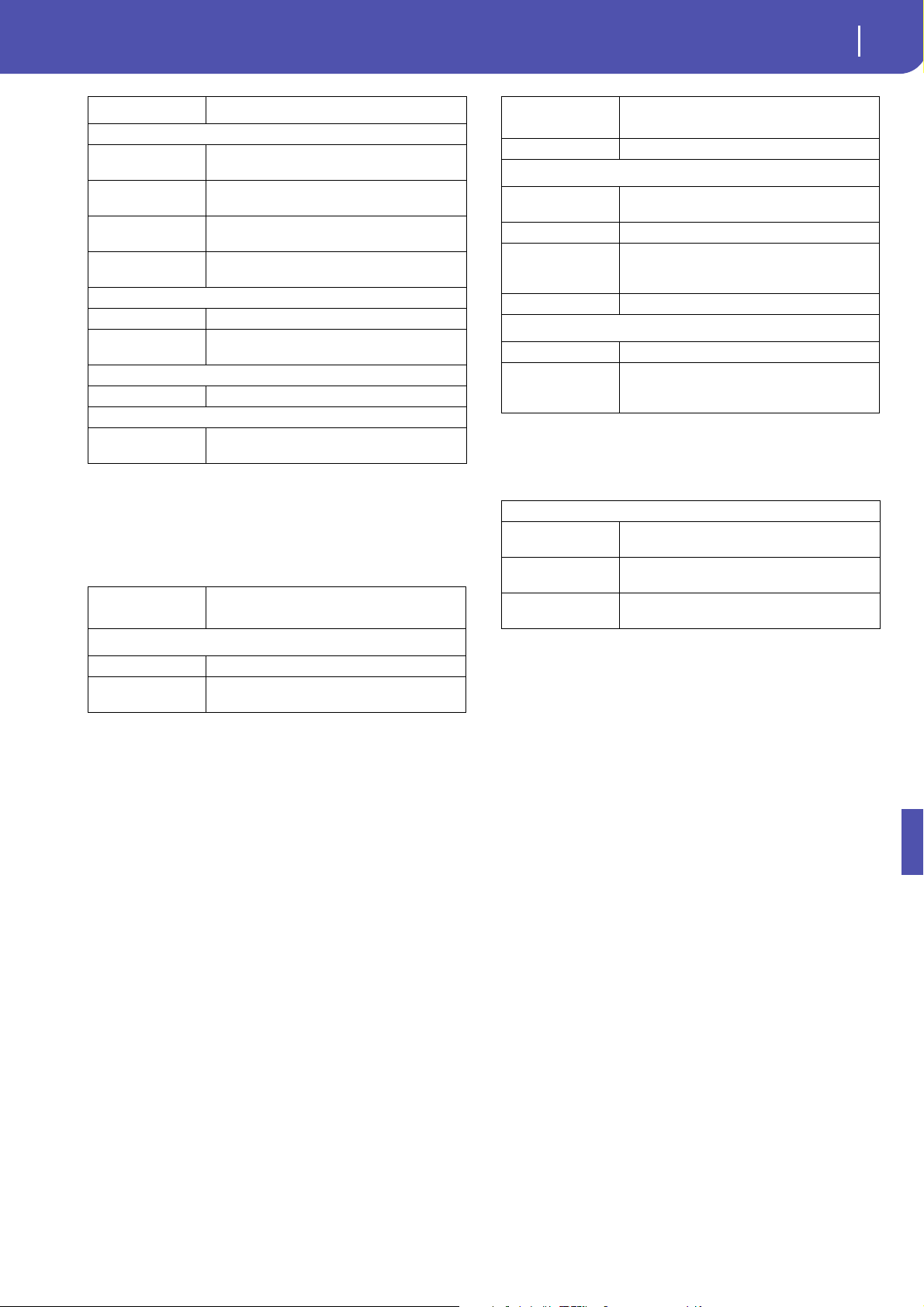
Kurzbefehle
Mehrere Kurzbefehle wurden geändert. Nachstehend finden Sie
eine Komplett-Übersicht aller verfügbaren Kurzbefehle.
‘Shift’-Funktionen
Wenn Sie den SHIFT-Taster gedrückt halten, während Sie einen
anderen Taster drücken, können Sie direkt zu einer Editierseite
oder einem Dialogfenster springen.
Shift + Funktionen
Mehrere Modi
Datenrad Tempoänderung
Bildlaufpfeile Solange eine Übersicht angezeigt wird: Anwahl des
vorigen/nächsten Anfangsbuchstabens innerhalb
der gewählten Spalte
Song Play Aufrufen der Seite „Global > Mode Preferences >
Song & Seq“.
Sequencer Aufrufen der Seite „Global > Mode Preferences >
Song & Seq“.
Sound Edit Übertragen der Klangdaten der gewählten Spur
zum Sound-Modus.
Global Aufrufen der Seite „Global > MIDI > General Cont-
rols“. Damit haben Sie direkten Zugriff auf die MIDI-
Parameter.
Media Aufrufen der Seite „Global > Mode Preferences >
Media“.
Start/Stop Panik-Funktion (MIDI-Rückstellung).
Style Play Aufrufen der Seite „Global > Mode Preferences >
Style“.
Accomp.
Memory
Fade In/Out Anwahl des „Fade In/Out“-Parameters der Seite
„Global > General Controls > Basic“.
Synchro Anwahl des „Clock Source“-Parameters der Seite
„Global > MIDI > General Controls“.
Tempo +/- Nach Anwahl einer Spur kann man die Lautstärke
aller Spuren desselben Typs proportional ändern.
Tempo Lock Aufrufen der Seite „Global > General Controls >
Lock“.
Metro Aufrufen des „Metronome“-Bereichs der Seite „Glo-
bal > General Controls > Basic“.
SongBook Aufrufen der Seite „SongBook > Custom List“.
Transpose (einer von
beiden)
Aufrufen der Seite „Global > Tuning > Transpose
Controls“.
Style Play-Modus
Variation Anwahl der entsprechenden Variation auf der
„Style Play > Controls > Drum Map“-Seite.
Ensemble Anwahl des „Ensemble Type“-Parameters der Seite
„Style Play > Keyboard/Ensemble > Ensemble“.
Pad (beliebig) Aufrufen der Seite „Style Play > Pad/Assignable
Switches > Pad“.
Definierbarer Taster
(einer von beiden)
Aufrufen der Seite „Style Play > Pad/Assignable
Switches > Switch“.
Upper Octave (einer
von beiden)
Aufrufen der Seite „Style Play > Mixer/Tuning >
Tuning“.
Style Record-Modus
Tempo +/- Während die „Sound/Expression“-Seite angezeigt
wird. Proportionale Änderung der „Expression“-Ein-
stellung aller Style-Spuren.
5
KORG Pa600 – Systemversion 1.1
Kurzbefehle
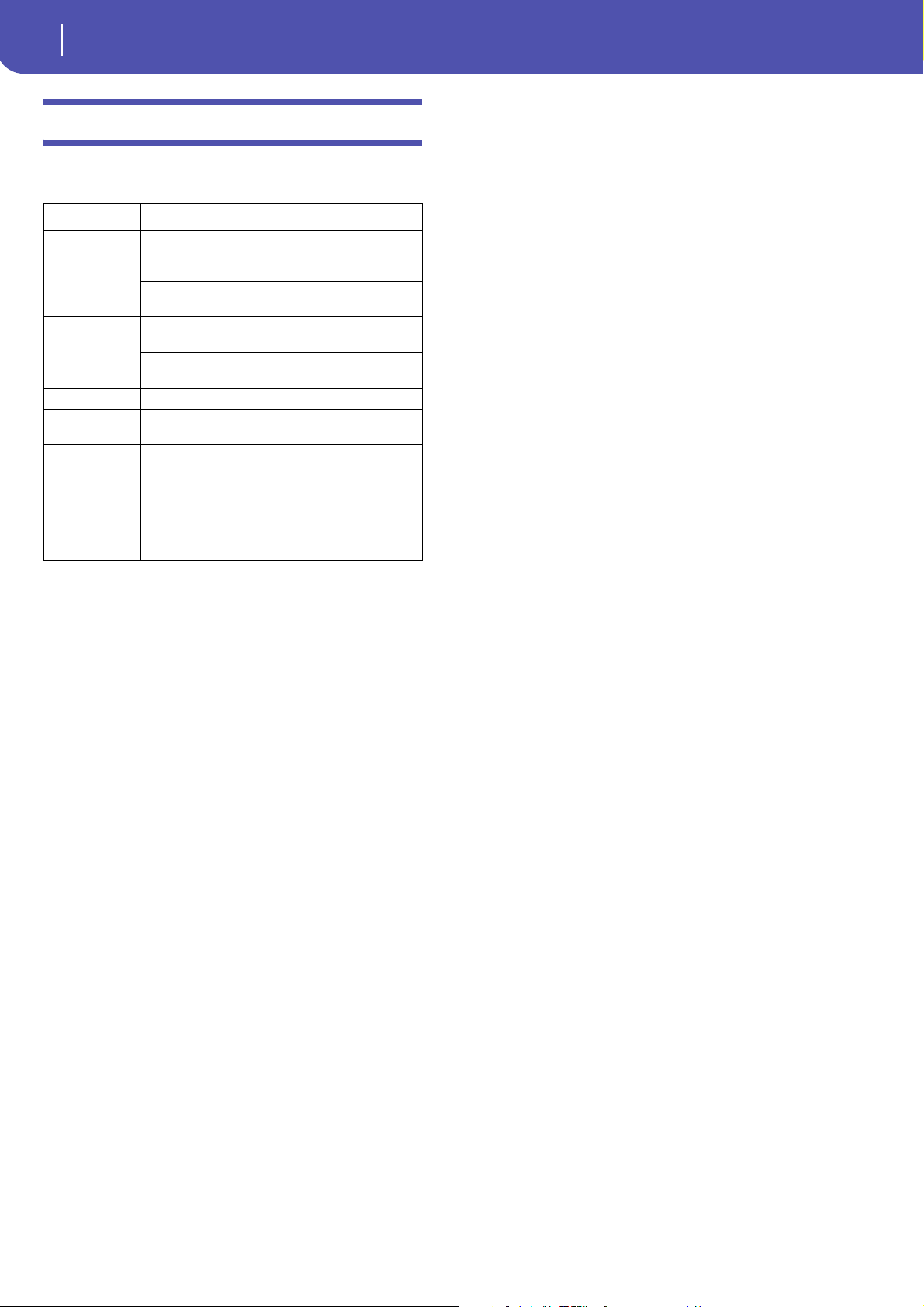
Langes Drücken einer Taste
Wenn Sie einen Taster länger als eine Sekunde gedrückt halten,
springen Sie direkt zu einer Editierseite oder einem Dialogfens-
ter.
Spezialfunktionen
Außerdem stehen noch folgende Kurzbefehle zur Verfügung.
Song Play-Modus
Ensemble Anwahl des „Ensemble Type“-Parameters der Seite
„Song Play > Keyboard/Ensemble > Ensemble“.
Pad (beliebig) Aufrufen der Seite „Song Play > Pad/Assignable
Switches > Pad“.
Definierbarer Taster
(einer von beiden)
Aufrufen der Seite „Song Play > Pad/Assignable
Switches > Switch“.
Upper Octave (einer
von beiden)
Aufrufen der Seite „Song Play > Mixer/Tuning >
Tuning“.
JukeBox
>> Abspielen des nächsten Songs in der JukeBox-Liste.
<< Abspielen des vorangehenden Songs in der Juke-
Box-Liste.
Liedtext
Display Laden einer „.TXT“-Datei.
Sequencer-Modus
Upper Octave (einer
von beiden)
Aufrufen der Seite „Sequencer > Mixer/Tuning >
Tuning“.
Langes Drücken
eines Tasters
Funktionen
Mehrere Modi
Global Kalibrieren des Displays
Split Aufrufen des „Split Point“-Dialogfensters. Drücken
Sie die Taste des gewünschten Splitpunkts.
Shift + Funktionen
My Setting Aufrufen des „Write My Setting“-Fensters.
Style Play-Modus
Style Aufrufen des „Write Current Style Settings“-Fens-
ters.
Performance Aufrufen des „Write Performance“-Fensters.
SongBook Anlegen eines neuen „SongBook“-Eintrags und Öff-
nen des „Write Song“-Fensters (nur wenn das Song-
Book noch nicht aktiv ist).
STS Aufrufen des „Write STS“-Fensters.
Song Play-Modus
Performance Aufrufen des „Write Performance“-Fensters.
SongBook Anlegen eines neuen „SongBook“-Eintrags und Öff-
nen des „Write Song“-Fensters (nur wenn das
„SongBook“ noch nicht aktiv ist).
Style Play-Modus
Tempo +/– (gemein-
sam)
Original-Tempo
Transpose #/b
(gemeinsam)
Rückstellung von „Master Transpose“ auf „0“.
Upper Octave +/–
(gemeinsam)
Aufrufen der gespeicherten „Upper Octave“-Ein-
stellung
Langes Drücken
eines Tasters
Funktionen
6
Verbesserungen und behobene Probleme
Verbesserungen und behobene Probleme
In OS 1.10 behobene Probleme
Bereich Gelöst
Mehrere Modi Nach Anwahl eines anderen „Master Transpose“-Werts
als „0“ wurden bisweilen falsche Einfingerakkorde
erkannt.
Via MIDI IN empfangene Notenbefehle ab dem B6
(Nummer 95) wurden nicht immer abgespielt.
Style Play-Modus Bei Anwahl eines Styles wurden die falschen Klangfar-
ben verwendet.
Änderungen der Style-Parameter (Klangzuordnungen,
Lautstärke usw.) wurden nicht immer übernommen.
Song Play-Modus „Fade In/Out“ funktionierte nicht mit MP3-Songs.
‘Lyrics’-Seite Bestimmte türkische Zeichen in einer „.TXT“-Datei führ-
ten zum Absturz des Betriebssystems.
Media-Modus Beim Laden einer Performance-Bank eines anderen Inst-
ruments der Pa-Serie wurden die Bänke ab der Nummer
9 nicht übernommen. Folglich blieb die betreffende
Zielbank des Pa600 leer.
Die Banknamen der „Favorite“-Styles gingen beim
Sichern eines „.SET“-Ordners oder einer „.BKP“-Datei
verloren.
1
KORG Pa600 – Sistema operativo versione 1.1
Nuove funzioni della versione 1.1
KORG Pa600 – Sistema operativo versione 1.1
Nuove funzioni della versione 1.1
Quando si aggiorna lo strumento alla versione 1.1 del sistema
operativo, vengono aggiunte le seguenti funzioni.
Se è nuovo, lo strumento potrebbe già contenere la nuova ver-
sione del sistema operativo. Potete verificarlo leggendo il
numero di versione nella pagina Media > Utility.
Per caricare il nuovo sistema operativo, leggete le istruzioni alle-
gate al file di installazione prelevabile dal nostro sito web
(www.korg.com).
Quando si aggiorna il sistema da una versione precedente, alla
versione 1.1, occorre aggiornare anche le risorse musicali
mediante il comando Media > Utility > Factory Restore. Le
risorse musicali vengono caricate nello strumento quando si
carica il sistema operativo, ma per rendere effettivo l’aggiorna-
mento delle risorse musicali occorre usare questo comando.
Attenzione: Prima di aggiornare le risorse musicali, salvate i
vecchi dati in un dispositivo di memorizzazione esterno per
evitare che vadano definitivamente perduti. Per salvare le vec-
chie risorse musicali usate una delle operazioni Media > Save.
Suggerimento: Dopo aver caricato il nuovo sistema operativo,
potrebbe rendersi necessario ricalibrare il display TouchView (Glo-
bal > Touch Panel Calibration) ed i pedali/footswitch (Global >
Controllers > Pedal/Switch).
Modo Demo
Nuovo aspetto delle pagine Demo [1.1]
Le pagine del modo Demo hanno un nuovo aspetto.
Vari modi
Premere a lungo per salvare Performance,
STS, Style e SongBook Entry [1.1]
Dopo aver tenuto premuto per circa un secondo uno dei pulsanti
PERFORMANCE, STS, STYLE o SONGBOOK, appare la corri-
spondente finestra di dialogo Write. A questo punto è possibile
salvare in memoria le impostazioni correnti.
Comando Select All (Bank) aggiunto a varie
finestre di selezione [1.1]
Il comando “Select All (Bank)” è stato aggiunto al menu di
pagina delle finestre di selezione di Style, Performance, Sound e
Pad.
Modo Demo
Vedi pag.
Nuovo aspetto delle pagine Demo 1
Vari modi
Premere a lungo per salvare Performance, STS, Style e
SongBook Entry
1
Comando Select All (Bank) aggiunto a varie finestre di sele-
zione
1
Punto di split globale modificabile solo in modo Global 2
Un solo punto di split “locale” salvato negli Style e nelle
SongBook Entry
2
Modi Style Play e Song Play
Stop dei Pad premendo il pulsante corrispondente una
seconda volta
2
SongBook
Pagine Book Edit leggermente modificate 2
Aggiunto comando Init SongBook 2
Impostazioni SongBook salvate automaticamente 2
Lyrics, Score and Marker
Impostazioni di Lyrics, Score e Markers salvate automatica-
mente
2
Global Mode
Aggiunte preferenze “Show Column” nel modo Media 2
Media Mode
Caricare Style e Pad Factory 3
Salvare Style e Pad Factory 3
Factory Restore e Resource Restore selettivi di alcuni tipi di
dati
3
Nuovo formato di file per i Backup 3
Comando Resource Restore rinominato 4
Impostazioni del modo Media salvate automaticamente 4
Risorse musicali
Risorse musicali revisionate 4
Scorciatoie
Scorciatoie riviste 4
2
KORG Pa600 – Sistema operativo versione 1.1
Modi Style Play e Song Play
Select All (Bank)
Scegliete questo comando per selezionare tutti gli elementi con-
tenuti nel banco corrente.
Per deselezionare uno degli elementi selezionati, tenete premuto
il pulsante SHIFT e toccate l’elemento da deselezionare. Per dese-
lezionare tutto, toccate qualsiasi elemento.
Punto di split globale modificabile solo in
modo Global [1.1]
Per rendere le cose più semplici, ora è possibile modificare il
punto di split globale solo nella pagina Global > Mode Preferen-
ces > Style. Se si prova a modificare il punto di split nella pagina
principale dei modi Style Play o Song Play, il parametro “Global”
viene automaticamente deselezionato, e si procede alla modifica
del punto di split “locale”.
Un solo punto di split “locale” salvato negli
Style e nelle SongBook Entry [1.1]
Per rendere le cose più semplici, ora è possibile salvare un solo
punto di split “locale” in ogni Style o SongBook Entry. Non è più
possibile salvare un punto di split diverso per ogni STS.
Modi Style Play e Song Play
Stop dei Pad premendo il pulsante corrispon-
dente una seconda volta [1.1]
È possibile fermare in una sola volta tutte le sequenze dei Pad, o
fermarne solo una o più di una:
• Premete il pulsante STOP (nella sezione PAD) per fermare
tutte le sequenze.
• Premete un solo pulsante PAD per fermare la sequenza cor-
rispondente.
• Premete il pulsante INTRO 1 per fermare le sequenze dei
Pad (purché non siano di tipo Drum o Percussion).
• Premete uno dei pulsanti ENDING per fermare le sequenze
dei Pad (l’Ending continua a suonare fino alla fine).
SongBook
Pagine Book Edit leggermente modificate
[1.1]
Tutte le pagine Book Edit sono state leggermente modificate per
consentire una migliore organizzazione dei parametri. Le fun-
zioni rimangono le stesse.
Aggiunto comando Init SongBook [1.1]
È possibile creare una nuova lista Book vuota con un comando
dedicato (accessibile dal menu di pagina).
Init SongBook
Selezionate questo comando per cancellare la lista Book e tutte le
liste Custom, e iniziare da un nuovo file di SongBook vuoto.
Attenzione: Prima di inizializzare il SongBook, salvate il vecchio
mediante una delle operazioni Media > Save.
Impostazioni SongBook salvate automatica-
mente [1.1]
Tutte le impostazioni delle pagine SongBook (colonna selezio-
nata, tipo di ordinamento, visualizzazione genere/artista, visua-
lizzazione numero/tonalità) ora vengono automaticamente
salvate dopo la modifica.
Lyrics, Score e Marker
Impostazioni di Lyrics, Score e Markers sal-
vate automaticamente [1.1]
Tutte le impostazioni di queste pagine ora vengono automatica-
mente salvate dopo la modifica.
Modo Global
Aggiunte preferenze “Show Column” nel
modo Media [1.1]
Size
Quando questo parametro è selezionato, la colonna Size è visi-
bile nel selettore di file che appare durante le operazioni Media.
Date
Quando questo parametro è selezionato, la colonna Date è visi-
bile nel selettore di file che appare durante le operazioni Media.

3
KORG Pa600 – Sistema operativo versione 1.1
Modo Media
Modo Media
Caricare Style e Pad Factory [1.1]
Se il parametro “Factory Style and Pad Protect” non è selezio-
nato nella pagina Global > Mode Preferences > Media, quando si
caricano dati nella memoria interna è possibile scegliere come
destinazione anche le locazioni di Factory Style e Factory Pad.
Quando si caricano singoli Style o Pad (od un banco di Style o
Pad), esplorate i banchi di destinazione fino a trovare le loca-
zioni desiderate; le locazioni Factory vengono trattate come se
fossero locazioni Favorite/User.
Quando si carica una cartella “.SET”, tutti i Factory Style o Pad in
essa contenuti vengono caricati nelle corrispondenti locazioni
Factory in memoria.
Attenzione: Dopo la conferma, tutti i dati esistenti a destinazione
verranno cancellati.
Salvare Style e Pad Factory [1.1]
Se il parametro “Factory Style and Pad Protect” non è selezio-
nato nella pagina Global > Mode Preferences > Media, quando si
salvano dati dalla memoria interna è possibile scegliere anche le
locazioni di Factory Style e Factory Pad.
Quando si salvano singoli Style o Pad (od un banco di Style o
Pad), esplorate i banchi di origine fino a trovare gli elementi
desiderati; i dati Factory vengono trattati come se fossero dati
Favorite/User.
Quando si salva l’intero contenuto della memoria, si può anche
scegliere di salvare Style e Pad Factory. Dopo aver selezionato
l’intero contenuto della memoria interna (“All”), ed aver confer-
mato una cartella “.SET” nuova o preesistente in cui salvare i
dati, appare una finestra di dialogo in cui è possibile scegliere il
tipo di dati che si desidera salvare:
Finestra di dialogo Save All con l’opzione di protezione
di Style e Pad Factory attivata
Finestra di dialogo Save All con l’opzione di protezione
di Style e Pad Factory disattivata
Dopo la conferma, Style e Pad Factory vengono salvati nella car-
tella “.SET” indicata.
Factory Restore e Resource Restore selettivi di
alcuni tipi di dati [1.1]
Ora è possibile scegliere il tipo di dati da riportare alle condi-
zioni originali di fabbrica, o da recuperare da un archivio di
Backup.
Dopo aver selezionato il comando Factory Restore o Resource
Restore nella pagina Media > Utility, appare una finestra di dia-
logo contenente un elenco dei tipi di dati che è possibile ripristi-
nare. Selezionate solo i tipi di dati che vi interessa ripristinare.
È possibile scegliere singoli tipi di dati deselezionando l’opzione
“All”, e scegliendo i singoli tipi di dati:
Attenzione: Questo comando cancella dalla memoria interna tutti
i tipi di dati selezionati in questa finestra di dialogo (compresi i
dati personalizzati).
Una volta effettuato il ripristino dei dati, appare un messaggio
che invita a riavviare lo strumento (“Data Restored. Please
switch off ”). Mettete lo strumento in standby, poi riaccendetelo.
Nuovo formato di file per i Backup [1.1]
Il formato degli archivi di backup creati scegliendo il comando
“Backup Resources” nella pagina Media > Utility è stato modifi-
cato. Di conseguenza, non è possibile caricare backup creati con
questa versione di sistema operativo in esemplari di Pa600 fun-
zionanti con una versione del sistema operativo precedente alla
versione 1.1.
4
KORG Pa600 – Sistema operativo versione 1.1
Risorse musicali
Comando Resource Restore rinominato [1.1]
Il nome della comando “Full Resource Restore” della pagina
Media > Utility è stato cambiato in “Resource Restore”.
Impostazioni del modo Media salvate auto-
maticamente [1.1]
Tutte le impostazioni delle pagine Media (colonna selezionata,
tipo di ordinamento…) ora vengono automaticamente salvate
dopo la modifica.
Risorse musicali
Quando si aggiorna il sistema da una versione precedente, alla
versione 1.1, occorre aggiornare anche le risorse musicali
mediante il comando Media > Utility > Factory Restore. Le
risorse musicali vengono caricate nello strumento quando si
carica il sistema operativo, ma per rendere effettivo l’aggiorna-
mento delle risorse musicali occorre usare questo comando.
Attenzione: Prima di aggiornare le risorse musicali, salvate i
vecchi dati in un dispositivo di memorizzazione esterno per
evitare che vadano definitivamente perduti. Per salvare le vec-
chie risorse musicali usate una delle operazioni Media > Save.
Risorse musicali revisionate [1.1]
Le risorse musicali sono state riviste e ottimizzate.
Scorciatoie
Sono state cambiate diverse scorciatoie. Di seguito si dà la lista
aggiornata di tutte le scorciatoie.
Funzioni Shift
Si può tenere il pulsante SHIFT premuto, e premere un altro pul-
sante nel pannello di controllo per passare direttamente ad una
pagina di edit o aprire una finestra di dialogo.
Shift + Funzioni
Vari modi
Dial Modifica Tempo
Frecce di scorrimento Se appare una lista: Alla precedente/successiva
sezione alfabetica della colonna selezionata
Song Play Seleziona la pagina Global > Mode Preferences >
Song & Seq
Sequencer Seleziona la pagina Global > Mode Preferences >
Song & Seq
Sound Edit Invia il Sound assegnato alla traccia selezionata al
modo Sound
Global Seleziona la pagina Global > MIDI > General Con-
trols. Si tratta di un modo rapido per passare alle
pagine di edit dei parametri MIDI.
Media Seleziona la pagina Global > Mode Preferences >
Media
Start/Stop Panic (ferma tutte le note e i controlli)
Style Play Seleziona la pagina Global > Mode Preferences >
Style
Accomp.
Memory
Fade In/Out Seleziona il parametro Fade In/Out nella pagina
Global > General Controls > Basic
Synchro Seleziona il parametro Clock Source nella pagina
Global > MIDI > General Controls
Tempo +/- Se una traccia è selezionata, regola in modo pro-
porzionale il volume di tutte le tracce dello stesso
tipo
Tempo Lock Seleziona la pagina Global > General Controls >
Lock
Metro Seleziona la sezione Metronome della pagina Glo-
bal > General Controls > Basic
SongBook Seleziona la pagina SongBook > Custom List
Transpose (uno dei
due)
Seleziona la pagina Global > Tuning > Transpose
Controls
Modo Style Play
Variation Seleziona la Variation corrispondente nella pagina
Style Play > Controls > Drum Map
Ensemble Seleziona il parametro Ensemble Type nella pagina
Style Play > Keyboard/Ensemble > Ensemble
Pad (uno qualsiasi) Seleziona la pagina Style Play > Pad/Assignable
Switches > Pad
Assignable Switch
(uno qualsiasi)
Seleziona la pagina Style Play > Pad/Assignable
Switches > Switch
Upper Octave (uno
dei due)
Seleziona la pagina Style Play > Mixer/Tuning >
Tuning
Modo Style Record
Tempo+/- Se è mostrata la pagina Sound/Expression: Regola in
modo proporzionale il livello del parametro Expres-
sion sulle tracce Style
5
KORG Pa600 – Sistema operativo versione 1.1
Scorciatoie
Pressione lunga
Si può tenere un pulsante premuto per circa un secondo, per
passare direttamente ad una pagina di edit o aprire una finestra
di dialogo.
Altre funzioni
Altre scorciatoie sono le seguenti.
Modo Song Play
Ensemble Seleziona il parametro Ensemble Type nella pagina
Song Play > Keyboard/Ensemble > Ensemble
Pad (uno qualsiasi) Seleziona la pagina Song Play > Pad/Assignable
Switches > Pad
Assignable Switch
(uno qualsiasi)
Seleziona la pagina Song Play > Pad/Assignable
Switches > Switch
Upper Octave (uno
dei due)
Seleziona la pagina Song Play > Mixer/Tuning >
Tuning
JukeBox
>> Suona il brano successivo nella lista di JukeBox
<< Suona il brano precedente nella lista di JukeBox
Lyrics
Display Carica un file TXT
Modo Sequencer
Upper Octave (uno
dei due)
Seleziona la pagina Sequencer > Mixer/Tuning >
Tuning
Shift + Funzioni
Pressione lunga Funzioni
Vari modi
Global Calibrazione schermo a sfioramento
SongBook Crea una nuova SongBook Entry e apre la finestra di
dialogo "Write Song" (solo se premuto in un
ambiente diverso da SongBook)
Split Apre la finestra di dialogo Split Point. Suonate una
nota per impostare il nuovo punto di split.
My Setting Apre la finestra di dialogo “Write My Setting”
Modo Style Play
Style Apre la finestra di dialogo “Write Current Style Set-
tings”
Performance Apre la finestra di dialogo “Write Performance”
STS Apre la finestra di dialogo “Write STS”
Modo Song Play
Performance Apre la finestra di dialogo “Write Performance”
Modo Style Play
Tempo +/– (insieme) Tempo originale
Transpose #/b
(insieme)
Porta il Master Transpose a ‘0’
Upper Octave +/-
(insieme)
Imposta l’Upper Octave sui valori salvati
6
Migliorie e correzione di errori
Migliorie e correzione di errori
Correzione errori in OS 1.10
Area Correzione errori
Vari modi Un accordo One Finger errato poteva essere ricono-
sciuto con il Master Transpose diverso da ‘0’.
A volte, le note ricevute dal MIDI IN, a partire dal B6
(#95), potevano non suonare.
Modo Style Play A volte, selezionando uno Style venivano selezionati i
Sound sbagliati.
A volte venivano perse le modifiche agli Style Settings
(suoni delle tracce di Style, Volume…).
Modo Song Play Il Fade In/Out non funzionava con i brani MP3.
Pagina Lyrics Alcuni caratteri turchi contenuti nei file .TXT potevano
bloccare lo strumento.
Modo Media Quando si caricava un banco di Performance da un altro
modello della serie Korg Pa, i banchi a partire dal #9
potevano andar persi. I banchi a destinazione in Pa600
rimanevano vuoti.
I nomi dei banchi di Style Favorite potevano essere persi
salvando una cartella .SET o un archivio .BKP.


© KORG Italy 2013. All rights reservedPART NUMBER: MAN0010068
Address
KORG ITALY SpA
Via Cagiata, 85
I-60027 Osimo (An)
Italy
Web
www.korg.co.jp
www.korg.com
www.korg.co.uk