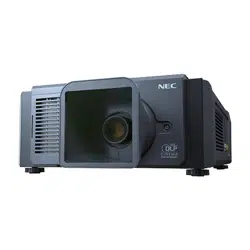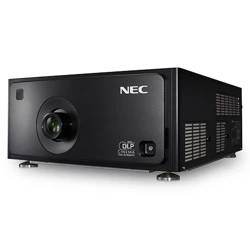
Installation Manual
DLP Cinema
®
Projector
NC1700L
Chiller Unit
NP-17CU01
DLP Cinema
®
Projector
Model No.
NP-NC1700L

2
DLP Cinema Projector Installation and Adjustment NEC Display Solutions, Ltd. Manual (This document) describes the proce-
dures to install, adjust and maintain the projector (NC1700L), the chiller unit (NP-17CU01) and peripheral devices. For safe
and correct installation, adjustment and use of the projector, carefully read this document before installation.
Refer to the operation manuals of the applicable products for basic operation and remarks of the projector. This document
expects the readers who have basic knowledge about projector installation. After reading, please keep this document under
care of the company which installed or adjusted the projector.
The product name used in this manual
In this manual, the device name is written as listed below. If the function has difference by devices, the product name is written
in the text.
• NC1700L Projector
• NP-17CU01 Chiller unit
• NP-17AL01 Coolant
• NP-90MS02-4K Media block or IMB
• Digital Cinema Communicator for S2 DCC
Introduction
3
Precautions: Please read this manual carefully before using
your NC1700L and keep the manual handy for future
reference.
The NC1700L (projector unit) is called the “projector”, the
NP-17CU01 (chiller unit) is called the “chiller unit”, and the
NP-90MS02-4K (integrated media server) is called the
“media block” or “IMB” in this manual.
• DLP, DLP Cinema and their respective logos are trade-
marks or registered trademarks of Texas Instruments.
• CineLink is a trademark of Texas Instruments.
• Other product names and manufacturer names described
in this manual are the registered trademarks or trade-
marks of their respective companies.
• The display screens and illustrations shown in this manual
may differ slightly from the actual ones.
• GPL/LGPL Software Licenses
The product includes software licensed under GNU Gen-
eral Public License (GPL), GNU Lesser General Public
License (LGPL), and others.
For more information on each software, see “readme.pdf”
inside the “about GPL&LGPL” folder on the supplied
CD-ROM.
WARNING
TO PREVENT FIRE OR SHOCK HAZARDS, DO NOT
EXPOSE THIS UNIT TO RAIN OR MOISTURE.
CAUTION
TO REDUCE THE RISK OF ELECTRIC SHOCK, DO NOT
OPEN COVER. NO USER-SERVICEABLE PARTS INSIDE.
REFER SERVICING TO QUALIFIED SERVICE
PERSONNEL.
This symbol warns the user that uninsulated volt-
age within the unit may have sufficient magni-
tude to cause electric shock. Therefore, it is dan-
gerous to make any kind of contact with any part
inside of this unit.
This symbol alerts the user that important lit-
erature concerning the operation and mainte-
nance of this unit has been included. Therefore,
it should be read carefully in order to avoid any
problems.
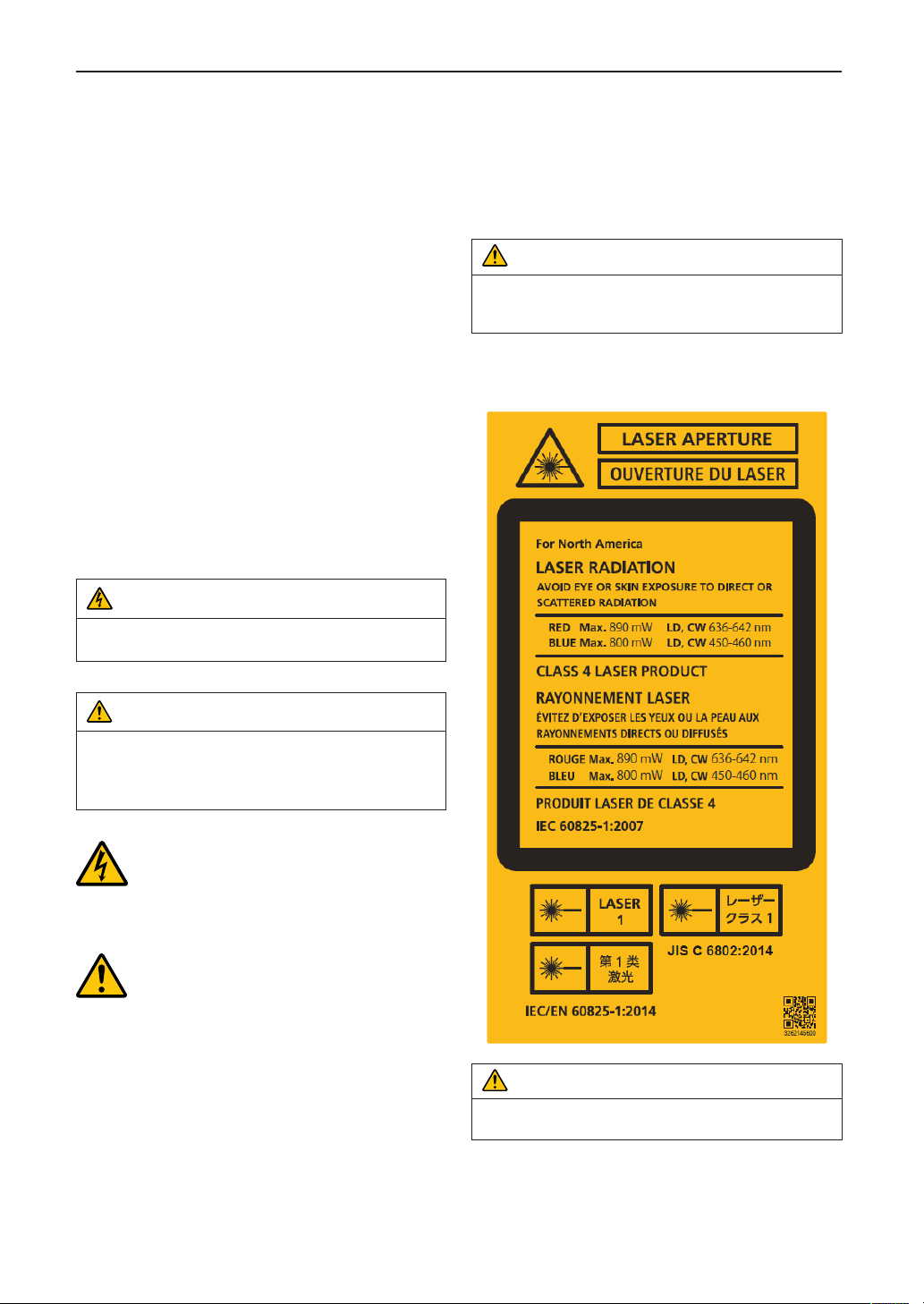
Laser Safety Caution
This product is classified as Class 1 of IEC60825-1 Third edi-
tion 2014. This product is classified as RG3 of IEC62471-5
First edition 2015. Obey the laws and regulations of your
country in relation to the installation and management of the
device.
CAUTION
Use of controls or adjustments of procedures other than
those specified herein may lead to hazardous laser radi-
ation exposure.
This products is classified as Class 4 of IEC60825-1:2007.
Obey the laws and regulations of your country in relation to
the installation and management of the device.
CAUTION – CLASS 4 LASER PRODUCT
LASER LIGHT – AVOID EYE OR SKIN EXPOSURE TO
DIRECT OR SCATTERED RADIATION
Important Information
4
Important Information
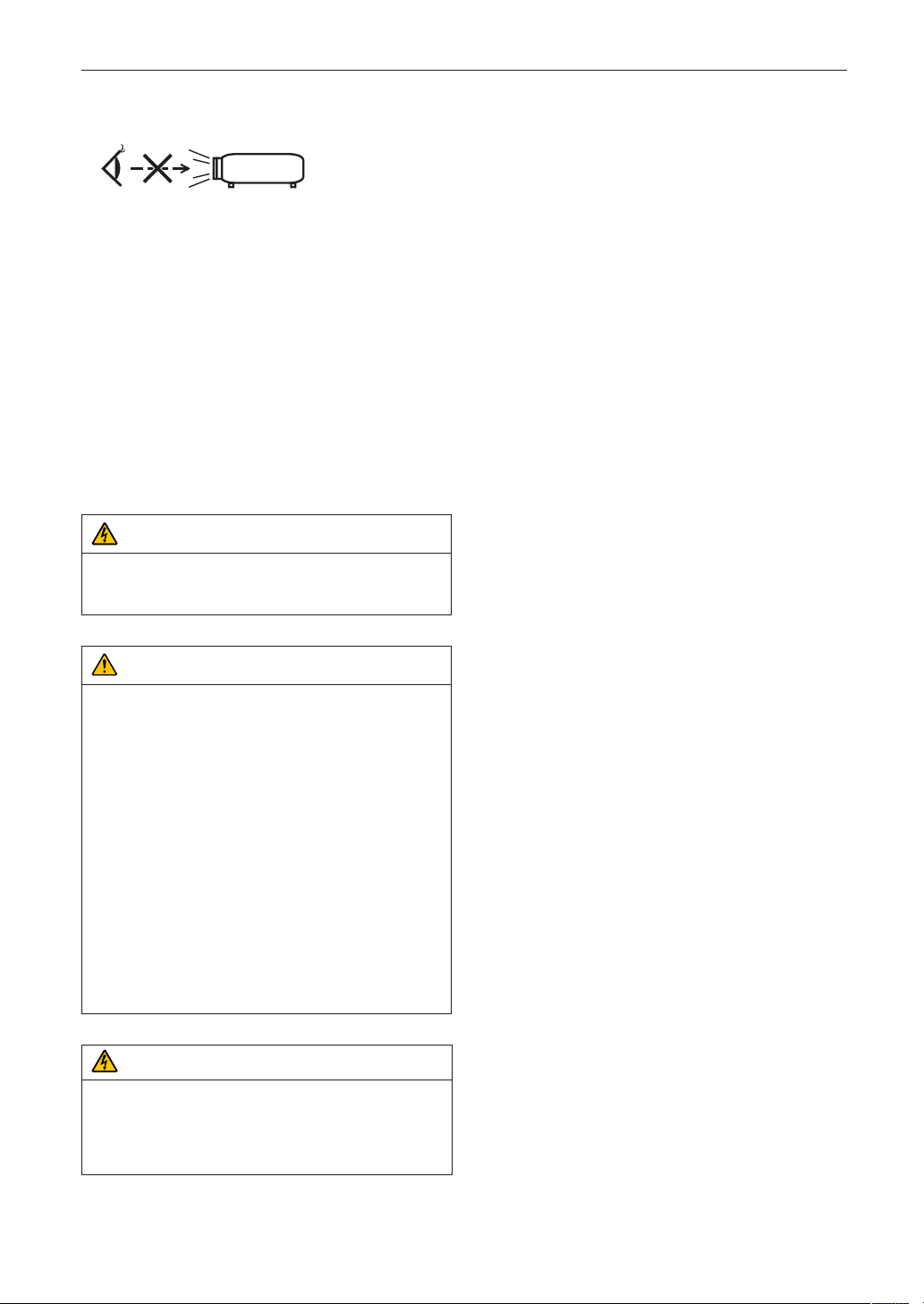
• Do not look into the lens while the projector is on. Serious
damage to your eyes could result.
• Keep any items such as magnifying glass out of the light
path of the projector. The light being projected from the
lens is extensive, therefore any kind of abnormal objects
that can redirect light coming out of the lens, can cause
unpredictable outcome such as fire or injury to the eyes.
• When turning on the projector, ensure that nobody is fac-
ing towards the lens in the path of the light emitted from the
laser.
• This product can only be operated in theaters by specified
personnel. Customers should not operate this product.
DOC Compliance Notice (for Canada only)
This Class A digital apparatus meets all requirements of the
Canadian ICES-003 Standards.
WARNING
This is a Class A product. In a domestic environment this
product may cause radio interference in which case the
user may be required to take adequate measures.
CAUTION
• In order to reduce any interference with radio and tele-
vision reception use a signal cable with ferrite core
attached. Use of signal cables without a ferrite core
attached may cause interference with radio and televi-
sion reception.
• This equipment has been tested and found to comply
with the limits for a Class A digital device, pursuant to
Part 15 of the FCC Rules. These limits are designed to
provide reasonable protection against harmful interfer-
ence when the equipment is operated in a commercial
environment. This equipment generates, uses, and can
radiate radio frequency energy and, if not installed and
used in accordance with the installation manual, may
cause harmful interference to radio communications.
Operation of this equipment in a residential area is
likely to cause harmful interference in which case the
user will be required to correct the interference at his
own expense.
WARNING
THE END USER IS NOT ALLOWED TO OPEN OR MODIFY
THE PRODUCT.
NO USER SERVICEABLE PARTS.
MAINTAIN AND SERVICE OF THE PRODUCT IS ONLY TO
BE HANDLED BY NEC AUTHORIZED TECHNICIANS.
Important Safeguards
These safety instructions are to ensure the long life of your
projector and to prevent fire and shock. Please read them
carefully and heed all warnings.
Installation
1. Do not point the projection beam toward other people or
reflective objects.
2. Consult your dealer for information about transporting
and installing the projector. Do not attempt to transport
and install the projector yourself.
The projector must be installed by qualified technicians
in order to ensure proper operation and reduce the risk
of bodily injury.
3. Place the projector on a flat, level surface in a dry area
away from dust and moisture. Tilting the front of the pro-
jector up or down from level could reduce laser life.
Do not put the projector on its side when the laser is on.
Doing so may cause damage to the projector.
4. Do not place the projector in direct sunlight, near heaters
or heat radiating appliances.
5. Exposure to direct sunlight, smoke or steam could harm
internal components.
6. Handle your projector carefully. Dropping or jarring your
projector could damage internal components.
7. When moving the projector, be sure to remove the lens
and chiller unit from the projector before moving it.
8. To carry the projector, a minimum of four persons are
required.
9. Do not hold the lens part with your hand. Otherwise the
projector may tumble or drop, causing personal injury.
10. Do not place heavy objects on top of the projector.
11. Turn off the projector, and disconnect the power cable
before moving the projector.
12. The cooling fan settings need to be configured when
using the projector in a location at an altitude of approxi-
mately 5500 feet/1600 meters or higher. Consult your
dealer in advance.
Refer to “About High Altitude mode” (page 7) for details.
13. Turn off the projector when removing and installing
lenses. Failure to do so can cause loss of vision.
14. Do not install and store the projector in the below
circumstances.
Failure to do so may cause of malfunction.
• In powerful magnetic fields
• In corrosive gas environment
• Outdoors
15. When moving the projector, check the following:
• That the projector and chiller unit are turned off, the
power plug is disconnected from the outlet
• That the connector cable and hose that connects the
device to the projector is unplugged
5
Important Information
WARNING
1. Do not cover the lens with the supplied lens cap or
equivalent while the projector is on. Doing so can lead
to distorting or melting of the cap and burning your
hands due to the heat emitted from the light output.
2. Do not place any objects, which are easily affected by
heat, in front of the projector lens. Doing so could lead
to the object melting from the heat that is emitted from
the light output.
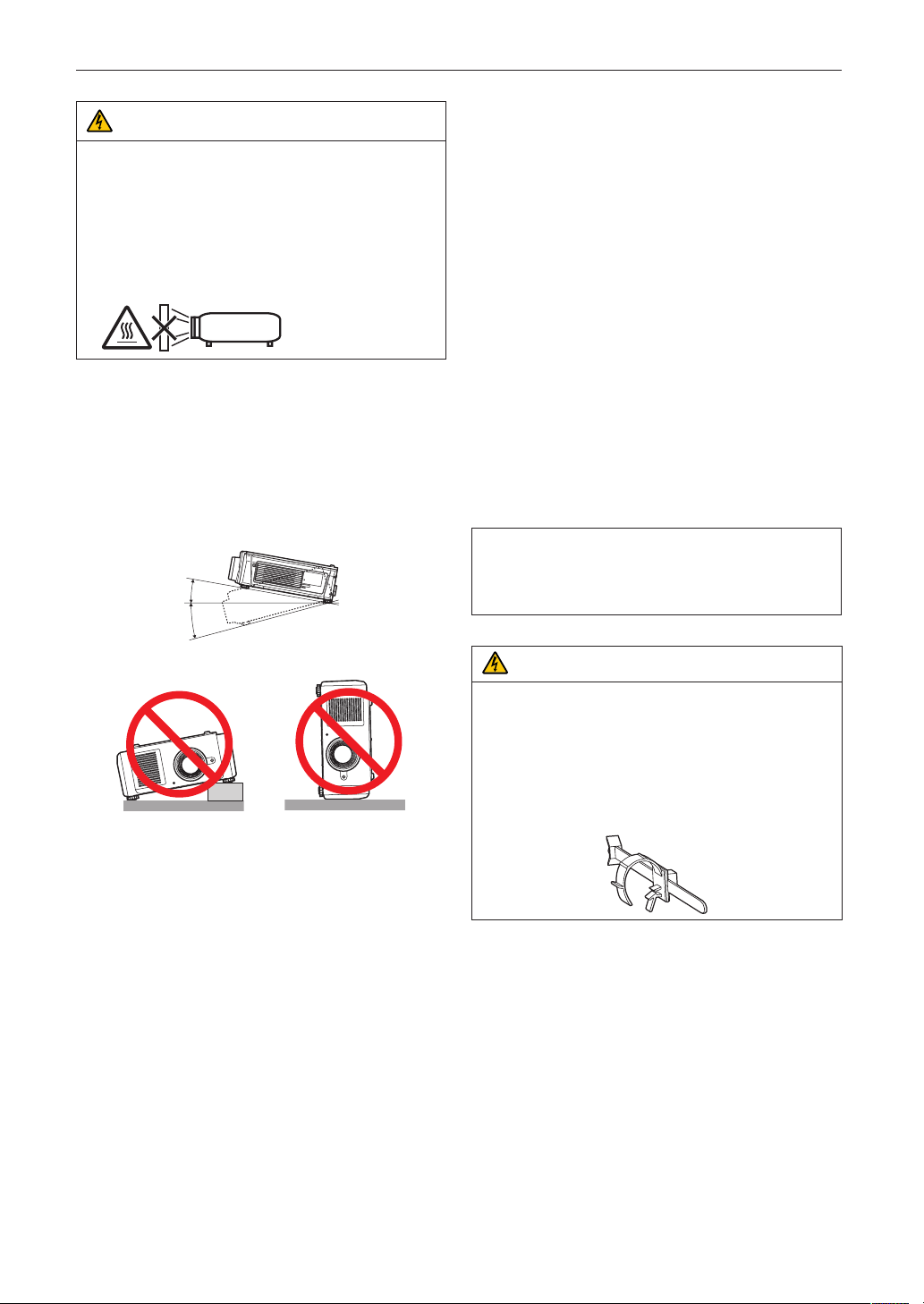
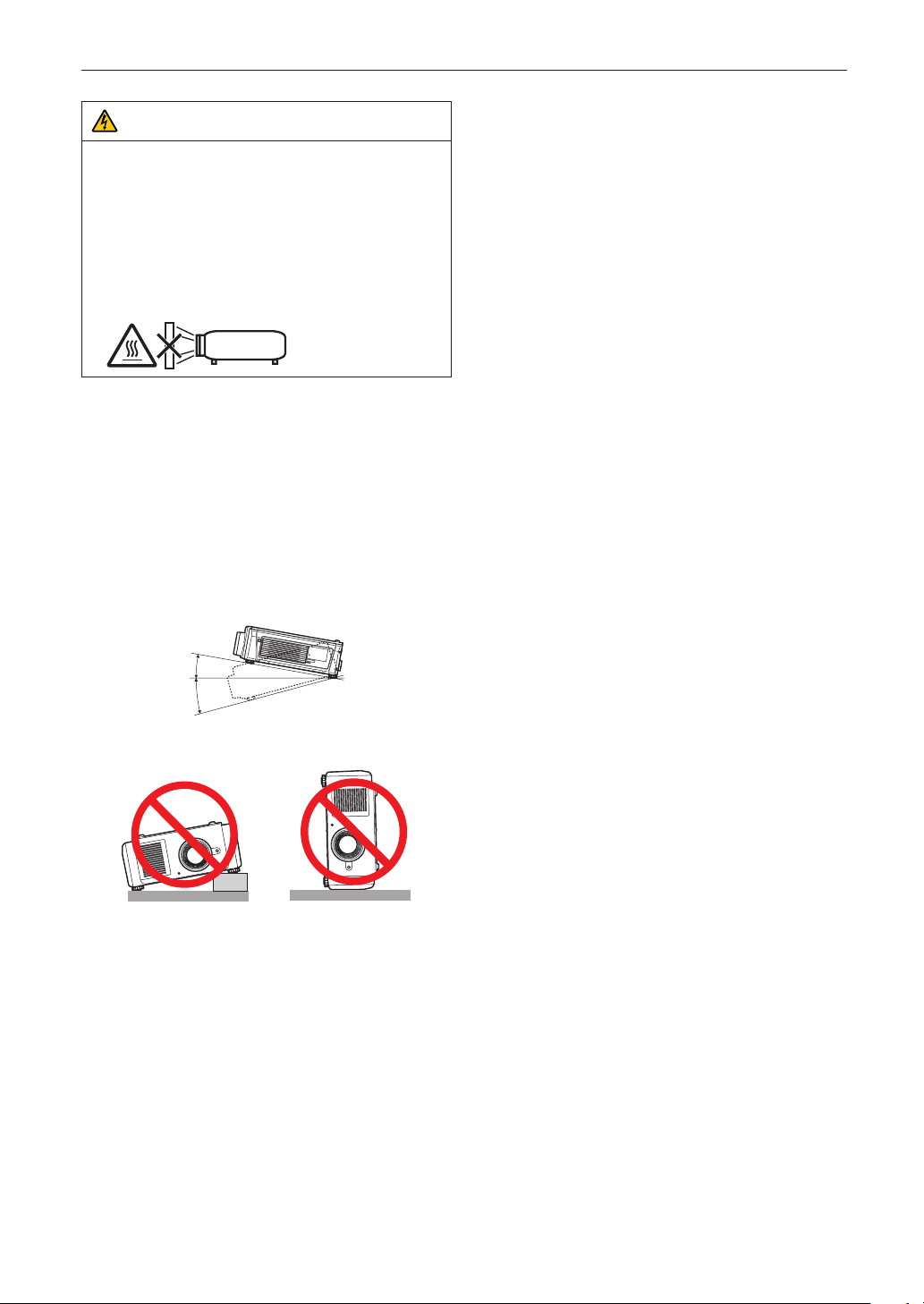
When using the projector tilted in the forward or backward
direction, use it in the range of (+10° to -15°) from horizontal.
If you tilt it outside of this range or tilt it to the left or right, it
may become damaged.
If the projector is tilted outside of this range when used tilted
in the forward or backward direction, “TiltDegreeOver” is dis-
played on the LCD screen. If this message appears, change
the installation of the projector so that the angle is within the
given range from horizontal.
When installed on a floor or a desktop
10°
15°
Power Supply
1. The projector is so designed that it operates with the
power supply voltage described below.
• Projector
AC200-240V 10.7A(MAX) 50/60Hz Single-phase
• Chiller unit
AC200-240V 9.2A 50Hz Single-phase
AC220-240V 10.3A 60Hz Single-phase
Ensure that your power supply fits this requirement
before attempting to use your projector.
2. The power cable is not included with the projector. Ask
your dealer for the power cable to select and purchase.
Use a power cable that meets the standards and power
supply voltage of the country where you are using the
projector.
Refer to “2-3. Selecting the Power Cable (Projector)
(English)” (page 51), “2-7. Connecting the Power Cable for
the Chiller Unit” (page 64), for details on connecting the
power cable.
3. Handle the power cable carefully. A damaged or frayed
power cable can cause electric shock or fire.
• Do not bend or tug the power cable excessively.
• Do not place the power cable under the projector, or
any heavy object.
• Do not cover the power cable with other soft materials
such as rugs.
• Do not heat the power cable.
• Do not change the arrangement of the installed power
cable.
4. If the projector will not be used for an extended period of
time, turn off the projector and chiller unit, and discon-
nect the power plug from the outlet.
5. Placing the power cable and the signal cable closely to
each other can cause beat noise. If this happens, keep
the two separated so that beat noise is not generated.
Beat noise is corruption of the picture often seen as a
rolling band moving through the image.
6. Do not touch the projector during a thunder storm. Doing
so can cause electrical shock or fire.
For UK only: In UK, a BS approved power cable with
moulded plug has a Black (five Amps) fuse installed for
use with this equipment. If a power cable is not supplied
with this equipment please contact your supplier.
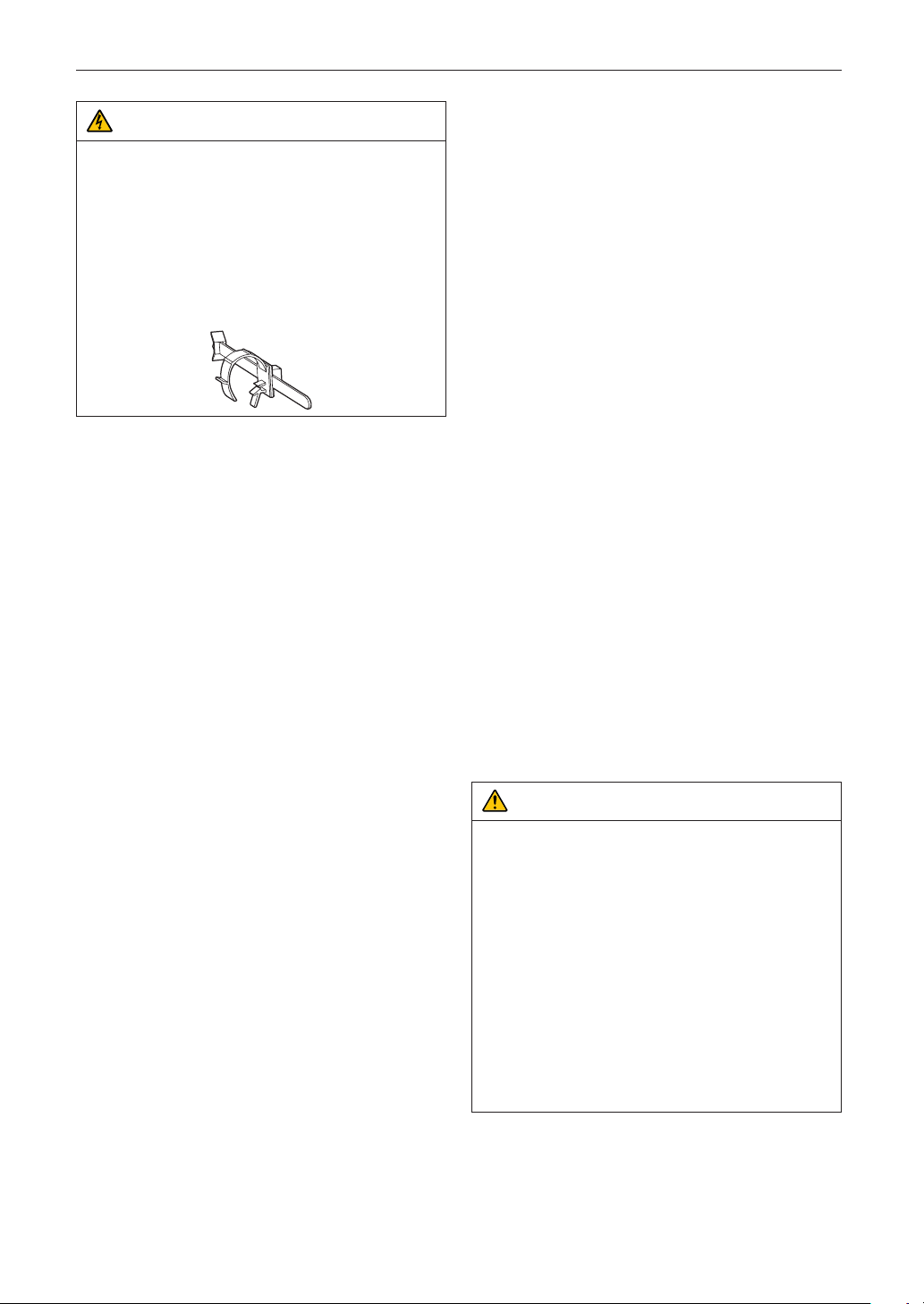
CAUTION
The power cable stopper (shown in below) is supplied with
this projector.
To prevent the power cable from coming loose, make sure
that all the prongs of the power cable are fully inserted into
the AC IN terminal of the projector before using the power
cable stopper to fix the power cable. A loose contact of the
power cable may cause a fire or electric shock. For using
the power cable stopper, refer to the user’s manual.
Fire and Shock Precautions
1. Ensure that there is sufficient ventilation and that vents
are unobstructed to prevent potentially dangerous con-
centrations of ozone and the build-up of heat inside your
projector. Allow at least 12 inches (30 cm) of space
between your projector and a wall. In particular, clear a
space of 27.6 inches (70 cm) or more in front of the air
outlet on the rear surface. Allow at least 19.8 inches (50
cm) of space between your chiller unit and a wall. (See
page 32)
6
Important Information
2. Prevent foreign objects such as paper clips and bits of
paper from falling into your projector. Do not attempt to
retrieve any objects that might fall into your projector. Do
not insert any metal objects such as a wire or screwdriver
into your projector. If something should fall into your pro-
jector, turn off the projector and chiller unit, disconnect
the power plug from the outlet and have the object
removed by a qualified service person.
3. Turn off the projector, unplug the power cable and have
the projector serviced by a qualified service personnel
under the following conditions:
• When the power cable or plug is damaged or frayed.
• If liquid has been spilled into the projector, or if it has
been exposed to rain or water.
• If the projector does not operate normally when you
follow the instructions described in this user’s
manual.
• If the projector has been dropped or the cabinet has
been damaged.
• If the projector exhibits a distinct change in perfor-
mance, indicating a need for service.
4. Keep any items such as magnifying glass out of the light
path of the projector. The light being projected from the
lens is extensive, therefore any kind of abnormal objects
that can redirect light coming out of the lens, can cause
unpredictable outcome such as fire or injury to the eyes.
5. When using a LAN cable:
For safety, do not connect to the connector for peripheral
device wiring that might have excessive Voltage.
6. Do not try to touch the air outlets on the projector during
normal projector operation as it is hot.
Cleaning
1. Turn off the projector and unplug the power cable before
cleaning the cabinet or replacing the laser.
2. During cleaning, turn off the projector and chiller unit,
and disconnect the power plug from the outlet.
3. Clean the cabinet periodically with a cloth. If heavily
soiled, use a mild detergent. Never use strong deter-
gents or solvents such as alcohol or thinner.
4. Use a blower or lens paper to clean the lens, and be
careful not to scratch or mar the lens.
5. Do not touch the projector or the power plug with wet
hand. Doing so can cause electrical shock or fire.
CAUTION
1. Do not unplug the power cable from the wall outlet or
projector when the projector is powered on.
Doing so can damage the projector.
• While projecting images
• While cooling after the projector has been turned off.
(The POWER button LED blinks in green while the
fan is rotating, and “cooling...” is displayed on the
LCD screen.)
2. Do not turn of the AC power for 90 seconds after the
laser is turned on and while the POWER indicator is
blinking green. Doing so could cause premature laser
failure.
3. Use of a wall outlet with a 20 A or more circuit breaker
is recommended.
Caution on Carrying the Projector/Handling the Optional
Lens
When shipping the projector with the lens, remove the lens
before shipping the projector. Always attach the dust cap to
the lens whenever it is not mounted on the projector. The lens
and the lens shift mechanism may encounter damage
caused by improper handling during transportation.
Backing up authentication data
• In order to backup the authentication data needed to
receive cinema video signals, a secondary battery is used
inside the projector. If you have not used the projector at
all for 6 months or more, the battery will lose power and the
authentication data will not be able to be backed up.
Always put the projector into standby mode for at least 48
hours once every 6 months to recharge the battery.
Handling the Battery
• Take care when handling the battery, as it could cause fire,
injury, or damage to surrounding objects.
- Do not short out, dismantle, or place batteries in a fire.
- Do not use the battery other than as designated.
- Ensure that you have the batteries’ polarity (+/-) aligned
correctly.
• Dispose of used batteries according to your local
regulations.
• There is a battery mounted on the electronic circuit board
within the main unit. When disposing of the main unit, do
not dismantle the device or remove the internal circuit
board, and contact the shop where you purchased the
product or your local government agency.
7
Important Information
Peripheral Devices and Connecting Cables
Use shielded cables for the cables connecting the IMB with
peripheral devices (GPI, GPO, AES cables). If you use a non-
shielded cable, there is a risk that radio interference may
occur.
WARNING TO CALIFORNIA RESIDENTS:
Handling the cables supplied with this product will
expose you to lead, a chemical known to the State of Cali-
fornia to cause birth defects or other reproductive harm.
WASH HANDS AFTER HANDLING
Light Module
1. A light module containing multiple laser diodes is
included in the product as the light source.
2. These laser diodes are sealed in the light module. No
maintenance or service is required for the performance
of the light module.
3. End user is not allowed to replace the light module.
4. Contact qualified distributor for light module replace-
ment and further information.
About High Altitude mode
• Set [Fan Speed Mode] to [High Altitude] when using the
projector at altitudes approximately 5500 feet/1600 meters
or higher.
Using the projector at altitudes approximately 5500
feet/1600 meters or higher without setting to [High Alti-
tude] can cause the projector to overheat and the projec-
tor could shut down. If this happens, wait a couple minutes
and turn on the projector.
• Using the projector at altitudes less than approximately
5500 feet/1600 meters and setting to [High Altitude] can
cause the projector to overcool, causing the image to
flicker. Switch [Fan Speed Mode] to [Auto].
• Using the projector at altitudes approximately 5500
feet/1600 meters or higher can shorten the life of internal
parts.
Disposing of your used product
EU-wide legislation as implemented in each
Member State requires that used electrical
and electronic products carrying the mark
(left) must be disposed of separately from nor-
mal household waste.
This includes projectors and their electrical
accessories. When you dispose of such prod-
ucts, please follow the guidance of your local
authority and/or ask the shop where you pur-
chased the product.
After collecting the used products, they are
reused and recycled in a proper way. This
effort will help us reduce the wastes as well as
the negative impact to the human health and
the environment at the minimum level.
The mark on the electrical and electronic prod-
ucts only applies to the current European
Union Member States.
For EU: The crossed-out wheeled bin implies
that used batteries should not be put to the
general household waste! There is a separate
collection system for used batteries, to allow
proper treatment and recycling in accordance
with legislation.
According the EU directive 2006/66/EC, the
battery can’t be disposed improperly. The
battery shall be separated to collect by local
service.
For questions relating to unclear points or repairs
Contact your dealer or the following support branch for
questions relating to unclear points, malfunctions and repairs
of the product.
In Europe
Company Name: NEC Display Solutions Europe GmbH
Address: Landshuter Allee 12-14, D-80637 Munich,
Germany
Telephone: +49 89 99699 0
Fax Line: +49 89 99699 500
Email Address: [email protected]
WEB Address: http://www.nec-display-solutions.com
In North America
Company Name: NEC Display Solutions of America, Inc.
Address: 500 Park Boulevard, Suite 1100 Itasca, Illinois
60143, U.S.A.
Telephone: +1 800 836 0655
Fax Line: +1 800 356 2415
Email Address: pjtechsupport@necdisplay.com
WEB Address: http://www.necdisplay.com/

8
Important Information
In China
Company Name: NEC Solutions (China) Co., Ltd.
Address: Rm 1903, Shining Building, 35 Xueyuan Rd,
Haidian District Beijing 100191, P.R.C.
Telephone: +8610-4008-900-678
Email Address: [email protected]
In Hong Kong and Taiwan
Company Name: Strong Westrex, Inc.
Address: Room 4108 China Resources Building, No. 26
Harbour Road, Wanchai, Hong Kong
Telephone: +852 2827 8289
Fax Line: +852 2827 5993
Email Address: [email protected]
In South Korea
Company Name: Hyosung ITX Co., Ltd.
Address: 1F, Ire Building, 2, Yangpyeong-dong 4-ga,
Yeongdeungpo-gu, Seoul, Korea 150-967
Telephone: +82-2-2102-8591
Fax Line: +82-2-2102-8600
Email Address: [email protected]
WEB Address: http://www.hyosungitx.com
In Australia and New Zealand
Company Name: NEC Australia Pty Ltd
Address: 26 Rodborough Road Frenchs Forest NSW 2086
Telephone: 131 632 (from anywhere in Australia)
Email Address: [email protected]
WEB Address: http://www.nec.com.au
In Thailand, Singapore, Malaysia, Indonesia and
Philippines
Company Name: Goldenduck International Co., Ltd.
Address: 65 Soi Phutthamothon Sai 1, 21 Bangramad,
Talingchan, Bangkok, Thailand 10170
Telephone: +66-2887-8807
Fax Line: +66-2887-8808
Email Address: contact@goldenduckgroup.com
9
Important Information
Laser Aperture Modules
• The laser module is equipped in this product.
Use of controls or adjustments of procedures other than those specified herein may lead to hazardous laser radiation
exposure.
• This product is classified as Class 4 of IEC60825-1 Second edition 2007.
This product is classified as Class 1 of IEC60825-1 Third edition 2014.
This product is classified as RG3 of IEC62471-5 First edition 2015.
Obey the laws and regulations of your country in relation to the installation and management of the device.
Internal laser output of the laser module
Blue laser diodes: Wave length 450-460 nm, Output power 450 W
Red laser diodes: Wave length 636-642 nm, Output power 100 W
WARNING
Always wear laser protection glasses (that meet the following conditions) while working to protect your eyes.
<Requirements for laser protection glasses>
• Optical density: Blue (450 - 460 nm) OD4 or higher, Red (636 - 642 nm) OD4 or higher
• Transmissivity of visible light: 4.5% or higher
10
Important Information
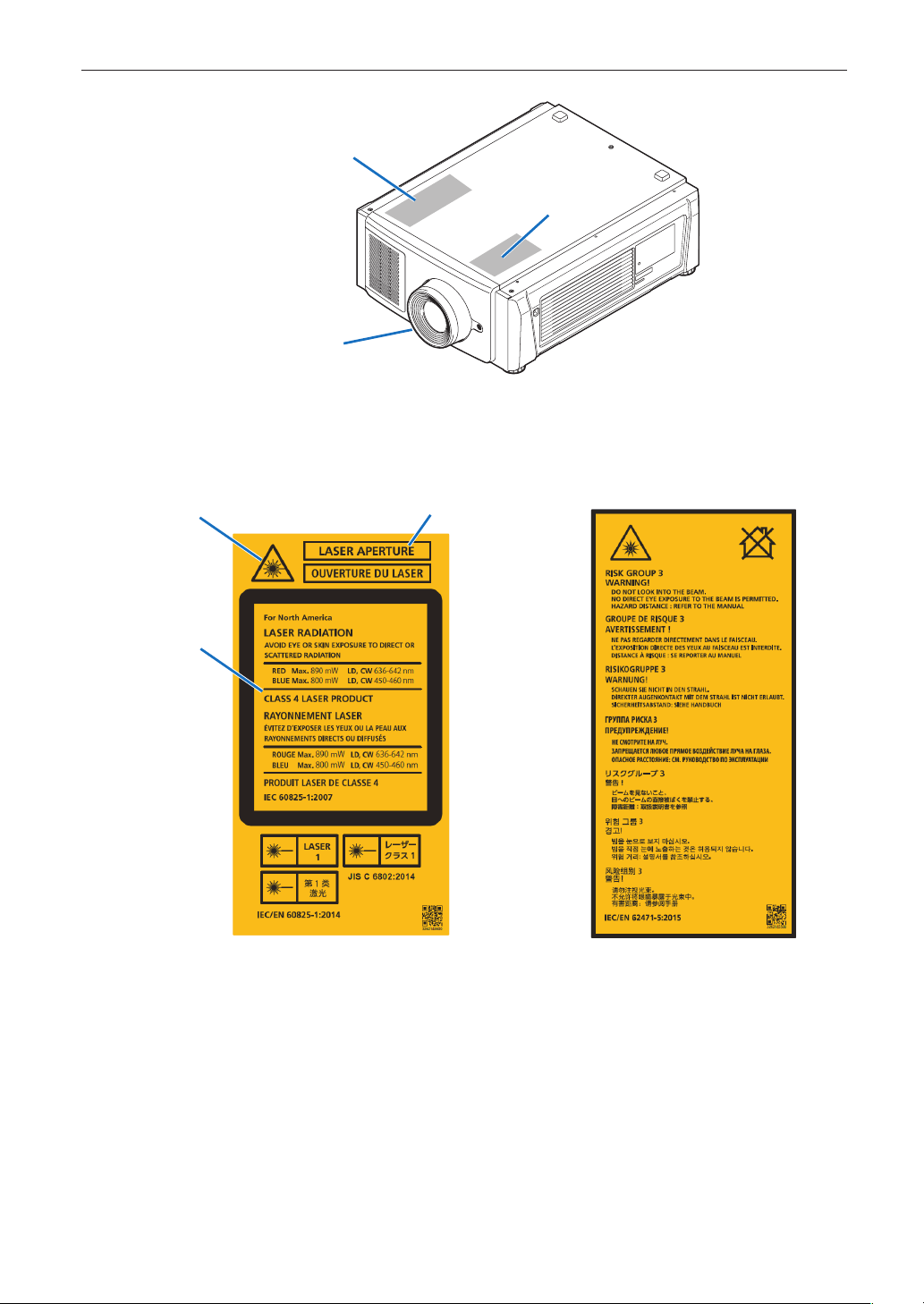
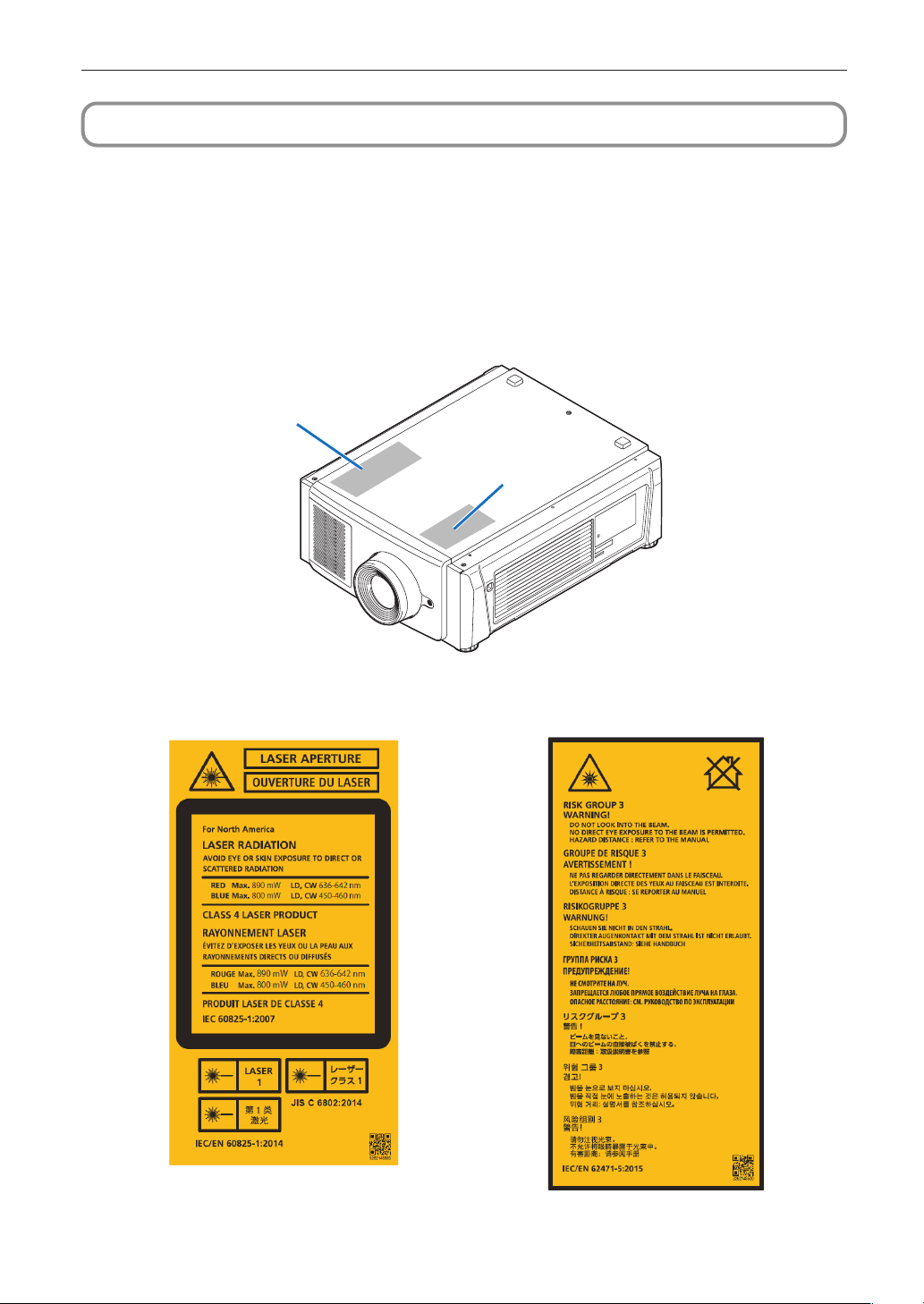
Label B
Hazard Warning Symbol
Explanatory
Label
Aperture Label
Laser Aperture
(Class4:IEC60825-1 2nd edition)
Label B: Risk Group /
Lamp Safety Label
Label A: Hazard Warning Symbol,
Explanatory Label and
Aperture Label
Label A
11
Important Information
Label C
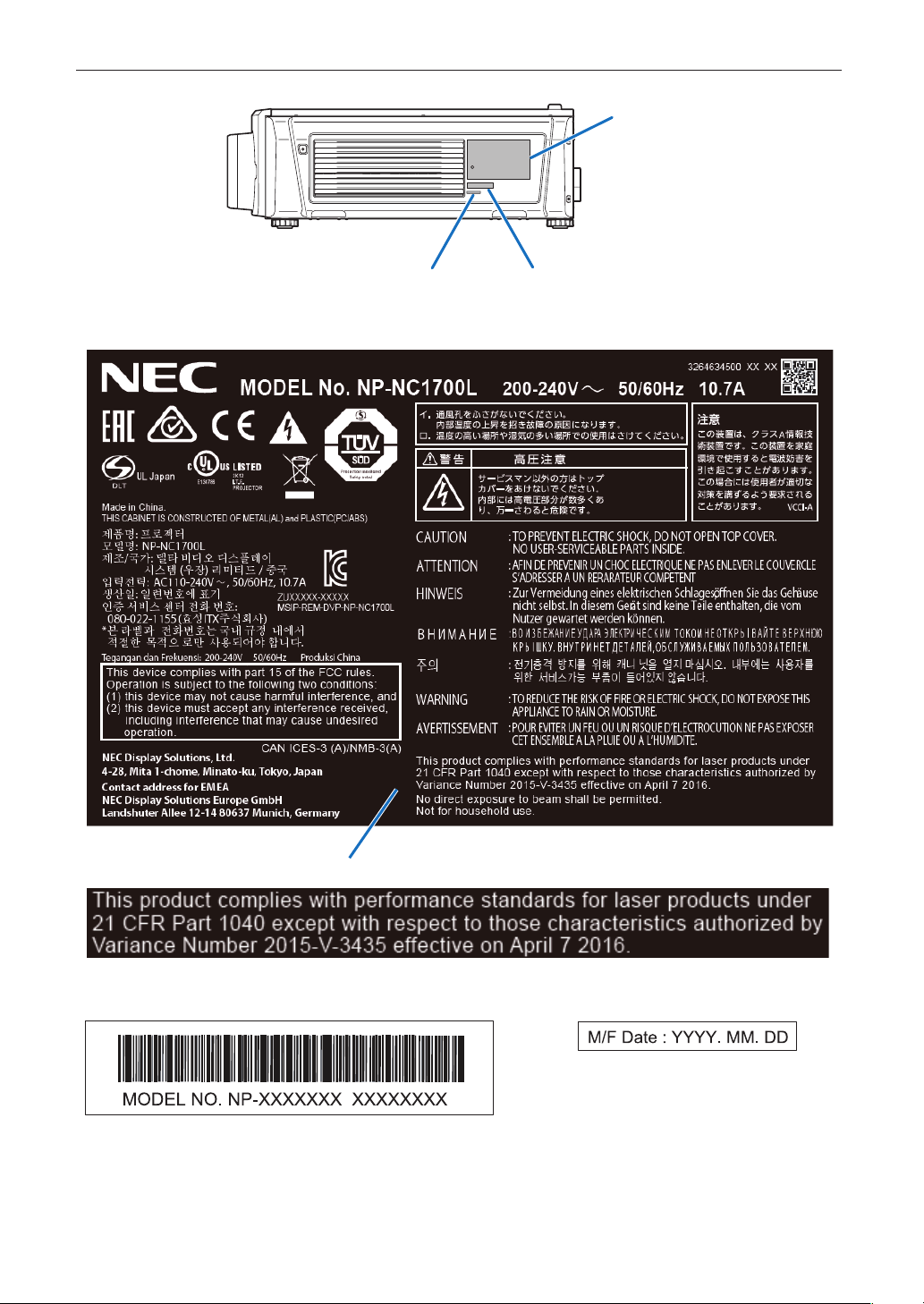
Label DLabel E
Label C: Identification Label
Label D
Certification Statement Label
Label E
12
Important Information
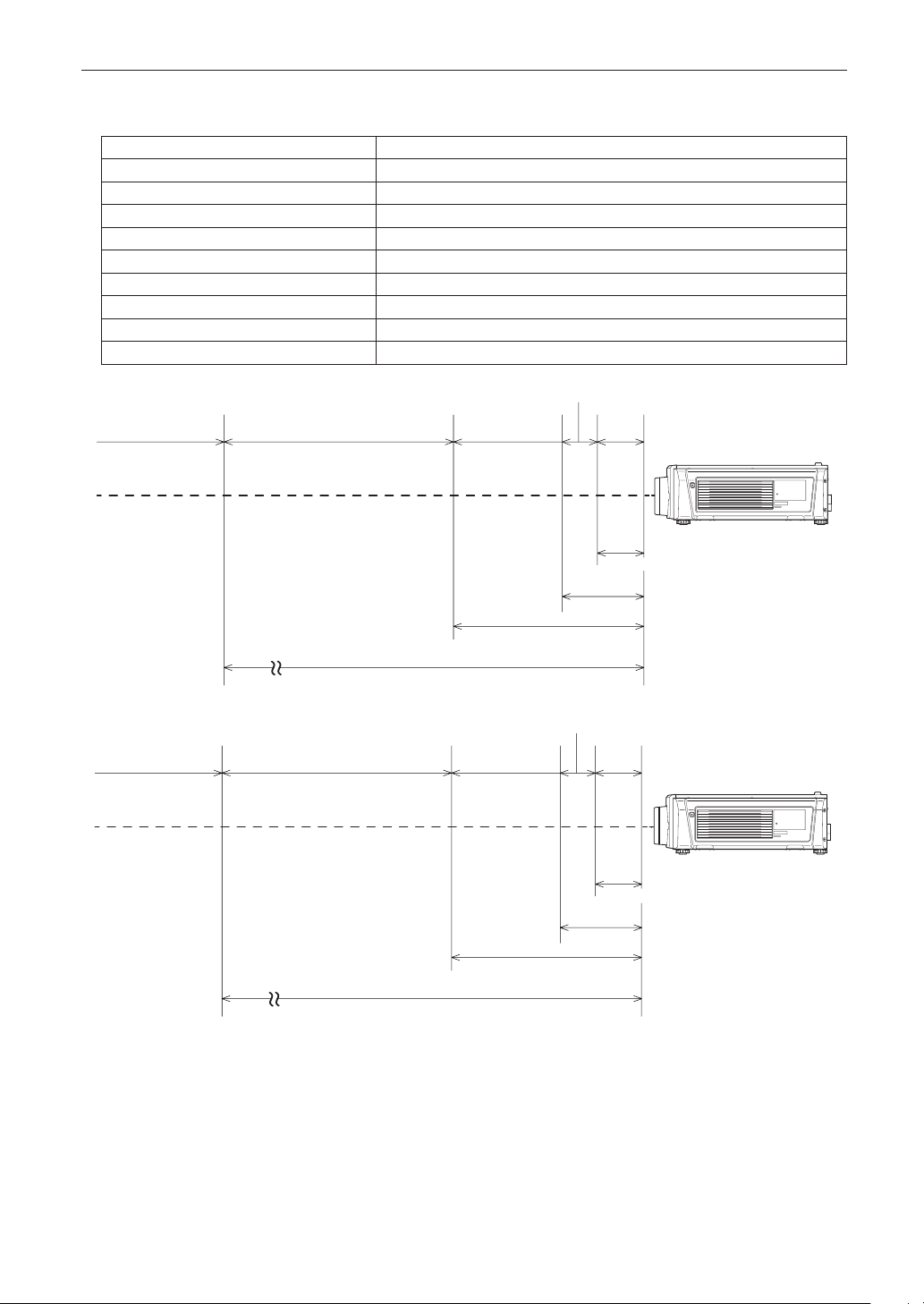
Laser light specications
Class Class 4 laser product
Wavelength Blue: 450 - 460 nm, Red: 636 - 642 nm
Maximum optical output Blue (450 - 460 nm): 800 mW, Red (636 - 642 nm): 890 mW
Beam diameter 10 mm
Divergence 2 Degree to 22 Degree, lens dependent
Pulse duration CW (Continuous Wave)
Modulation 23 - 192 Hz, due to frame rate
MPE Blue (450 - 460 nm), Red (636 - 642 nm): 260 J/m
2
NOHD 11 m
Exposure duration 10 seconds
NP-9LS12ZM1
Class 1 Class 2 Class 3R
0.1m
1.6m (Tele)
1.1m (Wide)
0.6m (Tele)
0.2m (Wide)
Class 3B
Class 4
(Wide)
0.15m (Tele)
0.1m
(Tele)
NP-9LS13ZM1
Class 1 Class 2 Class 3R
0.1m
2.5m (Tele)
(Wide)
(Tele)
0.2m (Wide)
Class 3B
Class 4
(Wide)
0.15m (Tele)
2.45m
0.45m
0.1m
(Tele)
13
Important Information
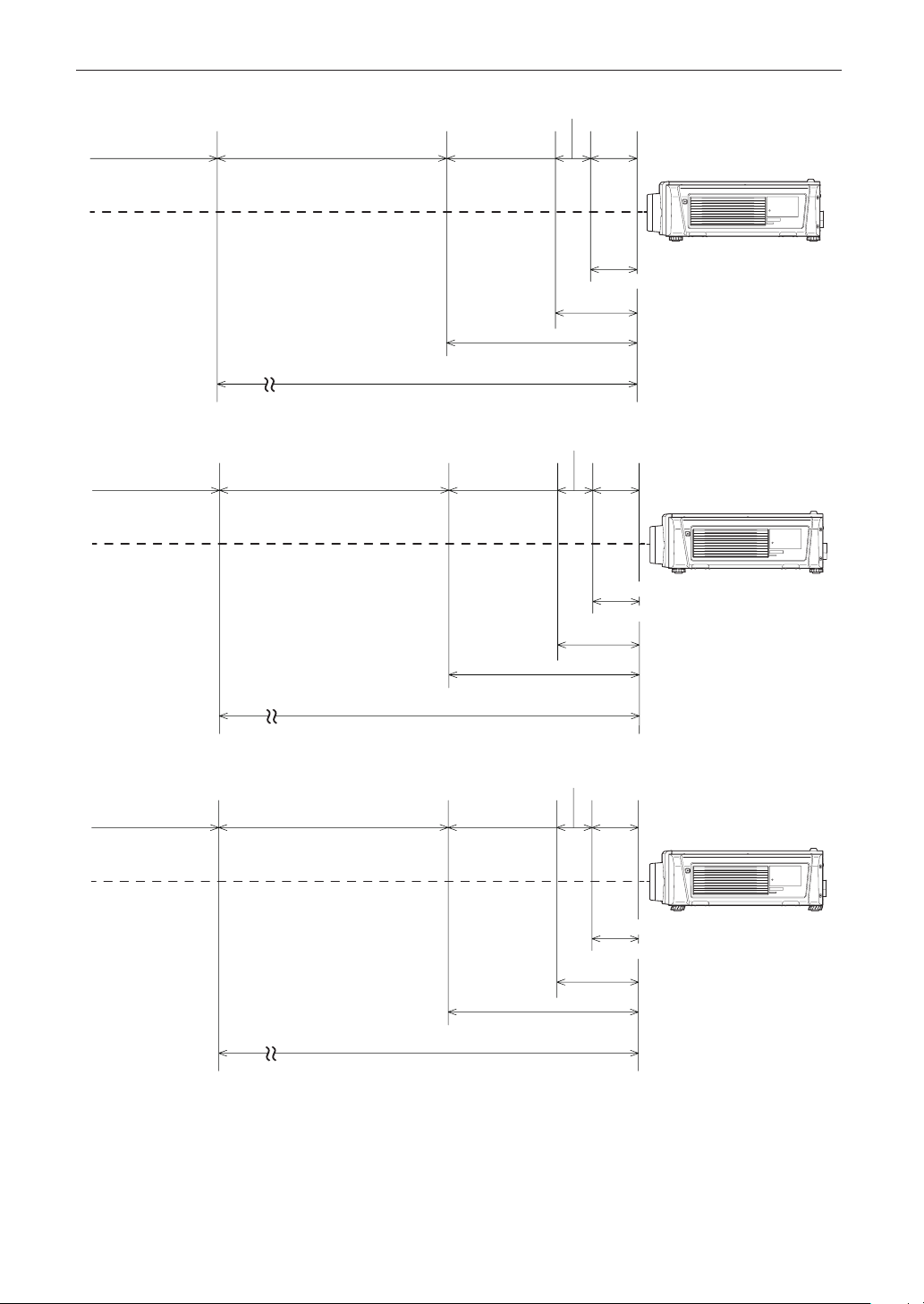
NP-9LS16ZM1
Class 1 Class 2 Class 3R
0.2m
2.75m
(Tele)
(Wide)
0.9m
(Tele)
0.25m (Wide)
Class 3B
Class 4
(Wide)
0.25m (Tele)
1.8m
0.1m
(Tele)
NP-9LS16Z1
Class 1 Class 2 Class 3R
(Tele)
2.55m
(Wide)
1.0m
(Tele)
0.65m (Wide)
Class 3B
Class 4
0.1m
(Wide)
0.15m
0.15m
(Tele)
2.6m
0.1m
(Wide)
(Tele)
Class 1 Class 2 Class 3R
NP-9LS20ZM1
0.2m
6.0m (Tele)
2.6m (Wide)
1.9m (Tele)
0.6m (Wide)
Class 3B
Class 4
0.1m
0.2m (Wide)
0.3m (Tele)
(Tele)
(Wide)
14
Important Information
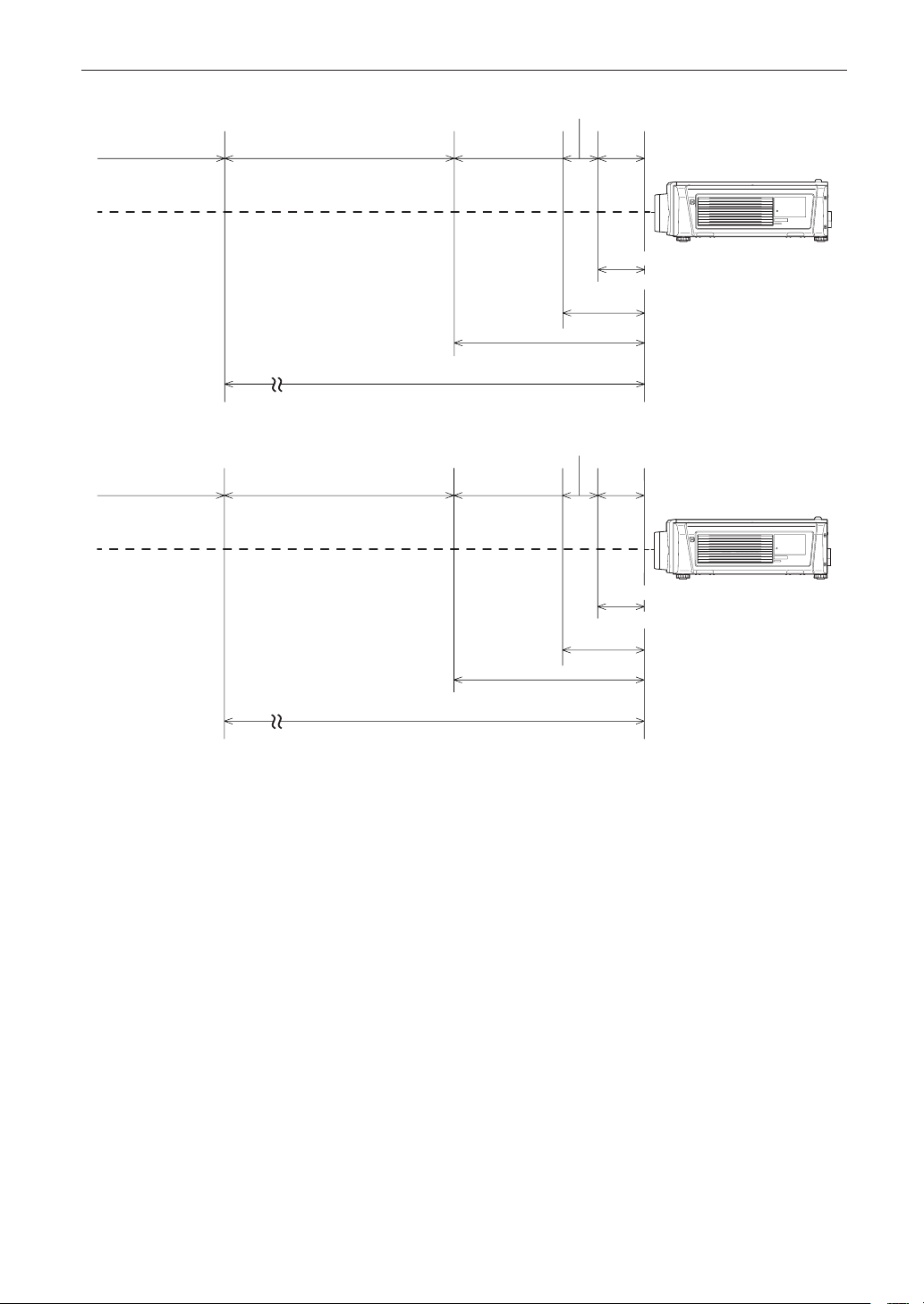
NP-9LS20Z1
Class 1 Class 2 Class 3R
(Tele)
(Tele)
(Wide)
(Wide)
Class 3B
Class 4
6.0m
3.8m
1.9m
(Tele)
0.3m
0.3m
0.9m
(Wide)
0.3m
0.3m
(Tele)
(Wide)
NP-9LS40ZM1
NP-9LS40Z
Class 1 Class 2 Class 3R
(Tele)
(Wide)
1.6m
(Wide)
Class 3B
Class 4
7.5m
9.0m
0.35m
(Wide)
0.35m
(Tele)
3.5m
(Tele)
0.3m
(Wide)
0.3m
(Tele)
15
Important Information
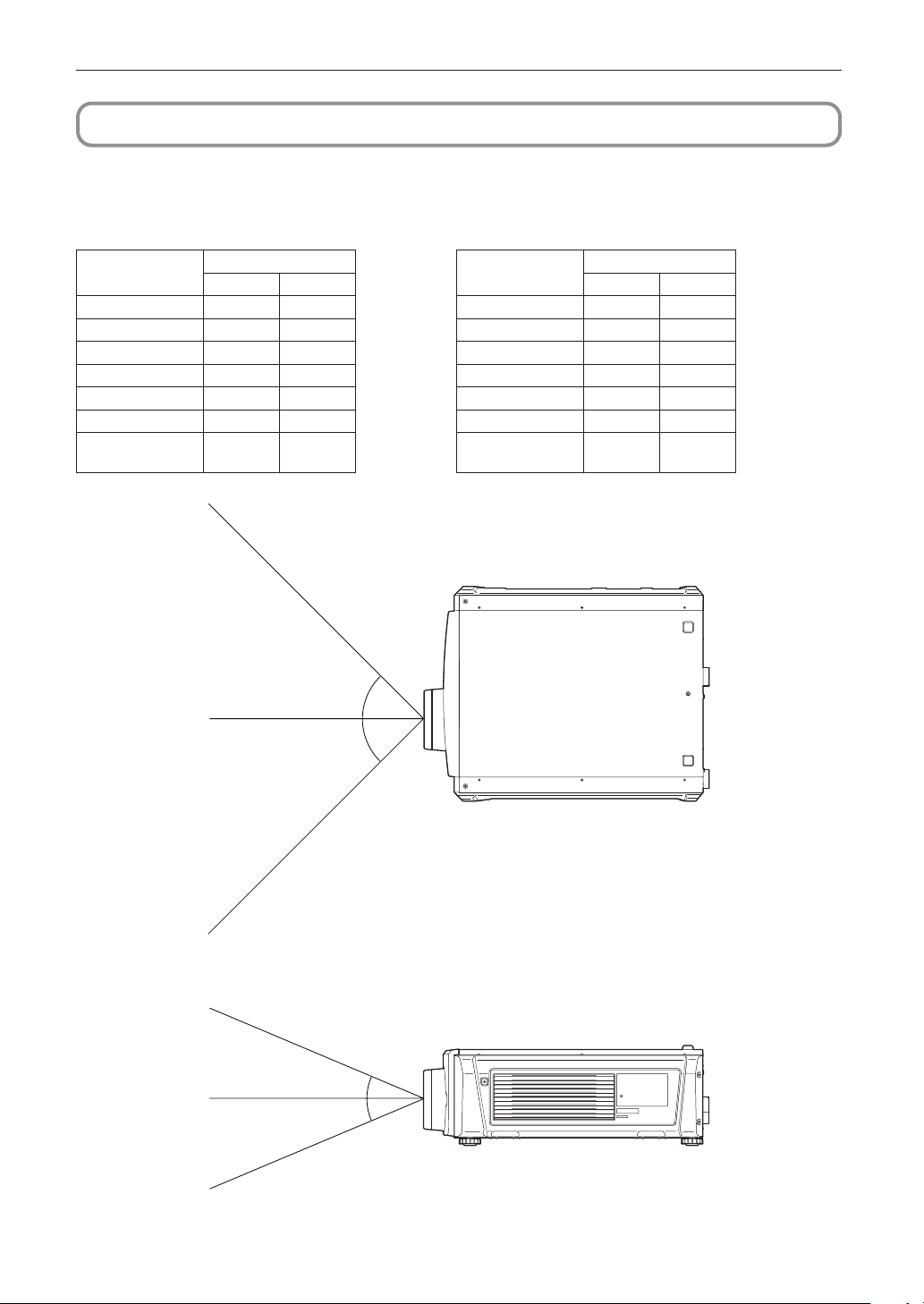
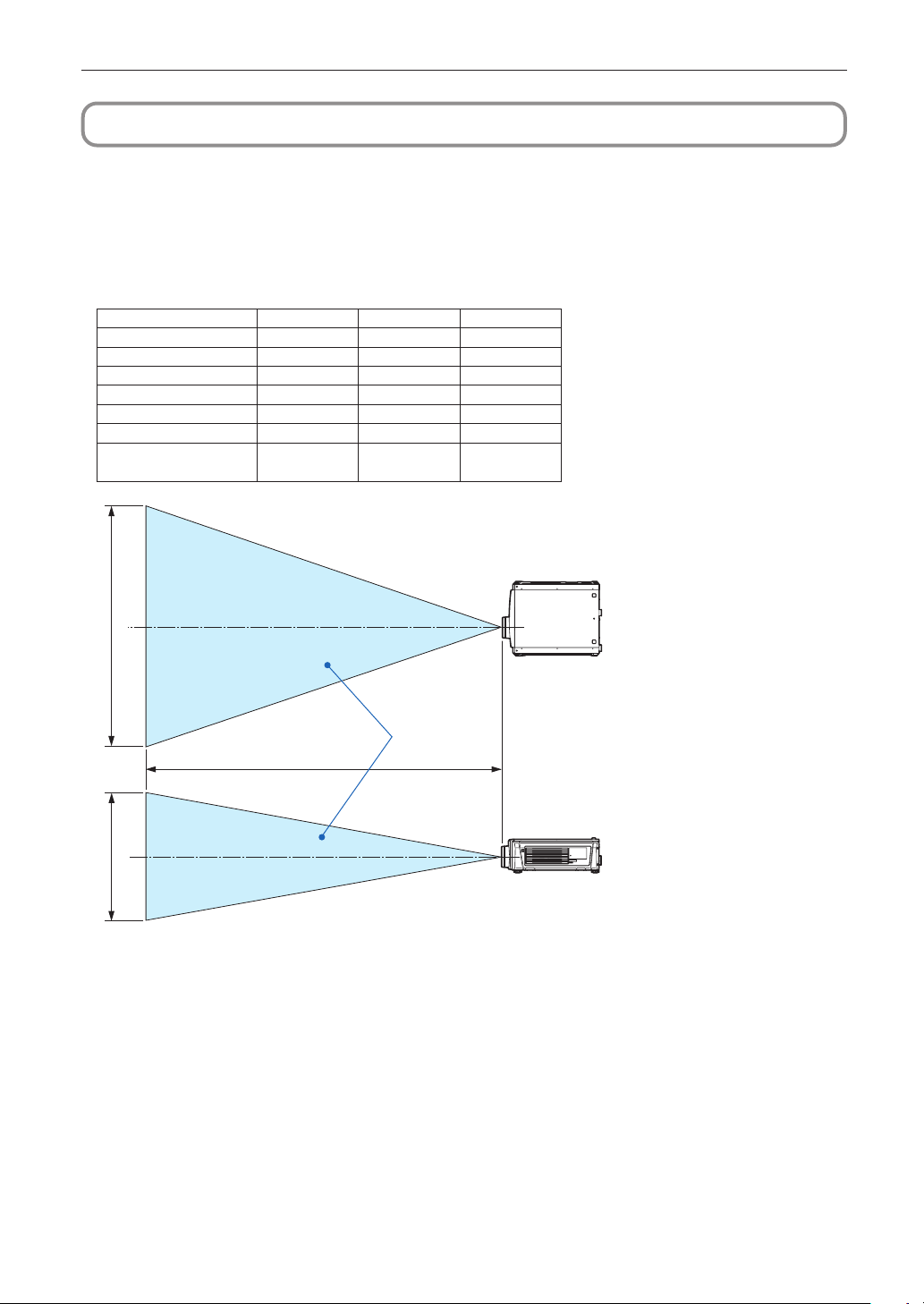
Range of Laser Light Emissions
The following range indicates the maximum range of emission of laser light.
Horizon angle: H Vertical angle: V
[Degree] [Degree]
Lens
Zoom
Lens
Zoom
Tele Wide Tele Wide
NP-9LS12ZM1 15.7 22.1 NP-9LS12ZM1 8.5 12.2
NP-9LS13ZM1 13.3 20.2 NP-9LS13ZM1 7.1 11.0
NP-9LS16ZM1 10.1 16.6 NP-9LS16ZM1 5.4 9.0
NP-9LS16Z1 13.5 16.9 NP-9LS16Z1 7.1 9.1
NP-9LS20ZM1 7.2 13.2 NP-9LS20ZM1 3.8 7.1
NP-9LS20Z1 10.1 13.2 NP-9LS20Z1 5.4 7.1
NP-9LS40ZM1
NP-9LS40Z1
4.4 6.8
NP-9LS40ZM1
NP-9LS40Z1
2.3 3.6
H
V
V
H
16
Important Information
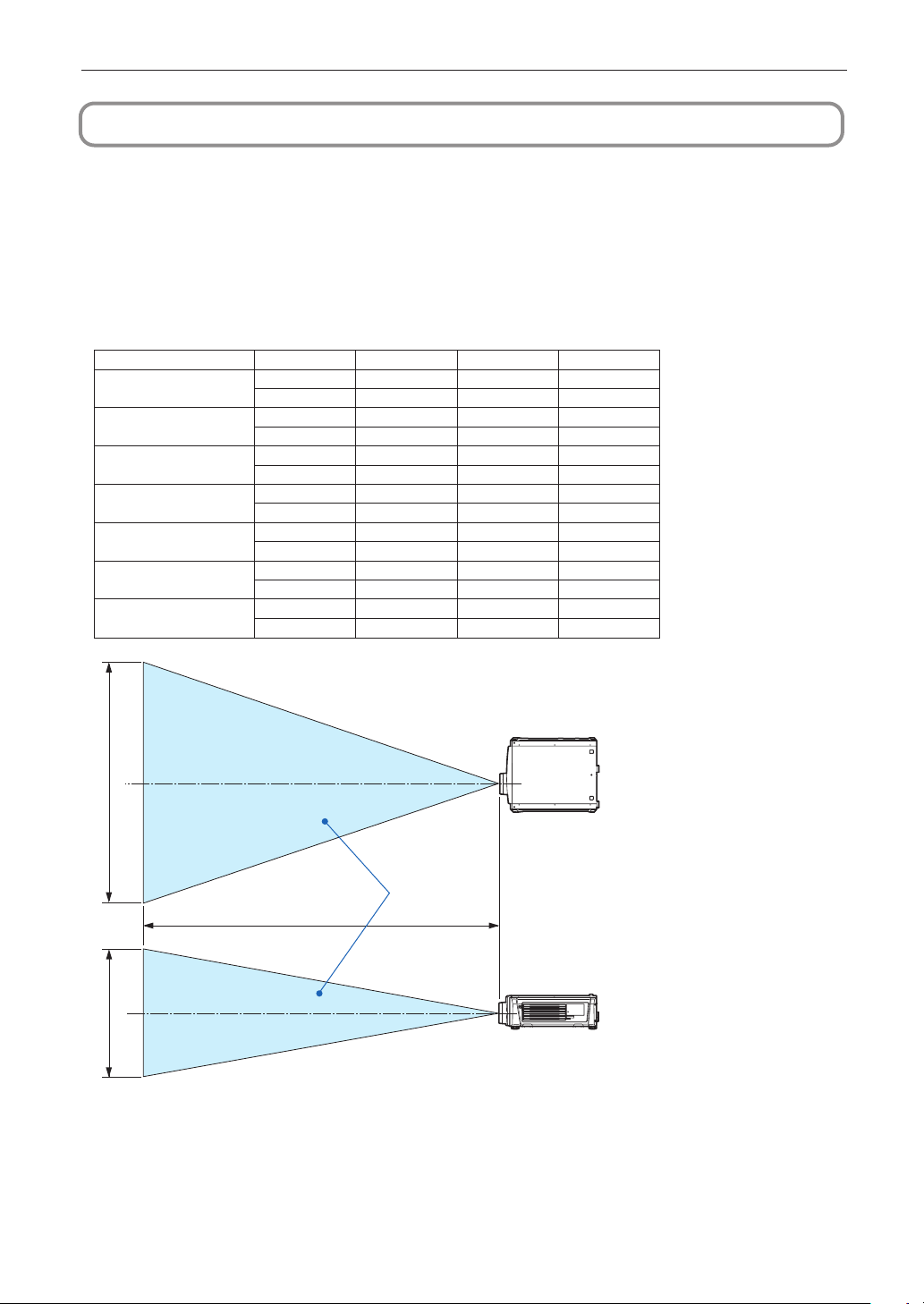
Radiation Range of Emitted Light by the Projector (HD: Hazard Distance)
• The below table describes the radiation range of emitted light by the projector that is classified as Risk Group 3 (RG3) of
IEC62471.
• Please keep within bounds for installing the projector.
Install a barrier for preventing human eyes from entering the RG3 area.
For the barrier installation position, keep horizontal safety zone over 1.5m from the RG3 area.
In case to install the projector over head, keep over 3m distance at least between the floor surface and the RG3 area.
Lens HD(m) H(m) V(m)
NP-9LS12ZM1 2.8 1.63 0.86
NP-9LS13ZM1 3.5 1.67 0.88
NP-9LS16ZM1 4.2 1.56 0.82
NP-9LS16Z1 3.7 1.81 0.96
NP-9LS20ZM1 4.7 1.21 0.64
NP-9LS20Z1 5.2 1.91 1.01
NP-9LS40Z
NP-9LS40ZM1
10.0 1.58 0.83
[Plan view]
[Side view]
RG3 range
HD
H
V
* If lens shift is utilized, please consider the shift of projected image according to the volume of lens shift.
17
Important Information
CAUTION
Please heed all precaution for safety.
To install the projector
• For planning the layout of the projector, make sure to take safety measures instructed on the installation manual.
• In order to refuse danger, install either a wall outlet within easy reach for pulling out the power plug in emergency or a
device as a breaker to shut down the power supply to the projector.
• Take safety measures preventing human eyes from entering the RG3 area.
• Considering the installation place, select an appropriate lens and secure safety zone that is determined for each lens.
For operation on the powered projector as light adjustment, make sure appropriate safety measures have been taken.
• Check the validity of taken security measures if appropriate safety zone based on the installed lens is secured. Periodi-
cally check the validity and keep these results.
• Educate the administrator of the projector (operators) about safety before starting to operate the projector.
To use the projector
• Instruct the administrator of the projector (operators) to perform inspections before powering on the projector. (Including
the safety check against emitted light by the projector)
• Instruct the administrator of the projector (operators) to be in circumstances able to control the projector whenever the
projector is powered on for an emergency.
• Instruct the administrator of the projector (operators) to keep the installation manual, user’s manual and inspection
records to a place where they can take these documents out easily.
• Instruct them to clarify if the projector is conformed to standards of each country and region.
18
Important Information
Radiation Range of Emitted Light by the Projector (HD: Hazard Distance)
• The below table describes the radiation range of the MPE (Maximum Permissible Exposure) values of ANSI Z 136.1.
• Please keep within bounds for installing the projector.
Install a barrier for preventing human eyes or skin from entering irradiation area by laser radiation exceeding the MPE
values.
For the barrier installation position, keep over 1m as horizontal safety zone from the area exceeding the MPE values.
In case to install the projector over head, keep over 2.5m distance at least between the floor surface and the area exceed-
ing the MPE values.
• Avoid eyes or skin from exposing to direct or scattered emission exceeding the MPE values.
Lens Zoom HD(m) H(m) V(m)
NP-9LS12ZM1
Wide 0.40 0.33 0.18
Tele 0.80 0.47 0.25
NP-9LS13ZM1
Wide 0.35 0.26 0.14
Tele 0.90 0.43 0.23
NP-9LS16ZM1
Wide 0.50 0.31 0.16
Tele 1.87 0.69 0.37
NP-9LS16Z1
Wide 1.00 0.61 0.32
Tele 1.22 0.60 0.32
NP-9LS20ZM1
Wide 1.10 0.53 0.28
Tele 3.95 1.01 0.53
NP-9LS20Z1
Wide 1.60 0.79 0.42
Tele 1.70 0.63 0.33
NP-9LS40Z
NP-9LS40ZM1
Wide 4.30 1.06 0.56
Tele 4.90 0.77 0.41
[Plan view]
[Side view]
Area exceeding
the MPE values
HD
H
V
* If lens shift is utilized, please consider the shift of projected image according to the volume of lens shift.

19
Important Information
CAUTION
Please heed all precaution for safety.
To install the projector
• For planning the layout of the projector, make sure to take safety measures instructed on the installation manual.
• In order to refuse danger, install either a wall outlet within easy reach for pulling out the power plug in emergency or a
device as a breaker to shut down the power supply to the projector.
• Take safety measures preventing human eyes from entering the area exceeding the MPE values.
• Considering the installation place, select an appropriate lens and secure safety zone that is determined for each lens.
For operation on the powered projector as light adjustment, make sure appropriate safety measures have been taken.
• Make sure to securely fix the projector for having enough durability to stand projector weight 66kg plus lens weight 3kg
i.e. total weight 69kg for long time. At the same time, pay enough attention not to intrude the secured safety zone caused
on shifting the light emission.
• Record the installation result onto the sheet at the end of this installation manual and submit it to NEC. This record is kept
by the installation service agent and NEC.
Moreover, submit this record to the responsible person of the theater, too.
• Check the validity of taken security measures if appropriate safety zone based on the installed lens is secured. Periodi-
cally check the validity and keep these results.
• Educate the administrator of the projector (operators) about safety before starting to operate the projector.
The education, training, examination, and access control, etc should be taken place according to ANSI Z 136-1 (the
latest version).
• Clearly indicate signs of “LASER RADIATION WARNING” , “ACCESS LIMIT” and “No direct exposure to beam shall be
permitted.” at the installation place as the projection room.
• Limit the access into the installation place by practical method as key lock or lock by a password.
To use the projector
• Instruct the administrator of the projector (operators) to perform inspections before powering on the projector. (Including
the safety check against emitted light by the projector)
• Instruct the administrator of the projector (operators) to be in circumstances able to control the projector whenever the
projector is powered on for an emergency.
In emergency (as if the projector is shifted from the installation position, is fallen down, issues smoke and fire, abnormal
motion is found, trouble is found, etc), the administrator of the projector should immediately pull out the power plug from
the wall outlet or stop the projector by the safety device (a breaker).
• Instruct the administrator of the projector (operators) to keep the installation manual, user’s manual and inspection
records to a place where they can take these documents out easily.
• Study the standards and regulations of your state and area for installing and using the projector and conform them and
then maintain confirmed conditions.
20
Wichtige Informationen
Vorsichtsmaßnahmen: Lesen Sie sich dieses Handbuch
bitte sorgfaltig durch, bevor Sie den NC1700L benutzen, und
bewahren Sie das Bedienungshandbuch in greifbarer Nahe
als spätere Referenz auf.
In diesem Handbuch wird der NC1700L (Projektoreinheit)
„Projektor“ und Wird der NP-17CU01 als „Wasserkühlein-
heit“ bezeichnet, das NP-90MS02-4K (integrieter Media-Ser-
ver) „Media Block“ oder „IMB“ genannt.
• DLP, DLP Cinema und die entsprechenden Logos sind
Warenzeichen oder registrierte Warenzeichen von Texas
Instruments.
• CineLink ist ein Warenzeichen von Texas Instruments.
• Andere in diesem Handbuch genannte Produkt- und Her-
stellernahmen sind eingetragene Warenzeichen oder
Warenzeichen der entsprechenden Unternehmen.
• Die Bildschirmanzeigen und Abbildungen in diesen Hand-
buch können leicht von den tatsächlichen Anzeigen
abweichen.
• GPL/LGPL Softwarelizenzen
Das Produkt beinhaltet Software, die unter GNU General
Public License (GPL), GNU Lesser General Public License
(LGPL) und anderen lizenziert ist.
Für weitere Informationen zu jeder Software lesen Sie bitte
die „readme.pdf“ im Ordner „about GPL&LGPL“ auf der
mitgelieferten CD-ROM.
WARNUNG
ZUR VERMEIDUNG VON FEUER UND ELEKTRISCHEN
SCHLÄGEN DARF DAS GERÄT WEDER REGEN NOCH
FEUCHTIGKEIT AUSGESETZT WERDEN.
ACHTUNG
ZUR VERMEIDUNG EINES ELEKTRISCHEN SCHLAGES
ÖFFNEN SIE NICHT DAS GEHÄUSE. INNERHALB DES
GEHÄUSES BEFINDEN SICH KEINE FÜR DIE BEDIE-
NUNG DES GERÄTES ERFORDERLICHEN TEILE. LAS-
SEN SIE DEN KUNDENDIENST NUR VON HIERFÜR
QUALIFIZIERTEN PERSONEN DURCHFÜHREN.
Dieses symbol warnt den bediener, dass inner-
halb des gerätes unisolierte teile vorhanden sind,
die hochspannung führen und deren berührung
einen elektrischen schlag verursachen kann.
Dieses symbol macht den bëdiener darauf aufmerk-
sam, dass wichtige, den betrieb und die wartung
des gerätes betreffende schriften beigefügt sind.
um irgendwelche probleme zu vermeiden, sollten
diese beschreibungen sorgfältig gelesen werden.
Vorsichtsmaßnahmen zur Lasersicherheit
Dieses Produkt ist gemäß IEC60825-1 Dritte Auflage 2014 als
Klasse 1 klassifiziert. Dieses Produkt ist als RG3 von
IEC62471-5 Erste Ausgabe 2015 eingestuft. Beachten Sie
bei der Installation und Verwaltung des Geräts die Gesetze
und Bestimmun-gen Ihres Landes.
ACHTUNG
Die Verwendung von Bedienelementen oder die Ände-
rung von Prozeduren in Abweichung von den in diesem
Handbuch beschriebenen könnte zu gefährlichem Kon-
takt mit Laserstrahlung führen.
• Schauen Sie nicht in die Linse, wenn der Projektor einge-
schaltet ist. Dies könnte schwere Augenverletzungen zur
Folge haben.
• Lichtkegel des Projektors fern. Da das von der Linse proji-
zierte Licht umfassend ist, können alle abnormalen Gegen-
stände, die in der Lage sind, das aus der Linse austretende
Licht umzulenken, unvorhersehbare Ereignisse wie z.B.
einen Brand oder Augenverletzungen verursachen.
• Wenn Sie den Projektor einschalten, stellen Sie sicher,
dass sich keine Personen in dem vom Laser abgegebe-
nen Lichtstrahl zur Linse hingewandt befinden.
• Dieses Produkt darf in Vorführsälen nur durch festgelegtes
Personal betrieben werden. Endkunden dürfen dieses
Produkt nicht bedienen.
WARNUNG
Dieses Gerät ist ein Produkt der Klasse A. Der Betrieb
dieses Gerätes in Wohngebieten kann erhebliche Störun-
gen des Funkempfangs verursachen. In diesem Fall
muss der Benutzer diese Störungen beseitigen.
21
Wichtige Informationen
ACHTUNG
• Verwenden Sie ein Signalkabel mit Ferritkern, um Stö-
rungen beim Radio- und Fernsehempfang zu reduzie-
ren. Die Verwendung eines Signalkabels ohne Ferrit-
kern kann Störungen beim Radio- und Fernsehempfang
verursachen.
• Durch Prüfung dieses Gerätes nach FCC, Part 15
wurde die Einhaltung der Grenzwerte für digitale
„Class A“- Geräte bestätigt. Diese Grenzwerte gelten
für einen wirksamen Schutz gegen Störungen in
Gewerbegebieten.
Dieses Gerät erzeugt und verwendet Funkfrequenzener-
gie und kann diese ausstrahlen und kann, wenn es nicht
entsprechend dem Bedienungshandbuch aufgestellt und
betrieben wird, Störungen beim Radio- und Fernsehemp-
fang verursachen. Die Verwendung dieses Gerätes in
Wohngebieten verursacht wahrscheinlich Störungen, die
der Benutzer in eigener Verantwortung zu beseitigen hat.
WARNUNG
DER ENDBENUTZER DARF DAS PRODUKT NICHT ÖFF-
NEN ODER MODIFIZIEREN.
ES GIBT KEINE VOM BENUTZER ZU WARTENDEN
TEILE.
DIE WARTUNG DES PRODUKTS DARF NUR VON NEC-
AUTORISIERTEN TECHNIKERN DURCHGEFÜHRT
WERDEN.
Wichtige Sicherheitshinweise
Diese Sicherheitshinweise sollen eine lange Lebensdauer
Ihres Projektors sicherstellen und vor Feuer und elektrischen
Schlägen schützen. Lesen Sie diese Hinweise sorgfältig
durch und beachten Sie alle Warnungen.
Installation
1. Richten Sie den Projektionsstrahl nicht auf Personen
oder reflektierende Gegenstände.
2. Wenn Sie Informationen zum Transport und zur Installa-
tion des Projektors wünschen, wenden Sie sich an Ihren
Händler. Versuchen Sie nicht, den Projektor selbst zu
transportieren oder zu installieren.
Zur Gewährleistung eines ordnungsgemäßen Betriebs
des Projektors und zur Minimierung des Risikos von Ver-
letzungen von Personen muss der Projektor von qualifi-
zierten Technikern installiert werden.
3. Stellen Sie den Projektor auf eine flache, waagerechte
Fläche in einer trockenen Umgebung; frei von Staub und
Feuchtigkeit.
4. Stellen Sie den Projektor weder in direktes Sonnenlicht
noch in die Nähe einer Heizung oder sonstiger Hitze
abstrahlender Einrichtungen.
5. Wenn das Gerät direktem Sonnenlicht, Rauch oder
Dampf ausgesetzt wird, können interne Komponenten
beschadigt werden.
6. Behandeln Sie Ihren Projektor vorsichtig. Fallenlassen
oder starkes Schutteln kann interne Komponenten
beschädigen.
7. Beim Transportieren des Projektors sicherstellen, dass
Linsen- und Kühleinheit vor dem Transport vom Projektor
entfernt werden.
8. Zum Tragen des Projektors werden mindestens vier Per-
sonen benötigt.
9. Halten Sie den Projektor nicht mit der Hand am Linsen-
bereich fest. Anderenfalls kann der Projektor umkippen
oder herunterfallen und Verletzungen verursachen.
10. Legen Sie keine schweren Gegenstände auf den
Projektor.
11. Schalten Sie den Projektor aus, und ziehen Sie das Netz-
kabel ab, bevor Sie den Projektor umsetzen.
12. Die Einstellungen des Kuhlgeblases mussen angepasst
werden, wenn der Projektor in Hohenlagen von ca. 5500
Fuß / 1600 Meter oder hoher verwendet wird. Wenden
Sie sich vorher an Ihren Händler. Einzelheiten dazu fin-
den Sie unter „Über den Modus Große Höhe“ (Seite 24).
13. Schalten Sie den Projektor beim Entfernen und Einsetzen
der Linsen aus. Die Nichtbeachtung dieser Vorschrift
kann zur Erblindung führen.
14. Installieren und bewahren Sie den Projektor nicht unter
den nachfolgend aufgeführten Umständen auf. Nichtbe-
achtung kann eine Fehlfunktion verursachen.
• In starken Magnetfeldern
• In einer Umgebung mit Schadgas
• Im Freien
15. Achten beim Transportieren des Projektors auf folgende
Punkte:
• Dass Projektor und Kühleinheit ausgeschaltet sind
und das Netzkabel vom Stromnetz getrennt ist.
• Dass das Anschlusskabel und der Schlauch, der das
Gerät mit dem Projektor verbindet, nicht eingesteckt
sind.
22
Wichtige Informationen
WARNUNG
1. Bedecken Sie die Linse nicht mit der mitgelieferten Lin-
senkape o.ä. wärend der Projektor eingeschaltet ist.
Dies kann eine Verformung oder ein Schmelzen der
Kappe verursachen. Darüber hinaus würden Sie sich
aufgrund der vom Lichtausgang abgestrahlten Hitze
wahrscheinlich die Hände verbrennen.
2. Platzieren Sie keine hitzeempfi ndlichen Objekte vor
der Projektorlinse. Dies könnte zum Schmelzen des
Objekts durch die Hitze am Lichtausgang führen.
Wenn Sie den Projektor nach vorne oder hinten gekippt ver-
wenden wollen, kippen Sie ihn in einem Bereich von +10° bis
-15° von der Horizontalen. Wenn Sie ihn außerhalb dieses
Bereichs oder nach links oder rechts kippen, kann es zu
einer Beschädigung des Projektors kommen.
Wenn Sie den Projektor nach vorne oder hinten gekippt ver-
wenden und der Projektor außerhalb dieses Bereichs gekippt
wird, wird auf dem LCD-Bildschirm „TiltDegreeOver“ ange-
zeigt. Wenn diese Meldung angezeigt wird, ändern Sie die
Installation des Projektors, sodass der Winkel innerhalb des
angegebenen Bereichs von der Horizontalen liegt.
Bei einer Boden- oder Tischmontage
10°
15°
Spannungsversorgung
1. Der Projektor wurde so konzipiert, dass er mit der unten
aufgeführten Netzspannung läuft.
• Projektor
200-240V Wechselstrom 10,7A(MAX) 50/60Hz Ein-
phasenstrom
• Wasserkühleinheit
200-240V Wechselstrom 9,2A 50Hz Einphasenstrom
220-240V Wechselstrom 10,3A 60Hz Einphasenstrom
Stellen Sie sicher, dass die vorhandene Spannungsver-
sorgung diesen Vorgaben entspricht, bevor Sie versu-
chen, Ihren Projektor zu betreiben.
2. Es wird kein Netzkabel mit dem Projektor geliefert. Fra-
gen Sie Ihren Händler, welches Netzkabel auszuwählen
und zu kaufen ist. Verwenden Sie ein Netzkabel, das die
Normen und Netzspannung des Landes, in dem der Pro-
jektor verwendet wird, erfüllt.
Siehe „2-4. Auswahl des Netzkabels (Projektor)
(Deutsch)“ (Seite 54), „2-7. Connecting the Power Cable
for the Chiller Unit“ (Seite 64) fur Einzelheiten zum
Anschließn des Netzkabels.
3. Behandeln Sie das Netzkabel vorsichtig. Ein beschädig-
tes oder durchgescheuertes Netzkabel kann elektrische
Schläge oder einen Brand verursachen.
• Biegen oder ziehen Sie das Netzkabel nicht
übermäßig.
• Legen Sie das Netzkabel nicht unter den Projektor
oder unter einen anderen schweren Gegenstand.
• Bedecken Sie das Netzkabel auch nicht mit weichen
Materialien, z. B. mit Teppichen.
• Erhitzen Sie das Netzkabel nicht.
• Verändern Sie nicht die Vorkehrungen für das instal-
lierte Netzkabel.
4. Falls der Projektor für längere Zeit nicht verwendet wird,
schalten Sie den Projektor und die Kühleinheit aus, und
trennen Sie das Netzkabel vom Stromnetz.
5. Wenn Sie das Netzkabel und das Signalkabel in unmittel-
barer Nähe zueinander platzieren, kann Überlagerungs-
rauschen auftreten. Vergrößern Sie in einem derartigen
Fall den Abstand zwischen diesen beiden Kabeln.
6. Berühren Sie den Projektor auf keinen Fall während eines
Gewitters. Wenn Sie dies nicht beachten, kann dies zu
einem elektrischen Schlag oder einem Feuer führen.
23
Wichtige Informationen
ACHTUNG
Der nachfolgend abgebildete Netzkabelstopper wird mit
diesem Projektor mitgeliefert.
Um zu verhindern, dass sich das Netzkabel löst, stellen
Sie sicher, dass alle Stifte des Netzkabels vollständig in
den Wechselstromeingangsanschluss des Projektors ein-
gesteckt sind, bevor Sie den Netzkabelstopper verwen-
den, um das Netzkabel zu fixieren. Ein lockerer Kontakt
des Netzkabels kann einen Brand oder Stromschlag ver-
ursachen. Informationen zur Verwendung des Netzkabel-
stoppers finden Sie im Benutzerhandbuch.
Vorsichtsmasnahmen zur Vermeidung von Bränden
und elektrischen Schlägen
1. Sorgen Sie für ausreichende Belüftung und stellen Sie
außerdem sicher, dass die Lüftungsschlitze frei bleiben,
damit sich innerhalb des Projektors kein Hitzestau bilden
kann. Lassen Sie mindestens 30 cm Abstand zwischen
Ihrem Projektor und der Wand. Halten Sie insbesondere
einen Freiraum von mindestens 70 cm vor dem Luftaus-
lass auf der Rückseite. Zwischen der Kühleinheit und
einer Wand müssen mindestens 19,8 Zoll (50 cm) Platz
vorgesehen werden. (Seite 35)
2. Vermeiden Sie, dass Fremdgegenstande wie Büroklam-
mern und Papierschnipsel in den Projektor fallen. Versu-
chen Sie nicht, in den Projektor gefallene Gegenstände
selbst zu entfernen. Stecken Sie keine Metallgegen-
stände wie einen Draht oder Schraubendreher in Ihren
Projektor. Sollte ein Gegenstand in den Projektor fallen,
schalten Sie Projektor und Kühleinheit aus, und trennen
Sie das Netzkabel vom Stromnetz. und den Gegenstand
von qualifiziertem Servicepersonal entfernen lassen.
3. Schalten Sie den Projektor aus, ziehen Sie das Netzkabel
ab und lassen Sie den ihn von einem qualifi - zierten Ser-
vicetechniker überprüfen, falls einer der folgenden Falle
zutrifft:
• Wenn das Netzkabel oder der Netzstecker beschädigt
oder ausgefranst ist.
• Falls Flüssigkeit in den Projektor gelangt ist, oder
wenn er Regen oder Wasser ausgesetzt war.
• Falls der Projektor nicht normal arbeitet, obwohl Sie
die in diesem Bedienungshandbuch beschriebenen
Anleitungen befolgen.
• Wenn der Projektor fallengelassen oder das Gehäuse
beschädigt wurde.
• Wenn der Projektor eine eindeutige Leistungsverän-
derung aufweist, die einer Wartung bedarf.
4. Lichtkegel des Projektors fern. Da das von der Linse pro-
jizierte Licht umfassend ist, können alle abnormalen
Gegenstände, die in der Lage sind, das aus der Linse
austretende Licht umzulenken, unvorhersehbare Ereig-
nisse wie z.B. einen Brand oder Augenverletzungen
verursachen.
5. Wenn ein LAN-Kabel verwendet wird:
Schließen Sie es aus Sicherheitsgründen nicht an den
Anschluss der Peripheriegeräte-Verbindung an, das sie
eine zu hohe Spannung führen könnte.
6. Berühren Sie während des normalen Projektorbetriebs
nicht den Luftauslass am Projektor, da dieser heiß ist.
Reinigung
1. Schalten Sie den Projektor aus und trennen Sie das
Netzkabel ab, bevor das Gehäuse gereinigt oder die
Laser ausgetauscht wird.
2. Schalten Sie während der Reinigung den Projektor und
die Kühleinheit aus, und trennen Sie das Stromkabel
vom Stromnetz.
3. Reinigen Sie das Gehäuse regelmäßig mit einem Tuch.
Bei starker Verschmutzung verwenden Sie ein mildes
Reinigungsmittel. Reinigen Sie das Gerät niemals mit
starken Reinigungsoder Lösungs-mitteln wiez.B.
Alkohol oder Verdünner.
4. Reinigen Sie die Linse mit einer Blaseinrichtung oder
einem Linsentuch. Beachten Sie dabei, dass die
Linsenoberfläche weder zerkratzt noch auf andere
Weise beschädigt wird.
5. Berühren Sie den Projektor oder den Netzstecker nicht
mit nassen Händen. Andernfalls kann es zu
elektrischen Schlägen oder zu einem Brand kommen.
ACHTUNG
1. Ziehen Sie das Netzkabel nicht aus der Steckdose
oder vom Projektor ab, während der Projektor mit Strom
versorgt wird.
Anderenfalls kann der Projektor beschädigt werden.
• Während der Projizierung von Bildern
• Wahrend des Abkuhlens, nach dem Projektor aus-
geschaltet worden ist. (Die POWER-Anzeige blinkt
grün, wahrend das Geblase in Betrieb ist, und auf
der LCD-Anzeige wird „cooling…“ angezeigt.)
2. Schalten Sie den Wechselstrom 90 Sekunden lang
nicht aus, nachdem die Laser eingeschaltet wurde und
während die POWER-Anzeige grün blinkt. Anderenfalls
könnte die Laser vorzeitig ausfallen.
3. Es wird empfohlen, eine Steckdose mit einem Schutz-
schalter von mindestens 20 A zu benutzen.

24
Wichtige Informationen
Vorsicht beim Transportieren des Projektors/Umgang mit
der optischen Linse
Wenn Sie den Projektor mit der Linse verschicken, entfernen
Sie die Linse vor dem Versand. Bringen Sie immer die Staub-
schutzkappe an der Linse an, wenn diese nicht am Projektor
angebracht ist. Die Linse und der Lens Shift Mechanismus
können durch unsachgemäße Handhabung während des
Transports beschädigt werden.
Sicherung der Authentizierungsdaten
• Eine Zweitbatterie ist im Projektor installiert, um die für den
Empfang der Videosignale notwendigen Authentifizie-
rungsdaten zu sichern. Falls der Projektor während den
letzten 6 Monaten gar nicht mehr verwendet wurde, wird
die Batterie leer sein, und die Authentifizierungsdaten kön-
nen nicht gesichtert werden. Lassen den Projektor alle 6
Monate mindesten 48 Stunden in Wartemodus um die Bat-
terie wiederaufzuladen.
Umgang mit der Batterie
• Seien Sie äusserst vorsichtig beim Hantieren der Batterie,
um jedes Risiko von Brand, Verletzungen oder Beschädi-
gungen anderer Objekte.
- Die Batterien nicht kurzschliessen, demontieren oder ins
Feuer werfen.
- Die Batterien nicht anders als zum vorgesehenen Ver-
wendungszweck benutzen.
- Stellen Sie sicher, dass Sie die Batterie mit der richtigen
Polung (+/-) eingelegt haben.
• Entsorgen Sie verbrauchte Batterien entsprechend den in
Ihrem Land geltenden Bestimmungen.
• Auf der Leiterplatte der Haupteinheit ist eine Batterie mon-
tiert. Zerlegen Sie die Haupteinheit beim Entsorgen nicht,
und entfernen Sie nicht die interne Leiterplatte. Wenden
Sie sich stattdessen an den Händler, bei dem Sie das
Gerät erworben haben, oder an die zuständige Behörde.
Peripheriegeräte und Verbindungskabel
Verwenden Sie abgeschirmte Kabel für die Verbindungska-
bel zwischen dem IMB mit Peripheriegeräten (GPI-, GPO-,
AES-Kabel). Wenn Sie ein nicht abgeschirmtes Kabel ver-
wenden, besteht die Gefahr, dass Funkstörungen auftreten.
Lichtmodul
1. Als Lichtquelle dient dem Produkt ein Lichtmodul beste-
hend aus mehreren Laserdioden.
2. Diese Laserdioden sind im Lichtmodul eingeschlossen.
Für die Leistung des Lichtmoduls ist keine Wartung
erforderlich.
3. Der Endbenutzer darf das Lichtmodul nicht
austauschen.
4. Wenden Sie sich an einen qualifizierten Händler, wenn
Sie das Lichtmodul austauschen wollen oder weitere
Informationen benötigen.
Über den Modus Große Höhe
• Stellen Sie den [Fan Speed Mode] auf [High Altitude],
wenn Sie den Projektor in Höhenlagen bei ca. 5500 Fuß /
1600 Meter oder höher verwenden.
Wenn Sie den Projektor in Höhenlagen bei ca. 5500
Fuß/1600 Meter ohne die Einstellung des Projektors auf
[High Altitude] verwenden, kann dies dazu führen, dass
sich der Projektor überhitzt und selbst ausschaltet.
Warten Sie in diesem Fall einige Minuten und schalten Sie
den Projektor wieder ein.
• Verwenden Sie den Projektor in Höhenlagen unterhalb von
ca. 5500 Fuß/1600 Meter mit der Einstellung des Projektors
auf [High Altitude], kann dies zu einer Unterkühlung der
Lampe führen und dadurch das Bild flimmern.
Schalten Sie den [Fan Speed Mode] auf [Auto].
• Die Verwendung des Projektors bei Höhenlagen von ca.
5500 Fuß/1600 Metern oder höher kann die Lebensdauer
der inneren Komponenten, wie beispielsweise der Lampe,
verkürzen.
Entsorgung Ihres benutzten Gerätes
Die EU-weite Gesetzgebung, wie sie in jedem
einzelnen Mitgliedstaat gilt, bestimmt, dass
benutzte elektrische und elektronische Geräte
mit dieser Markierung (links) getrennt vom nor-
malen Haushaltsabfall entsorgt werden
müssen.
Dies schließt Projektoren und deren elektri-
sches Zubehör mit ein. Folgen Sie beim Ent-
sorgen eines solchen Gerätes bitte den Anwei-
sungen Ihrer örtlichen Behörde und/oder
konsultieren Sie den Händler, bei dem Sie das
Gerät erworben haben.
Nach der Sammlung benutzter Geräte werden
diese erneut verwendet und entsprechend
den Umweltbestimmungen recycelt. Das trägt
dazu bei, die Abfallmenge sowie die negativen
Auswirkungen auf die menschliche Gesund-
heit und die Umwelt auf ein Minimum zu
reduzieren.
Die Markierung auf elektrischen und elektroni-
schen Geräten gilt nur für die gegenwärtigen
Mitgliedstaaten der Europäischen Union.

25
Wichtige Informationen
Für die EU: Der durchgestrichene Abfallbe-
hälter bedeutet, dass verbrauchte Batterien
nicht über den allgemeinen Hausmüll entsorgt
werden dürfen. Es gibt ein getrenntes Sam-
melsystem für Altbatterien, um die ordnungs-
gemäße Behandlung und Wiederverwertung
entsprechend den geltenden Vorschriften zu
ermöglichen.
Gemäß der Richtlinie 2006/66/EG dürfen
Batterien nicht auf ungeeignete Weise ent-
sorgt werden. Die Batterie muss getrennt
durch einen örtlichen Entsorger gesammelt
werden.
Bei Fragen, die sich aus unklaren Punkten oder Re-
paraturarbeiten ergeben
Bei Fragen, die sich aus unklaren Punkten, Fehlfunktionen
oder Reparaturarbeiten am Produkt ergeben, wenden Sie
sich an Ihren Händler oder an die folgende Niederlassung.
In Europa
Firmenname: NEC Display Solutions Europe GmbH
Adresse: Landshuter Allee 12-14, D-80637 Munich,
Germany
Telefon: +49 89 99699 0
Fax-Nummer: +49 89 99699 500
E-Mail-Adresse: [email protected]
Web-Adresse: http://www.nec-display-solutions.com
In Nordamerika
Firmenname: NEC Display Solutions of America, Inc.
Adresse: 500 Park Boulevard, Suite 1100 Itasca, Illinois
60143, U.S.A.
Telefon: +1 800 836 0655
Fax-Nummer: +1 800 356 2415
E-Mail-Adresse: pjtechsupport@necdisplay.com
Web-Adresse: http://www.necdisplay.com/
In China
Firmenname: NEC Solutions (China) Co., Ltd.
Addresse: Rm 1903, Shining Building, 35 Xueyuan Rd,
Haidian District Beijing 100191, P.R.C.
Telefon: +8610-4008-900-678
E-Mail-Adresse: [email protected]
In Hongkong und Taiwan
Firmenname: Strong Westrex, Inc.
Adresse: Room 4108 China Resources Building, No. 26
Harbour Road, Wanchai, Hong Kong
Telefon: +852 2827 8289
Fax-Nummer: +852 2827 5993
E-Mail-Adresse: [email protected]
In Südkorea
Firmenname: Hyosung ITX Co., Ltd.
Adresse: 1F, Ire Building, 2, Yangpyeong-dong 4-ga,
Yeongdeungpo-gu, Seoul, Korea 150-967
Telefon: +82-2-2102-8591
Fax-Nummer: +82-2-2102-8600
E-Mail-Adresse: [email protected]
Web-Adresse: http://www.hyosungitx.com
In Australien und Neuseeland
Firmenname: NEC Australia Pty Ltd
Adresse: 26 Rodborough Road Frenchs Forest NSW 2086
Telefon: 131 632 (von überall in Australien)
E-Mail-Adresse: [email protected]
Web-Adresse: http://www.nec.com.au
In Thailand, Singapur, Malaysia, Indonesien und
Philippinen
Firmenname: Goldenduck International Co., Ltd.
Adresse: 65 Soi Phutthamothon Sai 1, 21 Bangramad,
Talingchan, Bangkok, Thailand 10170
Telefon: +66-2887-8807
Fax-Nummer: +66-2887-8808
E-Mail-Adresse: contact@goldenduckgroup.com
26
Wichtige Informationen
Laseraustrittsmodule
• Das Lasermodul ist in dieses Gerät eingebaut.
Die Verwendung von Bedienelementen oder die Änderung von Prozeduren in Abweichung von den in diesem Handbuch
beschriebenen könnte zu gefährlichem Kontakt mit Laserstrahlung führen.
• Dieses Produkt ist als Klasse 1 von IEC60825-1 Dritte Auflage 2014 eingestuft.
Dieses Produkt ist als RG3 von IEC62471-5 Erste Ausgabe 2015 eingestuft.
Beachten Sie bei der Installation und de Handhabung des Geräts die zutreffenden Gesetze und Vorschriften Ihres
Landes.
Interner Laserausgang des Lasermoduls
Blaue Laserdioden: Wellenlänge 450-460 nm, Ausgangsleistung 450 W
Rote Laserdiode: Wellenlänge 636-642 nm, Ausgangsleistung 100 W
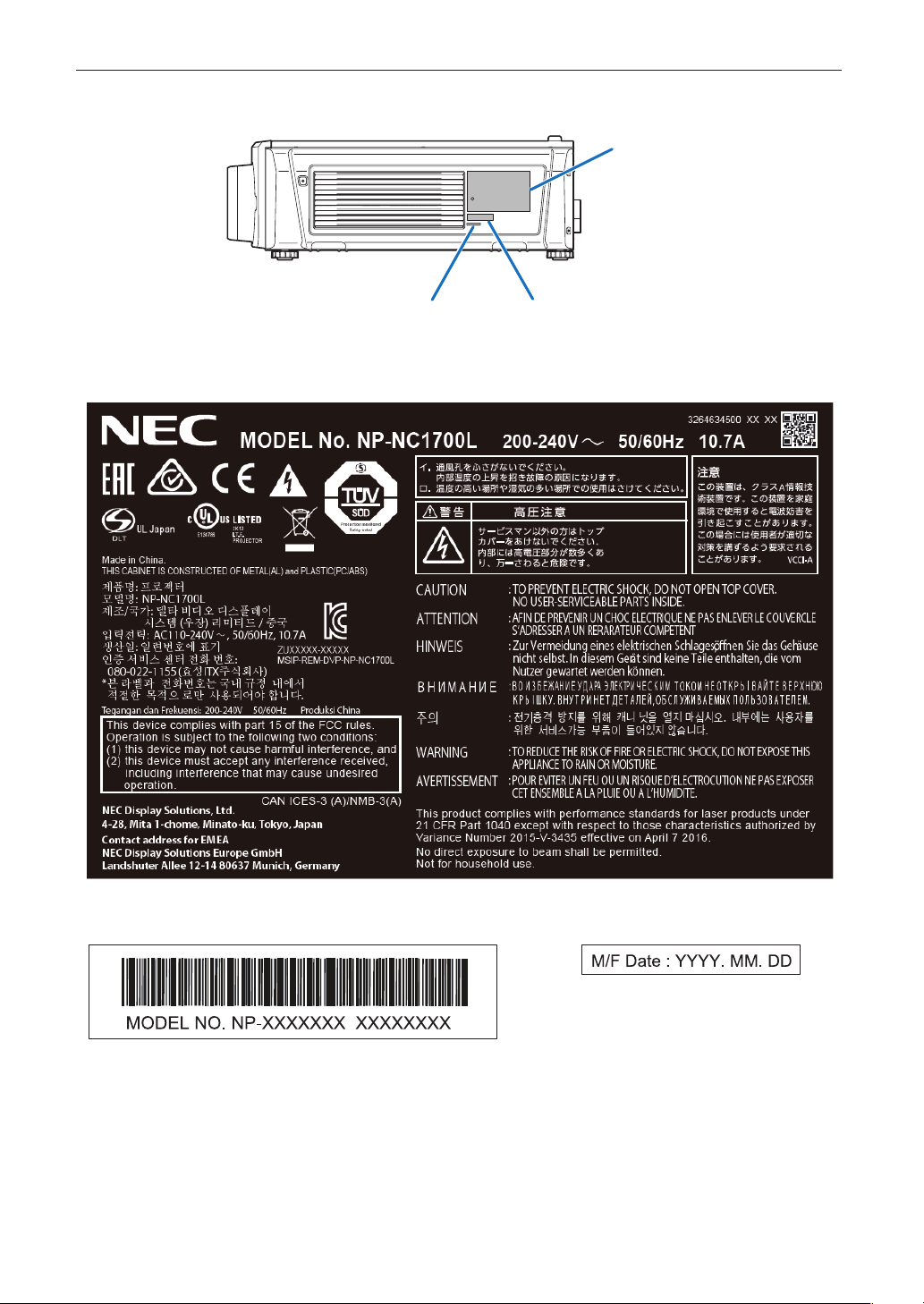
Aufkleber B
Aufkleber A: Laser-erläuterndes
Etikett
Aufkleber B: Lampe Warnzeichen
Etikette
Aufkleber A
27
Wichtige Informationen
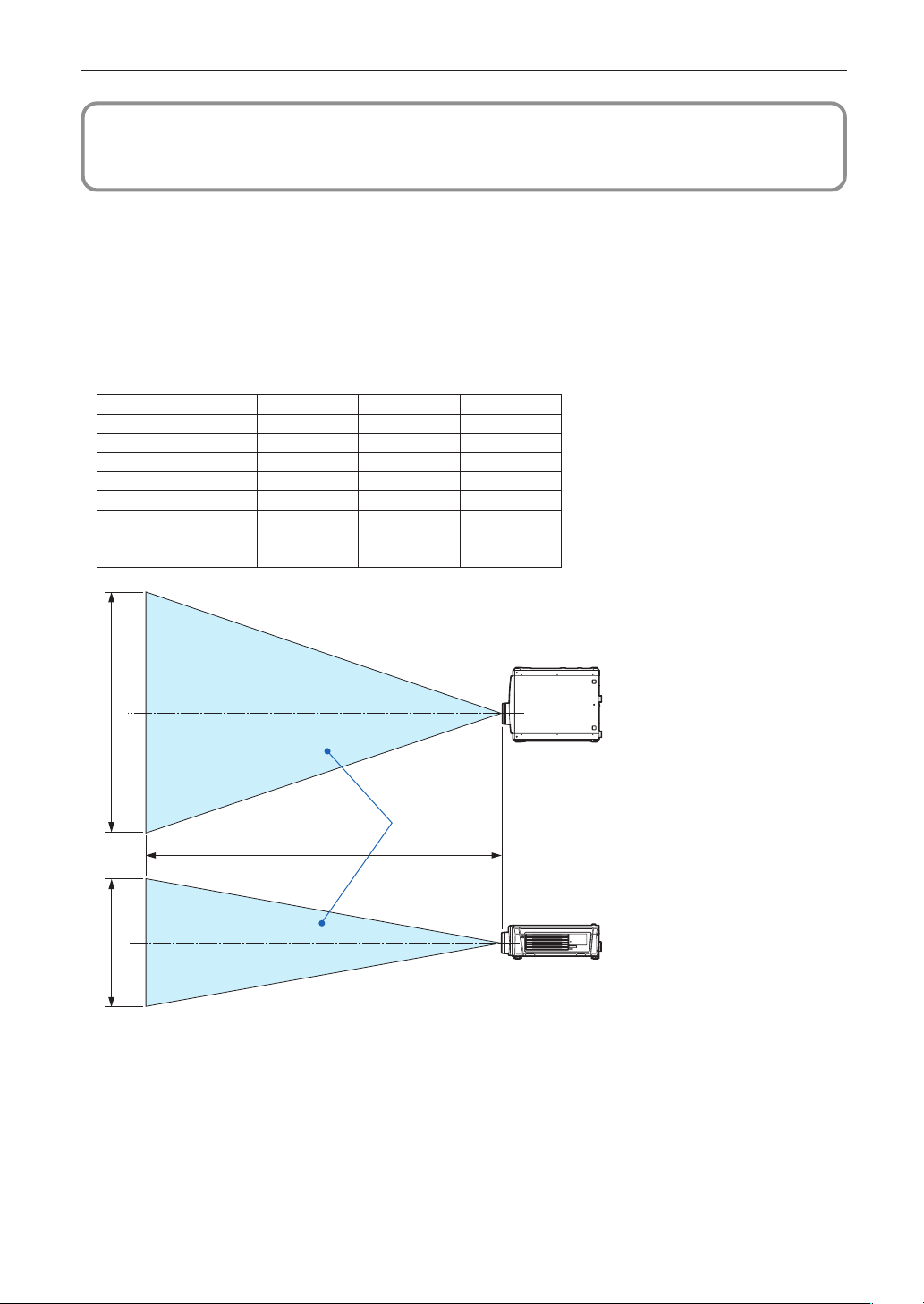
Aufkleber C
Aufkleber DAufkleber E
Aufkleber C : Aufkleber mit Hersteller-ID
Aufkleber D Aufkleber E
28
Wichtige Informationen
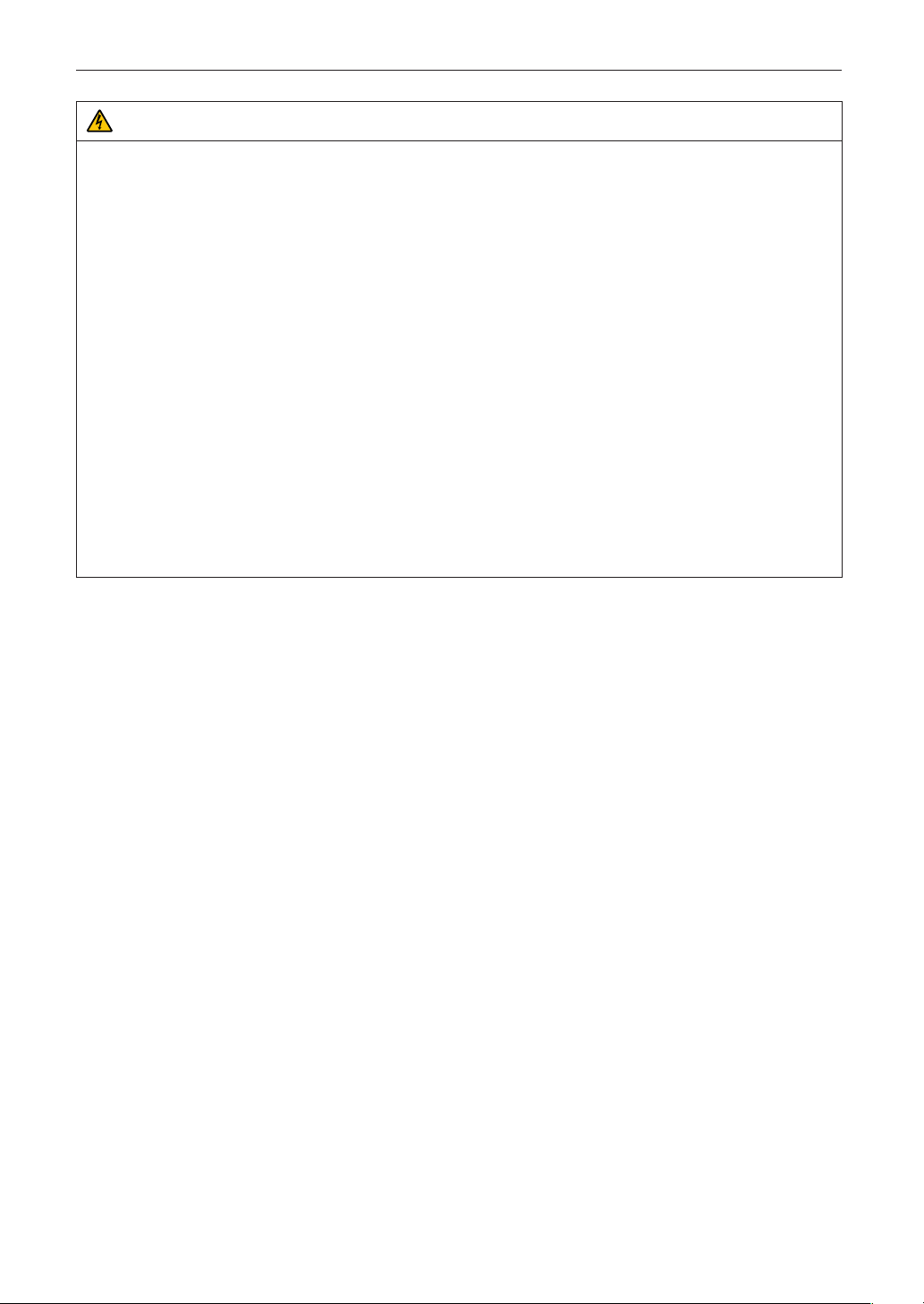
Strahlungsbereich des abgegebenen Lichts durch den Projektor
(Sicherheitsabstand – HD: Hazard distance)
• Die nachfolgend abgebildete Tabelle gibt den Strahlungsbereich des abgegebenen Lichts durch den Projektor an, das als
Risikogruppe 3 (RG3) nach IEC62471 klassifiziert ist.
• Bitte bei der Installation des Projektors die Einschränkungen beachten.
Installieren Sie zum Schutz der menschlichen Augen vor dem RG3-Bereich eine Abdeckung.
Achten Sie darauf, dass sich bei der Installation der Abdeckung die horizontale Sicherheitszone mindestens 1,5 m vom
RG3-Bereich entfernt befindet.
Falls der Projektor über Kopf installiert wird, halten Sie einen Abstand von mindestens 3 m zwischen der Bodenfläche und
dem RG3-Bereich ein.
Linse HD (m) H (m) V (m)
NP-9LS12ZM1 2.8 1.63 0.86
NP-9LS13ZM1 3.5 1.67 0.88
NP-9LS16ZM1 4.2 1.56 0.82
NP-9LS16Z1 3.7 1.81 0.96
NP-9LS20ZM1 4.7 1.21 0.64
NP-9LS20Z1 5.2 1.91 1.01
NP-9LS40Z
NP-9LS40ZM1
10.0 1.58 0.83
[Draufsicht]
[Seitenansicht]
RG3-Bereich
HD
H
V
* Falls der Linsenversatz verwendet wird, berücksichtigen Sie bitte die Verschiebung des projizierten Bildes je nach
Umfang des Linsenversatzes.
29
Wichtige Informationen
WARNUNG
Bitte beachten Sie alle Sicherheitshinweise.
Installation des Projektors
• Beachten Sie bei der Planung des Aufbaus des Projektors die Sicherheitsmaßnahmen im Installationshandbuch.
• Installieren Sie zur Gefahrenverringerung eine Wandsteckdose in Reichweite, damit der Netzstecker im Notfall heraus-
gezogen werden kann, oder einen Trennschalter, um die Stromversorgung zum Projektor unterbrechen zu können.
• Beachten Sie zum Schutz der menschlichen Augen vor dem RG3-Bereich die Sicherheitsmaßnahmen.
• Wählen Sie eine geeignete Linse für den Installationsort aus, und halten Sie die Sicherheitszone, die für die jeweilige
Linse vorgesehen ist, ein. Beachten Sie die entsprechenden Sicherheitsmaßnahmen, wenn Sie Einstellungen am Licht
des eingeschalteten Projektors vornehmen.
• Prüfen Sie, ob die Sicherheitsmaßnahmen eingehalten wurden, wenn die entsprechende Sicherheitszone gemäß der
installierten Linse eingestellt wird. Prüfen Sie dies in regelmäßigen Abständen und dokumentieren Sie die Ergebnisse.
• Weisen Sie den Administrator des Projektors (Bediener) in die Sicherheitsbestimmungen ein, bevor dieser mit dem
Betrieb des Projektors beginnt.
Verwendung des Projektors
• Weisen Sie den Administrator des Projektors (Bediener) an, den Projektor vor dem Einschalten zu überprüfen (einschließ-
lich der Sicherheitsprüfung des abgegebenen Lichts durch den Projektor).
• Unterrichten Sie den Administrator des Projektors (Bediener) über die erforderlichen Maßnahmen zur Kontrolle des
eingeschalteten Projektors, falls ein Notfall eintritt.
• Weisen Sie den Administrator des Projektors (Bediener) an, das Installationshandbuch, das Benutzerhandbuch und die
Inspektionsdokumente an einem Ort zu verwahren, an dem leicht auf diese Dokumente zugegriffen werden kann.
• Weisen Sie ihn an, zu prüfen, ob der Projektor den Standards des entsprechenden Landes und der jeweiligen Region
entspricht.

30
Introduction ......................................................................................................................................................................... 2
Important Information ........................................................................................................................................................ 3
Wichtige Informationen ....................................................................................................................................................20
1. Before Setting Up Your Projector and the Chiller Unit ................ 32
1-1. Clearance for Installing the Projector and the Chiller Unit (English) ................................................................. 32
1-1-1. Projector ....................................................................................................................................................... 32
1-1-2. Installation Conditions for the Chiller Unit ................................................................................................ 33
1-2. Umgebung und Abstände beim Aufbau des Geräts (Deutsch) ........................................................................... 35
1-2-1. Aufbau des Projektors ................................................................................................................................. 35
1-2-2. Aufbau der Wasserkühleinheit .................................................................................................................... 36
1-3. Selecting the lens unit ............................................................................................................................................ 38
1-3-1. Screen Type .................................................................................................................................................. 38
1-3-2. Calculating the lens zoom magnication to use ....................................................................................... 40
1-4. Carrying the projector ............................................................................................................................................ 42
1-5. Removing the Projector Covers ............................................................................................................................. 43
1-5-1. Removing and Mounting the Front Cover .................................................................................................. 45
1-5-2. Removing and Mounting the Side Cover ...................................................................................................47
2. Setting Up Your Projector and Chiller Unit ................................. 49
2-1. Setup Procedure ..................................................................................................................................................... 49
2-2. Projector Installation .............................................................................................................................................. 50
2-3. Selecting the Power Cable (Projector) (English) .................................................................................................. 51
2-3-1. AC Power Work Specications (Projector) ................................................................................................. 52
2-4. Auswahl des Netzkabels (Projektor) (Deutsch) .................................................................................................... 54
2-4-1. Netzstrom-Spezikationen (Projektor) ....................................................................................................... 55
2-5. Mounting the Lens Unit .......................................................................................................................................... 57
2-5-1. Removing the lens ....................................................................................................................................... 59
2-6. Mounting the Option Board ................................................................................................................................... 60
2-6-1. Make the option board usable .................................................................................................................... 62
2-7. Connecting the Power Cable for the Chiller Unit .................................................................................................64
2-7-1. AC Power Work Specications (Chiller Unit) .............................................................................................65
2-7-2. Connecting the AC Power Cable to the Chiller Unit .................................................................................. 69
2-8. Connecting the Hoses for the Chiller Unit and Control Cable ............................................................................ 71
2-8-1. Connecting the Hoses for the Chiller Unit ................................................................................................. 71
2-8-2. Connecting the Control Cable .................................................................................................................... 73
2-9. Pouring and Draining the Coolant ......................................................................................................................... 74
2-9-1. Pouring the Coolant ..................................................................................................................................... 74
2-9-2. Draining the Coolant .................................................................................................................................... 75
2-10. Setting the Chiller Unit ......................................................................................................................................... 76
2-10-1. Setting the Temperature of the Coolant ................................................................................................... 76
2-10-2. Fixing the Chiller Unit ................................................................................................................................ 77
3. Projector Adjustment and Connecting ....................................... 78
3-1. Flow of Adjustment and Connecting ..................................................................................................................... 78
3-2. Recovering from Tamper Errors ............................................................................................................................. 79
3-2-1. Clearing tamper events ............................................................................................................................... 80
3-3. Turning your Projector On......................................................................................................................................82
3-4. Setting the Date and Time in the Projector ........................................................................................................... 82
3-5. Setting the Projector Projection Method............................................................................................................... 83
3-6. Adjusting the Lens ................................................................................................................................................. 84
3-6-1. Set the Lens Type ......................................................................................................................................... 84
3-6-2. Carry out Calibration of the Lens ...............................................................................................................85
3-6-3. Display the Test Pattern ...............................................................................................................................85
3-6-4. Adjusting the Screen Angle ........................................................................................................................ 86
3-7. Connecting with the Image Input Port .................................................................................................................. 87
3-8. Connecting the Various Control Terminal ............................................................................................................. 88
Table of Contents

31
Table of Contents
4. LCD Menu .................................................................................. 89
4-1. List of Menu ............................................................................................................................................................. 89
4-1-1. When You Use the Service Personnel Menu .............................................................................................. 90
4-2. Title Select ............................................................................................................................................................... 91
4-2-1. Title select (Title Memory) ........................................................................................................................... 91
4-2-2. Test Pattern ................................................................................................................................................... 91
4-3. Conguration .......................................................................................................................................................... 92
4-3-1. Light Setup ...................................................................................................................................................92
4-3-2. Lens Control ................................................................................................................................................. 92
4-3-3. Reset ............................................................................................................................................................. 93
4-3-4. Setup .............................................................................................................................................................95
4-3-5. Installation ....................................................................................................................................................99
4-3-6. Memory ....................................................................................................................................................... 103
4-4. Title Setup ............................................................................................................................................................. 104
4-4-1. Preset Button .............................................................................................................................................. 104
4-5. Information ............................................................................................................................................................ 105
4-5-1. Light Output ............................................................................................................................................... 105
4-5-2. Lens Type .................................................................................................................................................... 105
4-5-3. Preset Button .............................................................................................................................................. 105
4-5-4. Usage .......................................................................................................................................................... 106
4-5-5. Error Code .................................................................................................................................................. 106
4-5-6. Version ........................................................................................................................................................ 107
4-5-7. IP Address................................................................................................................................................... 107
4-5-8. Setup Date .................................................................................................................................................. 108
4-5-9. Option Status ............................................................................................................................................. 108
5. Appendix .................................................................................. 109
5-1. List of Registered Titles (when shipped from the factory) ................................................................................ 109
5-2. Error Code List .......................................................................................................................................................110
5-3. Remote Interlock Connector ................................................................................................................................ 115
5-4. Index ...................................................................................................................................................................... 117
32
1. Before Setting Up Your Projector and the Chiller Unit
1-1.
Clearance for Installing the Projector and the Chiller Unit (English)
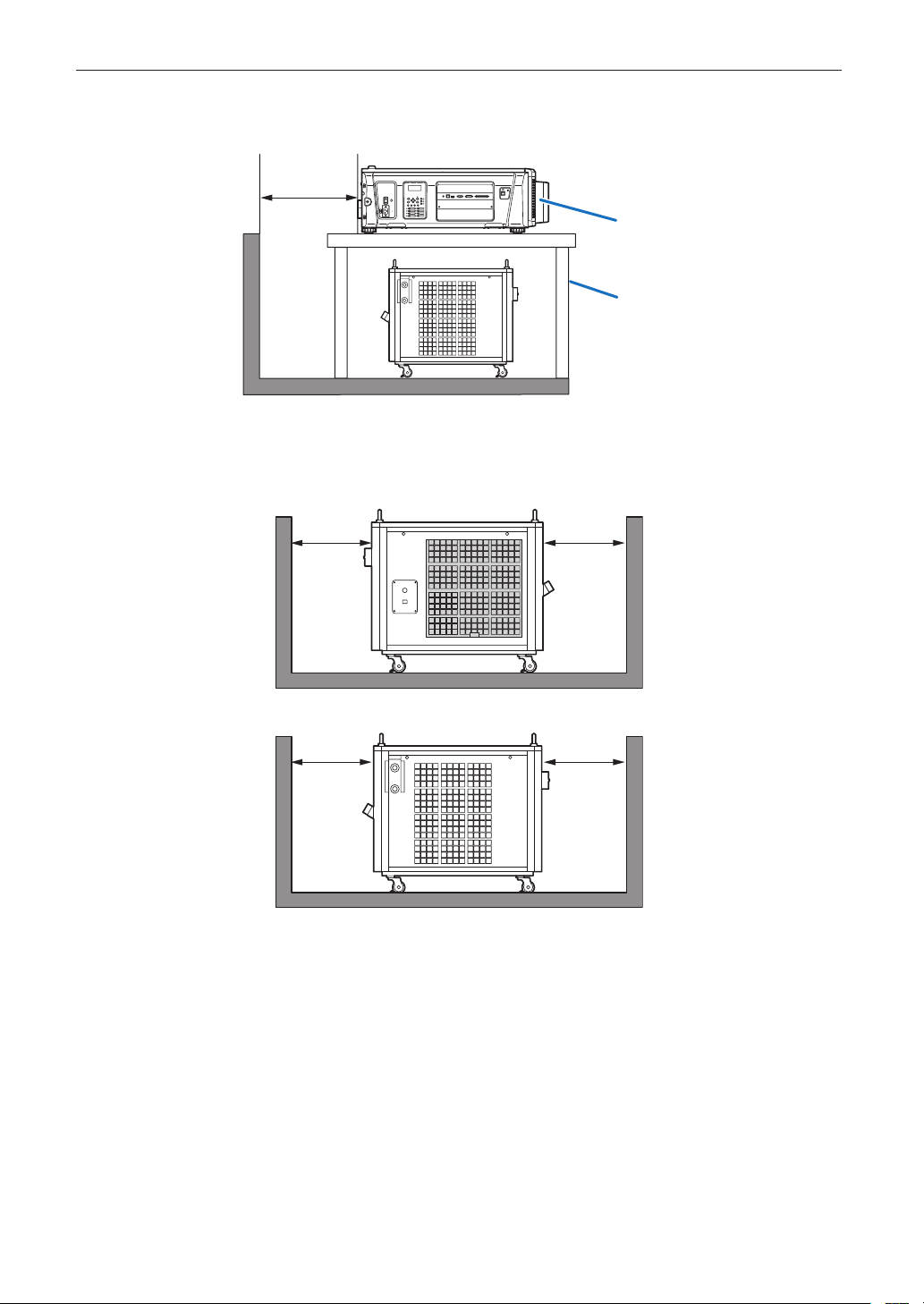
Allow ample clearance between the projector and its surroundings as shown below.
Avoid installing the projector in a place where air movement from the HVAC is directed at the projector.
Heated air from the HVAC can be taken in by the projector’s intake vent. If this happens, the temperature inside the projector
will rise too high causing the over-temperature protector to automatically turn off the projectors power.
1-1-1. Projector
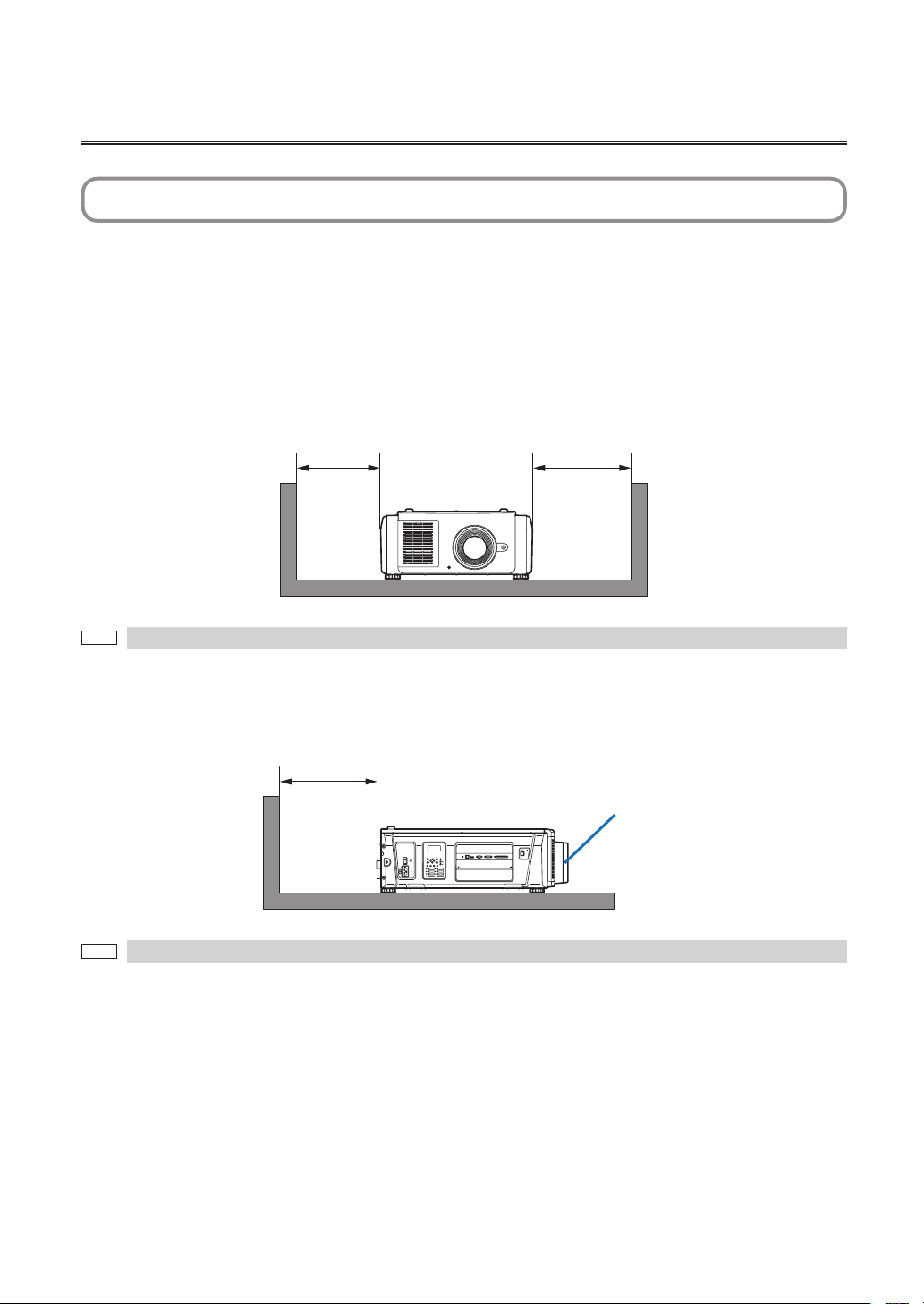
Example 1 – If there are walls on both sides of the projector.
50cm/19.7"
or greater
30cm/12"
or greater
NOTE
The drawing shows the proper clearance required for the front, back and top of the projector.
Example 2 – If there is a wall behind the projector.
(1) For floor installation:
GP I/O3DRS-232
USB
REMOTE
LAN
70cm/27.6"
or greater
Lens
NOTE
The drawing shows the proper clearance required for the front, sides and top of the projector.
33
Before Setting Up Your Projector and the Chiller Unit
(2) For rack installation
• When using a rack, do not store the projector in a case or the like.
GP I/O3DRS-232
USB
REMOTE
LAN
Lens
Rack
70cm/27.6"
or greater
1-1-2. Installation Conditions for the Chiller Unit
• Allow a clearance of 50 cm/19.7" or greater between the chiller unit and its surroundings.
50cm/19.7"
or greater
50cm/19.7"
or greater
50cm/19.7"
or greater
50cm/19.7"
or greater
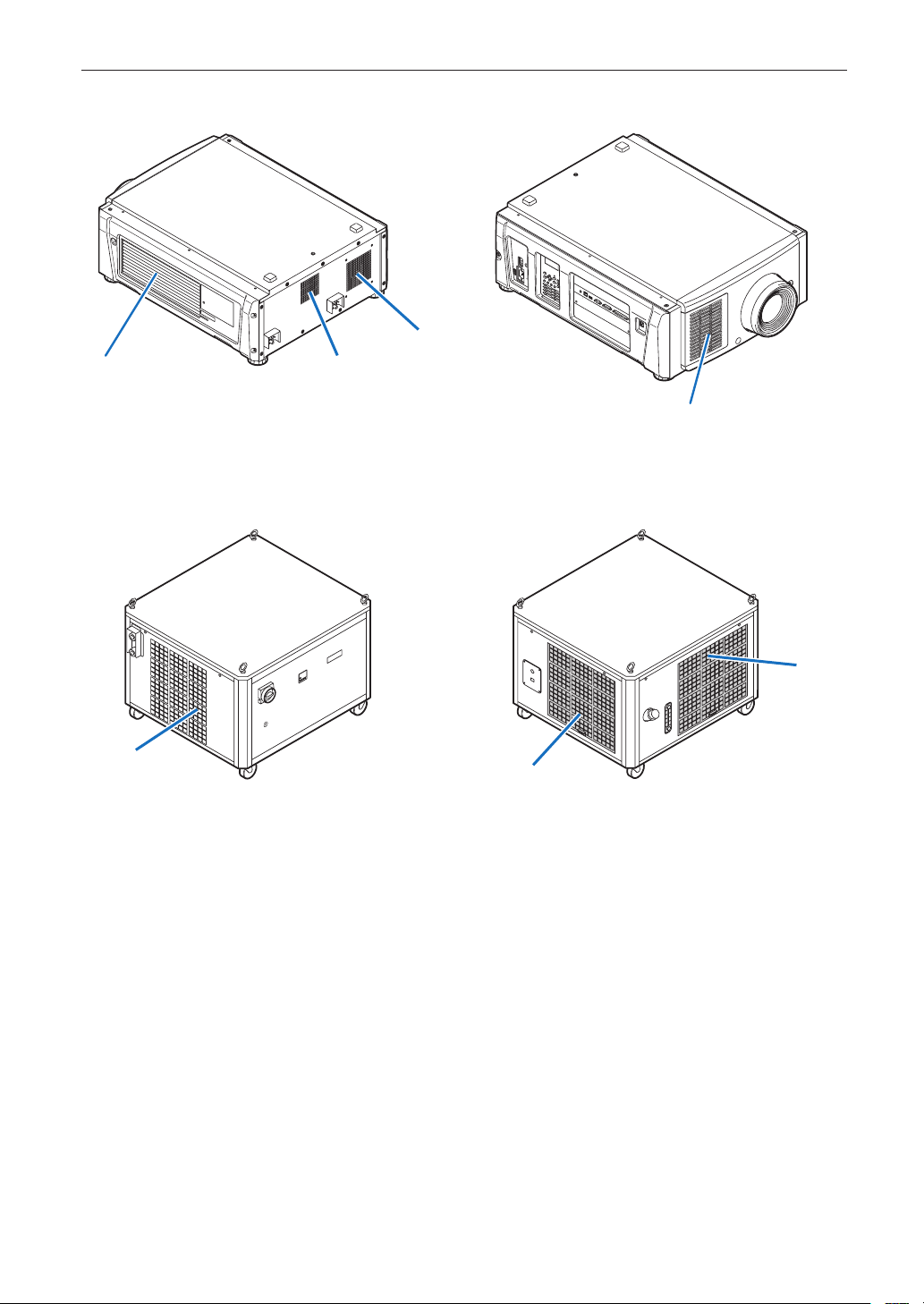
34
Before Setting Up Your Projector and the Chiller Unit
• Avoid placing the projector and chiller unit in such a way in which any air inlet and any outlet of them face each other.
Air inlet
Air inlet
Air inlet
Air outlet
Air outlet
Air outlet
Air inlet
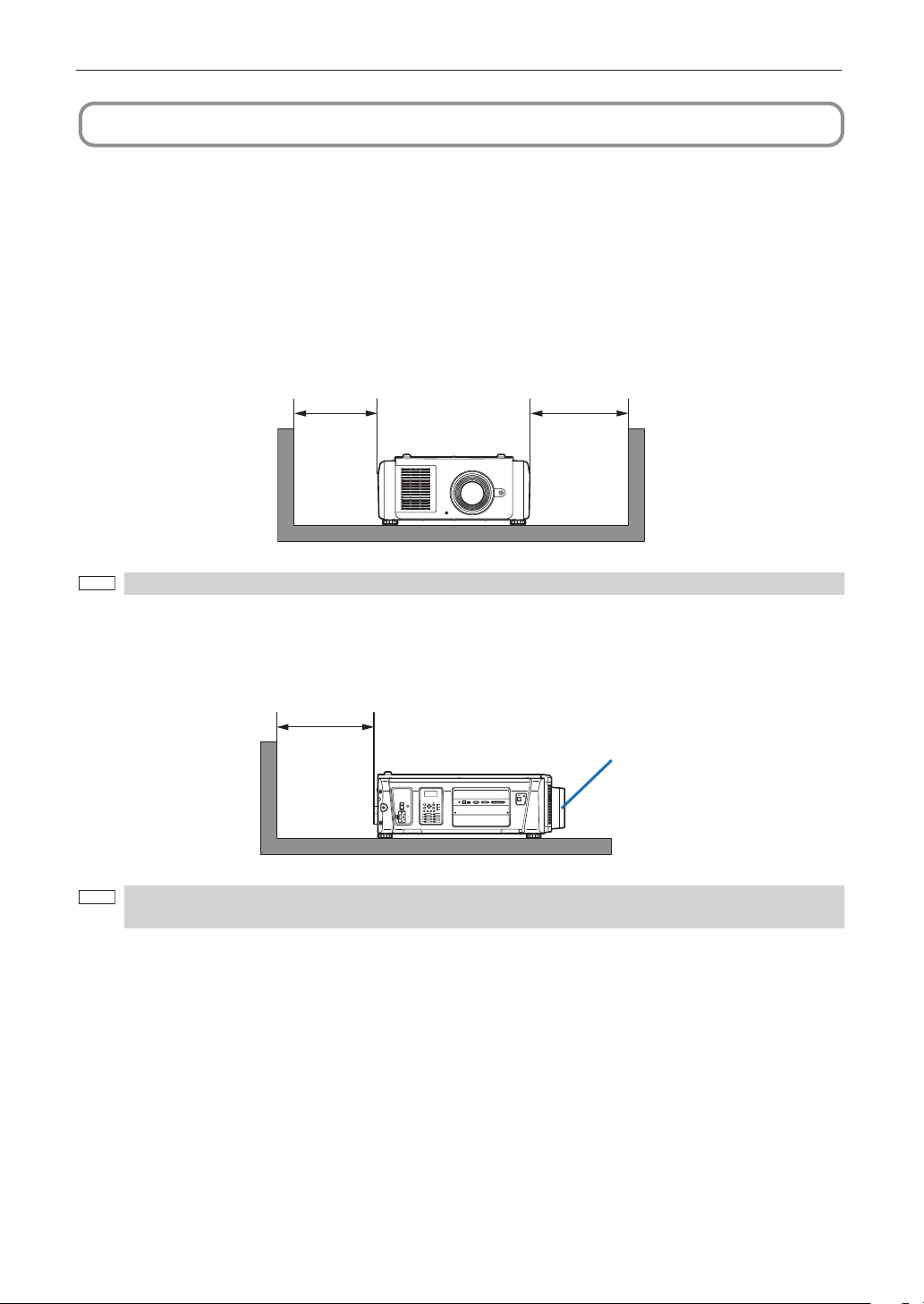
35
Before Setting Up Your Projector and the Chiller Unit
1-2.
Umgebung und Abstände beim Aufbau des Geräts (Deutsch)
Achten Sie auf ausreichenden Freiraum zwischen dem Projektor und seiner Umgebung, wie unten gezeigt.
Vermeiden Sie es, den Projektor an einer Stelle zu installieren, an der er den Luftströmungen von Klimaanlagen ausgesetzt ist.
Die aufgeheizte Luft aus einer Klimaanlage kann vom Lüftungseinlass des Projektors aufgenommen werden. Dadurch wird die
Innentemperatur des Projektors zu stark erhöht, was dazu führt, dass der Überhitzungsschutz des Projektors diesen
automatisch ausschaltet.
1-2-1. Aufbau des Projektors
Beispiel 1 - Wenn sich Wände auf beiden Seiten des Projektors benden.
50 cm
oder mehr
30 cm
oder mehr
HINWEIS
Die Abbildung zeigt den ordnungsgemäßen Abstand für die Vorder-, Rück- und Oberseite des Projektors.
Beispiel 2 - Wenn sich eine Wand hinter dem Projektor bendet.
(1) Bei Installation auf einem fl achen Untergrund:
GP I/O3DRS-232
USB
REMOTE
LAN
70 cm
oder mehr
Linse
HINWEIS
Die Abbildung zeigt den ordnungsgemäßen Abstand für die linke, rechte, Vorder- und Oberseite des
Projektors.
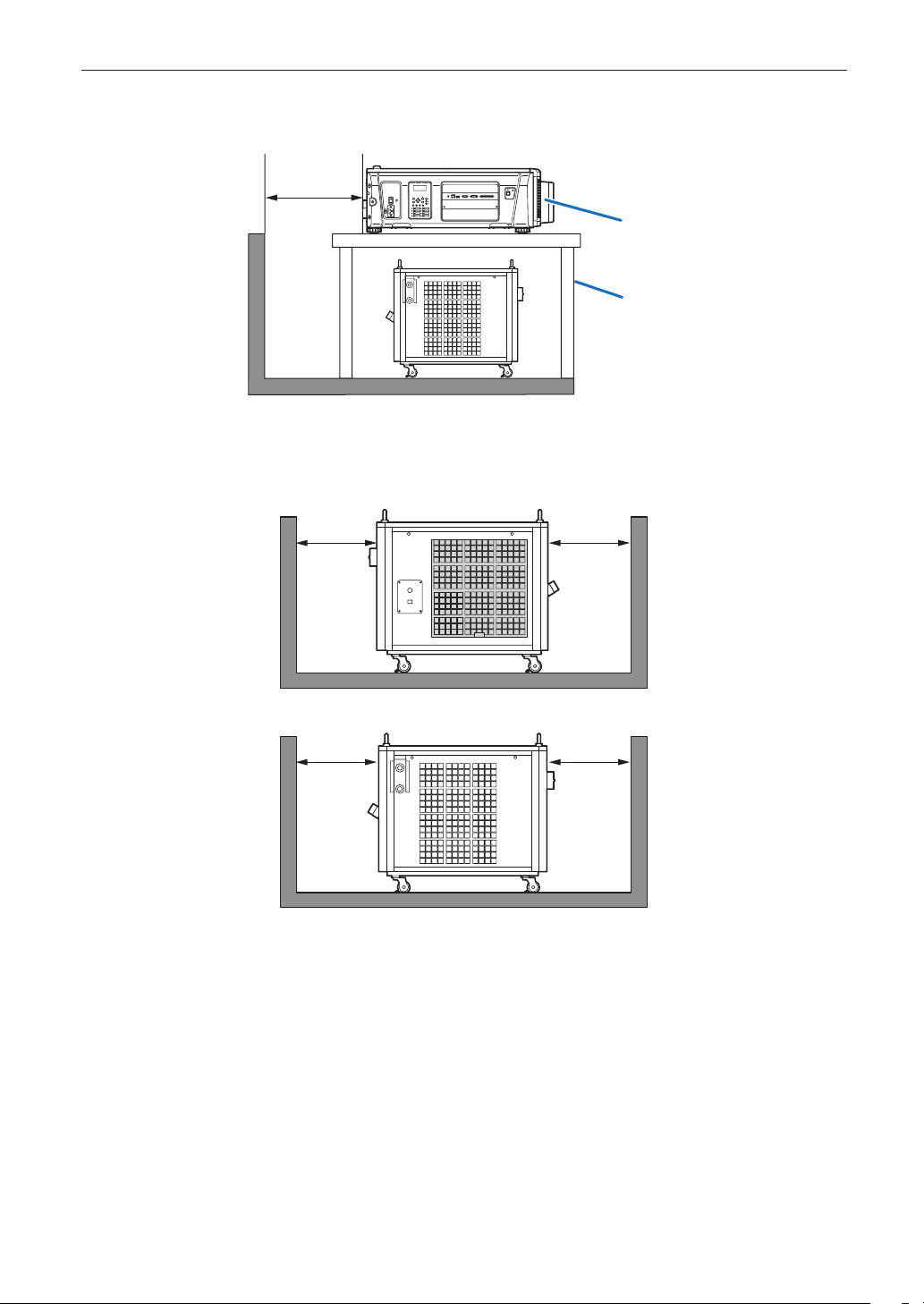
36
Before Setting Up Your Projector and the Chiller Unit
(2) Aufbau auf ein Gestell
- Legen Sie das Gerät nicht in einen Behälter, wenn Sie ein Gestell verwenden.
GP I/O3DRS-232
USB
REMOTE
LAN
Linse
Gestell
mehr als
70 cm
1-2-2. Aufbau der Wasserkühleinheit
• Bitte lassen Sie im Umkreis von 50 cm um das Gerät einen Freiraum.
mehr als
50 cm
mehr als
50 cm
mehr als
50 cm
mehr als
50 cm
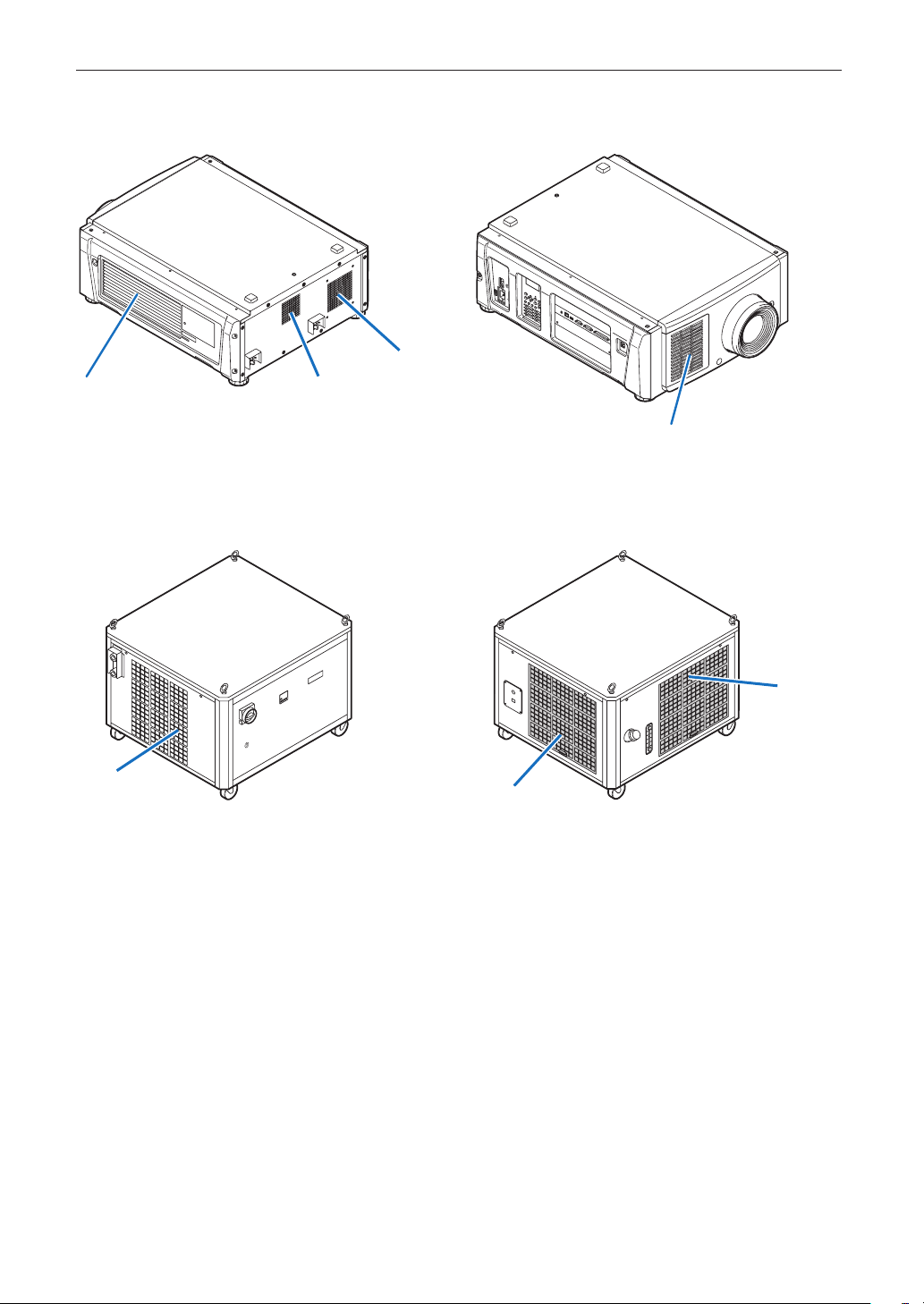
37
Before Setting Up Your Projector and the Chiller Unit
• Achten Sie darauf, dass sich Lufteinlass und Luftauslass der Wasserkühleinheit nicht gegenseitig stören, wenn Sie den
Projektor aufbauen.
Lufteinlass
Lufteinlass
Lufteinlass
Luftauslass
Luftauslass
Luftauslass
Lufteinlass
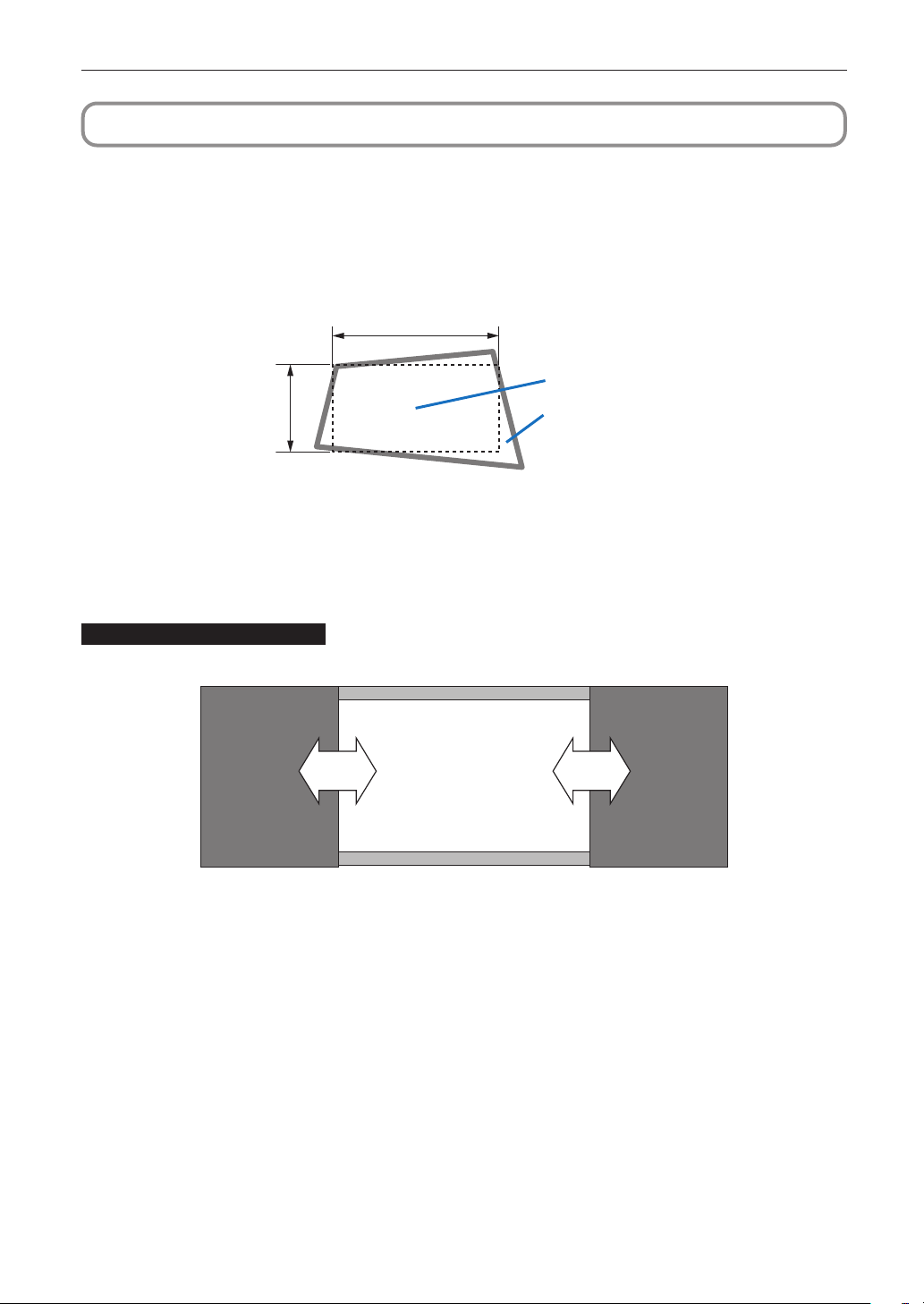
38
Before Setting Up Your Projector and the Chiller Unit
1-3. Selecting the lens unit
This section provides the guideline information on how to select a screen size, projector mounting position, and type of lens
units, which is appropriate for your presentation purposes. Select the lens unit for your projector according to the environment
in which it is installed.
Note that all descriptions given in this manual assume that the angle of projection is zero degree. In case of projection from an
upper position or from the right or left, it is necessary to calculate the width for the minimum projected image that is a little
larger than the screen size.
Width of minimum
Screen
Projected image
1-3-1. Screen Type
The following two types of screen masks can be used for the DLP Cinema Projector. Check the screen mask for your projector
for its type before selecting lens units, because types of lens units to be used on the projector and its settings depend upon
the type of screen mask you use.
Horizontal moving screen mask
Screen masks move horizontally to adjust the screen.
ScreenScreen mask Screen mask

39
Before Setting Up Your Projector and the Chiller Unit
Vertical moving screen mask
Screen masks move vertically to adjust the screen.
Screen
Screen mask
Screen mask
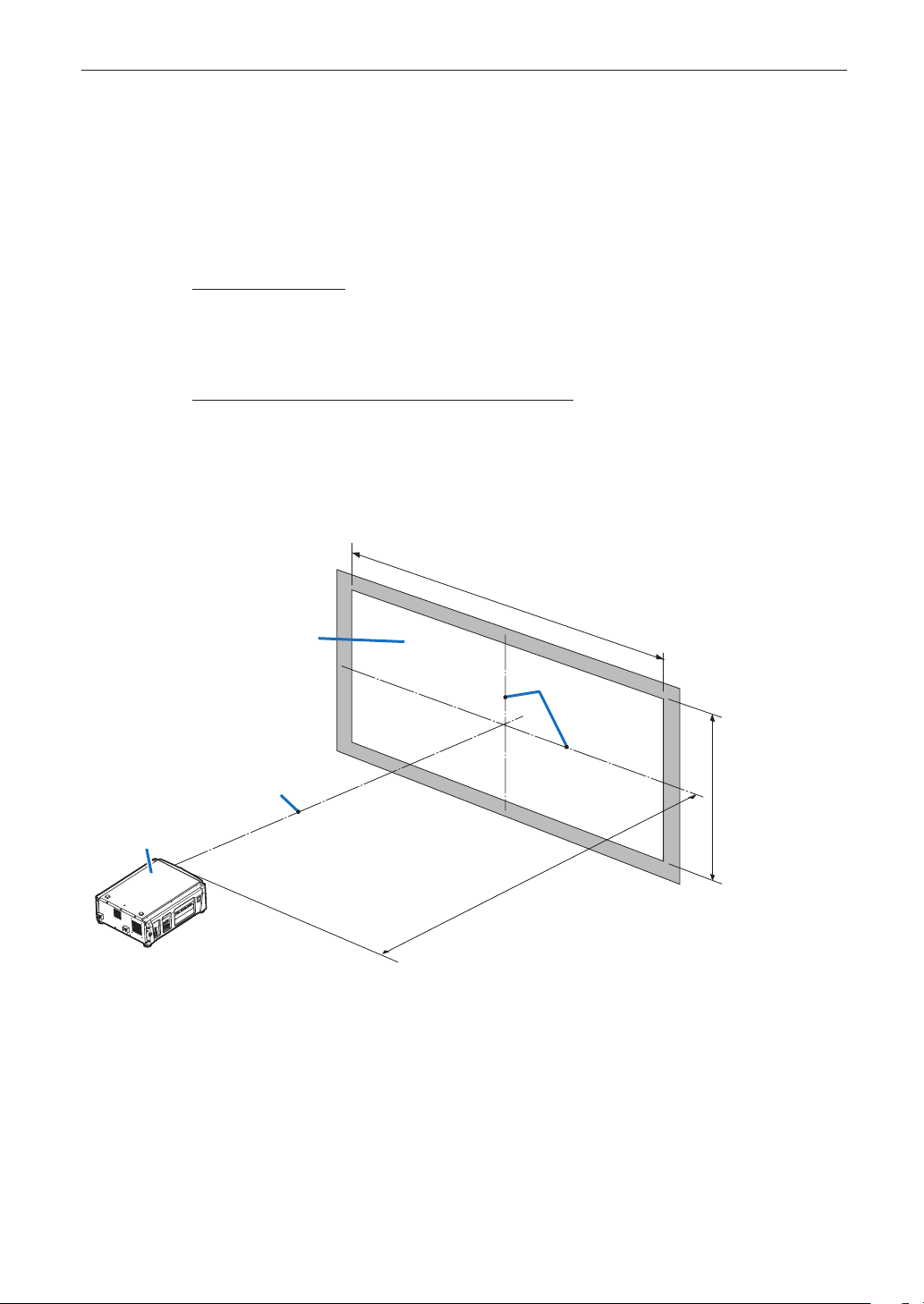
40
Before Setting Up Your Projector and the Chiller Unit
1-3-2. Calculating the lens zoom magnication to use
The lens zoom magnification required when installing the projector is calculated using the following method.
(1) Calculate the lens zoom magnification for SCOPE projection
(2) Calculate the lens zoom magnification for VISTA (FLAT) and HDTV projection
(3) Select the lens that satisfies the zoom magnification calculated in (1) and (2).
SCOPE projection:
Lens
magnification
=
Length of projection (L)
Screen width (W)
VISTA (FLAT)/HDTV projection:
Lens
magnification
=
Length of projection (L)
Screen width (W) × (2048 ÷ Number of pixels per horizontal line)
Note: Number of pixels per horizontal line: 1998 for VISTA (FLAT); 1920 for HDTV
Select a lens that meets the magnification requirement for SCOPE, VISTA (FLAT), and HDTV screen types.
Screen width (W)
Screen height (H)
Projector
Length of projection (L)
Screen
Length centerline
Centerlines
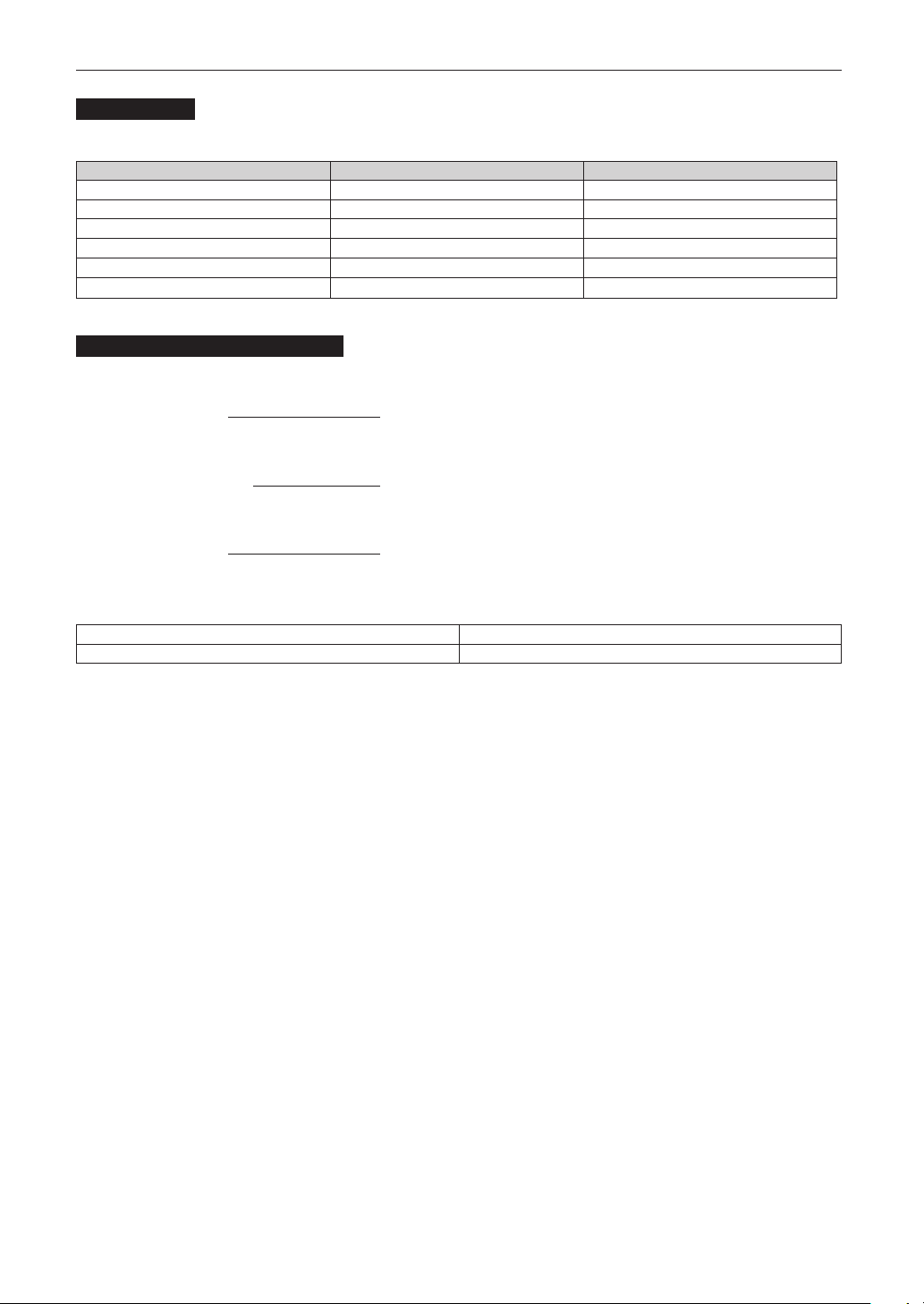
41
Before Setting Up Your Projector and the Chiller Unit
Option lenses
The lens units that can be attached to this projector are shown in the following table.
MODEL Magnifying Lens memory support
NP-9LS16Z1 1.63–2.03 -
NP-9LS20Z1 2.03–2.72 -
NP-9LS12ZM1 1.2–1.72
NP-9LS13ZM1 1.33–2.1
NP-9LS16ZM1 1.62–2.7
NP-9LS20ZM1 2.09–3.9
Examples of selecting the lens unit
If the “projection distance (L) = 30 m, the screen width (W) = 15 m”:
SCOPE projection =
30m
= 2.0x
15m
VISTA (FLAT) projection =
30m
= 1.95x
15m×(2048÷1998)
HDTV projection =
30m
= 1.88x
15m×(2048÷1920)
Therefore, the following lens units, which satisfy the magnifications in all of the above projections, are selected.
Not using the lens memory function NP-9LS16Z1
Using the lens memory function NP-9LS13ZM1 or NP-9LS16ZM1
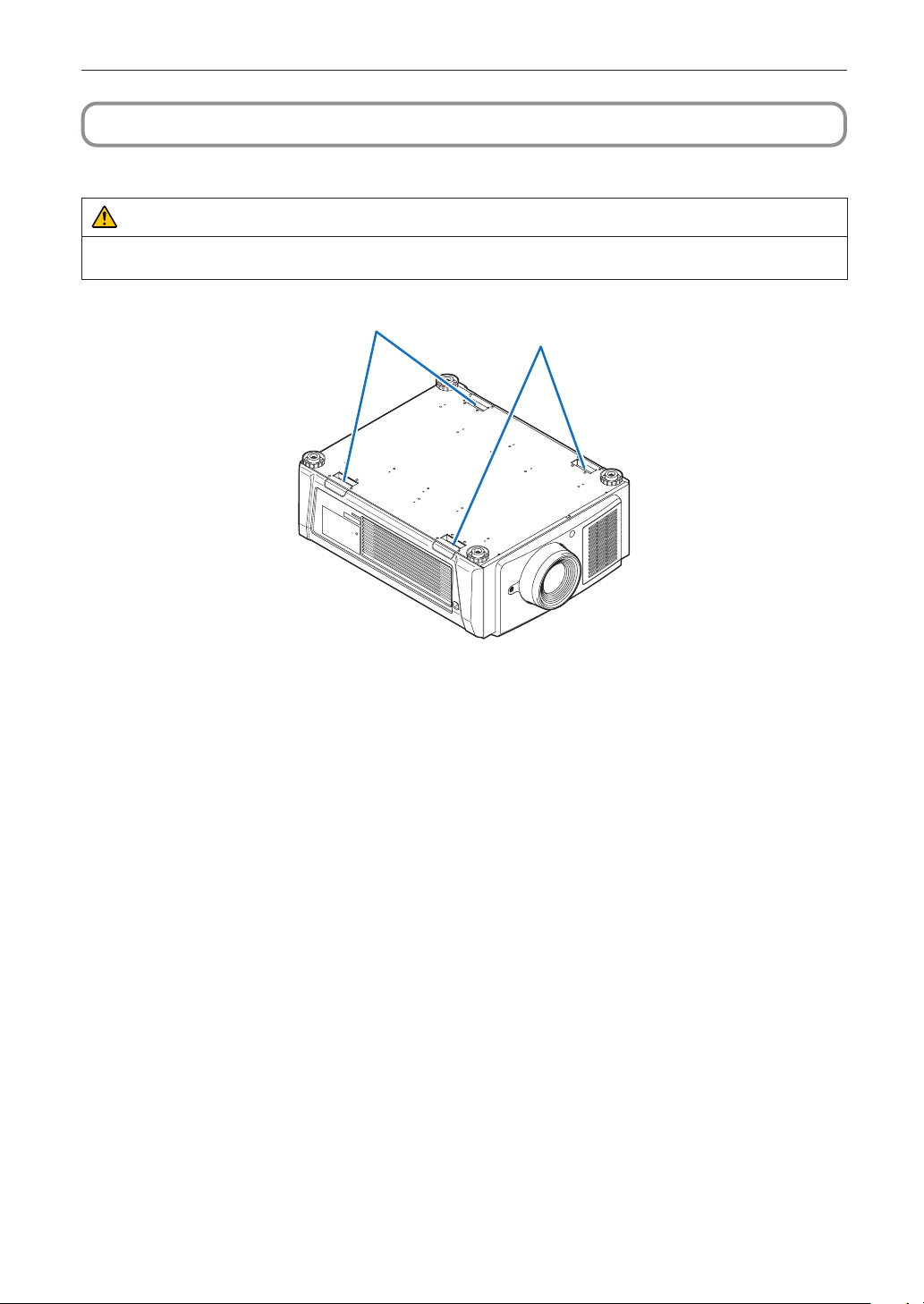
42
Before Setting Up Your Projector and the Chiller Unit
1-4. Carrying the projector
When moving the projector, it should be carried by holding the handles on the base of the unit by 4 or more people.
WARNING
When moving the projector, first turn off the power and always disconnect the power plug from the electrical outlet, and
check that all of the connecting cables between equipment and the lenses have been removed.
Handles
Handles
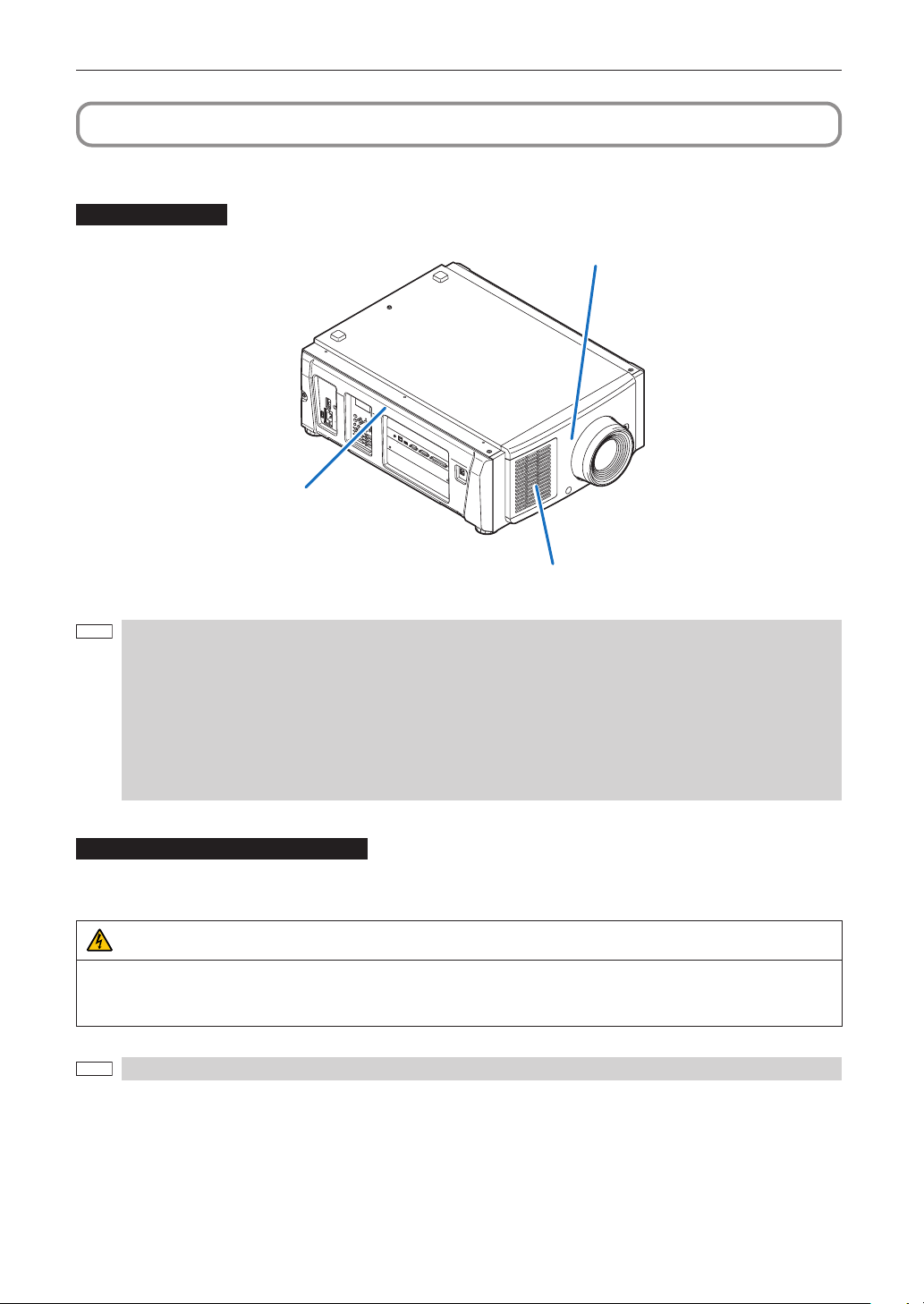
43
Before Setting Up Your Projector and the Chiller Unit
1-5. Removing the Projector Covers
This section provides guideline information on how to mount and remove covers on the projector.
Name of the cover
Side cover
Air inlet cover
Front cover
NOTE
• “Side cover” and “Front cover” are equipped with key locks. Special keys (cover key) are required to mount or
remove them. Refer to “Position of the key locks on the covers” (page 43) for details.
• If you remove the front cover or side cover, a tamper event is detected by the tamper detection circuit. When
you start the projector after attaching the cover, the following error message is displayed on the LCD screen
of the projector main unit.
- “Tamper Fail”
- “IMB: Service Door Tamper” (When NP-90MS02-4K mounted)
• Encrypted contents cannot be displayed while an error message is being displayed. Refer to “3-2. Recovering
from Tamper Errors” (page 79) for details on how to clear the error message.
Position of the key locks on the covers
When removing or attaching a cover of the projector main unit, the lock needs to be unlocked using the included cover key.
The positions of the locks on each of the covers are as follows.
WARNING
TO REDUCE THE RISK OF ELECTRIC SHOCK AND LASER RADIATION, DO NOT OPEN COVER. NO User-SERVICEABLE
PARTS INSIDE. REFER SERVICING AND INSTALLATION TO QUALIFIED SERVICE PERSONNEL AND INSTALLATION
PERSONNEL.
NOTE
When a cover is removed, the power to the unit is automatically turned off by the safety protection system.
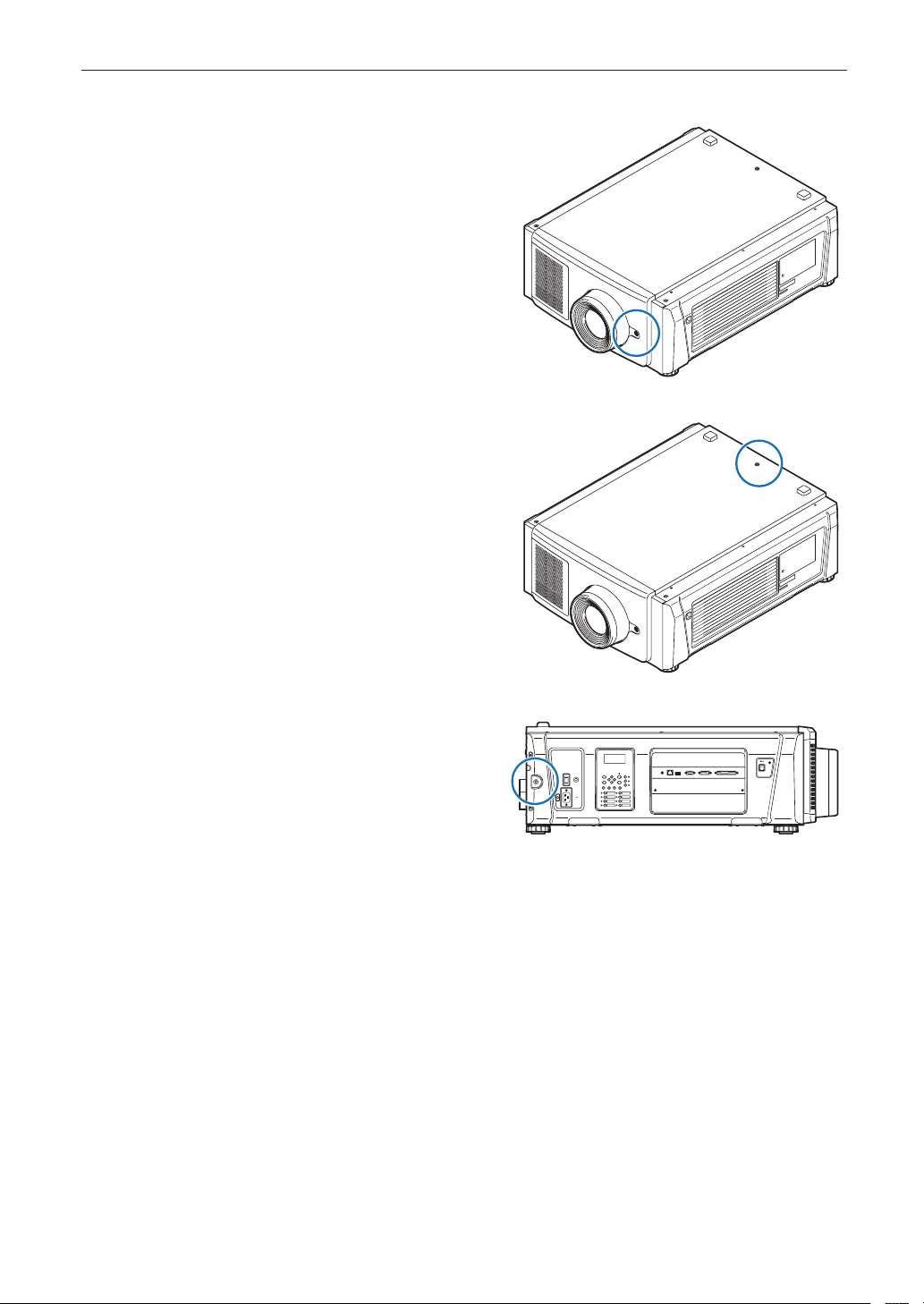
44
Before Setting Up Your Projector and the Chiller Unit
Front Cover
The lock is unlocked when attaching or removing
lenses (page 57).
Top Cover
Removing and attaching the cover is performed by a
trained service engineer. The lock should only be
unlocked by service engineers.
Side Cover
The lock is unlocked when attaching or removing the
option board (page 60).
GP I/O3DRS-232
USB
REMOTE
LAN
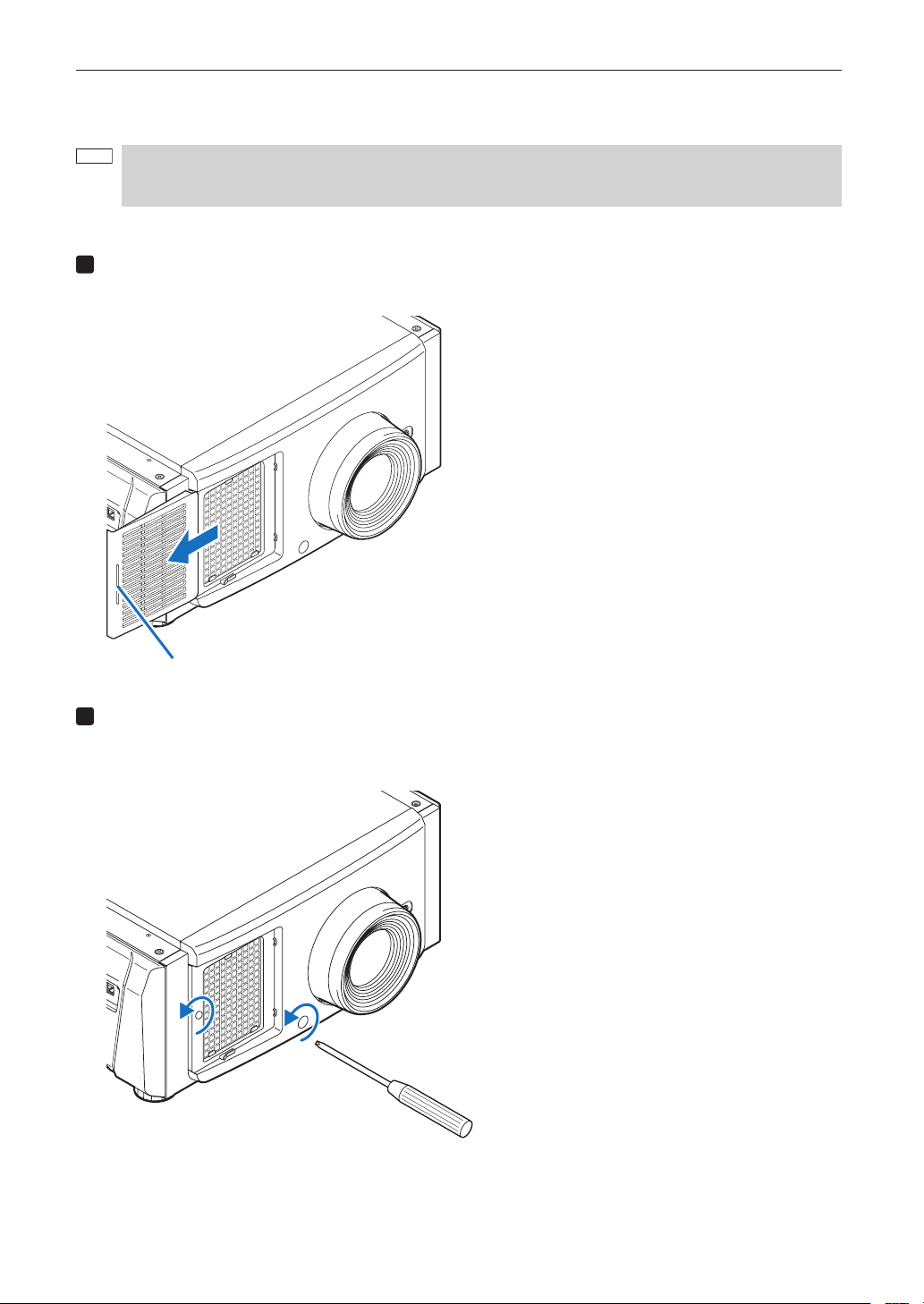
45
Before Setting Up Your Projector and the Chiller Unit
1-5-1. Removing and Mounting the Front Cover
NOTE
When removing (mounting) the front cover, return the lens position to the center before turning off the projector
power (page 100). If you do not return the lens position to the center, the lens may interfere and prevent you from
removing (mounting) the front cover.
Preparation: Phillips head screwdriver (No.2) and cover key (attached goods)
1
Remove the Air inlet cover.
Slide the Air inlet cover in the direction of the arrow to remove.
Handle
2
Loosen two screws securing the front cover until the Phillips screwdriver goes into a freewheeling
conditions.
The screw is not removable.
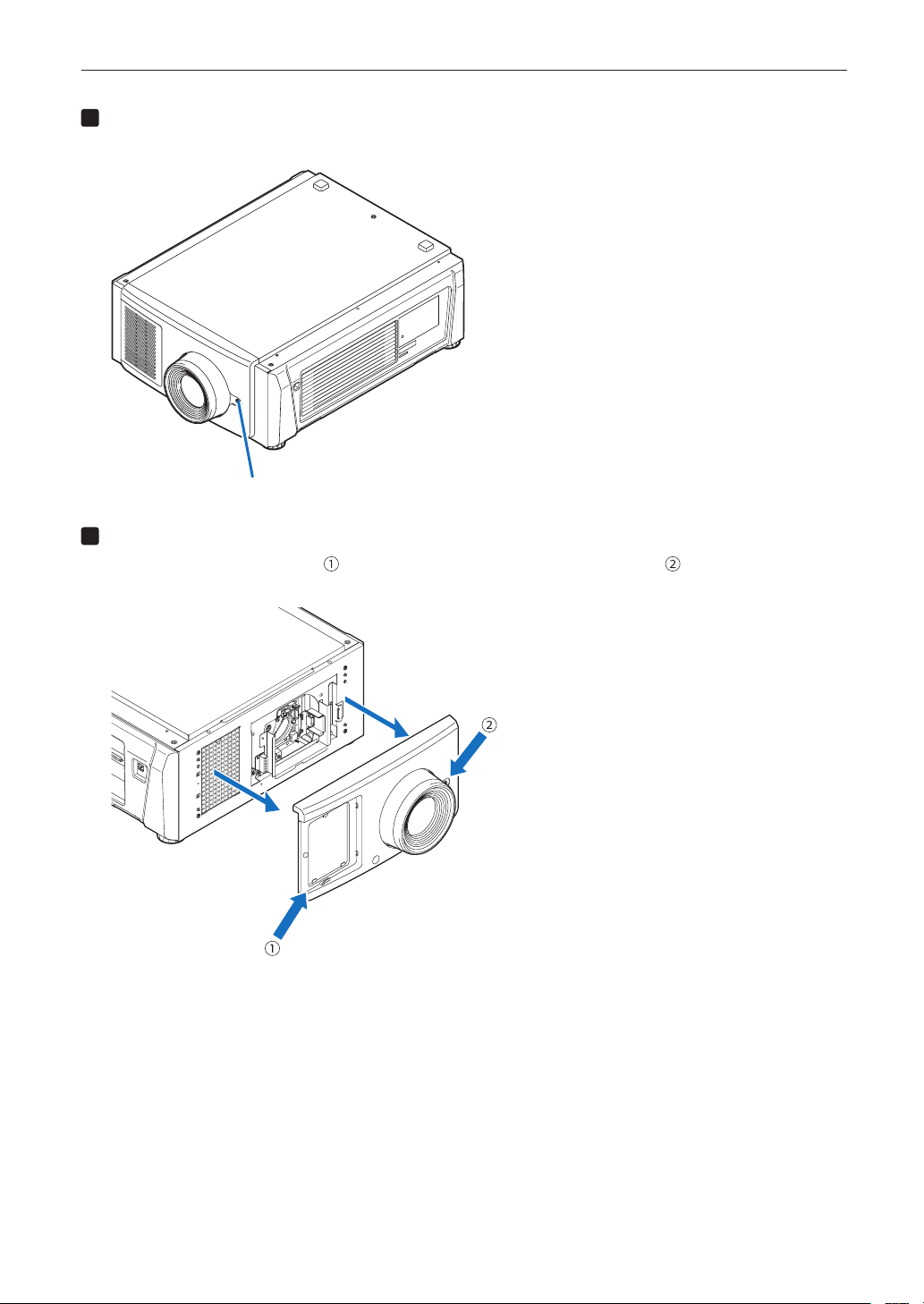
46
Before Setting Up Your Projector and the Chiller Unit
3
Unlock the front cover.
Unlock the cover using the cover key.
Key lock
4
Remove the front cover.
Hold the bottom left of the cover ( ) with your left hand and the base of the lens hood ( ) with your right hand, and
pull the cover directly towards you to remove it.
This completes removing the front cover. To mount the cover, perform the removal procedure in reverse. Make sure that you
do not forget to tighten the screw or to lock the key lock.
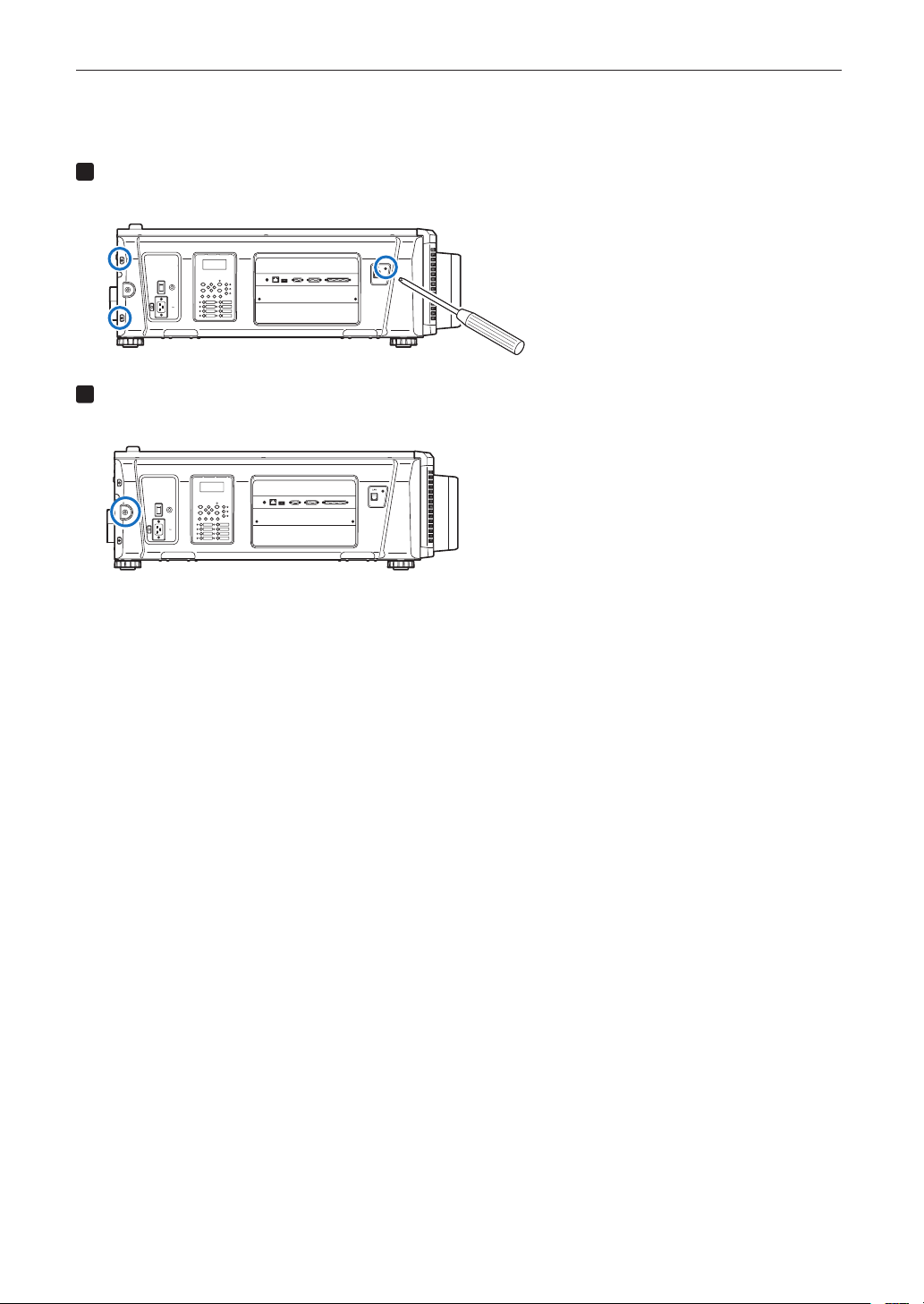
47
Before Setting Up Your Projector and the Chiller Unit
1-5-2. Removing and Mounting the Side Cover
Preparation: Phillips head screwdriver (No.2) and cover key (attached goods)
1
Loosen the four xing screws on the side cover.
Loosen four screws on the side cover until they are free to spin. The screws do not detach from the cover.
GP I/O3DRS-232
USB
REMOTE
LAN
2
Unlock the side cover.
Unlock the cover using the cover key.
GP I/O3DRS-232
USB
REMOTE
LAN
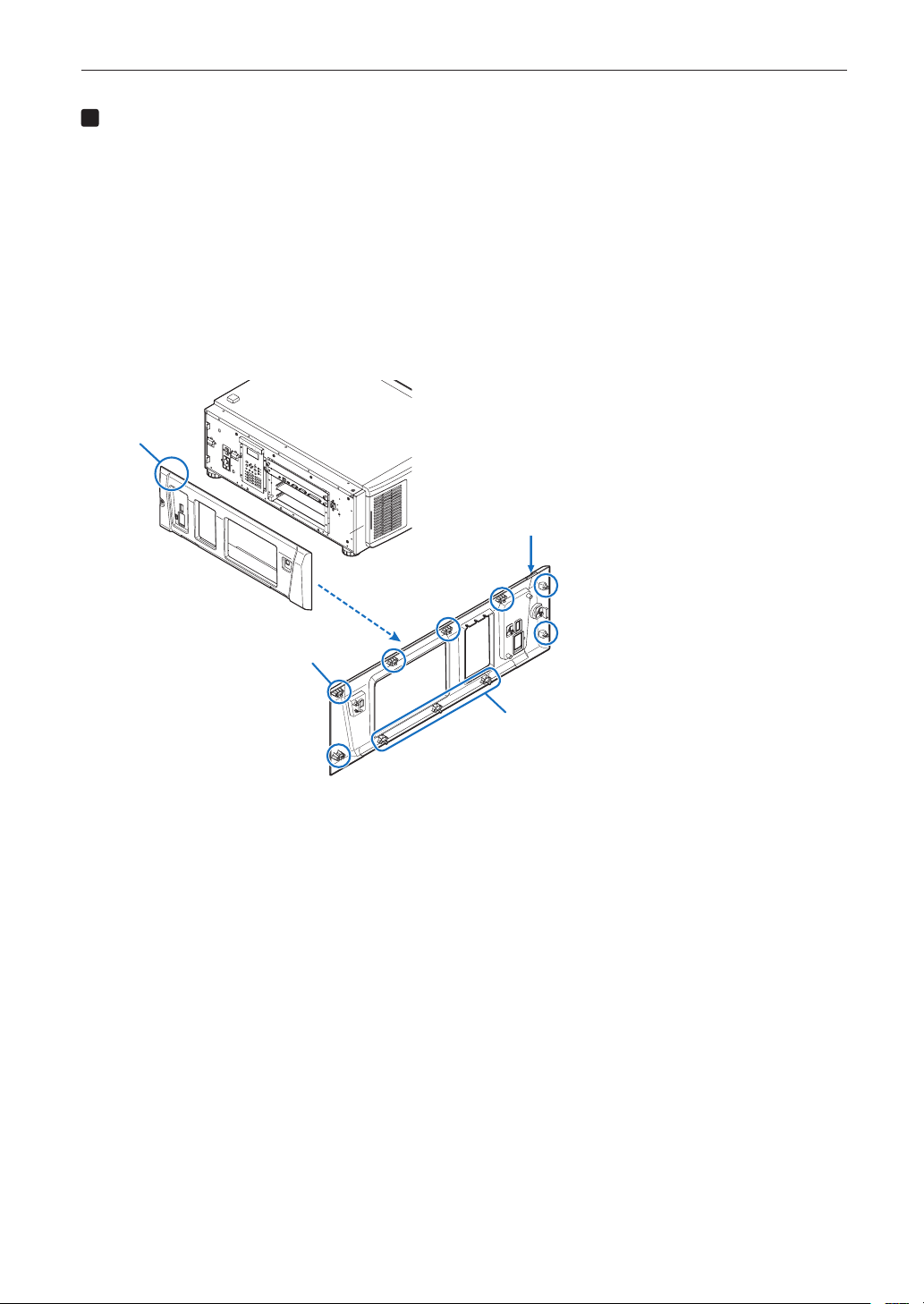
48
Before Setting Up Your Projector and the Chiller Unit
3
Remove the side cover.
The bottom part of the side cover is fixed in place by hooks (in 3 locations). Remove it by using the following
procedure.
1. Hold the upper part and the left and right edges of the side cover and pull it towards you.
There is a handhold on the left side of the side cover. The side cover is affixed to the projector by tabs (7
locations) and hooks (3 locations). When removing the cover, pull it out straight towards you so that the tabs do
not get bent.
2. Using the bottom edge of the side cover as a pivot, pull the top side of the cover towards
you.
Since there are hooks at the bottom of the side cover, take care to avoid applying too much force when tilting the
cover. Tilting the cover towards you will loosen the attachment between the hooks and the projector.
3. Once the hooks have come loose, remove the cover from the projector.
Handhold
Handhold
Hook (3 locations)
Side cover (back side)
Tab (7 locations)
This completes removing the side cover. To mount the side cover, perform the removal procedure in reverse. Make sure that
you do not forget to tighten the screws or to lock the key lock.
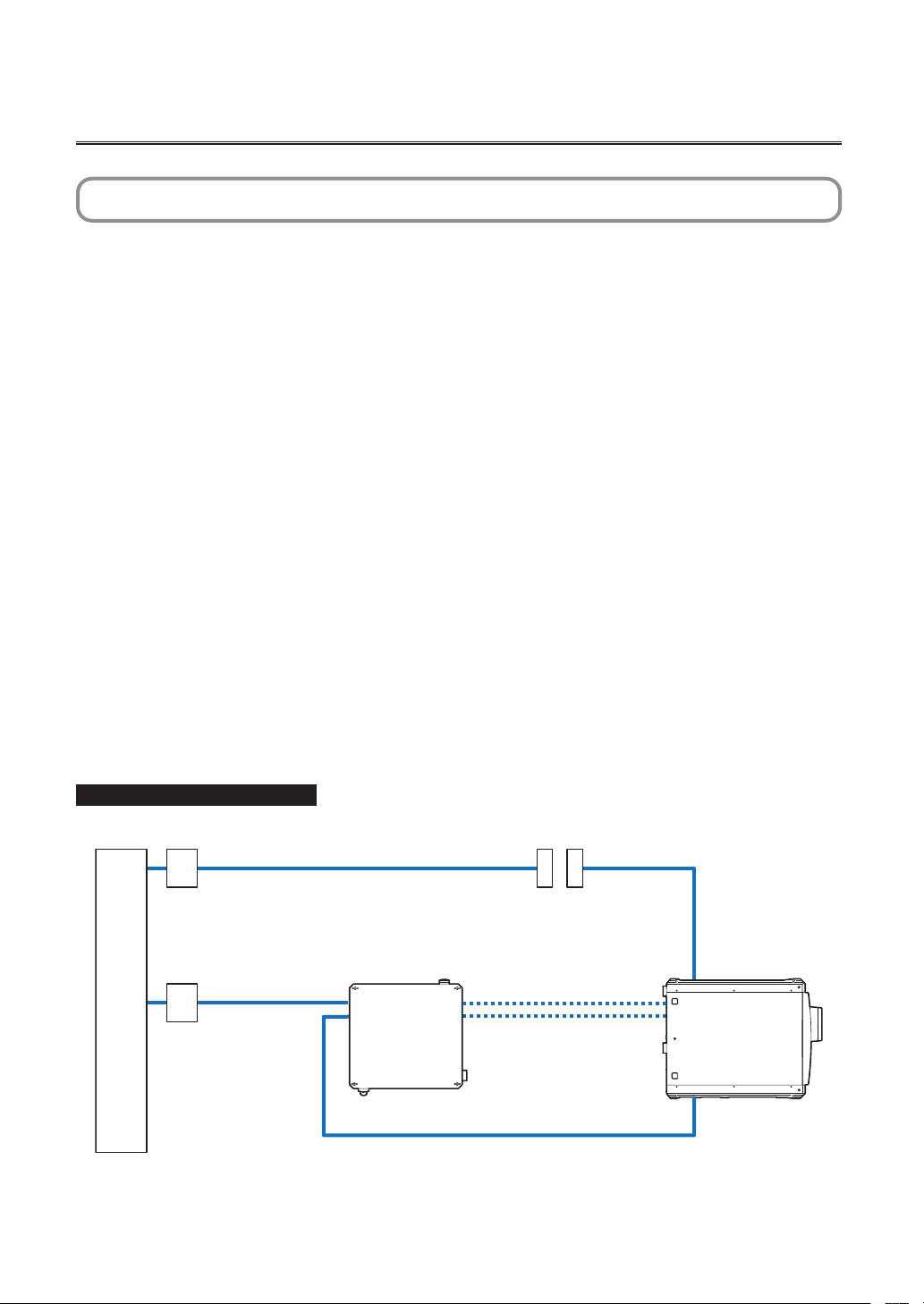
49
2. Setting Up Your Projector and Chiller Unit
2-1. Setup Procedure
Set up the projector and the chiller unit according to the procedure below. This chapter describes the installation of procedure
until turning on of the power.
Projector
• Step 1
Projector Installation (See page 50)
• Step 2
Selecting the Power Cable (See page 51)
Connecting the Power Cable (See Projector User’s Manual)
• Step 3
Mounting the Lens Unit (See page 57)
• Step 4
Mounting the following optional parts as required.
- Installing the Media Block (NP-90MS02-4K) (See page 60)
Chiller unit
• Step 1
Connecting the Power Cable for the Chiller Unit (See page 64)
• Step 2
Connecting the Hoses for the Chiller Unit (See page 71)
Connecting the Control Cable (See page 73)
• Step 3
Pouring the Coolant (See page 74)
• Step 4
Setting the Chiller Unit (See page 76)
Connection schematic diagram
AC power facilities
AC power cable
AC power cable
Projector
Hose for chiller unit
Control cable
Circuit breaker
Electrical outlet
Chiller unit
Circuit breaker
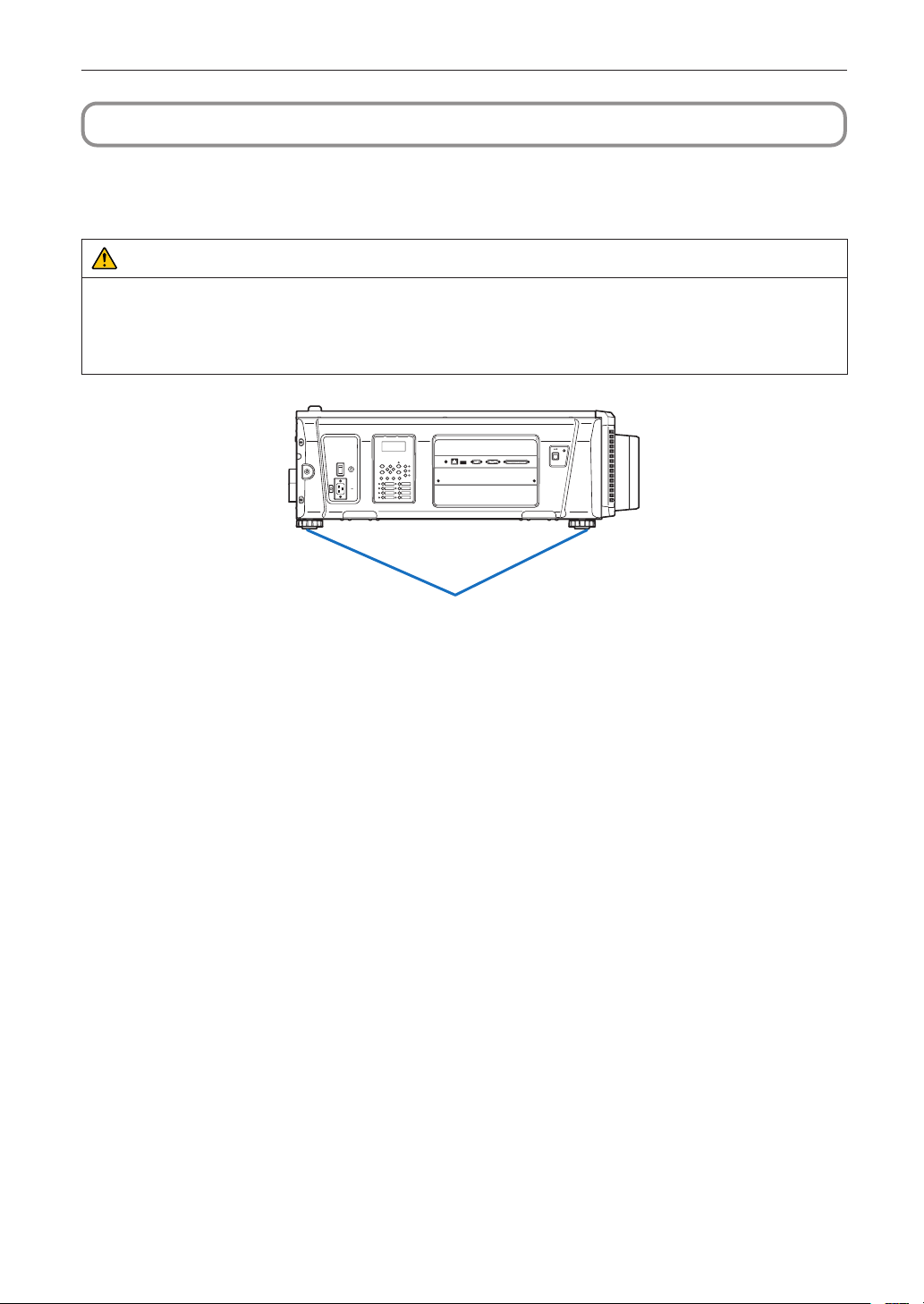
50
Setting Up Your Projector and Chiller Unit
2-2. Projector Installation
Move the projector to the projection position and install it corresponding to the screen and projection conditions.
To correct the inclination to the right or left of the projector, use the level adjusters at 4 positions. You can extend the level
adjuster to 35 mm at the maximum (Rotate it counterclockwise for extension).
CAUTION
• Do not extend the adjuster by more than 35 mm. Rotating it forcefully may cause the adjuster to come off or be
damaged.
• To adjust the level adjusters of the projector, extend the two level adjusters at the front and the back at the same time so
that the weight is imposed to them equally. If you adjust only one adjuster, the weight is not imposed equally, which may
result in level adjuster failure.
Level adjusters (in four positions)
GP I/O3DRS-232
USB
REMOTE
LAN
51
Setting Up Your Projector and Chiller Unit
2-3. Selecting the Power Cable (Projector) (English)
The power cable is not included with the projector. Refer to “2-3-1. AC Power Work Specifications (Projector)” (page 52) and
provide the necessary power cable.
WARNING
Carefully read the contents described in this section before connection and connect the cables according to the proper
procedure. Inappropriate handling may cause fatal, serious or other bodily injuries due to fire or electric shock.
CAUTION
• For details on connecting the power cable, refer to the projector User’s Manual.
• Before connecting the power cables, check that the main power switch of the projector is turned off. Implement the con-
nection with AC power shut off.
• Be sure to ground the equipment to ensure safety. Use a power cable that meets the standards and power supply voltage
of the country where you are using the projector (page 52), and always connect the equipment to the ground. If the ground
is not connected, it may cause electrical shocks.
• When connecting the power cable plugs to the AC IN and the electrical outlet, securely insert the plugs all the way in. If
the connection between the power cable plug and the electrical outlet is loose, the plug area may generate heat, causing
burns and accidents.
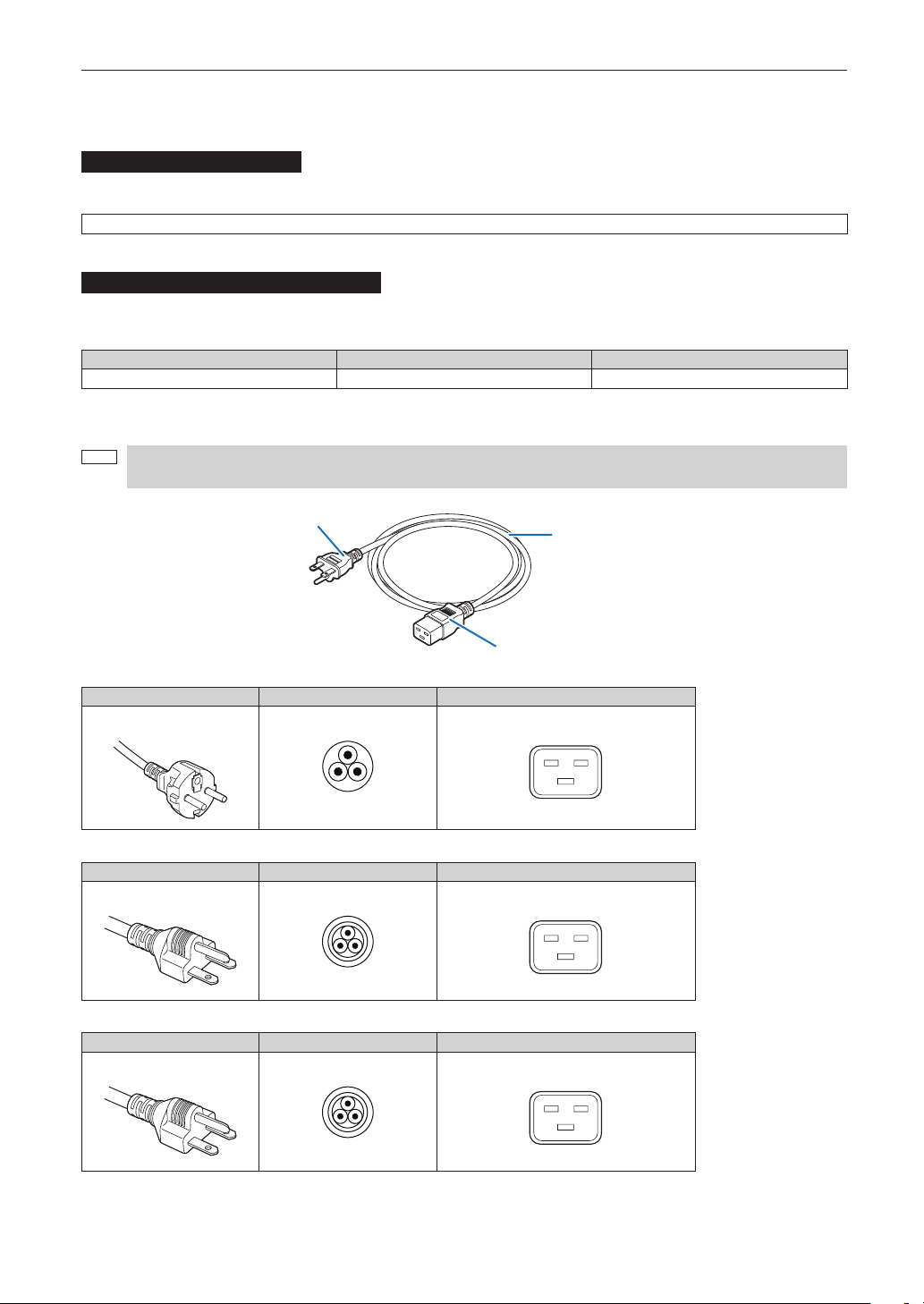
52
Setting Up Your Projector and Chiller Unit
2-3-1. AC Power Work Specications (Projector)
AC power supply equipment
Do not use any voltage other than those shown below for the AC power supply connected to the projector.
200–240V AC, single phase, power, 50/60Hz
AC power supply cable for the projector
The projector is equipped with an IEC60320 C20 inlet to connect an AC power supply cable. Use an IEC60320 C19 compliant
AC power cable connector and ensure that the connector meets the following current capacity specifications.
Power supply voltage Projector input current Power cable current capacity
AC 200–240V 10.7A (MAX) 250V 16A or higher
Furthermore, use plugs, cables, and connectors that are suitable for the regulations of the country of installation, as shown in
the following table.
NOTE
For users in North America
Use a power cable no longer than 4.5m/14.76 ft according to National Electrical Code.
Cable
Plug
Connector
Germany
Plug Cable Connector
CEE 7
H05VV-F 3G1.5 IEC 320 C19
USA
Plug Cable Connector
NEMA 6-15P
SJT 3 x AWG 14 IEC 320 C19
Japan
Plug Cable Connector
JIS C 8303
VCTF 3 x 2.0mm IEC 320 C19
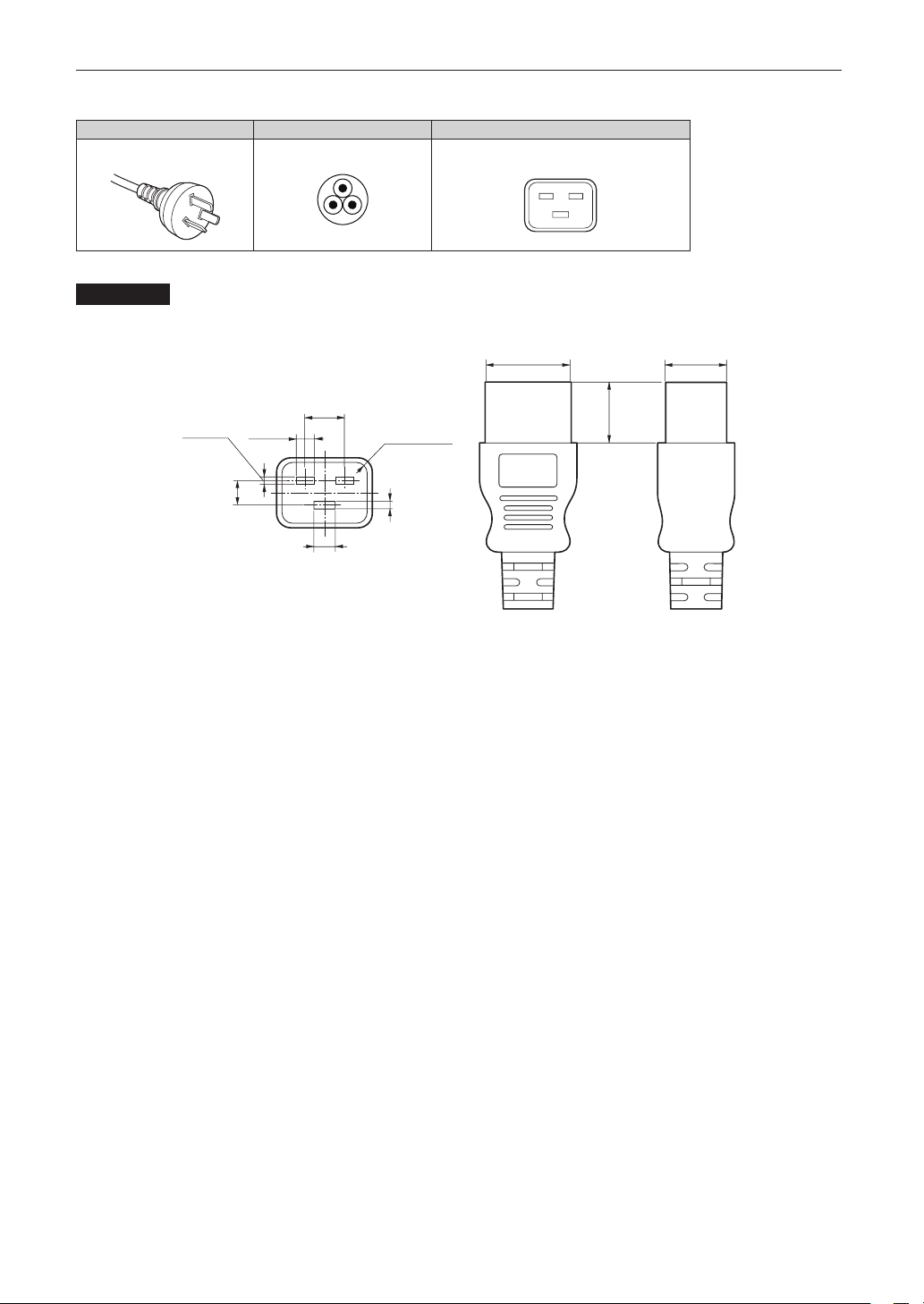
53
Setting Up Your Projector and Chiller Unit
China
Plug Cable Connector
GB2099
RVV 300/500 GB17465.1
Connector
Dimensions of the connector of the power cable are shown below.
7
+0,5
-
0
28
+0
-
0,9
20
+0
-
0,7
6,0
+0,5
-
0
2,5
+0,5
-
0
2,5
+0,5
-
0
8 ±
0,2
13 ±0,2
Unit: mm
R3.5 min
20 min
54
Setting Up Your Projector and Chiller Unit
2-4. Auswahl des Netzkabels (Projektor) (Deutsch)
Es wird kein Netzkabel mit dem Projektor geliefert. Nehmen Sie auf „2-4-1. Netzstrom-Spezifikationen (Projektor)“ (Seite 55)
Bezug, und beschaffen Sie das notwendige Netzkabel.
WARNUNG
Lesen Sie diesen Abschnitt vor dem Herstellen der Verbindungen sorgfältig durch, und schließen Sie die Kabel anhand der
ordnungsgemäßen Verfahren an. Falsche Handhabung kann zu schweren oder sogar tödlichen Verletzungen durch Brand
oder einen elektrischen Schlag führen.
ACHTUNG
• Für Einzelheiten zum Anschließen des Netzkabels siehe des Projektors Bedienungshandbuch.
• Bevor Sie das Netzkabel anschließen, prüfen Sie, ob die Hauptstromschalter des Projektors ausgeschaltet ist. Stellen
Sie die Verbindungen bei ausgeschaltetem Netzstrom her.
• Erden Sie das Gerät, um die Sicherheit zu gewährleisten. Verwenden Sie ein Netzkabel, das die Normen und Netzspan-
nung des Landes, in dem der Projektor verwendet wird, erfüllt (Seite 55), und schließen Sie das Gerät stets an Erde an.
Wenn keine Erde angeschlossen wird, kann es zu elektrischen Schlägen kommen.
• Führen Sie die Netzkabelstecker beim Anschließen bis zum Anschlag in den Netzeingang und die Netzsteckdose ein.
Sitzt der Netzstecker nicht fest in der Netzsteckdose, kann Wärme im Steckerbereich erzeugt werden, die zu Verbren-
nungen und Unfällen führen kann.
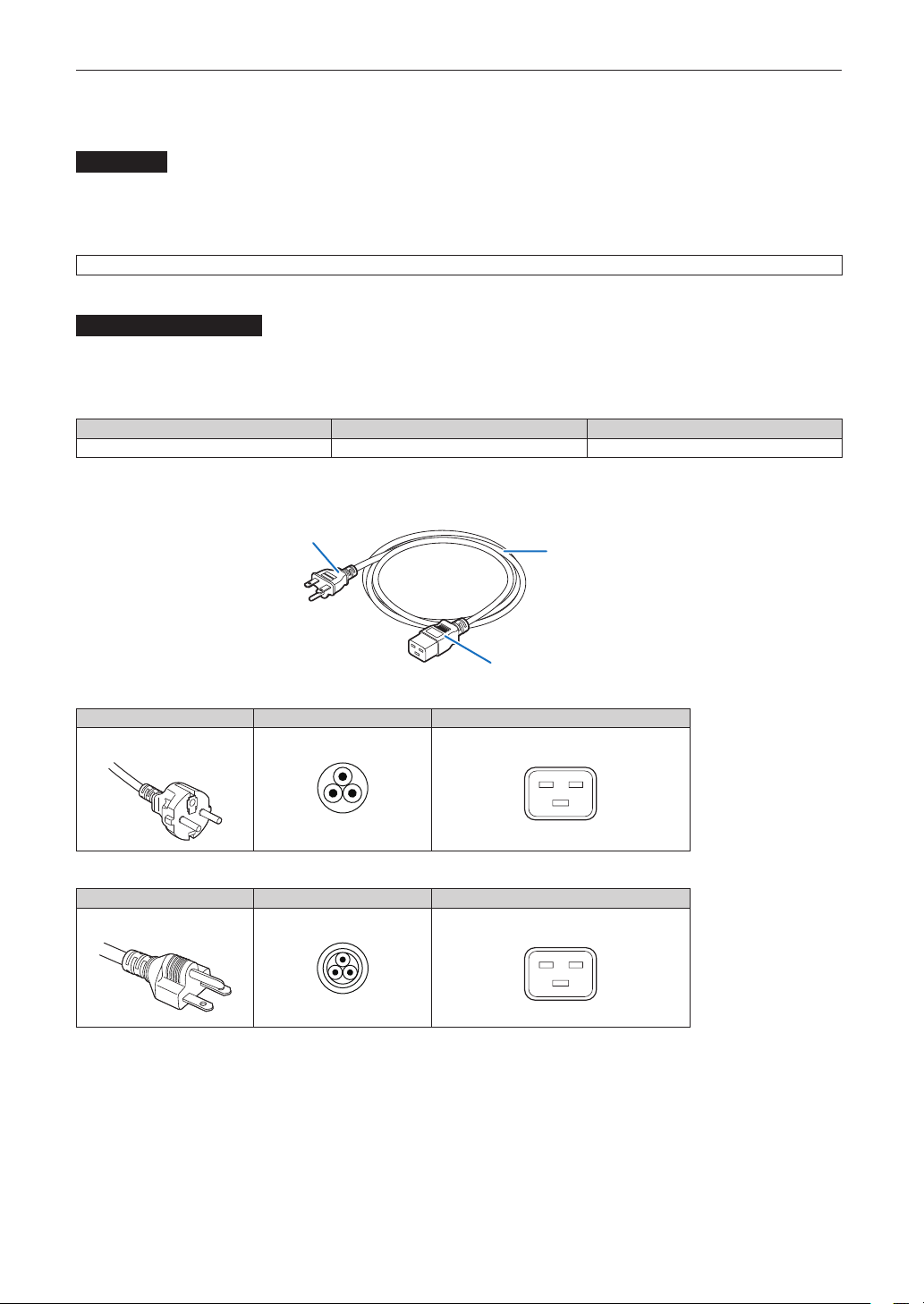
55
Setting Up Your Projector and Chiller Unit
2-4-1. Netzstrom-Spezikationen (Projektor)
Netzkabel
Der Projektor ist mit einem C19-Steckverbinder gemäß IEC60320 zum Anschließen des Netzkabels ausgestattet. Sorgen Sie
dafür, dass die Netzkabel, die von den Steckverbindern am Projektor zum Netzanschluss führen, über die unten angegebenen
Stromkapazitäten verfügen.
200–240 V AC, eiphasig, 50/60Hz
Netzkabel für den Projektor
Der Projektor ist mit einem C20-Eingang gemäß IEC60320 zum Anschließen des Netzkabels ausgestattet. Verwenden Sie
einen IEC60320 C19-kompatiblen Netzkabelanschluss und sorgen Sie dafür, dass der Anschluss über die unten angegebene
Stromkapazität verfügt.
Netzspannung Projektor-Eingangsstrom Netzkabel-Stromkapazität
200–240 V Wechselstrom 10.7 A (MAX) 250 V 16 A oder höher
Verwenden Sie zudem Stecker, Kabel und Steckverbinder, die den Vorgaben des jeweiligen Landes entsprechen (siehe dazu
folgende Tabelle).
Kabel
Stecker
Steckverbinder
Deutschland
Stecker Kabel Steckverbinder
CEE 7
H05VV-F 3G1.5 IEC 320 C19
USA
Stecker Kabel Steckverbinder
NEMA 6-15P
SJT 3 x AWG 14 IEC 320 C19
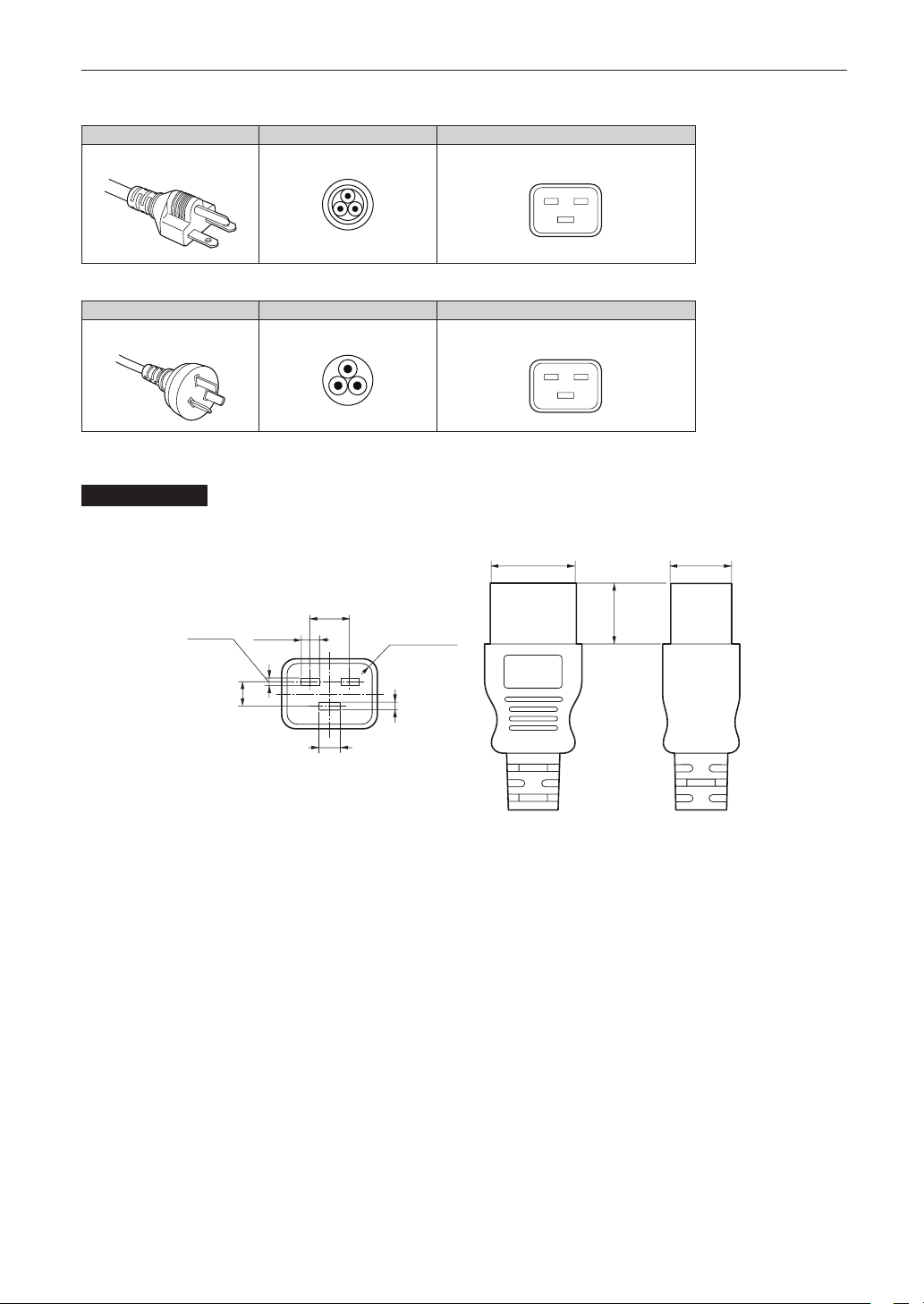
56
Setting Up Your Projector and Chiller Unit
Japan
Stecker Kabel Steckverbinder
JIS C 8303
VCTF 3 x 2.0mm IEC 320 C19
China
Stecker Kabel Steckverbinder
GB2099
RVV 300/500 GB17465.1
Steckverbinder
Die Abmessungen des Netzkabels sind unten angegeben.
7
+0,5
-
0
28
+0
-
0,9
20
+0
-
0,7
6,0
+0,5
-
0
2,5
+0,5
-
0
2,5
+0,5
-
0
8 ±
0,2
13 ±0,2
Einheit: mm
R3,5 Min
20 Min
57
Setting Up Your Projector and Chiller Unit
2-5. Mounting the Lens Unit
This device can use the following types of lens units (sold separately).
MODEL Magnifying Lens memory support
NP-9LS16Z1 1.63–2.03 -
NP-9LS20Z1 2.03–2.72 -
NP-9LS40Z 4.07–6.34 -
NP-9LS12ZM1 1.2–1.72
NP-9LS13ZM1 1.33–2.1
NP-9LS16ZM1 1.62–2.7
NP-9LS20ZM1 2.09–3.9
NP-9LS40ZM1 4.07–6.34
NOTE
• The other NEC optional lenses are not available on this model.
• The projector and lenses are made of precision parts. Do not subject them to shock or excessive forces.
• Remove the lens unit when moving the projector. If not, the lens could be subject to shock while the projector
is being moved, damaging the lens and the lens shift mechanism.
• When mounting (removing) the lens unit, return the lens position to the center before turning off the projector
power. If you do not return the lens position to the center, the lens may interfere and prevent you from removing
(mounting) the front cover.
• Turn off the power and wait for the cooling fan to stop and turn off the main power switch before mounting or
removing the lens.
• Never touch the lens surface while the projector is operating.
• Be very careful not to let dirt, grease, etc., on the lens surface and not to scratch the lens surface.
• Perform these operations on a flat surface over a piece of cloth, etc., to prevent the lens from getting scratched.
• When leaving the lens off the projector for long periods of time, mount the dust cap on the projector to prevent
dust or dirt from getting inside.
Preparation: Remove the front cover. (page 45)
NOTE
If you remove the front cover, the following error message is displayed on the LCD screen of the main unit operat-
ing panel by the tamper detection circuit.
“Tamper Fail”, “IMB: Service Door Tamper”
Encrypted contents cannot be displayed while an error message is being displayed. Refer to “3-2. Recovering
from Tamper Errors” (page 79) for the recovery procedure.
1
Remove the dust cap from the projector.
2
Remove the lens cap on the back of lens.
NOTE
Mounting the lens with lens cap on its back to the projector can cause malfunction.
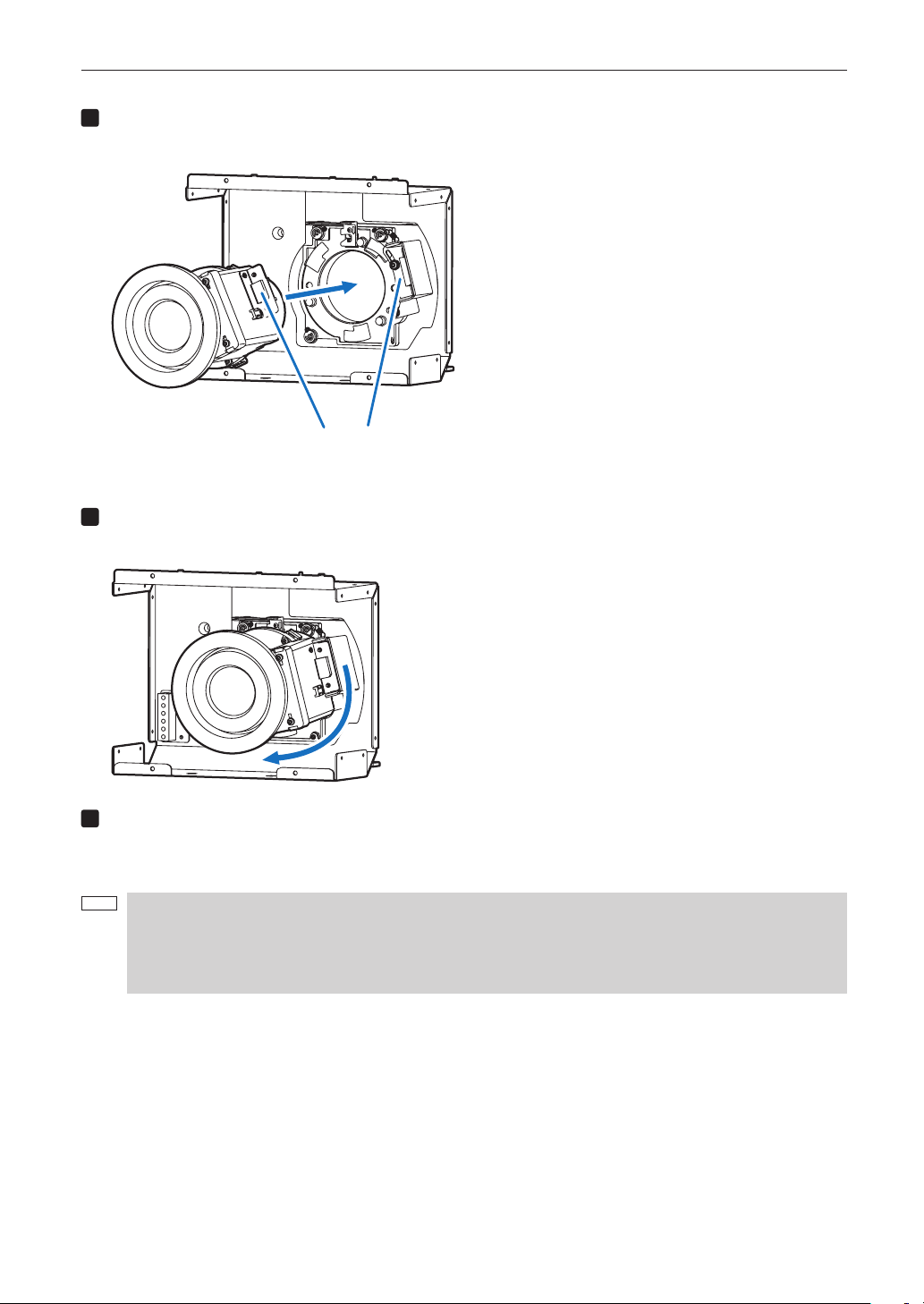
58
Setting Up Your Projector and Chiller Unit
3
Orient so that the connector on the lens unit is on the right side, then insert the lens into the
projector.
Orient so that the connector on the
lens unit is on the right side
4
Turn the lens clockwise.
Rotate until it clicks to lock the lens unit into the projector.
5
Mount the front cover to the projector.
This completes the installation of the lens.
NOTE
Perform the following steps before adjusting the lens.
• Common to all lens units
Configure the lens type setting and select the lens type that matches the lens unit that is attached (page 84).
• Lens units that support the lens memory function
Execute lens calibration after configuring the lens type setting (page 85).
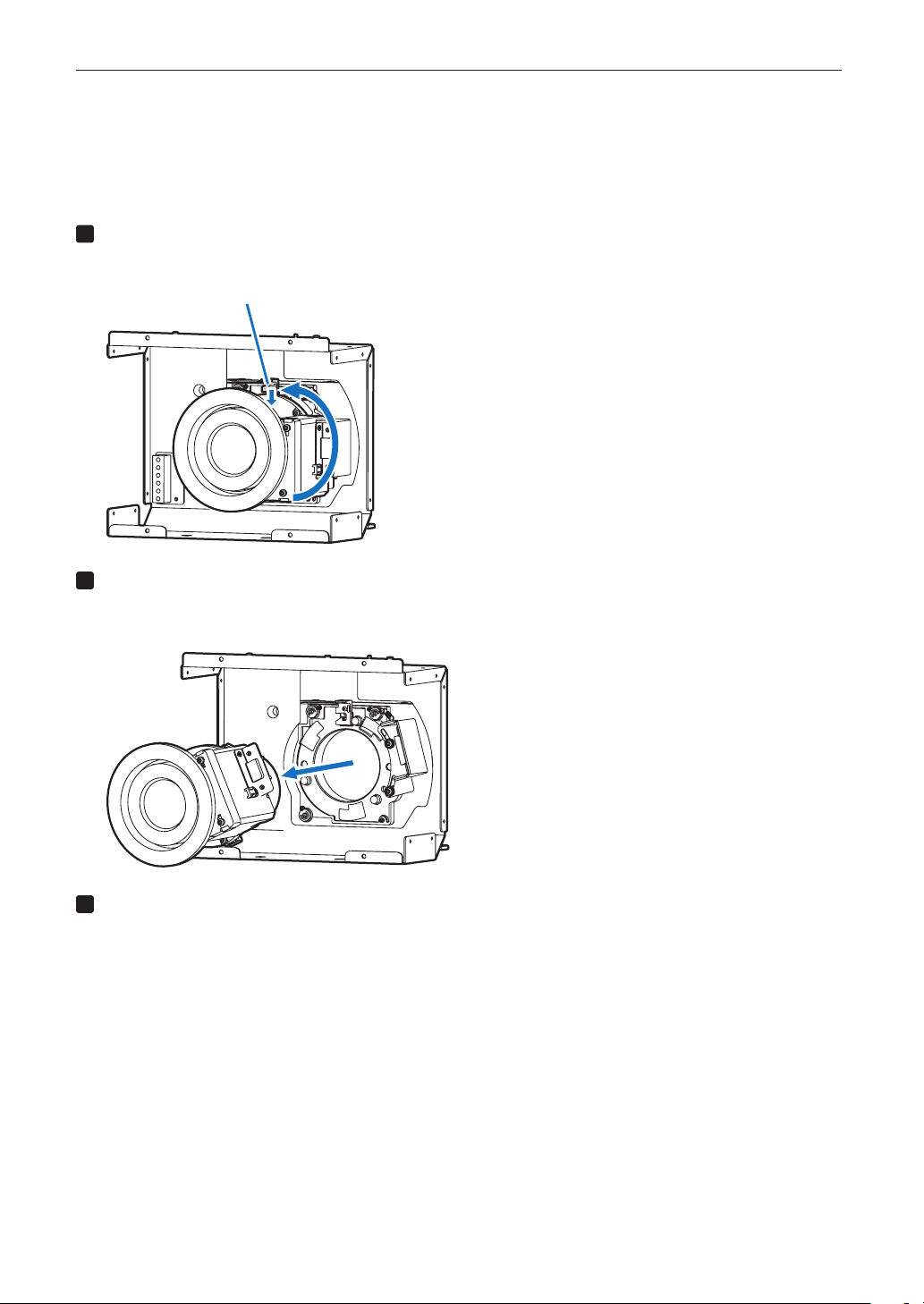
59
Setting Up Your Projector and Chiller Unit
2-5-1. Removing the lens
Preparation: [1] Return to the center position. (page 100)
[2] Turn off the main power and unplug the power cable.
[3] Wait for the projector to cool sufficiently before removing the lens, before removing the front cover. (page
45)
1
Rotate the lens counterclockwise while holding down the RELEASE LEVER.
The lens unit can be removed from the projector.
RELEASE LEVER
2
Slowly remove the lens from the projector by pulling it straight out.
After removing the lens, attach the lens cap to both the front and back of the lens for proper storage. If the projector
is stored without the lens, attach the dust cover to the lens hood.
3
Mount the front cover to the projector.
This completes the remove of the lens.

60
Setting Up Your Projector and Chiller Unit
2-6. Mounting the Option Board
This section describes the procedure of mounting the option board. The following option board can be mounted to the slot of
the projector.
Name Slot
IMB NP-90MS02-4K *
Preparation: Phillips head screwdriver (No.2) and cover key (attached goods).
• Step 1
Remove Side Cover from the Projector (See page 47)
• Step 2
Mount the Option Board to the Projector (See this page)
• Step 3
Mount the Cover to the Projector (See page 47)
• Step 4
Restore the Tamper Error (See page 79)
Setting up the Projector (See page 62)
NOTE
• If you remove the side cover, a tamper event is detected by the tamper detection circuit. When you start the
projector after attaching the cover, the following error message is displayed on the LCD screen of the projector
main unit.
- “IMB: Service Door Tamper”
• If you remove the blocking panel or option board from a slot, a tamper event is detected by the tamper detec-
tion circuit. When you start the projector after attaching the cover, the following error message is displayed on
the LCD screen of the projector main unit. Since the marriage is also cleared at the same time, re-marriage is
necessary.
- “IMB: Physical Marriage Tamper”, “IMB: Marriage NOT Active”
• Encrypted contents cannot be displayed while an error message is being displayed. Refer to “3-2. Recovering
from Tamper Errors” (page 79) for details on how to clear the error message.
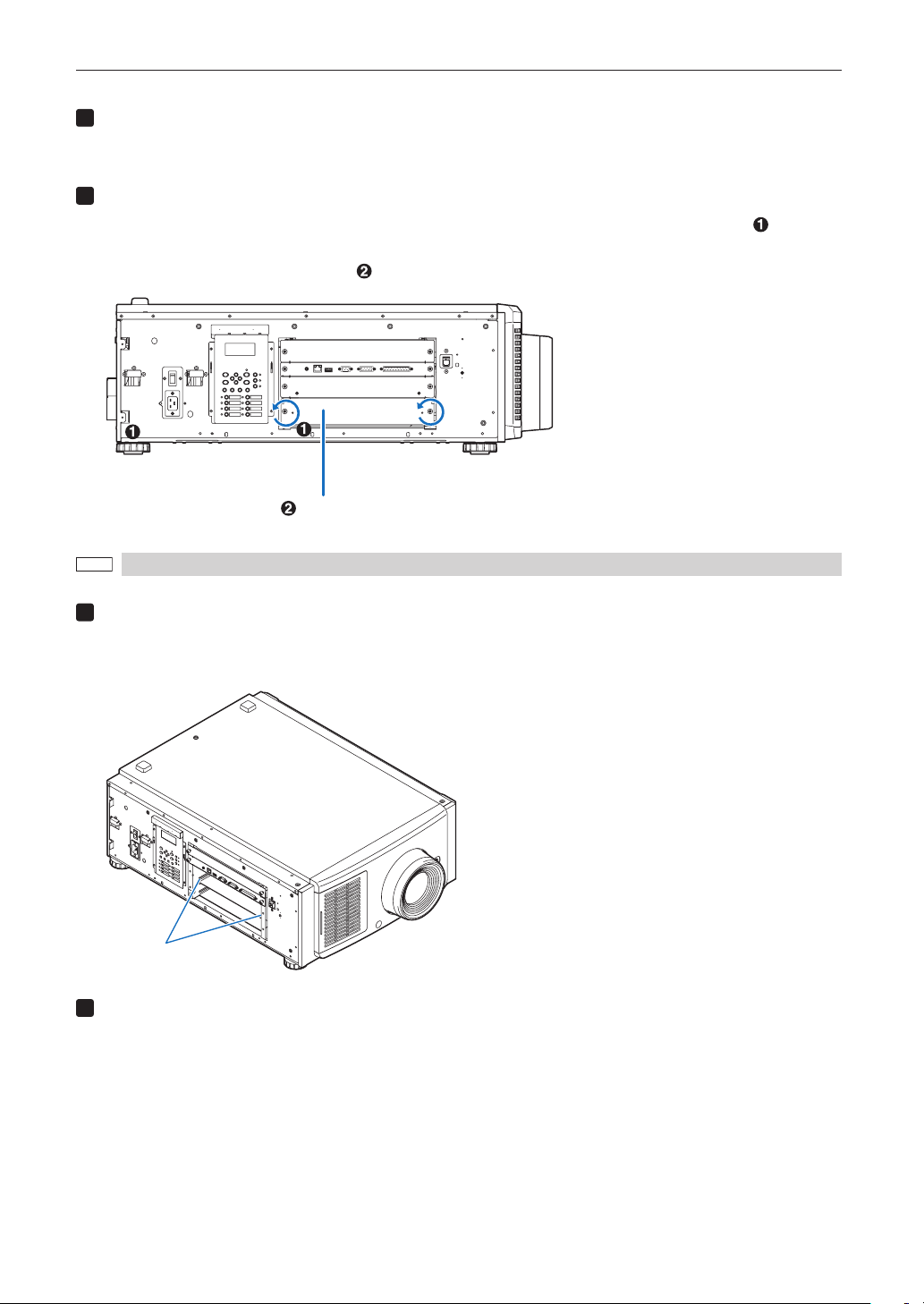
61
Setting Up Your Projector and Chiller Unit
1
Remove the side cover.
Side cover of the projector should be removed to mount the option board. For the procedure of removing the side
cover, refer to “1-5-2. Removing and Mounting the Side Cover” (page 47).
2
Remove the blocking panel from slot.
1. Loosen the knurled screws (2 places) of slot until their rotations become idle (
). Screws
cannot be removed.
2. Remove the blocking panel ( ).
Slot
NOTE
Carefully store the blocking panel and screws that you removed.
3
Mount the option board to the projector.
1. Insert the board by following the guide on either side of the slot.
2. Tighten up the knurled screws (2 places) until it x.
guide (left/right)
4
Mount the side cover to the projector.
This completes the mounting of option board. Next, recover the tamper error. For the procedure of recovering, refer to “3-2.
Recovering from Tamper Errors” (page 79). A setting to use option board is needed, after recovering from tamper error. For the
procedure, refer to “2-6-1. Make the option board usable” (page 62).
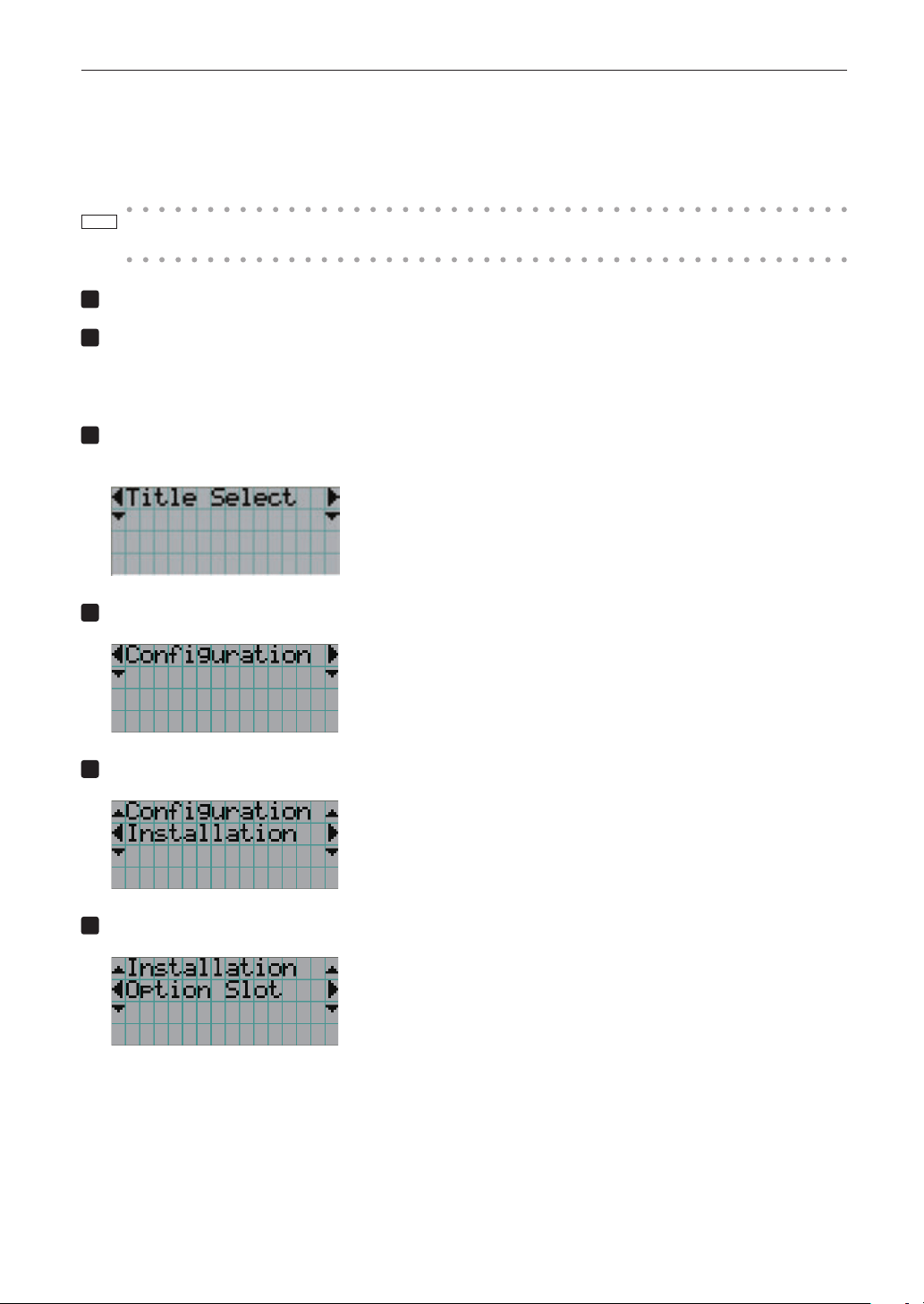
62
Setting Up Your Projector and Chiller Unit
2-6-1. Make the option board usable
By registering the mounted option board to the slot, you can use option board by setting up the projector. This procedure is
described for the example, when IMB (NP-90MS02-4K) is mounted to slot. For the operation of the projector, refer to projector’s
“Users Manual”.
TIP
DCC can be used to set up.
For the procedure by using DCC, refer to “Digital Cinema Communicator Installation Manual”.
1
Set the projector in standby mode.
2
Enable the service personnel menu.
These settings are for our service personnel and cannot normally (user mode) be used. You need to enter a passcode
to enable the service personnel menu. Refer to the “4-1-1. When You Use the Service Personnel Menu” (page 90) for
the procedure.
3
Press the MENU button on the control panel.
“Title Select” is displayed in the menu. From this procedure on, control panel of the projector will be used.
4
Press the LEFT/RIGHT button to display “Conguration” and press the DOWN button.
5
Press the LEFT/RIGHT button to display “Installation” and press the DOWN button.
6
Press the LEFT/RIGHT button to display “Option Slot” and press the DOWN button.
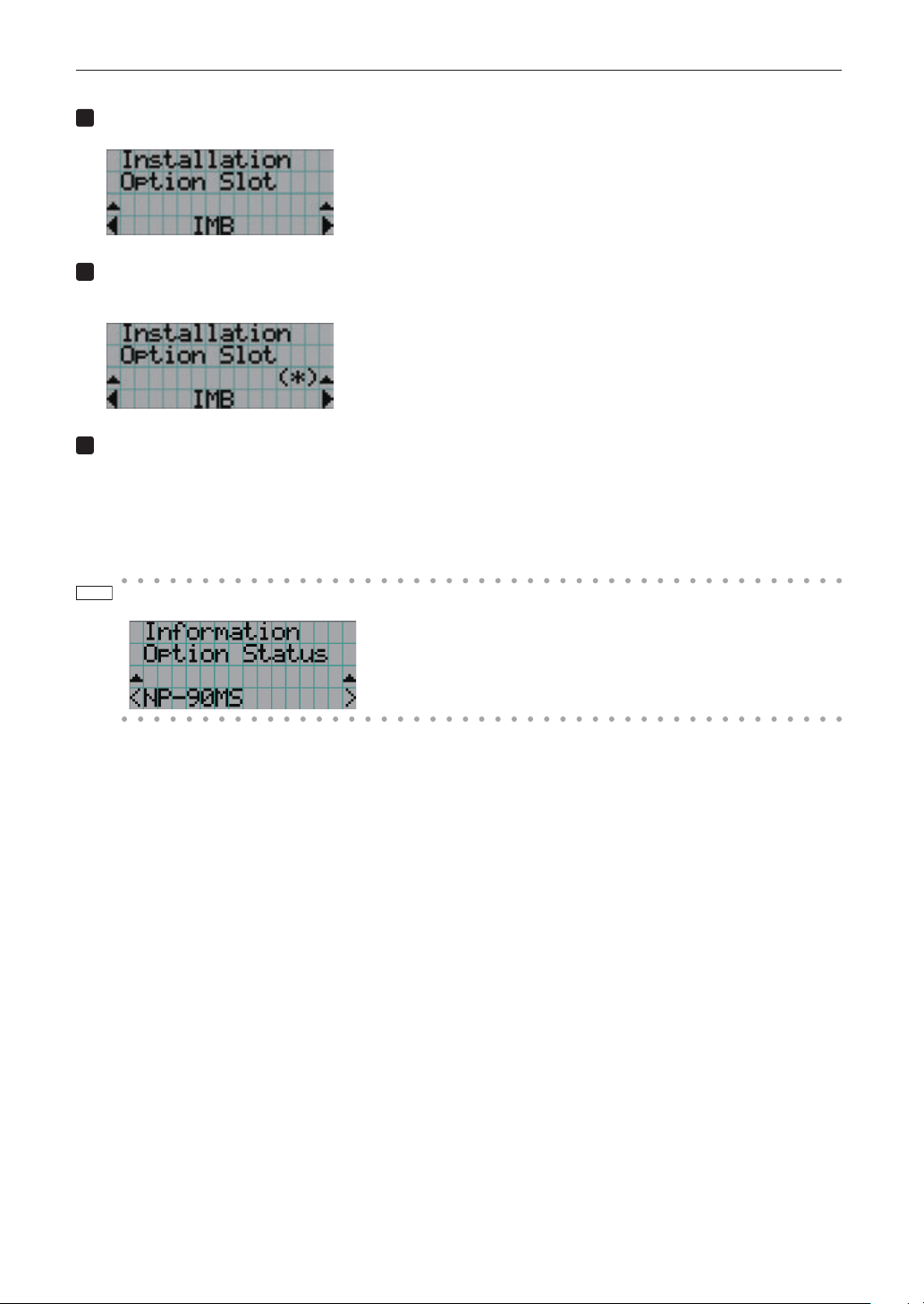
63
Setting Up Your Projector and Chiller Unit
7
Press the LEFT/RIGHT button to display “IMB”.
8
Press the ENTER button.
(*) is displayed to the selected item.
9
Press the EXIT button several times.
The projector exits the menu and goes back to the regular screen.
If you press the EXIT button and then select “Yes” and press the ENTER button on a regular screen, you will returned
to user mode.
This completes the setting of the projector.
TIP
Settings of slot can be confirmed at projector’s [Information] - [Option Status]
64
Setting Up Your Projector and Chiller Unit
2-7. Connecting the Power Cable for the Chiller Unit
The power cable is not included with the chiller unit. Refer to “2-7-1. AC Power Work Specifications (Chiller Unit)” (page 65) and
provide the necessary power cable.
WARNING
Carefully read the contents described in this section before connection and connect the cables according to the proper
procedure. Inappropriate handling may cause fatal, serious or other bodily injuries due to fire or electric shock.
CAUTION
• When conducting the power work to connect the power cable, make sure that the main power switch to the projector and
the chiller unit are turned off, and that the AC power supply has been disconnected.
• Contact a certified professional to perform the power work from the building power facilities to the installation location
for the projector and the chiller unit.
• To ensure device safety, use the device only after ensuring it is properly grounded. Due to risk of shock, contact a certi-
fied professional to perform the ground work and ground connections. The ground connection must be established
before supplying the AC power supply.
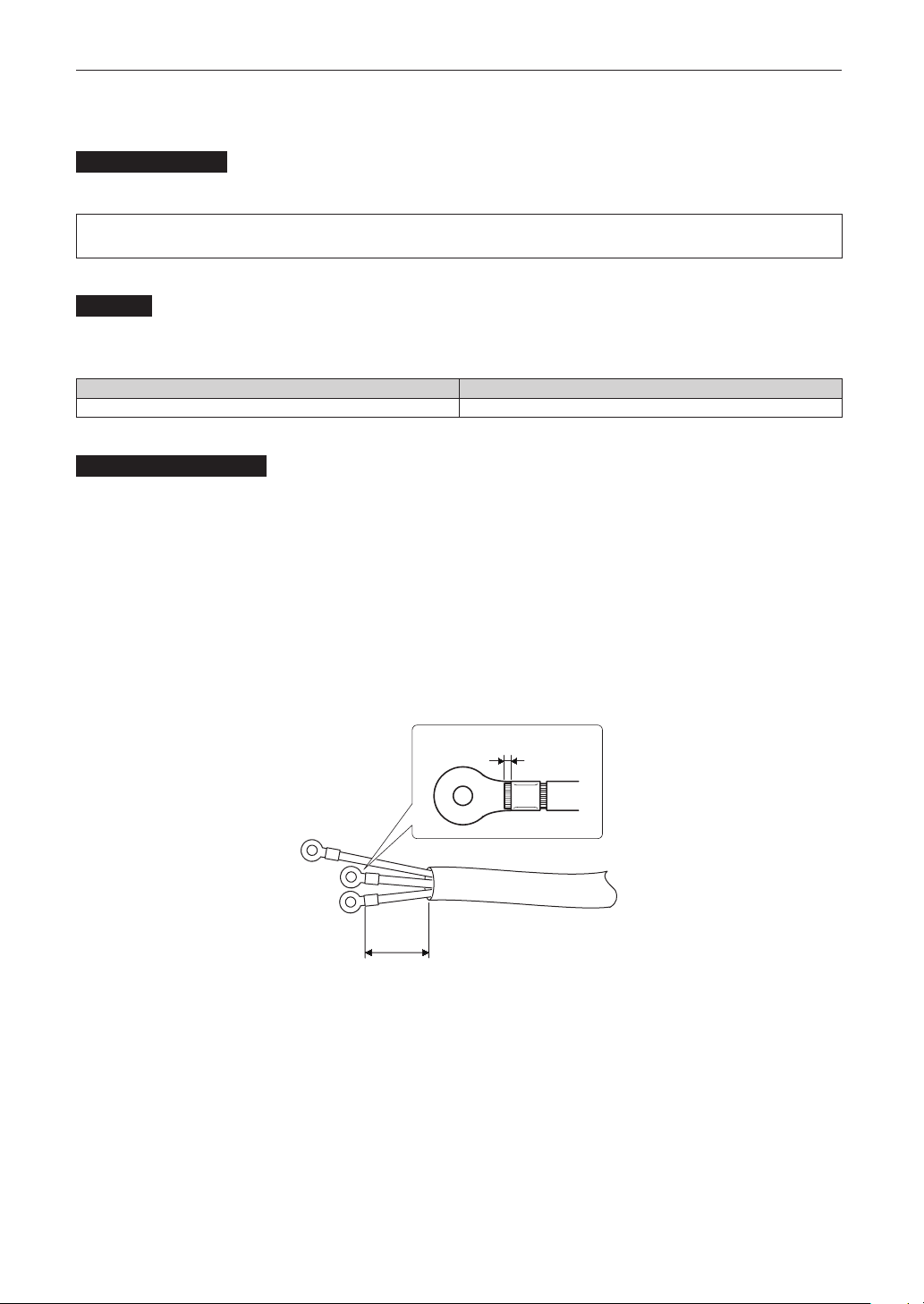
65
Setting Up Your Projector and Chiller Unit
2-7-1. AC Power Work Specications (Chiller Unit)
AC power facilities
Do not use the AC power supply connected to the chiller unit outside of the voltage range illustrated below.
AC 200V-240V 50Hz Single phase
AC 220V-240V 60Hz Single phase
Breaker
Connect the AC power supply from the power supply equipment of the building to the chiller unit via a breaker. The breaker
capacity will be as follows depending on the power supply voltage.
AC power supply voltage used Breaker current capacity
200V-240V 20A
AC Power Supply Cable
• Please use a central line that has a copper strand wire.
In Particular at the Europe market, any one type of the following wire shall be used for assembly:
H05VV-F(60227 IEC 53), H05V2V2-F(60227 IEC 57), H05RR-F(60245 IEC 53), H05RN-F(60245 IEC 57)
• Use a round type UL-listed solderless terminal for the section connected to the chiller unit. In addition, when clamping this
terminal with the cable, use an UL listed tool.
• Refer to “Compatible Cables and Solderless Terminals” (page 66) on the following page for details on the solderless terminals
to use.
• When crimping a solderless terminal onto the cable, ensure that the amount of exposed wire protruding from the crimped
area is a maximum of 2.0 mm.
• Cut off approximately 50 mm of the outer cladding of the power cable from the area of the solderless terminals, and leave
the wires separated. Use electrical tape to cover any exposed cable outside of the housing.
Max. 2.0 mm
50 mm
(approx.)
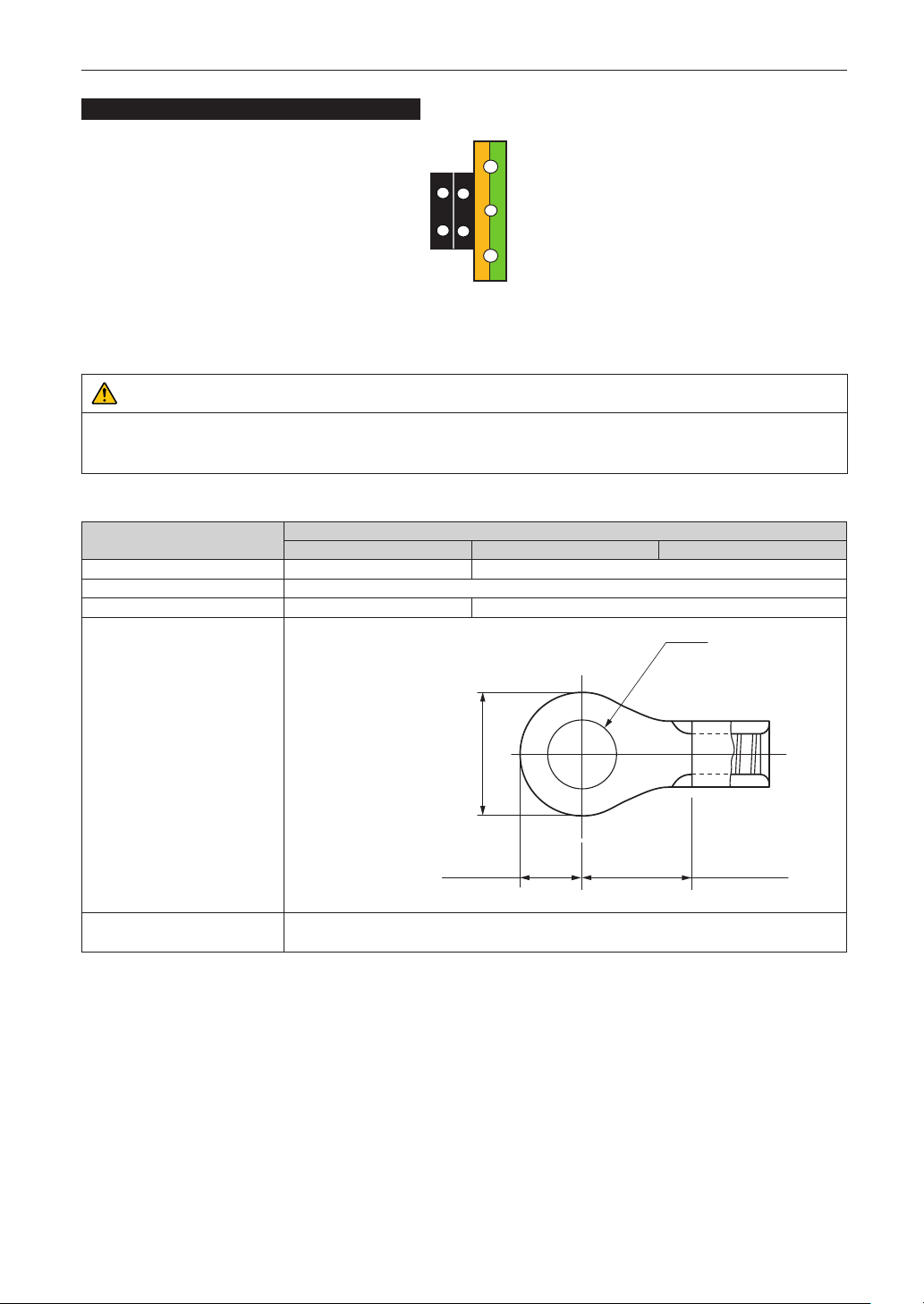
66
Setting Up Your Projector and Chiller Unit
Compatible Cables and Solderless Terminals
Power terminal L, N Ground terminal G
Solderless terminals and screw fastening torques compatible with the terminal block are specified below. This specifies the
model name of the recommended solderless terminals. Use these parts or equivalent parts. If you are unable to use the recom-
mended solderless terminals, ensure that you use terminals of the dimensions shown in the following diagram.
CAUTION
Always use solderless terminals with the dimensions as shown in the following diagram. The use of parts with dimensions
other than as designated creates a risk of the AC power supply unit short circuiting due to the terminal block generating
heat and melting because the terminal block of the chiller unit cannot be attached correctly.
• Power terminal (Black)
Item
Standards
IEC/EN UL CSA (C-UL)
Thickness of compatible wiring 2.0 mm
2
AWG14
Solderless terminal dimensions M4
Tightening torque 1.3 N•m 1.0 N•m
Solderless terminal dimensions
Max. 3.3
Units: mm
φ4.3
Max 6.8
Min. 6.3
Solderless terminal
recommended part (J.S.T parts)
2
–M4
J.S.T: J.S.T Manufacturing Co, Ltd.
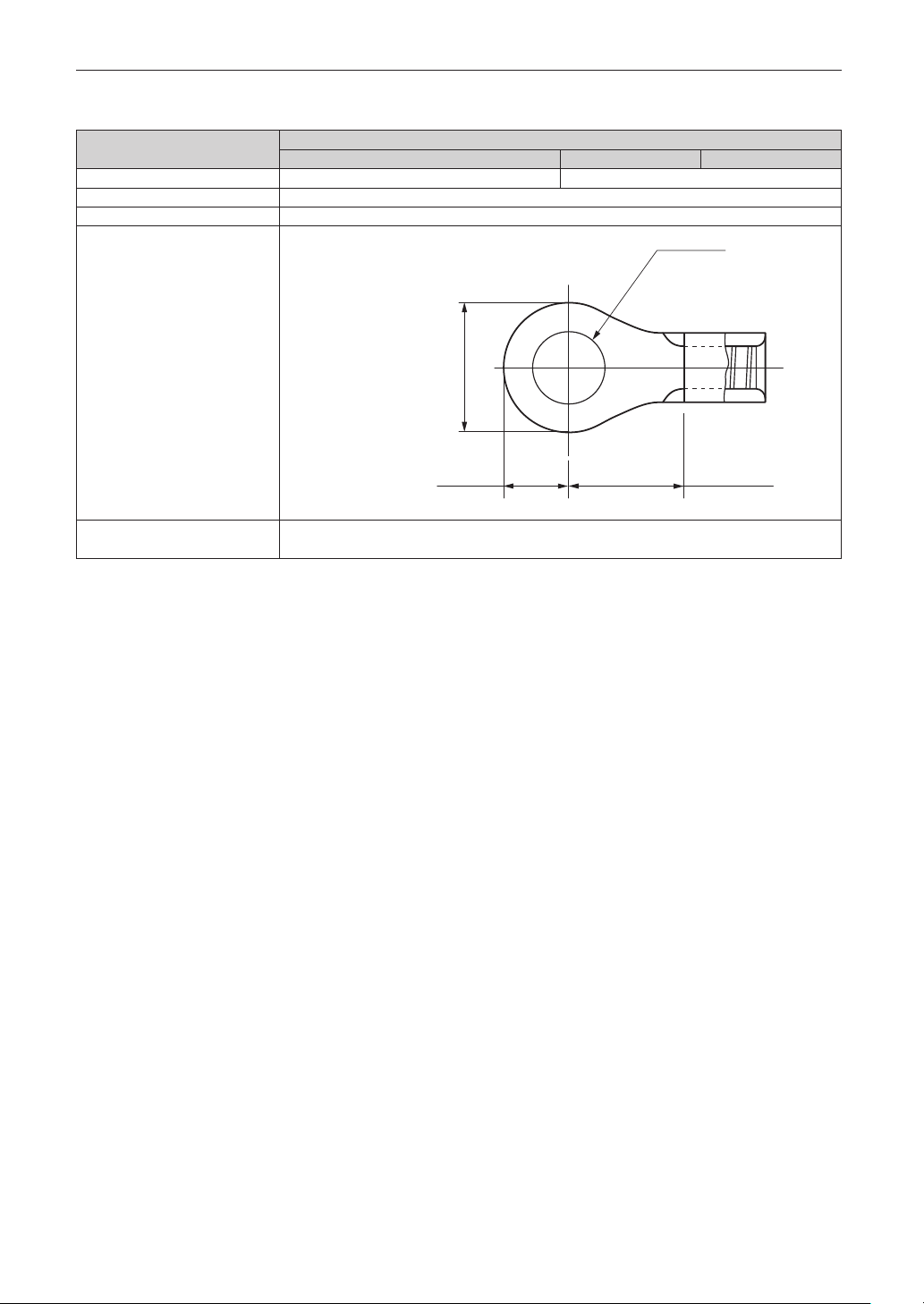
67
Setting Up Your Projector and Chiller Unit
• Ground terminal (Green / Yellow)
Item
Standards
IEC/EN UL CSA (C-UL)
Thickness of compatible wiring 2.0 mm
2
AWG14
Solderless terminal dimensions M3
Tightening torque 0.6 to 0.8 N•m
Solderless terminal dimensions
Units: mm
Max. 3.3
Min. φ3.7
Max 6.8
Min. 6.3
Solderless terminal
recommended part (J.S.T parts)
2–M3
J.S.T: J.S.T Manufacturing Co, Ltd.
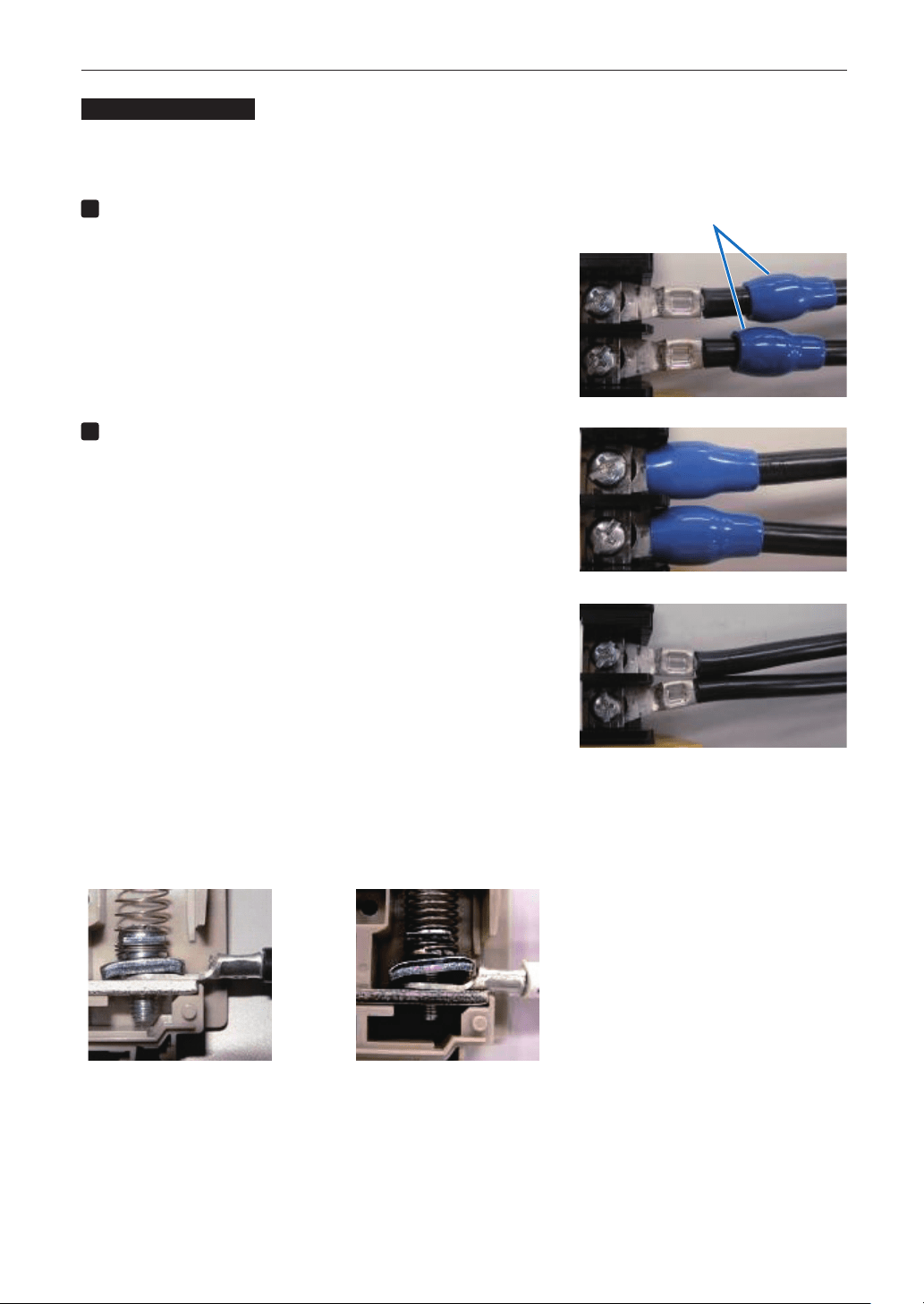
68
Setting Up Your Projector and Chiller Unit
Connecting the Cable
In order to attach the power cable to the connector block, connect the wires using the following procedure such that the indi-
vidual wires cannot directly touch each other.
1
Remove the power cable sleeves from the terminals to
ensure that the sleeves are not pinched by the terminal
attachment screw.
Pull back the sleeves from the terminal area before fastening the screw
to prevent the sleeves from being pinched.
2
Attach the sleeves after tightening the screw.
Tighten the fixing screw to the designated torque.
Use sleeves and secure the insulation to ensure that terminals do not touch
each other. If the cables are attached to the power supply terminal without
using sleeves, there is a risk of the terminals touching each other as shown in
the photograph on the right.
When connecting the cables to the ground terminal block, ensure that parts other than the solderless terminal (such as cable
wires and fittings) are not pinched within the terminal fastening area.
When correctly fastened When the cable wire has become pinched due to using a solderless
terminal with dimensions other than as designated.
Sleeves
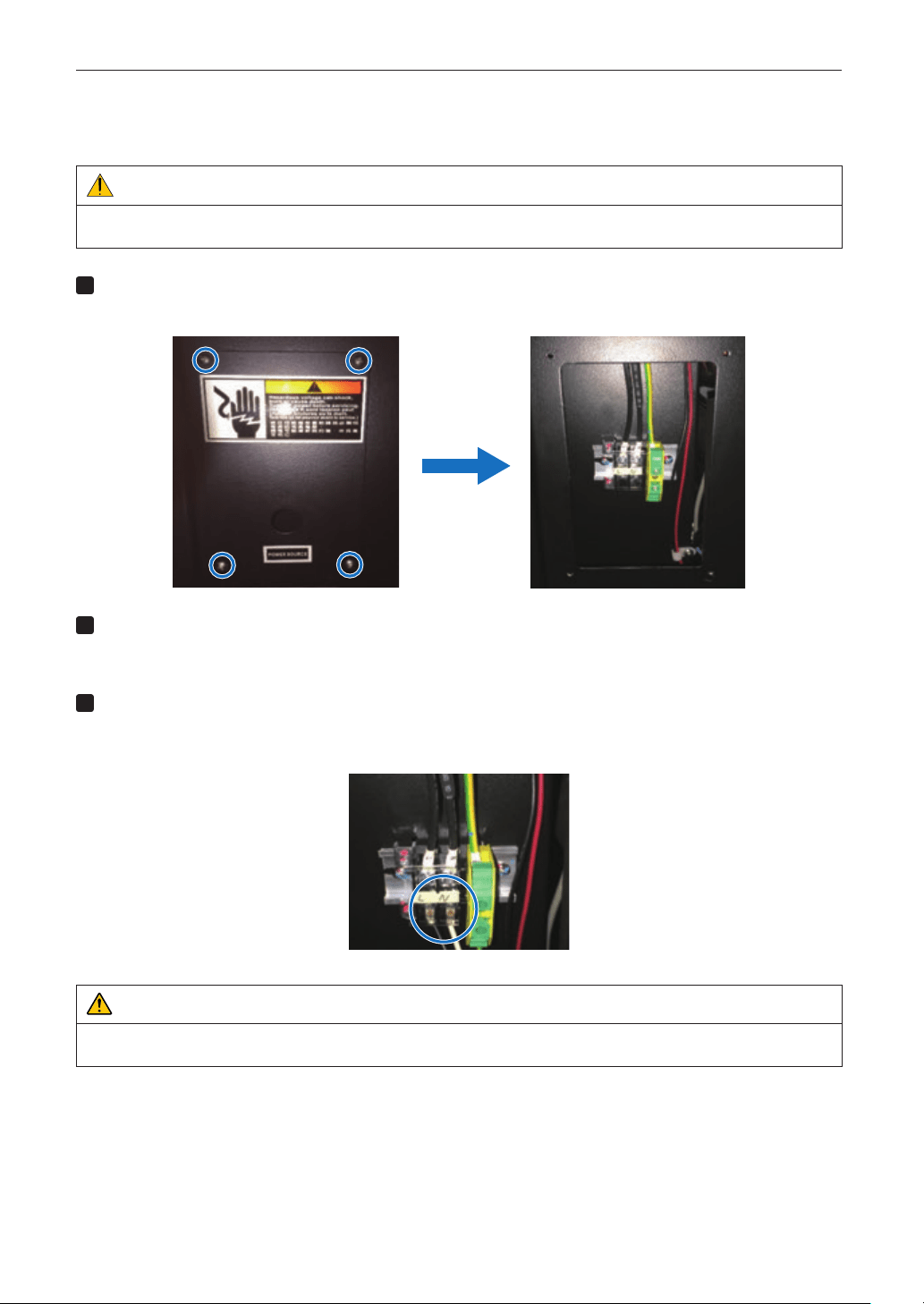
69
Setting Up Your Projector and Chiller Unit
2-7-2. Connecting the AC Power Cable to the Chiller Unit
Preparation: Phillips head screwdriver, flatblade screwdriver (No.2)
WARNING
Check that the AC power supply is disconnected before connecting the power cable to the chiller unit. If connected, this
may cause fire or shock.
1
Remove the cover plate of the chiller unit.
Remove the screws (four locations), and remove the cover.
2
Check that the AC power cable can t through the cable holes.
Fit the power cable through the cable holes.
When the cable is too thick, replace the holding clip for AC power cable with that included in the accessories.
3
Insert the L/N wire of the AC power cable into the connecting terminal, and tighten the screws.
Insert the AC power cable crimp terminals over the connecting terminal securement holes, and tighten the screws
with a Phillips head screwdriver.
WARNING
Firmly tighten the AC power cable to the connecting terminal. After tightening all screws, check that all power cables are
properly tightened and in place. If the screws are not firmly tightened, this may cause serious personal injury or even death.
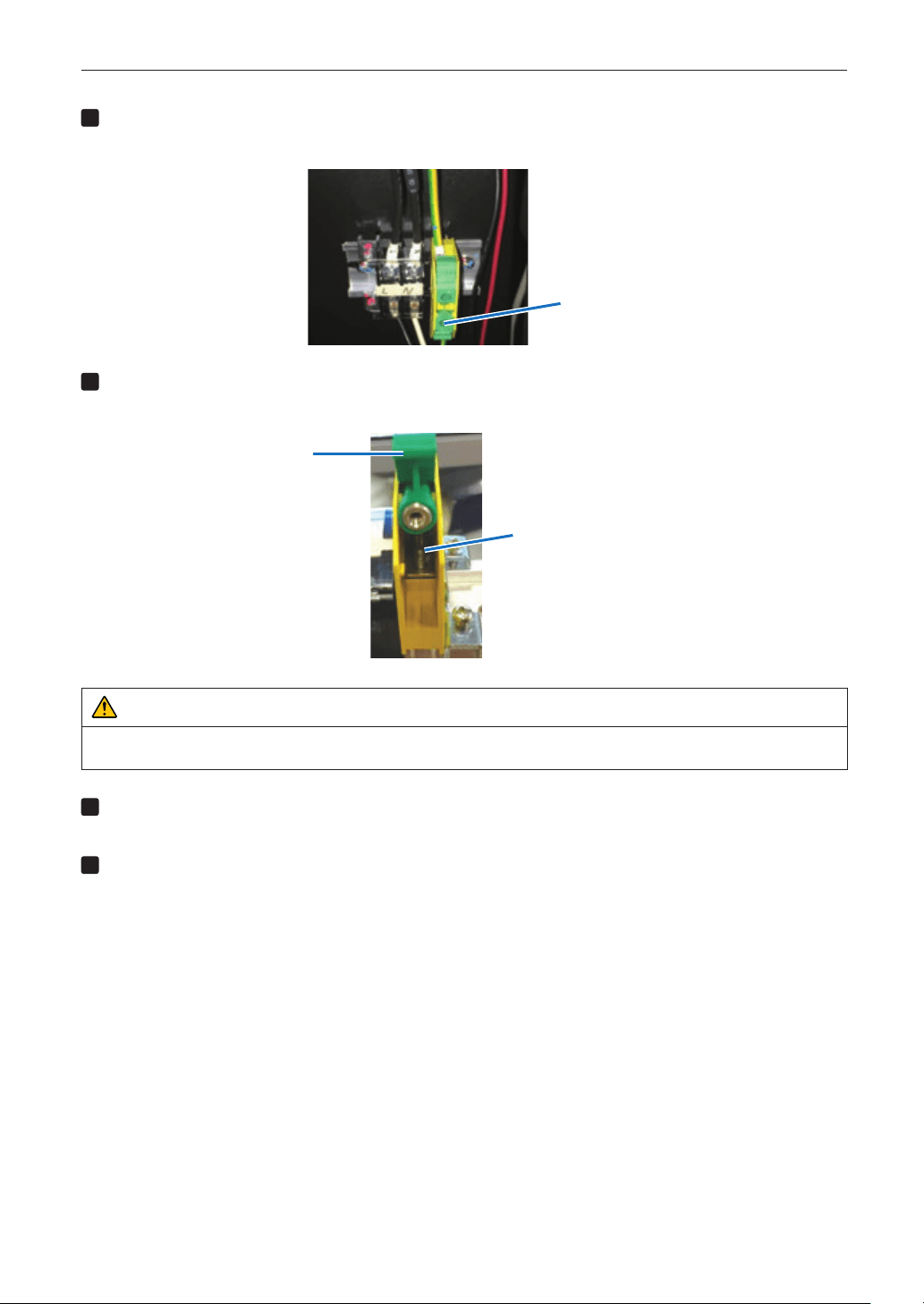
70
Setting Up Your Projector and Chiller Unit
4
Raise the arm of the ground terminal.
Loosen the grounding terminal screw with a flathead screwdriver and lift the arm.
Screw
5
Insert the ground cable into the ground terminal.
Insert the crimp terminal of the ground cable to the connecting terminal of the ground terminal.
Arm
Connecting terminal
WARNING
Firmly tighten the ground cable to the connecting terminal. After tightening all screws, check that all power cables are
properly tightened and in place. If the screws are not firmly tightened, this may cause serious personal injury or even death.
6
Return the arm in the reverse procedure, screw the ground terminal.
Return the arm and tighten the screw of the ground terminal with a flathead screwdriver.
7
Install the cover plate of the chiller unit.
Mount the cover plate, and secure with screws (four locations).
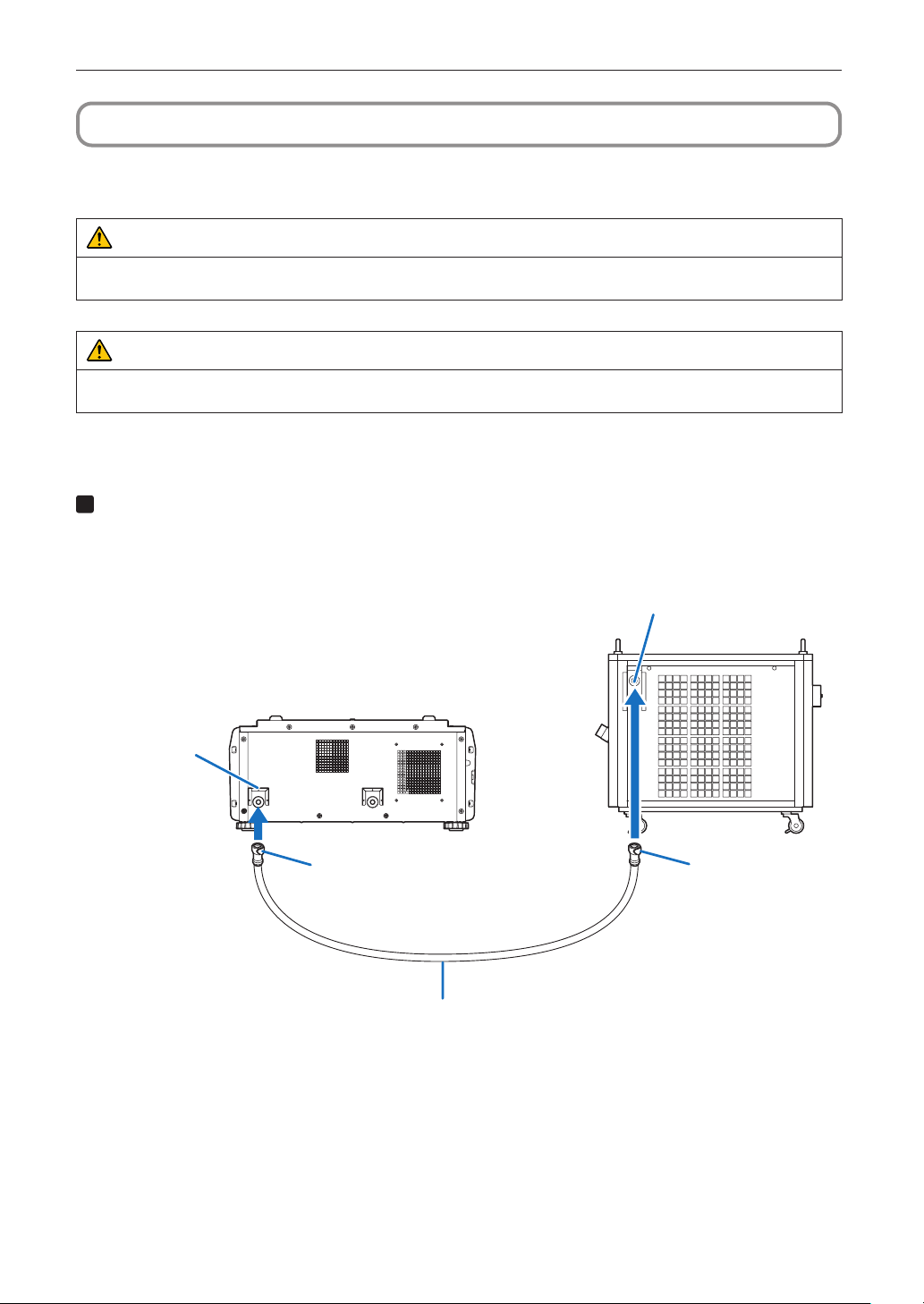
71
Setting Up Your Projector and Chiller Unit
2-8.
Connecting the Hoses for the Chiller Unit and Control Cable
Connect the hoses for the chiller unit between the projector and chiller unit. After connecting the hoses for the chiller unit,
connect the control cable to monitor the state of the chiller unit and control ON/OFF of the unit from the projector.
WARNING
Carefully read the contents described in this section before connection and connect the cables according to the proper
procedure. Inappropriate handling may cause fatal, serious or other bodily injuries due to fire or electric shock.
CAUTION
Before connecting the Hoses for the Chiller Unit and Control Cable, check that the main power switch of the projector and
the chiller unit is turned off. Implement the connection with AC power shut off.
2-8-1. Connecting the Hoses for the Chiller Unit
1
Connect the hose attachment port (OUT) on the projector and the coolant inlet of chiller (IN)
on the chiller unit with a hose for the chiller unit supplied as an accessory.
Securely insert the hose all the way in. To disconnect the hose, push the button at each end of the hose and pull out
the hose.
Hose attachment
port (OUT)
Hose attachment
port (IN)
Hose for the Chiller Unit
Button
Button
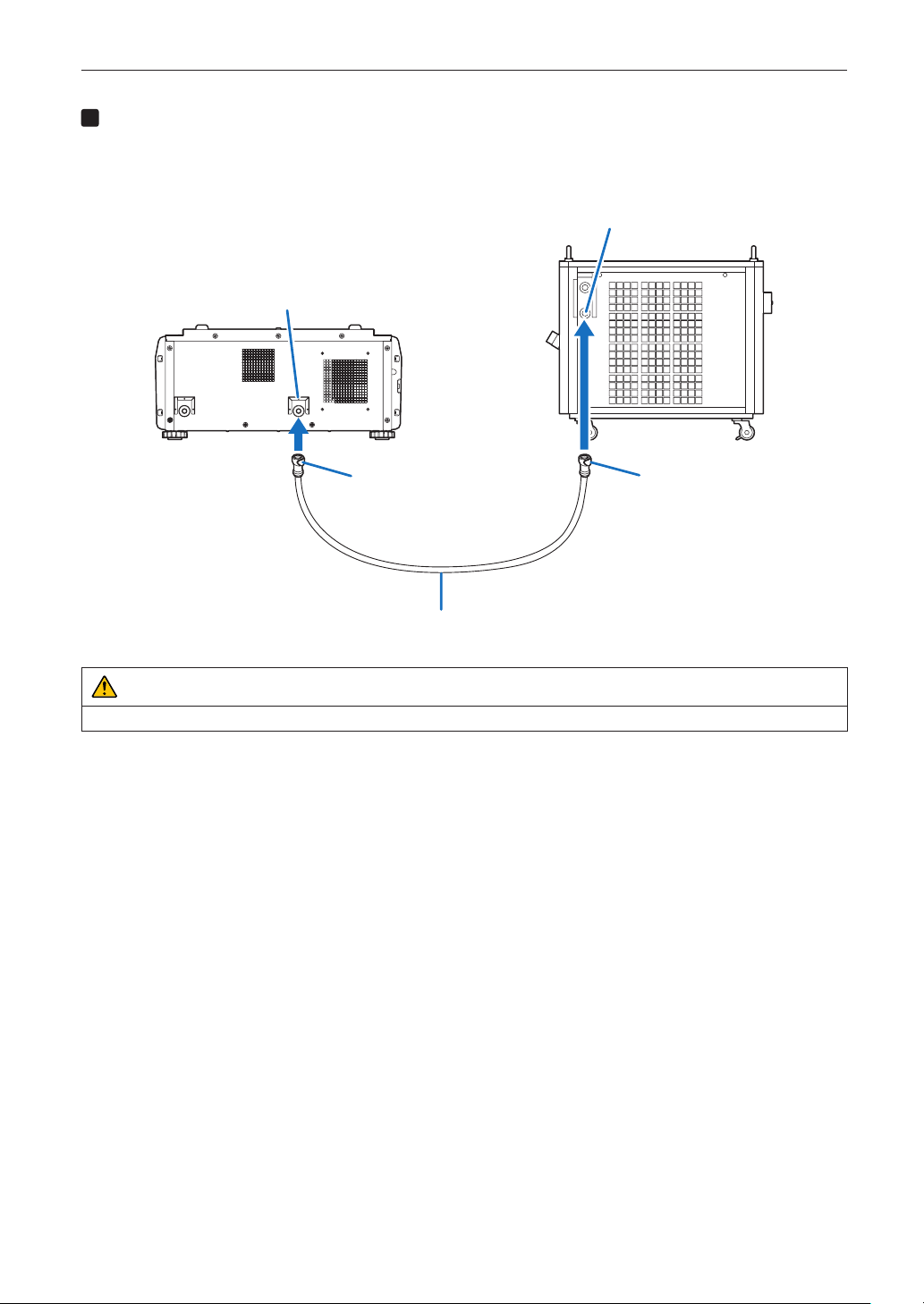
72
Setting Up Your Projector and Chiller Unit
2
Connect the hose attachment port (IN) on the projector and the coolant outlet of chiller (OUT)
on the chiller unit with a hose for the chiller unit supplied as an accessory.
Securely insert the hose all the way in. To disconnect the hose, push the button at each end of the hose and pull out
the hose.
Hose attachment
port (OUT)
Hose attachment
port (IN)
Hose for the Chiller Unit
Button
Button
CAUTION
Incorrect connection of the hose may shorten the use period of the laser module.
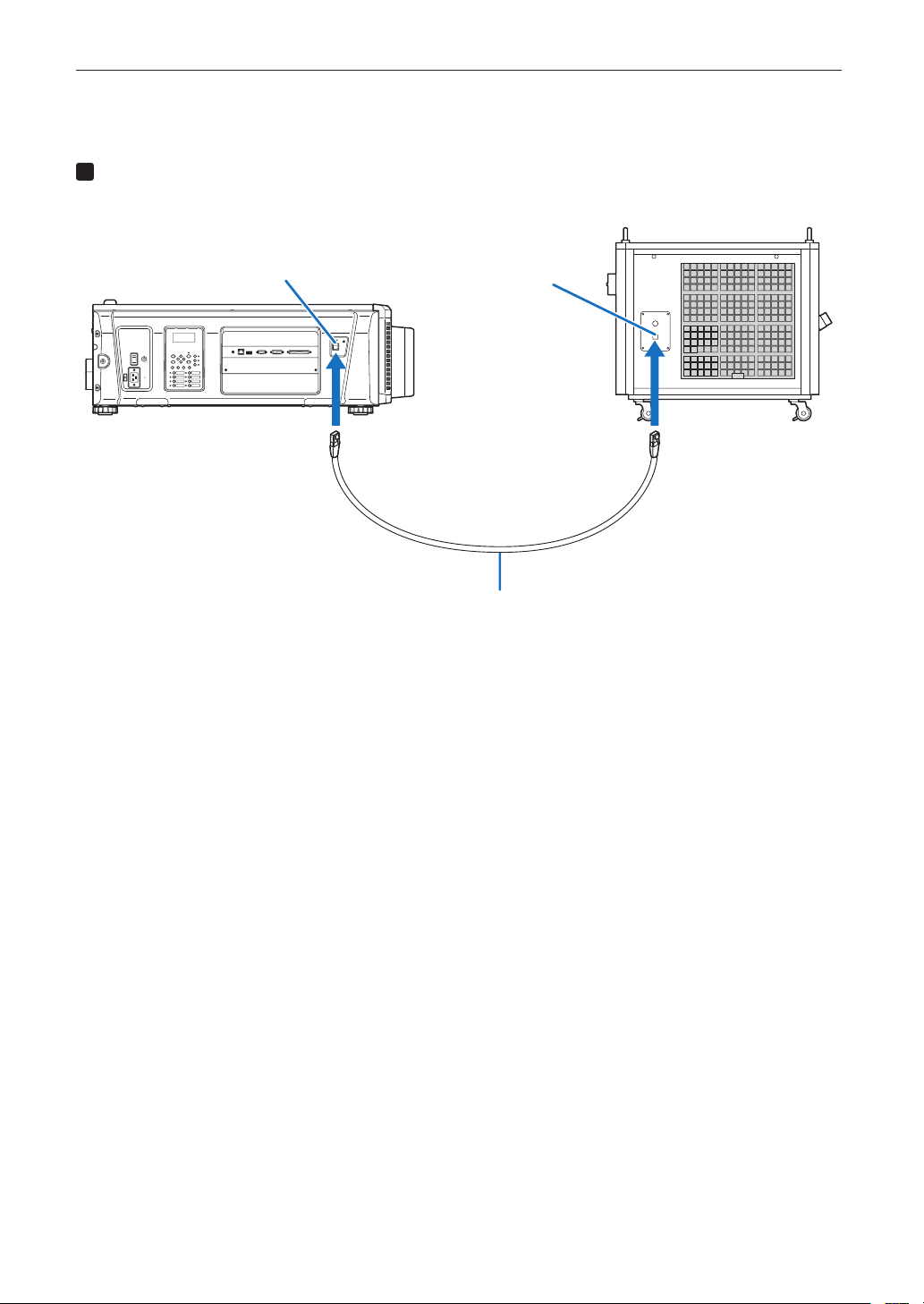
73
Setting Up Your Projector and Chiller Unit
2-8-2. Connecting the Control Cable
To monitor the state of the chiller unit and control ON/OFF of the unit from the projector, connect the control cable.
1
Connect the chiller unit control port (RJ-45) on the projector and the connector for communica-
tion line (RJ-45) on the chiller unit with the control cable supplied as an accessory.
GP I/O3DRS-232
USB
REMOTE
LAN
Chiller unit control port (RJ-45)
Connector for
communication
line (RJ-45)
Control cable
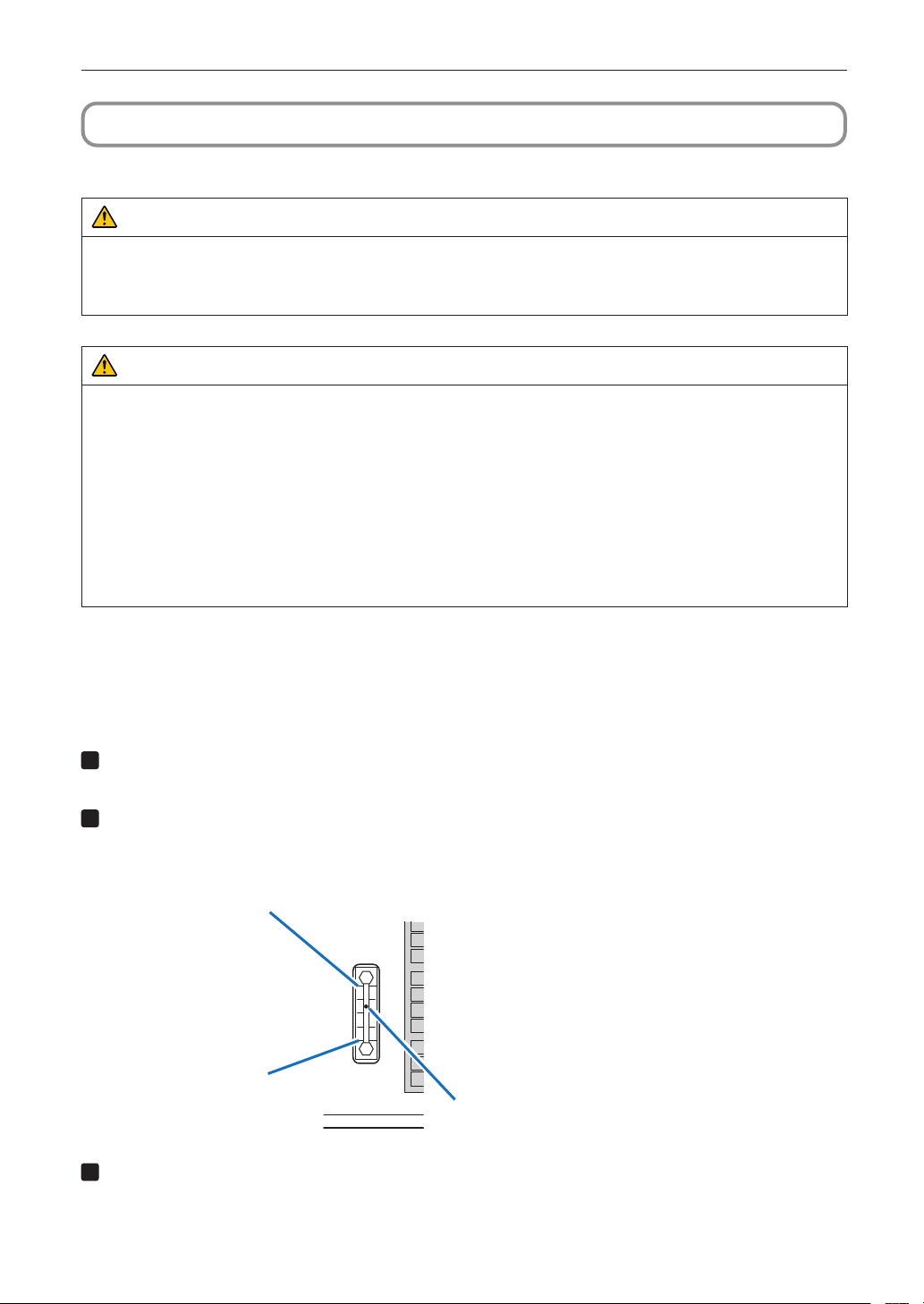
74
Setting Up Your Projector and Chiller Unit
2-9. Pouring and Draining the Coolant
Coolant uses a dedicated NP-17AL01 (option).
WARNING
• Before pouring or draining, check that the main power switches of the projector and chiller unit are turned off. Pour or
drain the coolant with AC power shut off.
• Carefully read the contents described in this section before starting work and follow the proper procedure. Inappropriate
handling may cause fatal, serious, or other bodily injuries due to fire or electric shock.
CAUTION
• After the work, be sure to cover the filler inlet for coolant with the cap. Starting operation with the filler inlet for coolant not
covered with the cap may cause the coolant in the tank to spill from the filler inlet for coolant.
• If coolant decreases naturally, please refill pure water.
• Do not mix different brands of coolant.
• To replace the replenished coolant with new one, drain all old coolant and pour new one.
• Clean the tool used for replenishing the coolant thoroughly before using it so that no impurity is mixed in the coolant.
• Tighten the cap for the filler inlet for coolant by hand. Excessively tightening the cap using a tool may damage the filler
inlet for coolant or cap.
• The coolant replacement period of the water cooling machine is 3 years. Please periodically replace.
• In case of unopened, coolant is kept for 3 years. Please open the coolant when injecting. Also please discard the surplus
coolant after injection.
• Dispose of the coolant as industrial waste by a predetermined method by customers.
2-9-1. Pouring the Coolant
Preparation: NP-17AL01
Amount to coolant: Approx. 12 liters for a 5 m hose
Approx. 11 liters for a 2 m hose
1
Check the coolant ow meter.
Drain all old coolant and pour new one.
2
Remove the cap from the ller inlet for coolant and pour the coolant until the level reaches the
upper limit line of the coolant ow meter.
If coolant remains, discard the coolant. (See page 75)
Lower limit
Upper limit
Check that the liquid level is between the
upper limit line and the lower limit line.
Check the liquid level once a week.
3
Cover the ller inlet for coolant with the cap.
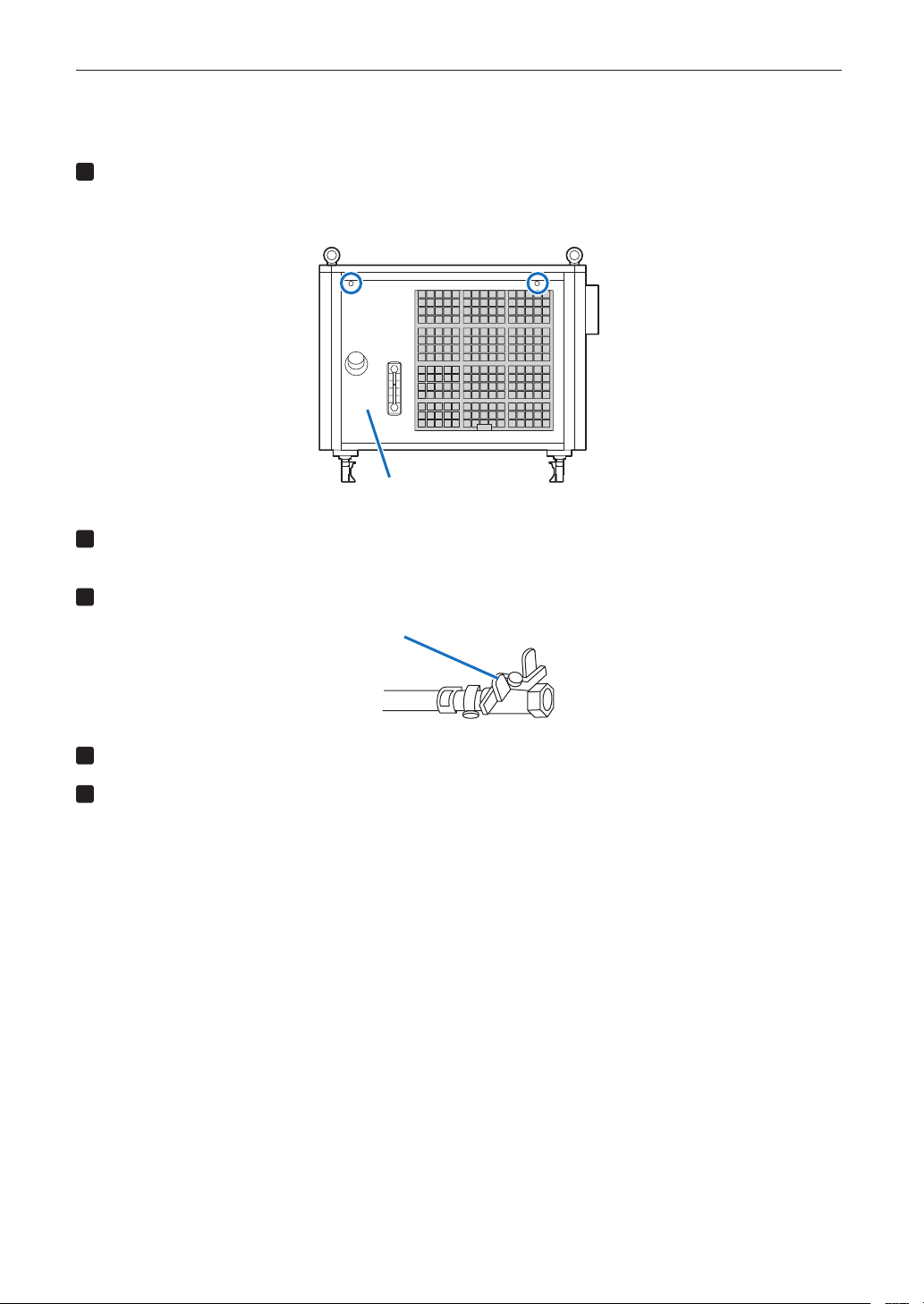
75
Setting Up Your Projector and Chiller Unit
2-9-2. Draining the Coolant
Preparation: Phillips head screwdriver (No.2), container
1
Remove the screw for securing the cover with a Phillips head screwdriver and remove the
cover.
Pull out the drain port.
Cover
2
Place a container for receiving the coolant under the drain port.
(Amount of coolant: About 12 liters at maximum)
3
Open the valve of the drain port and drain the coolant in the tank.
Valve
4
Close the valve of the drain port.
5
Put the drain port back in place and mount the cover by reversing the procedure for removing
it.
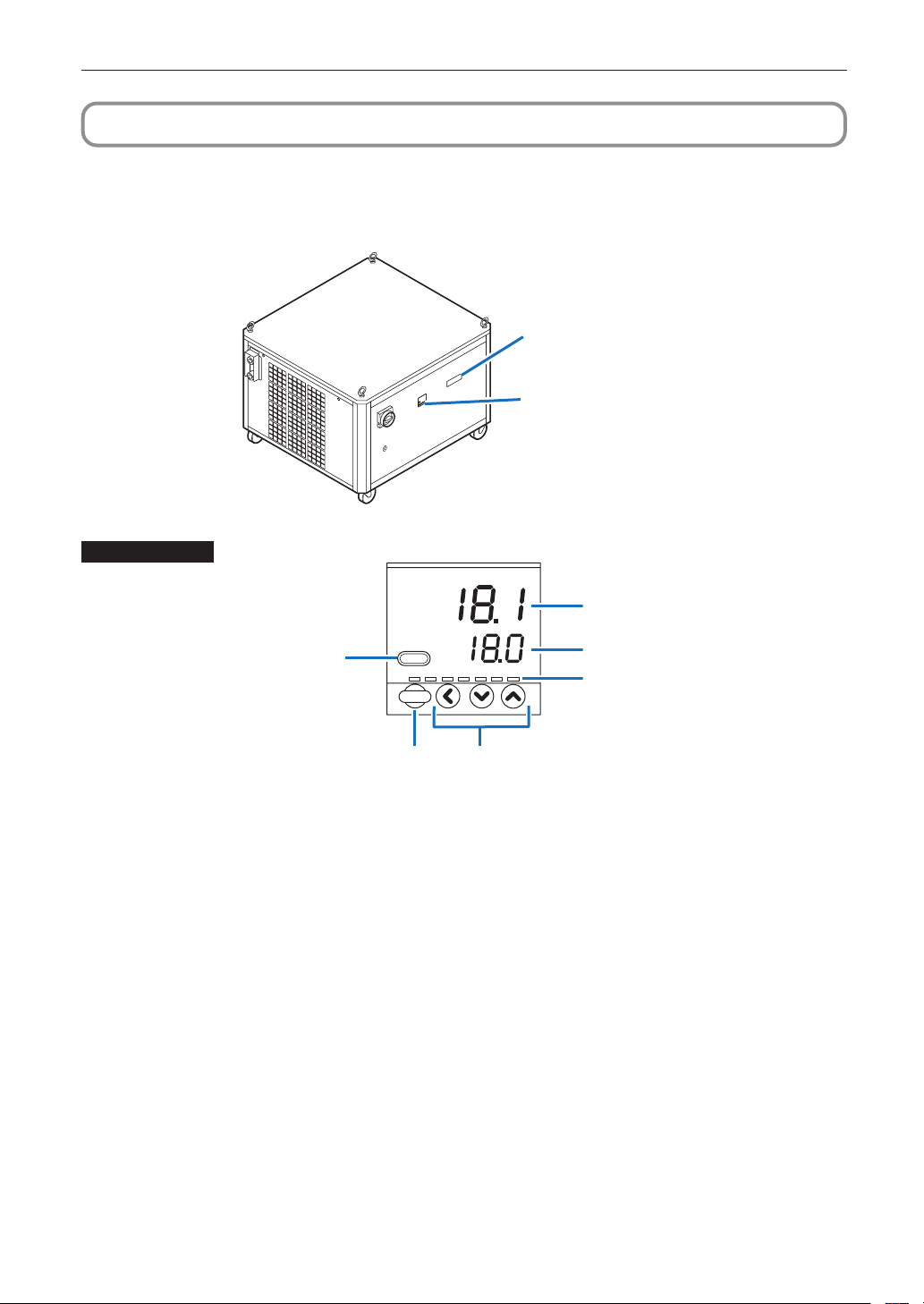
76
Setting Up Your Projector and Chiller Unit
2-10. Setting the Chiller Unit
2-10-1. Setting the Temperature of the Coolant
To change the setting of the temperature of the coolant, use the Temp. controller on the chiller unit. The temperature is factory-
set to 18°C. Normally, you do not need to adjust the temperature.
Status indicator
Temp. controller
Temp. controller
1
2
3
45
6
1. pv display
Shows the PV value (current temperature, etc.) or setting items.
2. sp display
Shows the SP value (set temperature, etc.) or the set value of each setting item.
3. Mode indicators
rdy : Lights in READY mode (control stop).
man : Lights in MANUAL mode (manual operation mode)
ev1 - ev3 : Lights when event relay output is ON.
otl - ot2 : Lights when control output is ON.
4. Adjustment key
Press the (<) key for more than 5 seconds and change the value displayed on the sp display with the adjustment key.
It will be reflected automatically in about 3 seconds.
5. [para] key
Changes the display.
6. [mode] key
When this key is kept pressed for 1 second or longer, the operation which has been set previously can be
performed.
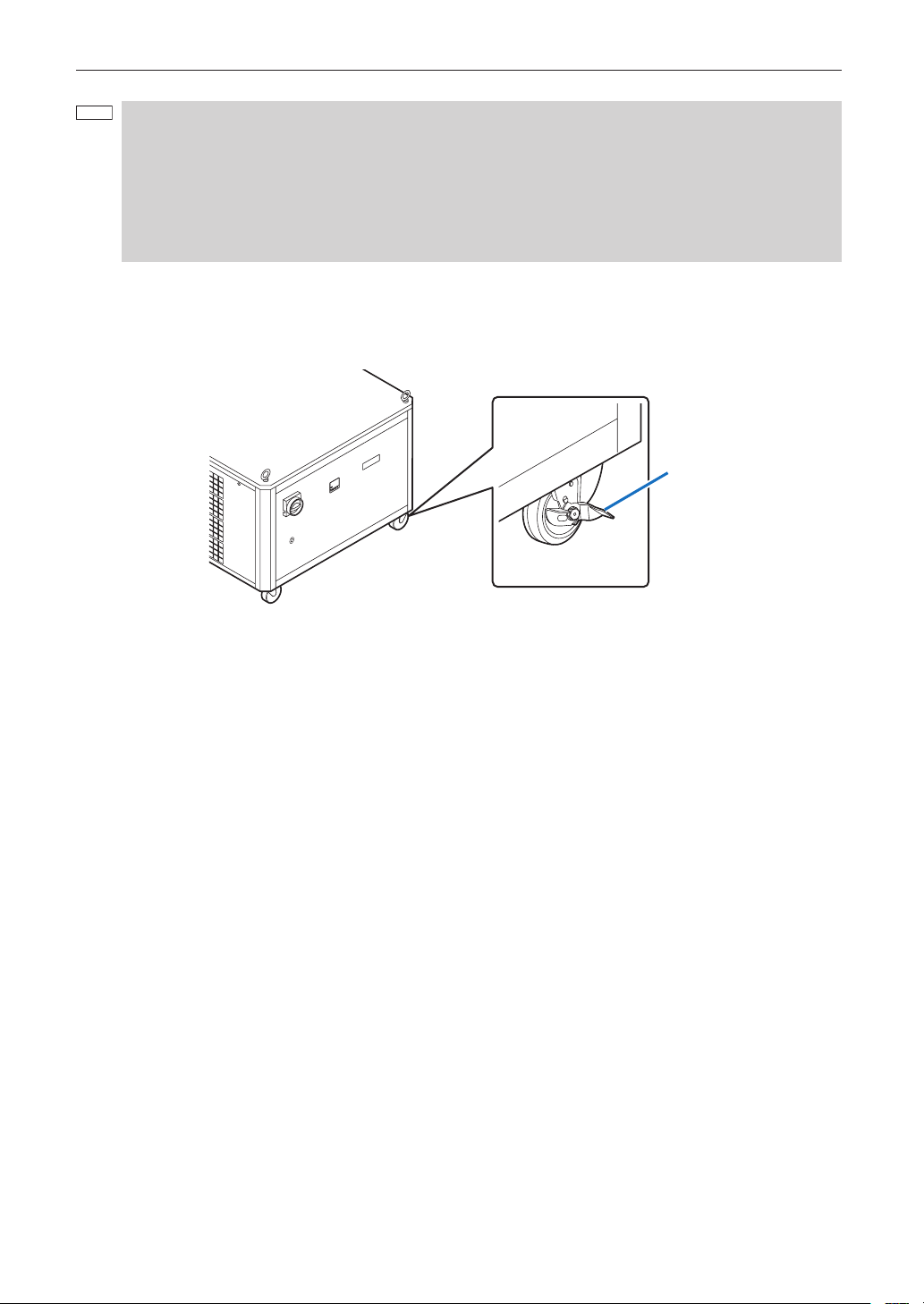
77
Setting Up Your Projector and Chiller Unit
NOTE
If an error occurs in the chiller unit, one of the following error codes is displayed on the status display.
Turn off the projector and the chiller unit, Inquire your dealer about action to be taken for each error code.
• E02: Chiller unit pump motor error
• E03: Chiller unit pump compressor error
• E04: Coolant pressure too high / Coolant is higher.
• E06: Low coolant pressure
• E07: Coolant flow rate error
• E08: Heat sink system error
2-10-2. Fixing the Chiller Unit
After placing the chiller unit at a desired installation location (see page 33), push the knob of each caster and lock the caster to
fix the chiller unit. To unlock each caster, push the knob again.
Caster
Knob

78
3. Projector Adjustment and Connecting
3-1. Flow of Adjustment and Connecting
Adjustment and Connecting of the projector accord to the procedure below.
• Step1
Turning Your Projector On (See page 82)
• Step2
Setting The Date and Time in the Projector (See page 82)
• Step3
Setting the Projector Projection Method (See page 83)
• Step4
Adjusting the Lens (See page 84)
Display the test pattern to adjust the screen size, screen angle and focus.
• Step5
Connecting with the Image Input Port (See page 87)
• Step6
Connecting the Various Control Terminal (See page 88)
This chapter explains the adjustment and connection of the projector with Steps 1 to 6.
Steps 1 to 6 complete the adjustment and connection of the projector. Next, carry out various settings such as color adjustment
using DCC. Refer to the “Digital Cinema Communicator for S2 Installation Manual” for the procedure.
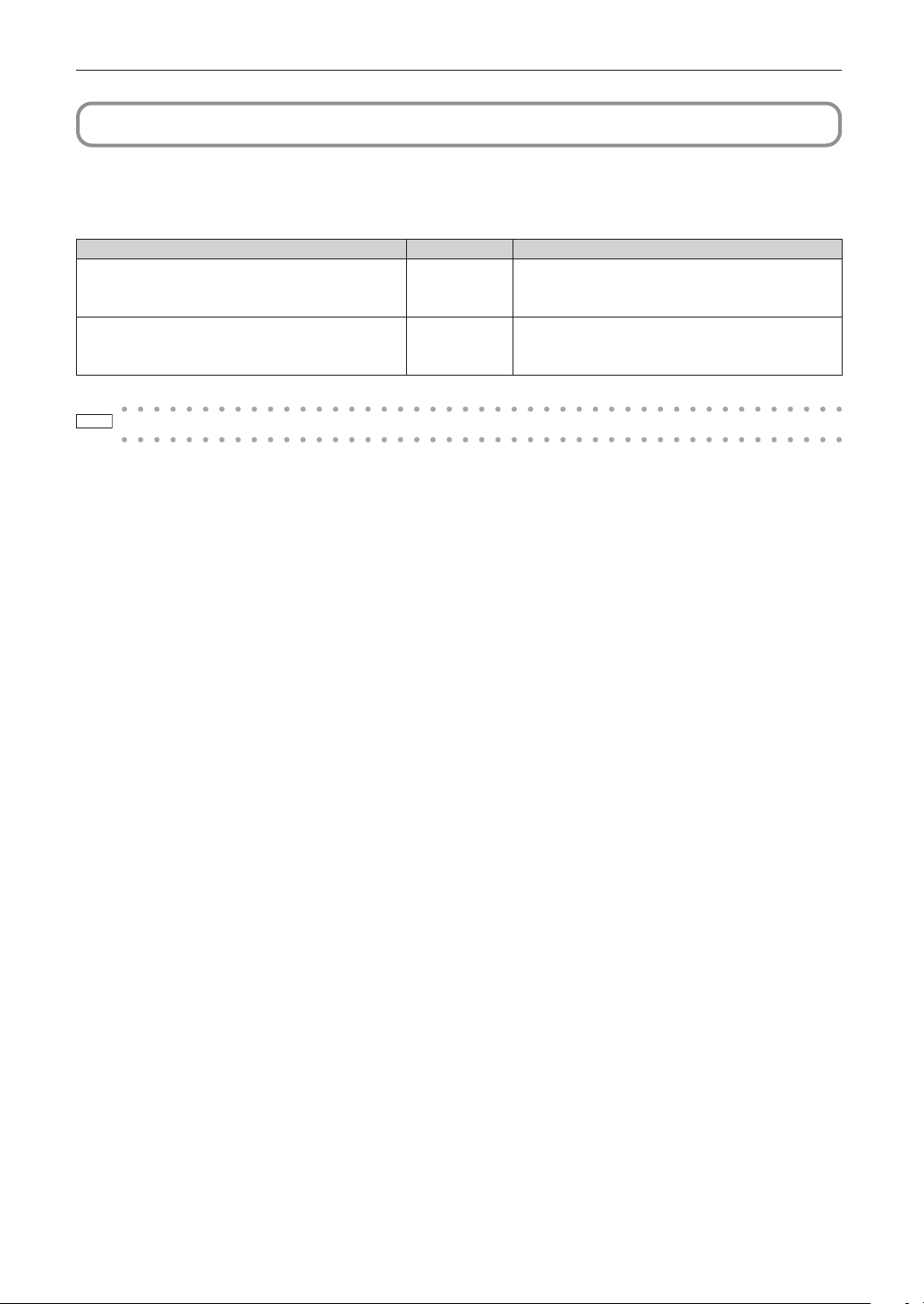
79
Projector Adjustment and Connecting
3-2. Recovering from Tamper Errors
The tamper detection circuit is fitted in the projector.
If any of the following actions is performed, an error message will be displayed on the LCD screen of the main unit control
panel by tamper detection circuit.
Action Error code Error message
Cover removed
• Front cover
• Side cover
586 IMB: Service Door Tamper
Slot device or blocking panel removed
• Blocking panel
• Media block
582
584
(582) IMB: Physical Marriage Tamper
(584) IMB: Marriage NOT Active
TIP
Error codes can be checked when using the DCC.
While the above error messages are being displayed, encrypted contents cannot be displayed. Refer to “3-2-1. Clearing
tamper events” (page 80) for details on how to recover from tamper errors.
80
Projector Adjustment and Connecting
3-2-1. Clearing tamper events
Be sure to do this while the power of the projector is on (when Power-ON).
If any tamper events have been detected by the tamper detection circuit of the projector main unit, clear the tamper events
using the following procedure.
Start clearing the tamper events
Finish clearing the tamper events
Error codes 582 and 584 have
occurred
Error code 586 has occurred
Have the tamper events been
cleared?
Step 2
Perform re-marriage using the Digital Cinema
Communicator
Step 1
Clear the “Service Door Tamper” by using the buttons
on the Control Panel.
Turn off the projector main unit, disconnect the AC
power supply, and check the “Check” items
Yes
No
No
Yes
Yes
No
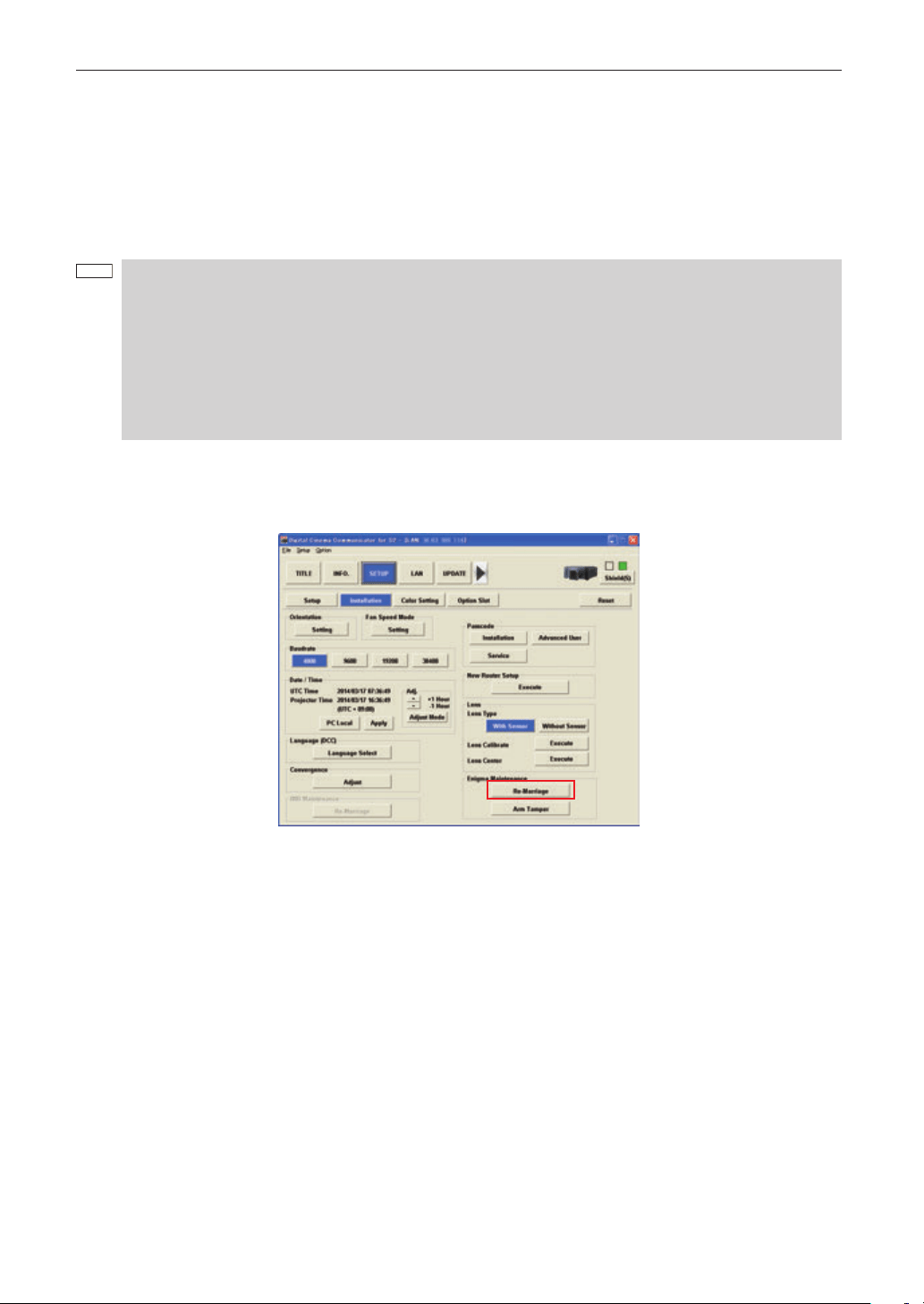
81
Projector Adjustment and Connecting
• Step 1
“Clear the “Service Door Tamper” by using the buttons on the Control Panel.”
Refer to “4-1-1. When You Use the Service Personnel Menu” (page 90) for details on logging into the projector with Advanced
User or higher privileges using the buttons on the control panel.
Press and hold the LEFT/RIGHT buttons simultaneously for 3 seconds or more to display the passcode entry screen. Enter
your passcode and press the Enter button. If the right passcode is entered, the Clear SDT menu will be displayed. Press
the Enter button to delete the “IMB:Service Door Tamper”.
NOTE
When you enter the password, pay enough attention to people around for the password abuse prevention.
Before entering the password, inspect the password entry device (such as remote controller and/or keypad on
the projector) for any evidence of physical tampering. In the event that any suspicious markings are present
(such as gouges, extraneous wiring, adhesive materials, etc.) “DO NOT” enter the password and consult with
the distributor.
Always store the password, remote controller, and projector in a safe place and never divulge the password to
unauthorized entities.
Entered password is indicated with * on the LCD.
In case entered password characters are indicated on the LCD, it is machine trouble. Consult with the distributor.
• Step 2
“Perform Re-Marriage using the Digital Cinema Communicator”
DCC is used to perform re-marriage. Refer to “Digital Cinema Communicator Installation Manual” for details.
• Check
“Attach the front cover, side cover”
If you have removed a cover, then attach the cover. Furthermore, if the covers are attached, check that they are attached
correctly.
After attaching the cover, turn the main power switch of the projector on (with the AC power supply turned on), and check
that “Tamper Fail” is not displayed on the LCD screen.
“Check that the equipment is correctly attached to slot”
If there are no devices mounted in slot, attach the blocking panel. Also, if a device is mounted in slot, check that it is
securely pushed all the way into the slot.
After correctly mounting a device in the slot, turn the main power switch of the projector on (with the AC power supply turned
on), and check that “Marriage Tamper Fail” is not displayed on the LCD screen.
82
Projector Adjustment and Connecting
3-3. Turning your Projector On
NOTE
• Do not use the projector with the lens cap left attached, and do not attach the lens cap while the projector is
operating. The lens cap may become hot, causing them to deform or melt.
• In the following instances, the power to your projector cannot be turned on even if you press the POWER
button.
- When the inside temperature is abnormally high. The protective function prevents power from turning on.
Wait some time (until the projector inside cools down) and then turn on the power.
- When the SYSTEM status indicator is blinking without the light source lighting up after power-on. Your
projector may be in trouble. Check the error display on the LCD screen and contact your dealer/distributor
for instructions.
Preparation:
• Connect the power cable to the projector (See Projector User’s Manual).
• Connecting the Power Cable to the Chiller Unit (See page 64)
• Connecting the Hoses to the Chiller Unit (See page 71)
• Connecting the Control Cable (See page 73)
• Pouring the Coolant (See page 74)
• Supply AC power to the projector.
1
Remove the lens cap.
2
Turn ON the emergency stop switch (AC power switch) of chiller unit.
3
Insert the administrator key vertically and turn it to the horizontal direction. The administrator
key can no longer be removed. The projector will not function unless the administrator key is
inserted.
4
Turn on the main power switch on the side of the projector.
A buzzer will ring on the projector. The POWER button indicator will blink green and the SYSTEM status indicator will
light orange (standby state). KEY LOCK becomes automatically on if no control panel operation takes place in the
standby state for 30 seconds by default. Buttons on the control panel do not function while KEY LOCK is on.
5
If KEY LOCK is on, press the KEY LOCK button for one second or longer.
KEY LOCK becomes off. The KEY LOCK button indicator turns off and buttons on the control panel become
operable.
6
Press the POWER button on the control panel of your projector three seconds or longer.
7
Press the LIGHT ON/OFF button on the control panel for three seconds or longer.
The light source is turned on and the screen glows light about 15 seconds later.
The douser is closed until the screen glows light (the DOUSER button indicator lights green). When the douser is
open, the DOUSER button indicator turns off.
3-4. Setting the Date and Time in the Projector
The internal clock in the projector operates on coordinated universal time (UTC). You can set the internal projector time to the
time in your region by setting the time difference between the standard time in your region and UTC.
If you are using DCC, you can easily set the date and time in the projector by reading the date and time settings of the computer
where DCC is installed. Refer to “Digital Cinema Communicator for S2 Installation Manual” for details.
83
Projector Adjustment and Connecting
3-5. Setting the Projector Projection Method
The projection method can be changed in the projector menu. In the factory default settings, it is set to front (installed on a
stand and projecting from the front of the screen).
1
Press the MENU button for three seconds or longer.
The Passcode input screen appears on the LCD screen at the projector’s control panel.
Press the EXIT button to return to the original screen.
2
Enter the passcode and press the ENTER button.
If you make a mistake during input, you can move the cursor by pressing the LEFT/RIGHT buttons and overwrite the
passcode.
If the passcode is correct, you can use the service personnel menu.
3
Press the LEFT/RIGHT button to display “Conguration” and press the DOWN button.
4
Press the LEFT/RIGHT button to display “Installation” and press the DOWN button.
5
Press the LEFT/RIGHT button to display “Orientation” and press the DOWN button.
6
Check that “Image Orient” is properly selected and press the DOWN button.
If “Image Orient” is not properly selected, press the LEFT/RIGHT buttons to select it.
7
Press the LEFT/RIGHT buttons to select the projection method.
When shipped from the factory, it is set to [Normal-F].
Normal-F Front projection. With the projector installed on the pedestal, projection is executed
from the front of the screen.
Normal-R Rear projection. With the projector installed on the pedestal, projection is executed
from the back of the screen.
UpsideDown-F Ceiling front projection. With the projector installed on the ceiling, projection is
executed from the front of the screen.
UpsideDown-R Ceiling rear projection. With the projector installed on the ceiling, projection is
executed from the back of the screen.
8
Press the ENTER button.
An (*) will be put on the selected projection method.
9
Press the EXIT button several times.
The projector exits the menu and goes back to the regular screen.
If you press the EXIT button and then select “Yes” and press the ENTER button on a regular screen, you are returned
to user mode.
84
Projector Adjustment and Connecting
3-6. Adjusting the Lens
After attaching the lens unit, check that the lens type is set correctly. Furthermore, if you have attached a lens unit that supports
the lens memory function, always execute calibration before adjusting the lens. After this, display the test pattern and adjust
the screen size, focus and screen position with the lens unit.
Preparation:
Enable the service personnel menu (page 90).
3-6-1. Set the Lens Type
1
Press the MENU button on the control panel.
“Title Select” is displayed in the menu.
2
Press the LEFT/RIGHT button to display “Conguration” and press the DOWN button.
3
Press the LEFT/RIGHT button to display “Installation” and press the DOWN button.
4
Press the LEFT/RIGHT button to display “Lens Type” and press the DOWN button.
5
Press the LEFT/RIGHT button to select the type of lens attached to the projector.
When shipped from the factory, it is set to [Without Sensor].
Without Sensor Select when using a lens unit that does not support the lens memory function.
With Sensor Select when using a lens unit that supports the lens memory function.
6
Press the ENTER button.
(*) is displayed to the selected item.
7
Press the EXIT button several times.
The projector exits the menu and goes back to the regular screen.

85
Projector Adjustment and Connecting
3-6-2. Carry out Calibration of the Lens
If you have attached a lens unit that supports the lens memory function, always execute calibration before making adjustments.
Preparation:
• Check that the lens is attached correctly (page 57).
• Set the lens type (page 84).
1
Press the MENU button on the control panel.
“Title Select” is displayed in the menu.
2
Press the LEFT/RIGHT button to display “Conguration” and press the DOWN button.
3
Press the LEFT/RIGHT button to display “Installation” and press the DOWN button.
4
Press the LEFT/RIGHT button to display “Lens Calibrate” and press the DOWN button.
5
Check that “Execute” is displayed and press the ENTER button.
The confirmation screen will appear.
6
Select “Yes” in the conrmation screen, and then press the ENTER button.
Carry out calibration in the order of focus lens and zoom lens.
3-6-3. Display the Test Pattern
1
Press the MENU button.
“Title Select” is displayed on the LCD screen at the projector’s control panel.
2
Press the DOWN button.
3
Press the LEFT/RIGHT buttons to select “TEST Pattern”.
4
Press the DOWN button.
5
Press the LEFT/RIGHT buttons to select “Cross Hatch”.
6
Press the ENTER button.
An (*) will be put on the selected test pattern.
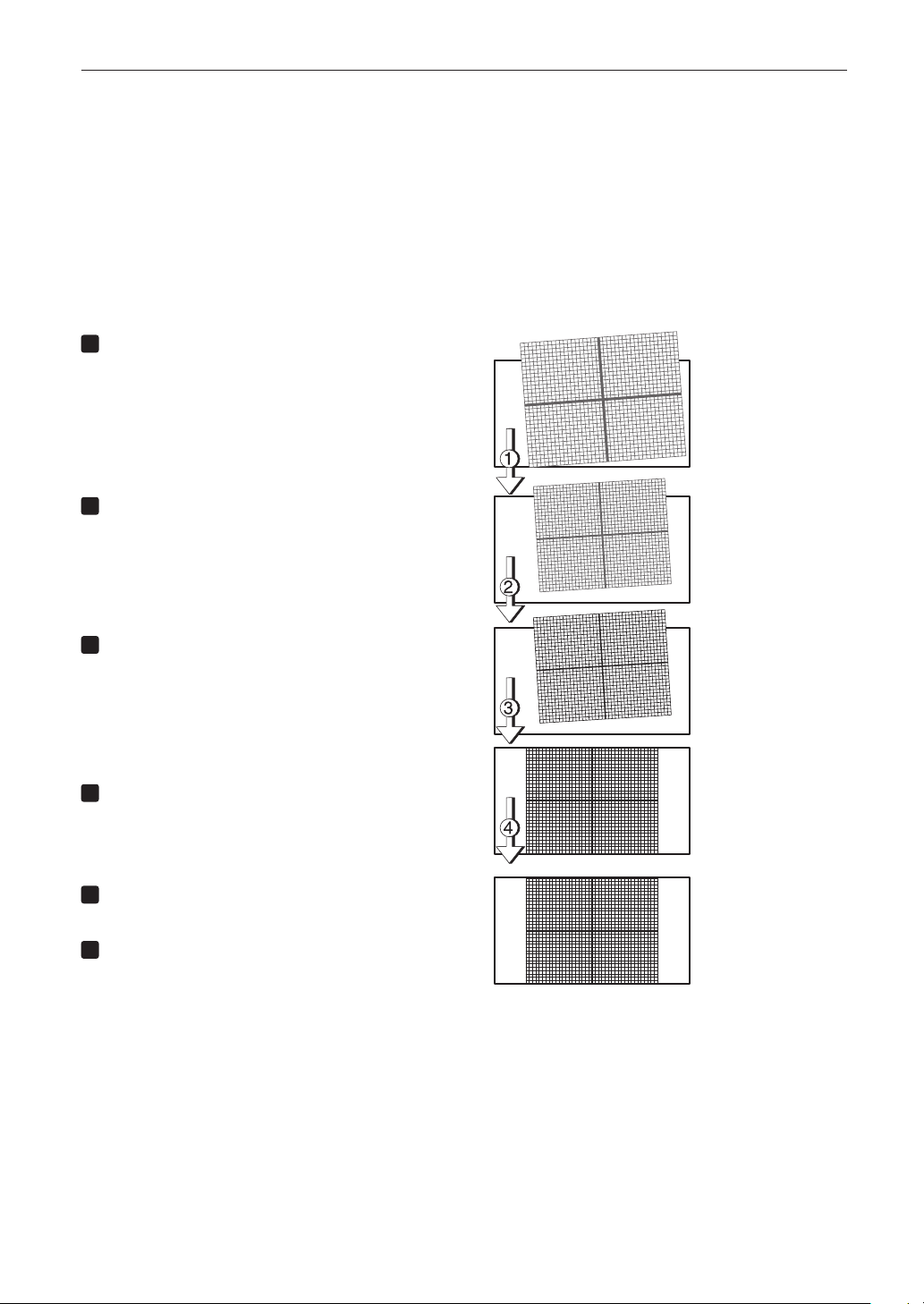
86
Projector Adjustment and Connecting
3-6-4. Adjusting the Screen Angle
Preparation: Display the zoom/focus adjustment screen by using the following procedure.
[1] Press the MENU button on the projector’s control panel.
“Title Select” appears on the projector’s LC display.
[2] Select “Configuration” menu using LEFT the LEFT/RIGHT button.
[3] Press the DOWN button.
[4] Select “Lens Control” using the LEFT/RIGHT button.
[5] Press the DOWN button.
[6] Press the ENTER button.
“Focus Zoom” is displayed and you can adjust the focus/zoom.
1
Press the LEFT/RIGHT buttons to roughly
adjust the screen angle so that the screen
height and the image height are the same.
2
Press the UP/DOWN buttons to roughly
adjust the focus.
3
Adjust the surface on which the projector is
set up and the level adjuster of the projector
to adjust the setup position, height, and tile
(front-back and left right) of the projector so
that the projected image is level at the screen
center.
4
Use the LEFT/RIGHT buttons again to adjust
the screen angle so that the projected image
is kept 0.5 to 1 crosshatch cell portions higher
than the top edge of the screen.
5
Finally adjust the focus using the UP/DOWN
buttons.
6
Press the EXIT button several times.
The projector exits the menu and goes back to the regu-
lar screen.

87
Projector Adjustment and Connecting
3-7. Connecting with the Image Input Port
By installing option board to projector, you can add input port. Input port which can add to option board is listed below. For
the connection diagram of projector and peripheral equipment, refer to Installation manual of option board.
Option Board Image Input Port
NP-90MS02-4K (Note) HDMI input port x1
SDI input port x2
(Note) The NP-90MS02-4K video input ports do not support CineLink 2. The NP-90MS02-4K video input ports cannot display the
encrypted contents.
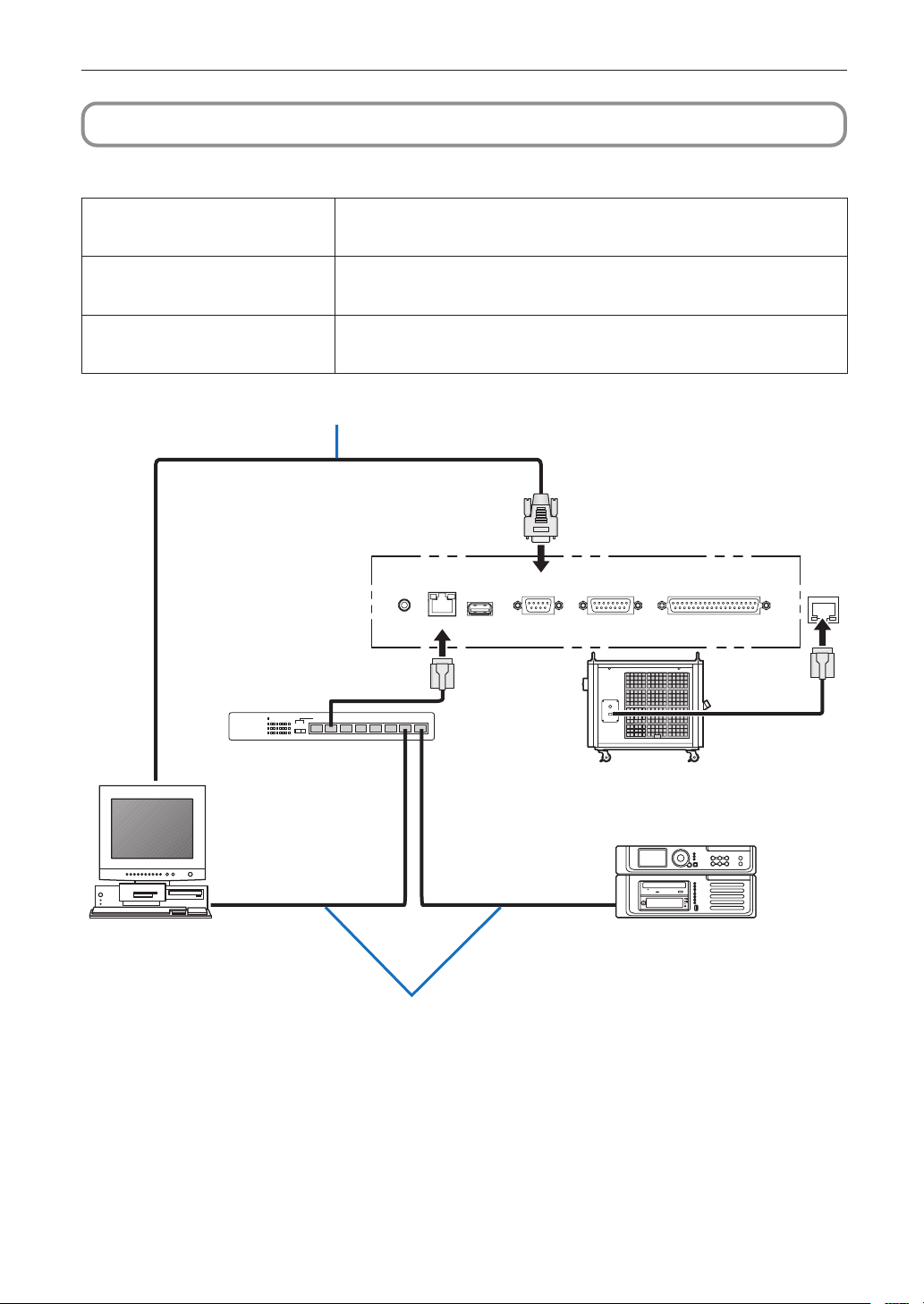
88
Projector Adjustment and Connecting
3-8. Connecting the Various Control Terminal
For control, your projector comes with such ports as the PC control terminal and the Ethernet port (RJ-45).
PC control terminal (RS-232) Use this terminal when controlling the projector in serial connection from a PC. Use a
retail RS-232C straight cable for the connection between the projector and the
computer.
Ethernet port (LAN) Use this port when controlling the projector in LAN connection from a PC or a cinema
server. Use a retail LAN cable (10/100/1000Base-T) for the connection between the
projector and the computer after checking with your network administrator.
Chiller unit control port Use this port to control the chiller unit from the projector through a LAN connection. Use
a retail Control cable (10/100/1000Base-T) for the connection between the projector and
the computer after checking with your network administrator.
GP I/O3DRS-232
USB
LAN
REMOTE
RS-232C
PC
Cinema server
LAN cable
Network hub/Router
This completes the adjustment and connection of the projector. Next, set up the projector from the DCC. Refer to the “Digital
Cinema Communicator for S2 Installation Manual” for the procedure.
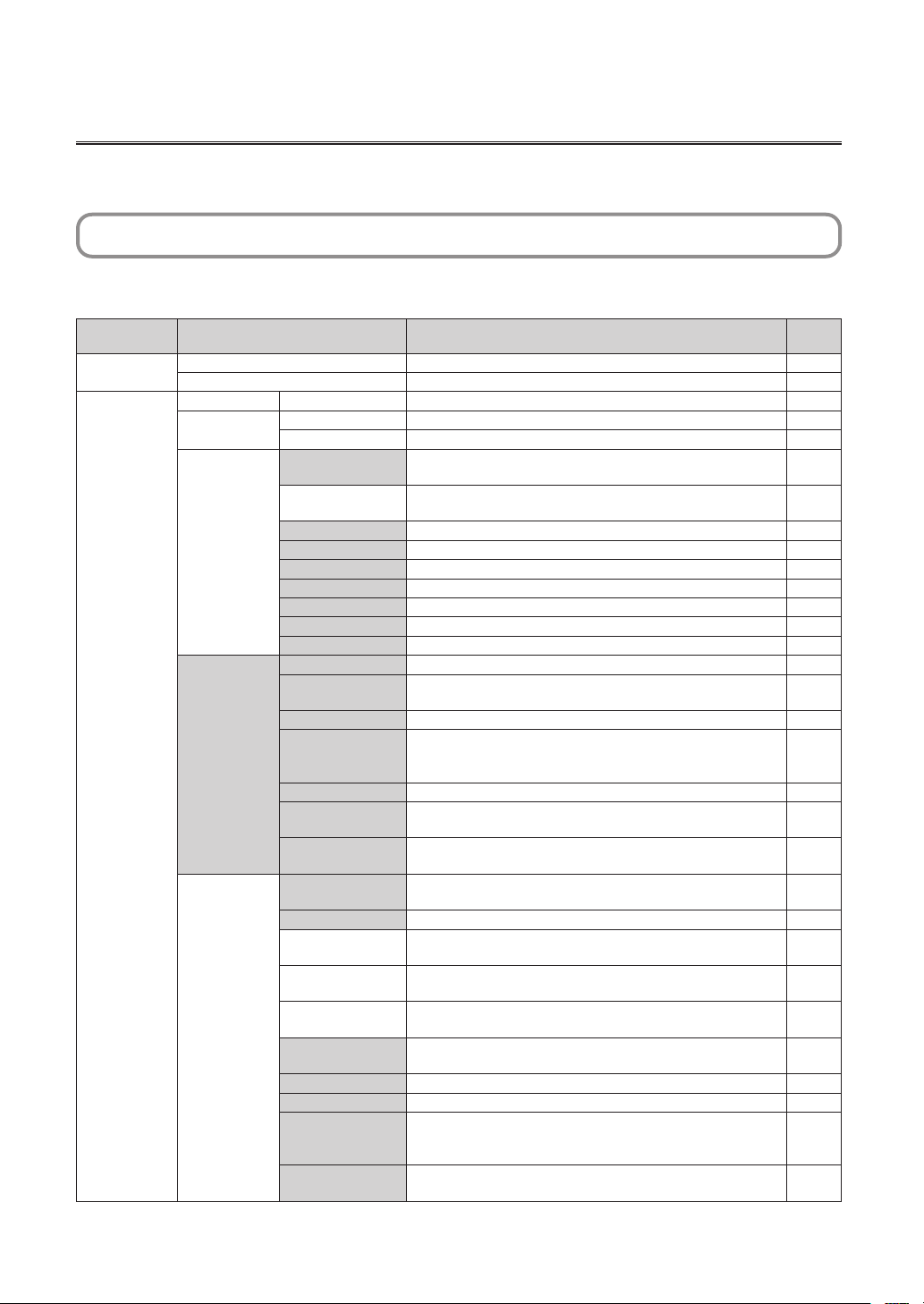
89
4. LCD Menu
This chapter describes the menus displayed in the LCD screen on the projector’s control panel and their functions. For basic
operations of menus, refer to the projector’s operation manual.
4-1. List of Menu
Menus in parentheses are menus for our service personnel. Normally, these menus cannot be used. If you are logged in to the
projector with Installation privileges, you cannot use [FactoryDefault] - [LAN] (page 93).
Main menu Submenu Description
Reference
page
Title Select “Title Memory Name” Selects the title of the signal to be projected. 91
TEST Pattern Selects the test pattern to be projected. 91
Configuration Light Setup Adjust Adjusts light brightness. 92
Lens Control Lens Position Adjusts the position of the projected screen. 92
Focus Zoom Adjusts the size and focus of the projected screen. 92
Reset (FactoryDefault) Returns the settings to their default values. Selects between
preset buttons and titles only, LAN settings only and all settings.
93
Filter Cleaning Initializes the air filter usage time (for confirming the filter
cleaning time).
93
(Fan Usage) Initializes the usage time of the fan. 94
(Light) Initializes the usage time of the light source. 94
(Phosphor) Initializes the usage time of the phosphor. 94
(Diffuser) Initializes the usage time of the diffuser. 94
(Chiller) Initializes the usage time of the chiller unit. 94
(Chiller Fan) Initializes the usage time of the chiller unit fan. 95
(Douser Count) Resets the number of times the douser has been used. 95
(Setup) Douser Setup Sets the douser open/close state. 95
Panel Key Lock Locks the buttons on the projector’s control panel so that they
cannot be operated.
96
Auto Key Lock Enables or disables Auto Key Lock. 96
3D Connector Sets the signal input terminal for a 3D image system (3D terminal
or GPI/O terminal).
Sets the video input port for 3D video systems.
96
Off Timer Sets the time until the projector power is turned off automatically. 97
Message Sets the time to display the message indicating the light
replacement cycle.
97
Silent Mode Selects whether to use the status indicator, buzzer, indicators on
the control panel and backlight.
98
Installation
(Note)
(Option Slot) Configures the device installed in slot (only when the projector is
in standby mode).
99
(Orientation) Sets the projection method. 99
Lens Type (Note) Sets the type of lens (supports or does not support the lens
memory function) attached to the projector.
100
Lens Calibrate
(Note)
Performs calibration on lens that support the lens memory
function (only when the projector power is turned on).
100
Lens Center (Note) Moves the lens shift position to the center (only when the
projector power is turned on).
100
(Baudrate) Sets the PC control connector (RS-232) data transmission speed
(bps).
101
(Date/Time) Sets the date and time on the projector. 101
(Fan Speed Mode) Sets the cooling fan operating mode. 102
(Service Adj.) (Only when the projector is in standby mode)
This is used during shadow adjustment and lens mount
adjustment (focus balance adjustment).
102
(LD Calibrate) Performs calibration of the light module when the light module
has been replaced (only when the projector power is turned on).
102
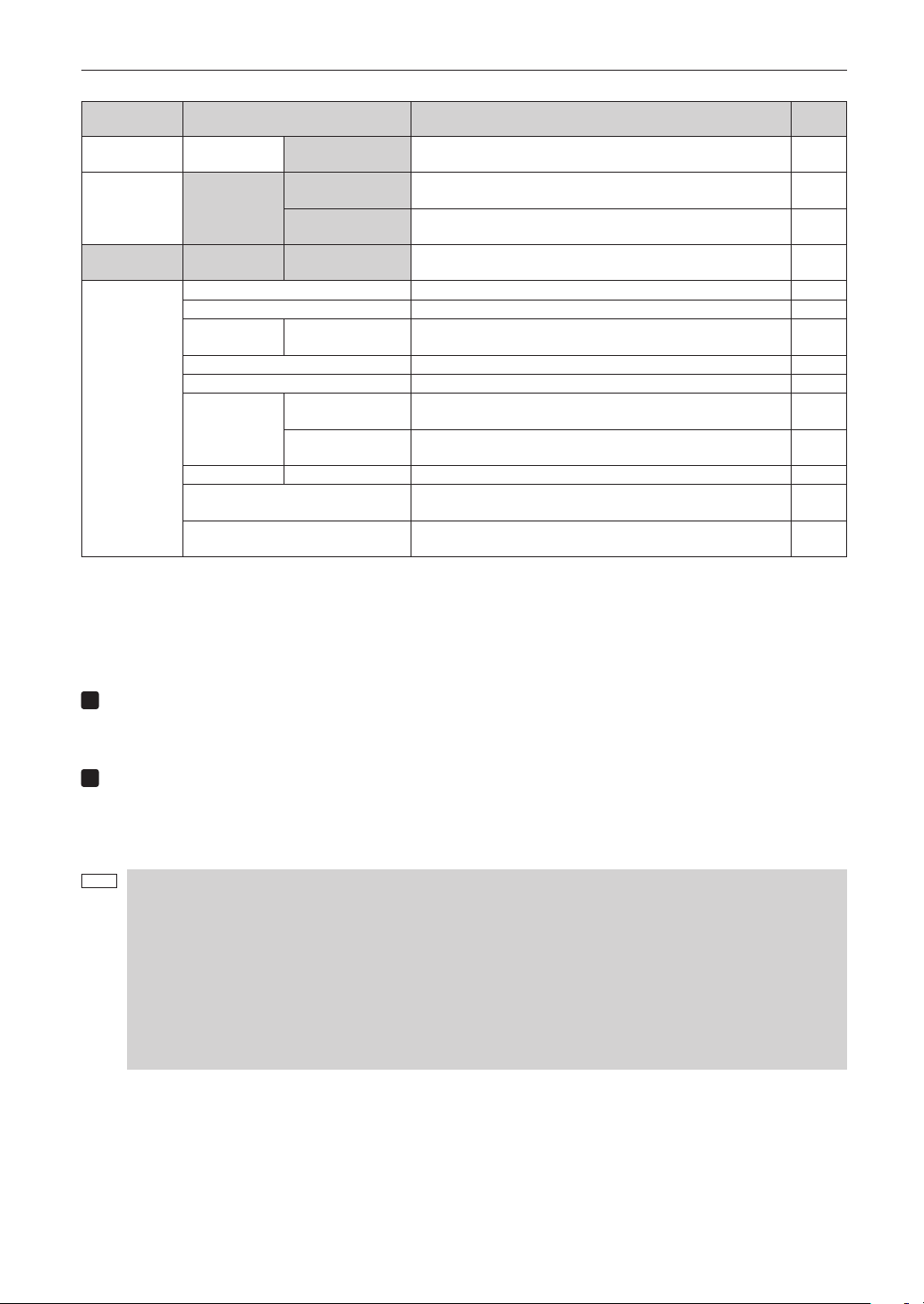
90
LCD Menu
Main menu Submenu Description
Reference
page
Installation
(Note)
(Sensor Calib.) Calibrate the sensors upon installation. 102
Configuration (Memory) Light The content of the selected light memory (light output power
value) can be overwritten with the current settings.
103
Lens The content of the selected lens memory can be overwritten with
the current settings.
103
(Title Setup) Preset Button Preset Button 1–16 Sets the title to be assigned to the preset buttons (<1> to <8>
buttons).
104
Information Light Output Displays the light source output setting. 105
Lens Type Displays the lens type setting. 105
Preset Button Preset Button 1–16 Displays the titles which are assigned to the preset buttons (<1>
to <8> buttons).
105
Usage Displays information related to projector usage. 106
Error Code Displays the currently occurring error. 106
Version System Displays the model name and various version information about
the projector.
107
IMB Displays the vendor name and version information about the
media block (IMB).
107
IP Address System Displays the IP address of the projector. 107
Setup Date Displays the date when the projector was set up (starting date of
the warranty period).
108
Option Status Displays the link status of the device mounted in slot and
projector.
108
(Note) Requires logging into the projector with Advanced User or higher privileges.
4-1-1. When You Use the Service Personnel Menu
To use the menu for service personnel, you need to input the passcode. This section describes how to display the passcode
entry screen and how to enter the passcode. Refer to the Projector Manual for details on how to enter text.
1
Press the MENU button for three seconds or longer.
The passcode input screen will be displayed on the LCD screen at the projector’s control panel.
Press the EXIT button to return to the original screen.
2
Enter the passcode and press the ENTER button.
If you make a mistake during input, you can move the cursor by pressing the LEFT/RIGHT buttons and overwrite the
passcode.
If the passcode is correct, you can use the menu for service personnel.
NOTE
When you enter the password, pay enough attention to people around for the password abuse prevention.
If you have anxiety the password is cheated, change the password immediately.
Before entering the password, inspect the password entry device (such as remote controller and/or keypad on
the projector) for any evidence of physical tampering. In the event that any suspicious markings are present
(such as gouges, extraneous wiring, adhesive materials, etc.) “DO NOT” enter the password and consult with
the distributor.
Always store the password, remote controller, and projector in a safe place and never divulge the password to
unauthorized entities.
Entered password is indicated with * on the LCD.
In case entered password characters are indicated on the LCD, it is machine trouble. Consult with the distributor.
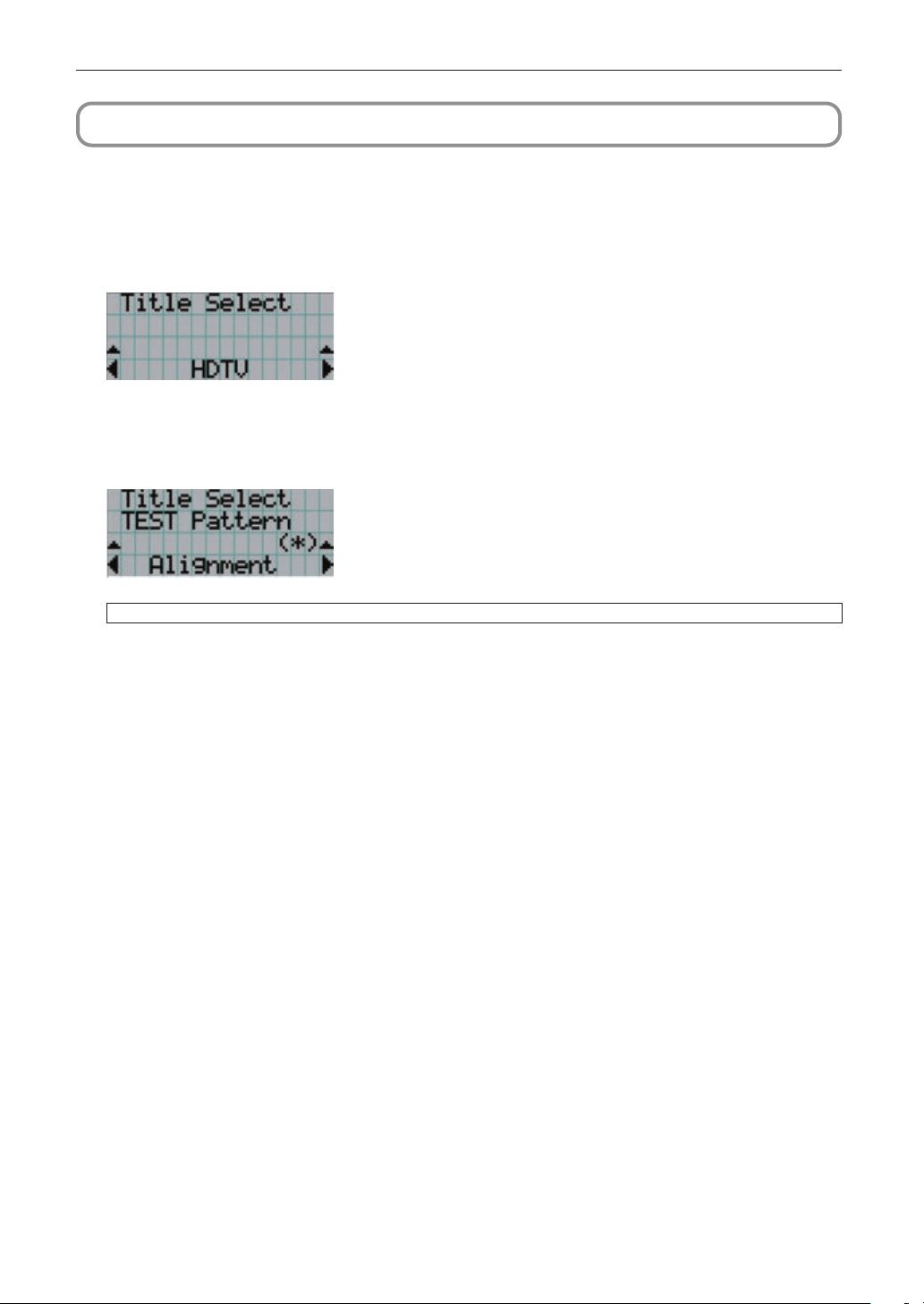
91
LCD Menu
4-2. Title Select
4-2-1. Title select (Title Memory)
Select the title of the signal to be projected.
You can register up to 100 titles. You can also assign registered titles to the preset buttons <1> to <8> on the projector’s control
panel and call them up directly using those buttons. (See page 104)
← Displays the currently selected item with asterisk (*).
← Selects the title to be projected.
4-2-2. Test Pattern
Selects the test pattern to be projected.
← Displays the currently selected item with asterisk (*).
← Selects the test pattern to be projected.
OFF, Alignment, Cross Hatch, Convergence, Red, Green, Blue, White, Black, White 50% [IRE], H-Ramp, Logo
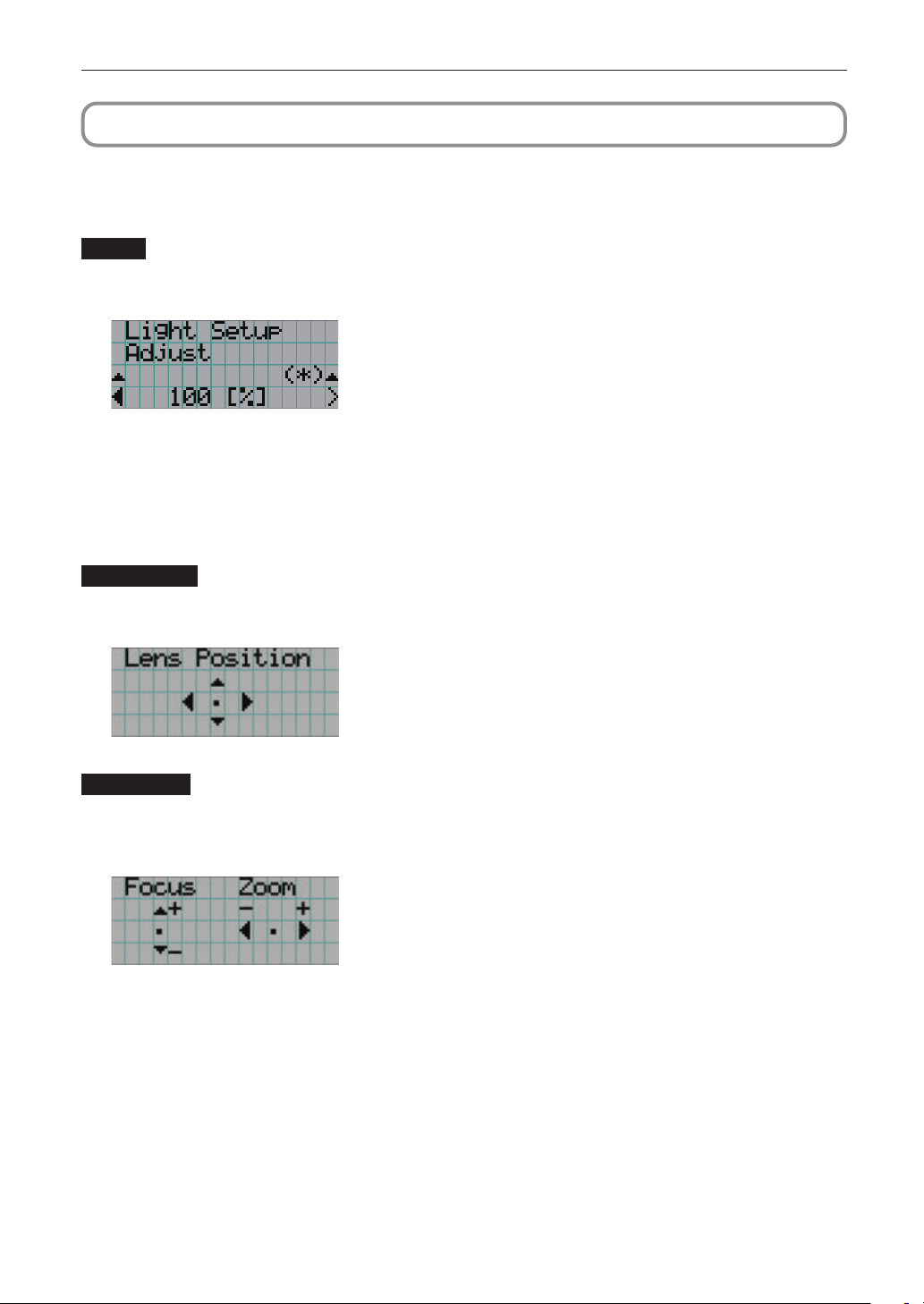
92
LCD Menu
4-3. Conguration
4-3-1. Light Setup
Adjust
Adjusts the light source brightness (output). This setting is the fraction based on taking the maximum value of light source
brightness as 100%.
← Adjusts the output power value (%).
4-3-2. Lens Control
Adjust the position, size, and focus of the projected screen.
Press the ENTER button to switch the display between “Lens Position” and “Focus Zoom” adjustments. Press the EXIT button
to return to a menu one level above.
Lens Position
Adjusts the position of the projected screen.
The projected screen moves in the selected direction as you press the UP/DOWN/LEFT/RIGHT button.
Focus Zoom
Adjusts the size (Zoom) and focus (Focus) of the projected screen.
Press the UP/DOWN button to adjust the focus.
Press the LEFT/RIGHT button to adjust the size of the projected screen.
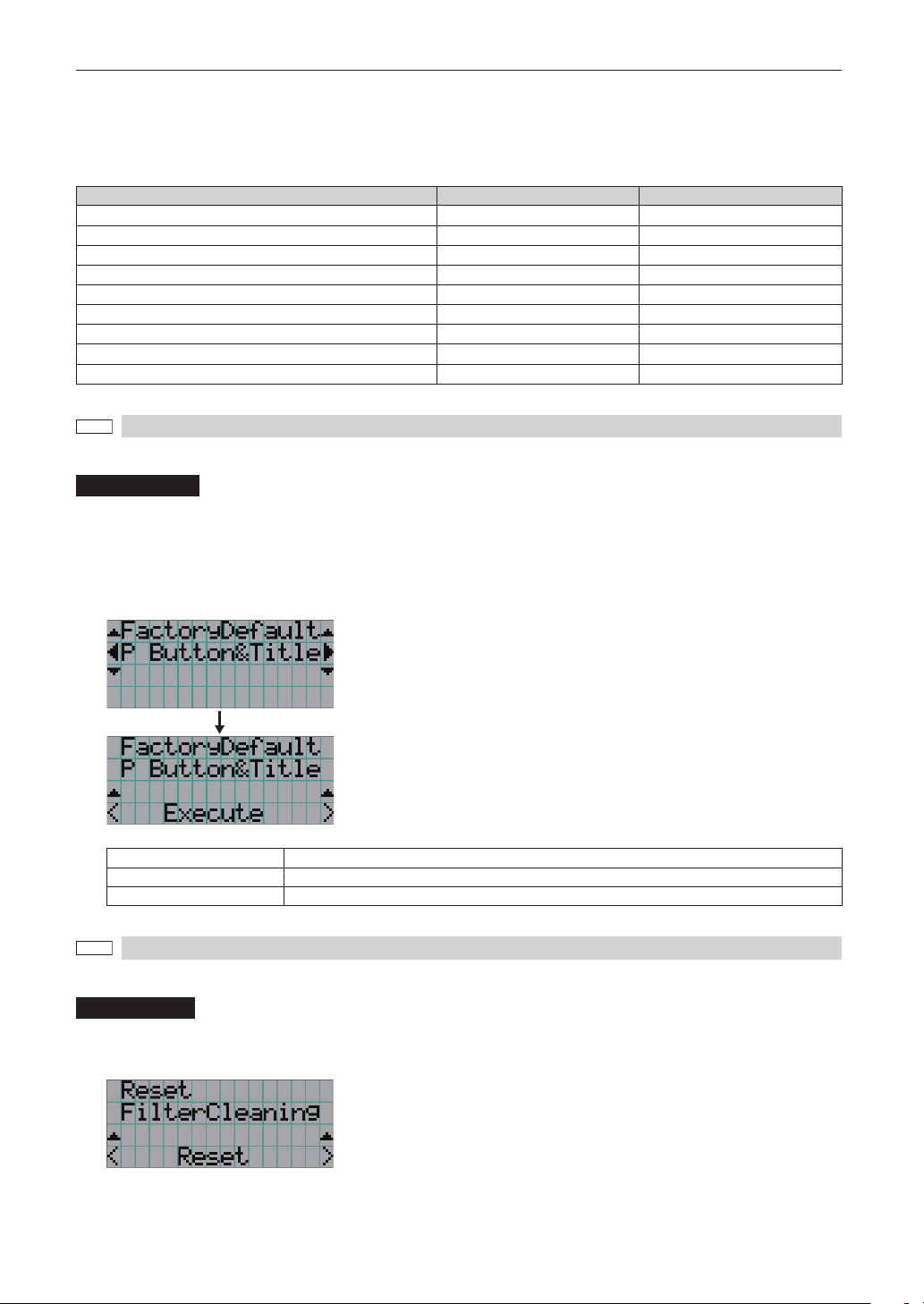
93
LCD Menu
4-3-3. Reset
Used when initializing settings and usage times. Some of the items are in the service personnel menu. Refer to “4-1-1. When
You Use the Service Personnel Menu” (page 90) for details on how to use these.
Item Service Personnel User
FactoryDefault
—
FilterCleaning
Fan Usage
—
Light
—
Phosphor
—
Diffuser
—
Chiller
—
Chiller Fan
—
Douser Count
—
NOTE
When “Light” is reset, “Phosphor” and “Diffuser” are also reset.
FactoryDefault
Returns the projector main unit settings to the factory default state. You can choose from the following three types of
methods.
• Registered preset buttons and title settings
• Network settings
• All adjustment and setting values
← Select the item to be reset.
← Press the ENTER button to execute resetting.
P Button & Title Resets the allocation of preset buttons and all registered titles.
LAN Resets the network settings.
All Resets all adjustment and setting values.
NOTE
If you are logged in to the projector with Installation privileges, you cannot reset the network settings (LAN).
FilterCleaning
Reset the air filter usage time (for confirming the filter cleaning time). Press the ENTER button, then select “Yes” in the displayed
confirmation screen, and then press the ENTER button to reset the air filter usage time (for confirming the filter cleaning time).
← Press the ENTER button to display the confirmation screen.
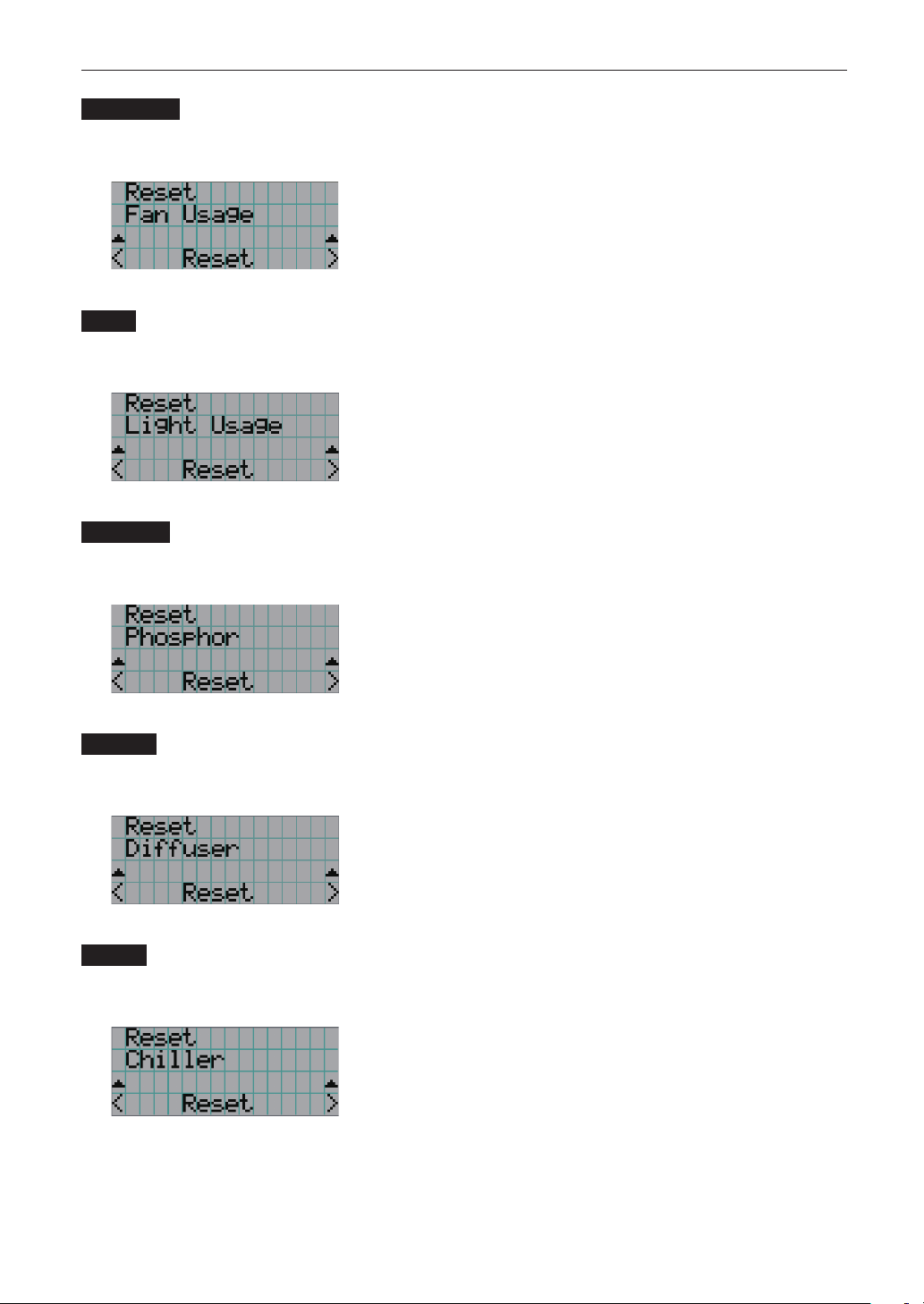
94
LCD Menu
Fan Usage
Resets the fan usage time. Press the ENTER button, then select “Yes” in the displayed confirmation screen, and then press the
ENTER button to reset the fan usage time.
← Press the ENTER button to display the confirmation screen.
Light
Reset the light source usage time. Press the ENTER button, then select “Yes” in the displayed confirmation screen, and then
press the ENTER button to reset the light source usage time.
← Press the ENTER button to display the confirmation screen.
Phosphor
Reset the Phosphor usage time. Press the ENTER button, then select “Yes” in the displayed confirmation screen, and then
press the ENTER button to reset the Phosphor usage time.
← Press the ENTER button to display the confirmation screen.
Diffuser
Reset the Diffuser usage time. Press the ENTER button, then select “Yes” in the displayed confirmation screen, and then press
the ENTER button to reset the Diffuser usage time.
← Press the ENTER button to display the confirmation screen.
Chiller
Reset the Chiller unit usage time. Press the ENTER button, then select “Yes” in the displayed confirmed screen, and then press
the ENTER button to reset the Chiller unit usage time.
← Press the ENTER button to display the confirmation screen.
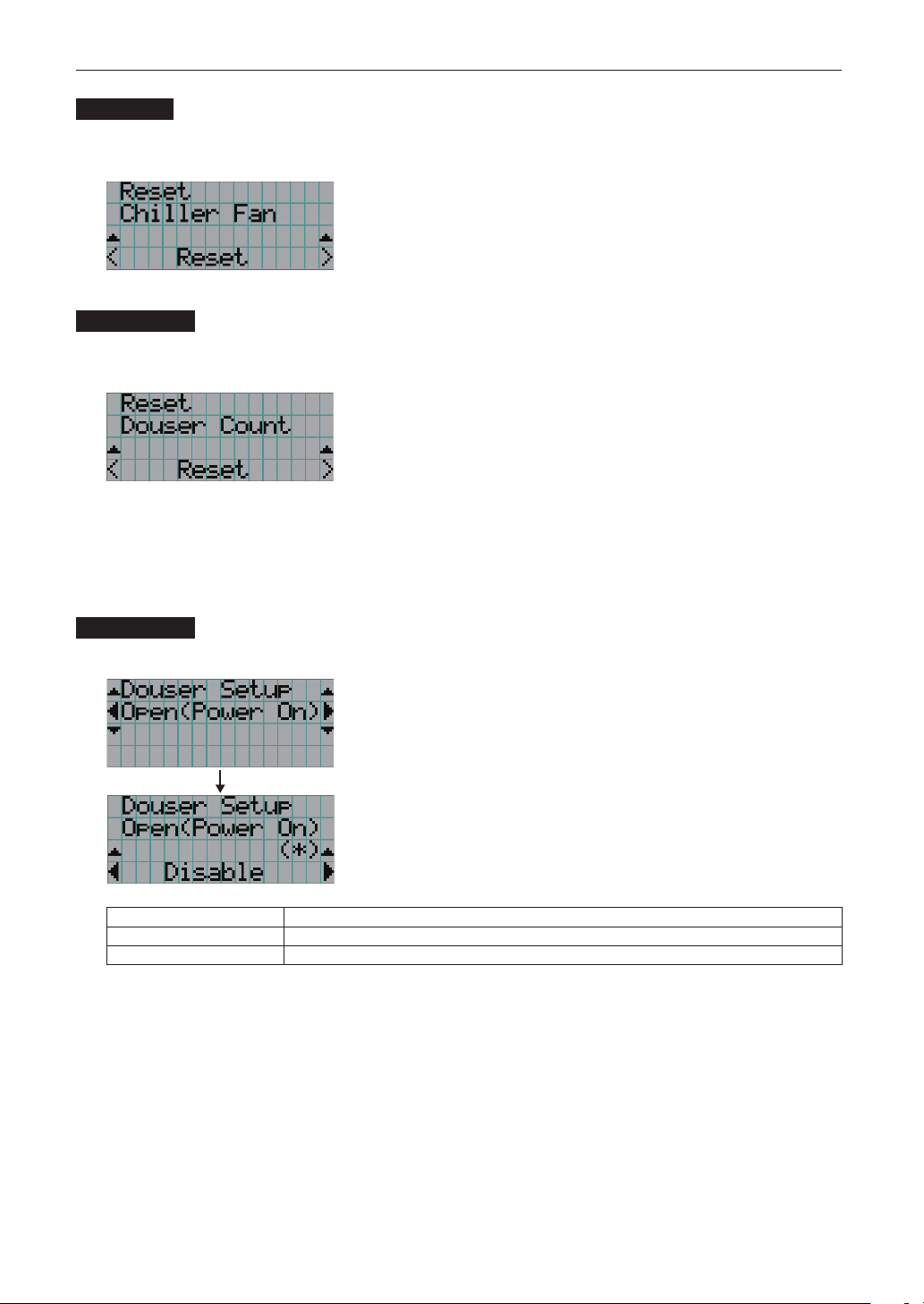
95
LCD Menu
Chiller Fan
Resets the chiller unit fan usage time. Press the ENTER button, then select “Yes” in the displayed confirmation screen, and
then press the ENTER button to reset the chiller unit fan usage time.
← Press the ENTER button to display the confirmation screen.
Douser Count
Resets the number of times the douser has been used. Press the ENTER button, then select “Yes” in the displayed confirmation
screen, and then press the ENTER button to reset the number of times the douser has been used.
← Press the ENTER button to display the confirmation screen.
4-3-4. Setup
This menu is for service personnel. For the procedure to use it, refer to “4-1-1. When You Use the Service Personnel Menu”
(page 90).
Douser Setup
Sets the douser open/close state. Request your dealer/distributor to perform the setting.
← Selects the item.
← Displays the currently selected item with asterisk (*).
← Displays the setting.
Open(Power On) When set to Enable, the douser opens after the projector starts up.
Light On When set to Enable, the douser opens when the light source is turned on.
Title Select When set to Enable, the douser opens when a title is selected.
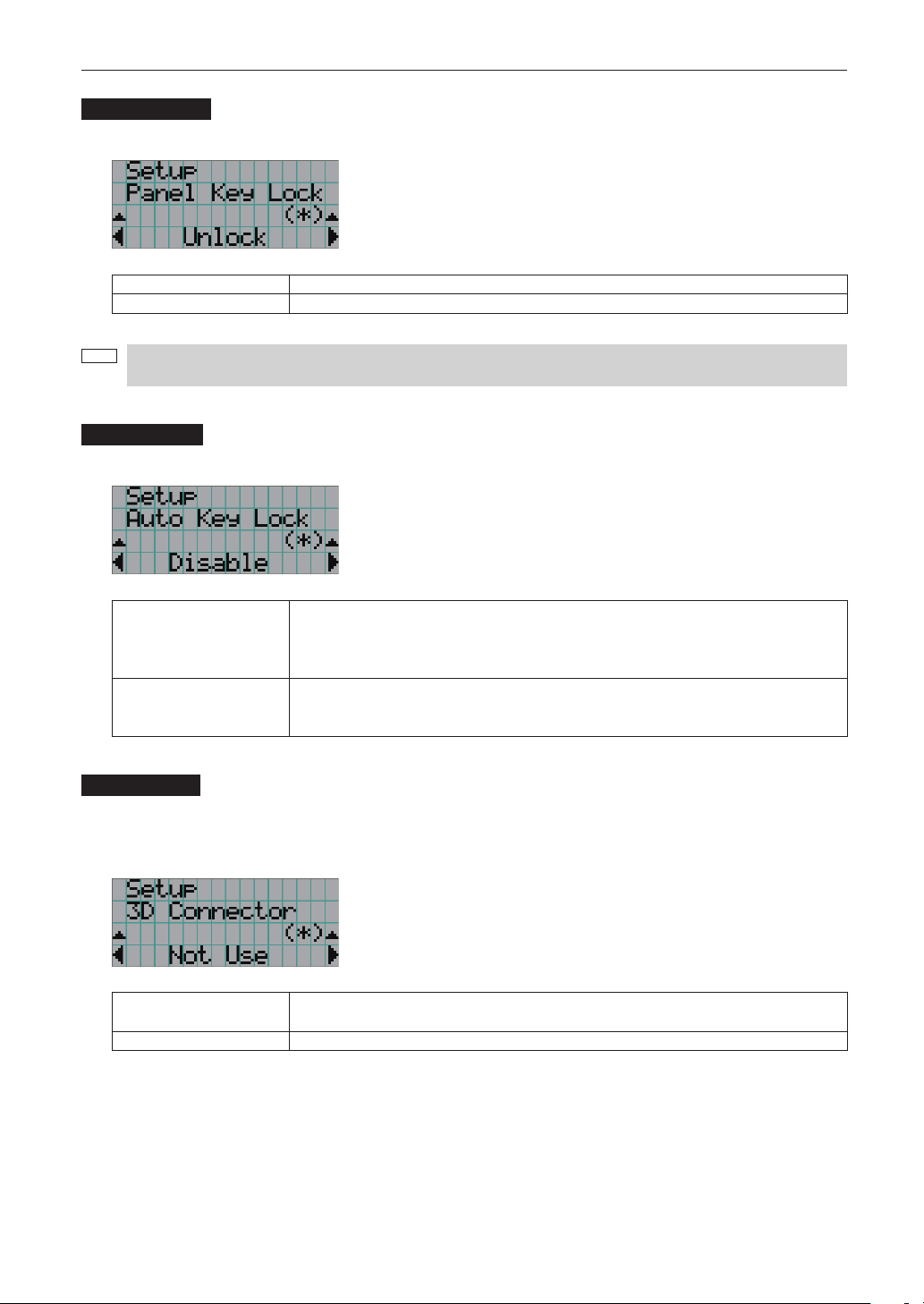
96
LCD Menu
Panel Key Lock
The control buttons on your projector are locked to be inoperative.
← Displays the currently selected item with asterisk (*).
← Displays the setting.
Lock Enable a lock on the control buttons on your projector.
Unlock Disable the lock on the control buttons.
NOTE
When the buttons on the projector’s control panel are locked, press the EXIT button on the projector for about 10
sec. to unlock them (The key lock setting on the projector becomes Unlock).
Auto Key Lock
Enables or disables Auto Key Lock.
← Displays the currently selected item with asterisk (*).
← Displays the setting.
Enable Enables the auto key lock function.
This applies the key lock automatically if you do not perform any operations from the main unit
control panel for 30 seconds after entering the standby state. If you do not perform any
operations for 30 seconds after releasing the key lock, the key lock is applied again.
Disable Disables the auto key lock function.
Although the key lock becomes active after entering the standby state, once you release the key
lock it is not automatically applied.
3D Connector
Selects the port for 3D video systems used as the control signal input/output for the 3D video system.
If you select “Not Use”, the GP I/O port is used as the control signal input/output for the 3D video system. If you select “Use”,
the 3D port is used as the signal input for the 3D video system.
← Displays the currently selected item with asterisk (*).
← Displays the setting.
Not Use Does not use the 3D port as the control signal input/output for the 3D video system (uses the GP
I/O port).
Use Uses the 3D port as the control signal input/output for the 3D video system.
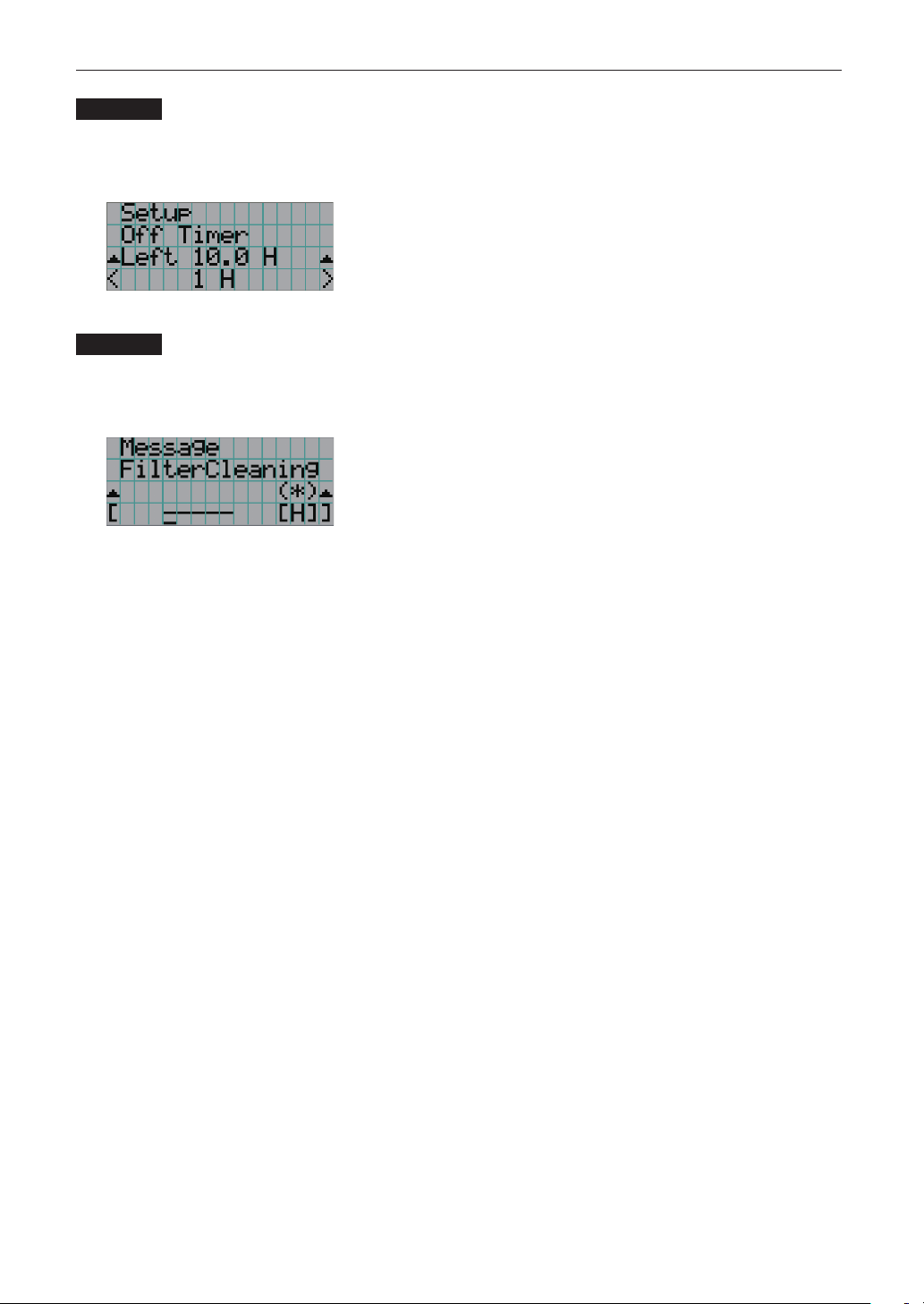
97
LCD Menu
Off Timer
Automatically turns off the projector power once the configured time has elapsed. The time until the power is turned off can be
set in steps of 1 hour (up to a maximum of 24 hours). The timer starts from when the setting is applied by pressing the ENTER
button. While the timer is running, the remaining time is displayed in the format “Left **.* H”. Set to “No Preset” to stop the timer.
← Displays the remaining time until the power is turned off.
← Sets the time until the power is turned off. (No Preset: Timer off)
Message
Sets the time until the replacement cycle (units: hours) of a part such as the light source. Once the usage time of the part
exceeds the configured time, a message is displayed on the LCD screen. “0 (-----) [H]” is set by default. With this setting, no
message is displayed.
← The current setting value is displayed with an asterisk (*).
← Sets the time until the replacement cycle (units: hours).
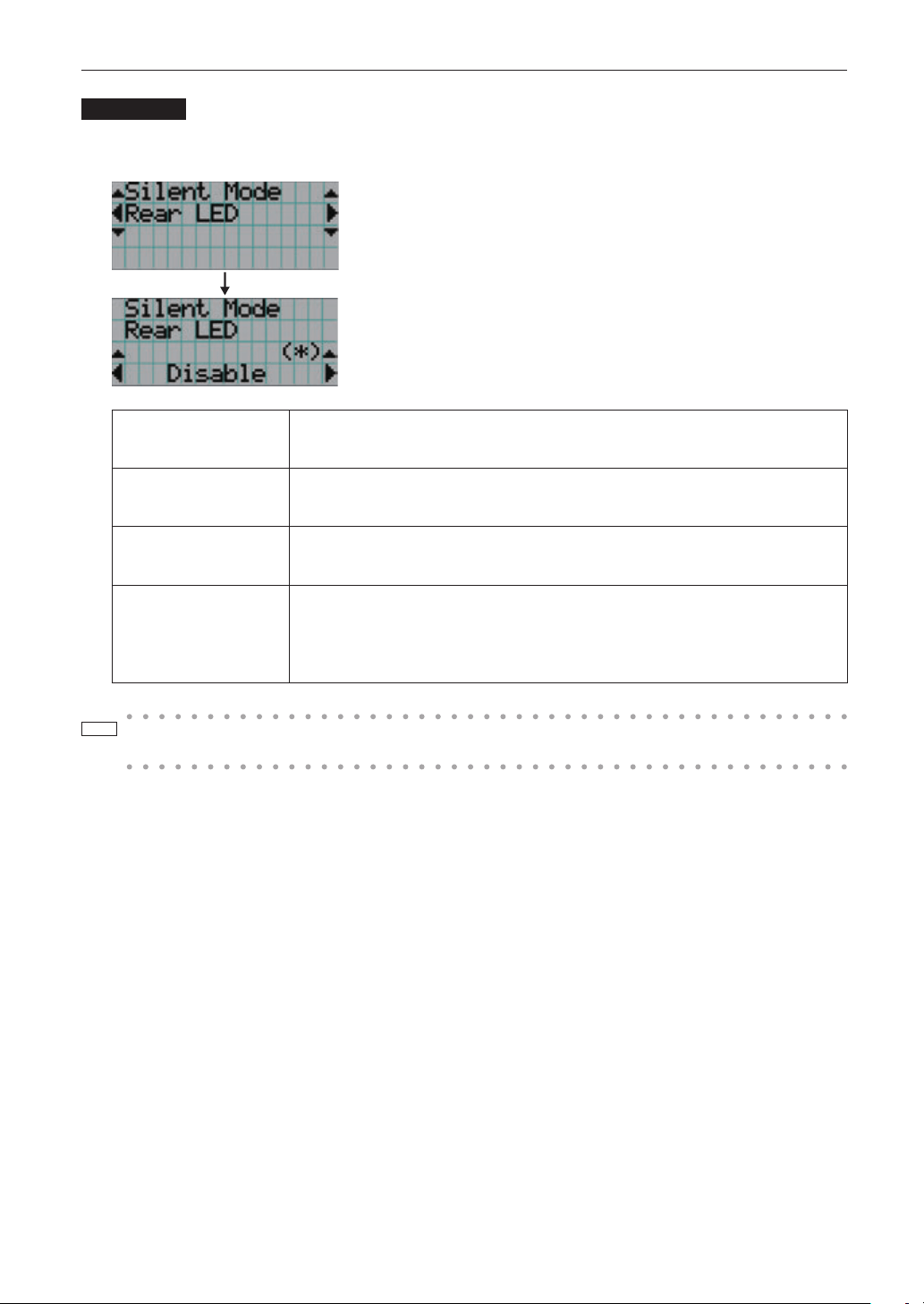
98
LCD Menu
Silent Mode
Sets whether the status indicators (SYSTEM status indicator, LIGHT status indicator), buzzer, indicators on the projector’s
control panel, illumination, and LCD screen backlight are enabled or disabled.
← Selects the item.
← Displays the currently selected item with asterisk (*).
← Displays the setting.
Rear LED Sets whether to use or not use the SYSTEM status indicator.
Enable: Use
Disable: Not use (the SYSTEM status indicator does not light up)
Buzzer Sets whether to use or not use the buzzer.
Enable: Use
Disable: Not use (the buzzer does not sound)
Control Button Sets whether to use or not use the indicators on the projector’s control panel.
Enable: Use
Disable: Not use (the LED next to the buttons do not light up)
LCD Backlight Sets whether to use or not use the illumination and LCD screen backlight on the projector’s
control panel.
Enable: Use
Disable: Not use (turns off the illumination and LCD screen backlight on the projector’s control
panel)
TIP
When LCD Backlight is set to Disable, you can change the setting to Enable by long-pressing (3 seconds or
more) the EXIT button and UP button.
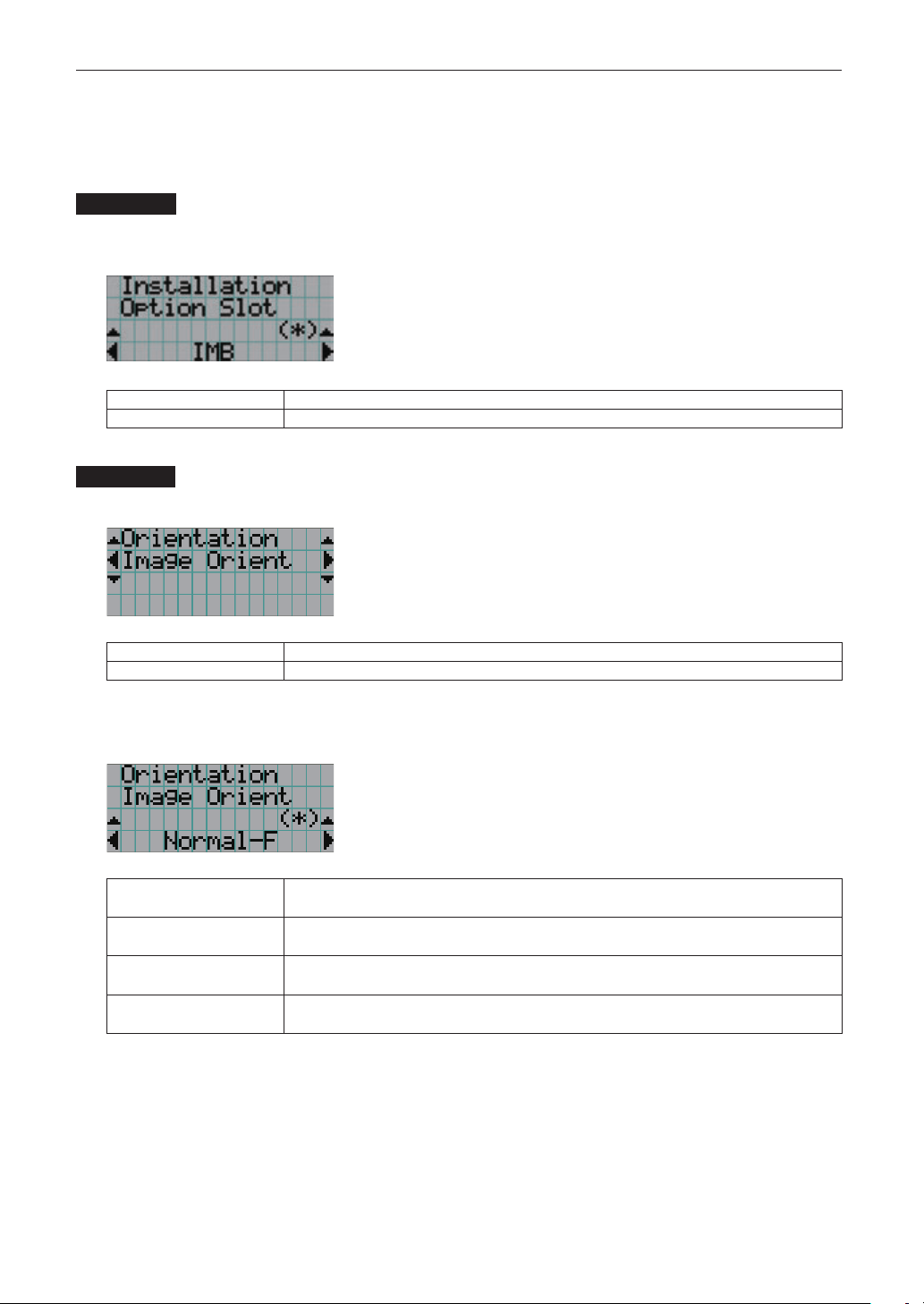
99
LCD Menu
4-3-5. Installation
This menu is the service personnel menu. For the using service personnel menu, refer to “4-1-1. When You Use the Service
Personnel Menu” (page 90).
Option Slot
Configures the devices mounted in slot. This menu is active in standby mode only.
Slot B is not available in this projector (displays as “Not Available”).
← Displays the currently selected item with asterisk (*).
← Displays the setting.
IMB Media block (NP-90MS02-4K)
No Board No device mounted
Orientation
Set the projection method (Image Orient) to match the installation conditions of the projector and screen.
← Select the item and press the ENTER button to display the menu.
Image Orient Set the projection method.
FanTiltSetting
(Note)
Set the cooling method to match the projection method.
(Note) Upgrade function.
(If you selected “Image Orient”)
← Displays the currently selected item with asterisk (*).
← Displays the setting.
Normal-F Front projection. With the projector installed on the pedestal, projection is executed from the front
of the screen.
Normal-R Rear projection. With the projector installed on the pedestal, projection is executed from the
back of the screen.
UpsideDown-F
(Note)
Ceiling front projection. With the projector installed on the ceiling, projection is executed from the
front of the screen.
UpsideDown-R
(Note)
Ceiling rear projection. With the projector installed on the ceiling, projection is executed from the
back of the screen.
(Note) Upgrade function.
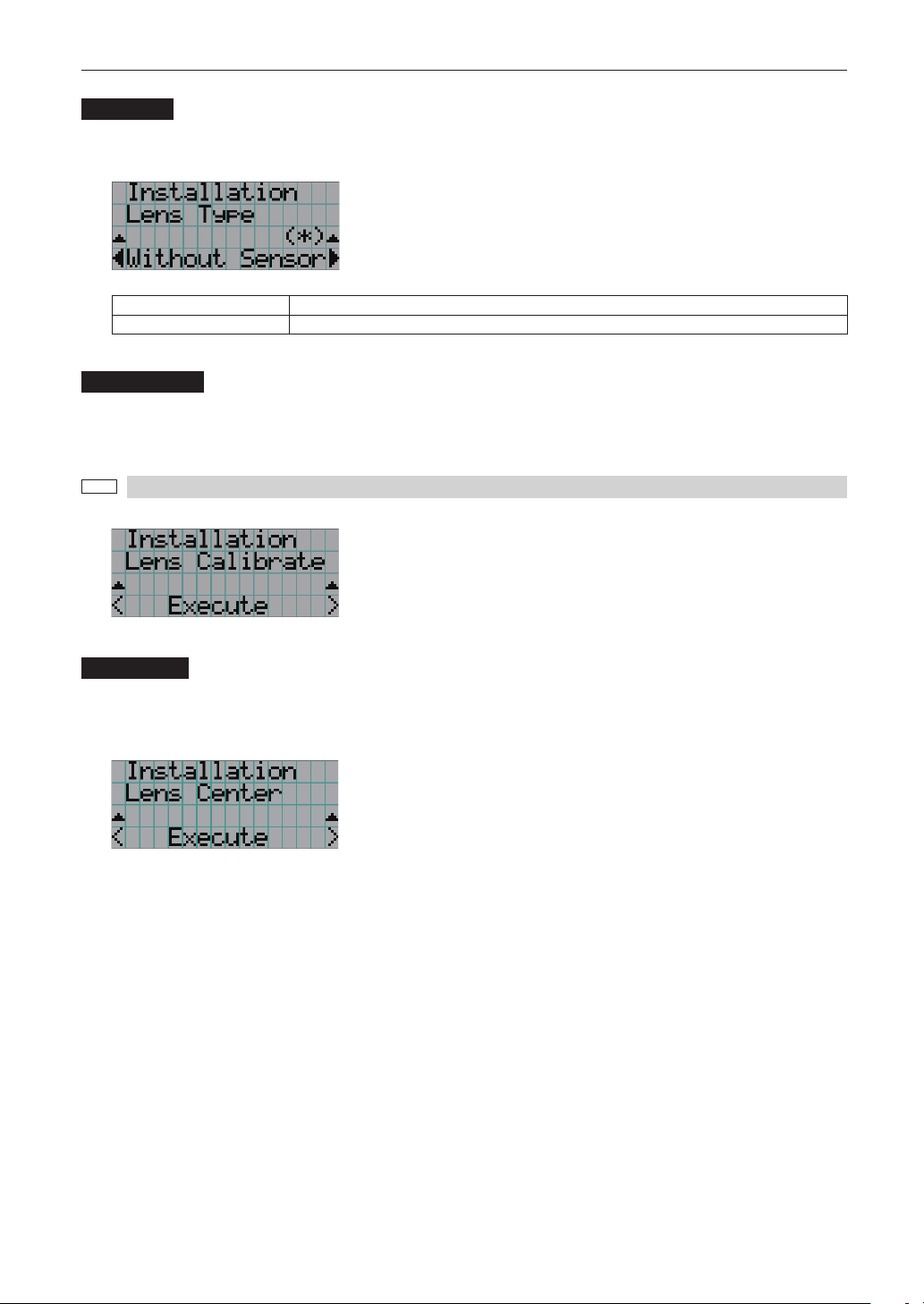
100
LCD Menu
Lens Type
Sets the type of lens (supports or does not support the lens memory function) attached to the projector. This menu item is
available only when you are logged into the projector with Advanced User or higher privileges.
← Displays the currently selected item with asterisk (*).
← Displays the setting.
Without Sensor Selected when using a lens unit that does not support the lens memory function (default value).
With Sensor Selected when using a lens unit that supports the lens memory function.
Lens Calibrate
Performs calibration on lenses that support the lens memory function. Once you have attached a lens that supports the lens
memory function, always execute calibration. This menu item is available only when the projector power is turned on and you
are logged into the projector with Advanced User or higher privileges.
NOTE
This items cannot be used if Lens Type is set to “Without Sensor”.
← Press the ENTER button to execute calibration.
Lens Center
To move the lens shift to the center position. The center position may slightly shift depending upon mounting conditions of the
lens. This menu item is available only when the projector power is turned on and you are logged into the projector with
Advanced User or higher privileges.
← Press the ENTER button to execute moving.
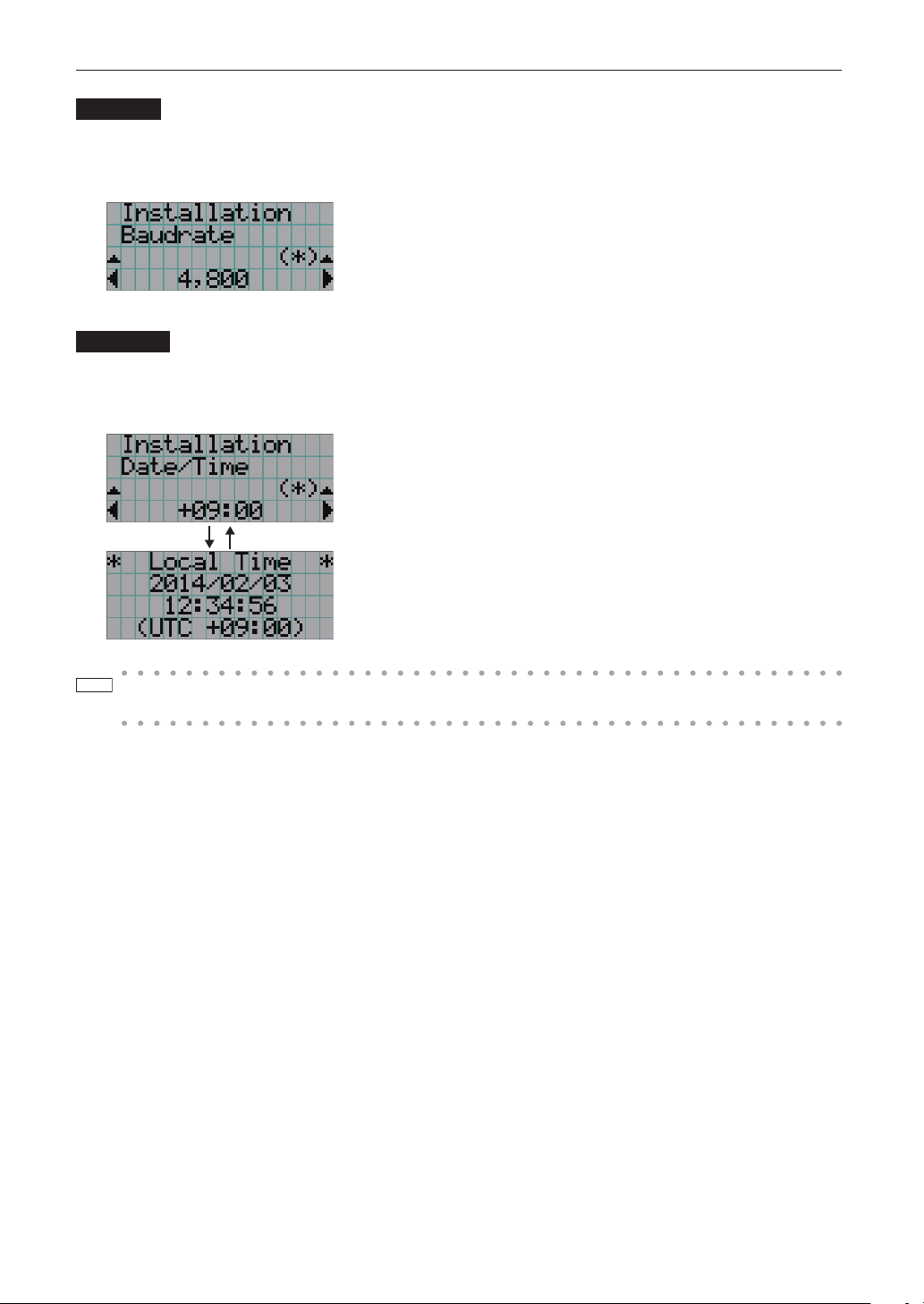
101
LCD Menu
Baudrate
To select the transmission speed (bps) for your projector (SYSTEM) and a PC when they are connected by a commercially
available RS-232C straight cable. Select one from 4800, 9600, 19200 and 38400. Select the transfer speed corresponding to
the speed of the connected devices.
← Displays the currently selected item with asterisk (*).
← Displays the setting.
Date/Time
Use this to set the date and time on the projector.
The internal clock in the projector uses coordinated universal time (UTC). This sets the time difference between the standard
time in your region and UTC.
← Displays the currently setting with asterisk (*).
← Sets the time difference between the standard time in your region and UTC.
Press the ENTER button to check the time difference between the built-in projector clock
and UTC.
TIP
If you are using DCC, you can set the date and time from your computer. Refer to “Digital Cinema Communicator
for S2 Installation Manual” for details.
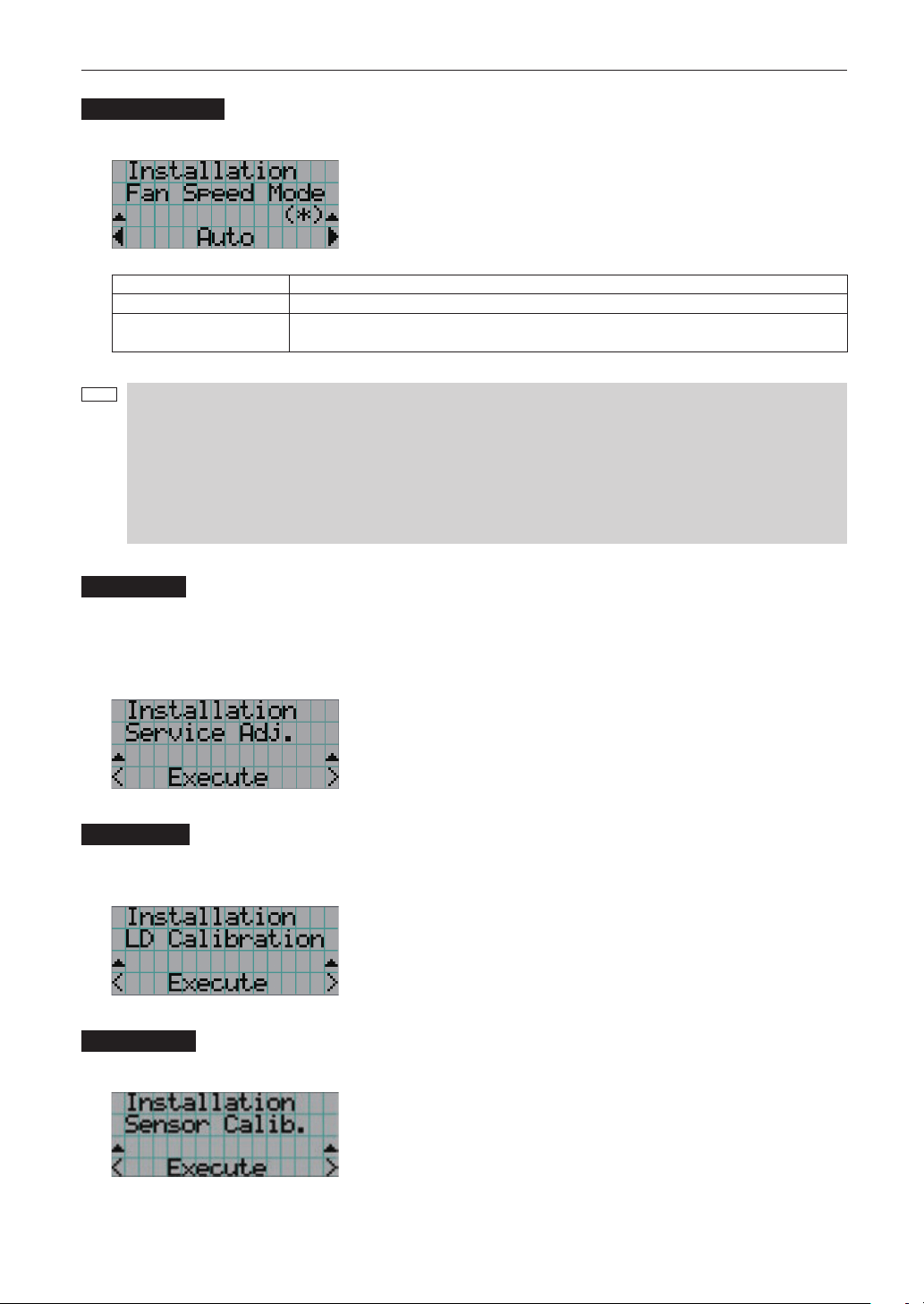
102
LCD Menu
Fan Speed Mode
It adjusts the rotation speed of the internal cooling fan.
← Displays the currently selected item with asterisk (*).
← Displays the setting.
Auto The fan rotates at the optimal speed according to the temperature sensor inside the projector.
High Speed The fan always rotates at high speed.
High Altitude Select when using the projector in locations with low air pressure, such as at high elevations of
altitude approximately 5500 feet (1600 m) or higher. The fan always rotates at high speed.
NOTE
• It is recommended that you select “High Speed” if you use the projector non-stop for consecutive days.
• Set “Fan Speed Mode” to “High Altitude” when using the projector at altitudes approximately 5500 feet/1600
meters or higher.
• Using the projector at altitudes approximately 5500 feet/1600 meters or higher without setting to “High Altitude”
can cause the projector to overheat and the protector could shut down. If this happens, wait a couple minutes
and turn on the projector.
• Using the projector at altitudes approximately 5500 feet/1600 meters or higher can shorten the life of internal
parts.
Service Adj.
This is used during shadow adjustment and lens mount adjustment (focus balance adjustment). This menu item can only be
used while in standby. If you press the <ENTER> button and then select “Yes” and press the <ENTER> button on the confirma-
tion screen that is displayed, the projector starts automatically and a yellow colored light ring is projected. You can adjust the
output level of the light source (Light Setup) even while using Service Adjustment.
← Press the ENTER button to display the confirmation screen.
LD Calibrate
Calibrates the light source unit when it is replaced with a new one. This menu item is available only when the power to the
projector is turned on.
← Press the ENTER button to display the confirmation screen.
Sensor Calib.
Calibrate the sensors upon installation. Consult the dealer/distributor for how to use the unit.
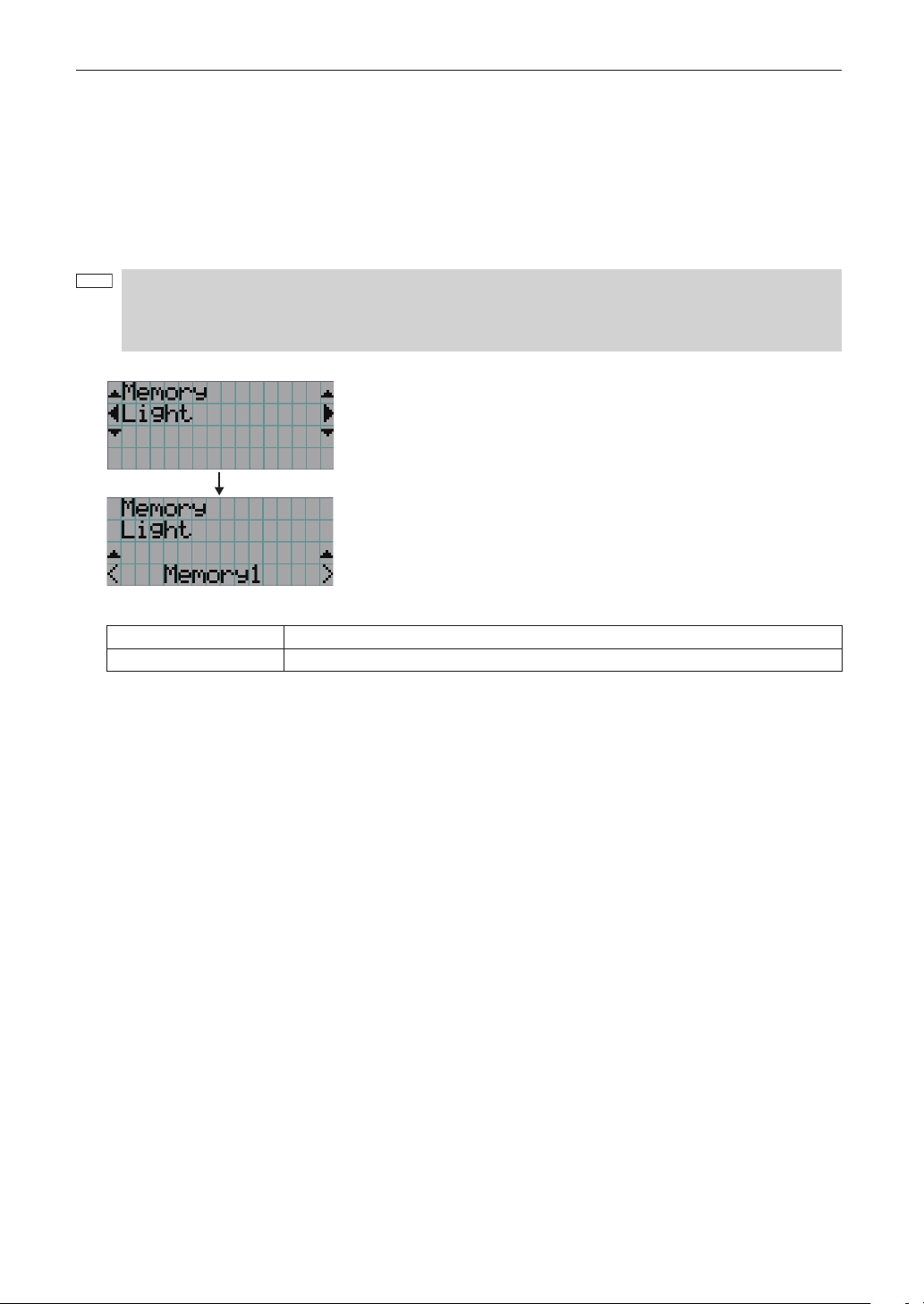
103
LCD Menu
4-3-6. Memory
This menu is the service personnel menu. For the using service personnel menu, refer to “4-1-1. When You Use the Service
Personnel Menu” (page 90).
The selected lens memory (lens adjustment value) and the content of the light memory (light output power value) can be
overwritten with the current settings. Press the LEFT/RIGHT buttons to select the light memory or the lens memory then press
the “ENTER” button to display the confirmation screen. Select “Yes” in the confirmation screen, and then press the ENTER
button. The selected memory (light memory or lens memory) is overwritten with the current settings.
NOTE
• Lens memory and light memory cannot be newly registered. Use DCC to register the lens memory and light
memory in advance. Refer to “Digital Cinema Communicator for S2 Installation Manual” for details registering
the lens memory and light memory.
• The lens memory function cannot be used when the lens type is set to “Without Sensor”.
←
Select the Light memory or lens memory.
←
Select the memory name of the setting to overwrite and press the ENTER button to
display the confirmation screen.
Light Select to change the values of the light memory settings.
Lens Select to change the values of the lens memory settings.
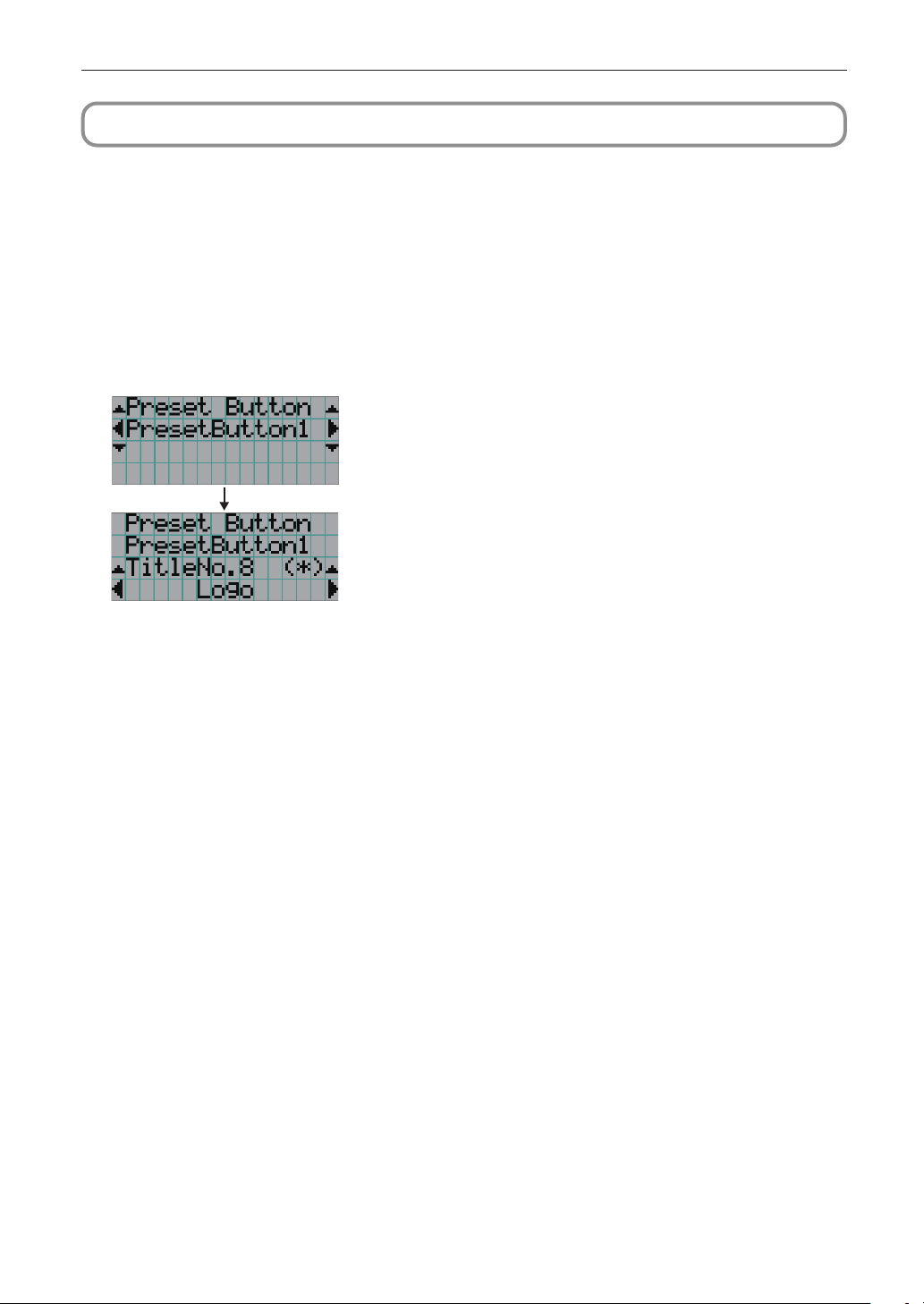
104
LCD Menu
4-4. Title Setup
This menu is the service personnel menu. For the using service personnel menu, refer to “4-1-1. When You Use the Service
Personnel Menu” (page 90).
4-4-1. Preset Button
Use this button to set the titles to be assigned to the preset buttons (<1> to <8> buttons).
You cannot assign the same title to several preset buttons. If you want to assign any title to another number, cancel the assign-
ment once and then set it to any button again.
The “Preset Button 1 to Preset Button 8” settings correspond to buttons <1> to <8> on the control panel. To select the titles
allocated to “Preset Button 9 to Preset Button 16”, press the <1> to <8> button while holding down the <Up> button on the
control panel.
← Select the preset button number (1 to 16).
← Display the selected number of the title.
← Select the titles to be assigned to the preset buttons.
Select the titles from those registered in advance.
To clear assignment to preset buttons, select “---”.
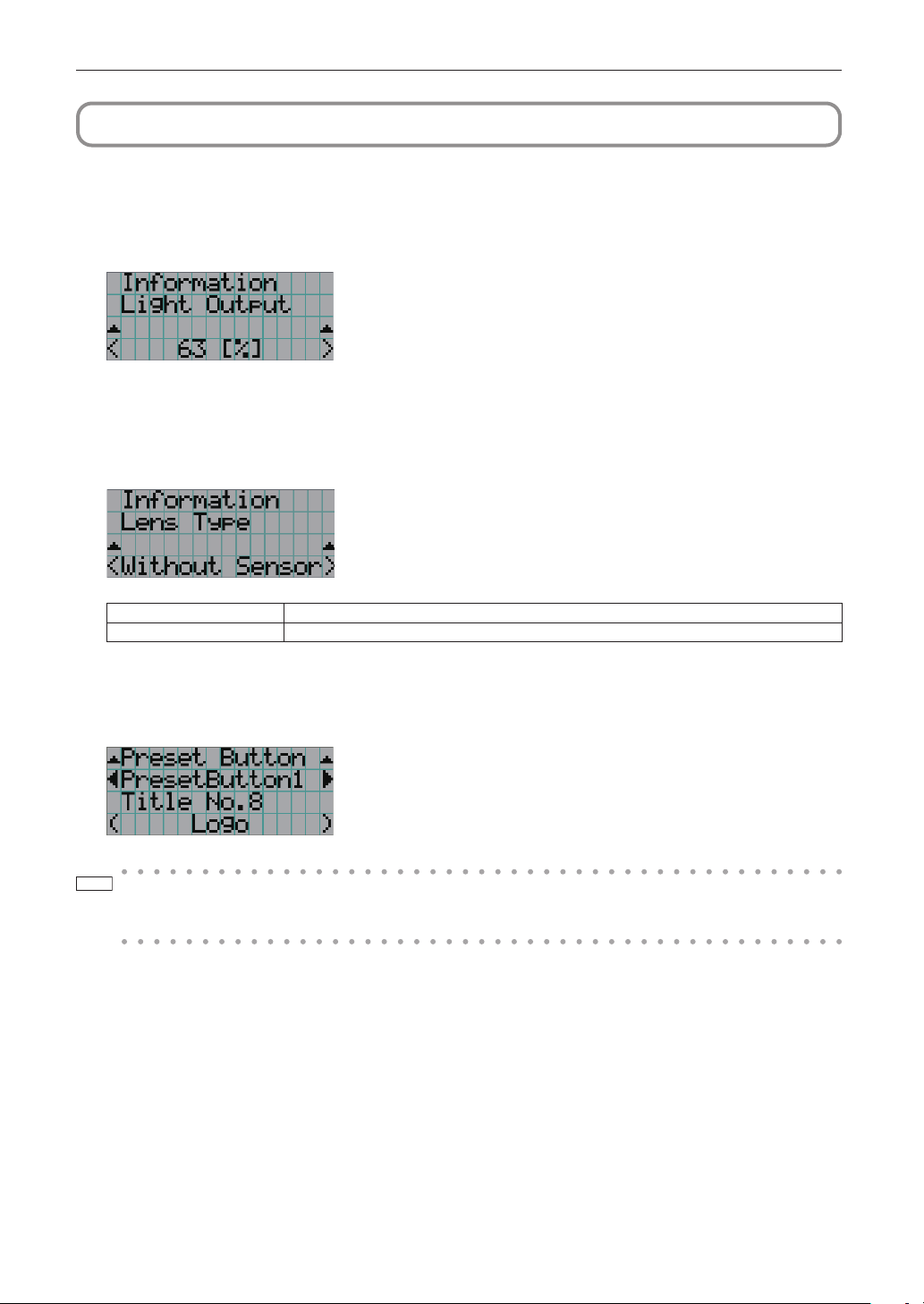
105
LCD Menu
4-5. Information
Displays information relating to the light source, the usage time of the projector, the version information and error codes.
4-5-1. Light Output
Displays the value of the light source output setting (%).
← Displays the current setting (%).
4-5-2. Lens Type
Displays the current lens type setting. The lens type setting is configured from “Lens Type” in the “Configuration” - “Installation”
menu (page 100).
← Displays the current lens type setting.
Without Sensor Using a lens unit that does not support the lens memory function.
With Sensor Using a lens unit that supports the lens memory function.
4-5-3. Preset Button
Displays the titles assigned to the preset buttons (<1> to <8> buttons) on the projector’s control panel.
← Selects the preset button number whose contents you want to display.
← Displays the assigned title numbers.
← Displays the registered names of the assigned titles.
TIP
To select a title allocated to one of “Preset Button9” to “Preset Button16”, press the preset button while holding
down the UP button. For example, to select the title allocated to “Preset Button9”, press the <1> button while
holding down the UP button.
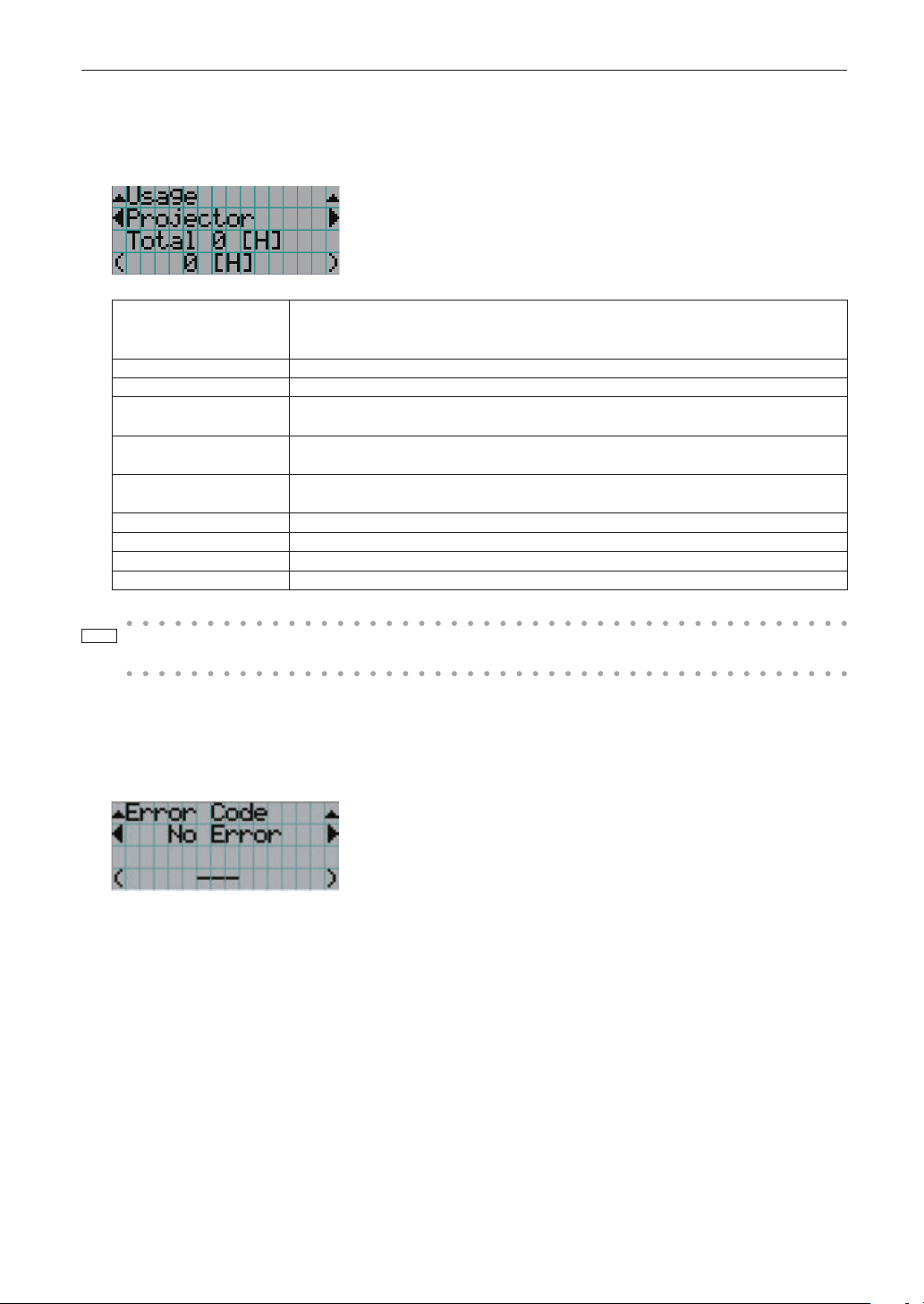
106
LCD Menu
4-5-4. Usage
Displays information related to the projector usage, such as the usage time of the projector, light, air filters, and fan, and infor-
mation about the light replacement cycle.
← Selects the item to display.
← Displays information about the selected item.
Projector Displays the usage time of the projector.
The upper row shows the usage time including standby mode while the lower row shows the
usage time not including standby mode.
Light Display of the usage time of the light.
Light Strike Displays the number of times the light has been turned on.
Phosphor Display of the usage time of the phosphor and the value that is displayed is the amount of usage
time remaining (approximate).
Diffuser Display of the usage time of the diffuser and the value that is displayed is the amount of usage
time remaining (approximate).
Chiller Display of the usage time of Chiller unit and the value that is displayed is the amount of usage
time remaining (approximate).
Chiller Fan Displays the usage time of the Chiller unit fan.
Filter Cleaning Displays the usage time of the air filter.
Fan Usage Displays the usage time of the fan.
Douser Count Displays the number of times the douser has been used.
TIP
The remaining amount displayed in Light/Phosphor/Diffuser/Chiller is calculated from the current usage time
with the unused state as 100% and time to replace as 0%.
4-5-5. Error Code
Displays the error code when an error occurs. See the “Error Code List” in the Appendix for details on error codes. When
multiple errors occur, you can display them by pressing the LEFT/RIGHT buttons.
← Displays the code of the error currently occurring.
← Displays the name of the error currently occurring.
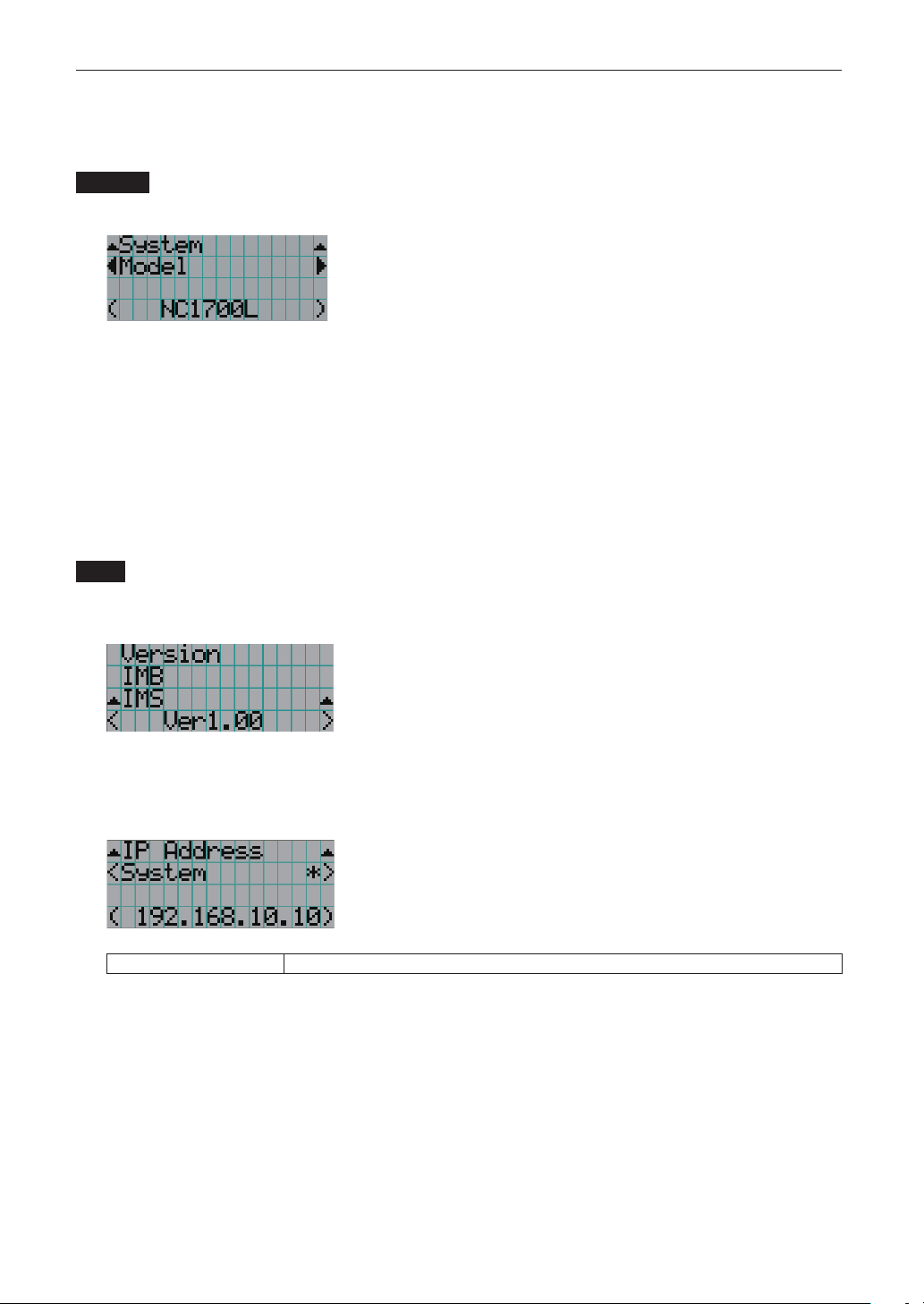
107
LCD Menu
4-5-6. Version
Displays version information about the projector, optional boards, and IMB.
System
Displays the version information of the projector.
← Selects the item to display.
← Displays the version information.
• Model • Serial No.
• Release Package • Kernel
• U-Boot • System Files
• Cinema Firmware • Cinema Data
• ICP Firmware • ICP ConfigFile
• FMT FPGA • Slave BIOS
• Slave Firmware • Opt MCU
• Secure Processor • Lens
• Laser Driver
IMB
Displays the vendor name and version information about the media block (IMB). When the projector is in standby mode, the
vendor name is blank and the version information displays “---”. “Not Use” when IMB is not mounted to the projector.
← Displays the vendor name.
← Displays the version information.
4-5-7. IP Address
Displays the IP address set in the projector.
← Displays the IP address.
System Displays the IP address set for the projector (System).
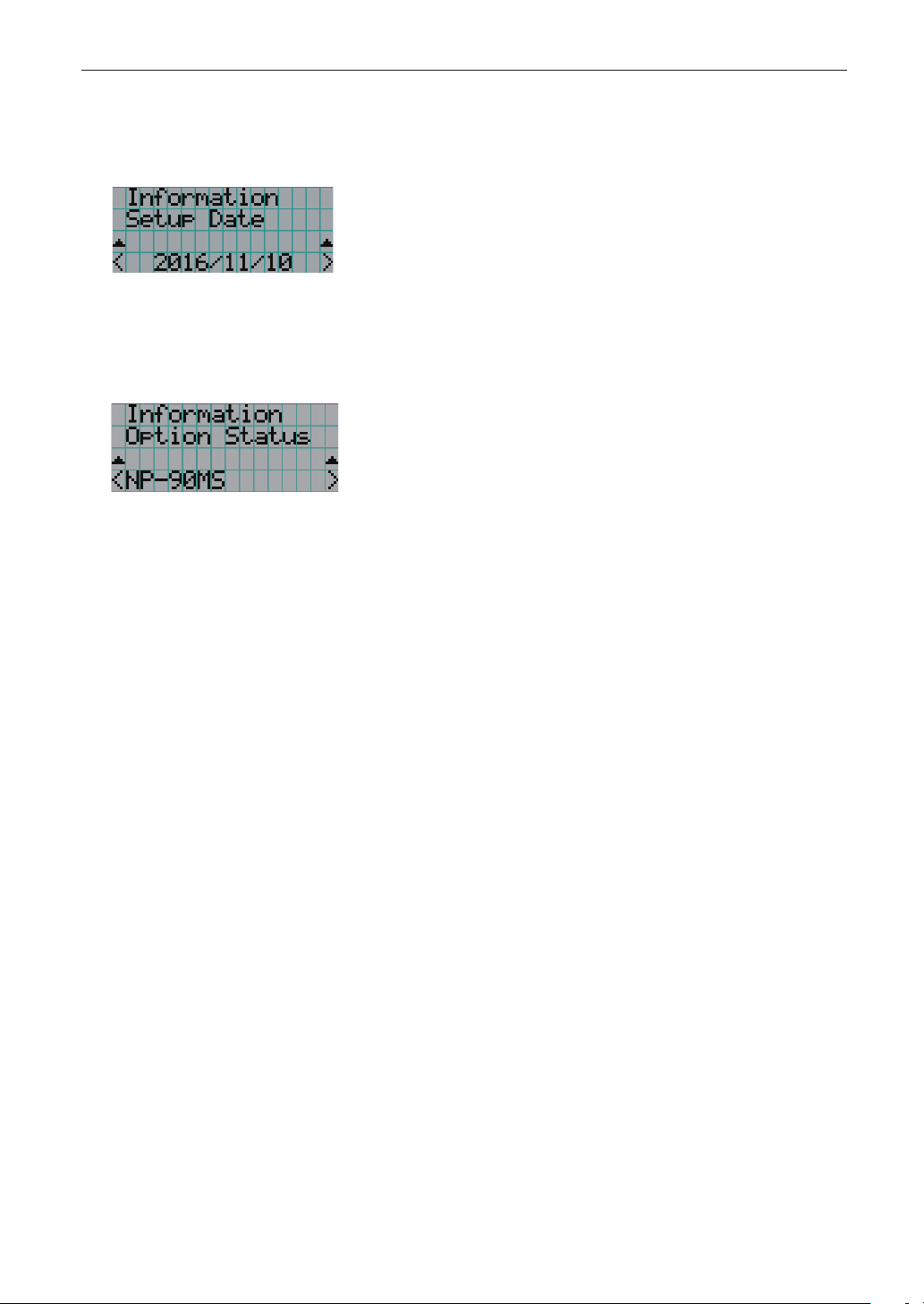
108
LCD Menu
4-5-8. Setup Date
Displays the date when the projector was setup (starting date of the warranty period).
The setup date is configured by using DCC. Refer to “Digital Cinema Communicator for S2 Installation Manual” for details.
← Displays the date when the projector was set up (starting date of the warranty period).
4-5-9. Option Status
Displays the link status of the device mounted in slot on the projector. The device name is displayed in ( ) when the projector
is in standby or when connection to the device cannot be confirmed.
← Displays the link status of the device in slot.
• NP-90MS: NP-90MS02-4K
• <Vendor Name> IMB: Media block
• No Board: No device mounted
109
5. Appendix
5-1.
List of Registered Titles (when shipped from the factory)
Preset
Button
Title
Number
TITLE NAME INPUT
FILES
Anamorphic
Lens
PCF
3D File SCREEN MCGD
FILE NAME
SOURCE TCGD
Input Size
(HxV)
Aspect
Ratio
SAME FILE NAME
Tolerance
Box
White
Clip
1 001 IMS Auto IMB DCDM_XYZ_Auto 0x0 0 DC28_DCI_XYZE_314_351 Not Use Use Disable 2048x1080 No Crop M10I OFF
2 002 IMS 2K 185 IMB DCDM_XYZ_185 1998x1080 0 DC28_DCI_XYZE_314_351 Not Use Use Disable 2048x1080 No Crop M10I OFF
3 003 IMS 2K 239 IMB DCDM_XYZ_239 2048x858 0 DC28_DCI_XYZE_314_351 Not Use Use Disable 2048x1080 No Crop M10I OFF
110
Appendix
5-2. Error Code List
Please inquire your dealer/distributor about action to be taken for each error code.
Error Code Error message Description
4 GPSU(12V) Fail Power supply is abnormal.
5 Light Unlit The light source is not on.
12 EEPROM R Fail EEPROM data read error is detected.
15 EEPROM W Fail E2PROM data write error is detected.
120 DLP Ack Fail ICP Firm failed operation.
121 Lens Fail Lens unit control error
138 ICP CriticalFail ICP Firm Critical Error
139 ICP PowerOn Fail ICP Firm Startup Error
141 DLP CommE Fail Communication error with the ICP Firm
151 Fan1 Stop Fan1 has stopped.
152 Fan2 Stop Fan2 has stopped.
153 Fan3 Stop Fan3 has stopped.
154 Fan4 Stop Fan4 has stopped.
155 Fan5 Stop Fan5 has stopped.
156 Fan6 Stop Fan6 has stopped.
157 Fan7 Stop Fan7 has stopped.
158 Fan8 Stop Fan8 has stopped.
159 Fan9 Stop Fan9 has stopped.
165 GPI MACRO(n) Selection Invalid Selection of preset button (n) through GPI is invalid
because metadata control is enabled.
* This message would be shown on Log, not on LCD.
166 GPI Control Invalid Projector control through GPI is invalid because metadata
control is busy.
* This message would be shown on Log, not on LCD.
177 Tamper Fail Service door tamper switch of projector is open.
178 Marriage Tamper Fail Marriage tamper switch of projector is open.
190 The Validity has expired. The time limit for use of the projector has expired.
* In cases when the validity setting has been configured
with the projector
191 Different Serial Number There is a mismtach in the serial number of the main unit
internally saved on the projector.
192 Different Model Code There is a mismtach in the model code of the main unit
internally saved on the projector.
217 Chiller Filter Cleaning The time to clean filter (Chiller).
245 Fan10 Stop Fan10 has stopped.
246 Fan11 Stop Fan11 has stopped.
247 Fan12 Stop Fan12 has stopped.
248 Fan13 Stop Fan13 has stopped.
249 Fan14 Stop Fan14 has stopped.
251 Fan1 Stop Precaution Fan1 Stop Precaution
252 Fan2 Stop Precaution Fan2 Stop Precaution
253 Fan3 Stop Precaution Fan3 Stop Precaution
254 Fan4 Stop Precaution Fan4 Stop Precaution
255 Fan5 Stop Precaution Fan5 Stop Precaution
256 Fan6 Stop Precaution Fan6 Stop Precaution
257 Fan7 Stop Precaution Fan7 Stop Precaution
258 Fan8 Stop Precaution Fan8 Stop Precaution
259 Fan9 Stop Precaution Fan9 Stop Precaution
264 Fan10 Stop Precaution Fan10 Stop Precaution
265 Fan11 Stop Precaution Fan11 Stop Precaution
111
Appendix
Error Code Error message Description
266 Fan12 Stop Precaution Fan12 Stop Precaution
267 Fan13 Stop Precaution Fan13 Stop Precaution
268 Fan14 Stop Precaution Fan14 Stop Precaution
271 IMB:SD Tamper Terminate Terminated service door tamper event latched by IMB.
* This message would be shown on Log, not on LCD.
301 System Error ICP status error
302 Self Test Error ICP status error
305 Key Error ICP status error
306 Certificate Error ICP status error
329 FMT Sequence Data File Mismatch ICP status error
330 FMT DMD Data File Mismatch ICP status error
333 Satellite Hardware Mismatch ICP status error
335 Red Satellite Reports Reset FSB status error
336 Red Satellite Serial Link Error ICP or FSB status error
337 Red Satellite Firmware Configuration Error ICP or FSB status error
338 Red DAD1000 Bias Under Voltage Error FSB status error
339 Red DAD1000 Reset Under Voltage Error FSB status error
340 Red DAD1000 Offset Under Voltage Error FSB status error
341 Red DAD1000 Thermal Shutdown Error FSB status error
342 Green Satellite Reports Reset FSB status error
343 Green Satellite Serial Link Error ICP or FSB status error
344 Green Satellite Firmware Configuration Error ICP or FSB status error
345 Green DAD1000 Bias Under Voltage Error FSB status error
346 Green DAD1000 Reset Under Voltage Error FSB status error
347 Green DAD1000 Offset Under Voltage Error FSB status error
348 Green DAD1000 Thermal Shutdown Error FSB status error
349 Blue Satellite Reports Reset FSB status error
350 Blue Satellite Serial Link Error ICP or FSB status error
351 Blue Satellite Firmware Configuration Error ICP or FSB status error
352 Blue DAD1000 Bias Under Voltage Error FSB status error
353 Blue DAD1000 Reset Under Voltage Error FSB status error
354 Blue DAD1000 Offset Under Voltage Error FSB status error
355 Blue DAD1000 Thermal Shutdown Error FSB status error
370 ICP Frame Memory Test Result Fail ICP self test error due to “Frame memory error”
372 ICP Data Path Signature Test Result Fail ICP self test error due to “Data Path Signature Test Result
Fail”
380 DRS Error(Low Battery) FMT board low battery
*When this error has occurred, IMB can not Marriage with
the projector.
*After this error has occurred, Integrity Error will occur
when you turn on the power again.
381 SEC Comm Fail No communication with the secure processor.
*When this error has occurred, IMB can not Marriage with
the projector.
*After this error has occurred, Integrity Error may occur
when you turn on the power again.
500 IMB Comm Fail No communication with the IMB.
510 IMB:System Error IMB Status error
511 IMB:Self Test Error IMB Status error
519 IMB:Certificate or Key Error IMB Status error
520 IMB:ICP Communications Status IMB fails to do logical marriage to projector.
537 IMB:RTC Error IMB RTC is “invalid”.
543 IMB:FPGA Temperature out of range IMB Status error
550 IMB:Supply voltage out of range IMB Status error
574 IMB:Security Tamper Security tamper condition exists in IMB.
112
Appendix
Error Code Error message Description
577 IMB:Security Battery Event A Battery Tamper event has been detected with the IMB.
581 IMB:Security Enclosure Not Armed IMB security not armed.
582 IMB:Physical Marriage Tamper The IMB has detected a break of the Marriage with the
projector.
583 IMB:Logical Marriage Tamper The IMB has detected an error with the verification of the
Marriage with the projector.
584 IMB:Marriage NOT Active The IMB has not established a marriage with the projector
586 IMB:Service Door Tamper Latched service door tamper condition on IMB
588 IMB:Security Battery Low Warning Close to “(577) IMB: Security Battery Event”.
700 OPT Comm Fail Failed to communicate with slave MCU.
701 OPT Status Fail Slave MCU is in unexpected status.
703 OPT Comm Ack Fail Slave fails to execute the command.
740 SensorFail Inlet Failed to read inlet sensor.
741 SensorFail DMD Failed to read DMD sensor.
750 OverTemp.DMD Precaution Set inside temperature (DMD) is close to over
temperature.
751 OverTemp.Inlet Precaution Set inside temperature (Inlet) is close to over temperature.
760 OverTemp.DMD Set inside temperature (DMD) is abnormal.
761 OverTemp.Inlet Set inside temperature (Inlet) is abnormal.
762 OverTemp.Light Set inside temperature (Light) is abnormal.
783 EepromFail Slave MCU failed to read back all of data from EEPROM
on slave MCU board due to unexpected data or
something.
(Slave board internal abnormality)
791 FanInitError Failed to initialize fans.
792 ExGpioFail Failed to control the signal connecting to Ballast.
(Slave board internal abnormality)
800 Fan15 Stop Fan15 has stopped.
801 Fan16 Stop Fan16 has stopped.
802 Pump Stop Pump has stopped.
804 PhosphorWheel Stop Phosphor Wheel has stopped.
805 Diffuser1 Wheel Stop Diffuser1 Wheel has stopped.
806 Fan17 Stop Fan17 has stopped.
810 Fan15 Stop Precaution Fan15 Stop Precaution
811 Fan16 Stop Precaution Fan16 Stop Precaution
812 Pump Stop Precaution Pump Stop Precaution
814 PhosphorWheel Stop Precaution Phosphor Wheel Stop Precaution
815 Diffuser1 Wheel Stop Precaution Diffuser1 Wheel Stop Precaution
816 Fan17 Stop Precaution Fan17 Stop Precaution
906 LD Version Read Fail Failed to read Laser Driver Software version.
913 TiltDegreeOver Projector tilt degree is out of spec.
To clear this warning, turn off and AC-OFF the projector,
then setup projector with proper tilt angle within the spec.
914 LowerTemp Set inside temperature (Inlet) is lower temperature.
933 SensorFail PhosphorWheel Set inside temperature (Phosphor Wheel) is abnormal.
953 OverTemp.PhosphorWheel Precaution Set inside temperature (Phosphor Wheel) is close to over
temperature.
973 OverTemp.PhosphorWheel Set inside temperature (Phosphor Wheel) is abnormal.
982 ColorSensorFail Failed to control color sensor.
984 GSensorError Failed to control G-sensor.
985 LD CommError In I2C communication between slave uC and LD (Laser
Driver) uC, no ack from LD uC.
(Slave uC: I2C slave, LD uC: I2C host)
988 LensInstallSWOpen Lens install switch is open.
989 BrightnessLow Brightness has lowered.
113
Appendix
Error Code Error message Description
990 LaserBDEepromFail Data check sum error in EEPROM on LD board.
992 LDMCULockUp LD uC is locked up.
993 54VError 54V is abnormal.
995 LDEepromFail Communication error with the EEPROM on LD board.
996 KEY Switch Off The laser unit laser administrator switch is off.
1000 Slave Comm Fail Failed to communicate with slave MCU.
1003 Slave Comm Ack Fail Slave fauls to execut the command.
1004 Slave Power Ready Fail Slave Power Ready error
1005 Slave No Notify Slave Power Notify error
1500 P3P3V SAT PGOOD Fail Error detected with 3.3V power supply for FSB
1501 P2P5V SAT PGOOD Fail Error detected with 2.5V power supply for FSB
1502 XVT PGOOD Fail Error detected with DDR power supply for FMT FPGA
1503 P2P5V X PGOOD Fail Error detected with 2.5V power supply for FMT FPGA
1504 P1P8V X PGOOD Fail Error detected with 1.8V power supply for FMT FPGA
1505 P1V X PGOOD Fail Error detected with 1V power supply for FMT FPGA
1506 FMT FPGA DONE Fail FMT FPGA Configuration Error
1509 EXGPIO IC602 Fail I2C Device Access Error
1510 EXGPIO IC603 Fail I2C Device Access Error
1511 EXGPIO IC604 Fail I2C Device Access Error
1512 EEPROM IC2800 Write Fail I2C Device Access Error
1513 EEPROM IC601 Read Fail I2C Device Access Error
1514 EEPROM IC601 Write Fail I2C Device Access Error
1515 EEPROM IC601 Write Fail(Verify) I2C Device Access Error
1538 EEPROM IC2800 Read Fail I2C Device Access Error
1550 EEPROM IC2800 Write Fail Verify I2C Device Access Error
2000 IntegrityFail Integrity error with the internal software code of the
projector.
* When this error has occurred, the projector will not
accept any external demands. Communication with
external devices will not be performed either.
2010 Incorrect power-off PowerOff was not performed correctly last time.
2100 Diffuser2 Wheel Stop Diffuser2 Wheel has stopped.
2101 Diffuser2 Wheel Stop Precaution Diffuser2 Wheel Stop Precaution
2110 OverTemp.LS_G1 Precaution Set inside temperature (LS_G1) is close to over
temperature.
2111 OverTemp.LS_G2 Precaution Set inside temperature (LS_G2) is close to over
temperature.
2112 OverTemp.LS_G3 Precaution Set inside temperature (LS_G3) is close to over
temperature.
2113 OverTemp.LS_G4 Precaution Set inside temperature (LS_G4) is close to over
temperature.
2114 OverTemp.LS_B Precaution Set inside temperature (LS_B) is close to over
temperature.
2115 OverTemp.LS_R Precaution Set inside temperature (LS_R) is close to over
temperature.
2120 OverTemp.LS_G1 Set inside temperature (LS_G1) is abnormal.
2121 OverTemp.LS_G2 Set inside temperature (LS_G2) is abnormal.
2122 OverTemp.LS_G3 Set inside temperature (LS_G3) is abnormal.
2123 OverTemp.LS_G4 Set inside temperature (LS_G4) is abnormal.
2124 OverTemp.LS_B Set inside temperature (LS_B) is abnormal.
2125 OverTemp.LS_R Set inside temperature (LS_R) is abnormal.
2130 SensorFail LS_G_Module1 Failed to read LS_G_Module1 sensor.
2131 SensorFail LS_G_Module2 Failed to read LS_G_Module2 sensor.
2132 SensorFail LS_G_Module3 Failed to read LS_G_Module3 sensor.
2133 SensorFail LS_G_Module4 Failed to read LS_G_Module4 sensor.

114
Appendix
Error Code Error message Description
2134 SensorFail LS_B_Module Failed to read LS_B_Module sensor.
2135 SensorFail LS_R_String Failed to read LS_R_String sensor.
2140 Chiller On Fail Failed to turn on chiller
2141 Chiller Pump over loading Chiller Pump is abnormal.
2142 Chiller Compressor over loading Chiller Compressor is abnormal.
2143 Chiller Refrigerant pressure too high Chiller Refrigerant pressure too high
2144 Chiller Coolant pressure too low Chiller Coolant pressure too low
2145 Chiller Refrigerant pressure too low Chiller Refrigerant pressure too low
2146 Chiller Cooling liquid flowing error Chiller Cooling liquid flowing is abnormal.
2147 Chiller Cooling Fan Error Chiller Cooling Fan is abnormal.
2148 Chiller communication Fail Communication error with Chiller
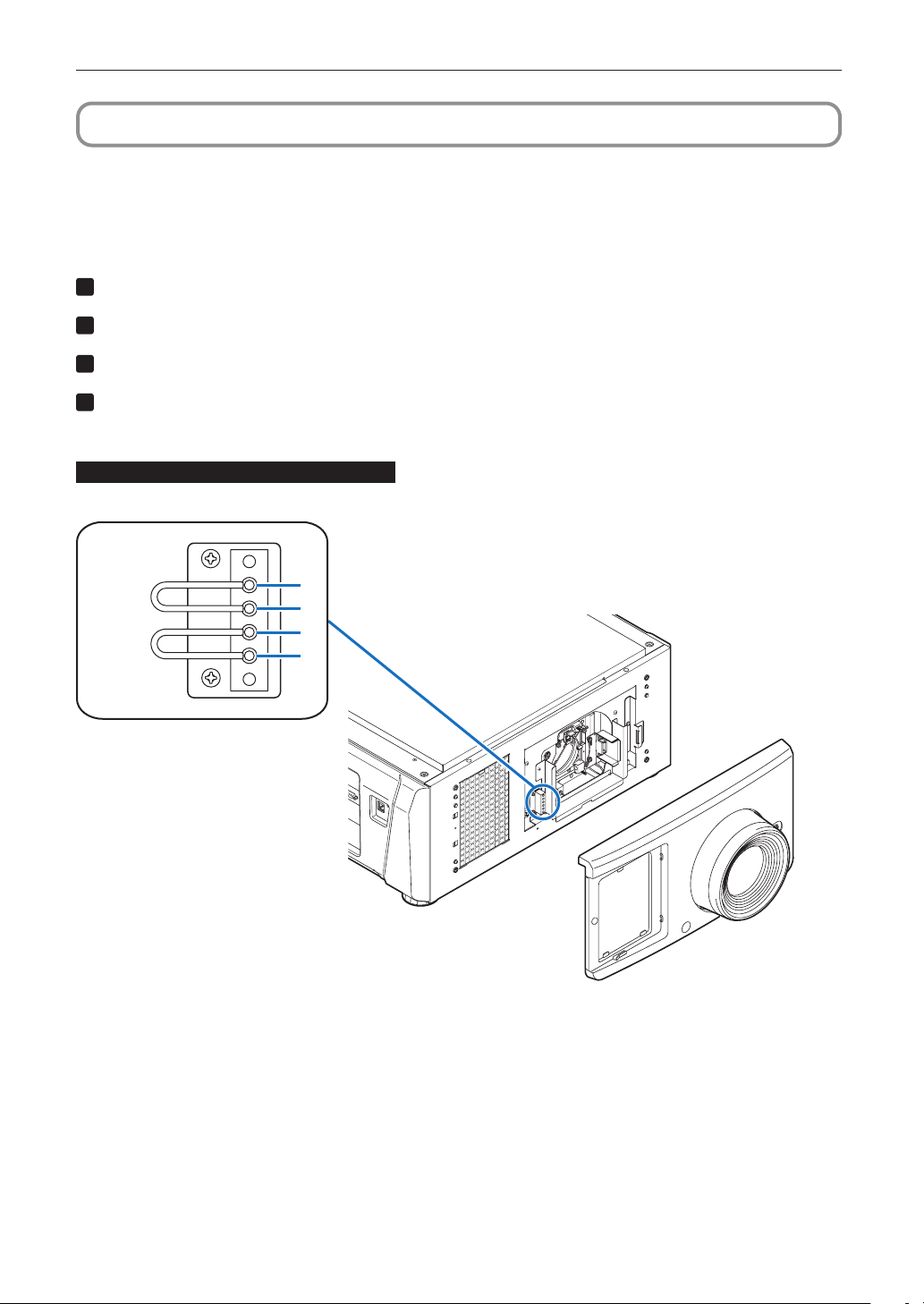
115
Appendix
5-3.
Remote Interlock Connector
This connector functions as safety device for the projector. The contacts are normally closed. When an abnormality occurs,
the contacts open to immediately stop the projector (interlock state) (shipped with a shorting wire installed). By replacing the
shorting wire with wiring and attaching it to the contacts, the projector can be immediately stopped remotely when an
abnormality occurs in the projector.
Follow the following procedure to recover from the interlock state.
1
Disconnect the AC power supply to the projector body.
2
Remove the front cover (page 45).
3
Connect the contacts to the remote interlock connector and attach the front cover.
4
Connect the AC power supply to the projector body.
Remote interlock connector (exterior view)
Remote interlock connector
4
3
2
1
Shorting
wire 1
Shorting
wire 2
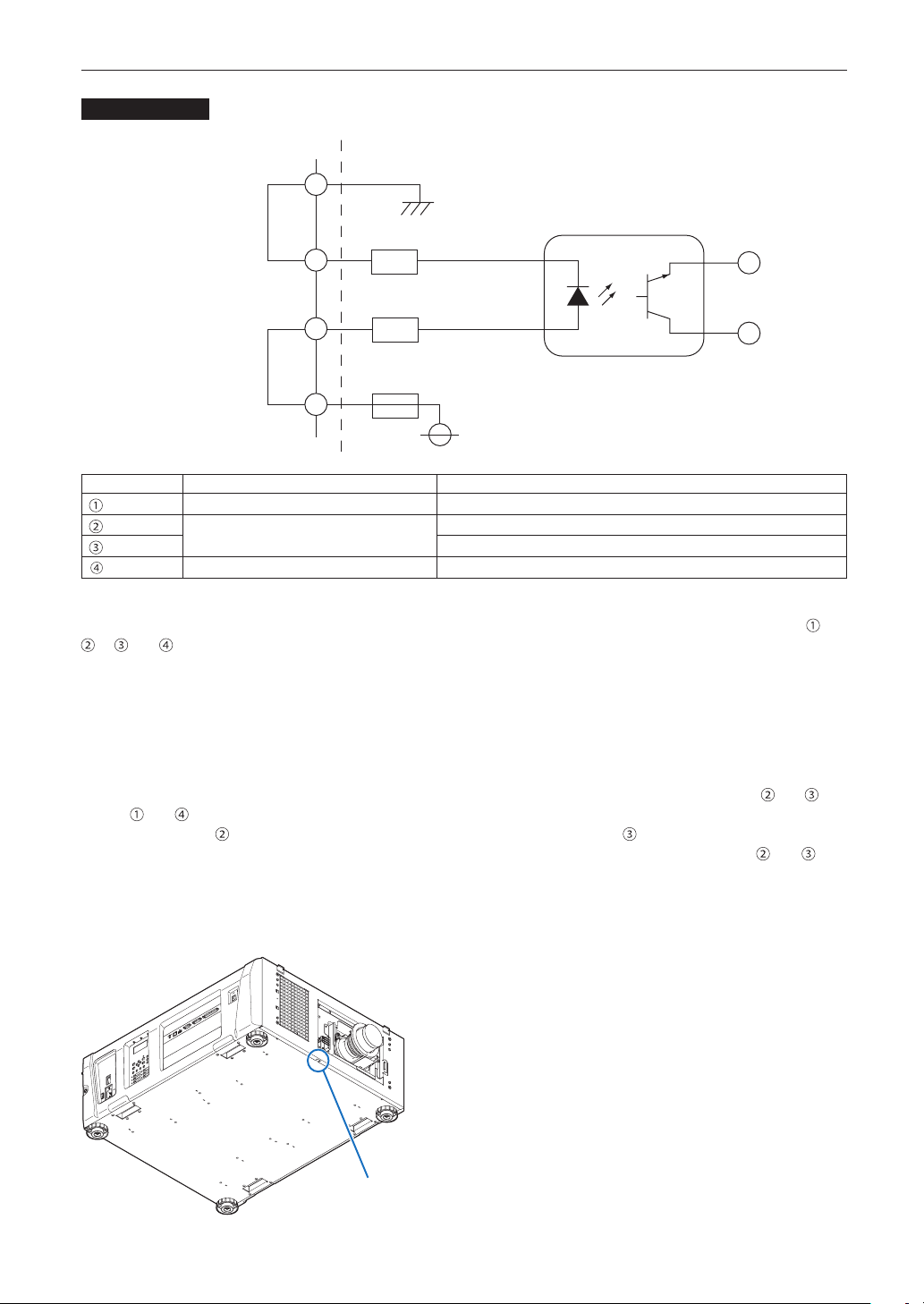
116
Appendix
Circuit diagram
Shorting wire 1
Shorting wire 2
Interlock connector Inside projector
390Ω/0.5W resistor
390Ω/0.5W resistor
GND
4
3
2
1
100mA fuse
VCC +5V
Photocoupler
Connector no. Photocoupler ON/OFF Description
— +5V supply
ON/OFF Connects to the photocoupler anode inside the projector
Connects to the photocoupler cathode inside the projector
— Ground
• When the length of the wiring is less than 5 m (approximate)
Remove shorting wire 1 or shorting wire 2 and connect the external contacts (switch) to the projector interlock terminal ( and
or and ) by cable.
- The projector operates normally when the contacts are closed and the system shuts off when the contacts are open.
- A power supply external from the projector is not necessary.
- A maximum of 2 sets of external contacts can be connected. If you are only using a single set of external contacts,
connecting the shorting wire to the interlock terminal you are not using.
- The minimum rating required of the external contacts is 5mA.
• When the length of the wiring is at least 5 m (approximate)
Remove shorting wire 1 and shorting wire 2 and connect the external device to the projector interlock terminals ( and ) (do
not use
and ).
- Connect terminal
to the positive side of the external device and connect terminal to the negative side.
- The projector operates normally when a voltage in the range of DC5 to 16V is applied between terminals
and , and
the system shuts off when the voltage is 0V.
- The minimum rated current required of the external device varies depending on the voltage applied between the terminals
by the external device.
- When feeding the cable out from the projector, feed it so that it passes through the hole on the front face of the projector.
Pull the cable through here.

117
Appendix
Numbers
3D Connector ..................................................................... 96
A
Adjust .................................................................................. 92
Auto Key Lock ..................................................................... 96
B
Baudrate ............................................................................101
C
Ceiling .......................................................................... 83, 99
Chiller ................................................................................. 94
Chiller Fan .......................................................................... 95
Chiller Unit .......................................................................... 76
Conguration ...................................................................... 92
Connector ........................................................................... 53
D
Date setting ......................................................................... 82
Date/Time ..........................................................................101
Diffuser ............................................................................... 94
Douser Count ..................................................................... 95
Douser Setup ...................................................................... 95
E
Error Code ................................................................ 106, 110
Ethernet port....................................................................... 88
F
FactoryDefault .................................................................... 93
Fan Speed Mode .............................................................. 102
Fan Usage .......................................................................... 94
FilterCleaning...................................................................... 93
Focus ........................................................................... 84, 92
Front cover ................................................................... 43, 45
I
Image Orient ....................................................................... 99
IMB ..............................................................60, 99, 107, 108
Information ........................................................................ 105
Installation .......................................................................... 99
IP Address ........................................................................ 107
K
Key lock .............................................................................. 43
L
LCD menu .......................................................................... 89
LD Calibrate ...................................................................... 102
Lens adjustment ................................................................. 84
Lens Calibrate ................................................................... 100
Lens Center ...................................................................... 100
Lens Control ....................................................................... 92
Lens Position ...................................................................... 92
Lens Type .................................................................100, 105
Lens unit ...................................................................... 38, 57
Lens zoom magnication .................................................... 40
Level adjuster ..................................................................... 50
Light .................................................................................... 94
Light Output ...................................................................... 105
List of titles ........................................................................ 109
M
Media block..................................................60, 99, 107, 108
Message ............................................................................. 97
O
Off Timer ............................................................................. 97
Option board .......................................................... 60, 87, 99
Option lens .................................................................. 41, 57
Option Slot .......................................................................... 99
Option Status .................................................................... 108
Orientation .......................................................................... 99
P
Panel Key Lock ................................................................... 96
PC control terminal ............................................................. 88
5-4. Index

118
Appendix
Phosphor ............................................................................ 94
Power cable ........................................................................ 51
Power Cable for the Chiller Unit .......................................... 64
Preset Button ............................................................104, 105
Projection method ............................................................... 83
Projector cover .................................................................... 43
R
Remote interlock connector ...............................................115
Reset .................................................................................. 93
RS-232 ............................................................................... 88
S
Sensor Calib. .................................................................... 102
Service Adj. ....................................................................... 102
Service personnel menu ..................................................... 90
Setup .................................................................................. 95
Setup Date ........................................................................ 108
Side cover .................................................................... 43, 47
Silent Mode ......................................................................... 98
System .............................................................................. 107
T
Tamper error ....................................................................... 79
Test Pattern ......................................................................... 91
Time setting ........................................................................ 82
Title Memory ....................................................................... 91
Title Select .......................................................................... 91
Title Setup ........................................................................ 104
U
Usage ............................................................................... 106
V
Version .............................................................................. 107
Z
Zoom ........................................................................... 84, 92

© NEC Display Solutions, Ltd. 2017
Ver. 1.0 4
/17