

i
Introduction ............................................................................................................................................... iii
Important Information .......................................................................................................................... iv
1. Check the product overview, supplied items and part names .......................................... 1
1-1. Introduction to the Projector ............................................................................................................ 1
1-2. What’s in the Box? ................................................................................................................................. 4
1-3. Part Names of the Projector .............................................................................................................. 5
1-4. Part Names of the Remote Control .............................................................................................. 10
2. Projecting an Image (Basic Operation) ..................................................................................... 15
2-1. Flow of Projecting an Image .......................................................................................................... 15
2-2. Connecting Your Computer/Connecting the Power Cord .................................................. 16
2-3. Turning on the Projector ................................................................................................................. 18
2-4. Selecting a Source ............................................................................................................................. 20
2-5. Adjusting the Picture Size and Position ..................................................................................... 22
2-6. Correcting Keystone Distortion [KEYSTONE] ........................................................................... 28
2-7. Optimizing Computer Signal Automatically ............................................................................ 32
2-8. Turning Up or Down Volume ......................................................................................................... 32
2-9. Turning o the Projector ................................................................................................................. 33
2-10. When Moving the Projector ......................................................................................................... 34
3. Convenient Features ......................................................................................................................... 35
3-1. Turning o the Image and Sound ................................................................................................ 35
3-2. Freezing a Picture ............................................................................................................................... 35
3-3. Magnifying a Picture ......................................................................................................................... 36
3-4. Changing Eco Mode/Checking Energy-Saving Eect .......................................................... 37
3-5. Correcting distortion of projected image ................................................................................. 39
3-6. Preventing the Unauthorized Use of the Projector [SECURITY] ........................................ 45
4. Using On-Screen Menu ..................................................................................................................... 48
4-1. Using the Menus ................................................................................................................................ 48
4-2. List of Menu Items ............................................................................................................................. 50
4-3. Menu Descriptions & Functions [INPUT] ................................................................................... 54
4-4. Menu Descriptions & Functions [ADJUST] ................................................................................ 55
4-5. Menu Descriptions & Functions [SETUP] ................................................................................... 63
4-6. Menu Descriptions & Functions [INFO.] ..................................................................................... 80
4-7. Menu Descriptions & Functions [RESET] ................................................................................... 82
Table of Contents

ii
Table of Contents
5. Making Connections .......................................................................................................................... 83
5-1. Connecting Your Computer ........................................................................................................... 83
5-2. Connecting to a DVD player and other AV devices ............................................................... 86
5-3. Connecting to a Wired LAN ............................................................................................................ 88
5-4. Connecting to a Wireless LAN (Optional: NP05LM series) ................................................... 89
5-5. Portrait projection (vertical orientation) ................................................................................... 92
6. Using the VIEWER ............................................................................................................................... 95
6-1. Things you can do with the VIEWER ............................................................................................ 95
6-2. Projecting the pictures on a USB memory (basic operation) ............................................. 96
6-3. Slide screen operations .................................................................................................................. 100
6-4. File list screen operations .............................................................................................................. 101
6-5. Option menu ..................................................................................................................................... 103
6-6. Changing the logo data (background image) ....................................................................... 104
7. Connecting to a Network ............................................................................................................. 106
7-1. Things you can do by connecting the projector to a network ........................................ 106
7-2. Connecting to MultiPresenter ..................................................................................................... 107
7-3. NETWORK SETTINGS ....................................................................................................................... 109
7-4. HTTP server function ...................................................................................................................... 115
8. Maintenance ..................................................................................................................................... 119
8-1. Cleaning the Lens ............................................................................................................................ 119
8-2. Cleaning the Cabinet ...................................................................................................................... 120
9. Appendix ............................................................................................................................................. 121
9-1. Setting Up the Screen and the Projector ................................................................................. 121
9-2. Compatible Input Signal List ........................................................................................................ 131
9-3. Specications .................................................................................................................................... 133
9-4. Cabinet Dimensions ........................................................................................................................ 136
9-5. Pin assignments and signal names of main terminals ........................................................ 137
9-6. PC Control Codes and Cable Connection ................................................................................ 139
9-7. About the ASCII Control Command .......................................................................................... 141
9-8. Troubleshooting ............................................................................................................................... 143
9-9. Indicator Message ............................................................................................................................ 146
9-10. Setting the date and time in the projector .......................................................................... 150
9-11. Troubleshooting Check List ....................................................................................................... 152
9-12. REGISTER YOUR PROJECTOR! (for residents in the United States, Canada, and
Mexico) ................................................................................................................................................... 154

iii
Thank you for purchasing the NEC projector.
This projector can be connected to computers, video devices, etc. to project images sharply onto
a screen.
Please read this manual carefully before using your projector and keep the manual handy for future
reference.
Read this user’s manual if you have any doubts about operation or if you believe the projector may
be faulty.
Ver.1 5/19
NOTES
(1) The contents of this user’s manual may not be reprinted in part or whole without permission.
(2) The contents of this user’s manual are subject to change without notice.
(3) Great care has been taken in the preparation of this user’s manual; however, should you notice
any questionable points, errors or omissions, please contact us.
(4) Notwithstanding article (3), NEC will not be responsible for any claims on loss of prot or other
matters deemed to result from using the Projector.
Introduction
iv
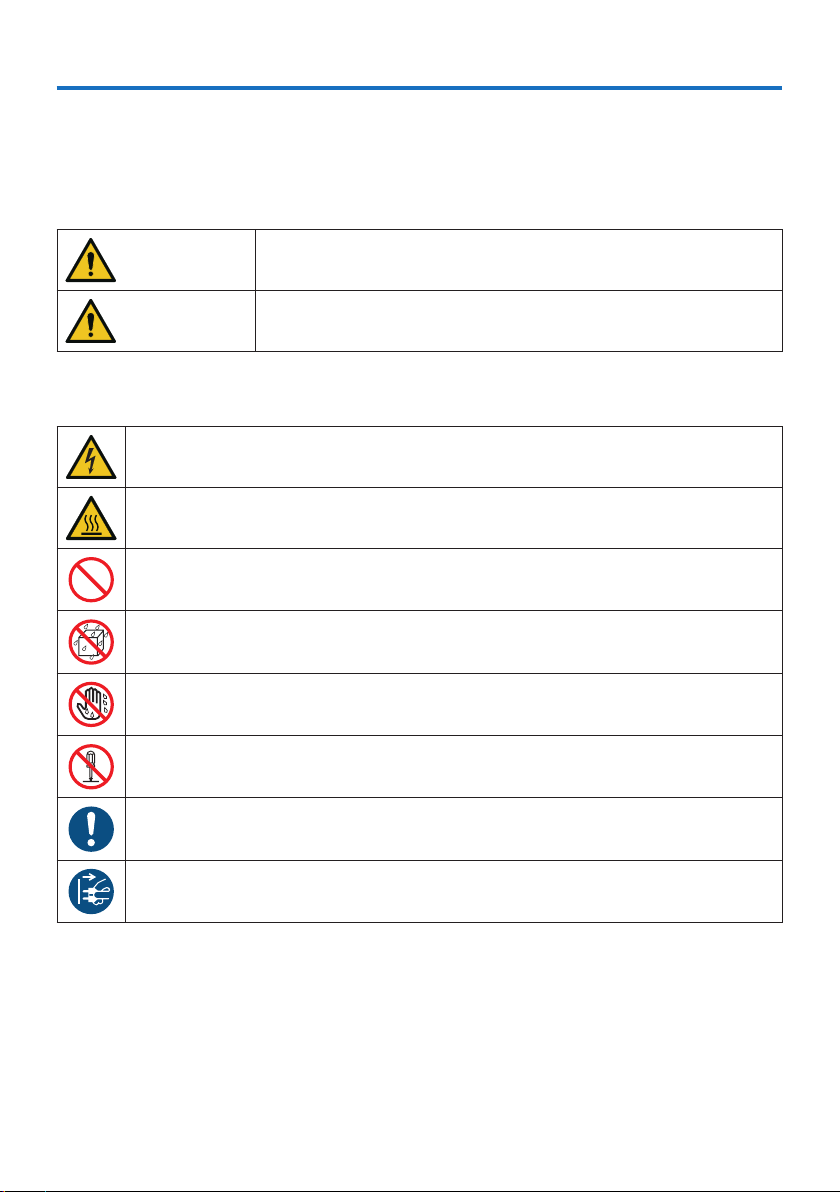
About the symbols
To ensure safe and proper use of the product, this manual uses a number of symbols to prevent
injury to you and others as well as damage to property.
The symbols and their meanings are described below. Be sure to understand them thoroughly
before reading this manual.
WARNING
Failing to heed this symbol and handling the product erroneously
could result in accidents leading to death or major injury.
CAUTION
Failing to heed this symbol and handling the product erroneously
could result in personal injury or damage to surrounding property.
Examples of symbols
This symbol indicates you should be careful of electric shocks.
This symbol indicates you should be careful of high temperatures.
This symbol indicates something that must be prohibited.
This symbol indicates something that must not be got wet.
This symbol indicates you should not touch with wet hands.
This symbol indicates something that must not be disassembled.
This symbol indicates things you must do.
This symbol indicates that the power cord should be unplugged from the power outlet.
Important Information
Important Information
v
Safety Cautions
WARNING
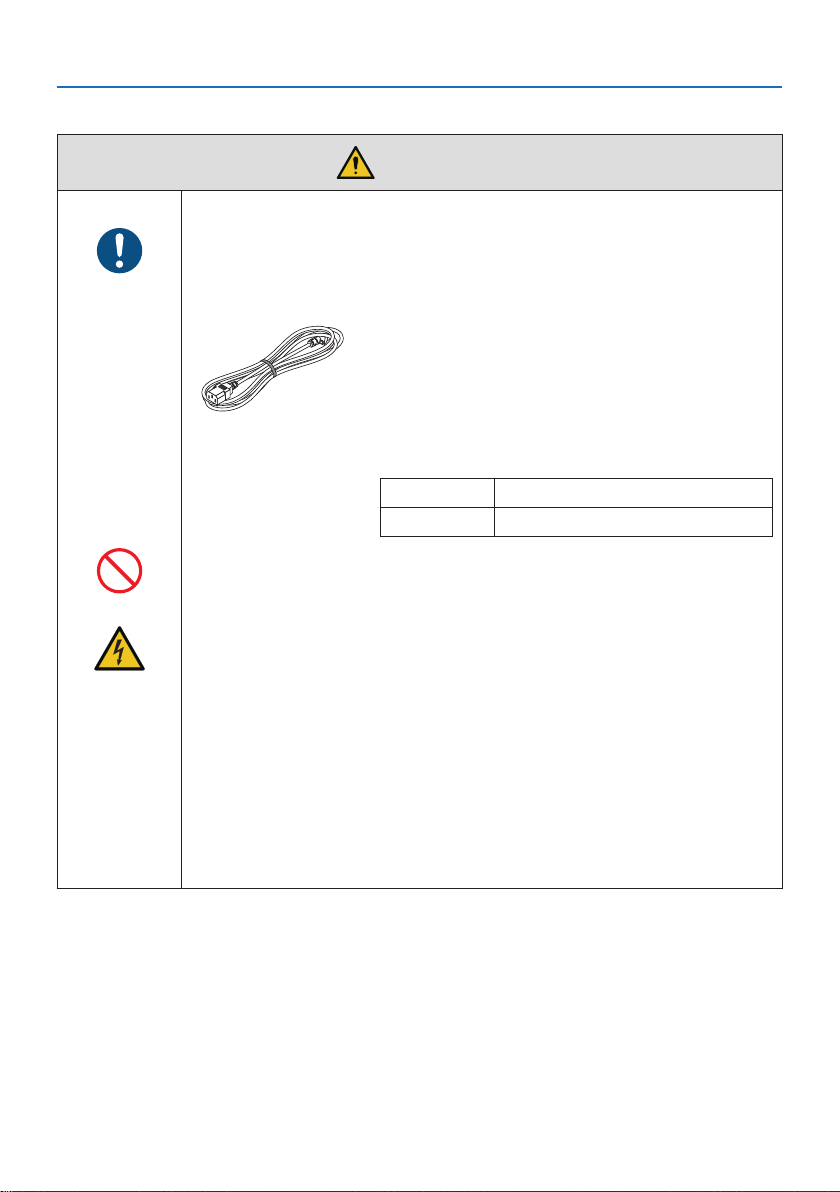
Handling the power cord
BE SURE TO DO
•Pleaseusethepowercordsuppliedwiththisprojector.Ifthesuppliedpower
cord does not satisfy requirements of your country’s safety standard, and
voltage and current for your region, make sure to use the power cord that
conforms to and satises them.
•Thepowercordyouusemustbeapprovedbyand
comply with the safety standards of your country.
Please refer to the page 134 about the power cord
specication.
Rated voltage by country is listed below for your refer-
ence. For selecting an appropriate power cord, please
check rated voltage for your region by yourself.
AC 230 V European countries
AC 120 V North America
PROHIBITION
•Thepowercordincludedwiththisprojectorisexclusivelyforusewiththis
projector. For safety, do not use it with other devices.
HAZARDOUS
VOLTAGE
•Handlethepowercordwithcare.Damagingthecordcouldleadtoreor
electric shock.
- Do not place heavy objects on the cord.
- Do not place the cord under the projector.
- Do not cover the cord with a rug, etc.
- Do not scratch or modify the cord.
- Do not bend, twist or pull the cord with excessive force.
- Do not apply heat to the cord.
Should the cord be damaged (exposed core wires, broken wires, etc.), ask
your dealer to replace it.
•Donottouchthepowerplugshouldyouhearthunder.Doingsocouldresult
in electric shock.
Important Information
vi
Installing the Projector
BE SURE TO DO
•Thisprojectorisdesignedtobeusedwitha100–240VAC,50/60Hzpower
supply. Before using the projector, check that the power supply to which the
projector is to be connected meets these requirements.
•Useapoweroutletastheprojector’spowersupply.Donotconnectthe
projector directly to electrical light wiring. Doing so is dangerous.
PROHIBITION
•Donotuseinplacessuchasthosedescribedbelow.Doingsocouldleadto
re or electric shock.
- Shaky tables, inclined surfaces or other unstable places
- Near heating appliances or places with heavy vibrations
- Outdoors or humid or dusty places
- Places exposed to oil smoke or steam
- Near cooking appliances, humidiers, etc.
DO NOT WET
•Donotuseinplacessuchasthosedescribedbelowwheretheprojectorcould
get wet. Doing so could lead to re or electric shock.
- Do not use in the rain or snow, on a seashore or waterfront, etc.
- Do not use in a bathroom or shower room.
- Do not place vases or potted plants on the projector.
- Do not place cups, cosmetics or medicines on the projector.
Should water, etc. get inside the projector, rst turn o the projector’s power,
then unplug the power cord from the power outlet and contact your dealer.
UNPLUG THE
POWER CORD
•Donotinsertordropmetalorcombustibleobjectsorotherforeignmaterials
into the projector from the vents. Doing so could lead to re or electric shock.
Be particularly careful if there are children in the home. Should a foreign object
get inside the projector, rst turn o the projector’s power, then unplug the
power cord from the power outlet and contact your dealer.
Unplug the power cord if the projector malfunctions.
UNPLUG THE
POWER CORD
•Shouldtheprojectoremitsmokeorstrangeodorsorsounds,oriftheprojector
has been dropped or the cabinet broken, turn o the projector’s power, then
unplug the power cord from the power outlet. Failure to do so could not only
lead to re or electric shock, it could also result in vision impairment. Contact
your dealer for repairs.
Never try to repair the projector on your own. Doing so is dangerous.
Do not disassemble the projector.
DO NOT
DISASSEMBLE
•Donotremoveoropentheprojector’scabinet.
Also, do not modify the projector. There are high voltage areas in the projector.
Modifying the projector could lead to re, electric shock or leakage of laser
beams.
Have qualied service personnel perform inspection, adjustments and repairs
of the interior.
Important Information
vii
Installing suspended from the ceiling
CAUTION
•Shouldspecialworksberequired,forexampletosuspendtheprojectorfrom
the ceiling, consult your dealer.
Never try to install the projector yourself in such cases. The projector could
drop and cause injury.
Suspending the projector from the ceiling requires sucient ceiling strength
to support the projector, and the building standards laws in your particular
country must be followed.
It is also necessary to take measures to prevent the projector from dropping
in anticipation of a malfunction occurring in the projector, ceiling mounting
device and installation location.
•Wheninstalledsuspendedfromtheceiling,etc.donothangfromtheprojec-
tor. The projector could drop and cause injury.
•Wheninstallingsuspendedfromtheceiling,useapoweroutletthatiswithin
reach so the power cord can be easily plugged and unplugged.
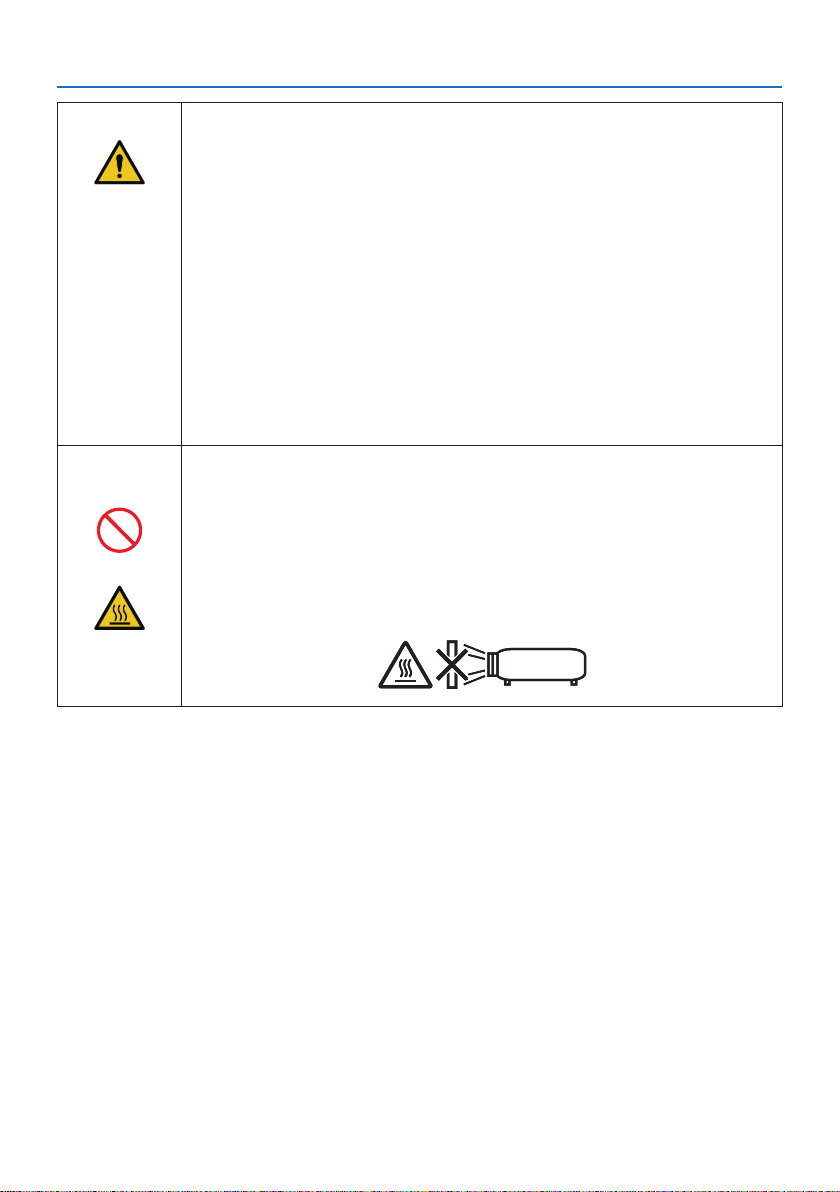
Do not place objects in front of the lens while the projector is
operating.
PROHIBITION
•Donotleavethelenscaponthelenswhiletheprojectorisoperating.The
lens cap could get hot and be warped.
•Donotplaceobjectsinfrontofthelensthatobstructthelightwhilethe
projector is operating. The object could get hot and be broken or catch re.
•Thebelowpictogramindicatedonthecabinetmeanstheprecautionfor
avoiding to place objects in front of the projector lens.
CAUTION
FOR HIGH
TEMPERATURE
Important Information
viii
About the projector’s light source
PROHIBITION
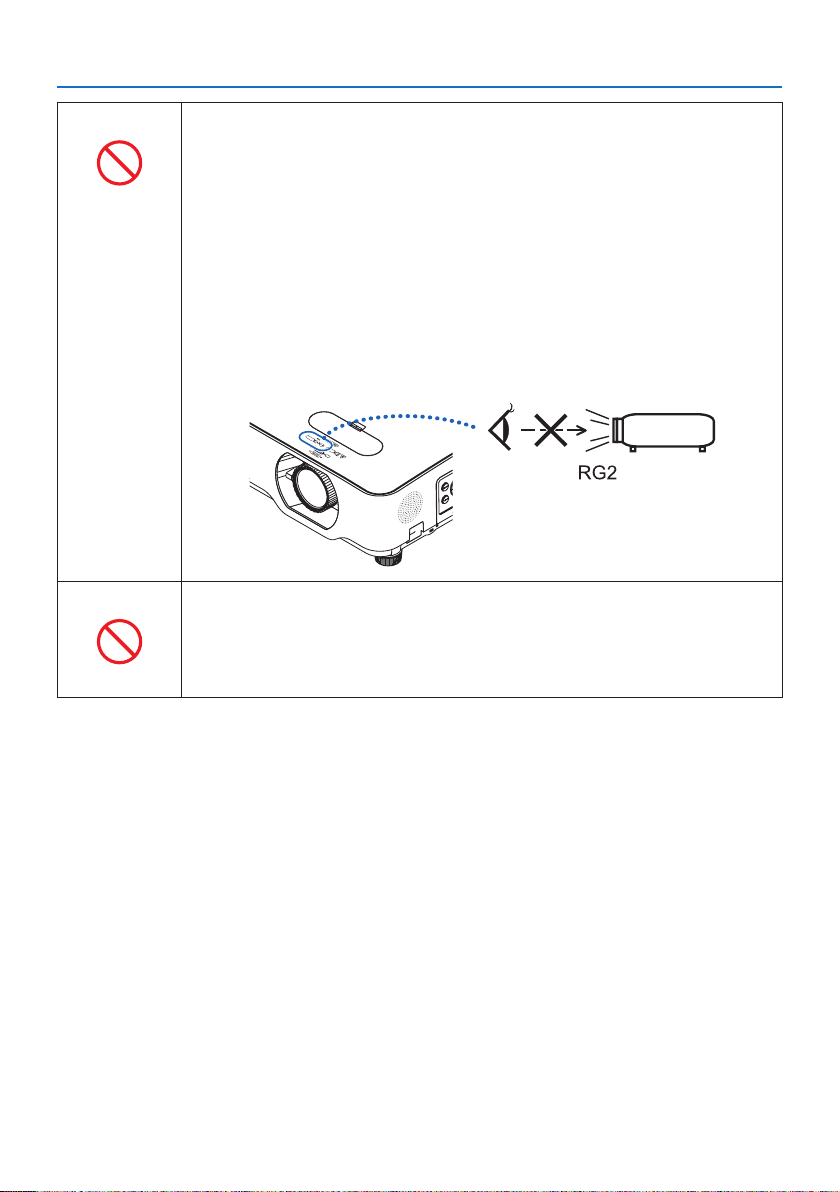
•Donotlookintotheprojector’slens.
Strong light that could damage your eyes is projected when the projector is
operating. Be especially careful when children are around.
•Donotlookattheprojectedlightusingopticaldevices(magnifyingglasses,
reectors, etc.). Doing so could result in vision impairment.
•Checkthatthereisnoonelookingatthelenswithintheprojectionrange
before turning on the projector.
•Donotallowchildrentooperatetheprojectoralone.Whenachildisoperating
the projector an adult should always be present and watch the child carefully.
• Thebelowpictogram,thatisindicatednearthelensonthecabinet,describes
this projector is categorized in the risk group 2 of IEC 62471-5:2015. As with
any bright light source, do not stare into the beam, RG2 IEC 62471-5:2015.
When cleaning the projector
PROHIBITION
•Donotuseammablegasspraystoremovedustfromthelens,cabinet,etc.
Doing so could lead to re.
Important Information
ix
CAUTION
Connecting the power cord to earth
BE SURE TO DO
•Thisequipmentisdesignedtobeusedintheconditionofthepowercord
connected to earth. If the power cord is not connected to the earth, it may
cause electric shock. Please make sure the power cord is earthed properly.
Do not use a 2-core plug converter adapter.
Handling the power cord
BE SURE TO DO
•Whenconnectingthepowercordtotheprojector’sACINterminal,makesure
the connector is fully and rmly inserted. Loose connection of the power cord
could lead to re or electric shock.
DO NOT TOUCH
WITH WET
HANDS
•Donotconnectordisconnectthepowercordwithwethands.Doingsocould
result in electric shock.
UNPLUG THE
POWER CORD
•Whencleaningtheprojector,forsafetypurposesunplugthepowercordfrom
the power outlet beforehand.
•Whenmovingtheprojector,rstbesuretoturnothepower,unplugthe
power cord from the power outlet and check that all connection cables con-
necting the projector to other devices have been disconnected.
•Whenplanningnottousetheprojectorforlongperiodsoftime,always
unplug the power cord from the power outlet.
Do not use on networks subject to overvoltage.
PROHIBITION
•Connecttheprojector’sLANporttoanetworkforwhichthereisnoriskof
overvoltage being applied.
Overvoltage applied to the LAN port could result in electric shock.
Lens shift, focus and zoom operations
BE SURE TO DO
•Whenshiftingthelensoradjustingthefocusorzoom,dosofromeither
behind or to the side of the projector. If these operations are performed from
the front, your eyes could be exposed to strong light and get injured.
•Keepyourhandsawayfromthelensareawhenperformingthelensshiftop-
eration. If not, your ngers could get caught in the gap between the cabinet
and the lens.
Important Information
x
Handling batteries
PROHIBITION
•Handlebatterieswithcaution.Failuretodosocouldleadtore,injuryor
contamination of the surroundings.
- Do not short-circuit or take apart batteries or dispose of them in ames.
- Do not use batteries other than those specied.
- Do not use new batteries together with old ones.
- When inserting batteries, pay attention to the polarities (+ and − directions),
and be sure to insert them as indicated.
•Contactyourdealerorlocalauthoritieswhendisposingofbatteries.
About the vents
PROHIBITION
•Donotobstructtheprojector’svents.Also,donotplacesuchsoftobjectsas
paper or cloths underneath the projector. Doing so could lead to re.
Leave sucient space between the place where the projector is installed and
its surroundings (as a general rule, at least 10 cm/4 inches for the intake vent,
20 cm/8 inches for the exhaust vent).
•Donottouchtheexhaustventareawhileprojectingorimmediatelyafter
projecting images. The exhaust vent area may be hot at this time and touch-
ing it could cause burns.
CAUTION
FOR HIGH
TEMPERATURE
Moving the projector
PROHIBITION
•Whenmovingtheprojector,donotholdthelenssection.Thefocusring
could turn, causing the projector to drop and resulting in injury. Also, if you
put your hand on the gap between the cabinet and the lens, the projector
may be damaged, falling and causing injury.
Inspecting the projector and cleaning the inside
BE SURE TO DO
•Consultwithyourdealeraboutonceperyearforcleaningoftheinsideofthe
projector. Dust could accumulate inside of the projector if it is not cleaned
for extended periods of time, leading to res or malfunction.

Important Information
xi
Laser Safety Caution
WARNING
CLASS 2 OF IEC 60825-1 SECOND EDITION LASER PRODUCT
•LASERRADIATION-DONOTSTAREINTOBEAM.
•Useofcontrolsoradjustmentsorperformanceofproceduresotherthanthosespeciedherein
may result in hazardous radiation exposure.
•For USA
This product is classied as Class 2 of IEC 60825-1 Second edition 2007-03.
Complies with FDA performance standards for laser products except for deviations pursuant to
Laser Notice No. 50, dated June 24, 2007.
For other regions
This product is classied as Class 1 of IEC 60825-1 Third edition 2014-05 and RG2 of IEC 62471-5
First edition 2015-06.
Obey the laws and regulations of your country in relation to the installation and management of
the device.
•Outlineoflaseremittedfromthebuilt-inlightmodule:
•Wavelength:449–461nm
•Maximumpower:82.5W
•Radiationpatternfromtheprotectivehousing:
•Wavelength:449–461nm
•Maximumlaserradiationoutput:66.6mW
•Thelasermoduleisequippedinthisproduct.Useofcontrolsoradjustmentsofproceduresother
than those specied herein may result in hazardous radiation exposure.
Light Module
•Alightmodulecontainingmultiplelaserdiodesisequippedintheproductasthelightsource.
•Theselaserdiodesaresealedinthelightmodule.Nomaintenanceorserviceisrequiredforthe
performance of the light module.
•Enduserisnotallowedtoreplacethelightmodule.
•Contactqualieddistributorforlightmodulereplacementandfurtherinformation.

Important Information
xii
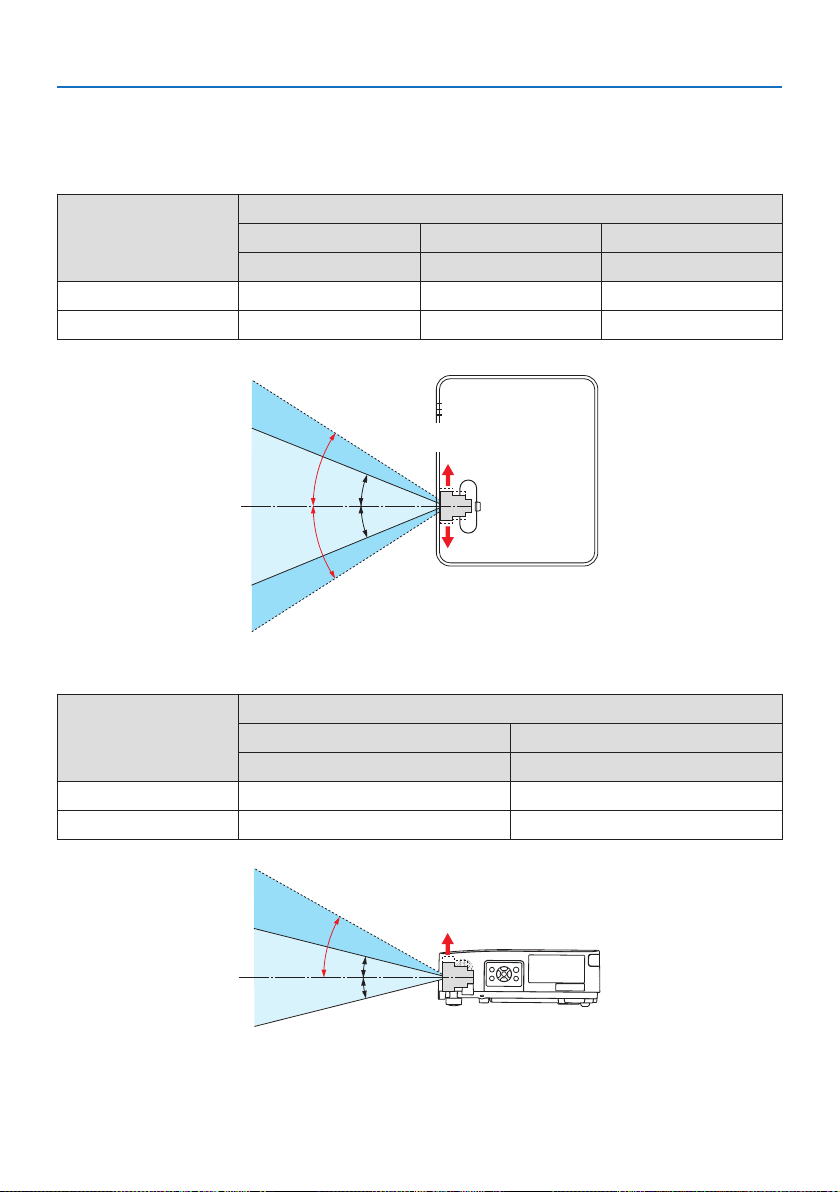
•ThecautionandtheexplanatorylabelsoftheLASERPRODUCTinCLASS2conformingtoIEC
60825-1 Second edition, and in Class 1 conforming to IEC 60825-1 Third edition are stuck on the
below indicated positions.
For USA
Label
For other regions
Important Information
xiii
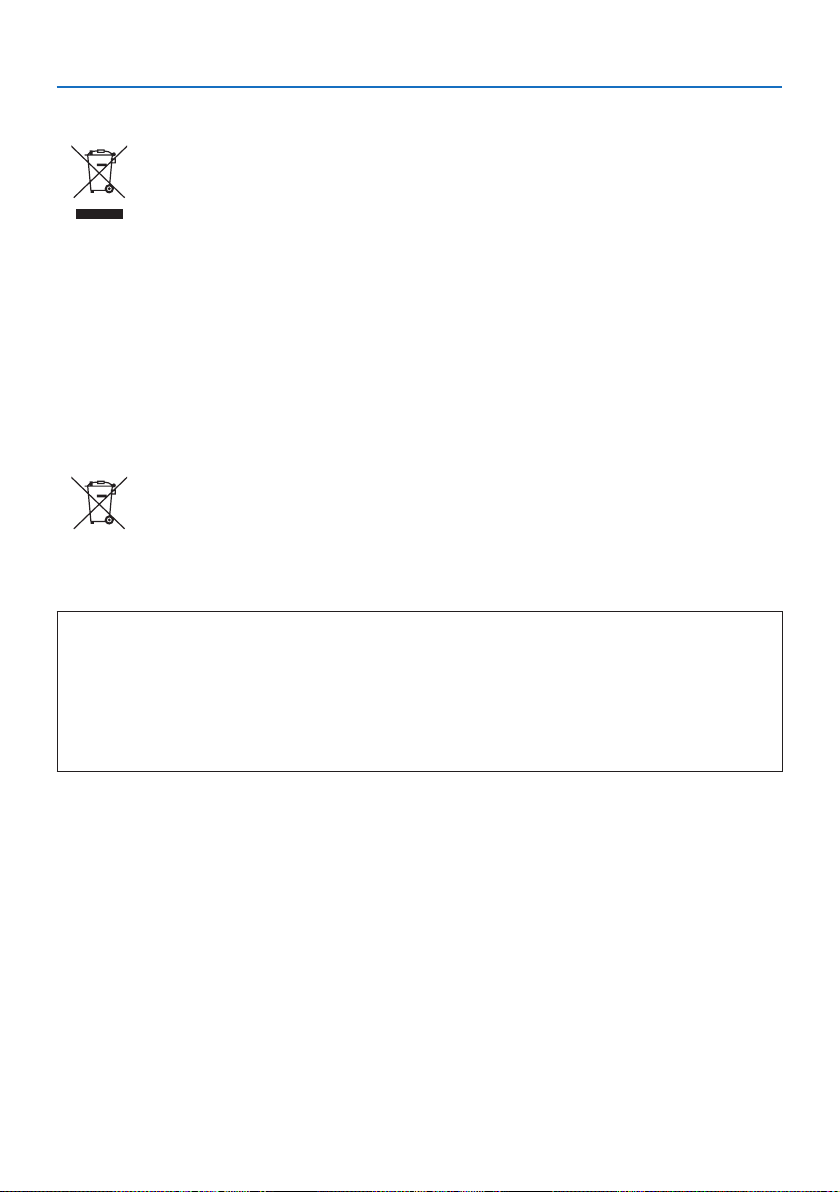
Laser light radiation range
The gure below shows the maximum radiation range of the laser light.
Horizontal angle (unit: degree)
Zoom
Lens position
Right most Center (Reference value) Left most
HR HC HL
Wide 33.0 22.3 33.0
Tele 21.8 14.2 21.8
HC
HR
HL
HC
Left
Right
Vertical angle (unit: degree)
Zoom
Lens position
Upper most Center (Reference value)
VU VC
Wide 29.5 14.4
Tele 19.2 9.0
VC
VC
VU
Upper

Important Information
xiv
Cable information
Use shielded cables or cables attached ferrite cores so as not to interfere with radio and television
reception.
For details, please refer to “5. Making Connections” in this user’s manual.
FCC Information (for USA only)
WARNING
• TheFederalCommunicationsCommissiondoesnotallowanymodicationsorchangestothe
unit EXCEPT those specied by NEC Display Solutions of America, Inc. in this manual. Failure
to comply with this government regulation could void your right to operate this equipment.
•ThisequipmenthasbeentestedandfoundtocomplywiththelimitsforaClassBdigitaldevice,
pursuant to Part 15 of the FCC Rules. These limits are designed to provide reasonable protec-
tion against harmful interference in a residential installation. This equipment generates, uses,
and can radiate radio frequency energy and, if not installed and used in accordance with the
instructions, may cause harmful interference to radio communications. However, there is no
guarantee that interference will not occur in a particular installation.
If this equipment does cause harmful interference to radio or television reception, which can
be determined by turning the equipment o and on, the user is encouraged to try to correct
the interference by one or more of the following measures:
•Reorientorrelocatethereceivingantenna.
•Increasetheseparationbetweentheequipmentandreceiver.
•Connecttheequipmentintoanoutletonacircuitdierentfromthattowhichthereceiver
is connected.
•Consultthedealeroranexperiencedradio/TVtechnicianforhelp.
Supplier’s declaration of conformity (for USA only)
This device complies with Part 15 of FCC Rules. Operation is subject to the following two conditions.
(1) This device may not cause harmful interference, and (2) this device must accept any interference
received, including interference that may cause undesired operation.
U.S.Responsible Party: NEC Display Solutions of America, Inc.
Address: 3250 Lacey Rd, Ste 500
Downers Grove, IL 60515
Telephone Number: 630-467-3000
Type of Product: Projector
Equipment Classication: Class B Peripheral
Model Number: NP-PE455UL/NP-PE455WL/NP-PE505XL
Important Information
xv
Disposing of your used product
In the European Union
EU-wide legislation as implemented in each Member State requires that used electrical
and electronic products carrying the mark (left) must be disposed of separately from
normal household waste. This includes projectors and their electrical accessories. When
you dispose of such products, please follow the guidance of your local authority and/or
ask the shop where you purchased the product.
After collecting the used products, they are reused and recycled in a proper way. This
eort will help us reduce the wastes as well as the negative impact to the human health
and the environment at the minimum level.
The mark on the electrical and electronic products only applies to the current European
Union Member States.
Outside the European Union
If you wish to dispose of used electrical and electronic products outside the European
union, please contact your local authority and ask for the correct method of disposal.
For EU: The crossed-out wheeled bin implies that used batteries should not be put to
the general household waste! There is a separate collection system for used batteries,
to allow proper treatment and recycling in accordance with legislation.
According the EU directive 2006/66/EC, the battery can’t be disposed improperly. The battery
shall be separated to collect by local service.
(for Germany only)
Machine Noise Information Regulation - 3. GPSGV,
The highest sound pressure level is less than 70 dB (A) in accordance with EN ISO 7779.
Information of the AUDIO OUT mini jack
The AUDIO OUT mini jack does not support earphone/headphone terminal.

Important Information
xvi
Cautions for ensuring the projector’s performance
•Donotinstallinplacessubjecttovibrationsorshocks.
If installed in places where the vibrations from power sources and the like are conveyed, or in
vehicles or on vessels, etc. the projector could be aected by vibrations or shocks that may dam-
age internal parts and lead to malfunction.
Install in a place not subject to vibrations or shocks.
•Donotinstallnearhighvoltagepowerlinesorpowersources.
The projector may be aected by interference if it is installed near a high voltage power line or
a power source.
•Donotinstallorstoreinsuchplacesasthosedescribedbelow.Doingsocouldleadtomalfunc-
tion.
- Places where strong magnetic elds are generated
- Places where corrosive gases are generated
•Ifintenselightlikelaserbeamsentersfromthelens,itcouldleadtomalfunction.
•Consultyourdealerbeforeusinginplaceswheremuchcigarettesmokeordustispresent.
•Whenthesamestillimageisprojectedforalongperiodoftimewithacomputer,etc.thepattern
of the image may remain on the screen after the projection is stopped, but it will disappear after
a while. This happens due to the properties of liquid crystal panels, and is not a malfunction. We
recommend using a screensaver on the computer side.
•Whenusingtheprojectorataltitudesofabout1,600m/5,200feetorhigher,besuretosetthe[FAN
MODE] to [HIGH ALTITUDE]. If not, the inside of the projector may get hot, leading to malfunction.
• Whentheprojectorisusedathighaltitudes(placeswheretheatmosphericpressureislow),it
may be necessary to replace the optical parts (light source, etc.) sooner than usual.
•Aboutmovingtheprojector
- Be sure to mount the included lens cap to protect the lens from scratches.
- Do not subject the projector to vibrations or strong shocks.
The projector could be damaged otherwise.
•Donotusethetiltfeetforpurposesotherthanadjustingtheprojector’stilt.
Improper handling, such as carrying the projector by the tilt feet or using it leaned against a wall,
could lead to malfunction.
•Donottouchthesurfaceoftheprojectionlenswithbarehands.
Fingerprints or dirt on the surface of the projection lens will be enlarged and projected on the
screen. Do not touch the surface of the projection lens.
•Donotunplugthepowercordfromtheprojectororthepoweroutletwhileprojecting.Doingso
could cause deterioration of the projector’s AC IN terminal or power plug contact. To interrupt
the AC power supply while images are being projected, use a power strip switch, a breaker, etc.
•Abouthandlingoftheremotecontrol
- The remote control will not work if the projector’s remote signal sensor or the remote control’s
signal transmitter is exposed to strong light or if there are obstacles between them that obstruct
the signals.
- Operate the remote control from within 7 meters from the projector, pointing it at the projec-
tor’s remote signal sensor.
- Do not drop the remote control or handle it improperly.
- Do not let water or other liquids get on the remote control. Should the remote control get wet,
wipe it o immediately.
- Avoid using in hot and humid places as far as possible.
- When planning not to use the remote control for long periods of time, remove both batteries.
Important Information
xvii
•Takemeasurestopreventexternallightfromshiningonthescreen.
Make sure only the light from the projector shines on the screen. The less external light on the
screen, the higher the contrast and the more beautiful the images.
•Aboutscreens
Images will not be clear if there is dirt, scratches, discoloration, etc. on your screen. Handle the
screen with care, protecting it from volatile substances, scratches and dirt.
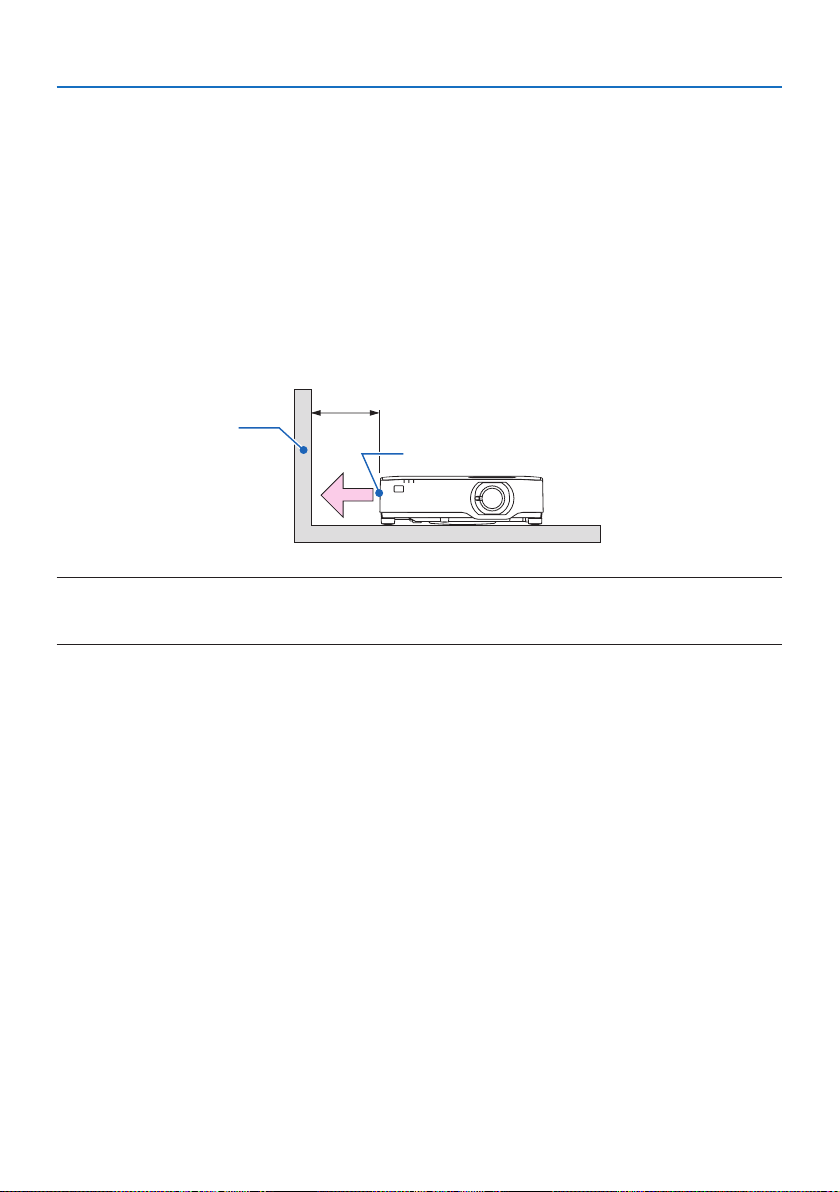
Clearance for Installing the Projector
When installing the projector, keep sucient space around it, as described below. If not, the hot
exhaust emitted from the projector may be taken back in.
Also, make sure no wind from an air-conditioner hits the projector.
The projector’s heat control system may detect an abnormality (temperature error) and automati-
cally shut o the power.
20 cm/8" or greater
Exhaust vent
Wall
NOTE:
•Intheabovegure,itisassumedthatthereissucientspaceabovetheprojector.Thereisalsoanintakeventontheback.Leave
about10cmormorespacebehind,andevenmorespaceforinstallingthecables.
Precautions for Ceiling Installation
Do not install the projector in the following places. Attached substances such as oil, chemicals and
moisture may cause deformation or cracks of the cabinet, corrosion of the metal parts, or malfunction.
• Outdoorsandplaceswithhumidordust
• Placesexposedtooilsmokeorsteam
• Placeswherecorrosivegasesaregenerated

Important Information
xviii
About Copyright of original projected pictures:
Please note that using this projector for the purpose of commercial gain or the attraction of public
attention in a venue such as a coee shop or hotel and employing compression or expansion of the
screen image with the following functions may raise concern about the infringement of copyrights
which are protected by copyright law.
[ASPECT RATIO], [KEYSTONE], Magnifying feature and other similar features.
Power management function
The projector has power management functions. To reduce power consumption, the power man-
agement functions (1 and 2) are factory preset as shown below. To control the projector from an
external device via a LAN or serial cable connection, use the on-screen menu to change the settings
for 1 and 2.
1. STANDBY MODE (Factory preset: NORMAL)
To control the projector from an external device, select [NETWORK STANDBY] or [SLEEP] for
[STANDBY MODE]. (→ page
76)
2. AUTO POWER OFF (Factory preset: 1 hour)
To control the projector from an external device, select [OFF] for [AUTO POWER OFF].
(→ page
78)
Model Number of Wireless LAN unit
Wireless LAN unit is an optional item.
To nd the appropriate model to your area, please visit the company website:
URL:
https://www.nec-display.com/global/support/index.html

Important Information
xix
Trademarks
•MultiPresenterisatrademarkorregisteredtrademarkofNECDisplaySolutions,Ltd.inJapanand
other countries.
•Apple,Mac,MacBook,andiMacaretrademarksofAppleInc.registeredintheU.S.andother
countries.
•Microsoft,Windows,andPowerPointareeitheraregisteredtrademarkortrademarkofMicrosoft
Corporation in the United States and/or other countries.
•ThetermsHDMIandHDMIHigh-DenitionMultimediaInterface,andtheHDMILogoaretrade-
marks or registered trademarks of HDMI Licensing Administrator, Inc. in the United States and
other countries.
•PJLinktrademarkandlogoaretrademarksappliedforregistrationorarealreadyregisteredin
Japan, the United States of America and other countries and areas.
•Wi-Fi®isaregisteredtrademarkoftheWi-FiAlliance®.WPA™,WPA2™aretrademarksoftheWi-Fi
Alliance®.
•Blu-rayisatrademarkofBlu-rayDiscAssociation.
•CRESTRONandCRESTRONROOMVIEWaretrademarksorregisteredtrademarksofCrestron
Electronics, Inc. in the United States and other countries.
•Otherproductnamesandcompanylogosmentionedinthisuser’smanualmaybethetrademarks
or registered trademarks of their respective holders.
•GPL/LGPLSoftwareLicenses
The product includes software licensed under GNU General Public License (GPL), GNU Lesser
General Public License (LGPL), and others.
For more information on each software, see “readme.pdf” inside the “about GPL&LGPL” folder on
the supplied CD-ROM.
1
1-1. Introduction to the Projector
This section introduces you to your new projector and describes the features and controls.
General
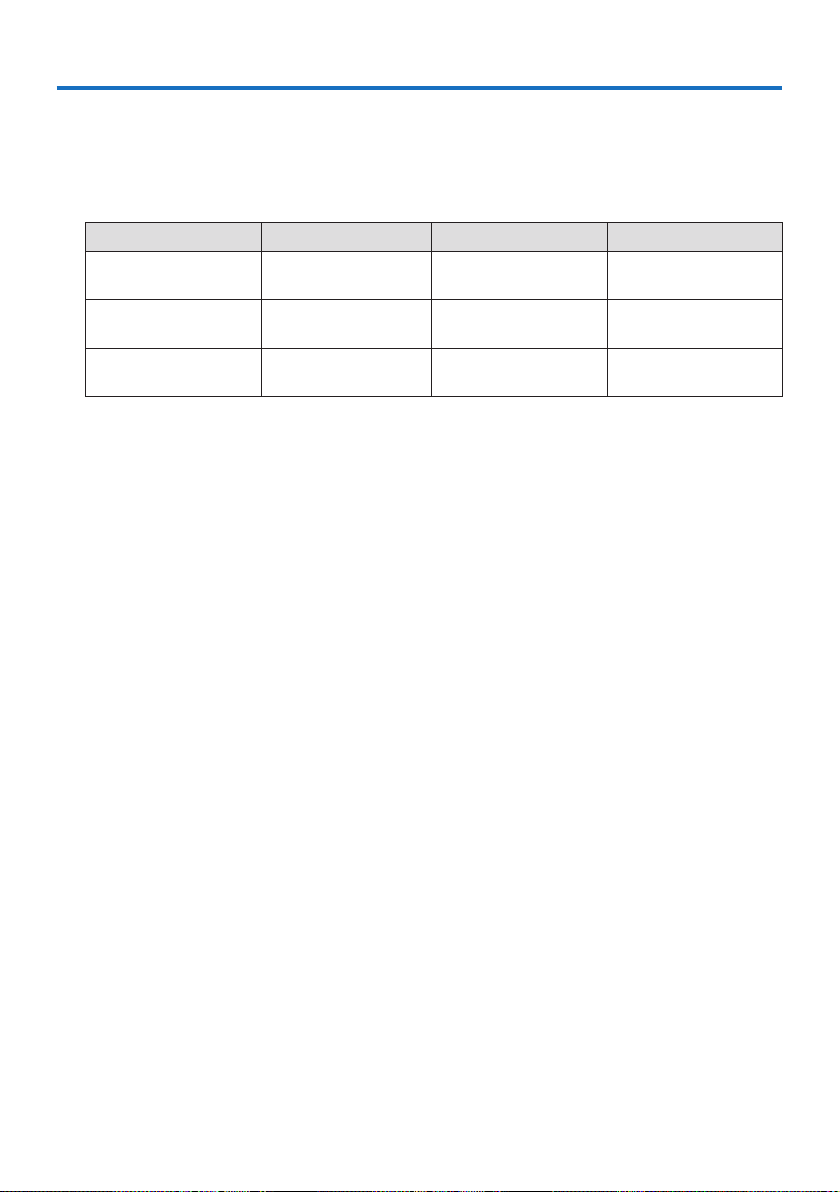
•Liquidcrystaltypehighbrightness/highresolutionprojector
Model name Brightness Resolution Aspect ratio
PE455UL 4,500 lm
WUXGA
(1920 × 1200 pixels)
16:10
PE455WL 4,500 lm
WXGA
(1280 × 800 pixels)
16:10
PE505XL 5,000 lm
XGA
(1024 × 768 pixels)
4:3
•Aproprietarysealedstructurethatachieveshighlydust-proofperformance
Due to its excellent dust-proof performance, the projector is not equipped with a lter. Filter
replacement is therefore unnecessary.
•Silentdesignutilizingasealedstructure
A silent design with no irritating fan noise even in a quiet conference room or classroom.
Light source · Brightness
•Along-lifelaserdiodeisequippedinthelightmodule
The product can be operated at low cost because the laser light source can be used for a long
time without requiring replacement or maintenance.
•Brightnesscanbeadjustedwithinawiderange
Unlike with ordinary light sources, the brightness can be adjusted from 30 to 100% (PE455WL:
33 to 100%) in 1% increments.
•[CONSTANTBRIGHTNESS]mode
Brightness normally decreases with use, but by selecting [CONSTANT BRIGHTNESS] mode, the
projector automatically controls the output from the light module according to the light module
used time for maintaining constant brightness.
1. Check the product overview, supplied items and part names

1. Check the product overview, supplied items and part names
2
Installation
•
360°
installation
and
portrait
projection
The projector can be installed at any angle from 0° to 360° in both the vertical and horizontal
direction. When installing the projector in a tilted position, use brackets of sucient strength.
Portraits can also be projected with the projection screen tilted 90°. Be sure to assemble and
install a dedicated stand.
•
Lens
shift
mechanism
for
adjusting
the
position
of
the
projected
image
easily
The position of the projected image is moved by turning the two dials on the projector cabinet
top, one for the vertical direction and another for the horizontal direction.
•
Correct
projected
image
distortion
on
specially
shaped
surfaces
Distortion when projecting on specially shaped surfaces (cylindrical or spherical surfaces, for
example) can be corrected using our Geometric Correction Tool application.
Videos
•
Wide
range
of
input
terminals
(HDMI
×
2,
etc.)
The projector is equipped with a variety of input terminals: HDMI (× 2), Computer (analog),
etc. HDMI input terminal on this product supports HDCP.
•
[VIEWER]
function
to
project
still
images
saved
in
a
USB
memory
When you insert a commercially available USB memory containing the picture into the USB port
of the projector (Type A), the images on the USB can be projected by the unit. By doing this,
you can make a presentation without using a personal computer.
•
Seamless
switch
function
for
smoother
screen
changes
when
switching
the
signal
When the input connector is switched, the image displayed before switching is held so that that
the new image can be switched to without a break due to absence of a signal.

1. Check the product overview, supplied items and part names
3
Network
•CompatiblewithwiredLAN/wirelessLAN
Equipped with a LAN port (RJ-45), the projector can be connected to a wired LAN to transmit
images from a computer to this unit or to control this unit from the computer. In addition, when
a wireless LAN unit sold separately is attached to the unit, the unit can be connected to a wire-
less LAN.
•CRESTRONROOMVIEWcompatibility
The projector supports CRESTRON ROOMVIEW, allowing multiple devices connected in the
network to be managed and controlled from a computer.
•CompatiblewiththeMultiPresenterapplication
This projector is compatible with the NEC MultiPresenter application, so multi-screen projection
is possible via the network (wired LAN/wireless LAN).
Energy-saving
•0.11W(100-130VAC)/0.16W(200-240VAC)instandbyconditionwithenergysaving
technology
Selecting [NORMAL] for [STANDBY MODE] from the menu can put the projector in power-saving
mode.
NORMAL: 0.11 W (100-130 V AC)/0.16 W (200-240 V AC)
NETWORK STANDBY: 1.6 W (100-130 V AC)/1.8 W (200-240 V AC)
•[ECOMODE]forlowpowerconsumptionand[CARBONMETER]display
The projector is equipped with a [ECO MODE] for reducing power consumption during use.
Furthermore, the power-saving eect when the [ECO MODE] is set is converted into the amount
of reductions of CO
2
emissions and this is indicated on the conrmation message displayed
when the power is turned o and at [INFO.] on the on-screen menu ([CARBON METER]).
1. Check the product overview, supplied items and part names
4
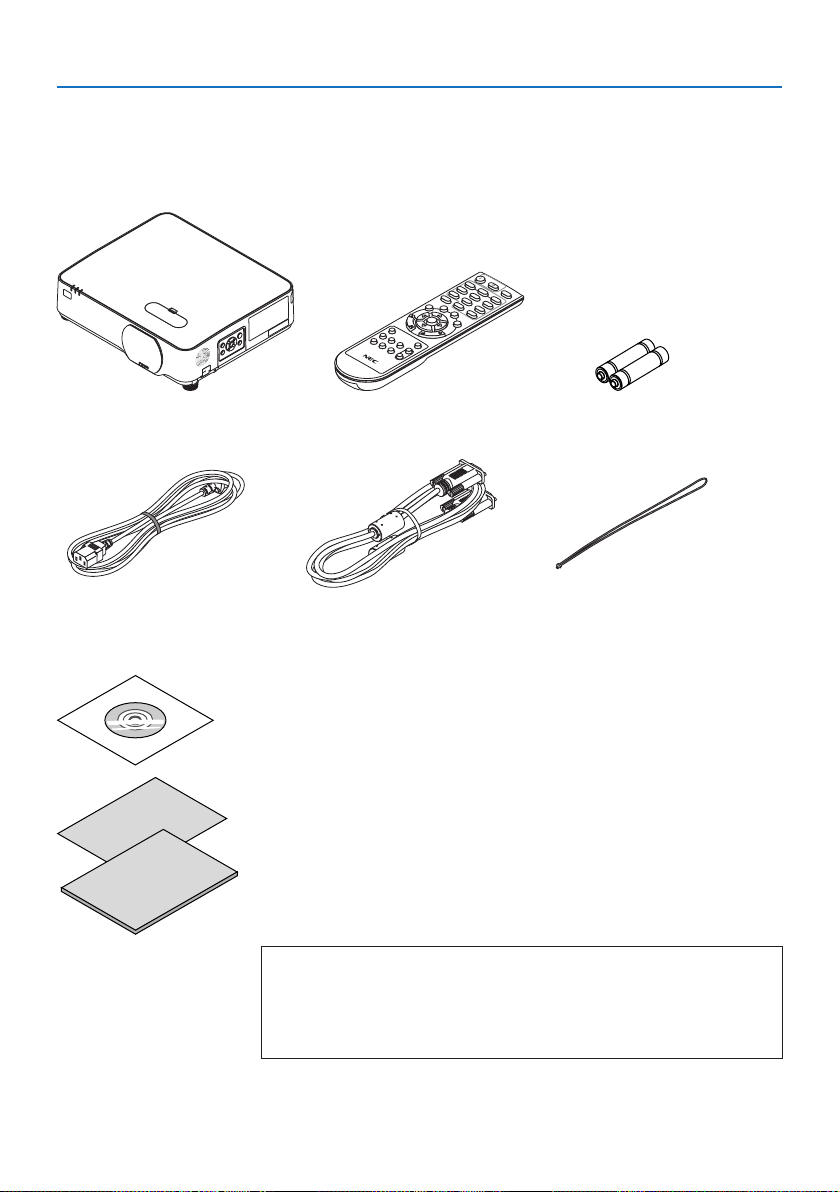
1-2. What’s in the Box?
Make sure your box contains everything listed. If any pieces are missing, contact your dealer.
Please save the original box and packing materials if you ever need to ship your projector.
Projector
Remote control
(7N901261)
Batteries(AAA×2)
Power cord
(US: 7N080236/7N080242)
(EU: 7N080022/7N080028)
Computercable(VGA)
(7N520089)
Lens cap strap
NECProjectorCD-ROM
(7N952911)
•ImportantInformation
(7N8N9901)
•QuickSetupGuide
(For North America: 7N8N9881)
(For Other countries than North America: 7N8N9881 and 7N8N9891)
•SecuritySticker
(Use this sticker when security password is set on.)
For North America only
•Limitedwarranty
For customers in Europe:
You will nd our current valid Guarantee Policy on our Web Site:
https://www.nec-display-solutions.com
1. Check the product overview, supplied items and part names
5
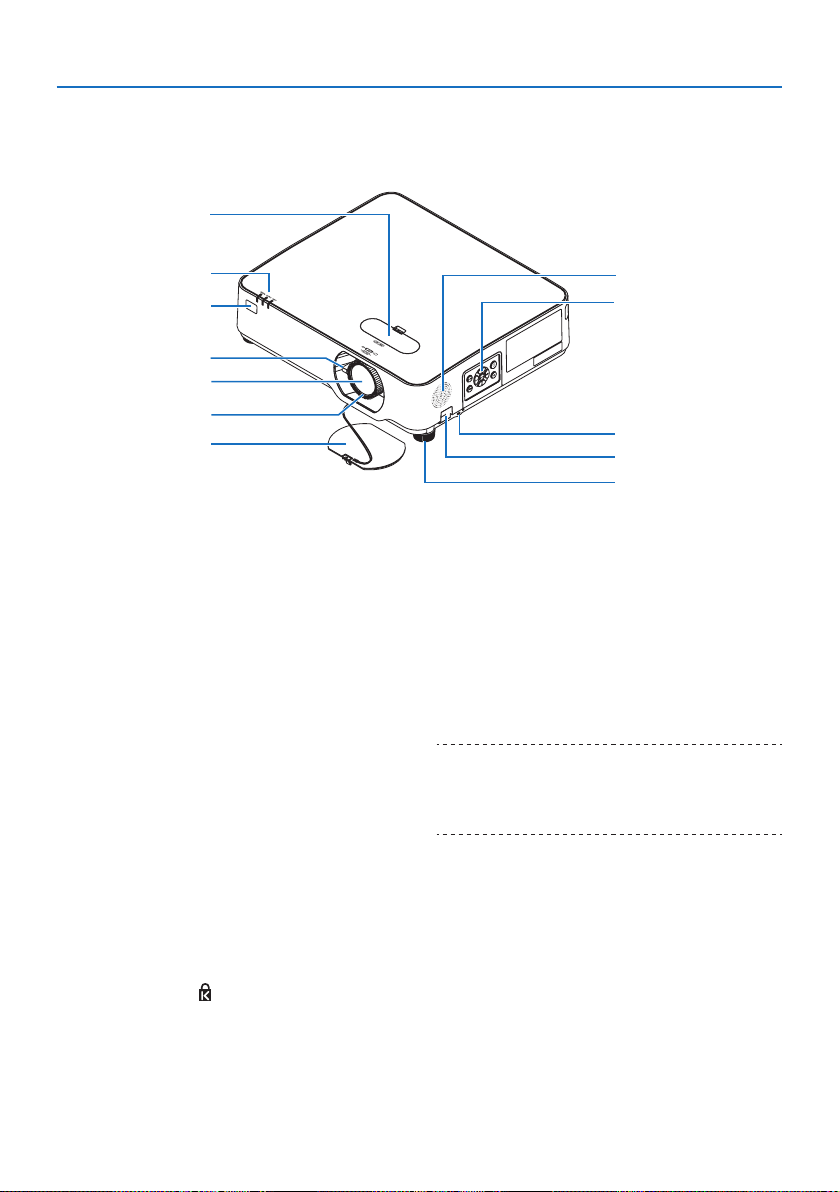
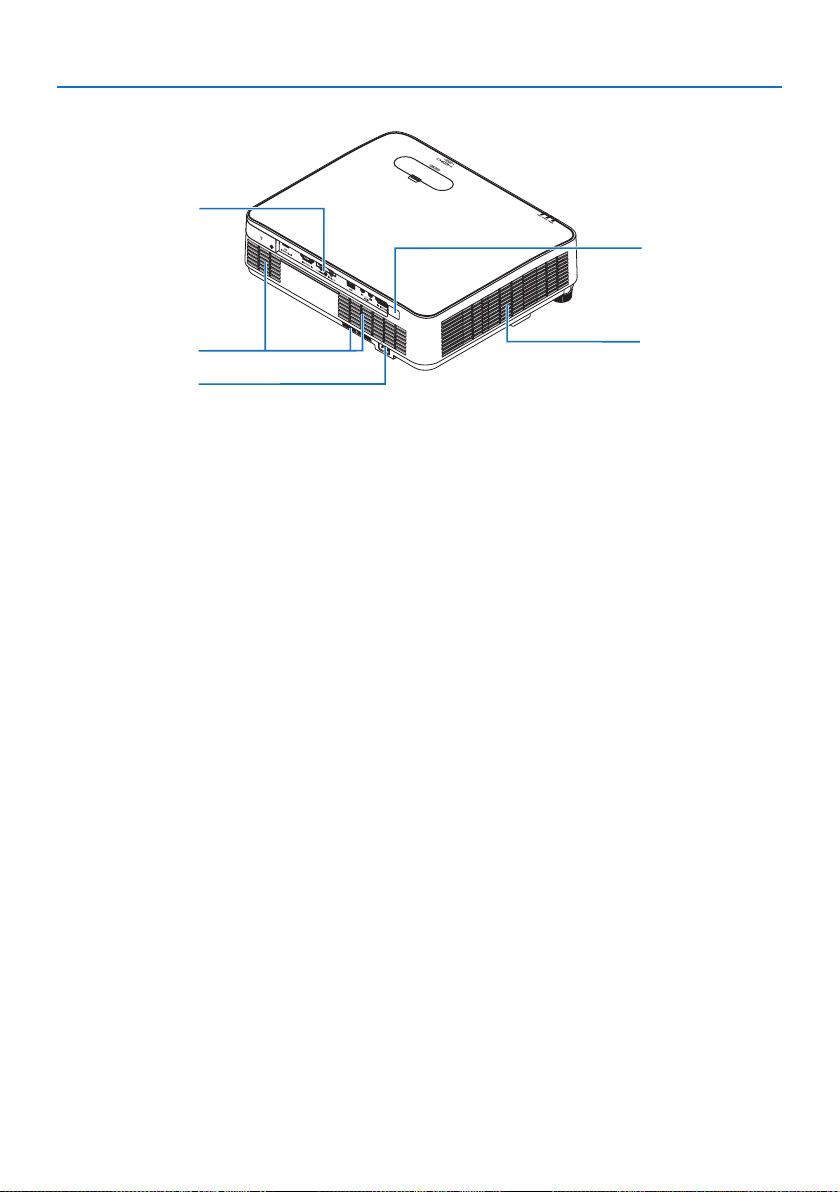
1-3. Part Names of the Projector
Front
1
2
3
4
5
6
7
8
9
10
12
11
1. Lens shift cover
(→ page
23)
2. Zoom Lever
(→ page
26)
3. Lens
4. FocusRing
(→ page
25)
5. Lens Cap
6. Indicators
(→ page
8, 146)
7. Remote Sensor
(→ page
14)
8. Monaural Speaker
9. Controls
(→ page
8)
10. Security Slot (
)
11. Security chain opening
Attach an anti-theft device.
The security chain opening accepts security
wires or chains up to 0.18 inch/4.6 mm in
diameter.
12. Tilt Foot
(→ page
27)
TIP:
•Securityandtheftprotectionlockcompatiblewith
Kensingtonsecuritycables/equipment.Forproducts,visit
Kensington’swebsite.
1. Check the product overview, supplied items and part names
6
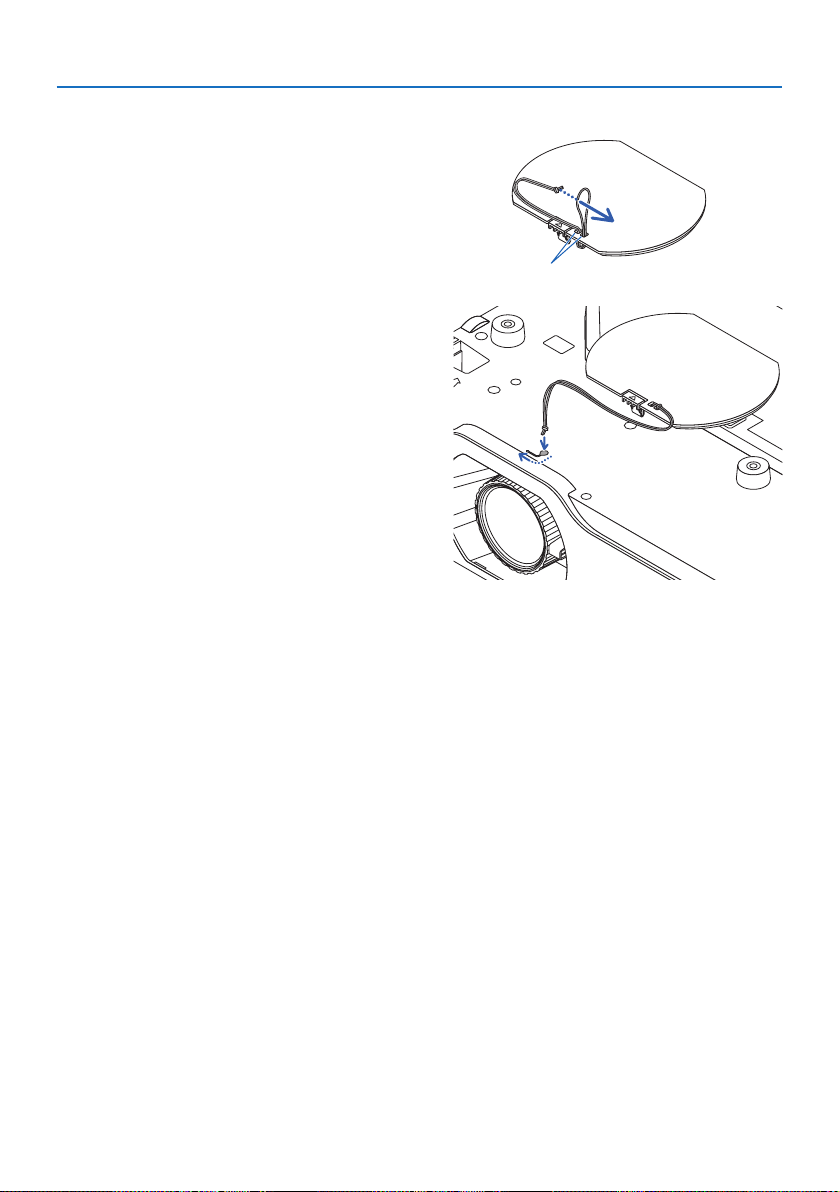
Mounting the lens cap strap
1. Insert the tip of the strap into the lens cap
mount hole and pass the knot through.
Lens cap mount hole
2. Insert the knot into the strap mount hole
(large) on the bottom of the projector, then
press it into the narrow (small) hole.
1. Check the product overview, supplied items and part names
8
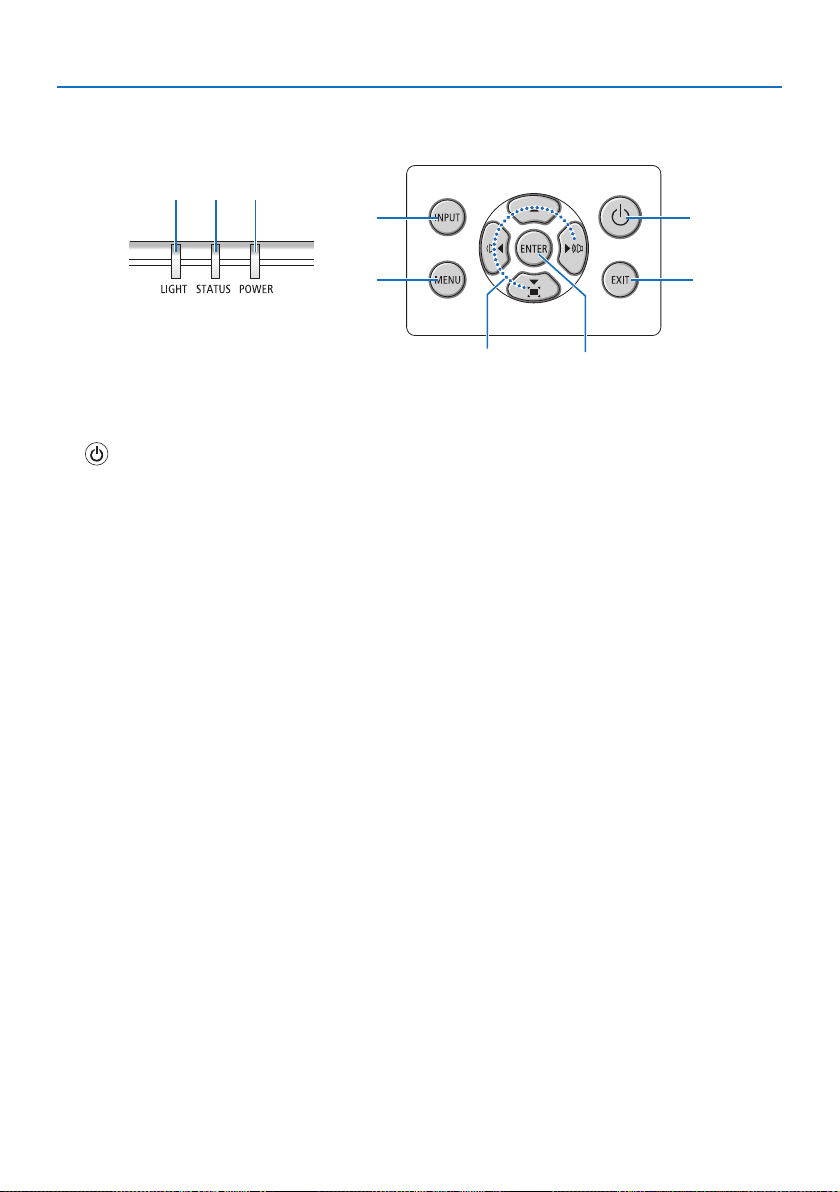
Controls/Indicators
8
7
9
4
3 2
5
6
1
1. (POWER) Button
(→ page
18, 33)
2. POWER Indicator
(→ page
16, 18, 33, 146)
3. STATUSIndicator
(→ page
146)
4. LIGHTIndicator
(→ page
146)
5. INPUT Button
(→ page
20)
6. MENU Button
(→ page
48)
7. EXIT Button
(→ page
48)
8. ▲▼◀▶/VolumeButtons◀▶ / Keystone Button ▼
(→ page
28, 32, 48)
9. ENTER Button
(→ page
48)
1. Check the product overview, supplied items and part names
9
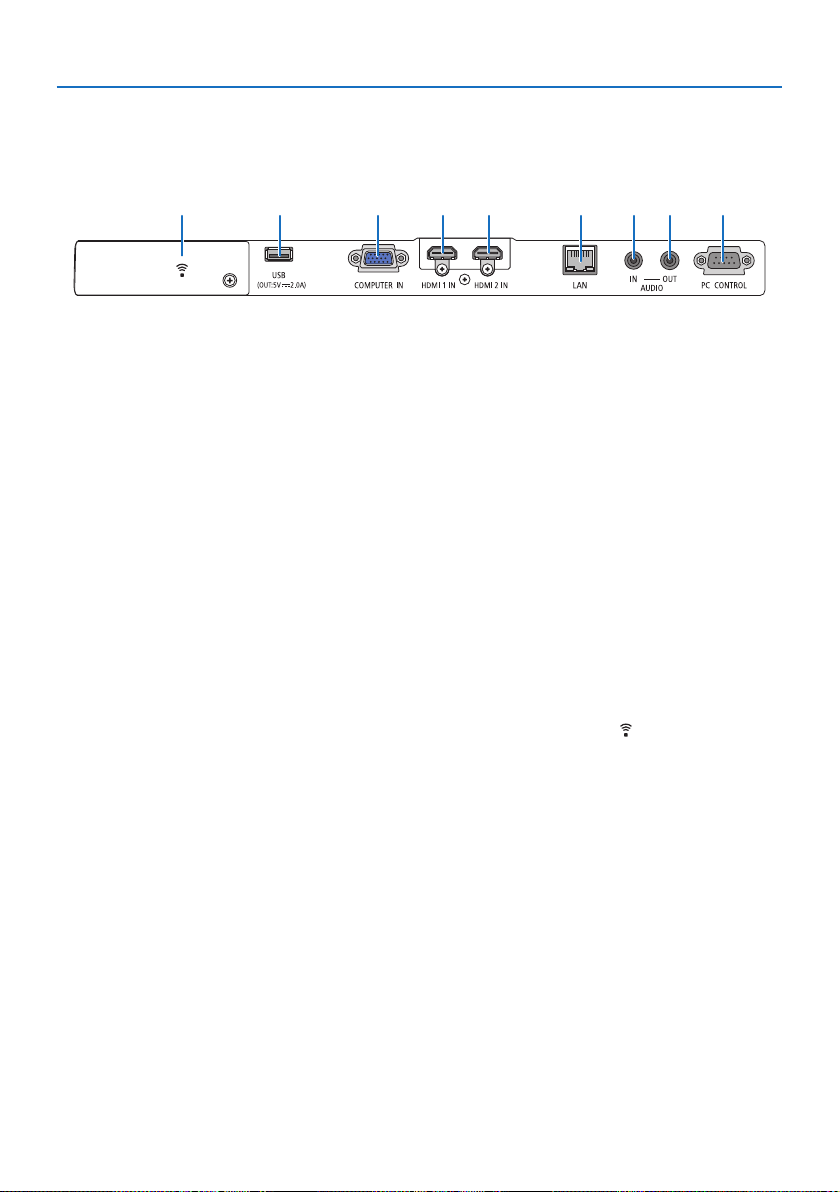
Terminal Panel Features
854621379
1. HDMI 1 IN Terminal (Type A)
(→ page
84, 85, 87)
2. HDMI 2 IN Terminal (Type A)
(→ page
84, 85, 87)
3.COMPUTERIN/ComponentInput
Terminal(MiniD-Sub15Pin)
(→ page 84, 86)
4.AUDIOINMiniJack(StereoMini)
(→ page
84, 86)
5.AUDIOOUTMiniJack(StereoMini)
Audio signal of the image projected from the
projector is output.
When audio equipment is connected, the
projector speaker is disabled.
6.LANPort(RJ-45)
(→ page
88)
7. USB Port (Type A)
Connect the USB memory. When picture data
is saved in a USB memory, the picture can be
projected with the [VIEWER] of the projector.
(→ page 95)
In addition, a 5 V/2.0 A power supply can be
supplied for expansion use.
8.PCCONTROLPort(D-Sub9Pin)
Use this port to connect a PC or control
system. This enables you to control the pro-
jector using serial communication protocol.
If you are writing your own program, typical
PC control codes are on page
139.
9. Wireless LAN cover (
)
There are two terminals behind the cover.
•USB(WirelessLAN)Port
(→ page
90)
•SERVICEPort(USBTypeB)
(for service purpose only)
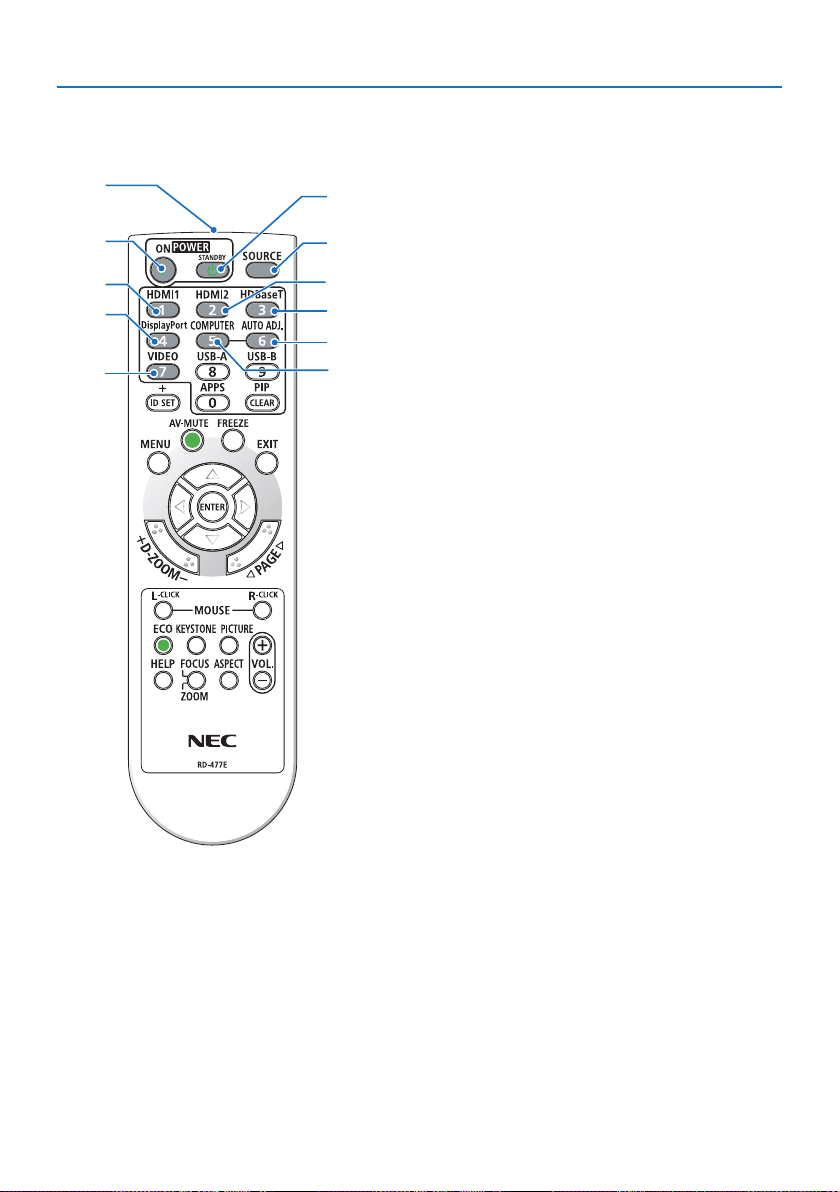
1. Check the product overview, supplied items and part names
10
1-4. Part Names of the Remote Control
3
4
6
7
1
2
10
11
9
5
8
1. Infrared Transmitter
(→ page
14)
2. POWER ON Button
(→ page
18)
3. POWERSTANDBYButton
(→ page
33)
4. SOURCEButton
(→ page
20)
5. HDMI1 Button
(→ page
20)
6. HDMI2 Button
(→ page
20)
7. HDBaseT Button
(This button does not work in this series of
projectors)
8. DisplayPort Button
(This button does not work in this series of
projectors)
9. COMPUTER Button
(→ page
20)
10.AUTOADJ.Button
(→ page
32)
11.VIDEOButton
(This button does not work in this series of
projectors)
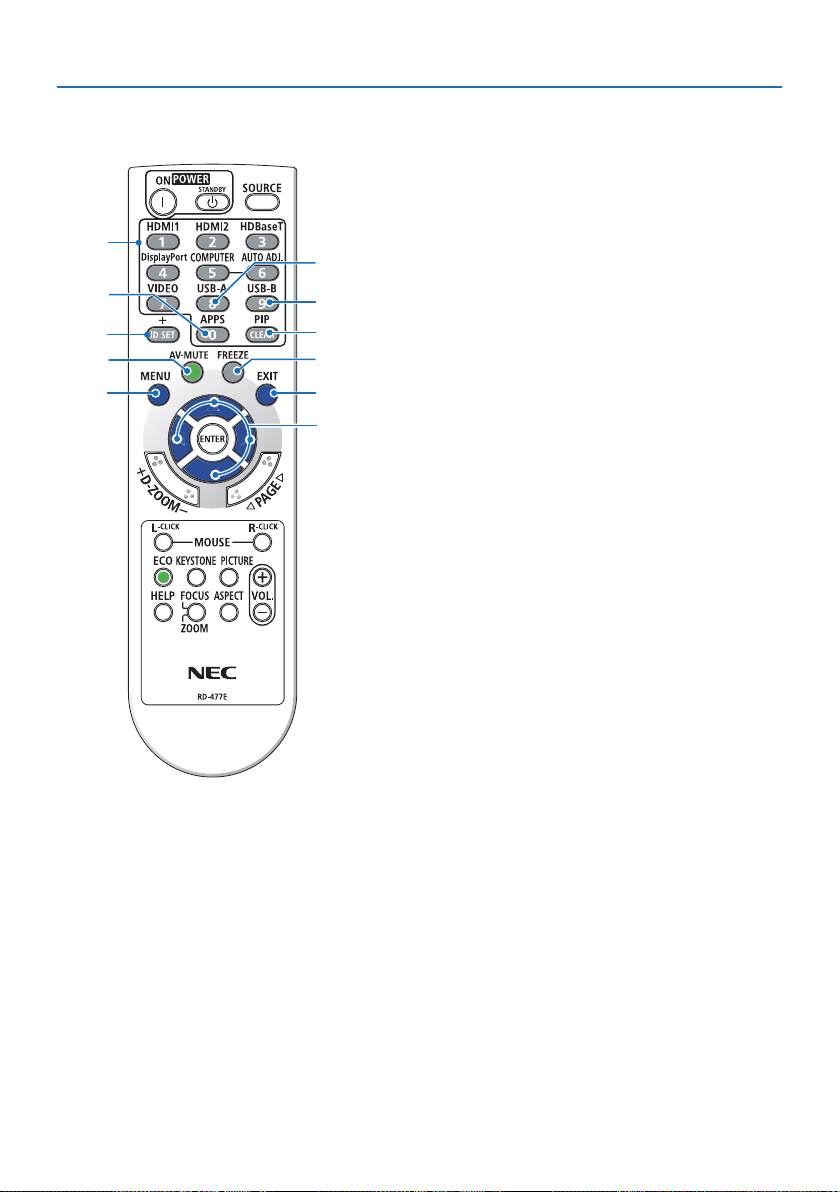
1. Check the product overview, supplied items and part names
11
21
22
20
19
18
13
17
16
12
15
14
12.USB-AButton
(→ page
20, 96)
13.USB-BButton
(This button does not work in this series of
projectors)
14.APPSButton
(→ page
20, 107)
15. ID SET Button
(→ page
73)
16. Numeric Keypad Button/CLEAR Button
(→ page
73)
17. PIP Button
(This button does not work in this series of
projectors)
18. FREEZE Button
(→ page
35)
19.AV-MUTEButton
(→ page
35)
20. MENU Button
(→ page
48)
21. EXIT Button
(→ page
48)
22. ▲▼◀▶ Button
(→ page
36, 48)
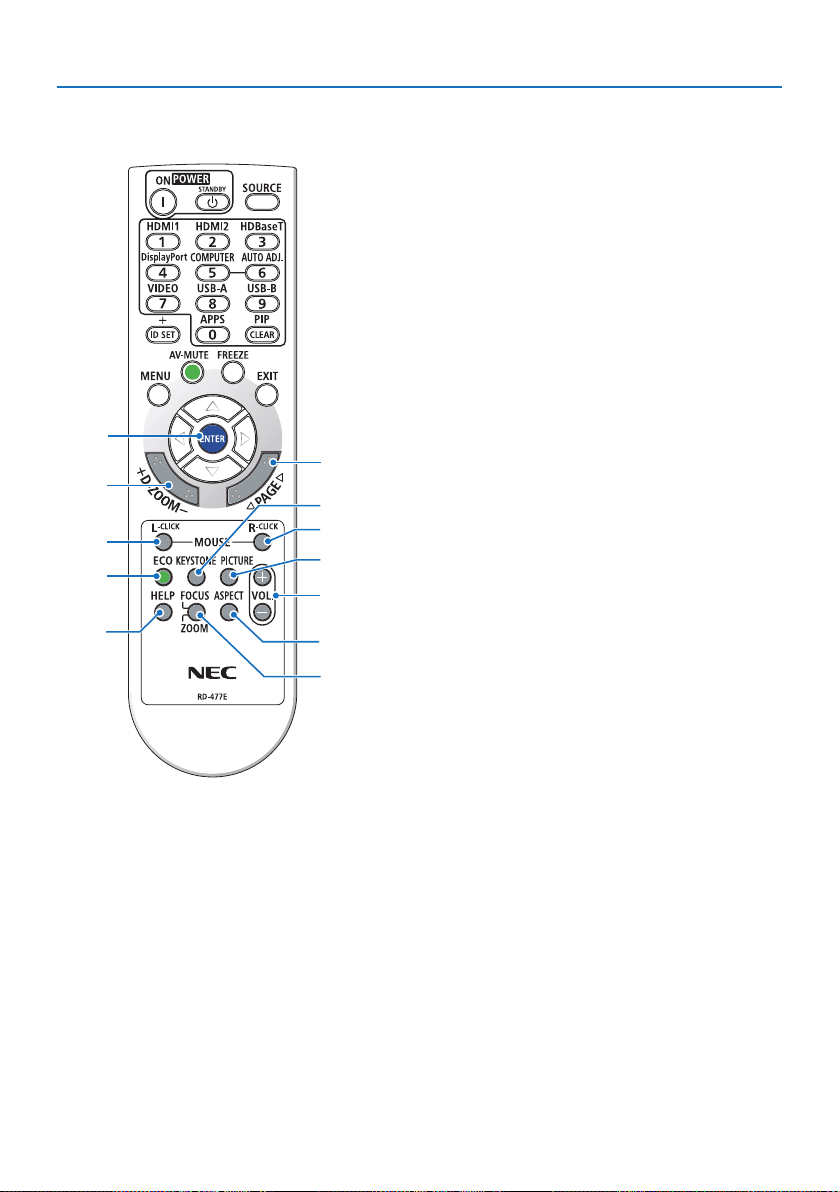
1. Check the product overview, supplied items and part names
12
31
32
33
27
29
30
26
25
24
23
28
34
23.ENTERButton
(→ page
48)
24.D-ZOOM(+)(−)Button
(→ page
36)
25.MOUSEL-CLICKButton
(This button does not work in this series of
projectors)
26.MOUSER-CLICKButton
(This button does not work in this series of
projectors)
27. PAGE ▽/△ Button
(→ page
100, 102)
28. ECO Button
(→ page
37)
29. KEYSTONE Button
(→ page
28, 39)
30.PICTUREButton
(→ page
55, 58)
31.VOL.(+)(−)Button
(→ page
32)
32.ASPECTButton
(→ page
61)
33.FOCUS/ZOOMButton
(This button does not work in this series of
projectors)
34.HELPButton
(→ page
80)
1. Check the product overview, supplied items and part names
13
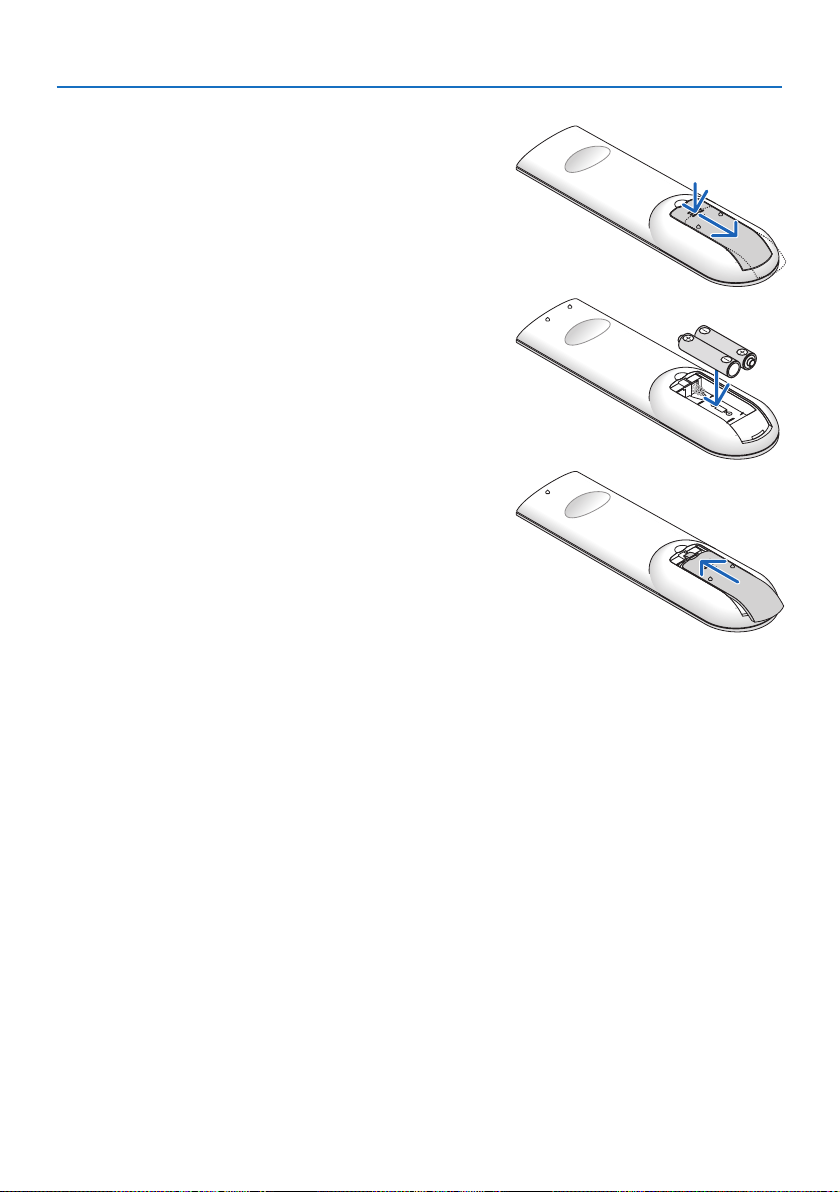
Battery Installation
1. Press rmly and slide the battery cover o.
OPEN
2. Install new batteries (AAA). Ensure that you have
thebatteries’polarity(+/−)alignedcorrectly.
3. Slipthecoverbackoverthebatteriesuntilitsnaps
into place. Do not mix dierent types of batteries or
new and old batteries.
OPEN
Remote Control Precautions
•Handletheremotecontrolcarefully.
•Iftheremotecontrolgetswet,wipeitdryimmediately.
•Avoidexcessiveheatandhumidity.
•Donotshort,heat,ortakeapartbatteries.
•Donotthrowbatteriesintore.
•Ifyouwillnotbeusingtheremotecontrolforalongtime,removethebatteries.
•Ensurethatyouhavethebatteries’polarity(+/−)alignedcorrectly.
•Donotusenewandoldbatteriestogether,orusedierenttypesofbatteriestogether.
•Disposeofusedbatteriesaccordingtoyourlocalregulations.
1. Check the product overview, supplied items and part names
14
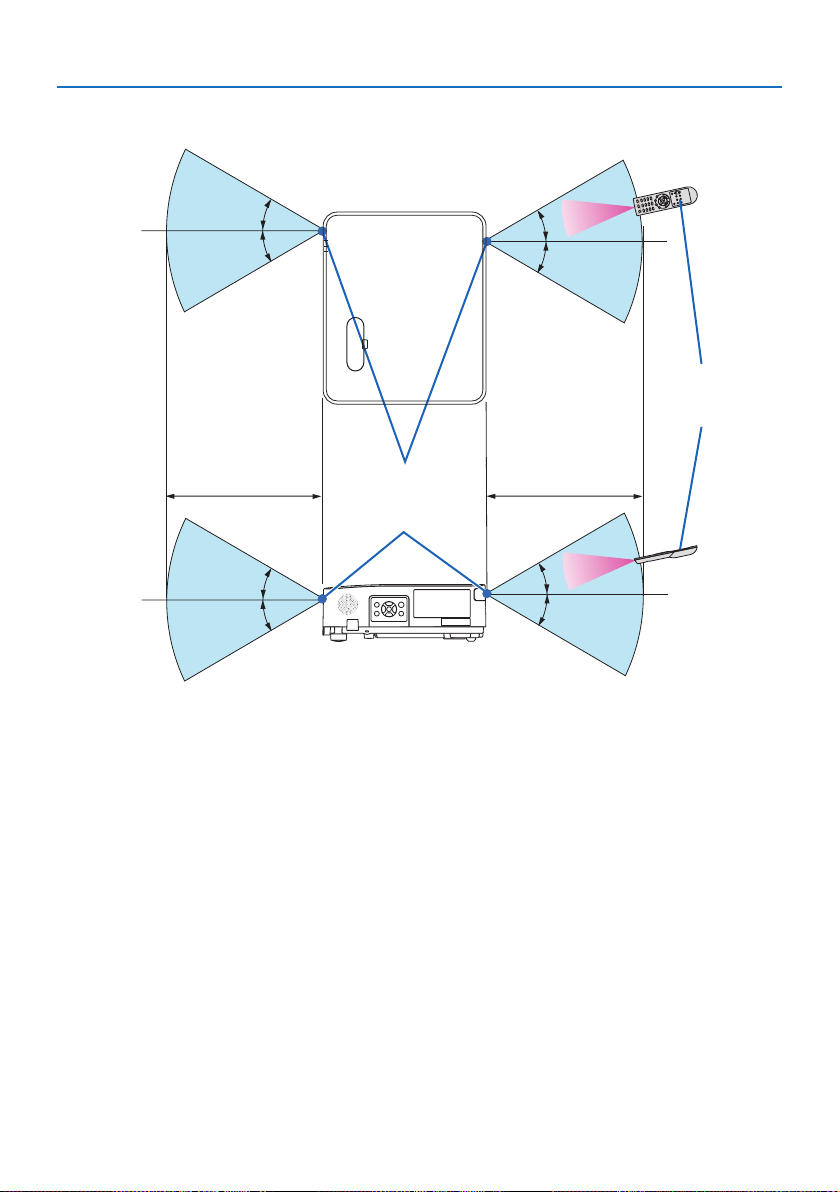
Operating Range for Wireless Remote Control
30°
30°
30°
30°
30°
30°
30°
30°
23 feet/7 m
23 feet/7 m
Remote sensor on
projector cabinet
Remote control
•Theinfraredsignaloperatesbyline-of-sightuptoadistanceofabout23feet/7mandwithina
60-degree angle of the remote sensor on the projector cabinet.
•Theprojectorwillnotrespondifthereareobjectsbetweentheremotecontrolandthesensor,
or if strong light falls on the sensor. Weak batteries will also prevent the remote control from
properly operating the projector.

15
This section describes how to turn on the projector and to project a picture onto the screen.
2-1. Flow of Projecting an Image
Step 1
•Connectingyourcomputer/Connectingthepowercord(→ page
16)
Step 2
•Turningontheprojector(→ page
18)
Step3
•Selectingasource(→ page
20)
Step4
•Adjustingthepicturesizeandposition(→ page
22)
•Correctingkeystonedistortion[KEYSTONE](→ page
28)
Step 5
•Adjustingapictureandsound
- Optimizing a computer signal automatically (→ page
32)
- Turning up or down volume (→ page
32)
Step 6
•Makingapresentation
Step 7
•Turningotheprojector(→ page
33)
Step 8
•WhenMovingtheProjector(→ page
34)
2. Projecting an Image (Basic Operation)
2. Projecting an Image (Basic Operation)
16
2-2. Connecting Your Computer/Connecting the Power Cord
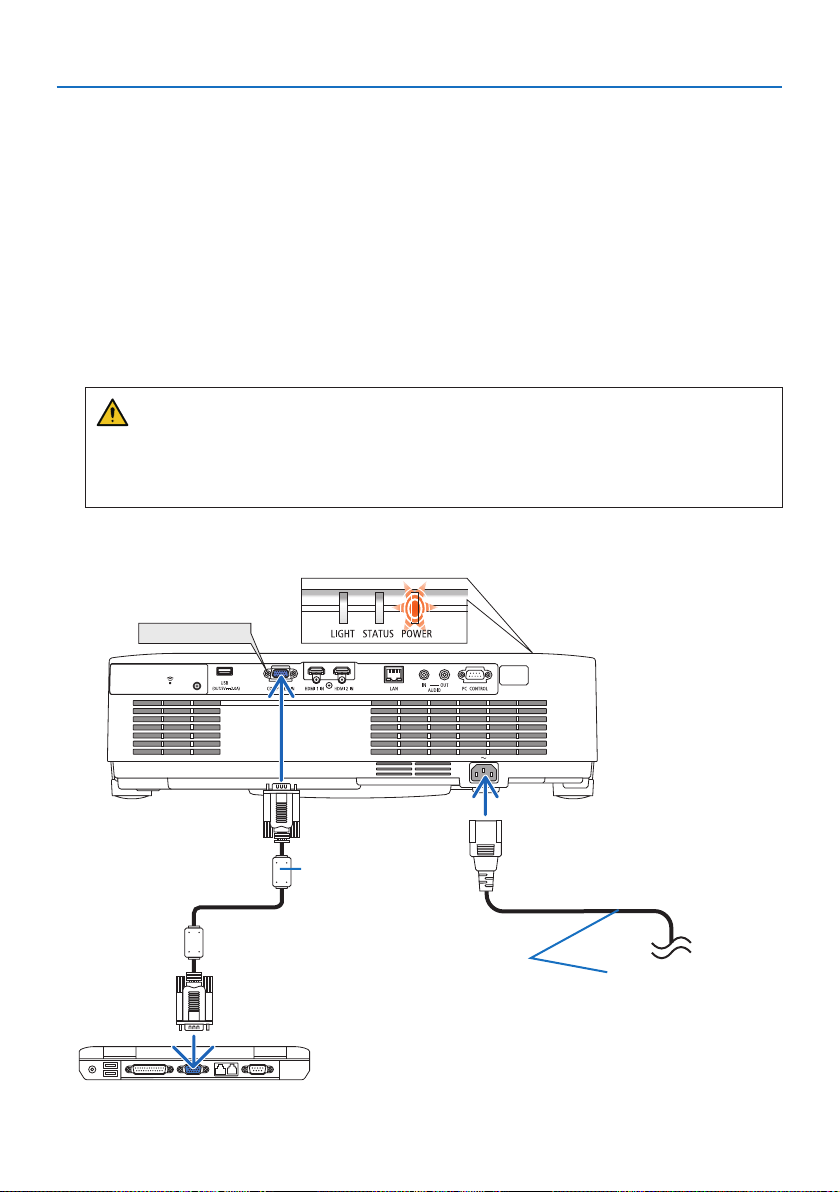
1. Connect your computer to the projector.
This section will show you a basic connection to a computer. For information about other
connections, see “5. Making Connections” on page
83.
Connect the computer cable (VGA) between the projector’s COMPUTER IN terminal and the
computer’s port (mini D-Sub 15 Pin). Turn two thumb screws of both terminals to x the com-
puter cable (VGA).
2. Connect the supplied power cord to the projector.
First connect the supplied power cord’s three-pin plug to the AC IN terminal of the projector,
and then connect another plug of the supplied power cord directly in the wall outlet. Do not
use any plug converter.
CAUTION:
This equipment is designed to be used in the condition of the power cord connected to
earth. If the power cord is not connected to the earth, it may cause electric shock. Please
make sure the power cord is earthed properly.
When the power cord is connected, the POWER indicator of this projector ashes orange and
the unit goes into the standby mode. (In the state, [STANDBY MODE] is [NORMAL].)
COMPUTER IN
Make sure that the prongs are fully inserted
into both the AC IN and the wall outlet.
Computer cable (VGA)
(supplied)
To wall outlet

2. Projecting an Image (Basic Operation)
17
CAUTION:
Parts of the projector may become temporarily heated if the projector is turned o with the
POWER button. Be careful to handle the projector.
2. Projecting an Image (Basic Operation)
18
2-3. Turning on the Projector
WARNING
The projector produces a strong light. When turning on the power, make sure no one within
projection range is looking at the lens.
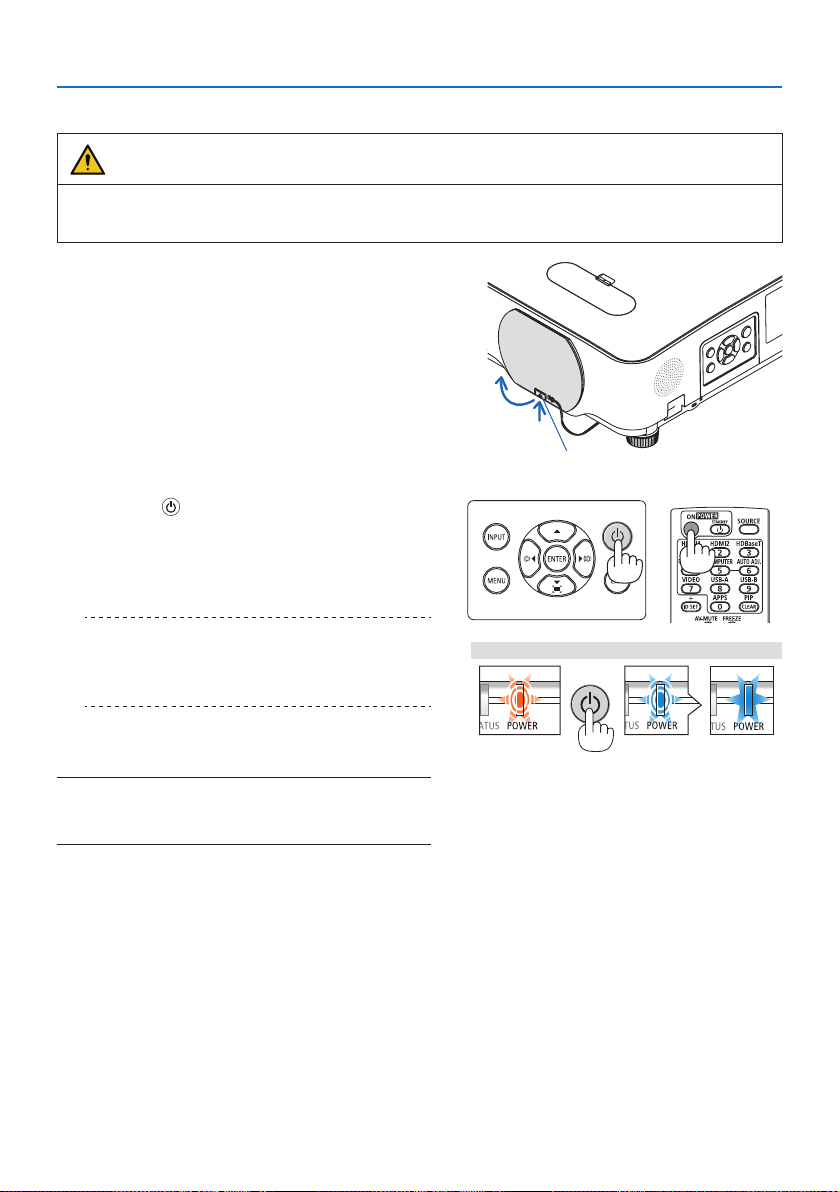
1. Remove the lens cap.
With the lens cap’s stopper pressed up, pull
forward and o.
Stopper
2. Press the
(POWER) button on the projec-
tor cabinet or the POWER ON button on the
remote control.
The POWER indicator lights blue and the image
is projected on the screen.
TIP:
•Whenthemessage“PROJECTORISLOCKED!ENTERYOUR
KEYWORD.”isdisplayed,itmeansthatthe[SECURITY]feature
isturnedon.(→page46)
After you turn on your projector, ensure that the
computer or video source is turned on.
NOTE:
•Whennoinputsignalispresent,theno-signalguidanceisdis-
played(factorymenusetting).
StandbyBlinkingPowerOn
BlinkingorangelightBlinkingblue
light
Steadybluelight
2. Projecting an Image (Basic Operation)
19
Note on Startup screen (Menu Language Select screen)
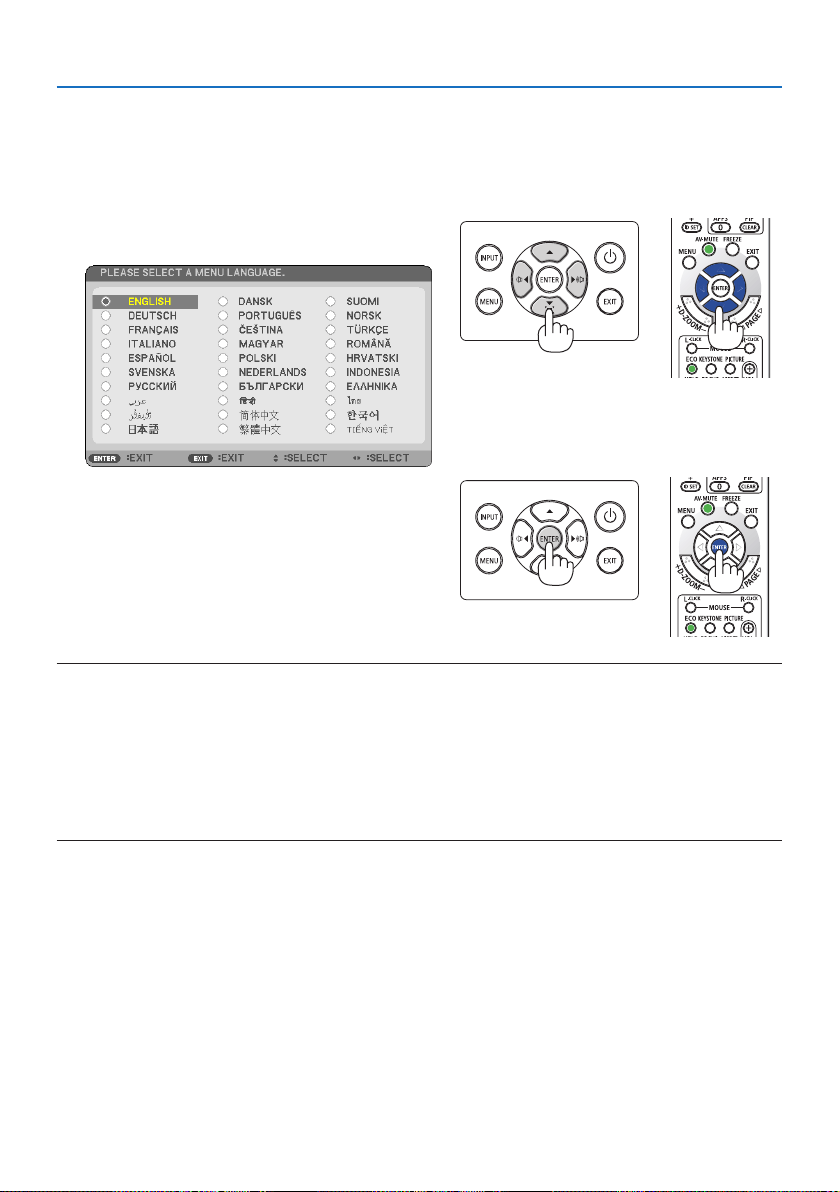
When you rst turn on the projector, you will get the Startup menu. This menu gives you the op-
portunity to select one of the 30 menu languages.
To select a menu language, follow these steps:
1. Use the ▲, ▼, ◀ or ▶ button to select one of
the30languagesfromthemenu.
2. Press the ENTER button to execute the selec-
tion.
After this has been done, you can proceed to
the menu operation.
If you want, you can select the menu language
later.
(→ [LANGUAGE] on pages
51 and 65)
NOTE:
•Ifoneofthefollowingthingshappens,theprojectorwillnotturnon.
-Iftheinternaltemperatureoftheprojectoristoohigh,theprojectordetectsabnormalhightemperature.Inthisconditionthe
projectorwillnotturnontoprotecttheinternalsystem.Ifthishappens,waitfortheprojector’sinternalcomponentstocool
down.
-IftheSTATUSindicatorlightsorangewiththepowerbuttonpressed,itmeansthatthe[CONTROLPANELLOCK]isturnedon.
Cancelthelockbyturningito.(→page
71)
•WhilethePOWERindicatorisblinkingblueinshortcycles,thepowercannotbeturnedobyusingthepowerbutton.
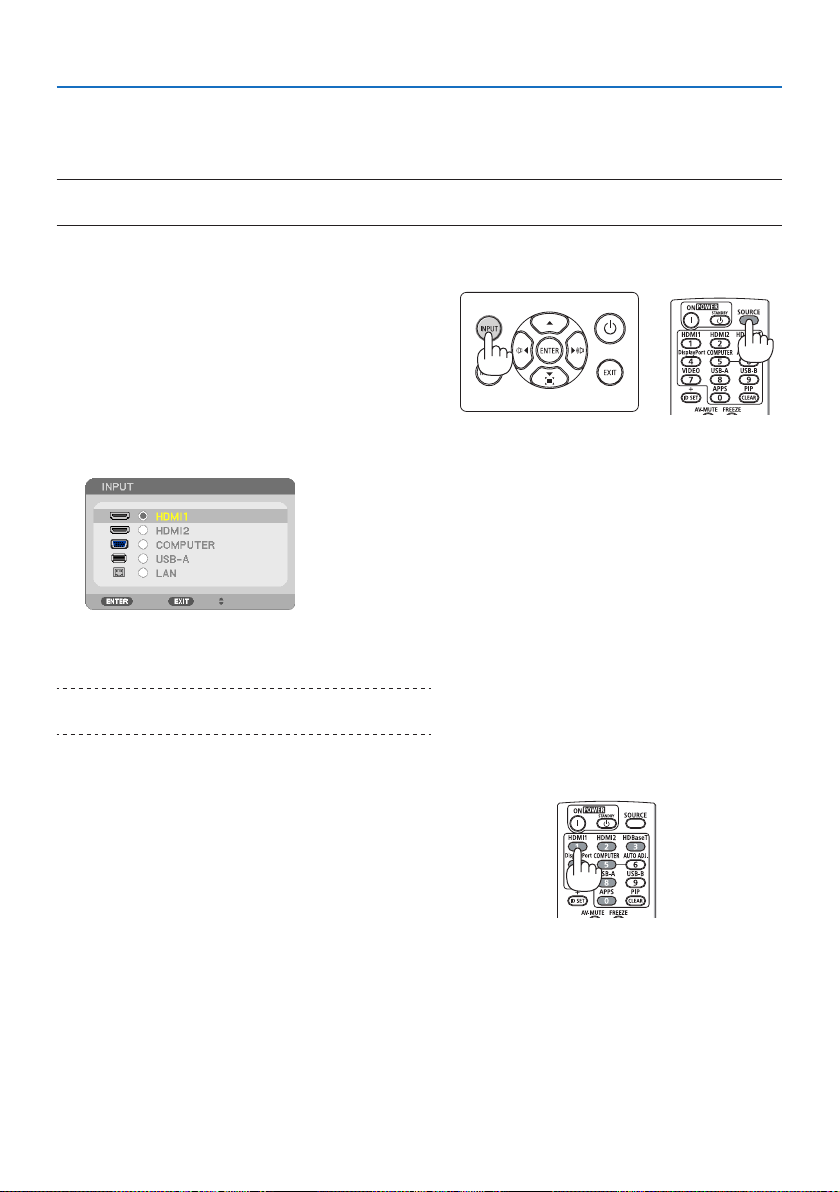
2. Projecting an Image (Basic Operation)
20
2-4. Selecting a Source
Selecting the computer or video source
NOTE:
•Turnonthecomputerorvideosourceequipmentconnectedtotheprojector.
Detecting the Signal Automatically
Press the INPUT button once. The projector will
search for the available input source and display it.
The input source will change as follows:
[HDMI1] → [HDMI2] → [COMPUTER] → [USB-A]
→ [LAN]
•Withthe[INPUT]screendisplayed,youcanpress
the INPUT button a few times to select the input
source.
•PresstheSOURCEbuttonwhenusingthe
remote control.
TIP:
•Ifnoinputsignalispresent,theinputwillbeskipped.
Using the Remote Control
Press any one of the HDMI1, HDMI2, COMPUTER,
USB-A, or APPS buttons.
2. Projecting an Image (Basic Operation)
21
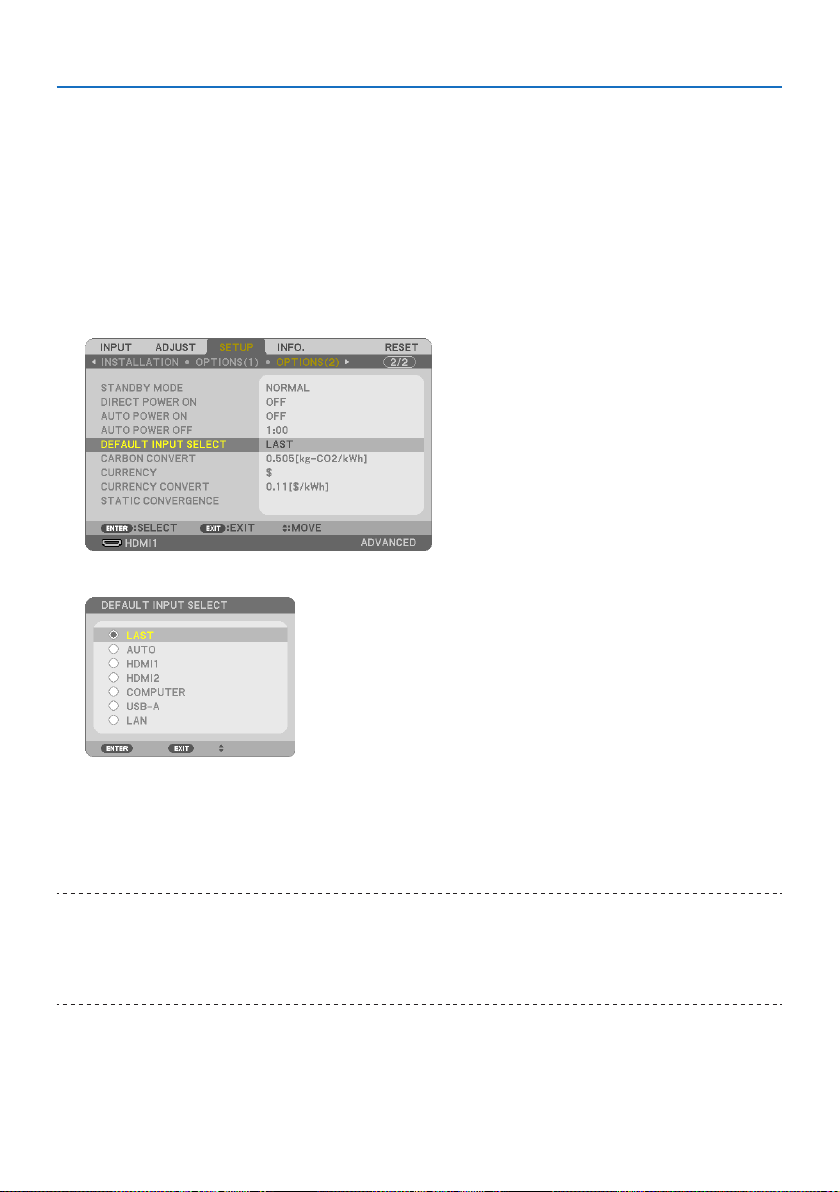
Selecting Default Source
You can so that it will be displayed each time the projector is turned on.
1. Press the MENU button.
The menu will be displayed.
2. Press the ▶buttontwicetoselect[SETUP]andthe▼ button or the ENTER button to select
[GENERAL].
3.
Press the
▶
buttonvetimestoselect[OPTIONS(2)].
4. Pressthe▼buttonvetimestoselect[DEFAULTINPUTSELECT]andpresstheENTER
button.
The [DEFAULT INPUT SELECT] screen will be displayed.
5.
Select a source as the default source, and press the ENTER button.
6. Press the EXIT button a few times to close the menu.
7. Restart the projector.
The source you selected in step 5 will be projected.
TIP:
•Whentheprojectorandcomputerareconnectedandtheprojectorisinstandby,itispossibletoturnontheprojector’spowerand
projectthecomputer’sscreenautomaticallybydetectingthecomputersignalsorHDMIsignalsissuedfromthecomputer.
([AUTOPOWERON]→page77)
•OnWindows7,acombinationoftheWindowsandPkeysallowsyoutosetupexternaldisplayeasilyandquickly.
2. Projecting an Image (Basic Operation)
22
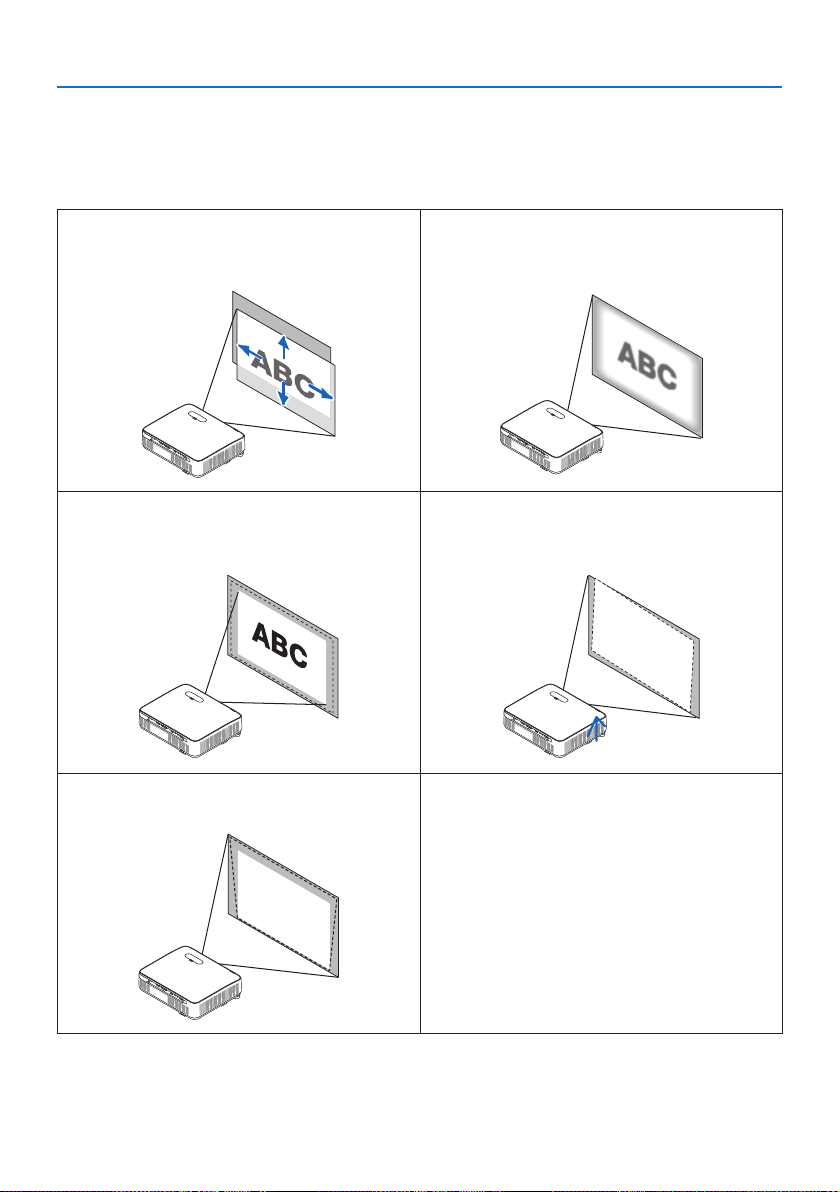
2-5. Adjusting the Picture Size and Position
Use the lens shift dial, the adjustable tilt foot lever, the zoom lever/zoom ring and the focus ring to
adjust the picture size and position.
In this chapter drawings and cables are omitted for clarity.
Adjusting the projected image’s vertical and
horizontal position [Lens shift]
(→ page 23)
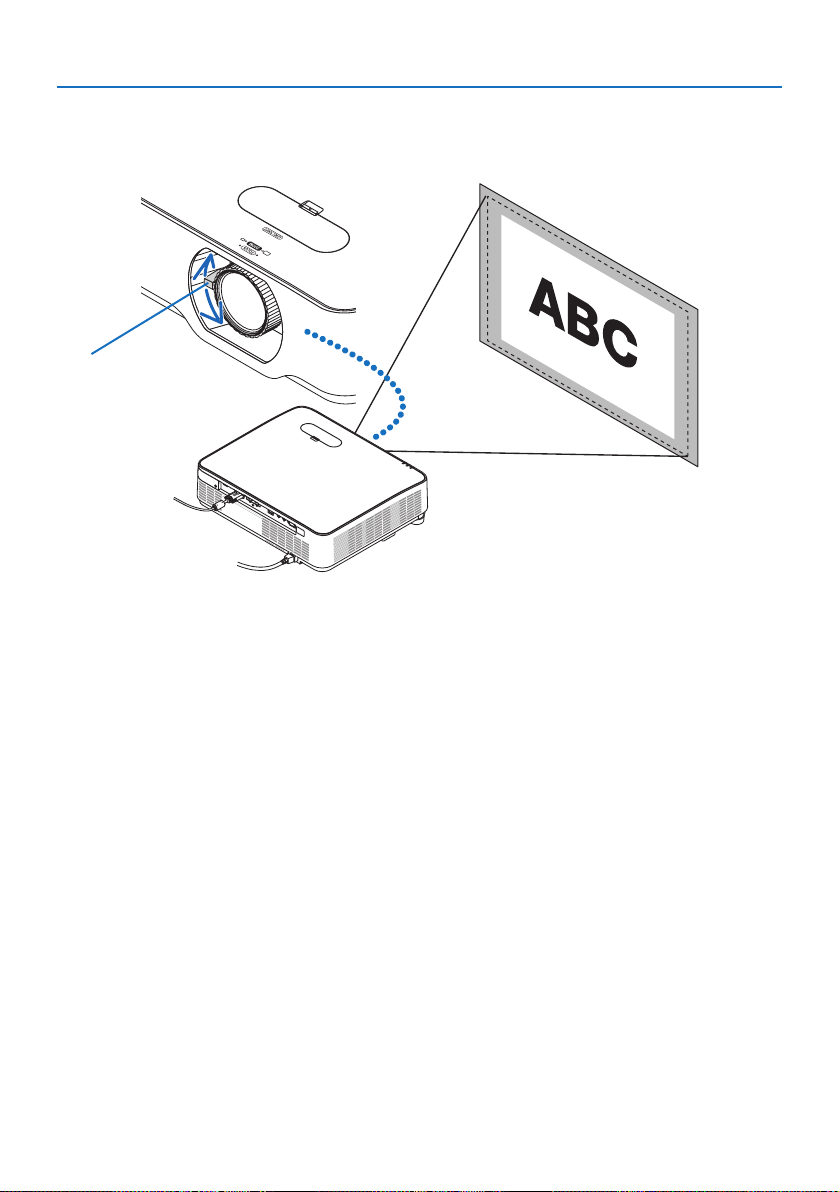
Adjusting the focus [Focus ring]
(→ page 25)
Finely adjusting the size of an image [Zoom
lever]
(→ page 26)
Adjusting the projected image’s height and
horizontal tilt [Tilt foot]
(→ page 27)
Correcting the keystone distortion [Keystone]
(→ page 28)
2. Projecting an Image (Basic Operation)
23
Adjusting the vertical position of a projected image (Lens shift)
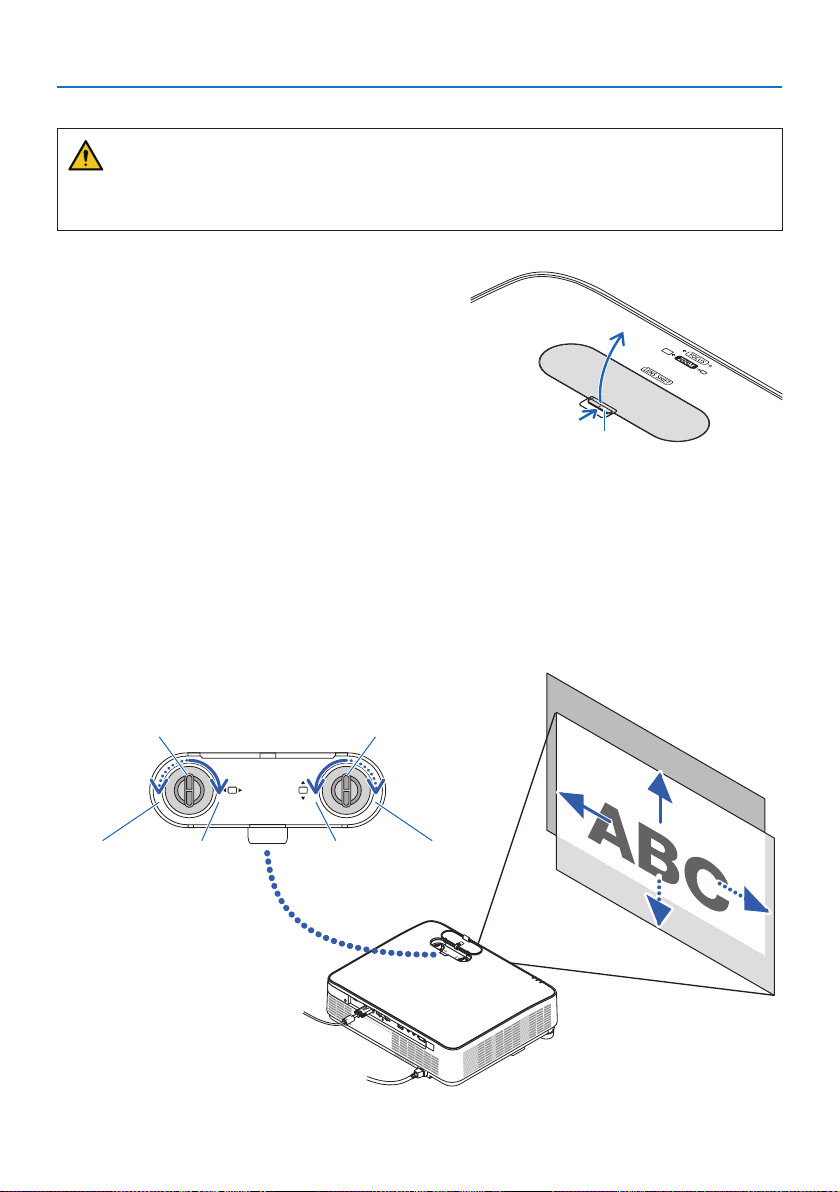
CAUTION
Perform the adjustment from behind or from the side of the projector. Adjusting from the front
could expose your eyes to strong light which could injure them.
1. Open the lens shift cover.
Open with the cover’s stopper pushed forward.
•Thelensshiftcovercannotberemoved.
Stopper
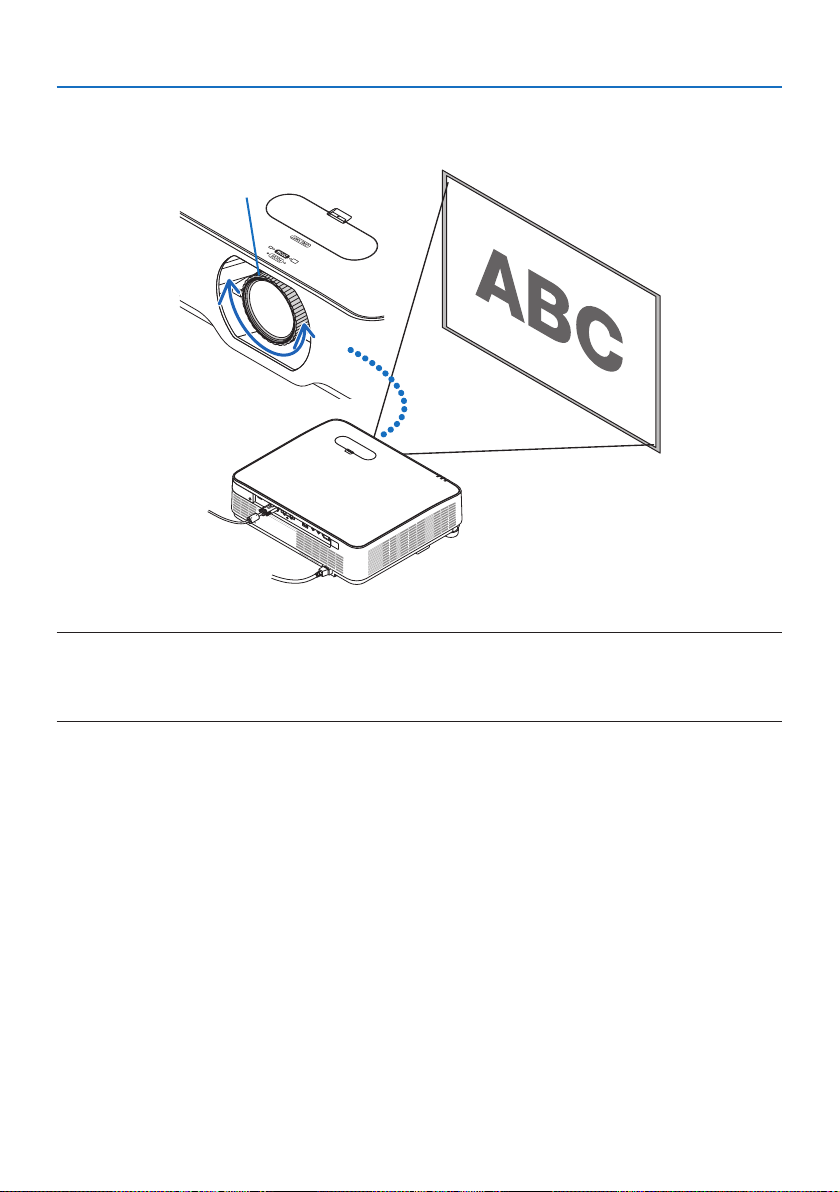
2. Turn the lens shift dials clockwise or counterclockwise.
Vertical dial
Turn this clockwise or counterclockwise to adjust the projection position in the vertical direction.
Horizontal dial
Turn this clockwise or counterclockwise to adjust the projection position in the horizontal
direction.
Lens shift dial
(Horizontal)
Lens shift dial
(Vertical)
DownwardLeftward UpwardRightward
2. Projecting an Image (Basic Operation)
24
NOTE:
•Thedialscanbeturnedmorethanonefullturn,buttheprojectionpositioncannotbemovedmorethantherangeindicatedon
thefollowingpage.Donotforcetoturnthedials.Doingsomaydamagethedials.
•Ifthelensisshiftedtothemaximuminthediagonaldirection,theedgesofthescreenwillbedarkorshaded.
•Theverticalshiftadjustmentmustbenishedwithanimageshiftedupward.Ifyounishtheverticalshiftadjustmentwithan
imageshifteddown,thezoom/focusadjustmentsorstrongshakingmaycauseaprojectedimagetoslightlyshiftdown.
3. Closethelensshiftcover.
Insert the cover’s 2 (two) hooks into the grooves
in the projector, then close the cover.
Hook
Groove
TIP:
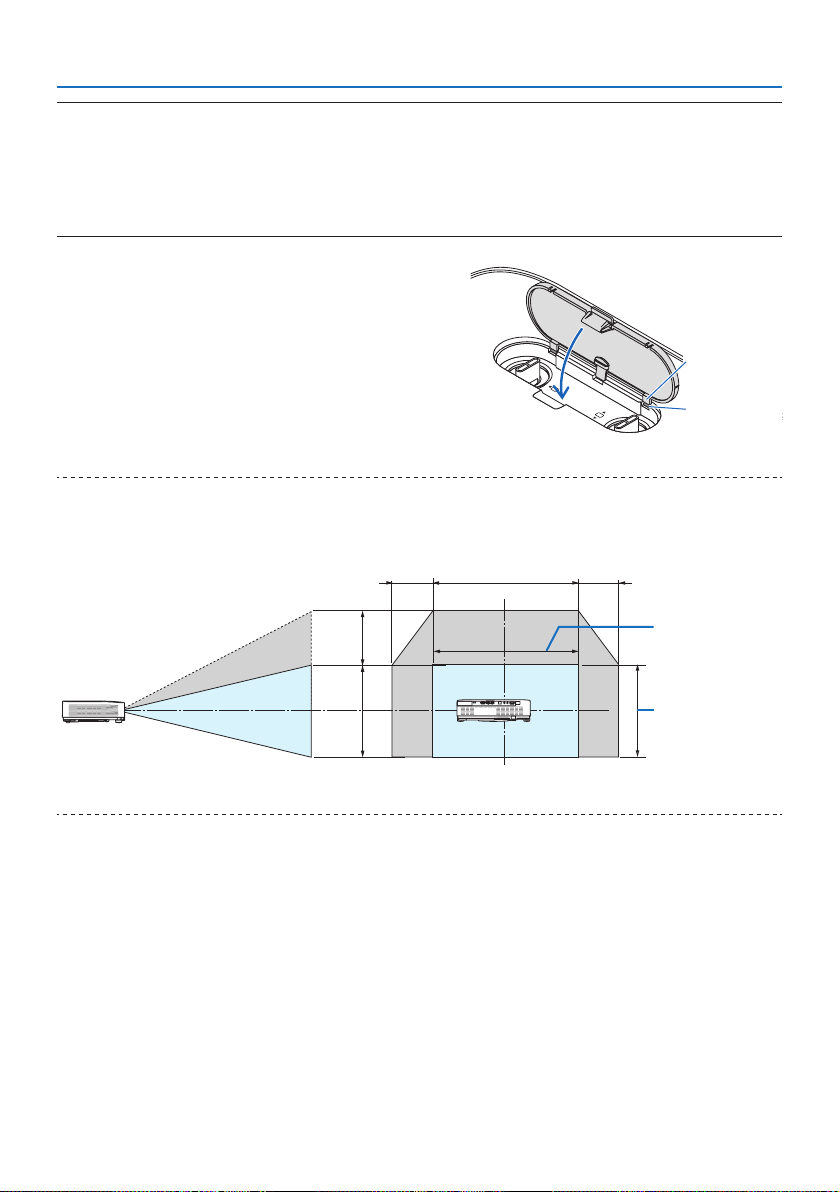
•Thediagrambelowshowsthelensshiftadjustmentrange([ORIENTATION]:[DESKTOPFRONT]).
•Forthelensshiftadjustmentrangeregardingthe[CEILINGFRONT]projection,seepage
128.
100%V
60%V
100%H29%H 29%H
Height of projected
image
Width of projected
image
Descriptionofsymbols:Vindicatesvertical(heightoftheprojectedimage),Hindicateshorizontal(widthoftheprojectedimage).
2. Projecting an Image (Basic Operation)
26
Zoom
Turn the zoom lever clockwise and counterclockwise.
Zoom lever
2. Projecting an Image (Basic Operation)
27
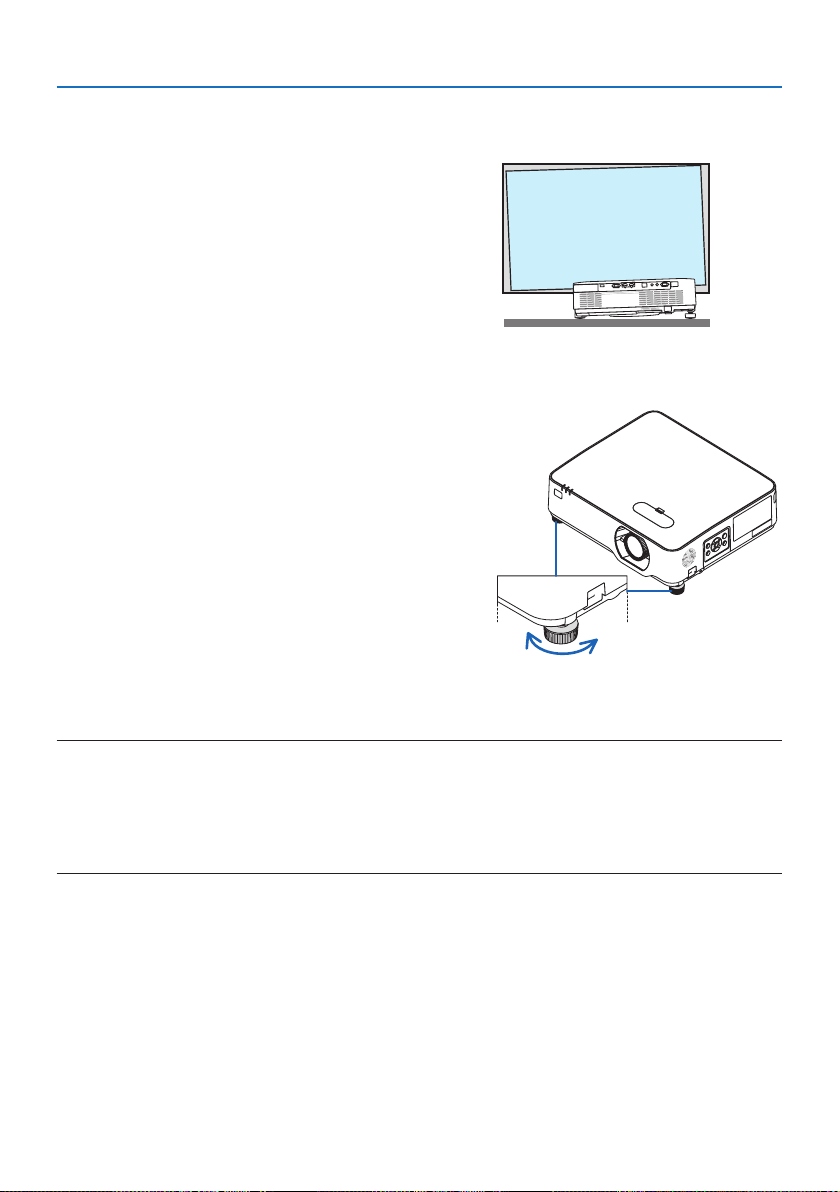
Adjusting the tilt (Tilt foot)
Adjusting the left and right tilt.
1. Turn the left and right tilt feet to adjust.
The tilt feet lengthen and shorten when turned.
The height of the projected image is adjusted
by turning the left and right tilt feet.
If the projected image is tilted, turn one of the
tilt feet to adjust the image so that it is level.
•Iftheprojectedimageisdistorted,see“2-6
Correcting Keystone Distortion [KEYSTONE]”
(→ page
28).
•Thetiltfeetcanbelengthenedbyamaxi-
mum of 15 mm/0.6".
•Thetiltfeetcanbeusedtotilttheprojector
by a maximum of 2°.
Up Down
Tilt foot
NOTE:
•Donotlengthenthetiltfeetanymorethan15mm/0.6".Doingsowillmakethetiltfeet’smountsectionunstableandcouldcause
thetiltfeettocomeotheprojector.
•Donotusethetiltfeetforanypurposeotherthanadjustingtheprojector’sprojectionangle.
Handlingthetiltfeetimproperly,suchascarryingtheprojectorbygraspingthetiltfeetorhookingitontoawallusingthetiltfeet,
coulddamagetheprojector.
2. Projecting an Image (Basic Operation)
28
2-6. Correcting Keystone Distortion [KEYSTONE]
When the projector is not exactly perpendicular to the screen, keystone distortion occurs. For cor-
recting this distortion, you can use the “Keystone” function, a digital technology that can adjust for
keystone-type distortion, resulting in a crisp, square image.
The following procedure explains how to use the [KEYSTONE] screen from the menu to correct
trapezoidal distortions when the projector is placed diagonally to the screen.
Before performing KEYSTONE correction
The [KEYSTONE] correction has four features, [KEYSTONE HORIZONTAL], [KEYSTONE VERTICAL],
[PINCUSHION LEFT/RIGHT], [PINCUSHION TOP/BOTTOM], and [CORNERSTONE]. If the value of
either [CORNERSTONE] or [PINCUSHION] has corrected, [KEYSTONE HORIZONTAL] and [KEYSTONE
VERTICAL] are disabled. In this case, RESET the corrected values and restart to correct distortion.
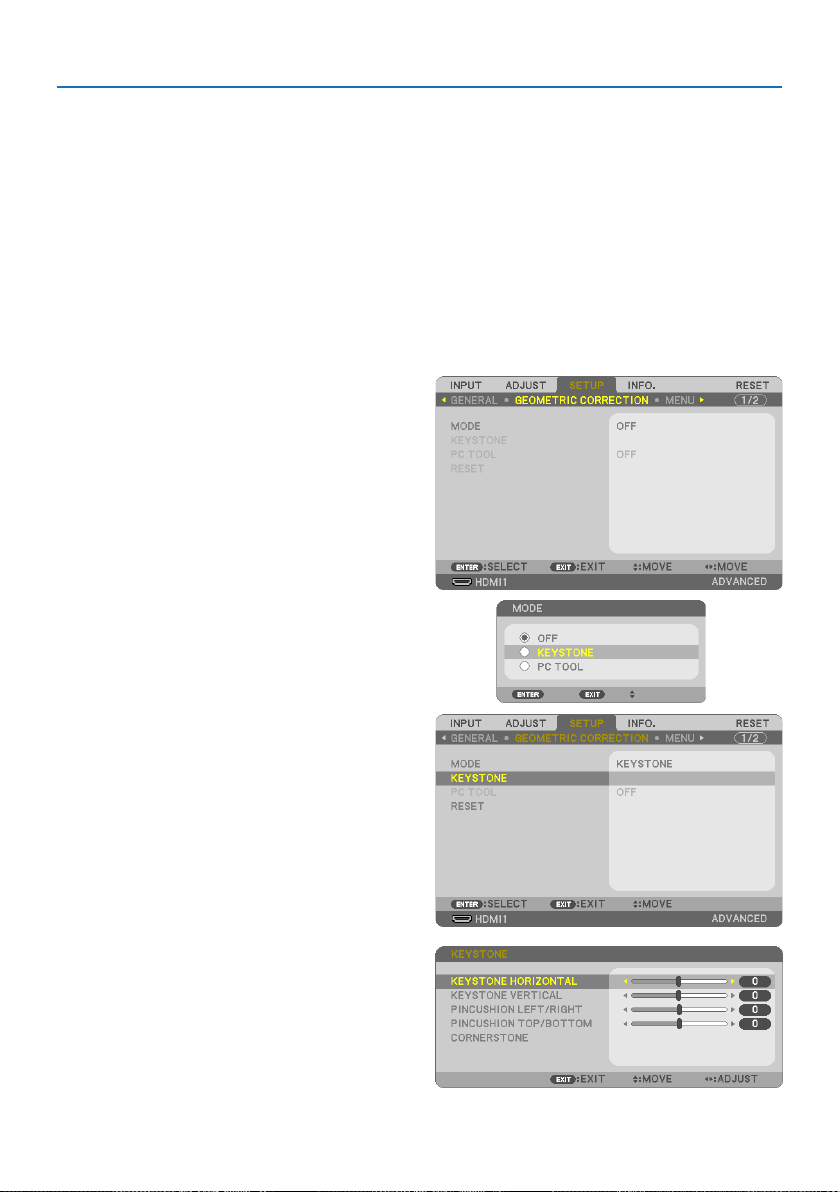
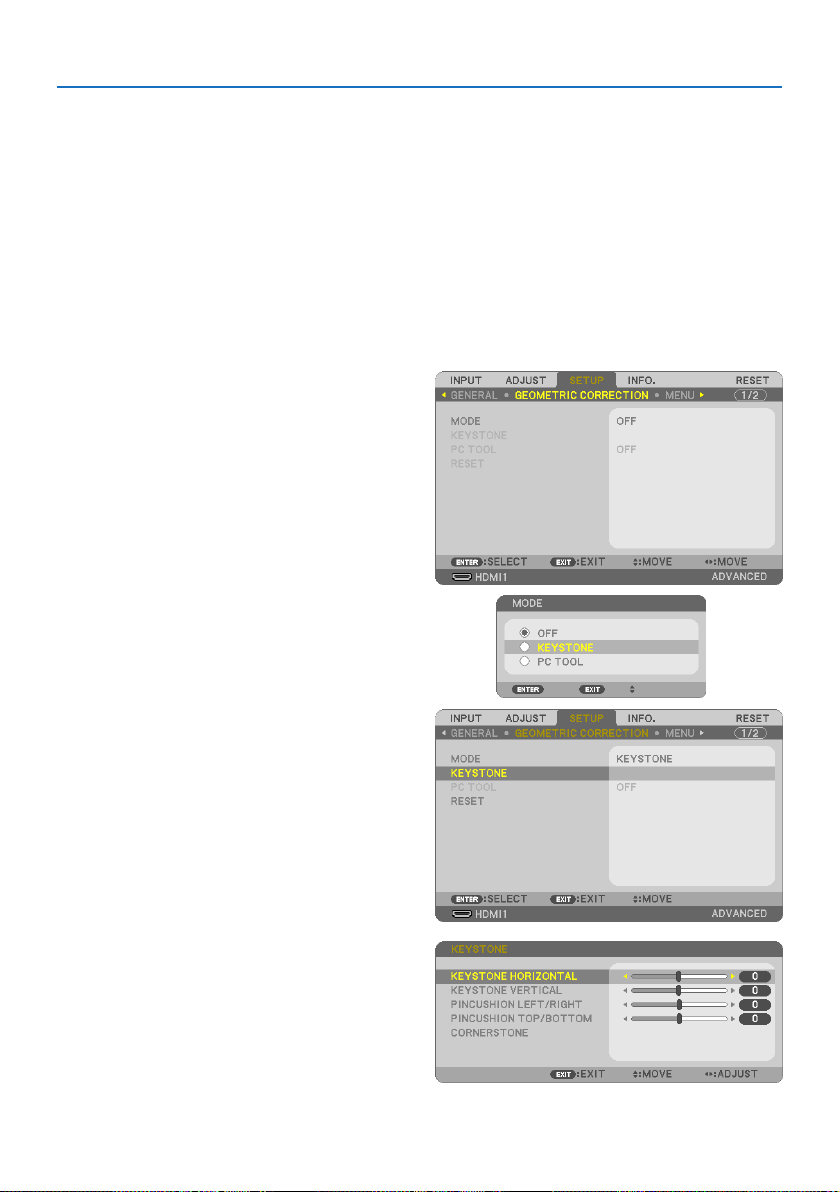
1. Press the ▼ button on the projector cabinet.
The [GEOMETRIC CORRECTION] screen will be
displayed on the screen.
•PresstheKEYSTONEbuttonwhenusing
the remote control.
2. Movethecursoronto[MODE]by▼ button
and press the ENTER.
The mode selection screen will displayed on.
3. Select[KEYSTONE]andpresstheENTER.
Go back to display the [GEOMETRIC CORREC-
TION] screen of the on-screen menu.
4. Pressthe▼buttontoalignwiththe[KEY-
STONE]andthenpresstheENTERbutton.
The screen will switch to the [KEYSTONE]
screen.
•Seepage
42 for [PINCUSHION].
•Seepage
39 for [CORNERSTONE].
2. Projecting an Image (Basic Operation)
29
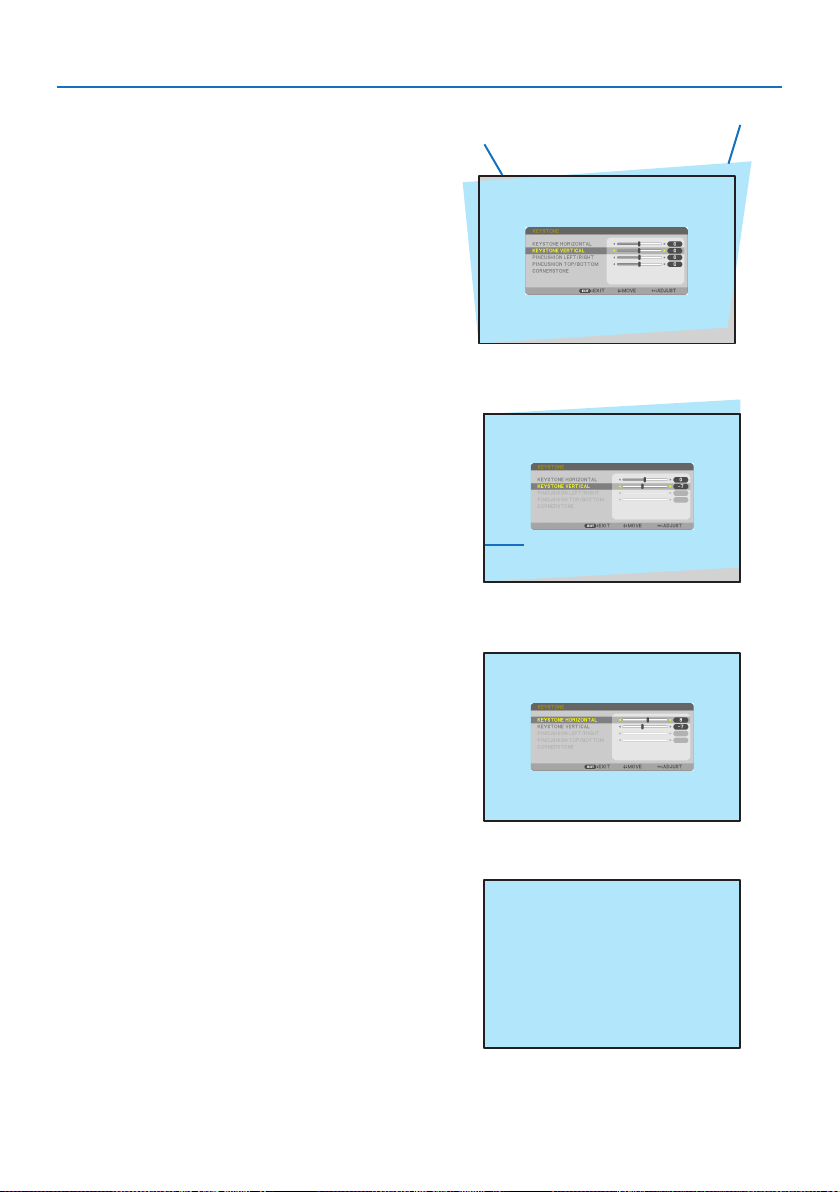
5. Press the ▼buttontoselect[KEYSTONE
VERTICAL]andthenusethe◀ or ▶ so that
the left and right sides of the projected
image are parallel.
•Adjusttheverticalkeystonedistortion.
Projected area
Screen frame
6. Align the left (or right) side of the screen
with the left (or right) side of the projected
image.
•Usetheshortersideoftheprojectedim-
age as the base.
•Intherightexample,usetheleftsideas
the base.
Align left side
7. Press the ▲buttontoselect[KEYSTONE
HORIZONTAL]andthenusethe◀ or ▶ so
that the top and bottom sides of the pro-
jected image are parallel.
•Adjustthehorizontalkeystonedistortion.
8. Repeat steps 5 and 7 to correct keystone
distortion.
9. After completing Keystone correction,
press the EXIT button a few times to turn
o the menu.

2. Projecting an Image (Basic Operation)
30
NOTE:
•Evenwhentheprojectoristurnedon,thelastusedcorrectionvaluesareapplied.
•TheKEYSTONEfeaturecancauseanimagetobeslightlyblurredbecausethecorrectionismadeelectronically.
2. Projecting an Image (Basic Operation)
31
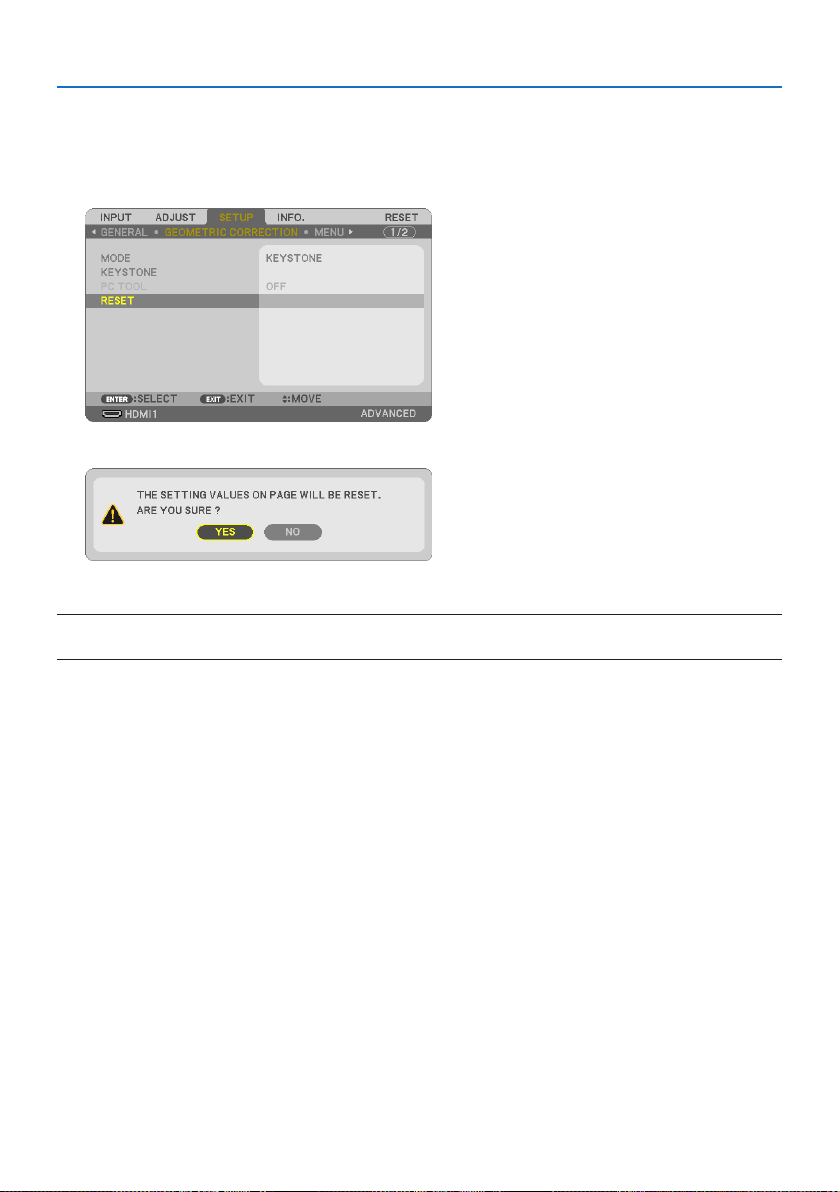
To return the keystone adjustments to default:
1. Displaythe[GEOMETRICCORRECTION]screen,andmakesure[KEYSTONE]isselectedat
[MODE].
2. Press the ▼buttontoselect[RESET]andpresstheENTERbutton.
3. Pressthe◀ or ▶buttontoselect[YES]andpresstheENTERbutton.
The adjustments will be reset.
NOTE:
•Alladjustedvaluessetinthe[KEYSTONE]adjustmentareresettoinitialvalues.
2. Projecting an Image (Basic Operation)
32
2-7. Optimizing Computer Signal Automatically
Adjusting the Image Using Auto Adjust
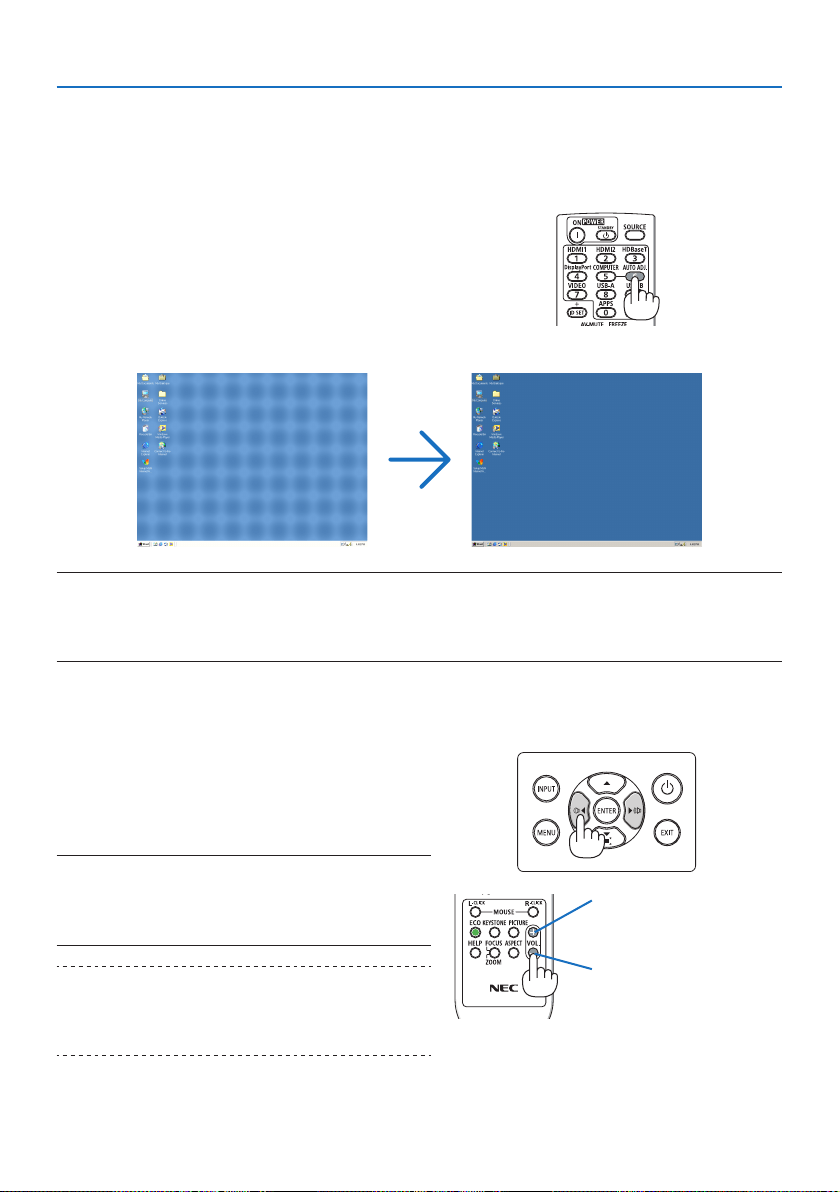
Optimizing a computer image automatically. (COMPUTER)
Press the AUTO ADJ. button on the remote control
to optimize a computer image automatically.
This adjustment may be necessary when you
connect your computer for the rst time.
Poor picture Normal picture
NOTE:
Somesignalsmaytaketimetodisplayormaynotbedisplayedcorrectly.
•IftheAutoAdjustoperationcannotoptimizethecomputersignal,trytoadjust[HORIZONTAL],[VERTICAL],[CLOCK],and[PHASE]
manually.(→page
59,60)
2-8. Turning Up or Down Volume
Sound level from the speaker or audio output can be adjusted.
When no menus appear, the ◀ and ▶ buttons on
the projector cabinet work as a volume control.
•Ontheremotecontrol,presstheVOL.(+)or(−)
button.
NOTE:
•Volumecontrolisnotavailablewiththe◀or▶buttonwhenan
imageismagniedbyusingtheD-ZOOM(+)button,whenthe
menuisdisplayed,orwhentheVIEWERorLANisdisplayed.
TIP:
•The[BEEP]soundvolumecannotbeadjusted.Toturnothe[BEEP]
sound,fromthemenu,select[SETUP]→[OPTIONS(1)]→[BEEP]
→[OFF].
Increase volume
Decrease volume
2. Projecting an Image (Basic Operation)
33
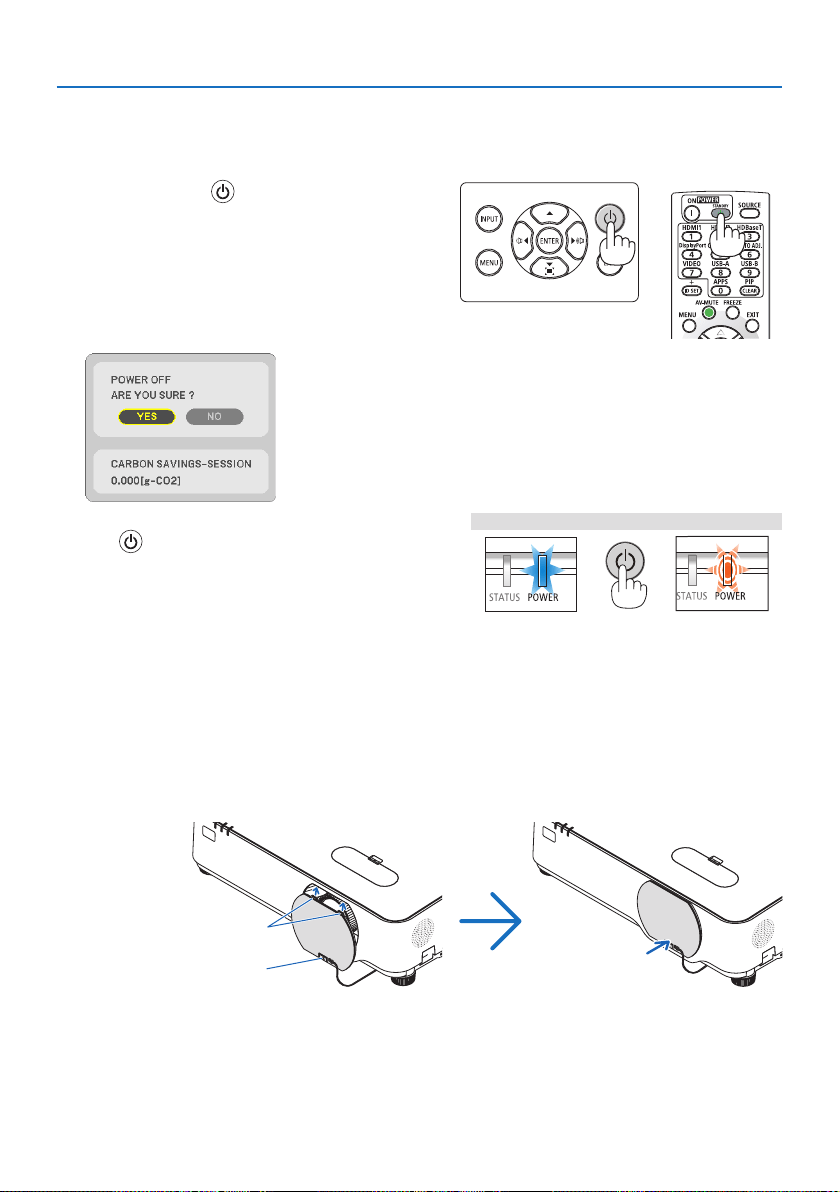
2-9. Turning off the Projector
To turn o the projector:
1. First, press the
(POWER) button on the
projector cabinet or the STANDBY button on
the remote control.
The conrmation message will be displayed.
•Theconrmationmessagedisplayedwhen
the power is turned o indicates the amount
of CO
2
reduction this session (→ page
38).
2. Secondly, press the ENTER button or press
the
(POWER) or the STANDBY button
again.
When the light source turns o, the power turns
o too (standby mode).
When the projector goes into the standby
mode, the POWER indicator of the unit ashes
orange. (In the state, [STANDBY MODE] is
[NORMAL].)
PowerOn
Steadybluelight
Standby
Blinkingorangelight
3. Mountthelenscap.
Insert the cap’s 2 (two) hooks into the grooves
of the projector, then press at the bottom of the
lens cap. The stopper is secured to the projector.
Hook
Stopper

2. Projecting an Image (Basic Operation)
34
CAUTION:
Parts of the projector may become temporarily heated if the projector is turned o with the
POWER button.
Be careful to handle the projector.
NOTE:
•WhilethePOWERindicatorisblinkingblueinshortcycles,thepowercannotbeturnedo.
•Donotunplugthepowercordfromtheprojectororfromthepoweroutletwhileanimageisbeingprojected.Doingsocould
deterioratetheprojector’sACINterminalorthepowerplug’scontact.ToturnotheACpowerwhileanimageisbeingprojected,
usethepowerstrip’sswitch,thebreaker,etc.
•DonotdisconnecttheACpowersupplytotheprojectorwithin10secondsofmakingadjustmentorsettingchangesandclosing
themenu.Doingsocancauselossofadjustmentsandsettings.
2-10. When Moving the Projector
Preparation: Make sure that the projector is turned o.
1. Unplug the power cord.
2. Disconnect any other cables.
•RemovetheUSBmemoryifitisinsertedintotheprojector.

35
3-1. Turning off the Image and Sound
Press the AV-MUTE button to turn o the image
and sound for a short period of time. Press again
to restore the image and sound.
NOTE:
•Eventhoughtheimageisturnedo,themenustillremainsonthescreen.
3-2. Freezing a Picture
Press the FREEZE button. If the image of a DVD
player, etc., is being projected, the video switches
to a still image. Press the FREEZE button again to
resume the video.
NOTE:
•Theimageisfrozenbuttheoriginalvideoisstillplayingback.
3. Convenient Features
3. Convenient Features
36
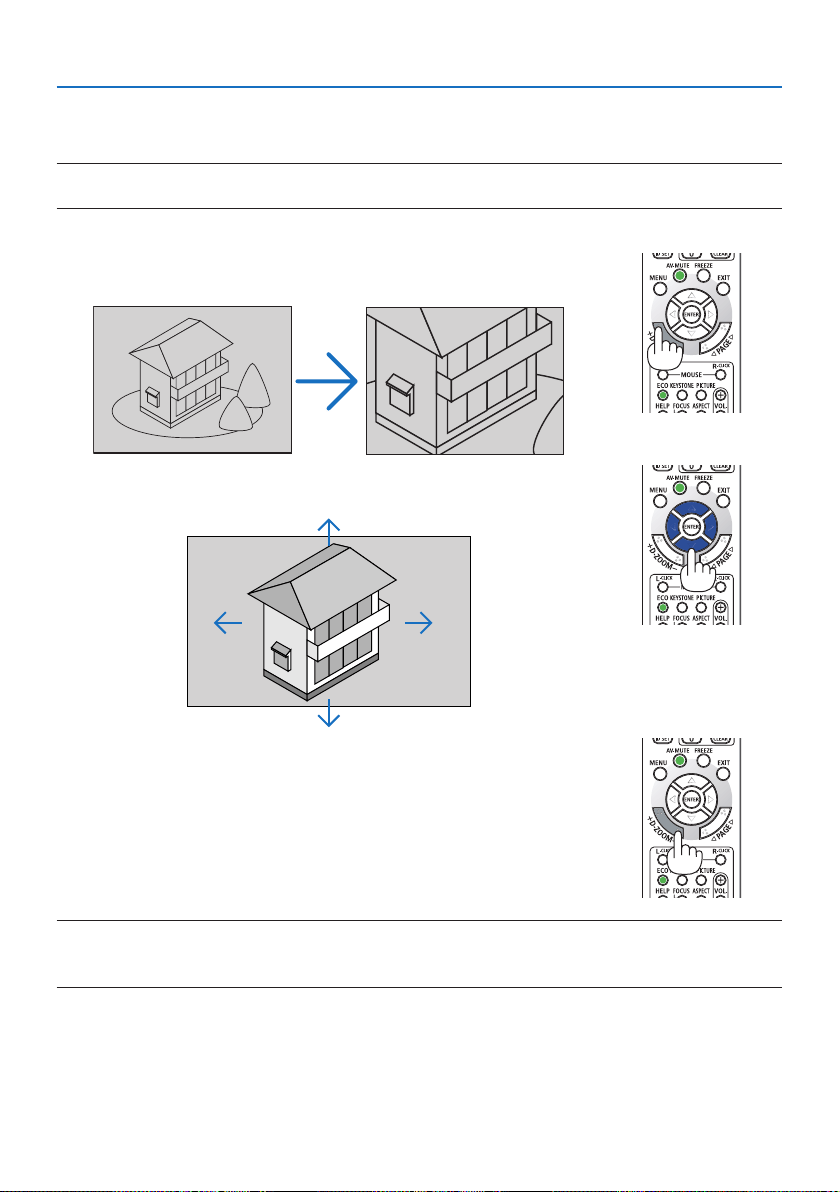
3-3. Magnifying a Picture
You can enlarge the picture up to four times.
NOTE:
•Themaximummagnicationmaybelessthanfourtimesdependingonthesignal.
To do so:
1. PresstheD-ZOOM(+)buttontomagnifythepicture.
To move the magnied image, use the ▲,▼,◀ or ▶ button.
2. Press the ▲▼◀▶ button.
The area of the magnied image will be moved.
3. PresstheD-ZOOM(−)button.
Each time the D-ZOOM (−) button is pressed, the image is reduced.
NOTE:
•Theimagewillbemagniedordemagniedatthecenterofthescreen.
•Displayingthemenuwillcancelthecurrentmagnication.
3. Convenient Features
37
3-4. Changing Eco Mode/Checking Energy-Saving Effect
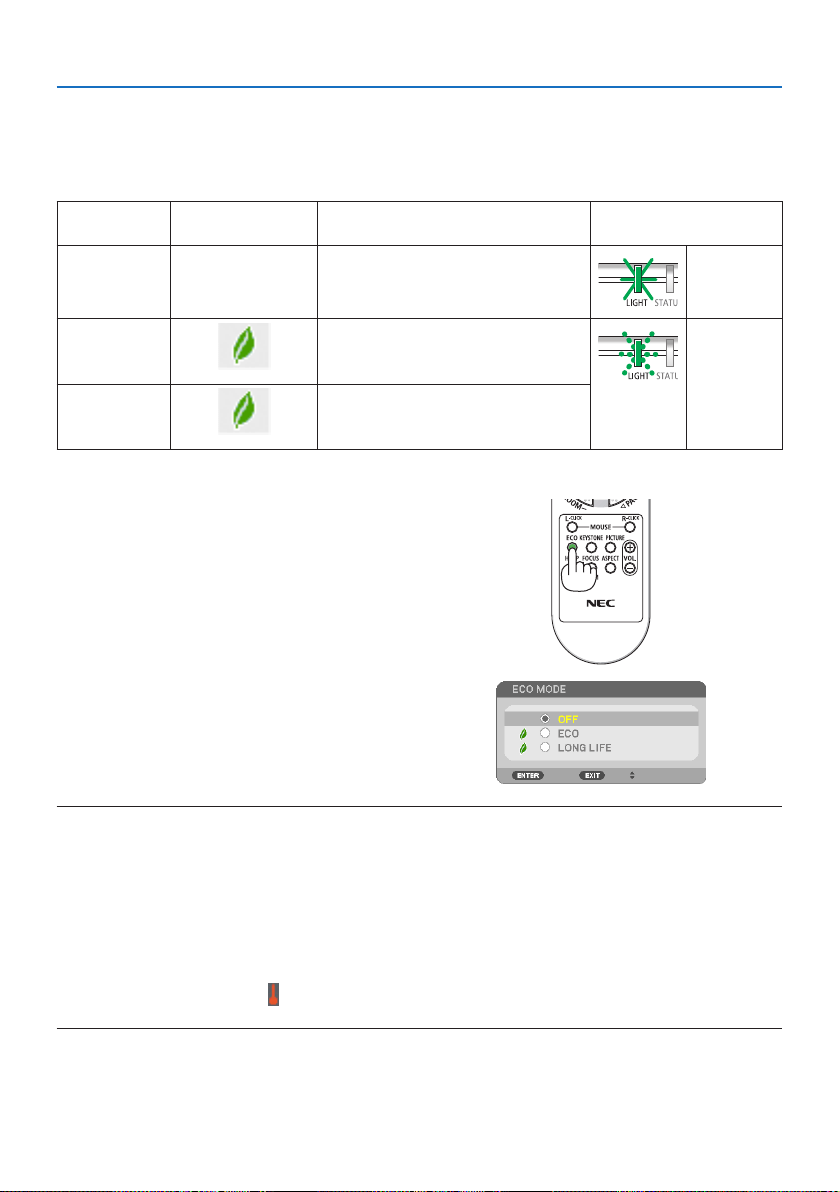
Using Eco Mode [ECO MODE]
Two eco modes can be selected according to the purpose of use for the projector.
[ECOMODE]Iconatthebottomof
themenu
DescriptionStatusofLIGHTindicator
[OFF]100%brightness
Thescreenwillbebrightlylit.
Steadygreen
light
[ECO]
Brightnesswillbeatabout60%(PE455WL:67%).
Thecoolingfanwillalsoslowdownaccordingly.
Lowerpowerconsumption
Blinkinggreen
light
[LONGLIFE]
Brightnesswillbeatabout50%(PE455WL:56%).
Thissettingaccordsprioritytoprolongingthe
lifeofthelightmodule.
To turn on the [ECO MODE], do the following:
1. Press the ECO Button on the remote control
todisplay[ECOMODE]screen.
2. Use the ▼▲ buttons to select, then press
the ENTER button.
The [ECO MODE] selection screen turns o and
the projector switches to the selected mode.
NOTE:
•The[ECOMODE]canbechangedbyusingthemenu.
Select[SETUP]→[GENERAL]→[LIGHTMODE]→[ECOMODE].
•The[LIGHTHOURSUSED]canbecheckedin[USAGETIME].Select[INFO.]→[USAGETIME].
•Afteralapseof1minutefromwhentheprojectordisplaysno-signalguidance,ablue,blackorlogoscreen,theprojectorgoesinto
[LONGLIFE]automatically.Theprojectorwillreturntoitsoriginalsettingonceasignalisaccepted.
•Iftheprojectorinsidetemperaturebecomeshighcausedonthehighroomtemperature,theprojectormaydecreasethebrightness
temporarilyforprotectingitself.Thisisaprotectivefunctioncalled[FORCEDECOMODE].Whentheprojectorisinthe[FORCEDECO
MODE],thethermometersymbol[
]isindicatedattherightbottomofthescreen.Whentheprojectorinsidetemperaturegoes
downbycoolingtheroom,the[FORCEDECOMODE]willbereleasedandtheprojectorwillbebacktotheoriginalsettingstate.
3. Convenient Features
38
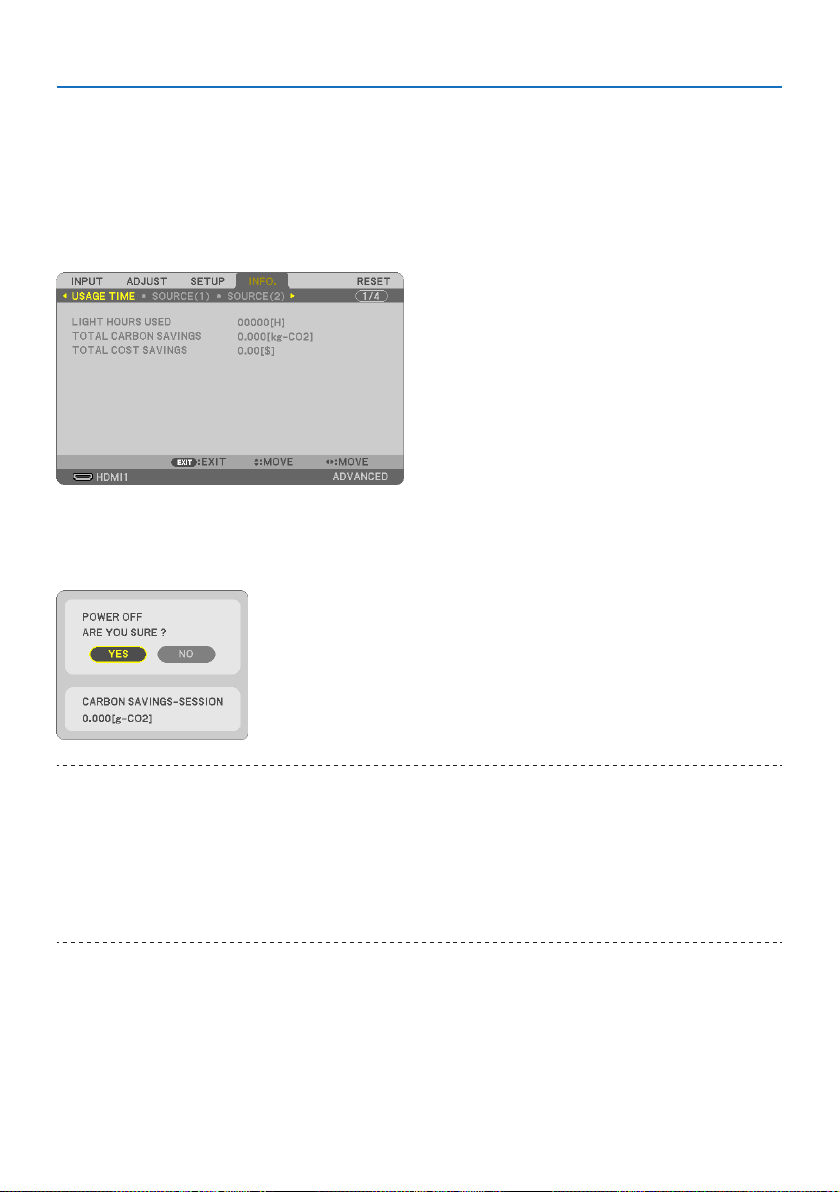
Checking Energy-Saving Effect [CARBON METER]
This feature will show energy-saving eect in terms of CO
2
emission reduction (kg) when the projec-
tor’s [ECO MODE] is set to [ECO] or [LONG LIFE]. This feature is called as [CARBON METER].
There are two messages: [TOTAL CARBON SAVINGS] and [CARBON SAVINGS-SESSION]. The [TOTAL
CARBON SAVINGS] message shows the total amount of CO
2
emission reduction from the time of
shipment up to now. You can check the information on [USAGE TIME] from [INFO.] of the menu.
(→ page
80)
The [CARBON SAVINGS-SESSION] message shows the amount of CO
2
emission reduction between
the time of changing to ECO MODE immediately after the time of power-on and the time of
power-o. The [CARBON SAVINGS-SESSION] message will be displayed in the [POWER OFF / ARE
YOU SURE ?] message at the time of power-o.
TIP:
•TheformulaasshownbelowisusedtocalculatetheamountofCO
2
emissionreduction.
AmountofCO
2
emissionreduction=(Powerconsumptionin[OFF]for[ECOMODE]−Powerconsumptionin[ECO]/[LONGLIFE]for
[ECOMODE])×CO
2
conversionfactor.
*CalculationforamountofCO
2
emissionreductionisbasedonanOECDpublication“CO
2
EmissionsfromFuelCombustion,2008
Edition”.
•The[TOTALCARBONSAVINGS]iscalculatedbasedonsavingsrecordedin15minutesintervals.
•Thisformulawillnotapplytothepowerconsumptionwhichisnotaectedbywhether[ECOMODE]isturnedonoro.
3. Convenient Features
39
3-5. Correcting distortion of projected image
Use the [CORNERSTONE] and [PINCUSHION] features to correct keystone (trapezoidal) distortion
to make the top or bottom and the left or right side of the screen longer or shorter so that the
projected image is rectangular.
Before performing correction
The [KEYSTONE] correction has features, [KEYSTONE HORIZONTAL], [KEYSTONE VERTICAL],
[PINCUSHION LEFT/RIGHT], [PINCUSHION TOP/BOTTOM], and [CORNERSTONE]. If the value of
either [CORNERSTONE] or [PINCUSHION] has corrected, [KEYSTONE HORIZONTAL] and [KEYSTONE
VERTICAL] are disabled. In this case, RESET the corrected values and restart to correct distortion.
Cornerstone
1. Press the ▼ button with no menu displayed.
The [GEOMETRIC CORRECTION] screen will
be displayed.
•PresstheKEYSTONEbuttonwhenusing
the remote control.
2. Movethecursoronto[MODE]by▼ button
and press the ENTER.
The mode selection screen will displayed on.
3. Select[KEYSTONE]andpresstheENTER.
Go back to display the [GEOMETRIC CORREC-
TION] screen of the on-screen menu.
4. Pressthe▼buttontoalignwiththe[KEY-
STONE]andthenpresstheENTERbutton.
The screen will switch to the [KEYSTONE]
screen.
3. Convenient Features
40
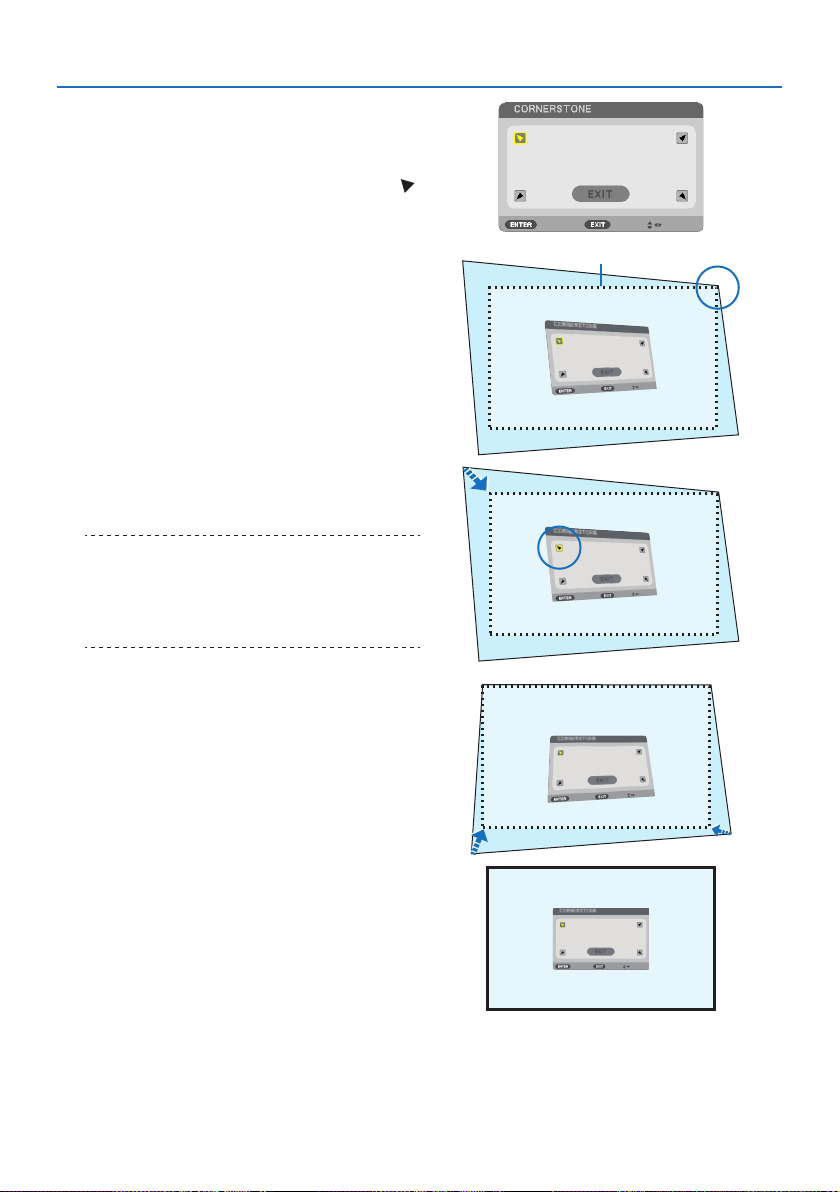
5. Press the ▼buttontoselect[CORNER-
STONE]andpresstheENTERbutton.
The [CORNERSTONE] screen will be displayed.
* The drawing shows the upper left icon (
)
is selected.
6. Project an image so that the screen is
smaller than the area of the raster.
Projected image
7. Pick up any one of the corners and align
the corner of the image with a corner of the
screen.
* The drawing shows the upper right corner.
8. Use the ▲▼◀▶ button to select one icon
(▲) which points in the direction you wish
to move the projected image frame.
TIP:
•Ifeither[CORNERSTONE]or[PINCUSHION]isadjusted,the
options[KEYSTONEVERTICAL]and[KEYSTONEHORIZON-
TAL]becomeunavailable.Inthiscase,RESETthecorrected
valuesandrestarttocorrectdistortion.
9. Press the ENTER button.
10. Use the ▲▼◀▶ button to move the project-
ed image frame as shown on the example.
11. Press the ENTER button.
12. Use the ▲▼◀▶ button to select another
icon which points in the direction.
On the Cornerstone adjustment screen, select
[EXIT] or press the EXIT button on the remote
control.
The conrmation screen is displayed.

3. Convenient Features
41
13.Pressthe◀ or ▶ button to highlight the
[OK]andpresstheENTERbutton.
This completes the Cornerstone correction.
•Selecting[CANCEL]willreturntothead-
justment screen without saving changes
(Step 3).
•Selecting[RESET]willreturntothefactory
default.
•Selecting[UNDO]willexitwithoutsaving
changes.
14.PresstheEXITbuttonafewtimestoturn
o the menu.
3. Convenient Features
42
Pincushion
By this feature, it enables to adjust left and right side or top and bottom side independently for
reforming pincushion distortion.
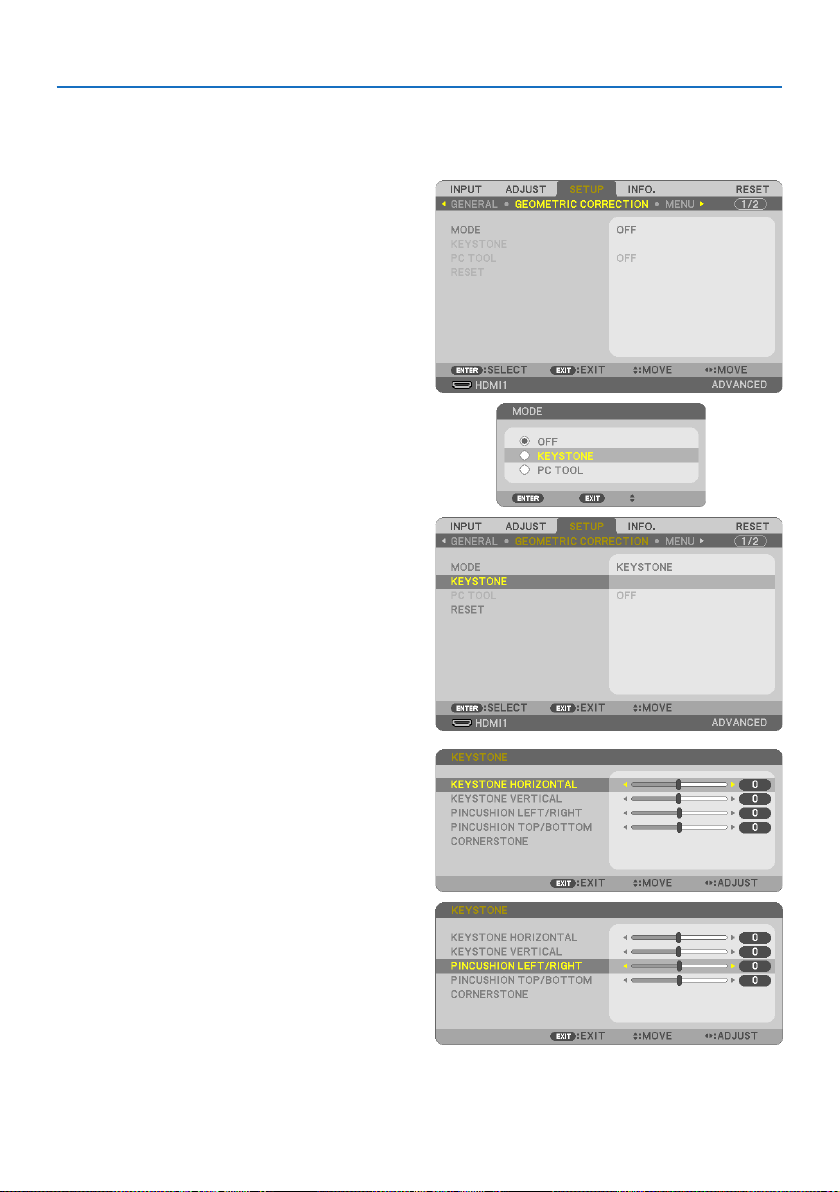
1. Press the ▼ button with no menu displayed.
The [GEOMETRIC CORRECTION] screen will
be displayed.
•PresstheKEYSTONEbuttonwhenusing
the remote control.
2. Movethecursoronto[MODE]by▼ button
and press the ENTER.
The mode selection screen will displayed on.
3. Select[KEYSTONE]andpresstheENTER.
Go back to display the [GEOMETRIC CORREC-
TION] screen of the on-screen menu.
4. Pressthe▼buttontoalignwiththe[KEY-
STONE]andthenpresstheENTERbutton.
The screen will switch to the [KEYSTONE]
screen.
5. Press the ▼ or ▲buttontoselect[PINCUSH-
IONLEFT/RIGHT]or[PINCUSHIONTOP/
BOTTOM].

3. Convenient Features
43
6. Press the ◀ or ▶ button to correct distor-
tion.
NOTE:
•The[PINCUSHIONLEFT/RIGHT]or[PINCUSHIONTOP/BOT-
TOM]itemisnotavailablewhen[KEYSTONEHORIZONTAL],
[KEYSTONEVERTICAL]or[CORNERSTONE]isactivated.
•Beforeperformingcorrection,setthelensshifttothe
centerposition.
7.Aftercompleting[PINCUSHION]adjust-
ment, press the EXIT button a few times to
turn o the menu.
NOTE:
•Evenwhentheprojectoristurnedon,thelastusedcorrectionvaluesareapplied.
•[PINCUSHION]and[CORNERSTONE]correctionscancausetheimagetobeslightlyblurredbecausethecorrectionismadeelectroni-
cally.
3. Convenient Features
44
Reset the keystone and pincushion adjustment to the default value
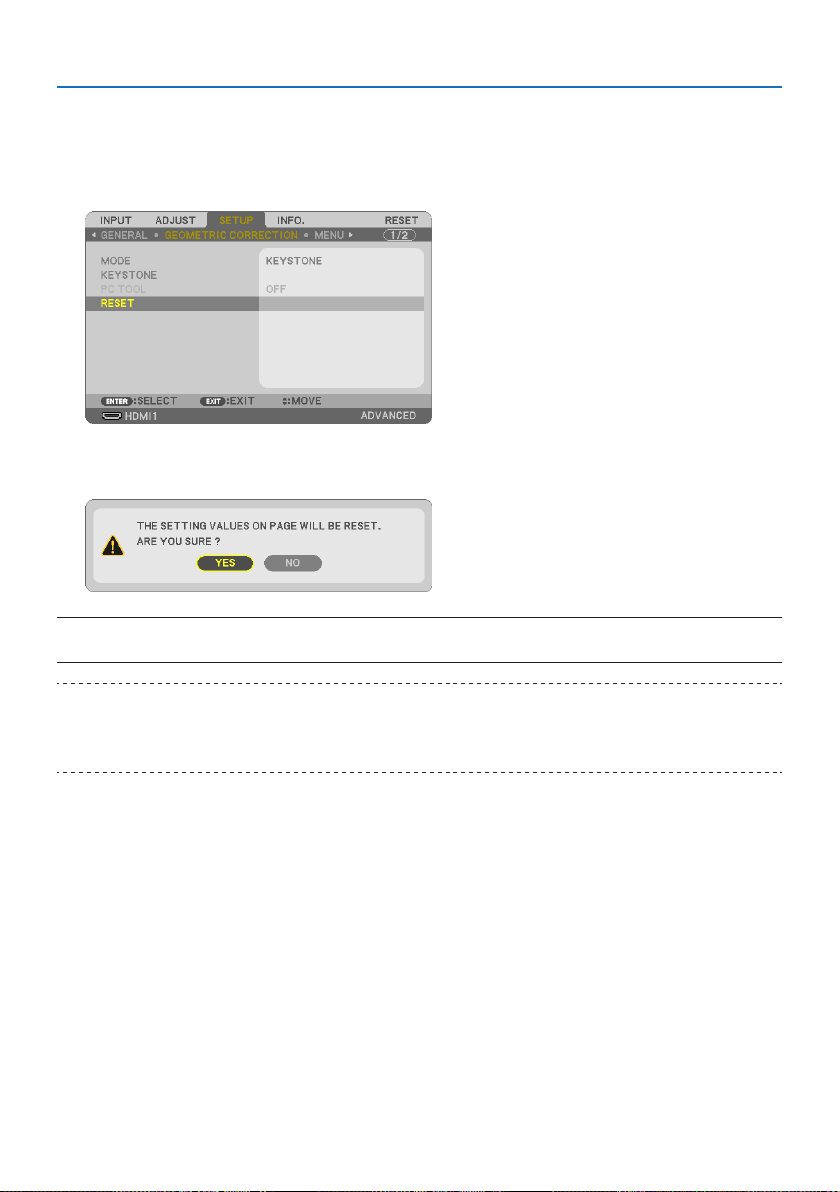
1. Displaythe[GEOMETRICCORRECTION]screen,andmakesure[KEYSTONE]isselectedat
[MODE].
2. Press the ▼buttontoselect[RESET]andpresstheENTERbutton.
•Conrmationmessageisdisplayedon.
3. Movethecursoronto[YES]usingeither◀ or ▶ button and then press the ENTER.
NOTE:
•Alladjustedvaluessetinthe[KEYSTONE]adjustmentareresettoinitialvalues.
TIP:
•Distortionwhenprojectingonspeciallyshapedsurfaces(cylindricalorsphericalsurfaces,forexample)canbecorrectedusingour
GeometricCorrectionToolapplication.PleasedownloadGeometricCorrectionToolfromourwebsite.
https://www.nec-display.com/dl/en/index.html
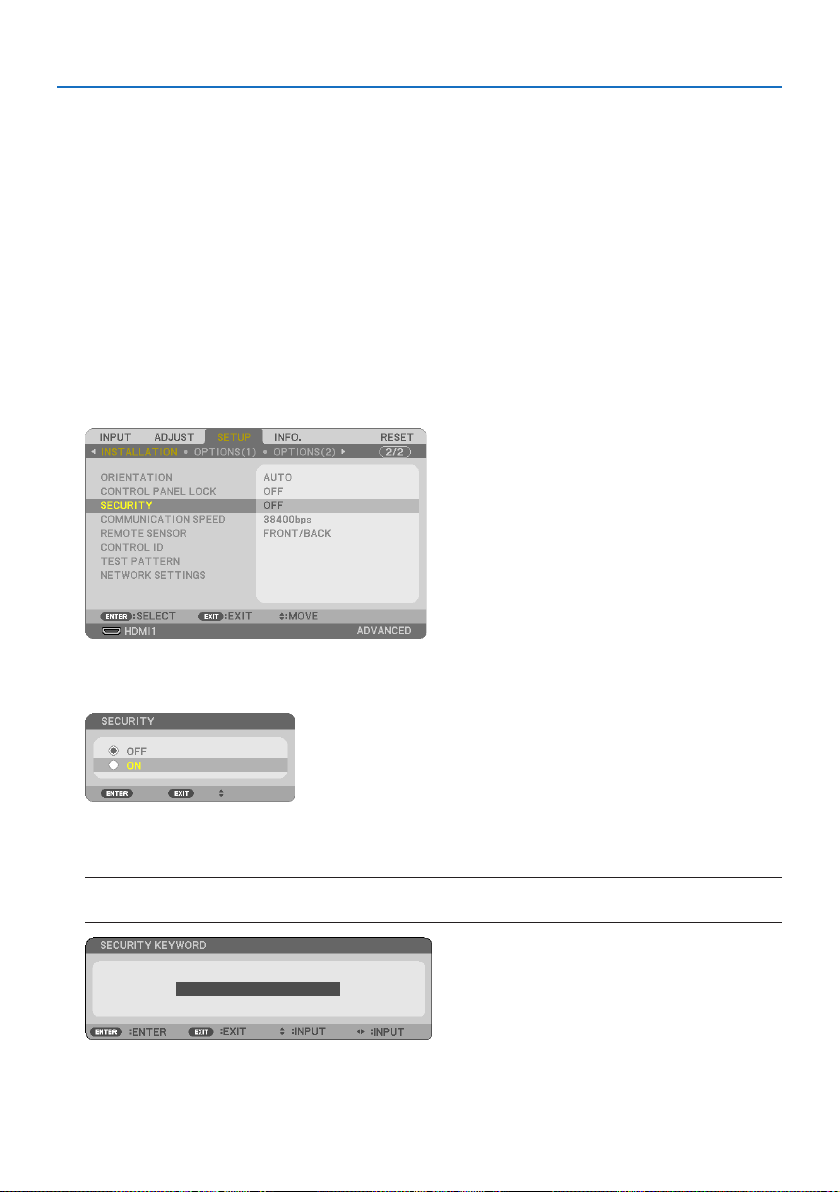
3. Convenient Features
45
3-6. Preventing the Unauthorized Use of the Projector [SECURITY]
A keyword can be set for your projector using the Menu to avoid operation by an unauthorized
user. When a keyword is set, turning on the projector will display the Keyword input screen. Unless
the correct keyword is entered, the projector cannot project an image.
•The[SECURITY]settingcannotbecancelledbyusingthe[RESET]ofthemenu.
To enable the Security function:
1. Press the MENU button.
The menu will be displayed.
2. Press the ▶buttontwicetoselect[SETUP]andpressthe▼ button or the ENTER button
toselect[GENERAL].
3. Pressthe▶buttontoselect[INSTALLATION].
4. Pressthe▼buttonthreetimestoselect[SECURITY]andpresstheENTERbutton.
The [OFF/ON] menu will be displayed.
5. Press the ▼buttontoselect[ON]andpresstheENTERbutton.
The [SECURITY KEYWORD] screen will be displayed.
6. Type in a combination of the four ▲▼◀▶ buttons and press the ENTER button.
NOTE:
•Akeywordmustbe4to10digitsinlength.
The [CONFIRM KEYWORD] screen will be displayed.
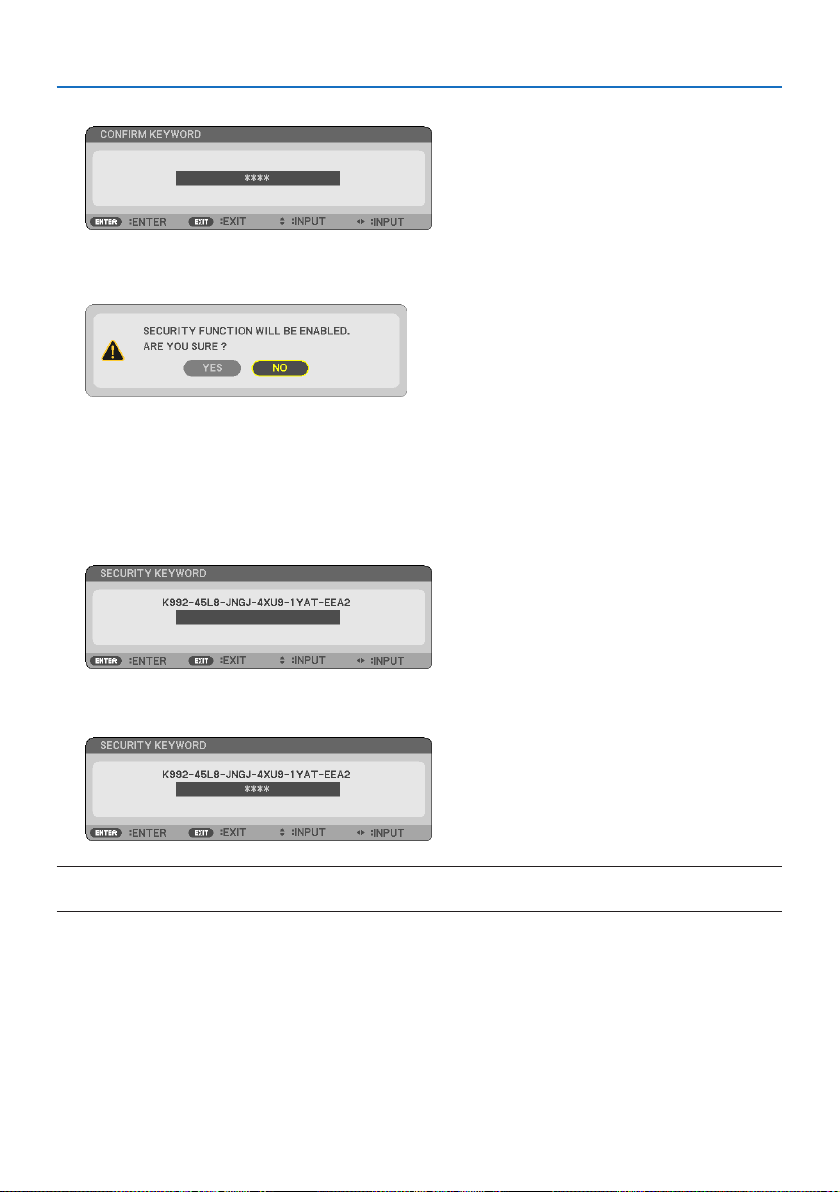
3. Convenient Features
46
7. Type in the same combination of ▲▼◀▶ buttons and press the ENTER button.
The conrmation screen will be displayed.
8. Select[YES]andpresstheENTERbutton.
The [SECURITY] function has been enabled.
Toturnontheprojectorwhen[SECURITY]isenabled:
1. Press the POWER button.
The projector will be turned on and display a message to the eect that the projector is locked.
2. Press the MENU button.
3. TypeinthecorrectkeywordandpresstheENTERbutton.Theprojectorwilldisplayan
image.
NOTE:
•Thesecuritydisablemodeismaintaineduntilthemainpoweristurnedoorunpluggingthepowercord.
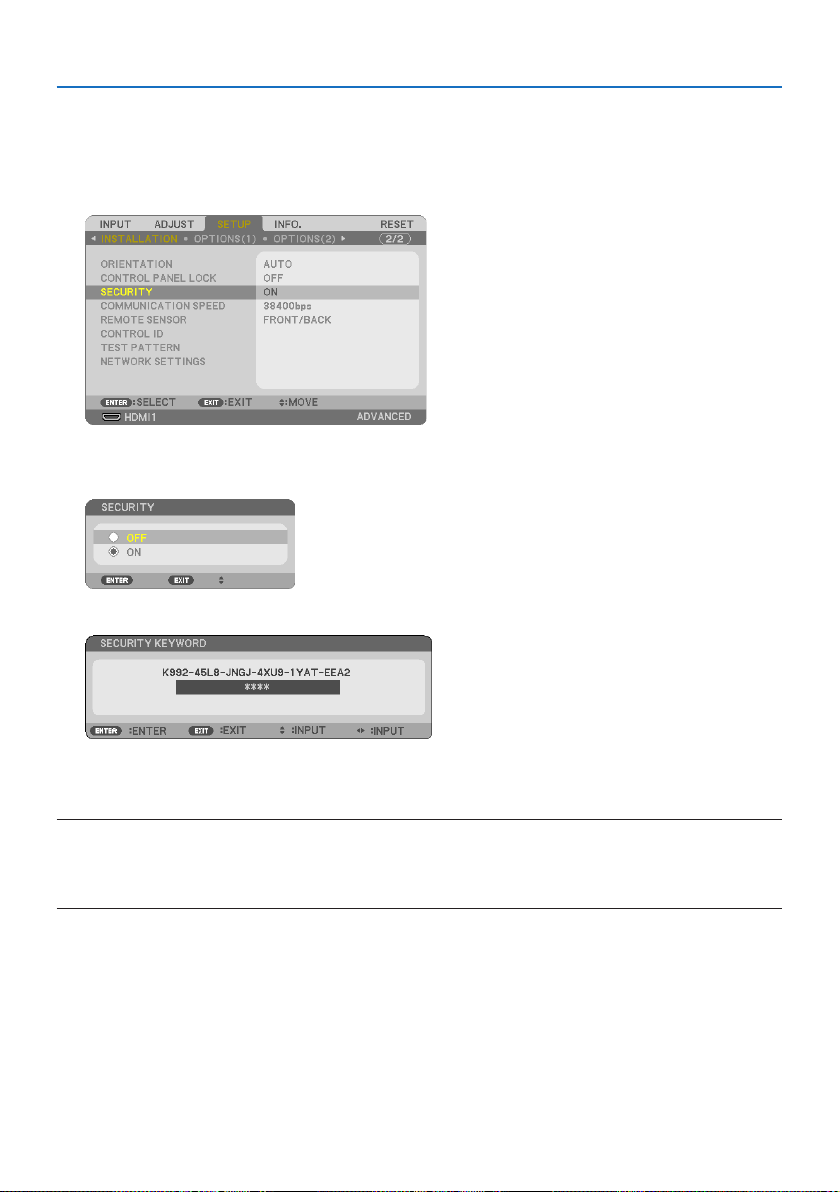
3. Convenient Features
47
Todisablethe[SECURITY]function:
1. Press the MENU button.
The menu will be displayed.
2.Select[SETUP]→[INSTALLATION]→[SECURITY]andpresstheENTERbutton.
The [OFF/ON] menu will be displayed.
3. Select[OFF]andpresstheENTERbutton.
The [SECURITY KEYWORD] screen will be displayed.
4. TypeinyourkeywordandpresstheENTERbutton.
When the correct keyword is entered, the [SECURITY] function will be disabled.
NOTE:
•Ifyouforgetyourkeyword,contactyourdealer.Yourdealerwillprovideyouwithyourkeywordinexchangeforyourrequestcode.
YourrequestcodeisdisplayedintheKeywordConrmationscreen.Inthisexample[K992-45L8-JNGJ-4XU9-1YAT-EEA2]isarequest
code.
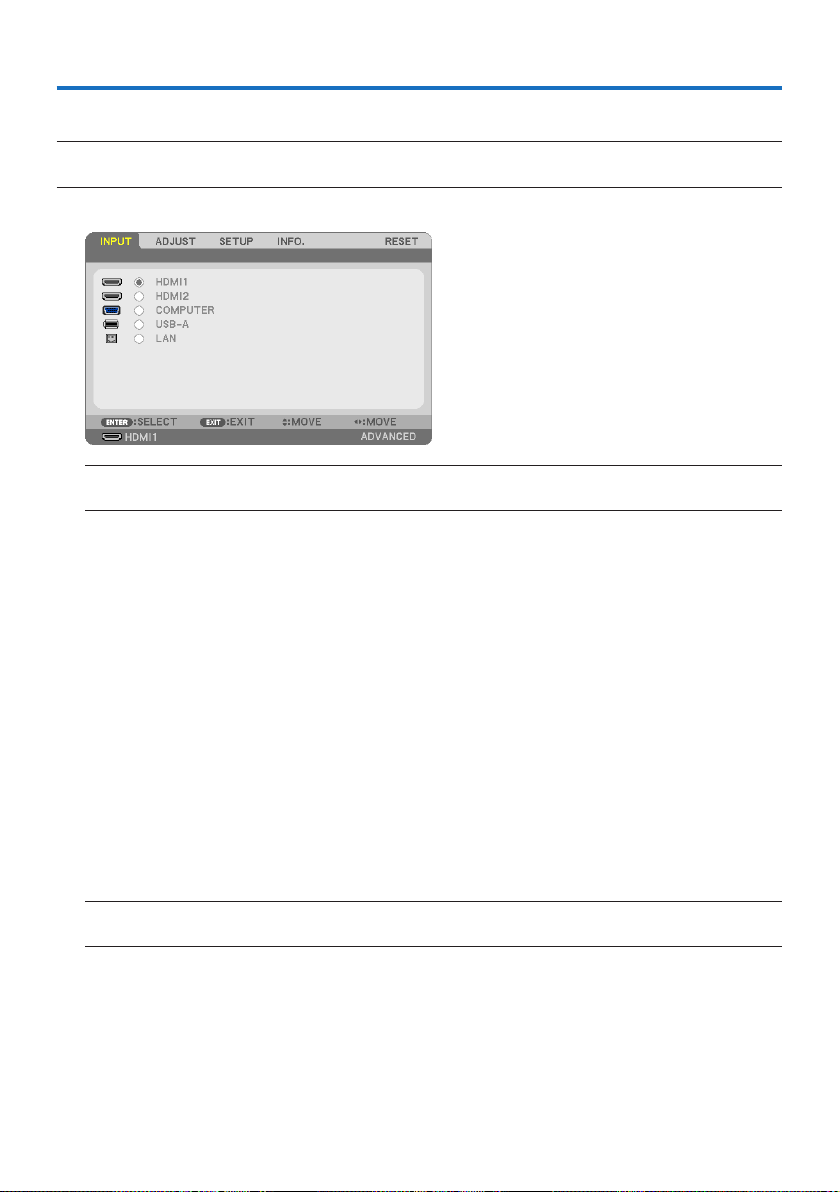
48
4-1. Using the Menus
NOTE:
•Theon-screenmenumaynotbedisplayedcorrectlywhileinterlacedmotionvideoimageisprojected.
1. Press the MENU button on the remote control or the projector cabinet to display the menu.
NOTE:
•ThecommandssuchasENTER,EXIT,▲▼,◀▶inthebottomshowavailablebuttonsforyouroperation.
2. Press the ◀▶ buttons on the remote control or the projector cabinet to display the
submenu.
3. PresstheENTERbuttonontheremotecontrolortheprojectorcabinettohighlightthe
top item or the rst tab.
4. Usethe▲▼ buttons on the remote control or the projector cabinet to select the item you
want to adjust or set.
You can use the ◀▶ buttons on the remote control or the projector cabinet to select the tab
you want.
5. Press the ENTER button on the remote control or the projector cabinet to display the
submenu window.
6. Adjust the level or turn the selected item on or o by using the ▲▼◀▶ buttons on the
remote control or the projector cabinet.
Changes are stored until adjusted again.
7. Repeat steps 2–6 to adjust an additional item, or press the EXIT button on the remote
controlortheprojectorcabinettoquitthemenudisplay.
NOTE:
•Whenamenuormessageisdisplayed,severallinesofinformationmaybelost,dependingonthesignalorsettings.
8. Press the MENU button to close the menu.
To return to the previous menu, press the EXIT button.
4. Using On-Screen Menu
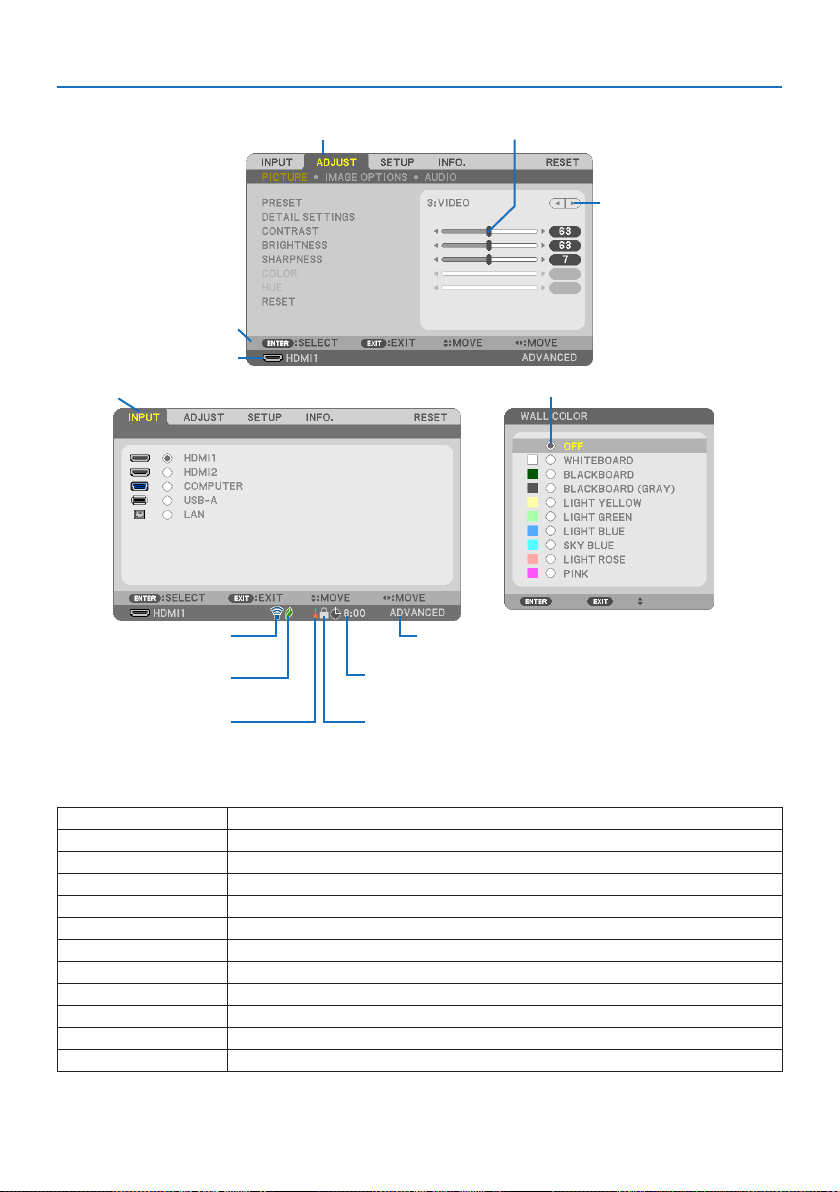
4. Using On-Screen Menu
49
Menu Elements
Slide bar
Solid triangle
Tab
Radio button
ECO mode symbol
Wireless symbol
Menu windows or dialog boxes typically have the following elements:
HighlightIndicatestheselectedmenuoritem.
SolidtriangleIndicatesfurtherchoicesareavailable.Ahighlightedtriangleindicatestheitemisactive.
TabIndicatesagroupoffeaturesinadialogbox.Selectingonanytabbringsitspagetothefront.
RadiobuttonUsethisroundbuttontoselectanoptioninadialogbox.
SourceIndicatesthecurrentlyselectedsource.
OTimerremainingtimeIndicatestheremainingcountdowntimewhenthe[OFFTIMER]ispreset.
SlidebarIndicatessettingsorthedirectionofadjustment.
ECOmodesymbolIndicates[ECOMODE]isset.
KeyLocksymbolIndicatesthe[CONTROLPANELLOCK]isenabled.
ThermometersymbolIndicatestheprojectorisinthestateofthe[FORCEDECOMODE].
WirelesssymbolIndicatethewirelessLANconnectionisenabled.
MenumodeIndicatethe[ADVANCED]menuor[BASIC]menu.
Source
Available buttons
Thermometer symbol Key Lock symbol
O Timer remaining time
Menu mode
Highlight
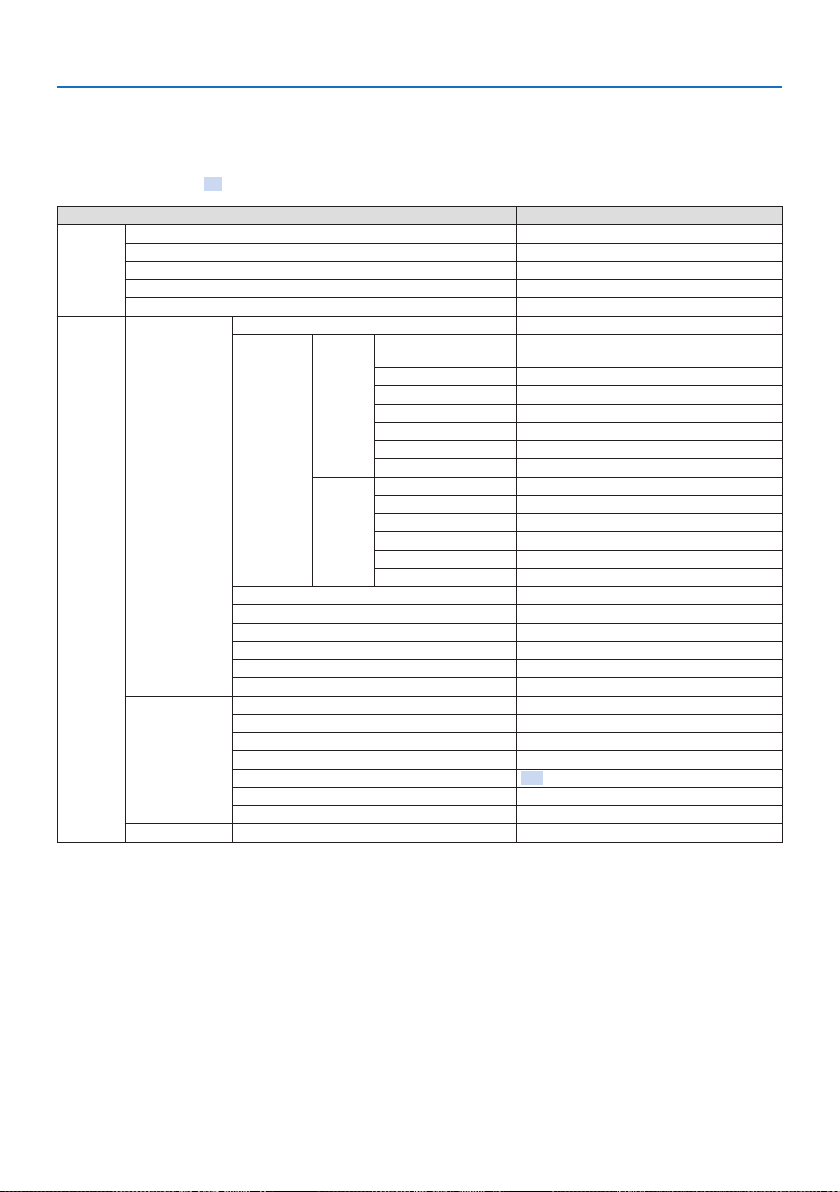
4. Using On-Screen Menu
50
4-2. List of Menu Items
Some menu items are not available depending on the input source. The below listed menu items
are on the advanced menu. The mark (B) is added to the items on the basic menu.
Shaded characters ( ) represent default settings.
MenuItemOptions
INPUTHDMI1(B)
HDMI2(B)
COMPUTER(B)
USB-A(B)
LAN(B)
ADJUSTPICTUREPRESET1–7
DETAILSETTINGSGENERALREFERENCEHIGH-BRIGHT,PRESENTATION,VIDEO,MOVIE,GRAPHIC,sRGB,
DICOMSIM.
GAMMACORRECTIONDYNAMIC,NATURAL,BLACKDETAIL
SCREENSIZELARGE,MEDIUM,SMALL
COLORTEMPERATURE
DYNAMICCONTRASTOFF,ON
IMAGEMODESTILL,MOVIE
COLORENHANCEMENTOFF,LOW,MEDIUM,HIGH
WHITE
BALANCE
CONTRASTR
CONTRASTG
CONTRASTB
BRIGHTNESSR
BRIGHTNESSG
BRIGHTNESSB
CONTRAST(B)
BRIGHTNESS(B)
SHARPNESS(B)
COLOR(B)
HUE(B)
RESET(B)
IMAGEOPTIONSCLOCK
PHASE
HORIZONTAL
VERTICAL
OVERSCAN
AUTO,0[%],5[%],10[%]
ASPECTRATIOAUTO,4:3,16:9,15:9,16:10,LETTERBOX,NATIVE
POSITION*
AUDIOVOLUME(B)
* This function is not available for PE455UL/PE455WL.
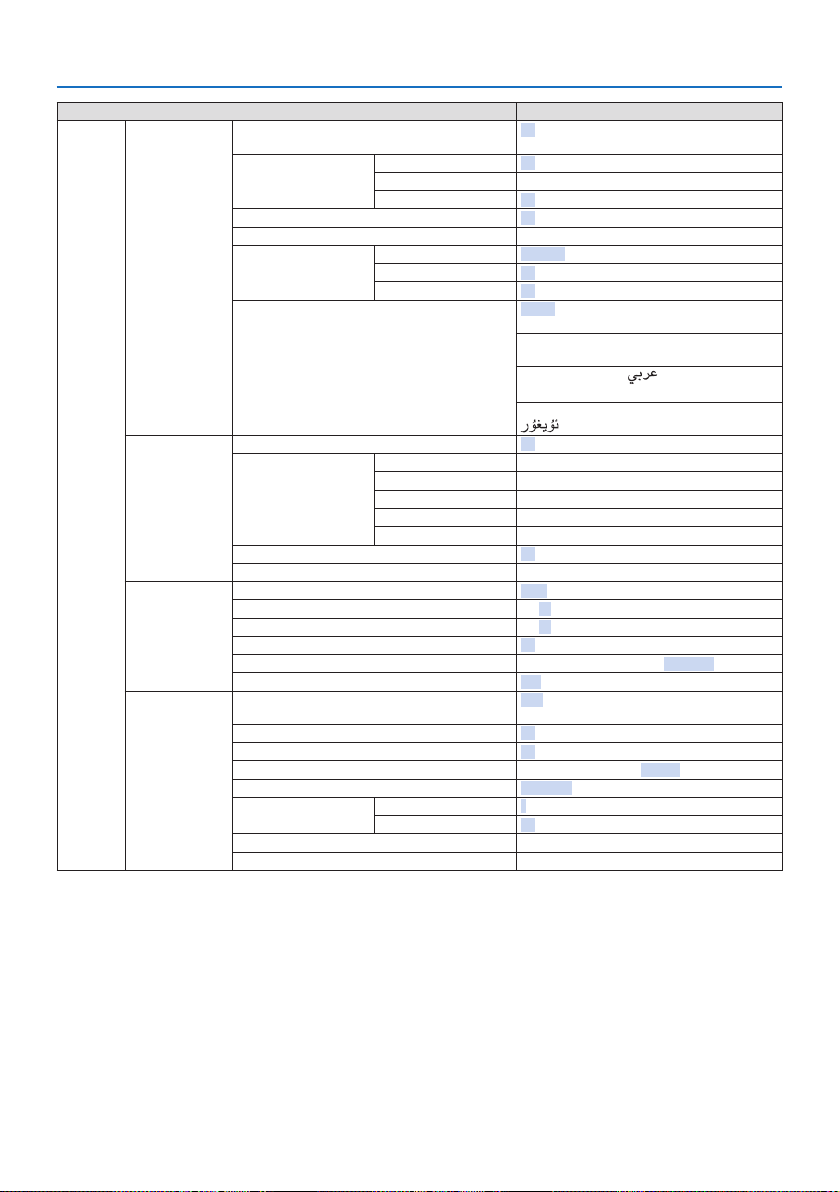
4. Using On-Screen Menu
51
MenuItemOptions
SETUPGENERALWALLCOLOR(B)
OFF,WHITEBOARD,BLACKBOARD,BLACKBOARD(GRAY),LIGHT
YELLOW,LIGHTGREEN,LIGHTBLUE,SKYBLUE,LIGHTROSE,PINK
LIGHTMODE(B)ECOMODE
OFF,ECO,LONGLIFE
ADJUST
CONSTANTBRIGHTNESS
OFF,ON
OFFTIMER(B)
OFF,0:30,1:00,2:00,4:00,8:00,12:00,16:00
DATEANDTIMESETTINGS
ADMINISTRATORMODE(B)MENUMODE
ADVANCED,BASIC
NOTSAVESETTINGVALUES
OFF,ON
KEYWORD
OFF,ON
LANGUAGE(B)
ENGLISH,DEUTSCH,FRANÇAIS,ITALIANO,ESPAÑOL,SVENSKA,
日本語
DANSK,PORTUGUÊS,ČEŠTINA,MAGYAR,POLSKI,NEDERLANDS,
SUOMI
NORSK,TÜRKÇE,РУССКИЙ,
,ΕΛΛΗΝΙΚΆ,简体中文,
한국어,TIẾNG ViỆT
ROMÂNĂ,HRVATSKI,БЪЛГАРСКИ,INDONESIA,,ไทย,
,繁體中文
GEOMETRICCORRECTIONMODE
OFF,KEYSTONE,PCTOOL
KEYSTONEKEYSTONEHORIZONTAL
KEYSTONEVERTICAL
PINCUSHIONLEFT/RIGHT
PINCUSHIONTOP/BOTTOM
CORNERSTONE
PCTOOL
OFF,1,2,3
RESET
MENUCOLORSELECT
COLOR,MONOCHROME
INPUTDISPLAY
OFF,ON
IDDISPLAY
OFF,ON
ECOMESSAGE
OFF,ON
DISPLAYTIME
MANUAL,AUTO5SEC,AUTO15SEC,AUTO45SEC
BACKGROUND
BLUE,BLACK,LOGO
INSTALLATIONORIENTATION
AUTO,DESKTOPFRONT,CEILINGREAR,DESKTOPREAR,CEILING
FRONT
CONTROLPANELLOCK
OFF,ON
SECURITY
OFF,ON
COMMUNICATIONSPEED
4800bps,9600bps,19200bps,38400bps
REMOTESENSOR
FRONT/BACK,FRONT,BACK
CONTROLIDCONTROLIDNUMBER
1–254
CONTROLID
OFF,ON
TESTPATTERN
NETWORKSETTINGS
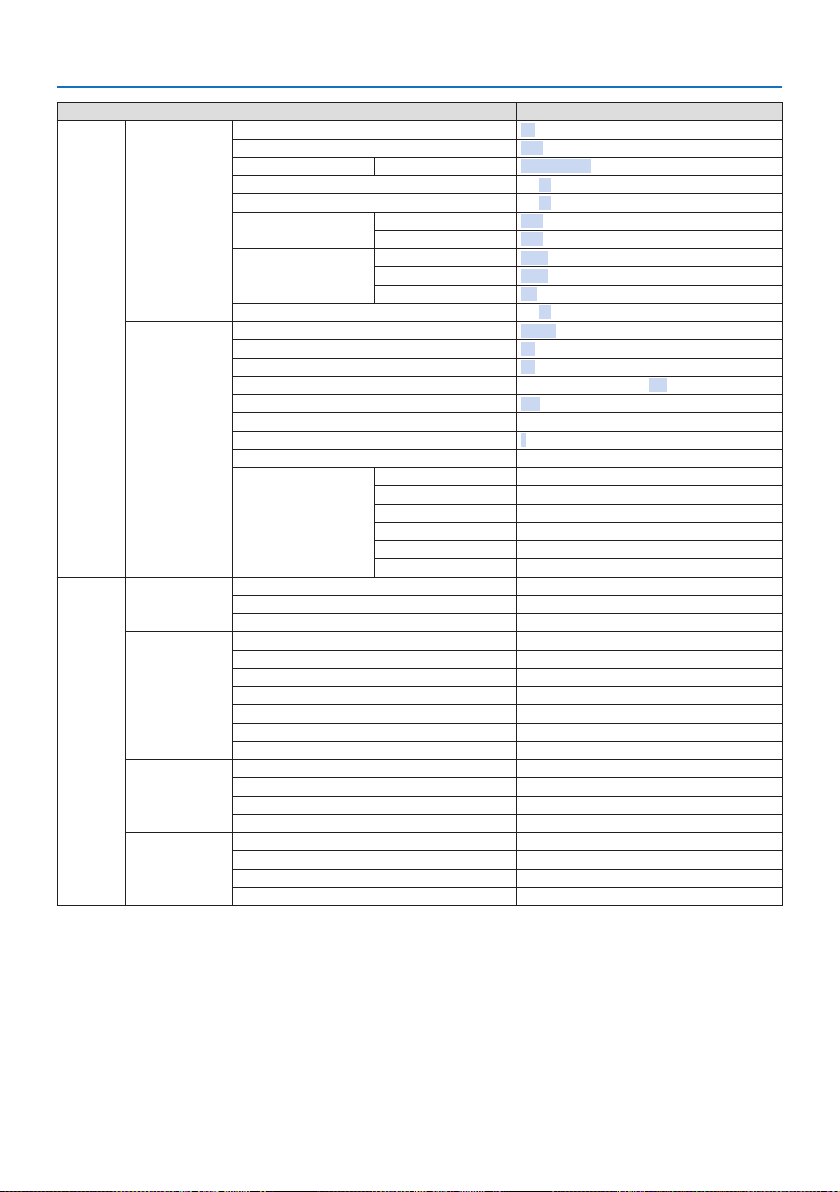
4. Using On-Screen Menu
52
MenuItemOptions
SETUPOPTIONS(1)SEAMLESSSWITCHING
OFF,ON
FANMODE
AUTO,HIGHALTITUDE
SIGNALSELECTCOMPUTER
RGB/COMPONENT,RGB,COMPONENT
WXGAMODE
OFF,ON
DEINTERLACE
OFF,ON
VIDEOLEVELHDMI1
AUTO,NORMAL,ENHANCED
HDMI2
AUTO,NORMAL,ENHANCED
AUDIOSELECTHDMI1
HDMI1,COMPUTER
HDMI2
HDMI2,COMPUTER
LAN
LAN,COMPUTER
BEEP
OFF,ON
OPTIONS(2)STANDBYMODE
NORMAL,NETWORKSTANDBY,SLEEP
DIRECTPOWERON
OFF,ON
AUTOPOWERON
OFF,AUTO,HDMI1,HDMI2,COMPUTER
AUTOPOWEROFF
OFF,0:05,0:10,0:15,0:20,0:30,1:00
DEFAULTINPUTSELECT
LAST,AUTO,HDMI1,HDMI2,COMPUTER,USB-A,LAN
CARBONCONVERT
CURRENCY
$,€,JP¥,RMB¥
CURRENCYCONVERT
STATICCONVERGENCE*HORIZONTALR
HORIZONTALG
HORIZONTALB
VERTICALR
VERTICALG
VERTICALB
INFO.USAGETIME(B)LIGHTHOURSUSED
TOTALCARBONSAVINGS
TOTALCOSTSAVINGS
SOURCE(1)(B)SOURCENAME
SOURCEINDEX
HORIZONTALFREQUENCY
VERTICALFREQUENCY
SYNCTYPE
SYNCPOLARITY
SCANTYPE
SOURCE(2)(B)SIGNALTYPE
VIDEOTYPE
BITDEPTH
VIDEOLEVEL
WIREDLANIPADDRESS
SUBNETMASK
GATEWAY
MACADDRESS
* This function is not available for PE455WL/PE505XL.
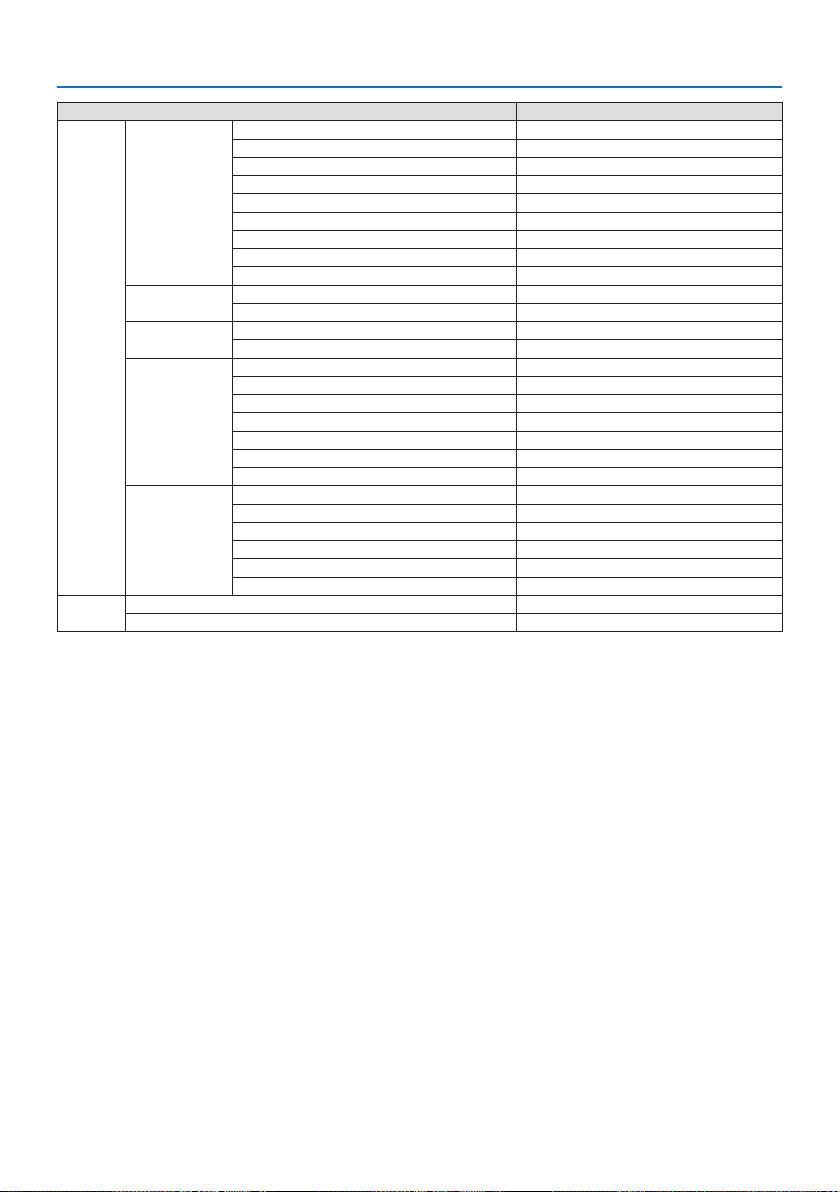
4. Using On-Screen Menu
53
MenuItemOptions
INFO.WIRELESSLANIPADDRESS
SUBNETMASK
GATEWAY
MACADDRESS
SSID
NETWORKTYPE
SECURITY
CHANNEL
SIGNALLEVEL
VERSION(1)(B)FIRMWARE
DATA
VERSION(2)(B)FIRMWARE2
DATA2
OTHERS(B)DATETIME(B)
PROJECTORNAME(B)
HOSTNAME(B)
MODELNO.(B)
SERIALNUMBER(B)
LANUNITTYPE
CONTROLID(when[CONTROLID]isset)(B)
CONDITIONSINTAKETEMPERATURE
EXHAUSTTEMPERATURE
INSTALLATIONPOSITION
X-AXIS
Y-AXIS
Z-AXIS
RESETCURRENTSIGNAL
ALLDATA
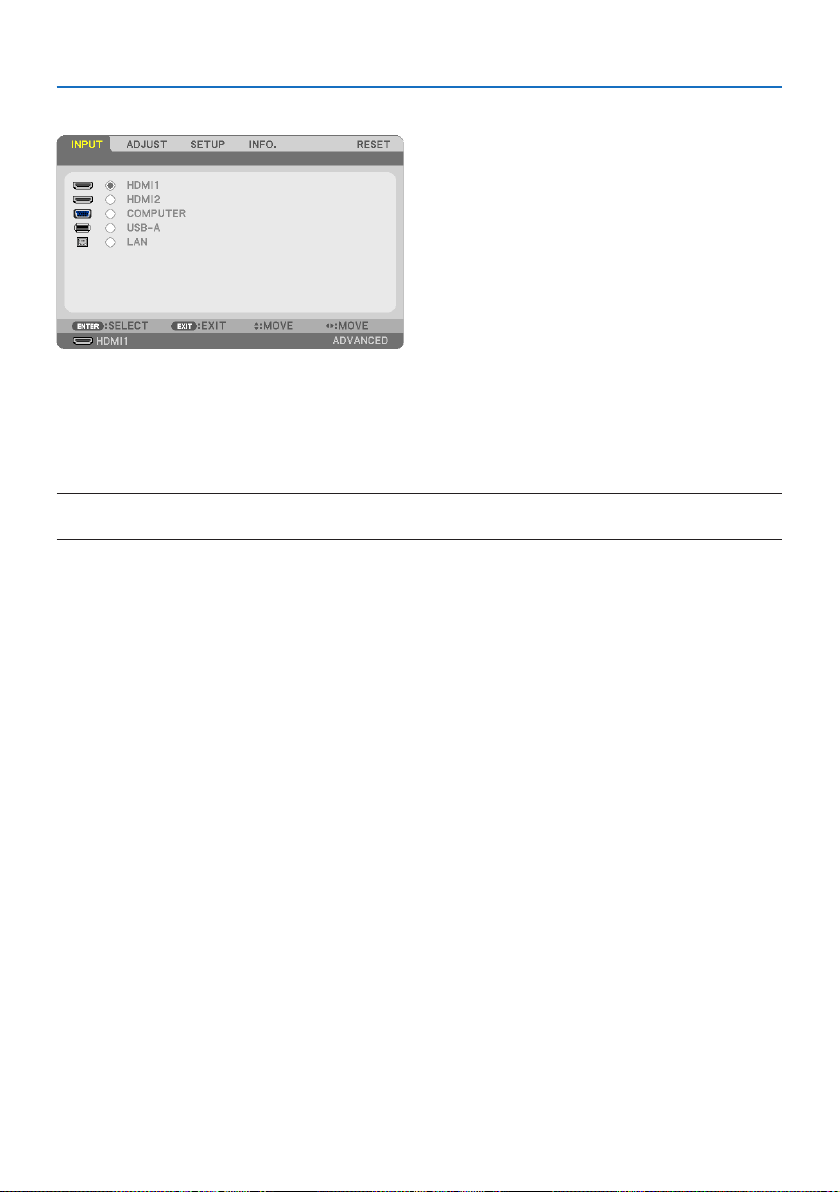
4. Using On-Screen Menu
54
4-3. Menu Descriptions & Functions [INPUT]
[HDMI1] and [HDMI2]
Selects the HDMI compatible equipment connected to your HDMI 1 IN or HDMI 2 IN terminal.
[COMPUTER]
Selects the computer connected to your COMPUTER IN terminal signal.
NOTE:
•WhenthecomponentinputsignalisconnectedtotheCOMPUTERINterminal,select[COMPUTER].
[USB-A]
Start the [VIEWER].
Project the data of the USB memory set in this machine.
[LAN]
Display the start-up screen of MultiPresenter.
Selects a signal from the LAN port (RJ-45) or the installed USB wireless LAN unit (optional).
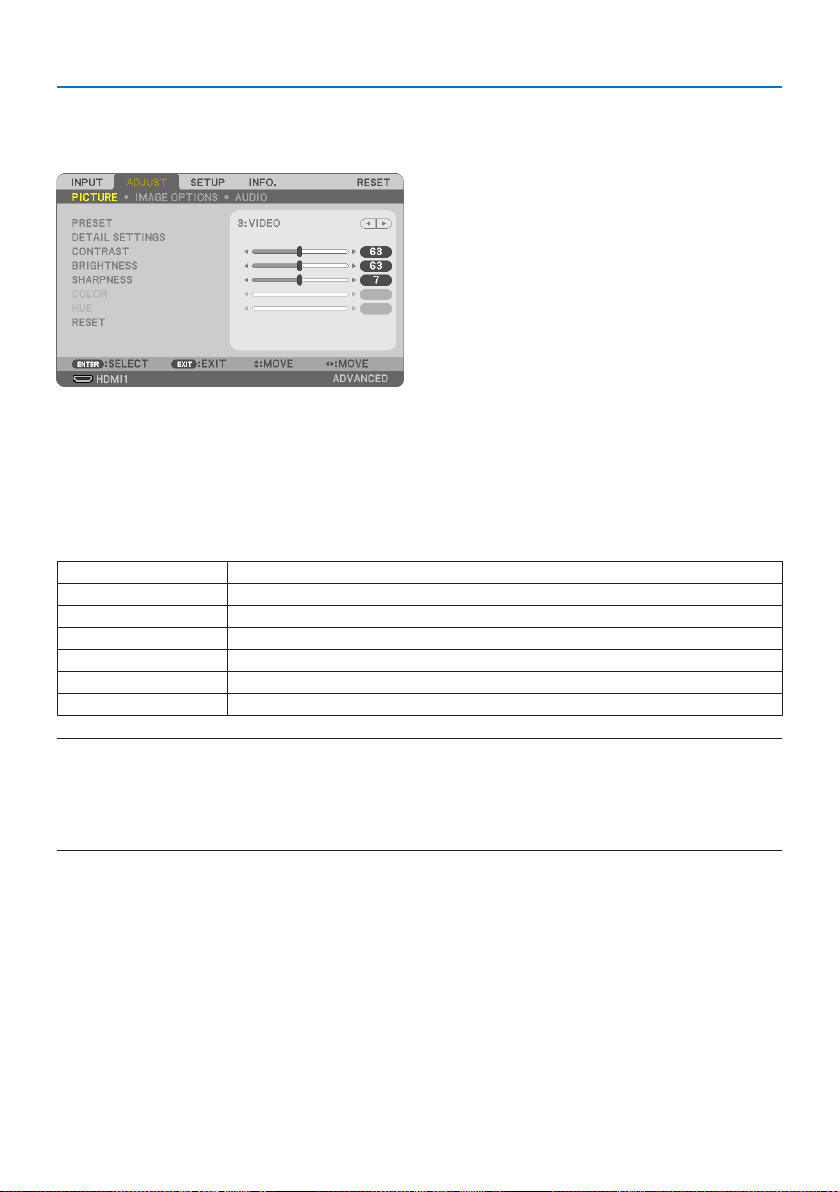
4. Using On-Screen Menu
55
4-4. Menu Descriptions & Functions [ADJUST]
[PICTURE]
[PRESET]
This function allows you to select optimized settings for your projected image.
You can adjust neutral tint for yellow, cyan or magenta.
There are seven factory presets optimized for various types of images. You can also use [DETAIL
SETTINGS] to set user adjustable settings to customize each gamma or color.
Your settings can be stored in [PRESET] 1 to [PRESET] 7.
HIGH-BRIGHTRecommendedforuseinabrightlylitroom.
PRESENTATIONRecommendedformakingapresentationusingaPowerPointle.
VIDEORecommendedfortypicalTVprogramviewing.
MOVIERecommendedformovies.
GRAPHICRecommendedforgraphics.
sRGBStandardcolorvalues
DICOMSIM.RecommendedforDICOMsimulationformat.
NOTE:
•The[DICOMSIM.]optionisfortraining/referenceonlyandshouldnotbeusedforactualdiagnosis.
•DICOMstandsforDigitalImagingandCommunicationsinMedicine.ItisastandarddevelopedbytheAmericanCollegeofRadiology
(ACR)andtheNationalElectricalManufacturersAssociation(NEMA).
Thestandardspecieshowdigitalimagedatacanbemovedfromsystemtosystem.
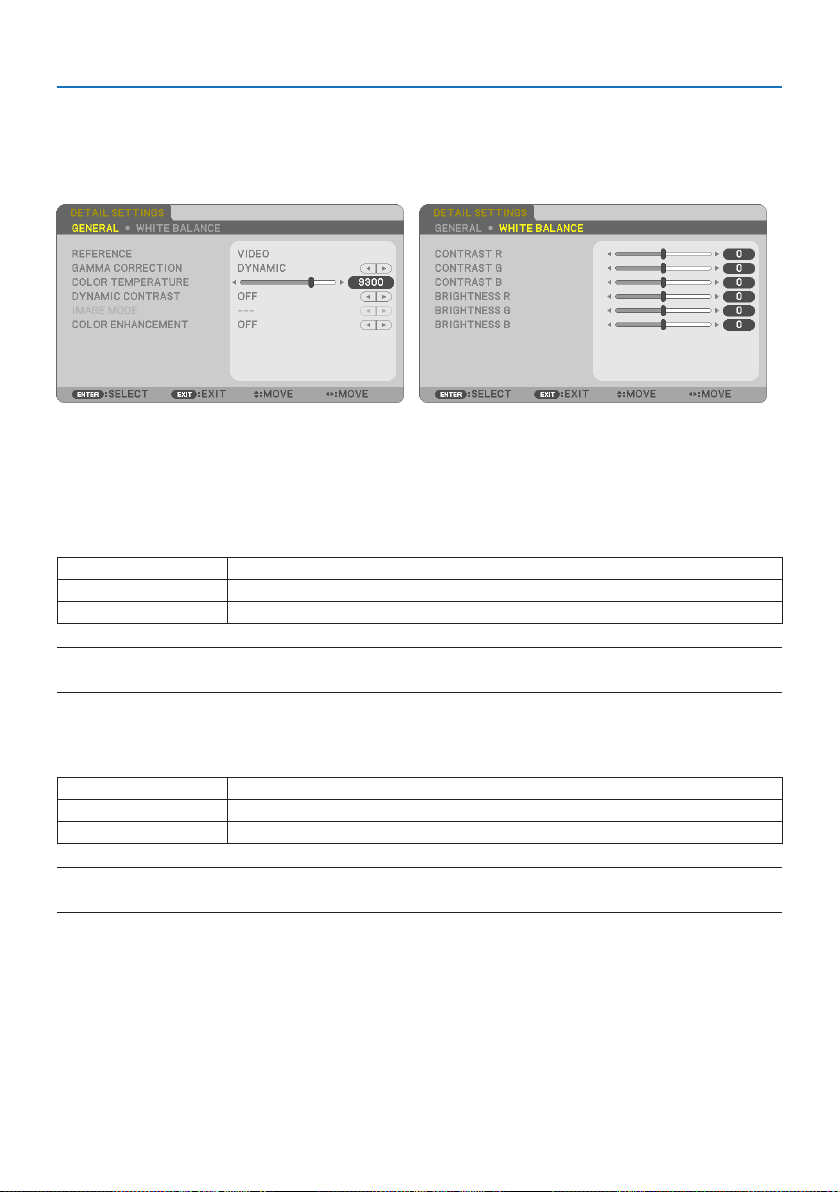
4. Using On-Screen Menu
56
[DETAILSETTINGS]
This function allows you to store your customized settings in [PRESET 1] to [PRESET 7].
First, select a base preset mode from [REFERENCE], then set [GAMMA CORRECTION], [SCREEN SIZE],
[COLOR TEMPERATURE], [DYNAMIC CONTRAST], [IMAGE MODE], and [COLOR ENHANCEMENT].
StoringYourCustomizedSettings[REFERENCE]
Select a mode to serve as the basis for the [DETAIL SETTINGS].
SelectingGammaCorrectionMode[GAMMACORRECTION]
Each mode is recommended for:
DYNAMICCreatesahigh-contrastpicture.
NATURALNaturalreproductionofthepicture.
BLACKDETAILEmphasizesdetailindarkareasofthepicture.
NOTE:
•Thisfunctionisnotavailablewhen[DICOMSIM.]isselectedfor[REFERENCE].
SelectingScreenSizeforDICOMSIM.[SCREENSIZE]
This function will perform gamma correction appropriate for the screen size.
LARGEForscreensizeof150"
MEDIUMForscreensizeof100"
SMALLForscreensizeof50"
NOTE:
•Thisfunctionisavailableonlywhen[DICOMSIM.]isselectedfor[REFERENCE].

4. Using On-Screen Menu
57
AdjustingColorTemperature[COLORTEMPERATURE]
Adjust the balance of the colors (R, G, B) to optimize the color reproducibility.
A color temperature with a high numerical value becomes bluish white while one with a low nu-
merical value becomes reddish white.
A value between 5000 K and 10500 K can be set in 100 K units.
NOTE:
•When[HIGH-BRIGHT]isselectedin[REFERENCE],thisfunctionisnotavailable.
AdjustingBrightnessandContrast[DYNAMICCONTRAST]
If [ON] is selected, the most optimal contrast ratio is used according to the picture.
NOTE:
•When[CONSTANTBRIGHTNESS]isactivated,[DYNAMICCONTRAST]cannotbeselected.
•Thisfunctionisnotavailablewhen[DICOMSIM.]isselectedfor[REFERENCE].
SelectingStillImageModeorMovieMode[IMAGEMODE]
This function allows you to select the still image mode or the movie mode.
STILLThismodeisforastillimage.
MOVIEThismodeisforamovie.
NOTE:
•Thisfunctionisavailableonlywhen[HIGH-BRIGHT]isselectedfor[REFERENCE].
EnhancingtheColor[COLORENHANCEMENT]
This allows you to adjust the color density of the image.
The color of the image will become deeper in the order of [LOW], [MEDIUM], and [HIGH] as the
displayed image will become darker.
With [OFF] selected, the [COLOR ENHANCEMENT] function will not work.
NOTE:
•Thisfunctionisnotavailablewhen[sRGB]or[DICOMSIM.]isselectedfor[REFERENCE].
AdjustingWhiteBalance[WHITEBALANCE]
This allows you to adjust the white balance. Contrast for each color (RGB) to adjust the white level
of the screen; Brightness for each color (RGB) is used to adjust the black level of the screen.
NOTE:
•When[WHITEBALANCE]isinoperation,theactualcolortonediersfromthevalueofthe[COLORTEMPERATURE].
4. Using On-Screen Menu
58
[CONTRAST]
Adjusts the intensity of the image according to the incoming signal.
[BRIGHTNESS]
Adjusts the brightness level or the back raster intensity.
[SHARPNESS]
Controls the detail of the image.
[COLOR]
Increases or decreases the color saturation level.
[HUE]
Varies the color level from +/− green to +/− blue. The red level is used as reference.
InputsignalCONTRASTBRIGHTNESSSHARPNESSCOLORHUE
COMPUTER/HDMI(RGB)YesYesYesNoNo
COMPUTER/HDMI
(COMPONENT)
YesYesYesYesYes
USB-A,LANYesYesYesNoNo
Yes = Adjustable, No = Not adjustable
[RESET]
The settings and adjustments for [PICTURE] will be returned to the factory settings with the excep-
tion of the following; Preset numbers and [REFERENCE] within the [PRESET] screen.
The settings and adjustments under [DETAIL SETTINGS] within the [PRESET] screen that are not
currently selected will not be reset.
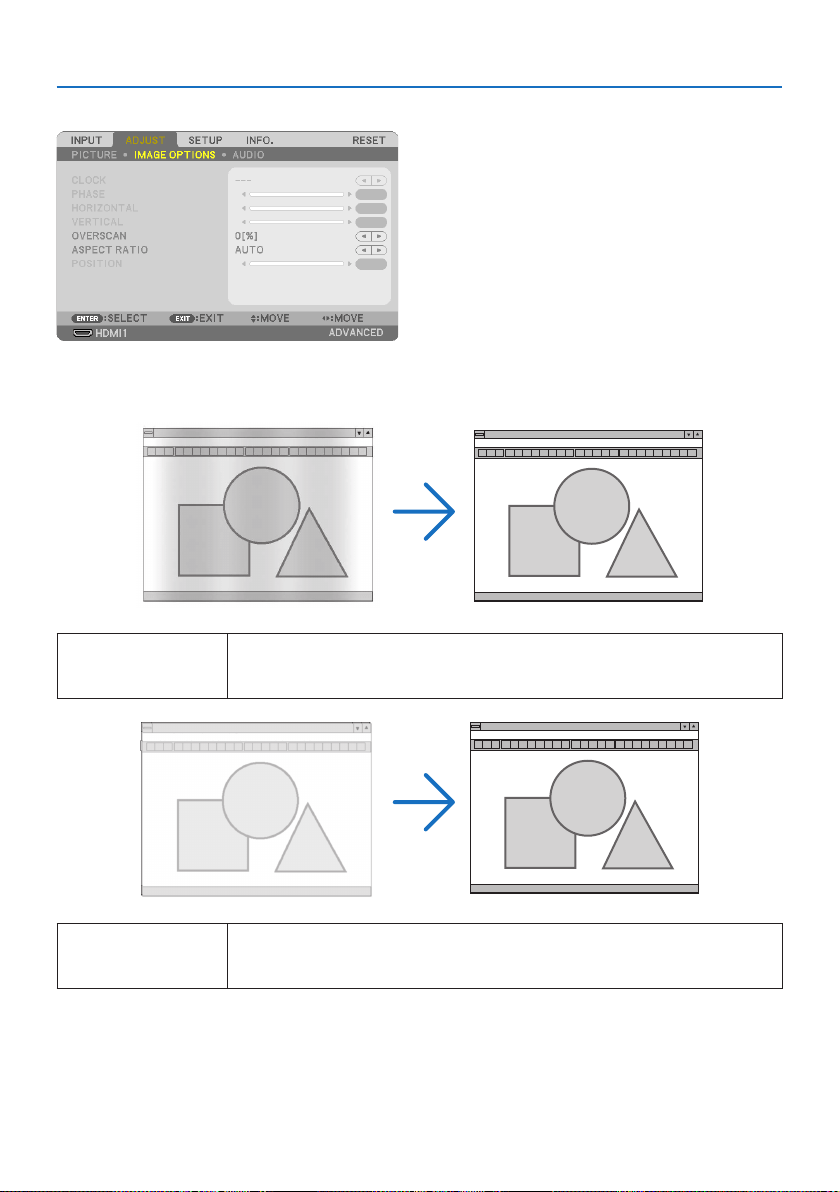
4. Using On-Screen Menu
59
[IMAGE OPTIONS]
AdjustingClockandPhase[CLOCK/PHASE]
This allows you to manually adjust [CLOCK] and [PHASE].
CLOCKUsethisitemtonetunethecomputerimageortoremoveanyverticalbandingthatmightappear.
Thisfunctionadjuststheclockfrequenciesthateliminatethehorizontalbandingintheimage.
Thisadjustmentmaybenecessarywhenyouconnectyourcomputerforthersttime.
PHASEUsethisitemtoadjusttheclockphaseortoreducevideonoise,dotinterferenceorcrosstalk.(This
isevidentwhenpartofyourimageappearstobeshimmering.)
Use[PHASE]onlyafterthe[CLOCK]iscomplete.
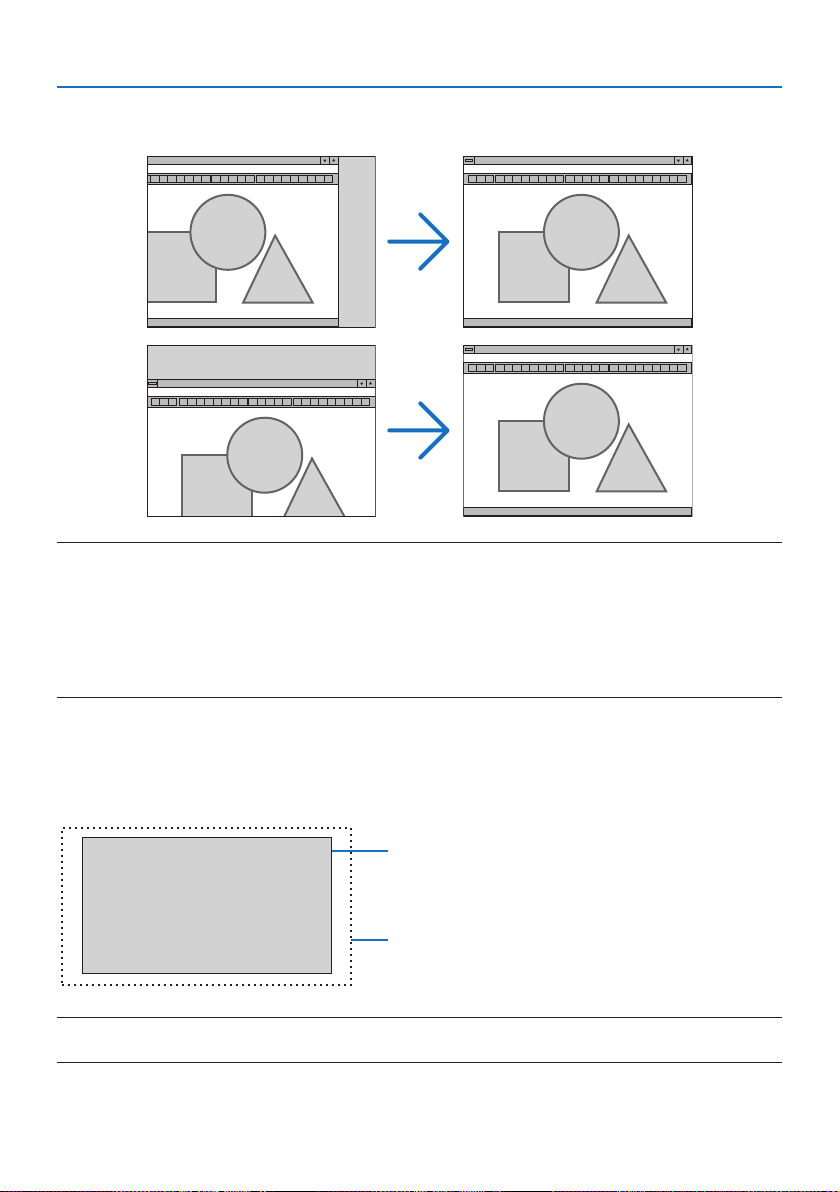
4. Using On-Screen Menu
60
AdjustingHorizontal/VerticalPosition[HORIZONTAL/VERTICAL]
Adjusts the image location horizontally and vertically.
NOTE:
•[CLOCK],[PHASE],[HORIZONTAL]and[VERTICAL]canonlybeselectedwheninputtinganalogsignals.
•Animagecanbedistortedduringtheadjustmentof[CLOCK]and[PHASE].Thisisnotmalfunction.
•Theadjustmentsfor[CLOCK],[PHASE],[HORIZONTAL],and[VERTICAL]willbestoredinmemoryforthecurrentsignal.Thenexttime
youprojectthesignalwiththesameresolution,horizontalandverticalfrequency,itsadjustmentswillbecalledupandapplied.
Todeleteadjustmentsstoredinmemory,fromthemenu,youselect[RESET]→[CURRENTSIGNAL]or[ALLDATA]andresetthe
adjustments.
SelectingOverscanPercentage[OVERSCAN]
This allows you to set the appropriate overscan for an incoming signal.
When [AUTO] is selected, the over-scan that is most suitable for the input signal is carried out and
displayed.
Projected image
Overscaned by 10%
NOTE:
•The[OVERSCAN]itemcannotbeselectedwhenVIDEOsignalsareusedorwhen[NATIVE]isselectedfor[ASPECTRATIO].
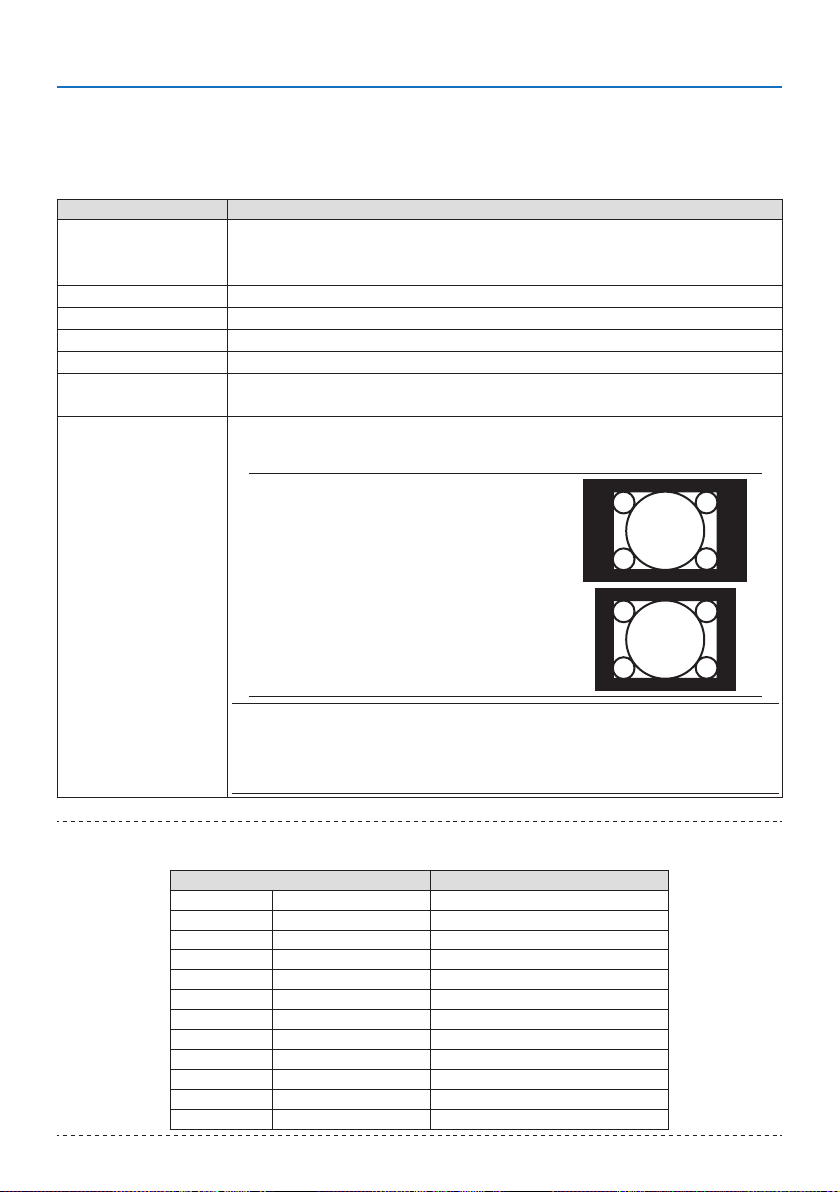
4. Using On-Screen Menu
61
SelectingAspectRatio[ASPECTRATIO]
The term “aspect ratio” refers to the ratio of width to height of a projected image.
The projector automatically determines the incoming signal and displays it in its appropriate aspect
ratio.
Options Function
AUTOTheprojectorwillautomaticallydeterminetheincomingsignalanddisplayitinitsaspectratio.
Theprojectormayerroneouslydeterminetheaspectratiodependingonitssignal.Ifthisoccurs,
selecttheappropriateaspectratiofromthefollowing.
4:3Theimageisdisplayedin4:3aspectratio.
16:9Theimageisdisplayedin16:9aspectratio.
15:9Theimageisdisplayedin15:9aspectratio.
16:10Theimageisdisplayedin16:10aspectratio.
LETTERBOXTheimageofaletterboxsignalisstretchedequallyinthehorizontalandverticaldirectionstotthe
screen.Partsofthedisplayedimagearecroppedatthetopandbottomedgesandthereforenotvisible.
NATIVETheprojectordisplaysthecurrentimageinitstrueresolutionwhentheincomingcomputersignal
hasalowerresolutionthantheprojector’snativeresolution.
[Example 1]Whentheincomingsignalwith
theresolutionof800×600isdisplayedonthe
PE455UL/PE455WL:
[Example 2]Whentheincomingsignalwith
theresolutionof800×600isdisplayedonthe
PE505XL:
NOTE:
•Whenanon-computersignalisdisplayed,the[NATIVE]isnotavailable.
•Whenasignalwithahigherresolutionthantheprojector’snativeresolutionisdisplayed,[NATIVE]
isnotavailable.
TIP:
•Thistableshowstypicalresolutionsandaspectratiosthatmostcomputerssupport.
Resolution Aspect Ratio
VGA 640 × 480 4:3
SVGA 800 × 600 4:3
XGA 1024 × 768 4:3
WXGA 1280 × 768 15:9
WXGA 1280 × 800 16:10
WXGA+ 1440 × 900 16:10
SXGA 1280 × 1024 5:4
SXGA+ 1400 × 1050 4:3
UXGA 1600 × 1200 4:3
Full HD 1920 × 1080 16:9
WUXGA 1920 × 1200 16:10
4K 3840 × 2160 16:9
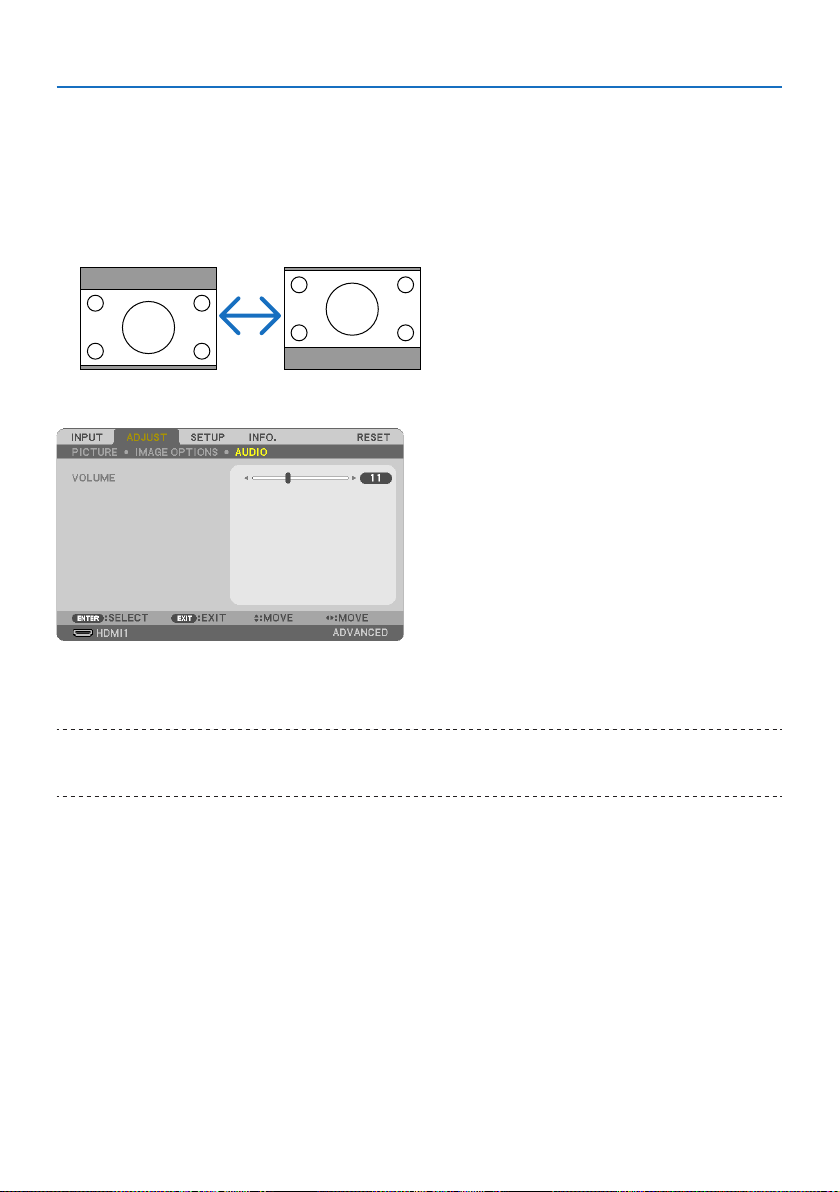
4. Using On-Screen Menu
62
AdjustingtheVerticalPositionofImage[POSITION](notavailableonPE455UL/
PE455WL)
(only when [16:9], [15:9], or [16:10] is selected for [ASPECT RATIO])
When [16:9], [15:9], or [16:10] is selected in [ASPECT RATIO], the image is displayed with black
borders on the top and bottom.
You can adjust the vertical position from the top to the bottom of the black area.
[AUDIO]
Turning Up or Down Sound
Adjusts the volume of the projector speaker and AUDIO OUT (Stereo Mini Jack).
TIP:
•Whennomenusappear,the◀and▶buttonsontheprojectorcabinetandtheVOL.+/−buttonsontheremotecontrolworkas
avolumecontrol.(→page
32)
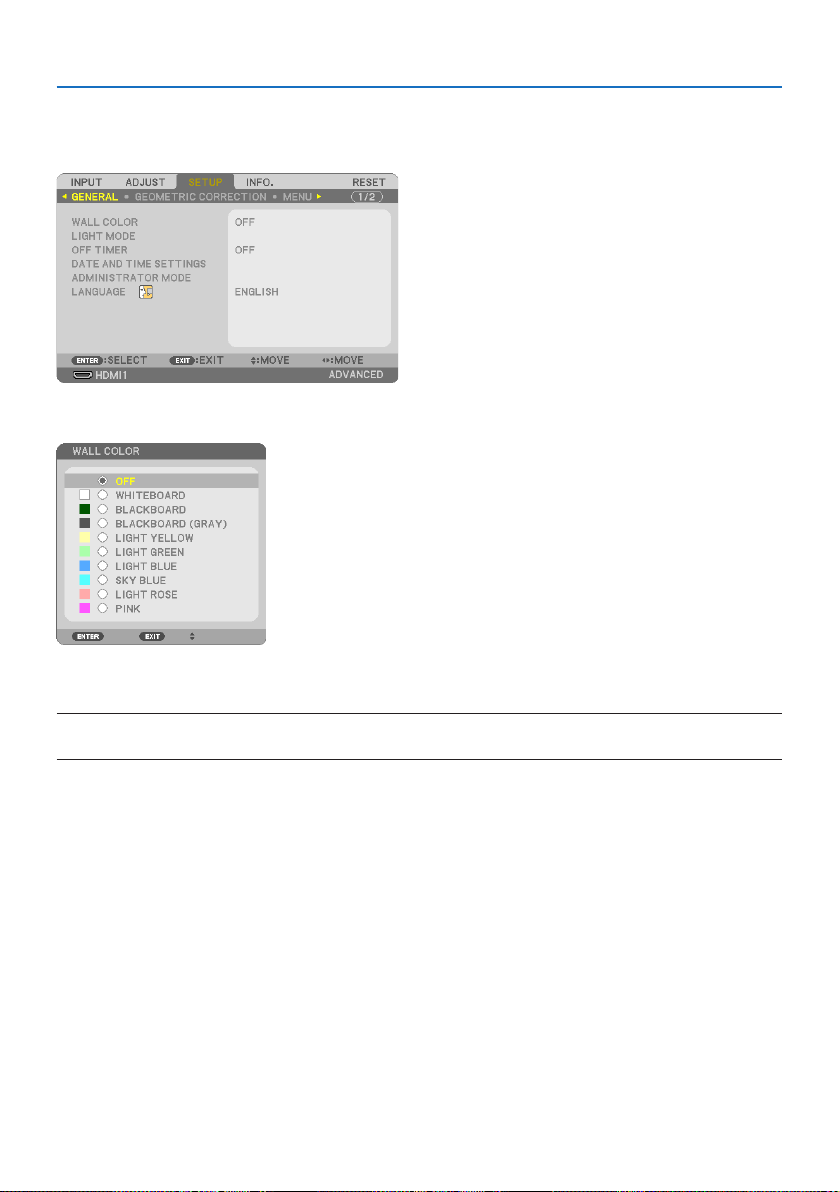
4. Using On-Screen Menu
63
4-5. Menu Descriptions & Functions [SETUP]
[GENERAL]
UsingtheWallColorCorrection[WALLCOLOR]
This function allows for quick adaptive color correction in applications where the screen material
is not white.
NOTE:
•Selecting[WHITEBOARD]reducesbrightness.
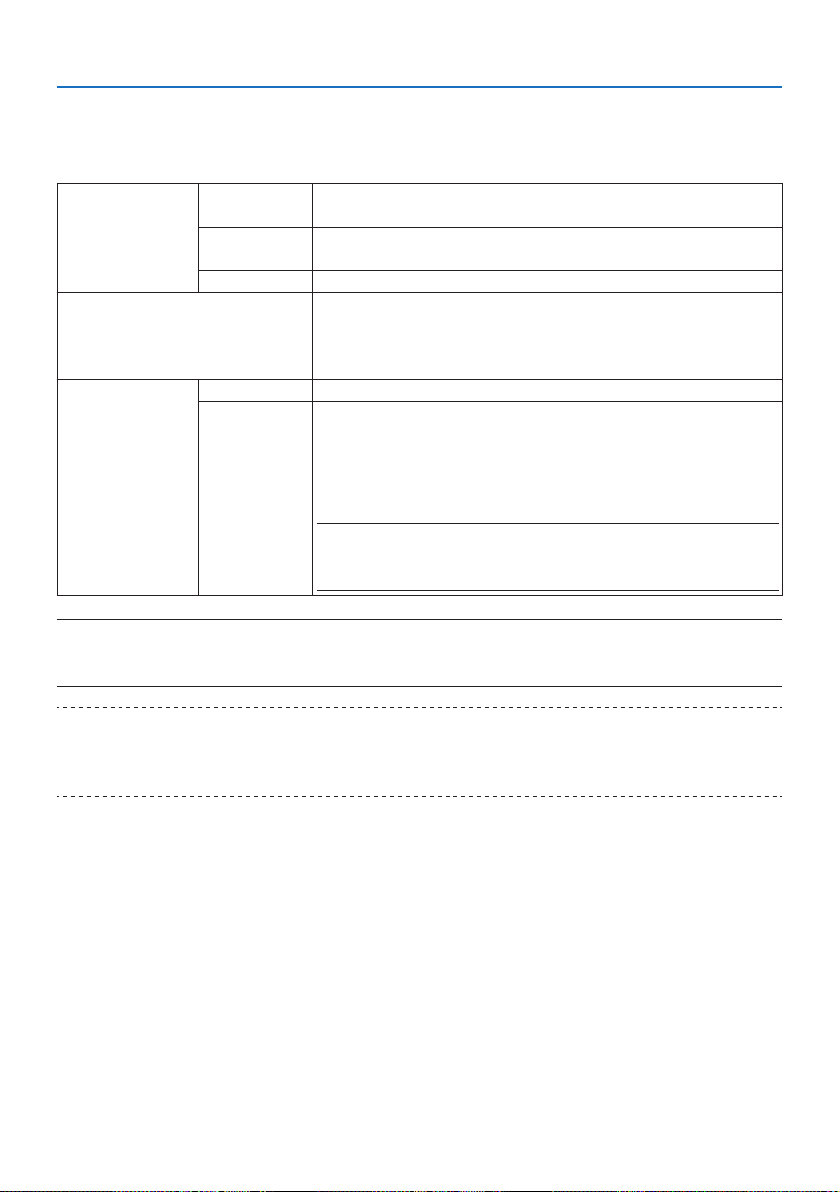
4. Using On-Screen Menu
64
Ecomodeselectionandbrightnessadjustment[LIGHTMODE]
Adjusting the energy savings settings and the brightness of each projector in multi-screen projection.
For energy savings settings, see page
37 “3-4 Changing Eco Mode/Checking Energy-Saving Eect”.
ECOMODEOFFThelightmoduleluminance(brightness)willbeatthesetupbrightnessfor
[ADJUST].
ECOBycontrollingthebrightnessandfanspeed,energycanbesavedandmotionnoise
andthepowerconsumptioncanbelowered.
LONGLIFEThemodeoptimizestheservicelifeofthelightmodule.
ADJUSTBrightnesscanbeadjustedin1%incrementsfrom30to100%(PE455WL:33to100%).
Whenseveralprojectorsareusedformulti-screenprojection,thebrightnesscanbe
adjustedindividuallyoneachprojector.
Theadjustmentisvalidwhen[ECOMODE]issetto[OFF].
CONSTANTBRIGHTNESSOFF[CONSTANTBRIGHTNESS]modewillbecanceled.
ON Maintainsthebrightnessthatisineectatthetime[ON]isselected.Unless[OFF]is
selected,thesamesettingswillremainineectevenwhentheprojectoristurned
o.
•Tore-adjustthebrightness,rstturnthissettingOFFbeforemakingfurther
adjustments.
NOTE:
•[CONSTANTBRIGHTNESS]modeisafunctionusedtomaintainthebrightnessata
constantlevel.Colorwillnotbexed.
NOTE:
•[CONSTANTBRIGHTNESS]canbeselectedif[ECOMODE]issetto[OFF]and[ADJUST]issetto50to70%(PE455WL:56to77%).
•When[CONSTANTBRIGHTNESS]issetto[ON],[ECOMODE]and[ADJUST]cannotbeselected.
TIP:
•Brightnessnormallydecreaseswithuse,butbyselecting[CONSTANTBRIGHTNESS]mode,theprojectorautomaticallyadjustthe
outputbasedontheprojectorusedtime,therebymaintainingaconstantbrightnessthroughoutthelifeofthelightmodule.
However,ifoutputisalreadyatitsmaximum,brightnesswilldecreasewithuse.
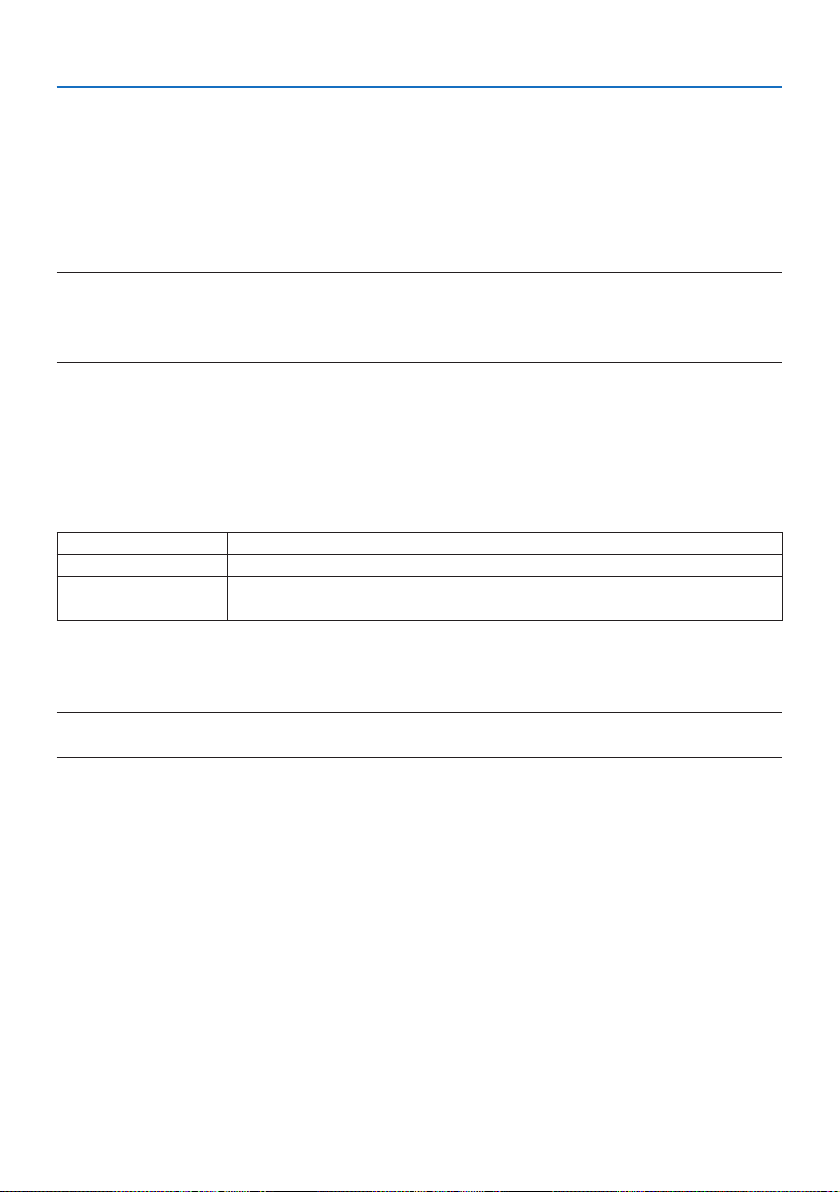
4. Using On-Screen Menu
65
UsingOTimer[OFFTIMER]
1. Selectyourdesiredtimebetween30minutesand16hours:OFF,0:30,1:00,2:00,4:00,
8:00, 12:00, 16:00.
2. Press the ENTER button on the remote control.
3. Theremainingtimestartscountingdown.
4. Theprojectorwillturnoafterthecountdowniscomplete.
NOTE:
•Tocancelthepresettime,set[OFF]forthepresettimeorturnothepower.
•Whentheremainingtimereaches3minutesbeforetheprojectoristurnedo,the[THEPROJECTORWILLTURNOFFWITHIN3
MINUTES.]messagewillbedisplayedonthebottomofthescreen.
Settingthedateandtime[DATEANDTIMESETTINGS]
Display the start-up screen of MultiPresenter (→ page
150)
Conguringthemenusettings[ADMINISTRATORMODE]
This allows you to select [MENU MODE], save settings, and set a [KEYWORD] for the [ADMINISTRA-
TOR MODE].
MENUMODESelecteither[BASIC]or[ADVANCED]menu.(→page50)
NOTSAVESETTINGVALUESWhen[ON]isselected,thevaluesoftheitemsconguredintheon-screenmenuwillnotbesaved.
KEYWORDAssignapasswordfortheadministratormode.Enterthepasswordusingthe▲▼◀▶buttons
andpresstheENTERbutton.(Upto10alphanumericcharacters)
SelectingMenuLanguage[LANGUAGE]
You can choose one of 30 languages for on-screen instructions.
NOTE:
•Yoursettingwillnotbeaectedevenwhen[RESET]isdonefromthemenu.
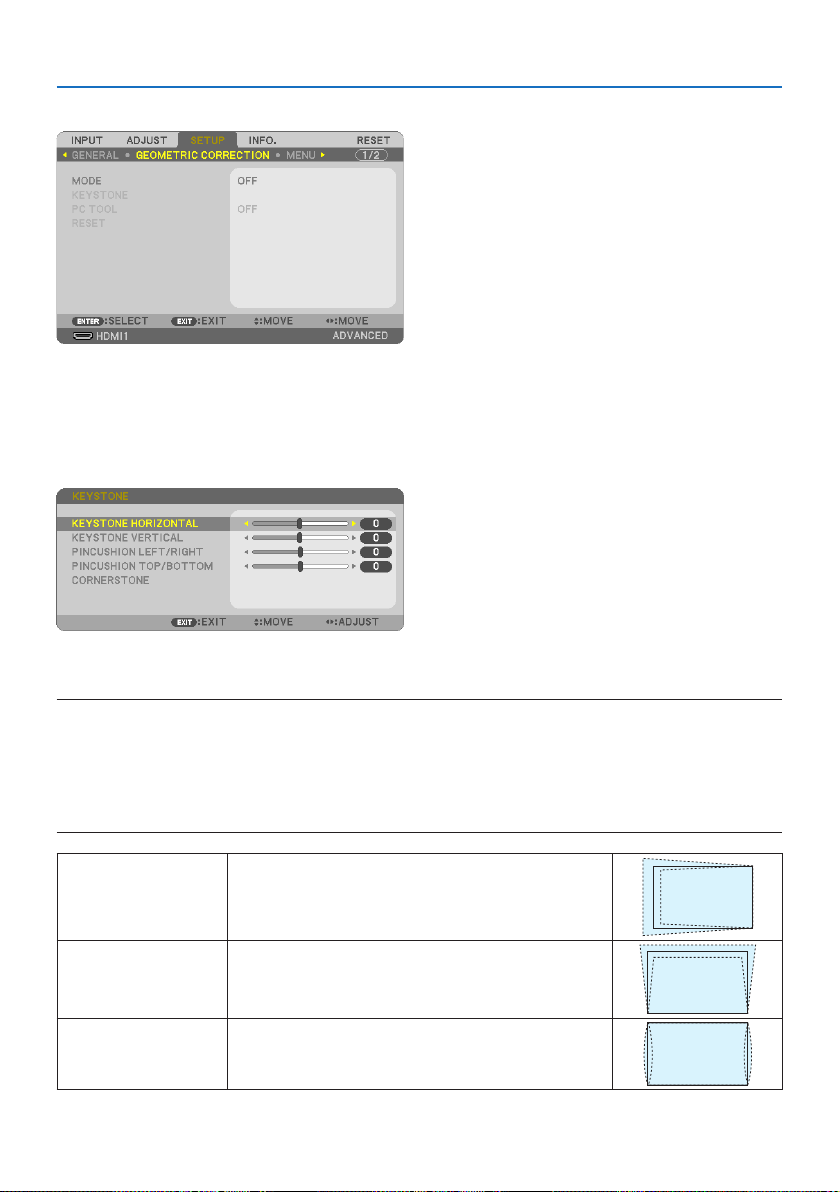
4. Using On-Screen Menu
66
[GEOMETRIC CORRECTION]
[MODE]
Set pattern for correcting distortion. If [OFF] is selected, the [GEOMETRIC CORRECTION] becomes
ineective.
CorrectingKeystoneDistortionManually[KEYSTONE]
You can correct horizontal or vertical keystone, pincushion LEFT/RIGHT or TOP/BOTTOM, or corner-
stone distortion manually.
NOTE:
•[KEYSTONEHORIZONTAL]and[KEYSTONEVERTICAL]canbeadjustedatonce.
•Tochangefromoneitemtoanotheritem,resettherstitem.
•Adjustmentvalueswillbeoverwritten.Theywillnotbedeletedevenwhentheprojectoristurnedo.
•Using[KEYSTONE],[PINCUSHION]and[CORNERSTONE]correctioncancausetheimagetobeslightlyblurredbecausethecorrection
ismadeelectronically.
KEYSTONEHORIZONTALCorrectshorizontalkeystonedistortion.(→page28)
KEYSTONEVERTICALCorrectsverticalkeystonedistortion.(→page28)
PINCUSHIONLEFT/RIGHTCorrectspincushiondistortionattheleftorrightside.(→page42)
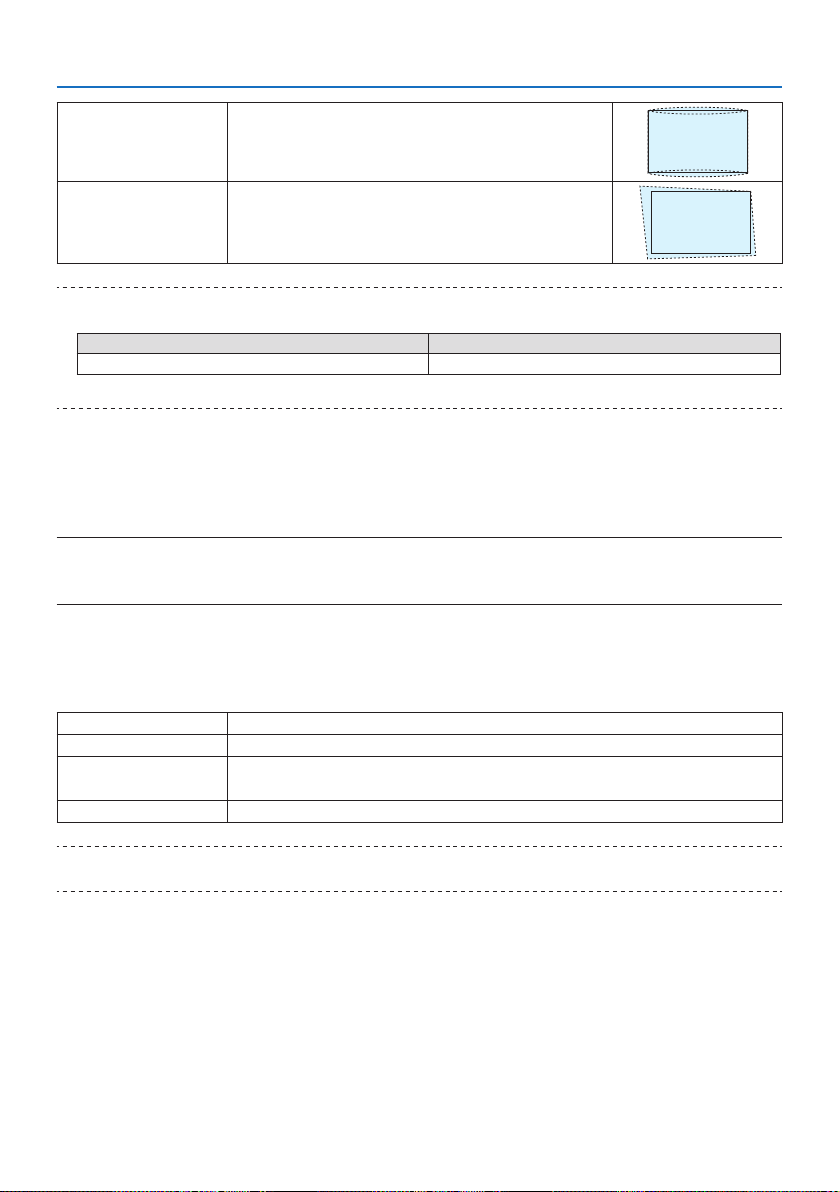
4. Using On-Screen Menu
67
PINCUSHIONTOP/BOTTOMCorrectspincushiondistortionatthetoporbottomside.
(→page42)
CORNERSTONEFitsaprojectedimagewithintheborderofthescreeneasilybyalign
thefourcornerofanimagetotheonesofthescreen.(→page39)
TIP:
•Adjustablerangeofthe[KEYSTONE]andthe[CORNERSTONE]:
Horizontal Direction Vertical Direction
Approx. ±30° (Max) Approx. ±30° (Max)
Adjustablerangemaybenarrowerdependingoninputsignal.
[PCTOOL]
Recall the geometric correction data that is registered in the projector beforehand.
The geometric correction data using our Geometric Correction Tool application (→ page
44) is
registered here.
NOTE:
•Aselectricalcorrectioniscarriedoutingeometriccorrection,thebrightnessmaybeaectedandthepicturequalitymaybe
degraded.
[RESET]
Resets the item selected at [MODE] on the [GEOMETRIC CORRECTION] screen.
The operation diers depending on the mode selected at [MODE].
MODEOperation
KEYSTONEAllthe[KEYSTONE]adjustmentsareresettotheirinitialvalues.
PCTOOLTurnsothe[PCTOOL]setting.
Theregistereddatawillnotbereset.
OFFResettingisinvalid.
TIP:
•ResettingcanbeexecutedbypressingandholdingtheKEYSTONEbuttonontheremotecontrolforover2seconds.
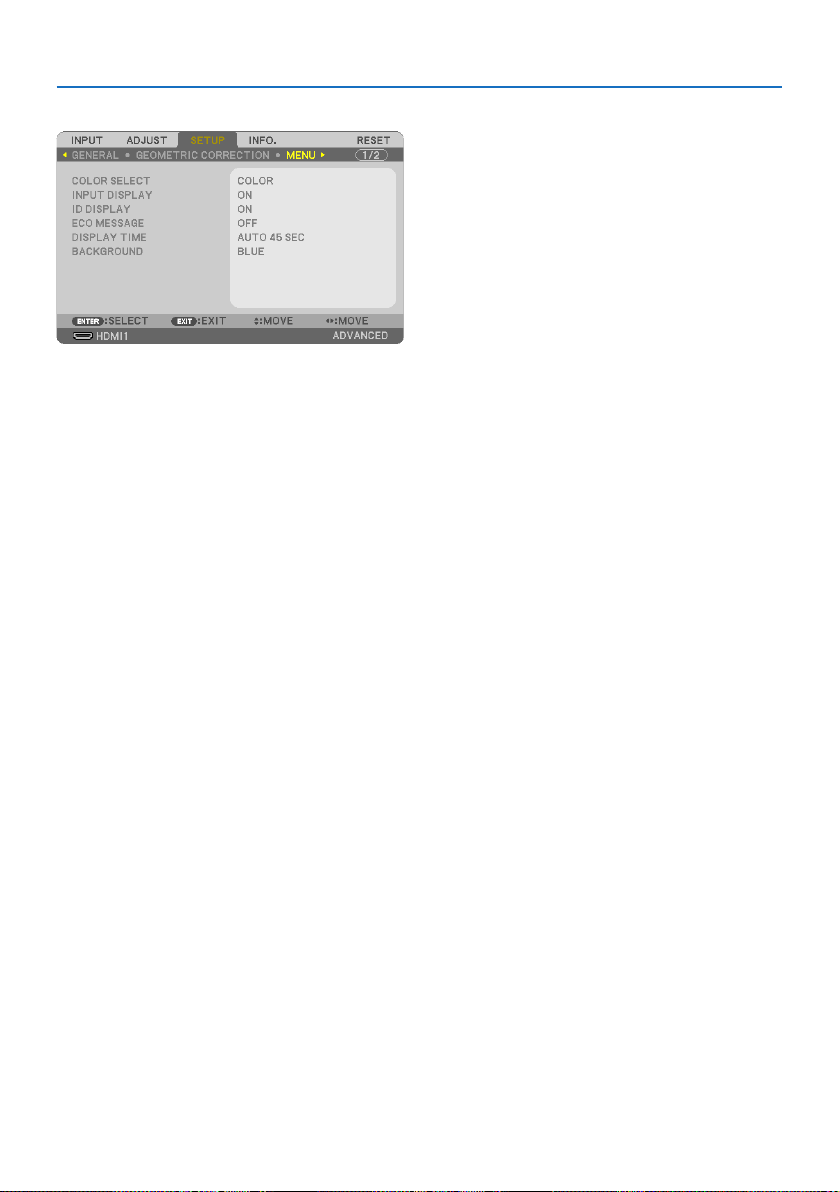
4. Using On-Screen Menu
68
[MENU]
SelectingMenuColor[COLORSELECT]
You can choose between two options for menu color: [COLOR] and [MONOCHROME].
TurningOn/OInputDisplay[INPUTDISPLAY]
This option turns on or o input name display such as [COMPUTER] to be displayed on the top
right of the screen.
When no input signal is present, the no-signal guidance prompting you to check for an available
input will be displayed at the center of the screen. When the [USB-A] or [LAN] item is selected for
[INPUT], the no-signal guidance will not be displayed.
TurningOn/OControlID[IDDISPLAY]
This option turns on or o the ID number which is displayed when the ID SET button on the remote
control is pressed.
TurningOn/OEcoMessage[ECOMESSAGE]
This option turns on or o the following messages when the projector is turned on.
The [ECO MESSAGE] prompts the user to save energy. When [OFF] is selected for [ECO MODE], you
will get a message to prompt you to set [ECO MODE].
To close the message, press any one of the buttons. The message will disappear if no button opera-
tion is done for 30 seconds.
SelectingMenuDisplayTime[DISPLAYTIME]
This option allows you to select how long the projector waits after the last touch of a button to turn
o the menu. The preset choices are [MANUAL], [AUTO 5 SEC], [AUTO 15 SEC], and [AUTO 45 SEC].
The [AUTO 45 SEC] is the factory preset.

4. Using On-Screen Menu
69
SelectingaColororLogoforBackground[BACKGROUND]
When the HDMI1, HDMI2, or COMPUTER input terminal is selected, select the desired background
when there is no input signal.
BLUEThebackgroundcolorisblue
BLACKThebackgroundcolorisblack
LOGODisplayanimageasthebackground
NOTE:
•When[INPUTDISPLAY]isturnedon,theno-signalguidancepromptingyoutocheckforanavailableinputwillbedisplayedatthe
centerofthescreenregardlessofitsselection.
•Tochangethebackgroundimagetobedisplayedasa[LOGO],seepage104.
•Yoursettingwillnotbeaectedevenwhen[RESET]isdonefromthemenu.
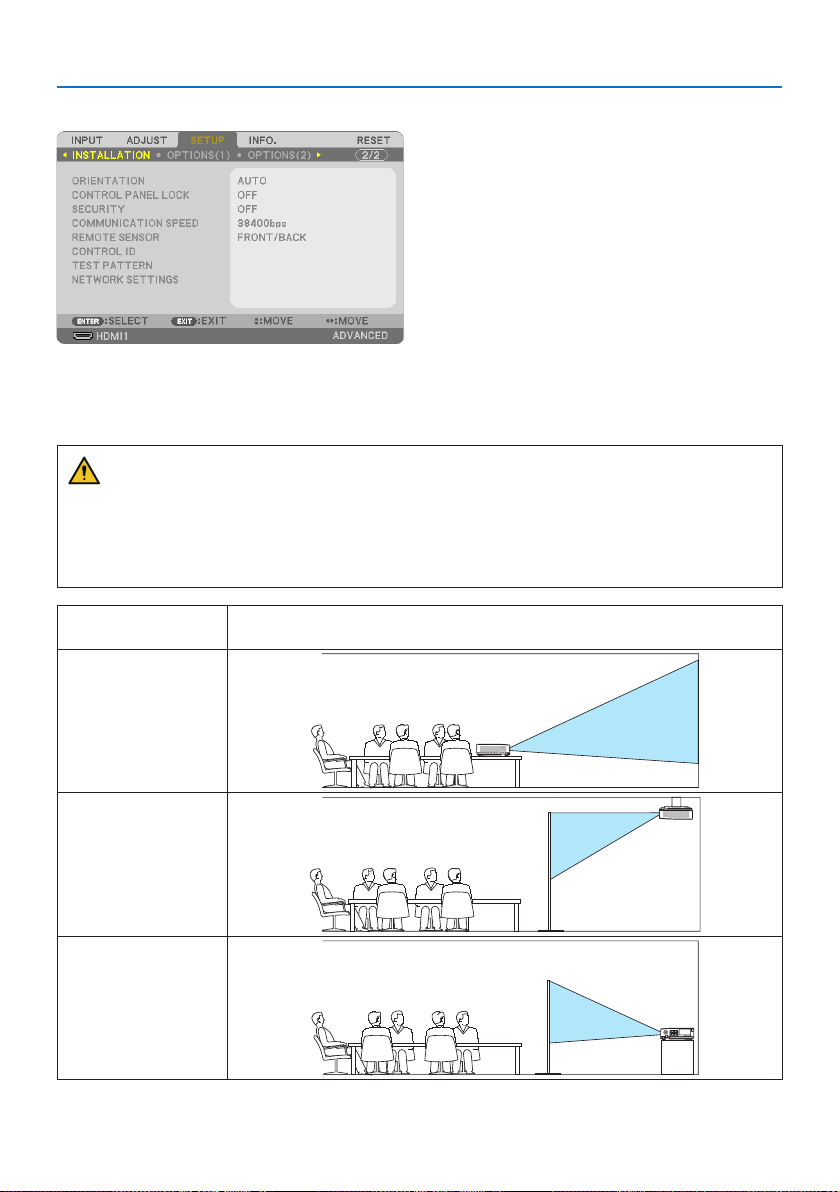
4. Using On-Screen Menu
70
[INSTALLATION]
SelectingProjectorOrientation[ORIENTATION]
This reorients your image for your type of projection. The options are: desktop front projection,
ceiling rear projection, desktop rear projection, and ceiling front projection.
WARNING
• Shouldspecialworksberequired,forexampletosuspendtheprojectorfromtheceiling,
consult your dealer.
Never try to install the projector yourself in such cases. The projector could drop and cause
injury.
AUTOWhenthelightmoduleisturnedON,theinnersensoroftheprojectordetectsitsinstallationstate
either[DESKTOPFRONT]or[CEILINGFRONT]andthenswitchitsprojectionmethod
DESKTOPFRONT
CEILINGREAR
DESKTOPREAR
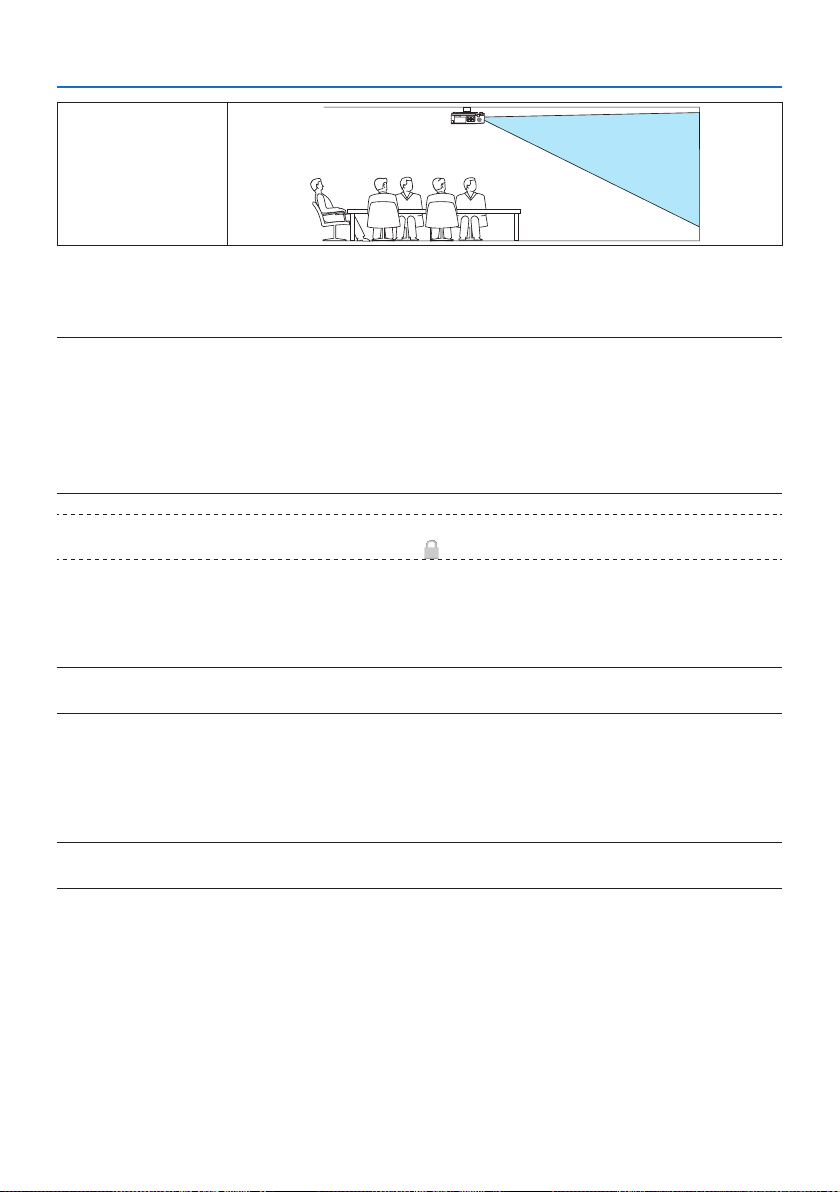
4. Using On-Screen Menu
71
CEILINGFRONT
DisablingtheCabinetButtons[CONTROLPANELLOCK]
This option turns on or o the [CONTROL PANEL LOCK] function.
NOTE:
•This[CONTROLPANELLOCK]doesnotaecttheremotecontrolfunctions.
•Howtoreleasethe[CONTROLPANELLOCK]
1.Whentheprojectorisprojectingimageorinthesleepmode,pressandholdtheINPUTbuttonontheprojectorcabinetforabout
10seconds.The[CONTROLPANELLOCK]willbereleased.
2.Whentheprojectorisinthestandbymode,pressandholdthePOWERbuttonontheprojectorcabinet.Itenablestopoweron
theprojector.Aftercheckingtheprojectorisprojectingimage,performthepreviousstep1.
TIP:
•Whenthe[CONTROLPANELLOCK]isturnedon,akeylockicon[
]willbedisplayedatthebottomrightofthemenu.
EnablingSecurity[SECURITY]
This feature turns on or o the [SECURITY] function.
Unless the correct keyword is entered, the projector cannot project an image. (→ page
45)
NOTE:
•Yoursettingwillnotbeaectedevenwhen[RESET]isdonefromthemenu.
SelectingCommunicationSpeed[COMMUNICATIONSPEED]
This feature sets the baud rate of the PC Control port (D-Sub 9P). It supports data rates from 4800 to
38400 bps. The default is 38400 bps. Select the appropriate baud rate for your equipment to be con-
nected (depending on the equipment, a lower baud rate may be recommended for long cable runs).
NOTE:
•Yourselectedcommunicationspeedwillnotbeaectedevenwhen[RESET]isdonefromthemenu.

4. Using On-Screen Menu
72
TurningOnorORemoteSensor[REMOTESENSOR]
Set the remote control sensors on the projector’s front and rear panels.
The options are: [FRONT/BACK], [FRONT], and [BACK].
TIP:
•Iftheremotecontrolsystemdoesnotfunctionwhendirectsunlightorstrongilluminationstrikestheremotecontrolsensorofthe
projector,changeanotheroption.
•Theremotecontrolsensoronthebackoftheprojectorcannotbeusedwhentheseparatelysoldcablecoverismountedonthe
projector.
SettingIDtotheProjector[CONTROLID]
You can operate multiple projectors separately and independently with the single remote control
that has the [CONTROL ID] function. If you assign the same ID to all the projectors, you can conve-
niently operate all the projectors together using the single remote control. To do so, you have to
assign an ID number to each projector.
CONTROLIDNUMBERSelectanumberfrom1to254youwishtoassigntoyourprojector.
CONTROLIDSelect[OFF]toturnothe[CONTROLID]settingandselect[ON]toturnonthe[CONTROLID]
setting.
NOTE:
•When[ON]isselectedfor[CONTROLID],theprojectorcannotbeoperatedbyusingtheremotecontrolthatdoesnotsupportthe
CONTROLIDfunction.(Inthiscasethebuttonsontheprojectorcabinetcanbeused.)
•Yoursettingwillnotbeaectedevenwhen[RESET]isdonefromthemenu.
•PressingandholdingtheENTERbuttonontheprojectorcabinetfor10secondswilldisplaythemenuforcancelingtheControlID.
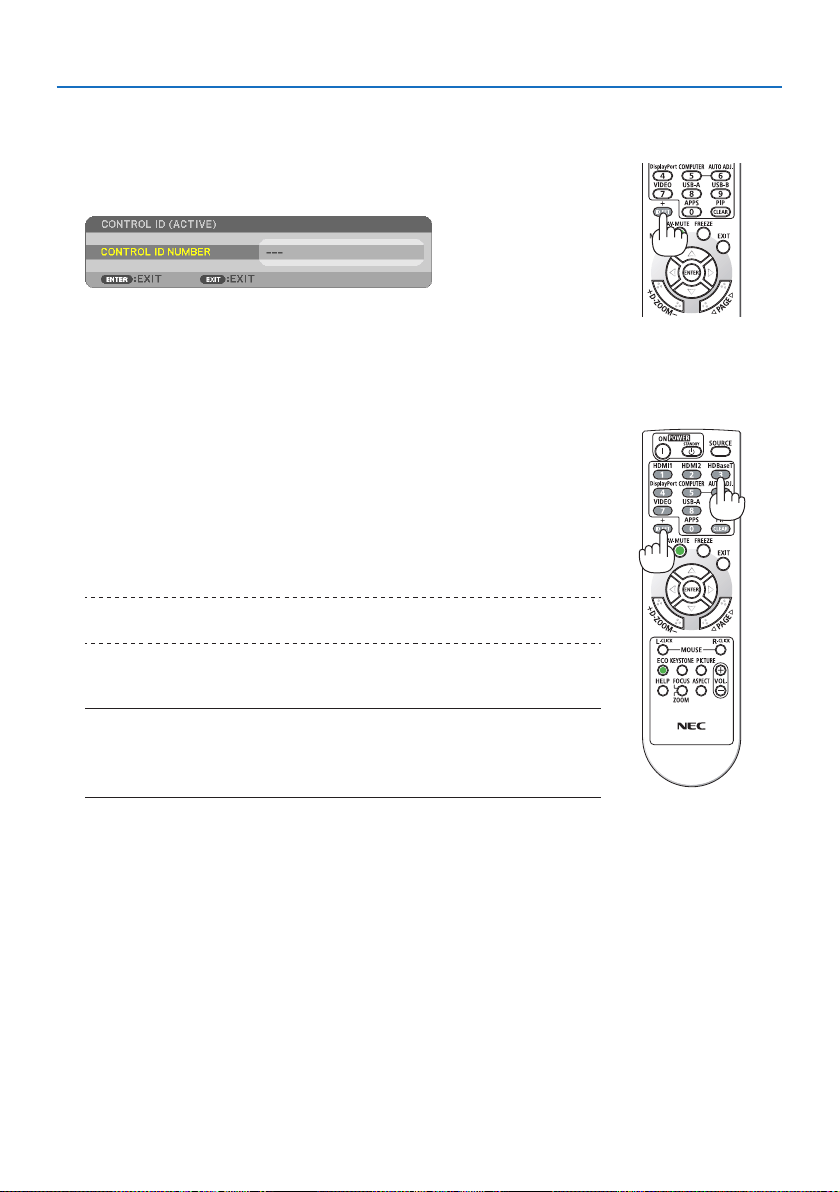
4. Using On-Screen Menu
73
Assigning or Changing the Control ID
1. Turn on the projector.
2. Press the ID SET button on the remote control.
The [CONTROL ID] screen will be displayed.
If the projector can be operated with the current remote control ID, the
[CONTROL ID (ACTIVE)] will be displayed. If the projector cannot be op-
erated with the current remote control ID, the [CONTROL ID (INACTIVE)]
will be displayed. To operate the inactive projector, assign the [CONTROL
ID] used for the projector by using the following procedure (Step 3).
3. Pressoneofnumerickeypadbuttonswhilepressingandholding
the ID SET button on the remote control.
Example:
To assign “3”, press the “3” button on the remote control.
No ID means that all the projectors can be operated together with a
single remote control. To set “No ID”, enter “000” or press the CLEAR
button.
TIP:
•TherangeofIDsisfrom1to254.
4. ReleasetheIDSETbutton.
The updated [CONTROL ID] screen will be displayed.
NOTE:
•TheIDscanbeclearedinafewdaysafterthebatteriesarerundownorremoved.
•Accidentallypressinganyoneofthebuttonsoftheremotecontrolwillclearcurrently
speciedIDwithbatteriesremoved.
UsingTestPattern[TESTPATTERN]
Displays the test pattern for adjusting distortion on the screen and the focus at the time of the pro-
jector setup. Once the [TEST PATTERN] on the onscreen menu is selected, the pattern for adjustment
will be displayed on. If you nd distortion on the pattern, adjust the projector installation angle
or correct distortion by pressing the KEYSTONE button on the remote. If the focus adjustment is
required, control the focus lever. Recommend to perform the focus adjustment after leaving the
projector under the state the TEST PATTERN has been projected for over 30 minutes. Press EXIT
button to close the test pattern and return to the menu.
Settingthenetwork[NETWORKSETTINGS]
This function display the [NETWORK SETTINGS] menu. (→ page
109)
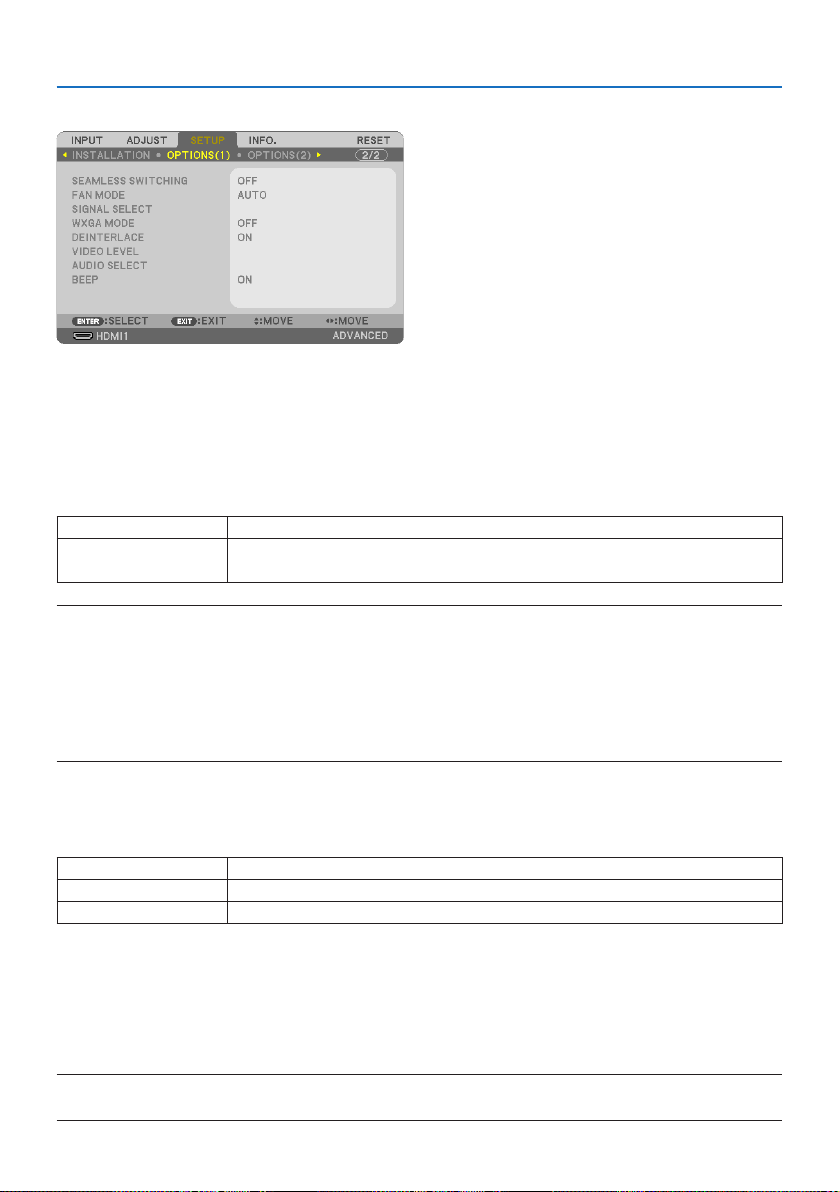
4. Using On-Screen Menu
74
[OPTIONS(1)]
Switchingthedisplayedimagesmoothly[SEAMLESSSWITCHING]
When the input connector is switched, the image displayed before switching is held to switch to
the new image without a break due to absence of a signal.
SelectingFanMode[FANMODE]
[FAN MODE] is used to set the speed of the internal cooling fan.
AUTOThebuilt-infansautomaticallyrunatavariablespeedaccordingtotheinternaltemperature.
HIGHALTITUDEThebuilt-infansrunatahighspeed.Selectthisoptionwhenusingtheprojectorataltitudes
approximately5200feet/1600metersorhigher.
NOTE:
•Set[FANMODE]to[HIGHALTITUDE]whenusingtheprojectorataltitudesapproximately5200feet/1600metersorhigher.
•Usingtheprojectorataltitudesapproximately5200feet/1600metersorhigherwithoutsettingto[HIGHALTITUDE]cancausethe
projectortooverheatandtheprotectorcouldshutdown.Ifthishappens,waitacoupleminutesandturnontheprojector.
•Usingtheprojectorataltitudesapproximately5200feet/1600metersorhighercanshortenthelifeofopticalcomponentssuch
asthelightmodule.
•Yoursettingwillnotbeaectedevenwhen[RESET]isdonefromthemenu.
SelectingSignalFormat[SIGNALSELECT]
This selects the signal to be input in the COMPUTER IN Terminal. Normally, this is set to [RGB/COM-
PONENT]. Change the setting if the color of the picture is unnatural.
RGB/COMPONENTAutomaticallydistinguishesRGBandcomponentsignals.
RGBSwitchestotheRGBinput.
COMPONENTSwitchestothecomponentinput.
EnablingorDisablingWXGAMode[WXGAMODE]
Selecting [ON] will give priority to WXGA (1280 × 768)/WUXGA (1920 × 1200) signals in recognizing
an input signal.
When [WXGA MODE] is set to [ON], XGA (1024 × 768)/UXGA (1600 × 1200) signals may not be
recognized. In this case, select [OFF].
NOTE:
•The[ON]isselectedatthetimeofshipment.

4. Using On-Screen Menu
75
Enablingthedeinterlace[DEINTERLACE]
Turns on or o the deinterlace function for a telecine signal.
OFFSelectthisoptionifthereisanyjitterorartifactsinvideo.
ON Defaultstandardsetting.
NOTE:
•ThisfunctionisnotavailableforHDTV(progressive)andcomputersignals.
SettingHDMI1orHDMI2[VIDEOLEVEL]
Make the settings for each video level when connecting HDMI equipment.
Select [AUTO] to automatically detect video level. If automatic detection may not work well, select
[NORMAL] to disable the [ENHANCED] feature of your HDMI equipment or select [ENHANCED] to
improve image contrast and increase detail in the dark areas.
SettingAudio[AUDIOSELECT]
This selects the audio inputs of the HDMI 1 IN terminal, HDMI 2 IN terminal, and LAN port of the unit.
When inputting analog audio, connect the audio output terminal of the connected device to the
AUDIO IN terminal of the unit and set the audio input selection to [COMPUTER].
EnablingKeySoundandErrorSound[BEEP]
This feature turns on or o the button sound or alarm when an error occurs or the following opera-
tions are performed.
TIP:
•Volumecontrolfor[BEEP]isdisabled.AV-MUTEbuttonisnoteectivetostopbeepingsound.IfyouwanttoactivateBEEPfunction,
set[BEEP]to[OFF].
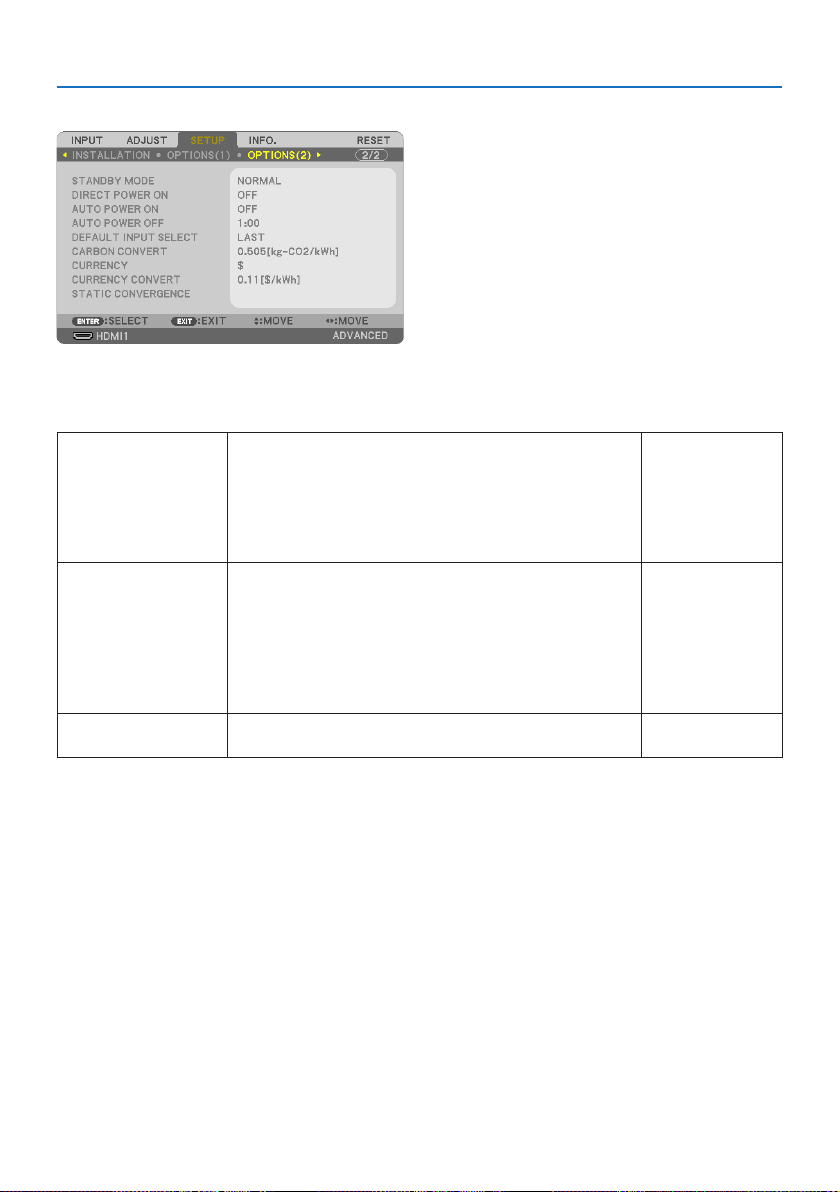
4. Using On-Screen Menu
76
[OPTIONS(2)]
SelectingPower-savingin[STANDBYMODE]
Set the mode after turning o the power of the projector.
NORMALTheprojectorwillgointothestandbymode,loweringthepowercon-
sumption.ThePOWERindicatorashesinorange.
When[NORMAL]isselected,onlythefollowingbuttonsandfeaturewill
work:
POWERbuttonontheprojectorcabinetandtheremotecontrol,powering
onfromPCControlcommand,and[AUTOPOWERON].
Powerconsumption:
Low
NETWORKSTANDBYTheprojectorgoesintothenetworkstandbymode.Thepowersupplyof
theprojectorcanbeturnedonusingawiredLAN(LANport).
ThePOWERindicatorlightsupinorange.
When[NETWORKSTANDBY]isselected,onlythefollowingbuttons,
terminals,andfeatureswillwork:
POWERbuttonontheprojectorcabinetandtheremotecontrol,powering
onfromPCControlcommand,[AUTOPOWERON],[NETWORKSERVICE].
Powerconsumption:
Medium
SLEEPTheprojectorismaintainedinthesleepmode.
POWERindicatorlightsupingreen.
Powerconsumption:
High
4. Using On-Screen Menu
77
Important:
•When[NETWORKSTANDBY]hasbeensetfor[STANDBYMODE]andtheLANhasbeeninlink-downconditionfor3minutes,[STANDBY
MODE]willtransitinto[NORMAL]automaticallyforthepurposetosavetheconsumptionpower.
•When[NETWORKSTANDBY]isselected,[AUTOPOWEROFF]willturningreyandbedisabledand[0:15]willbeselectedautomati-
callyfor[AUTOPOWEROFF].
•Inthebelowconditions,settingofthe[STANDBYMODE]isdisabledandtheprojectorwillgointotheSLEEPmode*.
*Sleepmoderefersthemodewithoutfunctionalrestrictionsbythe[STANDBYMODE].
When[STANDBYMODE]→[NETWORKSTANDBY]isselected
-When[NETWORKSERVICE]→[AMXBEACON]→[ON]isselected
-When[NETWORKSERVICE]→[CRESTRON]→[CrestronControl]→[ON]isselected
-When[NETWORKSETTINGS]→[WIRELESSLAN]→Exceptfor[DISABLE]andmountingthewirelessLANunittotheprojector
-Whenthesignalisinputtothecomputer,HDMI1INorHDMI2INterminals
TIP:
•Evenwhen[NORMAL]isselectedfor[STANDBYMODE],poweronorocanbedonebyusingthePCCONTROLport.However,inthe
[NORMAL]mode,ASCIICONTROLCOMMANDcannotbeused.WhenusingASCIICONTROLCOMMAND,setitto[NETWORKSTANDBY]
or[SLEEP].
•ThepowerconsumptioninthestandbymodewillnotbeincludedincalculatingCO
2
emissionreduction.
•Yoursettingwillnotbeaectedevenwhen[RESET]isdonefromthemenu.
EnablingDirectPowerOn[DIRECTPOWERON]
Turns the projector on automatically when the power cord is inserted into an active power outlet.
This eliminates the need to always use the POWER button on the remote control or projector cabinet.
TurningOntheProjectorByApplyingComputerSignal[AUTOPOWERON]
When the projector is in Standby mode, applying a computer or HDMI signal from a computer
connected to the COMPUTER IN input, HDMI 1 IN, or HDMI 2 IN input will power on the projector
and simultaneously project the image.
This functionality eliminates the need to always use the POWER button on the remote control or
the projector cabinet to power on the projector.
To use this function, rst connect a computer to the projector and the projector to an active AC input.
OFFTheAUTOPOWERONfunctionwillnotwork.
AUTOTheprojector’spowerturnsonandtheimageisprojectedautomaticallywhencomputerorHDMI
signalsaredetected.
Ifmorethanonedeviceisconnectedtotheprojectorandtheinputsignalscannotbedetected
correctly,selecttheinputterminal(HDMI1,HDMI2orCOMPUTER).
HDMI1Signaldetectionisperformedfortheselectedinputterminal.
Whenasignalisdetected,theprojector’spowerturnsonautomaticallyandtheimageisprojected.
HDMI2
COMPUTER
4. Using On-Screen Menu
78
NOTE:
•Thisfunctionwillnotbeavailableunderthefollowingconditions:
-whenacomponentsignalisappliedtotheCOMPUTERINterminal
-whenaSynconGreenRGBsignalorcompositesyncsignalisapplied
•Toenablethe[AUTOPOWERON]afterchangingtothesleepmodeturningotheprojector,wait30secondsandinputacomputer
orHDMIsignal.
IfacomputerorHDMIsignalisstillpresentwhentheprojectoristurnedo,the[AUTOPOWERON]willnotworkandtheprojector
remainsinstandbymode.
•Dependingontheprojectorinuse,the[AUTOPOWERON]maynotworkproperly.
Inthiscase,set[STANDBYMODE]to[NETWORKSTANDBY].
EnablingPowerManagement[AUTOPOWEROFF]
When this option is selected you can enable the projector to automatically turn o (at the selected
time: 0:05, 0:10, 0:15, 0:20, 0:30, 1:00) if there is no signal received by any input or if no operation
is performed.
SelectingDefaultSource[DEFAULTINPUTSELECT]
You can set the projector to default to any one of its inputs each time the projector is turned on.
LASTSetstheprojectortodefaulttothepreviousorlastactiveinputeachtimetheprojectoristurnedon.
AUTOSearchesforanactivesourceinorderof[HDMI1]→[HDMI2]→[COMPUTER]→[USB-A]→
[LAN]anddisplaystherstfoundsource.
HDMI1DisplaysthedigitalsourcefromtheHDMI1INterminaleverytimetheprojectoristurnedon.
HDMI2DisplaysthedigitalsourcefromtheHDMI2INterminaleverytimetheprojectoristurnedon.
COMPUTERDisplaysthecomputersignalfromtheCOMPUTERINterminaleverytimetheprojectoristurnedon.
USB-ADisplaythe[VIEWER].
LANDisplaysasignalfromLANport(RJ-45)ortheUSBWirelessLANUnit.
Settingcarbonfootprintfactor[CARBONCONVERT]
Adjusts the carbon footprint factor in the carbon saving calculation. The initial setting is 0.505[kg-
CO2/kWh] based on the CO
2
Emissions from Fuel Combustion (2008 Edition) published by OECD.
Selectingyourcurrency[CURRENCY]
Displays electricity pricing (available in 4 currency units).
$ USDollar
€EUEuro
JP¥JapaneseYen
RMB¥ChineseYuan

4. Using On-Screen Menu
79
Changingcurrencysettingandcurrencyconvertsetting[CURRENCYCONVERT]
Changes currency setting and currency convert setting for CARBON METER.
The initial setting are as follows:
USDollar0.11[$/kWh]
EUEuro0.19[€/kWh]
JapaneseYen20[¥/kWh]
ChineseYuan0.48[¥/kWh]
The initial settings for US dollar, EU Euro, and Japanese Yen are based on “Energy Prices and Taxes
(second quarter 2010)” published by OECD.
The initial setting for Chinese Yuan is based on “Chinese Data File (2010)” published by JETRO.
Adjustingthecolorshiftofthescreen[STATICCONVERGENCE]
This features allows you to adjust for color deviation in the picture.
This can be adjusted in units of ± 1 pixel in the horizontal direction for [HORIZONTAL R], [HORIZONTAL
G] and [HORIZONTAL B], in the vertical direction for [VERTICAL R], [VERTICAL G] and [VERTICAL B].
NOTE:
•ThisfunctionisnotavailableforPE455WL/PE505XL.

4. Using On-Screen Menu
80
4-6. Menu Descriptions & Functions [INFO.]
Displays the status of the current signal and light module usage. This item has nine pages. The
information included is as follows:
TIP:
•PressingtheHELPbuttonontheremotecontrolwillshowthe[INFO.]menuitems.
[USAGE TIME]
[LIGHT HOURS USED] (H)
[TOTAL CARBON SAVINGS] (kg-CO2)
[TOTAL COST SAVINGS]
•[TOTALCARBONSAVINGS]
This displays the estimated carbon saving information in kg. The carbon footprint factor in the
carbon saving calculation is based on the OECD (2008 Edition). (→ page
38)
[SOURCE(1)]
[SOURCE NAME] [SOURCE INDEX]
[HORIZONTAL FREQUENCY] [VERTICAL FREQUENCY]
[SYNC TYPE] [SYNC POLARITY]
[SCAN TYPE]
[SOURCE(2)]
[SIGNAL TYPE] [VIDEO TYPE]
[BIT DEPTH] [VIDEO LEVEL]
[WIRED LAN]
[IP ADDRESS] [SUBNET MASK]
[GATEWAY] [MAC ADDRESS]
[WIRELESS LAN]
[IP ADDRESS] [SUBNET MASK]
[GATEWAY] [MAC ADDRESS]
[SSID] [NETWORK TYPE]
[SECURITY] [CHANNEL]
[SIGNAL LEVEL]
4. Using On-Screen Menu
81
[VERSION(1)]
[FIRMWARE] Version [DATA] Version
[VERSION(2)]
[FIRMWARE2] Version [DATA2] Version
[OTHERS]
[DATE TIME] [PROJECTOR NAME]
[HOST NAME] [MODEL NO.]
[SERIAL NUMBER] [LAN UNIT TYPE]
[CONTROL ID] (when [CONTROL ID] is set)
[CONDITIONS]
[INTAKE TEMPERATURE] [EXHAUST TEMPERATURE]
[INSTALLATION POSITION] [X-AXIS]
[Y-AXIS] [Z-AXIS]
AbouttheX-AXIS,Y-AXISandZ-AXISCONDITIONS
(NOTE) Arrow direction of the Z-AXIS in the gure represents the top of the projector.
X-AXISDisplaytheprojectorimageatanangleof−100–+100
degreestothehorizontalintheX-axisdirection.
X-AXIS value of
the projector
Horizontal plane
X-axis
Gravity direction
Y-AXISDisplaytheprojectorimageatanangleof−100–+100
degreestothehorizontalintheY-axisdirection.
Y-AXIS value of
the projector
Horizontal plane
Y-axis
Gravity direction
Z-AXISDisplaytheprojectorimageatanangleof−100–+100
degreestotheverticalintheZ-axisdirection.
Z-AXIS value of the projector
Horizontal
plane Z-axis
Gravity direction

4. Using On-Screen Menu
82
4-7. Menu Descriptions & Functions [RESET]
Returning to Factory Default [RESET]
The [RESET] feature allows you to change adjustments and settings to the factory preset for a (all)
source(s) except the following:
[CURRENTSIGNAL]
Resets the adjustments for the current signal to the factory preset levels.
The items that can be reset are: [PRESET], [CONTRAST], [BRIGHTNESS], [COLOR], [HUE], [SHARPNESS],
[ASPECT RATIO], [HORIZONTAL], [VERTICAL], [CLOCK], [PHASE], and [OVERSCAN].
[ALLDATA]
Reset all the adjustments and settings for all the signals to the factory preset.
All items can be reset EXCEPT [KEYSTONE HORIZONTAL], [KEYSTONE VERTICAL], [PINCUSHION],
[PC TOOL], [DATE AND TIME SETTINGS], [ADMINISTRATOR MODE], [LANGUAGE], [BACKGROUND],
[ORIENTATION], [SECURITY], [COMMUNICATION SPEED], [CONTROL ID], [NETWORK SETTINGS],
[FAN MODE], [STANDBY MODE], [CARBON CONVERT], [CURRENCY], [CURRENCY CONVERT],
[STATIC CONVERGENCE], [LIGHT HOURS USED], [TOTAL CARBON SAVINGS], [TOTAL COST SAVINGS],
[PROJECTOR NAME], [WIRED LAN], and [WIRELESS LAN].
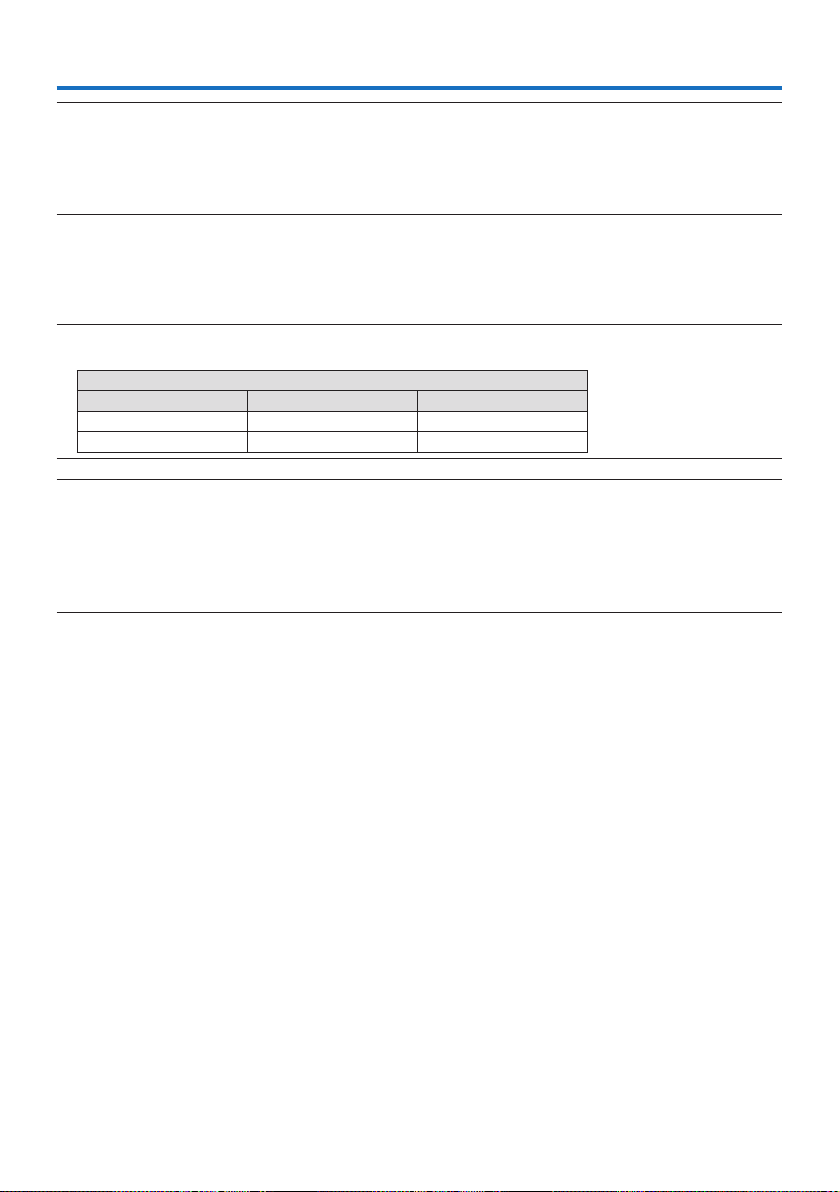
83
NOTE:
•Usetheattachedspeciedcableswiththisprojectorsoasnottointerferewithradioandtelevisionreception.
ForHDMI,LAN,RS-232CandAUDIO,pleaseuseashieldedsignalcable.
For15-pinminiD-Sub,pleaseuseashieldedsignalcablewithferritecore.
Useofothercablesandadaptersmaycauseinterferencewithradioandtelevisionreception.
5-1. Connecting Your Computer
Computer cables and HDMI can be used to connect to a computer. The HDMI cable is not enclosed
with the projector. Please get ready a suitable cable for the connection.
NOTE:
•SignalssupportedbyPlug&Play(DDC2)
INPUT
COMPUTER IN HDMI 1 IN HDMI 2 IN
analog digital digital
Yes Yes Yes
NOTE:
•TheprojectorisnotcompatiblewithvideodecodedoutputsoftheNECISS-6020switcher.
•AnimagemaynotbedisplayedcorrectlywhenaVideosourceisplayedbackviaacommerciallyavailablescanconverter.
Thisisbecausetheprojectorwillprocessavideosignalasacomputersignalatthedefaultsetting.Inthatcase,dothefollowing.
*Whenanimageisdisplayedwiththelowerandupperblackportionofthescreenoradarkimageisnotdisplayedcorrectly:
ProjectanimagetollthescreenandthenpresstheAUTOADJ.buttonontheremotecontrol.
5. Making Connections
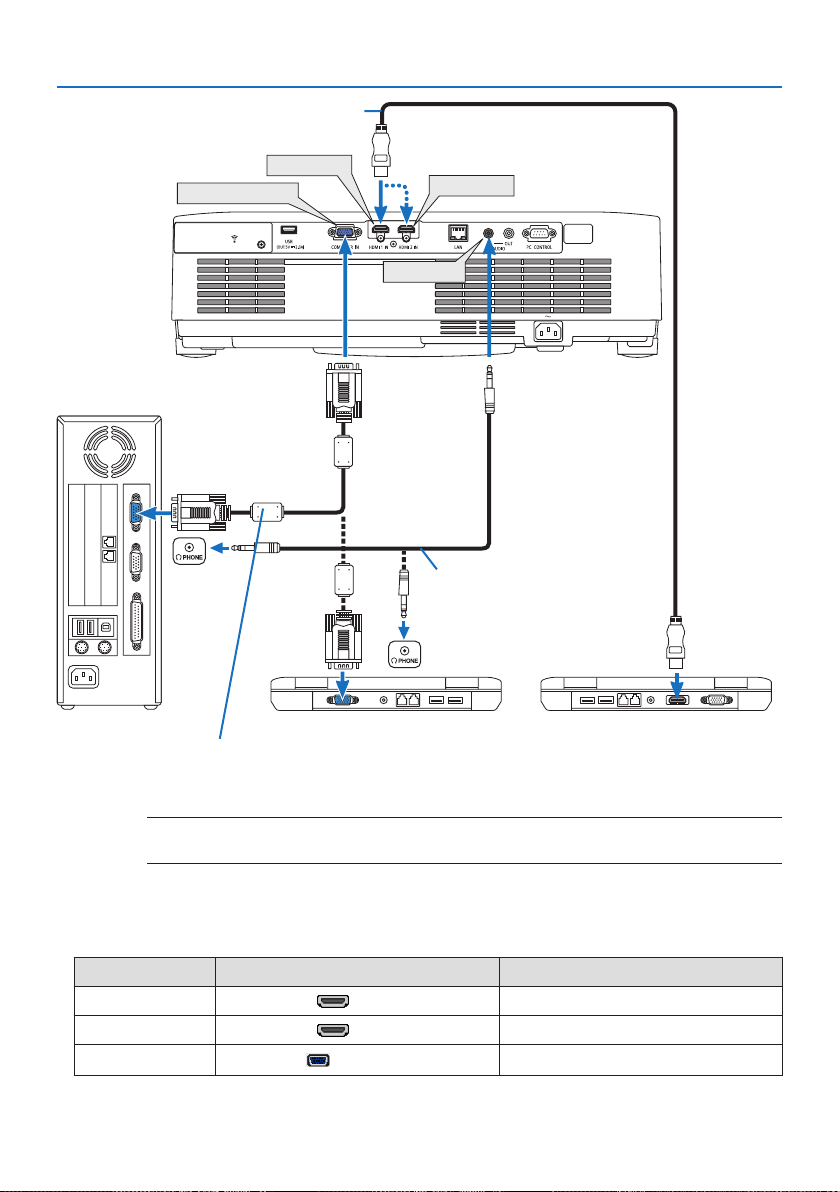
5. Making Connections
84
HDMI 2 IN
AUDIO IN
HDMI 1 IN
COMPUTER IN
Computer cable (VGA) (supplied)
To mini D-Sub 15-pin terminal on the projector. It is recommended that you use a commercially
available distribution amplier if connecting a signal cable longer than the cable supplied.
NOTE:
•ForMac,useacommerciallyavailablepinadapter(notsupplied)toconnecttoyourMac’svideoport.
Stereo mini-plug audio cable
(not supplied)
HDMI cable (not supplied)
UseHighSpeedHDMI®Cable.
•Selectthesourcenameforitsappropriateinputterminalafterturningontheprojector.
Input terminal INPUT button on the projector cabinet Button on the remote control
HDMI 1 IN HDMI1 HDMI1
HDMI 2 IN HDMI2 HDMI2
COMPUTER IN
COMPUTER
COMPUTER
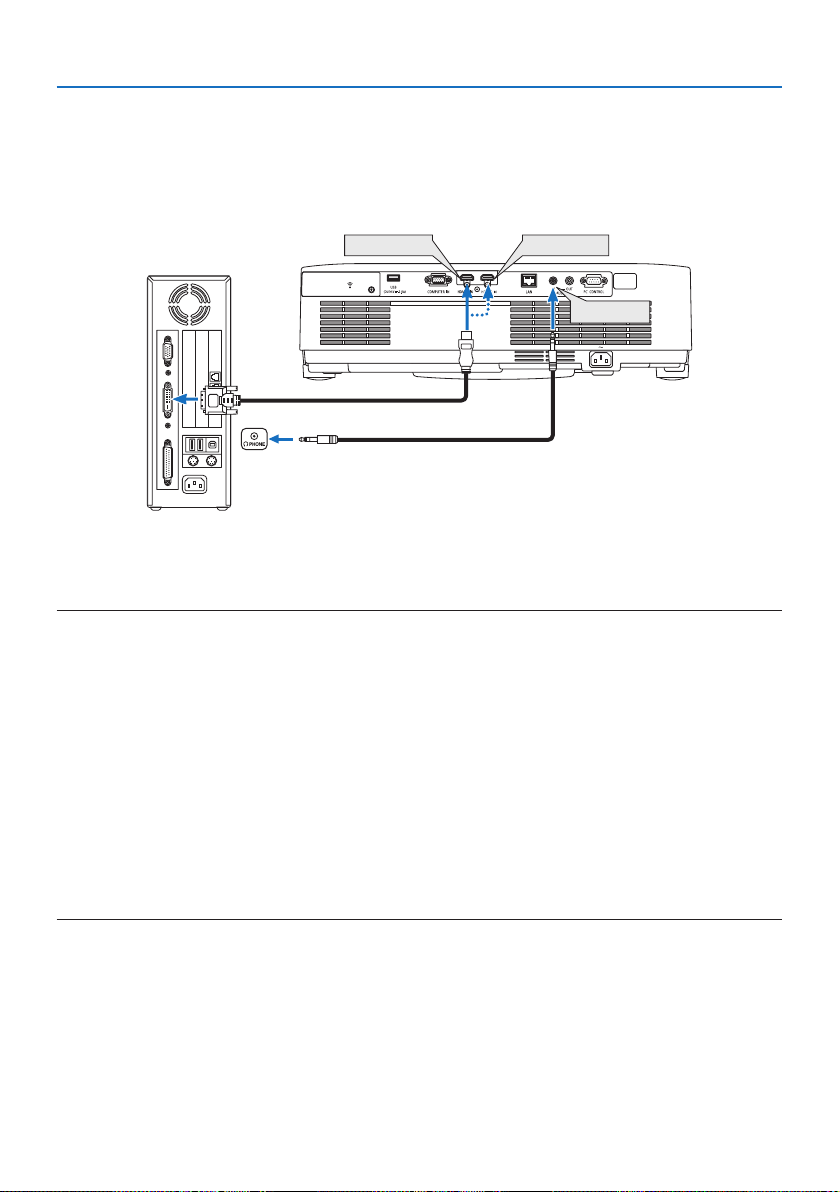
5. Making Connections
85
Cautions when using a DVI signal
•WhenthecomputerhasaDVIoutputterminal,useacommerciallyavailableconvertercable
to connect the computer to the projector’s HDMI 1 IN or HDMI 2 IN terminal (only digital video
signals can be input).
- Only digital video signals can be input.
HDMI 1 IN
HDMI 2 IN
AUDIO IN
Connect the audio output of the computer to the projector’s AUDIO IN terminal. In this case,
switch the [HDMI1] or [HDMI2] setting at [SETUP] → [OPTIONS(1)] → [AUDIO SELECT] the
on-screen menu to [COMPUTER]. (→ page 75)
NOTE:
WhenViewingaDVIDigitalSignal
•Turnothepowerofthecomputerandprojectorbeforeconnecting.
•Whenavideodeckisconnectedviaascanconverter,etc.,thedisplaymaynotbecorrectduringfast-forwardingandrewinding.
•UseaDVI-to-HDMIcablecompliantwithDDWG(DigitalDisplayWorkingGroup)DVI(DigitalVisualInterface)revision1.0standard.
Thecableshouldbewithin197"/5mlong.
•TurnotheprojectorandthePCbeforeconnectingtheDVI-to-HDMIcable.
•ToprojectaDVIdigitalsignal:Connectthecables,turntheprojectoron,thenselecttheHDMIinput.Finally,turnonyourPC.
Failuretodosomaynotactivatethedigitaloutputofthegraphicscardresultinginnopicturebeingdisplayed.Shouldthishappen,
restartyourPC.
•DonotdisconnecttheDVI-to-HDMIcablewhiletheprojectorisrunning.Ifthesignalcablehasbeendisconnectedandthenrecon-
nected,animagemaynotbecorrectlydisplayed.Shouldthishappen,restartyourPC.
•TheCOMPUTERvideoinputterminalssupportWindowsPlugandPlay.
•AMacsignaladapter(commerciallyavailable)mayberequiredtoconnectaMaccomputer.
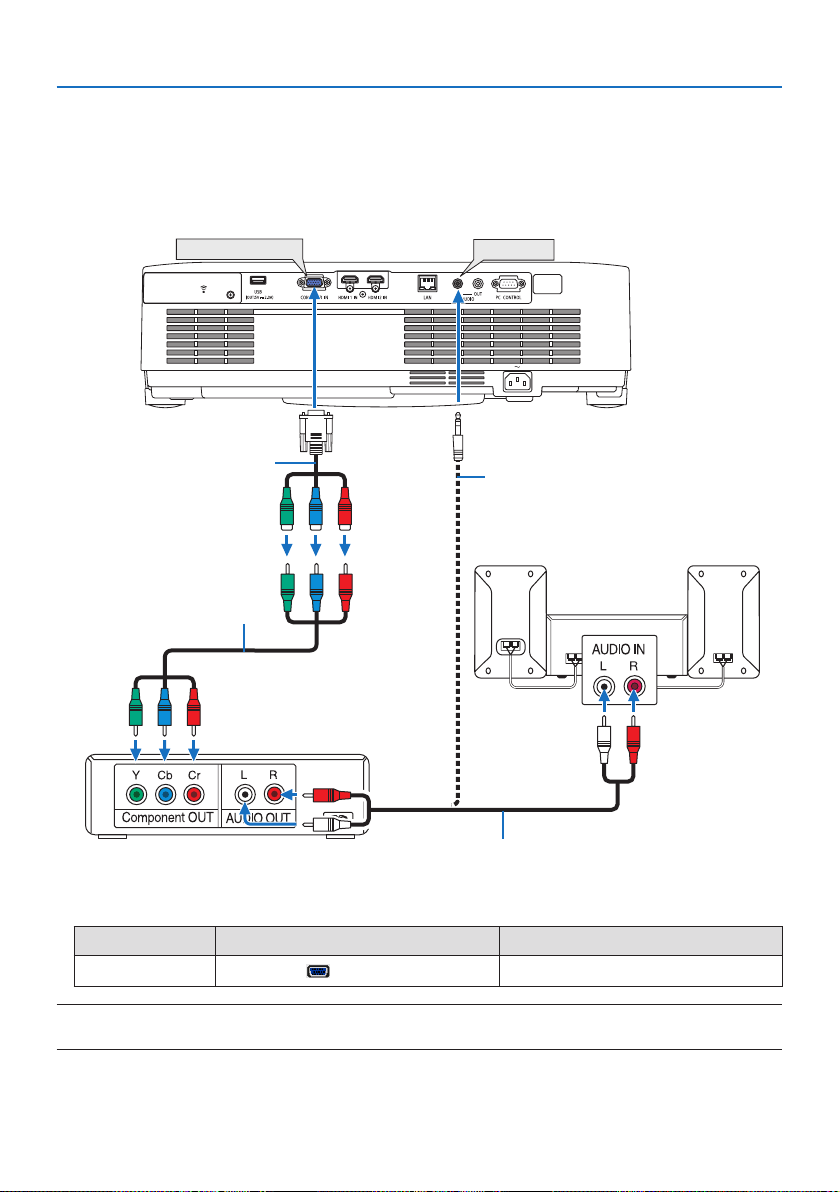
5. Making Connections
86
5-2. Connecting to a DVD player and other AV devices
Connecting Component Input
Connection for component signal. Signal from the color dierence signal output terminal on DVD
players (DVD video output) and the YPbPr output terminal on the Hi-vision video can be projected.
Recommend to connect the terminal for audio output on the DVD player to the audio components.
COMPUTER IN
AUDIO IN
15-pin - to - RCA (female) × 3
cable adapter (ADP-CV1E)
Stereo mini plug - to - RCA audio cable
(not supplied)
Component video RCA × 3
cable (not supplied)
Audio cable (not supplied)
DVD player
Audio Equipment
•Selectthesourcenameforitsappropriateinputterminalafterturningontheprojector.
Input terminal INPUT button on the projector cabinet Button on the remote control
COMPUTER IN
COMPUTER
COMPUTER
NOTE:
•RefertoyourDVDplayer’sowner’smanualformoreinformationaboutyourDVDplayer’svideooutputrequirements.
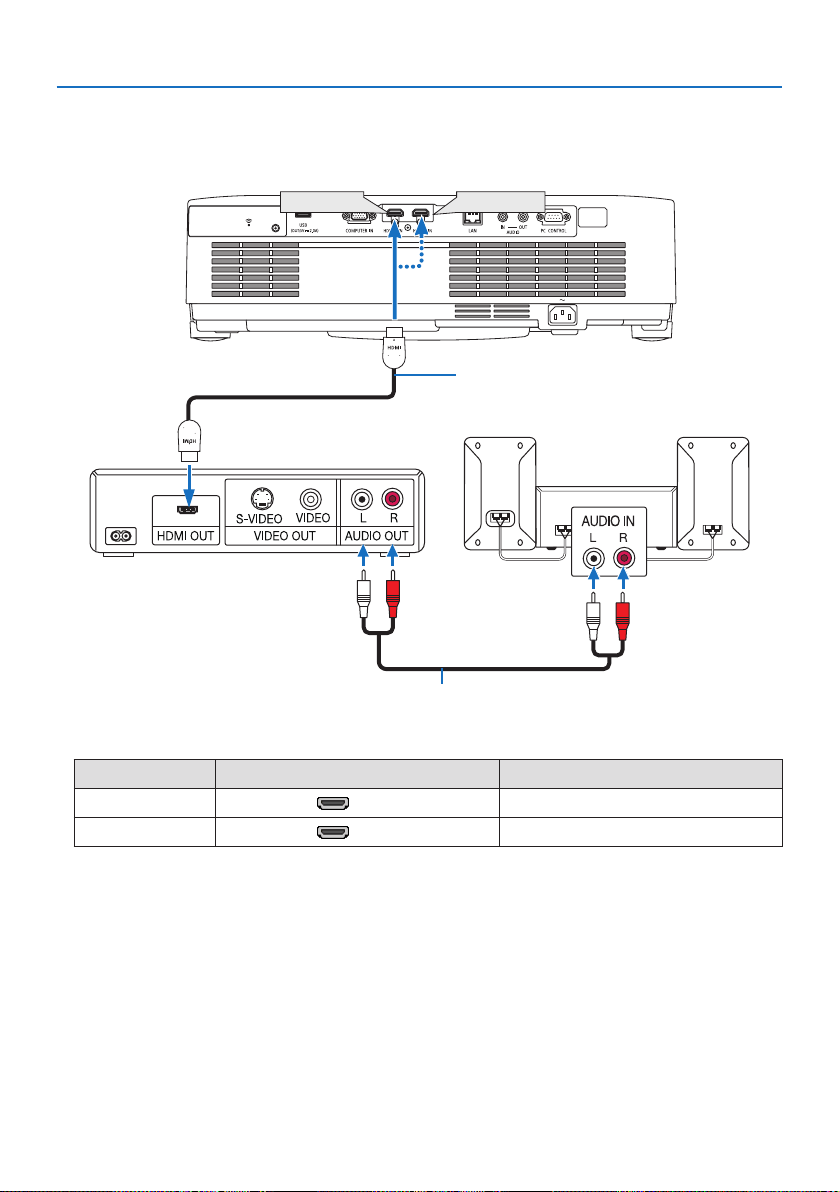
5. Making Connections
87
Connecting HDMI Input
You can connect the HDMI output of your DVD player, hard disk player, Blu-ray player, or notebook
type PC to the HDMI IN terminal of your projector.
HDMI 1 IN
HDMI 2 IN
HDMI cable (not supplied)
UseHighSpeedHDMI®Cable.
Audio cable (not supplied)
•Selectthesourcenameforitsappropriateinputterminalafterturningontheprojector.
Input terminal INPUT button on the projector cabinet Button on the remote control
HDMI 1 IN
HDMI1 HDMI1
HDMI 2 IN
HDMI2 HDMI2
•WhenconnectingtheHDMI1INterminal(orHDMI2INterminal)oftheprojectortotheDVD
player, the projector’s video level can be made settings in accordance with the DVD player’s video
level. In the menu select [HDMI SETTINGS] → [VIDEO LEVEL] and make necessary settings.
•IftheHDMIinput’ssoundisnotoutput,checkif[HDMI1]and[HDMI2]areset[HDMI1]and[HDMI2]
correctly the on-screen menu [SETUP] → [OPTIONS(1)] → [AUDIO SELECT]. (→ page
75)
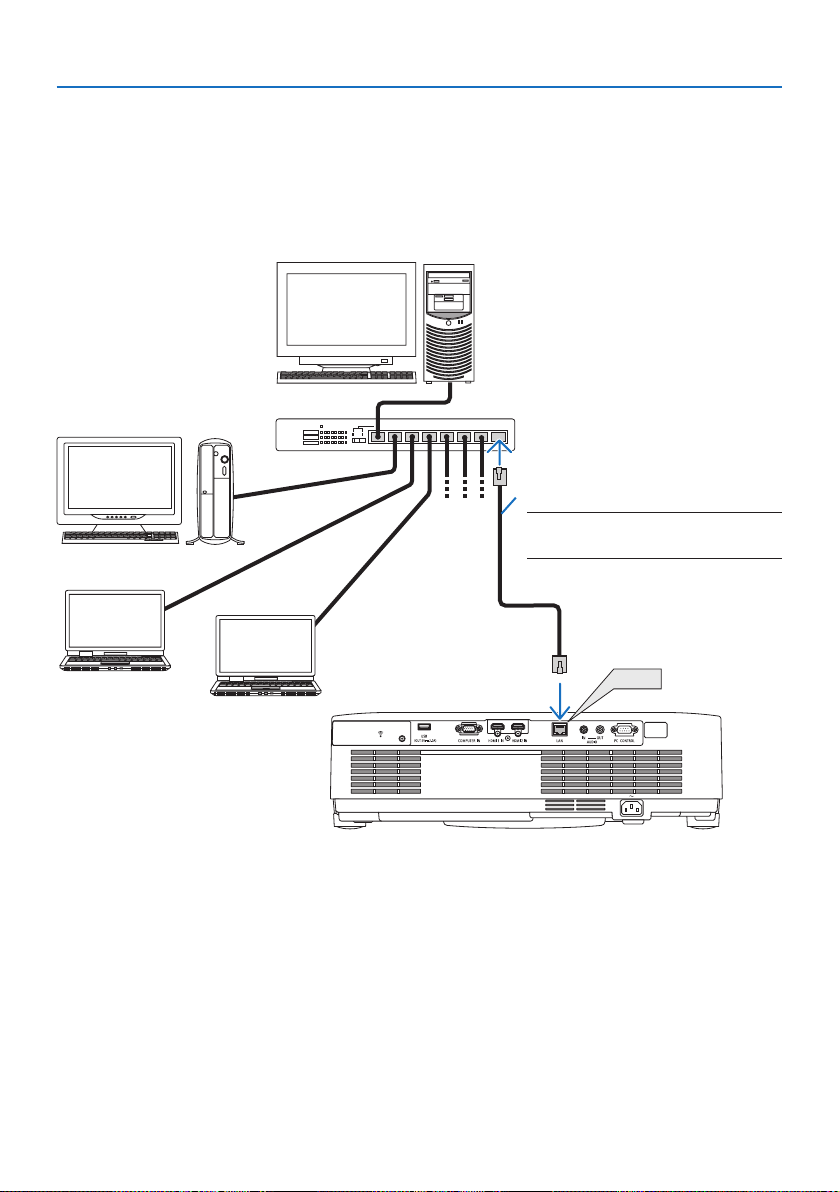
5. Making Connections
88
5-3. Connecting to a Wired LAN
When the projector is connected to a wired LAN, you can use the web browser on a computer to
control the projector using the HTTP server function.
For more information, see “7. Connecting to a Network” (→ page
106).
Example of LAN connection
Example of wired LAN connection
LAN
Server
Hub
LAN cable (not supplied)
NOTE:
•UseaCategory5orhigherLANcable.
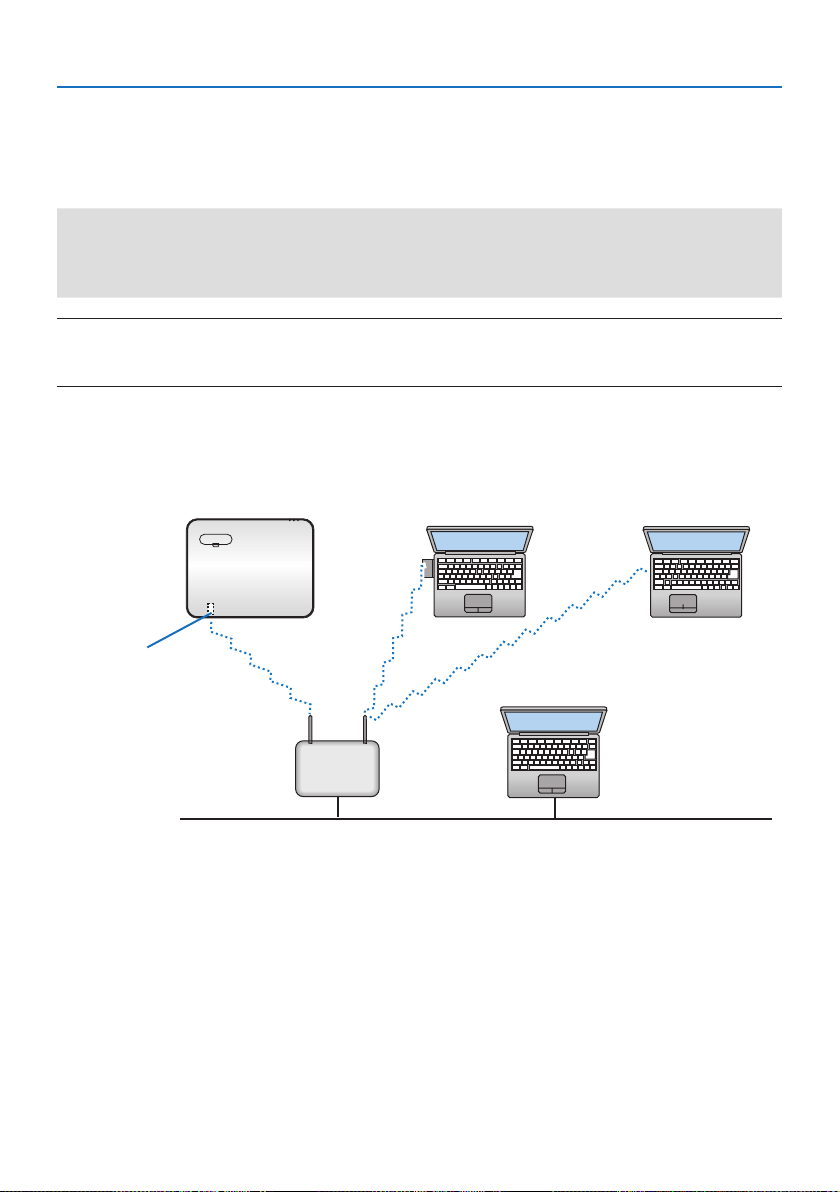
5. Making Connections
89
5-4. Connecting to a Wireless LAN (Optional: NP05LM series)
The USB Wireless LAN Unit also provides a wireless LAN connection. To use a wireless LAN connec-
tion, you are required to assign an IP address to the projector.
For more information, see “7. Connecting to a Network” (→ page
106).
Important:
•IfyouusetheprojectorwiththeUSBWirelessLANUnitintheareawheretheuseofwirelessLANequipmentisprohibited,remove
theUSBWirelessLANUnitfromtheprojector.
•BuytheappropriateUSBWirelessLANUnitforyourcountryorarea.
NOTE:
•DonotpressthebuttonontheUSBWirelessLANUnit.Thebuttondoesnotworkwiththismodel.
•Yourcomputer’swirelessLANadapter(orunit)mustbecompliedwithWi-Fi(IEEE802.11a/b/g/n)standard.
Example of wireless LAN connection
PC with wireless LAN card
inserted
PC with built-in wireless LAN
function
Wired LAN
Wireless access point
USB Wireless LAN Unit
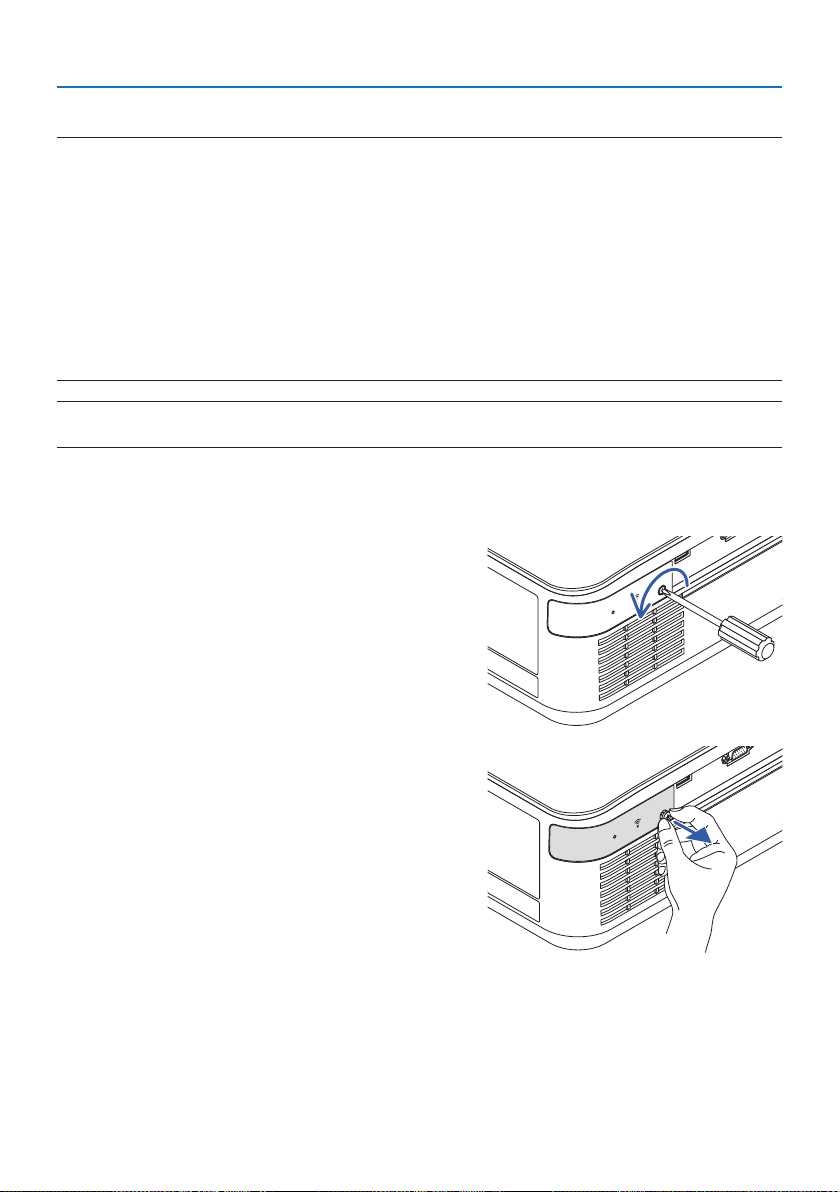
5. Making Connections
90
Attaching the USB Wireless LAN Unit
NOTE:
•TheUSBWirelessLANUnitmustbeinsertedintotheUSBWirelessLANUnitportinthecorrectdirection.Itcannotbeinsertedin
thereversedirection.IftheUSBWirelessLANUnitisinsertedinthereversedirectionwithexcessiveforceapplied,theUSBport
maybreak.
•BeforetouchingtheUSBWirelessLANUnit,touchametallicobject(suchasadoorknoboraluminumwindowframe)todischarge
thestaticelectricityfromyourbody.
•AlwaysinsertorremovetheUSBWirelessLANunitwhenthemainpoweristurnedo.Failuretodosomaycauseprojectormalfunc-
tionordamagetotheUSBwirelessLANunit.Iftheprojectorwillnotworkcorrectly,turnotheprojector,disconnectthepower
cord,andthenconnectitagain.
•DonotinsertotherUSBdevicesintotheUSB(wirelessLAN)portinthewirelessLANcover.DonotinserttheUSBWirelessLANunit
intotheUSBport.
NOTE:
•Whenthecablecoverisattached,removeitbeforeinsertingtheUSBWirelessLANUnit.
1. Press the POWER button to turn o the pro-
jector and set it into standby condition, and
disconnect the power cord.
2. Remove the wireless LAN cover.
(1) Turn the screw counterclockwise until it
turns freely.
(2) Hold the head of the screw and remove.
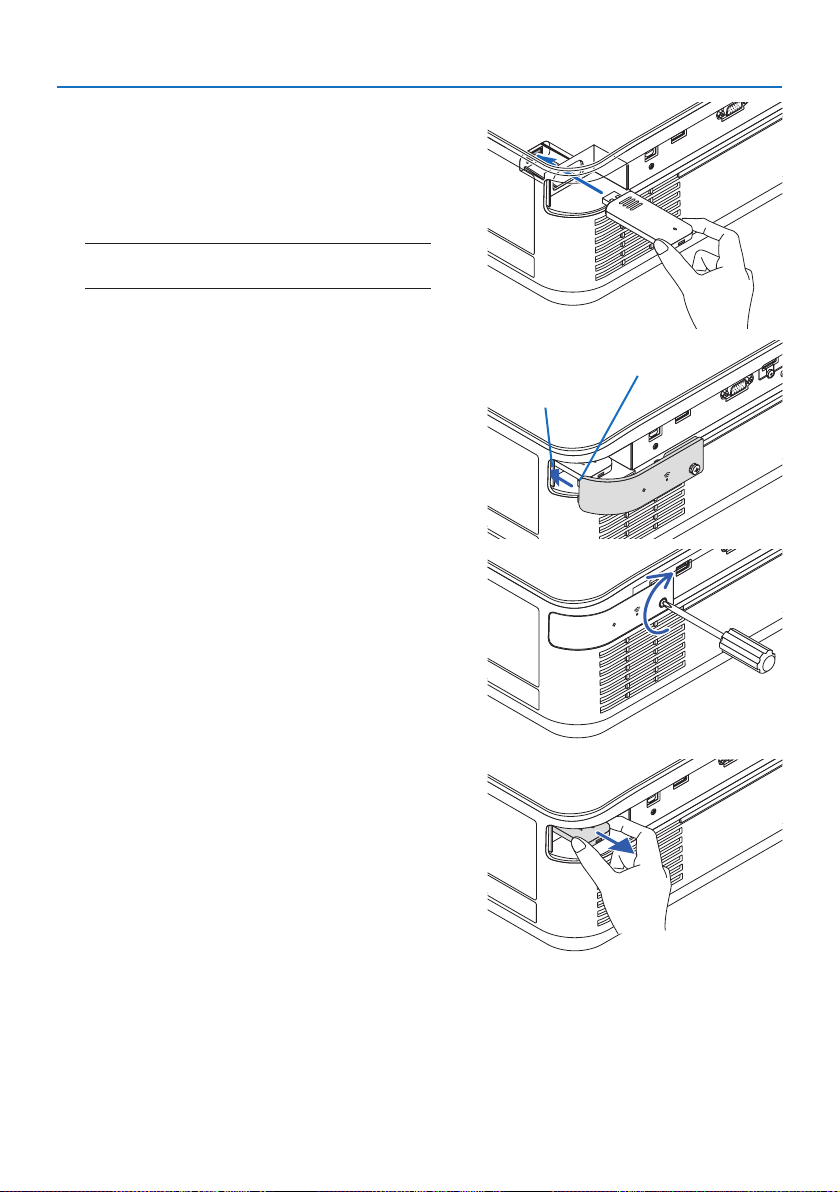
5. Making Connections
91
3. InsertthewirelessLANunitintotheUSB
(wireless LAN) port with the side containing
the indicator facing up.
•SlowlyslidethewirelessLANunitleftand
right, up and down, checking the insertion
slot as you push the unit in.
NOTE:
•DonotforcetoinserttheUSBWirelessLANUnit.
WIRE LESS
WIRE LESS
4. MountthewirelessLANcover.
(1) Insert the hook on the back of the cover
into the groove in the projector and close
the wireless LAN cover.
Hook
Groove
(2) Turn the screw clockwise to tighten it.
* To remove the USB Wireless LAN Unit, dis-
connect the power cord and use the above
procedure.
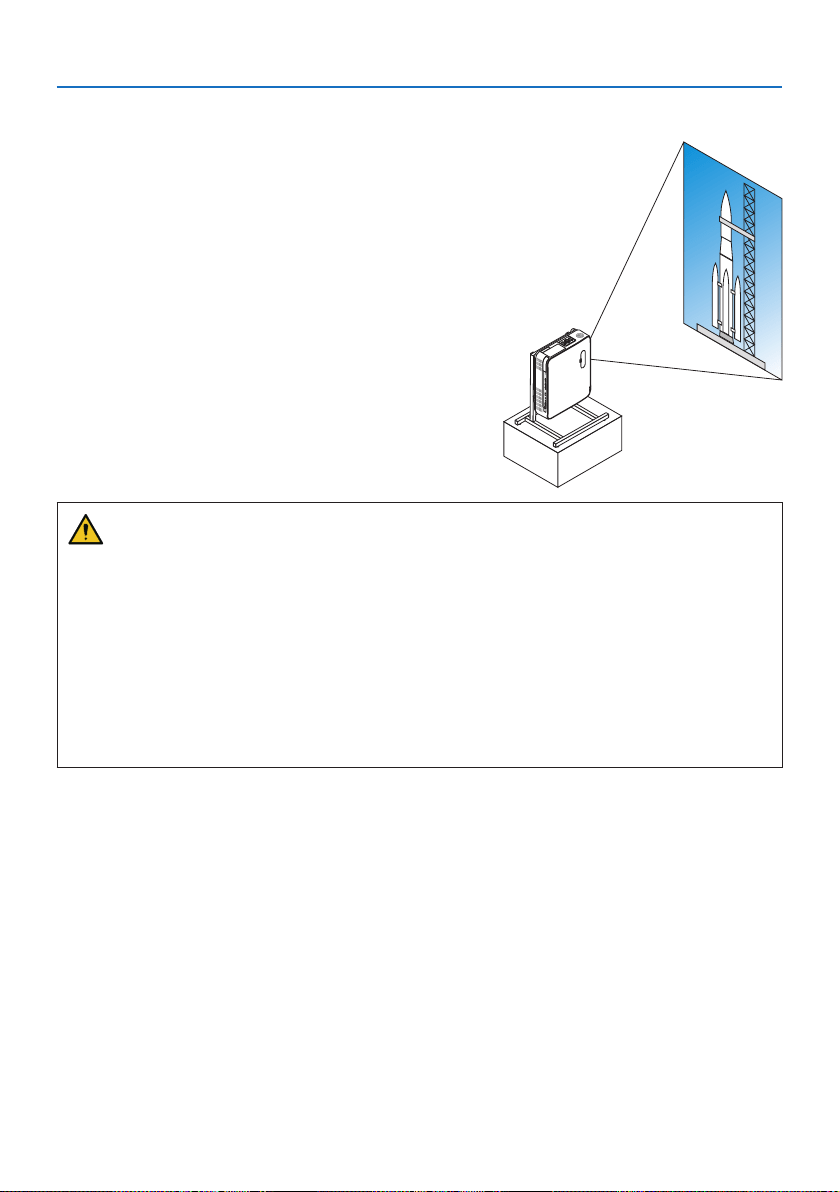
5. Making Connections
92
5-5. Portrait projection (vertical orientation)
Portrait screens from a computer can be projected
by installing the projector in a vertical orientation.
Precautions during installation
•Pleasedonotinstalltheprojectorinaverticalorientationontopoftheoorortableonits
own. The intake vent or the exhaust vent may be obstructed, resulting in the projector get-
ting warm and the possibility of re and malfunction occurring.
•Astandforsupportingtheprojectorneedstobemadeforthispurpose.Inthiscase,thestand
must be designed such that the center of gravity of the projector is located well within the legs
of the stand. If not, the projector may fall over and result in injury, damage and malfunction.
•Takemeasurestopreventtheprojectorfromfallinginanticipationofamalfunctionoccurring
in the projector or stand.

5. Making Connections
93
Design and manufacturing conditions for the stand
Please engage an installation service provider for the design and manufacture of the customized
stand to be used for portrait projection. Please ensure that the following are complied with when
designing the stand.
1. Installation facing the exhaust vent downward, maintain a distance of at least 200 mm between
the projector exhaust vent and the oor.
Do not obstruct the intake vent at the rear of the projector.
2. Use the four screw holes on the bottom face of the projector to secure it to the stand.
Screw hole center dimension: 200 × 250 mm
Screw hole dimension on the projector: M4 with a maximum depth of 8 mm.
* Please design the stand such that the rear legs on the bottom face of the projector do not
contact the stand. The tilt foot can be turned and removed.
3. Horizontal adjustment mechanism (for example, bolts and nuts in four locations)
4. Please design the stand such that it does not topple over easily.
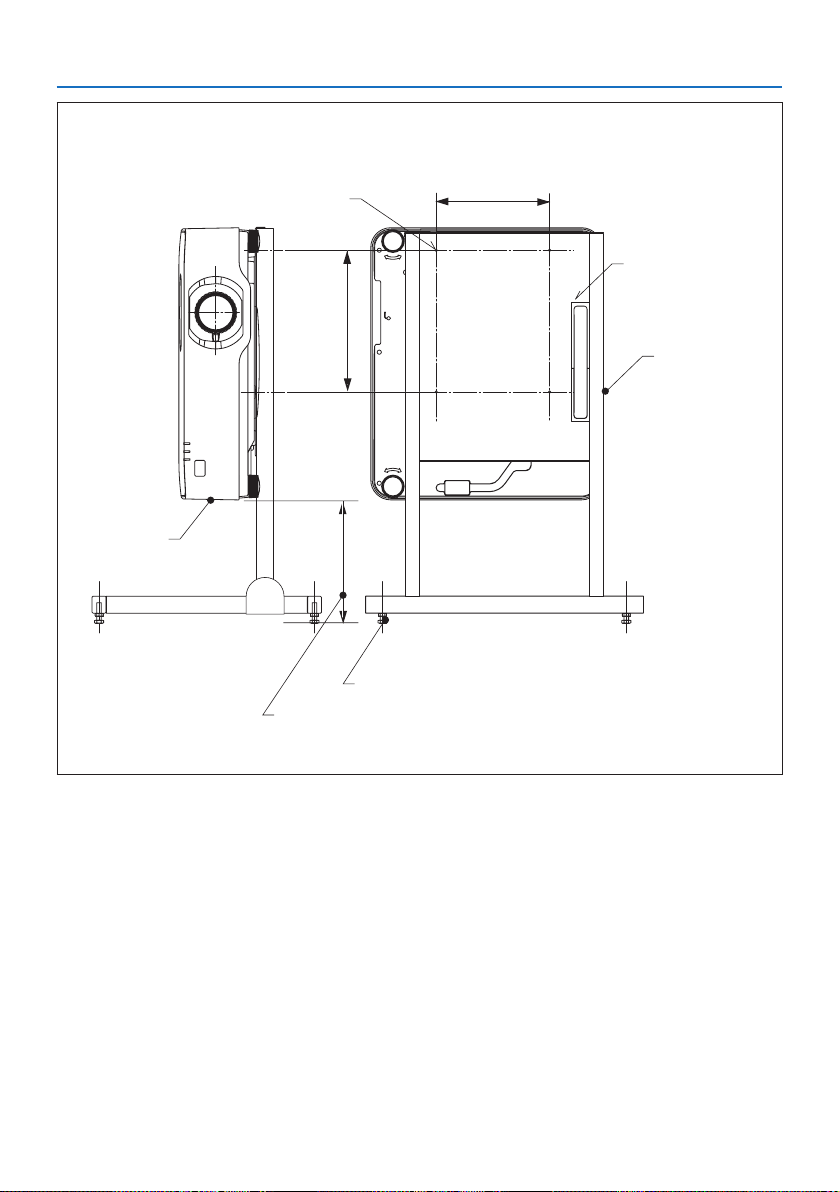
5. Making Connections
94
Reference drawings
* The drawing showing the dimensional requirements is not an actual stand design drawing.
[Side View][Front View]
Screw holes for 4 - M4 use
Notch
200
Horizontal adjuster
Installation facing the exhaust vent downward, maintain a distance of at
least 200 mm between the projector Exhaust vent and the oor.
(Unit: mm)
250
Intake vent
Exhaust Vent

95
6-1. Things you can do with the VIEWER
The [VIEWER] has the following features.
•WhenyouinsertacommerciallyavailableUSBmemorycontainingthepictureintotheUSBport
of the projector (Type A), the images on the USB can be projected by the unit. By doing this, you
can make a presentation without using a personal computer.
•Thetypesofimagesthatcanbeprojectedinthe[VIEWER]areJPEGandPNG.
•Thumbnailscanbedisplayedinthe[VIEWER],allowingyoutoquicklyselectapicturetobe
projected.
•Whenprojectingmultiplepicturescontinuously([SLIDESHOW]),thepicturesmaybeswitched
manually (manual playback) or automatically ([AUTO PLAY]). The interval for changing the pictures
can also be modied during [AUTO PLAY].
•Theprojectionordercanbespeciedbythepicturelename,letype,dateandsize,andthe
ascending/descending order can be selected.
•Theorientationofthepicturecanberotatedinunitsof90°.
•Youcanchangethescreenoftheinputterminalinasignal-lessstate(backgroundlogo)orthe
background image of the MultiPresenter start-up screen (MultiPresenter logo). You can also set
a password to prohibit third parties from changing the pictures. (→ page
104)
NOTE:
•Whenthe[VIEWER](slidescreen,lelistscreen)isbeingdisplayed,keystonecorrectionusingthe▼buttonsisnotpossible.
Toperformkeystonecorrectionwhenthe[VIEWER]isbeingdisplayed,presstheMENUbutton2timestodisplaytheon-screen
menu.
•Whenthe[VIEWER]isbeingdisplayed,theFREEZEbuttonontheremotecontrollerdoesnotwork.
•Whenyouselect[RESET]→[ALLDATA]intheon-screenmenu,theoptionmenusettingsofthe[VIEWER]returntothedefault
statewhenshippedfromthefactory.
•AboutUSBmemory
FormattheUSBmemoryusedbythe[VIEWER]oftheprojectorintheFAT32formatorFAT16format.
-TheprojectorcannotrecognizeaUSBmemorythathasbeenformattedintheNTFSformat.
-CheckthelesystemformatiftheUSBmemoryinsertedintotheprojectorisnotrecognized.
-RefertotheinstructionmanualorthehelpleoftheWindowsyouareusingfordetailsonhowtoformataUSBmemory.
-TheUSBportoftheprojectordoesnotguaranteethatallUSBmemoriescommerciallyavailablewillwork.
•Aboutcompatibleimages
-Thefollowingpicturescanbeprojectedbythe[VIEWER].
JPEGExtensionjpg,jpe,jpeg(caseinsensitive)
FormatBaseline,progressive
ColorRGB,grayscale
ResolutionBaseline:Maximum10000×10000(pixel)
Progressive:Maximum2000×2000(pixel)
EXIFEXIFinformation(rotation/thumbnail,etc.)isnotsupported.
PNGExtensionpng(caseinsensitive)
FormatNormal,interlace
ColorRGB,indexcolor,grayscale
ResolutionNormal:Maximum10000×10000(pixel)
Interlace:Maximum2000×2000(pixel)
6. Using the VIEWER
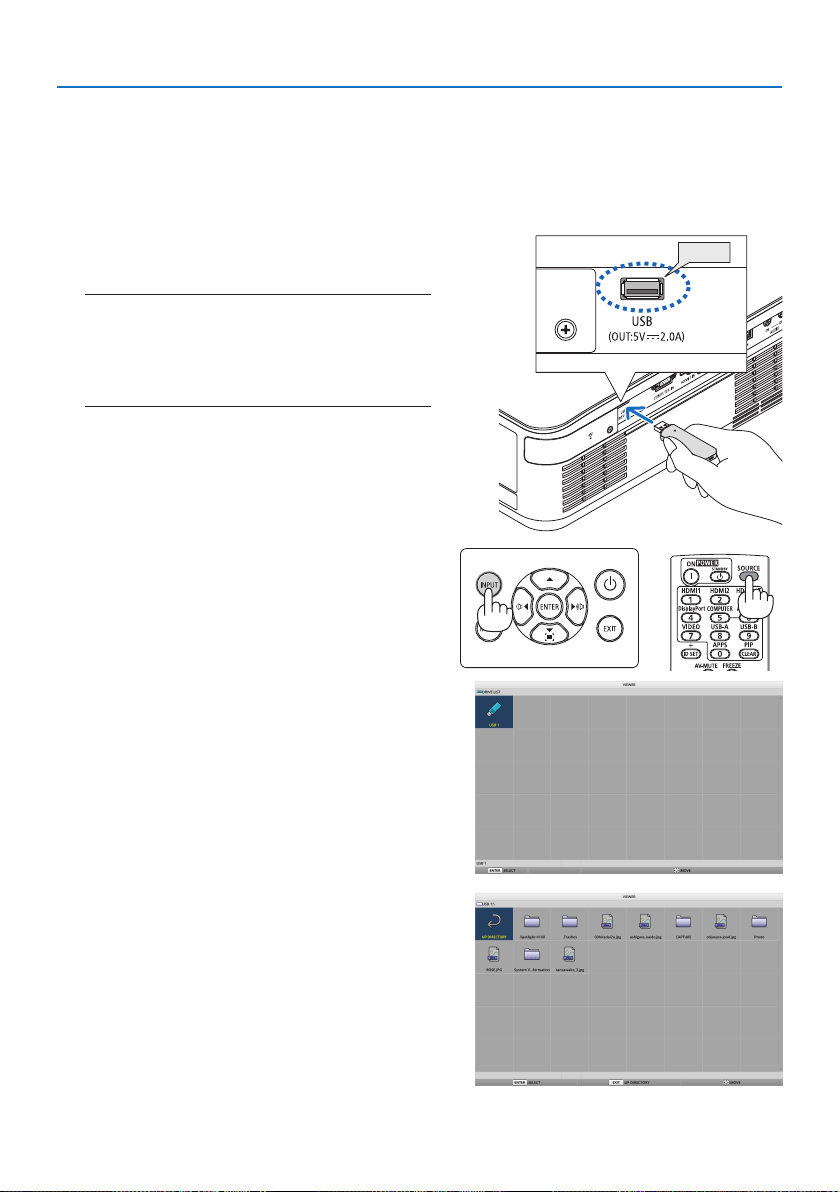
6. Using the VIEWER
96
6-2. Projecting the pictures on a USB memory (basic operation)
This section explains the basic operations of the [VIEWER]. This is the operating procedure when the
option menu (→ page
103) of the [VIEWER] is in the default state when shipped from the factory.
① Start the [VIEWER]
1. Turn on the projector.
USB
2. InsertaUSBmemoryintotheUSB-Aportof
the projector.
NOTE:
•ToremoveaUSBmemoryfromtheprojector,pressthe
MENUbuttoninthelelistscreenor[DRIVELIST]screenand
select[REMOVEUSBDEVICE].(→Page
98“RemovetheUSB
memory”)
3. PresstheINPUTbutton.
The [INPUT] screen is displayed.
•PresstheSOURCEbuttonwhenusingthe
remote control.
4.PresstheINPUTbuttonafewtimesandmove
thecursorto[USB-A].
•EverytimetheINPUTbuttonispressed
briey, the cursor moves to the next input
terminal.
•Movethecursorto[USB-A]andwaitfor
a while for the [VIEWER] to start and the
[DRIVE LIST] screen on the USB memory to
be projected.
5.Checkthatthecursorismovedto[USB1]and
press the ENTER button.
The le list screen will be displayed.
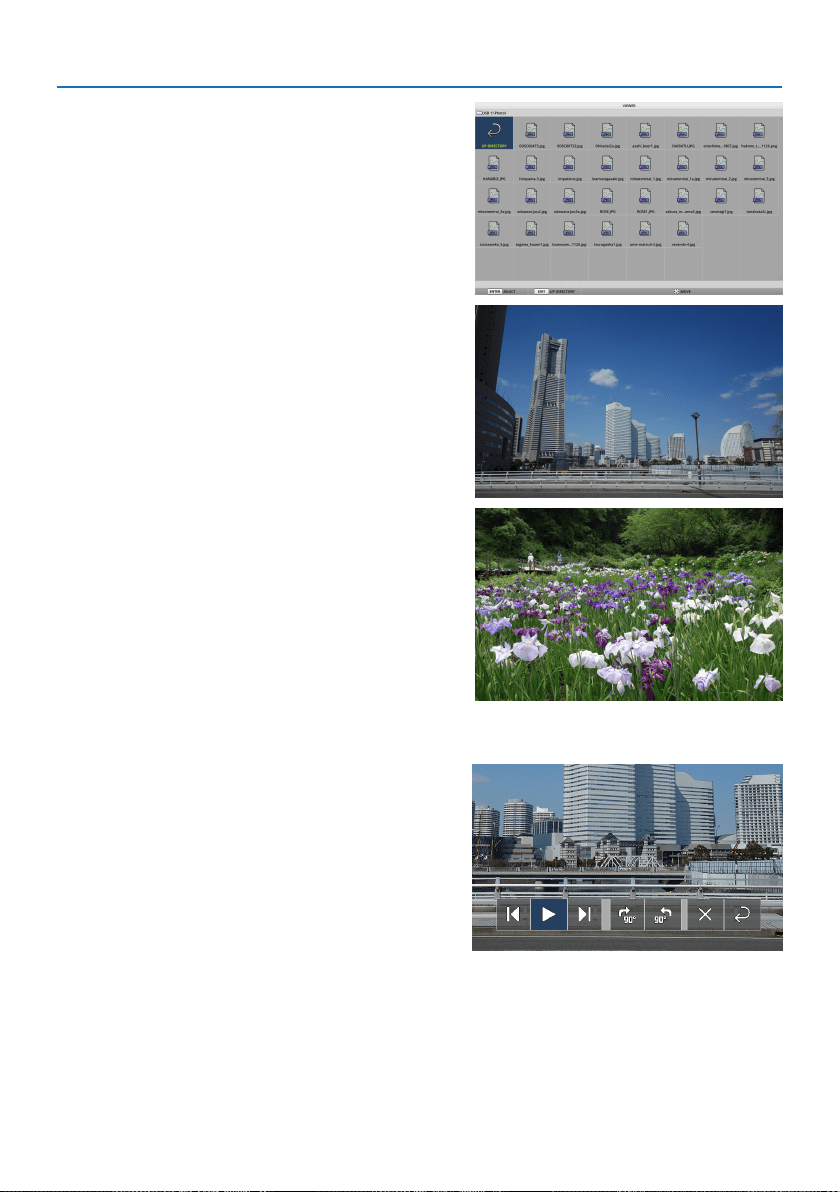
6. Using the VIEWER
97
6. Move the cursor to the folder or image le
with the ▲▼◀▶ buttons and press the
ENTER button.
•Whenafolderisselected,thelelistscreen
for the folder is displayed.
•Ifanimageleisselected,theslidescreen
will be displayed.
7. Move the cursor to the image le in the le
list screen, then press the ENTER button.
The slide screen will be displayed.
8. Press the ▶ button.
The next image will be projected.
9. Press the ◀ button.
The previous image will be projected.
10. Press the MENU button.
The control bar will be displayed.
•PresstheMENUbuttonwhilethecontrol
bar is being displayed to display the [INPUT]
screen. When you press the MENU button
again, the [INPUT] screen disappears.
•WhenyoupresstheEXITbuttonwhilethe
control bar is being displayed, the control
bar disappears.
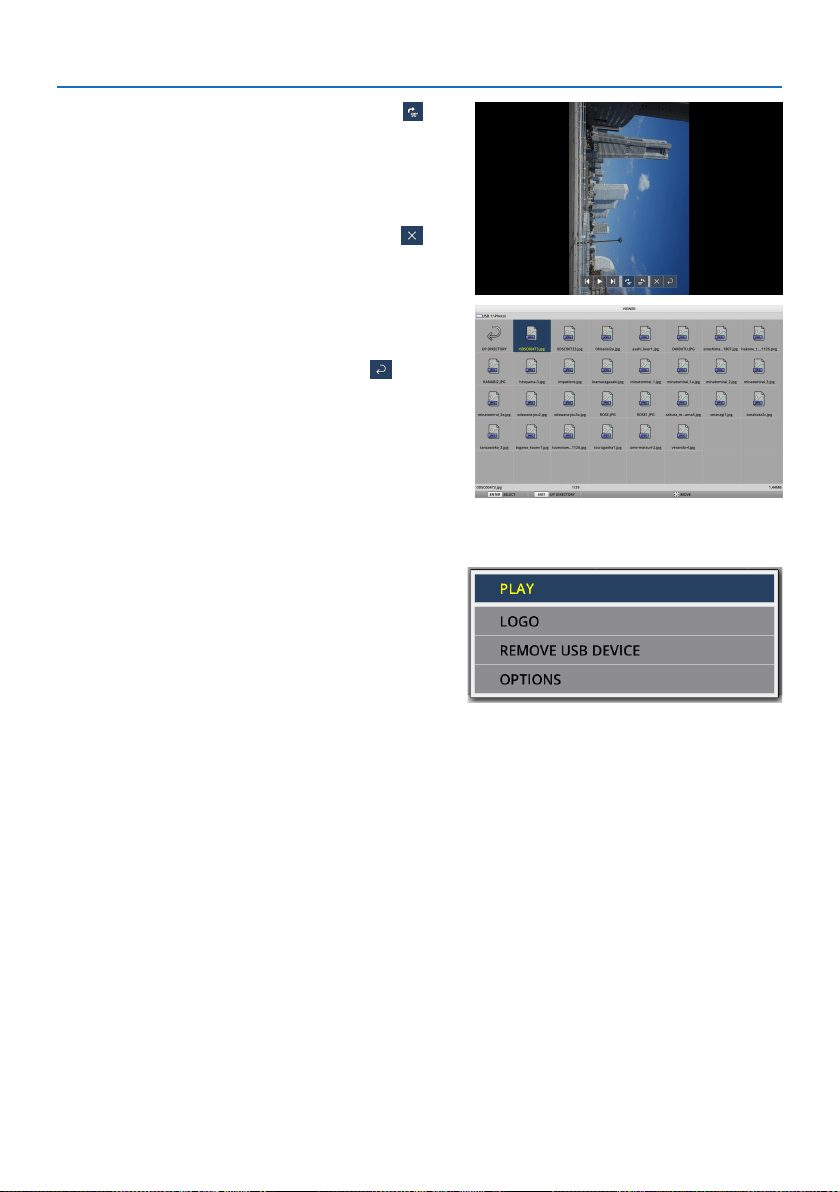
6. Using the VIEWER
98
11. Press the ▶ button to move the cursor to ,
then press the ENTER button.
The picture will rotate clockwise by 90°.
•EverytimeyoupresstheENTERbuttonin
this state, the picture rotates 90° clockwise.
12. Press the ▶ button to move the cursor to ,
then press the ENTER button.
The control bar disappears.
13.PresstheEXITbutton.
The display changes to the le list screen.
•Youcanalsomovethecursorto
with
the control bar of the step 10 and press the
ENTER button to change the le list screen.
•Toreturntotheslidescreenfromthele
list screen, move the cursor to the picture
to be displayed in the slideshow and press
the ENTER button.
② Remove the USB memory
1. Press the MENU button in the le list screen.
A pop-up menu will be displayed at the bottom
left of the screen.
•PresstheMENUbuttonwhilethepop-up
menu is being displayed to display the
[INPUT] screen. When you press the MENU
button again, the [INPUT] screen disap-
pears.
•WhenyoupresstheEXITbuttonwhilethe
pop-up menu is being displayed, the pop-
up menu disappears.
2. Movethecursorto[REMOVEUSBDEVICE]
and press the ENTER button.
A conrmation message will be displayed in the
center of the screen.
3. ToremovetheUSBmemory,pressthe◀
buttontomovethecursorto[OK]andpress
the ENTER button.
The message displayed in the center of the
screen changes.
4. PresstheENTERbutton.
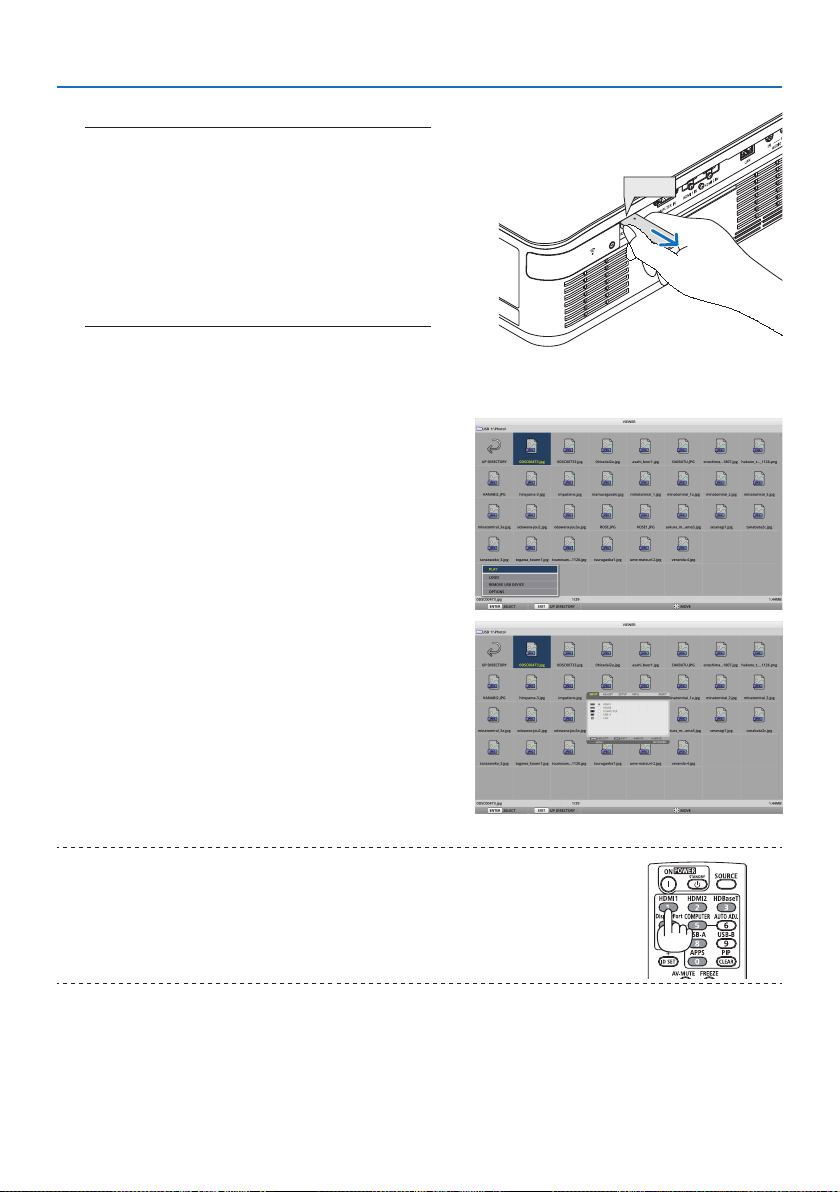
6. Using the VIEWER
99
5. Remove the USB memory from the projector.
NOTE:
•IfyouremoveaUSBmemoryfromtheprojectorwithout
executing[REMOVEUSBDEVICE]inthemenu,theoperation
oftheunitmaybecomeunstable.Inthatcase,turnothe
poweroftheunitonceandunplugthepowercordfromthe
outlet.
Subsequently,waitforabout3minutesbeforeconnecting
thepowercordtothesocketandturningonthepowerof
theunit.
USB
③ End the [VIEWER]
1. Press the MENU button in the slide screen or
le list screen.
A control bar or a pop-up menu will be dis-
played.
2. Press the MENU button again.
The [INPUT] screen is displayed.
3. Movethecursortoaninputterminalother
than[USB-A]andpresstheENTERbutton.
The [VIEWER] will end.
TIP:
•Whenusingtheremotecontroller,presstheHDMI1buttonetc.toendthe[VIEWER].
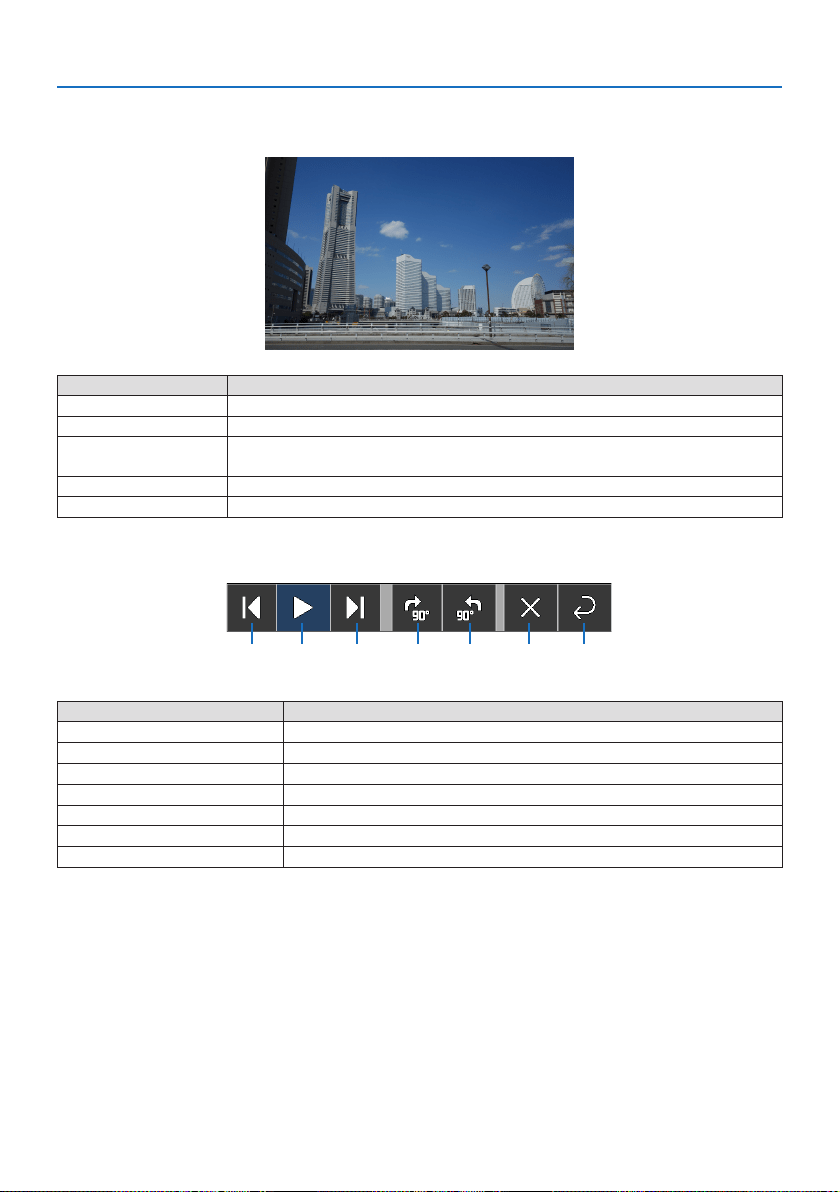
6. Using the VIEWER
100
6-3. Slide screen operations
The following operations can be performed on the slide screen.
Button name Description
▶, PAGE ▽ Project the next picture.
◀, PAGE △ Project the previous picture.
ENTER Display the pointer (→). The pointer moves when you press the ▼▲◀▶ button. If
you press the ENTER button again, the pointer disappears.
EXIT Switch to the le list screen.
MENU Display the control bar.
On the control bar, press the ◀ / ▶ button to move the yellow cursor and press the ENTER button
at the desired item. The function of each item is as follows.
① ② ③ ④ ⑤ ⑥ ⑦
Items on the control bar Description
① Back
Project the previous picture.
② Play / Stop
Start automatic playback of the slideshow. Or stop the slide show.
③ Next
Project the next picture.
④ Rotate 90° to the right
Rotate the picture clockwise by 90°.
⑤ Rotate 90° to the left
Rotate the picture counter-clockwise by 90°.
⑥ End
Turn o the control bar.
⑦ Return to the le list screen
Switch to the thumbnail screen.
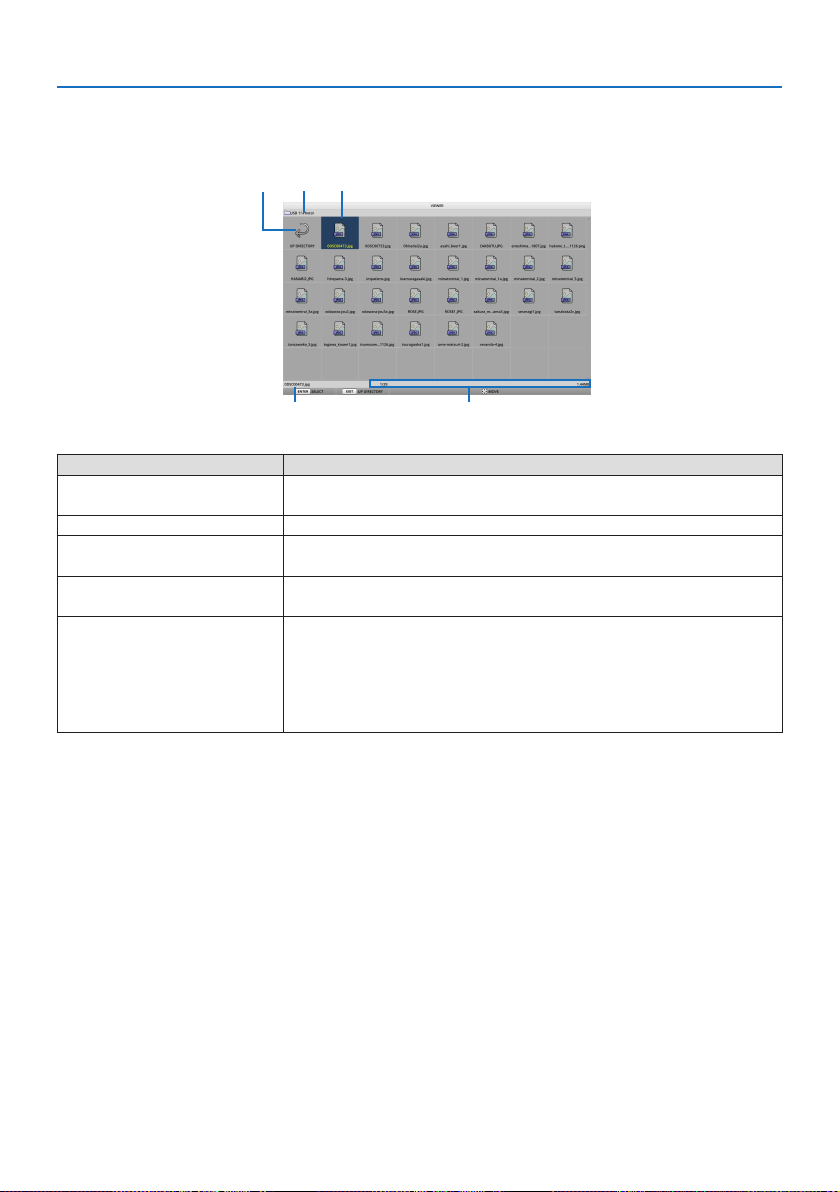
6. Using the VIEWER
101
6-4. File list screen operations
How to view the file list screen
② ① ③
④ ⑤
Display name Description
① Pat h
Display the path of the projected folder.
When a USB memory is inserted, the drive name is displayed as [USB].
② To the upper level
Return to the folder at the upper (parent) level.
③ Picture or folder (icon display
or) thumbnail display
Display pictures and folders as icons or thumbnails (zoom out).
④ File name of the selected
picture
Display the le name of the picture corresponding to the cursor.
⑤ Information display
•Whenthecursorisonapicture,theorderofthepicture(thenumber
out of all the pictures), the latest date and time the picture was
updated, and the le size are displayed.
•Whenthecursorisonafolder,theupdatedateandtimeofthefolderis
displayed.
•Whenthecursorisonadrive,thefreespaceofthedriveisdisplayed.
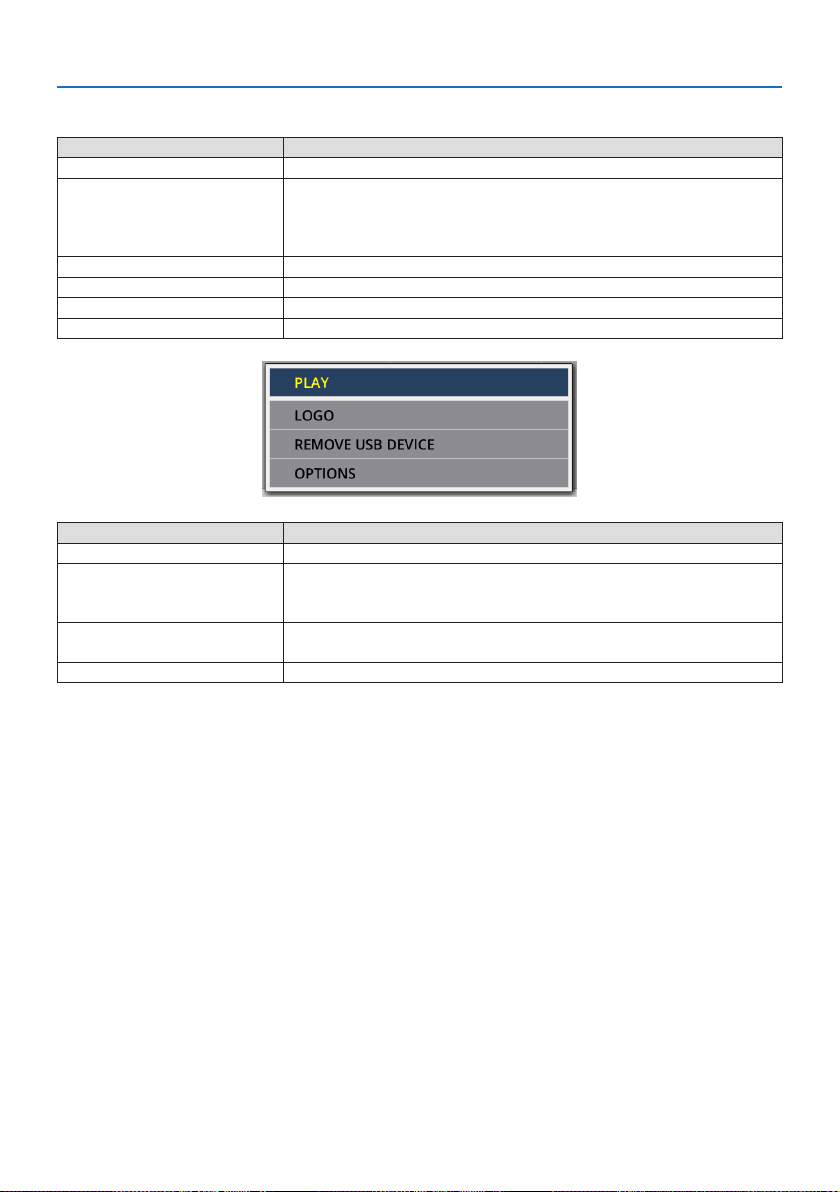
6. Using the VIEWER
102
File list screen operations
Button name Description
▼▲◀▶
Move the cursor.
ENTER •Ifthecursorisonapicture,thedisplayswitchestotheslidescreen.
•Ifthecursorisonafolder,thelesinthefolderaredisplayed.
•Ifthecursorison[UPDIRECTORY],thedisplayreturnstothefolderin
the upper (parent) level.
EXIT Return to the folder at the upper (parent) level.
MENU Display the following pop-up menu.
PAGE ▽ Display the next le list screen.
PAGE △ Display the previous le list screen.
Menu item Description
PLAY Start the slideshow.
LOGO Change the screen of the input terminal in a signal-less state (background
logo) or the background image of the MultiPresenter start-up screen
(MultiPresenter logo).
REMOVE USB DEVICE Disable the use of the USB memory inserted in the projector. Execute this
menu item before removing the USB memory from the projector.
OPTIONS Display the option menu. (→ next page)
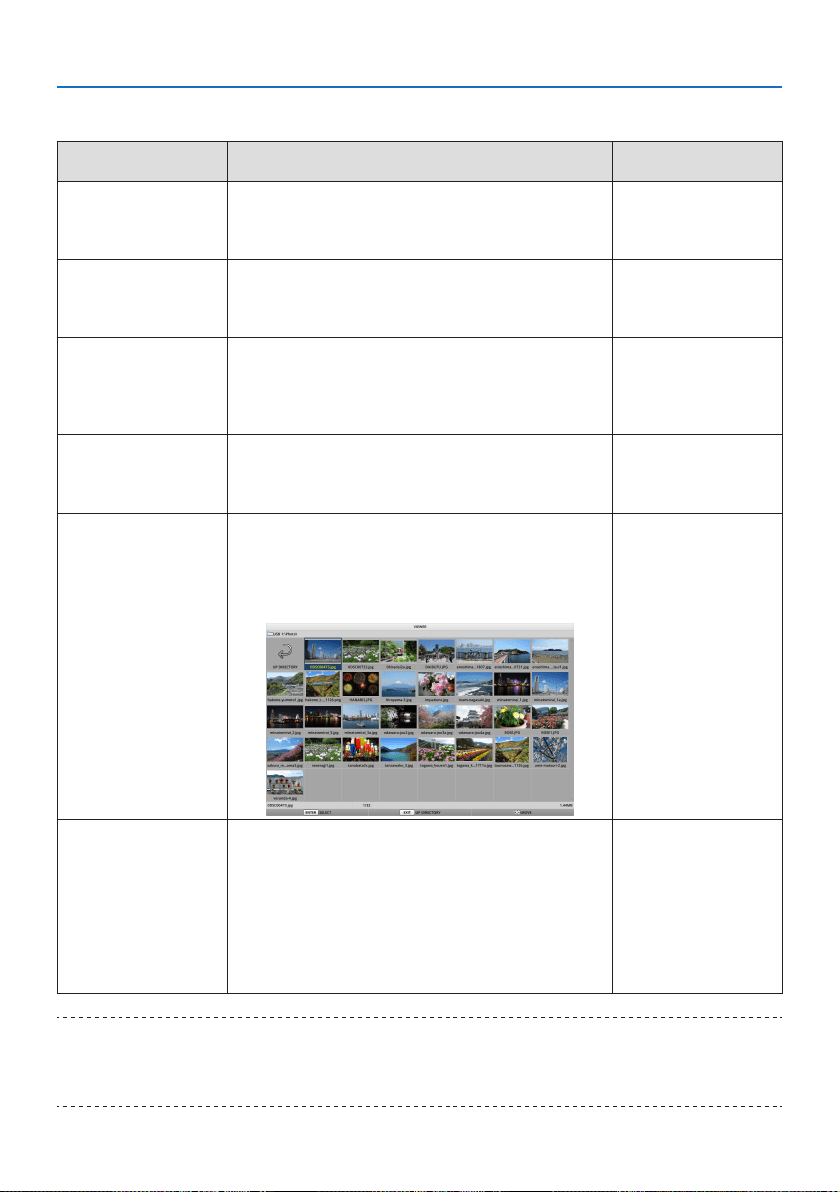
6. Using the VIEWER
103
6-5. Option menu
Menu item Description
When shipped from the
factory
PLAY MODE Select the display mode of the slide screen.
MANUAL: Switch the picture manually.
AUTOMATIC: Switch the picture automatically according
to the interval setting.
MANUAL
INTERVAL Set the display interval when playing a slideshow auto-
matically.
Selectablerange:Settheintervalfrom5–300(seconds)
by 1 second increment.
5 (seconds)
REPEAT Repeat the slideshow.
•OFF:Donotrepeat.Endtheslideshowafterthelast
picture is displayed.
•ON:Repeat.Returntotherstpictureafterthelast
picture is displayed.
OFF
START Set the screen to be displayed when the USB-A terminal
is selected.
•SLIDE:Displaytheslidescreen.
•THUMBNAILS:Displaythelistscreen.
SLIDE
THUMBNAILS Set whether to display the thumbnails of picture les
displayed in the le list screen.
•OFF:Displayasicons.
•ON:Displayasthumbnails.
Example
OFF
SORT Set the sort order when the le list is displayed.
•NAME(ABC..)/NAME(ZYX..):Displayintheorderof
the character codes of the les and folder names.
•EXT.(ABC..)/EXT.(ZYX..):Displayintheorderofthe
character codes of the extensions.
•DATE(NEW)/DATE(OLD):Displaytheleupdate
date/time in ascending or descending order.
•SIZE(BIG)/SIZE(SMALL):Displayinascendingor
descending order of le size.
NAME (ABC..)
TIP:
•About“SaveSetting”
SaveeachsettingimmediatelyafterpressingtheConrmbutton.However,thevaluesetin[SORT]ismaintaineduntilthepower
isturnedo,returningto[NAME(ABC..)]thenexttimethepoweristurnedon.
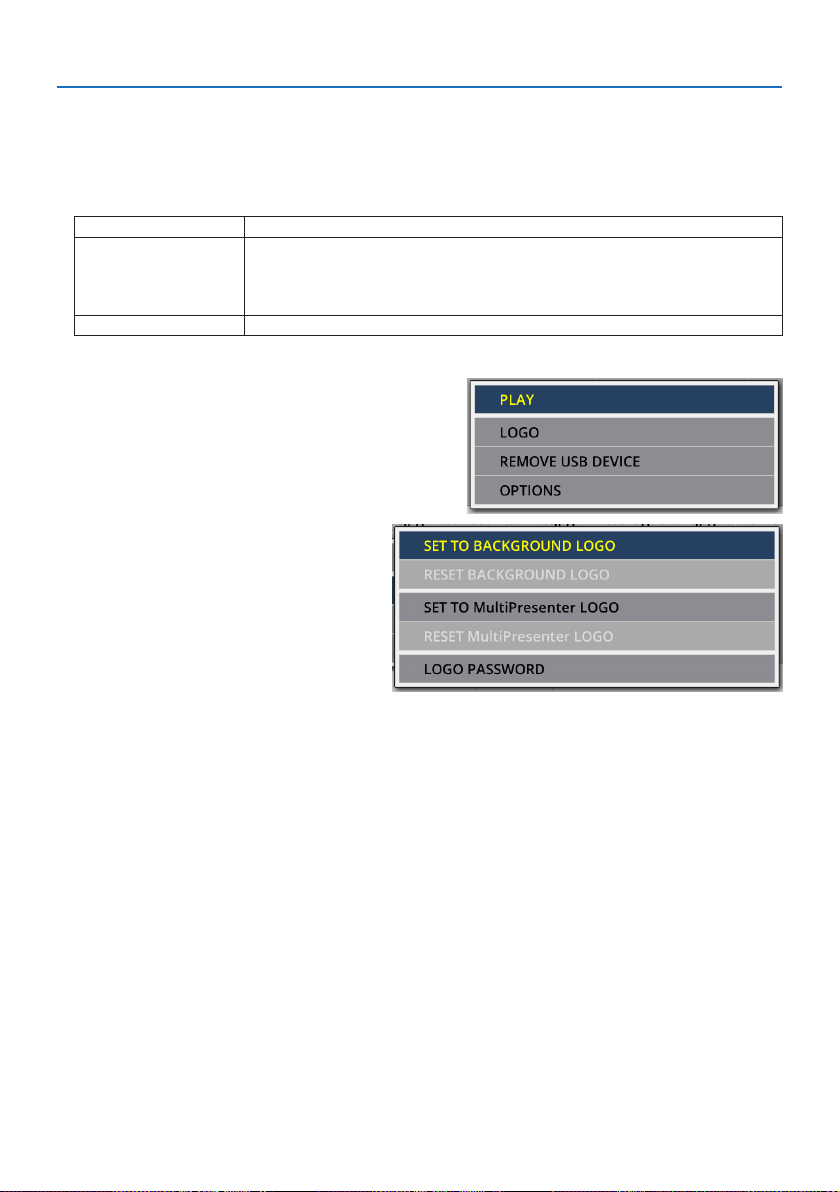
6. Using the VIEWER
104
6-6. Changing the logo data (background image)
•Youcanchangethescreenoftheinputterminalinasignal-lessstate(backgroundlogo)orthe
background image of the MultiPresenter start-up screen (MultiPresenter logo).
•Youcanalsosetapasswordtoprohibitthirdpartiesfromchangingthepictures.
•Youcansetpicturesthatsatisfyallofthefollowingconditions.
Format JPEG or PNG pictures that can be displayed with the [VIEWER]
Resolution Below the panel resolution of the projector
PE455UL: WUXGA (1920 × 1200)
PE455WL: WXGA (1280 × 800)
PE505XL: XGA (1024 × 768)
File size 1 megabyte or less
1. Display the le list screen.
2. Move the cursor to the picture to set
in the background logo or the Multi-
Presenter logo and press the MENU
button.
The pop-up menu will be displayed.
3. Movethecursorto[LOGO]andpress
the ENTER button.
The sub-menu will be displayed.
① Setting the background logo or MultiPresenter logo
1. Movethecursorto[SETTOBACKGROUNDLOGO]or[SETTOMultiPresenterLOGO]inthe
sub-menuandpresstheENTERbutton.
•Ifa[LOGOPASSWORD]hasbeenset,enterthe[LOGOPASSWORD]whenthe[LOGOPASS-
WORD] input screen appears.
•Ascreentoconrmwhethertochangethelogoornotisdisplayed.
2. Movethecursorto[YES]andpresstheENTERbutton.
② Initializing the background logo or MultiPresenter logo
1. Movethecursorto[RESETBACKGROUNDLOGO]or[RESETMultiPresenterLOGO]and
press the ENTER button.
•Ifa[LOGOPASSWORD]hasbeenset,enterthe[LOGOPASSWORD]whenthe[LOGOPASS-
WORD] input screen appears.
•Ascreentoconrmwhethertoinitializethelogoornotisdisplayed.
2. Movethecursorto[YES]andpresstheENTERbutton.

6. Using the VIEWER
105
③ Set a password so that the logo will not be changed without authorization
This section explains the procedure for setting the password for the rst time.
1. Movethecursorto[LOGOPASSWORD]inthesub-menuandpresstheENTERbutton.
The [PASSWORD SETTINGS] screen is displayed.
2. Movethecursorto[NEWPASSWORD]andpresstheENTERbutton.
•Thecharacterinputscreenwillbedisplayed.Enterthepasswordusingthe▲▼◀▶ buttons
and press the ENTER button.
•Only1–10alphanumericcharactersareallowedtobeusedinthepassword.
•Whenthepasswordisentered,itwillbeindicatedbyasterisksintheentryeld.
3. Movethecursorto[CONFIRMNEWPASSWORD]andpresstheENTERbutton.
•Enterthesamepasswordagain.
4. Movethecursorto[OK]onthepasswordsettingscreenandpresstheENTERbutton.
The [LOGO PASSWORD] will be set.
TIP:
•Howtoerasetheset[LOGOPASSWORD]
①Movethecursorto[LOGOPASSWORD]inthesub-menuandpresstheENTERbutton.
②PresstheENTERbuttoninthe[ENTERPASSWORD]screen.
③Enterthepassword,movethecursorto[OK]andpresstheENTERbutton.
The[PASSWORDSETTINGS]screenwillbedisplayed.
④Movethecursorto[NEWPASSWORD]andpresstheENTERbutton.
•Movethecursorto[OK]withoutenteringanythinginthecharacterinputscreenandpresstheENTERbutton.
⑤Movethecursorto[CONFIRMNEWPASSWORD]andpresstheENTERbutton.
•Movethecursorto[OK]withoutenteringanythinginthecharacterinputscreenandpresstheENTERbutton.
⑥Movethecursorto[OK]inthepasswordsettingscreenandpresstheENTERbutton.
Theset[LOGOPASSWORD]willnowbedeleted.
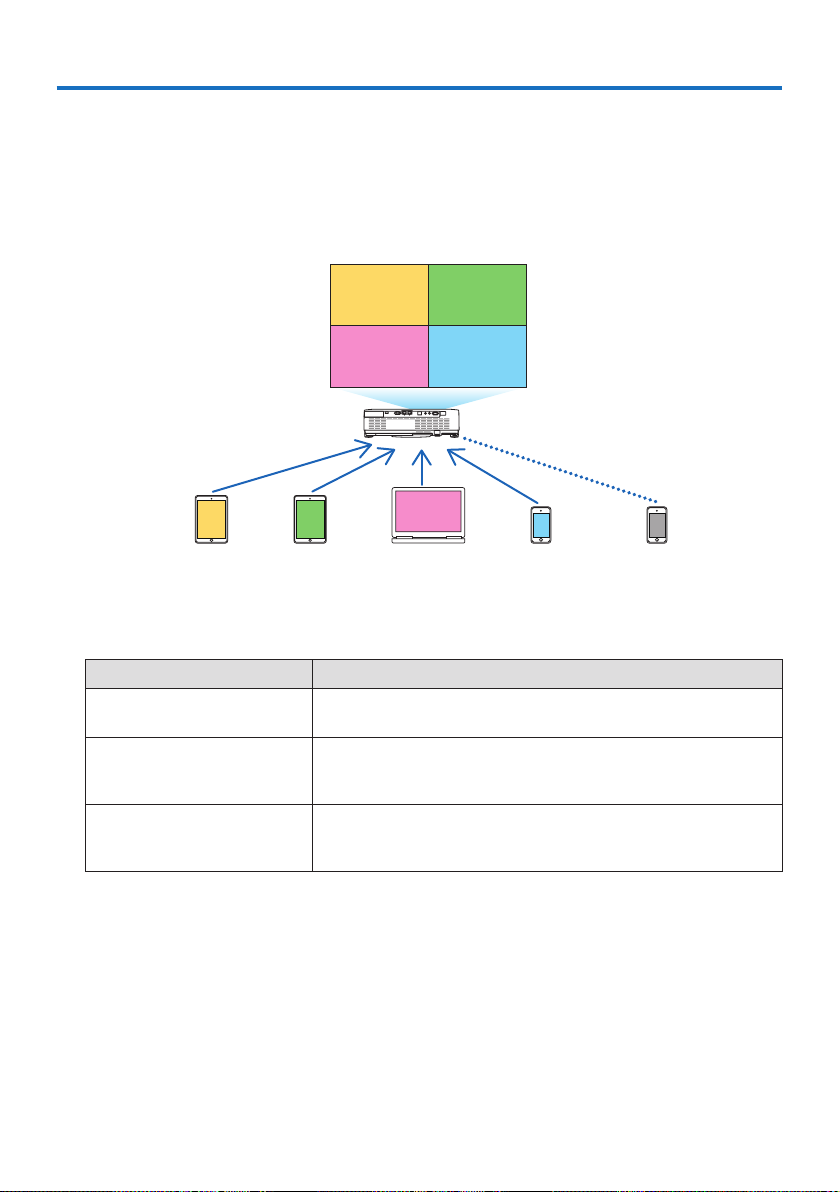
106
7-1. Things you can do by connecting the projector to a network
•YoucansendscreenimagesviaawiredLAN/wirelessLANfromaterminalinstalledwithour
MultiPresenter app to the projector and project them onto a screen.
See our company’s website for more details about MultiPresenter.
https://www.nec-display.com/dl/en/soft/multipresenter/index.html
B
C
D
E
AB
CD
A
Simultaneous display
Simultaneous connection
Send Send Send Send Stop
•WhenconnectingtheprojectorusingawirelessLAN,youcansetthefollowing3prolesunder
the [NETWORK SETTINGS] in the menu.
Prole name Description
INTELLIGENT CONNECTION Easily connect computers or tablet terminals installed with Multi-
Presenter to the projector in a peer-to-peer connection.
INFRASTRUCTURE Connect the projector to an existing access point and connect
computers or tablet terminals installed with MultiPresenter to the
projector.
SIMPLE ACCESS POINT Turn the projector into the [SIMPLE ACCESS POINT] to connect
computers or tablet terminals installed with MultiPresenter to the
projector.
•Multiplecomputersortabletterminalscanbeconnectedatthesametime.Amaximumof
16 units can be connected in the [FREE] mode and a maximum of 50 units can be connected
in the [MANAGED] mode.
•UsingthewebbrowserofacomputerandtabletterminalconnectedtoawiredLAN/wireless
LAN, you can connect to the projector’s HTTP server to control the projector or congure the
[NETWORK SETTINGS].
•Byconguringthenetworkservicesettingsoftheprojector,AMXbeacon,HTTPserverlogon
password, PJLink, ALERT MAIL, CRESTRON, etc., can be used.
7. Connecting to a Network
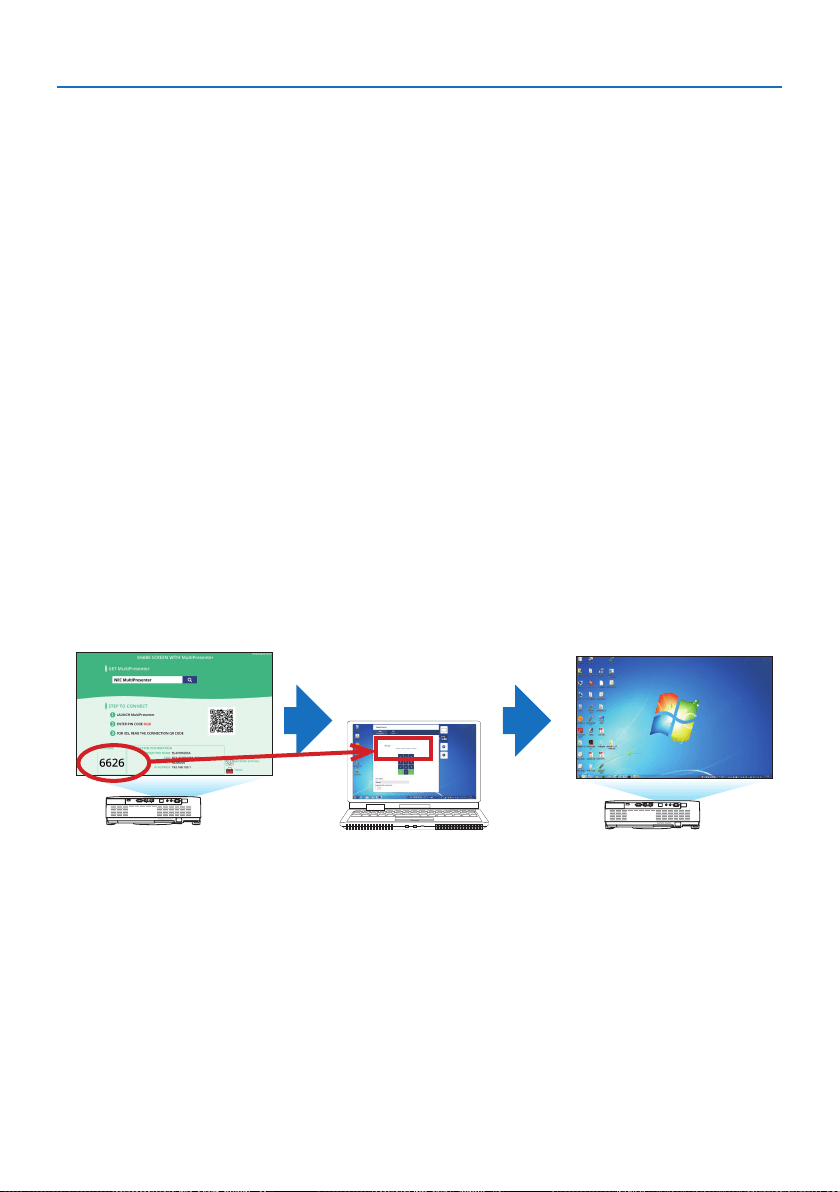
7. Connecting to a Network
107
7-2. Connecting to MultiPresenter
Preparations:
•WhenconnectingtheprojectortoawiredLAN,connectaLANcabletotheunit.(→ page
88)
•WhenconnectingtheprojectortoawirelessLAN,installaseparately-soldLANunitintheunit.
(→ page
90)
•Congurethe[NETWORKSETTINGS]oftheprojector.(→ page 109)
•InstalltheMultiPresenterappinthecomputerortabletterminal.
https://www.nec-display.com/dl/en/soft/multipresenter/index.html
The procedure is described here for each wireless LAN prole [INTELLIGENT CONNECTION], [INFRA-
STRUCTURE], and [SIMPLE ACCESS POINT].
① When connecting with an [INTELLIGENT CONNECTION]
1. Turn on the power of the projector and press the APPS button on the remote controller.
The start-up screen of MultiPresenter is displayed.
2. Start MultiPresenter.
The target device screen is displayed.
3. Enterthe4-digitPINcodedisplayedinthestart-upscreeninthetargetdevicescreen.
When connection with the projector is completed, the screen of the computer or tablet terminal
is projected on the screen.

7. Connecting to a Network
108
② When connecting with [INFRASTRUCTURE]
1. Turn on the power of the projector and press the APPS button on the remote controller.
The start-up screen of MultiPresenter is displayed.
2. Connect the projector and your computer or tablet terminal to the same network.
NOTE:
•Checkwiththenetworkadministratorforthe“connectioninformation”ofthenetworktobeconnected.
3. StartMultiPresenter.
The target device screen is displayed.
4. Enterthe4-digitPINcodedisplayedinthestart-upscreeninthetargetdevicescreen.
When connection with the projector is completed, the screen of the computer or tablet terminal
is projected on the screen.
③ When connecting with a [SIMPLE ACCESS POINT]
1. Turn on the power of the projector and press the APPS button on the remote controller.
The start-up screen of MultiPresenter is displayed.
2. Connect your computer or tablet terminal to the access point matching the “SSID” displayed
inthestart-upscreen.
3.StartMultiPresenter.
The target device screen is displayed.
4. Enterthe4-digitPINcodedisplayedinthestart-upscreeninthetargetdevicescreen.
When connection with the projector is completed, the screen of the computer or tablet terminal
is projected on the screen.
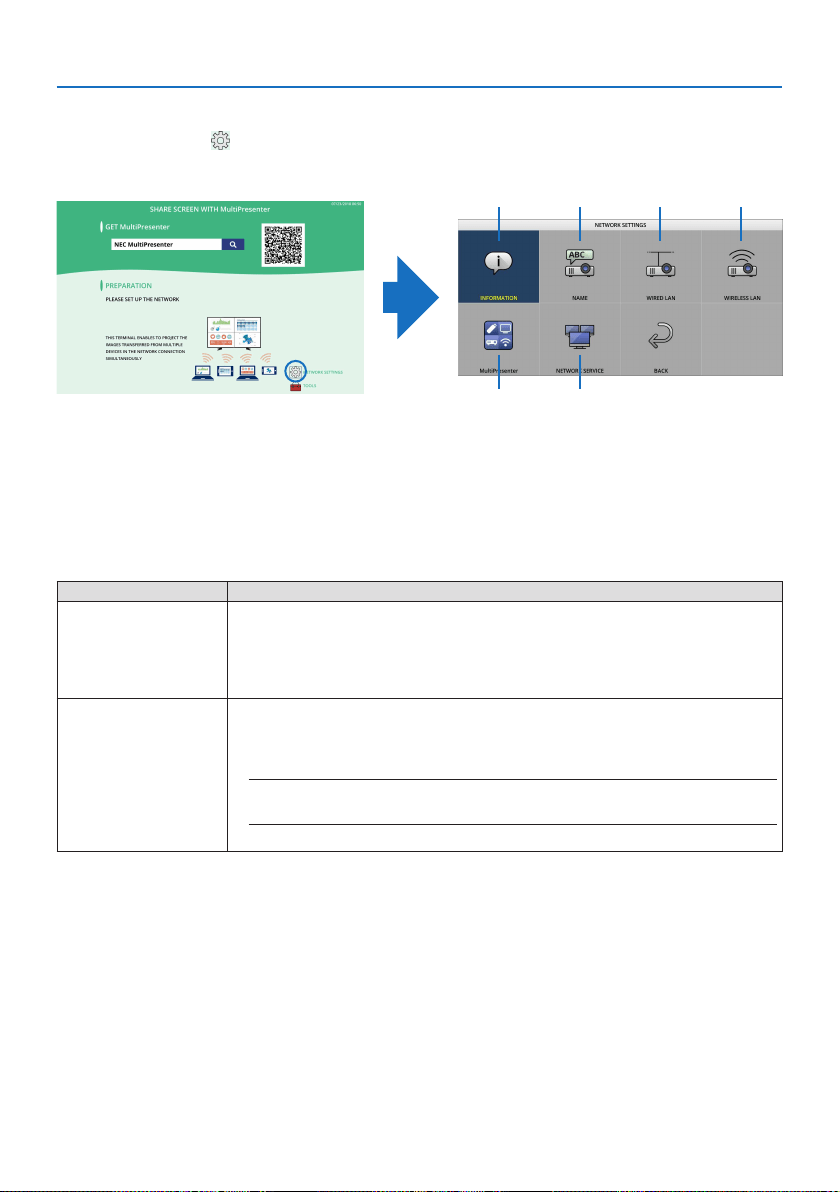
7. Connecting to a Network
109
7-3. NETWORK SETTINGS
Move the cursor to [
NETWORK SETTINGS] at the bottom right of the start-up screen and press
the ENTER button to display the [NETWORK SETTINGS] screen.
⑤ ⑥
① ② ③ ④
① INFORMATION
Displays information regarding the wired LAN and wireless LAN of the projector.
•Toreturntothe[NETWORKSETTINGS]screen,presstheEXITbutton.
② NAME
Sets the [PROJECTOR NAME] and [HOST NAME].
Item name Description
PROJECTOR NAME Set the [PROJECTOR NAME].
•Initialvalue:“PJ-XXXXXXXXXX”
The initial value “PJ-XXXXXXXXXX” represents the “PJ-” + “Serial Number”.
•Allowablecharacters:Alphanumericsymbols(includingspace)
•Numberofcharacters:1–16characters
HOST NAME Set the [HOST NAME].
•Initialvalue:“pj-XXXXXXXXXX”
The initial value “pj-XXXXXXXXXX” represents the “pj-” + “Serial Number”.
•Allowablecharacters:Alphanumeric,“-”
NOTE:
•Youcannotenter“-”atthebeginningorendofthe[HOSTNAME].
•Numberofcharacters:1–16characters
③ WIRED LAN
Congure the prole of the wired LAN, DHCP, IP address, subnet mask, gateway, DNS and so on.
•WhenusingawiredLAN,settheproleto[ENABLE]andcongurethenecessarysettings.
•IfyouarenotusingawiredLAN,settheproleto[DISABLE].
•Onceyouhaveconguredthesettings,movethecursorto[OK]andpresstheENTERbutton.
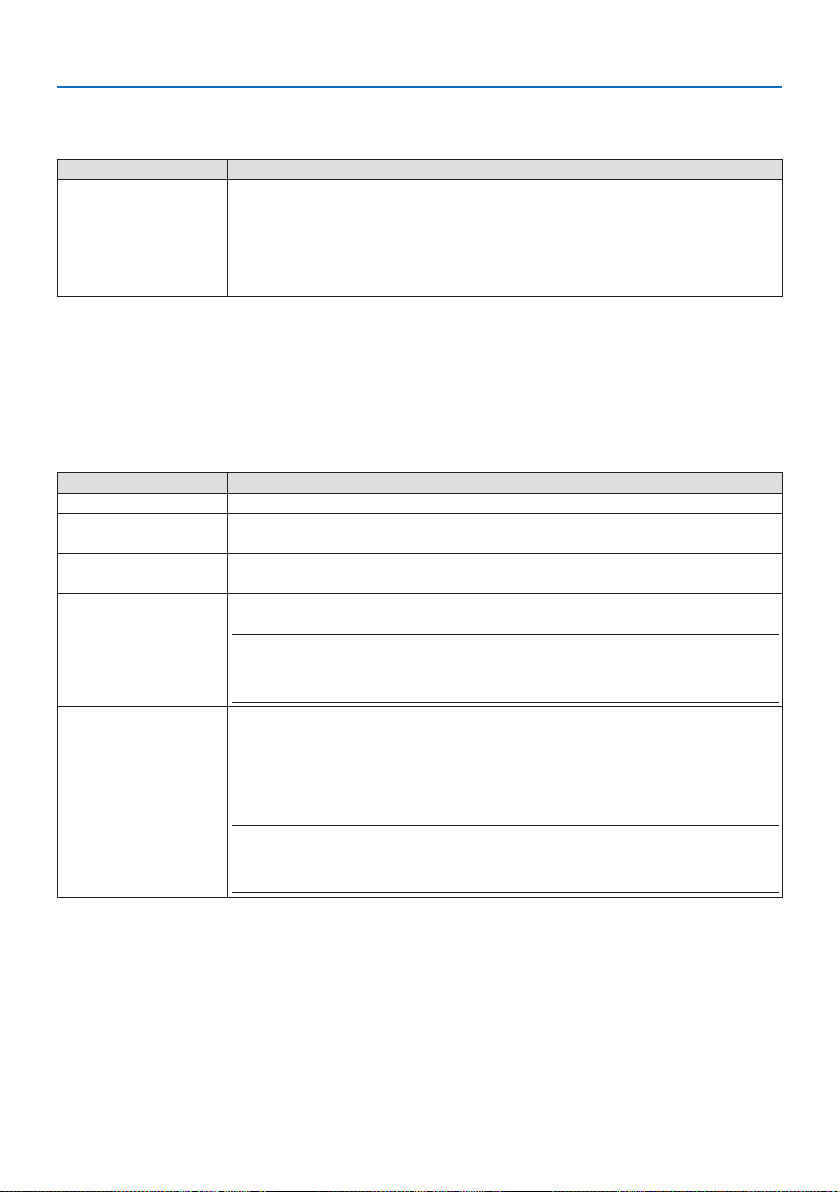
7. Connecting to a Network
110
④ WIRELESS LAN
Congure the wireless LAN settings.
Item name Description
PROFILE There are 4 wireless LAN proles as shown below.
•DISABLE(initialvalue)
•INTELLIGENTCONNECTION
•SIMPLEACCESSPOINT
•INFRASTRUCTURE
The settings of proles are dierent from each other. This will be explained later.
[DISABLE]
Disable the [WIRELESS LAN] of the projector.
[INTELLIGENTCONNECTION]
Compared to connecting with [INFRASTRUCTURE] or the [SIMPLE ACCESS POINT], it is easier to
connect computers or tablet terminals installed with MultiPresenter to the projector.
Item name Description
PROFILE INTELLIGENT CONNECTION
MODE Select the wireless mode (IEEE802.11b/g/n or IEEE802.11a/n).
•Initialvalue:IEEE802.11b/g/n
CHANNEL Set the wireless channel.
•Initialvalue:AUTOMATIC
SECURITY TYPE Set the [SECURITY TYPE] ([DISABLE] or [WPA2-PSK]).
•Initialvalue:DISABLE
NOTE:
•Whenthe[PINTYPE]setintheMultiPresentersettingsisa[ONE-TIME],the[SECURITYTYPE]
cannotbespeciedasitwillbeappliedautomatically.
SECURITY KEY Set the encryption key.
•Initialvalue:Blank
•Allowablecharacters:Alphanumericsymbols(includingspace)
•Numberofcharacters:8–63characters
When a [SECURITY KEY] is set, a number of asterisks “*” equivalent to the num-
ber of characters is displayed.
NOTE:
•Whenthe[PINTYPE]setintheMultiPresentersettingsisa[ONE-TIME],the[SECURITYKEY]cannot
besetasitwillbesetautomatically.
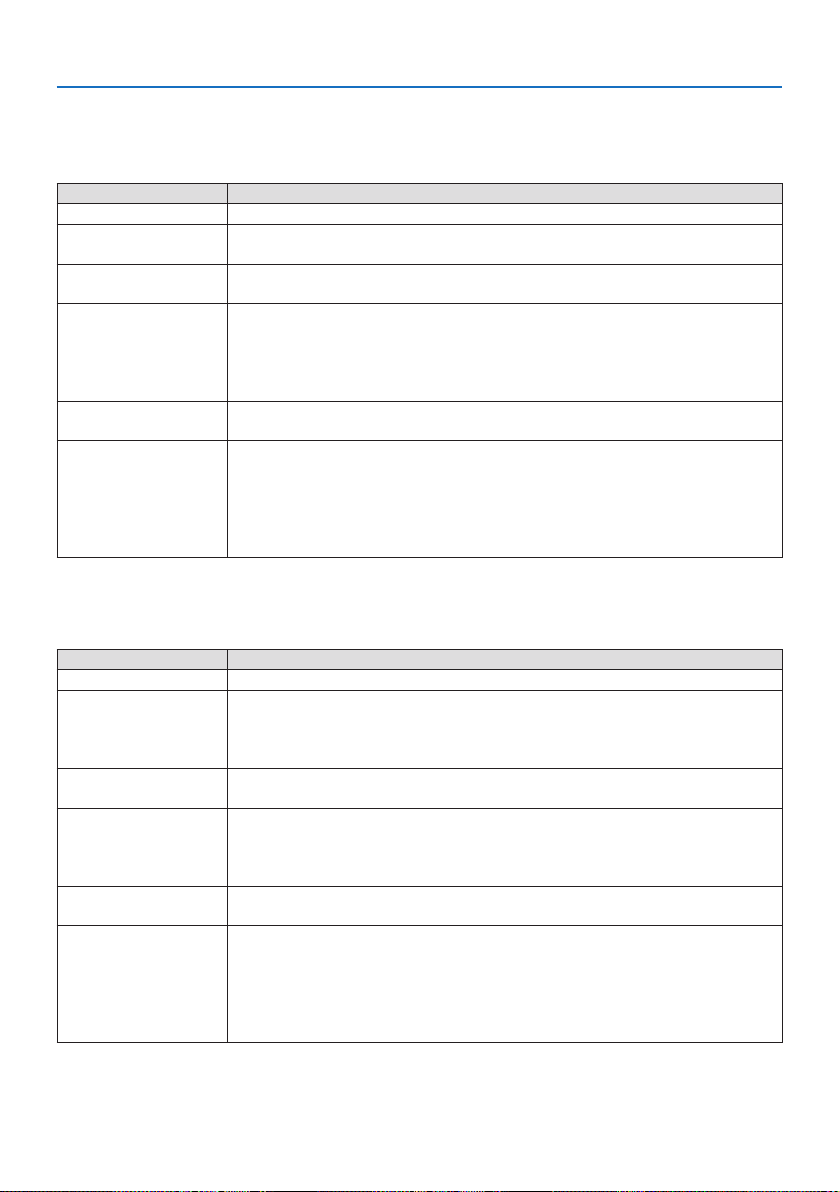
7. Connecting to a Network
111
[SIMPLEACCESSPOINT]
Turn the projector into the [SIMPLE ACCESS POINT] to connect computers or tablet terminals installed
with MultiPresenter to the projector.
Item name Description
PROFILE SIMPLE ACCESS POINT
MODE Select the wireless mode (IEEE802.11b/g/n or IEEE802.11a/n).
•Initialvalue:IEEE802.11b/g/n
CHANNEL Set the wireless channel.
•Initialvalue:AUTOMATIC
SSID Set the SSID.
•Initialvalue:“AP-XXXXXXXXXX”
The initial value “AP-XXXXXXXXXX” represents the “AP-” + “Serial Number”.
•Allowablecharacters:Alphanumericsymbols(includingspace)
•Numberofcharacters:1–32characters
SECURITY TYPE Set the [SECURITY TYPE] ([DISABLE] or [WPA2-PSK]).
•Initialvalue:DISABLE
SECURITY KEY Set the encryption key.
•Initialvalue:Blank
•Allowablecharacters:Alphanumericsymbols(includingspace)
•Numberofcharacters:8–63
When the character [SECURITY KEY] is set, a number of asterisks “*” equivalent
to the number of characters is displayed.
[INFRASTRUCTURE]
Connect the projector to an existing access point.
Item name Description
PROFILE INFRASTRUCTURE
DHCP, IP ADDRESS,
SUBNET MASK, GATE-
WAY, AUTO DNS, DNS
ADDRESS
Set the [DHCP], [IP ADDRESS], [SUBNET MASK], [GATEWAY], [AUTO DNS], and [DNS
ADDRESS].
SITE SURVEY Perform a site survey to search for access points.
The [SSID] and [SECURITY TYPE] are set according to the selected access point.
SSID Set the SSID.
•Initialvalue:NECPJ
•Allowablecharacters:Alphanumericsymbols(includingspace)
•Numberofcharacters:1–32characters
SECURITY TYPE Set the [SECURITY TYPE] ([DISABLE], [WPA2-PSK], or [WPA/WPA2-PSK]).
•Initialvalue:DISABLE
SECURITY KEY Set the encryption key.
•Initialvalue:Blank
•Allowablecharacters:Alphanumericsymbols(includingspace)
•Numberofcharacters:8–63characters
When a [SECURITY KEY] is set, a number of asterisks “*” equivalent to the num-
ber of characters is displayed.
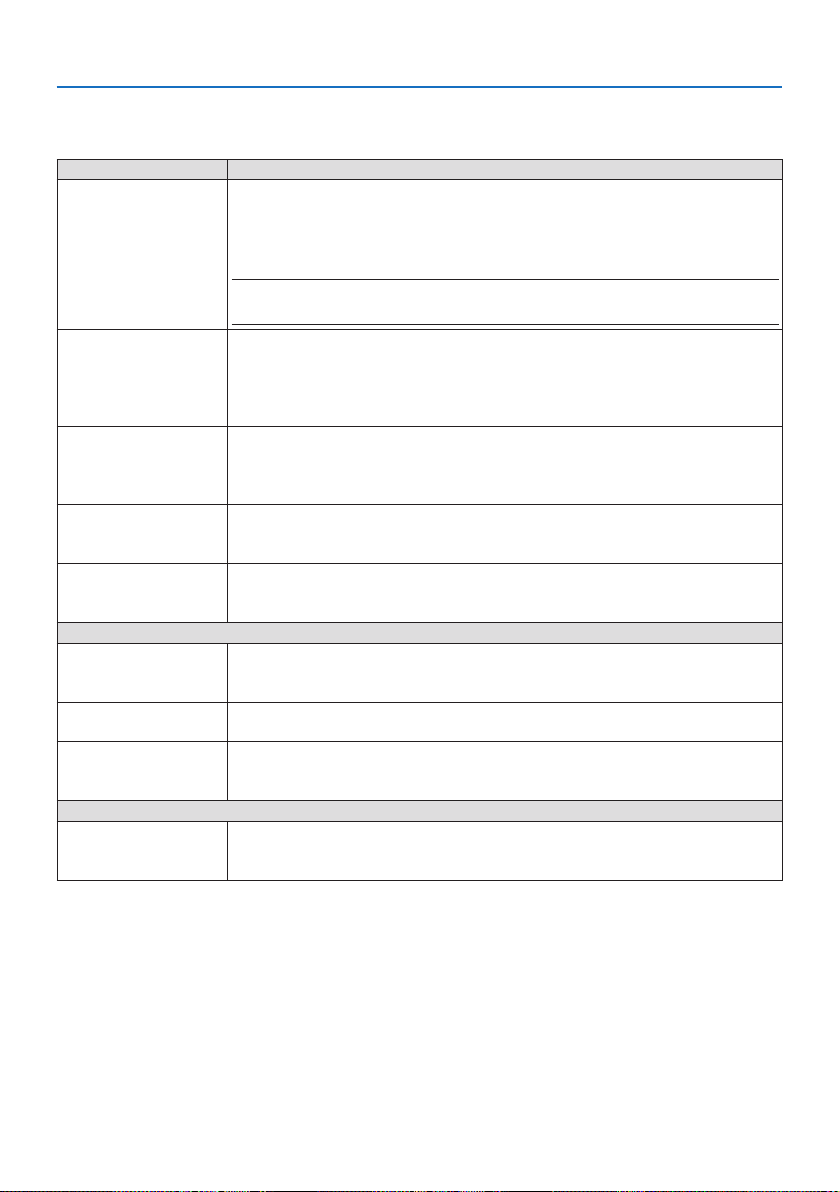
7. Connecting to a Network
112
⑤ MultiPresenter
Set the MultiPresenter operation.
Item name Description
MODE Select [FREE] mode or [MANAGED] mode.
When you are in the [MANAGED] mode, you can change the split pattern of the
screen by pressing the ENTER button on the remote controller of the projector
while projecting the MultiPresenter screen.
•Initialvalue:FREE
NOTE:
•The[MODE]settingisappliedwhenallconnectionsarecuto.
PIN TYPE Select [ONE-TIME] or [STATIC].
•Initialvalue:ONE-TIME
•A[ONE-TIME]PINcodewillbegeneratedautomatically,sothe[PINCODE]can-
not be entered for the next item.
•For[STATIC],enteranarbitraryPINcode.
PIN CODE Enter a PIN code for [STATIC].
•Initialvalue:4-digitrandomnumber
•Allowablecharacters:Numeral
•Numberofcharacters:4characters(0000–9999)
UTILIZE PIN CODE AS
CONNECTION PASS-
WORD
Select not to use the PIN code as a password ([OFF]), or to use the PIN code as a
password ([ON]).
•Initialvalue:ON
COMMUNICATION
SPEED LIMIT
Set the upper limit of the communication speed that MultiPresenter uses for
transmission.
•Initialvalue:DISABLE
START-UP SCREEN
GET APPS GUIDE Select whether or not to display the [GET MultiPresenter] display on the start-up
screen.
•Initialvalue:ON(display)
STEP TO CONNECT Select whether or not to display the connection procedure on the start-up screen.
•Initialvalue:ON(display)
CONNECTION INFOR-
MATION
Select whether or not to display the connection information on the start-up
screen.
•Initialvalue:ON(display)
MultiPresenter SCREEN
CONNECTION INFOR-
MATION
Select whether or not to display the connection information in the screen when
MultiPresenter is connected.
•Initialvalue:ON(display)
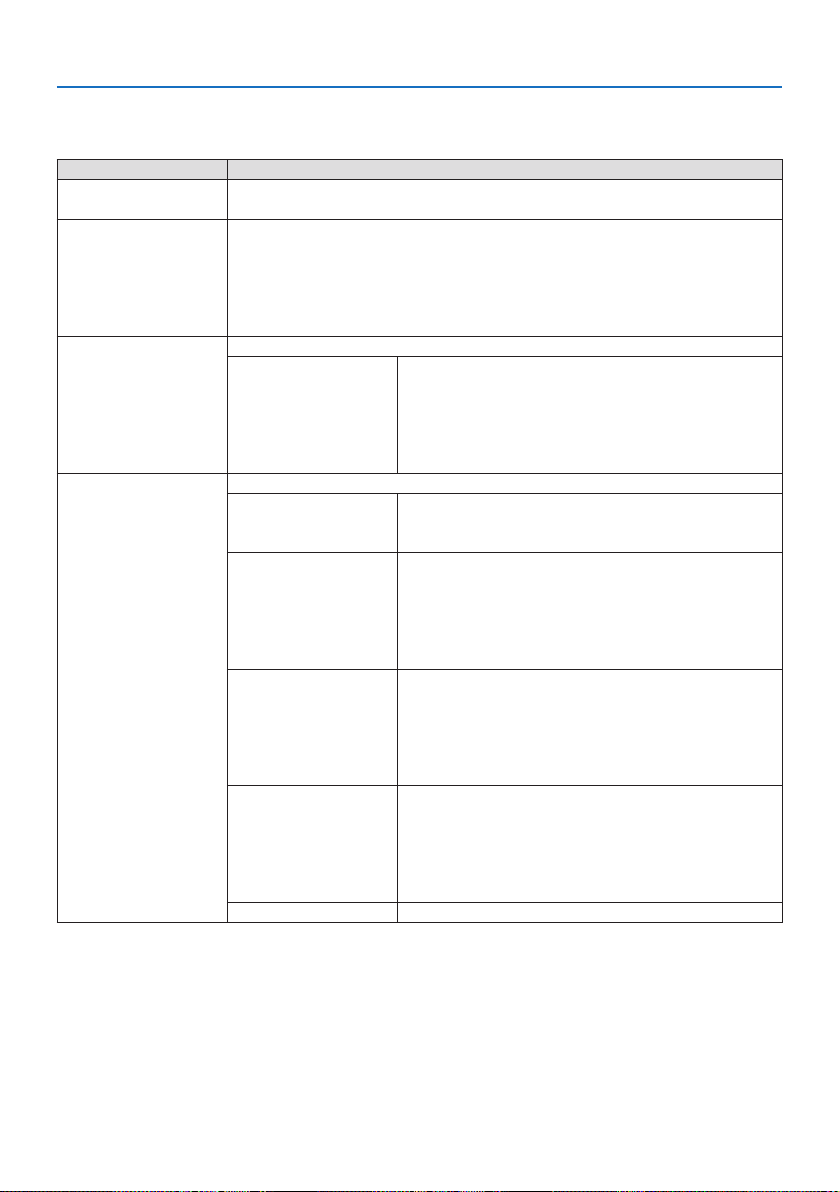
7. Connecting to a Network
113
⑥ NETWORK SERVICE
Congure the [AMX BEACON], [HTTP SERVER], [PJLink], [ALERT MAIL], [CRESTRON] and other settings.
Item name Description
AMX BEACON Select whether or not to transmit AMX beacons.
•Initialvalue:OFF(donottransmit)
HTTP SERVER Set the password to log into the projector’s HTTP server.
•Initialvalue:Blank
•Allowablecharacters:Alphanumericsymbols
•Numberofcharacters:0–10characters
When a password is set, a number of asterisks “*” equivalent to the number of
characters is displayed.
PJLink Set the PJLink password.
PASSWORD SETTINGS Set the PJLink password.
•Initialvalue:Blank
•Allowablecharacters:Alphanumericcharacters
•Numberofcharacters:0–32characters
When a password is set, a number of asterisks “*” equiva-
lent to the number of characters is displayed.
ALERT MAIL Set alert mail and perform a transmission test.
ALERT MAIL Select whether or not to send an alert mail when an alert
target event occurs in the projector.
•Initialvalue:OFF(donottransmit)
SENDER'S ADDRESS Set the sender’s address when sending E-mail from the
projector.
•Initialvalue:Blank
•Allowablecharacters:Alphanumericcharacters,
symbols
•Numberofcharacters:0–60characters
SMTP SERVER NAME Set the SMTP server of the network to connect to the
projector.
•Initialvalue:Blank
•Allowablecharacters:Alphanumericcharacters,
symbols
•Numberofcharacters:0–60characters
RECIPIENT'S ADDRESS
1/2/3
Set the destination address to send E-mail from the
projector (maximum 3).
•Initialvalue:Blank
•Allowablecharacters:Alphanumericcharacters,
symbols
•Numberofcharacters:0–60characters
TEST MAIL Send a test mail according to the settings.
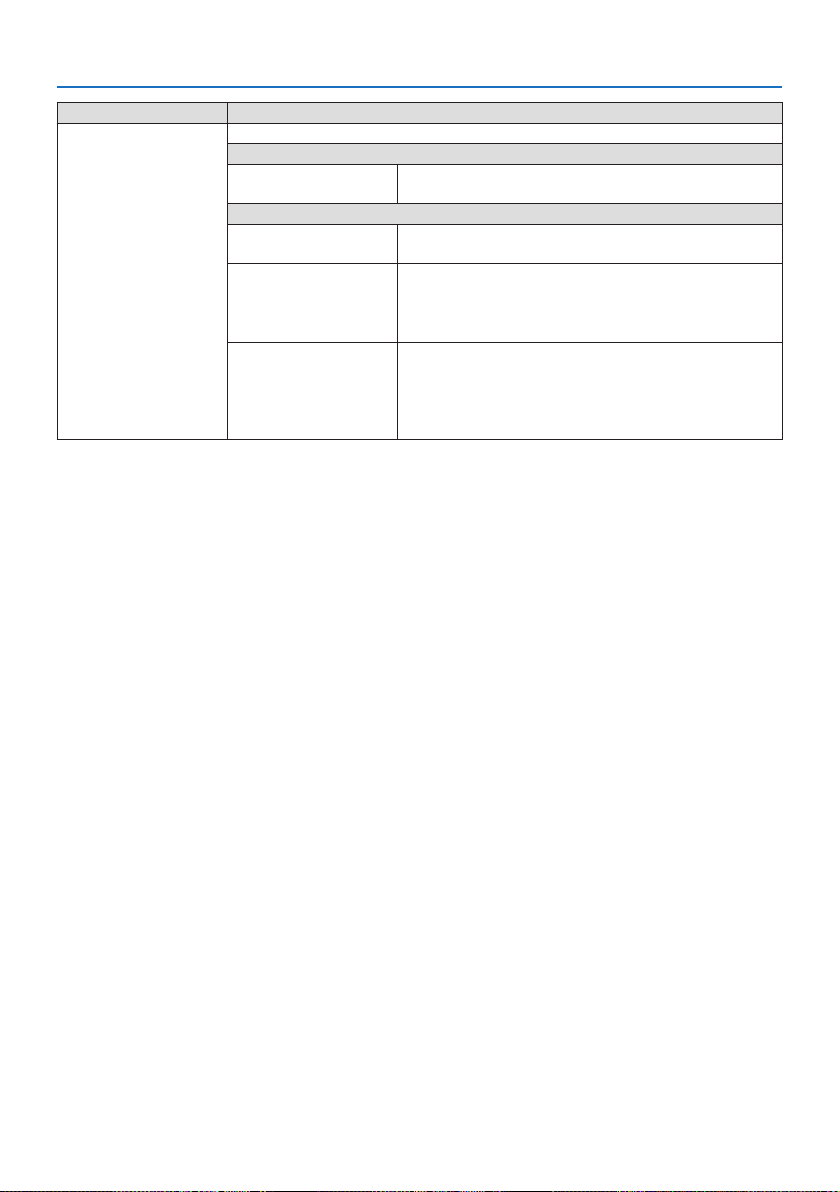
7. Connecting to a Network
114
Item name Description
CRESTRON Set the CRESTRON function.
Crestron Room View
Crestron Room View Select whether to use Crestron Room View or not.
•Initialvalue:OFF(donotuse)
Crestron Control
Crestron Control Select whether to use Crestron Control or not.
•Initialvalue:OFF(donotuse)
IP ADDRESS Set the Crestron Control’s IP address.
•Initialvalue:192.168.0.100
•Allowablecharacters:Alphanumeric,period
•Numberofcharacters:7–15characters
IP ID Set the Crestron Control’s IP ID.
•Initialvalue:5
•Allowablecharacters:Alphanumeric
•Inputcharacterrange:3–65535
•Numberofcharacters:1–5characters

7. Connecting to a Network
115
7-4. HTTP server function
Overview
The HTTP Server function provides settings and operations for:
•Settingforwired/wirelessnetwork(NETWORKSETTINGS)
To use wireless LAN connection, the optional USB Wireless LAN Unit is required. (→ page
90)
To use wired/wireless LAN connection, connect the projector to the computer with a commer-
cially available LAN cable. (→ page
88)
•SettingAlertMail(ALERTMAIL)
When the projector is connected to a wired/wireless network, the light source usage time or
error messages will be sent via e-mail.
•Operatingtheprojector
Power on/o, selecting input, volume control and picture adjustments are possible.
•Congurethe[AMXBEACON],[HTTPSERVER],[PJLink],[ALERTMAIL],[CRESTRON]andother
settings.
How to access to the HTTP server:
•StarttheWebbrowseronthecomputerviathenetworkconnectedtotheprojectorand
enter the following URL :
http://<the projector’s IP address>/index.html
TIP:
•ThefactorysettingIPaddressis[DHCP:ON].
NOTE:
•Tousetheprojectorinanetwork,consultwithyournetworkadministratoraboutnetworksettings.
•Thedisplay’sorbutton’sresponsecanbesloweddownoroperationmaynotbeaccepteddependingthesettingsofyournetwork.
Shouldthishappen,consultyournetworkadministrator.Theprojectormaynotrespondifitsbuttonsarerepeatedlypressedinrapid
intervals.Shouldthishappen,waitamomentandrepeat.Ifyoustillcan’tgetanyresponse,turnoandbackontheprojector.
•Ifthe[NETWORKSETTINGS]screendoesnotappearinthewebbrowser,presstheCtrl+F5keystorefreshyourwebbrowser(or
clearthecache).
•Thisdeviceuses“JavaScript”and“Cookies”andthebrowsershouldbesettoacceptthesefunctions.Thesettingmethodwillvary
dependingontheversionofbrowser.Pleaserefertothehelplesandtheotherinformationprovidedinyoursoftware.
Preparation before Use
Connect the projector to a commercially available LAN cable before engaging in browser opera-
tions. (→ page
88)
Operation with a browser that uses a proxy server may not be possible depending on the type of
proxy server and the setting method. Although the type of proxy server will be a factor, it is possible
that items that have actually been set will not be displayed depending on the eectiveness of the
cache, and the contents set from the browser may not be reected in operation. It is recommended
that a proxy server not be used unless it is unavoidable.
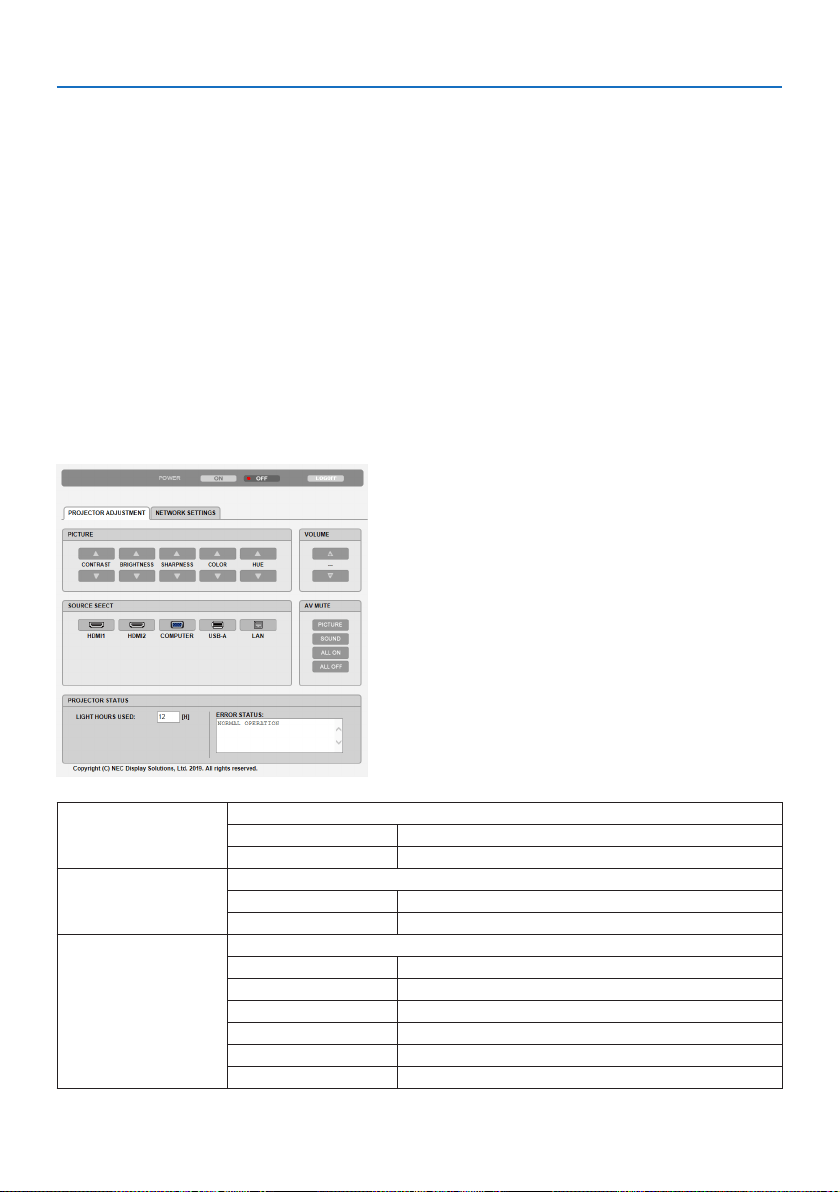
7. Connecting to a Network
116
Handling of the Address for Operation via a Browser
Regarding the actual address that is entered for the address or entered to the URL column when
operation of the projector is via a browser, the host name can be used as it is when the host name
corresponding to the IP address of the projector has been registered to the domain name server
by a network administrator, or the host name corresponding to the IP address of the projector has
been set in the “HOSTS” le of the computer being used.
Example 1: When the host name of the projector has been set to “pj.nec.co.jp”, access is gained to
the network setting by specifying
http://pj.nec.co.jp/index.html
for the address or the entry column of the URL.
Example 2: When the IP address of the projector is “192.168.73.1”, access is gained to the network
setting by specifying
http://192.168.73.1/index.html
for the address or the entry column of the URL.
PROJECTOR ADJUSTMENT
POWERThiscontrolsthepoweroftheprojector.
ON Powerisswitchedon.
OFFPowerisswitchedo.
VOLUMEThiscontrolsthevolumeoftheprojector.
▲
Increasesthevolumeadjustmentvalue.
▼
Decreasesthevolumeadjustmentvalue.
AV-MUTEThiscontrolsthemutefunctionoftheprojector.
PICTUREONMutesthevideo.
PICTUREOFFCancelsthevideomuting.
SOUNDONMutestheaudio.
SOUNDOFFCancelstheaudiomuting.
ALLONMuteseachofthevideo,andaudiofunctions.
ALLOFFCancelsthemutingofeachofthevideo,andaudiofunctions.
7. Connecting to a Network
117
PICTUREControlsthevideoadjustmentoftheprojector.
CONTRAST▲ Increasesthecontrastadjustmentvalue.
CONTRAST▼ Decreasesthecontrastadjustmentvalue.
BRIGHTNESS▲ Increasesthebrightnessadjustmentvalue.
BRIGHTNESS▼ Decreasesthebrightnessadjustmentvalue.
SHARPNESS▲ Increasesthesharpnessadjustmentvalue.
SHARPNESS▼ Decreasesthesharpnessadjustmentvalue.
COLOR▲ Increasesthecoloradjustmentvalue.
COLOR▼ Decreasesthecoloradjustmentvalue.
HUE▲ Increasesthehueadjustmentvalue.
HUE▼ Decreasesthehueadjustmentvalue.
•Thefunctionsthatcanbecontrolledwillvarydependingonthesignalbeinginputtotheprojec-
tor.(→page
58)
SOURCESELECTThisswitchestheinputterminaloftheprojector.
HDMI1SwitchestotheHDMI1INterminal
HDMI2SwitchestotheHDMI2INterminal.
COMPUTERSwitchestotheCOMPUTERINterminal.
USB-ASwitchestothedataontheUSBmemorydevice.
LANSwitchestoaLANsignal.
PROJECTORSTATUSThisdisplaystheconditionoftheprojector.
LIGHTHOURSUSEDDisplayshowmanyhoursthelightmodulehasbeenused.
ERRORSTATUSDisplaysthestatusoferrorsoccurringwithintheprojector.
LOGOFFLoggingoyourprojectorandreturningtotheauthenticationscreen(LOGONscreen).
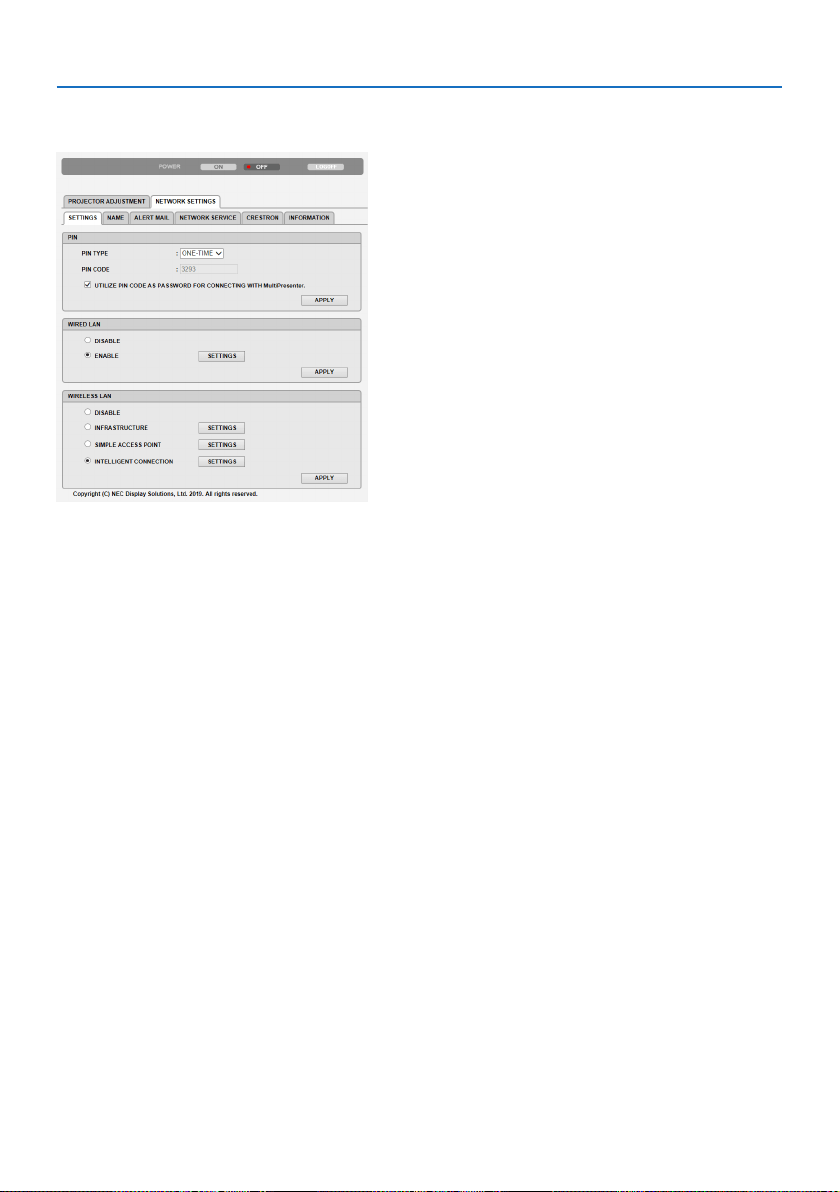
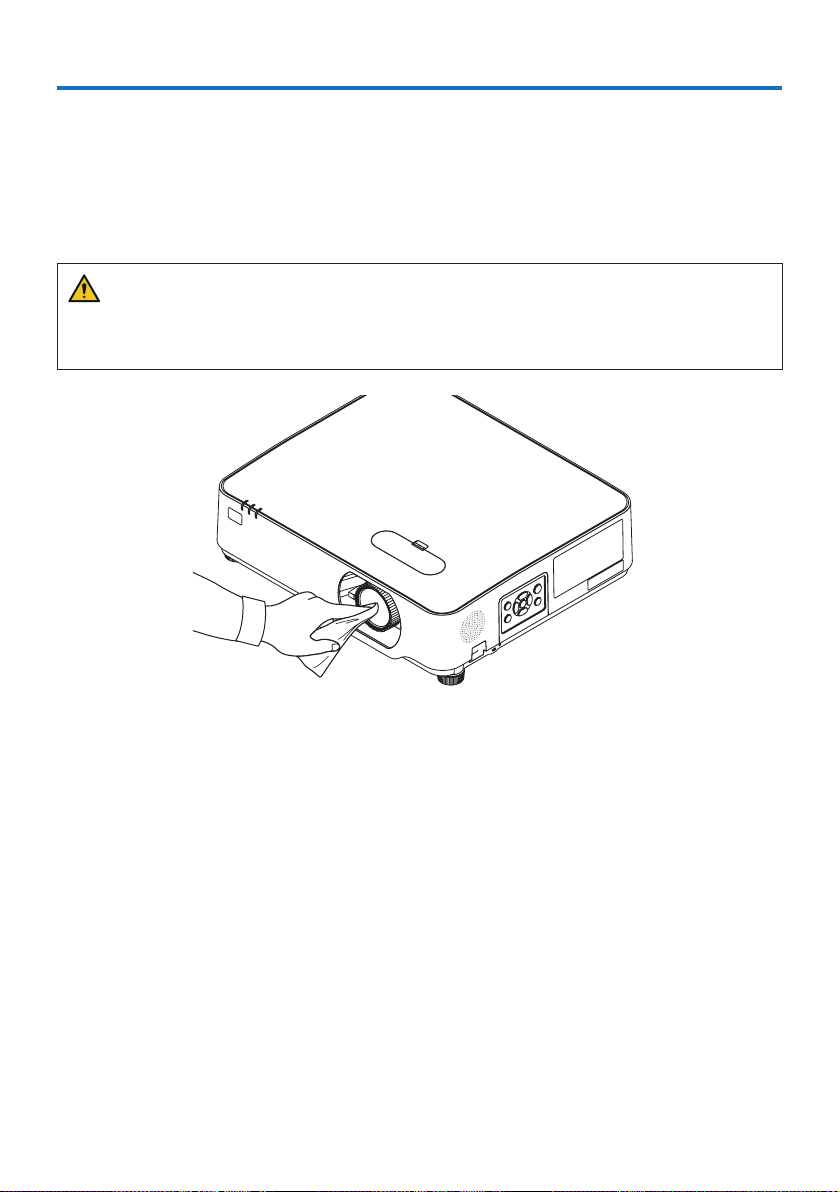
119
8-1. Cleaning the Lens
•Turnotheprojectorbeforecleaning.
•Theprojectorhasaplasticlens.Useacommerciallyavailableplasticlenscleaner.
•Donotscratchormarthelenssurfaceasaplasticlensiseasilyscratched.
•Neverusealcoholorglasslenscleanerasdoingsowillcausedamagetotheplasticlenssurface.
WARNING
•Donotuseaspraycontainingammablegastoremovedustattachedtothelens,etc.Doing
so may result in re.
8. Maintenance
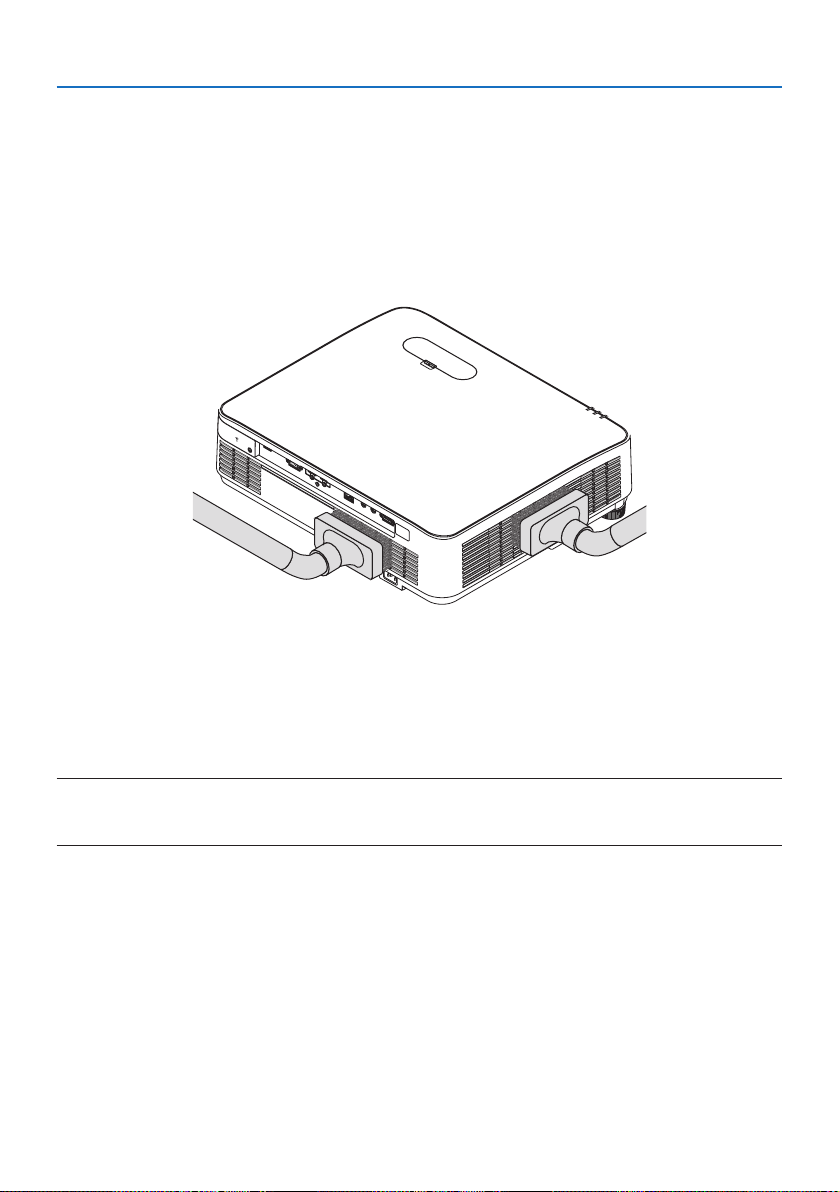
8. Maintenance
120
8-2. Cleaning the Cabinet
Turn o the projector, and unplug the projector before cleaning.
•Useadrysoftclothtowipedustothecabinet.
If heavily soiled, use a mild detergent.
•Neverusestrongdetergentsorsolventssuchasalcoholorthinner.
•Whencleaningtheventilationslitsorthespeakerusingavacuumcleaner,donotforcethe
brush of the vacuum cleaner into the slits of the cabinet.
Vacuum the dust o the ventilation slits or the speaker.
•Poorventilationcausedbydustaccumulationinventilationopeningscanresultinoverheating
and malfunction. These areas should be cleaned regularly.
•Donotscratchorhitthecabinetwithyourngersoranyhardobjects
•Contactyourdealerforcleaningtheinsideoftheprojector.
NOTE:
•Donotapplyvolatileagentsuchasinsecticideonthecabinet,thelens,orthescreen.Donotleavearubberorvinylproductin
prolongedcontactwithit.Otherwisethesurfacenishwillbedeterioratedorthecoatingmaybestrippedo.
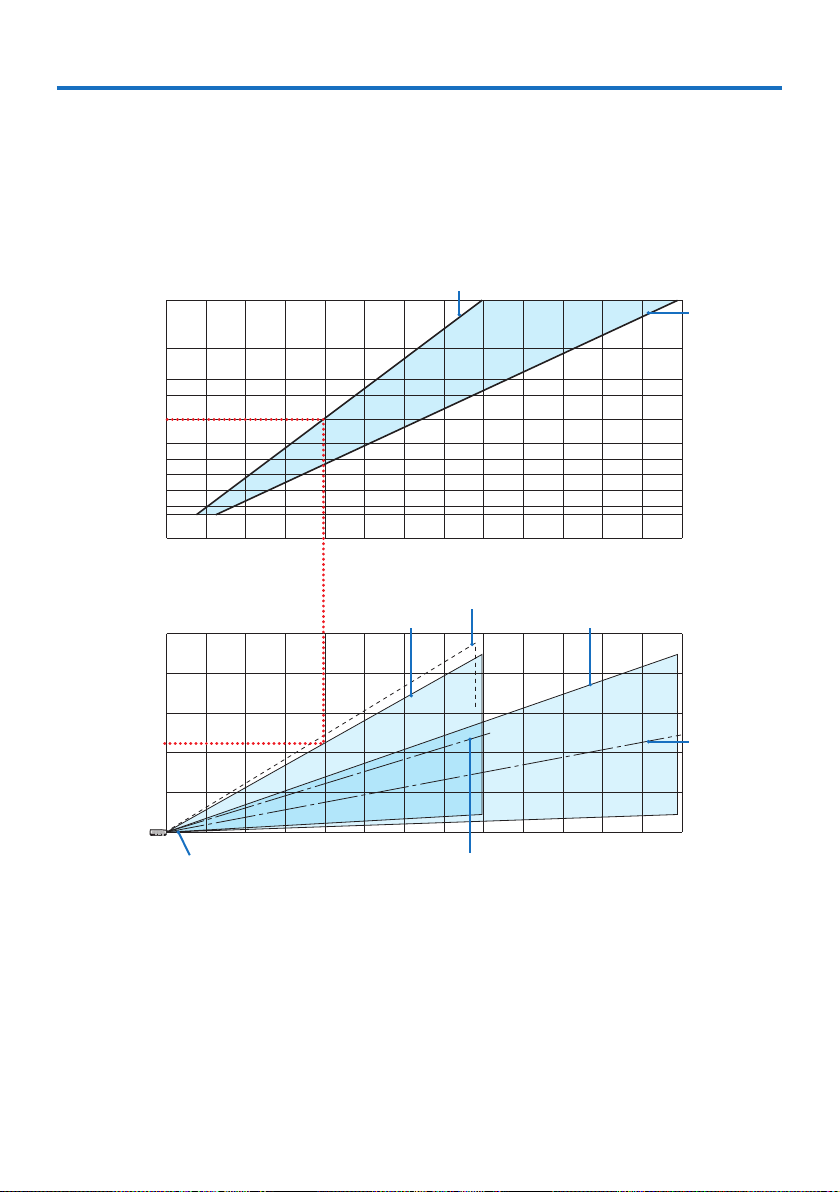
121
9-1. Setting Up the Screen and the Projector
Use this to get a general idea of what the screen size will be when set in a certain position, what
size screen you will need, and what distance you will need to project images of the desired size.
[PE455UL]
The projection distance range at which focusing is possible is 0.78 m to 12.89 m. Install within this
range.
0123 5678910 11 12 13
12 13
0
1
2
3
4
5
12345678910 11
40
30
60
80
100
120
150
180
200
240
300
4
ScreensizeScreenheightfromthecenteroftheprojectorlens
[Projectiondistance]
Whenzoomleverturnedtowide
Withtiltfeettilted4°whensettowide
Whenzoomleverturnedtotelescopic
Whenzoom
leverturnedto
telescopic
Screencenterline
(telescopic)
Whenzoomlever
turnedtowide
ProjectorlenscenterScreencenterline(wide)
(m)
(m)
(inch)
(m)
* The gures indicated for “height of screen from projector lens center” on the projection distance table are
for a lens shift of 60% V.
Reading the Table
From the upper table on this page, to project wide images on a 150 screen, install at about 4.0 m
from the front.
Also, from the lower table we can see that about 2.2 m are required from the projector’s lens center
to the upper edge of the screen. Use this to see whether or not enough height can be provided
from the projector to the ceiling and for installing the screen. The diagram shows the projection
distance when the projector is installed horizontally. The projected image can be moved up and
down, left and right using the lens shift function. (→ page
23)
9. Appendix
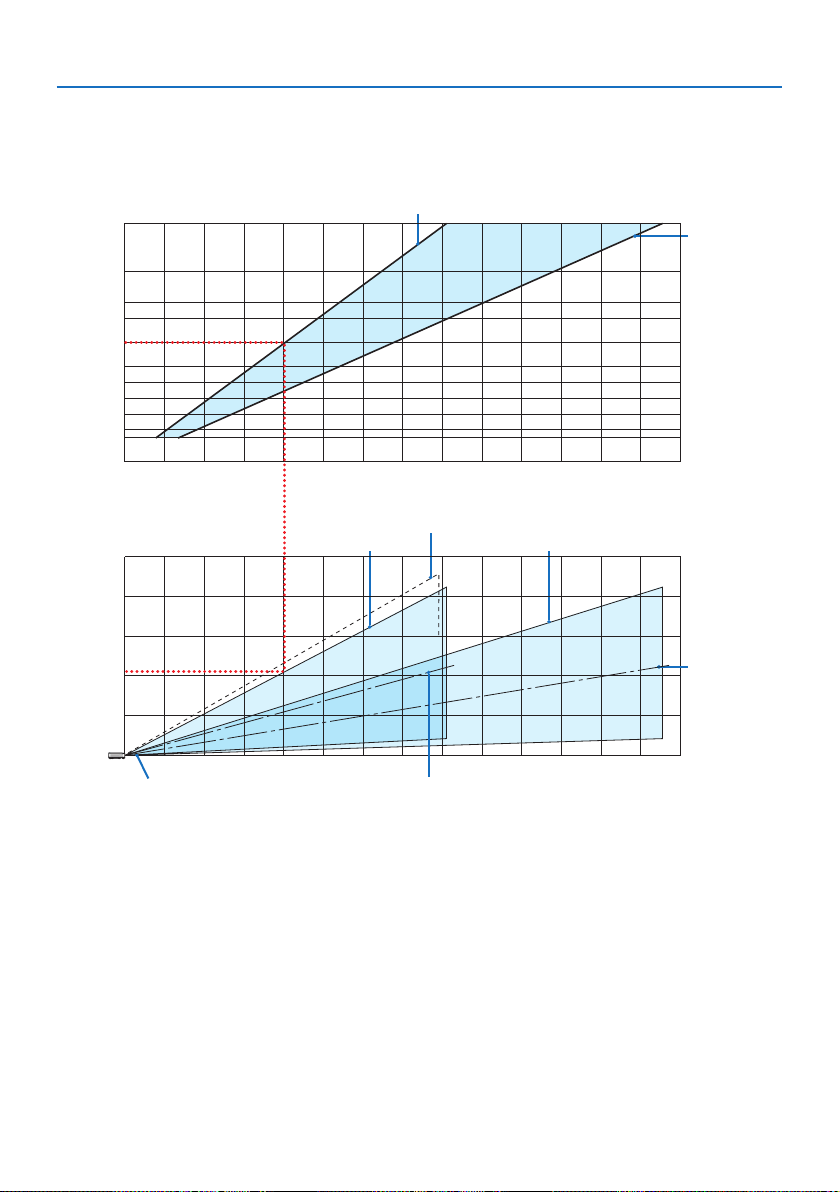
9. Appendix
122
[PE455WL]
The projection distance range at which focusing is possible is 0.78 m to 13.55 m. Install within this
range.
ScreensizeScreenheightfromthecenteroftheprojectorlens
[Projectiondistance]
Whenzoomleverturnedtowide
Withtiltfeettilted4°whensettowide
Whenzoomleverturnedtotelescopic
Whenzoom
leverturnedto
telescopic
Screencenterline
(telescopic)
Whenzoomlever
turnedtowide
ProjectorlenscenterScreencenterline(wide)
(m)
(m)
(inch)
(m)
300
240
20
0
18
0
150
12
0
10
0
80
60
40
30
012345 7891011121
31
4
5
4
3
2
1
1234567910 11
12 13
14
6
0
8
* The gures indicated for “height of screen from projector lens center” on the projection distance table are
for a lens shift of 55% V.
Reading the Table
From the upper table on this page, to project wide images on a 150 screen, install at about 4.0 m
from the front.
Also, from the lower table we can see that about 2.1 m are required from the projector’s lens center
to the upper edge of the screen. Use this to see whether or not enough height can be provided
from the projector to the ceiling and for installing the screen. The diagram shows the projection
distance when the projector is installed horizontally. The projected image can be moved up and
down, left and right using the lens shift function. (→ page 23)
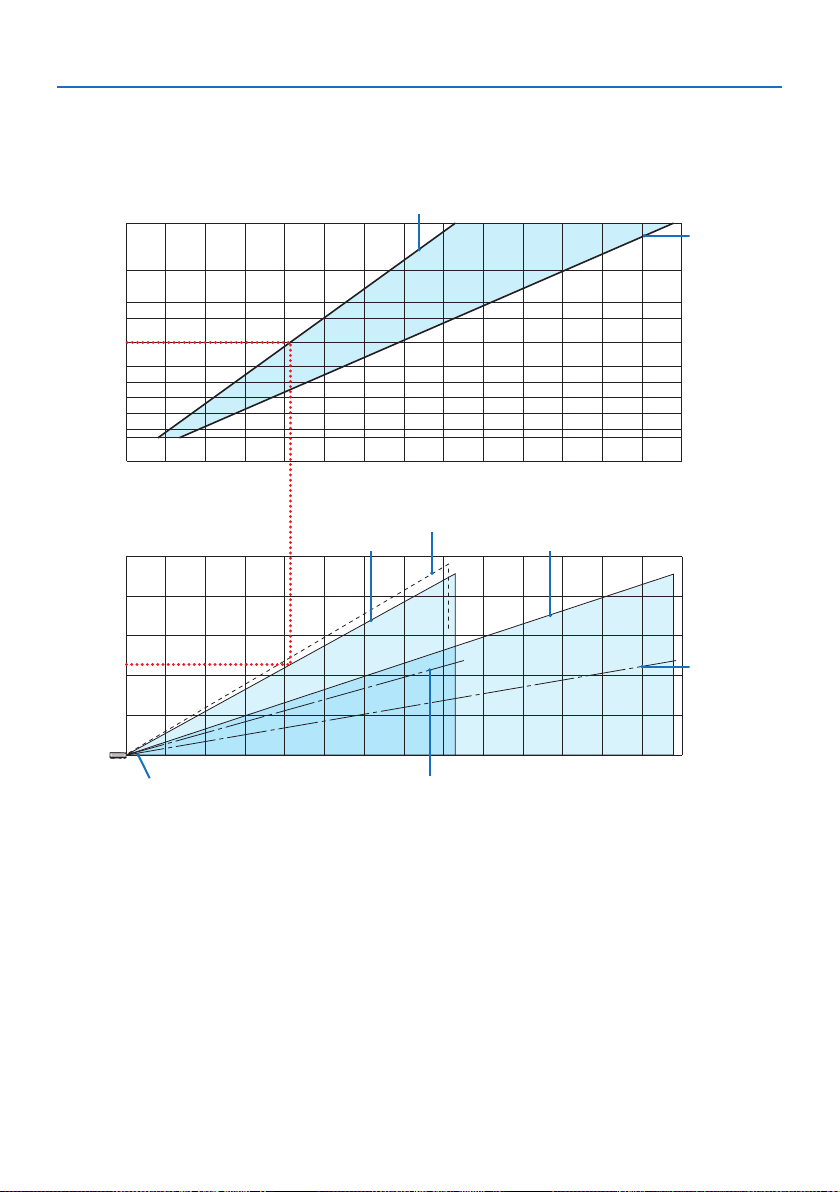
9. Appendix
123
[PE505XL]
The projection distance range at which focusing is possible is 0.80 m to 13.81 m. Install within this
range.
30
0
24
0
20
0
18
0
15
0
12
0
10
0
80
60
40
30
012345 7891011121
31
4
5
4
3
2
1
1234567910 11
12 13
14
6
0
8
ScreensizeScreenheightfromthecenteroftheprojectorlens
[Projectiondistance]
Whenzoomleverturnedtowide
Withtiltfeettilted4°whensettowide
Whenzoomleverturnedtotelescopic
Whenzoom
leverturnedto
telescopic
Screencenterline
(telescopic)
Whenzoomlever
turnedtowide
ProjectorlenscenterScreencenterline(wide)
(m)
(m)
(inch)
(m)
* The gures indicated for “height of screen from projector lens center” on the projection distance table are
for a lens shift of 50% V.
Reading the Table
From the upper table on this page, to project wide images on a 150 screen, install at about 4.1 m
from the front.
Also, from the lower table we can see that about 2.3 m are required from the projector’s lens center
to the upper edge of the screen. Use this to see whether or not enough height can be provided
from the projector to the ceiling and for installing the screen. The diagram shows the projection
distance when the projector is installed horizontally. The projected image can be moved up and
down, left and right using the lens shift function. (→ page 23)
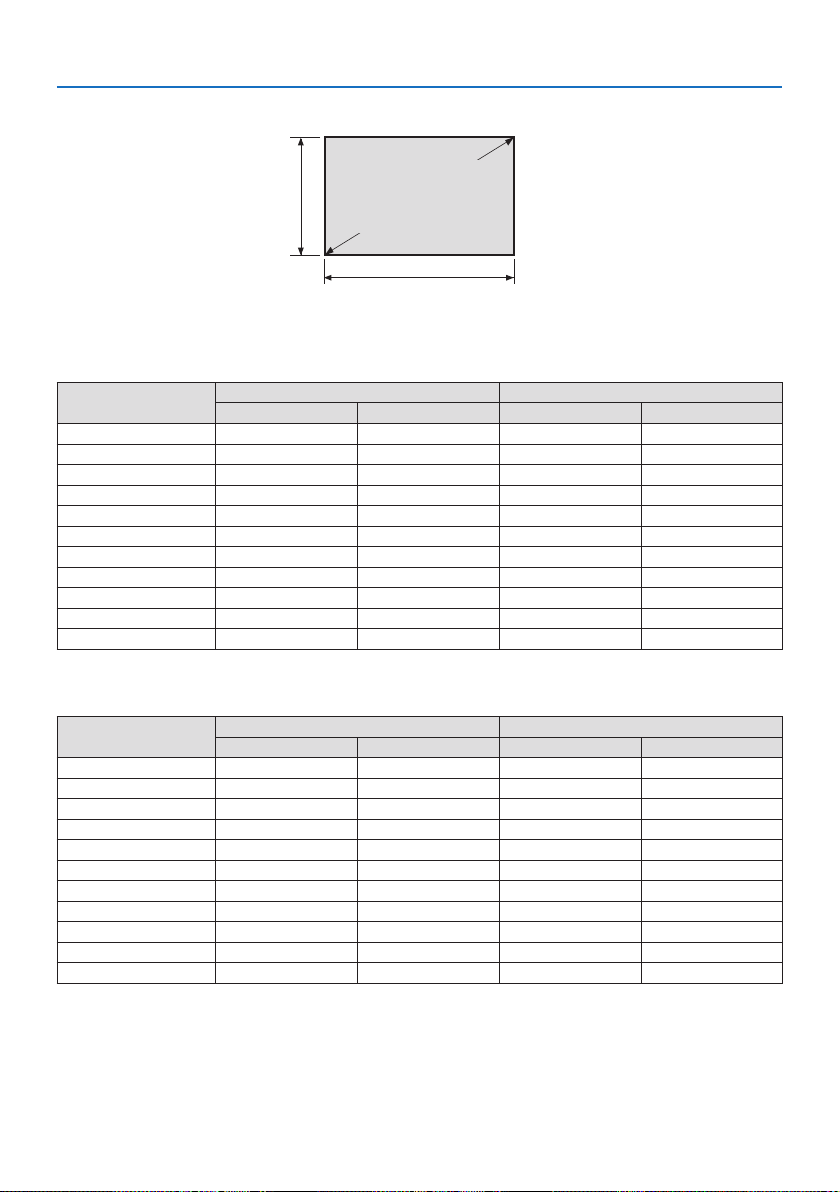
9. Appendix
124
Tables of screen sizes and dimensions
Screen height
Screen width
Screen size
(diagonal)
[PE455UL/PE455WL]
Size (inches)
Screen width Screen height
(cm) (inches) (cm) (inches)
30 64.6 25.4 40.4 15.9
40 86.2 33.9 53.8 21.2
50 107.7 42.4 67.3 26.5
60 129.2 50.9 80.8 31.8
80 172.3 67.8 107.7 42.4
100 215.4 84.8 134.6 53.0
120 258.5 101.8 161.5 63.6
150 323.1 127.2 201.9 79.5
200 430.8 169.6 269.2 106.0
250 538.5 212.0 336.5 132.5
300 646.2 254.4 403.9 159.0
[PE505XL]
Size (inches)
Screen width Screen height
(cm) (inches) (cm) (inches)
30 61.0 24.0 45.7 18.0
40 81.3 32.0 61.0 24.0
50 101.6 40.0 76.2 30.0
60 121.9 48.0 91.4 36.0
80 162.6 64.0 121.9 48.0
100 203.2 80.0 152.4 60.0
120 243.8 96.0 182.9 72.0
150 304.8 120.0 228.6 90.0
200 406.4 160.0 304.8 120.0
250 508.0 200.0 381.0 150.0
300 609.6 240.0 457.2 180.0
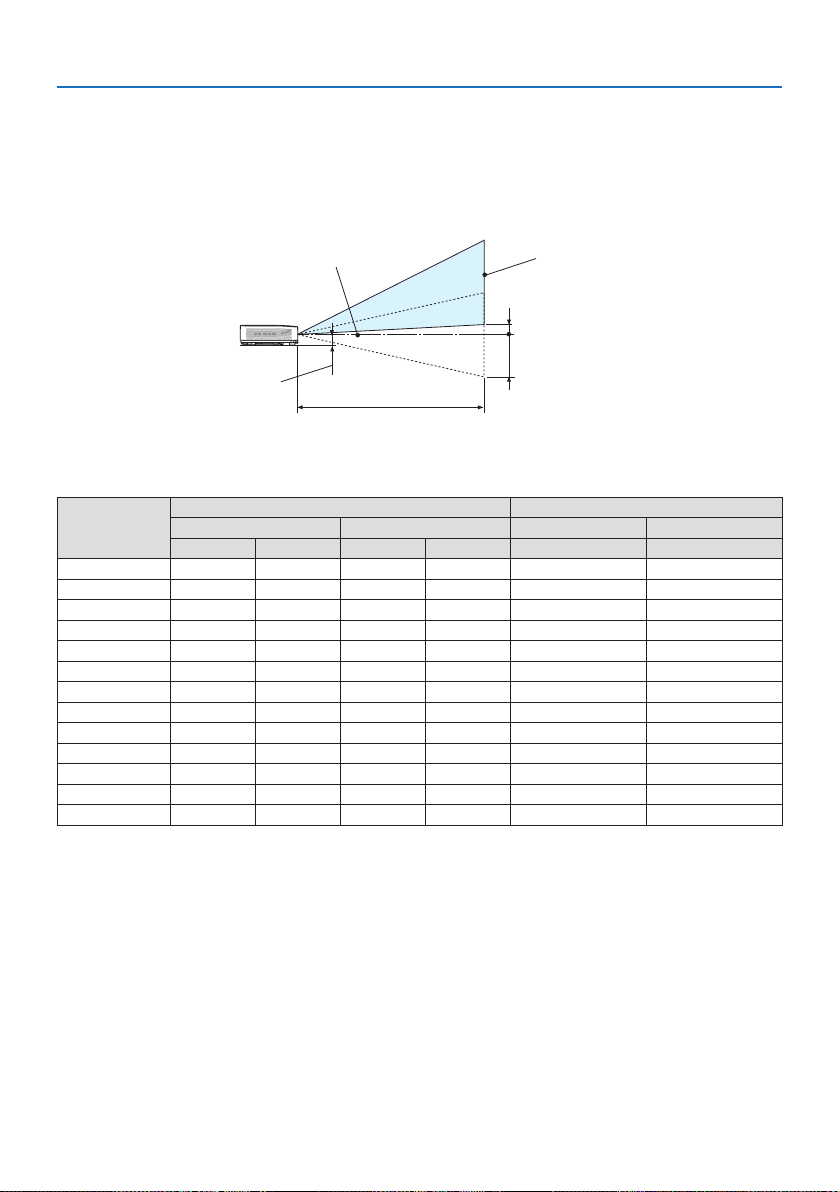
9. Appendix
125
Example of installation on a desktop
The diagram below shows an example of when the projector is used on a desktop.
Horizontal projection position: Equal distance to the left and right from the center of the lens
Vertical projection position: (see table below)
[PE455UL]
Screen surface
Lower edge of screen with 60% V
Measurement +H
Measurement −H
Lower edge of screen with 0% V
Lens center
Approximately 78 to 87 mm
Projection distance L
(NOTE) Height from lens center to lower edge of screen (with tilt feet screwed in)
Screen size
(inches)
Throw distance L Height H
(m) (inches) (cm) (inches)
Wide Tele Wide Tele 0%V –60%V 0%V –60%V
30 0.77 1.26 30.1 49.5 −20.2 –+4.0 −7.9 –+1.6
40 1.03 1.69 40.6 66.5 −26.9 –+5.4 −10.6 –+2.1
60 1.56 2.55 61.6 100.4 −40.4 –+8.1 −15.9 –+3.2
80 2.10 3.41 82.6 134.3 −53.8 –+10.8 −21.2 –+4.2
90 2.36 3.84 93.1 151.3 −60.6 –+12.1 −23.8 –+4.8
100 2.63 4.27 103.6 168.2 −67.3 –+13.5 −26.5 –+5.3
120 3.16 5.13 124.6 202.1 −80.8 –+16.2 −31.8 –+6.4
150 3.96 6.43 156.1 253.0 −101.0 –+20.2 −39.7 –+7.9
180 4.76 7.72 187.6 303.8 −121.2 –+24.2 −47.7 –+9.5
200 5.30 8.58 208.6 337.8 −134.6 –+26.9 −53.0 –+10.6
250 6.36 10.30 250.5 405.6 −161.5 –+32.3 −63.6 –+12.7
270 7.16 11.59 282.0 456.4 −181.7 –+36.3 −71.5 –+14.3
300 7.96 12.89 313.5 507.3 −201.9 –+40.4 −79.5 –+15.9
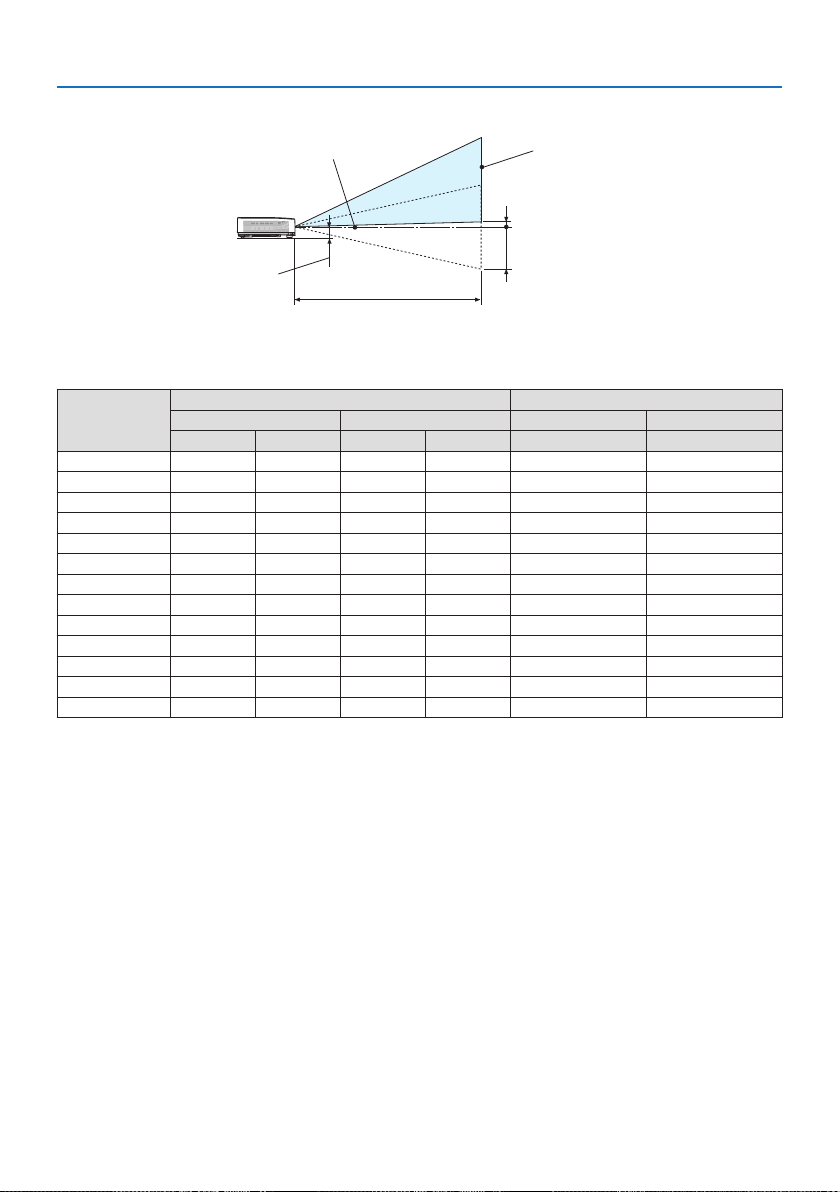
9. Appendix
126
[PE455WL]
Screen surface
Lower edge of screen with 55% V
Measurement +H
Measurement −H
Lower edge of screen with 0% V
Lens center
Approximately 78 to 87 mm
Projection distance L
(NOTE) Height from lens center to lower edge of screen (with tilt feet screwed in)
Screen size
(inches)
Throw distance L Height H
(m) (inches) (cm) (inches)
Wide Tele Wide Tele 0%V –55%V 0%V –55%V
30 0.78 1.32 30.7 52.0 –20.2–+2.0 –7.9–+0.8
40 1.05 1.77 41.4 69.8 –26.9–+2.7 –10.6–+1.1
60 1.60 2.68 62.9 105.5 –40.4–+4.0 –15.9–+1.6
80 2.14 3.59 84.4 141.1 –53.8–+5.4 –21.2–+2.1
90 2.42 4.04 95.2 159.0 –60.6–+6.1 –23.8–+2.4
100 2.69 4.49 105.9 176.8 –67.3–+6.7 –26.5–+2.6
120 3.24 5.40 127.4 212.5 –80.8–+8.1 –31.8–+3.2
150 4.06 6.76 159.6 266.0 –101.0–+10.1 –39.7–+4.0
180 4.87 8.12 191.9 319.5 –121.2–+12.1 –47.7–+4.8
200 5.42 9.02 213.4 355.2 –134.6–+13.5 –53.0–+5.3
250 6.51 10.83 256.3 426.5 –161.5–+16.2 –63.6–+6.4
270 7.33 12.19 288.6 480.0 –181.7–+18.2 –71.5–+7.2
300 8.15 13.55 320.8 533.5 –201.9–+20.2 –79.5–+7.9
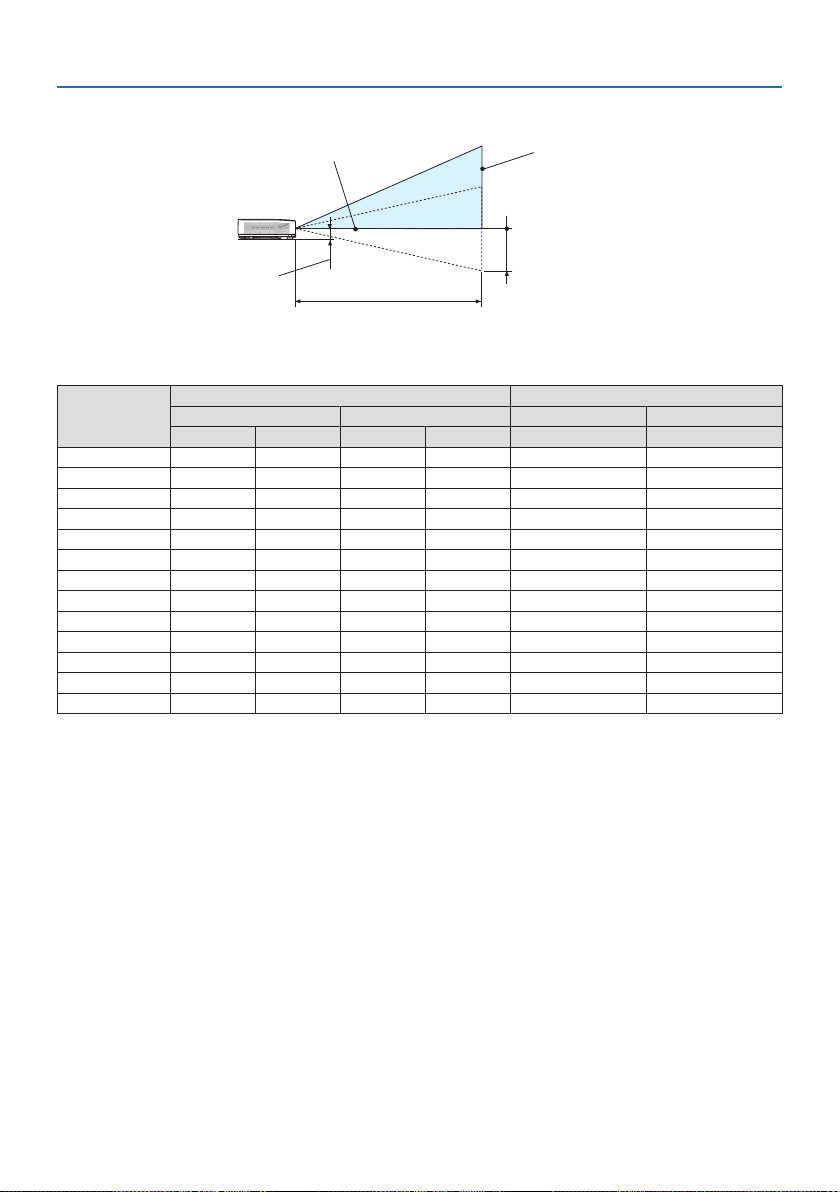
9. Appendix
127
[PE505XL]
Screen surface
Lower edge of screen with 50% V
Measurement +H
Measurement −H
Lower edge of screen with 0% V
Lens center
Approximately 78 to 87 mm
Projection distance L
(NOTE) Height from lens center to lower edge of screen (with tilt feet screwed in)
Screen size
(inches)
Throw distance L Height H
(m) (inches) (cm) (inches)
Wide Tele Wide Tele 0%V –50%V 0%V –50%V
30 0.79 1.35 31.3 53.0 –22.9 –+0 –9.0–+0
40 1.07 1.81 42.2 71.1 –30.5 –+0 –12.0–+0
60 1.63 2.73 64.1 107.5 –45.7–+0 –18.0–+0
80 2.19 3.65 86.0 143.8 –61.0–+0 –24.0–+0
90 2.46 4.12 97.0 162.0 –68.6–+0 –27.0–+0
100 2.74 4.58 107.9 180.2 –76.2–+0 –30.0–+0
120 3.30 5.50 129.8 216.5 –91.4–+0 –36.0–+0
150 4.13 6.89 162.7 271.0 –114.3–+0 –45.0–+0
180 4.97 8.27 195.5 325.6 –137.2–+0 –54.0–+0
200 5.52 9.19 217.4 361.9 –152.4–+0 –60.0–+0
250 6.63 11.04 261.2 434.6 –182.9–+0 –72.0–+0
270 7.47 12.42 294.0 489.1 –205.7–+0 –81.0–+0
300 8.30 13.81 326.9 543.6 –228.6–+0 –90.0–+0
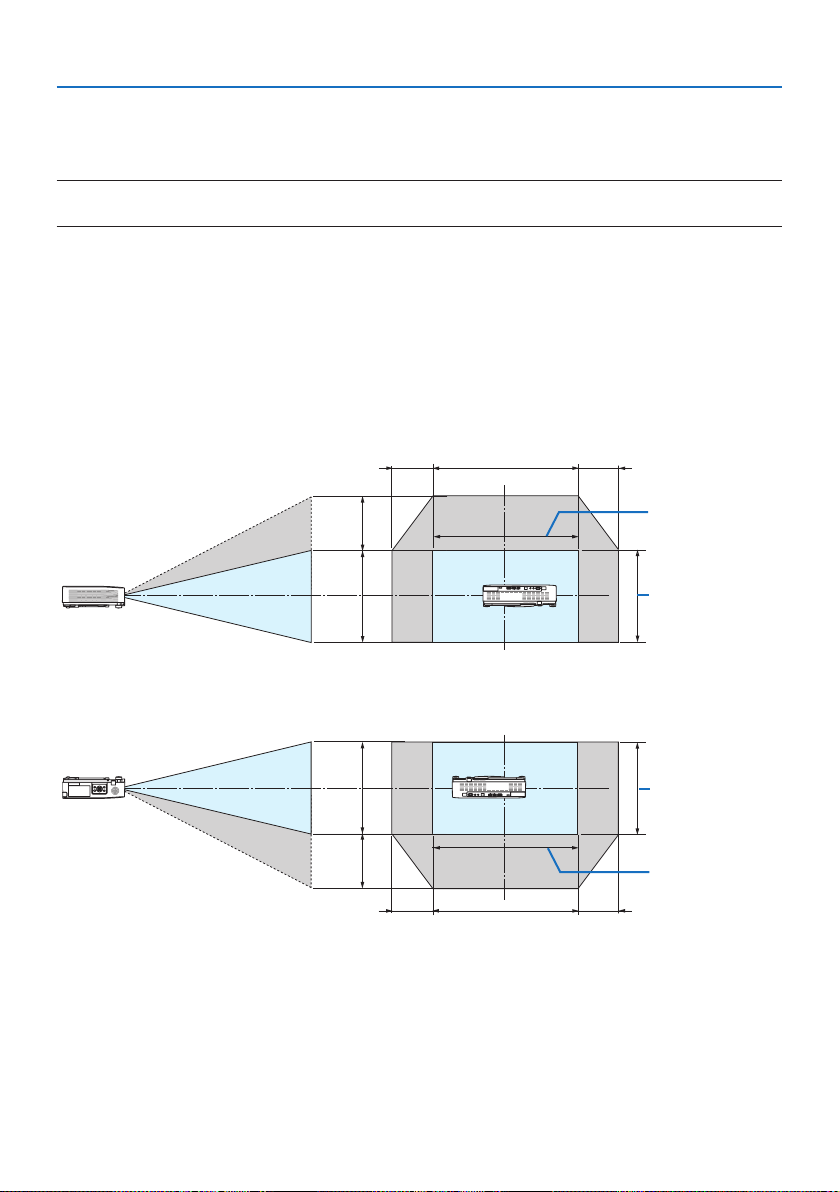
9. Appendix
128
Lens shifting range
This projector is equipped with a lens shift function (→ page
23) for adjusting the image position
using dials. Lens shifting is possible within the range shown below.
NOTE:
•Incaselensshiftedvolumeexceedsthebelowillustratedrange,blurandshademayappeararoundendsofprojectedimage.
Legend: V “Vertical” refers to the screen height and H “Horizontal” refers to the screen width. The
lens shift range is expressed as a ratio of height and width, respectively.
[PE455UL]
Lens shifting range:
Vertical direction: +60%, −0%
Horizontal direction: ±29%
DESKTOP FRONT, DESKTOP REAR
100%V
60%V
100%H
29%H 29%H
Height of projected
image
Width of projected
image
CEILING FRONT, CEILING REAR
100%V
60%V
100%H29%H 29%H
Height of projected
image
Width of projected
image
(Example) When using to project on a 150" screen
According to the “Table of screen sizes and dimensions” (→ page
124), H = 127.2"/323.1 cm, V =
79.5"/201.9 cm.
Adjustment range in the vertical direction: the projected image can be moved upwards 0.60 ×
79.5"/201.9 cm ≈ 47.7"/121 cm (when the lens is at the center position).
Adjustment range in the horizontal direction: the projected image can be moved to the left 0.29 ×
127.2"/323.1 cm ≈ 36.9"/94 cm, to the right approximately 36.9"/94 cm.
* Figures dier by several % because the calculation is approximate.
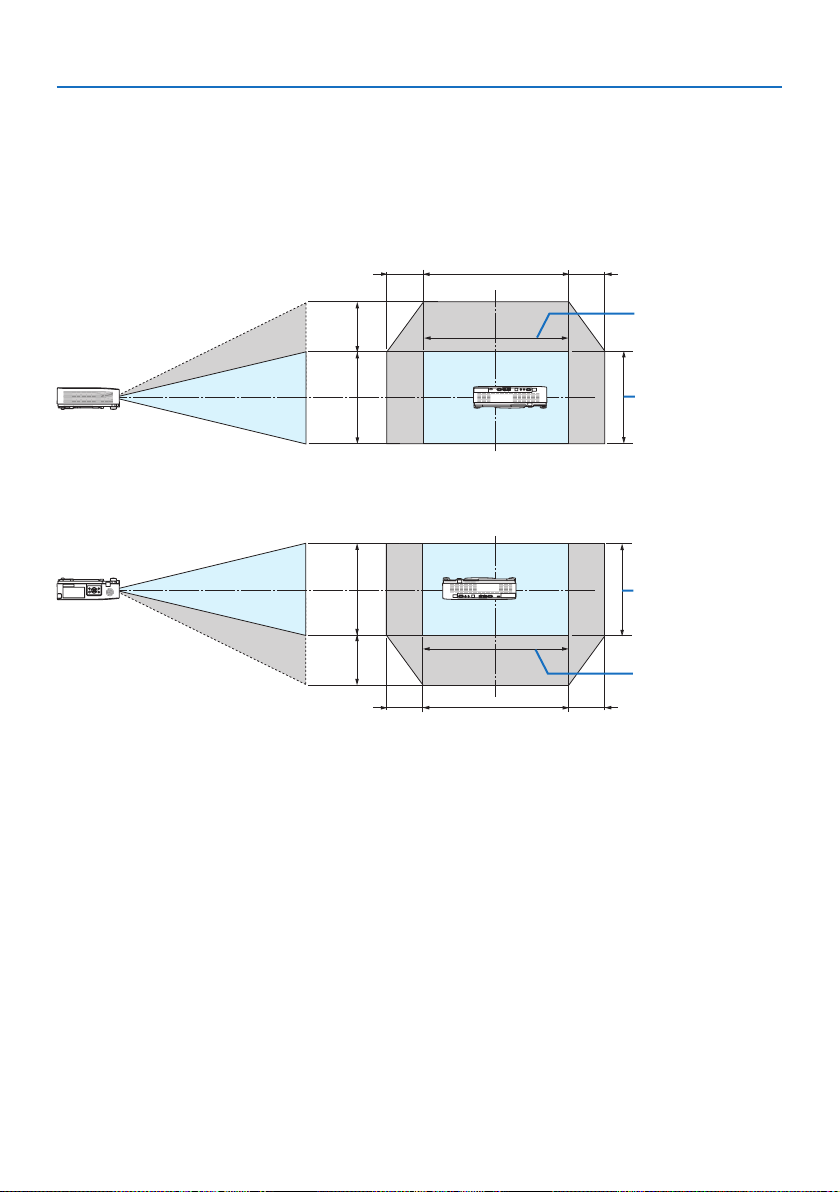
9. Appendix
129
[PE455WL]
Lens shifting range:
Vertical direction: +55%, −0%
Horizontal direction: ±26%
DESKTOP FRONT, DESKTOP REAR
100%V
55%V
100%H
26%H 26%H
Height of projected
image
Width of projected
image
CEILING FRONT, CEILING REAR
100%V
55%V
100%H26%H 26%H
Height of projected
image
Width of projected
image
(Example) When using to project on a 150" screen
According to the “Table of screen sizes and dimensions” (→ page
124), H = 127.2''/323.1 cm, V =
79.5''/201.9 cm.
Adjustment range in the vertical direction: the projected image can be moved upwards 0.55 ×
79.5''/201.9 cm ≈ 43.7''/111 cm (when the lens is at the center position).
Adjustment range in the horizontal direction: the projected image can be moved to the left 0.26 ×
127.2''/323.1cm ≈ 33.1''/84 cm, to the right approximately 33.1''/84 cm.
* Figures dier by several % because the calculation is approximate.
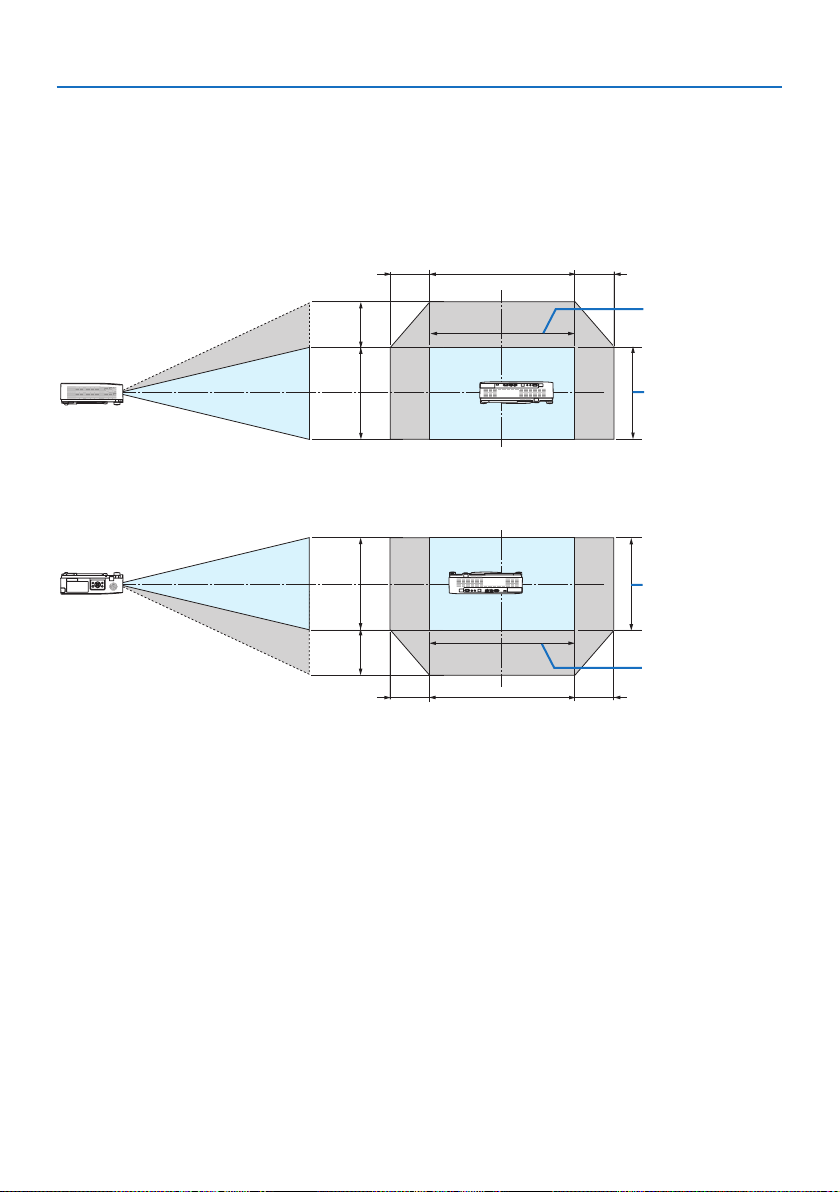
9. Appendix
130
[PE505XL]
Lens shifting range:
Vertical direction: +50%, −0%
Horizontal direction: ±28%
DESKTOP FRONT, DESKTOP REAR
100%V
50%V
100%H
28%H 28%H
Height of projected
image
Width of projected
image
CEILING FRONT, CEILING REAR
100%V
50%V
100%H28%H 28%H
Height of projected
image
Width of projected
image
(Example) When using to project on a 150" screen
According to the “Table of screen sizes and dimensions” (→ page
124), H = 120.0''/304.8 cm, V =
90.0''/228.6 cm.
Adjustment range in the vertical direction: the projected image can be moved upwards 0.50 ×
90.0''/228.6 cm ≈ 45.0''/114 cm (when the lens is at the center position).
Adjustment range in the horizontal direction: the projected image can be moved to the left 0.28 ×
120.0''/304.8 cm ≈ 33.6''/85 cm, to the right approximately 33.6''/85 cm.
* Figures dier by several % because the calculation is approximate.
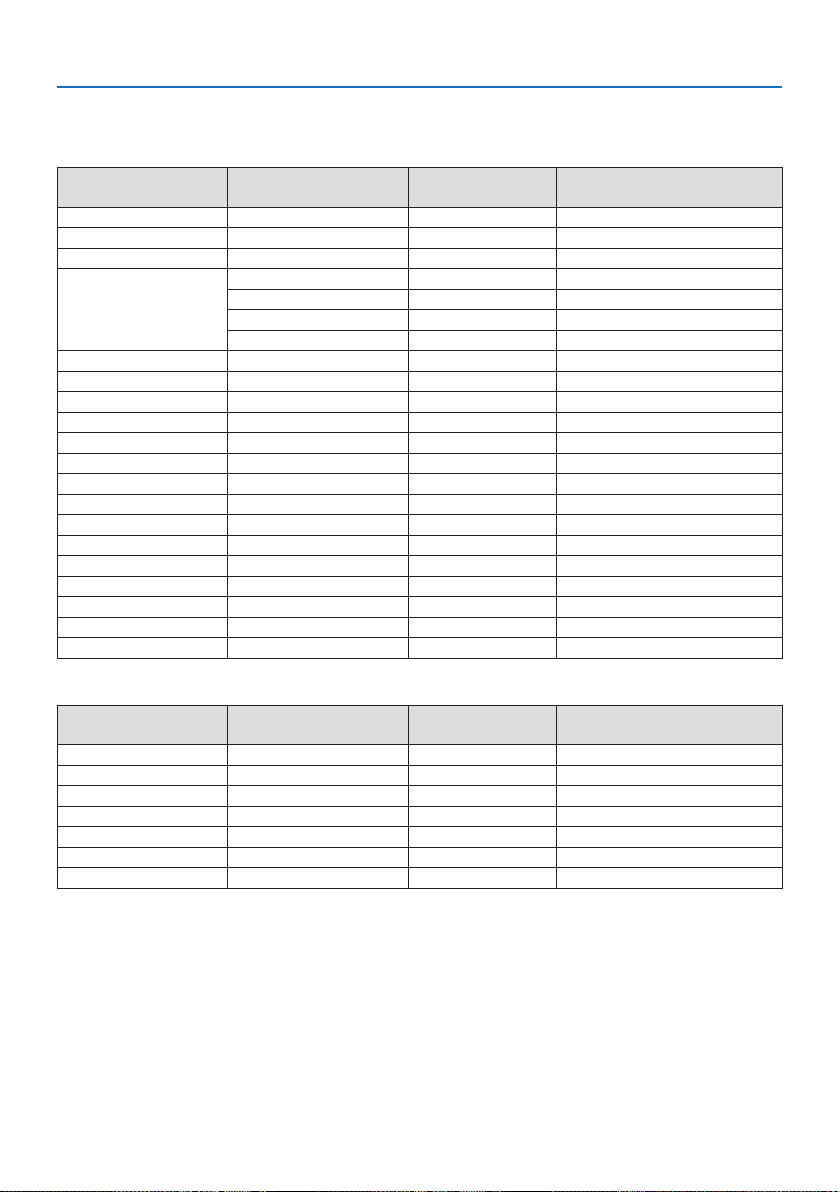
9. Appendix
131
9-2. Compatible Input Signal List
640 × 480
Analog RGB
Signal
Resolution
(dots)
Aspect Ratio
Refresh Rate
(Hz)
VGA 4:3 60/72/75/85/iMac
SVGA 4:3 56/60/72/75/85/iMac
XGA 4:3 60/70/75/85/iMac
WXGA 15:9 60
16:10 60
16:9 60
16:9 60
Q
uad-
VGA 4:3 60/75
SXGA 5:4 60/75
SXGA+ 4:3 60
WXGA+ 16:10 60
WXGA++
16:9 60
UXGA
4:3 60
WSX
GA+ 16:10 60
HD 16:9 60
Full HD 16:9 60
WUXGA 16:10 60
MAC 13" 640 × 480 4:3 67
MAC 16" 832 × 624 4:3 75
MAC 19" 1024 × 768 4:3 75
MAC 21" 1152 × 870 4:3 75
MAC 23" 1280 × 1024 5:4 65
Component
Signal Format Aspect Ratio
Refresh Rate
(Hz)
HDTV (1080p) 1920 × 1080 16:9 50/60
HDTV (1080i) 1920 × 1080 16:9 50/60
HDTV (720p) 1280 × 720 16:9 50/60
SDTV (480p) 720 × 480 4:3/16:9 60
SDTV (576p) 720 × 576 4:3/16:9 50
SDTV (480i) 720 × 480 4:3/16:9 60
SDTV (576i) 720 × 576 4:3/16:9 50
1280 × 768 *
2
1280 × 800 *
2
1360 × 768 *
3
1366 × 768 *
3
800 × 600
1024 × 76 8 *
1
1280×960
1280×1024
1400×1050
1440×900
1600×900 *
3
1600×1200 *
4
1680×1050
1280×720
1920×1080
1920×1200 *
5
*
6

9. Appendix
132
1920×1200 *
5
1280 × 768 *
2
1280×800 *
2
HDMI
Signal
Resolution
(dots)
Aspect Ratio
Refresh Rate
(Hz)
VGA 640 × 480 4:3 60
SVGA 800 × 600 4:3 60
XGA 1024 × 768 4:3 60
WXGA 15:9 60
16:10 60
1366
×
768 16:9 60
Quad-VGA 1280 × 960 4:3 60
SXGA 1280 × 1024 5:4 60
SXGA+ 1400 × 1050 4:3 60
WXGA+ 1440 × 900 16:10 60
WXGA++ 1600 × 900 16:9 60
WSXGA+ 1680 × 1050 16:10 60
WUXGA
16:10 60
4K 3840 × 2160 16:9 23.98/24/25/29.97/30
HDTV (1080p) 1920 × 1080 16:9 50/60
HDTV (1080i) 1920 × 1080 16:9 50/60
HDTV (720p) 1280 × 720 16:9 50/60
SDTV (480p) 720 × 480 4:3/16:9 60
SDTV (576p) 720 × 576 4:3/16:9 50
SDTV(480i) 720 × 480 4:3/16:9 60
SDTV(576i) 720 × 576 4:3/16:9 50
*2 Native resolution on PE455WL
*3 The projector may fail to display these signals correctly when [AUTO] is selected for [ASPECT RATIO] in the
on-screen menu.
The factory default is [AUTO] for [ASPECT RATIO]. To display these signals, select [16:9] for [ASPECT RATIO].
*4 WXGA MODE: OFF
*5 Native resolution on PE455UL
*6 WXGA MODE: ON
Depending on your player or disc, the projected image may not be displayed correctly.
The projector does not support HDCP 2.2, 4K/60p or HDR.
*1 Native resolution on PE505XL
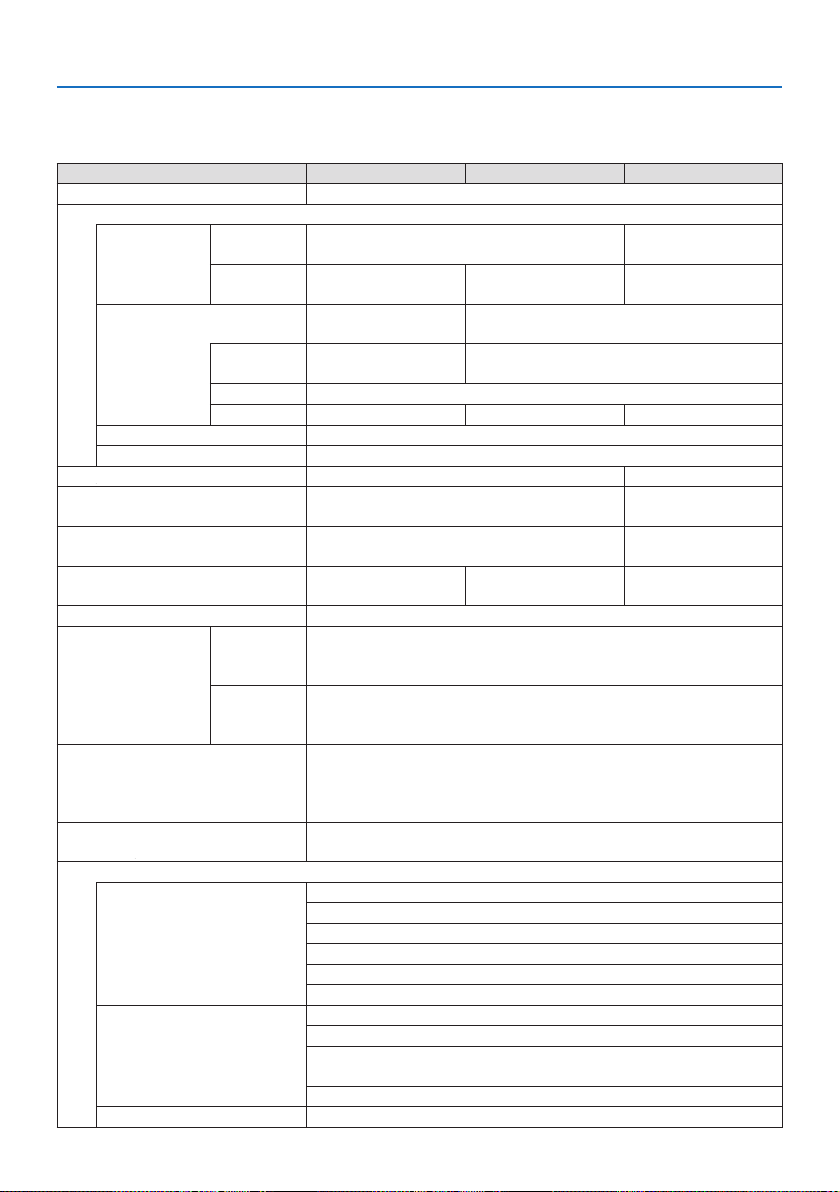
9. Appendix
133
9-3. Specifications
This section provides technical information about projector’s performance.
Optical device
Light output
(*2)
(*3)
Contrast ratio
(*2)
(all white/all black)
Screen size (throw distance)
Model name PE455ULPE455WLPE505XL
Method Three primary color liquid crystal shutter projection method
Specications of main parts
Liquid crystal
panel
Size 0.64" (with MLA) × 3 (aspect ratio: 16:10) 0.63" (with MLA) × 3
(aspect ratio: 4:3)
Pixels
(*1)
2,304,000
(1920 dots × 1200 lines)
1,024,000
(1280 dots × 800 lines)
786,432
(1024 dots × 768 lines)
Projection lenses F=1.5–2.1,
f=17.2–27.6mm
F=1.7–2.2,f=17.4–29.0mm
Zoom Manual
(Zoom Ratio = 1.6)
Manual (Zoom Ratio = 1.7)
Focus Manual
Lens shifting H: ±29%, V: +60%, −0% H: ±26%, V: +55%, −0% H: ±28%, V: +50%, −0%
Light source Blue Laser Diode
Optical isolation by dichroic mirror, combining by dichroic prism
4,500 lm 5,000 lm
450,000:1 with dynamic contrast
30
to
300
inches
(0.8–13.5
m)30 to 300 inches
(0.8–13.8
m)
Projection Angle 0 to 17.0 deg (Wide)/
0 to 10.8 deg (Tele)
0 to 15.9 deg (Wide)/
0 to 9.6 deg (Tele)
0 to 16.0 deg (Wide)/
0 to 9.6 deg (Tele)
Color reproducibility 10-bit color processing (approx. 1.07 billion colors)
Scanning frequency Horizontal Analog: 15 to 100 kHz (24 kHz or greater for RGB inputs), conforming
to VESA standards
Digital: 15 kHz, 24 to 153 kHz, conforming to VESA standards
Vertical Analog: 48 Hz, 50 to 85 Hz, 100, 120 Hz conforming to VESA standards
Digital: 24, 25, 30, 48 Hz, 50 to 85 Hz, 100, 120 Hz conforming to VESA
standards
Main adjustment functions Manual zoom, manual focus, manual lens shift, input signal switching
(HDMI1/HDMI2/COMPUTER/USB-A/LAN), auto image adjustment,
picture maginication, muting (video), power on/standby, on-screen
display/selection, etc.
Analog: 1920 × 1200 (handled with Advanced AccuBlend)
Digital: 3840 × 2160 (handled with Advanced AccuBlend)
Max. display resolution
(horizontal × vertical)
Input signals
R,G,B,H,V RGB: 0.7 Vp-p/75 Ω
Y: 1.0 Vp-p/75 Ω (with Negative Polarity Sync)
Cb, Cr (Pb, Pr): 0.7 Vp-p/75 Ω
H/V Sync: 4.0 Vp-p/TTL
Composite Sync: 4.0 Vp-p/TTL
Sync on G: 1.0 Vp-p/75 Ω (with Sync)
Component Y: 1.0 Vp-p/75 Ω (with Sync)
Cb, Cr (Pb, Pr): 0.7 Vp-p/75 Ω
DTV:
480i, 480p, 720p, 1080i, 1080p (60 Hz)
576i, 576p, 720p, 1080i, 1080p (50 Hz)
DVD: Progressive signal (50/60 Hz)
Audio
Stereo L/R: 0.5 Vrms/22 kΩ or over
500,000:1 with
dynamic contrast
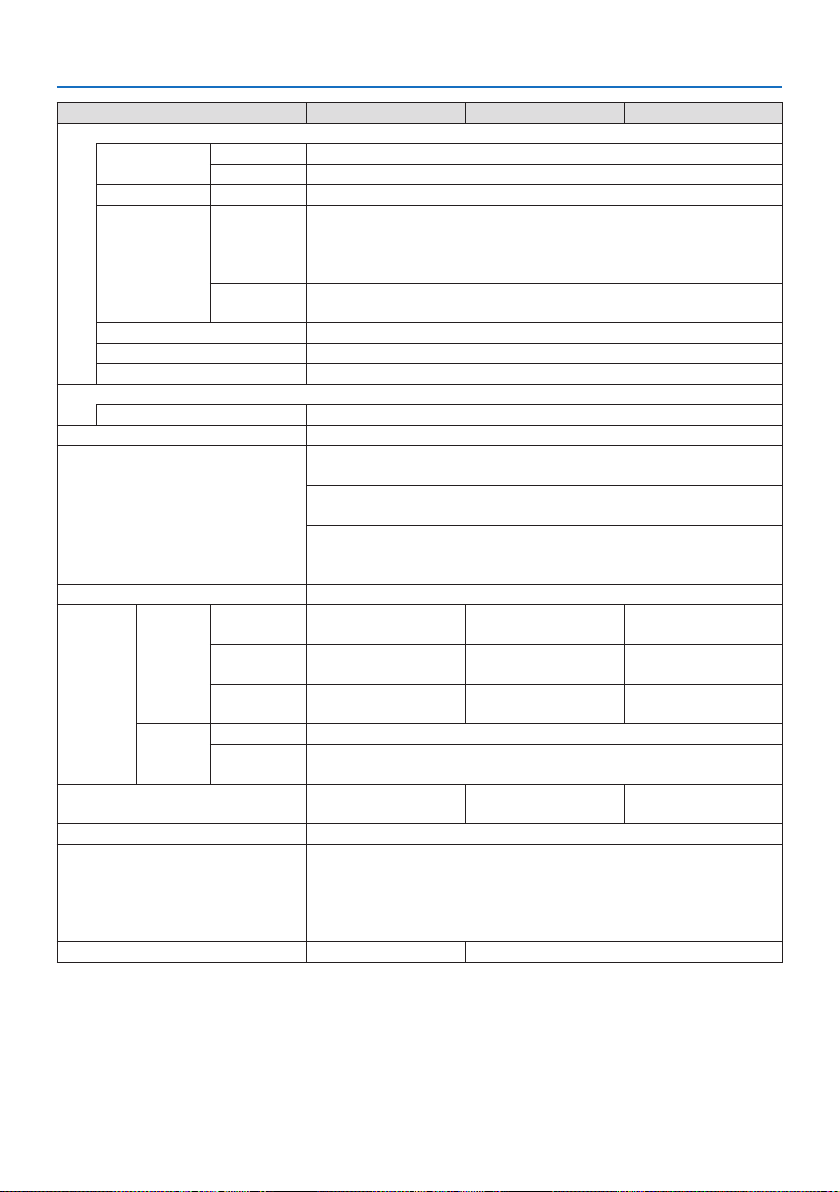
9. Appendix
134
Model name PE455ULPE455WLPE505XL
Input/output terminals
Computer/
Component
Video input Mini D-Sub 15-pin × 1
Audio input Stereo mini Jack × 1
Audio Output Stereo mini Jack × 1 (Selected from: Computer/HDMI)
HDMI Video input HDMI®TerminaltypeA×2
Deep Color (color depth): 8-/10-/12-bit compatible
Colorimetry: RGB, YcbCr444 and YcbCr422 compatible
LipSync compatible, HDCP compatible
(*4)
Audio input HDMI:Samplingfrequency–32/44.1/48kHz,Samplingbits–16/20/24
bits
USB port USB type A × 1, 5.0 V/2.0 A power supply
LAN port RJ-45 × 1, Supports 100BASE-TX
Wireless LAN Port (Optional) USB type A × 1
Control Terminals
RS-232C terminal (PC control) D-Sub 9-pin × 1
Built-in Speaker 16 W (monaural)
Usage environment Operating temperature: 5 to 40°C
(*5)
Operating humidity: 20 to 80% (with no condensation)
Storage temperature: −10 to 50°C
(*5)
Storage humidity: 20 to 80% (with no condensation)
Operating altitude: 0 to 2600 m/8500 feet
(Set [FAN MODE] to [HIGH ALTITUDE] when using the projector at
altitudes approximately 1600 meters/5200 feet or higher.)
Power supply 100–240VAC,50/60Hz
Power
consump-
tion
ECO
MODE
OFF 316W(100–130V)/
308W(200–240V)
279W(100–130V)/
276W(200–240V)
305W(100–130V)/
298W(200–240V)
ECO 226W(100–130V)/
222W(200–240V)
216W(100–130V)/
215W(200–240V)
217W(100–130V)/
215W(200–240V)
LONG LIFE 203W(100–130V)/
201W(200–240V)
191W(100–130V)/
191W(200–240V)
191W(100–130V)/
189W(200–240V)
STANDBY
MODE
NORMAL 0.11W(100–130V)/0.16W(200–240V)
NETWORK
STANDBY
1.6W(100–130V)/1.8W(200–240V)
Rated input current 4.9A(100–130VAC)–
2.0A(200–240VAC)
4.5A(100–130VAC)–
1.8A(200–240VAC)
4.8A(100–130VAC)–
2.0A(200–240VAC)
Power cord specication 10 A or higher
(*6)
External dimensions 18.9" (width) × 4.8" (height) × 16" (depth)/
480 (width) × 122 (height) × 407 (depth) mm
(not including protrusions)
18.9" (width) × 5.6" (height) × 16" (depth)/
480 (width) × 142.5 (height) × 407 (depth) mm (including protrusions)
Weight 20.7 lbs (9.4 kg) 20.5 lbs (9.3 kg)
*1 Eective pixels are more than 99.99%.
*2 Compliance with ISO21118-2012

9. Appendix
135
*3 This is the light output value (lumens) when the [ECO MODE] is set to [OFF] and [PRESET] is set to [HIGH-
BRIGHT]. The brightness decreases when [ECO MODE] is set to [ECO] or [LONG LIFE] ([ECO]: About 60%
(PE455WL: 67%), [LONG LIFE]: About 50% (PE455WL: 56%)). If any other mode is selected as the [PRESET]
mode, the light output value may drop slightly.
*4 If you are unable to view material via the HDMI input, this does not necessarily mean the projector is not
functioning properly. With the implementation of HDCP technology, there may be cases in which certain
content is protected with HDCP and might not be displayed due to the decision/intention of the HDCP
community (Digital Content Protection, LLC).
Video: Deep Color; 8/10/12-bit, LipSync
Audio: LPCM; up to 2 ch, sample rate 32/44.1/48 KHz, sample bit; 16/20/24-bit
HDMI: Supports HDCP 1.4
*533°Cormore–“Forcedecomode”
*6 In UK, use a BS-approved power cord with molded plug having a black (13 A) fuse installed for use with this
projector.
•Thesespecicationsandtheproduct’sdesignaresubjecttochangewithoutnotice.
For additional information visit:
US:
https://www.necdisplay.com/
Europe: https://www.nec-display-solutions.com/
Global: https://www.nec-display.com/global/index.html
For information on our optional accessories, visit our website or see our brochure.
The specications are subject to change without notice.
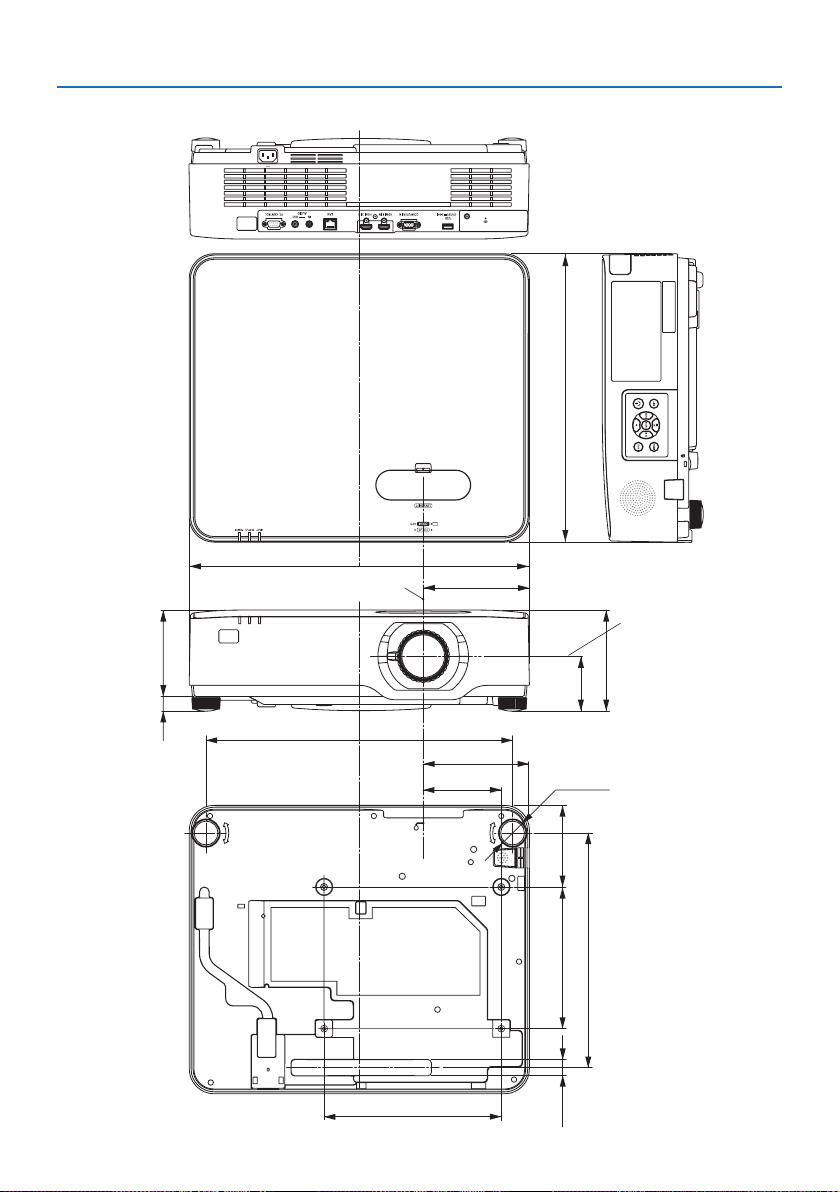
9. Appendix
136
122 (4.8)20.5 (0.8)
77.5 (3.1)
115.1 (4.5)
200 (7.9)
110 (4.3)
149.7 (5.9)
142.5 (5.6)
480 (18.9)
407 (16)
149.7 (5.9)
250 (9.8)
331 (13)
23.1 (0.9)
39.9 (1.6)
432.5 (17)
9-4. Cabinet Dimensions
Unit: mm (inch)
Lens center
Lens center
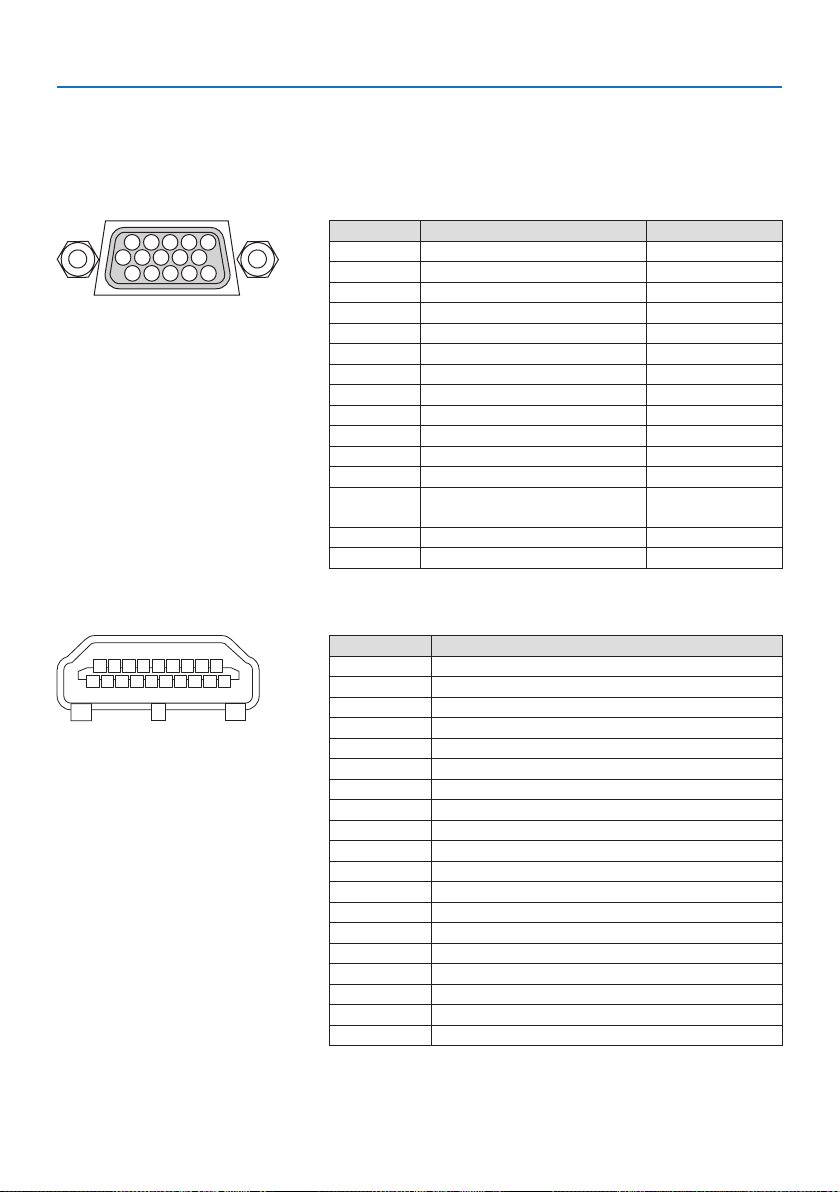
9. Appendix
137
9-5. Pin assignments and signal names of main terminals
COMPUTER IN Terminal (Mini D-Sub 15 Pin)
Connection and signal level of each pin
51423
10
11 12 13 14 15
6978
Signal Level
Video signal : 0.7Vp-p (Analog)
Sync signal : TTL level
Pin No. RGB Signal (Analog) YCbCr Signal
1 Red Cr
2 Green or Sync on Green Y
3 Blue Cb
4 Ground
5 Ground
6 Red Ground Cr Ground
7 Green Ground Y Ground
8 Blue Ground Cb Ground
9 Hot Plug
10 Sync Signal Ground
11 No Connection
12 Bi-directional DATA (SDA)
13 Horizontal Sync or Composite
Sync
14 Vertical Sync
15 Data Clock
HDMI 1 IN/HDMI 2 IN Terminal (Type A)
1 357911 13 15 17 19
246810 12 14 16 18
Pin No. Signal
1 TMDS Data 2+
2 TMDS Data 2 Shield
3 TMDS Data 2−
4 TMDS Data 1+
5 TMDS Data 1 Shield
6 TMDS Data 1−
7 TMDS Data 0+
8 TMDS Data 0 Shield
9 TMDS Data 0−
10 TMDS Clock +
11 TMDS Clock Shield
12 TMDS Clock−
13 CEC
14 Disconnection
15 SCL
16 SDA
17 DDC/CEC grounding
18 +5 V power supply
19 Hot plug detection
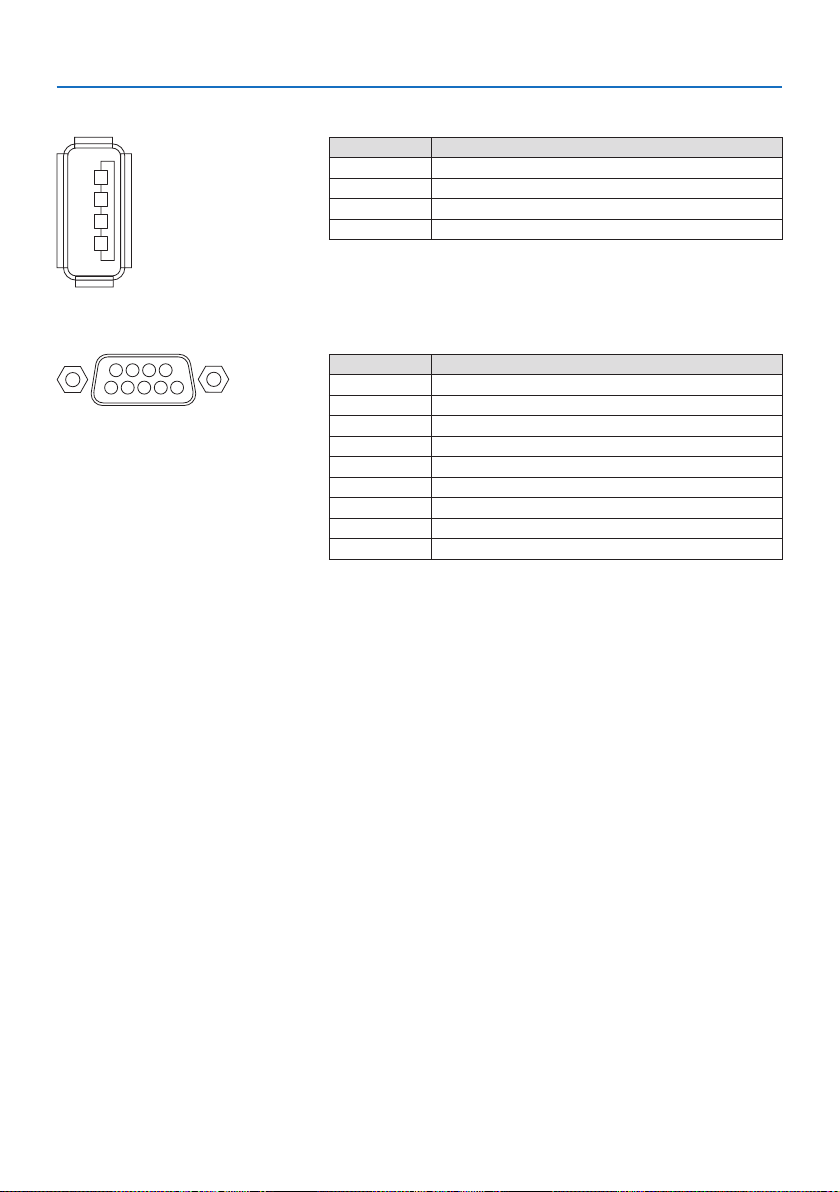
9. Appendix
138
USB Port (Type A)
1
3
2
4
Pin No. Signal
1 V
BUS
2 D−
3 D+
4 Grounding
PC CONTROL Port (D-Sub 9 Pin)
12345
6789
Pin No. Signal
1 Unused
2 RxD reception data
3 TxD transmission data
4 Unused
5 Grounding
6 Unused
7 RTS transmission request
8 CTS transmission allowed
9 Unused
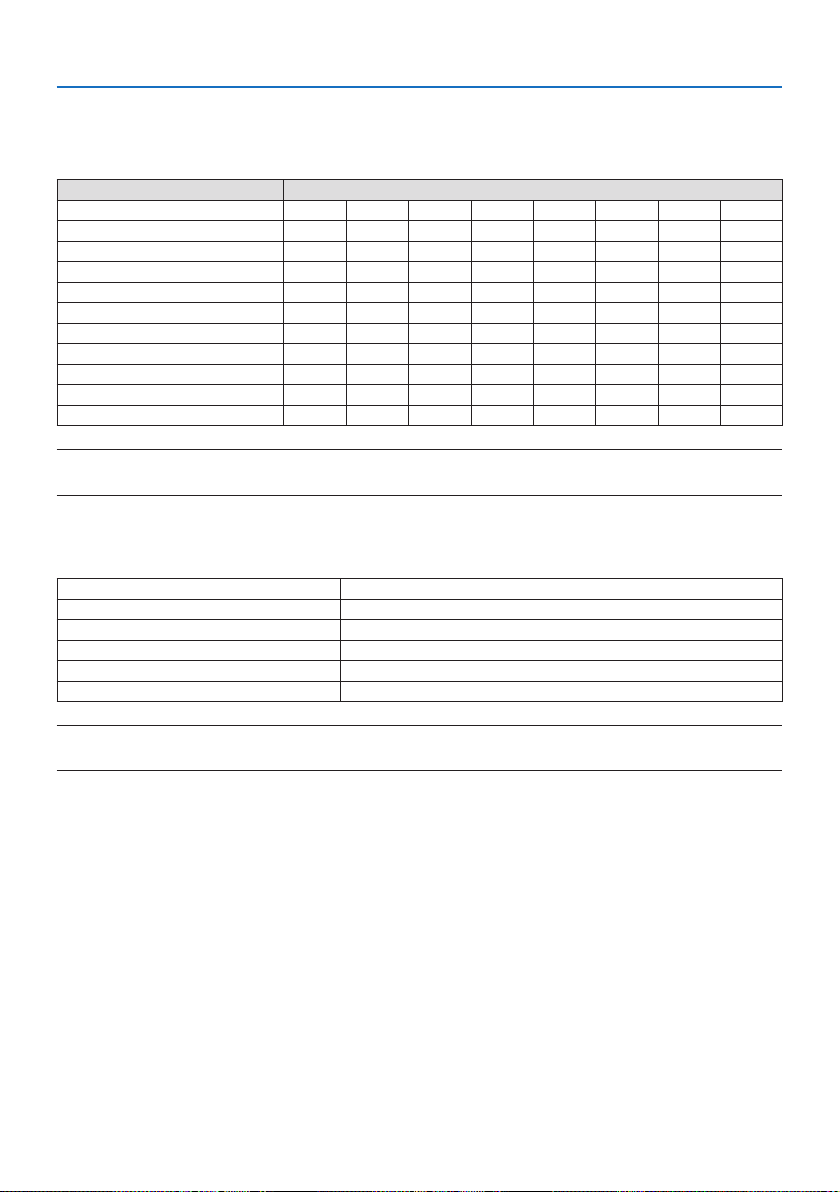
9. Appendix
139
9-6. PC Control Codes and Cable Connection
PC Control Codes
Function Code Data
POWER ON 02H 00H 00H 00H 00H 02H
POWER OFF 02H 01H 00H 00H 00H 03H
INPUT SELECT COMPUTER 02H 03H 00H 00H 02H 01H 01H 09H
INPUT SELECT HDMI1 02H 03H 00H 00H 02H 01H A1H A9H
INPUT SELECT HDMI2 02H 03H 00H 00H 02H 01H A2H AAH
INPUT SELECT USB-A 02H 03H 00H 00H 02H 01H 1FH 27H
INPUT SELECT LAN 02H 03H 00H 00H 02H 01H 20H 28H
PICTURE MUTE ON 02H 10H 00H 00H 00H 12H
PICTURE MUTE OFF 02H 11H 00H 00H 00H 13H
SOUND MUTE ON 02H 12H 00H 00H 00H 14H
SOUND MUTE OFF 02H 13H 00H 00H 00H 15H
NOTE:
•ContactyourlocaldealerforafulllistofthePCControlCodesifneeded.
Cable Connection
Communication Protocol
Baud rate 38400 bps
Data length 8 bits
Parity No parity
Stop bit One bit
X on/o None
Communications procedure Full duplex
NOTE:
•Dependingontheequipment,alowerbaudratemayberecommendedforlongcableruns.
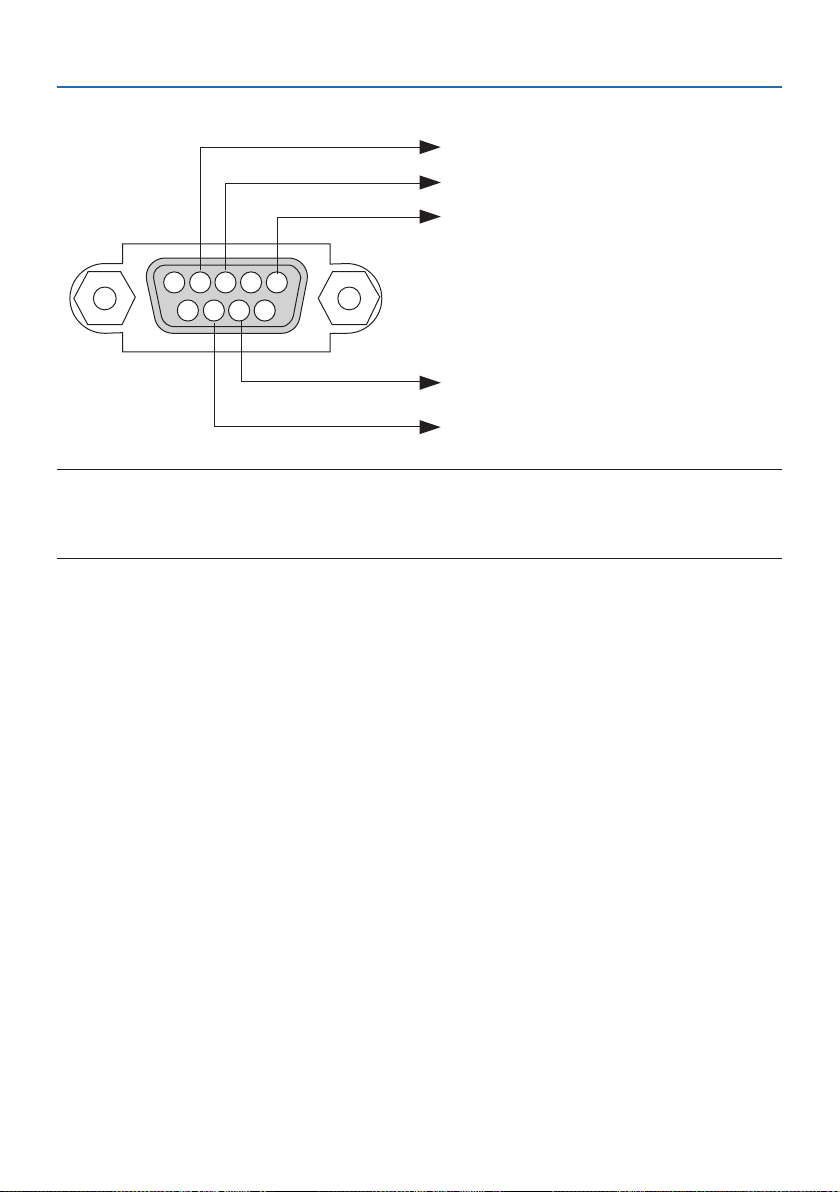
9. Appendix
140
PC Control Terminal (D-Sub 9P)
15243
67 98
To GND of PC
To RxD of PC
To TxD of PC
To RTS of PC
To CTS of PC
NOTE:
•Pins1,4,6and9arenoused.
•Jumper“RequesttoSend”and“CleartoSend”togetheronbothendsofthecabletosimplifycableconnection.
•Forlongcablerunsitisrecommendedtosetcommunicationspeedwithinprojectormenusto9600bps.
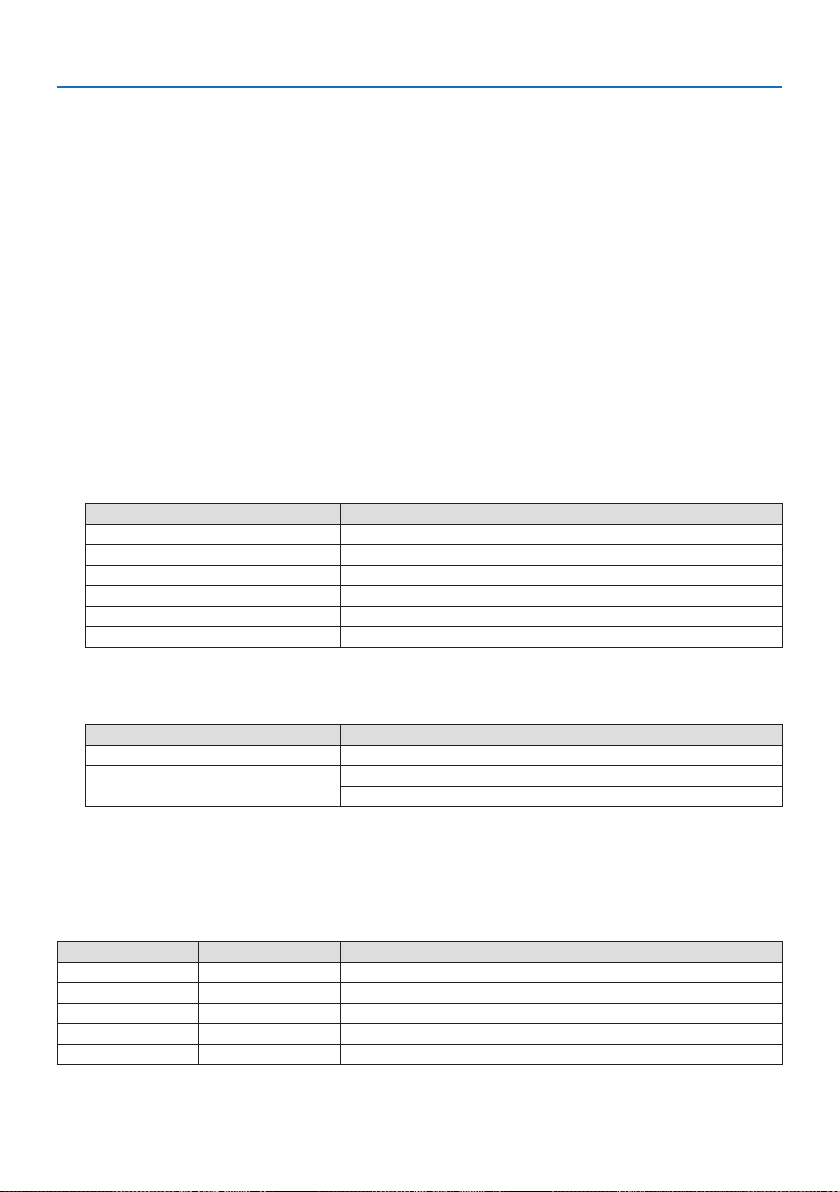
9. Appendix
141
9-7. About the ASCII Control Command
This device supports the common ASCII Control Command for controlling our projector and monitor.
Please visit our web site for detailed information about the command.
https://www.nec-display.com/dl/en/pj_manual/lineup.html
How to connect with an external device
There are two methods to connect the projector with an external device such as a computer.
1. Connection thru the serial port.
Connects the projector to a computer by a serial cable (a cross cable).
2. Connection via network (LAN)
Connects the projector to a computer by a LAN cable.
Concerning to the type of LAN cable, please ask to your network administrator.
Connection interface
1. Connection thru the serial port.
Communication Protocol
Item Information
Baud rate 38400/19200/9600/4800 bps
Data length 8 bits
Parity bit No parity
Stop bit 1 bit
Flow control None
Communications procedure Full duplex
2. Connection via network
Communication Protocol (Connection via LAN)
Item Information
Communication speed Set automatically (10/100 Mbps)
Supported standard IEEE802.3 (10BASE-T)
IEEE802.3u (100BASE-TX, Auto-Negotiation)
Use the TCP port number 7142 for transmitting and receiving command.
Parameters for this device
Input command
Input terminal Response Parameter
HDMI1 hdmi1 hdmi1 or hdmi
HDMI2 hdmi2 hdmi2
COMPUTER computer One among computer, computer1, vga, vga1, rgb, and rgb1
USB-A usb-a usb-a or usb-a1
LAN lan lan or lan1

9. Appendix
142
Status command
Response Error Status
error:temp Temperature error
error:fan Fan trouble
error:light Light source trouble
error:system System trouble

9. Appendix
143
9-8. Troubleshooting
This section helps you resolve problems you may encounter while setting up or using the projector.
Common Problems & Solutions
Problem Check These Items
Doesnotturnonorshut
down
•Checkthatthepowercordispluggedinandthatthepowerbuttonontheprojectorcabinetorthe
remotecontrolison.(→pages16,18)
•Checktoseeiftheprojectorhasoverheated.Ifthereisinsucientventilationaroundtheprojector
oriftheroomwhereyouarepresentingisparticularlywarm,movetheprojectortoacoolerlocation.
•Thelightmodulemayfailtolight.Waitafullminuteandthenturnonthepoweragain.
•Set[FANMODE]to[HIGHALTITUDE]whenusingtheprojectorataltitudesapproximately5200
feet/1600metersorhigher.Usingtheprojectorataltitudesapproximately5200feet/1600meters
orhigherwithoutsettingto[HIGHALTITUDE]cancausetheprojectortooverheatandtheprojector
couldshutdown.Ifthishappens,waitacoupleminutesandturnontheprojector.(→page
74)
Ifyouturnontheprojectorimmediatelyafterthelightmoduleisturnedo,thefansrunwithout
displayinganimageforsometimeandthentheprojectorwilldisplaytheimage.Waitforamoment.
•Incaseit’shardtothinkthetroubleisnotcausedontheabovementionedconditions,unplugthe
powercordfromtheoutlet.Thenwait5minutesbeforepluggingitinagain.(→page33)
Willturno•Ensurethatthe[OFFTIMER]or[AUTOPOWEROFF]iso.(→page65,78)
Nopicture•Checkiftheappropriateinputisselected.(→page20)Ifthereisstillnopicture,presstheSOURCE
buttonoroneofthesourcebuttonsagain.
•Ensureyourcablesareconnectedproperly.
•Usemenustoadjustthebrightnessandcontrast.(→page58)
•CheckthattheAV-MUTE(imageo)buttonsarenotpressed.
•Resetthesettingsoradjustmentstofactorypresetlevelsusingthe[RESET]intheMenu.
(→page82)
•EnteryourregisteredkeywordiftheSecurityfunctionisenabled.(→page45)
•IftheHDMI1INortheHDMI2INsignalcannotbedisplayed,trythefollowing.
-Reinstallyourdriverforthegraphicscardbuiltinyourcomputer,orusetheupdateddriver.
Forreinstallingorupdatingyourdriver,refertotheuserguideaccompaniedwithyourcomputer
orgraphicscard,orcontactthesupportcenterforyourcomputermanufacturer.
InstalltheupdateddriverorOSonyourownresponsibility.
Wearenotliableforanytroubleandfailurecausedbythisinstallation.
•BesuretoconnecttheprojectorandnotebookPCwhiletheprojectorisinstandbymodeandbefore
turningonthepowertothenotebookPC.
InmostcasestheoutputsignalfromthenotebookPCisnotturnedonunlessconnectedtothe
projectorbeforebeingpoweredup.
*Ifthescreengoesblankwhileusingyourremotecontrol,itmaybetheresultofthecomputer’s
screen-saverorpowermanagementsoftware.
•Seealsothepage145.
Picturesuddenlybecomes
dark
•CheckiftheprojectorisintheForcedECOmodebecauseoftoohighambienttemperature.

9. Appendix
144
Problem Check These Items
Colortoneorhueisunusual•Checkifanappropriatecolorisselectedin[WALLCOLOR].Ifso,selectanappropriateoption.
(→page63)
•Adjust[HUE]in[PICTURE].(→page58)
Imageisn’tsquaretothe
screen
•Repositiontheprojectortoimproveitsangletothescreen.(→page22)
•UsetheKeystonecorrectionfunctiontocorrectthetrapezoiddistortion.(→page28)
Pictureisblurred•Adjustthefocus.(→page25)
•Repositiontheprojectortoimproveitsangletothescreen.(→page22)
•Ensurethatthedistancebetweentheprojectorandscreeniswithintheadjustmentrangeofthe
lens.(→page121)
•Hasthelensbeenshiftedbyanamountexceedingtheguaranteedrange?(→page128)
•Condensationmayformonthelensiftheprojectoriscold,broughtintoawarmplaceandisthen
turnedon.Shouldthishappen,lettheprojectorstanduntilthereisnocondensationonthelens.
Imageisscrollingvertically,
horizontallyorboth
•Checkthecomputer’sresolutionandfrequency.Makesurethattheresolutionyouaretryingtodisplay
issupportedbytheprojector.(→page131)
•Adjustthecomputerimagemanuallywiththe[HORIZONTAL]/[VERTICAL]inthe[IMAGEOPTIONS].
(→page60)
Remotecontroldoesnot
work
•Installnewbatteries.(→page13)
•Makesuretherearenoobstaclesbetweenyouandtheprojector.
•Standwithin23feet(7m)oftheprojector.(→page14)
•Theremotecontrolsensoronthebackoftheprojectorcannotbeusedwhenthecablecoveris
mountedontheprojector.
Indicatorislitorblinking•SeethePOWER/STATUS/LIGHTIndicator.(→page146)
CrosscolorinRGBmode•PresstheAUTOADJ.buttonontheremotecontrol.(→page32)
•Adjustthecomputerimagemanuallywith[CLOCK]/[PHASE]in[IMAGEOPTIONS]inthemenu.
(→page59)
For more information contact your dealer.

9. Appendix
145
If there is no picture, or the picture is not displayed correctly.
•PoweronprocessfortheprojectorandthePC.
Be sure to connect the projector and notebook PC while the projector is in standby mode and
before turning on the power to the notebook PC.
In most cases the output signal from the notebook PC is not turned on unless connected to the
projector before being powered up.
NOTE:
•Youcancheckthehorizontalfrequencyofthecurrentsignalintheprojector’smenuunderInformation.Ifitreads“0kHz”,this
meansthereisnosignalbeingoutputfromthecomputer.(→page80orgotonextstep)
•Enablingthecomputer’sexternaldisplay.
Displaying an image on the notebook PC’s screen does not necessarily mean it outputs a signal
to the projector. When using a PC compatible laptop, a combination of function keys will enable/
disable the external display. Usually, the combination of the “Fn” key along with one of the 12
function keys gets the external display to come on or o. For example, NEC laptops use Fn + F3,
while Dell laptops use Fn + F8 key combinations to toggle through external display selections.
•Non-standardsignaloutputfromthecomputer
If the output signal from a notebook PC is not an industry standard, the projected image may
not be displayed correctly. Should this happen, deactivate the notebook PC’s LCD screen when
the projector display is in use. Each notebook PC has a dierent way of deactivate/reactivate the
local LCD screens as described in the previous step. Refer to your computer’s documentation for
detailed information.
•ImagedisplayedisincorrectwhenusingaMac
When using a Mac with the projector, set the DIPswitch of the Mac adapter (not supplied with
the projector) according to your resolution. After setting, restart your Mac for the changes to take
aect.
For setting display modes other than those supported by your Mac and the projector, changing
the DIP switch on a Mac adapter may bounce an image slightly or may display nothing. Should
this happen, set the DIP switch to the 13" xed mode and then restart your Mac. After that, restore
the DIP switches to a displayable mode and then restart the Mac again.
NOTE:
•AVideoAdaptercablemanufacturedbyAppleInc.isneededforaMacBookwhichdoesnothaveaminiD-Sub15-pinterminal.
•MirroringonaMacBook
* When using the projector with a MacBook, output may not be set to the display resolution of
the projector unless “mirroring” is o on your MacBook. Refer to owner’s manual supplied with
your Mac computer for mirroring.
•FoldersoriconsarehiddenontheMacscreen
Folders or icons may not be seen on the screen. Should this happen, select [View] → [Arrange]
from the Apple menu and arrange icons.
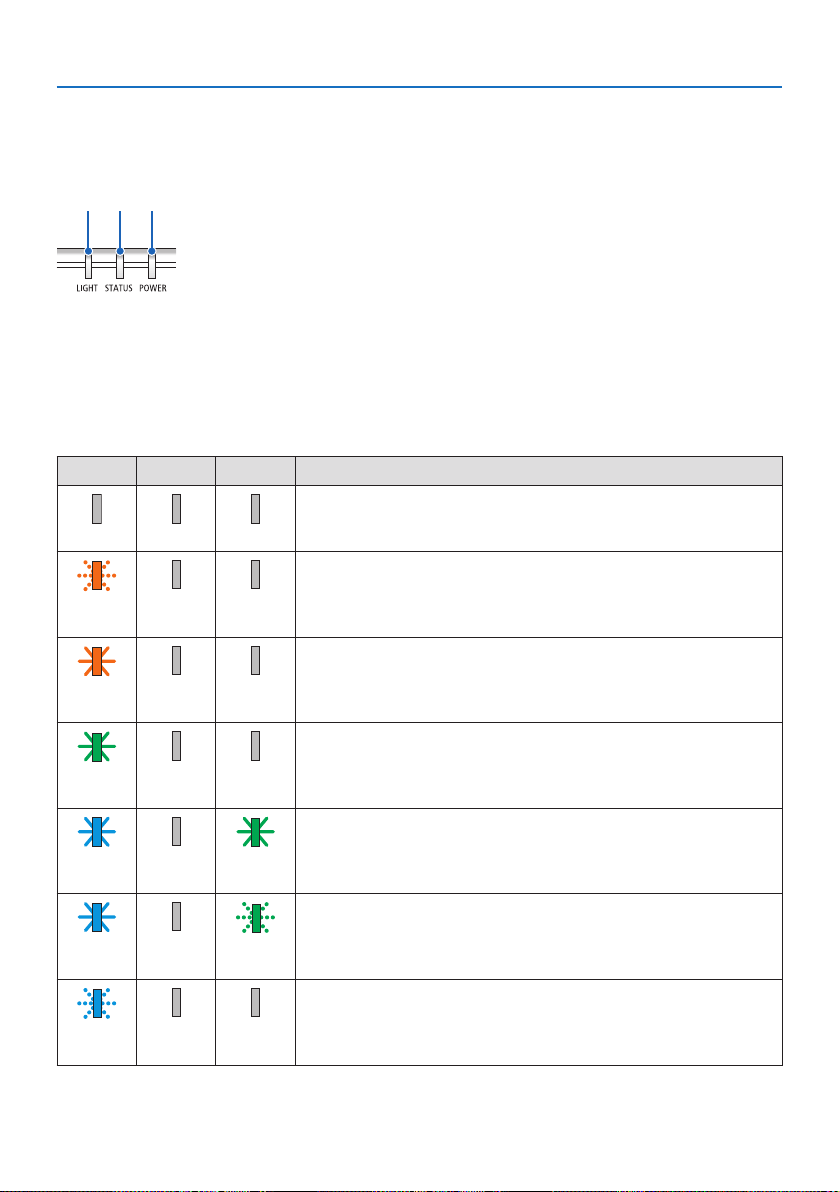
9. Appendix
146
9-9. Indicator Message
Feature of each indicator
①②③
① POWER indicator
This indicator informs the power status of the projector.
② STATUS indicator
Lights up/ashes when a button is pressed with the [CONTROL PANEL
LOCK] enabled, or when an error occurs in the projector.
③ LIGHT indicator
This indicator informs the state of light source, used time of the light
source.
Indicator Message (Status message)
POWER STATUS LIGHT Projector status
Power is o
OOO
In the state of Standby ([STANDBY MODE] is [NORMAL])
Orange
(Blink*
1
)
OO
In the state of Standby ([STANDBY MODE] is [NETWORK STANDBY])
Orange
(Light)
OO
In the state of Sleep
Green
(Light)
OO
Powered state ([ECO MODE] is [OFF])
Blue
(Light)
OGreen
(Light)
Powered state ([ECO MODE] is [ECO] or [LONG LIFE])
Blue
(Light)
OGreen
(Blink*
2
)
[OFF TIMER] is activated (Powered state)
Blue
(Blink*
2
)
OStatusvaries

9. Appendix
147
POWER STATUS LIGHT Projector status
Preparing for powering ON
Blue
(Blink*
3
)
OO
*1 Repetition to light on for 1.5 seconds / o for 7.5 seconds
*2 Repetition to light on for 2.5 seconds / o for 0.5 seconds
*3 Repetition to light on for 0.5 seconds / o for 0.5 seconds
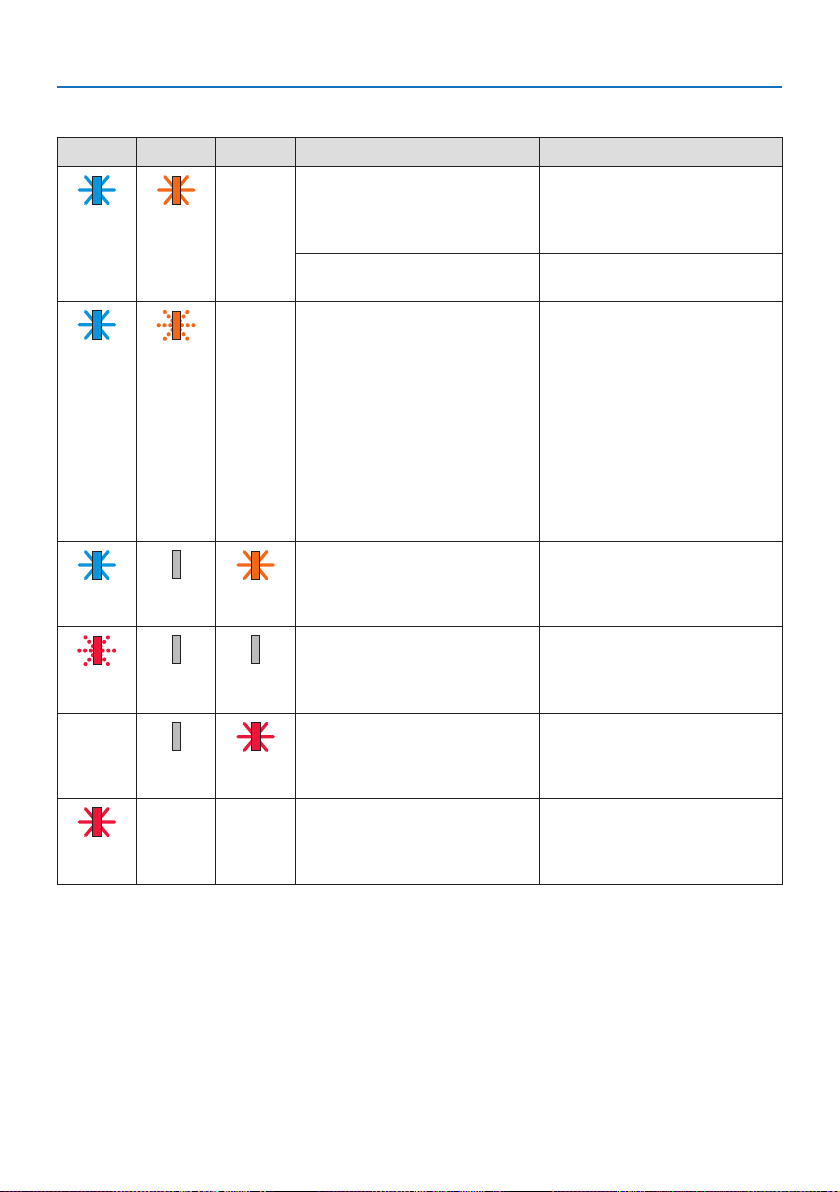
9. Appendix
148
Indicator Message (Error message)
POWER STATUS LIGHT Projector status Procedure
A button has been pressed while
the [CONTROL PANEL LOCK] is
activated.
The projector’s keys are locked.
The setting must be canceled to
operate the projector.
(→ page 71)
Blue
(Light)
Orange
(Light)
Statusvaries
ID numbers for the projector and
the remote control do not match.
Check the control IDs (→ page
72)
Network conict Both the built-in wired LAN and
the wireless LAN cannot be con-
nected to the same network at
the same time.
To use both built-in wired LAN
and wireless LAN at the same
time, connect them to dierent
networks.
NOTE: In the Standby condition,
the status indicator on the cabi-
net does not blink in orange even
if the network conicts.
Blue
(Light)
Orange
(Blink*
4
)
Statusvaries
Temperature problem (In the
Forced ECO mode)
Ambient temteprature is high.
Lower the room temperature.
Blue
(Light)
OOrange
(Light)
Temperature problem Ambient temperature is out of
the operation temperature. Check
if any obstruction stays near the
exhaust vent.
Red
(Blink*
3
)
OO
Hardware problem Problem with the hardware.
Contact your dealer.
StatusvariesORed
(Blink*
3
)
Error requiring service support Contact your dealer or service
personnel. Make sure to check
and inform indicator status for
asking to repair.
Red
(Light)
StatusvariesStatusvaries
*3 Repetition to light on for 0.5 seconds / o for 0.5 seconds
*4 Repetition to light on for 0.5 seconds / o for 2.5 seconds

9. Appendix
149
When the thermal protector is activated:
When inside temperature of the projector becomes too high or low, the POWER indicator start to
red blink in a short cycle. After this happened, the thermal protector will activate and the projector
may be turned o.
In this case, please take the below measures:
•Pulloutthepowerplugfromthewallinlet.
•Placetheprojectorincoolplaceifithasbeenplacedinhighambienttemperature.
•Cleantheexhaustventifdusthasaccumulatedon.
•Leavetheprojectorforaboutonehouruntilinsidetemperaturegetslower.
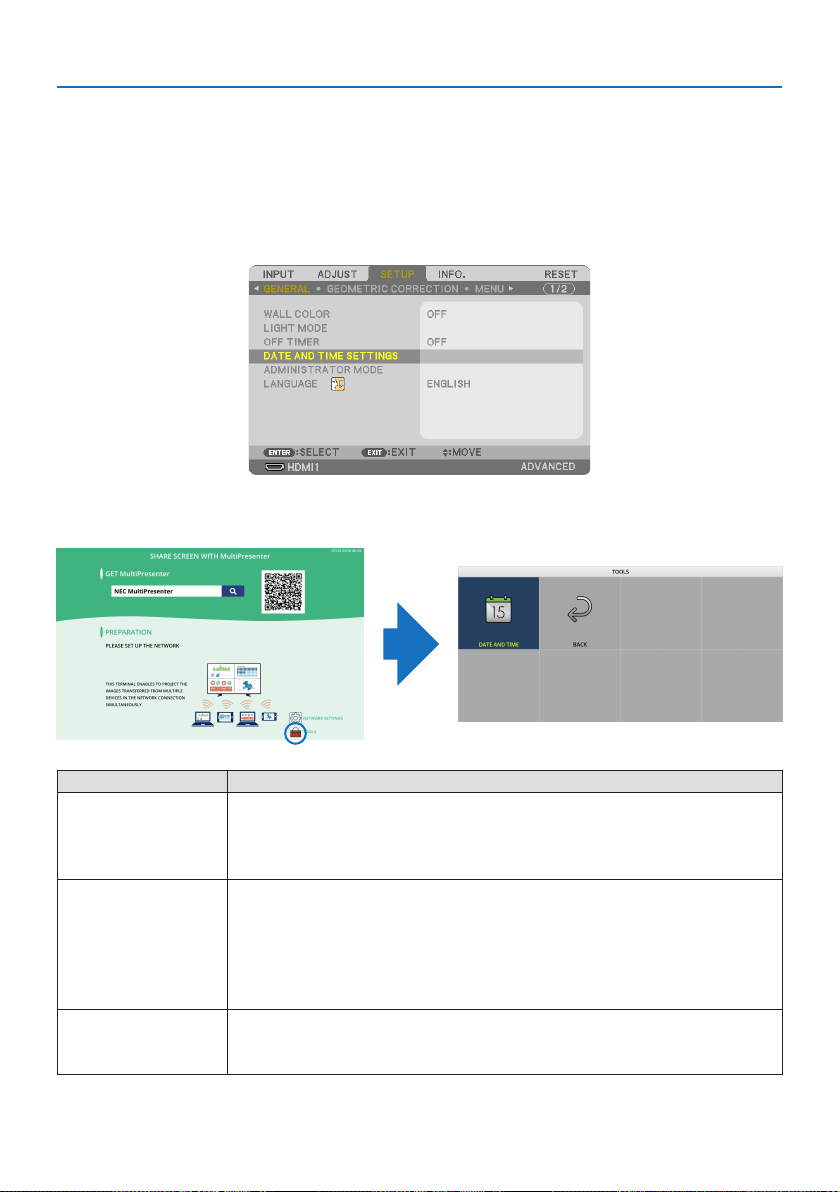
9. Appendix
150
9-10. Setting the date and time in the projector
Set the current date and time and daylight saving time in the projector. When set, the date and time
appear in the upper right corner of the MultiPresenter start-up screen.
There are 2 ways of displaying the screen for [DATE AND TIME SETTINGS] as shown below.
1. Display the on-screen menu and select [SETUP] → [GENERAL] → [DATE AND TIME SETTINGS].
(NOTE: At this point, the input terminal switches to [LAN]. )
2. Switch the input terminal to [LAN], display the “MultiPresenter start-up screen” and select [TOOLS]
→ [DATE AND TIME].
ItemnameDescription
TIMEZONESETTINGSSetthetimedierencebetweentheregionwheretheprojectorisusedandtheUTC(Universal
Time,Coordinated).
•Initialvalue:+00:00
•WhenusingtheprojectorinJapan,setthetimeas[+09:00].
DATEANDTIMESETTINGSSetsthecurrentdateandtime.
•Whenshippedfromthefactory,thetimeissettotheUTC(UniversalTime,Coordinated).By
settingthetimezoneofyourarea,thecurrentdateandtimewillbedisplayed.
•WhensynchronizingthetimewiththeNTPserveronthenetworktoobtainthecorrecttime,set
[SYNCHRONIZETOINTERNETTIMESERVER.]to[ENABLE].ThenentertheIPaddressoftheNTP
serverorthe[HOSTNAME]andperform[UPDATE].
SUMMERTIMESETTINGSSetthedaylightsavingtime.
•Setthedaylightsavingtimesettingto[ENABLE].
•Setthestartandendofthedaylightsavingtime,aswellaseachitemofthetimedierence.

9. Appendix
151
Important:
•Whenaperiodofaboutoneormoremonthshaspassedafterdisconnectingthepowercordoftheprojector,thetimewillbe
initializedandtheclockfunctionwillstop.Wheninitialized,thedatebecomes[01/01/2018]andthetimebecomes[00:00].Ifthe
clockfunctionhasstopped,congurethe[DATEANDTIMESETTINGS]again.
NOTE:
•Tochangethedateandtimebyinputtingthemdirectly,deletethecurrentlydisplayednumberstheninputthenewnumbers
(overwritingisnotpossible).
•Whenthe[SUMMERTIMESETTINGS]isenabled,thesamestartdateorenddatespeciedinthedaylightsavingtimecannotbe
setfor[DATEANDTIMESETTINGS].

9. Appendix
152
9-11. Troubleshooting Check List
Before contacting your dealer or service personnel, check the following list to be sure repairs are
needed also by referring to the “Troubleshooting” section in your user’s manual. This checklist below
will help us solve your problem more eciently.
* Print this page and the next page for your check.
Frequency of occurrence:
□always□sometimes(Howoften?_________________________)□other(_____________________)
Power
□
Nopower(POWERindicatordoesnotlightblue).Seealso“Status
Indicator(STATUS)”.
□
Powercord’splugisfullyinsertedintothewalloutlet.
□
MainpowerswitchispressedtotheONposition.
□
NopowereventhoughyoupressandholdthePOWERbutton.
□
Shutdownduringoperation.
□
Powercord’splugisfullyinsertedintothewalloutlet.
□
[AUTOPOWEROFF]isturnedo(onlymodelswiththe[AUTO
POWEROFF]function).
□
[OFFTIMER]isturnedo(onlymodelswiththe[OFFTIMER]
function).
Video and Audio
□
NoimageisdisplayedfromyourPCorvideoequipmenttothe
projector.
□
StillnoimageeventhoughyouconnecttheprojectortothePC
rst,thenstartthePC.
□
EnablingyournotebookPC’ssignaloutputtotheprojector.
•Acombinationoffunctionkeyswillenable/disablethe
externaldisplay.Usually,thecombinationofthe“Fn”key
alongwithoneofthe12functionkeysturnstheexternal
displayonoro.
□
Noimage(blueorblackbackground,nodisplay).
□
StillnoimageeventhoughyoupresstheAUTOADJ.button.
□
Stillnoimageeventhoughyoucarryout[RESET]intheprojec-
tor’smenu.
□
Signalcable’splugisfullyinsertedintotheinputterminal
□
Amessageappearsonthescreen.
(_____________________________________)
□
Thesourceconnectedtotheprojectorisactiveandavailable.
□
Stillnoimageeventhoughyouadjustthebrightnessand/or
thecontrast.
□
Inputsource’sresolutionandfrequencyaresupportedbythe
projector.
□
Imageistoodark.
□
Remainsunchangedeventhoughyouadjustthebrightness
and/orthecontrast.
□
Imageisdistorted.
□
Imageappearstobetrapezoidal(unchangedeventhoughyou
carryoutthe[KEYSTONE]adjustment).
□
Partsoftheimagearelost.
□
StillunchangedeventhoughyoupresstheAUTOADJ.button.
□
Stillunchangedeventhoughyoucarryout[RESET]inthe
projector’smenu.
□
Imageisshiftedintheverticalorhorizontaldirection.
□
Horizontalandverticalpositionsarecorrectlyadjustedona
computersignal.
□
Inputsource’sresolutionandfrequencyaresupportedbythe
projector.
□
Somepixelsarelost.
□
Imageisickering.
□
StillunchangedeventhoughyoupresstheAUTOADJ.button.
□
Stillunchangedeventhoughyoucarryout[RESET]inthe
projector’smenu.
□
Imageshowsickeringorcolordriftonacomputersignal.
□
Stillunchangedeventhoughyouchange[FANMODE]from[HIGH
ALTITUDE]to[AUTO].
□
Imageappearsblurryoroutoffocus.
□
Stillunchangedeventhoughyoucheckedthesignal’sresolution
onPCandchangedittoprojector’snativeresolution.
□
Stillunchangedeventhoughyouadjustedthefocus.
□
Nosound.
□
Audiocableiscorrectlyconnectedtotheaudioinputofthe
projector.
□
Stillunchangedeventhoughyouadjustedthevolumelevel.
□
AUDIOOUTisconnectedtoyouraudioequipment(onlymodels
withtheAUDIOOUTterminal).
Other
□
Remotecontroldoesnotwork.
□
Noobstaclesbetweenthesensoroftheprojectorandthe
remotecontrol.
□
Projectorisplacednearauorescentlightthatcandisturbthe
infraredremotecontrols.
□
IDfortheprojectorandfortheremotearesame.
□
Buttonsontheprojectorcabinetdonotwork(onlymodelswiththe
[CONTROLPANELLOCK]function)
□
[CONTROLPANELLOCK]isnotturnedonorisdisabledinthe
menu.
□
StillunchangedeventhoughyoupressandholdtheINPUT
buttonover10seconds.
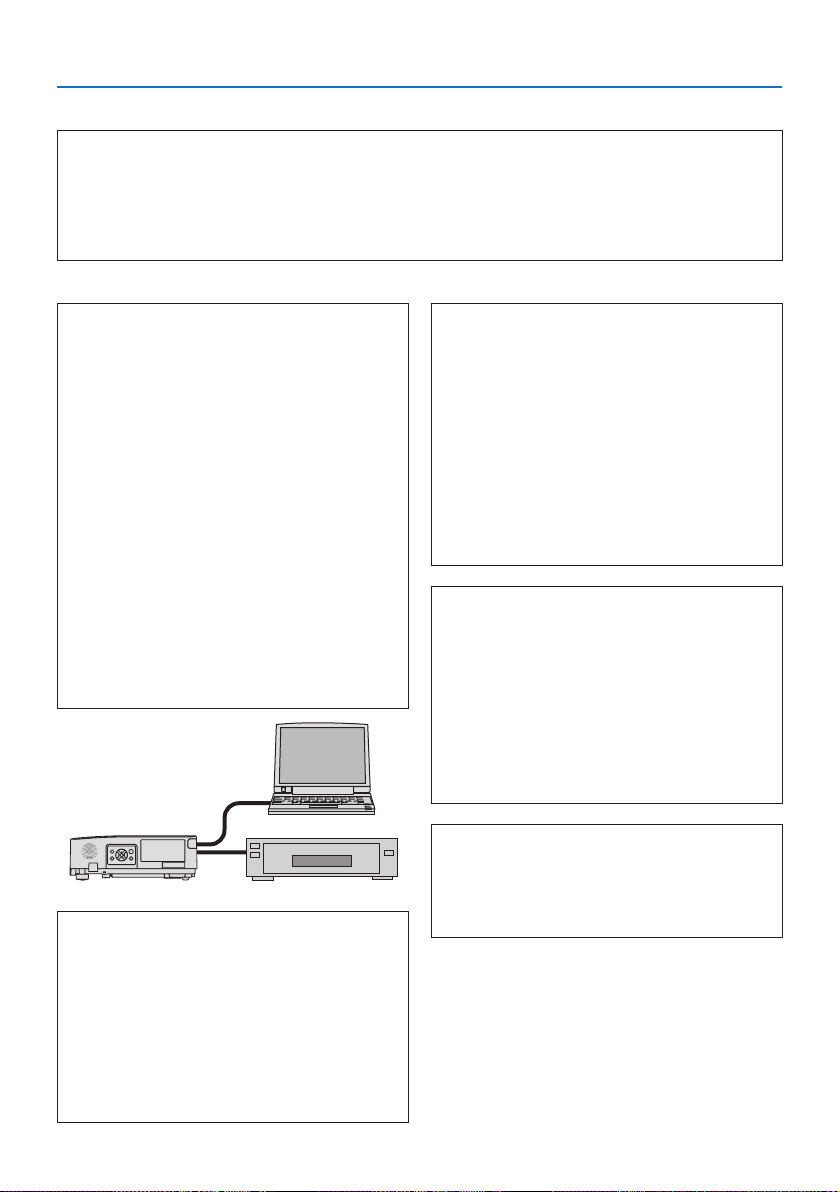
9. Appendix
153
In the space below please describe your problem in detail.
Information on application and environment where your projector is used
Projector
Modelnumber:
SerialNo.:
Dateofpurchase:
Lightmoduleoperatingtime(hours):
ECOMODE:□OFF□ECO
□LONGLIFE
Informationoninputsignal:
Horizontalsynchfrequency[]kHz
Verticalsynchfrequency[]Hz
SynchpolarityH□(+)□(−)
V□(+)□(−)
Synchtype□Separate □Composite
□SynconGreen
STATUSIndicator:
Steadylight□Orange□Green
Flashinglight[]cycles
Remotecontrolmodelnumber:
Projector
PC
DVD player
Signal cable
NECstandardorothermanufacturer’scable?
Modelnumber:Length:inch/m
Distributionamplier
Modelnumber:
Switcher
Modelnumber:
Adapter
Modelnumber:
Installation environment
Screensize:inch
Screentype:□Whitematte □Beads□Polarization
□Wideangle□Highcontrast
Throwdistance:feet/inch/m
Orientation: □Ceilingmount□Desktop
Poweroutletconnection:
□Connecteddirectlytowalloutlet
□Connectedtopowercordextenderorother(thenumberof
connectedequipment______________)
□Connectedtoapowercordreelorother(thenumberof
connectedequipment______________)
Computer
Manufacturer:
Modelnumber:
NotebookPC□/Desktop□
Nativeresolution:
Refreshrate:
Videoadapter:
Other:
Videoequipment
VCR,DVDplayer,Videocamera,Videogameorother
Manufacturer:
Modelnumber:

9. Appendix
154
9-12. REGISTER YOUR PROJECTOR! (for residents in the United States,
Canada, and Mexico)
Please take time to register your new projector. This will activate your limited parts and labor war-
ranty and InstaCare service program.
Visit our web site at www.necdisplay.com, click on support center/register product and submit
your completed form online.
Upon receipt, we will send a conrmation letter with all the details you will need to take advantage
of fast, reliable warranty and service programs from the industry leader, NEC Display Solutions of
America, Inc.

© NEC Display Solutions, Ltd. 2019 7N952911