TOSHIBA
Dear Customer,
Thank you for purchasing this Toshiba TV.This manual will
help you use the many exciting features of your new TV.
Before operating the TV, please read this manual
completely, and keep it nearby for future reference.
Safety Precautions
WARNING
TO REDUCE THE RISK OF FIRE OR ELECTRIC SHOCK,
DO NOT EXPOSE THIS APPLIANCE TO RAIN OR
MOISTURE.
WARNING: TO REDUCE THE RISK OF ELECTRIC
SHOCK, DO NOT REMOVE COVER (OR BACK).
NO USER-SERVICEABLE PARTS INSIDE. REFER
SERVICING TO QUALIFIED SERVICE PERSONNEL.
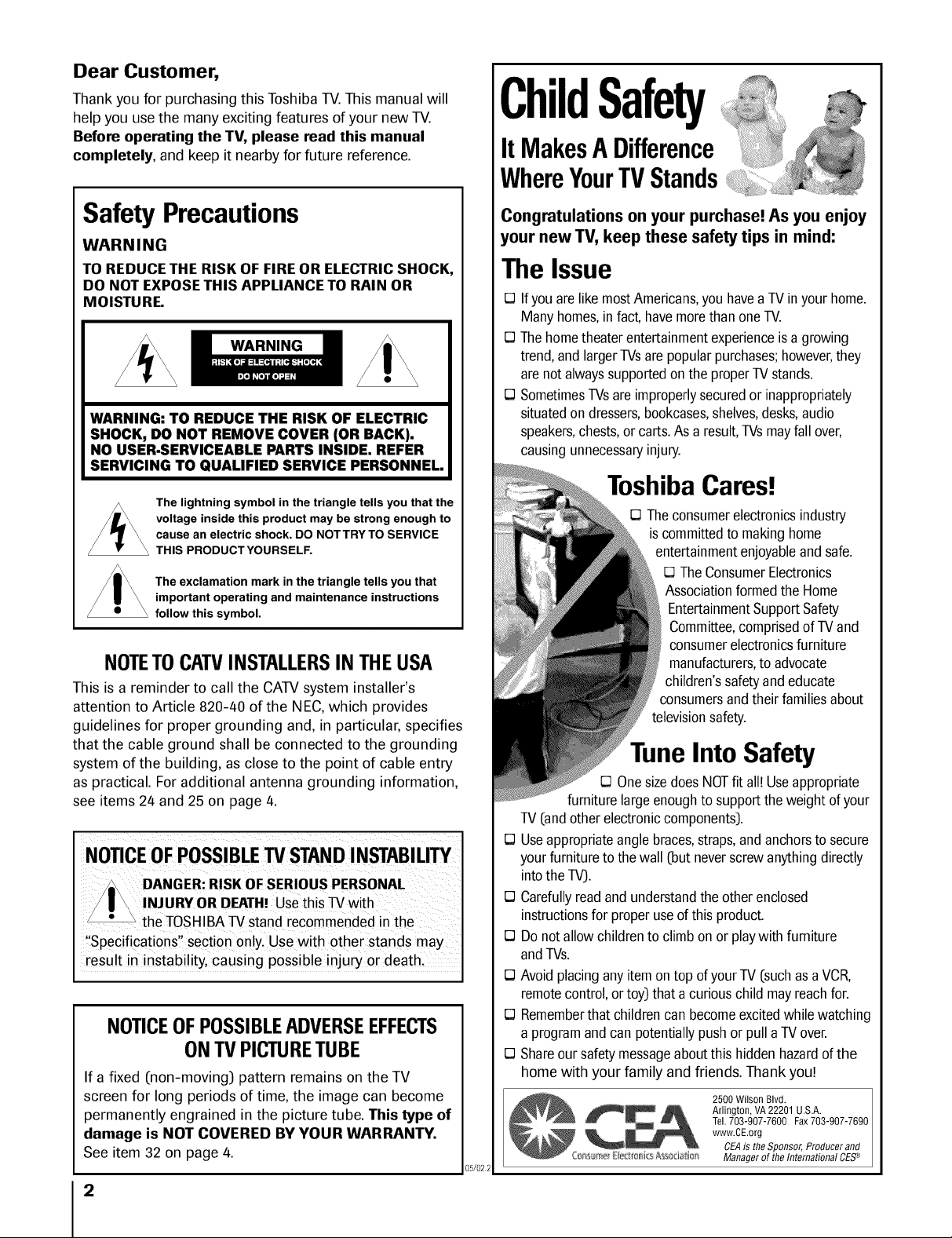
The lightning symbol in the triangle tells you that the
voltage inside this product may be strong enough to
cause an electric shock. DO NOT TRY TO SERVICE
THIS PRODUCT YOURSELF.
The exclamation mark in the triangle tells you that
important operating and maintenance instructions
follow this symbol.
NOTETOCATVINSTALLERSIN THEUSA
This is a reminder to call the CATVsystem installer's
attention to Article 820-40 of the NEC, which provides
guidelines for proper grounding and, in particular, specifies
that the cable ground shall be connected to the grounding
system of the building, as close to the point of cable entry
as practical. For additional antenna grounding information,
see items 24 and 25 on page 4.
NOTICEOFPOSSIBLEW STANDINSTABILITY
DANGER:RISK OF SERIOUSPERSONAL
INJURYOR DEATH!Usethis TVwith
the TOSHIBATV stand recommended in the
"Specifications" section only. Use with other stands may
result in instability, causing possible injury or death.
NOTICEOFPOSSIBLEADVERSEEFFECTS
ONTV PICTURETUBE
If a fixed (non-moving) pattern remains on the TV
screen for long periods of time, the image can become
permanently engrained in the picture tube. This type of
damage is NOT COVERED BY YOUR WARRANTY.
See item 32 on page 4.
2
05/022
ChildSafety
It MakesA Difference
WhereYourTVStands
Congratulations on your purchase! As you enjoy
your new TV, keep these safety tips in mind:
The Issue
E3Ifyou are like mostAmericans,you havea TV inyour home.
Manyhomes,in fact, havemorethan oneTV.
E3The hometheaterentertainmentexperienceis a growing
trend,and largerTVsare popular purchases;however,they
arenot alwayssupportedonthe properTV stands.
E3SometimesTVsareimproperlysecuredor inappropriately
situatedon dressers,bookcases,shelves,desks,audio
speakers,chests,or carts.As a result,TVsmayfall over,
causingunnecessaryinjury.
ToshibaCares!
E3Theconsumerelectronicsindustry
is committedto makinghome
entertainmentenjoyableandsafe.
E3TheConsumerElectronics
Associationformedthe Home
EntertainmentSupportSafety
Committee,comprisedof TVand
consumerelectronicsfurniture
manufacturers,to advocate
children'ssafetyandeducate
consumersandtheir familiesabout
televisionsafety.
Into Safety
E3Onesizedoes NOTfit all! Useappropriate
furniture largeenoughto supportthe weight of your
TV (andotherelectroniccomponents).
E3Useappropriateanglebraces,straps,andanchorsto secure
your furnitureto the wall (but neverscrewanythingdirectly
into the TV).
E3Carefullyreadand understandthe other enclosed
instructionsfor properuseof thisproduct.
E3Do not allowchildrento climb on or playwith furniture
andTVs.
E3Avoid placingany itemontop of yourTV (suchasa VCR,
remotecontrol,or toy) that a curiouschild may reachfor.
E3Rememberthat childrencan becomeexcitedwhile watching
a programand can potentiallypushor pull a TVover.
E3Shareour safetymessageabout this hiddenhazardof the
home with your family and friends. Thank you!
2500 Wilson Blvd.
Arlington, VA 22201 U.S.A.
Tel.703-907-7600 Fax703-907-7690
www.CE.org
CEAis the Sponsor,Producerand
Q_r_,l_rr_e_E_.qror_i_Asso_ia_isr_ Managerof the International CES_
Important Safety Instructions
1] Read these instructions.
2] Keep these instructions.
3] Heed all warnings.
4] Follow all instructions.
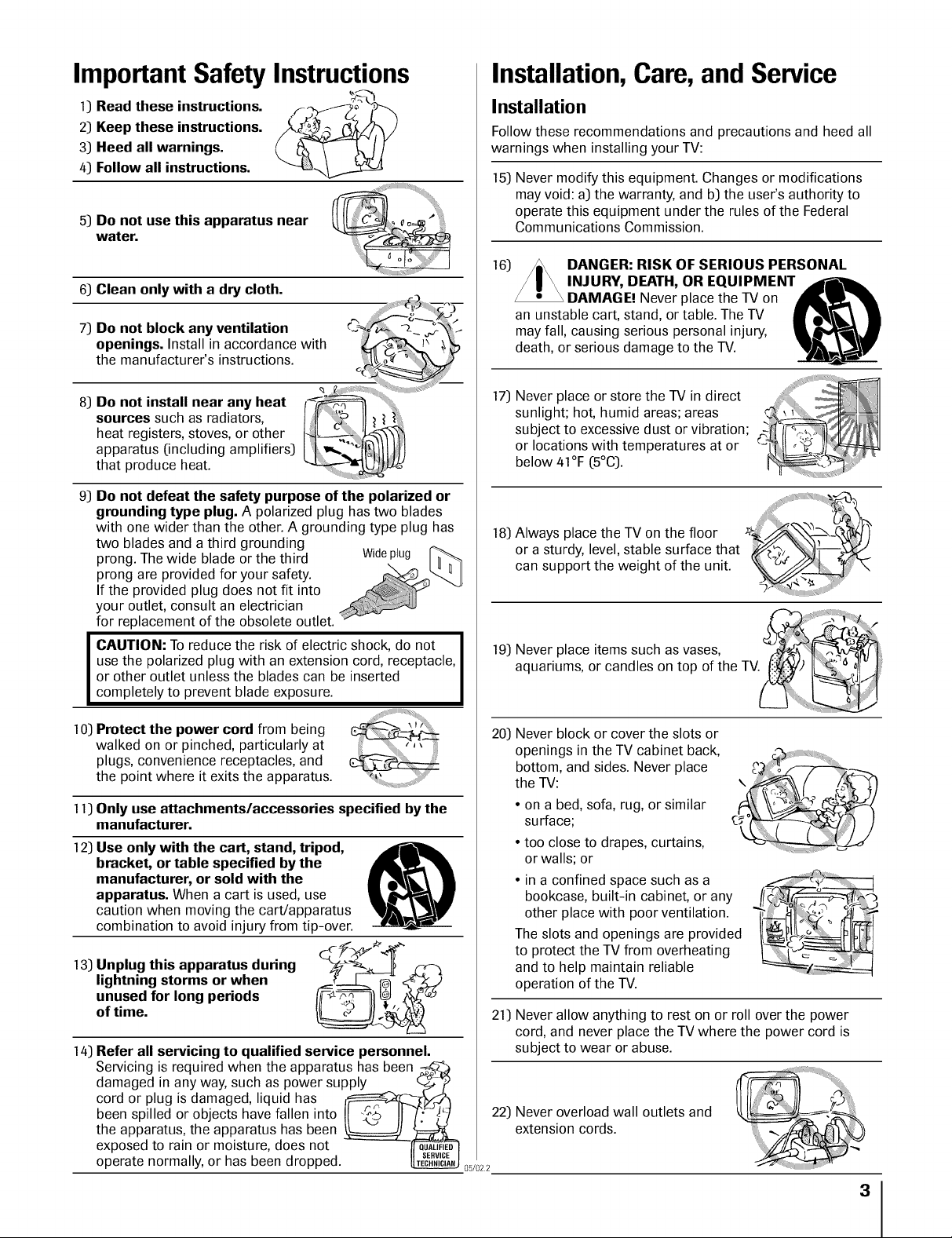
5] Do not use this apparatus near
water.
6] Clean only with a dry cloth.
7] Do not block any ventilation
openings. Install in accordance with
the manufacturer's instructions.
8] Do not install near any heat
sources such as radiators,
heat registers, stoves, or other
apparatus [including amplifiers]
that produce heat.
_ __iiiijiiiiiiiiiJiiiiiiiiHii_iii_i
9] Do not defeat the safety purpose of the polarized or
grounding type plug. A polarized plug has two blades
with one wider than the other. A grounding type plug has
two blades and a third grounding
prong. The wide blade or the third Wideplug
\
prong are provided for your safety.
If the provided plug does not fit into
your outlet, consult an electrician
for replacement of the obsolete outlet.
CAUTION: To reduce the risk of electric shock, do not
use the polarized plug with an extension cord, receptacle,
or other outlet unless the blades can be inserted
completely to prevent blade exposure.
10] Protect the power cord from being
walked on or pinched, particularly at
plugs, convenience receptacles, and
the point where it exits the apparatus.
11] Only use attachments/accessories specified by the
manufacturer.
12] Use only with the cart, stand, tripod,
bracket, or table specified by the
manufacturer, or sold with the
apparatus. When a cart is used, use
caution when moving the cart/apparatus
combination to avoid injury from tip-over.
13] Unplug this apparatus during ?__-_;
lightning storms or when
long periods _ C? _
ofunusedtime. for
14] Refer all servicing to qualified service personnel.
Installation,Care, and Service
Installation
Follow these recommendations and precautions and heed all
warnings when installing your TV:
15] Never modify this equipment. Changes or modifications
may void: a] the warranty, and b] the user's authority to
operate this equipment under the rules of the Federal
Communications Commission.
16]
17]
DANGER: RISK OF SERIOUS PERSONAL
INJURY, DEATH, OR EQUIPMENT ,j_'lk
DAMAGE! Never place the TV on
an unstable cart, stand, or table. The TV
may fall, causing serious personal injury,
death, or serious damage to the TV.
Never place or store the TV in direct
sunlight; hot, humid areas; areas
subject to excessive dust or vibration;
or locations with temperatures at or
below 41°F (5°C).
A'ii!;i'i%i_¸¸.
18] Always place the TV on the floor
or a sturdy, level, stable surface that _'_"_ ....._-
can support the weight of the unit. _ .....
19] Never place items such as vases, __
aquariums, or candles on top of the T
20] Never block or cover the slots or
openings in the TV cabinet back,
bottom, and sides. Never place
the TV:
• on a bed, sofa, rug, or similar
surface;
• too close to drapes, curtains,
or walls; or
• in a confined space such as a
bookcase, built-in cabinet, or any
other place with poor ventilation.
The slots and openings are provided
to protect the TV from overheating
and to help maintain reliable
operation of the TV.
4
21] Never allow anything to rest on or roll over the power
cord, and never place the TV where the power cord is
subject to wear or abuse.
Servicing is required when the apparatus has been
damaged in any way, such as power supply _ ____-_/_
cord or plug is damaged, liquid has l_.J-_
been spilled or objects have fallen into II "_._. IJ /." H 22] Never overload wall outlets and
the apparatus, the apparatus has been __2L=,_ extension cords.
exposed to rain or moisture, does not -_-_2u,_E2_-'I
operate normally, or has been dropped._ 0_/0_;
3
23) Always operate this equipment from
a 120 VAC, 60 Hz power source only.
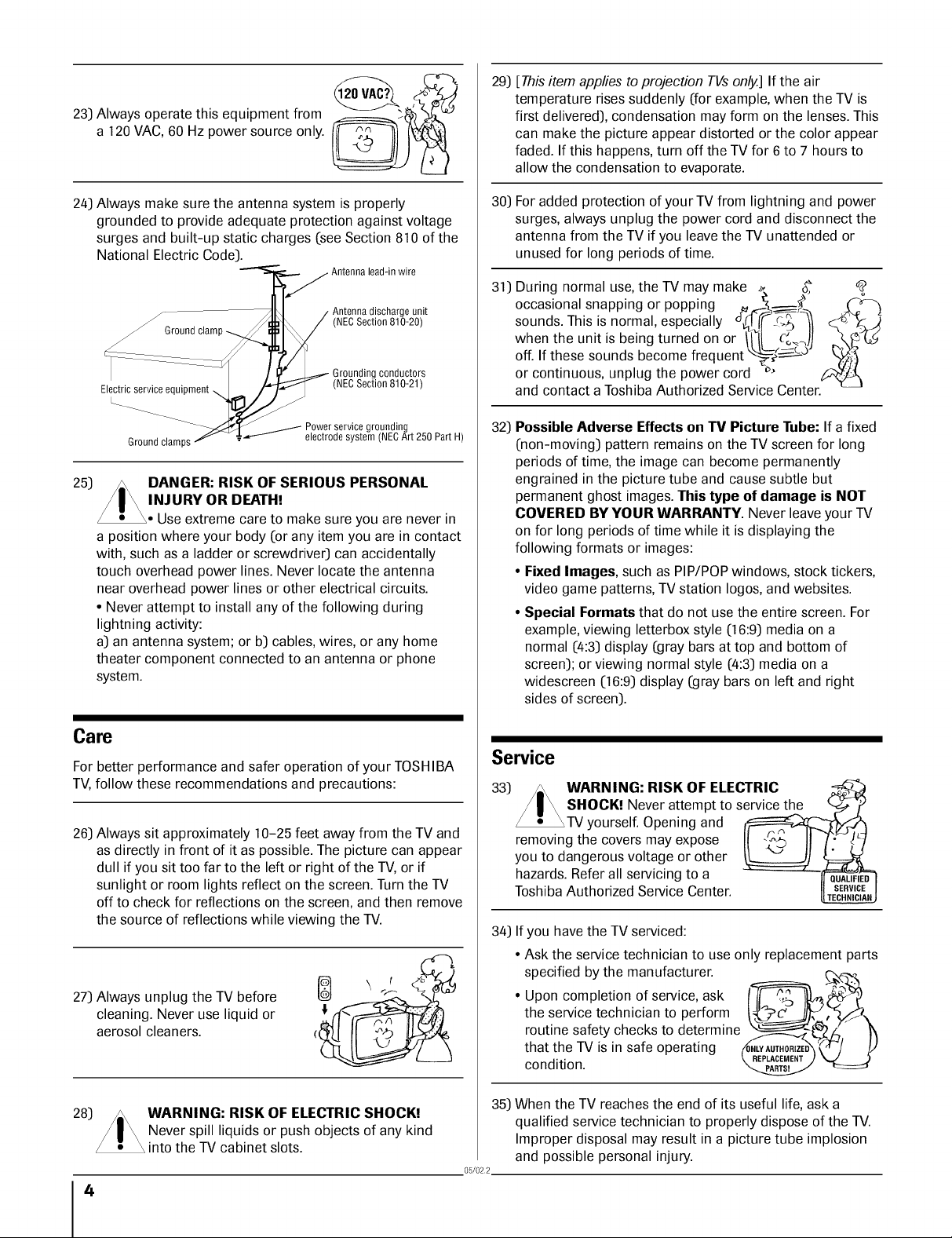
24) Always make sure the antenna system is properly
grounded to provide adequate protection against voltage
surges and built-up static charges (see Section 810 of the
National Electric Code).
Antennalead-in wire
25)
/- Antennadischarge unit
/ (NECSection 810-20)
J Ground clamp
Electric service
Groundclamps
conductors
(NECSection 810-21)
Power service grounding
electrode system (NECArt 250 Part H)
DANGER: RISK OF SERIOUS PERSONAL
INJURY OR DEATH!
Use extreme care to make sure you are never in
a position where your body (or any item you are in contact
with, such as a ladder or screwdriver) can accidentally
touch overhead power lines. Never locate the antenna
near overhead power lines or other electrical circuits.
• Never attempt to install any of the following during
lightning activity:
a) an antenna system; or b) cables, wires, or any home
theater component connected to an antenna or phone
system.
Gale
For better performance and safer operation of your TOSHIBA
TV, follow these recommendations and precautions:
26) Always sit approximately 10-25 feet away from the TV and
as directly in front of it as possible. The picture can appear
dull if you sit too far to the left or right of the TV, or if
sunlight or room lights reflect on the screen. Turn the TV
off to check for reflections on the screen, and then remove
the source of reflections while viewing the TV.
27) Always unplug the TV before
cleaning. Never use liquid or
aerosol cleaners.
28)
WARNING: RISK OF ELECTRIC SHOCK!
Never spill liquids or push objects of any kind
into the TV cabinet slots.
4
29)
30)
31)
32)
[This item applies to projection TVs only.] If the air
temperature rises suddenly (for example, when the TV is
first delivered), condensation may form on the lenses. This
can make the picture appear distorted or the color appear
faded. If this happens, turn off the TV for 6 to 7 hours to
allow the condensation to evaporate.
For added protection of your TV from lightning and power
surges, always unplug the power cord and disconnect the
antenna from the TV if you leave the TV unattended or
unused for long periods of time.
During normal use, the TV may make _, _
occasional snapping or popping . _ _-'_-')
sounds. This is normal, especially °_(_¢ _._,_
when the unit is being turned on or "_'_'111|c_o_,)l
off. If these sounds become frequen[ -_, ,-_-_
or continuous, unplug the power cord _'
and contact a Toshiba Authorized Service Center.
Possible Adverse Effects on TV Picture Tube: If a fixed
(non-moving) pattern remains on the TV screen for long
periods of time, the image can become permanently
engrained in the picture tube and cause subtle but
permanent ghost images. This type of damage is NOT
COVERED BY YOUR WARRANTY. Never leave your TV
on for long periods of time while it is displaying the
following formats or images:
° Fixed Images, such as PIP/POP windows, stock tickers,
video game patterns, TV station Iogos, and websites.
° Special Formats that do not use the entire screen. For
example, viewing letterbox style (16:9) media on a
normal (4:3) display (gray bars at top and bottom of
screen); or viewing normal style (4:3) media on a
widescreen (16:9) display (gray bars on left and right
sides of screen).
Service
33) /=\ WARNING: RISK OF ELECTRIC
/ I _ SHOCK! Never attempt to service the _ "y
_TV yourself. Opening and __
removing the covers may expose II II li:-!V
you to dangerous voltage or other _ tF==_
hazards. Refer all servicing to a __UAL_.F[EO_
Toshiba Authorized Service Center.
34) If you have the TV serviced:
• Ask the service technician to use only replacement parts
specified by the manufacturer, c_.
• Upon completion of service, ask _ .-h
the service technician to perform
routine safety checks to determine f---_._ L_Z/_,, ])
that the TV is in safe operating
condition.
35)
05/022
When the TV reaches the end of its useful life, ask a
qualified service technician to properly dispose of the TV.
Improper disposal may result in a picture tube implosion
and possible personal injury.
Important Safety Information ............................. 2-4
Introduction ......................................................... 5
Welcome to _Ibshiba ......................................................... 5
Exploring your new TV ................................................... 5
Connecting your TV .................................................. 7
Note regarding picture quality ....................................... 7
Connecting a VCR .......................................................... 7
Connecting a cable converter box .................................... 8
Connecting a cable converter box and a VCR .................. 8
Connecting a DVD player/satellite receiver and
a VCR ..................................................................... 9
Connecting a DVD player with ColorStream _
and a VCR ............................................................... 9
Connecting two VCRs ................................................... 10
Connecting a camcorder ................................................ 11
Connecting an audio system .......................................... 11
Connecting an A/V receiver ........................................... 12
Using the remote control ...................................... 13
Preparing the remote control for use .............................. 13
Installing the remote control batteries ............................ 13
Using the remote control with a VCR or
cable TV converter ......................................................... 13
Programming the remote conm31 for use with a
non-Toshiba VCR or cable TV converter ....................... 14
VCR code table ...................................................... 15
Cable TV converter code table ................................ 16
Learning about the remote control ................................. 17
Setting up your IV ................................................. 18
Changing the on-screen display language ....................... 19
Selecting the antenna input ............................................ 19
Adding channels to the TV's memory ......................... 20
Programming channels automatically ................... 20
Adding and erasing channels manually .................... 21
Changing channels .................................................. 21
Changing channels using SpeedSurf ........................ 21
Adjusting the color convergence ................................ 22
Using the lV's features .......................................... 23
Adjusting the channel settings ........................................ 23
Switching between two channels ............................. 23
Programming your favorite channels ..................... 23
Labeling channels ............................................ 24
V&tching picture-in-picture (PIP) .................................. 26
Switching the main and small pictures .................. 27
Changing the position of the small picture .............. 27
Freezing the small picture ................................... 27
Using the LOCKS menu .......................................... 28
Entering the HN code ....................................... 28
if you cannot remember your HN code ............... 28
Using the V-CHIP menu ........................................ 29
ENABLE BLOCKING .................................... 29
TV RATING
(Independent rating system for broadcasters) ........ 29
MPAA RATING
(Independent rating system for movies) .................. 30
BLOCKING OPTION .......................................... 30
Unlocking programs temporarily ............................ 31
Loddng channels ........................................................... 31
Loddng video inputs .............................................. 32
Loddng the front pand buttons ..................................... 32
Adjusting the picture .............................................. 33
Sdecting the picture modes ................................ 33
Adjusting the picture quality ................................... 33
Saving new preferences ..................................... 34
Using the flesh tone feature ................................ 34
Using the noise reduction feature ....................... 34
Sdecting the color temperature ............................... 35
Resetting your picture adjustments ......................... 35
W:atching video input ............................................ 36
Sdecting the video input labds ................................. 36
Using the dosed caption feature ................................ 37
Setting the ,sleep timer .................................................... 38
Setting the dock ................................................... 38
Adjusting the sound ............................................... 39
Muting the sound .............................................. 39
Sdecting stereo/SAP broadcasts .......................... 39
Using the surround sound feature ........................ 40
Adjusting the sound quality .............................. 41
Resetting your audio adjustments ........................ 41
Using the sub-bass system (SBS) ......................... 42
_Ihrning off the built-in speakers ......................... 42
Selecting the Audio OUT sound ......................... 43
Using the StableSound _) feature .......................... 43
Selecting the badiground of the menu display ............ 44
Displaying on-screen information ............................. 44
Viewing the demonstration mode ............................. 44
Understanding the auto power off feature ................... 45
Understanding the last mode memory feature .............. 45
Appendix ................................................................... 46
Specifications ................................................................. 46
"I?oubleshooting ............................................................. 47
Limited United States V&rranty ..................................... 48
Limited Canada W:arranty .............................................. 49
Index .......................................................................... 50
5
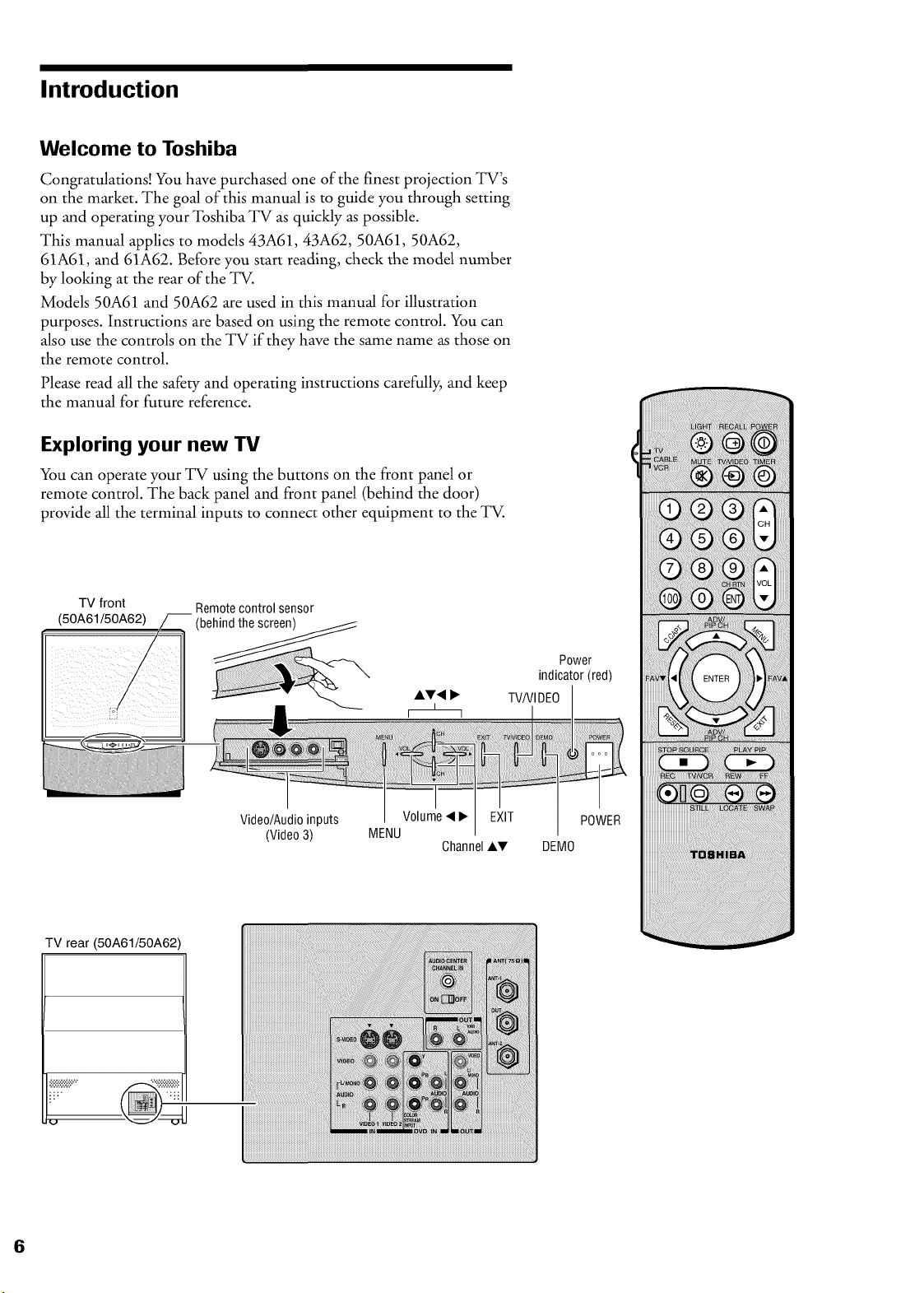
Introduction
Welcome to Toshiba
Congratulations! You have purchased one of the finest projection TV's
on the market. The goal of this manual is to guide you through setting
up and operating your Toshiba TV as quickly as possible.
This manual applies to models 43A61, 43A62, 50A61, 50A62,
61A61, and 61A62. Before you start reading, check the model number
by looking at the rear of the _.
Models 50A61 and 50A62 are used in this manual for illustration
purposes. Instructions are based on using the remote control. You can
also use the controls on the TV if they have the same name as those on
the remote control.
Please read all the safety and operating instructions carefully, and keep
the manual for future reference.
Exploring your new TV
You can operate your TV using the buttons on the front panel or
remote control. The back panel and front panel (behind the door)
provide all the terminal inputs to connect other equipment to the TV.
TV front
(50A61/50A62)
Remote control sensor
(behind the screen)
Power
indicator (red)
TV/VI DE0
Video/Audio inputs Volume • I_ EXIT POWER
(Video 3) MENU
Channel AV DEM0
TV rear (50A61/50A62)
"_:5::f€::'4::'
ii:"
u
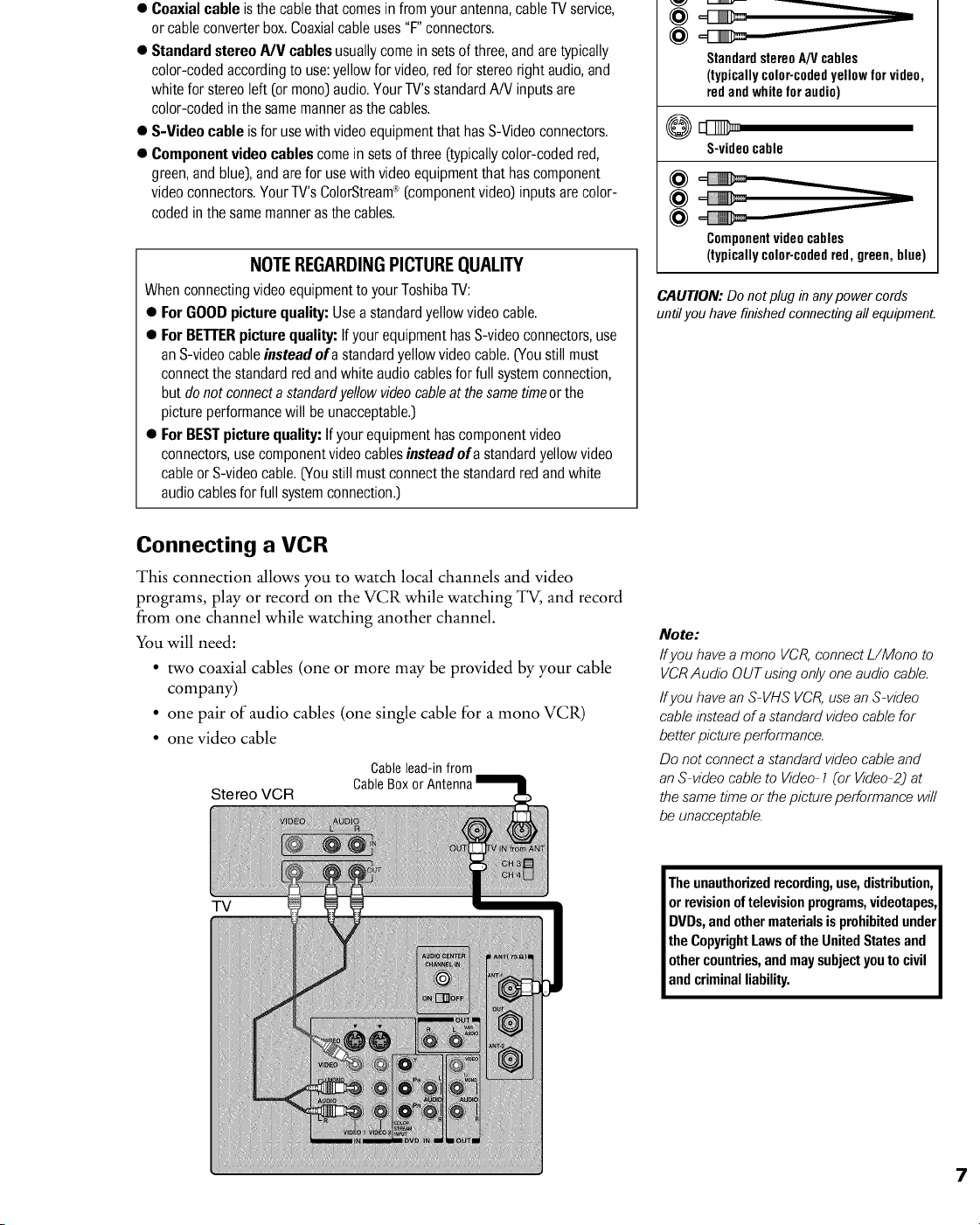
• Coaxial cable is the cable that comes in from your antenna,cable TV service,
or cable converterbox.Coaxialcable uses"F' connectors.
• Standard stereo PJV cables usuallycome in sets of three,and are typically
color-coded accordingto use:yellow for video,red for stereoright audio, and
white for stereoleft (or mono)audio. Your TV's standardA/V inputs are
color-coded in the same manneras the cables.
• S-Video cable is for use with videoequipmentthat has S-Videoconnectors.
• Component video cables come in sets of three (typicallycolor-coded red,
green, and blue), and are for use with video equipmentthat has component
video connectors.Your TV's ColorStream® (componentvideo) inputs are color-
coded in the samemanner asthe cables.
NOTEREGARDINGPICTUREQUALITY
When connectingvideo equipmentto your ToshibaTV:
• For GOOD picture quality: Usea standard yellow video cable.
• For BETTERpicture quality: If your equipment has S-video connectors,use
an S-video cable instead of a standardyellow videocable. (You still must
connect the standard red andwhite audio cablesfor full systemconnection,
but do not connecta standardyeiiow video cableat the sametimeor the
picture performancewill be unacceptable.)
• For BESTpicture quality: If your equipment has componentvideo
connectors,use componentvideo cables instead of a standardyellow video
cableor S-videocable. (You still mustconnect the standardred and white
audio cables for full systemconnection.)
@
@
=_=
StandardstereoA/Vcables
(typicallycolor-codedyellowforvideo,
redandwhiteforaudio)
S-videocable
@
@
@
Componentvideocables
(typicallycolor-codedred,green,blue)
CAUTION: Do not plug in any power cords
until you have finished connecting all equipment.
Connecting a VCR
This connection allows you to watch local channels and video
programs, play or record on the VCR while watching _, and record
from one channel while watching another channel.
You will need:
• two coaxial cables (one or more may be provided by your cable
company)
• one pair of audio cables (one single cable for a mono VCR)
• one video cable
Stereo VCR
Cable lead-in from
Cable
TV
Note:
Ifyou have a mono VCR, connect L/Mono to
VCRAudio OUT using only one audio cable.
ffyou have an S-VHS VCR,use an S-video
cable instead of a standard video cable for
better picture performance.
Do not connect a standard videocable and
an S-video cable to Video-1 (or Video-2_at
the same time or the picture performance will
be unacceptable.
Theunauthorizedrecording,use,distribution,
or revisionoftelevisionprograms,videotapes,
DVDs,andothermaterialsis prohibitedunder
the CopyrightLawsoftheUnitedStatesand
othercountries,andmaysubjectyouto civil
andcriminalliability.
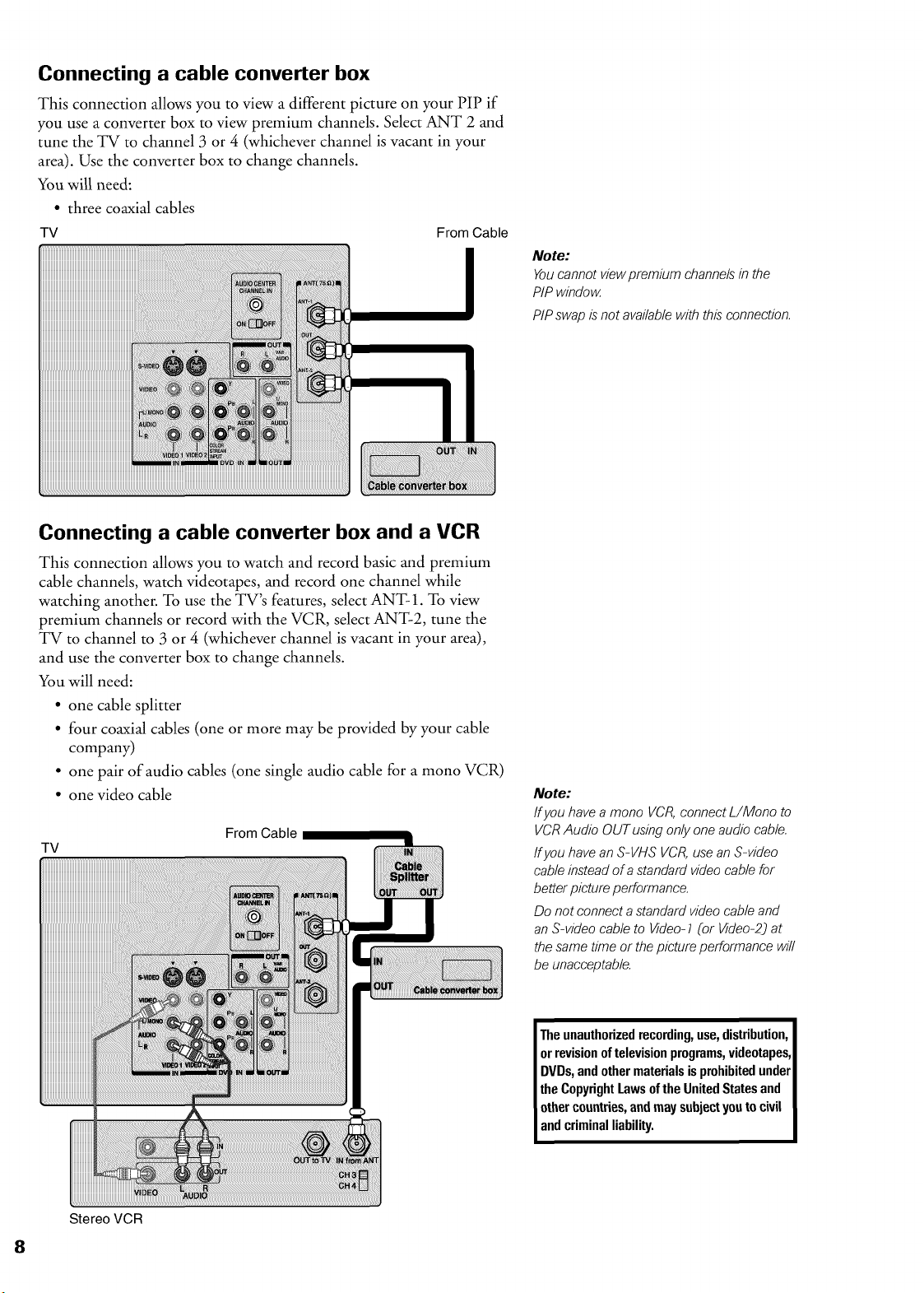
Connecting a cable converter box
This connection allows you to view a different picture on your PIP if
you use a converter box to view premium channels. Select ANT 2 and
tune the TV to channel 3 or 4 (whichever channel is vacant in your
area). Use the converter box to change channels.
You will need:
• three coaxial cables
TV From Cable
Note:
Youcannot viewpremium channels in the
PIP window
PIPswap is not available with this connection.
Connecting a cable converter box and a VCR
This connection allows you to watch and record basic and premium
cable channels, watch videotapes, and record one channel while
watching another. To use the TV's features, select ANT- 1. To view
premium channels or record with the VCR, select ANT-2, tune the
TV to channel to 3 or 4 (whichever channel is vacant in your area),
and use the converter box to change channels.
You will need:
• one cable splitter
• four coaxial cables (one or more may be provided by your cable
company)
• one pair of audio cables (one single audio cable for a mono VCR)
• one video cable
TV
From Cable
Note:
ff you have a mono VCR,connect L/Mono to
VCRAudio OUT using only one audio cable.
ff you have an S-VHS VCR,use an S-video
cable instead of a standard videocable for
better picture performance.
Do not connect a standard video cable and
an S-video cable to Video-1 (or Video-2_at
the same time or the picture performance will
be unacceptable.
Theunauthorizedrecording,use,distribution,
or revisionoftelevisionprograms,videotapes,
DVDs,andothermaterialsisprohibitedunder
the CopyrightLawsoftheUnitedStatesand
}ther countries,andmaysubjectyouto civil
]nd criminalliability.
Stereo VCR
8
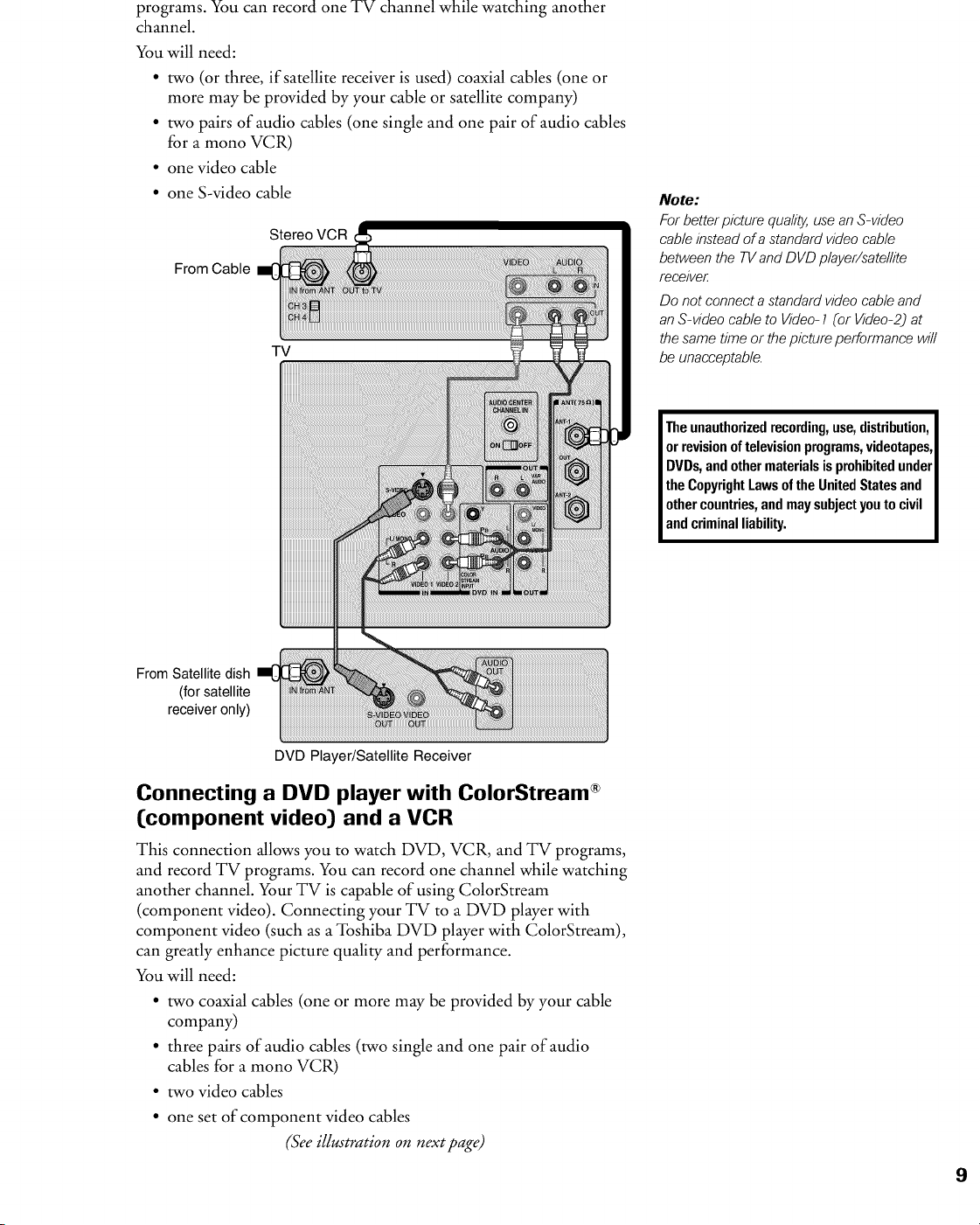
programs. You can record one TV channel while watching another
channel.
You will need:
• two (or three, if satellite receiver is used) coaxial cables (one or
more may be provided by your cable or satellite company)
• two pairs of audio cables (one single and one pair of audio cables
for a mono VCR)
• one video cable
• one S-video cable
From Cable
From Satellite dish
(for satellite
receiver only)
Stereo VCR
TV
Note:
For better picture quali_ use an S-video
cable instead of a standard video cable
between the TV and DVD player/satellite
receive£
Do not connect a standard video cable and
an S-video cable to Video- ] (or Video-2j at
the same time or the picture performance will
be unacceptable.
Theunauthorizedrecording,use,distribution,
or revisionoftelevisionprograms,videotapes,
DVDs,andothermaterialsis prohibitedunder
the CopyrightLawsoftheUnitedStatesand
othercountries,andmaysubjectyouto civil
andcriminalliability.
DVD Player/Satellite Receiver
Connecting a DVD player with ColorStream ®
[component video) and a VCR
This connection allows you to watch DVD, VCR, and TV programs,
and record TV programs. You can record one channel while watching
another channel. Your TV is capable of using ColorStream
(component video). Connecting your TV to a DVD player with
component video (such as a Toshiba DVD player with ColorStream),
can greatly enhance picture quality and performance.
You will need:
• two coaxial cables (one or more may be provided by your cable
company)
• three pairs of audio cables (two single and one pair of audio
cables for a mono VCR)
• two video cables
• one set of component video cables
(See illustration on next page)
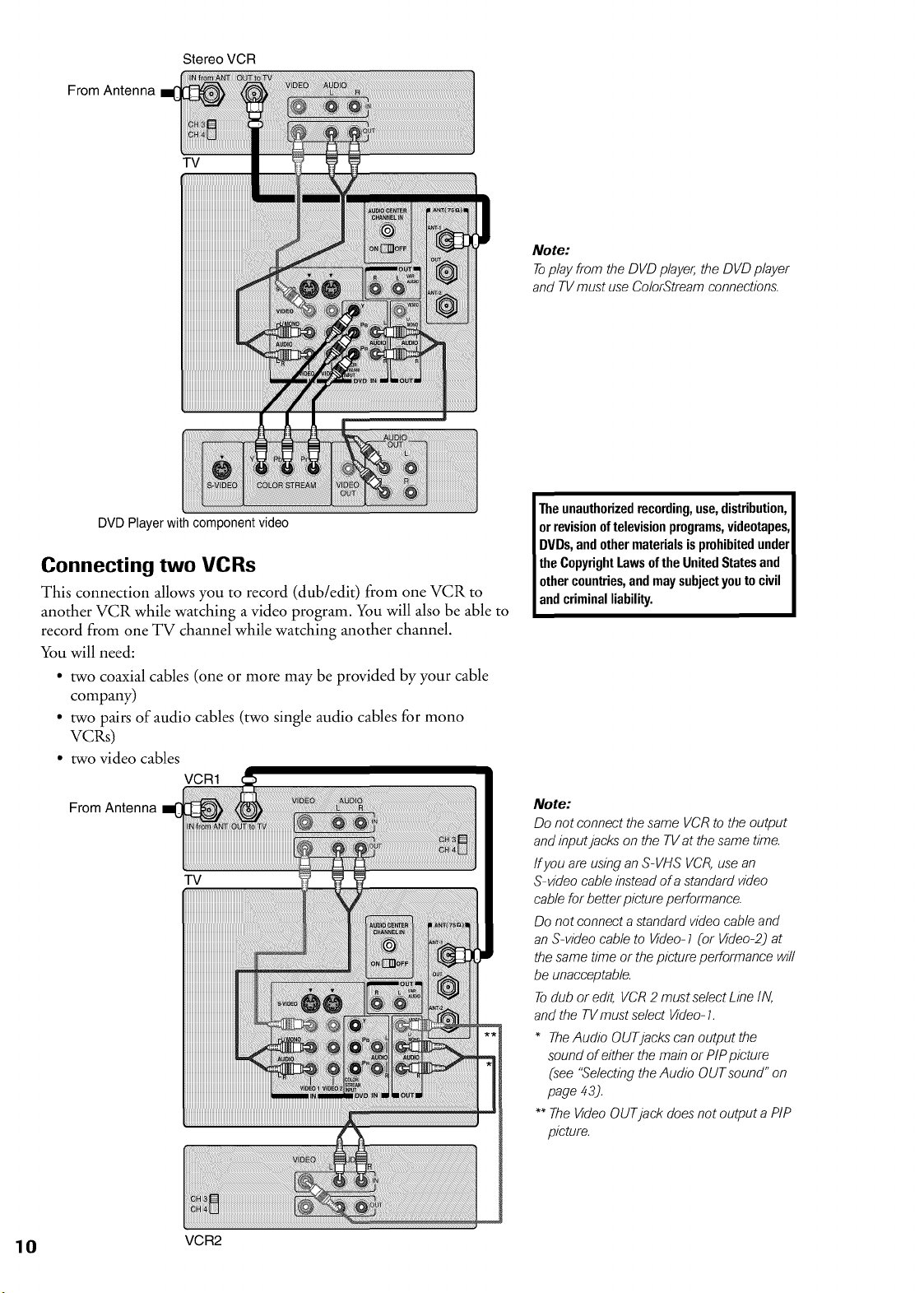
From Antenna
Stereo VCR
TV
DVD Player with component video
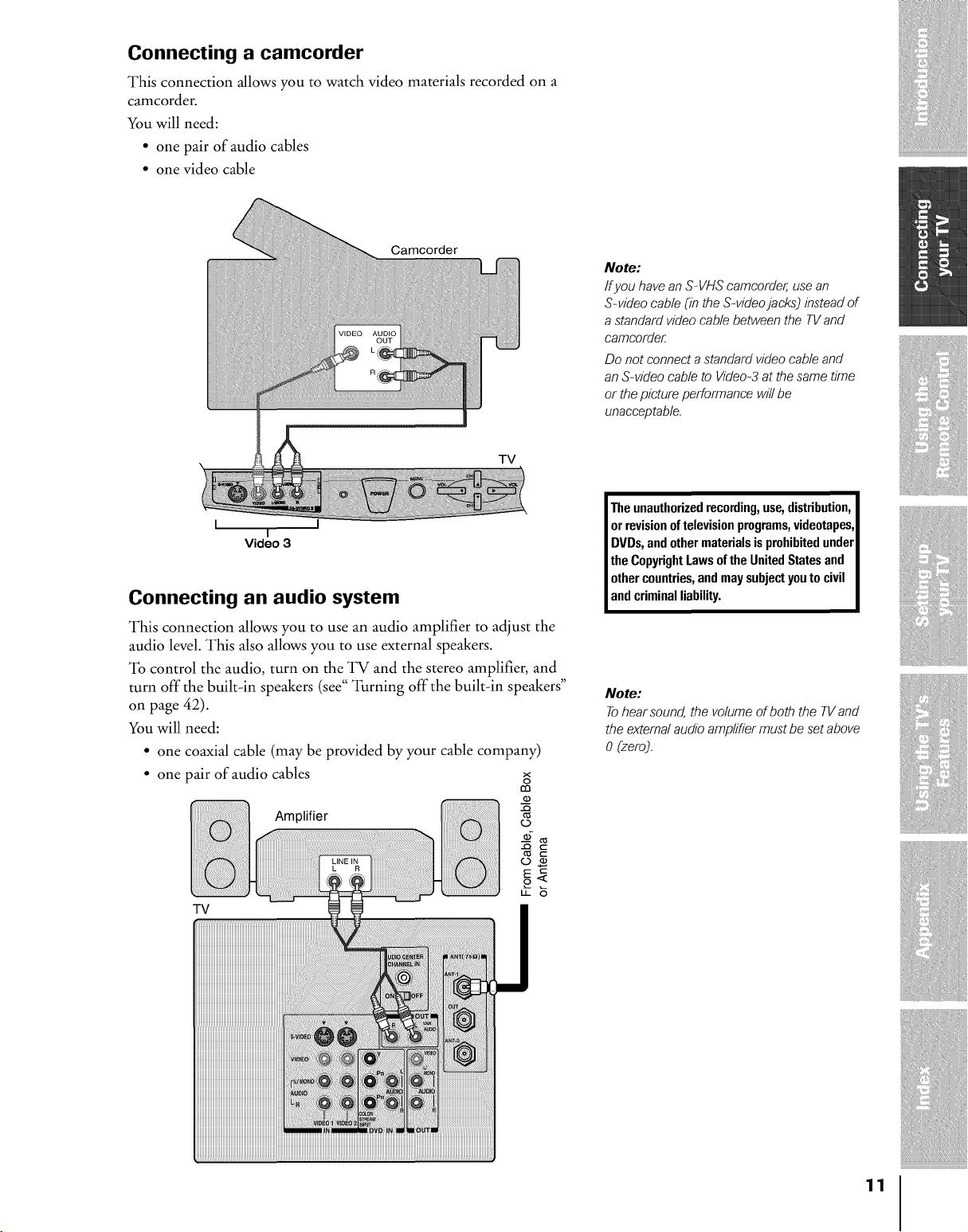
Connecting two VCRs
This connection allows you to record (dub/edit) from one VCR to
another VCR while watching a video program. You will also be able to
record from one TV channel while watching another channel.
You will need:
• two coaxial cables (one or more may be provided by your cable
company)
• two pairs of audio cables (two single audio cables for mono
VCas)
• two video cables
From Antenna
VCR1
TV
Note:
Toplay from the DVD player, the DVD player
and TV must use ColorStream connections.
Theunauthorizedrecording,use,distribution,
orrevisionoftelevision programs,videotapes,
DVDs,andothermaterialsis prohibitedunder
theCopyrightLawsoftheUnitedStatesand
othercountries,andmaysubjectyouto civil
andcriminalliability.
Note:
Do not connect the same VCR to the output
and inputjacks on the TVat the same time.
ff you are using an S-VHS VCR,usean
S-video cable instead of a standard video
cable for better picture performance.
Do not connect a standard video cable and
an S-video cable to Video-7 (or Video-2)at
the same time or the picture performance will
be unacceptable.
Todub or edit, VCR 2 mustselect Line IN,
and the TVmust select Video-7.
* TheAudio OUTjacks can output the
sound of either the main or PIPpicture
(see "Selecting the Audio OUT sound" on
page 43).
** The Video OUTjack does not output a PIP
picture.
10 VCR2
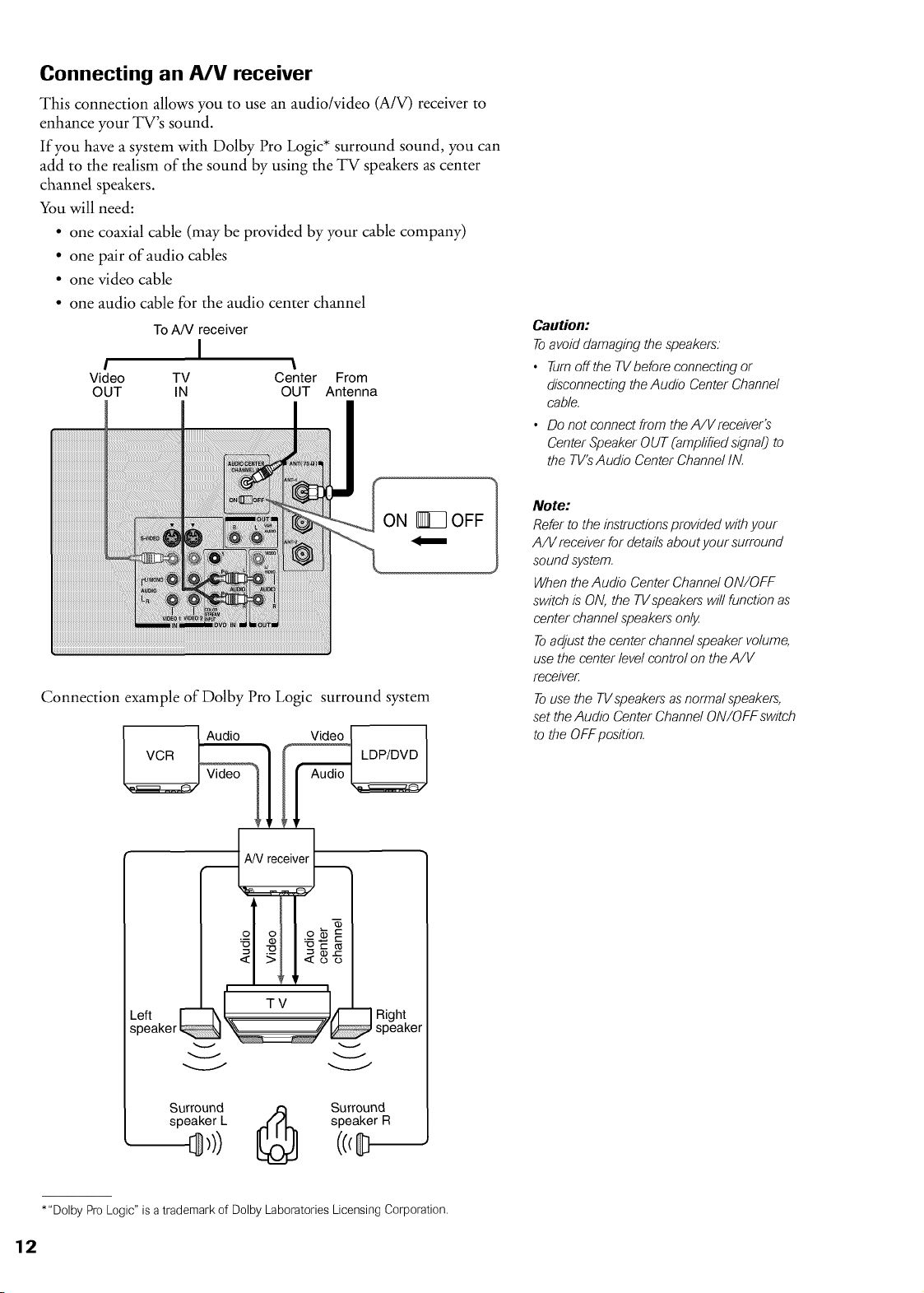
Connecting a camcorder
This connection allows you to watch video materials recorded on a
camcorder.
You will need:
• one pair of audio cables
• one video cable
Camcorder
Note:
If you havean S-VHS camcorder, use an
S-video cable (in the S-videojacks) instead of
a standard video cable between the TV and
camcorder
Do not connecta standardvideo cable and
an S-video cable to Video-3at the same time
or the picture performance will be
unacceptable.
TV
I I
I
Video 3
Connecting an audio system
This connection allows you to use an audio amplifier to adjust the
audio level. This also allows you to use external speakers.
To control the audio, turn on the TV and the stereo amplifier, and
turn off the built-in speakers (see" Turning off the built-in speakers"
on page 42).
You will need:
• one coaxial cable (may be provided by your cable company)
• one pair of audio cables
Amplifier
TV
Theunauthorizedrecording,use,distribution,
orrevisionoftelevisionprograms,videotapes,
DVDs,andothermaterialsis prohibitedunder
the CopyrightLawsoftheUnitedStatesand
othercountries,andmaysubjectyouto civil
andcriminalliability.
Note:
Tohear sound, the volume of both the TV and
the external audio amplifier must be set above
0 (zero).
11
Connecting an A/V receiver
This connection allows you to use an audio/video (A/V) receiver to
enhance your TV's sound.
If you have a system with Dolby Pro Logic* surround sound, you can
add to the realism of the sound by using the TV speakers as center
channel speakers.
You will need:
• one coaxial cable (may be provided by your cable company)
• one pair of audio cables
• one video cable
• one audio cable for the audio center channel
To A/V receiver
I
! I
Video TV Center From
OUT IN OUT Antenna
Caution:
Toavoid damaging the speakers.
• Turnoffthe TVbefore connecting or
disconnecting the Audio Center Channel
cable.
• Do not connect from the A/Vreceiver's
Center Speaker OUT (amplified signal) to
the TV'sAudio Center Channel IN.
Connection example of Dolby Pro Logic surround system
Right
speakem
Note:
Refer to the instructionsprovided withyour
A/V receiver for detailsabout your surround
sound system.
When theAudio Center Channel ON/OFF
switch is ON, the TVspeakers will functionas
center channel speakersonly.
Toadjust the center channel speaker volume,
use the center level control on theA/V
receive£
Touse the TVspeakersas normal speakers,
set theAudio Center Channel ON/OFF switch
to the OFFposition.
Surround 6 Surround
speaker L speaker R
*"Dolby Pro Logic" is a trademark of Dolby Laboratories Licensing Corporation.
12
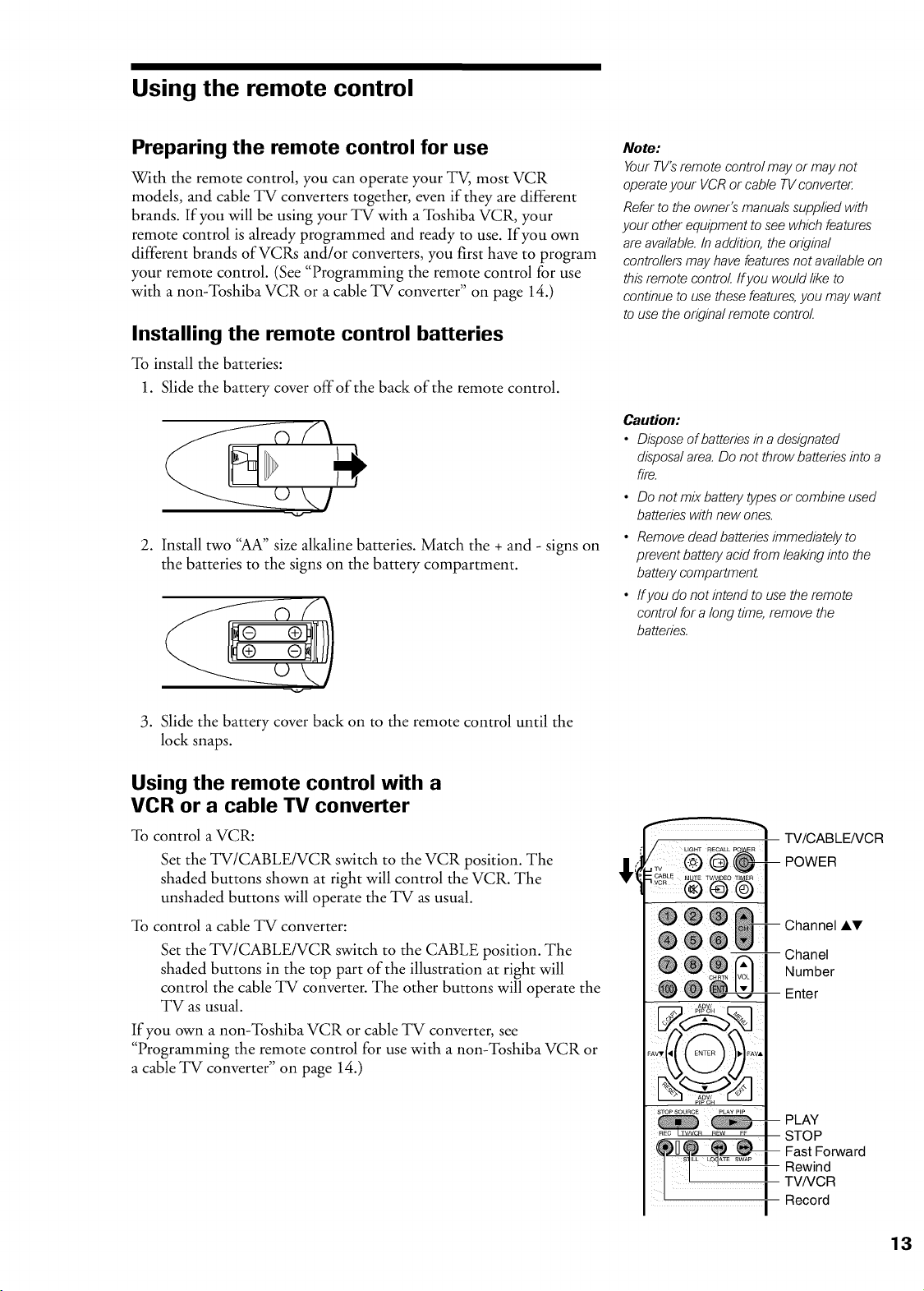
Using the remote control
Preparing the remote control for use
With the remote control, you can operate your TV, most VCR
models, and cable TV converters together, even if they are different
brands. If you will be using your TV with a Toshiba VCR, your
remote control is already programmed and ready to use. If you own
different brands ofVCRs and/or converters, you first have to program
your remote control. (See "Programming the remote control for use
with a non-Toshiba VCR or a cable TV converter" on page 14.)
Installing the remote control batteries
To install the batteries:
1. Slide the battery cover off of the back of the remote control.
2. Install two "AA" size alkaline batteries. Match the + and - signs on
the batteries to the signs on the battery compartment.
/
3. Slide the battery cover back on to the remote control until the
lock snaps.
Using the remote control with a
VCR or a cable TV converter
To control a VCR:
Set the TV/CABLE/VCR switch to the VCR position. The
shaded buttons shown at right will control the VCR. The
unshaded buttons will operate the TV as usual.
To control a cable TV converter:
Set the TV/CABLE/VCR switch to the CABLE position. The
shaded buttons in the top part of the illustration at right will
control the cable TV converter. The other buttons will operate the
TV as usual.
If you own a non-Toshiba VCR or cable TV converter, see
"Programming the remote control for use with a non-Toshiba VCR or
a cable TV converter" on page 14.)
Note:
Your TV'Sremote control may or may not
operateyour VCR or cable TVconverter.
Refer to the owner's manualssupplied with
your other equipment to see which features
are available.In addition, the original
controllers may have featuresnot availableon
this remote control If you wouldlike to
continue to use these features,you may want
to use the original remote control
Caution:
• Dispose of batteries in a designated
disposalarea.Do not throw batteries into a
fire.
• Do not mix battery types or combine used
batteries with new ones.
• Remove dead batteries immediately to
prevent battery acid from leaking into the
battery compartment
• ffyou do not intend to use the remote
control for a long time, remove the
batteries.
TV/CABLE/VCR
POWER
AV
i hanel
Number
• -- Enter
-- PLAY
STOP
Fast Forward
I Rewind
! I Tv/vcR
I Record
13
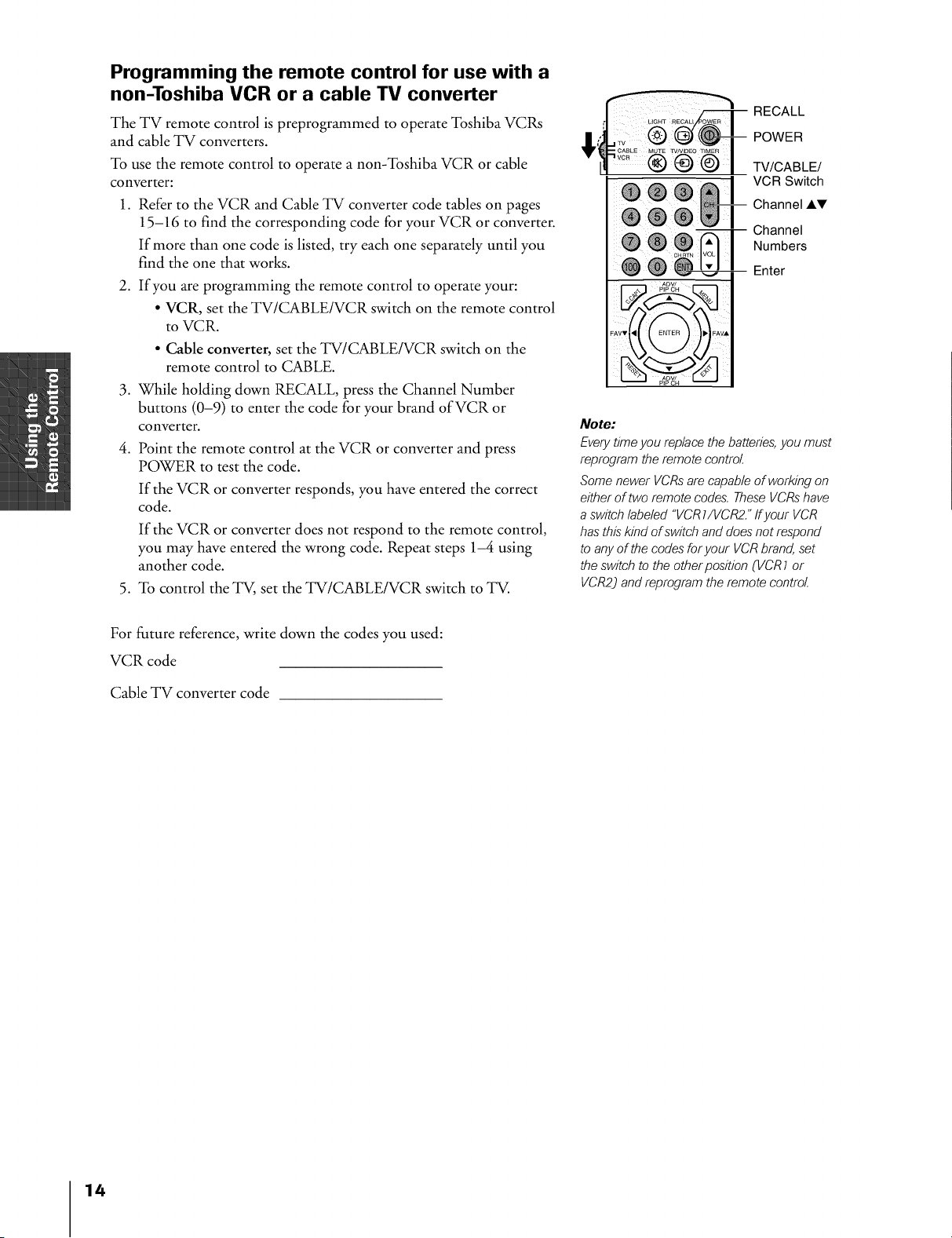
Programming the remote control for use with a
non-Toshiba VCR or a cable TV converter
Tile TV remote control is preprogrammed to operate Toshiba VCRs
and cable TV converters.
To use the remote control to operate a non-Toshiba VCR or cable
converter:
1. Refer to the VCR and Cable TV converter code tables on pages
15-16 to find the corresponding code for your VCR or converter.
If more than one code is listed, try each one separately until you
find the one that works.
2. If you are programming the remote control to operate your:
• VCR, set the TV/CABLE/VCR switch on the remote control
to VCR.
• Cable converter, set the TV/CABLE/VCR switch on the
remote control to CABLE.
3. While holding down RECALL, press the Channel Number
buttons (0-9) to enter the code for your brand of VCR or
converter.
4. Point the remote control at the VCR or converter and press
POWER to test the code.
If the VCR or converter responds, you have entered the correct
code.
If the VCR or converter does not respond to the remote control,
you may have entered the wrong code. Repeat steps 1-4 using
another code.
5. To control the TV, set the TV/CABLE/VCR switch to TV.
@@ @I-.9
RECALL
POWER
TV/CABLE/
VCR Switch
Channel AT
-- Channel
Numbers
Enter
Note:
Everytime you replace the batteries,you must
reprogram the remote control
Some newer VCRsare capable of working on
either of two remote codes. TheseVCRshave
a switch labeled "VCR7/VCR2."ffyour VCR
has this kind of switch and does not respond
to any of the codes foryour VCRbrand, set
the switch to the other position (VCR7 or
VCR2) and reprogram the remote control
For future reference, write down the codes you used:
VCR code
Cable TV converter code
14
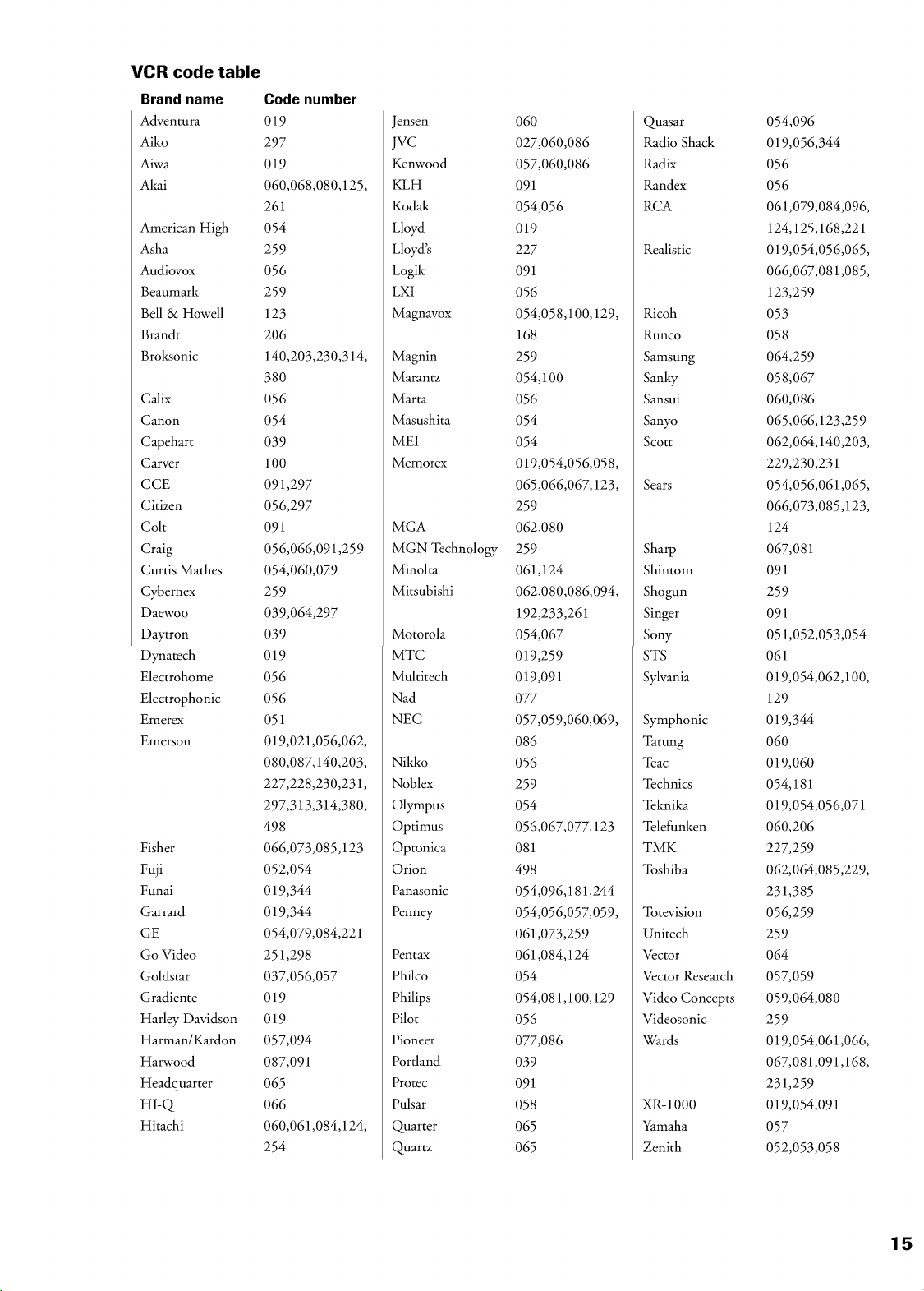
VCR code table
Brand name
Advenmra
Aiko
Aiwa
Akai
American High
Asha
Audiovox
Beaumark
Bell & Howell
Brandt
Broksonic
Calix
Canon
Capehart
Carver
CCE
Citizen
Colt
Craig
Curtis Mathes
Cybernex
Daewoo
Daytron
Dynatech
Electrohome
Electrophonic
gmerex
Emerson
Fisher
Fuji
Funai
Garrard
GE
Go Video
Goldstar
Gradiente
Harley Davidson
Harman/Kardon
Harwood
Headquarter
HI-Q
Hitachi
Code number
019
297
019
060,068,080,125,
261
O54
259
O56
259
123
206
140,203,230,314,
38O
O56
O54
O39
100
091,297
056,297
091
056,066,091,259
054,060,079
259
039,064,297
O39
019
O56
O56
051
019,021,056,062,
080,087,140,203,
227,228,230,231,
297,313,314,380,
498
066,073,085,123
052,054
019,344
019,344
054,079,084,221
251,298
037,056,057
019
019
057,094
087,091
O65
O66
060,061,084,124,
254
Jensen
jvc
Kenwood
KLH
Kodak
Lloyd
Lloyd's
Logik
LXI
Magnaw)x
Magnin
marantz
marta
Masushita
MEI
Memorex
MGA
MGN "I_chnology
Minolta
Mitsubishi
Motorola
MTC
Multitech
Nad
NEC
Nikko
Noblex
Olympus
Optimus
Optonica
Orion
Panasonic
Penney
Pentax
Philco
Philips
Pilot
Pioneer
Portland
Protec
Pulsar
Quarter
Quar tz
O6O
027,060,086
057,060,086
091
O54,O56
019
227
091
O56
054,058,100,129,
168
259
054,100
O56
O54
O54
019,054,056,058,
065,066,067,123,
259
062,080
259
061,124
062,080,086,094,
192,233,261
054,067
019,259
019,091
077
057,059,060,069,
O86
O56
259
O54
056,067,077,123
081
498
054,096,181,244
054,056,057,059,
061,073,259
061,084,124
O54
054,081,100,129
O56
077,086
O39
091
O58
O65
O65
Quasar
Radio Shack
Radix
Randex
RCA
Realistic
Ricoh
Runco
Samsung
Sanky
Sansui
Sanyo
Scott
Sears
Sharp
Shintom
Shogun
Singer
Sony
STS
Sylvania
Symphonic
"Ihtung
"]-}ac
_I_chnics
"I_knika
"I_lefunken
TMK
_Ibshiba
"Ibtevision
Unitech
Vector
Vector Research
Video Concepts
Videosonic
Wards
XR-1000
Yamaha
Zenith
054,096
019,056,344
O56
O56
061,079,084,096,
124,125,168,221
019,054,056,065,
066,067,081,085,
123,259
O53
O58
064,259
058,067
060,086
065,066,123,259
062,064,140,203,
229,230,231
054,056,061,065,
066,073,085,123,
124
067,081
091
259
091
051,052,053,054
061
019,054,062,100,
129
019,344
O6O
019,060
054,181
019,054,056,071
060,206
227,259
062,064,085,229,
231,385
056,259
259
064
057,059
059,064,080
259
019,054,061,066,
067,081,091,168,
231,259
019,054,091
O57
052,053,058
15
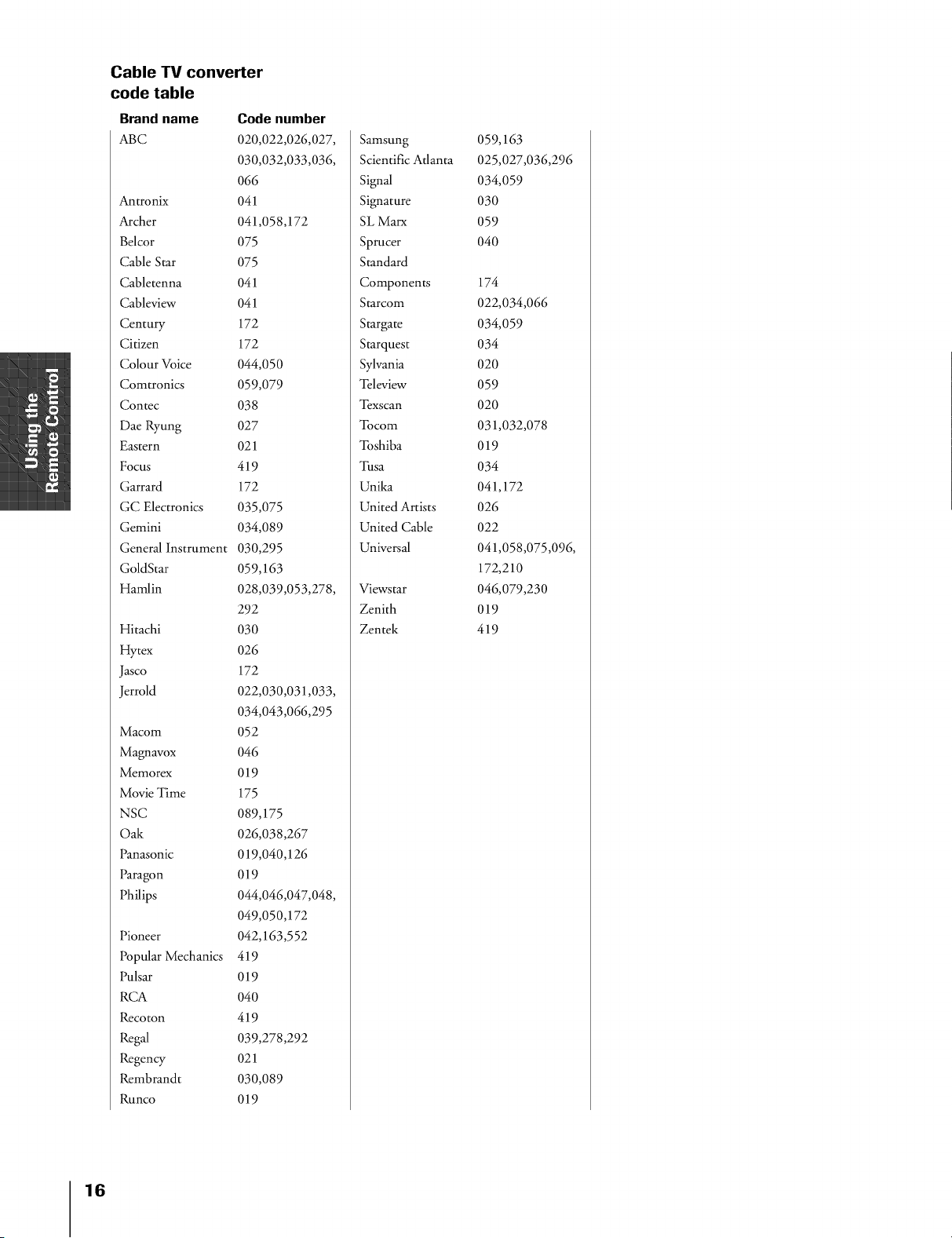
Cable "IV converter
code table
Brand name
ABC
Antronix
Archer
Belcor
Cable Star
Cabletenna
Cableview
Century
Citizen
Colour Voice
Comtronics
Contec
Dae Ryung
Eastern
Focus
Garrard
GC Electronics
Gemini
General Instrument
GoldStar
Hamlin
Hitachi
Hytex
Jasco
Jerrold
Macom
Magnavox
Memorex
Movie Time
NSC
Oak
Panasonic
Paragon
Philips
Pioneer
Popular Mechanics
Pulsar
RCA
Recoton
Regal
Regency
Rembrandt
Runco
Code number
020,022,026,027,
030,032,033,036,
066
041
041,058,172
075
075
041
041
172
172
044,050
059,079
038
027
021
419
172
035,075
034,089
030,295
059,163
028,039,053,278,
292
030
026
172
022,030,031,033,
034,043,066,295
052
046
019
175
089,175
026,038,267
019,040,126
019
044,046,047,048,
049,050,172
042,163,552
419
019
040
419
039,278,292
021
030,089
019
Samsung 059,163
Scientific Atlanta 025,027,036,296
Signal 034,059
Signature 030
SL Marx 059
Sprucer 040
Standard
Components 174
Starcom 022,034,066
Stargate 034,059
Starquest 034
Sylvania 020
"I_leview 059
"I}xscan 020
"Ibcom 031,032,078
"Ibshiba 019
"Ihsa 034
Unika 041,172
United Artists 026
United Cable 022
Universal 041,058,075,096,
172,210
Viewstar 046,079,230
Zenith 019
Zentek 419
16
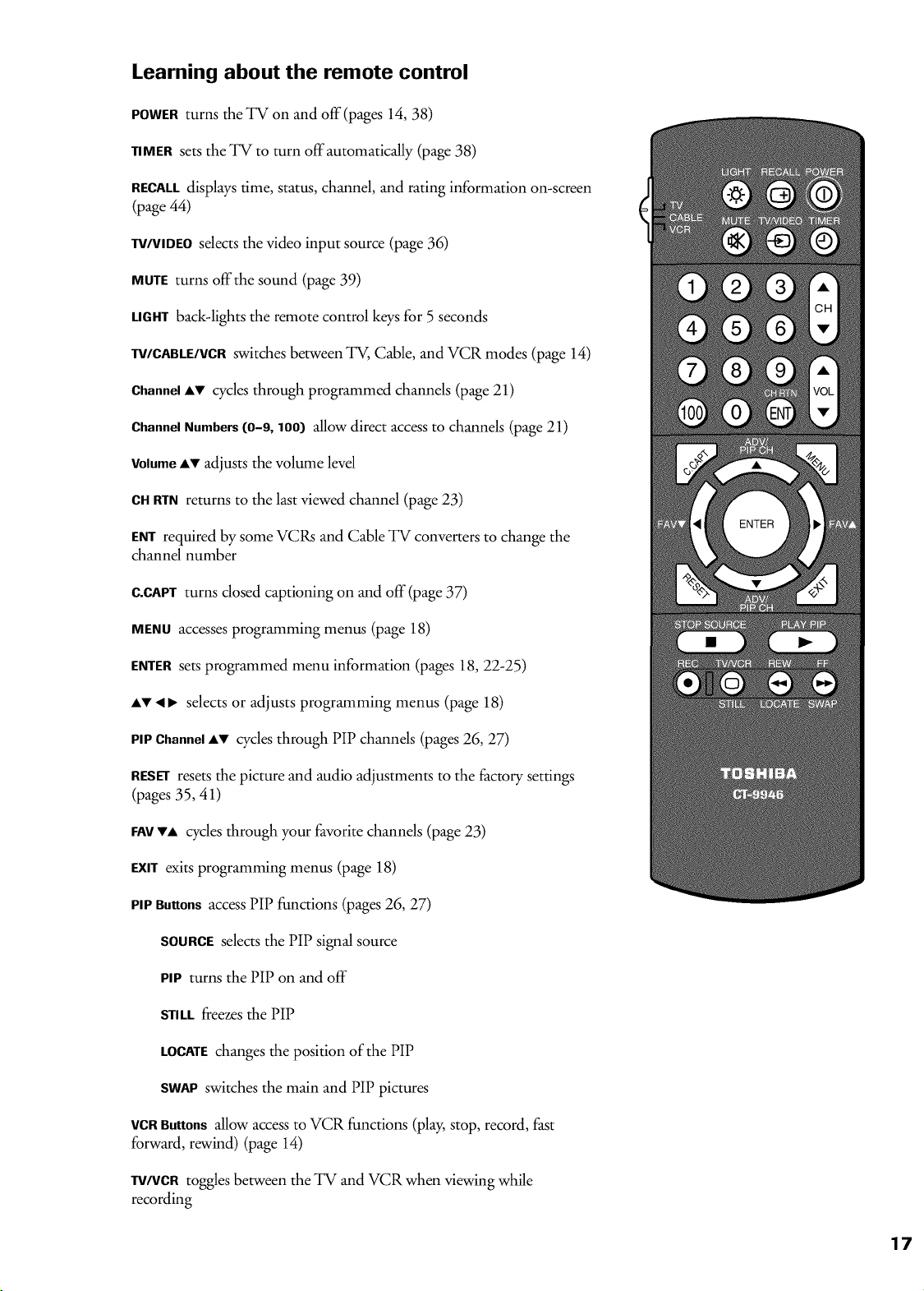
Learning about the remote control
POWERturns the TV oll and off(pages 14, 38)
TIMER sets the TV to turn off automatically (page 38)
RECALLdisplays time, status, channel, and rating information on-screen
(page 44)
W/VIDEO sdects the video input source (page 36)
MUTEturns off the sound (page 39)
LIGHTback-lights the remote control keys for 5 seconds
TV/CABLE/VCRswitches between _, Cable, and VCR modes (page 14)
ChannelAV cycles through programmed channels (page 21)
ChannelNumbers (O-9, 1OO}allow direct access to channels (page 21)
VolumeAv adjusts the volume level
CHRTN returns to the last viewed channel (page 23)
ENTrequired by some VCRs and Cable TV converters to change the
channel number
C.CAPTturns dosed captioning on and off (page 37)
MENUaccesses programming menus (page 18)
ENTERsets programmed menu information (pages 18, 22-25)
Av • 1_ selects or adjusts programming menus (page 18)
PIPChannel_,V cycles through PiP channds (pages 26, 27)
RESETresets the picture and audio adjustments to the factory settings
(pages 35, 41)
FAYVA cycles through your favorite channels (page 23)
EXITexits programming menus (page 18)
PIPButtons access PIP functions (pages 26, 27)
SOURCEselects the PIP signal source
PIP turns the PIP on and off
STILLfreezes the PIP
LOCATEchanges the position of the PIP
SWAPswitches the main and PIP pictures
VCRButtons allow access to VCR functions (play, stop, record, fast
forward, rewind) (page 14)
W/VCR toggles between the TV and VCR when viewing while
recording
17
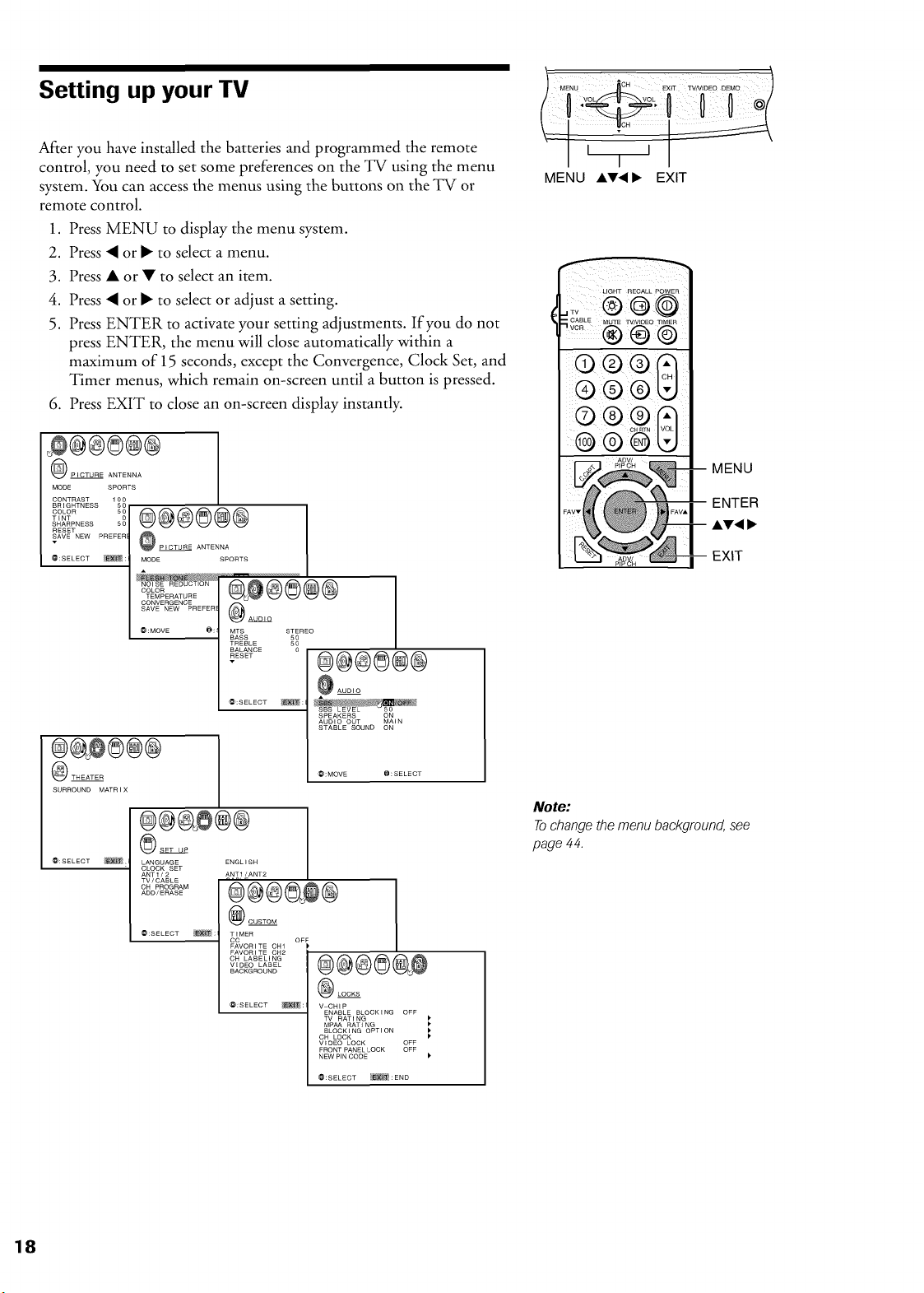
Setting up your TV
After you have installed the batteries and programmed the remote
control, you need to set some preferences on the TV using the menu
system. You can access the menus using the buttons on the TV or
remote control.
1. Press MENU to display the menu system.
2. Press • or • to select a menu.
3. Press • or • to select an item.
4. Press • or • to select or adjust a setting.
5. Press ENTER to activate your setting adjustments. If you do not
press ENTER, the menu will close automatically within a
maximum of 15 seconds, except the Convergence, Clock Set, and
Timer menus, which remain on-screen until a button is pressed.
6. Press EXIT to close an on-screen display instantly.
_@@®@@
PICTURE ANTENNA
MODE SPORTS
CONTRAST 100
BRIGHTNESS 50
...... _@@@®@@
TINT
SHARPNESS 50
RESET
SAVE NEW PREFER _O PICTUE
ANTENNA
@:SELECT _: MODE SPORTS
NOISE REDUCTION
COLOR
TEMPERATURE
CONVERGENCE
SAVE NEW PREFER __AUDJO
@:MOVE @: MTS STEREO
BASS 50
TREBLE 50
BALANCE 0
RESET
v
@:SELECT _:
@_®@@
SURROUND MATR J X
@@@®@@
AUDIO
SPEAKERS ON
AUDIO OUT MAIN
STABLE SOUND ON
@:MOVE @:SELECT
@:SELECT _
@@@@@
SET UP
LANGUAGE
ANT1/2
TV/CABLE
CH PROGRAM
ADD/ERASE
@:SELECT
ENGLISH
ANTI/ANT2
@@@®_@
CUSTOM
_: TIMER
CC OFF
FAVORITE CH1
FAVORITE CH2
CH LABELING
VEDEO LABEL
BACKGROUND
@:SELECT _:
@@@®@@
LOCKS
V-CHIP
ENABLE BLOCKING OFF
TV RAT I NG
MPAA RAT I NG
BLOCK I NG OPTI ON
CH LOCK
VIDEO LOCK OFF
FRONT PANEL LOCK OFF
NEW PIN CODE
@:SELECT _ : END
MENU AT, I_ EXIT
LIGHT RECALL POWER
;: @@@
'-S_'_LE..... _..... T.....
® ® @
® ® ®
®®
MENU
ENTER
AT, I_
EXIT
Note:
To change the menu background, see
page 4 4.
®@®©®@
_SET UP
ANT1/2 ANT1
TV/CABLE CABLE
CH PROGRAM
ADD/ERASE ADD
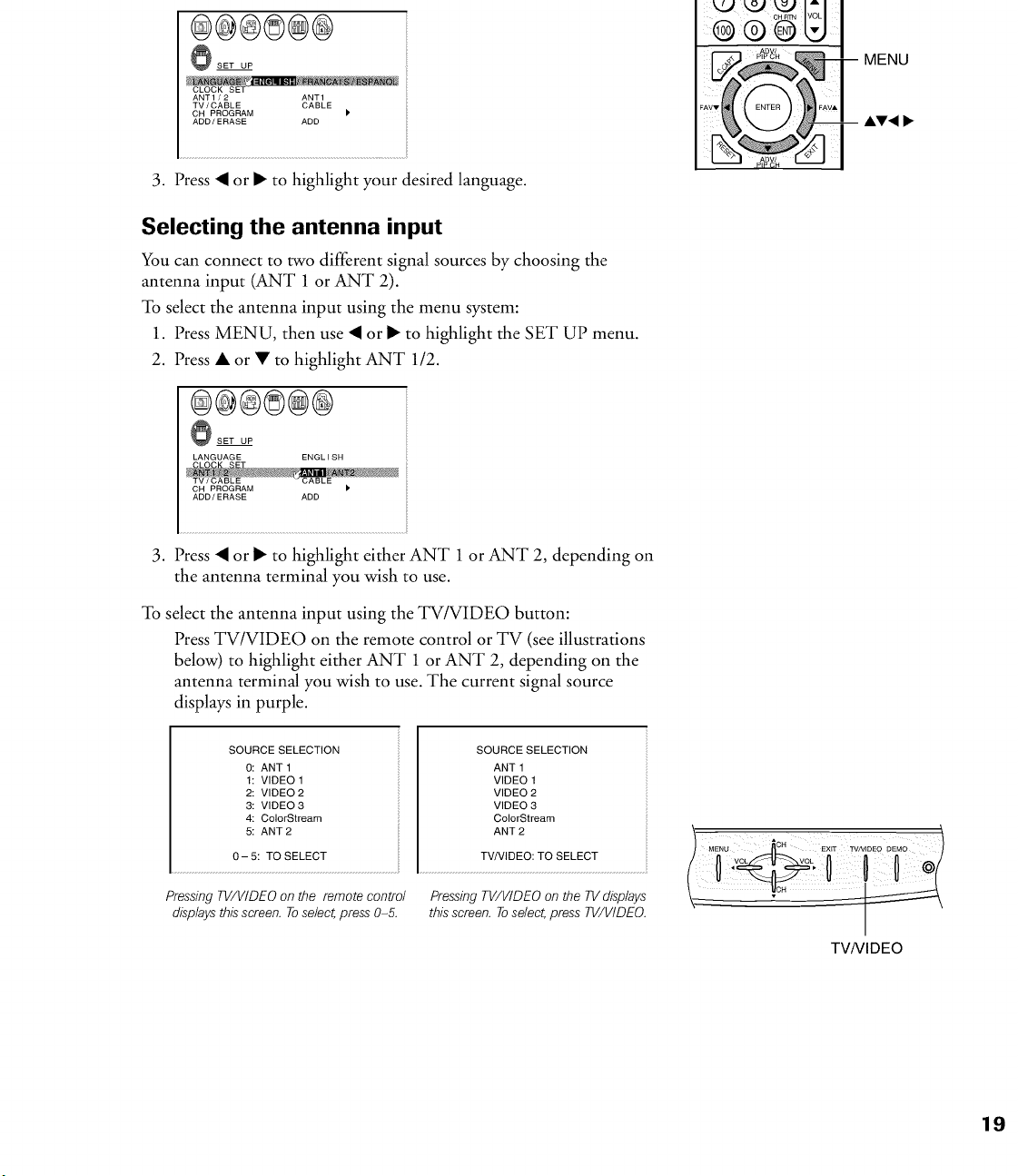
3. Press • or • to highlight your desired language.
Selecting the antenna input
You can connect to two different signal sources by choosing the
antenna input (ANT 1 or ANT 2).
To select the antenna input using the menu system:
1. Press MENU, then use • or • to highlight the SET UP menu.
2. Press • or • to highlight ANT 1/2.
_SET UP
LANGUAGE ENGL I SH
CH PROGRAM I*
ADD/ERASE ADD
MENU
AT4
3. Press • or • to highlight either ANT 1 or ANT 2, depending on
the antenna terminal you wish to use.
To select the antenna input using the TV/VIDEO button:
Press TV/VIDEO on the remote control or TV (see illustrations
below) to highlight either ANT 1 or ANT 2, depending on the
antenna terminal you wish to use. The current signal source
displays in purple.
SOURCE SELECTION
0: ANT 1
1: VIDEO 1
2: VIDEO 2
3: VIDEO 3
4: ColorStream
5: ANT 2
0- 5: TO SELECT
PressingTV/VIDEO on the remote control
displaysthis screen. To select,press 0-5.
SOURCE SELECTION
ANT 1
VIDEO 1
VIDEO 2
VIDEO 3
ColorStream
ANT 2
TV/VlDEO: TO SELECT
PressingTV/VIDEO on the TVdisplays
this screen. Toselect,press TV/VIDEO.
.oHeiTt..........
voL voL {_
TVNIDEO
Adding channels to the TV's memory
When you press Channel • or V, your TV will stop only on the
channels stored in the TV's channel memory. Follow the steps below
and on the next page to program channels into the TV's memory.
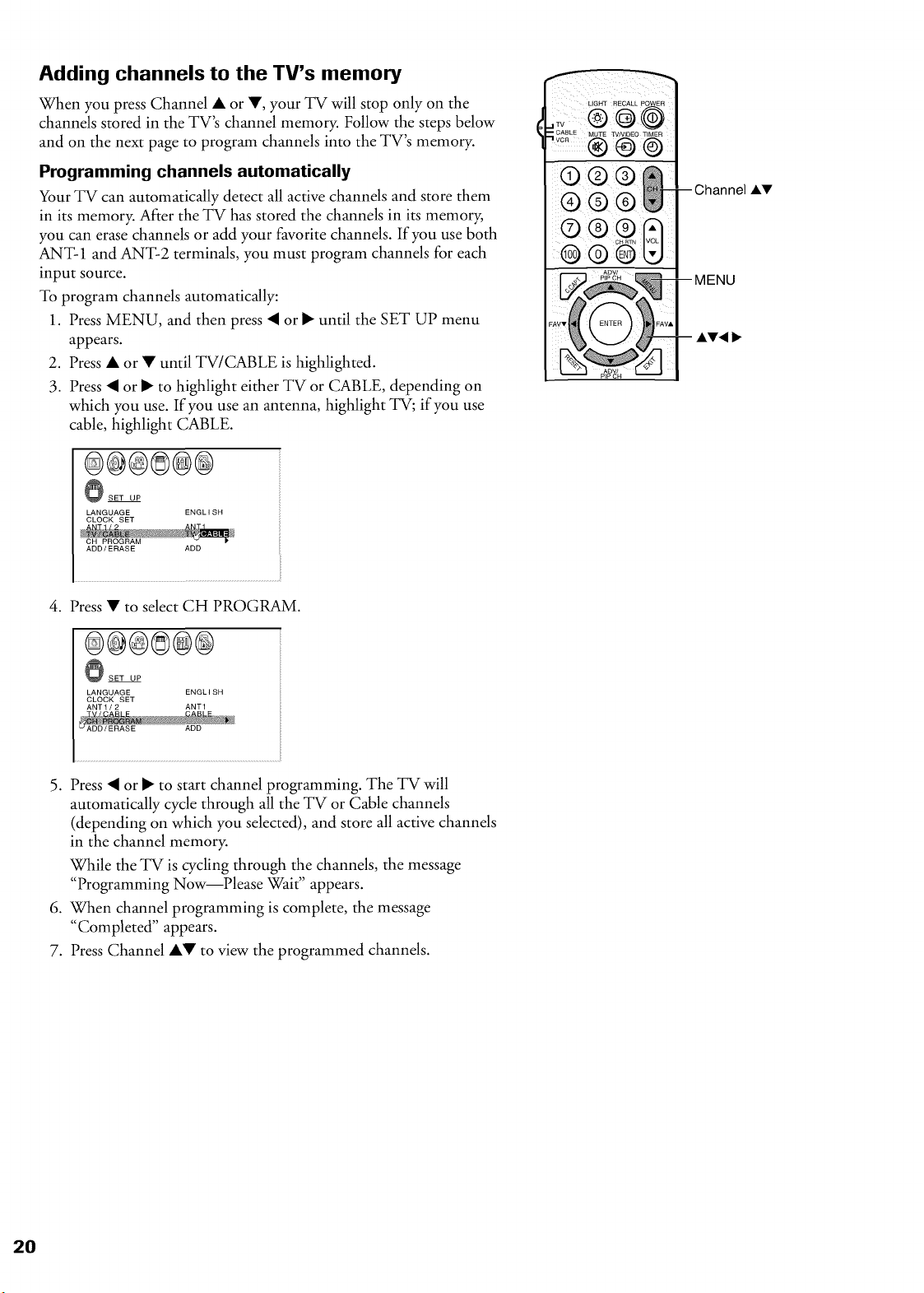
Programming channels automatically
Your TV can automatically detect all active channels and store them
in its memory. After the TV has stored the channels in its memory,
you can erase channels or add your favorite channels. If you use both
ANT-1 and ANT-2 terminals, you must program channels for each
input source.
To program channels automatically:
1. Press MENU, and then press • or • until the SET UP menu
appears.
2. Press • or • until TV/CABLE is highlighted.
3. Press • or • to highlight either TV or CABLE, depending on
which you use. If you use an antenna, highlight TV; if you use
cable, highlight CABLE.
®@®®@®
O SET UP
LANGUAGE ENGLISH
CLOCK SET
CH PROGRAM
ADD/ERASE ADD
AT4
AV
4. Press • to select CH PROGRAM.
®@®®@®
O SET UP
LANGUAGE ENGLISH
CLOCK SET
ANT1/2 ANT1
5. Press • or • to start channel programming. The TV will
automatically cycle through all the TV or Cable channels
(depending on which you selected), and store all active channels
in the channel memory.
While the TV is cycling through the channels, the message
"Programming Now--Please Wait" appears.
6. When channel programming is complete, the message
"Completed" appears.
7. Press Channel •• to view the programmed channels.
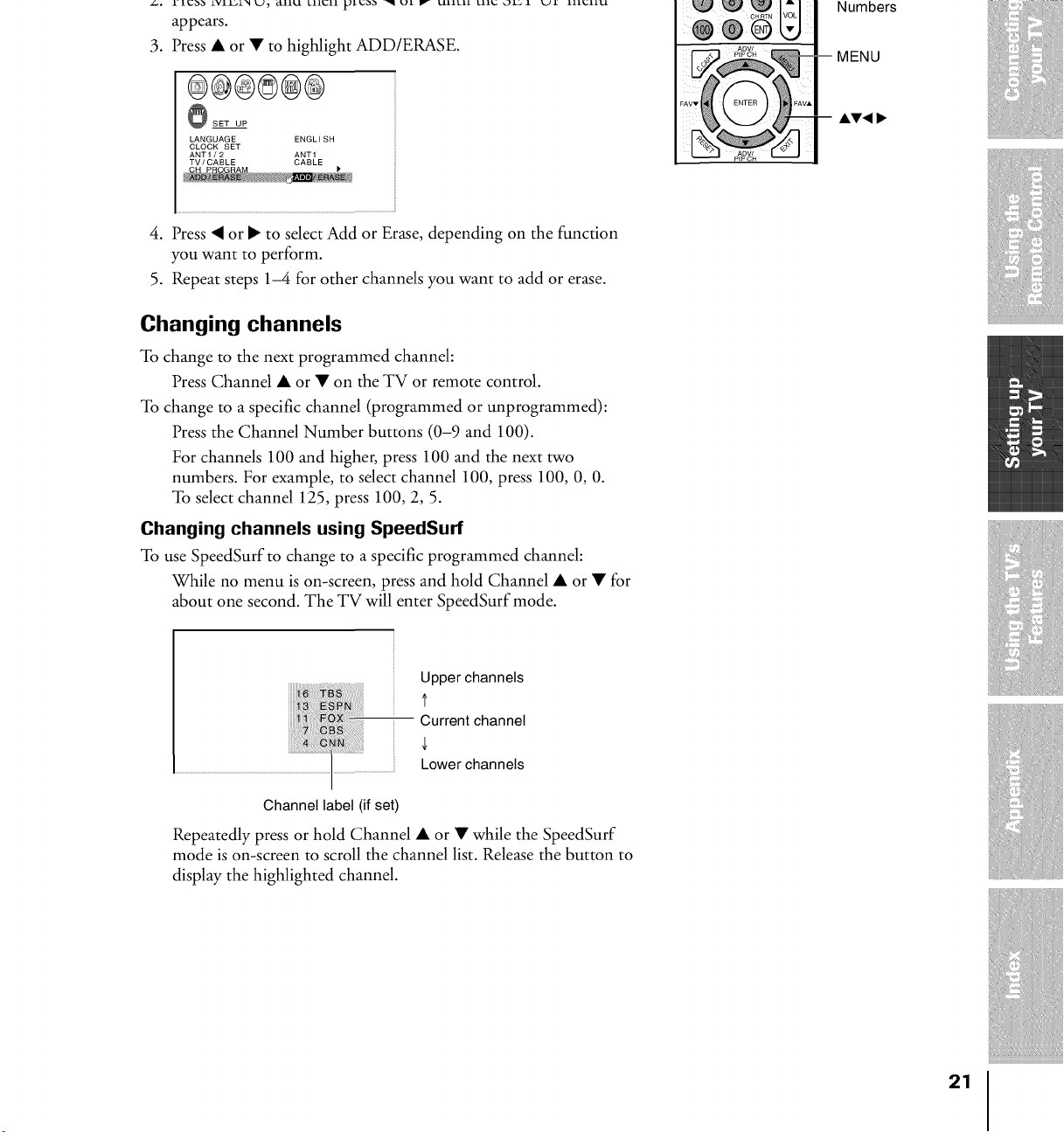
appears.
3. Press• or• tohighlightADD/ERASE.
®@@@®@
O SET UP
LANGUAGE ENGLISH
CLOCK SET
ANT1/2 ANT1
TV/CABLE CABLE
4. Press • or • to select Add or Erase, depending on the function
you want to perform.
5. Repeat steps 1-4 for other channels you want to add or erase.
Changing channels
To change to the next programmed channel:
Press Channel • or • on the TV or remote control.
To change to a specific channel (programmed or unprogrammed):
Press the Channel Number buttons (0-9 and 100).
For channels 100 and higher, press 100 and the next two
numbers. For example, to select channel 100, press 100, 0, 0.
To select channel 125, press 100, 2, 5.
Changing channels using SpeedSurf
To use SpeedSurf to change to a specific programmed channel:
While no menu is on-screen, press and hold Channel • or • for
about one second. The TV will enter SpeedSurf mode.
Numbers
MENU
AV4
Upperchannels
t
-- Current channel
Lowerchannels
Channel label (if set)
Repeatedly press or hold Channel • or • while the SpeedSurf
mode is on-screen to scroll the channel list. Release the button to
display the highlighted channel.
21
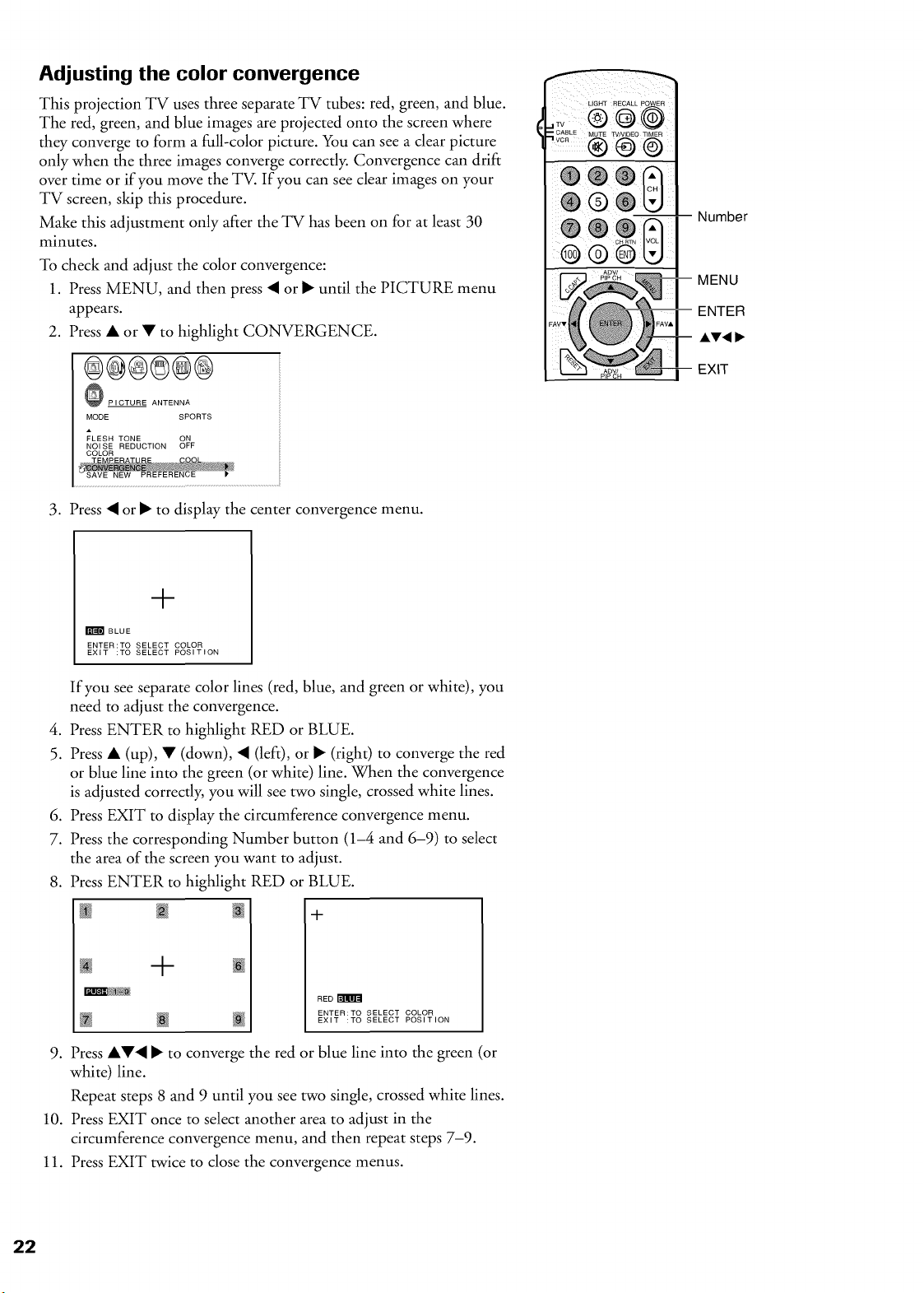
Adjusting the color convergence
This projection TV uses three separate TV tubes: red, green, and blue.
The red, green, and blue images are projected onto the screen where
they converge to form a full-color picture. You can see a dear picture
only when the three images converge correctly. Convergence can drift
over time or if you move the TV. If you can see clear images on your
TV screen, skip this procedure.
Make this adjustment only after the TV has been on for at least 30
minutes.
To check and adjust the color convergence:
1. Press MENU, and then press • or • until the PICTURE menu
appears.
2. Press • or • to highlight CONVERGENCE.
@@®@@@
PICTURE ANTENNA
MODE SPORTS
FLESH TONE ON
NOI SE REDUCTION OFF
COLOR
LIGHT RECALL POWER
C_LE MUTET_,oEo_,ME_
NO ©
-- Number
MENU
ENTER
EXIT
3. Press • or • to display the center convergence menu.
t
m BLUE
ENTER:TO SELECT COLOR
EXiT :TO SELECT POSITION
If you see separate color lines (red, blue, and green or white), you
need to adjust the convergence.
4. Press ENTER to highlight RED or BLUE.
5. Press • (up), • (down), • (left), or • (right) to converge the red
or blue line into the green (or white) line. When the convergence
is adjusted correctly, you will see two single, crossed white lines.
6. Press EXIT to display the circumference convergence menu.
7. Press the corresponding Number button (1-4 and 6-9) to select
the area of the screen you want to adjust.
8. Press ENTER to highlight RED or BLUE.
4-
+
RED r_
ENTER:TO SELECT COLOR
EXiT :TO SELECT POSITION
9. Press ••• • to converge the red or blue line into the green (or
white) line.
Repeat steps 8 and 9 until you see two single, crossed white lines.
10. Press EXIT once to select another area to adjust in the
circumference convergence menu, and then repeat steps 7-9.
11. Press EXIT twice to close the convergence menus.
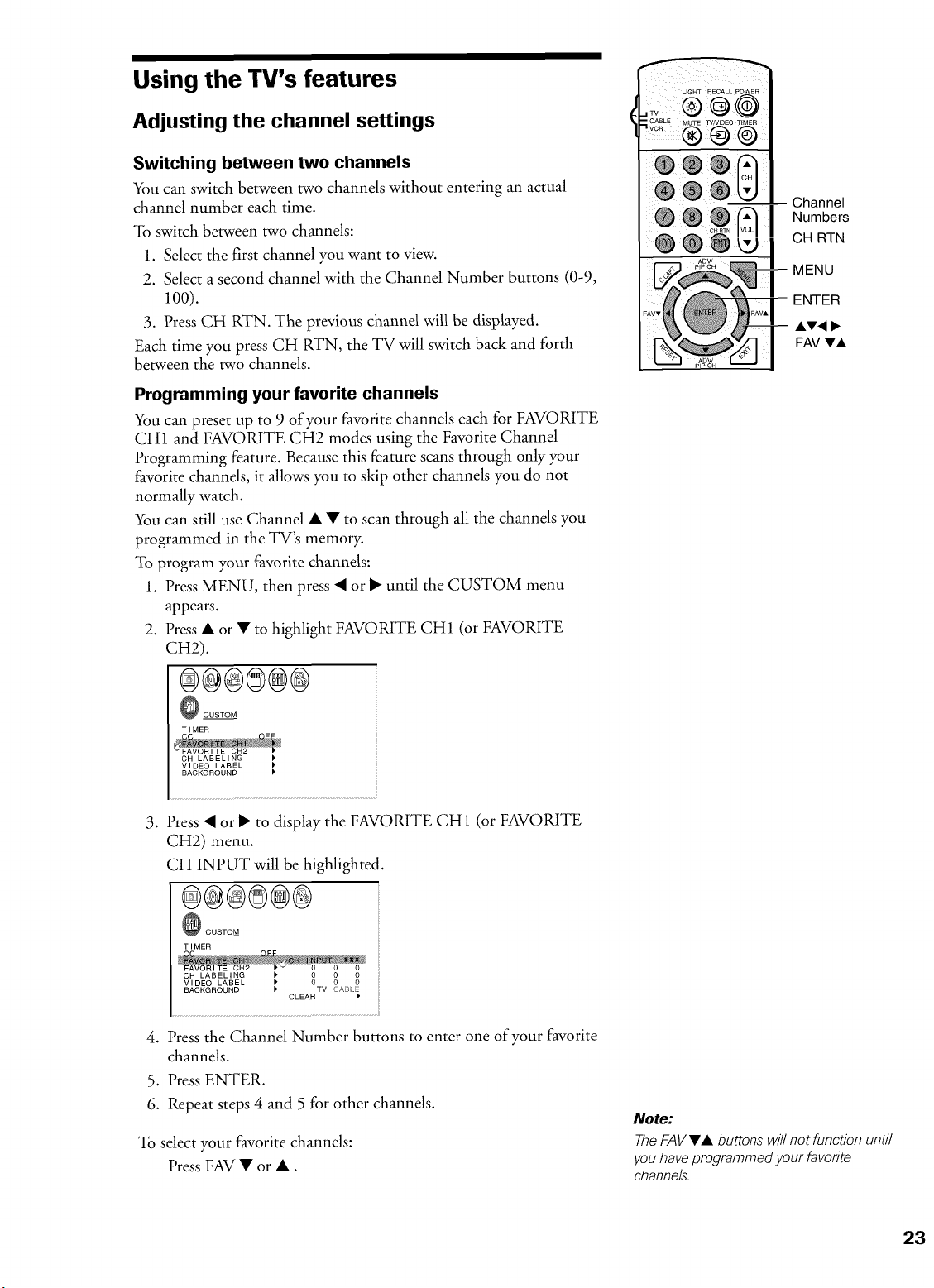
Using the TV's features
Adjusting the channel settings
Switching between two channels
You can switch between two channels without entering an actual
channel number each time.
To switch between two channels:
1. Select the first channel you want to view.
2. Select a second channel with the Channel Number buttons (0-9,
100).
3. Press CH RTN. The previous channel will be displayed.
Each time you press CH RTN, the TV will switch back and forth
between the two channels.
Programming your favorite channels
You can preset up to 9 of your favorite channels each for FAVORITE
CH1 and FAVORITE CH2 modes using the Favorite Channel
Programming feature. Because this feature scans through only your
favorite channds, it allows you to skip other channels you do not
normally watch.
You can still use Channel • • to scan through all the channels you
programmed in the TV's memory.
To program your favorite channels:
1. Press MENU, then press • or • until the CUSTOM menu
appears.
2. Press • or • to highlight FAVORITE CH1 (or FAVORITE
CH2).
@@@@@@
CUSTOM
TIMER
CH LABELIN P'
VIDEO LABEL I*
BACKGROUND I'
3. Press • or • to display the FAVORITE CH1 (or FAVORITE
CH2) menu.
CH INPUT will be highlighted.
@@@@@@
CUSTOM
TIMER
FAVORITE CH2 • 0 0 0
CH LABELING
VIDEO LABEL _ _ _
BACKGROUND ) TV CABLE
CLEAR
4. Press the Channel Number buttons to enter one of your favorite
channels.
5. Press ENTER.
6. Repeat steps 4 and 5 for other channels.
To select your favorite channels:
Press FAV • or •.
LIGHT RECALL POWER
@@ @
.3?_LEMOTE_.,OEOT.....
® ® ©
-- Channel
Numbers
CH RTN
MENU
ENTER
AT< I_
FAV TA
Note:
TheFAVVA buttons wi//not funetion unti/
you have programmed your favorite
channels.
23

To clear your favorite channels:
1. Press MENU, and then press • or • until the CUSTOM menu
appears.
2. Press • or • to highlight FAVORITE CH1 (or FAVORITE
CH2).
3. Press • or • to display the FAVORITE CH1 (or FAVORITE
CH2) menu.
®@@@@@
CUSTOM
TIMER
CC OFF
VIDEO LABEL _ 15 18 20
BACKGROUND P* 0 0 0
TV CA[31 E
CLEAR ALL _"
4. Press • or • to highlight CLEAR ALL, and then press • or •
until "0" replaces the channel numbers you have programmed.
®@@®@@
CUSTOM
TIMER
CC OFF
CH I_PUT 0 _
VIDEO LABEL _ 0 0 0
BACKGROUND _ 0 0 0
Labeling channels
Channel labels appear above the channel number display each time
you turn on the TV, select a channel or press RECALL. You can
choose any four characters to identify a channel.
To create channel labels:
1. Press MENU, and then press • or • until the CUSTOM menu
appears.
2. Press • or • to highlight CH LABELING.
3. Press • or • to display the CH LABELING menu.
CH INPUT will be highlighted.
®@@@@@
CUSTOM
TIMER
CC OFF
FAVORITE CH1
UGHT iEGALL POwEM
j;S® @@
CA_L E ..... TV..... 3".....
® ® ©
@®
--Channel
Numbers
--MENU
-- AT4 I_
4. Press the Channel Number buttons to select the channel you
want to label.
@@@®@@
CUSTOM
TIMER
CC OFF
FAVORITE CH1
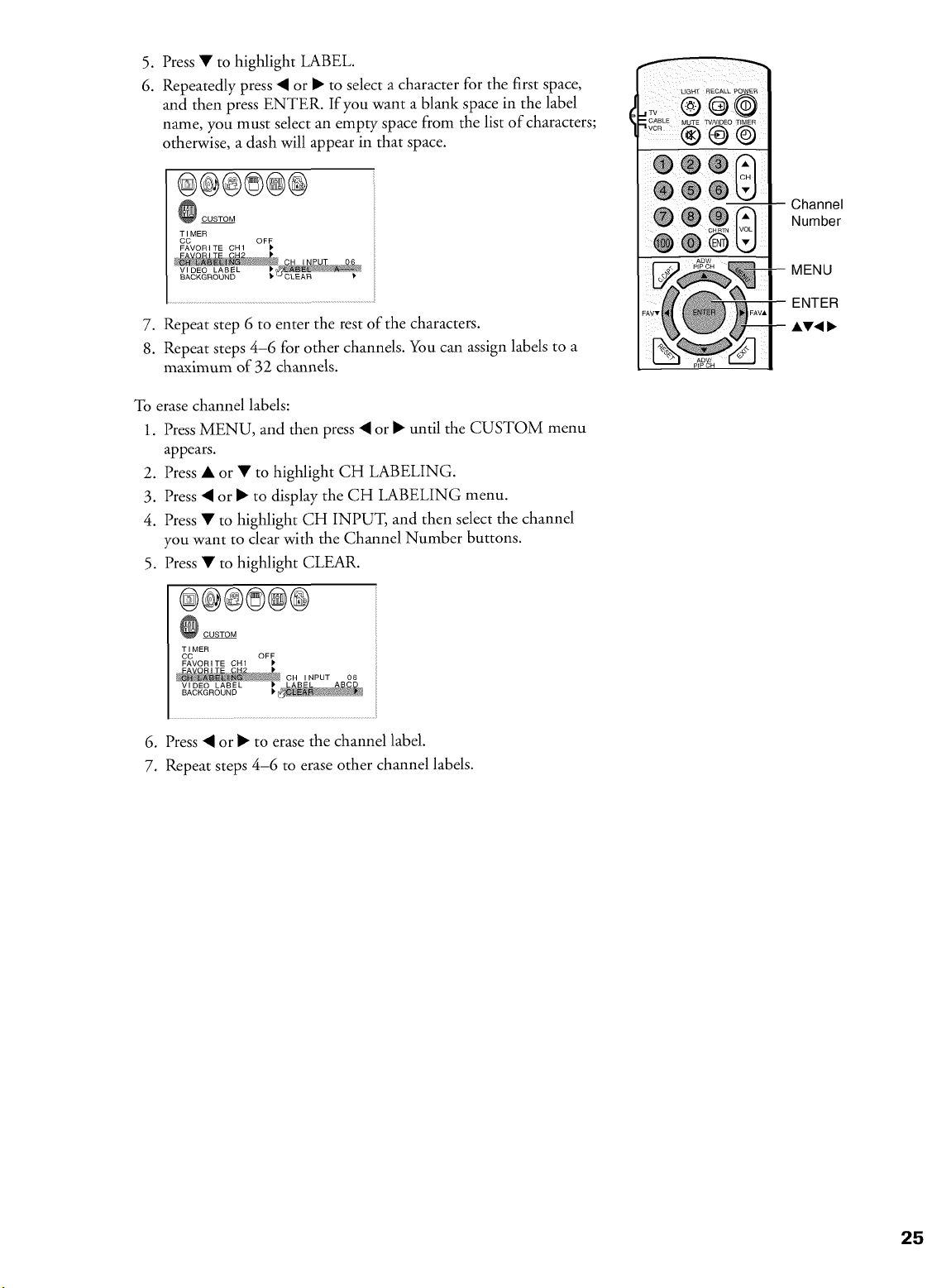
5. Press • to highlight LABEL.
6. Repeatedly press • or • to select a character for the first space,
and then press ENTER. If you want a blank space in the label
name, you must select an empty space from the list of characters;
otherwise, a dash will appear in that space.
®@@®®®
_ CUSTOM
TIMER
CC OFF
FAVORITE CH1
7. Repeat step 6 to enter the rest of the characters.
8. Repeat steps 4-6 for other channels. You can assign labels to a
maximum of 32 channels.
To erase channel labels:
1. Press MENU, and then press • or • until the CUSTOM menu
appears.
2. Press • or • to highlight CH LABELING.
3. Press • or • to display the CH LABELING menu.
4. Press • to highlight CH INPUT, and then select the channel
you want to clear with the Channel Number buttons.
5. Press • to highlight CLEAR.
®@@©®@
_ CUSTOM
TIMER
CC OFF
FAVORITE CH1
UGHT RECALL POWER
® ® ©
Channel
Number
MENU
ENTER
6. Press • or • to erase the channel label.
7. Repeat steps 4-6 to erase other channel labels.
25
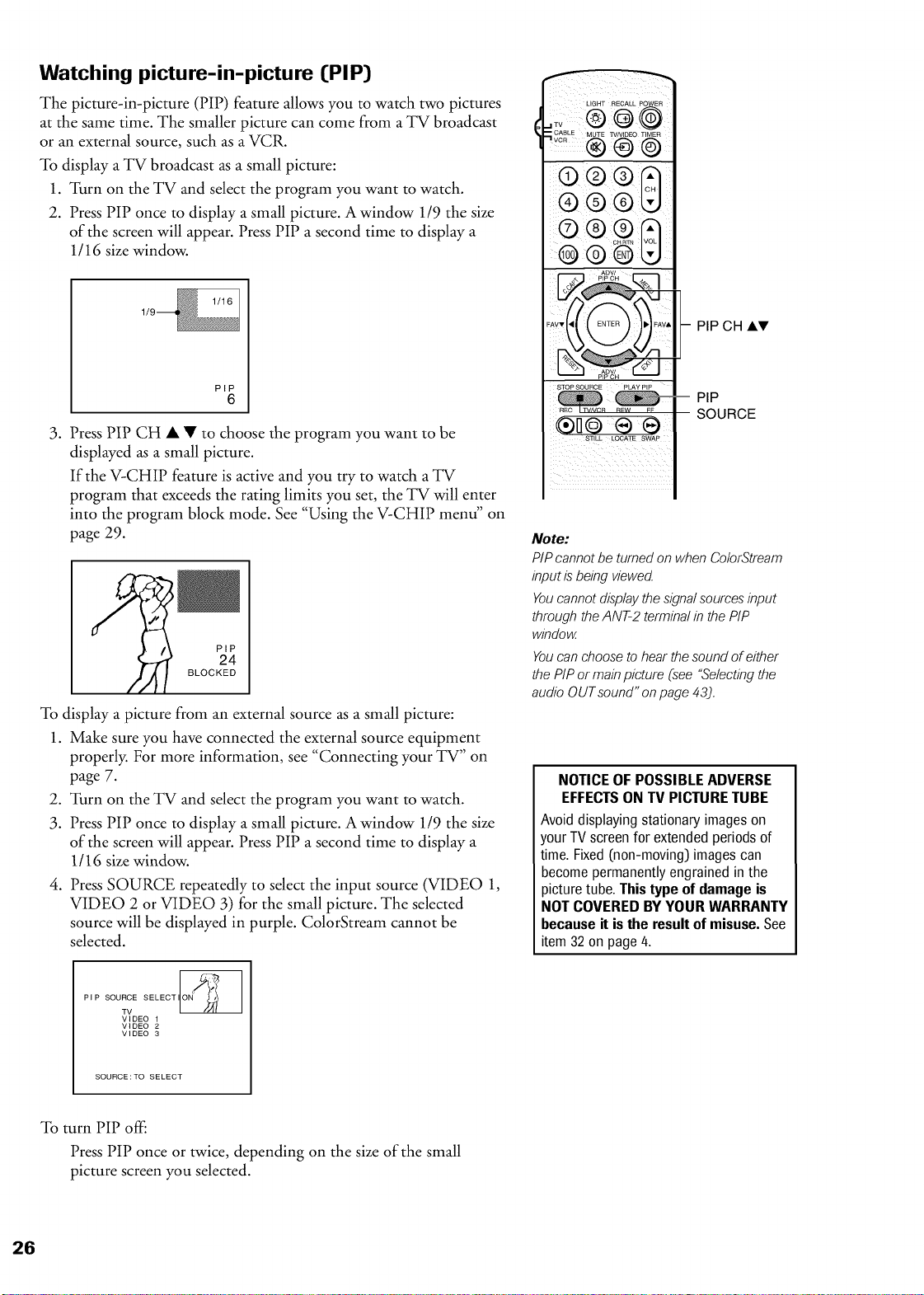
Watching picture-in-picture CPIP}
The picture-in-picture (PIP) feature allows you to watch two pictures
at the same time. The smaller picture can come from a TV broadcast
or an external source, such as a VCR.
To display a TV broadcast as a small picture:
1. Turn on the TV and select the program you want to watch.
2. Press PIP once to display a small picture. A window 119 the size
of the screen will appear. Press PIP a second time to display a
1/ 16 size window.
PIP
6
3. Press PIP CH • • to choose the program you want to be
displayed as a small picture.
If the V-CHIP feature is active and you try to watch a TV
program that exceeds the rating limits you set, the TV will enter
into the program block mode. See "Using the V-CHIP menu" on
page 29.
PIP
24
BLOCKED
To display a picture from an external source as a small picture:
1. Make sure you have connected the external source equipment
properly. For more information, see "Connecting your TV" on
page 7.
2. Turn on the TV and select the program you want to watch.
3. Press PiP once to display a small picture. A window 1/9 the size
of the screen will appear. Press PIP a second time to display a
1/ 16 size window.
.
Press SOURCE repeatedly to select the input source (VIDEO 1,
VIDEO 2 or VIDEO 3) for the small picture. The selected
source will be displayed in purple. ColorStream cannot be
selected.
PIP SOURCE SELECTI_
TV
VIDEO 1
VIDEO 2
VIDEO 3
LIGHT RECALL POWER
._,;v® @@
•_ CA_L E ..... TV..........
® ® ©
® ® ®
PIP CH AT
PIP
SOURCE
Note:
PIP cannot be turned on when ColorStream
input is being viewed
Youcannot displaythe signal sources input
through the ANT-2 terminal in the PIP
window
Youcan choose to hear the sound of either
the PIP or main picture (see "Selecting the
audio OUT sound" on page 43).
NOTICE OF POSSIBLE ADVERSE
EFFECTSON TV PICTURE TUBE
Avoid displaying stationary images on
your TV screen for extended periods of
time. Fixed (non-moving) images can
become permanently engrained in the
picture tube This type of damage is
NOT COVERED BY YOUR WARRANTY
because it is the result of misuse. See
item 32 on page 4.
To turn PIP off:
Press PIP once or twice, depending on the size of the small
picture screen you selected.
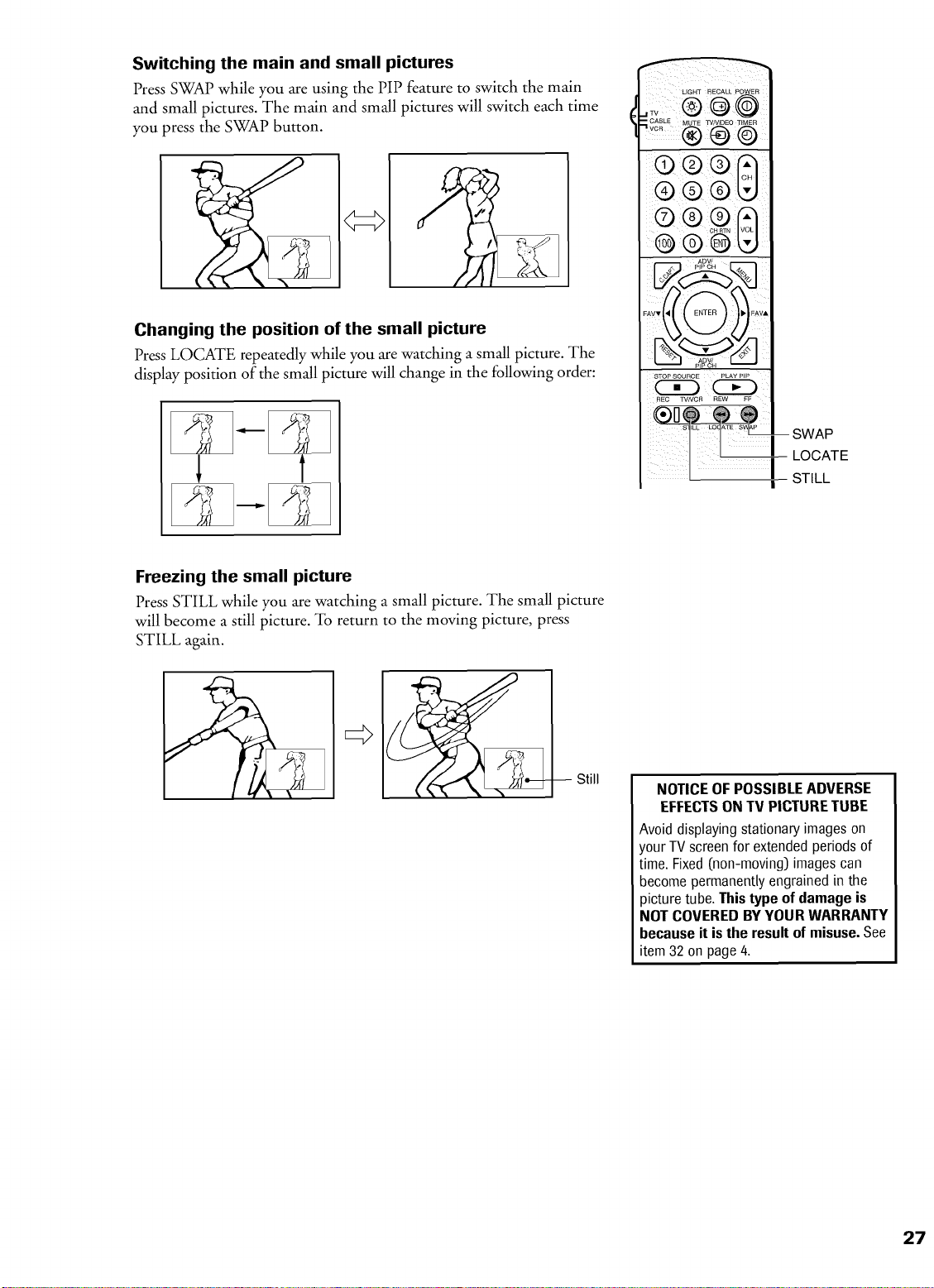
Switching the main and small pictures
Press SWAP while you are using the PIP feature to switch the main
and small pictures. The main and small pictures will switch each time
you press the SWAP button.
Changing the position of the small picture
Press LOCATE repeatedly while you are watching a small picture. The
display position of the small picture will change in the following order:
LIGHT RECALL POWER
:°ABLEMOTE_OEOT.....
-vo.® ® @
® ® ®
o® o
ADV/
PIPOH
FAV
STOP SOURCE PLAY PiP
®o_ i@@
! -sWAP
LOCATE
I STILL
Freezing the small picture
Press STILL while you are watching a small picture. The small picture
will become a still picture. To return to the moving picture, press
STILL again.
Still
NOTICE OF POSSIBLE ADVERSE
EFFECTSON TV PICTURE TUBE
Avoid displaying stationary images on
your TV screen for extended periods of
time. Fixed (non-moving) images can
become permanently engrained in the
picture tube. This type of damage is
NOT COVERED BY YOUR WARRANTY
because it is the result of misuse. See
item 32 on page 4.
27
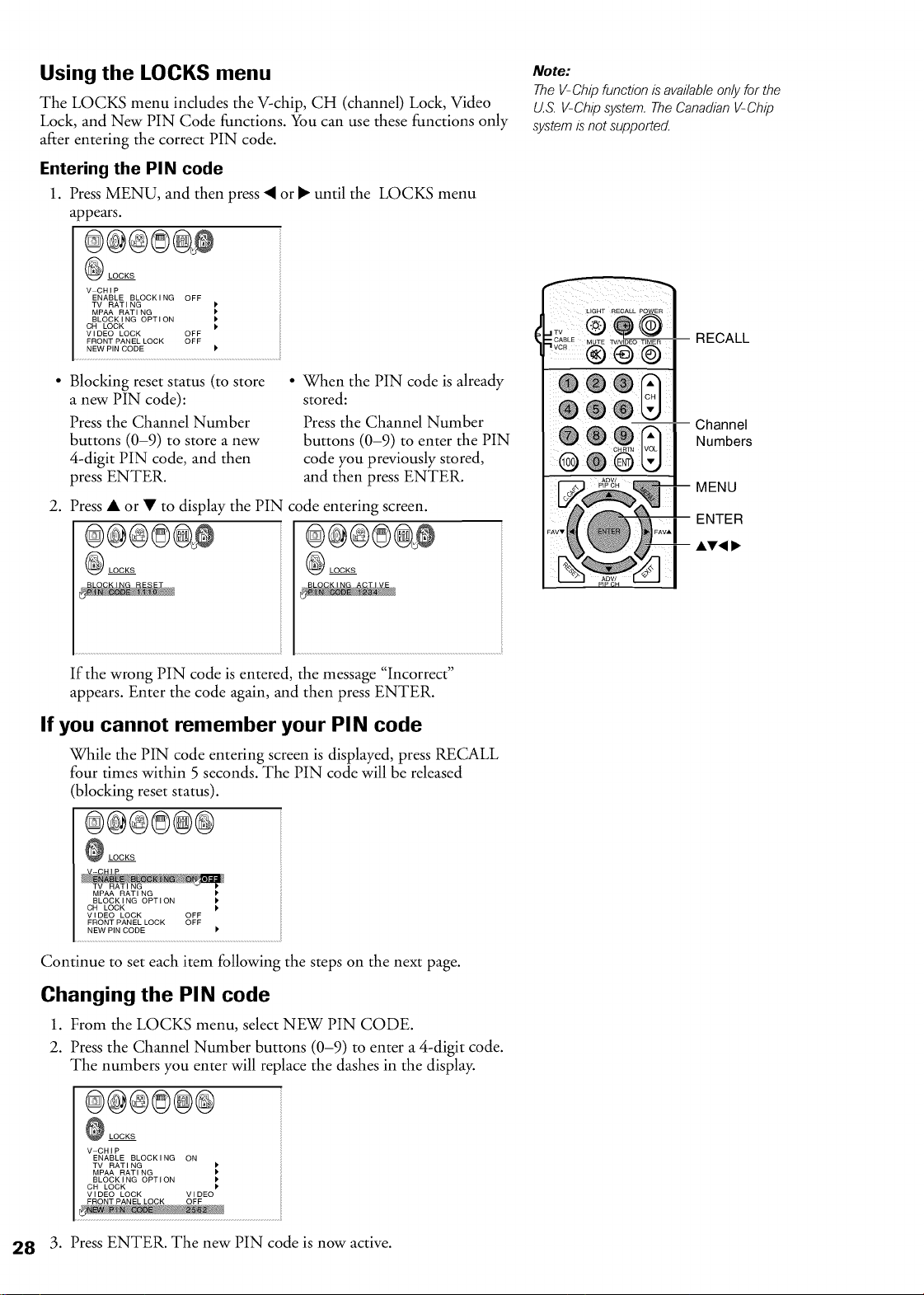
Using the LOCKS menu
The LOCKS menu includes the V-chip, CH (channel) Lock, Video
Lock, and New PIN Code functions. You can use these functions only
after entering the correct PIN code.
Entering the PIN code
1. Press MENU, and then press • or • until the LOCKS menu
appears.
LOCKS
V CHiP
ENABLE BLOCKING OFF
TV RATING
MPAA RATING
BLOCKING OPTION
CH LOCK
VIDEO LOCK OFF
FRONTPANELLOCK OFF
NEW PIN CODE
• Blocking reset status (to store
a new PIN code):
Press the Channel Number
buttons (0-9) to store a new
4-digit PIN code, and then
press ENTER.
• When the PIN code is already
stored:
Press the Channel Number
buttons (0-9) to enter the PIN
code you previously stored,
and then press ENTER.
2. Press • or • to display the PIN code entering screen.
LOCKS @ LOCKS
If the wrong PIN code is entered, the message "Incorrect"
appears. Enter the code again, and then press ENTER.
If you cannot remember your PIN code
While the PIN code entering screen is displayed, press RECALL
four times within 5 seconds. The PIN code will be released
(blocking reset status).
®@®8@@
LOCKS
®
MPAA RATING _'
BLOCKING OPTION
CH LOCK P'
VIDEO LOCK OFF
FRONT PANEL LOCK OFF
NEW PIN CODE _'
Continue to set each item following the steps on the next page.
Changing the PIN code
1. From the LOCKS menu, select NEW PIN CODE.
2. Press the Channel Number buttons (0-9) to enter a 4-digit code.
The numbers you enter will replace the dashes in the display.
®@®8@®
LOCKS
V CHiP
ENABLE BLOCKING ON
TV RATING
MPAA RATING
BLOCKING OPTION
CH LOCK
VIDEO LOCK VIDEO
FRONTPANELLOCK OFF
3. Press ENTER. The new PIN code is now active.
Note:
The V-Chip function is available only for the
U.S. V-Chip system. The Canadian V-Chip
system is not supported.
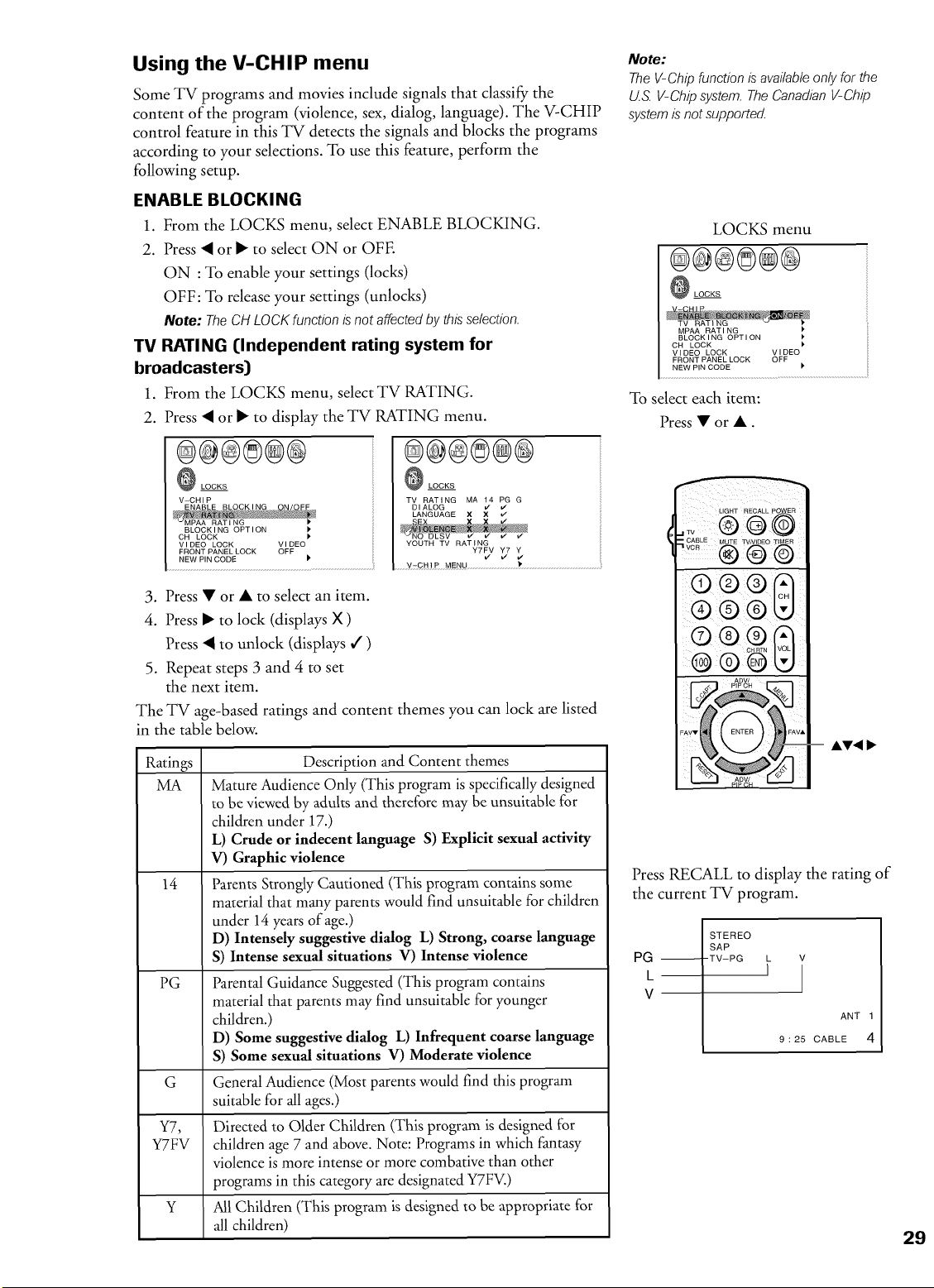
Using the V-CHIP menu
Some TV programs and movies include signals that classify the
content of the program (violence, sex, dialog, language). The V-CHIP
control feature in this TV detects the signals and blocks the programs
according to your selections. To use this feature, perform the
following setup.
ENABLE BLOCKING
1. From the LOCKS menu, select ENABLE BLOCKING.
2. Press • or • to select ON or OFE
ON : To enable your settings (locks)
OFF: To release your settings (unlocks)
Note: TheCH LOCKfunctionis notaffectedbythisselection.
TV RATING ([Independent rating system for
broadcasters)
1. From the LOCKS menu, select TV RATING.
2. Press • or • to display the TV RATING menu.
®@@®@@
LOCKS
V CHIP
CH LOCK
VIDEO LOCK VIDEO
FRONTPANELLOCK OFF
NEW PIN CODE
®@@®@@
LOCKS
TV RATING MA 14 PG G
DIALOG tz v"
LANGUAGE X X v"
_/ v' J
Y=CH!P MSNb )
3. Press • or • to select an item.
4. Press • to lock (displays X )
Press • to unlock (displays / )
5. Repeat steps 3 and 4 to set
the next item.
The TV age-based ratings and content themes you can lock are listed
in the table below.
Ratings
MA
14
PG
Description and Content themes
Mature Audience Only (This program is specifically designed
to be viewed by adults and therefore may be unsuitable for
children under 17.)
L) Crude or indecent language S) Explicit sexual activity
V) Graphic violence
Parents Strongly Cautioned (This program contains some
material that many parents would find unsuitable for children
under 14 years of age.)
D) Intensely suggestive dialog L) Strong, coarse language
S) Intense sexual situations V) Intense violence
Parental Guidance Suggested (This program contains
material that parents may find unsuitable for younger
children.)
D) Some suggestive dialog L) Infrequent coarse language
S) Some sexual situations V) Moderate violence
G General Audience (Most parents would find this program
suitable for all ages.)
Y7, Directed to Older Children (This program is designed for
Y7FV children age 7 and above. Note: Programs in which fantasy
violence is more intense or more combative than other
programs in this category are designated Y7FV.)
Y All Children (This program is designed to be appropriate for
all children)
Note:
The V-Chip function is availableonly for the
U.S.V-Chip system. The Canadian V-Chip
systemis not supported.
LOCKS menu
®®®®@®
LOCKS
MPAA RATING
BLOCKING OPTION
OH LOCK
VIDEO LOCK VIDEO
FRONTPANELLOCK OFF
NEW PIN CODE
To select each item:
Press • or •.
LIGHT RECALL POWER
;;® @ @
C_LE MUTEWn,DEO_MER
® ®
0 ® ®
®®
-- AT<
Press RECALL to display the rating of
the current TV program.
PG--
L
V
STEREO
SAP
-TV-PG L V
1
ANT 1
9 : 25 CABLE 4
29
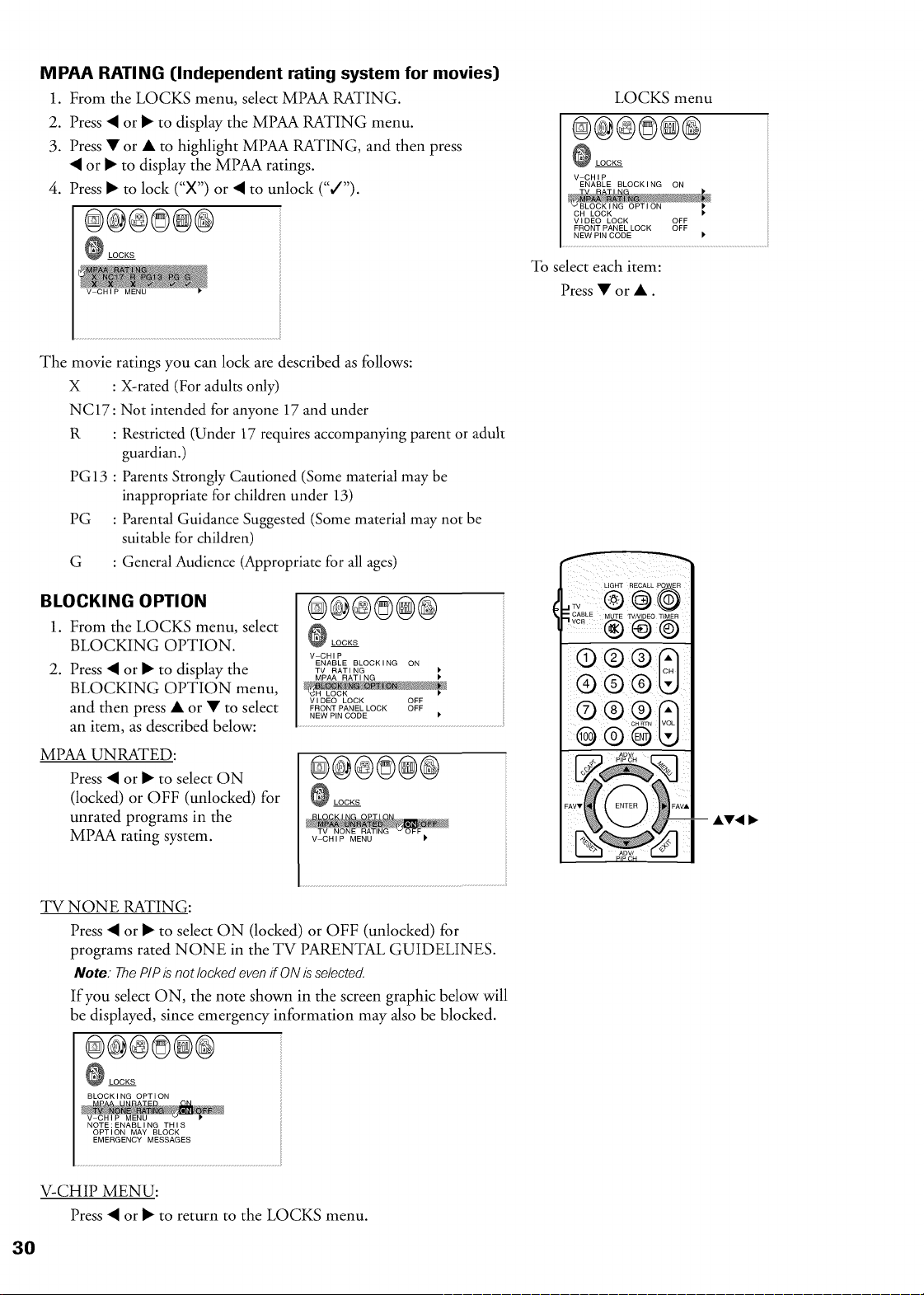
M PAA RATI NG (Independent rating system for movies)
1. From tile LOCKS menu, select MPAA RATING.
2. Press • or • to display the MPAA RATING menu.
3. Press • or • to highlight MPAA RATING, and then press
• or • to display the MPAA ratings.
4. Press • to lock ("X") or • to unlock (%/").
®@®@@@
LOCKS
LOCKS menu
0@0@@@
LOCKS
V CHIP
CH LOCK )'
VIDEO LOCK OFF
FRONT PANEL LOCK OFF
NEW PIN CODE P
To select each item:
Press • or •.
The movie ratings you can lock are described as follows:
X : X-rated (For adults only)
NC17: Not intended for anyone 17 and under
R : Restricted (Under 17 requires accompanying parent or adult
guardian.)
PG 13 : Parents Strongly Cautioned (Some material may be
inappropriate for children under 13)
PG : Parental Guidance Suggested (Some material may not be
suitable for children)
G : General Audience (Appropriate for all ages)
BLOCKING OPTION
1. From the LOCKS menu, select
BLOCKING OPTION.
2. Press • or • to display the
BLOCKING OPTION menu,
and then press • or • to select
an item, as described below:
MPAA UNRATED:
Press • or • to select ON
(locked) or OFF (unlocked) for
unrated programs in the
MPAA rating system.
TV NONE RATING:
@@@@@@
LOCKS
V CHIP
ENABLE BLOCK I NG ON
TV RATING )"
VIDEO LOCK OFF
FRONTPANELLOCK OFF
NEW PIN CODE
®®®@®®
LOCKS
V CHIP MENU
Press • or • to select ON (locked) or OFF (unlocked) for
programs rated NONE in the TV PARENTAL GUIDELINES.
Note. ThePIPis notiockedevenif ONisseiected.
If you select ON, the note shown in the screen graphic below will
be displayed, since emergency information may also be blocked.
®@@@@@
LOCKS
BLOCKING OPTION
NOTE:ENABLING THIS
OPTION MAY BLOCK
EMERGENCY MESSAGES
V-CHIP MENU:
Press • or • to return to the LOCKS menu.
..,s ®@@
®
® ® ®
® ® ® U
AY4
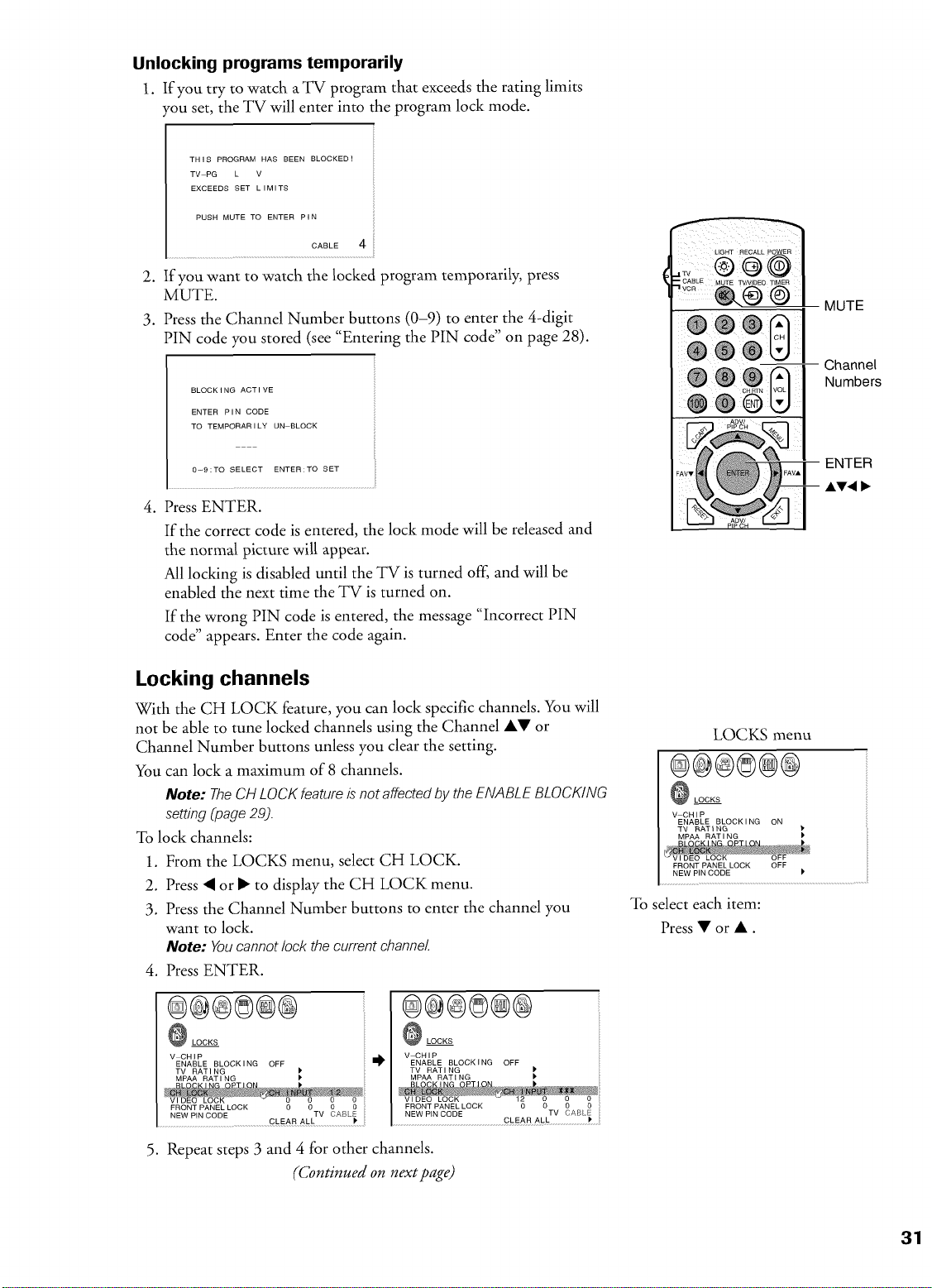
Unlocking programs temporarily
1. If you try to watch aTV program that exceeds tile rating limits
¢ou set, the TV will enter into the program lock mode.
THIS PROGRAM HAS BEEN BLOCKED!
TV PG L V
EXCEEDS SET LIMITS
PUSH MUTE TO ENTER PIN
CABLE 4
2. If you want to watch the locked program temporarily, press
MUTE.
3. Press the Channel Number buttons (0-9) to enter the 4-digit
PIN code you stored (see "Entering the PIN code" on page 28).
BLOCK I NG ACTIVE
ENTER PIN CODE
TO TEMPORAR I LY UN BLOCK
0-9:TO SELECT ENTER:TO SET
4. Press ENTER.
If the correct code is entered, the lock mode will be released and
the normal picture will appear.
All locking is disabled until the TV is turned off, and will be
enabled the next time the TV is turned on.
If the wrong PIN code is entered, the message "Incorrect PIN
code" appears. Enter the code again.
Locking channels
With tile CH LOCK feature, you can lock specific channels. You will
not be able to tune locked channels using the Channel AV or
Channel Number buttons unless you clear the setting.
You can lock a maximum of 8 channels.
Note: TheCH LOCKfeatureis not affectedby the ENABLEBLOCKING
setting(page29).
To lock channels:
1. From the LOCKS menu, select CH LOCK.
2. Press • or • to display the CH LOCK menu.
3. Press the Channel Number buttons to enter the channel you
want to lock.
Note: Youcannotlock thecurrent channel.
4. Press ENTER.
O LOCKS
V CHIP
ENABLE BLOCKING OFF
TV RATING
MPAA RATING
FRONT PANEL LOCK 0 0 0 0
NEW PIN CODE TV CABLE
CLEAR ALL
LOCKS
V-CHIP
ENABLE BLOCKING OFF
TV RAT I NG )'
MPAA RATI NG I,
,,)
CLEAR ALL )'
5. Repeat steps 3 and 4 for other channels.
(Continued on next ])age)
LOCKS menu
®®0®@®
LOCKS
V CHIP
ENABLE BLOCKING ON
TV RATING
MP_ RATING
FRONT PANEL LOCK OFF
NEW PIN CODE )'
To select each item:
Press V or •.
31
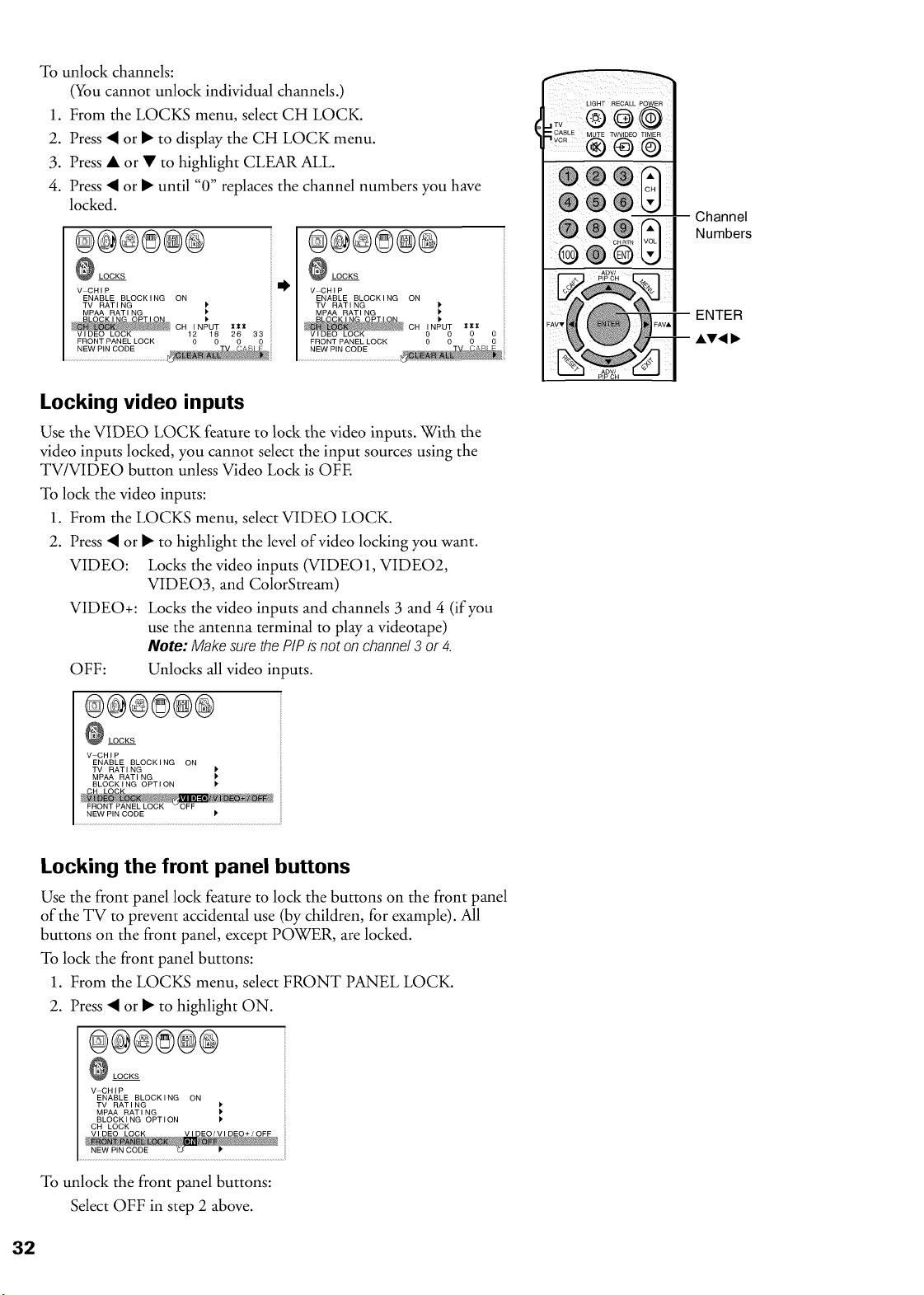
To unlock channels:
(You cannot unlock individual channels.)
1. From the LOCKS menu, select CH LOCK.
2. Press • or • to display the CH LOCK menu.
3. Press • or • to highlight CLEAR ALL.
4. Press • or • until "0" replaces the channel numbers you have
locked.
®®®8®@
LOCKS
V CHIP
ENABLE BLOCKING ON
TV RATING
MPAA RATING
CH INPUT X*I
VIDEO LOCK 12 18 26 33
®@®8®@
LOCKS
V CHiP
ENABLE BLOCK I NG ON
TV RATING
MPAA RATING I'
CH INPUT IclcX
Vi DEC LOCK
FRONT PANEL LOCK 00 0 00 0
NEW PIN CODE
LIGHT RECALL POWER
,:v® @0
_LE..... TV..........
® ® ©
@ ®
-- Channel
Numbers
ENTER
Locking video inputs
Use the VIDEO LOCK feature to lock the video inputs. With the
video inputs locked, you cannot select the input sources using the
TV/VIDEO button unless Video Lock is OFE
To lock the video inputs:
1. From the LOCKS menu, select VIDEO LOCK.
2. Press • or • to highlight the level of video locking you want.
VIDEO: Locks the video inputs (VIDEO1, VIDEO2,
VIDEO3, and ColorStream)
VIDEO+: Locks the video inputs and channels 3 and 4 (if you
use the antenna terminal to play a videotape)
Note: Makesure thePIPis not on channel3 or 4.
OFF: Unlocks all video inputs.
®@®8@®
O LOCKS
V CHiP
ENABLE BLOCKING ON
TV RATING
MPAA RATING
BLOCKING OPTION
NEW PIN CODE P"
Locking the front panel buttons
Use the front panel lock feature to lock the buttons on the front panel
of the TV to prevent accidental use (by children, for example). All
buttons on the front panel, except POWER, are locked.
To lock the front panel buttons:
1. From the LOCKS menu, select FRONT PANEL LOCK.
2. Press • or • to highlight ON.
@@@8@@
LOCKS
V CHiP
ENABLE BLOCKING ON
TV RATING
MPAA RATING
BLOCKING OPTION
CH LOCK
NEW PIN CO_E _
To unlock the front panel buttons:
Select OFF in step 2 above.
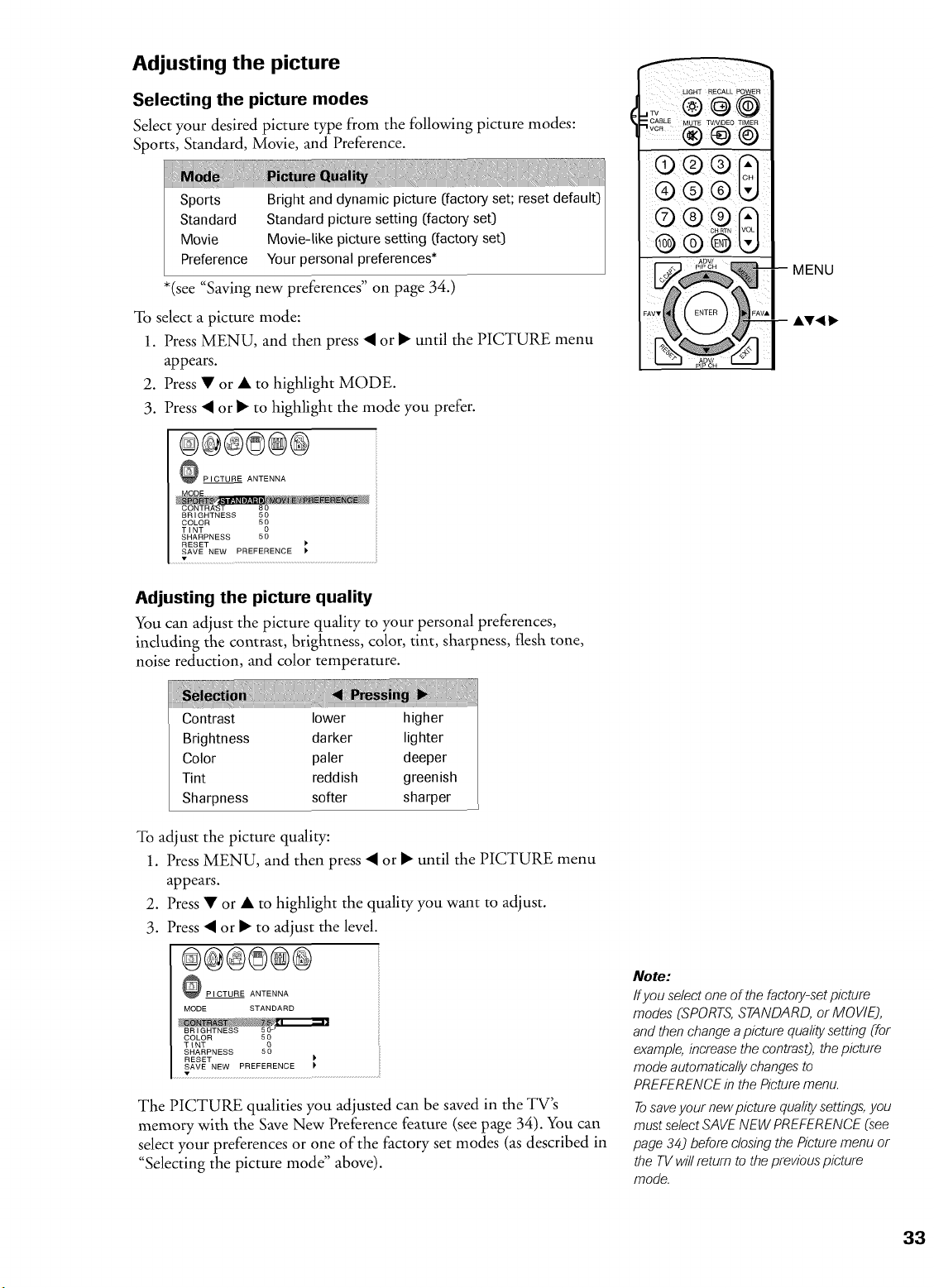
Adjusting the picture
Selecting the picture modes
Select your desired picture type from the following picture modes:
Sports, Standard, Movie, and Preference.
Sports
Standard
Movie
Preference
Bright and dynamic picture (factory set; reset default)
Standard picture setting (factory set)
Movie-like picture setting (factory set)
Your personal preferences*
*(see "Saving new preferences" on page 34.)
To select a picture mode:
1. Press MENU, and then press • or • until the PICTURE menu
appears.
2. Press • or • to highlight MODE.
3. Press • or • to highlight the mode you prefer.
@@@©@@
PICTURE ANTENNA
-- MENU
RESET
SAVE NEW PREFERENCE
Adjusting the picture quality
You can adjust the picture quality to your personal preferences,
including the contrast, brightness, color, tint, sharpness, flesh tone,
noise reduction, and color temperature.
Contrast lower higher
Brightness darker lighter
Color paler deeper
Tint reddish greenish
Sharpness softer sharper
To adjust the picture quality:
1. Press MENU, and then press • or • until the PICTURE menu
appears.
2. Press • or • to highlight the quality you want to adjust.
3. Press • or • to adjust the level.
@@@@@@
PICTURE ANTENNA
MODE STANDARD
T_NT 5_
SHARPNESS
RESET
SAVE NEW PREFERENCE
The PICTURE qualities you adjusted can be saved in the TV's
memory with the Save New Preference feature (see page 34). You can
select your preferences or one of the factory set modes (as described in
"Selecting the picture mode" above).
Note:
Ifyou selectone of the factory-setpicture
modes (SPORTS,STANDARD, or MOVIE),
and then change apicture quality setting (for
example, increasethe contrast), thepicture
mode automatically changesto
PREFERENCEin the Picture menu.
Tosaveyour new picture qualitysettings,you
must select SAVENEW PREFERENCE(see
page 34) before closing the Picture menu or
the TV will return to the previouspicture
mode.
33
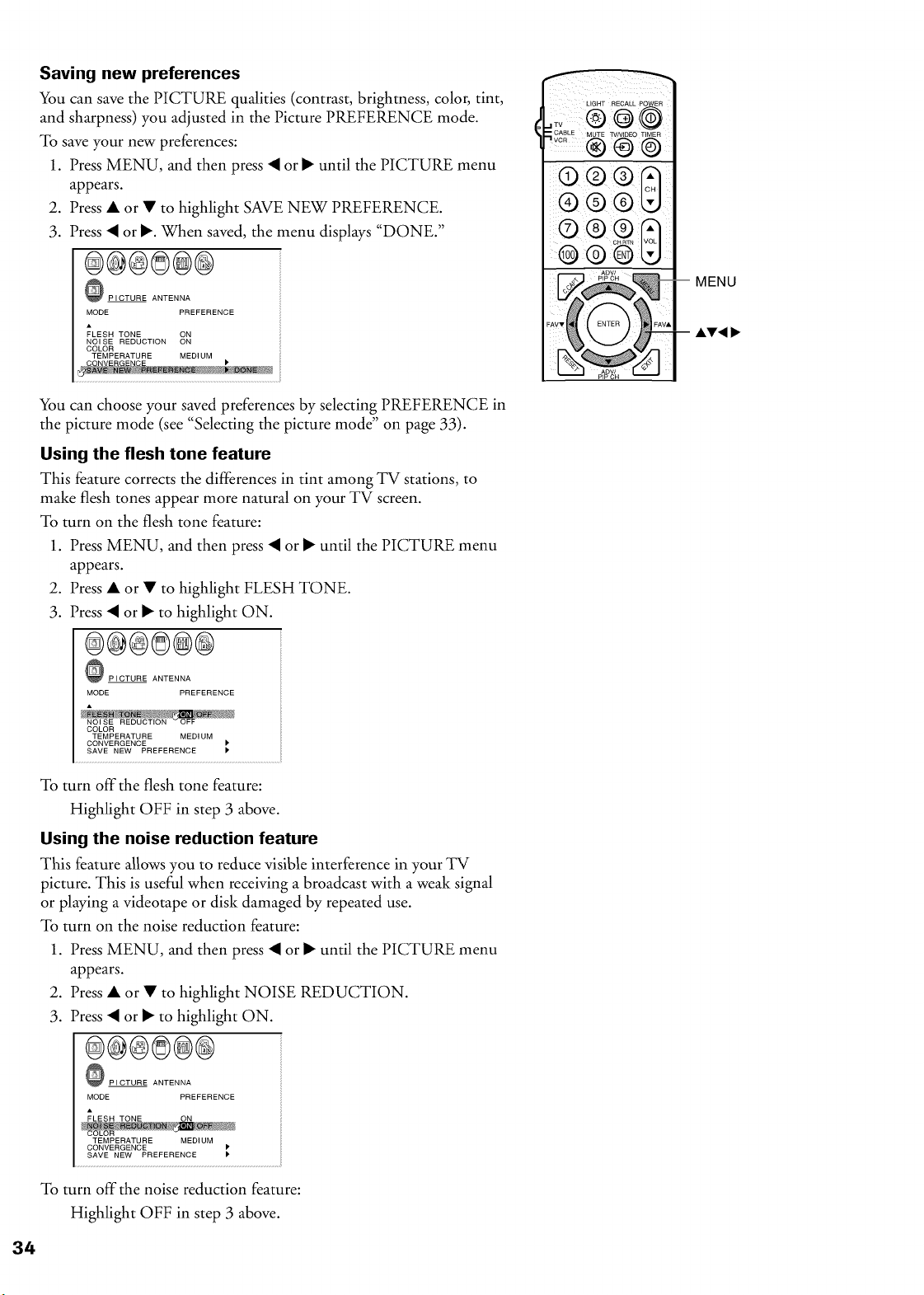
Saving new preferences
You can save the PICTURE qualities (contrast, brightness, color, tint,
and sharpness) you adjusted in the Picture PREFERENCE mode.
To save your new preferences:
1. Press MENU, and then press • or • until the PICTURE menu
appears.
2. Press • or • to highlight SAVE NEW PREFERENCE.
3. Press • or •. When saved, the menu displays "DONE."
®@®@@®
PICTURE ANTENNA
MODE PREFERENCE
FLESH TONE ON
NOI SE REDUCTION ON
COLOR
TEMPERATURE MEDIUM
You can choose your saved preferences by selecting PREFERENCE in
the picture mode (see "Selecting the picture mode" on page 33).
Using the flesh tone feature
This feature corrects the differences in tint among TV stations, to
make flesh tones appear more natural on your TV screen.
To turn on the flesh tone feature:
1. Press MENU, and then press • or • until the PICTURE menu
appears.
2. Press • or • to highlight FLESH TONE.
3. Press • or • to highlight ON.
®@®@@®
PICTURE ANTENNA
MODE PREFERENCE
COLOR
TEMPERATURE MEDIUM
CONVERGENCE
SAVE NEW PREFERENCE
To turn off the flesh tone feature:
Highlight OFF in step 3 above.
Using the noise reduction feature
This feature allows you to reduce visible interference in your TV
picture. This is useful when receiving a broadcast with a weak signal
or playing a videotape or disk damaged by repeated use.
To turn on the noise reduction feature:
1. Press MENU, and then press • or • until the PICTURE menu
appears.
2. Press • or • to highlight NOISE REDUCTION.
3. Press • or • to highlight ON.
®@®®@®
PICTURE ANTENNA
MODE PREFERENCE
LIGHT RECALL POWER
':v® @@
CA_L E ..... TV..........
® ® ©
® ® ®
® ®
-- MENU
-- AT4 I_
TEMPERATURE MEDIUM
CONVERGENCE
SAVE NEW PREFERENCE
To turn off the noise reduction feature:
Highlight OFF in step 3 above.
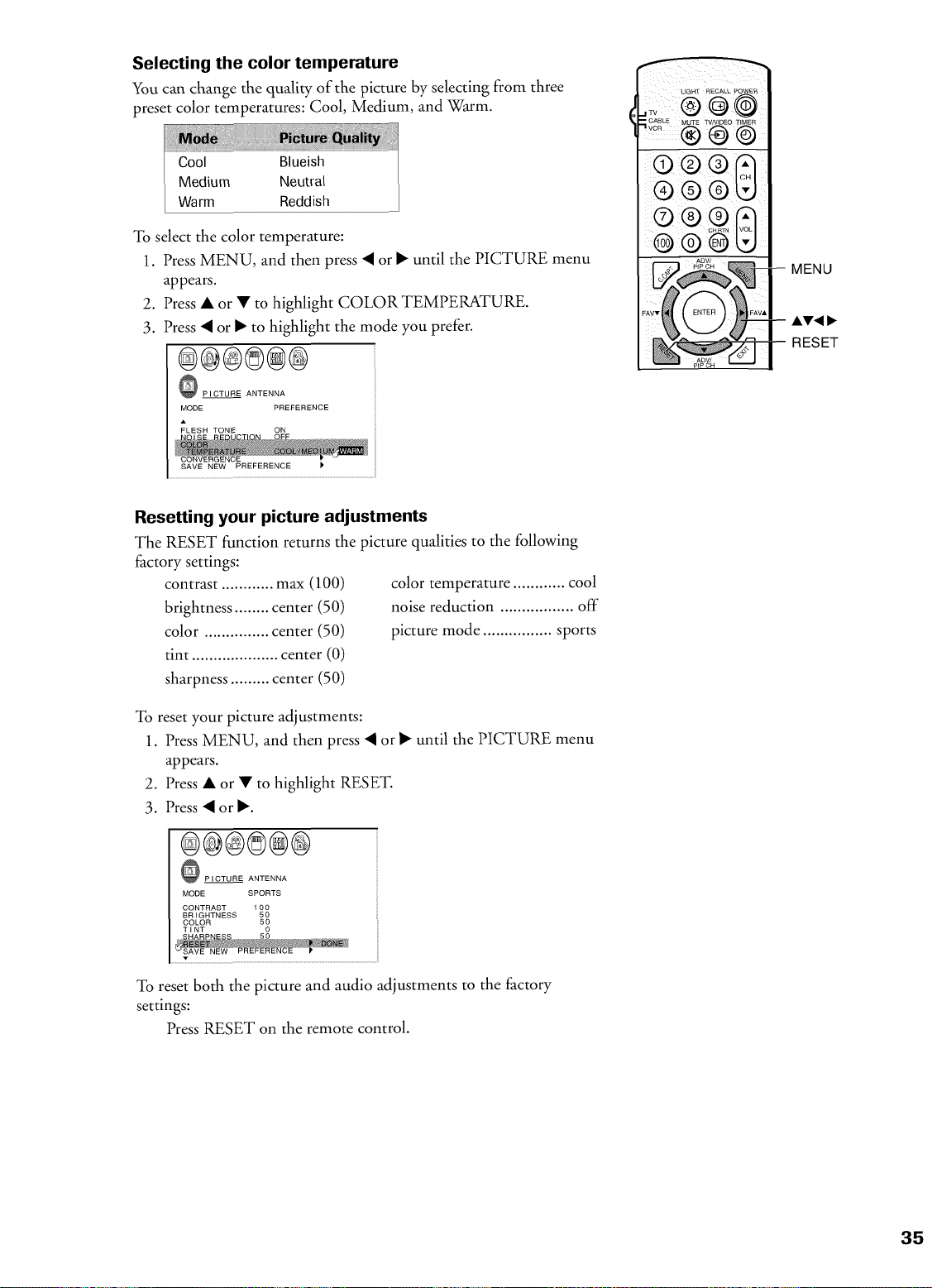
Selecting the color temperature
You can change the quality of the picture by selecting from three
preset color temperatures: Cool, Medium, and Warm.
Wa rm
To select the color temperature:
1. Press MENU, and then press • or • until the PICTURE menu
appears.
2. Press • or • to highlight COLOR TEMPERATURE.
3. Press • or • to highlight the mode you prefer.
®@®8®@
PICTURE ANTENNA
MODE PREFERENCE
® ® ©
® ®®
o® ffl
RESET
Resetting your picture adjustments
The RESET function returns the picture qualities to the following
factory settings:
contrast ............ max (100)
brightness ........ center (50)
color ............... center (50)
tint .................... center (0)
sharpness ......... center (50)
color temperature ............ cool
noise reduction ................. off
picture mode ................ sports
To reset your picture adjustments:
1. Press MENU, and then press • or • until the PICTURE menu
appears.
2. Press • or • to highlight RESET.
3. Press • or •.
O PICTURE ANTENNA
MODE SPORTS
CONTRAST 100
BRIGHTNESS 50
COLOR 50
To reset both the picture and audio adjustments to the factory
settings:
Press RESET on the remote control.
35
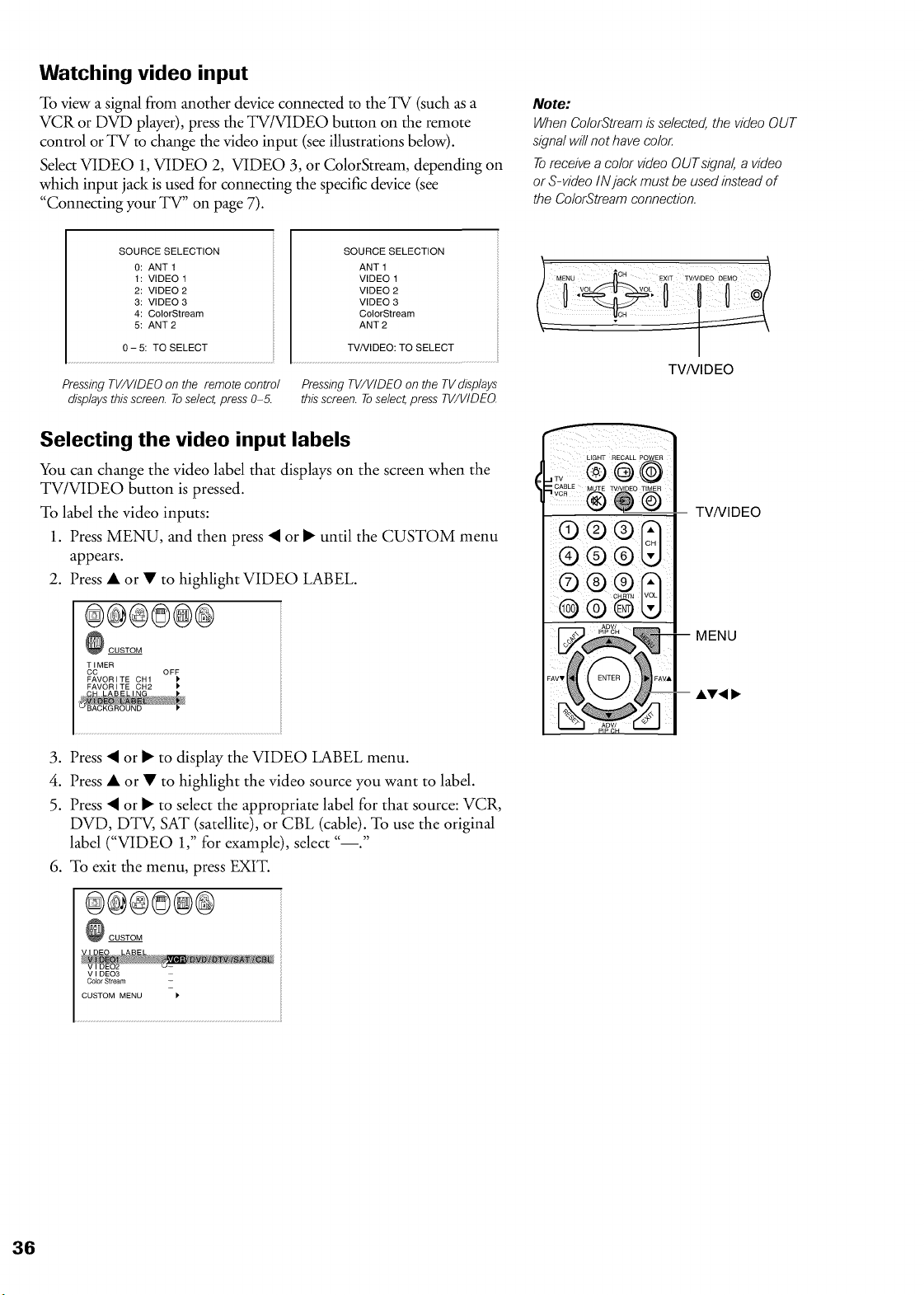
Watching video input
To view a signal from another device connected to the TV (such as a
VCR or DVD player), press the TV/VIDEO button on the remote
control or TV to change the video input (see illustrations below).
Select VIDEO 1, VIDEO 2, VIDEO 3, or ColorStream, depending on
which input jack is used for connecting the specific device (see
"Connecting your TV" on page 7).
Note:
When Co/orStreamis selected, the video OUT
signal will not have coloL
Toreceive a color videoOUT signal,a video
or S-video IN jack must be used insteadof
the ColorStream connection.
SOURCE SELECTION
0: ANT 1
1: VIDEO 1
2: VIDEO 2
3: VIDEO 3
4: ColorStream
5: ANT 2
0- 5: TO SELECT
Pressing TV/V/DEO on the remote control
displaysthis screen. Toselect,press 0-5.
SOURCE SELECTION
ANT 1
VIDEO 1
VIDEO 2
VIDEO 3
ColorStream
ANT 2
TV/VIDEO: TO SELECT
PressingTV/VIDEO on the TV displays
this screen. Toselect,press TV/VIDEO.
Selecting the video input labels
You can change the video label that displays on the screen when the
TV/VIDEO button is pressed.
To label the video inputs:
1. Press MENU, and then press • or • until the CUSTOM menu
appears.
2. Press • or • to highlight VIDEO LABEL.
®@®®@®
CUSTOM
ccTI MER OFF
FAVORITE CH1
FAVORITE OH2 )'
3. Press • or • to display the VIDEO LABEL menu.
4. Press • or • to highlight the video source you want to label.
5. Press • or • to select the appropriate label for that source: VCR,
DVD, DTV, SAT (satellite), or CBL (cable). To use the original
label ("VIDEO 1," for example), select "--."
6. To exit the menu, press EXIT.
®@®@@@
CUSTOM
U EXIT TV/! 3EO DEMO
voL voL
TV/VIDEO
LIGHT RECALL POWER
_C MUTE TV/VIDEO TIMER
®O® l
@ ® ® I
TVNIDEO
MENU
Ay4
VIDEO3
ComorStream
CUSTOM MENU
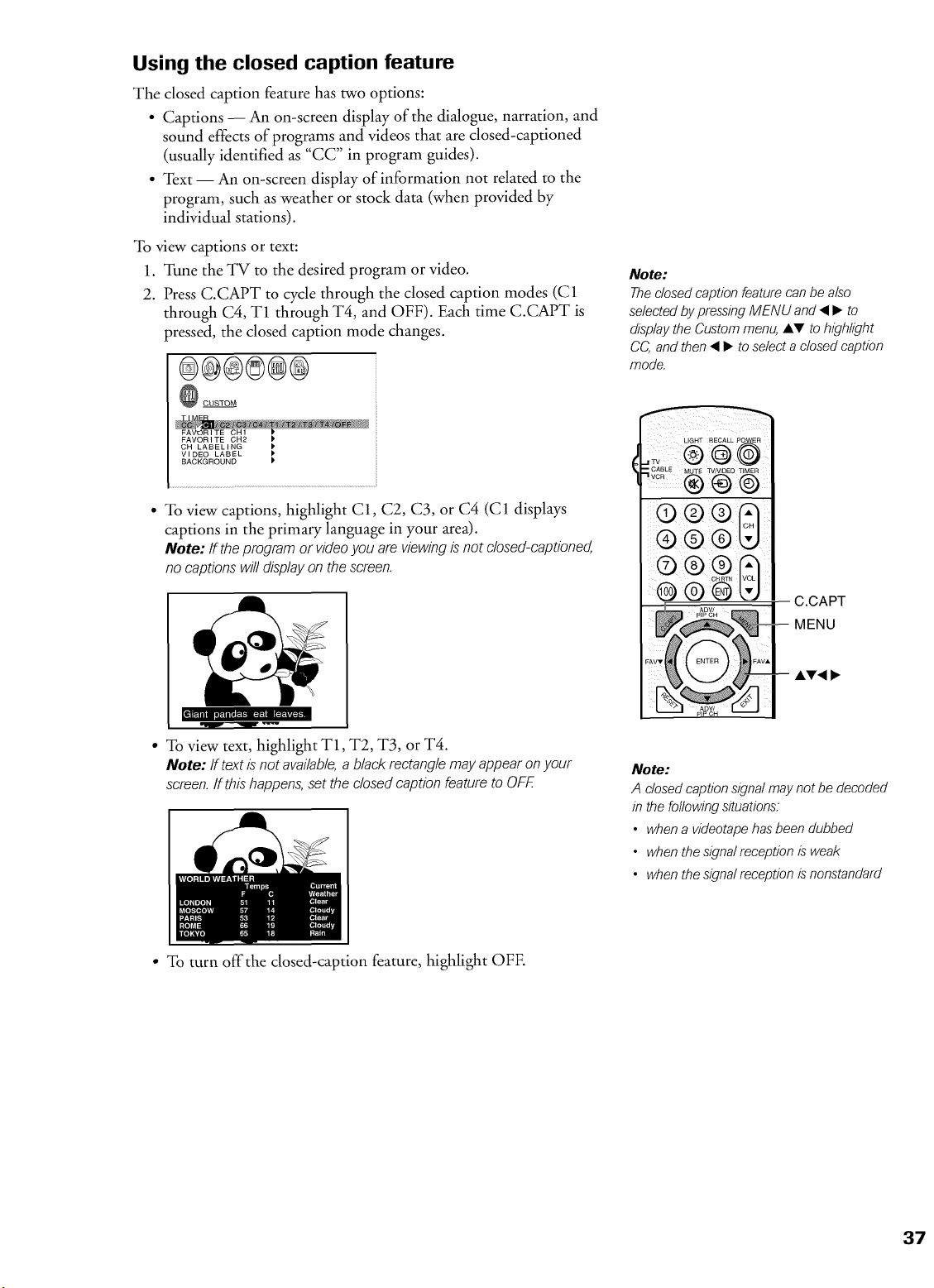
Using the closed caption feature
The closed caption feature has two options:
• Captions -- An on-screen display of the dialogue, narration, and
sound effects of programs and videos that are closed-captioned
(usually identified as "CC" in program guides).
• Text I An on-screen display of information not related to the
program, such as weather or stock data (when provided by
individual stations).
To view captions or text:
1. Tune the q_Vto the desired program or video.
2. Press C.CAPT to cycle through the closed caption modes (C1
through C4, T1 through T4, and OFF). Each time C.CAPT is
pressed, the closed caption mode changes.
®@@®@@
CUSTOM
FAVORITE CH2
OH LABELING
VIDEO LABEL
BACKGROUND
• To view captions, highlight C1, C2, C3, or C4 (C1 displays
captions in the primary language in your area).
Note: If theprogramor videoyou are viewingis not closed-captioned,
nocaptionswilldisplayonthe screen.
Note:
Thedosed caption feature can be also
selected bypressing MENU and • I_ to
display the Custom menu, AT to highlight
CC, and then • I_ to select a closed caption
mode.
LIGHT RECALL POWER
,,_ CABLE MUTE TV/VlDEO TIMER
• To view text, highlight T1, T2, T3, or T4.
Note: If text isnot available,a blackrectanglemayappearon your
screen.If thishappens,setthe closedcaptionfeatureto OFF
Note:
A closed caption signal may not be decoded
in the following situations:
• when a videotape has been dubbed
• when the signal reception is weak
• when the signal reception is nonstandard
• To turn offthe closed-caption feature, highlight OFE
37
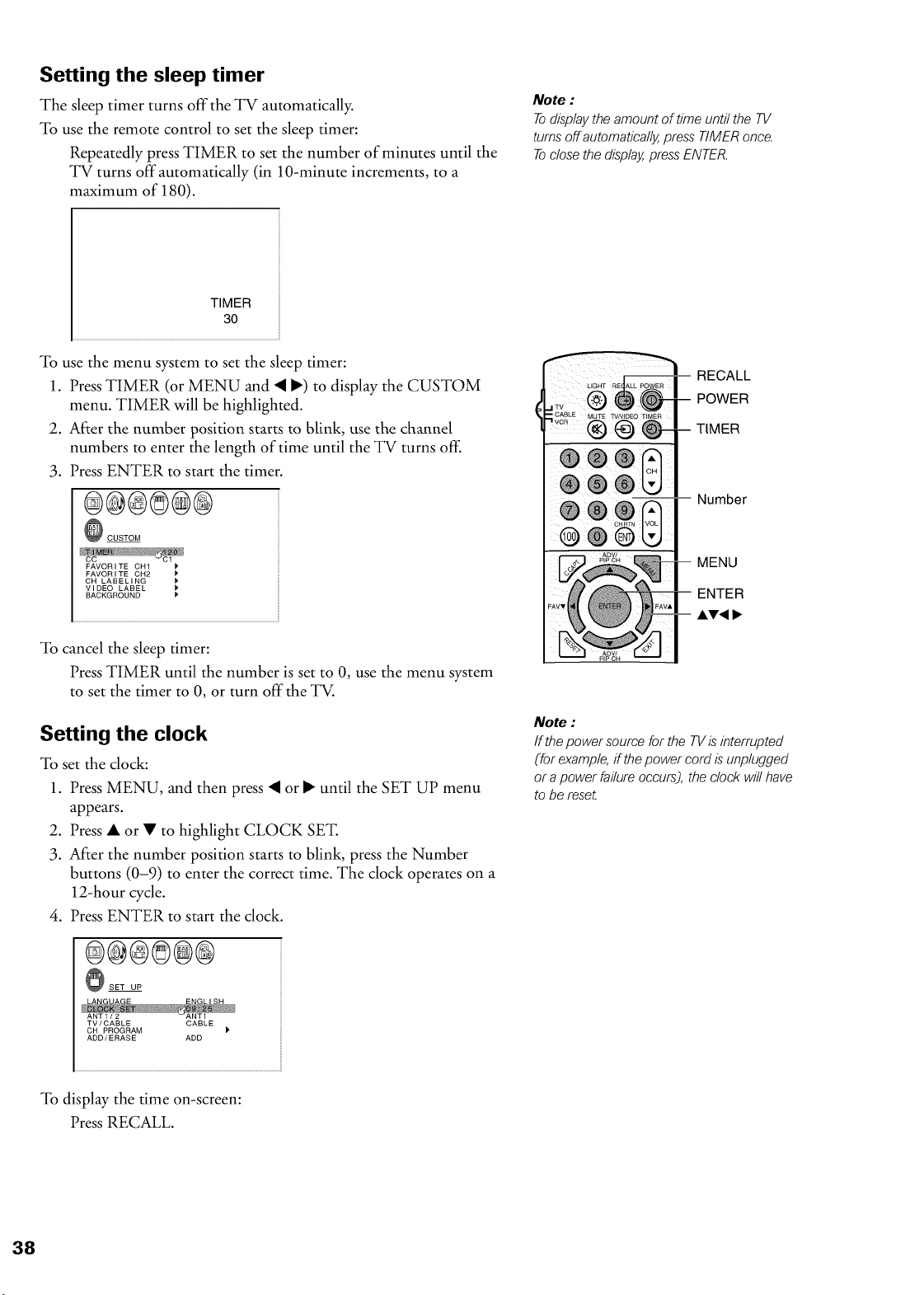
Setting the sleep timer
The sleep timer turns off tile TV automatically.
To use the remote control to set the sleep timer:
Repeatedly press TIMER to set the number of minutes until the
TV turns off automatically (in 10-minute increments, to a
maximum of 180).
Note :
Todisplay the amount of time until the TV
turns off automatically, press TIMER once.
Toclose the display, press ENTER.
TIMER
30
To use the menu system to set the sleep timer:
1. Press TIMER (or MENU and • •) to display the CUSTOM
menu. TIMER will be highlighted.
2. After tile number position starts to blink, use tile channel
numbers to enter the length of time until the TV turns off.
3. Press ENTER to start the timer.
®@®©@@
CUSTOM
FAVORITE OH1
FAVORITE CH2
CH LABELING
VIDEO LABEL
BACKGROUND
To cancel the sleep timer:
Press TIMER until the number is set to 0, use the menu system
to set the timer to 0, or turn off the TV.
Setting the clock
To set tile clock:
1. Press MENU, and then press • or • until the SET UP menu
appears.
2. Press • or • to highlight CLOCK SET.
3. After the number position starts to blink, press the Number
buttons (0-9) to enter the correct time. The clock operates on a
12-hour cycle.
4. Press ENTER to start the clock.
®@®¢@®
SET UP
RECALL
POWER
TIMER
Number
MENU
ENTER
AT< I_
Note :
If the power source for the TV is interrupted
(for example, if the power cord is unplugged
or a power failure occurs), the clock will have
to be reset
TV/CABLE CABLE
CH PROGRAM
ADD/ERASE ADD
To display the time on-screen:
Press RECALL.
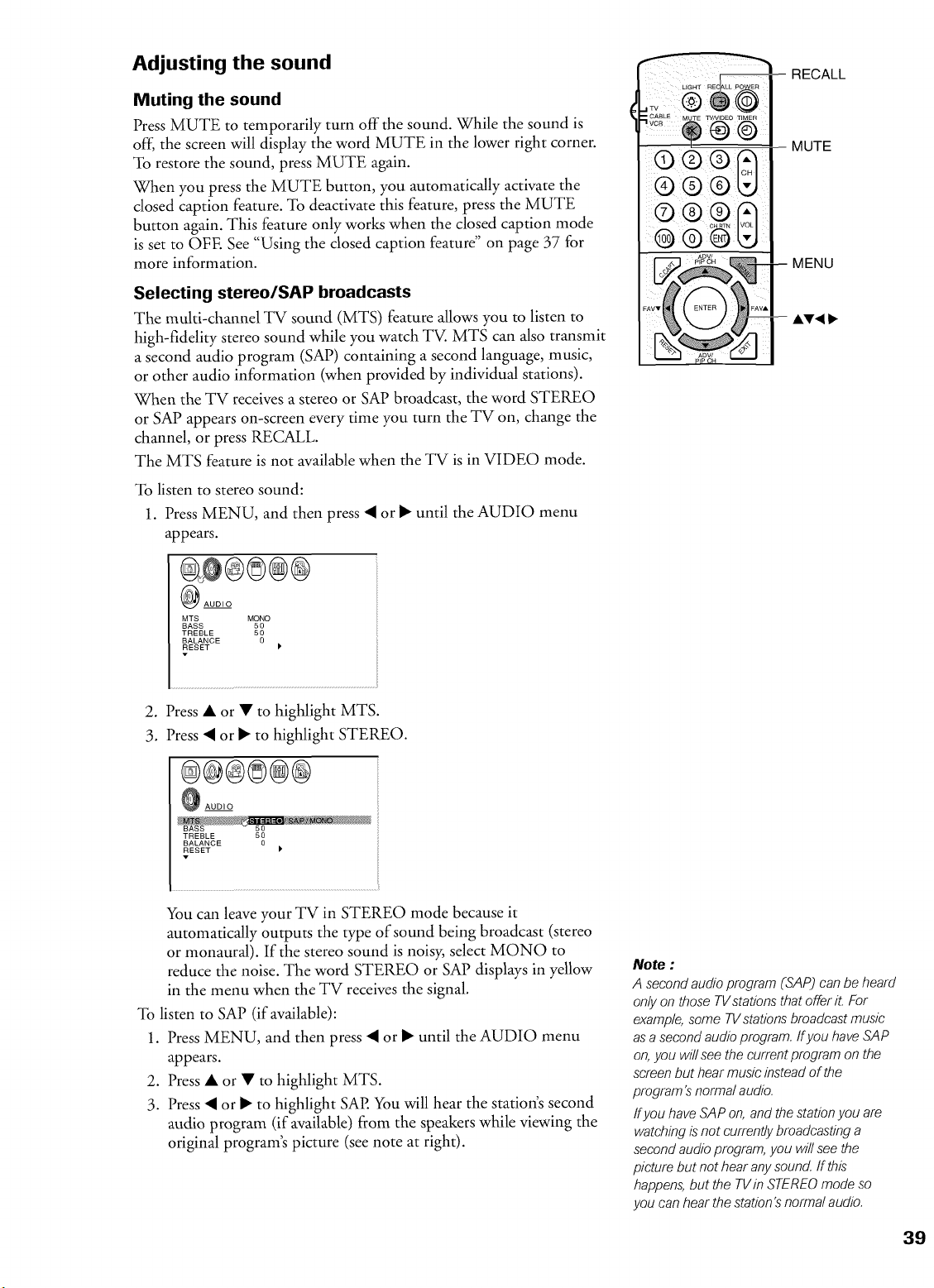
Adjusting the sound
Muting the sound
Press MUTE to temporarily turn off the sound. While the sound is
off, the screen will display the word MUTE in the lower right corner.
To restore the sound, press MUTE again.
When you press the MUTE button you automatically activate the
dosed caption feature. To deactivate this feature, press the MUTE
button again. This feature only works when the closed caption mode
is set to OFE See "Using the closed caption feature" on page 37 for
more information.
Selecting stereo/SP, P broadcasts
The multi-channel TV sound (MTS) feature allows you to listen to
high-fidelity stereo sound while you watch TV. MTS can also transmit
a second audio program (SAP) containing a second language, music,
or other audio information (when provided by individual stations).
When the TV receives a stereo or SAP broadcast, the word STEREO
or SAP appears on-screen every time you turn the TV on, change the
channel, or press RECALL.
The MTS feature is not available when the TV is in VIDEO mode.
To listen to stereo sound:
1. Press MENU, and then press • or • until the AUDIO menu
appears.
AUDIO
MTS MONO
BASS 50
TREBLE 50
BALANCE 0
RESET
v
®1
® I
® ® I
® ®® I
RECALL
MUTE
MENU
AV<
2. Press • or • to highlight MTS.
3. Press • or • to highlight STEREO.
@@@®@@
AUDIO
RESET )'
You can leave your TV in STEREO mode because it
automatically outputs the type of sound being broadcast (stereo
or monaural). If the stereo sound is noisy, select MONO to
reduce the noise. The word STEREO or SAP displays in yellow
in the menu when the TV receives the signal.
To listen to SAP (if available):
1. Press MENU, and then press • or • until the AUDIO menu
appears.
2. Press • or • to highlight MTS.
3. Press • or • to highlight SAP. You will hear the station's second
audio program (if available) from the speakers while viewing the
original program's picture (see note at right).
Note :
A second audio program (SAP) can be heard
only on those TVstations that offer it. For
example,some TVstations broadcast music
asa second audio program, ffyou have SAP
on,you will see the current program on the
screen but hear music instead of the
program's normal audio.
ff you have SAP on,and thestation you are
watching is not currentlybroadcasting a
second audio program,you will see the
picture but not hear anysound, ff this
happens, but the TVin STEREOmode so
you can hear the station'snormal audio.
39
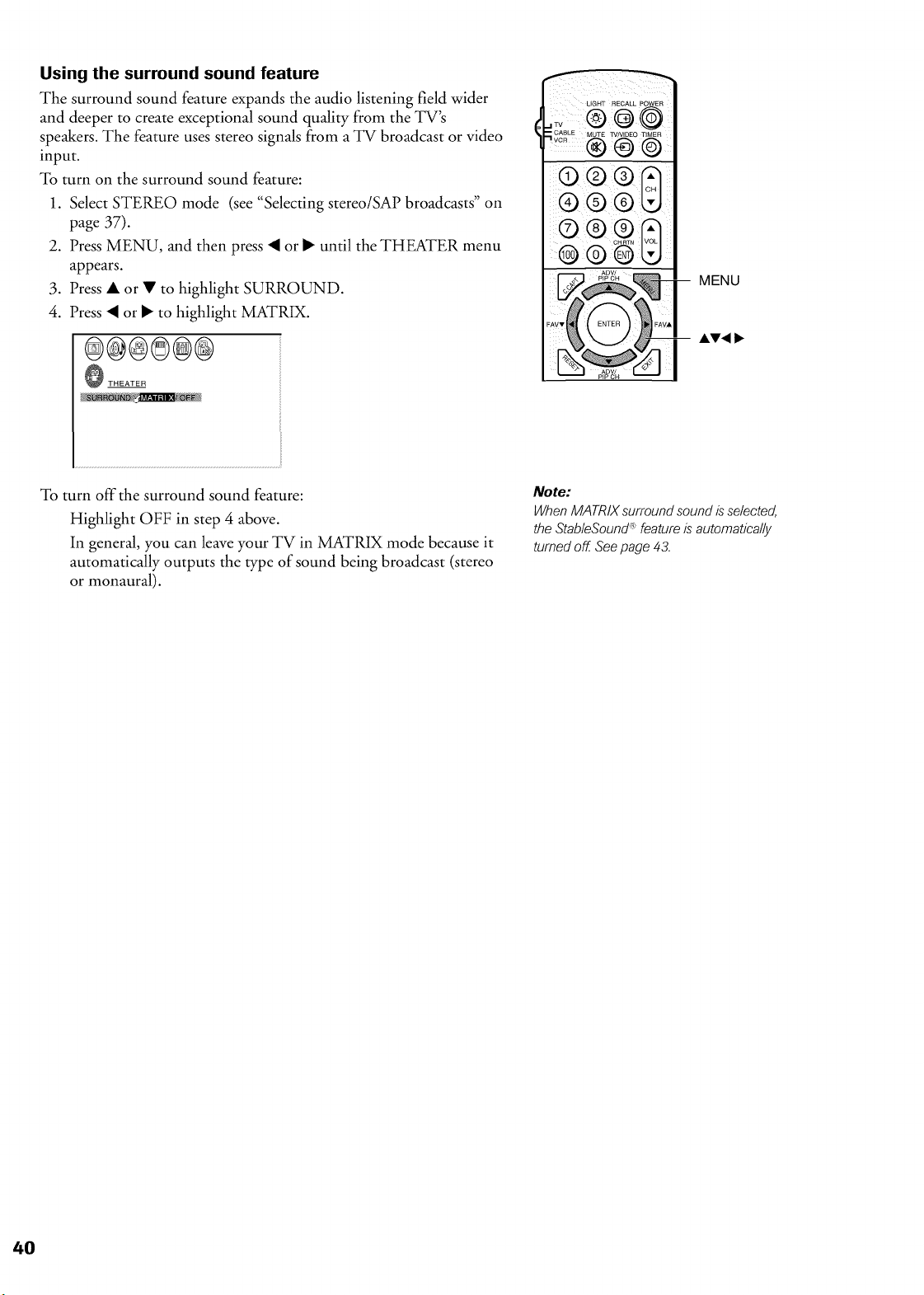
Using the surround sound feature
The surround sound feature expands the audio listening field wider
and deeper to create exceptional sound quality from the TV's
speakers. The feature uses stereo signals from a TV broadcast or video
input.
To turn on the surround sound feature:
1. Select STEREO mode (see "Selecting stereo/SAP broadcasts" on
page 37).
2. Press MENU, and then press • or • until the THEATER menu
appears.
3. Press • or • to highlight SURROUND.
4. Press • or • to highlight MATRIX.
®@®@@@
THEATER
V
® ® ©
® ®
MENU
Ay4
To turn off the surround sound feature:
Highlight OFF in step 4 above.
In general, you can leave your TV in MATRIX mode because it
automatically outputs the type of sound being broadcast (stereo
or monaural).
Note:
When MATRIXsurround sound is selected,
the StableSound_"_feature is automatically
turned off Seepage 43.
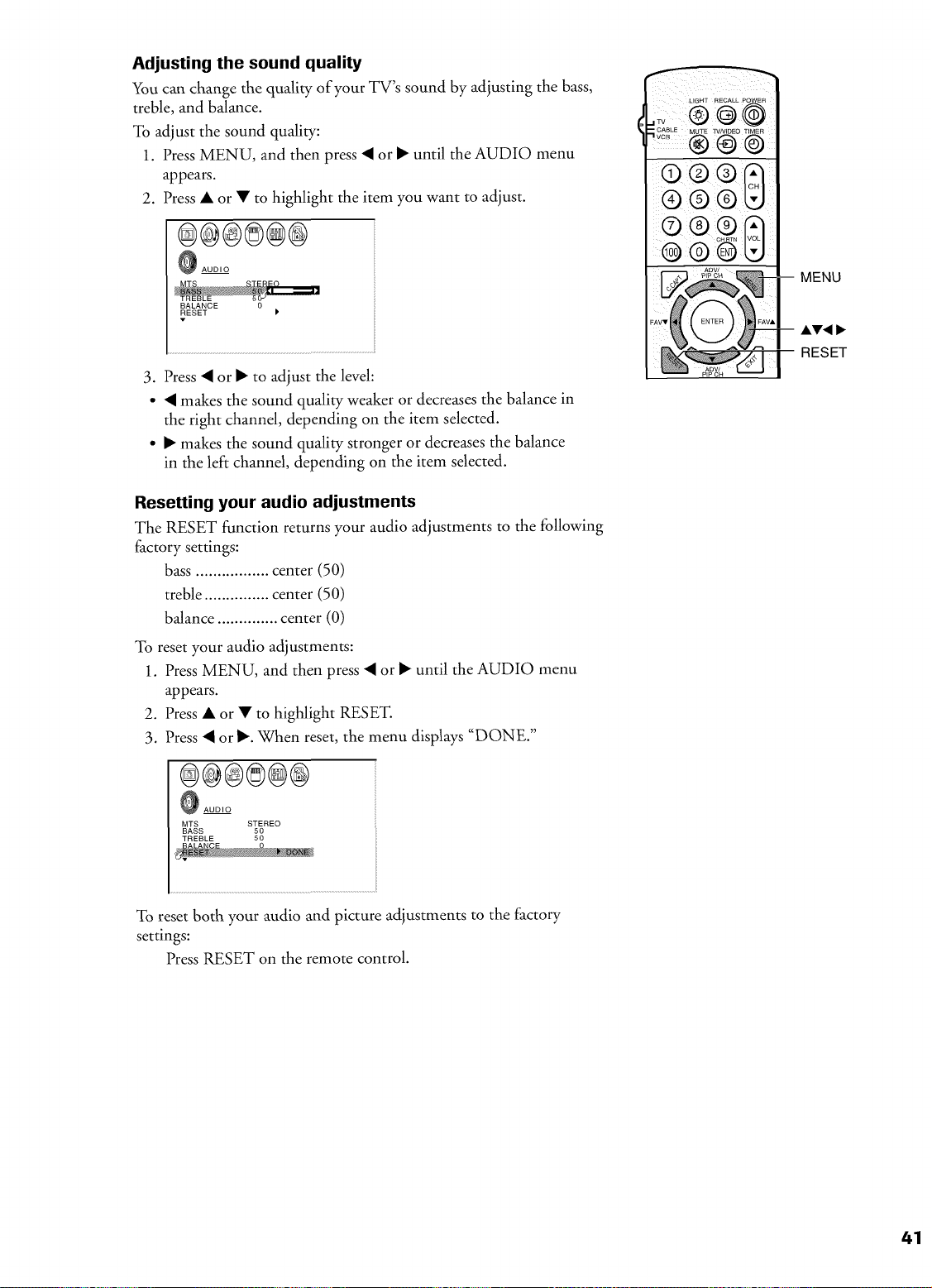
Adjusting the sound quality
You can change the quality of your TV's sound by adjusting the bass,
treble, and balance.
To adjust the sound quality:
1. Press MENU, and then press • or • until the AUDIO menu
appears.
2. Press • or • to highlight the item you want to adjust.
@@@©@@
AUDIO
RESET
3. Press • or • to adjust the level:
• • makes the sound quality weaker or decreases the balance in
the right channel, depending on the item selected.
• • makes the sound quality stronger or decreases the balance
in the left channel, depending on the item selected.
Resetting your audio adjustments
The RESET function returns your audio adjustments to the following
factory settings:
bass ................. center (50)
treble ............... center (50)
balance .............. center (0)
To reset your audio adjustments:
1. Press MENU, and then press • or • until the AUDIO menu
appears.
2. Press • or • to highlight RESET.
3. Press • or •. When reset, the menu displays "DONE."
@@@@0@
AUDIO
MTS STEREO
BASS 50
TREBLE 50
®® ©
0 ® ®
® ® ®
RESET
To reset both your audio and picture adjustments to the factory
settings:
Press RESET on the remote control.
41
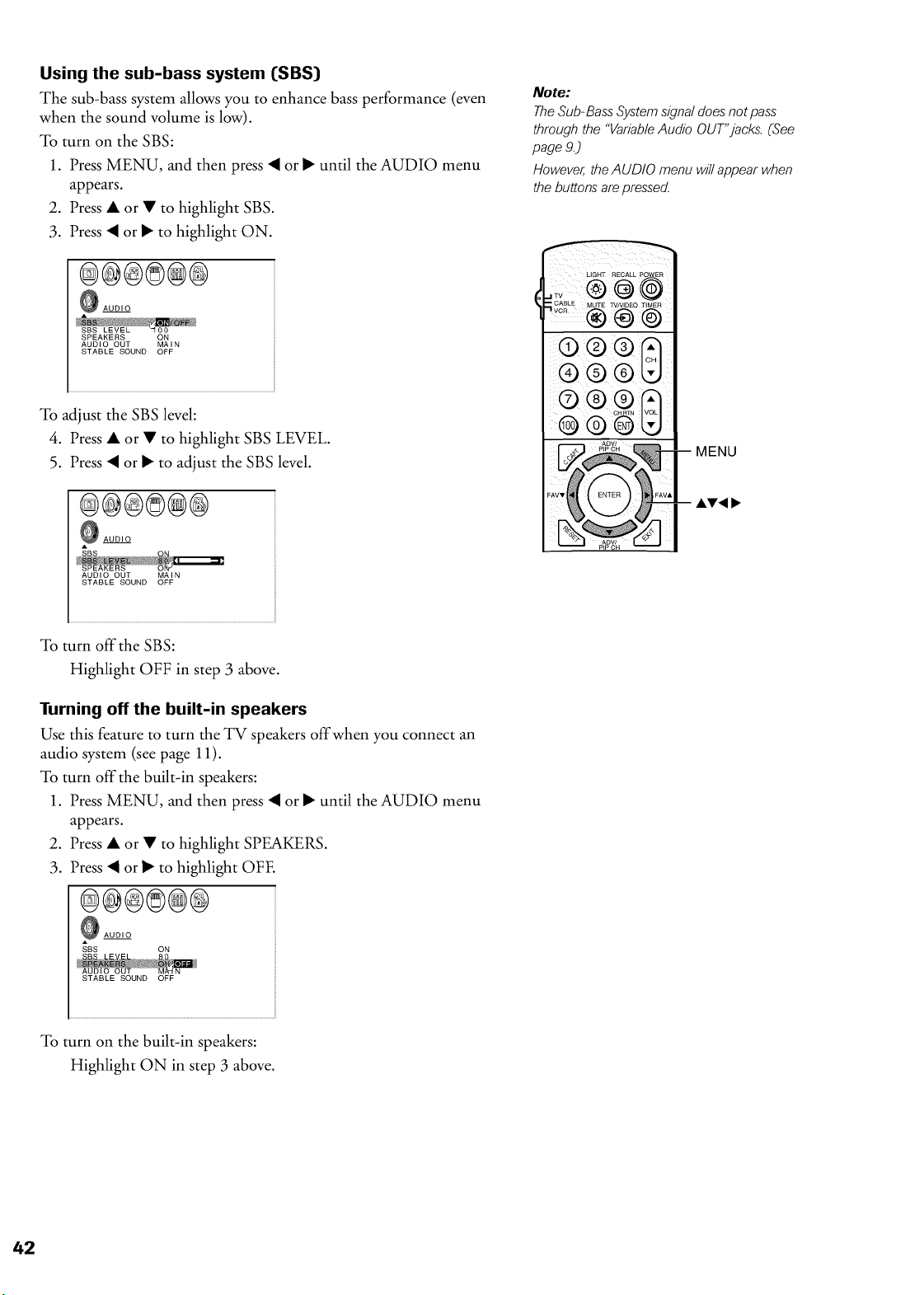
Using the sub-bass system (SBS)
The sub-bass system allows you to enhance bass performance (even
when the sound volume is low).
To turn on the SBS:
1. Press MENU, and then press • or • until the AUDIO menu
appears.
2. Press • or • to highlight SBS.
3. Press • or • to highlight ON.
AUDIO
SPEAKERS ON
AUDIO OUT MAIN
STABLE SOUND OFF
To adjust the SBS level:
4. Press • or • to highlight SBS LEVEL.
5. Press • or • to adjust the SBS level.
®@@@@®
@ AUDIO
AUDIO OUT MAIN
STABLE SOUND OFF
Note:
TheSub-Bass Systemslgnai does not pass
through the "VariableAudio OUT"jacks. (See
page 9.)
However, the AUDIO menu will appear when
the buttons are pressed.
LIGHT RECALL POWER
®
.__2E ...... _.........
® ® @
® ® b9
-- MENU
-- AT< I,_
To turn offthe SBS:
Highlight OFF in step 3 above.
Turning off the built-in speakers
Use this feature to turn the TV speakers offwhen you connect an
audio system (see page 11).
To turn off the built-in speakers:
1. Press MENU, and then press • or • until the AUDIO menu
appears.
2. Press • or • to highlight SPEAKERS.
3. Press • or • to highlight OrE
®@®8@®
_ AUDIO
To turn on the built-in speakers:
Highlight ON in step 3 above.
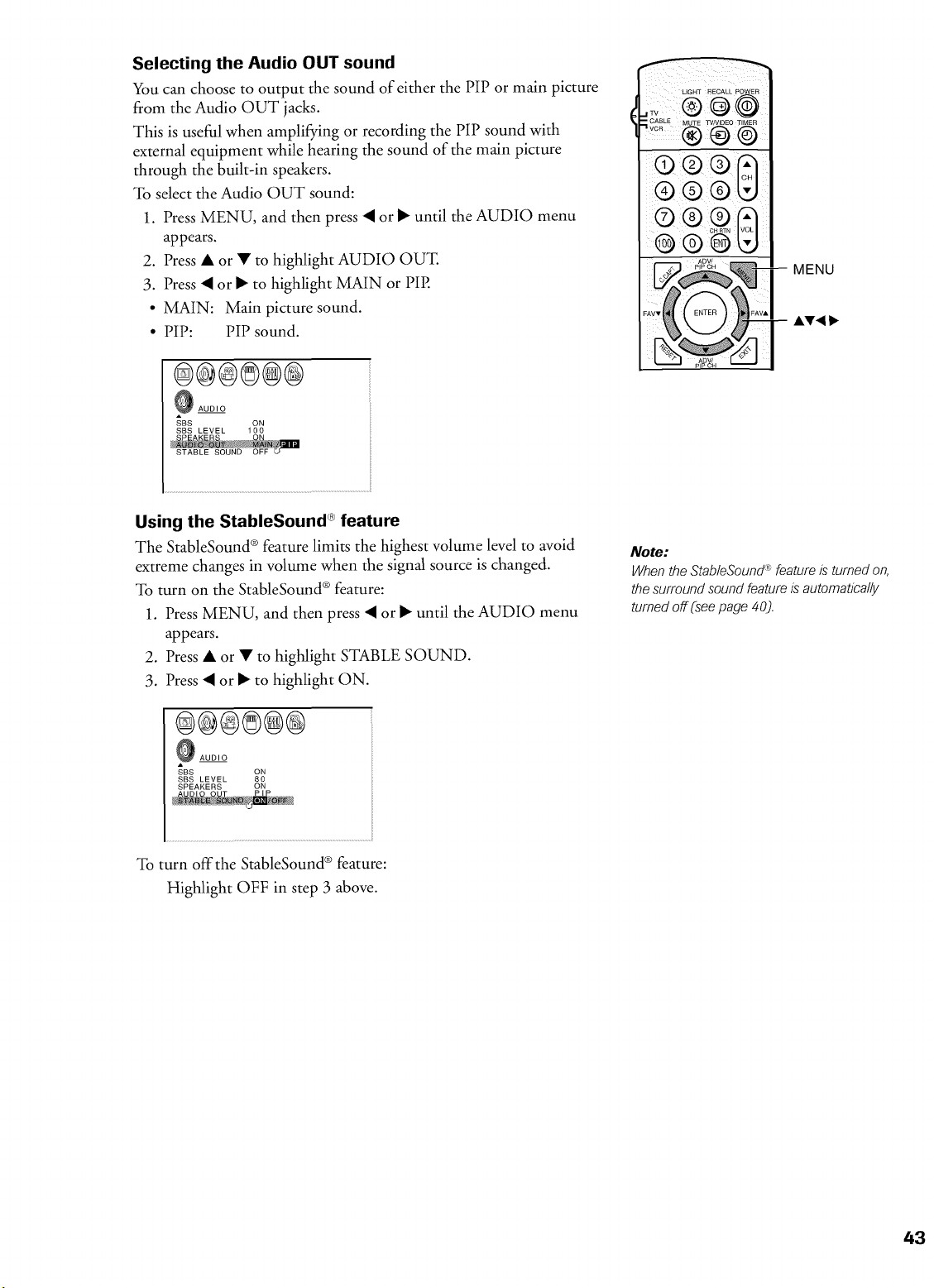
Selecting the Audio OUT sound
You can choose to output the sound of either the PIP or main picture
from the Audio OUT jacks.
This is useful when amplifying or recording the PIP sound with
external equipment while hearing the sound of the main picture
through the built-in speakers.
To select the Audio OUT sound:
1. Press MENU, and then press • or • until the AUDIO menu
appears.
2. Press • or • to highlight AUDIO OUZ
3. Press • or • to highlight MAIN or PIE
• MAIN: Main picture sound.
• PIP: PIP sound.
®@@®@@
AUDIO
_BS ON
SBS LEVEL 100
LIGHT RECALL POWER
@@ @
® ® ©
® ® ®
MENU
AV_
Using the StableSound _)feature
The StableSound ® feature limits the highest volume level to avoid
extreme changes in volume when the signal source is changed.
To turn on the StableSound ® feature:
1. Press MENU, and then press • or • until the AUDIO menu
appears.
2. Press • or • to highlight STABLE SOUND.
3. Press • or • to highlight ON.
@@@®@@
_ AUDIO
SBS ON
SBS LEVEL 80
SPEAKERS ON
PiP
Note:
When the StableSound :'_feature is turned on,
the surround sound feature is automatically
turned off(see page 40).
To turn off the StableSound ® feature:
Highlight OFF in step 3 above.
43
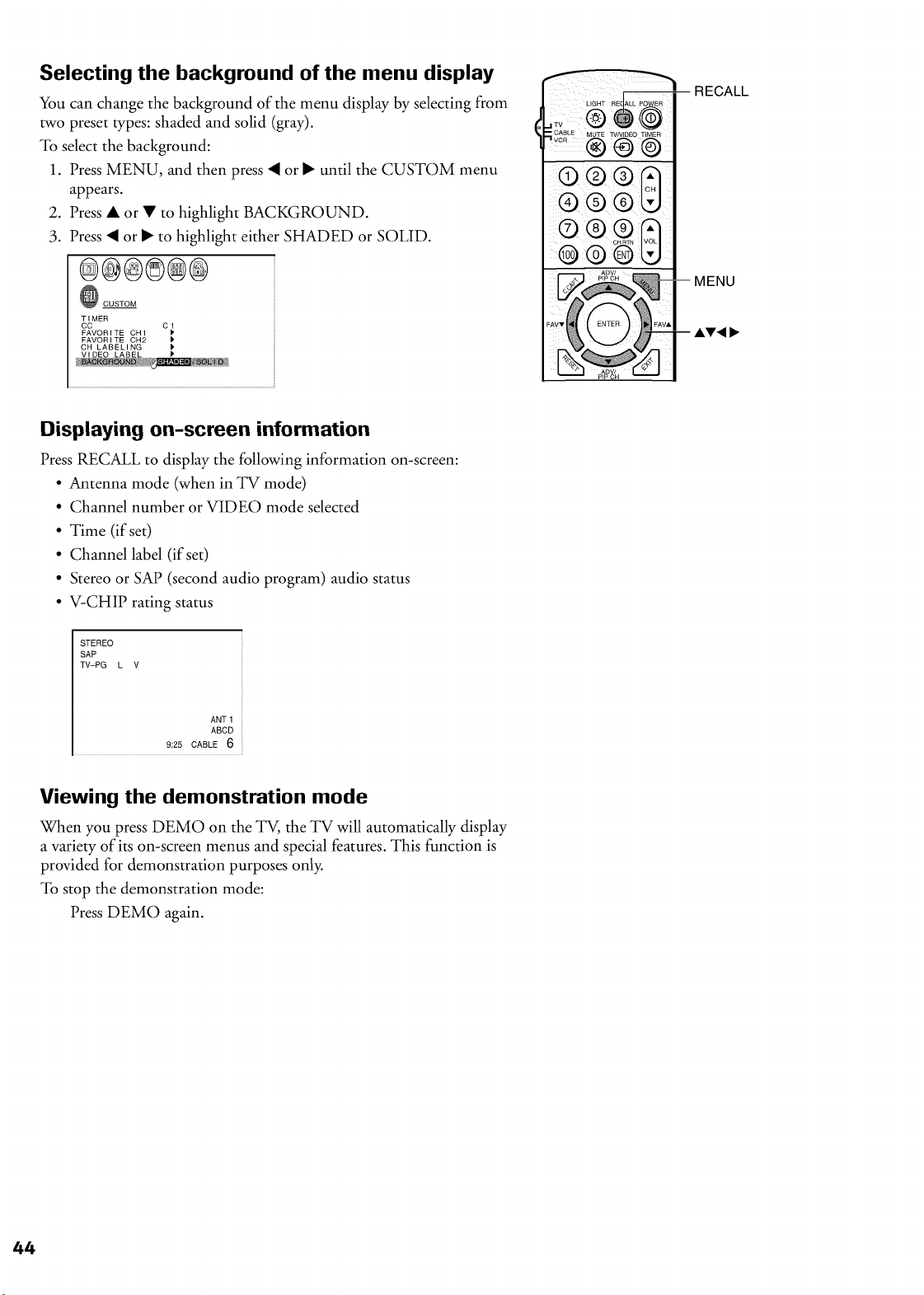
Selecting the background of the menu display
You can change the background of the menu display by selecting from
two preset types: shaded and solid (gray).
To select the background:
1. Press MENU, and then press • or • until the CUSTOM menu
appears.
2. Press • or • to highlight BACKGROUND.
3. Press • or • to highlight either SHADED or SOLID.
®@®®@@
CUSTOM
TIMER
CC C 1
FAVORITE CH1
FAVORITE CH2 1'
CAF_L E ..... TV ..........
®®©
® ®
®®
RECALL
-- MENU
-- AT4 I_
Displaying on-screen information
Press RECALL to display tile following information on-screen:
• Antenna mode (when in TV mode)
• Channel number or VIDEO mode selected
• Time (if set)
• Channel label (if set)
• Stereo or SAP (second audio program) audio status
• V-CHIP rating status
STEREO
SAP
TV-PG L V
ANT 1
ABCD
9:25 CABLE 6
Viewing the demonstration mode
When you press DEMO on the TV, the TV will automatically display
a variety of its on-screen menus and special features. This function is
provided for demonstration purposes only.
To stop the demonstration mode:
Press DEMO again.
Understanding the auto power off feature
The TV will automatically turn itself off after approximately 15
minutes if it is tuned to a vacant channel or a station that completes
its broadcast for the day, This feature does not work in VIDEO mode.
Understanding the last mode memory feature
If the power is cut offwhile you are viewing the TV, the last mode
memory feature will turn the TV on automatically when the power is
resupplied.
If the power is going to be off for a long time or you are going to be
away from your TV,, unplug the power cord to prevent the TV from
turning on in your absence.
45
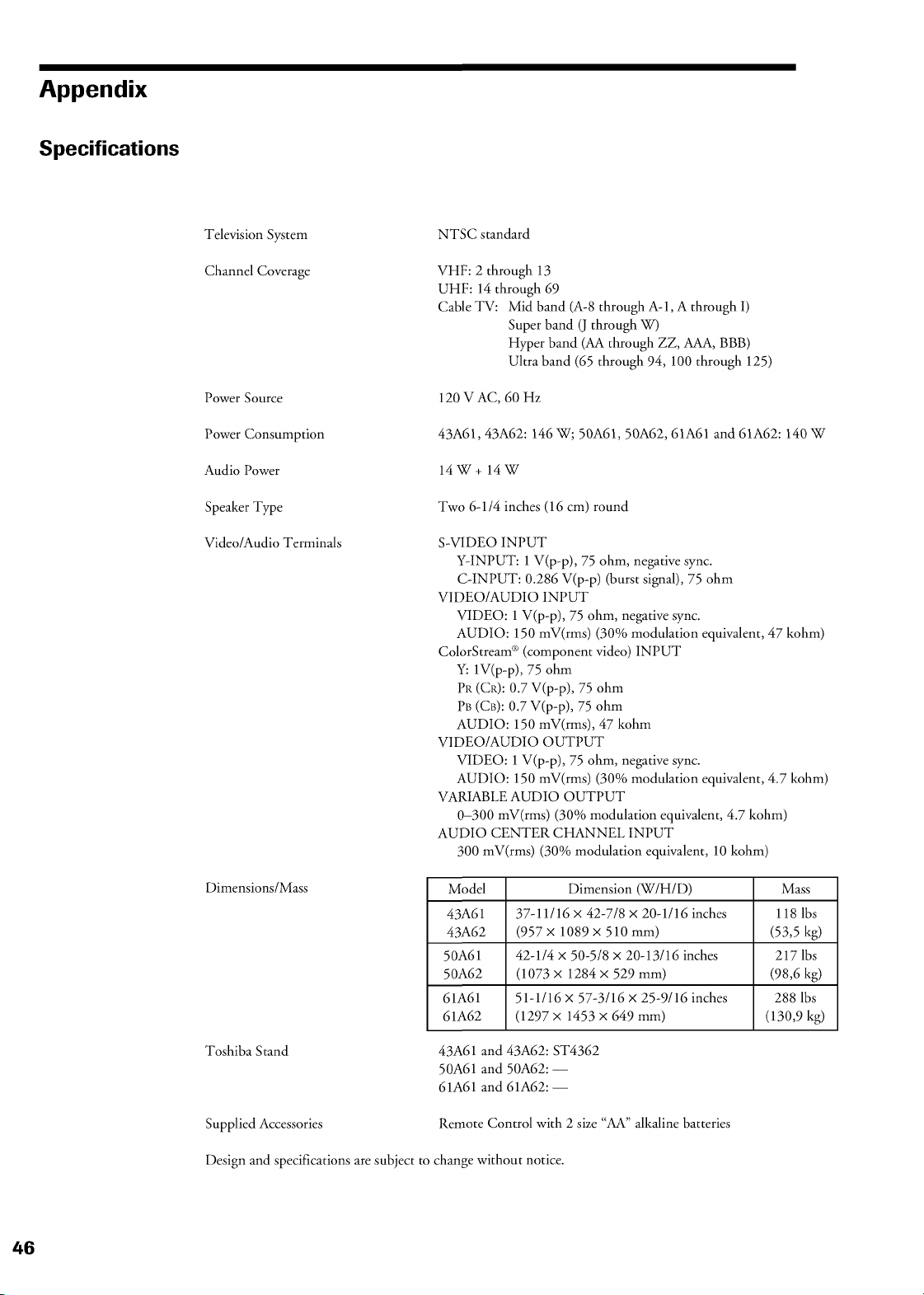
Appendix
Specifications
Television System
Channel Coverage
NTSC standard
VHF: 2 through 13
UHF: 14 through 69
Cable TV: Mid band (A-8 through A-I, A through I)
Super band (J through W)
Hyper band (AA through ZZ, AAA, BBB)
Ultra band (65 through 94, 100 through 125)
Power Source 120 VAC, 60 Hz
Power Consumption
43A61, 43A62:146 W; 50A61, 50A62, 61A61 and 61A62:140 W
Audio Power 14W+ 14W
Speaker Type
Video/Audio Terminals
Two 6-114 inches (16 cm) round
S-VIDEO INPUT
Y-INPUT: 1 V(p-p), 75 ohm, negative sync.
C-INPUT: 0.286 V(p-p) (burst signal), 75 ohm
VIDEO/AUDIO INPUT
VIDEO: 1 V(p-p), 75 ohm, negative sync.
AUDIO: 150 mV(rms) (30% modulation equivalent, 47 kohm)
ColorStream _'_(component video) INPUT
Y: 1V(p-p), 75 ohm
Pk (CP.): 0.7 V(p-p), 75 ohm
PB (CB): 0.7 V(p-p), 75 ohm
AUDIO: 150 mV(rms), 47 kohm
VIDEO/AUDIO OUTPUT
VIDEO: 1 V(p-p), 75 ohm, negative sync.
AUDIO: 150 mV(rms) (30% modulation equivalent, 4.7 kohm)
VARIABLE AUDIO OUTPUT
0-300 mV(rms) (30% modulation equivalent, 4.7 kohm)
AUDIO CENTER CHANNEL INPUT
300 mV(rms) (30% modulation equivalent, 10 kohm)
Dimensions/Mass
Toshiba Stand
Model Dimension (W/H/D) Mass
43A61 37-11/16 × 42-7/8 x 20-1/16 inches 118 lbs
43A62 (957x 1089 x 510 mm) (53,5 kg)
50A61 42-114 x 50-518 × 20-13116 inches 217 lbs
50A62 (1073 × 1284 × 529 mm) (98,6 kg)
61A61 51-1116 × 57-3116 × 25-9116 inches 288 lbs
61A62 (1297 × 1453 × 649 mm) (130,9 kg)
431%61and 43A62:ST4362
501%61and 50A62: --
611%61and 61A62: --
Supplied Accessories Remote Control with 2 size "AA" alkaline batteries
Design and specifications are subject to change without notice.
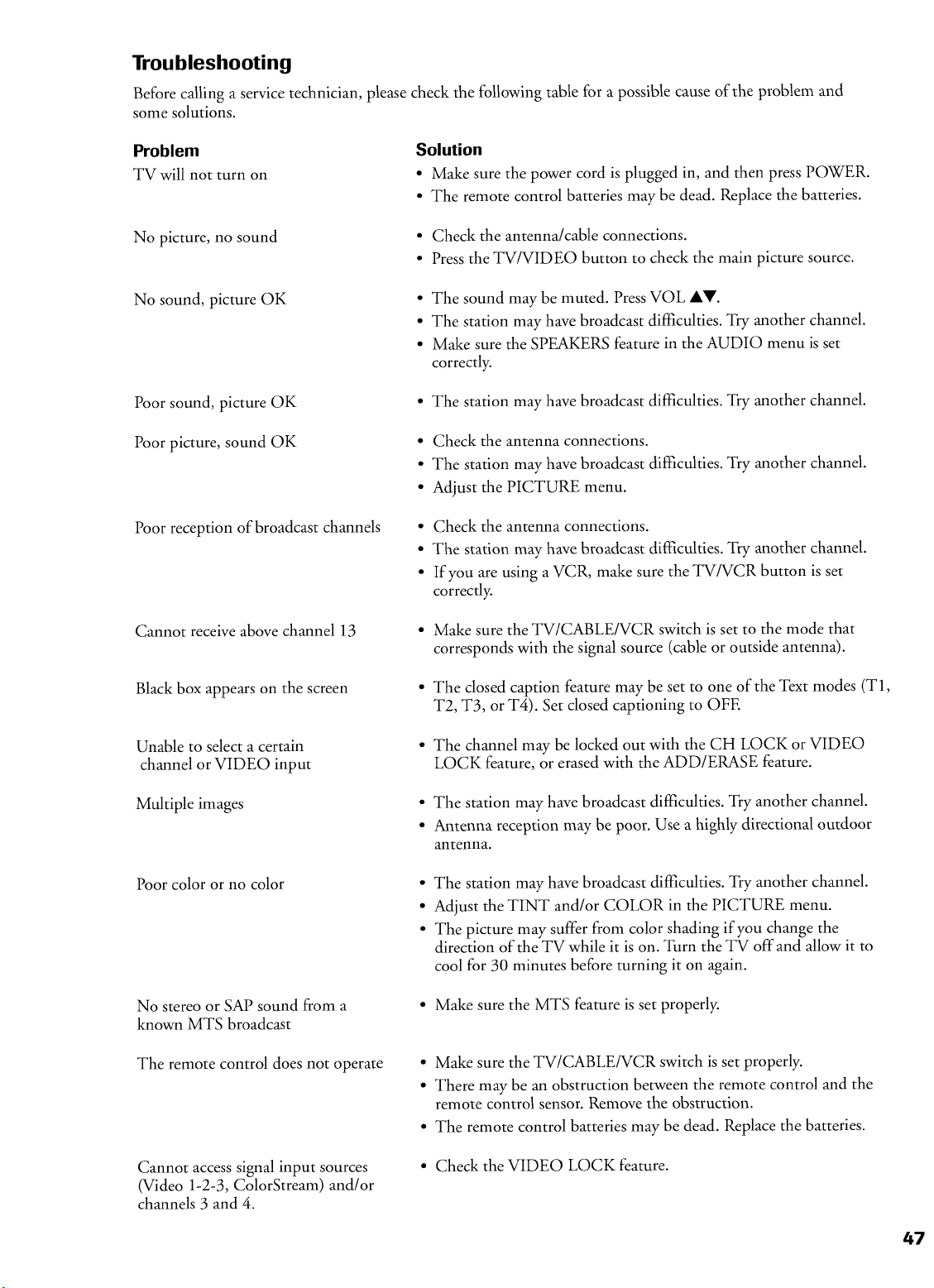
Troubleshooting
Before calling a service technician, please check the following table for a possible cause of the problem and
some solutions.
Problem
TV will not turn on
Solution
• Make sure the power cord is plugged in, and then press POWER.
• The remote control batteries may be dead. Replace the batteries.
No picture, no sound
• Check the antenna/cable connections.
• Press the TV/VIDEO button to check the main picture source.
No sound, picture OK
• The sound may be muted. Press VOL AV.
• The station may have broadcast difficulties. Try another channel.
• Make sure the SPEAKERS feature in the AUDIO menu is set
correctly.
Poor sound, picture OK
• The station may have broadcast difficulties. Try another channel.
Poor picture, sound OK
• Check the antenna connections.
• The station may have broadcast difficulties. Try another channel.
• Adjust the PICTURE menu.
Poor reception of broadcast channels
• Check the antenna connections.
• The station may have broadcast difficulties. Try another channel.
• If you are using a VCR, make sure the TV/VCR button is set
correctly.
Cannot receive above channel 13
• Make sure the TV/CABLE/VCR switch is set to the mode that
corresponds with the signal source (cable or outside antenna).
Black box appears on the screen
• The closed caption feature may be set to one of the Text modes (T1,
T2, T3, or T4). Set closed captioning to OFE
Unable to select a certain
channel or VIDEO input
• The channel may be locked out with the CH LOCK or VIDEO
LOCK feature, or erased with the ADD/ERASE feature.
Multiple images
• The station may have broadcast difficulties. Try another channel.
• Antenna reception may be poor. Use a highly directional outdoor
antenna.
Poor color or no color
• The station may have broadcast difficulties. Try another channel.
• Adjust the TINT and/or COLOR in the PICTURE menu.
• The picture may suffer from color shading if you change the
direction of the TV while it is on. Turn the TV off and allow it to
cool for 30 minutes before turning it on again.
No stereo or SAP sound from a
known MTS broadcast
• Make sure the MTS feature is set properly.
The remote control does not operate
• Make sure the TV/CABLE/VCR switch is set properly.
• There may be an obstruction between the remote control and the
remote control sensor. Remove the obstruction.
• The remote control batteries may be dead. Replace the batteries.
Cannot access signal input sources
(Video 1-2-3, ColorStream) and/or
channels 3 and 4.
• Check the VIDEO LOCK feature.
47
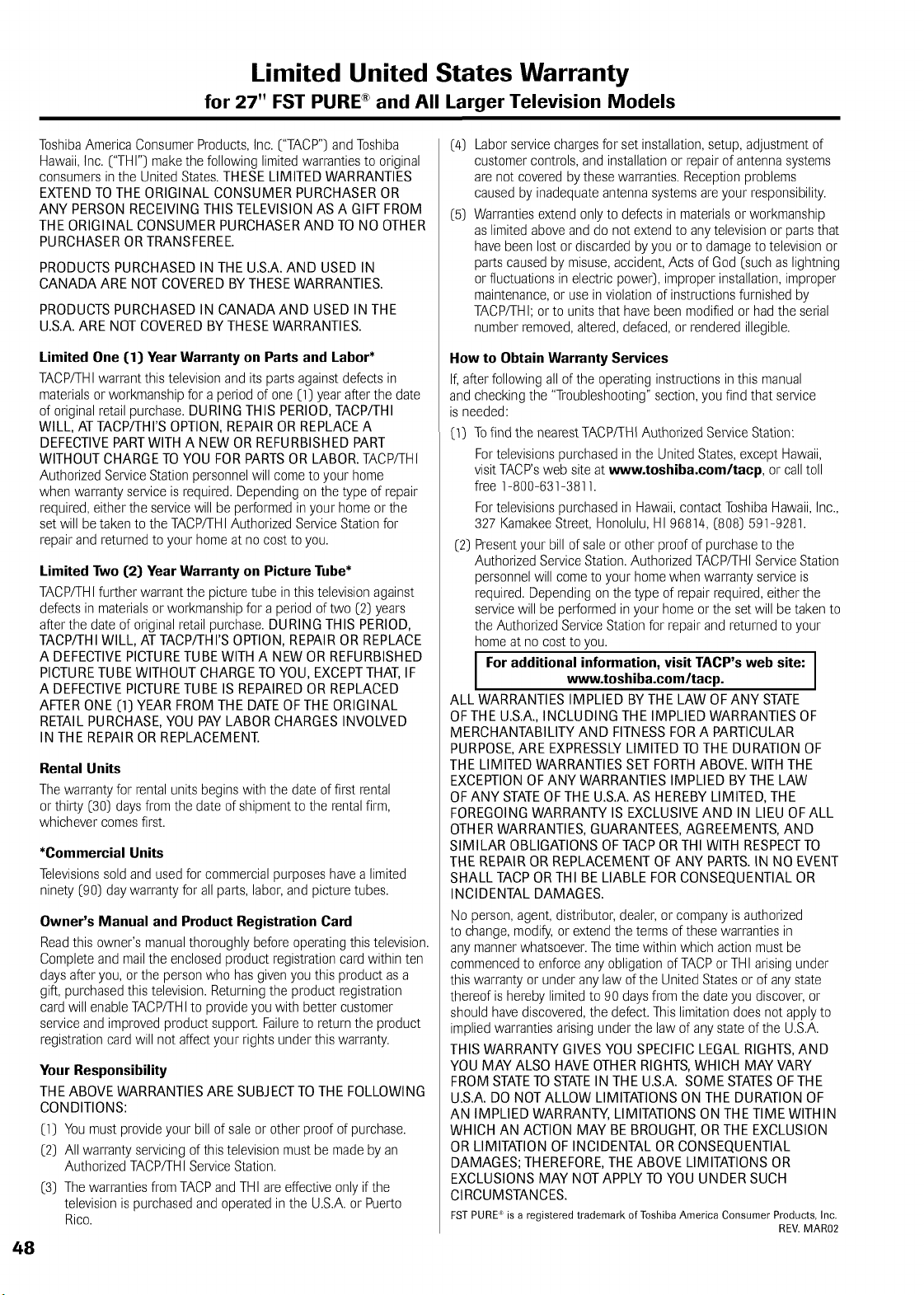
Limited United States Warranty
for 27" FST PURE ® and All Larger Television Models
ToshibaAmerica ConsumerProducts,Inc. ("TACP")and Toshiba
Hawaii,Inc. ("THI") makethe following limited warranties to original
consumersinthe United States.THESE LIMITED WARRANTIES
EXTENDTO THE ORIGINAL CONSUMER PURCHASER OR
ANY PERSON RECEIVING THIS TELEVISION AS A GIFT FROM
THE ORIGINAL CONSUMER PURCHASERAND TO NO OTHER
PURCHASEROR TRANSFEREE.
PRODUCTSPURCHASED IN THE U.S.A.AND USED IN
CANADA ARE NOT COVERED BYTHESE WARRANTIES.
PRODUCTSPURCHASED IN CANADA AND USED IN THE
U.S.A.ARE NOT COVERED BY THESEWARRANTIES.
Limited One (1) Year Warranty on Parts and Labor*
TACP/THI warrant this televisionand its parts against defects in
materialsor workmanshipfor a period of one (1) year after the date
of original retailpurchase.DURING THIS PERIOD,TACP/THI
WILL, ATTACP/THI'S OPTION, REPAIROR REPLACEA
DEFECTIVEPARTWITH A NEW OR REFURBISHED PART
WITHOUT CHARGETO YOU FOR PARTSOR LABOR. TACP/THI
AuthorizedServiceStation personnelwill come to your home
when warranty serviceis required. Depending on the type of repair
required,either the servicewill be performed in your home or the
set will be taken to the TACP/THIAuthorized ServiceStation for
repair and returned to your home at no cost to you.
Limited Two (2) Year Warranty on Picture Tube*
TACP/THI further warrant the picture tube in this televisionagainst
defects in materialsor workmanshipfor a period of two (2) years
after the date of original retail purchase. DURING THIS PERIOD,
TACP/THIWILL, ATTACP/THI'S OPTION, REPAIR OR REPLACE
A DEFECTIVEPICTURETUBE WITH A NEW OR REFURBISHED
PICTURETUBE WITHOUT CHARGETO YOU, EXCEPTTHAT,IF
A DEFECTIVEPICTURETUBE IS REPAIRED OR REPLACED
AFTERONE (1) YEAR FROM THE DATEOFTHE ORIGINAL
RETAIL PURCHASE,YOU PAYLABOR CHARGES INVOLVED
IN THE REPAIROR REPLACEMENT.
Rental Units
Thewarranty for rentalunits begins with the date of first rental
or thirty (30) days from the date of shipmentto the rentalfirm,
whichever comesfirst.
*Commercial Units
Televisionssold and used for commercialpurposes havea limited
ninety (90) day warranty for all parts,labor, and picture tubes.
Owner's Manual and Product Registration Card
Readthis owner's manualthoroughly before operatingthis television.
Completeand mail the enclosed product registration card within ten
days after you,or the personwho has givenyou this product as a
gift, purchasedthis television. Returningthe product registration
card will enableTACP/THIto provideyou with better customer
serviceand improvedproduct support. Failureto return the product
registration card will not affect your rights under this warranty.
Your Responsibility
THE ABOVE WARRANTIESARE SUBJECTTO THE FOLLOWING
CONDITIONS:
(1) You must provideyour bill of sale or other proof of purchase.
(2) All warranty servicing of this television must be madeby an
AuthorizedTACP/THI ServiceStation.
(3) The warrantiesfrom TACPand THI are effectiveonly if the
televisionis purchasedand operated in the U.S.A.or Puerto
Rico.
(4)
(5)
Labor servicechargesfor set installation,setup, adjustment of
customer controls,and installation or repair of antennasystems
are not covered by thesewarranties. Receptionproblems
caused by inadequateantenna systemsare your responsibility.
Warrantiesextend only to defects in materialsor workmanship
as limitedabove and do not extendto any televisionor parts that
havebeen lost or discarded by you or to damageto television or
parts caused by misuse,accident, Acts of God (such as lightning
or fluctuations in electric power), improper installation,improper
maintenance,or use in violation of instructionsfurnished by
TACP/THI;or to units that havebeen modified or had the serial
number removed,altered, defaced,or rendered illegible.
How to Obtain Warranty Services
If, after following all of the operating instructionsin this manual
and checking the "Troubleshooting"section,you find that service
is needed:
(1) Tofind the nearestTACP/THIAuthorized ServiceStation:
For televisionspurchasedin the UnitedStates, except Hawaii,
visit TACP'sweb site at www.toshiba.comltacp, or call toll
free 1-800-631-3811.
For televisionspurchasedin Hawaii,contact ToshibaHawaii,Inc.,
327 KamakeeStreet, Honolulu,HI 96814, (808) 591-9281.
(2) Presentyour bill of sale or other proof of purchaseto the
AuthorizedServiceStation.Authorized TACP/THIServiceStation
personnelwill come to your home when warranty serviceis
required. Depending on the type of repair required,eitherthe
servicewill be performed in your home or the set will be taken to
the Authorized ServiceStationfor repair and returned to your
home at no cost to you.
For additional information, visit TACP's web site:www.toshiba.com/tacp. ]
ALL WARRANTIES IMPLIED BY THE LAW OF ANY STATE
OFTHE U.S.A.,INCLUDING THE IMPLIED WARRANTIES OF
MERCHANTABILITY AND FITNESSFOR A PARTICULAR
PURPOSE,ARE EXPRESSLYLIMITED TOTHE DURATION OF
THE LIMITED WARRANTIES SETFORTHABOVE. WITH THE
EXCEPTIONOF ANY WARRANTIES IMPLIED BY THE LAW
OFANY STATEOFTHE U.S.A.AS HEREBY LIMITED, THE
FOREGOINGWARRANTY IS EXCLUSIVEAND IN LIEU OF ALL
OTHERWARRANTIES, GUARANTEES,AGREEMENTS,AND
SIMILAR OBLIGATIONS OF TACP OR THI WITH RESPECTTO
THE REPAIROR REPLACEMENT OFANY PARTS.IN NO EVENT
SHALL TACPOR THI BE LIABLE FOR CONSEQUENTIAL OR
INCIDENTAL DAMAGES.
No person,agent, distributor, dealer,or company is authorized
to change, modify,or extendthe terms of these warranties in
any mannerwhatsoever.The time within which action must be
commencedto enforce any obligationof TACPor THI arising under
this warranty or under any law of the United States or of any state
thereof is hereby limited to 90 days from the date you discover,or
should havediscovered,the defect. Thislimitationdoes not applyto
implied warrantiesarising under the law of any state of the U.S.A.
THIS WARRANTY GIVES YOU SPECIFIC LEGAL RIGHTS,AND
YOU MAY ALSO HAVE OTHER RIGHTS,WHICH MAY VARY
FROM STATETO STATEIN THE U.S.A. SOME STATESOF THE
U.S.A. DO NOT ALLOW LIMITATIONS ON THE DURATION OF
AN IM PLIED WARRANTY, LIM ITATIONS ON THETIM EWITHIN
WHICH AN ACTION MAY BE BROUGHT,ORTHE EXCLUSION
OR LIMITATION OF INCIDENTAL OR CONSEQUENTIAL
DAMAGES; THEREFORE,THE ABOVE LIMITATIONS OR
EXCLUSIONS MAY NOT APPLY TO YOU UNDER SUCH
CIRCUMSTANCES.
FST PURE_is a registered trademark of Toshiba America Consumer Products, Inc.
REV. MAR02
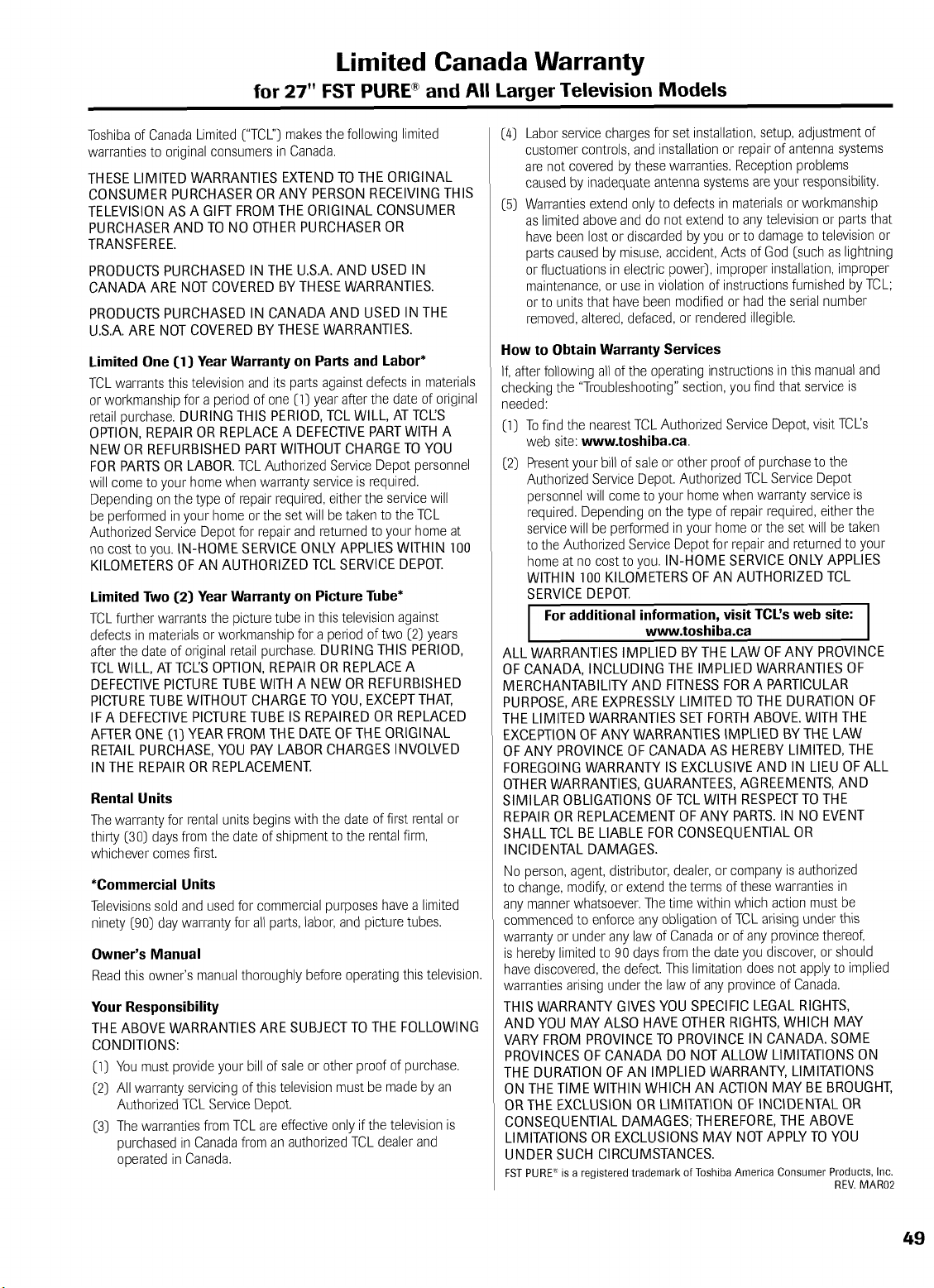
Limited Canada Warranty
for 27" FST PURE ® and All Larger Television Models
Toshibaof CanadaLimited ("TCL") makesthe following limited
warrantiesto original consumers in Canada.
THESE LIMITED WARRANTIES EXTEND TO THE ORIGINAL
CONSUMER PURCHASER OR ANY PERSON RECEIVING THIS
TELEVISIONAS A GIFT FROM THE ORIGINAL CONSUMER
PURCHASERAND TO NO OTHER PURCHASEROR
TRANSFEREE.
PRODUCTSPURCHASED IN THE U.S.A.AND USED IN
CANADA ARE NOT COVEREDBY TH ESEWARRANTIES.
PRODUCTSPURCHASED IN CANADA AND USED IN THE
U.S.A.ARE NOT COVEREDBY THESE WARRANTIES.
Limited One (1) Year Warranty on Parts and Labor*
TCLwarrants this television and its parts against defects in materials
or workmanshipfor a period of one (1) year after the date of original
retailpurchase.DURING THIS PERIOD, TCL WILL, AT TCI_S
OPTION, REPAIR OR REPLACEA DEFECTIVEPARTWITH A
NEW OR REFURBISHED PARTWITHOUT CHARGE TOYOU
FOR PARTSOR LABOR. TCLAuthorized Service Depot personnel
will come to your home whenwarranty serviceis required.
Depending on the type of repair required,either the servicewill
be performed inyour home orthe set will be taken to the TCL
AuthorizedService Depot for repairand returned to your home at
no cost to you. IN-HOME SERVICEONLY APPLIESWITHIN 100
KILOMETERS OF AN AUTHORIZED TCL SERVICEDEPOT.
Limited Two (2) Year Warranty on Picture Tube*
TCLfurther warrants the picture tube in this televisionagainst
defects in materialsor workmanshipfor a period of two (2) years
after the date of original retailpurchase.DURING THIS PERIOD,
TCL WILL, AT TCL'SOPTION, REPAIR OR REPLACEA
DEFECTIVEPICTURETUBEWITH A NEW OR REFURBISHED
PICTURETUBEWITHOUT CHARGE TO YOU, EXCEPTTHAT,
IFA DEFECTIVEPICTURETUBE IS REPAIREDOR REPLACED
AFTERONE (13YEAR FROM THE DATEOF THE ORIGINAL
RETAIL PURCHASE,YOU PAYLABOR CHARGES INVOLVED
IN THE REPAIROR REPLACEMENT.
Rental Units
The warranty for rentalunits beginswith the date of first rentalor
thirty (30) days from the date of shipment to the rentalfirm,
whichever comesfirst.
*Commercial Units
Televisionssold and usedfor commercialpurposes havea limited
ninety (90) day warranty for all parts, labor,and picture tubes.
Owner's Manual
Readthis owner's manualthoroughly before operatingthis television.
Your Responsibility
THE ABOVE WARRANTIESARE SUBJECTTO THE FOLLOWING
CONDITIONS:
(1) You must provideyour bill of sale or other proof of purchase.
(2) All warranty servicing of this television must be madeby an
Authorized TCL ServiceDepot.
(3) The warranties from TCLare effective only if the television is
purchasedin Canadafrom an authorizedTCL dealer and
operated in Canada.
(4)
(5)
Labor servicechargesfor set installation,setup, adjustment of
customer controls,and installationor repair of antenna systems
are not covered by these warranties.Reception problems
caused by inadequate antenna systemsare your responsibility.
Warrantiesextend only to defects in materialsor workmanship
as limited aboveand do not extend to any television or parts that
have been lost or discarded by you or to damage to televisionor
parts caused by misuse,accident,Acts of God (such as lightning
or fluctuations in electric power), improper installation,improper
maintenance,or use in violation of instructionsfurnished by TCL;
orto units that havebeen modifiedor hadthe serial number
removed,altered,defaced, or rendered illegible.
How to Obtain Warranty Services
If, after following all of the operatinginstructions in this manualand
checking the "Troubleshooting"section,you find that serviceis
needed:
(1) Tofind the nearestTCLAuthorized Service Depot, visit TCL's
web site: www.toshiba.ca
(2) Presentyour bill of sale or other proof of purchaseto the
AuthorizedService Depot. AuthorizedTCLService Depot
personnelwill come to your home when warranty serviceis
required. Depending on the type of repair required,either the
servicewill be performed in your home or the set will be taken
to the AuthorizedService Depot for repairand returned to your
home at no cost to you. IN-HOME SERVICEONLY APPLIES
WITHIN 100 KILOMETERS OFAN AUTHORIZED TCL
SERVICEDEPOT.
For additional information, visit TCL's web site: I
www.toshiba.ca
I
ALL WARRANTIES IMPLIED BY THE LAW OFANY PROVINCE
OF CANADA, INCLUDING THE IMPLIED WARRANTIES OF
MERCHANTABILITY AND FITNESS FORA PARTICULAR
PURPOSE,ARE EXPRESSLYLIMITED TO THE DURATION OF
THE LIMITED WARRANTIES SET FORTHABOVE. WITH THE
EXCEPTIONOFANY WARRANTIES IMPLIED BY THE LAW
OFANY PROVINCE OF CANADA AS HEREBY LIMITED, THE
FOREGOINGWARRANTY IS EXCLUSIVEAND IN LIEU OF ALL
OTHERWARRANTIES, GUARANTEES,AGREEMENTS, AND
SIMILAR OBLIGATIONS OF TCL WITH RESPECTTOTHE
REPAIROR REPLACEMENT OFANY PARTS.IN NO EVENT
SHALL TCL BE LIABLE FOR CONSEQUENTIAL OR
INCIDENTAL DAMAGES.
No person,agent, distributor,dealer, or companyis authorized
to change,modify, or extendthe terms of these warranties in
any manner whatsoever.Thetime within which action must be
commencedto enforce any obligation of TCLarising underthis
warranty or under any law of Canadaor of any provincethereof,
is herebylimited to 90 daysfrom the date you discover, or should
havediscovered,the defect. This limitationdoes not applyto implied
warranties arising under the law of any province of Canada.
THIS WARRANTY GIVES YOU SPECIFIC LEGAL RIGHTS,
AND YOU MAY ALSO HAVE OTHERRIGHTS,WHICH MAY
VARY FROM PROVINCETO PROVINCE IN CANADA. SOME
PROVINCESOF CANADA DO NOT ALLOW LIMITATIONS ON
THE DURATION OFAN IMPLIED WARRANTY, LIMITATIONS
ON THE TIME WITHIN WHICH AN ACTION MAY BE BROUGHT,
OR THE EXCLUSION OR LIMITATION OF INCIDENTAL OR
CONSEQUENTIAL DAMAGES; THEREFORE,THE ABOVE
LIMITATIONS OR EXCLUSIONS MAY NOT APPLY TO YOU
UNDER SUCH CIRCUMSTANCES.
FSTPURE" is a registered trademark of Toshiba America Consumer Products, Inc.
REV. MAR02
49

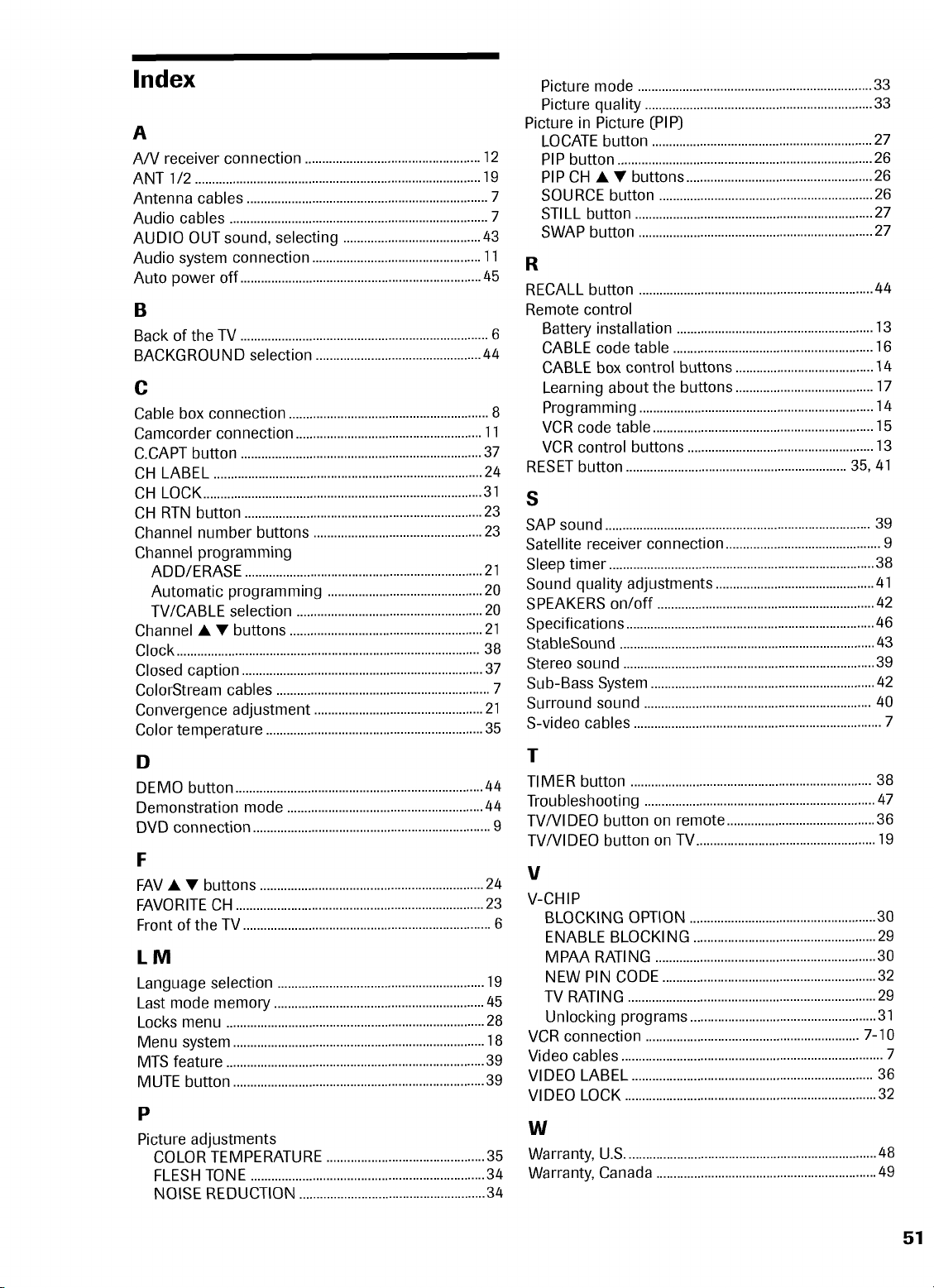
Index
A
A/V receiver connection ...................................................12
ANT 1/2 ...................................................................................19
Antenna cables ......................................................................7
Audio cables ...........................................................................7
AUDIO OUT sound, selecting ........................................43
Audio system connection .................................................11
Auto power off ......................................................................45
B
Back of the TV ........................................................................6
BACKGROU ND selection ................................................44
C
Cable box connection ..........................................................8
Camcorder connection ......................................................11
C.CAPT button ......................................................................37
CH LABEL ..............................................................................24
CH LOCK .................................................................................31
CH RTN button .....................................................................23
Channel number buttons .................................................23
Channel programming
ADD/ERASE .....................................................................21
Automatic programming .............................................20
TV/CABLE selection ......................................................20
Channel • • buttons ........................................................21
Clock ........................................................................................38
Closed caption ......................................................................37
ColorStream cables ..............................................................7
Convergence adjustment .................................................21
Color temperature ...............................................................35
D
DEMO button ........................................................................44
Demonstration mode .........................................................44
DVD connection .....................................................................9
F
FAV • • buttons .................................................................24
FAVORITECH ........................................................................23
Front of the TV ........................................................................6
LM
Language selection ............................................................19
Last mode memory .............................................................45
Locks menu ...........................................................................28
Menu system .........................................................................18
MTS feature ...........................................................................39
MUTE button .........................................................................39
P
Picture adjustments
COLOR TEMPERATURE ..............................................35
FLESH TONE ....................................................................34
NOISE REDUCTION ......................................................34
Picture mode ....................................................................33
Picture quality ..................................................................33
Picture in Picture (PIP)
LOCATEbutton ................................................................27
PIP button ..........................................................................26
PIP CH • • buttons ......................................................26
SOURCE button ..............................................................26
STILL button .....................................................................27
SWAP button ....................................................................27
R
RECALL button ....................................................................44
Remote control
Battery installation .........................................................13
CABLE code table ..........................................................16
CABLE box control buttons ........................................14
Learning about the buttons ........................................17
Programming ....................................................................14
VCR code table ................................................................15
VCR control buttons ......................................................13
RESETbutton ................................................................35, 41
S
SAP sound .............................................................................39
Satellite receiver connection .............................................9
Sleep timer .............................................................................38
Sound quality adjustments ..............................................41
SPEAKERS on/off ...............................................................42
Specifications ........................................................................46
StableSound ..........................................................................43
Stereo sound .........................................................................39
Sub-Bass System .................................................................42
Surround sound ..................................................................40
S-video cables ........................................................................7
T
TIMER button ......................................................................38
Troubleshooting ...................................................................47
TV/VlDEO button on remote ...........................................36
TV/VlDEO button on TV....................................................19
V
V-CHIP
BLOCKING OPTION ......................................................30
ENABLE BLOCKING .....................................................29
MPAA RATING ................................................................30
NEW PIN CODE ..............................................................32
TV RATING ........................................................................29
Unlocking programs ......................................................31
VCR connection ..............................................................7-10
Video cables ............................................................................7
VIDEO LABEL ......................................................................36
VIDEO LOCK .........................................................................32
W
Warranty, U.S.........................................................................48
Warranty, Canada ................................................................49
51

TOSHIBA AMERICA CONSUMER PRODUCTS, INC.
HEAD OFFICE/82 TOTOWA ROAD, WAYNE, NEW JERSEY 07470
NATIONAL SERVICE DIVISION:1420B TOSHIBA DRIVE, LEBANON, TN. 37087
TOSHIBA HAWAII, INC.
HEAD OFFICE/327 KAMAKEE STREET, HONOLULU, HAWAII 96814, U.S.A. TEL: (808) 591-9281
TOSHIBA OF CANADA LTD.
HEAD OFFICE/191 McNABB STREET MARKHAM, ONTARIO L3R 8H2, CANADA TEL: (905) 470-5400
SERVICE CENTERS/TORONTO: 191 McNABB STREET MARKHAM, ONTARIO L3R 8H2, CANADA TEL: (905) 470- 5400
MONTREAL: 1643, NORTH SERVICE RD., TRANS-CANADA HIGHWAY, DORVAL QUEBEC, H9P 1J1, CANADA
TEL: (514) 856-4100
VANCOUVER: 22171 FRASERWOOD WAY, RICHMOND, B.C. V6W 1J5, CANADA TEL: (604) 303-2500
MANUFACTURED BY
TOSHIBA AMERICA CONSUMER PRODUCTS, INC.
ColorStream and StableSound are registered trademarks of ToshibaAmerica Consumer Products, Inc.
PRINTED IN USA
(02-07)B
TOSHIBA