ENGLISH
FRANÇAISESPAÑOLDEUTSCHITALIANO
日本語
D01378300D
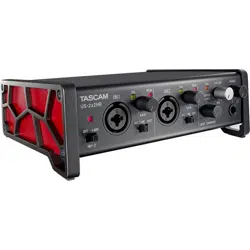
US-2x2HR
US-4x4HR
USB Audio/MIDI Interface
OWNER’S MANUAL
MODE D’EMPLOI
MANUAL DEL USUARIO
BEDIENUNGSANLEITUNG
MANUALE DI ISTRUZIONI
取扱説明書

o TASCAM is a registered trademark of TEAC Corporation.
o Microsoft and Windows are either registered trademarks or trademarks
of Microsoft Corporation in the United States and/or other countries.
o Apple, Mac, macOS, iPad and iPadOS are trademarks of Apple Inc. in the
United States and other countries.
o Lightning is a trademark of Apple Inc.
o App Store is a service mark of Apple Inc.
o IOS is a trademark or registered trademark of Cisco in the U.S. and other
countries and is used under license.
o ASIO is a trademark of Steinberg Media Technologies GmbH.
o Other company names, product names and logos in this document are
the trademarks or registered trademarks of their respective owners.
2 TASCAM US-2x2HR/US-4x4HR
OWNER’S MANUAL
Introduction
Thank you for your purchase of the TASCAM US-2x2HR/US-4x4HR USB Audio/MIDI Interface.
Before connecting and using this unit, please take time to read this manual
thoroughly to ensure you understand how to properly set it up and connect it, as
well as how to use its many useful and convenient functions. After you have nished
reading this manual, please keep it in a safe place for future reference.
You can also download this Owner’s Manual from the TEAC Global Site (https://teac-
global.com/).
Before connecting this unit to a computer, you must download and install a
dedicated driver.
Note about the Reference Manual
This Owner’s Manual explains each of the functions of this unit.
Please see the Reference Manual for detailed information about each of the functions.
You can download the Reference Manual from the TEAC Global Site (https://teac-
global.com/).
Included items
This product includes the following items. Take care when opening the package to
avoid damaging the items. Keep the box and packing materials for transportation
in the future. Please contact the store where you purchased this unit if any of these
items are missing or have been damaged during transportation.
o Main unit.............................................................................................................................................x 1
o AC adapter (PS-P1220E, only included with US-4x4HR) .................................................... x 1
o USB cables (Type-A to Type-C) ...................................................................................................x 1
o Set of DAW software installation guides .................................................................................x 1
o Set of DAW plug-in software installation guides .................................................................x 1
o Owner’s Manual (this document) including warranty .......................................................x 1
ATTENTION
Always use the included AC adapter (PS-P1220E, DC12 V) with the US-4x4HR. Never
use the included AC adapter with any other device. Doing so could cause damage,
re or electric shock.
NOTE
The AC adapter (PS-P1220E, DC12 V) included with the US-4x4HR has alternate
outlet plugs. Please see “Changing the outlet plug” in “4 – Preparation” of the
Reference Manual for instructions.
ENGLISH
TASCAM US-2x2HR/US-4x4HR 3
IMPORTANT SAFETY INSTRUCTIONS
WARNING: TO PREVENT FIRE OR
SHOCK HAZARD, DO NOT EXPOSE
THIS APPLIANCE TO RAIN OR
MOISTURE.
For U.S.A.
Declaration of Conformity
Model Number:
US-2x2HR / US-4x4HR
Trade Name: TASCAM
Responsible party: TEAC AMERICA, INC.
Address: 10410 Pioneer Blvd. Suite #1
Santa Fe Springs, California
90670, U.S.A.
Telephone number: 1-323-726-0303
This device complies with Part 15 of
the FCC Rules. Operation is subject
to the following two conditions: (1)
this device may not cause harmful
interference, and (2) this device must
accept any interference received,
including interference that may cause
undesired operation.
INFORMATION TO THE USER
This equipment has been tested
and found to comply with the
limits for a Class B digital device,
pursuant to Part 15 of the FCC
Rules. These limits are designed
to provide reasonable protection
against harmful interference in a
residential installation. This equipment
generates, uses, and can radiate radio
frequency energy and, if not installed
and used in accordance with the
instruction manual, may cause harmful
interference to radio communications.
However, there is no guarantee
that interference will not occur
in a particular installation. If this
equipment does cause harmful
interference to radio or television
reception, which can be determined
by turning the equipment o and on,
the user is encouraged to try to correct
the interference by one or more of the
following measures.
a) Reorient or relocate the receiving
antenna.
b) Increase the separation between
the equipment and receiver.
c) Connect the equipment into
an outlet on a circuit dierent
from that to which the receiver is
connected.
d) Consult the dealer or an
experienced radio/TV technician for
help.
CAUTION
Changes or modications to this
equipment not expressly approved by
TEAC CORPORATION for compliance
could void the user’s authority to
operate this equipment.
For Canada
THIS CLASS B DIGITAL APPARATUS
COMPLIES WITH CANADIAN ICES-003.
CET APPAREIL NUMERIQUE DE LA
CLASSE B EST CONFORME A LA NORME
NMB-003 DU CANADA.
This product complies with
the European Directives
request and the other
Commission Regulations.
4 TASCAM US-2x2HR/US-4x4HR
1. Read these instructions.
2. Keep these instructions.
3. Heed all warnings.
4. Follow all instructions.
5. Do not use this apparatus near
water.
6. Clean only with dry cloth.
7. Do not block any ventilation
openings. Install in accordance with
the manufacturer’s instructions.
8. Do not install near any heat sources
such as radiators, heat registers,
stoves, or other apparatus (including
ampliers) that produce heat.
9. Do not defeat the safety purpose
of the polarized or grounding-type
plug. A polarized plug has two
blades with one wider than the
other. A grounding type plug has
two blades and a third grounding
prong. The wide blade or the third
prong are provided for your safety.
If the provided plug does not t into
your outlet, consult an electrician for
replacement of the obsolete outlet.
10. Protect the power cord from being
walked on or pinched particularly at
plugs, convenience receptacles, and
the point where they exit from the
apparatus.
11. Only use attachments/accessories
specied by the manufacturer.
12. Use only with the cart, stand,
tripod, bracket, or table specied
by the manufacturer, or sold with
the apparatus. When a cart is used,
use caution when moving the cart/
apparatus combination to avoid
injury from tip-over.
13. Unplug this apparatus during
lightning storms or when unused for
long periods of time.
14. Refer all servicing to qualied service
personnel. Servicing isrequired when
the apparatus has been damaged in
any way, such as power-supply cord
or plug is damaged, liquid has been
spilled or objects have fallen into the
apparatus, the apparatus has been
exposed to rain or moisture, does
not operate normally, or has been
dropped.
• The apparatus draws nominal non-
operating power from the AC outlet
with its POWER or STANDBY/ON switch
not in the ON position.
• The mains plug is used as the
disconnect device, the disconnect
device shall remain readily operable.
• Caution should be taken when using
earphones or headphones with the
product because excessive sound
pressure (volume) from earphones or
headphones can cause hearing loss.
• If you are experiencing problems with
this product, contact TEAC for a service
referral. Do not use the product until it
has been repaired.
WARNING
• To prevent possible hearing
damage, do not listen at
high volume levels for long
periods
ENGLISH
TASCAM US-2x2HR/US-4x4HR 5
CAUTION
• Do not expose this apparatus to
drips or splashes.
• Do not place any objects lled
with liquids, such as vases, on the
apparatus.
• Do not install this apparatus in a
conned space such as a book case
or similar unit.
• The apparatus should be located
close enough to the AC outlet so
that you can easily grasp the power
cord plug at any time.
• If the product uses batteries
(including a battery pack or
installed batteries), they should
not be exposed to sunshine, re or
excessive heat.
• CAUTION for products that use
replaceable lithium batteries: there
is danger of explosion if a battery is
replaced with an incorrect type of
battery. Replace only with the same
or equivalent type.
For European Customers
Disposal of electrical and
electronic equipment
(a) All electrical and electronic
equipment should be disposed
of separately from the municipal
waste stream via designated
collection facilities appointed
by the government or the local
authorities.
(b) By disposing of the electrical and
electronic equipment correctly, you
will help save valuable resources
and prevent any potential negative
eects on human health and the
environment.
(c) Improper disposal of waste
equipment can have serious eects
on the environment and human
health as a result of the presence of
hazardous substances in electrical
and electronic equipment.
(d) The crossed out wheeled
dust bin symbol indicates
that electrical and
electronic equipment
must be collected and
disposed of separately from
household waste.
(e) The return and collection systems
are available to the end users.
For more detailed information
about disposal of old electrical
and electronic equipment, please
contact your city oce, waste
disposal service or the shop where
you purchased the equipment.
6 TASCAM US-2x2HR/US-4x4HR
CAUTION
• DO NOT REMOVE THE EXTERNAL
CASES OR CABINETS TO EXPOSE THE
ELECTRONICS. NO USER SERVICEABLE
PARTS ARE INSIDE.
• IF YOU ARE EXPERIENCING PROBLEMS
WITH THIS PRODUCT, CONTACT THE
STORE WHERE YOU PURCHASED THE
UNIT FOR A SERVICE REFERRAL. DO
NOT USE THE PRODUCT UNTIL IT HAS
BEEN REPAIRED.
• USE OF CONTROLS OR ADJUSTMENTS
OR PERFORMANCE OF PROCEDURES
OTHER THAN THOSE SPECIFIED
HEREIN MAY RESULT IN HAZARDOUS
RADIATION EXPOSURE.
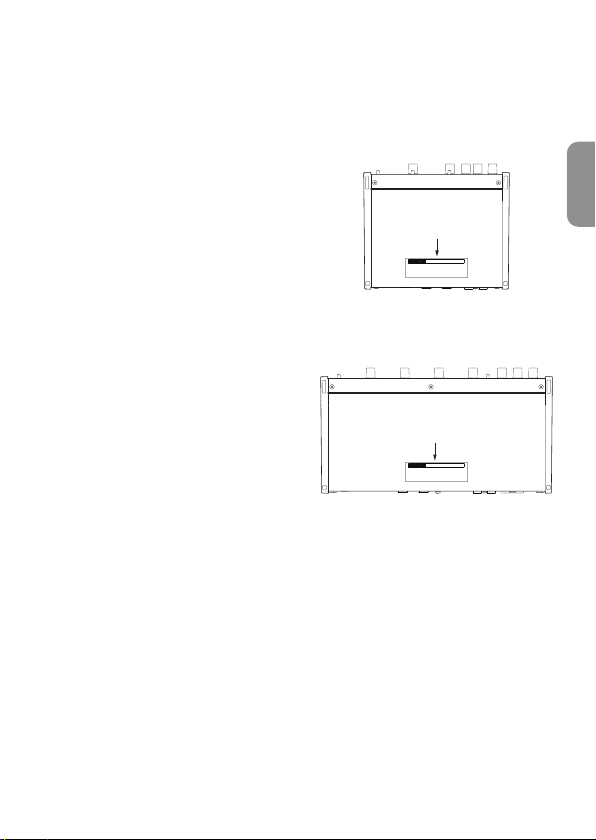
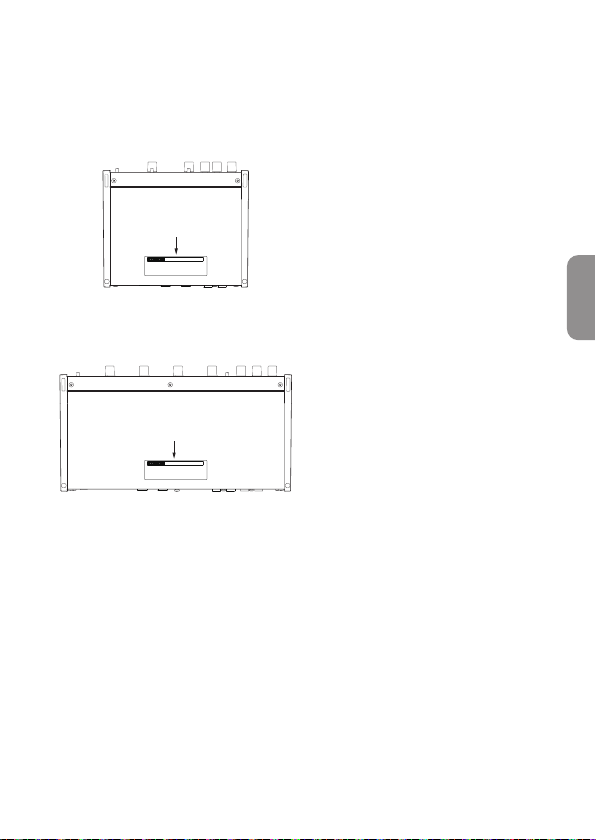
The nameplate is located on the bottom
of the unit as shown below.
US-2x2HR
Front side
Nameplate
US-4x4HR
Front side
Nameplate
ENGLISH
TASCAM US-2x2HR/US-4x4HR 7

Conventions used in this manual
In this manual, we use the following conventions:
o Information shown on a computer display is written like this: “OK”.
o References to “iOS” in this document also include “iPad OS”.
o As necessary, additional information is provided under TIP, NOTE and CAUTION
headings.
TIP
These are tips about how to use the unit.
NOTE
These provide additional explanations and describe spe cial cases.
ATTENTION
Failure to follow these instructions could result in damage to equipment or lost
data, for example.
V
CAUTION
Failure to follow these instructions could result in injury.
Precautions for placement and use
o The operating temperature range of this unit is 5 - 35 °C.
o Do not install this unit in the following types of locations. Doing so could make the
sound quality worse or cause malfunction.
Places with signicant vibrations
Next to a window or in another location exposed to direct sunlight
Near heaters or other extremely hot places
Extremely cold places
Very humid or poorly ventilated places
Very dusty places
o To enable good heat dissipation, do not place anything on top of the unit.
o Do not place this unit on top of a power amplier or other device that generates
heat.
Beware of condensation
Condensation could occur if the unit is moved from a cold place to a warm place, it is
used immediately after a cold room has been heated or it is otherwise exposed to a
sudden temperature change.
To prevent this, or if this occurs, let the unit sit for one or two hours at the new room
temperature before using it.
8 TASCAM US-2x2HR/US-4x4HR

Cleaning the unit
Use a dry soft cloth to wipe the unit clean. Do not wipe with chemical cleaning cloths,
thinner, alcohol or other chemical agents. Doing so could damage the surface or
cause discoloration.
Using the TEAC Global Site
You can download updates for this unit from the TEAC Global Site:
i https://teac-global.com/
In the TASCAM Downloads section, select the desired language to open the
Downloads website page for that language.
Product registration
Customers in the USA, please visit the following TASCAM website to register your
TASCAM product online.
https://tascam.com/us/
About TASCAM customer support service
TASCAM products are supported and warrantied only in their country/region of
purchase.
To receive support after purchase, on the TASCAM Distributors list page of the TEAC
Global Site (https:// teac-global.com/), search for the local company or representative
for the region where you purchased the product and contact that organization.
When making inquiries, the address (URL) of the shop or web shop where it was
purchased and the purchase date are required.
Moreover, the warranty card and proof of purchase might also be necessary.
ENGLISH
TASCAM US-2x2HR/US-4x4HR 9
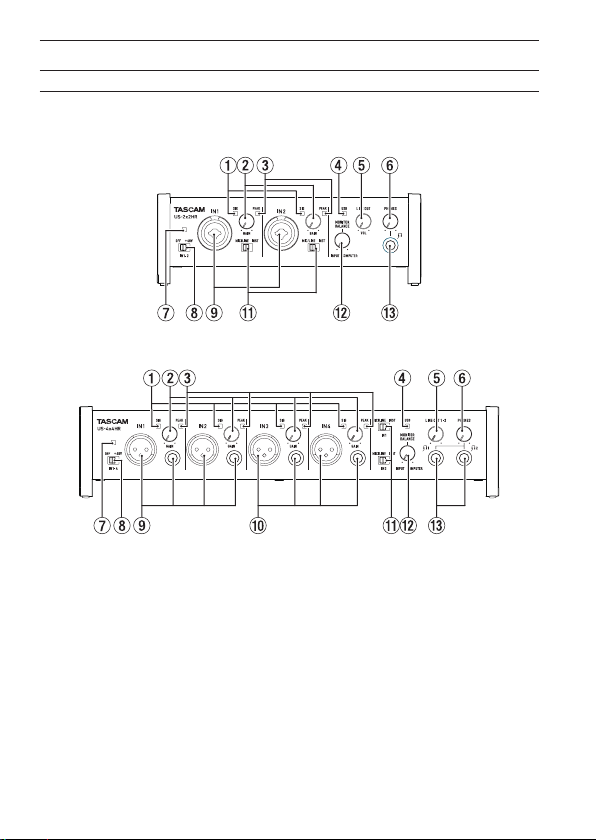
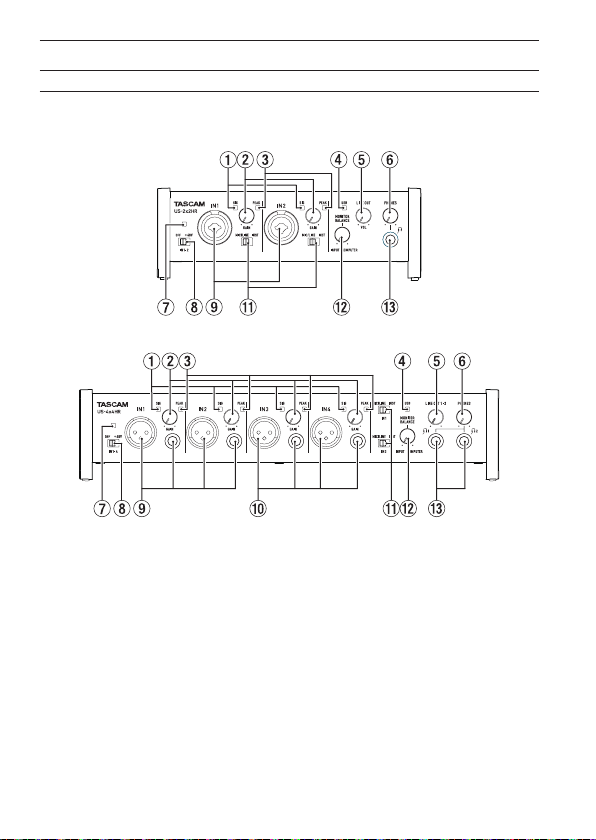
Names and functions of parts
Front panel
US-2x2HR
US-4x4HR
1 SIG indicators
These light green when signals (of at least −32 dBFS) are input.
2 GAIN knobs
Use to adjust the input levels of the input jacks.
Adjust these so that the PEAK indicators do not light red.
3 PEAK indicators
These light red when signals are about to distort (−1 dBFS or higher).
4 USB indicator
This lights when the USB connection is working.
5 LINE OUT knob
Use to adjust the output level of the LINE OUT (BALANCED) 1-2 (t) jacks on the
back of the unit.
10 TASCAM US-2x2HR/US-4x4HR

6 PHONES knob
Use to adjust the output level of the PHONES jack ( and jacks on US-
4x4HR).
V
CAUTION
Before connecting headphones, minimize the volume with the PHONES knob.
Failure to do so could result in a sudden loud noise that could harm hearing, for
example.
7 Phantom power indicator
The indicator lights when the phantom power switch is set to +48V.
ATTENTION
When operating the US-4x4HR with USB bus power, use a commercially-available
Type-C–Type-C cable to connect it to a USB Type-C port on the computer. If there
is a problem with the power supply, the phantom power indicator will blink. In this
case, use the included AC adapter (PS-P1220E, DC12 V).
8 Phantom power switch
Use this switch to provide +48 V phantom power to the IN1 and IN2 XLR jacks
(and IN3/IN4 on the US-4x4HR).
V
CAUTION
Set the LINE OUT and PHONES knobs to their minimum values before changing the
phantom power setting. Depending on the connected mics, sudden loud noises
from monitoring equipment could occur, and this could damage the equipment or
harm hearing.
9 IN1/IN2 jacks
On the US-2x2HR, these are XLR/TRS combo jacks for analog input.
On the US-4x4HR, these are separate XLR and standard TRS jacks for analog input.
These support high impedance input, including direct guitar input.
Use the MIC/LINE INST switches (q) to select balanced line (MIC/LINE) or
unbalanced (INST) input for the TRS jacks.
When directly connecting a guitar, bass or other instrument, set the MIC/LINE
INST switch (q) to INST.
0 IN3/IN4 jacks (US-4x4HR only)
These XLR analog mic input and standard line level TRS jacks are balanced input
jacks.
ATTENTION
On the US-4x4HR, IN1/IN2 (9) and IN3/IN4 (0) inputs each have two jacks (XLR
and TRS). Do not input signals through both jacks of the same input at the same
time. If signals are input through both at the same time, neither signal will be
received properly.
ENGLISH
TASCAM US-2x2HR/US-4x4HR 11
q MIC/LINE INST switches
Set according to the IN1/IN2 jack input sources.
Set to “MIC/LINE” when connecting electronic instruments, audio devices, mics
and similar equipment. Set to “INST” when connecting a guitar, bass or other
equipment with high output impedance.
w MONITOR BALANCE knob
Use this to adjust the monitoring balance between the signals from this unit’s
input jacks and the output signals from the computer.
e PHONES jack
Use this standard stereo jack to connect stereo headphones. (Use and jacks
on US-4x4HR.)
These output the same signals as the LINE OUT (BALANCED) 1-2 jacks.
Use an adapter to connect headphones with a mini plug.
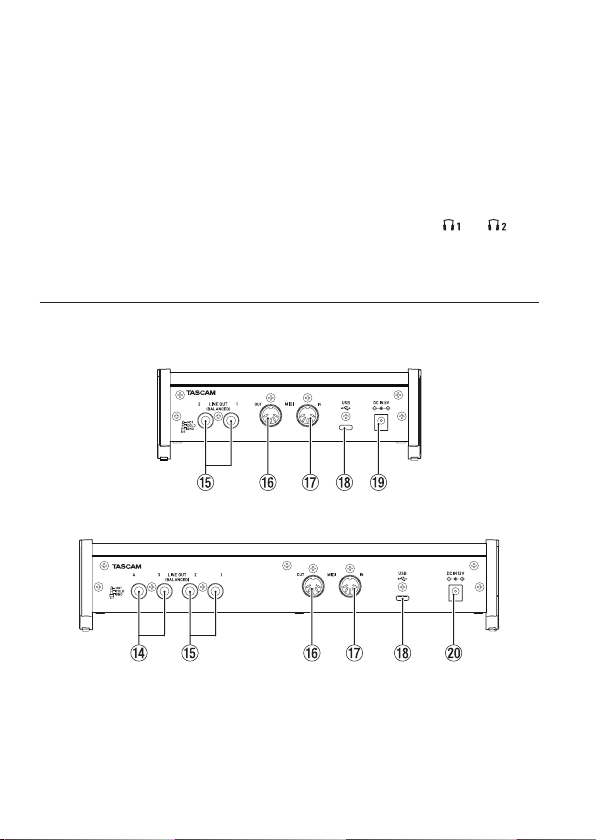
Rear panel
US-2x2HR
US-4x4HR
r LINE OUT (BALANCED) 3-4 jacks (US-4x4HR only)
These standard TRS jacks are analog line outputs.
t LINE OUT (BALANCED) 1-2 jacks
These standard TRS jacks are analog line outputs.
The signals output from the LINE OUT (BALANCED) 1-2 jacks (1-4 jacks on US-
4x4HR) can be set in the Settings Panel.
12 TASCAM US-2x2HR/US-4x4HR

For details about other settings, see “Settings Panel screen” in “5 – Using the
Settings Panel” of the Reference Manual.
y MIDI OUT connector
This 5-pin DIN is a standard MIDI output connector.
This outputs MIDI signals.
u MIDI IN connector
This 5-pin DIN is a standard MIDI input connector.
Use this to input MIDI signals.
i USB port
This is a USB Type-C port.
Use a USB cable to connect the unit to a computer or an iOS device.
o DC IN 5V connector (US-2x2HR only)
When connected to an iOS device or other equipment that cannot power this
unit, a dedicated AC adapter (PS-P520E, DC5V, sold separately) with power supply
must be connected to the DC IN 5V connector. (see “When using an iOS device”
on page 17)
p DC IN 12V connector (US-4x4HR only)
Under the following conditions, connect the included DC12V AC adapter (PS-
P1220E, DC12V) here. (see “Using with an AC adapter” on page 17)
i When the USB bus power supply current is insucient
i When connected to an iOS device or other equipment that cannot power this
unit
Installing the dedicated software
To use this unit, a dedicated software must be installed on a computer.
The dedicated software might be updated at any time. Download the latest software
for the operating system you are using from the TEAC Global Site (https://teac-global.
com/).
o When you install the dedicated software on a Windows computer, the Windows
driver and the Settings Panel application will be installed.
o When you install the dedicated software on a Mac, only the Mac Settings Panel
application will be installed. The standard OS driver will be used.
o With an iOS device, the standard OS driver will be used, so there is no need to
install any.
ATTENTION
Before starting to install software, quit other applications.
ENGLISH
TASCAM US-2x2HR/US-4x4HR 13
Installing the Windows dedicated software
ATTENTION
i Complete installation of the Windows dedicated software on the computer before
connecting the unit to it with the USB cable.
i If you connected the unit to the computer using the USB cable before installing the
Windows dedicated software and the “Found New Hardware Wizard” launched,
close the Wizard and disconnect the USB cable.
Windows dedicated software installation procedures
1. Download the latest Windows dedicated software from the TEAC Global Site
(https://teac-global.com/) and save it on the computer to be used with the unit.
2. Uncompress the saved software (zip le) on the computer desktop or another
location.
3. Double-click the “TASCAM_US-HR_Installer_x.xx.exe” le in the folder that
appears after uncompression to automatically launch the installation software.
ATTENTION
If you open a zip le without decompressing it and doubleclick the “TASCAM_US-
HR_Installer_x.xx.exe” le in the folder that opens, installation will not start.
Right-click the zip le and select “Extract All”, for example, to decompress it and
then try again.
4. When a “Security Warning” or “User Account Control” screen appears, click the
“Yes” button.
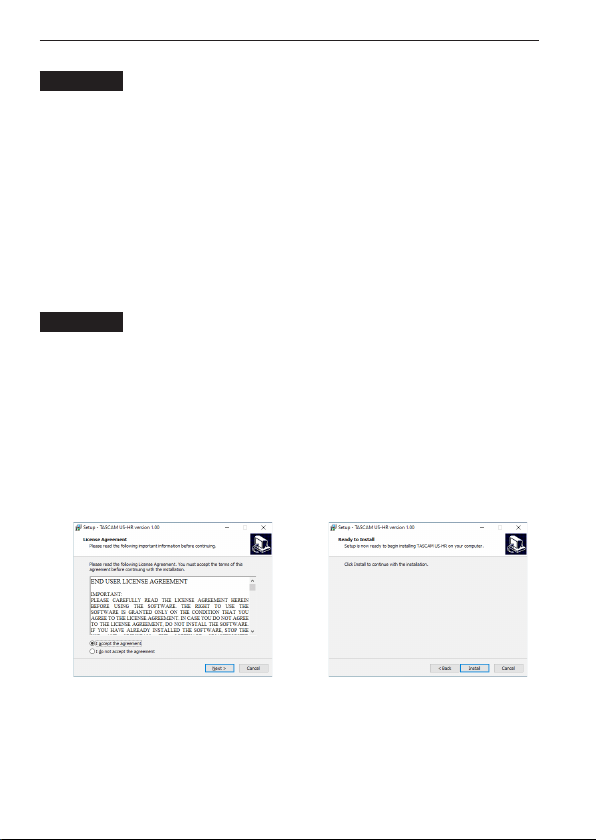
5. Read the contents of the User License Agreement, and select “I accept the
agreement” if you agree to the terms.
Then, click the “Next >” button. (Fig.A)
6. Next, click the “Install” button. (Fig.B)
e
Fig.A Fig.B
7. Next, click the “Install” button to start installation (Windows 8.1/Windows 7).
(Fig.C)
14 TASCAM US-2x2HR/US-4x4HR
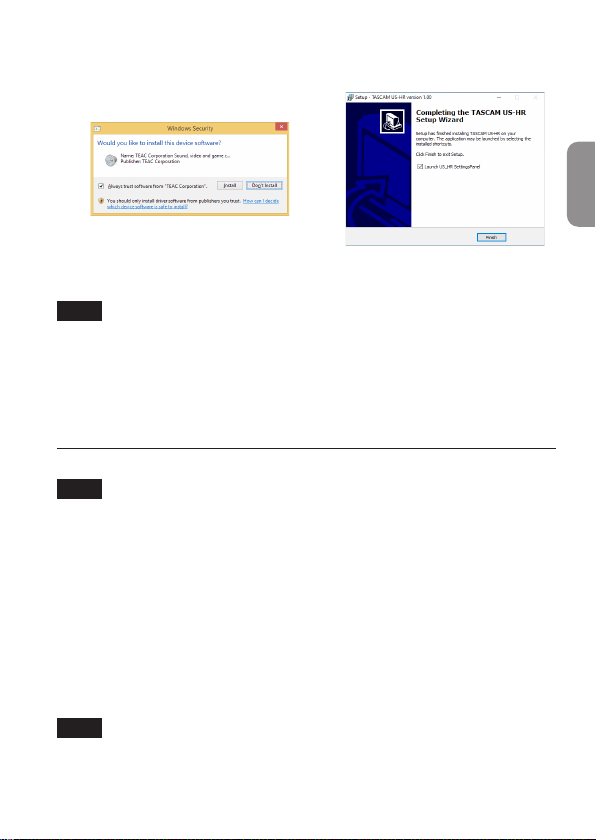
8. The following screen appears when installation has completed. (Fig.D)
Click the “Finish” button.
e
Fig.C Fig.D
The installer will quit and the Windows Settings Panel will launch.
NOTE
The rst time you connect the unit by USB to the computer after installing the
software, installation of the device driver will be executed. Some time might
be necessary before the unit is recognized because Windows Update will be
automatically searched at this time. If the unit is still not recognized after a while,
open the software installation screen from the notication area at the bottom right
of the computer display, and click “Skip obtaining driver software from Windows
Update” to stop the search.
Installing the Mac dedicated software
NOTE
i Install the Mac dedicated software on the computer before connecting the unit to
it with the USB cable.
i Depending on the Gatekeeper setting, a warning message might appear
during installation. For information about Gatekeeper, Please see “Working with
Gatekeeper” in “3–Installation” of the Reference Manual.
Mac dedicated software installation procedures
1. Download the latest Mac dedicated software for the operating system you are
using from the TEAC Global Site (https://teac-global.com/) and save it on the
computer to be used with the unit.
2. Double-click “US-HR_Installer_x.xx.dmg”, which is the saved disk image le for
the Mac dedicated software, and double-click “US-HR_Installer.pkg” inside the
folder that opens. (Fig.A)
NOTE
Depending on the computer’s settings, the downloaded zip le might not have
been uncompressed automatically. In this case, uncompress the zip le rst and
then double-click the disk image le.
ENGLISH
TASCAM US-2x2HR/US-4x4HR 15
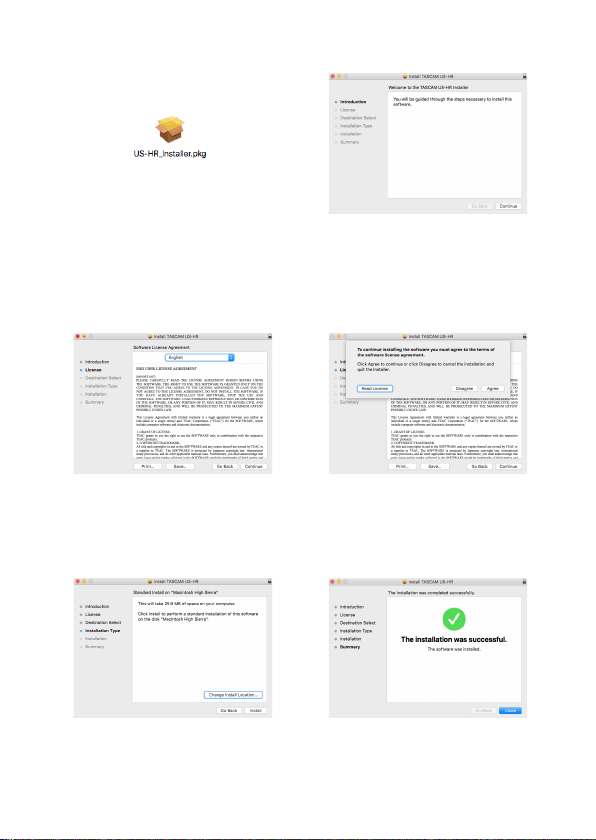
3. When the installer starts, click the “Continue” button. (Fig.B)
e
Fig.A Fig.B
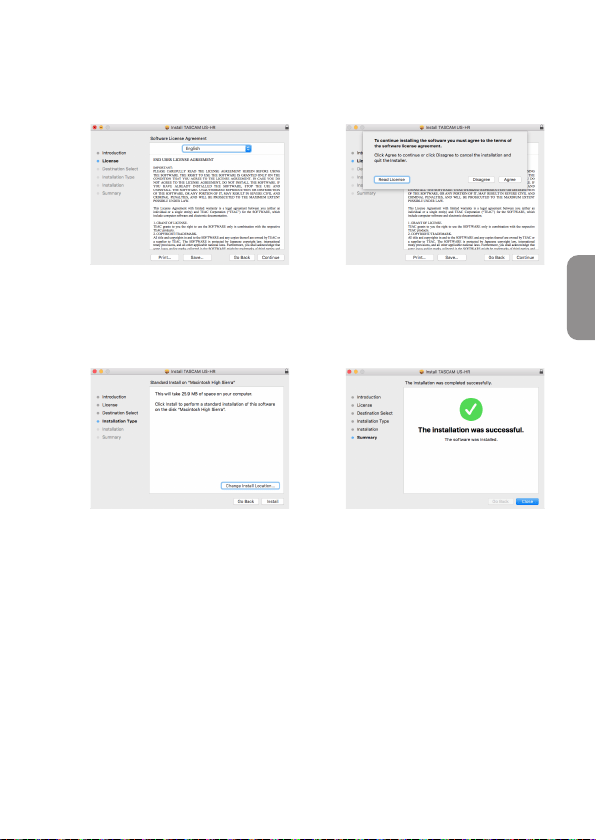
4. Next, select the desired language and click the “Continue” button. (Fig.C)
5. Click the “Read License” button and check the contents of the Software License
Agreement. If you agree to the contents of the license, click “Agree”. (Fig.D)
Then, click the “Next” button.
e
Fig.C Fig.D
6. Next, click the “Install” button to start installation. (Fig.E)
7. The following screen appears when installation has completed. (Fig.F)
Click the “Close” button.
e
Fig.E Fig.F
16 TASCAM US-2x2HR/US-4x4HR

Connecting the power
When using a computer (Windows/Mac)
When this unit is connected to a computer using an included USB cable, it will
operate using USB bus power, so connecting a separate power supply device is not
necessary.
ATTENTION
When operating the US-4x4HR with USB bus power, use a commercially-available
Type-C–Type-C cable to connect it to a USB Type-C port on the computer. If there
is a problem with the power supply, the phantom power indicator will blink. In this
case, use the included AC adapter (PS-P1220E, DC12 V).
NOTE
Depending on the computer, the USB port might not be able to supply enough
power to operate the unit. In this case, connect and use a dedicated AC adapter.
When using an iOS device
When this unit is connected to an iOS device, connecting a dedicated AC adapter
is necessary to supply power to the unit. Connect the dedicated AC adapter before
connecting the USB cable.
Using with an AC adapter
US-2x2HR
Connect an AC adapter (PS-P520E, DC5V, sold separately) to the DC IN 5V connector.
See “Using with an AC adapter” in “4 – Preparation” of the Reference Manual for
instructions about connecting the adapter.
ATTENTION
We highly recommend using a dedicated AC adapter (PS-P520E, DC5 V, sold
separately) with the US-2x2HR. When using another external power supply device,
use one with the following specications.
• Power supply voltage: 5 V
• Power supply current: 700 mA or more
Using a power supply device with specications other than the above could cause
malfunction, overheating, re or other problems.
If trouble should occur, stop using the unit and contact the retailer where you
purchased it or a TEAC service center to request repair.
ENGLISH
TASCAM US-2x2HR/US-4x4HR 17

US-4x4HR
Under the following conditions, connect the included DC12V AC adapter (PS-P1220E,
DC12 V) to the DC IN 12V connector.
o When the USB bus power supply current is insucient
o When connected to an iOS device or other equipment that cannot power this unit
See “Using with an AC adapter” in “4 – Preparation” of the Reference Manual for
instructions about connecting the adapter.
ATTENTION
Always use the dedicated AC adapter (PS-P1220E, DC12 V) that was shipped with
the unit. Using a dierent AC adapter could cause malfunction, overheating, re or
other problems.
NOTE
The included dedicated AC adapter (PS-P1220E, DC12 V) is shipped with 2 types of
outlet plugs. Attach the type of plug that matches the power outlet that you are
using. Please see “Changing the outlet plug” in “4 – Preparation” of the Reference
Manual for instructions.
18 TASCAM US-2x2HR/US-4x4HR
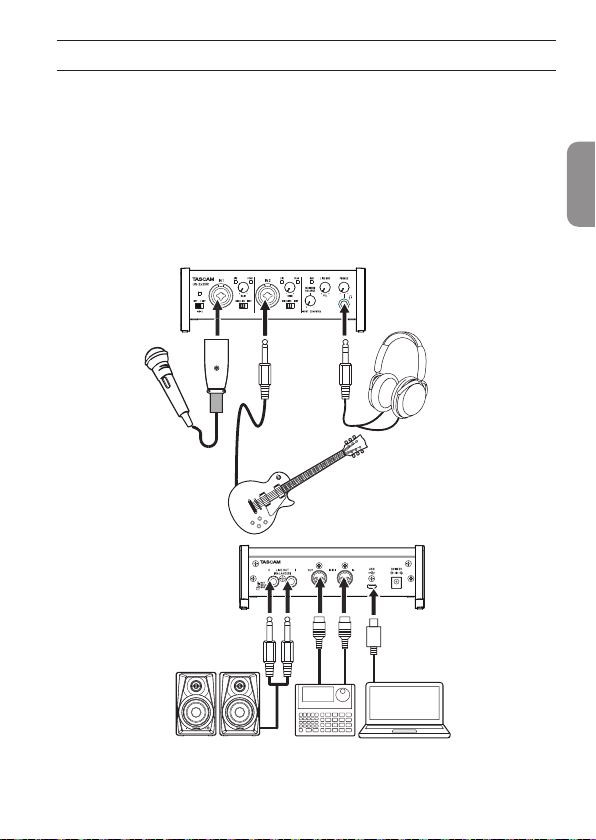
Connecting other equipment
This is an example of US-2x2HR connections.
Precautions before making connections
o Carefully read the operation manuals of the devices to be connected and then
connect them correctly.
o Before making connections, turn this unit and all equipment to be connected o
(standby).
o Install all connected devices, including this unit, so that they are powered from
the same line. When using a power strip or similar device, be sure to use one that
has high current capacity (thick cable) in order to minimize uctuations in power
voltage.
Mic
Guitars
Headphones
ComputerPowered speakers
Sequencer/
rhythm machine
Examples of connections to a US-2x2HR
ENGLISH
TASCAM US-2x2HR/US-4x4HR 19

V
CAUTION
Lower the LINE OUT and PHONES knobs before changing the phantom power
switch between +48V and OFF. Depending on the connected mics, sudden loud
noises from monitoring equipment could occur, and this could damage the
equipment or harm hearing.
ATTENTION
i Before connecting condenser mics, turn this unit and all equipment to be
connected o (standby).
i The phantom power switch changes the setting for all input channels
simultaneously (2 inputs on US-2x2HR and 4 inputs on US-4x4HR). Do not set the
phantom power switch to +48V when connecting a mic that does not require
phantom power.
i Do not connect or disconnect mics while the phantom power switch is set to +48V.
Doing so could cause a loud noise and might damage this unit and connected
equipment.
i Set the phantom power switch to +48V only when using a condenser microphone
that requires phantom power. Setting phantom power to +48V when a dynamic
mic or other equipment that does not require it is connected could damage this
unit and the connected equipment.
i When using condenser mics that require phantom power and dynamic mics
together, be sure to use balanced dynamic mics. Unbalanced dynamic mics cannot
be used when phantom power is enabled.
i Supplying phantom power to some ribbon mics could break them. If you are
unsure, do not supply phantom power to a ribbon mic.
i If you connect this unit to a laptop computer that is running on battery power
and set the phantom power switch to +48V, the computer battery charge will be
consumed more quickly.
Connecting with iOS devices
To connect with an iOS device that has a Lightning connector use a Lightning to USB
Camera Adapter* and the USB cable included with this product.
To connect with an iOS device that has a USB Type-C connector, use a commercially-
available Type-C–Type-C cable.
* You must obtain a genuine Apple Lightning to USB Camera Adapter separately.
NOTE
When connected, this unit will not provide power to the iOS device.
20 TASCAM US-2x2HR/US-4x4HR
Making various settings
NOTE
In order to enable the computer to handle digital audio signals smoothly, other
loads on the computer should be minimized as much as possible.
We recommend that you quit unneeded applications before use.
Opening the Settings Panel
Open the Settings Panel in the following manner.
Windows
o From the Start menu select “US_HR SettingsPanel” under “TASCAM”.
Mac
o On the Launchpad, click “US-HR_SettingsPanel”.
o Using the Finder, open the Applications folder and double-click “US-HR_
SettingsPanel” to open the Settings Panel.
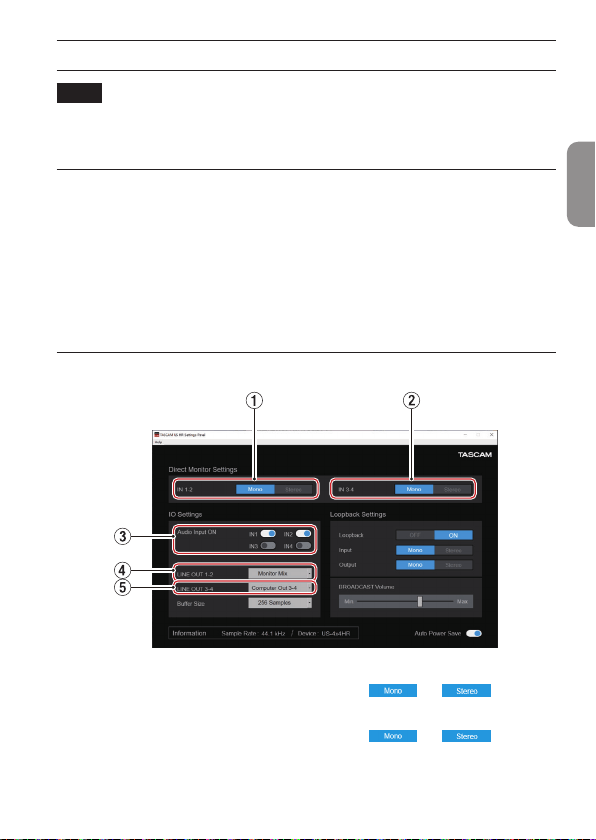
Using the Settings Panel
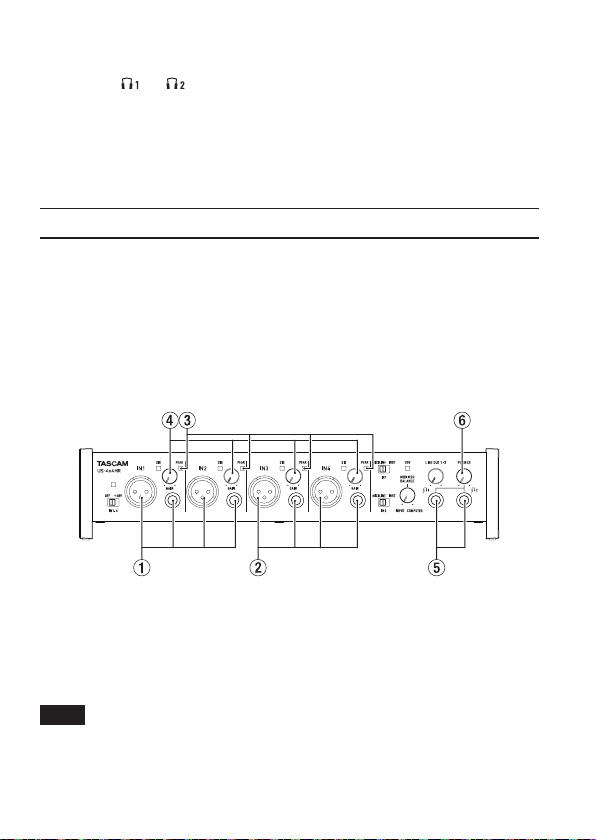
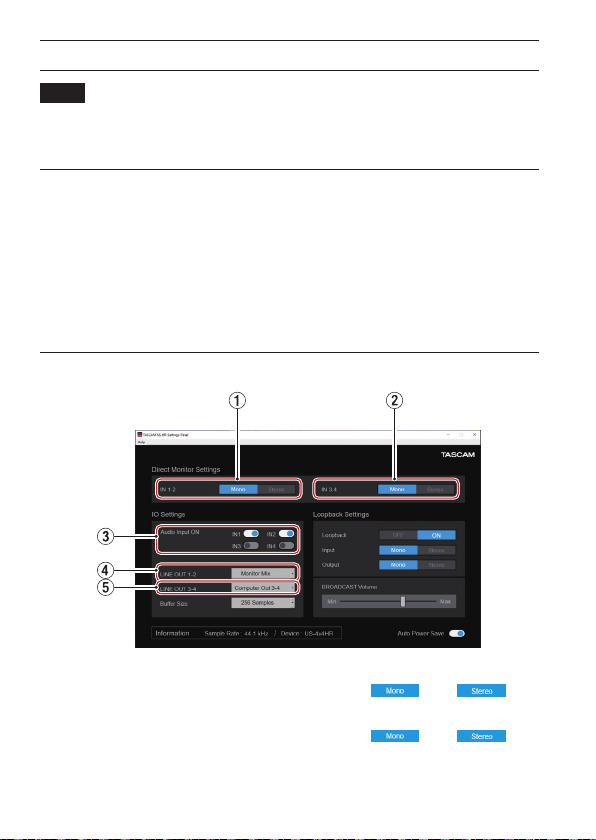
1 IN 1-2 buttons
Set the monitoring signal for the IN1/IN2 jacks to “ ” or “ ”.
2 IN 3-4 buttons (US-4x4HR only)
Set the monitoring signal for the IN3/IN4 jacks to “ ” or “ ”.
3 Audio Input ON switches
Turn input on/o for each channel separately.
ENGLISH
TASCAM US-2x2HR/US-4x4HR 21
4 LINE OUT 1-2
Select the signals output from the unit’s LINE OUT (BALANCED) 1-2 jacks and
PHONES ( and on US-4x4HR) jacks.
5 LINE OUT 3-4 (US-4x4HR only)
Select the signals output from the unit’s LINE OUT (BALANCED) 3-4 jacks.
For details about other settings, see “Settings Panel screen” in “5 – Using the Settings
Panel” of the Reference Manual.
Adjusting the input sound
Analog audio signals input into this device from mics, guitars, keyboards and other
audio equipment can be converted into digital signals and transmitted to the
computer via USB.
You can use the features of this unit to adjust the digital signals that are sent to the
computer. In addition, by connecting speakers (through an amplier if not powered)
or headphones to this unit, you can monitor audio signals that are input to this unit
and output from the computer.
Use the various controls on the front of the unit as necessary while listening to the
input sound.
Example using a US-4x4HR
Use the GAIN knobs (4) to adjust the analog input levels of the IN1/IN2 jacks (1) and
IN3/IN4 jacks (2, US-4x4HR only) so that the PEAK indicators (3) above and to the
right of the knobs do not light.
To listen to the monitoring signal using headphones, connect headphones to a
PHONES jack (5) and adjust the PHONES knob (6).
NOTE
If you cannot hear the input sound through the headphones or the LINE OUT
(BALANCED) 1-2 jacks, check the settings of the MONITOR BALANCE knob on the
front of the unit and the IO Settings item on the Settings Panel screen.
22 TASCAM US-2x2HR/US-4x4HR

Troubleshooting
Please read this chapter if you are unable to use the unit properly even after setting it
up following the procedures in this manual.
If you are still unable to resolve your problems please contact TASCAM customer
support (see the end of this manual) with the following information about the
operating environment and details about the trouble.
Operating environment
o Computer manufacturer:
o Model:
o CPU:
o Memory (RAM):
o Operating system:
o Applications used:
o Antivirus software:
o Wireless LAN use:
If these measures do not resolve the issue, please contact the retailer where you
purchased this unit or a TEAC service center.
See the end of this document for contact information.
The dedicated software cannot be installed
1. Check the operating system
The operating system being used might not be compatible with the software that
you are trying to install. Check the compatible operating system of the software
you are trying to install again.
2. Stop software running in the background
Antivirus software and other software that runs in the background can prevent
installation. Quit software that runs in the background and try installation again.
The unit is connected, but the computer does not recognize it
1. Install the dedicated software
o If you have not done so, install the dedicated software. (see “Installing the
dedicated software” on page 13)
2. Change the USB port
o This unit cannot be used with USB 1.1. Use a port that supports at least USB 2.0
or USB 3.0.
o Do not use a USB hub with this unit. Always connect the unit directly to a USB
port on the computer.
o If the above methods do not resolve the problem, connect the unit to a
dierent USB port on the computer.
ENGLISH
TASCAM US-2x2HR/US-4x4HR 23

There is no sound even when playing back on the computer
Conrm that the MONITOR BALANCE knob on the unit is not turned all the way to the
left (toward INPUT). If that is the case, turn the MONITOR BALANCE knob to the right
of center (toward COMPUTER).
In addition, check the status of the unit’s connection with the computer. Moreover, if
you make the following settings, sound will be output through this unit, but no sound
will be output by the computer’s speakers or headphone jack.
Windows
o See the “Windows” section of “6 - Application Guide” in the Reference Manual, and
make settings according to the OS.
Mac
1. Quit all applications and open “System Preferences…” from the Apple menu.
2. Open “Sound”.
3. On the “Output” tab, select “US-2x2HR” or “US-4x4HR”.
After completing the setting, restart the computer and check the sound of playback.
Depending on the application that you are using, you might need to make additional
device settings.
In particular, DAW software operate using audio engines with settings that are
dierent from the OS settings, so conrm the DAW settings rst after installing the
dedicated software for this unit.
Please see the manuals for the applications that you are using for detailed setting
procedures.
Sound breaks up or there is noise
The processing load on the computer causes sound to break up and noise to occur.
Here are some methods to reduce the load on the computer.
1. A wireless LAN and software running in the background, including antivirus
software, regularly put processing loads on the computer, which can cause sound
to break up and other noise. Stop wireless LAN transmission, antivirus software
and other software running in the background when using this unit.
2. Set the buer size (latency) in the audio application that you are using or in this
unit’s Settings Panel to a larger value (Windows only).
NOTE
Consult the maker of the audio application that you are using for methods to
reduce its load on your computer.
24 TASCAM US-2x2HR/US-4x4HR
3. Change the settings of your computer so that they are optimal for audio
processing.
Using Windows
o Performance Options
1 Open the Control Panel using the appropriate method for the OS you are using
(Windows 10/Windows 8.1/Windows 7).
i In Windows 10, open the “Control Panel”. Then, click the “System” icon.
i In Windows 8.1, right-click the ordinary Start screen (Metro user interface
screen) and then click “All apps”. Then, right-click “Computer” and select
“Properties”.
i In Windows 7, right-click “Computer” from the Windows Start button, and
select “Properties”.
2 Click “Advanced system settings”.
3 Click “Settings” in the “Performance” section of the “Advanced” tab of the
“System Properties” window.
4 In the “Visual Eects” tab of the “Performance Options” window, select “Adjust
for best performance”.
Using Mac
1 Open “System Preferences…” from the Apple menu, and select “Energy Saver”.
2 Set “Computer sleep” to “Never”.
3 Set “Display sleep” to “Never”.
NOTE
Depending on the macOS version and Mac computer model, this setting might not
be available.
4. Connect to a dierent USB port.
Since the unit might not properly function with some USB ports, try connecting it
to a dierent USB port.
NOTE
i Try again after disconnecting other USB devices (Keyboards and mice can be left
connected).
i Do not use a USB hub. Always connect the unit directly to a USB port on the
computer (built-in).
Support for bundled software, including DAW software
TASCAM does not provide end-user support for the bundled DAW Software.
Please check the Help menu of the installed software to nd where this support is
available.
ENGLISH
TASCAM US-2x2HR/US-4x4HR 25

Specications
General
Sampling frequencies
44.1, 48, 88.2, 96, 176.4, 192 kHz
Quantization bit depth
24-bit
Analog inputs
Mic inputs (Balanced)
US-2x2HR: IN1/IN2
US-4x4HR: IN1/IN2, IN3/IN4
Connectors:
XLR-3-31 equivalent
(1: GND, 2: HOT, 3: COLD)
Maximum input level:
+9 dBu (2.183 Vrms)
Gain range: 56 dB
Input impedance: 2.2 kΩ
Instrument inputs (Unbalanced)
US-2x2HR: IN1/IN2
US-4x4HR: IN1/IN2
(MIC/LINE INST switch set to INST)
Connectors:
6.3mm (1/4”) standard TS jacks
(Tip: HOT, Sleeve: GND)
Maximum input level:
+10 dBV (3.162 Vrms)
Gain range: 56 dB
Input impedance: 1 MΩ or more
Line inputs (Balanced)
US-2x2HR: IN1/IN2
US-4x4HR: IN1/IN2, IN3/IN4
(MIC/LINE INST switch set to MIC/LINE)
Connectors:
6.3mm (1/4”) standard TRS stereo
jacks
(Tip: HOT, Ring: COLD, Sleeve:
GND)
Maximum input level:
+20 dBu (7.746 Vrms)
Gain range: 56 dB
Input impedance: 10 kΩ
Analog outputs
Line outputs (Balanced)
US-2x2HR: LINE OUT (BALANCED) 1-2
US-4x4HR: LINE OUT (BALANCED) 1-2
LINE OUT (BALANCED) 3-4
Connectors:
6.3mm (1/4”) standard TRS stereo
jacks
(Tip: HOT, Ring: COLD, Sleeve:
GND)
Maximum output level:
+20 dBu (7.746 Vrms)
Rated output level:
+4 dBu (1.228 Vrms)
Output impedance: 210 Ω
Headphones output (PHONES)
Connector:
6.3mm (1/4”) standard stereo jack
Maximum output
US-2x2HR: 18 mW + 18 mW or higher
US-4x4HR: 45 mW + 45 mW or higher
(THD+N 0.1% or less, into 32 Ω
load)
Control input/output
ratings
MIDI IN connector
Connector: 5-pin DIN
Format: standard MIDI
MIDI OUT connector
Connector: 5-pin DIN
Format: standard MIDI
26 TASCAM US-2x2HR/US-4x4HR

USB
Connector: 4-pin USB Type-C
Transfer rate:
USB 2.0 High Speed (480 Mbps)
Audio performance
Mic amp EIN (equivalent input
noise)
−128 dBu or less
Frequency response
MIC/LINE IN
At 44.1/48 kHz, 20 Hz - 20 kHz:
+0 dB/−0.4 dB (JEITA)
At 88.2/96 kHz, 20 Hz - 40 kHz:
+0 dB/−0.4 dB (JEITA)
LINE OUT
At 44.1/48 kHz, 20 Hz - 20 kHz:
+0.2 dB/−0.1 dB (JEITA)
At 88.2/96 kHz, 20 Hz - 40 kHz:
+0.2 dB/−0.4 dB (JEITA)
S/N ratio
110 dB
(MIC IN, GAIN knob at minimum, 20
kHz SPCL LPF+A-Weight)
108 dB
(LINE IN, GAIN knob at minimum, 20
kHz SPCL LPF+A-Weight)
110 dB
(LINE OUT,
LINE OUT
knob at
maximum, 20 kHz SPCL LPF+A-Weight)
THD + N
0.0013%
(MIC IN, 1 kHz sine wave, −5 dBFS
input, GAIN knob at minimum, 20
kHz SPCL LPF)
0.0011%
(LINE IN, 1 kHz sine wave, −5 dBFS
input, GAIN knob at minimum, 20
kHz SPCL LPF)
0.0012%
(LINE OUT, 1 kHz sine wave, −4 dBFS
input, LINE OUT knob at maximum,
20 kHz SPCL LPF)
Crosstalk
95 dB or more (MIC/LINE IN to LINE
OUT, 1 kHz sine wave, GAIN knob at
minimum)
Computer system
requirements
Check the TEAC Global Site (https://teac-
global. com/) for the latest information
about supported operating systems.
Windows
Supported operating systems
Windows 10 32-bit
Windows 10 64-bit
Windows 8.1 32-bit
Windows 8.1 64-bit
Windows 7*
Windows 7 32-bit SP1 or later
Windows 7 64-bit SP1 or later
* Operation has been conrmed with
the nal version of Windows 7.
Computer hardware
requirements
Windows computer with a USB 2.0 (or
higher) port
CPU/processor speed
2 GHz or faster dual core processor
(x86)
Memory
2 GB or more
ATTENTION
Operation of this unit was conrmed
using standard computers that
ENGLISH
TASCAM US-2x2HR/US-4x4HR 27

meet the above requirements. This
does not guarantee operation with
all computers that meet the above
requirements. Even computers that
meet the same system requirements
might have processing capabilities
that dier according to their settings
and other operating conditions
Mac
Supported operating systems
macOS Catalina (10.15 or later)
macOS Mojave (10.14 or later)
macOS High Sierra (10.13 or later)
Computer hardware
requirements
Mac with a USB 2.0 (or higher) port
CPU/processor speed
2 GHz or faster dual core processor
Memory
2 GB or more
iOS devices
Operation has been conrmed with
Apple devices running the following iOS
versions.
iPadOS13
iOS13
iOS12
iOS11
ATTENTION
To connect an iOS device that has a
Lightning connector, a genuine Apple
Lightning to USB Camera Adapter
(sold separately) is necessary.
Supported audio drivers
Windows
ASIO2.0, WDM, MIDI
Mac
Core Audio, Core MIDI
iOS divice
Core Audio
Other
Power
Used with a computer
USB bus power or connected to the
dedicated AC adapter below
Used with an iOS device
Connected to the dedicated AC
adapter below
US-2x2HR: TASCAM PS-P520E,
DC 5 V
US-4x4HR: TASCAM PS-P1220E,
DC 12 V
Power consumption
US-2x2HR: 1.75 W
US-4x4HR: 2.25 W
Dimensions
US-2x2HR: 186 × 65 × 160 mm
US-4x4HR: 296 × 65 × 160 mm
(W x H x D, including protrusions)
Weight
US-2x2HR: 1.1 kg
US-4x4HR: 1.6 kg
Operating temperature range
5–35 °C (41 - 95°F)
o Illustrations in this manual might
dier in part from the actual product.
o Specications and external appearance
might be changed without notication
to improve the product.
o Detailed specications are provided
in the Reference Manual.
28 TASCAM US-2x2HR/US-4x4HR
MODE D’EMPLOI
Introduction
Merci beaucoup d’avoir choisi une interface audio/MIDI USB US-2x2HR/US-4x4HR de TASCAM.
Avant de connecter et d’utiliser cette unité, veuillez prendre le temps de lire ce
mode d’emploi en totalité pour vous assurer une bonne compréhension de sa mise
en service et de son branchement, ainsi que de la façon d’utiliser ses nombreuses
fonctions utiles et pratiques. Une fois la lecture de ce mode d’emploi terminée, veillez
à le conserver en lieu sûr pour référence ultérieure. Vous pouvez aussi télécharger ce
mode d’emploi depuis le site mondial de TEAC (https://teac-global.com/).
Avant de brancher cette unité à un ordinateur, un pilote dédié doit être
téléchargé et installé sur l’ordinateur.
Note à propos du manuel de référence
Ce mode d’emploi explique chacune des fonctions de cette unité. Veuillez consulter le
manuel de référence pour des informations détaillées sur chacune des fonctions. Vous
pouvez télécharger le manuel de référence depuis le site mondial de TEAC (https://
teac-global.com/).
Éléments fournis
Ce produit est livré avec les éléments suivants. Ouvrez l’emballage avec soin pour ne
pas les endommager. Conservez la boîte et les matériaux d’emballage pour de futurs
transports. Si un élément quelconque est manquant ou a été endommagé durant le
transport, veuillez contacter le magasin dans lequel vous avez acheté cette unité.
o Unité principale ................................................................................................................................x 1
o Adaptateur secteur (PS-P1220E, fourni avec l’US-4x4HR uniquement).......................x 1
o Câbles USB (Type-A - Type-C) .....................................................................................................x 1
o Jeu de guides d’installation pour logiciels DAW .................................................................. x 1
o Jeu de guides d’installation pour logiciels plug-ins de DAW. ..........................................x 1
o Mode d’emploi (ce document) incluant la garantie............................................................x 1
ATTENTION
Utilisez toujours l’adaptateur secteur (PS-P1220E, CC12 V) fourni avec l’US-4x4HR.
N’utilisez jamais l’adaptateur secteur fourni avec un autre appareil. Cela pourrait
entraîner des dommages, un incendie, voire un choc électrique.
NOTE
Les broches de l’adaptateur secteur (PS-P1220E, CC 12V) fourni avec l’US-4x4HR sont
interchangeables. Veuillez consulter «Changement des broches de prise électrique»
dans le chapitre «4 – Préparation» du manuel de référence pour des instructions.
FRANÇAIS
TASCAM US-2x2HR/US-4x4HR 29
INSTRUCTIONS DE SÉCURITÉ IMPORTANTES
AVERTISSEMENT : POUR PRÉVENIR
LES RISQUES D’INCENDIE ET
D’ÉLECTROCUTION, N’EXPOSEZ
PAS CET APPAREIL À LA PLUIE NI À
L’HUMIDITÉ.
Pour le Canada
THIS CLASS B DIGITAL APPARATUS
COMPLIES WITH CANADIAN ICES-003.
CET APPAREIL NUMÉRIQUE DE LA
CLASSE B EST CONFORME À LA NORME
NMB-003 DU CANADA.
Ce produit est conforme
aux impératifs des
directives européennes et
autres règlements de la
Commission.
1. Lisez ces instructions.
2. Conservez ces instructions.
3. Tenez compte de tous les
avertissements.
4. Suivez toutes les instructions.
5. N’utilisez pas cet appareil avec de
l’eau à proximité.
6. Nettoyez-le uniquement avec un
chion sec.
7. Ne bloquez aucune ouverture
de ventilation. Installez-le
conformément aux instructions du
fabricant.
8. Ne l’installez pas près de sources de
chaleur telles que des radiateurs,
bouches de chauage, poêles ou
autres appareils (y compris des
amplicateurs) dégageant de la
chaleur.
9. Ne neutralisez pas la fonction de
sécurité de la che polarisée ou de
terre. Une che polarisée a deux
broches, l’une plus large que l’autre.
Une che de terre a deux broches
identiques et une troisième broche
pour la mise à la terre. La broche
plus large ou la troisième broche
servent à votre sécurité. Si la che
fournie n’entre pas dans votre prise,
consultez un électricien pour le
remplacement de la prise obsolète.
10. Évitez de marcher sur le cordon
d’alimentation et de le pincer, en
particulier au niveau des ches, des
prises secteur, et du point de sortie
de l’appareil.
11. N’utilisez que des xations/
accessoires spéciés par le fabricant.
12. Utilisez-le uniquement avec le
chariot, socle, trépied, support ou
table spécié par le fabricant ou
vendu avec l’appareil. Si un chariot
est utilisé, faites attention à ne pas
être blessé par un renversement
lors du déplacement de l’ensemble
chariot/appareil.
13. Débranchez cet appareil en cas
d’orage ou de non utilisation
prolongée.
30 TASCAM US-2x2HR/US-4x4HR
14. Conez toute réparation à des
techniciens de maintenance
qualiés. Une réparation est
nécessaire si l’appareil a été
endommagé d’une quelconque
façon, par exemple si le cordon
ou la che d’alimentation est
endommagé, si du liquide a été
renversé sur l’appareil ou si des
objets sont tombés dedans, si
l’appareil a été exposé à la pluie ou
à l’humidité, s’il ne fonctionne pas
normalement, ou s’il est tombé.
• L’appareil tire un courant nominal de
veille de la prise secteur quand son
interrupteur POWER ou STANDBY/ON
n’est pas en position ON.
• La che secteur est utilisée comme
dispositif de déconnexion et doit donc
toujours rester disponible.
• Des précautions doivent être prises
en cas d’utilisation d’écouteurs ou
d’un casque avec le produit car une
pression acoustique excessive (volume
trop fort) dans les écouteurs ou dans le
casque peut causer une perte auditive.
• Si vous rencontrez des problèmes avec
ce produit, contactez TEAC pour une
assistance technique. N’utilisez pas le
produit tant qu’il n’a pas été réparé.
AVERTISSEMENT
• Pour éviter d’éventuels
dommages auditifs,
n’écoutez pas de façon
prolongée à niveau sonore
élevé.
ATTENTION
• N’exposez pas cet appareil aux
gouttes ni aux éclaboussures.
• Ne placez pas d’objet rempli de
liquide sur l’appareil, comme par
exemple un vase.
• N’installez pas cet appareil dans
un espace conné comme une
bibliothèque ou un meuble similaire.
• L’appareil doit être placé
susamment près de la prise de
courant pour que vous puissiez à
tout moment attraper facilement la
che du cordon d’alimentation.
• Si le produit utilise des piles/
batteries (y compris un pack de
batteries ou des batteries xes),
elles ne doivent pas être exposées
au soleil, au feu ou à une chaleur
excessive.
• PRÉCAUTION pour les produits qui
utilisent des batteries remplaçables
au lithium : remplacer une batterie
par un modèle incorrect entraîne un
risque d’explosion. Remplacez-les
uniquement par un type identique
ou équivalent.
FRANÇAIS
TASCAM US-2x2HR/US-4x4HR 31
Pour les consommateurs
européens
Mise au rebut des équipements
électriques et électroniques
(a) Tous les équipements électriques
et électroniques doivent être
traités séparément de la collecte
municipale d’ordures ménagères
dans des points de collecte
désignés par le gouvernement ou
les autorités locales.
(b) En vous débarrassant correctement
des équipements électriques et
électroniques, vous contribuerez
à la sauvegarde de précieuses
ressources et à la prévention de
potentiels eets négatifs sur la
santé humaine et l’environnement.
(c) Le traitement incorrect des déchets
d’équipements électriques et
électroniques peut avoir des
eets graves sur l’environnement
et la santé humaine en raison
de la présence de substances
dangereuses dans les équipements.
(d) Le symbole de déchets
d’équipements électriques
et électroniques (DEEE), qui
représente une poubelle sur
roues barrée d’une croix,
indique que l’équipement
électrique et électronique
doit être collecté et traité
séparément des déchets
ménagers.
(e) Des systèmes de retour et de
collecte sont disponibles pour
l’utilisateur nal. Pour des
informations plus détaillées
sur la mise au rebut des vieux
équipements électriques et
électroniques, veuillez contacter
votre mairie, le service d’ordures
ménagères ou le magasin
dans lequel vous avez acquis
l’équipement.
ATTENTION
• N’EXPOSEZ PAS L’ÉLECTRONIQUE EN
OUVRANT LE BOÎTIER OU SES CAPOTS.
AUCUNE PIÈCE INTERNE N’EST
RÉPARABLE PAR L’UTILISATEUR.
• SI VOUS RENCONTREZ DES
PROBLÈMES AVEC CE PRODUIT,
CONTACTEZ LE MAGASIN DANS
LEQUEL VOUS L’AVEZ ACHETÉ POUR
UNE ASSISTANCE TECHNIQUE.
N’UTILISEZ PAS LE PRODUIT TANT
QU’IL N’A PAS ÉTÉ RÉPARÉ.
• L’UTILISATION DE COMMANDES,
DE RÉGLAGES OU LE SUIVI DE
PROCÉDURES AUTRES QUE CE QUI EST
DÉCRIT DANS CE DOCUMENT PEUT
PROVOQUER UNE EXPOSITION À UN
RAYONNEMENT DANGEREUX.
32 TASCAM US-2x2HR/US-4x4HR
La plaque signalétique se trouve sous
l’unité comme indiqué ci-dessous.
US-2x2HR
Face avant
Plaque signalétique
US-4x4HR
Face avant
Plaque signalétique
FRANÇAIS
TASCAM US-2x2HR/US-4x4HR 33

Conventions employées dans ce mode d’emploi
Dans ce document, les conventions suivantes sont employées :
o Les informations qui s’achent sur l’écran d’un ordinateur sont indiquées sous la
forme : «OK».
o Dans ce document, les références à «iOS» incluent également «iPad OS».
o Si nécessaire, des informations supplémentaires sont fournies sous les intitulés
CONSEIL, NOTE et ATTENTION.
CONSEIL
Ce sont des conseils concernant l’emploi de l’unité.
NOTE
Ce sont des explications supplémentaires et des descriptions de cas particuliers.
ATTENTION
Ne pas suivre ces instructions peut par exemple entraîner des dommages pour
l’équipement ou la perte de données.
V
MISE EN GARDE
Le non-respect de ces instructions peut entraîner des blessures.
Précautions concernant l’emplacement et l’emploi
o La plage de température de fonctionnement de cette unité se situe entre 5ºC et
35ºC.
o Ne placez pas cette unité dans les types d’emplacement suivants. Cela pourrait
dégrader la qualité sonore ou causer des mauvais fonctionnements.
Lieux sujets à des vibrations importantes
Près d’une fenêtre ou à un autre endroit exposé directement au soleil
Près de chauages ou dans des lieux extrêmement chauds
Lieux extrêmement froids
Lieux très humides ou mal aérés
Lieux très poussiéreux
o Pour permettre une bonne dispersion thermique, ne placez rien sur le dessus de
l’unité.
o Ne placez pas cette unité sur un amplicateur de puissance ou un autre appareil
générant de la chaleur.
34 TASCAM US-2x2HR/US-4x4HR

Attention à la condensation
De la condensation peut se produire si l’unité est déplacée d’un endroit froid à un
endroit chaud, est utilisée dans une pièce qui vient d’être chauée ou soumise à des
changements brutaux de température. Pour empêcher cela ou si cela se produit,
laissez l’unité une ou deux heures à la température de la nouvelle pièce avant de
l’utiliser.
Nettoyage de l’unité
Essuyez l’unité avec un chion sec et doux pour la nettoyer. Ne l’essuyez pas avec
des lingettes de nettoyage contenant des produits chimiques, du diluant, de l’alcool
ou d’autres agents chimiques. Cela pourrait endommager la surface ou causer une
décoloration.
Utilisation du site mondial TEAC
Vous pouvez télécharger des mises à jour pour cette unité depuis le site mondial:
https://teac-global.com/
Dans la section TASCAM Downloads (téléchargements TASCAM), sélectionnez la
langue souhaitée an d’ouvrir la page de téléchargement du site web pour cette
langue.
À propos du service d’assistance clientèle TASCAM
Les produits TASCAM ne bénécient d’une assistance et d’une garantie que dans leur
pays/région d’achat.
Pour bénécier d’une assistance après l’achat, recherchez dans la liste des
distributeurs TASCAM fournie sur le site mondial TEAC (https:// teac-global.com/)
la société ou le représentant local pour la région dans laquelle vous avez acheté le
produit et contactez cette organisation.
FRANÇAIS
TASCAM US-2x2HR/US-4x4HR 35
Nomenclature et fonctions des parties
Face avant
US-2x2HR
US-4x4HR
1 Voyants de signal (SIG)
Ils s’allument en vert si des signaux (d’au minimum −32dBFS) entrent.
2 Boutons GAIN
Utilisez-les pour régler les niveaux d’entrée par les prises d’entrée.
Réglez le niveau pour que les voyants PEAK ne s’allument pas en rouge.
3 Voyants de crête (PEAK)
Ils s’allument en rouge si les signaux s’approchent du niveau de distorsion
(−1dBFS ou plus).
4 Voyant USB
S’allume quand la connexion USB fonctionne.
5 Bouton LINE OUT
Utilisez-le pour régler le niveau de sortie par les prises LINE OUT (BALANCED) 1-2
(t) à l’arrière de l’unité.
36 TASCAM US-2x2HR/US-4x4HR
6 Bouton PHONES
Utilisez-le pour régler le niveau de sortie de la prise casque (prises et sur
l’US-4x4HR).
V
MISE EN GARDE
Avant de brancher un casque, baissez le volume avec le bouton PHONES. Ne pas
le faire pourrait entraîner la production d’un bruit fort et soudain risquant par
exemple d’endommager votre audition.
7 Voyant d’alimentation fantôme (+48V)
Le voyant s’allume quand l’interrupteur d’alimentation fantôme est réglée sur +48V.
NOTE
Si l’US-4x4HR doit être alimenté par le bus USB, utilisez un câble Type-C-Type-C
du commerce pour le raccorder à un port USB de Type-C de l’ordinateur. En cas de
problème d’alimentation électrique, le voyant d’alimentation fantôme clignote.
Dans ce cas, utilisez l’adaptateur secteur fourni (PS-P1220E, CC 12V).
8 Commutateur d’alimentation fantôme
Utilisez ce commutateur pour fournir une alimentation fantôme +48V aux prises
XLR IN1 et IN2 (et IN3/IN4 sur l’US-4x4HR).
V
MISE EN GARDE
Réglez les boutons LINE OUT et PHONES au minimum avant de changer le réglage
de l’alimentation fantôme. En fonction des micros connectés, des bruits forts et
soudains peuvent être produits par l’équipement d’écoute et cela peut causer des
dommages auditifs ou à l’équipement.
9 Prises IN1/IN2
Sur l’US-2x2HR, ce sont des prises mixtes XLR/jack TRS pour l’entrée analogique.
Sur l’US-4x4HR, ce sont des prises XLR et jack TRS standard séparées pour l’entrée
analogique.
Ces prises acceptent une entrée à haute impédance, y compris l’entrée directe
d’une guitare.
Utilisez les sélecteurs MIC/LINE INST (q) pour choisir une entrée ligne symétrique
(MIC/LINE) ou asymétrique (INST) par les prises jack 6,35mm 3points (TRS). Si
vous branchez directement une guitare, une basse ou un autre instrument, réglez
le sélecteur MIC/LINE INST (q) sur INST.
0 Prises IN3/IN4 (US-4x4 uniquement)
Ces entrées micro analogiques sur XLR et jack 3 points (TRS) de niveau ligne
standard sont des prises d’entrée symétriques.
ATTENTION
Sur l’US-4x4HR, les entrées IN1/IN2 (9) et IN3/IN4 (0) orent chacune deux prises
(XLR et jack TRS). Ne faites jamais entrer en même temps des signaux par les deux
prises de la même entrée. Si des signaux entrent par les deux en même temps,
aucun des deux ne sera correctement reçu.
FRANÇAIS
TASCAM US-2x2HR/US-4x4HR 37
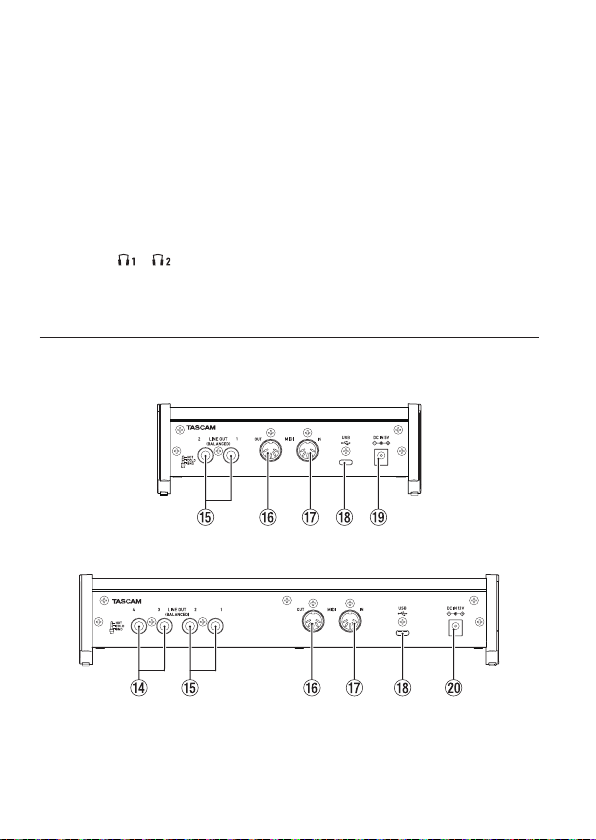
q Sélecteurs MIC/LINE-INST
Réglez-les en fonction des sources d’entrée des prises IN1/IN2.
Choisissez «MIC/LINE» pour la connexion d’instruments électroniques,
d’appareils audio, de micros et équipements similaires.
Choisissez «INST» pour brancher une guitare, une basse ou un autre équipement
à haute impédance de sortie.
w Bouton MONITOR BALANCE
Utilisez-le pour régler la balance d’écoute entre les signaux reçus par les prises
d’entrée de cette unité et ceux sortant de l’ordinateur.
e Prise casque (PHONES)
Utilisez cette prise jack stéréo standard pour brancher un casque stéréo (utilisez
les prises et sur l’US-4x4HR).
Elles produisent les mêmes signaux que les prises de sortie LINE OUT (BALANCED)
1-2.
Utilisez un adaptateur pour brancher un casque à che mini-jack.
Face arrière
US-2x2HR
US-4x4HR
r Prises LINE OUT (BALANCED) 3-4 (US-4x4HR uniquement)
Ces prises jack 6,35mm 3 points (TRS) sont des sorties ligne analogiques.
38 TASCAM US-2x2HR/US-4x4HR

t Prises LINE OUT (BALANCED) 1-2
Ces prises jack 6,35mm 3 points (TRS) sont des sorties ligne analogiques.
Les signaux produits par les prises LINE OUT (BALANCED) 1-2 (prises 1-4 sur l’US-
4x4HR) peuvent se choisir dans le panneau de réglages Settings Panel.Pour des
détails sur les autres réglages, voir «Écran Settings Panel» dans «5 – Emploi du
panneau de réglage» du manuel de référence.
y Connecteur MIDI OUT
Cette prise DIN 5 broches est un connecteur de sortie MIDI standard.
Elle produit les signaux MIDI.
u Connecteur MIDI IN
Cette prise DIN 5 broches est un connecteur d’entrée MIDI standard.
Utilisez-la pour recevoir les signaux MIDI.
i Port USB
C’est un port USB de Type-C.
Utilisez un câble USB pour relier l’unité à un ordinateur ou à un appareil iOS.
o Connecteur d’alimentation DC IN 5V (US-2x2HR uniquement)
En cas de connexion à un appareil iOS ou autre équipement incapable d’alimenter
cette unité, un adaptateur secteur dédié (PS-P520E, CC5V, vendu séparément)
doit être branché au connecteur DC IN 5V (voir «Avec un appareil iOS» en page
44).
p Connecteur d’alimentation DC IN 12V (US-4x4HR uniquement)
Dans les conditions suivantes, connectez ici l’adaptateur secteur CC12V inclus
(PS-P1220E, CC12V) (voir «Avec un adaptateur secteur» en page 44).
o Quand le courant fourni par le bus USB est insusant
o En cas de connexion à un appareil iOS ou autre équipement incapable
d’alimenter cette unité
FRANÇAIS
TASCAM US-2x2HR/US-4x4HR 39

Installation des logiciels dédiés
Un logiciel dédié doit être installé sur l’ordinateur pour utiliser cette unité.
Le logiciel dédié peut être mis à jour à tout moment. Téléchargez le tout dernier
logiciel pour le système d’exploitation que vous utilisez depuis le site mondial TEAC
(https://teac-global.com/).
o Installer le logiciel dédié sur un ordinateur Windows installe aussi le pilote
Windows et l’application Settings Panel (panneau de réglages).
o Installer le logiciel dédié sur un Mac n’installe que l’application Settings Panel
(panneau de réglages). Le pilote standard du système d’exploitation sera utilisé.
o Avec un appareil iOS, le pilote standard du système d’exploitation sera utilisé, il
n’est donc pas nécessaire d’installer de logiciel.
ATTENTION
Avant de lancer le logiciel d’installation, fermez les autres applications.
Installation des logiciels dédiés pour Windows
ATTENTION
i Terminez l’installation des logiciels Windows dédiés sur l’ordinateur avant de
brancher l’unité à celui-ci à l’aide du câble USB.
i Si vous avez branché l’unité à l’ordinateur à l’aide du câble USB avant d’avoir
installé les logiciels dédiés pour Windows et si l’Assistant «Ajout de nouveau
matériel détecté» a été lancé, fermez l’Assistant et débranchez le câble USB.
Procédure d’installation des logiciels dédiés pour Windows
1. Téléchargez les derniers logiciels dédiés pour Windows depuis le site mondial
de TEAC (https://teac-global.com/) et sauvegardez-les sur l’ordinateur que vous
utiliserez avec l’unité.
2. Décompressez le chier d’archive zip sur le bureau de l’ordinateur ou à un autre
emplacement.
3. Double-cliquez sur le chier «TASCAM_US-HR_Installer_x.xx.exe» dans le dossier
qui apparaît après décompression pour lancer le logiciel d’installation.
ATTENTION
Si vous ouvrez un chier contenu dans l’archive zip sans décompresser celle-ci et
si vous double-cliquez sur le chier «TASCAM_US-HR_Installer_x.xx.exe» dans le
dossier qui s’ouvre, l’installation ne démarrera pas. Cliquez avec le bouton droit sur
le chier zip et sélectionnez par exemple «Extraire tout» pour le décompresser puis
réessayez.
4. Quand un écran «Avertissement de sécurité» ou «Contrôle de compte
d’utilisateur» apparaît, cliquez sur le bouton «Oui».
5. Lisez le contenu du contrat de licence (License Agreement) puis sélectionnez «I
accept the terms in the license agreement» (J’accepte les termes du contrat) si
vous en acceptez les termes.
Puis cliquez sur le bouton «Next» (suivant). (Fig.A)
40 TASCAM US-2x2HR/US-4x4HR
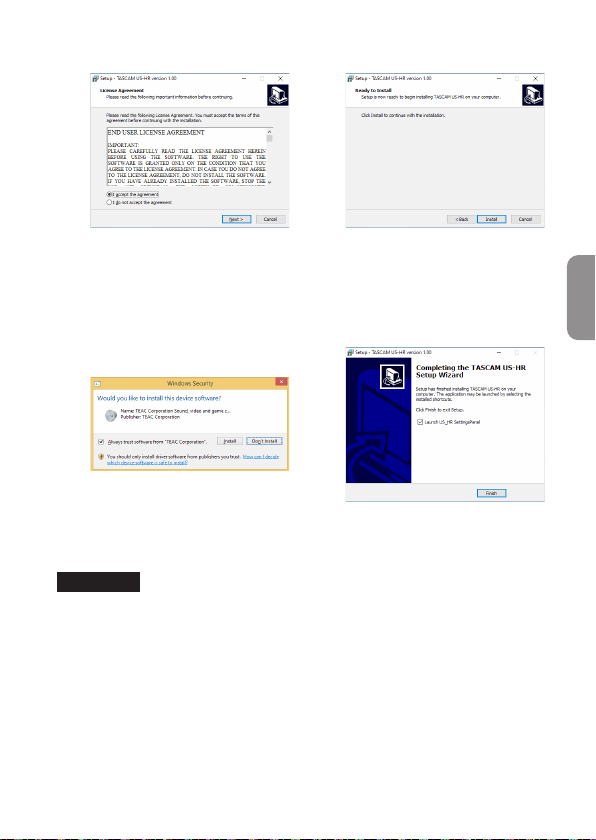
6. Ensuite, cliquez sur le bouton «Install» (Installer). (Fig.B)
e
Fig.A Fig.B
7. Ensuite, cliquez sur le bouton «Install» (Installer) pour lancer l’installation
(Windows 8.1/Windows 7 uniquement). (Fig.C)
8. L’écran suivant apparaît quand l’installation est terminée. (Fig.D)
Cliquez sur le bouton «Finish» (Terminer).
e
Fig.C Fig.D
Le programme d’installation se fermera et le panneau de réglages Windows
(Settings Panel) s’ouvrira.
ATTENTION
La première fois que vous connectez l’unité par USB à l’ordinateur après avoir
installé le logiciel, l’installation du pilote de périphérique est exécutée. Il faut un
certain temps avant que l’unité ne soit reconnue car la procédure de mise à jour
Windows Update est automatiquement lancée à cet instant. Si l’unité n’est toujours
pas reconnue après un certain temps, ouvrez l’écran d’installation du logiciel
depuis la zone de notication située en bas à droite de l’écran de l’ordinateur
et cliquez sur «Ignorer la recherche de pilote dans Windows Update» pour
interrompre la recherche.
FRANÇAIS
TASCAM US-2x2HR/US-4x4HR 41
Installation du logiciel dédié pour Mac
NOTE
i Installez le logiciel dédié pour Mac sur l’ordinateur avant de brancher l’unité à
celui-ci à l’aide du câble USB.
i Selon le réglage du Gatekeeper, un message d’avertissement peut apparaître
au cours de l’installation. Pour des informations sur le Gatekeeper, voir «Note à
propos du Gatekeeper» dans «3 – Installation» du manuel de référence.
Procédure d’installation du logiciel dédié pour Mac
1. Téléchargez depuis le site mondial TEAC (https://teac-global. com/) le logiciel
dédié pour Mac le plus récent pour le système d’exploitation que vous utilisez et
enregistrez-le sur l’ordinateur devant être employé avec l’unité.
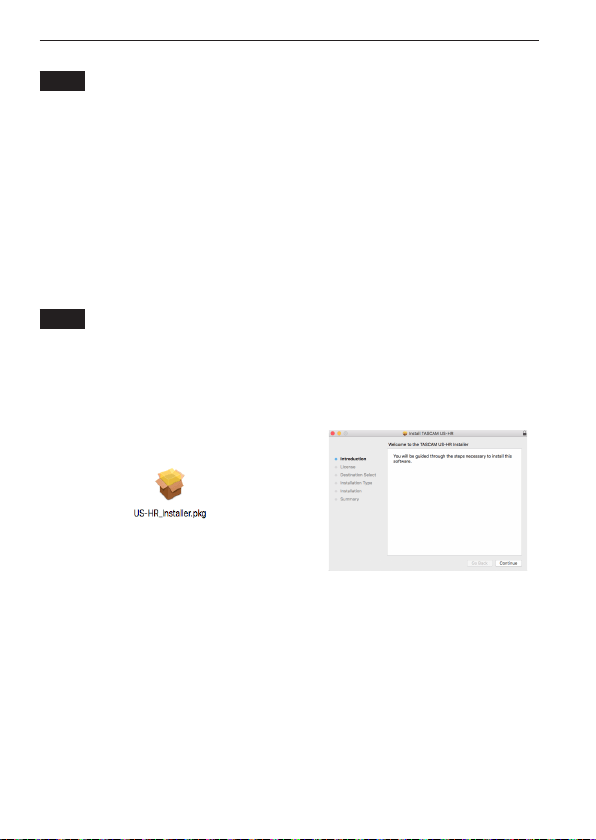
2. Double-cliquez sur «US-HR_Installer_x.xx. dmg» qui est le chier image disque
sauvegardé du logiciel dédié pour Mac, et double-cliquez sur «US-HR_Installer.
pkg» dans le dossier qui s’ouvre. (Fig.A)
NOTE
Selon le paramétrage de l’ordinateur, le chier zip téléchargé peut ne pas s’être
décompressé automatiquement. Dans ce cas, décompressez d’abord le chier zip,
puis double-cliquez sur le chier image disque.
3. Lorsque le programme d’installation démarre, cliquez sur le bouton «Continue»
(Continuer). (Fig.B)
e
Fig.A Fig.B
4. Ensuite, sélectionnez la langue souhaitée et cliquez sur le bouton «Continue»
(Continuer). (Fig.C)
42 TASCAM US-2x2HR/US-4x4HR
5. Cliquez sur le bouton «Read License» (lire la licence) et prenez connaissance du
contrat de licence du logiciel. Si vous êtes d’accord avec le contenu de la licence,
cliquez sur «Agree» (Accepter). (Fig.D)
Puis cliquez sur le bouton «Next» (Suivant).
e
Fig.C Fig.D
6. Ensuite, cliquez sur le bouton «Install» (Installer) pour lancer l’installation. (Fig.E)
7. L’écran suivant apparaît quand l’installation est terminée. (Fig.F)
Cliquez sur le bouton «Close» (Fermer).
e
Fig.E Fig.F
FRANÇAIS
TASCAM US-2x2HR/US-4x4HR 43

Connexion de l’alimentation
Avec un ordinateur (Windows/Mac)
Quand cette unité est branchée à un ordinateur au moyen du câble USB fourni, elle
est alimentée par le bus USB, rendant inutile une alimentation électrique séparée.
ATTENTION
Si l’US-4x4HR doit être alimenté par le bus USB, utilisez un câble Type-C-Type-C
du commerce pour le raccorder à un port USB de Type-C de l’ordinateur. En cas de
problème d’alimentation électrique, le voyant d’alimentation fantôme clignote.
Dans ce cas, utilisez l’adaptateur secteur fourni (PS-P1220E, CC 12V).
NOTE
Selon l’ordinateur, le port USB peut ne pas être en mesure de fournir une
alimentation susante pour faire fonctionner l’unité. Dans ce cas, connectez et
utilisez un adaptateur secteur dédié.
Avec un appareil iOS
Lorsque cette unité est connectée à un appareil iOS, il est nécessaire de brancher un
adaptateur secteur dédié pour l’alimenter. Branchez l’adaptateur secteur dédié avant
de brancher le câble USB.
Avec un adaptateur secteur
US-2x2HR
Branchez un adaptateur secteur (PS-P520E, CC5V, vendu séparément) au connecteur
DC IN 5V. Voir «Utilisation avec un adaptateur secteur» dans le chapitre«4 –
Préparation» du manuel de référence pour les instructions sur la connexion de
l’adaptateur.
ATTENTION
Nous vous recommandons vivement d’utiliser un adaptateur secteur dédié (PS-
P520E, CC5V, vendu séparément) avec l’US-2x2HR. En cas d’utilisation d’un autre
adaptateur secteur externe, celui-ci doit avoir les caractéristiques suivantes.
• Tension d’alimentation électrique: 5 V
• Courant d’alimentation: 700 mA ou plus
L’emploi d’un autre adaptateur secteur pourrait entraîner des mauvais
fonctionnements, une surchaue, un incendie ou d’autres problèmes.
En cas de problème, cessez d’utiliser l’unité et contactez le revendeur chez
qui vous l’avez achetée ou un service après-vente TEAC pour demander une
réparation.
44 TASCAM US-2x2HR/US-4x4HR

US-4x4HR
Dans les conditions suivantes, connectez l’adaptateur secteur CC12V inclus (PS-
P1220E, CC12V) au connecteur DC IN 12V.
o Quand le courant fourni par le bus USB est insusant
o En cas de connexion à un appareil iOS ou autre équipement incapable d’alimenter
cette unité
Voir «Utilisation avec un adaptateur secteur» dans le chapitre«4 – Préparation» du
manuel de référence pour les instructions sur la connexion de l’adaptateur.
ATTENTION
Utilisez toujours l’adaptateur secteur (PS-P1220E) fourni avec cette unité. L’emploi
d’un autre adaptateur secteur pourrait entraîner des mauvais fonctionnements,
une surchaue, un incendie ou d’autres problèmes.
NOTE
L’adaptateur secteur fourni (PS-P1220E, CC12V) est livré avec 2types de broches
secteur. Montez le type de broches qui correspond à la prise de courant que vous
utilisez. Veuillez consulter «Changement des broches de prise électrique» dans le
chapitre «4 – Préparation» du manuel de référence pour des instructions.
FRANÇAIS
TASCAM US-2x2HR/US-4x4HR 45
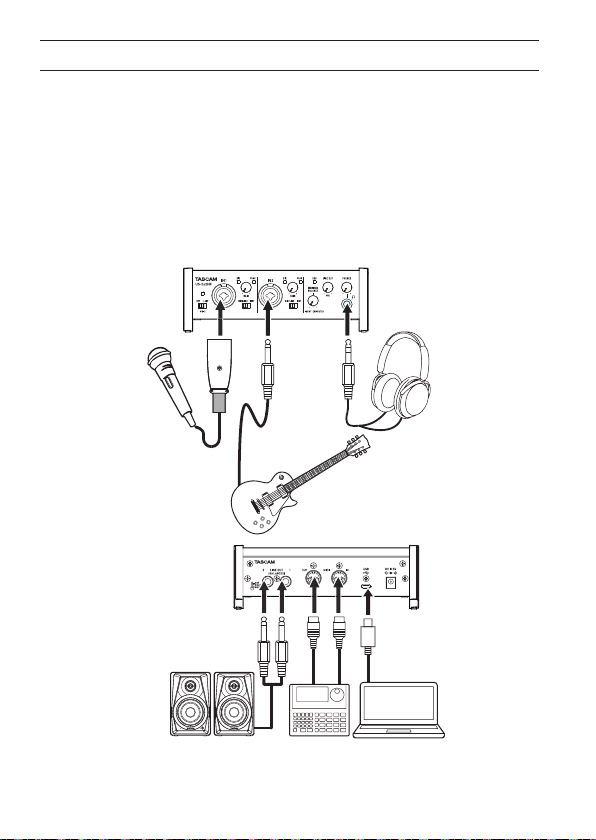
Branchement d’autres équipements
Voici un exemple de branchement de la US-2x2HR.
Précautions avant de faire les branchements
o Lisez attentivement les modes d’emploi des appareils à brancher et branchez-les
correctement.
o Avant de faire les branchements, éteignez cette unité et tous les équipements à
connecter (mode veille ou standby).
o Installez tous les appareils connectés, y compris cette unité, pour qu’ils soient
alimentés par la même ligne de courant. Si vous utilisez une multiprise ou un
dispositif similaire, veillez à ce qu’elle ait une capacité de courant susante (câble
de forte section) pour minimiser les uctuations de tension d’alimentation.
Micro
Guitare
Casque
OrdinateurEnceintes ampliées
Séquenceur/
boîte à rythmes
Exemples de branchements à un US-2x2HR
46 TASCAM US-2x2HR/US-4x4HR

V
MISE EN GARDE
Baissez les boutons LINE OUT et PHONES avant de commuter l’alimentation
fantôme entre +48V et OFF. En fonction des micros connectés, des bruits forts et
soudains peuvent être produits par l’équipement d’écoute et cela peut causer des
dommages auditifs ou à l’équipement.
ATTENTION
i Avant de brancher des micros électrostatiques, éteignez cette unité et tous les
équipements à connecter (mise en veille ou standby).
i Le commutateur d’alimentation fantôme change le réglage simultanément pour
tous les canaux d’entrée (2 entrées sur l’US-2x2HR et 4 entrées sur l’US-4x4HR). Ne
réglez pas le commutateur d’alimentation fantôme sur +48V si vous branchez un
micro qui ne nécessite pas d’alimentation fantôme.
i Ne connectez/déconnectez pas les micros quand le commutateur d’alimentation
fantôme est réglé sur +48V. Cela pourrait causer un grand bruit et endommager
cette unité et l’équipement connecté.
i Ne réglez le commutateur d’alimentation fantôme sur +48V que si vous utilisez
un microphone électrostatique (à condensateur) nécessitant cette alimentation.
Activer l’alimentation fantôme +48V quand vous avez connecté un micro
dynamique ou autre équipement ne la nécessitant pas peut endommager cette
unité et l’équipement connecté.
i Si vous utilisez en même temps des micros électrostatiques nécessitant une
alimentation fantôme et des micros dynamiques, veillez à utiliser des micros
dynamiques symétriques. Il n’est pas possible d’utiliser des micros dynamiques
asymétriques si l’alimentation fantôme est activée.
i Fournir une alimentation fantôme à certains microphones à ruban peut les
détruire. En cas de doute, ne fournissez pas d’alimentation fantôme à un micro à
ruban.
i Si vous branchez cette unité à un ordinateur portable fonctionnant sur batterie
et si vous réglez le commutateur d’alimentation fantôme sur +48V, la batterie de
l’ordinateur se déchargera plus rapidement.
Branchement à des appareils iOS
Pour brancher un appareil iOS à connecteur Lightning, utilisez un adaptateur pour
appareil photo Lightning vers USB* et le câble USB fourni avec ce produit.
Pour brancher un appareil iOS à connecteur USB Type-C, utilisez un câble Type-C-
Type-C du commerce.
* Vous devez vous procurer un authentique adaptateur Apple Lightning pour
appareil photo USB, vendu séparément.
NOTE
Lorsqu’elle est connectée, cette unité ne fournit pas d’alimentation à l’appareil iOS.
FRANÇAIS
TASCAM US-2x2HR/US-4x4HR 47
Diérents réglages
NOTE
An de permettre à l’ordinateur de traiter de façon uide les signaux audio numériques,
les autres charges qui lui sont conées doivent être autant que possible minimisées.
Nous vous recommandons de quitter les applications inutiles avant utilisation.
Ouverture du panneau de réglages
Ouvrez le panneau de conguration de la manière suivante.
Windows
o Dans le menu Démarrer, sélectionnez «US_HR SettingsPanel» sous «TASCAM».
Mac
o Dans le Launchpad, cliquez sur «US-HR_SettingsPanel».
o Au moyen du Finder, ouvrez le dossier Applications et double-cliquez sur «US-
HR_SettingsPanel» pour ouvrir le panneau de réglages.
Emploi du panneau de réglages (Settings Panel)
1 Boutons d’entrée IN 1-2
Réglez le signal d’écoute pour les prises IN1/IN2 sur « » ou « ».
2 Boutons d’entrée IN 3-4 (US-4x4HR uniquement)
Réglez le signal d’écoute pour les prises IN3/IN4 sur « » ou « ».
3 Commutateurs d’activation d’entrée audio
Activez/désactivez séparément l’entrée pour chaque canal.
48 TASCAM US-2x2HR/US-4x4HR
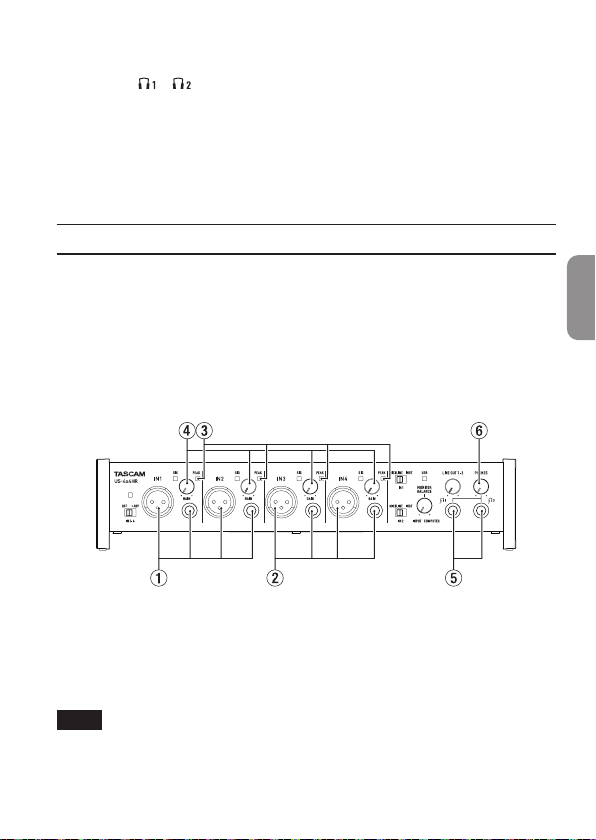
4 Sorties ligne 1-2
Sélectionnez les signaux produits par les prises LINE OUT (BALANCED) 1-2 et
PHONES ( et sur l’US-4x4HR) de l’unité.
5 Sorties ligne 3-4 (US-4x4HR uniquement)
Sélectionnez les signaux produits par les prises LINE OUT (BALANCED) 3-4.
Pour des détails sur les autres réglages, voir «Présentation du panneau de réglages
(Settings Panel)» dans «5 – Emploi du panneau de réglages (Settings Panel)» du
manuel de référence.
Réglage du son entrant
Les signaux audio analogiques entrant dans cette unité en provenance de micros,
guitares, claviers et autres équipements audio peuvent être convertis en signaux
numériques et transmis à l’ordinateur par USB.
Vous pouvez utiliser les fonctions de cette unité pour rectier les signaux numériques
qui sont envoyés à l’ordinateur. De plus, en branchant des enceintes (au travers d’un
amplicateur si elles ne sont pas elles-mêmes ampliées) ou un casque à cette unité, vous
pouvez écouter les signaux audio entrant dans cette unité et produits par l’ordinateur.
Utilisez les diverses commandes de la face avant de l’unité en fonction des besoins
pendant l’écoute du son entrant.
Exemple avec une US-4x4HR
Utilisez les boutons GAIN (4) pour régler les niveaux d’entrée analogique des prises
IN1/IN2 (1) et IN3/IN4 (2, US-4x4HR uniquement) an que les voyants PEAK (3) en
haut et à droite des boutons ne s’allument pas.
Pour écouter au casque le signal de contrôle, branchez un casque à une prise PHONES
(5) et réglez le niveau avec le bouton PHONES (6).
NOTE
Si vous n’entendez pas le son entrant dans le casque ou par les prises LINE OUT
(BALANCED) 1-2, vériez le réglage du bouton MONITOR BALANCE en face avant de
l’unité et le paramètre «IO Settings» en écran «Settings Panel (Panneau des réglages».
FRANÇAIS
TASCAM US-2x2HR/US-4x4HR 49

Guide de dépannage
Veuillez lire ce chapitre si vous n’arrivez pas à utiliser correctement l’unité même après
l’avoir congurée conformément aux procédures indiquées dans ce mode d’emploi.
Si vous ne pouvez toujours pas résoudre vos problèmes, veuillez contacter le service
après-vente TASCAM (voir à la n de ce mode d’emploi) avec les informations
suivantes concernant l’environnement de fonctionnement et des détails décrivant le
problème.
Environnement de fonctionnement
o Fabricant de l’ordinateur:
o Modèle:
o Processeur:
o Mémoire vive (RAM):
o Système d’exploitation:
o Applications utilisées:
o Logiciel antivirus:
o Emploi d’un réseau local (LAN) sans l:
Si ces mesures ne résolvent pas le problème, veuillez contacter le magasin auprès
duquel vous avez acheté l’unité ou un service après-vente TASCAM.
Voir la n de ce document pour des coordonnées de contact.
Le logiciel dédié ne peut pas être installé
1. Vériez le système d’exploitation.
Le système d’exploitation utilisé peut ne pas être compatible avec le logiciel que
vous essayez d’installer. Vériez les systèmes d’exploitation avec lesquels est
compatible le logiciel et réessayez l’installation.
2. Arrêtez tout logiciel fonctionnant en tâche de fond.
Les logiciels antivirus et autres logiciels qui s’exécutent en tâche de fond peuvent
empêcher l’installation. Quittez les logiciels qui s’exécutent en tâche de fond et
recommencez l’installation.
L’unité est connectée mais l’ordinateur ne la reconnaît pas
1. Installez le logiciel dédié.
o Si vous ne l’avez pas encore fait, installez le logiciel dédié (voir «Installation des
logiciels dédiés» en page 40).
2. Changez de port USB.
o Cette unité ne peut pas être utilisée avec l’USB 1.1. Utilisez un port prenant en
charge au moins l’USB 2.0 ou l’USB 3.0.
o N’utilisez pas de concentrateur (hub) USB avec cette unité. Connectez toujours
l’unité directement à un port USB de l’ordinateur.
o Si les méthodes ci-dessus ne résolvent pas le problème, connectez l’unité à un
autre port USB de l’ordinateur.
50 TASCAM US-2x2HR/US-4x4HR

Je n’entends aucun son même lorsque l’audio est lu sur l’ordinateur
Vériez que le bouton MONITOR BALANCE de l’unité n’est pas à fond à gauche (vers
INPUT). Si c’est le cas, tournez le bouton MONITOR BALANCE à droite par rapport au
centre (vers COMPUTER).
Vériez aussi l’état de la connexion de l’unité avec l’ordinateur. En outre, si vous faites
les réglages suivants, du son sera produit au travers de cette unité, mais aucun son ne
sera produit par les enceintes de l’ordinateur ni par sa prise casque.
Windows
o Voir la section «Windows» dans le chapitre «6 – Guide des applications» du
manuel de référence et faites les réglages en fonction du système d’exploitation.
Mac
1. Fermez toutes les applications et ouvrez «Préférences Système...» dans le menu
Pomme.
2. Ouvrez «Son».
3. Dans l’onglet «Sortie», sélectionnez «US-2x2HR» ou «US-4x4HR».
Après avoir terminé le réglage, faites redémarrer l’ordinateur et vériez le son reproduit.
Selon l’application que vous utilisez, vous pouvez avoir à faire des réglages
supplémentaires de périphérique.
En particulier, les logiciel DAW fonctionnent à l’aide de moteurs audio dont les
réglages sont diérents de ceux du système d’exploitation, aussi vériez d’abord les
réglages de DAW après avoir installé le logiciel dédié de cette unité.
Veuillez consulter les modes d’emploi des applications que vous utilisez pour des
procédures de réglage détaillées.
Le son se coupe ou il y a du bruit
La charge de traitement de l’ordinateur peut entraîner des interruptions du son et la
production de bruits.
Voici quelques méthodes pour réduire la charge de travail de l’ordinateur.
1. Un réseau local (LAN) sans l et un logiciel fonctionnant en tâche de fond,
y compris un logiciel antivirus, sollicitent régulièrement le processeur de
l’ordinateur, ce qui peut causer des interruptions de son et autres bruits.
Arrêtez la transmission par réseau local sans l, le logiciel antivirus et tout autre
logiciel fonctionnant en tâche de fond lorsque vous utilisez cette unité.
2. Réglez une plus grande taille de mémoire tampon (plus de latence) dans
l’application audio que vous utilisez ou dans le panneau de réglages de cette
unité (Windows uniquement).
NOTE
Consultez le fabricant de l’application audio que vous utilisez pour obtenir des
méthodes permettant de réduire la charge demandée à l’ordinateur par l’application.
FRANÇAIS
TASCAM US-2x2HR/US-4x4HR 51

3. Changez les réglages de votre ordinateur pour qu’ils soient optimisés en vue du
traitement audio.
Avec Windows
o Options de performances
1
Ouvrez le Panneau de conguration à l’aide de la méthode appropriée pour le
système d’exploitation que vous utilisez (Windows 10/Windows 8.1/Windows 7).
i Dans Windows 10, ouvrez le «Panneau de conguration». Puis, cliquez
sur l’icône «Système».
i Sous Windows 8.1, cliquez avec le bouton droit de la souris sur l’écran de
démarrage ordinaire (écran de l’interface utilisateur Metro) puis cliquez
sur «Toutes les applications». Ensuite, cliquez avec le bouton droit sur
«Ordinateur» et sélectionnez «Propriétés».
i Sous Windows 7, cliquez avec le bouton droit sur «Ordinateur» depuis le
bouton Démarrer de Windows et sélectionnez «Propriétés».
2 Cliquez sur «Paramètres système avancés».
3 Cliquez sur «Paramètres» dans la section «Performances» de l’onglet
«Paramètres système avancés» de la fenêtre «Propriétés système».
4 Dans l’onglet «Eets visuels» de la fenêtre «Options de performances»,
sélectionnez l’option «Ajuster an d’obtenir les meilleures performances».
Avec un Mac
1 Ouvrez «Préférences Système...» dans le menu Pomme et sélectionnez
«Économiseur d’énergie».
2 Réglez «Ordinateur en veille après» sur «Jamais».
3 Réglez «Écran en veille après» sur «Jamais».
NOTE
Selon la version de macOS et le modèle d’ordinateur Macintosh, ce réglage peut ne
pas être disponible.
4. Connectez l’unité à un autre port USB.
Comme l’unité peut ne pas correctement fonctionner avec certains ports USB,
essayez de la connecter à un autre port USB.
NOTE
i Essayez à nouveau après avoir déconnecté d’autres périphériques USB (vous
pouvez garder le clavier et la souris connectés).
i N’utilisez pas de concentrateur (hub) USB. Connectez toujours l’unité directement
à un port USB (intégré) de l’ordinateur.
Assistance pour les logiciels fournis, y compris le logiciel DAW
TASCAM n’assure pas l’assistance de l’utilisateur nal pour le logiciel DAW fourni.
Veuillez vous référer au menu d’aide du logiciel installé pour savoir comment obtenir
cette assistance.
52 TASCAM US-2x2HR/US-4x4HR

Caractéristiques techniques
Caractéristiques
générales
Fréquences d’échantillonnage
44,1, 48, 88,2, 96, 176,4, 192kHz
Résolution de quantication en
bits
24bits
Entrées analogiques
Entrées micro (symétriques)
US-2x2HR: IN1/IN2
US-4x4HR: IN1/IN2, IN3/IN4
Connecteurs:
équivalent XLR-3-31 (1: masse, 2:
point chaud, 3: point froid)
Niveau d’entrée maximal:
+9dBu (2,183Vrms)
Plage de gain: 56dB
Impédance d’entrée: 2,2kΩ
Entrées instrument
(asymétriques)
US-2x2HR: IN1/IN2
US-4x4HR: IN1/IN2
(Sélecteur MIC/LINE-INST réglé sur INST)
Connecteurs:
jacks 6,35mm 2 points (TS)
standards (pointe: point chaud,
manchon: masse)
Niveau d’entrée maximal:
+10dBV (3,162Vrms)
Plage de gain: 56dB
Impédance d’entrée: 1MΩ ou plus
Entrées ligne (symétriques)
US-2x2HR: IN1/IN2
US-4x4HR: IN1/IN2, IN3/IN4
(Sélecteur MIC/LINE-INST réglé sur
MIC/LINE)
Connecteurs:
jacks 6,35mm 3 points (TRS)
standards (pointe: point chaud,
bague: point froid, manchon:
masse)
Niveau d’entrée maximal:
+20dBu (7,746Vrms)
Plage de gain: 56dB
Impédance d’entrée: 10kΩ
Sorties analogiques
Sorties ligne (symétriques)
US-2x2HR: LINE OUT (BALANCED) 1-2
US-4x4HR: LINE OUT (BALANCED) 1-2
LINE OUT (BALANCED) 3-4
Connecteurs:
jacks 6,35mm 3 points (TRS)
standards (pointe: point chaud,
bague: point froid, manchon:
masse)
Niveau de sortie maximal:
+20dBu (7,746Vrms)
Niveau de sortie nominal:
+4dBu (1,228Vrms)
Impédance de sortie: 210Ω
Sortie casque (PHONES)
Connecteur:
jack 6,35mm stéréo standard
Sortie maximale :
US-2x2HR: 18mW + 18mW ou plus
US-4x4HR: 45mW + 45mW ou plus
(DHT+B de 0,1% ou moins sous
charge de 32Ω)
FRANÇAIS
TASCAM US-2x2HR/US-4x4HR 53

Entrée/sortie de
commande
Connecteur MIDI IN
Connecteur: DIN 5 broches
Format: MIDI standard
Connecteur MIDI OUT
Connecteur: DIN 5 broches
Format: MIDI standard
USB
Connecteur: USB 4 broches Type-C
Débit de transfert:
USB 2.0 haute vitesse (480 Mbit/s)
Performances audio
Bruit rapporté à l’entrée d’ampli
micro (EIN)
−128dBu ou moins
Réponse en fréquence
MIC/LINE IN
À 44,1/48kHz, 20Hz - 20kHz:
+0 dB/−0,4dB (JEITA)
À 88,2/96kHz, 20Hz - 40kHz:
+0dB/−0,4dB (JEITA)
LINE OUT
À 44,1/48kHz, 20Hz - 20kHz:
+0.2dB/−0,1dB (JEITA)
À 88,2/96kHz, 20Hz - 40kHz:
+0.2dB/−0,4dB (JEITA)
Rapport signal/bruit
110dB
(MIC IN, bouton GAIN au minimum,
20kHz SPCL LPF+pondération A)
108dB
(LINE IN, bouton GAIN au minimum,
20kHz SPCL LPF+pondération A)
110dB
(LINE OUT, bouton LINE OUT
au maximum, 20
kHz SPCL
LPF+pondération A)
DHT + B
0,0013%
(MIC IN, onde sinusoïdale de1 kHz,
entrée –5dB FS, bouton GAIN au
minimum,20kHz SPCL LPF)
0,0011%
(LINE IN, onde sinusoïdale de 1 kHz,
entrée –5dB FS, bouton GAIN au
minimum, 20kHz SPCL LPF)
0,0012%
(LINE OUT, onde sinusoïdale de 1
kHz, entrée –4dB FS, bouton LINE
OUT au maximum, 20kHz SPCL LPF)
Diaphonie
95dB ou plus (MIC/LINE IN vers LINE
OUT, sinusoïdale à 1 kHz, bouton GAIN
au minimum)
Congurations
informatiques requises
Consultez le site mondial TEAC (https://
teac-global.com/) pour les informations
les plus récentes sur les systèmes
d’exploitation pris en charge.
Windows
Systèmes d’exploitation acceptés
Windows 10 32 bits
Windows 10 64 bits
Windows 8.1 32 bits
Windows 8.1 64 bits
Windows 7*
Windows 7 32 bit SP1 ou ultérieur
Windows 7 64 bit SP1 ou ultérieur
* Le fonctionnement a été conrmé
avec la version nale de Windows 7.
54 TASCAM US-2x2HR/US-4x4HR

Congurations informatiques
requises
Ordinateur sous Windows avec un port
USB 2.0 (ou supérieur)
Processeur/cadence d’horloge
Processeur Dual Core (x86) 2 GHz ou
plus rapide
Mémoire
2Go ou plus
ATTENTION
Le fonctionnement de cette unité
a été conrmé sur des ordinateurs
standards répondant à ces
exigences. Cela ne garantit pas le
bon fonctionnement avec tous
les ordinateurs répondant aux
exigences ci-dessus. Même des
ordinateurs présentant les mêmes
caractéristiques de système peuvent
avoir des capacités de traitement
diérentes en fonction de leurs
paramètres et d’autres conditions de
fonctionnement.
Mac
Systèmes d’exploitation acceptés
macOS Catalina (10.15 ou ultérieur)
macOS Mojave (10.14 ou ultérieur)
macOS High Sierra (10.13 ou ultérieur)
Congurations informatiques
requises
Mac avec un port USB 2.0 (ou
supérieur)
Processeur/cadence d’horloge
Processeur Dual Core 2 GHz ou plus
rapide
Mémoire
2 Go ou plus
Appareil iOS
Le fonctionnement a été conrmé avec
des appareils Apple utilisant les versions
suivantes d’iOS.
iPadOS13
iOS13
iOS12
iOS11
ATTENTION
Pour brancher un appareil iOS à
connecteur Lightning, il faut un
authentique adaptateur Apple pour
appareil photo Lightning vers USB
(vendu séparément).
Pilotes audio pris en
charge
Windows
ASIO 2.0, WDM, MIDI
Mac
Core Audio, Core MIDI
Appareil iOS
Core Audio
FRANÇAIS
TASCAM US-2x2HR/US-4x4HR 55

Autres
Alimentation
Utilisation avec un ordinateur
Alimentation par bus USB ou
connexion à l’adaptateur secteur
dédié ci-dessous
Utilisation avec un appareil iOS
Connectez à l’adaptateur secteur
dédié ci-dessous
US-2x2HR: TASCAM PS-P520E,
CC 5V
US-4x4HR: TASCAM PS-P1220E,
CC 12V
Consommation électrique
US-2x2HR: 1,75W
US-4x4HR: 2,25W
Dimensions externes
US-2x2HR: 186 × 65 × 160 mm
US-4x4HR: 296 × 65 × 160 mm
(L x H x P, avec parties saillantes)
Poids
US-2x2HR: 1,1kg
US-4x4HR: 1,6kg
Plage de température de
fonctionnement
5 °C – 35 °C
o Les illustrations de ce mode d’emploi
peuvent partiellement diérer du
produit réel.
o Caractéristiques et aspect externe
peuvent être changés sans préavis en
vue d’améliorer le produit.
o Des caractéristiques détaillées sont
fournies dans le manuel de référence.
56 TASCAM US-2x2HR/US-4x4HR
MANUAL DEL USUARIO
Introducción
Felicidades y gracias por su compra del interface USB audio/MIDI TASCAM US-2x2HR/US-4x4HR.
Antes de empezar a utilizar esta unidad, lea detenidamente este manual para saber
cómo congurar y conectar esta unidad correctamente y cómo utilizar sus funciones.
Una vez que lo haya leído, conserve este manual a mano para cualquier consulta en
el futuro. También puede descargarse este manual de instrucciones desde la página
web global de TEAC (https://teac-global.com/).
Antes de conectar esta unidad a un ordenador, deberá descargar e instalar el
software especíco.
Nota acerca del manual de referencia
Este Manual de instrucciones le explica las funciones principales de esta unidad.
Consulte el Manual de referencia para información más concreta acerca de estas
funciones.
Puede descargar el Manual de referencia desde la página web global de
TEAC (https://teac-global.com/).
Elementos incluidos
Dentro del embalaje encontrará los siguientes elementos. Tenga cuidado de no dañar
estos objetos al abrir el embalaje. Conserve la caja y las protecciones por si alguna vez
necesita transportar el aparato. Póngase en contacto con el comercio en el que haya
adquirido este aparato si echa en falta alguno de estos elementos o si observa que
alguno de ellos ha resultado dañado durante el transporte.
o Unidad principal ..............................................................................................................................x 1
o Adaptador de corriente (PS-P1220E, incluido solo con el US-4x4HR) .......................... x 1
o Cables USB (Tipo-A–Tipo-C) ........................................................................................................x 1
o Guías de instalación de software DAW .................................................................................... x 1
o Guías de instalación de software de plug-in DAW ..............................................................x 1
o Manual de instrucciones (este documento) incluyendo garantía ................................. x 1
ATENCIÓN
Use siempre el adaptador incluido (PS-P1220E, DC12 V) con el US-4x4HR y no con
ningún otro aparato. El hacerlo podría dar lugar a un incendio o descarga eléctrica.
NOTA
El adaptador de corriente (PS-P1220E, DC12 V) incluido con el US-4x4HR tiene
conectores de salida alternativos. Vea las instrucciones en “Cambio del conector de
salida” en “4 – Preparativos” del Manual de referencia.
ESPAÑOL
TASCAM US-2x2HR/US-4x4HR 57
INSTRUCCIONES IMPORTANTES DE SEGURIDAD
CUIDADO: PARA EVITAR EL RIESGO
DE INCENDIOS O DESCARGAS
ELÉCTRICAS, NO EXPONGA ESTE
APARATO A LA LLUVIA O LA
HUMEDAD.
Para EE.UU.
Declaración de conformidad
Modelo:
US-2x2HR / US-4x4HR
Fabricante: TASCAM
Responsable: TEAC AMERICA, INC.
Dirección: 10410 Pioneer Blvd. Suite
#1, Santa Fe Springs,
California 90670, U.S.A.
Teléfono: 1-323-726-0303
Este dispositivo cumple con lo
indicado en la sección 15 de las
normas FCC y su funcionamiento
está sujeto a las dos condiciones
siguientes: (1) este aparato no debe
producir interferencias molestas,
y (2) este aparato debe aceptar
cualquier interferencia que reciba,
incluso aquellas que produzcan un
funcionamiento no deseado.
PARA EL USUARIO
Se ha vericado que este aparato
cumple con los límites establecidos
para las unidades digitales de clase
B, de acuerdo a lo indicado en la
sección 15 de las normas FCC. Esos
límites han sido diseñados para ofrecer
una protección razonable contra
las interferencias molestas en una
instalación no profesional.
Este aparato genera, usa y puede
irradiar energía de radiofrecuencias y,
si no es instalado y usado de acuerdo
a este manual de instrucciones, puede
producir interferencias molestas en las
comunicaciones de radio. No obstante,
tampoco hay garantías de que no se
produzcan ese tipo de interferencias
en una instalación concreta. Si este
aparato produce interferencias
molestas en la recepción de la radio
o TV (lo que puede determinar
encendiendo y apagando el aparato),
el usuario será el responsable de tratar
de corregirlas usando una o más de las
siguientes medidas.
a) Reorientar o reubicar la antena
receptora.
b) Aumentar la separación entre este
aparato y el receptor.
c) Conectar este aparato a una salida
de corriente o regleta diferente a la
que esté conectado el receptor.
d) Consultar a su distribuidor o a un
técnico especialista en radio/TV
para que le ayuden.
PRECAUCIÓN
Cualquier modicación en este
aparato no aprobada expresamente
y por escrito por TEAC CORPORATION
podrá anular la autorización del
usuario a usar dicho aparato.
Este aparato cumple
con todos los requisitos
establecidos por las
Directivas Europeas, así
como por otras Regulaciones
de la Comisión Europea.
58 TASCAM US-2x2HR/US-4x4HR
1. Lea estas instrucciones.
2. Conserve estas instrucciones.
3. Cumpla con lo indicado en los
avisos.
4. Siga todas las instrucciones.
5. No utilice este aparato cerca del
agua.
6. Limpie este aparato solo con un
trapo seco.
7. No bloquee ninguna de las aberturas
de ventilación. Instale este aparato
de acuerdo con las instrucciones del
fabricante.
8. No instale este aparato cerca de
fuentes de calor como radiadores,
calentadores, hornos o cualquier
otro aparato (incluyendo
amplicadores) que produzca calor.
9. No anule el sistema de seguridad
que supone un enchufe de corriente
polarizado o con toma de tierra. Un
enchufe polarizado tiene dos bornes
de distinta anchura. Uno con toma
de tierra tiene dos bornes iguales
y una lámina para la conexión a
tierra. El borne ancho del primer
tipo de enchufe y la lámina del otro
se incluyen para su seguridad. Si el
enchufe que se incluye con la unidad
no encaja en su salida de corriente,
haga que un electricista cambie su
salida anticuada.
10. Coloque el cable de corriente
de forma que no pueda quedar
aplastado o retorcido, especialmente
allí donde estén los conectores,
receptáculos y en el punto en que el
cable sale del aparato.
11. Utilice solo accesorios/
complementos que hayan sido
especicados por el fabricante.
12. Utilice este aparato solo con
un bastidor, soporte, trípode o
supercie especicado por el
fabricante o que se venda con el
propio aparato. Cuando utilice un
bastidor con ruedas, tenga cuidado
al mover la combinación bastidor/
aparato para evitar posibles daños
en caso de que vuelquen.
13. Desconecte este aparato de la
corriente durante las tormentas
eléctricas o cuando no lo vaya a usar
durante un periodo de tiempo largo.
14. Consulte cualquier posible avería al
servicio técnico ocial. Este aparato
deberá ser revisado cuando se haya
dañado de alguna forma, como
por ejemplo si el cable de corriente
o el enchufe se ha roto, si se ha
derramado cualquier líquido o se
ha introducido un objeto dentro de
la unidad, si el aparato ha quedado
expuesto a la lluvia o la humedad, si
no funciona normalmente o si se ha
caído al suelo.
• Este aparato recibe corriente nominal
no operativa de la salida de corriente
AC aun cuando su interruptor POWER
o STANDBY/ON no esté en la posición
ON.
• El enchufe de alimentación sirve como
dispositivo de desconexión, por lo
que colóquelo de forma que siempre
pueda acceder a él fácilmente.
• Una presión sonora excesiva en los
auriculares puede producirle daños
auditivos.
• Si experimenta cualquier tipo de
problema con este aparato, póngase
en contacto con TEAC para una
reparación. No utilice de nuevo el
aparato hasta que no haya sido
reparado.
ESPAÑOL
TASCAM US-2x2HR/US-4x4HR 59
PRECAUCIÓN
• Para evitar posibles daños
auditivos, no utilice este
aparato a niveles de volumen
excesivos durante periodos
de tiempo prolongados.
CUIDADO
• No permita que este aparato quede
expuesto a salpicaduras de ningún
tipo.
• No coloque objetos que contengan
líquidos, como jarrones, encima de
este aparato.
• No instale este aparato encastrado
en una librería o mueble similar.
• El aparato debe estar colocado lo
sucientemente cerca de la salida de
corriente como para poder acceder
al enchufe en cualquier momento.
• Si este aparato utiliza pilas, dichas
pilas (el bloque de pilas o las
pilas individuales instaladas) no
deben ser expuestas a niveles de
calor excesivos como expuestas
directamente a la luz solar o sobre
un fuego.
• AVISO para aquellos aparatos que
usen pilas de litio recambiables:
existe el riesgo de explosión en caso
de que la pila sea sustituida por
otra del tipo incorrecto. Sustituya la
pila únicamente por otra idéntica o
equivalente.
Para los usuarios europeos
Eliminación de aparatos
eléctricos y electrónicos
a) Nunca debe eliminar un aparato
eléctrico o electrónico junto con
el resto de la basura orgánica.
Este tipo de aparatos deben
ser depositados en los “puntos
limpios” creados a tal efecto por su
Ayuntamiento o por la empresa de
limpieza local.
(b) Con la correcta eliminación de los
aparatos eléctricos y electrónicos
estará ayudando a ahorrar valiosos
recursos y evitará a la vez todos los
efectos negativos potenciales tanto
para la salud como para el entorno.
(c) Una eliminación incorrecta de este
tipo de aparatos junto con la basura
orgánica puede producir efectos
graves en el medio ambiente y en
la salud a causa de la presencia
de sustancias potencialmente
peligrosas que pueden contener.
(d) El símbolo del cubo de
basura tachado (WEEE)
indica la obligación de
separar los aparatos
eléctricos y electrónicos
y/o pilas/acumuladores del
resto de basura orgánica a
la hora de eliminarlos.
(e)
Los llamados “puntos limpios”
de recogida y retirada selectiva
de este tipo de productos están
disponibles para cualquier usuario
nal. Para más información acerca
de la eliminación de este tipo de
elementos, póngase en contacto con
el departamento correspondiente
de su Ayuntamiento, empresa de
limpieza o recogida de basuras o
con el comercio en el que adquirió
este aparato.
60 TASCAM US-2x2HR/US-4x4HR
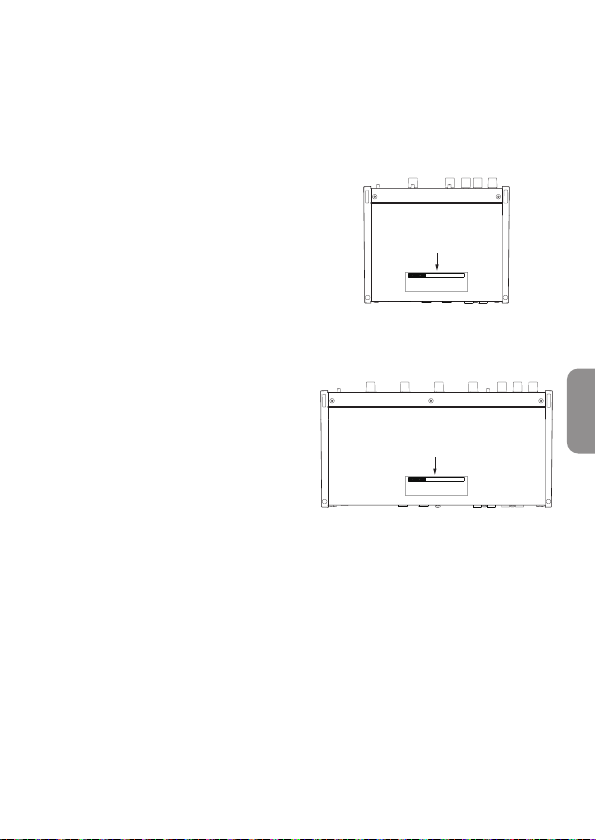
PRECAUCIÓN
• NO DESMONTE LAS CARCASAS O
TAPAS EXTERIORES PARA ACCEDER
AL MECANISMO INTERNO. DENTRO
DE ESTE APARATO NO HAY PIEZAS
SUSCEPTIBLES DE SER REPARADAS
O SUSTITUIDAS POR EL PROPIO
USUARIO.
• SI OBSERVA CUALQUIER PROBLEMA
AL USAR ESTE APARATO, PÓNGASE EN
CONTACTO CON EL COMERCIO EN EL
QUE LO ADQUIRIÓ Y SOLICITE QUE LO
REPAREN. NO UTILICE ESTE APARATO
DE NUEVO HASTA QUE HAYA SIDO
REPARADO.
• EL USO DE CONTROLES O AJUSTES
O LA EJECUCIÓN DE PROCESOS
DISTINTOS A LOS ESPECIFICADOS
EN ESTE DOCUMENTO PUEDEN DAR
LUGAR A UNA EXPOSICIÓN PELIGROSA
A RADIACIONES.
La placa con los datos de modelo está
situada en la parte inferior de la unidad,
tal como puede ver aquí abajo.
US-2x2HR
Frontal
Placa del nombre
US-4x4HR
Frontal
Placa del nombre
ESPAÑOL
TASCAM US-2x2HR/US-4x4HR 61

Acerca de este manual
En este manual utilizamos los siguientes convencionalismos:
o Cuando hagamos referencia a información que aparezca en la pantalla del
ordenador aparecerá así: “OK”.
o Cualquier referencia a “iOS” que aparezca en este documento también hará
referencia a “iPad OS”.
o Además también encontrará información adicional en los siguientes formatos.
AVISO
Son avisos y consejos relativos al uso de este aparato.
NOTA
Son explicaciones sobre actuaciones para casos concretos.
ATENCIÓN
Esto le advierte que puede dañar el equipo o perder datos si no sigue las
instrucciones.
V
CUIDADO
Esto le advierte de posibles daños personales si no sigue las instrucciones.
Precauciones relativas a la ubicación y uso
o El rango de temperaturas seguro para el uso de este aparato es entre 5–35° C.
o Para evitar degradar la calidad del sonido o que se produzcan averías, no instale la
unidad en los siguientes tipos de lugares.
Lugares sujetos a fuertes vibraciones o inestables
Cerca de ventanas o expuestos a la luz solar directa
Cerca de radiadores o lugares extremadamente calurosos
Lugares demasiado fríos
Sitios mal ventilados o demasiado húmedos
Lugares polvorientos
o Para permitir la correcta refrigeración de la unidad, no coloque ningún objeto
encima de este producto.
o No coloque este aparato encima de una etapa de potencia o de otro aparato que
genere mucho calor.
Cuidado con la condensación
Si traslada la unidad de un lugar frío a uno cálido o si la usa después de un cambio
fuerte de temperatura, puede producirse condensación de agua.
Para evitar esto o si se produce la condensación, deje la unidad en la sala en la que la
vaya a usar durante una o dos horas antes de encenderla.
62 TASCAM US-2x2HR/US-4x4HR

Limpieza de la unidad
Para limpiar la unidad, utilice un trapo suave y seco. No use gasolina, alcohol u otros
productos similares ya que podría dañar su supercie.
Uso de la web global TEAC
Puede descargar actualizaciones para esta unidad desde la página web global de
TEAC:
https://teac-global.com/
En la sección TASCAM Downloads, elija el idioma que quiera para hacer que se abra la
página Downloads para ese idioma.
Acerca del servicio de atención al usuario de
TASCAM
La garantía y el soporte técnico de los productos TASCAM solo se garantiza en el país/
región de la compra original.
En caso de que necesite soporte técnico tras la compra, busque en el listado de
distribuidores TASCAM de la web global de TEAC (https:// teac-global.com/), la
empresa o distribuidor local del país en el que haya adquirido este producto y
contacte con ellos.
A la hora de cualquier consulta o reclamación será necesaria la dirección (URL) del
comercio o página web en el que haya adquirido esta unidad. De la misma forma,
también deberá disponer de la tarjeta de garantía y la prueba de compra (factura o
recibo de compra.
ESPAÑOL
TASCAM US-2x2HR/US-4x4HR 63
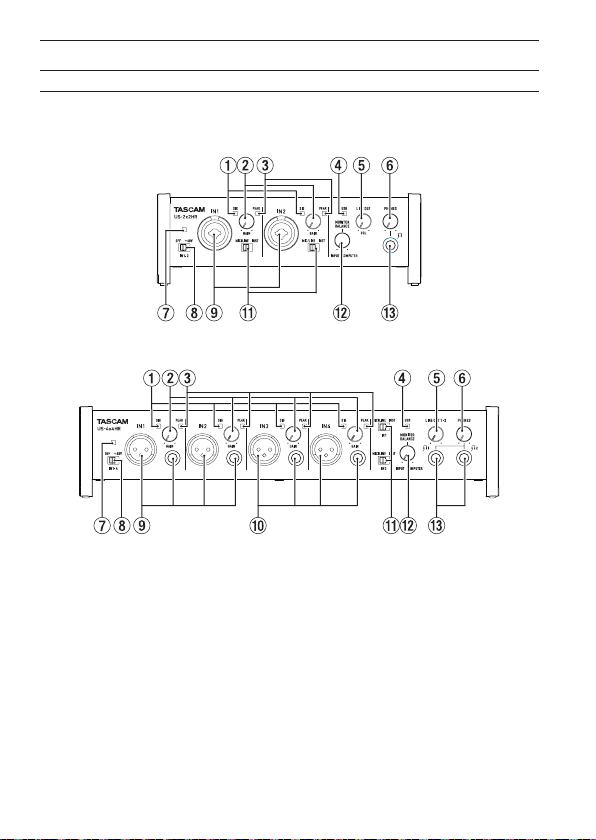
Nombres y funciones de las partes
Panel frontal
US-2x2HR
US-4x4HR
1 Indicadores SIG
Se iluminan en verde cuando es recibida una señal (de al menos −32 dBFS).
2 Mandos GAIN
Ajuste con ellos el nivel de la señal recibida en las entradas.
Ajústelos de forma que los pilotos PEAK no se iluminen.
3 Indicadores PEAK
Se iluminan en rojo cuando las señales están a punto de distorsionar (−1 dBFS o más).
4 Indicador USB
Se ilumina cuando la conexión USB está en marcha.
5 Mando LINE OUT
Úselo para ajustar el nivel de salida de las tomas LINE OUT (BALANCED) 1-2 (t)
del panel trasero de la unidad.
64 TASCAM US-2x2HR/US-4x4HR
6 Mando PHONES
Úselo para ajustar el nivel de salida de la toma PHONES (tomas y en el
US-4x4HR).
V
CUIDADO
Reduzca al mínimo el volumen de salida con este mando PHONES antes de
colocarse los auriculares. El no hacerlo puede dar lugar a la emisión de una señal a
alto volumen que podría llegar a dañar sus oídos, por ejemplo.
7 Indicador PHANTOM
El indicador se ilumina cuando la alimentación fantasma está ajustada a “+48V”.
NOTA
Cuando utilice el US-4x4HR con alimentación por bus USB, use un cable tipo C-tipo
C convencional para conectar esta unidad al puerto USB de tipo C del ordenador.
Si hay un problema con esa fuente de alimentación, el piloto de alimentación
fantasma parpadeará. En ese caso, use el adaptador de corriente incluido (PS-
P1220E, DC12 V).
8 Interruptor de alimentación fantasma
Use este interruptor para activar alimentación fantasma de +48 V en las tomas
XLR IN1 y IN2 (y IN3/IN4 en el US-4x4HR).
V
CUIDADO
Ajuste los mandos LINE OUT y PHONES al mínimo antes de cambiar el ajuste de
la alimentación fantasma. Dependiendo de los micros conectados, se pueden
producir ruidos fuertes a través del sistema de monitorización, capaz de dañar sus
equipos y sus propios oídos.
9 Tomas IN1/IN2
En el US-2x2HR, dispone de tomas combo XLR/TRS para la entrada analógica.
En el US-4x4HR, hay tomas XLR y TRS standard independientes para la entrada
analógica.
Pueden admitir entradas de alta impedancia, incluyendo una entrada directa de
guitarra.
Use los interruptores MIC/LINE INST (q) para elegir una entrada de línea
balanceada (MIC/LINE) o una no balanceada (INST) para las tomas TRS.
Cuando conecte directamente una guitarra, bajo u otro instrumento, ajuste el
interruptor MIC/LINE INST (q) a INST.
0 Tomas IN3/IN4 (solo US-4x4)
Estas entradas de micro analógico XLR y tomas de nivel de línea TRS standard son
tomas de entrada balanceadas.
ATENCIÓN
En el US-4x4HR, cada una de las entradas IN1/IN2 (9) y IN3/IN4 (0) tiene dos
tomas (XLR y TRS). No envíe señales a la vez a ambas tomas de la misma entrada. Si
lo hace, ninguna de las señales será recibida correctamente.
ESPAÑOL
TASCAM US-2x2HR/US-4x4HR 65
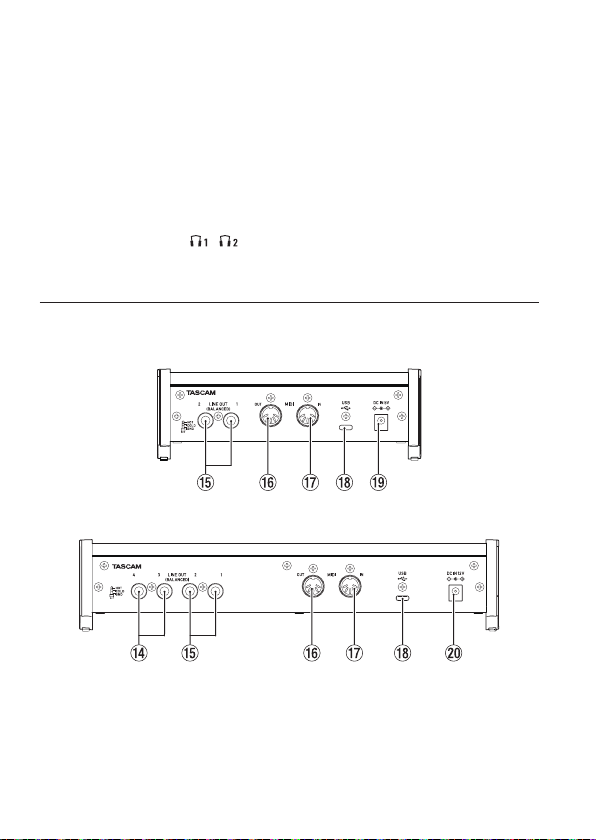
q Interruptores MIC/LINE INST
Ajústelos de acuerdo a la fuente de entrada conectada a las tomas IN1/IN2.
Ajústelo a “MIC/LINE” cuando conecte instrumentos electrónicos, dispositivos
audio, micros y aparatos similares. Ajústelos a “INST” cuando conecte una guitarra,
bajo u otro aparato con alta impedancia de salida.
w Mando MONITOR BALANCE
Úselo para ajustar el balance de monitorización entre las señales de las tomas de
entrada de esta unidad y las señales de salida del ordenador.
e Toma PHONES
Use esta toma de auriculares stereo standard para conectar unos auriculares
stereo. (Use las tomas y del US-4x4HR.)
Estas salidas emiten las mismas señales que las tomas LINE OUT (BALANCED) 1-2.
Utilice un adaptador si va a conectar unos auriculares con clavija mini.
Panel trasero
US-2x2HR
US-4x4HR
r Tomas LINE OUT (BALANCEADAS) 3-4 (solo US-4x4HR)
Tomas TRS standard de salida de línea analógica.
t Tomas LINE OUT (BALANCEADAS) 1-2
Tomas TRS standard de salida de línea analógica.
Las señales emitidas desde las tomas LINE OUT (BALANCED) 1-2 (tomas 1-4 en el
US-4x4HR) pueden ser ajustadas en el Settings Panel.
66 TASCAM US-2x2HR/US-4x4HR

Para más detalles acerca de otros ajustes, vea “Pantalla Settings Panel” en “5 – Uso
del Settings Panel” del Manual de referencia.
y Conector MIDI OUT
Esta toma DIN de 5 puntas es una salida MIDI standard.
Este conector da salida a las señales MIDI.
u Conector MIDI IN
Esta toma DIN de 5 puntas es una entrada MIDI standard.
Úselo para dar entrada a señales MIDI.
i Puerto USB
Esto es un puerto USB de Tipo-C.
Use un cable USB para conectar la unidad a un ordenador o a un dispositivo iOS.
o Conector DC IN 5V (solo US-2x2HR)
Cuando esta unidad esté conectada a un dispositivo iOS u otro aparato que no
pueda alimentar a esta unidad, deberá conectar a la toma DC IN 5V un adaptador
de corriente especíco (PS-P520E, DC5V, opcional) conectado a una fuente de
alimentación. (Vea “Cuando utilice un dispositivo iOS” en pág. 71)
p Conector DC IN 12V (solo US-4x4HR)
En los casos siguientes, conecte aquí el adaptador de corriente incluido de DC12V
(PS-P1220E, DC12V). (Vea “Uso con un adaptador de corriente” en pág. 71)
o Cuando la corriente de la fuente de alimentación del bus USB sea insuciente
o Cuando esta unidad esté conectada a un dispositivo iOS u otro aparato que no
pueda alimentar a esta unidad
Instalación del software especíco
Para usar esta unidad, debe instalar un software especíco en el ordenador.
Descárguese la última versión del software para el sistema operativo que esté usando
desde la web global de TEAC (https://teac-global.com/).
o Cuando instale el software especíco en un ordenador Windows, serán instalados
el driver para Windows y la aplicación Settings Panel.
o Cuando instale el software especíco en un Mac, solo será instalada la aplicación
Mac Settings Panel. Será usado el driver standard del sistema operativo.
o Con un dispositivo iOS, será usado el driver standard del sistema operativo, por lo
que no tendrá que instalar nada.
ATENCIÓN
Antes de comenzar con la instalación del software, salga del resto de aplicaciones.
ESPAÑOL
TASCAM US-2x2HR/US-4x4HR 67
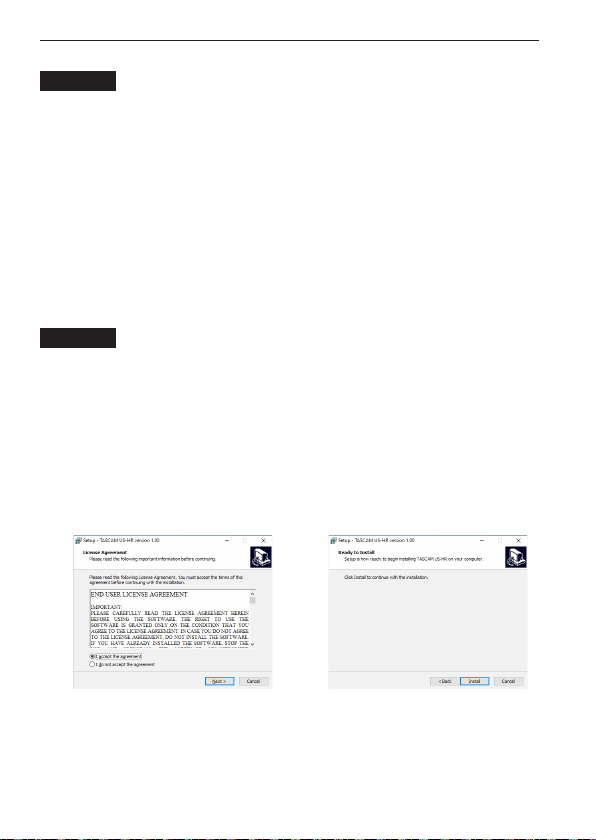
Instalación del software especíco de Windows
ATENCIÓN
i Complete la instalación del software especíco de Windows en el ordenador antes
de conectar la unidad con el cable USB.
i Si ha conectado esta unidad al ordenador usando el cable USB antes de instalar
el software especíco de Windows y se pone en marcha el “Asistente de Nuevo
Hardware”, cierre el asistente y desconecte el cable USB.
Pasos para la instalación del software especíco de Windows
1. Descárguese la última versión de este software desde la web global de TEAC
(https://teac-global.com/) y almacénelo en el ordenador que vaya usar con esta
unidad.
2. Descomprima el software (chero zip) en el escritorio del ordenador o en otra
ubicación.
3. Haga doble clic en el chero “TASCAM_US-HR_Installer_x.xx.exe” de la carpeta
que aparece después de la descompresión para iniciar la instalación.
ATENCIÓN
Si abre un chero zip sin descomprimirlo y hace doble clic sobre el chero
“TASCAM_US-HR_Installer_x.xx.exe” de la carpeta que se abre, la instalación no se
podrán en marcha. Haga clic derecho en el chero zip y elija “Descomprimir todo”,
por ejemplo, para descomprimirlo y volver a intentarlo.
4. Cuando aparezca una pantalla de “Aviso de seguridad” o “Control de cuenta de
usuario”, haga clic en el botón “Sí”.
5. Lea el contenido del Acuerdo de licencia y elija “Estoy de acuerdo” si está de
acuerdo con los términos del mismo. Después, haga clic en el botón “Siguiente
>”. (Fig.A)
6. Después, haga clic en el botón “Instalar”. (Fig.B)
e
Fig.A Fig.B
7. Haga clic de nuevo en el botón “Instalar” para poner en marcha la instalación
(solo Windows 8.1/Windows 7). (Fig.C)
8. La pantalla siguiente aparecerá una vez que haya terminado la instalación. (Fig.D)
Haga clic en el botón “Finalizar”.
68 TASCAM US-2x2HR/US-4x4HR
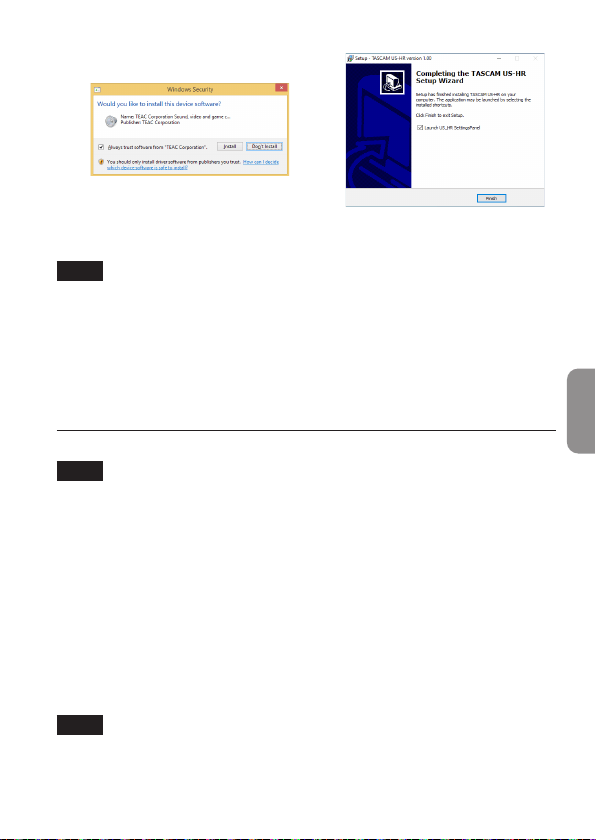
e
Fig.C Fig.D
El instalador se cerrará y se ejecutará el Settings Panel de Windows.
NOTA
La primera vez que conecte la unidad vía USB con el ordenador después de instalar
el software, será ejecutada la instalación del driver del dispositivo.
Deberá esperar un pequeño periodo antes de que la unidad sea reconocida
porque el Windows Update será ejecutado de forma automática en ese momento.
Si la unidad sigue sin ser reconocida tras un tiempo, abra la pantalla de instalación
de software desde la zona de noticaciones de la parte inferior derecha de la
pantalla del ordenador y haga clic en “No descargar el driver desde el Windows
Update” para detener la búsqueda.
Instalación del software especíco Mac
NOTA
i Instale el software Mac en el ordenador antes de conectar la unidad al ordenador
con el cable USB.
i Dependiendo de la conguración del Gatekeeper, es posible que aparezca
un mensaje de aviso durante la instalación. Para más información acerca del
Gatekeeper, vea“ Nota acerca del Gatekeeper” en “3– Instalación” del Manual de
referencia.
Pasos para la instalación del software especíco de Mac
1. Descárguese la última versión del software especíco de Mac para el sistema
operativo que esté usando desde la web global de TEAC (https://teac-global.
com/) y guárdelo en el ordenador que vaya a usar con esta unidad.
2. Haga doble clic en “US-HR_Installer_x.xx.dmg”, que es la imagen de disco
almacenada para el software especíco de Mac y haga doble clic después en “US-
HR_Installer.pkg” que verá dentro de la carpeta que se abre. (Fig.A)
NOTA
Dependiendo de los ajustes del ordenador, es posible que el archivo zip
descargado no se descomprima de forma automática. En ese caso, descomprima
primero ese archivo zip y haga doble clic después en el chero de imagen de disco.
ESPAÑOL
TASCAM US-2x2HR/US-4x4HR 69
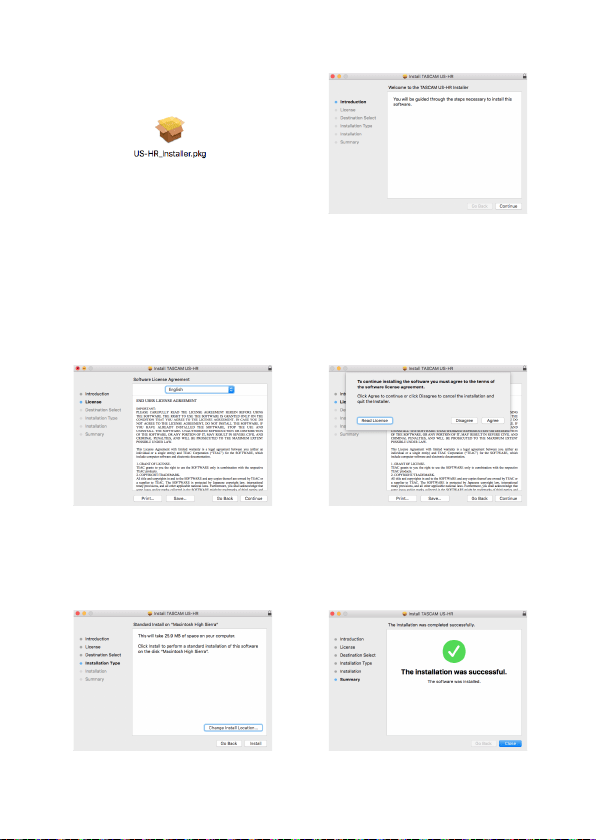
3. Cuando se ponga en marcha el instalador, haga clic en el botón “Continue”. (Fig.B)
e
Fig.A Fig.B
4. Después, elija el idioma de comunicación que quiera y haga clic en el botón
“Continue”. (Fig.C)
5. Haga clic en el botón “Read License” y compruebe el contenido del Acuerdo de
Licencia de Software. Si está de acuerdo con el contenido de esta licencia, haga
clic en “Agree”. (Fig.D)
Después, haga clic en el botón “Next”.
e
Fig.C Fig.D
6. Luego, haga clic en el botón “Install” para poner en marcha la instalación. (Fig.E)
7. La pantalla siguiente aparecerá una vez que la instalación haya sido completada.
Haga clic en el botón “Close”. (Fig.F)
e
Fig.E Fig.F
70 TASCAM US-2x2HR/US-4x4HR
Conexión a la corriente
Cuando use un ordenador (Windows/Mac)
Cuando esta unidad esté conectada a un ordenador usando el cable USB incluido,
funcionará usando la alimentación por bus USB por lo que no será necesario que
conecte ningún dispositivo de fuente de alimentación independiente.
ATENCIÓN
Cuando utilice el US-4x4HR con alimentación por bus USB, use un cable tipo C-tipo
C convencional para conectar esta unidad al puerto USB de tipo C del ordenador.
Si hubiese algún problema con la fuente de alimentación, el piloto de alimentación
fantasma parpadearía. En ese caso, utilice el adaptador de corriente incluido (PS-
P1220E, DC12 V).
NOTA
Dependiendo del ordenador al que esté conectado, es posible que el puerto USB
no tenga capacidad para suministrar la corriente necesaria para usar esta unidad.
En ese caso, conecte un adaptador de corriente especíco.
Cuando utilice un dispositivo iOS
Cuando esta unidad esté conectada a un dispositivo iOS, deberá conectar un
adaptador de corriente especíco para suministrar alimentación eléctrica a esta
unidad. Conecte el adaptador de corriente especíco antes de conectar el cable USB.
Uso con un adaptador de corriente
US-2x2HR
Conecte un adaptador de corriente (PS-P520E, DC5 V, opcional) a la toma DC IN 5V.
Para saber cómo conectar el adaptador, vea “Uso con un adaptador de corriente” en
“4 – Preparativos” del Manual de referencia.
ATENCIÓN
Le recomendamos que con el US-2x2HR utilice siempre un adaptador de
corriente especíco (PS-P520E, DC5 V, opcional). Cuando esté usando otra fuente
de alimentación externa, tenga en cuenta que debe cumplir las siguientes
especicaciones.
• Voltaje de salida: 5 V
• Amperaje de salida: 700 mA o superior
El uso de una fuente de alimentación con otras especicaciones distintas a
las anteriores puede dar lugar a averías, recalentamiento, incendios u otros
problemas.
En caso de que se produzca algún problema, deje de usar la unidad
inmediatamente y póngase en contacto con el comercio en el que adquirió la
unidad o con el servicio técnico TEAC más cercano.
ESPAÑOL
TASCAM US-2x2HR/US-4x4HR 71

US-4x4HR
En las condiciones siguientes, conecte el adaptador de corriente de DC12V (PS-
P1220E, DC12 V) a la toma DC IN 12V.
o Cuando la corriente de la fuente de alimentación del bus USB sea insuciente
o Cuando esta unidad esté conectada a un dispositivo iOS u otro aparato que no
pueda alimentar a esta unidad
Para saber cómo conectar el adaptador, vea “Uso con un adaptador de corriente” en
“4 – Preparativos” del Manual de referencia.
ATENCIÓN
Utilice siempre el adaptador de corriente (PS-P1220E, DC12 V) que viene de fábrica
con esta unidad. El uso de otro adaptador diferente puede producir averías,
recalentamientos, incendios y otros problemas.
NOTA
El adaptador de corriente especíco que viene con esta unidad (PS-P1220E, DC12
V) incluye 2 tipos de conectores de salida. Coloque el tipo de conector que se
adapte a la salida de corriente que esté usando. Para saber cómo hacerlo, vea
“Cambio del conector de salida” en “4 – Preparativos” del Manual de referencia.
72 TASCAM US-2x2HR/US-4x4HR
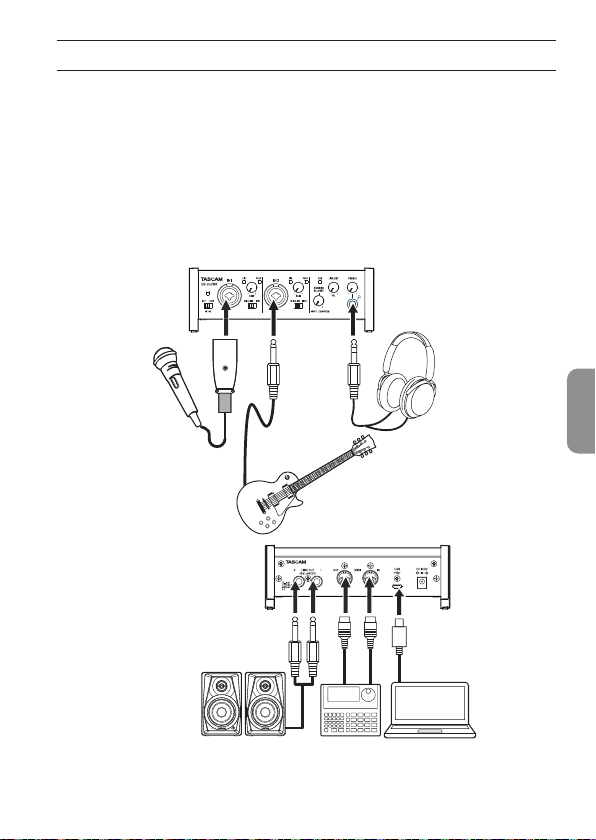
Conexión de otros dispositivos
Aquí puede ver un ejemplo de las conexiones del US-2x2HR.
Precauciones a tener en cuenta antes de las conexiones
o Lea completamente el manual de instrucciones de los dispositivos que vaya a
conectar y conéctelos correctamente.
o Antes de realizar ninguna conexión, apague (deje en standby) este y el resto de
aparatos del sistema.
o Instale todos los dispositivos conectados, incluyendo esta unidad, de forma que
reciban corriente de la misma toma eléctrica. Cuando utilice una regleta o un
dispositivo similar, asegúrese de que tenga la capacidad de corriente suciente (grosor
de cable y especicaciones técnicas) para evitar posibles ucturaciones de la corriente.
Micro
Guitarras
Auriculares
OrdenadorAltavoces autoamplicados
Secuenciador/
caja de ritmos
Ejemplos de conexión a un US-2x2HR
ESPAÑOL
TASCAM US-2x2HR/US-4x4HR 73

V
CUIDADO
Reduzca al mínimo la posición de los mandos LINE OUT y PHONES antes de
cambiar la posición del interruptor de alimentación fantasma entre +48V y OFF.
Dependiendo de los micros conectados, se pueden producir ruidos fuertes a través
del sistema de monitorización, capaz de dañar sus equipos y sus propios oídos.
ATENCIÓN
i Antes de conectar micros condensadores, apague (standby) tanto esta unidad
como el resto de equipos conectados.
i El interruptor de alimentación fantasma cambia el ajuste para todos los canales
de entrada a la vez (2 entradas en el US-2x2HR y 4 en el US-4x4HR). No ajuste este
interruptor a +48V si conecta un micro que no necesita alimentación fantasma.
i No conecte ni desconecte micros con el interruptor de alimentación fantasma
ajustado a +48V. El hacer esto puede dar lugar a un fuerte ruido e incluso posibles
daños en esta unidad y en el micrófono.
i Coloque el interruptor de alimentación fantasma en +48V únicamente cuando
use un micrófono condensador que requiera alimentación fantasma. El ajustar la
alimentación fantasma a +48V cuando esté conectado un micro dinámico u otro
aparato que no la necesite podría dañar tanto esta unidad como el dispositivo
conectado.
i Cuando use a la vez micros condensadores que necesiten alimentación fantasma
y micros dinámicos que no la necesiten, asegúrese de usar micros dinámicos
balanceados. No puede usar micros dinámicos no balanceados cuando la
alimentación fantasma esté activa.
i La activación de la alimentación fantasma sobre algunos micros de cinta puede
llegar a dañarlos. En caso de que no esté seguro de si puede o no, no active la
alimentación fantasma con los micros de cinta.
i Si conecta esta unidad a un ordenador portátil que esté usando su batería y el
interruptor de alimentación fantasma está ajustado a +48V, la carga de la batería
del ordenador se reducirá mucho más rápido.
Conexión con dispositivos iOS
Para conectar esta unidad a un dispositivo iOS que tenga un conector Lightning,
utilice un adaptador Lightning-cámara USB* y el cable USB incluido con este
producto.
Para realizar la conexión con un dispositivo iOS que tenga un conector USB de tipo C,
use un cable tipo C-tipo C convencional.
* Deberá adquirir por separado un adaptador Apple Lightning to USB Camera
genuino de Apple.
NOTA
Cuando esté conectada así, esta unidad no pasará corriente eléctrica al dispositivo
iOS.
74 TASCAM US-2x2HR/US-4x4HR
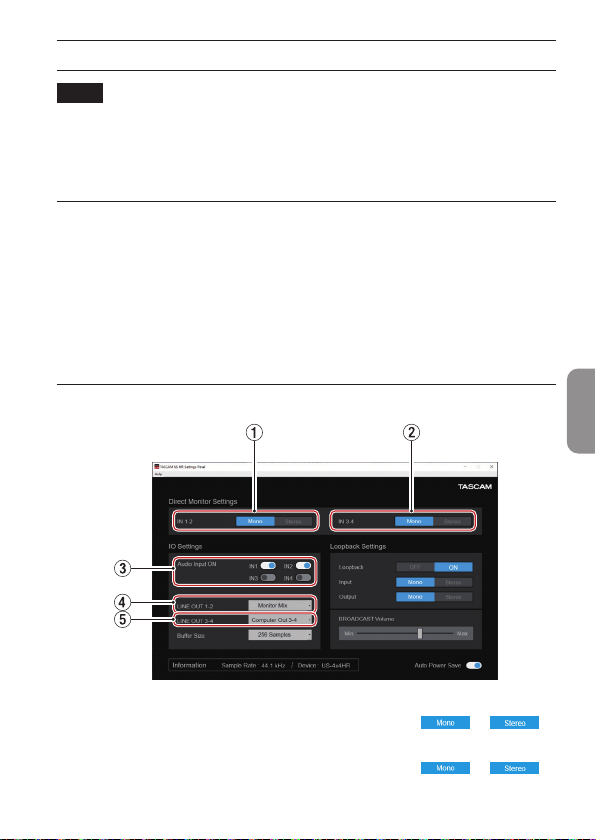
Ajustes diversos
NOTA
De cara a que el ordenador pueda gestionar las señales audio digitales
suavemente, debería reducir todo lo posible otros procesos que supongan carga
del procesador.
Por ello, le recomendamos que antes de usar esto salga de cualquier aplicación
innecesaria.
Acceso a Settings Panel
Acceda a la pantalla Settings Panel de la siguiente forma.
Windows
o Desde el menú Inicio elija “US_HR SettingsPanel” dentro de “TASCAM”.
Mac
o En el Inicio rápido, haga clic en “US-HR_SettingsPanel”.
o Usando el Finder, abra la carpeta de Aplicaciones y haga doble clic en “US-HR_
SettingsPanel” para acceder al Settings Panel.
Uso del Settings Panel
1 Botones IN 1-2
Ajusta la señal de monitorización para las tomas IN1/IN2 a “ ” o “ ”.
2 Botones IN 3-4 (solo US-4x4HR)
Ajusta la señal de monitorización para las tomas IN3/IN4 a “ ” o “ ”.
ESPAÑOL
TASCAM US-2x2HR/US-4x4HR 75
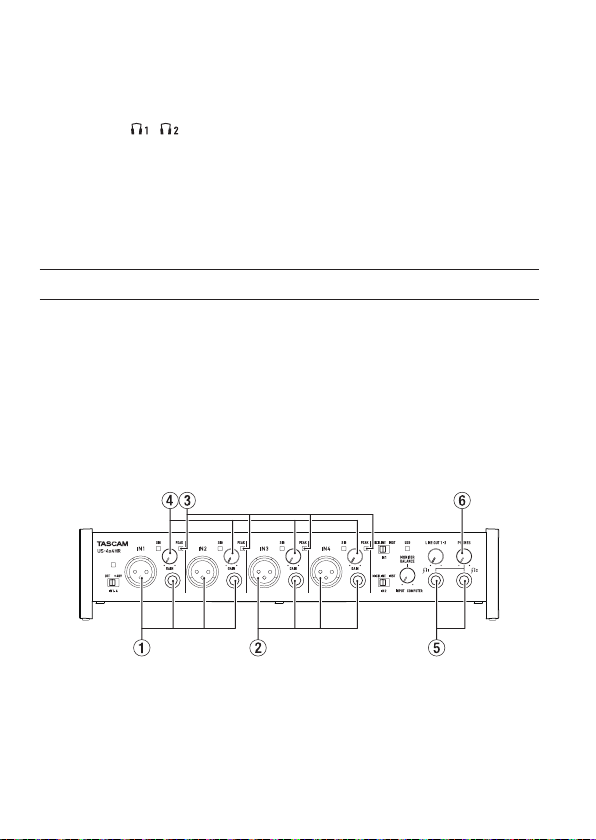
3 Interruptores Audio Input ON
Activa/desactiva la entrada para cada canal de forma independiente.
4 LINE OUT 1-2
Le permite elegir las señales emitidas desde las tomas LINE OUT (BALANCED) 1-2
y PHONES ( y en el US-4x4HR) de la unidad.
5 LINE OUT 3-4 (solo US-4x4HR)
Le permite elegir las señales emitidas desde las tomas LINE OUT (BALANCED) 3-4
de la unidad.
Para ver más detalles acerca de otros ajustes, vaya a “Resumen del Settings Panel” en
“5 – Uso del Settings Panel” del Manual de referencia.
Ajuste del sonido de entrada
Las señales audio analógicas entrantes en este aparato desde micros, guitarras,
teclados y otros dispositivos audio pueden ser convertidas en señales digitales y
transmitidas al ordenador vía USB.
Puede usar las distintas funciones de esta unidad para ajustar las señales digitales que
son enviadas al ordenador.
Además, si conecta a esta unidad unos altavoces (conectados a través de un
amplicador si no son autoamplicados) o unos auriculares, podrá monitorizar las
señales audio recibidas por esta unidad y emitidas desde el ordenador.
Utilice como crea conveniente los distintos controles del panel frontal mientras
escucha el sonido de entrada.
Ejemplo de conexión usando un US-4x4HR
Use los mandos GAIN (4) para ajustar los niveles de entrada analógicos de las tomas
IN1/IN2 (1) y IN3/IN4 (2, solo US-4x4HR) de forma que no se iluminen los pilotos
PEAK (3) que están encima a la derecha de estos mandos.
Para escuchar la señal de monitorización con unos auriculares, conéctelos a una toma
PHONES (5) y ajuste el nivel con el mando PHONES (6).
76 TASCAM US-2x2HR/US-4x4HR

NOTA
Si no puede escuchar el sonido de entrada a través de los auriculares ni por las
tomas LINE OUT (BALANCED) 1-2, compruebe los ajustes del mando MONITOR
BALANCE del panel frontal de esta unidad y del elemento “IO Settings” en la
pantalla del “Settings Panel”.
Resolución de problemas
Lea este capítulo si no puede usar la unidad correctamente incluso después de
realizar los ajustes conforme a los pasos indicados en este manual.
Si tras leer esto sigue sin poder resolver el problema, póngase en contacto con el
servicio técnico TASCAM (vea la contraportada) y facilite la siguiente información
sobre su entorno operativo y detalles relativos al problema.
Entorno operativo
o Fabricante del ordenador:
o Modelo:
o CPU:
o Memoria (RAM):
o Sistema operativo:
o Aplicaciones usadas:
o Software antivirus:
o LAN inalámbrica usada:
Si todas estas medidas no son de ayuda, póngase en contacto con el comercio en el
que adquirió la unidad o con un servicio técnico TEAC.
Vea las direcciones de contacto en la contraportada.
El software especíco no puede ser instalado
1. Compruebe el sistema operativo
Es posible que el sistema operativo que esté usando no sea compatible con
el software que esté intentando instalar. Compruebe los sistemas operativos
compatibles para el software que esté tratando de instalar.
2. Detenga el software que se ejecute en segundo plano
Los programas antivirus y otros que se ejecutan en segundo plano pueden evitar
una correcta instalación. Cierre todos los programas que se estén ejecutando en
segundo plano y vuelva a probar la instalación.
La unidad está conectada, pero el ordenador no la reconoce
1. Instale el software especíco
o Si todavía no lo ha hecho, instale el software especíco. (Vea “Instalación del
software especíco” en pág. 67)
2. Cambie el puerto USB
o No puede usar esta unidad con USB 1.1. Use un puerto que admita al menos
USB 2.0 o USB 3.0.
ESPAÑOL
TASCAM US-2x2HR/US-4x4HR 77

o No use un hub USB con esta unidad. Conecte siempre esta unidad directamente
a un puerto USB del ordenador.
o Si los pasos anteriores no solucionan el problema, conecte la unidad a un
puerto USB distinto del ordenador.
No puedo escuchar sonido incluso cuando es reproducido audio en el
ordenador
Compruebe que el mando MONITOR BALANCE de la unidad no esté en el extremo
izquierdo (hacia INPUT). Si ocurre esto, gire este mando MONITOR BALANCE a la
derecha o a su punto central (hacia COMPUTER).
Además, compruebe el estado de la conexión de esta unidad con el ordenador. Si
hace los ajustes que indicamos a continuación, el sonido será emitido desde esta
unidad, pero no será emitido ningún sonido por los altavoces del ordenador o por la
toma de auriculares.
Windows
o Vea la sección “Windows” en el capítulo “6 - Guía de aplicación” del Manual de
referencia y haga los ajustes para el dispositivo de reproducción por defecto de
acuerdo al sistema operativo.
Mac
1. Salga de todas las aplicaciones y abra “Preferencias del sistema…” en el menú
Apple.
2. Abra “Sonido”.
3. En la pestaña “Salida“, elija “US-2x2HR” o “US-4x4HR”.
Tras completar el ajuste, reinicie el ordenador y compruebe el sonido de la
reproducción.
Dependiendo de la aplicación, puede que tenga que realizar ajustes adicionales en el
dispositivo.
En concreto, las software DAW actúan usando núcleos audio con ajustes que son
distintos de los ajustes del sistema operativo, por lo que conrme los ajustes DAW
primero después de instalar el software especíco para esta unidad.
Vea en los manuales de las aplicaciones que esté usando los procesos de ajuste
concretos.
El sonido se corta o hay ruidos
La carga de procesado del ordenador puede producir cortes en el sonido o ruidos.
Aquí puede ver algunos consejos que le permitirán reducir la carga de su ordenador.
1. Una LAN inalámbrica y software que se ejecute en segundo plano, incluyendo
programas antivirus, suponen una carga importante para el ordenador de forma
periódica, que puede producir cortes del sonido o ruidos.
Detenga la transmisión inalámbrica y el software en segundo plano cuando use
esta unidad.
2. Ajuste el tamaño de buer (latencia) de la aplicación audio que esté usando o en
el Settings Panel de esta unidad a un valor mayor (solo Windows).
78 TASCAM US-2x2HR/US-4x4HR

NOTA
Consulte al fabricante de la aplicación audio que esté usando para que le indique
otros métodos para reducir la carga en el ordenador.
3. Cambie los ajustes de su ordenador para hacer que sean los óptimos para el
procesado audio.
En Windows
o Opciones de rendimiento
1 Abra el Panel de control usando el método adecuado para el sistema operativo
que esté usando (Windows 10/Windows 8.1/Windows 7).
i En Windows 10, abra el “Panel de control”. Después, haga clic en el icono
“Sistema”.
i En Windows 8.1, haga clic derecho en la pantalla de inicio habitual
(pantalla de interface de usuario Metro) y después haga clic en “Todas
las aplicaciones”. Después, haga clic derecho en “Ordenador” y elija
“Propiedades”.
i En Windows 7, Haga clic derecho en “Ordenador” desde el botón de inicio
Windows y elija “Propiedades”.
2 Haga clic en “Ajustes avanzados del sistema”.
3 Haga clic en “Ajustes” en la sección “Rendimiento” de la pestaña “Avanzado”
de la ventana “Propiedades del sistema”.
4 En la pestaña “Efectos visuales” de la ventana “Opciones de rendimiento”, elija
“Ajustar al mejor rendimiento”.
En Mac
1 Abra “Preferencias del sistema…” en el menú Apple y elija “Economizador”.
2 Ajuste “Reposo del ordenador” a “Nunca”.
3 Ajuste “Reposo de la pantalla” a “Nunca”.
NOTA
Dependiendo de la versión macOS y del modelo de ordenador Macintosh, es
posible que este ajuste no esté disponible.
4. Conéctela a un puerto USB diferente.
Dado que esta unidad es posible que no funcione correctamente con algunos
puertos USB, pruebe a conectarla a un puerto USB diferente.
NOTA
i Pruebe de nuevo tras desconectar otros dispositivos USB. (Puede dejar conectados
teclados y ratones).
i No use un hub USB. Conecte siempre esta unidad directamente a un puerto USB
del ordenador (interno).
Soporte de software incluido, incluyendo software DAW
TASCAM no ofrece soporte técnico al usuario nal en cuanto al paquete de software DAW.
Compruebe en el menú de ayuda del software instalado cómo conseguir este soporte técnico.
ESPAÑOL
TASCAM US-2x2HR/US-4x4HR 79

Especicaciones técnicas
General
Frecuencias de muestreo
44.1, 48, 88.2, 96, 176.4, 192 kHz
Profundidad de bit de cuantización
24 bit
Entradas analógicas
Entradas de micro (balanceadas)
US-2x2HR: IN1/IN2
US-4x4HR: IN1/IN2, IN3/IN4
Conectores: Equivalente a XLR-3-31 (1:
masa, 2:
activo, 3: pasivo)
Nivel de entrada máximo:
+9 dBu (2.183 Vrms)
Rango de ganancia: 56 dB
Impedancia de entrada: 2.2 kΩ
Entradas de instrumentos
(no balanceadas)
US-2x2HR: IN1/IN2
US-4x4HR: IN1/IN2
(Interruptor MIC/LINE INST ajustado
a INST)
Conectores: TS standard de 6.3 mm
(1/4”) (punta: activo,
lateral: masa)
Nivel de entrada máximo:
+10 dBV (3.162 Vrms)
Rango de ganancia: 56 dB
Impedancia de entrada:
1 MΩ o superior
Entradas de línea (balanceadas)
US-2x2HR: IN1/IN2
US-4x4HR: IN1/IN2, IN3/IN4
(Interruptor MIC/LINE INST ajustado a
MIC/LINE)
Conectores: TRS standard de 6.3 mm
(1/4”) stereo
(punta:
activo, anillo: pasivo,
lateral: masa)
Nivel de entrada máximo:
+20 dBu (7.746 Vrms)
Rango de ganancia: 56 dB
Impedancia de entrada: 10 kΩ
Salidas analógicas
Salidas de línea (balanceadas)
US-2x2HR: LINE OUT (BALANCED) 1-2
US-4x4HR: LINE OUT (BALANCED) 1-2
LINE OUT (BALANCED) 3-4
Conectores: TRS standard de 6.3 mm
(1/4”) stereo
(punta: activo,
anillo: pasivo, lateral: masa)
Nivel máximo de salida:
+20 dBu (7.746 Vrms)
Nivel de salida medio:
+4 dBu (1.228 Vrms)
Impedancia de salida: 210 Ω
Salida de auriculares (PHONES)
Conector: TRS standard de 6.3 mm
(1/4”) stereo
Salida máxima
US-2x2HR: 18 mW + 18 mW o superior
US-4x4HR: 45 mW + 45 mW o superior
(THD+N 0.1% o inferior, con carga
a 32 Ω)
Entrada/salida de control
Conector MIDI IN
Conector: DIN de 5 puntas
Formato: MIDI standard
Conector MIDI OUT
Conector: DIN de 5 puntas
Formato: MIDI standard
80 TASCAM US-2x2HR/US-4x4HR
USB
Conector: USB de Tipo-C y 4 puntas
Protocolo:
USB 2.0 HIGH SPEED (480 Mbps)
Rendimiento audio
EIN (ruido de entrada equivalente)
de amplicador de micro
−128 dBu o inferior
Respuesta de frecuencia
MIC/LINE IN
A 44.1/48 kHz, 20 Hz - 20 kHz:
+0 dB/−0.4 dB (JEITA)
A 88.2/96 kHz, 20 Hz - 40 kHz:
+0 dB/−0.4 dB (JEITA)
LINE OUT
A 44.1/48 kHz, 20 Hz - 20 kHz:
+0.2 dB/−0.1 dB (JEITA)
A 88.2/96 kHz, 20 Hz - 40 kHz:
+0.2 dB/−0.4 dB (JEITA)
Relación señal-ruido (S/N)
110 dB (MIC IN, mando GAIN al mínimo, 20
kHz SPCL LPF+medición A)
108 dB (LINE IN, mando GAIN al mínimo, 20
kHz SPCL LPF+medición A)
110 dB
(LINE OUT, mando LINE OUT al máximo,
20 kHz SPCL LPF+medición A)
THD + N
0.0013%
(MIC IN, onda sinusoidal de 1 kHz,
−5 dBFS entradas, mando GAIN al
mínimo, 20 kHz SPCL LPF)
0.0011%
(LINE IN, onda sinusoidal de 1 kHz,
−5 dBFS entradas, mando GAIN al
mínimo, 20 kHz SPCL LPF)
0.0012%
(LINE OUT, onda sinusoidal de 1 kHz,
−4 dBFS entradas, mando LINE OUT
al máximo, 20 kHz SPCL LPF)
Cruce de señal o crosstalk
95 dB o superior (MIC/LINE IN a LINE OUT,
onda sinusoidal de 1 kHz, mando GAIN al
mínimo)
Requisitos del sistema
informático
Acceda a la web global de TEAC (https://teac-
global.com/) para ver la información más
actualizada acerca de los sistemas operativos
admitidos.
Windows
Sistemas operativos admitidos
Windows 10 32 bits
Windows 10 64 bits
Windows 8.1 32 bits
Windows 8.1 64 bits
Windows*
Windows 7 32 bits SP1 o superior
Windows 7 64 bits SP1 o superior
* Hemos conrmado el funcionamiento
con la versión nal de Windows 7.
Requisitos de hardware
Ordenador Windows con un puerto
USB 2.0 (o superior)
Velocidad de CPU/procesador
Procesador de doble núcleo a 2 GHz o
superior (x86)
Mémoire
2 Go ou plus
ATENCIÓN
El funcionamiento de esta unidad ha sido
conrmado en ordenadores standard
que cumplen los requisitos anteriores.
Esto no garantiza que la unidad
funcione con todos los ordenadores
que cumplan dichas especicaciones.
ESPAÑOL
TASCAM US-2x2HR/US-4x4HR 81

Incluso ordenadores con las mismas
características pueden tener capacidades
de procesado distintas en base a sus
ajustes y condiciones operativas.
Mac
Sistemas operativos admitidos
macOS Catalina (10.15 o superior)
macOS Mojave (10.14 o superior)
macOS High Sierra (10.13 o superior)
Requisitos de hardware
Ordenador Mac con un puerto USB 2.0 (o
superior)
Velocidad de CPU/procesador
Procesador de doble núcleo a 2 GHz o
superio
r
Memoria
2 GB o superior
Dispositivo iOS
Hemos conrmado el funcionamiento con
dispositivos Apple que usas las siguientes
versiones de iOS.
iPadOS13
iOS13
iOS12
iOS11
ATENCIÓN
To connect an iOS device that has a
Lightning connector, a genuine Apple
Lightning to USB Camera Adapter (sold
separately) is necessary.
Drivers audio admitidos
Windows
ASIO2.0, WDM
Mac
Core Audio
Dispositivo iOS
Core Audio
Otras
Alimentación
Cuando lo use con un ordenador
Alimentación por bus USB o conectado
al adaptador de corriente especíco
de abajo
Cuando lo use con un dispositivo iOS
Conectado al adaptador de corriente
especíco de abajo
US-2x2HR: TASCAM PS-P520E, DC 5 V
US-4x4HR: TASCAM PS-P1220E, DC 12 V
Consumo
US-2x2HR: 1.75 W
US-4x4HR: 2.25 W
Dimensiones
US-2x2HR: 186 × 65 × 160 mm
US-4x4HR: 296 × 65 × 160 mm
(L x A x P, incluyendo salientes)
Peso
US-2x2HR: 1.1 kg
US-4x4HR: 1.6 kg
Rango de temperaturas de
funcionamiento
5–35 ° C (41 - 95°F)
o Las ilustraciones y otras imágenes
mostradas aquí pueden variar con
respecto a las del aparato real.
o De cara a mejoras en el producto, tanto
las especicaciones como el aspecto
exterior están sujetos a cambios sin
previo aviso.
o En el Manual de referencia puede
encontrar una completa tabla de
especicaciones técnicas.
82 TASCAM US-2x2HR/US-4x4HR

BEDIENUNGSANLEITUNG
Vorbemerkung
Danke, dass Sie sich für das USB-Audio-/MIDI-Interface Tascam US-2x2HR
beziehungsweise US-4x4HR entschieden haben.
Um sicherzustellen, dass Sie das Produkt richtig einrichten, anschließen und
verwenden, lesen Sie bitte zunächst diese Bedienungsanleitung aufmerksam durch.
Bewahren Sie diese Anleitung gut auf, und geben Sie sie immer zusammen mit dem
Interface weiter, da sie zum Produkt gehört.
Diese Anleitung steht auch auf der deutschen Website (https://tascam.de/downloads/
US-2x2HR) zum Download zur Verfügung.
Bevor Sie das Gerät mit einem Computer verbinden, müssen Sie zunächst den
entsprechenden Treiber herunterladen und auf dem Computer installieren.
Hinweis zum Referenzhandbuch
Dieses Handbuch erklärt die grundlegenden Schritte zur Inbetriebnahme des Geräts.
Eine vollständige Beschreibung aller Funktionen stellt das Referenzhandbuch bereit.
Dieses nden Sie ebenfalls zum Download auf der deutschen Website (https://tascam.
de/downloads/US-2x2HR).
Auspacken/Lieferumfang
Zum Lieferumfang dieses Produkts gehören die folgenden Bestandteile: Achten Sie
beim Önen der Verpackung darauf, dass Sie nichts beschädigen. Bewahren Sie das
Verpackungsmaterial für einen eventuellen zukünftigen Transport auf. Sollte etwas
fehlen oder auf dem Transport beschädigt worden sein, wenden Sie sich bitte an
Ihren Händler.
o US-2x2HR oder US-4x4HR ............................................................................................................... 1
o Wechselstromadapter PS-P1220E (nur im Lieferumfang des US-4x4HR enthalten) .. 1
o USB-Kabel (Typ A auf Typ C) ........................................................................................................... 1
o Satz Installationsanleitungen für DAW-Software....................................................................1
o Satz Installationsanleitungen für DAW-Plugins .......................................................................1
o Bedienungsanleitung (das vorliegende Dokument) einschließlich Garantiehinweis ... 1
V
VORSICHT
Verwenden Sie ausschließlich den zum Lieferumfang gehörenden Wechselstrom-
adapter (PS-P1220E, DC 12 V) mit dem US-4x4HR. Verwenden Sie den zum
Lieferumfang gehörenden Wechselstromadapter niemals mit anderen Geräten.
Andernfalls bestehen Brand- und Stromschlaggefahr und die Gefahr von
Sachschäden. Siehe auch „Betrieb mit Wechselstromadapter“ auf Seite99.
DEUTSCH
TASCAM US-2x2HR/US-4x4HR – Bedienungsanleitung 83

Wichtige Hinweise zu Ihrer Sicherheit
i
Diese Anleitung ist Teil des Geräts.
Bewahren Sie sie gut auf und geben
Sie das Gerät nur mit dieser Anleitung
weiter.
i
Lesen Sie diese Anleitung, um das
Gerät fehlerfrei nutzen zu können und
sich vor eventuellen Restgefahren zu
schützen.
i
Beachten Sie alle Warnhinweise.
Neben den hier aufgeführten allge-
meinen Sicherheitshinweisen sind
möglicherweise weitere Warnungen
an entsprechenden Stellen dieses
Handbuchs aufgeführt.
i
Lassen Sie Wartungsarbeiten
und Reparaturen nur von einem
Tascam-Servicecenter ausführen.
Bringen Sie das Gerät zu einem
Tascam- Servicecenter, wenn es Regen
oder Feuchtigkeit ausgesetzt war,
wenn Flüssigkeit oder Fremdkörper
hinein gelangt sind, wenn es herun-
tergefallen ist, nicht normal funktio-
niert oder offensichtlich beschädigt
ist. Benutzen Sie das Gerät nicht mehr,
bis es repariert wurde.
Bestimmungsgemäße Verwendung
Das Gerät ist für die nicht-industrielle
Verwendung in trockener Umgebung
ausgelegt. Benutzen Sie es nur zu dem
Zweck und auf die Weise, wie in dieser
Anleitung beschrieben.
V
WARNUNG
Stromschlag, Kurzschluss oder Brand
i
Verwenden Sie nur den mitgelieferten
oder vom Hersteller empfohlene
Wechselstromadapter. Verwenden Sie
den Wechselstromadapter nicht mit
anderen Geräten.
i
Öffnen Sie nicht das Gehäuse des
Wechselstromadapters.
i
Stellen Sie das Gerät in der Nähe einer
gut erreichbaren Steckdose auf. Es muss
jederzeit möglich sein, den Netzstecker
zu ziehen, um das Gerät vom Stromnetz
zu trennen.
i
Verbinden Sie den Wechselstrom-
adapter nur dann mit dem
Stromnetz, wenn die Angaben auf
dem Wechselstrom adapter mit der
örtlichen Netzspannung überein-
stimmen. Fragen Sie im Zweifelsfall
einen Elektro fachmann.
i
Wenn der mitgelieferte Netzstecker
nicht in Ihre Steck dose passt, ziehen
Sie einen Elektrofachmann zu Rate.
i
Sorgen Sie dafür, dass das Netzkabel
nicht gedehnt, gequetscht oder
geknickt werden kann – insbesondere
am Stecker und am Netzkabelausgang
des Wechselstromadapters – und
verlegen Sie es so, dass man nicht
darüber stolpern kann.
i
Ziehen Sie den Netzstecker bei
Gewitter oder wenn Sie das Gerät
längere Zeit nicht benutzen.
i
Wenn das Gerät raucht oder einen
ungewöhnlichen Geruch verströmt,
trennen Sie es sofort vom Stromnetz
und bringen Sie es zu einem
Tascam-Servicecenter.
i
Stellen Sie das Gerät immer so auf,
dass es nicht nass werden kann.
Setzen Sie das Gerät niemals Regen,
hoher Luftfeuchte oder anderen
Flüssigkeiten aus.
i
Stellen Sie keine mit Flüssigkeit
gefüllten Behälter (Vasen, Kaffee-
tassen usw.) auf das Gerät.
84 TASCAM US-2x2HR/US-4x4HR – Bedienungsanleitung
i
Reinigen Sie das Gerät nur mit einem
trockenen Tuch.
Überhitzung
i
Versperren Sie niemals vorhandene
Lüftungsöffnungen.
i
Stellen Sie das Gerät nicht in der Nähe
von Hitze abstrahlenden Geräten
(Heizlüfter, Öfen, Verstärker usw.) auf.
i
Stellen Sie dieses Gerät nicht an einem
räumlich beengten Ort ohne Luftzir-
kulation auf.
Falsches Zubehör
i
Verwenden Sie
nur Zubehör oder
Zube hör teile, die der
Hersteller empfiehlt.
i
Verwenden Sie nur Wagen, Ständer,
Stative, Halter oder Tische, die vom
Hersteller em pfohlen oder mit dem
Gerät verkauft werden.
Hörschäden
Denken Sie immer daran: Hohe
Lautstärkepegel
können schon nach
kurzer Zeit Ihr Gehör schädigen.
Information zum Stromverbrauch
Dieses Gerät verbraucht auch dann
etwas Strom, wenn es über einen
Wechselstromadapter mit dem
Stromnetz verbunden und ausge-
schaltet ist.
Dieses Produkt entspricht
den geltenden EU-Richt-
linien sowie den nationalen
Gesetzen zur Umsetzung
dieser Richtlinien.
Entsorgung von elektrischen und
elektronischen von Altgeräten
Wenn ein Symbol einer
durchgestrichenen
Mülltonne auf einem
Produkt, der Verpackung
und/oder der beglei-
tenden Dokumentation
angebracht ist, unter-
liegt dieses Produkt den europäischen
Richtlinien 2012/19/EU und/oder
2006/66/EG (geändert durch 2013/56/
EU) sowie nationalen Gesetzen zur
Umsetzung dieser Richtlinien.
Richtlinien und Gesetze schreiben
vor, dass Elektro- und Elek tronik-Alt-
geräte nicht in den Hausmüll (Restmüll)
gelangen dürfen. Um die fachge-
rechte Entsorgung, Aufbereitung und
Wiederverwertung sicherzustellen,
sind Sie verpflichtet, Altgeräte über
staatlich dafür vorgesehene Stellen zu
entsorgen.
Durch die ordnungsgemäße
Entsorgung solcher Geräte leisten
Sie einen Beitrag zur Einsparung
wertvoller Rohstoffe und verhindern
potenziell schädliche Auswirkungen
auf die menschliche Gesundheit und
die Umwelt, die durch falsche Abfal-
lentsorgung entstehen können. Die
Entsorgung ist für Sie kostenlos.
Weitere Informationen zur Wertstoff-
sammlung und Wiederverwertung
erhalten Sie bei Ihrer Stadt verwaltung,
dem für Sie zuständigen Abfall ent sor-
gungs unternehmen oder der Verkaufs-
stelle, bei der Sie das Produkt erworben
haben.
DEUTSCH
TASCAM US-2x2HR/US-4x4HR – Bedienungsanleitung 85
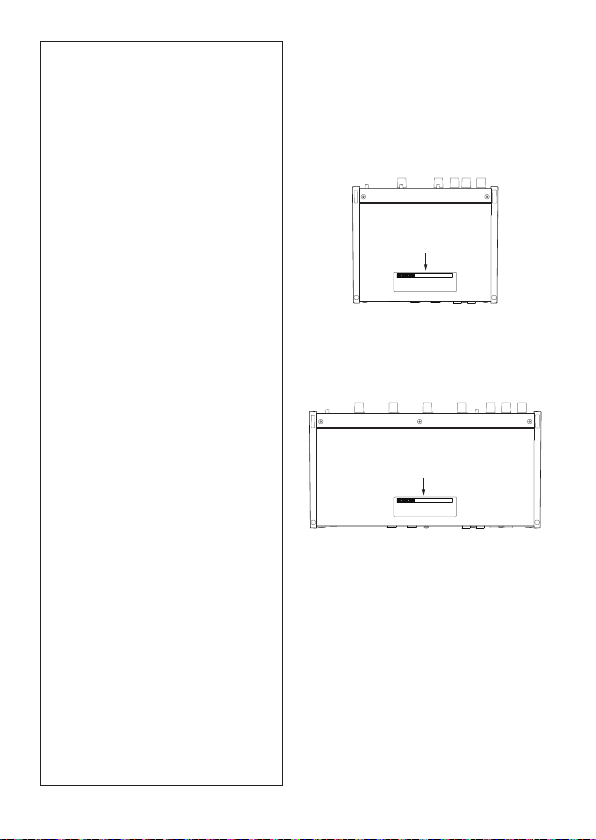
Das Typenschild bendet sich auf
der Unterseite der Geräte, wie in
folgenden Abbildungen gezeigt:
US-2x2HR
Vorderseite
Typenschild
US-4x4HR
Vorderseite
Typenschild
Informationen zur elektromagne-
tischen Verträglichkeit
Dieses Gerät wurde auf die Einhaltung
der Grenzwerte gemäß der EMV-Richt-
linie 2014/30/EU der Europäischen
Gemeinschaft hin geprüft. Diese
Grenzwerte gewährleisten einen
angemessenen Schutz vor schäd-
lichen Funkstörungen innerhalb von
Wohngebäuden. Dieses Gerät arbeitet
mit Hochfrequenz energie, die ausge-
strahlt werden kann, und kann bei
unsachgemäßer, nicht der Anleitung
des Herstellers entsprechenden Instal-
lation und Verwendung Störungen
des Rundfunkempfangs verursachen.
Es gibt jedoch keine Garantie, dass in
einer bestimmten Installation keine
Störungen auftreten. Falls das Gerät
nachweislich Störungen des Radio- oder
Fernsehempfangs verursacht, was sich
durch Aus- und Einschalten des Geräts
überprüfen lässt, ergreifen Sie eine oder
mehrere der folgenden Maßnahmen:
i
Richten Sie die Empfangsantenne
neu aus, oder stellen Sie sie an
einem anderen Ort auf.
i
Vergrößern Sie den Abstand
zwischen dem Gerät und dem
Empfänger.
i
Schließen Sie das Gerät an eine
Steckdose an, die mit einem
anderen Stromkreis verbunden ist
als die Steckdose des Emp fängers.
i
Wenden Sie sich an Ihren Händler
oder einen Fachmann für Rundfunk-
und Fernsehtechnik.
Wichtiger Hinweis
Änderungen oder Modifikationen
am Gerät, die nicht ausdrücklich von
der TEAC Corporation geprüft und
genehmigt worden sind, können zum
Erlöschen der Betriebserlaubnis führen.
86 TASCAM US-2x2HR/US-4x4HR – Bedienungsanleitung

Häug verwendete Bezeichnungen und Begrie
In diesem Handbuch verwenden wir die folgenden Konventionen:
o Die Bedienelemente und Anschlüsse dieses Produkts kennzeichnen wir wie folgt
mit fett gesetzten Großbuchstaben. Beispiel: Regler PHONES
Auf dem Computer angezeigte Elemente, Einstellungen und Meldungen sind in
Anführungszeichen gesetzt: „OK”.
o Alle Hinweise auf iOS schließen iPad OS mit ein.
o Ergänzende Informationen oder wichtige Hinweise sind wie folgt gekennzeichnet:
Tipp
So kennzeichnen wir nützliche Praxistipps.
Anmerkung
Hierunter nden Sie ergänzende Erklärungen und Hinweise zu besonderen
Situationen.
Wichtig
Besonderheiten, die bei Nichtbeachtung zu Sachschäden, Datenverlust oder
unerwartetem Verhalten des Geräts führen können.
V
VORSICHT
Wenn Sie so gekennzeichnete Hinweise nicht beachten, besteht ein Risiko von
leichten bis mittelschweren Verletzungen (beispielsweise Hörschäden).
DEUTSCH
TASCAM US-2x2HR/US-4x4HR – Bedienungsanleitung 87

Ergänzende Sicherheitshinweise zur Aufstellung/
Installation
o Der zulässige Betriebstemperaturbereich für diesen Recorder liegt zwischen 5 °C
und 35 °C.
o Stellen Sie das Gerät nicht an den im Folgenden bezeichneten Orten auf.
Andernfalls könnte sich die Klangqualität verschlechtern und/oder es könnten
Fehlfunktionen auftreten.
− Orte, die starken Erschütterungen ausgesetzt sind,
− Orte mit direkter Sonneneinstrahlung (z.B. an einem Fenster),
− in der Nähe von Heizgeräten oder an anderen Orten, an denen hohe
Temperaturen herrschen,
− wo die Temperatur unter dem Gefrierpunkt liegt,
− sehr feuchte oder schlecht belüftete Orte,
− Orte mit hoher Staubkonzentration.
o Legen Sie keine Gegenstände auf das Gerät, um eine ausreichende Wärmeabfuhr
zu gewährleisten.
o Stellen Sie das Gerät nicht auf einen Leistungsverstärker oder andere Hitze
erzeugende Geräte.
Kondensation vermeiden
Wenn Sie das Gerät aus einer kalten Umgebung in eine warme Umgebung
bringen, in einem schnell beheizbaren Raum einsetzen oder anderen plötzlichen
Temperaturschwankungen aussetzen, besteht die Gefahr, dass sich Kondenswasser
bildet. Um dies zu vermeiden, lassen Sie das Gerät ein bis zwei Stunden stehen, bevor
Sie es verwenden.
Das Gerät reinigen
Verwenden Sie zum Reinigen ein trockenes, weiches Tuch. Verwenden Sie zum
Reinigen niemals getränkte Reinigungstücher auf chemischer Basis, Verdünner,
Alkohol oder andere chemische Substanzen. Diese können die Oberäche des Geräts
angreifen oder Verfärbungen hervorrufen.
88 TASCAM US-2x2HR/US-4x4HR – Bedienungsanleitung

Informationen auf unserer Website nden
Sie können Dokumente für dieses und andere Tascam-Produkte von der
deutschsprachigen Tascam-Website herunterladen:
https://tascam.de/downloads
Wählen Sie dazu im Downloadbereich das gewünschte Produkt aus oder klicken Sie
auf der jeweiligen Produktseite auf „Downloads“.
Informationen zum Kundendienst von Tascam
Kunden haben nur in dem Land Anspruch auf Kundendienst und Gewährleistung, in
dem sie das Produkt gekauft haben.
Um den Kundendienst von Tascam in Anspruch zu nehmen, suchen Sie auf der TEAC
Global Site unter https:// teac-global.com/ nach der lokalen Niederlassung oder dem
Distributor für das Land, in dem Sie das Produkt erworben haben, und wenden Sie
sich an dieses Unternehmen.
Bei Anfragen geben Sie bitte die Adresse des Geschäfts oder Webshops (URL), in dem
Sie das Produkt gekauft haben, und das Kaufdatum an. Darüber hinaus kann die
Garantiekarte und der Kaufbeleg erforderlich sein.
DEUTSCH
TASCAM US-2x2HR/US-4x4HR – Bedienungsanleitung 89
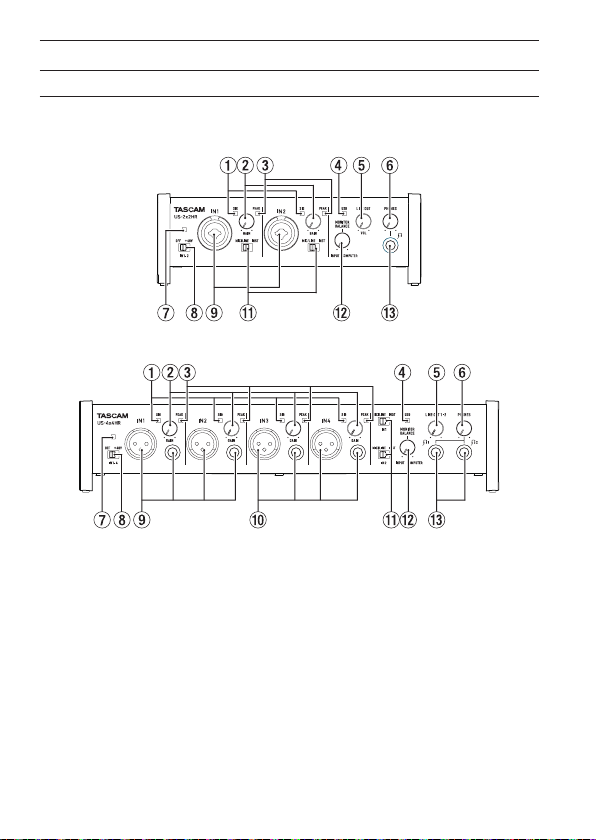
Die Bedienelemente und ihre Funktionen
Vorderseite
US-2x2HR
US-4x4HR
1 Signalanzeigen (SIG)
Leuchten grün, wenn Signale mit mindestens −32 dBFS eingehen.
2 Eingangspegelregler (GAIN)
Hiermit passen Sie die Pegel der Signale an, die an den Eingangsbuchsen
eingehen.
Stellen Sie die Regler jeweils so ein, dass die Übersteuerungslämpchen (PEAK) zu
keinem Zeitpunkt rot aueuchten.
3 Übersteuerungsanzeigen (PEAK)
Leuchten rot, wenn Signale zu übersteuern drohen (−1 dBFS oder höher).
4 USB-Anzeige
Leuchtet, wenn eine USB-Verbindung mit dem Computer besteht.
90 TASCAM US-2x2HR/US-4x4HR – Bedienungsanleitung
5 Ausgangspegelregler (LINE OUT)
Hiermit passen Sie den Pegel an den Ausgangsbuchsen LINE OUT (BALANCED)
1-2 (t) auf der Rückseite des Geräts an.
6 Regler für die Kopfhörerlautstärke (PHONES)
Hiermit passen Sie den Ausgangspegel an den Kopfhöreranschlüssen an
( beim US-2x2HR, und beim US-4x4HR).
V
VORSICHT
Bevor Sie einen Kopfhörer anschließen, senken Sie den Pegel vollständig ab.
Andernfalls kann es zu plötzlichen, sehr lauten Geräuschen kommen, die Ihr Gehör
oder Ihre Geräte schädigen.
7 Anzeige der Phantomspeisung
Das Lämpchen leuchtet, wenn sich der darunter bendliche Schalter in der
Stellung +48V bendet.
Wichtig
Dieses Lämpchen blinkt bei einem US-4x4HR, wenn es über USB mit Strom
versorgt wird und ein Problem mit der Stromversorgung auftritt. Verwenden Sie in
einem solchen Fall den mitgelieferten Wechselstromadapter (PS-1220E).
8 Schalter für Phantomspeisung
Hier schalten Sie die Phantomspeisung (+48Volt) für die XLR-Eingänge IN1 und
IN2 (und IN3/IN4 beim US-4x4HR) ein oder aus.
V
VORSICHT
Bevor Sie die Phantomspeisung ein- oder ausschalten, stellen Sie die Regler LINE
OUT und PHONES auf ihren kleinsten Wert. Je nach Art der angeschlossenen
Mikrofone könnten sonst plötzliche laute Geräusche in Ihrer Abhöranlage oder in
Ihrem Kopfhörer auftreten, die Ihr Gehör oder Ihre Geräte schädigen.
9 Analogeingänge IN1/IN2
Das US-2x2HR hat Kombibuchsen (XLR/Klinke). Beim US-4x4HR stehen dagegen
separate XLR- und Klinkenbuchsen zur Verfügung.
An die Klinkenbuchsen können Sie auch hochohmige Geräte mit
Instrumentenpegel wie etwa E-Gitarren anschließen.
Verwenden Sie die Eingangswahlschalter q, um zwischen symmetrischen
Eingängen für Mikrofone und Line-Signale (MIC/LINE) und unsymmetrischen
Klinkeneingängen für Instrumente (INST) zu wählen.
Wenn Sie eine elektrische Gitarre, einen elektrischen Bass oder ein ähnliches
Instrument direkt anschließen, stellen Sie den Schalter MIC/LINE INST (q) auf
INST.
DEUTSCH
TASCAM US-2x2HR/US-4x4HR – Bedienungsanleitung 91

0 Analogeingänge IN3/IN4 (nur US-4x4HR)
Dies sind Analogeingänge über XLR-Buchsen beziehungsweise symmetrische
Klinkenbuchsen.
Wichtig
Beim US-4x4HR gibt es für die Eingänge IN1/IN2 (9) und IN3/IN4 (0) jeweils
zwei Buchsen (XLR und symmetrische Klinke). Sie können immer nur eine der
beiden Buchsen eines Kanals nutzen, also entweder die XLR-Buchse oder die
Klinkenbuchse. Wenn mehrere Signalquellen zur gleichen Zeit angeschlossen sind,
kann das Gerät keines der Signale ordnungsgemäß verarbeiten.
q Schalter MIC/LINE INST
Stellen Sie diese Schalter entsprechend der an den Buchsen IN1/IN2
angeschlossenen Signalquellen ein.
Schieben Sie den Schalter in die Stellung MIC/LINE, wenn Sie elektronische
Musikinstrumente, Audioplayer, Mikrofone andere Audiogeräte angeschlossen
haben. Schieben Sie ihn in die Stellung INST, wenn Sie eine Gitarre, einen Bass
oder ein anderes Gerät mit hoher Impedanz angeschlossen haben.
w Regler für die Abhörbalance (MONITOR BALANCE)
Hiermit bestimmen Sie, wie laut die an den Eingangsbuchsen eingehenden
Signale im Verhältnis zu den vom Computer kommenden Ausgangssignalen im
Abhörsignal ausgegeben werden.
e Kopfhörerausgang (PHONES)
Verbinden Sie Ihre Kopfhörer mit dem Anschluss PHONES (Stereo-Klinkenbuchse)
auf der Gerätevorderseite.
Beim US-4x4HR gibt es zwei Buchsen ( und ). Diese liefern dasselbe Signal
wie die Line-Ausgänge LINE OUT (BALANCED) 1-2.
Um Kopfhörer mit Miniklinkenstecker anzuschließen, verwenden Sie einen
geeigneten Adapter.
92 TASCAM US-2x2HR/US-4x4HR – Bedienungsanleitung
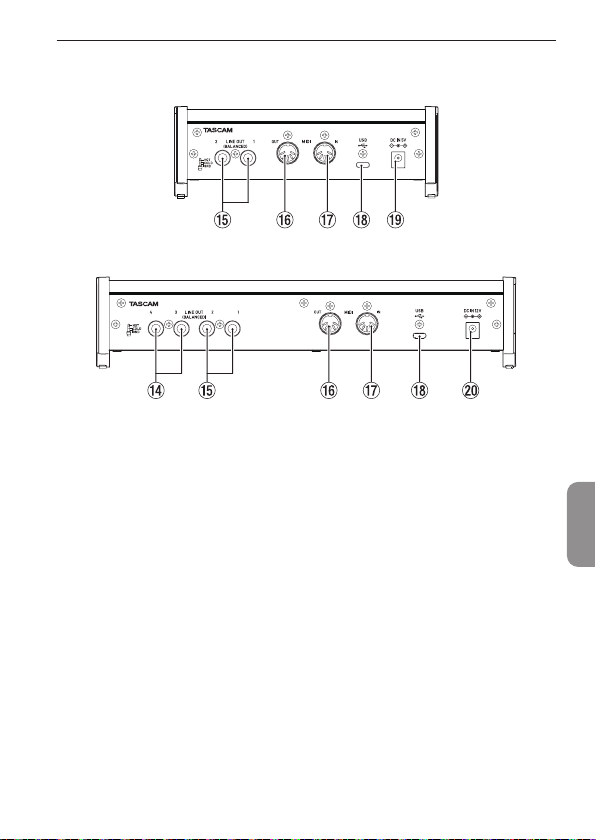
Rückseite
US-2x2HR
US-4x4HR
r Symmetrische Line-Ausgänge (LINE OUT (BALANCED) 3-4),
nur US-4x4HR)
Diese symmetrischen Klinkenbuchsen dienen als analoge Line-Ausgänge.
t Line-Ausgänge 1–2 (LINE OUT (BALANCED))
Diese symmetrischen Klinkenbuchsen dienen als analoge Line-Ausgänge.
Welches Signal an den Ausgangsbuchsen ausgegeben werden soll, können Sie im
Einstellungsfeld festlegen.
Einzelheiten dazu nden Sie im Abschnitt „Das Einstellungsfeld“ im Kapitel „5 –
Das Einstellungsfeld nutzen“ des Referenzhandbuchs.
y MIDI-Ausgang (MIDI OUT)
5-polige DIN-Buchse für die Ausgabe von MIDI-Signalen (entsprechend MIDI-
Spezikation).
Nutzen Sie sie, um MIDI-Daten vom Computer an ein MIDI-Instrument zu
übertragen.
u MIDI-Eingang (MIDI IN)
5-polige DIN-Buchse für den Empfang von MIDI-Signalen (entsprechend MIDI-
Spezikation).
Nutzen Sie sie, um MIDI-Daten über USB an den Computer zu übertragen.
DEUTSCH
TASCAM US-2x2HR/US-4x4HR – Bedienungsanleitung 93

i USB-Anschluss
Dies ist ein USB-Typ-C-Anschluss.
Nutzen Sie ein passendes USB-Kabel, um das Interface mit einem Computer oder
einem iOS-Gerät zu verbinden.
o Anschluss DC IN 5V (nur US-2x2HR)
Um das Interface zusammen mit einem iOS-kompatiblen Gerät oder einem
anderen Gerät zu verwenden, das selbst keine Stromversorgung bereitstellen
kann, schließen Sie hier einen externen 5-Volt-Wechselstromadapter des Typs
Tascam PS-P520E (separat erhältlich) an. (Siehe „Wenn Sie ein iOS-Gerät nutzen“
auf Seite98.)
p Anschluss DC IN 12V (nur US-4x4HR)
Wenn eine der folgenden Voraussetzungen erfüllt ist, schließen Sie hier den zum
Lieferumfang gehörenden 12-Volt-Wechselstromadapter (PS-P1220E) an. (Siehe
„Betrieb mit Wechselstromadapter“ auf Seite99.)
i Wenn die USB-Verbindung nicht genügend Strom zur Verfügung stellt
i Wenn Sie das Interface mit einem iOS- oder ähnlichen Gerät verbunden haben,
das keine Stromversorgung zur Verfügung stellt
Die Gerätesoftware installieren
Bevor Sie das Interface nutzen können, müssen Sie die passende Software auf dem
verwendeten Computer installieren.
Die Gerätesoftware kann jederzeit aktualisiert werden. Laden Sie sich zunächst von
der Tascam-Website (https://tascam.de/downloads/US-2x2HR beziehungsweise
https://tascam.de/downloads/US-4x4HR) die Software für Ihr Betriebssystem
herunter.
o Auf einem Windows-Computer werden ein Windows-Treiber und ein Programm
zur Konguration des Interfaces, das Einstellungsfeld, installiert.
o Auf einem Mac wird nur die Mac-Version des Einstellungsfelds installiert. Als
Treiber nutzt das Gerät den Standardtreiber des Betriebssystems.
o Bei einem iOS-Gerät wird ebenfalls der Standardtreiber des Betriebssystems
genutzt. Hier muss nichts installiert werden.
Wichtig
Bevor Sie mit der Installation beginnen, beenden Sie alle anderen Anwendungen.
94 TASCAM US-2x2HR/US-4x4HR – Bedienungsanleitung
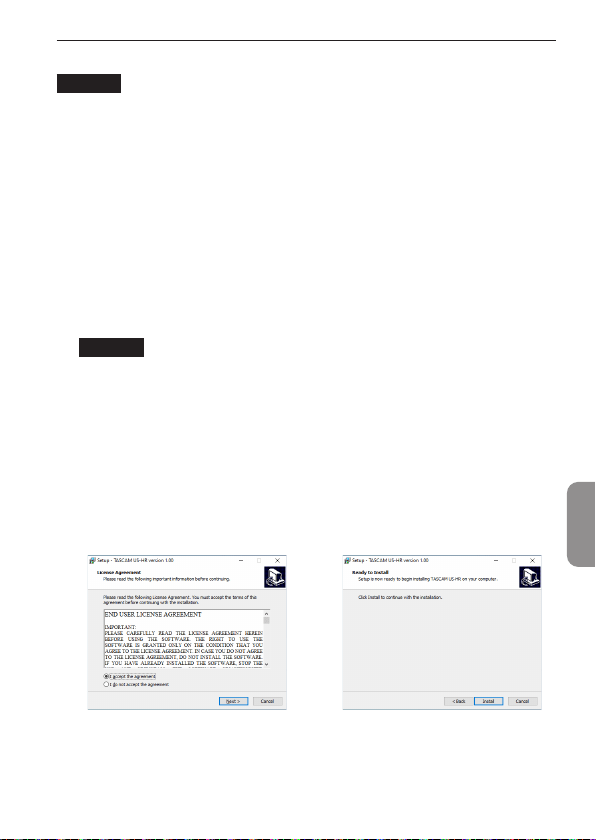
Die Windows-Gerätesoftware installieren
Wichtig
•
Schließen Sie in jedem Fall zuerst die unten beschriebene Installation der Windows-
Gerätesoftware ab, bevor Sie das Interface zum ersten Mal über USB mit dem
Computer verbinden.
•
Falls Sie das Interface vor der Installation über das USB-Kabel mit dem Computer
verbunden haben und Windows den Hardwareassistenten startet, brechen Sie den
Vorgang ab. Ziehen Sie anschließend das USB-Kabel heraus.
1. Laden Sie die aktuelle Gerätesoftware von der Tascam-Website herunter und
speichern Sie diese auf Ihrem Computer.
2. Entpacken Sie die Software (Zip-Datei) auf den Desktop oder in ein beliebiges
Verzeichnis.
3. Doppelklicken Sie in dem Ordner, der beim Entpacken angelegt wurde, auf die
Datei „TASCAM_US-HR_Installer_x.xx.exe“ (x.xx steht für die Versionsnummer).
Die Installation beginnt.
Wichtig
Wenn Sie eine Zip-Datei önen, ohne sie zu entpacken, und im geöneten Ordner
auf die genannte Datei doppelklicken, startet die Installation nicht. Entpacken Sie
die Datei beispielsweise über das Kontextmenü und versuchen Sie es anschließend
noch einmal.
4. Wenn ein Fenster mit einem Sicherheitshinweis oder der
Benutzerkontensteuerung erscheint, klicken Sie auf „Ausführen“
beziehungsweise „Ja“.
5. Lesen Sie sich die Lizenzvereinbarung durch. Wenn Sie damit einverstanden
sind, wählen Sie die Option Ich nehme die Lizenzvereinbarung an. Klicken Sie
auf „Fortfahren“. (Abbildung A)
6. Klicken Sie anschließend auf „Installieren“. (Abbildung B)
e
Abbildung A Abbildung B
DEUTSCH
TASCAM US-2x2HR/US-4x4HR – Bedienungsanleitung 95
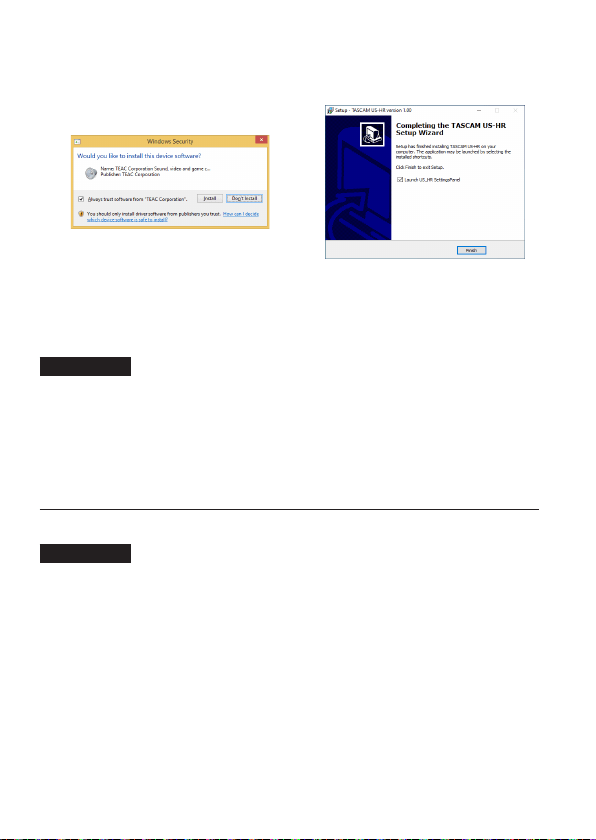
7. Klicken Sie noch einmal auf „Installieren“, um die Installation zu starten (nur
Windows 8.1 und Windows 7). (Abbildung C)
Das folgende Fenster erscheint, wenn die Installation abgeschlossen ist.
(AbbildungD)
e
Abbildung C Abbildung D
8. Klicken Sie auf „Fertigstellen“.
Das Installationsprogramm wird beendet. Anschließend startet das
Einstellungsfeld.
Anmerkung
Wenn Sie das Gerät nach der Installation der Software zum ersten Mal mit dem
Computer verbinden, installiert dieser den Gerätetreiber. Es kann eine Weile dauern,
bis das Gerät erkannt wird, weil hierzu auch Windows-Update durchsucht wird. Wenn
der Computer das Interface auch nach längerer Zeit nicht erkennt, rufen Sie das
Treiberinstallationsfenster im Anzeigebereich rechts unten auf dem Bildschirm auf.
Klicken Sie dort auf „Treibersuche mit Windows Update überspringen“, um die Suche
zu stoppen.
Die Mac-Gerätesoftware installieren
Anmerkung
•
Installieren Sie in jedem Fall zuerst die für den Mac bestimmte Software, bevor Sie
das Interface zum ersten Mal via USB mit dem Computer verbinden.
•
Je nachdem, welche Gatekeeper-Optionen ausgewählt sind, erscheint während der
Installation möglicherweise eine Meldung. Einzelheiten zu Gatekeeper entnehmen
Sie bitte dem Abschnitt „Hinweise zur Gatekeeper-Funktion“ in Kapitel „3 –
Installation“ des Referenzhandbuchs.
1. Laden Sie die aktuelle Mac-Gerätesoftware von der weiter oben genannten
Website herunter. Speichern Sie die Software auf dem Computer, den Sie mit
dem Interface verwenden wollen.
96 TASCAM US-2x2HR/US-4x4HR – Bedienungsanleitung
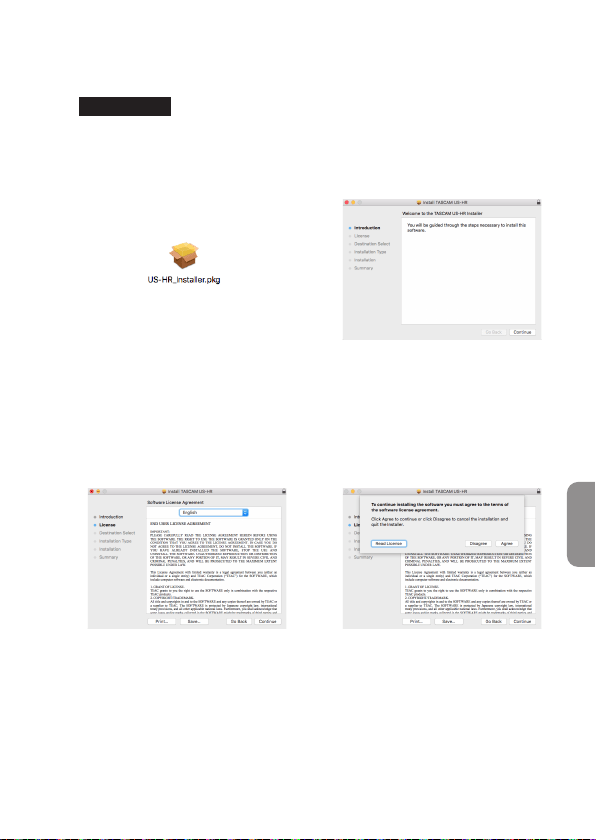
2. Doppelklicken Sie auf die Datei „US-HR_Installer_x.xx.dmg“, um das Disk-Image
der Mac-Gerätesoftware zu entpacken. Doppelklicken Sie anschließend auf die
Datei „US-HR_Installer.pkg“ in dem geöneten Ordner. (Abbildung A)
Anmerkung
Je nach den Einstellungen auf Ihrem Computer wird die heruntergeladene Datei
möglicherweise automatisch entpackt. In diesem Fall entfällt der Schritt des
Entpackens von Hand.
3. Wenn der Installationsassistent erscheint, klicken Sie auf „Fortfahren“.
(AbbildungB)
e
Abbildung A Abbildung B
4. Wählen Sie die gewünschte Sprache aus und klicken Sie auf „Fortfahren“.
(Abbildung C)
5. Klicken Sie auf „Lizenz lesen“ und lesen Sie sich die Lizenzbestimmungen
durch. Wenn Sie damit einverstanden sind, klicken Sie auf „Ich stimme zu”.
(Abbildung D)
Klicken Sie auf „Fortfahren.
e
Abbildung C Abbildung D
DEUTSCH
TASCAM US-2x2HR/US-4x4HR – Bedienungsanleitung 97
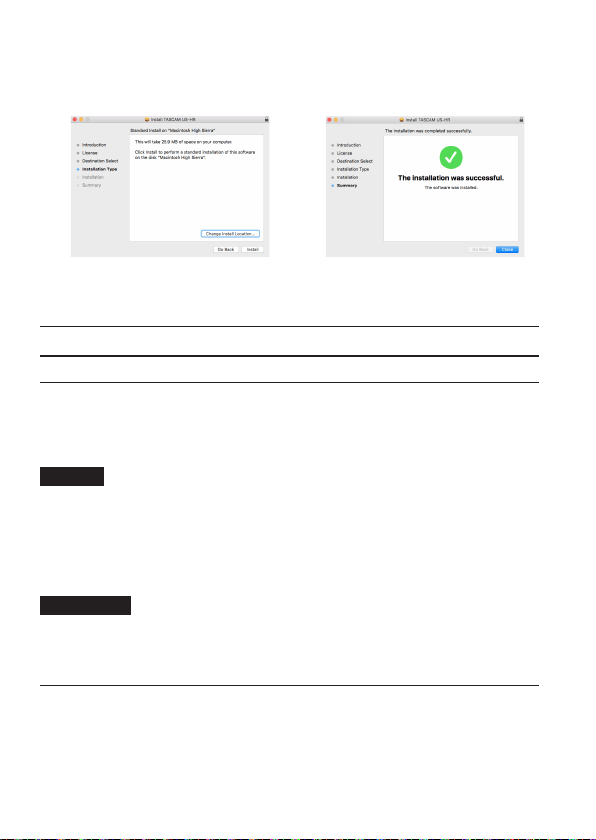
6. Klicken Sie nun auf die Schaltäche „Installieren“, um die Installation zu starten.
(Abbildung E)
Das folgende Fenster erscheint, wenn die Installation abgeschlossen ist.
(AbbildungF)
e
Abbildung E Abbildung F
7. Klicken Sie auf „Schließen“.
Die Stromversorgung herstellen
Wenn Sie einen Computer nutzen (Windows oder Mac)
Wenn das Interface über eines der mitgelieferten Kabel mit einem Computer
verbunden ist, wird es über die USB-Verbindung mit Strom versorgt. Ein separates
Netzteil müssen Sie in diesem Fall also nicht anschließen.
Wichtig
Wenn Sie das US-4x4HR über USB mit Strom versorgen, verbinden Sie es über ein
handelsübliches USB-Kabel (Typ C auf Typ C) mit einem USB-Typ-C-Anschluss Ihres
Computers.
Dieses Lämpchen blinkt bei einem US-4x4HR, wenn es über USB mit Strom versorgt
wird und ein Problem mit der Stromversorgung auftritt. Verwenden Sie in einem
solchen Fall den mitgelieferten Wechselstromadapter (PS-1220E).
Anmerkung
Je nach Art des Computers ist die USB-Schnittstelle möglicherweise nicht in der Lage,
genügend Strom für den Betrieb des Interfaces zu liefern. Verwenden Sie in einem
solchen Fall einen als Zubehör erhältlichen Wechselstromadapter.
Wenn Sie ein iOS-Gerät nutzen
Wenn Sie das Interface mit einem iOS-Gerät nutzen, ist für die Stromversorgung
immer ein USB-Wechselstromadapter erforderlich. Schließen Sie den für das Gerät
vorgesehenen Wechselstromadapter an, bevor Sie die USB-Verbindung herstellen.
98 TASCAM US-2x2HR/US-4x4HR – Bedienungsanleitung

Betrieb mit Wechselstromadapter
US-2x2HR
Verbinden Sie einen Wechselstromadapter des Typs Tascam PS-P520E (separat
erhältlich) mit der Buchse DC IN 5V des Geräts.
Einzelheiten dazu nden Sie im Abschnitt „Betrieb mit Wechselstromadapter“ in
Kapitel „4 – Vorbereitung“ des Referenzhandbuchs.
V
VORSICHT
Wir raten sehr dazu, den speziellen Wechselstromadapter PS-P520E von Tascam mit
dem US-2x2HR zu verwenden. Wenn Sie ein anderes externes Netzteil nutzen wollen,
verwenden Sie eines mit den folgenden Spezikationen.
•
Ausgangsspannung: DC 5 V
•
Ausgangsstrom: 700 mA oder mehr
Die Verwendung eines Netzteils, das die oben genannte Spezikation nicht erfüllt,
kann zu Fehlfunktionen führen, und es besteht Brand- oder Stromschlaggefahr.
Sollten irgendwelche Probleme auftreten, benutzen Sie das Gerät nicht weiter.
Wenden Sie sich an Ihren Händler oder an einen Tascam-Servicepartner, um das Gerät
überprüfen zu lassen.
US-4x4HR
Wenn eine der folgenden Voraussetzungen erfüllt ist, schließen Sie den zum
Lieferumfang gehörenden 12-Volt-Wechselstromadapter (PS-P1220E) an die Buchse
DCIN 12V an.
o Wenn die USB-Verbindung nicht genügend Strom zur Verfügung stellt
o Wenn Sie das Interface mit einem iOS- oder ähnlichen Gerät verbunden haben, das
keine Stromversorgung zur Verfügung stellt
Einzelheiten dazu nden Sie im Abschnitt „Betrieb mit Wechselstromadapter“ in
Kapitel „4 – Vorbereitung“ des Referenzhandbuchs.
V
VORSICHT
Verwenden Sie ausschließlich den zum Lieferumfang gehörenden
Wechselstromadapter PS-P1220E mit diesem Gerät. Die Verwendung eines
anderen Adapters kann zu Fehlfunktionen führen, und es besteht Brand- oder
Stromschlaggefahr.
Anmerkung
Der Wechselstromadapter PS-P1220E wird mit zwei wechselbaren Steckereinsätzen
geliefert. Befestigen Sie den Steckertyp, der für Ihr Stromnetz geeignet ist. Einzelheiten
dazu nden Sie im folgenden Abschnitt.
DEUTSCH
TASCAM US-2x2HR/US-4x4HR – Bedienungsanleitung 99
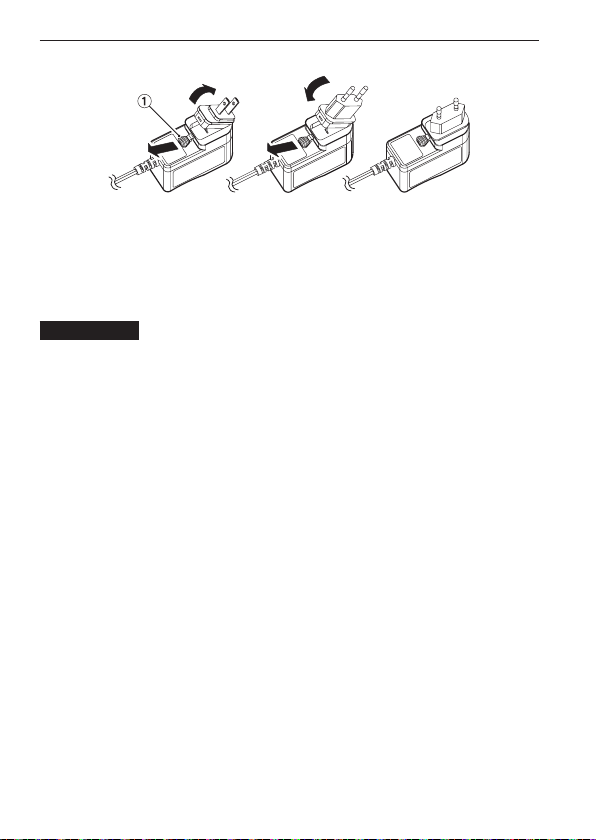
Den Steckereinsatz wechseln (nur US-4x4HR)
1. Schieben Sie die Verriegelung 1 am Wechselstromadapter in Pfeilrichtung und
ziehen Sie den Steckereinsatz heraus.
2. Schieben Sie erneut die Verriegelung in Pfeilrichtung und setzen Sie den für Ihr
Stromnetz geeigneten Steckereinsatz ein.
Damit ist der Vorgang abgeschlossen. Vergewissern Sie sich noch einmal, dass der
Stecker gerade und fest sitzt.
V
VORSICHT
Verwenden Sie den Adapter keinesfalls, wenn dieser oensichtlich nicht
korrekt zusammengesetzt oder beschädigt ist. Andernfalls besteht Brand- oder
Stromschlaggefahr. Wenden Sie sich im Schadensfall an Ihren Händler oder ein
Tascam- Servicecenter.
100 TASCAM US-2x2HR/US-4x4HR – Bedienungsanleitung
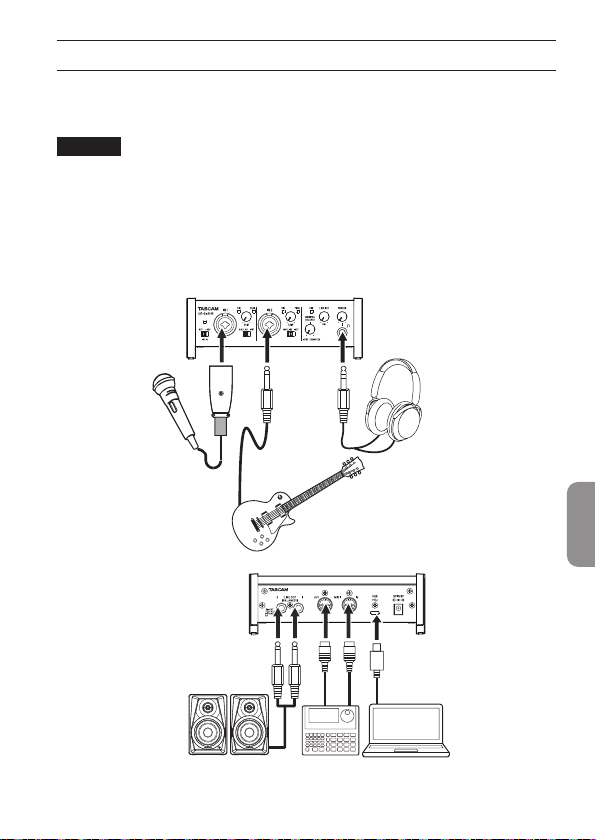
Weitere Geräte anschließen
Im folgenden nden Sie einen Überblick über die Anschlussmöglichkeiten am
Beispiel des des US-2x2HR. Weitere Informationen darüber, was beim Anschluss der
einzelnen Geräte zu beachten ist, nden Sie im Referenzhandbuch.
Wichtig
Vorsichtsmaßnahmen für das Herstellen von Kabelverbindungen
o Lesen Sie die Bedienungsanleitungen der anderen Geräte sorgfältig durch und
schließen Sie diese den Anweisungen entsprechend an.
o Schalten Sie immer alle Geräte aus (oder auf Standby), bevor Sie
Kabelverbindungen herstellen oder trennen.
o Schließen Sie alle Geräte einschließlich des US-2x2HR/US-4x4HR möglichst an
dieselbe Netzstromleitung an.
Mikrofon
Gitarren
Kopfhörer
ComputerAktivlautsprecher
Sequenzer/
Rhythmusmaschine
DEUTSCH
TASCAM US-2x2HR/US-4x4HR – Bedienungsanleitung 101

V
VORSICHT
Bevor Sie die Phantomspeisung ein- oder ausschalten (+48V/OFF), stellen Sie
die Regler LINE OUT und PHONES auf ihren kleinsten Wert. Je nach Art der
angeschlossenen Mikrofone könnten sonst plötzliche laute Geräusche in Ihrer
Abhöranlage oder in Ihrem Kopfhörer auftreten, die Ihr Gehör oder Ihre Geräte
schädigen.
Wichtig
•
Schalten Sie immer alle Geräte aus (oder auf Standby), bevor Sie Kondensator-
mikrofone anschließen oder die Verbindung trennen.
•
Der Schalter für die Phantomspeisung beeinusst alle Eingangsbuchsen
gleichzeitig (zwei Eingänge beim US-2x2HR, vier Eingänge beim US-4x4HR).
•
Stellen Sie den Schalter für die Phantomspeisung immer in Stellung OFF, bevor
Sie Mikrofonverbindungen herstellen oder trennen. Andernfalls kann es zu lauten
Geräuschen kommen, die Ihr Gehör oder Ihre Geräte schädigen können.
•
Schalten Sie die Phantomspeisung nur ein (Schalter in Stellung +48V), wenn Sie
ein Kondensatormikrofon verwenden, das auch Phantomspeisung benötigt.
Dynamische Mikrofone oder andere Geräte, die keine Phantomspeisung benötigen,
oder das Interface selbst könnten sonst beschädigt werden.
•
Wenn Sie gleichzeitig ein Kondensatormikrofon, das Phantomspeisung benötigt,
und ein dynamisches Mikrofon verwenden, achten Sie darauf, dass das dynamische
Mikrofon symmetrisch ausgelegt ist (normalerweise erkennbar an einem 3-poligen
Stecker). Unsymmetrische dynamische Mikrofone können bei eingeschalteter
Phantomspeisung nicht genutzt werden.
•
Ebenso können manche Bändchenmikrofone irreparabel beschädigt werden, wenn
sie mit Phantomspeisung versorgt werden. Wenn Sie unsicher sind, lassen Sie die
Phantomspeisung für Ihr Bändchenmikrofon ausgeschaltet.
•
Wenn Sie das Interface mit eingeschalteter Phantomspeisung an einem Laptop-
Computer betreiben, der im Batteriebetrieb läuft, wird die Batterie des Computers
schneller entladen.
Das Interface mit einem iOS-Gerät verbinden
Wenn Ihr iOS-Gerät über einen Lightning-Anschluss verfügt, verwenden Sie einen
Lightning-auf-USB-Kameraadapter* und das mitgelieferte USB-Kabel für die
Verbindung mit dem Interface.
Hat Ihr iOS-Gerät dagegen einen USB-Typ-C-Anschluss, nutzen Sie ein
handelsübliches USB-Kabel Typ C auf Typ C, um beide Geräte zu verbinden.
* Sie benötigen einen originalen Lightning-auf-USB-Kameraadapter von Apple, erhältlich im
Fachhandel.
Anmerkung
Bei einer solchen Verbindung stellt das Interface keine Stromversorgung für das iOS-
Gerät bereit.
102 TASCAM US-2x2HR/US-4x4HR – Bedienungsanleitung
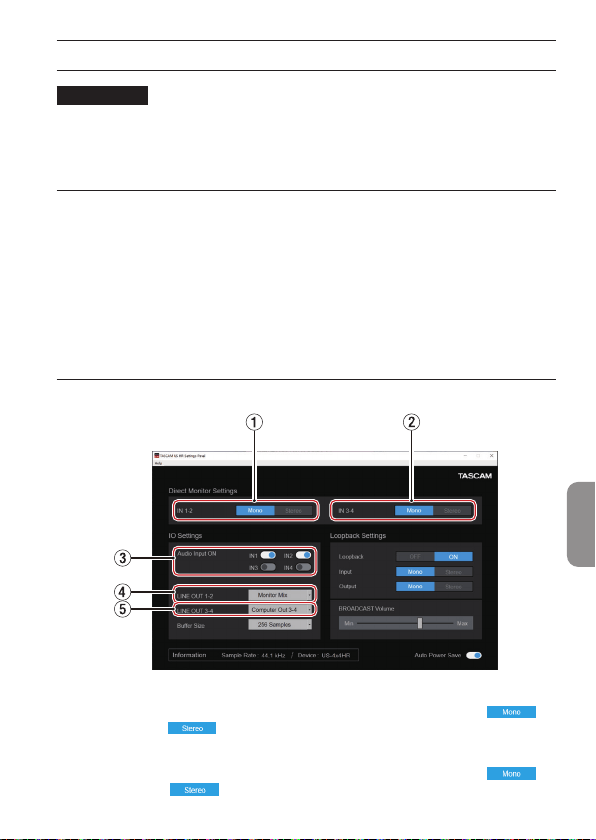
Das Einstellungsfeld nutzen
Anmerkung
Damit der Computer digitale Audiosignale reibungslos verarbeiten kann, sollten
andere Lasten auf dem Computer so weit wie möglich verringert werden. Wir raten
Ihnen, nicht genutzte Anwendungen zu beenden, bevor Sie das Interface mit dem
Computer verwenden.
Das Einstellungsfeld aufrufen
Rufen Sie das Einstellungsfeld wie folgt auf:
Windows
o Wählen Sie auf dem Computer „Start“ > „TASCAM“ > „US_HR SettingsPanel“.
Mac
o Klicken Sie im Launchpad auf „US-HR_SettingsPanel“.
o Wählen Sie mit dem Finder den Anwendungsordner und klicken Sie dort auf „US-
HR_Settings Panel“, um das Einstellungsfeld aufzurufen.
Die Bestandteile des Einstellungsfelds
1 Schaltächen IN 1-2
Wählen Sie hier, ob Sie das Signal an den Eingängen IN1/IN2 in Mono ( )
oder in Stereo ( ) abhören wollen.
2 Schaltächen IN 3-4 (nur US-4x4HR)
Wählen Sie hier, ob Sie das Signal an den Eingängen IN3/IN4 in Mono ( )
oder in Stereo ( ) abhören wollen.
DEUTSCH
TASCAM US-2x2HR/US-4x4HR – Bedienungsanleitung 103

3 Aktivierung der Audioeingänge (Audio Input ON)
Hier können Sie jeden Eingangskanal unabhängig ein- oder ausschalten.
4 Auswahl der Ausgangssignale (LINE OUT 1-2)
Wählen Sie hier, welches Signal an den Ausgangsbuchsen LINE OUT 1-2 und
PHONES (beim US-4x4HR an beiden Kopfhörerbuchsen) ausgegeben werden soll.
5 Auswahlfeld LINE OUT 3-4 (nur US-4x4HR)
Wählen Sie hier, welches Signal an den Ausgangsbuchsen LINE OUT 3-4
ausgegeben werden soll.
Einzelheiten zu den Einstellungen nden Sie im Abschnitt „Das Einstellungsfeld“ im
Kapitel „5 – Das Einstellungsfeld nutzen“ des Referenzhandbuchs.
104 TASCAM US-2x2HR/US-4x4HR – Bedienungsanleitung
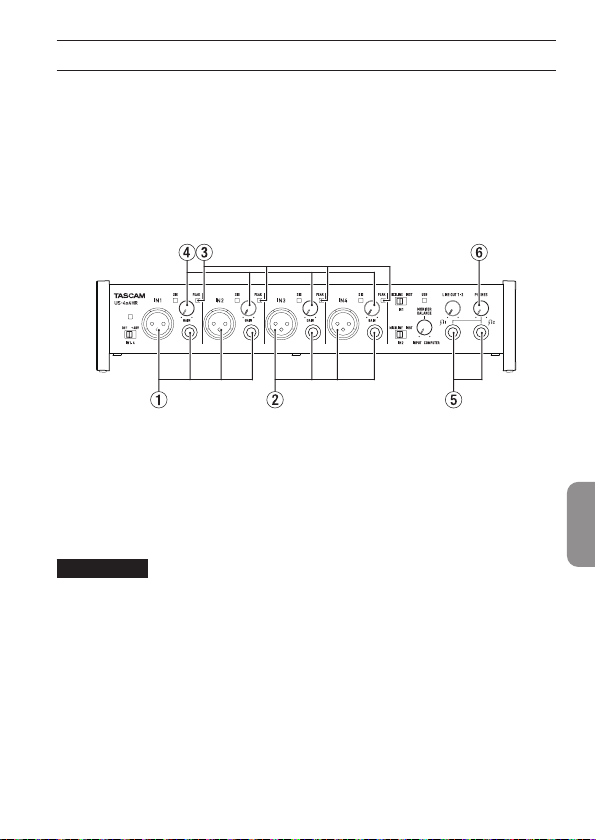
Eingangssignale abhören und anpassen
Analoge Audiosignale von Mikrofonen, Gitarren, Keyboards oder anderen
Audiogeräten können mit dem Interface in Digitalsignale umgewandelt und über die
USB-Verbindung an Ihren Computer geleitet werden.
Mit den Funktionen des Interfaces lassen sich diese Signale beeinussen. Darüber
hinaus können Sie Aktivlautsprecher oder Kopfhörer anschließen, um eine
Mischung aus den Signalen der angeschlossenen Geräte und den vom Computer
zurückgeführten Audiosignalen abzuhören.
Nutzen Sie während dem Abhören die Bedienelemente auf der Gerätevorderseite, um
die Eingangssignale zu beeinussen.
Beispiel US-4x4HR
Nutzen Sie die Regler GAIN (4), um die Pegel der analogen Eingangssignale an
den Buchsen IN1/IN2 (1) oder IN3/IN4 (2, nur US-4x4HR) so anzupassen, dass
die Übersteuerungsanzeigen (PEAK, 3) rechts oberhalb der Knöpfe gerade nicht
aueuchten.
Um mit einem Kopfhörer abzuhören, verbinden Sie diesen mit einem der
Kopfhöreranschlüsse (5). Den Pegel passen Sie mit dem Regler PHONES (6) an.
Anmerkung
Wenn das Eingangssignal nicht über den Kopfhörerausgang oder die Buchsen LINE
OUT (BALANCED) 1-2 ausgegeben wird, überprüfen Sie die Stellung des Reglers
MONITOR BALANCE auf der Gerätefront sowie die Einstellung unter „IO Settings“ auf
dem Einstellungsfeld.
DEUTSCH
TASCAM US-2x2HR/US-4x4HR – Bedienungsanleitung 105

Fehlerbehebung
Wenn Sie das Gerät nicht wie
vorgesehen nutzen können, obwohl Sie
es wie in diesem Handbuch beschrieben
eingerichtet haben, nden Sie in diesem
Abschnitt einige Lösungsvorschläge.
Sollten Sie das Problem auch dann
nicht beheben können, wenden Sie
sich bitte an den Tascam-Support.
Beschreiben Sie Ihr Problem genau,
und geben Sie außerdem die unten
stehenden Informationen zu Ihrer
Arbeitsumgebung an.
Voraussetzungen für die
Verwendung
o Hersteller/Marke des Computers:
o Modell
o Prozessor (CPU)
o Arbeitsspeicher (RAM)
o Betriebssystem:
o Genutzte Anwendungen/Apps
o Antiviren-Software
o Netzwerkbetrieb ja/nein
Wenn Sie das Problem damit nicht
beheben konnten, wenden Sie sich bitte
an Ihren Fachhändler oder an einen
Tascam-Servicepartner.
Kontaktadressen nden Sie auf der
letzten Seite dieses Handbuchs.
Die Gerätesoftware lässt sich
nicht installieren
1. Vergewissern Sie sich, dass Ihr
Betriebssystem unterstützt wird.
Das verwendete Betriebssystem ist
möglicherweise nicht kompatibel
mit der Software, die Sie installieren
möchten. Sehen Sie noch einmal
nach, mit welchen Betriebssystemen
Sie die Software verwenden können.
2. Beenden Sie Programme, die im
Hintergrund laufen.
Antiviren- und andere Software,
die im Hintergrund läuft, kann die
Installation stören. Beenden Sie
solche Programme, bevor Sie die
Installation starten.
Der Computer erkennt das Gerät
nicht, obwohl es mit diesem
verbunden ist.
1. Installieren Sie die Gerätesoftware.
− Wenn Sie es noch nicht getan
haben, installieren Sie die
Gerätesoftware. (Siehe „Die
Gerätesoftware installieren“ auf
Seite94.)
2. Verwenden Sie einen anderen USB-
Anschluss am Computer.
− Das Interface kann nicht an einem
USB-1.1-Anschluss betrieben
werden. Verwenden Sie einen
Anschluss, der mindestens USB 2.0
oder USB 3.0 unterstützt.
− Verwenden Sie keinen USB-Hub
oder -Verteiler. Verbinden Sie das
Gerät immer direkt mit einem der
USB-Anschlüsse des Computers.
− Wenn Sie das Problem mit den
oben genannten Maßnahmen
nicht lösen können, schließen Sie
das Gerät an einem anderen USB-
Anschluss des Computers an.
Während der Audiowiedergabe
auf dem Computer wird am
Interface kein Ton ausgegeben
Sehen Sie nach, ob der Regler MONITOR
BALANCE des Geräts ganz am linken
Anschlag steht (INPUT). Wenn dies der
Fall ist, drehen Sie den Regler über die
Mitte hinaus nach rechts (in Richtung
COMPUTER).
Überprüfen Sie außerdem, ob eine
funktionierende Verbindung mit Ihrem
Computer besteht. Wenn Sie die hier
106 TASCAM US-2x2HR/US-4x4HR – Bedienungsanleitung

beschriebene Einstellung vornehmen,
erfolgt die Audioausgabe über das
Tascam-Interface und nicht mehr über
die Audioausgänge des Computers.
Windows
o Lesen Sie die Anweisungen
unter „Windows“ in Kapitel
„6 – Audioanwendungen“ des
Referenzhandbuchs, und nehmen Sie
die Einstellungen entsprechend dem
verwendeten Betriebssystem vor.
Mac
1. Schließen Sie alle Anwendungen
und önen Sie die
„Systemeinstellungen“ im Apfel-
Menü.
2. Wählen Sie „Ton”.
3. Wählen Sie im Bereich „Ausgabe“
den Eintrag „US-2x2HR“ oder „US-
4x4HR”.
Starten Sie anschließend den Computer
neu und überprüfen Sie, ob die
Tonausgabe jetzt funktioniert.
Je nachdem, welche Audiosoftware Sie
verwenden, müssen Sie möglicherweise
weitere Einstellungen vornehmen.
Audiosoftware greift häug auf
andere Audiokomponenten zu als
das Betriebssystem. Vergewissern Sie
sich deshalb nach der Installation der
Tascam-Gerätesoftware zunächst, dass
die Einstellungen der Audiotreiber Ihrer
Audiosoftware korrekt sind.
Einzelheiten zu den erforderlichen
Einstellungen nden Sie im
Benutzerhandbuch Ihrer Audiosoftware.
Der Ton setzt aus oder Geräusche
sind zu hören
Möglicherweise ist der Prozessor des
Computers überlastet.
Nachfolgend nden Sie einige
Möglichkeiten, die Prozessorlast auf
Ihrem Computer zu verringern.
1. Ein drahtloses Netzwerk (WLAN),
Webcams, Antiviren-Software
und andere Programme, die im
Hintergrund arbeiten, belasten den
Prozessor ständig und können zu
den genannten Problemen führen.
Deaktivieren Sie das WLAN und
verwenden Sie vorübergehend
keine Antiviren-Software und
andere Hintergrundprogramme,
wenn Sie den Computer mit diesem
Gerät nutzen.
2. Stellen Sie die Puergröße (Latenz)
in Ihrer Audioanwendung oder auf
dem Einstellungsfeld des Interface
auf einen größeren Wert ein (nur
Windows).
Anmerkung
Weitere Möglichkeiten, die
Prozessorlast durch Ihre
Audioanwendung zu verringern,
erfahren Sie möglicherweise auch
vom Hersteller der Software.
3. Ändern Sie die Einstellungen
Ihres Computers, um ihn für die
Audiobearbeitung zu optimieren.
Windows
− Leistungsoptionen
1 Önen Sie die Systemsteuerung
in der üblichen Weise Ihrer
Windows-Version (Windows 10,
Windows 8.1, Windows 7).
i Windows 10: Klicken Sie auf
„Systemsteuerung“.. Klicken Sie
anschließend auf das Symbol
„System“.
i Unter Windows 8.1 klicken Sie
mit der rechten Maustaste auf
den normalen Startbildschirm
und wählen Sie „Alle Apps“.
Rechtsklicken Sie anschließend
auf „Computer“ und wählen
Sie „Eigenschaften“.
i In Windows 7 rechtsklicken
Sie im Start-Menü auf
DEUTSCH
TASCAM US-2x2HR/US-4x4HR – Bedienungsanleitung 107

„Computer“ und wählen Sie
„Eigenschaften“.
2 Klicken Sie auf „Erweiterte
Systemeinstellungen“.
3 Wählen Sie im Fenster
„Systemeigenschaften“ die
Registerkarte „Erweitert“, und
klicken Sie im Feld „Leistung“ auf
„Einstellungen“.
4 Wählen Sie im Fenster
„Leistungsoptionen“ auf der
Registerkarte „Visuelle Eekte“
die Option „Für optimale Leistung
anpassen“, und klicken Sie auf
„OK“.
Mac
1 Önen Sie die
Systemeinstellungen und wählen
Sie „Energie sparen“.
2 Wählen Sie unter „Ruhezustand
des Computers aktivieren nach
Inaktivität von:“ die Einstellung
„Nie“.
3 Wählen Sie unter „Ruhezustand
für Monitore aktivieren nach
Inaktivität von:“ die Einstellung
„Nie“.
Anmerkung
Bei manchen Mac-
Computermodellen und Versionen
von macOS gibt es diese Einstellung
möglicherweise nicht.
4. Schließen Sie das Interface an
einen anderen USB-Anschluss des
Computers an.
Möglicherweise funktioniert das
Gerät an manchen USB-Anschlüssen
nicht. Versuchen Sie es mit einem
anderen der USB-Anschlüsse (z.
B. einem hinteren statt einem
vorderen).
Anmerkung
•
Entfernen Sie andere USB-
Geräte und überprüfen Sie, ob
Ihr Tascam-Gerät jetzt erkannt
wird. (Tastatur und Maus können
angeschlossen bleiben.)
•
Verwenden Sie keinen USB-Hub
oder -Verteiler. Verbinden Sie das
Gerät immer direkt mit einem der
eingebauten USB-Anschlüsse des
Computers.
Unterstützung für DAW-
Software, die zum Lieferumfang
gehört
Tascam leistet keine Unterstützung für
DAW-Software, die zum Lieferumfang
gehört.
Sehen Sie im Hilfe-Menü der
installierten Software nach, um
herauszunden, wo Sie Unterstützung
erhalten können.
108 TASCAM US-2x2HR/US-4x4HR – Bedienungsanleitung

Technische Daten
Signalverarbeitung
Abtastraten
44,1 kHz, 48 kHz, 88,2 kHz, 96 kHz,
176,4 kHz, 192 kHz
Wortbreite der Quantisierung
24Bit
Analoge Audioeingänge
Mikrofoneingänge
(symmetrisch)
US-2x2HR: IN1/IN2
US-4x4HR: IN1/IN2, IN3/IN4
Anschlusstyp:
XLR–3–31 oder äquivalent
(1: Masse, 2: Heiß (+), 3: Kalt (–))
Maximaler Eingangspegel:
+9 dBu (2,183 Vrms)
Verstärkungsbereich: 56 dB
Eingangsimpedanz: 2,2 kΩ
Instrumenteneingänge
(unsymmetrisch)
US-2x2HR, US-4x4HR: IN1/IN2
(MIC/LINE INST-Schalter in Stellung
INST)
Anschlusstyp:
6,3-mm-Klinkenbuchse, 2-polig
(Spitze: heiß (+), Hülse: Masse)
Maximaler Eingangspegel:
+10 dBV (3,162 Vrms)
Verstärkungsbereich: 56 dB
Eingangsimpedanz: ≥1 MΩ
Line-Eingänge (symmetrisch)
US-2x2HR: IN1/IN2
US-4x4HR: IN1/IN2, IN3/IN4
(MIC/LINE INST-Schalter in Stellung
MIC/LINE)
Anschlusstyp:
6,3-mm-Stereoklinkenbuchse,
3-polig (Spitze: heiß (+), Ring: kalt
(–), Hülse: Masse)
Maximaler Eingangspegel:
+20 dBu (7,746 Vrms)
Verstärkungsbereich: 56 dB
Eingangsimpedanz: 10 kΩ
Analoge Audioausgänge
Line-Ausgänge (symmetrisch)
US-2x2HR: LINE OUT (BALANCED) 1-2
US-4x4HR: LINE OUT (BALANCED)
1-2, 3-4
Anschlusstyp:
6,3-mm-Stereoklinkenbuchse,
3-polig
(Spitze: heiß (+), Ring: kalt (–),
Hülse: Masse)
Maximaler Ausgangspegel:
+20 dBu (7,746 Vrms)
Nominaler Ausgangspegel:
+4 dBu (1,228 Vrms)
Ausgangsimpedanz: 210 Ω
Kopfhörerausgang (PHONES)
Anschlusstyp:
6,3-mm-Stereoklinkenbuchse
Max. Ausgangsleistung:
US-2x2HR: ≥18 mW + 18 mW
US-4x4HR: ≥45 mW + 45 mW
(THD+N ≤0,1 %, 32Ω)
DEUTSCH
TASCAM US-2x2HR/US-4x4HR – Bedienungsanleitung 109

Weitere Eingänge und
Ausgänge
MIDI-Eingang (MIDI IN)
Anschlusstyp: 5-polige DIN-Buchse
Format: Entsprechend MIDI-
Spezikation
MIDI-Ausgang (MIDI OUT)
Anschlusstyp: 5-polige DIN-Buchse
Format: Entsprechend MIDI-
Spezikation
USB
Anschlusstyp: 4-polige USB-C-Buchse
Übertragungsrate: USB 2.0 High
Speed (480 MBit/s)
Leistungsdaten Audio
Äquivalentes Eingangsrauschen
der Mikrofonvorverstärker
≤−128 dBu
Frequenzbereich
Mikrofon-/Line-Eingang bis
Computer
44,1/48 kHz: 20 Hz – 20 kHz, +0
dB/–0,4 dB (JEITA)
88,2/96 kHz: 20 Hz – 40 kHz, +0
dB/–0,4 dB (JEITA)
Line-Ausgänge
44,1/48 kHz: 20 Hz – 20 kHz, +0,2
dB/–0,1 dB (JEITA)
88,2/96 kHz: 20 Hz – 40 kHz, +0,2
dB/–0,4 dB (JEITA)
Fremdspannungsabstand
110 dB
(Mikrofon-Eingang bis
Computer, Eingangspegelregler
in Minimalstellung, 20-kHz-
Tiefpasslter, A-bewertet)
108 dB
(Line-Eingang bis Computer,
Eingangspegelregler in
Minimalstellung, 20-kHz-
Tiefpasslter, A-bewertet)
110 dB
(Computer bis Line-Ausgang, Regler
LINE OUT in Maximalstellung,
20-kHz-Tiefpasslter, A-bewertet)
Verzerrung (THD + N)
0,0013 %
(Mikrofoneingang bis Computer,
1 kHz Sinus, Eingangspegelregler
auf Minimum –5 dBFS am Eingang,
20-kHz-Tiefpasslter)
0,0011 %
(Line-Eingang bis Computer, 1 kHz
Sinus, Eingangspegelregler auf
Minimum –5 dBFS am Eingang,
20-kHz-Tiefpasslter)
0,0012 %
(Computer bis Line-Ausgang, 1
kHz Sinus, LINE OUT-Regler in
Maximalstellung, –4 dBFS am
Eingang, 20-kHz-Tiefpasslter)
Übersprechdämpfung
≥95 dB
(Mikrofon-/Line-Eingang bis
Line-Ausgang, 1 kHz Sinus,
Eingangspegelregler in
Minimalstellung)
Systemanforderungen
Computer
Aktualisierte Hinweise zur
Kompatibilität mit verschiedenen
Betriebssystemen nden Sie
gegebenenfalls auf unserer Website
(https://tascam.de/downloads/US-
2x2HR beziehungsweise https://tascam.
de/downloads/US-4x4HR).
110 TASCAM US-2x2HR/US-4x4HR – Bedienungsanleitung

Windows
Unterstützte Betriebssysteme
Windows 10, 32 Bit
Windows 10, 64 Bit
Windows 8.1, 32 Bit
Windows 8.1, 64 Bit
Windows 7*
Windows 7, 32 Bit, SP1 oder höher
Windows 7, 64 Bit, SP1 oder höher
* Der Betrieb wurde mit der endgültigen
Version von Windows 7 bestätigt.
Hardware-Anforderungen
Windows-Computer mit einem USB-
Anschluss (2.0 oder höher)
Prozessor/Taktrate
2 GHz oder schnellerer Dual-Core-
Prozessor (x86)
Arbeitsspeicher
2 GByte oder mehr
Wichtig
Das Gerät wurde mit handelsüblichen
Computersystemen getestet, die die
oben genannten Anforderungen
erfüllen. Das ist jedoch keine Garantie
dafür, dass es mit jedem Computer
funktioniert. Auch Computer, die den
technischen Spezikationen nach
identisch sind, können aufgrund
individueller Kongurationen und
anderer technischer Umstände
unterschiedliche Leistungsdaten
aufweisen.
Mac
Unterstützte Betriebssysteme
macOS Catalina (10.15 oder höher)
macOS Mojave (10.14 oder höher)
macOS High Sierra (10.13 oder höher)
Hardware-Anforderungen
Mac mit einem USB-Anschluss (2.0
oder höher)
Prozessor/Taktrate
2 GHz oder schnellerer Dual-Core-
Prozessor
Arbeitsspeicher
2 GByte oder mehr
iOS/iPadOS-Geräte
Der Betrieb wurde mit Apple-Geräten
bestätigt, auf denen die folgenden
Betriebssystem-Versionen ausgeführt
werden.
iPadOS 13
iOS 13
iOS 12
iOS 11
Wichtig
Um ein iOS-Gerät anzuschließen,
das über einen Lightning-Anschluss
verfügt, benötigen Sie einen originalen
Lightning-auf-USB-Kameraadapter von
Apple (separat erhältlich).
DEUTSCH
TASCAM US-2x2HR/US-4x4HR – Bedienungsanleitung 111

Unterstützte Audiotreiber
Windows
ASIO 2.0, WDM, MIDI
Mac
Core Audio, Core MIDI
iOS/iPadOS-Geräte
Core Audio
Stromversorgung und
sonstige Daten
Stromversorgung
bei Verwendung mit einem
Computer
Stromversorgung über USB-
Verbindung oder speziellen
Wechselstromadapter (siehe unten)
bei Verwendung mit einem iOS-Gerät
Stromversorgung über speziellen
Wechselstromadapter (siehe unten)
US-2x2HR:
TASCAM PS-P520E, DC 5 V
US-4x4HR:
TASCAM PS-P1220E, DC 12 V
Leistungsaufnahme
US-2x2HR: 1,75 W
US-4x4HR: 2,25 W
Abmessungen (B × H × T,
einschließlich vorstehende Teile)
US-2x2HR:
186 mm × 65 mm × 160 mm
US-4x4HR:
296 mm × 65 mm × 160 mm
Gewicht
US-2x2HR: 1,1 kg
US-4x4HR: 1,6 kg
Zulässiger
Betriebstemperaturbereich
5–35 °C
o Abbildungen können teilweise vom
tatsächlichen Erscheinungsbild des
Produkts abweichen.
o Änderungen an Konstruktion und
technischen Daten vorbehalten.
o Detaillierte technische Daten siehe
Referenzhandbuch.
112 TASCAM US-2x2HR/US-4x4HR – Bedienungsanleitung
MANUALE DI ISTRUZIONI
Introduzione
Grazie per aver acquistato il TASCAM US-2x2HR/US-4x4HR interfaccia audio USB/MIDI.
Prima di collegare e utilizzare questa unità, si prega di leggere attentamente questo
manuale per assicurarsi di capire come congurarlo e collegarlo correttamente, nonché
come utilizzare le sue numerose funzioni utili e utili. Dopo aver terminato la lettura di
questo manuale, si prega di conservarlo in un luogo sicuro per future consultazioni. È
possibile scaricare questo manuale anche dal sito TEAC Global (https://teac-global.com/).
Prima di collegare l’unità a un computer, è necessario scaricare e installare un
driver dedicato.
Nota sul manuale di riferimento
Questo manuale di istruzioni spiega ciascuna delle funzioni di questa unità. Si prega di
consultare il manuale di riferimento per informazioni dettagliate su ciascuna funzione.
È possibile scaricare il Manuale di riferimento dal sito TEAC Global (https://teac-global.
com/).
Articoli inclusi
Questo prodotto include i seguenti articoli. Fare attenzione quando si apre
la confezione per evitare di danneggiare gli articoli. Conservare i materiali di
imballaggio e la scatola per il trasporto in futuro. Si prega di contattare il negozio
dove è stato acquistato questo apparecchio se uno qualsiasi di questi articoli sono
mancanti o sono stati danneggiati durante il trasporto.
o Unità principale ................................................................................................................................x 1
o Alimentatore AC (PS-P1220E, incluso solo con US-4x4HR) ..................................................x 1
o Cavi USB (Tipo-A - Tipo-C) ............................................................................................................ x 1
o Guida di installazione del software DAW ................................................................................ x 1
o Set di guide all’installazione del software DAW plug-in ....................................................x 1
o Manuale di istruzioni (questo documento) compresi garanzia ...................................... x 1
ATTENZIONE
Usare sempre l’alimentatore AC incluso (PS-P1220E, DC12 V) con US-4x4HR. Non
utilizzare mai l’adattatore AC incluso con altri dispositivi. Ciò potrebbe causare
danni, incendi o scosse elettriche.
NOTA
L’adattatore AC (PS-P1220E, DC12 V) incluso con US-4x4HR ha prese di uscita
alternative. Per le istruzioni, vedere “Sostituzione della spina di uscita” in “4 -
Preparativi” del manuale di riferimento.
ITALIANO
TASCAM US-2x2HR/US-4x4HR 113
IMPORTANTI NORME DI SICUREZZA
AVVERTENZA: PER PREVENIRE
IL PERICOLO DI INCENDI O DI
FOLGORAZIONE, NON ESPORRE
QUESTO APPARATO ALLA PIOGGIA O
ALL’UMIDITÀ.
Questo prodotto è
conforme con la richiesta
di direttive europee e gli
altri regolamenti della
commissione.
1. Leggere le seguenti istruzioni.
2. Conservare queste istruzioni.
3. Prestare attenzione agli
avvertimenti.
4. Seguire tutte le istruzioni.
5. Non usare l’apparecchio vicino
all’acqua.
6. Pulire solo con un panno asciutto.
7. Non bloccare le aperture per la
ventilazione. Installare secondo le
istruzioni del costruttore.
8. Non installare l’apparecchio vicino
a fonti di calore come radiatori,
regolatori di calore, stufe o altri
apparecchi che producono calore
(inclusi gli amplicatori).
9. Non eliminare la spina polarizzata
di sicurezza o la spina di messa a
terra. La spina polarizzata ha due
lame, una più larga dell’altra. Una
spina di messa a terra ha due lame
e una terza punta di messa terra.
La lama larga o la terza punta sono
fornite per la vostra sicurezza. Se la
spina fornita non è adatta al tipo di
presa, consultate un elettricista per
sostituire la presa obsoleta.
10. Non calpestare o strattonare il
cordone di alimentazione, in
modo particolare vicino alla spina
e alla presa a cui è collegato
l’apparecchio e dal punto in cui esce
dall’apparecchio.
11. Usare solamente attacchi/accessori
specicati dal costruttore.
12. Usare solo carrello, supporto,
treppiede, mensola o tavola
specicata dal costruttore o venduto
insieme all’apparecchio. Quando
viene usato un carrello, prestare
attenzione quando si sposta la
combinazione carrello/apparato per
evitare cadute da sopra.
13. Scollegare questo apparato durante
temporali o quando non viene
utilizzato per lunghi periodi di
tempo.
14. Rivolgersi solo a personale
qualicato. La riparazione è
richiesta quando l’apparecchio è
stato danneggiato in qualunque
modo, come nel caso che il cordone
dell’alimentazione o la spina siano
stati danneggiati, l’apparecchio sia
stato esposto a pioggia o umidità,
non funzioni correttamente o sia
stato lasciato cadere.
• Questo apparecchio porta corrente
elettrica non operativa dalla presa di
rete mentre il suo interruttore POWER
o STANDBY/ON non è in posizione ON.
• La presa di rete è utilizzata come
dispositivo di sconnessione, il
dispositivo di sconnessione deve
restare sempre operativo.
• Si deve usare cautela quando si usano
gli auricolari o le cue con il prodotto,
perché un eccesso di pressione sonora
114 TASCAM US-2x2HR/US-4x4HR
(volume) negli auricolari o nelle cue
può causare la perdita dell’udito.
• Se si vericano problemi con questo
prodotto, contattare TEAC per una
riparazione. Non utilizzare il prodotto
no a quando non è stato riparato.
AVVERTENZA
• Per evitare possibili danni
all’udito, non ascoltare a
volume elevato per lunghi
periodi.
CAUTELA
• Non esporre questo apparecchio a
gocciolamenti o schizzi.
• Non appoggiare alcun contenitore
o vaso pieno d’acqua sopra
l’apparecchio.
• Non installare questo apparecchio
in spazi ristretti come una libreria o
ambienti simili.
• Questo apparecchio dovrebbe
essere collocato sucien-temente
vicino alla presa AC in modo da
poter facilmente aerrare la spina
del cordone di alimentazione in
qualsiasi momento.
• Se il prodotto utilizza batterie
(incluso un pacco batterie o batterie
installate), non dovrebbero essere
esposte alla luce solare, fuoco o
calore eccessivo.
• CAUTELA per i prodotti che
utilizzano batterie al litio sostituibili:
vi è pericolo di esplosione se la
batteria viene sostituita con una di
tipo scorretto. Sostituire solo con
tipo uguale o equivalente.
Per gli utenti europei
Smaltimento di
apparecchiature elettriche ed
elettroniche
(a) Tutte le apparecchiature elettriche
ed elettroniche devono essere
smaltite separatamente dai riuti
urbani mediante impianti di
raccolta specici designati dal
governo o dalle autorità locali.
(b) Lo smaltimento in modo corretto
delle apparecchiature elettriche
ed elettroniche contribuisce a
risparmiare preziose risorse ed
evitare potenziali eetti negativi
sulla salute umana e l’ambiente.
(c) Lo smaltimento non corretto di
apparecchiature può avere gravi
conseguenze sull’ambiente e sulla
salute umana come risultato della
presenza di sostanze pericolose
nelle apparecchiature elettriche ed
elettroniche.
(d) Il simbolo barrato della
pattumiera indica che le
apparecchiature elettriche
ed elettroniche devono
essere raccolte e smaltite
separatamente dai riuti
domestici.
(e) I sistemi di raccolta sono a
disposizione degli utenti nali.
Per informazioni più dettagliate
sullo smaltimento delle vecchie
apparecchiature elettriche ed
elettroniche, contattare il comune,
il servizio di smaltimento riuti o
il negozio dove è stato acquistato
l’apparecchio.
ITALIANO
TASCAM US-2x2HR/US-4x4HR 115
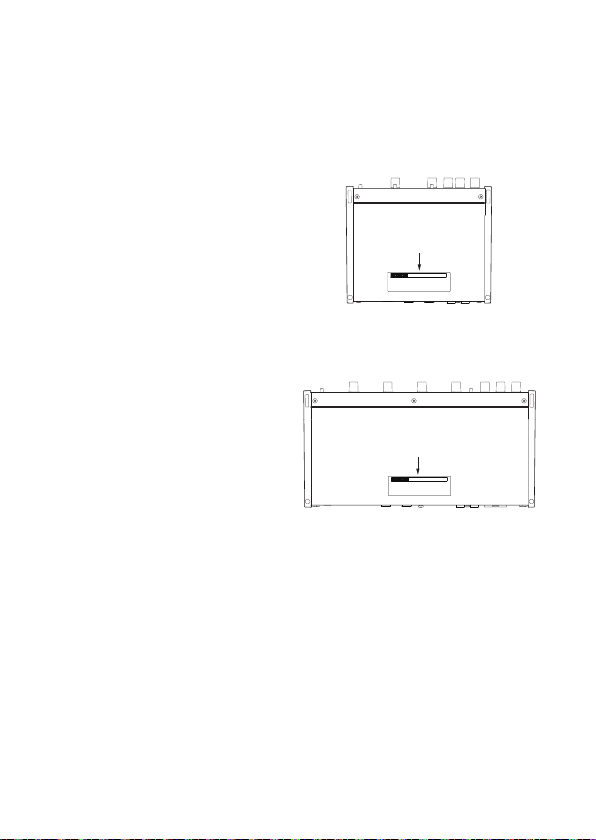
CAUTELA
• NON RIMUOVERE L’INVOLUCRO O
LA SCATOLA ESTERNI PER ESPORRE
L’ELETTRONICA. NESSUNA PARTE
RIPARABILE ALL’INTERNO.
• IN CASO DI PROBLEMI CON QUESTO
PRODOTTO, CONTATTARE IL NEGOZIO
DOVE SI HA ACQUISTATO L’UNITÀ PER
UN RIFERIMENTO ALLA RIPARAZIONE.
NON UTILIZZARE IL PRODOTTO FINO A
QUANDO NON È STATO RIPARATO.
• L’USO DI CONTROLLI O REGOLAZIONI
O L’ESECUZIONE DI PROCEDURE
DIVERSE DA QUELLE SPECIFICATE
QUI POTREBBERO PROVOCARE
UN’ESPOSIZIONE A RADIAZIONI
PERICOLOSE.
La targhetta con il nome si trova sul
fondo dell’unità come mostrato di
seguito.
US-2x2HR
Lato anteriore
Targhetta con il nome
US-4x4HR
Lato anteriore
Targhetta con il nome
116 TASCAM US-2x2HR/US-4x4HR

Convenzioni utilizzate in questo manuale
In questo manuale, vengono usate le seguenti convenzioni:
o Le informazioni visualizzate nella schermata display del computer sono scritte in
questo modo: “OK”
o I riferimenti a “iOS” in questo documento includono anche “iPad OS”.
o Se necessario, ulteriori informazioni sono fornite come suggerimenti, note e
cautele.
SUGGERIMENTO
Questi sono consigli su come utilizzare l’unità.
NOTA
Queste forniscono spiegazioni aggiuntive e descrivono casi speciali.
ATTENZIONE
La mancata osservanza di queste istruzioni può causare lesioni, danni alle
apparecchiature o la perdita di dati, per esempio.
V
CAUTELA
La mancata osservanza di queste istruzioni potrebbe provocare lesioni.
Precauzioni per il posizionamento e l’uso
o La gamma di temperature di funzionamento di questa unità è 5-35 °C.
o Non installare l’unità nei seguenti luoghi. In questo modo la qualità del suono
potrebbe peggiorare o causare malfunzionamenti.
Luoghi con vibrazioni signicative
Accanto a una nestra o in un’altra posizione esposta alla luce solare diretta
Nei pressi di caloriferi o altri luoghi estremamente caldi
Luoghi molto freddi
In luoghi molto umidi o scarsamente ventilati
Ambienti molto polverosi
o Per attivare la buona dissipazione di calore, non appoggiare nulla sulla parte
superiore dell’unità.
o Non posizionare l’unità su di un amplicatore di potenza o altro dispositivo che
genera calore.
ITALIANO
TASCAM US-2x2HR/US-4x4HR 117

Attenzione alla condensa
La condensa potrebbe vericarsi se l’unità viene spostata da un luogo freddo ad uno
caldo, è utilizzata subito dopo che una stanza fredda è stata riscaldata o è comunque
esposta ad un improvviso cambiamento di temperatura.
Per prevenire questo, o se questo accade, lasciare l’unità per una o due ore alla nuova
temperatura ambiente prima dell’uso.
Pulizia dell’unità
Usare un panno morbido e asciutto per pulire l’unità.
Non pulire con panni chimici, diluenti, alcool o altri agenti chimici.
Ciò potrebbe danneggiare la supercie o causare scolorimento.
Uso del sito TEAC Global
È possibile scaricare gli aggiornamenti per questa unità dal sito TEAC Global:
https://teac-global.com/
Nella sezione TASCAM Download, selezionare la lingua desiderata per aprire la
schermata la pagina di download per tale lingua.
Informazioni sul servizio di assistenza clienti
TASCAM
I prodotti TASCAM sono supportati e garantiti solo nel loro paese/regione di acquisto.
Per ricevere assistenza dopo l’acquisto, nella pagina dell’elenco dei distributori
TASCAM del sito TEAC Global (https://teac-global.com/), cercare l’azienda o il
rappresentante locale per la regione in cui è stato acquistato il prodotto e contattare
l’organizzazione.
Quando si eettuano richieste di informazioni, sono richiesti l’indirizzo (URL) del
negozio o del negozio web in cui è stato acquistato e la data di acquisto.
Inoltre, potrebbe essere necessaria la scheda di garanzia e la prova di acquisto.
118 TASCAM US-2x2HR/US-4x4HR
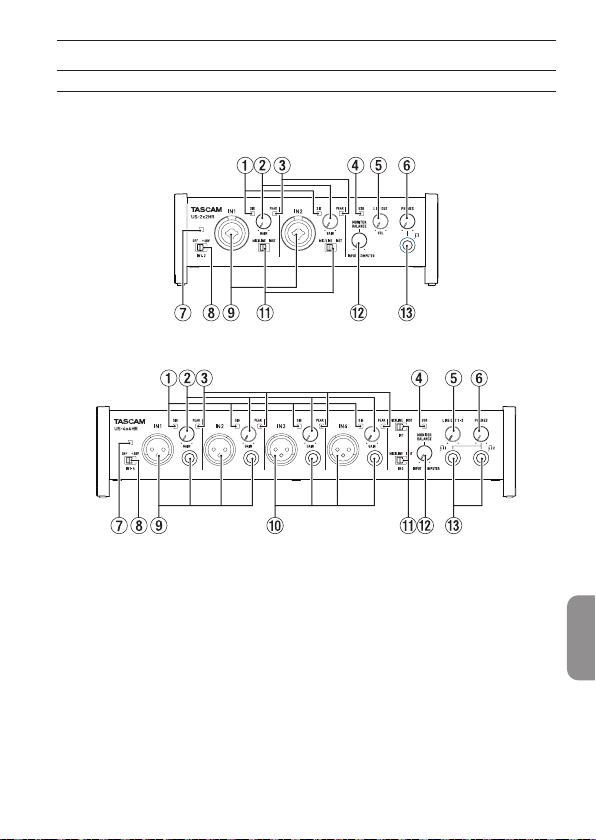
Nomi delle parti e funzioni
Pannello anteriore
US-2x2HR
US-4x4HR
1 Indicatori SIG
Si illuminano di verde quando vengono immessi segnali (di almeno −32 dBFS).
2 Manopole GAIN
Utilizzare per regolare i livelli di ingresso delle prese di ingresso.
Regolare questi in modo che gli indicatori PEAK non si accendano in rosso.
3 Indicatori PEAK
Si illuminano di rosso quando i segnali stanno per distorcere (−1 dBFS o superiore).
4 Indicatore USB
Si illumina quando la connessione USB è in funzione.
5 Manopola LINE OUT
Utilizzare per regolare il livello di uscita dei presa LINE OUT (BILANCIATO) 1-2 (t)
sul retro dell’unità.
ITALIANO
TASCAM US-2x2HR/US-4x4HR 119

6 Manopola PHONES
Usare la manopola PHONES per regolare il livello di uscita delle presa cue (delle
prese e nell’US-4x4HR).
V
CAUTELA
Prima di collegare le cue, ridurre il volume con la manopola PHONES. In caso
contrario, ad esempio, potrebbero vericarsi rumori improvvisi che potrebbero
danneggiare l’udito.
7 Indicatore PHANTOM
L’indicatore si illumina quando l’interruttore di alimentazione phantom è
impostato su “+48V”.
NOTA
Quando si utilizza l’US-4x4HR con l’alimentazione dal bus USB, utilizzare un cavo
da tipo C a tipo C disponibile in commercio per collegarlo a una porta USB di
tipo C del computer. Se si verica un problema con l’alimentatore, l’indicatore
dell’alimentazione phantom lampeggerà. In questo caso, utilizzare l’adattatore AC
incluso (PS-P1220E, DC12 V).
8 Interruttore Phantom
Utilizzare questo interruttore per fornire alimentazione phantom +48 V alle prese
IN1 e IN2 XLR (e IN3/IN4 sull’US-4x4HR).
V
CAUTELA
Impostare le manopole LINE OUT e PHONES sui loro valori minimi prima di
modicare l’impostazione dell’alimentazione phantom. A seconda dei microfoni
collegati, potrebbero vericarsi forti rumori improvvisi dall’unità di monitoraggio e
questo potrebbe danneggiare l’apparecchiatura o danneggiare l’udito.
9 Prese IN1/IN2
Sull’US-2x2HR, queste sono prese combo XLR/TRS per l’ingresso analogico.
Sull’US-4x4HR, si tratta di prese XLS e TRS standard separate per l’ingresso
analogico.
Supportano anche l’ingresso ad alta impedenza, incluso l’ingresso diretto della
chitarra.
Utilizzare gli interruttori MIC/LINE INST (q)per selezionare l’ingresso di linea
bilanciata (MIC/LINE) o sbilanciato (INST) per le prese TRS.
Quando si collega direttamente una chitarra, un basso o un altro strumento,
impostare l’interruttore MIC/LINE INST (q) su INST.
0 Prese IN3/IN4 (solo US-4x4HR)
Questi sono ingressi bilanciati microfonici XLR e di linea standard TRS.
ATTENZIONE
Sull’US-4x4HR, gli ingressi IN1/IN2 (9) e IN3/IN4 (0) hanno entrambi due prese
(XLR e TRS). Non immettere segnali a entrambi gli ingressi allo stesso tempo. Se i
segnali vengono inviati a entrambi, questi non vengono ricevuti correttamente.
120 TASCAM US-2x2HR/US-4x4HR
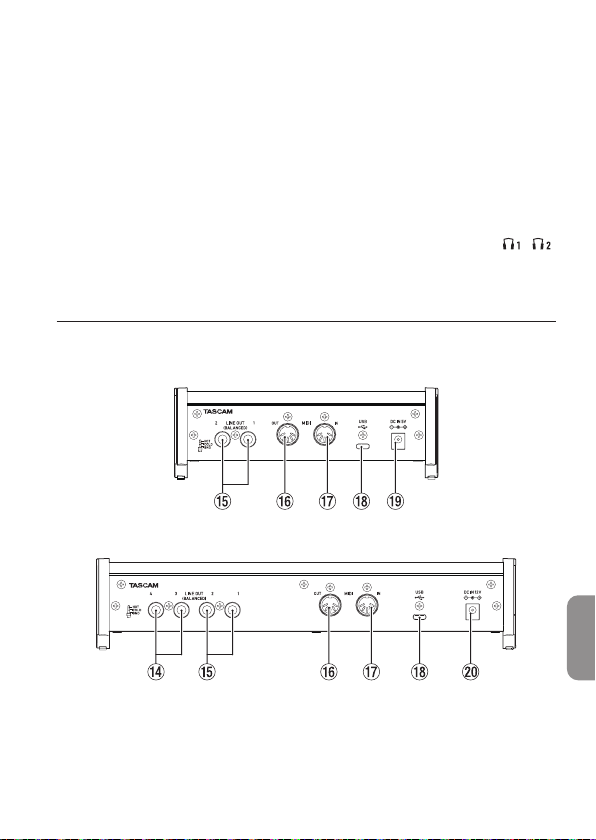
q Interruttori MIC/LINE INST
Impostare le prese IN1/IN2 in base alle sorgenti di ingresso.
Impostare “MIC/LINE” per il collegamento di strumenti elettronici, dispositivi
audio, microfoni e apparecchiature simili.
Impostare “INST” quando si collega una chitarra, un basso o altre apparecchiature
con alta impedenza di uscita.
w Manopola MONITOR BALANCE
Usare per regolare il bilanciamento del monitor tra i segnali delle prese di ingresso
di questa unità e i segnali di uscita dal computer.
e Presa PHONES
Utilizzare questa presa stereo standard per collegare cue stereo. (Usare e
sull’US-4x4HR.)
Queste trasmettono gli stessi segnali delle prese LINE OUT (BALANCED) 1-2.
Utilizzare un adattatore per collegare le cue con un minipresa.
Pannello posteriore
US-2x2HR
US-4x4HR
r Prese LINE OUT (BALANCED) 3-4 (solo US-4x4HR)
Queste prese standard TRS sono uscite di linea analogiche.
t Prese LINE OUT (BALANCED) 1-2
Queste prese standard TRS sono uscite di linea analogiche.
I segnali emessi dalle prese LINE OUT (BALANCED) 1-2 (prese 1-4 su US-4x4HR)
ITALIANO
TASCAM US-2x2HR/US-4x4HR 121

possono essere impostate nel Settings Panel.
Per dettagli su altre impostazioni, vedere “Schermata Settings Panel” in “5 - Utilizzo
del pannello Impostazioni” del manuale di riferimento.
y Connettore MIDI OUT
Questo DIN a 5 pin è un connettore di uscita MIDI standard.
Questo emette segnali MIDI.
u Connettore MIDI IN
Questo DIN a 5 pin è un connettore di ingresso MIDI standard.
Usarlo per inviare segnali MIDI.
i Porta USB
Questa è una porta USB di Tipo-C.
Utilizzare un cavo USB per collegare l’unità a un computer o un dispositivo iOS.
o Connettore DC IN 5V (solo US-2x2HR)
Se collegato a un dispositivo iOS o altre apparecchiature che non possono
alimentare questa unità, un adattatore AC dedicato (PS-P520E, DC5V, venduto
separatamente) con alimentatore deve essere collegato al connettore DC IN 5V
(vedere “Quando si usa un dispositivo iOS” a pagina 126).
p Connettore DC IN 12V (solo US-4x4HR)
Nelle seguenti condizioni, collegare qui l’adattatore AC DC12V incluso (PS-P1220E,
DC12V) (vedere “Utilizzo con un adattatore AC” a pagina 126).
i Quando la corrente di alimentazione del bus USB è insuciente
i Quando è collegato a un dispositivo iOS o altre apparecchiature che non
possono alimentare questa unità
Installazione del software dedicato
Per utilizzare questa unità a un computer, deve essere installato sul computer il
software dedicato.
Il software dedicato potrebbe essere aggiornato in ogni momento. Scaricare l’ultimo
software per il sistema operativo che si sta utilizzando dal sito TEAC Global (https://
teac-global.com/).
o Su un computer Windows, questo installerà il driver di Windows e l’applicazione
Settings Panel.
o L’installazione del software dedicato su un Mac installerà solo l’applicazione Mac
Settings Panel. Verrà utilizzato il driver standard OS.
o Quando si utilizza questa unità con un dispositivo iOS, verrà utilizzato il driver
standard del sistema operativo, quindi non c’è bisogno di installare alcun software
dedicato.
ATTENZIONE
Prima di installare il software, chiudere le altre applicazioni.
122 TASCAM US-2x2HR/US-4x4HR
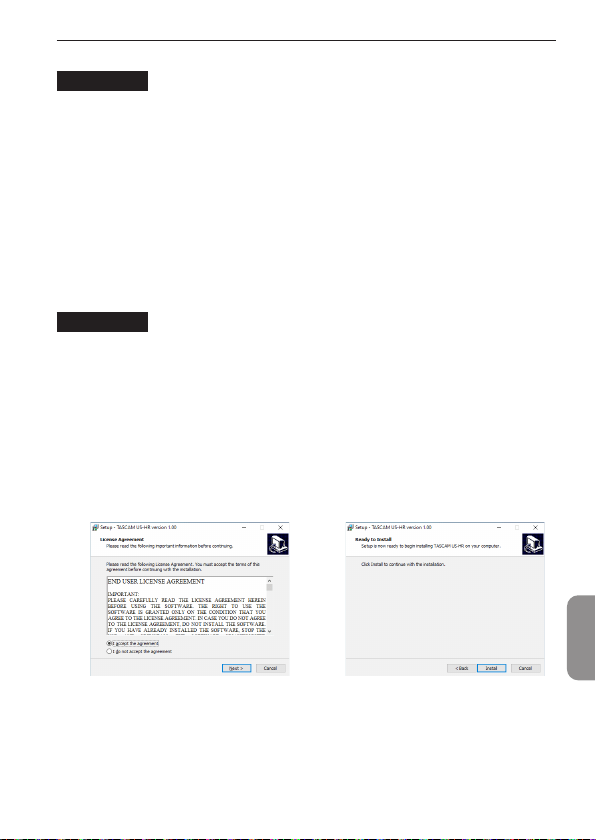
Installazione del software dedicato per Windows
ATTENZIONE
i Completare l’installazione del software dedicato per Windows sul computer prima
di collegare l’unità con il cavo USB.
i Se si è già collegato il cavo USB prima di installare il software dedicato per
Windows e si avvia la procedura guidata al nuovo hardware, annullare e chiudere
la procedura guidata e scollegare il cavo USB.
Procedura di installazione del software dedicato per Windows
1. Scaricare l’ultimo software Windows dedicato dal sito TEAC Global (https://teac-
global.com/) e salvarlo nel computer da utilizzare con l’unità.
2. Decomprimere il software salvato (le zip) nel desktop del computer o in un’altra
posizione.
3. Fare doppio clic su “TASCAM_US-HR_Installer_x.xx.exe” nella cartella che appare
dopo la decompressione per avviare il software di installazione.
ATTENZIONE
Se si apre un le zip senza decomprimerlo e si fa doppio clic su “TASCAM_US-
HR_Installer_x.xx.exe” nella cartella che si apre, l’installazione non verrà avviata.
Fare clic con il pulsante destro nella schermata le zip e seleziona “Estrai tutto”, ad
esempio, per decomprimerlo e quindi riprovare.
4. Quando appare un “Avviso di protezione” o “Controllo account utente”, fare clic
sul pulsante “Sì“.
5. Leggere il contenuto del contratto di licenza, e selezionare “I accept the
agreement” e si accettano i termini.
Quindi, fare clic sul pulsante “Next”. (Fig.A)
6. Quindi, fare clic sul pulsante “Install”. (Fig.B)
e
Fig.A Fig.B
7. Quindi, fare clic sul pulsante “Install” per avviare l’installazione (solo per Windows
8.1/Windows 7). (Fig.C)
ITALIANO
TASCAM US-2x2HR/US-4x4HR 123
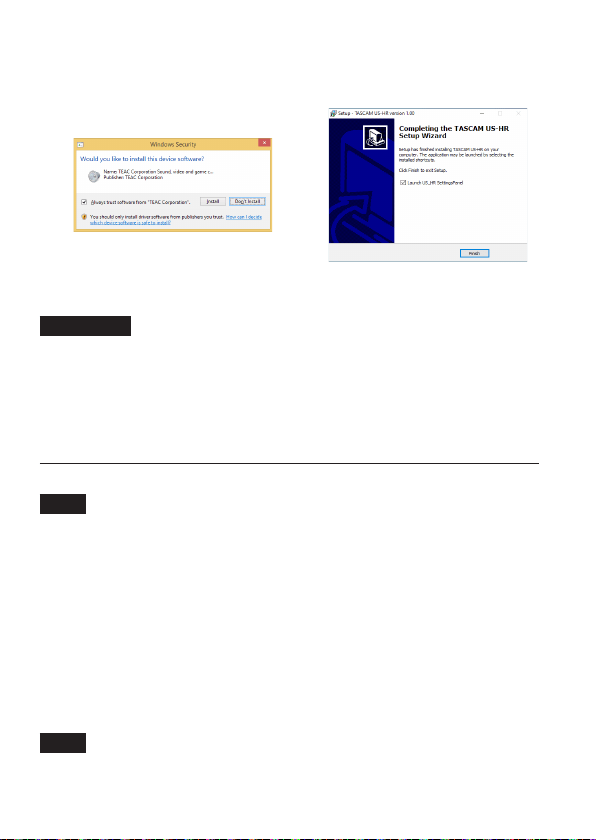
8. La seguente schermata viene visualizzata quando l’installazione è completata.
(Fig.D)
Fare clic sul pulsante “Finish”.
e
Fig.C Fig.D
L’installazione si chiuderà e verrà avviato il Settings Panel di Windows.
ATTENZIONE
La prima volta che si collega l’unità USB al computer dopo l’installazione del
software, verrà eseguita l’installazione del driver della periferica. Potrebbe
essere necessario un po’ di tempo prima che l’unità venga riconosciuta perché
Windows Update esegue la ricerca automaticamente. Se l’unità non viene ancora
riconosciuta dopo un po’, aprire la schermata di installazione del software dall’area
di notica in basso a destra dello schermo del computer e fare clic su “Ignora la
ricerca su Windows Update” per interrompere la ricerca.
Installazione del software dedicato per Mac
NOTA
i Installare il software dedicato Mac sul computer prima di collegare l’unità ad esso
con il cavo USB.
i A seconda delle impostazioni di Gatekeeper, durante l’installazione potrebbe
essere visualizzato un messaggio di avviso. Per informazioni su Gatekeeper, vedere
“Nota su Gatekeeper” in “3-Installazione” del manuale di riferimento.
Procedura di installazione del software dedicato per Mac
1. Scaricare il software dedicato per Mac più recente per il sistema operativo
utilizzato dal sito TEAC Global Site (https://teac-global.com/) e salvarlo sul
computer per essere utilizzato con l’unità.
2. Doppio click su “US-HR_Installer_x.xx.dmg”, che è il le immagine del disco
salvato per Software dedicato per Mac e fare doppio clic su “US-HR_Installer.pkg”
all’interno della cartella che si apre. (Fig.A)
NOTA
A seconda delle impostazioni del computer, il le zip scaricato potrebbe non
essere stato decompresso automaticamente. In questo caso, decomprimere prima
il le zip e quindi fare doppio clic sul le immagine del disco.
124 TASCAM US-2x2HR/US-4x4HR
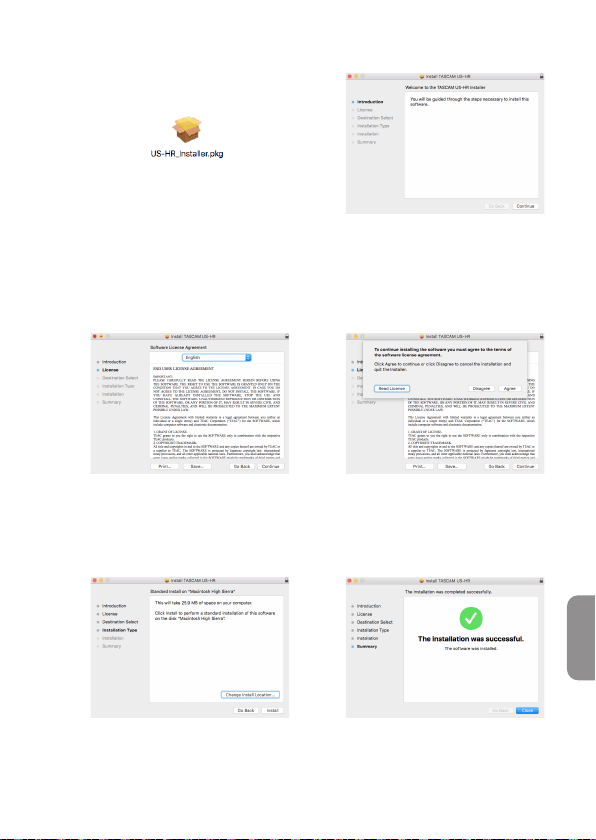
3. All’avvio del programma di installazione, fare clic su “Continue”. (Fig.B)
e
Fig.A Fig.B
4. Quindi, selezionare la lingua desiderata e fare clic su “Continue”. (Fig.C)
5. Cliccare sul pulsante “Read License” e controllare il contenuto del contratto di
licenza software. Se si accetta il contenuto della licenza, fare clic su “Agree”. (Fig.D)
Quindi, fare clic sul pulsante “Next”.
e
Fig.C Fig.D
6. Quindi, fare clic sul pulsante “Install” per avviare l’installazione. (Fig.E)
7. La seguente schermata appare quando l’installazione è completa. (Fig.F)
Fare clic sul pulsante “Close”.
e
Fig.E Fig.F
ITALIANO
TASCAM US-2x2HR/US-4x4HR 125

Collegamento dell’alimentazione
Quando si usa un computer (Windows/Mac)
Quando questa unità è collegata a un computer tramite un cavo USB incluso,
funzionerà con l’alimentazione del bus USB, pertanto non è necessario collegare un
dispositivo di alimentazione separato.
ATTENZIONE
Quando si utilizza l’US-4x4HR con l’alimentazione dal bus USB, utilizzare un cavo
da tipo C a tipo C disponibile in commercio per collegarlo a una porta USB di
tipo C del computer. Se si verica un problema con l’alimentatore, l’indicatore
dell’alimentazione phantom lampeggerà. In questo caso, utilizzare l’adattatore AC
incluso (PS-P1220E, DC12 V).
NOTA
A seconda del computer, la porta USB potrebbe non essere in grado di fornire
energia suciente per far funzionare l’unità. In questo caso, collegare e utilizzare
un adattatore AC dedicato.
Quando si usa un dispositivo iOS
Quando questa unità è collegata a un dispositivo iOS, è necessario collegare un
adattatore AC dedicato per fornire energia all’unità. Collegare l’adattatore AC
dedicato prima di collegare il cavo USB.
Utilizzo con un adattatore AC
US-2x2HR
Collegare un adattatore AC (PS-P520E, DC5V, venduto separatamente) al connettore
DC IN 5V.
Vedere “Utilizzo con un adattatore AC” in “4 - Preparativi” del manuale di riferimento
per istruzioni sul collegamento dell’adattatore.
ATTENZIONE
Consigliamo vivamente di utilizzare un adattatore AC dedicato (PS-P520E, DC5V,
venduto separatamente) con l’US-2x2HR. Quando si usa un altro dispositivo di
alimentazione esterna, utilizzarne uno con le seguenti caratteristiche.
• Tensione di alimentazione: 5 V
• Corrente di alimentazione: 700 mA o più
Se si usa un dispositivo di alimentazione con caratteristiche diverse da quelle
indicate sopra, potrebbero vericarsi malfunzionamenti, surriscaldamenti, incendi
o altri problemi.
Se dovessero vericarsi problemi, smettere di usare l’unità e contattare il
rivenditore presso cui è stata acquistata o un centro di assistenza TEAC per
richiedere la riparazione.
126 TASCAM US-2x2HR/US-4x4HR

US-4x4HR
Nelle seguenti condizioni, collegare l’adattatore AC DC12 V incluso (PS − P1220E,
DC12 V) al connettore DC IN 12V.
o Quando la corrente di alimentazione del bus USB è insuciente
o Quando è collegato a un dispositivo iOS o altre apparecchiature che non possono
alimentare questa unità
Vedere “Utilizzo con un adattatore AC” in “4 - Preparativi” del manuale di riferimento
per istruzioni sul collegamento dell’adattatore.
ATTENZIONE
Utilizzare sempre l’adattatore AC dedicato (PS-P1220E, DC12 V) fornito con
l’unità. L’uso di un adattatore diverso potrebbe causare malfunzionamenti,
surriscaldamento, incendio o altri problemi.
NOTA
L’adattatore AC dedicato incluso (PS-P1220E, DC12V) viene fornito con 2 tipi di
prese di corrente. Collegare il tipo di spina che corrisponde alla presa di corrente
che si sta utilizzando. Per le istruzioni, vedere “Sostituzione della spina di uscita” in
“4 - Preparativi” del manuale di riferimento.
ITALIANO
TASCAM US-2x2HR/US-4x4HR 127
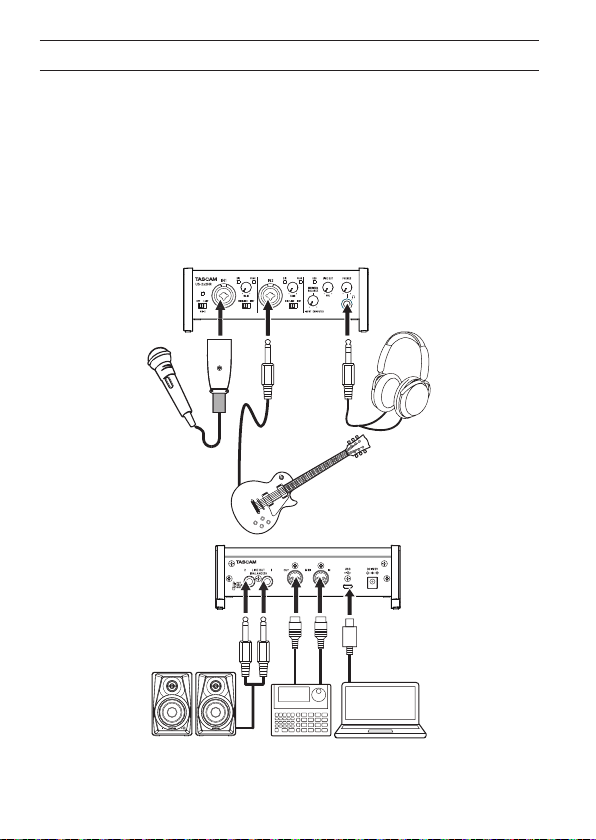
Collegamento di altri apparecchi
Questo è un esempio di connessioni con US-2x2HR.
Precauzioni prima di eettuare i collegamenti
o Leggere attentamente le istruzioni d’uso dei dispositivi da collegare e quindi
collegarli correttamente.
o Prima di eettuare i collegamenti, spegnere l’unità e tutti i dispositivi da collegare
(o metterli in standby).
o Collegare tutti i dispositivi e questa unità in modo che siano alimentati dalla
stessa linea. Quando si usa una presa multipla o un dispositivo simile, assicurarsi
di utilizzarne uno che ha elevata capacità di corrente (cavo di spessore), al ne di
minimizzare le uttuazioni della tensione di alimentazione.
Microfono
Chitarra
Cua
Computer
Sequencer/
batteria elettronica
Monitor attivi
Esempio di connessione a un US-2x2HR
128 TASCAM US-2x2HR/US-4x4HR

V
CAUTELA
Abbassare le manopole LINE OUT e PHONES prima di cambiare l’interruttore
dell’alimentazione phantom tra +48 V e OFF. A seconda dei microfoni collegati,
potrebbero vericarsi forti rumori improvvisi dall’unità di monitoraggio e questo
potrebbe danneggiare l’apparecchiatura o danneggiare l’udito.
ATTENZIONE
i Prima di collegare microfoni a condensatore, spegnere questa unità e tutte le
apparecchiature da collegare (standby).
i L’interruttore dell’alimentazione phantom modica contemporaneamente
l’impostazione di tutti i canali di ingresso (2 ingressi su US-2x2HR e 4 ingressi
su US-4x4HR). Non impostare l’interruttore di alimentazione phantom su +48 V
quando si collega un microfono che non richiede alimentazione phantom.
i Non collegare o scollegare i microfoni mentre l’interruttore dell’alimentazione
phantom è impostato su +48 V. Ciò potrebbe causare un forte rumore e potrebbe
danneggiare l’unità e le apparecchiature collegate.
i Impostare l’interruttore di alimentazione phantom a +48 V solo quando si utilizza
un microfono a condensatore che richiede alimentazione phantom. L’impostazione
dell’alimentazione phantom su +48 V quando è collegato un microfono dinamico
o altra apparecchiatura che non lo richiede potrebbe danneggiare questa unità e
l’apparecchiatura collegata.
i Quando si utilizzano microfoni a condensatore che richiedono l’alimentazione
phantom e microfoni dinamici assieme, assicurarsi di utilizzare microfoni dinamici
bilanciati. I microfoni dinamici sbilanciati non possono essere utilizzati quando
l’alimentazione phantom è abilitata.
i Fornire l’alimentazione phantom ad alcuni microfoni a nastro li romperà. Se non si
è sicuri, non fornire alimentazione phantom a un microfono a nastro.
i Se si collega questa unità a un computer portatile che è alimentato a batteria e si
imposta l’interruttore di alimentazione phantom a +48 V, la carica della batteria del
computer si esaurirà più rapidamente.
Collegamento con dispositivi iOS
Per connettersi con un dispositivo iOS dotato di connettore Lightning, utilizzare un
adattatore per fotocamera da Lightning a USB * e il cavo USB in dotazione con questo
prodotto.
Per connettersi a un dispositivo iOS dotato di connettore USB di tipo C, utilizzare un
cavo da tipo C a tipo C disponibile in commercio.
* È necessario procurarsi un adattatore da fotocamera Apple Lightning a USB
originale separatamente.
NOTA
Una volta connesso, questa unità non fornirà energia al dispositivo iOS.
ITALIANO
TASCAM US-2x2HR/US-4x4HR 129
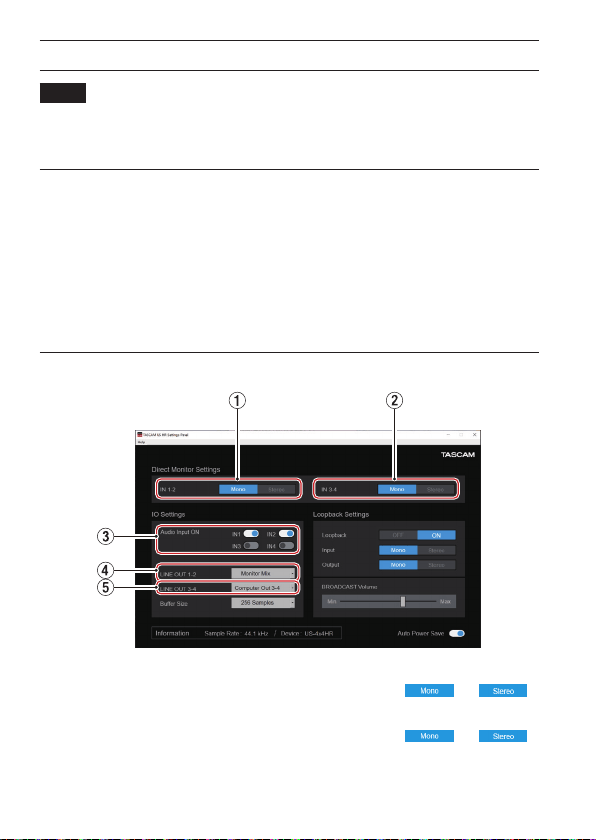
Impostazioni varie
NOTA
Per consentire al computer di gestire i segnali audio digitali senza problemi, è
necessario ridurre al minimo gli altri carichi sul computer.
Si consiglia di chiudere le applicazioni non necessarie prima dell’uso.
Apertura del Settings Panel
Aprire la schermata del Settings Panel nel modo seguente.
Windows
o Dal menu Start selezionare “US_HR SettingsPanel” sotto “TASCAM”.
Mac
o Nel Launchpad, cliccare su “US-HR_SettingsPanel”.
o Utilizzando il Finder, apri la cartella Applicazioni e fai doppio clic su “US-HR_
SettingsPanel” per aprire il Settings Panel.
Uso del Settings Panel
1 Pulsanti IN 1-2
Imposta il segnale di monitoraggio per le prese IN1-IN2 su “ ” or “ ”.
2 Pulsanti IN 3-4 (solo US-4x4HR)
Imposta il segnale di monitoraggio per le prese IN3-IN4 su “ ” or “ ”.
3 Interruttori Audio Input ON
Attiva/disattiva l’ingresso separatamente per ogni canale.
130 TASCAM US-2x2HR/US-4x4HR
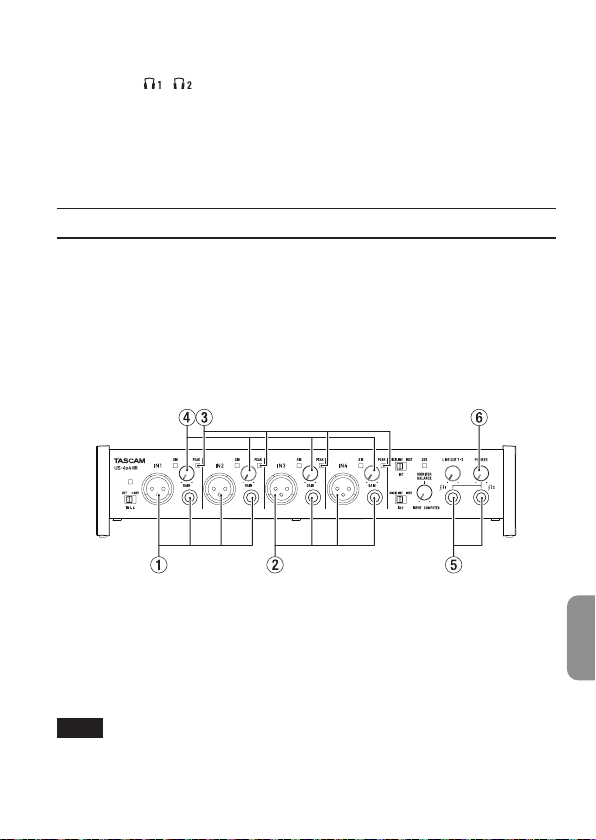
4 LINE OUT 1-2
Selezionare i segnali in uscita dalle prese LINE OUT (BILANCIATE) 1-2 e PHONES
dell’unità ( e sull’US-4x4HR).
5 LINE OUT 3-4 (US-4x4HR only)
Selezionare i segnali in uscita dalle prese LINE OUT (BILANCIATE) 3-4 dell’unità.
Per dettagli su altre impostazioni, vedere “Panoramica del Settings Panel” in “5 -
Utilizzo del Settings Panel” del manuale di riferimento.
Regolare il suono in ingresso
L’audio analogico in ingresso a questo dispositivo da microfoni, chitarre, tastiere e altri
dispositivi audio può essere convertito in segnali digitali e trasmesso al computer via
USB.
È possibile usare le funzioni di questa unità per regolare i segnali digitali che vengono
inviati al computer. Inoltre, con l’aggiunta di altoparlanti (attraverso un amplicatore,
se non sono attivi) o di cue a questa unità, è possibile monitorare i segnali audio
che vengono immessi a questa unità e in uscita dal computer. Utilizzare i vari controlli
sulla parte anteriore dell’unità come necessario durante l’ascolto del suono in
ingresso.
Esempio utilizzando un US-4x4HR
Utilizzare le manopole GAIN (4) per regolare i livelli di ingresso analogico delle
prese IN1/IN2 (1) e le prese IN3/IN4 (2, solo US-4x4HR) in modo che gli indicatori
PEAK sopra e a destra delle manopole non si accendano(3) sopra e a destra delle
manopole non si accendono.
Per ascoltare il segnale di monitoraggio tramite le cue, collegare le cue a una
presa PHONES (5) e regolare la manopola PHONES (6).
NOTA
Se non si riesce a sentire il suono in ingresso attraverso le cue o le prese LINE
OUT (BALANCED) 1-2, controllare le impostazioni della manopola MONITOR
BALANCE sulla parte anteriore dell’unità e la voce “IO Settings” nella schermata
“Settings Panel”.
ITALIANO
TASCAM US-2x2HR/US-4x4HR 131

Risoluzione dei problemi
Leggere questo capitolo se non si è in grado di utilizzare correttamente l’unità anche
dopo averla installata seguendo le procedure in questo manuale.
Se non si è ancora in grado di risolvere i problemi, contattare l’assistenza clienti
TASCAM (vedere la ne di questo manuale) con le seguenti informazioni sull’ambiente
operativo e dettagli sul problema.
Ambiente operativo
o Produttore del computer:
o Modello:
o Processore:
o Memoria (RAM):
o Sistema operativo:
o Applicazioni usate:
o Software antivirus:
o Wireless LAN:
Se queste misure non risolvono il problema, contattare il rivenditore presso il quale è
stata acquistata questa unità o un centro di assistenza TEAC.
Vedere la ne di questo documento per informazioni di contatto.
Non si riesce a installare il software dedicato
1. Controllare il sistema operativo
Il sistema operativo in uso potrebbe non essere compatibile con il software che
si sta tentando di installare. Controllare di nuovo il sistema operativo compatibile
del software che si sta tentando di installare.
2. Arrestare il software in esecuzione in background
Gli antivirus e altri software eseguiti in background possono impedire
l’installazione. Chiudere il software che viene eseguito in background e riprovare
l’installazione.
L’unità è collegata, ma il computer non la riconosce
1. Installare il software dedicato.
o Se non è stato fatto, installare il software dedicato (vedere “Installazione del
software dedicato” a pagina 122).
2. Cambiare la porta USB.
o Questa unità non può essere utilizzata con USB 1.1. Utilizzare una porta USB 2.0
o USB 3.0.
o Non utilizzare un hub USB con questa unità. Collegare sempre direttamente a
una porta USB del computer.
o Se i metodi di cui sopra non risolvono il problema, collegare l’unità su una porta
USB dierente.
132 TASCAM US-2x2HR/US-4x4HR

Non si sente alcun suono anche quando l’audio viene riprodotto sul
computer
Vericare che la manopola MONITOR BALANCE dell’unità non sia tutta a sinistra (verso
INPUT). Se questo è il caso, ruotare la manopola MONITOR BALANCE a destra (verso
COMPUTER).
Inoltre, vericare lo stato del collegamento dell’unità con il computer. Inne, se si
eettuano le seguenti impostazioni, il suono sarà prodotto attraverso l’unità, ma
nessun suono verrà emesso dagli altoparlanti del computer o dalla presa cua.
Windows
o Vedere la sezione “Windows” di “6 - Guida alle applicazioni” nel manuale di
riferimento ed eettuare le impostazioni in base al tipo di OS.
Mac
1. Chiudere tutte le applicazioni e aprire “Preferenze di Sistema ...” dal menu Apple.
2. Aprire “Audio”.
3. Nella scheda Uscita, selezionare “US-2x2HR” o “US-4x4HR”.
Dopo aver completato l’impostazione, riavviare il computer e controllare il suono in
riproduzione.
A seconda dell’applicazione in uso, potrebbe essere necessario eettuare ulteriori
impostazioni del dispositivo.
In particolare, il software DAW opera utilizzando i motori audio con le impostazioni
che sono diverse dalle impostazioni del sistema operativo, quindi è necessario
vericare le impostazioni del driver DAW dopo aver installato il software per questa
unità.
Si prega di consultare i manuali per le applicazioni che si utilizzano per una procedura
di impostazione dettagliata.
Il suono si interrompe o è disturbato
L’elaborazione dell’audio del computer si interrompe o è disturbata.
Ecco alcuni metodi per ridurre il carico sul computer.
1. Una LAN wireless e software in background, compreso il software antivirus,
pesano sulle prestazioni globali del computer e possono causare interruzioni sul
suono e altri rumori.
Arrestare la trasmissione wireless LAN, il software antivirus e altri software in
esecuzione in background quando si usa questa unità.
2. Impostare le dimensioni del buer (latenza) dell’applicazione audio che si sta
utilizzando o nel Settings Panel (solo Windows) di questa unità su un valore più
alto.
NOTA
Consultare il produttore dell’applicazione audio che si sta utilizzando per ridurre il
carico sul computer.
ITALIANO
TASCAM US-2x2HR/US-4x4HR 133

3. Modicare le impostazioni del computer in modo che siano ottimali per
l’elaborazione audio.
Utilizzo con Windows
o Opzioni di esecuzione
1 Aprire “Sistema” utilizzando il metodo appropriato per il sistema operativo in
uso (Windows 10/Windows 8.1/Windows 7).
i In Windows 10, aprire il “Pannello di controllo”. Quindi, fare clic su
“Sistema”.
i In Windows 8.1, fare clic sulla schermata Start normale (schermata
dell’interfaccia utente Metro) e quindi fare clic su “Tutte le applicazioni”.
Quindi, fare clic su “Computer” e selezionare “Proprietà”.
i In Windows 7, fare clic destro su “Computer” dal pulsante Start di
Windows e selezionare “Proprietà”.
2 Fare clic su “Impostazioni di sistema avanzate”.
3 Fare clic su “Impostazioni” nella sezione “Prestazioni” del tab “Avanzate” della
nestra “Proprietà di sistema”.
4 Nella scheda “Eetti visivi” della nestra “Opzioni prestazioni”, selezionare
“Regola per le migliori prestazioni”.
Utilizzo con Mac
1 Aprire “Preferenze di Sistema ...” dal menu Apple e selezionare “Risparmio
energetico”.
2 Impostare “sleep del computer” su “Mai”.
3 Impostare “disattiva schermo” su “Mai”.
NOTA
A seconda della versione macOS e modello di computer Mac, questa impostazione
potrebbe non essere disponibile.
4. Connettere a un’altra porta USB.
Poiché l’unità potrebbe non funzionare correttamente con alcune porte USB,
provare a collegare a una porta USB diversa nel computer.
NOTA
i Riprovare dopo aver scollegato altri dispositivi USB (il mouse e la tastiera possono
essere lasciati collegati).
i Non utilizzare un hub USB. Collegare sempre l’unità direttamente a una porta USB
(incorporata) del computer.
Supporto per software in bundle, incluso il software DAW
TASCAM non fornisce supporto per l’utente nale per il software DAW in dotazione.
Si prega di controllare il menu Aiuto del software installato per trovare dove è
disponibile questo supporto.
134 TASCAM US-2x2HR/US-4x4HR

Speciche
Generale
Frequenze di campionamento
44,1, 48, 88,2, 96, 176,4, 192 kHz
Profondità di bit di quantizzazione
24 bit
Ingressi analogici
Ingressi Mic (bilanciati)
US-2x2HR: IN1/IN2
US-4x4HR: IN1/IN2, IN3/IN4
Connettori:
XLR-3-31 equivalente
(1: GND, 2: HOT, 3: COLD)
Livello di ingresso massimo:
+9 dBu (2,183 Vrms)
Guadagno: 56 dB
Impedenza di ingresso: 2,2 kΩ
Ingressi strumento (sbilanciati)
US-2x2HR: IN1/IN2
US-4x4HR: IN1/IN2
(MIC/LINE INST interruttore impostato
su INST)
Connettori:
6,3 mm (1/4”) prese standard TS
(Tip: HOT, Sleeve: GND)
Livello di ingresso massimo:
+10 dBV (3,162 Vrms)
Guadagno: 56 dB
Impedenza di ingresso: 1 MΩ o più
Ingressi di linea (bilanciati)
US-2x2HR: IN1/IN2
US-4x4HR: IN1/IN2, IN3/IN4
(MIC/LINE INST interruttore impostato
su MIC/LINE)
Connettori:
6,3 mm (1/4”) standard TRS stereo
(Tip: HOT, Ring: COLD, Sleeve:
GND)
Livello di ingresso massimo:
+20 dBu (7,746 Vrms)
Guadagno: 56 dB
Impedenza di ingresso: 10 kΩ
Uscite analogiche
Uscite di linea (bilanciate)
US-2x2HR: LINE OUT (BALANCED) 1-2
US-4x4HR: LINE OUT (BALANCED) 1-2
LINE OUT (BALANCED) 3-4
Connettori:
6,3 mm (1/4”) standard TRS stereo
(Tip: HOT, Ring: COLD, Sleeve:
GND)
Massimo livello di uscita:
+20 dBu (7,75 Vrms)
Livello di uscita nominale:
+4 dBu (1,273 Vrms)
Impedenza di uscita: 210 Ω
Uscita cue (PHONES)
Connettore:
6,3 mm (1/4”) standard stereo
Uscita massima
US-2x2HR: 18 mW + 18 mW o più
US-4x4HR: 45 mW + 45 mW o più
(THD+N 0,1% o meno, su un carico
di 32 Ω)
ITALIANO
TASCAM US-2x2HR/US-4x4HR 135

Controlli di ingresso/uscita
Connettore MIDI IN
Connettore: 5 pin DIN
Formato: standard MIDI
Connettore MIDI OUT
Connettore: 5 pin DIN
Formato: standard MIDI
USB
Connettore: 4 pin USB Tipo-C
Velocità di trasferimento:
USB 2.0 High Speed (480 Mbps)
Prestazioni audio
Mic amp EIN (Equivalente Input Noise)
−128 dBu o meno
Risposta in frequenza
MIC/LINE IN
A 44,1/48 kHz, 20 Hz - 20 kHz:
+0 dB/−0,4 dB (JEITA)
A 88,2/96 kHz, 20 Hz - 40 kHz:
+0 dB/−0,4 dB (JEITA)
LINE OUT
A 44,1/48 kHz, 20 Hz - 20 kHz:
+0,2 dB/−0,1 dB (JEITA)
A 88.2/96 kHz, 20 Hz - 40 kHz:
+0,2 dB/−0,4 dB (JEITA)
Rapporto S/N
110 dB
(MIC IN, manopola GAIN sul minimo,
20 kHz SPCL LPF+pesato-A)
108 dB
(LINE IN, manopola GAIN sul minimo,
20 kHz SPCL LPF+pesato-A)
110 dB
(LINE OUT, manopola LINE OUT sul
massimo, 20 kHz SPCL LPF+pesato-A)
THD + N
0,0013%
(MIC IN, onda sinusoidale a 1 kHz, −5
dBFS ingresso, manopola GAIN sul
minimo, 20 kHz SPCL LPF)
0,0011%
(LINE IN, onda sinusoidale a 1 kHz,
−5 dBFS ingresso, manopola GAIN
sul minimo, 20 kHz SPCL LPF)
0,0012%
(LINE OUT, onda sinusoidale a 1 kHz,
−4 dBFS ingresso, manopola LINE
OUT sul massimo, 20 kHz SPCL LPF)
Diafonia
95 dB o più (MIC/LINE IN w LINE OUT,
onda sinusoidale 1kHz, manopola
GAIN su minimo)
Requisiti del computer
Controllare il sito TEAC Global (https://
teac-global.com/) per le informazioni più
recenti sui sistemi operativi supportati.
Windows
Sistemi operativi supportati
Windows 10 32 bit
Windows 10 64 bit
Windows 8.1 32 bit
Windows 8.1 64 bit
Windows 7*
Windows 7 a 32 bit SP1 o versioni
successive
Windows 7 64 bit SP1 o successivo
* Operation has been conrmed with
the nal version of Windows 7.
Requisiti hardware del computer
Computer Windows con porta USB
2,0 (o più)
136 TASCAM US-2x2HR/US-4x4HR

Velocità CPU/processore
2 GHz o processore più veloce dual
core (x86)
Memoria
2 GB o più
ATTENZIONE
Il funzionamento di questa unità è
stata testata utilizzando computer
standard che soddisfano i requisiti di
cui sopra.
Questo non garantisce il
funzionamento con tutti i computer
che soddisfano i requisiti di cui sopra.
Anche i computer che soddisfano gli
stessi requisiti di sistema potrebbero
avere capacità di elaborazione che
si dierenziano in base alle loro
impostazioni e altre condizioni
operative.
Mac
Sistemi operativi supportati
macOS Catalina (10,15 o successivo)
macOS Mojave (10,14 o successivo)
macOS High Sierra (10,13 o successivo)
Requisiti hardware del computer
Mac con porta USB 2.0 (o più)
Velocità CPU/processore
2 GHz o processore più veloce dual
core
Memoria
2 GB o più
Dispositivo iOS
L’operatività è stata vericata con i
dispositivi Apple con le seguenti versioni
di iOS.
iPadOS13
iOS13
iOS12
iOS11
ATTENZIONE
Per collegare un dispositivo iOS
dotato di un connettore Lightning,
è necessario un adattatore da Apple
Lightning a USB originale (venduto
separatamente).
Driver audio supportati
Windows
ASIO2.0, WDM, MIDI
Mac
Core Audio, Core MIDI
Dispositivo iOS
Core Audio
ITALIANO
TASCAM US-2x2HR/US-4x4HR 137

Altro
Alimentazione
Uso con computer
Alimentazione bus USB o collegato
all’adattatore AC dedicato di seguito
Uso con dispositivo iOS
Collegato all’adattatore AC dedicato
di seguito
US-2x2HR: TASCAM PS-P520E,
DC 5 V
US-4x4HR: TASCAM PS-P1220E, DC
12 V
Consumo
US-2x2HR: 1,75 W
US-4x4HR: 2,25 W
Dimensioni esterne
US-2x2HR: 186 × 65 × 160 mm
US-4x4HR: 296 × 65 × 160 mm
(L x A x P, incluse le sporgenze)
Peso
US-2x2HR: 1,1 kg
US-4x4HR: 1,6 kg
Temperatura di esercizio
5–35 °C
o Le illustrazioni in questo manuale
potrebbero dierire in parte dal
prodotto reale.
o Le speciche e l’aspetto esterno
possono essere modicati senza
preavviso per migliorare il prodotto.
o Le speciche dettagliate sono
disponibili nel manuale di
riferimento.
138 TASCAM US-2x2HR/US-4x4HR
取扱説明書
はじめに
このたびは、TASCAM USB Audio/MIDI Interface US-2x2HR / US-4x4HRをお買い
上げいただきまして、誠にありがとうございます。
ご使用になる前に、この取扱説明書をよくお読みになり、正しい取り扱い方法をご理解い
ただいた上で、末永くご愛用くださいますようお願い申し上げます。お読みになった後は、
いつでも見られる所に保管してください。また取扱説明書は、TASCAMのウェブサイト
(https://tascam.jp/jp/)からダウンロードすることができます。
本機をパソコンに接続する前に、専用ソフトウェアをダウンロードし、パソコンにインス
トールしておく必要があります。
リファレンスマニュアルについて
取扱説明書(本書)では、本機の各機能について解説しています。各機能の詳細については、
リファレンスマニュアルをご覧ください。
リファレンスマニュアルは、TASCAMのウェブサイト(https://tascam.jp/jp/)からダ
ウンロードすることができます。
本製品の構成
本製品の構成は、以下の通りです。
開梱は本体に損傷を与えないよう慎重に行ってください。梱包箱と梱包材は、後日輸送する
ときのために保管しておいてください。
付属品が不足している場合や輸送中の損傷が見られる場合は、お買い上げの販売店にお問い
合わせください。
p
本体 ........................................................................................................................................... x1
p
ACアダプター(PS-P1220E、US-4x4HRのみ付属) ................................................... x1
p
USBケーブル(Type-A − Type-C) ................................................................................... x1
p
DAWソフトウェアインストールガイド一式........................................................................ x1
p
DAWプラグインソフトウェアインストールガイド一式 .................................................... x1
p
取扱説明書(本書、保証書付き) ........................................................................................... x1
注意
US-4x4HRを ご 使 用 す る 際 は 必 ず、 付 属 の 専 用ACア ダ プ タ ー(PS-P1220E、
DC12V)をご使用ください。また、付属のACアダプターを他の機器に使用しないでく
ださい。故障、火災、感電の原因となります。
メモ
US-4x4HRに付属する専用ACアダプター(PS-P1220E、DC12V)には、交換用の
コンセントプラグが付属しています。交換方法については、リファレンスマニュアル「第
4章 準備」の「コンセントプラグの交換方法」をご参照ください。
日本語
TASCAM US-2x2HR/US-4x4HR 139
安全にお使いいただくために
製品を安全に正しくお使いいただき、あなたや他の人々への危害や財産への損害を未然に防
止するために、以下の注意事項をよくお読みください。
警告
以下の内容を無視して誤った取り扱いをすると、人が死亡または重傷
を負う可能性が想定される内容を示しています。
P
ACアダプ
ターの電源
プラグをコ
ンセントか
ら抜く
万一、異常が起きたら
煙が出たり、変なにおいや音がするときは
機器の内部に異物や水などが入ったときは
この機器を落としたり、カバーを破損したときは
すぐに機器本体の電源を切り、必ずACアダプターの電源プラグをコンセントか
ら抜いてください。異常状態のまま使用すると、火災・感電の原因となります。
お買い上げの販売店またはティアック修理センター(巻末に記載)に修理をご依
頼ください。
N
指示
ACアダプターの電源プラグにほこりをためない
ACアダプターの電源プラグとコンセントの間にゴミやほこりが付着すると、火
災・感電の原因となります。
定期的(年1回くらい)にACアダプターの電源プラグを抜いて、乾いた布でゴミ
やほこりを取り除いてください。
=
禁止
ACアダプターのコードを傷つけない
ACアダプターのコードの上に重い物をのせたり、コードを壁や棚との間に挟み
込んだり、本機の下敷きにしない
ACアダプターのコードを加工したり、無理に曲げたり、ねじったり、引っ張っ
たり、熱器具に近づけて加熱したりしない
コードが傷んだまま使用すると火災・感電の原因となります。
万一、ACアダプターのコードが破損したら(芯線の露出、断線など)、お買い上
げの販売店またはティアック修理センター(巻末に記載)をご依頼ください。
付属のACアダプターや電源コードを他の機器に使用しない
故障、火災、感電の原因となります。
交流100ボルト以外の電圧で使用しない
この機器を使用できるのは日本国内のみです。表示された電源電圧(交流100ボ
ルト)以外の電圧で使用しないでください。また、船舶などの直流(DC)電源
には接続しないでください。火災・感電の原因となります。
この機器の隙間などから内部に金属類や燃えやすい物などを差し込む、または落
とさない
火災・感電の原因となります。
C
禁止
機器の上に花びんや水などが入った容器を置かない
内部に水が入ると火災・感電の原因となります。
Y
分解禁止
この機器のカバーは絶対に外さない
カバーを外す、または改造すると、火災・感電の原因となります。
内部の点検・修理は、お買い上げの販売店またはティアック修理センター(巻末
に記載)にご依頼ください。
この機器を改造しない
火災・感電の原因となります。
140 TASCAM US-2x2HR/US-4x4HR
警告
以下の内容を無視して誤った取り扱いをすると、人が死亡または重傷
を負う可能性が想定される内容を示しています。
注意
イヤホンやヘッドホンからの過度の音圧は、聴覚障害の原因となります。聴覚障
害の可能性を防ぐために、長時間、高音量で聴かないでください。
注意
以下の内容を無視して誤った取り扱いをすると、人が傷害を負う可能
性が想定される内容および物的損害のみの発生が想定される内容を示
しています。
P
ACアダプ
ターの電源
プラグをコ
ンセントか
ら抜く
移動させる場合は、電源をオフにし、必ずACアダプターの電源プラグをコンセ
ントから抜き、外部の接続コードを外す
コードが傷つき、火災・感電の原因や、引っ掛けてけがの原因になることがあり
ます。
旅行などで長期間この機器を使用しないときやお手入れの際は、安全のため必ず
ACアダプターの電源プラグをコンセントから抜く
通電状態の放置やお手入れは、漏電や感電の原因となることがあります。
N
指示
オーディオ機器を接続する場合は、各々の機器の取扱説明書をよく読み、電源を
切り、説明にしたがって接続する
また、接続は指定のコードを使用する
電源を入れる前には、音量を最小にする
突然大きな音が出て、聴覚障害などの原因となることがあります。
この機器はコンセントの近くに設置し、ACアダプターの電源プラグは簡単に手
が届くようにする
異常が起きた場合は、すぐにACアダプターの電源プラグをコンセントから抜い
て、完全に電源が切れるようにしてください。
この機器には、付属の専用ACアダプターや電源コードを使用する
それ以外の物を使用すると、故障、火災、感電の原因となります。
=
禁止
ぐらついた台の上や傾いた所など不安定な場所に置かない
湿気やほこりの多い場所に置かない。風呂、シャワー室では使用しない
調理台や加湿器のそばなど油煙や湯気が当たる場所に置かない
火災・感電やけがの原因となることがあります。
ACアダプターの電源プラグを抜くときは、ACアダプターの電源コードを引っ張
らない
コードが傷つき、火災・感電の原因となることがあります。
必ずプラグを持って抜いてください。
O
禁止
濡れた手でACアダプターの電源プラグを抜き差ししない
感電の原因となることがあります。
V
注意
5年に1度は、機器内部の掃除を販売店またはティアック修理センター(巻末に
記載)にご相談ください。
内部にほこりがたまったまま、長い間掃除をしないと火災や故障の原因となるこ
とがあります。
特に、湿気の多くなる梅雨期の前に行うと、より効果的です。なお、掃除費用に
ついては、ご相談ください。
日本語
TASCAM US-2x2HR/US-4x4HR 141
この装置は、クラスB技術情報装置です。この装置は家庭環境で使用することを目的とし
ていますが、この装置がラジオやテレビジョン受信機に近接して使用されると、受信障害
を引き起こすことがあります。取扱説明書にしたがって正しく取り扱いをしてください。
(VCCI-B)
本書の表記
本書では、以下のような表記を使います。
p
パソコンのディスプレー上に表示される文字を「OK」のように表記します。
p
本書の「iOS」の表記には、「iOS」および「iPadOS」を含んで表記しています。
p
必要に応じて追加情報などを、「ヒント」、「メモ」、「注意」として記載します。
ヒント
本機をこのように使うことができる、といったヒントを記載します。
メモ
補足説明、特殊なケースの説明などをします。
注意
指示を守らないと、機器が壊れたり、データが失われたりする可能性がある場合に記載し
ます。
V
注意
指示を守らないと、人がけがをする可能性がある場合に記載します。
設置上の注意
p
本機の動作保証温度は、摂氏5度〜 35度です。
p
次のような場所に設置しないでください。音質悪化の原因、または故障の原因となります。
振動の多い場所
窓際などの直射日光が当たる場所
暖房器具のそばなど極端に温度が高い場所
極端に温度が低い場所
湿気の多い場所や風通しが悪い場所
ほこりの多い場所
p
放熱をよくするために、本機の上には物を置かないでください。
p
パワーアンプなど熱を発生する機器の上に本機を置かないでください。
結露について
本機を寒い場所から暖かい場所へ移動したときや、寒い部屋を暖めた直後など、気温が急激
に変化すると結露を生じることがあります。
結露したときは、約1 〜 2時間放置してから電源を入れてお使いください。
142 TASCAM US-2x2HR/US-4x4HR

製品のお手入れ
製品の汚れは、柔らかい乾いた布で拭いてください。化学ぞうきん、ベンジン、シンナー、
アルコールなどで拭かないでください。表面を傷める、または色落ちさせる原因となります。
ユーザー登録について
TASCAMのウェブサイトにて、オンラインでのユーザー登録をお願い致します。
https://tascam.jp/jp/login
アフターサービス
p
この製品には、保証書が添付(巻末に記載)されています。大切に保管してください。万
が一販売店の捺印やご購入日の記載がない場合は、無料修理保証の対象外になりますので、
ご購入時のレシートなどご購入店・ご購入日が確認できる物を一緒に保管してください。
p
保証期間は、お買い上げ日より1年です。保証期間中は、記載内容によりティアック修理
センター(巻末に記載)が無償修理致します。その他の詳細については、保証書をご参照
ください。
p
保証期間経過後、または保証書を提示されない場合の修理などについては、お買い上げの
販売店またはティアック修理センター(巻末に記載)にご相談ください。修理によって機
能を維持できる場合は、お客様のご要望により有料修理致します。
p
万一、故障が発生した場合は使用を中止し、必ず電源プラグをコンセントから抜いて、お
買い上げの販売店またはティアック修理センター(巻末に記載)までご連絡ください。修
理を依頼される場合は、次の内容をお知らせください。
なお、本機の故障、もしくは不具合により発生した付随的損害(録音内容などの補償)の
責については、ご容赦ください。
本機を使ったシステム内の記録メディアなどの記憶内容を消失した場合の修復に関しては、
補償を含めて当社は責任を負いかねます。
o
型名、型番(US-2x2HR / US-4x4HR)
o
製造番号(Serial No.)
o
故障の症状(できるだけ詳しく)
o
お買い上げ年月日
o
お買い上げ販売店名
p
お問い合わせ先については、巻末をご参照ください。
p
当社は、この製品の補修用性能部分(製品の機能を維持するために必要な部品)を製造打
ち切り後、8年間保有しています。
p
本機を廃棄する場合に必要となる収集費などの費用は、お客様のご負担になります。
日本語
TASCAM US-2x2HR/US-4x4HR 143
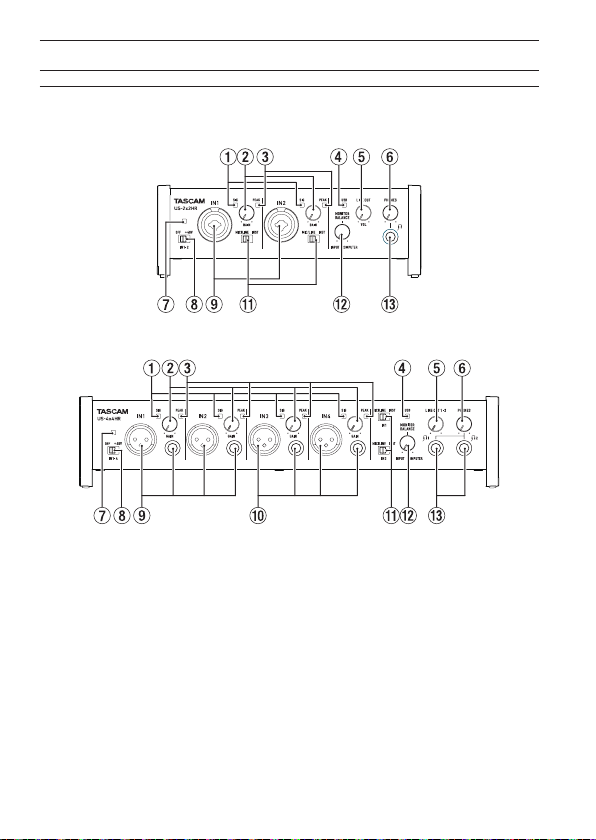
各部の名称
フロントパネル
US-2x2HR
US-4x4HR
1 SIGインジケーター
信号が入力されているとき(−32dBFS以上)に緑色に点灯します。
2 GAINつまみ
入力端子からの入力レベルを調節します。
PEAKインジケーターが点灯しないように調節してください。
3 PEAKインジケーター
入力信号が歪む直前(−1dBFS以上)から赤く点灯します。
4 USBインジケーター
USB接続が有効なときに点灯します。
5 LINEOUTつまみ
リアパネルのLINE OUT (BALANCED) 1-2 端子(t)の出力レベルを調節します。
144 TASCAM US-2x2HR/US-4x4HR

6 PHONESつまみ
PHONES端子(US-4x4HRは 端子および 端子)の出力レベルを調節します。
V
注意
ヘッドホンを接続する前には、PHONESつまみで音量を最小にしてください。突然大き
な音が出て、聴覚障害などの原因となることがあります。
7 ファントム電源インジケーター
ファントム電源スイッチが「+48V」のときにインジケーターが点灯します。
注意
US-4x4HRをUSBバスパワーで動作させるときは、市販のType-C - Type-Cケーブルで、
パソコンのUSB Type-C端子に接続します。電源供給に問題がある場合はファントム電源
インジケーターが点滅しますので、付属の専用ACアダプター(PS-P1220E、DC12V)
をご使用ください。
8 ファントム電源スイッチ
IN1 / IN2端子およびIN3 / IN4端子(US-4x4HRのみ)のXLR端子に+48Vのファ
ントム電源を供給するためのスイッチです。
V
注意
LINE OUTつまみとPHONESつまみを下げた状態でファントム電源スイッチの+48V /
OFF切り換えを行ってください。マイクによっては大きなノイズを発生し、モニター機器
から突然大きな音が出て、機器の破損や聴覚障害の原因になる可能性があります。
9 IN1 / IN2端子
US-2x2HRは、XLR / TRSコンボジャックタイプのアナログ入力端子です。
US-4x4HRは、XLRジャックおよびTRS標準ジャックのアナログ入力端子です。
ハイインピーダンス入力(ギターなどの直接入力)にも対応しています。
TRSジャックは、MIC/LINE INSTスイッチ(q)により、バランスライン入力(MIC/
LINE時)とアンバランス入力(INST時)の切り換えが可能です。
ギターやベースなどの楽器を直接接続する場合は、MIC/LINE INSTスイッチ(q)を
「INST」にします。
0 IN3 / IN4端子(US-4x4HRのみ)
XLRバランスタイプのアナログマイク入力とTRS標準ジャック対応のバランスライン入
力端子です。
注意
US-4x4HRにはIN1 / IN2端子(9)およびIN3 / IN4端子(0)のそれぞれに、2つ
の入力端子(XLRとTRS)があります。同じインプットのXLR端子とTRS端子には、同
時に信号を入力しないでください。同時に信号を入力すると、信号が正しく入力されませ
ん。
q MIC/LINEINSTスイッチ
IN1 / IN2端子の入力ソースに応じて設定します。
電子楽器やオーディオ機器、またはマイクなどを接続する場合は、「MIC/LINE」に、ギター
やベースなど出力インピーダンスの高い機器を接続する場合は「INST」にします。
日本語
TASCAM US-2x2HR/US-4x4HR 145
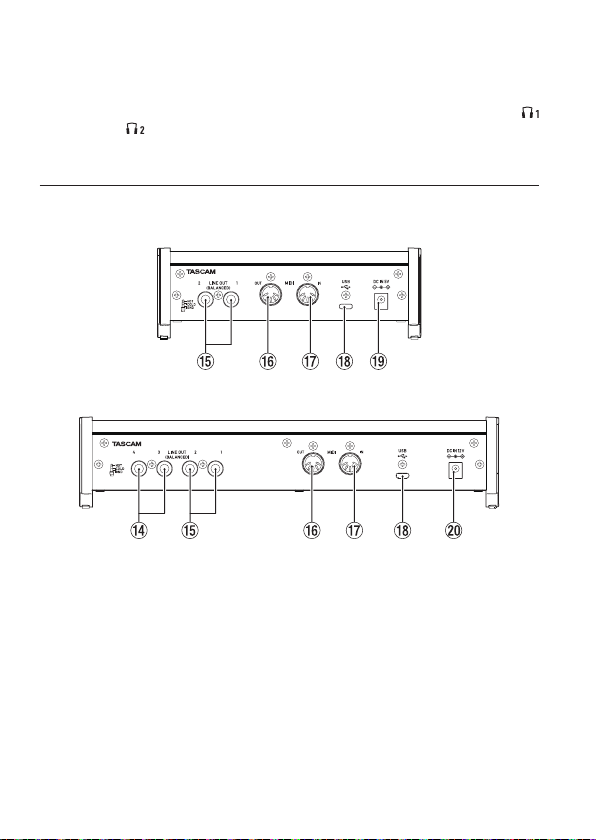
w MONITORBALANCEつまみ
本機の入力端子からの信号とパソコンからの出力信号のモニターバランスを調節します。
e PHONES端子
ステレオヘッドホンを接続するためのステレオ標準ジャックです。(US-4x4HRは
端子および 端子)
LINE OUT(BALANCED)1-2端子と同じ信号が出力されます。
ミニプラグのヘッドホンを接続する場合は、変換アダプターをご使用ください。
リアパネル
US-2x2HR
US-4x4HR
r LINEOUT(BALANCED)3-4端子(US-4x4HRのみ)
TRS標準ジャックタイプのアナログライン出力です。
t LINEOUT(BALANCED)1-2端子
TRS標準ジャックタイプのアナログライン出力です。
LINE OUT(BALANCED)1-2端子およびLINE OUT(BALANCED)3-4端子(US-
4x4HRのみ)から出力する信号は、Settings Panel上で設定できます。
詳しくは、リファレンスマニュアル第5章「Settings Panelの設定」の「Settings
Panelについて」をご参照ください。
y MIDIOUT端子
Din 5ピンの標準MIDI出力端子です。MIDI信号を出力します。
u MIDIIN端子
Din 5ピンの標準MIDI入力端子です。MIDI信号を入力します。
146 TASCAM US-2x2HR/US-4x4HR

i USB端子
USB Type-CのUSBポートです。
USBケーブルを使ってパソコンまたはiOSデバイスと接続します。
o DCIN5V端子(US-2x2HRのみ)
iOSデバイスなど本機に電源が供給できない機器と接続する場合、別売の専用ACアダプ
ター(PS-P520E、DC5V)を電源デバイスをDC IN 5V端子に接続する必要がありま
す。(→ 151ページ「iOSデバイスでご使用の場合」)
p DCIN12V端子(US-4x4HRのみ)
以下の使用条件の場合は、付属の専用ACアダプター(PS-P1220E、DC12V)を接続
します。(→ 151ページ「ACアダプターでご使用の場合」)
o
USBバスパワー供給電流が十分でない場合。
o
iOSデバイスなど本機に電源が供給できない機器と接続する場合。
専用ソフトウェアをインストールする
本機を使用するには、パソコンに専用ソフトウェアをインストールする必要があります。
専用ソフトウェアは、随時更新されています。最新のソフトウェアは、TASCAMのウェブ
サイト(https://tascam.jp/jp/)から、ご使用のOSに適した最新の専用ソフトウェアをダ
ウンロードしてください。
p
Windows パソコンは、専用ソフトウェアをインストールすると Windows 専用のドライ
バー、および Windows 専用のSettings Panel(アプリケーション)がインストールさ
れます。
p
Mac の場合は、専用ソフトウェアをインストールすると Mac 専用のSettings Panel(ア
プリケーション)のみをインストールします。ドライバーは、OS標準ドライバーを使用
します。
p
iOSデバイスの場合は、iOS標準のドライバーを使用しますので、専用ソフトウェアをイ
ンストールする必要はありません。
注意
ソフトウェアのインストール時には、他のアプリケーションを終了してからインストール
を開始してください。
Windows専用ソフトウェアのインストール
注意
i
パソコンと本機をUSBケーブルで接続する前に、Windows 専用ソフトウェアのインス
トールを完了してください。
i
パソコンに Windows 専用ソフトウェアをインストールする前に本機をUSBケーブルで
接続し、パソコンに「新しいハードウェアの検出ウィザード」が起動してしまっている場
合は、そのウィザードを終了させ、USBケーブルを抜いてください。
日本語
TASCAM US-2x2HR/US-4x4HR 147
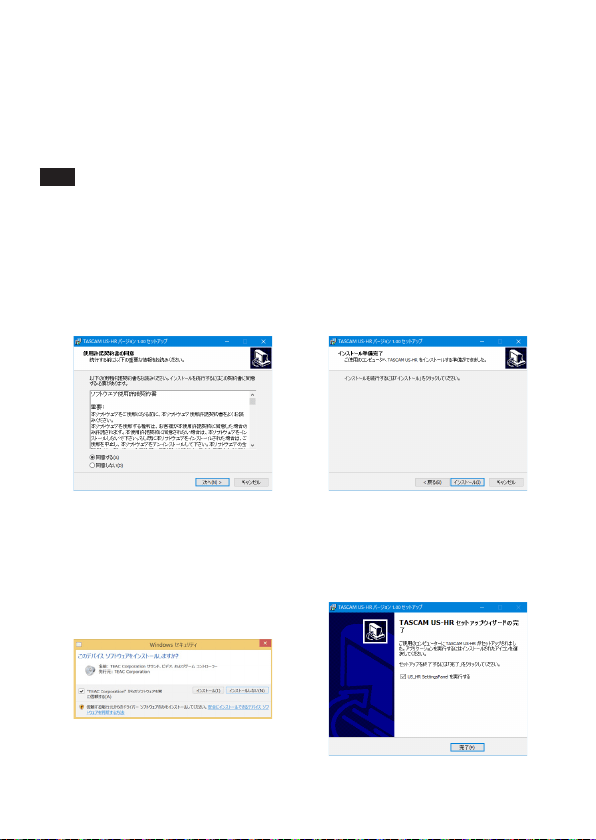
Windows専用ソフトウェアのインストール手順
1.
TASCAMのウェブサイト(https://tascam.jp/jp/)から、最新の Windows 用ソフ
トウェアをダウンロードし、ご使用のパソコンに保存してください。
2.
保存した Windows 専用ソフトウェア(zipファイル)をデスクトップなどに解凍してく
ださい。
3.
解凍して生成されるフォルダー内にある「TASCAM_US-HR_Installer_x.xx.exe」をダブ
ルクリックすると、インストールソフトウェアが起動します。
注意
zipファイルを解凍せずに、ダブルクリックして開かれたフォルダーでexeファイルを実
行した場合には、インストーラーは起動できません。zipファイルを右クリックして表示
されるメニューから「すべて展開...」を選択するなど解凍してから再度実行してください。
4.
「セキュリティの警告」ま た は「 ユーサー アカウント制御」の画面が表示されますので、「は
い(Y)」ボタンをクリックします。
5.
使用許諾契約書の内容を確認し、内容に同意ができたら、「同意する(A)」を選択します。
次に「次へ(N)>」ボタンをクリックします。(Fig.A)
6.
次に「インストール(I)」ボタンをクリックします。(Fig.B)
r
Fig.A Fig.B
7.
次に「インストール(I)」ボタンをクリックすると、インストールが開始されます。
(Windows 8.1 / Windows 7)(Fig.C)
8.
次の画面が表示されたら、インストール作業は完了です。(Fig.D)
「完了(F)」ボタンをクリックします。
r
Fig.C Fig.D
148 TASCAM US-2x2HR/US-4x4HR
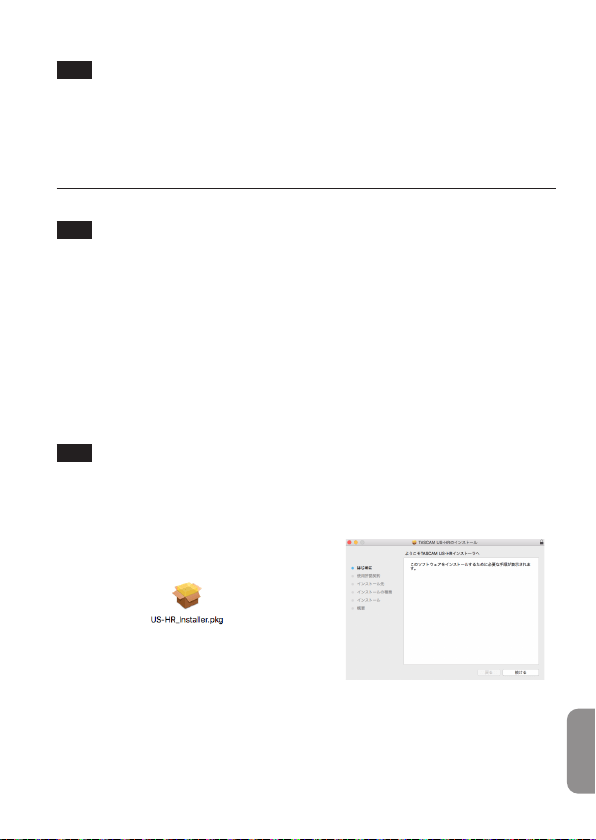
インストーラーが終了し、Windows 専用のSettings Panelが起動します。
メモ
ソフトウェアをインストール後に初めて本機をUSB接続すると、デバイスドライバーの
インストールが実行されます。このとき Windows は、自動的にWindows Update を
検索するため、本機の接続が認識されるまでに時間がかかる場合があります。しばらくし
ても本機が認識されない場合、パソコンのディスプレー右下の通知領域から、ソフトウェ
アのインストール画面を表示させ、「Windows Update からのドライバーソフトウェアの
取得をスキップする」をクリックして、検索を終了させてください。
Mac専用ソフトウェアのインストール
メモ
i
パソコンにUSBケーブルで接続する前に、Mac 専用ソフトウェアをインストールしてく
ださい。
i
Gatekeeperの設定により、インストール中に警告画面が出ることがあります。
Gatekeeperについては、リファレンスマニュアル 第3章「インストール」の「Gatekeeper
について」をご参照ください。
Mac専用ソフトウェアのインストール手順
1.
TASCAMのウェブサイト(https://tascam.jp/jp/)から、ご使用のOSに適した最新
の専用ソフトウェアをダウンロードし、ご使用のパソコンに保存してください。
2.
保存したMac 専用ソフトウェアのディスクイメージファイル「US-HR_Installer_x.xx.
dmg」ファイルをダブルクリックし、開いたフォルダー内の「US-HR_Installer.pkg」を
ダブルクリックします。(Fig.A)
メモ
ご使用の環境により、ダウンロードしたzipファイルが解凍されていない場合があります。
その場合は、zipファイルを解凍してからディスクイメージファイルをダブルクリックし
てください。
3.
インストーラーが起動しますので、「続ける」ボタンをクリックします。(Fig.B)
r
Fig.A Fig.B
日本語
TASCAM US-2x2HR/US-4x4HR 149
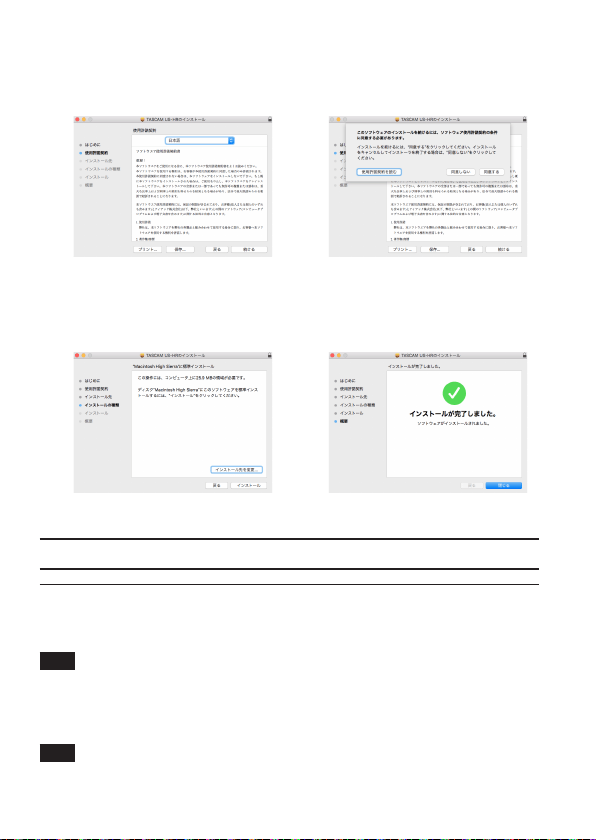
4.
次に希望の言語を選択し、「続ける」ボタンをクリックします。(Fig.C)
5.
「使用許諾契約を読む」ボタンをクリックして、使用許諾契約の内容を確認します。内容
に同意ができたら、「同意する」を選択します(Fig.D)
次に「続ける」ボタンをクリックします。
r
Fig.C Fig.D
6.
次に「インストール」ボタンをクリックすると、インストールが開始されます。(Fig.E)
7.
次の画面が表示されたら、インストール作業は完了です。(Fig.F)
「閉じる」ボタンをクリックします。
r
Fig.E Fig.F
電源を接続する
パソコン(Windows / Mac)でご使用の場合
付属のUSBケーブルを使って本機をパソコンに接続して使用する場合、USBバスパワーで
動作しますので、他の電源デバイスを接続する必要はありません。
注意
US-4x4HRをUSBバスパワーで動作させるときは、市販のType-C - Type-Cケーブルで、
パソコンのUSB Type-C端子に接続します。電源供給に問題がある場合はファントム電源
インジケーターが点滅しますので、付属の専用ACアダプター(PS-P1220E、DC12V)
をご使用ください。
メモ
パソコンによっては、USBポートから本機を動作させるための必要な電源を供給すること
ができない場合があります。その場合には、専用ACアダプターを接続してご使用ください。
150 TASCAM US-2x2HR/US-4x4HR

iOSデバイスでご使用の場合
本機をiOSデバイスに接続して使用する場合、本機に電源を供給するため、専用のACアダプ
ターを接続する必要があります。先に専用ACアダプターを接続してから、USBケーブルを
接続してください。
ACアダプターでご使用の場合
US-2x2HR
別売の専用ACアダプター(PS-P520E、DC5V)をDC IN 5V端子に接続します。
ACアダプターの接続方法については、リファレンス「第4章 準備」の「ACアダプターでご
使用の場合」をご参照ください。
注意
US-2x2HRには、別売の専用ACアダプター(PS-P520E、DC5V)をご使用になるこ
とを強く推奨します。他の電源デバイスをご使用になる場合は、下記の仕様の電源デバイ
スをご使用ください。
i
供給電圧:5V
i
供給電流:700mA以上
上記の仕様以外の電源デバイスを使用すると故障、発熱、発火などの原因になります。
異常がある場合は、使用を中止して、販売店またはティアック修理センターに修理をご依
頼ください。
US-4x4HR
以下の使用条件の場合は、付属する専用ACアダプター(PS-P1220E、DC12V)をDC
IN 12V端子に接続します。
p
USBバスパワーの供給電流量が十分でない場合
p
iOSデバイスなど本機に電源が供給できない機器と接続する場合
ACアダプターの接続方法については、リファレンス「第4章 準備」の「ACアダプターでご
使用の場合」をご参照ください。
注意
必ず同梱されている専用ACアダプター(PS-P1220E、DC12V)をお使いください。
他のACアダプターを使用すると故障、発熱、発火などの原因になります。
メモ
付属する専用ACアダプター(PS-P1220E、DC12V)には、2種類のコンセントプラ
グが同梱されています。ご使用になる電源コンセントの形状に合ったコンセントプラグに
取り替えてご使用ください。交換方法については、リファレンスマニュアル「第4章 準備」
の「コンセントプラグの交換方法」をご参照ください。
日本語
TASCAM US-2x2HR/US-4x4HR 151
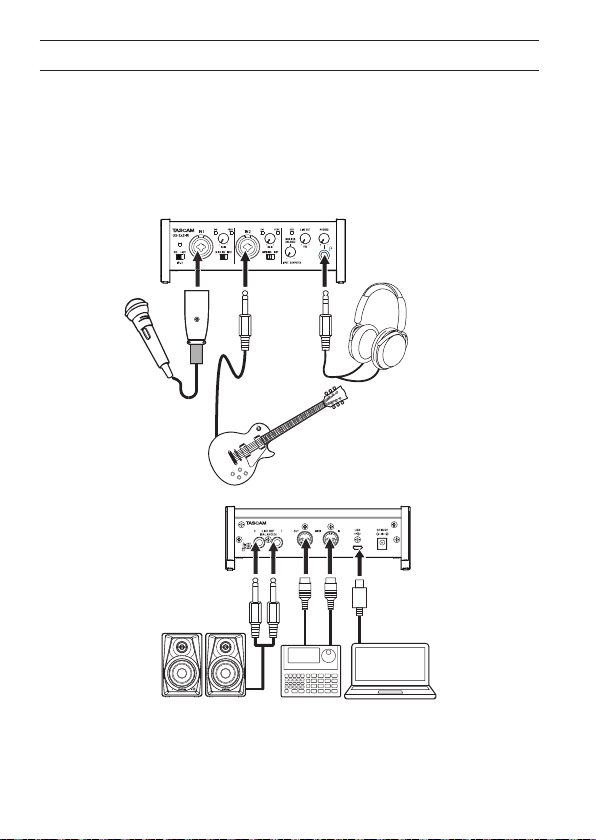
外部機器を接続する
以下に、US-2x2HRの接続例を示します。
接続前の注意
p
接続を行う前に、外部機器の取扱説明書をよくお読みになり、正しく接続してください。
p
本機および接続する機器の電源を全てオフまたはスタンバイ状態にします。
p
各機器の電源は、同一のラインから供給するように設置します。テーブルタップなどを使
う場合は、電源電圧の変動が少なくなるように、電流容量が大きい太いケーブルをご使用
ください。
マイク
ヘッドホン
ギター
シーケンサー/
リズムマシン
パソコンパワードモニター
[ US-2x2HRを使った接続例 ]
152 TASCAM US-2x2HR/US-4x4HR

V
注意
LINE OUTつまみとPHONESつまみを下げた状態でファントム電源スイッチの+48V /
OFFの切り換えを行ってください。マイクによっては大きなノイズを発生し、モニター機
器から突然大きな音が出て、機器の破損や聴覚障害の原因になる可能性があります。
注意
i
コンデンサーマイクを接続する前に、本機および接続する機器の電源を全てオフまたはス
タンバイ状態にしてください。
i
ファントム電源スイッチは、入力チャンネル(US-2x2HRは2入力、US-4x4HRは4入力)
を同時にオン/オフします。ファントム電源を必要としないマイクを接続している場合は、
ファントム電源スイッチを「+48V」にしないでください。
i
ファントム電源スイッチを「+48V」にした状態で、マイクの抜き挿しをしないでくださ
い。大きなノイズを発生し、本機および接続中の機器が故障する恐れがあります。
i
ファントム電源を必要とするコンデンサーマイクを使用する場合のみ、ファントム電源ス
イッチを「+48V」にしてください。ファントム電源を必要としないダイナミックマイク
などを接続しているときにファントム電源スイッチを「+48V」にすると、本機および接
続中の機器が故障する恐れがあります。
i
ファントム電源を必要とするコンデンサーマイクとダイナミックマイクを合わせて使用す
る場合は、必ずバランスタイプのダイナミックマイクをご利用ください。アンバランスタ
イプのダイナミックマイクを混用することはできません。
i
リボンマイクの中には、ファントム電源を供給すると故障の原因になるものがあります。
疑わしい場合は、リボンマイクにファントム電源を供給しないでください。
i
バッテリー電源で駆動中のノートパソコンに本機を接続して、ファントム電源スイッチを
「+48V」にすると、そのパソコンのバッテリー電源の消耗が早くなります。
iOSデバイスとの接続
Lightning端子を持ったiOSデバイスの場合は、Lightning – USB カメラアダプタ* と付属
するUSBケーブルを使って接続してください。
Type-C端子を持ったiOSデバイスの場合は、市販のType-C - Type-Cケーブルを使って接続
してください。
*
Apple純正Lightning - USB カメラアダプタを別途、ご用意ください。
メモ
本機と接続時、本機からiOSデバイスへの電源供給は行われません。
日本語
TASCAM US-2x2HR/US-4x4HR 153
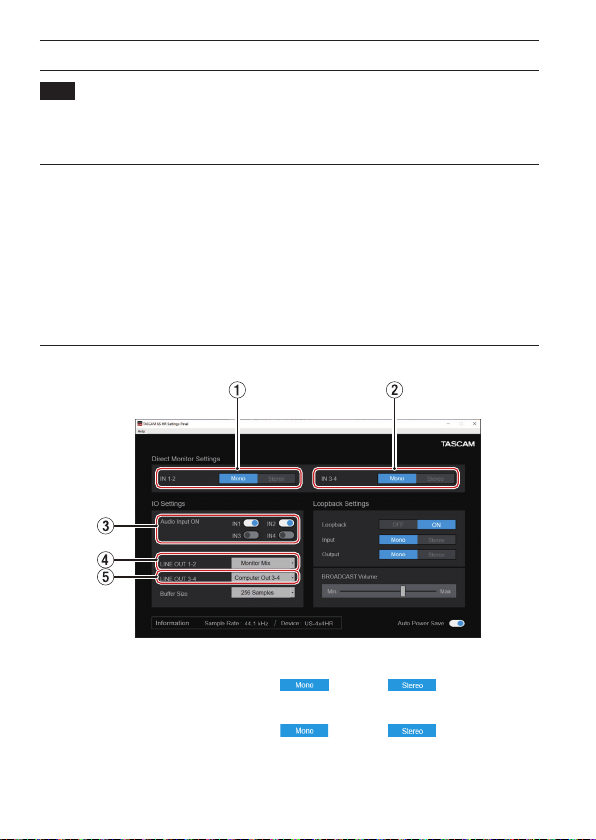
各種設定する
メモ
パソコンでデジタルオーディオ信号をスムーズに扱うためには、パソコンの負荷を極力少
なくしておく必要があります。
不要なアプリケーションを終了後に使用することをお勧めします。
SettingsPanelを開く
Settings Panelを開くには、次の方法があります。
Windowsの場合
p
「スタートメニュー」の「TASCAM」から「US_HR SettingsPanel」を選択します。
Macの場合
p
「Launchpad」から「US-HR_SettingsPanel」をクリックする。
p
「Finder」
w
「 アプリケーション」
w
「US-HR_SettingsPanel」をクリックして、
Settings Panelを開く。
SettingsPanelを設定する
1 IN1-2ボタン
IN1 / IN2端子からのモニター信号を「 」または「 」に設定します。
2 IN3-4ボタン(US-4x4HRのみ)
IN3 / IN4端子からのモニター信号を「 」または「 」に設定します。
3 AudioInputONスイッチ
入力のオン/オフをチャンネルごとに設定します。
154 TASCAM US-2x2HR/US-4x4HR
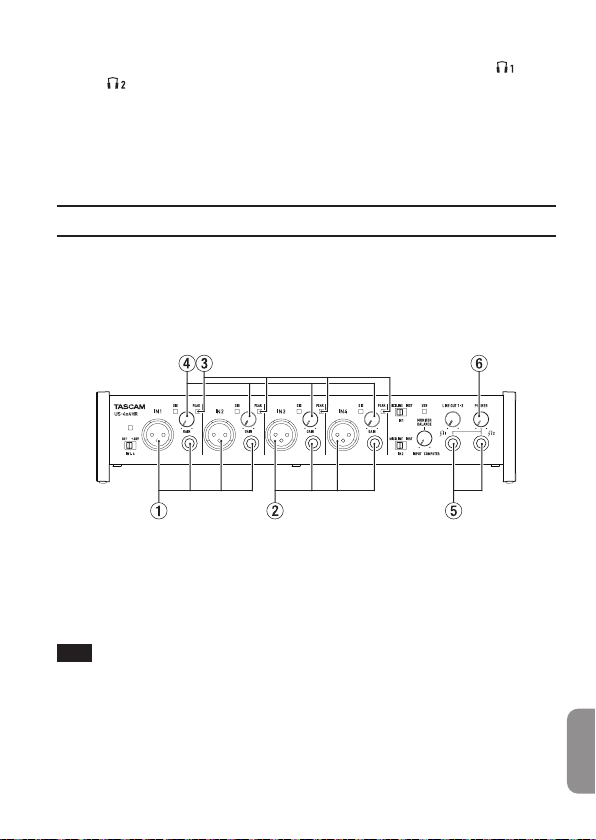
4 LINEOUT1-2
LINE OUT(BALANCED)1-2端子およびPHONES端子(US-4x4HRの 端子お
よび 端子)から出力する信号を選択します。
5 LINEOUT3-4(US-4x4HRのみ)
LINE OUT(BALANCED)3-4端子から出力する信号を選択します。
前述以外の設定内容について、詳しくはリファレンスマニュアルの「第5章 Settings
Panel の設定」の「Settings Panelについて」をご参照ください。
入力音を調節する
マイク、ギター、キーボード、オーディオ機器など、本機に入力されたアナログ音声信号は、
デジタル信号に変換された後にUSBを経由してパソコンに送られます。
そのパソコンに送られるデジタル信号を本機の機能で調節が可能です。また、スピーカー(ア
ンプ経由)やヘッドホンを本機に接続することにより、本機に入力されるオーディオ信号や
パソコンからの出力信号をモニターすることができます。
入力音を聴きながらフロントパネルにある各操作子を必要に応じて操作します。
[ US-4x4HRを使った操作例 ]
IN1 / IN2端子(1)またはIN3 / IN4端子(2、US-4x4HRのみ)からのアナログ入力
レベルを、各GAINつまみの右上にあるPEAKインジケーター(3)が点灯しないように、各
GAINつまみ(4)で調節します。
ヘッドホンでモニター音を聴く場合は、PHONES端子(5)にヘッドホンを接続した後、
PHONESつまみ(6)で調節します。
メモ
入力音がヘッドホンやLINE OUT(BALANCED)1-2端子からの出力から聴こえない場
合には、フロントパネルのMONITOR BALANCEつまみ、および「Settings Panel」画
面にある「IO Settings」項目の設定を確認してください。
日本語
TASCAM US-2x2HR/US-4x4HR 155

トラブルシューティング
本取扱説明書の手順通り設定しても、本機が正常に使用できない場合は、まずは本章をご確
認ください。
本章で解決できない場合は、タスカムカスタマーサポート(巻末に記載)まで、下記のご使
用環境と、詳しい状況をお知らせいただきますようお願い致します。
ご使用環境
p
パソコンメーカー:
p
モデル:
p
CPU:
p
搭載メモリー:
p
OS:
p
使用アプリケーション:
p
ウイルス対策ソフト:
p
無線LANの有無:
それでも改善しないときは、お買い上げの販売店またはティアック修理センターにご連絡く
ださい。
お問い合わせ先につきましては、巻末をご参照ください。
専用ソフトウェアをインストールできない
1.
OSの確認
お使いのOSとインストールしようとしているソフトウェアの対応OSが異なっている可
能性があります。対応OSを今一度ご確認ください。
2.
常駐ソフトの停止
アンチウイルスソフトなどの常駐ソフトがインストールの妨げとなる場合があります。
常駐ソフトを終了し、再度インストールをお試しください。
本機を接続したがパソコンに認識されない
1.
専用ソフトウェアのインストール
o
専用ソフトウェアをインストールしてください。詳しくは、147ページ「専用ソフト
ウェアをインストールする」をご参照ください。
2.
USBポートの差し替え
o
本機はUSB 1.1では動作しません。USB2.0またはUSB3.0のポートをご使用くださ
い。
o
本機の接続は、USBハブはご使用にならず、必ずパソコン本体のUSBポートに接続し
てください。
o
上記の方法で解決しない場合、パソコン本体の別のUSBポートに接続してください。
156 TASCAM US-2x2HR/US-4x4HR

パソコンで再生しても音が出ない
本機のMONITOR BALANCEつまみが、左側(INPUT側)最大に回っていないかを確認し
てください。その場合、MONITOR BALANCEつまみを中央より右側に回してください。
また、本機をパソコンに接続した状態で下記をご確認ください。なお、以下の設定を行うと
本機経由で音は出ますが、パソコンのスピーカーやヘッドホン端子から音は出なくなります。
Windowsの場合
p
リファレンスマニュアル「第6章 アプリケーションガイド」の「Windows」を参照して
各OSに合わせた設定を行ってください。
Macの場合
1.
全てのアプリケーションを終了し、アップルメニューより「システム環境設定...」画面
を開きます。
2.
「サウンド」を開きます。
3.
「出力」タブから「US-2x2HR」または「US-4x4HR」を選択します。
設定が完了しましたらパソコンを再起動し、再生音をご確認ください。また、お使いのアプ
リケーションによっては、上記とは別にデバイス設定を行う必要がある場合があります。
特にDAWソフトウェアをご使用時には、上記OSの設定とは別のオーディオエンジンで動作
していますので、本機のドライバーおよびSettings Panelソフトウェアをインストール後、
先にDAWソフトウェアの設定をご確認ください。
お使いのアプリケーションの詳しい設定方法については、各取扱説明書をご参照ください。
音切れやノイズが発生する
パソコンの負荷が原因で音切れやノイズが発生します。
パソコンの負荷を軽減させる方法を下記にご紹介致します。
1.
無線LANやアンチウイルスソフトなどの常駐ソフトがバックグラウンドで動作している
場合は、定期的な負荷がかかり、音切れやノイズの原因となります。
その場合は無線LANの通信を停止する、またはアンチウイルスソフトなどの常駐ソフト
を停止後して、お試しください。
2.
お使いのオーディオアプリケーション、あるいは本機のSettings Panelにてバッファー
サイズ(レイテンシー)の設定を大きくすることをお試しください(Windowsのみ)。
メモ
オーディオアプリケーション側でパソコンへの負荷を減らす方法を、オーディオアプリ
ケーションのメーカー様にお問い合わせください。
3.
パソコンをオーディオ処理に適した設定に変更してください。
[Windowsの場合]
o
パフォーマンスオプション
1 ご使用のOS(Windows 10 / Windows 8.1 / Windows 7)に適した設定方法
で「システム」を開きます。
i
Windows 10 は、「コントロールパネル」を開きます。さらに「システム」ア
イコンをクリックします。
日本語
TASCAM US-2x2HR/US-4x4HR 157

i
Windows 8.1 は、通常のスタート画面(メトロUI画面)で右クリックし、「す
べてのアプリ」をクリックします。さらに「コンピュータ」を右クリックし、「プ
ロパティ」を選択します。
i
Windows 7 は、Windows のスタートボタンから「コンピュータ」を右クリッ
クし、「プロパティ」を選択します。
2 「 システムの詳細設定」をクリックします。
3 「 システムのプロパティ」画面の「詳細設定」タブで、「パフォーマンス」枠の「設定...」
をクリックします。
4 「 パフォーマンスオプション」画面 の「 視覚効果」タブで、「パフォーマンスを優先する」
を選択します。
[Macの場合]
1 アップルメニューより「システム環境設定...」画面を開き、「省エネルギー」を選択し
ます。
2 「 コンピュータのスリープ」を「しない」に設定します。
3 「 ディスプレイのスリープ」を「しない」に設定します。
メモ
macOSのバージョン、または Mac によっては、この設定がない場合があります。
4.
USBポートを差し替えてください。
USBポートによっては本機が正常に動作しない場合がありますので、パソコン本体の別
のUSBポートに接続してください。
メモ
i
その他のUSB機器は、接続せずにお試しください(USBキーボード・USBマウスは、接
続しても構いません)。
i
USBハブはご使用にならず、必ずパソコン本体の(オンボードの)USBポートに接続し
てください。
バンドルDAWソフトウェアなどのお問い合わせについて
バンドルDAWソフトウェアにつきましては、弊社ではサポート外となります。
ご使用については、バンドルDAWソフトウェアのヘルプメニューをご参照いただきますよう
お願い致します。
158 TASCAM US-2x2HR/US-4x4HR

仕様
定格
サンプリング周波数
44.1k/48k/88.2k/96k/176.4k/19
2kHz
量子化ビット数
24ビット
アナログオーディオ入力定格
マイク入力(バランス)
US-2x2HR:IN1 / IN2
US-4x4HR:IN1 / IN2、IN3 / IN4
コネクター:
XLR-3-31相当
(1:GND、2:HOT、3:COLD)
最大入力レベル:+9dBu(2.183Vrms)
ゲイン幅:56dB
入力インピーダンス:2.2kΩ
インストゥルメント入力(アンバランス)
US-2x2HR:IN1 / IN2
US-4x4HR:IN1 / IN2
(MIC/LINE INSTスイッチを「INST」に
設定時)
コネクター:
6.3mm(1/4″)TS標準ジャック
(Tip:HOT、Sleeve:GND)
最大入力レベル:
+10dBV(3.162Vrms)
ゲイン幅:56dB
入力インピーダンス:1MΩ以上
ライン入力(バランス)
US-2x2HR:IN1 / IN2
US-4x4HR:IN1 / IN2、IN3 / IN4
(MIC/LINE INSTスイッチを
「MIC/LINE」に設定時)
コネクター:
6.3mm(1/4″)TRS標準ジャック
(Tip:HOT、Ring:COLD、Sleeve:
GND)
最大入力レベル:
+20dBu(7.746Vrms)
ゲイン幅:56dB
入力インピーダンス:10kΩ
アナログオーディオ出力定格
ライン出力(バランス)
US-2x2HR:
LINE OUT(BALANCED)1-2
US-4x4HR:
LINE OUT(BALANCED)1-2
LINE OUT(BALANCED)3-4
コネクター:
6.3mm(1/4″)TRS標準ジャック
(Tip:HOT、Ring:COLD、
Sleeve:GND)
最大出力レベル:
+20dBu(7.746Vrms)
規定出力レベル:+4dBu
(1.228Vrms)
出力インピーダンス:210Ω
ヘッドホン出力(PHONES)
コネクター:
6.3mm(1/4″)ステレオ標準ジャック
最大出力
US-2x2HR:18mW + 18mW以上
US-4x4HR:45mW + 45mW以上
(THD+N 0.1%以下、32Ω負荷時)
日本語
TASCAM US-2x2HR/US-4x4HR 159

コントロール入出力定格
MIDIIN端子
コネクター:Din 5ピン
フォーマット:標準MIDIフォーマット
MIDIOUT端子
コネクター:Din 5ピン
フォーマット:標準MIDIフォーマット
USB端子
コネクター:USB Type-C
転送速度:USB 2.0 High Speed
(480Mbps)
オーディオ性能
マイクアンプEIN(入力換算雑音)
−128dBu以下
周波数特性
MIC/LINEIN
44.1k/48kHz時 20Hz - 20kHz:
+0dB/−0.4dB(JEITA)
88.2k/96kHz時 20Hz - 40kHz:
+0dB/−0.4dB(JEITA)
LINEOUT
44.1k/48kHz時 20Hz - 20kHz:
+0.2dB/−0.1dB(JEITA)
88.2k/96kHz時 20Hz - 40kHz:
+0.2dB/−0.4dB(JEITA)
S/N比
110dB
(MIC IN、GAINつまみ最小、20kHz
SPCL LPF + A-Weight)
108dB
(LINE IN、GAINつまみ最小、20kHz
SPCL LPF + A-Weight)
110dB
(LINE OUT、LINE OUTつまみ最大、
20kHz SPCL LPF + A-Weight)
全高調波歪率(THD+N)
0.0013%
(MIC IN、1kHzサイン波、−5dBFS入
力、GAINつ ま み 最 小、20kHz SPCL
LPF)
0.0011%
(LINE IN、1kHzサ イ ン 波、 −5dBFS
入力、GAINつまみ最小、20kHz SPCL
LPF)
0.0012%
(LINE OUT、1kHzサイン波、
−4dBFS入力、LINE OUTつまみ最大、
20kHz SPCL LPF)
クロストーク
95dB以上(MIC/LINE
w
LINE OUT、
1kHzサイン波、GAINつまみ最小)
動作条件
最新の対応OS状況については、TASCAM
のウェブサイト(https://tascam.jp/jp/)
ご確認ください。
Windows
対応OS
Windows 10 32ビット
Windows 10 64ビット
Windows 8.1 32ビット
Windows 8.1 64ビット
Windows 7*
Windows 7 32ビット SP1以上
Windows 7 64ビット SP1以上
*
Windows 7 は、最終バージョンでの動
作を確認しています。
対応パソコン
USB2.0以上を装備した Windows 対応
パソコン
CPU /クロック
デュアルコアプロセッサー 2GHz以上
(x86)
160 TASCAM US-2x2HR/US-4x4HR

メモリー
2GB以上
注意
本機の動作確認は、上記のシステム条件
を満たす標準的なパソコンを使って行わ
れていますが、上記条件を満たすパソコ
ン全ての場合の動作を保証するものでは
ありません。同一条件下であっても、パ
ソコン固有の設計仕様や使用環境の違い
により処理能力が異なります。
Mac
対応OS
macOS Catalina(10.15以降)
macOS Mojave(10.14以降)
macOS High Sierra(10.13以降)
対応パソコン
USB2.0以上を装備したMac
CPU /クロック
デュアルコアプロセッサー 2GHz 以上
メモリー
2GB以上
iOSデバイス
アップル製iOSデバイスの下記Verにて動作
を確認しています。
iPadOS13
iOS13
iOS12
iOS11
注意
Lightningコネクターを搭載したiOSデ
バイスを接続する際には、Apple純正
Lightning-USB カメラアダプタ(別売)
が必要となります。
対応オーディオドライバー
Windows
ASIO2.0、WDM、 MIDI
Mac
Core Audio、Core MIDI
iOSデバイス
Core Audio
一般
電源
パソコン接続時
USBバスパワー、もしくは下記専用AC
アダプターを接続
iOSデバイス接続時
下記の専用ACアダプターを接続
US-2x2HR: TASCAM PS-P520E、
DC5V
US-4x4HR: TASCAM PS-P1220E、
DC12V
消費電力
US-2x2HR:1.75W
US-4x4HR:2.25W
外形⼨法
US-2x2HR:186 x 65 x 160mm
US-4x4HR:296 x 65 x 160mm
(幅 x 高さ x 奥行き、突起部を含む)
質量
US-2x2HR:1.1kg
US-4x4HR:1.6kg
動作温度
5 〜 35℃
p
取扱説明書のイラストが一部製品と異な
る場合があります。
p
製品の改善により、仕様および外観が予
告なく変更することがあります。
p
詳細仕様は、リファレンスマニュアルに
掲載しています。
日本語
TASCAM US-2x2HR/US-4x4HR 161
162 TASCAM US-2x2HR/US-4x4HR
〒206-8530
東京都多摩市落合1-47
この製品の取り扱いなどに関するお問い合わせは
タスカムカスタマーサポート
〒206-8530 東京都多摩市落合
1-47
p
電話
042-356-9137
携帯電話・PHS・
IP電話から
p
ナビダイヤル
0570-000-809
一般電話から
p
FAX
042-356-9185
受付時間は、10:00 〜 12:00 / 13:00 〜 17:00 です。
(土・日・祝日・弊社指定休日を除く)
故障・修理や保守についてのお問い合わせは
ティアック修理センター
〒358-0026 埼玉県入間市小谷田858
p
電話
04-2901-1033
携帯電話・PHS・
IP電話から
p
ナビダイヤル
0570-000-501
一般電話から
p
FAX
04-2901-1036
受付時間は、9:30 〜 17:00です。(土・日・祝日・弊社指定休日を除く)
■ 住所や電話番号は、予告なく変更する場合があります。あらかじめご了承ください。
リファレンスマニュアルに関して
取扱説明書(本書)では、本機の各機能について解説しています。各機能の詳細については、
リファレンスマニュアルをご覧ください。
リファレンスマニュアルは、TASCAMのウェブサイト(https://tascam.jp/jp/)からダ
ウンロードすることができます。
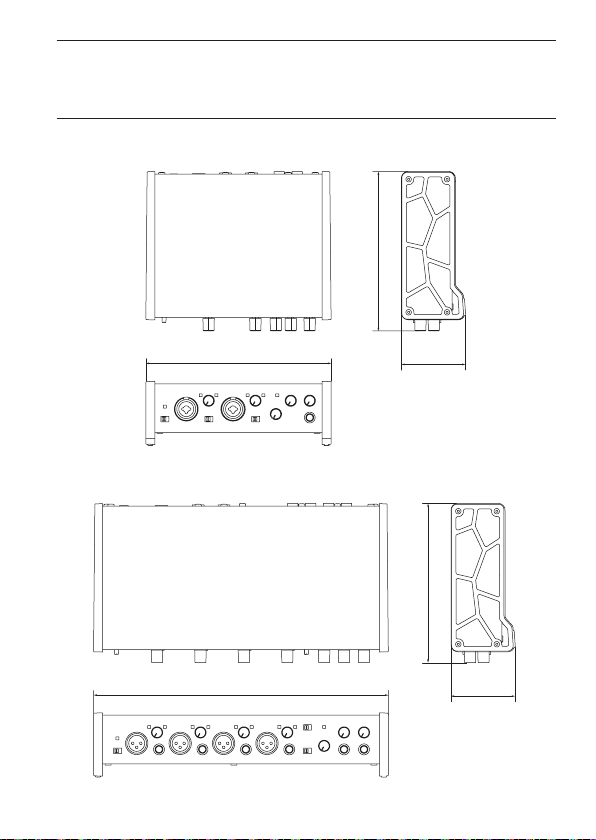
Dimensional drawings / Dessins avec cotes /
Esquema de dimensiones / Maßzeichnung /
Dimensioni / ⼨法図
US-2x2HR
160
65
186
US-4x4HR
296
160
65
TASCAM US-2x2HR/US-4x4HR 163

TEAC CORPORATION
https://tascam.jp/jp/
Phone: +81-42-356-9143
1-47 Ochiai, Tama-shi, Tokyo 206-8530 Japan
TEAC AMERICA, INC.
https://tascam.com/us/
Phone: +1-323-726-0303
10410 Pioneer Blvd. Suite #1 Santa Fe Springs, California 90670, U.S.A.
TEAC UK Ltd.
https://www.tascam.eu/en/
Phone: +44-1923-797205
Meridien House, 69-71 Clarendon Road, Watford, Herts, WD17 1DS, United
Kingdom
TEAC EUROPE GmbH
https://www.tascam.en/de/
Phone: +49-611-71580
Bahnstrasse 12, 65205 Wiesbaden-Erbenheim, Germany
TEAC SALES & TRADING(SHENZHEN) CO., LTD
https://tascam.cn/cn/
Phone: +86-755-88311561~2
Room 817, Xinian Center A, Tairan Nine Road West, Shennan Road, Futian
District, Shenzhen, Guangdong Province 518040, China
Printed in China 1120.MA-3168D
164 TASCAM US-2x2HR/US-4x4HR

WARRANTY/保証書
<In the United States>
This warranty gives you specic legal rights and you may also have other rights which vary from
state to state. This warranty is only valid within the country the unit was originally purchased.
WHAT IS COVERED AND WHAT IS NOT COVERED
Except as specied below, this warranty covers all defects in materials and workmanship in this
product. The following are not covered by the warranty:
1. Damage to or deterioration of the external cabinet.
2. Damage resulting from accident, misuse, abuse or neglect.
3. Damage resulting from failure to perform basic daily maintenance and/or calibration or otherwise
resulting from failure to follow instructions contained in your owner’s manual.
4. Damage occurring during shipment of the product. (Claims must be presented to the carrier)
5. Damage resulting from repair or attempted repair by anyone other than TEAC or an authorized
TASCAM service station.
6. Damage resulting from causes other than product defects, including lack of technical skill,
competence, or experience of the user.
7. Damage to any unit which has been altered or on which the serial number has been defaced,
modied or is missing.
WHO IS COVERED UNDER THE WARRANTY
This warranty may be enforced only by the original purchaser. This warranty is not valid if the
product was purchased through an unauthorized dealer.
LENGTH OF WARRANTY
All parts except heads and disk drives are warranted for one (1) year from the date of original
purchase. Heads and disk drives are warranted for ninety (90) days from date of original purchase.
Labor is warranted for ninety (90) days from date of original purchase.
WHAT WE WILL PAY FOR
We will pay all labor and material expenses for items covered by the warranty. Payment of shipping
charges is discussed in the next section of this warranty.
HOW YOU CAN GET WARRANTY SERVICE
Your unit must be serviced by an authorized TASCAM service station in the United States. (This
warranty is not enforceable outside the U.S.) If you are unable to locate an authorized TASCAM
service station in your area, please contact us. We either will refer you to an authorized service
station or instruct you to return the unit to the factory. Whenever warranty service is required, you
must present a copy of the original dated sales receipt from an Authorized TASCAM Dealer.
You must pay any shipping charges if it is necessary to ship the product to service. However, if the
necessary repairs are covered by the warranty, we will pay return surface shipping charges to any
destination within the United States.
LIMITATION OF IMPLIED WARRANTIES
Any implied warranties, INCLUDING WARRANTIES OF MERCHANTABILITY AND FITNESS FOR A
PARTICULAR PURPOSE, are limited in duration to the length of this warranty.

EXCLUSION OF DAMAGES
TEAC’s liability for any defective product is limited to repair or replacement of the product, at TEAC’s
option. TEAC shall not be liable for:
1. Damages based upon inconvenience, loss of use of the product, loss of time interrupted operation
or commercial loss; or
2. Any other damages, whether incidental, consequential or otherwise.
Some states do not allow limitations on how long an implied warranty lasts and/or do not allow
the exclusion or limitation of incidental or consequential damages, so the above limitations and
exclusions may not apply to you.
To locate an Authorized Service Center in Your Area
CALL 1-323-726-0303
<Europe>
This product is subject to the legal warranty regulations of the country of purchase. In case of a
defect or a problem, please contact the dealer where you bought the product.
Ce produit est sujet aux réglementations concernant la garantie légale dans le pays d’achat. En cas
de défaut ou de problème, veuillez contacter le revendeur chez qui vous avez acheté le produit.
Dieses Gerät unterliegt den gesetzlichen Gewährleistungsbestimmungen des Landes, in dem es
erworben wurde. Bitte wenden Sie sich im Gewährleistungsfall an den Händler, bei dem sie das
Gerät erworben haben.
Questo apparecchio è conforme alle norme sulla garanzia vigenti nel rispettivo Paese in cui esso è
stato acquistato. Si prega di rivolgersi al proprio commerciante, presso il quale è stato acquistato
l’apparecchio, nel caso in cui si voglia richiedere una prestazione in garanzia.
Las condiciones de garantía de este aparato están sujetas a las disposiciones legales sobre garantía
del país en el que ha sido adquirido. En caso de garantía, debe dirigirse al establecimiento donde
adquirió el aparato.
<日本>
無料修理規定(持ち込み修理)
1.
取扱説明書、本体貼付ラベルなどの注意書きにしたがった正常な使用状態で保証期間内に故障が
発生した場合には、ティアック修理センターが無料修理致します。
2.
本体の保証期間は、お買い上げの日から 1 年です。
3.
保証期間内に故障して無料修理を受ける場合は、本書をご提示の上、ティアック修理センターま
たはお買い上げの販売店に修理をご依頼ください。商品を送付していただく場合の送付方法につ
いては、事前にティアック修理センターにお問い合わせください。無償修理の対象は、お客様が
日本国内において購入された日本国内向け当社製品に限定されます。
4.
ご転居、ご贈答品などでお買い上げの販売店に修理をご依頼になれない場合は、ティアック修理
センターにご連絡ください。
5.
次の場合には、保証期間内でも有料修理となります。
(1) ご使用上の誤りおよび不当な修理や改造による故障および損傷
(2) お買い上げ後の輸送・移動・落下などによる故障および損傷
(3) 火災、地震、水害、落雷、その他の天災地変、公害や異常電圧による故障および損傷
(4) 接続している他の機器に起因する故障および損傷
(5) 業務上の長時間使用など、特に苛酷な条件下において使用された場合の故障および損傷
(6) メンテナンス
(7) 本書の提示がない場合
(8) 本書にお買い上げ年月日、お客様名、販売店名 ( 印 ) の記入のない場合、あるいは字句を書き
換えられた場合
6.
本書(日本語記載部)は日本国内においてのみ有効です。
These warranty provisions in Japanese are valid only in Japan.
7.
本書は再発行致しませんので、紛失しないよう大切に保管してください。
* この保証書は、本書に明示した期間・条件のもとにおいて無料修理をお約束するものです。この
保証書によって保証書を発行しているもの(保証責任者)、およびそれ以外の事業者に対するお客
様の法律上の権利を制限するものではありません。保証期間経過後の修理などについてご不明の
場合は、ティアック修理センターにお問い合わせください。
* 保証期間経過後の修理、補修用性能部品の保有期間についての詳細は、取扱説明書をご覧ください。
この保証書は、本書記載内容で無料修理を行うことをお約束するものです。お買い上げの日から保
証期間中に故障が発生した場合は、本書をご提示の上、取扱説明書に記載のティアック修理センター
またはお買い上げの販売店に修理をご依頼ください。
お客様にご記入いただいた保証書の控えは、保証期間内のサービス活動およびその後の安全点検活
動のために記載内容を利用させていただく場合がございますので、ご了承ください。
<In other countries/areas>
This warranty gives you specic legal rights, and you may also have other rights that vary by
country, state or province.
If you have a warranty claim or request, please contact the dealer where you bought the product.
该保证书赋予了顾客特定的合法权利,并且因国家,州或省等地域的不同,顾客可能拥有其他
权利。如需申请或要求保修,请与购买本产品的销售店进行联系。
If you require repair services for your TASCAM equipment, please contact the dealer where
the product was purchased from or the TASCAM Distributor in your country. A list of TASCAM
Distributors can be found on our website at: https://teac-global.com/
Model / Modèle / Modell / Modello / Modelo / 型名
US-2x2HR/US-4x4HR
Serial No. / No de série / Seriennummer / Numero di serie / Número de serie / 機番
Date of purchase / Date de l’achat / Datum des Kaufs
Data dell’acquisto / Fecha de compra /
お買い上げ日
Owner’s name / Nom du propriétaire / Name des Eigentümers
Nome del proprietario / Nombre del propietario /
お名前
Address / Adresse / Adresse / Indirizzo / Dirección / ご住所
Dealer’s name / Nom du revendeur / Name des Händlers
Nome del commerciante / Nombre del establecimiento /
販売店
Dealer’s address / Adresse du revendeur / Adresse des Händlers
Indirizzo del commerciante / Dirección del establecimiento /
販売店の住所
https://teac-global.com/
WARRANTY/保証書